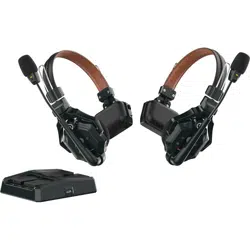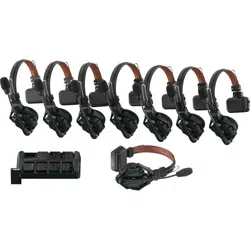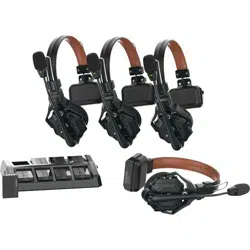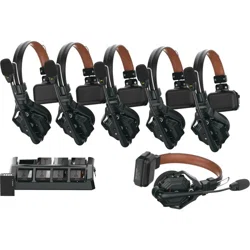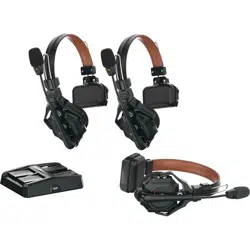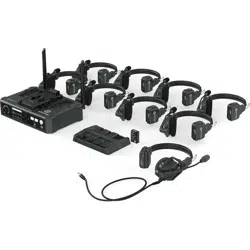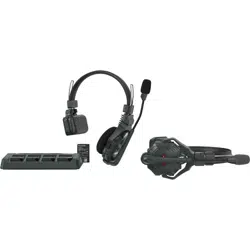

Hollyland Solidcom C1 HUB8S
V1.0.0

Introduction
Thank you for purchasing Hollyland Full-duplex Wireless Intercom System.
The Solidcom C1 HUB8S includes eight single-sided remote wireless headsets along with
eight rechargeable batteries, a charger, a HUB base with wired headset, and accessories.
It is a full-duplex wireless DECT intercom system engineered to provide clear audio and
all-day wearing comfort in a true-wireless design with no beltpack required. The system
operates in the 1.9GHz band, providing a reliable transmission range up to 1000ft (350m)
radius (LOS).
This Quick Guide will guide you through the installation and use of the equipment.
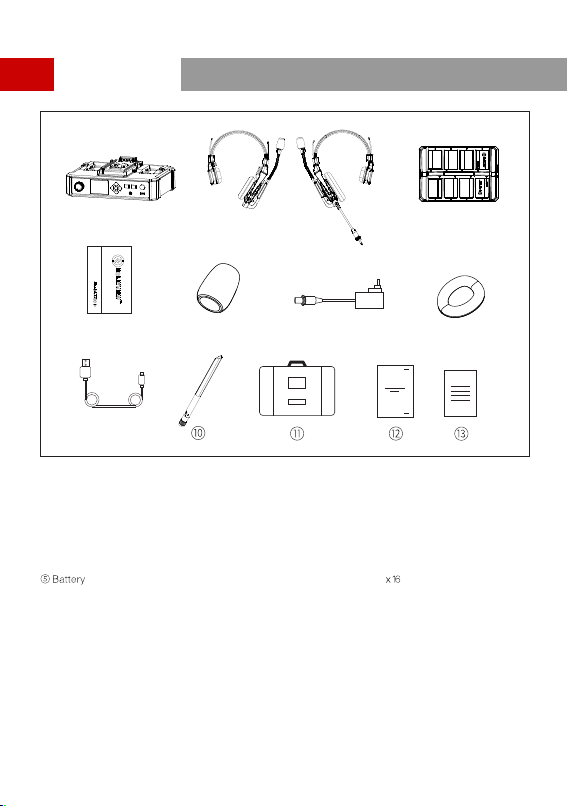
Solidcom C1 - HUB8S Headset Intercom Package
①HUB Base 1
x
②Remote Headset (with blue nameplate) 8 x
④ Charging Case 1 x
⑩High-gain Antennas 4 x
③ 3.5mm HUB Headset (with red nameplate) 1x
⑦ 12V/2A DC Adapter 2 x
⑨ USB Type-A to Type-C Cable 1 x
⑧Over-ear Cushion 9 x
⑪ Storage Case 1 x
⑫ Quick Guide 1 x
⑬ Warranty Card 1 x
Note: The amount of the items listed above depends on the edition.
⑤
①②③
⑥
⑦
⑧
⑨
④
⑥Microphone Cushion 9 x
Packing List
1
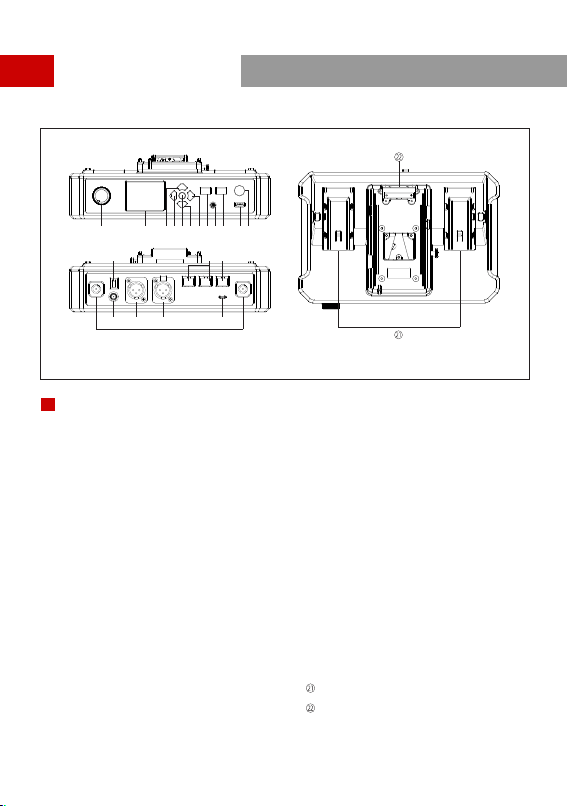
Product Interfaces
①HUB Headset Volume Knob
②Display
④LEFT Arrow Key
③UP Arrow Key
HUB Base Interfaces
A
⑤Menu/Confirm Button - Long press to enter the
main menu/press once to confirm
⑥DOWN Arrow Key
⑦RIGHT Arrow Key
⑧Join/Exit Group A Button for the 3.5mm HUB
Headset - The indicator turns off when the HUB
Headset exit Group A’s conversation, and turns
on in orange after joining in
⑨ 3.5mm Headphone Jack
⑩Join/Exit Group B Button for the 3.5mm HUB
Headset - The indicator turns off when the HUB
Headset exit Group B’s conversation, and turns
on in orange after joining in
A
⑫ANNOUNCE Button - Press and hold the button
while making an ANNOUNCE, release the button
when finished
⑭Power Switch
⑬RF Antenna Interface
⑮DC Power Interface
⑯ PGM Audio Input Interface
⑰2-wire Audio Input & Output Interface
⑱ RJ45 Network Port
⑲4-wire Audio Input & Output Interface
(RJ45 network socket)
⑳ UAC Interface
NP-F Battery Bay
①② ③④⑤⑥⑦
⑧⑨⑩⑪⑫
⑬
⑭
⑱⑲
⑳
⑮⑯⑰
⑪USB Interface
V-Mount/G-Mount Battery Plate (Subject to the
actual product you purchased)
2
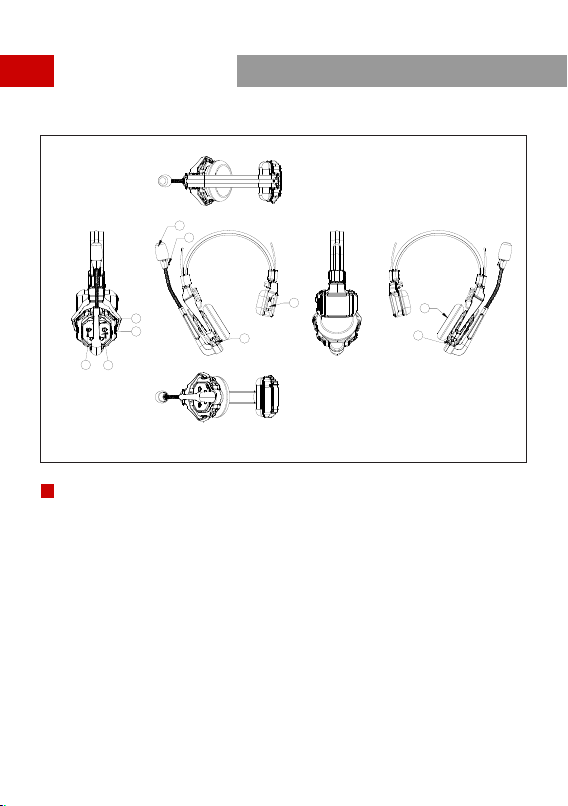
Product Interfaces
1
3
4
5
6
7
① Power/Connection Indicator
② Microphone
⑨ Power Button
③ USB Type-C Interface - For firmware upgrade, and headset pairing
Headset Interfaces
B
⑤ Volume + Button
⑥ Volume - Button
⑦ A Button - Lights up when joined Group A, turns off when exited Group A;
Long press for 5 seconds to pair
⑧ B Button - Lights up when joined Group B, turns off when exited Group B
④ Battery Compartment
⑩ Speaker
B
2
8
9
10
3
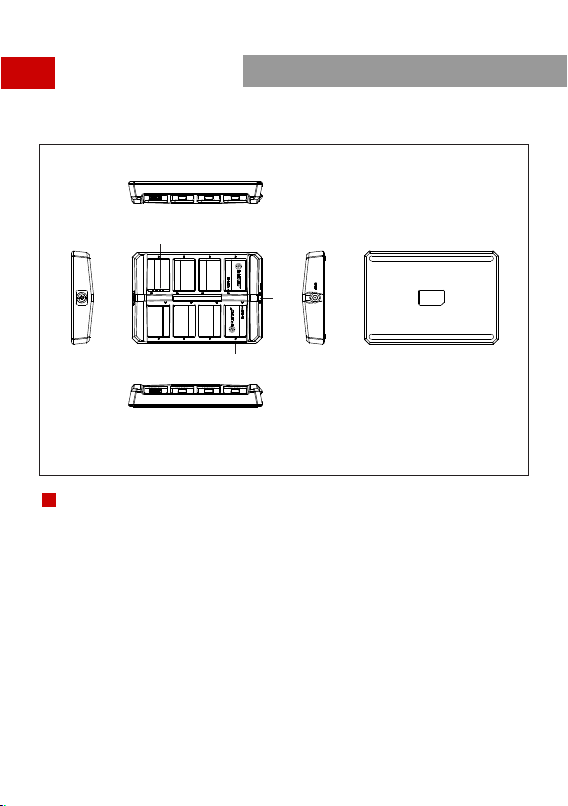
Product Interfaces
① Charging Indicator
Orange: Charging in progress
Green: Fully charged
② Charging Contact
Charging Case Interfaces
c
②
③
①
c
③DC Charging Interface
4
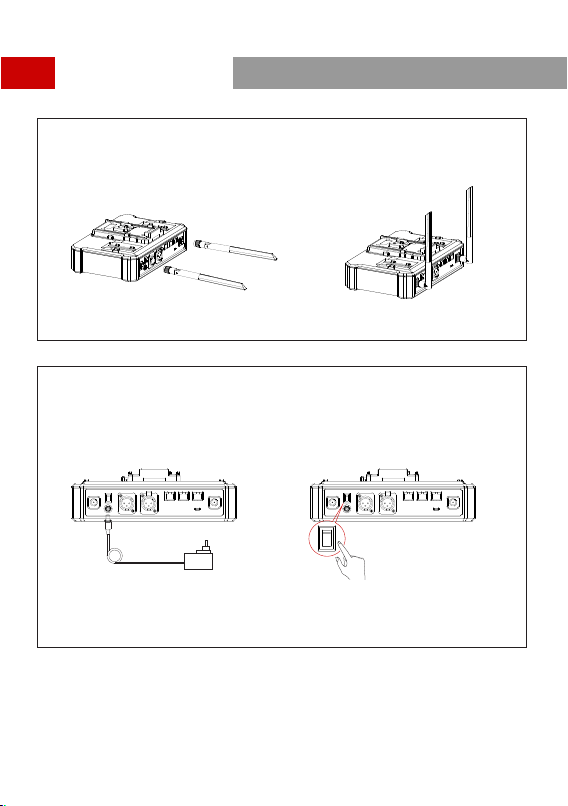
Quick Start Guide
Set Up HUB Base
Install the HUB antennas.
Power Up HUB Base
Connect the 12V/2A DC Adapter to the HUB base.
Press the Power Switch to turn on.
Note: The HUB Base can be powered using NP-F battery, V-Mount/G-Mount battery, or DC power supply.
5
Quick Start Guide
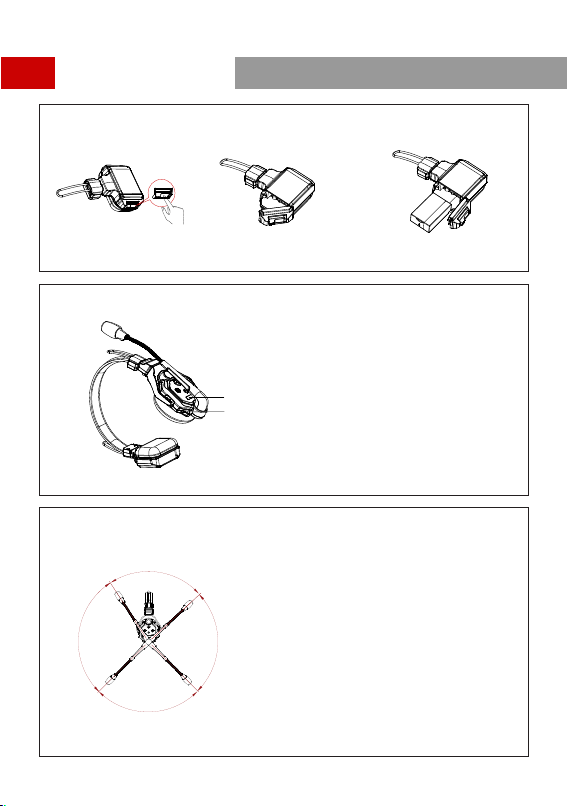
Install Headset Battery
Turn On Headset
Note: The indicator light stops flashing and turns to
static green when the HUB Base and the
Remote Headset(s) are successfully connected.
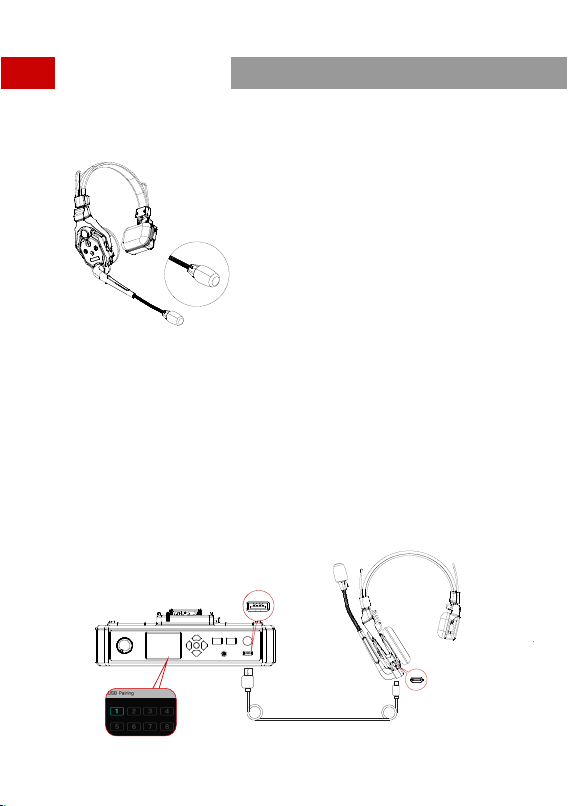
Mute/Unmute Microphone
Mute/Unmute the headset’s microphone by moving the mic boom up/down.
1.Move the mic boom up to the MUTE position that makes a
CLICK sound, and the HUB Base’s interface displays "MUTE"
corresponding to the headset status.
2.Move the mic boom down to the TALK position that makes a
CLICK sound, and the HUB Base’s interface displays "TALK"
corresponding to the headset status.
TALK
MUTE
Stop-point
Stop-point
The device is now ready for use.
MUTE
TALK
6
Step 1: Slide the battery compartment
cover lock
Step 2: Open the coverStep 3: Place the battery into the compartment
and close the battery cover
Nameplate
Power Switch
Power up the Headset
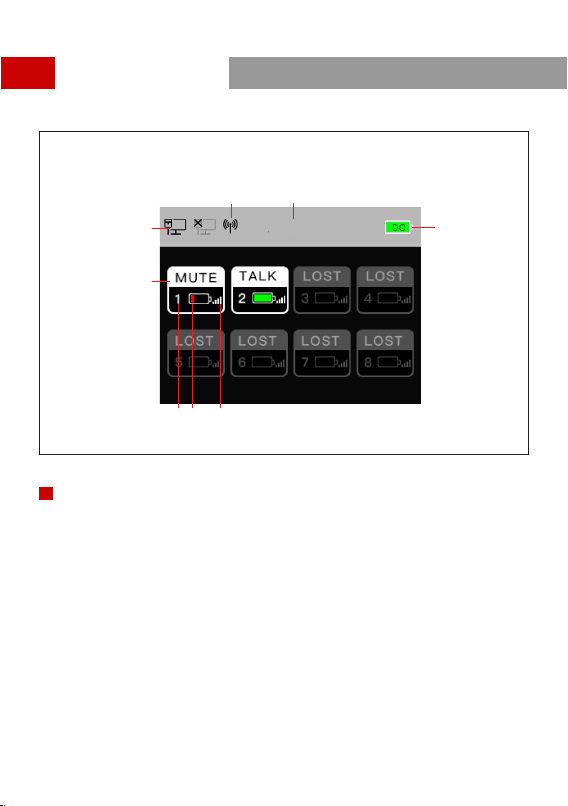
①HUB Base configuration - Master/Slave
②HUB Base battery level
HUB Base Main Display Interfaces
③Headset signal strength
④Headset battery level - turns red in low battery
⑤Headset number
⑥Headset status
TALK: Headset is active to hear and talk
MUTE: Headset is muted to hear only
LOST: Headset lost connection with HUB Base
⑦Network connection status
⑧ WiFi status
①
②
③④⑤
⑥
⑧
⑦
Quick Start Guide
7
Master
Quick Start Guide
Headset Status Indicator
①FLASH GREEN: Headset disconnected
②STATIC GREEN: Headset connection successful
③FLASH RED: Low battery, please change the battery
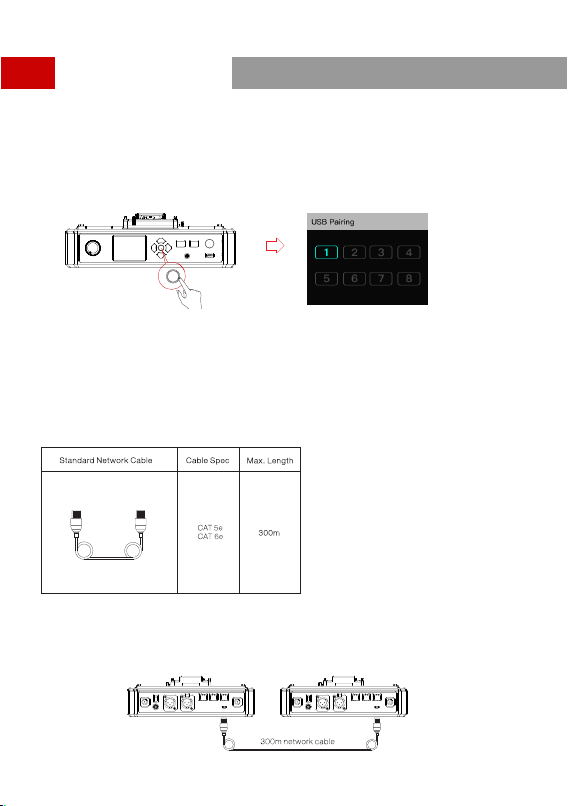
Pairing Operation
The HUB Base and Remote Headsets that come in one system package will auto pair up right out of box.
Manual pairing is only required when there is a need for adding or changing headset or HUB base to the
system.
Connect the HUB Base and the Headset with a USB-C Cable.
Pairing requires a USB-C cable.
Connect one end to the USB interface on the HUB Base’s front panel, and the other end to the USB-C
interface of the headset.
The HUB Base screen will display the Select Number interface. Locate the designed headset number with
the arrow keys, and press the round Menu/Confirm Button to complete number setting and pairing.
8
Quick Start Guide
Headset(s) Number Setting via HUB Base
When re-pairing and numbering the headset, be sure to turn on all the headsets to avoid selecting
duplicate numbers, which may lead to connection failure with other headsets.
In case of wrong numbering of a headset, simply connect it to the HUB with the USB cable and operate
the pairing and numbering process again.
Cascade Connections
Multiple sets can be cascaded to expand the number of headsets. The Solidcom C1 HUB
Base supports two cascading methods, 4-wire analog and IP digital signal cascading.
4-wire analog mode is generally used in cascading connections of 2 sets, and the IP
digital signal cascade for 3 sets. If more than 3 sets are cascaded, it is recommended
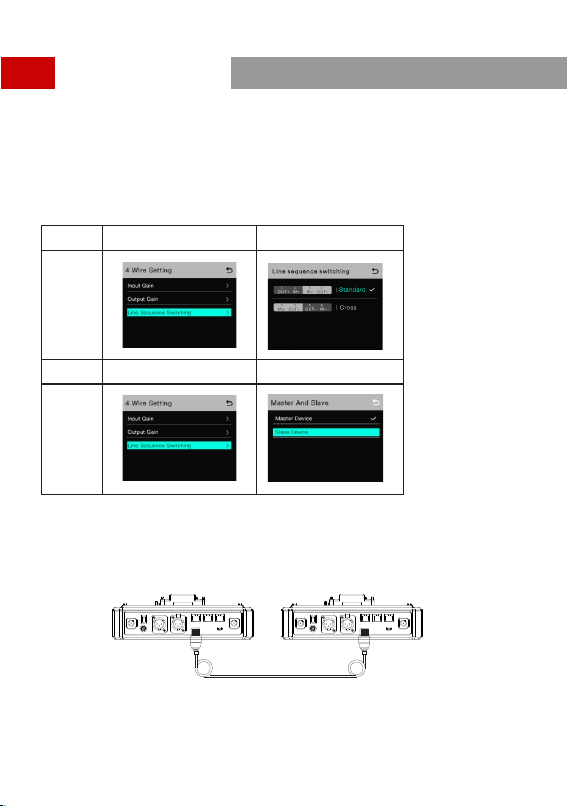
Two Systems Cascade via 4-Wire Interface
Use a standard network cable to connect two HUB bases through the 4W interface. The network cable is
generally up to 300 meters long.
9
Quick Start Guide
4 Wire Settings
After connecting the two systems with the network cable, configure each HUB Base’s line sequence by
entering "4 Wire Settings" and selecting "Line sequence switching".
Set the first HUB Base to “Standard mode” and the second HUB Base to “Cross mode”.
Enter 4 Wire menu, and select
Line sequence switching
Set to Standard mode
HUB❶
4 Wire
Settings
HUB❷
Enter 4 Wire menu, and select
Line sequence switching
Set to Cross mode
4 Wire
Settings
10
Two Systems Cascade via IP Network
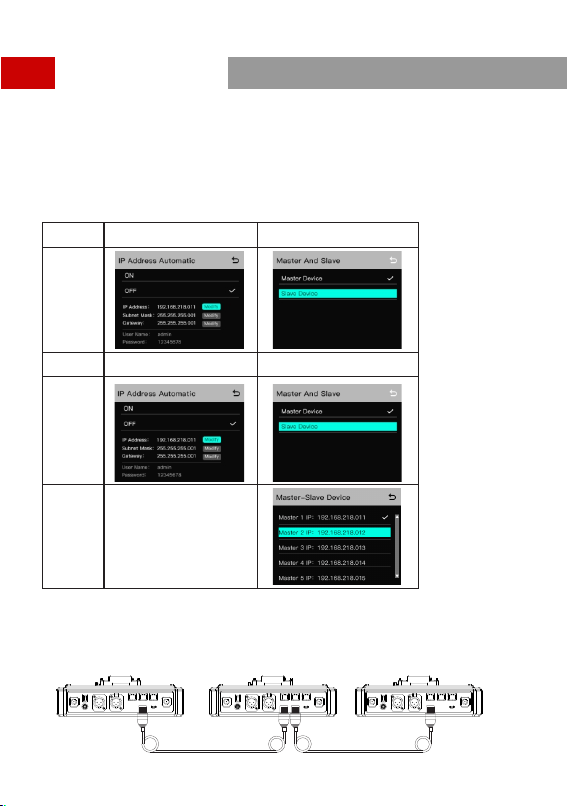
Use a standard network cable to connect the two systems through the RJ45 network port. Either one of the
two RJ45 network ports on the HUB works.The network cable is generally up to 300 meters long.
300m network cable
HUB Display Interfaces
Quick Start Guide
HUB Settings
After connecting the two systems with the network cable, configure each HUB Base’s basic settings as
Master or Slave device. Generally, the first system is set as Master Device, and the second one as Slave
Device.
In this case, you need to turn OFF the “Obtain IP address automatically” under “Network” settings on both
the HUB Bases.
HUB Display Interfaces
Enter Network menu, and set the
Obtain IP address automatically to OFF
Enter Master and Slave menu,
and select Master Device
HUB ❶
Network
Settings
HUB❷
Enter Network menu, and set the
Obtain IP address automatically to OFF
Enter Master and Slave menu,
and select Slave Device
Network
Settings
Tap Scan to enter. The screen will
display the Master Devices IP address.
Use the Arrow Key to locate the IP
address, and press Confirm.
11
Three Systems Cascade via IP Network
Cascade Connection Method
When cascading three systems, it is recommended to use the IP network connection. Set the first system's
HUB to Master Device and the second and third HUBs to Slave Device.
Network cableNetwork cable
Quick Start Guide
Group Settings
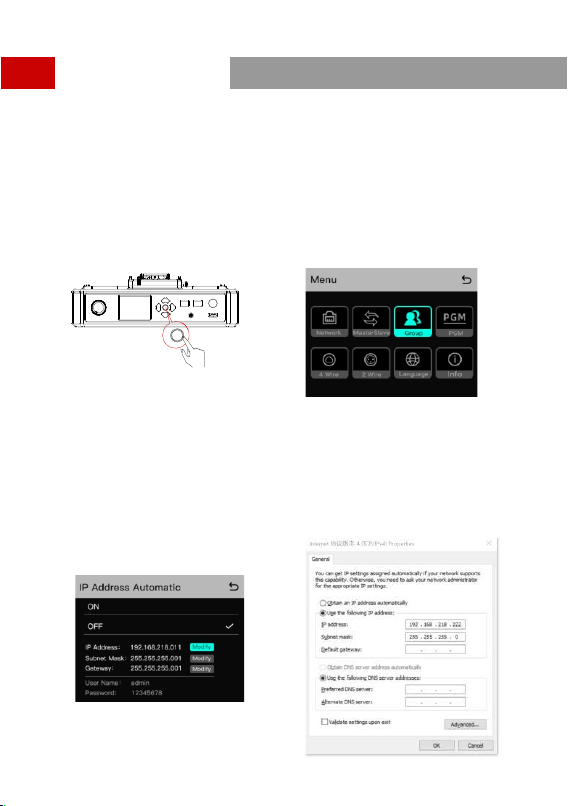
The HUB Base supports A and B grouping settings. You can view the system’s current group setting by
entering the Group menu on the HUB. To operate group settings, connect the computer and the HUB via
the RJ45 interface using the network cable, and enter the Group settings menu. Or download the Solidcom
APP on the mobile phone and connect to the HUB through WiFi to access the Group settings menu.
Check Group Settings on HUB
HUB Display Interfaces
Viewing method:
Operate Grouping via Computer
Enter the “Network” menu on the HUB, and select
“Wired network settings” to view the HUB’s default IP
Address, User Name and Password.
Use a network cable to connect the computer and
the HUB via the RJ45 network port. Set the IP
address of the computer as [192.168.218.xxx],
and the default IP address of the HUB as
[192.168.218.10]
Long press the Menu/Confirm Button
to enter the Group settings menu
12
Quick Start Guide
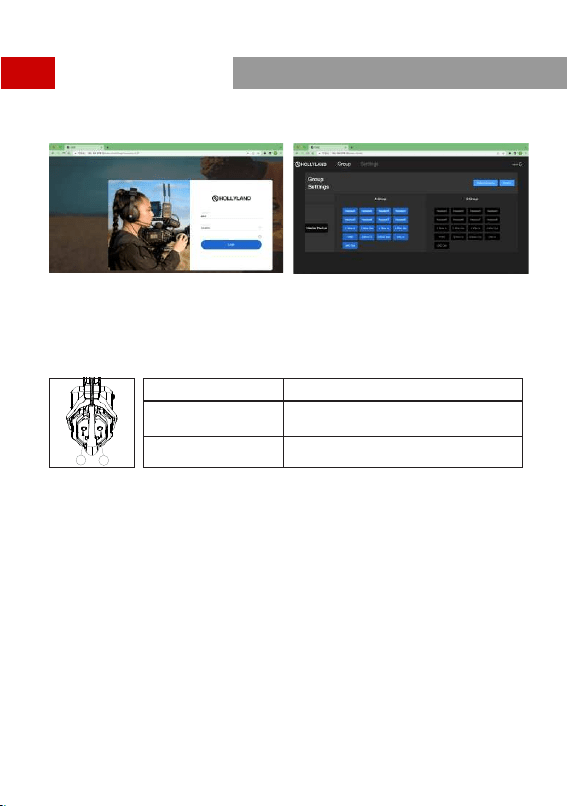
Open the browser on the computer and visit http://192.168.218.10 to enter the configuration page of the
HUB.
A & B Group Buttons on Headset(s)
After entering Group setting on the HUB, the A and B Buttons on the connected headset will light up. The
buttons light status indicates which group the headset has joined. Press the A or B Button on the
headset to Join/Enter the corresponding group.
A and B Button Light Status
Status
Light ON
When the A or B Button lights ON, it indicates the
headset has joined the corresponding group and can
converse with the other headset(s) in the same group.
Light OFF
When the A or B Button lights OFF, it indicates the
headset has exited the corresponding group.
A
B
A
B
13
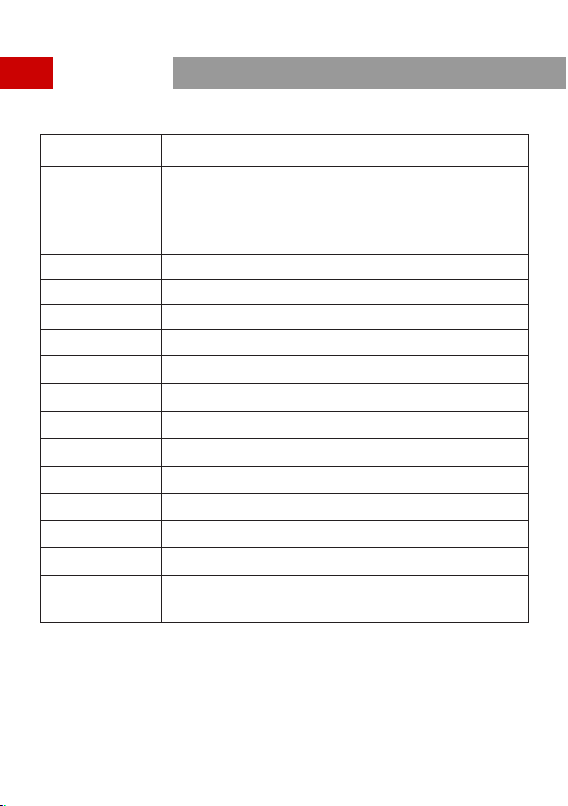
Parameters
14
Range350m (1000ft) Line-of-Sight
Frequency Information
Frequency band: 1.9GHz DECT (varies by country and region)
Modulation mode: GFSK
Transmit power: <21dBm (125.9mW) (varies by country and region)
Receiving sensitivity: <-90dBm
Transmission Latency
Battery Capacity700mAh (2.66Wh) Li-Ion battery
Headset RuntimeRemote headset: ≈10h
Charging Time≈2.5h
Frequency Response
Signal-to-Noise Ratio
Distortion
Microphone TypeElectret
Maximum Input
Sound Pressure Level
Electret
Output Sound
Pressure Level
HUB Base Netweight≈1300g (antennas excluded)
Net Weight
≈170g (batteries included)
Temperature Range
Working status: 0~+45℃
Storage status: -20~+60℃
Note: The frequency band and transmit power varies by country and region.
<35ms
150Hz~7kHz
>55dB
<1%
Typical 98±3dBSPL(at94dBSPL1kHz)

15
Safety Precautions
Do not place the headsets near or inside heating devices (including but not limited to
microwave ovens,inductioncookers,electric ovens,electric heaters,pressure
cookers, water heaters, gas stoves) to prevent the battery from overheating and
exploding.
Never use non-original charging cases, cables and batteries with the product.
The use of non-original spare parts may cause electric shock, fire, explosion or other
dangers.
Support
If you encounter any problems in using the product or need any help, please contact
Hollyland Support Team via the following ways:
If encounter any problems in using the product or need any help,please follow these
ways to get more technical support:
Hollyland Products User Group
HollylandTech
www.hollyland-tech.com
HollylandTech
16

FCC Requirement
Any changes or modifications not expressly approved by the party responsible for
compliance could void the user’s authority to operate the equipment. This device
complies with Part 15 of the FCC Rules. Operation is subject to the following two
conditions:
(1) this device may not cause harmful interference.
(2) this device must accept any interference received, including interference that may
cause undesired operation.
FCC Radiation Exposure Statement:
The device has been tested and comply with FCC SAR limits.
Note: This equipment has been tested and found to comply with the limits for a Class
B digital device, pursuant to Part 15 of the FCC Rules. These limits are designed to
provide reasonable protection against harmful interference in a residential
installation. This equipment generates, uses, and can radiate radio frequency energy,
and if not installed and used in accordance with the instructions, may cause harmful
interference to radio communications. However, there is no guarantee that
interference will not occur in a particular installation. If this equipment does cause
harmful interference to radio or television reception, which can be determined by
turning the equipment off and on, the user is encouraged to try to correct the
interference by one or more of the following measures:
– Reorient or relocate the receiving antenna.
– Increase the separation between the equipment and receiver.
– Connect the equipment into an outlet on a circuit different from that to which the
receiver is connected.
– Consult the dealer or an experienced radio/TV technician for help.