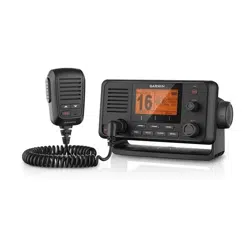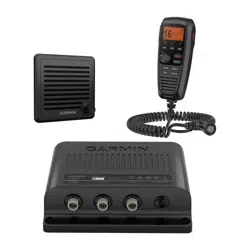
VHF 315 SERIES
Owner’s Manual

© 2018 Garmin Ltd. or its subsidiaries
All rights reserved. Under the copyright laws, this manual may not be copied, in whole or in part, without the written consent of Garmin. Garmin reserves the right to change or
improve its products and to make changes in the content of this manual without obligation to notify any person or organization of such changes or improvements. Go to
www.garmin.com for current updates and supplemental information concerning the use of this product.
Garmin
®
and the Garmin logo are trademarks of Garmin Ltd. or its subsidiaries, registered in the USA and other countries. GHS
™
is a trademark of Garmin Ltd. or its subsidiaries.
These trademarks may not be used without the express permission of Garmin.
NMEA
®
and NMEA 2000
®
are registered trademarks of the National Marine Electronics Association. NOAA
®
is a registered service mark of the National Oceanic and Atmospheric
Administration. BoatU.S.
®
is a registered trademark of the Boat Owners Association of the United States. Sea Tow
®
is a registered trademark of Sea Tow Services International, Inc.
United States Power Squadrons
®
is a registered trademark of the United States Power Squadrons. Other trademarks and trade names are those of their respective owners.

Table of Contents
Introduction......................................1
Handset Overview................................... 2
Home Screen........................................... 3
System Status Icons........................... 4
Basic Operation................................ 4
Turning On and Off the Device............... 4
Adjusting the Volume..............................4
Adjusting the Squelch Level................... 5
Selecting the Frequency Band................ 5
Selecting a Channel................................ 5
Transmitting with the Radio................... 5
Calling Another GHS™ 11 Handset.........5
Scanning and Saving Channels.............. 6
Scanning All Channels........................ 6
Saving a Channel................................. 6
Removing a Saved Channel................ 6
Scanning Saved Channels.................. 6
Monitoring Multiple Channels............ 7
Selecting a Different Second-Priority
Channel.................................................... 7
Switching to Priority Channels............... 7
Setting the Receiving Sensitivity............ 7
Switching Between 1 W and 25 W
Transmitting Modes................................8
Bypassing the Low Transmission
Power Setting...................................... 8
Using the Hailer Function....................... 8
Foghorn.................................................... 9
Sounding the Foghorn
Automatically....................................... 9
Sounding the Foghorn Manually.........9
Adjusting the Sound Frequency of the
Foghorn................................................ 9
Entering Text........................................... 9
NOAA® Weather Broadcasts and
Alerts............................................... 9
Tuning Weather Broadcasts................. 10
Enabling and Disabling Weather
Alerts...................................................... 10
Digital Selective Calling.................. 10
Digital Selective Calling........................ 10
Entering Your MMSI Number................11
Viewing Your MMSI Number................ 11
Distress Calls.........................................11
Sending an Undesignated Distress
Call..................................................... 11
Sending a Designated Distress
Call..................................................... 12
Waiting For and Receiving and
Acknowledgment for a Distress
Call..................................................... 12
Stopping Automatic Retransmission
of Distress Calls................................ 12
Revoking a Distress Call................... 13
Placing Calls.......................................... 13
Placing Individual Calls..................... 13
Placing Group Calls........................... 13
Placing All-Ships Calls...................... 14
Individual Call or Group Call
Channels............................................ 14
Requesting a Vessel's Position........ 14
Receiving Calls...................................... 14
Receiving Distress Calls and Distress
Relay Calls......................................... 14
Receiving All-Ships Urgency and
Safety Calls........................................ 15
Receiving Individual Routine Calls... 15
Receiving Position Requests............ 15
Receiving Position Calls................... 15
Receiving Group Calls....................... 15
Position Tracking.................................. 16
Selecting Vessels and Activating
Position Tracking.............................. 16
Viewing and Deactivating Vessels on
the Position Tracking List................. 16
Deleting a Vessel From the Position
Tracking List...................................... 16
Call Log.................................................. 17
Viewing the Calls in the Call Log...... 17
Placing a Call from a Call Log.......... 17
Saving a Vessel or Station to the
Directory from the Call Log............... 18
Deleting a Call Log Entry................... 18
Directory................................................ 18
Viewing Saved Vessels and Stations in
the Directory...................................... 18
Adding an Entry to the Directory.......18
Editing an Entry in the Directory....... 18
Deleting an Entry from the
Directory.............................................18
Table of Contents i

Adding a Group.................................. 18
Editing a Group.................................. 19
Deleting a Group................................ 19
DSC Settings..........................................19
Manual Position Information............ 19
Changing the Channel to 16
Automatically.....................................19
Sending Automatic Replies.............. 19
Automatic Transmitter Identification
System........................................... 20
Entering Your ATIS Identification
Number.................................................. 20
Turning On and Off ATIS.......................20
Viewing Your ATIS Identification
Number.................................................. 20
NMEA 0183 and NMEA 2000®........21
Additional Functionality with Other
Garmin Devices..................................... 21
Communicating Over NMEA 0183 or
NMEA 2000........................................... 21
Configuring DSC NMEA
Transmissions.......................................21
System Settings............................. 22
Number Settings................................... 22
Units Settings........................................ 22
Configuring the Time Offset............. 22
Selecting the Frequency Band..............22
Changing a Channel Name................... 23
Restoring Factory Settings................... 23
Appendix........................................ 23
Alarms and Messages.......................... 23
Channel Lists......................................... 23
Channel Prefixes............................... 23
VHF 315 Series Specifications............. 24
NMEA..................................................... 24
NMEA 0183 Information................... 24
NMEA 2000 PGN Information.......... 25
Cleaning the Outer Casing.................... 25
ii Table of Contents

Introduction
WARNING
See the Important Safety and Product Information guide in the product box for product warnings and other
important information.
Introduction 1

Handset Overview
Item Key Description
PTT Hold to broadcast.
DISTRESS
Lift the door and press to send a DSC distress call with a programmed MMSI
number (Entering Your MMSI Number, page 11).
Press the key that corresponds to the on-screen item to select the item.
ENTER
On the home screen, rotate to change the channel.
On the home screen, press to toggle weather channels (NOAA
®
Weather Broadcasts
and Alerts, page 9).
Rotate to change the volume or squelch level after pressing the VOL/SQ key.
Rotate to highlight an item in a list.
Press to select an item.
PWR
North America:
16/9
International: 16+
Hold to turn the radio on and off.
Press to toggle between preset channels.
HI/LO Press to change the transmission mode and power settings.
CLEAR
Press to return to the previous menu option.
Press to cancel or mute an incoming DSC call.
MENU
From the home screen, press to view configuration options.
From a menu, press to return to the home screen.
2 Introduction

Item Key Description
DSC Press to view a menu of DSC options.
VOL/SQ Press to switch between volume or squelch.
Home Screen
Radio system status, settings, and alerts
International, Canadian, or USA frequency band
Latitude
1
Longitude
1
Time
1
Speed over ground (SOG) or course over ground (COG)
2
Soft-key functions change depending on your current activity
Working channel
1
The latitude, longitude, and time appear when the radio has a GPS signal acquired. You can enter data manually when the radio does not have a GPS signal.
2
The SOG and COG appear when the radio has a GPS signal acquired, and the option is enabled in the menu (Number Settings, page 22).
Introduction 3

System Status Icons
Icon Status
Receiving an incoming signal
Transmitting
Transmitting at 25 W
Transmitting at 1 W
Saved channel
Local receiver mode, often used in areas with radio frequency interference (harbors)
ATIS enabled
Position tracking enabled
Auto channel changing disabled
Incoming or missed DSC call
Weather alerts enabled
GPS signal acquired
Basic Operation
Turning On and Off the Device
Hold PWR.
TIP: You can set the device to turn on automatically (System Settings, page 22).
Adjusting the Volume
1 Set the squelch level to MIN before you adjust the volume (optional).
2 Select VOL/SQ twice.
VOLUME appears on the screen.
3 Turn the dial to increase or decrease the volume.
4 Basic Operation

Adjusting the Squelch Level
You can adjust the sensitivity level of the squelch to filter out background noise. When you increase the squelch
level, you hear fewer weak background signals when you are receiving.
1 Select VOL/SQ.
SQUELCH appears on the screen.
2 Turn the dial counter-clockwise until you hear audio.
3 Turn the dial clockwise until there is no background noise.
Selecting the Frequency Band
You can switch between the USA, International, or Canadian frequency bands (Channel Lists, page 23).
NOTE: Not all frequency bands are available on all device models.
1 Select MENU > CHANNEL > FREQUENCY BAND.
2 Select a frequency band.
Selecting a Channel
You can select an International, Canadian, or USA channel (Selecting the Frequency Band, page 5).
Turn the dial.
Transmitting with the Radio
1 Select an appropriate channel.
2 Verify that the channel is clear.
NOTE: You cannot obstruct the communications of other people due to Federal Communications
Commission (FCC) and international guidelines.
3 Hold PTT on the handset.
appears at the top of the screen.
4 Speak into the handset.
NOTE: Five minutes is the maximum time allowed for transmission. After five minutes of transmitting, PTT is
disabled until you release PTT.
5 Release PTT.
Calling Another GHS
™
11 Handset
After connecting at least two GHS 11 handsets to your radio, you can use the intercom feature to communicate
between the handsets. For example, you can use a handset at the helm to communicate with a user of a
handset in a below-deck engine room.
NOTE: The intercom feature is not available with VHF 110/115 models.
1 Select PA > INTERCM.
2 Rotate the dial on the handset to select an intercom station to call, and select ENTER.
3 At the receiving intercom station, hold PTT to respond.
Either user must hold PTT to talk.
4 Select EXIT to end the call.
Basic Operation 5

Scanning and Saving Channels
Scanning All Channels
When you scan channels, the radio searches for channels that are broadcasting. When a channel is
broadcasting, the radio pauses on that channel until the broadcast stops. After four seconds of inactivity on a
channel, the radio resumes scanning.
NOTE: When you turn on ATIS (Automatic Transmitter Identification System, page 20), the radio does not scan
or save channels.
1 Select SCAN > ALL.
2 Select an option:
• To exclude the currently active channel from subsequent passes and resume scanning, select SKIP.
• To scan channel 16 each time another channel is scanned, select +CH16.
For example, the radio scans channel 21, channel 16, channel 22, channel 16, and so on.
+CH16 appears on the device screen.
• To scan channel 16 in its usual order, select -CH16.
For example, the radio scans channel 14, channel 15, channel 16, channel 17, and so on.
• To end the scan, select EXIT.
The radio stops scanning and tunes to the last used, active channel.
Saving a Channel
You can save any channel except the weather (WX) channels. You can save an unlimited number of channels.
1 Select SCAN.
2 Turn the ENTER dial until you find a channel you want to save.
3 Select SAV CH.
appears above a saved channel.
Removing a Saved Channel
1 Select SCAN.
2 Turn the ENTER dial until you find a saved channel.
NOTE: A saved channel has above it.
3 Select SAV CH.
Scanning Saved Channels
You can scan only the channels you have saved. When a saved channel is broadcasting, the radio pauses on
that channel until the broadcast stops. After four seconds of inactivity on a channel, the radio resumes
scanning.
NOTE: When you turn on ATIS (Automatic Transmitter Identification System, page 20), the radio does not scan
or save channels.
1 Select SCAN > SAVED.
2 Select an option:
• To exclude the currently active channel from subsequent passes and resume scanning, select SKIP.
• To scan channel 16 each time another saved channel is scanned, select +CH16.
For example, the radio scans saved channel 21, channel 16, saved channel 25, channel 16, and so on.
+CH16 appears on the device screen.
• To stop scanning channel 16, select -CH16.
For example, the radio scans saved channel 21, saved channel 25, and so on.
• To end the scan, select EXIT.
The radio stops scanning and tunes to the last used active channel.
6 Basic Operation

Monitoring Multiple Channels
Before you can monitor multiple channels, you must turn off ATIS (Automatic Transmitter Identification System,
page 20).
You can monitor priority channels and the currently selected channel for broadcasting activity. Channel 16 is the
first-priority channel on your radio. Channel 9 is the default second-priority channel. You can program a different
channel as your second-priority channel (Selecting a Different Second-Priority Channel, page 7).
Select WATCH.
Monitoring Two Channels
You can monitor your current channel and channel 16 at the same time.
Select WATCH > DUAL.
DUAL WATCH and the channels you are monitoring appear on the screen. For example, DUAL WATCH CH:,
and 16 + 9.
Monitoring Three Channels
You can monitor your current channel, channel 16, and your second-priority channel at the same time.
Select WATCH > TRI.
TRI WATCH, your current channel, channel 16, and your second-priority channel appear on the screen. For
example, TRI WATCH CH:, and 75 + 16 + 9.
Selecting a Different Second-Priority Channel
You can select a channel other than channel 9 as your second-priority channel.
1 Select MENU > CHANNEL > 2ND PRIORITY.
2 Turn the ENTER dial to the preferred channel.
3 Select OK.
Switching to Priority Channels
You can quickly switch between your current working channel and a priority channel. When you change to a
priority channel, the transmit power is set to high (25 W) automatically, and when you change back to your
current channel, the transmit-power setting is restored.
On North American models, you can quickly switch between channel 16, your second-priority channel, and your
original channel using the 16/9 key.
On International models, you can quickly switch between channel 16 and your original channel using the 16+
key.
1 To switch from your current channel to channel 16, select 16/9 or 16+.
The transmit power changes to high (25 W) automatically. You can select HI/LO > 1W to change the transmit
power to low (1 W).
2 On North American models, select 16/9 to switch to your second-priority channel.
3 Select 16/9 or 16+ to return to your previous channel and transmit-power setting.
Setting the Receiving Sensitivity
You can control the receiving sensitivity of the radio. When you have noise in high-traffic areas or areas with
electromagnetic interference, such as near cell-phone towers, you can set the receiving sensitivity to LOC to
decrease receiver sensitivity. In remote areas and on open water, you can set the receiving sensitivity to DIST to
ensure that you use the maximum range of the receiver.
1 Select HI/LO.
2 Select an option:
• Select LOC to enable local sensitivity.
• Select DIST to enable distant sensitivity.
Basic Operation 7

Switching Between 1 W and 25 W Transmitting Modes
You can control the transmitting power of the radio. Low (1 W) is used for local transmissions, and high (25 W)
is used for distance and distress transmissions.
When two signals broadcast on the same frequency, a VHF radio receives only the stronger of the two signals.
You should transmit calls other than distress calls using the lowest power setting that allows you to
communicate, to reduce the possibility that your transmissions interfere with the transmissions of others.
In the USA channel band, transmissions on channels 13, 17, 67, and 77 must be low (1 W) by default.
In the Canadian channel band, transmissions on channels 13, 15, 17, 20, 1066, 67, 75, 76, and 77 must be low
(1 W) by default.
In the International channel band, transmissions on channels 15, 17, 75, and 76 must be low (1 W).
NOTE: In the USA and Canadian channel bands, you can bypass the power setting for these channels
temporarily during transmission (Bypassing the Low Transmission Power Setting, page 8). In the International
channel band, the radio does not permit transmissions on these channels to be changed to high (25 W).
1 Select HI/LO.
2 Select 1W or 25W.
3 Select OK.
Bypassing the Low Transmission Power Setting
In the USA and Canadian frequency bands, transmissions on select channels are required to be low-power (1 W)
by default, because they are intended for intership (bridge-to-bridge) communication (Switching Between 1 W
and 25 W Transmitting Modes, page 8). If other radios cannot receive these channels due to the low power
setting, you can bypass the default restriction during transmission.
NOTE: In the International channel band, the radio does not permit transmissions on these select channels to be
changed to high (25 W).
1 From a USA or Canadian channel set to low power by default, such a 13,17, or 77, hold PTT.
2 While transmitting, select 25W.
Using the Hailer Function
Before you can use the hailer function, you must install a hailer horn (optional). For more information, see the
VHF 315 Series Installation Instructions.
A hailer horn allows you to make on-boat or ship-to-shore announcements, and allows two-way communications
between connected radios. You can address the ship using the radio or handset, and sounds received through
the horn can be heard through the radio speaker. For vessels with enclosed cabins, the hailer horn allows you to
hear sounds from the deck.
NOTE: When the radio is in hailer mode, it does not receive broadcasts from the active channel.
1 Select PA > HAILER.
Sounds received through the horn are heard through the radio speaker.
2 Hold PTT.
3 Select an option:
• To make an announcement, speak into the handset.
• To adjust the volume of the hailer broadcast, turn the ENTER dial.
4 Release PTT to stop broadcasting and listen for broadcasts from other connected radios on the ship.
8 Basic Operation

Foghorn
NOTE: Foghorn functionality is not available on all VHF radio models.
Before you can use the foghorn, you must provide and install a hailer horn (optional) on the deck or tower of
your boat. For more information, see the Installation Instructions.
The foghorn is part of the public address system of your radio. You can sound the foghorn through a hailer horn
or an external speaker. Your radio can sound the horn automatically using standard patterns, or you can sound
the horn manually. When you manually operate the foghorn, sounds received through the horn can be heard
through the radio speaker between soundings.
Sounding the Foghorn Automatically
1 Select PA > FOG > AUTO.
2 Select a foghorn-type option.
The radio alternates between sounding the pattern of tones or rings and receiving radio broadcasts.
3 Turn the ENTER dial to adjust the volume of the horn (optional).
Sounding the Foghorn Manually
NOTE: When you sound the horn manually, the radio does not receive broadcasts between horn soundings.
1 Select PA > FOG > MANUAL.
Sounds are received through the horn and heard through the radio speaker.
2 Hold PTT.
NOTE: The horn stops sounding when you release PTT.
3 Turn the ENTER dial to adjust the volume of the horn (optional).
Adjusting the Sound Frequency of the Foghorn
You can increase or decrease the sound frequency of the foghorn. The pitch of the tone rises with an increase in
frequency, and falls with a decrease in frequency. The minimum setting is 200 Hz, and the maximum setting is
850 Hz. The default setting is 350 Hz. Regulations dictate the correct frequency of foghorns, which correlate
with the size of your vessel.
1 Select MENU > SYSTEM > FOG FREQUENCY.
2 Turn the ENTER dial to adjust the frequency in 50 Hz increments.
3 Select ACCEPT.
Entering Text
You may need to enter a name, a number, or other text on the radio.
1 From a number or text field, turn the ENTER dial to change the number, letter, or character.
2 Press the ENTER dial to accept the number, letter, or character and move to the next space in the sequence.
3 Repeat this process for each number, letter, or character.
NOTE: You can select to return to the previous entry in the sequence.
4 Select ACCEPT.
NOAA
®
Weather Broadcasts and Alerts
NOTE: This feature is not available on all radio models.
NOAA weather broadcasts on the weather (WX) channels are available only in the USA and certain regions in
Canada.
Compatible radio models are programmed with 10 WX channels to monitor weather broadcasts from the
National Oceanic and Atmospheric Organization (NOAA). WX channels are listen-only channels that broadcast
in a continuous loop and are updated regularly. NOAA broadcasting information is regional and relevant to your
broadcast area.
NOAA
®
Weather Broadcasts and Alerts 9

Tuning Weather Broadcasts
1 From the home screen, press the ENTER dial.
WX appears on the screen.
2 Turn the ENTER dial to change the weather channel.
Enabling and Disabling Weather Alerts
You can enable weather (WX) alerts to sound when you are using standard radio channels.
1 When tuning weather broadcasts, select ALERT to enable or disable weather alerts.
indicates that weather alerts are enabled.
2 Select EXIT.
The radio returns to normal operation while continuing to monitor weather alerts.
Digital Selective Calling
Digital Selective Calling
NOTE: Before you can use DSC capabilities, you must enter a Mobile Marine Safety Identity (MMSI) number
(Entering Your MMSI Number, page 11). An MMSI number identifies each DSC radio, like a telephone number.
Digital Selective Calling (DSC) is a key component of the Global Maritime Distress and Safety System (GMDSS).
DSC enables VHF radios to place and receive digital calls directly with other vessels and shore stations,
including the USA and Canadian Coast Guards. Your radio includes full Class-D DSC capabilities.
If you have a GPS device connected to the transceiver, your latitude, longitude, and the current time are
transmitted when you send a distress call or other type of DSC call. If you enter your position information
manually, your latitude, longitude, and time of entry are transmitted with the call. Transmitting your location
automatically speeds help in an emergency situation.
Channel 70 is reserved exclusively for DSC calls, and your device uses a dedicated receiver to maintain a
constant watch on Channel 70. You do not need to change the channel to make a DSC call. Your device changes
to Channel 70 automatically to transmit a DSC call. Your radio sends the DSC data over Channel 70 in less than
one second, and then tunes to an appropriate channel for voice communications.
appears on the device screen when you have an incoming or missed DSC call.
NOTE: The device disables DSC automatically when you turn on ATIS (Automatic Transmitter Identification
System, page 20).
10 Digital Selective Calling

Entering Your MMSI Number
NOTICE
You can enter your MMSI number only once. If you must change your MMSI number after entering it, you must
take your radio to your Garmin
®
dealer for reprogramming.
The Mobile Marine Safety Identity (MMSI) number is a nine-digit code that acts as a DSC self-identification
number, and it is required to use the DSC capabilities of your radio. You can obtain an MMSI number from the
telecommunications authority or ship registry for your country. In the USA, you can obtain an MMSI number
from these sources:
• Federal Communications Commission (FCC): assignments are recognized internationally
• BoatU.S.
®
, Sea Tow
®
, or United States Power Squadrons
®
: assignments are for USA waters only.
1 Select MENU > DSC > MY MMSI.
2 Enter your MMSI number (Entering Text, page 9).
3 Select ACCEPT.
The radio prompts you to confirm your identity.
4 Enter your MMSI number again, and select ACCEPT.
If the MMSI numbers you entered do not match, a message appears.
5 If necessary, select RETRY, and enter the number again.
Viewing Your MMSI Number
Select MENU > DSC > MY MMSI.
Distress Calls
When you make a distress call, your call is transmitted to all DSC-capable radios within receiving range. Your
current GPS position (latitude and longitude) and the current time are included in the transmission if you have a
GPS device connected to your transceiver. If you manually entered your position information with the time, that
data is transmitted with the call.
NOTE: You should familiarize yourself with the standard distress-call format and protocol to ensure your calls
are clear and effective.
Sending an Undesignated Distress Call
When you send an undesignated distress call, the nature of your emergency is not transmitted to the receiving
stations. Sending an undesignated distress call is a faster procedure that can save you time during an
emergency.
1 Lift the spring-loaded door, and hold DISTRESS for at least 3 seconds.
The radio beeps and counts down the seconds. DISTRESS CALL COUNTING DOWN appears on the screen.
The radio sounds an alarm, switches to channel 70, and transmits your call on high (25 W) power.
2 Press any key to silence the alarm sound.
The radio tunes to channel 16 on high (25 W) power.
3 Hold PTT on the handset or radio to relay your distress message.
The radio waits for an acknowledgment (ACK) on channel 70 from a listening station.
Digital Selective Calling 11

Sending a Designated Distress Call
When you send a designated distress call, the nature of your emergency is transmitted to the receiving stations.
1 Lift the spring-loaded door, and press DISTRESS.
2 Turn the ENTER dial, and select the type of distress call.
TIP: You can select CLEAR to exit the screen without sending a distress call.
3 Hold DISTRESS for at least three seconds.
The radio beeps and counts down the seconds. DISTRESS CALL COUNTING DOWN appears on the screen.
The radio sounds an alarm, switches to channel 70, and transmits your call on high (25 W) power.
4 Press any key to silence the alarm sound.
The radio tunes to channel 16 on high (25 W) power.
5 Hold PTT on the handset or radio to relay your message.
The radio waits for an acknowledgment (ACK) on channel 70 from a listening station.
Waiting For and Receiving and Acknowledgment for a Distress Call
If the radio does not receive an acknowledgment for a distress call, the radio retransmits the distress call
randomly between 3.5 to 4.5 minutes later, and continues to retransmit the distress call at random intervals
until the radio receives an acknowledgment.
When the radio receives the acknowledgment, it begins beeping and DISTRSS ACK appears on the screen.
1 Press any key to turn off the beeping.
2 Select to view additional information.
TIP: If the MMSI of the station transmitting the acknowledgment signal is an entry in your directory, the
name associated with the MMSI number appears on the screen. If the MMSI of the station is not in your
directory, the MMSI number appears on the screen.
3 Select ACCEPT.
Pausing and Resuming Distress Call Retransmission
If the radio does not receive an acknowledgment for a distress call, the radio retransmits the distress call
randomly between 3.5 to 4.5 minutes later, and continues to retransmit the distress call at random intervals
until the radio receives an acknowledgment. You can pause and resume the retransmission countdown.
1 Send a designated or undesignated distress call.
2 Select PAUSE.
The distress-call-retransmission countdown stops.
3 Select an option:
• To resume the countdown, select RESUME.
• To revoke the distress call, select CANCEL (Revoking a Distress Call, page 13).
Stopping Automatic Retransmission of Distress Calls
Select CANCEL.
The radio remains tuned to channel 16.
NOTE: Selecting CANCEL ends the automatic repetition of the call, but does not communicate to other
stations that you no longer have an emergency. If you no longer have an emergency, you should revoke the
distress call (Revoking a Distress Call, page 13).
12 Digital Selective Calling

Revoking a Distress Call
You do not transmit a distress call until you hold DISTRESS for at least three seconds. If you inadvertently make
a distress call, or are no longer in distress, you should cancel the call immediately by transmitting a voice
message to all stations on channel 16.
1 Select CANCEL > YES, and wait until DISTRESS CANCEL HAS BEEN SENT appears on the screen.
2 Select OK.
3 Hold PTT on the handset, and transmit an appropriate voice message to cancel the distress call (Distress
Call Cancellation Script, page 13).
4 Select an option:
• Select END to complete the distress-call cancellation and return to normal radio operation.
• Select RESEND to resend the distress-call cancellation and start the process again.
Distress Call Cancellation Script
When you revoke a DSC distress call (Revoking a Distress Call, page 13), you should transmit an appropriate
cancellation message.
For example, "All stations, all stations, all stations, this is _____(vessel name), MMSI number ____, position
____(North or South), ____(West or East). Cancel my distress alert of ____(date and time). This is ____(vessel
name), MMSI number ____. Out."
Placing Calls
Placing Individual Calls
1 Select DSC > INDIVIDUAL.
2 Select an option:
• To enter the MMSI number manually, select MANUAL, enter the MMSI number, and select ACCEPT.
• To select an entry from the directory, select DIRECTORY, and select an entry.
• To select a recent call, select RECENT CALLS.
3 Select a channel (Individual Call or Group Call Channels, page 14).
The radio transmits the request with your call.
4 Select CALL.
The radio transmits the call on channel 70, and returns to the previous channel while listening for an
acknowledgment on channel 70. After an acknowledgment is received, the radio changes to the channel you
selected for the call.
Placing Group Calls
Before you can place a call to a group, you must enter the MMSI number of the group into the directory (Adding
a Group, page 18).
You can contact a group of specific vessels, such as a sailing club or flotilla, by making a group call.
1 Select DSC > GROUP > CALL.
2 Select a saved group.
3 Select a channel (Individual Call or Group Call Channels, page 14).
The radio transmits the channel request with your call.
4 Select CALL.
The radio transmits the call on channel 70, then changes to the selected channel.
Digital Selective Calling 13

Placing All-Ships Calls
All-ships calls are transmitted to all stations within receiving distance of your radio. You can make two types of
all-ships calls. Safety calls broadcast significant navigational or weather-related information. Urgency calls
communicate situations about the safety of a vessel or person when danger is not imminent. The captain
should discern whether a situation warrants a safety call or an urgency call.
1 Select DSC > ALL SHIPS.
2 Select SAFETY or URGENCY.
3 Select a channel (Individual Call or Group Call Channels, page 14).
The radio transmits the channel request with your call.
4 Select CALL.
The radio transmits the call on channel 70, then changes to the selected channel.
Individual Call or Group Call Channels
When placing an individual or group call, you should select from designated DSC channels. The radio transmits
this request with your call.
• USA: channels 6, 8, 9, 10, 13, 17, 67, 68, 69, 71, 72, 73, and 77.
• Canada and International: all USA channels, plus channel 15
DSC channels are limited to channels that are available in all frequency bands. You can select CUSTOM to
select a channel that is not listed. If you select a custom channel, the station you are calling may not be able to
comply with the specified channel. You should select a channel that is appropriate for communication.
Requesting a Vessel's Position
Position data received from stations that respond to position request calls is sent over the NMEA
®
network. You
can track the vessels on your Garmin chartplotter.
1 Select DSC > POS. REQUEST.
2 Select an option:
• To enter the MMSI number manually, select MANUAL, enter the MMSI number, and select ACCEPT.
• To select an entry from the directory, select DIRECTORY, and select an entry.
3 Select CALL.
The radio transmits the call on channel 70 and returns to the previous channel. WAITING FOR
ACKNOWLEDGE appears on the screen.
Receiving Calls
Receiving Distress Calls and Distress Relay Calls
When receiving a distress call or a distress relay call, DISTRESS or DISTR RELAY, and information about the call,
such as MMSI number and the nature of the distress, appear on the radio screen. A distress call is sent from a
vessel in need of assistance, and a distress relay call is sent from either another vessel or a station on behalf of
a vessel in need of assistance.
The radio sends data related to the call over the NMEA network based on how you configure MMSI filters
(Configuring DSC NMEA Transmissions, page 21).
NOTE: When a distress call is received, the radio switches to channel 16 automatically after ten seconds.
When a distress call is received, select an option:
• To view additional information about the distress call and switch to channel 16, select .
• To accept the distress call and switch to channel 16, select OK.
• To review information about the distress call without switching to channel 16 automatically, select
PAUSE.
• To ignore the distress call and stay on the current channel, press CLEAR.
14 Digital Selective Calling

Receiving All-Ships Urgency and Safety Calls
When you receive an all-ships urgency or safety call, ALL SHIPS appears on the screen, and URGENCY or
SAFETY appears as the type of call. If the channel request is for an invalid channel, INVALID CH REQUEST
appears on the screen.
NOTE: When an all-ships call is received, the radio switches to the requested channel automatically after ten
seconds.
When an urgency or safety call is received, select an option:
• To view additional information about the call and switch to the requested channel, select .
• To accept the call and switch to the requested channel, select OK.
• To review information about the call without switching to the requested channel automatically, select
PAUSE.
• To ignore the call and stay on the current channel, press CLEAR.
Receiving Individual Routine Calls
When you receive an individual routine call, INDIVIDUAL appears on the screen, and ROUTINE appears as the
type of call. If the channel request is for an invalid channel, INVALID CH REQUEST appears on the screen.
NOTE: When an individual call is received, the radio switches to the requested channel automatically after ten
seconds.
When a call is received on a valid channel, select an option:
• To accept the call and switch to the requested channel, select OK.
• To review information about the call without switching to the requested channel automatically, select
PAUSE.
• To ignore the call and stay on the current channel, press CLEAR.
Receiving Position Requests
You can configure the radio to reply automatically to incoming position requests, or prompt you to review and
approve the incoming requests before replying (Sending Automatic Replies, page 19).
When you receive a position request with automatic position replies enabled, SENDING ACKNOWLEDGE
appears on the screen, and the radio sends your position automatically. After the position successfully
transmits, POSITION SENT appears on the screen.
When you receive a position request with automatic position replies disabled, POS. REQUEST appears on the
screen.
When you receive a position request with automatic position replies disabled, select OK, and select an
option:
• To reply to the position request with your current position, select OK.
If GPS-position or manual-position data is available, the radio transmits your position to the other vessel.
• To ignore the position request, press CLEAR.
Receiving Position Calls
When you receive a position call, POS. SEND and the position data appear on the screen.
Select OK.
The radio saves the position report in the call log.
Receiving Group Calls
When you receive a group call, GROUP appears on the screen, and the radio prompts you to change to the
requested channel. If the channel requested is invalid, INVALID CH REQUEST appears on the screen.
1 Select OK.
2 Turn the ENTER dial to select the requested channel.
3 Select OK.
Digital Selective Calling 15
Position Tracking
When you enable position tracking, the radio uses interval-based position requests to track up to three vessels.
Your radio transmits received position data over the NMEA network, and you can track the vessels using your
Garmin chartplotter (Configuring DSC NMEA Transmissions, page 21).
Selecting Vessels and Activating Position Tracking
Before you can use position tracking, you must have at least one vessel saved in the directory (Directory,
page 18).
1 Select DSC > POS. TRACKING > ADD ENTRY.
2 Select the vessels you want to track.
You can track the position of up to three vessels at one time. If you select a fourth vessel, the radio sounds
an error tone, and you must remove a vessel before you can add a new one.
3 Select BEGIN TRACKING.
appears on the screen when the radio tracks vessels.
Position-Tracking Polling Interval Sequence
Regulations allow transmission of one position-request call every five minutes. When tracking more than one
vessel, the radio alternates calling each vessel in the list at five-minute intervals. If a vessel does not respond to
five consecutive position-request calls, the radio removes the vessel from the position-tracking list.
You can use this table to better understand how the time interval is applied to the vessels in the position-
tracking list.
Vessel Time
Ship 1 0 minutes (immediately when starting position tracking)
Ship 2 5 minutes
Ship 3 10 minutes
Ship 1 15 minutes
Ship 2 20 minutes
Ship 3 25 minutes
Viewing and Deactivating Vessels on the Position Tracking List
You can deactivate vessels that you want to keep in the tracking list, but do not want to actively track.
1 Select DSC > POS. TRACKING > VESSELS.
2 Select a vessel.
3 Select OFF.
Deleting a Vessel From the Position Tracking List
You can delete vessels from the tracking list that you don't plan to track in the future.
1 Select DSC > POS. TRACKING > DELETE.
2 Select a vessel.
3 Select YES.
16 Digital Selective Calling

Call Log
When the radio receives a DSC call, it records the date and time, calling station, and type of call in the call log.
The radio also records the latitude and longitude of the calling station if that data is transmitted with the call.
DSC calls are logged as distress, position, or other calls.
Call Type Call Log
Distress Distress
Distress relay Distress
Distress acknowledge Distress
Position send Position
Position request Position
Group Other
All Ships Other
Individual Other
When you enter a calling station in your directory, the name of the station appears in the list of calls. If the
calling station is not saved in your directory, the MMSI number appears in the list of calls. A symbol indicates
the station type.
Symbol Meaning MMSI Number Format
Ship station XXXXXXXXX
Group call 0XXXXXXXX
Coastal station 00XXXXXXX
Viewing the Calls in the Call Log
1 Select DSC > CALL LOG.
2 Select a call-log category.
3 Select a call.
Information about the call appears on the screen.
Placing a Call from a Call Log
Calls placed from the call log are placed as individual routine calls.
1 Select DSC > CALL LOG.
2 Select a call log type.
3 Select the MMSI number or the station name.
4 Select CALL.
5 Select a channel on which to transmit the call (Channel Lists, page 23).
The radio transmits the channel request with your call.
6 Select CALL.
Digital Selective Calling 17

Saving a Vessel or Station to the Directory from the Call Log
1 Select DSC > CALL LOG.
2 Select a call-log category.
3 Select the MMSI number you want to save.
4 Select SAVE.
5 Enter or edit the name for the saved vessel or station (optional) (Entering Text, page 9).
Deleting a Call Log Entry
1 Select DSC.
2 Select a call-log category.
3 Select the MMSI number or station.
4 Select .
5 Select DELETE.
Directory
You can store the MMSI numbers of vessels and stations, and assign names to them for quick access or for
identification purposes.
Viewing Saved Vessels and Stations in the Directory
1 Select DSC > DIRECTORY > DIRECTORY.
2 Select a saved vessel or station.
Adding an Entry to the Directory
1 Select DSC > DIRECTORY > ADD ENTRY.
2 Enter the MMSI number (Entering Text, page 9).
3 Enter a name (optional).
4 Select ACCEPT.
Editing an Entry in the Directory
1 Select DSC > DIRECTORY > EDIT ENTRY.
2 Select an entry.
3 Edit the MMSI number, the name, or both (Entering Text, page 9).
4 Select ACCEPT.
Deleting an Entry from the Directory
1 Select DSC > DIRECTORY > DELETE.
2 Select an entry.
3 Select YES.
Adding a Group
A DSC group is a collection of specific vessels, such as a sailing club or flotilla, that share a single group MMSI
number.
1 Select DSC > GROUP > ADD ENTRY.
2 Enter the group MMSI number (Entering Text, page 9).
3 Enter a name for the group (optional).
4 Select ACCEPT.
18 Digital Selective Calling

Editing a Group
1 Select DSC > GROUP > EDIT ENTRY.
2 Select a group.
3 Edit the group MMSI number, the name, or both (Entering Text, page 9).
4 Select ACCEPT.
Deleting a Group
1 Select DSC > GROUP > DELETE.
2 Select a group.
3 Select YES.
DSC Settings
Manual Position Information
If you do not have a GPS device connected to your radio, you can manually enter your position and time of entry.
The position data is transmitted with DSC calls. When you enter the position and time manually, MANUAL POS
appears on the screen.
Manually entered position information must be updated regularly, and the radio displays two alerts to remind
you to update the position data.
• When the position data you entered manually is more than four hours old, DATA IS OVER 4 HOURS OLD
appears on the screen. The radio continues to transmit this position data, but you should update it before it
becomes invalid.
• When the position data you entered manually is more than 23.5 hours old, it is considered invalid and DATA
IS INVALID appears on the screen. The radio does not transmit invalid position data, and you should update it
immediately.
Entering Position Information Manually
1 Select MENU > SYSTEM > MANUAL GPS.
2 Enter your current coordinates and the present time (Entering Text, page 9).
3 Select ACCEPT.
Changing the Channel to 16 Automatically
By default, the radio changes to channel 16 automatically when receiving distress, distress relay, and all-ships
urgency calls. In certain situations, when you must continually monitor a channel to maintain uninterrupted
communication with another vessel, for example, you can disable this feature.
1 Select MENU > DSC > AUTO CHANGE CH..
2 Select an option:
• To set the radio to switch automatically to channel 16 when you receive a qualifying call, select ON.
• To set the radio to prompt you to accept or decline a channel change when you receive a qualifying call,
select OFF.
Sending Automatic Replies
You can configure the radio to automatically respond to incoming calls, including position requests.
NOTE: When you configure the radio to automatically respond to incoming calls, the radio also changes the
channel automatically for all incoming individual calls.
1 Select MENU > DSC > INDIV REPLY.
2 Select an option:
• To send automatic replies, select AUTO.
• To send replies manually, select MANUAL.
Digital Selective Calling 19

Automatic Transmitter Identification System
Automatic Transmitter Identification System (ATIS) is a vessel identification system used on certain inland
waterways in some European countries. See your Garmin dealer to program your VHF radio if you plan to use
your radio on waterways that are within the bounds of the Regional Arrangement Concerning the
Radiotelephone Service on Inland Waterways (the Basel Agreement). ATIS is prohibited outside the European
inland waterways that are covered by the Basel Agreement.
When you enable ATIS, your radio sends a data signal identifying your station at the end of every transmission.
Data identifying your position is not sent, but your position is calculated through the method of triangulation by
coastal stations that receive your transmissions.
To enable ATIS, you must enter your ATIS identification number (Entering Your ATIS Identification Number,
page 20), and turn on ATIS (Turning On and Off ATIS, page 20). See your Garmin dealer to determine your
ATIS identification number and to learn about ATIS requirements for your region.
Your radio disables these functions when you enable ATIS.
• Digital Selective Calling (DSC)
• Monitor two or three channels (Dual watch and Tri watch)
• Scanning channels
International channels 6, 8, 10, 11, 12, 13, 14, 71, 72, 74, and 77 restrict transmitting to low-power (1 W) when
you enable ATIS.
Entering Your ATIS Identification Number
NOTICE
You can enter your ATIS identification number only once. If you must change your ATIS identification number
after entering it, you must take your radio to your Garmin dealer for reprogramming.
NOTE: You can access the ATIS settings on the radio after the ATIS feature is activated by your Garmin dealer.
1 Select MENU > ATIS > MY ATIS ID.
2 Enter your ATIS number (Entering Text, page 9).
3 Select ACCEPT.
The radio prompts you to reenter your number.
4 Enter your ATIS number again, and select ACCEPT.
If the ATIS numbers do not match, a message appears.
5 If necessary, select RETRY, and enter the number again.
Turning On and Off ATIS
1 Select MENU > ATIS > ATIS.
2 Select ON or OFF.
appears on the screen when ATIS is enabled.
3 Select OK.
Viewing Your ATIS Identification Number
Select MENU > ATIS > MY ATIS ID.
20 Automatic Transmitter Identification System

NMEA 0183 and NMEA 2000
®
When you connect the radio to a NMEA 0183 device or a NMEA 2000 network, you can transfer received DSC
distress and position information to any compatible connected chartplotter (NMEA, page 24).
The radio can also receive GPS-position information from a NMEA 0183 device or a NMEA 2000 network.
Received GPS-position information appears on the home screen and is transmitted with DSC calls. appears
on the screen when GPS data is available, and flashes when GPS data is not present. When GPS data is not
present, you must enter your position manually (Manual Position Information, page 19).
For more information on connecting the radio to a NMEA 0183 device or a NMEA 2000 network, see the
Installation Instructions.
Additional Functionality with Other Garmin Devices
The radio has additional capabilities when you connect it to other Garmin devices, such as a chartplotter.
NOTE: You may need to upgrade your Garmin chartplotter software to use NMEA 0183 or NMEA 2000 features.
When you connect the radio to a Garmin chartplotter using either NMEA 0183 or NMEA 2000, your chartplotter
keeps track of the current and previous positions of the contacts in the directory.
When you connect the radio to the same NMEA 2000 network as a Garmin chartplotter, you can use the
chartplotter to set up an individual routine call.
When you connect the radio to the same NMEA 2000 network as a Garmin chartplotter, and you initiate a man-
overboard distress call from the radio, the chartplotter prompts you to navigate to the man-overboard location.
If you connect a Garmin autopilot system to the same NMEA 2000 network, the chartplotter prompts you to
start a Williamson's turn to the man-overboard location.
Communicating Over NMEA 0183 or NMEA 2000
NOTE: This feature is not available on all models.
You can select a connection either to a NMEA 0183 device or to a NMEA 2000 network. The radio can
communicate over only one communication protocol at a time.
1 Select MENU > COMMUNICATIONS > PROTOCOL.
2 Select NMEA0183 or NMEA2000.
Configuring DSC NMEA Transmissions
You can filter the types of DSC-call data the radio sends to a connected NMEA 0183 device or over a NMEA
2000 network.
1 Select MENU > COMMUNICATIONS > DSC OUTPUT.
2 Select an option:
• To send NMEA data when you receive a DSC call from any MMSI number, select ALL VESSELS, and
proceed to the last step.
• To disable sending NMEA data when you receive a DSC call, select NO VESSELS, and proceed to the last
step.
• To send NMEA data only when you receive a call from a vessel in your directory, select SELECT VESSELS,
and proceed to the next step.
NOTE: When you configure the radio for SELECT VESSELS, all received DSC-distress-call data is sent over
NMEA, even if the vessel is not in your directory.
3 Select a vessel in your directory.
4 Select an option:
• To send all DSC-call data from this vessel, select ON.
• To send DSC-distress-call data only from this vessel, select OFF.
5 Repeat this process for each vessel in your directory.
6 Select BACK to save your changes and exit the menu.
NMEA 0183 and NMEA 2000
®
21

System Settings
Select MENU > SYSTEM.
DISPLAY: Sets the backlight and contrast levels.
BEEPER: Sets the volume or disables the beeper tone that sounds when you press a key or turn a dial.
AUTO POWER-ON: Sets the radio to turn on automatically when it receives power.
LANGUAGE: Sets the language for the radio.
Number Settings
You can customize the numbers shown on the home screen of the radio.
Select MENU > SYSTEM > NUMBERS.
LAT/LONG: Shows or hides the latitude and longitude numbers provided by the GPS position, or from manually-
entered position data.
TIME: Shows or hides the time provided by the GPS acquisition, or from manually-entered information.
NOTE: The time updates automatically only if you acquire a GPS position. When you enter your time and
position manually, the time shown does not update automatically. For manually entered position and time
data, the time of entry is always shown on the home screen, even if you hide the time with this setting.
COG/SOG: Shows or hides course-over-ground (COG) and speed-over-ground (SOG) information.
NOTE: You must acquire a GPS position to show course-over-ground (COG) and speed-over-ground (SOG)
information.
Units Settings
You can set the unit of measure used for values shown on the radio.
Select MENU > SYSTEM > UNITS.
SPEED: Sets the unit of measure shown for speed-related fields, such as speed-over-ground.
TIME > FORMAT: Sets the time format.
HEADING: Sets the radio to show all heading calculations, such as Course Over Ground (COG), using true or
magnetic north.
NOTE: If the radio is configured for NMEA 2000 communication, the heading unit is set to AUTO, and shows
heading data based on the information provided over the network. This setting cannot be changed.
Configuring the Time Offset
You can show the local time rather than Universal Coordinated Time (UTC). When you adjust for local time, LOC
appears after the time on the home screen.
NOTE: When you make a DSC call, the time is sent in UTC format.
1 Select MENU > SYSTEM > UNITS > TIME > OFFSET.
2 Turn the ENTER dial to adjust the time offset from UTC.
3 Select OK.
Selecting the Frequency Band
You can switch between the USA, International, or Canadian frequency bands (Channel Lists, page 23).
NOTE: Not all frequency bands are available on all device models.
1 Select MENU > CHANNEL > FREQUENCY BAND.
2 Select a frequency band.
22 System Settings

Changing a Channel Name
Channel names appear on the home screen using nine characters. If a channel name is longer than nine
characters, the full name scrolls across the top of the screen, then switches to the short name. You can change
the name of a channel to reflect a local meaning.
1 Select MENU > CHANNEL > NAME.
2 Turn the ENTER dial to select a channel, and select OK.
3 Change the name of the channel (Entering Text, page 9).
4 Select ACCEPT.
Restoring Factory Settings
You can restore the radio to the default factory settings. When you restore the radio to factory settings, all
system changes and customizations are lost. Restoring factory settings deletes the call logs, but retains group
entries, directory entries, the MMSI number, and the ATIS ID.
1 Select MENU > SYSTEM > SYSTEM INFO > RESET.
2 Select YES to confirm the reset.
Appendix
Alarms and Messages
BATTERY ALRM: Sounds when the battery reaches a specified low or high voltage. Check the battery wiring.
WX: Sounds when you set a weather alarm and the radio detects an incoming weather alert (NOAA
®
Weather
Broadcasts and Alerts, page 9). The radio tunes automatically to the weather channel that is broadcasting the
alert.
GPS ALARM: Sounds first when GPS data from a NMEA network or position data entered manually is more than
four hours old. Sounds again when GPS data from a NMEA network or position data entered manually is
more than 23.5 hours old (Manual Position Information, page 19).
POSITION TRACKING: Appears after five consecutive failed attempts to request position information from a
vessel (Position Tracking, page 16).
Channel Lists
The International, USA, and Canadian channel lists are available online for reference. You are responsible for the
correct use of channels according to local regulations.
• To view the latest international channel list, go to www.navcen.uscg.gov/?pageName=apps18.
• To view the latest USA channel list, go to www.navcen.uscg.gov/?pageName=mtVhf.
• To view the latest Canadian channel list, go to www.ic.gc.ca/eic/site/smt-gst.nsf/eng/sf01011.html#sched1.
Channel Prefixes
In January of 2017, new international regulations changed the numbering scheme for maritime VHF channels.
Channels which were previously numbered with a suffix of A or B now have a prefix of 10 or 20.
• Channels formerly noted with an A now have a prefix of 10. These channels transmit and receive using only
the ship station frequency and can be used for direct ship-to-ship communication.
• Channels formerly noted with a B now have a prefix of 20. These channels transmit and receive using only
the shore station frequency.
Appendix 23

VHF 315 Series Specifications
Dimensions (H x W x D) 6 x 20.5 x 18.1 cm (2.36 x 8.07 x 7.13 in.)
Weight 1.527 kg (3.37 lb.)
Operating temperature range From -15° to 55°C (from 5° to 131°F)
Storage temperature range From -20° to 70°C (from -4° to 158°F)
Compass-safe distance 50 mm (2 in.)
Water rating IEC 60529 IPX7
1
Antenna connector S0-239 (50 ohms)
Operating voltage 12 Vdc
Wireless frequency 156 to 162 MHz @ 44 dBm (25 W) maximum
Standby current draw 350 mA
Receive current draw 600 mA
Transmit current draw From 2 A to 6 A (from 1 W to 25 W)
Maximum antenna gain 9 dBi
Antenna port impedance 50 ohms
Hailer output power 20 W at 4 ohms
Hailer horn impedance 4 ohms
NMEA 2000 LEN @ 9.0 Vdc 1 (50 mA)
NMEA
NMEA 0183 Information
Transmit
Sentence Description
DSC Digital selective calling (DSC) information
DSE Expanded digital selective calling
Receive
Sentence Description
DTM Datum reference
GGA Global positioning system fix data
GLL Geographic position (latitude and longitude)
GNS GNSS fix data
RMA Recommended minimum specific Loran-C data
RMC Recommended minimum specific GNSS data
1
The device withstands incidental exposure to water of up to 1 m for up to 30 min. For more information, go to www.garmin.com/waterrating.
24 Appendix

NMEA 2000 PGN Information
Transmit
PGN Description
059392 ISO acknowledgment
060928 ISO address claim
061184 Single-frame proprietary
126208 NMEA request group function
126464 PGN's group function
126720 Fast-packet proprietary
126993 Heartbeat
126996 Product information
126998 Configuration information
129799 Radio frequency/mode/power
129808 DSC call information
Receive
PGN Description
059392 ISO acknowledgment
059904 ISO request
060160 ISO transport protocol, data transfer
060416 ISO transport protocol, connection management - RTS group function
060928 ISO address claim
061184 Single-frame proprietary
065240 ISO commanded address
126208 NMEA request group function
126720 Fast-packet proprietary
129026 COG and SOG, rapid update
129029 GNSS position data
129044 Datum
Cleaning the Outer Casing
NOTICE
Avoid chemical cleaners and solvents that can damage plastic components.
1 Clean the outer casing of the device (not the screen) using a cloth dampened with a mild detergent solution.
2 Wipe the device dry.
Appendix 25

support.garmin.com
GUID-2427D940-C342-48E4-ACB0-3B1CC0ABDD5F v4February 2022