USER’S MANUAL

2 -
© 2023. All Rights Reserved.
Predator Helios 16 / 18
Covers: PH16-71 / PH18-71
This revision: February 2023
Register your Predator product
If your new device runs on Windows OS, you may have had
your product registered automatically while you start up
your device with Windows OS.
Log in at www.acer.com/myproducts with the email address
you registered for Windows OS to review your product
record. (Reset your password if you do not know it.)
If the record is not found, please follow the steps below to
register.
1. Ensure you are connected to the Internet.
2. Go to www.acer.com/register-product.
3. Sign in or sign up for an Acer ID.
4. Enter S/N or SNID of your device to register it.
Important
This manual contains proprietary information that is protected
by copyright laws. The information contained in this manual is
subject to change without notice. Some features described in this
manual may not be supported depending on the Operating
System version. Images provided herein are for reference only
and may contain information or features that do not apply to
your computer. Acer Group shall not be liable for technical or
editorial errors or omissions contained in this manual.
Model number: __________________________________________
Serial number: ___________________________________________
Date of purchase: _______________________________________
Place of purchase: ______________________________________
The terms HDMI and HDMI High-Definition Multimedia
Interface, and the HDMI Logo are trademarks or registered
trademarks of HDMI Licensing Administrator, Inc. in the
United States and other countries.

Table of contents - 3
TABLE OF CONTENTS
First things first 6
Your guides ................................................... 6
Basic care and tips for using your
computer.......................................................... 7
Turning your computer off ...................... 7
Taking care of your computer................ 7
Taking care of your AC adapter........... 8
Cleaning and servicing............................... 8
Guidelines for safe battery usage...... 9
Internal battery........................................ 12
Taking care of your vision .................. 12
Notes on using 3D images ................. 13
Your Predator notebook tour 14
Screen view....................... 14
Keyboard view ........................................... 15
Left view........................................................ 16
USB 3.2 Gen 1 information.................... 17
Right view ..................................................... 18
USB 3.2 Gen 2 information.................. 18
Base view...................................................... 19
Rear view ...................................................... 19
USB Type-C information....................... 20
Using the keyboard 21
Hotkeys.......................................................... 21
Special keys ............................................... 22
The Windows OS Desktop 23
Using the Precision Touchpad 24
Touchpad gestures ................................ 24
Changing touchpad settings............. 26
Recovery 28
Creating a file history backup ......... 28
Backing up your wireless and LAN
drivers............................................................. 31
Restoring your computer.................... 31
Reset this PC and keep my files........ 31
Reset this PC and remove everything 35
Using a Bluetooth connection 39
Enabling and disabling Bluetooth. 39
Enable Bluetooth and add a device 39
Connecting to the Internet 42
Connecting to a wireless network. 42
Connecting to a wireless LAN............ 42
Connecting with a cable ...................... 45
Built-in network feature........................ 45
PredatorSense 46
The PredatorSense main screen ... 46
Widget cards .............................................. 47
PredatorSense settings...................... 48
Planet9 website and PC client
download...................................................... 48
Scenario ....................................................... 49
Scenario Profiles........................................ 49
Operating Mode .......................................... 53
Fan control..................................................... 54
Adjusting the Pulsar Lighting ............ 55
Adjusting the Advanced Settings..... 59
Monitoring...................................................... 60
App Center................................................... 61
Bluelight Shield 62
OLED Screen 63
How to avoid burn-in on an OLED
screen ............................................................ 63
Securing your computer 65
Using a computer security lock ..... 65
Using passwords..................................... 65
Entering passwords.................................. 66
Fingerprint Reader 67
How to use the fingerprint reader 67
BIOS utility 72
Boot sequence........................................... 72
Setting passwords .................................. 72
Power management 73
Saving power.............................................. 73
Battery pack 75
Battery characteristics ........................ 75
Charging the battery ................................ 75
Optimizing battery life ............................. 76
Checking the battery level .................... 77
Battery-low warning................................. 77
Traveling with your computer 78
Disconnecting from the desktop .... 78
Moving around and what to bring
with you ............................................................ 78
Universal Serial Bus (USB) 81
USB Type-C port 82
Thunderbolt 4 port 83
Displays........................................................ 83
SD card reader 84
Video and audio connectors 85
Connecting a monitor........................... 85

4 - Table of contents
Headphones and microphone.......... 85
HDMI 86
Frequently asked questions 88
Requesting service................................. 90
Tips and hints for using Windows 92
Can I turn off notifications?................ 92
Can I personalize the Lock screen? 92
Can I change the screen resolution? 93
Where are my apps?................................ 93
What is a Microsoft ID (account)?.. 93
How do I check for Windows
updates?.......................................................... 94
Where can I get more information? 94
Troubleshooting ...................................... 95
Troubleshooting tips................................ 95
Error messages........................................... 95
Internet and online security 97
First steps on the net ........................... 97
Protecting your computer..................... 97
Choose an Internet Service Provider 97
Network connections............................... 99
Surf the Net!................................................ 101
Internet security software.................. 101

Getting started...
In this section you will find:
• Useful information on caring for your computer and
your health
• Where to find the power button, ports and connectors
• Windows 11 interface overview
• Tips and tricks for using the touchpad and keyboard
• How to create recovery backups
• Guidelines for connecting to a network and using
Bluetooth
• Information on using Predator’s bundled software
6 - First things first
FIRST THINGS FIRST
We would like to thank you for making this Predator
notebook your choice for meeting your mobile computing
needs.
Your guides
To help you use your Predator notebook, we have designed
a set of guides:
First off, the Setup Guide helps you get started with setting
up your computer and introduces the basic features and
functions of your new computer.
For more on how your computer can help you to be more
productive, please refer to the User’s Manual. This guide
contains detailed information on such subjects as system
utilities, data recovery, expansion options and
troubleshooting.
Once you have connected to the internet, you can download
updates for your computer from:
http://go.acer.com/support
1. The link will open the Predator Support webpage.
2. Scroll down to Drivers and Manuals and search for your
model by pasting in or manually entering the serial
number, SNID, or product model.
3. From this page you can also download and install the
Predator identification utility that will automatically
detect your computer’s serial number and SNID and
allow you to copy it to the clipboard.
4. Once you have found your product model, any updates,
or documents will be listed.
Warning
This product is not designed for cryptocurrency mining uses.
Damages to your product arising from cryptocurrency mining or
related activities are excluded from your product's warranty.
First things first - 7
Basic care and tips for using your computer
Turning your computer off
To turn the power off, do any of the following:
• Use the Windows shutdown command: Press the Windows
key or select the Windows Start button, select Power >
Shut down.
• Right-click the Windows Start button > Shut down or sign
out > Shut down.
If you need to power down the computer for a short while,
but don’t want to completely shut it down, you can put it to
Sleep by doing any of the following:
• Press the power button.
• Press the sleep hotkey.
• Press the Windows key or select the Windows Start
button, select Power > Sleep.
• Right-click the Windows Start button > Shut down or sign
out > Sleep.
Taking care of your computer
Your computer will serve you well if you take care of it.
• Only use the adapter provided with your device, or an
Acer-approved adapter to power your device.
• Do not expose the computer to direct sunlight. Do not
place it near sources of heat, such as a radiator.
• Do not expose the computer to temperatures below 0º C
(32º F) or above 50º C (122º F).
• Do not subject the computer to magnetic fields.
Note
If you cannot power off the computer normally, press and hold the
power button for up to ten seconds to shut down the computer. If
you turn off the computer and want to turn it on again, wait at least
two seconds before powering up.

8 - First things first
• Do not expose the computer to rain or moisture.
• Do not spill water or any liquid on the computer.
• Do not subject the computer to heavy shock or vibration.
• Do not expose the computer to dust or dirt.
• Never place objects on top of the computer.
• Do not slam the computer display when you close it.
• Never place the computer on uneven surfaces.
Taking care of your AC adapter
Here are some ways to take care of your AC adapter:
• Do not connect the adapter to any other device.
• Do not step on the power cord or place heavy objects on
top of it. Route the power cord and any cables away from
where people walk.
• When unplugging the power cord, do not pull on the cord
itself but pull on the plug.
• The total ampere ratings of the equipment plugged in
should not exceed the ampere rating of the cord if you are
using an extension cord. Also, the total current rating of all
equipment plugged into a single wall outlet should not
exceed the fuse rating.
Cleaning and servicing
When cleaning the computer, follow these steps:
1. Turn off the computer.
2. Disconnect the AC adapter.
3. Use a soft, moist cloth. Do not use liquid or aerosol
cleaners.
If your computer is dropped or visibly damaged, or does not
work normally, please contact your nearest authorized Acer
service center.

First things first - 9
Guidelines for safe battery usage
Precautions when charging batteries
The useful lifespan of a battery is adversely affected by the
following behavior:
• Constantly charging the battery/device when already at
full capacity.
• Charging the battery/device at temperatures above 35 °C
(95 °F) or below 0 °C (32 °F).
To prevent damage, follow these precautions:
• Stop charging the battery once it reaches 100% capacity;
regularly or frequently charging a fully charged battery for
an extended period of time may cause battery deformation
or damage. We recommend that you recharge the device
when the battery level drops below 70% capacity.
• Do not charge battery in temperatures above 35 °C (95 °F)
or below 0 °C (32 °F). Charging in abnormally high or
abnormally low temperatures can cause battery
deformation or damage.
• The charging port must be clean and free from debris and
should only be used with Acer charging equipment. Use of
a non-Acer battery or charging equipment can cause
damage to the product and will void the warranty.
• If you plan to store the device for a long period of time,
turn-off the device, remove AC power and store the
product at room temperature (0 °C - 35 °C) in a dry
(humidity: 45% - 80%), well-ventilated area. Avoid direct
sunlight, high temperatures and high humidity. Do not
Warning
When using a charging cart or a small space to simultaneously
charge or operate multiple devices , the area must be well-
ventilated and the temperature kept between 0 °C (32 °F) to 35
°C (95 °F) and battery charging must be stopped when 100%
capacity is reached.
Continuous charging can cause deformation or damage to the
battery/device.

10 - First things first
leave your device’s battery completely discharged for a
long period of time; this may cause battery deformation or
damage. We recommend that the battery is checked and
charged to approximately 50% capacity every 6 months.
• ONLY CHARGE THE BATTERY IN A CLEAN, WELL
VENTILATED AREA.
Precautions when replacing the battery
Improper replacement or mishandling could damage the
battery, cause overheating, result in injury, and risk fire or
explosion.
• Device with built-in battery: A built-in battery must be
replaced by an authorized service center. Do not attempt
to replace or remove the battery by yourself.
• Device with removable battery: The battery should only be
replaced with parts approved by Acer. Do not replace the
battery with any parts other than approved ones.
This notebook uses a Lithium-based battery. Do not use it in
a humid, wet or corrosive environment. Do not put, store or
leave your product in or near a heat source, in a high
temperature location, in strong direct sunlight, in a
microwave oven or in a pressurized container, and do not
expose it to temperatures over 50 °C (122 °F).
Failure to follow these guidelines may cause the battery to
leak acid, become hot, explode or ignite and cause injury
and/or damage. Do not pierce, open or disassemble the
battery. If the battery leaks and you come into contact with
the leaked fluids, rinse thoroughly with water and seek
medical attention immediately. For safety reasons, and to
prolong the lifetime of the battery, charging will must not
Warning
Batteries may explode if not handled properly.
Do not disassemble or dispose of batteries in fire.
Do not short external contacts, crush, puncture or otherwise
tamper with batteries. Keep batteries away from children.
Follow local regulations when disposing of used batteries.

First things first - 11
occur at temperatures below 0 °C (32 °F) or above 35 °C
(95 °F).
The full performance of a new battery is achieved only after
two or three complete charge and discharge cycles. The
battery can be charged and discharged hundreds of times,
but it will eventually wear out. When the operation time
becomes noticeably shorter than normal, check an
authorized reseller to purchase a new battery.
Use the battery only for its intended purpose. Never use
any charger or battery that is damaged. Do not short-circuit
the battery. Accidental short-circuiting can occur when a
metallic object such as a coin, clip or pen causes direct
connection of the positive (+) and negative (-) terminals of
the battery. (These look like metal strips on the battery.)
This might happen, for example, when you carry a spare
battery in your pocket or purse. Short-circuiting the
terminals may damage the battery or the connecting object.
The capacity and lifetime of the battery will be reduced if
the battery is left in hot or cold places, such as in a closed
car in summer or winter. Always try to keep the battery
between 15
° C and 25° C (59° F and 77° F). A device with a
hot or cold battery may not work temporarily, even when
the battery is fully charged. Battery performance is
especially limited in temperatures well below freezing.
Do not dispose of batteries in a fire as they may explode.
Batteries may also explode if damaged. Dispose of batteries
according to local regulations. Please recycle when possible.
Do not dispose as household waste.
Wireless devices may be susceptible to interference from
the battery, which could affect performance.
Note
Please refer to www.acer.com for battery shipping documents.

12 - First things first
Internal battery
• Do not attempt to replace a built-in rechargeable battery,
battery replacement must be done by an Acer- authorized
repair facility.
Recharge the battery by following the instruction included in
the product documentation.
Taking care of your vision
Long viewing hours, wearing incorrect glasses or contact
lenses, glare, excessive room lighting, poorly focused
screens, very small typefaces and low-contrast displays
could stress your eyes. The following sections provide
suggestions on how to reduce eyestrain.
• Eyes
• Rest your eyes for 5-10 minutes for every one hour of
using the product.
• Give your eyes regular breaks by looking away from the
monitor and focusing on a distant point.
• Blink frequently to keep your eyes from drying out.
• Display
• Keep your display clean.
• Keep your head at a higher level than the top edge of the
display so your eyes point downward when looking at
the middle of the display.
• Adjust the display brightness and/or contrast to a
comfortable level for enhanced text readability and
graphics clarity.
• Eliminate glare and reflections by:
• placing your display in such a way that the side faces the
window or any light source,
• minimizing room light by using drapes, shades or blinds,
• using a task light,
• changing the display's viewing angle,
• using a glare-reduction filter,

First things first - 13
• using a display visor, such as a piece of cardboard
extended from the display's top front edge.
• Avoid adjusting your display to an awkward viewing
angle.
• Avoid looking at bright light sources for extended
periods of time.
Notes on using 3D images
• You may experience motion sickness like symptoms or
fatigue depending on your physique or physical condition
during or after viewing 3D images. If you feel unwell or
tired, please stop using it immediately and take a rest.
• If the left and right eyes have a different vision or tend to
use one eye to see things, it will be difficult to see clear 3D
images and easy to feel tired. Please take appropriate rest
and pay attention to your physical condition.
14 - Your Predator notebook tour
YOUR PREDATOR NOTEBOOK
TOUR
After setting up your computer as illustrated in the Setup
Guide, let us show you around your new Predator computer.
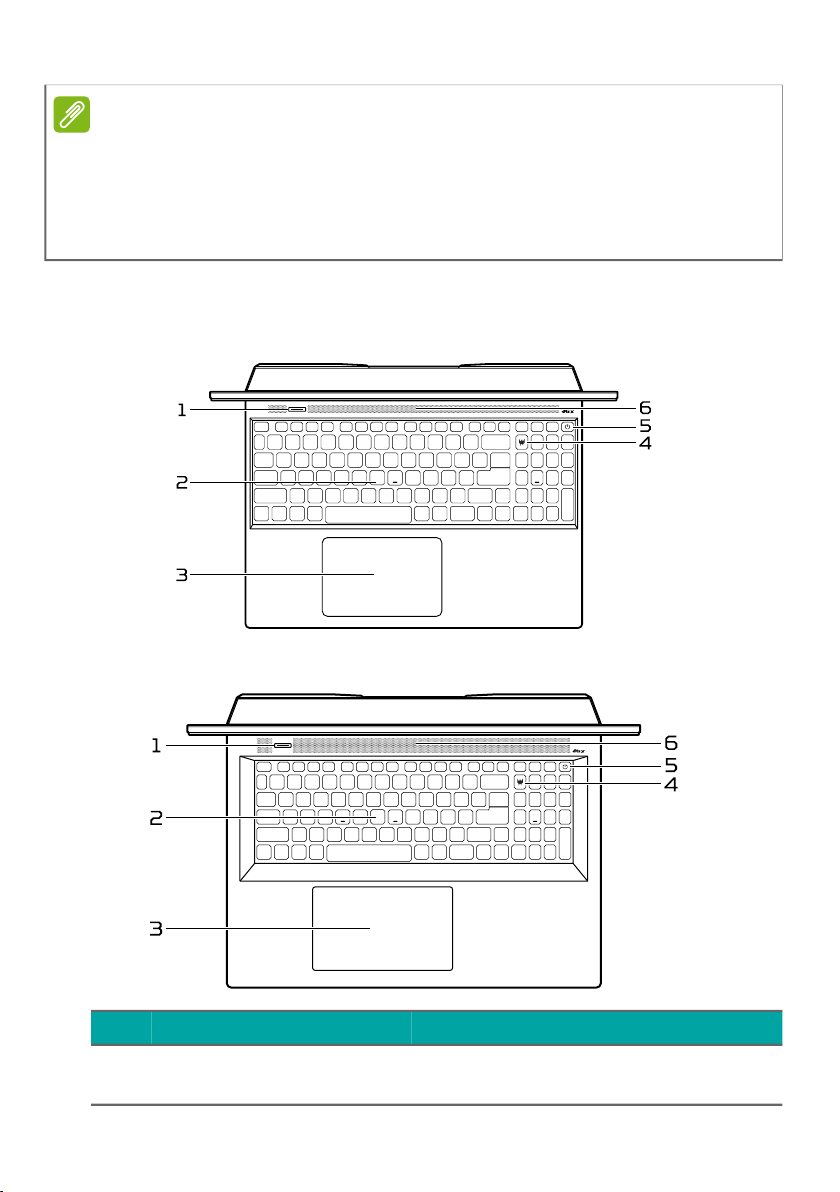
Screen view
# Icon Item Description
1 Microphones
Internal digital microphones for
sound recording.
2 Webcam
Web camera for video
communication.
A light next to the webcam
indicates that the webcam is
active.
3 Screen Displays computer output.
Your Predator notebook tour - 15
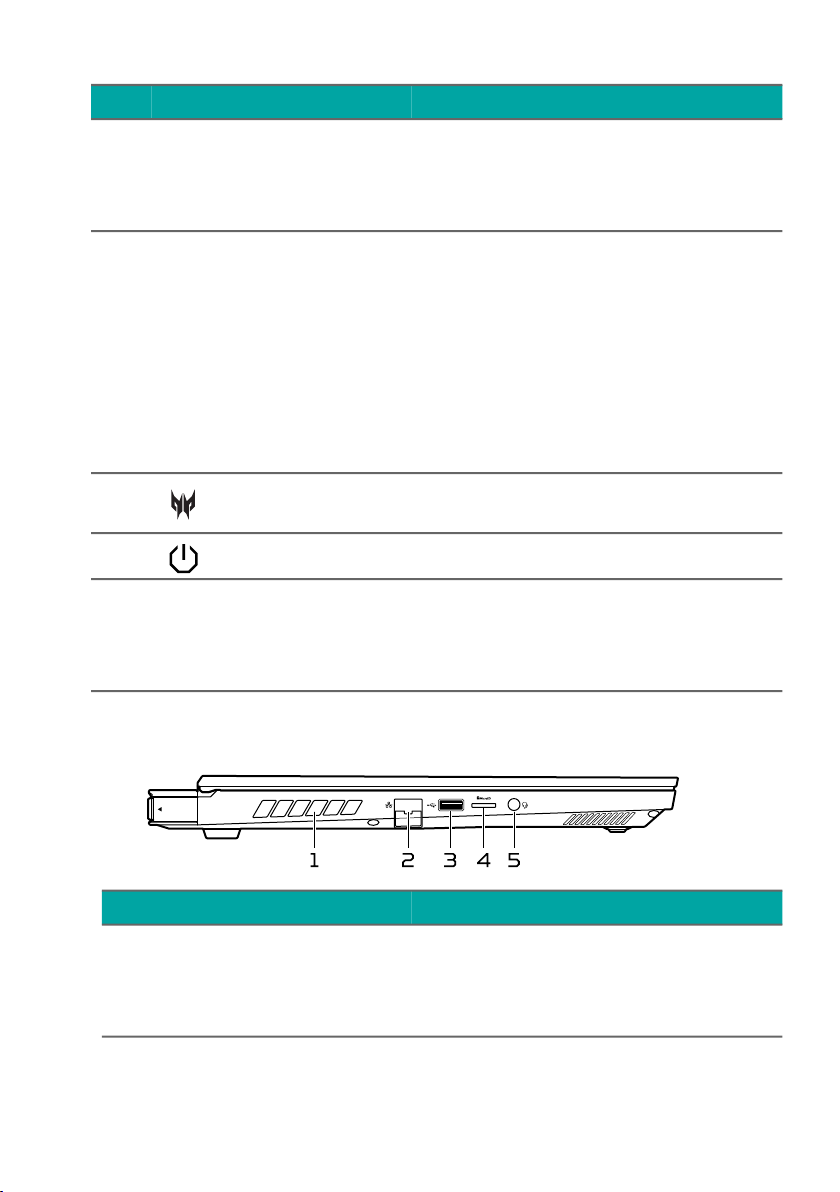
Keyboard view
PH16-71
PH18-71
Note
This monitor uses low blue light panel. When the monitor is default
setting (Preset mode: Standard), it works in compliance with TÜV
Rheinland. The Low Blue Light feature on the display is designed
to minimize blue light emitted from the display for better eye
comfort.
# Icon Item Description
1 Mode key
Switches to different modes in
turns.
16 - Your Predator notebook tour
Left view
2 Keyboard
For entering data into your
computer.
See "Using the keyboard" on
page 21.
3 Touchpad
Touch-sensitive pointing device.
The touchpad and selection
buttons form a single surface.
Press down firmly on the
touchpad surface to perform a
left click.
Press down firmly on the lower
right corner to perform a right
click.
4
PredatorSense
key
Launches PredatorSense
application.
5 Power button Turns the computer on and off.
6
Ventilation and
cooling fan
Allows the computer to stay
cool.
Do not cover or obstruct the
openings.
# Icon Item Description
1
Ventilation
and cooling
fan
Allows the computer to stay
cool.
Do not cover or obstruct the
openings.
# Icon Item Description
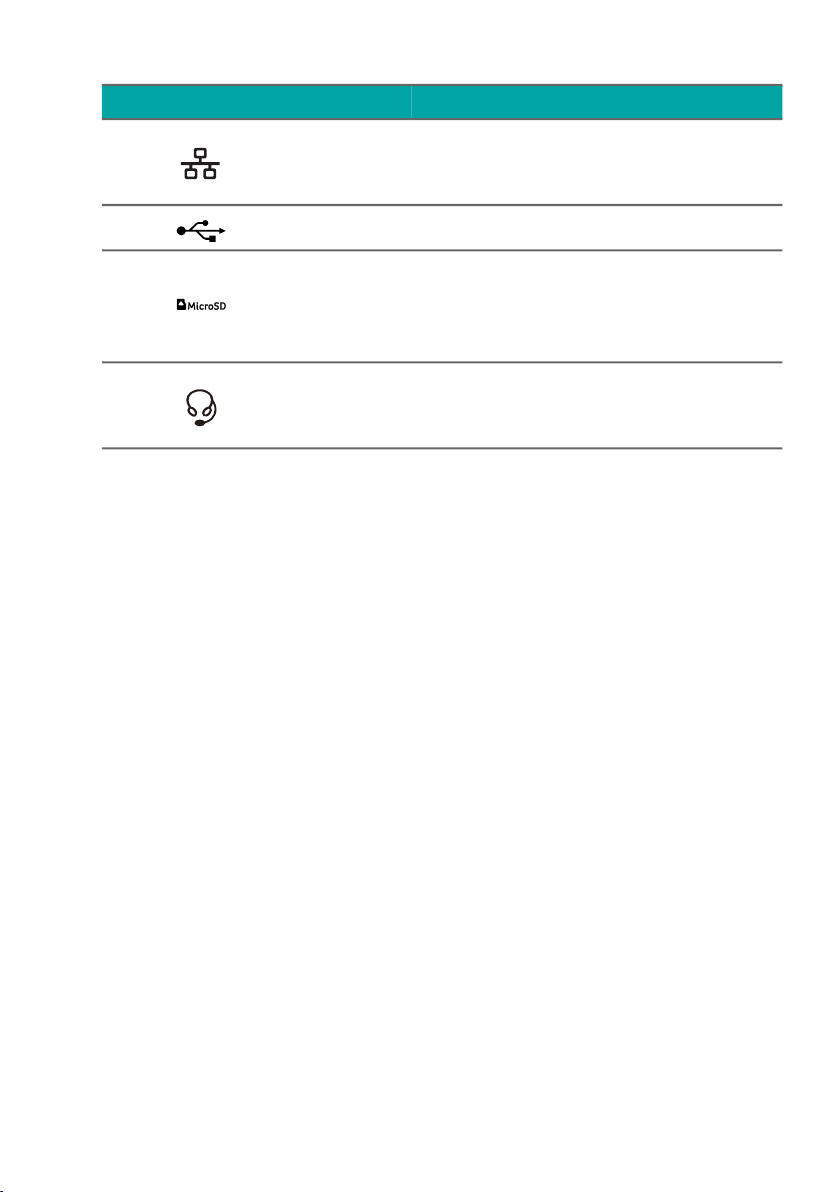
Your Predator notebook tour - 17
USB 3.2 Gen 1 information
• USB 3.2 Gen 1 compatible ports are blue.
• Compatible with USB 3.2 Gen 1 and earlier devices.
• For optimal performance, use USB 3.2 Gen 1-certified
devices.
• Defined by the USB 3.2 Gen 1 specification (SuperSpeed
USB).
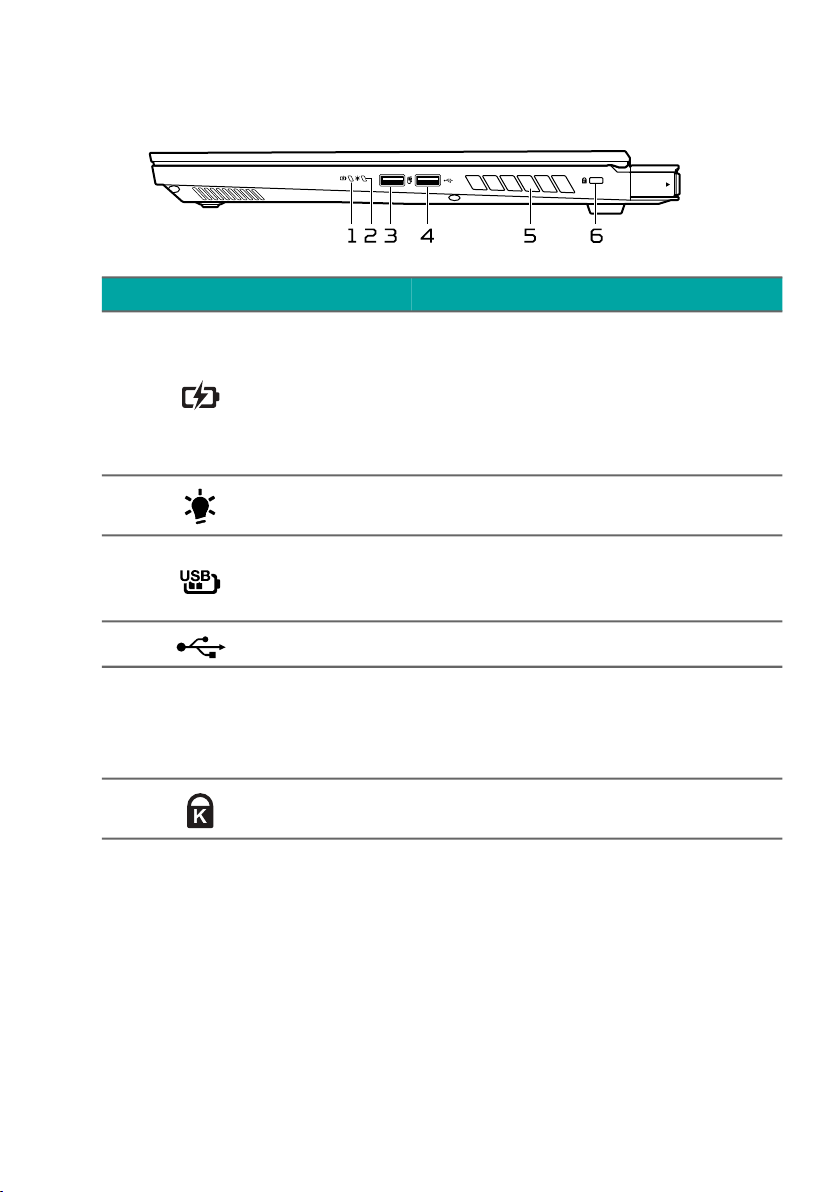
2
Ethernet
(RJ-45) port
Connects to an Ethernet 10/
100/1000Mbps/2.5Gbps-
based network.
3 USB port Connects to USB devices.
4
MicroSD card
reader
Accepts one Secure Digital
(microSD) card.
Only one card can operate at a
time.
5
Headset/
speaker jack
Connects to audio devices (e.g.,
speakers, headphones) or a
headset with microphone.
# Icon Item Description
18 - Your Predator notebook tour
Right view
USB 3.2 Gen 2 information
• USB 3.2 Gen 2 compatible ports are blue.
• Compatible with USB 3.2 Gen 2 and earlier devices.
• For optimal performance, use USB 3.2 Gen 2-certified
devices.
• Defined by the USB 3.2 Gen 2 specification (SuperSpeed
USB).
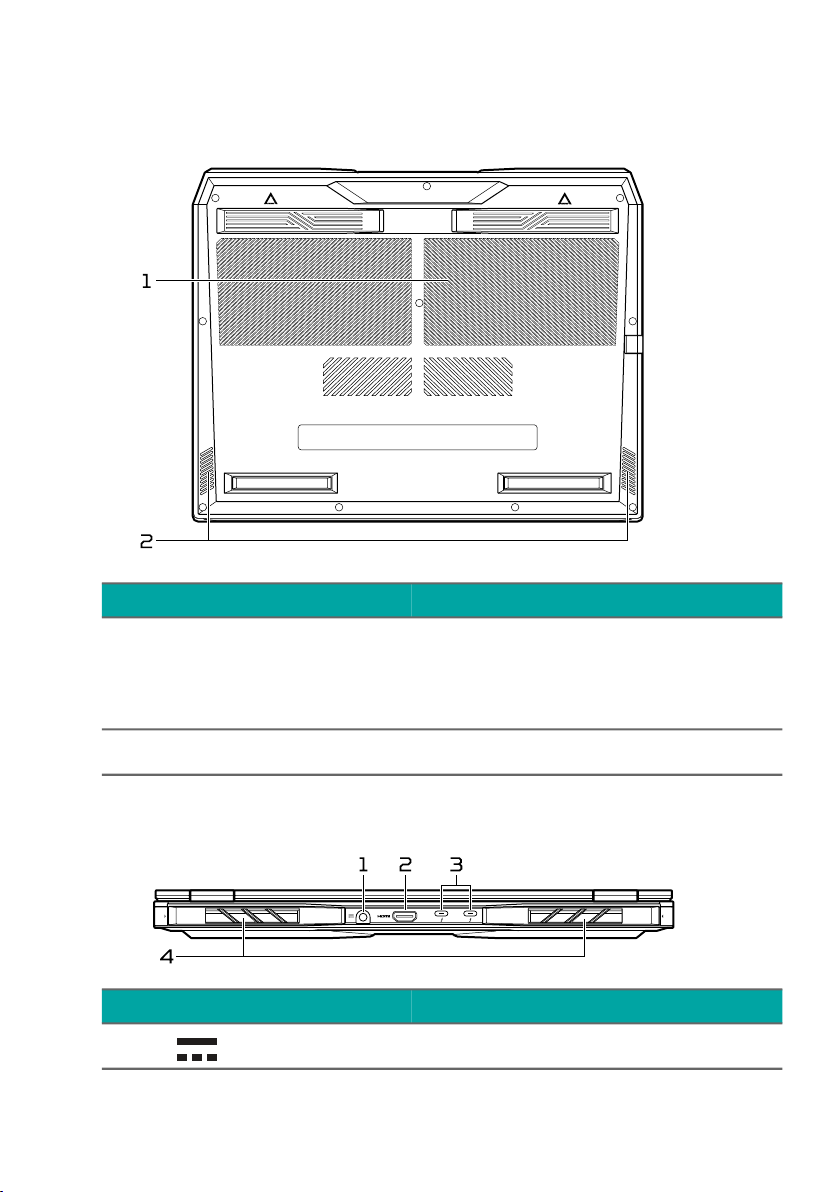
# Icon Item Description
1
Battery
indicator
Indicates the computer’s
battery status.
Amber when the battery is
charging.
Blue when fully charged (with
the AC adapter plugged in).
2
Power
indicator
Indicates the computer’s power
status.
3
USB port with
power-off
charging
Connects to USB devices.
4 USB port Connects to USB devices.
5
Ventilation
and cooling
fan
Allows the computer to stay
cool.
Do not cover or obstruct the
openings.
6
Kensington
lock slot
Connects to a Kensington-
compatible security lock.
Your Predator notebook tour - 19
Base view
Rear view
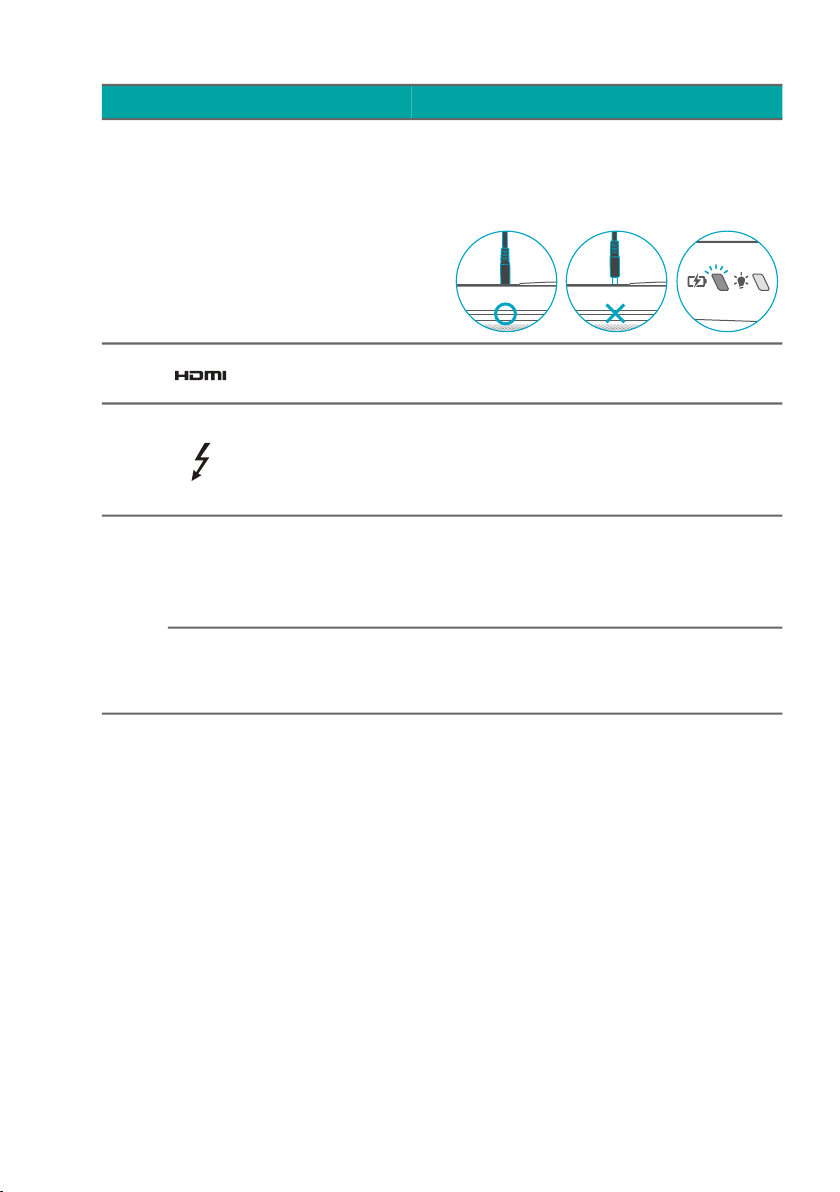
# Icon Item Description
1
Ventilation
and cooling
fan
Allows the computer to stay
cool.
Do not cover or obstruct the
openings.
2 Speakers Deliver stereo audio output.
# Icon Item Description
1 DC-in jack Connects to an AC adapter.
20 - Your Predator notebook tour
USB Type-C information
• USB 3.2 Gen 2 with transfer speeds up to 10 Gbps.
• Supports DisplayPort
™
audio/video output.
• Compatible with Thunderbolt
™
4.
• Delivers up to 3 A at 5 V DC for USB charging.
• DC-in: requires power adapter or power source providing
65 W at 20 V.
For optimal performance, please use a certified Acer power
adapter or USB Power Delivery device.
Note: Please press the AC adapter into the tunnel to the
power connector. You will feel a click indicating it is
connected. Then, check the light of battery indicator shows
amber while charging.
2 HDMI 2.1 port
Supports high-definition digital
video connections.
3
USB Type-C /
Thunderbolt 4
port
Connects to USB devices with a
USB Type-C connector.
Supports Thunderbolt
™
4 and
displays.
4
Ventilation
and cooling
fan
Allows the computer to stay
cool.
Do not cover or obstruct the
openings.
Thermal deco
Replaceable and customizable
thermal deco.
(Additional 2 pieces in the box)
# Icon Item Description
Using the keyboard - 21
USING THE KEYBOARD
The keyboard has full-sized keys, a numeric keypad,
separate cursor, lock, Windows keys and hotkeys.
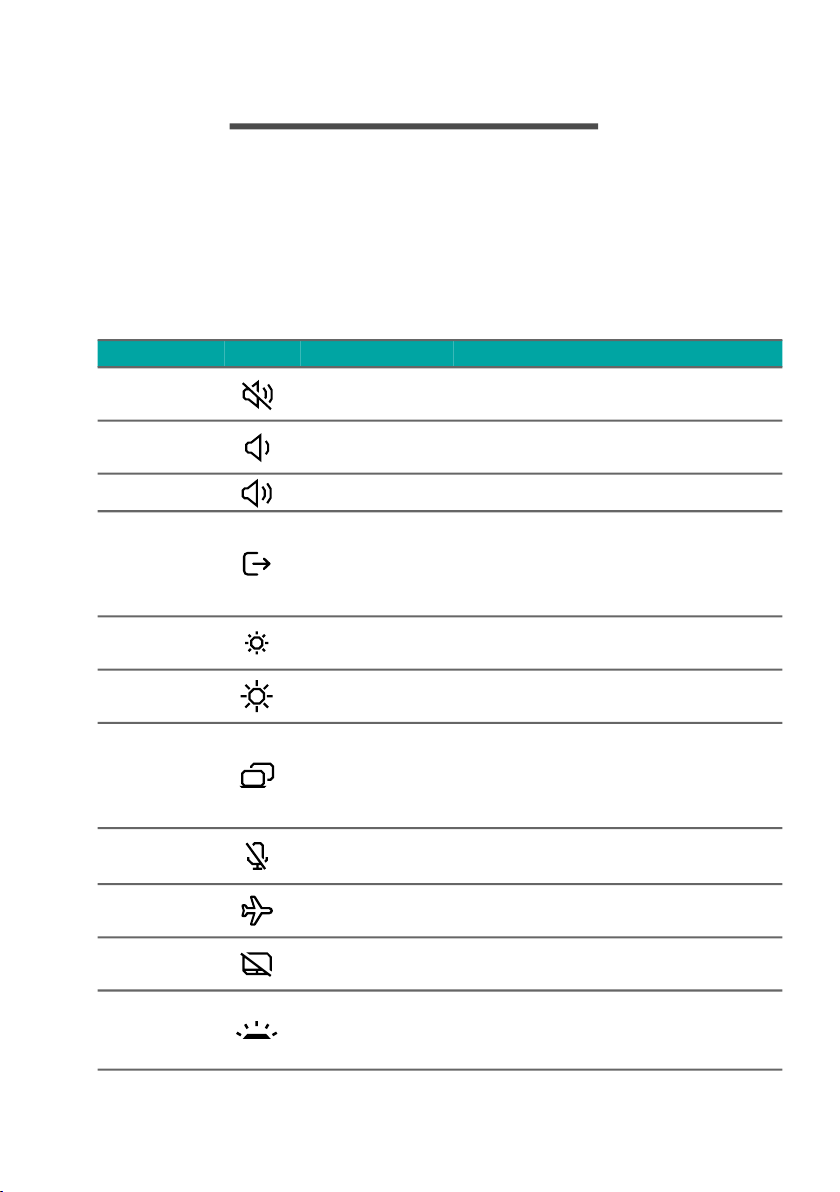
Hotkeys
To activate hotkeys, press and hold the Fn key before
pressing the other key in the hotkey combination.
Hotkey Icon Function Description
Fn + F1
Speaker
toggle
Turns the speakers on and
off.
Fn + F2
Volume
down
Decreases the sound
volume.
Fn + F3 Volume up Increases the sound volume.
Fn + F4
Lock your
computer
Locks your computer to
secure your information.
You can enter password to
continue your work.
Fn + F5
Brightness
down
Decreases the screen
brightness.
Fn + F6
Brightness
up
Increases the screen
brightness.
Fn + F7
Display
toggle
Switches display output
between the display screen,
external monitor (if
connected) and both.
Fn + F8
Microphone
toggle
Turns the microphones on
and off.
Fn + F9 Flight mode
Turns on / off the
computer's network devices.
Fn + F10
Touchpad
toggle
Turns the built-in touchpad
on and off.
Fn + F11
Keyboard
backlight
decrease
Decreases the intensity of
the keyboard backlight.
22 - Using the keyboard
Special keys
Your computer’s keyboard includes keys that activate
special functions. The function of each key is clearly marked
with an icon.
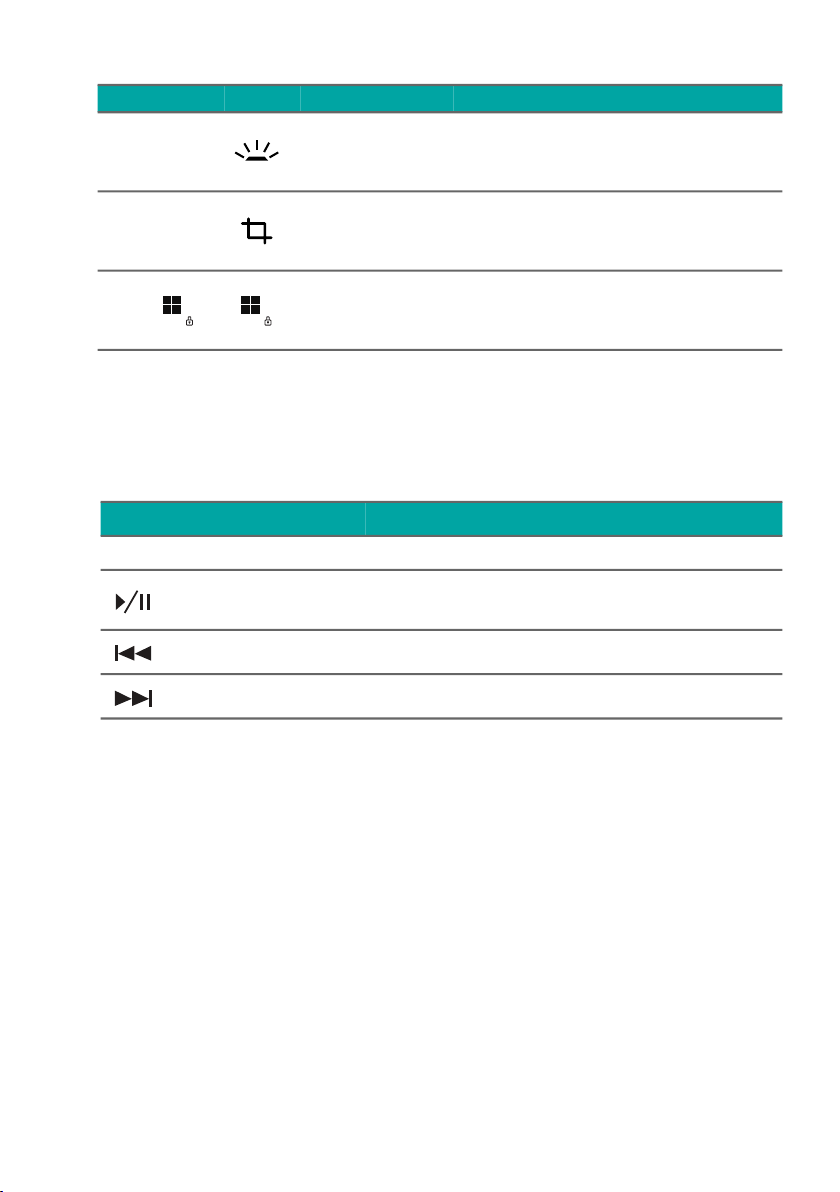
Fn + F12
Keyboard
backlight
increase
Increases the intensity of
the keyboard backlight.
Fn + PrtSc
Snipping
Tool
Snips a rectangle, freeform,
window or full screen to
your clipboard.
Fn +
Windows
key lock
toggle
Turns on / off the Windows
key lock.
Hotkey Icon Function Description
Icon Function Description
PrtSc Print Screen Take quick screen shots.
Play/Pause
Plays or pauses a selected media
file.
Previous Returns to the previous media file.
Next Jumps to the next media file.
The Windows OS Desktop - 23
THE WINDOWS OS DESKTOP
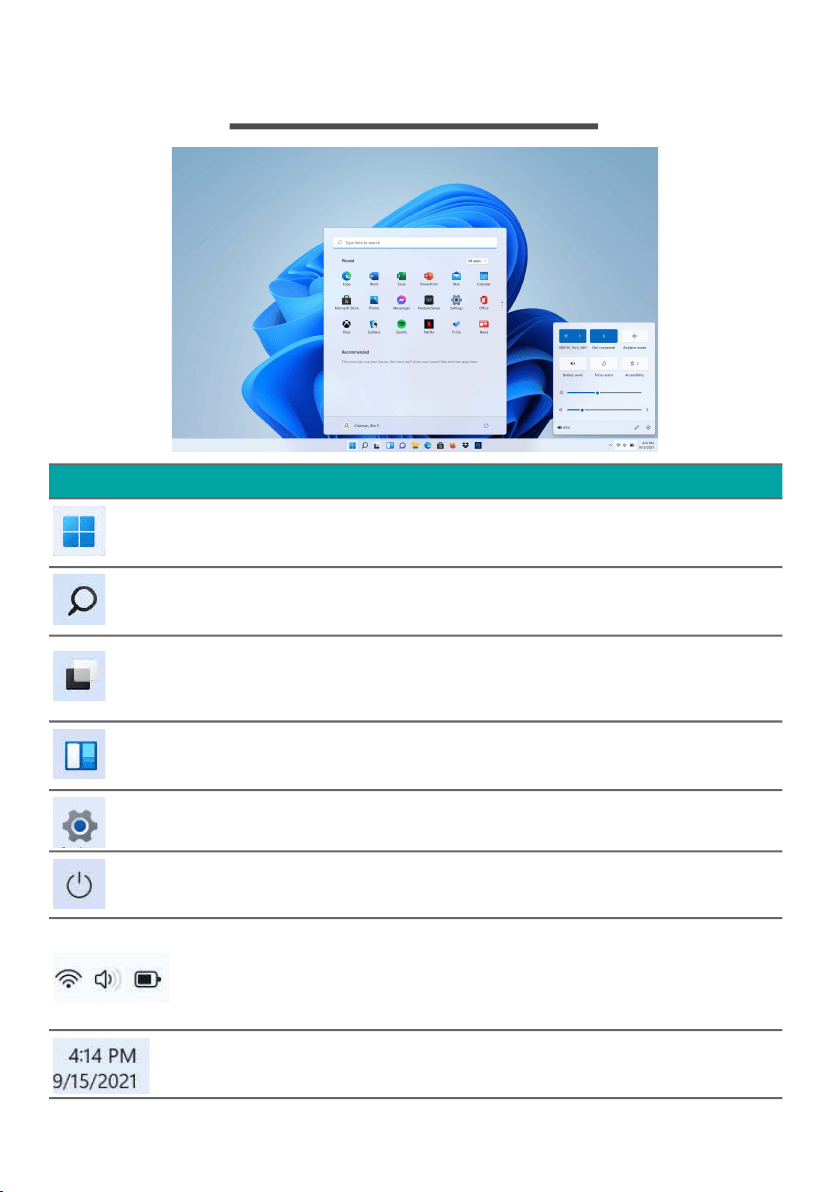
Icon Item Description
Start
Launches apps, through Pinned,
Recommended, or All apps.
Search
Types in the texts to search on your
computer and the Internet.
Task View
Allows to switch between running
applications and add the virtual
desktop.
Widgets
Provides the weather, news, stocks,
and sports information.
Settings
Changes the apps settings for your
computer.
Power
Shut down, sleep or restart your
computer.
Quick settings
Displays the situation of network
connection, battery level and sound
setting. You can toggle quick actions
to instantly adjust or open settings.
Notification
Displays the notifications and
calendar.
24 - Using the Precision Touchpad
USING THE PRECISION
TOUCHPAD
The touchpad controls the arrow (or 'cursor') on the
screen. As you slide your finger across the touchpad, the
cursor will follow this movement. The Precision Touchpad
(PTP) is designed to provide a more uniform, smooth, and
accurate touchpad experience. Many applications support
precision touchpad gestures that use one or more fingers,
however, some gestures may not be supported by the
specific application or program you are using.
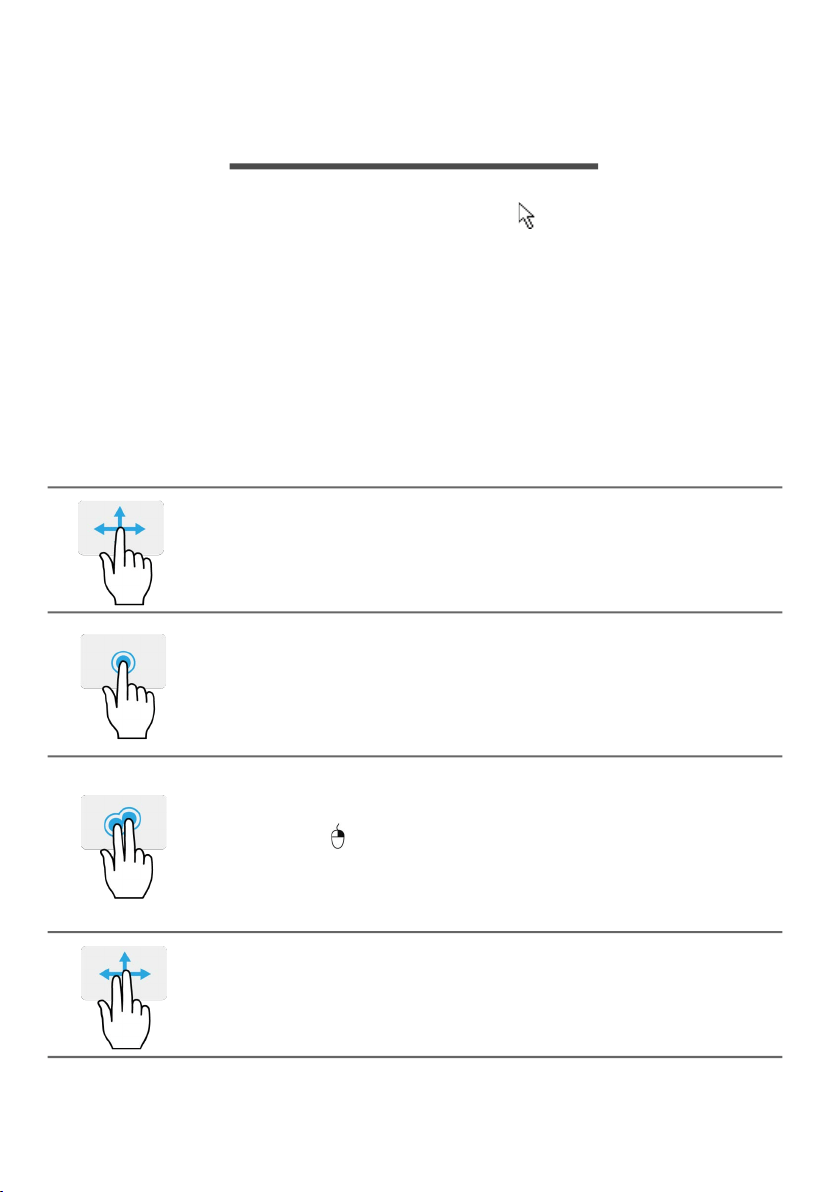
Touchpad gestures
Single-finger slide
Slide a finger across the touchpad to move the
cursor.
Single-finger press or tap
Press the touchpad down, or lightly tap the
touchpad with your finger, to perform a 'click',
which will select or start an item. Quickly repeat
the tap to perform a double tap or 'double click'.
Two-finger press
Lightly tap the touchpad with two fingers to
perform a 'right click'. In the Start screen, this
will toggle the app commands. In most apps this
will open a context menu related to the selected
item.
Two-finger slide
Swiftly scroll through web pages, documents and
playlists by placing two fingers on the touchpad
and moving both in any direction.
Using the Precision Touchpad - 25
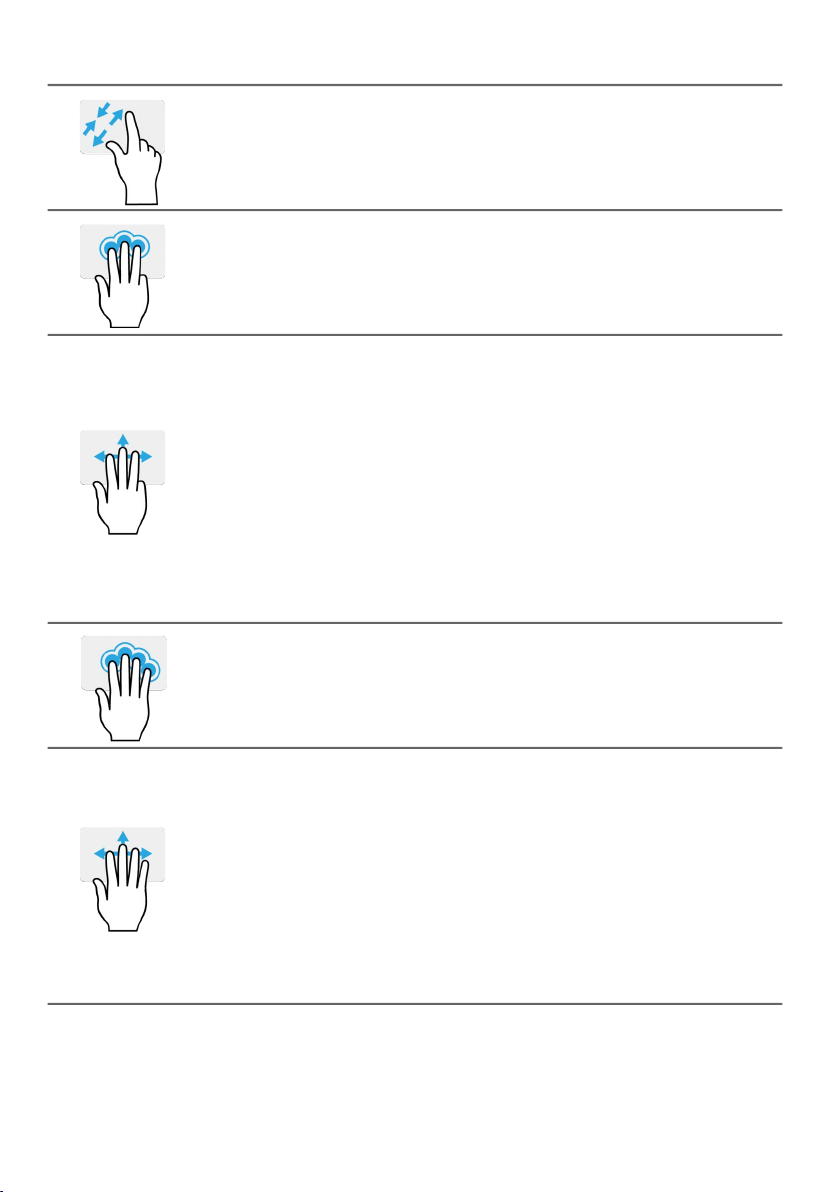
Two-finger pinch
Zoom in and out of photos, maps and documents
with a simple finger-and-thumb gesture.
Three-finger press
Lightly tap the touchpad with three fingers to
open the Search Windows.
Three-finger swipe
Swipe across the touchpad with three fingers.
• Swipe up to open Task View. Move the cursor
over a window and tap the touchpad to select
that window, or swipe downwards to exit Task
View.
• Swipe down to minimize all open windows and
show Desktop; swipe upwards to restore the
minimized windows.
• Swipe right to switch between open windows.
Four-finger press
Lightly tap the touchpad with four fingers to open
the Notifications and Calendar.
Four-finger swipe
Swipe across the touchpad with four fingers.
• Swipe up to open Task View. Move the cursor
over a window and tap the touchpad to select
that window, or swipe downwards to exit Task
View.
• Swipe down to minimize all open windows and
show Desktop; swipe upwards to restore the
minimized windows.
26 - Using the Precision Touchpad
The precision touchpad includes added technology features
that help recognize and prevent unintentional gestures such
as accidental taps, gestures, and pointer movement.
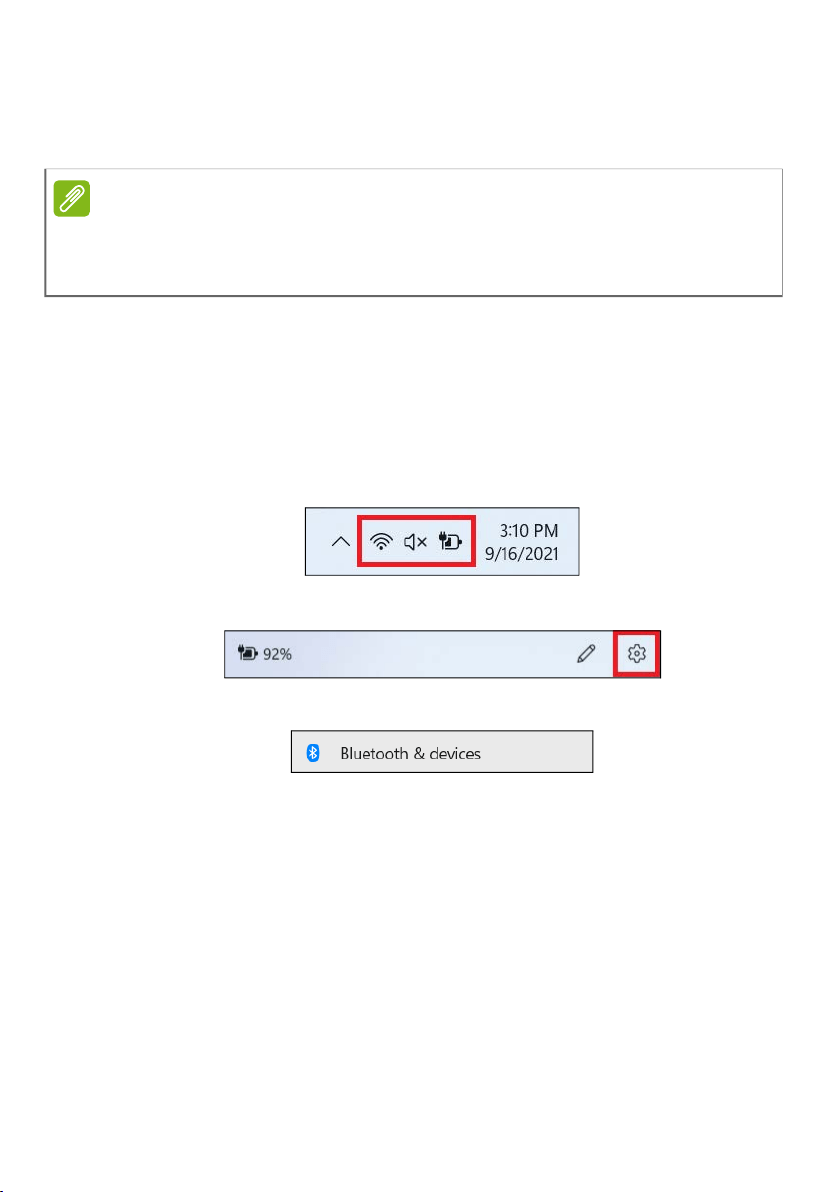
Changing touchpad settings
To change the touchpad settings to suit your personal
requirements, please do the following.
1.
In the icon tray in the lower right-hand corner of the
screen, select the Network, Sound and Battery icon to open
the Quick settings
pane.
2. Select All settings.
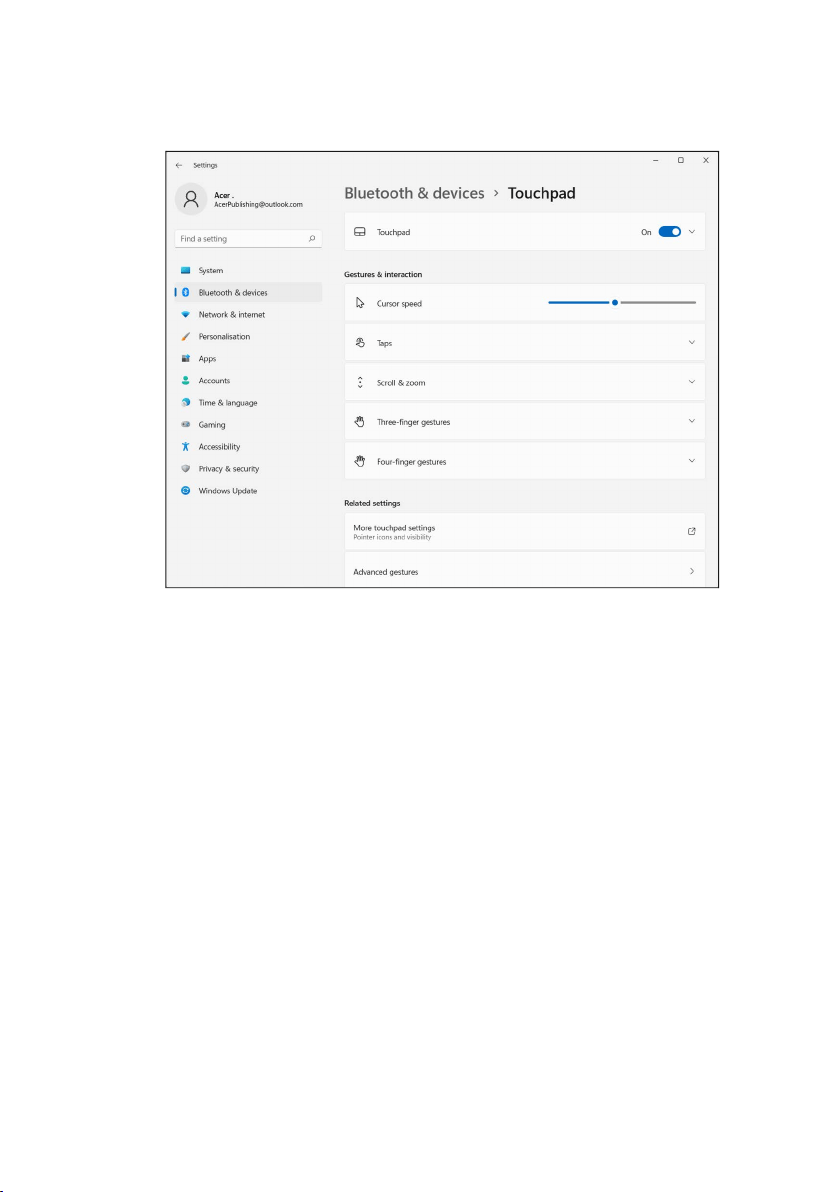
3. Select Bluetooth & devices > Touchpad
4. Now you can adjust the settings to suit your personal
needs. You can switch off the touchpad if you prefer to
Note
The touchpad is sensitive to finger movement; the lighter the
touch, the better the response. Please keep the touchpad and your
fingers dry and clean.
Using the Precision Touchpad - 27
use a mouse. Or you can adjust the touchpad sensitivity to
suit your needs. Scroll down to see more settings.
28 - Recovery
RECOVERY
If you are having trouble with your computer, and the
frequently asked questions (see Got a question? on
page 87) do not help, you can recover your computer.
This section describes the recovery tools available on your
computer. Predator provides Acer Care Center, which allows
you to reset your PC, refresh your PC, backup files/data or
create a factory default backup. If you cannot access Acer
Care Center, click Settings in the Start menu, select System
> Recovery.
Creating a file history backup
Recovery Management allows you to quickly and easily back
up your files and restore them if the originals are lost,
damaged or deleted.
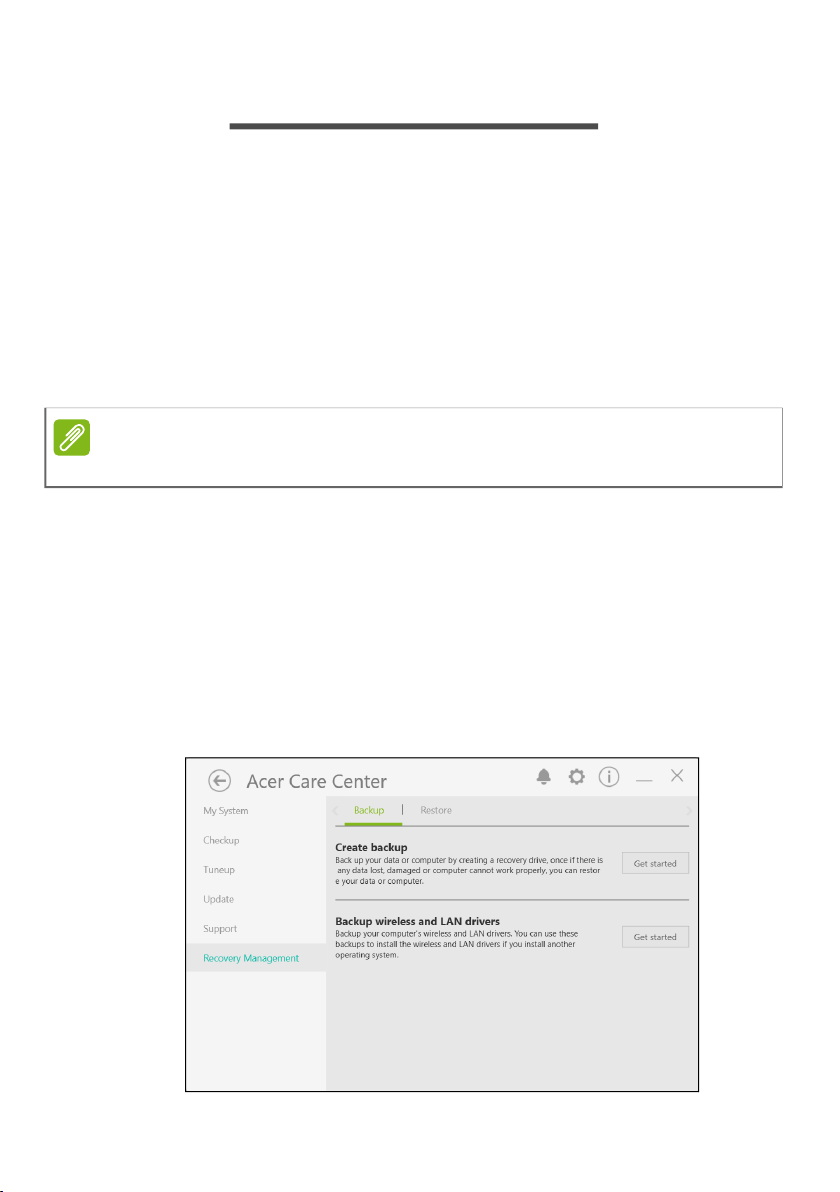
1. From Start, select Care Center in All apps list then
Recovery Management.
2. Select the Backup tab and click Get started for Create
backup to open the Backup window.
Note
Acer Care Center vary depending on model or Operating System.
Recovery - 29
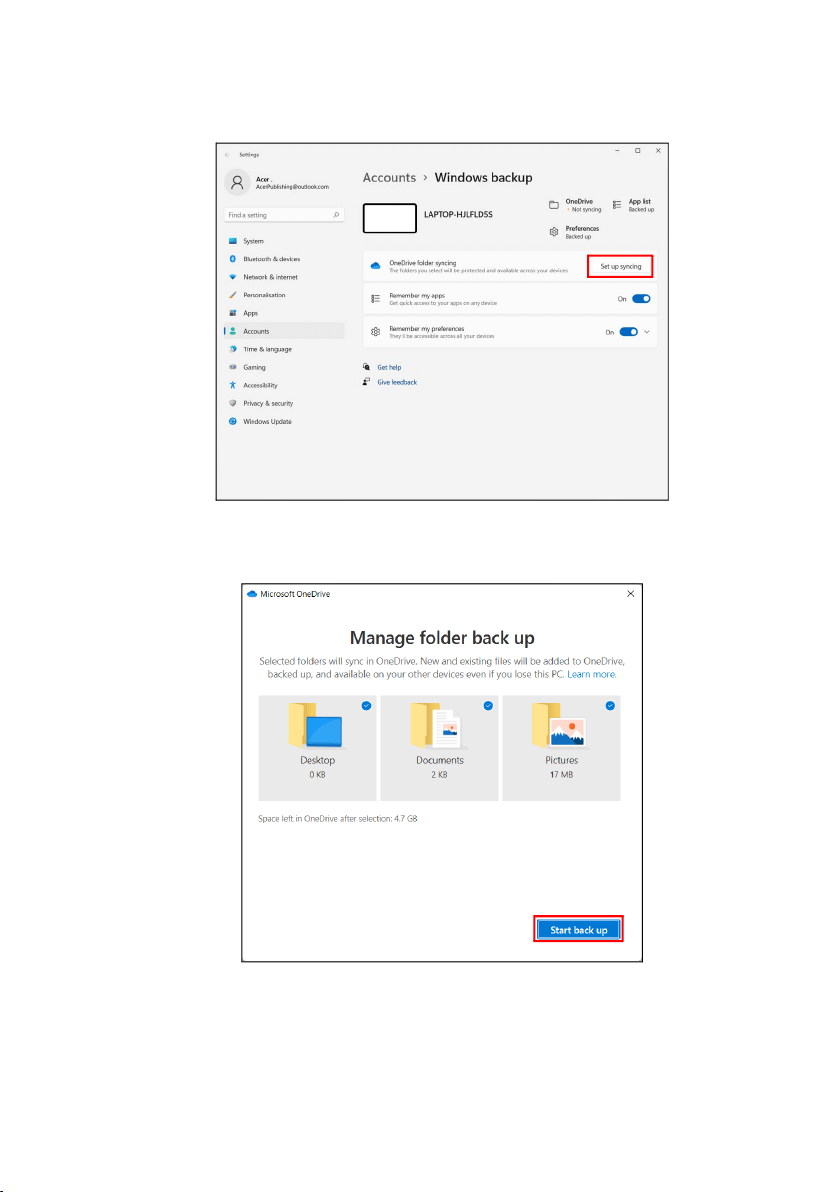
3. Click Set up syncing for OneDrive folder syncing to
continue.
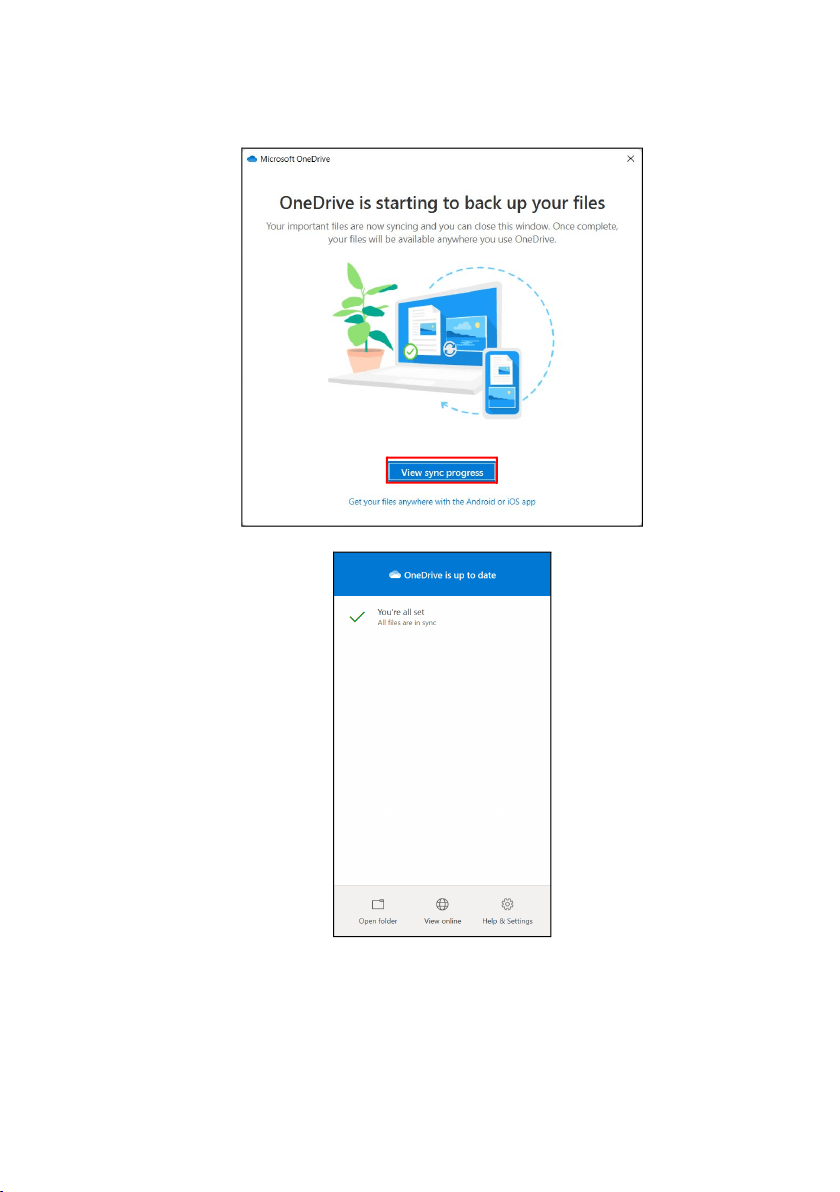
4. Make sure the folders that you want to back up are
selected and click Start back up to continue.
30 - Recovery
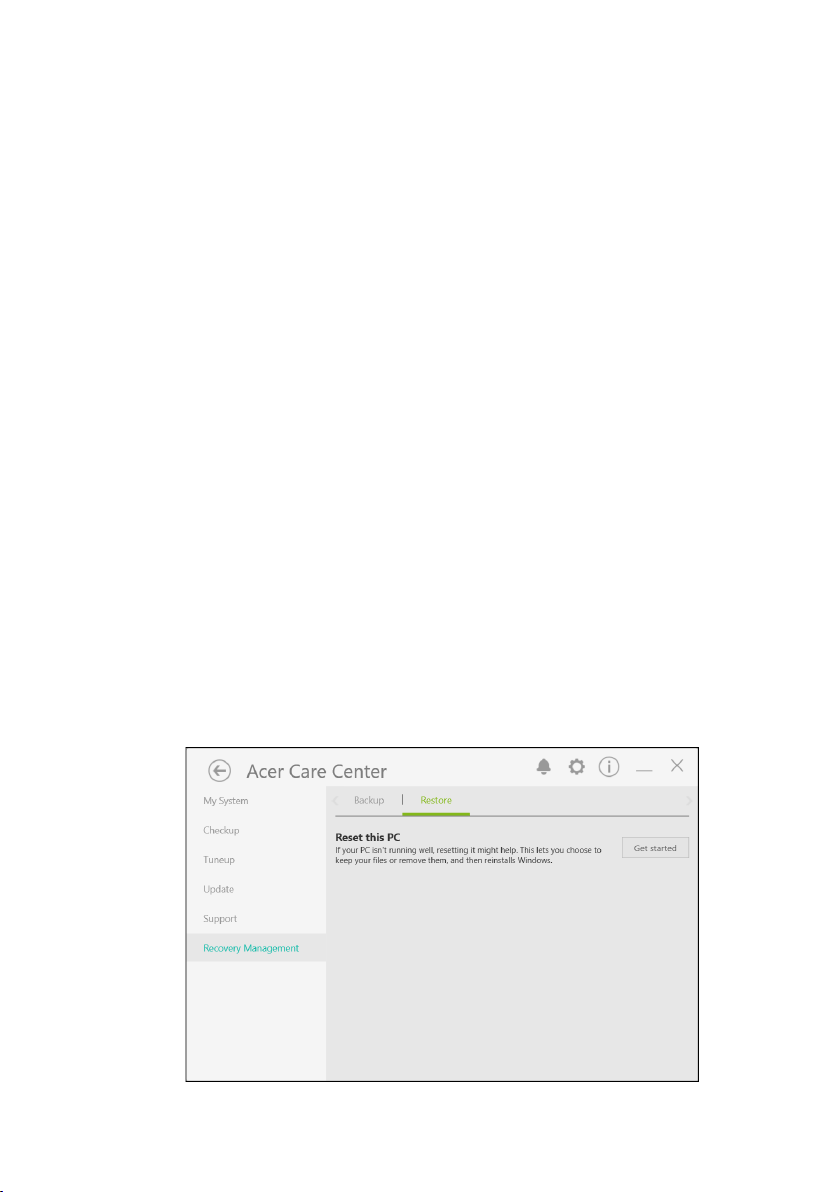
5. You can select View sync progress to watch files sync
until it completes.
6. To open the OneDrive folder, double click OneDrive icon in
the notification area.
Recovery - 31
Backing up your wireless and LAN drivers
Back up your wireless and LAN drivers. You can use these
backups to install the wireless and LAN drivers if you install
another operating system.
1. From Start, select Care Center in All apps list then
Recovery Management.
2. Select the Backup tab and click Get started for Backup
wireless and LAN drivers. Choose a folder to save your
drivers and select OK.
3. You will be shown the backup progress on the screen.
Restoring your computer
Recovery Management allows you to quickly and easily
restore your computer back to its default status. You can
choose to keep your files or remove them before reinstalling
Windows.
Reset this PC and keep my files
1. From Start, select Care Center in All apps list then
Recovery Management.
2. Select the Restore tab and click Get started to open the
Recovery window.

32 - Recovery
3. Click Reset PC to Choose an option.
4. Select Keep my files to refresh your PC and reinstall your
operating system without removing your personal files.
Recovery - 33
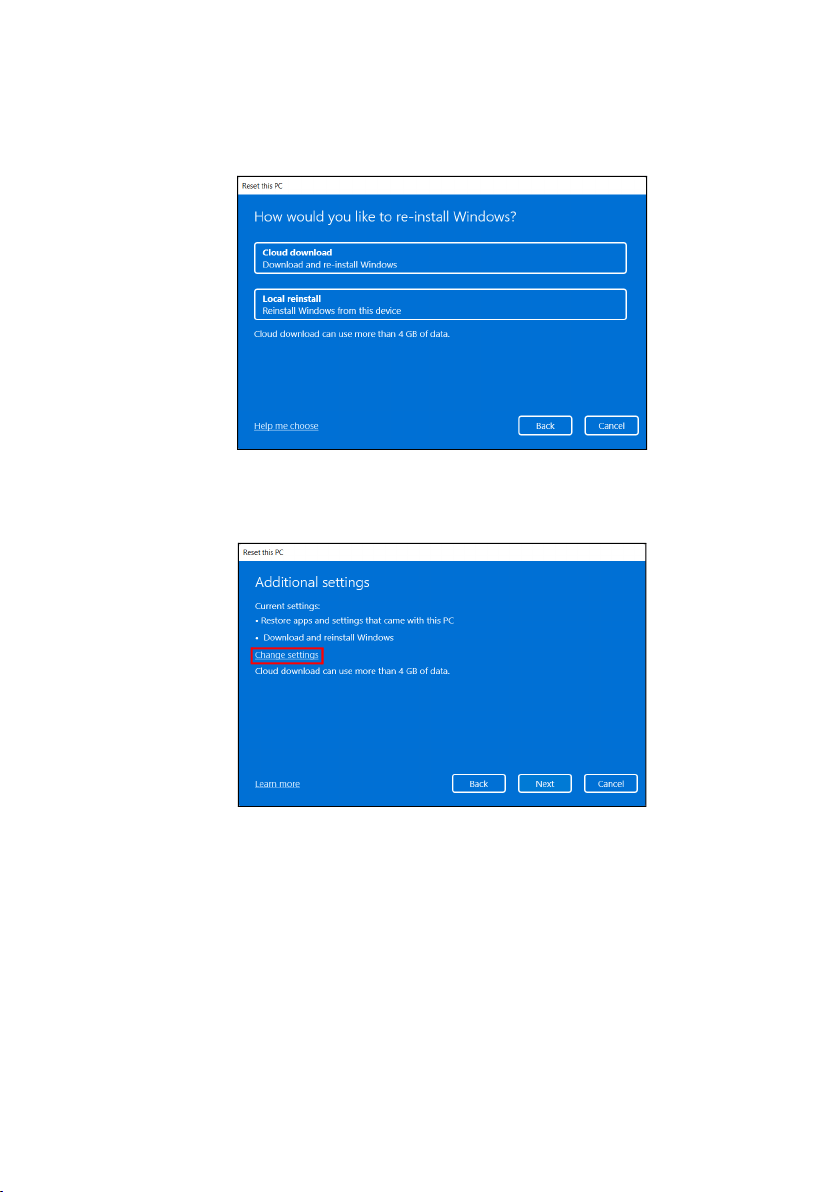
5. Choose from the two options - Cloud download or Local
reinstall to reinstall Windows. (Ensure you are connected
to the internet when using Cloud download.)
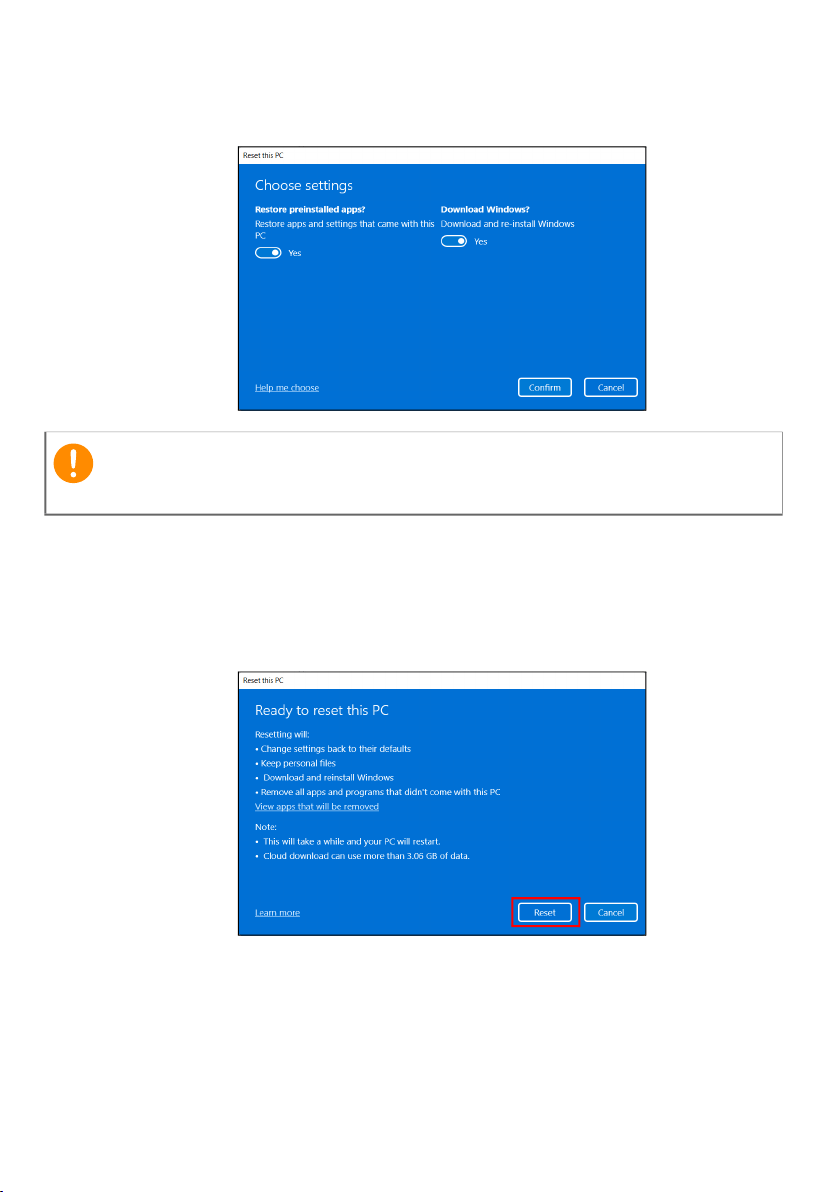
6. Click Change settings to open the Choose settings
options.
34 - Recovery
7. Choose your settings options and follow the instructions
on screen. Click Confirm then Next to continue.
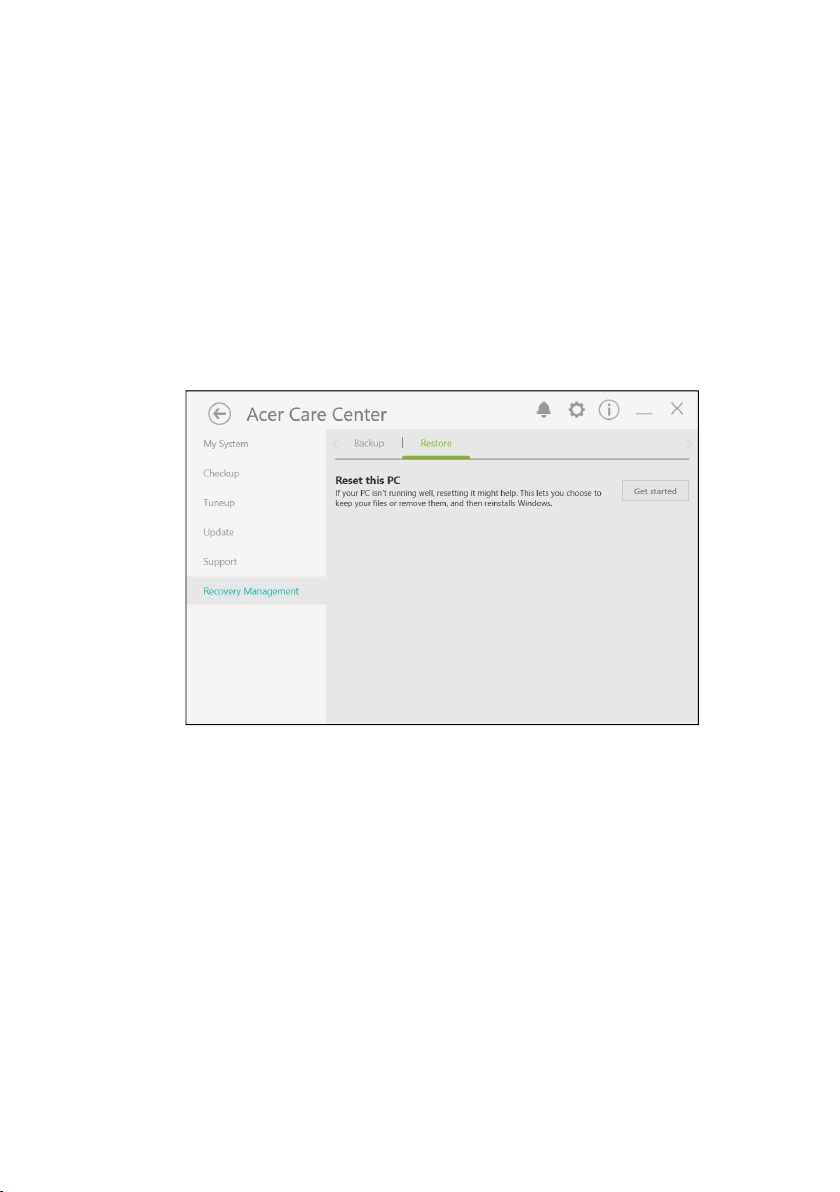
8. Resetting the PC will reinstall Windows, change settings
back to their factory defaults and remove all preinstalled
apps and programs without removing your personal files.
Click Reset to continue. This will take a while and your PC
will restart.
9. You will be shown the reset progress on the screen. The
screen will turn off during the reset process.
10.The screen will turn back on when it is installing Windows.
Your PC will restart several times during the reset
process.
Important
If you have apps installed on your PC, they will be removed.
Recovery - 35
11.Follow the process until it completes.
12.When your PC has completed the reset process, Windows
will have been reset back to its factory default settings
without removing your personal files.
Reset this PC and remove everything
1. From Start, select Care Center in All apps list then
Recovery Management.
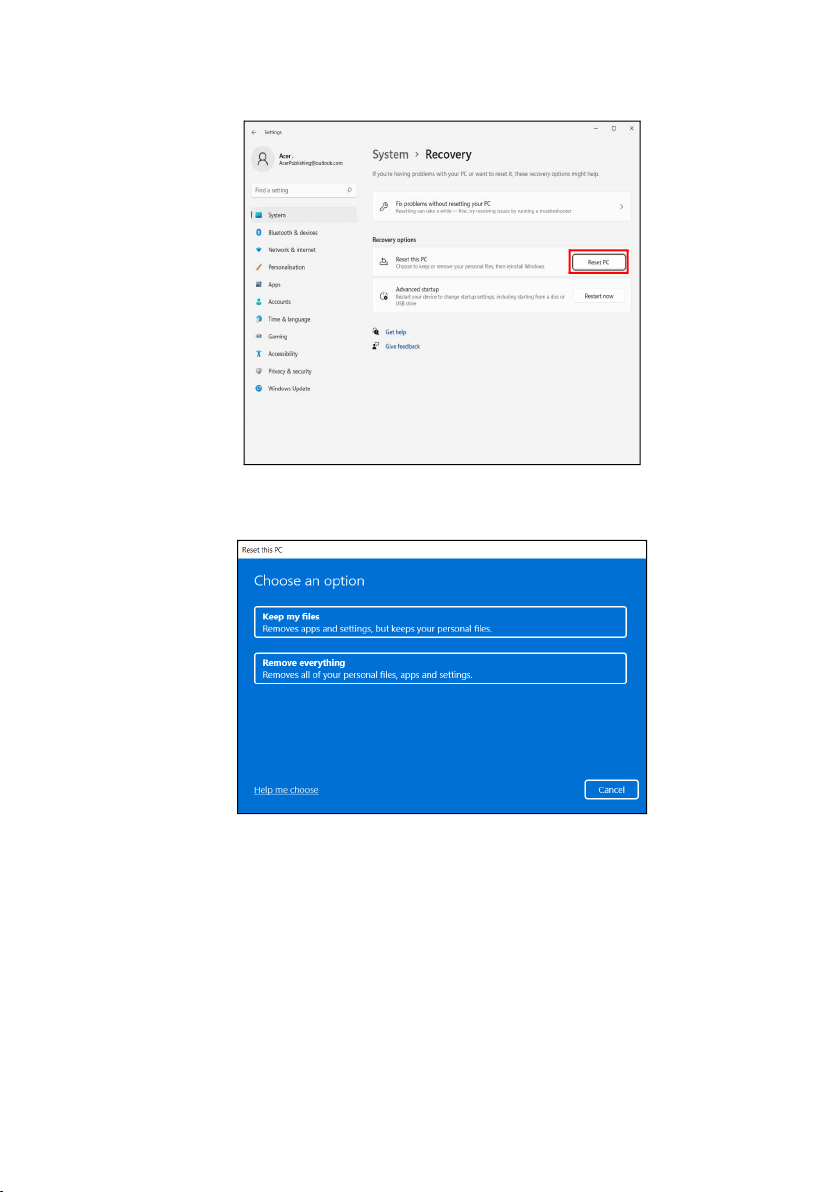
2. Select the Restore tab and click Get Started to open the
Recovery
window.
36 - Recovery
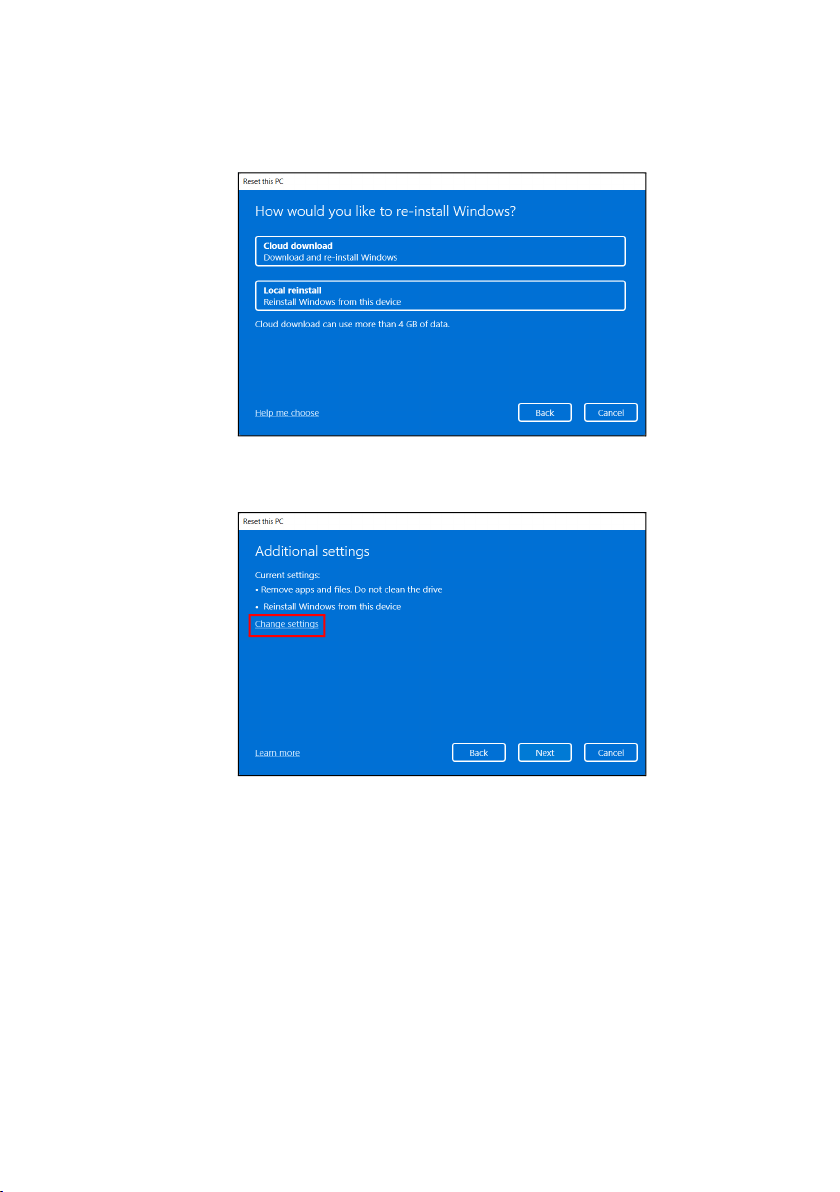
3. Click Reset PC to Choose an option.
4. Select Remove everything to reset your PC back to its
factory default.
Recovery - 37
5. Choose from the two options - Cloud download or Local
reinstall to reinstall Windows. (Ensure you are connected
to the internet when using Cloud download.)
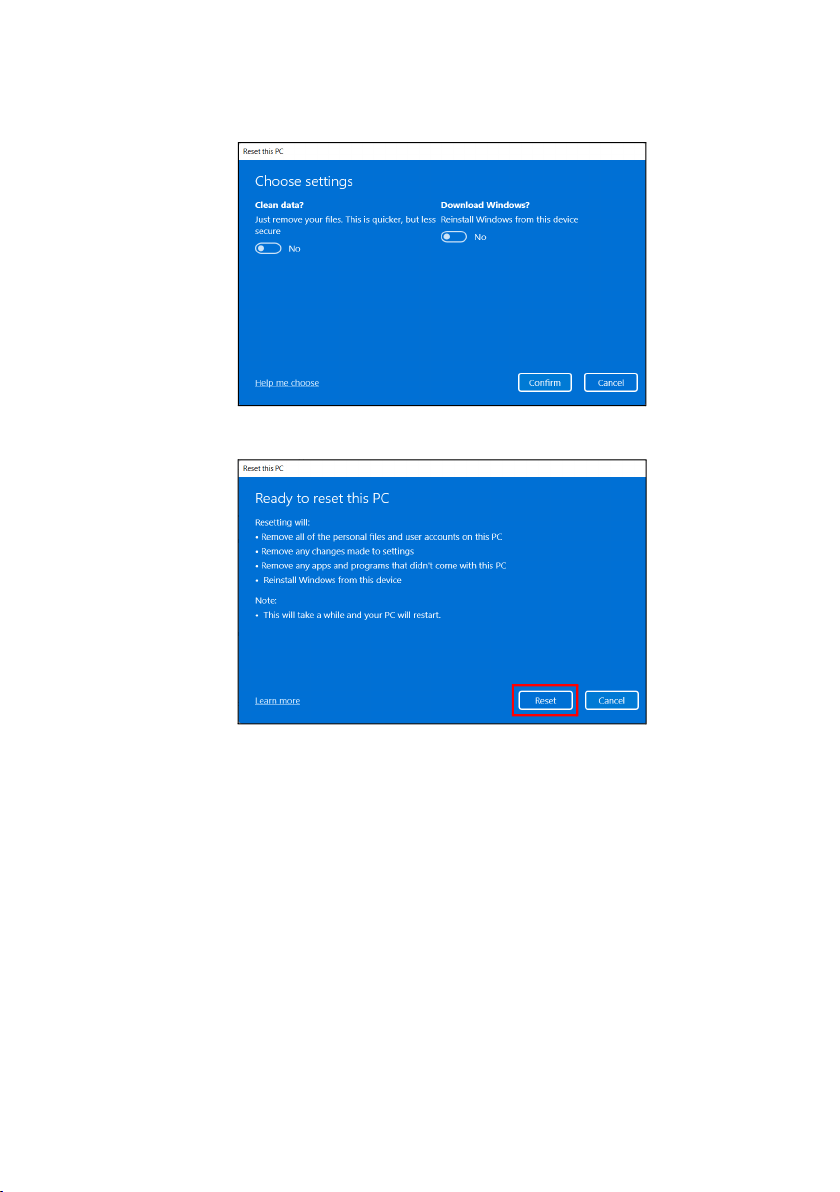
6. Click Change settings to open the Choose settings
options.
38 - Recovery
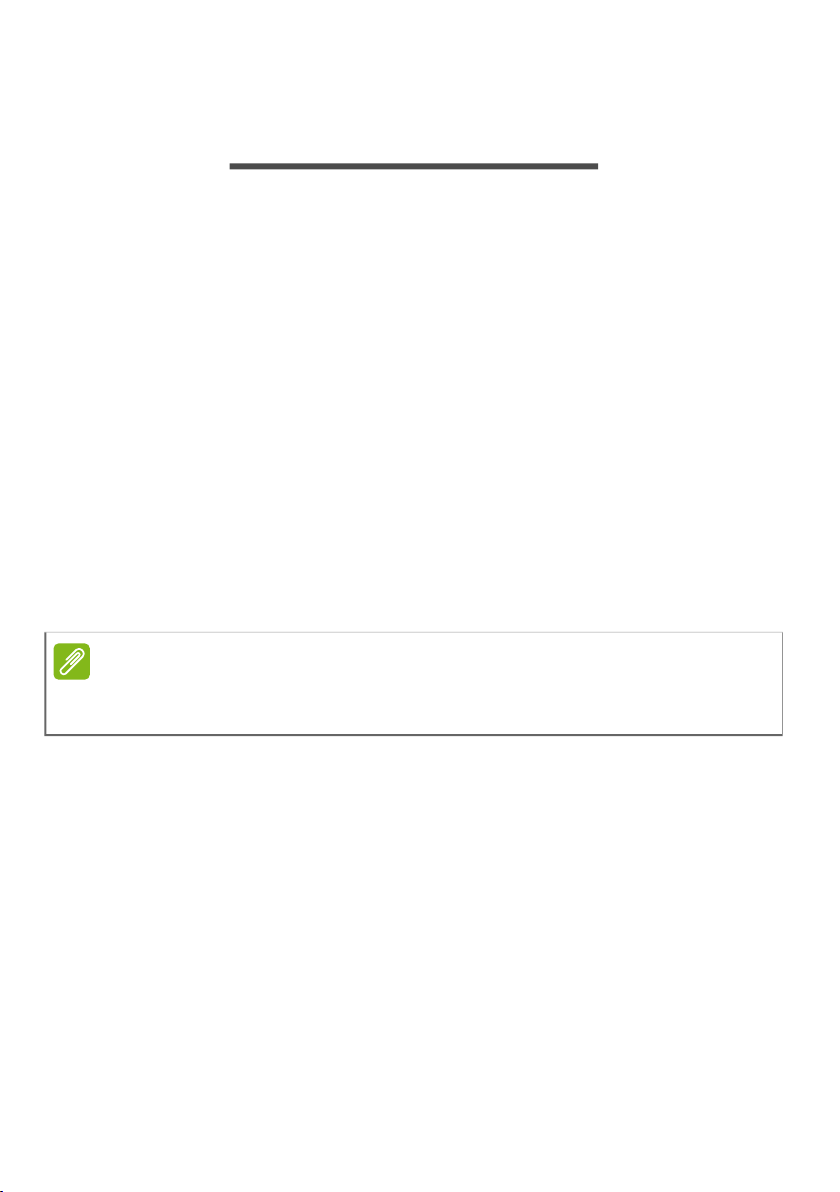
7. Choose your settings options and follow the instructions
on screen. Click Confirm then Next to continue.
8. Click Reset to continue.
9. You will be shown the reset progress on the screen. The
screen will turn off during the reset process.
10.The screen will turn back on when it is installing Windows.
Your PC will restart several times during the reset
process.
11.Follow the process until it completes.
12.When your PC has completed the reset process, Windows
will use factory default settings.
Using a Bluetooth connection - 39
USING A BLUETOOTH
CONNECTION
Bluetooth is a technology enabling you to transfer data
wirelessly over short distances between many different
types of devices. Bluetooth-enabled devices include
computers, cell phones, tablets, wireless headsets, and
keyboards.
To use Bluetooth, you must ensure the following:
1. Bluetooth is enabled on both devices.
2. Your devices are "paired" (or connected).
Enabling and disabling Bluetooth
The Bluetooth adapter must be enabled on both devices. For
your computer, this may be an external switch, a software
setting, or a separate Bluetooth dongle plugged into the
computer’s USB port (if no internal Bluetooth adapter is
available).
Enable Bluetooth and add a device
Every new device must first be "paired" with your computer’s
Bluetooth adapter. This means it must first be authenticated
for security purposes. You only need to pair once. After that,
simply turning on the Bluetooth adapter of both devices will
connect them.
Bluetooth on your computer is disabled by default. To
enable your computer’s Bluetooth adapter, do the following:
1. Press the Windows key or select the Windows Start
button > Settings > Bluetooth & devices, and click the
toggle under Bluetooth to enable/disable it.
Note
Please check your devices owner’s manual to determine how to
turn on its Bluetooth adapter.
40 - Using a Bluetooth connection
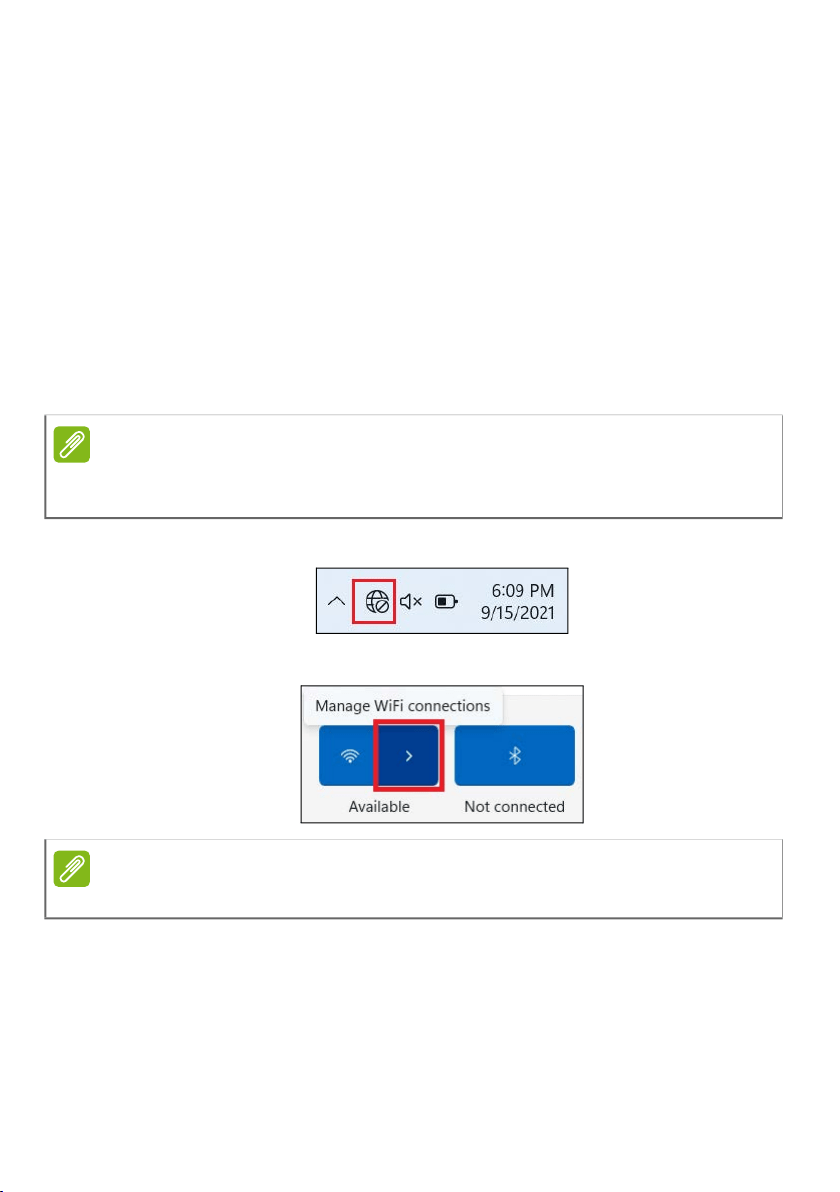
2. Click on Add device then select the device that you want
to add.
3. Your computer will automatically start searching for
devices, as well as make itself visible to other devices.
4. Select the device you wish to pair from the list of
discovered devices.
5. After pairing, if there is a code displaying on the screen,
enter that code on the device to proceed the connection.
Note
Some devices using older versions of the Bluetooth technology
require both devices to enter a PIN. In the case of one of the
devices not having any inputs (as in a headset), the passcode is
hardcoded into the device (usually "0000" or "1234"). Consult
your device’s user manual for more information.

Using a Bluetooth connection - 41
You can also enter the Bluetooth settings by selecting the
Network, Sound and Battery icon in the lower right-hand
corner of the screen to open the Quick settings pane. From
here, you can enable or disable Bluetooth or right-click on
Bluetooth > Go to Settings to enter the Bluetooth settings.

42 - Connecting to the Internet
CONNECTING TO THE INTERNET
This chapter includes general information on types of
connections, and getting connected to the internet. For
detailed information, please refer to Network connections
on page 99.
Your computer’s built-in network features make it easy for
you to connect your computer to the internet.
First though, in order to connect to the internet from home,
you’ll need to sign up for internet services from an ISP
(Internet Service Provider) -- usually a phone or cable
company -- that will have to go to your home or office to set
up internet service. The ISP will install a small box, a router
or modem, that will allow you to connect to the internet.
Connecting to a wireless network
Connecting to a wireless LAN
A wireless LAN (or WLAN) is a wireless local area network,
which can link two or more computers without using wires.
Once connected to WLAN, you can access the internet. You
can also share files, other devices, and even your internet
connection itself.
Your computer's wireless connection is turned on by default
and Windows will detect and display a list of available
networks during setup. Select your network and enter the
password if required.
Warning
Using wireless devices while flying in aircraft may be prohibited.
All wireless devices must be switched off before boarding an
aircraft and during take-off, as they may be dangerous to the
operation of the aircraft, disrupt communications, and even be
illegal. You may turn on your computer’s wireless devices only
when informed that it is safe to do so by the cabin crew.
Connecting to the Internet - 43
Predator computers feature a Flight mode hotkey that turns
the network connection on or off. You can use the network
management options to turn your wireless network on/off
or control what is shared over the network.
To connect to a wireless network, please follow the steps
below.
1. Ensure you have a wireless router/access point and
current internet connection through the ISP of your
choice. Make a note of the wireless network’s name and
password (if necessary). If you are trying to connect to a
public network (such as at a coffeeshop), make sure you
have the wireless network’s name.
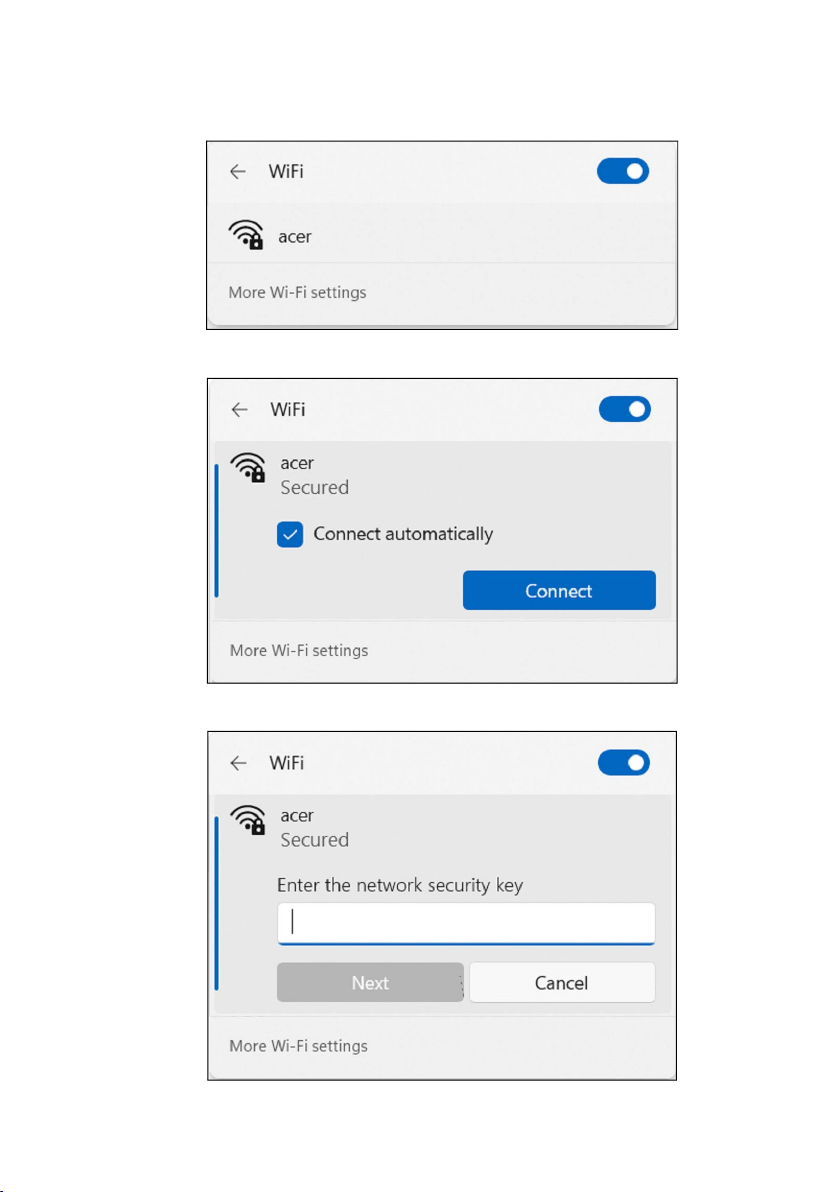
2. Click Network icon in the notification area.
3. Select Manage WiFi connections.
Note
Please refer to your ISP or router documentation for details on
connecting to the internet.
Note
If Wi-Fi is turned off, please click Wi-Fi icon to turn it on.
44 - Connecting to the Internet
4. You will see a list of available wireless networks. Select
the one you wish to use.
5. Once you select a wireless network, select Connect.
6. If required, enter the network’s password.

Connecting to the Internet - 45
Connecting with a cable
Built-in network feature
If your computer has a network port, plug one end of a
network cable into the network port on your computer, and
the other end into a port on your router (refer to the image
below.) Then, you'll be ready to get online.
46 - PredatorSense
PREDATORSENSE
PredatorSense
allows you to switch operating modes and
control fan behavior. Create scenario profiles and
synchronize the scenario setting with the associated apps.
Multiple profiles allow you to quickly switch between
lighting schemes.
It also allows you to switch scenarios, monitor system
performance, access apps quickly using the widget cards.
The PredatorSense main screen
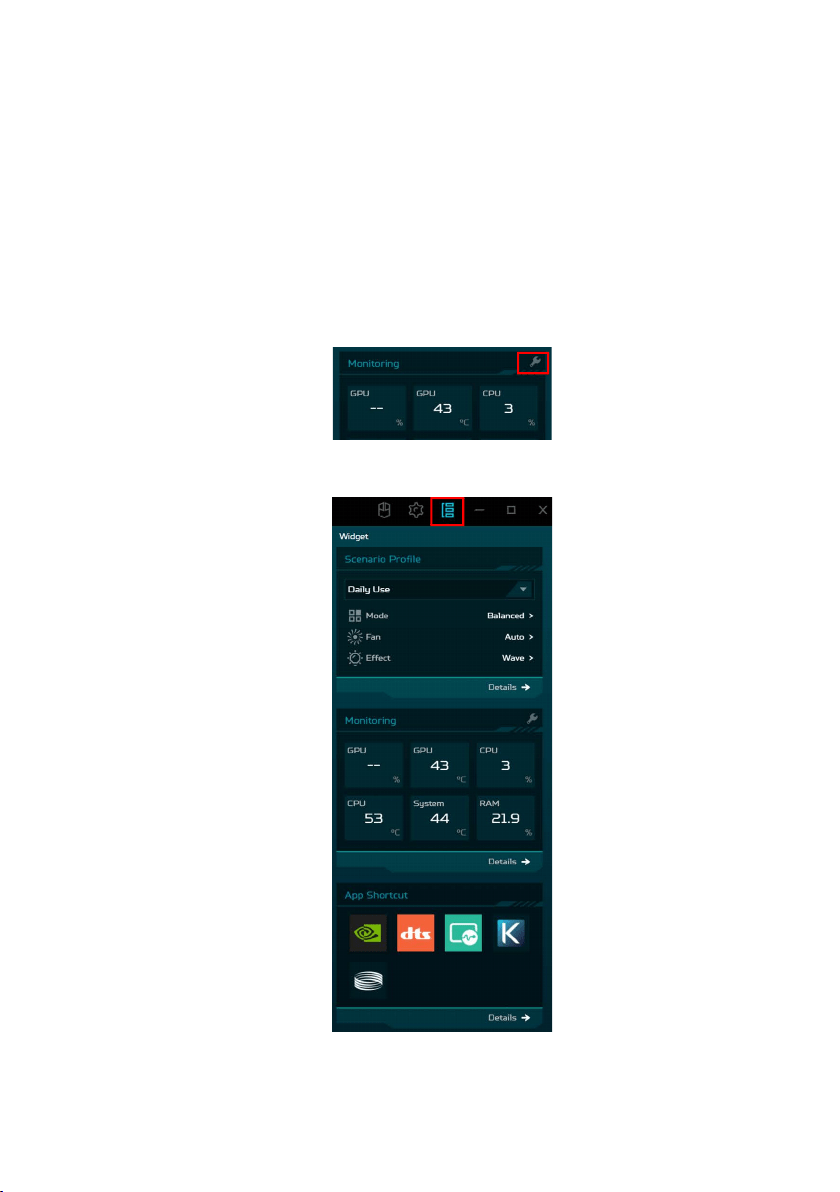
The main screen gives you an overview of the system
performance and temperatures. You can also view the
operation mode with live animation reflecting that mode and
access the widget cards.
Note
Function varies depending on configuration.
Note
The performance parameters and temperatures listed may vary
depending on your computer’s configuration and the power output
of the CPU and GPU.
PredatorSense - 47
Widget cards
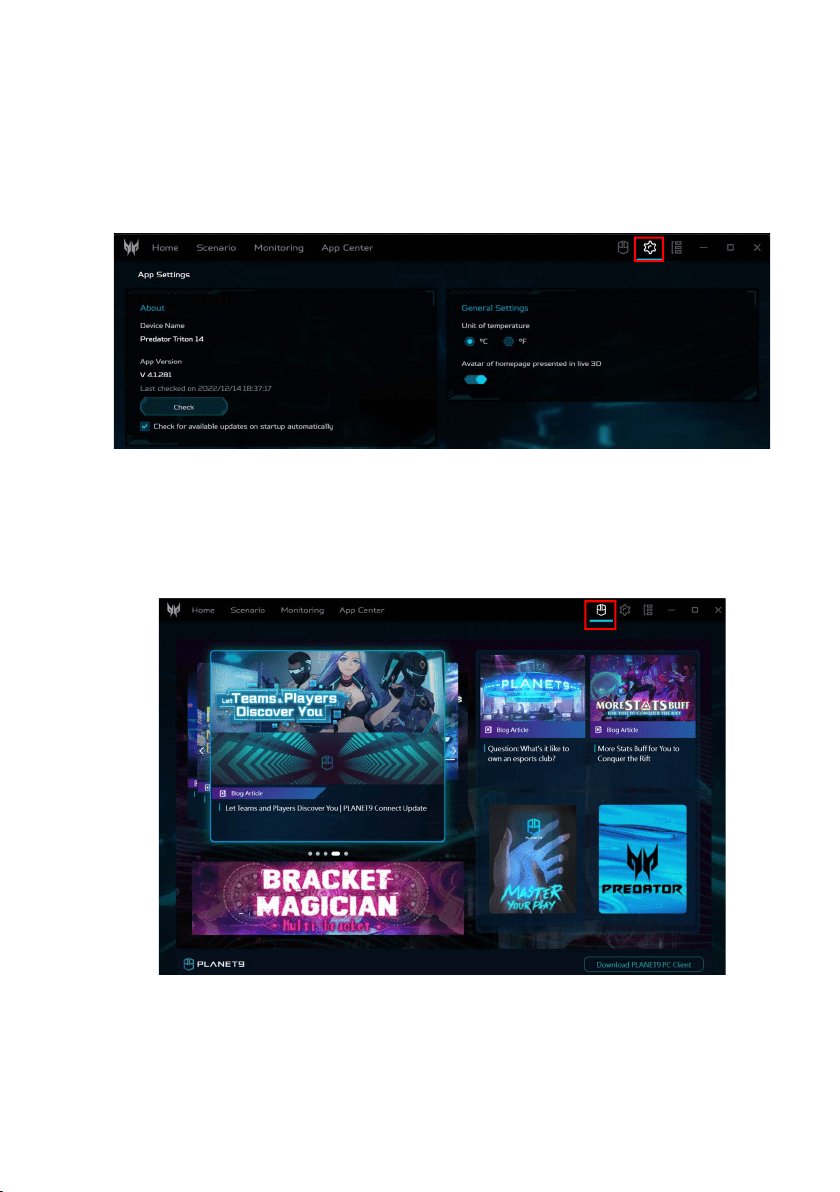
Widget cards are always visible on all PredatorSense
screens by default. If they are hidden, click the Widget icon.
• In the Scenario Profile tab, you can select your preferred
scenario profile, operating mode, adjust the performance
of the fans, and select the lighting effect.
• Under the Monitoring tab, you can view system
performance. To customize the view, click the Adjust icon
and select the items you want to monitor.
• Under the App Shortcut tab, click on the app to open it. To
configure more settings, click Details below each tab.
48 - PredatorSense
PredatorSense settings
Click the Settings icon to update the firmware manually and
set the system to check for available updates on startup
automatically. You can also change temperature units on
this screen.
Planet9 website and PC client download
Click the Planet9 icon to view gaming updates. Click Planet9
to access the Planet9 website or click Download PLANET9
PC Client to download the Planet9 app to your computer.
PredatorSense - 49
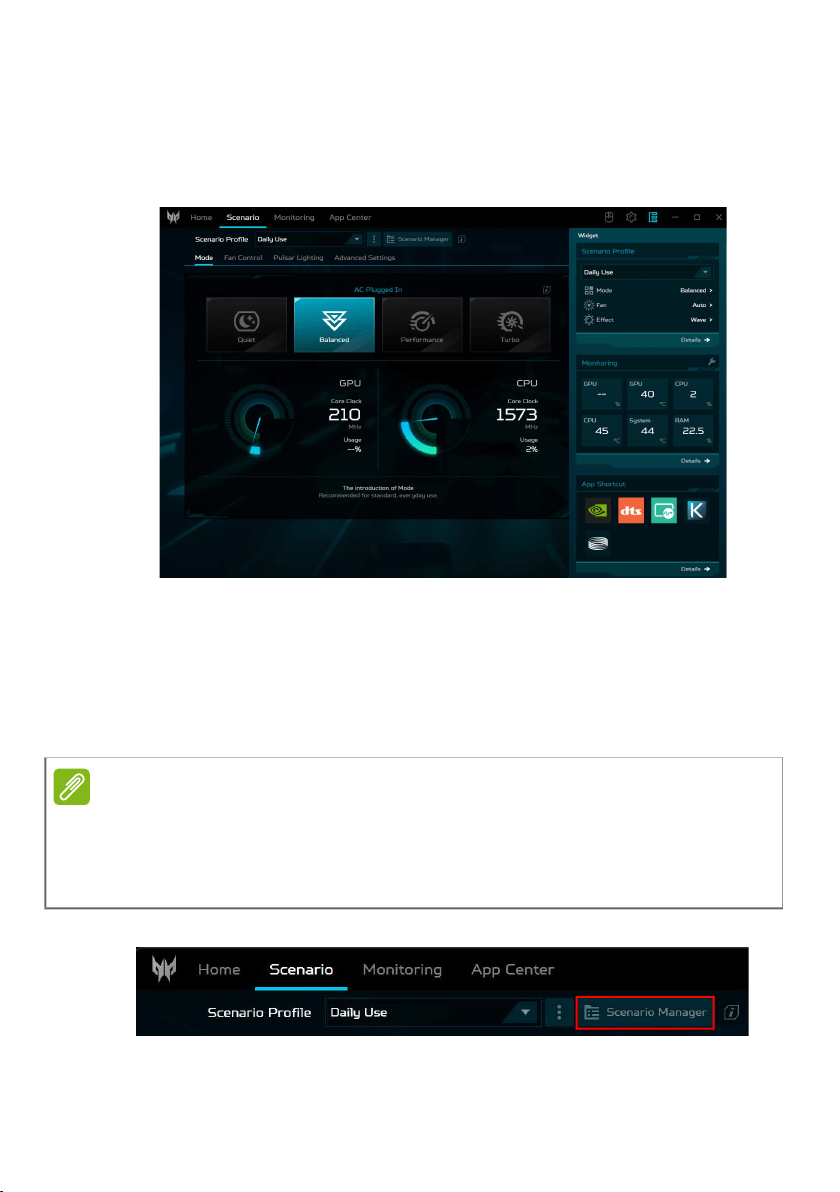
Scenario
Click the Scenario tab to manage scenarios, select an
operating mode, control fans, adjust pulsar lighting settings,
and configure advanced settings.
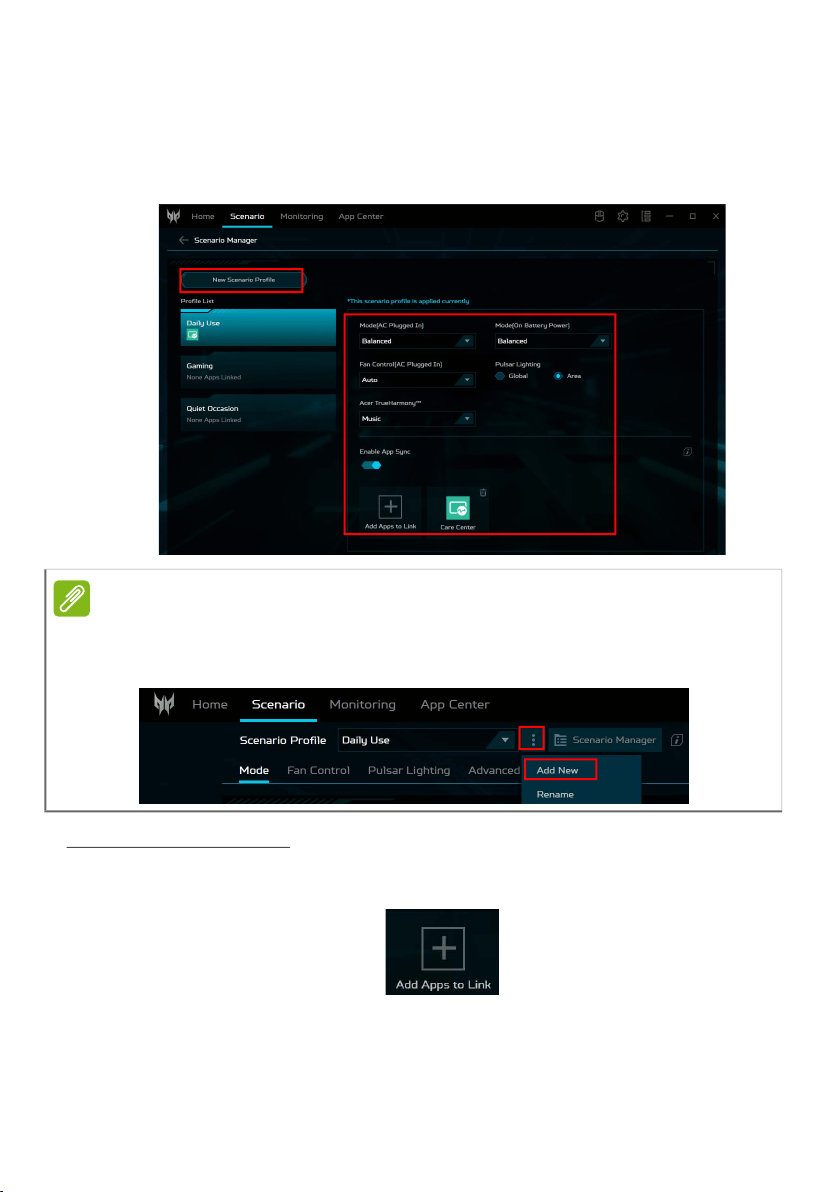
Scenario Profiles
You can create scenario profiles with customized operating
mode, fan performance, lighting effect, Acer TrueHarmony
TM
setting, and linked apps.
To manage the scenario profiles, click Scenario Manager.
Note
Linked app means that when you run the app, it will automatically
switch to the associated scenario profile.
You can link apps both in the Scenario Manager and in the App
Center.
50 - PredatorSense
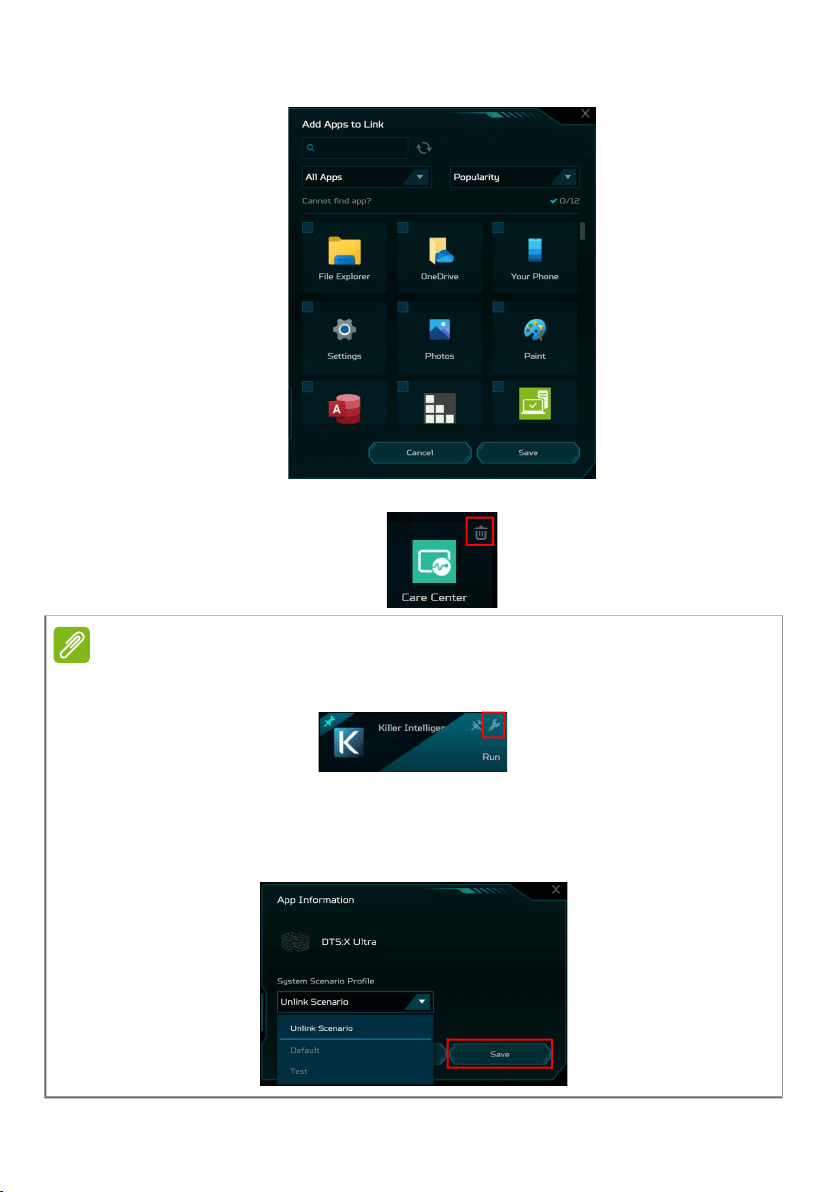
Creating a New Scenario Profile
To add a new profile, select New Scenario Profile then
enter a new name for the profile and click Create. You can
configure the scenario options for the new one.
App Sync settings
Turn on the App Sync function if you have more than one
scenario. Click the Add Apps to Link icon.
Note
You can also add a New Scenario Profile directly from the System
screen. Click Settings > Add New. Then enter a new name for the
profile and click Create.
PredatorSense - 51
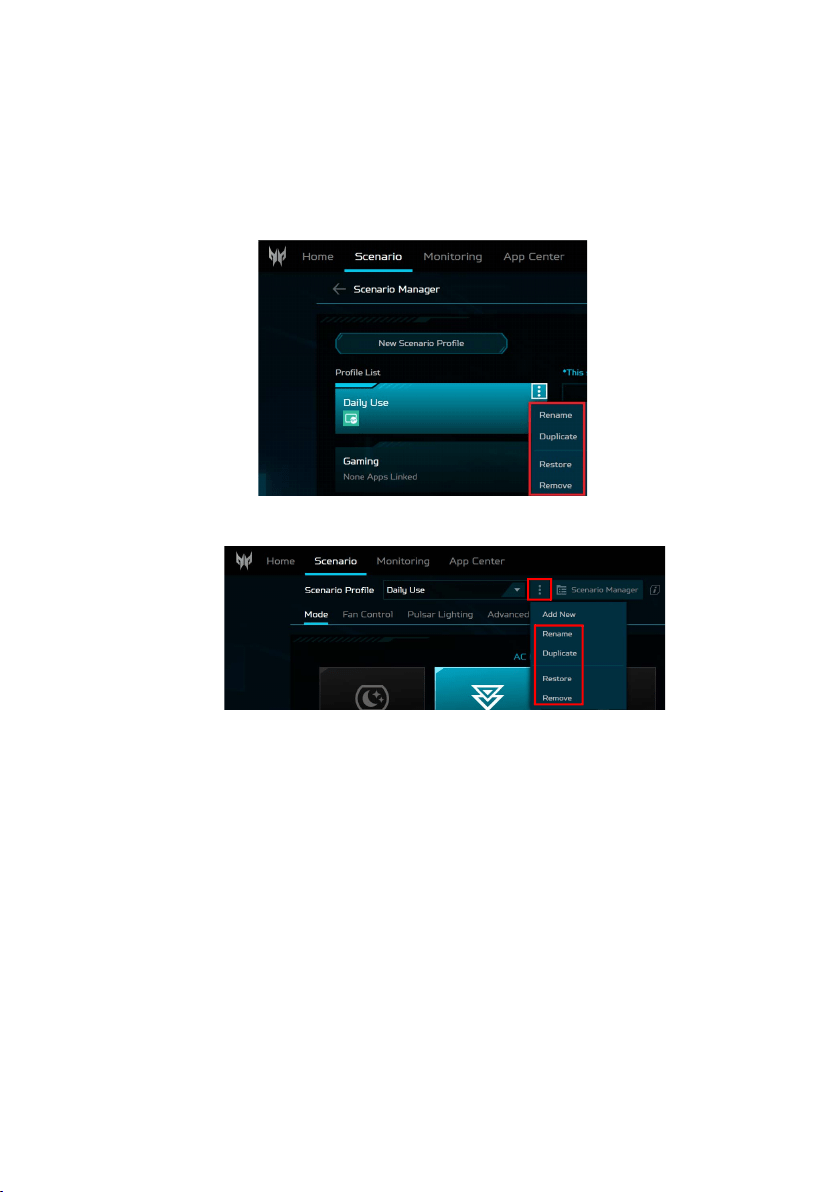
Select the apps that you want to add and click Save.
To remove the app, click the Delete icon next to the app.
Note
You can also link/unlink apps under the App Center tab. Hover the
cursor over the app that you want to link and click the Adjust icon.
Select the scenario profile from the System Scenario Profile drop-
down list and click Save.
To unlink, select the Unlink Scenario from the System Scenario
Profile drop-down list and click Save.
52 - PredatorSense
Managing scenario profiles
You can customize a scenario profile both on the Scenario
Manager screen or the Scenario screen from the drop-down
list.
Scenario Manager screen
Scenario
screen
PredatorSense - 53
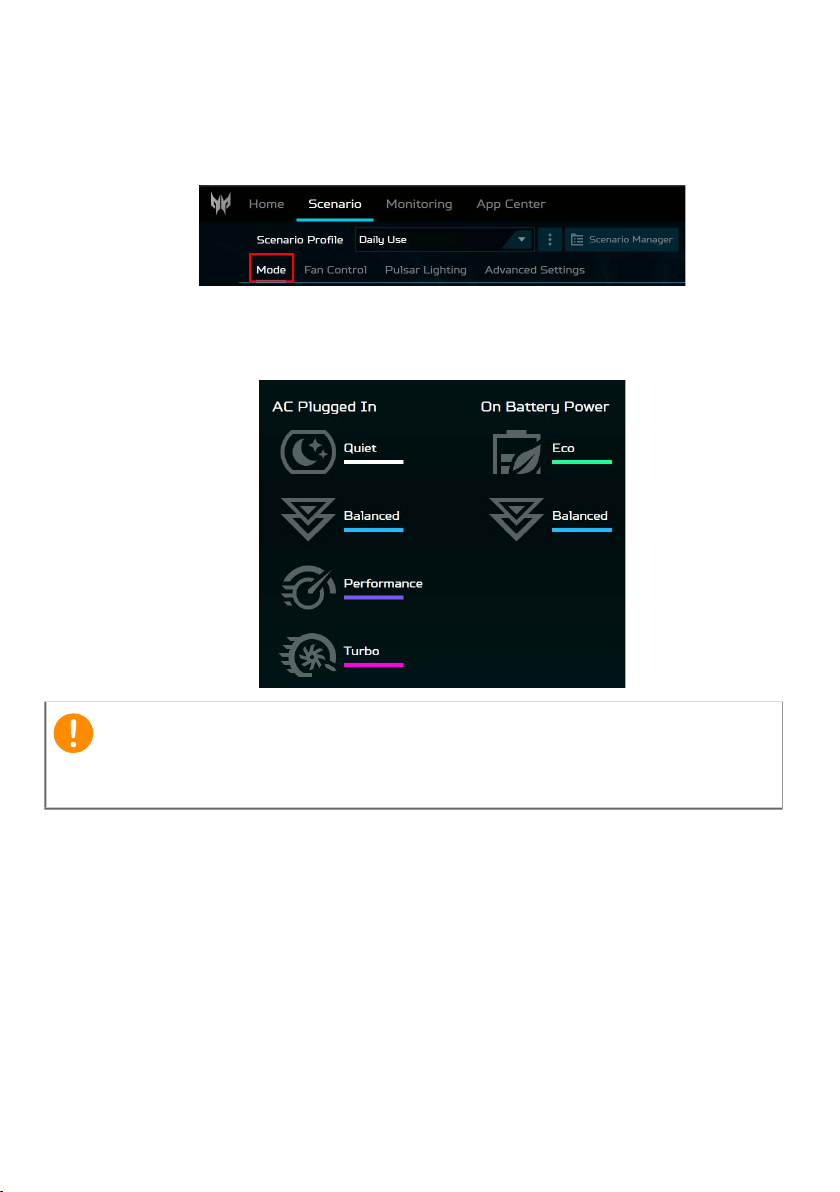
Operating Mode
You can optimize your laptop with different modes using the
widget cards or select the Mode tab for more information.
You can set the system mode in AC power or on battery
power. Lighting will show the color effect for a short period
of time when changing modes.
Important
While the AC is plugged in, mode switching is available when the
battery capacity is at least 40%.
54 - PredatorSense
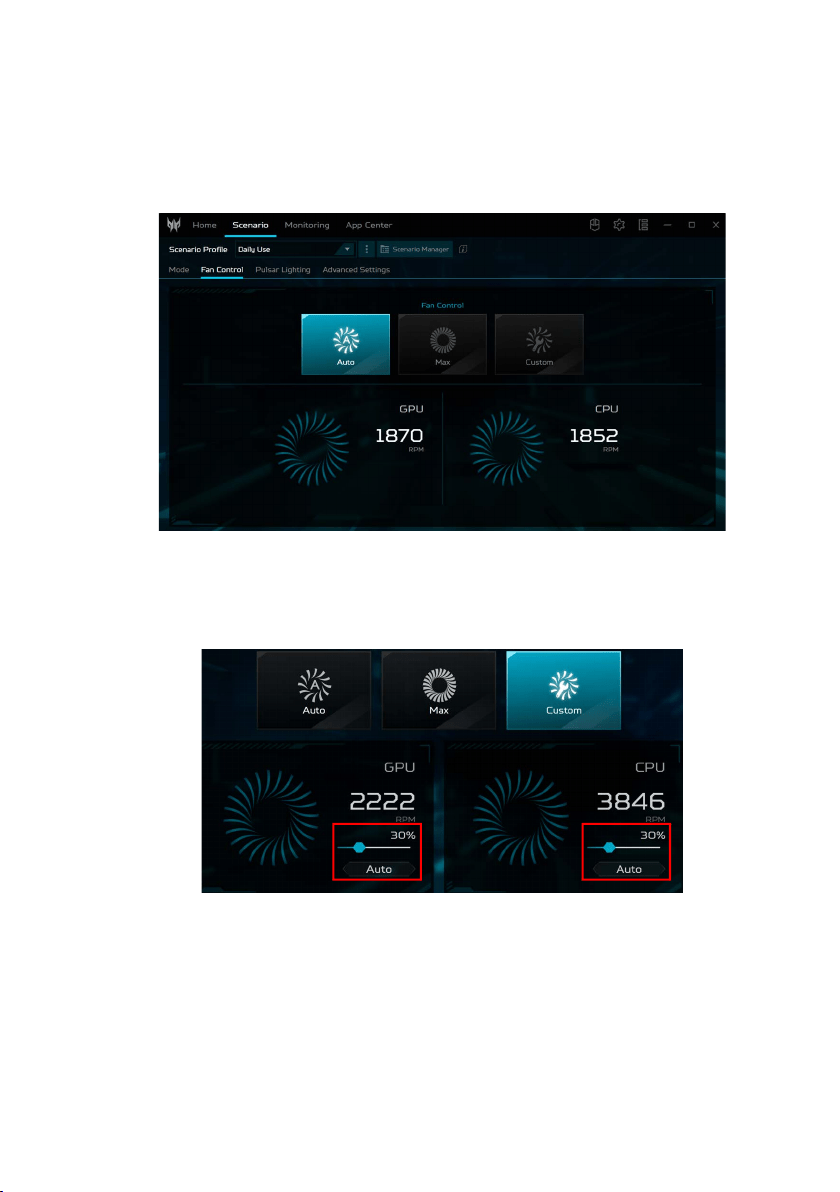
Fan control
You may adjust the performance of the fans cooling your
computer’s CPU and GPU. Three levels are available:
Auto(default), Max and Custom.
If you select Custom, then you will see two sliders that
allow you to set GPU and CPU cooling independently.
Click Auto to switch off the default setting and then adjust
the value.
PredatorSense - 55
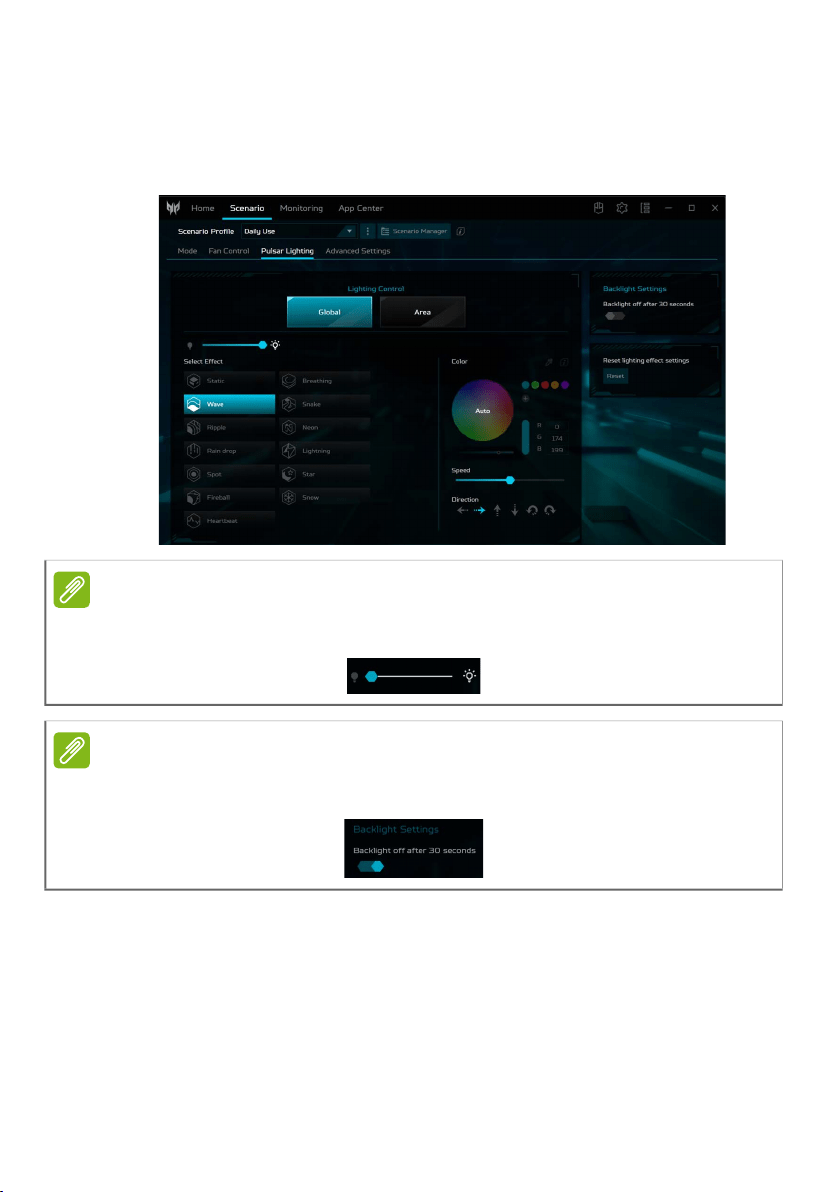
Adjusting the Pulsar Lighting
Select Pulsar Lighting to see keyboard and others lighting
options.
Note
To turn off the lighting effect for the keyboard or for the light bar,
slide the lightning brightness to 0.
Note
To save the battery power, you can enable to turn the keyboard
backlight off automatically if no action within 30 seconds.
56 - PredatorSense
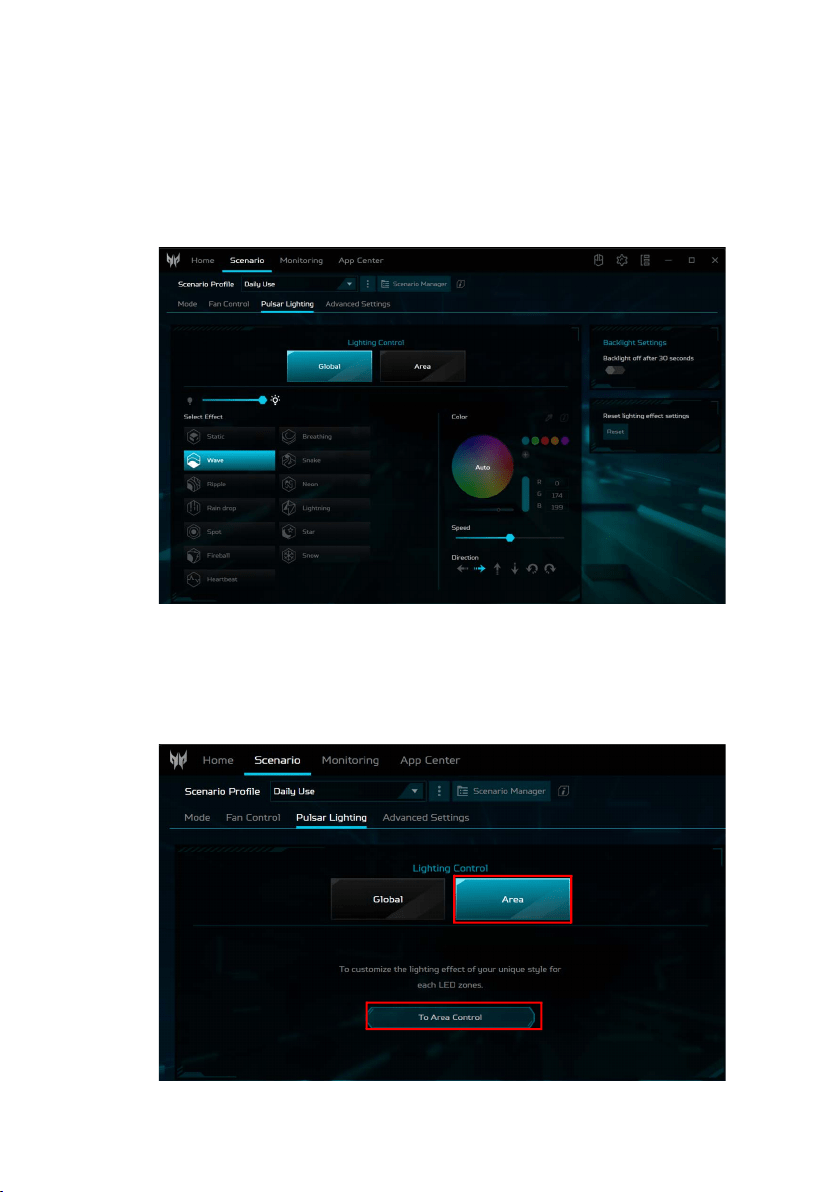
Global lighting
Click Global to customize the lighting effect for the
keyboard and others simultaneously. Adjust the keyboard
backlight brightness and select an animated light effect.
Depending on the effect, you may customize its color,
speed, and direction.
Area lighting
Click Area > To Area Control to customize the lighting effect
for the keyboard and others by adjusting each LED zone
individually.
PredatorSense - 57
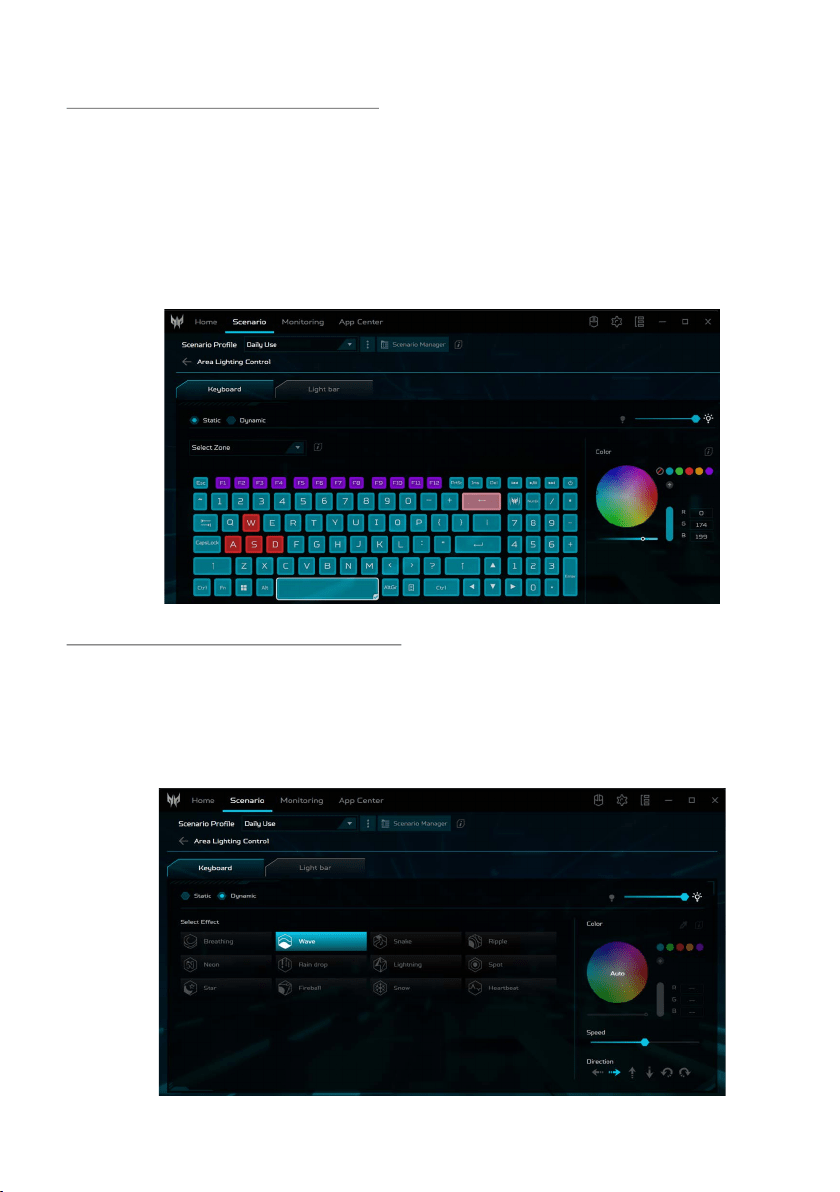
Keyboard-Static lighting
The backlight colors of individual keys may be changed:
select one or more keys (hold Ctrl and click or drag to select
multiple keys), or select a set of keys (such as WASD or
arrow keys) from the Select Zone drop-down list.
Select a color from the color wheel or enter the RGB values
manually. You can also adjust the color intensity and the
keyboard backlight brightness.
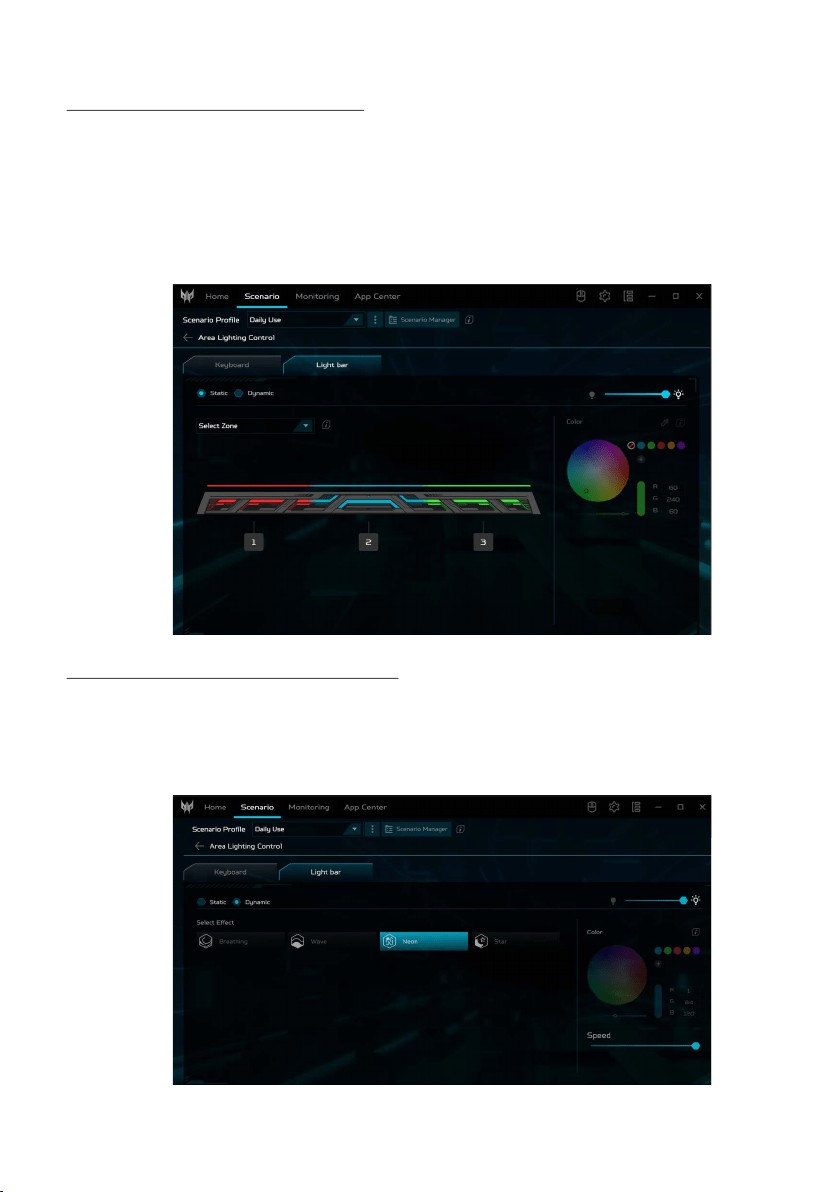
Keyboard-Dynamic lighting
Select Dynamic to see a set of animated light effects. Each
effect provides animation for the backlight colors.
Depending on the effect, you may customize its color,
speed, and direction. You can also adjust the keyboard
backlight brightness.
58 - PredatorSense
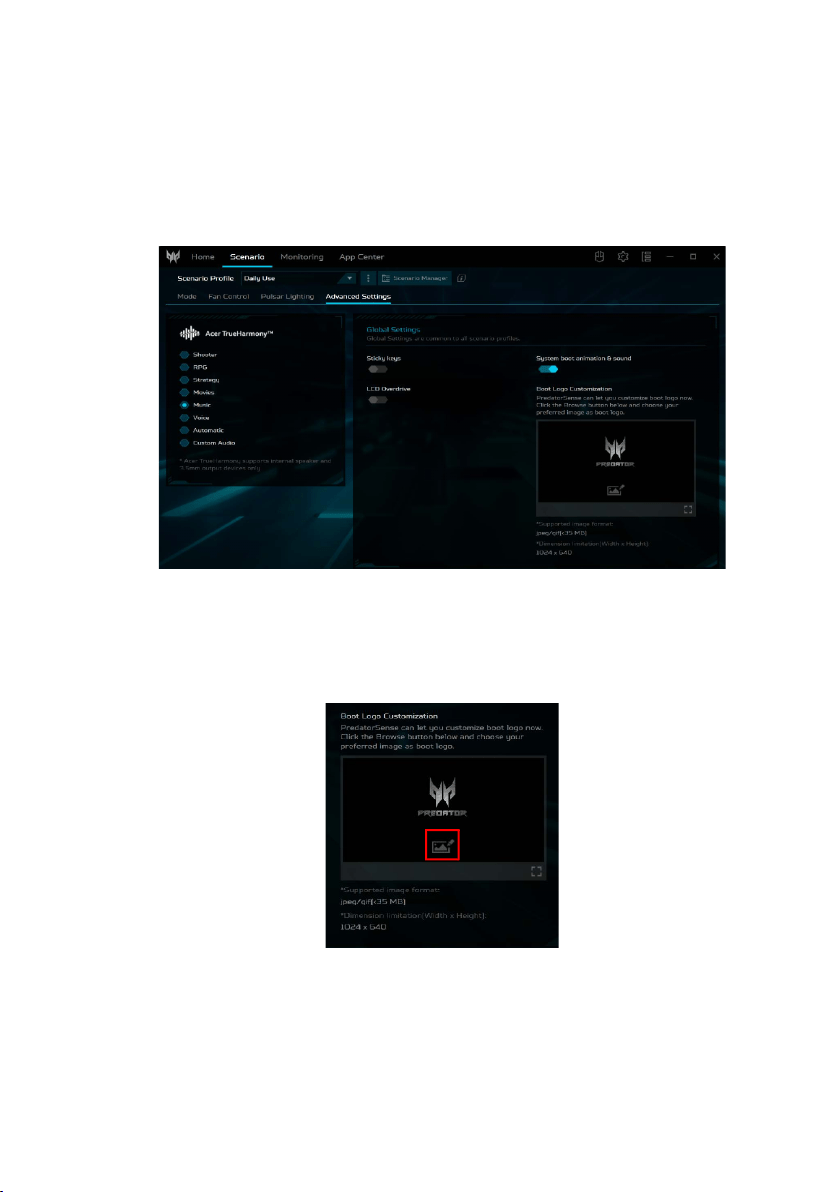
Light Bar-Static lighting
The colors of the light bar may be changed: select the zone
from the Select Zone drop-down list or directly select one
or more zones on the view.
Select a color from the color wheel or enter the RGB values
manually. You can also adjust the color intensity and light
bar brightness.
Light Bar-Dynamic lighting
Select Dynamic to see a set of animated light effects. Each
effect provides animation for the light bar colors.
Depending on the effect, you may customize its color and
speed. You can also adjust the light bar brightness.
PredatorSense - 59
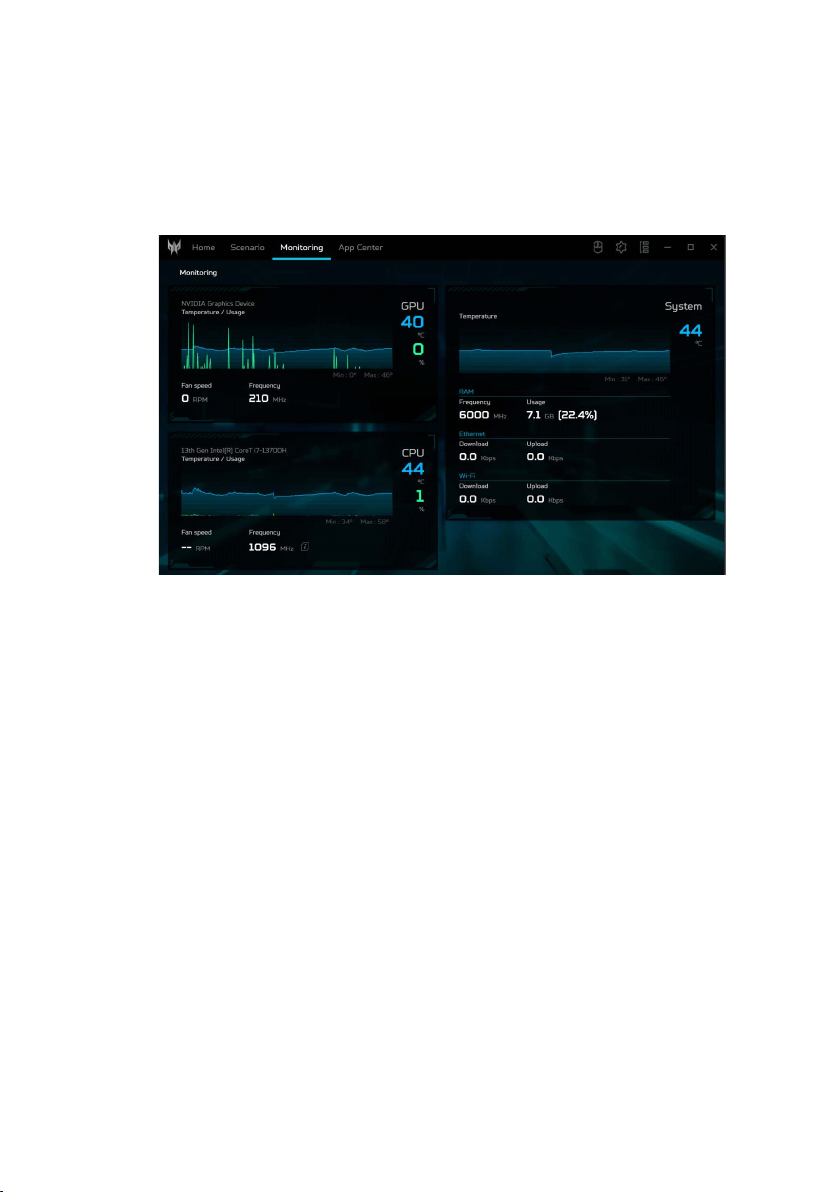
Adjusting the Advanced Settings
Select Advanced Settings to adjust the audio mode under
the Acer TrueHarmony
TM
tab. Under the Global Settings
tab you can disable/enable sticky keys, LCD Overdrive, and
system boot animation & sound.
Boot Logo Customization
Under the Boot Logo Customization tab, click the Image
icon then browse to select your preferred image to
customize the boot logo.
60 - PredatorSense
Monitoring
Select Monitoring to check CPU, GPU, and system
temperature and loading, Data is shown for the last 60
minutes, so you can track your CPU, GPU and system’s
status after performing different tasks.
PredatorSense - 61
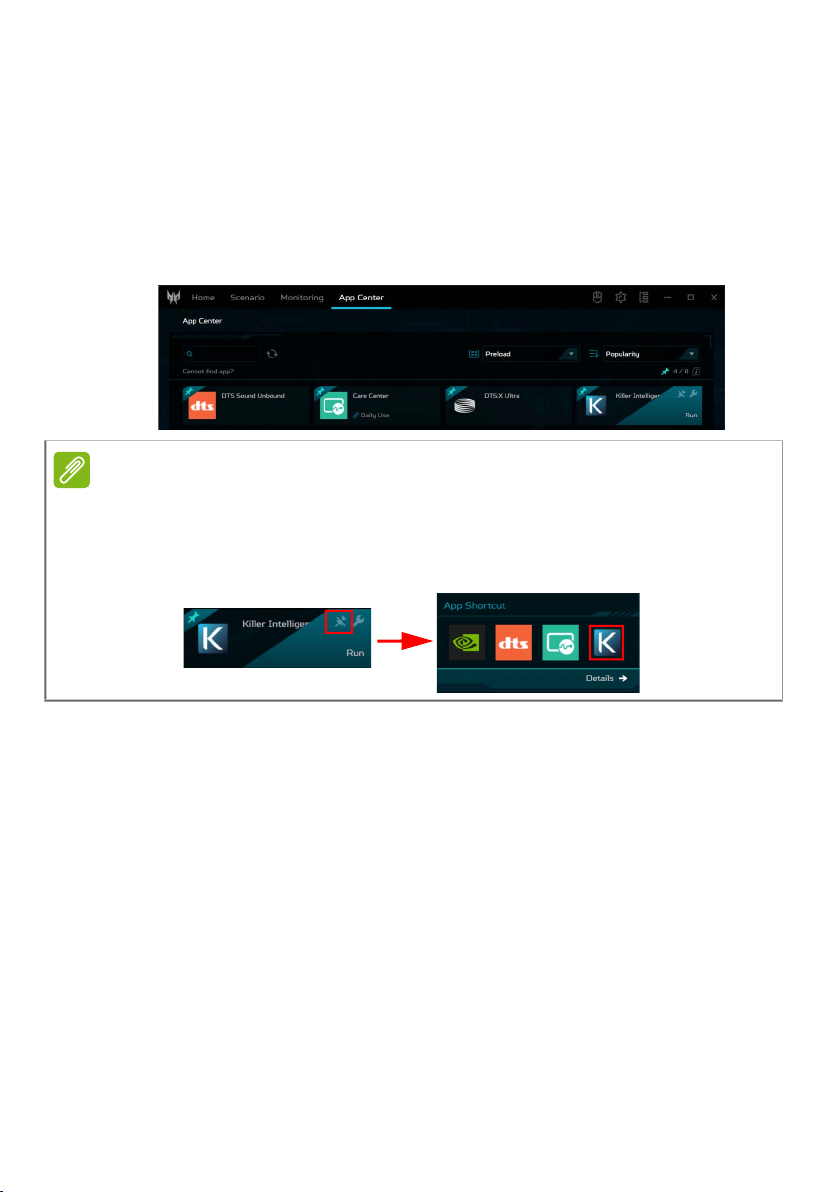
App Center
Click the App Center tab to quickly launch the installed app
in your computer. If you cannot find the app in the list of all
apps then use search, limit the list by displaying only
preloaded apps or games, sort apps by popularity, alphabet,
or by installation date. If the app is newly installed, then
click the Refresh icon to reload the view.
Note
For ease of access, you can pin the app shortcut to the widget
card. To do so, hover the cursor over the app and click the Pin icon.
To unpin the app from the widget card, repeat the step.
App Center Widget card
62 - Bluelight Shield
BLUELIGHT SHIELD
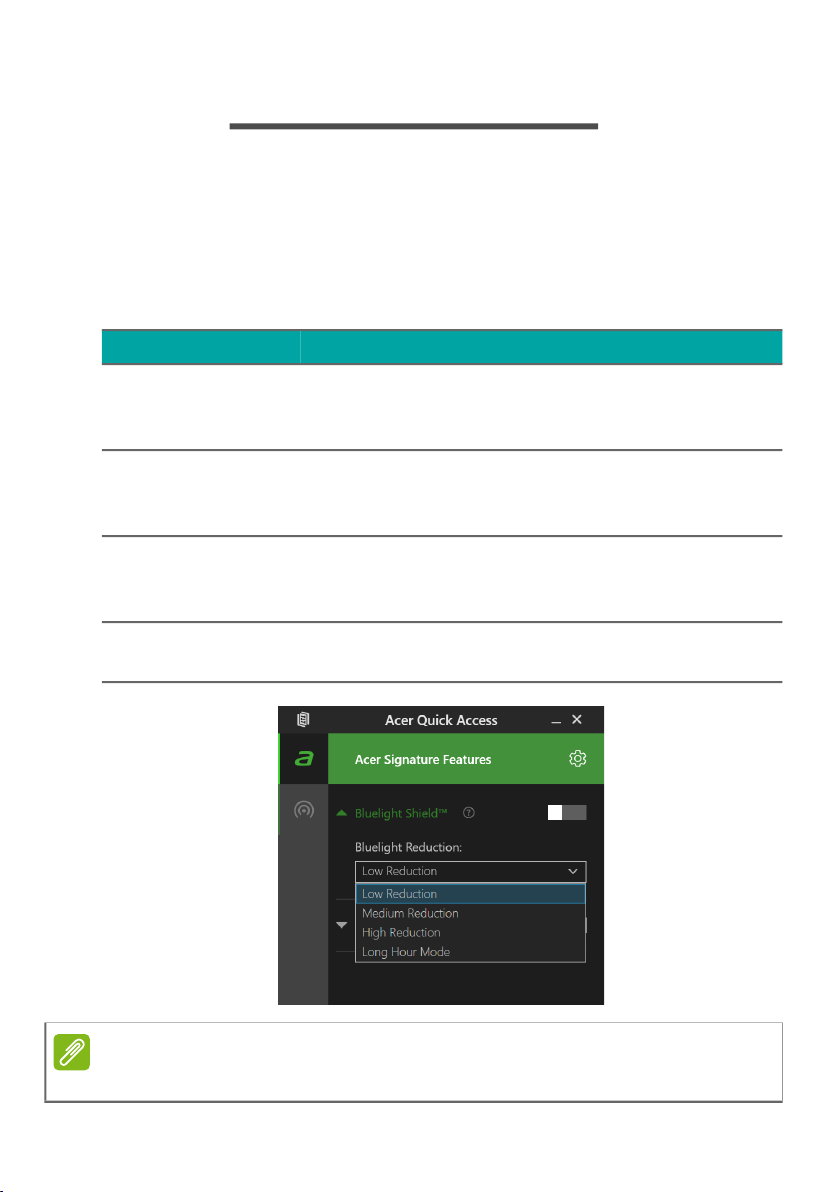
The Bluelight Shield can be enabled to reduce blue-light
emissions from the screen to protect your eyes.
To configure the Bluelight Shield, search for ’Quick Access’
in the Start Menu. From here you can toggle Bluelight
Shield on or off, and you can choose from four different
modes to fit your needs:
No. Item Description
1
Low
Reduction
Reduces blue light emission from the LED
backlit screen by 10% to 25% for basic
protection.
2
Medium
Reduction
Reduces blue light emission from the LED
backlit screen by 26% to 45% to protect
your eyes.
3
High
Reduction
Reduces blue light emission from the LED
backlit screen by 46% to 65% for
maximum protection.
4
Long Hour
Mode
Professionally tuned to reduce eye strain
over an extended period of time.
Note
Specifications vary depending on model or Operating System.
OLED Screen - 63
OLED SCREEN
OLED screen is known for displaying near-perfect
blacks and brilliant colors, which is delivers an
incredible picture and doesn’t need a backlight
compared to the LED panel. But OLED burn-in can
occur if you use maximum settings for backlight,
brightness, and contrast to display static images, and it
might cause permanent burn-in damage to your OLED
display.
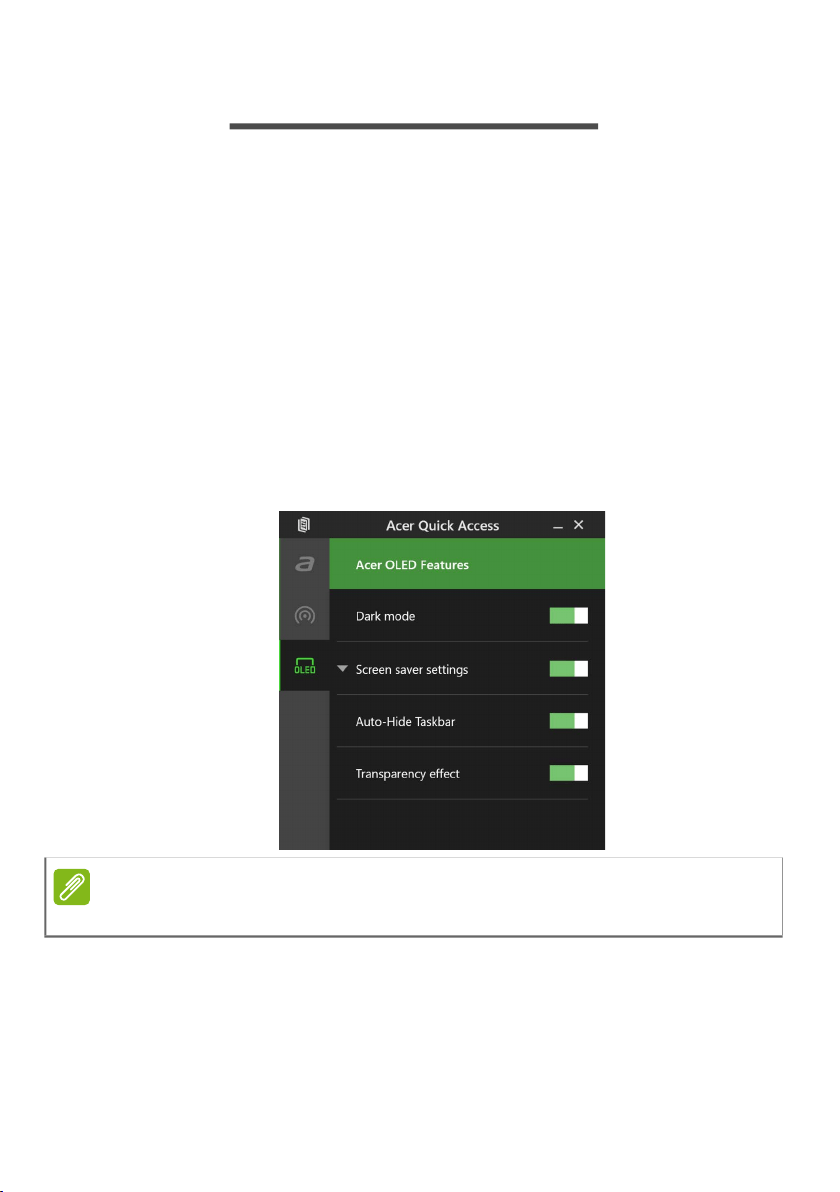
How to avoid burn-in on an OLED screen
Search for ’Quick Access’ in the Start Menu, and you can
toggle four ways on or off to avoid burn-in occurring.
Note
Specifications vary depending on model or Operating System.

Keeping your computer
and data safe...
In this section you will find:
• How to secure your computer
• Setting passwords
• What you need to prepare when you’re traveling
• How to get the most out of your battery

Securing your computer - 65
SECURING YOUR COMPUTER
Your computer is a valuable investment that you need to
take care of. Learn how to protect and take care of your
computer.
Security features include hardware and software locks — a
security notch and passwords.
Using a computer security lock
The computer comes with a computer security slot for a
security lock.
Wrap a computer security lock cable around an immovable
object such as a table or handle of a locked drawer. Insert
the lock into the notch and turn the key to secure the lock.
Some keyless models are also available.
Using passwords
Passwords protect your computer from unauthorized
access. Setting these passwords creates several different
levels of protection for your computer and data:
• Supervisor Password prevents unauthorized entry into the
BIOS utility. Once set, you must enter this password to
gain access to the BIOS utility. See Setting passwords on
page 72.
• User Password secures your computer against
unauthorized use. Combine the use of this password with
password checkpoints on boot-up and resume from
Hibernation (if available) for maximum security.
• Password on Boot secures your computer against
unauthorized use. Combine the use of this password with

66 - Securing your computer
password checkpoints on boot-up and resume from
Hibernation (if available) for maximum security.
Entering passwords
When a password is set, a password prompt appears in the
center of the display screen.
• When the Supervisor Password is set, a prompt appears
when you enter the BIOS utility.
• Type the Supervisor Password and press Enter to access
the BIOS utility. If you enter the password incorrectly, a
warning message appears. Try again and press Enter.
• When the User Password is set and the password on boot
parameter is enabled, a prompt appears at boot-up.
• Type the User Password and press Enter to use the
computer. If you enter the password incorrectly, a warning
message appears. Try again and press Enter.
Important
Do not forget your Supervisor Password! If you forget your
password, please get in touch with your dealer or an authorized
service center.
Important
You have three chances to enter a password. If you fail to enter
the password correctly after three tries, the system halts. Press
and hold the power button for four seconds to shut down the
computer. Then turn on the computer again, and try again.
Fingerprint Reader - 67
FINGERPRINT READER
In addition to using an account password or PIN to sign in
to Windows apps and services, you can also use the
fingerprint reader to sign-in and unlock your Predator
notebook.
In order to use the fingerprint reader, you must first
configure the fingerprint reader to recognize your
fingerprint to confirm your identity.
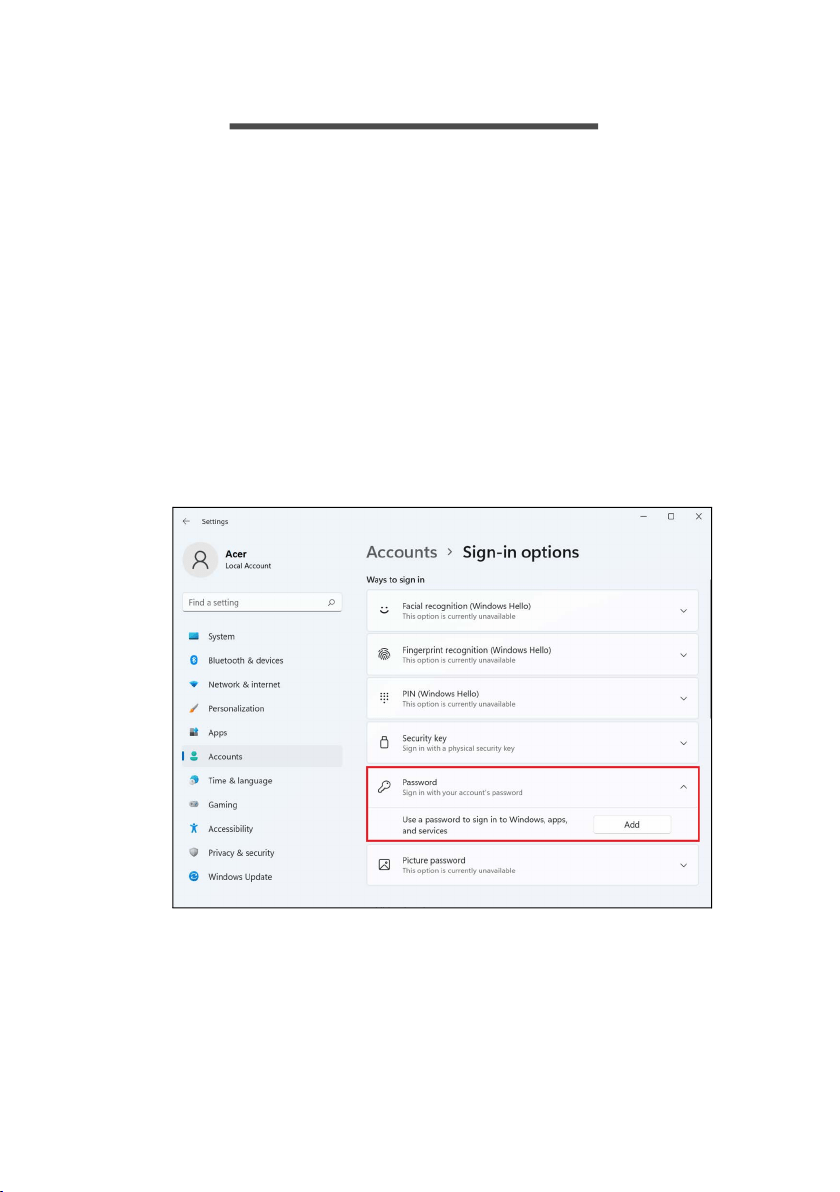
How to use the fingerprint reader
Select the Start button, then select Settings > Accounts >
Sign-in options to set up Windows Hello.
1. Set a password.
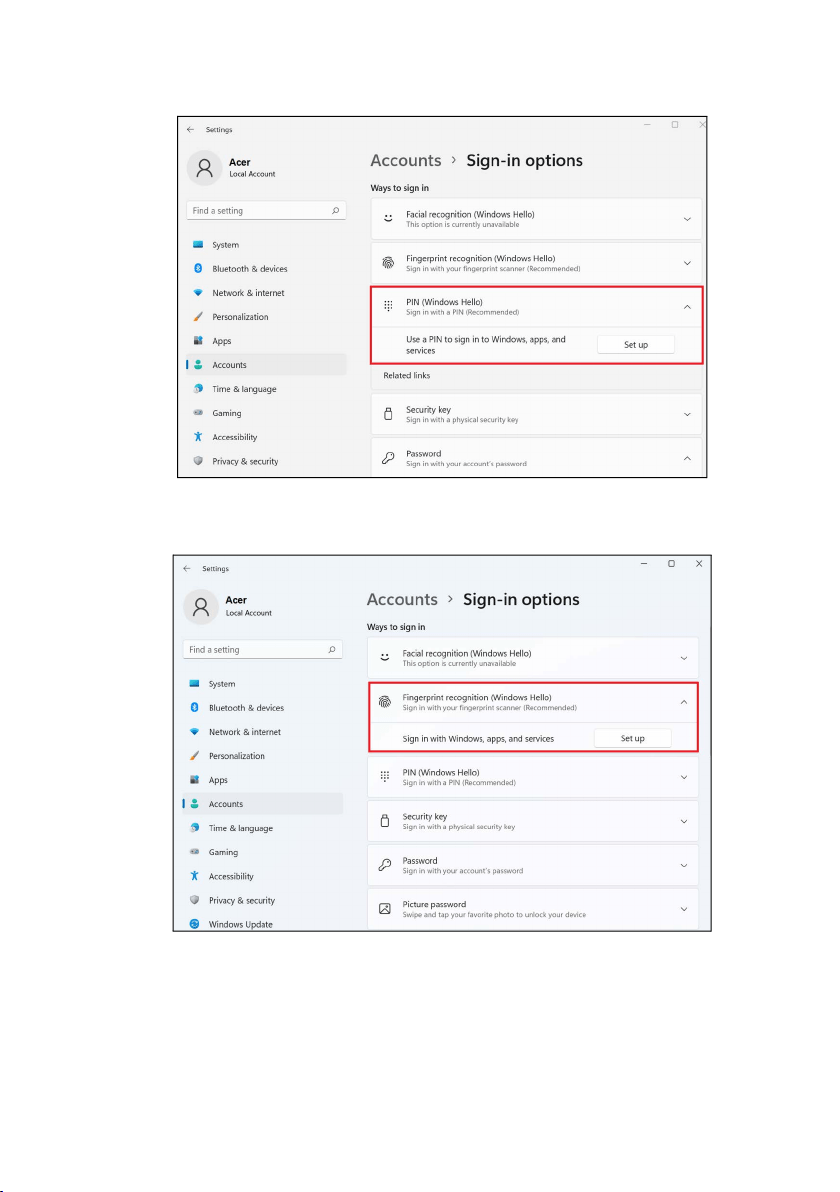
68 - Fingerprint Reader
2. Set a PIN code.
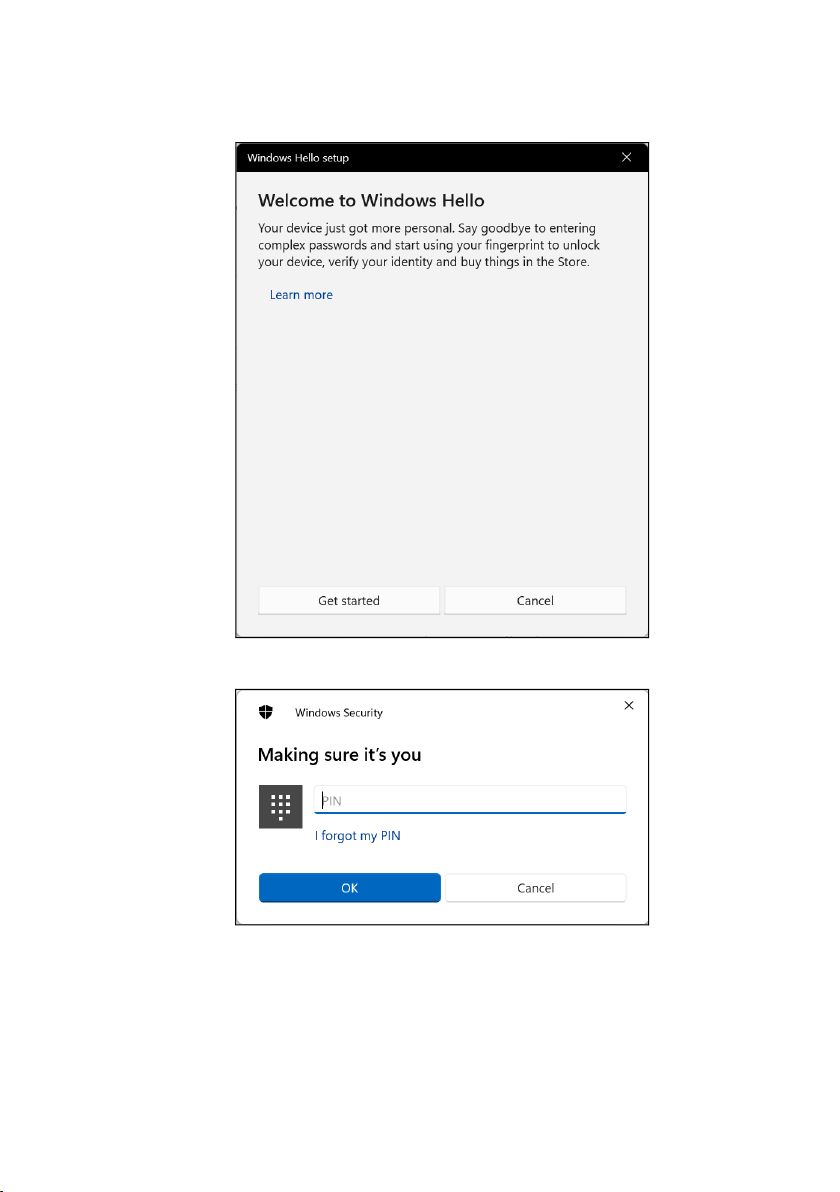
3. In Windows Hello Fingerprint, select Set up to configure
the fingerprint reader.
Fingerprint Reader - 69
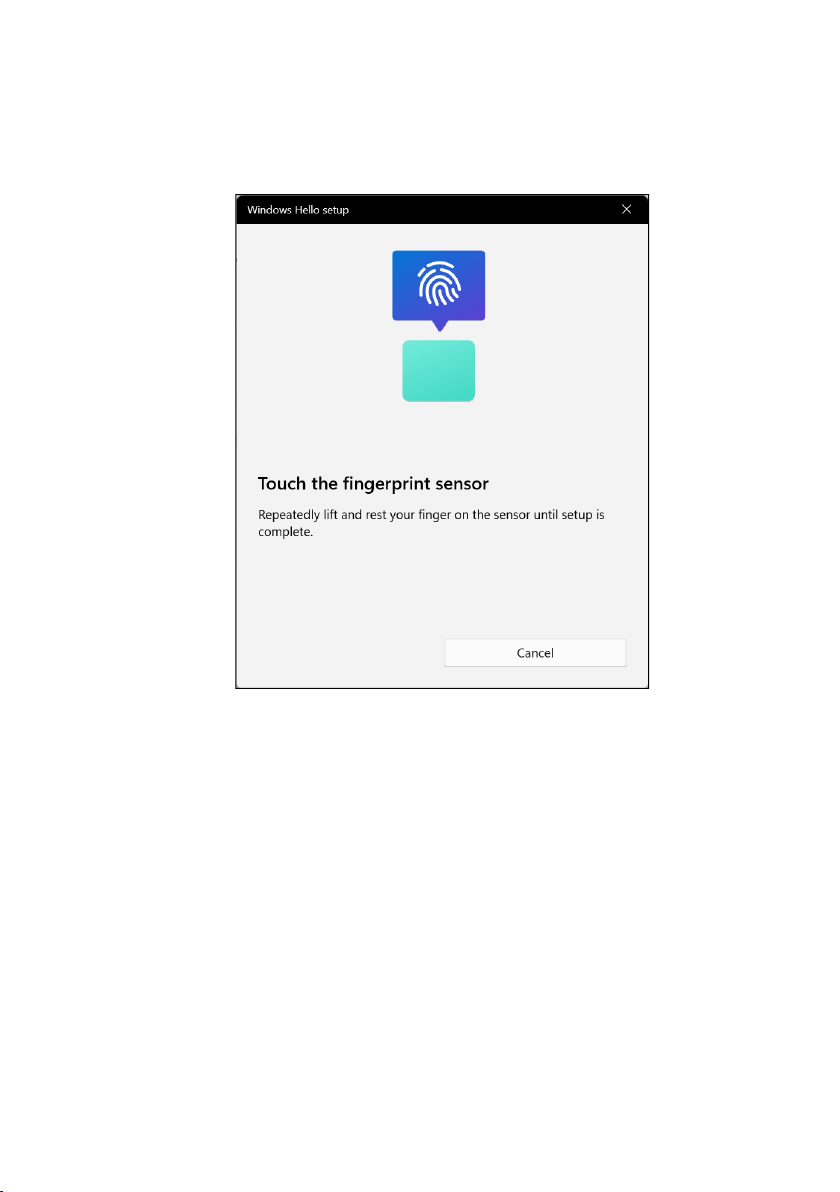
4. In the Windows Hello set up window, select Get started to
begin the fingerprint configuration.
5. Enter your PIN to confirm your identity.
70 - Fingerprint Reader
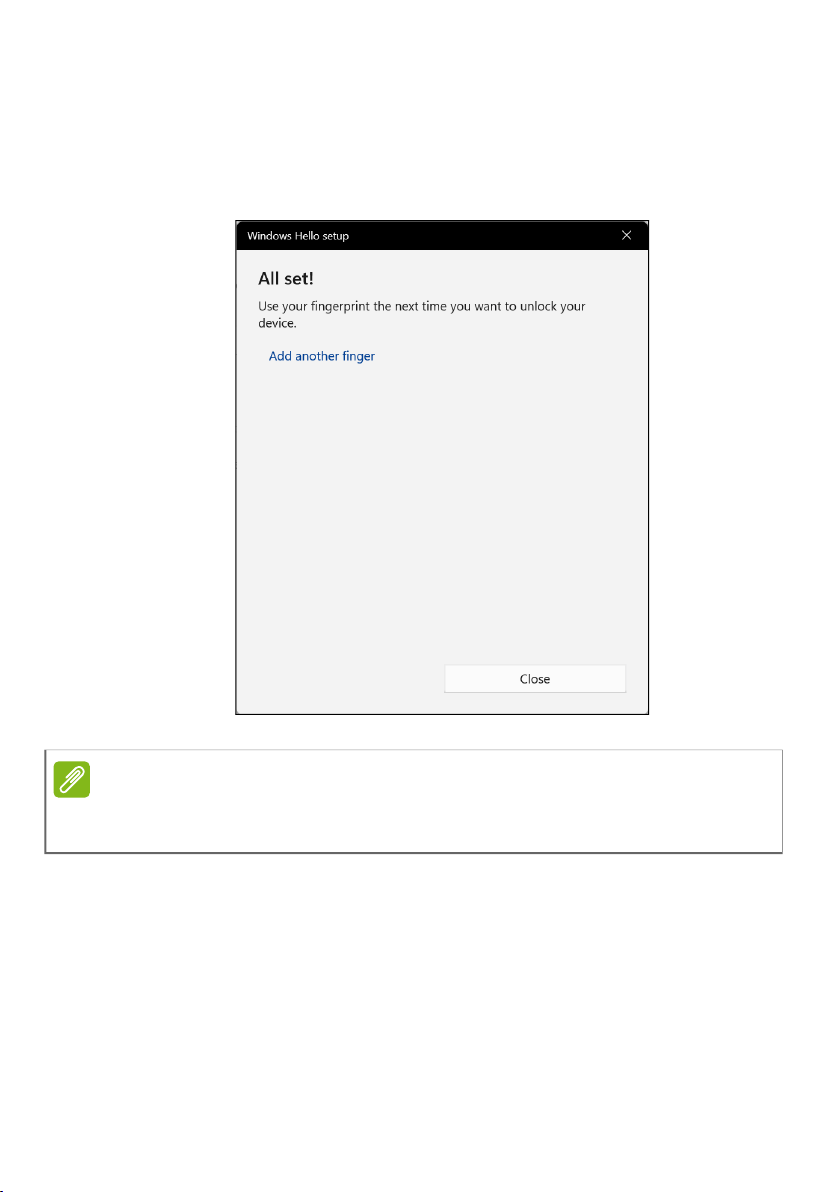
6. When the Windows Hello setup window appears, follow
the onscreen directions. Press and hold your finger on the
fingerprint sensor and then lift. Repeat this step until the
fingerprint configuration is complete.
Fingerprint Reader - 71
7. Once the fingerprint configuration is complete, you will be
able to sign in or unlock your computer by placing your
fingerprint on the fingerprint reader. You may select Add
another finger to add another fingerprint to unlock the
computer.
Note
If the notebook has multiple accounts, you can set up access
separately and automatically switch between accounts.

72 - BIOS utility
BIOS UTILITY
The BIOS utility is a hardware configuration program built
into your computer's BIOS.
Your computer is already properly configured and optimized,
and you do not normally need to run this utility. However, if
you encounter configuration problems, you may need to run
it.
To activate the BIOS utility, press F2 while the computer
logo is being displayed.
Boot sequence
To set the boot sequence in the BIOS utility, activate the
BIOS utility, then press F1 to access the Advanced Settings
to select Boot from the categories listed on the left of the
screen.
Setting passwords
To set a password on boot, activate the BIOS utility, then
press F1 to access the Advanced Settings to select Security
from the categories listed on the left of the screen.
Find Set Supervisor Password and enter a password to
enable this feature. Once you have entered a password for
this feature, you may then enable/disable Password on
Boot.
Remember to select F10 to properly save and exit the BIOS
utility when you are done making changes.
Power management - 73
POWER MANAGEMENT
This computer has a built-in power management unit that
monitors system activity. System activity refers to any
activity involving one or more of the following devices:
keyboard, mouse, hard disk, peripherals connected to the
computer, and video memory. If no activity is detected for a
period of time, the computer stops some or all of these
devices in order to conserve energy.
Saving power
Disable Fast startup
Your computer uses Fast startup to start quickly, but also
uses a small amount of power to check for signals to start.
These checks will slowly drain your computer’s battery.
If you prefer to reduce your computer’s power requirements
and environmental impact, turn off Fast startup:
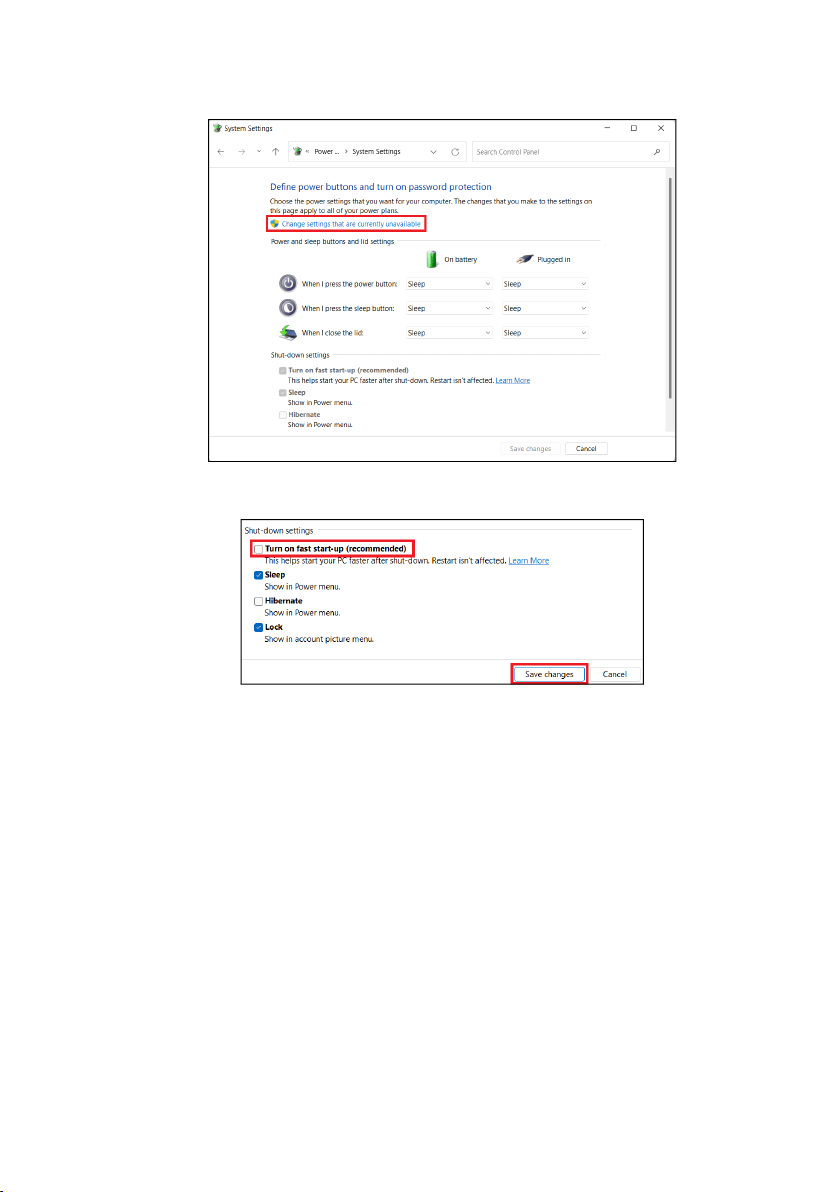
1. Press the Windows key or select the Windows Start
button then search for "Choose a power plan".
2. Select Choose what the power buttons do.
Note
If Fast startup is off, your computer will take longer to start from
Sleep.
Your computer will also not start if it receives an instruction to
start over a network (Wake on LAN).
74 - Power management
3. Select Change settings that are currently unavailable.
4. Scroll down and disable Turn on fast start-up.
5. Select Save changes.

Battery pack - 75
BATTERY PACK
The computer uses an embedded Lithium battery that gives
you long use between charges.
Battery characteristics
The battery is recharged whenever you connect the
computer to the AC adapter. Your computer supports
charge-in-use, enabling you to recharge the battery while
you continue to operate the computer. However, recharging
with the computer turned off significantly reduces charge
time.
The battery will come in handy when you travel or during a
power failure.
Charging the battery
Plug the AC adapter into the computer, and connect to a
mains power outlet.
Conditioning a new battery pack
Before you use a battery pack for the first time, there is a
conditioning process that you should follow:
1. Connect the AC adapter and fully charge the battery.
2. Turn on the computer and complete setting up the
operating system.
3. Disconnect the AC adapter.
4. Operate the computer using battery power.
5. Fully deplete the battery until the battery-low warning
appears.
Note
You are advised to charge the battery before retiring for the day.
Charging the battery overnight before traveling enables you to
start the next day with a fully charged battery.
76 - Battery pack
6. Reconnect the AC adapter and fully charge the battery
again.
Follow these steps again until the battery has been charged
and discharged three times.
Use this conditioning process for all new batteries, or if a
battery hasn't been used for a long time.
The battery conditioning process ensures your battery
accepts the maximum possible charge. Failure to follow this
procedure will prevent you from obtaining the maximum
battery charge, and will also shorten the effective lifespan of
the battery.
In addition, the useful lifespan of the battery is adversely
affected by the following usage patterns:
• Using the computer on constant AC power.
• Not discharging and recharging the battery to its
extremes, as described above.
• Frequent use; the more you use the battery, the faster it
will reach the end of its effective life. An embedded battery
has a life span of more than 1,000 charge/discharge
cycles.
Optimizing battery life
Optimizing battery life helps you get the most out of battery
operation, prolonging the charge/recharge cycle and
improving recharging efficiency. You are advised to follow
the suggestions set out below:
• Use AC power whenever possible, reserving battery for
mobile use.
• Remove accessories that are not being used (e.g. a USB
disk drive), as they can continue to draw power.
Warning
Do not expose battery packs to temperatures below 0° C (32° F)
or above 45° C (113° F). Extreme temperatures may adversely
affect the battery pack.

Battery pack - 77
• Store your PC in a cool, dry place. The recommended
temperature is 10° C (50° F) to 30° C (86° F). Higher
temperatures cause the battery to self-discharge faster.
• Excessive recharging decreases the battery life.
• Look after your AC adapter and battery.
Checking the battery level
The power meter indicates the current battery level. Rest
the cursor over the battery/power icon on the taskbar to
see the battery's present charge level.
Battery-low warning
When using battery power pay attention to the power
meter.
When the battery-low warning appears, the recommended
course of action depends on your situation:
Important
Connect the AC adapter as soon as possible after the battery-low
warning appears. Data may be lost if the battery is allowed to
become fully depleted and the computer shuts down.
Situation Recommended Action
The AC adapter
and a power
outlet are
available.
1. Plug the AC adapter into the computer,
and then connect to the main power supply.
2. Save all necessary files.
3. Resume work.
Turn off the computer if you want to
recharge the battery rapidly.
The AC adapter
or a power
outlet is
unavailable.
1. Save all necessary files.
2. Close all applications.
3. Turn off the computer.

78 - Traveling with your computer
TRAVELING WITH YOUR
COMPUTER
This section gives you tips and hints to consider when
moving around or traveling with your computer.
Disconnecting from the desktop
Follow these steps to disconnect your computer from
external accessories:
1. Save any open files.
2. Shut down the computer or put it into Sleep or Hibernate
mode.
3. Close the display cover.
4. Disconnect the cord from the AC adapter.
5. Disconnect the keyboard, pointing device, printer, external
monitor and other external devices.
6. Disconnect the Kensington / Noble lock if you are using
one to secure the computer.
Moving around and what to bring with you
When you are just moving within short distances, you
probably do not need to bring anything with you other than
your computer. If your battery is not fully charged, you may
want to bring the AC adapter with you to plug in your
computer. If you cannot find an electrical outlet, reduce the
drain on the battery by putting the computer in Sleep mode.
Press the Sleep hotkey or close the display cover whenever
you are not actively using the computer.
When you are moving within a larger distance, for instance,
traveling locally or internationally, after shutting down the
computer and disconnecting any external devices, pack the

Traveling with your computer - 79
computer in a protective case that can prevent the computer
from sliding around and cushion it if it should fall.
Note
The computer may enter Hibernation or Deep Sleep mode after
being in Sleep mode for a period of time.

In this section you will find:
• Information on the ports and connectors fitted to your
computer
Ports and connectors...
Universal Serial Bus (USB) - 81
UNIVERSAL SERIAL BUS (USB)
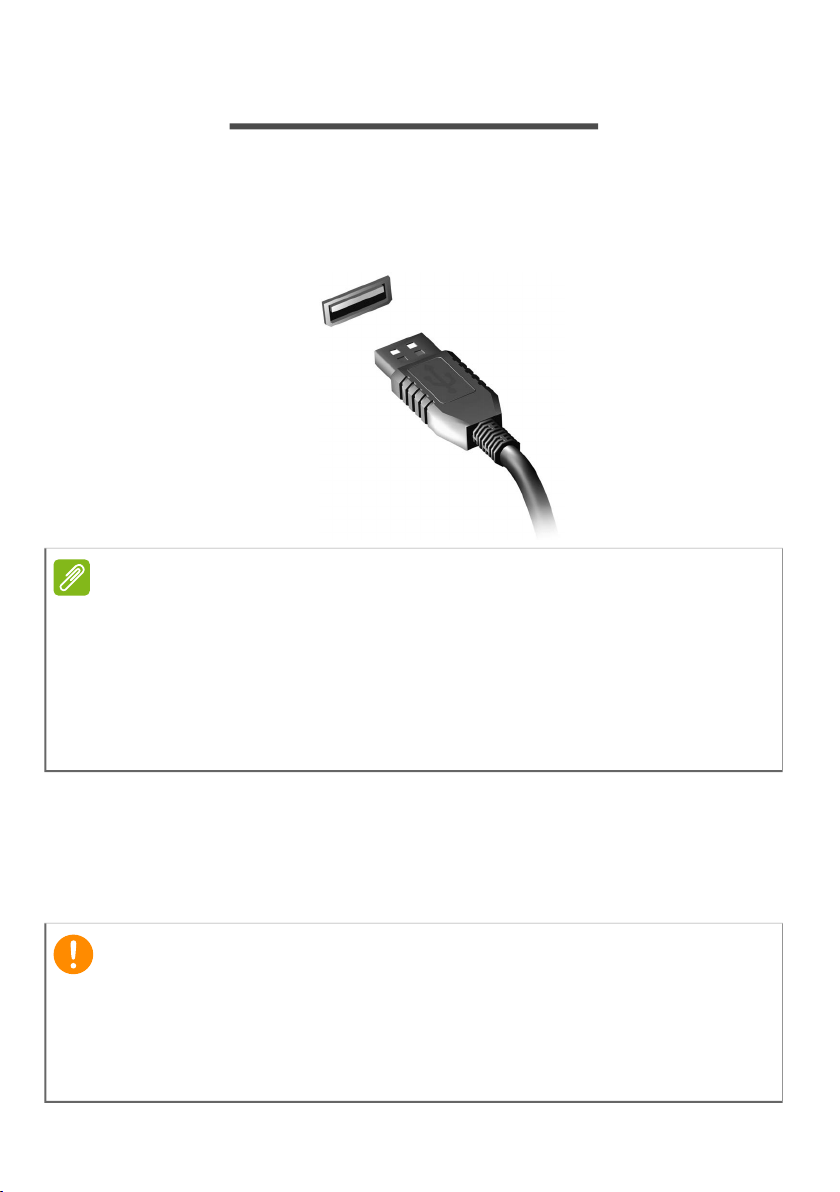
The USB port is a high-speed port which allows you to
connect USB peripherals, such as a mouse, an external
keyboard, additional storage (external hard disks), or any
other compatible device.
You can also charge devices such as tablets, smartphones,
or other devices through a USB port. Some USB 3.2 Gen 1/
Gen 2 ports support charging devices when the computer is
in Hibernate or turned off. Additionally, you can use a USB
hub to connect multiple devices to a single USB port.
Note
Two USB standards are currently available on Predator
computers: USB 2.0 (High-speed USB) and USB 3.2 Gen 1/Gen 2
(SuperSpeed USB). USB 2.0 ports on Predator computers have a
black tongue in the port, while USB 3.2 Gen 1/Gen 2 ports have a
blue tongue. For best performance, USB 3.2 Gen 1/Gen 2 devices
should always be plugged into USB 3.2 Gen 1/Gen 2 ports. Consult
your device’s documentation to see which standard it supports.
Important
When removing a USB storage device, you should right-click on
the USB icon in the Windows task bar and select "Eject <device>"
to tell the operating system to stop using the device before
removing it. Failure to do this may result in data loss or damage
to your peripheral.
82 - USB Type-C port
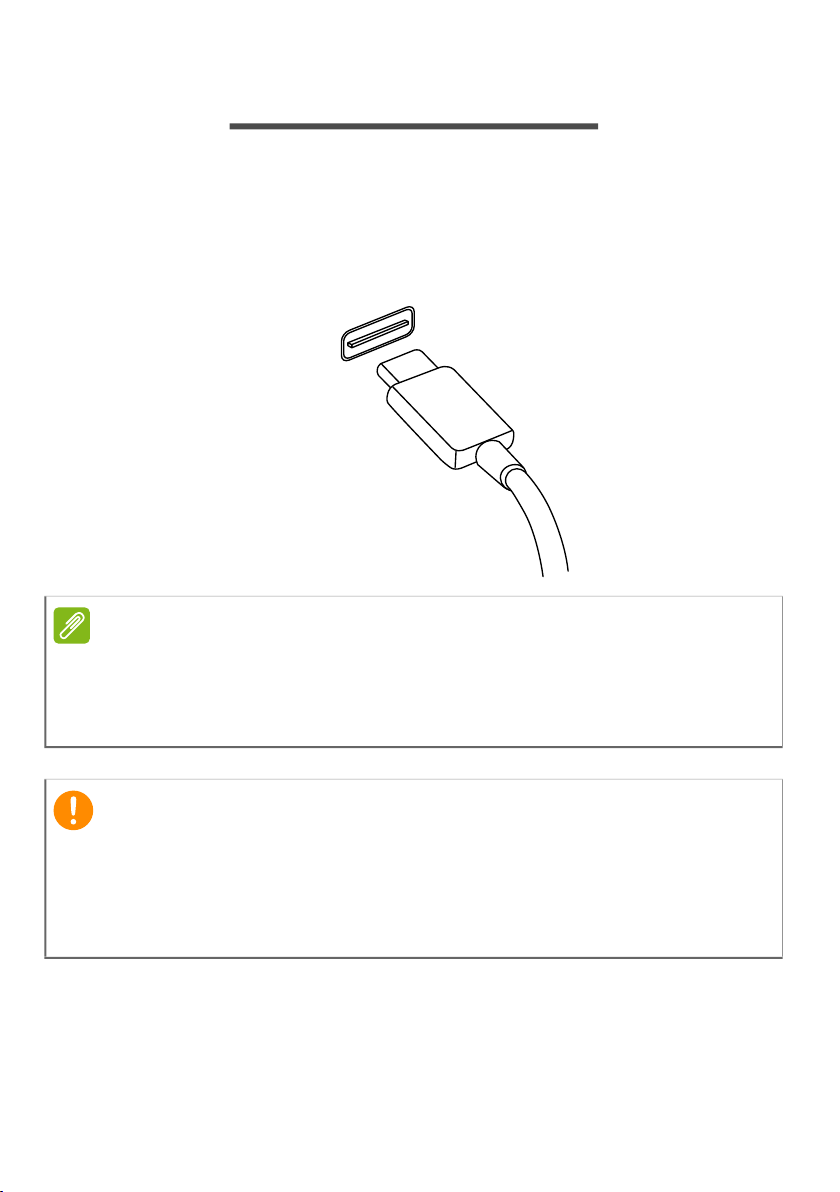
USB TYPE-C PORT
A USB Type-C port is a connector that allows you to easily
connect USB Type-C peripherals, such as additional storage
(e.g. an external drive), or any other compatible device.
The Type-C port is reversable; connectors may be inserted
with either side up.
Note
On Predator
computers USB Type-C ports support up to USB 3.2.
Other USB devices with a USB Type-C connector are supported,
but transfer speed may be reduced and certain functions will be
disabled (such as Thunderbolt video support).
Important
When removing a USB storage device, you should right-click on
the USB icon in the Windows task bar and select "Eject <device>"
to tell the operating system to stop using the device before
removing it. Failure to do this may result in data loss or damage
to your peripheral.
Thunderbolt 4 port - 83
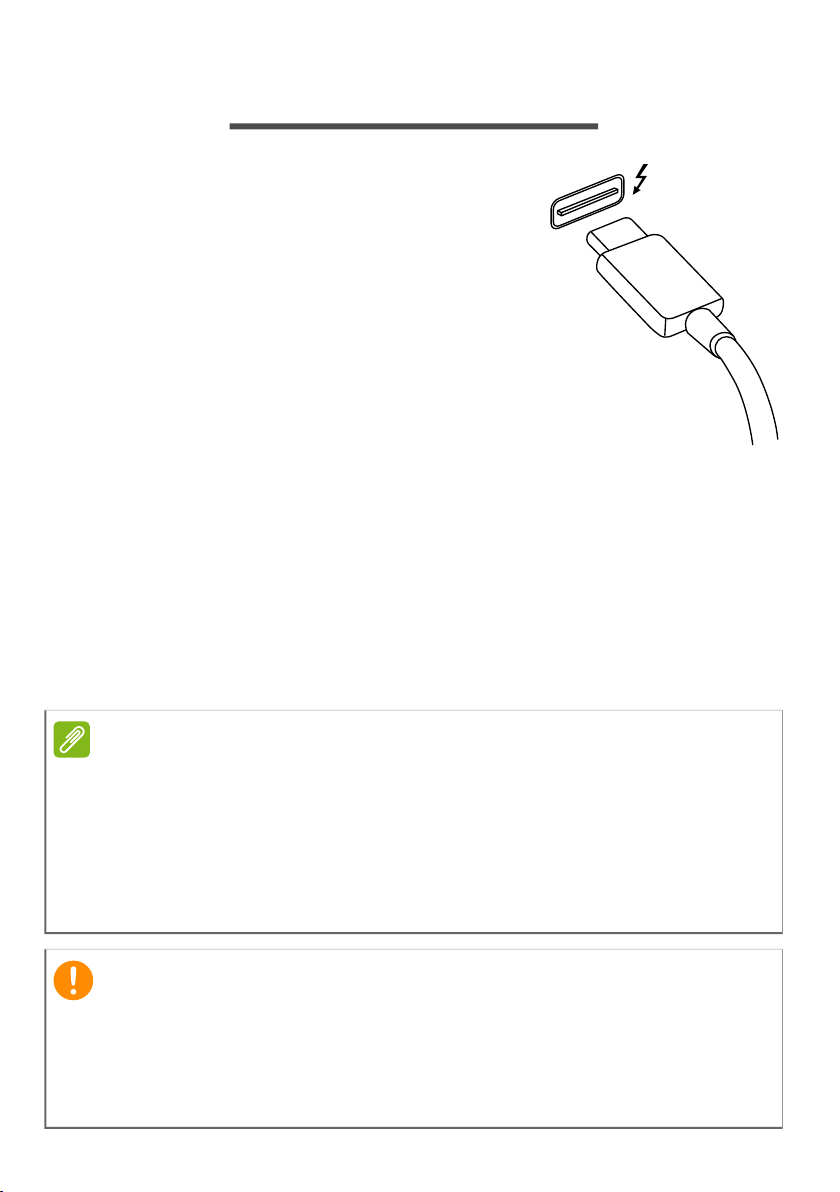
THUNDERBOLT 4 PORT
A Thunderbolt 4 port allows you to
easily connect devices with a Type-C
connector to your computer, such as
additional storage (e.g. an external
drive), displays, or any other
compatible device. Up to six devices,
including displays, can be connected
in series to a single Thunderbolt port.
The Thunderbolt connection uses a
USB Type-C port and is compatible
with Thunderbolt, USB, DisplayPort
and power on USB-C devices. The
Type-C port is reversable; connectors may be inserted with
either side up.
Displays
Up to two 4K displays or one 8K display with can be
connected to a single Thunderbolt 4 port. If an adapter is
used, DisplayPort or compatible devices, including HDMI, DVI
or VGA, can be used.
Note
Thunderbolt 4 ports support transfer speeds up to 40 Gbps, and
USB devices with a Type-C connector at lower speeds (typically up
to 10 Gbps).
Other USB or older Thunderbolt devices with a USB Type-C
connector (or adapter) are supported, but transfer speeds may be
reduced and certain functions may be disabled (such as
Thunderbolt display support).
Important
When removing a USB storage device, you should right-click on
the USB icon in the Windows task bar and select "Eject <device>"
to tell the operating system to stop using the device before
removing it. Failure to do this may result in data loss or damage
to your peripheral.
84 - SD card reader
SD CARD READER
SD (Secure Digital) cards are used in a wide
selection of digital cameras, tablets, media
players and cellular phones.
Inserting an SD card
1. Align the card so that the connector points towards the
port, with the connectors facing down.
2. Carefully slide the card into the port. If you find you need
to use any force to insert the card, try reorientating the
card slightly.
3. Push the card until it clicks into place. A few millimetres of
the card will extend from beyond the slot.
If the card contains some files, the Windows AutoPlay
window may appear (this depends on the contents of the
card) and ask you if you wish to use a program to access
the contents of the card.
SD, SDHC and SDXC cards
Different types of SD cards cover different capacities, while
using the same overall design. SD cards contain up to 4 GB;
SDHC cards contain up to 32 GB; and SDXC cards can
contain up to 2048 GB (2 TB). Your computer provides an
SDHC or SDXC compatible card reader.
Important
When removing an SD card, you should right-click on the USB
icon in the Windows task bar and select "Eject <card name>" to tell
the operating system to stop using the device before removing it.
Failure to do this may result in data loss or damage to your
peripheral.
Note
SDXC memory cards can only be used in an SDXC-compatible
reader; SD and SDHC cards can be used in either type.

Video and audio connectors - 85
VIDEO AND AUDIO CONNECTORS
Add an external monitor to your computer via a video port.
The type of port available depends on your computer’s
configuration.
Connecting a monitor
1. Check that the computer is powered off and the monitor
power switch is turned off.
2. Attach the video cable to the monitor port on the computer.
3. Connect the monitor power cable and plug it into a
properly grounded wall outlet.
4. Follow any setup instructions in the monitor's user's
guide.
5. Turn on power to the monitor, then the computer.
6. The correct resolution and refresh rate should be
detected automatically. If necessary, change the display
settings used by the computer.
Headphones and microphone
One or more 3.5 mm jacks on your computer allow you to
connect audio devices.
Use the headphone port to plug in stereo headphones or
powered speakers; connecting an audio device to the
headphone port disables the built-in speakers.
Use the microphone port to connect an external microphone;
connecting a microphone disables the built-in microphone.
Note
To access the display controls, right-click anywhere on the
desktop and select Display settings.
Note
Some computers have a single "combo" port that allows you to use
single-pin headsets with a built-in microphone. These headsets are
most commonly used with smartphones.
86 - HDMI
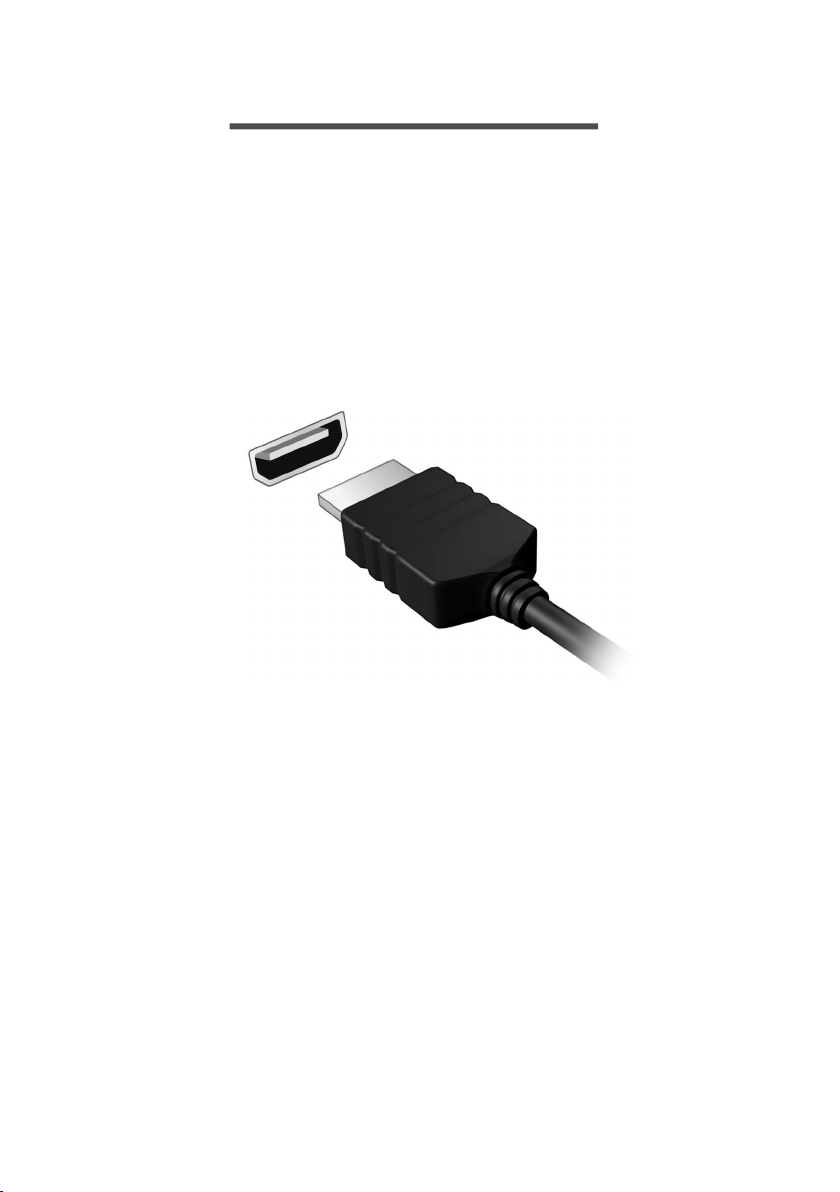
HDMI
HDMI (High-Definition Multimedia Interface) is a high-
quality, digital audio/video interface. HDMI allows you to
connect any compatible digital audio/video source, such as
your computer, a set-top box, DVD player, and audio/video
receiver to any compatible digital audio and/or video
monitor, such as a digital television (DTV) with a single cable.
The single cable keeps everything neat and tidy while
ensuring easy connection and the best audio and visual
quality.

Got a question?
In this section you will find:
• Frequently asked questions
• Tips for using Windows
• Troubleshooting information
• How to protect yourself while online
• Where to find Acer service center contact information

88 - Frequently asked questions
FREQUENTLY ASKED QUESTIONS
The following is a list of possible situations that may arise
during the use of your computer. Easy solutions are
provided for each one.
I turned on the power, but the computer does not start or
boot up.
Check if power is being supplied to the computer (if your
computer has a power indicator, it will be off); if there is no
power, check the following:
• If you are using on the battery, it may be low and unable
to power the computer. Connect the AC adapter to
recharge the battery pack. You may need to wait a few
minutes before trying to turn your computer on again.
• Make sure that the AC adapter is properly plugged into the
computer and to the power outlet.
If power is being supplied to the computer, check the
following:
• Do you have a USB storage device (USB drive, CD drive or
smartphone) plugged into your computer? Unplug it and
press Ctrl + Alt + Del to restart the system.
Nothing appears on the screen.
The computer’s power management system automatically
blanks the screen to save power. Press any key to turn the
display back on.
If pressing a key does not turn the display back on, three
things might be the cause:
• The brightness level might be too low. Use the Brightness
up hotkey to adjust the brightness level.
• The display device might be set to an external monitor.
Press the display toggle hotkey to toggle the display back
to the computer.

Frequently asked questions - 89
• The computer may be in Sleep or Hibernate mode (if there
is a power LED, it will flash). Press and release the power
button to resume.
No audio is heard from the computer.
Check the following:
• The volume may be muted. Look at the volume control
(speaker) icon in the taskbar. If it is crossed-out, click the
icon and drag the slider to the right to increase the volume.
• The volume level may be too low. Check the volume from
the volume control (speaker) icon in the taskbar. You can
also use the volume control hotkeys to adjust the volume.
• If headphones, earphones or external speakers are
connected to the headphone jack on the computer, the
internal speakers automatically turn off.
The keyboard does not respond.
Try attaching an external keyboard to a USB port on the
computer. If it works, contact your dealer or an authorized
service center as the internal keyboard cable may be loose.
The printer does not work.
• Make sure that the printer is connected to a power outlet
and that it is turned on.
• Make sure that the printer cable is connected securely to a
USB port and the corresponding port on the printer.
I want to restore my computer to its original settings.
This recovery process helps you restore the C: drive with
the original software content that is installed when you
purchased your computer.
Note
If your system is the multilingual version, the operating system
and language you choose when you first turn on the system will be
the only option for future recovery operations.
90 - Frequently asked questions
Before performing a restore operation, please check the
BIOS settings.
1. If there is a D2D Recovery setting in Main, make sure it is
Enabled.
2. Exit the BIOS utility and save changes. The system will
reboot.
For more information, see Restoring your computer on
page 31.
Requesting service
International Travelers Warranty (ITW)
Your computer is backed by an International Travelers
Warranty (ITW) that gives you security and peace of mind
when traveling. An ITW passport came with your computer
and contains all you need to know about the ITW program.
A list of available, authorized service centers is in this handy
booklet. Read this passport thoroughly.
Always have your ITW passport on hand, especially when
you travel, to receive the benefits from our support centers.
Attach your proof-of-purchase to the ITW passport.
If the country you are traveling in does not have an Acer-
authorized ITW service site, you can still get in contact with
our offices worldwide. Please visit www.acer.com.
Warning
Your C: drive will be reformatted and all data will be erased. It is
important to back up all data files before using this option.
Note
To access the BIOS utility, press F2 when you see the Predator
logo during boot up.

Frequently asked questions - 91
Before you call
Please have the following information available when you
call Acer for online service, and please be at your computer
when you call. With your support, we can reduce the amount
of time a call takes and help solve your problems efficiently.
If there are error messages or beeps reported by your
computer, write them down as they appear on the screen (or
the number and sequence in the case of beeps).
You are required to provide the following information:
Name:
Address:
Telephone number:
Machine and model type:
Serial number:
Date of purchase:

92 - Frequently asked questions
Tips and hints for using Windows
We know this is a new operating system that will take some
getting used to, so we've created a few pointers to help you
get started.
Can I turn off notifications?
You can turn off notifications so that you can leave your
computer running, but not be disturbed by notifications.
Press the Windows key or select the Windows Start button
and select Settings > System > Notifications. From here you
can enable/disable notifications for all of your apps or
choose which apps to enable/disable.
Can I personalize the Lock screen?
You can personalize the lock screen with a different image,
to run a slideshow of images, or to show you quick status
and notifications to suit your personal needs.
To change the background, press the Windows key or select
the Windows Start button and select Settings >
Personalization > Lock screen. From here you can:
• Select a background image for the lock screen
• Turn the Slideshow on or off
• Select lock screen apps.
How do I set up the lock screen slideshow?
1. Press the Windows key or select the Windows Start
button and select Settings > Personalization.
2. Under Lock screen, select Slideshow.
3. Click Browse and open the folder you wish to use (your
Pictures folder will open by default). Select Choose this
folder to add the folder to the lock screen slideshow.
4. Select a folder and select Remove to remove the folder
from the lock screen slideshow.
5. Change the other settings to suit your needs.
Fr equently a sked quest ions

Frequently asked questions - 93
Can I change the screen resolution?
Type '
Resolution
' in the text box to display the results; select
Display resolution
. Alternatively, you can also right-click
anywhere on the desktop and select
Display settings >
Display > Display resolution
.
Where are my apps?
Move your cursor to the lower side of the screen and click
search box, start typing the name of the app you would like
to open.
How do I make an app appear on Start?
If you're in all apps list and you want to make an app appear
on Start, right-click an app and select Pin to Start.
How do I remove a tile from Start?
Right-click a tile to select it and select Unpin from Start to
remove the tile from Start.
How do I make an app appear on my taskbar?
If you're in all apps list and you want to make an app appear
on the taskbar, right-click an app and select More > Pin to
taskbar.
How do I install apps?
You will need to have a Microsoft ID to purchase and
download apps from Microsoft Store.
What is a Microsoft ID (account)?
A Microsoft account is an email address and password that
you use to sign in to Windows. You can use any email
address, but it is best if you choose the one you already use
to communicate with friends and sign in to your favorite
websites. When you sign in to your PC with a Microsoft
account, you'll connect your PC to the people, files, and
devices you care about.

94 - Frequently asked questions
Do I need one?
You need a Microsoft ID to use Windows 11. It makes life
easier because you can sync data across different machines
you sign in to using a Microsoft ID.
How do I check for Windows updates?
Press the Windows key or select the Windows Start button
> Settings > Windows Update. Select Advanced options to
configure the settings.
Where can I get more information?
For more information please visit the following pages:
• Windows OS information: support.microsoft.com/
Windows
• Support FAQs: support.acer.com

Frequently asked questions - 95
Troubleshooting
This chapter shows you how to deal with common system
problems.
Read it before calling a technician if a problem occurs.
Solutions to more serious problems require opening up the
computer. Do not attempt to open the computer yourself;
contact your dealer or authorized service center for
assistance.
Troubleshooting tips
This computer incorporates an advanced design that
delivers onscreen error message reports to help you solve
problems.
If the system reports an error message or an error
symptom occurs, see "Error messages" below. If the
problem cannot be resolved, contact your dealer.
Error messages
If you receive an error message, note the message and take
the corrective action. The following table lists the error
messages in alphabetical order together with the
recommended course of action.
Error messages Corrective action
CMOS battery
bad
Contact your dealer or an authorized
service center.
CMOS checksum
error
Contact your dealer or an authorized
service center.
Disk boot failure
Insert a system (bootable) disk, then
press Enter to reboot.
Equipment
configuration
error
Press F2 (during POST) to enter the
BIOS utility, then press Exit in the BIOS
utility to reboot.
Hard disk 0 error
Contact your dealer or an authorized
service center.
Fr equently a sked quest ions

96 - Frequently asked questions
If you still encounter problems after going through the
corrective measures, please contact your dealer or an
authorized service center for assistance.
Hard disk 0
extended type
error
Contact your dealer or an authorized
service center.
I/O parity error
Contact your dealer or an authorized
service center.
Keyboard error or
no keyboard
connected
Contact your dealer or an authorized
service center.
Keyboard
interface error
Contact your dealer or an authorized
service center.
Memory size
mismatch
Press F2 (during POST) to enter the
BIOS utility, then press Exit in the BIOS
utility to reboot.
Error messages Corrective action
Internet and online security - 97
INTERNET AND ONLINE
SECURITY
First steps on the net
Protecting your computer
It is vital to protect your computer from viruses and attacks
over the internet (see Internet security software on
page 101).
A comprehensive internet security program is offered when
you first start your computer. You should activate this
protection as soon as possible, certainly before you connect
to the internet.
Choose an Internet Service Provider
Using the internet has become a natural part of
daily computing. Just a few simple steps can
connect you to a vast collection of knowledge
and communication tools. To accomplish these
steps you should first select an Internet
Service Provider (ISP), which supplies the
connection between your computer and the
internet. You should research the ISPs available in your
region, not forgetting to talk to friends and family about
their experiences or to check reviews and consumer reports.
The ISP you select will provide instructions on how to
connect to the internet (you may need additional software
or a special ‘box’ that connects to your phone line).
Connection types
Depending on your computer model, your location and your
communication needs, you have several ways to connect to
the internet.
98 - Internet and online security
Dial-up
Some computers include a telephone dial-up (‘modem’)
connector. This allows you to connect to the internet using
your telephone line. With a dial-up connection, you cannot
use the modem and the telephone simultaneously on a
single phone line. This type of connection is recommended
only if you have limited use of the internet as the connection
speed is low and connection time is typically charged per
hour.
DSL (e.g. ADSL)
DSL (Digital Subscriber Line) is an ‘always-on’ connection
that runs over the phone line. As DSL and phone do not use
the same frequencies, you can use your telephone at the
same time you are connected to the internet (this requires a
‘micro-filter’ on each telephone socket to avoid
interference). To be eligible for DSL, you must be located
near an DSL-equipped phone exchange (service is
sometimes unavailable in rural areas). Connection speeds
vary depending on your location, but DSL generally provides
very fast and reliable internet connection. As the connection
is always-on, it is generally charged at fixed monthly rates.
Cable
A cable connection provides fast and always-on internet
service via a cable television line. This service is generally
available in large cities. You can use your telephone and
watch cable TV at the same time you are connected to the
internet.
Cellular
A cellular connection allows you to use cellular networks
(such as those used by a mobile phone) to connect to the
Note
A DSL connection requires an appropriate modem. A modem is
usually provided by the ISP when you register. Many of these
modems include an ‘router’ that provides network and Wi-Fi
access.

Internet and online security - 99
internet while away from home. The socket for a SIM card
may be built in to your computer, or may require an external
device, such as a USB modem or even an appropriately
equipped mobile phone.
Network connections
A LAN (Local Area Network) is a group of computers (for
example, within an office building or home) that share a
common communications line and resources. When you set
up a network, you can share files, peripheral devices (such
as a printer) and an internet connection. You can set up a
LAN using wired technologies (such as Ethernet) or wireless
technologies (such as Wi-Fi or Bluetooth).
Wireless networks
A wireless LAN or WLAN is a wireless local area network,
which may link two or more computers without using wires.
Setting up a wireless network is easy and allows you to
share files, peripheral devices and an internet connection.
What are benefits of a wireless network?
Mobility
Wireless LAN systems allow you and other users of your
home network to share access to files and devices
connected to the network, for example a printer or scanner.
Also you can share an internet connection with other
computers in your home.
Installation speed and simplicity
Installing a wireless LAN system can be fast and easy and
eliminates the need to pull cables through walls and ceilings.
Note
If your computer includes a SIM card slot, you require a
compatible SIM card and a contract with a cellular provider.
Before using the cellular features, check with your service
provider to see if any additional charges will be incurred, especially
roaming charges.

100 - Internet and online security
Components of a wireless LAN
To set up your Wireless network at home you need to have
the following:
Access point (router)
Access points (routers) are two-way transceivers that
broadcast data into the surrounding environment. Access
points act as a mediator between wired and wireless
network. Most routers have a built-in DSL modem that will
allow you access to a high speed DSL internet connection.
The ISP (Internet Service Provider) you have chosen
normally supplies a modem/router with the subscription to
their services. Read carefully the documentation supplied
with your Access point/router for detailed setup
instructions.
Network cable (RJ45)
A network cable (also called RJ45 cable) is used to connect
the host computer to the access point (see illustration
below); this type of cable may also be used to connect
peripheral devices to the access point.
Wireless adapter
Most computers feature a wireless module and Wi-Fi button
that turns the network connection on or off. You may also
turn your wireless network on or off, or control what is
shared over the network with the network management
options.
Warning
Using wireless devices while flying in aircraft may be prohibited.
Switch off all devices before boarding an aircraft; they may be
dangerous to the operation of the aircraft, disrupt
communications, and even be illegal. After take off, ask the cabin
crew if you may enable Wi-Fi.

Internet and online security - 101
Surf the Net!
To surf the internet, you need a program called
an internet browser. Microsoft Edge provides an
easy and secure web browsing experience. As
soon as you have your internet access installed
and you are connected, from the Start Menu,
click the Microsoft Edge app or the icon located
in the taskbar and take your internet experience to a new
level!
Acer website
To get you started why not visit our website, www.acer.com.
Acer is dedicated to provide you with on-going personalized
support. Check out our Support section to get help tailored
to your needs.
www.acer.com is your portal to a world of online activities
and services: visit us regularly for the latest information and
downloads!
Internet security software
To help you stay ahead of cybercriminals, Acer has
partnered with Norton to offer you security for all your
devices.
Select Acer computers include protection by Norton
Security
Norton Security is pre-installed on select Acer computers,
protecting your identity and financial data from viruses,
spyware, malware and other online threats. Learn more
about how to stay safe online and how to stay protected
after your introductory subscription ends.
Note
Specifications vary depending on model or Operating System.

102 - Internet and online security
Staying ahead of cybercriminals
Stay ahead of hackers and cybercriminals by understanding
the tactics they use to access your private data.
Ensure your software is up to date
Cybercriminals rely heavily upon software or platform
vulnerabilities, as they are the easiest way to sneak malware
into a user's device unnoticed, sometimes with little action
on the user's part. Immediately after a software
manufacturer announces an update, hackers are ready with
malware that can breach holes in the software that would
have been patched if the update was installed.
How to stay safe: Perform any and all software updates as
soon as they are available.
Keep a lookout for fake or phishing emails
Beware of emails that appear to be from a friend or
business colleague that you know but seem a little odd.
Maybe they didn't capitalize your name or there are
misspellings. The email might be from cybercriminals who
are trying to fool you into sending them your credit card
number, social security number, or logging into a fake bank
website that looks like yours but really isn't.
How to stay safe: Use a strong antispam filter. If an email
looks strange, don't click on anything and delete it
immediately. Instead manually launch a browser and type in
your bank's website address and log-in yourself.
Don't be fooled if someone calls your phone
A tech support scam is a form of online fraud where people
call you on the phone saying they're Technical Support from
a trusted company like Norton or Microsoft and that you
have a virus. The main motive behind these scams is to
extort money from the victim. Cybercriminals can also install
malware such as keylogging software or backdoor Trojans in
order to gain access to personal information.
How to stay safe: Don't fall for phone calls that tell you
your software or computer isn't working. Never give your

Internet and online security - 103
personal information like social security or credit card
numbers to someone that you don't know over the phone.
Common threats cybercriminals use
Now you know a few very common ways cybercriminals try
to sneak onto your device or trick you into providing private
information to them directly. Here are a few of the types of
malware they like to deploy once they've got into a device
and what to do if you're ever infected.
Ransomware
A form of malware that will encrypt personal data files on
your computer and attached devices. Encryption converts
files into another format, that can only be opened with a
specific decryption key. Once the ransomware installs itself,
it will display a warning message that the computer is now
locked. The user is given a specific amount of money to pay
as a "fine" and a timeframe in which to pay. Even if paid, the
criminal might choose to not unencrypt the files anyway!
What to do if you're infected: Avoid getting infected in the
first place by staying protected with internet security
software like Norton Security. Also, perform regular
backups of all your data either online or to a separate
external hard drive that is only attached to your computer
while performing the backup. Ransomware has been known
to lock access to external hard drives attached to the
computer.
If you are infected with ransomware, think twice before you
pay the ransom. There is no guarantee the cybercriminal will
unlock your files and you'll be funding them to prey upon
another innocent victim.
Botnets
A botnet is a string of infected, connected computers
coordinated together to perform a task. Botnets gain access
to your machine through some piece of malicious coding.
Once the software is downloaded, the botnet will now
contact its master computer and let it know that everything
is ready to go. Now your computer, phone, tablet, or IoT

104 - Internet and online security
device is entirely under the control of the person who
created the botnet. Most people who are infected with
botnets aren't even aware that their computer's security has
become compromised!
What to do if you're infected: If you're infected you
probably don't realize it as bots are notoriously quiet. Your
Internet Service Provider might send you a notification
alerting you that they found a threat on your network and
that you need to remove the bot. If you have a bot, use
internet security software like Norton Security to scan all of
your devices.
Viruses/Malware
"Virus" is the commonplace word for all malicious software
programs for years now; however, a virus is just one type of
malicious threat. A virus is classified as a self-replicating
piece of malicious code that travels by inserting itself into
files or programs.
What to do if you're infected: Take steps to avoid infection
by staying protected with internet security software like
Norton Security. If you subscribed to Norton Security and
think you may have a virus, contact Norton's on-call
technicians to help eliminate the virus.
Take special precautions when using public Wi-Fi
Public Wi-Fi is available just about everywhere, from the
local coffee shop to the hotels and airports you visit while
traveling. While public Wi-Fi has made our lives a little
easier, it also poses security risks to the personal
information available on our laptops and smartphones. A
virtual private network (VPN) gives you online privacy and
anonymity by creating a private network from a public
internet connection. VPNs mask your internet protocol (IP)
address so your online actions are virtually untraceable as
well as secure. One of the biggest security risks on public
Wi-Fi are man-in-the-middle attacks (MITM). These attacks
are akin to eavesdropping. Data is sent from point A
(computer) to point B (server/website), and an attacker can
get in-between these transmissions. They then set up tools

Internet and online security - 105
programmed to "listen in" on transmissions, intercept data
that is specifically targeted as valuable, and capture the
data, such as your login credentials and passwords.
Use a virtual private network (VPN) to ensure your privacy
and anonymity are protected when you use public Wi-Fi.
VPN services can encrypt all the data that you send and
receive while using a public Wi-Fi hotspot, securing your
information from hackers and other users of the same
connection.
For more tips on how to stay safe
Good security habits can reduce your exposure to online
crime. By adopting a few basic behaviors, you can make big
strides in reducing cybercrime risk:
• Protect your accounts with strong, unique passwords that
use a combination of at least 10 uppercase and lowercase
letters, symbols and numbers.
• Don't click on random links or open unsolicited messages
and attachments-particularly from people you don't know.
• Don't access any personal information or social media
accounts over unprotected Wi-Fi networks.
• Use security software on your devices to help protect
yourself from the latest threats.
Protect your computer with Windows security tools
Windows provides a variety of protection applications.
Windows Updates
If you have an active internet connection, Windows can
check for important updates for your computer and install
them automatically. These updates include security patches
and program updates that can improve your computing
experience and help protect your computer against new
viruses and attacks.
How do I know when my computer is at risk?
If the Action Center reports an alert, or if your computer
behaves erratically, crashes unexpectedly or if some of your

106 - Internet and online security
programs do not work correctly, your computer may be
infected by malicious software. However, do not blame every
computer problem on a virus! If you suspect your computer
is infected, the first thing to do is update, if you have not
already done so, and run your antivirus and anti-spyware
software.