User Guide
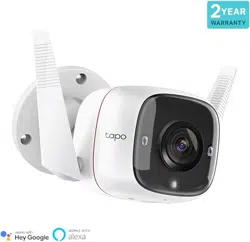
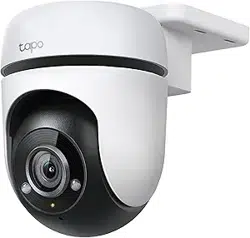
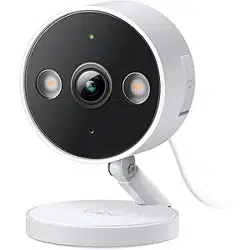
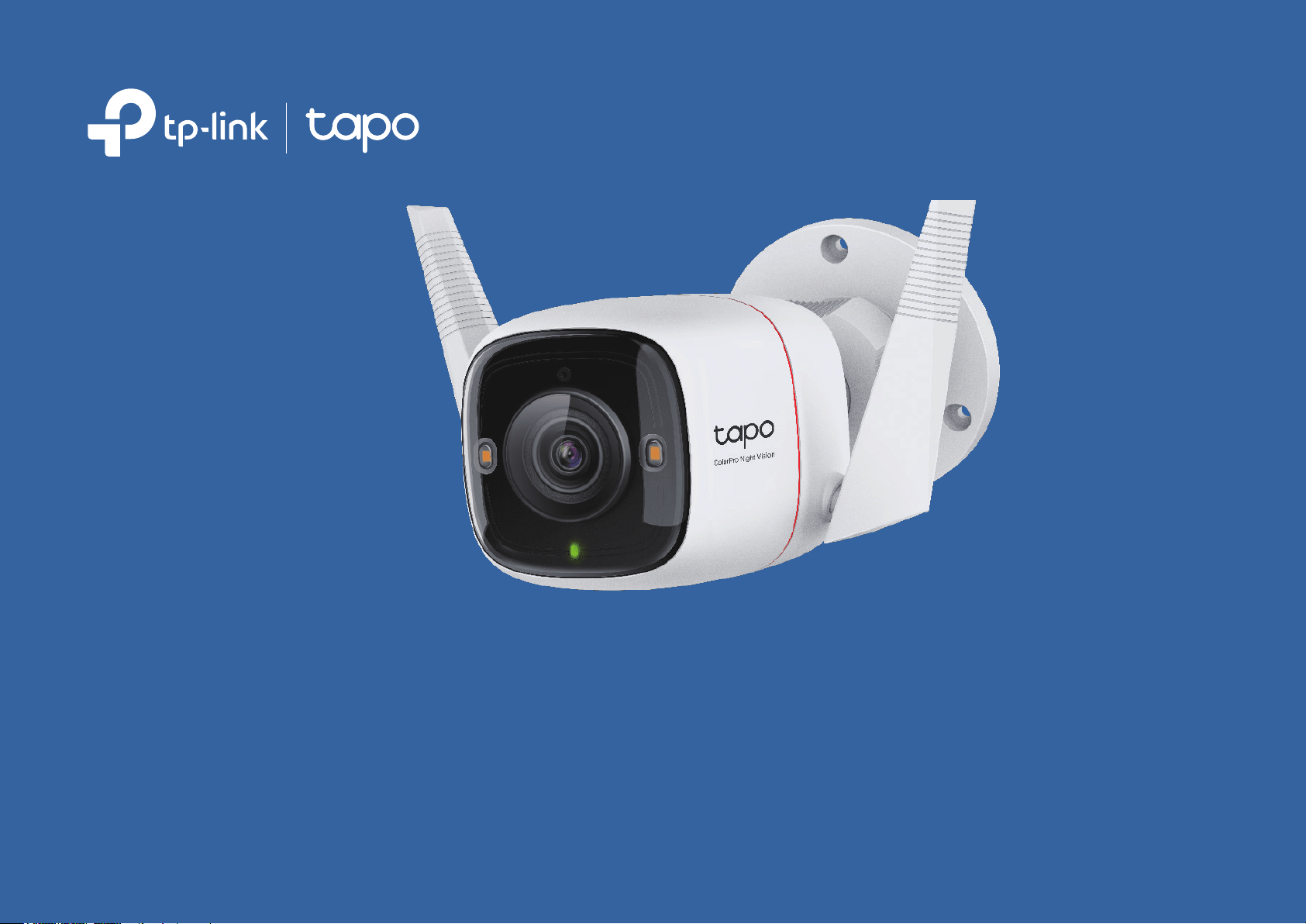
Outdoor Security Wi-Fi Camera
©2023 TP-Link 1910013363 REV1.0.0

Contents
About This Guide ···································································································································································1
Introduction ··············································································································································································2
Appearance ··············································································································································································3
Set Up Your Camera ·····························································································································································5
Set Up Using Amazon Frustration-Free Setup ······································································································7
Install a microSD Card ······················································································································································11
Mount Your Camera···························································································································································12
Install Waterproof Items ··················································································································································14
Main Camera Controls ·····················································································································································16
Camera Detection & Alerts ···········································································································································18
24-hour Recordings ··························································································································································23
Manual Recording ·······························································································································································25
Spotlight Settings ······························································································································································26
HDR Mode ··············································································································································································28
Privacy Mode ········································································································································································29
How to Reset Your Camera ···········································································································································30
Authentication ······································································································································································31
1
About This Guide
This guide provides a brief introduction to the Outdoor Security Wi-Fi Camera and regulatory information.
Please note that features available in Tapo may vary by model and software version. Tapo availability may also vary by region. All images, steps, and
descriptions in this guide are only examples and may not reect your actual Tapo Camera experience.
Conventions
In this guide, the following convention is used:
Convention Description
Blue
Key information appears in teal, including management page text such as menus, items, buttons and so on.
Underline
Hyperlinks are in teal and underlined. You can click to redirect to a website.
Note:
Ignoring this type of note might result in a malfunction or damage to the device.
More Info
• Our Technical Support and troubleshooting information can be found at https://www.tapo.com/support/.
• The camera setup video and waterproof cable attachments video can be found at follow the setup video at
https://www.tp-link.com/support/setup-video/.

2
Introduction
Tapo C325WB is the first outdoor security camera among the Tapo cameras series to adopt ColorPro night vision. It is ideal for various outdoor
scenarios, such as patios, gardens, garages, and farms. With a resolution of 2688×1520 (2K QHD), it can reveal vivid colors even without spotlights
during pitch-black nights. It also provides professional protection via Smart AI detection, alerts, remote control, and more.
• ColorPro Night Vision – As a Pro series product, Tapo C325WB oers more signicant night vision performance than traditional color night vision
cameras, capturing vivid colors under ultra low-light conditions even without spotlights. Enjoy professional monitoring with clearer views even during
pitch-black nights.
• 2K QHD Crystal Clear View – With a resolution of 2688×1520, Tapo C325WB reveals highly-detailed images.
• Person/Animal/Vehicle Detection – Smart AI identies vehicles, people, and even animals, notifying you as needed.
• Customizable Motion Detection – Set up activity zones or boundaries and receive instant notications when motion is detected in your customized
zones.
• IP66 Weatherproof – Helps Tapo C325WB perform well even in harsh environments with rain and dust.
• Wired/Wireless Networking – Connect the camera to your network through Ethernet or Wi-Fi for more exible installation.
• Wide Field of View – A wide FOV oers a larger detection range covering more space, enabling you to focus on more vital areas.
• Flexible Storage Options – Save recorded videos to an installed microSD card (up to 512 GB) or use Tapo Care cloud storage service.
• Two-Way Audio – Enables communication through a built-in microphone and speaker.
3
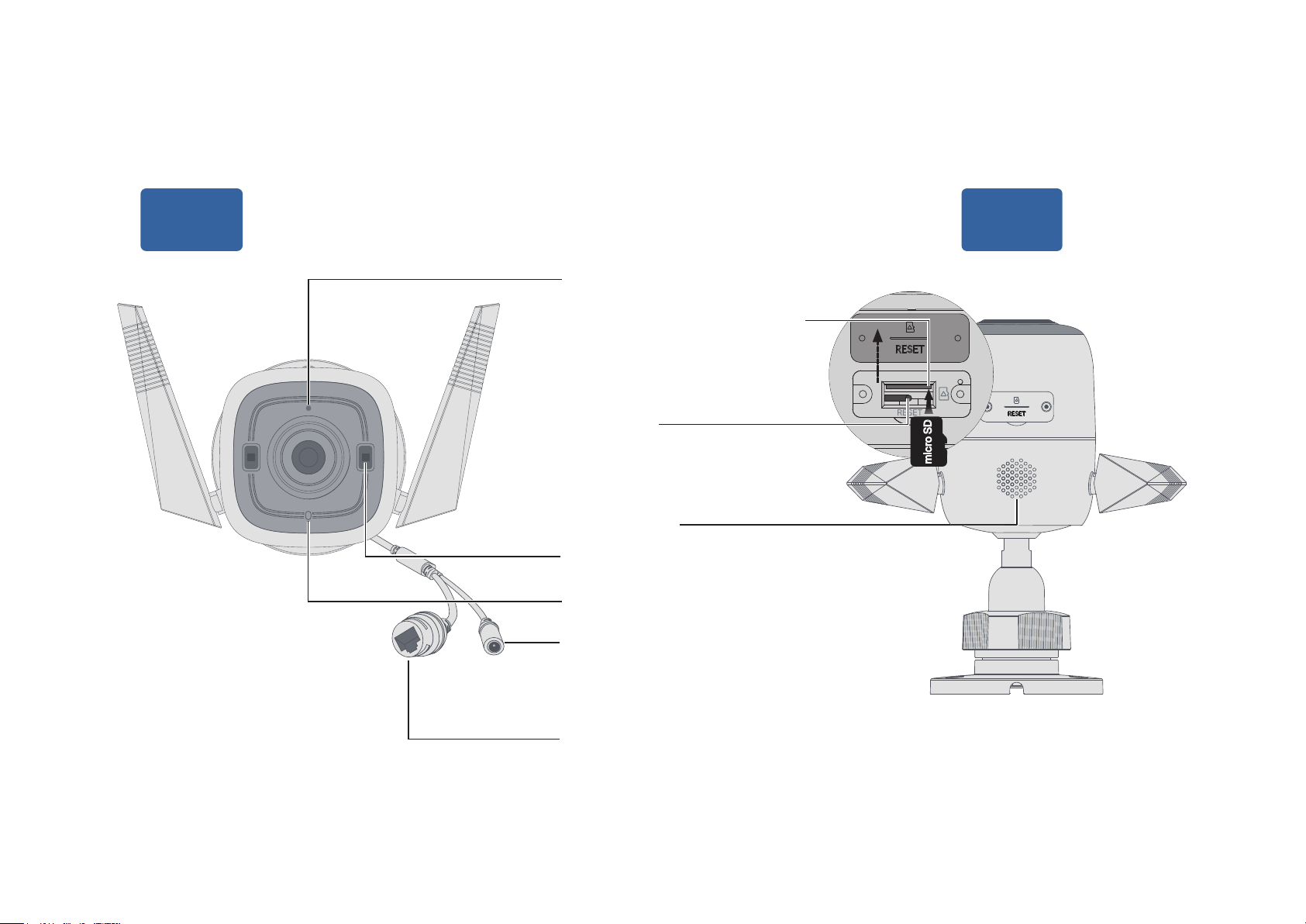
Appearance
Front
Side
microSD Card Slot
Hold for 5s to reset Wi-Fi or
10s to factory reset camera
Speaker
RESET
MIC
DC Power Connector
Used to connect to a 9V DC
power adapter
Ethernet Port
Used to connect to a
network device
System LED
Insert a microSD card
for local recording
White Light
micro SD
*Images may dier from actual products.
4
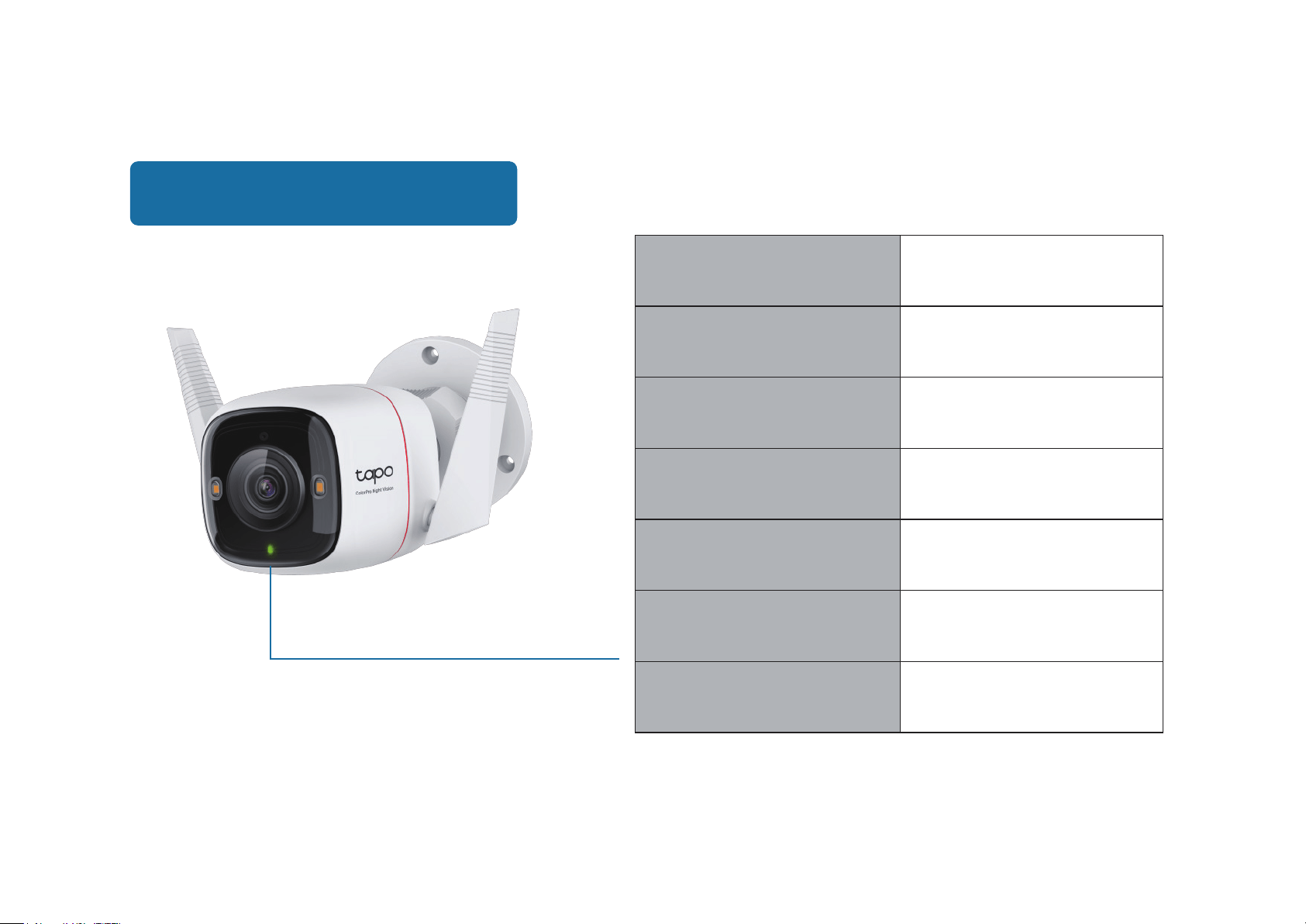
System LED Description
Blinking red and green
(for Wi-Fi setup)
Blinking red slowly
(for Wi-Fi setup)
Solid amber
Blinking red quickly
Solid red
Solid green
Blinking green quickly
Starting up
Connected to TP-Link
Cloud server
Ready for setup
Connecting to Wi-Fi
Connected to Wi-Fi or
wired network
Camera resetting
Camera updating
5
Set Up Your Camera
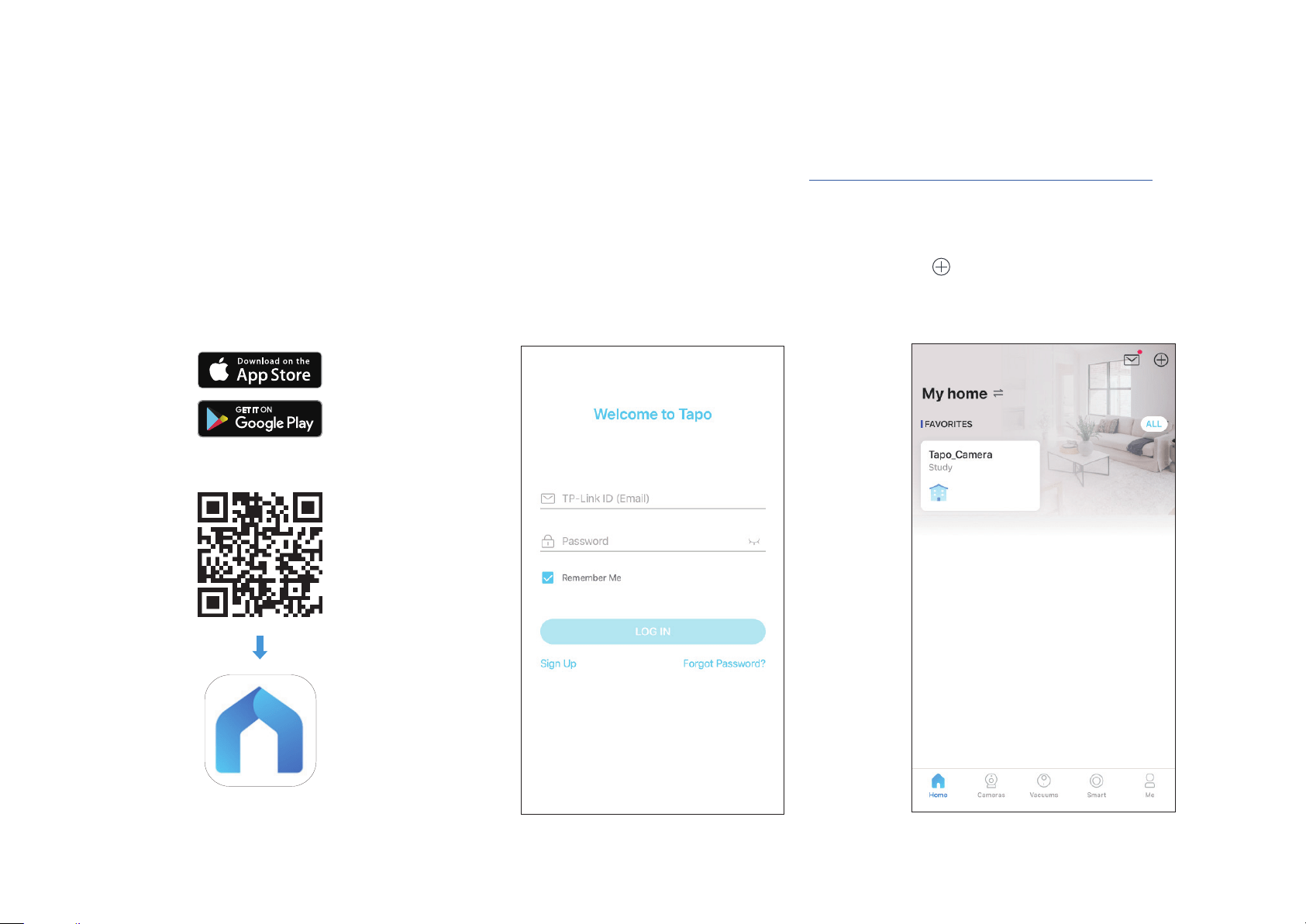
Follow the steps below to get started with your new camera, or you can follow the setup video at https://www.tp-link.com/support/setup-video/.
Step 1. Download Tapo App
Get the Tapo app from the App Store or Google
Play, or by scanning the QR code below.
OR
Step 2. Log In
Open the app, and log in with your TP-Link ID.
If you don't have an account, create one rst.
Step 3. Add Your Camera
Tap the button in the app, select Cameras
and then your model.
6
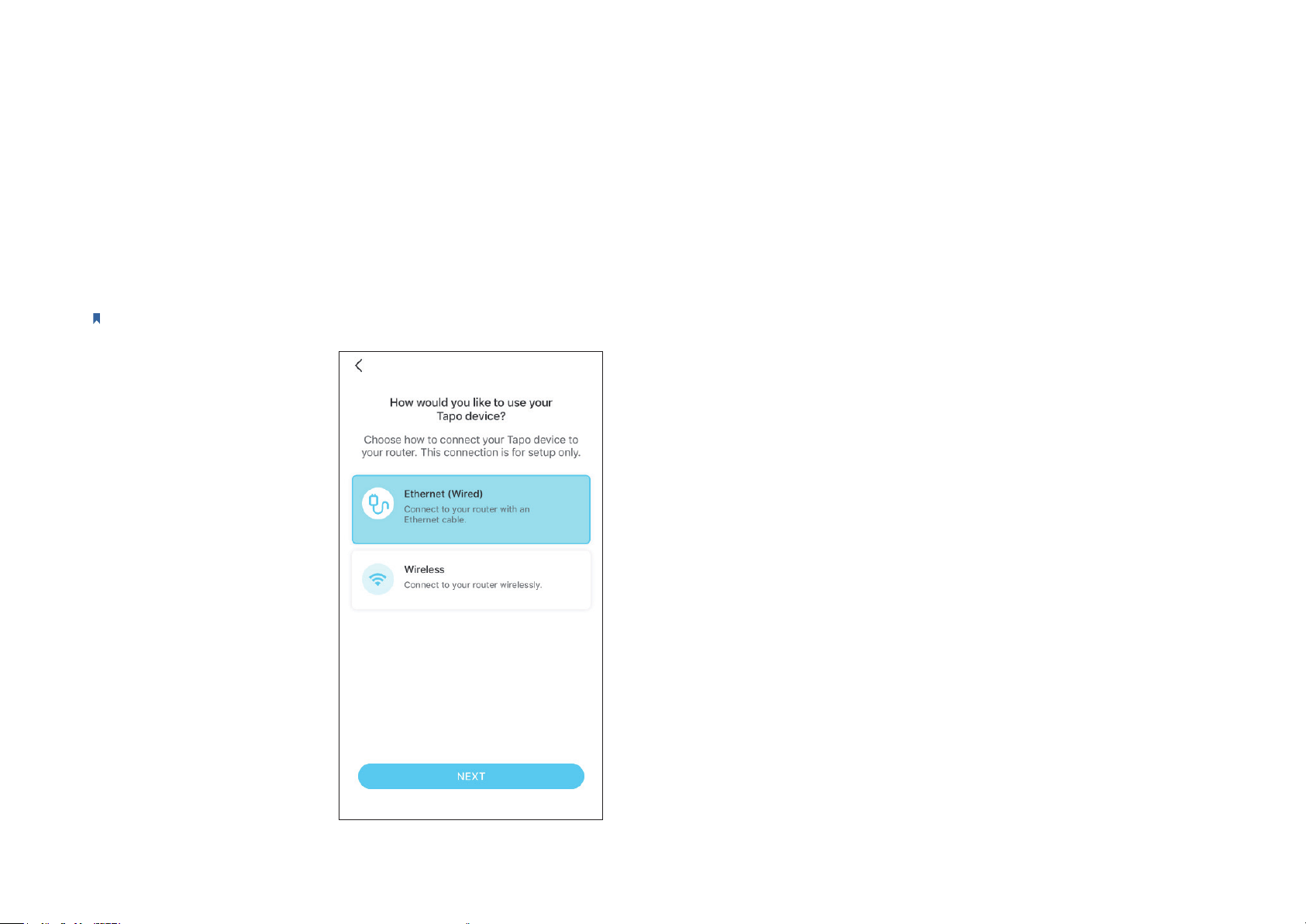
Step 4. Congure Camera
Follow app instructions to set up your camera via wired or wireless connection (for setup only), and
add it to your home network. After setup, you can use your camera via wired connection or wirelessly.
Note:
For wireless setup, if your camera is connected to your router via an Ethernet cable, please unplug the cable rst.
7
Set Up Using Amazon Frustration-Free Setup
What is Amazon Frustration-Free Setup?
Amazon Frustration-Free Setup can help connect and set up Tapo smart devices in fewer steps, without having to remember and re-enter your Wi-Fi
password on each device.
To use this feature, conrm the following:
● The new Tapo device supports Amazon FFS.
● You have an Amazon FFS enabled Alexa device or router.
● You have saved your Wi-Fi information to Amazon by using Alexa echo.
● Your Tapo device and router are on the same network as your Alexa echo.
LED Indications during Amazon Frustration-Free Setup
LED Status
Blinking red and green Ready for setup
Blinking amber FFS setup in progress
Solid green Working properly
If the LED does not turn solid green after a long time, you can try to add the Tapo device manually. (Press the Reset button on your Tapo device once.
Then open the Tapo app, tap the + button on the page, select your device model, and follow the app instructions. )
8
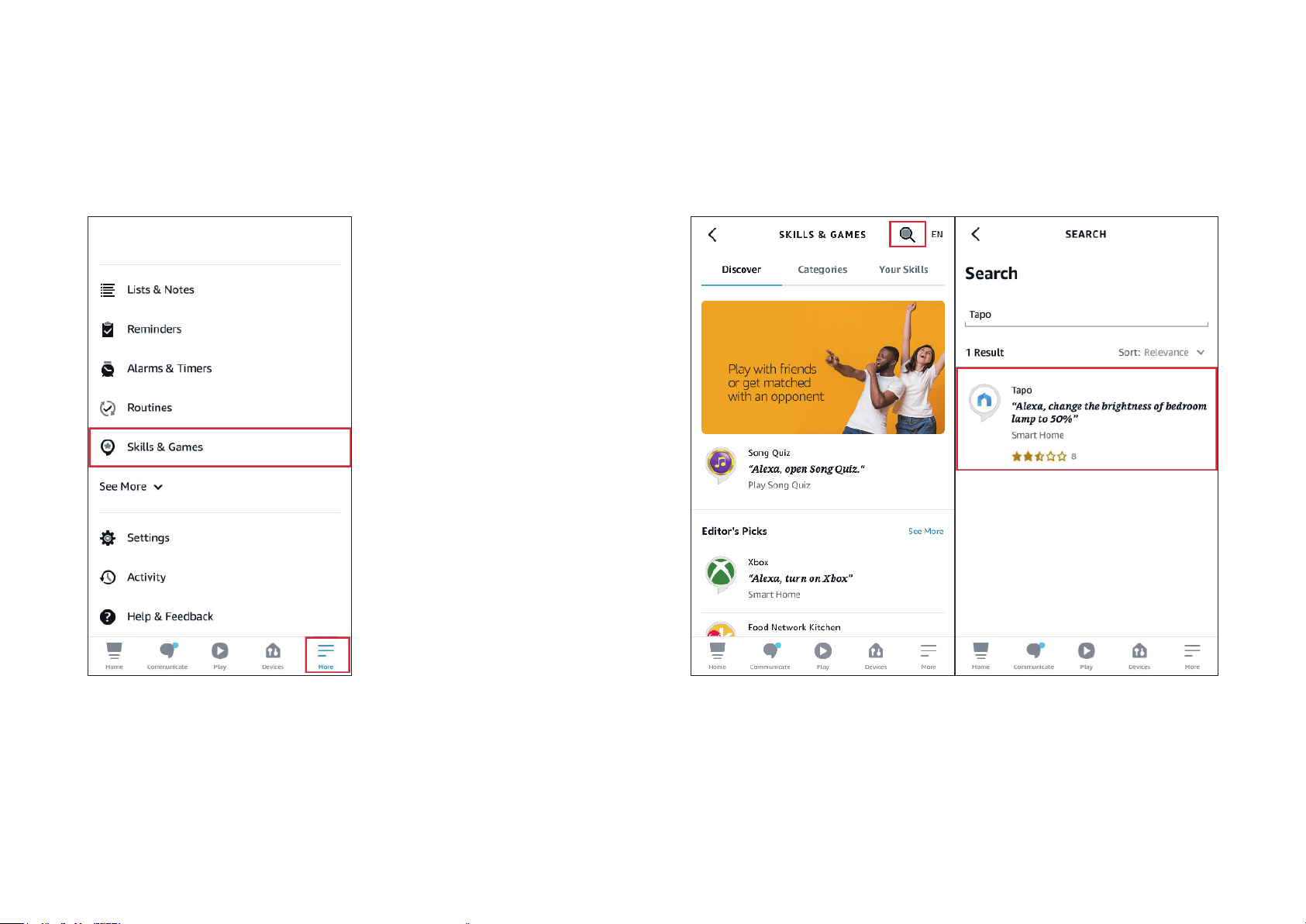
1. Open the Amazon Alexa app. Then tap More and select Skills &
Games.
How to use Amazon Frustration-Free Setup with Tapo devices
2. Enter Tapo in the search bar and choose Tapo.
9
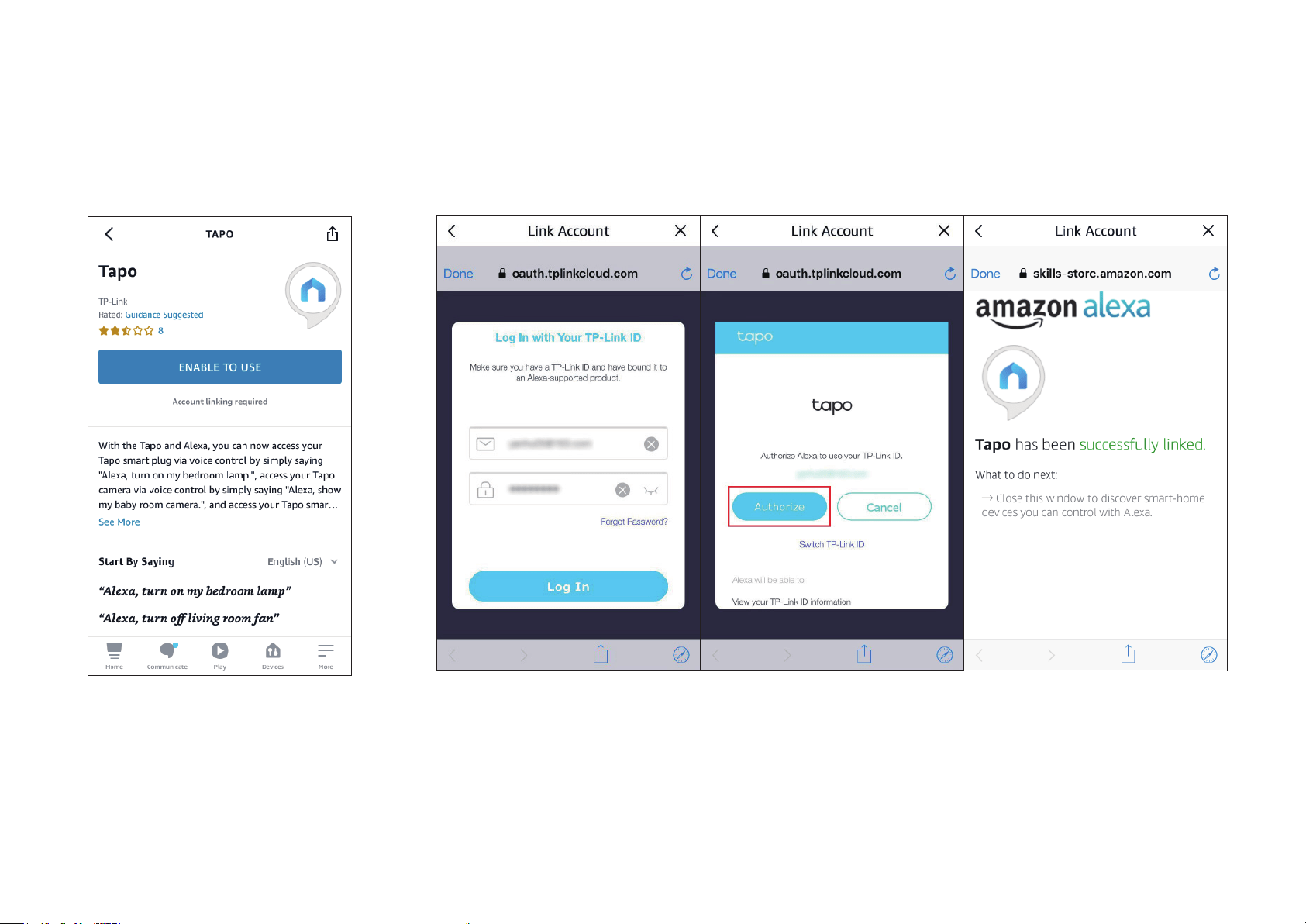
3. Tap the ENABLE TO USE button.
4. Log in with your TP-Link ID that has bound to your Tapo device, and tap Authorize. After authorized
successfully, the message Tapo has been successfully linked will come up.

10
5. Plug in your Tapo device and the setup will complete automatically in two minutes.
For setting up more Tapo devices, just plug in and enjoy!
Done!
If this device displays on the Home page in the Tapo app, it indicates this device has been successfully associated with your Amazon account and
joined your Wi-Fi network automatically.
If this device does not display on the Home page in the Tapo app, try setting it up manually. (Tap the + button on the page, select your device model,
and then follow the app instructions.)
11
Install a microSD Card
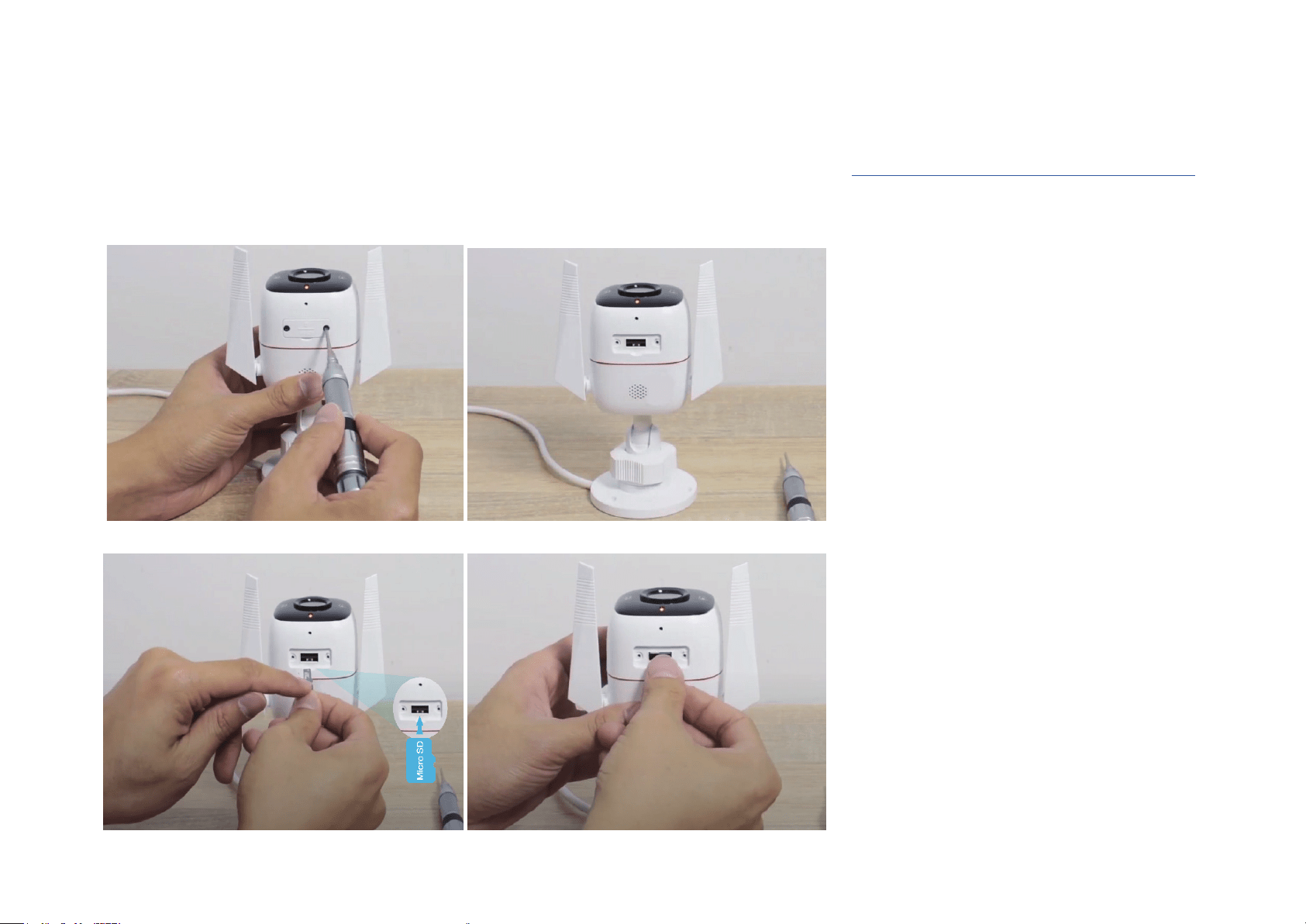
Follow the steps below to install the microSD card for local recording, or follow the installation video at https://www.tp-link.com/support/setup-video/.
You can go to Camera Settings > microSD Card in the Tapo app to check the card status or format your card.
1. Loosen the screws on the back panel and remove the cover.
2. Identify the direction of the microSD card and carefully insert the card into the slot. Push in the card until you hear a clicking sound.
*Images may dier from actual products.
12
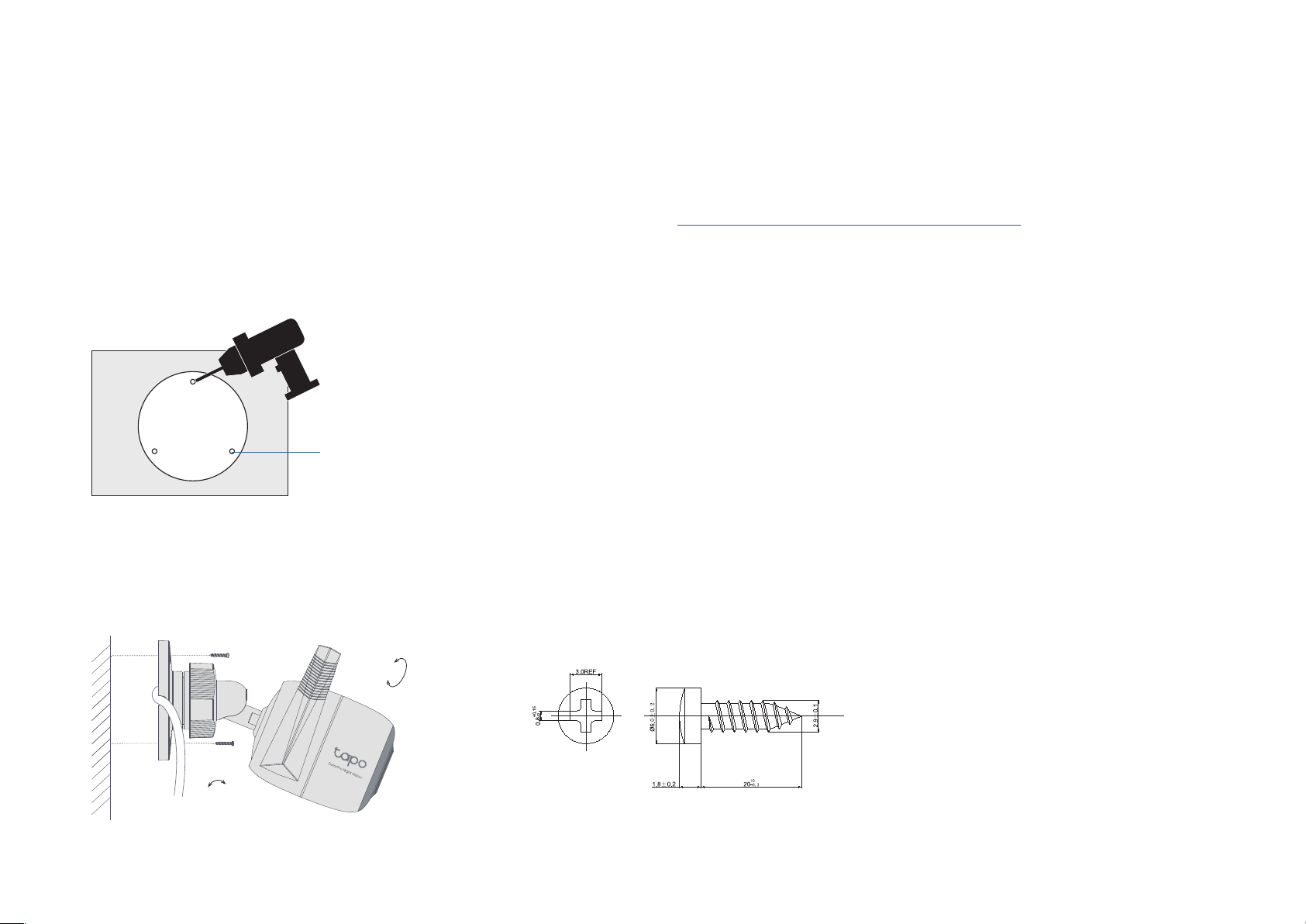
Mount Your Camera
When you nish adding your camera in the Tapo app, you can place your camera on a at surface, or mount it on a wall or ceiling with the provided
mounting template and screws.
Follow the steps below to mount your new camera, or follow the setup video at https://www.tp-link.com/support/setup-video/.
Step 1. Drill Holes
Stick the mounting template to the desired mounting place. Drill 3 screw holes according to the template.
Step 2. Mount Camera
Insert three anchors into the holes and use the screws to ax the camera over the anchors.
0° to 70°
0° to 360°
Φ= 6 mm (15/64 in.)
13
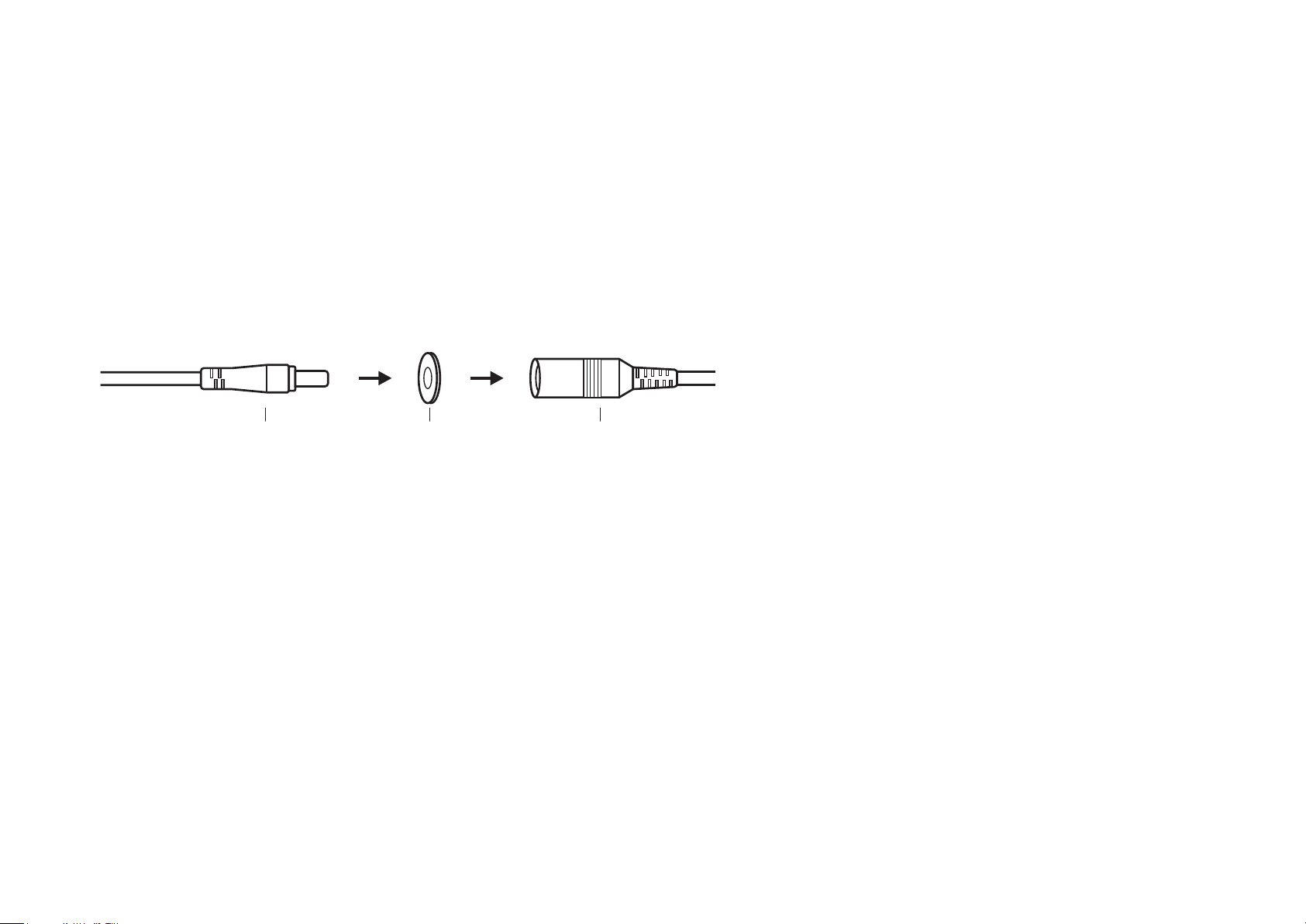
Step 3. Connect to Power
Connect the camera to a power outlet using the provided power adapter. Install the waterproof seal for the power connectors.
Male Power Connector Waterproof Seal Female Power Connector
14
Install Waterproof Items
When the camera is installed outdoors, please install waterproof items to waterproof your camera. Make sure each part is securely attached and the
water-proong rings are ush to keep out water.
Follow the steps below to install waterproof items, or follow the installation video at https://www.tp-link.com/support/setup-video/.
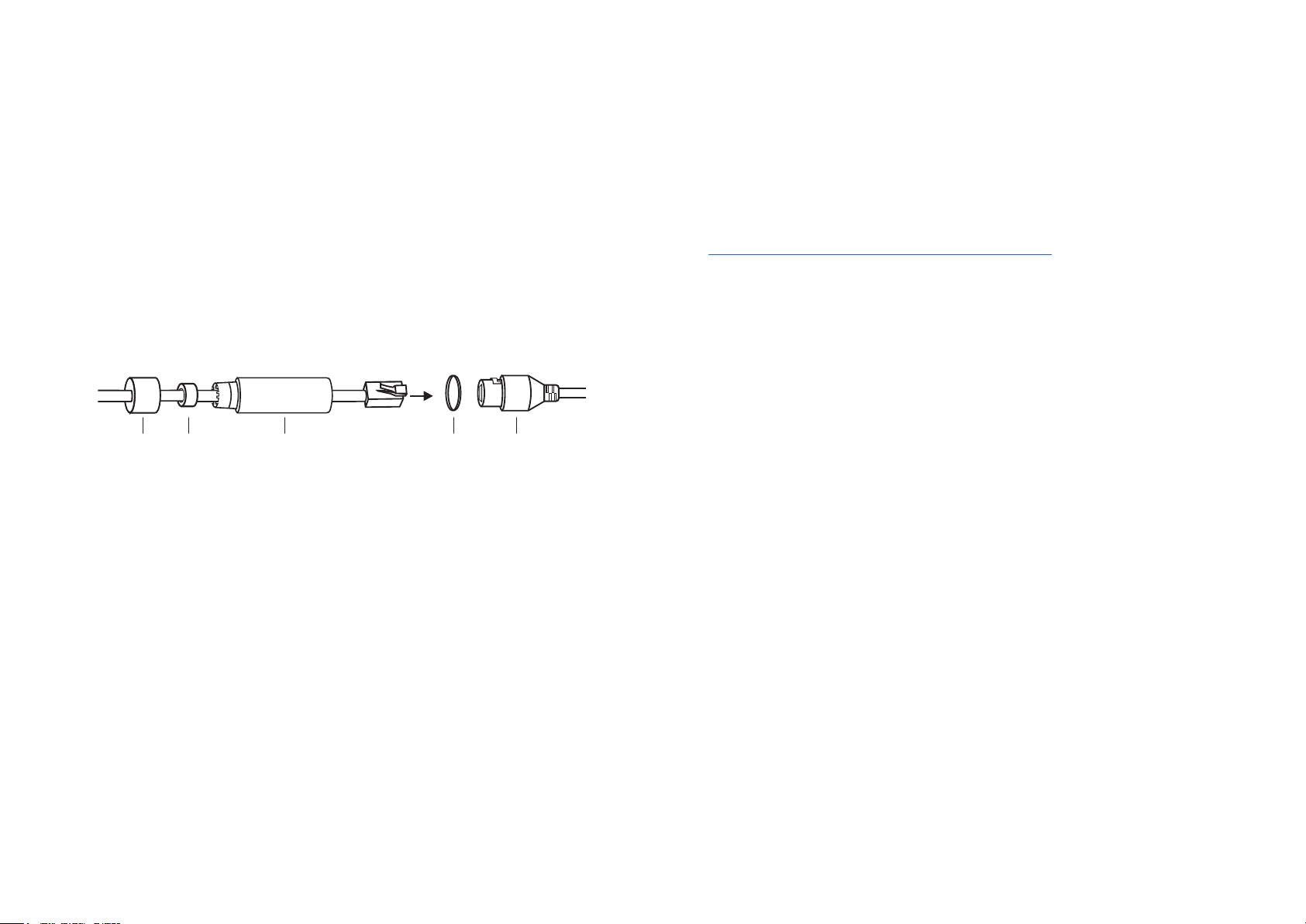
• The Ethernet port connects to a network device.
Install the waterproof cable attachments for the network interface when the camera is installed outdoors.
Fix Nut
Waterproof
Ring
O-ring
Network
Interface
Waterproof
Jacket
1. Route the network cable through the following components in order: x nut, waterproof ring, and then the waterproof jacket.
2. Insert the waterproof ring into the waterproof jacket.
3. Fix the O-ring to the network interface of the camera and connect the network cables.
4. Attach the network interface with the waterproof jacket, then twist to lock. Rotate the x nut to secure it to the waterproof jacket.
Done! The network interface is now waterproof.
15
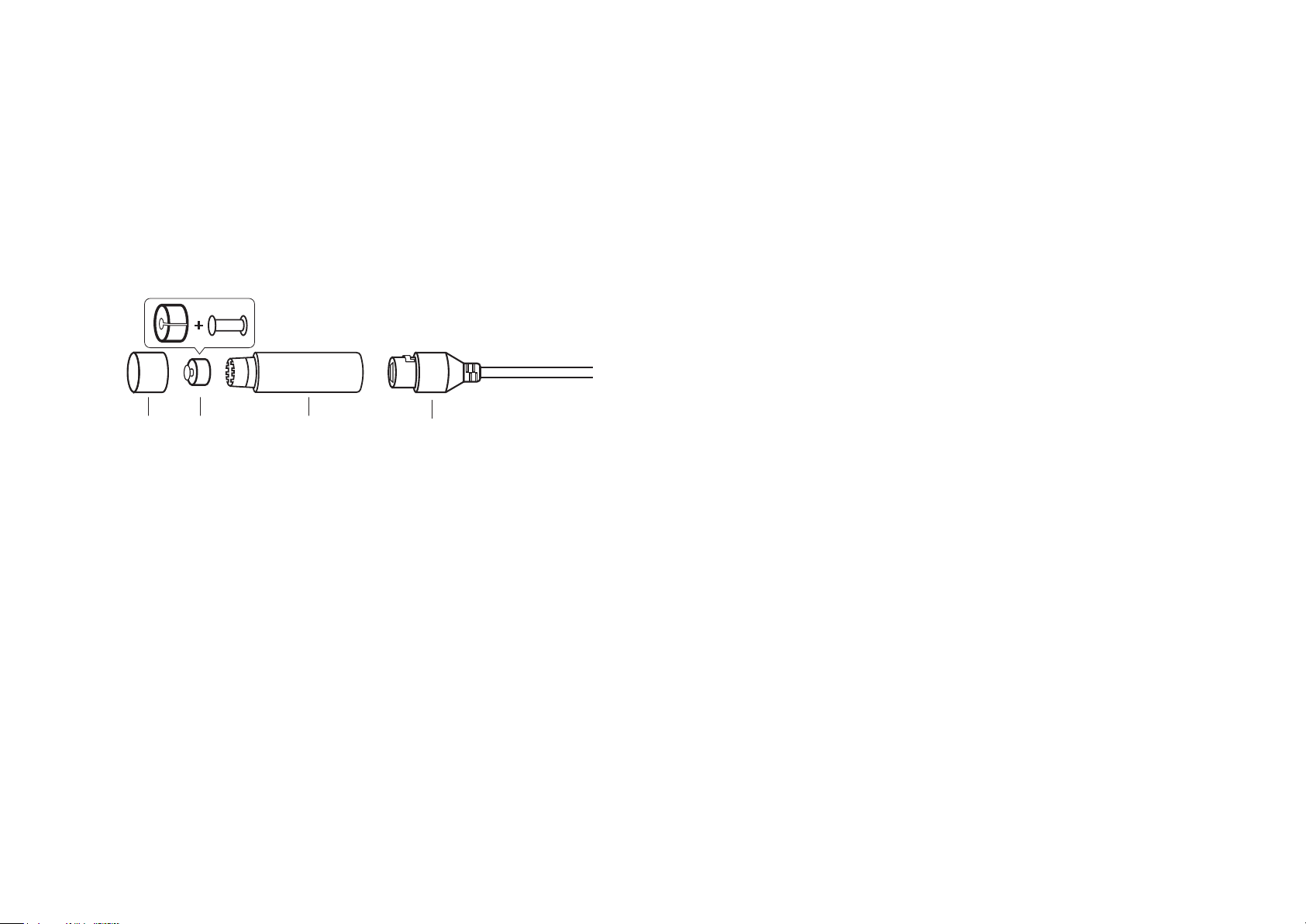
Fix Nut
Waterproof
Ring + Plug
Network
Interface
Waterproof
Jacket
• The Ethernet port does not connect to a network device.
1. Insert the waterproof plug into the waterproof ring, then insert them into the waterproof jacket.
2. Attach the network interface with the waterproof jacket, then twist to lock. Rotate the x nut to secure it to the waterproof jacket.
14
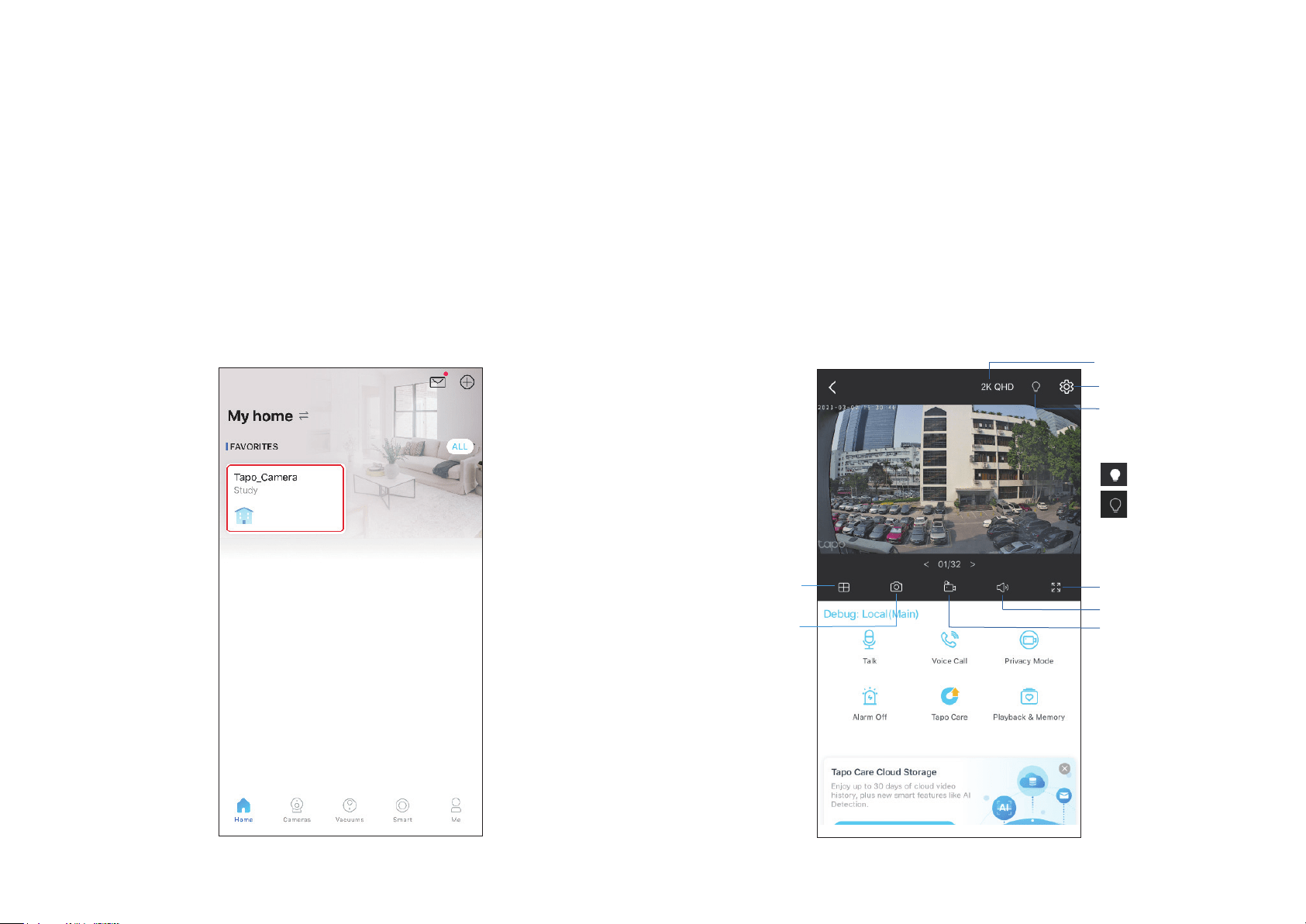
Home Page
This page lists all your cameras you've added and you can view them
directly and manage them easily. Tap the camera to enter the Live
View page.
Main Camera Controls
After you successfully set up the camera, you will see your camera listed on the home page. You can view and manage your camera from anywhere at
any time with the Tapo app.
Live View
Talk or Voice Call: Communicate with loved ones
Privacy Mode: Enable to temporarily shut down the surveillance for privacy
Alarm On/O: Turn on to get noticed when events are detected
Playback & Memory: Check all recordings and saved moments
Multi-Screen
View live videos from
multiple cameras at
the same time
Screenshot
Camera Settings
Spotlight
Get more clear and
vivid image in the
dark.
Video Quality
The spotlight is on.
The spotlight is o.
Full Screen
Volume
Record
15
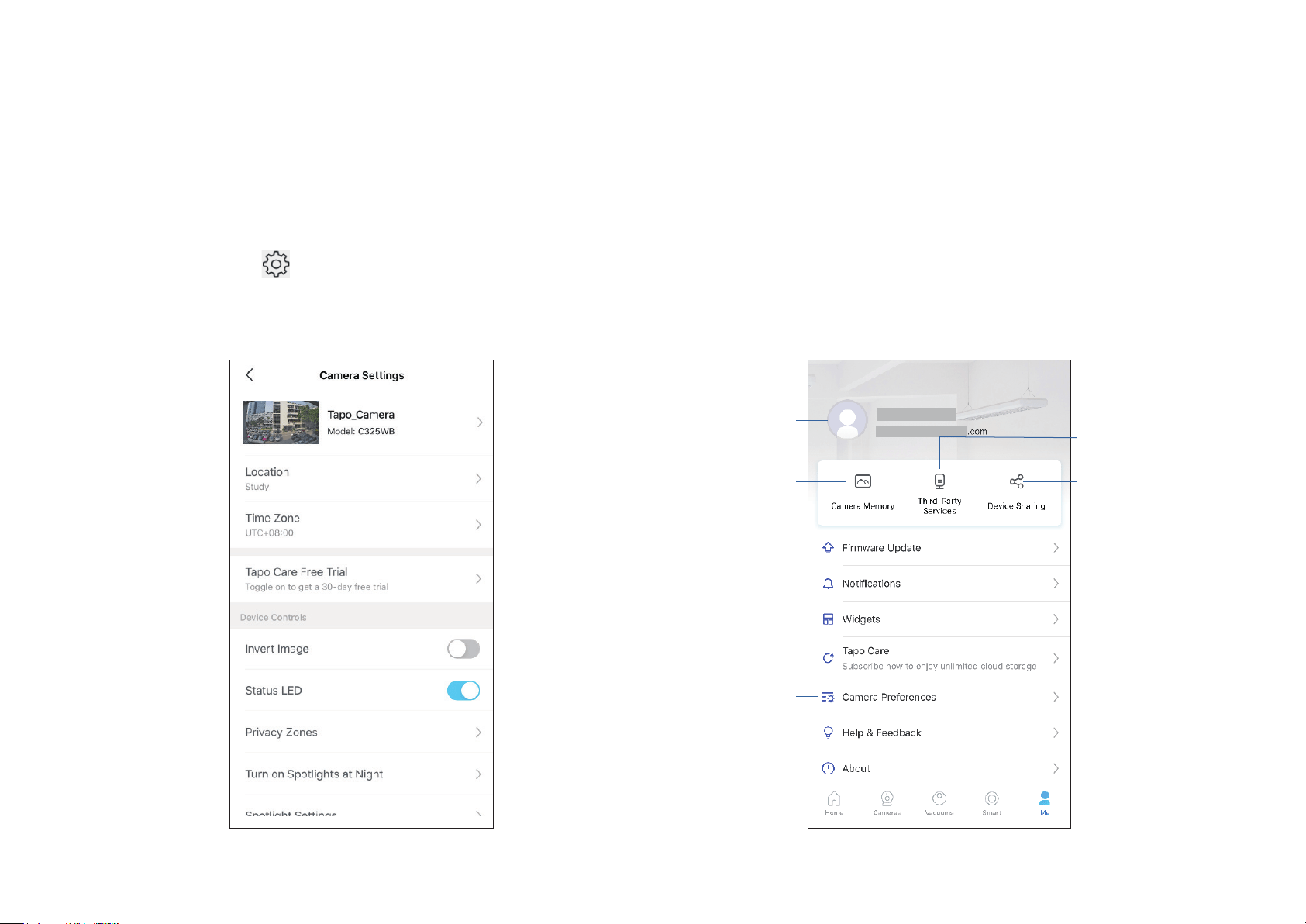
Camera Settings
On Live View page, tap to enter the Camera Settings page. You can
change your camera name, set spotlights settings, customize detection
settings and recording schedules, turn on/o notications, set activity
zones, remove camera, etc.
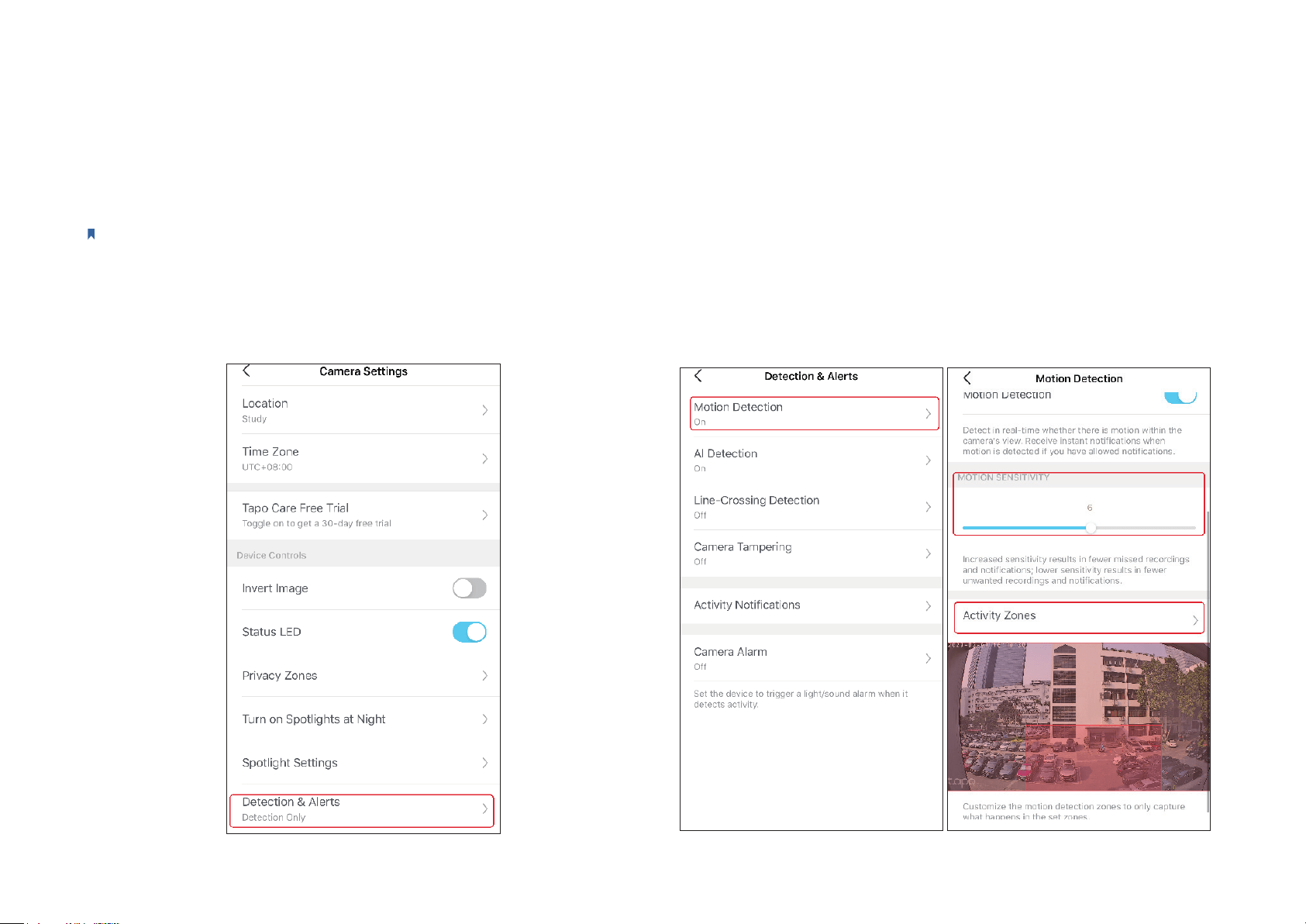
Me
On this page, you can edit your account, quickly check the memorable
moments you saved, or nd the FAQs of using smart camera and basic
info related to the Tapo app.
Camera Memory
Photos and videos
you took will appear
here
Device Sharing
Share your Tapo
devices to your family
members to manage
devices together
Camera Preferences
You can choose to display
the Live or Speed tag on
the screen for all your
Tapo cameras
Voice Control
Set up connections with
third-party services
to control your Tapo
devices by voice
Account Info
Change your avatar,
edit your name, or
modify the password
16
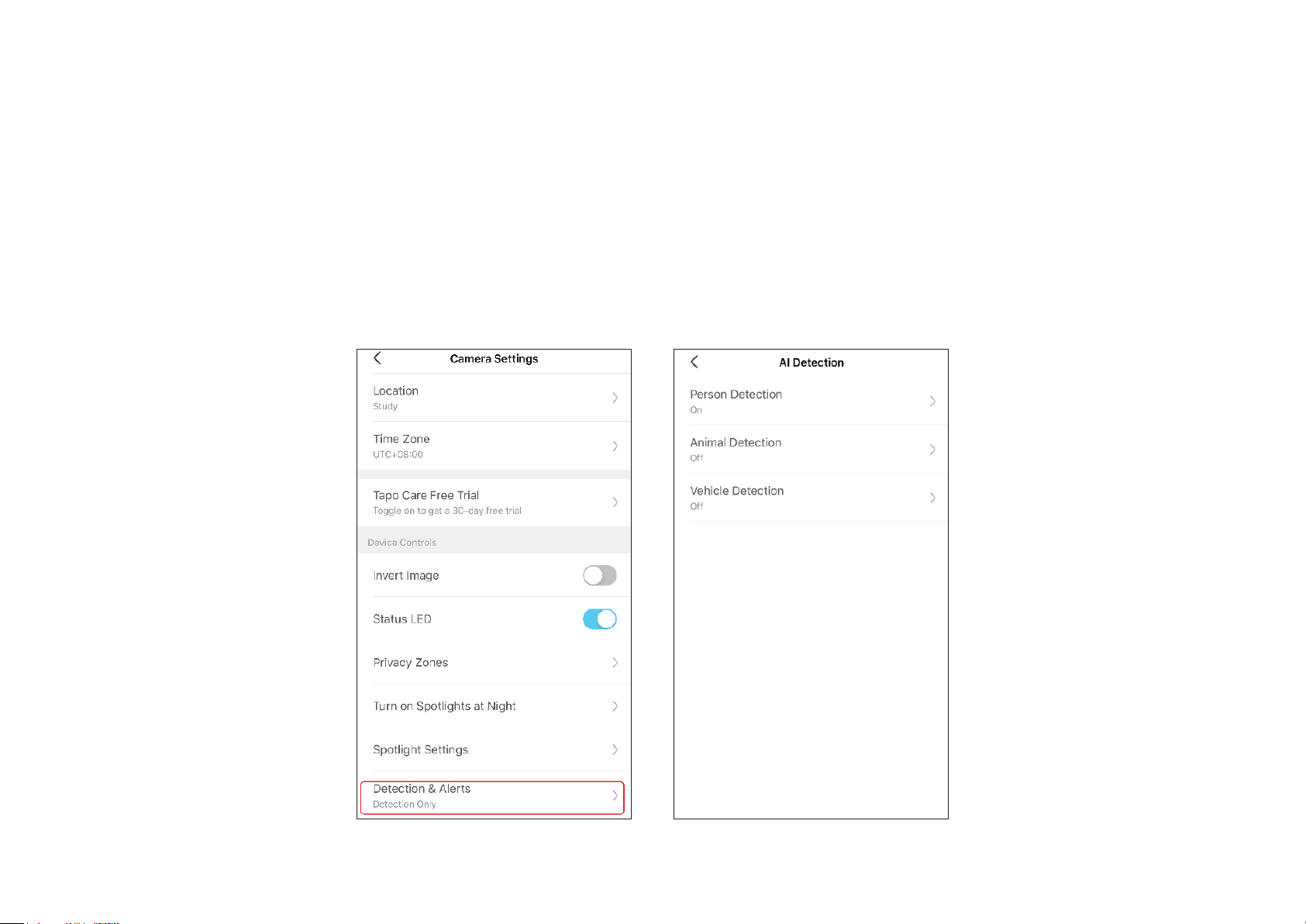
Step1. Turn On Detection
Go to Camera Settings page and tap Detection & Alerts to turn on the
detection and customize its alert settings.
Motion Detection
When your camera detects motion, it will send you notications or even
sound an alarm. You can personalize your own experience by setting
motion zones to only capture what happens in the area that you set and
adjusting motion sensitivity.
Camera Detection & Alerts
Receive notifications and check feeds when the camera detects a motion, or when someone crosses a boundary, enters an area you've set, or
obstructs the camera. Insert a microSD card or subscribe to Tapo Care serviceto record the clips when activity detected. Otherwise, you can only
receive the notications.
Note:
Initialize the SD card on the Tapo app before using it.
17
AI Detection
Customize your AI detection setting to only capture people, pets, or vehicle that come into your camera's view with a samrt AI algorithms and adjust
detection sensitivity.
18
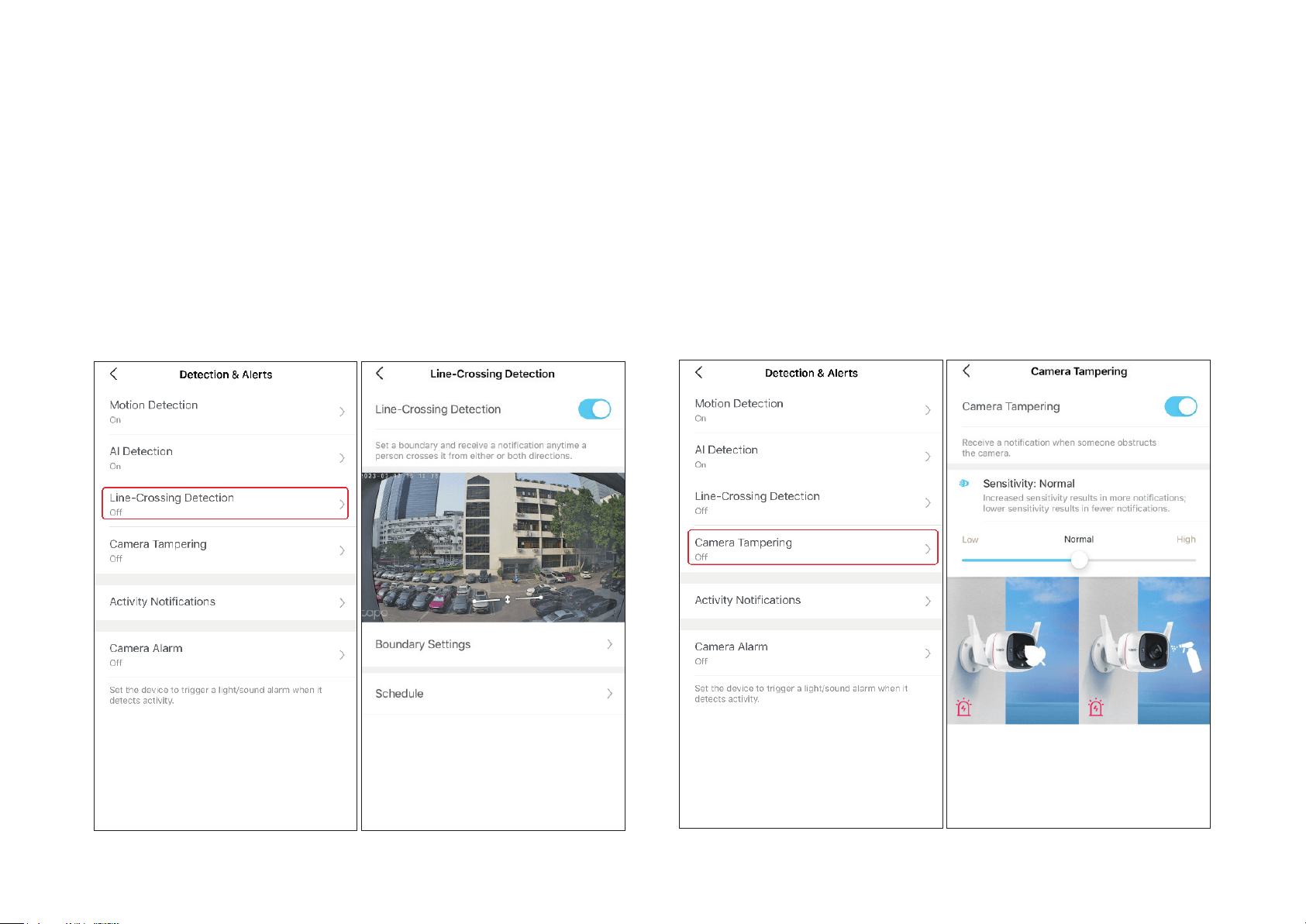
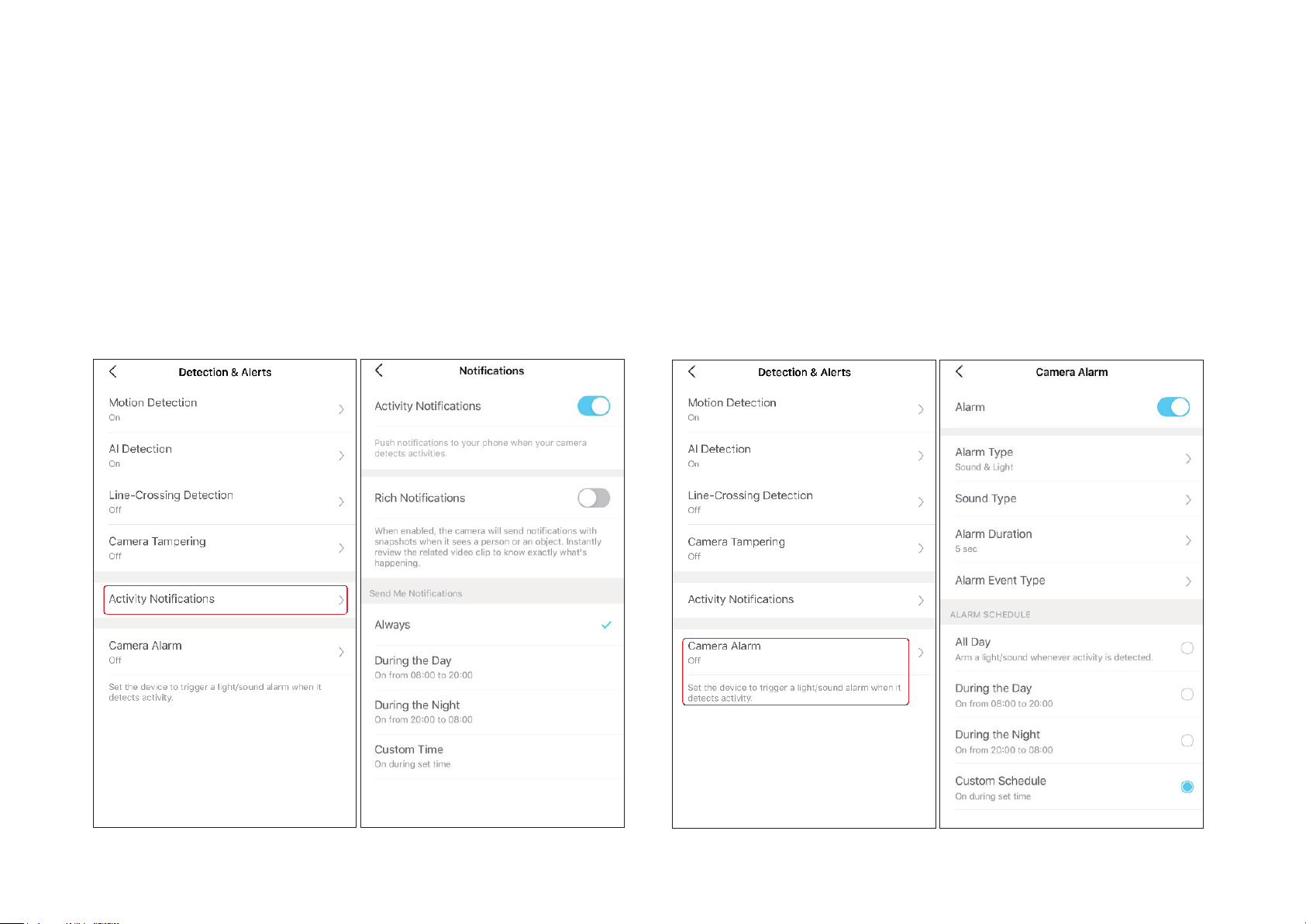
Line-Crossing Detection
Add one or more lines that should not be crossed, then if the set line is
crossed, the camera will send you notications or even sound an alarm.
You can also set the crossing direction and detection schedule. It is ideal
for fence detection, property monitoring, and parking areas.
Camera Tampering Detection
When the camera view is blocked, it will send you notications or even
sound an alarm. You can adjust the detection sensitivity. Increased
sensitivity results in more recordings and notications.
19
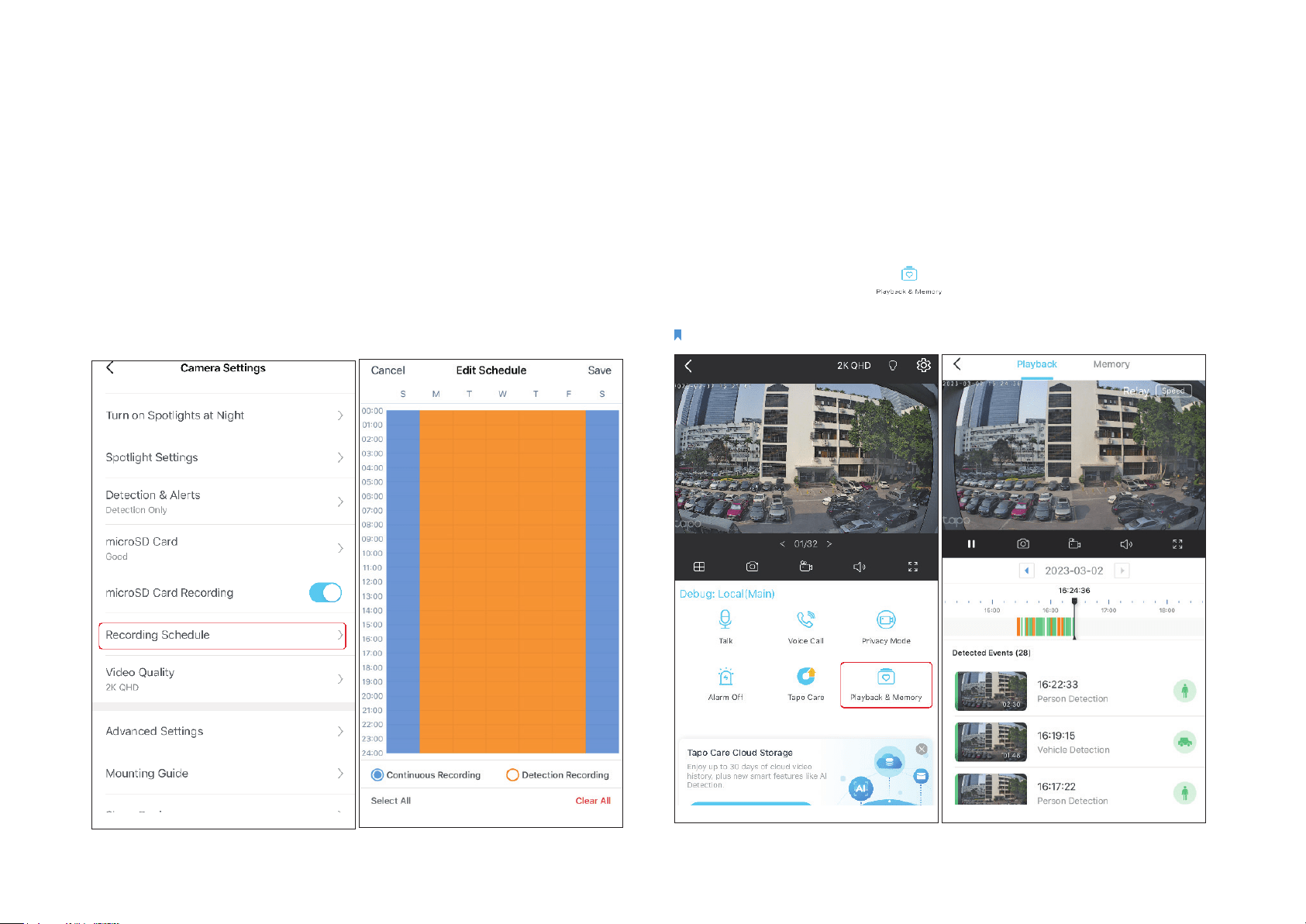
Step 2. Turn On Activity Notications
Turn on Activity Notications to get instant alerts when your camera
detects activities. You can customize the time when the camera sends
you notications.
Step 3: Customize Alarm Settings
Customize Camera Alarm settings to trigger a light/sound alarm to
frighten away unwanted visitors when your camera detects activities. You
can also set the Alarm Schedule as needed.
20
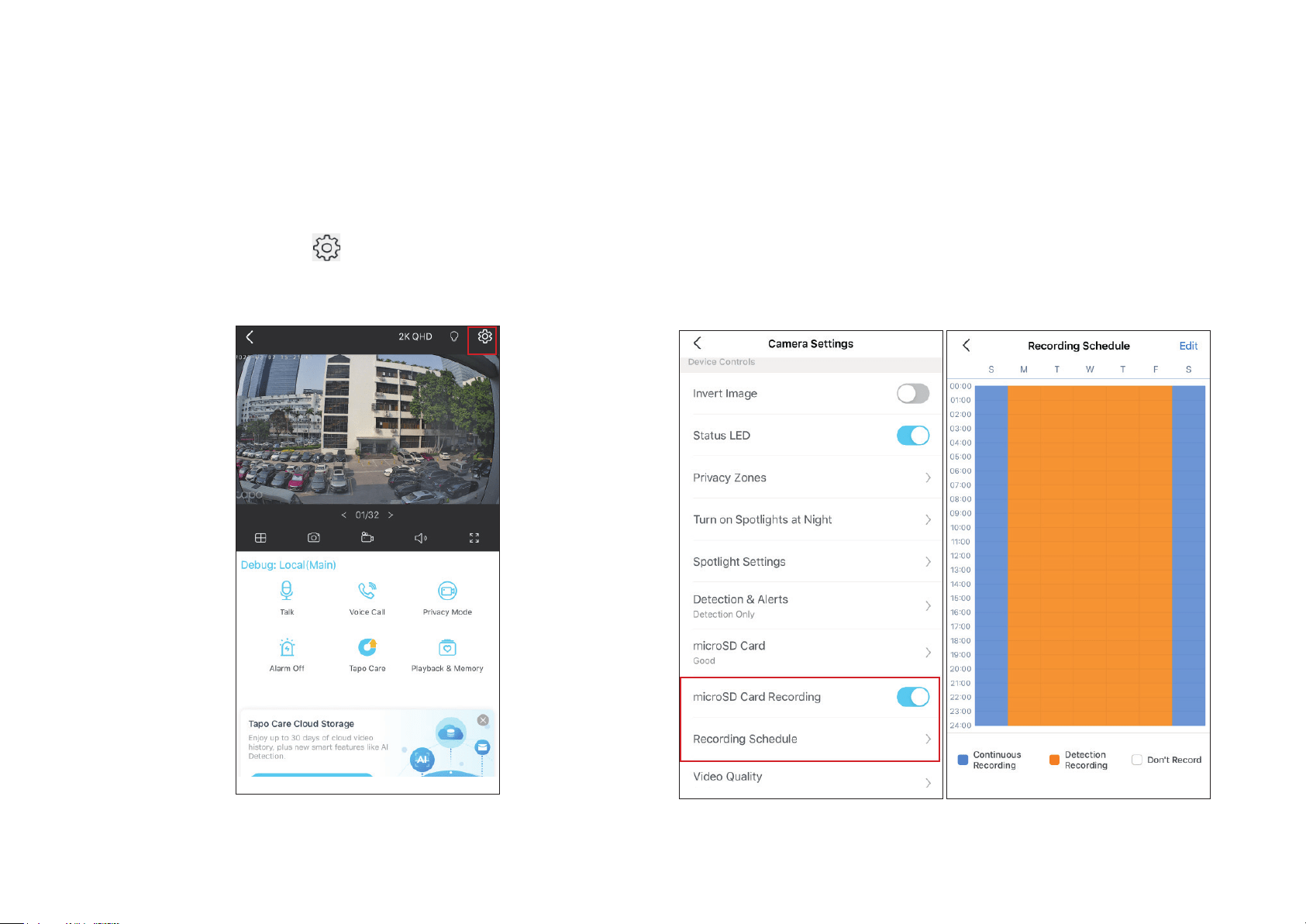
Step 4: Set Recording Schedule
After editing the detection settings for the camera, you can set the
Recording Schedule for Detection Recording.
Step 5: Check Recordings
On the Live View page, tap
to nd all recordings. Tap the colored
sections or the video clips below to check the activity detected.
Note:
The microSD card is needed for recordings. Initialize the SD card on the app before using it.
21
1. On the Live View page, tap
to enter the Camera Settings page.
2. Toggle on to enable the microSD Recording function and set the
Recording Schedule for Continuous Recording (24-hour Recording)
as needed.
24-hour Recordings
The microSD card is needed for 24-hour recording and it’s suggested to initialize the SD card on the app before using it.
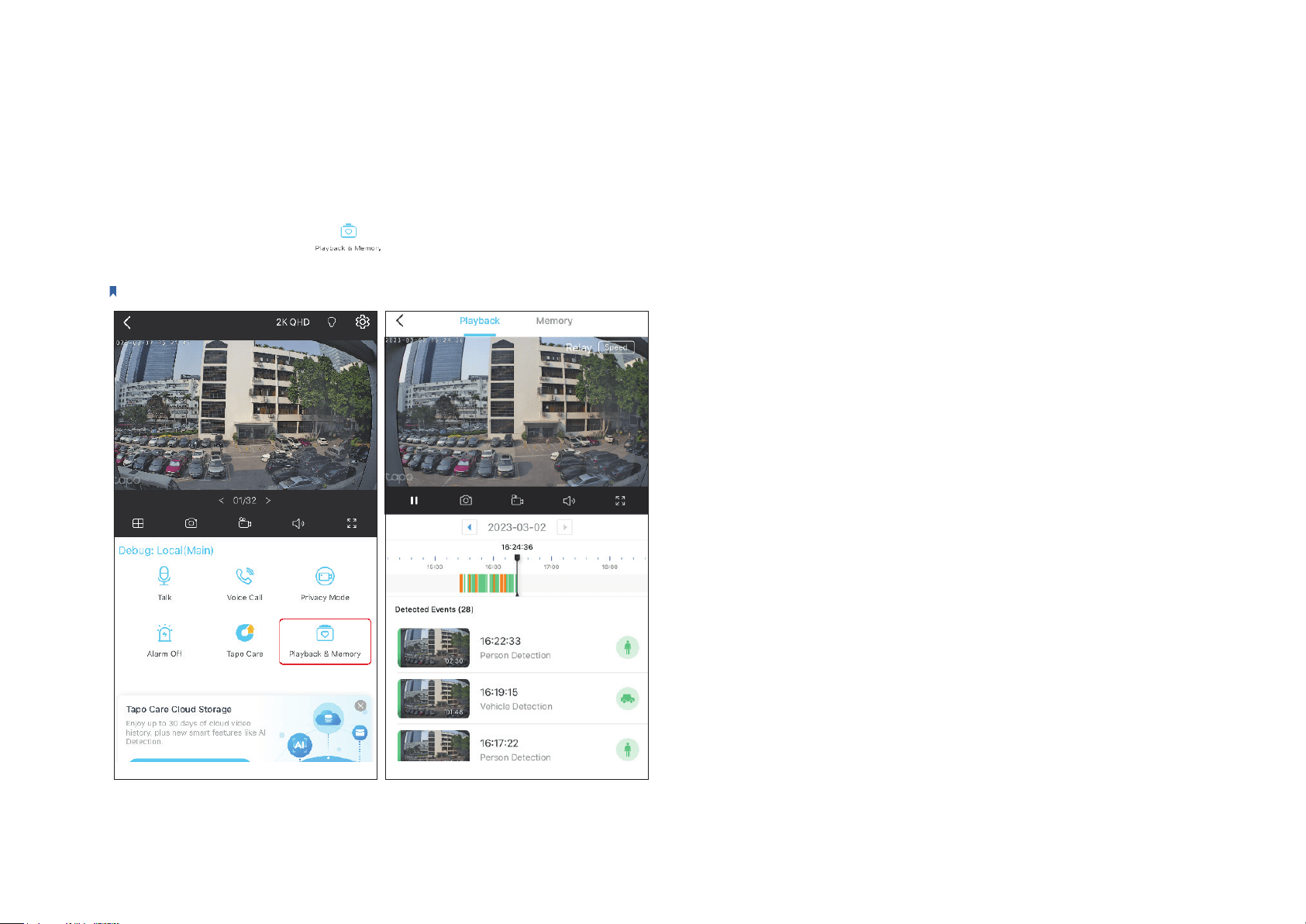
22
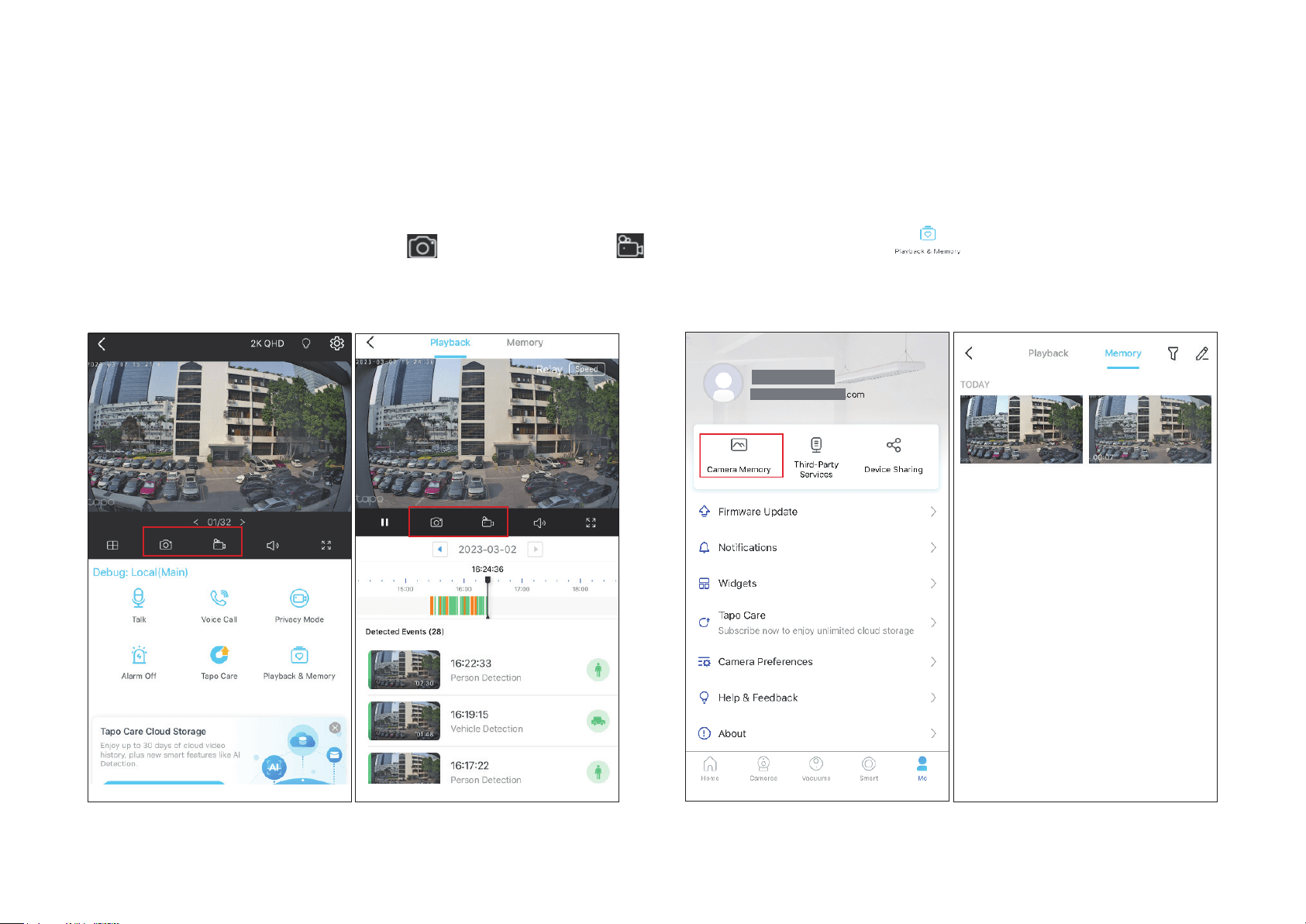
3. On the Live View page, tap to nd all recordings. Tap the colored sections or the video clips
below to check the activity detected.
Note:
The microSD card is needed for recordings. Initialize the SD card on the app before using it.
23
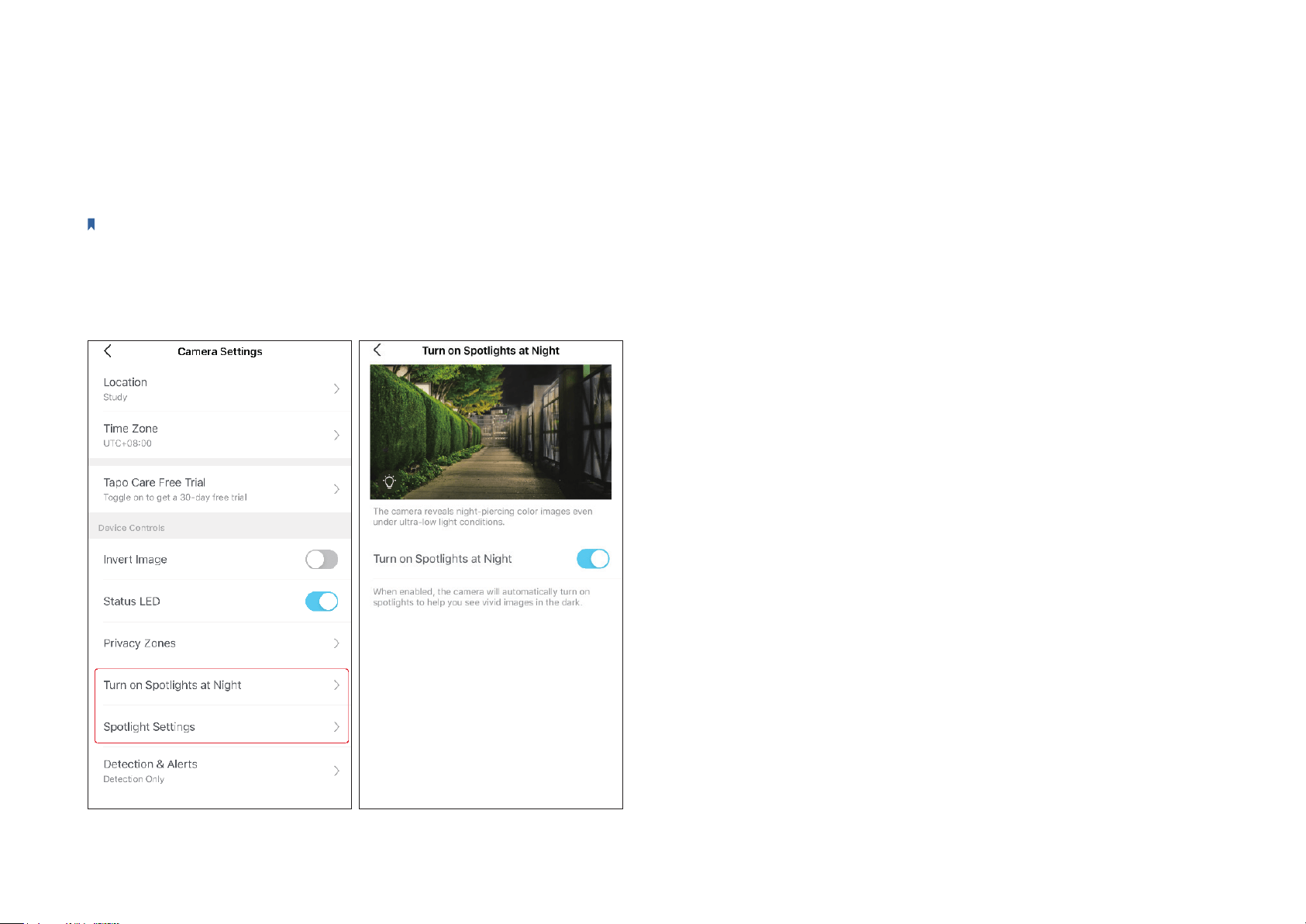
1. On the Live View or Playback page, tap
to take photos and tap
to record video clips.
2. Go to LIVE View page, tap and enter Memory page, or go
to Me > Camera Memory to view, download, and share photos and
videos you take.
Manual Recording
When watching live or playback, you can take screenshots and record video clips anytime you want. Photos and videos you take will appear in the
Memory page, and you can download them to your phone or share with your family.
24
Spotlight Settings
Tapo C325WB oers more signicant night vision performance than traditional color night vision cameras, capturing vivid colors under ultra low-light
conditions. You can turn on Spotlight at Night and adjust the white light brightness as needed.
Note: HDR is not recommended for an environment with minor contrast, or it may aect picture quality.
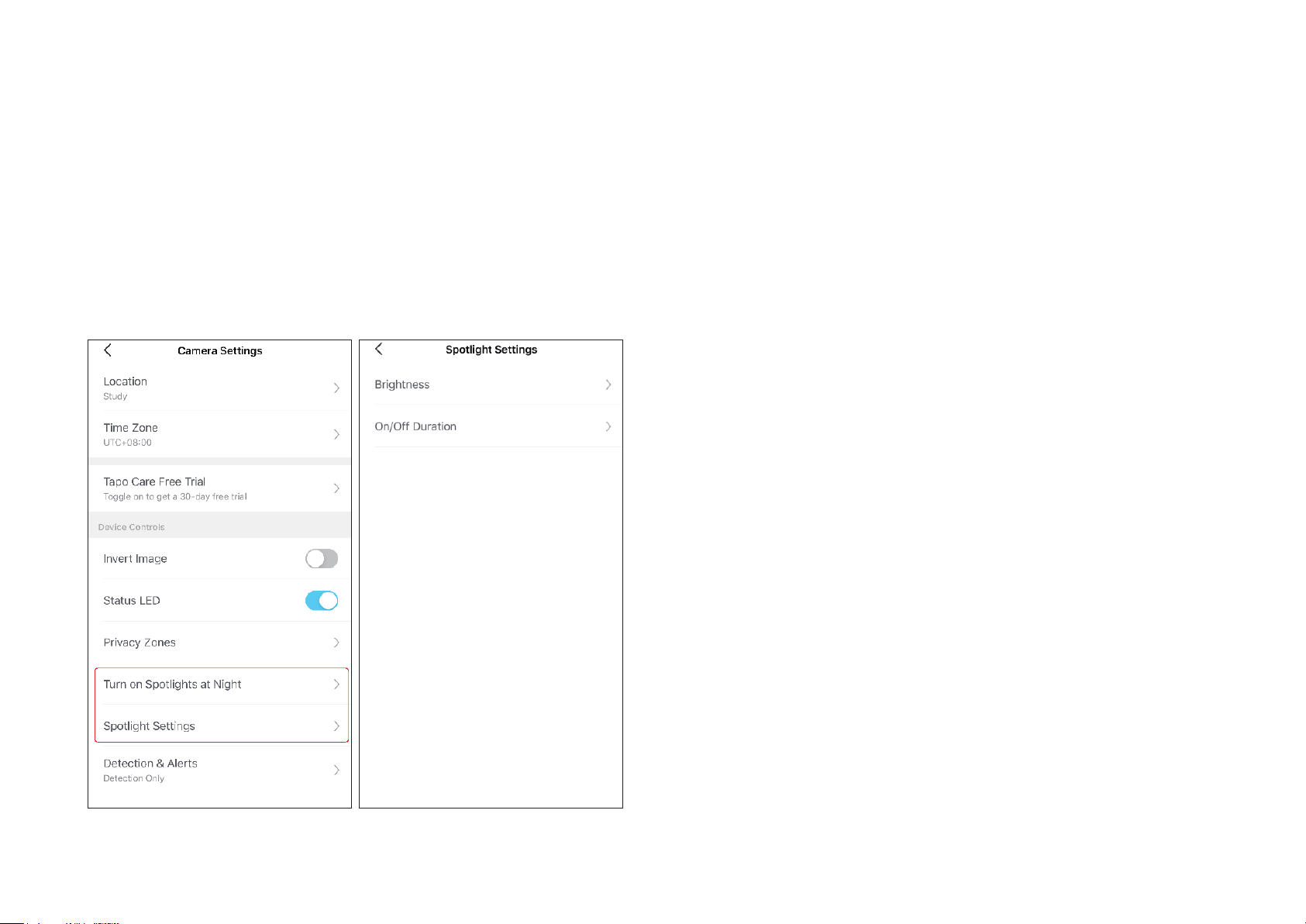
1. Turn on Spotlights at Night
Go to Camera Settings > Turn on Spotlight at Night, and turn it on.
25
2. Adjust Spotlight Brightness and On/O Duration
Go to Camera Settings > Spotlight Settings to adjust the brightness on On/O duration. You set a desired On/O duration for temporarily
turning on/o the spotlight. For brightness settings, the higher the value, the brighter the spotlight.
26
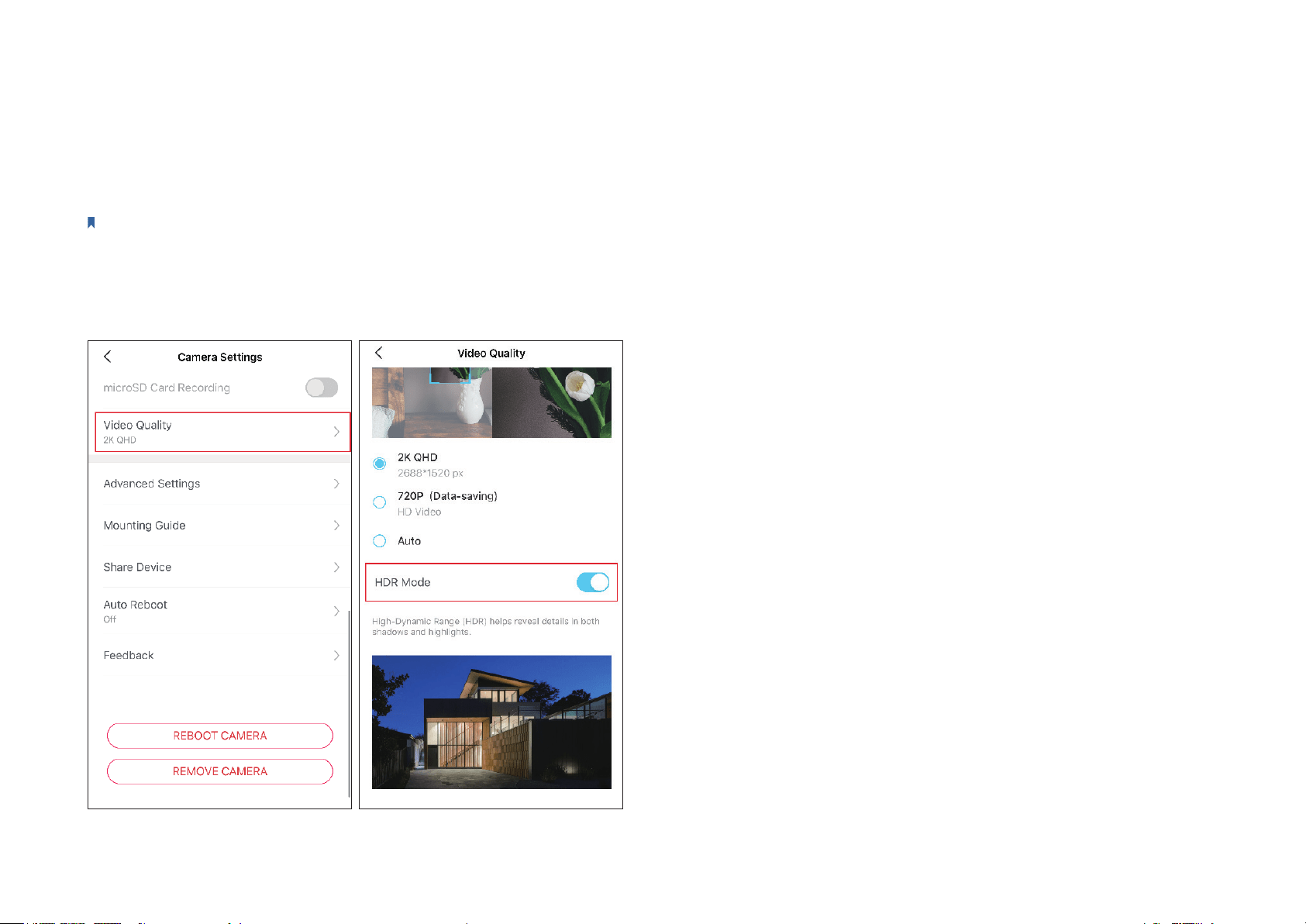
HDR Mode
Thanks to its High-Dynamic Range technology, Tapo C325WB delivers sharper images when overexposed or underexposed. You can enable it to reveal
more vivid details in both shadows and highlights.
Note: HDR is not recommended for an environment with minor contrast, or it may aect picture quality.
Turn on HDR Mode
Go to Camera Settings > Video Quality, and turn it on as needed.
27
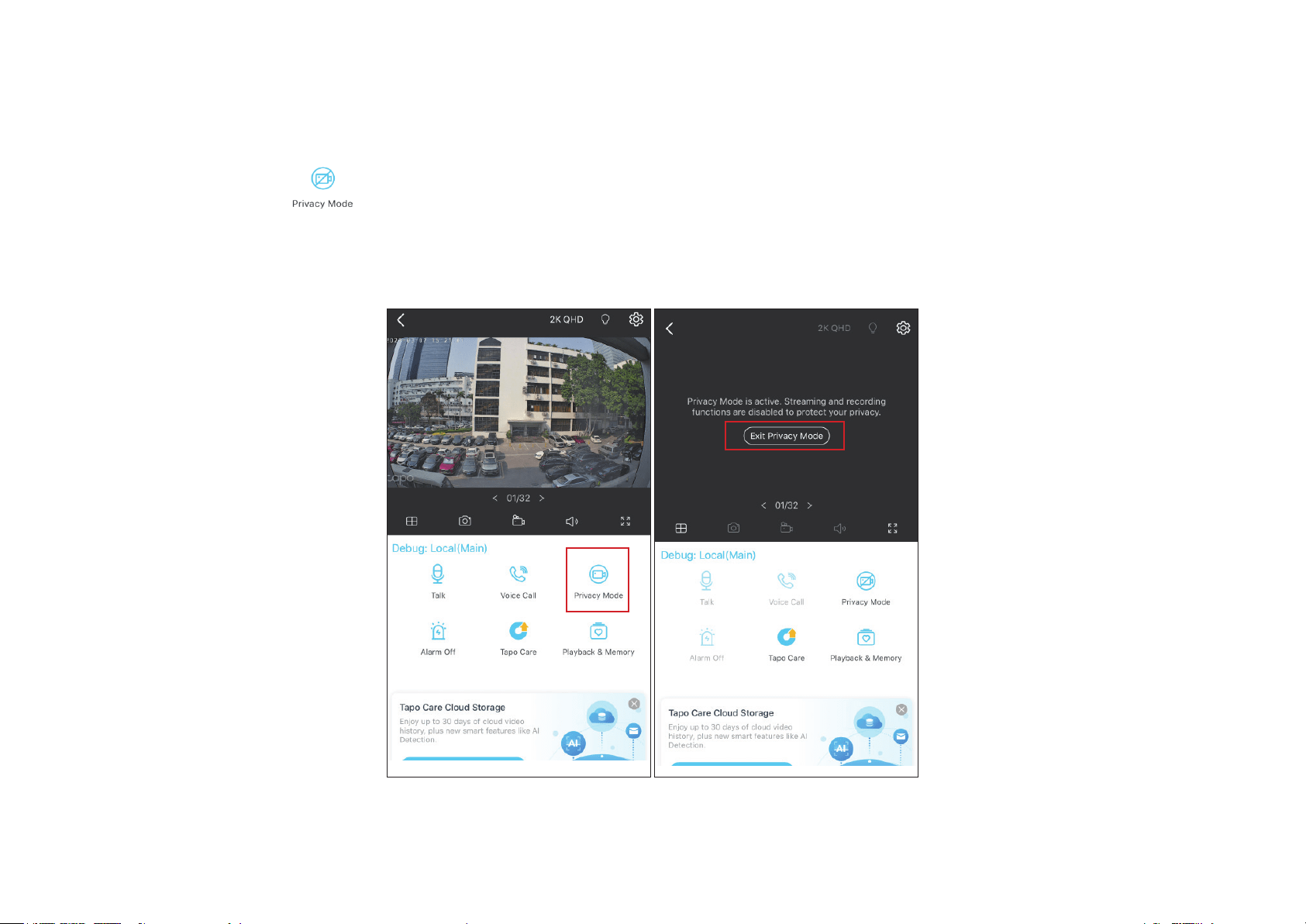
Privacy Mode
On the Live View page, tap to enable the Privacy Mode. When enabled, streaming and recording functions will be temporarily disabled to
protect your privacy. You can tap Disable Privacy Mode to exit Privacy Mode and the camera will be back to work.
27
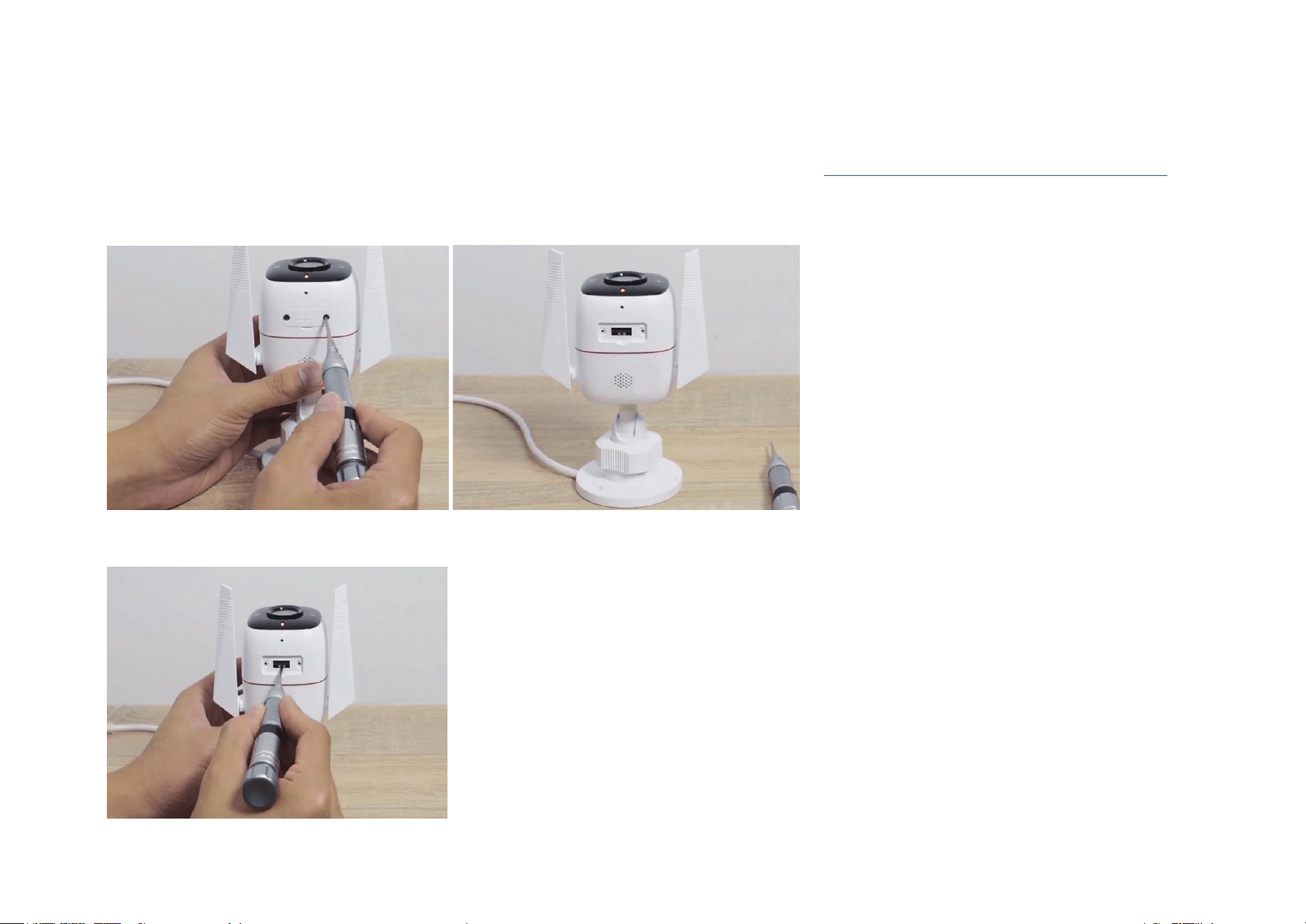
How to Reset Your Camera
Follow the steps below to reset your camera via the Reset button, or follow the installation video at https://www.tp-link.com/support/setup-video/.
You can also go to Camera Settings in the Tapo app and tap Remove Device at the bottom to factory reset your camera.
1. Loosen the screws on the back panel and remove the cover.
2. Press and hold the Reset button for 5 seconds until the LED blinks red to reset Wi-Fi information only;
Press and hold the Reset button for at least 10 seconds until the LED blinks red quickly to reset your camera to factory default settings.
*Images may dier from actual products.
28
Authentication
FCC compliance information statement
Product Name: Outdoor Security Wi-Fi Camera
Model Number: Tapo C325WB / TC68
Component Name Model
I.T.E Power Supply T090060-2B1
Responsible Party:
TP-Link USA Corporation
Address: 10 Mauchly, Irvine, CA 92618
Website: http://www.tp-link.com/us/
Tel: +1 626 333 0234
Fax: +1 909 527 6804
E-mail: [email protected]om
This equipment has been tested and found to comply with the limits for a Class B digital device, pursuant to part 15 of the FCC Rules. These limits are
designed to provide reasonable protection against harmful interference in a residential installation. This equipment generates, uses and can radiate
radio frequency energy and, if not installed and used in accordance with the instructions, may cause harmful interference to radio communications.
However, there is no guarantee that interference will not occur in a particular installation. If this equipment does cause harmful interference to radio
or television reception, which can be determined by turning the equipment off and on, the user is encouraged to try to correct the interference by
one or more of the following measures:
• Reorient or relocate the receiving antenna.
• Increase the separation between the equipment and receiver.
• Connect the equipment into an outlet on a circuit different from that to which the receiver is connected.
• Consult the dealer or an experienced radio/ TV technician for help.
This device complies with part 15 of the FCC Rules. Operation is subject to the following two conditions:

29
1. This device may not cause harmful interference.
2. This device must accept any interference received, including interference that may cause undesired operation.
Any changes or modifications not expressly approved by the party responsible for compliance could void the user’s authority to operate the
equipment.
Note: The manufacturer is not responsible for any radio or TV interference caused by unauthorized modifications to this equipment. Such modifications
could void the user’s authority to operate the equipment.
FCC RF Radiation Exposure Statement
This equipment complies with FCC RF radiation exposure limits set forth for an uncontrolled environment. This device and its antenna must not be
co-located or operating in conjunction with any other antenna or transmitter.
“To comply with FCC RF exposure compliance requirements, this grant is applicable to only Mobile Configurations. The antennas used for this
transmitter must be installed to provide a separation distance of at least 20 cm from all persons and must not be co-located or operating in conjunction
with any other antenna or transmitter.”
We, TP-Link USA Corporation, has determined that the equipment shown as above has been shown to comply with the applicable technical standards,
FCC part 15. There is no unauthorized change is made in the equipment and the equipment is properly maintained and operated.
Issue Date: 2021-09-10
FCC compliance information statement
Product Name: I.T.E Power Supply
Model Number: T090060-2B1
Responsible Party:
TP-Link USA Corporation
Address: 10 Mauchly, Irvine, CA 92618
Website: http://www.tp-link.com/us/
Tel: +1 626 333 0234
Fax: +1 909 527 6804
E-mail: [email protected]om
This equipment has been tested and found to comply with the limits for a Class B digital device, pursuant to part 15 of the FCC Rules. These limits are

30
designed to provide reasonable protection against harmful interference in a residential installation. This equipment generates, uses and can radiate
radio frequency energy and, if not installed and used in accordance with the instructions, may cause harmful interference to radio communications.
However, there is no guarantee that interference will not occur in a particular installation. If this equipment does cause harmful interference to radio
or television reception, which can be determined by turning the equipment off and on, the user is encouraged to try to correct the interference by
one or more of the following measures:
• Reorient or relocate the receiving antenna.
• Increase the separation between the equipment and receiver.
• Connect the equipment into an outlet on a circuit different from that to which the receiver is connected.
• Consult the dealer or an experienced radio/ TV technician for help.
This device complies with part 15 of the FCC Rules. Operation is subject to the following two conditions:
1. This device may not cause harmful interference.
2. This device must accept any interference received, including interference that may cause undesired operation.
Any changes or modifications not expressly approved by the party responsible for compliance could void the user’s authority to operate the
equipment.
We, TP-Link USA Corporation, has determined that the equipment shown as above has been shown to comply with the applicable technical standards,
FCC part 15. There is no unauthorized change is made in the equipment and the equipment is properly maintained and operated.
Issue Date: 2021-11-18
31
CE Mark Warning
This is a class B product. In a domestic environment, this product may cause radio interference, in which case the user may be required to take
adequate measures.
OPERATING FREQUENCY (the maximum transmitted power)
2412MHz—2472MHz (20dBm)
EU Declaration of Conformity
TP-Link hereby declares that the device is in compliance with the essential requirements and other relevant provisions of directives 2014/53/EU,
2009/125/EC, 2011/65/EU and (EU)2015/863.
The original EU declaration of conformity may be found at https://www.tapo.com/en/support/ce/
RF Exposure Information
This device meets the EU requirements (2014/53/EU Article 3.1a) on the limitation of exposure of the general public to electromagnetic fields by way
of health protection.
The device complies with RF specifications when the device used at 20 cm from your body.
UK declaration of conformity
TP-Link hereby declares that the device is in compliance with the essential requirements and other relevant provisions of the Radio Equipment
Regulations 2017.
The original UK declaration of conformity may be found at https://www.tapo.com/support/ukca/
Canadian Compliance Statement
This device contains licence-exempt transmitter(s)/receiver(s) that comply with Innovation, Science and Economic Development Canada’s licence-
exempt RSS(s). Operation is subject to the following two conditions:
1. This device may not cause interference.
32
2. This device must accept any interference, including interference that may cause undesired operation of the device.
L’émetteur/récepteur exempt de licence contenu dans le présent appareil est conforme aux CNR d’Innovation, Sciences et Développement
économique Canada applicables aux appareils radio exempts de licence. L’exploitation est autorisée aux deux conditions suivantes :
1. l’appareil ne doit pas produire de brouillage;
2. l’utilisateur de l’appareil doit accepter tout brouillage radioélectrique subi, meme si le brouillage est susceptible d’en compromettre le fonctionnement
Radiation Exposure Statement:
This equipment complies with IC radiation exposure limits set forth for an uncontrolled environment. This equipment should be installed and operated
with minimum distance 20cm between the radiator & your body.
Déclaration d’exposition aux radiations:
Cet équipement est conforme aux limites d’exposition aux rayonnements IC établies pour un environnement non contrôlé. Cet équipement doit être
installé et utilisé avec un minimum de 20 cm de distance entre la source de rayonnement et votre corps.
Industry Canada Statement
CAN ICES-3 (B)/NMB-3(B)
Korea Warning Statements:
당해 무선설비는 운용중 전파혼신 가능성이 있음.
NCC Notice
注意!
取得審驗證明之低功率射頻器材,非經核准,公司、商號或使用者均不得擅自變更頻率、加大功率或變更原設計之特性及功能。
低功率射頻器材之使用不得影響飛航安全及干擾合法通信;經發現有干擾現象時,應立即停用,並改善至無干擾時方得繼續使用。
33
前述合法通信,指依電信管理法規定作業之無線電通信。
低功率射頻器材須忍受合法通信或工業、科學及醫療用電波輻射性電機設備之干擾。
BSMI Notice
安全諮詢及注意事項
• 請使用原裝電源供應器或只能按照本產品注明的電源類型使用本產品。
• 清潔本產品之前請先拔掉電源線。請勿使用液體、噴霧清潔劑或濕布進行清潔。
• 注意防潮,請勿將水或其他液體潑灑到本產品上。
• 插槽與開口供通風使用,以確保本產品的操作可靠並防止過熱,請勿堵塞或覆蓋開口。
• 請勿將本產品置放於靠近熱源的地方。除非有正常的通風,否則不可放在密閉位置中。
• 請不要私自打開機殼,不要嘗試自行維修本產品,請由授權的專業人士進行此項工作。
• 電源供應器应使用在环境温度低於或等於40℃的室內。
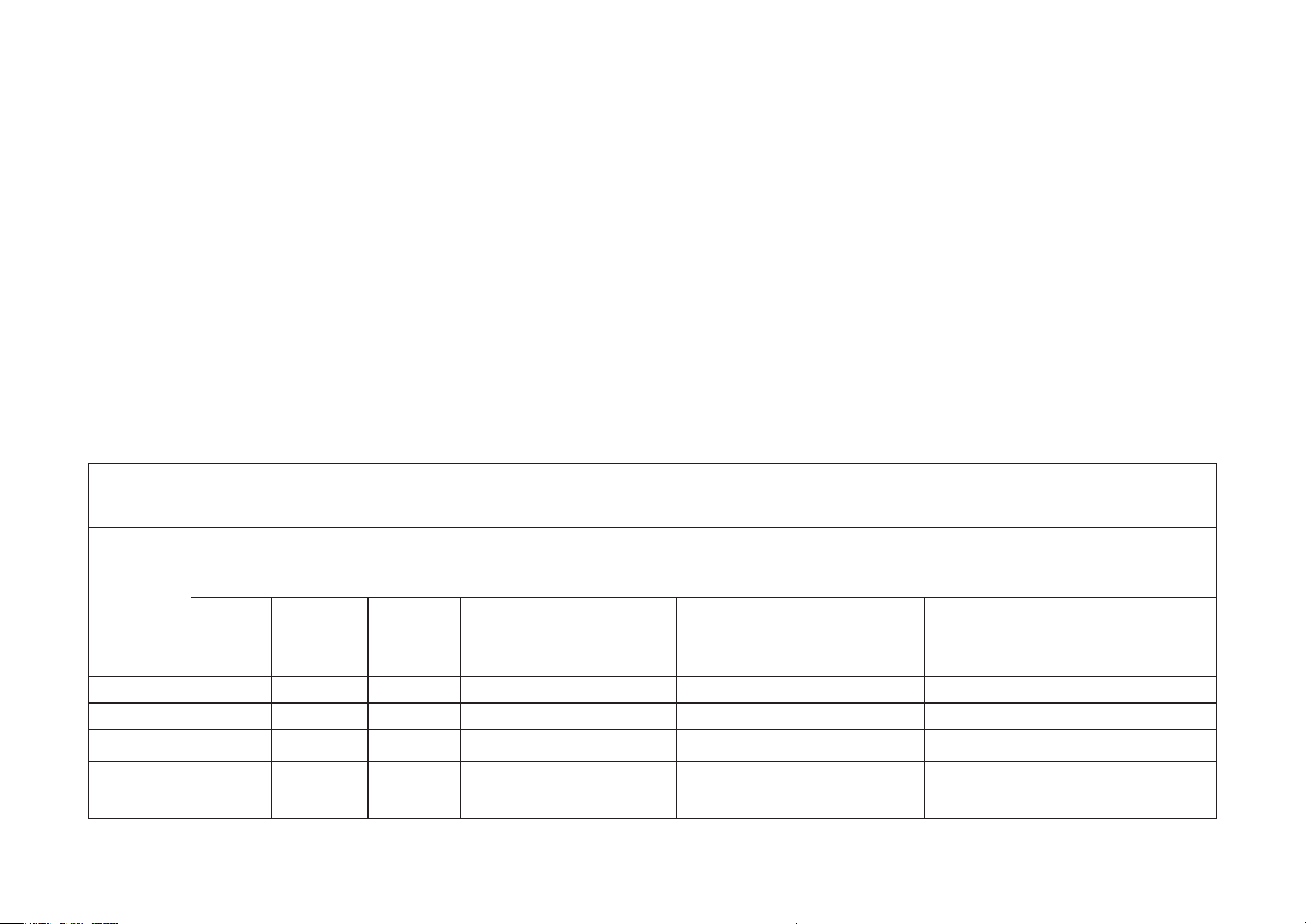
限用物質含有情況標示聲明書
設備名稱:Outdoor Security Wi-Fi Camera 型號(型式):Tapo C325WB / TC68
Equipment name Type designation (Type)
單元
Unit
限用物質及其化學符號
Restricted substances and its chemical symbols
鉛
Lead
(Pb)
汞
Mercury
(Hg)
鎘
Cadmium
(Cd)
六價鉻
Hexavalent chromium
(Cr
+6
)
多溴聯苯
Polybrominated biphenyls
(PBB)
多溴二苯醚
Polybrominated diphenyl ethers
(PBDE)
PCB ○ ○ ○ ○ ○ ○
外殼 ○ ○ ○ ○ ○ ○
電源供應器 − ○ ○ ○ ○ ○
其他及其
配件
− ○ ○ ○ ○ ○
34
備考 1.〝超出 0.1 wt %〞及〝超出 0.01 wt %〞係指限用物質之百分比含量超出百分比含量基準值
Note 1:“Exceeding 0.1 wt %” and “exceeding 0.01 wt %” indicate that the percentage content of the restricted substance
exceeds the reference percentage value of presence condition.
備考 2.〝○〞係指該項限用物質之百分比含量未超出百分比含量基準值。
Note 2:“○” indicates that the percentage content of the restricted substance does not exceed the percentage of reference value
of presence.
備考 3.〝−〞係指該項限用物質為排除項目。
Note 3:The “−” indicates that the restricted substance corresponds to the exemption.
Продукт сертифіковано згідно с правилами системи УкрСЕПРО на відповідність вимогам нормативних документів та вимогам,
що передбачені чинними законодавчими актами України.
Safety Information
• Keep the device away from fire or hot environments. DO NOT immerse in water or any other liquid.
• Do not attempt to disassemble, repair, or modify the device. If you need service, please contact us.
• Do not use damaged charger or USB cable to charge the device.
• Do not use any other chargers than those recommended
• Do not use the device where wireless devices are not allowed.
• Adapter shall be easily accessible.
• Use only power supplies which are provided by manufacturer and in the original packing of this product. If you have any questions, please don’t
hesitate to contact us.
• Adapter should be used indoors where the ambient temperature is lower than or equal to 40℃
35
This product uses radios and other components that emit electromagnetic fields. Electromagnetic fields and magnets may interfere with pacemakers
and other implanted medical devices. Always keep the product and its power adapter more than 15 cm (6 inches) away from any pacemakers or
other implanted medical devices. If you suspect your product is interfering with your pacemaker or any other implanted medical device, turn off your
product and consult your physician for information specific to your medical device.
Please read and follow the above safety information when operating the device. We cannot guarantee that no accidents or damage will occur due to
improper use of the device. Please use this product with care and operate at your own risk.
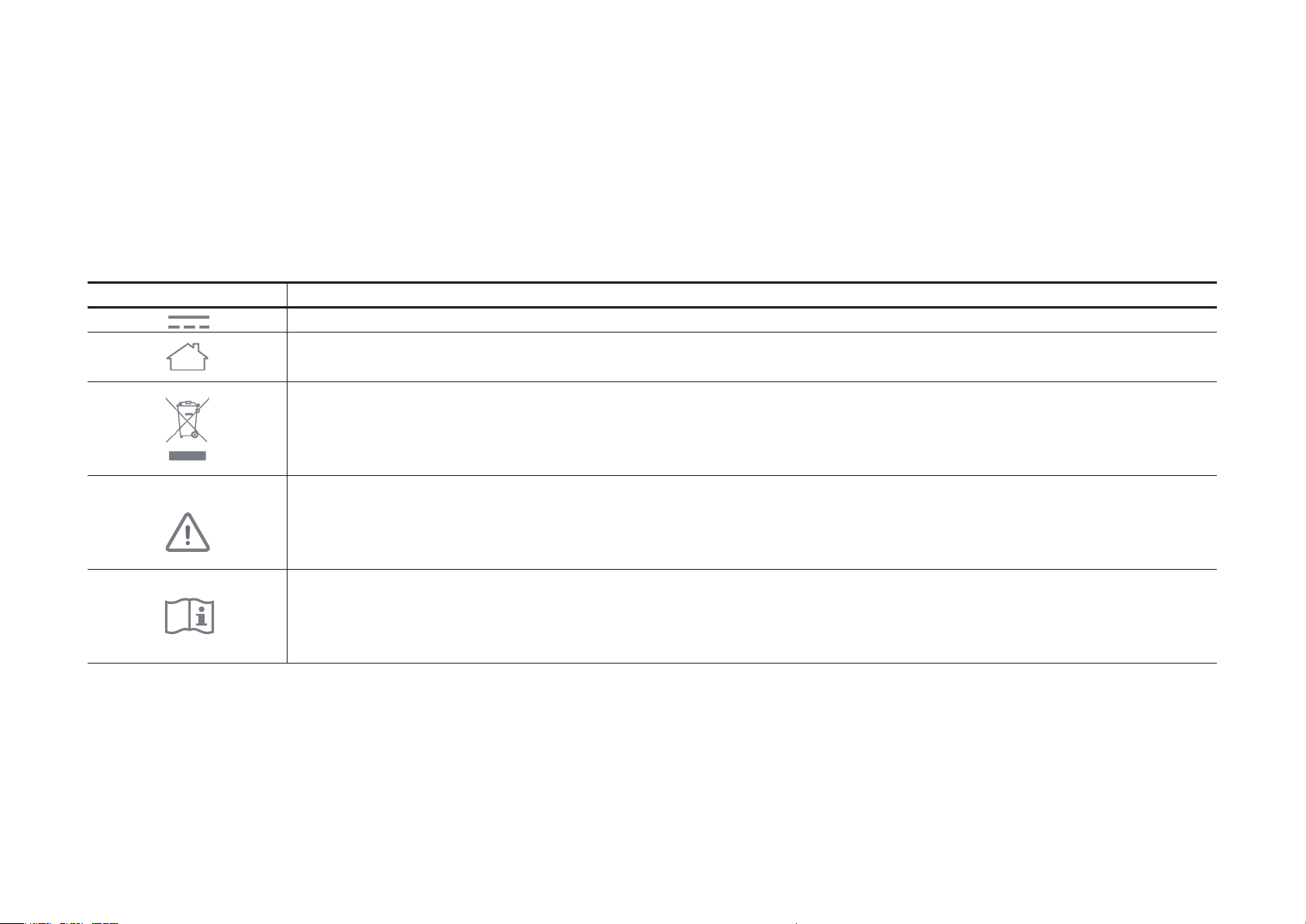
Explanation of the symbols on the product label
Symbol Explanation
DC voltage
Indoor use only
RECYCLING
This product bears the selective sorting symbol for Waste electrical and electronic equipment (WEEE). This means that this product must be handled pursuant to
European directive 2012/19/EU in order to be recycled or dismantled to minimize its impact on the environment.
User has the choice to give his product to a competent recycling organization or to the retailer when he buys a new electrical or electronic equipment.
Caution
Operator’s manual