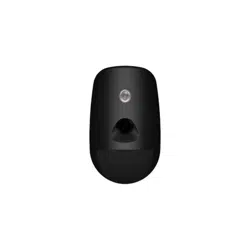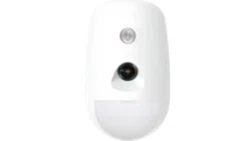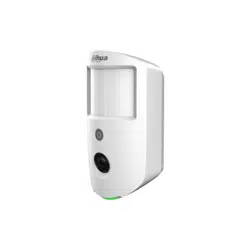

Wireless PIR–Camera
User’s Manual
ZHEJIANG DAHUA VISION TECHNOLOGY CO., LTD. V1.0.2
User’s Manual
I
Foreword
General
This manual introduces the installation, functions and operations of the Wireless PIR–Camera
(hereinafter referred to as the "PIR–Camera"). Read carefully before using the device, and keep the
manual safe for future reference.
Model
DHI-ARD1731-W2; DHI-ARD1731-W2 (868)
Safety Instructions
The following signal words might appear in the manual.
Signal Words Meaning
Indicates a high potential hazard which, if not avoided, will result in
death or serious injury.
Indicates a medium or low potential hazard which, if not avoided,
could result in slight or moderate injury.
Indicates a potential risk which, if not avoided, could result in
property damage, data loss, lower performance, or unpredictable
result.
Provides methods to help you solve a problem or save you time.
Provides additional information as the emphasis and supplement to
the text.
Revision History
Version Revision Content Release Time
V1.0.2 Updated technical specifications. February 2023
V1.0.1
●
Added version of DMSS app and hub.
●
Added a note that the repeater does not support
transmitting images from PIR-Camera to the hub.
August 2022
V1.0.0 First release. June 2022
Privacy Protection Notice
As the device user or data controller, you might collect the personal data of others such as their face,
fingerprints, and license plate number. You need to be in compliance with your local privacy
protection laws and regulations to protect the legitimate rights and interests of other people by
implementing measures which include but are not limited: Providing clear and visible identification
to inform people of the existence of the surveillance area and provide required contact information.
About the Manual
●
The manual is for reference only. Slight differences might be found between the manual and the
product.

User’s Manual
II
●
We are not liable for losses incurred due to operating the product in ways that are not in
compliance with the manual.
●
The manual will be updated according to the latest laws and regulations of related jurisdictions.
For detailed information, see the paper user’s manual, use our CD-ROM, scan the QR code or visit
our official website. The manual is for reference only. Slight differences might be found between
the electronic version and the paper version.
●
All designs and software are subject to change without prior written notice. Product updates
might result in some differences appearing between the actual product and the manual. Please
contact customer service for the latest program and supplementary documentation.
●
There might be errors in the print or deviations in the description of the functions, operations
and technical data. If there is any doubt or dispute, we reserve the right of final explanation.
●
Upgrade the reader software or try other mainstream reader software if the manual (in PDF
format) cannot be opened.
●
All trademarks, registered trademarks and company names in the manual are properties of their
respective owners.
●
Please visit our website, contact the supplier or customer service if any problems occur while
using the device.
●
If there is any uncertainty or controversy, we reserve the right of final explanation.
User’s Manual
III
Important Safeguards and Warnings
This section introduces content covering the proper handling of the device, hazard protection, and
protection of property damage. Read carefully before using the device, and comply with the
guidelines when using it.
Operation Requirements
●
Make sure that the power supply of the device works properly before use.
●
Do not pull out the power cable of the device while it is powered on.
●
Only use the device within the rated power range.
●
Transport, use and store the device under allowed humidity and temperature conditions.
●
Prevent liquids from splashing or dripping on the device. Make sure that there are no objects
filled with liquid on top of the device to avoid liquids flowing into it.
●
Do not disassemble the device.
Installation Requirements
●
Connect the device to the adapter before power on.
●
Strictly abide by local electrical safety standards, and make sure that the voltage in the area is
steady and conforms to the power requirements of the device.
●
Do not connect the device to more than one power supply. Otherwise, the device might become
damaged.
●
Observe all safety procedures and wear required protective equipment provided for your use
while working at heights.
●
Do not expose the device to direct sunlight or heat sources.
●
Do not install the device in humid, dusty or smoky places.
●
Install the device in a well-ventilated place, and do not block the ventilator of the device.
●
Use the power adapter or case power supply provided by the device manufacturer.
●
The power supply must conform to the requirements of ES1 in IEC 62368-1 standard and be no
higher than PS2. Note that the power supply requirements are subject to the device label.
●
Connect class I electrical appliances to a power socket with protective earthing.

User’s Manual
IV
Table of Contents
Foreword
........................................................................................................................................................................................................I
Important Safeguards and Warnings
............................................................................................................................................ III
1 Introduction
............................................................................................................................................................................................ 1
1.1 Overview
........................................................................................................................................................................................ 1
1.2 Technical Specifications
......................................................................................................................................................... 1
2 Checklist
.................................................................................................................................................................................................... 4
3 Design
......................................................................................................................................................................................................... 5
3.1 Appearance
................................................................................................................................................................................... 5
3.2 Dimensions
................................................................................................................................................................................... 6
4 Power On
................................................................................................................................................................................................... 7
5 Adding the PIR–Camera to the Hub
............................................................................................................................................ 9
6 Installation
............................................................................................................................................................................................. 10
6.1 Field of View
............................................................................................................................................................................... 10
6.2 Installing the PIR–Camera
................................................................................................................................................... 10
7 Configuration
....................................................................................................................................................................................... 12
7.1 Viewing Status
.......................................................................................................................................................................... 12
7.2 Configuring the PIR-Camera
.............................................................................................................................................. 13
Appendix 1 Cybersecurity Recommendations
........................................................................................................................ 16
User’s Manual
1
1 Introduction
1.1 Overview
With its built-in 2-MP HD camera and CMOS image sensor, wireless PIR–Camera detects intrusions
and captures high-definition snapshots. It is a wireless passive infrared detector that sends
snapshots through the Wi-Fi and Ethernet connection to your phone and ARC (alarm center), for the
causes of intrusions to be effectively identified.
The camera is also uniquely designed to only take snapshots when an intrusion occurs, eliminating
the need to install cameras to constantly monitor scenes. Built to keep your family and business safe,
the entire data transmission process is encrypted and the camera does not actively obtain your
private information.
1.2 Technical Specifications
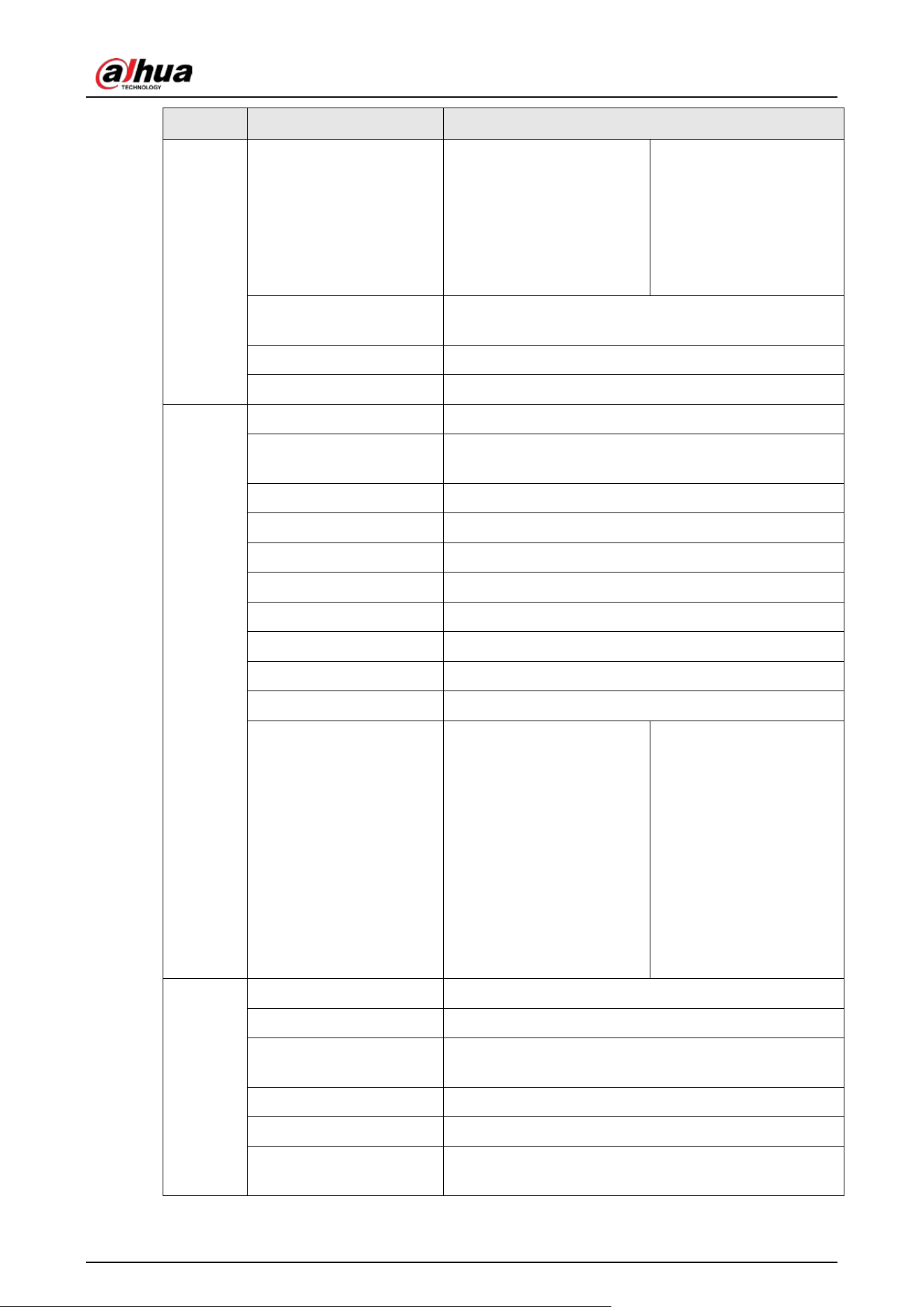
This section contains technical specifications of the PIR-Camera. Please refer to the ones that
correspond with your model.
Table 1-1 Technical specifications
Type Parameter Description
Video
Field of View 88° (H); 68° (V)
Image Type JPEG
Resolution 1600 × 1200; 1280 × 960; 640 × 480; 320 × 240
Detection Speed 0.3 m/s-3 m/s (0.98 ft/s-9.84 ft/s)
Frame Rate 2
Illumination Mode Infrared Light
Illumination Range 12 m (39.37 ft)
Day/Night Switch Color/Black & White
Function
Indicator Light 1 × green alarm indicator
Button 1 × power switch
Remote Update Cloud update
Low Battery Detection Yes
Battery Level Display Yes
Tamper Tamper alarm
Signal Strength
RF Signal test
RF-HD signal test
Carrier Frequency
DHI-ARD1731-W2(868):
868.0 MHz–868.6 MHz
DHI-ARD1731-W2:
433.1 MHz–434.6 MHz
User’s Manual
2
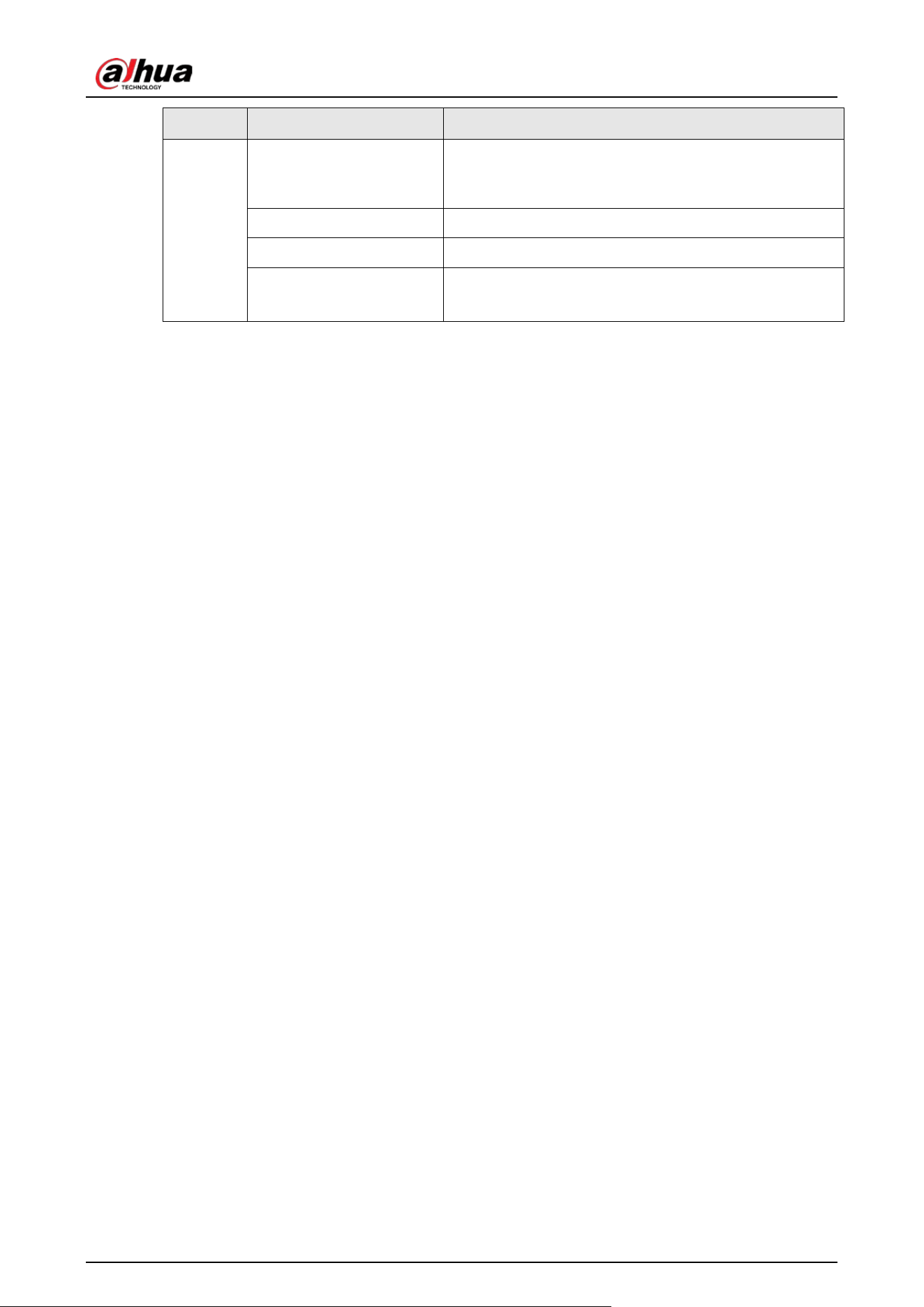
Type Parameter Description
Communication Distance
DHI-ARD1731-W2(868):
RF: Up to 1,600 m (5,249.34
ft) in an open space
RF-HD: Up to 300 m
(984.25 ft) in an open
space
DHI-ARD1731-W2:
RF: Up to 1,200 m
(3,937.01 ft) in an open
space
RF-HD: Up to 300 m
(984.25 ft) in an open
space
Communication
Mechanism
Two-way
Frequency Hopping Yes
Encryption Mode AES128
General
Power Supply CR123A× 3
Battery Life
4 years (if triggered twice a week with a battery
efficiency of 70%)
Operating Temperature –10 °C to +55 °C (+14 °F to +131 °F) (indoor)
Operating Humidity 10%–90% (RH)
Product Dimensions 127.6 mm× 71.0 mm× 53.2 mm (5.02" × 2.80" × 2.09")
Packaging Dimensions 121.0 mm× 65.0 mm× 170.0 mm (4.76" × 2.56" × 6.69")
Net Weight 202 g (0.45 lb)
Gross Weight 333 g (0.73 lb)
Installation Wall mount
Casing PC + ABS
Certifications
EN 50131-1:2006 +
A1:2009 + A2:2017 +
A3:2020
EN 50131-2-2:2021
EN 50131-6:2017
EN 50131-5-3:2017
EN 50130-4:2011 +
A1:2014(+)
Security Grade 2
Environmental Class II
CE
CE; FCC
Technica
l
Detection Mode PIR
Sensitivity 3 levels adjustable
Detection Range
12 m (39.37 ft) (86°) with installation height of 2.2 m
(7.22 ft)
Detection Speed 0.3 m/s-3 m/s (0.98 ft/s-9.84 ft/s)
Pet Immunity Level ≤18 kg (39.68 lb)
White Light Resistance
Level
2000 lux
User’s Manual
3
Type Parameter Description
Two-way Digital
Temperature
Compensation
Yes
Scenario Indoor
Operating Current 65 μA
Alarm Current
●
Day: 170 mA (Avg); 800 mA (Max.)
●
Night: 230 mA (Avg); 2.8 A (Max.)
User’s Manual
4
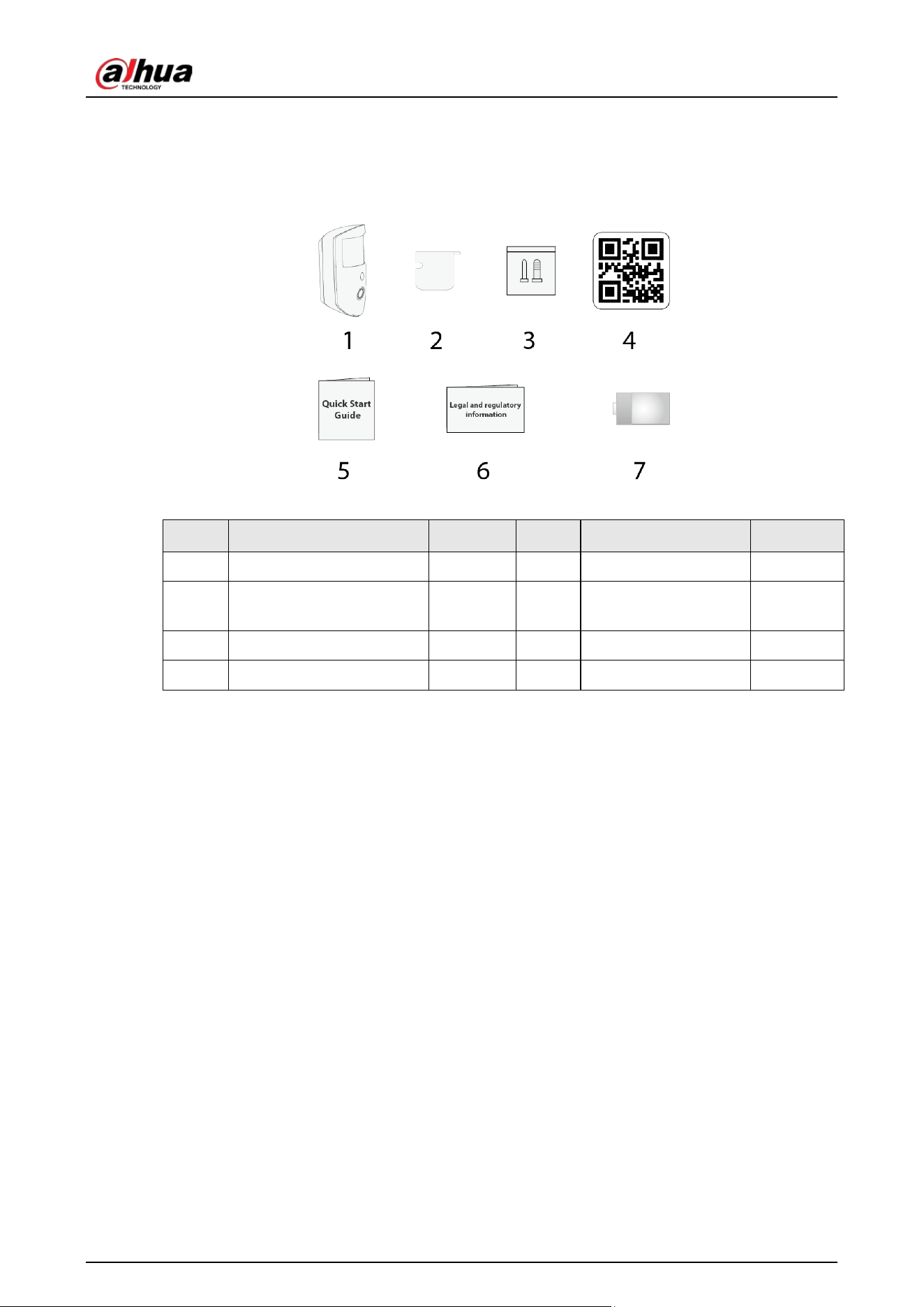
2 Checklist
Figure 2-1 Checklist
Table 2-1 Checklist
No. Item Name Quantity No. Item Name Quantity
1 PIR-Camera 1 5 Quick start guide 1
2
Double-sided adhesive
tape
1 6
Legal and regulatory
information
1
3 Screw package 2 7 Battery 3
4 QR code 1 - - -
User’s Manual
5
3 Design
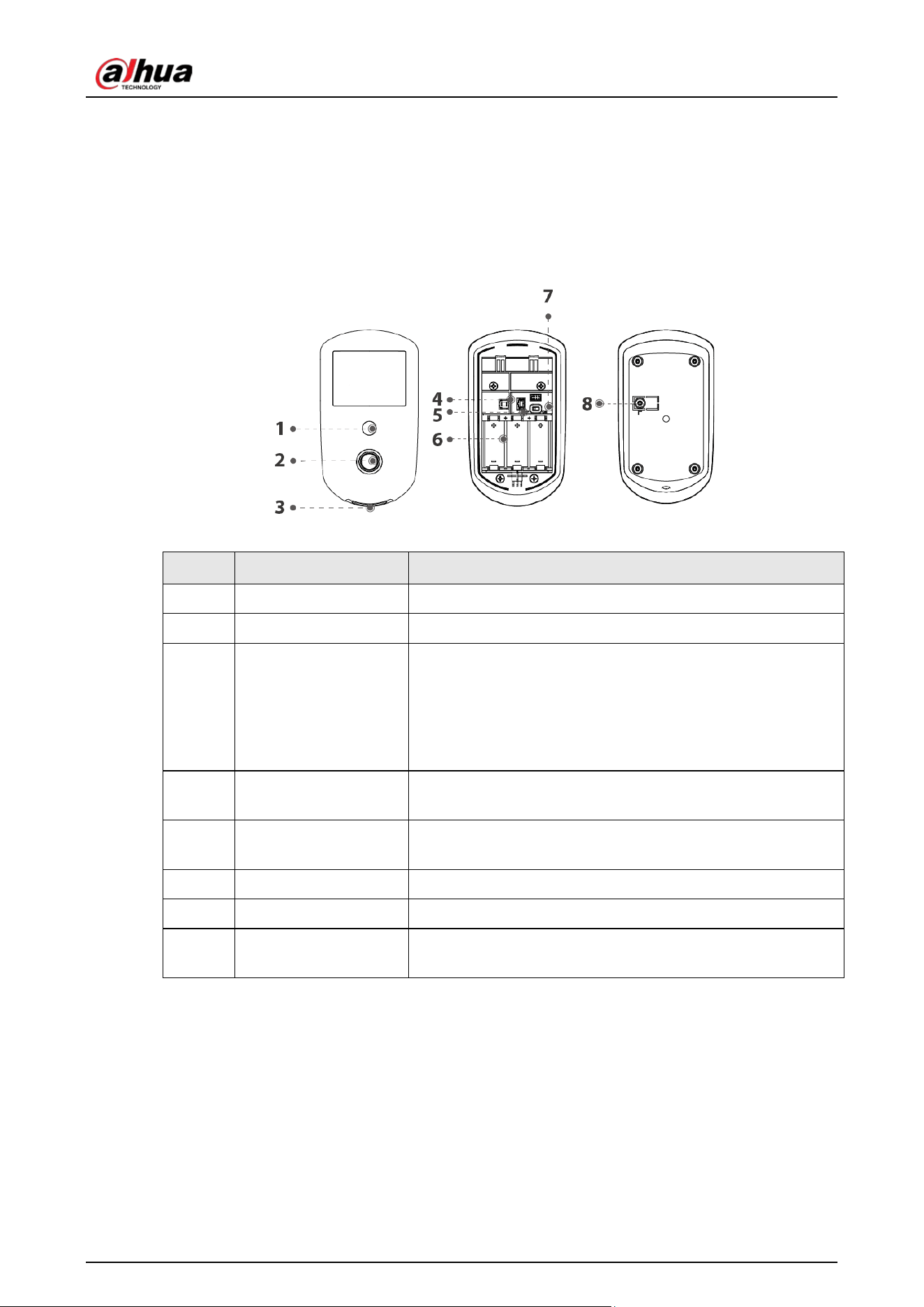
3.1 Appearance
Figure 3-1 Appearance
Table 3-1 Structure
No. Name Description
1 IR light Provides IR light for dark environments.
2 Camera Captures images when an intrusion alarm is triggered.
3 Indicator
●
Flashes green quickly: Pairing mode or reduced
sensitivity mode.
●
Solid green: An alarm event was triggered.
●
Solid green for 2 seconds: Pairing successful.
●
Slowly flashes green for 3 seconds: Pairing failed.
4 Tamper switch
When the tamper switch is released, the tamper alarm will be
triggered
5 Bracket tamper switch
(Optional) If the bracket is removed, the tamper alarm will be
triggered.
6 Battery Insert batteries to power on the PIR-Camera.
7 On/off switch Turn on or turn off the PIR-Camera.
8 Back cover
If the back cover is opened, the tamper alarm will be
triggered.
User’s Manual
6
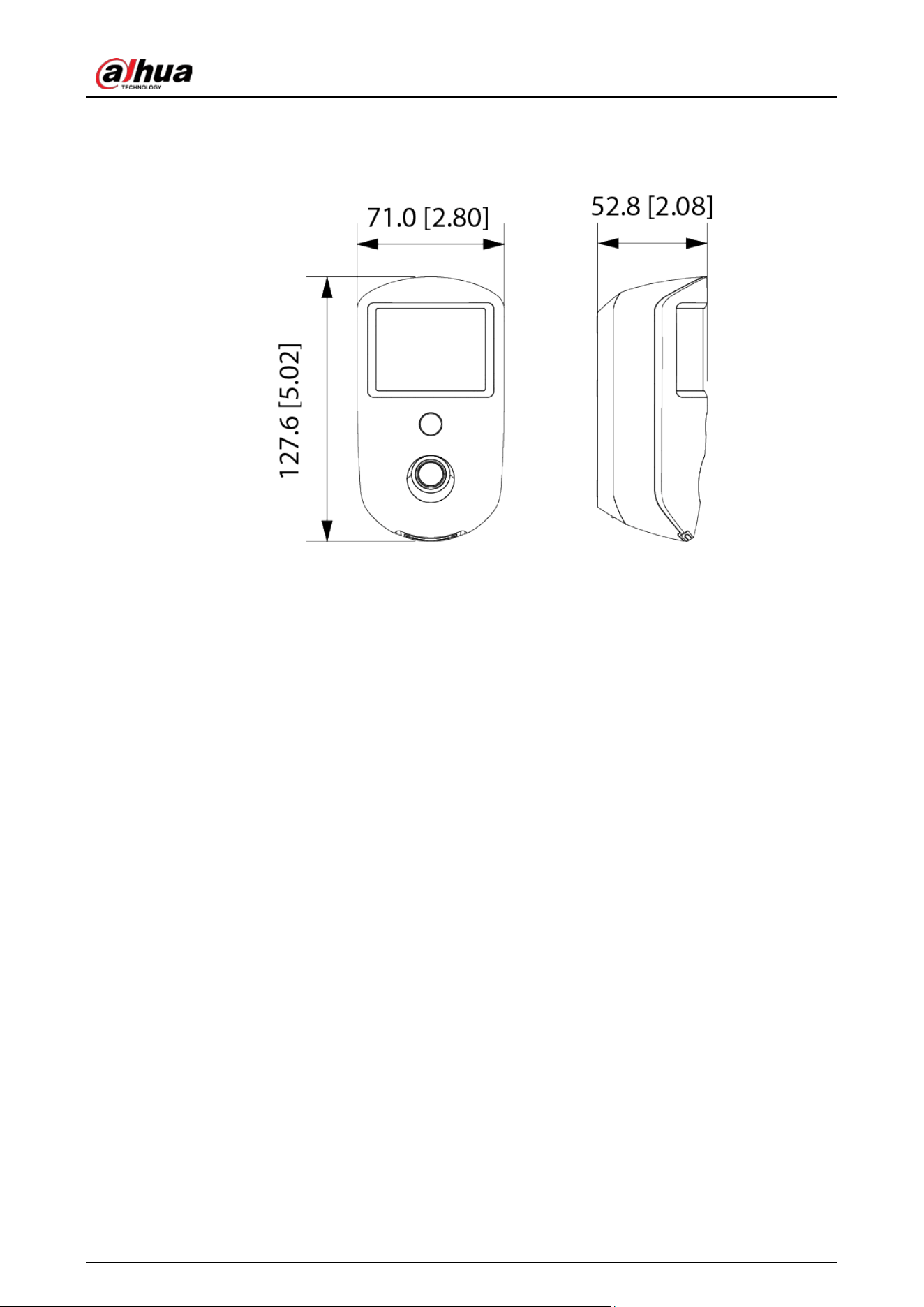
3.2 Dimensions
Figure 3-2 Dimensions (mm [inch])
User’s Manual
7
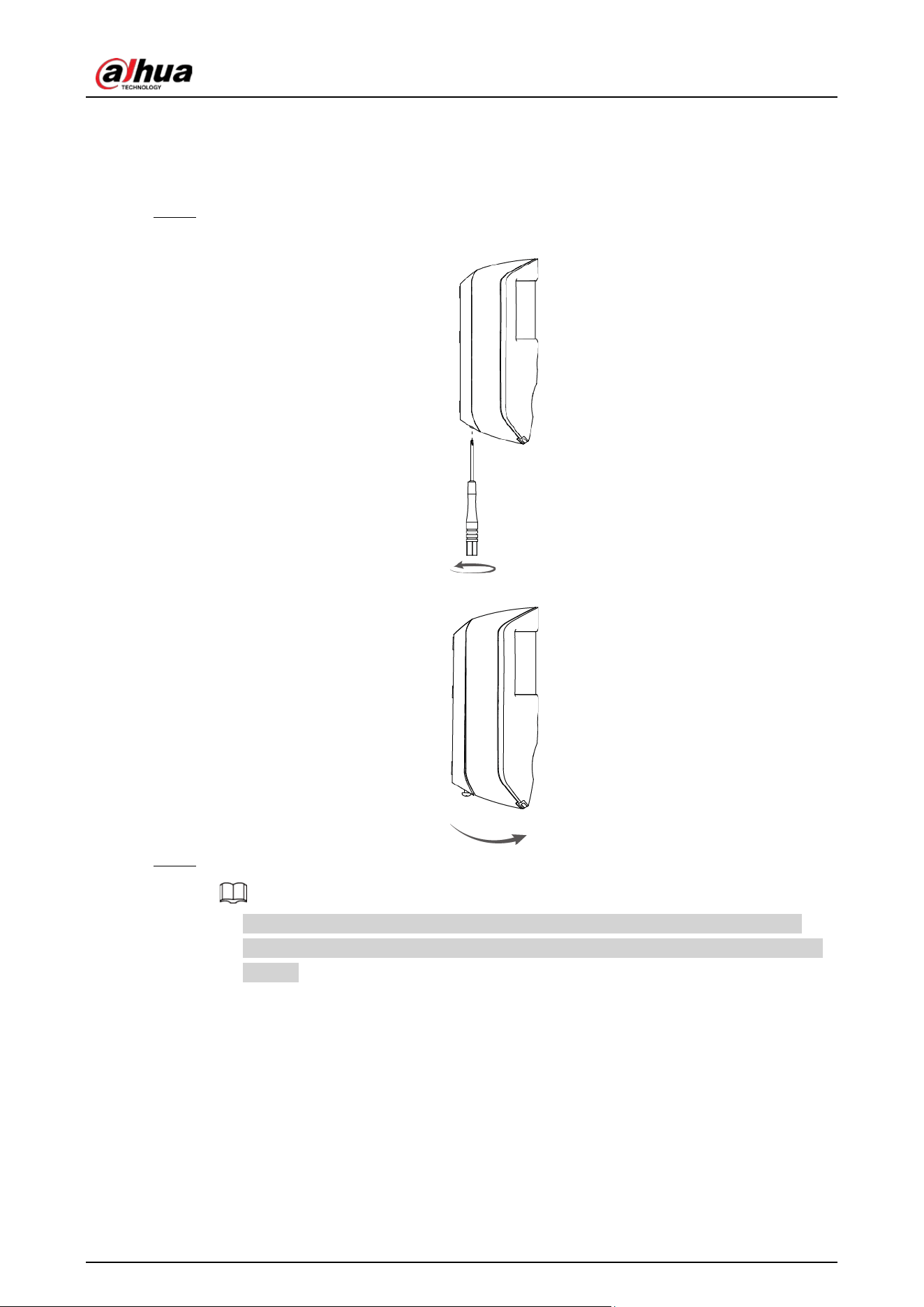
4 Power On
Step 1 Loosen the screw to open the PIR-Camera.
Figure 4-1 Loosen the screw
Figure 4-2 Open the PIR–Camera
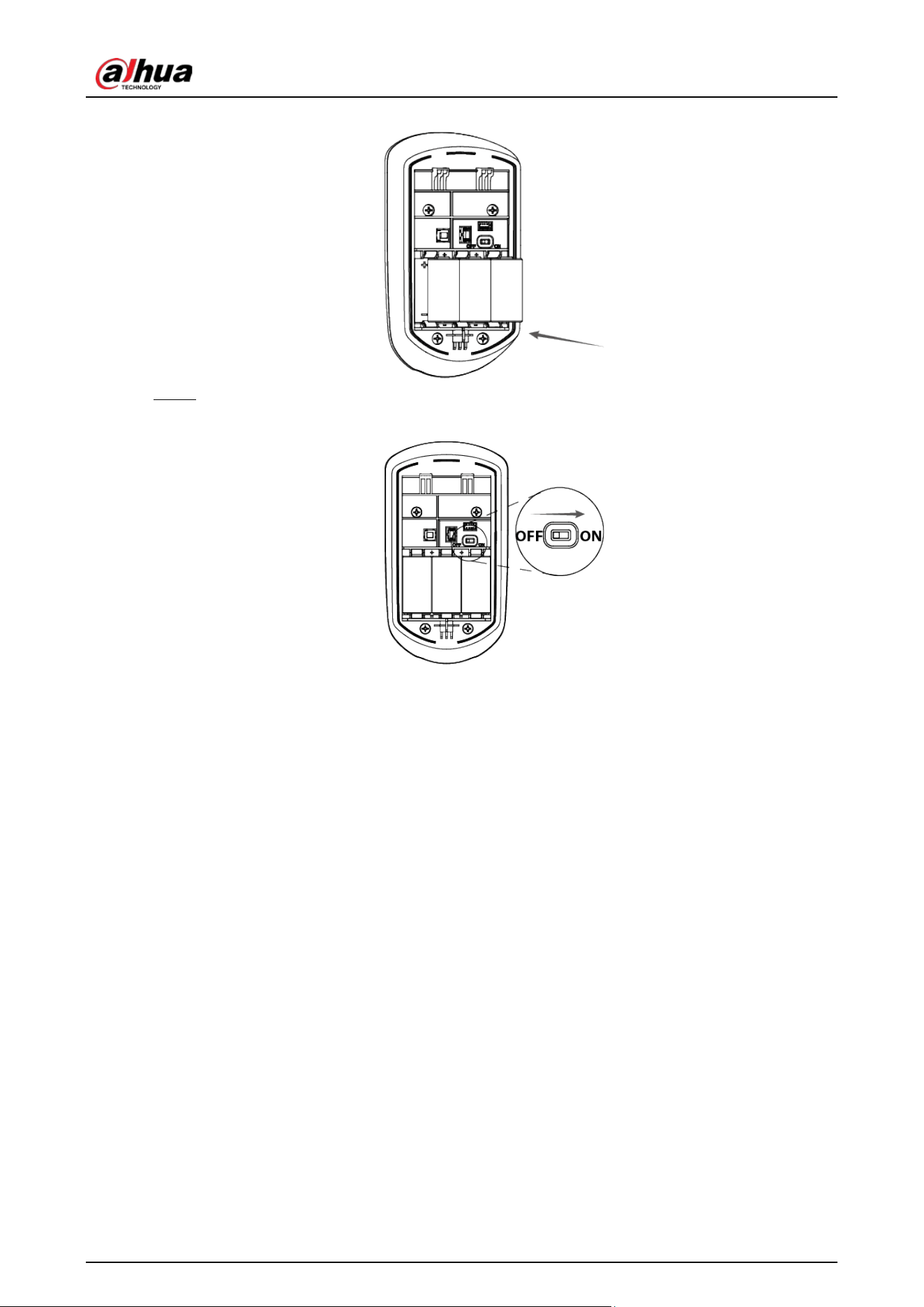
Step 2 Insert batteries into the PIR-Camera.
●
When inserting the batteries, make sure that they are all charged to the same level.
●
When inserting the batteries, align the "+" symbols on the battery to those on the PIR-
Camera.
User’s Manual
8
Figure 4-3 Insert batteries
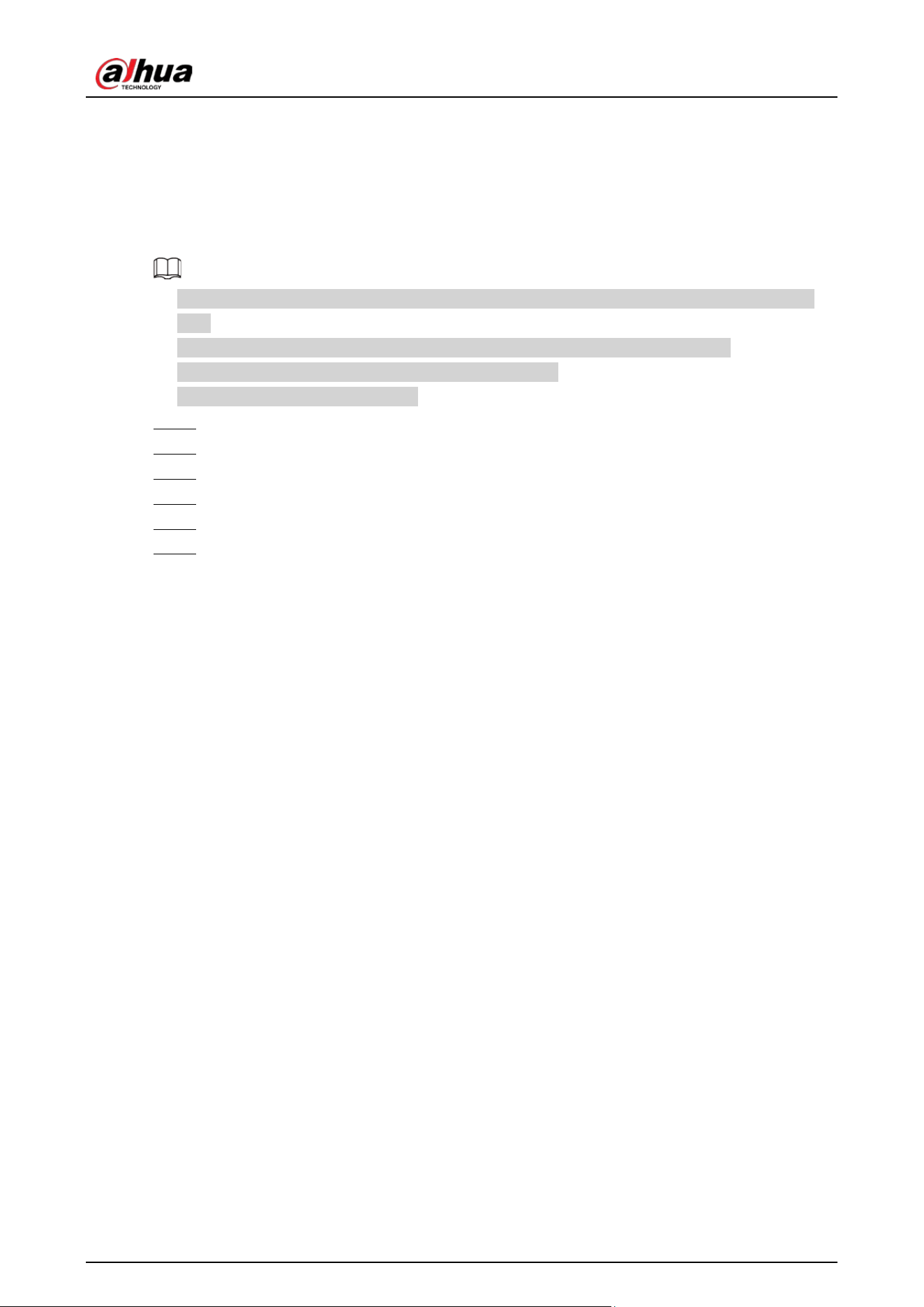
Step 3 Turn on the PIR-Camera.
Figure 4-4 Turn on the PIR-Camera
User’s Manual
9
5 Adding the PIR–Camera to the Hub
Before you connect PIR-Camera to the hub, install the DMSS app to your phone. This manual uses
iOS as an example.
●
Make sure that the version of the DMSS app is 1.99 or later, and the hub is V1.001.R.220625 or
later.
●
Make sure that you have already created an account, and added the hub to DMSS.
●
Make sure that the hub has a stable internet connection.
●
Make sure that the hub is disarmed.
Step 1 Go to the hub screen, and then tap
Peripheral
to add the PIR-Camera.
Step 2 Tap
+
to scan the QR code at the bottom of the PIR-Camera, and then tap
Next
.
Step 3 Tap
Next
after the PIR-Camera has been found.
Step 4 Follow the on-screen instructions and switch the PIR-Camera to on, and then tap
Next
.
Step 5 Wait for the pairing.
Step 6 Customize the name of the PIR-Camera, and select the area, and then tap
Completed
.
User’s Manual
10
6 Installation
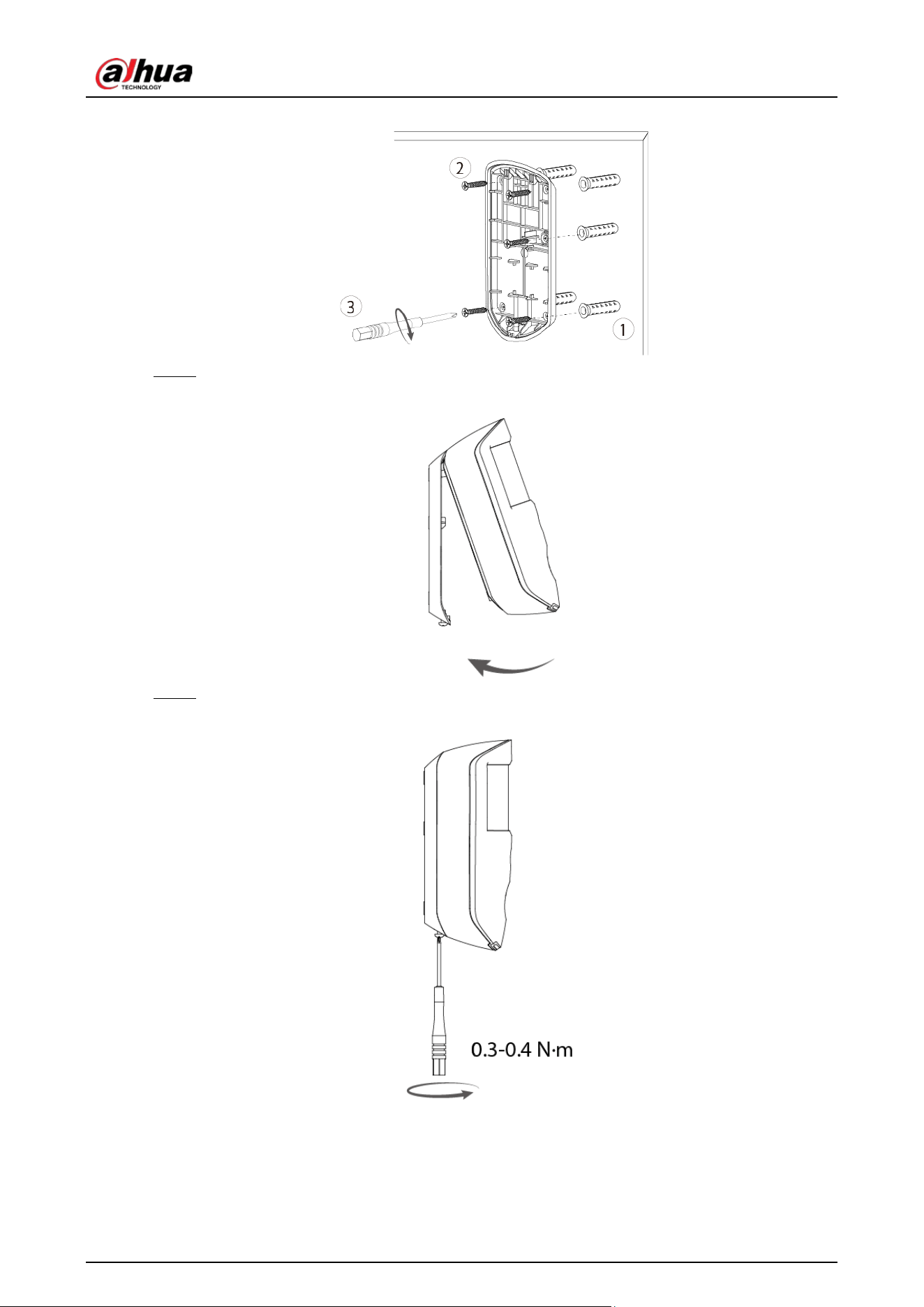
6.1 Field of View
Field of view of the PIR-Camera, are shown below.
When installing and using the PIR-Camera, make sure there are no objects partially or fully obscuring
the detector's field of view.
Figure 6-1 Field of View
6.2 Installing the PIR–Camera
Prior to installation, add the PIR-Camera to the hub and test the signal strength and RF-HD. We
recommend installing the PIR-Camera in a place with a signal strength of at least 2 bars.
Step 1 Drill four holes into the wall according to the hole positions of the PIR-Camera, and then
put the expansion bolts into the holes.
User’s Manual
11
Figure 6-2 Drill holes
Step 2 Close the PIR-Camera.
Figure 6-3 Close the PIR-Camera
Step 3 Secure the PIR-Camera with a screw.
Figure 6-4 Secure the PIR-Camera with a screw
User’s Manual
12
7 Configuration
You can view and edit general information of the PIR-Camera.
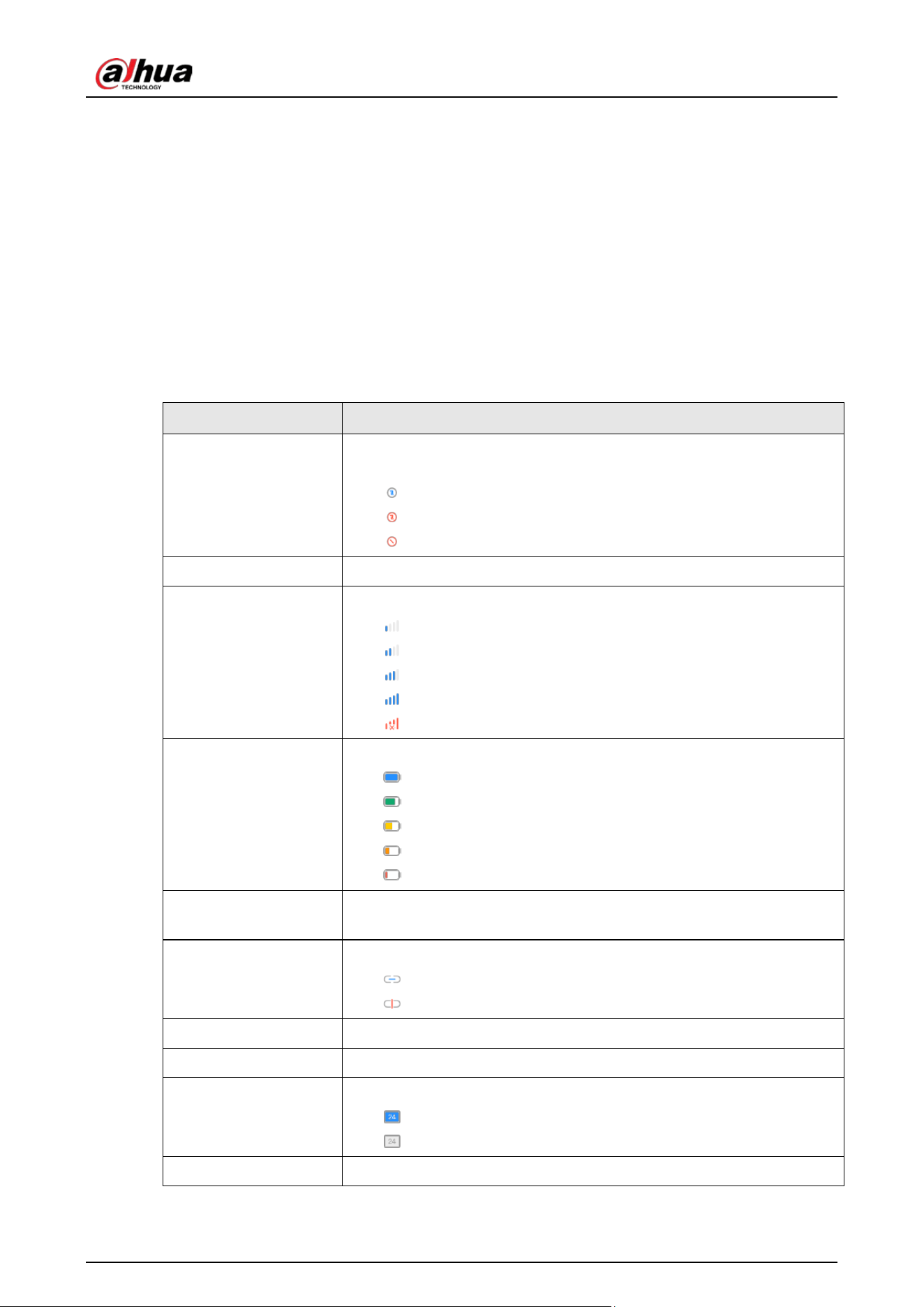
7.1 Viewing Status
On the hub screen, select a PIR-Camera from the peripheral list, and then you can view the status of
the PIR-Camera.
Table 7-1 Status
Parameter Value
Temporary Deactivate
The status for whether the functions of the PIR-Camera are enabled or
disabled.
●
: Enable.
●
: Only disable tamper alarm.
●
: Disable.
Temperature The temperature of the environment.
Signal Strength
The signal strength between the hub and the PIR-Camera.
●
: Low.
●
: Weak.
●
: Good.
●
: Excellent.
●
: No.
Battery Level
The battery level of the PIR-Camera.
●
: Fully charged.
●
: Sufficient.
●
: Moderate.
●
: Insufficient.
●
: Low.
Anti-tampering Status
The tamper status of the PIR-Camera, which reacts to the detachment
of the body.
Online Status
Online and offline status of the PIR-Camera.
●
: Online.
●
: Offline.
Entering Delay Time Entrance delay time.
Exiting Delay Time Exit delay time.
24 H Protection Zone
Status
Active status of the 24 h protection zone.
●
: Enable.
●
: Disable.
Sensitivity Sensitivity level during a shock alarm.
User’s Manual
13
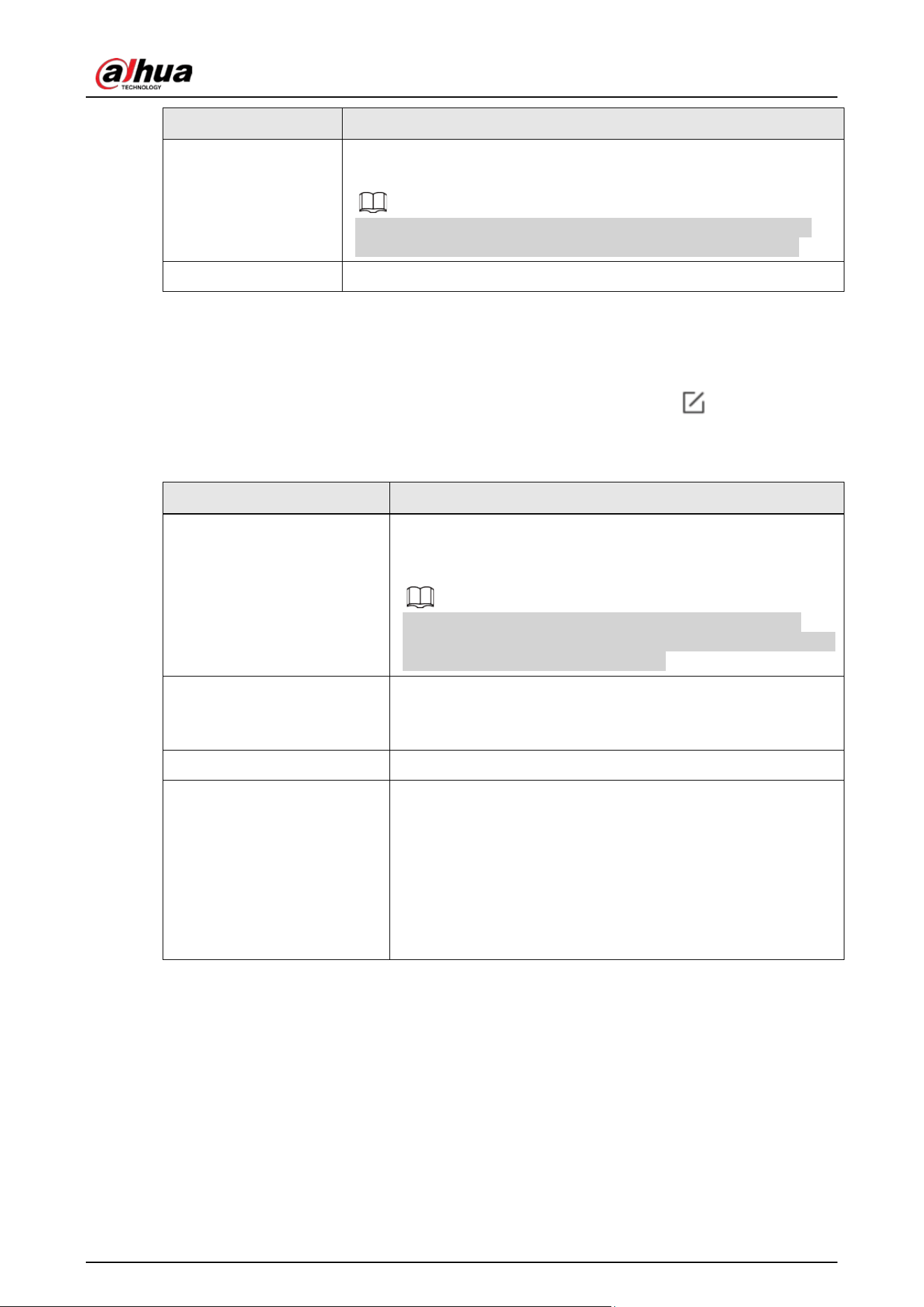
Parameter Value
Transmit through
Repeater
The status of whether the PIR-Camera forwards its messages to the
hub through the repeater.
The PIR-Camera does not support the function of the repeater (DHI-
ARA43 series) to transmit images from the PIR-Camera to the hub.
Program Version The program version of the PIR-Camera.
7.2 Configuring the PIR-Camera
On the hub screen, select a PIR-Camera from the peripheral list, and then tap to configure the
parameters of the PIR-Camera.
Table 7-2 Parameters description
Parameter Description
Snapshot Test
Tap
Snapshot Test
on the PIR-Camera screen, and then the PIR-
Camera will take some snapshots. You can view a notification
message in the message list afterwards.
We recommend you use snapshot test function when you
install the PIR-Camera for the first time. This will help you to find
the most suitable locations and angles.
Device Configuration
●
View PIR-Camera name, type, SN and device model.
●
Edit PIR-Camera name, and then tap
Save
to save
configuration.
Area Select the area to which the PIR-Camera is assigned.
Temporary Deactivate
Whether send commands to the alarm hub.
●
Tap
Enable
, and then the PIR-Camera will send commands
to the hub.
Enable
is set by default.
●
Tap
Only Disable Tamper Alarm
, and then the system will
only ignore tamper alarm messages.
●
Tap
Disable
, and then the PIR-Camera will not send
commands to the hub.
User’s Manual
14
Parameter Description
Snapshot Config
Configure the number of snapshots that can be taken at a time,
the interval and the parameters of the image.
●
Tap
Times to Take Snapshots
, and then select times from
1 to 10.
●
Tap
Trigger Interval
, and then you can select 10, 30, 60, or
120 seconds.
●
Tap
Image resolution and Quantity
, and then for the
image resolution, you can select 1600 × 1200, 1280 × 960,
640 × 480, or 320 × 240. For the image quantity, you can
select between 1 and 20.
For image resolution 1600 × 1200, you can only select
between 1 and 10 for the image quantity.
LED Indicator
LED Indicator is enabled by default. For details on indicator
behavior, see "3.1 Appearance".
If LED Indicator is disabled, the LED indicator will remain off
regardless of whether the PIR-Camera is functioning normally or
not.
Over-temperature Alarm
Enable the
Over-temperature Alarm
function, and then the
alarm will be triggered when the temperature of the area where
the PIR-Camera is installed is higher or lower than the defined
one.
24 H Protection Zone
●
If
24 H Protection Zone
is enabled, even the system is
disarmed, the PIR-Camera can be armed and detects
motion.
●
If
24 H Protection Zone
is disabled, only when the system
is armed, the PIR-Camera can be armed and detects motion.
The PIR-Camera will not be armed immediately, it will begin
before the end of the ping interval of the hub-detector (60
seconds by default).
You can go to the hub's screen to configure the ping
interval of the hub-detector. For details, see the user's
manual of the hub.
Home Mode
Enable the
Home Mode
, and then the selected peripherals
under the hub will be armed.
Delay Mode under Home
Mode
Enable the
Delay Mode under Home Mode
, the selected
peripheral under the hub will be armed and the alarm will not
be triggered until the end of customized delay time.
Only enable
Home Mode
first can
Delay Mode under Home
Mode
take effect.
User’s Manual
15
Parameter Description
Delay Time
The system provides you with time to leave or enter the
protection zone without alarm.
●
Delay Time for Entering Arming Mode
: When you enter
the zone, if you do not disarm the system before the delay
ends, an alarm will be triggered.
Make sure that the delay time for entering arming mode is
no longer than 45 seconds in order to comply with
EN50131-1.
●
Delay Time for Exiting Arming Mode
: When you are in the
zone and arm the system, if you do not leave the zone
before the delay ends, an alarm will be triggered. You can
select from 0 s to 120 s.
The arming mode will be effective after the delay time.
Sensitivity
●
Adjust sensitivity level of motion detection.
●
Select from low, medium and high.
Siren Linkage
When an alarm is triggered, the peripherals will report the alarm
events to the hub and alert with siren.
Signal Strength Detection Test the current signal strength.
Detector Test
Tap
Start Detection
to test the status of the PIR-Camera.
RF-HD Test
Tap
Start Detection
to test the signal strength for transmitting
images between the PIR-Camera and the hub.
Transmit Power
●
Select from high, low, and automatic.
●
The higher transmission power levels are, the further
transmissions can travel, but power consumption increases.
If you select
Low
, the PIR-Camera will enter into reduced
sensitivity mode.
Cloud Update Update online.
Delete
Delete the PIR-Camera.
Go to the hub screen, select the PIR-Camera from the
peripheral list, and then swipe left to delete it.

User’s Manual
16
Appendix 1 Cybersecurity Recommendations
Cybersecurity is more than just a buzzword: it’s something that pertains to every device that is
connected to the internet. IP video surveillance is not immune to cyber risks, but taking basic steps
toward protecting and strengthening networks and networked appliances will make them less
susceptible to attacks. Below are some tips and recommendations from Dahua on how to create a
more secured security system.
Mandatory actions to be taken for basic device network security:
1.
Use Strong Passwords
Please refer to the following suggestions to set passwords:
●
The length should not be less than 8 characters.
●
Include at least two types of characters; character types include upper and lower case letters,
numbers and symbols.
●
Do not contain the account name or the account name in reverse order.
●
Do not use continuous characters, such as 123, abc, etc.
●
Do not use overlapped characters, such as 111, aaa, etc.
2.
Update Firmware and Client Software in Time
●
According to the standard procedure in Tech-industry, we recommend to keep your device
(such as NVR, DVR, IP camera, etc.) firmware up-to-date to ensure the system is equipped with
the latest security patches and fixes. When the device is connected to the public network, it is
recommended to enable the“auto-check for updates” function to obtain timely information
of firmware updates released by the manufacturer.
●
We suggest that you download and use the latest version of client software.
"Nice to have" recommendations to improve your device network security:
1.
Physical Protection
We suggest that you perform physical protection to device, especially storage devices. For
example, place the device in a special computer room and cabinet, and implement well-done
access control permission and key management to prevent unauthorized personnel from
carrying out physical contacts such as damaging hardware, unauthorized connection of
removable device (such as USB flash disk, serial port), etc.
2.
Change Passwords Regularly
We suggest that you change passwords regularly to reduce the risk of being guessed or cracked.
3.
Set and Update Passwords Reset Information Timely
The device supports password reset function. Please set up related information for password
reset in time, including the end user’s mailbox and password protection questions. If the
information changes, please modify it in time. When setting password protection questions, it is
suggested not to use those that can be easily guessed.
4.
Enable Account Lock
The account lock feature is enabled by default, and we recommend you to keep it on to
guarantee the account security. If an attacker attempts to log in with the wrong password several
times, the corresponding account and the source IP address will be locked.
5.
Change Default HTTP and Other Service Ports
We suggest you to change default HTTP and other service ports into any set of numbers between

User’s Manual
17
1024–65535, reducing the risk of outsiders being able to guess which ports you are using.
6.
Enable HTTPS
We suggest you to enable HTTPS, so that you visit Web service through a secure communication
channel.
7.
MAC Address Binding
We recommend you to bind the IP and MAC address of the gateway to the device, thus reducing
the risk of ARP spoofing.
8.
Assign Accounts and Privileges Reasonably
According to business and management requirements, reasonably add users and assign a
minimum set of permissions to them.
9.
Disable Unnecessary Services and Choose Secure Modes
If not needed, it is recommended to turn off some services such as SNMP, SMTP, UPnP, etc., to
reduce risks.
If necessary, it is highly recommended that you use safe modes, including but not limited to the
following services:
●
SNMP: Choose SNMP v3, and set up strong encryption passwords and authentication
passwords.
●
SMTP: Choose TLS to access mailbox server.
●
FTP: Choose SFTP, and set up strong passwords.
●
AP hotspot: Choose WPA2-PSK encryption mode, and set up strong passwords.
10.
Audio and Video Encrypted Transmission
If your audio and video data contents are very important or sensitive, we recommend that you
use encrypted transmission function, to reduce the risk of audio and video data being stolen
during transmission.
Reminder: encrypted transmission will cause some loss in transmission efficiency.
11.
Secure Auditing
●
Check online users: we suggest that you check online users regularly to see if the device is
logged in without authorization.
●
Check device log: By viewing the logs, you can know the IP addresses that were used to log in
to your devices and their key operations.
12.
Network Log
Due to the limited storage capacity of the device, the stored log is limited. If you need to save the
log for a long time, it is recommended that you enable the network log function to ensure that
the critical logs are synchronized to the network log server for tracing.
13.
Construct a Safe Network Environment
In order to better ensure the safety of device and reduce potential cyber risks, we recommend:
●
Disable the port mapping function of the router to avoid direct access to the intranet devices
from external network.
●
The network should be partitioned and isolated according to the actual network needs. If
there are no communication requirements between two sub networks, it is suggested to use
VLAN, network GAP and other technologies to partition the network, so as to achieve the
network isolation effect.
●
Establish the 802.1x access authentication system to reduce the risk of unauthorized access to
private networks.
●
Enable IP/MAC address filtering function to limit the range of hosts allowed to access the

User’s Manual
18
device.
More information
Please visit Dahua official website security emergency response center for security announcements
and the latest security recommendations.
User’s Manual