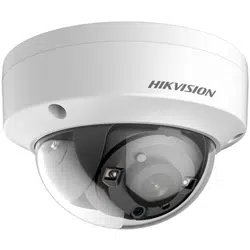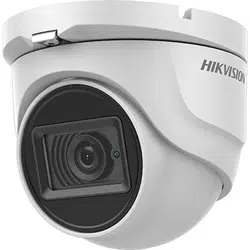
TURBO HD
U1T Series Turret & Dome
Camera
User Manual
User Manual
Thank you for purchasing our product. If there are any
questions, or requests, do not hesitate to contact the
dealer.
This manual applies to the models below:
Type
Model
Type I Camera
DS-2CE78U1T-IT1F
DS-2CE78U1T-IT3F
Type II Camera
DS-2CE76U1T-ITPF
Type III Camera
DS-2CE76U1T-ITMF
Type IV Camera
DS-2CE57U1T-VPITF
This manual may contain technical incorrect places or
printing errors, and the content is subject to change
without notice. The updates will be added to the new
version of this manual. We will readily improve or update
the products or procedures described in the manual.
0100001080607

Regulatory Information
FCC Information
Please take attention that changes or modification not
expressly approved by the party responsible for
compliance could void the user’s authority to operate the
equipment.
FCC compliance: This equipment has been tested and
found to comply with the limits for a Class A digital
device, pursuant to part 15 of the FCC Rules. These limits
are designed to provide reasonable protection against
harmful interference when the equipment is operated in
a commercial environment. This equipment generates,
uses, and can radiate radio frequency energy and, if not
installed and used in accordance with the instruction
manual, may cause harmful interference to radio
communications. Operation of this equipment in a
residential area is likely to cause harmful interference in
which case the user will be required to correct the
interference at his own expense.
FCC Conditions
This device complies with part 15 of the FCC Rules.
Operation is subject to the following two conditions:
1. This device may not cause harmful interference.
2. This device must accept any interference received,
including interference that may cause undesired
operation.
EU Conformity Statement
This product and - if applicable - the
supplied accessories too are marked with
"CE" and comply therefore with the
applicable harmonized European standards
listed under the Low Voltage Directive 2014/35/EU, the
EMC Directive 2014/30/EU.
2012/19/EU (WEEE directive): Products
marked with this symbol cannot be
disposed of as unsorted municipal waste in
the European Union. For proper recycling,
return this product to your local supplier
upon the purchase of equivalent new
equipment, or dispose of it at designated collection
points. For more information see: www.recyclethis.info.
2006/66/EC (battery directive): This product contains a
battery that cannot be disposed of as
unsorted municipal waste in the European
Union. See the product documentation for
specific battery information. The battery is
marked with this symbol, which may
include lettering to indicate cadmium (Cd), lead (Pb), or
mercury (Hg). For proper recycling, return the battery
to your supplier or to a designated collection point. For
more information see: www.recyclethis.info.
Industry Canada ICES-003 Compliance
This device meets the CAN ICES-3 (A)/NMB-3(A)
standards requirements.
Safety Instruction
These instructions are intended to ensure that user can
use the product correctly to avoid danger or property
loss.
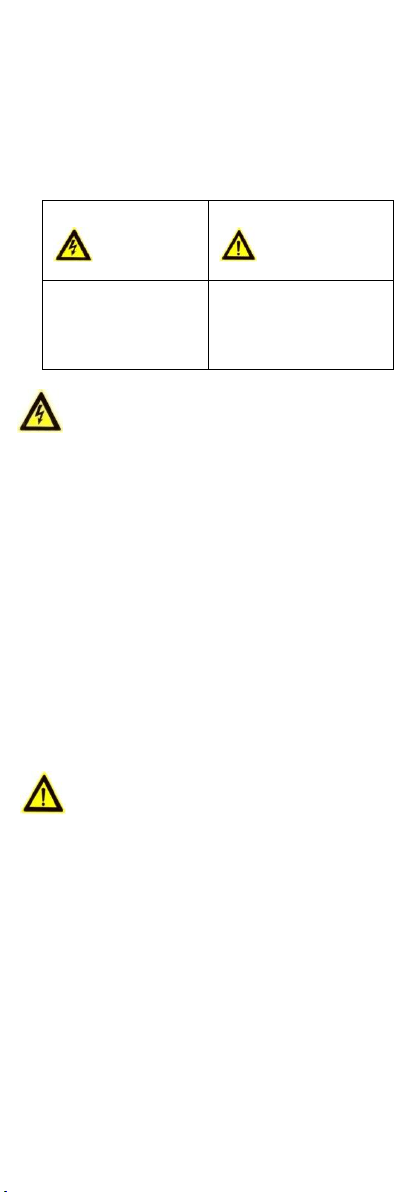
The precaution measure is divided into “Warnings” and
“Cautions”.
Warnings: Serious injury or death may occur if any of the
warnings are neglected.
Cautions: Injury or equipment damage may occur if any
of the cautions are neglected.
Warnings
In the use of the device, you must be in strict
compliance with the electrical safety regulations of the
nation and region.
Input voltage should meet both the SELV (Safety Extra
Low Voltage) and the Limited Power Source with 12
VDC according to the IEC60950-1 standard. Refer to
technical specifications for detailed information.
Do not connect multiple devices to one power adapter
to avoid over-heating or a fire hazard caused by
overload.
Make sure that the plug is firmly connected to the
power socket.
Make sure that the device is firmly fixed if wall
mounting or ceiling mounting is adopted.
If smoke, odor or noise rise from the device, turn off
the power at once and unplug the power cord, and
then contact the service center.
Never attempt to disassemble the camera by
unprofessional personal.
Cautions
Do not drop the camera or subject it to physical shock.
Do not place the camera in extremely hot, cold (the
operating temperature shall be -40°C to 60°C), dusty or
damp locations, and do not expose it to high
electromagnetic radiation.
Do not touch senor modules with fingers.
If cleaning is necessary, use clean cloth with a bit of
ethanol and wipe it gently.
Do not aim the camera at the sun or extra bright places.
The sensor may be burned out by a laser beam, so
when any laser equipment is in using, make sure that
the surface of sensor will not be exposed to the laser
beam.
Do not expose the device to high electromagnetic
radiation or extremely hot, cold, dusty or damp
environment.
To avoid heat accumulation, good ventilation is
required for the operating environment.
Keep the camera away from liquid while in use for non-
water-proof device.
Warnings Follow
these safeguards to
prevent serious injury
or death.
Cautions Follow these
precautions to prevent
potential injury or
material damage.
While in delivery, the camera shall be packed in its
original packing, or packing of the same texture.
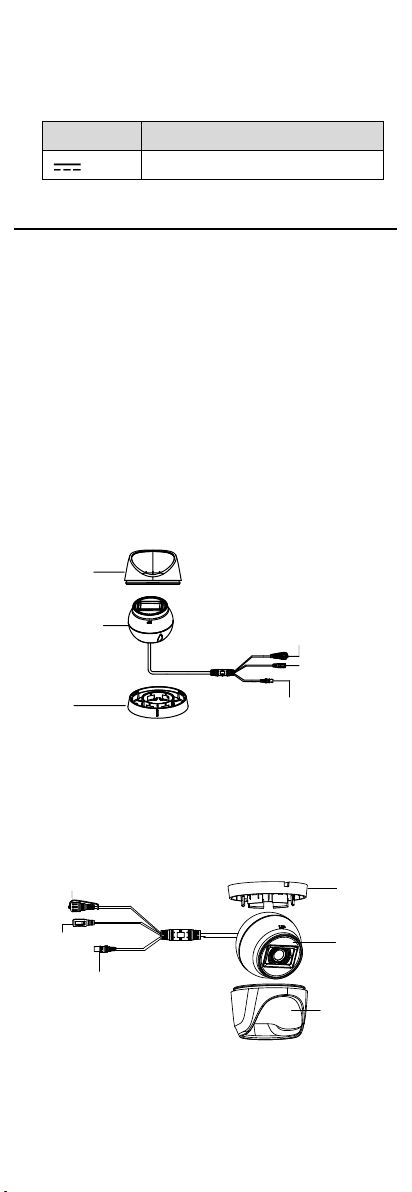
Mark Description
Table 0-1 Mark Description
Mark
Description
DC Voltage
1 Introduction
1.1 Product Features
The main features are as follows:
High performance CMOS sensor
IR cut filter with auto switch
OSD menu with configurable parameters
Auto white balance
Internal synchronization
SMART IR mode
3-axis adjustment
1.2 Overview
This manual applies to three types of turret cameras, and
one type of dome camera.
The overviews of each type are shown in the figures
below.
1.2.1 Overview of Type I Camera
DC12VIN
Enclosure
Main
Body
Mounting
Base
Video Cable
Power Cord
Switch
Button
Figure 1-1 Overview of Type I Camera
Note:
Press and hold the switch button for 5 seconds to switch
the video output. Four kinds of video outputs are
available: TVI, AHD, CVI, and CVBS.
1.2.2 Overview of Type II Camera
DC12VIN
Mounting
Base
Main
Body
Enclosure
Video Cable
Power
Cord
Switch Button
Figure 1-2 Overview of Type II Camera
Note:
Press and hold the switch button for 5 seconds to switch
the video output. Four kinds of video outputs are
available: TVI, AHD, CVI, and CVBS.
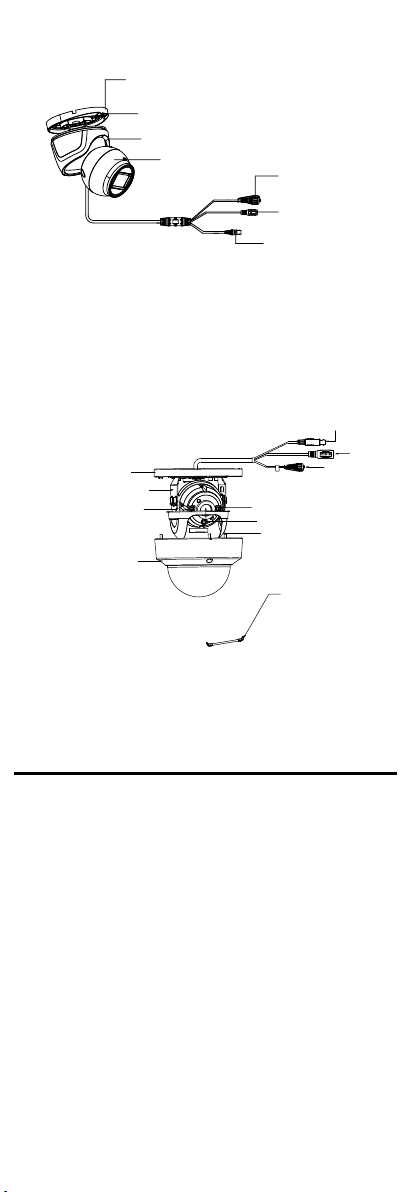
1.2.3 Overview of Type III Camera
DC12 VIN
Mounting
Base
Clip Plate
Main Body
Enclosure
Switch
Button
Power Cord
Video
Cable
Figure 1-3 Overview of Type III Camera
Note:
Press and hold the switch button for 5 seconds to switch the
video output. Four kinds of video outputs are available: TVI,
AHD, CVI, and CVBS.
1.2.4 Overview of Type IV Camera
Mounting Base
Tilt Adjusting
Screw
Pan Adjusting Screw
Bubble
Video Cable
Power
Cord
Switch
Button
Safety
Rope
Figure 1-4 Overview of Type III Camera
Note:
Press and hold the switch button for 5 seconds to switch
the video output. Four kinds of video outputs are
available: TVI, AHD, CVI, and CVBS.
2 Installation
Before you start:
Make sure that the device in the package is in good
condition and all the assembly parts are included.
Make sure that all the related equipment is power-off
during the installation.
Check the specification of the products for the
installation environment.
Check whether the power supply is matched with your
required output to avoid damage.
Make sure the wall is strong enough to withstand three
times the weight of the camera and the bracket.
If the wall is cement, insert expansion screws before
installing the camera. If the wall is wooden, use self-
tapping screw to secure the camera.
If the product does not work properly, contact your
dealer or the nearest service center. Do NOT
disassemble the camera for repair or maintenance by
yourself.
2.1 Installation of Type I Camera
Before you start:
Both wall mounting and ceiling mounting are suitable for
the turret camera. Ceiling mounting will be taken as an
example in this section. You can take steps of ceiling
mounting as the reference, when adopting the wall
mounting.
Steps:
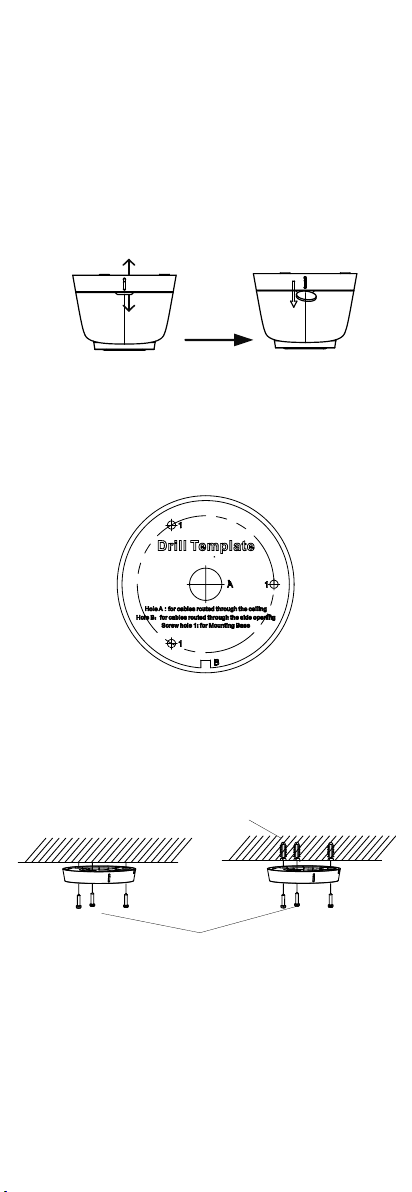
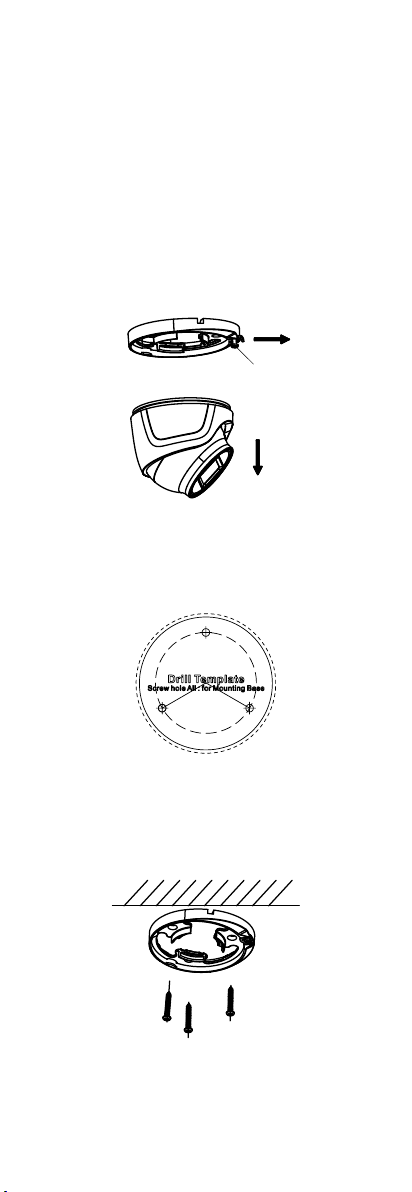
1. Disassemble the turret camera by rotating the camera
to align the notch to one of the marks, as shown in the
figure below.
Mark
Notch
Figure 2-1 Disassemble the Camera
2. Remove the mounting base from the camera body
with a flat object, e.g., a coin.
3. Paste the drill template (supplied) to the place where
you want to install the camera.
4. Drill the screw holes and the cable hole (optional) on
the ceiling/wall according to the drill template.
Figure 2-2 Drill Template
Note:
Drill the cable hole, when adopting the ceiling outlet
to route the cable.
5. Attach the mounting base to the ceiling/wall, and
secure them with supplied screws.
Self-tapping Screws
Expansion Bolts
Figure 2-3 Attach the Mounting Base to the Ceiling
Note:
The supplied screw package contains self-tapping
screws, and expansion bolts.
For cement wall/ceiling, expansion bolts are required
to fix the camera. For wooden wall/ceiling, self-
tapping screws are required.
6. Route the cables through the cable hole, or the side
opening.
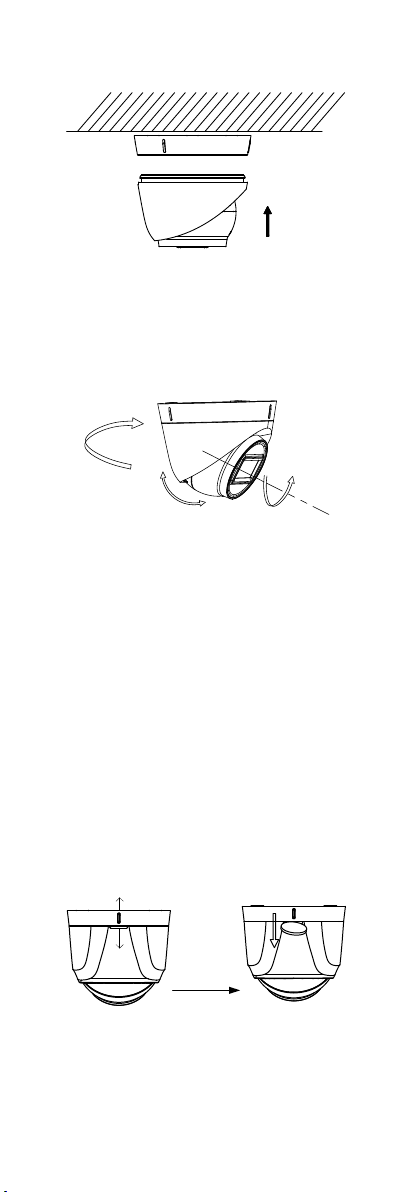
7. Align the camera with the mounting base, and tighten
the screws to secure the camera on the mounting
base.
Figure 2-4 Secure the Camera with Mounting Base
8. Connect the corresponding cables, such as power
cord, and video cable.
9. Power on the camera to check whether the image on
the monitor is gotten from the optimum angle. If not,
adjust the camera according to the figure below to get
an optimum angle.
Pan Position
[0° to 360°]
Tilt Position
[0°to 75°]
Rotation Position
[0°to 360°]
Figure 2-5 3-axis Adjustment
1). Hold the camera body and rotate the enclosure to
adjust the pan position [0° to 360°].
2). Move the camera body up and down to adjust the
tilt position [0° to 75°].
3). Rotate the camera body to adjust the rotation
position [0° to 360°].
2.2 Installation of Type II Camera
Before you start:
Both wall mounting and ceiling mounting are suitable for
the turret camera. Ceiling mounting will be taken as an
example in this section. You can take steps of ceiling
mounting as the reference, when adopting the wall
mounting.
Steps:
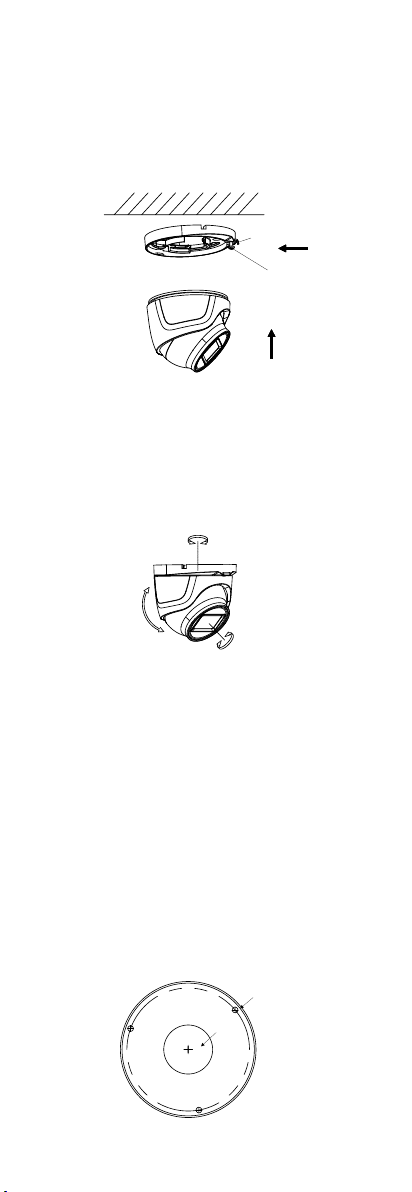
1. Disassemble the turret camera by rotating the camera
to align the notch to one of the marks, as shown in the
figure below.
Mark
Notch
Figure 2-6 Disassemble the Camera
2. Remove the mounting base from the camera body
with a flat object, e.g., a coin.
3. Paste the drill template (supplied) to the place where
you want to install the camera.
4. Drill the screw holes according to the drill template,
and the cable hole (optional) on the ceiling.
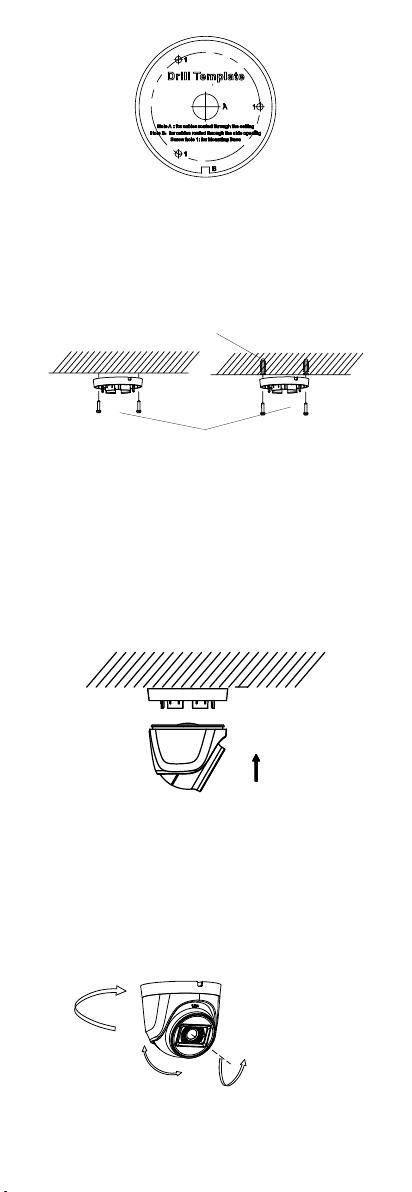
Figure 2-7 Drill Template
Note:
Drill the cable hole in the center of the drill template,
when adopting the ceiling outlet to route the cable.
5. Secure the mounting base to the ceiling with the
supplied screws.
Self-tapping
Screws
Expansion
Bolts
Figure 2-8 Fix the Mounting Base to the Ceiling
Note:
The supplied screw package contains self-tapping
screws, and expansion bolts.
For cement wall/ceiling, expansion bolts are
required to fix the camera. For wooden wall/ceiling,
self-tapping screws are required.
6. Route the cables through the cable hole, or the side
opening.
7. Secure the camera on the mounting base.
Figure 2-9 Secure the Camera
8. Connect the corresponding cables, such as power
cord, and video cable.
9. Power on the camera to check whether the image on
the monitor is gotten from the optimum angle. If not,
adjust the camera according to the figure below to get
an optimum angle.
Pan Position
[0° to 360°]
Tilt Position
[0°to75°]
Rotation Position
[0° to 360°]
Figure 2-10 3-axis Adjustment
1). Hold the camera body and rotate the enclosure to
adjust the pan position [0° to 360°].
2). Move the camera body up and down to adjust the
tilt position [0° to 75°].
3). Rotate the camera body to adjust the rotation
position [0° to 360°].
2.3 Installation of Type III Camera
Before you start:
Both wall mounting and ceiling mounting are suitable for
the turret camera. Ceiling mounting will be taken as an
example in this section. You can take steps of ceiling
mounting as the reference, when adopting the wall
mounting.
Steps:
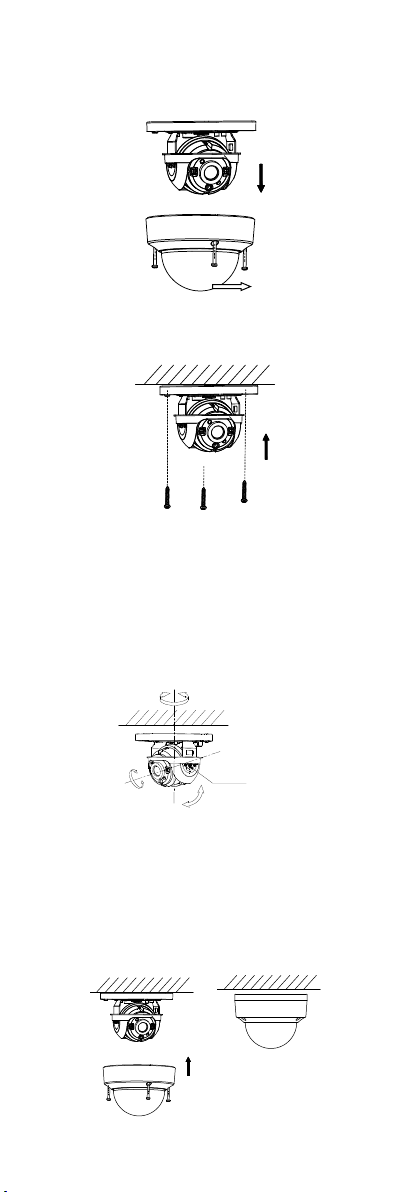
1. Disassemble the turret camera by losing the screw.
Screw
Figure 2-11 Disassemble the Camera
2. Remove the mounting base from the camera body.
3. Paste the drill template (supplied) to the place where
you want to install the camera.
4. Drill the screw holes according to the drill template,
and the cable hole (optional) on the ceiling.
Figure 2-12 Drill Template
Note:
Drill the cable hole in the center of the drill template,
when adopting the ceiling outlet to route the cable.
5. Secure the mounting base to the ceiling with the
supplied screws.
Figure 2-13 Fix the Mounting Base to the Ceiling
Note:
The supplied screw package contains self-tapping
screws, and expansion bolts.
For cement wall/ceiling, expansion bolts are
required to fix the camera. For wooden wall/ceiling,
self-tapping screws are required.
6. Route the cables through the cable hole, or the side
opening.
7. Secure the camera on the mounting base.
1) pull out the clip plate, and then to combine the
camera with the mounting base.
2) Push the clip plate in, and secure the camera by
tightening the screw.
Screw
Clip Plate
Figure 2-14 Secure the Camera
8. Connect the corresponding cables, such as power
cord, and video cable.
9. Power on the camera to check whether the image on
the monitor is gotten from the optimum angle. If not,
adjust the camera according to the figure below to get
an optimum angle.
Pan Position
[0° to 360°]
Tilt Position
[0°to75°]
Rotation Position
[0° to 360°]
Figure 2-15 3-axis Adjustment
1). Hold the camera body and rotate the enclosure to
adjust the pan position [0° to 360°].
2). Move the camera body up and down to adjust the
tilt position [0° to 75°].
3). Rotate the camera body to adjust the rotation
position [0° to 360°].
Note:
Loose the screw on the mounting base before
adjusting the monitoring angle.
2.4 Ceiling Mounting of Type IV Camera
Steps:
1. Paste the dill template to the ceiling.
2. Drill the screw holes and cable hole (optional) in the
ceiling according to the drill template.
Drill Template
Hole A: for cables routed through the ceiling
screw hole 1: for Mounting Base
1
1
1
A
Screw
Hole
Cable
Hole
Figure 2-16 Drill Template
Note:
Cable hole is required, when adopting the ceiling
outlet to route cables.
3. Loosen the screws with a hex wrench (supplied) to
remove the bubble.
Figure 2-17 Remove the Bubble
4. Fix the mounting base on the ceiling with supplied
screws.
Figure 2-18 Fix the Mounting Base
5. Route the cables through the cable hole, or the side
opening.
6. Connect the corresponding cables, such as power
cord, and video cable.
7. Power on the camera to check whether the image on
the monitor is gotten from the optimum angle. If not,
adjust the camera according to the figure below to get
an optimum angle
Adjusting Screw
0° to 355°
0° to 75°
0° to 355°
Figure 2-19 Type I Camera 2-Axis Adjustment
1). Loosen the tilt adjusting screw to adjust the tilt
position [0° to 75°].
2). Hold the black liner to adjust the pan position [0°
to 355°].
3). Hold the camera body to adjust the rotation
position [0° to 355°].
8. Reinstall the bubble, and tighten the screws.
Figure 2-20 Bubble Reinstallation
3 Menu Description
Purpose:
Call the menu by clicking the button on the PTZ
Control interface, or call preset No.95.
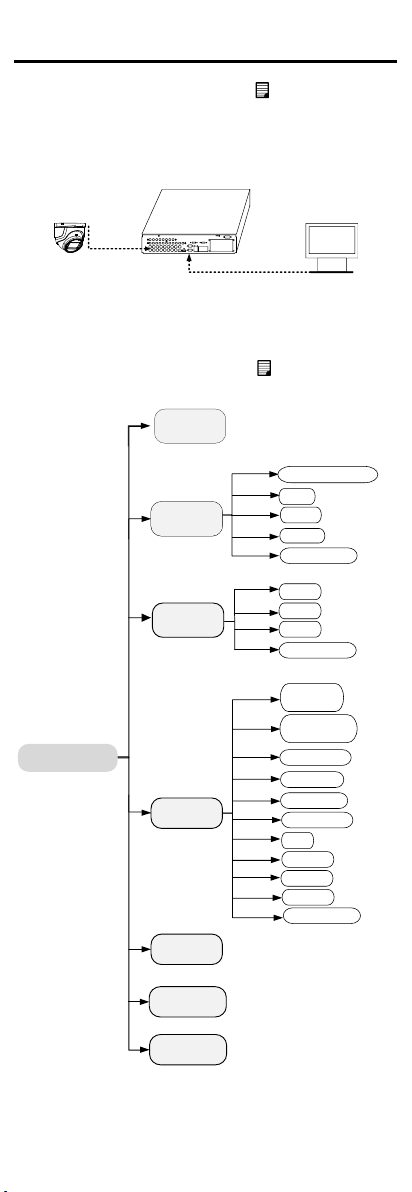
Steps:
1. Connect the camera with the TVI DVR, and the
monitor, shown as the figure 3-1.
Camera
TVI DVR
Monitor
Figure 3-1 Connection
2. Power on the analog camera, TVI DVR, and the
monitor to view the image on the monitor.
3. Click PTZ Control to enter the PTZ Control interface.
4. Call the camera menu by clicking button, or call
preset No. 95.
MAIN MENU
VIDEO
SETTINGS
FACTORY
DEFAULT
EXIT
EXPOSURE MODE
CONTRAST
SHARPNESS
SATURATION
DNR
MIRROR
BACK
AGC
EXPOSURE
VIDEO
FORMAT
BACK
EXIT
SAVE & EXIT
WHITE
BALANCE
BRIGHTNESS
SAVE & EXIT
EXIT
SAVE & EXIT
DAY/NIGHT
MODE
BACK
EXIT
SAVE & EXIT
IMAGE
MODE
Figure 3-2 Main Menu Overview
5. Click the direction arrow to control the camera.
1). Click up/down direction button to select the item.
2). Click Iris + to confirm the selection.

3). Click left/right direction button to adjust the value
of the selected item.
3.1 VIDEO FORMAT
You can set the video format as 8M[email protected] fps, 8
MP@15fps, 5MP@20fps, 4MP@25fps, 4MP@30fps,
2MP@25fps, and 2MP@30fps.
Note:
When switching the video output as CVBS, you can
set the video format as PAL, or NTSC.
When switching the video output as AHD, only
5MP@20fps is supported.
When switching the video output as CVI, you can set
the video format as [email protected] fps, or 8MP@15fps.
3.2 EXPOSURE
Exposure describes the brightness-related parameters,
which can be adjusted by EXPOSURE MODE, and AGC.
EXPOSURE
EXPOSURE MODE
AGC
BACK
EXIT
SAVE & EXIT
GLOBAL
LOW
Figure 3-3 EXPOSURE
EXPOSURE MODE
You can set the EXPOSURE MODE as GLOBAL, BLC, and
DWDR.
GLOBAL
GLOBAL refers to the normal exposure mode which
performs exposure according to the whole image
brightness.
BLC (Backlight Compensation)
BLC (Backlight Compensation) compensates light for the
front object to make it clear, but this may cause the over-
exposure of the background, where the light is strong.
DWDR (Digital Wide Dynamic Range)
The DWDR helps the camera provide clear images even
under backlight circumstances. When both very bright
and very dark areas simultaneously exist in the image,
DWDR balances the brightness level of the whole image
to provide clear images with details.
AGC (Automatic Gain Control)
It optimizes the clarity of the image in poor light
conditions. The AGC level can be set as HIGH, MEDIUM,
or LOW.
Note:
The noise will be amplified when setting the AGC level.
The higher the level is, the more obvious the noise is.
3.3 DAY/NIGHT
COLOR, BW (Black White), and AUTO are selectable for
DAY/NIGHT switch.
COLOR
The image is colored in day mode all the time.

B & W (Black and White)
The image is black and white all the time, and the IR
LIGHT turns on in the poor light conditions.
You can turn on/off the IR LIGHT and set the value of
SMART IR in this menu
DAY/NIGHT
MODE
IR LIGHT
SMART IR
BACK
EXIT
SAVE & EXIT
B & W
ON
2
Figure 3-4 B & W
IR LIGHT
You can turn on/off the IR LIGHT to meet the
requirements of different circumstances.
SMART IR
The Smart IR function is used to adjust the light to its
most suitable intensity, and prevent the image from over
exposure. The SMART IR value can be adjusted from 0 to
3. The higher the value is, the more obvious effects are.
AUTO
Automatically switch Color, or BW (Black and White)
according to actual scene brightness.
You can turn on/off the IR LIGHT, and set the value of
SMART IR in this menu.
DAY/NIGHT
MODE
IR LIGHT
SMART IR
D à N THRESHOLD
N à D THRESHOLD
BACK
EXIT
SAVE & EXIT
AUTO
ON
2
2
7
Figure 3-5 AUTO
IR LIGHT
You can turn on/off the IR LIGHT to meet the
requirements of different circumstances.
SMART IR
The Smart IR function is used to adjust the light to its
most suitable intensity, and prevent the image from over
exposure. The SMART IR value can be adjusted from 0 to
3. The higher the value is, the more obvious effects are.
Dà N Threshold (Day to Night Threshold)
Day to Night Threshold is used to control the sensitivity
of switching the day mode to the night mode. You can set
the value from 1 to 9. The larger the value is, the more
sensitive the camera is.
Nà D Threshold (Night to Day Threshold)
Night to Day Threshold is used to control the sensitivity
of switching the night mode to the day mode. You can set
the value from 1 to 9. The larger the value is, the more
sensitive the camera is.
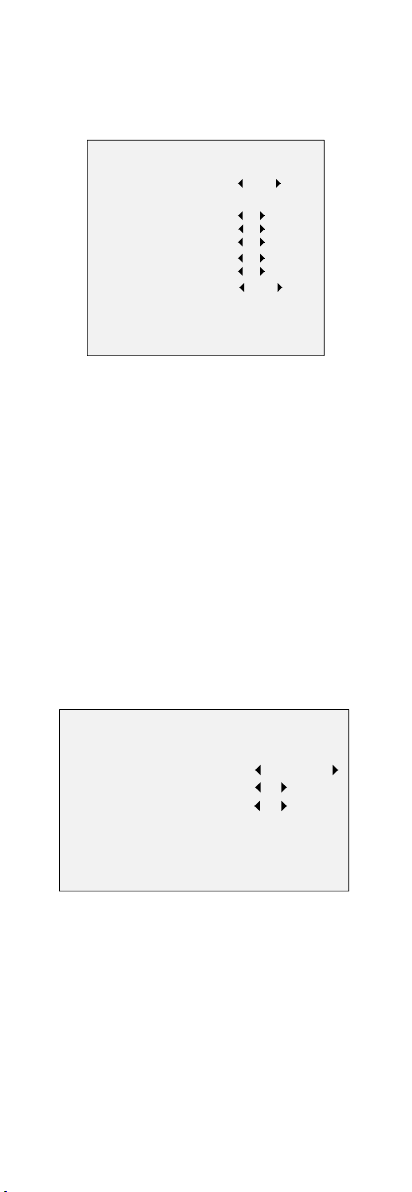
3.4 VIDEO SETTINGS
Move the cursor to VIDEO SETTINGS and click Iris+ to
enter the submenu. IMAGE MODE, WHITE BALANCE,
BRIGHTNESS, CONTRAST, SHARPNESS, SARUTATION,
DNR, and MIRROR are adjustable.
VIDEO SETTINGS
IMAGE MODE STD
WHITE BALANCE
BRIGHTNESS
CONTRAST
SHARPNESS
SATURATION
DNR
MIRROR
BACK
EXIT
SAVE & EXIT
5
5
5
5
5
OFF
Figure 3-6 VIDEO SETTINGS
IMAGE MODE
IMAGE MODE is used to adjust the image saturation, and
you can set it as STD (Standard), or HIGH-SAT (High
Saturation).
WHITE BALANCE
White balance, the white rendition function of the
camera, is to adjust the color temperature according to
the environment. It can remove unrealistic color casts in
the image. You can set the mode as AUTO, or MANUAL.
AUTO
Under AUTO mode, white balance is being adjusted
automatically according to the color temperature of the
scene illumination.
MANUAL
You can set the R-GAIN/B-GAIN value from 1 to 255 to
adjust the shades of red/blue color of the image.
WHITE BALANCE
MODE
R-GAIN
B-GAIN
BACK
EXIT
SAVE & EXIT
MANUAL
5
5
Figure 3-7 MANUAL MODE
BRIGHTNESS
Brightness refers to the brightness of the image.
You can set the BRIGHTNESS value from 1 to 9 to darken
or brighten the image. The higher the value is, the
brighter the image is.
CONTRAST
This feature enhances the difference in color and light
between parts of an image. You can set the CONTRAST
value from 1 to 9.

SHARPNESS
Sharpness determines the amount of detail an imaging
system can reproduce. You can set the SHARPNESS value
from 1 to 9.
SATURATION
Adjust this feature to change the saturation of the color.
The value ranges from 1 to 9.
DNR (Digital Noise Reduction)
The DNR function can decrease the noise effect,
especially when capturing moving images in poor light
conditions and delivering more accurate and sharp image.
You can set the DNR value from 1 to 9.
MIRROR
OFF, H, V, and HV are selectable for mirror.
OFF: The mirror function is disabled.
H: The image flips 180° horizontally.
V: The image flips 180° vertically.
HV: The image flips 180° both horizontally and vertically.
3.5 FACTORY DEFAULT
Move the cursor to FACTORY DEFAULT and click Iris+ to
reset all the settings to the factory default.
3.6 EXIT
Move the cursor to EXIT and click Iris+ to exit the menu
without saving.
3.7 SAVE & EXIT
Move the cursor to SAVE & EXIT and click Iris+ to save the
settings, and exit the menu.
UD10382B