
XWPD1-E-2A
EN
USER’S GUIDE
(
Tutorial
)
● Before using this TRACKFORMER for the first time,
be sure to read the separate USER’S GUIDE
(Basics) to familiarize yourself with basic operations.
Contents
Names of Controllers
and their Functions............... EN-1
Connection Examples...............................................EN-3
Sequence Creation Flow....... EN-4
1. Getting Ready.......................................................EN-4
2. Creating a Basic Pattern.......................................EN-4
3. Layering ................................................................EN-5
4. Increasing the Number of Patterns .......................EN-5
5. After You’re Done .................................................EN-5
Effect System......................... EN-6
Sampling Tutorial.................. EN-7
Assigning the Sampled Sound to all of the Pads......EN-7
Assigning a Sampled Tone to a Specific Pad...........EN-7
Sampling while Holding Down a
Sequence Step Key ..................................................EN-7
Specifying the Number of Beats and Sampling ........EN-8
Mastering TRACKFORMER
Operations ............................. EN-9
Navigating Between FUNCTION Modes ..................EN-9
Producing a Particular Sound or Sounds..................EN-9
Muting a Particular Sound or Sounds .....................EN-10
Deleting Data ..........................................................EN-10
Copying Data ..........................................................EN-11
Changing the Pitch of a Sequence .........................EN-12
Changing the Number of Steps Per Measure.........EN-12
Applying a Swing Effect ..........................................EN-12
Entering the MIDI Control Mode .............................EN-13
Changing the Configuration of a Pattern ................EN-13
Changing the Pad Velocity .....................................EN-14
Changing the Pad Set Volume Level......................EN-14
Changing the Operation of a Pad ...........................EN-14
Changing the Initial Default Slice Length................EN-16
Using the Equalizer.................................................EN-16
Using the Metronome .............................................EN-16
Configuring Other
Settings ................................ EN-17
Configuring Settings ...............................................EN-17
Menu and Setting List .............................................EN-17
Adjusting Controller
Operations ........................... EN-20
Calibrating Knob and Fader Alignment...................EN-20
Adjusting Pad Sensitivity ........................................EN-21
Connecting to a
Computer ............................. EN-22
Minimum Computer System Requirements ........... EN-22
Connecting TRACKFORMER
to Your Computer................................................... EN-22
Using MIDI ............................................................. EN-23
Saving and Loading TRACKFORMER Data
to a Computer and Editing TRACKFORMER
Data on a Computer............................................... EN-23
Appendix .............................. EN-24
Step Sequence List ................................................ EN-24
Pad Set Tone List................................................... EN-25
Pad Tone List ......................................................... EN-28
Drum Assignment List ............................................ EN-31
Effect List ............................................................... EN-33
Signal Diagram....................................................... EN-36
Internal Sound Source Operation Flow .................. EN-36
MIDI Implementation Chart
Company and product names used in this
manual may be registered trademarks of others.
EN-1
Names of Controllers and their Functions
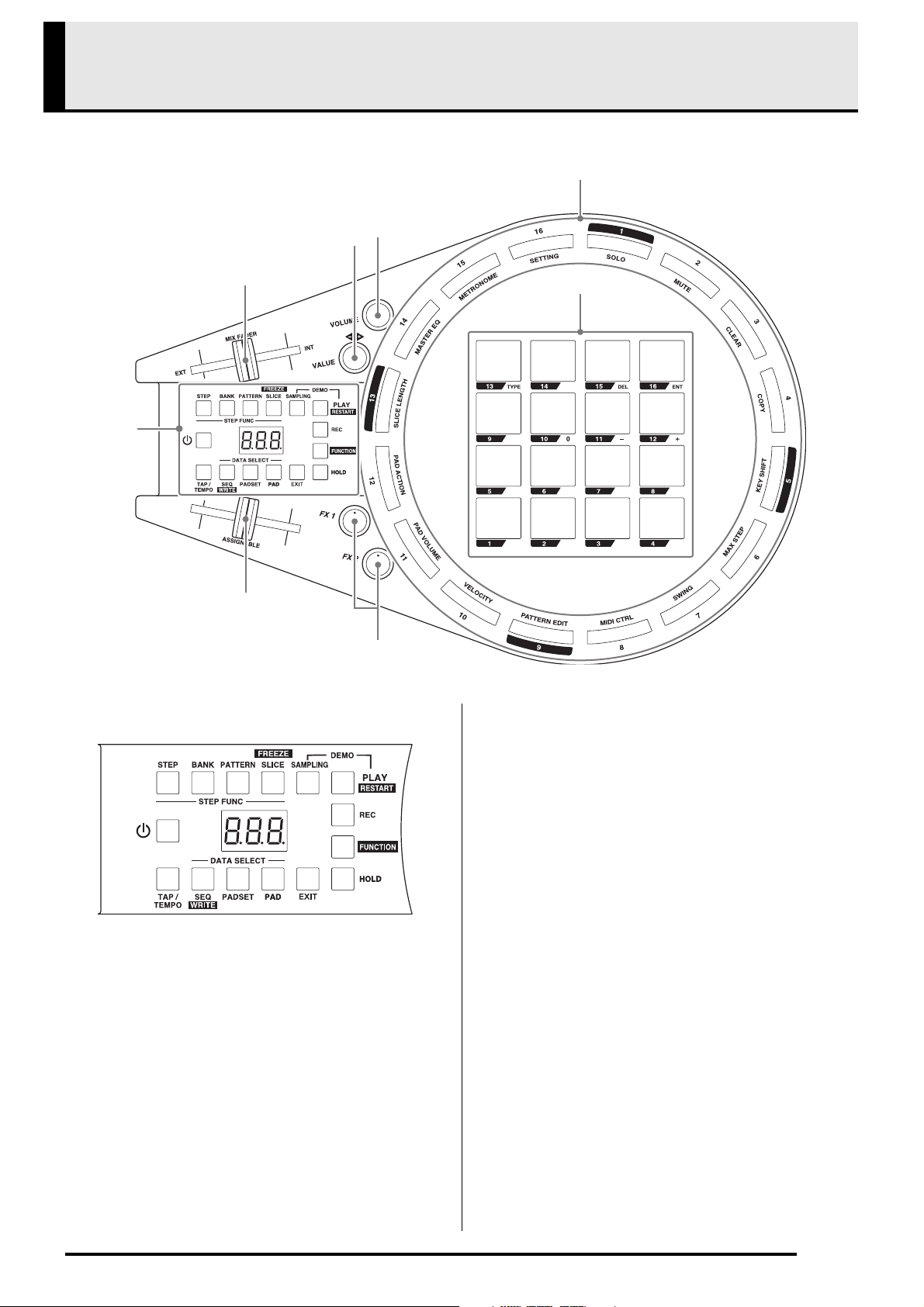
z This section explains the numbers and names used in this manual for buttons and controllers.
1
Selector panel
• P (Power) button
• Display
• STEP button
Enables creation of sequence data using the
sequence step keys.
• BANK button
Enables bank selection using the sequence step keys.
• PATTERN button
Enables pattern selection using the sequence step
keys.
• SLICE button
Enables slicing of sequence data or an external
sound source using the sequence step keys.
• SAMPLING button
Samples a sequence or external input.
• PLAY button
Starts and stops sequence playback.
• REC button
Starts and stops real-time recording. Also used to
start and stop sampling.
• FUNCTION button
Used for configuring detailed settings.
• HOLD button
Puts sounds and/or effects into a hold state.
• EXIT button
Backsteps to the previous menu or other screen.
• PAD button
Switches a particular pad’s tone and/or effect.
• PADSET button
Switches the tone and/or effect of all pads.
• SEQ button
Switches the sequence.
• TAP/TEMPO button
Adjusts playback tempo.
1
6
5
4
3
2
7
8
Names of Controllers and their Functions
EN-2
2
MIX FADER
Adjusts the volume balance between the internal
sound source (sequence) and an external sound
source.
3
VALUE knob
Rotate to change a value. Rotating to the left
reduces the value, while rotating to the right
increase it. The extent that the value is changed
depends on how much the knob is rotated.
Positioning the knob at 12 o’clock stops the value
change operation.
4
VOLUME knob
5
Sequence step keys
When using the step sequencer, toggle each step
between on and off. These keys are also used when
configuring detailed settings.
6
Pads
Tap to produce a sound or apply an effect.
You can also use these pads to input or change a
number or value setting.
7
FX1/FX2 knobs
Adjust the intensity of the applied effects.
8
ASSIGNABLE fader
Can be used to apply a scratch effect. The function
assigned to this fader can be specified by you.
9
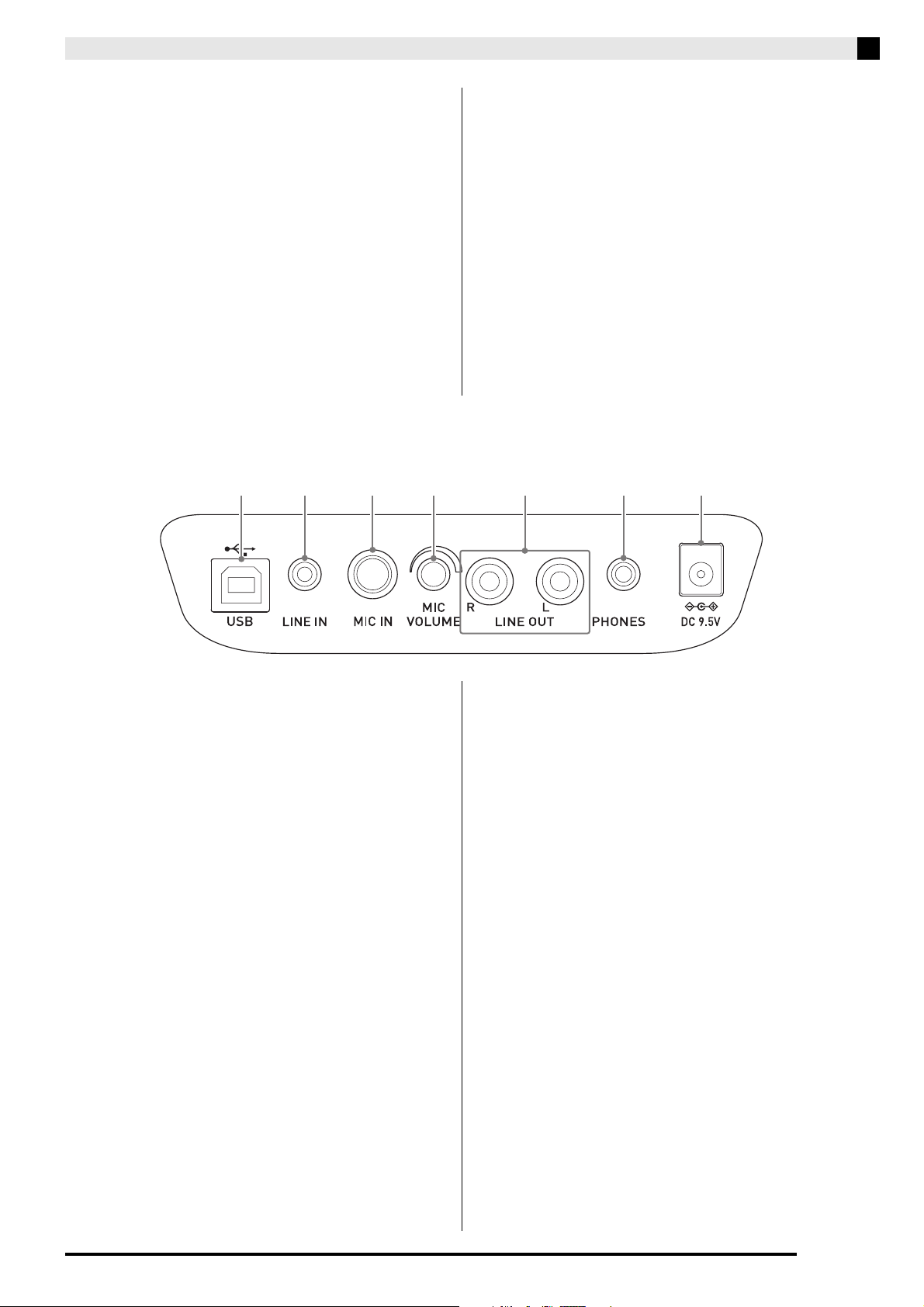
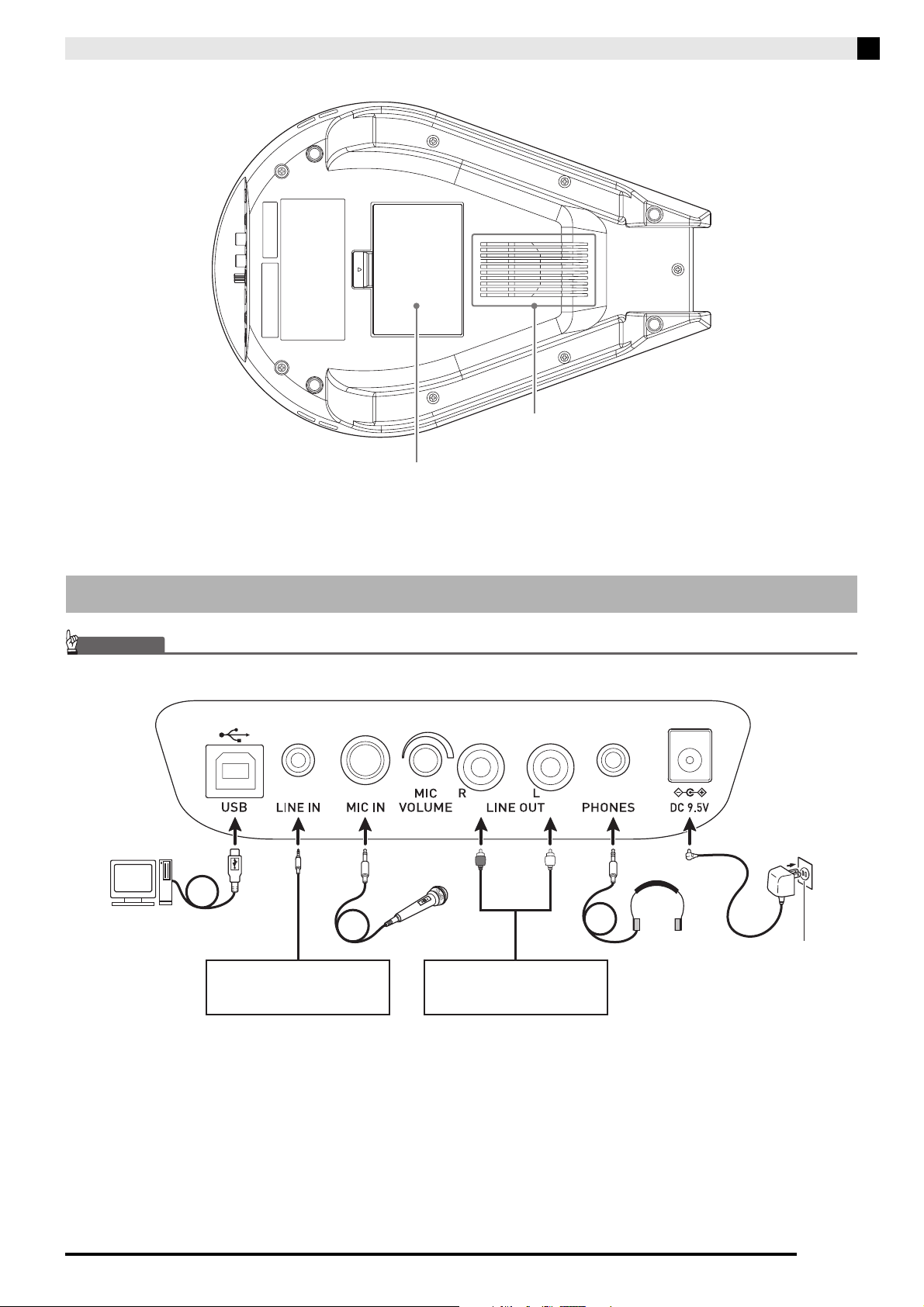
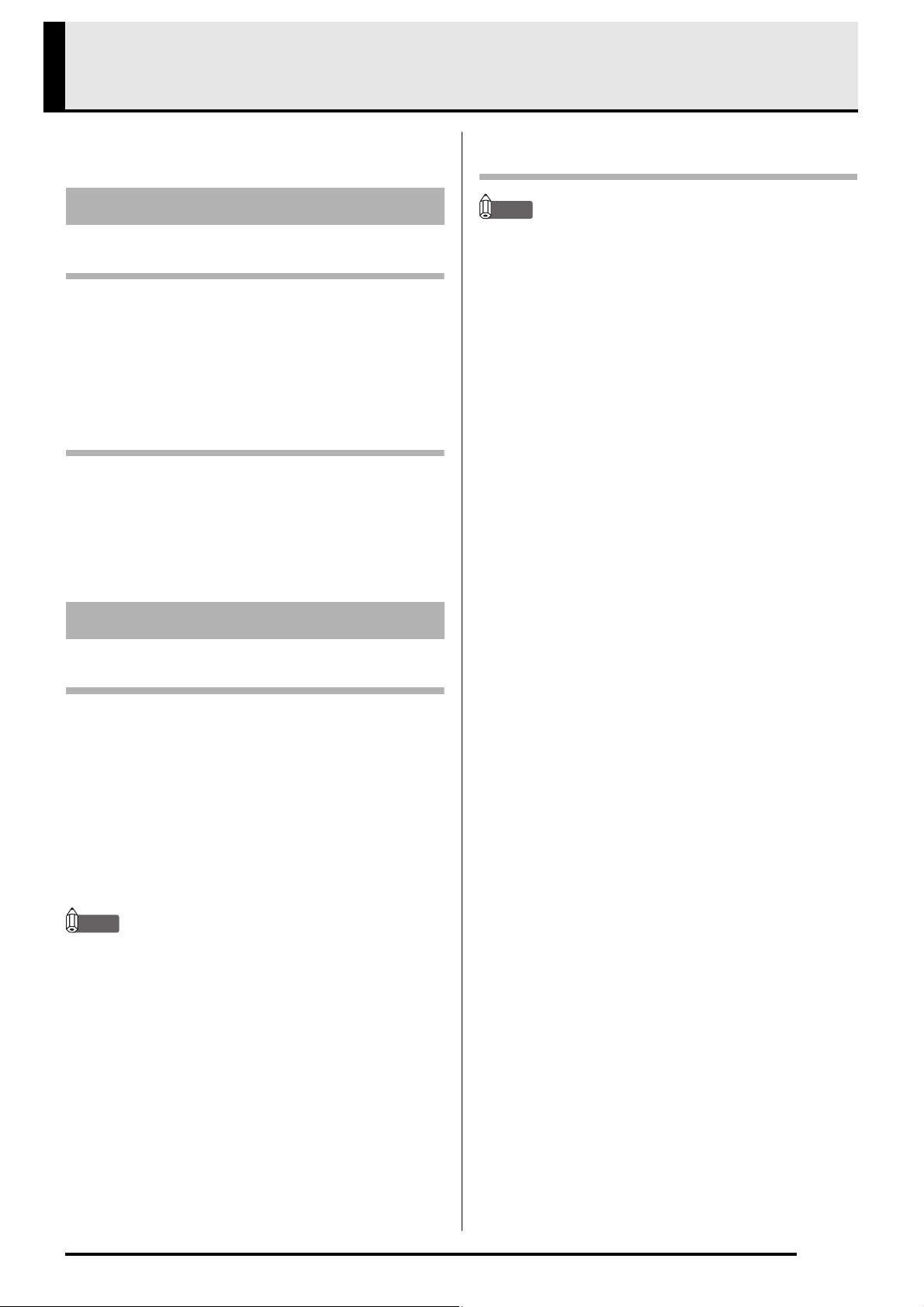
USB port
Use a USB cable to connect to a computer, etc.
bk
LINE IN terminal
Use to plug in a cable with a stereo mini plug to
connect with a portable audio player, etc.
bl
MIC IN terminal
Use to plug in a microphone with a monaural
standard plug.
bm
MIC VOLUME knob
Adjusts the microphone input level.
bn
LINE OUT L/R terminals
Use to plug in a cable with RCA pin plugs to
connect a speaker, mixer, etc.
bo
PHONES terminals
Use to plug in headphones with a stereo mini plug.
bp
DC 9.5V terminal
Use to connect the supplied AC adaptor to supply
power from a household power outlet.
bk bl bnbm bo bp9
Names of Controllers and their Functions
EN-3
bq
Battery compartment
br
Speaker
IMPORTANT!
• Before connecting an external device, first set VOLUME to minimum volume.
Connection Examples
br
bq
Smartphone
Household power outlet
Speaker
EN-4
Sequence Creation Flow
This section provides a general overview of sequence
creation steps.
Selecting a Sequence Data File Number
While holding down the SEQ selector button, use pads
11 (–) and 12 (+) to specify a sequence data file number.
• Data file numbers 100 to 149 are rewritable by you.
There is no data assigned to these file numbers when
TRACKFORMER is shipped from the factory.
To delete data currently assigned to a
data file number
1.
While holding down the FUNCTION selector
button, press sequence step key 3 (CLEAR).
2.
Press the SEQ selector button and then
press pad 16 (ENT).
To assign a sound to a step
1.
Press the STEP selector button and then
press the PLAY button.
2.
Press the pad of the sound you want to
assign and then press the sequence step key
to assign the sound.
• If you don’t want anything to sound when you press
a particular pad, hold down the STEP selector button
as you press the applicable pad.
NOTE
• For information about how to assign sound to a step
as you record it, refer to the “User’s Guide (Basics)”
that comes with TRACKFORMER.
To assign tones and effects to all pads or
to a particular pad
NOTE
• For information about tone types that can be
assigned, refer to the “User’s Guide (Basics)” that
comes with TRACKFORMER.
■ To assign to all pads
1.
While holding down the PADSET selector
button, use pad 13 (TYPE) to select a tone
type.
2.
While holding down the PADSET selector
button, use pads 11 (–) and 12 (+) to change
the tone.
■ To assign to a particular pad
1.
Press the pad whose tone you want to
change.
2.
While holding down the PAD selector button,
use pad 13 (TYPE) to select a tone type.
3.
While holding down the PAD selector button,
use pads 11 (–) and 12 (+) to change the tone
assigned to the pad you pressed in step 1.
1. Getting Ready
2. Creating a Basic Pattern
Sequence Creation Flow
EN-5
To change the bank
After pressing the BANK selector button, press the
sequence step key that corresponds to the number of
the bank you want to use.
To delete a bank sequence
After pressing the BANK selector button, hold down
the sequence step key that corresponds to the bank
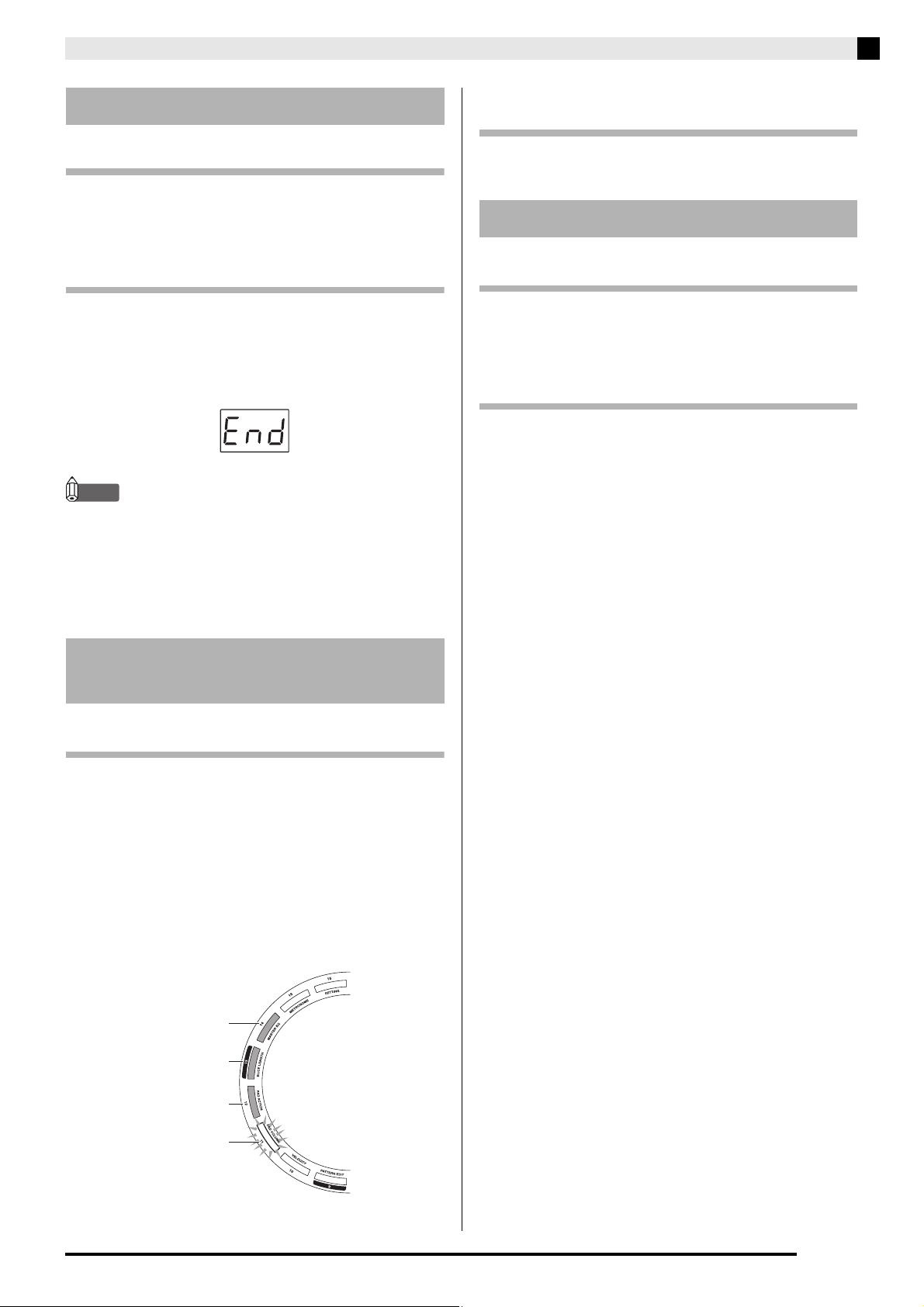
number of the data you want to delete. The display
shown below appears to indicate that the sequence
recorded in the bank is deleted.
NOTE
• You can also use the FUNCTION CLEAR mode to
delete the settings of a particular bank. This will not
only delete the sequence, it will also initialize the
tones and other settings of the pads. For more
information, see “To delete bank settings” (page
EN-10).
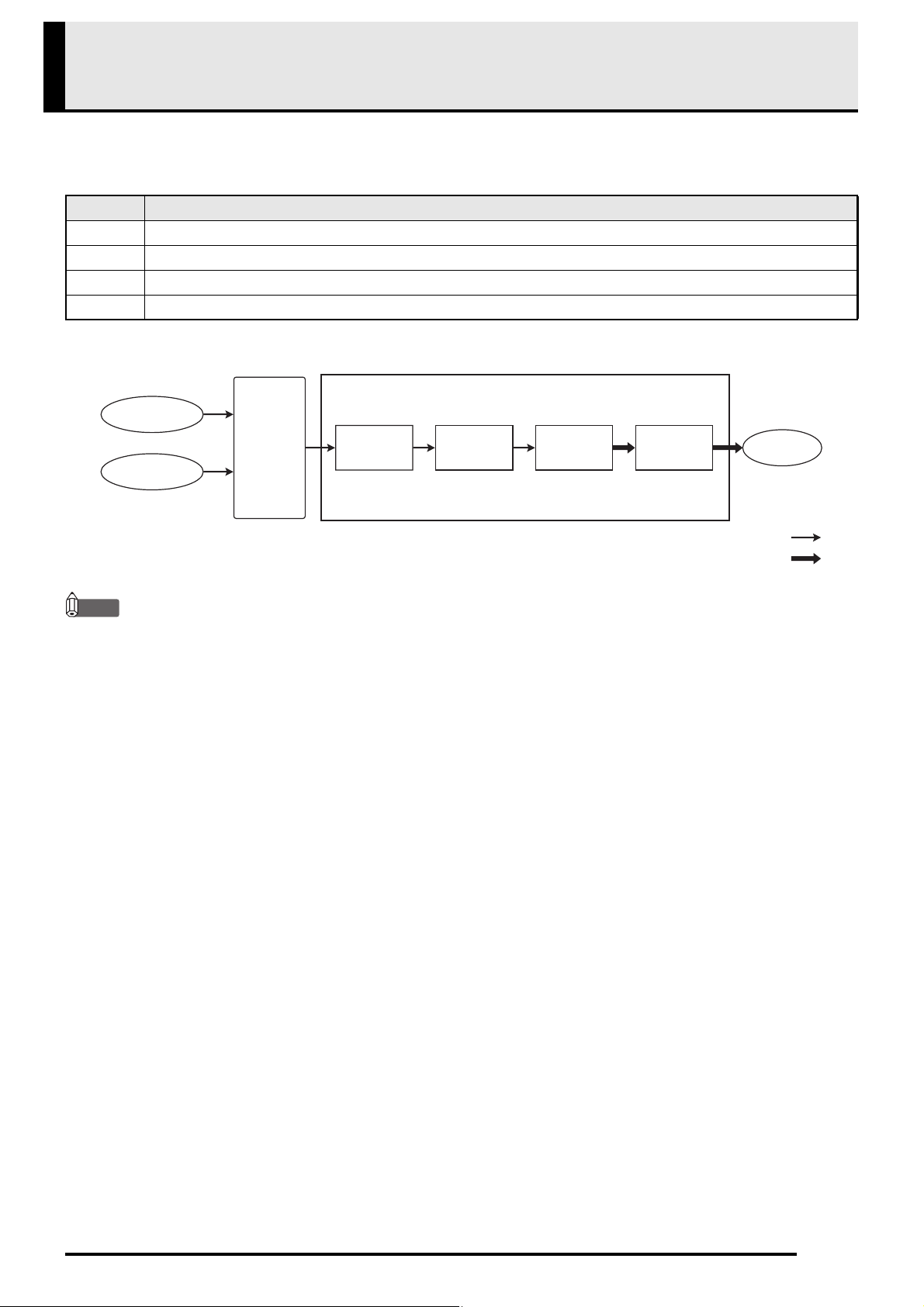
To enable a pattern group
1.
Press the PATTERN selector button.
2.
Press the sequence step key (11 to 14) that
corresponds to the pattern group you want to
select. A flashing sequence step key
indicates that its pattern group is enabled.
Enabled pattern groups are played back in sequence.
• Pressing the sequence step key of an enabled pattern
group will disable the group.
To change the configuration of a pattern
using Pattern Edit
For details about configuring a pattern, see “Changing
the Configuration of a Pattern” (page EN-13).
To copy or delete a pattern you created
See “To copy pattern contents” (page EN-11) and “To
delete a pattern” (page EN-10) for information about
these procedures.
To save sequence data
1.
While holding down the FUNCTION selector
button, press the SEQ (WRITE) button.
2.
Use pads 11 (–) and 12 (+) to specify the
number of the sequence data file (100 to 149)
where you want to store the sequence.
3.
Press pad 16 (ENT).
3. Layering
4. Increasing the Number of
Patterns
Pattern group 4
Pattern group 3
Pattern group 2
Pattern group 1
5. After You’re Done
EN-6
Effect System
TRACKFORMER comes with 200 built-in effects. These effects are divided among the four blocks shown in the table
below. One effect can be assigned per block, which means you can apply up to four effects simultaneously. For
information about which built-in effect belongs to each block see the Effect List (page EN-33).
■ Effect Block Diagram
NOTE
• Applying the scratch effect by moving the ASSIGNABLE fader while the scratch effect is assigned to it or
pressing a pad that has LFO Scratch assigned to it will cancel out all other effects.
• Attempting to apply multiple effects of the same block will result in application of only the final effect.
• Some effects are assigned to two blocks. For example, the PitchUp-Roll effect is assigned to both Block A and
Block B, so effects that can be applied along with it are effects assigned to Block C and Block D.
• Except for Panner and Delay, the same effect type is assigned to Block B and Block C. Because of this, if you apply
a Block B effect type while another effect is already assigned to Block B, the newly applied effect is assigned to
Block C. Conversely, if you apply a Block C effect type while another effect is already assigned to Block C, the
newly applied effect is assigned to Block B. For example, the LPF effect can be assigned to Block B only. However,
applying LPF while PitchUp-Roll is in use causes an effect type derived from PitchUp-Roll to be assigned to Block
A and Block B, and an effect type derived from LPF to be assigned to Block C.
• The same effect type cannot be assigned to Block B and Block C.
• The effect assigned to Block A becomes disabled when slicing.
• When the setting of the effect knob target is “Last,” operation of the knob may not change how the effect is
applied, even though the effect itself is applied.
Block Effect Type
A Roll, Reverse Roll, Step Back, Tape Stop, LFO Scratch
B Filter, Flanger, Tremolo, Gater, Pitch Shifter, Distortion, Crusher, Ring Modulator, Noise Generator
C Filter, Flanger, Tremolo, Gater, Pitch Shifter, Distortion, Crusher, Ring Modulator, Noise Generator, Panner, Delay
DReverb
Internal sound
source
Mixer Block A Block B Block C Block D Output
MONAURAL
STEREO
External sound
source

EN-7
Sampling Tutorial
TRACKFORMER lets you sample the built-in sound
source or an external sound source and assign the
result to a pad. You can also use this function to record
samples while slicing. For information about sampling
basics, refer to the “User’s Guide (Basics)” that comes
with TRACKFORMER.
Making all pad tones melody type and then sampling
causes the sampled sound to be assigned to all of the
pads. In this case, a specified pad is the sound source
and all pads are assigned the sampled sound.
1.
Make all pad tones melody type.
2.
Press the SAMPLING selector button.
3.
Press the pad you want to use as the sound
source.
4.
Press the REC selector button.
This starts recording.
5.
Play the sound you want to sample.
6.
Recording will stop when you press the REC
button again or after the specified recording
time elapses.
• The pad you pressed in step 3 will be the sound
source while all pads will be assigned the sampled
sound.
NOTE
• For information about how to make all pad tones
melody type, refer to the “User’s Guide (Basics)”
that comes with TRACKFORMER.
Making all pad tones drum type and then sampling
makes it possible to assign the sampled sound to a
specific pad.
1.
Make all pad tones drum type.
2.
Press the SAMPLING selector button.
3.
Press the pad to which you want to assign the
sampled sound.
4.
Press the REC selector button.
This starts recording.
5.
Play the sound you want to sample.
6.
Recording will stop when you press the REC
button again or after the specified recording
time elapses.
• This assigns the sample sound to the pad you pressed
in step 3.
NOTE
• For information about how to make all pad tones
drum type, refer to the “User’s Guide (Basics)” that
comes with TRACKFORMER.
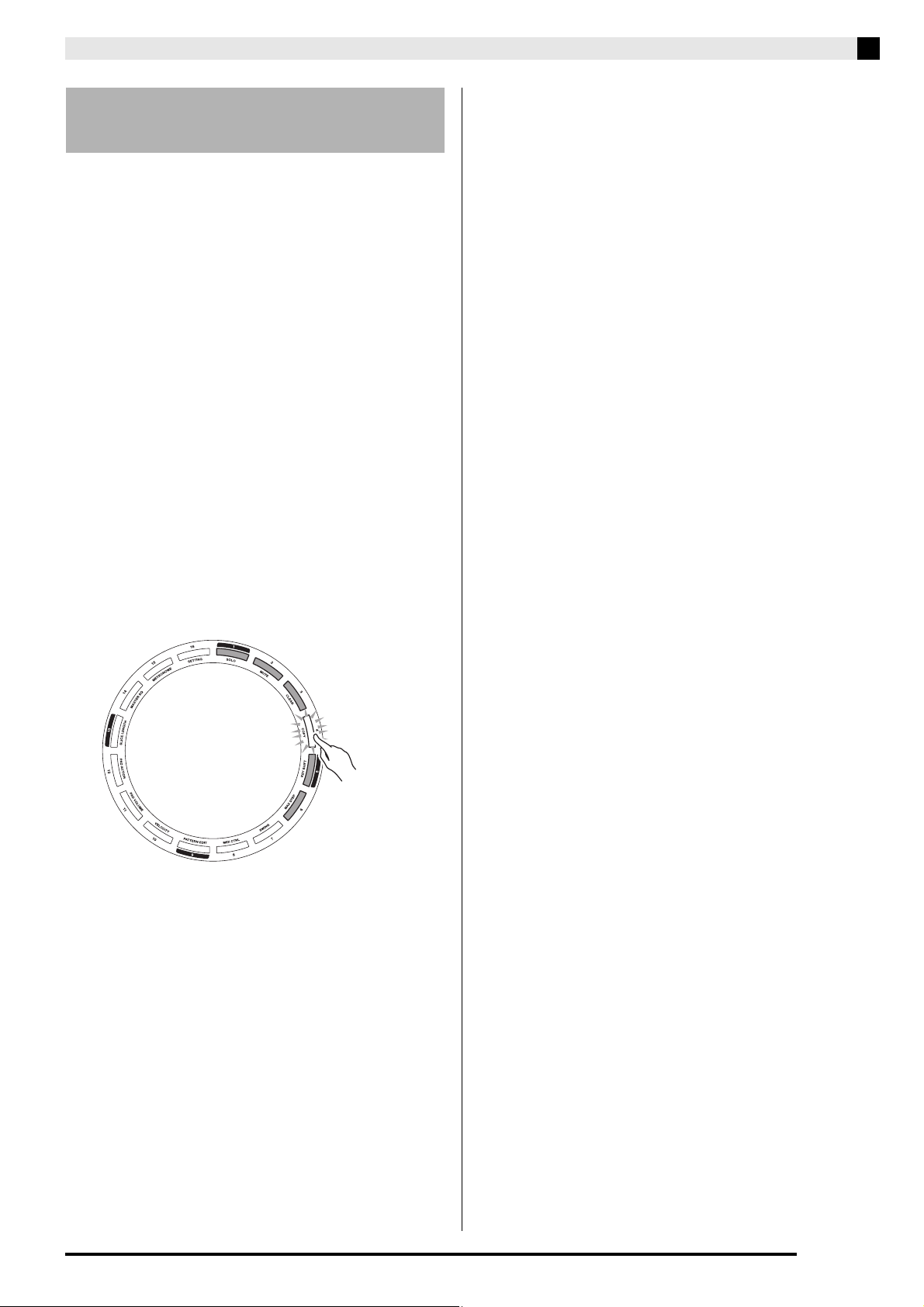
1.
Press the SLICE selector button.
2.
While playing back the sound you want to
sample, press a sequence step key to slice.
• Perform the steps below while holding down the
sequence step key.
3.
Press the SAMPLING selector button.
4.
Press the pad to which you want to assign the
sampled sound.
5.
Press the REC selector button.
This samples the sliced sound.
6.
Recording will stop when you press the REC
button again or after the specified recording
time elapses.
Assigning the Sampled Sound
to all of the Pads
Assigning a Sampled Tone to
a Specific Pad
Sampling while Holding Down
a Sequence Step Key
Sampling Tutorial
EN-8
You can use the procedure below to specify the
number of beats to be sampled in a range of 1 to 16, and
then sample a sound. The range of the number of beats
you can specify depends on the sample length and the
tempo.
1.
Enable Sampling Tempo Sync.
• For information about configuring this setting, see
“Configuring Settings” under “Configuring Other
Settings” (page EN-17), and “Sampling Tempo Sync”
under “Menu and Setting List” (page EN-17).
2.
Press the SAMPLING selector button.
3.
Press the pad to which you want to assign the
sampled sound.
4.
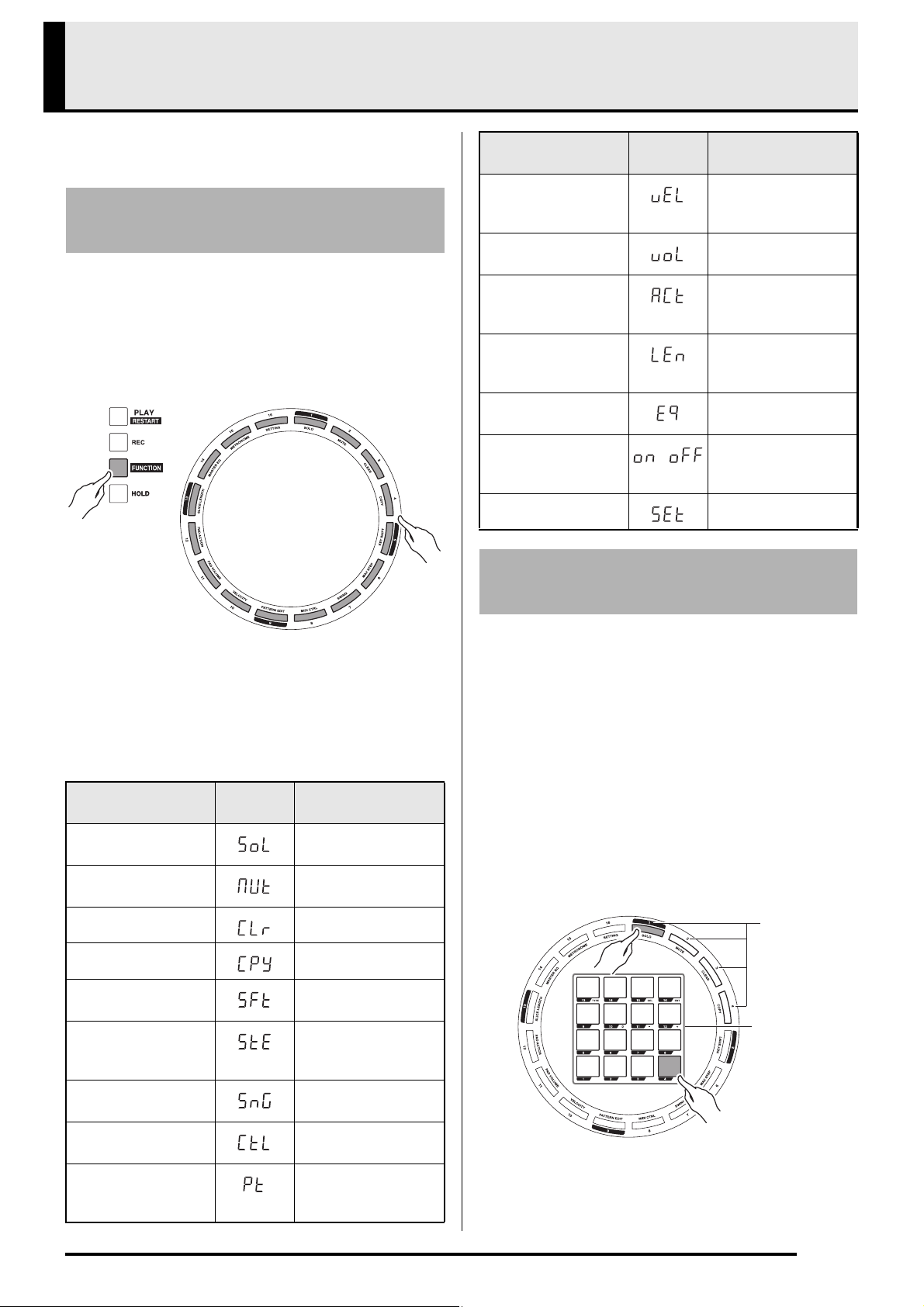
Press the sequence step key that
corresponds to the number of beats you want
to specify.
• The sequence step keys that correspond to the
supported number of beats settings will be lit.
• To cancel a number of beats setting, press the flashing
sequence step key so it stops flashing and remains lit.
5.
Press the REC selector button.
This starts recording.
6.
Play the sound you want to sample.
7.
Recording will stop when you press the REC
button again or after the specified number of
beats is exceeded.
• This assigns the sampled sound to the pad you
pressed in step 3.
Specifying the Number of
Beats and Sampling
EN-9
Mastering TRACKFORMER Operations
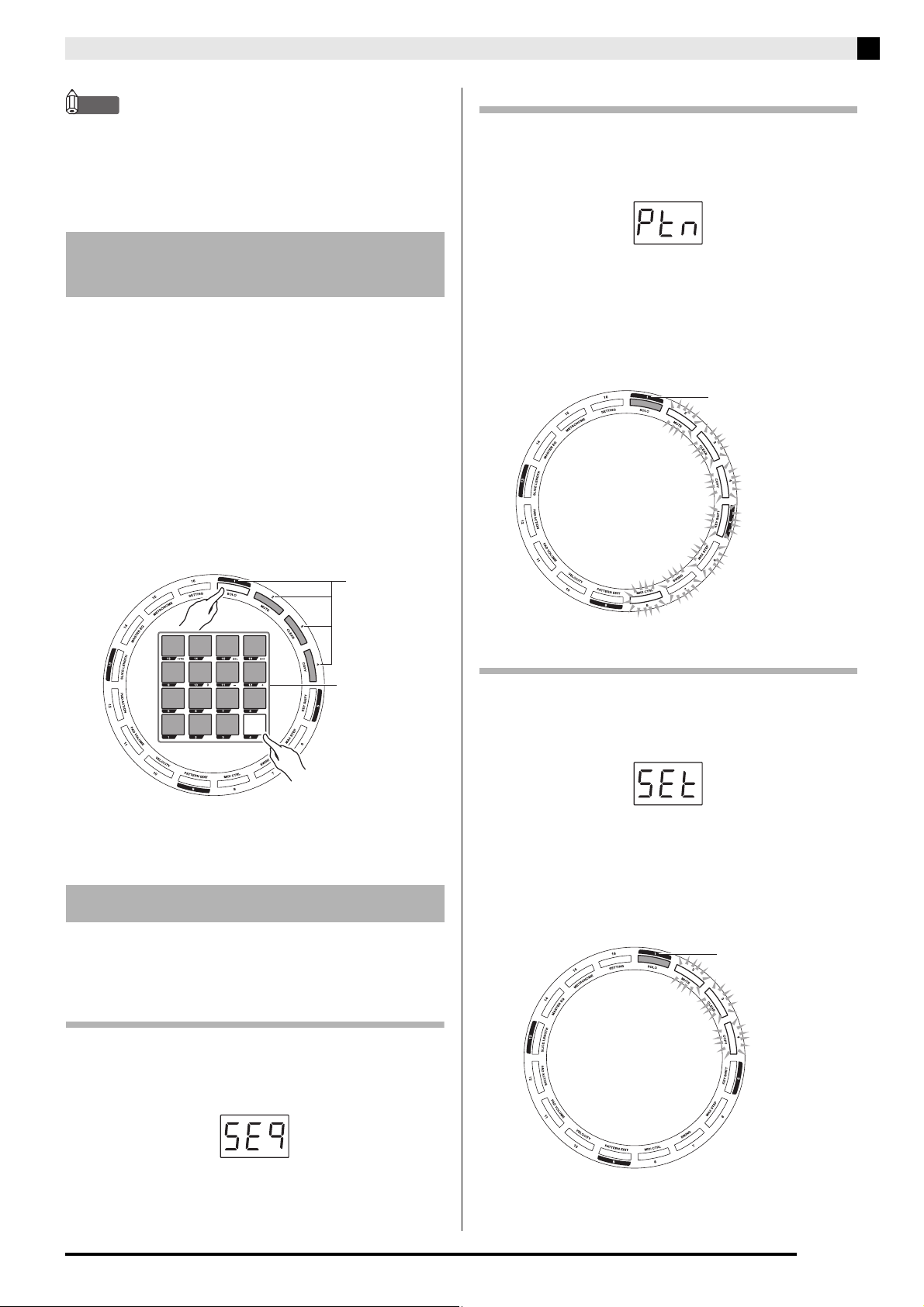
The FUNCTION mode lets you change the
configuration of a variety of different settings.
1.
While holding down the FUNCTION selector
button, press the sequence step key that
corresponds to the mode you want to use.
• Entering a mode causes the FUNCTION button as
well as the pads and sequence step keys that are
enabled in the mode to light.
2.
To exit a FUNCTION mode, press the
FUNCTION button again.
To step back to the previous menu level, press the EXIT
selector button.
■ FUNCTION Mode List
Use the procedure below when you want to produce
all of the sounds in a bank or the sound of a particular
pad in a bank.
1.
Enter the SOLO mode.
2.
Press the sequence step key that
corresponds to the number of bank whose
sounds you want to produce, or press the pad
whose sound you want to produce.
This causes the corresponding sound or sounds to be
produced.
• The soloing bank (sequence step key) or pad will
become lit.
3.
To cancel solo play, press the currently lit
sequence step key or pad.
Navigating Between
FUNCTION Modes
Sequence Step Key
(Mode)
Display
Message
Description
1 (SOLO) For sounding a
particular sound only.
2 (MUTE) For muting a
particular sound.
3 (CLEAR) For deleting data.
4 (COPY) For copying data.
5 (KEY SHIFT) For changing the pitch
of a sequence.
6 (MAX STEP) For changing the
maximum number of
steps in a sequence.
7 (SWING)For applying a swing
effect.
8 (MIDI CTRL) Enters the MIDI
control mode.
9 (PATTERN
EDIT)
For changing the
configuration of a
pattern.
10 (VELOCITY) For changing the pad
velocity (degree of
volume level change).
11 (PAD VOLUME) For changing the pad
set volume level.
12 (PAD ACTION) For changing the
operation of a pad
when it is tapped.
13 (SLICE
LENGTH)
For changing the
initial default slice
length.
14 (MASTER EQ) For adjusting the
master equalizer.
15 (METRONOME) Toggles the
metronome between
on and off.
16 (SETTING) For other settings.
Producing a Particular Sound
or Sounds
Sequence Step Key
(Mode)
Display
Message
Description
/
Banks 1 to 4
Pads 1 to 16
Mastering TRACKFORMER Operations
EN-10
NOTE
• You can solo play multiple banks or pads.
• When all banks or pads are lit (indicating all are
soloing), pressing any sequence step key or pad
switches to solo play of the corresponding bank or
pad only.
Use the procedure below when you want to mute all of
the sounds in a bank or the sound of a particular pad in
a bank.
1.
Enter the MUTE mode.
2.
Press the sequence step key that
corresponds to the number of bank whose
sounds you want to mute, or press the pad
whose sound you want to mute.
This mutes the corresponding sound or sounds.
• The muted bank (sequence step key) or pad will
become unlit.
3.
To cancel muting, press the currently unlit
sequence step key or pad so it becomes lit.
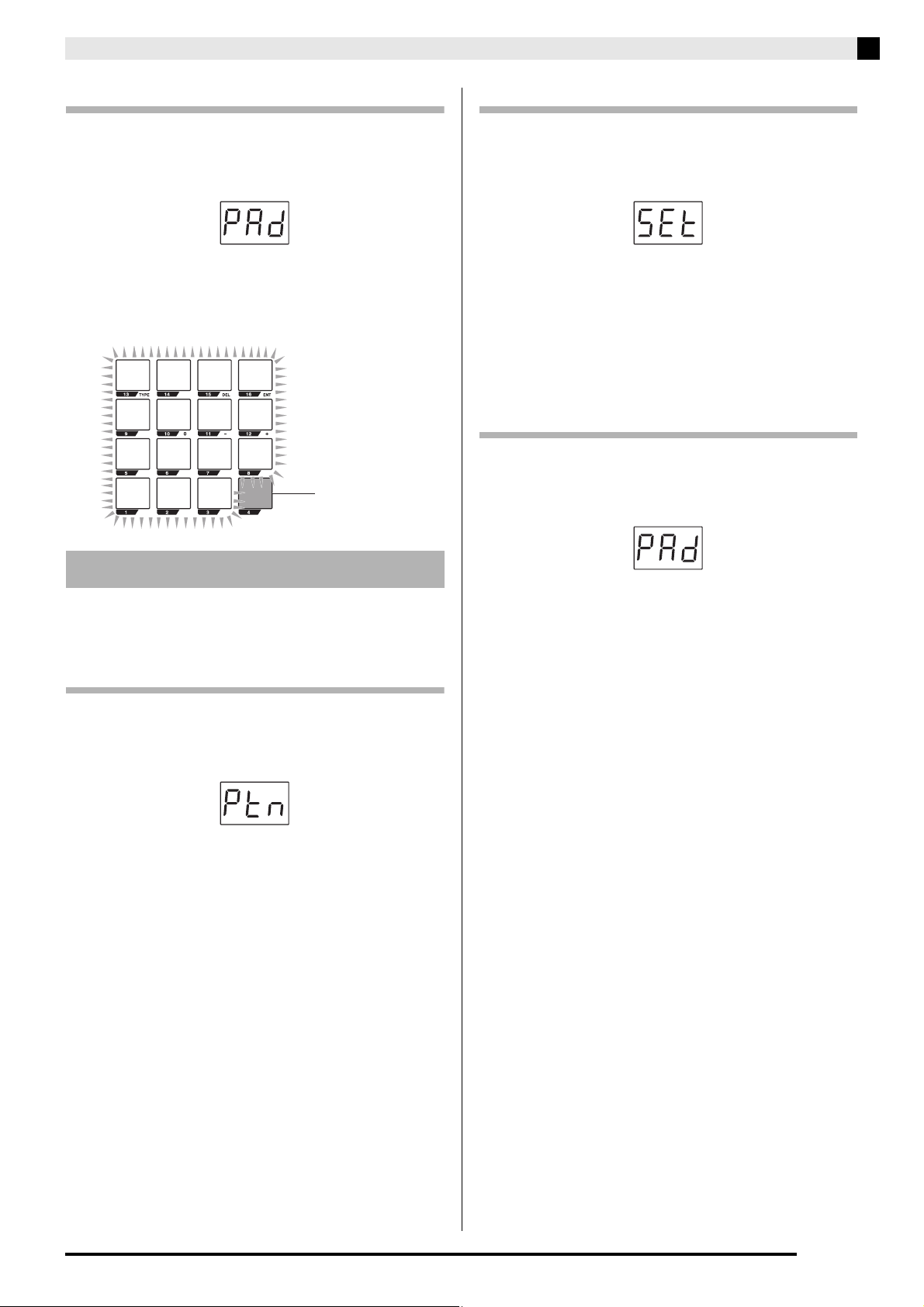
Use the procedures in this section to delete sequence,
pattern, bank, and pad data.
To delete a sequence
1.
Enter the CLEAR mode.
2.
Press the SEQ selector button.
3.
Press pad 16 (ENT).
This deletes the sequence data.
To delete a pattern
1.
Enter the CLEAR mode.
2.
Press the PATTERN selector button.
3.
Press the sequence step key that
corresponds to the number of the pattern you
want to delete.
This will delete the pattern whose number matches that
of the key you pressed.
To delete bank settings
1.
Enter the CLEAR mode.
2.
Press the PADSET selector button.
3.
Press the sequence step key whose number
corresponds to the bank you want to delete.
This deletes the sequence of the bank that corresponds
to the sequence key you pressed and returns the tone
and other settings to their initial defaults.
Muting a Particular Sound or
Sounds
Deleting Data
Banks 1 to 4
Pads 1 to 16
Delete pattern: Lit
Deleted bank: Lit
Mastering TRACKFORMER Operations
EN-11
To delete pad settings
1.
Enter the CLEAR mode.
2.
Press the PAD selector button.
3.
Press the pad you want to delete.
This deletes the settings of the pad and returns it to its
initial settings.
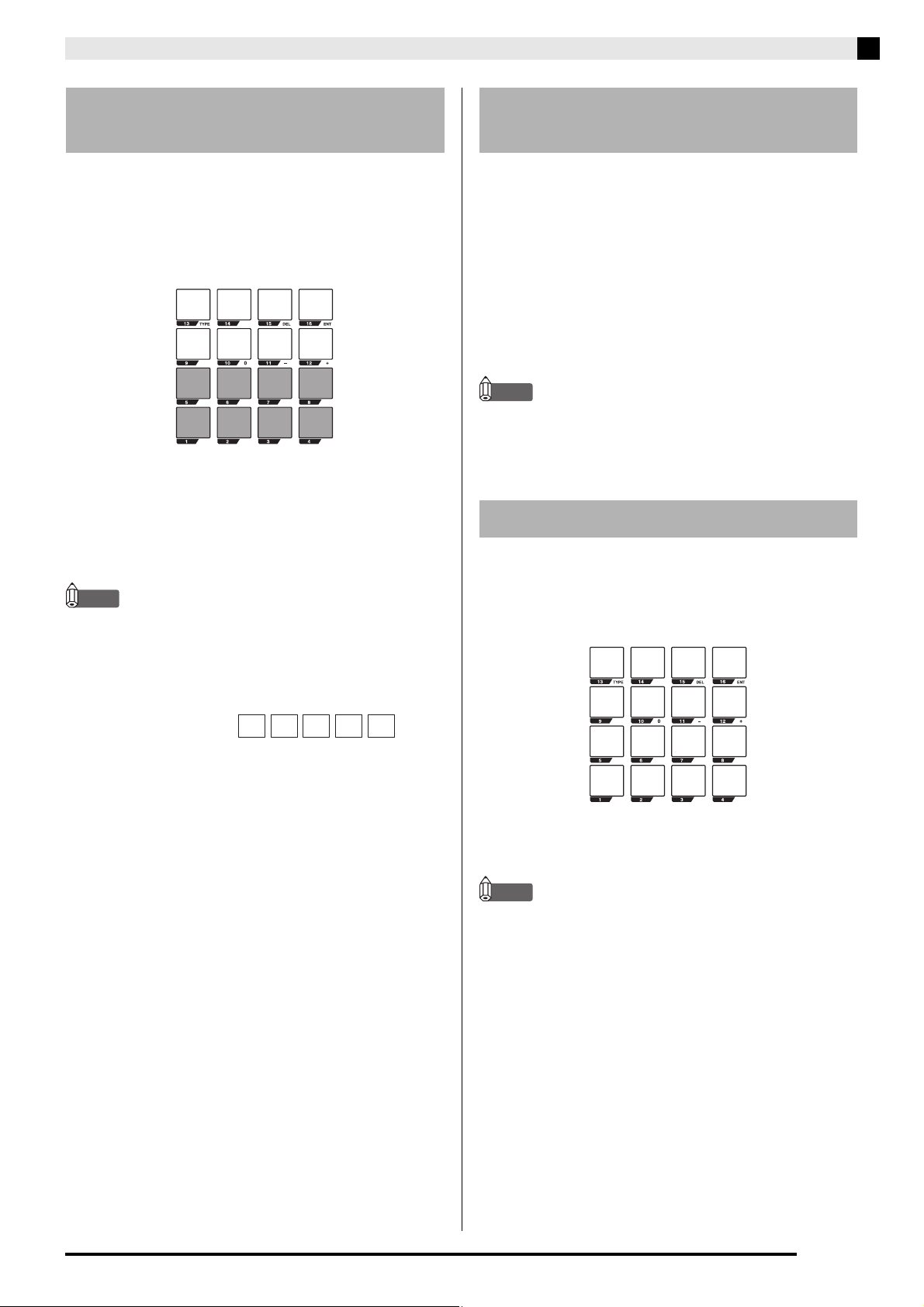
Use the procedures in this section to copy a pattern or
bank. You can also copy pad setting contents.
To copy pattern contents
1.
Enter the COPY mode.
2.
Press the PATTERN selector button.
3.
While holding down the sequence step key
that corresponds to the pattern number of the
copy source, press the sequence step key
that corresponds to the copy destination.
This copies the sequence to the destination pattern.
To copy bank contents
1.
Enter the COPY mode.
2.
Press the PADSET selector button.
3.
While holding down the sequence step key
that corresponds to the bank number of the
copy source, press the sequence step key
that corresponds to the copy destination.
This copies the sequence to the destination bank.
To copy pad settings
1.
Enter the COPY mode.
2.
Press the PAD selector button.
3.
While holding down the pad whose settings
you want to copy, press the copy destination
pad.
This copies tone and other settings to the destination
pad.
Copying Data
Initialized pad: Lit
Mastering TRACKFORMER Operations
EN-12
Use the procedures in this section to change the pitch
of a sequence when all pad tones are note.
1.
Enter the KEY SHIFT mode.
• You can check the current setting with the pad and
screen.
2.
Use the pads to change the pitch.
Setting values: –7 (Pad 1) to 0 (Pad 8) to +8 (Pad 16)
• You can also use the VALUE knob to change the
setting. With the VALUE knob, the setting range is
–24 to +24.
NOTE
• You can change the pitch of each pattern in a pattern
group (page EN-13). Select a pattern group and play
back its sequence. While the pattern whose pitch you
want to change is playing, perform the above steps
to change it.
1.
Enter the MAX STEP mode.
This will cause the sequence step key that corresponds
to the number of steps to flash.
2.
Press the sequence step key that
corresponds to the number of steps you want
to specify.
Setting values: 1 to 16 steps
• You can also use the VALUE knob to change the
setting.
NOTE
• You can specify the number of steps setting for each
pattern group (page EN-13). Select a pattern group
and then perform the steps above to change the
number of steps.
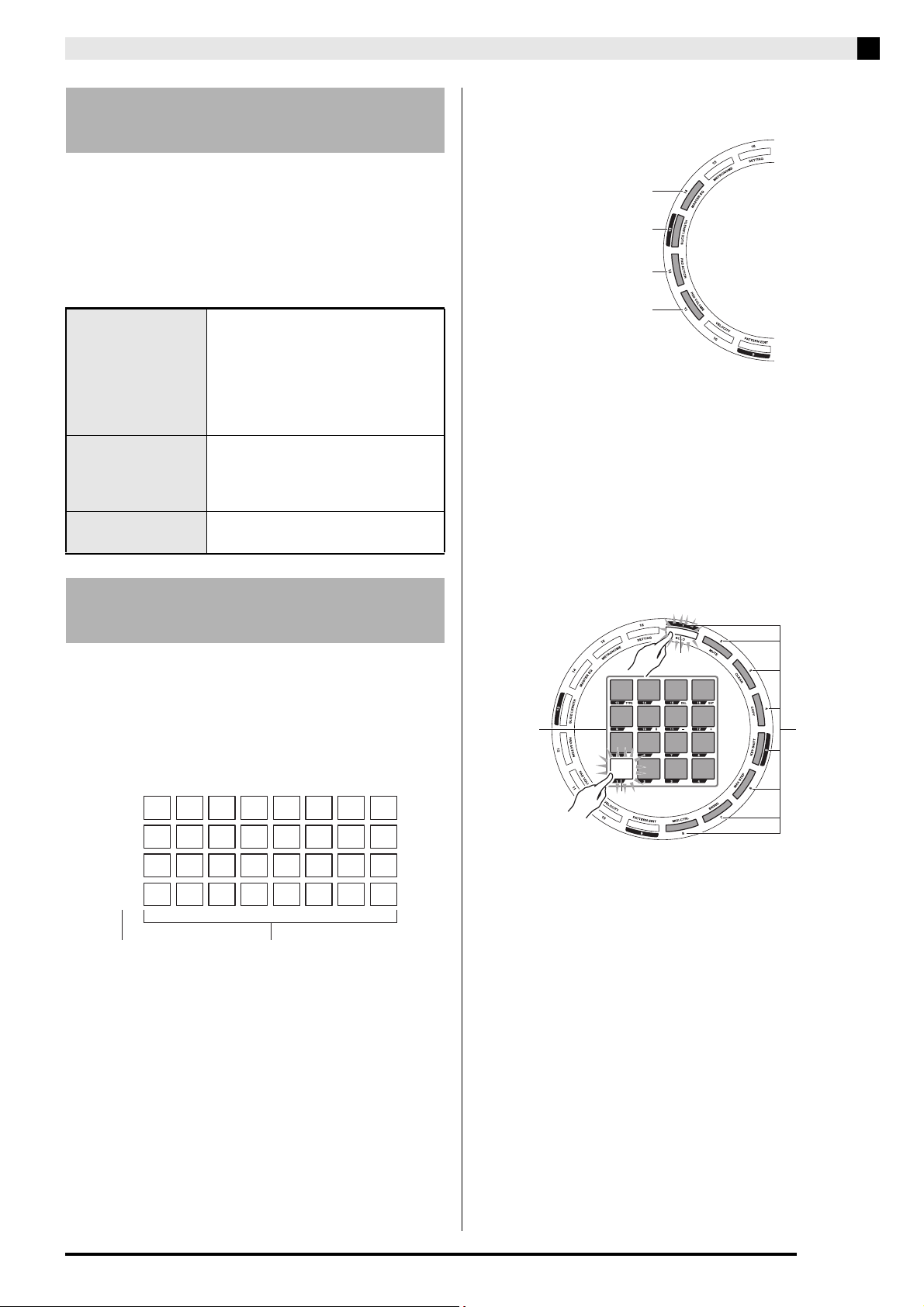
1.
Enter the SWING mode.
2.
Use the pads to change the swing value.
Each pad changes the value as shown below.
• You can also use the VALUE knob to change the
setting. With the VALUE knob, the setting range is 0
to 100.
NOTE
• You can specify the swing value for each pattern
group (page EN-13). Select a pattern group and then
perform the steps above to change the swing value.
Changing the Pitch of a
Sequence
Pattern configuration:
Pitch: +0 +2 +0 –2 –4
14341
Changing the Number of Steps
Per Measure
Applying a Swing Effect
70 74 78 82
54 58 62 66
38 42 46 50
22 26 30 34
Mastering TRACKFORMER Operations
EN-13
Entering the MIDI Control Mode stops sequence
playback. A special application (Data Editor) can be
used to configure assignments of pads, control buttons,
etc. from your computer. For information about Data
Editor, see “Saving and Loading TRACKFORMER
Data to a Computer and Editing TRACKFORMER Data
on a Computer” (page EN-23).
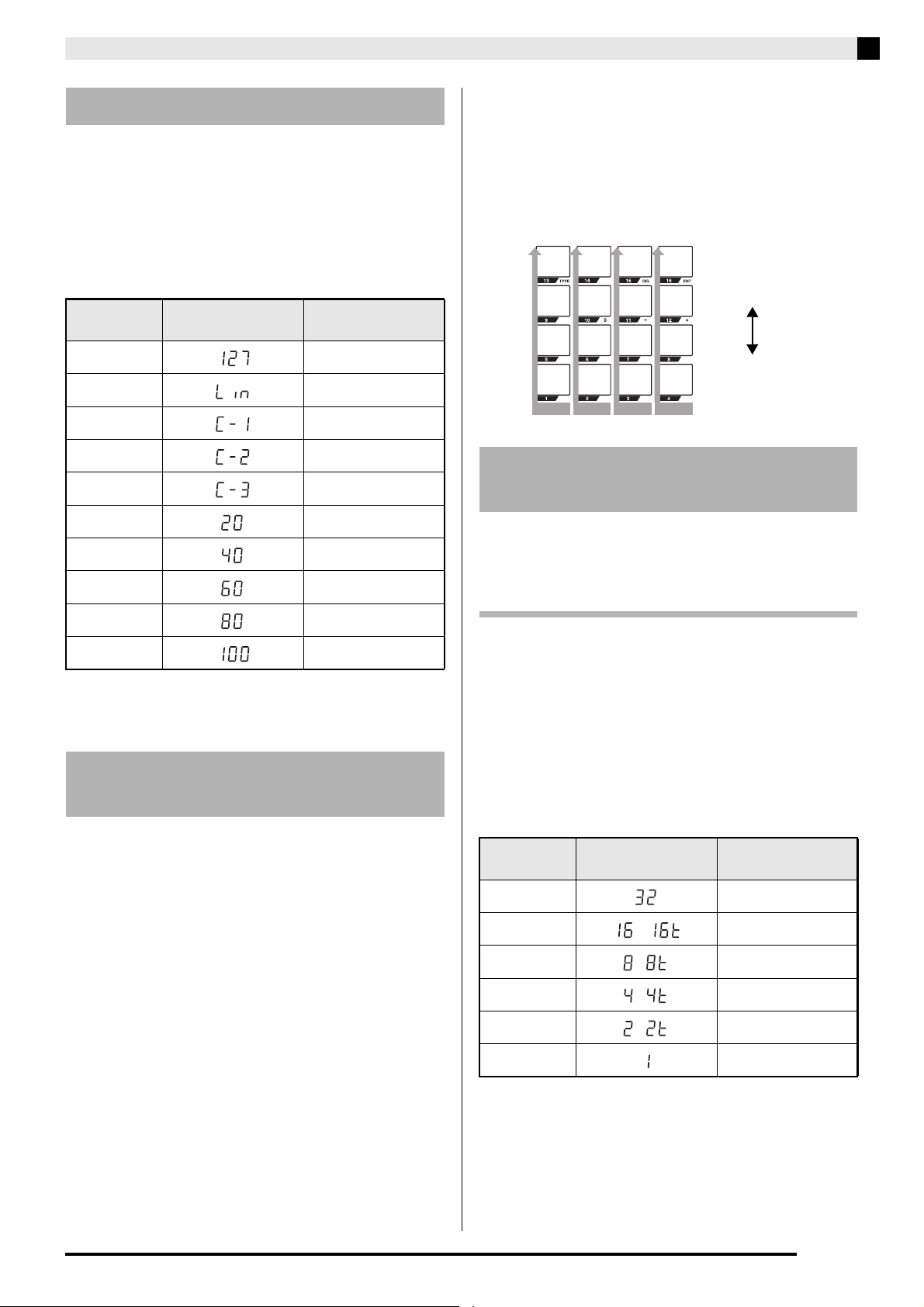
Patterns can be combined to create a sequence up to 16
measures long. Pressing the PLAY selector button
plays a sequence in accordance with the configuration
of the pattern created here. TRACKFORMER supports
creation of up to four pattern combinations (pattern
groups).
1.
Press the PATTERN selector button.
2.
Use the sequence step keys to select the
number of the pattern group you want to edit.
3.
Enter the PATTERN EDIT mode.
4.
Use the VALUE knob to change the number
of measures.
Setting values: 1 to 16 measures
5.
After pressing pad 1, press the sequence
step key that corresponds to the number of
the pattern you want to use as measure 1.
This assigns the pattern to measure 1.
6.
Repeat step 5 to assign patterns to the
remaining measures.
Entering the MIDI Control
Mode
Sequence step keys Navigates between pages 1 to 16.
Changing to a different page
changes the MIDI message output
when a pad is pressed.
• The sequence step key that
corresponds to the currently
selected page flashes.
Pads,
FX1 and FX2 knobs,
ASSIGNABLE fader
Outputs MIDI messages assigned by
the MIDI map. MIDI map
assignments are configured with
Data Editor.
PLAY button Outputs play and pause MIDI
messages.
Changing the Configuration of
a Pattern
1
2
2
2
1
2
3
4
4
6
6
6
3
8
8
8
4
7
7
7
1
5
5
5
4
4
4
4
3
3
3
3
...
...
...
...
Pattern group numbers Patterns
Pattern group 4
Pattern group 3
Pattern group 2
Pattern group 1
2
1
Patterns
1 to 8
Measures
1 to 16
Mastering TRACKFORMER Operations
EN-14
You can use this setting to fix the volume level when a
pad is tapped, or to change the volume level in
accordance with how strongly the pad is tapped.
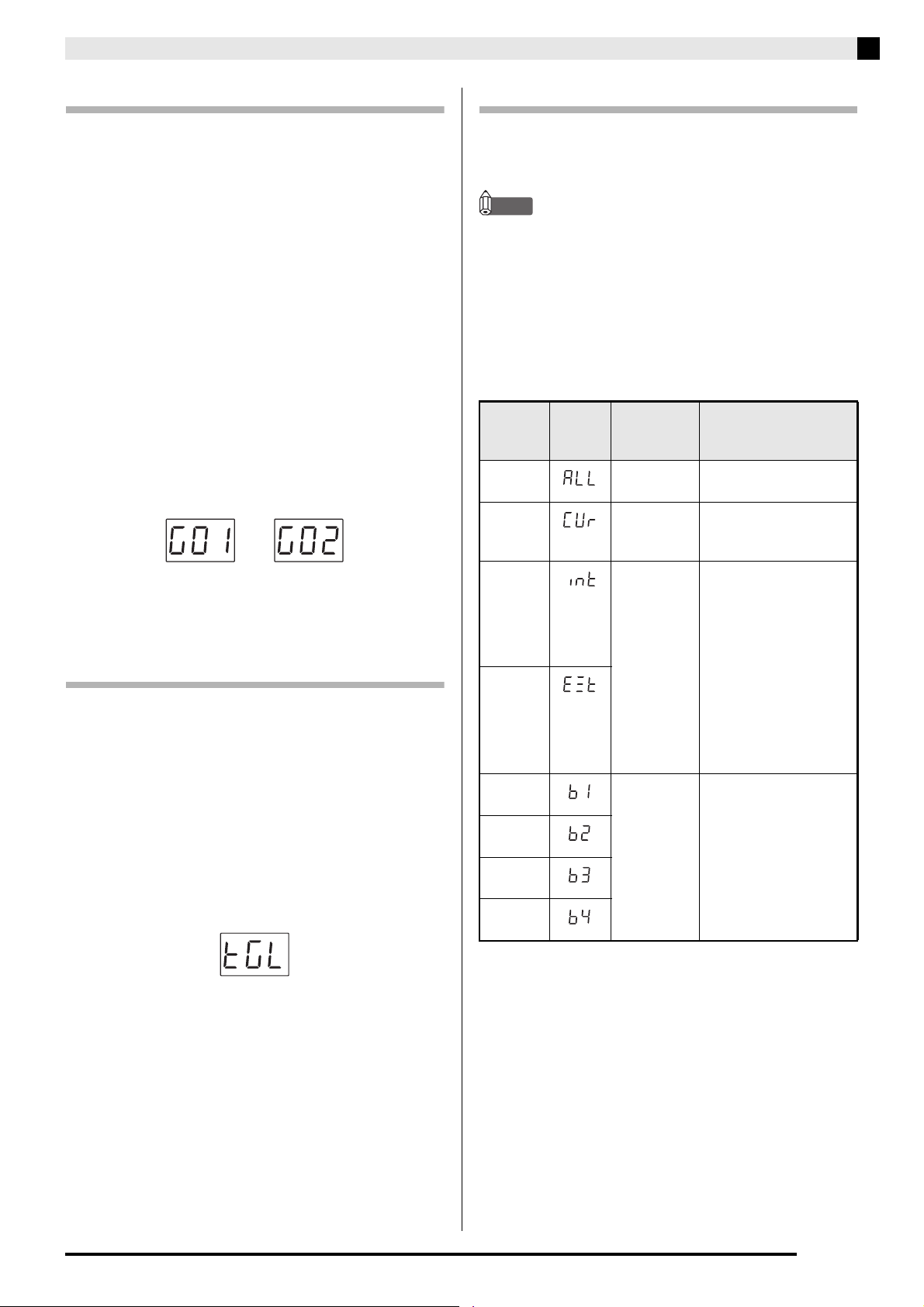
1.
Enter the VELOCITY mode.
2.
Press a sequence step key to change the
velocity curve.
* Amount of volume change when the pad is pressed
increases in the following sequence (from least to
most): Linear, Curve 1, Curve 2, Curve 3.
You can specify a pad set volume level for each bank.
1.
Enter the PAD VOLUME mode.
2.
Use the pads to change the volume level of
each bank.
Setting values: 0 to 127
• To make fine adjustments press any one of the pads
in the bank you want to adjust. When the pad is
flashing, use the VALUE knob to adjust the volume
level.
Use the procedures in this section to specify how a
sound should be produced when a pad is tapped.
To configure a pad for repeat play
1.
Enter the PAD ACTION mode.
2.
Press the pad you want to configure.
3.
Use the sequence step keys to select a
trigger timing.
• Each press of a sequence step key toggles its trigger
timing between enabled (flashing) and disabled (lit).
• When a pad is configured not to repeat, all sequence
step keys from 1 through 6 are lit.
* Each press of this type of sequence step key cycles
the setting in the following sequence: Enabled (On)
3 Enabled (Triplicate) 3 Disabled (Off).
Changing the Pad Velocity
Sequence
Step Key
Display Message Setting
1 127 (fixed)
2 Linear*
3 Curve 1*
4 Curve 2*
5 Curve 3*
12 20 (fixed)
13 40 (fixed)
14 60 (fixed)
15 80 (fixed)
16 100 (fixed)
Changing the Pad Set Volume
Level
Changing the Operation of a
Pad
Sequence
Step Key
Display Message Settings
1 1/32
2 1/16, 1/16T*
3 1/8, 1/8T*
4 1/4, 1/4T*
5 1/2, 1/2T*
6 1
127
96
48
0
Max
Min
Bank 1 Bank 2 Bank 4Bank 3
Volume level
,
,
,
,
Mastering TRACKFORMER Operations
EN-15
Grouping Pads
Sounding a grouped pad while the sound of another
one of the group’s pads is sounding will cause the
previous pad’s sound to stop. TRACKFORMER
supports configuration of two groups per bank. This
function is supported only while TRACKFORMER
settings are configured as described below.
Tone type of all pads: Drum
Pad tones: Sound or sample
1.
Enter the PAD ACTION mode.
2.
Press a pad you want to include in the group.
3.
Press sequence step key 8 (Group 1) or 9
(Group 2) to assign a group number.
This causes the sequence step key you pressed to flash
and adds the pad you selected in step 2 to the group.
• To remove the pad from the group, press sequence
step key 8 or 9 again so the key stops flashing and
remains lit.
4.
Repeat steps 2 and 3 to add other pads to the
group.
Entering the TOGGLE Mode
You can configure a pad to remain depressed until you
press it a second time.
1.
Enter the PAD ACTION mode.
2.
Press the pad you want to configure.
3.
Press sequence step key 11 so it is flashing.
This puts the pad in the TOGGLE mode.
• Each press of sequence step key 11 toggles the
TOGGLE mode between enabled (flashing) and
disabled (lit).
Configuring the Effect Target
You can configure settings so effects are applied to a
particular bank, or to the internal sound source or
external sound source only.
NOTE
• This setting can be changed while the pad type is
effect.
1.
Enter the PAD ACTION mode.
2.
Press the pad you want to configure.
3.
Use the sequence step keys to select the
effect target.
Setting
Display
Message
Sequence
Step Key
Status
Description
All 13, 14,
15: Lit
Effects are applied to all
sounds.
Current
Bank
13: Flashing Effects are applied to
the currently selected
bank only.
Internal 14: Flashing Effects are applied to
the internal sound
source (Internal) or
external sound source
(External) only. Each
press of this key cycles
the setting in the
following sequence:
Internal sound source
3 External sound
source 3 Disabled
(Off).
External
Bank 1 15: Flashing Select the bank to
which you want to
apply the effect. Each
press of this key cycles
the setting in the
following sequence:
Bank 1 3 Bank 2 3
Bank 3 3 Bank 4 3
Disabled (Off).
Bank 2
Bank 3
Bank 4
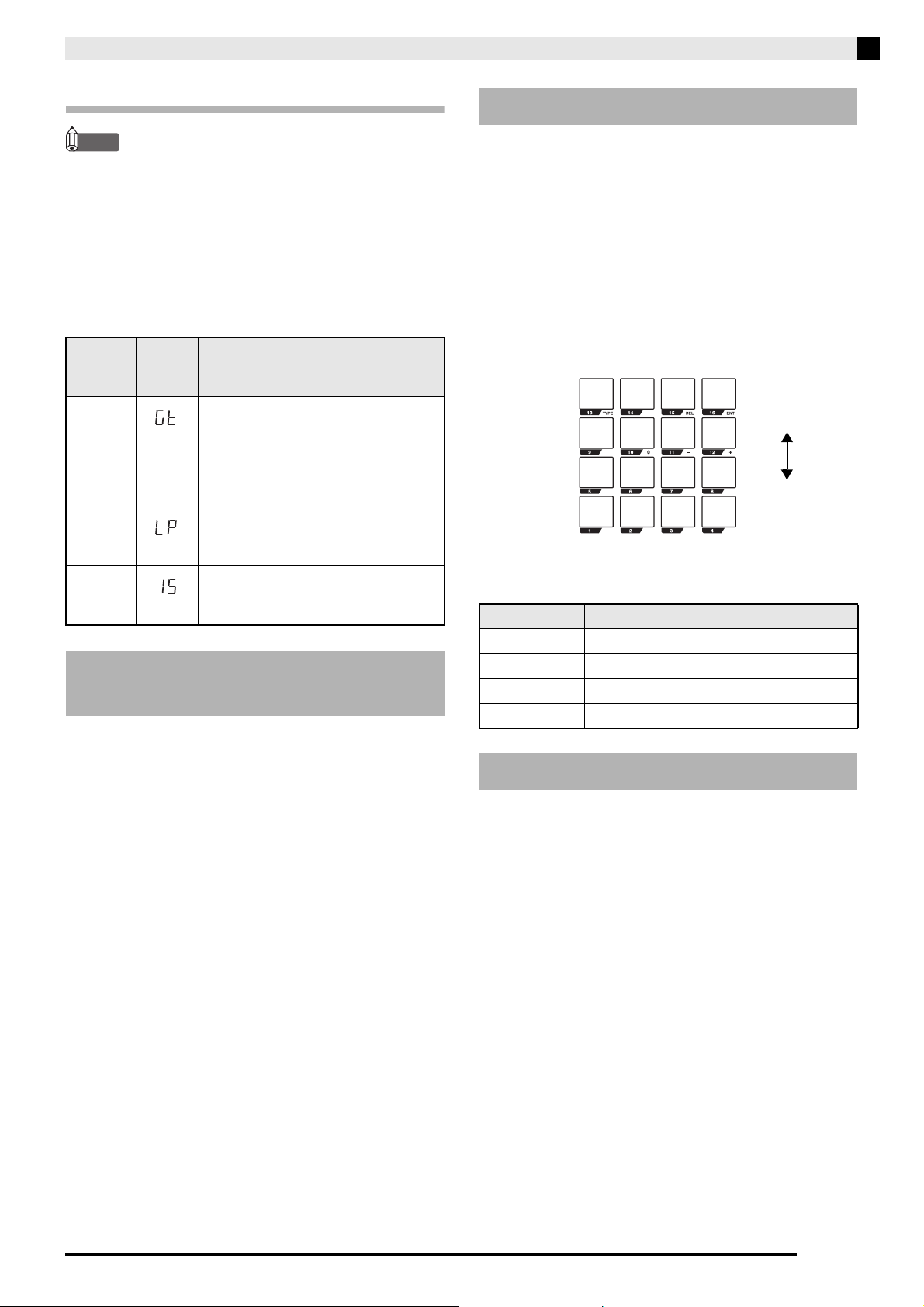
Mastering TRACKFORMER Operations
EN-16
To change the sample playback method
NOTE
• This function can be used while the pad type is
sample.
1.
Enter the PAD ACTION mode.
2.
Press the pad you want to configure.
3.
Use the sequence step keys to select a
playback method.
Use the procedure below to change the initial default
slice length to a value from 1 step to 16 steps.
1.
Enter the SLICE LENGTH mode.
A sequence step key will light to indicate the current
slice length.
2.
Use the sequence step keys to change the
slice length.
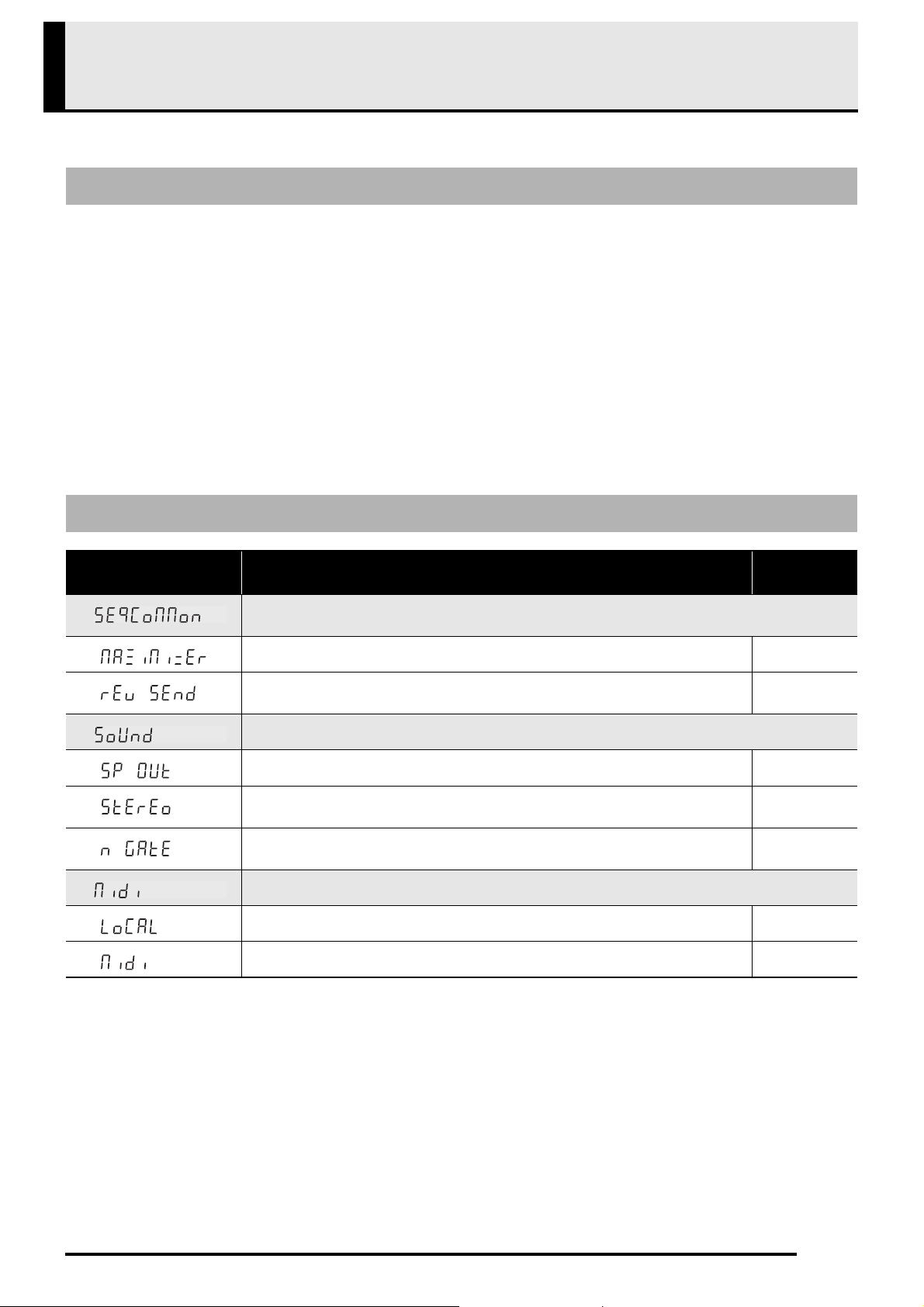
Use the procedure below to adjust four equalizer
frequency bands (HIGH, HIGH MID, LOW MID,
LOW).
1.
Enter the MASTER EQ mode.
2.
Use the pads to raise or lower the four
frequency bands.
• Use the VALUE knob to make fine adjustments.
• You can select a frequency band by pressing a pad,
and then change the frequency to be adjusted by
moving the ASSIGNABLE fader.
■ Selectable Frequencies
Entering the METRONOME mode causes the
metronome to sound. To turn off the metronome, hold
down the FUNCTION selector button again as you
press sequence step key 15.
Settings
Display
Message
Sequence
Step Key
Status
Description
Gate 13, 14: Lit The sample is played
once until the end, as
long as the pad is kept
depressed. Releasing
the pad stops sample
playback.
Loop 13: Flashing Sample playback
repeats as long as the
pad is depressed.
One-Shot 14: Flashing Pressing the pad plays
back the sample once,
all the way through.
Changing the Initial Default
Slice Length
Using the Equalizer
Band Frequency
LOW 50Hz, 100Hz, 200Hz, 400Hz, 800Hz
LOW MID 100Hz, 250Hz, 630Hz, 1.3kHz, 4kHz
HIGH MID 250Hz, 630Hz, 1.3kHz, 4kHz, 8kHz
HIGH 6kHz, 8kHz, 10kHz, 13kHz, 16kHz
Using the Metronome
+12
+6
LOW LOW MID HIGH MID HIGH
0
−
−
12
Max
Min
Frequency bands
EN-17
Configuring Other Settings
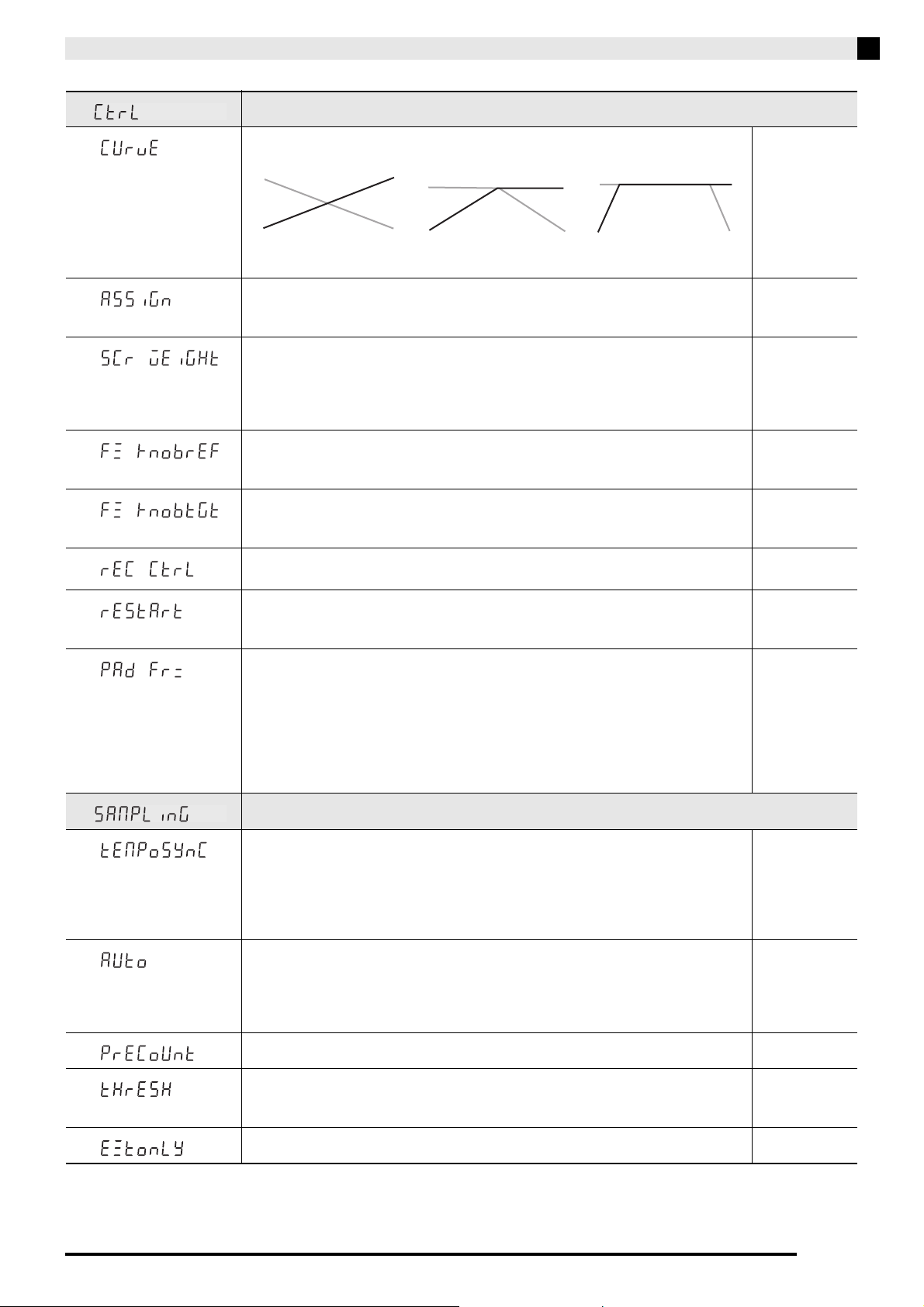
This section explains how to configure global TRACKFORMER and sequence settings.
1.
While holding down the FUNCTION selector button, press sequence step key 16.
2.
Press the pad (1 through 6) that corresponds to the menu you want to access.
3.
Press pad 16 (ENT).
This displays the menu you selected.
4.
Press the pad that corresponds to the menu item you want to select.
This will cause the pad of the selected item to flash.
5.
Press pad 16 (ENT) to cycle through available settings.
• You can also use the VALUE knob to change the displayed setting.
• Pressing the EXIT button returns to the menu display in step 2 above.
Configuring Settings
Menu and Setting List
Pad Number, Display
Message
Overview Settings
1
Menu for configuring and saving settings for each sequence. These settings are
not saved by the Auto Resume function.
1
Maximizer. Adjusts overall sound pressure. Off, 30, 60, 90
*
2
Reverb Send. This parameter adjusts reverb. 0, 10, 20, 40, 80,
127
*
2
Menu for configuring TRACKFORMER input and output audio settings.
1
Speaker Out. Off: Output from TRACKFORMER’s speakers is disabled. Off, On
2
Stereo Imager. Outputs a stereo effect. A larger value increases the stereo effect. Off, T01, T02,
T03
3
Noise Gate. On: External input sound below a fixed level is cut, which reduces
noise.
Off, On
3
Menu for configuring MIDI settings.
1
Local Control. Off: No sound produced when a pad is tapped. Off, On
2
MIDI Control. On: MIDI message input and output is enabled. Off, On
Configuring Other Settings
EN-18
4
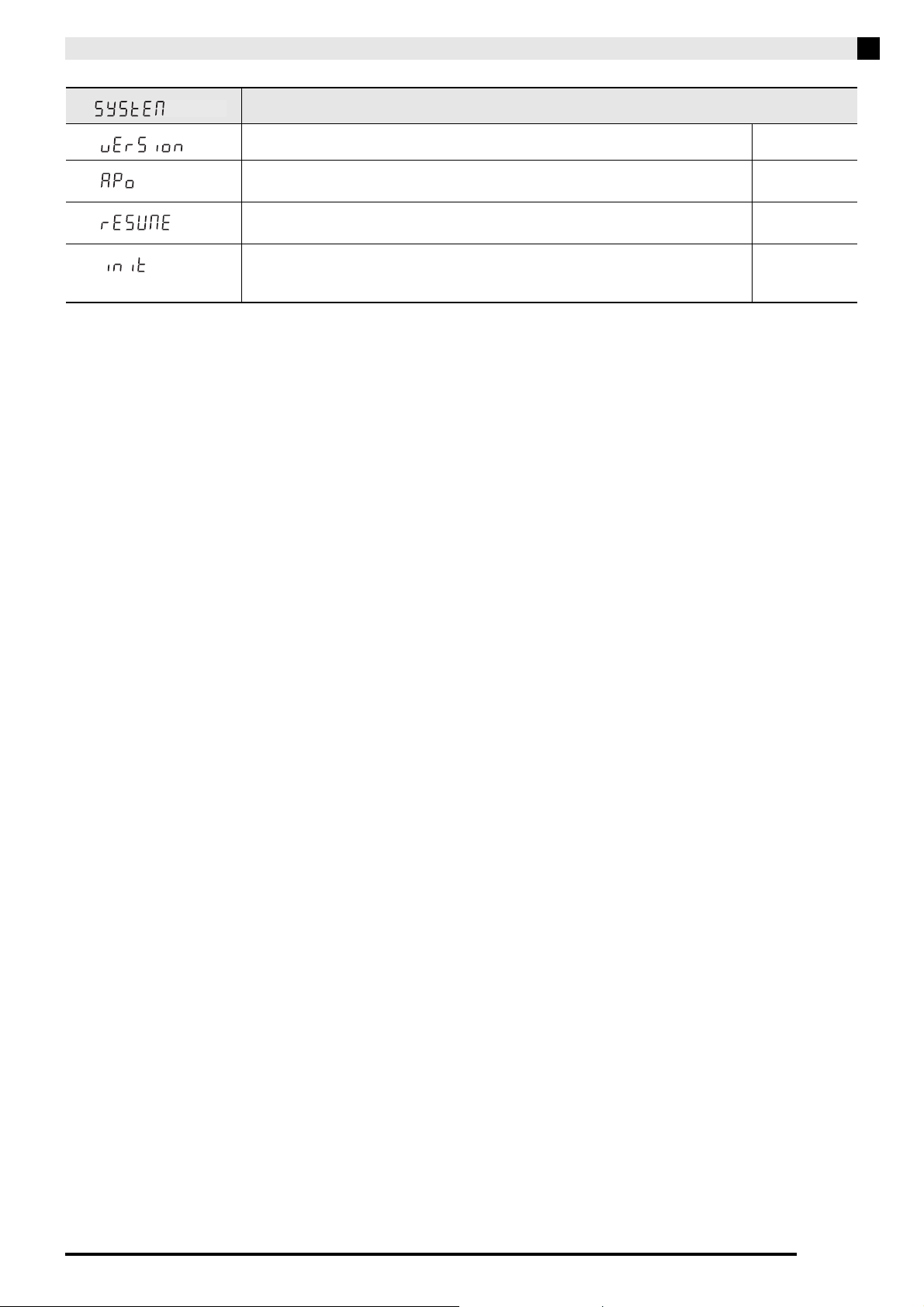
Menu for configuring knob, fader, and button operation settings.
1
Fader Curve. Changes the fader curve of the MIX FADER. 00, 01, 02
2
Fader Assign. Assigns a function to the ASSIGNABLE fader.
Off: No function assigned, SCR: Scratch effect, BND: Pitch bender effect, EFT:
Effect
Off, SCR, BND,
EFT
3
Scratch Weight. Specifies how the scratch effect (SCR) is applied when it is
assigned to the ASSIGNABLE fader.
LT: Effect fully applied with small fader movement.
MID: Medium
HVY: Not much effect applied even with large fader movement.
LT, MID, HVY
4
Effect Knob Reflect. On: Applied effect depends on the current position of the
FX1 or FX2 knob. Off: Applied effect is the last effect applied or the initial default
effect.
Off, On
5
Effect Knob Target. Specifies the effects that are adjusted by the effect knob.
All: All effects
Lst: Last effect applied
All, Lst
6
Record Controller.
Specifies whether or not FX1 and FX2 knob operations are recorded.
Off, On
7
Restart. On: Always starts playback from the beginning whenever sequence
playback started by pressing the PLAY button. Off: Resumes playback from the
location where playback last stopped.
Off, On
8
Pad Freeze. Specifies whether or not to return pad tone settings to their initial
defaults after all pad tones are changed.
On: Settings are saved, Off: Returns to initial default settings
• When the pad tone type is one that cannot be selected by an all pad tone that
was selected, all of the pad tones are returned to their initial defaults regardless
of this setting. For example, if a pad’s tone was changed to a sound and all pad
tones were changed to melody type, the tones of all of the pads will be returned
to their initial defaults, even if this setting is “On”.
Off, On
5
Menu for configuring sampling settings.
1
Sampling Tempo Sync. On: Sampled sounds are synced with the sequence tempo
when played back. The pitch of the sound also changes in accordance with the
tempo. Off: Sampled sounds are always played back at their tempo when they
were sampled.
This function can be used while all pad tones are drum type, and the pad tones
are samples.
Off, On
2
Auto Sampling. Specifies the timing when sampling starts.
On: Sampling starts upon sound input after the REC button is pressed.
Off: Sampling starts as soon as the REC button is pressed.
• This setting is disabled automatically when the sampling pre-count setting
(below) is enabled (On).
Off, On
3
Sampling Pre-count. On: Sampling starts after a four-beat count. Off, On
4
Sampling Threshold. Sampling starts when the sound being sampled reaches a
preset threshold level. This setting is valid only when the Auto Sampling setting
(above) is enabled (On).
0-127
5
External Only. On: Only external sound sources are recorded. Off, On
External Vol. Internal Vol.
EXT INT
External Vol. Internal Vol.
EXT INT
External Vol. Internal Vol.
EXT INT
MIX FADER position
00
MIX FADER position
01
MIX FADER position
02
Configuring Other Settings
EN-19
* The VALUE knob can be used to change the setting value in a range of 0 to 127.
6
Menu for configuring global TRACKFORMER settings.
1
Version Information. –
2
Auto Power Off. On: TRACKFORMER turns off automatically if no operation is
performed for a preset amount of time.
Off, On
3
Auto Resume. On: TRACKFORMER remembers current settings when power is
turned off, and restores them the next time power is turned on.
Off, On
4
All Initialize. Returns the system to its initial factory default state.
Pressing pad 16 (ENT) causes “SUR” (Are you sure?) to appear on the display.
Pressing pad 16 (ENT) again starts actual initialization.
–
EN-20
Adjusting Controller Operations
You can use the procedures in this section to adjust
TRACKFORMER faders, knobs, pads, and other
controllers whenever operations seem to be misaligned
or otherwise different from what you expect.
You can use this procedure to calibrate the positions of
the knobs and faders below.
VALUE knob, FX1 knob, FX2 knob, MIX FADER,
ASSIGNABLE fader
1.
While holding down sequence step key 16,
press the P (power) button to turn on power.
2.
Press sequence step key 1.
3.
Press the PLAY selector button.
4.
Rotate all of the above knobs to the left as far
as they will go, and move the faders all the
way to the left.
5.
Press the PLAY selector button.
This will start calibration of the knob and fader
operations to their far left positions.
• The message (rotate right) shown below will appear
on the display when calibration is successful.
6.
Rotate all of the above knobs to the right as
far as they will go, and move the faders all the
way to the right.
7.
Press the PLAY selector button.
This will start calibration of the knob and fader
operations to their far right positions.
• The message (center) shown below will appear on the
display when calibration is successful.
8.
Move the VALUE knob, MIX FADER, and
ASSIGNABLE fader to their center positions.
9.
Press the PLAY selector button.
This will start calibration of knob and fader operations
to their center positions.
• The message (End) shown below will appear on the
display when calibration is complete.
10.
Press the P (power) button to turn off
TRACKFORMER.
NOTE
• To cancel calibration part way through, press the
EXIT button. Canceling calibration part way
through also discards any positions that were
calibrated up to that point.
• An error message ( ) will appear if an error
occurs during calibration. Pressing any button other
than EXIT at this time will return to the previous
display message. Make sure knobs and faders are in
the correct positions (left, right, center) as you
perform calibration again.
Calibrating Knob and Fader
Alignment
Adjusting Controller Operations
EN-21
Use the procedure below to adjust the sensitivity of a
pad whenever you feel its velocity is different from
that of other pads when tapped. Change to a smaller
sensitivity value when the velocity of the pad is greater
than that of other pads. Change to a larger sensitivity
value when pad velocity is less than that of other pads.
• Settings: –99 to 0 to +99
1.
While holding down sequence step key 16,
press the P (power) button to turn on power.
2.
Press sequence step key 2.
3.
Tap the pad you want to adjust.
This will sound a drum sound and momentarily
display the current velocity value. Next, the sensitivity
value of the tapped pad will appear.
4.
Use the VALUE knob to adjust the pad’s
sensitivity value.
5.
Repeat steps 3 and 4 to adjust the sensitivity
of other pads.
6.
After adjustment of all the pads is the way
you want, press the PLAY selector button.
The message (End) shown below will appear on the
display when adjustment is complete.
7.
Press the P (power) button to turn off
TRACKFORMER.
NOTE
• To cancel adjustment part way through, press the
EXIT button. Canceling adjustment part way
through discards any adjustment you made up to
that point.
Adjusting Pad Sensitivity
EN-22
Connecting to a Computer
Use the procedures in this section to connect
TRACKFORMER to a computer and exchanges
performance information (MIDI data). You can use
Data Editor software on the computer to create
sequences and to change TRACKFORMER settings.
The following shows the minimum computer system
requirements for sending and receiving MIDI data.
Check to make sure that your computer complies with
these requirements before connecting
TRACKFORMER to it.
• Operating System
Windows Vista
®
*1
Windows
®
7
*2
Windows
®
8
*3
Windows
®
8.1
*4
Mac OS
®
X (10.3.9, 10.4.11, 10.5.X, 10.6.X, 10.7.X,
10.8.X, 10.9.X)
• USB port
IMPORTANT!
• Never connect to a computer that does not conform
to the above requirements. Doing so can cause
problems with your computer.
NOTE
• For the latest news about supported operating
systems, visit the website at the URL below.
http://world.casio.com/
IMPORTANT!
• Make sure you follow the steps of the procedure
below exactly. Connecting incorrectly can make data
send and receive impossible.
1.
Turn off TRACKFORMER and then start up
your computer.
• Do not start up the music software on your computer
yet!
2.
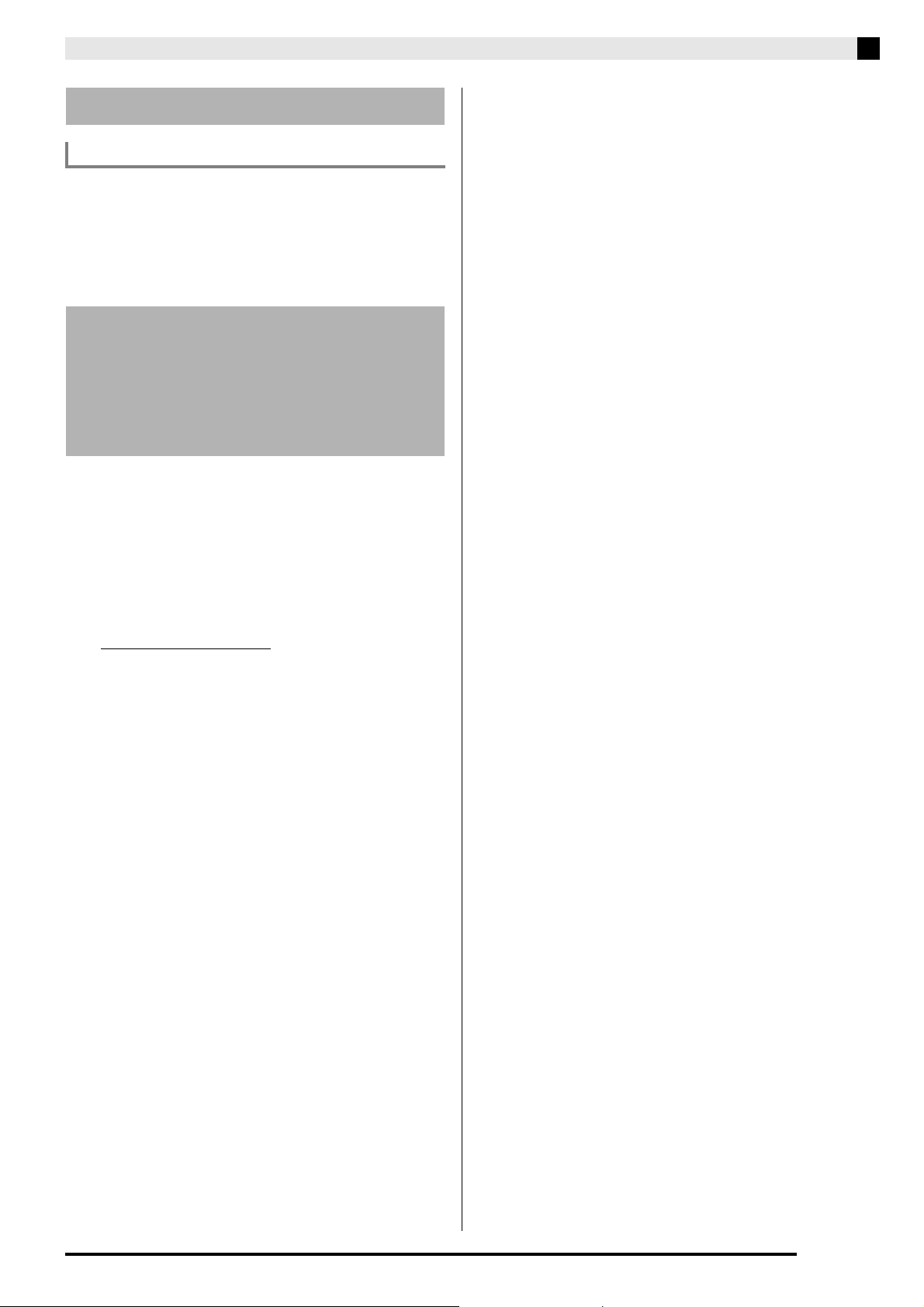
After starting up your computer, use a
commercially available USB cable to connect
it to TRACKFORMER.
3.
Turn on TRACKFORMER.
• If this is the first time you are connecting
TRACKFORMER to your computer, the driver
software required to send and receive data will be
installed on your computer automatically.
4.
Start up commercially available music
software on your computer.
5.
Configure the music software settings to
select “CASIO USB-MIDI” as the MIDI device.
• For information about how to select the MIDI device,
see the user documentation that comes with the
music software you are using.
IMPORTANT!
• Be sure to turn on TRACKFORMER first before
starting up your computer’s music software.
NOTE
• Once you are able to connect successfully, there is no
problem with leaving the USB cable connected when
you turn off your computer and/or
TRACKFORMER.
• For detailed specifications and connections that
apply to MIDI data send and receive by this
TRACKFORMER, see the latest support information
provided by the website at the following URL.
http://world.casio.com/
Minimum Computer System
Requirements
*1: Windows Vista (32-bit)
*2: Windows 7 (32-bit, 64-bit)
*3: Windows 8 (32-bit, 64-bit)
*4: Windows 8.1 (32-bit, 64-bit)
Connecting TRACKFORMER
to Your Computer
Computer USB port
A connector
TRACKFORMER USB port
B connector
USB cable
(A-B type)
Connecting to a Computer
EN-23
MIDI is a standard for digital signals and connectors
that allows TRACKFORMER to exchange information
with a computing device.
• For details about MIDI settings, see “Entering the
MIDI Control Mode” on page EN-13, and “MIDI“
under “Configuring Other Settings” on page EN-17.
You can also edit tone, pattern, and other
TRACKFORMER data on a computer, where it is easier
to work with.
A special Data Editor application is required in order to
perform these operations.
1.
Go to the CASIO WORLDWIDE site at the
following URL.
http://world.casio.com/
2.
At the site, select a geographic area or
country.
3.
After accessing the area site, navigate to the
minimum computer system requirements for
Data Editor for this product.
• You should be able to find a link to Data Editor
information on the product introduction page of this
product. If you cannot find such a link, use the search
form of the area site where you are located to enter
the model name of this product and search for it.
• Note that site contents are subject to change without
notice.
4.
Check if your computer system complies with
the minimum requirements for Data Editor.
5.
Download Data Editor and its user’s guide to
your computer.
6.
Follow the procedure in the Data Editor user’s
guide you downloaded in step 5 to install
Data Editor.
7.
Use the procedures in the Data Editor user’s
guide to transfer and edit data.
• See the Data Editor user’s guide for information
about the types of data that can be transferred and
the data that can be edited.
Using MIDI
What is MIDI?
Saving and Loading
TRACKFORMER Data to a
Computer and Editing
TRACKFORMER Data on a
Computer
EN-24
Appendix
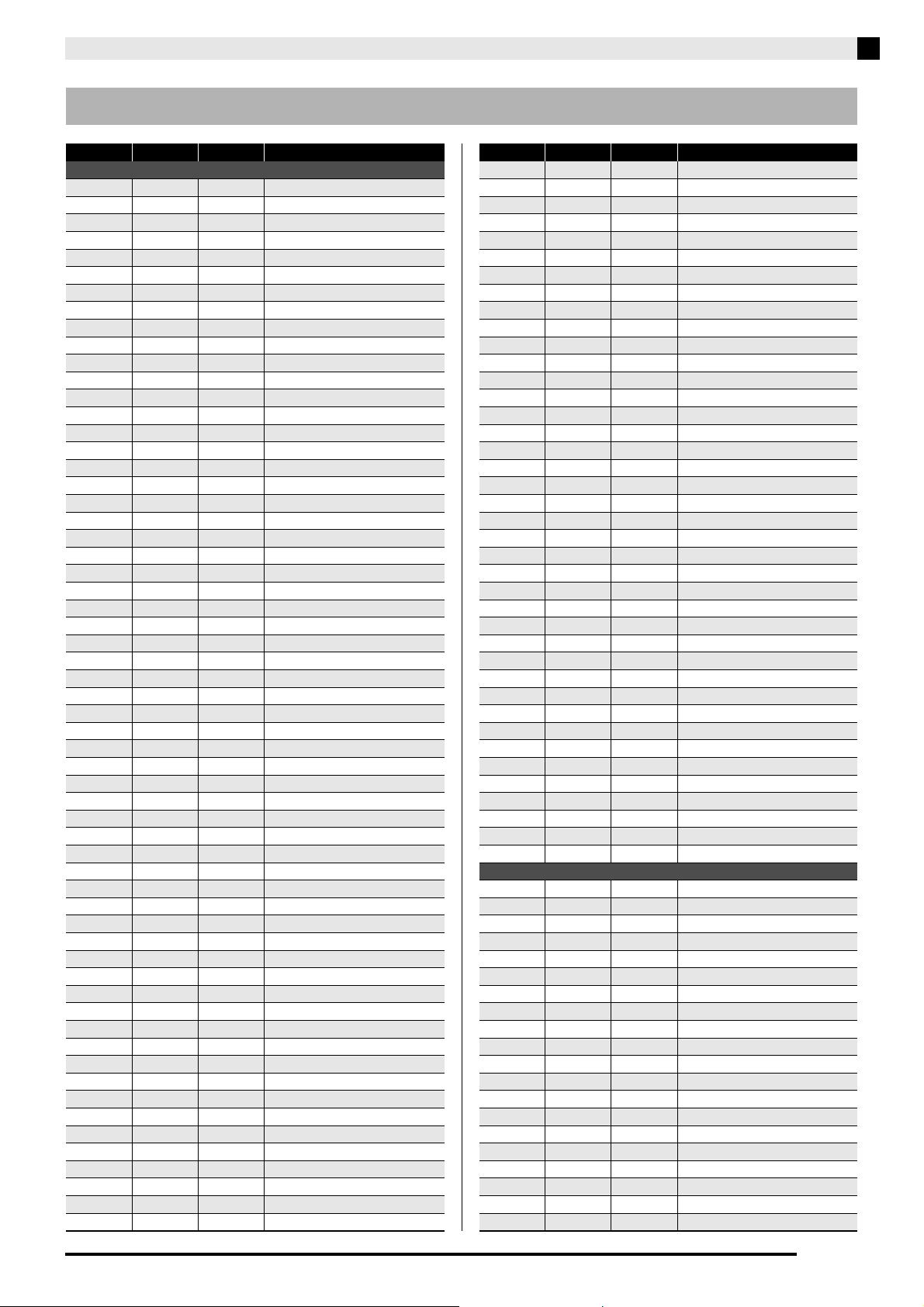
Step Sequence List
No. Display Name Title Tempo
0 EDM 1 Tokyo Magic 128
1 EDM 2 Force 128
2 EDM 3 Scooteria 128
3 EDM 4 Straight 128
4 TRAP 1 Lock 140
5 JUKE 1 Nuke 150
6 FOOTWORK 1 Workshop 150
7 FOOTWORK 2 Popwork 160
8 HIP-HOP 1 Gung Yeezy 86
9 HIP-HOP 2 Funkt 94
10 HIP-HOP 3 Jamhop 100
11 HIP-HOP 4 Korky 122
12 DUBSTEP 1 J-Dubstep 65
13 DUBSTEP 2 Dubman 140
14 TECHNO 1 Stance 150
15 TECHNO 2 Ramjam 139
16 SID BEATS 1 Sid Wilson (Slipknot) collection 1 140
17 SID BEATS 2 Sid Wilson (Slipknot) collection 2 100
18 CASIO VINTAGE 1 Casio Vintage 1 90
19 CASIO VINTAGE 2 Casio Vintage 2 140
20 EDM 5 Rain 135
21 EDM 6 Way-Out 128
22 EDM 7 Closed 138
23 EDM 8 Night Saber 128
24 TRAP 2 Jaxx 166
25 TRAP 3 Trapman 74
26 JUKE 2 King Juke 150
27 FOOTWORK 3 The Mac 145
28 FOOTWORK 4 Foot School 110
29 HIP-HOP 5 Ghangstah 80
30 HIP-HOP 6 Flowa 120
31 HIP-HOP 7 Funkathion 100
32 HIP-HOP 8 Booty Jam 96
33 HIP-HOP 9 Shameo 120
34 HIP-HOP 10 Ranking 100
35 HIP-HOP 11 Humanity 90
36 JUNGLE 1 UK Champion 170
37 JUNGLE 2 Jungle Town 160
38 JUNGLE 3 Breakthrough 180
39 GARAGE 1 Landan Trance 135
40 GARAGE 2 Max Garage 130
41 BREAKBEATS 1 Bedlam 96
42 BREAKBEATS 2 J-Breaks 120
43 BREAKBEATS 3 Rum Chop 134
44 BREAKBEATS 4 Beatbank 120
45 TECHNO 3 Shaqi 138
46 TECHNO 4 Barbara 126
47 TECHNO 5 Lean Jam 65
48 TECHNO 6 Kane Lock 130
49 TECHNO 7 klf 115
50 TECHNO 8 Quantro 125
51 TECHNO 9 Reconasio 140
52 TECHNO 10 Corn 140
53 TECHNO 11 Triplet 108
54 TECHNO 12 Resolve 160
55 TRANCE Starry Sky 140
56 SOCA 1 Bolsca 130
57 SOCA 2 Acid 130
58 SOCA 3 lovelove 130
59 2STEP Steprise 135
60 IDM 1 Syncop 126
61 IDM 2 Syner 125
62 IDM 3 Chopdem 130
63 TRIBAL 1 Ribalpop 100
64 TRIBAL 2 Tribalring 100
65 TRIBAL 3 Get Lost 144
66 SID BEATS 3 Sid Wilson (Slipknot) collection 3 120
67 SID BEATS 4 Sid Wilson (Slipknot) collection 4 120
68 SID BEATS 5 Sid Wilson (Slipknot) collection 5 120
69 SID BEATS 6 Sid Wilson (Slipknot) collection 6 93
70 SID BEATS 7 Sid Wilson (Slipknot) collection 7 120
71 SID BEATS 8 Sid Wilson (Slipknot) collection 8 120
72 VARIETY 1 Tabla 95
73 VARIETY 2 Latin Percussion 100
74 VARIETY 3 Samba 100
75 VARIETY 4 Reggae 80
76 VARIETY 5 Arabic Percussion 125
77 JAPAN 1 Bright 128
78 JAPAN 2 Toy Rocket 180
79 JAPAN 3 Try to Key 138
80 JAPAN 4 Marionette Dance 128
81 CHILLOUT 1 ChillOut 1 70
82 CHILLOUT 2 ChillOut 2 120
83 CHILLOUT 3 ChillOut 3 80
84 CASIO VINTAGE 3 Casio Vintage 3 140
85 CASIO VINTAGE 4 Casio Vintage 4 160
86 CASIO VINTAGE 5 Casio Vintage 5 120
87 CASIO VINTAGE 6 Casio Vintage 6 120
88 CASIO VINTAGE 7 Casio Vintage 7 120
89 CASIO VINTAGE 8 Casio Vintage 8 120
90 TEMPLATE 1 Template for EDM 128
91 TEMPLATE 2 Template for HIP-HOP 100
92 TEMPLATE 3 Template for JUKE/FOOTWORK 125
93 LOOP PLAY 1 Loop Play 1 90
94 LOOP PLAY 2 Loop Play 2 140
95 LOOP PLAY 3 Loop Play 3 120
96 EFFECT 1 Effect Setting 1 120
97 EFFECT 2 Effect Setting 2 120
98 EFFECT 3 Effect Setting 3 120
99 EFFECT 4 Effect Setting 4 120
No. Display Name Title Tempo
Appendix
EN-25
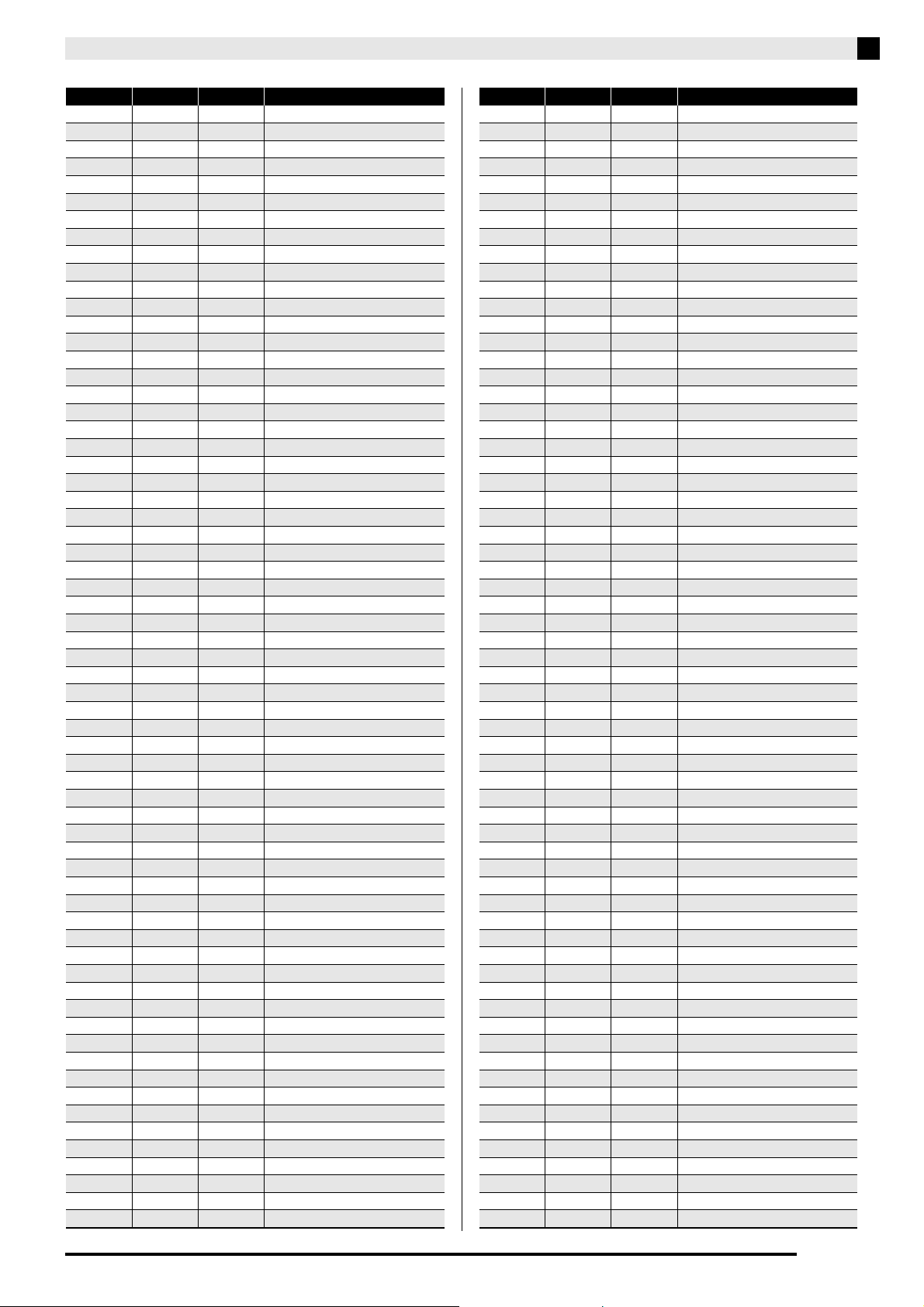
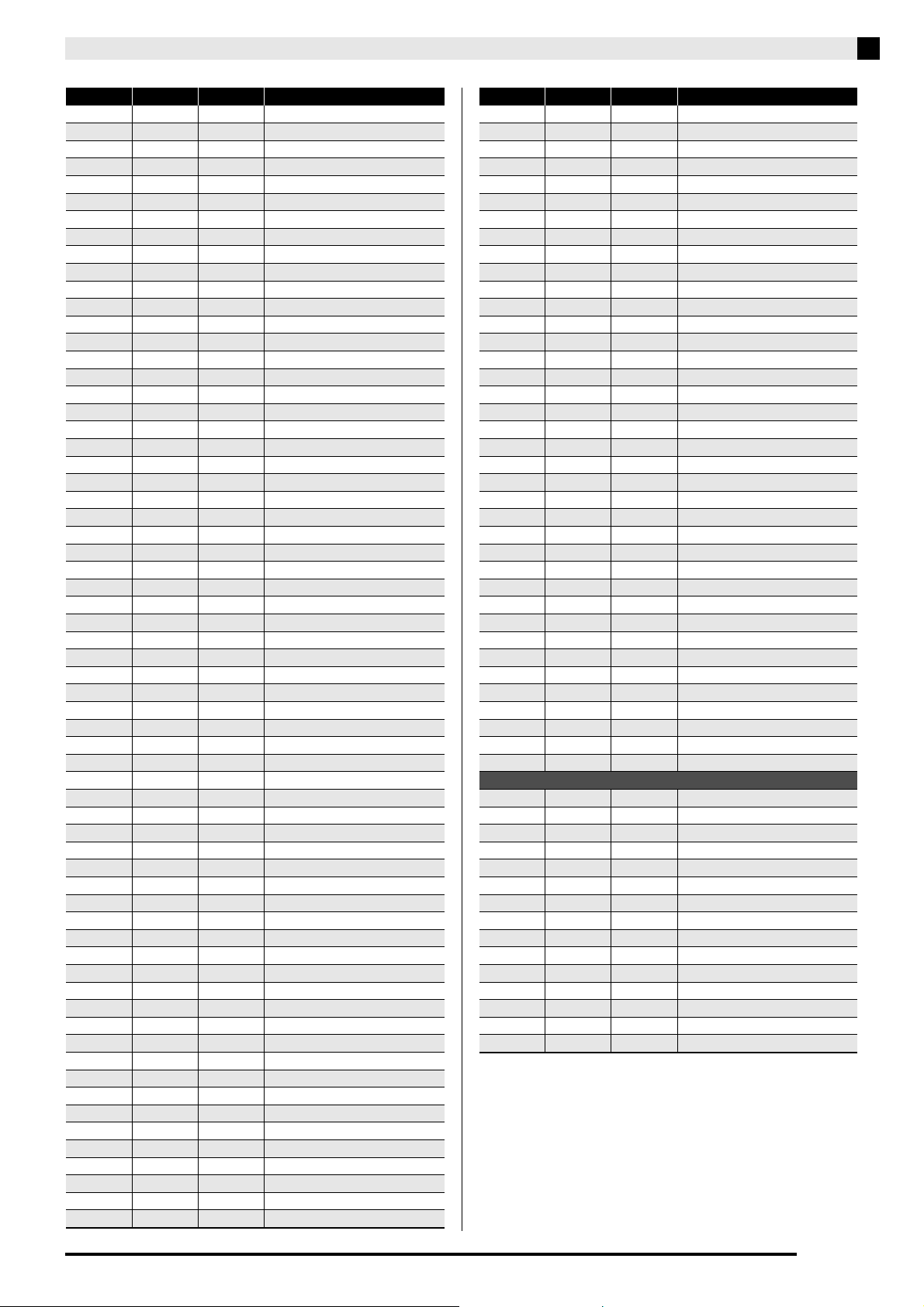
Pad Set Tone List
Number Bank Prog Display Name
SYNTH
0 98 0 XW SoloSyn 1
1 98 1 XW SoloSyn 2
2 98 2 XW SoloSyn 3
3 98 3 XW SoloSyn 4
4 98 4 MM Raw Lead
5 98 5 XW SoloSyn 5
6 98 6 XW SoloSyn 6
7 98 7 XW SoloSyn 7
8 98 8 XW SoloSyn 8
9 98 9 MG Raw Lead
10 98 10 XW LeadSyn 1
11 98 11 XW LeadSyn 2
12 98 12 XW LeadSyn 3
13 98 13 XW LeadSyn 4
14 98 14 XW LeadSyn 5
15 98 15 XW LeadSyn 6
16 98 16 XW LeadSyn 7
17 98 17 CZ RawLead 1
18 98 18 CZ RawLead 2
19 98 19 CZ RawLead 3
20 98 20 PD1 Synth 1
21 98 21 PD1 Synth 2
22 98 22 PD1 Synth 3
23 98 23 PD1 Synth 4
24 98 24 PD1 Synth 5
25 98 25 PD1 Synth 6
26 98 26 PD1 Synth 7
27 98 27 PD1 Synth 8
28 98 28 PD1 Synth 9
29 98 29 PD1 Synth 10
30 98 30 PD1 Synth 11
31 98 31 PD1 Synth 12
32 98 32 PD1 Synth 13
33 98 33 PD1 Synth 14
34 98 34 PD1 Synth 15
35 98 35 PD1 Synth 16
36 98 36 VA Synth 1
37 98 37 VA Synth 2
38 98 38 VA Synth 3
39 98 39 VA Synth 4
40 98 40 VA Synth 5
41 98 41 VA Synth 6
42 98 42 VA Synth 7
43 98 43 XW SynBass 1
44 98 44 XW SynBass 2
45 98 45 XW SynBass 3
46 98 46 XW SynBass 4
47 98 47 XW SynBass 5
48 98 48 XW SynBass 6
49 98 49 XW SynBass 7
50 98 50 XW SynBass 8
51 98 51 DelaySawBass
52 98 52 TransAmbient
53 98 53 RetroSynBass
54 98 54 Retro Bass 1
55 98 55 Retro Bass 2
56 98 56 Retro Bass 3
57 98 57 Retro Bass 4
58 98 58 Retro Bass 5
59 98 59 Retro Bass 6
60 98 60 Retro Bass 7
61 98 61 Synth Hit 1
62 98 62 Synth Hit 2
63 98 63 VirtualWaves
64 98 64 WaveNation 1
65 98 65 WaveNation 2
66 98 66 WaveNation 3
67 98 67 WaveNation 4
68 98 68 WaveNation 5
69 98 69 WaveNation 6
70 98 70 HiPasfitLead
71 98 71 HiTresMotion
72 98 72 Motion Vox
73 98 73 AP Raw Lead
74 98 74 OB Raw Lead
75 98 75 P5 Raw Lead
76 98 76 ND Raw Lead
77 98 77 Whistler
78 98 78 Theremin Oct
79 98 79 Gaa-Gaa Saw
80 98 80 Transistory
81 98 81 TrezBandPass
82 98 82 Poncom Synth
83 98 83 FuzzyHarmnix
84 98 84 Triangle XMW
85 98 85 BellSineLead
86 98 86 PD1 Kick 1
87 98 87 PD1 Kick 2
88 98 88 PD1 Snare 1
89 98 89 PD1 Snare 2
90 98 90 PD1 Perc 1
91 98 91 PD1 Perc 2
92 98 92 PD1 Perc 3
93 98 93 PD1 Perc 4
94 98 94 PD1 Perc 5
95 98 95 PD1 Perc 6
96 98 96 PD1 Perc 7
97 98 97 PD1 Perc 8
98 98 98 PD1 Perc 9
99 98 99 Basic Sin
MELODY
0 0 0 Grand Piano
1 0 1 Bright Piano
2 0 2 Rock Piano
3 4 1 Modern Piano
4 5 1 Dance Piano
5 8 0 StringsPiano
6 9 0 Piano Pad
7 0 3 HonkyTonk
8 0 6 Harpsichord
9 2 4 Elec Piano 1
10 1 5 FM E Piano
11 1 4 DynoE Piano
12 0 4 Elec Piano 2
13 0 5 Elec Piano 3
14 2 7 Clavi 1
15 3 7 Clavi 2
16 0 7 Clavi 3
17 2 11 Vibraphone 1
18 0 11 Vibraphone 2
19 0 8 Celesta
Number Bank Prog Display Name
Appendix
EN-26
20 0 9 Glockenspiel
21 0 10 Music Box
22 0 12 Marimba
23 0 13 Xylophone
24 0 14 Tubular Bell
25 0 15 Dulcimer
26 0 16 DrawbarOrg 1
27 0 17 Perc Organ
28 6 16 Elec Organ
29 4 17 Jazz Organ
30 0 18 Rock Organ
31 5 18 Dist RockOrg
32 7 16 Full Drawbar
33 4 18 Rotary Organ
34 0 22 Harmonica
35 0 23 Bandoneon
36 4 48 Strings 1
37 0 49 Strings 2
38 0 48 Strings 3
39 1 48 StrEnsemble1
40 3 48 StrEnsemble2
41 0 50 Syn-Strings1
42 0 51 Syn-Strings2
43 1 50 70s Syn-Str
44 6 50 Fast Syn-Str
45 7 50 Slow Syn-Str
46 8 50 Syn-Strings3
47 8 51 Syn-Strings4
48 5 52 StringsVoice
49 0 54 Synth-Voice1
50 1 54 Synth-Voice2
51 4 54 VoiceEnsembl
52 0 52 Choir Aahs
53 0 53 Voice Doo
54 0 55 Orch Hit
55 0 40 Violin
56 0 42 Cello
57 0 43 Contrabas
58 0 44 Trem Strings
59 0 45 Pizzicato
60 0 46 Harp
61 0 47 Timpani
62 1 61 Brass 1
63 0 61 Brass 2
64 3 61 BrassSection
65 2 62 Synth-Brass1
66 3 62 Synth-Brass2
67 7 62 WarmSynBrass
68 1 62 80s SynBrass
69 4 62 A Syn-Brass
70 4 63 Trance Brass
71 0 62 Synth-Brass3
72 0 63 Synth-Brass4
73 0 56 Trumpet
74 0 57 Trombone
75 0 58 Tuba
76 0 59 Mute Trumpet
77 0 60 French Horn
78 0 64 Soprano Sax
79 0 65 Alto Sax
80 0 66 Tenor Sax
81 0 67 Baritone Sax
82 0 68 Oboe
83 0 69 English Horn
Number Bank Prog Display Name
84070Bassoon
85 0 71 Clarinet
86072Piccolo
87 0 73 Flute
88 0 74 Recorder
89 0 75 Pan Flute
90 0 76 Bottle Blow
91 0 77 Shakuhach
92078Whistle
93 0 79 Ocarina
94 0 24 Nylon Guitar
95 0 25 Steel Guitar
96 0 27 CleanGuitar1
97 7 27 CleanGuitar2
98 0 28 Mute Guitar
99 0 29 Mute Ovd Gt
100 6 27 Crunch E Gt1
101 0 30 DistortionGt
102 4 30 More Dist Gt
103 0 26 Jazz Guitar
104 0 31 Gt Harmonics
105 2 32 Acous Bass 1
106 2 33 FingerBass 1
107 2 34 PickedBass 1
108 2 35 FretlesBass1
109 2 38 Synth-Bass 1
110 12 38 Synth-Bass 2
111 13 38 Synth-Bass 3
112 14 38 Synth-Bass 4
113 15 38 Synth-Bass 5
114 16 38 Synth-Bass 6
115 1 38 SawSyn-Bass1
116 9 38 SawSyn-Bass2
117 1 39 Sqr Syn-Bass
118 3 39 DigiRockBass
119 4 38 Trance Bass
120 5 39 Bs And Kick
121 3 38 Vocoder Bass
122 5 38 SoulSyn-Bass
123 0 32 Acous Bass 2
124 0 33 FingerBass 2
125 0 34 PickedBass 2
126 0 35 FretlesBass2
127 0 38 Synth-Bass 7
128 0 39 Synth-Bass 8
129 2 80 Square Lead1
130 1 80 Square Lead2
131 3 80 Square Lead3
132 15 80 Square Lead4
133 7 80 Sqr Pulse Ld
134 12 80 Sine Lead
135 2 81 Saw Lead 1
136 1 81 Saw Lead 2
137 3 81 Saw Lead 3
138 8 81 MelowSawLead
139 5 81 Pulse Saw Ld
140 4 81 SS Lead
141 5 80 Slow SqrLead
142 6 81 Slow SawLead
143 13 81 Saw Lead 4
144 11 80 Seq Square
145 13 80 Seq Pulse
146 10 80 SequenceSine
147 10 81 SequenceSaw1
Number Bank Prog Display Name
Appendix
EN-27
148 11 81 SequenceSaw2
149 9 81 Trance Lead
150 16 80 VA SynthLead
151 17 80 VA Synth 1
152 18 80 VA Synth 2
153 19 80 VA Synth 3
154 20 80 VA Synth 4
155 21 80 VA Synth 5
156 22 80 VA Synth 6
157 23 80 VA Synth 7
158 24 80 VA Synth 8
159 16 81 VA Syn-SqBs1
160 17 81 VA Syn-SqBs2
161 18 81 VA Syn-SqBs3
162 19 81 VA Syn-SqBs4
163 20 81 VA Syn-SqBs5
164 22 81 VA Syn-Hit 1
165 23 81 VA Syn-Hit 2
166 5 82 Vent Lead
167 1 82 Vent Synth
168 7 82 SequenceLead
169 4 83 Drop Lead
170 1 83 EP Lead
171 2 85 Voice Lead 1
172 3 84 Pluck Lead 1
173 4 84 Pluck Lead 2
174 5 84 Gt SynthLead
175 7 85 DblVoiceLead
176 4 85 VoiceChoirLd
177 6 85 Syn-Voice Ld
178 4 86 FifthSawLead
179 5 86 FifthSqrLead
180 6 86 Fifth Seq
181 3 87 SynBs And Ld
182 2 88 Fantasy 1
183 4 88 Fantasy 2
184 3 88 New Age
185 5 88 New Age Pad
186 8 89 Warm Vox
187 1 89 Thick Pad
188 2 89 Warm Pad 1
189 3 89 Sine Pad
190 4 89 Soft Pad
191 1 90 PolySynth 1
192 2 90 PolySynth 2
193 3 90 PolySynthPd1
194 5 90 PolySynthPd2
195 8 90 Poly Saw
196 1 91 Heaven
197 2 91 SpaceStrPad
198 5 91 Star Voice
199 0 92 Glass Pad
200 4 92 Bottle Pad
201 3 94 Halo Pad
202 1 94 Chorus Pad
203 1 95 Sweep Choir
204 1 96 Rain Drop 1
205 3 97 SoundTrack 1
206 1 98 XmasBell
207 5 98 Vibes Bell
208 1 100 BrightBellPd
209 2 100 Brightness 1
210 3 100 Brightness 2
211 3 102 Echo Drop
Number Bank Prog Display Name
212 4 102 Poly Drop
213 0 80 Square Lead5
214 0 81 Saw Lead 4
215 0 82 Calliope
216 0 83 Chiff Lead
217 0 84 Charang
218 0 85 Voice Lead 2
219 0 86 Fifth Lead
220 0 87 Bs And Lead
221 0 88 Fantasy 3
222 0 89 Warm Pad 2
223 0 90 PolySynth 3
224 0 91 Space Choir
225 0 93 Metal Pad
226 0 94 Halo Pad
227 0 95 Sweep Pad
228 0 96 Rain Drop 2
229 0 97 SoundTrack 2
230 0 98 Crystal
231 0 99 Atmosphere
232 0 100 Brightness 3
233 0 101 Goblins
234 0 102 Echoes
235 0 103 SF
2360104Sitar
237 16 104 Tanpura
238 0 105 Banjo
239 0 106 Shamisen
2400107Koto
241 0 109 Bagpipe
242 0 110 Fiddle
243 0 111 Shanai
244 0 113 Agogo
245 0 114 Steel Drums
246 0 115 Wood Block
247 0 116 Taiko
248 0 117 Melodic Tom
249 0 118 Synth-Drum
DRUM
0 120 29 Dance Set 1
1 120 9 Hip-Hop Set
2 120 25 Synth Set 1
3 120 54 Groove Set 1
4 120 24 Elec Set
5 120 31 Trance Set
6 120 0 StandardSet1
71208Room Set
8 120 16 Power Set
9 120 32 Jazz Set
10 120 30 Synth Set 2
11 120 28 Dance Set 2
12 120 55 Groove Set 2
13 120 49 Ethnic Set 1
14 120 50 Ethnic Set 2
Number Bank Prog Display Name
Appendix
EN-28
■ Tone Type: Sound
Pad Tone List
No. Display Name
0 Blank Inst
1 Kick 1
2 Kick 2
3 Kick 3
4 Kick 4
5 Kick 5
6 Kick 6
7 Kick 7
8 Kick 8
9 Kick 9
10 Kick 10
11 Kick 11
12 Kick 12
13 Kick 13
14 Kick 14
15 Kick 15
16 Kick 16
17 Kick 17
18 Kick 18
19 Kick 19
20 Kick 20
21 Kick 21
22 Kick 22
23 Kick 23
24 Kick 24
25 Kick 25
26 Kick 26
27 Kick 27
28 Kick 28
29 Kick 29
30 Kick 30
31 Kick 31
32 Kick 32
33 Kick 33
34 Kick 34
35 Kick 35
36 Kick 36
37 Kick 37
38 Kick 38
39 Kick 39
40 Kick 40
41 Kick 41
42 Kick 42
43 Kick 43
44 Kick 44
45 Kick 45
46 Kick 46
47 Kick 47
48 Kick 48
49 Kick 49
50 Kick 50
51 Kick 51
52 Kick 52
53 Kick 53
54 Kick 54
55 Kick 55
56 Kick 56
57 Kick 57
58 Kick 58
59 Kick 59
60 Kick 60
61 Kick 61
62 Kick 62
63 Kick 63
64 Kick 64
65 Kick 65
66 Kick 66
67 Kick 67
68 Kick 68
69 Kick 69
70 Kick 70
71 Kick 71
72 Kick 72
73 Kick 73
74 Kick 74
75 Kick 75
76 Kick 76
77 Kick 77
78 Kick 78
79 Kick 79
80 Kick 80
81 Kick 81
82 Kick 82
83 Kick 83
84 Kick 84
85 Kick 85
86 Kick 86
87 Kick 87
88 Kick 88
89 Kick 89
90 Kick 90
91 Kick 91
92 Kick 92
93 Kick 93
94 Kick 94
95 Kick 95
96 Kick 96
97 Kick 97
98 Kick 98
99 Kick 99
100 Kick 100
101 Kick 101
102 Kick 102
103 Kick 103
104 Kick 104
105 Kick 105
106 Kick 106
107 Kick 107
108 Kick 108
109 Kick 109
110 Kick 110
111 Kick 111
112 Kick 112
113 Kick 113
114 Kick 114
115 Snare 1
116 Snare 2
117 Snare 3
118 Snare 4
119 Snare 5
No. Display Name
120 Snare 6
121 Snare 7
122 Snare 8
123 Snare 9
124 Snare 10
125 Snare 11
126 Snare 12
127 Snare 13
128 Snare 14
129 Snare 15
130 Snare 16
131 Snare 17
132 Snare 18
133 Snare 19
134 Snare 20
135 Snare 21
136 Snare 22
137 Snare 23
138 Snare 24
139 Snare 25
140 Snare 26
141 Snare 27
142 Snare 28
143 Snare 29
144 Snare 30
145 Snare 31
146 Snare 32
147 Snare 33
148 Snare 34
149 Snare 35
150 Snare 36
151 Snare 37
152 Snare 38
153 Snare 39
154 Snare 40
155 Snare 41
156 Snare 42
157 Snare 43
158 Snare 44
159 Snare 45
160 Snare 46
161 Snare 47
162 Snare 48
163 Snare 49
164 Snare 50
165 Snare 51
166 Snare 52
167 Snare 53
168 Snare 54
169 Snare 55
170 Snare 56
171 Snare 57
172 Snare 58
173 Snare 59
174 Snare 60
175 Snare 61
176 Snare 62
177 Snare 63
178 Snare 64
179 Snare 65
No. Display Name
180 Snare 66
181 Snare 67
182 Snare 68
183 Snare 69
184 Snare 70
185 Snare 71
186 Snare 72
187 Snare 73
188 Snare 74
189 Snare 75
190 Snare 76
191 Snare 77
192 Snare 78
193 Snare 79
194 Snare 80
195 Snare 81
196 Snare 82
197 Snare 83
198 Snare 84
199 Snare 85
200 Snare 86
201 Snare 87
202 Snare 88
203 Snare 89
204 Snare 90
205 Snare 91
206 Snare 92
207 Snare 93
208 Snare 94
209 Snare 95
210 Snare 96
211 Snare 97
212 Snare 98
213 Snare 99
214 Snare 100
215 Snare 101
216 Snare 102
217 Snare 103
218 Snare 104
219 Snare 105
220 Snare 106
221 Snare 107
222 Snare 108
223 Snare 109
224 Snare 110
225 Snare 111
226 Snare 112
227 Snare 113
228 Snare 114
229 Snare 115
230 Snare 116
231 Snare 117
232 Snare 118
233 Snare 119
234 Snare 120
235 Snare 121
236 Snare 122
237 Snare 123
238 Snare 124
239 Snare 125
No. Display Name
240 Snare 126
241 Snare 127
242 Snare 128
243 Snare 129
244 Snare 130
245 Snare 131
246 Snare 132
247 Snare 133
248 Snare 134
249 Snare 135
250 Snare 136
251 Snare 137
252 Snare 138
253 Snare 139
254 Snare 140
255 Snare 141
256 Snare 142
257 Snare 143
258 Snare 144
259 Snare 145
260 Snare 146
261 Snare 147
262 Side Stick 1
263 Side Stick 2
264 Side Stick 3
265 Side Stick 4
266 Side Stick 5
267 Side Stick 6
268 Side Stick 7
269 Side Stick 8
270 Side Stick 9
271 Hand Clap 1
272 Hand Clap 2
273 Hand Clap 3
274 Hand Clap 4
275 Hand Clap 5
276 Hand Clap 6
277 Hand Clap 7
278 Hand Clap 8
279 Tom 1
280 Tom 2
281 Tom 3
282 Tom 4
283 Tom 5
284 Tom 6
285 Tom 7
286 Tom 8
287 Tom 9
288 Tom 10
289 Tom 11
290 Tom 12
291 Tom 13
292 Tom 14
293 Tom 15
294 Tom 16
295 Tom 17
296 Tom 18
297 Tom 19
298 Tom 20
299 Tom 21
No. Display Name
300 Tom 22
301 Tom 23
302 Tom 24
303 Tom 25
304 Tom 26
305 Tom 27
306 Tom 28
307 Tom 29
308 Tom 30
309 Tom 31
310 Tom 32
311 Tom 33
312 Tom 34
313 Tom 35
314 Tom 36
315 Tom 37
316 Tom 38
317 Tom 39
318 Tom 40
319 Tom 41
320 Tom 42
321 Tom 43
322 Tom 44
323 Tom 45
324 Tom 46
325 Tom 47
326 Tom 48
327 Tom 49
328 Tom 50
329 Tom 51
330 Tom 52
331 Tom 53
332 Tom 54
333 Tom 55
334 Tom 56
335 Tom 57
336 Tom 58
337 Tom 59
338 Tom 60
339 Tom 61
340 Tom 62
341 Tom 63
342 Tom 64
343 Tom 65
344 Tom 66
345 Tom 67
346 Tom 68
347 Tom 69
348 Tom 70
349 Tom 71
350 Tom 72
351 Tom 73
352 Tom 74
353 Tom 75
354 Tom 76
355 Tom 77
356 Tom 78
357 Tom 79
358 Tom 80
359 Hi-Hat 1
No. Display Name
Appendix
EN-29
360 Hi-Hat 2
361 Hi-Hat 3
362 Hi-Hat 4
363 Hi-Hat 5
364 Hi-Hat 6
365 Hi-Hat 7
366 Hi-Hat 8
367 Hi-Hat 9
368 Hi-Hat 10
369 Hi-Hat 11
370 Hi-Hat 12
371 Hi-Hat 13
372 Hi-Hat 14
373 Hi-Hat 15
374 Hi-Hat 16
375 Hi-Hat 17
376 Hi-Hat 18
377 Hi-Hat 19
378 Hi-Hat 20
379 Hi-Hat 21
380 Hi-Hat 22
381 Hi-Hat 23
382 Hi-Hat 24
383 Hi-Hat 25
384 Hi-Hat 26
385 Hi-Hat 27
386 Hi-Hat 28
387 Hi-Hat 29
388 Hi-Hat 30
389 Hi-Hat 31
390 Hi-Hat 32
391 Hi-Hat 33
392 Hi-Hat 34
393 Hi-Hat 35
394 Hi-Hat 36
395 Hi-Hat 37
396 Hi-Hat 38
397 Hi-Hat 39
398 Hi-Hat 40
399 Hi-Hat 41
400 Hi-Hat 42
401 Hi-Hat 43
402 Hi-Hat 44
403 Hi-Hat 45
404 Hi-Hat 46
405 Hi-Hat 47
406 Hi-Hat 48
407 Hi-Hat 49
408 Hi-Hat 50
409 Hi-Hat 51
410 Hi-Hat 52
411 Hi-Hat 53
412 Hi-Hat 54
413 Hi-Hat 55
414 Hi-Hat 56
415 Hi-Hat 57
416 Hi-Hat 58
417 Hi-Hat 59
418 Hi-Hat 60
419 Hi-Hat 61
420 Hi-Hat 62
421 Hi-Hat 63
422 Hi-Hat 64
423 Hi-Hat 65
No. Display Name
424 Hi-Hat 66
425 Hi-Hat 67
426 Hi-Hat 68
427 Hi-Hat 69
428 Hi-Hat 70
429 Hi-Hat 71
430 Hi-Hat 72
431 Hi-Hat 73
432 Hi-Hat 74
433 Hi-Hat 75
434 Hi-Hat 76
435 Hi-Hat 77
436 Hi-Hat 78
437 Hi-Hat 79
438 Hi-Hat 80
439 Hi-Hat 81
440 RideCymbal 1
441 RideCymbal 2
442 RideCymbal 3
443 RideCymbal 4
444 RideCymbal 5
445 RideCymbal 6
446 RideCymbal 7
447 RideCymbal 8
448 RideCymbal 9
449 RideCymbal10
450 RideCymbal11
451 RideCymbal12
452 RideCymbal13
453 RideCymbal14
454 CrashCymbal1
455 CrashCymbal2
456 CrashCymbal3
457 CrashCymbal4
458 CrashCymbal5
459 CrashCymbal6
460 CrashCymbal7
461 CrashCymbal8
462 CrashCymbal9
463 CrashCymbl10
464 CrashCymbl11
465 CrashCymbl12
466 CrashCymbl13
467 CrashCymbl14
468 CrashCymbl15
469 CrashCymbl16
470 CrashCymbl17
471 CrashCymbl18
472 CrashCymbl19
473 CrashCymbl20
474 CrashCymbl21
475 CrashCymbl22
476 High Q
477 Slap
478 Square Click
479 Synth Click1
480 Synth Click2
481 Sticks
482 Metron.Click
483 Metron.Bell
484 Scratch Push
485 Scratch Pull
486 HpHpScratch1
487 HpHpScratch2
No. Display Name
488 Tambourin 1
489 Tambourin 2
490 Tambourin 3
491 Tambourin 4
492 Tambourin 5
493 Tambourin 6
494 Tambourin 7
495 Tambourin 8
496 Tambourin 9
497 Tambourin 10
498 Tambourin 11
499 Tambourin 12
500 Tambourin 13
501 Cowbell 1
502 Cowbell 2
503 Cowbell 3
504 Cowbell 4
505 Vibraslap
506 Bongo 1
507 Bongo 2
508 Bongo 3
509 Bongo 4
510 Conga 1
511 Conga 2
512 Conga 3
513 Conga 4
514 Conga 5
515 Conga 6
516 High Timbale
517 Low Timbale
518 High Agogo
519 Low Agogo
520 Cabasa 1
521 Cabasa 2
522 Maracas 1
523 Maracas 2
524 Maracas 3
525 ShrtHiWhistl
526 LongLoWhistl
527 Short Guiro
528 Long Guiro
529 Claves 1
530 Claves 2
531 Claves 3
532 Hi WoodBlock
533 LowWoodBlock
534 Mute Cuica
535 Open Cuica
536 MuteTriangl1
537 OpenTriangl1
538 MuteTriangl2
539 OpenTriangl2
540 Shaker 1
541 Shaker 2
542 Jingle Bell
543 Bell Tree
544 Castanets
545 Mute Surdo
546 Open Surdo
547 Applause 1
548 Applause 2
549 Timpani F2
550 Timpani F#2
551 Timpani G2
No. Display Name
552 Timpani G#2
553 Timpani A2
554 Timpani A#2
555 Timpani B2
556 Timpani C3
557 Timpani C#3
558 Timpani D3
559 Timpani D#3
560 Timpani E3
561 Timpani F3
562 Tabla Ge
563 Tabla Ka
564 Tabla Te
565 Tabla Na
566 Tabla Tun
567 Dholak Ge
568 Dholak Ke
569 Dholak Ta 1
570 Dholak Ta 2
571 Dholak Na
572 Dholak Ta 3
573 Dholak Ring
574 MridangamTha
575 MridangmDhom
576 MridangamDhi
577 MridangmDhin
578 MridangamNum
579 Ban Gu
580 Hu Yin Luo
581 Xiao Luo
582 Xiao Bo
583 Low Tang Gu
584 Mid Tang Gu
585 High Tang Gu
586 Tablah 1
587 Tablah 2
588 Tablah 3
589 Daf 1
590 Daf 2
591 Riq 1
592 Riq 2
593 Riq 3
594 Davul 1
595 Davul 2
596 Zill 1
597 Zill 2
598 Darbuka Dum
599 Darbuka Tek
600 Darbuka Slap
601 Darbuka Tik1
602 Darbuka Tik2
603 DarbukTekRol
604 DarbukTekFil
605 Bendir Dum 1
606 Bendir Dum 2
607 Bendir Tek 1
608 Bendir Tek 2
609 Bendir Slap1
610 Bendir Slap2
611 Riq Dum 1
612 Riq Dum 2
613 Riq Tek 1
614 Riq Tek 2
615 Riq Tik 1
No. Display Name
616 Riq Tik 2
617 Riq Slap
618 Riq Jingle
619 Zill Close
620 Zill Open
621 OrientlClaps
622 Davul L
623 Davul H
624 Davul Rim
625 Daf Dum
626 Daf Tek
627 Daf Ring 1
628 Daf Ring 2
629 Tombak Dum
630 Tombak Bak
631 Tombak Snap
632 Drum Loop 1
633 Drum Loop 2
634 Drum Loop 3
635 Drum Loop 4
636 Drum Loop 5
637 Drum Loop 6
638 Drum Loop 7
639 Drum Loop 8
640 Drum Loop 9
641 Drum Loop 10
642 Drum Loop 11
643 Audio Loop 1
644 Audio Loop 2
645 Audio Loop 3
646 Audio Loop 4
647 Audio Loop 5
648 Audio Loop 6
649 Audio Loop 7
650 Audio Loop 8
651 Audio Loop 9
652 Audio Loop10
653 Audio Loop11
654 Audio Loop12
655 Audio Loop13
656 Audio Loop14
657 Audio Loop15
658 Audio Loop16
659 Audio Loop17
660 Audio Loop18
661 Audio Loop19
662 Audio Loop20
663 Audio Loop21
664 Audio Loop22
665 Audio Loop23
666 Audio Loop24
667 Audio Loop25
668 Audio Loop26
669 Audio Loop27
670 Audio Loop28
671 Audio Loop29
672 Audio Loop30
673 Bass Sound 1
674 Bass Sound 2
675 Bass Sound 3
676 Bass Sound 4
677 Bass Sound 5
678 Bass Sound 6
679 Bass Sound 7
No. Display Name
680 Bass Sound 8
681 Bass Sound 9
682 Bass Sound10
683 Bass Sound11
684 Bass Sound12
685 Bass Sound13
686 Bass Sound14
687 Bass Sound15
688 One-Shot 1
689 One-Shot 2
690 One-Shot 3
691 One-Shot 4
692 One-Shot 5
693 One-Shot 6
694 One-Shot 7
695 One-Shot 8
696 One-Shot 9
697 One-Shot 10
698 One-Shot 11
699 One-Shot 12
700 One-Shot 13
701 One-Shot 14
702 One-Shot 15
703 One-Shot 16
704 One-Shot 17
705 One-Shot 18
706 One-Shot 19
707 One-Shot 20
708 One-Shot 21
709 One-Shot 22
710 One-Shot 23
711 One-Shot 24
712 One-Shot 25
713 One-Shot 26
714 One-Shot 27
715 Voice 1
716 Voice 2
717 Voice 3
718 Voice 4
719 Voice 5
720 Voice 6
721 Voice 7
722 Voice 8
No. Display Name
Appendix
EN-30
■ Tone Type: Phrase
NOTE
• Performance information is recorded in phrases. Playback is performed using the tone selected by the bank of the
assigned pad.
• You can use Data Editor to convert an existing music file (SMF: Standard MIDI File) to a format that can be used
by TRACKFORMER. For information about Data Editor, see page EN-23.
No. Display Name
0 SynthPhrase1
1 SynthPhrase2
2 SynthPhrase3
3 SynthPhrase4
4 SynthPhrase5
5 Drum Loop
6 Vocoder Bass
7 SynthPhrase6
8 FastArpeggio
9 Minimal 1
10 Minimal 2
11 African
12 LA Piano
13 CleanGuitar1
14 CleanGuitar2
15 80sSynthBs 1
16 Funk EP
17 Strings 1
18 Strings 2
19 Strings 3
20 Strings 4
21 Minor Ballad
22 Pop Ballad
23 CrunchStrum1
24 CrunchStrum2
25 16ShflStrum1
26 16ShflStrum2
27 BW Lok Bass
28 ShflRockBass
29 80s Rock
30 80sSynPhrase
31 Rock Guitar
32 Minor Rock
33 Sus4 Rock
34 Prog Bass
35 Blues Solo
36 Slap Bass 1
37 Slap Bass 2
38 Fill-In 1
39 Fill-In 2
No. Display Name
40 Latin EP
41 Bossa Guitar
42 Bossa Piano
43 Reggae Bass
44 EthnicPhrase
45 OneKey Percs
46 ClassicPhr 1
47 ClassicPhr 2
48 ClassicPhr 3
49 Fantasy Arp
50 Chromatic
51 Diminish Arp
52 Dominant Arp
53 4th Phrase
54 Penta Arp Up
55 PentaArpDown
56 Pedal Point
57 MinorTriplet
58 Minor Arp
59 Voice
No. Display Name
60 PlagalCadnce
61 Chord Prg 1
62 Chord Prg 2
63 Chord Prg 3
64 Synth Up
65 Synth Down
66 Synth Seq 1
67 Synth Seq 2
68 Synth Seq 3
69 Synth Seq 4
70 Synth Seq 5
71 Synth Seq 6
72 80sSynthBs 2
73 Simple SynBs
74 SequenceBass
75 Poppin Synth
76 SoloSynPhr 1
77 SoloSynPhr 2
78 Kick Phrase
79 Snare Phrase
No. Display Name
80 Hi-HatPhrase
81 PD1 Phrase 1
82 PD1 Phrase 2
83 PD1 Phrase 3
84 PD1 Phrase 4
85 PD1 Phrase 5
86 PD1 Phrase 6
87 PD1 Phrase 7
88 PD1 Phrase 8
89 PD1 Phrase 9
90 PD1 Phrase10
91 PD1 Phrase11
92 PD1 Phrase12
93 PD1 Phrase13
94 PD1 Phrase14
95 PD1 Phrase15
96 PD1 Phrase16
97 PD1 Phrase17
98 PD1 Phrase18
99 PD1 Phrase19
No. Display Name
Appendix
EN-31
Drum Assignment List
Dance Kick 1
Dance Snare 1
Synth2 Closed Hi-Hat 1
Synth2 Open Hi-Hat
Dance Kick 2
Synth2 Snare 2
Hand Clap 2
Synth1 Hand Clap
Synth2 Kick 1 Rev.
Synth2 Low Tom 2
Synth2 Mid Tom 2
Synth2 High Tom 2
Synth1 Ride Cymbal
Ride Cymbal 1
Synth1 Crash Cymbal
Hip-Hop Snare 3
Techno Snare
Hip-Hop Rim Shot
Hip-Hop Snare 3 Rev.
Synth2 Kick 1 Rev.
Reverse Cymbal Gate
Hip-Hop Snare 4 Gate
Hip-Hop Snare 3 Gate
Techno Snare Gate
Hip-Hop Side Stick Gate
Hand Clap 2 Gate
Hip-Hop Scratch 1
Hip-Hop Scratch 2
Synth2 Kick 2
Synth2 Kick 1
Synth2 Snare 1
Synth2 Snare 2
Synth2 Low Tom 2
Synth2 Closed Hi-Hat 1
Synth2 Low Tom 1
Synth2 Closed Hi-Hat 2
Synth2 Mid Tom 2
Synth2 Open Hi-Hat
Synth2 Mid Tom 1
Synth2 High Tom 2
Synth2 High Tom 1
Synth1 Kick 1
Synth1 Rim Shot
Synth1 Snare 1
Synth1 Hand Clap
Synth1 Snare 2
Synth1 Low Tom 2
Synth1 Closed Hi-Hat 1
Synth1 Low Tom 1
Synth1 Closed Hi-Hat 2
Synth1 Mid Tom 2
Synth1 Open Hi-Hat
Synth1 Mid Tom 1
Synth1 High Tom 2
Synth1 Crash Cymbal
Synth1 High Tom 1
Synth1 Ride Cymbal
Chinese Cymbal
Ride Bell
Synth1 Tambourine
Splash Cymbal
Synth1 Cowbell
Crash Cymbal 2
Vibraslap
Synth1 Kick 3
Hip-Hop Kick 1
Hip-Hop Snare 1
Hip-Hop Closed Hi-Hat
Hip-Hop Open Hi-Hat
Hip-Hop Kick 2
Hip-Hop Snare 2
Hip-Hop Side Stick
Hip-Hop Hand Clap
Hip-Hop Scratch 2
XW Low Tom
XW Mid Tom
XW High Tom
Techno Ride
Ride Bell
XW Crash Cymbal 1
XW Splash Cymbal 1
Hip-Hop Kick 2
Hip-Hop Kick 1
Hip-Hop Side Stick
Hip-Hop Snare 1
Hip-Hop Hand Clap
Hip-Hop Snare 2
Hip-Hop Closed Hi-Hat
Hip-Hop Pedal Hi-Hat
Hip-Hop Open Hi-Hat
Synth1 Kick 1
Synth1 Snare 1
Synth1 Closed Hi-Hat 1
Synth1 Open Hi-Hat
Synth1 Kick 2
Synth1 Snare 2
Synth1 Hand Clap
Synth1 Rim Shot
Synth1 Cowbell
Synth1 Low Tom 1
Synth1 Mid Tom 1
Synth1 High Tom 1
Synth1 Ride Cymbal
Synth1 Tambourine
Synth1 Crash Cymbal
Crash Cymbal 1
Synth1 Kick 2
Synth1 Kick 1
Synth1 Rim Shot
Synth1 Snare 1
Synth1 Hand Clap
Synth1 Snare 2
Synth1 Low Tom 2
Synth1 Closed Hi-Hat 1
Synth1 Low Tom 1
Synth1 Closed Hi-Hat 2
Synth1 Mid Tom 2
Synth1 Open Hi-Hat
Synth1 Mid Tom 1
Synth1 High Tom 2
Synth1 Crash Cymbal
Synth1 High Tom 1
Synth1 Ride Cymbal
Synth1 Tambourine
Synth1 Cowbell
Synth1 High Bongo
Synth1 Low Bongo
Synth1 Mute Hi Conga
Synth1 Open Hi Conga
Synth1 Open Low Conga
Synth1 Maracas
Synth1 Claves
Groove1 Kick 1
Groove1 Snare 1
Groove1 Hi-Hat 1
Groove1 Hi-Hat 2
Groove1 Kick 2
Groove1 Snare 2
Groove1 Tambourine
Groove1 Cowbell
Groove1 Low Tom 1
Groove1 Mid Tom 1
Groove1 High Tom 1
Groove1 Ride Cymbal
Groove2 Ride Cymbal
Groove1 Crash Cymbal
Groove2 Crash Cymbal
Hip-Hop Snare 3
Techno Snare
Hip-Hop Rim Shot
Hip-Hop Snare 3 Rev.
Synth2 Kick 1 Rev.
Reverse Cymbal Gate
Hip-Hop Snare 4 Gate
Hip-Hop Snare 3 Gate
Techno Snare Gate
Hip-Hop Side Stick Gate
Hand Clap 2 Gate
Hip-Hop Scratch 1
Hip-Hop Scratch 2
Groove1 Kick 2
Groove1 Kick 1
Groove1 Snare 1
Groove1 Snare 2
Groove1 Snare 3
Groove1 Snare 4
Groove1 Low Tom 2
Groove1 Hi-Hat 1
Groove1 Low Tom 1
Groove1 Hi-Hat 2
Groove1 Mid Tom 2
Groove1 Hi-Hat 3
Groove1 Mid Tom 1
Groove1 High Tom 2
Groove1 Crash Cymbal
Groove1 High Tom 1
Groove1 Ride Cymbal
Groove1 Tambourine
Groove1 Cowbell
Ride Cymbal 2
Groove1 Kick 4
Groove1 Kick 3
Groove1 Snare 5
Groove1 Snare 6
Groove1 Snare 7
Groove1 Snare 8
Groove1 Low Tom 2
Groove1 Hi-Hat 4
Groove1 Low Tom 1
Groove1 Hi-Hat 5
Groove1 Mid Tom 2
Groove1 Hi-Hat 6
Groove1 Mid Tom 1
Groove1 High Tom 2
Groove1 Crash Cymbal
Groove1 High Tom 1
Groove1 Ride Cymbal
Chinese Cymbal
Ride Bell
Groove1 Tambourine
Splash Cymbal
Groove1 Cowbell
Crash Cymbal 2
Ride Cymbal 2
Synth1 Kick 3
Elec.Kick 1
Elec.Snare 1
XW Closed Hi-Hat 1
XW Open Hi-Hat 1
Elec.Kick 2
Elec.Snare 2
Hand Clap 3
High Q
Reverse Cymbal
Elec.Low Tom 1
Elec.Mid Tom 1
Elec.High Tom 1
Synth1 Ride Cymbal
Techno Ride
Synth1 Crash Cymbal
Reverse Cymbal Gate
Elec.Kick 2
Elec.Kick 1
Elec.Snare 1
Elec.Snare 2
Elec.Low Tom 2
Elec.Low Tom 1
Elec.Mid Tom 2
Elec.Mid Tom 1
Elec.High Tom 2
Elec.High Tom 1
Reverse Cymbal
Trance Kick 1
Trance Snare 1
Trance Closed Hi-Hat
Trance Open Hi-Hat 2
Trance Kick 2
Trance Snare 2
Trance Hand Clap
Trance Tambourine
Trance Side Stick
Synth1 Low Tom 2
Synth1 Mid Tom 2
Synth1 High Tom 2
Techno Ride
Ride Bell
Synth1 Crash Cymbal
Trance Kick 2
Trance Kick 1
Trance Side Stick
Trance Snare 1
Trance Hand Clap
Trance Snare 2
Trance Closed Hi-Hat
Trance Open Hi-Hat 1
Trance Open Hi-Hat 2
Trance Tambourine
Room Kick 1
Room Snare 1
Room Kick 2
Room Snare 2
Bell Tree
Chinese Cymbal
Room Low Tom 1
Room Mid Tom 1
Room High Tom 1
Room Kick 2
Room Kick 1
Room Snare 1
Room Snare 2
Room Low Tom 2
Room Low Tom 1
Room Mid Tom 2
Room Mid Tom 1
Room High Tom 2
Room High Tom 1
Power Kick 1
Power Snare 1
Rock Closed Hi-Hat
Rock Open Hi-Hat
Power Kick 2
Power Snare 2
Shaker 2
Applause 1
Room Low Tom 2
Room Mid Tom 2
Room High Tom 2
Rock Ride Cymbal
Rock Crash Cymbal
Rock Splash Cymbal
Power Kick 2
Power Kick 1
Power Snare 1
Power Snare 2
Room Low Tom 2
Room Low Tom 1
Room Mid Tom 2
Room Mid Tom 1
Room High Tom 2
Room High Tom 1
Jazz Kick 1
Jazz Snare 1
Jazz Kick 2
Jazz Snare 2
Jazz Side Stick
Brush Swirl 2
Brush Tambourin
Jazz Low Tom 1
Jazz Mid Tom 1
Jazz High Tom 1
Brush Ride Cymbal 2
Brush Splash Cymbal
Brush Crash Cymbal 1
Crash Cymbal 1
Jazz Snare 2
Jazz Snare 1
Jazz Kick 2
Jazz Kick 1
Jazz Side Stick
Jazz Snare 1
Jazz Snare 2
Jazz Low Tom 2
Jazz Low Tom 1
Jazz Mid Tom 2
Jazz Mid Tom 1
Jazz High Tom 2
Jazz High Tom 1
Synth2 Kick 1
Synth2 Snare 1
Synth2 Closed Hi-Hat 1
Synth2 Open Hi-Hat
Synth2 Kick 2
Synth2 Snare 2
Square Click
Synth1 Claves
Synth2 Low Tom 1
Synth2 Mid Tom 1
Synth2 High Tom 1
XW Ride Cymbal
Ride Cymbal 1
XW Crash Cymbal 2
Synth1 Crash Cymbal
Synth2 Kick 2
Synth2 Kick 1
Synth1 Rim Shot
Synth2 Snare 1
Synth2 Snare 2
Synth2 Low Tom 2
Synth2 Closed Hi-Hat 1
Synth2 Low Tom 1
Synth2 Closed Hi-Hat 2
Synth2 Mid Tom 2
Synth2 Open Hi-Hat
Synth2 Mid Tom 1
Synth2 High Tom 2
Synth2 High Tom 1
Synth1 Cowbell
Synth1 Maracas
Synth1 Claves
XW Kick 1
Dance Snare 3
XW closed Hi-Hat 2
XW open Hi-Hat 2
XW Kick 2
Dance Snare 5
Hand Clap 3
Synth1 Maracas
Applause 2
Synth1 Low Tom 1
Synth1 Mid Tom 1
Synth1 High Tom 1
Ride Bell
Techno Ride
XW Crash Cymbal 1
XW Splash Cymbal 2
Hip-Hop Kick 3
Dance Kick 5
Hand Clap 3
Dance Snare 7
Hand Clap 2
Techno Snare
Synth2 Low Tom 2
Trance Closed Hi-Hat
Synth2 Low Tom 1
Trance Open Hi-Hat 1
Synth2 Mid Tom 2
Trance Open Hi-Hat 2
Synth2 Mid Tom 1
Synth2 High Tom 2
Synth2 High Tom 1
Groove2 Kick 1
Groove2 Snare 1
Groove2 Hi-Hat 1
Groove2 Hi-Hat 2
Groove2 Kick 2
Groove2 Snare 2
Hand Clap 3
Groove2 Tambourine
Groove2 Cowbell
Groove2 Low Tom 1
Groove2 Mid Tom 1
Groove2 High Tom 1
Groove2 Ride Cymbal
Groove1 Ride Cymbal
Groove2 Crash Cymbal
Groove1 Crash Cymbal
Hip-Hop Snare 3
Techno Snare
Hip-Hop Rim Shot
Hip-Hop Snare 3 Rev.
Synth2 Kick 1 Rev.
Reverse Cymbal Gate
Hip-Hop Snare 4 Gate
Hip-Hop Snare 3 Gate
Techno Snare Gate
Hip-Hop Side Stick Gate
Hand Clap 2 Gate
Hip-Hop Scratch 1
Hip-Hop Scratch 2
Groove2 Kick 2
Groove2 Kick 1
Groove2 Snare 1
Groove2 Snare 2
Groove2 Snare 3
Groove2 Snare 4
Groove2 Low Tom 2
Groove2 Hi-Hat 1
Groove2 Low Tom 1
Groove2 Hi-Hat 2
Groove2 Mid Tom 2
Groove2 Hi-Hat 3
Groove2 Mid Tom 1
Groove2 High Tom 2
Groove2 Crash Cymbal
Groove2 High Tom 1
Groove2 Ride Cymbal
Groove2 Tambourine
Groove2 Cowbell
Ride Cymbal 2
Groove2 Kick 4
Groove2 Kick 3
Groove2 Snare 5
Groove2 Snare 6
Groove2 Snare 7
Groove2 Snare 8
Groove2 Low Tom 2
Groove2 Hi-Hat 4
Groove2 Low Tom 1
Groove2 Hi-Hat 5
Groove2 Mid Tom 2
Groove2 Hi-Hat 6
Groove2 Mid Tom 1
Groove2 High Tom 2
Groove2 Crash Cymbal
Groove2 High Tom 1
Groove2 Ride Cymbal
Chinese Cymbal
Ride Bell
Groove2 Tambourine
Splash Cymbal
Groove2 Cowbell
Crash Cymbal 2
Ride Cymbal 2
Synth1 Kick 3
Ta bla Ge
Ta bla Ka
Ta bla Te
Ta bla
Na
Ta bla Tun
Dholak Ge
Dholak Ke
Dholak Ta 1
Dholak Ta 2
Dholak Na
Dholak Ring
Mridangam Tha
Mridangam Dhom
Mridangam Dhi
Mridangam Dhin
Mridangam Num
Ta bla Ge
Ta bla Ka
Ta bla Te
Ta bla Na
Ta bla Tun
Dholak Ge
Dholak Ke
Dholak Ta 1
Dholak Ta 2
Dholak Na
Dholak Ta 3
Dholak Ring
Mridangam Tha
Darbuka Dum
Darbuka Tek
Darbuka Slap
Darbuka Tik1
Darbuka Tek Roll
Bendir Dum 1
Bendir Tek 1
Bendir Slap 1
Riq Dum 1
Riq Tek 1
Riq Tik 1
Riq Slap
Riq Jingle
Zill Close
Zill Open
Claps
Darbuka Dum
Darbuka Tek
Darbuka Slap
Darbuka Tik1
Darbuka Tik2
Darbuka Tek Roll
Darbuka Tek Fil
Bendir Dum 1
Bendir Dum 2
Bendir Tek 1
Bendir Tek 2
Bendir Slap 1
Bendir Slap 2
Riq Dum 1
Riq Dum 2
Riq Tek 1
Riq Tek 2
Riq Tik 1
Riq Tik 2
Riq Slap
Riq Jingle
Zill Close
Zill Open
Claps
Standard1 Kick 1
Standard1 Snare 1
Closed Hi-Hat
Open Hi-Hat
Standard1 Kick 2
Standard1 Snare 2
Hand Clap
Jingle Bell
Splash Cymbal
Low Tom 1
Mid Tom 1
High Tom 1
Ride Cymbal 1
Ride Cymbal 2
Crash Cymbal 1
Crash Cymbal 2
Synth Click 1
Synth Click 2
Standard1 Snare 1 L
Standard1 Snare 1 M
Standard1 Snare 2 L
Standard1 Snare 2 M
High Q
Slap
Scratch Push
Scratch Pull
Sticks
Square Click
Metronome Click
Metronome Bell
Standard1 Kick 2
Standard1 Kick 1
Side Stick
Standard1 Snare 1
Hand Clap
Standard1 Snare 2
Low Tom 2
Closed Hi-Hat
Low Tom 1
Pedal Hi-Hat
Mid Tom 2
Open Hi-Hat
Mid Tom 1
High Tom 2
Crash Cymbal 1
High Tom 1
Ride Cymbal 1
Chinese Cymbal
Ride Bell
Ta mbourine
Splash Cymbal
Cowbell
Crash Cymbal 2
Vibraslap
Ride Cymbal 2
High Bongo
Low Bongo
Mute High Conga
Open High Conga
Open Low Conga
High Timbale
Low Timbale
High Agogo
Low Agogo
Cabasa
Maracas
Short High Whistle
Long Low Whistle
Short Guiro
Long Gu
iro
Claves
High Wood Block
Low Wood Block
Mute Cuica
Open Cuica
Mute Triangle
Open Triangle
Shaker
Jingle Bell
10
SYNTH SET 2
11
DANCE SET 2
12
GROOVE SET 2
13
ETHNIC SET 1
14
ETHNIC SET 2
6
STANDARD SET 1
DrumSet No.
KEY Note No.
0
DANCE SET 1
1
HIP-HOP SET
3
GROOVE SET 1
4
ELECTRONIC SET
5
TRANCE SET
7
ROOM SET
8
POWER SET
9
JAZZ SET
2
SYNTH SET 1
C-1
C#-1
D-1
Eb-1
E-1
F-1
F#-1
G-1
Ab-1
A-1
Bb-1
B-1
C0
C#0
D0
Eb0
E0
F0
F#0
G0
Ab0
A0
Bb0
B0
C1
C#1
D1
Eb1
E1
F1
F#1
G1
Ab1
A1
Bb1
B1
C2
C#2
D2
Eb2
E2
F2
F#2
G2
Ab2
A2
Bb2
B2
C3
C#3
D3
Eb3
E3
F3
F#3
G3
Ab3
A3
Bb3
B3
C4
C#4
D4
Eb4
E4
F4
F#4
G4
A
b4
A4
Bb4
B4
C5
C#5
D5
Eb5
E5
F5
F#5
G5
Ab5
A5
Bb5
B5
0
1
2
3
4
5
6
7
8
9
10
11
12
13
14
15
16
17
18
19
20
21
22
23
24
25
26
27
28
29
30
31
32
33
34
35
36
37
38
39
40
41
42
43
44
45
46
47
48
49
50
51
52
53
54
55
56
57
58
59
60
61
62
63
64
65
66
67
68
69
70
71
72
73
74
75
76
77
78
79
80
81
82
83
Appendix
EN-32
Bell Tree
Castanets
Mute Surdo
Open Surdo
Applause 1
Applause 2
Ta blah 1
Ta blah 2
Ta blah 3
Daf 1
Daf 2
Riq 1
Riq 2
Riq 3
Davul 1
Davul 2
Zill 1
Zill 2
Ban Gu
Hu Yin Luo
Xiao Luo
Xiao Bo
Low Tang Gu
Mid Tang Gu
High Tang Gu
Hip-Hop Kick 3
Standard2 Kick 1
Standard2 Snare 1
Hand Clap 3
Standard2 Snare 2
Elec.Low Tom 2
Hip-Hop Closed Hi-Hat
Elec.Low Tom 1
Hip-Hop Pedal Hi-Hat
Elec.Mid Tom 2
Hip-Hop Open Hi-Hat
Elec.Mid Tom 1
Elec.High Tom 2
Techno Cymbal
Elec.High Tom 1
Techno Ride
Low Tom 2
Closed Hi-Hat
Low Tom 1
Pedal Hi-Hat
Mid Tom 2
Open Hi-Hat
Mid Tom 1
High Tom 2
Crash Cymbal 1
High Tom 1
Ride Cymbal 1
Ta mbourine 2
Ta mbourine 3
Cabasa 2
Maracas 2
Claves 2
Mute Triangle 2
Open Triangle 2
Shaker 2
Hand Clap
Hand Clap 2
Hip-Hop Kick 3
Standard2 Kick 1
Standard2 Snare 1
Hand Clap 3
Standard2 Snare 2
Elec.Low Tom 2
Hip-Hop Closed Hi-Hat
Elec.Low Tom 1
Hip-Hop Pedal Hi-Hat
Elec.Mid Tom 2
Hip-Hop Open Hi-Hat
Elec.Mid Tom 1
Elec.High Tom 2
Techno Cymbal
Elec.High Tom 1
Techno Ride
Low Tom 2
Closed Hi-Hat
Low Tom 1
Pedal Hi-Hat
Mid Tom 2
Open Hi-Hat
Mid Tom 1
High Tom 2
Crash Cymbal 1
High Tom 1
Ride Cymbal 1
Ta mbourine 2
Ta mbourine 3
Cabasa 2
Maracas 2
Claves 2
Mute Triangle 2
Open Triangle 2
Shaker 2
Hand Clap
Hand Clap 2
Hip-Hop Kick 3
Standard2 Kick 1
Standard2 Snare 1
Hand Clap 3
Standard2 Snare 2
Elec.Low Tom 2
Hip-Hop Closed Hi-Hat
Elec.Low Tom 1
Hip-Hop Pedal Hi-Hat
Elec.Mid Tom 2
Hip-Hop Open Hi-Hat
Elec.Mid Tom 1
Elec.High Tom 2
Techno Cymbal
Elec.High Tom 1
Techno Ride
Low Tom 2
Closed Hi-Hat
Low Tom 1
Pedal Hi-Hat
Mid Tom 2
Open Hi-Hat
Mid Tom 1
High Tom 2
Crash Cymbal 1
High Tom 1
Ride Cymbal 1
Ta mbourine 2
Ta mbourine 3
Cabasa 2
Maracas 2
Claves 2
Mute Triangle 2
Open Triangle 2
Shaker 2
Hand Clap
Hand Clap 2
Mridangam Dhom
Mridangam Dhi
Mridangam Dhin
Mridangam Num
Ban Gu
Hu Yin Luo
Xiao Luo
Xiao Bo
Low Tang Gu
Mid Tang Gu
High Tang Gu
Davul L
Davul H
Davul Rim
Daf Dum
Daf Tek
Daf Ring 1
Daf Ring 2
To mbak Dum
To mbak Bak
To mbak Snap
10
SYNTH SET 2
11
DANCE SET 2
12
GROOVE SET 2
13
ETHNIC SET 1
14
ETHNIC SET 2
6
STANDARD SET 1
DrumSet No.
KEY Note No.
0
DANCE SET 1
1
HIP-HOP SET
3
GROOVE SET 1
4
ELECTRONIC SET
5
TRANCE SET
7
ROOM SET
8
POWER SET
9
JAZZ SET
2
SYNTH SET 1
C6
C#6
D6
Eb6
E6
F6
F#6
G6
Ab6
A6
Bb6
B6
C7
C#7
D7
Eb7
E7
F7
F#7
G7
Ab7
A7
Bb7
B7
C8
C#8
D8
Eb8
E8
F8
F#8
G8
Ab8
A8
Bb8
B8
C9
C#9
D9
Eb9
E9
F9
F#9
G9
84
85
86
87
88
89
90
91
92
93
94
95
96
97
98
99
100
101
102
103
104
105
106
107
108
109
110
111
112
113
114
115
116
117
118
119
120
121
122
123
124
125
126
127
• “»” indicates a key is assigned the same tones as it is for STANDARD SET 1.
Appendix
EN-33
Effect List
No. Display Name Full Name Block A Block B Block C Block D FX 1 Knob FX 2 Knob ASSIGNABLE Fader Velocity
0 LPF Low Pass Filter – Filter – – Cutoff Resonance Fade-in Speed –
1 HPF High Pass Filter – Filter – – Cutoff Resonance Fade-in Speed –
2 BPF Band Pass Filter – Filter – – Cutoff Resonance Fade-in Speed –
3 LHPF Low/High Pass Filter – Filter – – Cutoff Resonance Fade-in Speed –
4 LPF-Low LPF (Low Band Only) – Filter – – Cutoff Resonance Fade-in Speed –
5 LPF-Mid LPF (Middle Band Only) – Filter – – Cutoff Resonance Fade-in Speed –
6 LPF-High LPF (High Band Only) – Filter – – Cutoff Resonance Fade-in Speed –
7 HPF-Low HPF (Low Band Only) – Filter – – Cutoff Resonance Fade-in Speed –
8 HPF-Mid HPF (Middle Band Only) – Filter – – Cutoff Resonance Fade-in Speed –
9 HPF-High HPF (High Band Only) – Filter – – Cutoff Resonance Fade-in Speed –
10 BPF-Low BPF (Low Band Only) – Filter – – Cutoff Resonance Fade-in Speed –
11 BPF-Mid BPF (Middle Band Only) – Filter – – Cutoff Resonance Fade-in Speed –
12 BPF-High BPF (High Band Only) – Filter – – Cutoff Resonance Fade-in Speed –
13 Fadein-LPF Fade-in LPF – Filter – – Cutoff Fade-in Speed Resonance –
14 Fadein-HPF Fade-in HPF – Filter – – Cutoff Fade-in Speed Resonance –
15 Fadein-BPF Fade-in BPF – Filter – – Cutoff Fade-in Speed Resonance –
16 Velo-LPF Velocity LPF – Filter – – Cutoff Resonance Fade-in Speed Cutoff
17 Velo-HPF Velocity HPF – Filter – – Cutoff Resonance Fade-in Speed Cutoff
18 LFO-LPF LFO LPF – Filter – – LFO Speed LFO Depth, Cutoff Resonance –
19 LFO-HPF LFO HPF – Filter – – LFO Speed LFO Depth, Cutoff Resonance –
20 Random-LPF Random LFO LPF – Filter – – LFO Speed LFO Depth, Cutoff Resonance –
21 Random-HPF Random LFO HPF – Filter – – LFO Speed LFO Depth, Cutoff Resonance –
22 SawUp-LPF Saw-up LFO LPF – Filter – – LFO Speed LFO Depth, Cutoff Resonance –
23 SawDown-LPF Saw-down LFO LPF – Filter – – LFO Speed LFO Depth, Cutoff Resonance –
24 SawUp-HPF Saw-up LFO HPF – Filter – – LFO Speed LFO Depth, Cutoff Resonance –
25 SawDown-HPF Saw-down LFO HPF – Filter – – LFO Speed LFO Depth, Cutoff Resonance –
26 Roll Roll Roll – – – Frequency – – –
27 Roll-1_1 Roll 1/1beat Roll – – – – – – –
28 Roll-1_2 Roll 1/2beat Roll – – – – – – –
29 Roll-1_4 Roll 1/4beat Roll – – – – – – –
30 Roll-1_8 Roll 1/8beat Roll – – – – – – –
31 Roll-1_16 Roll 1/16beat Roll – – – – – – –
32 Roll-2_3 Roll 2/3beat Roll – – – – – – –
33 Roll-1_3 Roll 1/3beat Roll – – – – – – –
34 Roll-1_6 Roll 1/6beat Roll – – – – – – –
35 Async-Roll Asynchronous Roll Roll – – – Frequency – – –
36 Overdub Overdub Roll Roll – – – Frequency Overdub – –
37 Velo-Overdub Velocity Overdub Roll Roll – – – Frequency Overdub – Overdub
38 Chopper Chopper Roll – – – Frequency Retrigger – –
39 Mech-Sound Mechanical Sound Roll – – – Overdub Feedback Retrigger –
40 Beep Beep Roll – – – Frequency – – –
41 Rvs-Roll Reverse Roll Reverse Roll – – – Frequency – – –
42 Rvs-Roll-1 Reverse Roll 1beat Reverse Roll – – – – – – –
43 Rvs-Roll-2 Reverse Roll 2beat Reverse Roll – – – – – – –
44 Rvs-Roll-4 Reverse Roll 4beat Reverse Roll – – – – – – –
45 Rvs-Play Reverse Play Reverse Roll – – – Frequency Overdub Feedback –
46 Async-Rvs Asynchronous Reverse Roll Reverse Roll – – – Frequency – – –
47 Step-Back1 Step Back 1 Step Back – – – Transform Keep – –
48 Step-Back2 Step Back 2 Step Back – – – Transform Keep – –
49 Step-Back3 Step Back 3 Step Back – – – Transform Keep – –
50 Step-Back4 Step Back 4 Step Back – – – Transform Keep – –
51 Step-Back5 Step Back 5 Step Back – – – Transform Keep – –
52 Step-Back6 Step Back 6 Step Back – – – Transform Keep – –
53 Step-Back7 Step Back 7 Step Back – – – Transform Keep – –
54 Step-Back8 Step Back 8 Step Back – – – Transform Keep – –
55 Step-Back9 Step Back 9 Step Back – – – Transform Keep – –
56 Step-Back10 Step Back 10 Step Back – – – Transform Keep – –
57 Step-Back11 Step Back 11 Step Back – – – Transform Keep – –
58 Step-Back12 Step Back 12 Step Back – – – Transform Keep – –
59 Step-Back13 Step Back 13 Step Back – – – Transform Keep – –
60 Step-Back14 Step Back 14 Step Back – – – Transform Keep – –
61 Step-Back15 Step Back 15 Step Back – – – Transform Keep – –
62 Step-Back16 Step Back 16 Step Back – – – Transform Keep – –
63 Step-Back17 Step Back 17 Step Back – – – Transform Keep – –
64 Return-1 Return 1beat Step Back – – – – – – –
65 Return-2 Return 2beat Step Back – – – – – – –
66 Return-4 Return 4beat Step Back – – – – – – –
67 Tape-Stop Tape Stop Tape Stop – – – Deceleration, Acceleration – – –
68 Fast-Stop Fast Tape Stop Tape Stop – – – Deceleration, Acceleration – – –
69 Slow-Stop Slow Tape Stop Tape Stop – – – Deceleration, Acceleration – – –
70 Decel-Only Slow Fall Tape Stop Tape Stop – – – Deceleration – – –
71 Accel-Only Slow Rise Tape Stop Tape Stop – – – Acceleration – – –
72 Flanger Flanger – Flanger – – LFO Speed LFO Depth Feedback –
73 Hard-Flanger Hard Flanger – Flanger – – LFO Speed LFO Depth Feedback –
Appendix
EN-34
74 Up-Flanger Saw-up LFO Flanger – Flanger – – LFO Speed LFO Depth Feedback –
75 Down-Flanger Saw-down LFO Flanger – Flanger – – LFO Speed LFO Depth Feedback –
76 Velo-Flanger Velocity Flanger – Flanger – – LFO Speed LFO Depth Feedback LFO Depth
77 Manu-Flanger Manual Flanger – Flanger – – LFO Depth Feedback – –
78 Tremolo Tremolo – Tremolo – – LFO Speed LFO Depth – –
79 Pump-Soft Soft Pump-up Tremolo – Tremolo – – LFO Speed LFO Depth – –
80 Pump-Mid Middle Pump-up Tremolo – Tremolo – – LFO Speed LFO Depth – –
81 Pump-Hard Hard Pump-up Tremolo – Tremolo – – LFO Speed LFO Depth – –
82 Gater1 Gater 1 – Gater – – Speed – – –
83 Gater2 Gater 2 – Gater – – Speed – – –
84 Gater3 Gater 3 – Gater – – Speed – – –
85 Gater4 Gater 4 – Gater – – Speed – – –
86 Gater5 Gater 5 – Gater – – Speed – – –
87 Gater6 Gater 6 – Gater – – Speed – – –
88 Gater7 Gater 7 – Gater – – Speed – – –
89 Gater8 Gater 8 – Gater – – Speed – – –
90 Gater9 Gater 9 – Gater – – Speed – – –
91 Gater10 Gater 10 – Gater – – Speed – – –
92 Ratio-Gater Ratio Gater – Gater – – Speed Pattern Length – –
93 Pitch-Shift Pitch Shift – Pitch Shifter – – Pitch Dry Level, Wet Level Fade-in Speed –
94 Pitch-Chroma Chromatic Pitch Shift – Pitch Shifter – – Pitch Dry Level, Wet Level Fade-in Speed –
95 Harmo-Up-3rd Harmonize (3rd above) – Pitch Shifter – – Dry Level Wet Level Pitch –
96 Harmo-Up-5th Harmonize (5th above) – Pitch Shifter – – Dry Level Wet Level – –
97 Harmo-Up-Oct Harmonize (1 octave above) – Pitch Shifter – – Dry Level Wet Level – –
98 Harmo-Lo-4th Harmonize (4th below) – Pitch Shifter – – Dry Level Wet Level – –
99 Harmo-Lo-6th Harmonize (6th below) – Pitch Shifter – – Dry Level Wet Level Pitch –
100 Harmo-Lo-Oct Harmonize (1 octave below) – Pitch Shifter – – Dry Level Wet Level – –
101 Vibrato Vibrato – Pitch Shifter – – LFO Speed LFO Depth – –
102 Velo-Vibrato Velocity Vibrato – Pitch Shifter – – LFO Speed LFO Depth – LFO Depth
103 Pitch-SawUp Pitch Shift with Saw-up LFO – Pitch Shifter – – LFO Speed LFO Depth Dry Level, Wet Level –
104 Pitch-SawDw Pitch Shift with Saw-down LFO – Pitch Shifter – – LFO Speed LFO Depth Dry Level, Wet Level –
105 Distortion Distortion – Distortion – – Depth, Output Level – – –
106 Soft-Dist Soft Distortion – Distortion – – Depth, Output Level – – –
107 Hard-Dist Hard Distortion – Distortion – – Depth, Output Level – – –
108 Muffled-Dist Muffled Distortion – Distortion – – Depth – – –
109 Velo-Dist Velocity Distortion – Distortion – – Depth, Output Level – – Depth,
Output Level
110 Decimation Decimation – Crusher – – Decimation – – –
111 Soft-Decim Soft Decimation – Crusher – – Decimation – – –
112 Velo-Decim Velocity Decimation – Crusher – – Decimation – – Decimation
113 Bit-Crush Bit Crush – Crusher – – Bit Crush – – –
114 Ring-Mod Ring Modulation – Ring Modulator – – OSC Frequency Dry Level, Wet Level – –
115 Ring-Low Ring Modulation (Low Frequency) – Ring Modulator – – OSC Frequency Dry Level, Wet Level – –
116 Ring-High Ring Modulation (High Frequency) – Ring Modulator – – OSC Frequency Dry Level, Wet Level – –
117 Velo-Ring Velocity Ring Modulation – Ring Modulator – – OSC Frequency Dry Level, Wet Level – Dry Level,
Wet Level
118 Noise Noise – Noise Generator – – Noise Level LPF Cutoff, HPF Cutoff Input Level –
119 Noise-Low Noise (Low Frequency) – Noise Generator – – Noise Level LPF Cutoff Input Level –
120 Noise-High Noise (High Frequency) – Noise Generator – – Noise Level HPF Cutoff Input Level –
121 Noise-Only Noise Only – Noise Generator – – Noise Level LPF Cutoff HPF Cutoff –
122 Velo-Noise Velocity Noise – Noise Generator – – Noise Level LPF Cutoff, HPF Cutoff Input Level Noise Level
123 LFO-Noise LFO Noise – Noise Generator – – LFO Speed LFO Depth, LPF Cutoff Noise Level –
124 Pump-Noise1 Soft Pump-up Noise – Noise Generator – – LFO Speed LFO Depth, LPF Cutoff Noise Level –
125 Pump-Noise2 Middle Pump-up Noise – Noise Generator – – LFO Speed LFO Depth, LPF Cutoff Noise Level –
126 Pump-Noise3 Hard Pump-up Noise – Noise Generator – – LFO Speed LFO Depth, LPF Cutoff Noise Level –
127 Random-Noise Random LFO Noise – Noise Generator – – LFO Speed LFO Depth, HPF Cutoff Noise Level –
128 Wavy-Noise Wavy Noise – Noise Generator – – Noise Level LFO Speed LFO Depth –
129 Rainy-Noise Rainy Noise – Noise Generator – – Noise Level LPF Cutoff HPF Cutoff –
130 Auto-Pan Auto Pan – – Panner – LFO Speed LFO Depth – –
131 Solid-Pan Solid (Square) LFO Pan – – Panner – LFO Speed LFO Depth – –
132 L2R Left to Right – – Panner – LFO Speed LFO Depth – –
133 R2L Right to Left – – Panner – LFO Speed LFO Depth – –
134 Random-Pan Random LFO Pan – – Panner – LFO Speed LFO Depth – –
135 Velo-Pan Velocity Auto Pan – – Panner – LFO Speed LFO Depth – LFO Speed
136 Manual-Pan Manual Pan – – Panner – Center – – –
137 Stereo-Delay Stereo Delay – – Delay – Time Feedback Level Wet Level –
138 Mono-Delay Monaural Delay – – Delay – Time Feedback Level Wet Level –
139 PingPong-L Ping-Pong Delay (Start from Left) – – Delay – Time Feedback Level Wet Level –
140 PingPong-R Ping-Pong Delay (Start from Right) – – Delay – Time Feedback Level Wet Level –
141 Short-Delay Short Delay – – Delay – Time Ratio L, Time Ratio R Feedback Level Wet Level –
142 Doubling Doubling – – Delay – Feedback Level Feedback Damp Wet Level –
143 Loud-Delay Loud Delay – – Delay – Time Feedback Level Wet Level –
144 Velo-Delay Velocity Delay – – Delay – Time Feedback Level Wet Level Wet Level
145 Long-Delay Long Delay Roll – – – Frequency Feedback – –
146 Room-Reverb Room Reverb – – – Reverb Level Time – –
147 Hall-Reverb Hall Reverb – – – Reverb Level Time – –
148 Studium-Rvb Studium Reverb – – – Reverb Level Time – –
149 Loud-Reverb Loud Reverb – – – Reverb Level Time – –
150 Velo-Reverb Velocity Reverb – – – Reverb Level Time – Level, Time
No. Display Name Full Name Block A Block B Block C Block D FX 1 Knob FX 2 Knob ASSIGNABLE Fader Velocity
Appendix
EN-35
151 PitchUp-Roll Saw-up LFO Pitch Shift + Roll Roll Pitch Shifter – – Roll Frequency,
Pitch Shifter LFO Speed
Pitch Shifter Pitch,
Pitch Shifter LFO Depth
Pitch Shifter Dry Level –
152 PitchDw-Roll Saw-down LFO Pitch Shift + Roll Roll Pitch Shifter – – Roll Frequency,
Pitch Shifter LFO Speed
Pitch Shifter Pitch,
Pitch Shifter LFO Depth
Pitch Shifter Dry Level –
153 LPF-Up-Roll Saw-up LFO LPF + Roll Roll Filter – – Roll Frequency,
Pitch Shifter LFO Speed
Filter Cutoff,
Filter LFO Depth
Filter Resonance –
154 LPF-Dw-Roll Saw-down LFO LPF + Roll Roll Filter – – Roll Frequency,
Pitch Shifter LFO Speed
Filter Cutoff,
Filter LFO Depth
Filter Resonance –
155 Flg-Up-Roll Saw-up LFO Flanger + Roll Roll Flanger – – Roll Frequency,
Pitch Shifter LFO Speed
Flanger LFO Depth Flanger Feedback –
156 Flg-Dw-Roll Saw-down LFO Flanger + Roll Roll Flanger – – Roll Frequency,
Pitch Shifter LFO Speed
Flanger LFO Depth Flanger Feedback –
157 Vol-Up-Roll Saw-up Tremolo + Roll Roll Tremolo – – Roll Frequency,
Pitch Shifter LFO Speed
Tremolo LFO Depth – –
158 Vol-Dw-Roll Saw-down Tremolo + Roll Roll Tremolo – – Roll Frequency,
Pitch Shifter LFO Speed
Tremolo LFO Depth – –
159 Pump-Roll1 Soft Pump-up Tremolo + Roll Roll Tremolo – – Roll Frequency,
Pitch Shifter LFO Speed
Tremolo LFO Depth – –
160 Pump-Roll2 Middle Pump-up Tremolo + Roll Roll Tremolo – – Roll Frequency,
Pitch Shifter LFO Speed
Tremolo LFO Depth – –
161 Pump-Roll3 Hard Pump-up Tremolo + Roll Roll Tremolo – – Roll Frequency,
Pitch Shifter LFO Speed
Tremolo LFO Depth – –
162 Gater-Roll1 Gater + Roll 1 Roll Gater – – Roll Frequency,
Gater Speed
–––
163 Gater-Roll2 Gater + Roll 2 Roll Gater – – Roll Frequency,
Gater Speed
– – –
164 Gater-Roll3 Gater + Roll 3 Roll Gater – – Roll Frequency,
Gater Speed
–––
165 Gater-Roll4 Gater + Roll 4 Roll Gater – – Roll Frequency,
Gater Speed
– – –
166 Gater-Roll5 Gater + Roll 5 Roll Gater – – Roll Frequency,
Gater Speed
–––
167 LR-Roll Square LFO Pan + Roll Roll – Panner – Roll Frequency,
Panner LFO Speed
Panner LFO Depth – –
168 LR-Reverse Square LFO Pan + Reverse Roll Roll – Panner – Roll Frequency,
Panner LFO Speed
Panner LFO Depth – –
169 Rnd-Pan-Roll Random LFO Pan + Roll Roll – Panner – Roll Frequency,
Panner LFO Speed
Panner LFO Depth – –
170 Dist-Roll Distortion + Roll Roll Distortion – – Roll Frequency Distortion Depth,
Distortion Output Level
Distortion Tone Color –
171 Decim-Roll Decimation + Roll Roll Crusher – – Roll Frequency Crusher Decimation – –
172 Ring-Roll Ring Modulation + Roll Roll Ring Modulator – – Roll Frequency Ring Modulator OSC Frequency – –
173 Destruct1 Destruct 1 – Distortion Crusher – Distortion Depth,
Distortion Output Level,
Distortion Tone Color,
Crusher Decimation
– – –
174 Destruct2 Destruct 2 – Ring Modulator Distortion – Ring Modulator OSC Frequency,
Ring Modulator Dry Level,
Ring Modulator Wet Level,
Distortion Depth,
Distortion Output Level,
Distortion Tone Color
–––
175 Destruct3 Destruct 3 – Ring Modulator Crusher – Ring Modulator Dry Level,
Ring Modulator Wet Level,
Crusher Decimation,
Crusher Bit Crush
– – –
176 Wobbler1 Wobbler 1 Roll Filter – – Filter LFO Speed Filter Resonance Roll Frequency –
177 Wobbler2 Wobbler 2 Roll Filter – – Filter LFO Speed Filter Resonance Roll Frequency –
178 Wobbler3 Wobbler 3 Roll Flanger Filter – Flanger LFO Speed,
Filter LFO Speed
Flanger Feedback Filter
Resonance
Roll Frequency –
179 Wobbler4 Wobbler 4 Roll Filter Distortion – Filter LFO Speed Distortion Depth,
Distortion Output Level
Roll Frequency –
180 Wobbler5 Wobbler 5 Roll Crusher Filter – Filter LFO Speed Crusher Decimation,
Filter Resonance
Roll Frequency –
181 Echo-Break Echo Break Roll – – – Frequency Feedback – –
182 LPF-Break LPF Break Tape Stop Filter – – Filter Fade-in Speed Filter Resonance – –
183 Trem-Break Tremolo Break Tape Stop Tremolo – – Tape Stop Deceleration Tremolo LFO Speed Tremolo LFO Depth –
184 Gater-Break Gater Break Tape Stop Gater – – Tape Stop Deceleration Gater Speed – –
185 Vib-Break Vibrato Break Tape Stop Pitch Shifter – – Tape Stop Deceleration Pitch Shifter LFO Speed Pitch Shifter LFO Depth –
186 Delay-Break Delay Break Tape Stop Delay – – Delay Feedback Level,
Delay Feedback Damp
–––
187 Reverb-Break Reverb Break Tape Stop – – Reverb Tape Stop Deceleration,
Reverb Time
Reverb Level – –
188 Jet Jet – Noise Generator Flanger – Flanger LFO Depth Flanger Feedback Noise Generator Noise
Level
–
189 LFO-Jet LFO Jet – Noise Generator Flanger – Flanger LFO Depth Flanger Feedback Noise Generator Noise
Level
–
190 Reso-Noise Resonance Noise – Noise Generator Filter – Filter Cutoff Filter Resonance Noise Generator Noise
Level
–
191 LFO-Reso-Nz LFO Resonance Noise – Noise Generator Filter – Filter Cutoff, Filter LFO Speed Filter LFO Depth Noise Generator Noise
Level
–
192 Gater-Delay Gater + Delay – Gater Delay – Gater Speed Delay Time Delay Feedback Damp –
193 Up-and-Down Up and Down – Flanger Filter – Flanger LFO Speed,
Filter LFO Speed
Flanger LFO Depth,
Filter LFO Depth
Flanger Feedback –
194 Instable Instable Roll Tremolo – – Frequency, LFO Speed LFO Depth Feedback, Overdub –
195 Flg-Gater Flanger + Gater – Flanger Gater – Flanger LFO Speed Flanger LFO Depth Flanger LFO Type –
196 Ring-Filter Ring Modulation + Filter – Ring Modulator Filter – Ring Modulator OSC Frequency,
Filter Cutoff
Filter Resonance Ring Modulator Wet
Level
–
197 Pitch-Filter Pitch Shift + Filter – Pitch Shifter Filter – Pitch Shifter Pitch, Filter Cutoff Filter Resonance – –
198 Mute Mute – Gater – – – – – –
199 LFO-Scratch LFO Scratch LFO Scratch – – – LFO Speed LFO Depth LFO Type –
No. Display Name Full Name Block A Block B Block C Block D FX 1 Knob FX 2 Knob ASSIGNABLE Fader Velocity
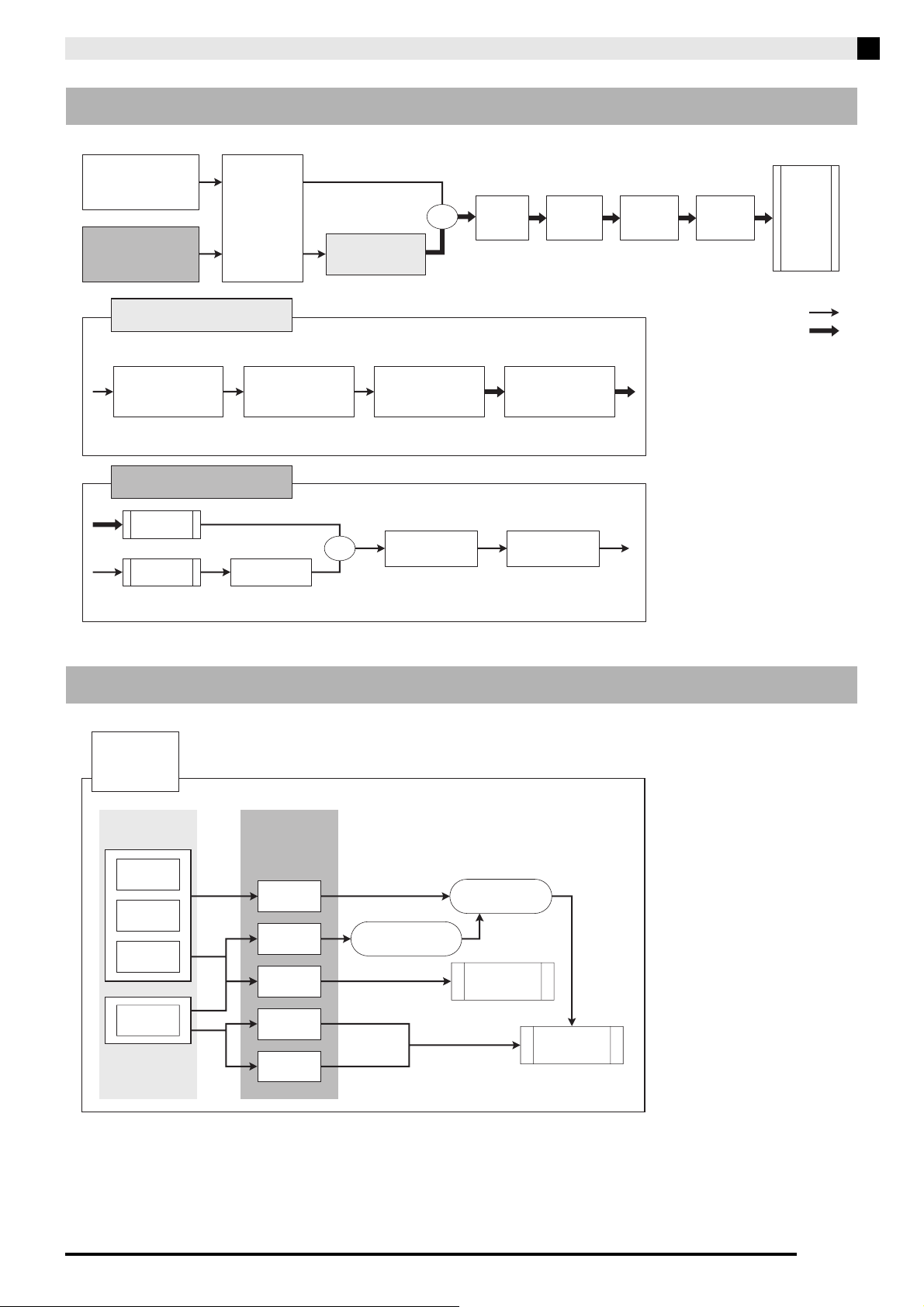
Appendix
EN-36
* Up to four phrase sequencers can be played simultaneously.
Signal Diagram
Internal Sound Source Operation Flow
EXTERNAL
INPUT
MIXER
・MIX FADER
・LINE SELECT
INTERNAL
SOUND GENERATOR
MIC IN
LINE IN
MIC VOLUME
NOISE GATE
OUTPUT
・PHONES
・LINE OUT
・SPEAKER
STEREO
MONAURAL
MASTER
EQ
STEREO
IMAGER
MAXIMIZER
TRACK TRANSFORM EFFECT
LINE SELECT OFF
LINE SELECT ON
TRACK TRANSFORM
EFFECT
MAIN
VOLUME
EXTERNAL INPUT
+
+
SAMPLING, ROLL
etc...
FILTER, PITCH SHIFTER
etc...
PANNER etc... REVERB
SAMPLING
POINT
(*) EXT ONLY: Only when ON.
EXT ONLY: When OFF, the sampled sound is recorded
by effect Block A.
Block A Block B Block C Block D
(*)
INTERNAL
SOUND
GENERATOR
PAD SET
SAMPLE
NOTE
PHRASE
EFFECT
SOUND
SAMPLE
PAD
DRUM
MELODY
SYNTH
NOTE
OPERATION
PHRASE
SEQUENCER
EFFECT
TRIGGER
SOUND
OUTPUT
*
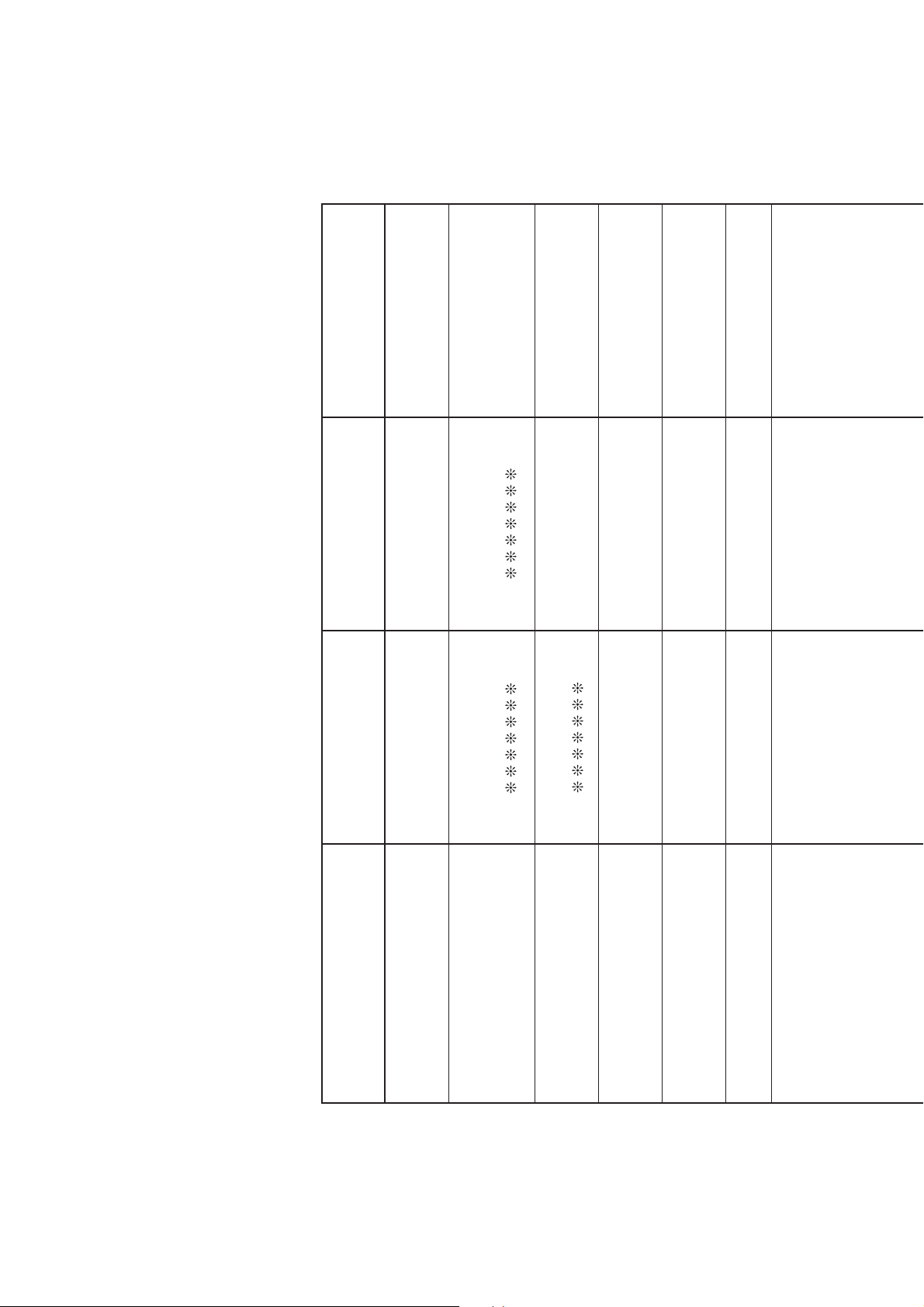
Function Transmitted Recognized Remarks
Basic
Channel
1 - 4
1 - 16
1 - 16
1 - 16
Default
Changed
Note
Number
0 - 127 0 - 127
0 - 127
*
1True voice
After
Touch
Control
Change
X
X
X
O
Pitch Bender
OO
Key’s
Ch’s
Velocity
O
9nH v = 0 - 127
*
2
O
8nH v = 0 - 127
O
9nH v = 1 - 127
O
9nH v = 0, 8nH v =
0 - 127
Note ON
Note OFF
Mode
Mode 3
X
Mode 3
X
Default
Messages
Altered
0
1
5
7
11
16
17
18
19
64
Bank select
Modulation
Portamento Time
Volume
Expression
FX1 knob
FX2 knob
MIX FADER
ASSIGNABLE fader
Hold 1
O
O
O
O
O
O
O
O
O
O
O
O
O
O
O
O
O
O
O
O
Model XW-PD1 Version : 1.0
MIDI Implementation Chart
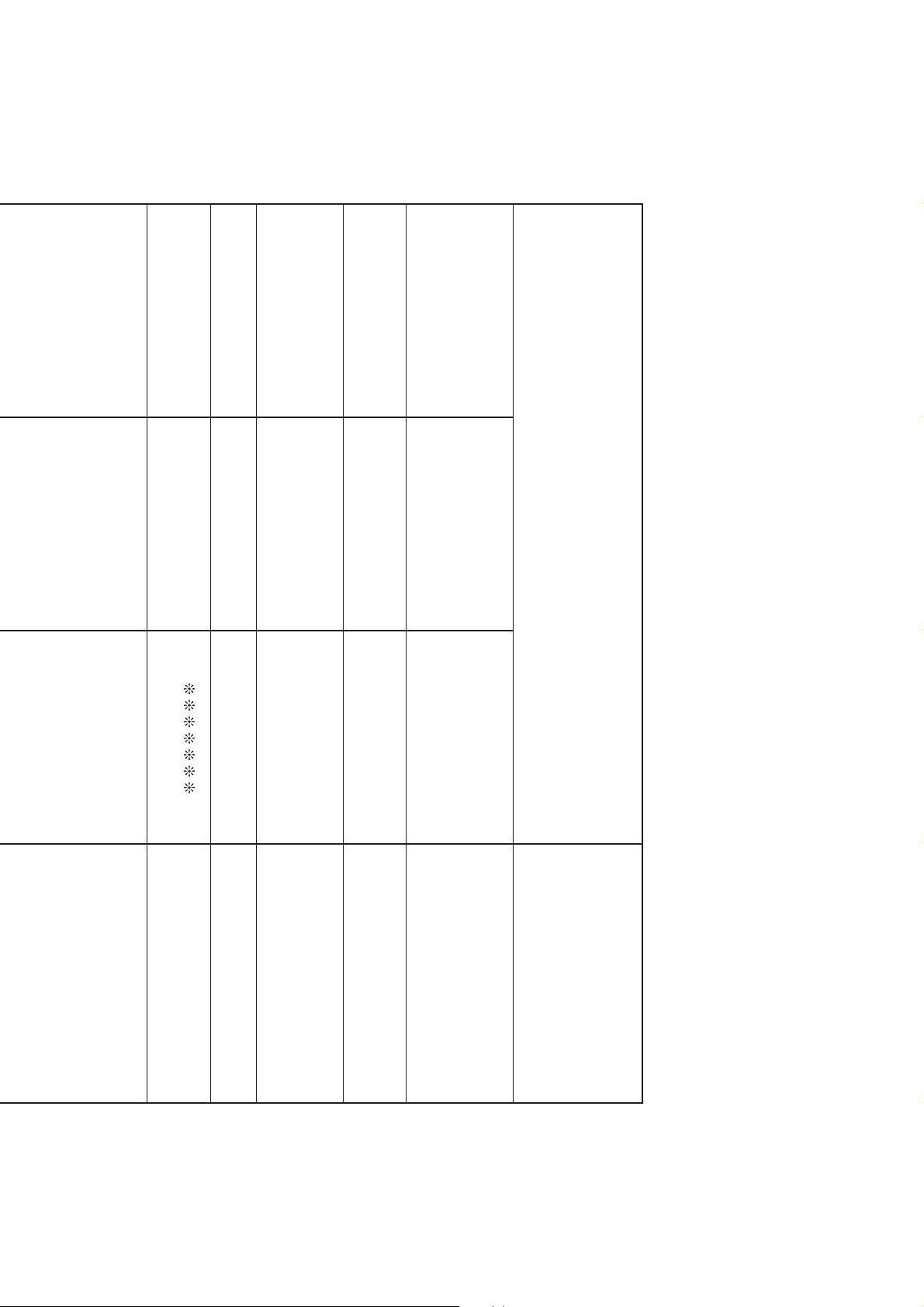
Program
Change
OO
0 - 127:True #
System Exclusive
XO
System
Common
X
X
X
X
X
X
: Song Pos
: Song Sel
: Tune
Aux
Messages
Remarks
X
O
X
O
X
X
O
O
O
O
X
X
: All sound off
:
Reset all controller
: Local ON/OFF
: All notes OFF
: Active Sense
: Reset
System
Real Time
X
O
X
O
: Clock
: Commands
65
66
67
71
72
73
74
76
77
78
Portamento On/Off
Sostenuto
Soft pedal
Filter Resonance
Release Time
Attack Time
Filter Cutoff
Vibrato rate
Vibrato depth
Vibrato delay
Mode 1 : OMNI ON, POLY
Mode 3 : OMNI OFF, POLY
Mode 2 : OMNI ON, MONO
Mode 4 : OMNI OFF, MONO
O : Yes
X : No
O
O
O
O
O
O
O
O
O
O
O
O
O
O
O
O
O
O
O
O
*3
*1 : Depends on tone
*2 : 1 to 127 when not MIDI Control Mode
*3 : Corresponds to Master Volume, Master Pan, Master Fine Tuning, Master Coarse Tuning, Reverb Time
MA1503-A

