
Projector
PH1400U
User’s Manual
Model No.
NP-PH1400U

Ver. 1/03/13
• DLPisatrademarkofTexasInstruments.
• Apple,Mac,MacOS,iMac,andMacBookaretrademarksofAppleInc.registeredintheU.S.andothercountries.
• Microsoft,Windows,WindowsVista,InternetExplorer,.NETFramework,Excel,andPowerPointareeitheraregis-
teredtrademarkortrademarkofMicrosoftCorporationintheUnitedStatesand/orothercountries.
• IntelandIntelCorearetrademarksofIntelCorporationintheU.S.and/orothercountries.
• PowerPCisaregisteredtrademarkoftheInternationalBusinessMachinesCorporation.
• Adobe,AdobePDF,AdobeReader,andAcrobatareeitherregisteredtrademarksortrademarksofAdobeSystems
IncorporatedintheUnitedStatesand/orothercountries.
• VirtualRemoteToolusesWinI2C/DDClibrary,©NicomsoftLtd.
• HDMI,theHDMILogoandHigh-DenitionMultimediaInterfacearetrademarksorregisteredtrademarksofHDMI
LicensingLLC.
• TrademarkPJLinkisatrademarkappliedfortrademarkrightsinJapan,theUnitedStatesofAmericaandother
countriesandareas.
• Wi-Fi
®
,Wi-FiAlliance
®
,andWi-FiProtectedAccess(WPA,WPA2)
®
areregisteredtrademarksoftheWi-FiAlli-
ance.
• Blu-rayisatrademarkofBlu-rayDiscAssociation
• CRESTRONandROOMVIEWareregisteredtrademarksofCrestronElectronics,Inc.intheUnitedStatesandother
countries.
• NVIDIA,3DVision,andQuadroaretrademarksand/orregisteredtrademarksofNVIDIACorporationintheU.S.
and/orothercountries.
• Otherproductandcompanynamesmentionedinthisuser’smanualmaybethetrademarksorregisteredtrademarks
oftheirrespectiveholders.
NOTES
(1)Thecontentsofthisuser’smanualmaynotbereprintedinpartorwholewithoutpermission.
(2)Thecontentsofthisuser’smanualaresubjecttochangewithoutnotice.
(3)Greatcarehasbeentakeninthepreparationofthisuser’smanual;however,shouldyounoticeanyquestionable
points,errorsoromissions,pleasecontactus.
(4)Notwithstandingarticle(3),NECwillnotberesponsibleforanyclaimsonlossofprotorothermattersdeemed
toresultfromusingtheProjector.
i
Important Information
Safety Cautions
Precautions
PleasereadthismanualcarefullybeforeusingyourNECprojectorandkeepthemanualhandyforfuturereference.
CAUTION
Toturnoffmainpower,besuretoremovetheplugfrompoweroutlet.
Thepoweroutletsocketshouldbeinstalledasneartotheequipmentaspossible,andshouldbeeasily
accessible.
CAUTION
TOPREVENTSHOCK,DONOTOPENTHECABINET.
THEREAREHIGH-VOLTAGECOMPONENTSINSIDE.
REFERSERVICINGTOQUALIFIEDSERVICEPERSONNEL.
Thissymbolwarnstheuserthatuninsulatedvoltagewithintheunitmaybesufcienttocauseelectrical
shock.Therefore,itisdangeroustomakeanykindofcontactwithanypartinsideoftheunit.
Thissymbolalertstheuserthatimportantinformationconcerningtheoperationandmaintenanceofthis
unithasbeenprovided.
Theinformationshouldbereadcarefullytoavoidproblems.
WARNING:TOPREVENTFIREORSHOCK,DONOTEXPOSETHISUNITTORAINORMOISTURE.
DONOTUSETHISUNIT’SPLUGWITHANEXTENSIONCORDORINANOUTLETUNLESSALLTHEPRONGS
CANBEFULLYINSERTED.
DOC Compliance Notice (for Canada only)
ThisClassAdigitalapparatusmeetsallrequirementsoftheCanadianICES-003Standards.
Machine Noise Information Regulation - 3. GPSGV,
Thehighestsoundpressurelevelislessthan70dB(A)inaccordancewithENISO7779.
Disposing of your used product
EU-widelegislationasimplementedineachMemberStaterequiresthatusedelectricalandelectronicprod-
uctscarryingthemark(left)mustbedisposedofseparatelyfromnormalhouseholdwaste.Thisincludes
projectorsandtheirelectricalaccessoriesorlamps.Whenyoudisposeofsuchproducts,pleasefollowthe
guidanceofyourlocalauthorityand/orasktheshopwhereyoupurchasedtheproduct.
Aftercollectingtheusedproducts,theyarereusedandrecycledinaproperway.Thiseffortwillhelpus
reducethewastesaswellasthenegativeimpactsuchasmercurycontainedinalamptothehumanhealth
andtheenvironmentattheminimumlevel.
ThemarkontheelectricalandelectronicproductsonlyappliestothecurrentEuropeanUnionMember
States.
WARNING
ThisisaClassAproduct.Inadomesticenvironmentthisproductmaycauseradiointerferenceinwhichcasethe
usermayberequiredtotakeadequatemeasures.
CAUTION
• Inordertoreduceanyinterferencewithradioandtelevisionreceptionuseasignalcablewithferritecoreattached.
Useofsignalcableswithoutaferritecoreattachedmaycauseinterferencewithradioandtelevisionreception.
• ThisequipmenthasbeentestedandfoundtocomplywiththelimitsforaClassAdigitaldevice,pursuanttoPart
15oftheFCCRules.Theselimitsaredesignedtoprovidereasonableprotectionagainstharmfulinterference
whentheequipmentisoperatedinacommercialenvironment.Thisequipmentgenerates,uses,andcanradi-
ateradiofrequencyenergyand,ifnotinstalledandusedinaccordancewiththeinstallationmanual,maycause
harmfulinterferencetoradiocommunications.Operationofthisequipmentinaresidentialareaislikelytocause
harmfulinterferenceinwhichcasetheuserwillberequiredtocorrecttheinterferenceathisownexpense
ii
Important Information
WARNING TO CALIFORNIA RESIDENTS:
Handlingthecablessuppliedwiththisproductwillexposeyoutolead,achemicalknowntotheStateofCalifornia
tocausebirthdefectsorotherreproductiveharm.WASHHANDSAFTERHANDLING.
Important Safeguards
Thesesafetyinstructionsaretoensurethelonglifeofyourprojectorandtopreventreandshock.Pleasereadthem
carefullyandheedallwarnings.
Installation
• Donotplacetheprojectorinthefollowingconditions:
- onanunstablecart,stand,ortable.
- nearwater,baths,ordamprooms.
- indirectsunlight,nearheaters,orheatradiatingappliances.
- inadusty,smokyorsteamyenvironment.
- onasheetofpaperorcloth,rugsorcarpets.
• Ifyouwishtohavetheprojectorinstalledontheceiling:
- Donotattempttoinstalltheprojectoryourself.
- Theprojectormustbeinstalledbyqualiedtechniciansinordertoensureproperoperationandreducetherisk
ofbodilyinjury.
- Inaddition,theceilingmustbestrongenoughtosupporttheprojectorandtheinstallationmustbeinaccordance
withanylocalbuildingcodes.
- Pleaseconsultyourdealerformoreinformation.
WARNING
• Donotcoverthelenswiththelenscaporequivalentwhiletheprojectorison.Doingsocanleadtomeltingof
thecapduetotheheatemittedfromthelightoutput.
• Donotplaceanyobjects,whichareeasilyaffectedbyheat,infrontoftheprojectorlens.Doingsocouldlead
totheobjectmeltingfromtheheatthatisemittedfromthelightoutput.
Orientation and Fan Mode
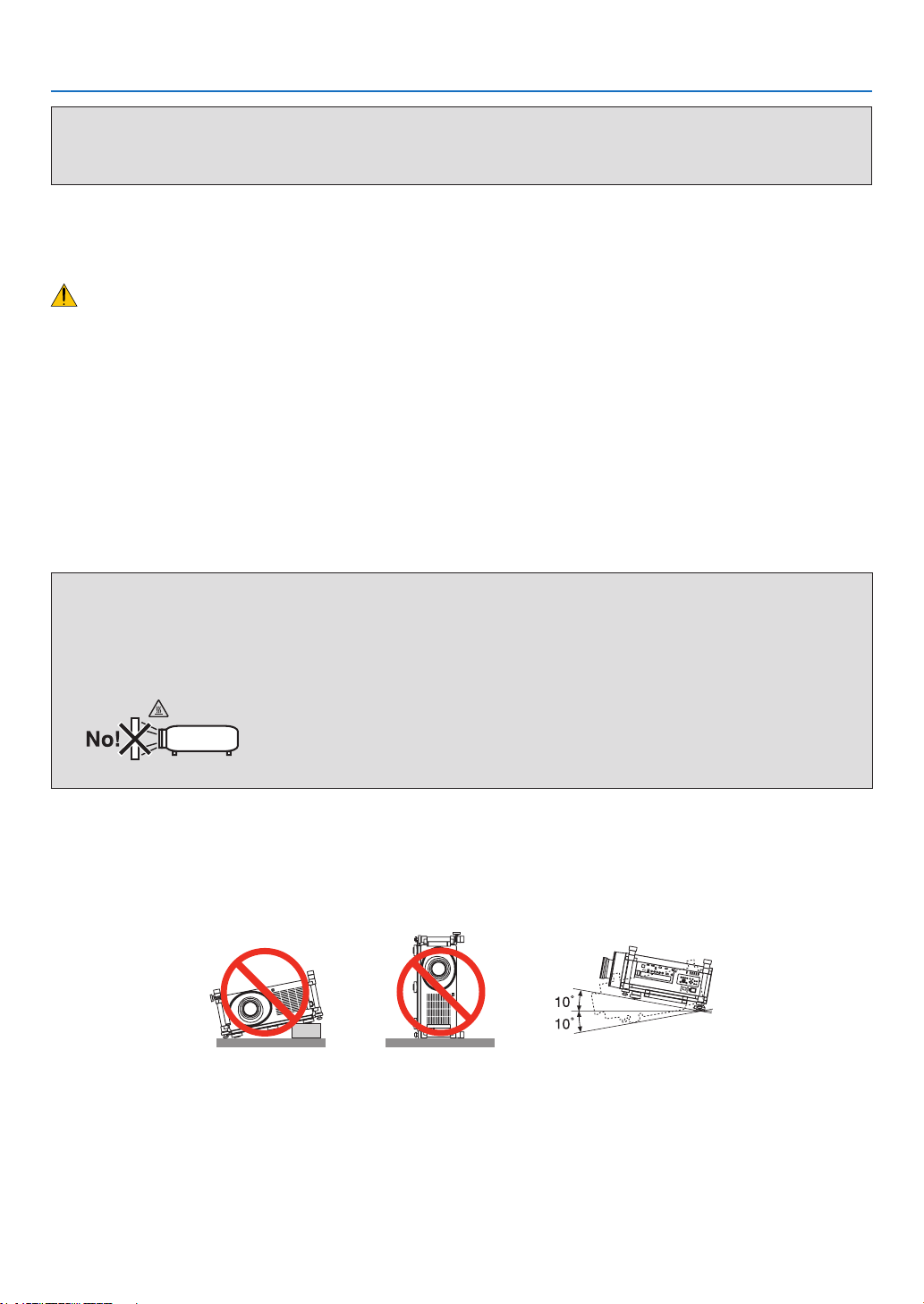
• Donottilttheprojectorforwardorbackatagreateranglethan10°.Doingsomayresultinmalfunction.When
mountingtheprojectorontheceiling,selectanappropriateoptionfor[FANMODE].
• Whenchangingtheprojectororientation,alsochangethe[SETTING]optionof[FANMODE]accordingly.Failure
todosomaycauseproductmalfunction.(→page127,128,133)

iii
Important Information
Fire and Shock Precautions
• Ensurethatthereissufcientventilationandthatventsareunobstructedtopreventthebuild-upofheatinsideyour
projector.Allowminimumspacesbetweenyourprojectorandawall.(→pagevandvi)
• Donottrytotouchtheventilationoutletontherearsideofthecabinetasitcanbecomeheatedwhiletheprojectoris
turnedonandimmediatelyaftertheprojectoristurnedoff.Partsoftheprojectormaybecometemporarilyheatedif
theprojectoristurnedoffwiththePOWERbuttonoriftheACpowersupplyisdisconnectedduringnormalprojector
operation.
Usecautionwhenpickinguptheprojector.
• Preventforeignobjectssuchaspaperclipsandbitsofpaperfromfallingintoyourprojector.Donotattempttoretrieve
anyobjectsthatmightfallintoyourprojector.Donotinsertanymetalobjectssuchasawireorscrewdriverintoyour
projector.Ifsomethingshouldfallintoyourprojector,disconnectitimmediatelyandhavetheobjectremovedbya
qualiedservicepersonnel.
• Donotplaceanyobjectsontopoftheprojector.
• Donottouchthepowerplugduringathunderstorm.Doingsocancauseelectricalshockorre.
• Theprojectorisdesignedtooperateonapowersupplyof200-240VAC50/60Hz.Ensurethatyourpowersupply
tsthisrequirementbeforeattemptingtouseyourprojector.
• Donotlookintothelenswhiletheprojectorison.Seriousdamagetoyoureyescouldresult.
• Keepanyitems(magnifyingglassetc.)outofthelightpathoftheprojector.Thelightpathbeingprojectedfromthe
lensisextensive,thereforeanykindofabnormalobjectsthatcanredirectlightcomingoutofthelens,cancause
anunpredictableoutcomesuchasareorinjurytotheeyes.
• Donotplaceanyobjects,whichareeasilyaffectedbyheat,infrontofaprojectorexhaustvent.
Doingsocouldleadtotheobjectmeltingorgettingyourhandsburnedfromtheheatthatisemittedfromtheex-
haust.
• Handlethepowercordcarefully.Adamagedorfrayedpowercordcancauseelectricshockorre.
- Donotuseanypowercordotherthantheonespeciedbythemanufacturer.
- Donotbendortugthepowercordexcessively.
- Donotplacethepowercordundertheprojector,oranyheavyobject.
- Donotcoverthepowercordwithothersoftmaterialssuchasrugs.
- Donotheatthepowercord.
- Donothandlethepowerplugwithwethands.
• Turnofftheprojector,unplugthepowercordandhavetheprojectorservicedbyaqualiedservicepersonnelunder
thefollowingconditions:
- Whenthepowercordorplugisdamagedorfrayed.
- Ifliquidhasbeenspilledintotheprojector,orifithasbeenexposedtorainorwater.
- Iftheprojectordoesnotoperatenormallywhenyoufollowtheinstructionsdescribedinthisuser’smanual.
- Iftheprojectorhasbeendroppedorthecabinethasbeendamaged.
- Iftheprojectorexhibitsadistinctchangeinperformance,indicatinganeedforservice.
• Disconnectthepowercordandanyothercablesbeforecarryingtheprojector.
• Turnofftheprojectorandunplugthepowercordbeforecleaningthecabinetorreplacingthelamp.
• Turnofftheprojectorandunplugthepowercordiftheprojectorisnottobeusedforanextendedperiodoftime.
• WhenusingaLANcable:
Forsafety,donotconnecttotheconnectorforperipheraldevicewiringthatmighthaveexcessivevoltage.

iv
Important Information
CAUTION
• Aminimumoftwopersonsarerequiredtocarrytheprojector.Otherwisetheprojectormaytumbleordrop,caus-
ingpersonalinjury.
• Keephandsawayfromthelensmountingportionwhilethelensshiftisinoperation.
Failuretodosocouldresultinhandsbeingpinchedbythemovinglens.
• Donotusethetilt-footforpurposesotherthanoriginallyintended.Misusessuchasgrippingthetilt-footorhang-
ingonthewallcancausedamagetotheprojector.
• Donotsendtheprojectorinthesoftcasebyparceldeliveryserviceorcargoshipment.Theprojectorinsidethe
softcasecouldbedamaged.
• Set[LAMPSELECT]and[LAMPINTERVALMODE]ifyoucontinuetousetheprojectorforconsecutivedays.
(Fromthemenu,select[LAMPMODE]→[LAMPSELECT]and[LAMPINTERVALMODE].)
• BeforeusingDirectPowerOff,besuretoallowatleast20minutesimmediatelyafterturningontheprojectorand
startingtodisplayanimage.
• Donotunplugthepowercordfromthewalloutletorprojectorwhentheprojectorispoweredon.Doingsocan
causedamagetotheACINconnectoroftheprojectorand(or)theprongplugofthepowercord.
ToturnofftheACpowersupplywhentheprojectorispoweredon,usetheprojector'smainpowerswitchora
powerstripequippedwithaswitchandabreaker.
• DonotturnofftheACpowerfor60secondsafterthelampisturnedonandwhilethePOWERindicatorisblink-
ingblue.Doingsocouldcauseprematurelampfailure.
• Useofawalloutletwitha20Aormorecircuitbreakerisrecommended.
Performing Lens Calibration After Installation of the Optional Lens
Besuretoperform[CALIBRATION]bypressingandholdingtheORIENTATION/CALIBRATIONbuttonforatleast2
secondsorbyholdingtheCTLbuttonandpressingtheINFO/L-CALIBbuttonontheremotecontrolafterinstallation
orreplacementofthelens.(→page19,130)Calibrationcorrectstheadjustablezoomandfocusrange.
Thefollowinglensesneedcalibration:
• NP26ZL,NP27ZL,NP28ZL,NP29ZL,NP32ZL
Caution on Carrying the Projector/Handling the Optional Lens
Whenshippingtheprojectorwiththelens,removethelensbeforeshippingtheprojector.Alwaysattachthedustcap
tothelenswheneveritisnotmountedontheprojector.Thelensandthelensshiftmechanismmayencounterdamage
causedbyimproperhandlingduringtransportation.
Remote Control Precautions
• Handletheremotecontrolcarefully.
• Iftheremotecontrolgetswet,wipeitdryimmediately.
• Avoidexcessiveheatandhumidity.
• Donotshort,heat,ortakeapartbatteries.
• Donotthrowbatteriesintore.
• Ifyouwillnotbeusingtheremotecontrolforalongtime,removethebatteries.
• Ensurethatyouhavethebatteries’polarity(+/−)alignedcorrectly.
• Donotusenewandoldbatteriestogether,orusedifferenttypesofbatteriestogether.
• Disposeofusedbatteriesaccordingtoyourlocalregulations.
Note for US Residents
Thelampsinthisproductcontainmercury.PleasedisposeaccordingtoLocal,StateorFederalLaws.
v
Important Information
Lamp Replacement
• Usethespeciedlampforsafetyandperformance.
• Toreplacethelamp,followallinstructionsprovidedonpage189.
• Besuretoreplacethelampwhenthemessage[THE LAMP HAS REACHED THE END OF ITS USABLE LIFE.
PLEASE REPLACE THE LAMP 1 (or 2). USE THE SPECIFIED LAMP FOR SAFETY AND PERFORMANCE.]
appears.Ifyoucontinuetousethelampafterthelamphasreachedtheendofitsusablelife,thelampbulbmay
shatter,andpiecesofglassmaybescatteredinthelampcase.Donottouchthemasthepiecesofglassmaycause
injury.
Ifthishappens,contactyourdealerforlampreplacement.
A Lamp Characteristic
Theprojectorhasahigh-pressuremercurylampasalightsource.
Alamphasacharacteristicthatitsbrightnessgraduallydecreaseswithage.Alsorepeatedlyturningthelampon
andoffwillincreasethepossibilityofitslowerbrightness.
CAUTION:
• DONOTTOUCHTHELAMPimmediatelyafterithasbeenused.Itwillbeextremelyhot.Turntheprojectoroff
andthendisconnectthepowercord.Allowatleastonehourforthelamptocoolbeforehandling.
• Whenremovingthelampfromaceiling-mountedprojector,makesurethatnooneisundertheprojector.Glass
fragmentscouldfallifthelamphasbeenburnedout.
Clearance for Installing the Projector
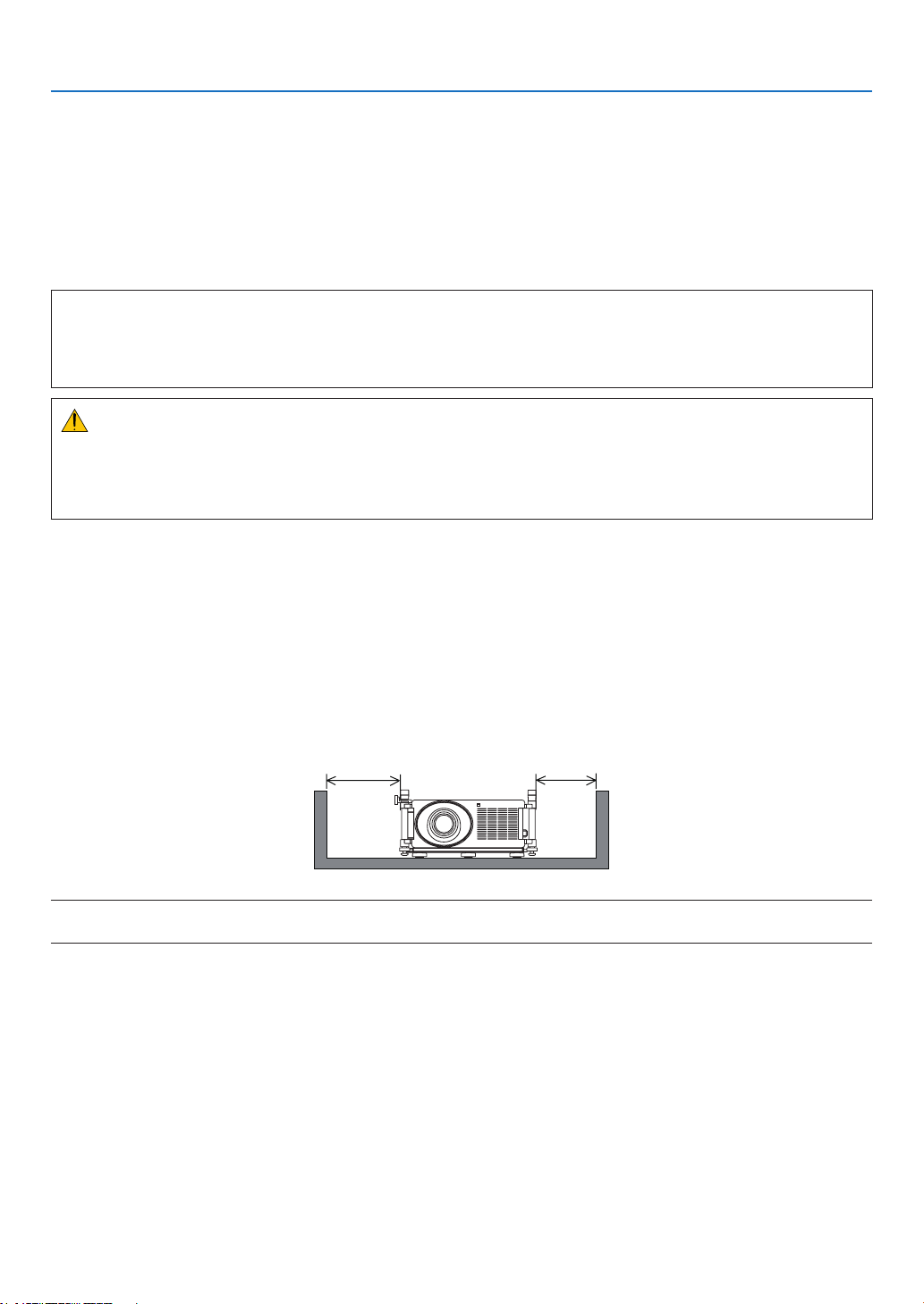
Allowampleclearancebetweentheprojectoranditssurroundingsasshownbelow.
AvoidinstallingtheprojectorinaplacewhereairmovementfromtheHVACisdirectedattheprojector.
HeatedairfromtheHVACcanbetakeninbytheprojector'sintakevent.Ifthishappens,thetemperatureinsidethe
projectorwillrisetoohighcausingtheover-temperatureprotectortoautomaticallyturnofftheprojectorspower.
Example 1 – If there are walls on both sides of the projector.
50 cm/19.7" or greater 30 cm/12" or greater
NOTE:
The drawing shows the proper clearance required for the front, back and top of the projector.
vi
Important Information
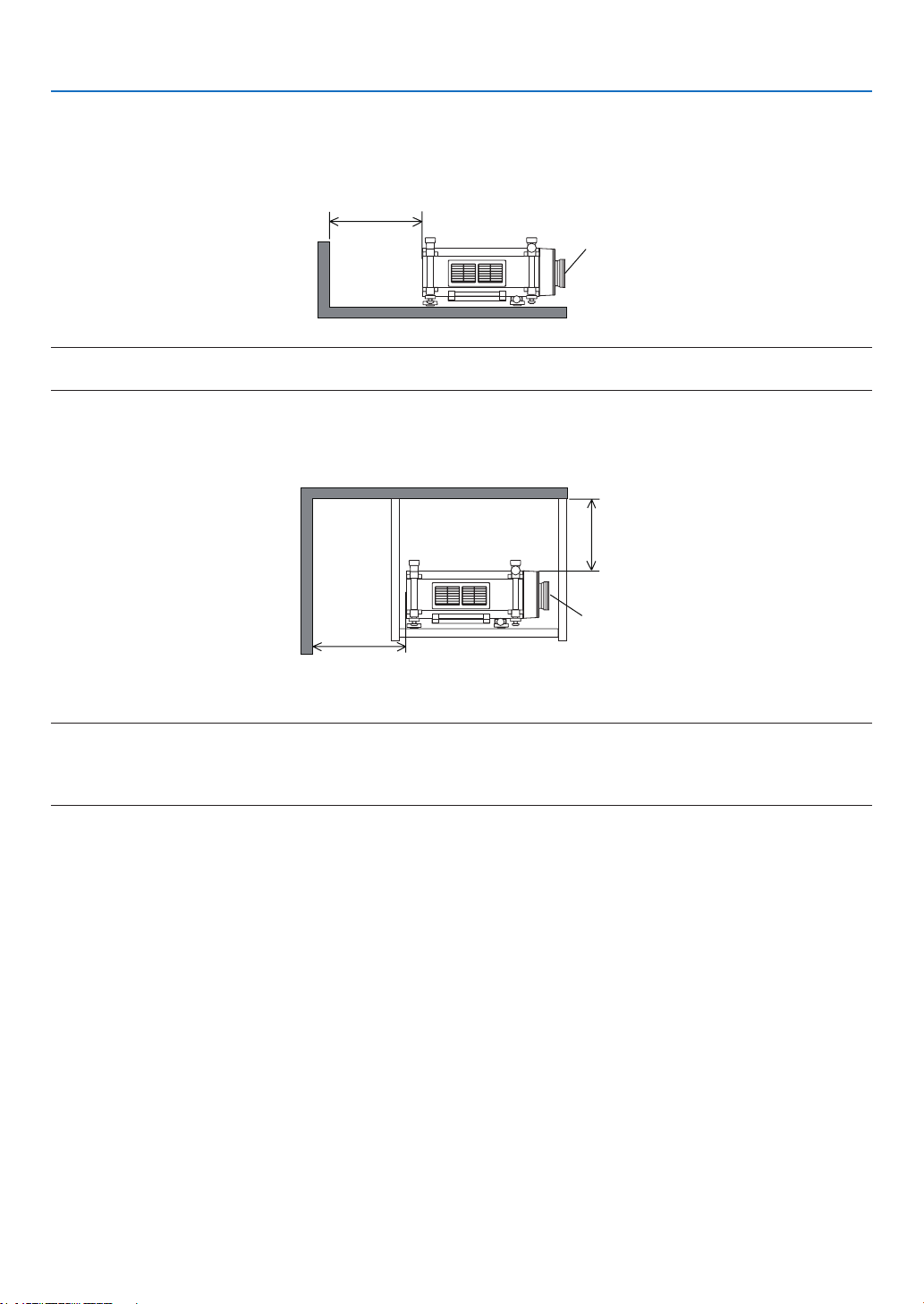
Example 2 – If there is a wall behind the projector.
(1) For floor installation:
70 cm/27.6" or greater
Lens
NOTE:
The drawing shows the proper clearance required for the back, sides and top of the projector.
(2) For ceiling mounting:
30 cm/12" or
greater
70 cm/27.6" or greater
Lens
NOTE:
1. The drawing shows the proper clearance required for the front, sides, back and bottom of the projector.
2. If suspending the projector 30 cm/12 inches away from the ceiling, allow ample clearance for all four sides and the under the
projector.
About High Altitude mode
•
Set[FAN
MODE]to[HIGHALTITUDE]whenusingtheprojectorataltitudesapproximately5500feet/1600meters
orhigher.
Usingtheprojectorataltitudesapproximately5500feet/1600metersorhigherwithoutsettingto[HIGHALTITUDE]
cancausetheprojectortooverheatandtheprojectorcouldshutdown.Ifthishappens,waitacoupleminutesand
turnontheprojector.
• Usingtheprojectorataltitudeslessthanapproximately5500feet/1600metersandsettingto[HIGHALTITUDE]
cancausethelamptoovercool,causingtheimagetoicker.Switch[FANMODE]to[AUTO].
• Usingtheprojectorataltitudesapproximately5500feet/1600metersorhighercanshortenthelifeofinternalparts
suchasthelamp.

vii
Important Information
About Copyright of original projected pictures:
Pleasenotethatusingthisprojectorforthepurposeofcommercialgainortheattractionofpublicattentioninavenue
suchasacoffeeshoporhotelandemployingcompressionorexpansionofthescreenimagewiththefollowingfunc-
tionsmayraiseconcernabouttheinfringementofcopyrightswhichareprotectedbycopyrightlaw.
[ASPECTRATIO],[3DREFORM],[D-ZOOM]featureandothersimilarfeatures.
Turkish RoHS information relevant for Turkish market
EEE Yönetmeliğine Uygundur.
Health precautions to users viewing 3D images
Beforeviewing,besuretoreadhealthcareprecautionsthatmaybefoundintheuser’smanualincludedwithyour
LCDshuttereyeglassesoryour3DcompatiblecontentsuchasDVDs,videogames,computer'svideolesand
thelike.
Toavoidanyadversesymptoms,heedthefollowing:
• DonotuseLCDshuttereyeglassesforviewinganymaterialotherthan3Dimages.
• Allowadistanceof2m/7feetorgreaterbetweenthescreenandauser.Viewing3Dimagesfromtooclosea
distancecanstrainyoureyes.
• Avoidviewing3Dimagesforaprolongedperiodoftime.Takeabreakof15minutesorlongeraftereveryhour
ofviewing.
• Ifyouoranymemberofyourfamilyhasahistoryoflight-sensitiveseizures,consultadoctorbeforeviewing3D
images.
• Whileviewing3Dimages,ifyougetsicksuchasnausea,dizziness,queasiness,headache,eyestrain,blurry
vision,convulsions,andnumbness,stopviewingthem.Ifsymptomsstillpersist,consultadoctor.
• View3Dimagesfromthefrontofthescreen.Viewingfromananglemaycausefatigueoreyestrain.

viii
Table of Contents
Important Information ............................................................................................i
1. Introduction ...........................................................................................................1
❶What’sintheBox? ..........................................................................................................1
❷IntroductiontotheProjector ...........................................................................................2
CongratulationsonYourPurchaseoftheProjector ..................................................2
Featuresyou’llenjoy: ................................................................................................2
Aboutthisuser’smanual ...........................................................................................3
❸PartNamesoftheProjector ...........................................................................................4
Front/Top ...................................................................................................................4
Rear ..........................................................................................................................5
ControlPanel/IndicatorSection ................................................................................6
TerminalPanelFeatures ...........................................................................................7
RearTerminalPanel(3DTerminalfeature) ...............................................................8
❹PartNamesoftheRemoteControl ................................................................................9
BatteryInstallation ..................................................................................................10
RemoteControlPrecautions ...................................................................................10
OperatingRangeforWirelessRemoteControl .......................................................10
UsingtheRemoteControlinWiredOperation ........................................................11
❺OperatingEnvironmentforDownloadableSoftware .....................................................12
OperatingEnvironment ...........................................................................................13
2. Projecting an Image (Basic Operation) ...............................................14
❶FlowofProjectinganImage .........................................................................................14
❷ConnectingYourComputer/ConnectingtheSuppliedPowerCord ...............................15
UsingtheSuppliedPowerCords ............................................................................15
UsingthePowerCordStopper ...............................................................................16
❸TurningontheProjector ...............................................................................................18
PerformingLensCalibration ...................................................................................19
NoteonStartupscreen(MenuLanguageSelectscreen) .......................................20
Iftheprojectedimageisinvertedorupsidedown ...................................................21
❹SelectingaSource .......................................................................................................22
Selectingthecomputerorvideosource..................................................................22
❺AdjustingthePictureSizeandPosition ........................................................................24
Tiltingtheprojector .................................................................................................25
Adjustingtheverticalpositionofaprojectedimage(Lensshift) .............................27
Focus ......................................................................................................................29
Zoom .......................................................................................................................30
❻CorrectingKeystoneDistortion .....................................................................................31
❼OptimizingComputerSignalAutomatically ..................................................................33
AdjustingtheImageUsingAutoAdjust ...................................................................33
❽TurningofftheProjector ...............................................................................................34
❾CarryingtheProjector ..................................................................................................36
3. Convenient Features ......................................................................................37
❶Blockingthelamplight(LENSSHUTTER) ...................................................................37
❷TurningofftheImage ....................................................................................................37
❸TurningOfftheOn-ScreenMenu(On-ScreenMute) ....................................................37

ix
Table of Contents
❹FreezingaPicture ........................................................................................................37
❺EnlargingaPicture .......................................................................................................38
❻ChangingEcoMode/CheckingEnergy-SavingEffectUsingEcoMode[ECO
MODE] ....................................................................................................................39
CheckingEnergy-SavingEffect[CARBONMETER] ..............................................40
❼CorrectingHorizontalandVerticalKeystoneDistortion[CORNERSTONE] .................41
Cornerstone ............................................................................................................41
❽DisplayingTwoPicturesattheSameTime ...................................................................44
SelectingthePIPorPICTUREBYPICTUREMode[MODE] .................................44
[POSITION] .............................................................................................................45
❾PreventingtheUnauthorizedUseoftheProjector[SECURITY] ..................................46
❿StoringChangesforLensShift,Zoom,andFocus[LENSMEMORY] .........................49
UsageExample.......................................................................................................49
Tostoreyouradjustedvaluesin[REF.LENSMEMORY]: .......................................49
Tocallupyouradjustedvaluesfrom[REF.LENSMEMORY]: ................................50
⓫DisplayingaPictureUsing[EDGEBLENDING] ...........................................................53
BeforeexplaininguseoftheEdgeBlendingfunction ..............................................53
BlackLevelAdjustment ...........................................................................................56
9-segmentedportionsforBlackLeveladjustment ..................................................57
⓬ControllingtheProjectorbyUsinganHTTPBrowser ..................................................58
⓭ProjectingYourComputer’sScreenImagefromtheProjectorviaaNetwork
[NETWORKPROJECTOR] .....................................................................................65
⓮UsingtheProjectortoOperateYourComputerviaaNetwork[REMOTE
DESKTOP] ..............................................................................................................69
⓯Viewing3DImages .......................................................................................................75
Stepstoview3Dimages ........................................................................................76
4. Using the Viewer ..............................................................................................78
❶WhatyoucandowiththeViewer ..................................................................................78
❷Preparingpresentationmaterials .................................................................................81
❸ProjectingimagesstoredinaUSBmemorydevice .....................................................82
StartingtheViewer ..................................................................................................82
ExitingtheViewer ...................................................................................................85
NamesandfunctionsofViewerscreen ...................................................................86
Vieweroptionsettings .............................................................................................91
❹Projectingdatafromsharedfolder ...............................................................................94
Connectingtheprojectortothesharedfolder ........................................................94
Disconnectingthesharedfolderfromtheprojector ................................................97
❺Projectingdatafrommediaserver................................................................................98
Settingup“MediaSharing”inWindowsMediaPlayer11 .......................................98
Settingup“MediaSharing”inWindowsMediaPlayer12 .....................................100
Connectingtheprojectortothemediaserver .......................................................101
Disconnectingtheprojectorfromthemediaserver ..............................................102
❻Restrictionsondisplayingles ...................................................................................103
SomerestrictionsonPowerPointles ...................................................................103
SomerestrictionsonPDFles .............................................................................103
5. Using On-Screen Menu ...............................................................................104

x
Table of Contents
❶UsingtheMenus .........................................................................................................104
❷MenuElements ...........................................................................................................105
❸ListofMenuItems ......................................................................................................106
❹MenuDescriptions&Functions[SOURCE] ...............................................................109
COMPUTER1,2,and3 .......................................................................................109
HDMI .....................................................................................................................109
DisplayPort ............................................................................................................109
VIDEO ...................................................................................................................109
S-VIDEO ...............................................................................................................109
VIEWER ................................................................................................................109
NETWORK ............................................................................................................109
SLOT(foroptionalboard) .....................................................................................109
ENTRYLIST .........................................................................................................109
TESTPATTERN ....................................................................................................109
❺MenuDescriptions&Functions[ADJUST] .................................................................113
[PICTURE] ............................................................................................................113
[IMAGEOPTIONS] ...............................................................................................116
[VIDEO] .................................................................................................................120
UsingtheLensMemoryFunction[LENSMEMORY] ............................................121
❻MenuDescriptions&Functions[SETUP] ...................................................................122
[BASIC] .................................................................................................................122
[MENU] .................................................................................................................126
[INSTALLATION(1)] ...............................................................................................127
[INSTALLATION(2)] ...............................................................................................131
[OPTIONS(1)] .......................................................................................................133
[OPTIONS(2)] .......................................................................................................135
[EDGEBLENDING] ..............................................................................................137
❼MenuDescriptions&Functions[INFO.] .....................................................................138
[USAGETIME] ......................................................................................................138
[SOURCE(1)] ........................................................................................................139
[SOURCE(2)] ........................................................................................................139
[WIREDLAN] ........................................................................................................139
[WIRELESSLAN(1)] .............................................................................................140
[WIRELESSLAN(2)] .............................................................................................140
[VERSION(1)] .......................................................................................................140
[VERSION(2)] .......................................................................................................141
[OTHERS] .............................................................................................................141
❽MenuDescriptions&Functions[RESET] ...................................................................142
ReturningtoFactoryDefault[RESET] ..................................................................142
❾ApplicationMenu ........................................................................................................144
IMAGEEXPRESSUTILITY ..................................................................................144
NETWORKPROJECTOR .....................................................................................144
REMOTEDESKTOPCONNECTION ...................................................................145
NETWORKSETTINGS .........................................................................................146
TOOLS ..................................................................................................................162
6. Connecting to Other Equipment ...........................................................167
❶MountingtheOptionalLens........................................................................................167
Beforemountingthelens: .....................................................................................167
Mountingthelens..................................................................................................167

xi
Table of Contents
Removingthelens ................................................................................................169
❷MakingConnections ...................................................................................................170
AnalogRGBsignalconnection .............................................................................170
DigitalRGBsignalconnection ..............................................................................171
ConnectinganExternalMonitor ...........................................................................173
ConnectingYourDVDPlayerorOtherAVEquipment ...........................................174
ConnectingComponentInput ...............................................................................175
ConnectingHDMIInput.........................................................................................176
ConnectingtoaWiredLAN ..................................................................................177
ConnectingtoaWirelessLAN(soldseparately)...................................................178
MountingawirelessLANunit ...............................................................................178
ToremovethewirelessLANunit...........................................................................180
Stackingprojectors ...............................................................................................182
7. Maintenance .....................................................................................................184
❶CleaningtheFilters.....................................................................................................184
Cleaningthelterontheleftside..........................................................................184
Cleaningthelteronthefrontside .......................................................................186
❷CleaningtheLens.......................................................................................................188
❸CleaningtheCabinet ..................................................................................................188
❹ReplacingtheLampandtheFilters ............................................................................189
❺ReplacingtheFilters ...................................................................................................192
Replacingthelterontheleftside ........................................................................192
Replacingthelteronthefrontside .....................................................................194
8. User Supportware ..........................................................................................196
❶InstallingSoftwareProgram .......................................................................................196
InstallationforWindowssoftware ..........................................................................196
InstallationforMacintoshsoftware ........................................................................197
❷ ProjectingImagesorVideosfromtheProjectoroveraLAN(ImageExpressUtility
2.0) ........................................................................................................................198
WhatyoucandowithImageExpressUtility2.0 ...................................................198
ConnectingtheprojectortoaLAN ........................................................................199
BasicOperationofImageExpressUtility2.0 ........................................................200
❸ControllingtheProjectoroveraLAN(PCControlUtilityPro4/Pro5) ........................209
❹ProjectingYourMac’sScreenImagefromtheProjectoroveraLAN(Image
ExpressUtility2forMac) ......................................................................................212
WhatyoucandowithImageExpressUtility2 ......................................................212
Operatingenvironment .........................................................................................212
ConnectingtheprojectortoaLAN ........................................................................212
UsingImageExpressUtility2 ...............................................................................213
❺ OperatingtheProjectorViatheLAN(VirtualRemoteTool) ........................................216
9. Appendix ..............................................................................................................219
❶Throwdistanceandscreensize .................................................................................219
Lenstypesandthrowdistance .............................................................................219
Tablesofscreensizesanddimensions ................................................................221
Lensshiftingrange ................................................................................................222
❷MountingtheOptionalBoard(soldseparately) ..........................................................223

xii
Table of Contents
❸CompatibleInputSignalList .......................................................................................225
❹Specications .............................................................................................................227
Optical ...................................................................................................................227
Electrical ...............................................................................................................227
Mechanical ............................................................................................................228
Optionlens ............................................................................................................229
PowerCord ...........................................................................................................229
❺CabinetDimensions ...................................................................................................230
❻PinAssignmentsofD-SubCOMPUTERInputConnector .........................................231
❼Troubleshooting ..........................................................................................................232
IndicatorMessages ...............................................................................................232
CommonProblems&Solutions ............................................................................234
Ifthereisnopicture,orthepictureisnotdisplayedcorrectly. ...............................236
❽PCControlCodesandCableConnection ..................................................................237
❾TroubleshootingCheckList .........................................................................................238
❿REGISTERYOURPROJECTOR!(forresidentsintheUnitedStates,Canada,and
Mexico) .................................................................................................................240
1
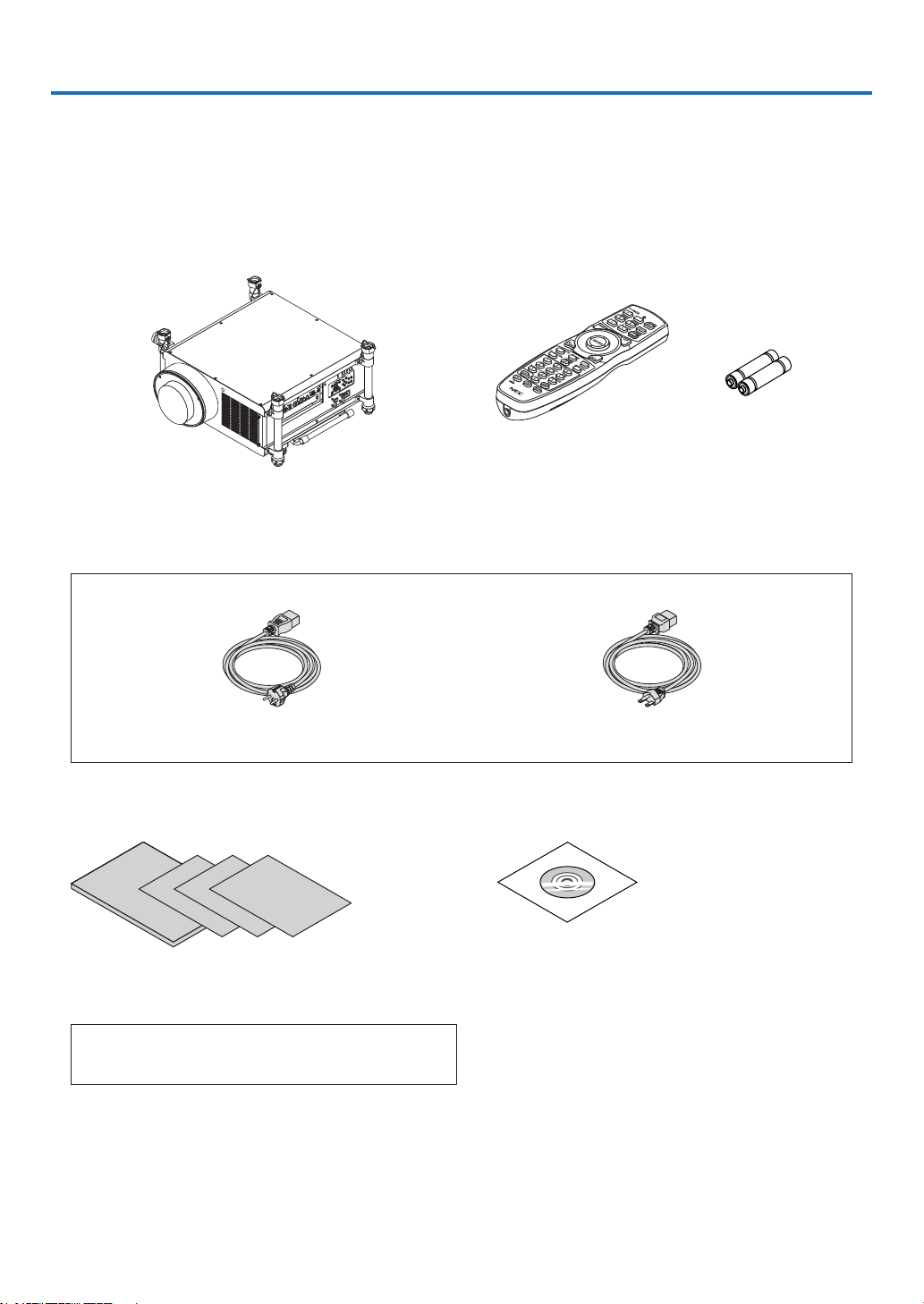
Projector
Dust cap for lens
* The projector is shipped without a lens. For the types of
lens and throw distances, see page 219.
1. Introduction
❶ What’s in the Box?
Makesureyourboxcontainseverythinglisted.Ifanypiecesaremissing,contactyourdealer.
Pleasesavetheoriginalboxandpackingmaterialsifyoueverneedtoshipyourprojector.
NEC Projector CD-ROM
User’s manual (PDF)
(7N951921)
• ImportantInformation(7N8N3711)
• QuickSetupGuide(7N8N3721/7N8N3731)
• Limitedwarranty(forNorthAmerica)
For customers in Europe:
YouwillndourcurrentvalidGuaranteePolicyonourWebSite:
www.nec-display-solutions.com
Remote control
(7N901041)
AAalkalinebatteries
(x2)
Power cord × 2
(79TM1021) (79TM1011forAC200V)
ForEurope/Asia/SouthAmerica ForNorthAmerica
Power cord stopper (79TM1111)
Anti-theftcapforLANunit(foroptionalwirelessLANunit)(79TM1091)

2
1. Introduction
❷ Introduction to the Projector
Thissectionintroducesyoutoyournewprojectoranddescribesthefeaturesandcontrols.
Congratulations on Your Purchase of the Projector
Thisprojectorisoneoftheverybestprojectorsavailabletoday.Theprojectorenablesyoutoprojectpreciseimages
upto500inches(200inchesonNP25FL/600inchesonNP32ZL)across(measureddiagonally)fromyourPCor
Macintoshcomputer(desktopornotebook),VCR,DVDplayer,ordocumentcamera.
Youcanusetheprojectoronatabletoporcart,youcanusetheprojectortoprojectimagesfrombehindthescreen,
andtheprojectorcanbepermanentlymountedonaceiling*1.Theremotecontrolcanbeusedwirelessly.
*1Donotattempttomounttheprojectoronaceilingyourself.
Theprojectormustbeinstalledbyqualiedtechniciansinordertoensureproperoperationandreducetherisk
ofbodilyinjury.
Inaddition,theceilingmustbestrongenoughtosupporttheprojectorandtheinstallationmustbeinaccordance
withanylocalbuildingcodes.Pleaseconsultyourdealerformoreinformation.
Features you’ll enjoy:
• DLP
®
projector with high resolution and high brightness
Highresolutiondisplay–WUXGA(1920×1200)nativeresolution(16:10)
• Widerangeofoptionallensesselectableaccordingtotheplaceofinstallation
Thisprojectorsupports6typesofoptionallenses,providingaselectionoflensesadaptedforavarietyofinstal-
lationrequirements.
Inaddition,thelensescanbemountedandremovedeasily.
Notethatnolensismounteduponshipmentfromthefactory.Pleasepurchaseoptionallensesseparately.
• DualLampsystem
Twolampsystemoffersincreasedlamplifeandenergysavingsalongwithredundancy.
• Doublestackableforbuiltinredundancyandhighlightoutputrequirements
Doublestackingprojectorsincreasethebrightnessandvisibility.
• EDGEBLENDINGfunction
TheEDGE BLENDING function allowsa multi-screenimage with high resolutionto be displayed on a large
screen.
• PoweredLensShift,Zoom,andFocusofferinstallationexibility
PoweredHorizontalandVerticallensshiftprovidestheabilitytoprojectfromoffcenterscreeninstallations.Powered
zoomandfocusprovidequickandeasyadjustment.
NotethatfocuscanbeadjustedmanuallyontheNP25FLlens.
• Widerangeofinput/outputconnectors(HDMI,DisplayPort,BNC,etc.)
Theprojectorisequippedwithavarietyofinput/outputconnectors:computer(analog),5BNC,HDMI,DisplayPort,
Video,S-Video,etc.(Thecomputer(analog)andBNCconnectorsalsosupportcomponentinputs.)
Theprojector’sHDMIandDisplayPortinputconnectorssupportHDCP.
• Slotforoptionalboard
Theprojectorhasaslotfortheoptionalboard(SB-01HCorotherNEC’sinterfaceboards).
• Highpicturequalityprocessingcircuit
TheReon-VXvideoprocessorisusedtoprojecthighqualityimages.
• Energy-savingdesignwithastandbypowerconsumptionof0.5Wattsorless
Whentheon-screenmenu’sstandbymodeissetto“PowerSaving”,thepowerconsumptioninthestandbymode
is0.5W.

3
1. Introduction
• “Ecomode”forlowpowerconsumptionand“CarbonMeter”display
Theprojector is equippedwith an“eco mode” forreducing powerconsumptionduringuse. Furthermore,the
power-savingeffectwhentheecomodeissetisconvertedintotheamountofreductionsofCO2emissionsand
thisisindicatedontheconrmationmessagedisplayedwhenthepoweristurnedoffandat“Information”onthe
on-screenmenu(CARBONMETER).
• Seamlessswitchfunctionforsmootherscreenchangeswhenswitchingthesignal
Whentheinputconnectorisswitched,theimagedisplayedbeforeswitchingisheldsothatthatprojectorcanwrite
thenewimagewithoutgoingtoblack.
• Simultaneousdisplayof2images(PIP/PICTUREBYPICTURE)
Twoimagescanbeprojectedsimultaneouslywithasingleprojector.
Therearetwotypesoflayoutsforthetwoimages:“picture-in-picture”inwhichasub-pictureisdisplayedonthe
mainpicture,and“picture-by-picture”inwhichthemainandsubpicturesaredisplayednexttoeachother.
• Securityfunctionforpreventingunauthorizeduse
Thisprojectorisequippedwiththefollowingsecurityfunctions:
- Passwordsecurity:Whenapasswordissetintheon-screenmenu,ascreentoinputthepasswordappears
whentheprojector’spoweristurnedon.
• Wired/wirelessLANcompatibility(wirelessLANunitsoldseparately)
TheprojectorisequippedwithaLANport(RJ-45)forconnectiontoawiredLANfortransferringimagesfroma
computertotheprojector,controllingtheprojectorfromacomputer,etc.
Furthermore,theprojectorcanbeusedinawirelessLANbymountingtheseparatelysoldwirelessLANunit
(NP02LM).
• Convenientutilitysoftwaredownloadablefromtheweb
Fiveutilitysoftwareprograms(ImageExpressUtility2.0,PCControlUtilityPro4(forWindows)/Pro5(forMac
OS),ImageExpressUtility2forMac,VirtualRemoteTool)canbedownloadedfromourwebsite.
• LAN-compatibleviewerfunction
StillandmovingimagesinsharedfoldersonacomputerconnectedbywiredorwirelessLANcanbeprojected
withtheprojector’sviewer.
- TheviewersupportstheWindowsMediaPlayer11’s“mediasharing”function.
• CRESTRONROOMVIEWcompatibility
TheprojectorsupportsCRESTRONROOMVIEW,allowingmultipledevicesconnectedinthenetworktobemanaged
andcontrolledfromacomputerorcontroller.
• 3Dimagessupported
Theprojectorprovides3DimagestoauserwearingcommerciallyavailableLCDshuttereyeglasses.
• NVIDIA
®
3DVision™Prosupported
Theprojectorallowsyoutoview3Dimagesbyusingwithsupportedgraphicsboardorsoftware.
About this user’s manual
Thefastestwaytogetstartedistotakeyourtimeanddoeverythingrightthersttime.Takeafewminutesnowto
reviewtheuser’smanual.Thismaysaveyoutimelateron.Atthebeginningofeachsectionofthemanualyou’llnd
anoverview.Ifthesectiondoesn’tapply,youcanskipit.
4
1. Introduction
❸ Part Names of the Projector
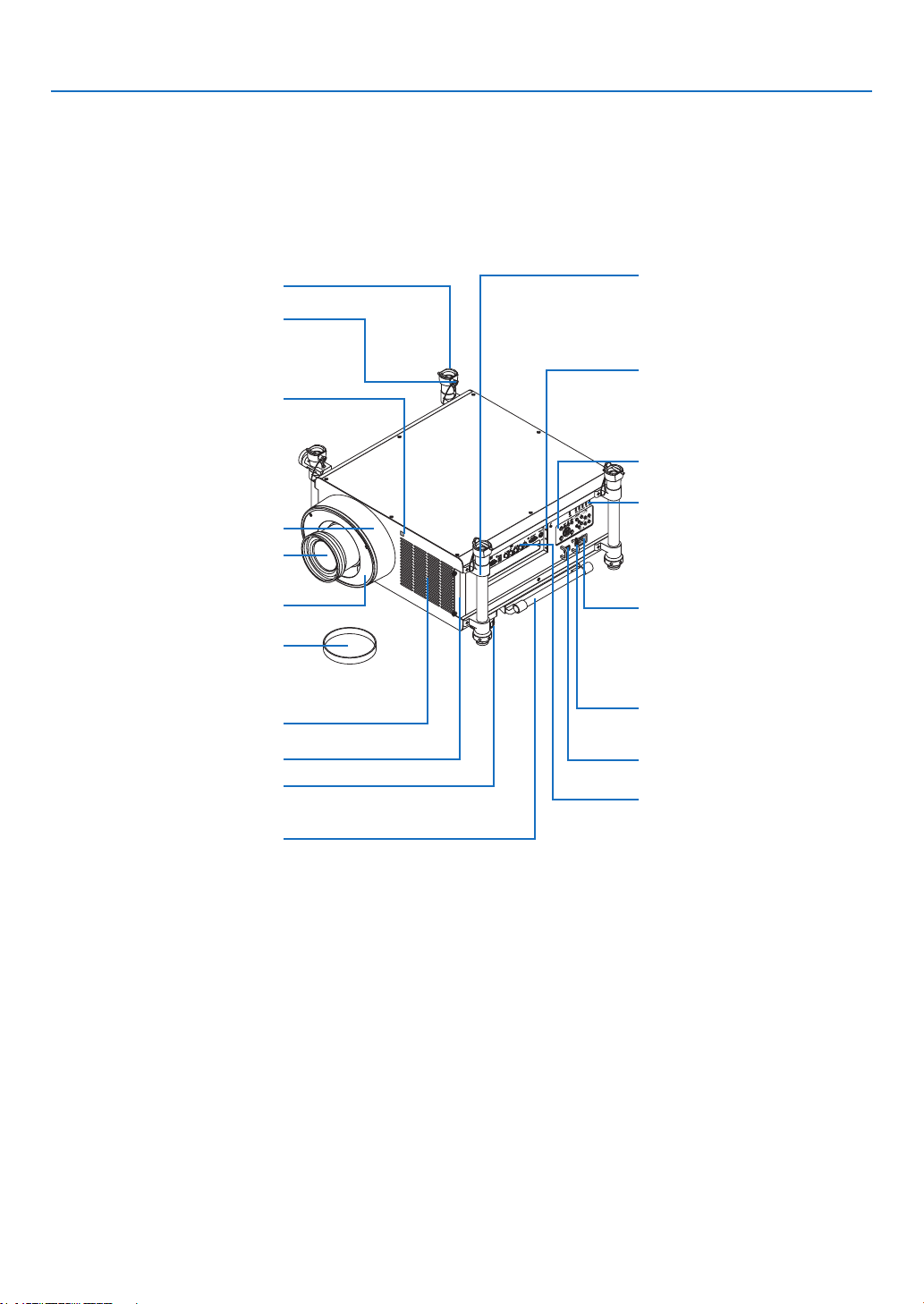
Front/Top
Thelensissoldseparately.ThedescriptionbelowisforwhentheNP27ZLlensismounted.
Control Panel
(→ page 6)
Lens
Ventilation(inlet)
Filter Cover
Handle
Lens Hood
SecurityLockingPin
StackingColumn
LensShroud
RemoteSensor(locatedonthe
front and the rear)
(→ page 10)
Terminal Panel
(→ page 7)
LED Lights (six locations)
IndicatorSection
(→ page 6)
LensReleaseLever/SafetyLever
(bothleversarelocatedinsidethe
lens shroud.)
(→ page 167)
ACInput
Connect the supplied power cord's
three-pin plug here, and plug the
other end into an active wall outlet.
(→ page 15)
MainPowerSwitch
USB(LAN)Port(foroptionalWire-
lessLANUnit)(→ page 178)
Lens Cap
(The lens cap is attached to the
lens.)
AdjustableTiltFoot
(→ page 24)
SlotforPowerCordStopper(→
page 16)
TIP:
• Thefourstackingcolumnscanberemovedfromtheprojector.
(→ page 183)
5
1. Introduction
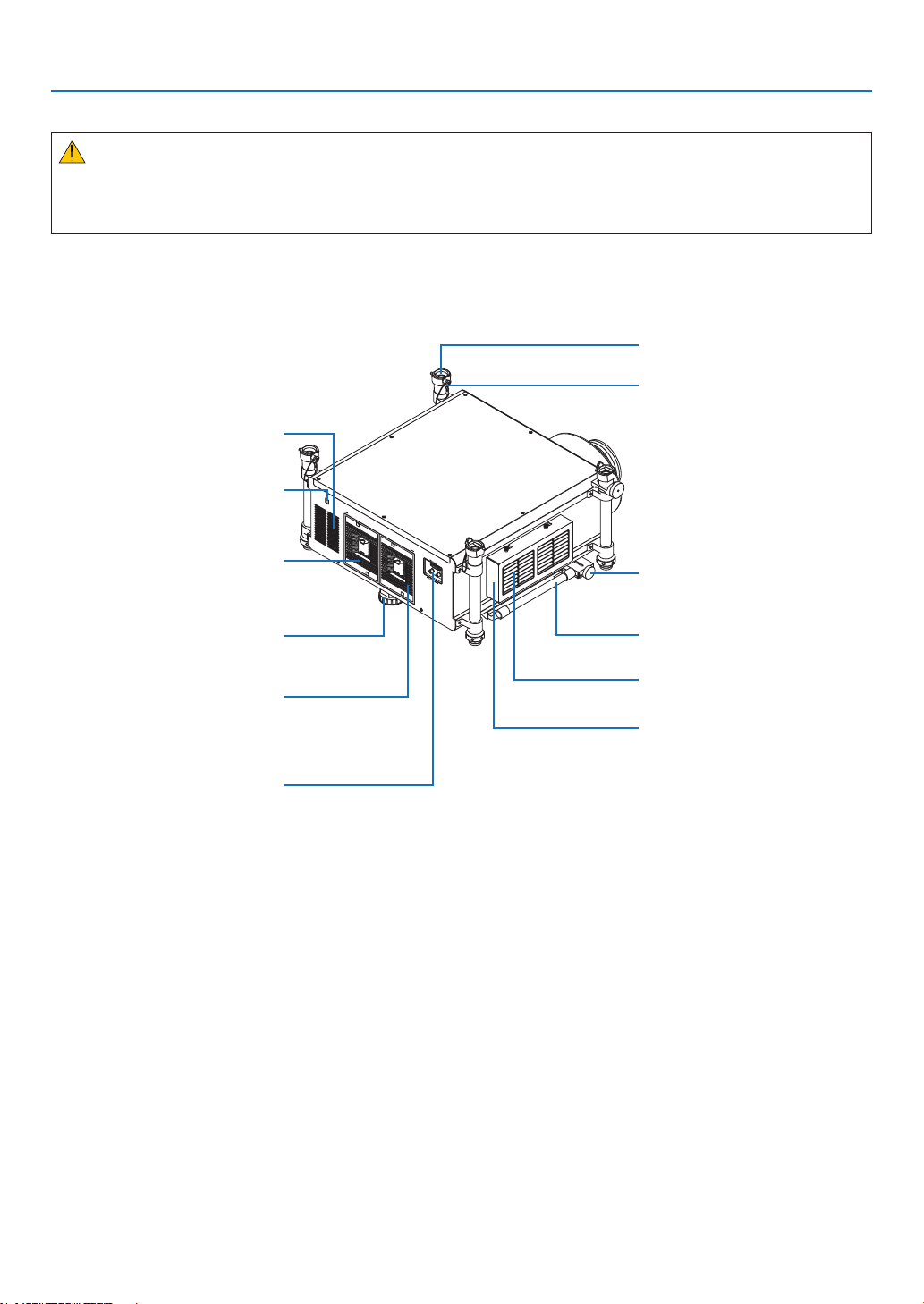
Rear
CAUTION:
PartsoftheprojectormaybecometemporarilyheatediftheprojectoristurnedoffwiththePOWERbuttonorifthe
ACpowersupplyisdisconnectedduringnormalprojectoroperation.
Usecautionwhenpickinguptheprojector.
RemoteSensor(locatedonthe
front and the rear)
(→ page 10)
Ventilation(inlet)
HorizontalAdjustmentKnob
Filter Cover (→ page 184, 192)
Ventilation(outlet)
Heated air is exhausted from here.
Lamp Cover (1)
(→ page 190, 191)
Lamp Cover (2)
(→ page 190, 191)
StackingColumn
SecurityLockingPin
AdjustableTiltFoot
(→ page 25)
Handle
Rear Terminal Panel (3D)
(→ page 8)
6
1. Introduction
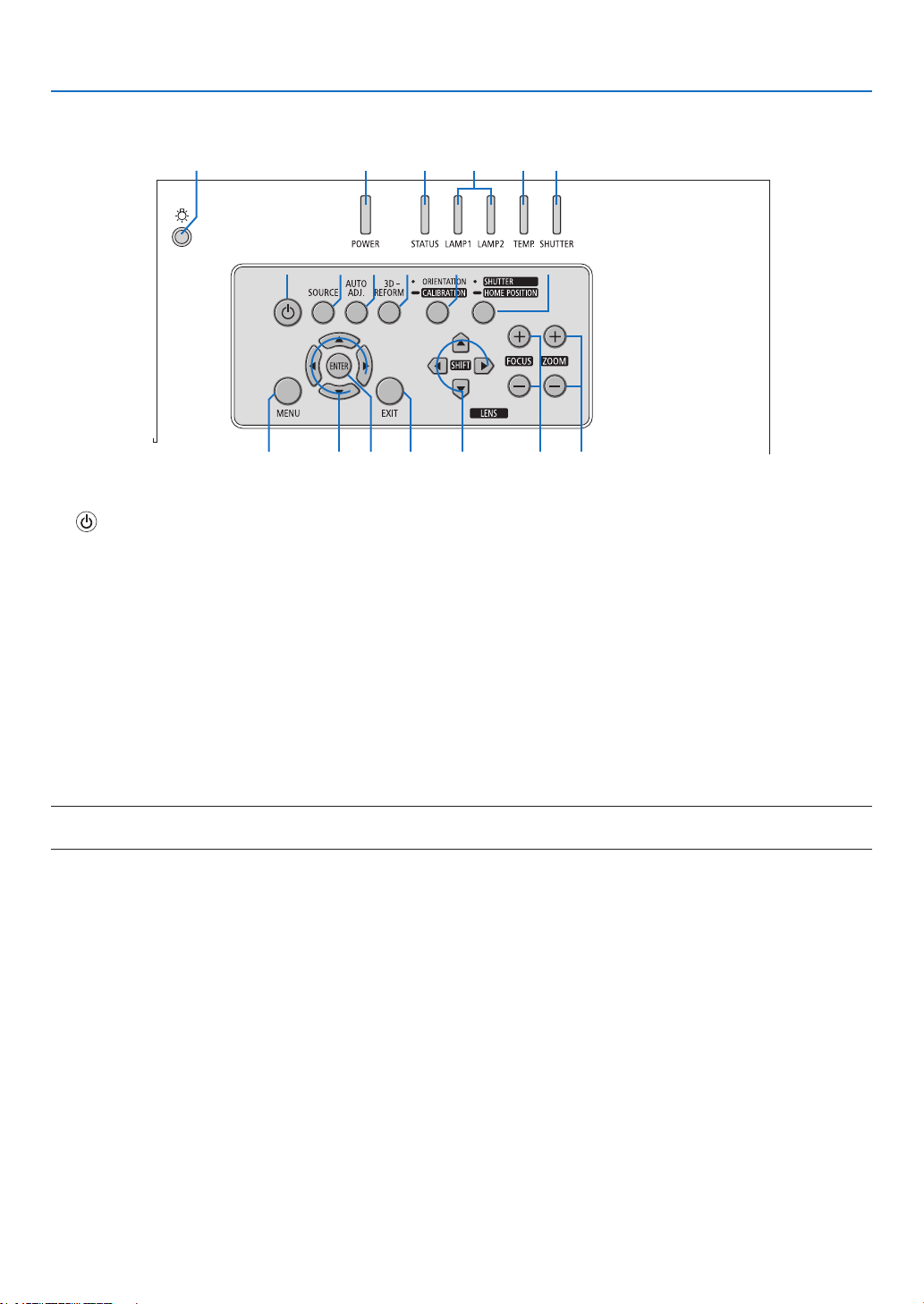
Control Panel/Indicator Section
1. (POWER) Button (→page19,34)
2. POWER Indicator (→page19,34,232)
3. STATUS Indicator (→page232)
4. LAMP 1 and LAMP 2 Indicators (→page189,232)
5. TEMP.Indicator(→page233)
6. SHUTTER Indicator (→page233)
7. SOURCE Button (→page22)
8. AUTO ADJ. Button (→page33)
9. 3D REFORM Button (→page41)
10.ORIENTATION/CALIBRATIONButton(→page19,21)
11.SHUTTER/HOMEPOSITIONButton(→page27,37)
NOTE: The “home position” for lens shift position is not the center position of the adjustable lens shift range. The home position
should be used for lens installation.
12. MENU Button (→page104)
13. ▲▼◀▶ Buttons (→page104)
14. ENTER Button (→page104)
15.EXITButton(→page104)
16. LENS SHIFT ▲▼◀▶ Buttons (→page27)
17.FOCUS+/−Buttons(→page29)
18.ZOOM+/−Buttons(→page30)
19. Light button
Illuminatesthecontrolpanelandtheterminalpanel.
219 3 4 5 6
1
12 13 1514 16
7 8 9 10 11
17 18
7
1. Introduction
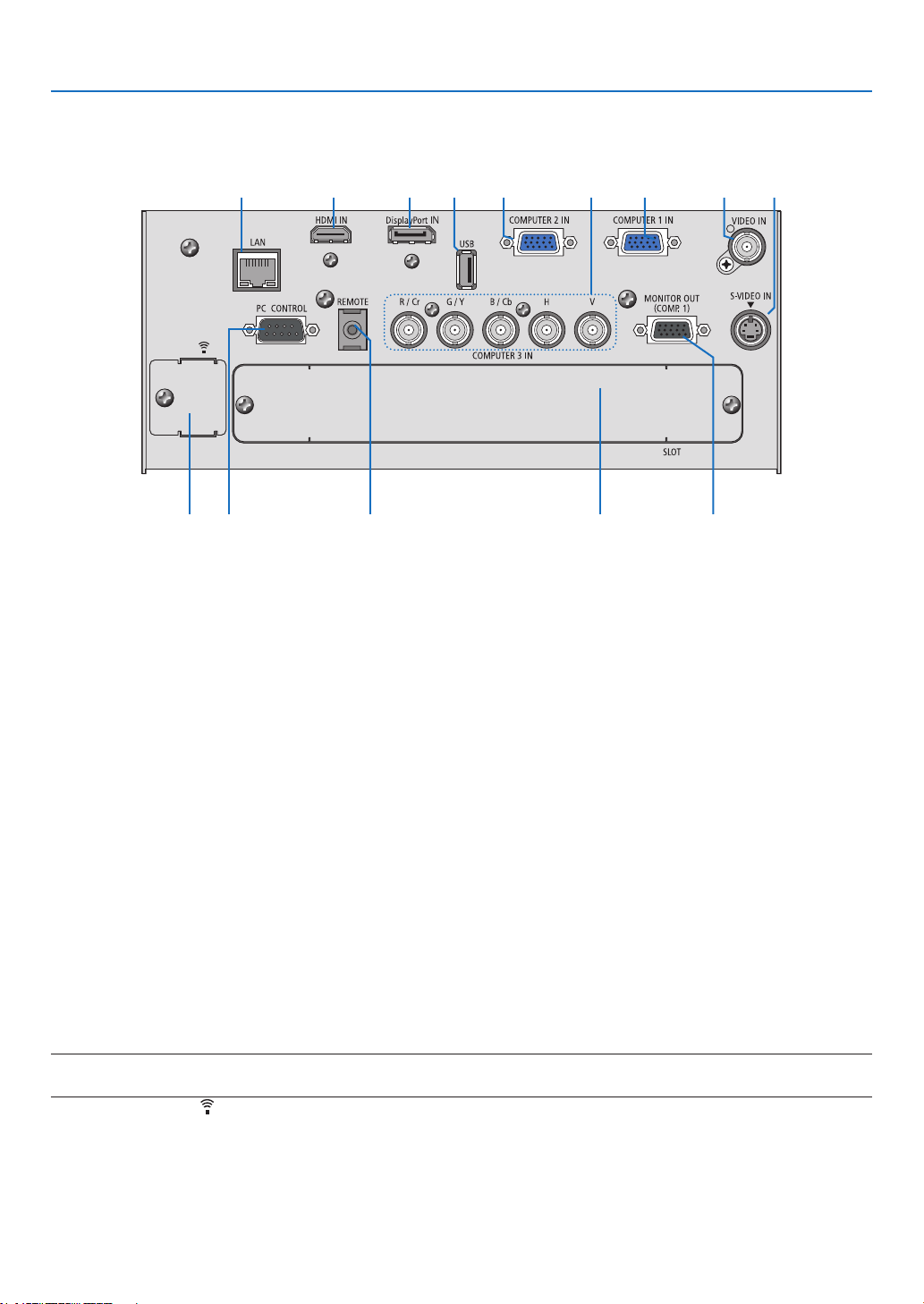
Terminal Panel Features
1. COMPUTER1IN/ComponentInputConnector(MiniD-Sub15Pin)(→ page 15,170,175)
2. COMPUTER2IN/ComponentInputConnector(MiniD-Sub15Pin)(→ page 170,175)
3. COMPUTER3IN/Component(R/Cr,G/Y,B/Cb,H,V)Connectors(BNC×5)(→ page 170,175)
4. HDMIINConnector(TypeA)(→ page 171,172,176)
5. DisplayPortINConnector(DisplayPort20P)(→ page 171)
6. MONITOROUT(COMP1)Connector(MiniD-Sub15Pin)(→ page 173)
7. VIDEOINConnector(BNC)(→ page 174)
8. S-VIDEOINConnector(MiniDIN4Pin)(→ page 174)
9. LANPort(RJ-45)(→ page 177)
10.USBPort(TypeA)(→ page 82)
11.PCCONTROLPort(D-Sub9Pin)(→ page 237)
UsethisporttoconnectaPCorcontrolsystem.Thisenablesyoutocontroltheprojectorusingserialcommunica-
tionprotocol.Ifyouarewritingyourownprogram,typicalPCcontrolcodesareonpage237.
12.REMOTEJack(StereoMini)
Usethisjackforwiredremotecontroloftheprojectorusingacommerciallyavailableremotecablewith⌀3.5stereo
mini-plug(withoutresistance).
Connecttheprojectorandthesuppliedremotecontrolusingacommerciallyavailablewiredremotecontrolcable.
(→page11)
NOTE:
• ConnectingtheremotecabletotheREMOTEminijackontheterminalpanelwillmakethewirelessoperationunavailable.
13. USB (LAN) Port (for optional Wireless LAN Unit) (→ page 178)
14. Optional Slot (SLOT) (→ page 223)
9 4 5 3 810 2 1 7
13 11 12 14 6

9
1. Introduction
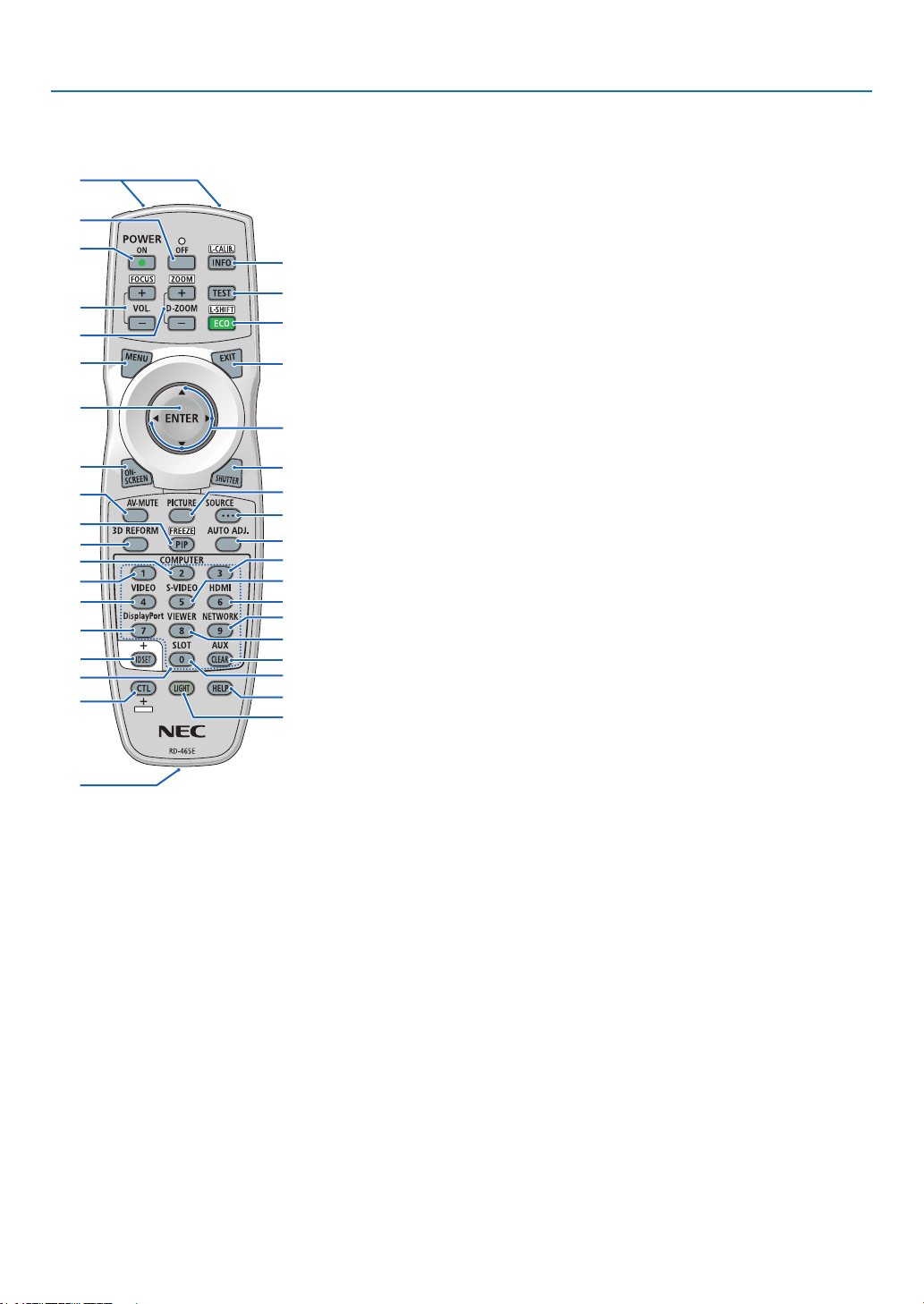
❹ Part Names of the Remote Control
1. Infrared Transmitter
(→page10)
2. RemoteJack
Connectacommerciallyavailable
remotecablehereforwiredopera-
tion.(→page11)
3. POWER ON Button
(→page19)
4. POWER OFF Button
(→page34)
5. INFO/L-CALIB.Button
(→page19)(Thefunctionofthe
INFObuttonwillnotworkonthis
seriesofprojectors.)
6. VOL./FOCUS+/−Buttons
(→page29)
7. D-ZOOM/ZOOM+/−Buttons
(→page30)
8. TEST Button
(→page24)
9. ECO/L-SHIFTButton
(→page28)
10.MENUButton
(→page104)
11.EXITButton
(→page104)
12. ENTER Button
(→page104)
13. ▲▼◀▶ Button
(→
page104)
14.ON-SCREENButton
(→page37)
15.SHUTTERButton
(→page37)
16.AV-MUTEButton
(→page37)
17. PICTURE Button
(→page113,115)
18. SOURCE Button
(→page22)
19. 3D REFORM Button
(→page41)
20.PIP/FREEZEButton
(→page37,45)
1
3
4
6
14
10
12
16
20
7
2
5
8
9
11
15
18
17
13
21
19
25
28
32
23
22
35
24
30
26
29
34
27
37
31
36
33
21. AUTO ADJ. Button
(→page33)
22,23,24.COMPUTER1/2/3But-
ton
(→
page22)
25.VIDEOButton
(→page22)
26.S-VIDEOButton
(→page22)
27. HDMI Button
(→page22)
28.DisplayPortButton
(→page22)
29.VIEWERButton
(→page22,78)
30.NETWORKButton
(→page22)
31. SLOT Button
32. ID SET Button
(→page132)
33.Numeric(0to9/CLEAR)But-
tons
34. CTL Button
Thisbuttonisusedinconjunction
with other buttons, similar to a
CTRLkeyonacomputer.
35.LIGHTButton
Thisbuttonisusedtoturnonthe
backlight for the remote control
buttons.
The backlightwill turnoff if no
button operation is made for 10
seconds.
36. HELP Button
(→page138)
37.AUXButton
(→page76)
10
1. Introduction
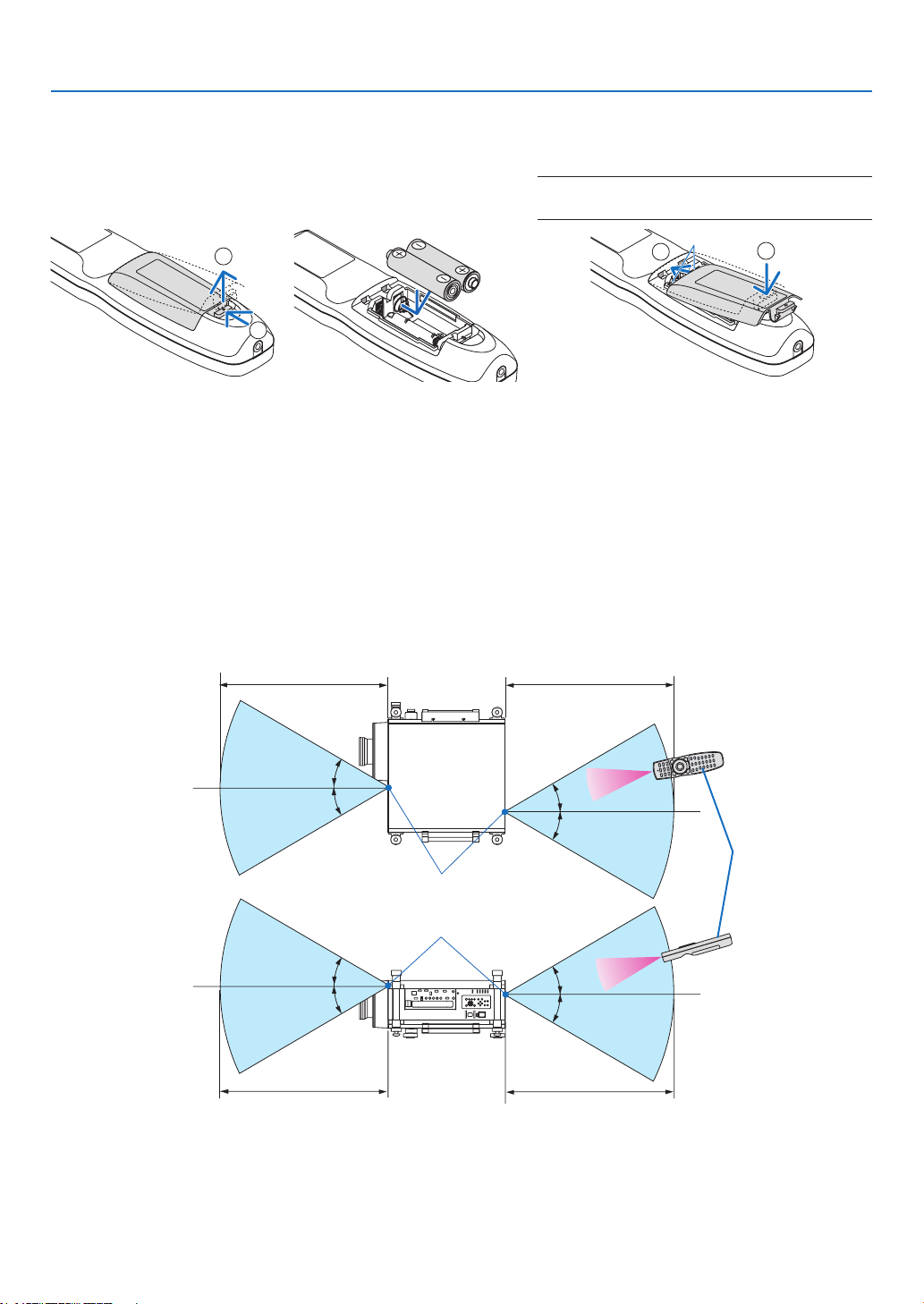
Battery Installation
1. Press the catch and remove
the battery cover.
2. Install new ones (AA). En-
sure that you have the bat-
teries’ polarity (+/−) aligned
correctly.
3. Slip the cover back over the batteries until
it snaps into place.
NOTE: Do not mix different types of batteries or new
and old batteries.
1
2
1
2
Remote Control Precautions
• Handletheremotecontrolcarefully.
• Iftheremotecontrolgetswet,wipeitdryimmediately.
• Avoidexcessiveheatandhumidity.
• Donotshort,heat,ortakeapartbatteries.
• Donotthrowbatteriesintore.
• Ifyouwillnotbeusingtheremotecontrolforalongtime,removethebatteries.
• Ensurethatyouhavethebatteries’polarity(+/−)alignedcorrectly.
• Donotusenewandoldbatteriestogether,orusedifferenttypesofbatteriestogether.
• Disposeofusedbatteriesaccordingtoyourlocalregulations.
Operating Range for Wireless Remote Control
7 m/22 feet 7 m/22 feet
30°
30°
30°
30°
30°
30°
30°
30°
7 m/22 feet7 m/22 feet
Remote control
Remotesensoronprojectorcabinet
• Theinfraredsignaloperatesbyline-of-sightuptoadistanceofabout22feet/7mandwithina60-degreeangleof
theremotesensorontheprojectorcabinet.
• Theprojectorwillnotrespondifthereareobjectsbetweentheremotecontrolandthesensor,orifstronglightfalls
onthesensor.Weakbatterieswillalsopreventtheremotecontrolfromproperlyoperatingtheprojector.
11
1. Introduction
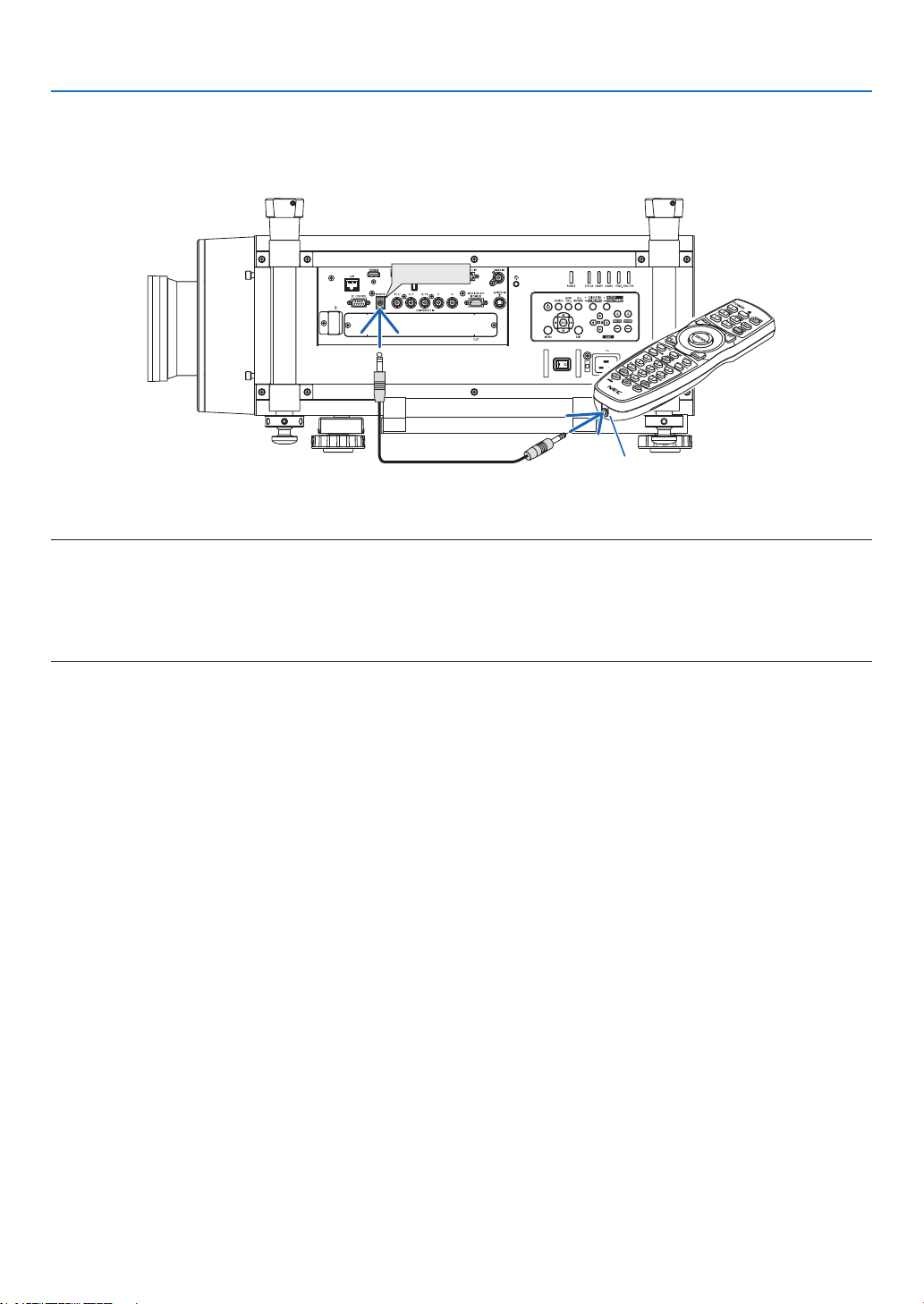
Using the Remote Control in Wired Operation
ConnectoneendoftheremotecabletotheREMOTEminijackandtheotherendtotheremotejackontheremote
control.
REMOTE
RemoteJack
NOTE:
• WhenaremotecableisinsertedintotheREMOTEjack,theremotecontroldoesnotworkforinfraredwirelesscommunication.
• WhenaremotecableisinsertedintotheREMOTEjack,the[POWER-SAVING]and[NETWORKSTANDBY]functionsin[STANDBY
MODE]willnotwork.
• PowerwillnotbesuppliedtotheremotecontrolfromtheprojectorviatheREMOTEjack.Batteryisneededwhentheremote
control is used in wired operation.

12
1. Introduction
❺ Operating Environment for Downloadable Software
Thefollowingsoftwareprogramscanbedownloadedfromourwebsite.
Nameofsoftwareprogram Features
ImageExpressUtility2.0 • Thisisasoftwareprogramusedtosendthescreensofyourpersonalcomput-
erstotheprojectorviawired/wirelessLAN(Meetingmode).
Projectedimagescanbetransferredandsavedtopersonalcomputers.
When“MeetingMode”isused,projectedimagescanbesentandsavedto
thepersonalcomputers.Imagescanbesentfromapersonalcomputerto
notonlyoneprojectorbutalsototwoormoreprojectorsatthesametime.
(→page198)
PCControlUtilityPro4/
PCControlUtilityPro5(forMac
OS)
Thisisasoftwareprogramusedtooperatetheprojectorfromthecomputer
whenthecomputerandtheprojectorareconnectedwithLAN(wiredorwire-
less).(→page209)
• PCControlUtilityPro4canbeusedwithaserialconnection.
• PCControlUtilityPro4allowsforadjustingthe3Dsettings.
ImageExpressUtilityforMac • ThisisasoftwareprogramusedtosendtheMac’sscreenimagetotheprojec-
toroveranetwork(wiredorwirelessLAN).ForMac’soperatingenvironment,
seepage212.
VirtualRemoteTool Whenthecomputerandprojectorareconnectedusinganetwork(wired/wireless
LAN),suchoperationsasturningtheprojector’spoweronandoffandswitching
thesignalcanbeperformed.Itisalsopossibletosendanimagetotheprojector
andregisteritasthebackgroundlogo.Oncetheimageisregistered,itcanbe
lockedtopreventthelogofrombeingoverwritten.(→page216)
*AseparatelysoldwirelessLANunitisrequiredtouseawirelessLAN.
NOTE:
• ImageExpressUtilityforMacdoesnotsupport“MeetingMode”whichisprovidedinImageExpressUtility2.0.
Download service
Fordownloadingorupdatingthesesoftwareprograms,visitourwebsite:
URL:http://www.nec-display.com/dl/en/index.html

13
1. Introduction
Operating Environment
ThefollowingistheoperatingenvironmentforImageExpressUtility2.0.Fortheoperatingenvironmentofothersoft-
wareprogram,refertothehelpfunctionofeachsoftwareprogram.
SupportedOS Windows8(CoreEdition)
Windows8Pro
Windows8Enterprise
Windows7HomeBasic
Windows7HomePremium
Windows7Professional
Windows7Ultimate
Windows7Enterprise
WindowsVistaHomeBasic
WindowsVistaHomePremium
WindowsVistaBusiness
WindowsVistaUltimate
WindowsVistaEnterprise
WindowsXPHomeEditionServicePack2orlater
WindowsXPProfessionalServicePack2orlater
WindowsXPTabletPCEdition2005orlater(WindowsXPTabletPCEditionService
Pack2orlater)
• “EasyConnection”supportstheAdministrativeprivilegesofWindowsXPandWindows7/
WindowsVistaonly
• Windowspower-savingfunctionisnotsupported.
Processor • Windows8/Windows7/WindowsVista
Pentium4/PentiumM800MHzequivalentorhigherrequired
Dualcore1GHzorhigherrecommended
• WindowsXP
PentiumIII800MHzorhigherrequired
Pentium41.6GHzorhigherrecommended
Memory • Windows8/Windows7/WindowsVista
512MBormorerequired
1GBormorerecommended
• WindowsXP
128MBormorerequired
192MBormorerecommended
*Morememorymayberequiredtorunadditionalapplicationssimultaneously.
Graphicprocessor • Windows8/Windows7/WindowsVista
The“Graphics”score3.0ormoreof“WindowsExperienceIndex”recommended.
Networkenvironment TCP/IP-compatiblewiredLANorwirelessLAN
(*UseawirelessLANunitcomplyingwiththeWi-Fistandard.)
Resolution • Windows8/Windows7/WindowsVista
SVGA(800×600)orhigherrequired
XGA(1024×768)recommended
• WindowsXP
VGA(640×480)orhigherrequired
XGA(1024×768)recommended
ScreenColors HighColor(15bits,16bits)
TrueColor(24bits,32bits)(recommended)
• 256orfewercolorsarenotsupported.

14
Thissectiondescribeshowtoturnontheprojectorandtoprojectapictureontothescreen.
❶ Flow of Projecting an Image
Step 1
• Connectingyourcomputer/Connectingthesuppliedpowercord(→ page 15)
Step 2
• Turningontheprojector(→ page 18)
Step 3
• Selectingasource(→ page 22)
Step 4
• Adjustingthepicturesizeandposition(→ page 24)
• Correctingkeystonedistortion[KEYSTONE](→ page 31)
Step 5
• Adjustingapicture
- Optimizing a computer signal automatically (→ page 33)
Step 6
• Makingapresentation
Step 7
• Turningofftheprojector(→ page 34)
Step 8
• Carryingtheprojector(→ page 36)
2. Projecting an Image (Basic Operation)
15
2. Projecting an Image (Basic Operation)
❷ Connecting Your Computer/Connecting the Supplied Power
Cord
NOTE:
• Installalensbeforeperformingthefollowingsteps.(→ page 167)
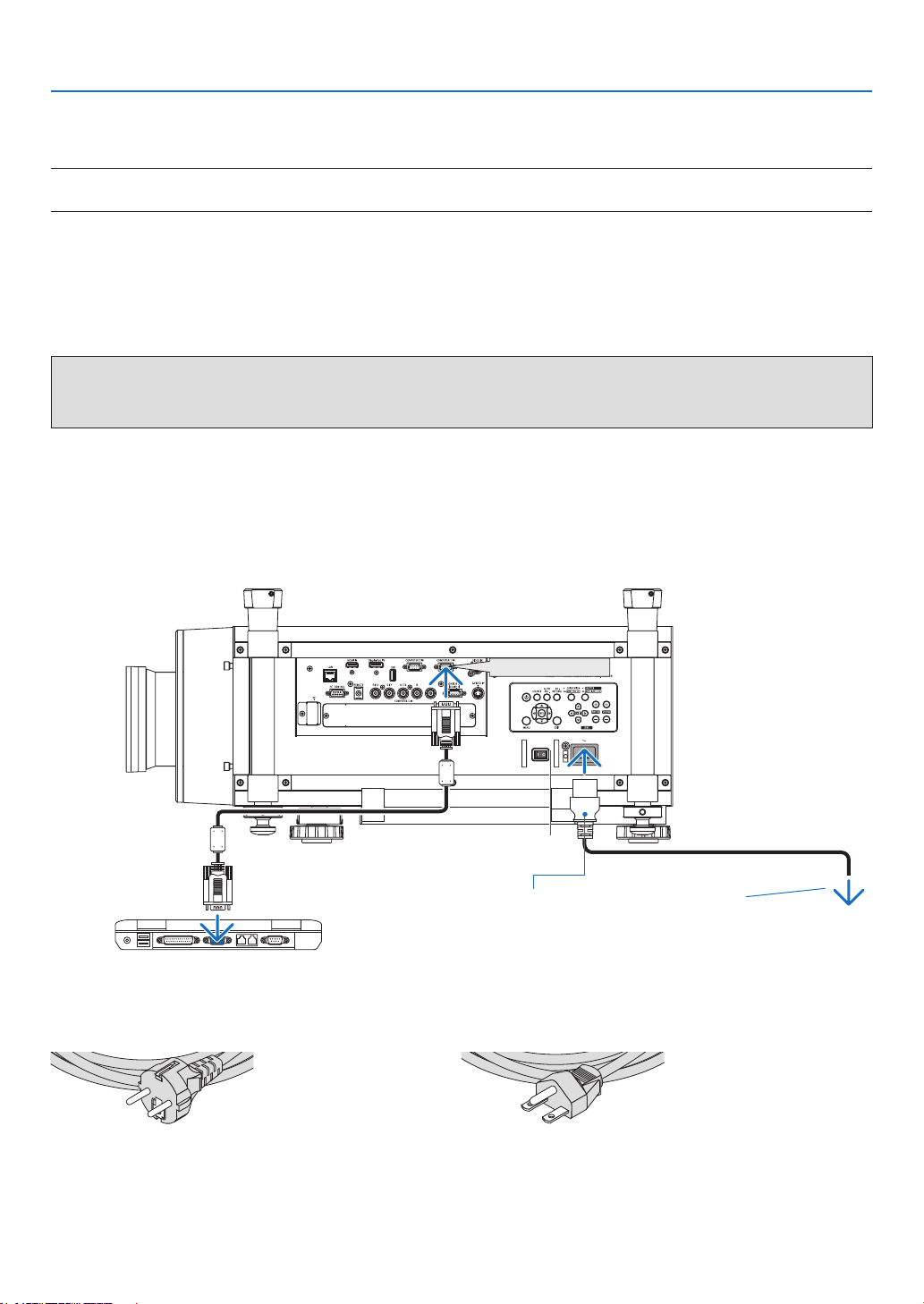
1. Connectyourcomputertotheprojector.
Thissectionwillshowyouabasicconnectiontoacomputer.Forinformationaboutotherconnections,see“(2)
MakingConnections”onpage170.
Connectthecomputercable(VGA)betweentheprojector’sCOMPUTER1INconnectorandthecomputer’sport
(miniD-Sub15Pin).Turntwothumbscrewsofbothconnectorstoxthecomputercable(VGA).
2. Connectthesuppliedpowercordtotheprojector.
WARNING:TOPREVENTFIREORSHOCK,DONOTEXPOSETHISUNITTORAINORMOISTURE.
DONOTUSETHISUNIT’SPLUGWITHANEXTENSIONCORDORINANOUTLETUNLESSALLTHEPRONGS
CANBEFULLYINSERTED.
ImportantInformation:
• Whenplugginginorunpluggingthesuppliedpowercord,makesurethatthemainpowerswitchispushedto
the off [O] position. Failure to do so may cause damage to the projector.
• Donotuseathree-phasepowersupply.Doingsomaycausemalfunction.
Firstconnectthesuppliedpowercord’sthree-pinplugtotheACINoftheprojector,andthenconnecttheother
plug of the supplied power cord in the wall outlet.
COMPUTER 1 IN
Makesurethattheprongsarefullyinsertedinto
boththeACINandthewalloutlet.
Main power switch
To wall outlet
Using the Supplied Power Cords
Selectthepowercordsuitableforyourcountryorregion.
ForEurope/Asia/SouthAmerica ForNorthAmerica
(→page229)
16
2. Projecting an Image (Basic Operation)
Using the Power Cord Stopper
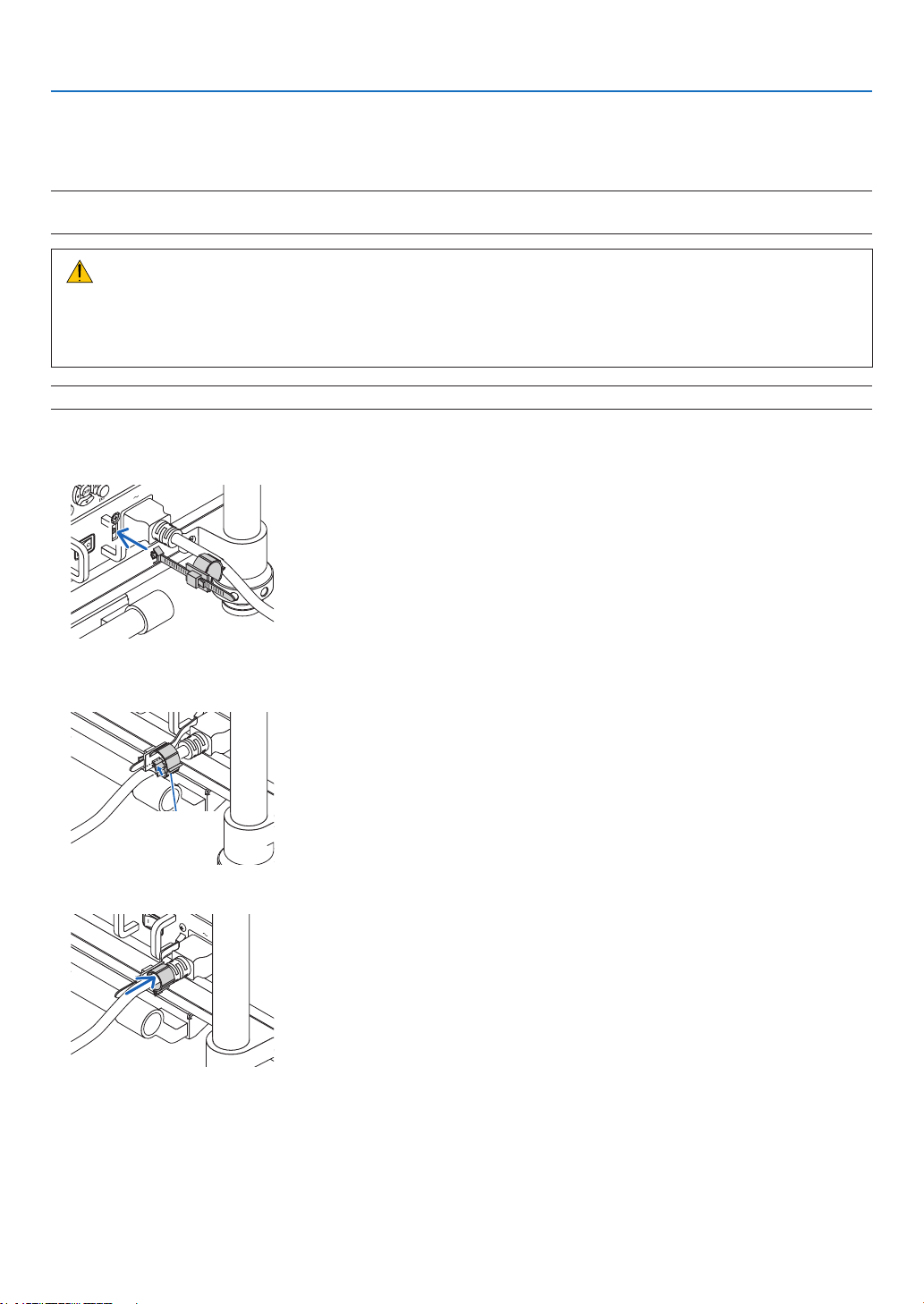
TopreventthepowercordfromaccidentlyremovingfromtheACINoftheprojector,attachthepowercordstopper
toclampthepowercord.
NOTE:
• Donotclampthepowercordwithothercables.Doingsocangeneratenoise,whichcanaffectadverselythesignalcable.
CAUTION
• Donotbundlethepowercord.Doingthiscouldcauseheatorare.
• Donotclamptwopowercordsthatwouldbeusedwhenstackingtwoprojectors.Doingthiscouldcausea
re.
NOTE:Becarefulnottoinsertthebandinversely.Oncethebandisattached,itcannotberemovedfromtheslot.
Attaching the power cord stopper
1. InserttheendofbandofthepowercordstopperintotheslotnexttotheACINontheterminalpanel.
2. Use the power cord stopper to clamp the power cord.
Pushtheclampertolockit.
Clamper
3. Slidetheclampertothehiltofthepowercord.
17
2. Projecting an Image (Basic Operation)
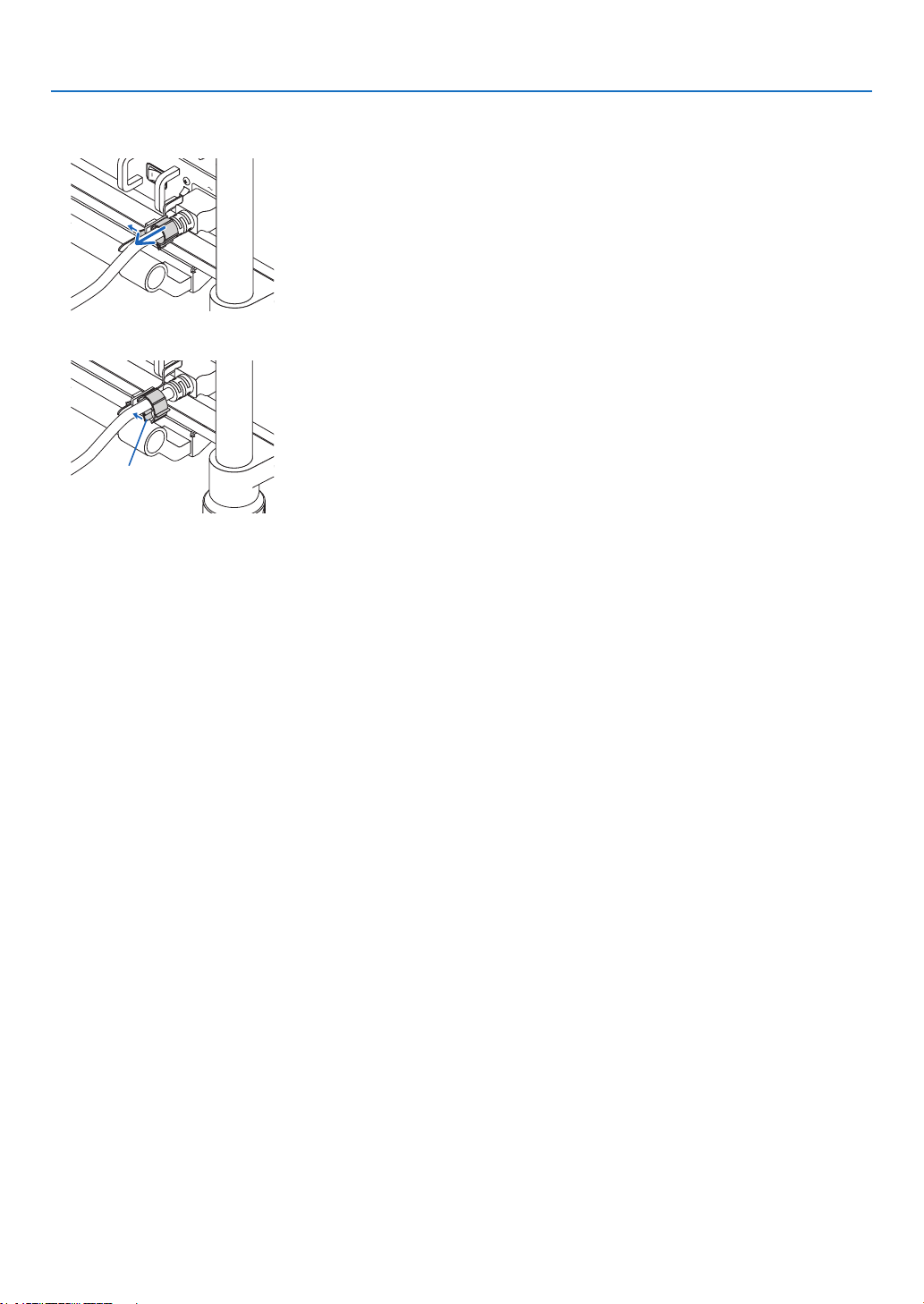
Removingthepowercordfromthepowercordstopper
1. Pushtheclamperofthepowercordstoppertounclaspit.
2. Push the power cord clamper to open it wide enough to pull out the power cord.
Clamper
18
2. Projecting an Image (Basic Operation)
❸ Turning on the Projector
NOTE:
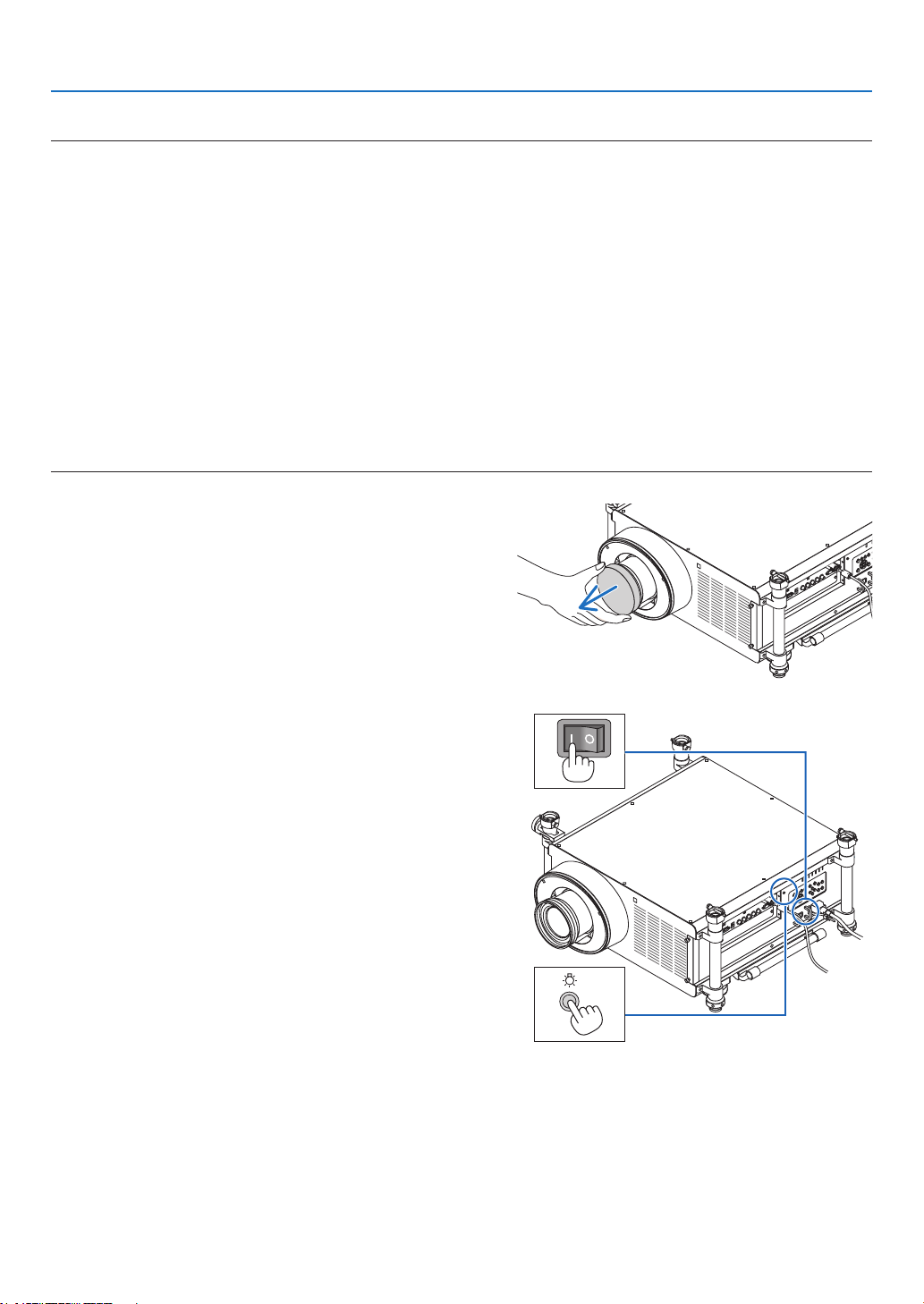
• Theprojectorhastwopowerswitches:AmainpowerswitchandaPOWERbutton(POWERONandOFFontheremotecontrol)
•Turningontheprojector:
1. PressthemainpowerswitchtotheONposition(I).
Theprojectorwillgointostandbymode.
2. PressthePOWERbutton.
Theprojectorwillbecomereadytouse.
•Turningofftheprojector:
1. PressthePOWERbutton.
Theconrmationmessagewillbedisplayed.
2. PressthePOWERbuttonagain.
Theprojectorwillgointostandbymode.
3. PressthemainpowerswitchtotheOFFposition(O).
Theprojectorwillbeturnedoff.
Remove the lens cap.
1. PressthemainpowerswitchtotheONposition(I).
Theprojectorwillgointostandbymode.Wheninstandby
mode,thePOWERindicatorwilllightorangeandtheSTA-
TUSindicatorwilllightgreenwhen[NORMAL]isselected
for[STANDBYMODE].SeethePowerIndicatorsection.
(→ page 232)
Whenyouareworkinginadarkroom,itisconvenientto
use the LED lights on the projector.
PresstheLIGHTbuttontoturnontheLEDlightstoillu-
minate the control panel and the terminal panel; press it
again to turn off the LED light.
19
2. Projecting an Image (Basic Operation)
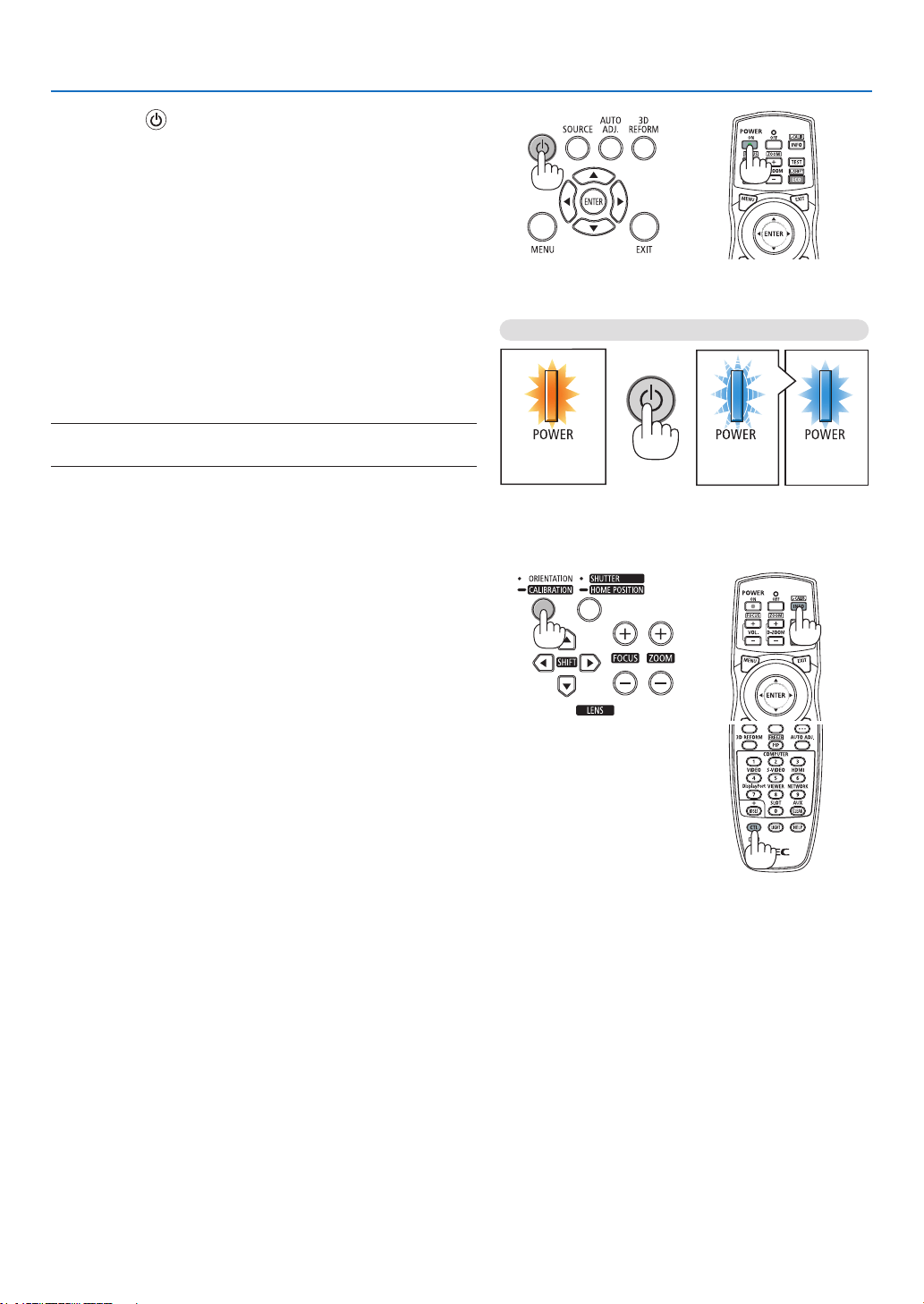
2. Press the (POWER)buttonontheprojectorcabinet
orthePOWERONbuttonontheremotecontrol.
ThePOWERindicatorwillturntoblueandtheprojector
willbecomereadytouse.
TIP:
• Whenthemessage“PROJECTORISLOCKED!ENTERYOUR
PASSWORD.” is displayed, it means that the [SECURITY]
feature is turned on. (→ page 46)
• Whenthe ECO message is displayed, it means that[ON] is
selectedfor[ECOMESSAGE].(→ page 126)
Afteryouturnonyourprojector,ensurethatthecomputer
or video source is turned on.
NOTE:Whennosignalisavailable,theNEClogo(default),blue,or
black screen will be displayed.
Performing Lens Calibration
Afterinstallationorreplacementofthelens,besuretoperform
[CALIBRATION]bypressingandholdingtheORIENTATION
buttonforatleasttwosecondsorbyholdingtheCTLbutton
andpressingtheINFO/L-CALIBbuttonontheremotecontrol
Calibrationcorrectstheadjustablezoomandfocusrange.If
calibrationisnotperformed,youmaynotbeabletogetthe
bestfocusandzoomevenifyouadjustthefocusandzoom
forthelens.
• Thefollowinglensesneedcalibration:
NP26ZL,NP27ZL,NP28ZL,NP29ZL,NP32ZL
Standby Blinking PowerOn
Steady orange
light
Blinking blue
light
Steady blue
light
(→page232)
20
2. Projecting an Image (Basic Operation)
Note on Startup screen (Menu Language Select screen)
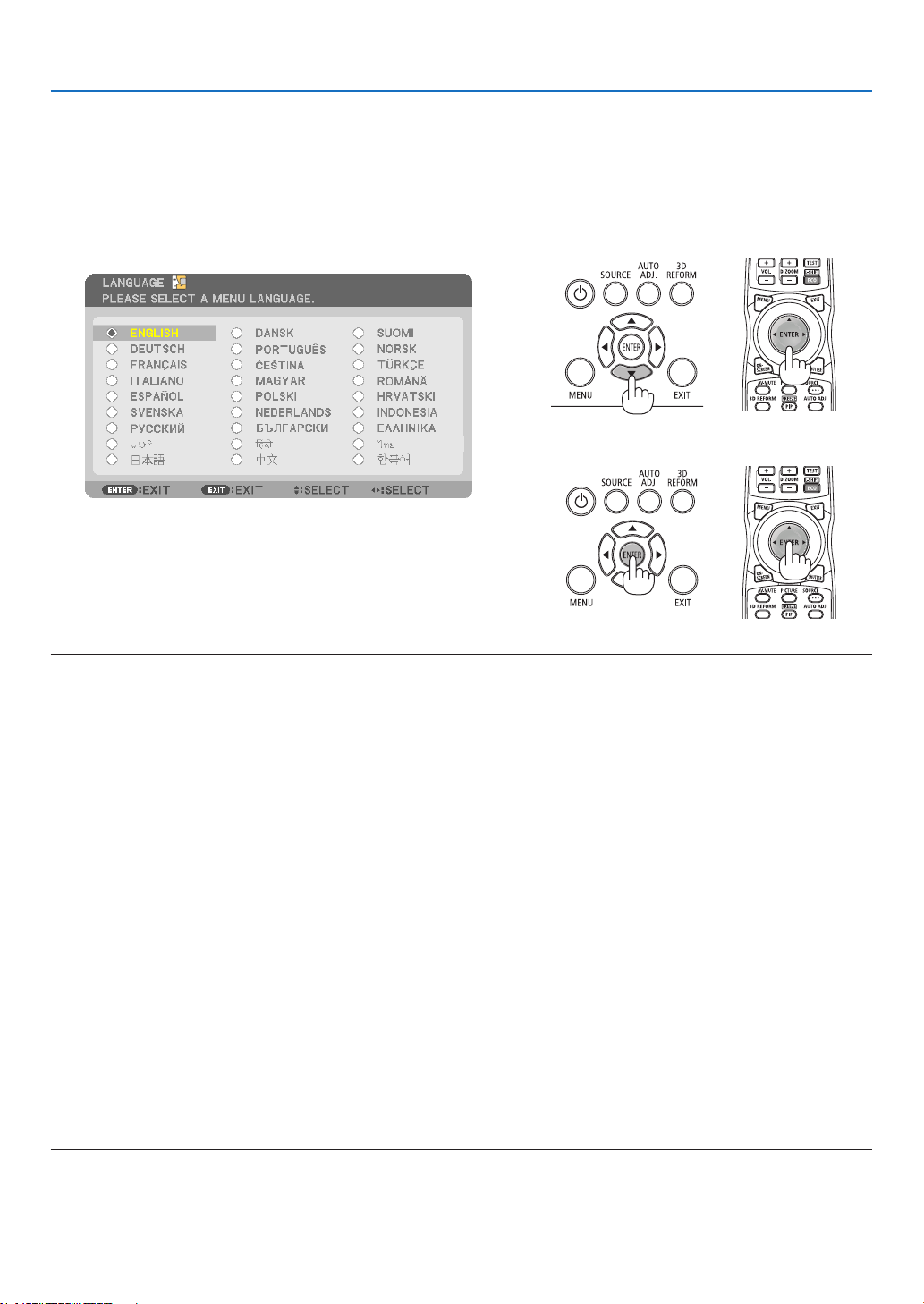
Whenyourstturnontheprojector,youwillgettheStartupmenu.Thismenugivesyoutheopportunitytoselectone
ofthe27menulanguages.
Toselectamenulanguage,followthesesteps:
1. Use the ▲, ▼, ◀ or ▶buttontoselectoneofthe27lan-
guagesfromthemenu.
2. PresstheENTERbuttontoexecutetheselection.
Afterthishasbeendone,youcanproceedtothemenuopera-
tion.
Ifyouwant,youcanselectthemenulanguagelater.
(→[LANGUAGE]onpage107and125)
NOTE:
• Turningthepowerbackondirectlyafteritisturnedoff(bydirectpoweroff)whileanimageisbeingprojectedcanresultin
malfunction.Besuretowaitatleast1secondbeforeturningthepowerbackon.
• Keepthelenscapoffthelenswhiletheprojector’spowerison.
If the lens cap is on, it could be warped due to high temperature.
• Ifoneofthefollowingthingshappens,theprojectorwillnotturnon.
- Iftheinternaltemperatureoftheprojectoristoohigh,theprojectordetectsabnormalhightemperature.Inthisconditionthe
projectorwillnotturnontoprotecttheinternalsystem.Ifthishappens,waitfortheprojector’sinternalcomponentstocool
down.
- Startingunderlowtemperatureconditions
Iftheusageenvironmenttemperatureislowerthantheprojector’soperatingtemperature,theTEMP.indicatorwillash.Increase
theusageenvironmenttemperatureto0°Corhigherandturnontheprojectoragain.
Ifyouturnontheprojectorataround0°C,itmaytake5minutestowarmuptheprojector.
Duringwarm-up,theTEMP.indicatorwillash.Whenthewarm-upiscompleted,theTEMP.indicatorwilllightout.
- Whenthelampreachesitsendofusablelife,theprojectorwillnotturnon.Ifthishappens,replacethelamp.
- IftheSTATUSindicatorlightsorangewiththepowerbuttonpressed,itmeansthatthe[CONTROLPANELLOCK]isturnedon.
Cancelthelockbyturningitoff.(→ page 131)
- Ifthelampfailstolight,andiftheLAMP1orLAMP2indicatorashesonandoffinacycleofsixtimes,waitafullminuteand
then turn on the power.
• WhilethePOWERindicatorisblinkingblueinshortcycles,thepowercannotbeturnedoffbyusingthepowerbutton.
• Immediatelyafterturningontheprojector,screenickermayoccur.Thisisnormal.Wait3to5minutesuntilthelamplightingis
stabilized.
• Whentheprojectoristurnedon,itmaytakesometimebeforethelamplightbecomesbright.
• Ifyouturnontheprojectorimmediatelyafterthelampisturnedofforwhenthetemperatureishigh,thefansrunwithoutdisplay-
ing an image for some time and then the projector will display the image.
21
2. Projecting an Image (Basic Operation)
If the projected image is inverted or upside down
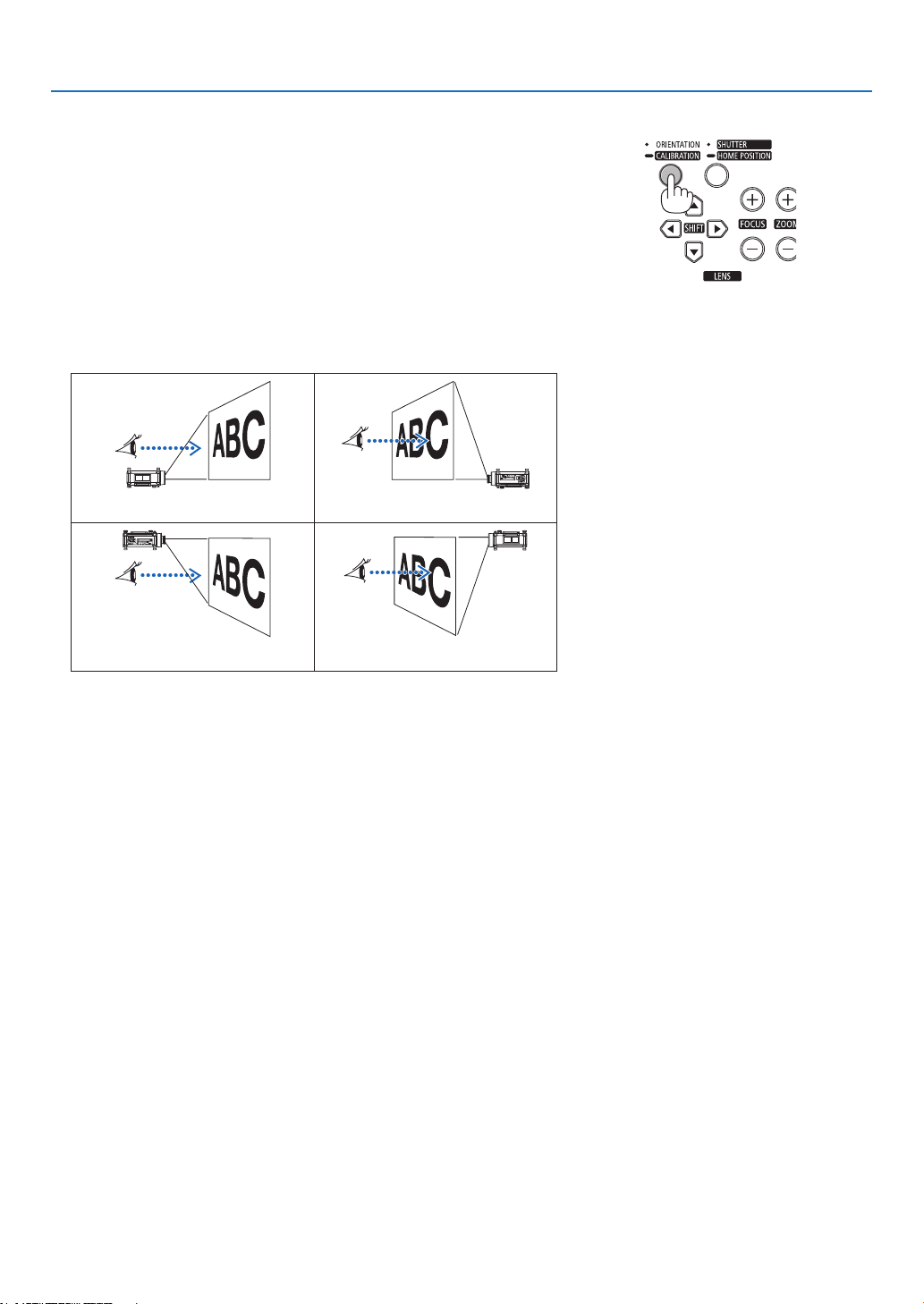
1 PresstheORIENTATIONbutton.
The[ORIENTATION]screenwillbedisplayed.
2 Press again to select a correct orientation.
EachtimetheORIENTATION/CALIBRATIONbuttonispressed,the
choiceyouhighlightwillbechanged.
DESKTOPFRONT DESKTOPREAR
CEILINGFRONT CEILINGREAR
3 StoppressingtheORIENTATIONbutton.
Themenuwillbeclosedinabouttwosecondsandtheprojectedimage
willbedisplayedintheorientationyouselect.
Aconrmationmessagewillbealsodisplayed.
4 PresstheENTERbutton.
Theconrmationmessagewillbeclosed.
22
2. Projecting an Image (Basic Operation)
❹ Selecting a Source
Selecting the computer or video source
NOTE:Turnonthecomputerorvideosourceequipmentconnectedtotheprojector.
DetectingtheSignalAutomatically
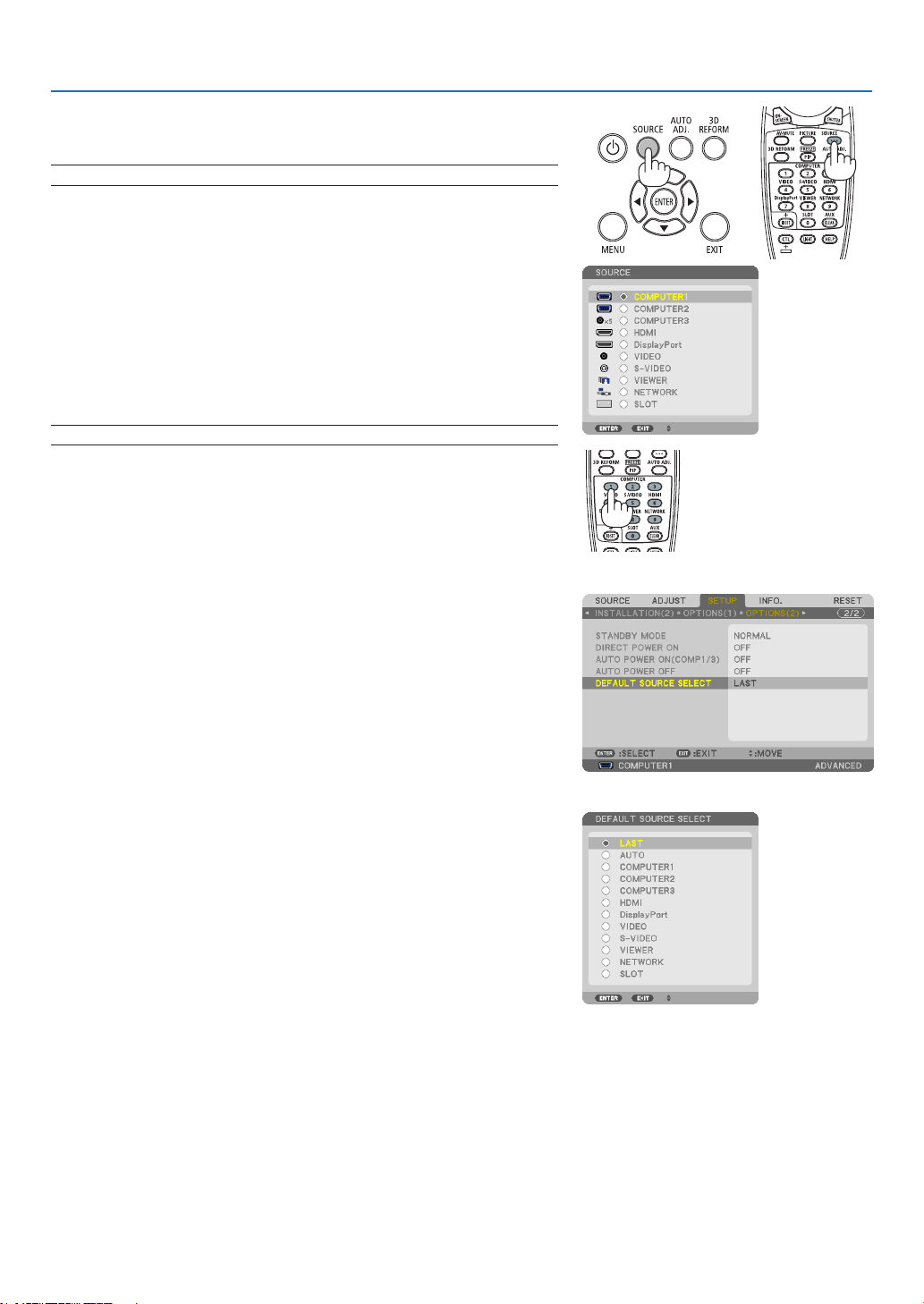
PresstheSOURCEbuttononce.Theprojectorwillsearchfortheavailable
inputsourceanddisplayit.Theinputsourcewillchangeasfollows:
COMPUTER1→COMPUTER2→COMPUTER3→HDMI→DisplayPort
→VIDEO→S-VIDEO→VIEWER→SLOT→COMPUTER1→ ...
• WiththeSOURCEscreendisplayed,youcanpresstheSOURCE
buttonafewtimestoselecttheinputsource.
TIP: If no input signal is present, the input will be skipped.
Using the Remote Control
PressanyoneoftheCOMPUTER1,COMPUTER2,COMPUTER3,HDMI,
DisplayPort,VIDEO,S-VIDEO,VIEWER,NETWORK,orSLOTbuttons.
Selecting Default Source
Youcansetasourceasthedefaultsourcesothatitwillbedisplayed
eachtimetheprojectoristurnedon.
1. PresstheMENUbutton.
Themenuwillbedisplayed.
2. Press the ▶buttontwicetoselect[SETUP]andpressthe▼ but-
tonortheENTERbuttontoselect[BASIC].
3.
Press the
▶
buttonvetimestoselect[OPTIONS(2)].
4. Press the ▼ button ve times to select [DEFAULT SOURCE
SELECT]andpresstheENTERbutton.
The[DEFAULTSOURCESELECT]screenwillbedisplayed.
(→ page 136)
5. Selectasourceasthedefaultsource,andpresstheENTERbut-
ton.
6. PresstheEXITbuttonafewtimestoclosethemenu.

23
2. Projecting an Image (Basic Operation)
7. Restart the projector.
Thesourceyouselectedinstep5willbeprojected.
NOTE:Evenwhen[AUTO]isturnedon,the[NETWORK]willnotbeautomatically
selected.Tosetyournetworkasthedefaultsource,select[NETWORK].
TIP:
• Whentheprojectoris inStandby mode,applying acomputer signalfroma
computerconnectedtotheCOMPUTER1/3INinputwillpowerontheprojector
andsimultaneouslyprojectthecomputer’simage.
([AUTOPOWERON(COMP1/3)]→ page 136)
• OntheWindows7keyboard,acombinationoftheWindowsandPkeysallows
you to set up external display easily and quickly.
24
2. Projecting an Image (Basic Operation)
❺ Adjusting the Picture Size and Position
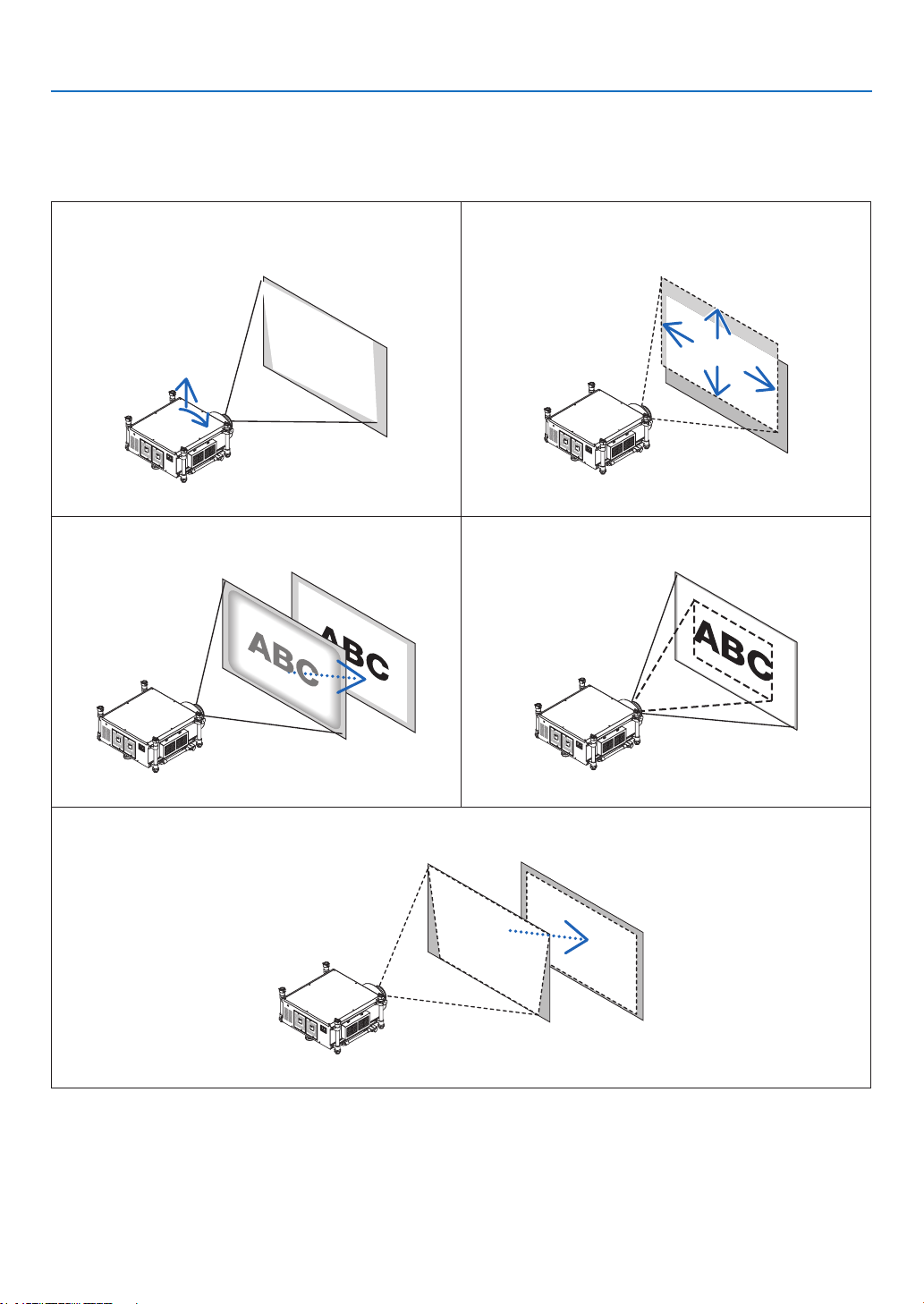
Usethehorizontaladjustmentknobandadjustabletiltfeettonelytilttheprojector;usetheLENSSHIFT,ZOOM,
andFOCUSbuttonstoadjustthepicturesizeandposition.
Inthischapterdrawingsandcablesareomittedforclarity.
Tiltingtheprojector
[Horizontaladjustmentknob/Tiltfeet]
Adjustingtheprojectedimage’sverticalandhorizontal
position
[Lensshift]
(→ page 25) (→ page 27)
Adjustingthefocus
[Focus]
Finelyadjustingthesizeofanimage
[Zoom]
(→ page 29) (→ page 30)
Adjustingthekeystonecorrection
[Keystone]
(→ page 31)
TIP:
• Built-intestpatternscanbeconvenientlyusedforadjustingthepicturesizeandposition.(→ page 109)
ApressoftheTESTbuttonwilldisplaythetestpattern.The◀ or ▶ button can select one test pattern. To close the test pattern,
change the source to another.
25
2. Projecting an Image (Basic Operation)
CAUTION
• Performtheadjustmentfrombehindorfromthesideoftheprojector.Adjustingfrom
thefrontcouldexposeyoureyestostronglightwhichcouldinjurethem.Therear
ventsoftheprojectormaybecomeheatedduringnormalprojectoroperation.Use
cautionwhenadjustingthetiltfootontherearside.
• Keephandsawayfromthelensmountingportionwhilethelensshiftisinoperation.
Failuretodosocouldresultinhandsbeingpinchedbythemovinglens.
Tilting the projector
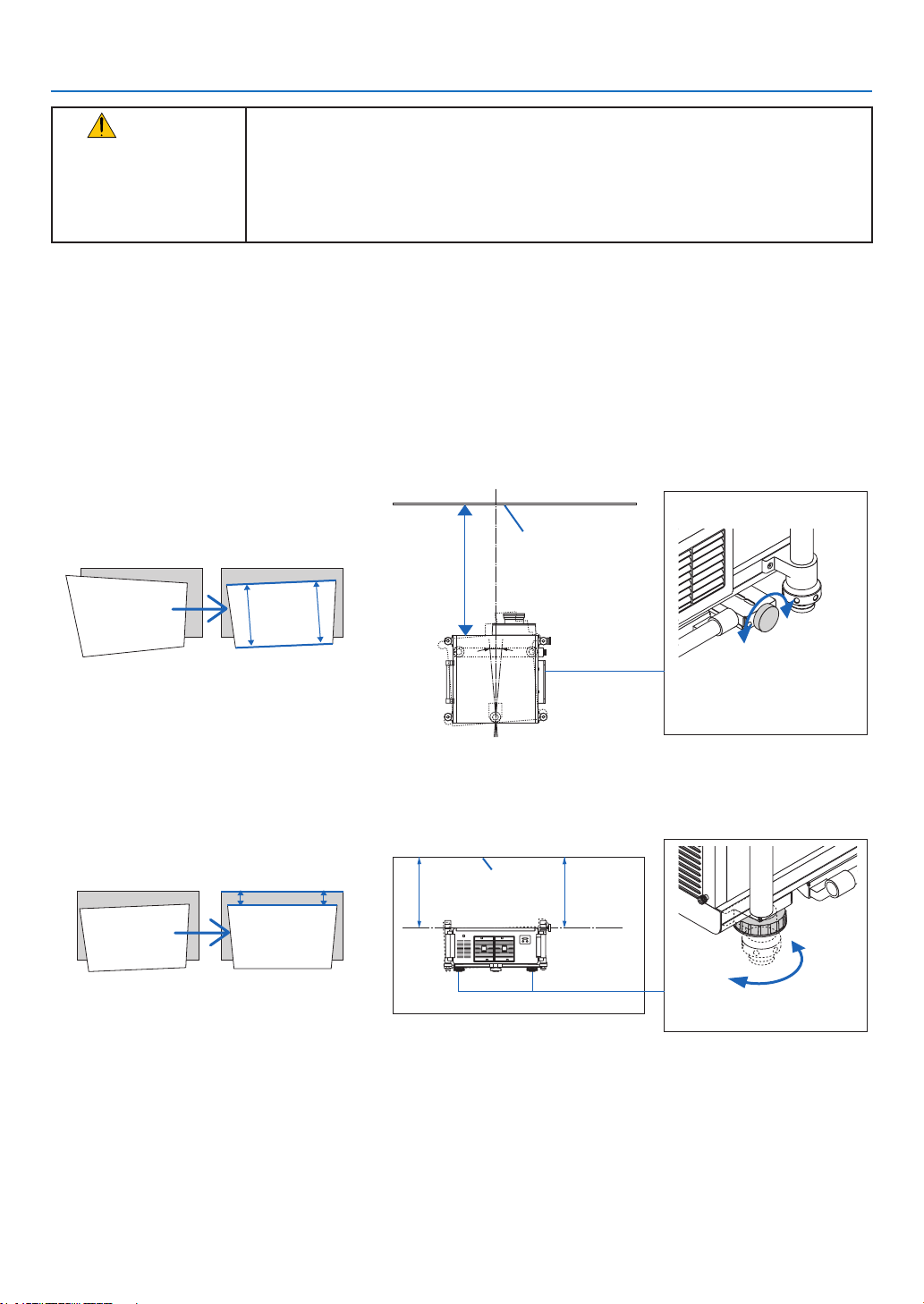
Theprojectormustbeplacedsquaretothescreenotherwisekeystonedistortionmayappearonthescreen.Thissec-
tionprovidesexplanationonhowtoplacetheprojectorperpendiculartothescreenwhenviewedfromtheside.
1. Lowerthefrontandbacktiltfeet.
2. Usethehorizontaladjustmentknobtonelytilttheprojectorsothattheprojectorissettobeparallelwith
the screen.
Makesurethatthetopedgeoftheimageisparallelwiththebottomedgeoftheimage.
Adjustablerange:4°
Screen
Parallel
Clockwise
Counter-
clockwise
Horizontaladjustmentknob
3. Rotatethetwofronttiltfeettoadjusttheheighttokeeptheprojectorlevelsothatthetopedgeofthescreen
isparallelwiththetopedgeoftheprojectedimage.
Adjustablerange:1.8°
Screen
Parallel
Lower
Raise
Front tilt foot
26
2. Projecting an Image (Basic Operation)
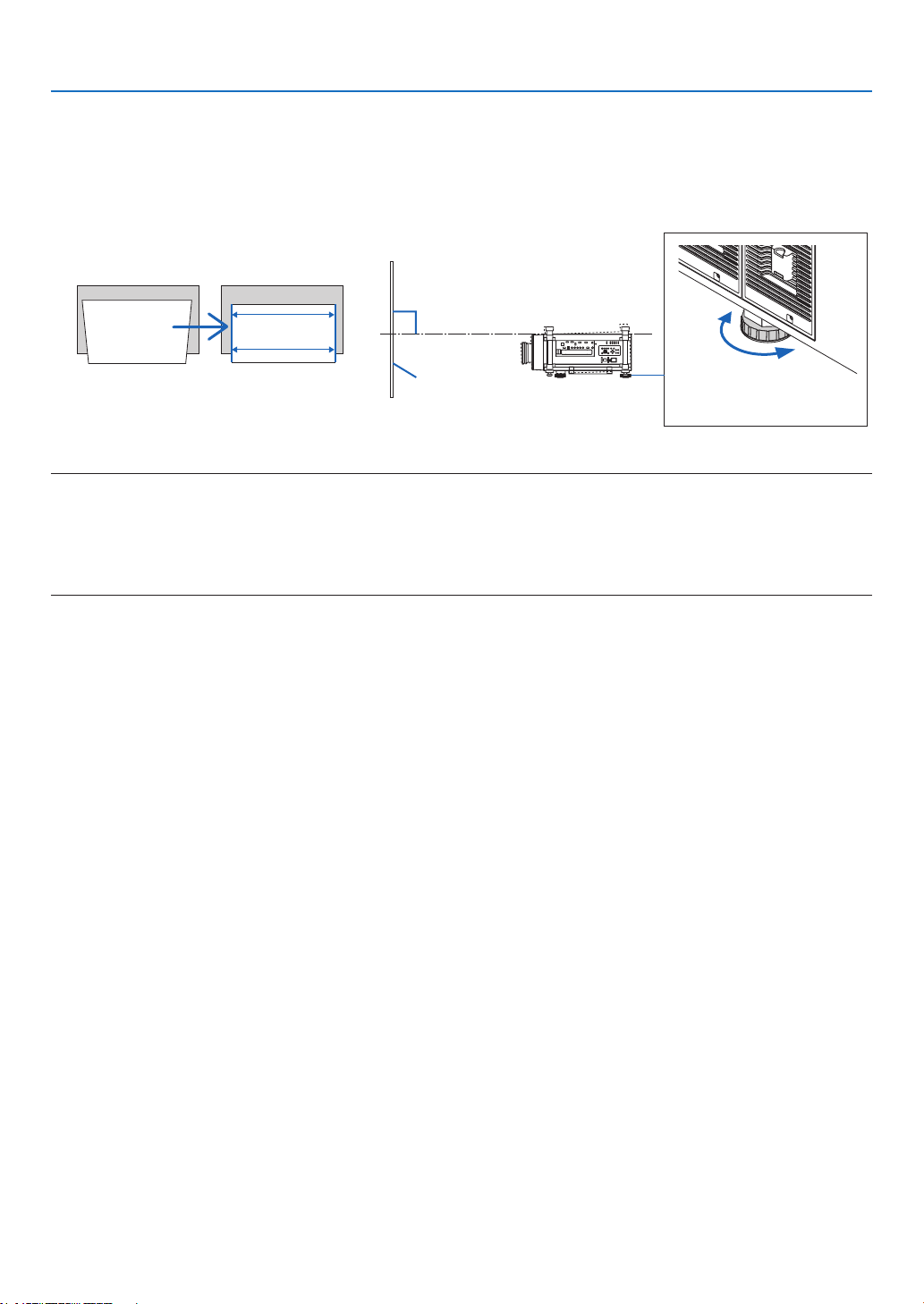
4. Rotateeachofthetiltfeettoadjusttheheightwhilekeepingtheprojectorlevelwiththeoor/ceilingand
perpendiculartothescreenwhenviewedfromtheside.
To raise the front side of the projector, extend the left and right tilt feet.
To lower the front side of the projector, extend the rear foot.
Adjustablerange:2°
Screen
90°
Lower
Raise
Front tilt foot
NOTE:
• Donotlengtheneachofthetiltfeetanymorethan13mm/0.51".Theforceofdoingsomaycausethetiltfoottocomeoff,result-
ing in damage to the projector.
• Donotusethetiltfeetforanypurposeotherthanadjustingtheprojector’sprojectionangle.
Do not attempt to carry or mount the projector using the tilt feet. Doing so may result in damage to the projector or personal
injury.
27
2. Projecting an Image (Basic Operation)
Adjusting the vertical position of a projected image (Lens shift)
NOTE:
• ThelensshiftfunctionisnotavailableontheprojectorwithNP25FL(xedfocus)lensinstalled.
Returnthelensshiftpositiontothehomepositionbeforeinstallingthelenstotheprojector.
• Shiftingthelenstothemaximumintwodirectionscombinedwillcausetheedgesoftheimagetobecomedarkorwillcause
some shadows.
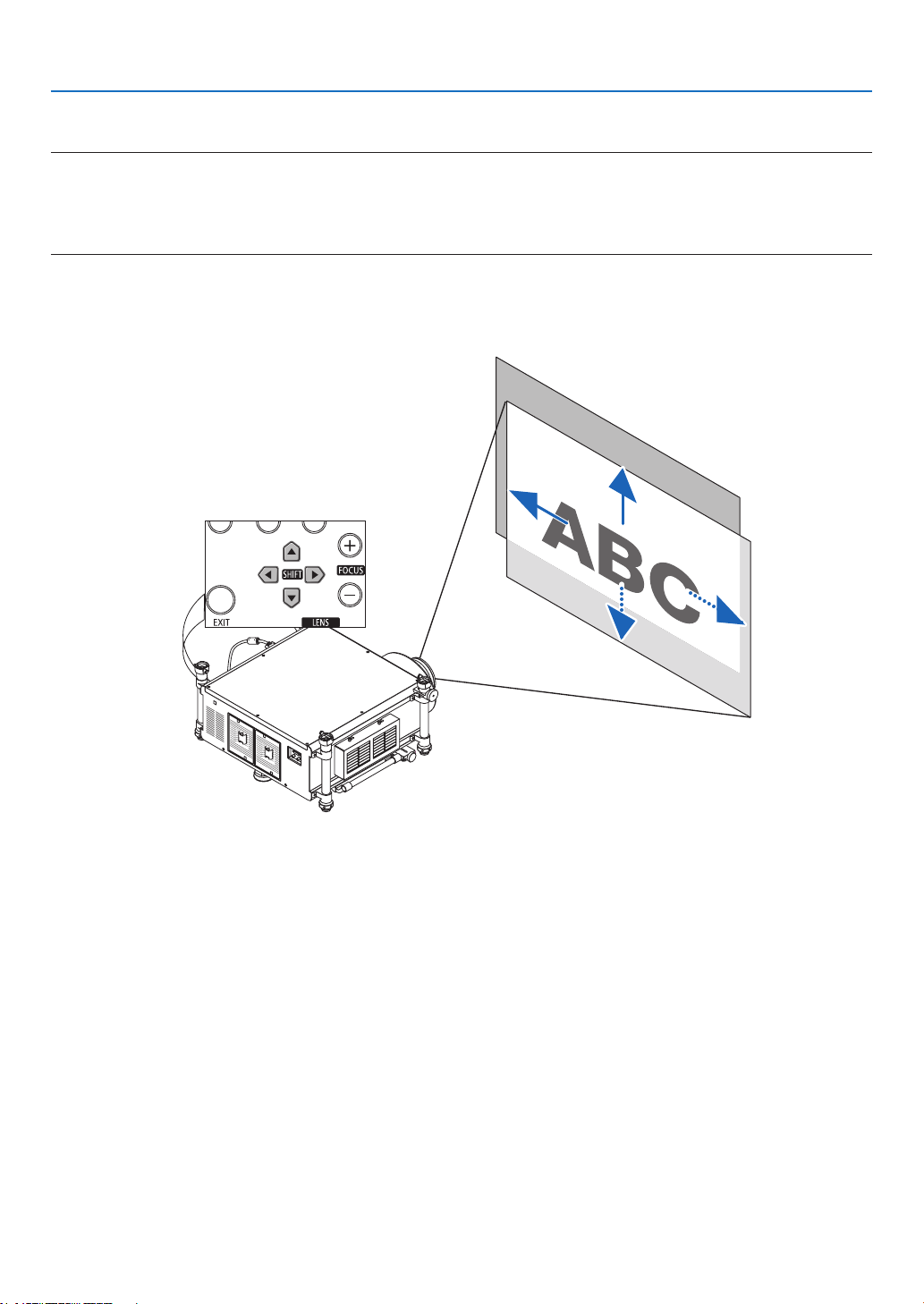
Adjusting with buttons on the cabinet
1. PressoneoftheLENSSHIFT▼▲◀▶ buttons.
2. UsetheLENSSHIFT▼▲◀▶ buttons to move the projected image.
Returningthelensshiftpositiontothehomeposition
PressandholdtheSHUTTER/HOMEPOSITIONbuttonfor2secondstoreturnthelensshiftpositiontothehome
position(nearlycenterposition)
28
2. Projecting an Image (Basic Operation)
Adjusting with the remote control
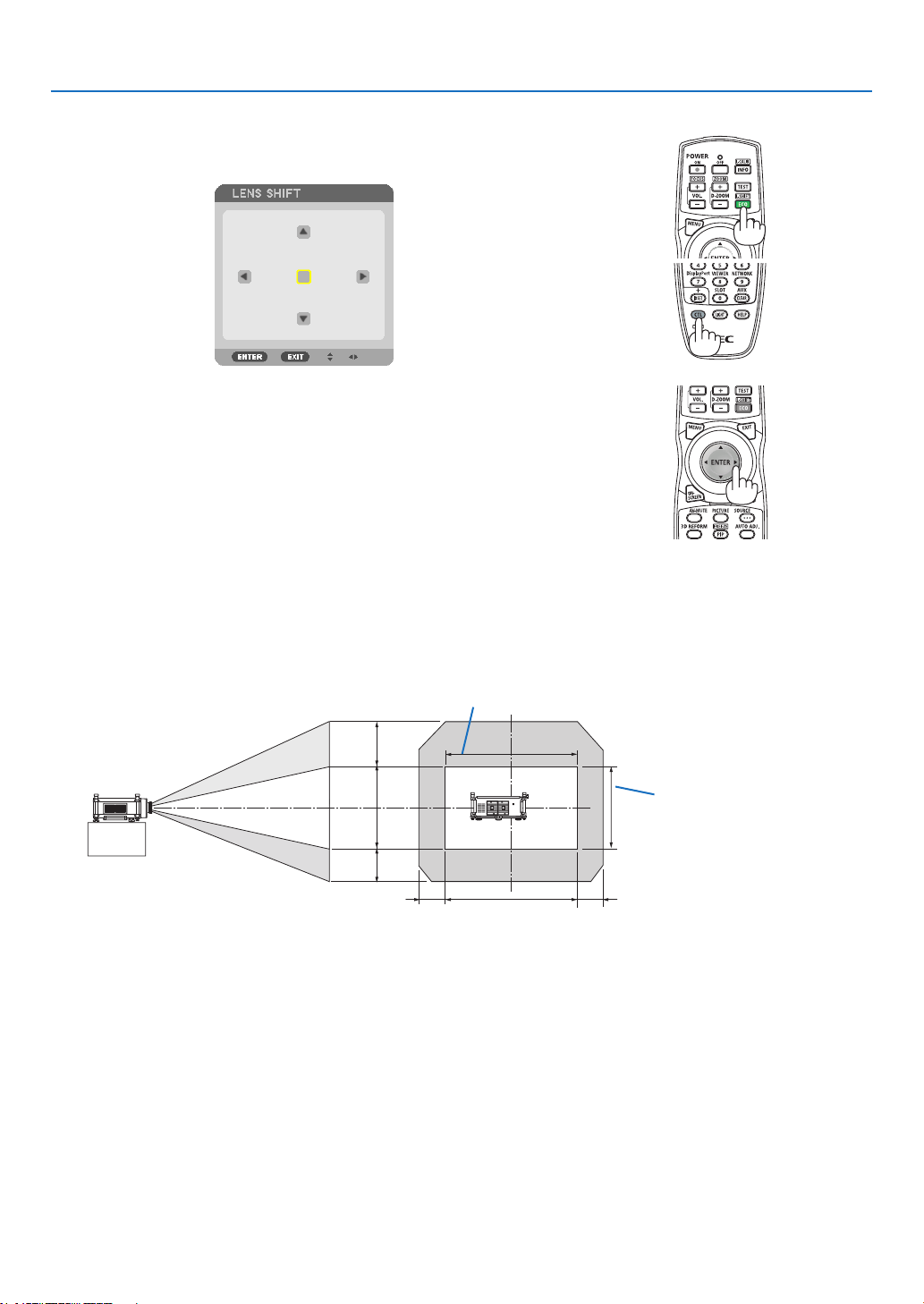
1. HoldtheCTLbuttonandpresstheECO/L-SHIFTbutton.
TheLensShiftscreenwillbedisplayed.
2. Press the ▼▲◀ or ▶ button.
Use the ▼▲◀▶buttonstomovetheprojectedimage.
TIP:
• Thediagrambelowshowsthelensshiftadjustmentrangeforthedesktopfront.Toraisetheprojectionpositionhigherthanthis,
use the tilt feet. (→ page 25)
1V
1H
0.2H 0.2H
0.55V*
0.4V
Height of projected image
Widthofprojectedimage
* Themaximumadjustablerangeforlensshift(V)is0.5VwhentheNP32ZLlensisused.
29
2. Projecting an Image (Basic Operation)
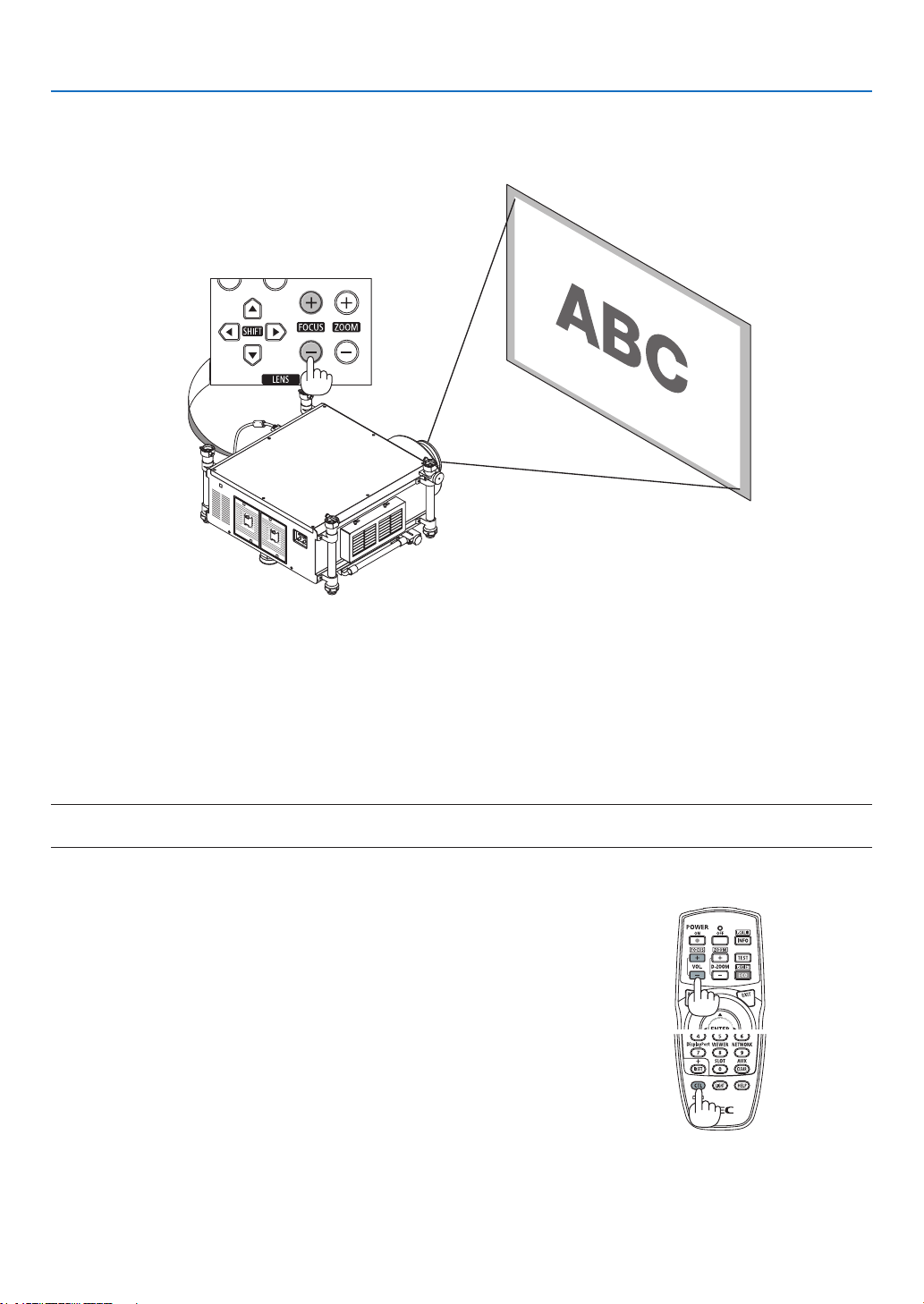
Focus
Applicablelens:NP26ZL/NP27ZL/NP28ZL/NP29ZL/NP32ZL
UsetheFOCUS(+)or(−)buttonontheprojectorcabinettoobtainthebestfocus.
TIP:Toobtainthebestfocus,performthefollowing(forxedinstallation)
Preparation:Warmuptheprojectorforonehour.
1.UsetheFOCUS+/−buttonstomakesureyouobtainthebestfocus.Ifyoudonot,movetheprojectorbackandforth.
2.Selectthe[TESTPATTERN]fromthemenuanddisplaythetestpattern.(→ page 109)
• YoucanalsousetheTESTbuttonontheremotecontroltodisplaythetestpattern.
3.KeeppressingtheFOCUS−buttonuntilthegridofthetextpatternismadeinvisible.
4.KeeppressingtheFOCUS+buttonuntilyouobtainthebestfocus.
If you adjust beyond the best focal point, go back to step 3 and repeat the procedures.
NOTE:
• UsethefocusringtoobtainthebestfocusontheNP25FLlens.
Adjusting with the remote control
• HoldtheCTLbuttonandpresstheVOL/FOCUS+/−button.
30
2. Projecting an Image (Basic Operation)
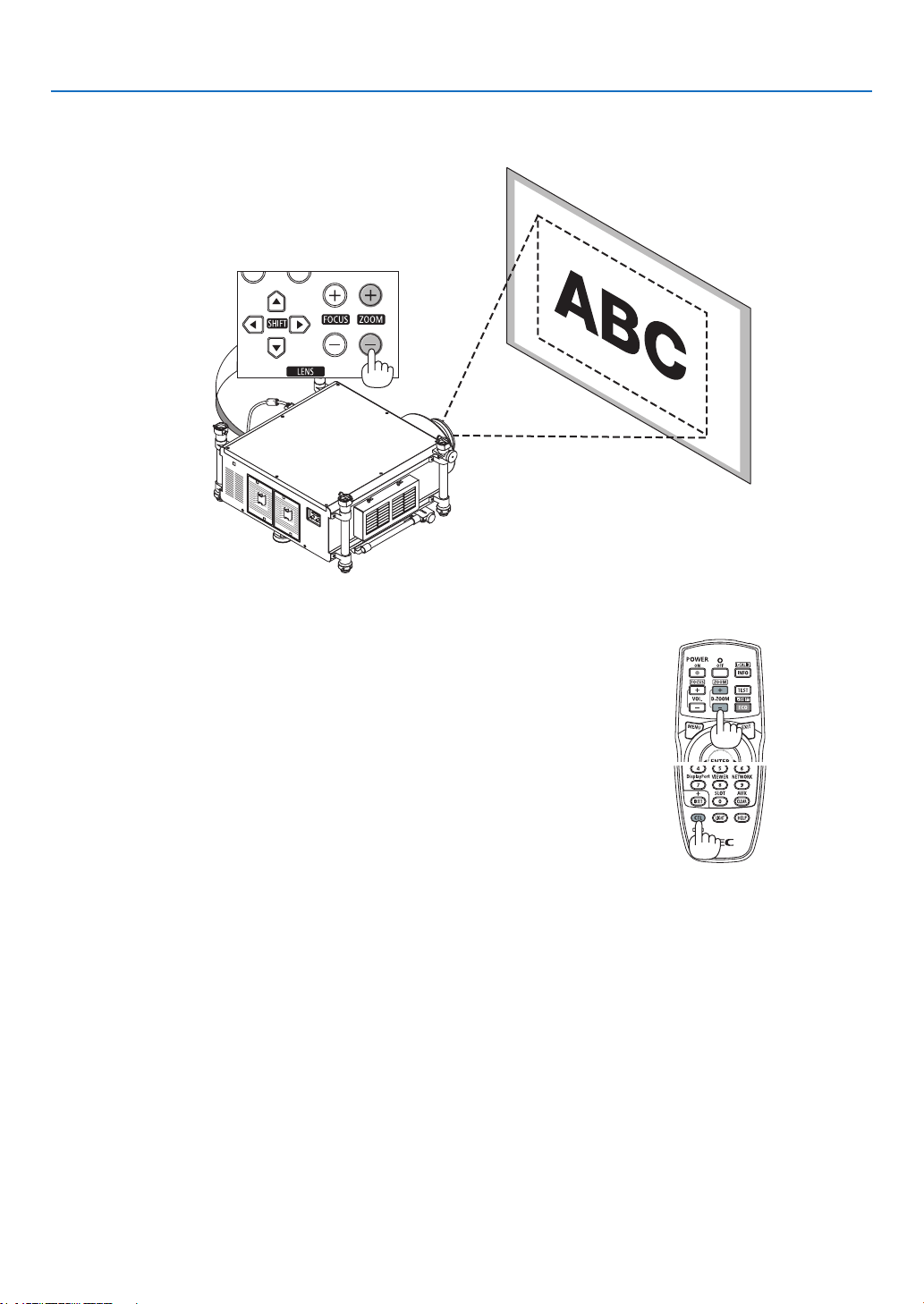
Zoom
UsetheZOOM(+)or(−)buttonontheprojectorcabinettozoominorout.
Adjusting with the remote control
• HoldtheCTLbuttonandpresstheD-ZOOM/ZOOM+/−button.
31
2. Projecting an Image (Basic Operation)
❻ Correcting Keystone Distortion
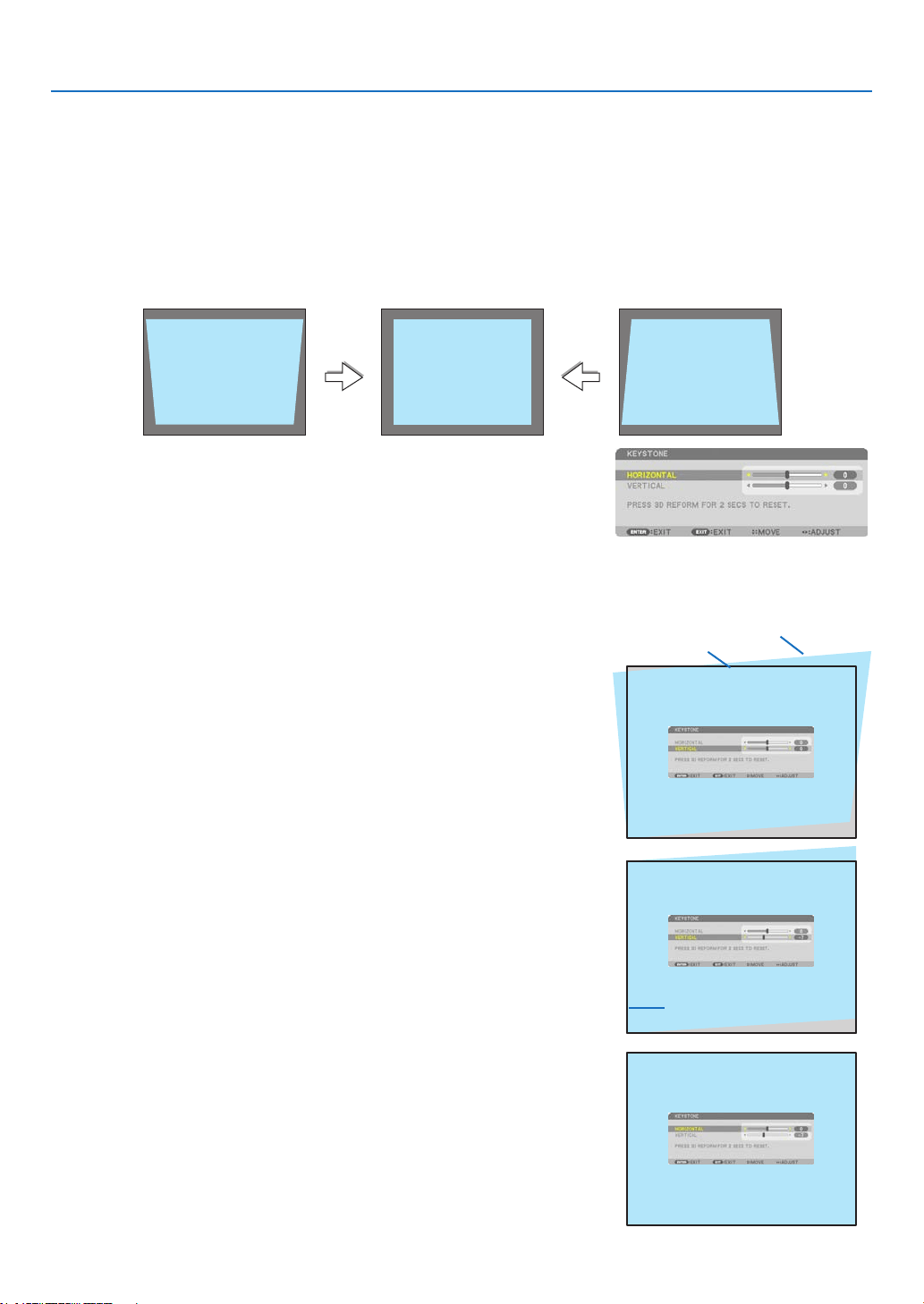
Whentheprojectorisnotexactlyperpendiculartothescreen,keystonedistortionoccurs.Toovercomeit,youcanuse
the“Keystone”function,adigitaltechnologythatcanadjustforkeystone-typedistortion,resultinginacrisp,square
image.
Thefollowingprocedureexplainshowtousethe[KEYSTONE]screenfromthemenutocorrecttrapezoidaldistor-
tions.
Whentheprojectorisplaceddiagonallytothescreen,
Whentheprojectorissetupatanangleinrelationtothescreen,adjusttheHorizontaloptionoftheKeystonemenu
sothatthetopandbottomofsidesoftheprojectedimageareparallel.
1. Pressthe3DREFORMbuttonontheremotecontrolortheprojec-
tor cabinet.
TheKeystonescreenwillbedisplayedonthescreen.
2. Press the
▼
buttontoselect[VERTICAL]andthenusethe
◀
or
▶
sothattheleftandrightsidesoftheprojectedimageareparallel.
*Adjusttheverticalkeystonedistortion.
3. Aligntheleft(orright)sideofthescreenwiththeleft(orright)side
oftheprojectedimage.
• Usetheshortersideoftheprojectedimageasthebase.
• Intherightexample,usetheleftsideasthebase.
4. Press the
▲
buttontoselect[HORIZONTAL]andthenusethe
◀
or
▶
sothatthetopandbottomsidesoftheprojectedimagearepar-
allel.
• Adjustthehorizontalkeystonedistortion.
Screenframe
Projected area
Alignleftside

32
2. Projecting an Image (Basic Operation)
NOTE:
• Iftheprojectionangleisthesameasinthelastuse,thepreviouscorrectionsettingvaluesareretainedinthememory.
• WhendoingStep2,adjustthepositionofimagesothatthescreenissmallerthantheareaoftheprojectedarea.
• Toresetthe3DReformcorrectionsettingvalues,pressandholdthe3DREFORMbuttonforaminimumof2seconds.
• Eachtimethe3DREFORMbuttonispressed,theitemwillchangeasfollows:KEYSTONE→CORNERSTONE→ None →KEY-
STONE→ ...
Forinformationon[CORNERSTONE],see“CorrectingHorizontalandVerticalKeystoneDistortion(Cornerstone)”onpage41.
• TheCornerstoneadjustmentwillnotbeavailableduringtheKeystoneadjustment.ToperformtheCornerstoneadjustment,press
andholdthe3DREFORMbuttonforaminimumof2secondstoresettheKeystonecorrectionsettingvalues.TheKeystone
adjustmentwillnotbeavailableduringtheCornerstoneadjustment.ToperformtheKeystoneadjustment,pressandholdthe3D
REFORMbuttonforaminimumof2secondstoresettheCornerstonecorrectionsettingvalues.
• The3DReformfeaturecancauseanimagetobeslightlyblurredbecausethecorrectionismadeelectronically.
5. Repeat steps 2 and 4 to correct keystone distortion.
6. AftercompletingKeystonecorrection,presstheEXITbutton.
TheKeystonescreenwilldisappear.
• ToperformKeystonecorrectionagain,pressthe3DREFORMbutton
todisplaytheKeystonescreenandrepeatabovesteps1to6.
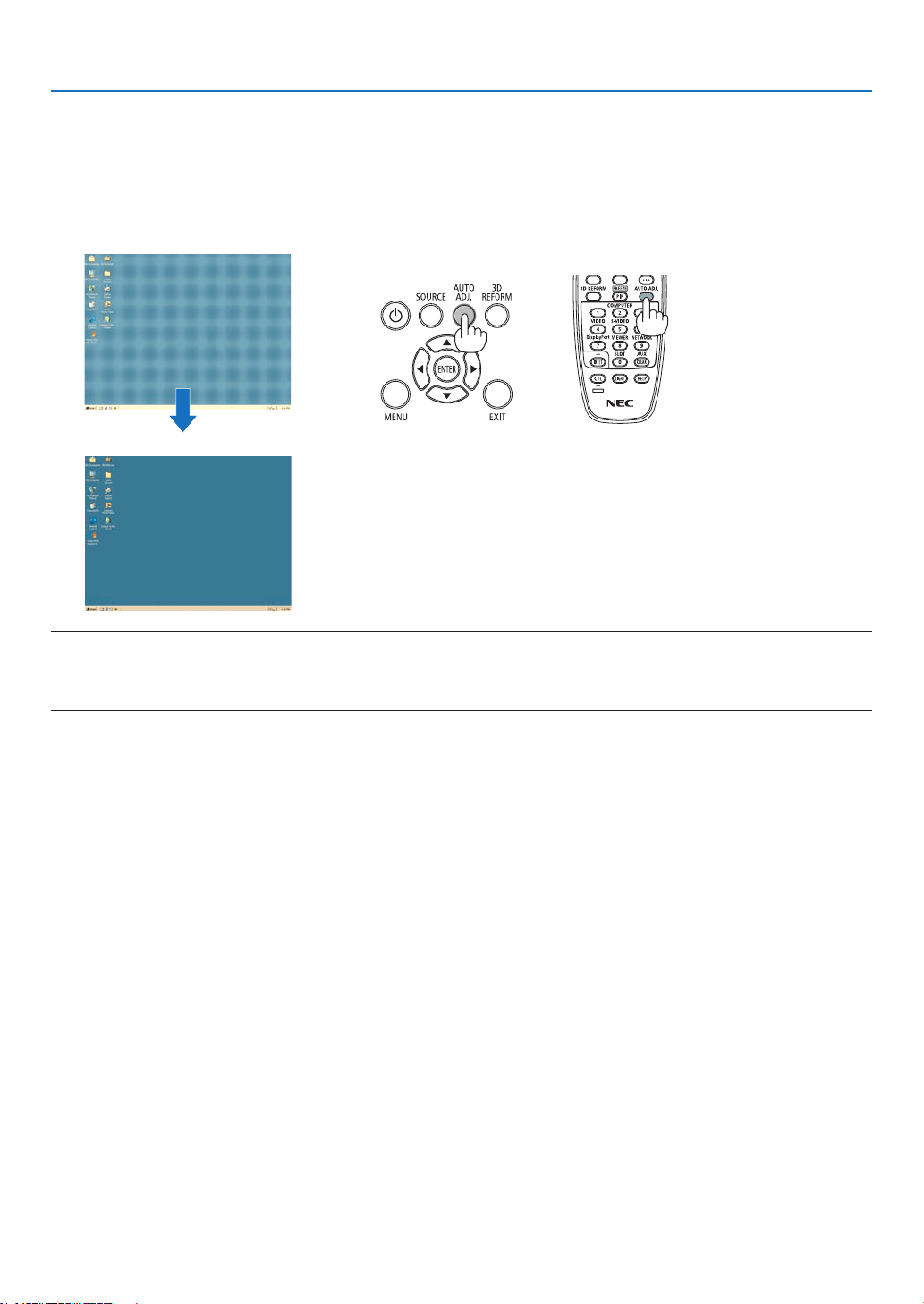
33
2. Projecting an Image (Basic Operation)
❼ Optimizing Computer Signal Automatically
Adjusting the Image Using Auto Adjust
Optimizingacomputerimageautomatically.(COMPUTER1/COMPUTER2/COMPUTER3)
PresstheAUTOADJ.buttontooptimizeacomputerimageautomatically.
Thisadjustmentmaybenecessarywhenyouconnectyourcomputerforthersttime.
[Poor picture]
[Normal picture]
NOTE:
Somesignalsmaytaketimetodisplayormaynotbedisplayedcorrectly.
• IftheAutoAdjustoperationcannotoptimizethecomputersignal,trytoadjust[HORIZONTAL],[VERTICAL],[CLOCK],and[PHASE]
manually. (→ page 116, 117)
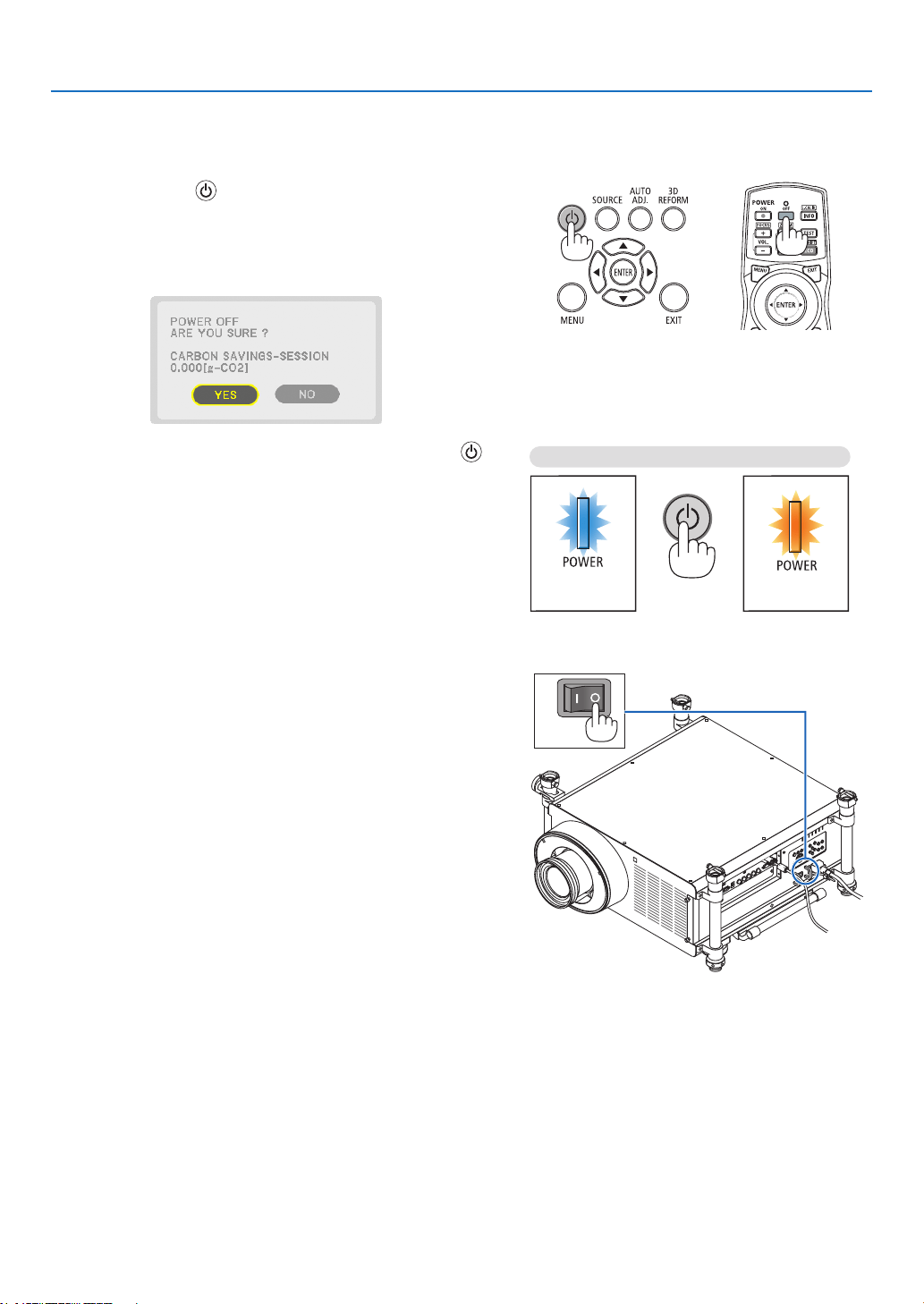
34
2. Projecting an Image (Basic Operation)
❽ Turning off the Projector
To turn off the projector:
1. First, press the (POWER) buttonon the projector
cabinetorthePOWEROFFbuttonontheremotecon-
trol.
The[POWEROFF/AREYOUSURE?/CARBONSAV-
INGS-SESSION0.000[g-CO2]]messagewillappear.
2. Secondly, press the ENTER button or press the
(POWER)orthePOWEROFFbuttonagain.
Thelampwillturnoff.Afterthecoolingiscompleted,the
projectorwillgointostandbymode.Wheninstandbymode,
the POWER indicator will light orange and the STATUS
indicatorwilllight greenwhen[NORMAL]isselected for
[STANDBYMODE].
3. PressthemainpowerswitchtotheOFFposition(O).
ThePOWERindicatorwillgooffandthemainpowerwill
turn off.
PowerOn
Steady blue light
Standby
Steady orange light
Press twice

35
2. Projecting an Image (Basic Operation)
CAUTION:
PartsoftheprojectormaybecometemporarilyheatediftheprojectoristurnedoffwiththePOWERbuttonorifthe
ACpowersupplyisdisconnectedduringnormalprojectoroperation.
Usecautionwhenpickinguptheprojector.
NOTE:
• WhilethePOWERindicatorisblinkingblueinshortcycles,thepowercannotbeturnedoff.
• Youcannotturnoffthepowerfor60secondsimmediatelyafterturningitonanddisplayinganimage.
• Waitatleast20minutesafterthepoweristurnedon(afterstartingtoproject)beforeturningtheACpoweroffwhileanimageis
being projected or while the cooling fan is running.
• Donotunplugthepowercordfromtheprojectororfromthepoweroutletwhileanimageisbeingprojected.Doingsocould
deterioratetheprojector’sACinputconnectororthepowerplug’scontact.ToturnofftheACpowerwhileanimageisbeing
projected,usetheprojector'smainpowerswitch,thepowerstrip’sswitch,thebreaker,etc.
• DonotdisconnecttheACpowersupplytotheprojectorwithin10secondsofmakingadjustmentorsettingchangesandclosing
the menu. Doing so can cause loss of adjustments and settings.
• DonotturnoffthemainpowerusingtheMainPowerSwitchorbydisconnectingthepowertotheprojectorwhilelensadjust-
mentsarebeingperformed.Ifpowerisremovedwhilethelensismoving,youmaynotbeabletoachievethebestpossiblelens
adjustments after restarting the projector.

36
2. Projecting an Image (Basic Operation)
❾ Carrying the Projector
Preparation:Makesurethattheprojectoristurnedoff.
1. Unplug the power cord.
2. Disconnectanyothercables.
• RemovetheUSBmemoryifitisinsertedintotheprojector.
• Removethelensbeforeshippingtheprojector.
3. Mount the lens cap on the lens.
4. Beforemovingtheprojector,screwinthetiltfeetiftheyhavebeenlengthened.
NOTE:
• Donotapplystrongshockorforcetotheprojectorwhilecarryingtheprojector.
• Removethelensbeforemovingtheprojector.Attachthelenscaptothelensandthedustcaptothelenshoodoftheprojector.
• Usetheoriginalcartonwhenshippingtheprojectorwithoutthelens.Improperpackagingmaycausedamagetotheprojector
during shipping.
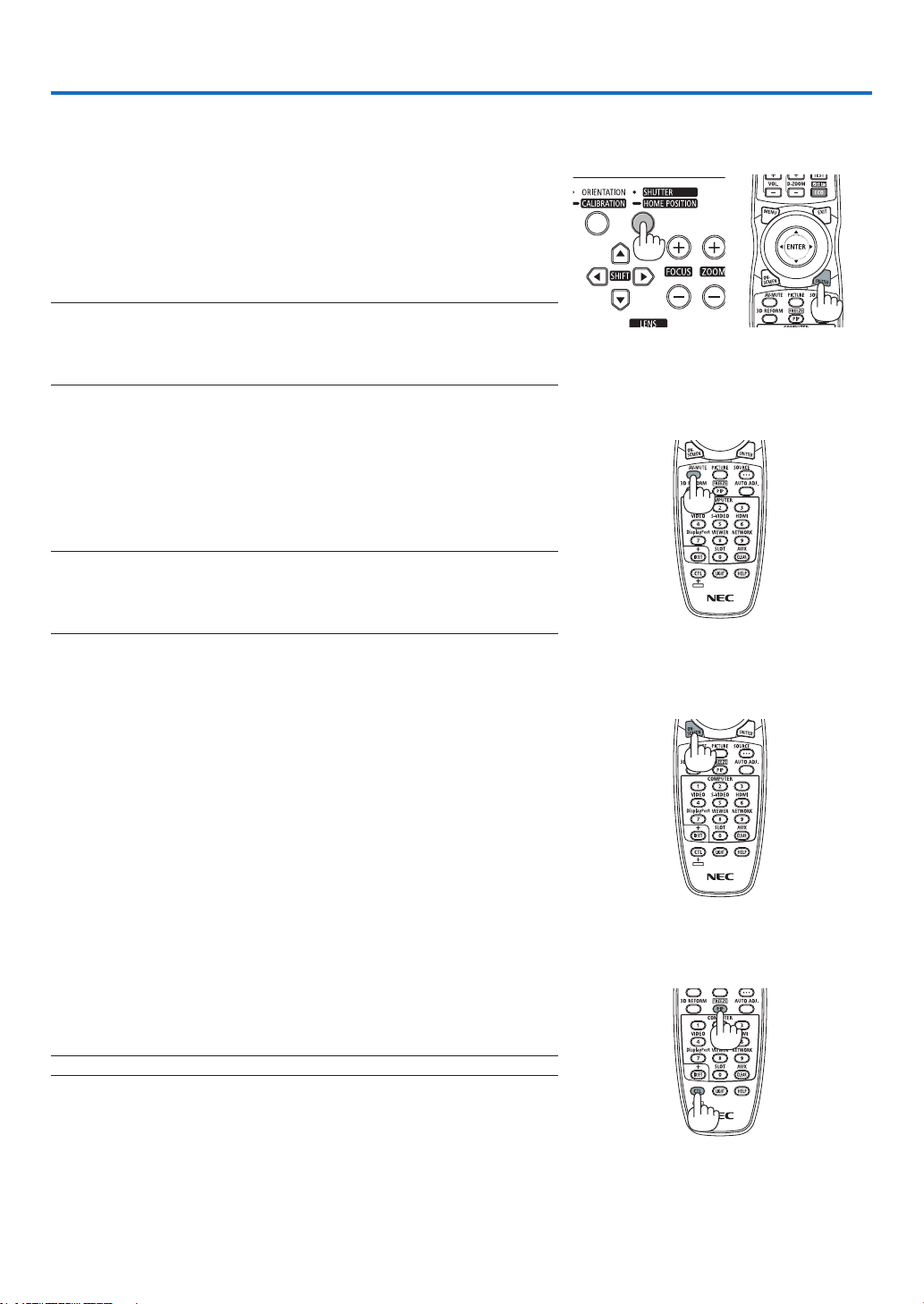
37
3. Convenient Features
❶ Blocking the lamp light (LENS
SHUTTER)
PresstheSHUTTER/HOMEPOSITIONbuttontoblockthelampslight
fromhittingthescreen.Pressagaintoallowthescreentobecomeil-
luminatedagain.
• AnotherwaytoshutthelamplightoffistopresstheSHUTTERbutton
ontheremotecontrol.
NOTE:
• DonotpressandholdtheSHUTTER/HOMEPOSITIONbuttonfor2secondsor
longer.
Doing so will cause the lens shift position to return to the home position.
❷ Turning off the Image
PresstheAV-MUTEbuttontoturnofftheimageforashortperiodoftime.
Pressagaintorestoretheimage.
Theprojector’spower-savingfunctionwillworkinsomesecondsafterthe
imageisturnedoff.Asaresult,thelamppowerwillbereduced.
NOTE:
• Torestoretheimage,evenifyoupresstheAV-MUTEbuttonimmediatelyafter
thestartofthepower-savingfunction,thelampbrightnessmaynotberestored
toitsoriginallevel.
❸ Turning Off the On-Screen Menu
(On-Screen Mute)
ApressoftheON-SCREENbuttonontheremotecontrolwillhidethe
on-screenmenu,thesourcedisplayandothermessages.Pressagain
torestorethem.
TIP:
• Toconrmthattheon-screenmuteisturnedon,presstheMENUbutton.Ifthe
on-screenmenuisnotdisplayedeventhoughyoupresstheMENUbutton,it
meanstheon-screenmuteisturnedon.
• Theon-screenmuteismaintainedevenwhentheprojectoristurnedoff,
• HoldingdowntheMENUbuttonforatleast10secondswillturnofftheon-screen
mute.
❹ Freezing a Picture
HoldtheCTLbuttonandpressthePIP/FREEZEbuttontofreezeapicture.
Pressagaintoresumemotion.
NOTE:Theimageisfrozenbuttheoriginalvideoisstillplayingback.
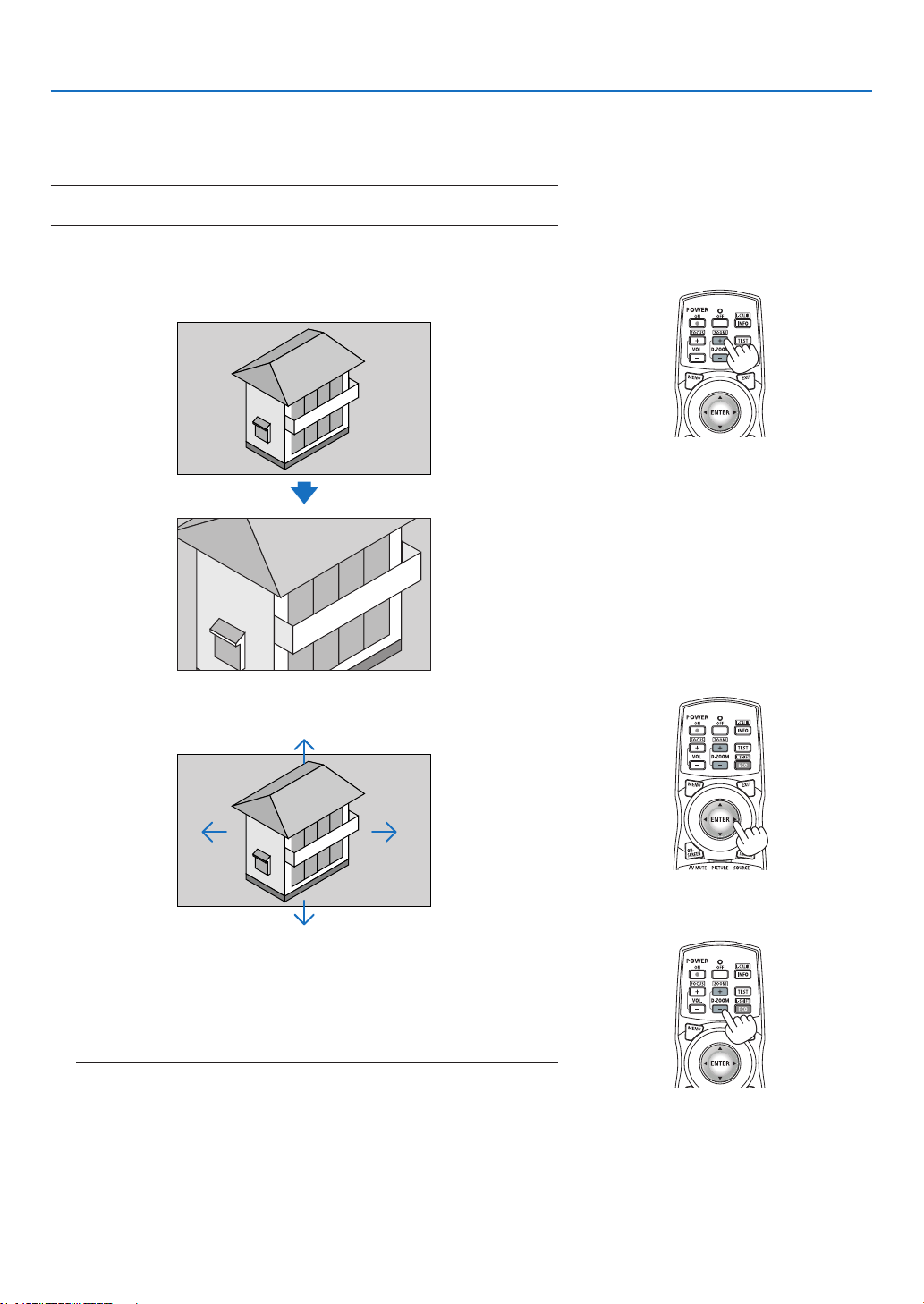
38
3. Convenient Features
❺ Enlarging a Picture
Youcanenlargethepictureuptofourtimes.
NOTE:Themaximummagnicationmaybelessthanfourtimesdependingon
the signal.
Todoso:
1. PresstheD-ZOOM/ZOOM(+)buttontomagnifythepicture.
2. Press the ▲▼◀▶ button.
Theareaofthemagniedimagewillbemoved
3. PresstheD-ZOOM/ZOOM(−)button.
Eachtime the D-ZOOM/ZOOM (−) buttonispressed,theimageis
reduced.
NOTE:
• Theimagewillbeenlargedorreducedatthecenterofthescreen.
• Displayingthemenuwillcancelthecurrentmagnication.

39
3. Convenient Features
❻ Changing Eco Mode/Checking Energy-Saving Effect Using
Eco Mode [ECO MODE]
Thisfeatureenablesyoutoselecttwobrightnessmodesofthelamp:
OFFandONmodes.Thelamplifecanbeextendedbyturningonthe[ECOMODE].
[ECOMODE] Description
[OFF]
Thisisthedefaultsetting(100%Brightness).
[ON] Lowlamppowerconsumption(approx.75%Brightness).
Toturnonthe[ECOMODE],dothefollowing:
1. PresstheECO/L-SHIFTbuttonontheremotecontroltodisplay[ECOMODE]screen.
2. Use the ▲ or ▼buttontoselect[ON].
3. PresstheENTERbutton.
Tochangefrom[ON]to[OFF],GobacktoStep2andselect[OFF].RepeatStep3.
NOTE:
• The[ECOMODE]canbechangedbyusingthemenu.
Select[SETUP]→[BASIC]→[LAMPMODE]→[ECOMODE].
• Thelampliferemainingandlamphoursusedcanbecheckedin[USAGETIME].Select[INFO.]→[USAGETIME].
• [ECOMODE]isalwayssetto[OFF]immediatelyafterthelampisturnedon.Thelampconditionwillnotbeaffectedevenwhen
[ECOMODE]ischanged.
• Afteralapseof1minutefromwhentheprojectordisplaysablue,blackorlogoscreen,[ECOMODE]willautomaticallyswitchto
[ON].
• Iftheprojectorisoverheatedin[OFF]mode,theremaybeacasewherethe[ECOMODE]automaticallychangesto[ON]mode
toprotecttheprojector.Thisiscalled“ForcedECOMode”.WhentheprojectorisintheForcedEcoMode,thepicturebrightness
decreasesslightlyandtheTEMP.indicatorlightsorange.AtthesametimetheThermometersymbol[ ]isdisplayedatthebot-
tom right of the screen.
Whentheprojectorcomesbacktonormaltemperature,theForcedEcoModeiscancelledandthe[ECOMODE]returnsto[OFF]
mode.
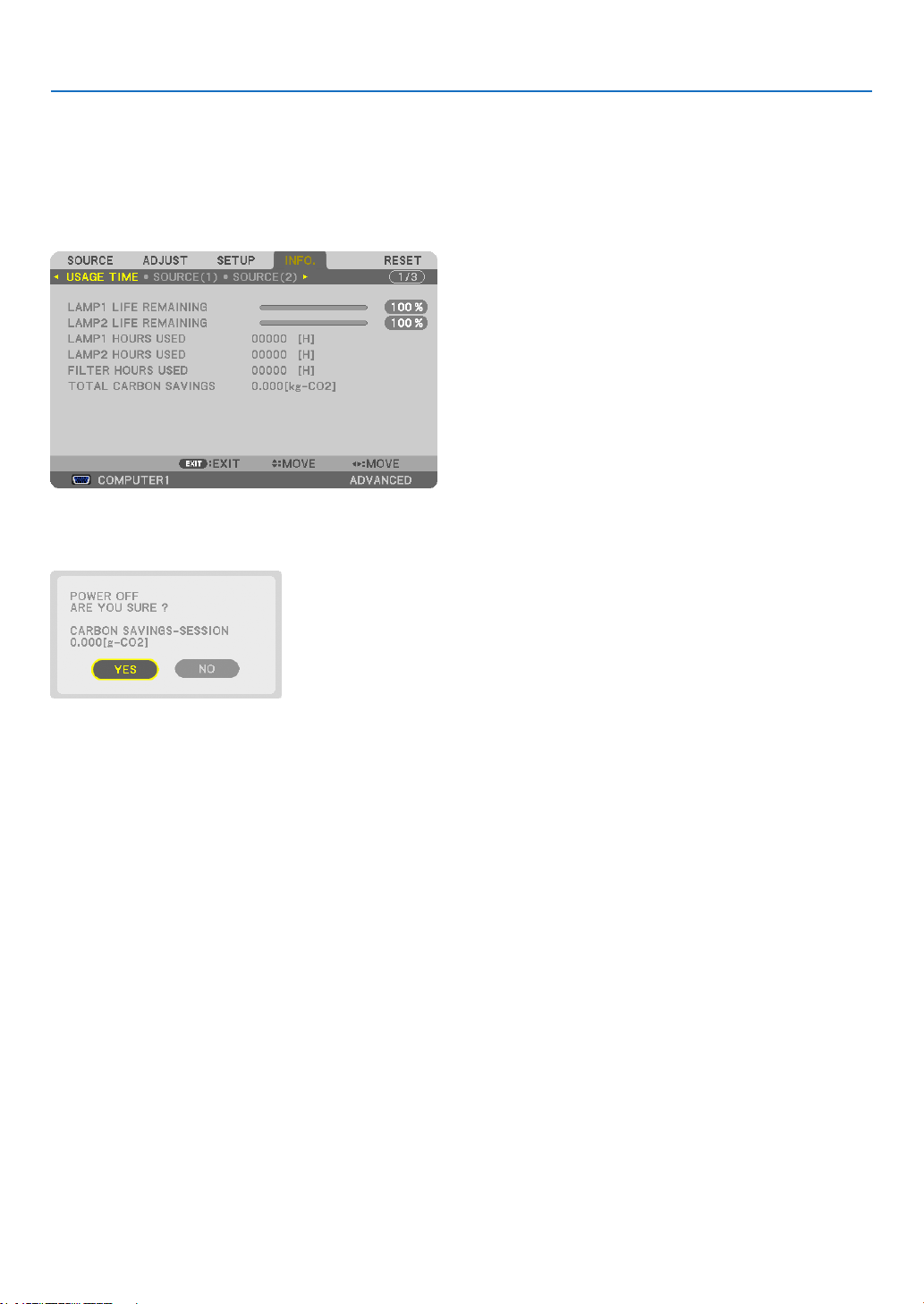
40
3. Convenient Features
Checking Energy-Saving Effect [CARBON METER]
Thisfeaturewillshowenergy-savingeffectintermsofCO
2
emissionreduction(kg)whentheprojector’s[ECOMODE]
issetto[ON].Thisfeatureiscalledas[CARBONMETER].
Therearetwomessages:[TOTALCARBONSAVINGS]and[CARBONSAVINGS-SESSION].The[TOTALCARBON
SAVINGS]messageshowsthetotalamountofCO
2
emissionreductionfromthetimeofshipmentuptonow.Youcan
checktheinformationon[USAGETIME]from[INFO.]ofthemenu.(→page138)
The[CARBONSAVINGS-SESSION]messageshowstheamountofCO
2
emissionreductionbetweenthetimeof
changingtoECOMODEimmediatelyafterthetimeofpower-onandthetimeofpower-off.The[CARBONSAVINGS-
SESSION]messagewillbedisplayedinthe[POWEROFF/AREYOUSURE?]messageatthetimeofpower-off.
TIP:
• TheformulaasshownbelowisusedtocalculatetheamountofCO
2
emission reduction.
AmountofCO
2
emissionreduction=(Powerconsumptionin[OFF]forECOMODE−Powerconsumptionin[ON]forECOMODE)
×CO
2
conversionfactor.*Whentheimageisturnedoff,theamountofCO
2
emission reduction will also increase.
*CalculationforamountofCO
2
emissionreductionisbasedonanOECDpublication“CO
2
EmissionsfromFuelCombustion,2008
Edition”.
• The[TOTALCARBONSAVINGS]iscalculatedbasedonsavingsrecordedin15minutesintervals.
• Thisformulawillnotapplytothepowerconsumptionwhichisnotaffectedbywhether[ECOMODE]isturnedonoroff.
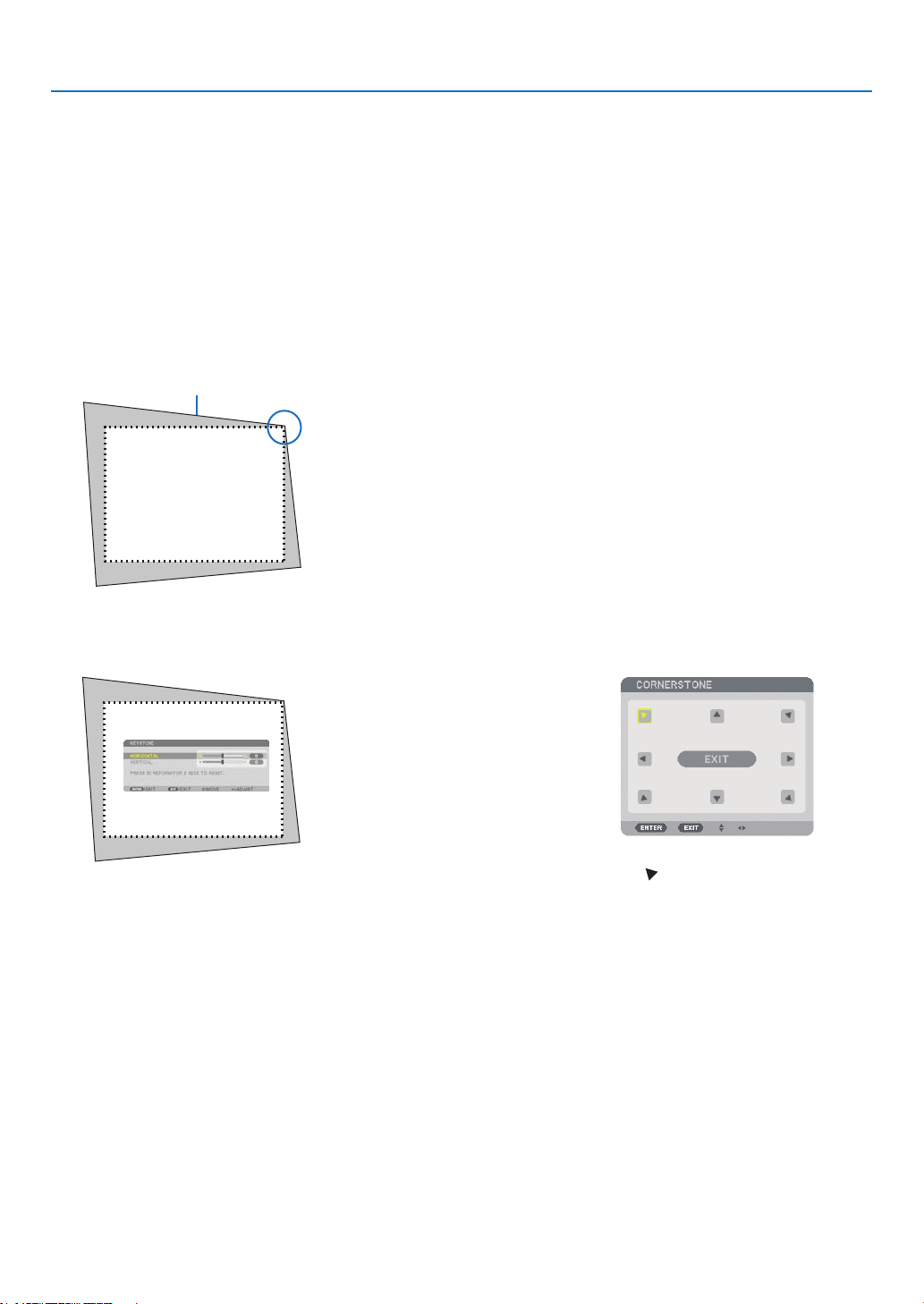
41
3. Convenient Features
❼ Correcting Horizontal and Vertical Keystone Distortion
[CORNERSTONE]
Usethe3DReformfeaturetocorrectkeystone(trapezoidal)distortiontomakethetoporbottomandtheleftorright
sideofthescreenlongerorshortersothattheprojectedimageisrectangular.
Cornerstone
1. Pressandholdthe3DREFORMbuttonforaminimumof2secondstoresetcurrentadjustments.
Currentadjustmentsfor[KEYSTONE]or[CORNERSTONE]willbecleared.
2. Projectanimagesothatthescreenissmallerthantheareaoftheraster.
3. Pickupanyoneofthecornersandalignthecorneroftheimagewithacornerofthescreen.
Projected image
The drawing shows the up-
per right corner.
4. Pressthe3DREFORMbuttontwice.
The Cornerstone adjustment screen is displayed.
5. Use the ▲▼◀▶ button to select one icon (▲) which points in the direction you wish to move the projected
imageframe.
6. PresstheENTERbutton.
TIP: If you are adjusting [KEYSTONE], [CORNERSTONE] will not be
available.Ifthishappens,pressandholdthe3DREFORMbuttonfora
minimumof2secondstoresetthe[KEYSTONE]adjustments.
The drawing shows the upper left
icon ( ) is selected.
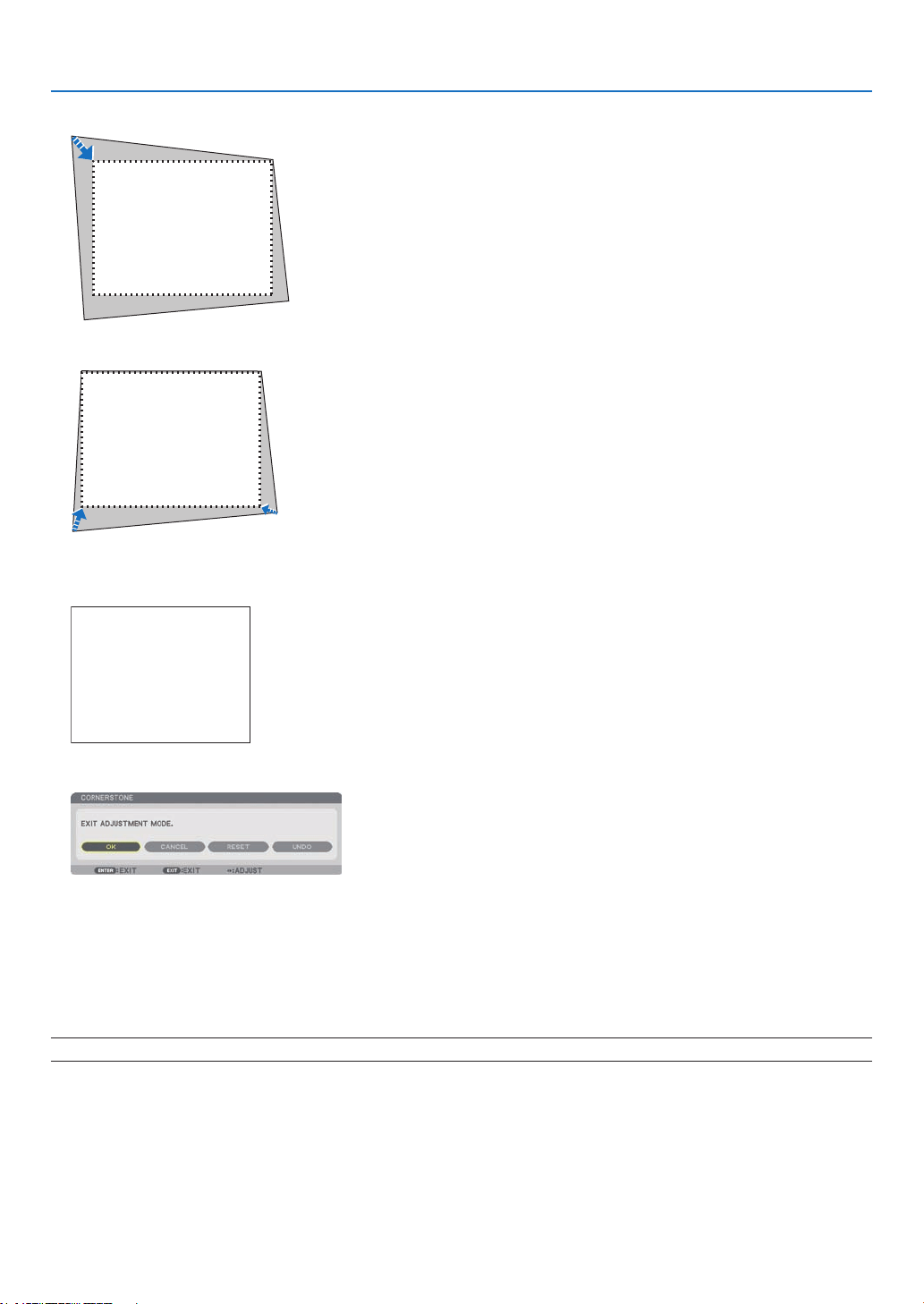
42
3. Convenient Features
7. Use the ▲▼◀▶buttontomovetheprojectedimageframeasshownontheexample.
8. PresstheENTERbutton.
9. Use the ▲▼◀▶ button to select another icon which points in the direction.
OntheCornerstoneadjustmentscreen,select[EXIT]orpresstheEXITbuttonontheremotecontrol.
Theconrmationscreenisdisplayed.
10
. Press the ◀ or ▶buttontohighlightthe[OK]andpresstheENTERbutton.
ThiscompletestheCornerstonecorrection.
Selecting[CANCEL]willreturntotheadjustmentscreenwithoutsavingchanges(Step3).
Selecting[RESET]willreturntothefactorydefault.
Selecting[UNDO]willexitwithoutsavingchanges.
NOTE:Toresetthe3DReformcorrectionsettingvalues,pressandholdthe3DREFORMbuttonforaminimumof2seconds.

43
3. Convenient Features
Theadjustablerangesfor3DReformareasfollows:
HORIZONTAL VERTICAL
CORNERSTONE
Max.+/−35°approx. Max.+/−30°approx.
KEYSTONE
* Thefollowingareconditionsunderwhichthemaximumangleisachieved:
• WhentheNP27ZLlensisused
• Whenthelensshiftissettothecenter
Whenthelensshiftisusedandyettheimageisnotdisplayedinthecenterofthescreen,theadjustablerange
willbeincreasedordecreased.
• Imageisprojectedinmaximumwidewiththezoom
NOTE:
• Evenwhentheprojectoristurnedon,thelastusedcorrectionvaluesareapplied.
• IftheCornerstonescreenisunavailable(grayed),pressandholdthe3DREFORMbuttonforaminimumof2secondstoreset
thecurrentcorrectiondata.TheCornerstonefunctionbecomesavailable.
• Therangeofkeystonecorrectionisnotthemaximumtiltangleofprojector.
NOTE:Using3DReformcorrectioncancausetheimagetobeslightlyblurredbecausethecorrectionismadeelectronically.
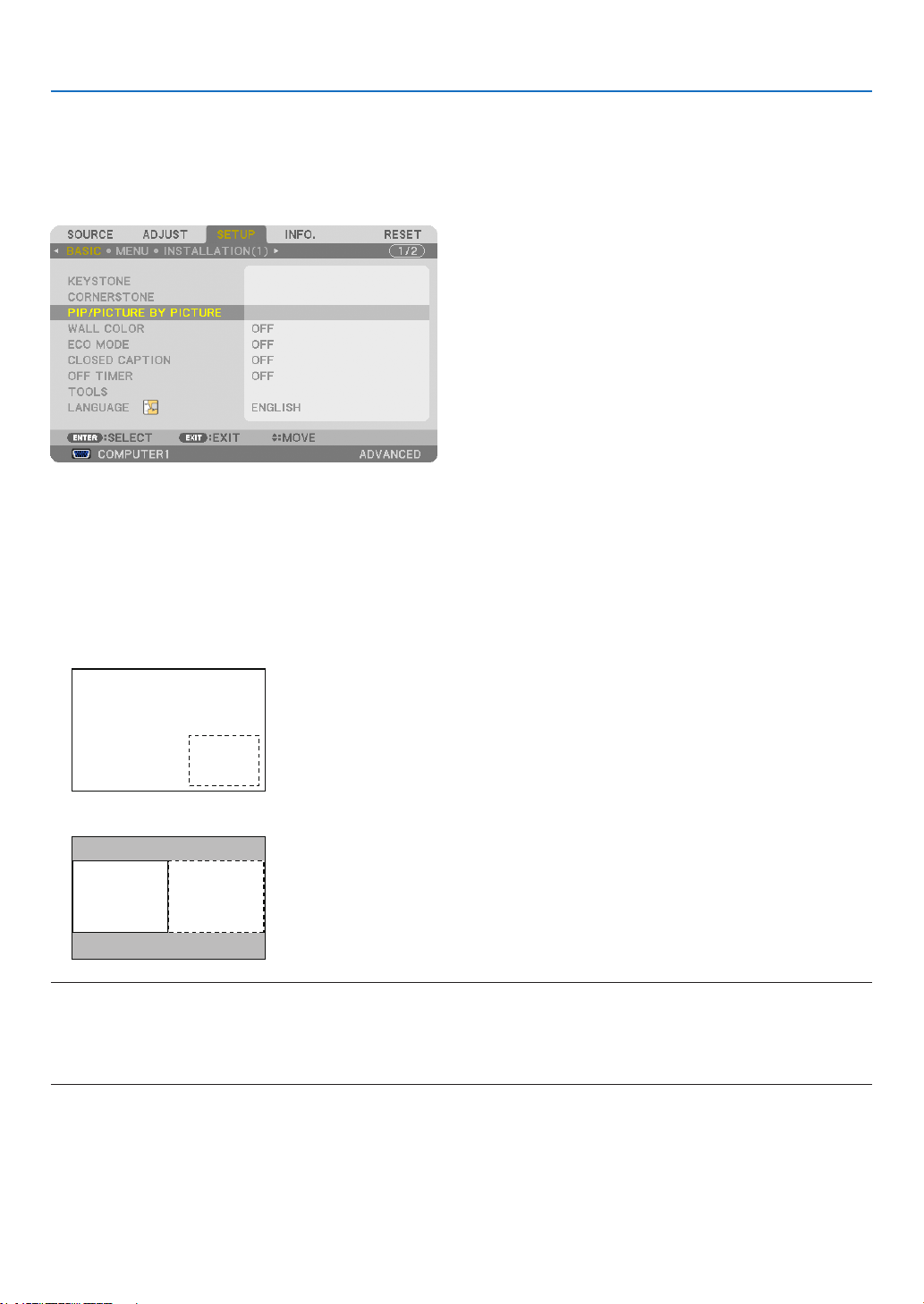
44
3. Convenient Features
❽ Displaying Two Pictures at the Same Time
Theprojectorhasafeaturethatallowsyoutoviewtwodifferentsignalssimultaneously.Youhavetwomodes:PIP
modeandPICTUREBYPICTUREmode.
• Fromthemenuyoucanselect[SETUP]→[BASIC]→[PIP/PICTUREBYPICTURE].
The[PIP/PICTUREBYPICTURE]menuitemhasthefollowingthreeoptions:MODE,POSITION,andSOURCE.
Usethe▲ or ▼buttontoselect[MODE],[POSITION]or[SOURCE]andpresstheENTERbutton.
Selecting the PIP or PICTURE BY PICTURE Mode [MODE]
Thisoptionallowsyoutoselecttwomodes:PIPandSIDEBYSIDE.
Usethe▲ or ▼buttontoselect[PIP]or[PICTUREBYPICTURE]andpresstheENTERbutton.
PIP:Thisoptionallowsyoutoviewasubpictureinthemainpicture.
Main picture
Sub picture
PICTUREBYPICTURE:Thisallowsyoutoviewtwopicturessidebyside.
Main picture Sub picture
NOTE:
• Themainpicturewillbedisplayedontheleftsideandthesubpictureontherightside.
• ThemainpicturesignalsupportstheCOMPUTER1,COMPUTER2,andCOMPUTER3connectors.
ThesubpicturesignalsupportstheVIDEOINandS-VIDEOINconnectors.
• ThemainpicturesupportsanRGBsignalwitharesolutionof1280×1024pixelsorless.
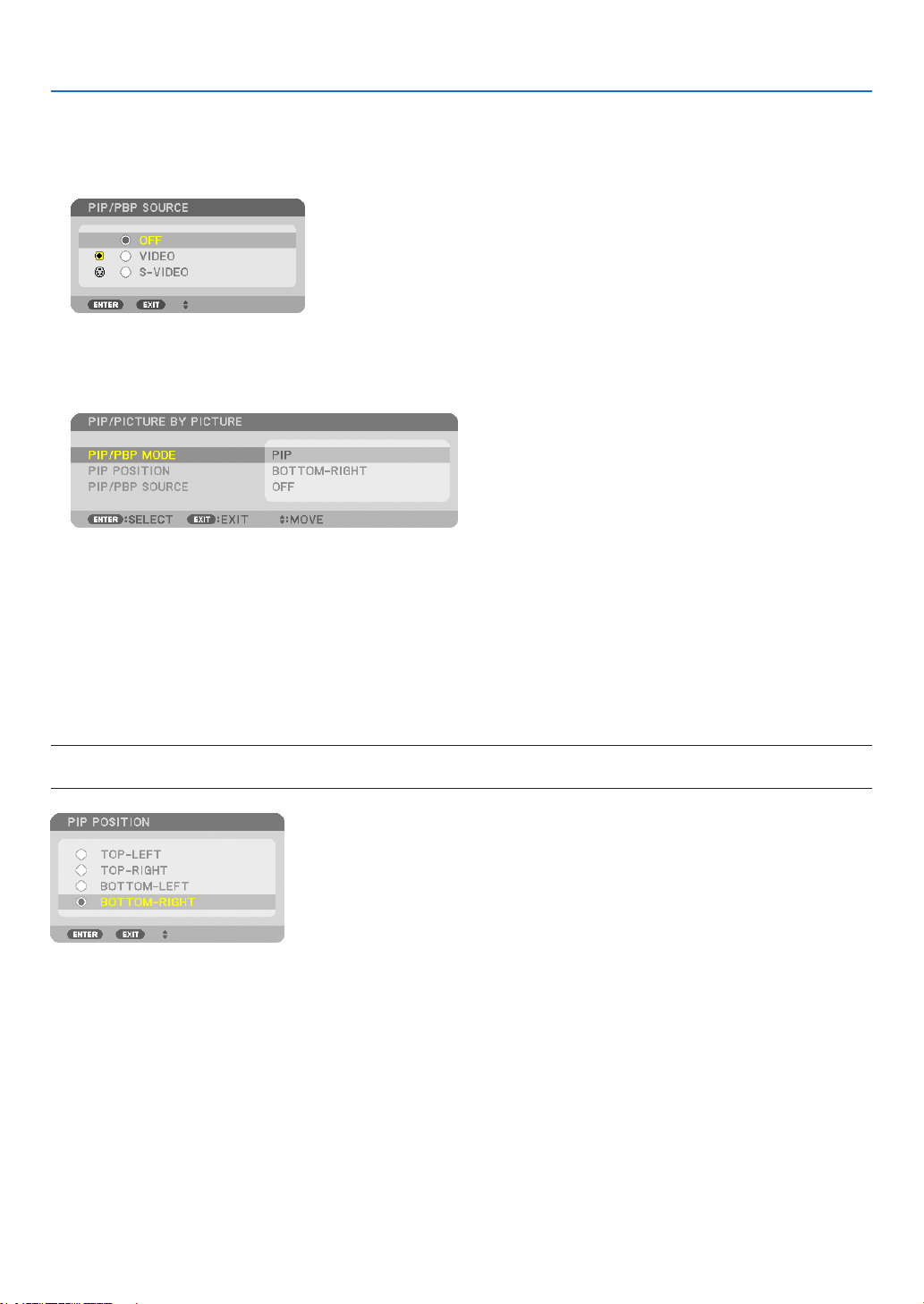
45
3. Convenient Features
ViewingTwoPictures
1. PressthePIP/FREEZEbuttonontheremotecontrol.
ThePIP/PICTUREBYPICTURESOURCEscreenwillbedisplayed.
2. Use the ▲ or ▼buttontoselectthesourceandpresstheENTERbutton.
ThePIPscreen orPICTURE BYPICTUREscreen willbe displayed,depending onwhich wasselected inthe
[MODE] setting screen.
3. PressthePIP/FREEZEbuttonagaintoreturntothenormalscreen(singlepicture).
TIP:
• Selectinganothersourcewillreturntothenormalscreen.
• Selectingasourcenotsupportedforthemainpictureorthesubpicturewillreturntothenormalscreen.
[POSITION]
Thisoptionallowsyoutoselectthepositionofasubpictureinthemainpicture.
NOTE:
• Thedefaultsettingis[BOTTOM-RIGHT].
Usethe▲ or ▼buttontoselectthesubpicture’spositionandpresstheENTERbutton.
Theoptionsare:TOP-LEFT,TOP-RIGHT,BOTTOM-LEFT,andBOTTOM-RIGHT.
Thefollowingadjustmentsandsettingsareavailableforthemainpictureonly.
-Adjustingpicture
-MagnifyingapicturewiththeD-ZOOM/ZOOM+/−button.
Thefollowingoperationsareavailableforboththemainandsubpictures.
-Picturemute
-Freezingamovingpicture
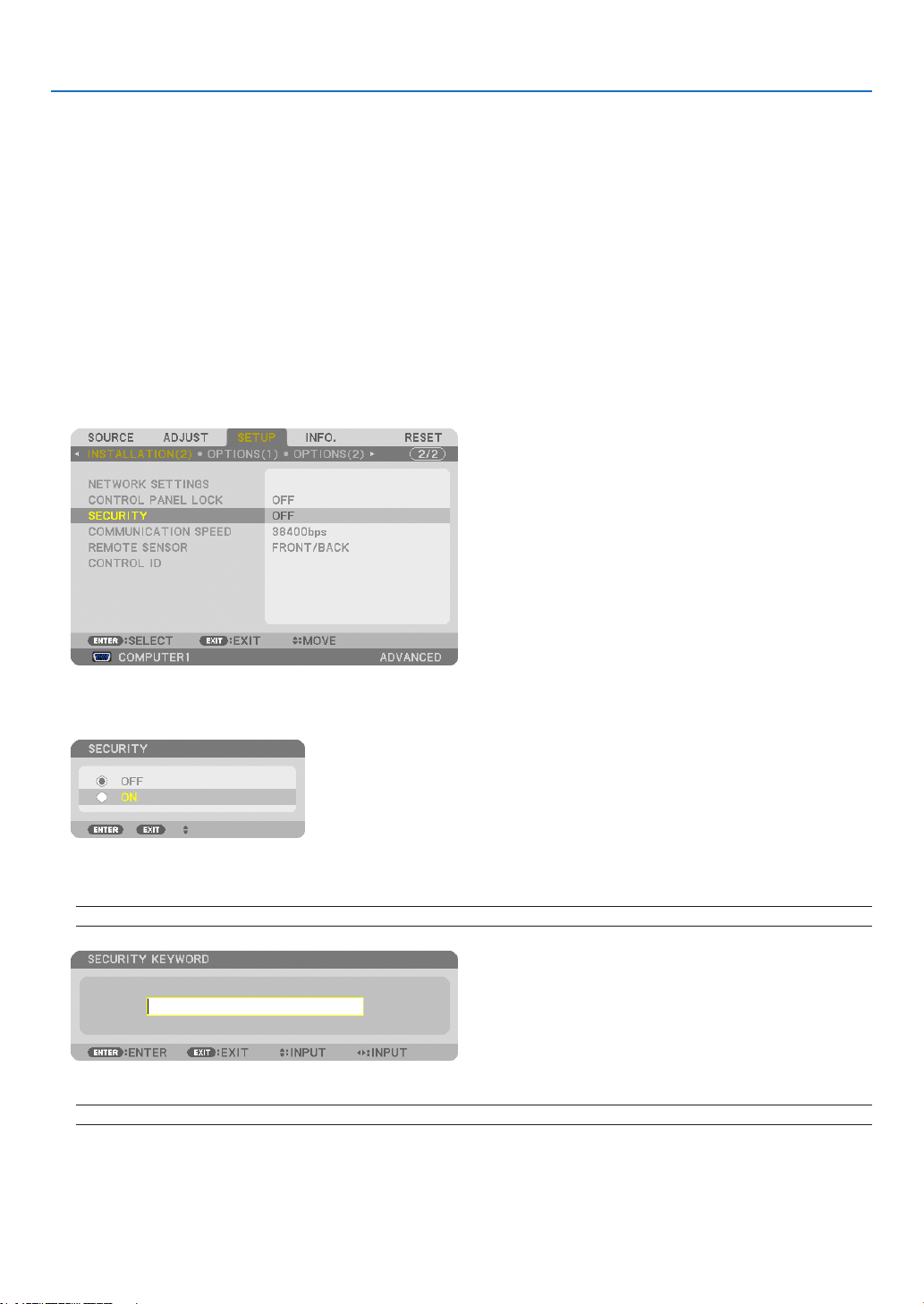
46
3. Convenient Features
❾
Preventing the Unauthorized Use of the Projector [SECURITY]
AkeywordcanbesetforyourprojectorusingtheMenutoavoidoperationbyanunauthorizeduser.Whenakeyword
isset,turningontheprojectorwilldisplaytheKeywordinputscreen.Unlessthecorrectkeywordisentered,thepro-
jectorcannotprojectanimage.
•The[SECURITY]settingcannotbecancelledbyusingthe[RESET]ofthemenu.
ToenabletheSecurityfunction:
1. PresstheMENUbutton.
Themenuwillbedisplayed.
2. Press the ▶buttontwicetoselect[SETUP]andpressthe▼buttonortheENTERbuttontoselect[BA-
SIC].
3. Press the ▶buttontoselect[INSTALLATION(2)].
4. Press the ▼buttonthreetimestoselect[SECURITY]andpresstheENTERbutton.
TheOFF/ONmenuwillbedisplayed.
5. Press the ▼buttontoselect[ON]andpresstheENTERbutton.
The[SECURITYKEYWORD]screenwillbedisplayed.
6. Typeinacombinationofthefour▲▼◀▶buttonsandpresstheENTERbutton.
NOTE:Akeywordmustbe4to10digitsinlength.
The[CONFIRMKEYWORD]screenwillbedisplayed.
NOTE:Makeanoteofyourpasswordandstoreitinasafeplace.
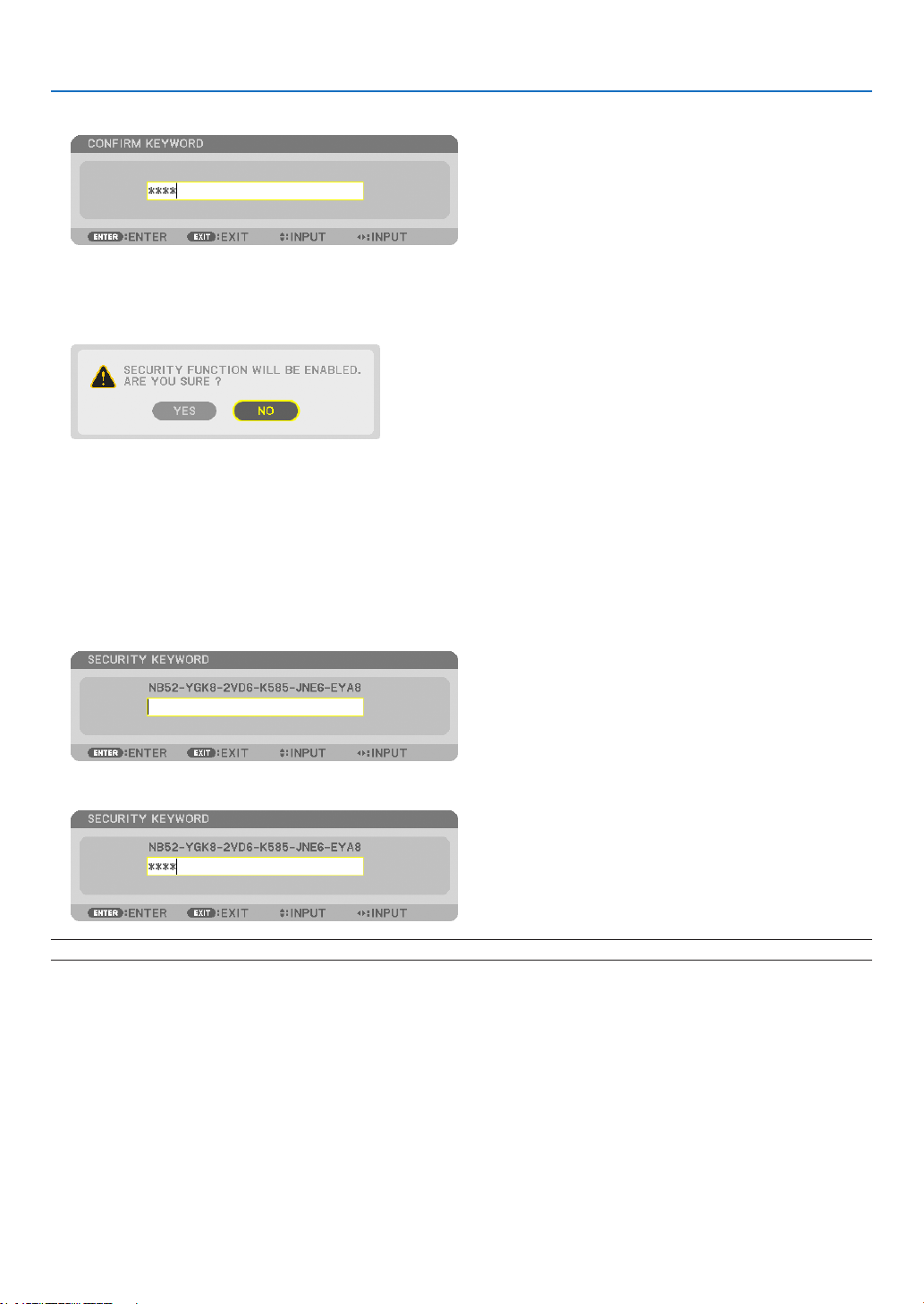
47
3. Convenient Features
7. Typeinthesamecombinationof▲▼◀▶buttonsandpresstheENTERbutton.
Theconrmationscreenwillbedisplayed.
8. Select[YES]andpresstheENTERbutton.
TheSECURITYfunctionhasbeenenabled.
To turn on the projector when [SECURITY] is enabled:
1. PressthePOWERbutton.
Theprojectorwillbeturnedonanddisplayamessagetotheeffectthattheprojectorislocked.
2. PresstheMENUbutton.
3. TypeinthecorrectkeywordandpresstheENTERbutton.Theprojectorwilldisplayanimage.
NOTE: The security disable mode is maintained until the main power is turned off or unplugging the power cord.
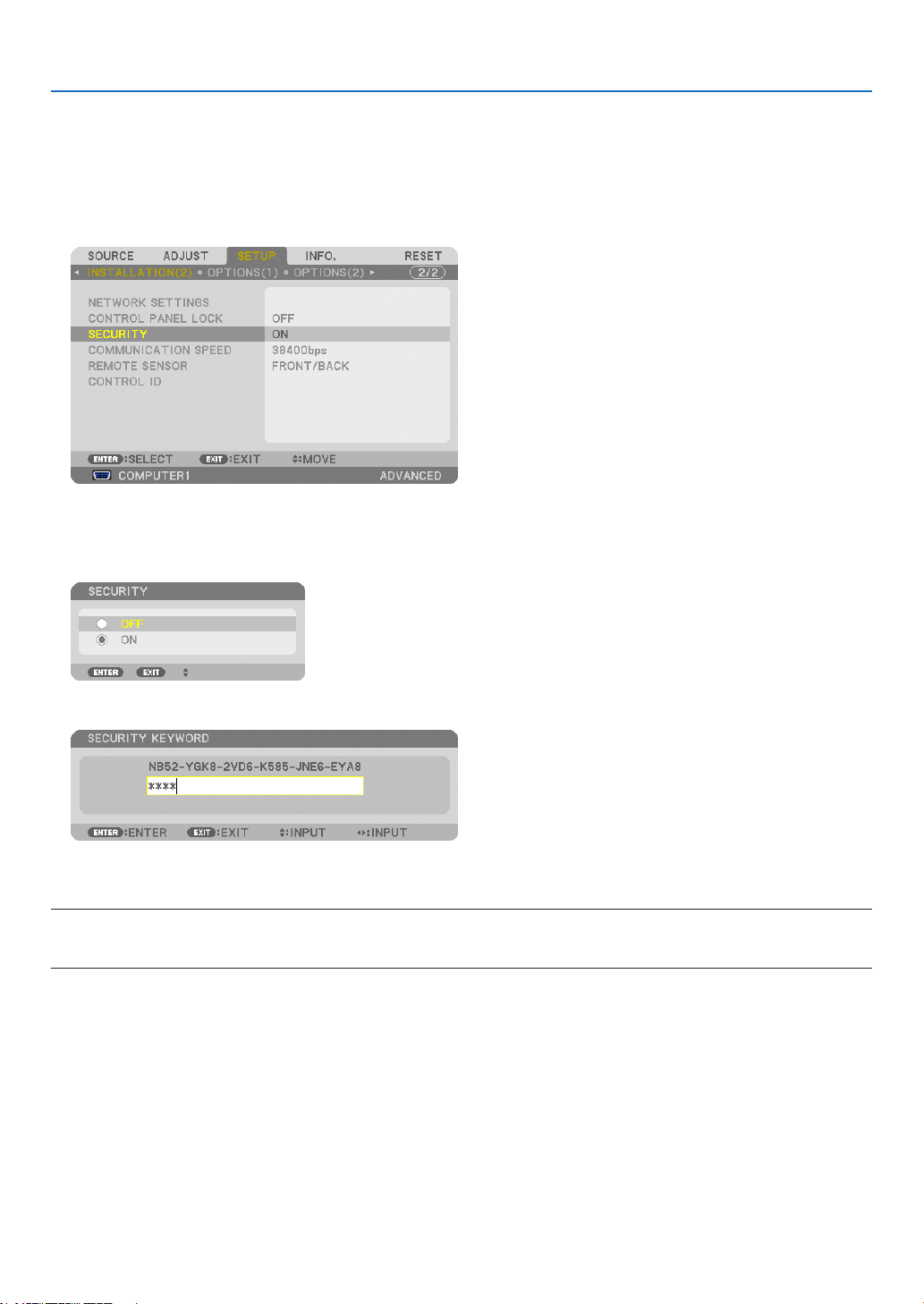
48
3. Convenient Features
To disable the SECURITY function:
1. PresstheMENUbutton.
Themenuwillbedisplayed.
2.Select[SETUP]→[INSTALLATION(2)]→[SECURITY]andpresstheENTERbutton.
TheOFF/ONmenuwillbedisplayed.
3. Select[OFF]andpresstheENTERbutton.
TheSECURITYKEYWORDscreenwillbedisplayed.
4. TypeinyourkeywordandpresstheENTERbutton.
Whenthecorrectkeywordisentered,theSECURITYfunctionwillbedisabled.
NOTE:Ifyouforgetyourkeyword,contactyourdealer.Yourdealerwillprovideyouwithyourkeywordinexchangeforyourrequest
code.YourrequestcodeisdisplayedintheKeywordConrmationscreen.Inthisexample[NB52-YGK8-2VD6-K585-JNE6-EYA8]
is a request code.
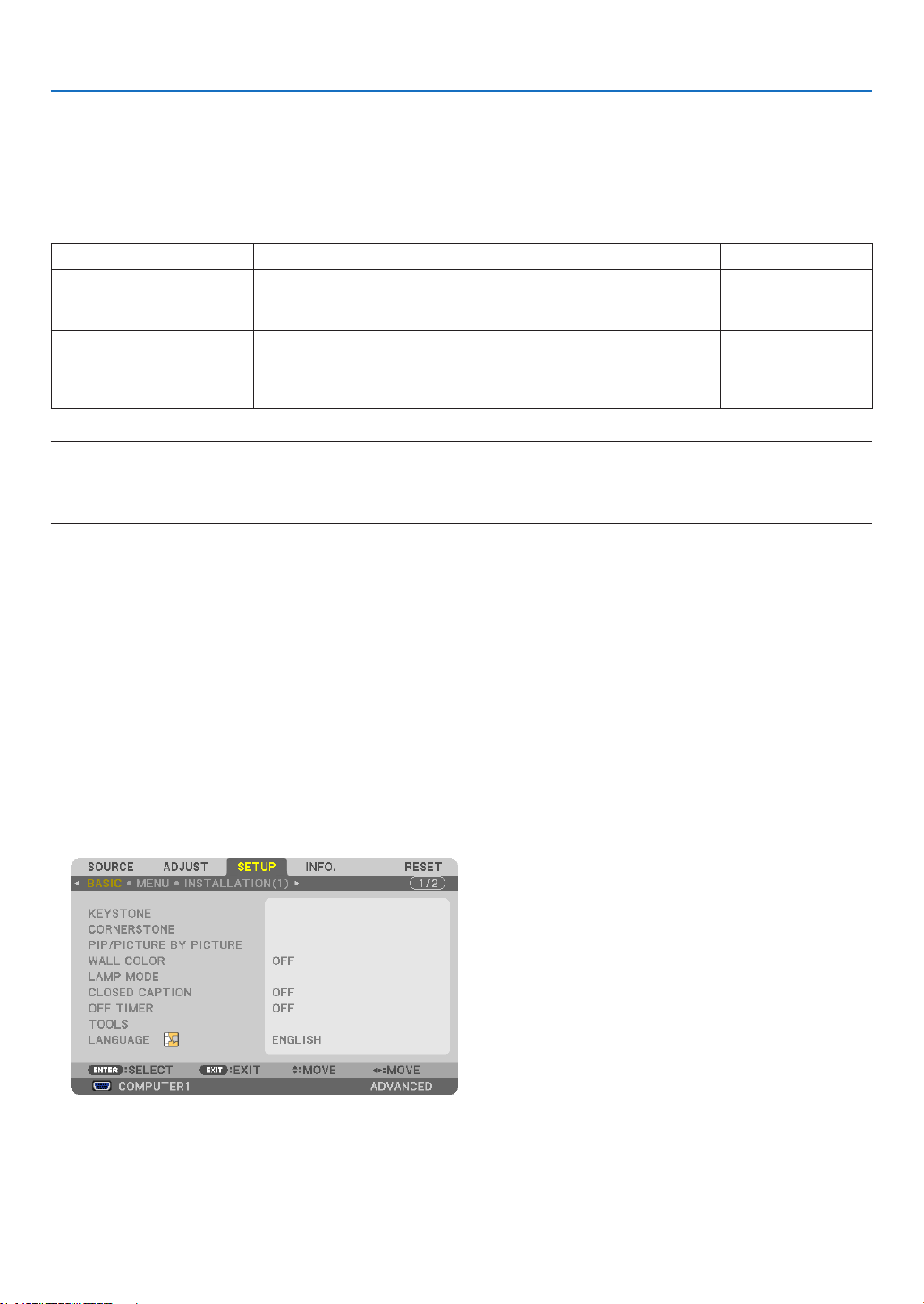
49
3. Convenient Features
❿ Storing Changes for Lens Shift, Zoom, and Focus [LENS
MEMORY]
TheadjustedvaluescanbestoredinprojectormemorywhenusingtheLENSSHIFT,ZOOMandFOCUSbuttons
oftheprojector.Adjustedvaluescanbeappliedtothesignalyouselected.Thiswilleliminatetheneedtoadjustlens
shift,focus,andzoomatthetimeofsourceselection.Therearetwowaystosaveadjustedvaluesforlensshift,zoom,
andfocus.
Functionname Description page
REF.LENSMEMORY Adjustedvaluescommontoalltheinputsignals.
Ifnoadjustedvaluesarestoredin[LENSMEMORY],thevaluesstored
in[REF.LENSMEMORY]willbeappliedforlensadjustment.
→page130
LENSMEMORY Adjustedvaluesforeachinputsignal.
Usetheadjustedvaluesforthesignalwithadifferentaspectratioor
resolution.Theadjustedvaluescanbeappliedatthetimeofsource
selection.
→page121
NOTE:
• Thelensshift,zoom,andfocusadjustmentscanbeperformedwiththeremotecontrol.(→ page 27, 29, 30)
•TheNP25FLlensdoesnotsupporttheLensMemoryfunction.
• Besuretoperform[CALIBRATION]afterreplacementofthelens.
Usage Example
Whenyouwishtodisplayonascreenhavinga4:3aspectratioanNTSCorother4:3aspectratiosignalandan
SXGAorother5:4aspectratiosignal:
Performshift,focus,andzoomadjustmentstosettheverticalscreensizeoftheverticallytall5:4aspectratiosignal
tostandard.
Both4:3aspectratiosignalsand5:4aspectratiosignalscannowbedisplayed.
Notethat with theseshift,focus,and zoomadjustments, the4:3 aspect ratiosignal will becomesmaller on the
screen.
Toeliminatethissizereduction,adjusttheshift,focusandzoomtotheoptimumconditionforeachofthe4:3aspect
ratiosignalandthe5:4aspectratiosignal.
Memory(storage)ofeachofthesevalueswillpermitprojectionatanoptimumconditionuponsignalswitching.
To store your adjusted values in [REF. LENS MEMORY]:
1. PresstheMENUbutton.
Themenuwillbedisplayed.
2. Press the ▶buttontoselect[SETUP]andpresstheENTERbutton.
3. Press the ▶buttontoselect[INSTALLATION(1)].
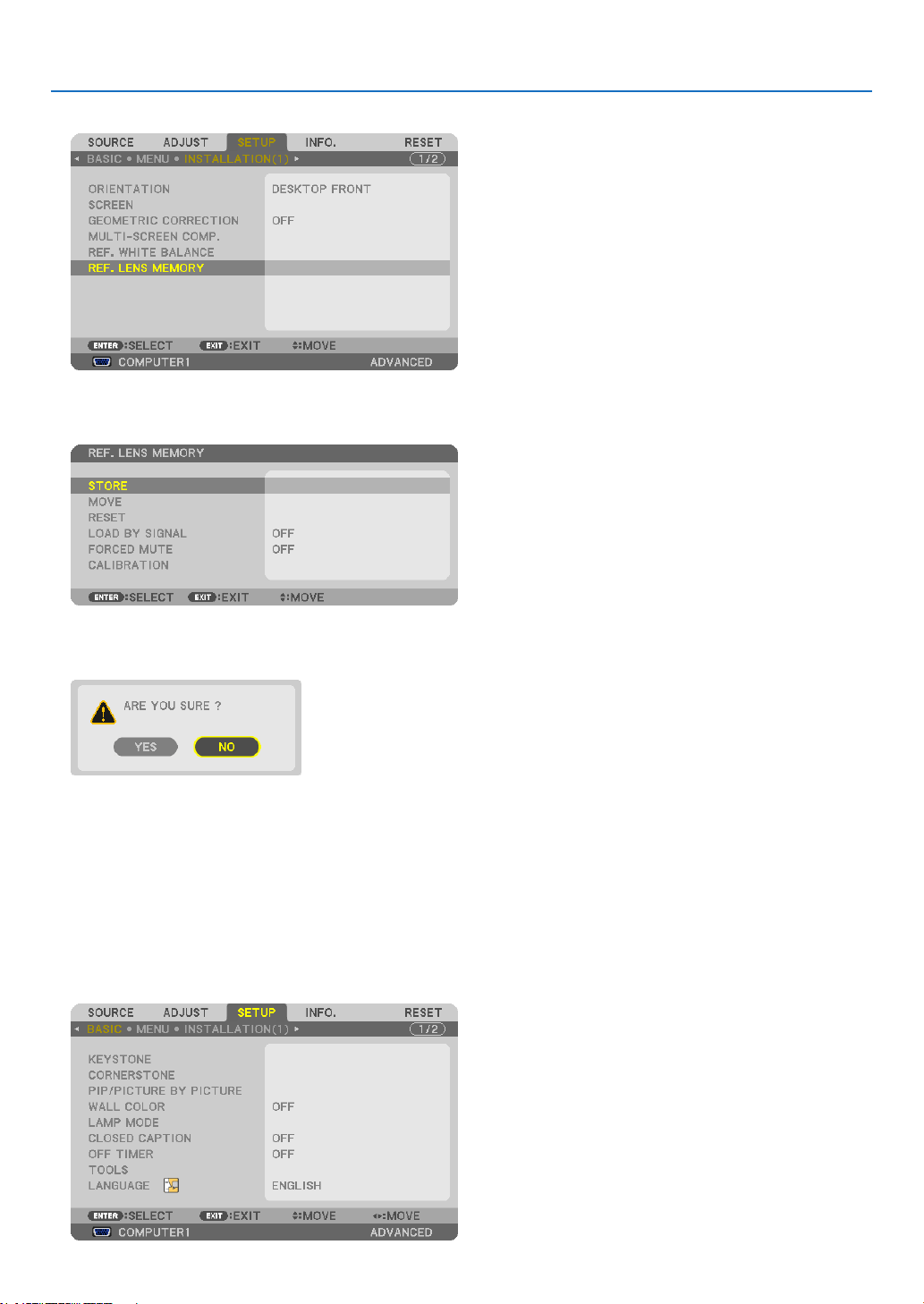
50
3. Convenient Features
4. Press the ▼buttontoselect[REF.LENSMEMORY]andpresstheENTERbutton.
The[REF.LENSMEMORY]screenwillbedisplayed.
5. Select[STORE]andpresstheENTERbutton.
Theconrmationscreenwillbedisplayed.
6. Press the ◀buttontoselectand[YES]andpresstheENTERbutton.
Theadjustedvaluesforlensshift,zoom,andfocushavebeenstoredin[REF.LENSMEMORY].
7. PresstheMENUbutton.
Themenuwillbeclosed.
TIP:
• Tostoreadjustedvaluesforeachinputsource,usetheLensMemoryfunction.
To call up your adjusted values from [REF. LENS MEMORY]:
1. PresstheMENUbutton.
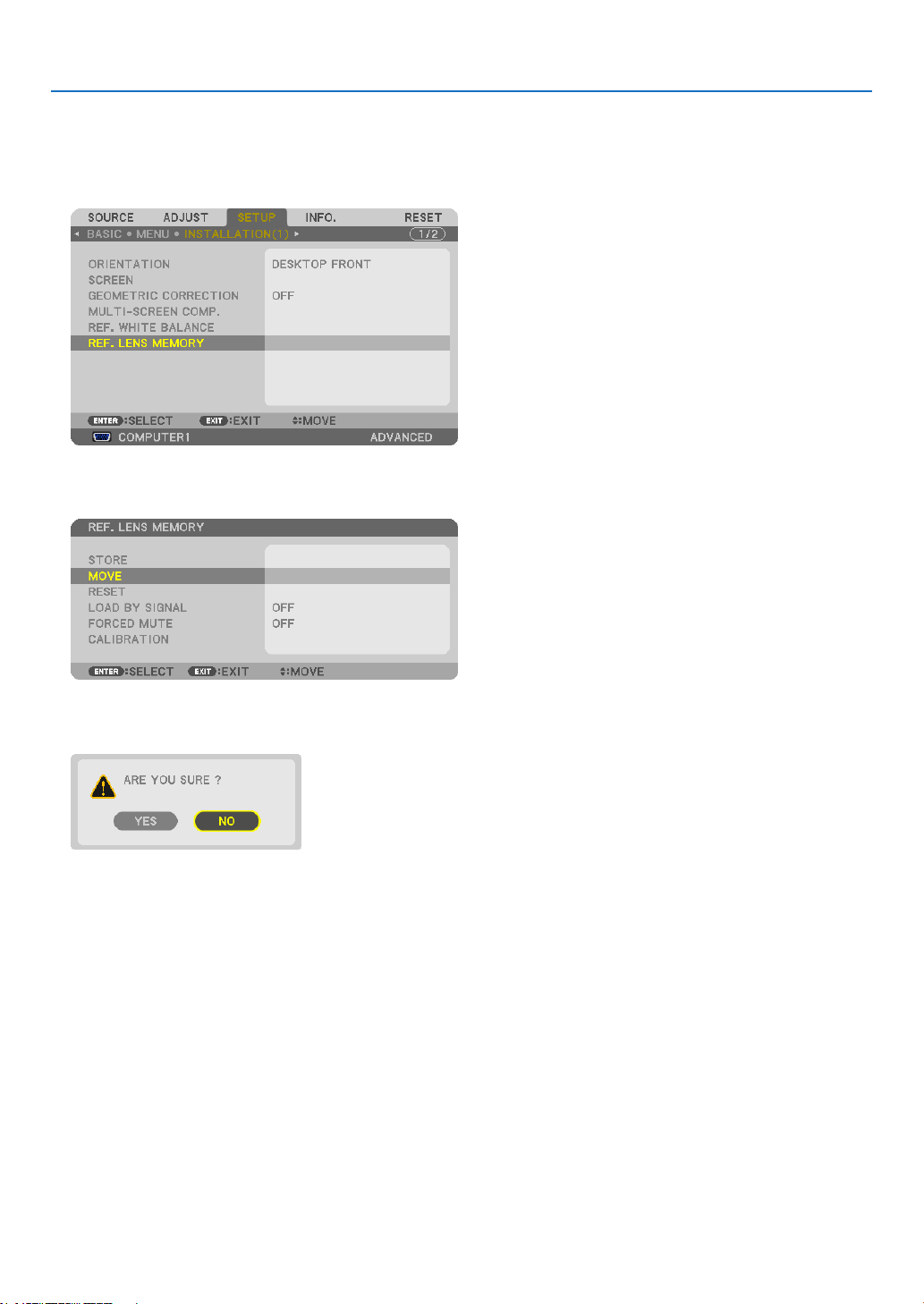
51
3. Convenient Features
Themenuwillbedisplayed.
2. Press the ▶buttontoselect[SETUP]andpresstheENTERbutton.
3. Press the ▶buttontoselect[INSTALLATION(1)].
4. Press the ▼buttontoselect[REF.LENSMEMORY]andpresstheENTERbutton.
The[REF.LENSMEMORY]screenwillbedisplayed.
5. Select[MOVE]andpresstheENTERbutton.
Theconrmationscreenwillbedisplayed.
6. Press the ◀buttontoselectand[YES]andpresstheENTERbutton.
Theadjustedvalueswillbeappliedtothecurrentsignal..
7. PresstheMENUbutton.
Themenuwillbeclosed.
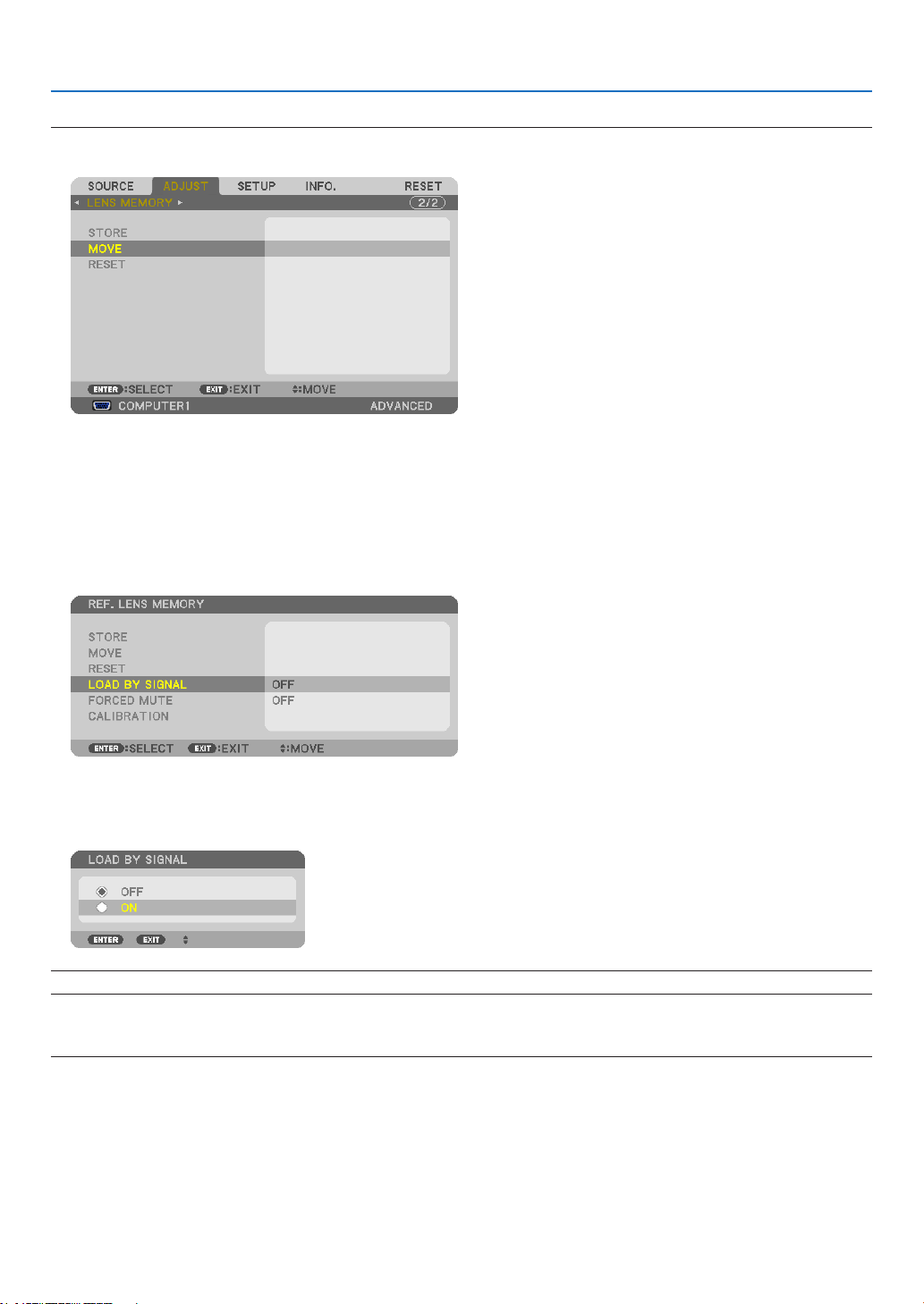
52
3. Convenient Features
TIP:
Tocalluptheadjustedvaluesfrom[LENSMEMORY]:
1. Fromthemenu,select[ADJUST]→[LENSMEMORY]→[MOVE]andpresstheENTERbutton.
Theconrmationscreenwillbedisplayed.
2. Press the ◀buttontoselectand[YES]andpresstheENTERbutton.
Theadjustedvaluesstoredin[LENSMEMORY]willbeappliedtothecurrentsignal.
Toautomaticallyapplytheadjustedvaluesatthetimeofsourceselection:
1. Fromthemenu,select[SETUP]→[REF.LENSMEMORY]→[LOADBYSIGNAL]andpresstheENTERbut-
ton.
2. Pressthevbuttontoselectand[ON]andpresstheENTERbutton.
This will move the lens automatically to the position at the time of source selection according to the adjusted val-
ues.
NOTE:TheLensMemoryfunctionmaynotproduceacompletelyalignedimage(duetotolerancesinthelenses)usingtheadjusted
valuesstoredintheprojector.AftercallingupandapplyingtheadjustedvaluesfromtheLensMemoryfunction,nelyadjustthe
lens shift, zoom and focus to produce the best possible image.
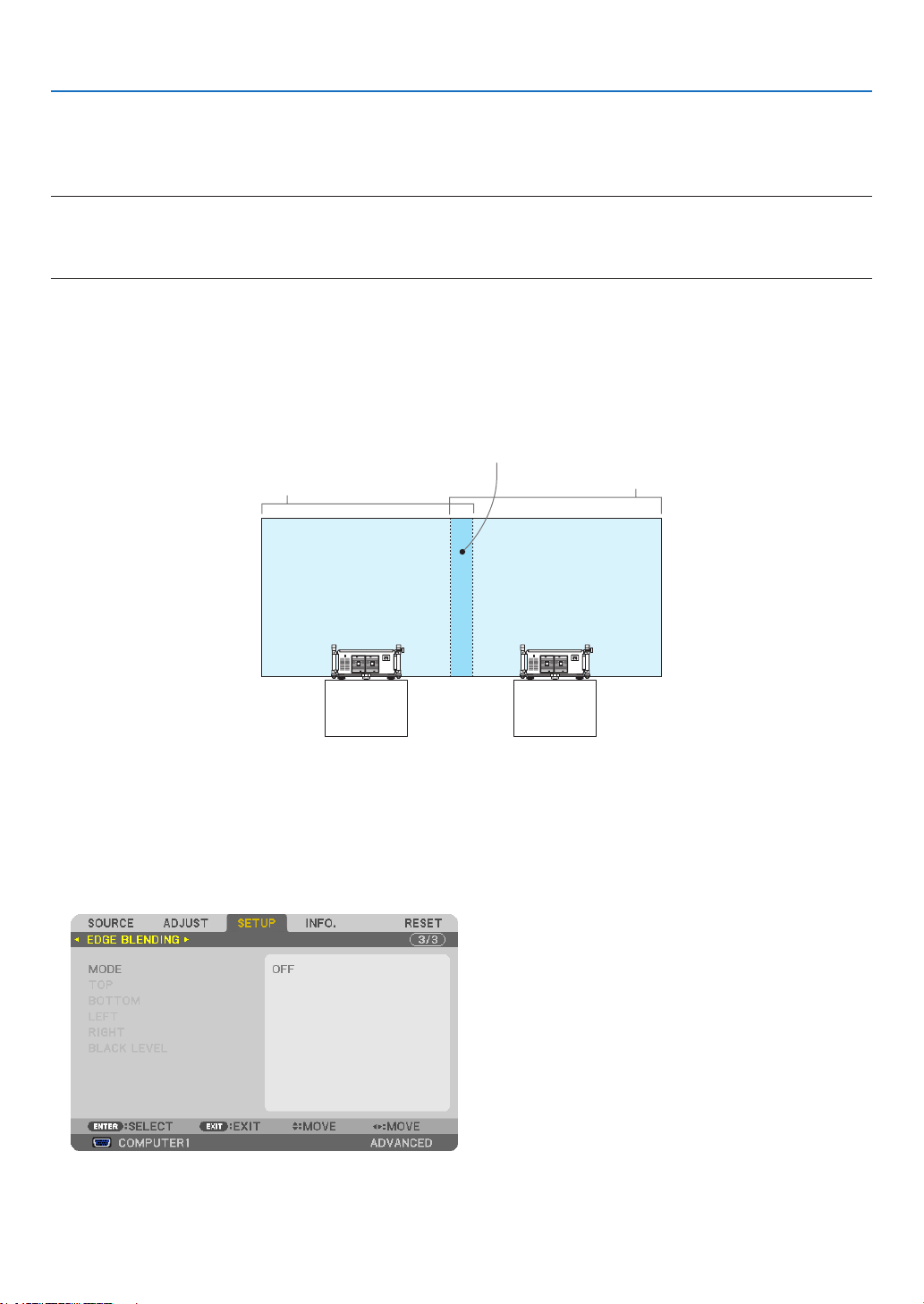
53
3. Convenient Features
⓫ Displaying a Picture Using [EDGE BLENDING]
TheEDGEBLENDINGfunctionallowsamulti-screenimagewithhighresolutiontobedisplayedonalargescreen.
Thisfunctionadjustsoverlappingedgesofimagesprojectedfromeachprojectortouniformmulti-screenimages.
NOTE:
• Forprojectorthrowdistances,referto“Throwdistanceandscreensize”onpage219, 220, 221.
• BeforeperformingtheEdgeBlendingfunction,placetheprojectorinthecorrectpositionsothattheimagebecomessquarein
the appropriate size, and then make optical adjustments (lens shift, focus, and zoom).
Before explaining use of the Edge Blending function
Thissectionexplainsthecasefor“Example:Placingtwoprojectorssidebyside”.Asshown,theprojectedimageon
theleftisreferredtoas“ProjectorA”andtheprojectedimageontherightisreferredto“ProjectorB”.Unlessotherwise
speciedhereinafter,the“projector”isusedtomeanbothAandB.
Example:Placingtwoprojectorssidebyside
EdgeBlendingarea
Projected area
Projected area
ProjectorA ProjectorB
Preparation:
• Turnontheprojectoranddisplayasignal.
• Tousetwoormoreprojectors,youhavetoturnon[CONTROLID]fromthemenu.Formoreinformation,referto
“SettingIDtotheProjector[CONTROLID]”onpage131.
① Enable [EDGE BLENDING].
1 Select[SETUP]→[EDGEBLENDING]andpresstheENTERbutton.
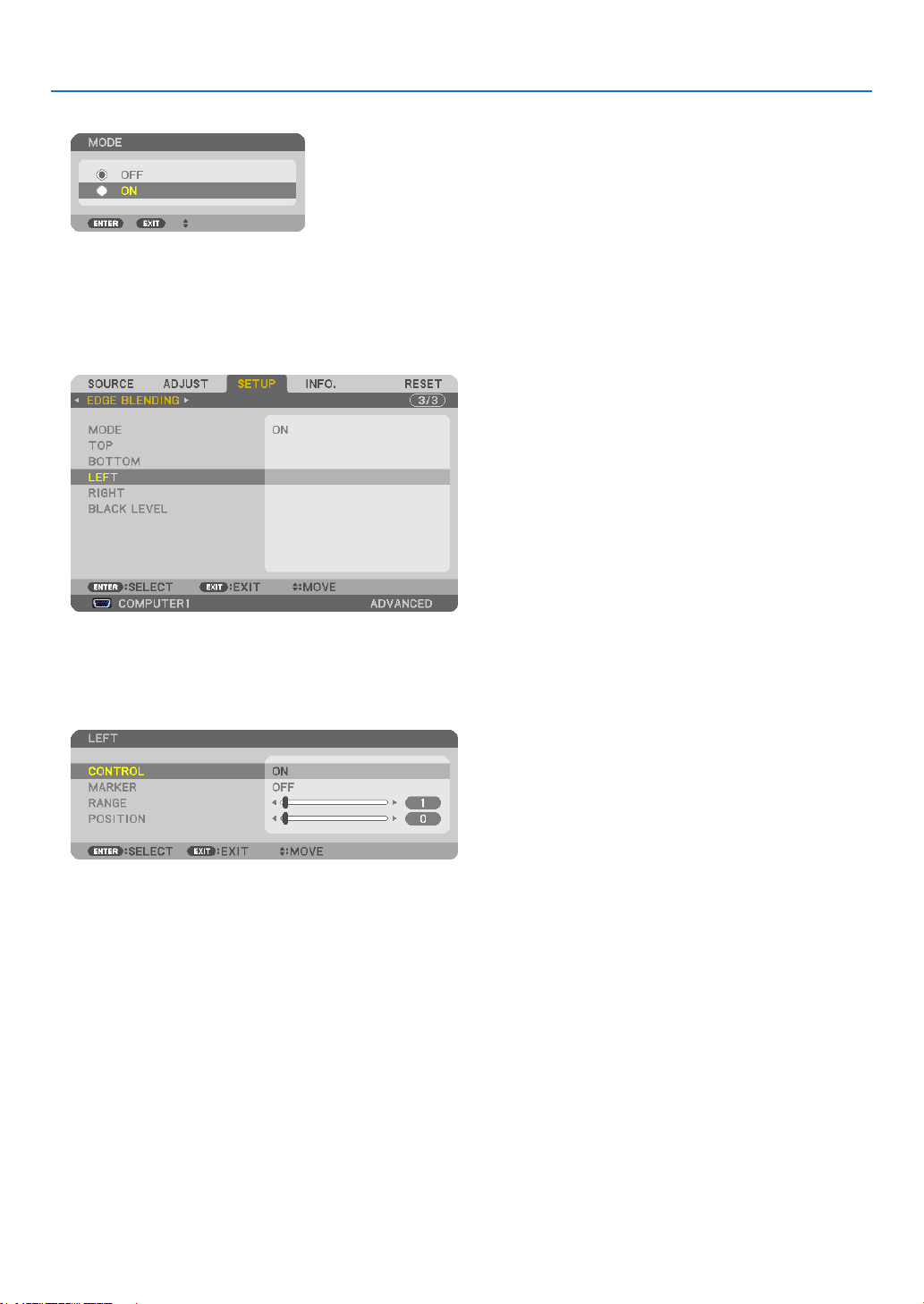
54
3. Convenient Features
2 Select[MODE]→[ON]andpresstheENTERbutton.
ThisenablestheEdgeBlendingfunction.Thefollowingmenuitemsareavailable:
[TOP],[BOTTOM],[LEFT],[RIGHT],and[BLACKLEVEL]
3 Select[RIGHT]forProjectorAand[LEFT]forProjectorB.
PresstheENTERbutton.
Thefollowingitemsareavailable:
[CONTROL],[MARKER],[RANGE],and[POSITION]
4 Select[CONTROL]→[ON]andpresstheENTERbutton.
Each[TOP],[BOTTOM],[LEFT],[RIGHT],and[BLACKLEVEL]hasitsown[CONTROL],[MARKER],[RANGE],
and[POSITION].Turningon[CONTROL]willmake[MARKER],[RANGE],and[POSITION]available.
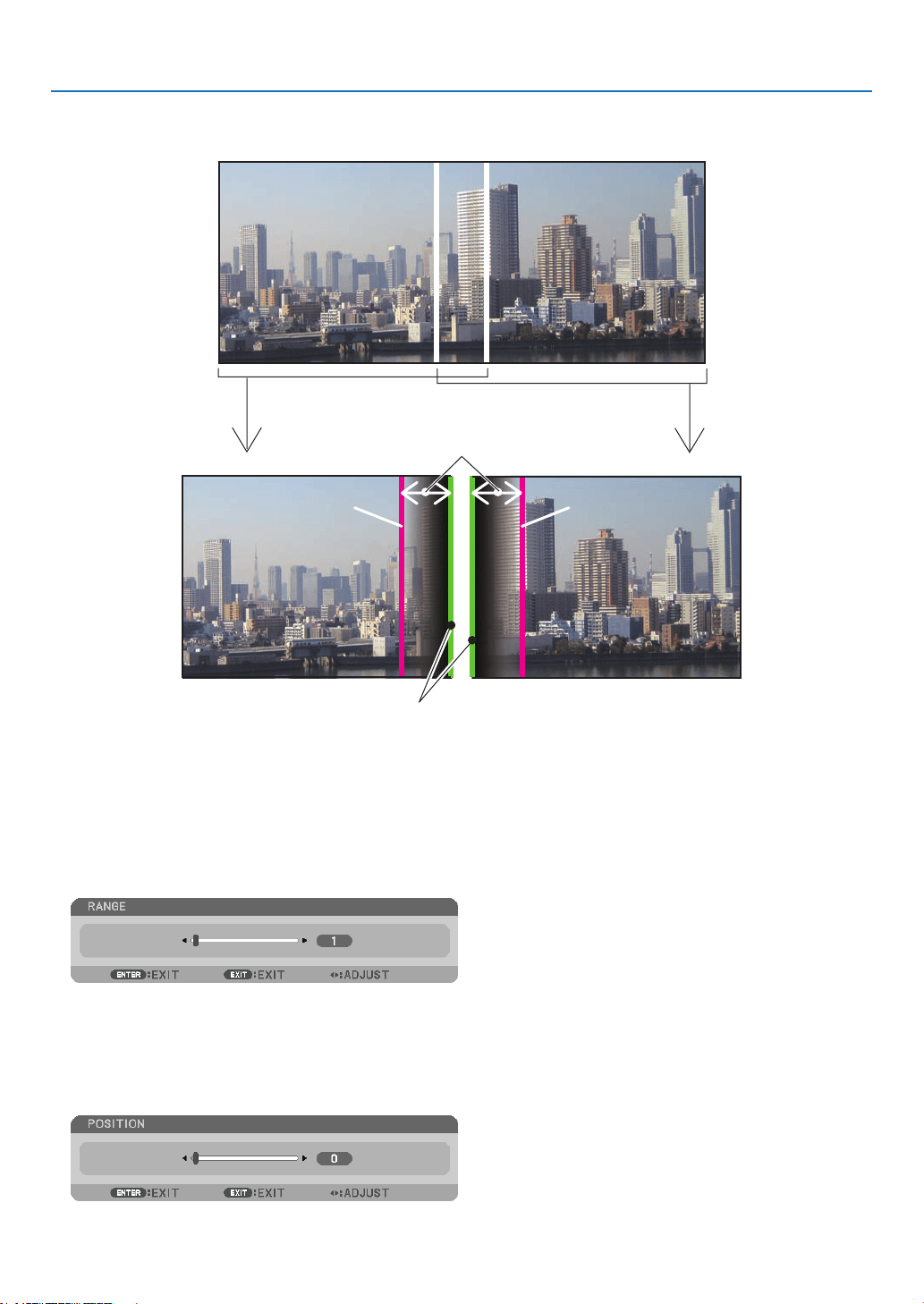
55
3. Convenient Features
② Adjust [RANGE] and [POSITION] to determine an area of overlapped edges of images
projected from each projector.
[RANGE]
(Determine an area of overlapped edges of
images.)
[POSITION]
(Determine the position of overlapped edges of images.)
Greenmarker
Turnon[RIGHT]
Magentamarker
Turn on [LEFT]
Magentamarker
Turningon[MARKER]willdisplaymarkersinmagentaandgreen.
Themagentamarkerisusedfor[RANGE]andgreenonefor[POSITION].
1 Adjust[RANGE].
Use the ◀ or ▶buttontoadjusttheoverlappedarea.
TIP:
• Adjusttooverlaponeprojector’markerwiththeotherprojector’smarker.
2 Adjust[POSITION].
Use the ◀ or ▶buttontoalignoneedgewiththeotheredgeofoverlappedimages.
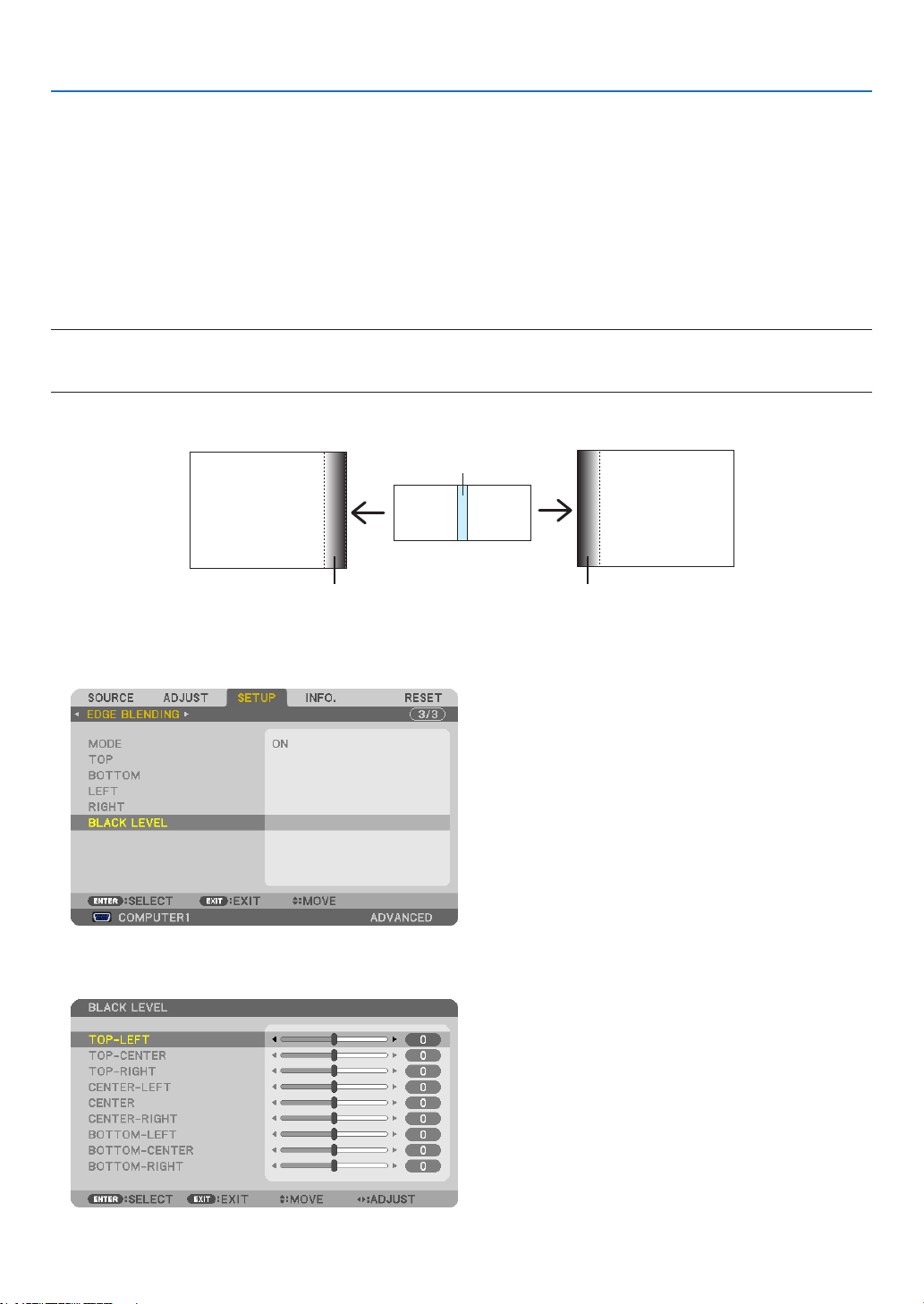
56
3. Convenient Features
TIP:
• Whendisplayingasignalwithadifferentresolution,performtheEdgeBlendingfunctionfromthestart.
• Settingof[MARKER]willnotbesavedandreturnto[OFF]whentheprojectoristurnedoff.
• Todisplayorhidethemarkerwhiletheprojectorisrunning,turnonoroff[MARKER]fromthemenu.
• Ifyouwanttomakedifferencesinwhitebalanceandbrightnessbetweenprojectorslessvisible,adjust[REF.WHITEBALANCE]
and[MULTI-SCREENCOMP.]toobtainthepossiblebestresults.(→ page 129)
Black Level Adjustment
Ifyounoticeanydifferencesinthebrightnessofanimage,use[BLACKLEVEL]toadjustthedarkestpartorthelevel
ofbrightness.
NOTE:
Thisfunctionisenabledonlywhen[MODE]isturnedon.
Adjustableareavariesdependingonwhatcombinationof[TOP],[BOTTOM],[LEFT]and[RIGHT]areturnedon.
Example:AdjustingtheBlackLevelwhenplacingtwoprojectorssidebyside
Widthofoverlap
Adjust[CENTER] Adjust[CENTER]
ProjectorA’s
image
ProjectorB’s
image
Adjust[CENTER-RIGHT] Adjust[CENTER-LEFT]
1. Turnon[MODE]
2. Select[BLACKLEVEL]andpresstheENTERbutton.
3. Use the ▼ or ▲ button to select an item and use the ◀ or ▶ to adjust the black level.
Do this for the other projector if necessary.
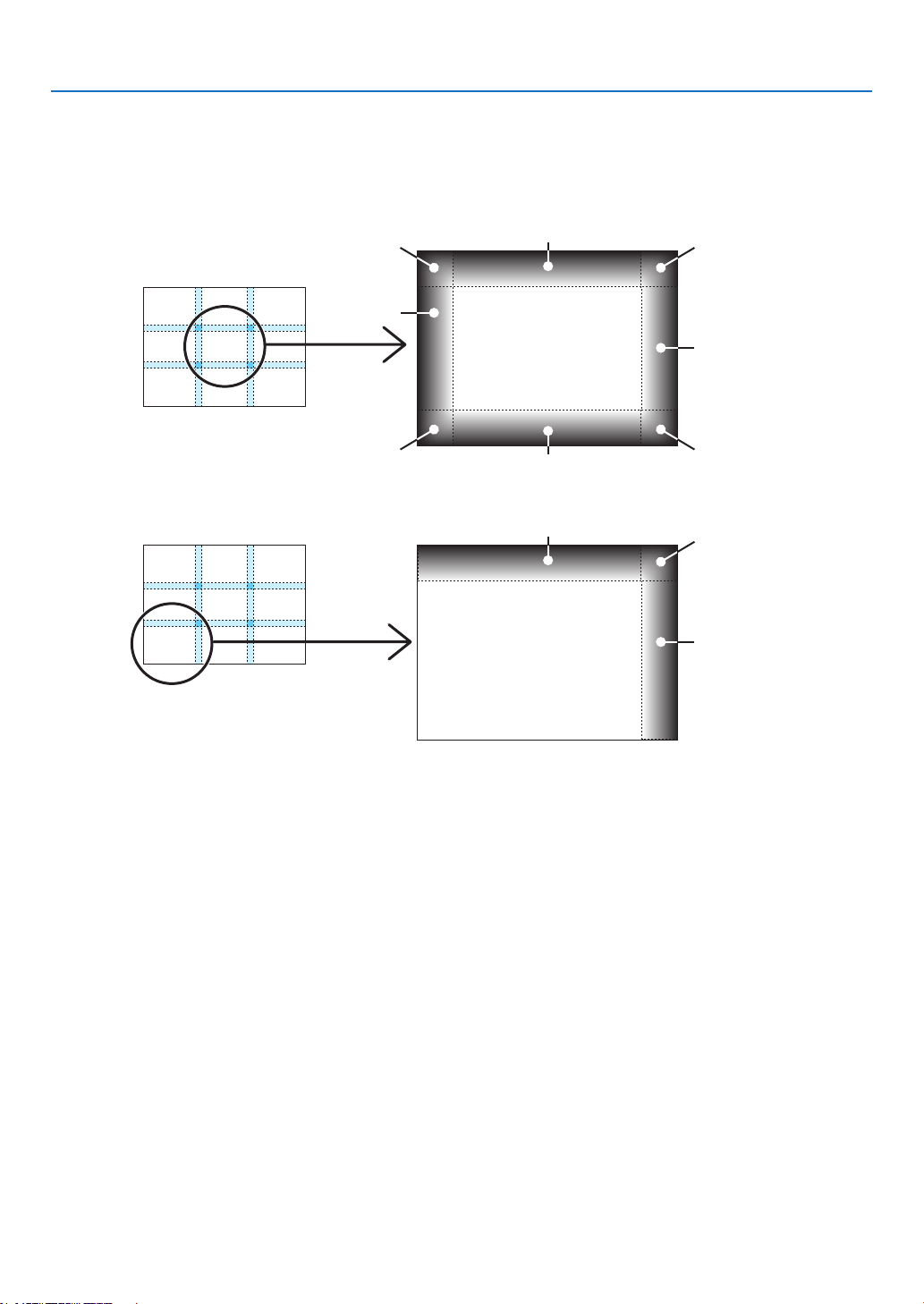
57
3. Convenient Features
9-segmented portions for Black Level adjustment
Thecenterprojector
Thisfunctionadjuststhebrightnesslevelof9-segmentedportionsforthecenterprojectorand4-segmentedportions
fortheleftbottomprojectorasshownbelow.
TOP-LEFT
BOTTOM-LEFT
CENTER-
LEFT
TOP-RIGHT
CENTER-RIGHT
BOTTOM-RIGHT
TOP-CENTER
CENTER
CENTER
BOTTOM-CENTER
TOP-RIGHT
CENTER-RIGHT
TOP-CENTER

58
3. Convenient Features
⓬ Controlling the Projector by Using an HTTP Browser
Overview
TheHTTPServerfunctionprovidessettingsandoperationsfor:
1. Settingforwired/wirelessnetwork(NETWORKSETTINGS)
TousewirelessLANconnection,theoptionalUSBWirelessLANUnitisrequired.(→ page 178)
Tousewired/wirelessLANconnection,connecttheprojectortothecomputerwithacommerciallyavailableLAN
cable.(→ page 177)
2. SettingAlertMail(ALERTMAIL)
Whentheprojectorisconnectedtoawired/wirelessnetwork,lampreplacetimeorerrormessageswillbesentvia
e-mail.
3. Operatingtheprojector
Poweron/off,selectinginput,andpictureadjustmentsarepossible.
4. SettingPJLinkPASSWORDandAMXBEACON
AccesstotheHTTPserverfunction:
• StarttheWebbrowseronthecomputerviathenetworkconnectedtotheprojectorandenterthefollowing
URL:
http://<theprojector’sIPaddress>/index.html
TIP:ThefactorysettingIPaddressis[DHCPON].
NOTE:
• Tousetheprojectorinanetwork,consultwithyournetworkadministratoraboutnetworksettings.
• Thedisplay’sorbutton’sresponsecanbesloweddownoroperationmaynotbeaccepteddependingthesettingsofyournet-
work.
Shouldthishappen,consultyournetworkadministrator.Theprojectormaynotrespondifitsbuttonsarerepeatedlypressedin
rapidintervals.Shouldthishappen,waitamomentandrepeat.Ifyoustillcan’tgetanyresponse,turnoffandbackontheprojec-
tor.
• IfthePROJECTORNETWORKSETTINGSscreendoesnotappearinthewebbrowser,presstheCtrl+F5keystorefreshyourweb
browser (or clear the cache).
• Thisdeviceuses“JavaScript”and“Cookies”andthebrowsershouldbesettoacceptthesefunctions.Thesettingmethodwill
varydependingontheversionofbrowser.Pleaserefertothehelplesandtheotherinformationprovidedinyoursoftware.
Preparation before Use
ConnecttheprojectortoacommerciallyavailableLANcablebeforeengaginginbrowseroperations.(→page177)
Operationwithabrowserthatusesaproxyservermaynotbepossibledependingonthetypeofproxyserverandthe
settingmethod.Althoughthetypeofproxyserverwillbeafactor,itispossiblethatitemsthathaveactuallybeenset
willnotbedisplayeddependingontheeffectivenessofthecache,andthecontentssetfromthebrowsermaynotbe
reectedinoperation.Itisrecommendedthataproxyservernotbeusedunlessitisunavoidable.
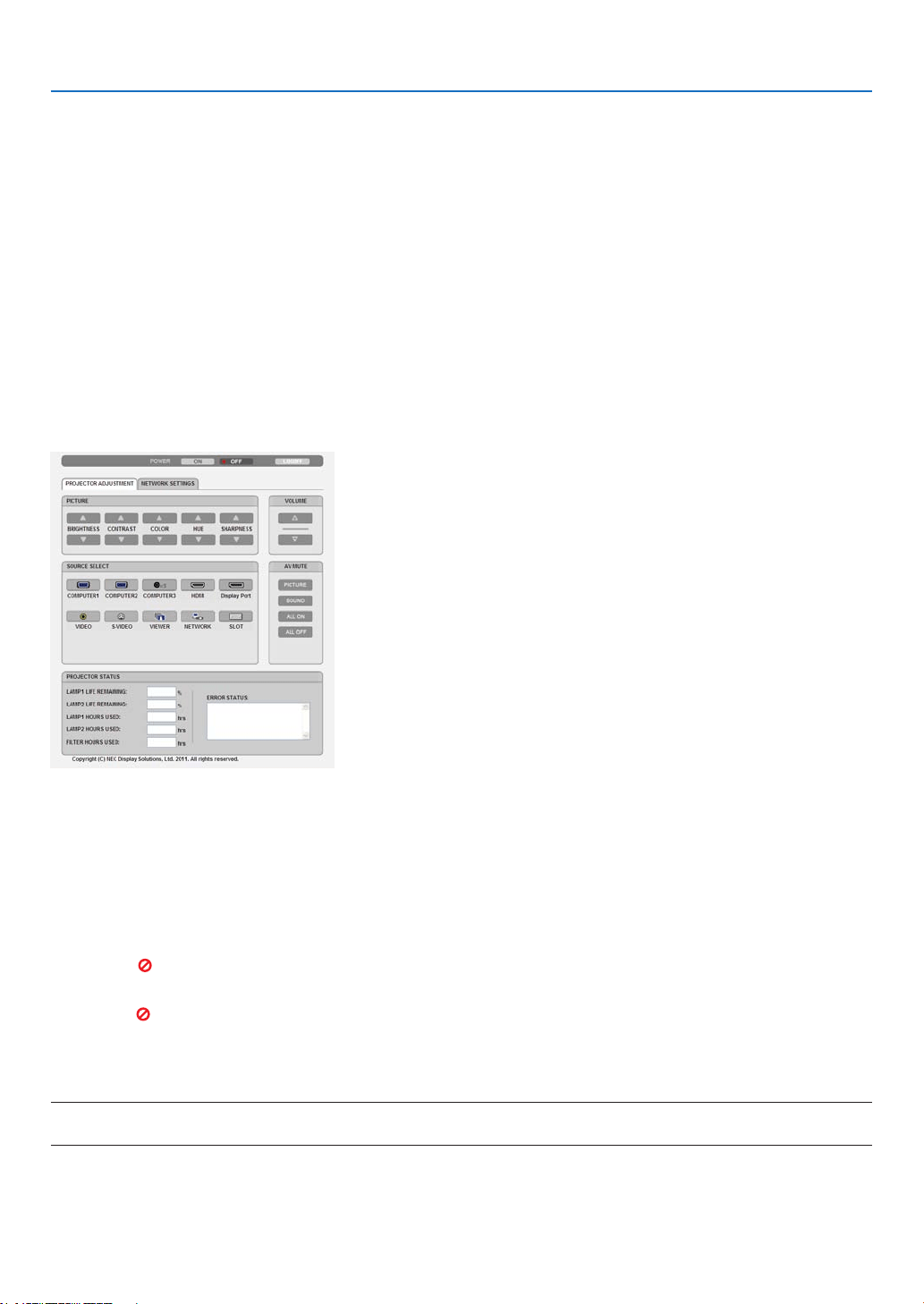
59
3. Convenient Features
Handling of the Address for Operation via a Browser
RegardingtheactualaddressthatisenteredfortheaddressorenteredtotheURLcolumnwhenoperationofthepro-
jectorisviaabrowser,thehostnamecanbeusedasitiswhenthehostnamecorrespondingtotheIPaddressofthe
projectorhasbeenregisteredtothedomainnameserverbyanetworkadministrator,orthehostnamecorresponding
totheIPaddressoftheprojectorhasbeensetinthe“HOSTS”leofthecomputerbeingused.
Example1:Whenthehostnameoftheprojectorhasbeensetto“pj.nec.co.jp”,accessisgainedtothenetwork
settingbyspecifying
http://pj.nec.co.jp/index.html
fortheaddressortheentrycolumnoftheURL.
Example2:WhentheIPaddressoftheprojectoris“192.168.73.1”,accessisgainedtothenetworksettingby
specifying
http://192.168.73.1/index.html
fortheaddressortheentrycolumnoftheURL.
PROJECTOR ADJUSTMENT
POWER:Thiscontrolsthepoweroftheprojector.
ON ������������������������� Power is switched on�
OFF ������������������������ Power is switched off�
VOLUME:Thiscontrolisnotavailableonthismodel.
AV-MUTE:Thiscontrolsthemutefunctionoftheprojector.
PICTURE ���������������� Mutes the video�
PICTURE ����������� Cancels the video muting�
SOUND* ���������������� Mutes the audio�
SOUND* ������������ Cancels the audio muting�
ALL ON ������������������ Mutes each of the video, and audio* functions�
ALL OFF ����������������� Cancels the muting of each of the video, and audio* functions�
NOTE:
* Thesoundmutefunctionisnotavailablebecausetheprojectordoesnothaveanaudiofunction.

60
3. Convenient Features
PICTURE:Controlsthevideoadjustmentoftheprojector.
BRIGHTNESS ▲ ���� Increases the brightness adjustment value�
BRIGHTNESS ▼ ���� Decreases the brightness adjustment value�
CONTRAST ▲ �������� Increases the contrast adjustment value�
CONTRAST ▼ �������� Decreases the contrast adjustment value�
COLOR ▲ �������������� Increases the color adjustment value�
COLOR ▼ �������������� Decreases the color adjustment value�
HUE ▲ ������������������� Increases the hue adjustment value�
HUE ▼ ������������������� Decreases the hue adjustment value�
SHARPNESS ▲ ����� Increases the sharpness adjustment value�
SHARPNESS ▼ ����� Decreases the sharpness adjustment value�
• Thefunctionsthatcanbecontrolledwillvarydependingonthesignalbeinginputtotheprojector.(→page
115)
SOURCESELECT:Thisswitchestheinputconnectoroftheprojector.
COMPUTER 1 �������� Switches to the COMPUTER 1 IN connector�
COMPUTER 2 �������� Switches to the COMPUTER 2 IN connector�
COMPUTER 3 �������� Switches to the COMPUTER 3 IN connector�
HDMI ��������������������� Switches to the HDMI IN connector�
DisplayPort ������������ Switches to the DisplayPort�
VIDEO �������������������� Switches to the VIDEO IN connector�
S-VIDEO ���������������� Switches to the S-VIDEO IN connector�
VIEWER ����������������� Switches to the data on the USB memory device�
NETWORK ������������� Switches to a LAN signal�
SLOT ���������������������� Switches to the optional board�
PROJECTORSTATUS:Thisdisplaystheconditionoftheprojector.
LAMP 1 LIFE REMAINING ��Displays the remaining life of the lamp 1 as a percentage�
LAMP 2 LIFE REMAINING ��Displays the remaining life of the lamp 2 as a percentage�
LAMP 1 HOURS USED ��������Displays how many hours the lamp 1 has been used�
LAMP 2 HOURS USED ��������Displays how many hours the lamp 2 has been used�
FILTER HOURS USED ���������Displays how many hours the filter has been used�
ERROR STATUS ������������������Displays the status of errors occurring within the projector�
LOGOFF:Loggingoffyourprojectorandreturningtotheauthenticationscreen(LOGONscreen).

61
3. Convenient Features
NETWORK SETTINGS
•SETTINGS
WIRED or WIRELESS
SETTING SetforwiredLANorforwirelessLAN.
APPLY ApplyyoursettingstowiredLANorwirelessLAN.
DHCPON AutomaticallyassignIPaddress,subnetmask,andgatewaytotheprojectorfromyour
DHCPserver.
DHCPOFF SetIPaddress,subnetmask,andgatewaytotheprojectorassignedbyyournetwork
administrator.
IPADDRESS SetyourIPaddressofthenetworkconnectedtotheprojector.
SUBNETMASK Setyoursubnetmasknumberofthenetworkconnectedtotheprojector.
GATEWAY Setthedefaultgatewayofthenetworkconnectedtotheprojector.
WINS SettheIPaddressofyourWINSserverofthenetworkconnectedtotheprojectorwhen
[DHCP]isturnedon,thisoptionisnotavailable.
AUTODNSON DHCPserverwillautomaticallyassignIPaddressofDNSserverconnectedtothe
projector.
AUTODNSOFF SetyourIPaddressofDNSserverconnectedtotheprojector.
Setting for WIRED LAN
PROFILE1/PROFILE2 TwosettingscanbesetforwiredLANconnection.SelectPROFILE1orPROFILE2.
DISABLE TurnoffwiredLANconnection
SettingforWIRELESSLAN(theoptionalWirelessLANUnitrequiredforEurope,Australia,andAsiancoun-
tries)
EASYCONNECTION ExecuteawirelessLANusingEASYCONNECTION.
SIMPLEACCESPOINT Settheprojectorforsimpleaccesspoint.
WPS UseWPS(Wi-FiProtectedSetup™)tosetupthewirelessLANfortheprojector.
NOTE:Usetheprojector’smenustomakeWPSconnectionsandchangetheWPS
prolesettings.
CHANNEL Selectachannel.Availablechannelsvarydependingonthecountryandregion.When
youselect[INFRASTRUCTURE],makesurethattheprojectorandyouraccesspoint
areonthesamechannel;whenyouselect[ADHOC],makesurethattheprojectorand
yourcomputerareonthesamechannel.
PROFILE1/PROFILE2 TwosettingscanbesetforwirelessLANconnection.SelectPROFILE1orPROFILE
2.

62
3. Convenient Features
SSID Enteranidentier(SSID)forwirelessLAN.Communicationcanbedone onlywith
equipmentwhoseSSIDmatchesSSIDforyourwirelessLAN.
SITESURVEY DisplaysalistofavailableSSIDsforwirelessLANonsite.SelectanSSIDwhichyou
canaccess.
NETWORKTYPE SelectcommunicationmethodwhenusingwirelessLAN.
INFRASTRUCTURE:Selectthisoptionwhencommunicatingwithoneormoreequip-
mentconnectedtothewirelessLANnetworkviaawirelessaccesspoint.
ADHOC:SelectthisoptionwhenusingthewirelessLANtodirectlycommunicatewith
acomputerinpeer-to-peermode.
SECURITYTYPE Turnonorofftheencryptionmodeforsecuretransmission.Whenturnontheencryp-
tionmode,setWEPkeyorencryptedkey.
DISABLE Willnotturnontheencryptionfeature.Yourcommunicationsmay
bemonitoredbysomeone.
WEP64bit Uses64-bitdatalengthforsecuretransmission.
WEP128bit Uses128-bitdatalengthforsecuretransmission.Thisoptionwill
increaseprivacyandsecuritywhencompared to useof 64-bit
datalengthencryption.
WPA-PSKTKIP/WPA-PSKAES/
WPA2-PSKTKIP/WPA2-PSKAES/
WPA-EAPTKIPEAP-TLS/
WPA-EAPAESEAP-TLS/
WPA-EAPTKIPPEAP-MSCHAPv2/
WPA-EAPAESPEAP-MSCHAPv2/
WPA2-EAPTKIPEAP-TLS/
WPA2-EAPAESEAP-TLS/
WPA2-EAPTKIPPEAP-MSCHAPv2/
WPA2-EAPAESPEAP-MSCHAPv2
Theseoptionsparovidestrongersecurity
thanWEP.
NOTE:
• TheWEPsettingsmustbethesameascommunicationdevicessuchasPCoraccesspointin
your wireless network.
• WhenyouuseWEP,yourimagetransmissionspeedwillslowdown.
• OtherencryptionkeysthanWEP64bitandWEP128bitarenotavailablewhen[ADHOC]is
selectedfrom[NETWORKTYPE].
• Toinstalladigitalcerticate,usetheprojector’smenu.(→ page 151)
INDEX
Selectencryptionkeywhenselecting[WEP64bit]or[WEP128bit]in[SECURITY
TYPE].
KEY
Whenselecting[WEP64bit]or[WEP128bit]in[SECURITYTYPE]:
EnterWEPkey.
Select Characters(ASCII) Hexadecimaldigit(HEX)
WEP64bit Upto5characters Upto10characters
WEP128bit Upto13characters Upto26characters
When selecting [WPAPSK-TKIP], [WPA PSK-AES], [WPA2 PSK-TKIP] or[WPA2
PSK-AES]:
Enterencryptionkey.Keylengthmustbe8orgreaterand63orless.
USERNAME SetausernameforWPA-EAP/WPA2-EAP.
PASSWORD SetapasswordforWPA-EAPTKIPPEAP-MSCHAPv2/WPA-EAPAESPEAP-MSCHAP
v2/WPA2-EAPTKIPPEAP-MSCHAPv2/WPA2-EAPAESPEAP-MSCHAPv2.
USEDIGITALCERTIFI-
CATE
SelectthisifyouuseadigitalcerticateforWPA-EAPTKIPPEAP-MSCHAPv2/WPA-
EAPAESPEAP-MSCHAPv2/WPA2-EAPTKIPPEAP-MSCHAPv2/WPA2-EAPAES
PEAP-MSCHAPv2.

63
3. Convenient Features
•NAME
PROJECTORNAME Enteranameforyourprojectorsothatyourcomputercanidentifytheprojector.A
projectornamemustbe16charactersorless.
TIP:Projectornamewillnotbeaffectedevenwhen[RESET]isdonefromthemenu.
HOSTNAME Enterthehostnameofthenetworkconnectedtotheprojector.Ahostnamemustbe
15orless.
DOMAINNAME Enterthedomainnameofthenetworkconnectedtotheprojector.Adomainname
mustbe60charactersorless.
•ALERTMAIL
ALERTMAIL Thisoptionwillnotifyyourcomputeroflampreplacetimeorerrormessagesviae-mail
whenusingwirelessorwiredLAN.
PlacingacheckmarkwillturnontheAlertMailfeature.
ClearingacheckmarkwillturnofftheAlertMailfeature.
Sampleofamessagetobesentfromtheprojector:
Thelampandltersareattheendofitsusablelife.Pleasereplacethelamp.
ProjectorName:XXXXX
Lamp1HoursUsed:XXX[H]
Lamp2HoursUsed:XXX[H]
SENDER’SADDRESS Entersender’saddress.
SMTPSERVERNAME EntertheSMTPservernametobeconnectedtotheprojector.
RECIPIENT’SADDRESS
1,2,3
Enteryourrecipient’saddress.Uptothreeaddressescanbeentered.
TESTMAIL Sendatestmailtocheckwhetheryoursettingsarecorrectornot
NOTE:
• Ifyouexecuteatest,youmaynotreceiveanAlertmail.Shouldthishappen,checkifnetwork
settings are correct.
• Ifyouenteredanincorrectaddressinatest,youmaynotreceiveanAlertmail.Shouldthis
happen,checkiftheRecipient’sAddressiscorrect.
SAVE Clickthisbuttontosaveyoursettingstotheprojector’smemory.

64
3. Convenient Features
•NETWORKSERVICE
PJLinkPASSWORD SetapasswordforPJLink*.Apasswordmustbe32charactersorless.Donotforget
yourpassword.However,ifyouforgetyourpassword,consultwithyourdealer.
HTTPPASSWORD SetapasswordforHTTPserver.Apasswordmustbe10charactersorless.
AMXBEACON TurnonorofffordetectionfromAMXDeviceDiscoverywhenconnectingtothenetwork
supportedbyAMX’sNetLinxcontrolsystem.
TIP:
WhenusingadevicethatsupportsAMXDeviceDiscovery,allAMXNetLinxcontrolsystemwillrec-
ognizethedeviceanddownloadtheappropriateDeviceDiscoveryModulefromanAMXserver.
PlacingacheckmarkwillenabledetectingtheprojectorfromAMXDeviceDiscovery.
ClearingacheckmarkwilldisabledetectingtheprojectorfromAMXDeviceDiscovery.
NOTE: If you forget your password, contact your dealer.
*WhatisPJLink?
PJLinkisastandardizationofprotocolusedforcontrollingprojectorsofdifferentmanufacturers.Thisstandardproto-
colisestablishedbyJapanBusinessMachineandInformationSystemIndustriesAssociation(JBMIA)in2005.
TheprojectorsupportsallthecommandsofPJLinkClass1.
SettingofPJLinkwillnotbeaffectedevenwhen[RESET]isdonefromthemenu.
CRESTRONROOMVIEWcompatibility
TheprojectorsupportsCRESTRONROOMVIEW,allowingmultipledevicesconnectedinthenetworktobemanaged
andcontrolledfromacomputeroracontroller.
Formoreinformation,visithttp://www.crestron.com
<Setting Procedure>
AccesstotheHTTPserverfunction,andmakenecessarysettingsfor[CRESTRON]in[NETWORKSETTINGS].
•ROOMVIEWformanagingfromthecomputer.
DISABLE DisablesROOMVIEW.
ENABLE EnablesROOMVIEW.
•CRESTRONCONTROLformanagingfromthecontroller.
DISABLE DisablesCRESTRONCONTROL.
ENABLE EnablesCRESTRONCONTROL.
IPADDRESS SetyourIPaddressofCRESTRONSERVER.
IPID SetyourIPIDofCRESTRONSERVER.
TIP:TheCRESTRONsettingsarerequiredonlyforusewithCRESTRONROOMVIEW.
Formoreinformation,visithttp://www.crestron.com
•INFORMATION
WIREDLAN DisplayalistofsettingsofwiredLANconnection.
WIRELESSLAN DisplayalistofsettingsofwirelessLANconnection.
UPDATE Reectsettingswhentheyarechanged.
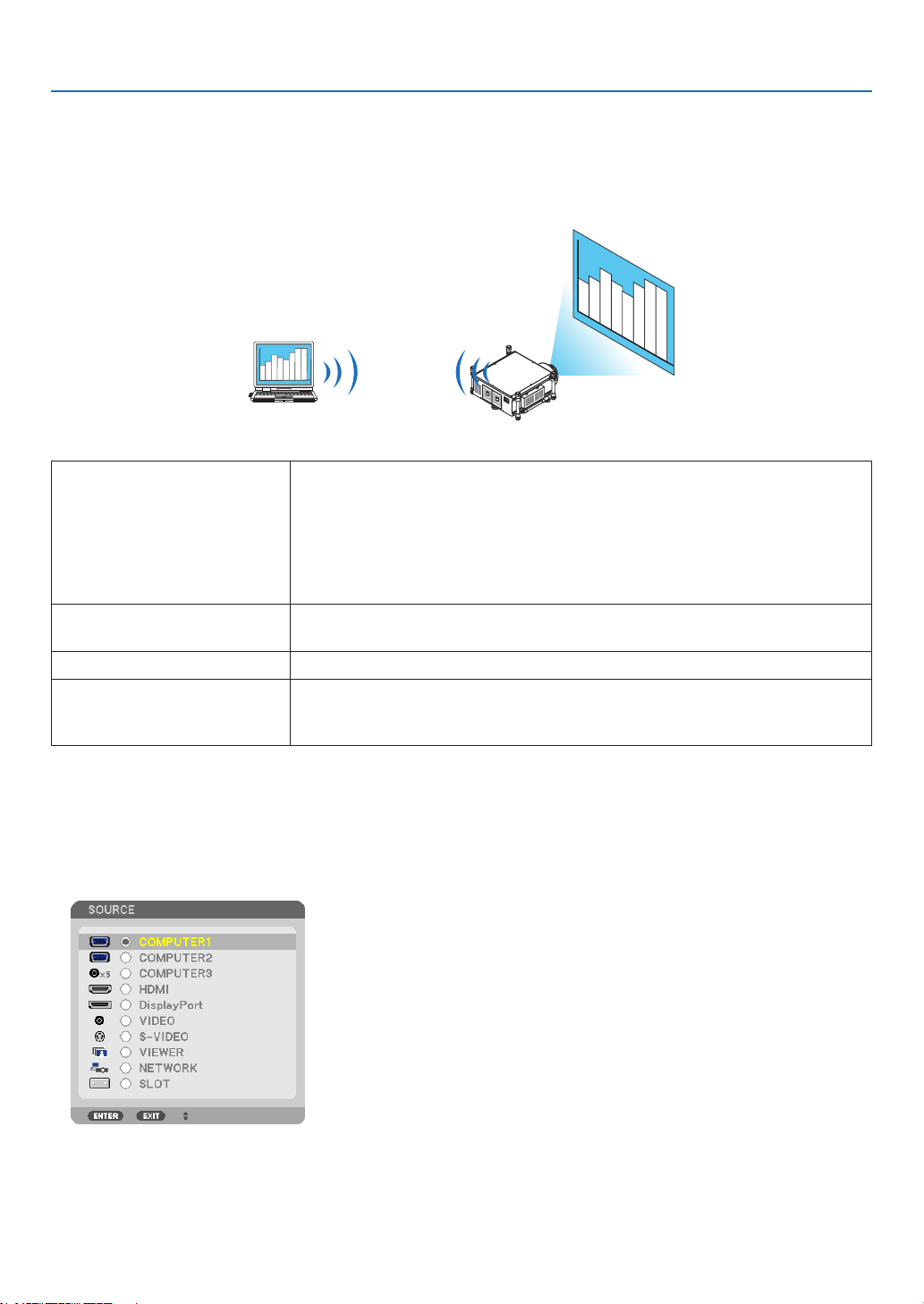
65
3. Convenient Features
⓭ Projecting Your Computer’s Screen Image from the
Projector via a Network [NETWORK PROJECTOR]
ByselectingtheprojectorconnectedtothesamenetworkasthatofyourPC,thePCscreenimagecanbeprojected
tothescreenvianetwork.Thereisnoneedofconnectionusingthecomputercable(VGA).
Operation Environment
ApplicableOS Windows7Professional
Windows7Ultimate
Windows7Enterprise
WindowsVistaHomePremium
WindowsVistaBusiness
WindowsVistaUltimate
WindowsVistaEnterprise
Hardwarespecications ThespecicationsrecommendedbyMicrosoftastheoperationenvironmentfor
Windows7/WindowsVistashouldbesatised.
NetworkEnvironment WiredLANorwirelessLANenvironmentthatsupportsTCP/IPisrequired.
Screencolor HighColor(16bits)
TrueColor(24bitsand32bits)
*Settingwith256colorsorlessisnotavailable.
SettingtheProjectortoNetworkProjectorInputMode
1. Withtheprojectorturnedon,presstheSOURCEbutton.
The input selection window appears.
AnotherwaytodisplaytheinputselectionwindowistopresstheNETWORKbuttonontheremotecontrol.The
APPLICATIONMENUscreenwillbedisplayed.Gotostep3.
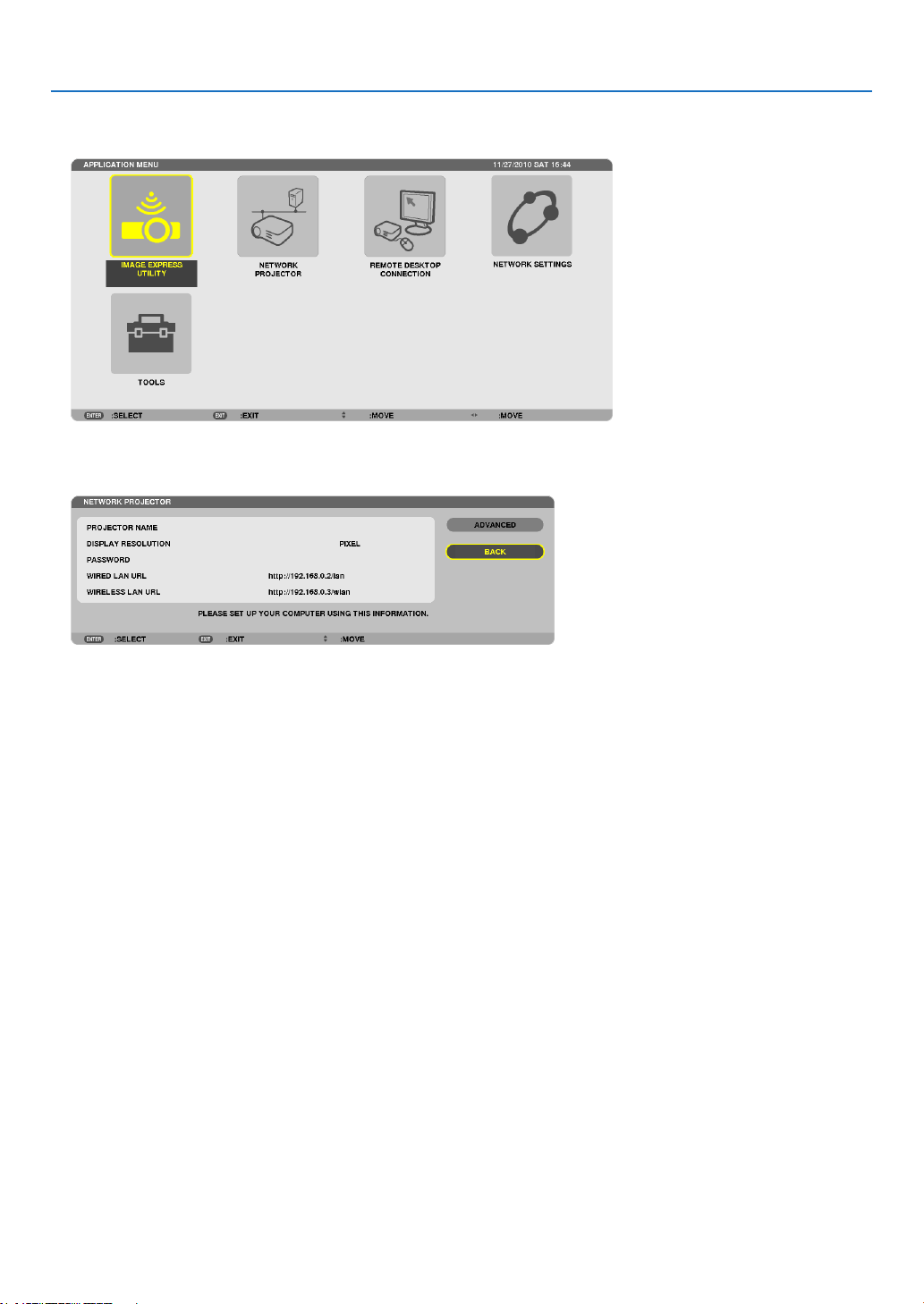
66
3. Convenient Features
2. Press the ▼ or ▲buttontoselect[NETWORK]andpresstheENTERbutton.
Inthescreen,the[APPLICATIONMENU]menuisdisplayed.
3. Fromthe[APPLICATIONMENU]menu,select[NETWORKPROJECTOR].
The[PROJECTORNAME/DISPLAYRESOLUTION/PASSWORD/URL]willbedisplayed.
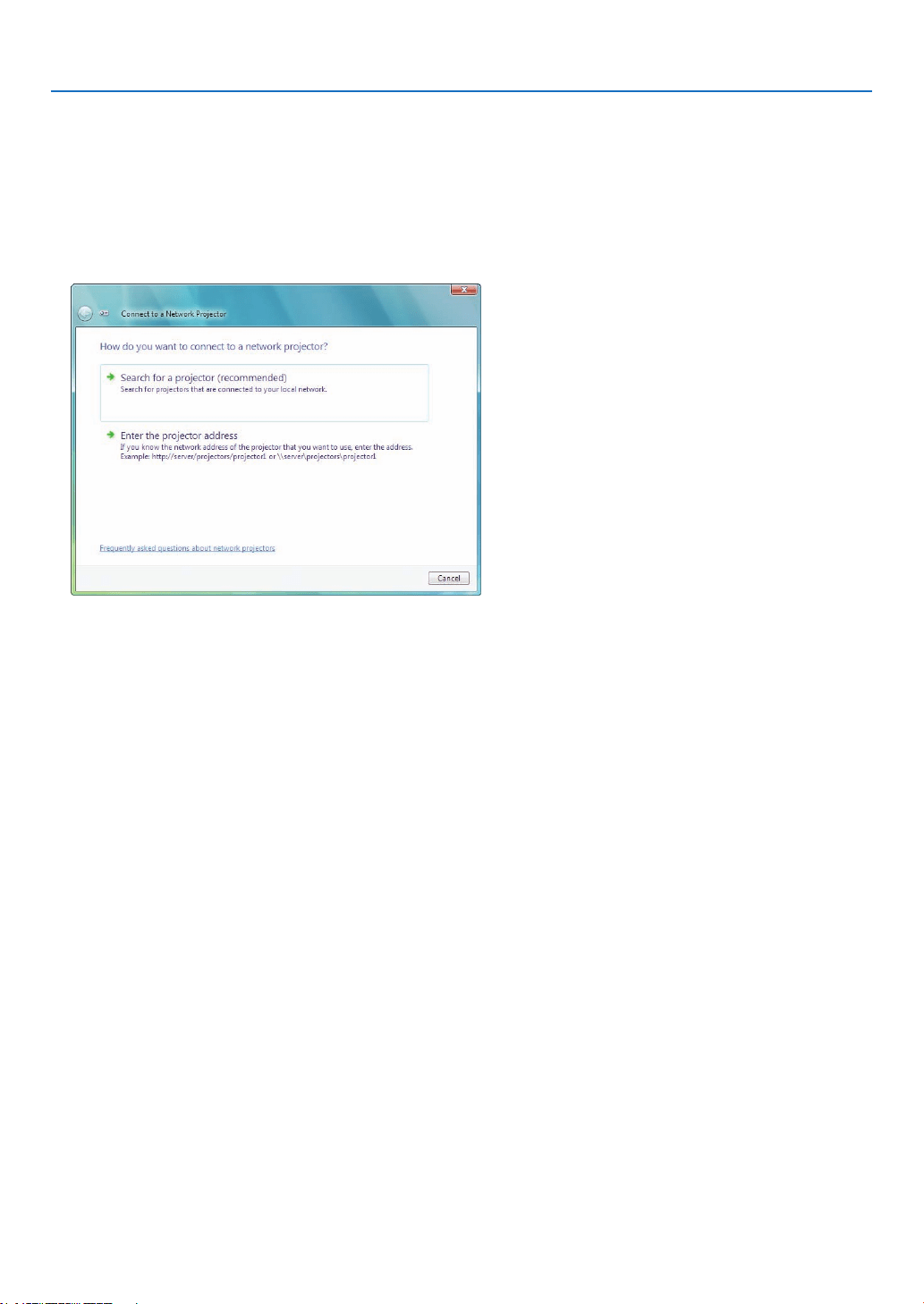
67
3. Convenient Features
ProjectingtheImagewithNetworkProjector
1. Click[Start]fromthedesktopofWindows7.
2. Click[AllPrograms].
3. Click[Accessories].
4. Click[ConnecttoaNetworkProjector].
Whenthe[PermissionConnecttoaNetworkProjector]windowappears,click[Yes.].
The“ConnecttoaNetworkProjector”windowappears.
5. Click[→Searchforaprojector(recommended)].
Inthe“Availableprojectors”box,“PH1400Series”isdisplayed.
6. Click[PH1400Series].
Themessage“Enterthepasswordfortheprojectorthatyouselected.”isdisplayedatthebottomofthewindow.
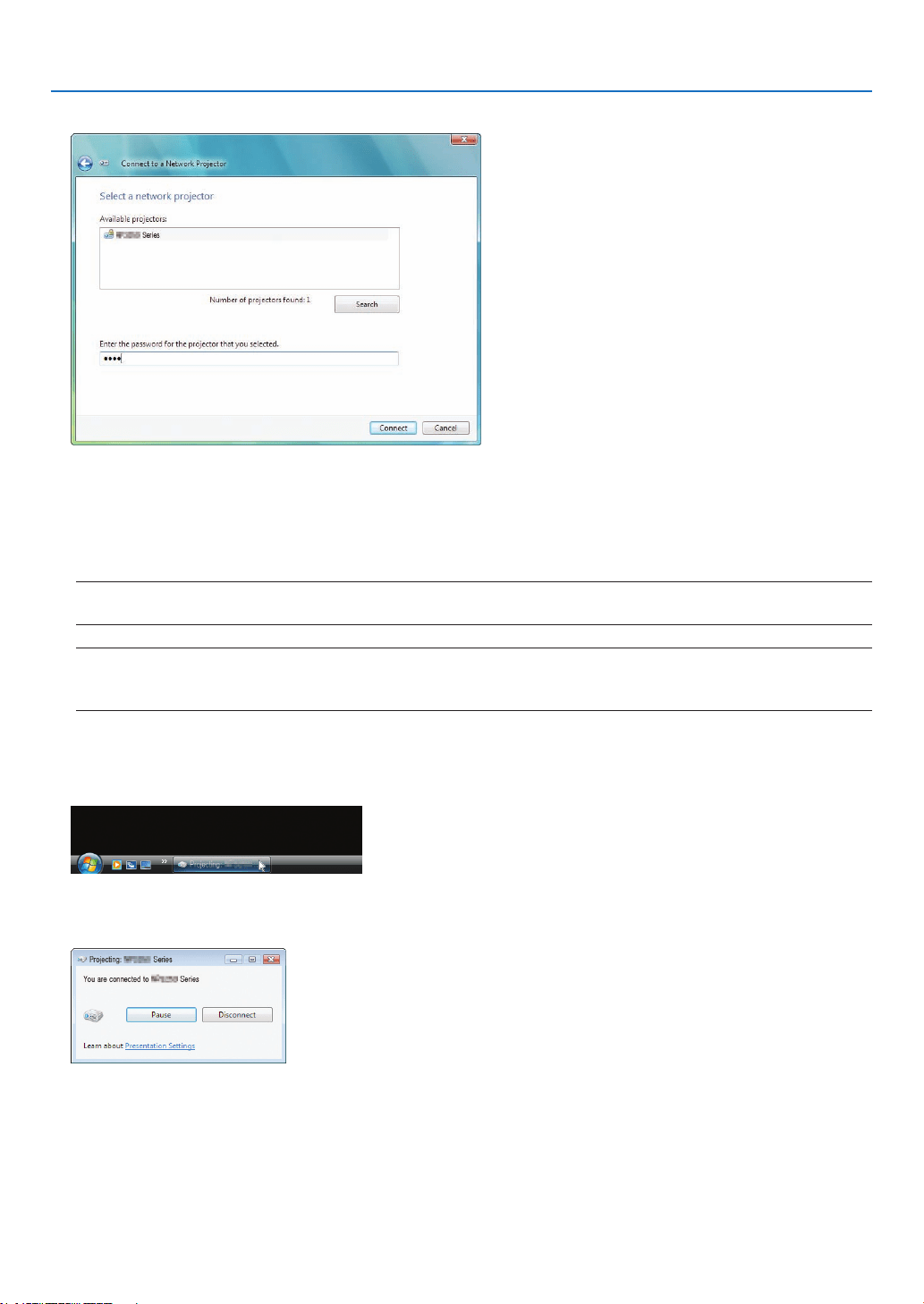
68
3. Convenient Features
7. Inputthepasswordtothepasswordinputboxdisplayedbytheoperationatstep3onpage66.
8. Click[Connect].
ThenetworkprojectorfunctionworksandthescreenofWindows7isprojectedfromtheprojector.
• Iftheresolutionofyourcomputer’sscreenisdifferentfromtheprojector’sscreenresolution,theNETWORK
PROJECTORfunctionmaynotwork.Ifthishappens,changetheresolutionofthecomputer’sscreentolower
resolutionthantheonedisplayedatStep3onpage66.
NOTE:Whenthenetworkprojectorfunctionworks,thebackgroundcolorofthedesktopchangestoblack.Whenthenetwork
projector function is stopped, the original background color is restored.
Reference:IftheprojectorcannotbefoundatStep5,click[→Entertheprojectoraddress].Then,inputthe“Networkaddress”
(Input example: http://10.32.97.61/lan) and “Projectorpassword” (Input example: 82291627) displayed in the screen projected
from the projector.
ExitingtheNetworkProjectorOperation
1. Click[Projecting:PH1400Series]intheWindowsVistataskbar.
2. Click[Disconnect].
TheNetworkProjectorfunctionisstopped.
3. PresstheSOURCEbuttonoftheprojectortoselectaninputterminalotherthan[NETWORK].
Whenusingtheremotecontrol,pressabuttonotherthantheNETWORKbutton.
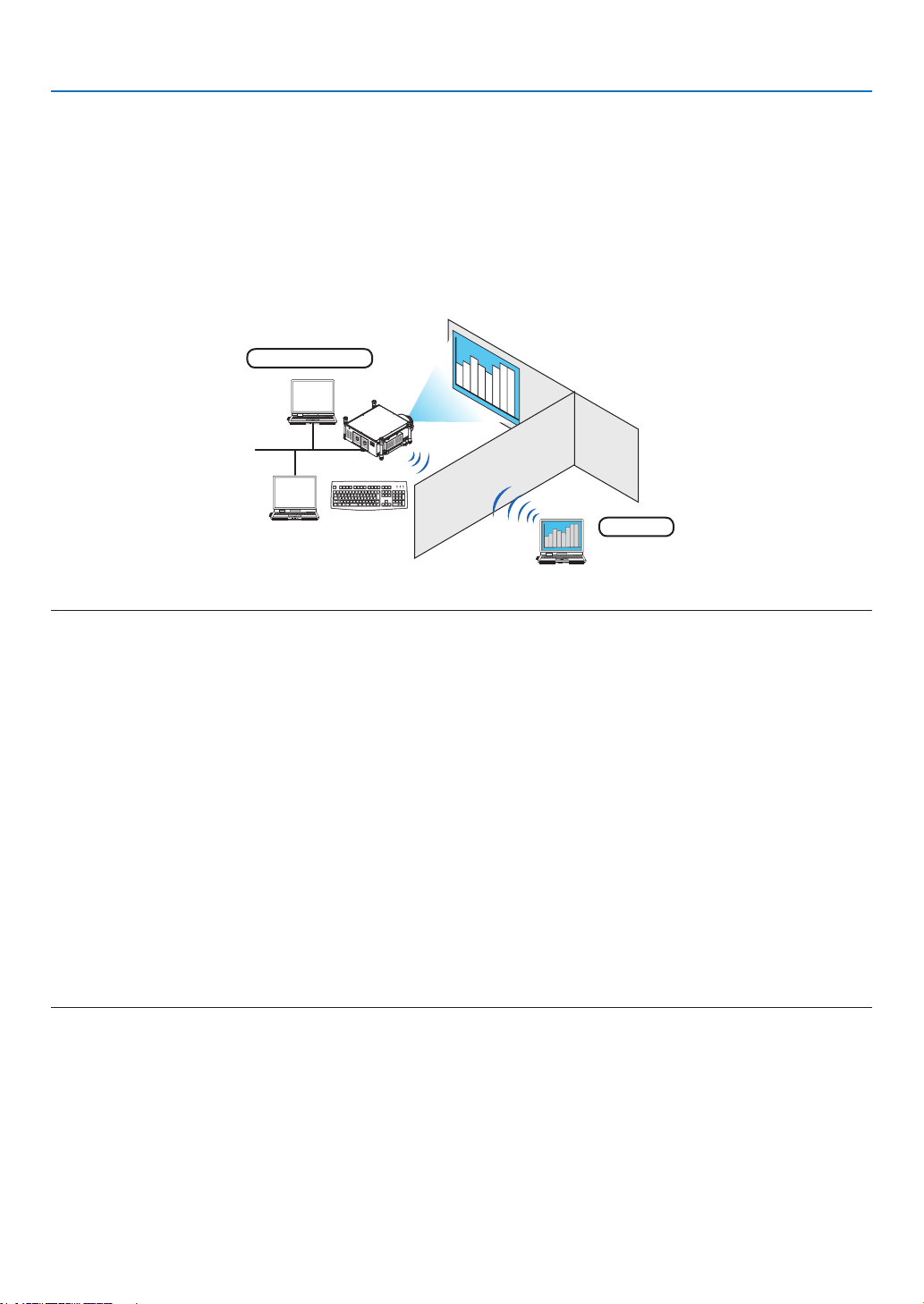
69
3. Convenient Features
⓮ Using the Projector to Operate Your Computer via a Network
[REMOTE DESKTOP]
• ByselectingthePCconnectedtothesamenetworkasthatoftheprojector,thePCscreenimagecanbeprojected
tothescreenvianetwork.
Then,byoperatingthekeyboard,youcanoperateWindows7,WindowsVistaorWindowsXPonthePCconnected
withthenetwork.
• WiththeRemoteDesktopfunction,youcanremotelyoperatethePCplacedatadistancefromtheprojector.
Meetingroom
Ofce
NOTE:
• The[REMOTEDESKTOP]functionwillworkonthefollowingWindowseditions.
Windows7Professional
Windows7Ultimate
Windows7Enterprise
WindowsVistaBusiness
WindowsVistaUltimate
WindowsVistaEnterprise
WindowsXPProfessionalwithServicePack3
(Note)
• Inthisuser’smanualthisfeatureisdescribedusingWindows7asanexample,butWindowsVistaandWindowsXPProfessional
ServicePack2orlaterwillalsoworkwiththisfeature.
• AkeyboardisrequiredtousetheRemoteDesktopfunction.
• TheRemoteDesktopfunctioncanbeoperatedwithakeyboard.Usingawirelessmousewithawirelesskeyboardismoreuseful
for operating.
Useacommerciallyavailablewirelesskeyboard,awirelessmouse,andaUSBwirelessreceiver.
UseacommerciallyavailableUSBkeyboardandUSBmouse.
• AUSBkeyboardwithabuilt-inUSBhubcannotbeusedwiththeprojector.
• AwirelesskeyboardormousethatsupportsBluetoothcannotbeusedwiththeprojector.
• WedonotwarrantthattheUSBportoftheprojectorwillsupportallUSBdevicesinthemarket.
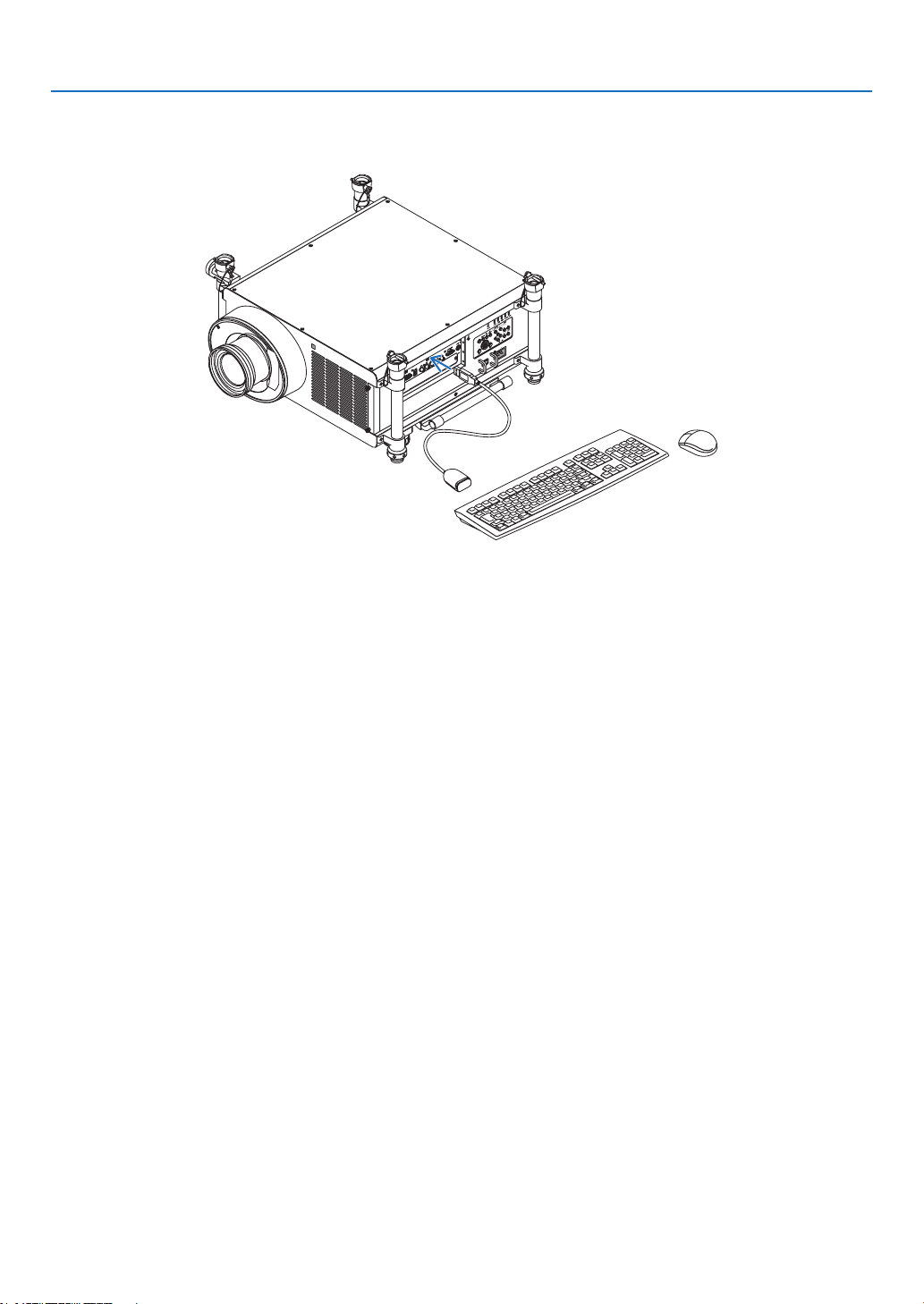
70
3. Convenient Features
Prepareacommerciallyavailablewirelesskeyboard(USlayoutversion).
ConnecttheUSBwirelessreceivertotheUSBport(TypeA)oftheprojector.Makeallnecessarysettingsforyour
wirelesskeyboardandmouse.
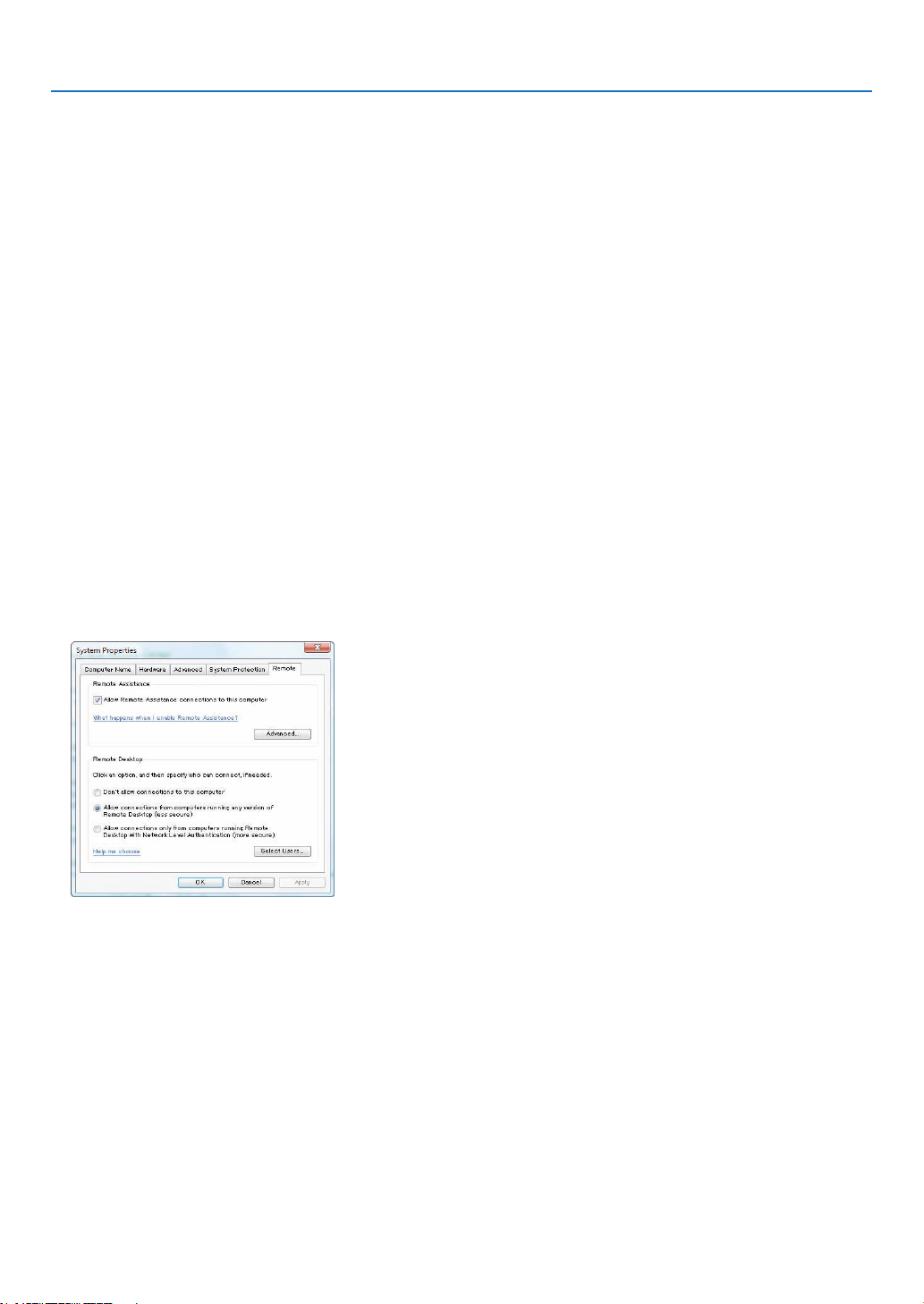
71
3. Convenient Features
Setting the password to the user account of Windows 7
TIP: If a password has been set for an account, the steps 1 to 9 can be skipped.
1. Click[Start]fromthedesktopofWindows7.
2. Click[ControlPanel].
3. Click[Addorremoveuseraccounts]displayedunder[UserAccounts].
4. Whenthe[UserAccountControl]conrmationwindowappears,click[Continue].
5. Click[Administrator].
6. Click[Createapassword].
7. Inputthepasswordtothe[Newpassword]box.
8. InputthesamepasswordasthatatStep7tothe[Conrmnewpassword]box.
9. Click[Createapassword].
TheAdministratorischangedto[PasswordProtection].
Setting the Remote Access
1. Click[Start]fromthedesktopofWindows7.
2. Click[ControlPanel].
3. Click[SystemandSecurity].
4. Click[Allowremoteaccess]displayedunder[System].
5. Whenthe[UserAccountControl]conrmationwindowappears,click[Continue].
The[SystemProperties]windowappears.
6. Click[AllowconnectionsfromcomputersrunninganyversionofRemoteDesktop(lesssecure)]inthe
RemoteDesktopboxandclick[OK].
CheckingtheIPaddressonWindows7
1. Click[Start]fromthedesktopofWindows7.
2. Click[ControlPanel].
3. Click[Viewnetworkstatusandtasks]displayedunder[NetworkandInternet].
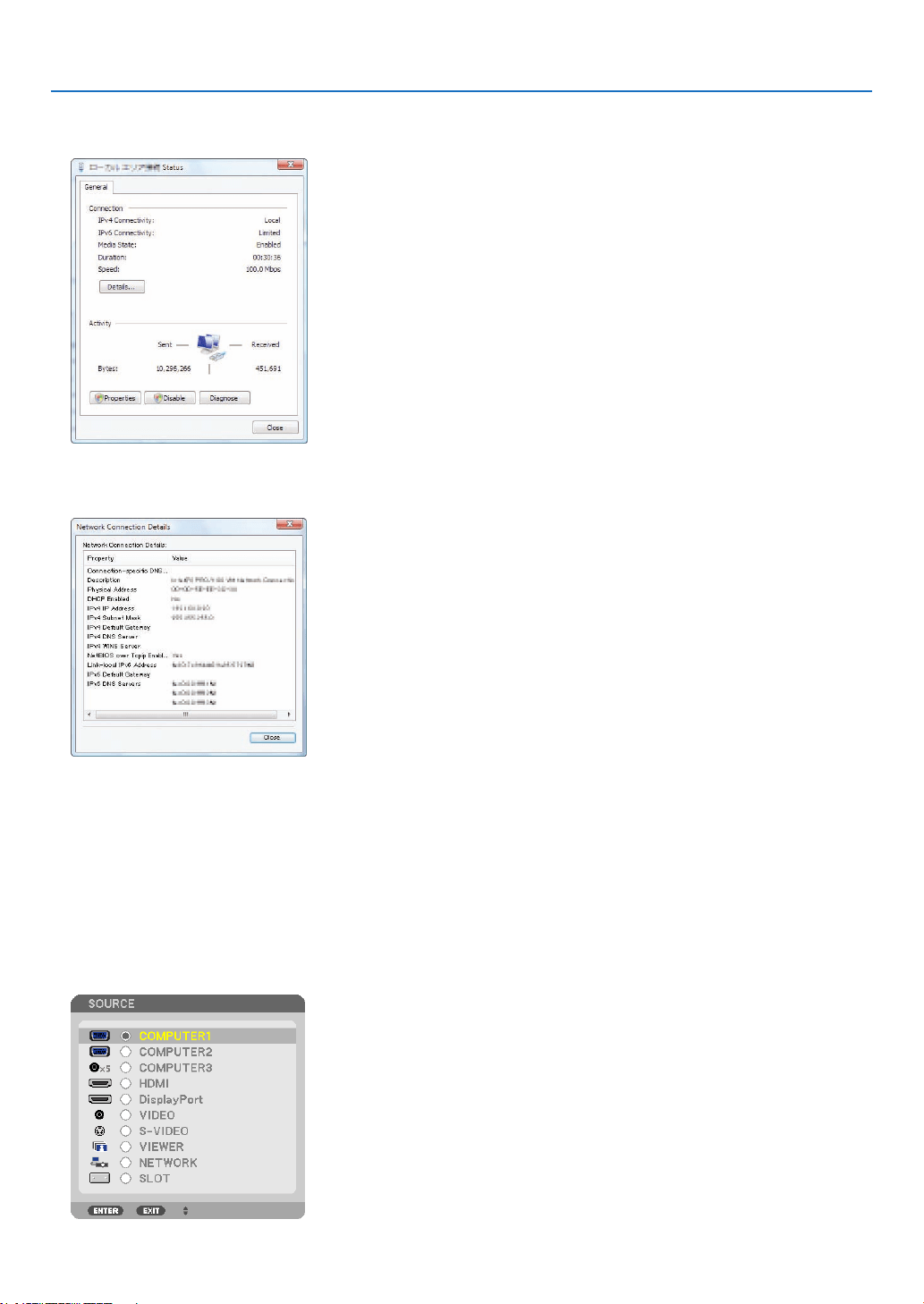
72
3. Convenient Features
4. Click[Viewstatus]displayedinblueontherightof[LocalAreaConnection]inthewindow.
The[LocalAreaConnectionStatus]windowappears.
5. Click[Details...].
Writedownthevaluefor“IPv4IPAddress”(xxx.xxx.xxx.xxx)displayed.
6. Click[Close].
7. Click[X]attheupperrightofthewindow.
Thesystemgoesbacktothedesktop.
StartingtheRemoteDesktop
1. Withtheprojectorturnedon,presstheSOURCEbutton.
The input selection window appears.
AnotherwaytodisplaytheinputselectionwindowistopresstheNETWORKbuttonontheremotecontrol.The
APPLICATIONMENUscreenwillbedisplayed.Gotostep3.
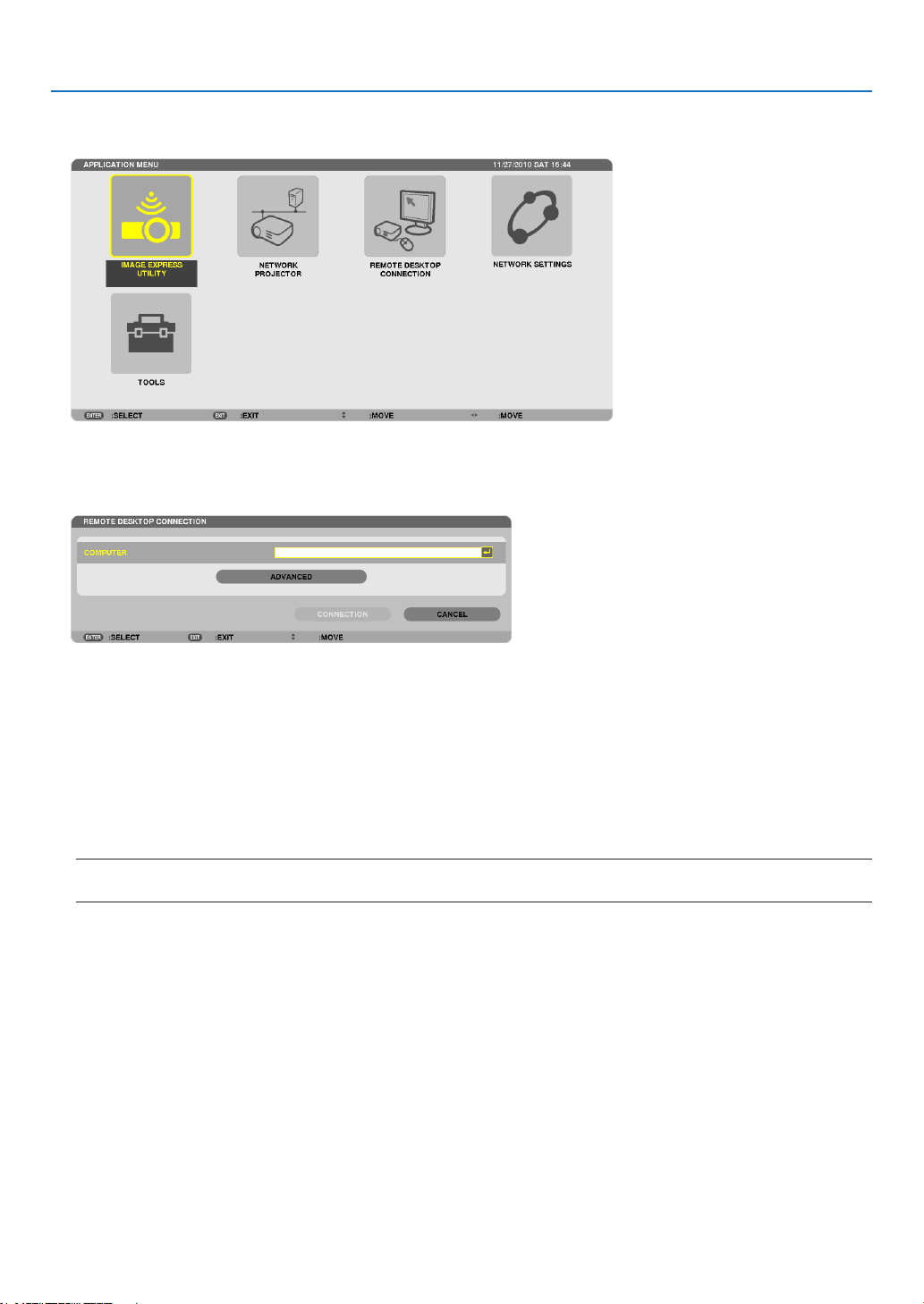
73
3. Convenient Features
2. Press the ▼ or ▲buttontoselect[NETWORK]andpresstheENTERbutton.
The[APPLICATIONMENU]menuwillbedisplayed.
3. Fromthe[APPLICATIONMENU]menu,usethewirelesskeyboardtoselect[REMOTEDESKTOPCONNEC-
TION].
The[REMOTEDESKTOPCONNECTION]windowappears.
4. OperatethewirelesskeyboardtoinputtheIPaddressofWindows7andclick[CONNECTION].
Thelog-onscreenofWindows7isdisplayedinthescreenprojectedbytheprojector.
5. Operatethewirelesskeyboardtoinputtheuser’spasswordandpress“Enter”.
Theremotedesktopfunctionisstarted.
Windows7desktopisdisplayedinthescreenprojectedbytheprojector.
Log out the computer.
UsethewirelesskeyboardconnectedtotheprojectortooperateWindows7.
NOTE:Whentheprojection ismade withtheremotedesktopfunction, thebackground colorofthedesktopis changedto
black.

74
3. Convenient Features
ExitingtheRemoteDesktop
1. Operatethewirelesskeyboardtoclick[Start]fromthedesktopscreenprojectedbytheprojector.
2. Click[X]ontherightofthestartmenu.
Theremotedesktopfunctionisstopped.
3. PresstheSOURCEbuttonoftheprojectortoselectaninputterminalotherthan[NETWORK].
Whenusingtheremotecontrol,pressabuttonotherthantheNETWORKbutton.
TIP:
Setting[OPTIONS]inREMOTEDESKTOP
Clicking[OPTIONS]displaysthe[PERFORMANCE]screen.
Makingsettingsto[OPTIONS]willallowyoutodisplaythedesktopbackground,ortoenablethewindowanimationfunctionduring
theRemoteDesktopoperation.However,doingthiswillcausethedisplay’sormouse’sresponsetoslowdown.
Ifthedisplay’sormouse’sresponseissloweddown,tryoneormoreofthefollowing:
DESKTOPBACKGROUND:Clearthecheckmarktodisplaythedesktopbackgroundinmonochrome.
MENUANDWINDOWANIMATION:Clearthecheckmarktodisablemenuandwindowanimation.
THEMES:ClearthecheckmarknottouseThemes.
SHOWCONTENTSOFWINDOWWHILEDRAGGING:Clearthecheckmarktoshowonlythewindowpanewhile
dragging.

75
3. Convenient Features
⓯ Viewing 3D Images
WhenconnectingtheSTEREODVIconnectoroftheprojectorwitha3Dplayer(Frame-SequentialMethod),youcan
view3DimagesbyusingLCDshuttereyeglasses.
Health precautions to users viewing 3D images
Beforeviewing,besuretoreadhealthcareprecautionsthatmaybefoundintheuser’smanualincludedwithyour
LCDshuttereyeglassesoryour3DcompatiblecontentsuchasDVDs,videogames,computer'svideolesand
thelike.
Toavoidanyadversesymptoms,heedthefollowing:
• DonotuseLCDshuttereyeglassesforviewinganymaterialotherthan3Dimages.
• Allowadistanceof2m/7feetorgreaterbetweenthescreenandauser.Viewing3Dimagesfromtooclosea
distancecanstrainyoureyes.
• Avoidviewing3Dimagesforaprolongedperiodoftime.Takeabreakof15minutesorlongeraftereveryhour
ofviewing.
• Ifyouoranymemberofyourfamilyhasahistoryoflight-sensitiveseizures,consultadoctorbeforeviewing3D
images.
• Whileviewing3Dimages,ifyougetsicksuchasnausea,dizziness,queasiness,headache,eyestrain,blurry
vision,convulsions,andnumbness,stopviewingthem.Ifsymptomsstillpersist,consultadoctor.
• View3Dimagesfromthefrontofthescreen.Viewingfromananglemaycausefatigueoreyestrain.
Preparation
HaveyourNVIDIA
®
3DVision™Proorequivalentsystemready.
• AgraphicscardsuchasNVIDIAQuadro
®
supportingframesequentialmethodand1080p/120Hz(DVIDualLink)
signal
• Acomputerwiththeabovementionedgraphicscardor3Dapplication
• LCDshuttereyeglassescompatiblethesystem
• SynctransmitterforLCDshuttereyeglassessupportingthesystem
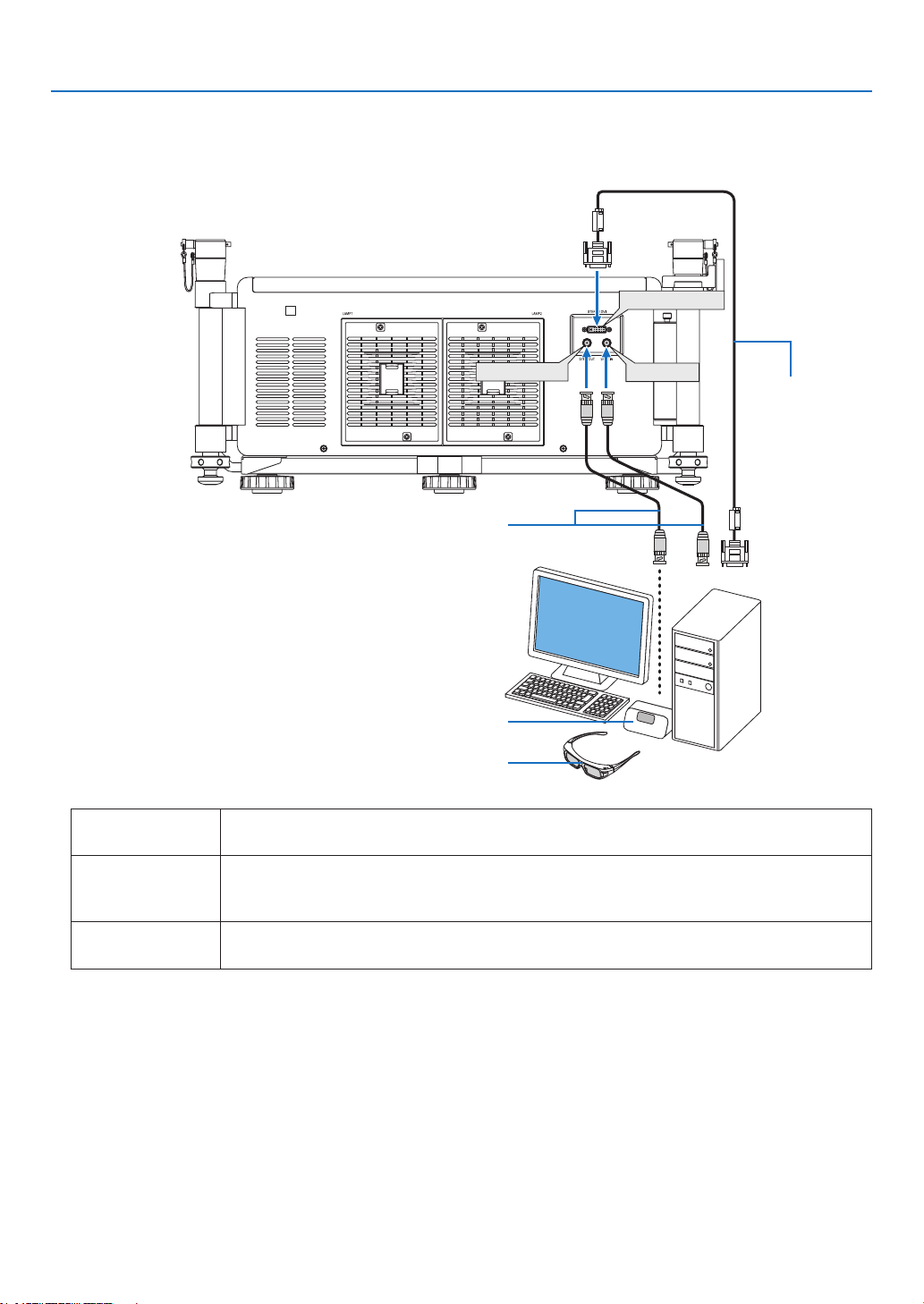
76
3. Convenient Features
Steps to view 3D images
1. ConnecttheSTEREODVI,SYNCOUT,andSYNCINconnectorstothesystem.
STEREO DVI
SYNC IN
SYNC OUT
CommerciallyavailableBNCcable
SynctransmitterforLCDshuttereyeglasses
LCD shutter eyeglasses
Commercially
availableDual
Linkcable
STEREODVI
(DualLink)
Connecttoa3Dsourceoracomputerwith3Dgraphicscardand3Dapplications.
SYNCIN Connecttoa3Dsourceorcomputerwith3Dgraphicscardand3Dapplicationstomake
suretheleft/righteyecontentissynchronizedtotheuserandtheprojector.Some3Dsystem
doesnotusethisconnector.
SYNCOUT ConnecttothesynctransmitterthatsendsL/RsignalstothereceiverinLCDshuttereye-
glassesthatcontrolL/Rshuttersalternatively.
2. PresstheAUXbuttonontheremotecontroltodisplay3Dimages.
Selectanotherinputbypressingoneoftheinputsourcebuttonsontheremotecontrol.

77
3. Convenient Features
NOTE:
Thefollowingfunction,buttonsandadjustmentitemsarenotavailablewhen3Dimageisdisplayed
• Onscreenmenu
• 3DREFORMbutton(Keystonecorrection)
• D-ZOOMbuttons(Digitalzoomfunction)
• FREEZEbutton
• ON-SCREENbutton
• PICTUREbutton
• AV-MUTEbutton
REFERENCE:
WithPCControlUtilityPro4,youcanadjustthe3Dsettings.NotethatPCControlUtilityPro5doesnotallowfor
adjustingthe3Dsettings.
ToinstallPCControlUtilityPro4toyourcomputer,seepage196.
ForinformationonhowtousePCControlUtilityPro4,seeHelpofPCControlUtilityPro4.
Adjusting 3D image
ColorTemperature:Thisallowsyoutoselectthecolortemperatureof3Dimage.
WhiteBalance:Thisallowsyoutoadjustthewhitebalanceof3Dimage.Contrastforeachcolor(RGB)toadjustthe
whitelevelofthescreen;Brightnessforeachcolor(RGB)isusedtoadjusttheblacklevelof3Dimage.
3DSettings:MakesettingsforDarkTime,SyncInvert,SyncDelay,SyncReferenceasnecessary.

78
4. Using the Viewer
❶ What you can do with the Viewer
TheViewerfeatureallowsyoutoviewslidesormovielesstoredonaUSBmemoryontheprojector,orashared
folderinacomputerconnectedtothenetwork.
TheViewerhasthefollowingfeatures.
• WhenacommerciallyavailableUSBmemorythatstoresimagelesisinsertedintotheUSBport(TypeA)ofthe
projector,theViewerallowsyoutoviewtheimagelesontheUSBmemory.
Evenifnocomputerisavailable,presentationscanbeconductedsimplywiththeprojector.
• Movielecanbeplayedback.
• AMicrosoftPowerPointleorAdobePDFlecanbesimplyprojectedonthescreenwithoutconnectingacom-
puter.
• Imageandmovielesstoredinasharedfolderinacomputerconnectedtoanetworkcanbeprojected.
Thecomputerwith“MediaSharing”ofWindowsMediaPlayer11turnedoncanbeusedasamediaserver.
Supported graphic formats
Format Filenameextension
JPEG .jpg,.jpe,.jpeg(CMYKisnotsupported.)
BMP .bmp(biteldnotsupported)
PNG .png(InterlacedPNGandαchannelPNGarenotsupported.)
GIF .gif(InterlacedGIF,transparationGIF,andanimationGIFarenotsupported.)
*Ifanunsupportedimageisselected,theicon willbedisplayed.
NOTE:
Maximumnumberofpixelsofimagewhichcanbedisplayedare:
• ProgressiveJPEG:1280×1280
• GIF:1280×1280
• Others:4000×4000
• Somelessupportedbytheaboverequirementsmaynotbedisplayed.
Supported movie files
Filenameextension Videocompression/expansionmethod Audiocompression/expansionmethod
.mpg,.mpeg MPEG2 MPEGAudioLayer2
MPEGAudioLayer3
.wmv VC-1/WMV9 WMA9Standard
.mp4 H.264/AVC AAC-LC
Playbackrequirements:
Resolution:320×240to1280×720
Videoframerate:upto30fps
Bitrate:upto15Mbps
Max.lesize:upto2GB
NOTE:
• Somelessupportedbytheaboverequirementsmaynotbeplayedback.
Whenasupportedmovieleisplayedback,itsaudiowillnotbeoutputfromtheprojector.

79
4. Using the Viewer
NOTE:
• Movielesconvertedbyusingthevideo/audioformatwhichisnotsupportedbythisprojectorcannotbeplayedback.
In this case, there will be no icon to show that playback is not possible.
• FileswithDigitalRightsManagement(DRM)protectioncannotbeplayedback.
• Someofthemovielesthatmeettheaboverequirementsmaynotbeplayedback.
• WMVformatvideolewillbedisplayedinanaspectratioof1to1independentlyofitsoriginalaspectratio.
• Filesthatcanbeplayedbackonthemediaserveraregraphicsandmovieles.InWindowsMediaPlayer11(WindowsXP/
WindowsVista)mp4lescannotbeplayedback.
Supported PDF files
Filenameextension Supportedleformat
.pdf AdobeAcrobatPDF
NOTE:
• FontsnotembeddedinPDFlemaynotbedisplayed
• FunctionsaddedtoPDFleaftercreatedwillnotworkordisplay.Functionsaddedarebookmarks,boxesinformtool,andnotes
will not be displayed.
AutoiporAutotransitionwillnotwork.
• SomePDFlesmaynotbedisplayed.
Supported PowerPoint files
Filenameextension Supportedleformat
.ppt MicrosoftPowerPoint97–2003
NOTE:
• Playablefonts,colors,fontornament,placement,objectinsertionoranimationarerestricted.
• SomeMicrosoftPowerPoint97–2003lesmaynotbedisplayed.
SupportedUSBmemorydevices
- BesuretouseaUSBmemorydeviceformattedwiththeFAT,exFAT,FAT32orFAT16lesystem.
TheprojectordoesnotsupportNTFSformattedUSBmemory.
IftheprojectordoesnotrecognizeyourUSBmemory,checkiftheformatissupported.
ToformatyourUSBmemoryinyourcomputer,refertothedocumentorhelplethatcomeswithyourWin-
dows.
- WedonotwarrantthattheUSBportoftheprojectorwillsupportallUSBmemoriesinthemarket.
- Waitatleast5secondsafterdisconnectingaUSBmemorydevicebeforereconnectingitandviceversa.
TheprojectormaynotidentifytheUSBmemorydeviceifitisrepeatedlyconnectedanddisconnectedinrapid
intervals.

80
4. Using the Viewer
Notices on shared folder and media server
• Filesfromasharedfolderormediaservermaynotbeprojectedifsecurityorantivirussoftwareisinstalledonyour
computer.
• Openthefollowingrewallports:
- Mediaserver
Portnumber Protocol
1900 UDP
2869 TCP
10243 TCP
10280-10284 UDP
- Sharedfolder
Portnumber Protocol
137 UDP/TCP
138 UDP/TCP
139 UDP/TCP
445 UDP/TCP
• Setyourcomputerforsharingandsecuritytograntaccesstolesinthesharedfolderandsetyoursecurityor
antivirussoftwaretograntaccesstolesinthesharedfolder.Consultyournetworkadministratorformoreinforma-
tion.
• Movielesinthesharedfolderorthemediaservermaynotbeplayedbackcorrectlydependingonyournetwork
environmentorthebitrateofyourle.
NOTE:
DonotdisconnectbetweentheprojectorandyourcomputerbyremovingtheLANcableorturningofftheprojectorwhenaPow-
erPointleorPDFleisdisplayedfromasharedfolder.
DoingsowillmakeViewerinoperable.
NOTE:
• ThefollowingoperationsbyusingthebuttonsontheprojectorarenotpossiblewhentheVIEWERscreensuchastheslidescreen
and the thumbnail screen is displayed.
- AutoAdjustmentbyusingtheAUTOADJ.button
• FreezingpicturebyusingtheCTL+PIP/FREEZEorAUTOADJ.buttonontheremotecontrolisnotpossiblewhentheVIEWER
screen such as the slide screen and the thumbnail screen is displayed.
• Executing[RESET]→[ALLDATA]fromthemenuwillreturnthesettingsfortheViewertoolbartothefactorydefault.
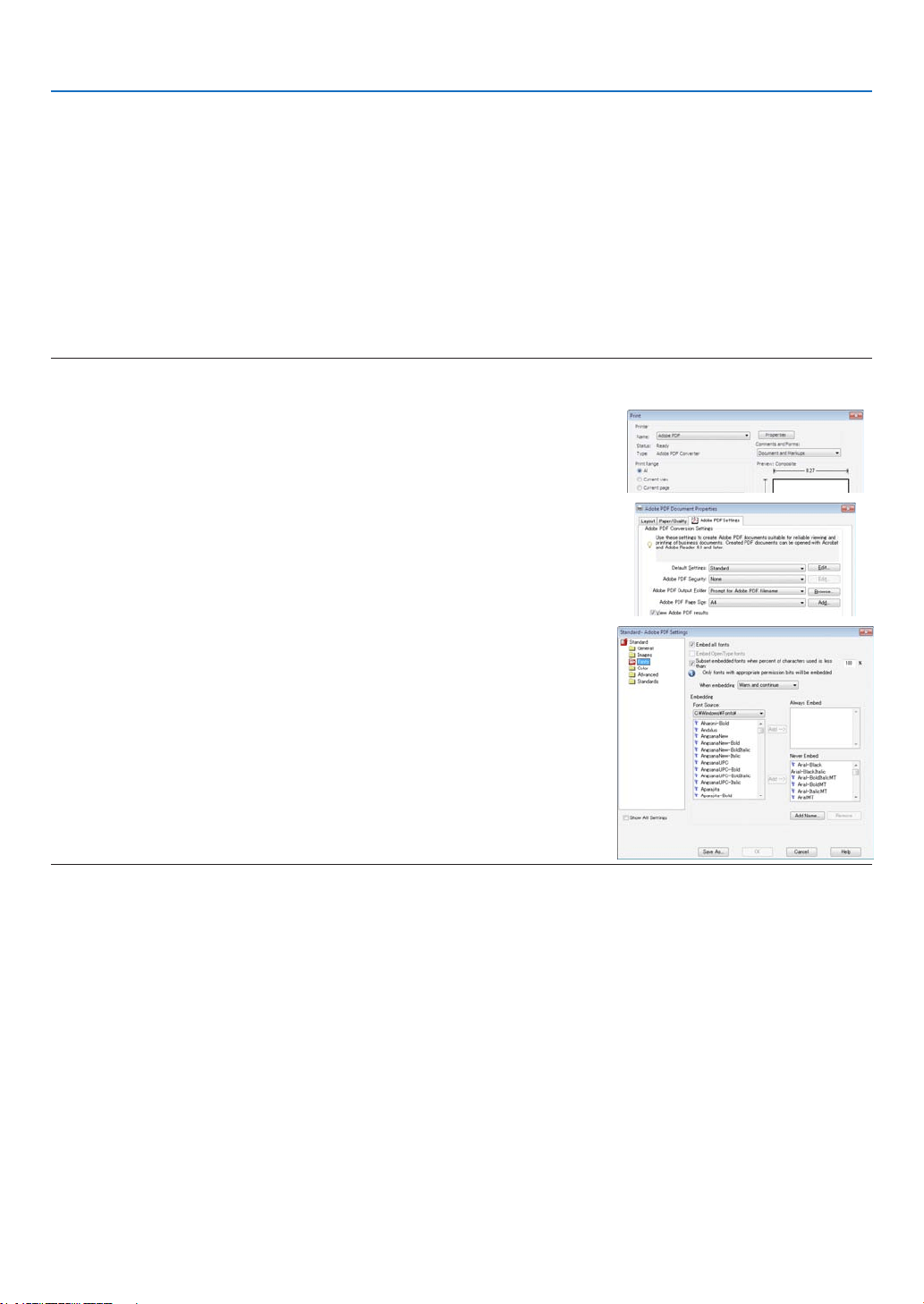
81
4. Using the Viewer
❷ Preparing presentation materials
1. Createyourpresentationmaterialsandsavetheminasupportedleformattoyourcomputer.
• Seepage103forsupportedleformats.
• MakesurethatPowerPointleisdisplayedontheViewerbeforegivingyourrealpresentation.
WithViewerPPTConverter3.0,youcanconvertyourPowerPointlestoindexlesthatcanbedisplayedon
theViewer.ViewerPPTConverter3.0canbedownloadedfromourwebsite.
• WhencreatingaPDFle,embedyourfontsinyourPDFle.EmbeddingfontsrequiresAdobeAcrobat.This
cannotbedoneinAdobeReader.
TIP:
•UsingPrintCommand
ExampleforfontembeddingusingPrintCommand.SeethehelpofAdobeAcrobatformoreinformation.
1. Select“Print”fromthe“File”menu.
2. Select“AdobePDF”from“Printername”andclickthe“Properties”but-
ton.
3. Clickthe“Edit”buttoninthe“AdobePDFSettings”tab.
4. ClickthefonttabintheEditwindowtoselectthefontembedwindow.
5. Placeacheckmarkfor“Embedallfonts”.
Click“OK”toreturntothePrintwindow,andclick“OK”tostartcreatinga
PDFle.
2. Save a file to your drive.
TosavealetoyourUSBmemory:
UsetheWindowsExploretocopytheletoyourUSBmemory.
Toplacealeinasharedfolderyoucreateinyourcomputer,seepage94.
Touse“MediaSharing”inWindowsMediaPlayer11,seepage98.
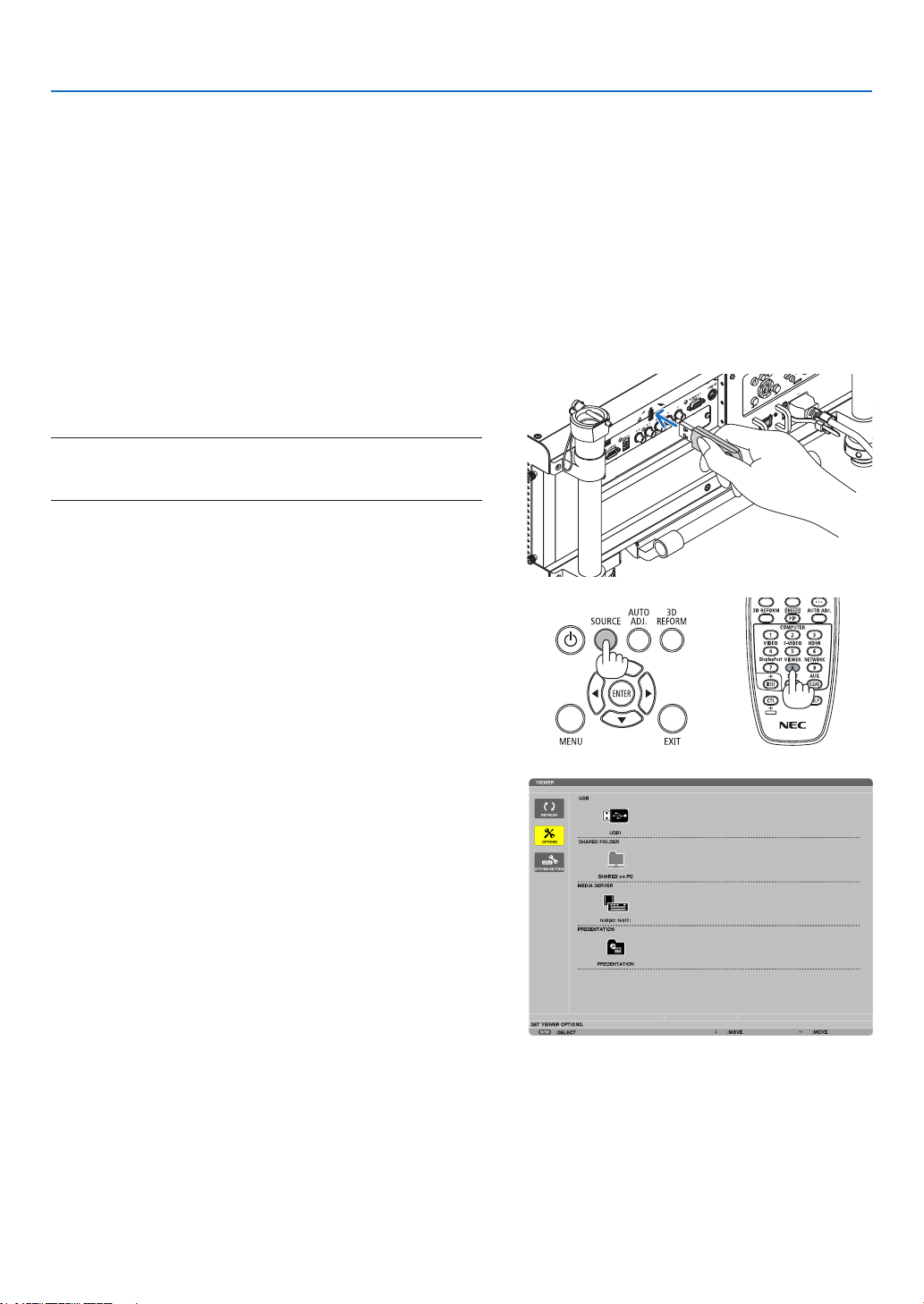
82
4. Using the Viewer
❸ Projecting images stored in a USB memory device
ThissectionexplainsthebasicoperationoftheViewer.
TheexplanationprovidestheoperationalprocedurewhentheViewertoolbarissettothefactorydefault.
Preparation:BeforestartingtheViewer,storeimagestotheUSBmemoryusingyourcomputer.
Starting the Viewer
1. Turnontheprojector.(→ page 18)
2. InserttheUSBmemoryintotheUSBportoftheprojec-
tor.
NOTE:
• DonotremovetheUSBmemoryfromtheprojectorwhileit’sLED
ashes.Doingsomaycorruptthedata.
TIP:
YoucanaUSBmemoryinserttheprojectorwhenthedrivelistscreen
is displayed.
3. PresstheSOURCEbuttontoselect[VIEWER].
ApressoftheSOURCEbuttonwilldisplaythesourceselect
screen.
AfewmorepressesoftheSOURCEbuttonwilldisplaythe
drive list screen.
Anotherwaytoselect[VIEWER]istopresstheVIEWER
buttonontheremotecontrol.
TIP:
• Formoreinformationaboutthedrivelistscreen,seepage86.
• Todisplaygraphicsinasharedfolder,seepage94; to display still
imagesormovielesinamediaserver,seepage98.
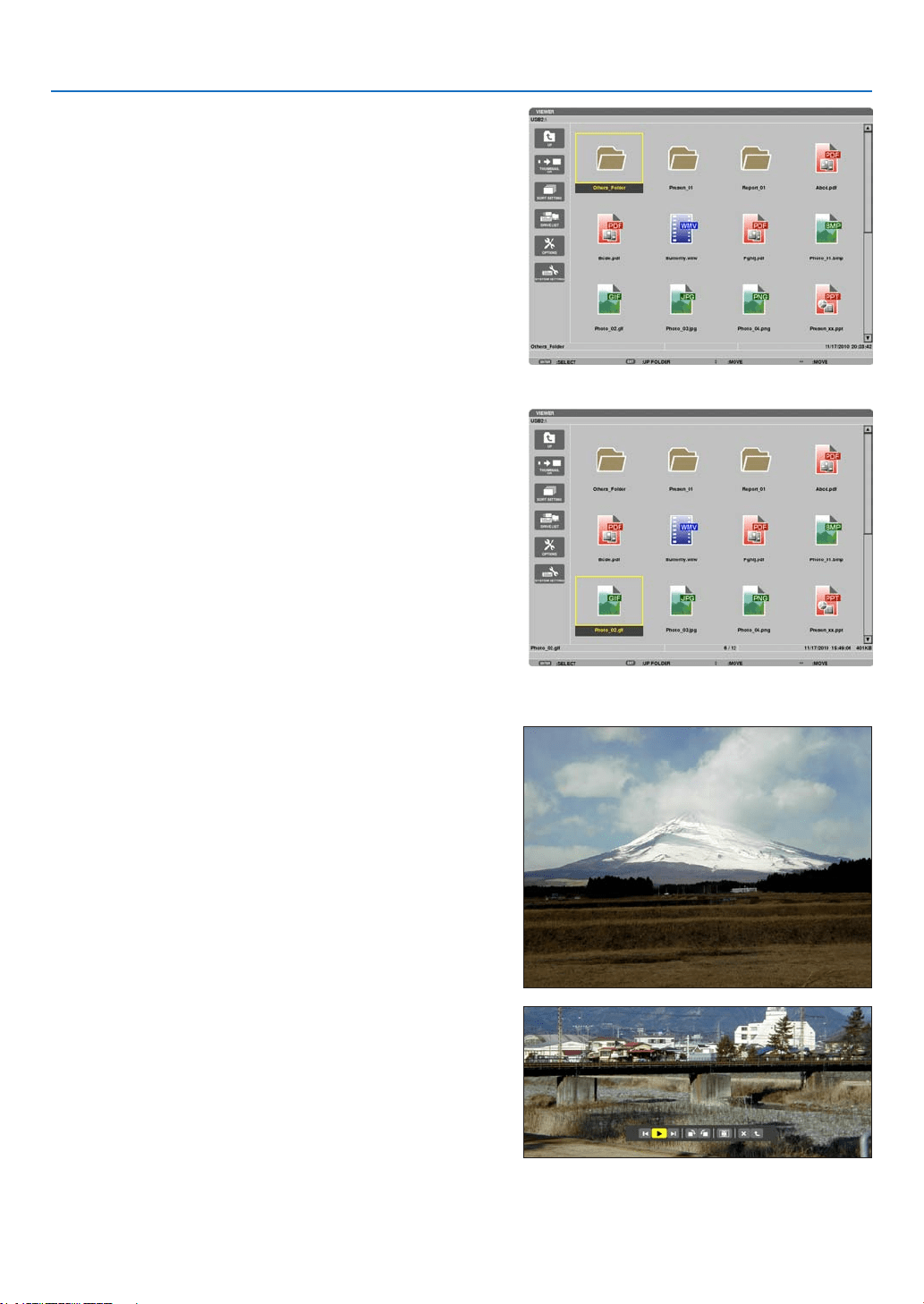
83
4. Using the Viewer
4. Press the ▶ button to select“USB1” and press the
ENTERbutton.
The“USB1”thumbnailscreenwillbedisplayed.
TIP:
• Formoreinformationaboutthumbnailscreen,seepage88.
5. Use the ▲▼◀ or ▶ button to select an icon.
• The→(arrow)symbolontherightindicatesthereare
more pages.
6. PresstheENTERbutton.
Operationvariesdependingontheselectedle.
•Stillimage
Theselectedslidewillbedisplayed.
The ◀ or ▶buttoncanbeusedtoselectthenext(right)
slideortheprevious(left)slideinthethumbnailscreen.
• PressingtheENTERbuttonwilldisplaythecontrolbar
with which is used to select or rotate an slide.(→ page
89)
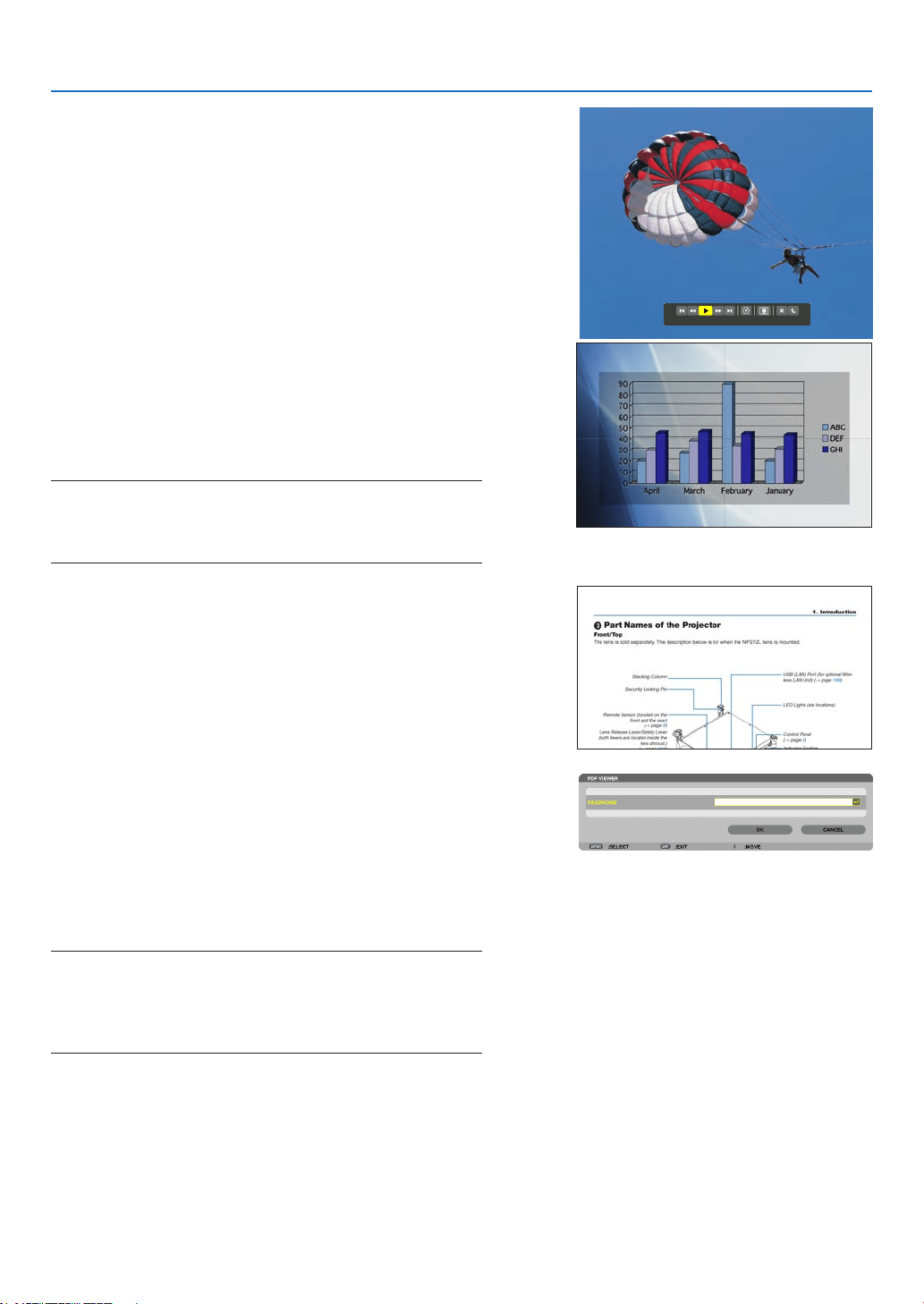
84
4. Using the Viewer
•Moviele
Themovielewillstartplaying.
Afternishingtheplayback,thescreenwillturntoblack.
PresstheEXITbuttontoreturntothethumbnailscreen.
• Pressing the ENTER button will display the movie’s
controlbarwithwhichyoucanpauseorfastforwardand
some other operations.
•MicrosoftPowerPointle
Theslideontherstpagewillbedisplayed.
Press ▶ to select the next slide; press ◀ to select the previ-
ous slide.
• Youcanalsousethe▼ or ▲buttontoselectapage.To
returntothethumbnailscreen,presstheEXITbutton.
NOTE:
• Files with slideshow or animation effects may not be correctly
displayedontheViewer.
See“SupportedPowerPointles”onpage79, 103.
•AdobePDFle
Therstpagewillbedisplayed.
• ThePDFlewillllthewidthofthescreen.
Pressing the ▼ or ▲buttonwillscrollthescreendownor
up.
Toreturntothethumbnailscreen,presstheEXITbutton.
• Whenapassowordinputwindowisdisplayed,itmeans
thatthePDFleispassword-protected.
Pressing the ENTER button will show the software
keyboard. Use the software keyboard to enter your
password.
Select[OK]andpresstheENTERbutton.ThePDFle
willbedisplayed.
• Formoreinformationonthesoftwarekeyboard,seepage
157.
NOTE:
BookmarksandnotesthatwereaddedafterPDFconversionwillnot
be displayed.
IffontswerenotembeddedatthetimeofPDFconversion,thosefonts
will not be displayed.
TIP:
It takes some time (about 30 seconds to two minutes) to display a
largesizeleortoturnpagesofaPDFlethathasmanypages.
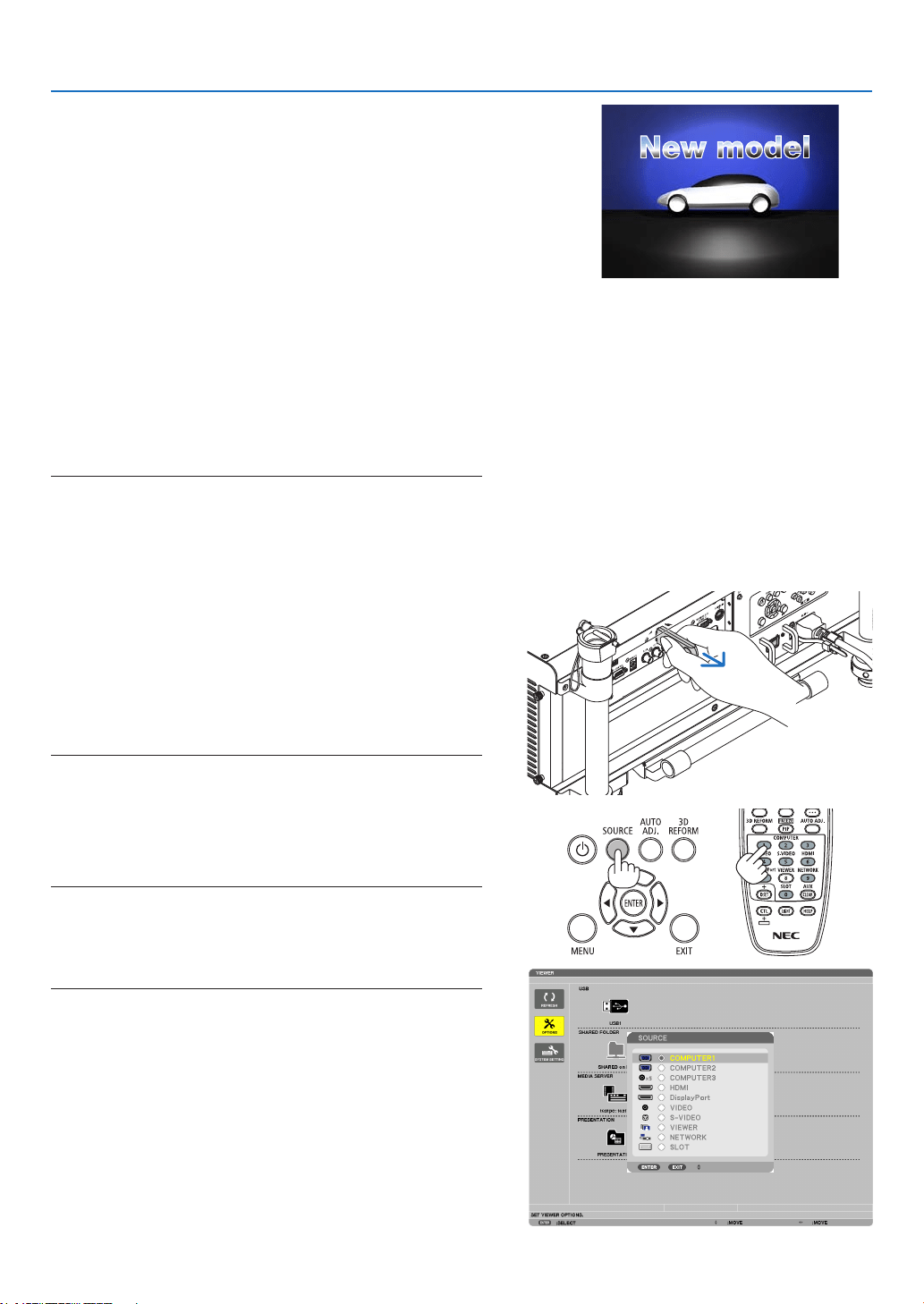
85
4. Using the Viewer
•Indexle(extension:.idx)
• Index les, which is converted by usingViewer PPT
Converter3.0,willappearintheThumbnailscreen.
Only folders and JPEG files conver ted by using
ViewerPPTConverter3.0willappearintheThumbnail
screen.
• Toselectslideshowofindexles,openthe[PRESENTA-
TION]folderintheDRIVELISTscreen.
However, index les will not appear. Only foldersand
JPEGleswillappear.
• UptofourindexfoldersinyourUSBandsharedfolder
aredisplayed.Thefourfolderswillbedisplayedinreverse
chronological order
• WhenyouinserttheUSBmemorydevicestoringindex
withtheViewerinoperation,thecontentoftheindexles
willbedisplayed.
NOTE:
• Theplaymode(MANUAL/AUTO)forslidesofindexleworksin
the following way:
Incaseof[MANUAL]for[PLAYMODE]
Whenyouselect[OPTIONS]→[SLIDESETTING]→[PLAYMODE]
→[MANUAL],indexleswillbesetformanualplaybackinregard-
lessofwhether[INTERVAL]isset.
Incaseof[AUTO]selectedfor[PLAYMODE]
Whenyouselect[OPTIONS]→[SLIDESETTING]→[PLAYMODE]
→ [AUTO], index les will be set for auto playback at intervals
speciedbyusing[INTERVAL].
When,however,[-1]isselectedfor[INTERVAL],theplaymodewill
besetforautoplaybackaccordingtothesettingfor[OPTIONS]→
[SLIDESETTING]→[INTERVAL].
7. RemovetheUSBmemoryfromtheprojector.
Returntothedrivelistscreen.MakesurethattheLEDon
theUSBmemoryisnotashingbeforeremovingtheUSB
memory.
NOTE:IfyouremovetheUSBmemoryfromtheprojectorwithaslide
displayed, the projector may not operate correctly. If this happens,
turn off the projector, turn off the main power switch, and unplug the
powercord.Wait3minutes,thenconnectthepowercord,turnon
the main power switch, and turn on the projector.
Exiting the Viewer
1. PresstheSOURCEbuttontoselectasourceotherthan
[VIEWER].
ApressoftheSOURCEbuttonwilldisplaythesourceselect
screen.
A few more presses of the SOURCE button will display
another source.
• To exit theViewer using the remote control, select a
sourceotherthan[VIEWER].
XXXX Motors
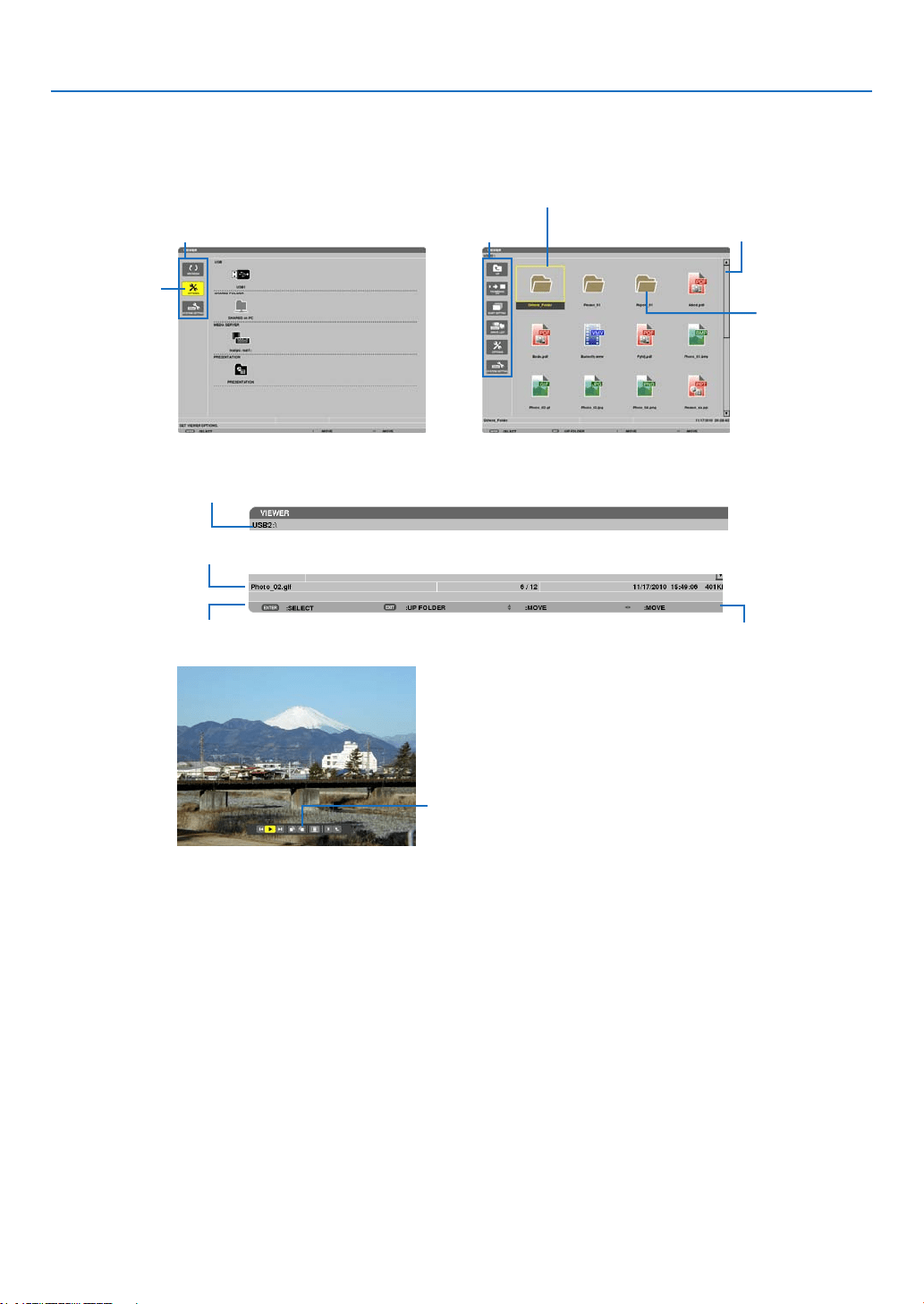
86
4. Using the Viewer
Names and functions of Viewer screen
TheViewerhasthreescreens:Drivelistscreen,Thumbnailscreen,andSlidescreen.
•Drivelistscreen
Displaysalistofdrivesconnectedtotheprojector.
Menu operation
• Usethe▼ or ▲buttontomovethecursorupordown.SelectthemenuitemandpresstheENTERbutton
to display the submenu.
Operation for Drive list screen
1. Press the ▶ button to move the cursor to the drive list.
(Use the ◀ or ▶buttontoswitchbetweenthemenuandthedrivelist.)
Press the ▼ or ▲buttontoselectatypeofdrive;pressthe◀ or ▶buttontoselectthedriveconnectedtothe
projector.
2. SelectthedriveandpresstheENTERbuttontoswitchtothethumbnailscreenoftheselecteddrive.
Cursor (yellow)
Cursor (yellow)
Menu Menu
Scrollbar
[Drive list screen] [Thumbnailscreen]
Folder icon
Path information
Drive information/File information
Menu guide
Operationbuttonguide
Controlbar
* The operation for still image differs from that for movie.
[Slidescreen]
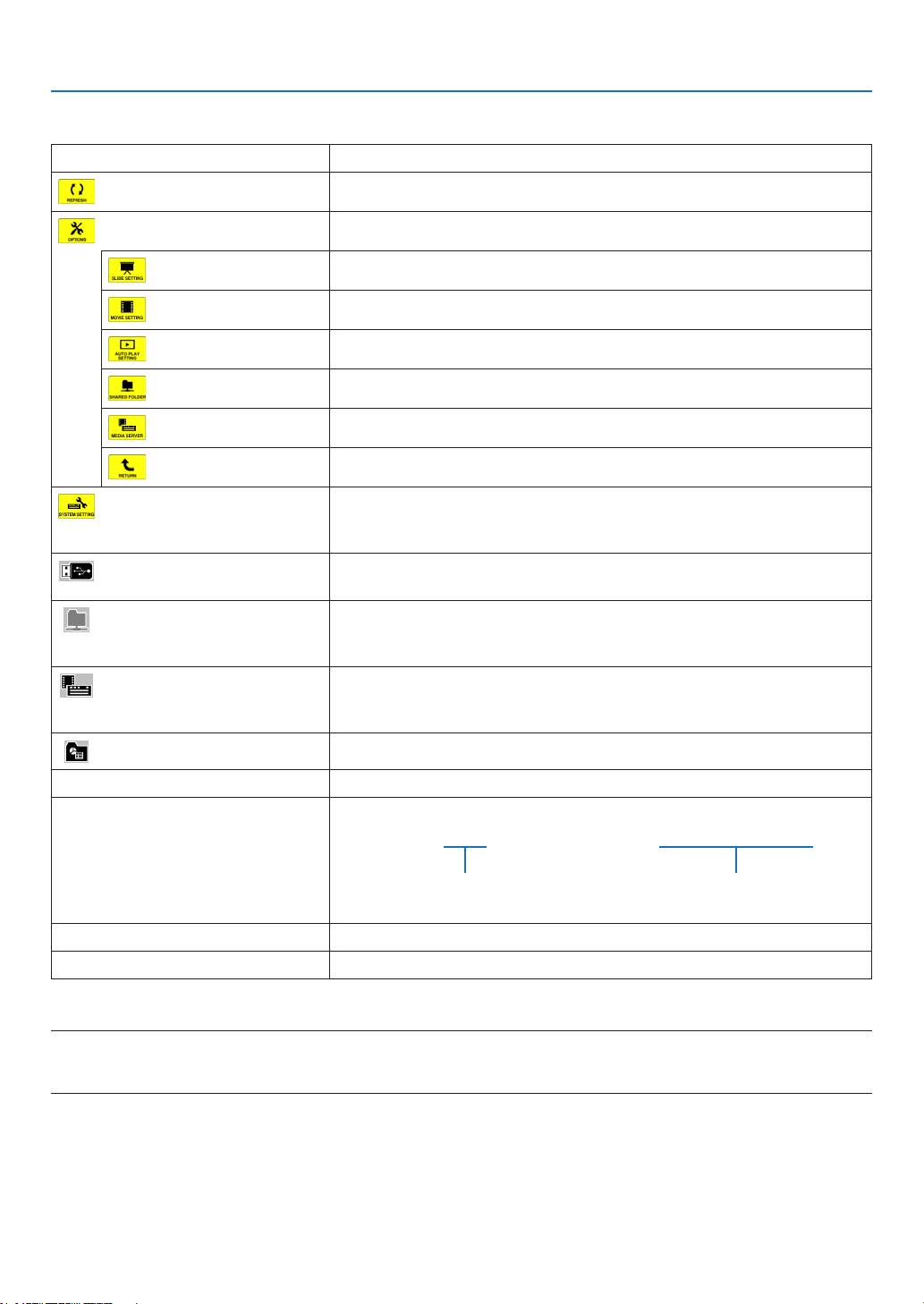
87
4. Using the Viewer
Functions
Name Description
REFRESH Displaysadditionalmediaserversinthedrivelistscreen.
OPTIONS OpenstheOPTIONSmenu.
SLIDESETTING Setsupslides.(→page91)
MOVIESETTING Setsupmovieles.(→page92)
AUTOPLAYSETTING Setsupautoplay.(→page92)
SHAREDFOLDER Setsupasharedfolder.(→page94)
MEDIASERVER Setsupamediaserver.(→page98)
RETURN ClosestheOPTIONSmenu.
SYSTEMSETTING Switchestothesystemsettingmenu.SeewiredLAN,wirelessLAN,WPS,
networkinformation, mouse,andkeyboard in“9.Application Menu”.(→
page144)
USB Displays theicon fora USBmemory inserted into theUSB port of the
projector.
SHAREDFOLDER DisplaysuptofourdrivesofacomputerconnectedtoaLAN(setforcon-
nectingasharedfolder).
*Seepage94forsettingupforconnectingasharedfoleroftheprojector.
MEDIASERVER DisplaysuptofourdrivesofacomputerconnectedtoaLAN(setforcon-
nectingamediaserver).
*Seepage98forsettingupforconnectingamediaserveroftheprojector
PRESENTATION DisplaystheiconwhenaUSBmemoryorsharedfolerstoresindexles.
Pathinformation Displaysthelocationofafolderorle.
Driveinformation [Example]
USB1 314MBFREE/492MB
Displaysthedrive. Displaysfreespaceandcapcityof
adrive.(USBonly)
Menuguide Displaysthedescriptionofaselectedmenu.
Operationbuttonguide Displaysinformationaboutoperationbuttons.
*Itisdisplayedinthree-digitnumber(roundingup)
NOTE:
WhentheOPTIONSmenuisdisplayed,thedrivelistscreenorthumbnailscreenisnotdisplayed.Todisplayit,selectthe[RETURN]
iconandpresstheENTERbutton.
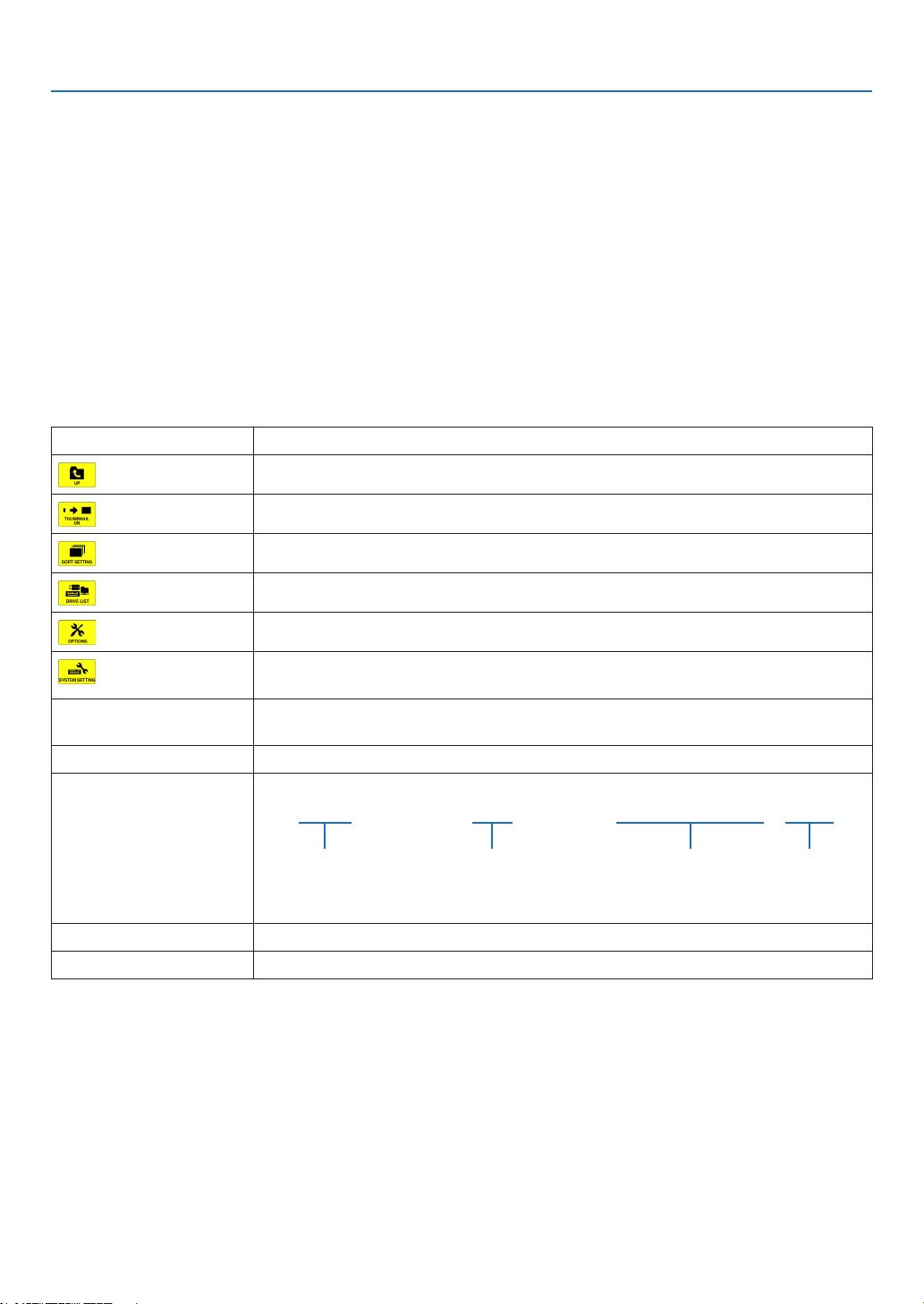
88
4. Using the Viewer
•Thumbnailscreen
Displaysalistoffolders,thumbnails,andiconsinthedriveselectedonthedrivelistscreen.
Menu operation
• Usethe▼ or ▲buttontomovethecursorupordown.SelectthemenuitemandpresstheENTERbutton
to display the menu or setting screen.
Operation for Thumbnail screen
1. Press the ▶ button to move the cursor to the thumbnail screen when the OPTIONS menu is not dis-
played.
2. Press the ▼, ▲, ◀, or ▶buttontoselectaleorfolder.
3. PresstheENTERbuttontostartslideshoworplaybackoftheselectedle.Selectingafolderwilldisplay
its thumbnail screen.
Functions
Name Description
UP Goestooneupperlevelmenu.
THUMBNAIL Switchestwodisplaysbetweenthumbnailandicon.
SORTSETTING Rearrangesfoldersorles.
DRIVELIST Returnstothedrivelistscreen.
OPTIONS ChangestotheOPTIONSmenu.
SYSTEMSET-
TING
Opensthesystemsettingmenu.
Scrollbar Thumbnailscreenwilldisplay12leswith4by3.Ifthethumbnailscreenhastwelve
ormorelesorfolders,thescrollbarwillbedisplayedattherightside.
Pathinformation Displaysthelocationofafolderorle.
Thumbnailinformation [Example]
005.jpg 5/200 11/03/201013:25:12 502KB
Selectedfolder
nameorle
name
Numbersandorderof
lesinafolder(only
whenfolderselected)
Create/Changedate:
M/D/Y/H/M/B
Displaysle
capacity
Menuguide Displaysthedescriptionofaselectedmenu.
Operationbuttonguide Displaysinformationaboutoperationbuttons.
TIP:
• Ifanunsupportedimageisselected,theicon[?]willbedisplayed,
• Themaximumdisplayablenumberofimagesis300inthethumbnailscreenincludingthenumberoffolders.
• Ifalenameorpathofafolderislongerthanspecied,itwillbedisplayedwithcentercharactersorpathskipped.
Example:“123456789.jpg”willbedisplayedin“123..789.jpg”.
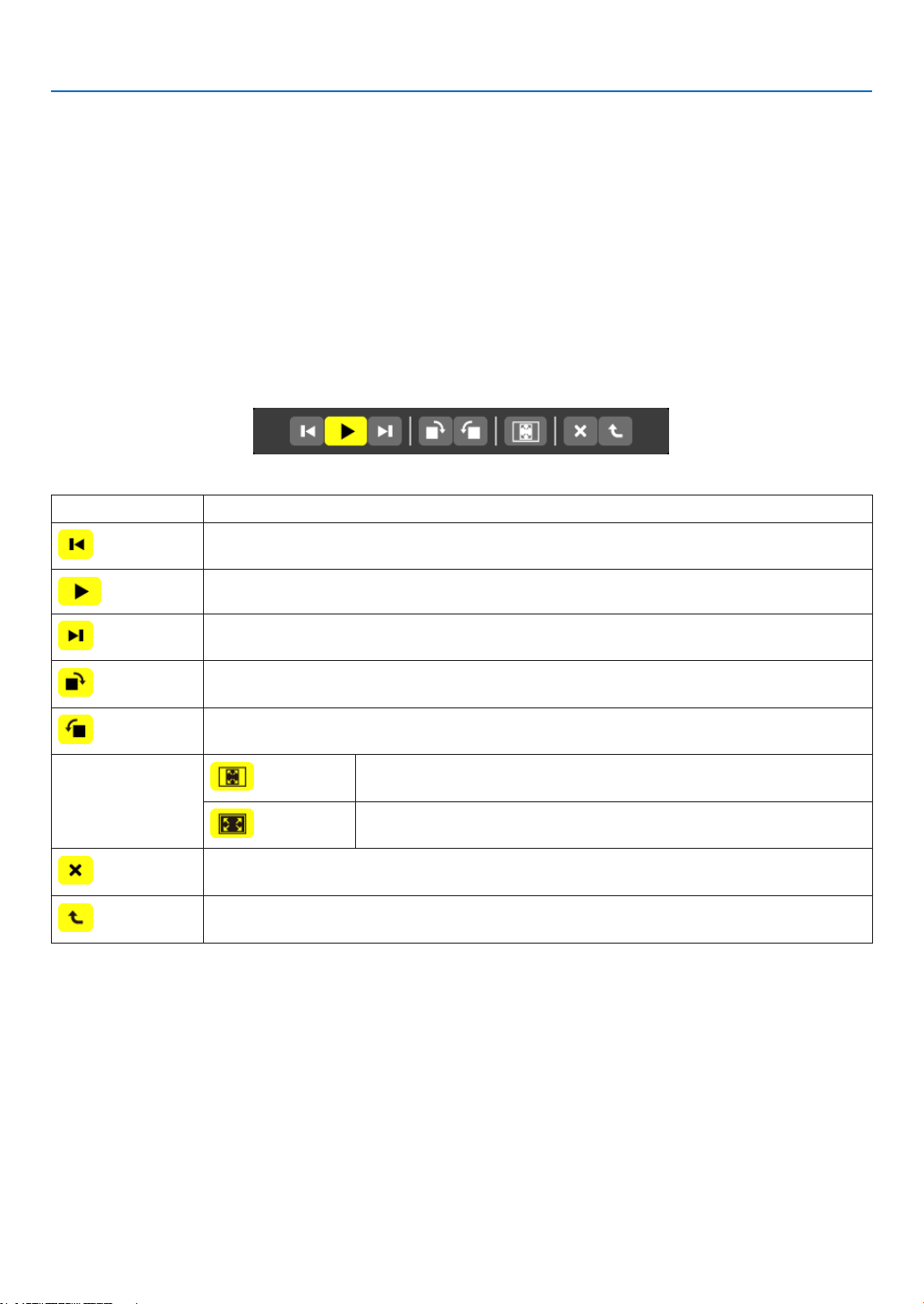
89
4. Using the Viewer
•Slidescreen(stillimage/movie)
Playsaleselectedfromalistofthumbnailsoricons.
• ForoperatingaMicrosoftPowerPointleandAdobePDFle,seepage84.
Control bar operation
• Thecontrolbarwillbedisplayedonlywhenastillimage(orindexle)andamovieleisselected.
• Thecontrolbarforstillimagesdiffersfromthatformovieles.
1. PressingtheENTERbuttoninSlidescreenwilldisplaythecontrolbaratthebottomofthescreen.
2. Use the ◀ or ▶buttontoselectaleandpresstheENTERbutton.
• Theselectedfunctionwillbeexecuted.
Functions of still image control bar
Name Description
PREV Goesbacktothepreviousimage
The▲buttonwilldothesamefunction.
PLAY Playstheimage.Thisbuttonalsoisusedtostoporstartplayinganimage.
NEXT Goestothenextimage.
The▼buttonwilldothesamefunction.
RIGHT Rotatestheimage90°clockwise.
• Tocancel,selectanotherfolder.
LEFT Rotatestheimage90°counterclockwise.
• Tocancel,selectanotherfolder.
SIZE BESTFIT Displaystheimagewith itsaspectratiointheprojector’sdisplayable
maximumresolution.
ACTUAL
SIZE
Displaystheimageinitsactualsize.
CLOSE Closesthecontrolbar.
• YoucanalsopresstheEXITbuttontoclosethecontrolbar.
END Stops playing slides orslideshow,and closes the control bar to return to thethumbnail
screen.
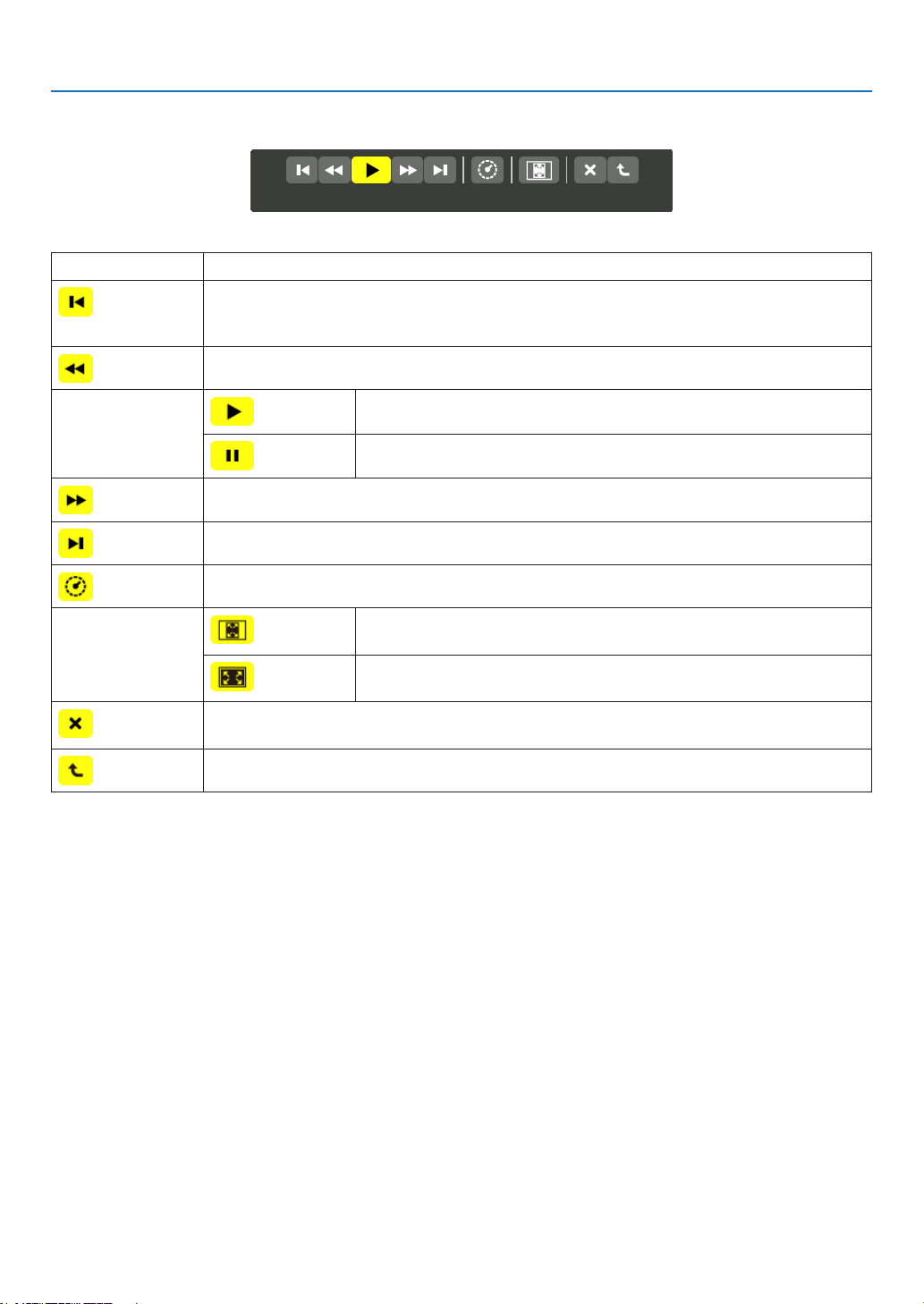
90
4. Using the Viewer
Functions of movie control bar
Name Description
PREV Goesbacktothebeginningofamoviele.
• Goesbacktothebeginningofthepreviousmovieleifexecutedimmediatelyafterbeing
startedplaying.
FR Fast-rewindsamovieleforabout7seconds.
PLAY/PAUSE PLAY Playsamoviele.
PAUSE Stopsplayingamoviele.
FF Fast-forwardsamovieleforabout7seconds.
NEXT Goestothebeginningofanextmoviele.
TIME Displaysanelapsedtimeforplaybackorpause.
SIZE BESTFIT Displaystheimagewithitsaspectratiointheprojector’sdisplayable
maximumresolution.
ACTUAL
SIZE
Displaystheimageinitsactualsize.
CLOSE Closesthecontrolbar.
• YoucanalsopresstheEXITbuttontoclosethecontrolbar.
END Stopsplayingamovie,andclosesthecontrolbartoreturntothethumbnailscreen.
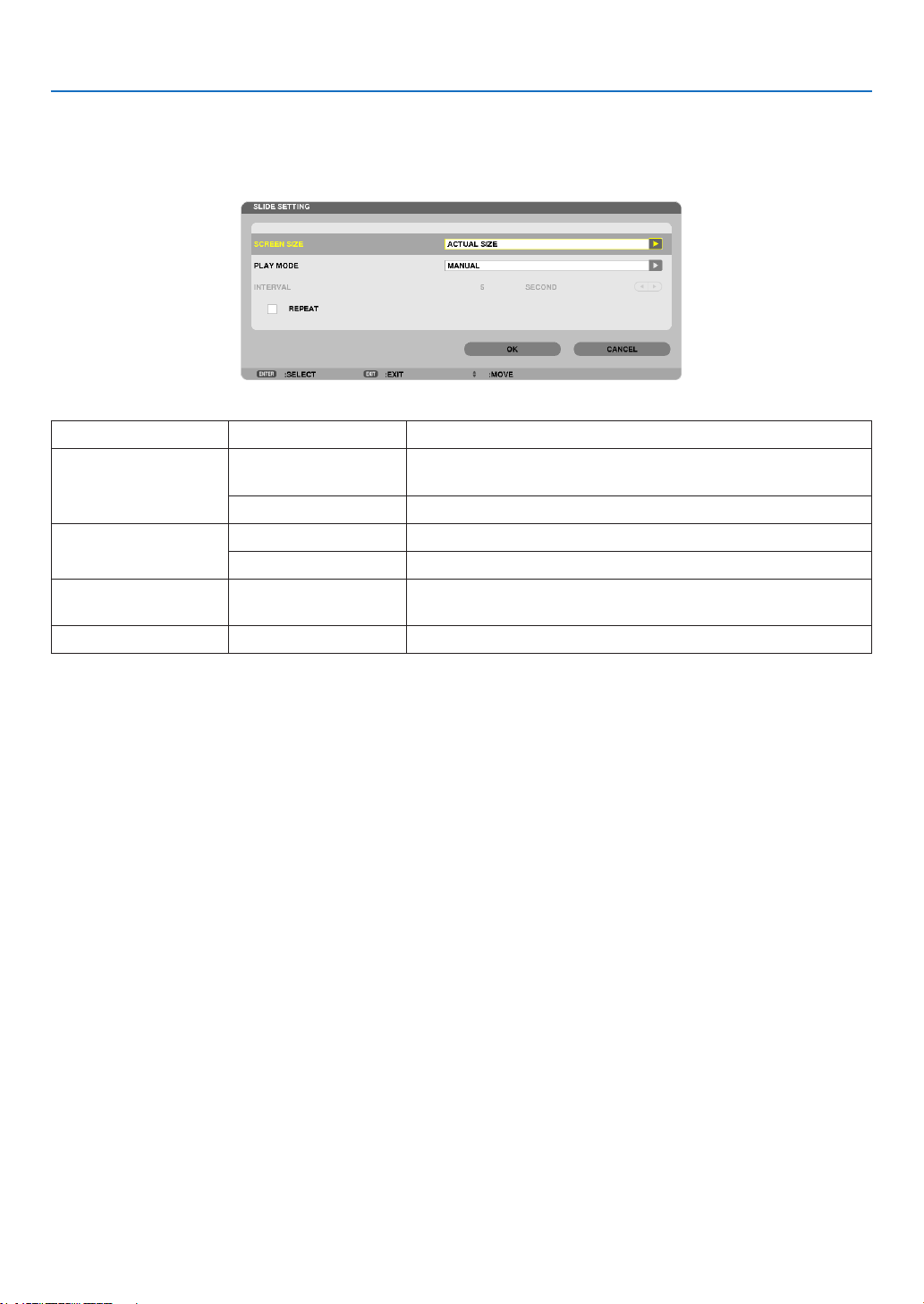
91
4. Using the Viewer
Viewer option settings
•SLIDESETTING
Setsstillimagesorslides.
Name Options Description
SCREENSIZE BESTFIT Displaystheimagewithitsaspectratiointheprojector’sdisplay-
ablemaximumresolution.
ACTUALSIZE Displaystheimageinitsactualsize.
PLAYMODE MANUAL Selectsmanualplay.
AUTO Selectsautoplay.
INTERVAL 5-300seconds Specifies interval time when [AUTO] is selected for PLAY
MODE.
REPEAT
Checkmark Turnsonorofftherepeatfunction.
TIP
• Toplayoneormoreslides,placethoselesintoafolder.
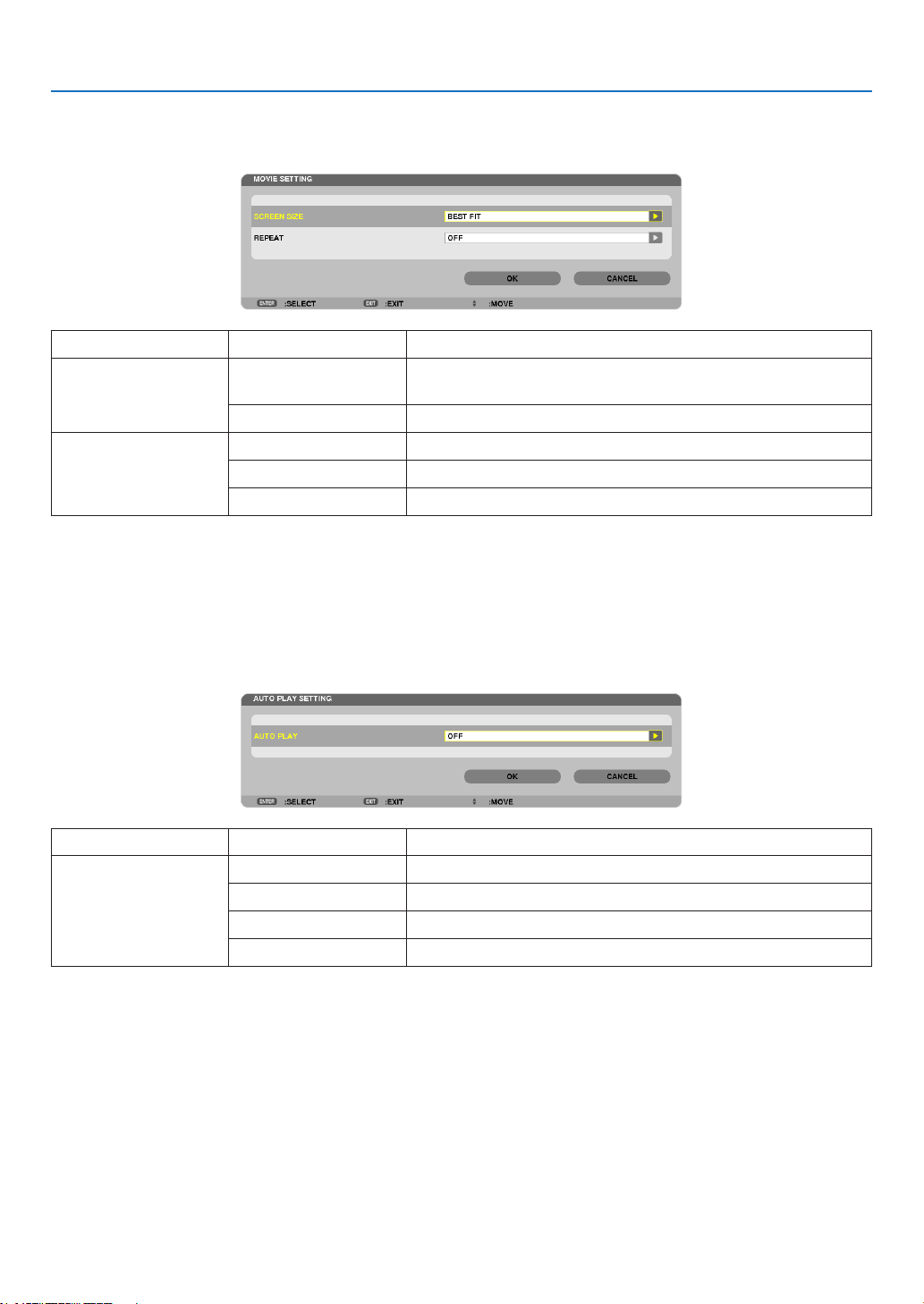
92
4. Using the Viewer
•MOVIESETTING
Setsthefunctionsforamoviele.
Name Options Description
SCREENSIZE BESTFIT Displaystheimagewithitsaspectratiointheprojector’sdisplay-
ablemaximumresolution.
ACTUALSIZE Displaystheimageinitsactualsize.
REPEAT OFF Turnsonorofftherepeatfunction.
ONEREPEAT Repeatsoneleonly.
ALLREPEAT Repeatsalllesinthecurrentfolder.
TIP
• Turningon[REPEAT]willdisplayblackscreenduringintermissionbetweenmovies.
•AUTOPLAYSETTING
SetsautoplayforslideshowwhenaUSBmemorydeviceisinsertedintotheUSBportoftheprojector,orwhen
[VIEWER]isselectedfor[SOURCE].
Name Options Description
AUTOPLAY OFF —
PICTURE
Playstherststillimagefoundinadrive.
MOVIE Playstherstmoviefoundinadrive.
PowerPoint PlaystherstPowerPointlefoundinadrive.
TIP
• AutoplaybehaviorisdifferentbetweenwhenaUSBmemorydeviceisinsertedintotheUSBportoftheprojectorandwhen
[VIEWER]isselectedfor[SOURCE].
• AutoplaystartsfortherstfoundlesupportingtheletypesetupforAutoPlay.Thelewillbesearchedinthedriverootor
lowerlevel.
• When[VIEWER]isselectedfor[SOURCE],thelastselectedlewillbeautomaticallyplayedifitisfound,orthelastselectedfolder
willbesearchedandtherstfoundlewillbeautomaticallyplayed.
ToautomaticallyplayamovieleinaUSBmemory,storeonemovieleorchangeitslenamesothatitcanbesearchedrst.
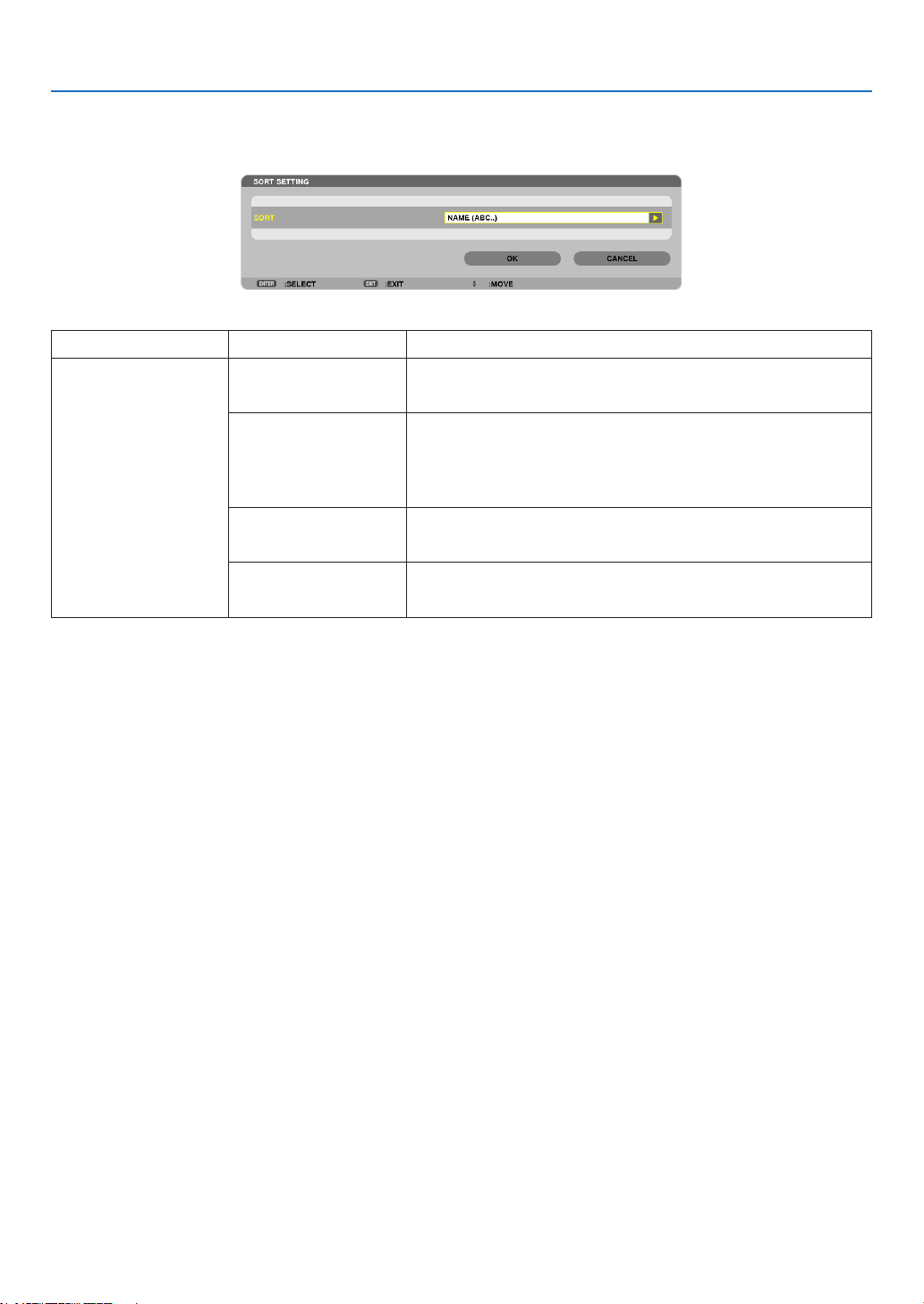
93
4. Using the Viewer
•SORTSETTING
Setstheorderofdisplayingthumbnailsorslides.
Name Options Description
SORT
NAME(ABC..) Displaysthelesalphabeticallybynameinascendingorder.
NAME(ZYX..) Displaysthelesalphabeticallybynameindescendingorder.
EXT.(ABC..) Displaysthelesalphabeticallybyextensioninascendingor-
der.
EXT.(ZYX..) Displays the les alphabetically by extension in descending
order.
DATE(NEW) Displaysthelesinreversechronologicalorder.
DATE(OLD) Displaysthelesinchronologicalorder.
SIZE(BIG) Displaysthelesindescendingorderofitslesize.
SIZE(SMALL) Displaysthelesinascendingorderofitslesize.
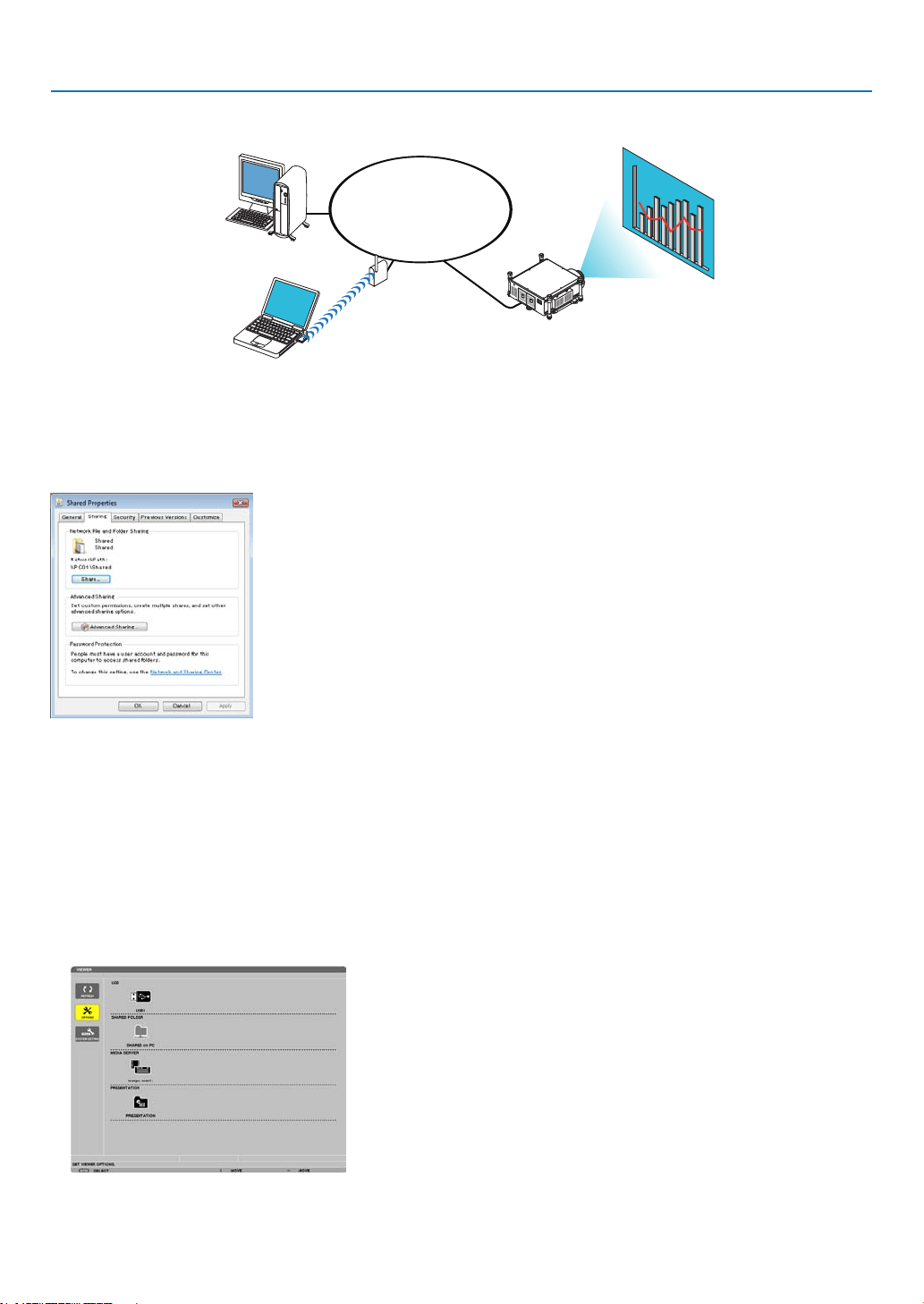
94
4. Using the Viewer
❹ Projecting data from shared folder
LAN
Sharedfolder
WirelessLAN
Projector
Sharedfolder
Preparation
Forprojector:Connecttheprojectortothenetwork.
Forcomputer:Placelestobeprojectedinasharedfolderandnotethefolder’spath.Memorizeorwritedownthe
pathforlateruse.
• Forsharingafolder,refertoyouruserguideorhelpleaccompaniedwithyourWindowscomputer.
• Useakeyboardtogiveanametothesharedfolderinalphanumericcharacters.
• Toconnectthesharedfolderbeyondthesubnet,set[WINSCONFIGURATION]in[NETWORKSETTINGS]from
themenu.
• Digitalsignature(SMBsignature)isnotsupported.
Connecting the projector to the shared folder
1. PresstheVIEWERbuttonontheremotecontrol.
Thedrivelistwindowwillbedisplayed.
• AnotherwaytostarttheVIEWERistopresstheSOURCEbuttonafewtimesontheprojectorcabinet.(→ page
22)
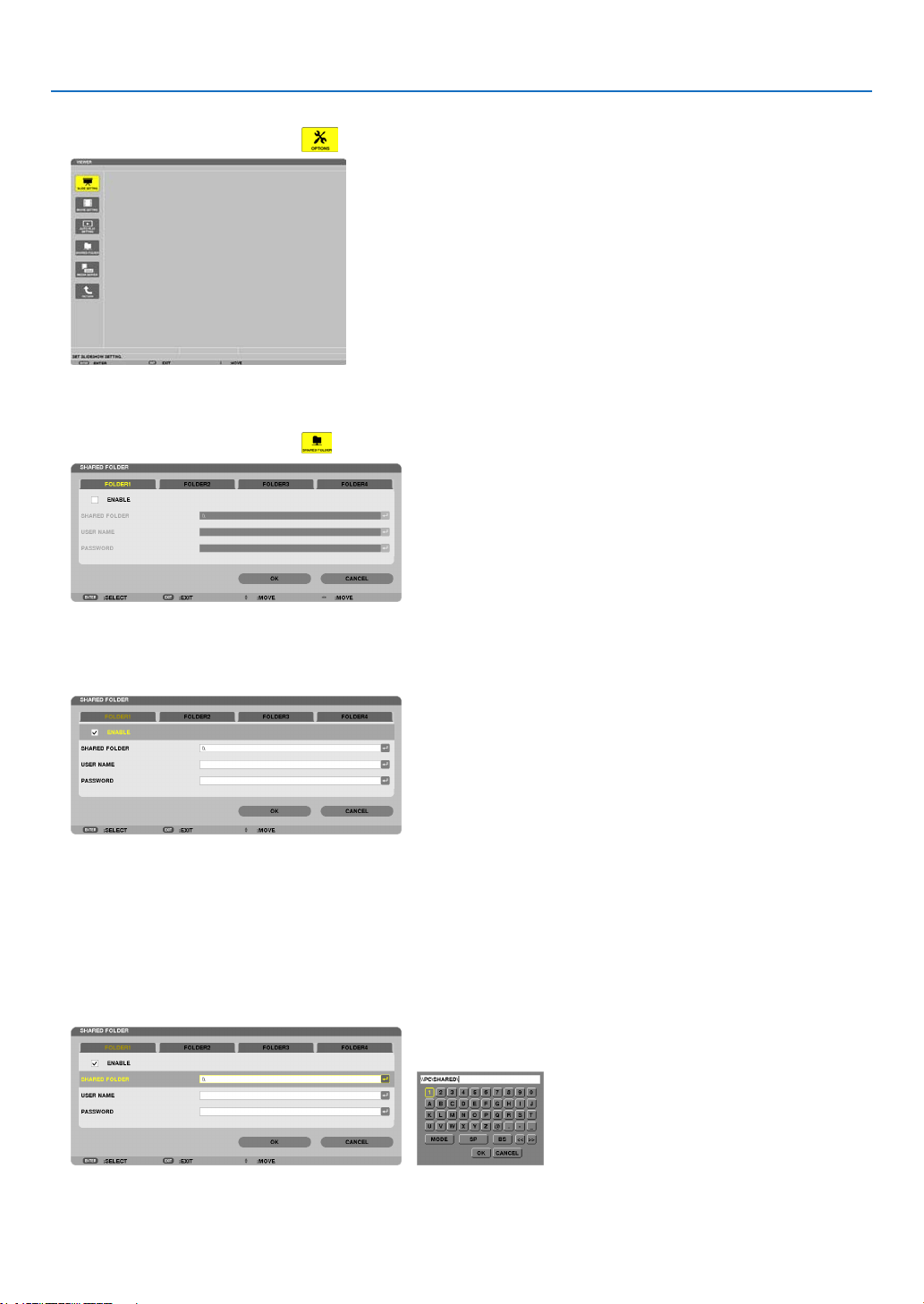
95
4. Using the Viewer
2. Displaysthe[OPTIONS]menu.
Press the ▼buttontoselectthe (OPTIONS)iconandpresstheENTERbutton.
• WhentheOPTIONSmenuisdisplayed,thedrivelistwillnotbedisplayed.
3. Displaythe[SHAREDFOLDERSETTING]screen.
Press the ▼buttontoselectthe (SHAREDFOLDERSETTING)iconandpresstheENTERbutton.
4. Selectafoldernumberandplacetoenableit.
Press the ◀ or ▶buttontoasharedfoldernumberandpressthe▼buttontoselect[ENABLE],andthenpress
theENTERbutton.
5. Enterthepath,username,andpasswordforthesharedfolder.
Press the ▼buttontoselectthe[SHAREDFOLDER]eld.Thesoftwarekeyboardwillbedisplayed.
Forusingthesoftwarekeyboard,seepage157.
• Ifyourcomputerisnotpasswordprotected,enteringapasswordisnotrequired.
• Uptofoursharedfolderscanbeadded.
• Themaximumlengthofapathofthesharedfoldermustbe15alphanumericcharactersforcomputernameand
23 alphanumeric characters for folder name.

96
4. Using the Viewer
6. Exitthesetting.
Press the ▼buttontoselect[OK]andpresstheENTERbutton.
Thiswillclosethe[SHAREDFOLDER]screen.
• Ifanerrormessageappear,yoursettingsarenotcorrect.Tryagain.

97
4. Using the Viewer
Disconnecting the shared folder from the projector
• Disablethenumberofasharedfolderyouwishtodisconnect
Press the ▼buttontoselect[ENABLE]andpresstheENTERbuttontoclearit.
NOTE:
• WhenaPowerPointleorPDFleisdisplayed,donotdisconnectyourLANcable.Ifdoingso,theViewerwillnotwork.
TIP:
• ConnectingsettingsforSharedfolder
Settingsofuptofourfolderscanbesaved.
Restartingtheprojectorwilldisplaysetting-savedsharedfoldersingreyfoldericononthedrivelistscreen.
Selectingthegreyiconfolderwillskipentryforafolderpath.
• Failingtoconnectwithasharedfolderwilldisplaythefoldericonwith“x”mark.Ifthishappen,checkyourfoldersetting.
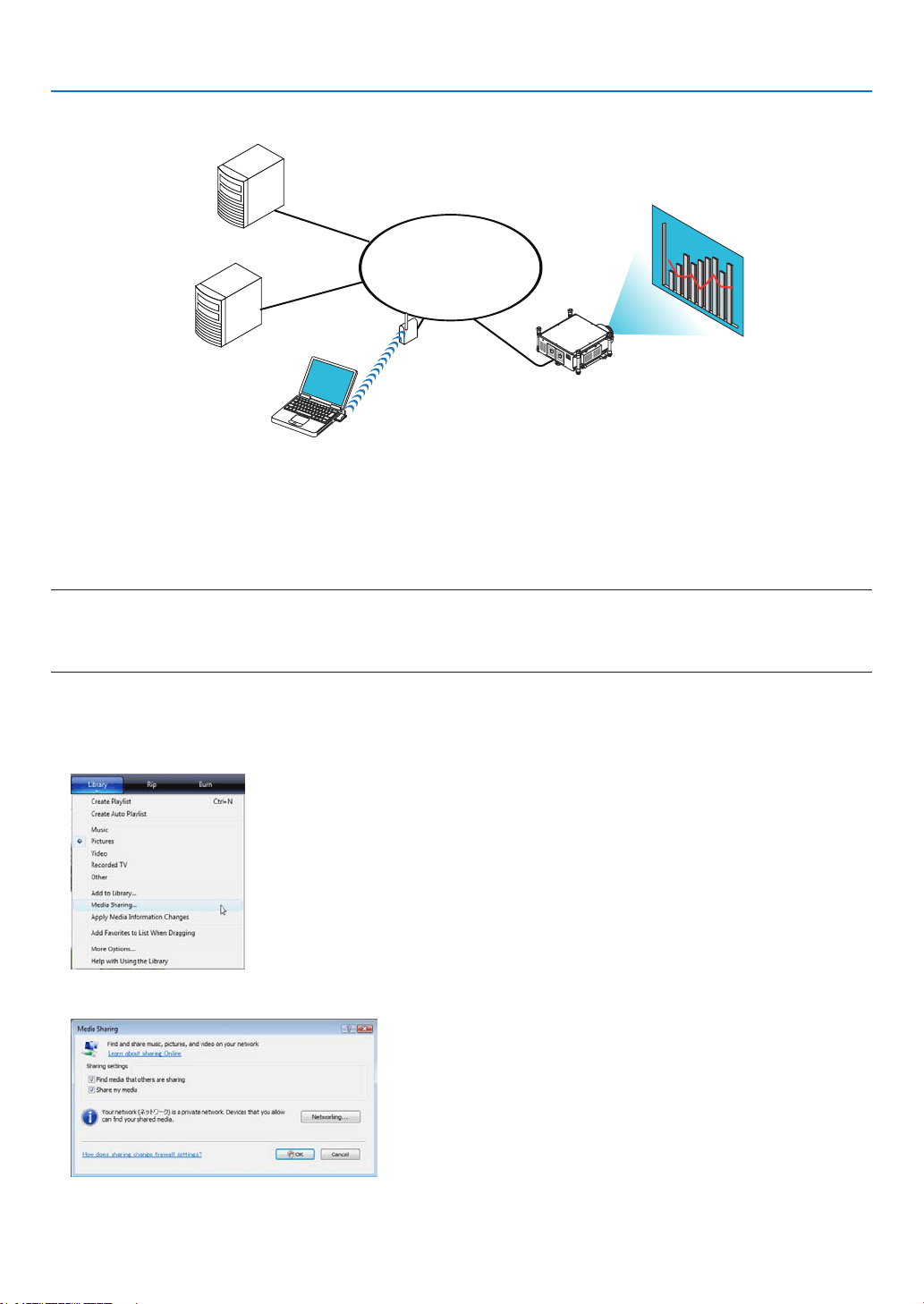
98
4. Using the Viewer
❺ Projecting data from media server
LAN
Media server
Media server
WirelessLAN
Media server
Projector
Preparation
Forprojector:Connecttheprojectortothenetwork.
Forcomputer:Prepareimagelesormovielestobeprojected,andsetup“MediaSharing”inWindowsMediaPlayer
11orWindowsMediaPlayer12.
NOTE:
• Boththeprojectorandthemediaservermustbeonthesamesubnet.Connectingtothemediaserverbeyondthesubnetisnot
possible.
• TypesofimagesandmovieswhichcanbesharedmayvarydependingonWindowsversion.
Setting up “Media Sharing” in Windows Media Player 11
1. StartWindowsMediaPlayer11.
2. Select“MediaSharing”from“Library”.
The“MediaSharing”dialogboxwillbedisplayed.
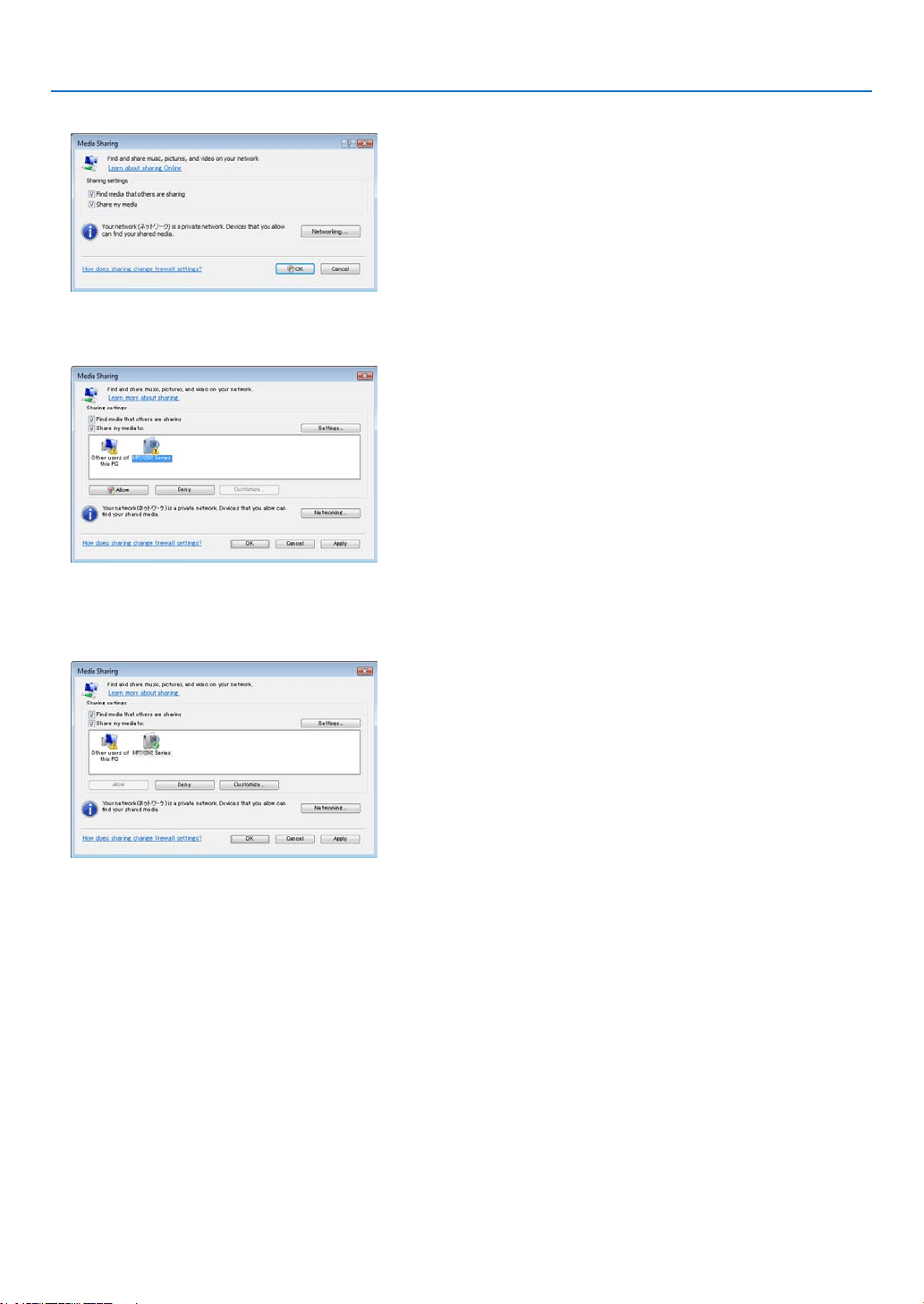
99
4. Using the Viewer
3. Select“Sharemymedia”checkbox,andthenselectOK.
Alistofaccessibledeviceswillbedisplayed.
4. Select“PH1400Series”andthen“Allow”.
Acheckmarkwillbeaddedtothe“PH1400Series”icon.
• The“PH1400Series”isaprojectornamespeciedin[NETWORKSETTINGS].
5. Select“OK”.
Thiswillmakepicturesandvideoin“Library”availablefromtheprojector.
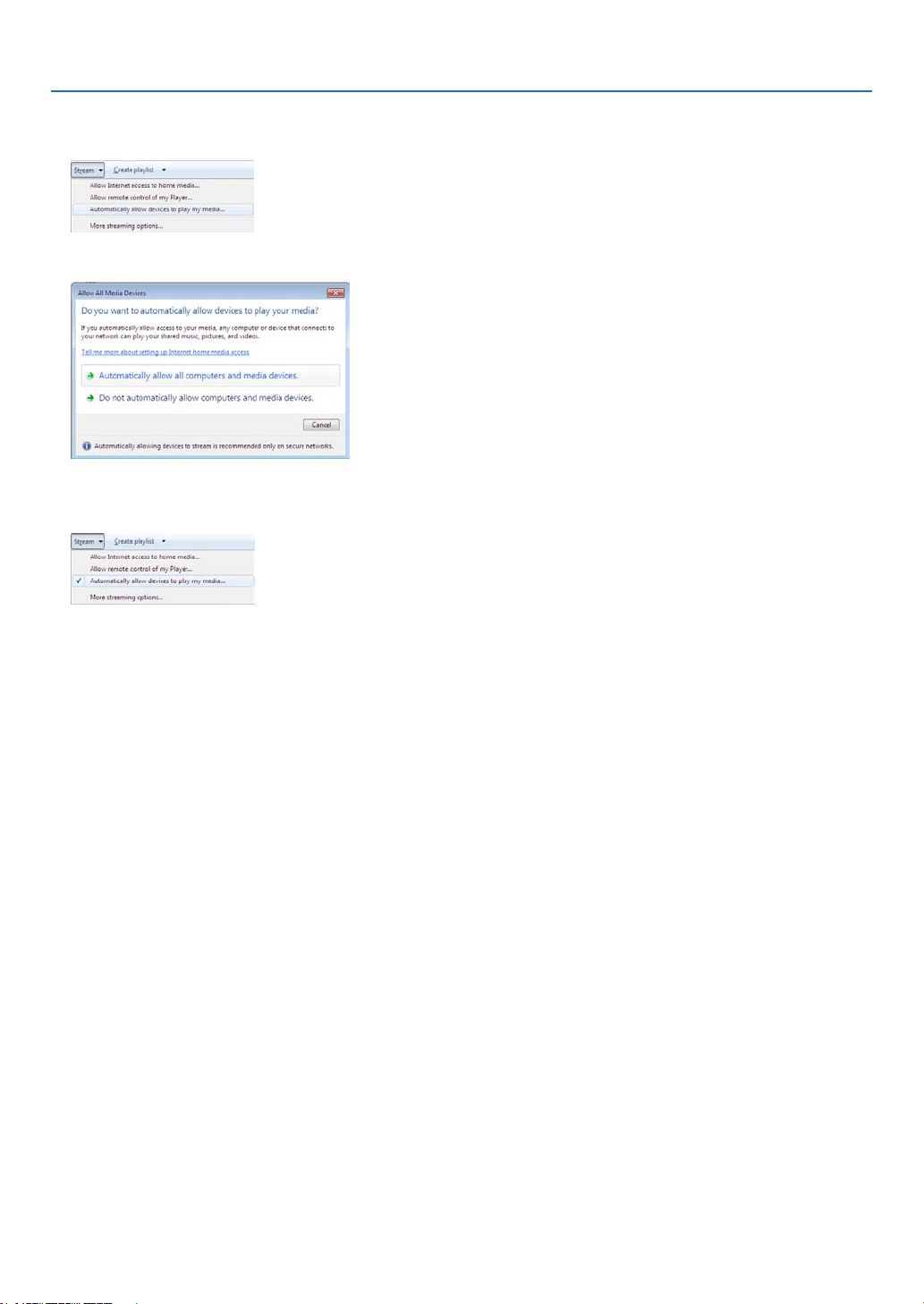
100
4. Using the Viewer
Setting up “Media Sharing” in Windows Media Player 12
1. StartWindowsMediaPlayer12.
2. Select“Stream”,andthenselect“Automaticallyallowdevicestoplaymymedia”.
The“AllowAllMediaDevices”windowswillbedisplayed.
3. Select“Automaticallyallowallcomputersandmediadevices”.
Graphicsandmovielesin“Library”canbeusedfromtheprojector.
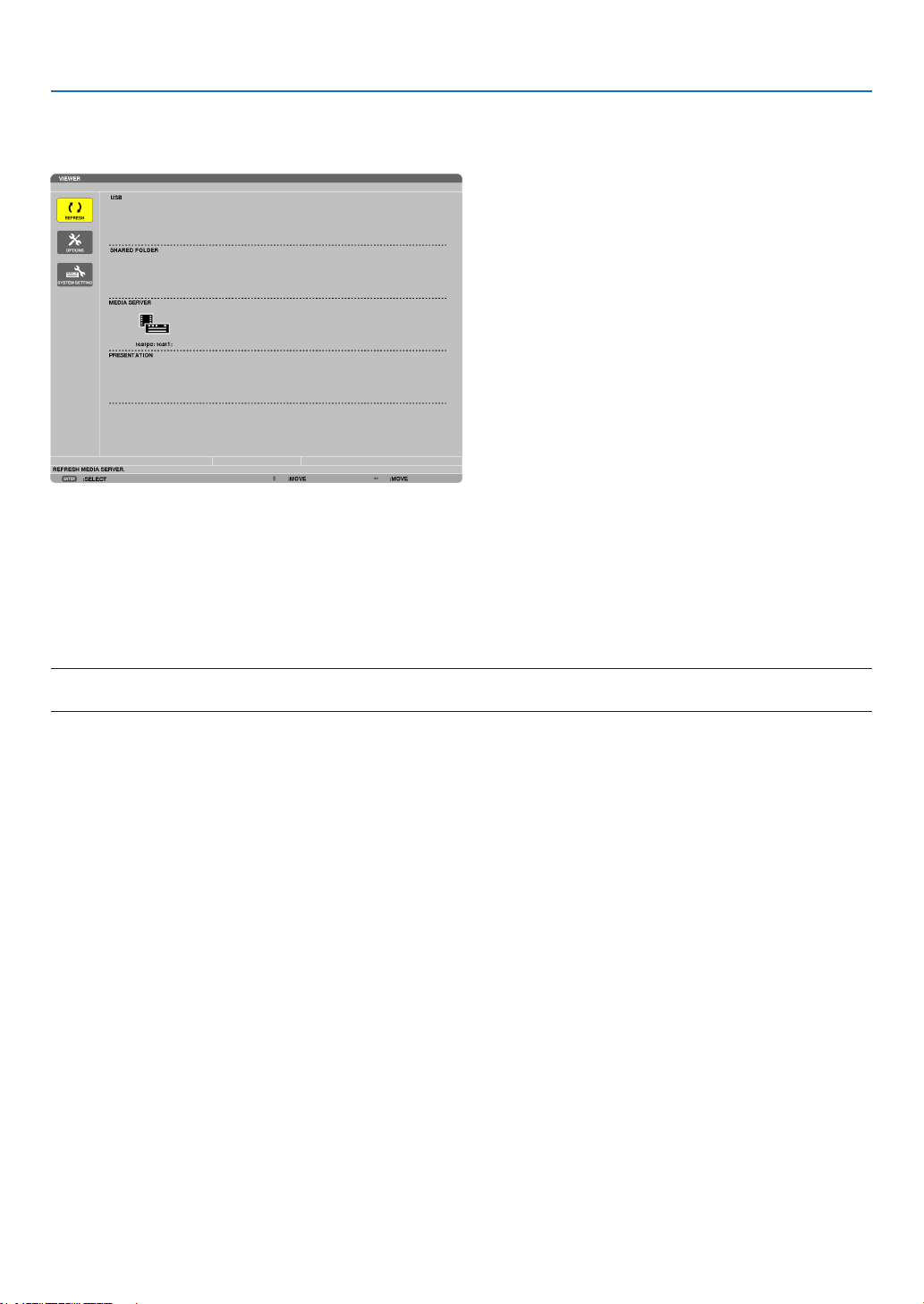
101
4. Using the Viewer
Connecting the projector to the media server
PresstheVIEWERbuttonontheremotecontrol.
TheVIEWERwillstart.
• AnotherwaytostarttheVIEWERistopresstheSOURCEbuttonafewtimesontheprojectorcabinet.(→page
22)
• Thiswillstartsearchingforacomputerwith“mediasharing”enabledinthenetworkandaddittothe“Mediaserver”
ofthethumbnailscreen.
Anotherwaytodothisistopointthecursorto“Mediaserver”andselect[REFRESH]fromthethumbnailmenu
andpresstheENTERbutton.
NOTE:
• Uptofouraccessiblemediaserverscanbeautomaticallysearchedanddisplayed.Thefthdeviceorlatercannotbedisplayed.
(→page82)
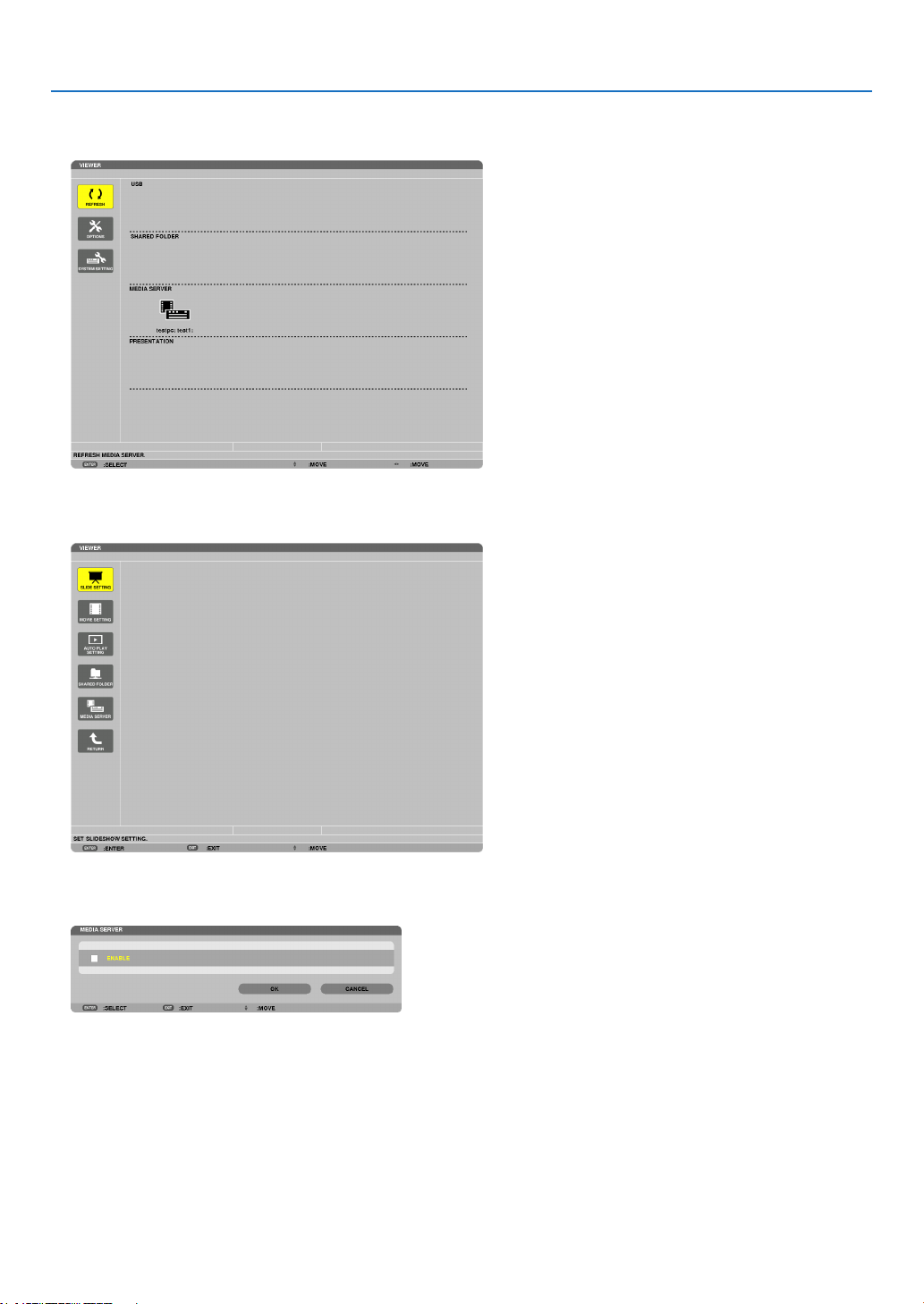
102
4. Using the Viewer
Disconnecting the projector from the media server
1. DisplaytheOPTIONSmenu.
Press the ▼buttontoselectthe[OPTIONS]iconandselecttheENTERbutton.
2. DisplaytheMEDIASERVERsettingscreen.
Press the ▼buttontoselecttheMEDIASERVERiconandpresstheENTERbutton.
3. Disabletheconnection.
PresstheENTERbuttontoclearthecheckmarktodisabletheconnection.
Press the ▼buttontoselect[OK]andpresstheENTERbuttontoclosetheMEDIASERVERsettingscreen.

103
4. Using the Viewer
❻ Restrictions on displaying files
TheViewerallowsyoutogiveasimplieddisplayofaPowerPointleorPDFle.
Duetosimplieddisplay,however,actualdisplaymaybedifferentfromtheoneonyourcomputerapplicationpro-
gram.
Some restrictions on PowerPoint files
• Fontswillbeautomaticallyconvertedtothefontsinstalledintheprojector.Fontscanvaryinsizeorwidth,causing
layoutcorruption
Somecharactersorfontsmaynotbedisplayed.
• Somefunctionsincludedinfontarenotsupported.
Example:Therearesomerestrictionsonanimation,selection,orhyperlink.
• Itmaytakelongertimetofeedpagescomparedwithacomputer
• InsomecasesMicrosoftPowerPoint97-2003formatlesmaynotbedisplayed.
Some restrictions on PDF files
• FontsnotembeddedatthetimeofPDFcreationmaynotbedisplayed.
• Somefunctionsincludedinfontarenotsupported.
Example:Therearesomerestrictionsonannotations,selection,form,orcolorspace.
• Itmaytakelongertimetofeedpagescomparedwithacomputer
• InsomecasesAdobeAcrobatformatlesmaynotbedisplayed.
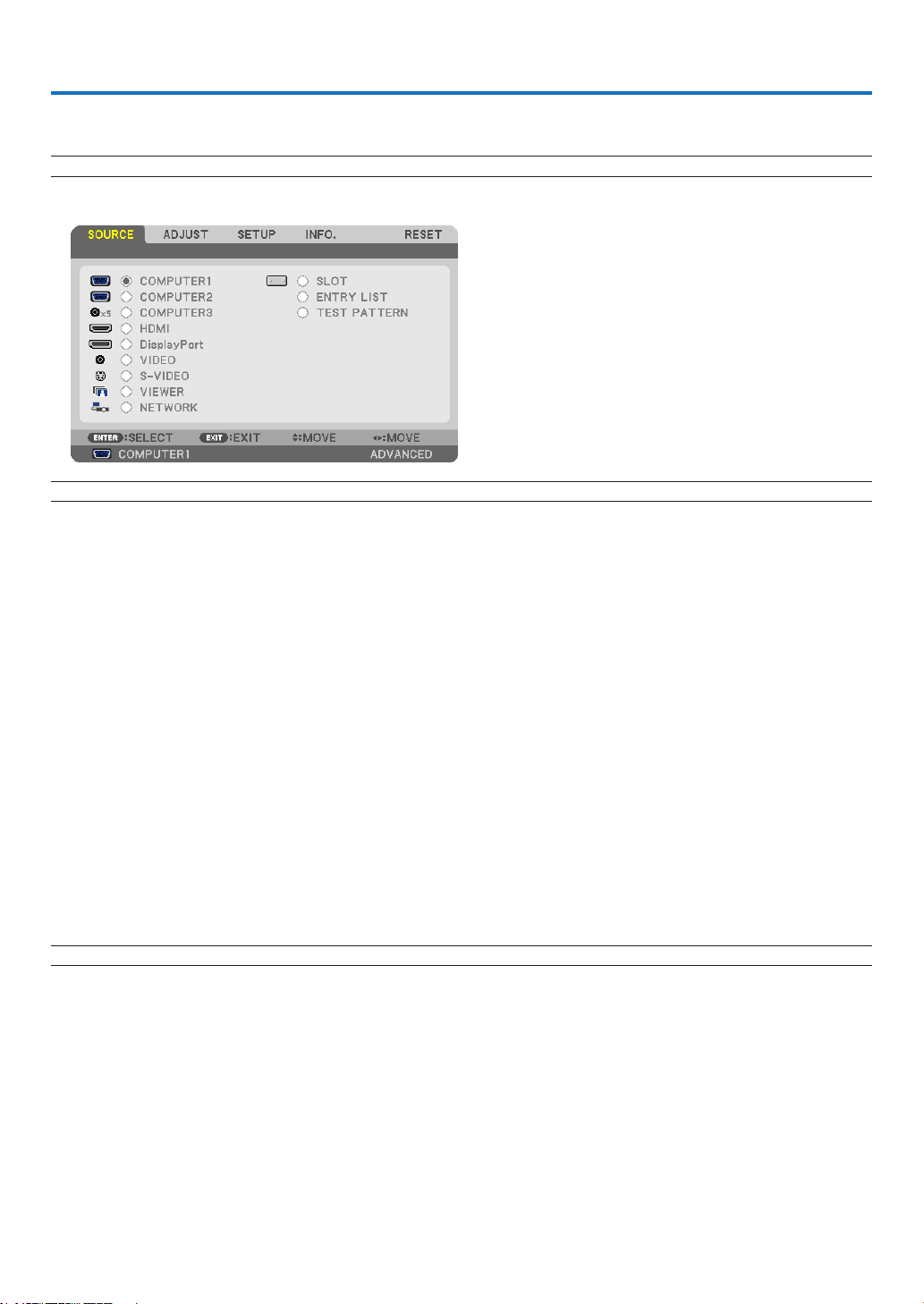
104
5. Using On-Screen Menu
❶ Using the Menus
NOTE:Theon-screenmenumaynotbedisplayedcorrectlywhileinterlacedmotionvideoimageisprojected.
1. PresstheMENUbuttonontheremotecontrolortheprojectorcabinettodisplaythemenu.
NOTE: The commands such as ENTER,EXIT,▲▼, ◀▶inthebottomshowavailablebuttonsforyouroperation.
2. Press the ◀▶ buttons on the remote control or the projector cabinet to display the submenu.
3. PresstheENTERbuttonontheremotecontrolortheprojectorcabinettohighlightthetopitemortherst
tab.
4. Use the ▲▼ buttons on the remote control or the projector cabinet to select the item you want to adjust or
set.
Youcanusethe◀▶ buttons on the remote control or the projector cabinet to select the tab you want.
5. PresstheENTERbuttonontheremotecontrolortheprojectorcabinettodisplaythesubmenuwindow.
6. Adjustthelevelorturntheselecteditemonoroffbyusingthe▲▼◀▶ buttons on the remote control or
the projector cabinet.
Changesarestoreduntiladjustedagain.
7. Repeatsteps2-6toadjustanadditionalitem,orpresstheEXITbuttonontheremotecontrolortheprojec-
tor cabinet to quit the menu display.
NOTE:Whenamenuormessageisdisplayed,severallinesofinformationmaybelost,dependingonthesignalorsettings.
8.PresstheMENUbuttontoclosethemenu.
Toreturntothepreviousmenu,presstheEXITbutton.
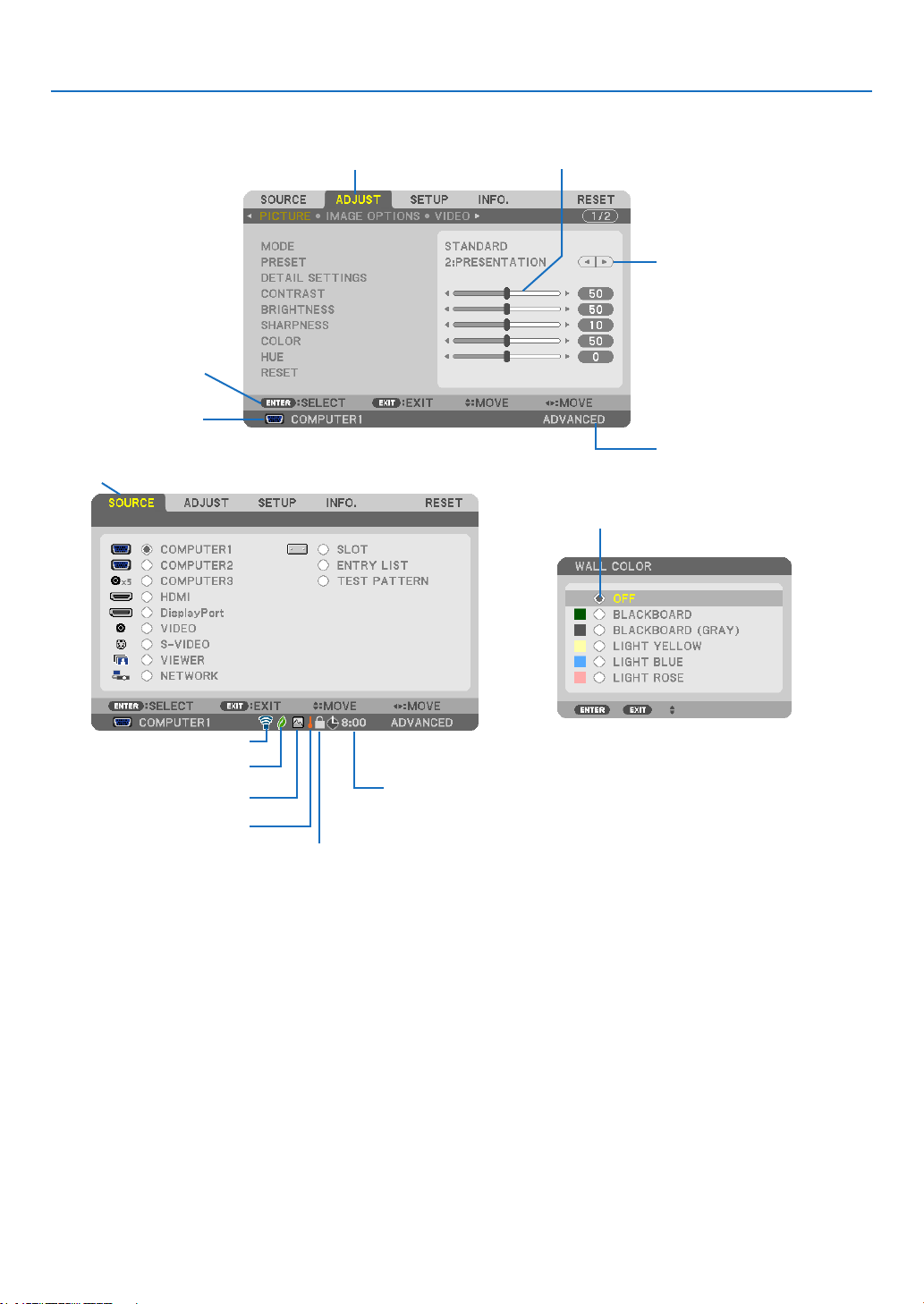
105
5. Using On-Screen Menu
❷
Menu Elements
Slidebar
Solidtriangle
Menu mode
Tab
Radiobutton
ECOmodesymbol
Wirelesssymbol
Menuwindowsordialogboxestypicallyhavethefollowingelements:
Highlight �����������������������������Indicates the selected menu or item�
Solid triangle ����������������������Indicates further choices are available� A highlighted triangle indicates the item is active�
Tab ��������������������������������������Indicates a group of features in a dialog box� Selecting on any tab brings its page to the front�
Radio button �����������������������Use this round button to select an option in a dialog box�
Source ��������������������������������Indicates the currently selected source�
Menu mode ������������������������Indicates the current menu mode: BASIC or ADVANCED�
Off Timer remaining time ����Indicates the remaining countdown time when the [OFF TIMER] is preset�
Slide bar �����������������������������Indicates settings or the direction of adjustment�
ECO mode symbol ��������������Indicates [ECO MODE] is set�
Key Lock symbol ����������������Indicates the [CONTROL PANEL LOCK] is enabled�
Thermometer symbol ���������Indicates the [ECO MODE] is forcibly set to [ON] mode because the internal temperature is too
high�
High Altitude symbol ����������Indicates the [FAN MODE] is set to [HIGH ALTITUDE] mode�
Wireless symbol �����������������Indicate the wireless LAN connection is enabled�
Source
Availablebuttons
HighAltitudesymbol
Off Timer remaining
time
Highlight
Thermometersymbol
KeyLocksymbol
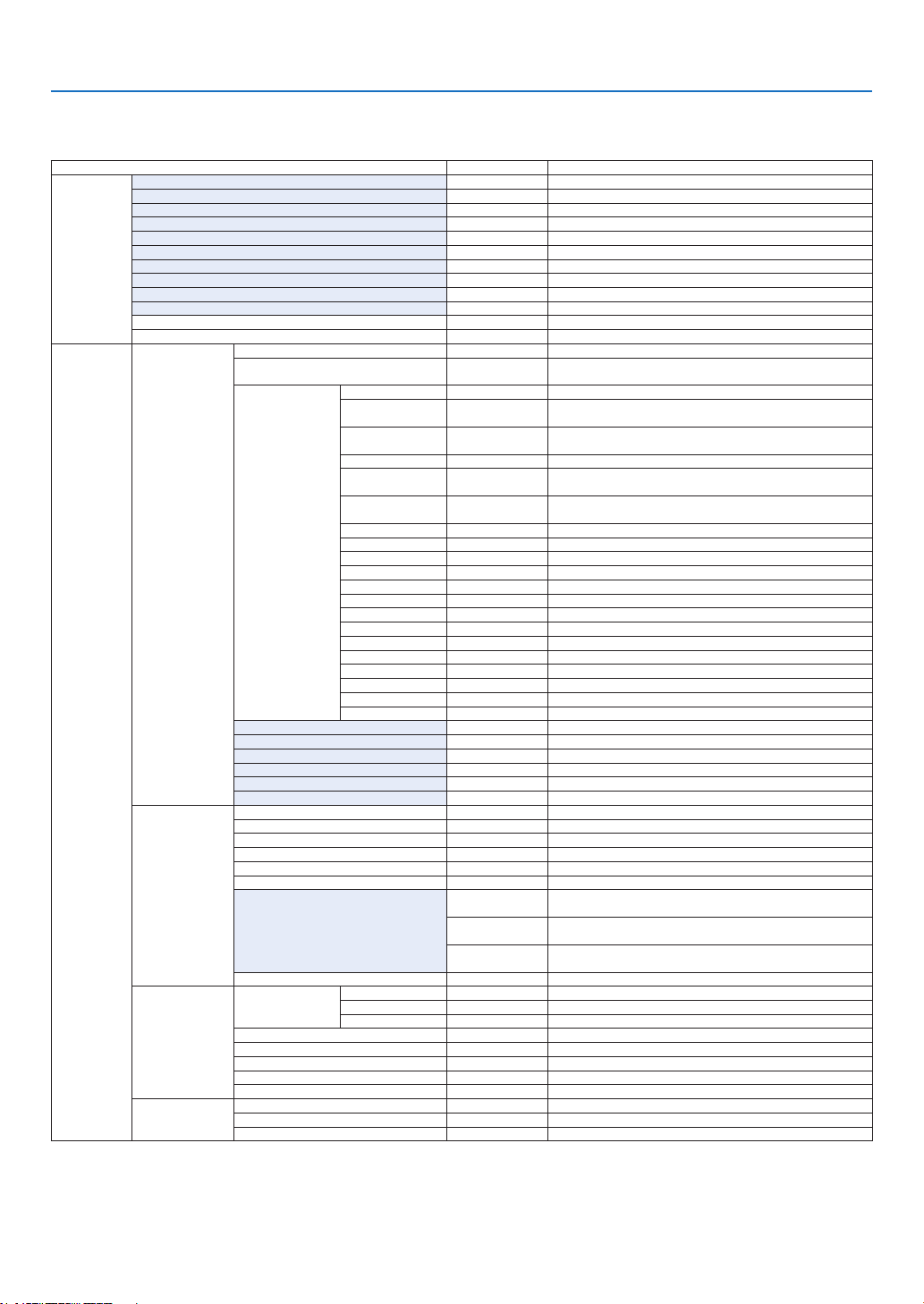
106
5. Using On-Screen Menu
❸ List of Menu Items
Somemenuitemsarenotavailabledependingontheinputsource.
MenuItem Default Options
SOURCE
COMPUTER1 *
COMPUTER2 *
COMPUTER3 *
HDMI *
DisplayPort *
VIDEO *
S-VIDEO *
VIEWER *
NETWORK *
SLOT
ENTRYLIST
TESTPATTERN
ADJUST
PICTURE
MODE STANDARD
STANDARD,PROFESSIONAL
PRESET *
HIGH-BRIGHT,PRESENTATION,VIDEO,MOVIE,GRAPHIC,
sRGB,DICOMSIM.
DETAILSETTINGS
GENERAL
REFERENCE *
HIGH-BRIGHT,PRESENTATION,VIDEO,MOVIE,GRAPHIC,
sRGB,DICOMSIM.
GAMMA
CORRECTION
DYNAMIC,NATURAL,BLACKDETAIL
SCREENSIZE*
1
* LARGE,MEDIUM,SMALL
COLOR
TEMPERATURE*
2
* 5000,6500,7800,8500,9300,10500
DYNAMIC
CONTRAST
*
OFF,ON
WHITEBALANCE
CONTRASTR 0
CONTRASTG 0
CONTRASTB 0
BRIGHTNESSR 0
BRIGHTNESSG 0
BRIGHTNESSB 0
SATURATION
RED 0
GREEN 0
BLUE 0
YELLOW 0
MAGENTA 0
CYAN 0
CONTRAST 50
BRIGHTNESS 50
SHARPNESS 10
COLOR 50
HUE 0
RESET
IMAGEOPTIONS
CLOCK *
PHASE *
HORIZONTAL *
VERTICAL *
BLANKING *
TOP,BOTTOM,LEFT,RIGHT
OVERSCAN * AUTO,0[%],5[%],10[%]
ASPECTRATIO
*
(COMPUTER1/2/3)AUTO,4:3,5:4,16:9,15:9,16:10,
NATIVE
*
(COMPONENT/VIDEO/S-VIDEO)AUTO,4:3,LETTERBOX,
WIDESCREEN,ZOOM
*
(COMPONENT/VIDEO/S-VIDEO)AUTO,4:3WINDOW,
LETTERBOX,WIDESCREEN,4:3FILL
RESOLUTION * –
VIDEO
NOISE
REDUCTION
RANDOMNR * OFF,LOW,MEDIUM,HIGH
MOSQUITONR OFF OFF,LOW,MEDIUM,HIGH
BLOCKNR OFF OFF,ON
DEINTERLACE AUTO AUTO,VIDEO,FILM
3DY/CSEPARATION ON OFF,ON
DETAILENHANCEMENT *
SIGNALTYPE RGB RGB,COMPONENT
VIDEOLEVEL AUTO AUTO,NORMAL,ENHANCED
LENSMEMORY
STORE
MOVE
RESET
* Theasterisk(*)indicatesthatthedefaultsettingvariesdependingonthesignal.
*1 The[SCREENSIZE]itemisavailablewhen[DICOMSIM.]isselectedfor[REFERENCE].
*2 When[PRESENTATION]or[HIGH-BRIGHT]isselectedin[REFERENCE],the[COLORTEMPERATURE]isnotavailable.
•Basicmenuitemsareindicatedbyshadedarea.
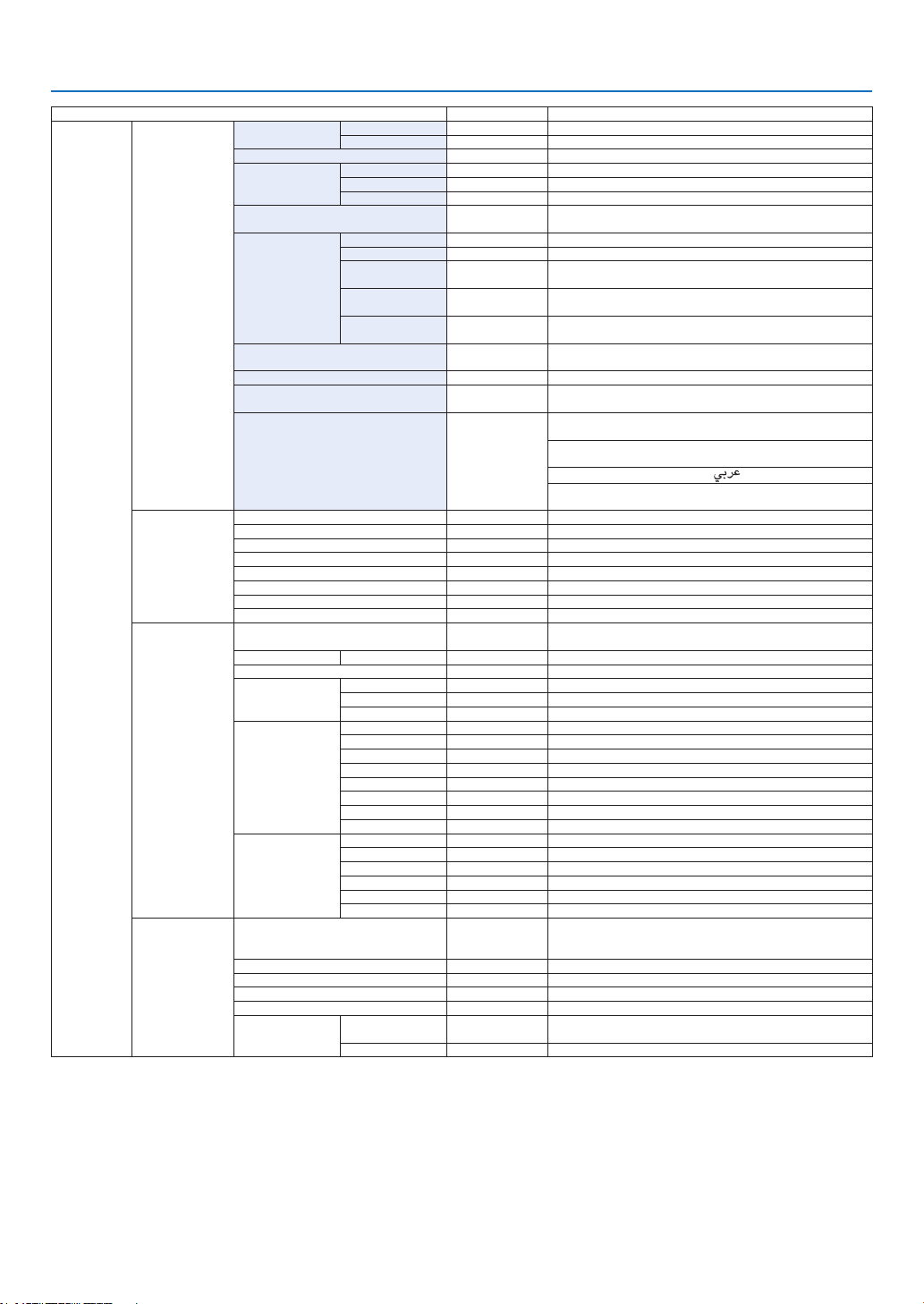
107
5. Using On-Screen Menu
MenuItem Default Options
SETUP
BASIC
KEYSTONE
HORIZONTAL 0
VERTICAL 0
CORNERSTONE
PIP/PICTUREBY
PICTURE
PIP/PBPMODE PIP PIP,PICTUREBYPICTURE
PIPPOSITION BOTTOM-RIGHT TOP-LEFT,TOP-RIGHT,BOTTOM-LEFT,BOTTOM-RIGHT
PIP/PBPSOURCE OFF OFF,VIDEO,S-VIDEO
WALLCOLOR OFF
OFF,BLACKBOARD,BLACKBOARD(GRAY),LIGHT
YELLOW,LIGHTBLUE,LIGHTROSE
LAMPMODE
ECOMODE OFF OFF,ON
LAMPSELECT DUAL DUAL,SINGLE,LAMP1ONLY,LAMP2ONLY
LAMPINTERVAL
MODE
OFF
OFF,12HOURS,24HOURS,1WEEK
LAMPSWITCHING
TIME
00:00
00:00-24:00
LAMPSWITCHING
DAY
SUN
SUN,MON,TUE,WED,THU,FRI,SAT
CLOSEDCAPTION OFF
OFF,CAPTION1,CAPTION2,CAPTION3,CAPTION4,
TEXT1,TEXT2,TEXT3,TEXT4
OFFTIMER OFF OFF,0:30,1:00,2:00,4:00,8:00,12:00,16:00
TOOLS
ADMINISTRATORMODE,PROGRAMTIMER,TIME,
MOUSE
LANGUAGE ENGLISH
ENGLISH,DEUTSCH,FRANÇAIS,ITALIANO,ESPAÑOL,
SVENSKA,日本語
DANSK,PORTUGUÊS,ČEŠTINA,MAGYAR,POLSKI,
NEDERLANDS,SUOMI
NORSK,TÜRKÇE,РУССКИЙ, , Ελληνικά, 中文, 한국어
ROMÂNĂ, HRVATSKA, БЪЛГАРСКИ, INDONESIA, ,
ไทย
MENU
COLORSELECT COLOR COLOR,MONOCHROME
SOURCEDISPLAY ON OFF,ON
MESSAGEDISPLAY ON OFF,ON
IDDISPLAY ON OFF,ON
ECOMESSAGE OFF OFF,ON
DISPLAYTIME AUTO45SEC MANUAL,AUTO5SEC,AUTO15SEC,AUTO45SEC
BACKGROUND LOGO BLUE,BLACK,LOGO
FILTERMESSAGE OFF OFF,100[H],500[H],1000[H],2000[H],5000[H]
INSTALLATION
(1)
ORIENTATION
DESKTOP
FRONT
DESKTOPFRONT,CEILINGREAR,DESKTOPREAR,
CEILINGFRONT
SCREEN SCREENTYPE 4:3SCREEN 4:3SCREEN,16:9SCREEN,16:10SCREEN
GEOMETRICCORRECTION OFF OFF,1,2,3
MULTI-SCREEN
COMP.
MODE OFF
OFF,ON
CONTRAST 0
BRIGHTNESS 0
REF.WHITE
BALANCE
CONTRASTR 0
CONTRASTG 0
CONTRASTB 0
BRIGHTNESSR 0
BRIGHTNESSG 0
BRIGHTNESSB 0
UNIFORMITYR 0
UNIFORMITYB 0
REF.LENS
MEMORY
STORE
MOVE
RESET
LOADBYSIGNAL OFF OFF,ON
FORCEDMUTE OFF OFF,ON
CALIBRATION
INSTALLATION
(2)
NETWORKSETTINGS
WIREDLAN,WIRELESSLAN,WPS,NETWORK
INFORMATION,PROJECTORNAME,DOMAIN,ALERT
MAIL,NETWORKSERVICE
CONTROLPANELLOCK OFF OFF,ON
SECURITY OFF OFF,ON
COMMUNICATIONSPEED 38400bps 4800bps,9600bps,19200bps,38400bps,115200bps
REMOTESENSOR FRONT/BACK FRONT/BACK,FRONT,BACK
CONTROLID
CONTROLID
NUMBER
1 1–254
CONTROLID OFF OFF,ON
* Theasterisk(*)indicatesthatthedefaultsettingvariesdependingonthesignal.

108
5. Using On-Screen Menu
MenuItem Default Options
SETUP
OPTIONS(1)
AUTOADJUST NORMAL OFF,NORMAL,FINE
FANMODE
AUTO MODE:AUTO,HIGH,HIGHALTITUDE
FLOOR
SETTING:FLOOR,CEILING,VERTICALTILTUP,VERTICAL
TILTDOWN([VERTICALTILTUP]and[VERTICALTILT
DOWN]arenotavailableonthisprojector.)
SIGNALSELECT(COMP3)
RGB/
COMPONENT
RGB/COMPONENT,VIDEO
SEAMLESSSWITCHING OFF OFF,ON
COLORSYSTEM
VIDEO AUTO
AUTO,NTSC3.58,NTSC4.43,PAL,PAL-M,PAL-N,PAL60,
SECAM
S-VIDEO AUTO
AUTO,NTSC3.58,NTSC4.43,PAL,PAL-M,PAL-N,PAL60,
SECAM
COMPUTER3
(VIDEO)
AUTO
AUTO,NTSC3.58,NTSC4.43,PAL,PAL-M,PAL-N,PAL60,
SECAM
SLOTPOWER
PROJECTORON OFF,ON
PROJECTOR
STANDBY
ENABLE
DISABLE,ENABLE
OPTIONS(2)
STANDBYMODE NORMAL NORMAL,POWER-SAVING,NETWORKSTANDBY
DIRECTPOWERON OFF OFF,ON
AUTOPOWERON(COMP1/3) OFF OFF,COMPUTER1,COMPUTER3
AUTOPOWEROFF OFF OFF,0:05,0:10,0:20,0:30
DEFAULTSOURCESELECT LAST
LAST,AUTO,COMPUTER1,COMPUTER2,COMPUTER3,
HDMI,DisplayPort,VIDEO,S-VIDEO,VIEWER,NETWORK
EDGEBLENDING MODE OFF
OFF,ON
(ON:TOP,BOTTOM,LEFT,RIGHT,BLACKLEVEL)
INFO.
USAGETIME
LAMP1LIFEREMAINING
LAMP2LIFEREMAINING
LAMP1HOURSUSED
LAMP2HOURSUSED
FILTERHOURSUSED
TOTALCARBONSAVINGS
SOURCE(1)
INPUTTERMINAL
RESOLUTION
HORIZONTALFREQUENCY
VERTICALFREQUENCY
SYNCTYPE
SYNCPOLARITY
SCANTYPE
SOURCENAME
ENTRYNO.
SOURCE(2)
SIGNALTYPE
VIDEOTYPE
BITDEPTH
VIDEOLEVEL
LINKRATE
LINKLANE
WIREDLAN
IPADDRESS
SUBNETMASK
GATEWAY
MACADDRESS
WIRELESS
LAN(1)
IPADDRESS
SUBNETMASK
GATEWAY
MACADDRESS
WIRELESS
LAN(2)
SSID
NETWORKTYPE
WEP/WPA
CHANNEL
SIGNALLEVEL
VERSION(1)
FIRMWARE
DATA
FIRMWARE2
VERSION(2) FIRMWARE3
OTHERS
PROJECTORNAME
MODELNO.
SERIALNUMBER
LANUNITTYPE
CONTROLID(when[CONTROLID]
isset)
RESET
CURRENTSIGNAL
ALLDATA
ALLDATA(INCLUDINGENTRYLIST)
CLEARLAMP1HOURS
CLEARLAMP2HOURS
CLEARFILTERHOURS

109
5. Using On-Screen Menu
❹ Menu Descriptions & Functions [SOURCE]
COMPUTER 1, 2, and 3
SelectsthecomputerconnectedtoyourCOMPUTER1,2,orCOMPUTER3inputconnectorsignal.
NOTE:WhenthecomponentinputsignalisconnectedtotheCOMPUTER1IN,COMPUTER2IN,orCOMPUTER3INconnector,select
[COMPUTER1],[COMPUTER2]or[COMPUTER3]respectively.TheprojectorautomaticallydetermineswhethertheCOMPUTER1,
2,or3inputsignalisanRGBorcomponentsignal.
HDMI
SelectstheHDMIcompatibleequipmentconnectedtoyourHDMIINconnector.
DisplayPort
ProjectstheimageofthedeviceconnectedtotheDisplayPortinputconnector.
VIDEO
SelectswhatisconnectedtoyourVIDEOinput-VCR,DVDplayerordocumentcamera.
S-VIDEO
SelectswhatisconnectedtoyourS-VIDEOinput-VCRorDVDplayer.
NOTE:Aframemayfreezeforabriefperiodoftimewhenavideoisplayedbackinfast-forwardorfast-rewindwithaVideoorS-
Videosource.
VIEWER
ThisfeatureenablesyoutomakepresentationsusingaUSBmemorythatcontainsslides.
(→page78“4.UsingtheViewer”)
NETWORK
SelectsasignalfromtheLANport(RJ-45)ortheinstalledUSBwirelessLANunit(optionalformodelsforEurope,
Australia,AsiaandothercountriesthanNorthAmerica).
SLOT (for optional board)
Selectsasignalfromtheoptionalboard(SB-01HCorotherNEC’sinterfaceboards)whenitisinstalled.
ENTRY LIST
Displaysalistofsignals.Seethefollowingpages.
TEST PATTERN
Displaysthetestpattern.
NOTE:
• Thetestpatterncanbedisplayedevenwhenthemenuisdisplayed.Unavailablemenuitemsaredisplayedingrey.
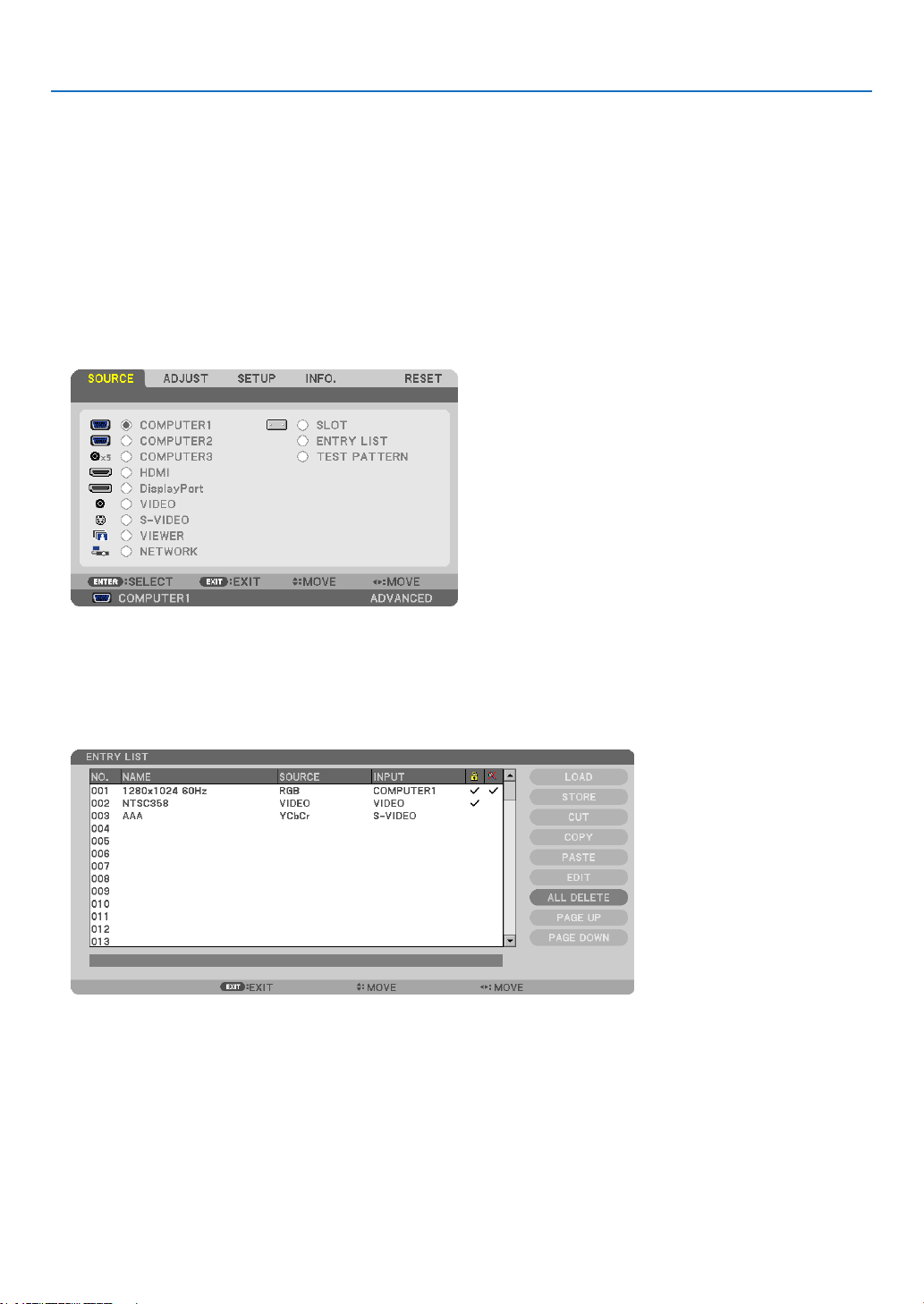
110
5. Using On-Screen Menu
UsingtheEntryList
Whenanysourceorlensmemoryadjustmentsaremade,theadjustmentsareautomaticallyregisteredintheEntry
List.The(adjustmentvaluesof)registeredsignalscanbeloadedfromtheEntryListwhenevernecessary.
However,onlyupto100patternscanberegisteredintheEntryList.When100patternshavebeenregisteredinthe
EntryList,anerrormessageisthendisplayedandnoadditionalpatternscanberegistered.Youshouldthusdelete
(adjustmentvaluesof)signalsthatarenolongerneeded.
DisplayingtheEntrylist
1. PresstheMENUbutton.
Themenuwillbedisplayed.
2. Press the ◀ or ▶buttontoselect[SOURCE].
TheSOURCElistwillbedisplayed.
3. Use the ◀, ▶, ▲, or ▼toselect[ENTRYLIST]andpresstheENTERbutton.
TheENTRYLISTwindowswillbedisplayed.
IftheENTRYLISTwindowisnotdisplayed,switchthemenuto[ADVANCED].
To switch the menu between [ADVANCED] and [BASIC], select [APPLICATION MENU] → [TOOLS] →
[ADMINISTRATORMODE].(→ page 162)
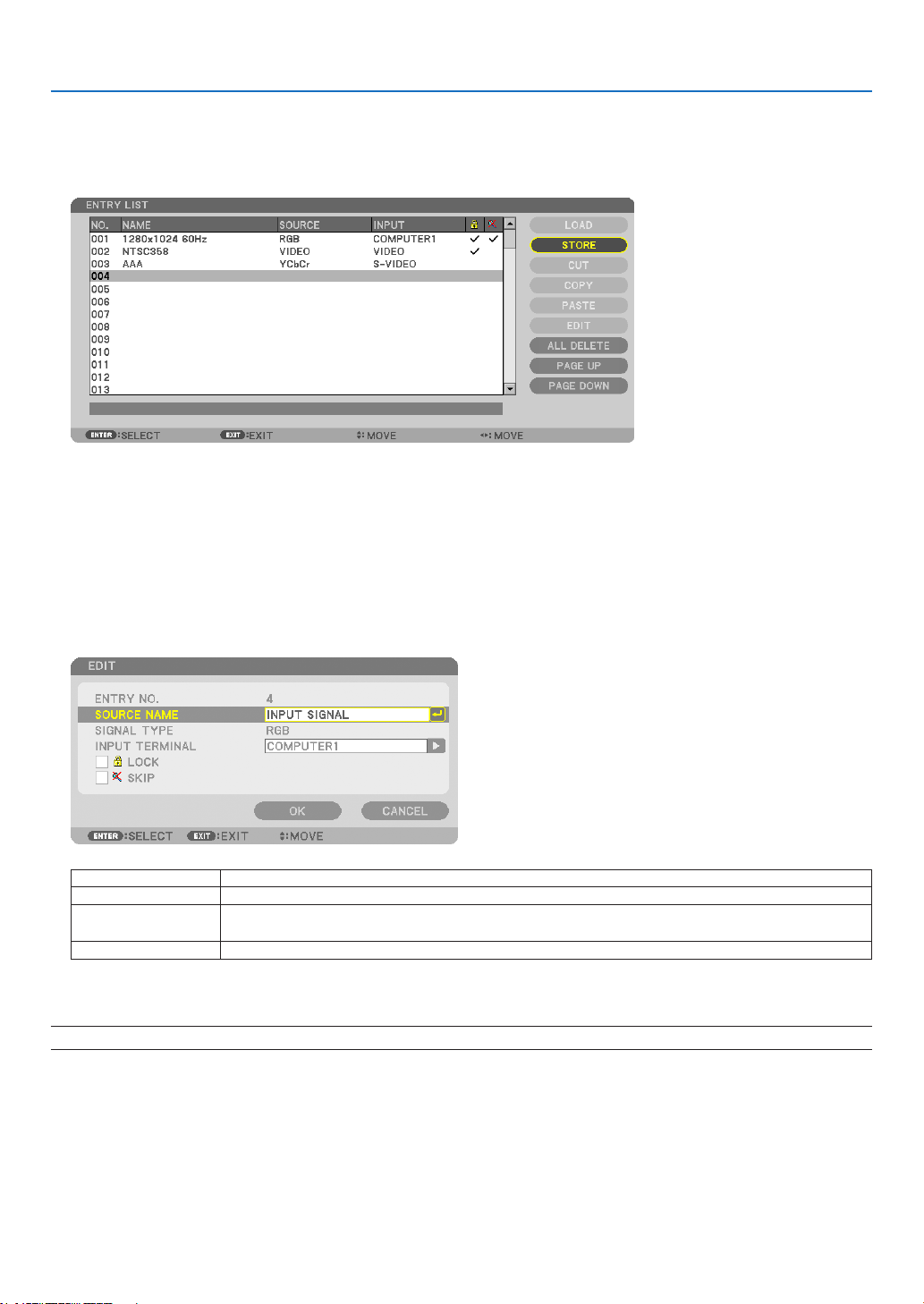
111
5. Using On-Screen Menu
EnteringthecurrentlyprojectedsignalintotheEntryList[STORE]
1. Press the ▲ or ▼ button to select any number.
2. Press the ◀ or ▶buttontoselect[STORE]andpresstheENTERbutton.
CallingupasignalfromtheEntryList[LOAD]
Pressthe▲ or ▼buttontoselectasignalandpresstheENTERbutton.
EditingasignalfromtheEntryList[EDIT]
1. Press the ▲ or ▼ button to select a signal you wish to edit.
2. Press the ◀, ▶, ▲, or ▼buttontoselect[EDIT]andpresstheENTERbutton.
TheEditwindowwillbedisplayed.
SOURCENAME Enterasignalname.Upto18alphanumericcharacterscanbeused.
INPUTTERMINAL Selecttheinputsource.
LOCK Setsothattheselectedsignalcannotbedeletedwhen[ALLDELETE]is executed.The
changesmadeafterLOCKexecutioncannotbesaved.
SKIP Setsothattheselectedsignalwillbeskippedduringautosearch.
3. Settheaboveitemsandselect[OK]andpresstheENTERbutton.
NOTE: The input terminal cannot be changed to the currently projected signal.

112
5. Using On-Screen Menu
CuttingasignalfromtheEntryList[CUT]
1. Press the ▲ or ▼ button to select a signal you wish to delete.
2. Press the ◀, ▶, ▲, or ▼buttontoselect[CUT]andpresstheENTERbutton.
ThesignalwillbedeletedfromtheEntryListandthedeletedsignalwillbedisplayedontheclipboardatthebottom
of the Entry List.
NOTE:
• Thecurrentlyprojectedsignalcannotbedeleted.
• Whenthelockedsignalisselected,itwillbedisplayedingraywhichindicatesitisnotavailable.
TIP:
• DataontheclipboardcanbepassedontotheEntryList.
• DataontheclipboardwillnotbelostaftertheEntryListisclosed.
CopyingandpastingasignalfromtheEntryList[COPY]/[PASTE]
1. Press the ▲ or ▼ button to select a signal you wish to copy.
2. Press the ◀, ▶, ▲, or ▼buttontoselect[COPY]andpresstheENTERbutton.
ThecopiedsignalwillbedisplayedontheclipboardatthebottomoftheEntryList.
3. Press the ◀ or ▶ button to move to the list.
4. Press the ▲ or ▼ button to select a signal.
5. Press the ◀, ▶, ▲, or ▼buttontoselect[PASTE]andpresstheENTERbutton.
Dataontheclipboardwillbepastedtothesignal.
DeletingallthesignalsfromtheEntryList[ALLDELETE]
1. Press the ◀, ▶, ▲, or ▼buttontoselect[ALLDELETE]andpresstheENTERbutton.
Theconrmationmessagewillbedisplayed.
2. Press the ◀ or ▶buttontoselect[YES]andpresstheENTERbutton.
NOTE: The locked signal cannot be deleted.
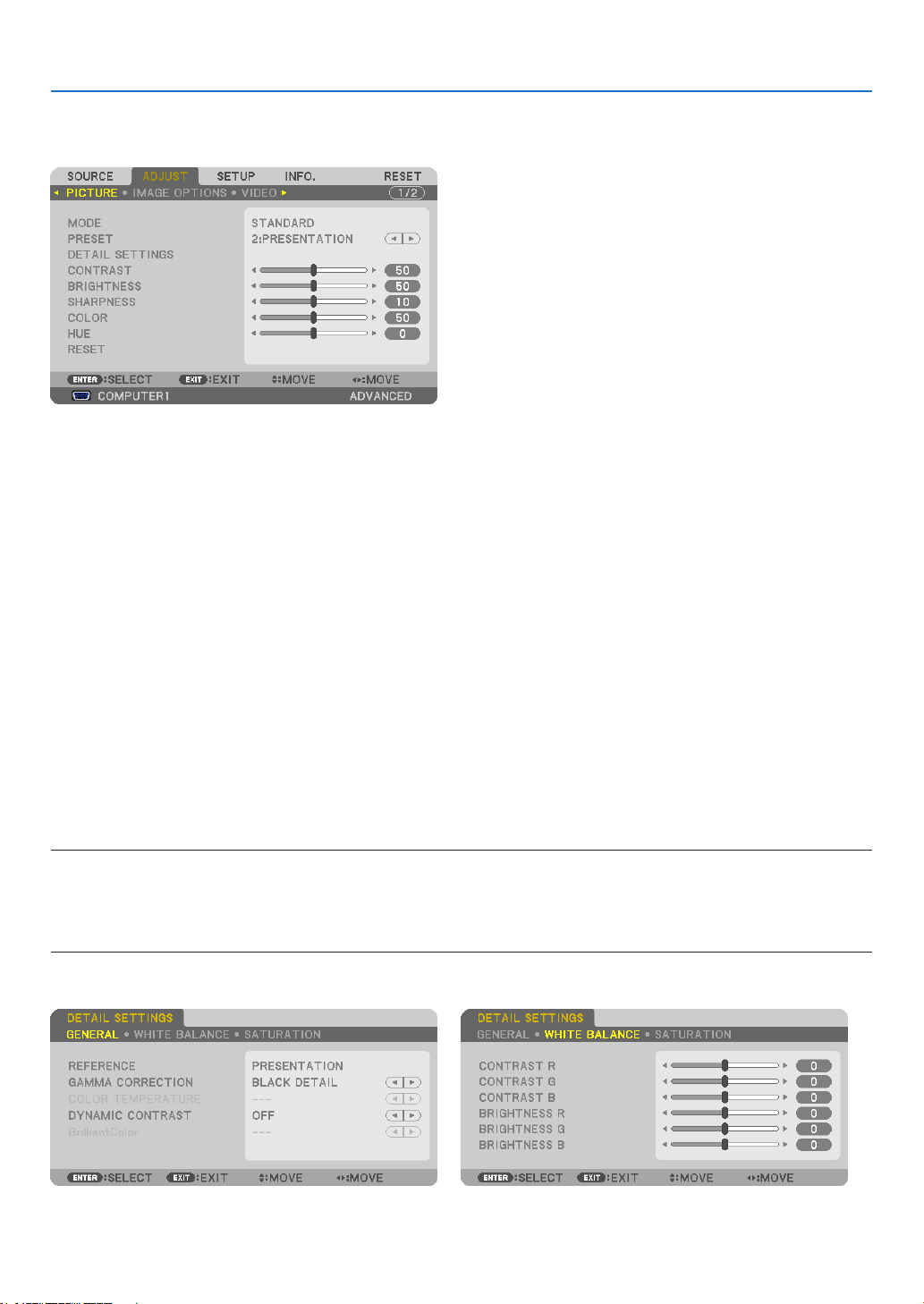
113
5. Using On-Screen Menu
❺ Menu Descriptions & Functions [ADJUST]
[PICTURE]
[MODE]
Thisfunctionallowsyoutodeterminehowtosavesettingsfor[DETAILSETTINGS]of[PRESET]foreachinput.
STANDARD ������������ Saves settings for each item of [PRESET] (Preset 1 through 7)
PROFESSIONAL
����� Saves all the settings of [PICTURE] for each input�
[PRESET]
Thisfunctionallowsyoutoselectoptimizedsettingsforyourprojectedimage.
Youcanadjustneutraltintforyellow,cyanormagenta.
Therearesevenfactorypresetsoptimizedforvarioustypesofimages.Youcanalsouse[DETAILSETTINGS]toset
useradjustablesettingstocustomizeeachgammaorcolor.
Yoursettingscanbestoredin[PRESET1]to[PRESET7].
HIGH-BRIGHT �������� Recommended for use in a brightly lit room�
PRESENTATION ����� Recommended for making a presentation using a PowerPoint file�
VIDEO �������������������� Recommended for typical TV program viewing�
MOVIE ������������������� Recommended for movies�
GRAPHIC ��������������� Recommended for graphics�
sRGB ��������������������� Standard color values
DICOM SIM� ���������� Recommended for DICOM simulation format�
NOTE:
• The[DICOMSIM.]optionisfortraining/referenceonlyandshouldnotbeusedforactualdiagnosis.
• DICOMstandsforDigitalImagingandCommunicationsinMedicine.ItisastandarddevelopedbytheAmericanCollegeofRadiol-
ogy(ACR)andtheNationalElectricalManufacturersAssociation(NEMA).
Thestandardspecieshowdigitalimagedatacanbemovedfromsystemtosystem.
[DETAIL SETTINGS]

114
5. Using On-Screen Menu
[GENERAL]
StoringYourCustomizedSettings[REFERENCE]
Thisfunctionallowsyoutostoreyourcustomizedsettingsin[PRESET1]to[PRESET7].
First,selectabasepresetmodefrom[REFERENCE],thenset[GAMMACORRECTION]and[COLORTEMPERA-
TURE].
HIGH-BRIGHT �������� Recommended for use in a brightly lit room�
PRESENTATION ����� Recommended for making a presentation using a PowerPoint file�
VIDEO �������������������� Recommended for typical TV program viewing�
MOVIE ������������������� Recommended for movies�
GRAPHIC ��������������� Recommended for graphics�
sRGB ��������������������� Standard color values�
DICOM SIM� ���������� Recommended for DICOM simulation format�
Selecting Gamma Correction Mode [GAMMA CORRECTION]
Eachmodeisrecommendedfor:
DYNAMIC �������������� Creates a high-contrast picture�
NATURAL ��������������� Natural reproduction of the picture�
BLACK DETAIL ������� Emphasizes detail in dark areas of the picture�
SelectingScreenSizeforDICOMSIM[SCREENSIZE]
Thisfunctionwillperformgammacorrectionappropriateforthescreensize.
LARGE ������������������� For screen size of 200"
MEDIUM
���������������� For screen size of 150"
SMALL
������������������� For screen size of 100"
NOTE:Thisfunctionisavailableonlywhen[DICOMSIM.]isselectedfor[DETAILSETTINGS].
Adjusting Color Temperature [COLOR TEMPERATURE]
Thisoptionallowsyoutoselectthecolortemperatureofyourchoice.
NOTE:
• When[PRESENTATION]or[HIGH-BRIGHT]isselectedin[REFERENCE],thisfunctionisnotavailable.
• Whenacoloroptionotherthan[OFF]isselectedfor[WALLCOLOR],thisfunctionisnotavailable.
Adjusting Brightness and Contrast [DYNAMIC CONTRAST]
Thisfunctionallowsyoutoadjustthecontrastratioopticallyusingthebuilt-iniris.
Toincreasethecontrastratio,select[ON].

115
5. Using On-Screen Menu
Adjusting White Balance [WHITE BALANCE]
Thisallowsyoutoadjustthewhitebalance.Contrastforeachcolor(RGB)toadjustthewhitelevelofthescreen;
Brightnessforeachcolor(RGB)isusedtoadjusttheblacklevelofthescreen.
[SATURATION]
Correctsthesaturationforallsignals.
Adjuststhesaturationforthecolorsred,green,blue,yellow,magentaandcyan.
RED ����������������������� Adjusts the color in red areas, centered around the red�
GREEN ������������������� Adjusts the color in green areas, centered around the green�
BLUE ���������������������� Adjusts the color in blue areas, centered around the blue�
YELLOW ���������������� Adjusts the color in yellow areas, centered around the yellow�
MAGENTA �������������� Adjusts the color in magenta areas, centered around the magenta�
CYAN ��������������������� Adjusts the color in cyan areas, centered around the cyan�
[CONTRAST]
Adjuststheintensityoftheimageaccordingtotheincomingsignal.
[BRIGHTNESS]
Adjuststhebrightnesslevelorthebackrasterintensity.
[SHARPNESS]
Controlsthedetailoftheimage.
[COLOR]
Increasesordecreasesthecolorsaturationlevel.
[HUE]
Variesthecolorlevelfrom+/−greento+/−blue.Theredlevelisusedasreference.
Inputsignal CONTRAST BRIGHTNESS SHARPNESS COLOR HUE
COMPUTER/DisplayPort/HDMI(RGB) Yes Yes Yes
No(Yes:SDTV/
HDTV)
No(Yes:SDTV/
HDTV)
COMPUTER/DisplayPort/HDMI
(COMPONENT)
Yes Yes Yes Yes Yes
VIDEO/S-VIDEO/COMPONENT Yes Yes Yes Yes Yes
VIEWER/NETWORK Yes Yes Yes No No
Yes=Adjustable,No=Notadjustable
[RESET]
Thesettingsandadjustmentsfor[PICTURE]willbereturnedtothefactorysettingswiththeexceptionofthefollowing;
Presetnumbersand[REFERENCE]withinthe[PRESET]screen.
Thesettingsandadjustmentsunder[DETAILSETTINGS]withinthe[PRESET]screenthatarenotcurrentlyselected
willnotbereset.
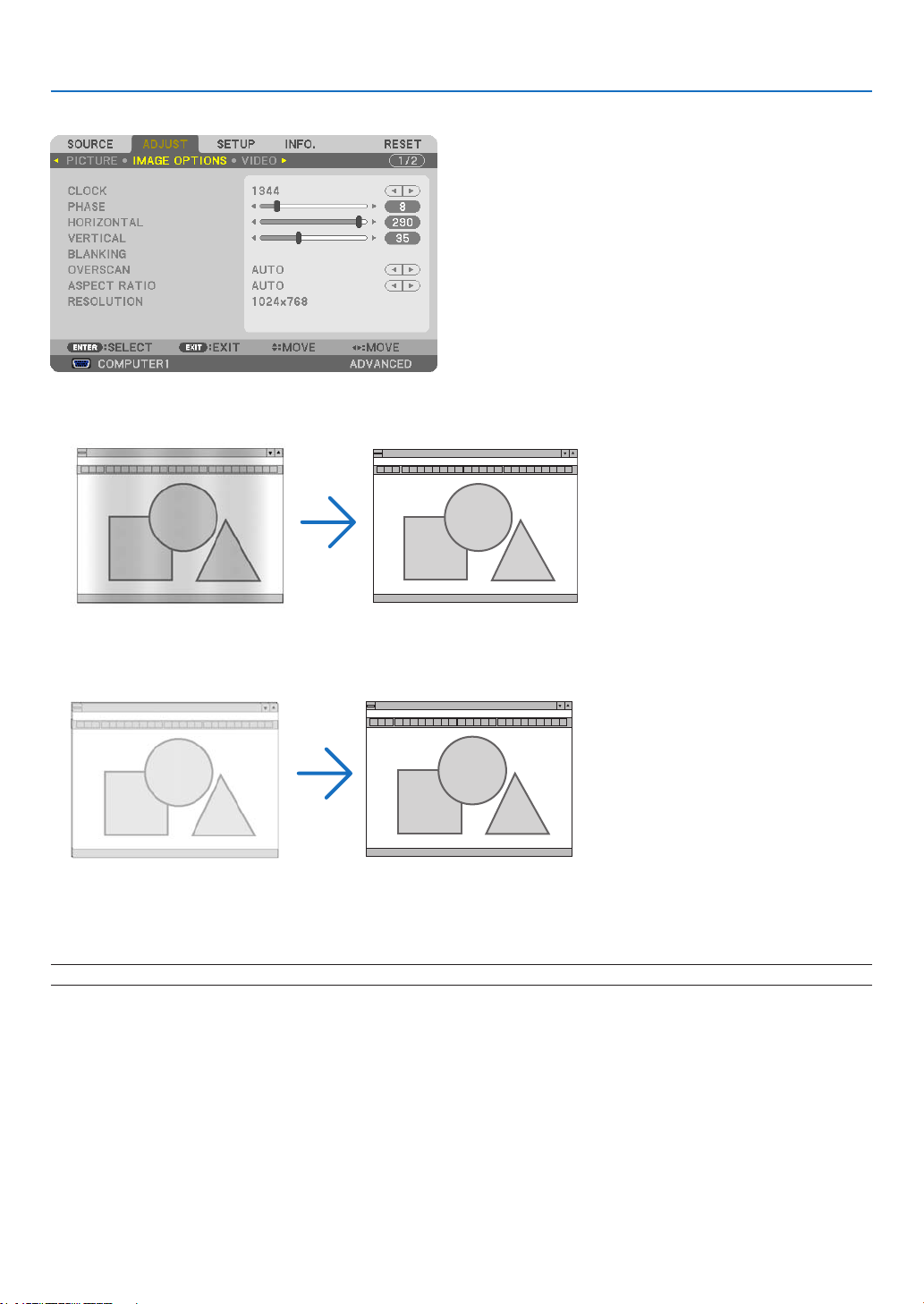
116
5. Using On-Screen Menu
[IMAGE OPTIONS]
AdjustingClockandPhase[CLOCK/PHASE]
ThisallowsyoutomanuallyadjustCLOCKandPHASE.
CLOCK ������������������� Use this item to fine tune the computer image or to remove any vertical banding that might appear� This
function adjusts the clock frequencies that eliminate the horizontal banding in the image�
This adjustment may be necessary when you connect your computer for the first time�
PHASE ������������������� Use this item to adjust the clock phase or to reduce video noise, dot interference or cross talk� (This is
evident when part of your image appears to be shimmering�)
Use [PHASE] only after the [CLOCK] is complete�
NOTE:The[CLOCK]and[PHASE]itemsareavailableforRGBsignalsonly.
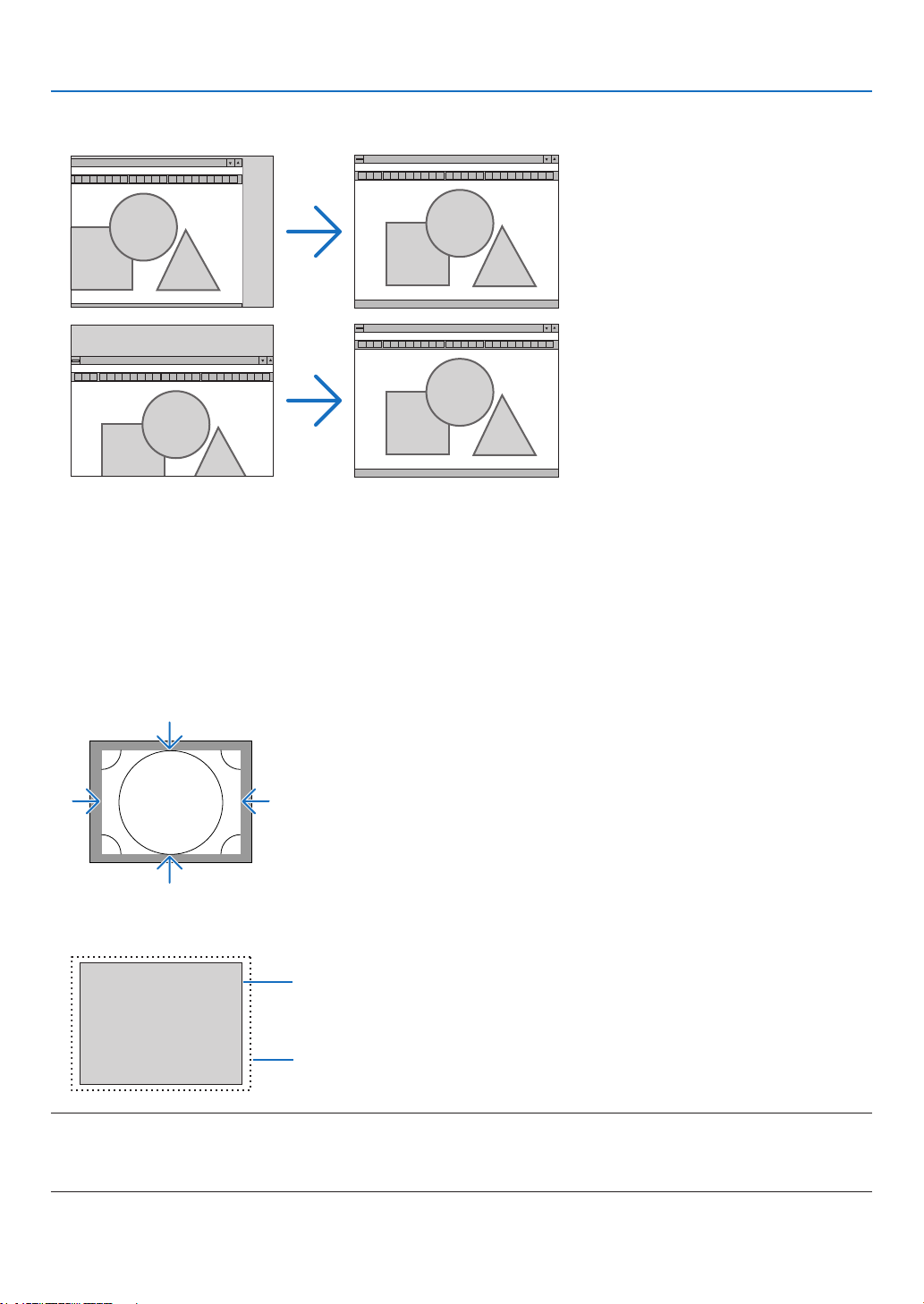
117
5. Using On-Screen Menu
AdjustingHorizontal/VerticalPosition[HORIZONTAL/VERTICAL]
Adjuststheimagelocationhorizontallyandvertically.
- Animagecanbedistortedduringtheadjustmentof[CLOCK]and[PHASE].Thisisnotmalfunction.
- Theadjustmentsfor[CLOCK],[PHASE],[HORIZONTAL],and[VERTICAL]willbestoredinmemoryforthe
currentsignal.Thenexttimeyouprojectthesignalwiththesameresolution,horizontalandverticalfrequency,
itsadjustmentswillbecalledupandapplied.
Todeleteadjustmentsstoredinmemory,fromthemenu,youselect[RESET]→[CURRENTSIGNAL]andreset
theadjustments.
[BLANKING]
Adjuststhedisplayrange(blanking)atthetop,bottom,leftandrightedgesoftheinputsignal.
SelectingOverscanPercentage[OVERSCAN]
Selectoverscanpercentage(Auto,0%,5%and10%)forsignal.
Projected image
Overscanedby10%
NOTE:
• The[OVERSCAN]itemisnotavailable:
-when[NATIVE]isselectedfor[ASPECTRATIO].
-when[VIEWER]or[NETWORK]isselectedfor[SOURCE]
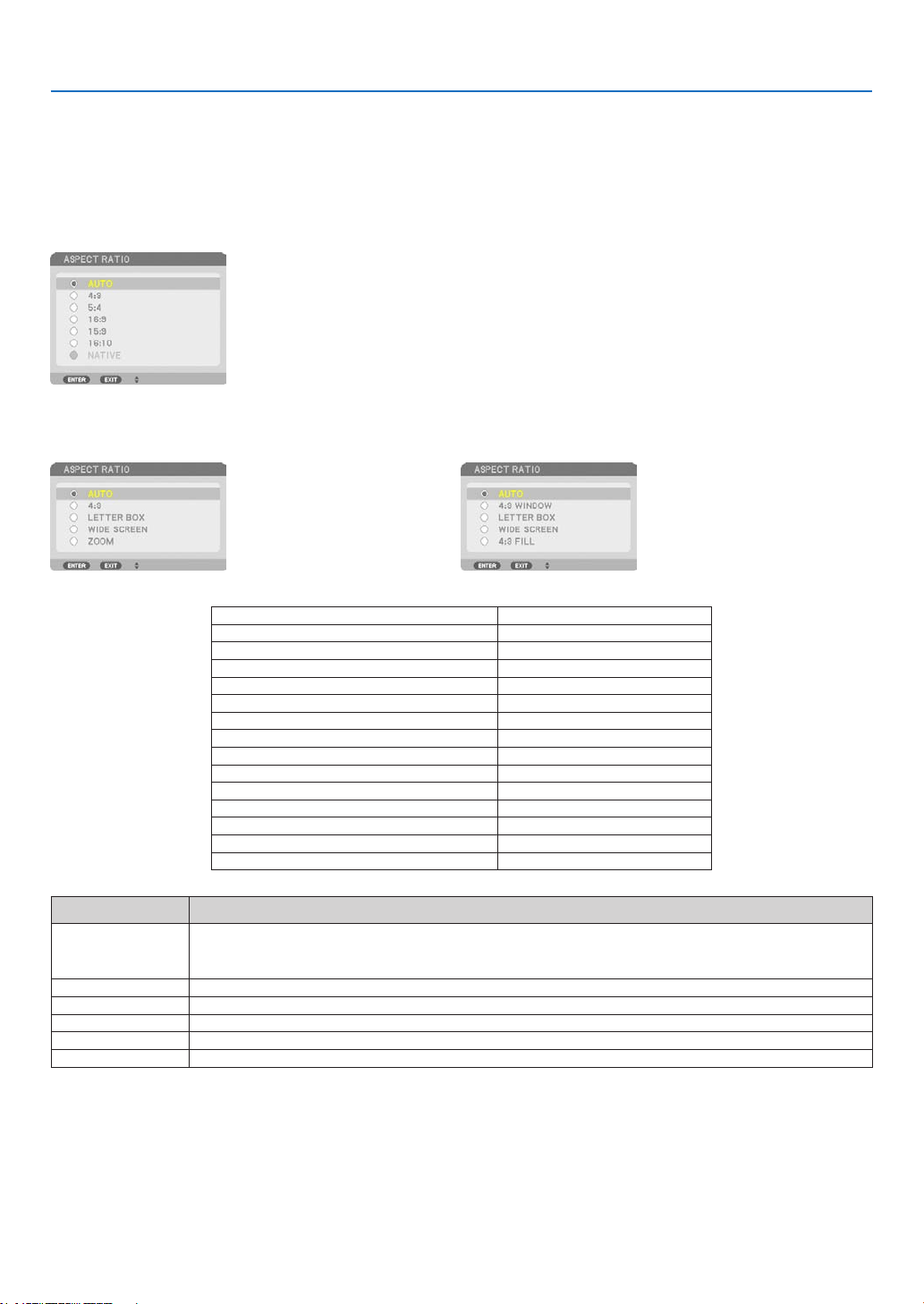
118
5. Using On-Screen Menu
Selecting the Aspect Ratio [ASPECT RATIO]
Usethisfunctiontoselectthescreen’svertical:horizontalaspectratio.
Selectthescreentype(4:3screen,16:9screenor16:10screen)atthescreensettingbeforesettingtheaspectratio.
(→page128)
Theprojectorautomaticallyidentiesthesignalbeinginputandsetstheoptimumaspectratio.
For Computer signal
ForComponent/Video/S-Videosignals
Whenthescreentypeissetto4:3 Whenthescreentypeissetto16:9or16:10
Resolution AspectRatio
VGA 640×480 4:3
SVGA
800×600 4:3
XGA
1024×768 4:3
WXGA
1280×768 15:9
WXGA
1280×800 16:10
HD(FWXGA)
1366×768 approx.16:9
WXGA+ 1440×900 16:10
SXGA
1280×1024 5:4
SXGA+
1400×1050 4:3
WXGA++
1600×900 16:9
UXGA
1600×1200 4:3
WSXGA+
1680×1050 16:9
FHD(1080P)
1920×1080 16:9
WUXGA
1920×1200 16:10
Options Function
AUTO
Theprojectorwillautomaticallydeterminetheincomingsignalanddisplayitinitsaspectratio.
Theprojectormayerroneouslydeterminetheaspectratiodependingonitssignal.Ifthisoccurs,
selecttheappropriateaspectratiofromthefollowing.
4:3 Theimageisdisplayedin4:3aspectratio.
5:4 Theimageisdisplayedin5:4aspectratio
16:9 Theimageisdisplayedin16:9aspectratio
15:9 Theimageisdisplayedin15:9aspectratio
16:10 Theimageisdisplayedin16:10aspectratio
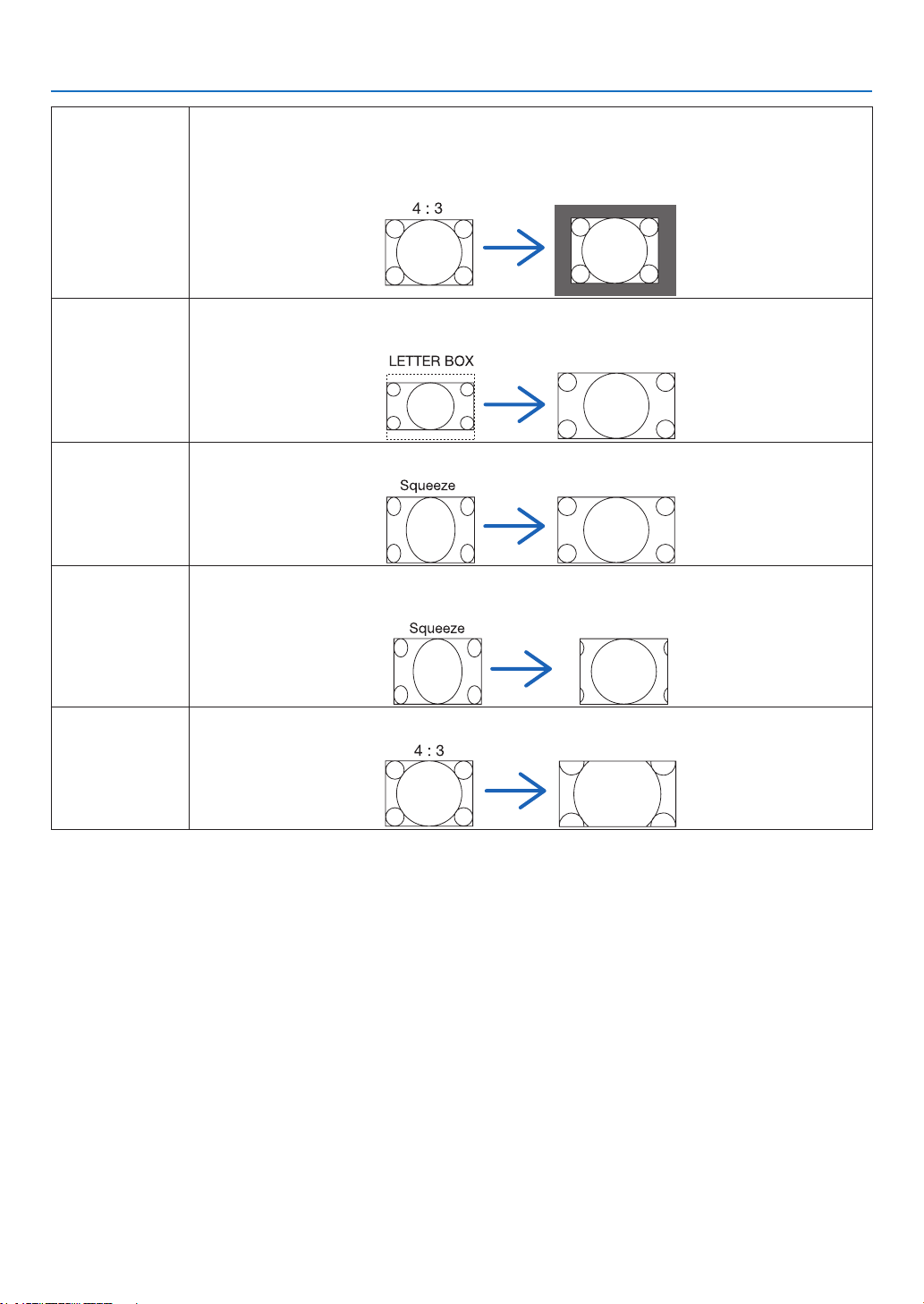
119
5. Using On-Screen Menu
NATIVE Theprojectordisplaysthecurrentimageinitstrueresolutionwhentheincomingcomputersignal
hasalowerorhigherresolutionthantheprojector’snativeresolution.(→page2,227)
Whentheincomingcomputersignalhasahigherresolutionthantheprojector'snativeresolution,
thecenterofanimagewillbedisplayed.
LETTERBOX Theimageofaletterboxsignal(16:9)isstretchedequallyinthehorizontalandverticaldirections
totthescreen.
WIDESCREEN Theimageofasqueezesignal(16:9)isstretchedleftandrightin16:9.
ZOOM Theimageofasqueezesignal(16:9)isstretchedleftandrightin4:3.
Partsofthedisplayedimagearecroppedattheleftandrightedgesandthereforenotvisible.
4:3FILL Theimageofasignal(4:3)isstretchedleftandrightin16:9.
TIP:
• Imagepositioncanbeadjustedverticallyusing[POSITION]whenthe[16:9],[15:9],or[16:10]aspectratiosareselected.
• Theterm“letterbox”referstoamorelandscape-orientedimagewhencomparedtoa4:3image,whichisthestandardaspect
ratioforavidesource.
Theletterboxsignalhasaspectratioswiththevistasize“1.85:1”orcinemascopesize“2.35:1”formovielm.
• Theterm“squeeze”referstothecompressedimageofwhichaspectratioisconvertedfrom16:9to4:3.
[RESOLUTION]
Thisfunctionsetstheresolutionofaprojectedimageifauto-detectfailstoworkwell.

120
5. Using On-Screen Menu
[VIDEO]
Using Noise Reduction [NOISE REDUCTION]
Thisfunctionisusedtoreducevideonoise.
RANDOM NR ��������� Reduces flickering random noise in an image�
MOSQUITO NR ������ Reduces mosquito noise that appears around the edges of an image during DVD playback�
BLOCK NR ������������� Reduces block noise or mosaic-like patterns by selecting ON�
Selecting Interlaced Progressive Conversion Process Mode [DEINTERLACE]
Thisfunctionallowsyoutoselectaninterlaced-to-progressiveconversionprocessforvideosignals.
AUTO ��������������������� Determines an appropriate interlaced-to-progressive conversion process automatically�
VIDEO �������������������� Applies a normal interlaced-to-progressive conversion process�
FILM ���������������������� Applies the automatic detection mode for telecine signals� This option is recommended for a movie pic-
ture�
NOTE:ThisfunctionisnotavailablewithRGBsignals.
TurningOnorOffthe3DDimensionalSeparation[3DY/CSEPARATION]
WhenprojectinganimagefromaVIDEOinput,settoONtoprojectthehighestqualityimage.
OFF ������������������������ Turns off the 3 dimensional separation feature�
ON ������������������������� Turns on the 3 dimensional separation feature�
NOTE:OnlyavailableforNTSC3.58videosignals.
[DETAIL ENHANCEMENT]
Thisfunctionenhancesthecontoursoftheimagewhenprojectingcomponentsignals.
NOTE:
Thisfunctionmaynotbeavailabledependingonthesignalorscreensetting.
[SIGNAL TYPE]
TheprojectorautomaticallyidentieswhethertheCOMPUTER1,COMPUTER2orCOMPUTER3*inputsignalsare
RGBorcomponentsignalstoprojecttheimage.Ifthecolorsareunnatural,however,tryswitchingthesetting.
*ForCOMPUTER3,thecomputersignalandvideosignalcanbeselectedatSIGNALSELECT(COMP3).
RGB
����������������������� Switches to the RGB input�
COMPONENT ��������� Switches to the component signal input�
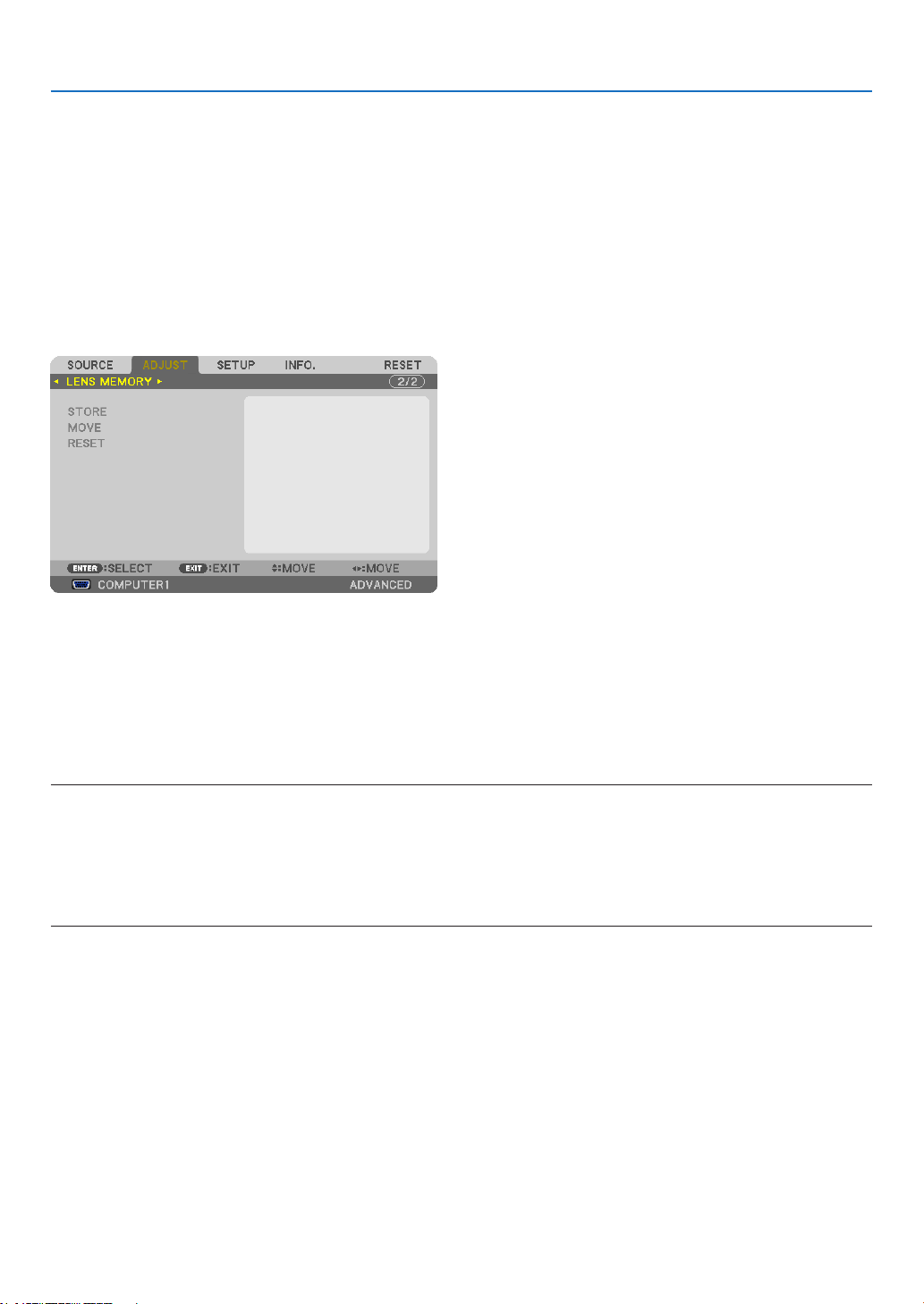
121
5. Using On-Screen Menu
[VIDEOLEVEL]
Thisfunctionselectsvideosignallevelwhentheprojector’sHDMIandDisplayPortinputconnectorsandanexternal
deviceareconnected.
AUTO ��������������������� The video level is switched automatically based on the information from the device outputting the signal�
Depending on the connected device, this setting may not be made properly� In this case, switch to “NORMAL”
or “ENHANCED” from the menu and view with the optimum setting�
NORMAL ���������������� This disables the enhanced mode�
ENHANCED ������������ This improves the image’s contrast, expressing the dark and light sections more dynamically�
Using the Lens Memory Function [LENS MEMORY]
ThisfunctionservestostoretheadjustedvaluesforeachinputsignalwhenusingtheLENSSHIFT,ZOOMandFO-
CUSbuttonsoftheprojector.Adjustedvaluescanbeappliedtothesignalyouselected.Thiswilleliminatetheneed
toadjustlensshift,focus,andzoomatthetimeofsourceselection.
STORE ������������������� Stores the current adjusted values in memory for each input signal�
MOVE �������������������� Applies the adjusted values to the current signal�
RESET �������������������� Returns the adjusted values to the last condition�
NOTE:
• Thelensshift,zoom,andfocusadjustmentscanbeperformedwiththeremotecontrol.(→ page 27, 29, 30)
• Tostoreadjustedvaluescommontoalltheinputsources,usetheREF.LENSMEMORYfunction.Seepage49, 130.
• LensmemoryadjustmentswillbeautomaticallyregisteredtheENTRYLIST.Theselensmemoryadjustmentscanbeloadedfrom
theENTRYLIST.(→ page 110)
Notethatperforming[CUT]or[ALLDELETE]intheENTRYLISTwilldeletelensmemoryadjustmentsaswellassourceadjust-
ments. This deletion will not take effect until other adjustments is loaded.
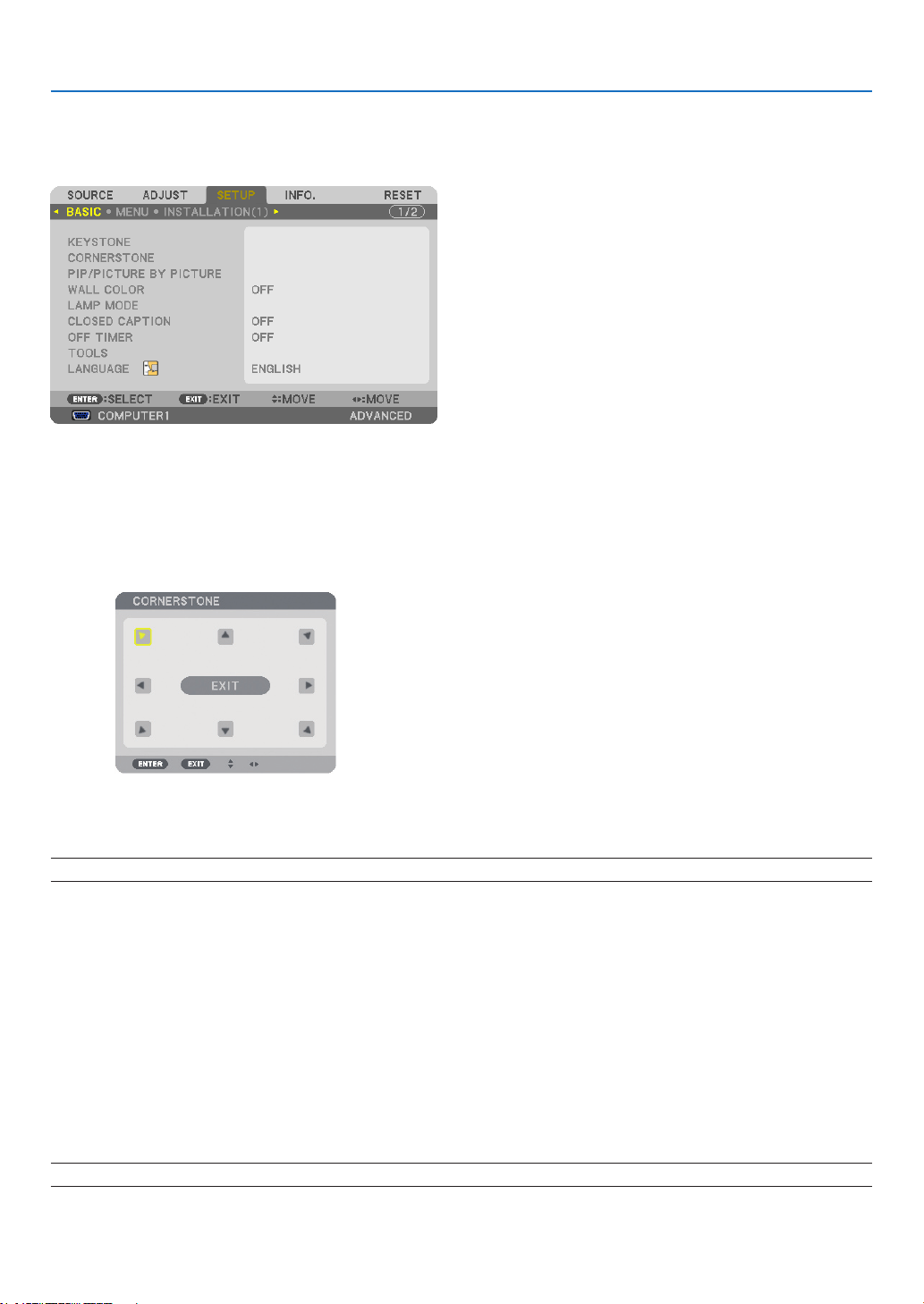
122
5. Using On-Screen Menu
❻ Menu Descriptions & Functions [SETUP]
[BASIC]
CorrectingVerticalKeystoneDistortionManually[KEYSTONE]
Youcancorrectverticaldistortionmanually.(→page31)
TIP:Whenthisoptionishighlighted,pressingtheENTERbuttonwilldisplayitsslidebarforadjustment.
Selecting Cornerstone Mode [CORNERSTONE]
Thisoptionallowsyoutocorrecttrapezoidaldistortion.
SelectingthisitemwilldisplaytheCornerstoneadjustmentscreen.(→page41)
NOTE:The[CORNERSTONE]itemisnotavailablewhen[KEYSTONE]or[GEOMETRICCORRECTION]isselected.
UsingthePIP/PICTUREBYPICTUREFunction[PIP/PICTUREBYPICTURE]
Thisfunctionallowsyoutoviewtwodifferentsignalssimultaneously.(→page44)
MODE:
Thisoptionallowsyoutoselecttwomodes:PIPandPICTUREBYPICTURE.
PIP:Thisoptionallowsyoutoviewasubpictureinthemainpicture.
PICTUREBYPICTURE:Thisallowsyoutoviewtwopicturessidebyside.
POSITION:
When[PIP]isselectedfor[MODE],thisoptionallowsyoutoselectthepositionofasubpictureinthemainpic-
ture.
Theoptionsare:TOP-LEFT,TOP-RIGHT,BOTTOMLEFT,andBOTTOMRIGHT.
NOTE:The[POSITION]cannotbeselectedwhen[PICTUREBYPICTURE]isselected.
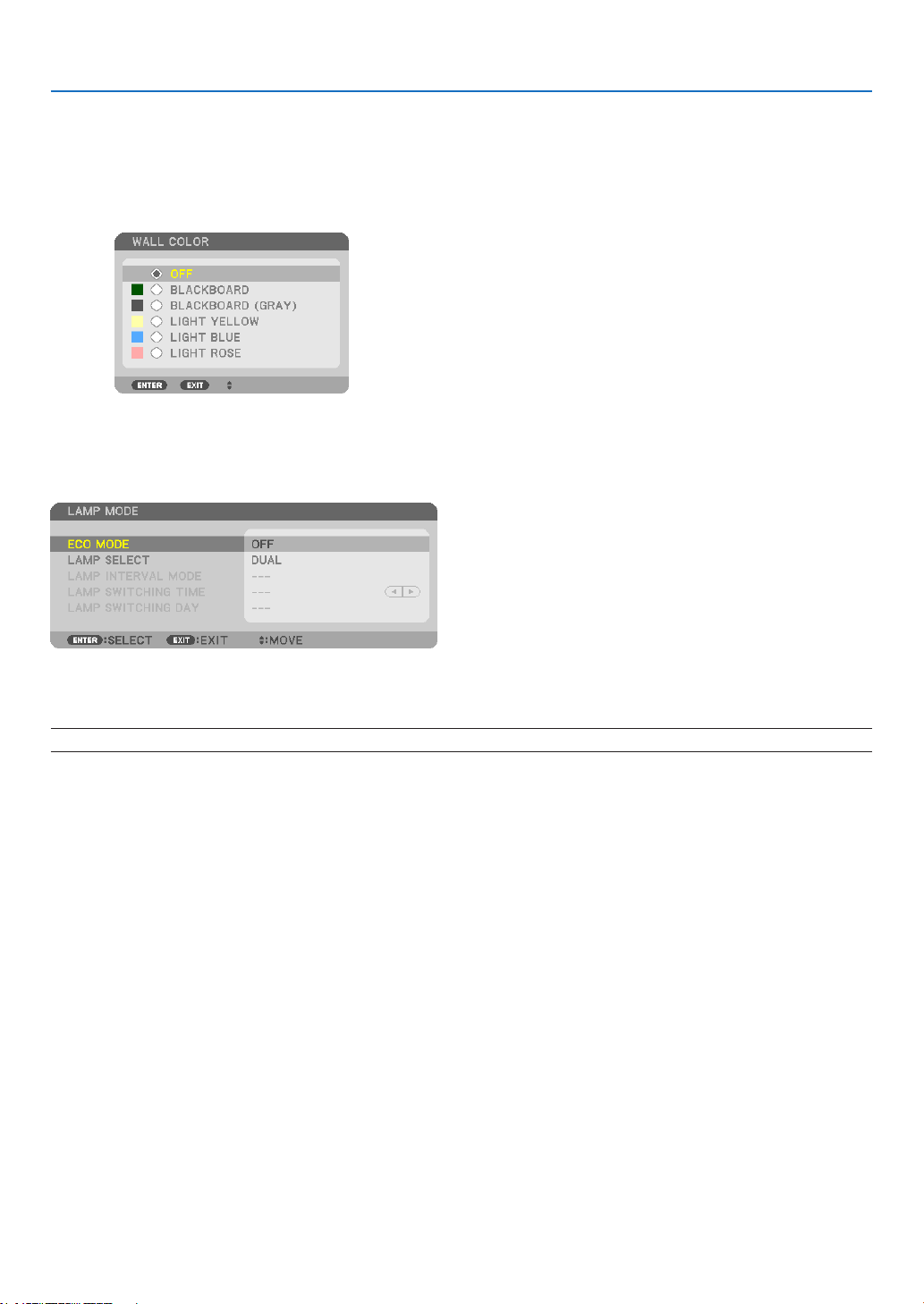
123
5. Using On-Screen Menu
SOURCE:
Thisoptionallowsyoutoselectasubpicturesignal.
Theoptionsare:OFF,VIDEOandS-VIDEO.
Selecting[OFF]willcancelthePIP/PICTUREBYPICTUREmodeandreturntothenormalscreen.
Using the Wall Color Correction [WALL COLOR]
Thisfunctionallowsforquickadaptivecolorcorrectioninapplicationswherethescreenmaterialisnotwhite.
[LAMP MODE]
Theprojectorisdesignedtoaccepttwolamps(duallampsystem).
Thisduallampsystemprovidesprolongedlamplifeorhighbrightnessorextralamp(Extendedlifelamp).
The[LAMPMODE]itemhas3options:[ECOMODE],[LAMPSELECT],and[LAMPINTERVALMODE].
NOTE:Besuretousethesamelamptypeforbothlamp1and2.
Setting Eco Mode [ECO MODE]
TheECOMODEincreaseslamplife,whileloweringpowerconsumptionandcuttingdownonCO
2
emissions.
Twobrightnessmodesofthelampcanbeselected:[OFF]and[ON]modes.
(→page39)

124
5. Using On-Screen Menu
Selecting the lamp to be used [LAMP SELECT]
Thisfeatureallowsyoutoselectwhichlamptobeused.
NOTE:ThisoptionisnotdisplayedintheBasicmenu.
DUAL ��������������������� Select to use the two lamps at the same time to increase brightness�
SINGLE ������������������ Lights either lamp 1 or 2 whichever was used last� This option also selects Lamp 1 or Lamp 2 according to
the time preset with Lamp Interval�
LAMP 1 ONLY �������� Select to use the Lamp 1 of the two lamps� (Lamp 1 on the right of the rear side)
LAMP 2 ONLY �������� Select to use the Lamp 2 of the two lamps� (Lamp 2 on the left of the rear side)
TIP:
OnSelecting[SINGLE]for[LAMPSELECT]
• Alamphasapropertythatitsbrightnessgraduallydecreaseswithage.Tokeepthebrightnessoftwolampsonthesamelevelas
muchaspossible,select[SINGLE]for[LAMPSELECT].
• Lamplifewilldecreasewhenshorterlampintervaltimesaresetwithintheon-screenmenu.Youarerecommendedtoextendthe
lampintervaltime.
Settingthelampinterval[LAMPINTERVALMODE]
Thisallowsyoutospecifythetimeforswitchingbetweenthetwolampsalternately.Thisoptionisavailableonlywhen
[SINGLE]isselectedfor[LAMPSELECT].
OFF ������������������������ Turns off the lamp interval mode setting�
12 HOURS/24 HOURS/1 WEEK
������������������������������ Select one of these three options for interval time�
NOTE:
• Thisfunctionisavailableonlywhen[SINGLE]isselectedfor[LAMPSELECT].
• Beforesetting[LAMPINTERVALMODE],[LAMPSWITCHINGTIME]or[LAMPSWITCHINGDAY],makesurethatthecurrentdate
andtimeissetfortheprojector.Tosetthedateandtimefortheprojector,select[APPLICATIONMENU]→[TOOLS]→[DATE
ANDTIME]fromthemenu.(→ page 166)
Setting the time for changing the lamp [LAMP SWITCHING TIME]
Thisallowsyoutosetthetimeforchangingthelamp.
Example–When[SINGLE]isselectedfor[LAMPSELECT]and[24HOURS]for[LAMPINTERVALMODE]:
Lamp 1
Lamp 2
24 hours 24 hours
24 hours 24 hours
This indicates the lamp is turned on.
This indicates the lamp is turned off.
Current Time SwitchingTime* SwitchingTime
(*)AftersettingtheCurrentTime,ifthevaluebetweenCurrentTimeandSwitchingTimeislessthanve(5)minutes,therst
lampswitchinginstancedoesnottakeplace.

125
5. Using On-Screen Menu
Settingthedayforchangingthelamp[LAMPSWITCHINGDAY]
Thisallowsyoutosetthedayforchangingthelamp.
Theoptionsare:SUN(Sunday),MON(Monday),TUE(Tuesday),WED(Wednesday),THU(Thursday),FRI(Friday),
andSAT(Saturday).
NOTE:
• Thisfunctionisavailableonlywhen[1WEEK]isselectedfor[LAMPINTERVALMODE].
Setting Closed Caption [CLOSED CAPTION]
ThisoptionsetsseveralclosedcaptionmodesthatallowtexttobesuperimposedontheprojectedimageofVideo
orS-Video.
OFF ������������������������ This exits the closed caption mode�
CAPTION 1-4 ��������� Text is superimposed�
TEXT 1-4 ���������������� Text is displayed�
Using Off Timer [OFF TIMER]
1. Selectyourdesiredtimebetween30minutesand16hours:OFF,0:30,1:00,2:00,4:00,8:00,12:00,16:00.
2. PresstheENTERbuttonontheremotecontrol.
3. Theremainingtimestartscountingdown.
4. Theprojectorwillturnoffafterthecountdowniscomplete.
NOTE:
• Tocancelthepresettime,set[OFF]forthepresettimeorturnoffthepower.
• Whentheremainingtimereaches3minutesbeforetheprojectoristurnedoff,the[THEPROJECTORWILLTURNOFFWITHIN3
MINUTES]messagewillbedisplayedonthebottomofthescreen.
[TOOLS]
See“APPLICATIONMENU”onpage144.
Selecting Menu Language [LANGUAGE]
Youcanchooseoneof27languagesforon-screeninstructions.
NOTE:Yoursettingwillnotbeaffectedevenwhen[RESET]isdonefromthemenu.
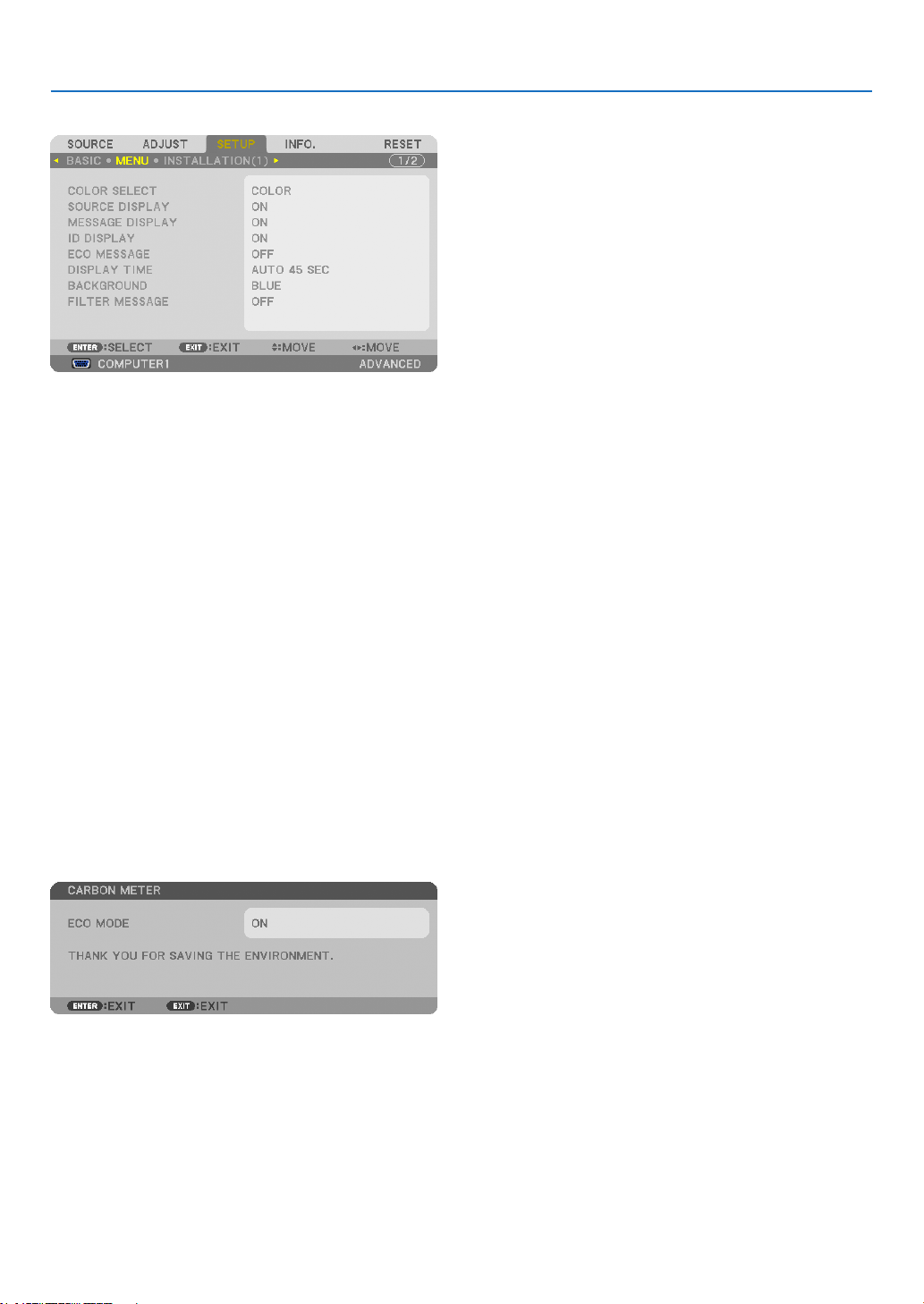
126
5. Using On-Screen Menu
[MENU]
Selecting Menu Color [COLOR SELECT]
Youcanchoosebetweentwooptionsformenucolor:COLORandMONOCHROME.
TurningOn/OffSourceDisplay[SOURCEDISPLAY]
ThisoptionturnsonoroffinputnamedisplaysuchasCOMPUTER1,COMPUTER2,COMPUTER3,HDMI,Display-
Port,VIDEO,S-VIDEO,VIEWER,NETWORKtobedisplayedonthetoprightofthescreen.
Turning messages on and off [MESSAGE DISPLAY]
Thisoptionselectswhetherornottodisplayprojectormessagesatthebottomoftheprojectedimage.
Evenwhen“OFF”isselected,thesecuritylockwarningisdisplayed.Thesecuritylockwarningturnsoffwhenthe
securitylockiscanceled.
TurningON/OFFControlID[IDDISPLAY]
ID DISPLAY ����������� This option turns on or off the ID number which is displayed when the ID SET button on the remote control
is pressed� (→ page 131)
TurningOn/OffEcoMessage[ECOMESSAGE]
Thisoptionturnsonoroffthefollowingmessageswhentheprojectoristurnedon.
TheEcoMessagepromptstheusertosaveenergy.When[OFF]isselectedfor[ECOMODE],youwillgetamessage
topromptyoutoselect[ON]for[ECOMODE].
When[ON]isselectedfor[ECOMODE]
Toclosethemessage,pressanyoneofthebuttons.Themessagewilldisappearifnobuttonoperationisdonefor
30seconds.
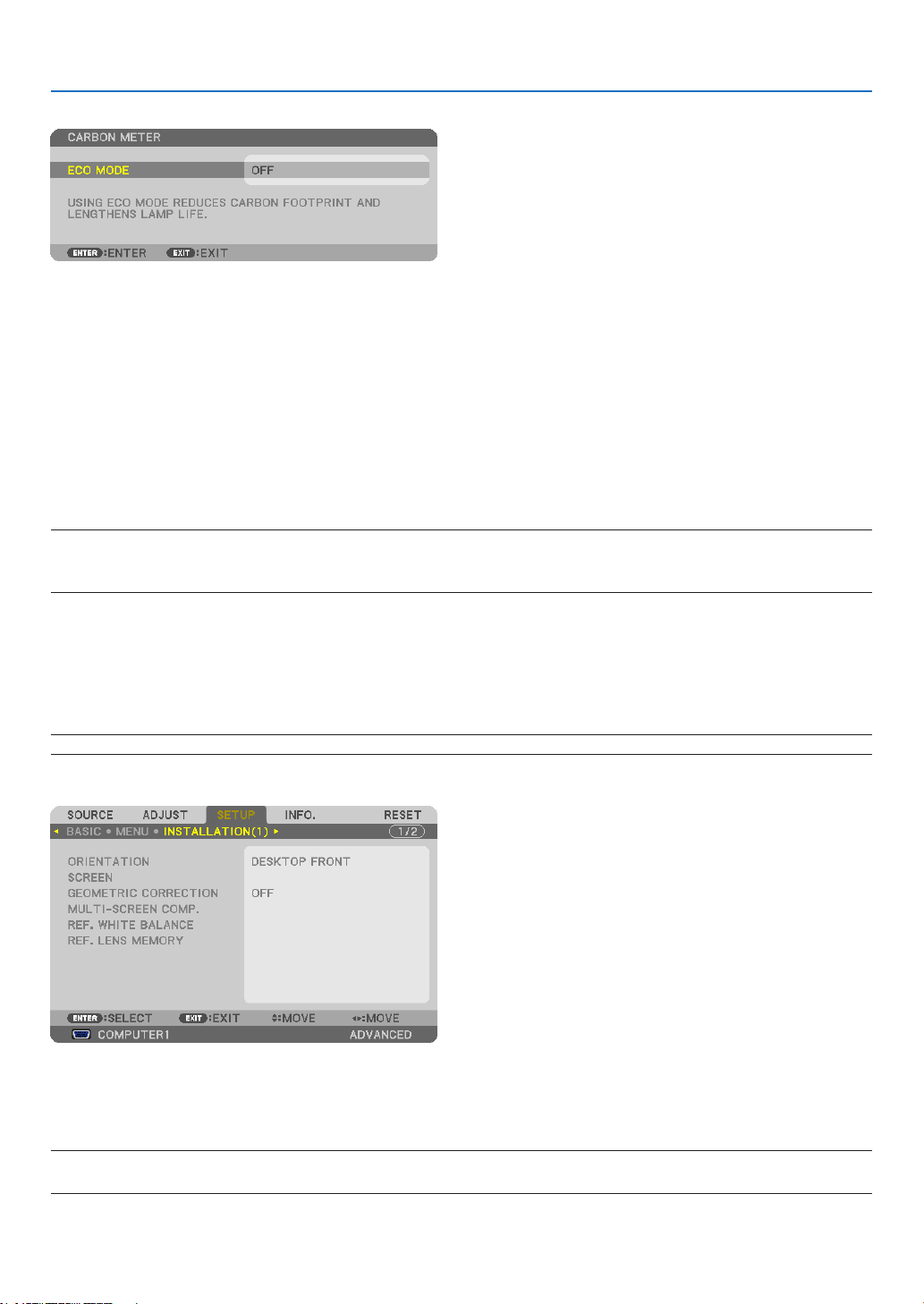
127
5. Using On-Screen Menu
When[OFF]isselectedfor[ECOMODE]
PressingtheENTERbuttonwilldisplaythe[ECOMODE]screen.(→page39)
Toclosethemessage,presstheEXITbutton.
SelectingMenuDisplayTime[DISPLAYTIME]
Thisoptionallowsyoutoselecthowlongtheprojectorwaitsafterthelasttouchofabuttontoturnoffthemenu.The
presetchoicesare[MANUAL],[AUTO5SEC],[AUTO15SEC],and[AUTO45SEC].The[AUTO45SEC]isthefac-
torypreset.
SelectingaColororLogoforBackground[BACKGROUND]
Use this feature to display a blue/black screen or logo when no signal is available.The default background is
[LOGO].
NOTE:
•
Evenwhenthebackgroundlogoisselected,iftwopicturesaredisplayedin[PIP/PICTUREBYPICTURE]mode,thebluebackground
is displayed without the logo when there is no signal.
Selecting Interval Time for Filter Message [FILTER MESSAGE]
Thisoptionallowsyoutoselectthetimepreferencebetweendisplayingthemessageforcleaningthelters.Clean
thelterwhenyougetthemessage“PLEASECLEANFILTER.”(→page184)
Sixoptionsareavailable:OFF,100[H],500[H],1000[H],2000[H],5000[H]
Thedefaultsettingis[OFF].
NOTE:Yoursettingwillnotbeaffectedevenwhen[RESET]isdonefromthemenu.
[INSTALLATION(1)]
Selecting Projector Orientation [ORIENTATION]
Thisreorientsyourimageforyourtypeofprojection.Theoptionsare:desktopfrontprojection,ceilingrearprojection,
desktoprearprojection,andceilingfrontprojection.
NOTE:
Whenchangingtheprojectororientation,alsochangethe[SETTING]optionof[FANMODE]accordingly.(→ page 133)
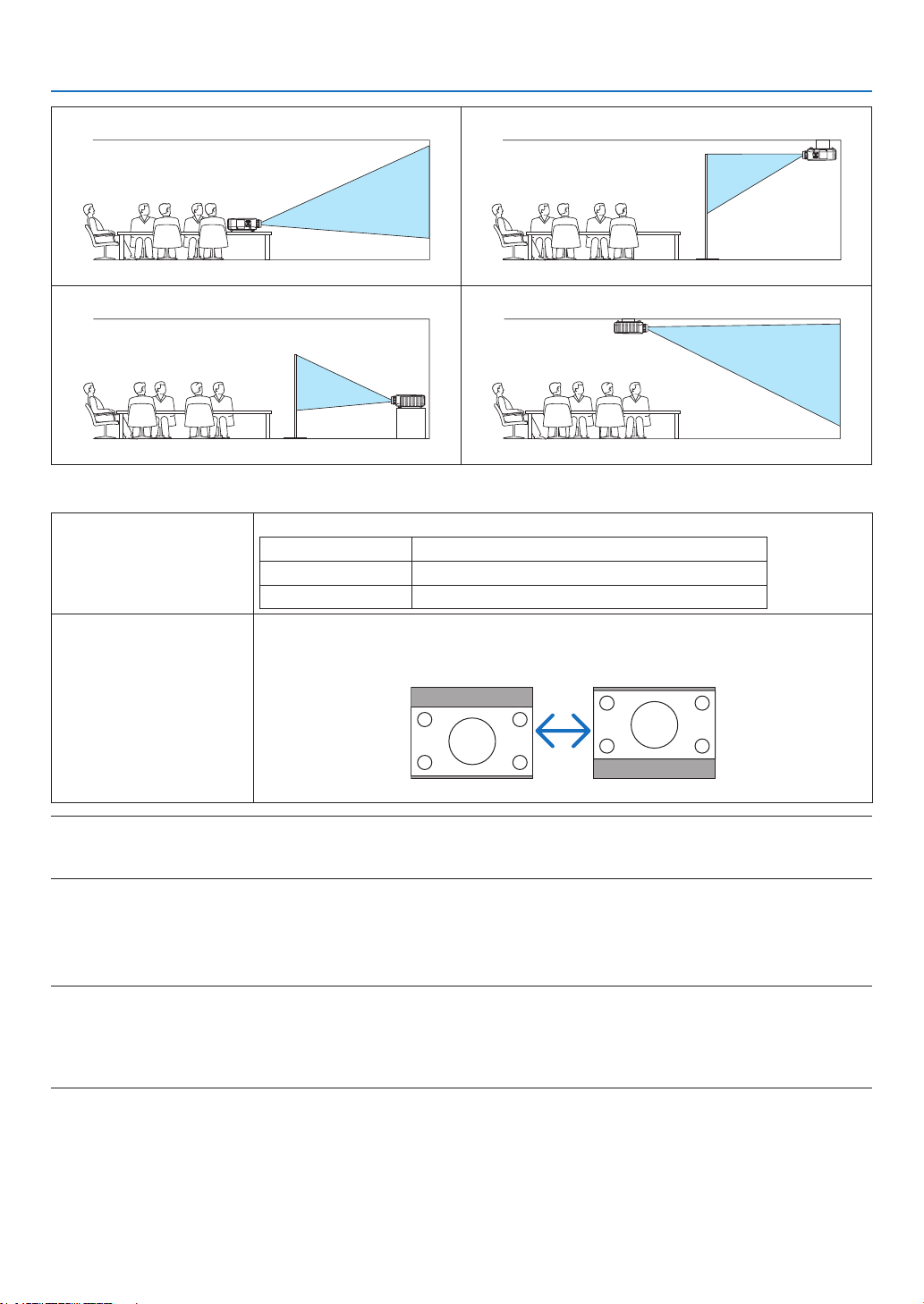
128
5. Using On-Screen Menu
DESKTOPFRONT
CEILINGREAR
DESKTOPREAR
CEILINGFRONT
Selecting Aspect Ratio and Position for Screen [SCREEN]
Screentype Setstheaspectratiooftheprojectionscreen.
4:3screen Forascreenwitha4:3aspectratio
16:9screen Forascreenwitha16:9aspectratio
16:10screen Forascreenwitha16:10aspectratio
Displayposition Whenthescreentypeissetto16:9or16:10,adjuststheverticalpositionofthedisplay
range.
Downward
Upward
NOTE:
•
Afterchangingthescreentype,checkthesettingof[ASPECTRATIO]inthemenu.
(→ page 118)
Using Geometric Correction [GEOMETRIC CORRECTION]
Thisfeatureretrievesgeometricdataregisteredintheprojectormemory.
Threepresetsofgeometricdatahavebeenregistered.Toturnoffthisfeature,select[OFF].
NOTE:
• The[KEYSTONE]and[CORNERSTONE]adjustmentsarenotavailablewhengeometricdataisapplied.
• Toclearyourgeometricdata,pressthe3DREFORMbuttonforaminimumof2seconds.
• The[GEOMETRICCORRECTION]featurecancauseanimagetobeslightlyblurredbecausethecorrectionismadeelectroni-
cally.

129
5. Using On-Screen Menu
UsingMulti-ScreenCompensation[MULTI-SCREENCOMP.]
Thisfeatureallowsyoutomatchbrightnessofimagesprojectedfrommultipleprojectors.
Beforeusing[MULTI-SCREENCOMP.],youneedtomatchcolorofimagesprojectedfrommultipleprojectors.
MODE �������������������� OFF: Turns off this function�
ON: Turns on this function� The [BRIGHTNESS] and the [CONTRAST] can be adjusted�
CONTRAST ������������ Adjusts the bright part of the picture�
BRIGHTNESS ��������� Adjusts the dark part of the picture�
Adjusting
1. Prepareblackandwhiteimagessothattheimagescanbedisplayedonthecomputerscreen.
2. Displaytheblackimageonthecomputerscreen,andprojecttheimagefromtheprojector.
3. Select[MULTI-SCREENCOMP.]→ [MODE] → [ON].
4. Adjustthedarkpartoftheimages.
Press the ▼buttontoselect[BRIGHTNESS]andusethe◀ or ▶tomatchtheblackpartofanotherprojector.
5. Display the white screen on the computer screen.
Project the image from two or more projectors.
6. Adjustthebrightpartoftheimages.
Press the ▼buttontoselect[CONTRAST]andusethe◀ or ▶ to match the white part of another projector.
Movingtheslidebartoward[+](plus)canchangethewhitepartoftheimage.Shouldthishappen,movethe
slidebartoward[−](minus)toadjustthebrightness.
TIP:
• Whenyouusemultipleprojectors,youcanusethe[CONTROLID]functiontooperateasingleprojectororalltheprojectorsfrom
the remote control. (→ page 131)
• Yoursettingwillnotbeaffectedevenwhen[RESET]isdonefromthemenu.
[REF. WHITE BALANCE]
Thisfeatureallowsyoutoadjustthewhitebalanceforallsignals.
Thewhiteandblacklevelsofthesignalareadjustedforoptimumcolorreproduction.
Uniformityisalsoadjustedwhentheredness(R)andblueness(B)ofthewhitecolorinthescreen’shorizontal(left/
right)directionareuneven.
BRIGHTNESS R/BRIGHTNESS G/BRIGHTNESS B
������������������������������ These adjust the picture’s black color�
CONTRAST R/CONTRAST G/CONTRAST B
������������������������������ These adjust the picture’s white color�
UNIFORMITY R ������ The further this is set to the + side, the stronger the redness on the left side of the picture (increasing
towards the left edge) and the weaker the redness on the right side of the picture (decreasing towards the
right edge)�
This is reversed when set to the − side�
UNIFORMITY B ������ The further this is set to the + side, the stronger the blueness on the left side of the picture (increasing
towards the left edge) and the weaker the blueness on the right side of the picture (decreasing towards the
right edge)�
This is reversed when set to the − side�

130
5. Using On-Screen Menu
UsingtheReferenceLensMemoryFunction[REF.LENSMEMORY]
ThisfunctionservestostoretheadjustedvaluescommontoallinputsourceswhenusingtheLENSSHIFT,ZOOM
andFOCUSbuttonsoftheprojectorortheremotecontrol.Theadjustedvaluesstoredinmemorycanbeusedasa
referencetothecurrent.
STORE ������������������� Stores the current adjusted values in memory as a reference�
MOVE �������������������� Applies the adjusted reference values stored in [STORE] to the current signal�
RESET �������������������� Returns the adjusted reference values to the factory default setting�
LOAD BY SIGNAL �� For change to take effect at the time of source selection, select [YES]�
FORCED MUTE ������ To turn off the image during lens shift, select [YES]�
CALIBRATION �������� Corrects the adjustable zoom and focus range�
The adjustable zoom and focus range can vary depending on the lens in use� Be sure to perform [CALIBRA-
TION] after replacement of the lens�
NOTE:
The following lenses need calibration:
• NP26ZL,NP27ZL,NP28ZL,NP29ZL,NP32ZL
NOTE:
• Adjustedvaluesin[REF.LENSMEMORY]willnotbereturnedtodefaultwhenperforming[CURRENTSIGNAL]or[ALLDATA]for
[RESET]fromthemenu.
• Tostoreadjustedvaluesforeachinputsource,usetheLensMemoryfunction.(→ page 49, 121)

131
5. Using On-Screen Menu
[INSTALLATION(2)]
[NETWORKINGSETTINGS]
See“APPLICATIONMENU”onpage144.
DisablingtheCabinetButtons[CONTROLPANELLOCK]
ThisoptionturnsonorofftheCONTROLPANELLOCKfunction.
NOTE:
• ThisCONTROLPANELLOCKdoesnotaffecttheremotecontrolfunctions.
• Whenthecontrolpanelislocked,pressingandholdingtheEXITbuttonontheprojectorcabinetforabout10secondswillchange
thesettingto[OFF].
TIP:Whenthe[CONTROLPANELLOCK]isturnedon,akeylockicon[ ]willbedisplayedatthebottomrightofthemenu.
EnablingSecurity[SECURITY]
ThisfeatureturnsonorofftheSECURITYfunction.
Unlessthecorrectkeywordisentered,theprojectorcannotprojectanimage.(→page46)
NOTE:Yoursettingwillnotbeaffectedevenwhen[RESET]isdonefromthemenu.
Selecting Communication Speed [COMMUNICATION SPEED]
ThisfeaturesetsthebaudrateofthePCControlport(D-Sub9P).Itsupportsdataratesfrom4800to115200bps.
Thedefaultis38400bps.Selecttheappropriatebaudrateforyourequipmenttobeconnected(dependingonthe
equipment,alowerbaudratemayberecommendedforlongcableruns).
NOTE:
• Select[38400bps]orlesswhenusingtheUserSupportware.
• Yourselectedcommunicationspeedwillnotbeaffectedevenwhen[RESET]isdonefromthemenu.
Turning On or Off Remote Sensor [REMOTE SENSOR]
Thisoptiondetermineswhichremotesensorontheprojectorisenabledinwirelessmode.
Theoptionsare:FRONT/BACK,FRONT,andBACK.
Iftheremotecontrolsystemdoesnotfunctionwhendirectsunlightorstrongilluminationstrikestheremotecontrol
sensoroftheprojector,changeanotheroption.
Setting ID to the Projector [CONTROL ID]
YoucanoperatemultipleprojectorsseparatelyandindependentlywiththesingleremotecontrolthathastheCONTROL
IDfunction.IfyouassignthesameIDtoalltheprojectors,youcanconvenientlyoperatealltheprojectorstogether
usingthesingleremotecontrol.Todoso,youhavetoassignanIDnumbertoeachprojector.
CONTROL ID NUMBER �������Select a number from 1 to 254 you wish to assign to your projector�
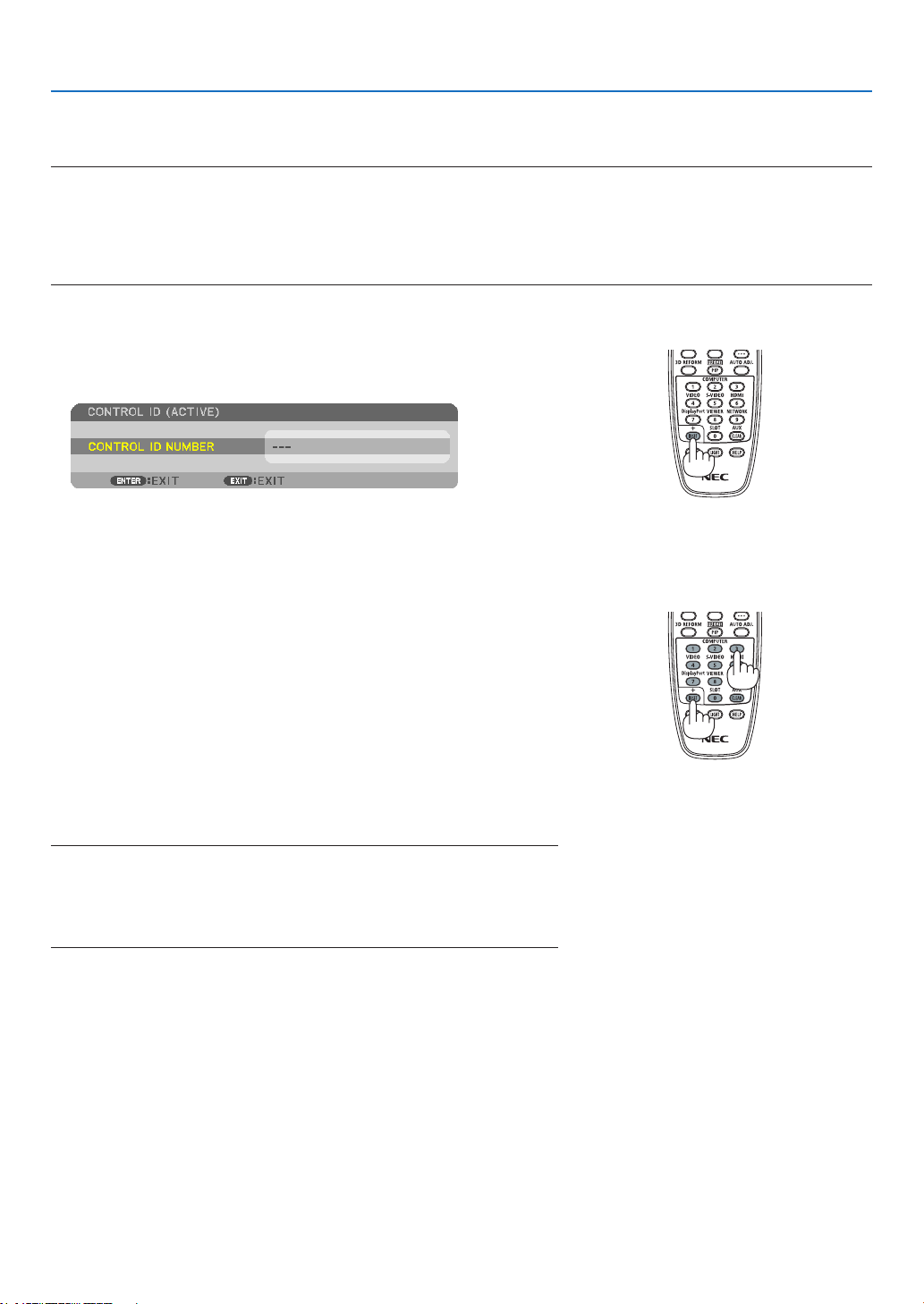
132
5. Using On-Screen Menu
CONTROL ID �����������������������Select [OFF] to turn off the CONTROL ID setting and select [ON] to turn on the CONTROL ID set-
ting�
NOTE:
• When[ON]isselectedfor[CONTROLID],theprojectorcannotbeoperatedbyusingtheremotecontrolthatdoesnotsupport
theCONTROLIDfunction.(Inthiscasethebuttonsontheprojectorcabinetcanbeused.)
• Yoursettingwillnotbeaffectedevenwhen[RESET]isdonefromthemenu.
• PressingandholdingtheENTERbuttonontheprojectorcabinetfor10secondswilldisplaythemenuforcancelingtheControl
ID.
Assigning or Changing the Control ID
1. Turnontheprojector.
2. PresstheIDSETbuttonontheremotecontrol.
TheCONTROLIDscreenwillbedisplayed.
IftheprojectorcanbeoperatedwiththecurrentremotecontrolID,the
[ACTIVE]willbedisplayed.Iftheprojectorcannotbeoperatedwiththe
currentremotecontrolID,the[INACTIVE]willbedisplayed.Tooperate
theinactiveprojector,assignthecontrolIDusedfortheprojectorby
usingthefollowingprocedure(Step3).
3. Pressoneofnumerickeypadbuttonswhilepressingandholding
theIDSETbuttonontheremotecontrol.
Example:
Toassign“3”,pressthe“3”buttonontheremotecontrol.
NoIDmeansthatalltheprojectorscanbeoperatedtogetherwitha
singleremotecontrol.Toset“NoID”,enter“000”orpresstheCLEAR
button.
TIP:TherangeofIDsisfrom1to254.
4. ReleasetheIDSETbutton.
TheupdatedCONTROLIDscreenwillbedisplayed.
NOTE:
•TheIDscanbeclearedinafewdaysafterthebatteriesarerundownorre-
moved.
•Accidentallypressinganyoneofthebuttonsoftheremotecontrolwillclear
currentlyspeciedIDwithbatteriesremoved.

133
5. Using On-Screen Menu
[OPTIONS(1)]
Setting Auto Adjust [AUTO ADJUST]
ThisfeaturesetstheAutoAdjustmodesothatthecomputersignalcanbeautomaticallyormanuallyadjustedfor
noiseandstability.Youcanautomaticallymakeadjustmentintwoways:[NORMAL]and[FINE].
OFF ������������������������ The computer signal will not be automatically adjusted� You can manually optimize the computer signal�
NORMAL ���������������� Default setting� The computer signal will be automatically adjusted� Normally select this option�
FINE ����������������������� Select this option if fine adjustment is needed� It takes more time to switch to the source than when [NOR-
MAL]is selected�
Selecting Fan Mode [FAN MODE]
FanModeisusedtosetthespeedoftheinternalcoolingfan.
MODE �������������������� Select three modes for fan speed: AUTO, HIGH, and HIGH ALTITUDE�
AUTO: The built-in fans automatically run at a variable speed according to the internal temperature�
HIGH: The built-in fans run at high speed
HIGH ALTITUDE: The built-in fans run at a high speed� Select this option when using the projector at altitudes
approximately 5500 feet/1600 meters or higher�
SETTING ���������������� Select one of the two options ([FLOOR], [CEILING]) according to the orientation of the projector�
NOTE:
• [VERTICALTILTUP]and[VERTICALTILTDOWN]arenotavailableonthisprojector.Evenifyouselect
[VERTICALTILTUP]or[VERTICALTILTDOWN]from[FANMODE],thesettingwillbedisabled.
• Besuretoselectthe[SETTING]optionaccordingtotheprojector’sorientation.Failuretodosomaycause
product malfunction. If installing the projector on the ceiling while keeping it in a desktop orientation,
select[FLOOR]for[SETTING].
Whenyouwishtocooldownthetemperatureinsidetheprojectorquickly,select[HIGH].

134
5. Using On-Screen Menu
NOTE:
• When[HIGHALTITUDE]isselectedfor[FANMODE],asymbolicon will be displayed at the bottom of the menu.
• ItisrecommendedthatyouselectHighspeedmodeifyouusetheprojectornon-stopforconsecutivedays.
• Set[FANMODE]to[HIGHALTITUDE]whenusingtheprojectorataltitudesapproximately5500feet/1600metersorhigher.
• Usingtheprojectorataltitudesapproximately5500feet/1600metersorhigherwithoutsettingto[HIGHALTITUDE]cancause
theprojectortooverheatandtheprotectorcouldshutdown.Ifthishappens,waitacoupleminutesandturnontheprojector.
• Usingtheprojectorataltitudeslessthanapproximately5500feet/1600metersandsettingto[HIGHALTITUDE]cancausethe
lamptoovercool,causingtheimagetoicker.Switch[FANMODE]to[AUTO].
• Usingtheprojectorataltitudesapproximately5500feet/1600metersorhighercanshortenthelifeofinternalpartssuchasthe
lamp.
• Yoursettingwillnotbeaffectedevenwhen[RESET]isdonefromthemenu.
Selecting the Signal Format [SIGNAL SELECT(COMP3)]
WhenanoutputdeviceisconnectedtotheCOMPUTER3videoinputconnectors,thissetstheinputsignal.
RGB/COMPONENT ��������RGB and component signals are identified automatically�
VIDEO ���������������������������This switches to the video signal�
NOTE:Whenavideocable(commerciallyavailable)isconnectedtotheCOMPUTER3videoinputconnectors’G/Yconnector,video
signalscanbeprojected.Inthiscase,setto“VIDEO”.
[SEAMLESS SWITCHING]
Whentheinputconnectorisswitched,theimagedisplayedbeforeswitchingisheldtoswitchtothenewimagewithout
abreakduetoabsenceofasignal.
[COLOR SYSTEM]
ThisfeatureallowsyoutoselecttheTVvideosignal,whichdiffersfromcountrytocountry(NTSC,PAL,etc.).
Thisissetto[AUTO]byfactorydefault.Setthisiftheprojectorcannotidentifythesignalautomatically.
Setting for the Optional Board [SLOT POWER]
WhenusingtheoptionalboardsuchasSB-01HCinstalledintheslot,setthefollowingoptions.
PROJECTOR ON �����������������Thisfeaturewillturnonoroffthepowertotheoptionalboard.
OFF: Forcibly turn off the power to the optional board installed in the slot�
ON (Default): Turn on the power to the optional board installed in the slot�
PROJECTOR STANDBY �������Thisfeaturewillautomaticallyenableordisabletheoptionalboardinstalledintheslot
whentheprojectorisinstandby.
DISABLE: Select this option to disable the optional board in the projector standby�
ENABLE (Default): Select this option to enable the optional board in the projector standby�
NOTE:
• Select[OFF]whentheoptionalboardisnotinstalledintotheslot.

135
5. Using On-Screen Menu
[OPTIONS(2)]
SelectingPower-savingin[STANDBYMODE]
Theprojectorhasthreestandbymodes:[NORMAL],[POWER-SAVING]and[NETWORKSTANDBY].
ThePOWER-SAVINGmodeisthemodethatallowsyoutoputtheprojectorinthepower-savingconditionwhich
consumeslesspowerthantheNORMALmode.TheprojectorispresetforNORMALmodeatthefactory.
NORMAL �����������������������������Power indicator: Orange light/STATUS indicator: Green light
POWER-SAVING
�����������������Power indicator: Red light/STATUS indicator: Off
The following connectors, buttons or functions will not work during this mode�
- MONITOR OUT (COMP� 1) connector
- LAN and Mail Alert functions
- Buttons other than POWER button on the cabinet
- Buttons other than POWER ON button on the remote control
- Virtual Remote Tool fucntion
- [AUTO POWER ON (COMP1/3)]
- PC control commands for other than power-on
NETWORK STANDBY
���������� When in the standby mode, the POWER indicator will light orange and the STATUS indicator will
not light� This shows that the projector’s power can be turned on by wired LAN�
When in the standby mode, the following connectors, buttons or functions will not work:
- MONITOR OUT (COMP� 1) connector
- Wireless LAN Unit
- [AUTO POWER ON (COMP1/3)]
- Buttons other than POWER button on the cabinet
- Buttons other than POWER ON button on the remote control
- PC control commands for other than power-on
Important:
• When[CONTROLPANELLOCK]or[CONTROLID]isturnedon,orwhen[COMPUTER1]or[COMPUTER3]isselectedfor[AUTO
POWERON(COMP1/3)],the[STANDBYMODE]settingbecomesinvalid.
Thismeansthattheprojectorisinthesameconditionwhenthe[NORMAL]isselectedfor[STANDBYMODE].
NOTE:
• Evenwhen[POWER-SAVING]isselectedfor[STANDBYMODE],poweronoroffcanbedonebyusingthePCCONTROLport.
• ThepowerconsumptioninthestandbymodewillnotbeincludedincalculatingCO
2
emission reduction.
• Yoursettingwillnotbeaffectedevenwhen[RESET]isdonefromthemenu.
Enabling Direct Power On [DIRECT POWER ON]
Turnstheprojectoronautomaticallywhenthepowercordisinsertedintoanactivepoweroutlet.Thiseliminatesthe
needtoalwaysusethePOWERbuttonontheremotecontrolorprojectorcabinet.

136
5. Using On-Screen Menu
TurningOntheProjectorByApplyingComputerSignal[AUTOPOWERON(COMP1/3)]
WhentheprojectorisinStandbymode,applyingacomputersignalfromacomputerconnectedtotheCOMPUTER1
INorCOMPUTER3INinputwillpowerontheprojectorandsimultaneouslyprojectthecomputer’simage.
ThisfunctionalityeliminatestheneedtoalwaysusethePOWERbuttonontheremotecontrolortheprojectorcabinet
topowerontheprojector.
Tousethisfunction,rstconnectacomputertotheprojectorandtheprojectortoanactiveACinput.
NOTE:
• Disconnectingacomputersignalfromthecomputerwillnotpowerofftheprojector.Werecommendusingthisfunctionincom-
binationoftheAUTOPOWEROFFfunction.
• Thisfunctionwillnotbeavailableunderthefollowingconditions:
- whenacomponentsignalisappliedtotheCOMPUTER1INorCOMPUTER3INconnector
- whenaSynconGreenRGBsignalorcompositesyncsignalisapplied
• When[AUTOPOWERON(COMP1/3]isset,the[STANDBYMODE]settingbecomesinvalid.Thismeansthattheprojectorisin
thesameconditionwhenthe[NORMAL]isselectedfor[STANDBYMODE].
• ToenabletheAUTOPOWERON(COMP1/3)afterturningofftheprojector,wait3secondsandinputacomputersignal.
Ifacomputersignalisstillpresentwhentheprojectoristurnedoff,theAUTOPOWERON(COMP1/3)willnotworkandthe
projector remains in standby mode.
Enabling Power Management [AUTO POWER OFF]
Whenthisoptionisselectedyoucanenabletheprojectortoautomaticallyturnoff(attheselectedtime:5min.,10min.,
20min.,30min.)ifthereisnosignalreceivedbyanyinputorifnooperationisperformed.
NOTE:
• The[AUTOPOWEROFF]functionwillnotworkwhen[VIEWER]or[NETWORK]isselectedfor[SOURCE].
Selecting Default Source [DEFAULT SOURCE SELECT]
Youcansettheprojectortodefaulttoanyoneofitsinputseachtimetheprojectoristurnedon.
LAST ���������������������� Sets the projector to default to the previous or last active input each time the projector is turned on�
AUTO ��������������������� Searches for an active source in order of COMPUTER1 → COMPUTER2 → COMPUTER3 → HDMI →
DisplayPort → VIDEO → S-VIDEO → VIEWER → COMPUTER1 and displays the first found source�
COMPUTER1 ��������� Displays the computer signal from the COMPUTER 1 IN connector every time the projector is turned on�
COMPUTER2 ��������� Displays the computer signal from the COMPUTER 2 IN connector every time the projector is turned on�
COMPUTER3 ��������� Displays the computer signal from the COMPUTER 3 IN connector every time the projector is turned on�
HDMI ��������������������� Displays the digital source from the HDMI IN connector every time the projector is turned on�
DisplayPort ������������ Displays the digital source from the DisplayPort every time the projector is turned on�
VIDEO �������������������� Displays the Video source from the VIDEO IN connector every time the projector is turned on�
S-VIDEO ���������������� Displays the Video source from the S-VIDEO IN connector every time the projector is turned on�
VIEWER ����������������� Displays slides or plays back movie files from the USB memory device every time the projector is turned
on�
NETWORK ������������� Displays the data sent from the computer via the LAN port (RJ-45) or the wireless LAN unit (sold separately)
mounted on the projector is projected�
SLOT ���������������������� Displays a signal from the optional (SB-01HC or other NEC’s optional boards) when it is installed�
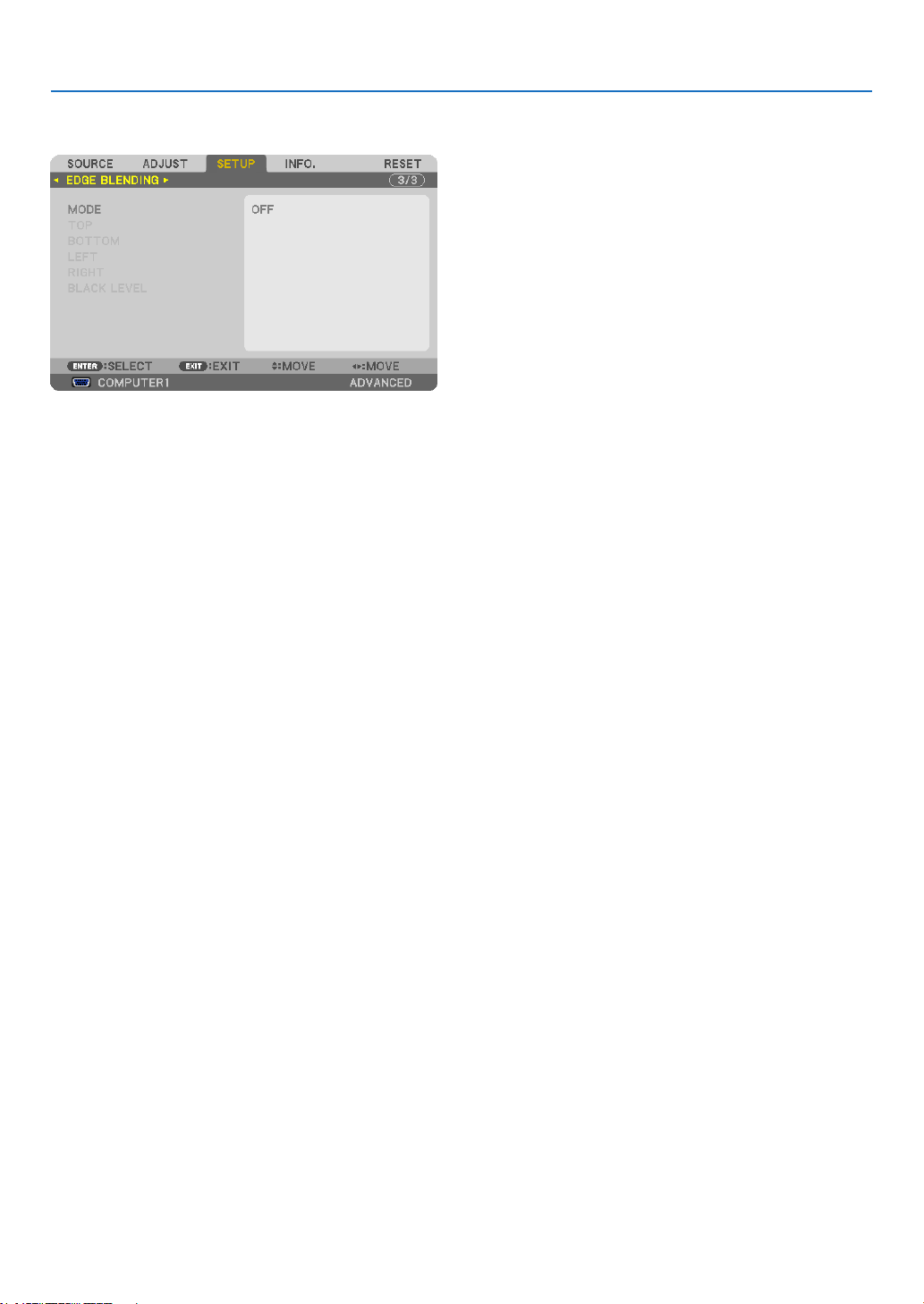
137
5. Using On-Screen Menu
[EDGE BLENDING]
Thisfunctionadjustsoverlappingedgesofimagesprojectedfromeachprojectortouniformmulti-screenimages.
Turns on or off the Edge Blending function. [MODE]
Turningon[MODE]willmake[TOP],[BOTTOM],[LEFT],[RIGHT],and[BLACKLEVEL]available.(Default:OFF).
Selectsedgeoftop,bottom,left,andrightofthescreentoperformtheEdgeBlendingfunction.
[TOP/BOTTOM/LEFT/RIGHT]
Turningon[CONTROL]willmake[MARKER],[RANGE],and[POSITION]available.(→page53)
CONTROL �������������� Turns on or off [TOP], [BOTTOM], [LEFT], and [RIGHT]�
MARKER ���������������� Turns on or off a marker for the range and position adjustment� Turning on [MARKER] will display a magenta
marker for [RANGE] and green marker for [POSITION]�
RANGE ������������������� Adjusts the Edge Blending range (width)�
POSITION �������������� Adjusts the Edge Blending start position�
Adjuststhebrightnesslevelof9-segmentedportions.[BLACKLEVEL]
9-segmentedportionsare [TOP-LEFT], [TOP-CENTER],[TOP-RIGHT], [CENTER-LEFT], [CENTER], [CENTER-
RIGHT],[BOTTOM-LEFT],[BOTTOM-CENTER],and[BOTTOM-RIGHT].(→page56)
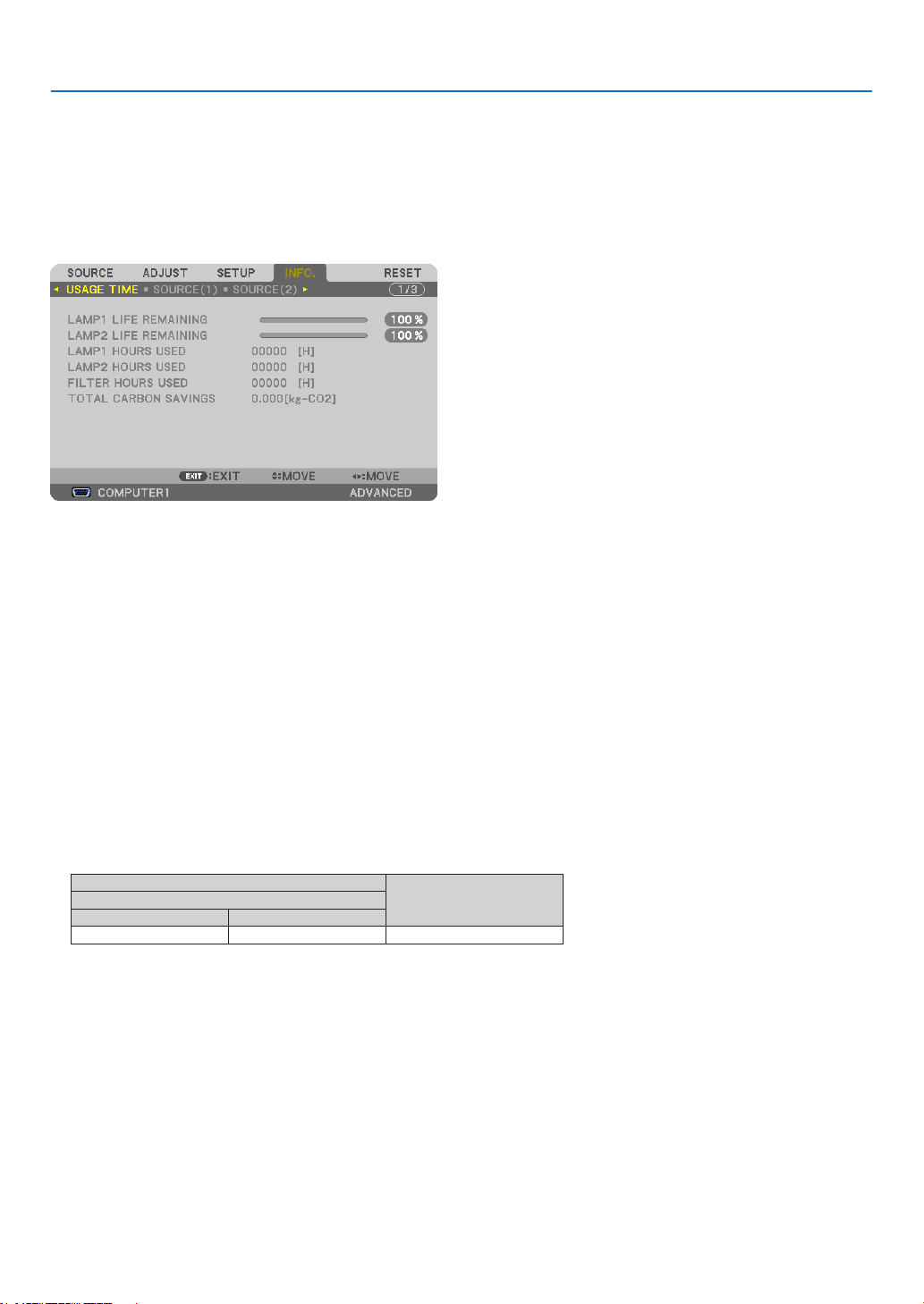
138
5. Using On-Screen Menu
❼ Menu Descriptions & Functions [INFO.]
Displaysthestatusofthecurrentsignalandlampusage.Thisitemhasninepages.Theinformationincludedisas
follows:
TIP:PressingtheHELPbuttonontheremotecontrolwillshowthe[INFO.]menuitems.
[USAGE TIME]
[LAMP1LIFEREMAINING](%)*
[LAMP2LIFEREMAINING](%)*
[LAMP1HOURSUSED](H)
[LAMP2HOURSUSED](H)
[FILTERHOURSUSED](H)
[TOTALCARBONSAVINGS](kg-CO2)
* Theprogressindicatorshowsthepercentageofremainingbulblife.
Thevalueinformsyouoftheamountoflampusage.Whentheremaininglamptimereaches0,theLAMPLIFE
REMAININGbarindicatorchangesfrom0%to100Hoursandstartscountingdown.
Iftheremaininglamptimereaches0hours,theprojectorwillnotturnon.
• Themessagetotheeffectthatthelamportheltersshouldbereplacedwillbedisplayedforoneminutewhen
theprojectoristurnedonandwhenthePOWERbuttonontheprojectorortheremotecontrolispressed.
Todismissthismessage,pressanybuttonontheprojectorortheremotecontrol.
Lamp life(H)
Replacement lampECO MODE
OFF ON
2500 3000 NP25LP
• [TOTALCARBONSAVINGS]
Thisdisplaystheestimatedcarbonsavinginformationinkg.Thecarbonfootprintfactorinthecarbonsavingcal-
culationisbasedontheOECD(2008Edition).(→page40)
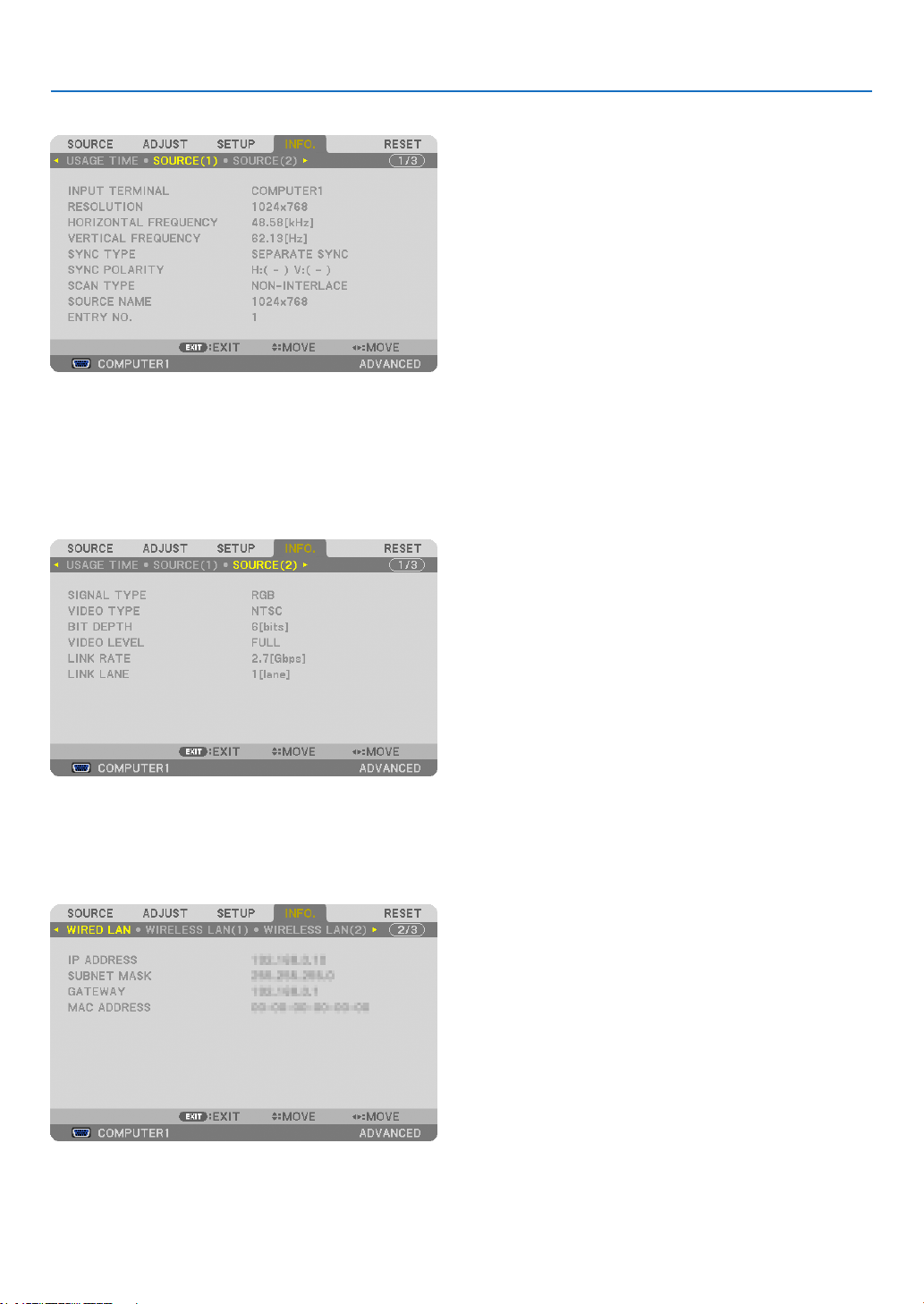
139
5. Using On-Screen Menu
[SOURCE(1)]
INPUTTERMINAL RESOLUTION
HORIZONTALFREQUENCY VERTICAL FREQUENCY
SYNCTYPE SYNCPOLARITY
SCANTYPE SOURCENAME
ENTRYNO.
[SOURCE(2)]
SIGNALTYPE VIDEOTYPE
BITDEPTH VIDEOLEVEL
LINKRATE LINKLANE
[WIRED LAN]
IPADDRESS SUBNETMASK
GATEWAY MACADDRESS
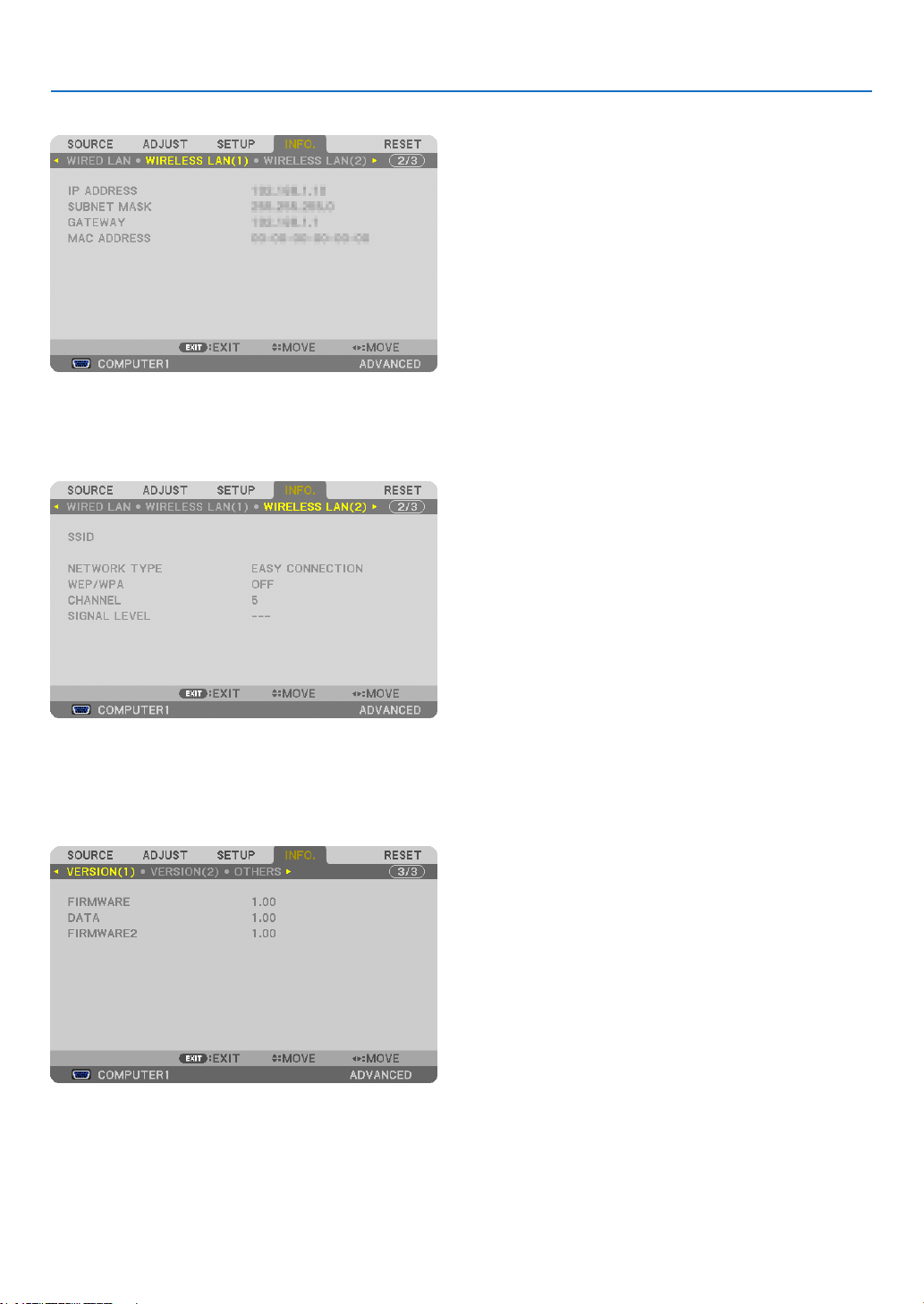
140
5. Using On-Screen Menu
[WIRELESS LAN(1)]
IPADDRESS SUBNETMASK
GATEWAY MACADDRESS
[WIRELESS LAN(2)]
SSID NETWORKTYPE
WEP/WPA CHANNEL
SIGNALLEVEL
[VERSION(1)]
FIRMWARE DATA
FIRMWARE2
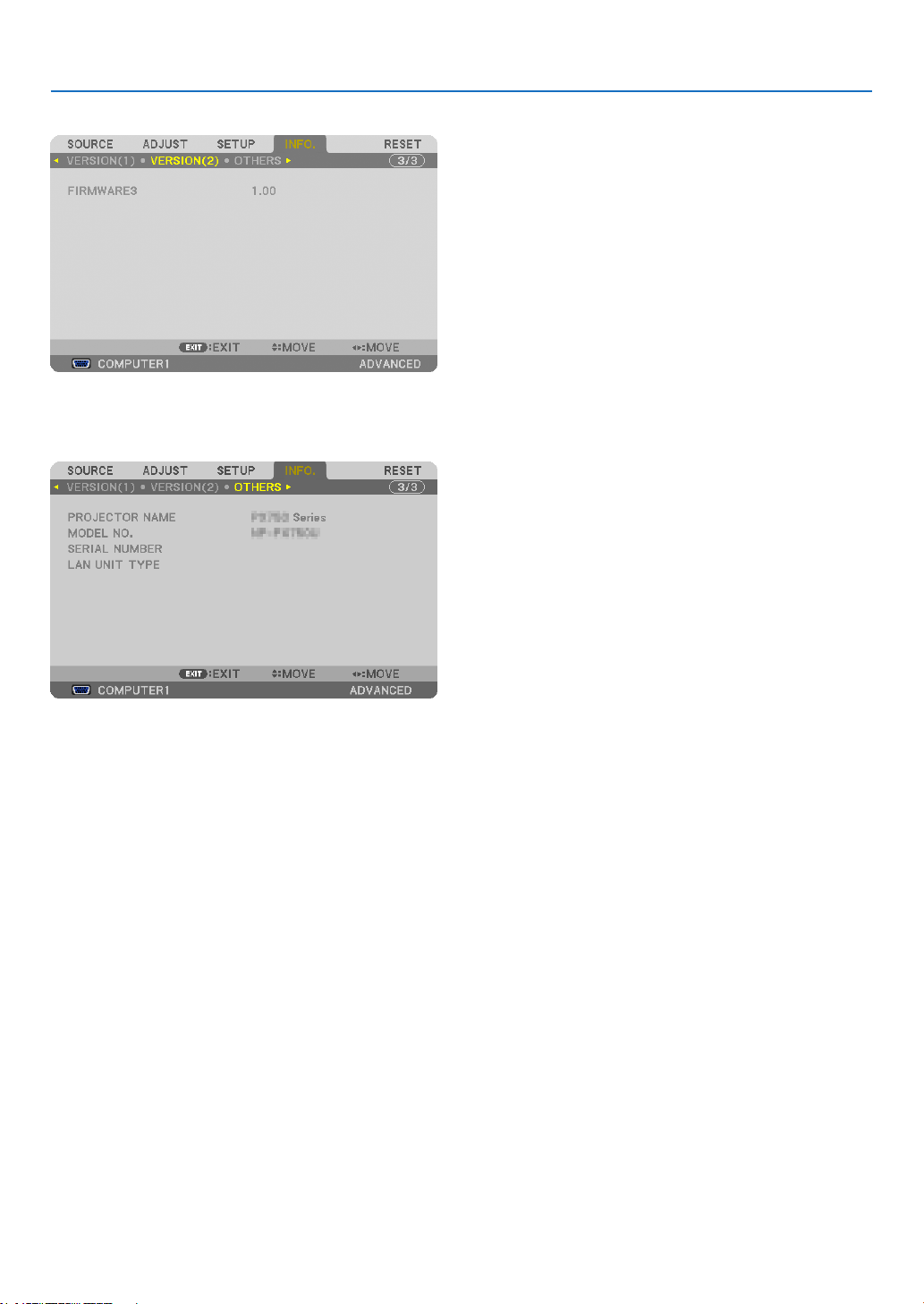
141
5. Using On-Screen Menu
[VERSION(2)]
FIRMWARE3
[OTHERS]
PROJECTORNAME MODELNO.
SERIALNUMBER LANUNITTYPE
CONTROLID(when[CONTROLID]isset)

142
5. Using On-Screen Menu
❽ Menu Descriptions & Functions [RESET]
Returning to Factory Default [RESET]
TheRESETfeatureallowsyoutochangeadjustmentsandsettingstothefactorypresetfora(all)source(s)except
thefollowing:
[CURRENTSIGNAL]
Resetstheadjustmentsforthecurrentsignaltothefactorypresetlevels.
Theitemsthatcanberesetare:[PRESET],[CONTRAST],[BRIGHTNESS],[COLOR],[HUE],[SHARPNESS],
[ASPECTRATIO],[HORIZONTAL],[VERTICAL],[CLOCK],[PHASE],and[OVERSCAN].
[ALLDATA]
Resetalltheadjustmentsandsettingsforallthesignalstothefactorypreset.
AllitemscanberesetEXCEPT[ENTRYLIST],[LANGUAGE],[BACKGROUND],[FILTERMESSAGE],[SCREEN],
[GEOMETRICCORRECTION],[MULTI-SCREENCOMP.],[REF.WHITEBALANCE],[CONTROLPANELLOCK],
[SECURITY],[COMMUNICATION SPEED], [CONTROLID], [SEAMLESS SWITCHING], [STANDBYMODE],
[FANMODE],[EDGEBLENDING],[REF.LENSMEMORY],[DATEANDTIME],[LAMPLIFEREMAINING],[LAMP
HOURSUSED],[FILTERHOURSUSED],[TOTALCARBONSAVINGS],[WIREDLAN],and[WIRELESSLAN].
Toresetthelampusagetime,see“ClearingLampHourMeter[CLEARLAMPHOURS]”below.
[ALL DATA (INCLUDING ENTRY LIST)]
Resetalltheadjustmentsandsettingsforallthesignalstothefactorypresetexcept[LANGUAGE],[BACKGROUND],
[FILTERMESSAGE],[SCREEN],[MULTI-SCREENCOMP.],[REF.WHITEBALANCE],[CONTROLPANELLOCK],
[SEAMLESSSWITCHING],[SECURITY],[COMMUNICATIONSPEED],[CONTROLID],[FANMODE],[EDGEBLEND-
ING],[GEOMETIRCCORRECTION],[REF.LENSMEMORY],[DATEANDTIME],[STANDBYMODE],[LAMPLIFE
REMAINING],[LAMPHOURSUSED],[FILTERHOURSUSED],[TOTALCARBONSAVINGS],[WIREDLAN],and
[WIRELESSLAN].
Alsodeletesallthesignalsinthe[ENTRYLIST]andreturnstothefactorypreset.
NOTE:LockedsignalsinEntryListcannotbereset.
ClearingLampHourMeter[CLEARLAMP1HOURS/CLEARLAMP2HOURS]
Resetsthelampclockbacktozero.Selectingthisoptiondisplayssubmenuforaconrmation.Select[YES]andpress
theENTERbutton.
NOTE:Elapsedtimeofthelampusewillnotbeaffectedevenwhen[RESET]isdonefromthemenu.
NOTE: The projector will turn off and go into standby mode when you continue to use the projector for another 100 hours after the
lamp has reached the end of its life. In this condition you cannot clear the lamp hour meter on the menu. If this happens, press the
HELPbuttonontheremotecontrolfor10secondstoresetthelampclockbacktozero.Dothisonlyafterreplacingthelamp.

143
5. Using On-Screen Menu
Clearing the Filter Usage Hours [CLEAR FILTER HOURS]
Resetsthelterusagebacktozero.Selectingthisoptiondisplayssubmenuforaconrmation.Select[YES]andpress
theENTERbutton.
The[OFF]itemisselectedfor[FILTERMESSAGE]atthetimeofshipment.When[OFF]isselected,youdonotneed
toclearthelterusagehour.
NOTE:Elapsedtimeofthelterusewillnotbeaffectedevenwhen[RESET]isdonefromthemenu.
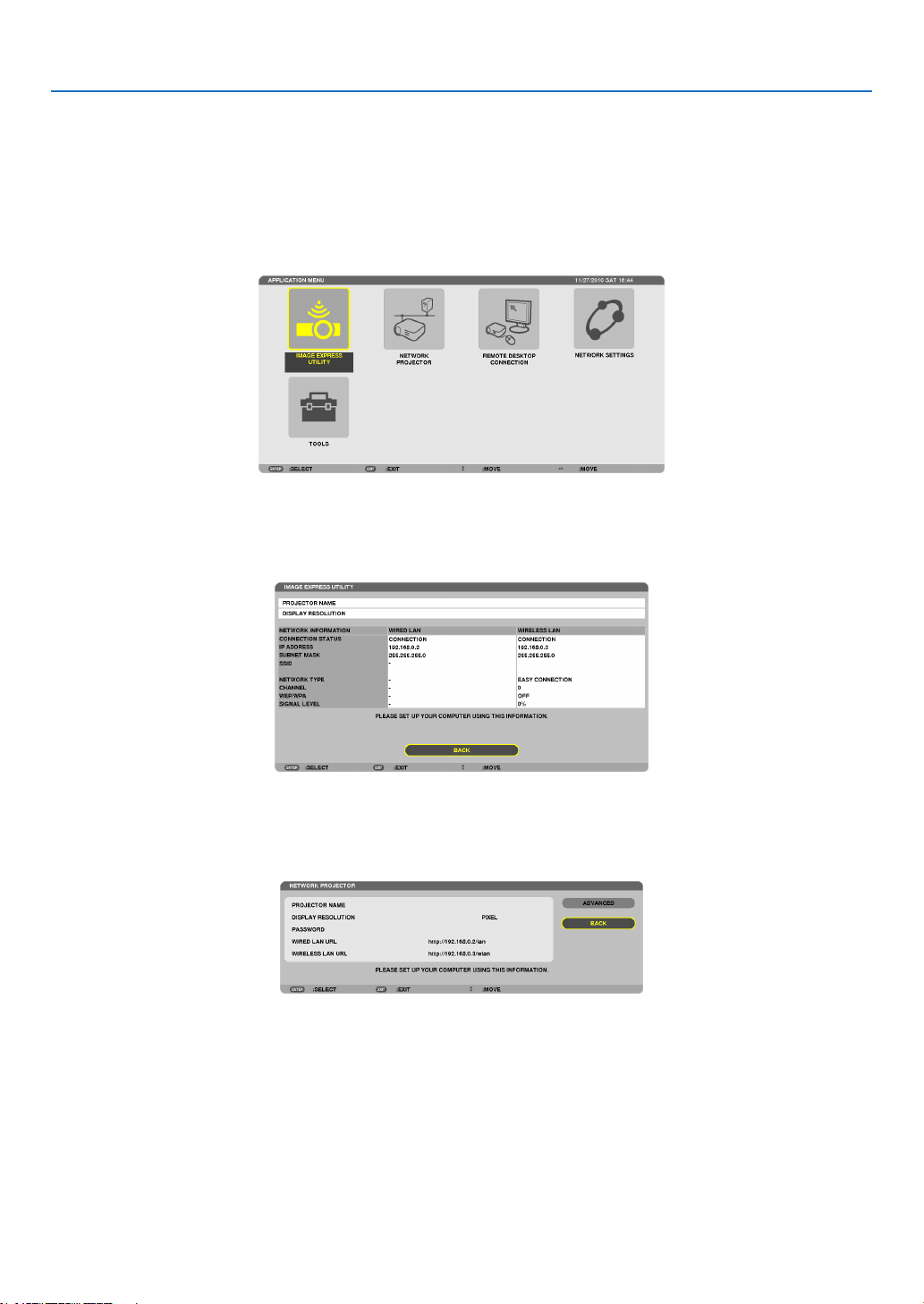
144
5. Using On-Screen Menu
❾ Application Menu
When[NETWORK]isselectedfromthe[SOURCE]menu,theapplicationmenu[APPLICATIONMENU]willbedis-
played.
TheapplicationmenuallowsyoutosetuptheUserSupportware,NetworkSettings(NETWORKSETTINGS)and
Tools(TOOLS).
TheUserSupportwarecanbedownloadedfromourwebsite.
In[ADMINISTRATORMODE],either[ADVANCED]menuor[BASIC]menucanbeselected.(→page162)
The[BASIC]menucontainsminimumessentialsofmenusandcommands.
IMAGE EXPRESS UTILITY
Thisshowsinformationforprojectorname,resolution,andnetwork(wired/wireless)whicharerequiredtouseImage
ExpressUtility.
Usethisinformationtosetupforyourcomputer.
NETWORK PROJECTOR
Thisshowsinformationforprojectorname,resolution,andnetwork(wired/wireless)whicharerequiredtouseNetwork
Projector.
Usethisinformationtosetupforyourcomputer.
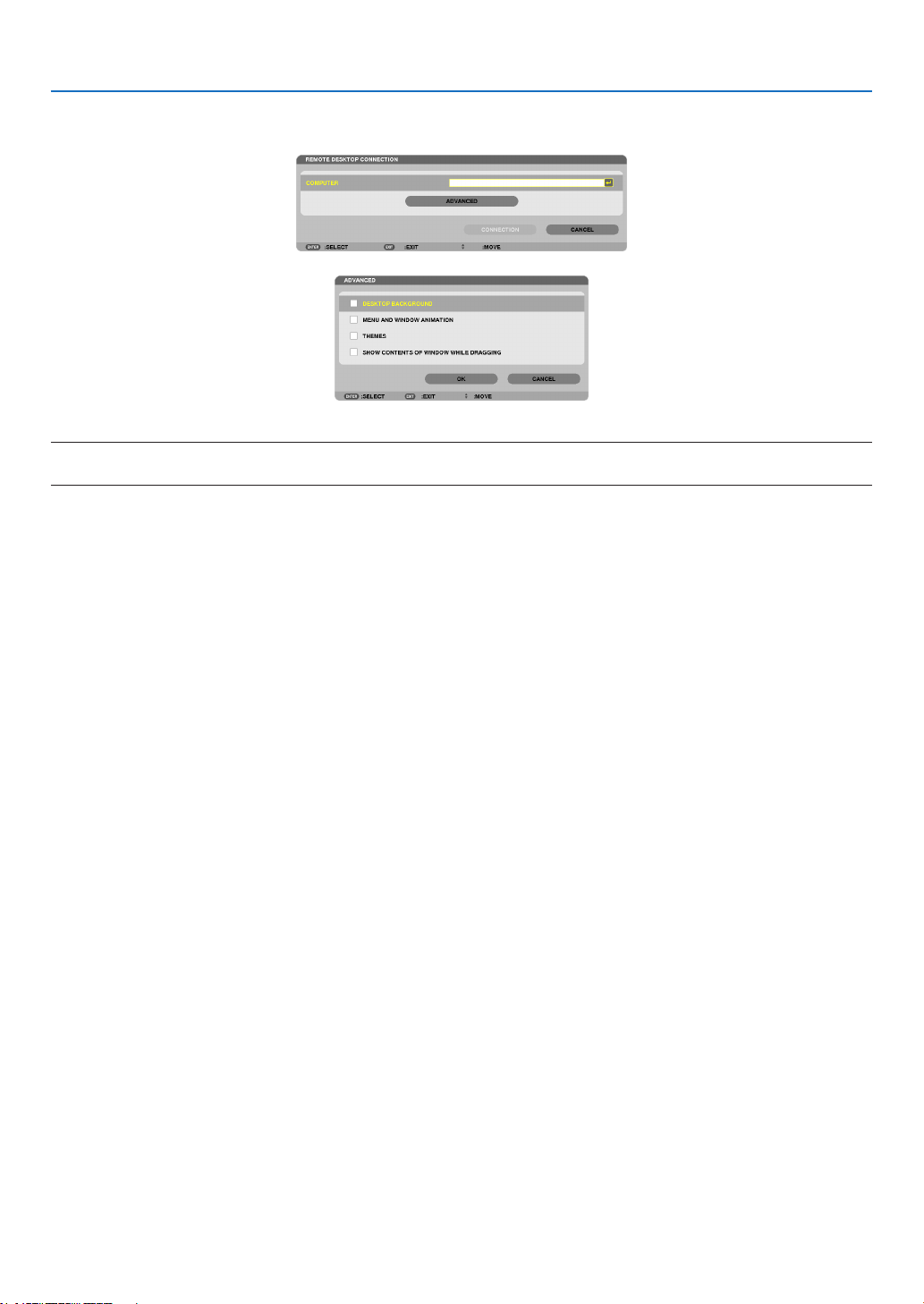
145
5. Using On-Screen Menu
REMOTE DESKTOP CONNECTION
ThisallowsyoutosetupforcomputernameentryandeffectsforRemoteDesktop.
NOTE:
• AUSBkeyboardisrequiredtosetuptheRemoteDesktopConnection.
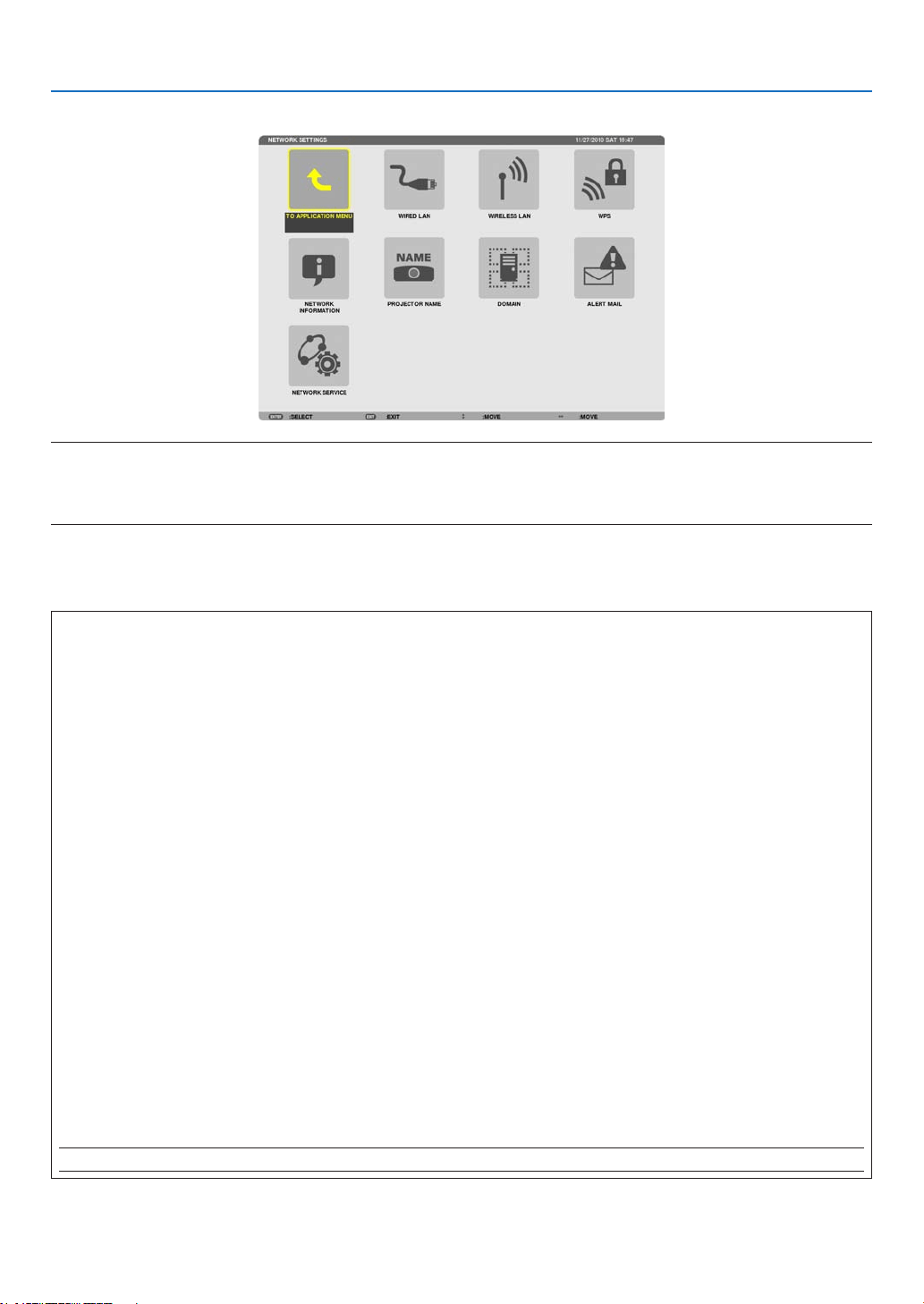
146
5. Using On-Screen Menu
NETWORK SETTINGS
Important:
• Consultwithyournetworkadministratoraboutthesesettings.
• WhenusingawiredLANconnection,connectaLANcable(Ethernetcable)totheLANport(RJ-45)oftheprojector.(→ page
177)
TIP:Thenetworksettingsyoumakewillnotbeaffectedevenwhen[RESET]isdonefromthemenu.
Hints on How to Set Up LAN Connection
To set up the projector for a LAN connection:
Select[WIREDLAN]or[WIRELESSLAN]→[PROFILES]→[PROFILE1]or[PROFILE2].
TwosettingscanbesetforwiredorwirelessLAN.
Nextturnonorofffor[DHCP],[IPADDRESS],[SUBNETMASK],and[GATEWAY]andselect[OK]andpressthe
ENTERbutton.(→page147)
To recall LAN settings stored in the profile number:
Select[PROFILE1]or[PROFILE2]forwiredorwirelessLAN,andthenselect[OK]andpresstheENTERbutton.
(→page147)
To connect a DHCP server:
Turnon[DHCP]forwiredorwirelessLAN.Select[ON]andpresstheENTERbutton.TospecifyIPaddresswithout
usingtheDHCPserver,turnoff[DHCP].(→page148)
TosetonlyforwirelessLAN(NETWORKTYPEandWEP/WPA):
Select[PROFILE1]or[PROFILE2]forwirelessLAN,andthenselect[ADVANCED]and[OK]andpresstheENTER
button.TheAdvancedmenuwillbedisplayed.(→page149)
To select an SSID:
Select[ADVANCED]→[SITESURVEY]andpresstheENTERbutton.
SelectanSSIDandpressthe>buttontoselect[OK]andpresstheENTERbutton.
Ifyoudonotuse[SITESURVEY],typetheSSIDandselect[INFRASTRUCTURE]or[ADHOC].(→page149)
Toreceivelampreplacementtimeorerrormessagesviae-mail:
Select[ALERTMAIL],andset[SENDER'SADDRESS],[SMTPSERVERNAME],and[RECIPIENT'SADDRESS].
Last,select[OK]andpresstheENTERbutton.(→page160)
Toexecute[EASYCONNECTION]usingImageExpressUtility2.0orImageExpressUtility2forMac:
The[EASYCONNECTION]isamodethatcanabbreviatethetroublesomeLANsettingswhenusingtheImage
ExpressUtilityandconnectingthePCandprojectorviaawirelessLAN.
ImageExpressUtility2.0andImageExpressUtility2forMacarecontainedonthesuppliedNECProjectorCD-
ROM.
Touse[EASYCONNECTION],select[WIRELESSLAN]→[PROFILES]→[EASYCONNECTION].
NOTE:The[EASYCONNECTION]functionisavailableonWindows7,WindowsVistaorWindowsXPSP3.
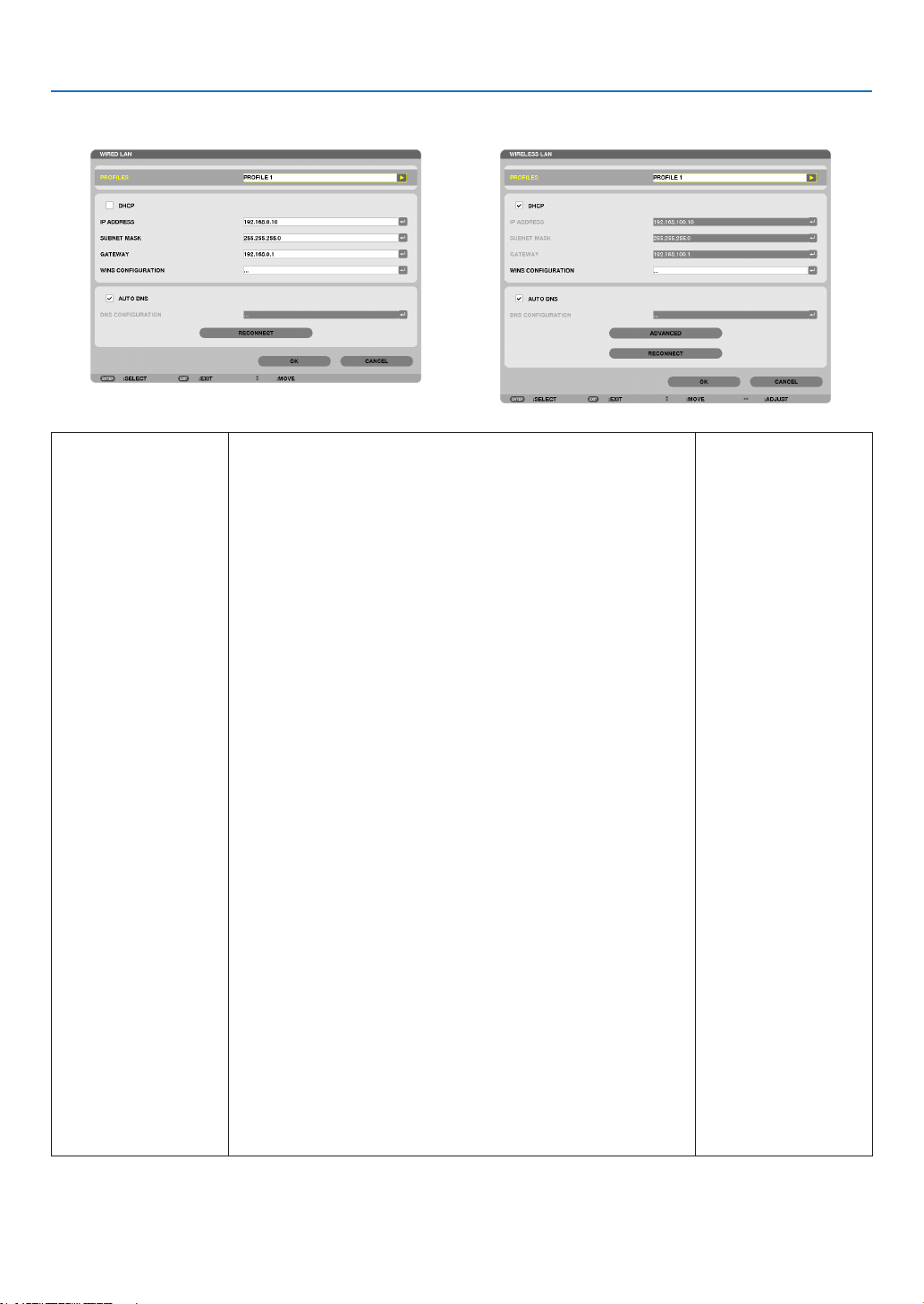
147
5. Using On-Screen Menu
WIREDLANorWIRELESSLAN(ADVANCEDmenuonly)
*TousethewirelessLANfunctions,connectaseparatelysoldwirelessLANunittotheprojector.(→page178)
PROFILES • UptotwosettingsfortheLANportorUSBwirelessLANunit
canbestoredinmemoryoftheprojector.Totaloffoursettings
canbestored.
Fivesettingscanbestored:twoforthebuilt-inLANport,two
forwirelessLANandoneforWPS.
• Select[PROFILE1]or[PROFILE2]andthendosettingsfor
[DHCP]andtheotheroptions.
Afterdoingthis,select[OK]andpresstheENTERbutton.This
willstoreyoursettingsinmemory.
• Torecallthesettingsfrommemory:
Afterselecting[PROFILE1]or[PROFILE2]fromthe[PRO-
FILES]list.
Select[OK]andpresstheENTERbutton.
• TostopemittingradiowavesfromtheUSBWirelessLANUnit,
select[DISABLE]fromthe[PROFILES]list.
• Selecting[SIMPLEACCESSPOINT]willallowtheprojectorto
createaninfrastructurenetwork.
AnSSIDwillbeautomaticallycreated.
WhentheIPaddressoftheprojectorischanged,itwillauto-
maticallytakeeffectinoneortwominutes.
Select“ObtainanIPAddressAutomatically”tosettheIPad-
dressofaconnectedcomputer.
Ittakesafewsecondsforachangeofyourcomputer’sIPad-
dresstocomeintoeffectinWindows7/WindowsVistawhileit
takesoneortwominutesinWindowXP.
When you connect with yourcomputer to saveyour prole
andselect“Automaticallyconnectwhenwithinrange”fromthe
PropertiestabofWirelessNetworkinWindowsforyourselected
prole,yourwirelessLANwillbeaccessedunderthefollowing
conditions:
• atthetimeofturningonthecomputerortheprojector
• whenthenotebooktypeiswithintherangeoftheprojector’s
wirelessLANcanbeachieved.
DatatransmissionbetweenwirelessLANandwiredLANisnot
possible.
Whenthe[SIMPLEACCESSPOINT]modeisusedtosend
images,itisrecommendedtoconnecttoonlyonecomputer.
—
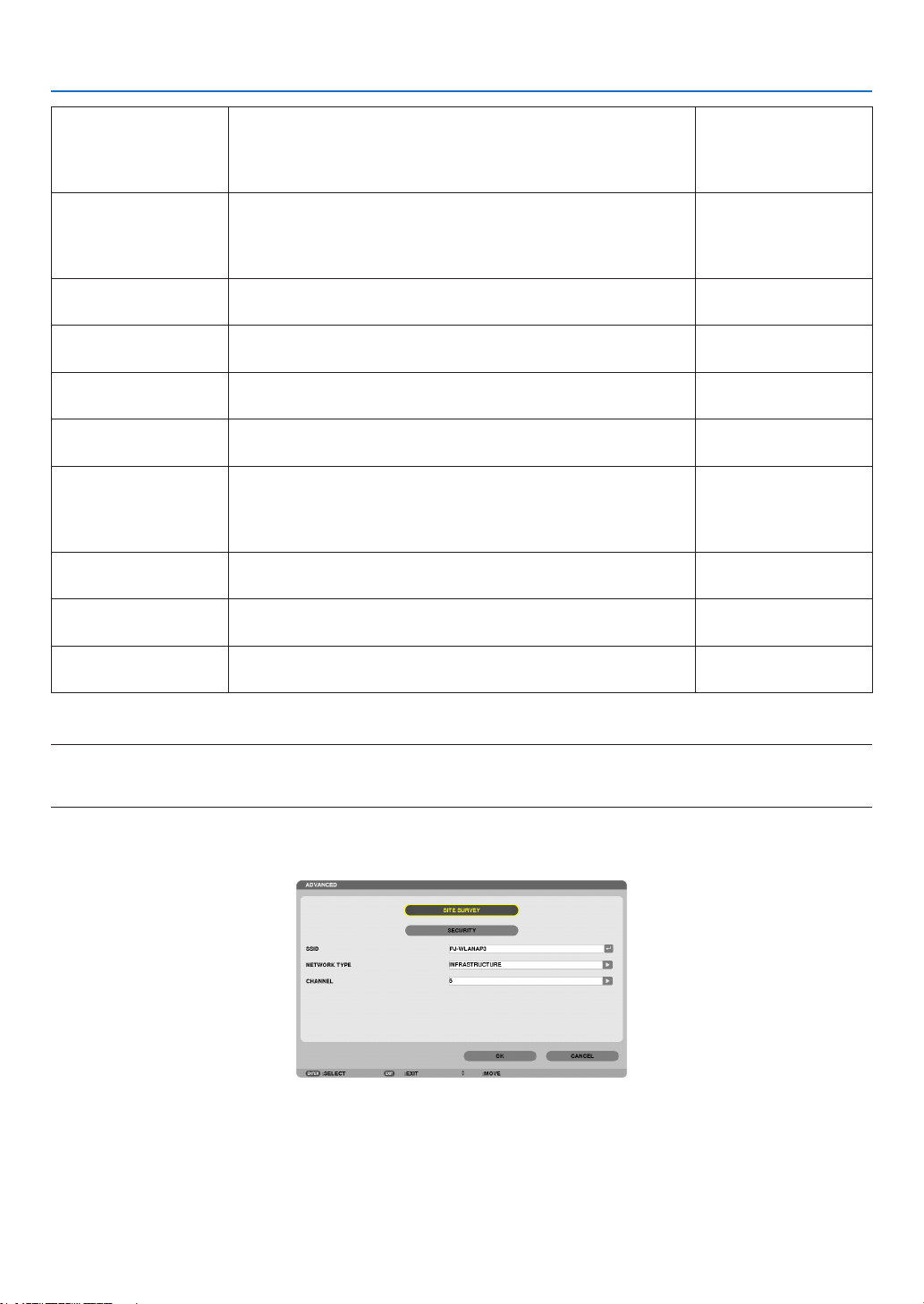
148
5. Using On-Screen Menu
• Whenselecting[WPS],thenetworkwillbeconnectedbyusing
settingsstoredautomaticallywiththeWPSfunction.
Selecting[WPS]willallowtheprojectortoaccessthenetwork
byusingthesettingstheWPSfunctionautomaticallystored.
DHCP PlaceacheckmarktoautomaticallyassignanIPaddresstothe
projectorfromyourDHCPserver.
ClearthischeckboxtoregistertheIPaddressorsubnetmask
numberobtainedfromyournetworkadministrator.
—
IPADDRESS SetyourIPaddressofthenetworkconnectedtotheprojector
when[DHCP]isturnedoff.
Upto12numeric
characters
SUBNETMASK Setyoursubnetmasknumberofthenetworkconnectedtothe
projectorwhen[DHCP]isturnedoff.
Upto12numeric
characters
GATEWAY
Setthedefaultgatewayofthenetworkconnectedtotheprojector
when[DHCP]isturnedoff.
Upto12numeric
characters
WNSCONFIGURA-
TION
SettheIPaddressofyourWINSserverofthenetworkconnected
totheprojectorwhen[DHCP]isturnedoff.
Upto12numeric
characters
AUTODNS PlaceacheckmarktoautomaticallyassigntheIPaddressofyour
DNSserverconnectedtotheprojectorfromyourDHCPserver.
ClearthischeckboxtosettheIPaddressofyourDNSserver
connectedtotheprojector.
Upto12numeric
characters
DNSCONFIGURA-
TION
SettheIPaddressofyourDNSserveronthenetworkconnected
totheprojectorwhen[AUTODNS]iscleared.
Upto12numeric
characters
ADVANCED*
ThismenuallowsyoutosetvariousitemsforyourwirelessLAN
connection(networktype,security).
—
RECONNECT
Retrytoconnecttheprojectortoanetwork.Trythisifyouhave
changed[PROFILES].
—
*The[ADVANCED]settingscreenisavailablefor[WIRELESSLAN]only.
NOTE:
• Ifyouselect[EASYCONNECTION]from[PROFILES],youcannotmakesettingstoDHCPanditsfollowingitemsexcept[CHAN-
NEL]in[ADVANCED].
AdvancedSettings(settingsonlyrequiredwhenusingaseparatelysoldwirelessLANunit)
(ADVANCEDmenuonly)

149
5. Using On-Screen Menu
SITESURVEY DisplaysalistofavailableSSIDsforwirelessLANonsite.Select
anSSIDwhichyoucanaccess.
ToselectanSSID,highlight[SSID]andusethe▶toselect[OK]
andpresstheENTERbutton.
����������������������� Wireless access point
����������������������� Ad Hoc PC
����������������������� WEP or WPA enabled
—
SECURITY
Thiswillturnonorofftheencryptionmodeforsecuretransmis-
sion.
Touseencryption,specifyaWEPkeyorencryptionkey.Select
yoursecuritytypeappropriateforyourcomputerandthewire-
lessLANunit.
DISABLE ���������������� Will not turn on the encryption feature� Your com-
munications may be monitored by someone�
WEP(64bit) ������������ Uses 64-bit datalength for secure transmis-
sion�
WEP(128bit) ���������� Uses 128-bit datalength for secure transmission�
This option will increase privacy and security
when compared to use of 64-bit datalength en-
cryption�
WPA-PSK/WPA2-PSK/WPA-EAP/WPA2-EAP
������������������������������ These options provide stronger security than
WEP�
NOTE:
• Thesecuritytype,WEPkey,andencryptionkeysettingsmustbethe
sameascommunicationdevicessuchasPCoraccesspointinyour
wireless network.
• Whenyouuse[SECURITY],yourimagetransmissionspeedwillslow
down.
• [WPA-PSK],[WPA-EAP],[WPA2-PSK]and[WPA2-EAP]arenotavail-
ablewhen[ADHOC]isselectedfrom[NETWORKTYPE].
—
SSID
Enteranidentier(SSID)forwirelessLAN.Communicationcan
bedoneonlywithequipmentwhoseSSIDmatchesSSIDforyour
wirelessLAN.
Upto32alphanumeric
characters(case
sensitive).
NETWORKTYPE SelectcommunicationmethodwhenusingwirelessLAN.
INFRASTRUCTURE ���Select this option when communicating with
one or more equipment connected to the wire-
less or wired LAN network via a wireless access
point�
AD HOC ��������������������Select this option when using the wireless LAN
to directly communicate with a computer in
peer-to-peer mode�
—
CHANNEL
Select a channel. Available channels vary depending on the
countryandregion.Whenyouselect[INFRASTRUCTURE],make
surethattheprojectorandyouraccesspointareonthesame
channel;whenyouselect[ADHOC],makesurethattheprojector
andyourcomputerareonthesamechannel.
—

150
5. Using On-Screen Menu
When [WEP(64bit)] or [WEP(128bit)] is selected for [SECURITY TYPE]
KEYSELECT SelectsoneWEPkeyfromthefourkeysbelow.
KEY1,KEY2,KEY3,
KEY4
EnteraWEPkey.
•Maximumnumberofcharacters
Option Alphanumeric(ASCII) Hexadecimal(HEX)
WEP64bit 5 10
WEP128bit 13 26
When[WPA-PSK],[WPA-EAP],[WPA2-PSK],or[WPA2-EAP]isselectedfor[SECURITYTYPE]
ENCRYPTIONTYPE Select[TKIP]or[AES].
KEY Enterencryptionkey.Keylengthmustbe8orgreaterand63orless.
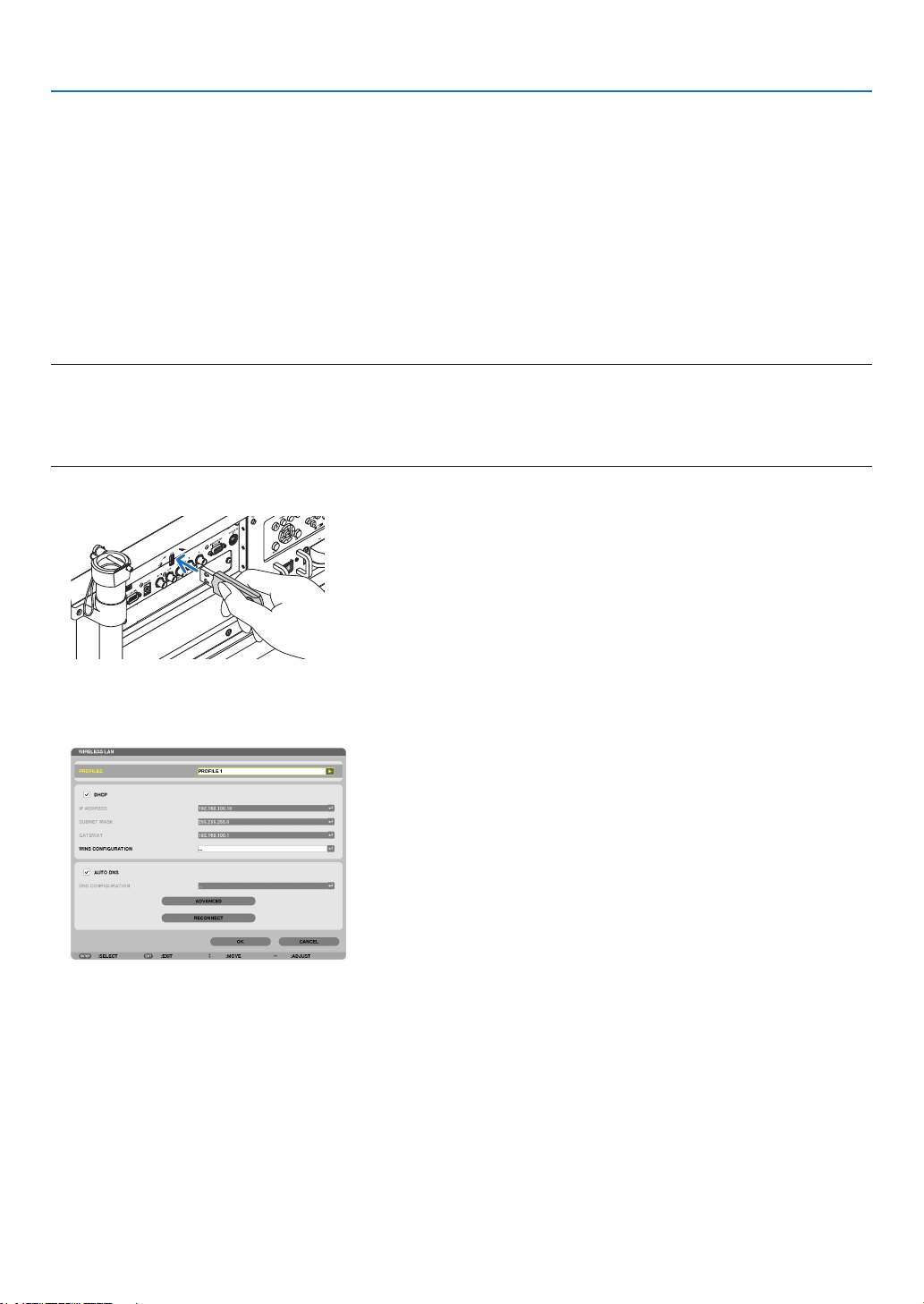
151
5. Using On-Screen Menu
[AUTHENTICATION](requiredforwirelessonly)
SettingisrequiredforusingWPA-EAPorWPA2-EAP.
Preparation before setting
SelectawirelessLANcompliantWPA-EAPorWPA2-EAPauthenticationandinstalladigitalcerticateontheprojec-
tor.
1. Set[DATEANDTIME]ontheprojector.(→ page 166)
2. Useacomputertosavedigitalcerticates(les)forWPA-EAPorWPA2-EAPsettingtoyourUSBmemory
device.
Aftercompletingsavingthele,removetheUSBmemorydevicefromthecomputer.
Important:
• TheleformatsofdigitalcerticatethataresupportedbytheprojectorareDERandPKCS#12only.
• Theprojectorcannothandleanydigitalcerticatewhoselesizeexceeds8KB.
• CRL(CerticateRelocationList)isnotsupported.
• Clientcerticatechainisnotsupported.
3. PlugtheUSBmemorydeviceintotheUSBportoftheprojector.
Setting Procedures
1. Select[NETWORKSETTINGS]→[WIRELESSLAN].
2. SetitemssuchasPROFILES,DHCP,IPADDRESS,SUBNETMASKandothersasrequired.
• Select[PROFILE1]or[PROFILE2]for[PROFILES].If[EASYCONNECTION]isselected,WPA-PSK,WPA2-
PSK,WPA-EAP,orWPA2-EAPisnotavailable.
3. Select[ADVANCED]andpresstheENTERbutton.
The[ADVANCED]settingscreenwillbedisplayed.
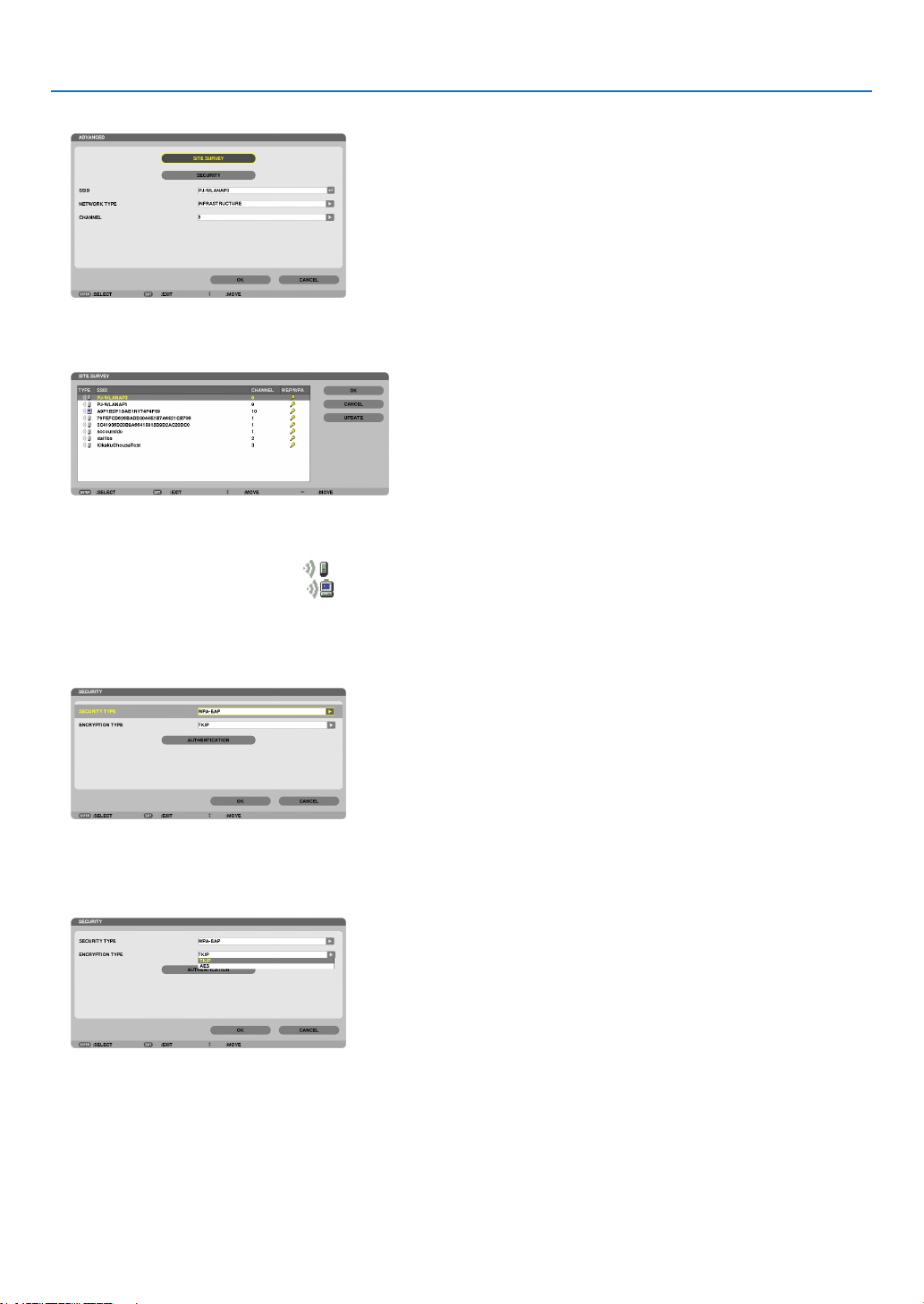
152
5. Using On-Screen Menu
4. Select[SITESURVEY]andpresstheENTERbutton.
The“SSID”listwillbedisplayed.
5. SelectaconnectingSSID,andthenselect[OK].
FinallypresstheENTERbutton.
• SelecttheSSIDforwhichWPA-PSKorWPA2-PSKisset.
• Select[INFRASTRUCTURE( )]for[NETWORKTYPE].WPA-PSK,WPA2-PSK,WPA-EAP,orWPA2-EAPis
notavailablewhen[ADHOC( )] is selected.
6. Selectthe[SECURITY]tab.
The[SECURITY]pagewillbedisplayed.
7. Selectthe[SECURITYTYPE]eldandpresstheENTERbutton.
Thepull-downlistwillbedisplayed.
8. Select[WPA-EAP]or[WPA2-EAP]andpresstheENTERbutton.
9. Selectthe[TKIP/AES]eldandpresstheENTERbutton.
Thepull-downlistwillbedisplayed.
10
.Select[TKIP]or[AES]andpresstheENTERbutton.
Select[TKIP]or[AES]accordingtothesettingforyouraccesspoint.
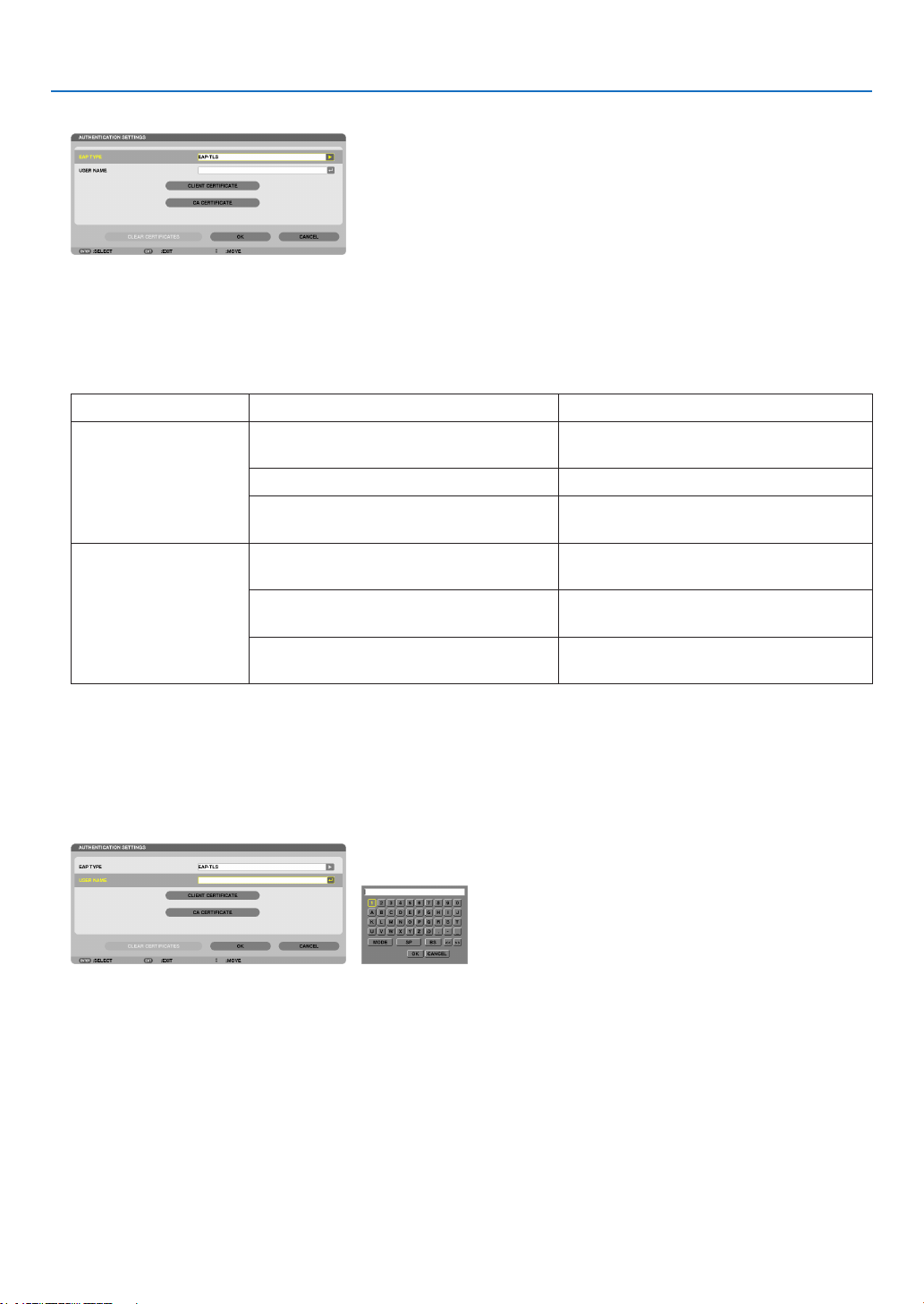
153
5. Using On-Screen Menu
11
.Selectthe[AUTHENTICATION]tab.
The[AUTHENTICATION]pagewillbedisplayed.
Selecteither[EAP-TLS]or[PEAP-MSCHAPv2]for[EAPTYPE].ThesettingitemsvarydependingontheEAP
type.
Seethetablebelow.
EAPType SettingItem Note
EAP-TLS
UserName 1characterormoreand32charactersor
less
ClientCerticate PKCS#12formatle
CACerticate
(Certicateauthority’scerticate)
DERformatle
PEAP-MSCHAPv2 UserName 1characterormoreand32charactersor
less
Password
1characterormoreand32charactersor
less
CACerticate
(Certicateauthority’scerticate)
DERformatle
①Selecting[EAP-TLS]for[EAPTYPE]:
Thefollowingsectionexplainstheoperationforselecting[EAP-TLS].
Forselecting[PEAP-MSCHAPv2],goontoStep12onpage155.
12.
Selectthe[USERNAME]eldandpresstheENTERbutton.
Thecharacterentryscreen(softwarekeyboard)willbedisplayed.Setausername.
• Ausernamemustbe1characterormoreand32charactersorless.
(→ page 157)
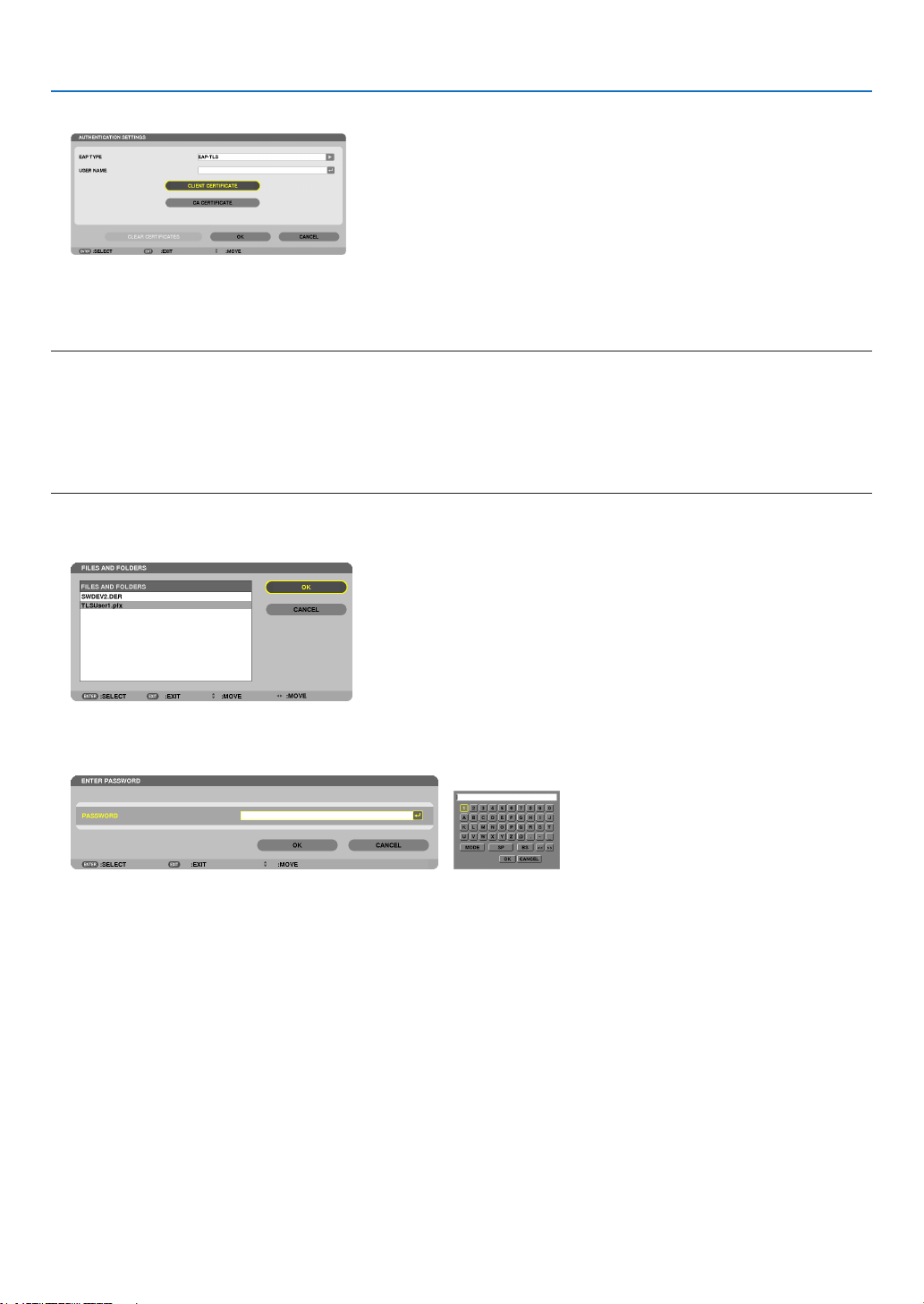
154
5. Using On-Screen Menu
13.
Select[CLIENTCERTIFICATE]andpresstheENTERbutton.
Alistofles(thumbnailscreen)willbedisplayed.
• Foroperatingthethumbnailscreen,see“4.UsingtheViewer”inthe“User’sManual”(PDF).
• Toreturntothe[AUTHENTICATION]page,presstheEXITbutton.
NOTE:
Installing a digital certificate
Youcaninstalleachdigitalcerticate(clientcerticateandCAcerticate)for[PROFILE1(or2)]onale-by-lebasis.
• InstallarootCAcerticateforaCAcerticate.
• Ifyouinstalladigitalcerticateoveryourexistingdigitalcerticate,theexistingdigitalcerticatewillbeoverwrittenwiththenew
digitalcerticate.
• Onceadigitalcerticatehasbeeninstalled,itsinformationcannotbedeletedevenifyoustopsettingWPA-EAPorWPA2-EAP.
14.
Onthethumbnailscreen,selectadigitalcerticate(PKCS#12formatle)savedinyourUSBmemorydevice
andpresstheENTERbutton.
Thepasswordscreenwillbedisplayed.
15.
Select[PASSWORD]eldandpresstheENTERbutton.
Thecharacterentryscreen(softwarekeyboard)willbedisplayed.Setthepasswordoftheprivatekey.Apassword
mustbe1characterormoreand32charactersorless.
Theselecteddigitalcerticatelewillbeinstalledontheprojector.
• WhentherootCAcerticateisnotincludedinthelethatwasselectedinStep14,proceedtoStep16.When
therootcerticationauthoritycerticateisincluded,proceedtoStep18.
16.
Select[CACERTIFICATE]andpresstheENTERbutton.
Thedrivelistscreenwillbedisplayed.
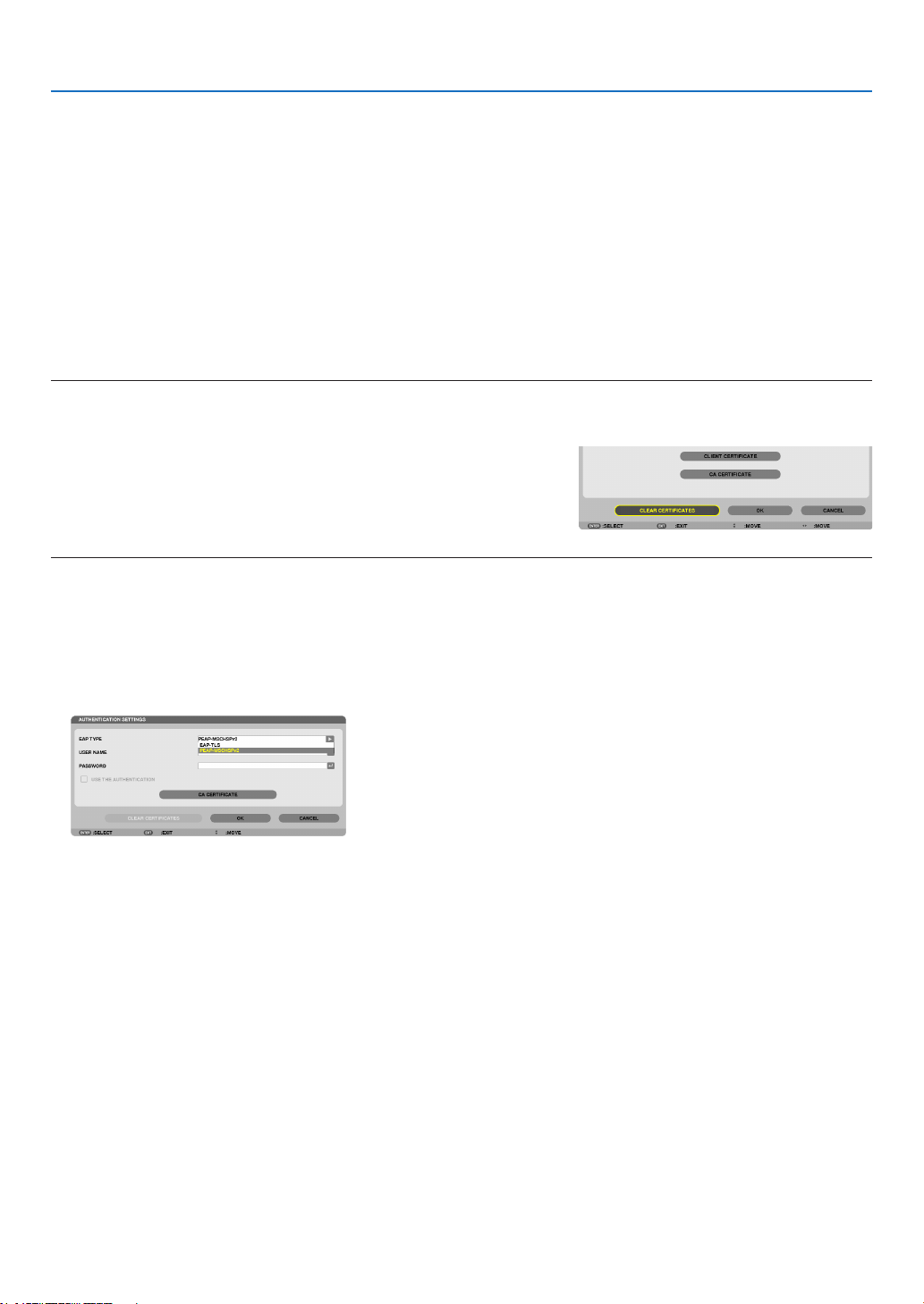
155
5. Using On-Screen Menu
17.
Onthethumbnailscreen,selectadigitalcerticate(DERformatle)savedinyourUSBmemorydevice
andpresstheENTERbutton.
• SelectyourrootCAcerticatehere.
Theselecteddigitalcerticatewillbeinstalledontheprojector.
18.
Aftercompletingrequiredsettings,select[OK]andpresstheENTERbutton.
The[WIRELESS]pagewillbereturned.
19.
Select[RECONNECT]andpresstheENTERbutton.
20.
Select[OK]andpresstheENTERbutton.
Thiswillcompletesetting[EAP-TLS]for[EAPTYPE]in[WPA-EAP]or[WPA2-EAP].
TIP:
Clearing the digital certificate that is installed on the projector
Toclearthedigitalcerticateinstalledontheprojector,followthestepsbelow.
Bydoingthefollowingprocedure,allthedigitalcerticatesforthecurrentlydisplayedprolewillbecleared.
1. Select [CLEAR CERTIFICATES] in the bottom left of the [AD-
VANCED]settingscreenandpresstheENTERbutton.
Amessageforconrmationwillbedisplayed.
2. Select[YES]andpresstheENTERbutton.
Thedigitalcerticateswillbecleared.
TIP:
• ThePKCS#12formatdigitalcerticateincludingaCAcerticatewillbeinstalledasarootCAcerticate.
②Selecting[PEAP-MSCHAPv2]for[EAPTYPE]:
12.
Fromthe[AUTHENTICATION]page,select[EAPTYPE]eldandpresstheENTERbutton.
Thepull-downlistwillbedisplayed.
13.
Select[PEAP-MSCHAPv2]andpresstheENTERbutton.
14.
Select[USERNAME]eldandpresstheENTERbutton.
Thecharacterentryscreen(softwarekeyboard)willbedisplayed.Setausername.
• Ausernamemustbe32charactersorless.
(→ page 157)
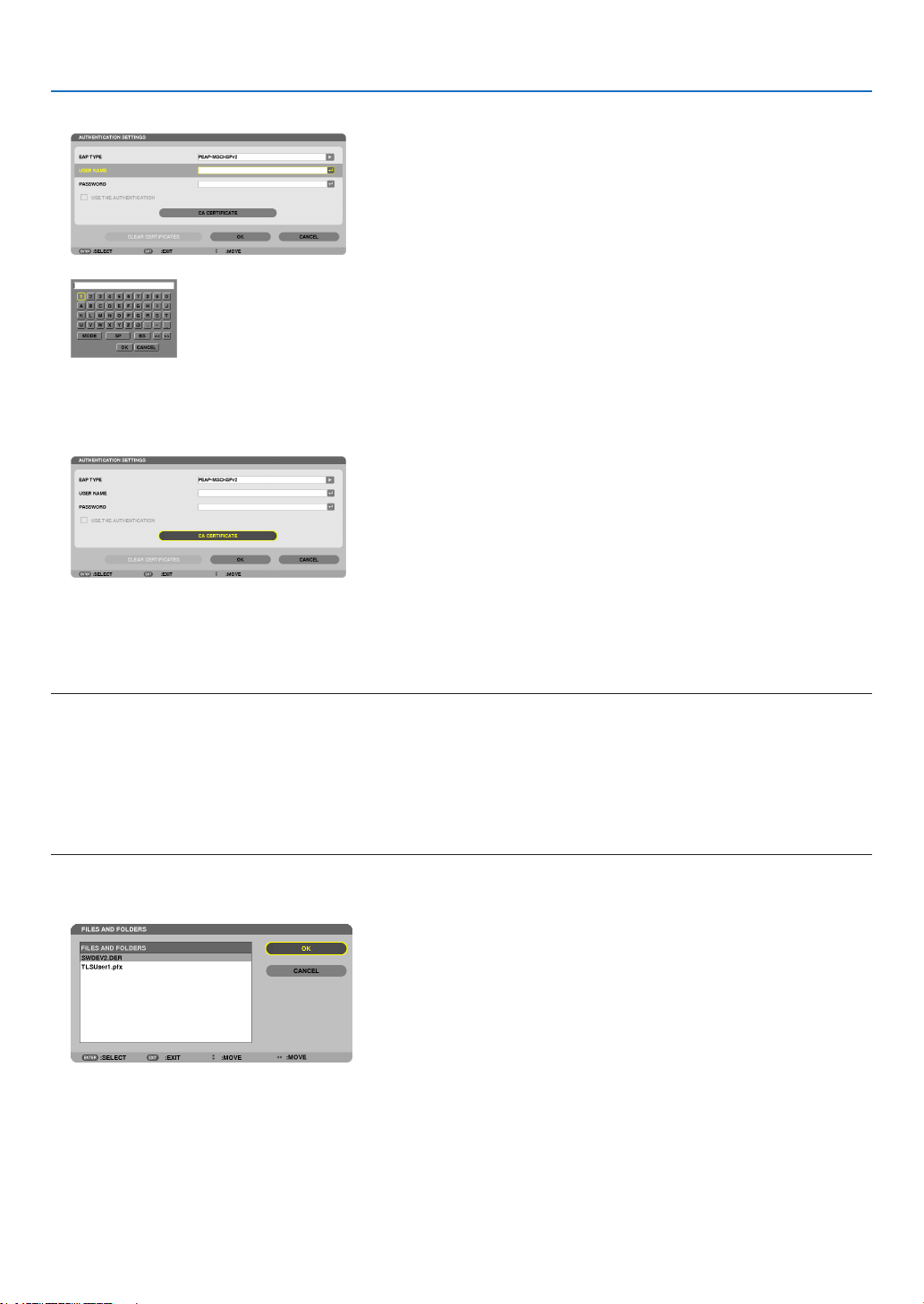
156
5. Using On-Screen Menu
15.
Aftercompletingsettingausername,selectthe[PASSWORD]eldandpresstheENTERbutton.
Thecharacterentryscreen(softwarekeyboard)willbedisplayed.Setapassword.
• Apasswordmustbe32charactersorless.
16.
Aftercompletingsettingthepassword,select[CACERTIFICATE]eldandpresstheENTERbutton.
Thedrivelistscreenwillbedisplayed.
• Foroperatingthethumbnailscreen,see“4.UsingtheViewer”inthe“User’sManual”(PDF).
• Toreturntothe[AUTHENTICATION]page,presstheEXITbutton.
NOTE:
Installing a digital certificate
Youcaninstalleachdigitalcerticate(clientcerticateandCAcerticate)for[PROFILE1(or2)]onale-by-le
basis.
• InstallarootCAcerticateforaCAcerticate.
• Ifyouinstalladigitalcerticateoveryourexistingdigitalcerticate,theexistingdigitalcerticatewillbeoverwrittenwiththenew
digitalcerticate.
• Onceadigitalcerticatehasbeeninstalled,itsinformationcannotbedeletedevenifyoustopsettingWPA-EAPorWPA2-EAP.
17.
Onthethumbnailscreen,selectadigitalcerticate(DERformatle)savedinyourUSBmemorydevice
andpresstheENTERbutton.
• SelectyourrootCAcerticatehere.
Theselecteddigitalcerticatewillbeinstalledontheprojector.
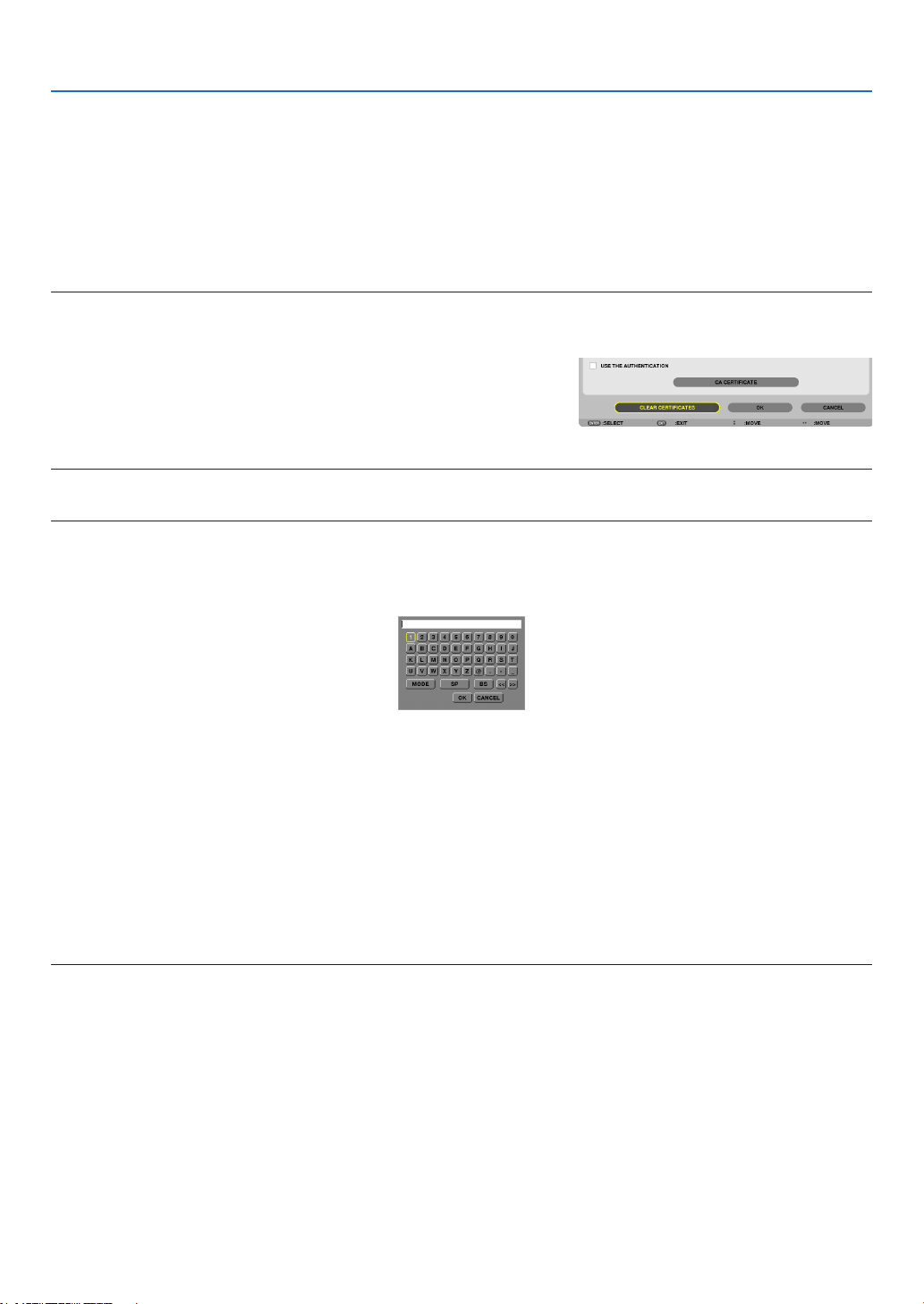
157
5. Using On-Screen Menu
18.
Aftercompletingrequiredsettings,select[OK]andpresstheENTERbutton.
The[WIRELESS]pagewillbereturned.
19.
Select[RECONNECT]andpresstheENTERbutton.
20.
Select[OK]andpresstheENTERbutton.
Thiswillcompletesetting[PEAP-MSCHAPv2]for[EAPTYPE]in[WPA-EAP]or[WPA2-EAP].
TIP:
Clearing the digital certificate that is installed on the projector
Toclearthedigitalcerticateinstalledontheprojector,followthestepsbelow.
Bydoingthefollowingprocedure,allthedigitalcerticatesforthecurrentlydisplayedprolewillbecleared.
1. Select [CLEAR CERTIFICATES] in the bottom left of the [AD-
VANCED]settingscreenandpresstheENTERbutton.
Amessageforconrmationwillbedisplayed.
2. Select[YES]andpresstheENTERbutton.
Thedigitalcerticateswillbecleared.
TIP:
EnteringWEPkeys(SwitchingbetweenAlphanumericcharactersandhexadecimal)
Toenterfrom[KEY1]to[KEY4],dothefollowing:
1. Selectoneof[KEY1],[KEY2],[KEY3]and[KEY4]andpresstheENTERbutton.
Thecharacterentryscreen(softwarekeyboard)willbedisplayed.
2. Use the ▼, ▲, ◀, or ▶buttontoselectacharacterandpresstheENTERbutton.
• ToenteraWEPkeyorpassphrase,usealphanumericcharacters(ASCII)orhexadecimal(HEX).ToenteraPSK
key,usealphanumericcharacters(ASCII).
• Pressthe[HEX]buttontochangeto[ASCII]tosetthekeyinASCIIdigit.Youcantogglethisbuttonbetween
[ASCII]and[HEX].
• Enter0x(numeralandalphabetrespectively)rightinfrontofyourkeycode.
• Hexadecimaluses0to9andAtoF.
3. AfterenteringyourWEPkeyorpassphrase,usethe▼, ▲, ◀, or ▶buttontoselect[OK]andpresstheENTER
button.
Thecharacterentryscreen(softwarekeyboard)willbeclosed.
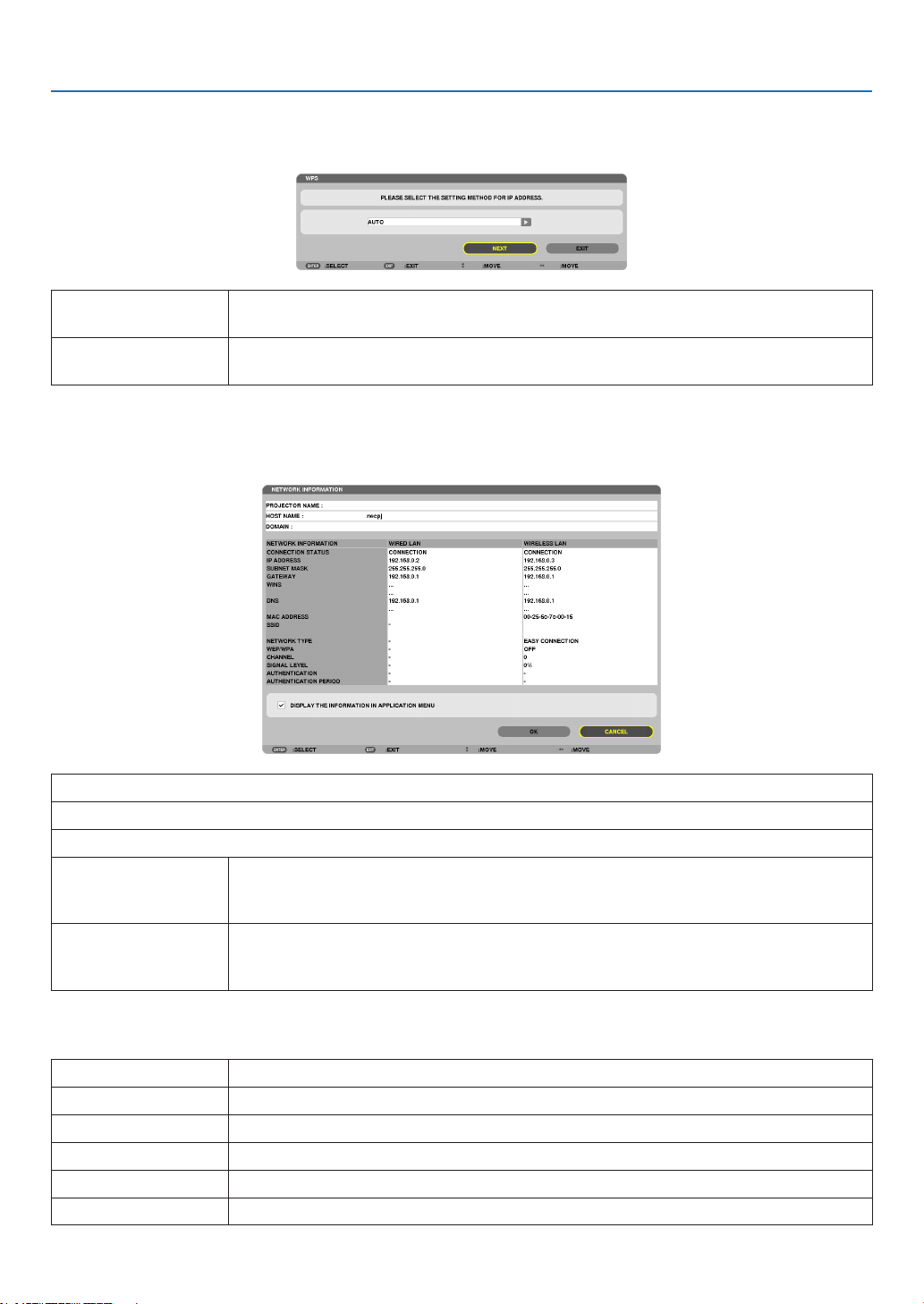
158
5. Using On-Screen Menu
WPS
WhenthewirelessLANaccesspointconnectedtotheprojectorsupportsWPS(Wi-FiProtectedSetupTM),youcan
usePINmethodorpushbuttonmethodtosetupthewirelessLANfortheprojector.
PINTYPE Seta4-digitor8digit-PINcodeofWPSforyouraccesspointtocompletesettingforthe
SSIDsecurity.
PUSHBUTTONTYPE Pressthededicatedbuttonoftheaccesspointandtheprojector’swirelessLANunitto
completesettingfortheSSIDsecurity.
NETWORKINFORMATION
Thefollowing informationwillbedisplayed whentheprojectorisconnectedtoa network(wiredLANorwireless
LAN).
PROJECTORNAME
HOSTNAME
DOMAIN
NETWORKINFOR-
MATION(WIRED
LAN/WIRELESSLAN)
CONNECTIONSTATUS,IPADDRESS,SUBNETMASK,GATEWAY,WINS,DNS,MAC
ADDRESS,SSID,NETWORKTYPE,WEP/WPA,CHANNEL,SIGNALLEVEL,AU-
THENTICATION,AUTHENTICATIONPERIOD
DISPLAYTHEINFOR-
MATIONINAPPLICA-
TIONMENU
Turnonoroffthedisplayofthenetworkinformation.
Themeaningsofthesestatusstatementsaredescribedbelow.
Statement Authenticationstatus
Authenticated Authenticationisdonecorrectly.
Failure Authenticationfailed.
Authenticating… Authenticationisinprocess.
Expired Thedigitalcerticateisexpired.Or[DATE,TIMEPRESET]isnotsetcorrectly.
TimeError The[DATE,TIMEPRESET]hasbeencleared.Setthecorrectdateandtime.
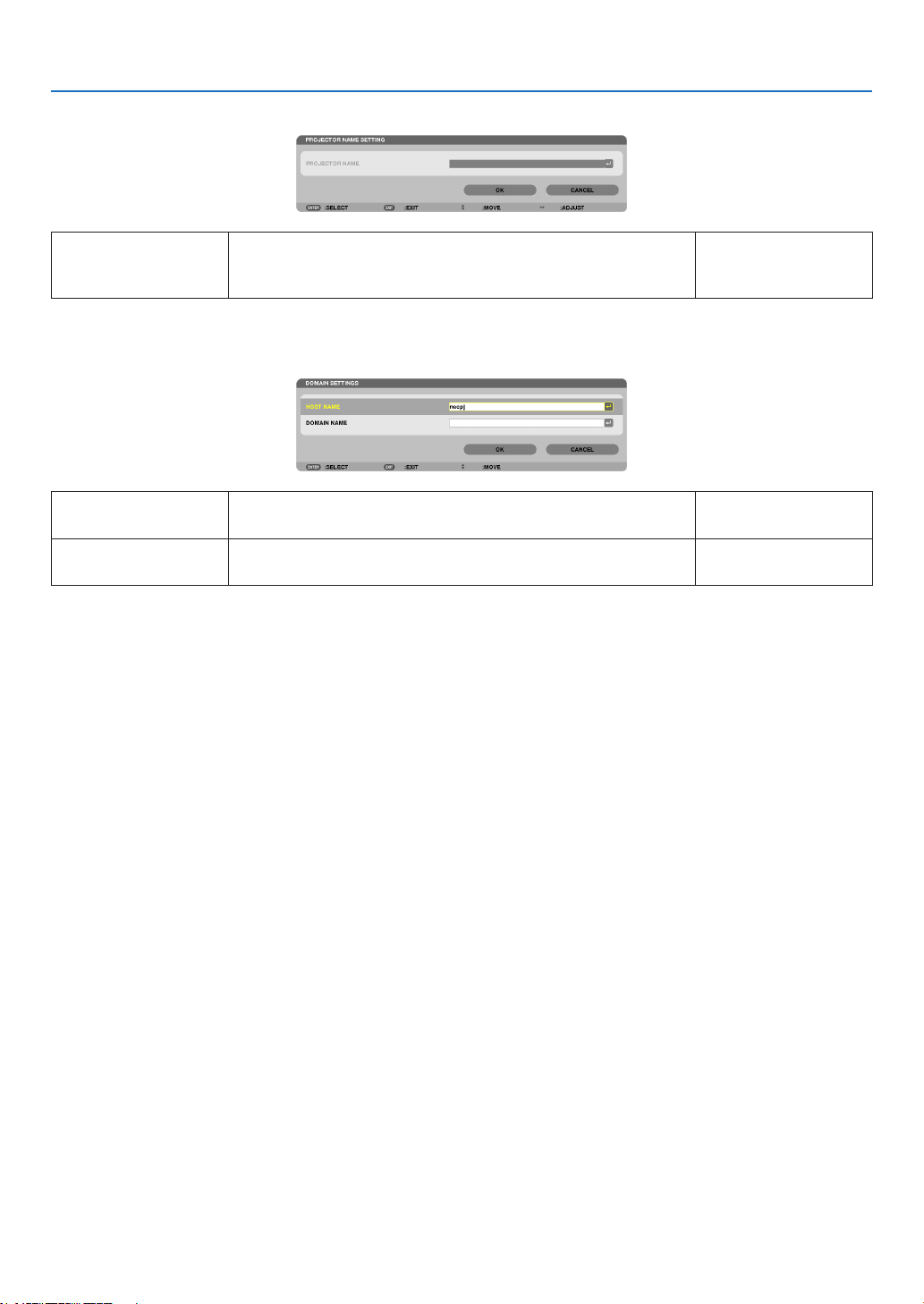
159
5. Using On-Screen Menu
PROJECTORNAME(ADVANCEDmenuonly)
PROJECTORNAME Setauniqueprojectorname. Upto16alphanu-
mericcharactersand
symbols
DOMAIN(ADVANCEDmenuonly)
Setahostnameanddomainnameoftheprojector.
HOSTNAME Setahostnameoftheprojector. Upto15alphanumeric
characters
DOMAINNAME Setadomainnameoftheprojector. Upto60alphanumeric
characters
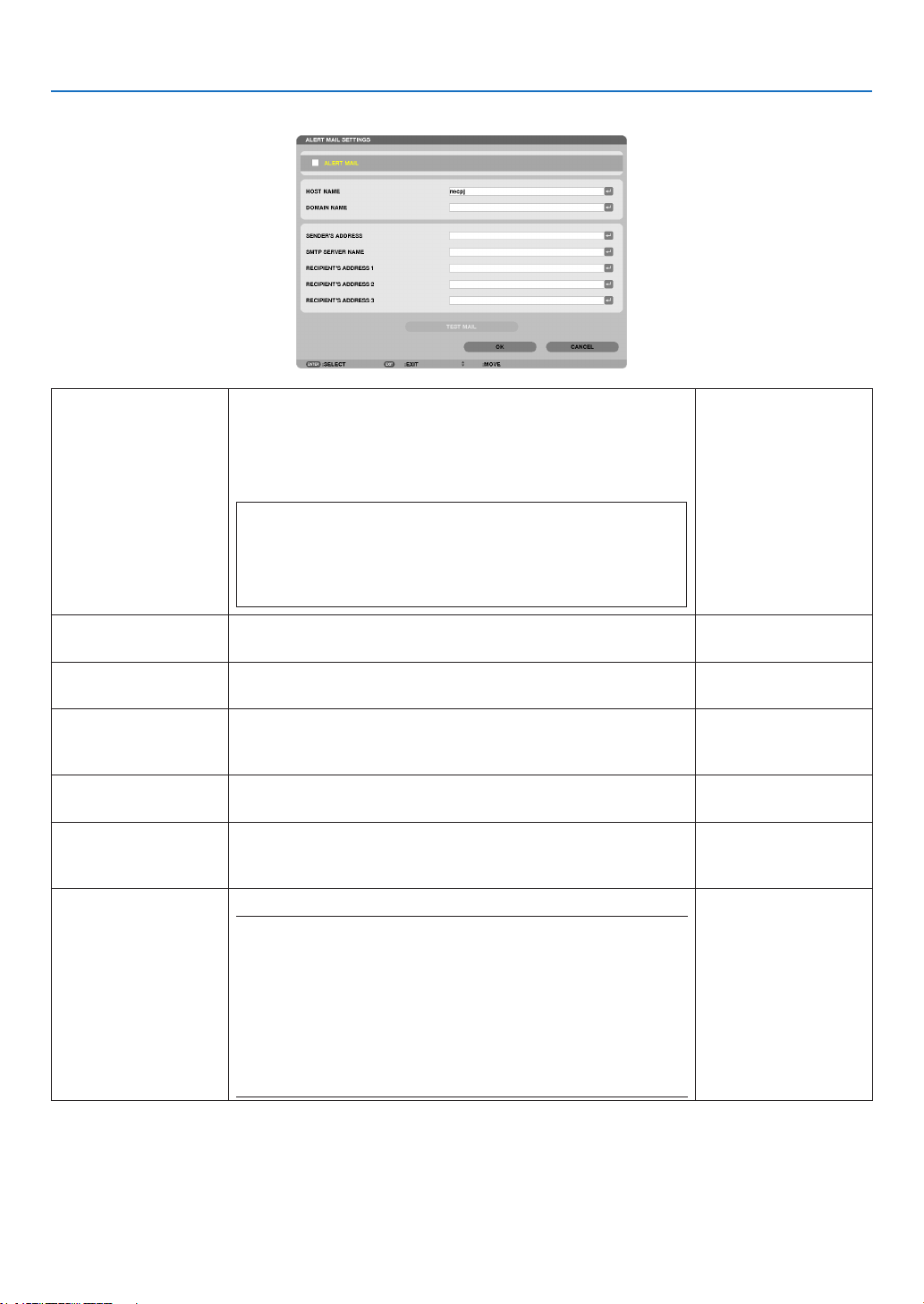
160
5. Using On-Screen Menu
ALERTMAIL(ADVANCEDmenuonly)
ALERTMAIL Thisoptionwillnotifyyourcomputeroflampreplacetimeorerror
messagesviae-mailwhenusingwirelessorwiredLAN.
Placing a checkmark will turn on the Alert Mail feature�
Clearing a checkmark will turn off the Alert Mail feature�
Sample of a message to be sent from the projector:
Thelampandltersareattheendofitsusablelife.Please
replacethelamp.
ProjectorName:NECProjector
Lamp1HoursUsed:xxxx[H]
Lamp2HoursUsed:xxxx[H]
—
HOSTNAME Typeinahostname. Upto15alphanumeric
characters
DOMAINNAME Typeinadomainnameofthenetworkconnectedtotheprojec-
tor.
Upto60alphanumeric
characters
SENDER'SAD-
DRESS
Specifythesender’saddress. Upto60alphanu-
mericcharactersand
symbols
SMTPSERVER
NAME
TypeintheSMTPservernametobeconnectedtotheprojec-
tor.
Upto60alphanumeric
characters
RECIPIENT'SAD-
DRESS1,2,3
Typeinyourrecipient’saddress. Upto60alphanu-
mericcharactersand
symbols
TESTMAIL Sendatestmailtocheckifyoursettingsarecorrect.
NOTE:
• Ifyouenteredanincorrectaddressinatest,youmaynotreceivean
Alert mail. Should this happen, check if the Recipient’s Address is
correctly set.
• Unless any one of the [SENDER'S ADDRESS], [SMTP SERVER'S
NAME]or[RECIPIENT'SADDRESS1-3]isselected,[TESTMAIL]is
notavailable.
• Besuretohighlight[OK]andpresstheENTERbuttonbeforeexecuting
[TESTMAIL].
—

161
5. Using On-Screen Menu
NETWORKSERVICE(ADVANCEDmenuonly)
HTTPSERVER SetapasswordforyourHTTPserver. Upto10alphanumeric
characters
PJLink
This optionallows you to seta password when you use the
PJLinkfeature.
NOTE:
• Donotforgetyourpassword.However,ifyouforgetyourpassword,
consult with your dealer.
• WhatisPJLink?
PJLinkisastandardizationofprotocolusedforcontrollingprojectors
of different manufacturers. This standard protocol is established by
JapanBusinessMachineandInformationSystemIndustriesAssocia-
tion(JBMIA)in2005.
TheprojectorsupportsallthecommandsofPJLinkClass1.
• SettingofPJLinkwillnotbeaffectedevenwhen[RESET]isdonefrom
the menu.
Upto32alphanumeric
characters
AMX
TurnonorofffordetectionfromAMXDeviceDiscoverywhen
connectingtothenetworksupportedbyAMX’sNetLinxcontrol
system.
TIP:
WhenusingadevicethatsupportsAMXDeviceDiscovery,allAMXNetLinx
controlsystemwillrecognizethedeviceanddownloadtheappropriate
DeviceDiscoveryModulefromanAMXserver.
Placing a checkmark will enable detecting the projector from AMX Device
Discovery�
Clearing a checkmark will disable detecting the projector from AMX
Device Discovery�
—
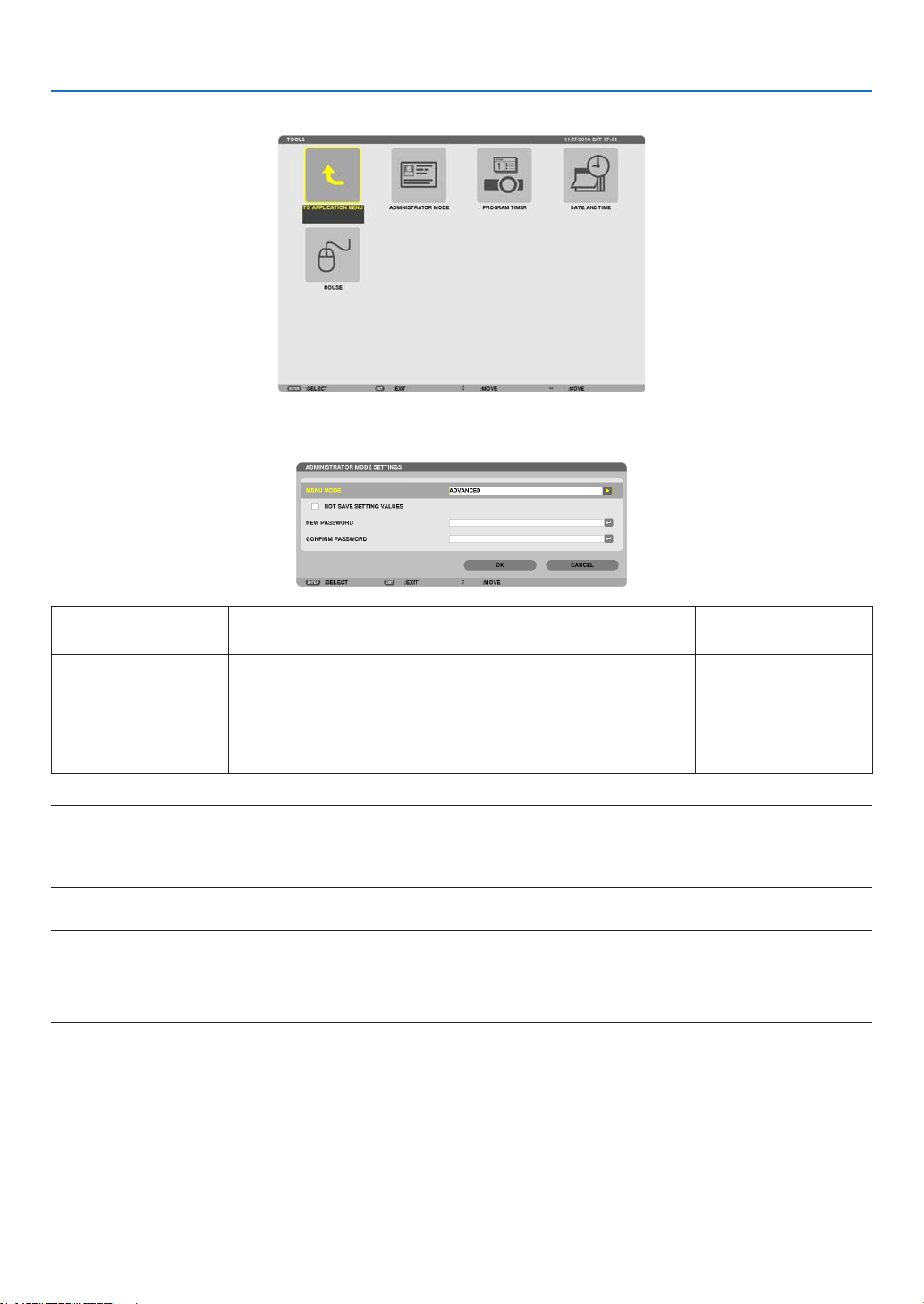
162
5. Using On-Screen Menu
TOOLS
ADMINISTRATOR MODE
ThisallowsyoutoselectMENUMODE,savesettings,andsetapasswordfortheadministratormode.
MENUMODE Selecteither[BASIC]or[ADVANCED]menu.
(→page106)
—
NOTSAVESETTING
VALUES
Placing a check mark will not save your projector settings�
Clear this check box to save your projector settings�
—
NEWPASSWORD/
CONFIRMPASS-
WORD
Assignapasswordfortheadministratormode. Upto10alphanumeric
characters
NOTE:
When[LAST]isselectedfor[DEFAULTSOURCESELECT],placingacheckmarkfor[NOTSAVESETTINGVALUES]willforcibly
selectNETWORKforsourceateverypower-ontime.
Toavoidthis,select[AUTO]for[DEFAULTSOURCESELECT]beforeplacingacheckmarkfor[NOTSAVESETTINGVALUES].
TIP:
ToreturntotheADVANCEDmenufromtheBASICmenu,dothefollowing:
1. UsetheSOURCEbuttononthecabinetorpresstheNETWORKbuttonontheremotecontroltoselect
[NETWORK]todisplaytheAPPLICATIONMENU.
2. Select[TOOLS]→[ADMINISTRATORMODE]→[MENUMODE]→[ADVANCEDMODE].
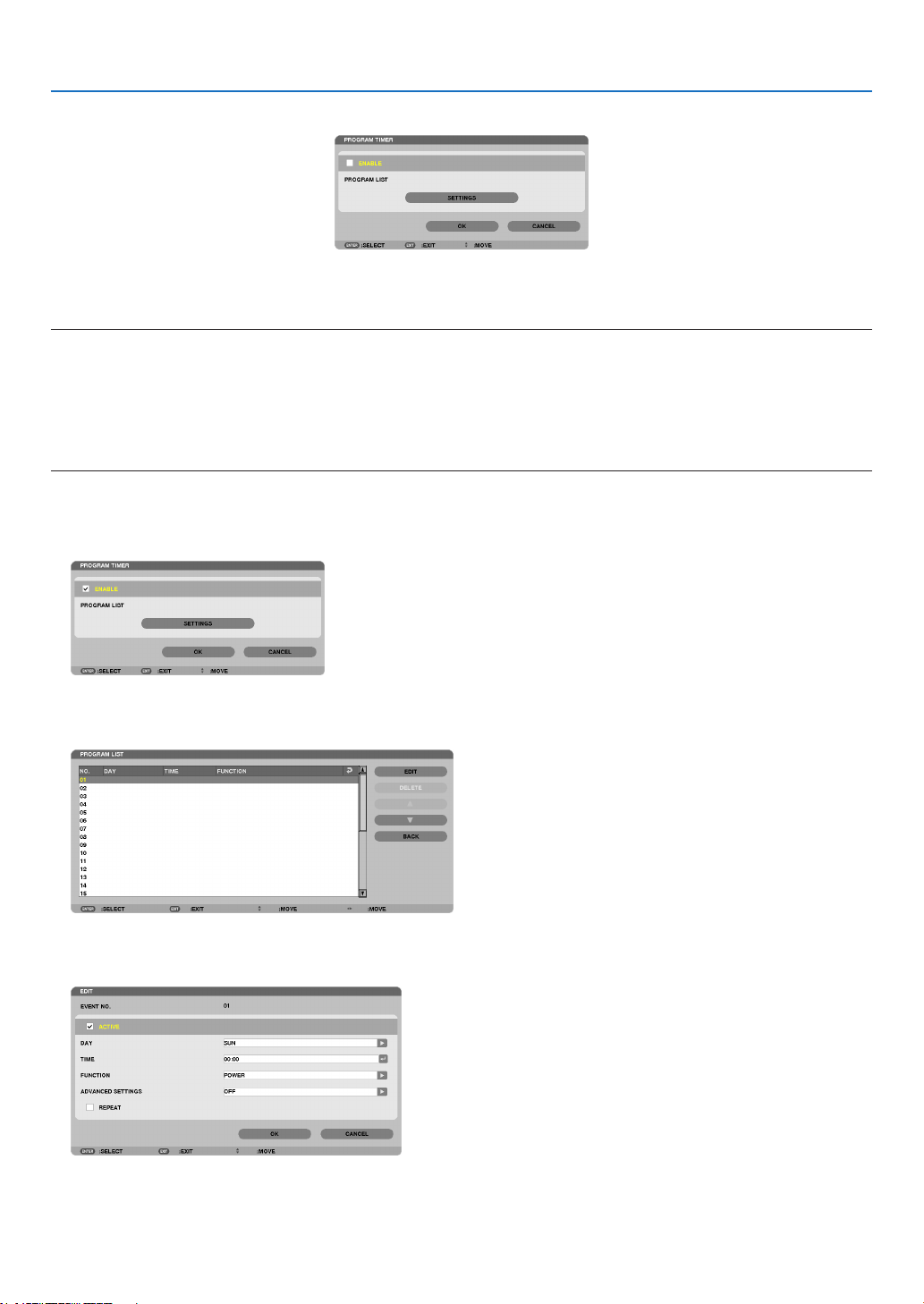
163
5. Using On-Screen Menu
PROGRAM TIMER
Thisoptionturnson/offtheprojectorandchangesvideosignals,andselectsECOmodeautomaticallyataspecied
time.
NOTE:
• Beforeusing[PROGRAMTIMER],makesurethatthe[DATEANDTIME]featureisset.(→ page 166)
• MakesurethattheprojectorisinthestandbyconditionwiththePOWERcordconnected.
• Theprojectorhasabuilt-inclock.Theclockwillkeepworkingforabouttwoweeksafterthemainpoweristurnedoff.Ifthemain
powerisnotsuppliedtotheprojectorfortwoweeksormore,thebuilt-inclockstopsworking.
• When[PROGRAMTIMER]isenabled,the[STANDBYMODE]settingbecomesinvalid.
Thismeansthattheprojectorisinthesameconditionwhenthe[NORMAL]isselectedfor[STANDBYMODE].
Setting a new program timer
1. OnthePROGRAMTIMERscreen,usethe▲ or ▼buttontoselect[SETTINGS]andpresstheENTERbut-
ton.
The[PROGRAMLIST]screenwillbedisplayed.
2. SelectablankprogramnumberandpresstheENTERbutton.
The[EDIT]screenwillbedisplayed.
3. Makesettingsforeachitemasrequired.
ACTIVE ������������������ Place a check mark to enable the program�

164
5. Using On-Screen Menu
DAY ������������������������ Select days of the week for the program timer� To execute the program from Monday to Friday, select [MON-
FRI]�To execute the program in everyday basis, select [EVERYDAY]�
TIME ���������������������� Set the time to execute the program� Enter time in 24-hour format�
FUNCTION ������������� Select a function to be executed� Selecting [POWER] will allow you to turn on or off the projector by setting
[ADVANCED SETTINGS]� Selecting [SOURCE] will allow you to select a video source by setting [ADVANCED
SETTINGS]� Selecting [ECO MODE] will allow you to select [ECO MODE] by setting [ADVANCED SET-
TINGS]�
ADVANCED SETTINGS
������������������������������ Select power on/off, a type of video source, or ECO MODE for the selected item in [FUNCTION]�
REPEAT ������������������ Place a check mark to repeat the program continuing basis� To use the program this week only, clear the
check mark�
4. Select[OK]andpresstheENTERbutton.
This will complete the settings.
Youwillbereturnedtothe[PROGRAMLIST]screen.
5. Select[BACK]andpresstheENTERbutton.
Youwillbereturnedtothe[PROGRAMTIMER]screen.
6. Select[OK]andpresstheENTERbutton.
Youwillbereturnedtothe[TOOLS]screen.
NOTE:
• Upto30differenttimersettingscanbeprogrammed.
• When[PROGRAMTIMER]isturnedon,the[STANDBYMODE]settingisignored.
• TheProgramTimerisexecutedonasettimebasis,notinaprogrambasis.
• Oncetheprogramnotmarkedwithacheckin[REPEAT]hasbeenexecuted,thecheckmarkinthe[ACTIVE]checkboxwillbe
cleared automatically and the program will be disabled.
• Whentheon-timeandtheoff-timesetforthesametime,theoff-timesettingwilltakepreference.
• Twodifferentsourcesaresetforthesametime,thelargerprogramnumberwilltakepreference.
• Theon-timesettingwillnotbeexecutedwhilethecoolingfansarerunningoranerrorisoccurring.
• Iftheoff-timesettingisexpiredundertheconditioninwhichthepoweroffisnotpossible,theoff-timersettingwillnotbeexecuted
until the power off becomes possible.
• Programsnotmarkedwithacheckmarkin[ACTIVE]ofthe[EDIT]screenwillnotbeexecutedeveniftheProgramTimeris
enabled.
• Whentheprojectoristurnedonbyusingtheprogramtimerandifyouwanttoturnofftheprojector,settheoff-timeordoit
manuallysoasnottoleavetheprojectoronforalongperiodoftime.

165
5. Using On-Screen Menu
Activating the program timer
1. Select[ENABLE]onthe[PROGRAMTIMER]screenandpresstheENTERbutton.
The[ENABLE]willbeactivated.
2. Select[OK]andpresstheENTERbutton.
The[PROGRAMTIMER]screenwillbechangedtothe[TOOL]screen.
NOTE:
• Clearing[ENABLE]willdisabletheProgramTimerevenwhenaprogramismarkedwithacheckmarkon[PROGRAMLIST]
screen.
• When[ENABLE]isselected,the[PROGRAMLIST]cannotbeedited.Toedittheprograms,select[ENABLE]toturnofftheProgram
Timer.
Changing the programmed settings
1. Onthe[PROGRAMLIST]screen,selectaprogramyouwanttoeditandpresstheENTERbutton.
2. Changethesettingsonthe[EDIT]screen.
3. Select[OK]andpresstheENTERbutton.
Theprogrammedsettingswillbechanged.
Youwillbereturnedtothe[PROGRAMLIST]screen.
Changing the order of programs
1. Onthe[PROGRAMLIST]screen,selectaprogramwhoseorderyouwanttochangeandpressthe▶ but-
ton.
2. Press the ▼ button to select ▲ or ▼.
3. PresstheENTERbuttonafewtimestoselectarowtowhichyouwishtomovetheprogram.
Theorderoftheprogramswillbechanged.
Deleting the programs
1. Onthe[PROGRAMLIST]screen,selectaprogramnumberyouwanttodeleteandpressthe▶ button.
2. Press the ▼buttontoselect[DELETE].
3. PresstheENTERbutton.
Theconrmationscreenwillbedisplayed.
4. Select[YES]andpresstheENTERbutton.
Theprogramwillbedeleted.
This will complete deleting the program.

166
5. Using On-Screen Menu
DATE AND TIME
Youcansetthecurrenttime,month,date,andyear.
NOTE:Theprojectorhasabuilt-inclock.Theclockwillkeepworkingforabout2weeksafterthemainpoweristurnedoff.Ifthe
mainpowerisofffor2weeksormore,thebuilt-inclockwillcease.Ifthebuilt-inclockceases,setthedateandtimeagain.The
built-inclockwillnotceasewhileinthestandbymode.
TIME ZONE SETTINGS �������������� Select your time zone�
DATE AND TIME SETTINGS ������ Set your current date (MM/DD/YYYY) and time (HH:MM)�
INTERNET TIME SERVER ��������� If you place a check mark, the projector’s built-in clock will be synchronized with an Internet
time server in every 24 hours and at the time of projector’s startup�
UPDATE ������������������������������������ Synchronizes the projector’s built-in clock immediately� The UPDATE button is not available
unless the INTERNET TIME SERVER check box is turned on�
SUMMER TIME SETTINGS ������� If you place a check mark, the clock for daylight saving will be enabled�
MOUSE
ThisoptionletsyoutochangeyourUSBmousesettings.ThemousesettingsfeatureisavailableforUSBmouseonly.
Choosethesettingsyouwant:
MOUSE BUTTON ���������������������� [RIGHT HAND] or [LEFT HAND]
MOUSE SENSITIVITY
��������������� [FAST], [MEDIUM] or [SLOW]
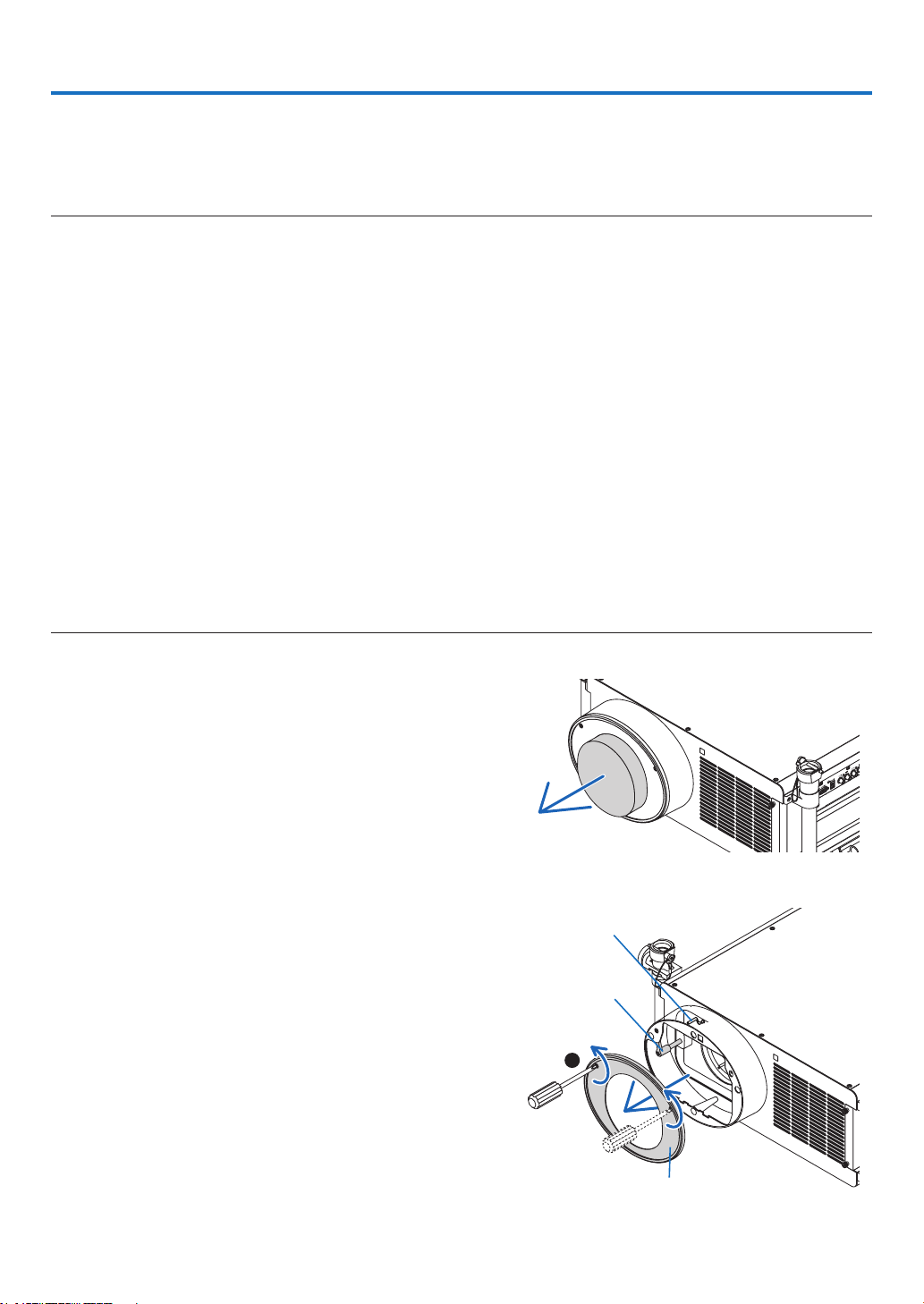
167
6. Connecting to Other Equipment
❶ Mounting the Optional Lens
Sixseparatebayonetstylelensescanbeusedwiththisprojector.ThedescriptionsherearefortheNP27ZLlens.
Mountotherlensesinthesamemanner.
NOTE:
• Theprojectorandlensesaremadeofprecisionparts.Donotsubjectthemtoshockorexcessiveforces.
• Removetheseparatelysoldlenswhenmovingtheprojector.Ifnot,thelenscouldbesubjecttoshockwhiletheprojectorisbeing
moved,damagingthelensandthelensshiftmechanism.
• Turnoffthepowerandwaitforthecoolingfantostopandturnoffthemainpowerswitchbeforemountingorremovingthe
lens.
• Whendismountingthelensfromtheprojector,returnthelenspositiontothehomepositionbeforeturningoffthepower.Failureto
dosomaypreventthelensfrombeingmountedordismountedbecauseofnarrowspacebetweentheprojectorandthelens.
• Besuretoperform[CALIBRATION]afterinstallationorreplacementofthelens.(→ page 19, 130)Calibrationcorrectstheadjust-
able zoom and focus range.
The following lenses need calibration:
- NP26ZL,NP27ZL,NP28ZL,NP29ZL,NP32ZL
• Nevertouchthelenssurfacewhiletheprojectorisoperating.
• Beverycarefulnottoletdirt,grease,etc.,onthelenssurfaceandnottoscratchthelenssurface.
• Performtheseoperationsonaatsurfaceoverapieceofcloth,etc.,topreventthelensfromgettingscratched.
• Whenleavingthelensofftheprojectorforlongperiodsoftime,mountthedustcapontheprojectortopreventdustordirtfrom
getting inside.
• Ifyouhavemultipleprojectors,becarefulofthefollowing:
- TheNP25FL,NP26ZL,NP27ZL,NP28ZL,NP29ZL,andNP32ZLlensesaredesignedexclusivelyforthismodeloftheprojector.
Theselensesarenotavailableonotherprojectormodels.
- TheotherNECoptionallensescannotbeusedwiththismodeloftheprojector.
Before mounting the lens:
• PrepareaPhillipsscrewdriver(plus-head)
• Removethedustcapfromtheprojector.
TIP:
• Theprojectorcomeswiththedustcapatthetimeofshipment
Mounting the lens
1. Remove the lens shroud.
(1) Loosen two screws.
1
Lens release
lever
Safetylever
Lens shroud
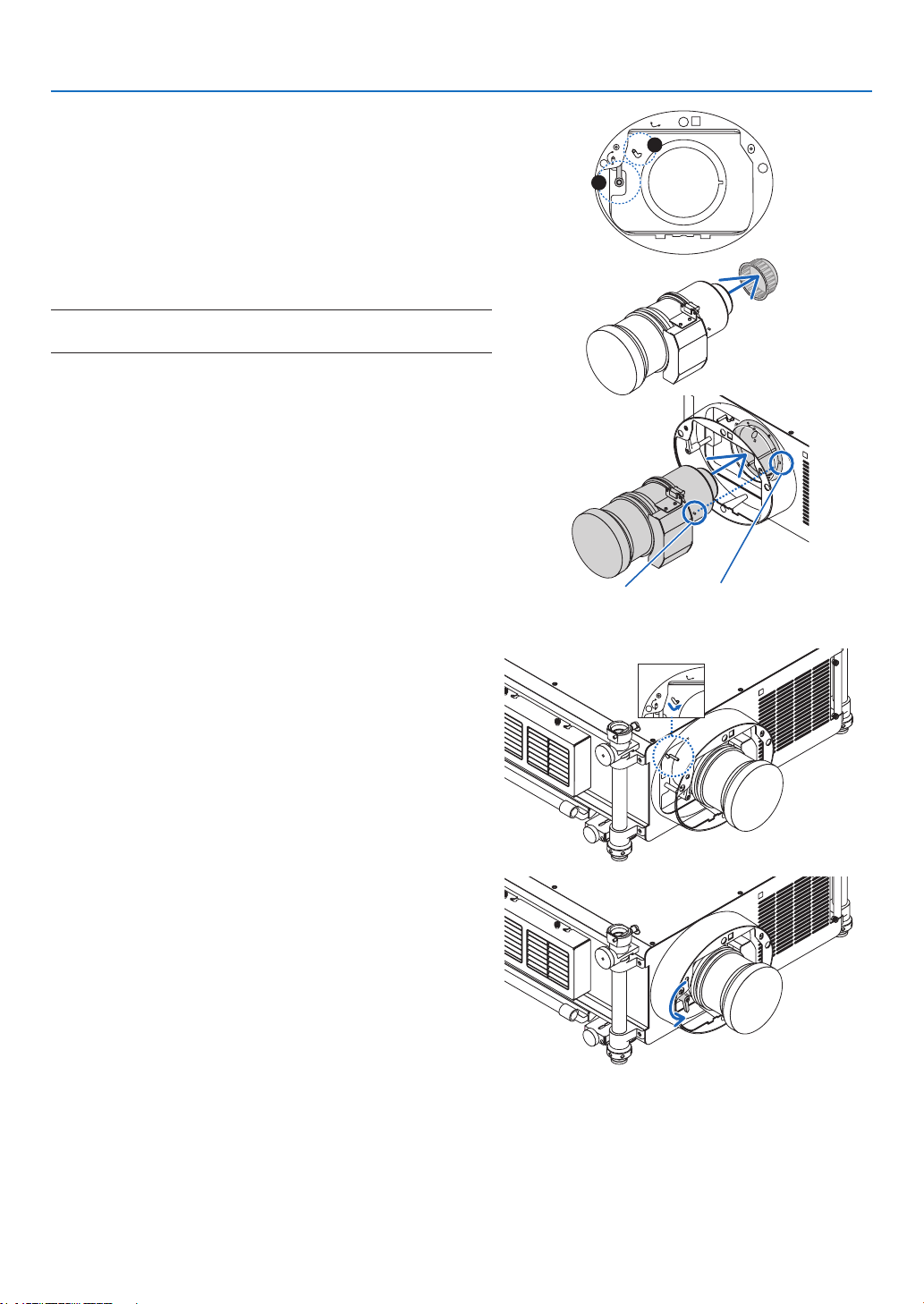
168
6. Installation and Connections
(2)Makesurethatthelensreleaseleverpointsupward(RE-
LEASE).
(3)Makesurethatthesafetyleverissettotheunlockedposi-
tion(UNLOCK)topreventthelensfromfallingout.
UNLOCK
LOCK
RELEASE
LOCK
LENS
2
3
2. Removethelenscaponthebackofthelens.
• TheNP27ZLlensisusedasanexample.
NOTE:Mountingthelenswithlenscaponitsbacktotheprojectorcan
cause malfunction.
3. Place the guide pin in the correct orientation by aligning
it with the notch on the lens hood, then insert the lens
into the projector.
Push the lens slowly until it comes to a complete stop.
Guidepin
Notch
4. Setthesafetylevertotherightposition(LOCK)tolock
the lens.
LOCK
LOCK
LENS
5. Slowly turn the lens release lever counterclockwise until
thelensreleaseleverisfacingdownward.
• Ifthelensreleaselevercannotbeturned,itmeansthat
the lens is not fully inserted.
Turnbackthelensreleaselevertotheunlockedposition
and push the lens into the projector until it comes to a
complete stop.
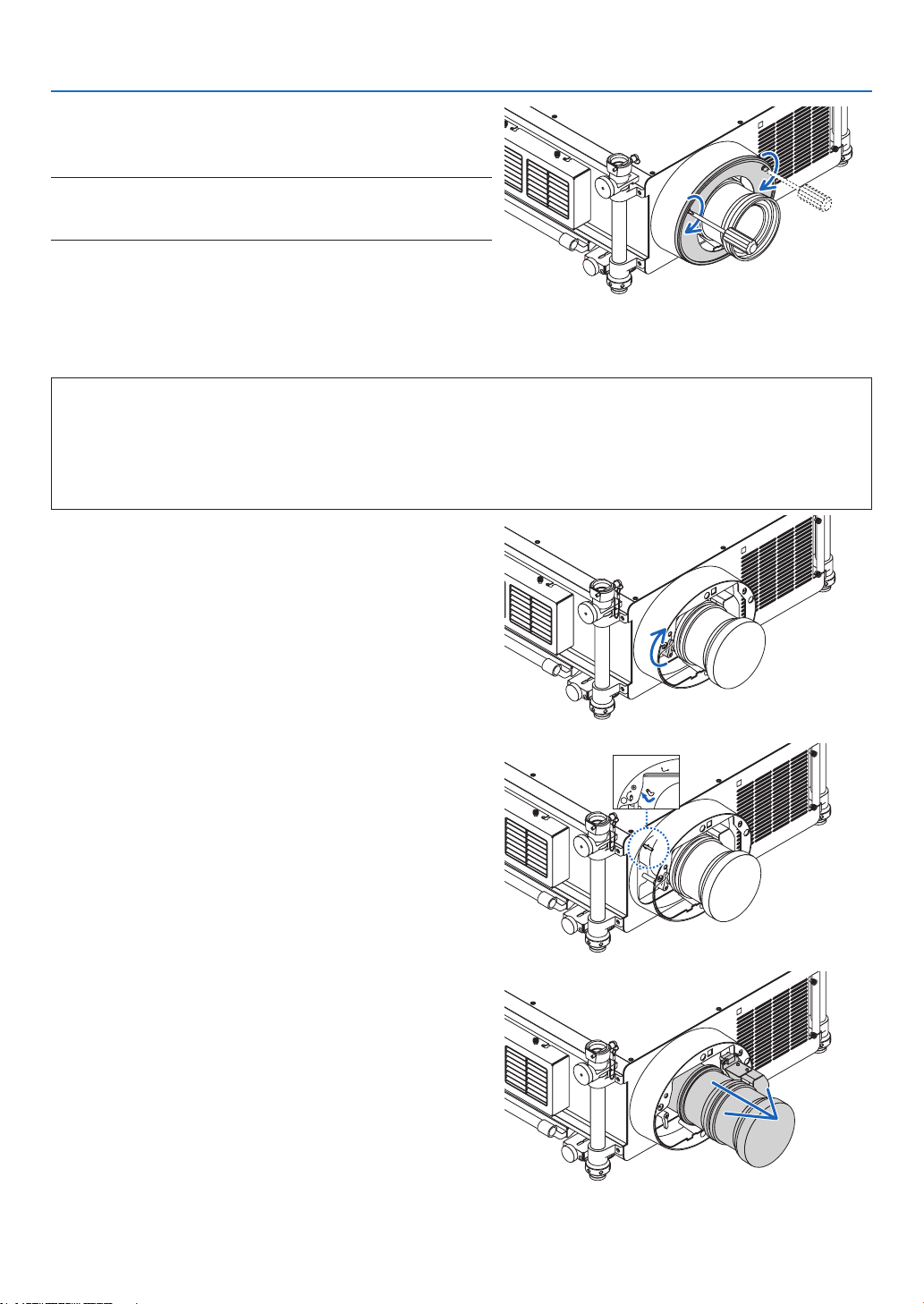
169
6. Installation and Connections
6. Place the lens shroud back onto the lens hood.
• Tightenthetwoscrewstoxthelensshroud
NOTE :
Besuretoperform[CALIBRATION]afterinstallationorreplacementof
the lens. (→ page 19, 130)
Removing the lens
Before removing the lens:
1. Turnontheprojector.(→ page 18)
2. PressandholdtheSHUTTER/HOMEPOSITIONbuttonforaminimumof2seconds.
The lens position will return to the home position. (→ page 27)
3. Turnoffthemainpowerandunplugthepowercord.
4. Waitfortheprojectortocoolsufcientlybeforeremovingthelens.
1. Remove the lens shroud.
(→ page 167)
2. Slowly turn the lens release lever clockwise until it points
upward.
3. Setthesafetylevertotheleftposition(UNLOCK).
LOCK
LOCK
LENS
4. Slowlyremovethelensfromtheprojectorbypullingit
straight out.
• Afterremovingthelens,attachthelenscaptoboththe
frontandbackofthelensforproperstorage.
5. Place the lens shroud back into the lens hood.
• Tightenthetwoscrewstoxthelensshroud.
• Iftheprojectorisstoredwithoutthelens,attachthedust
cover to the lens hood.
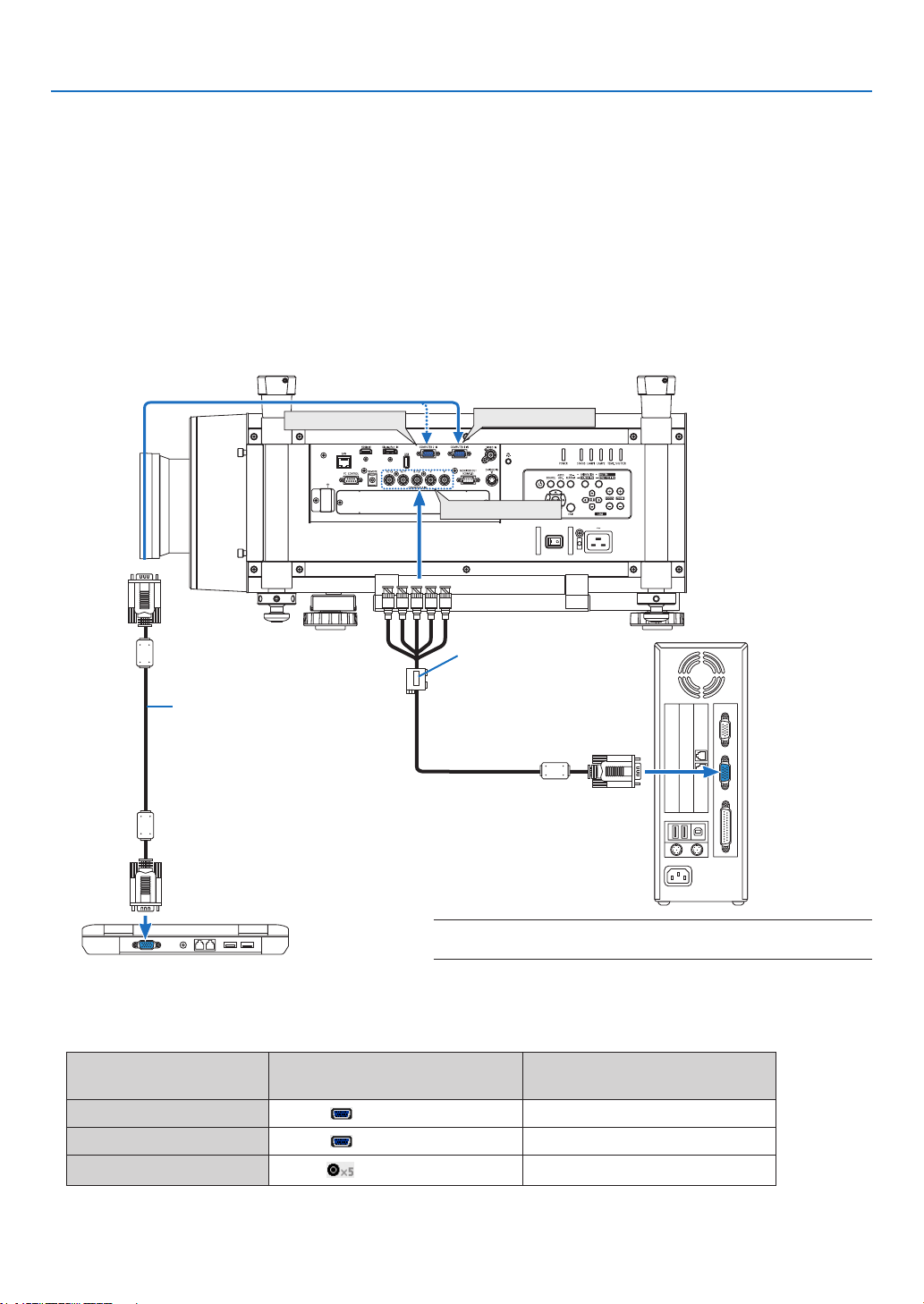
170
6. Installation and Connections
COMPUTER 2 IN
COMPUTER 3 IN
COMPUTER 1 IN
Computercable(VGA)(supplied)
TominiD-Sub15-pinconnector
ontheprojector.Itisrecommend-
ed that you use a commercially
availabledistributionamplierif
connectingasignalcablelonger
thanthecablesupplied.
NOTE:ForMacintosh,useacommerciallyavailablepinadapter(not
supplied)toconnecttoyourMac’svideoport.
RGB-to-BNCcable(not
supplied)
❷ Making Connections
Theprojectorcanbeconnectedtoacomputerusingthecomputercable,a5xBNCcable,HDMIcableorDisplayPort
cable.
Preparecommerciallyavailablecablesforconnection.
Analog RGB signal connection
• Connectthecomputercablebetweenthecomputer’sdisplayoutputconnector(miniD-Sub15-pin)andtheprojector’s
Computer1orComputer2videoinputconnector.
• Whenconnectingthecomputer’sdisplayoutputconnector(miniD-Sub15-pin)andtheprojector’sComputer3
videoinputconnector,useaBNCcable(5-core)miniD-Sub15-pinconvertercable.
• Tooutputaudiofromthecomputer,usecommerciallyavailableaudiosystem.
• Selectthesourcenameforitsappropriateinputconnectorafterturningontheprojector.
Inputconnector
SOURCEbuttonontheprojector
cabinet
Buttonontheremotecontrol
COMPUTER1IN COMPUTER1 COMPUTER1
COMPUTER2IN COMPUTER2 COMPUTER2
COMPUTER3IN
COMPUTER3
COMPUTER3
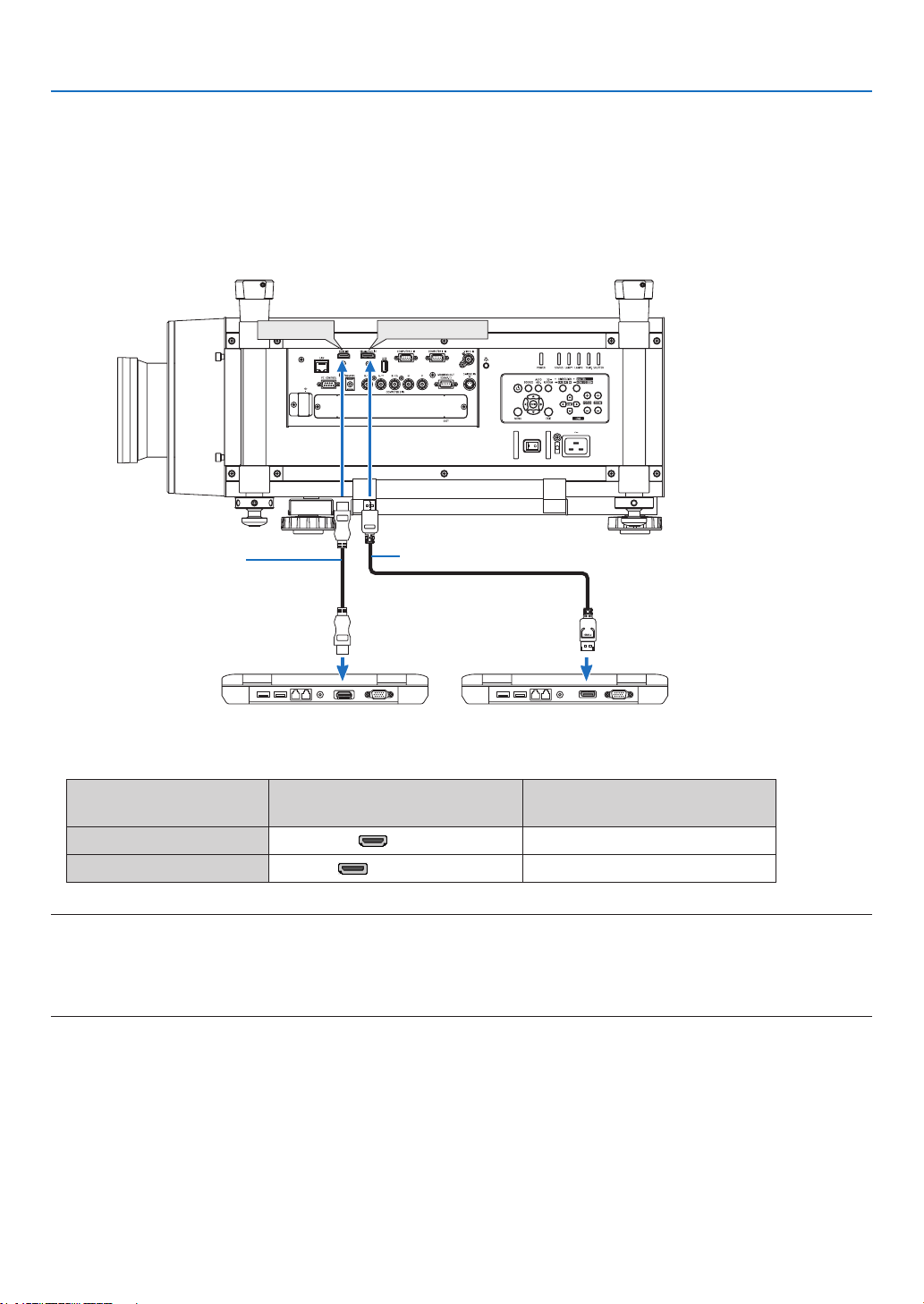
171
6. Installation and Connections
DisplayPort IN
HDMI IN
Digital RGB signal connection
• ConnectacommerciallyavailableHDMIcablebetweenthecomputer’sHDMIoutputconnectorandtheprojector’s
HDMIinputconnector.
• ConnectacommerciallyavailableDisplayPortcablebetweenthecomputer’sDisplayPortoutputconnectorand
theprojector’sDisplayPortinputconnector.
• Selectthesourcenameforitsappropriateinputconnectorafterturningontheprojector.
Inputconnector
SOURCEbuttonontheprojector
cabinet
Buttonontheremotecontrol
HDMIIN HDMI HDMI
DisplayPortIN DisplayPort DisplayPort
NOTE:
• Turnoffthepowerofthecomputerandprojectorbeforeconnecting.
• ThisprojectordoesnotsupportNECvideounit(modelISS-6020)videodecoded outputs.
• When a video deck is connected via a scan converter, etc., the display may not be correct during fast-forwarding and
rewinding.
TIP
• TheComputer1andComputer2videoinputconnectorssupportWindowsPlugandPlay.TheComputer3videoinputconnector
doesnotsupportWindowsPlugandPlay.
• AMacintoshsignaladapter(commerciallyavailable)mayberequiredtoconnectaMacintoshcomputer.
ToconnectaMacintoshcomputerequippedwithaMiniDisplayPorttotheprojector,useacommerciallyavailableMiniDisplayPort
→DisplayPortconvertercable.
HDMIcable(notsupplied)
DisplayPortcable(notsupplied)
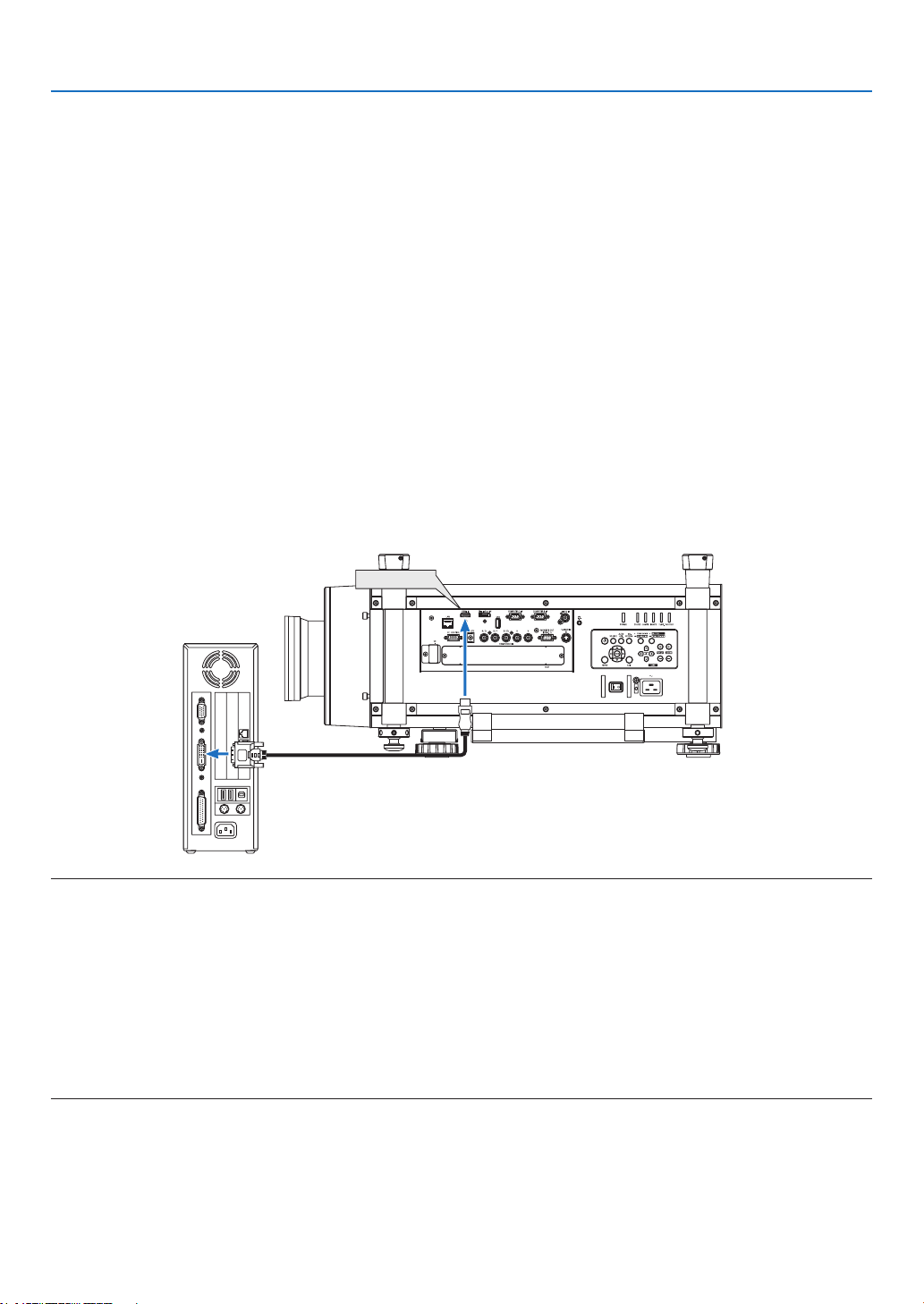
172
6. Installation and Connections
Cautions when connecting an HDMI cable
• UseacertiedHighSpeedHDMI
®
Cable or HighSpeedHDMI
®
CablewithEthernet.
CautionswhenconnectingaDisplayPortcable
• Dependingonthecomputer,sometimemayberequireduntiltheimageisdisplayed.
• SomeDisplayPortcables(commerciallyavailable)havelocks.
• Todisconnectthecable,pressthebuttononthetopofthecable’sconnector,thenpullthecableout.
• NopowerissuppliedfromtheDisplayPortinputconnectortotheconnecteddevice.
• WhensignalsfromadevicethatusesasignalconverteradapterareconnectedtotheDisplayPortinputconnector,
insomecasestheimagemaynotbedisplayed.
• WhentheHDMIoutputofacomputerisconnectedtotheDisplayPortinputconnector,useaconverter(commercially
available).
CautionswhenusingaDVIsignal
• WhenthecomputerhasaDVIoutputconnector,useacommerciallyavailableconvertercabletoconnectthe
computertotheprojector’sHDMIinputconnector(onlydigitalvideosignalscanbeinput).
Toconnectthecomputer’sDVIoutputconnectortotheprojector’sDisplayPortinputconnector,useacommercially
availableconverter.
HDMI IN
NOTE:WhenViewingaDVIDigitalSignal
• UseaDVI-to-HDMIcablecompliantwithDDWG(DigitalDisplayWorkingGroup)DVI(DigitalVisualInterface)revision1.0stan-
dard.Thecableshouldbewithin197"/5mlong.
• TurnofftheprojectorandthePCbeforeconnectingtheDVI-to-HDMIcable.
• ToprojectaDVIdigitalsignal:Connectthecables,turntheprojectoron,thenselecttheHDMIinput.Finally,turnonyourPC.
Failuretodosomaynotactivatethedigitaloutputofthegraphicscardresultinginnopicturebeingdisplayed.Shouldthishappen,
restartyourPC.
• SomegraphicscardshavebothanalogRGB(15-pinD-Sub)andDVI(orDFP)outputs.Useofthe15-pinD-Subconnectormay
result in no picture being displayed from the digital output of the graphics card.
• DonotdisconnecttheDVI-to-HDMIcablewhiletheprojectorisrunning.Ifthesignalcablehasbeendisconnectedandthen
reconnected,animagemaynotbecorrectlydisplayed.Shouldthishappen,restartyourPC.
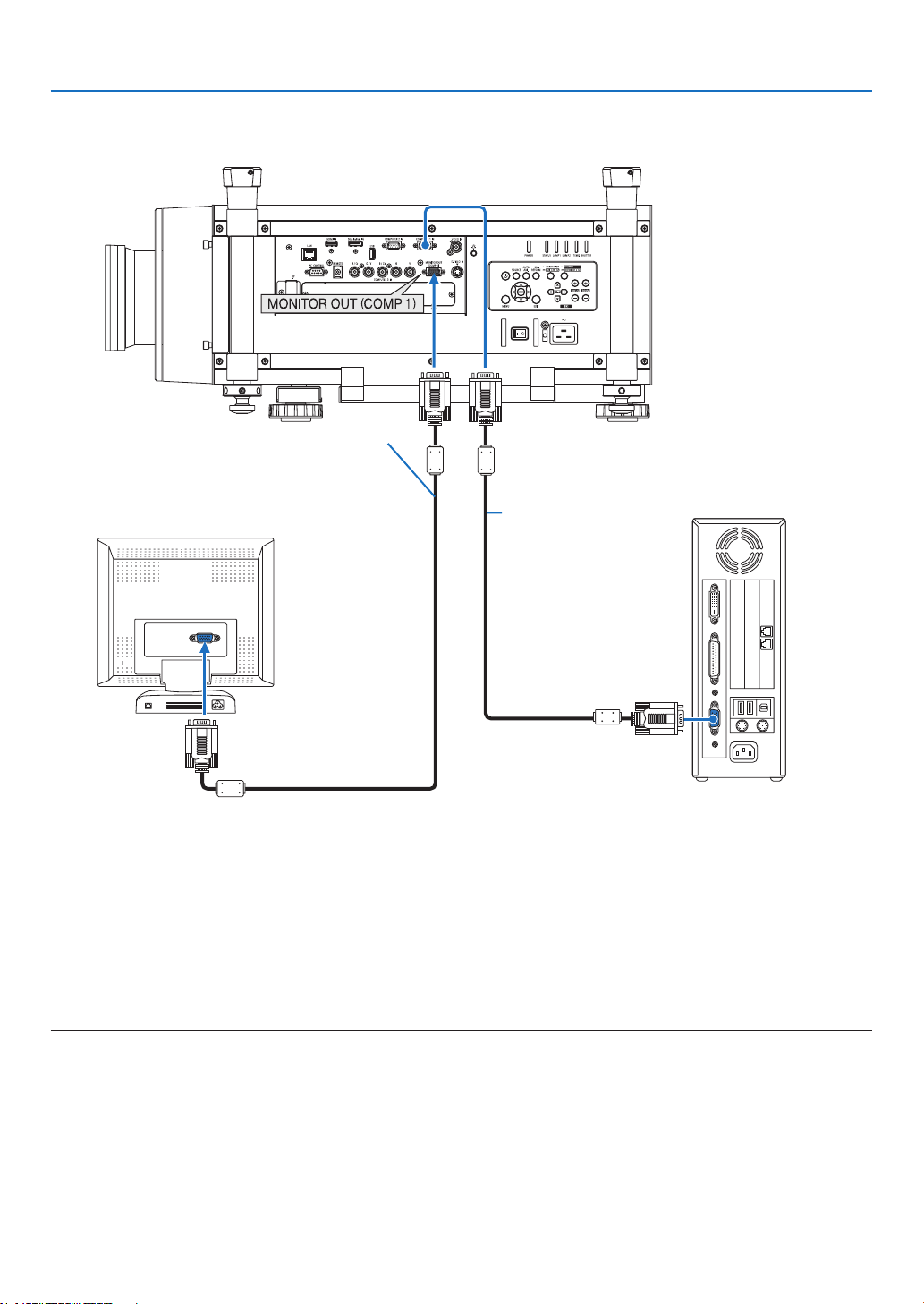
173
6. Installation and Connections
Connecting an External Monitor
Youcanconnectaseparate,externalmonitortoyourprojectortosimultaneouslyviewonamonitorthecomputer
analogimageyou’reprojecting.
NOTE:
• Daisychainconnectionisnotpossible.
• ThesignalonlyfromtheCOMPUTER1INconnectorwillbeoutputtotheMONITOROUT(COMP1)connector.
• When[POWER-SAVING]or[NETWORKSTANDBY]isselectedfor[STANDBYMODE]withintheon-screenmenu,thesignalwill
notbeoutputtotheMONITOROUT(COMP1)connectorinstandby.
• WhenthesignalfromtheCOMPUTER3INconnectorsisprojected,novideosignalwillbeoutputtotheMONITOROUT(COMP1)
connector.
Computercable(VGA)
(supplied)
Computercable(VGA)
(not supplied)
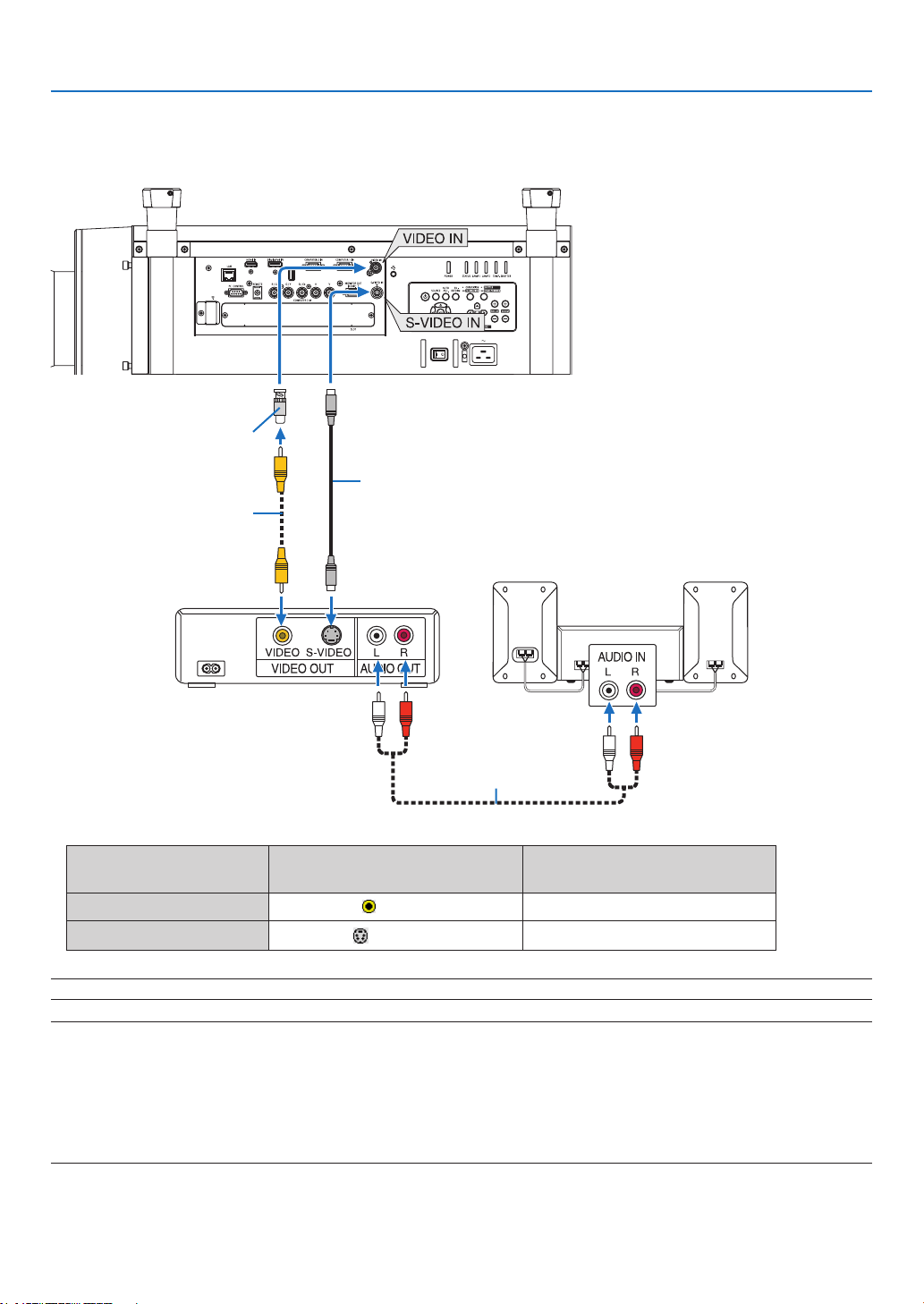
174
6. Installation and Connections
Connecting Your DVD Player or Other AV Equipment
ConnectingVideo/S-VideoInput
• Selectthesourcenameforitsappropriateinputconnectorafterturningontheprojector.
Inputconnector
SOURCEbuttonontheprojector
cabinet
Buttonontheremotecontrol
VIDEOIN
VIDEO
VIDEO
S-VIDEOIN
S-VIDEO
S-VIDEO
NOTE:RefertoyourVCRowner’smanualformoreinformationaboutyourequipment’svideooutputrequirements.
NOTE:
• AnimagemaynotbedisplayedcorrectlywhenaVideoorS-Videosourceisplayedbackinfast-forwardorfast-rewindviaascan
converter.
• Videosignalscanbeprojectedwhenavideocable(commerciallyavailable)isconnectedtotheComputer3videoinputconnector’s
G/Yconnector.
Inthiscase,settheon-screenmenu’sSETUP→ OPTION(1) → SIGNALSELECT(COMP3) to [VIDEO]andselectComputer3for
the input selection.
Videocable(notsupplied)
BNC(male)toRCA(female)
adapter (not supplied)
S-Videocable(notsupplied)
Audioequipment
Audiocable(notsupplied)
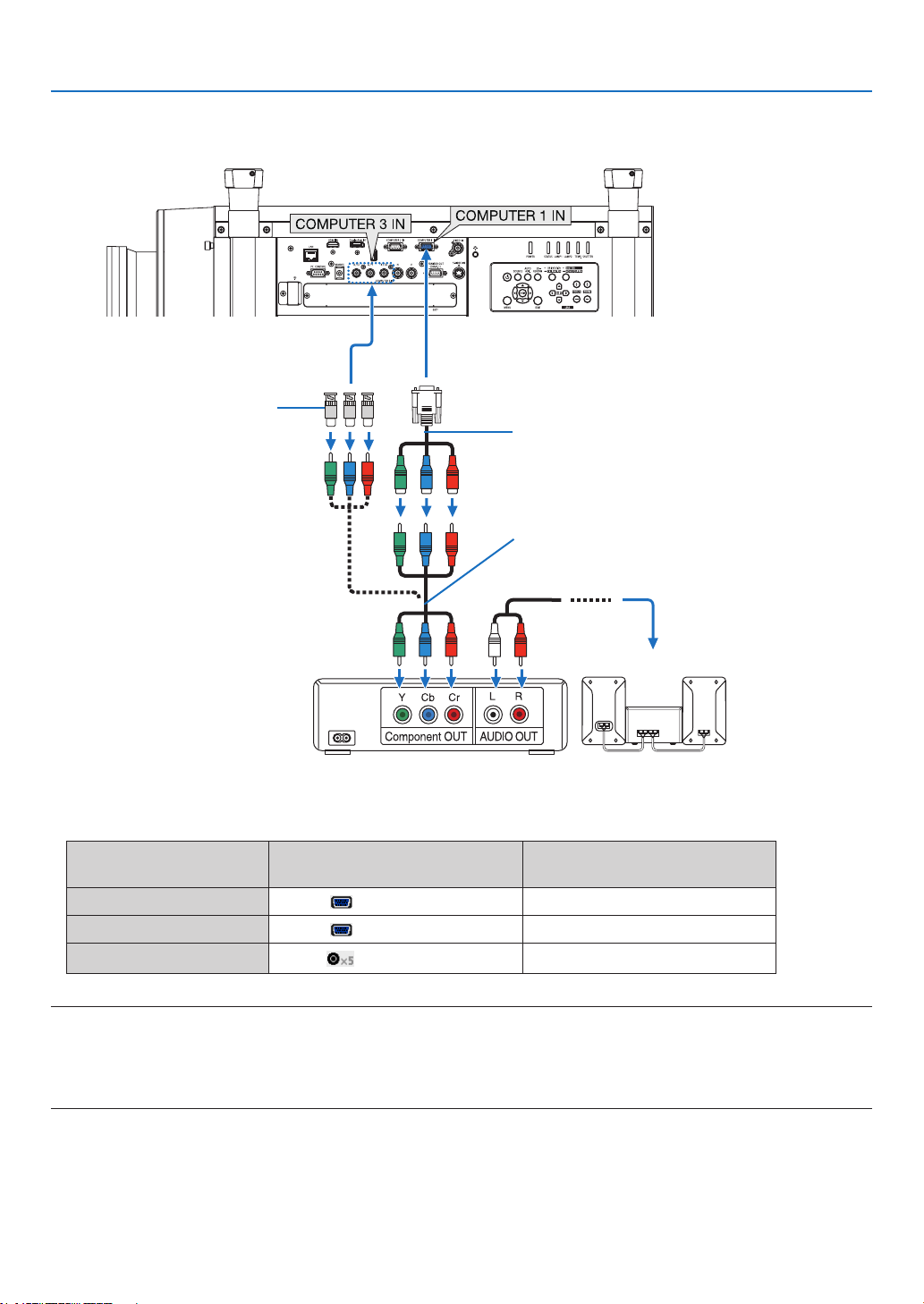
175
6. Installation and Connections
Connecting Component Input
• Selectthesourcenameforitsappropriateinputconnectorafterturningontheprojector.
Inputconnector
SOURCEbuttonontheprojector
cabinet
Buttonontheremotecontrol
COMPUTER1IN COMPUTER1 COMPUTER1
COMPUTER2IN COMPUTER2 COMPUTER2
COMPUTER3IN
COMPUTER3
COMPUTER3
NOTE:
• Normallythecomputersignalandcomponentsignalareidentiedandswitchedautomatically.Ifthesignalcannotbeidentied,
however,selectthesignalat[ADJUST]→[VIDEO]→[SIGNALTYPE]ontheprojector’son-screenmenu.Select“COMPUTER”or
“VIDEO”fortheComputer3videoinputconnectorat[SETUP]→[OPTION(1)]→[SIGNALSELECT(COMP3)](→ page 134).
• ToconnecttoavideodevicewithaDconnector,usethesoldseparatelyDconnectorconverteradapter(modelADP-DT1E).
15-pin-to-RCA(female)×3cableadapter
(ADP-CV1E)
BNC(male)toRCA(female)
adapter (not supplied)
ComponentvideoRCA×3cable(notsupplied)
DVDplayer
AudioEquipment
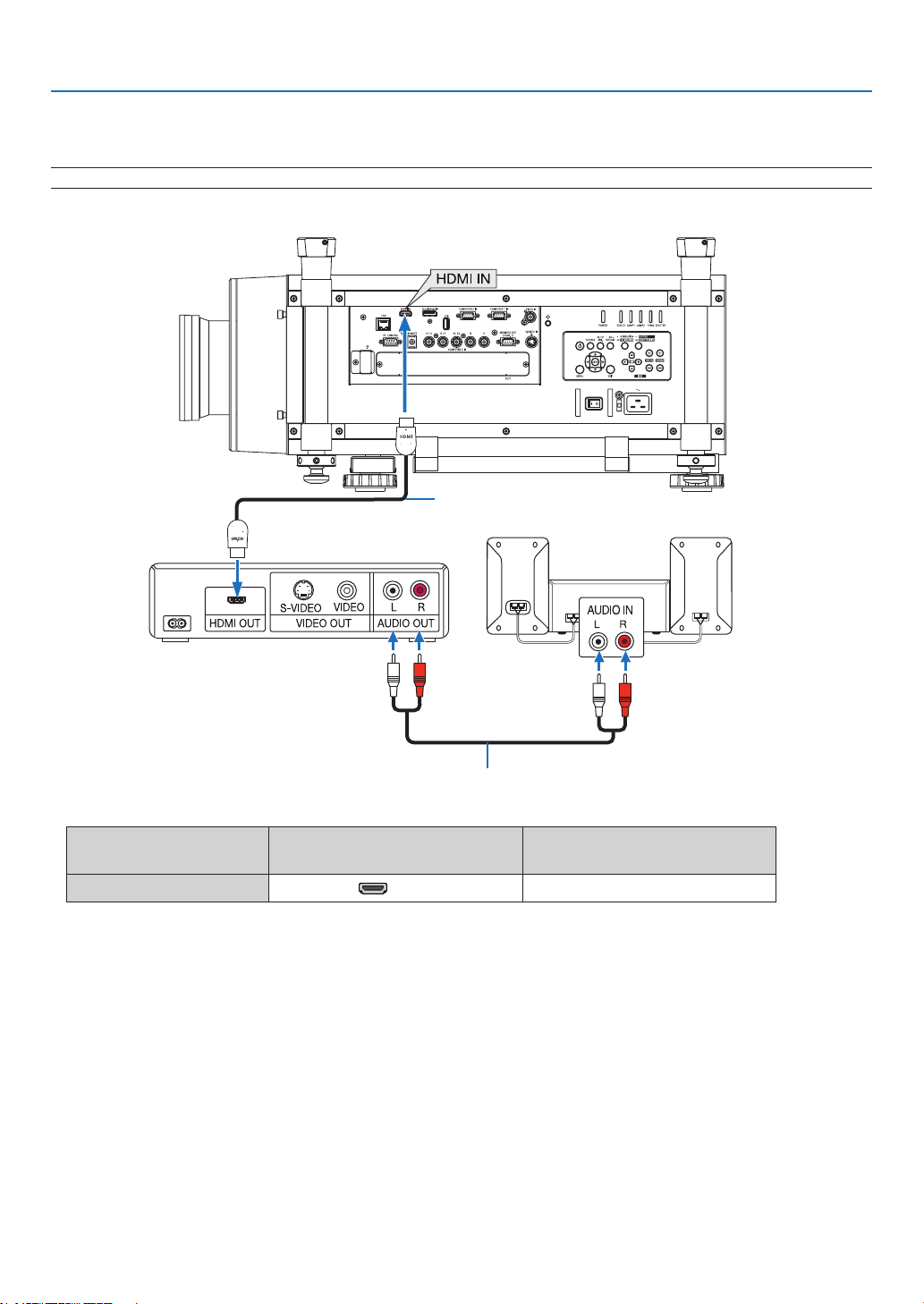
176
6. Installation and Connections
Connecting HDMI Input
YoucanconnecttheHDMIoutputofyourDVDplayer,harddiskplayer,Blu-rayplayer,ornotebooktypePCtothe
HDMIINconnectorofyourprojector.
NOTE:TheHDMIINconnectorsupportsPlug&Play(DDC2B).
Audiocable(notsupplied)
HDMIcable(notsupplied)
UseHighSpeedHDMI
®
Cable.
Inputconnector
SOURCEbuttonontheprojector
cabinet
Buttonontheremotecontrol
HDMIIN HDMI HDMI
TIP:ForusersofaudiovideoequipmentwithanHDMIconnector:
Select“Enhanced”ratherthan“Normal”ifHDMIoutputisswitchablebetween“Enhanced”and“Normal”.
Thiswillprovideimprovedimagecontrastandmoredetaileddarkareas.
Formoreinformationonsettings,refertotheinstructionmanualoftheaudiovideoequipmenttobeconnected.
• WhenconnectingtheHDMIINconnectoroftheprojectortotheDVDplayer,theprojector’svideolevelcanbe
madesettingsinaccordancewiththeDVDplayer’svideolevel.Inthemenuselect[ADJUST]→[VIDEO]→[VIDEO
LEVEL]andmakenecessarysettings.
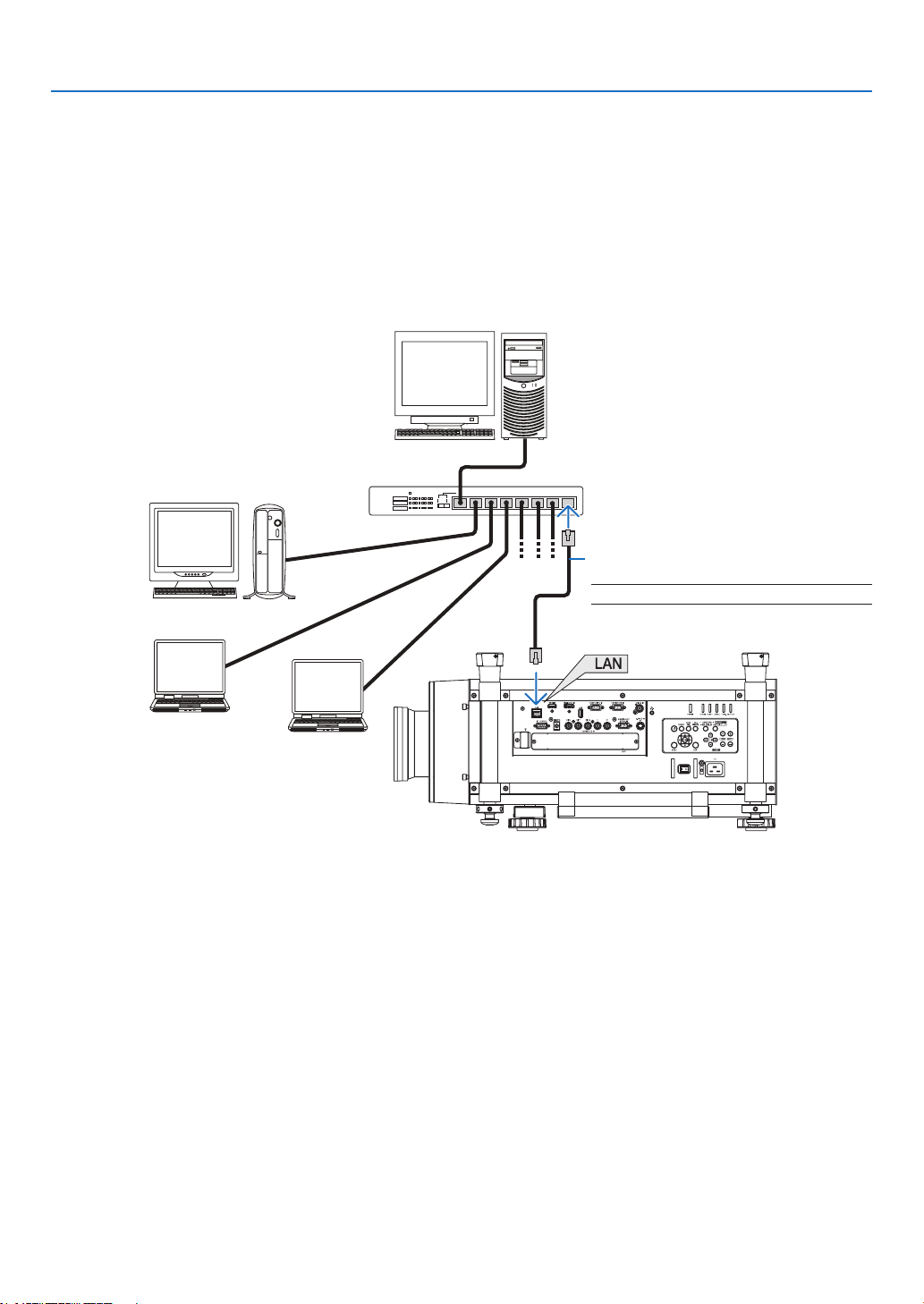
177
6. Installation and Connections
Connecting to a Wired LAN
TheprojectorcomesstandardwithaLANport(RJ-45)whichprovidesaLANconnectionusingaLANcable.
TouseaLANconnection,youarerequiredtosettheLANontheprojectormenu.Select[APPLICATIONMENU]→
[NETWORKSETTINGS]→[WIREDLAN].(→page147).
Example of LAN connection
ExampleofwiredLANconnection
Server
Hub
LANcable(notsupplied)
NOTE:UseaCategory5orhigherLANcable.

178
6. Installation and Connections
Connecting to a Wireless LAN (sold separately)
TheseparatelysoldwirelessLANunitallowsyoutouseawirelessLANenvironment.Whenusingtheprojectorina
wirelessLANenvironment,theIPaddressandothersettingsmustbemadeontheprojector.
Important:
• IfyouusetheprojectorwiththeUSBWirelessLANUnitintheareawheretheuseofwirelessLANequipmentis
prohibited,removetheUSBWirelessLANUnitfromtheprojector.
• BuytheappropriateUSBWirelessLANUnitforyourcountryorarea.
NOTE:
• ThegreenLEDontheUSBWirelessLANUnitashestoshowthattheUSBWirelessLANUnitisworking.
• Yourcomputer’swirelessLANadapter(orunit)mustbecompliedwithWi-Fi(IEEE802.11b/g/n)standard.
Flow of Setting Wireless LAN
Step1: AttachtheUSBWirelessLANUnittotheprojector.(→ page 179)
Step2: Display[NETWORKSETTINGS]from[APPLICATIONMENU].(→ page 146)
Step3: Select[NETWORKSETTINGS]→[WIRELESSLAN]→[PROFILES]andset[EASYCONNECTION],
[PROFILE1],or[PROFILE2].(→ page 147)
TIP:
AccesstheHTTPserverfunctiontoset[NETWORKSETTINGS]→[SETTINGS]→[WIRELESS]→[EASYCONNECTION],[PRO-
FILE1],[PROFILE2].
Mounting a wireless LAN unit
NOTE:
•
ThewirelessLANunithasafrontandabackandmustbemountedinthewirelessLANportinaspecicdirection.Theportis
designed so that the unit cannot be mounted in the opposite direction, but trying to push it in by force could damage the wireless
LANunitport.
• Topreventdamageduetostaticelectricity,touchanearbymetalobject(adoorknob,aluminumsash,etc.)beforetouchingthe
wirelessLANunittoeliminatethestaticelectricityfromyourbody.
• TurnoffthemainpowerbeforemountingandremovingthewirelessLANunit.
MountingandremovingthewirelessLANunitwhiletheprojector’spowerisoncoulddamagethewirelessLANunitorresultin
malfunctionontheprojector.Iftheprojectorshouldmalfunction,turnofftheprojector’spower,turnoffthemainpowerswitch,
and unplug the power cord, then plug the power cord back in.
• DonotconnectanyUSBdeviceotherthanthewirelessLANunittotheUSB(LAN)port.Also,donotconnectthewirelessLAN
unittotheUSBportintheconnectorsection.
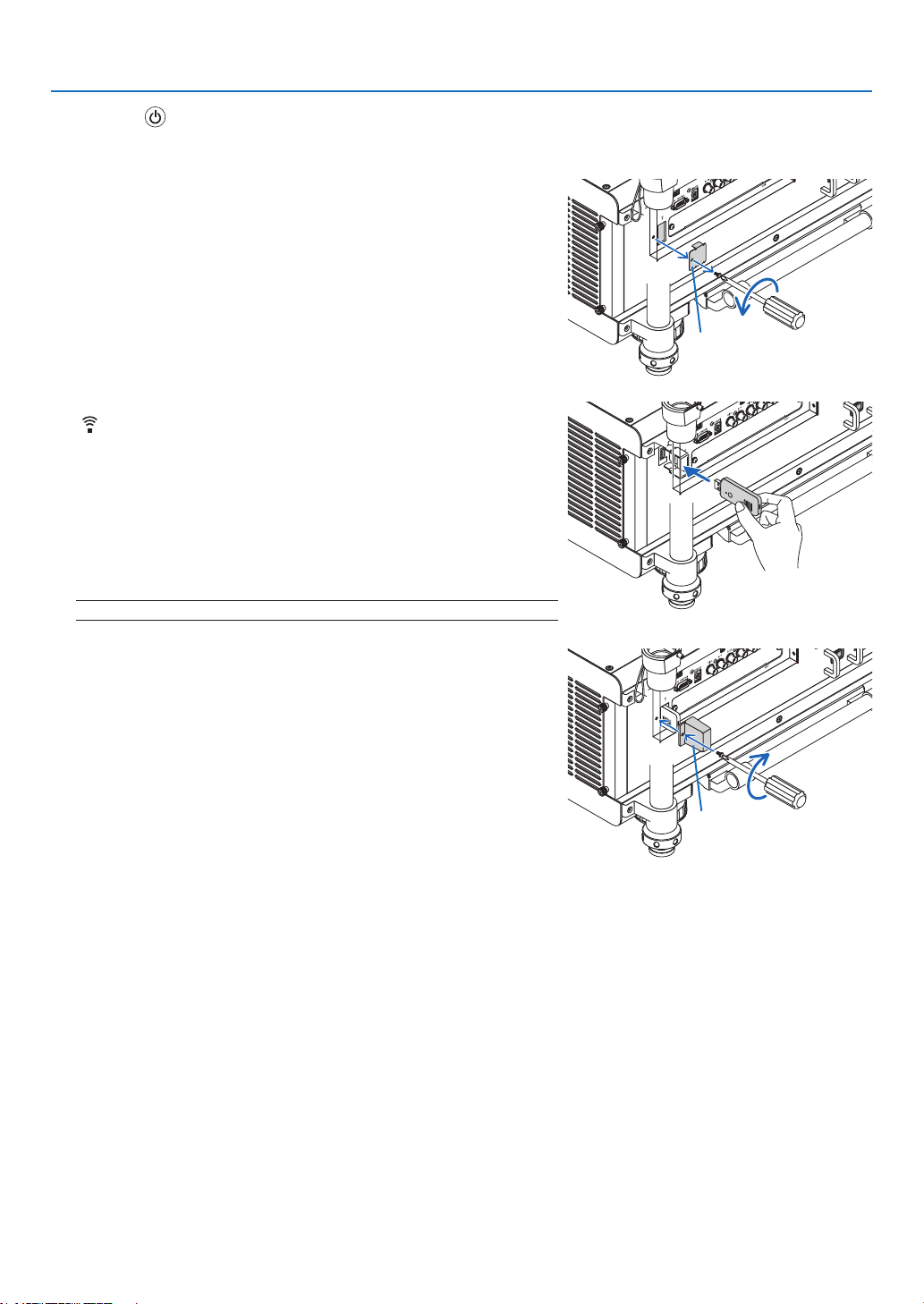
179
6. Installation and Connections
1. Press the button to set the projector to the standby mode, then
turnoffthemainpowerswitch.
2. Remove the plate (port cover).
Loosen the screw security port cover.
• Thescrewisnotremovable.
3. Slowly insert the wireless LAN unit into the USB (LAN) port
( ).
- RemovethewirelessLANunit’scap,settheunitwiththefront(the
sidewiththeindicator)facing upwards,hold the backedge and
insert the unit gently.
Next,pressthewirelessLANunitinwithanger.
- ThecapyouhaveremovedwillbeusedwhenthewirelessLANunit
is removed, so store it in a safe place.
NOTE:IfthewirelessLANunitishardtoinsert,donotpushitinbyforce.
4. Attachtheanti-theftcapforwirelessLANunit.
UsethescrewyouremovedatStep2tosecuretheanti-theftcap.
Plate
Anti-theftcap
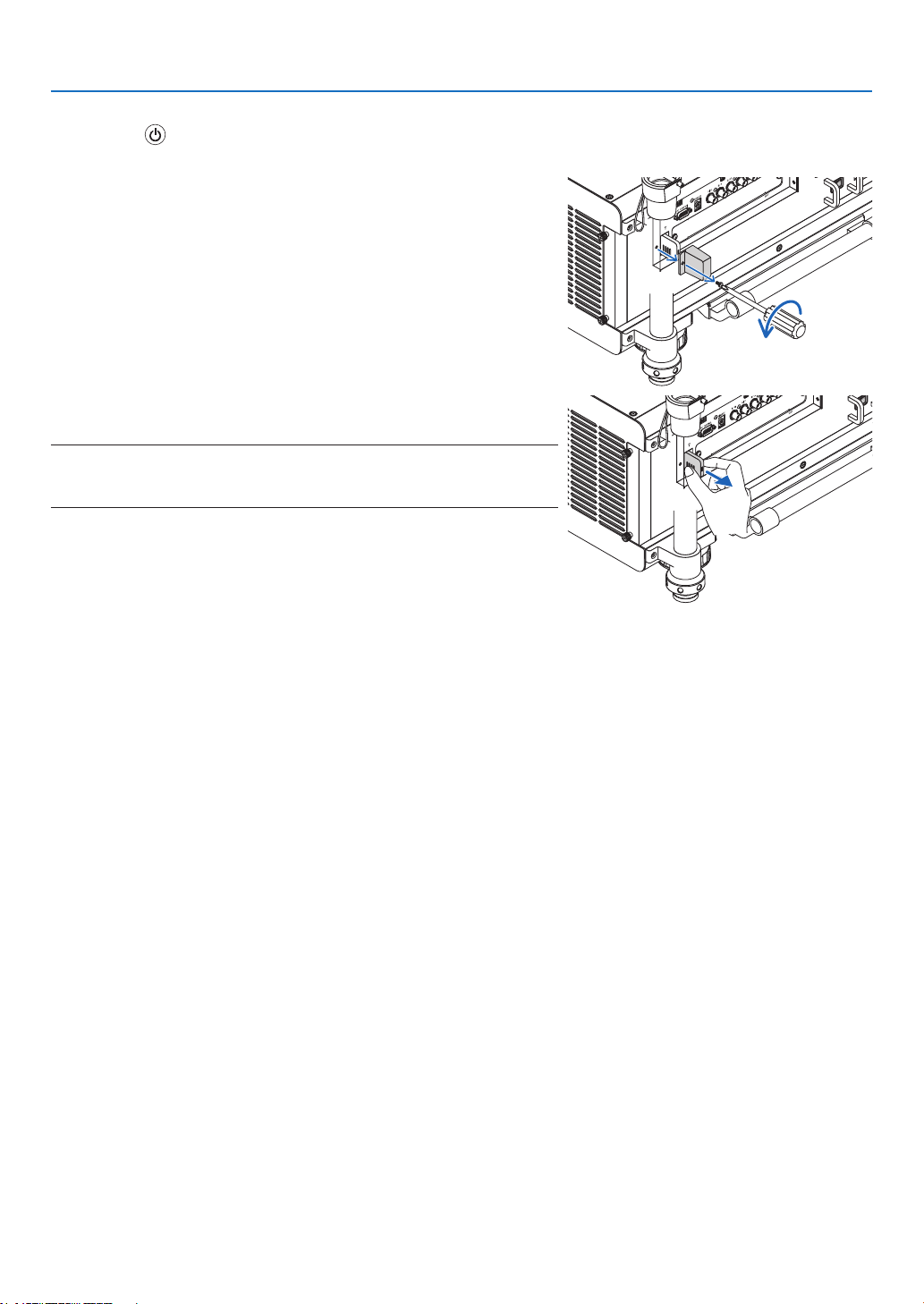
180
6. Installation and Connections
To remove the wireless LAN unit
1. Press the button to set the projector to the standby mode, then
turnoffthemainpowerswitch.
2. Removetheanti-theftcap.
Loosenthescrewandremovetheanti-theftcapfortheWirelessLAN
Unit.
3. PullouttheWirelessLANUnitfromtheUSB(LAN)port.
NOTE:
IfthewirelessLANunitisnottobeusedforanextendedperiodoftime,putthe
plate back and secure it with the two screws.
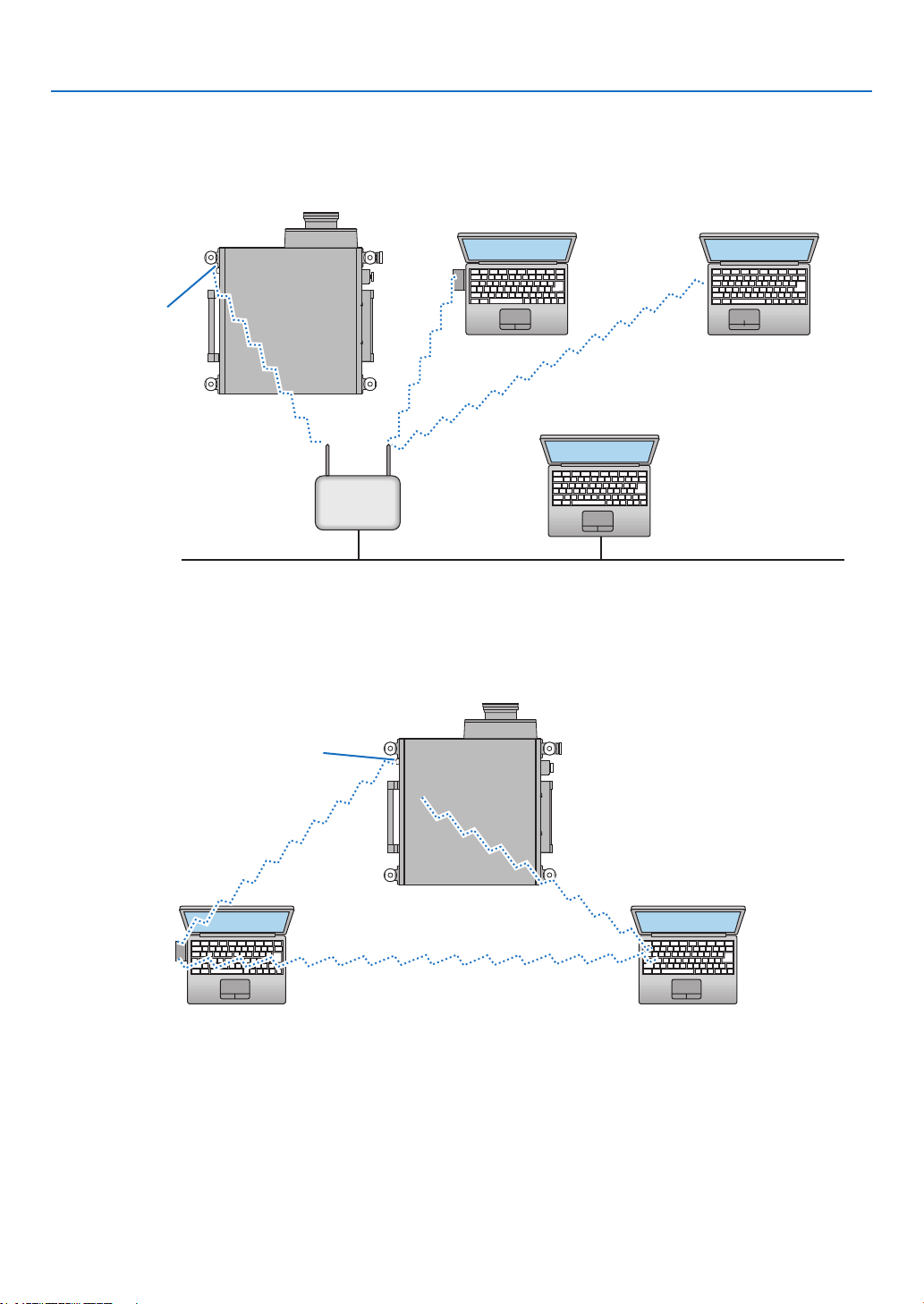
181
6. Installation and Connections
ExampleofwirelessLANconnection
(NetworkType→Infrastructure)
(→page149)
PCwithwirelessLANcard
inserted
PCwithbuilt-inwirelessLAN
function
WiredLAN
Wirelessaccesspoint
USBWirelessLANUnit
Toenabledirectcommunication(i.e.,peer-to-peer)betweencomputersandprojectors,youneedtoselecttheAd
Hocmode.(→page149)
PCwithwirelessLANcard
inserted
PCwithbuilt-inwirelessLAN
function
ExampleofwirelessLANconnection(NetworkType→AdHoc)
USBWirelessLANUnit
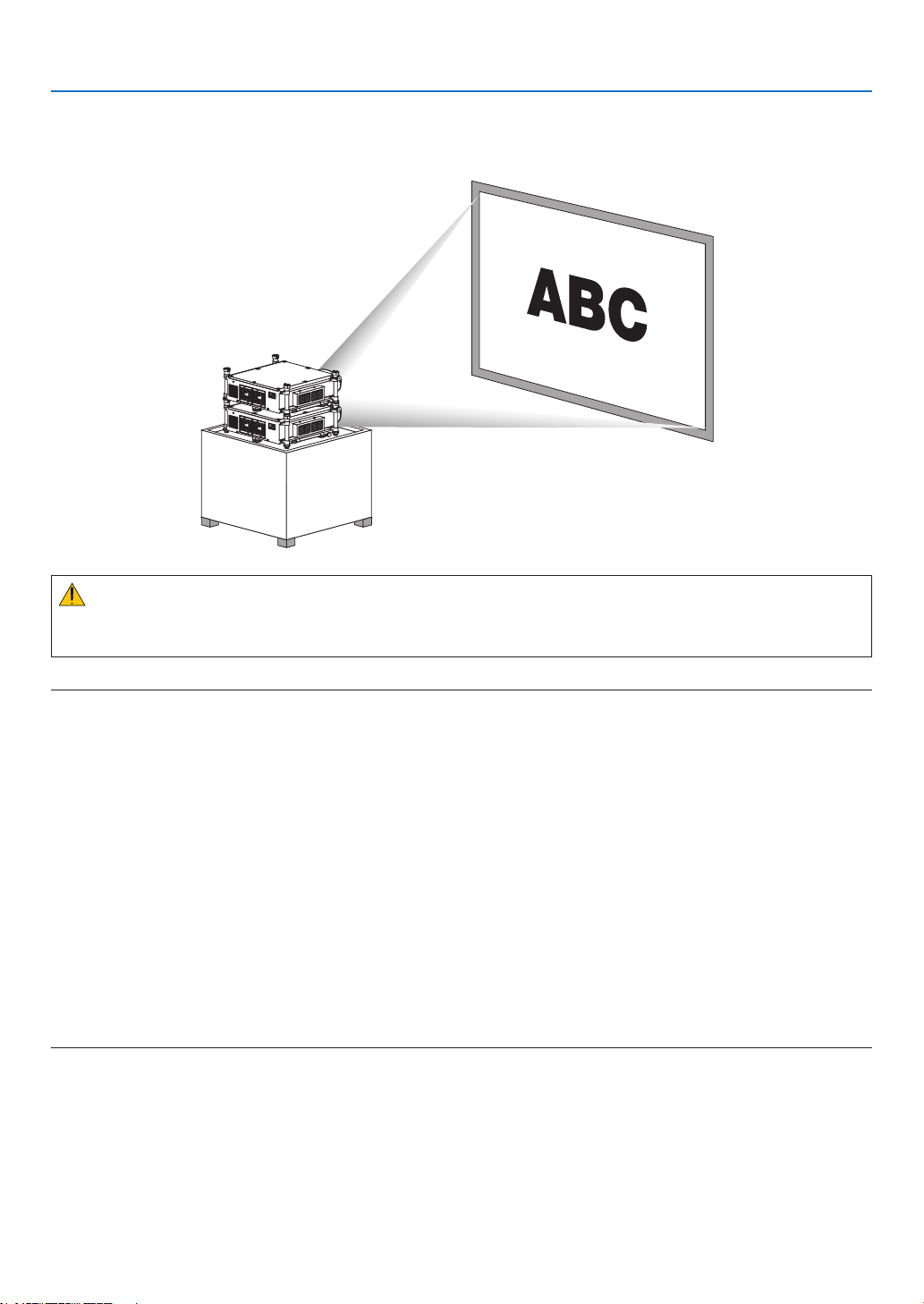
182
6. Installation and Connections
Stacking projectors
Theprojectedimagebrightnesscanbedoubledbygravitystackinguptotwoprojectorswithoutexternalsupport.This
iscalled“StackingProjection”.
CAUTION:
Aminimumoftwopersonsarerequiredtocarrytheprojector.Otherwisetheprojectormaytumbleordrop,causing
personalinjury.
NOTE:
• Projectorswithdifferentmodelnumberscannotbegravitystacked.
Optional lenses with the same model numbers must be used for stacking projection.
• Thestackingprojectiondoesnotsupportaccuracyforoverlayingtwoimagesperfectlysothatsmalltextanddetailedgraphics
can be clearly read or seen.
• Useacommerciallyavailabledistributionampliertoboththeprimary(upper)andthesecondary(lower)projectorstodistribute
signal to two outputs of the two projectors.
• Notesforstacking
- Askyourservicepersonforsettingupandadjustingprojectors.
- Setuptheprojectorsinaplaceorstructureinawaywithsufcientstrengthtosupportthecombinedweightofthetwoprojec-
tors. The single projector with a lens weighs up to approximately 46 kg/ 101 lbs.
- Topreventtheprojectorsfromfalling,fastentheminawaytowithstandearthquakes.
- Doublestackingwillcauseroomtemperaturetoincrease.Ventilatetheroomwell.
- Donotattempttostackprojectorsontheceiling.Gravitystackingcannotbedoneontheceiling.
- Warmuptheprojectorsforonehourbeforethedesiredprojectionisobtained.
- Setuptheprojectorssothattheprojectedimageshowsaslittlegeometricdistortionsaspossible.Thelensisdifferentin
geometricdistortionbetweenwide(+)andtele(−)forzoom.
- Adjustthehorizontallensshifttothelenscenter.
s
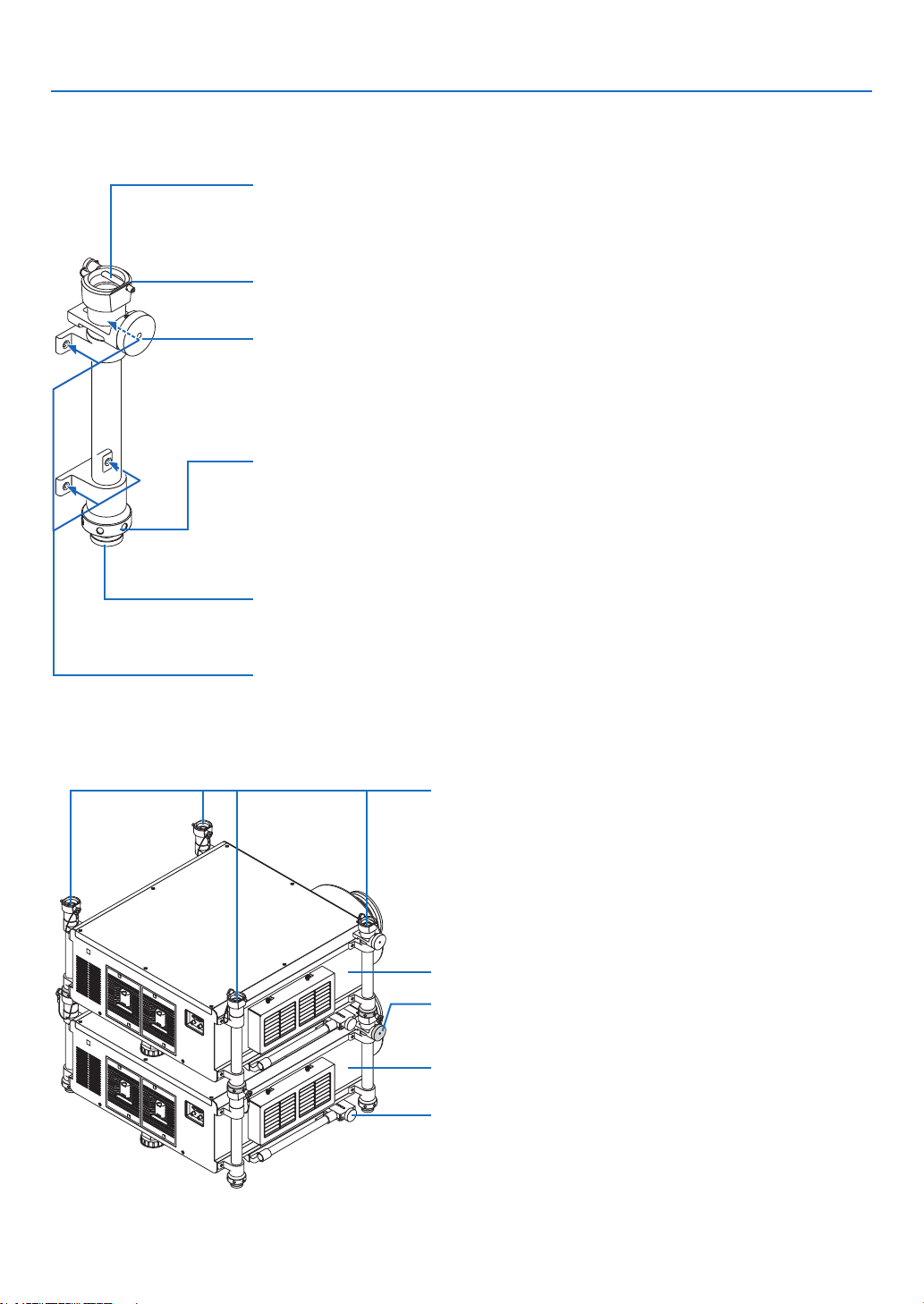
183
6. Installation and Connections
PartNamesandFunctionsofStackingColumn
Stackingcolumn
Upper projector
To tilt the upper projector horizontally, use the lower projector’s
horizontaladjustmentknob.
Lower projector
Usethelowerprojector’shorizontaladjustmentknobtonelytiltthe
two projectors horizontally.
Securitylockingpin(withawire)
Afterpullingoutfoursecuritylockingpins,puteachfootoftheupperprojectorhere,andthen
insertthefoursecuritylockingpinsfullysothatthefeetcannotmove.
Eachsecuritylockingpincanbeinsertedfromeitherdirection.
Foot holder
Place the four feet in their respective foot holder.
Horizontaladjustmentknob
Finelytilttheupperprojectorhorizontally.Turnitclockwisetoorienttheprojectortotheright;
turnitcounterclockwisetoorienttheprojectortotheleft.
Maximumrotatingangle:+/−0.4°
Verticaladjustmentring
Tilttheprojectorvertically.Turntheverticaladjustmentringclockwisetobeshortened;turnit
counterclockwisetobeextended.Ifyoucannotturnitmanually,useahexagonalwrench.Donot
turn the screws inside.
Upto38mm(1.5")canbeextended.
Foot (4 locations)
Supporttheprojectoratthefourlocations.
Screws(4locations×4columns)
Usethefourscrewstoattacheachstackingcolumntotheprojector.
Toremoveeachstackingcolumn,loosenthefourscrews.Thescrewsarenotremovable.
Thefourcolumnsmustbeattachedbacktothesamepositionsoftheprojectoriftheyare
needed again.
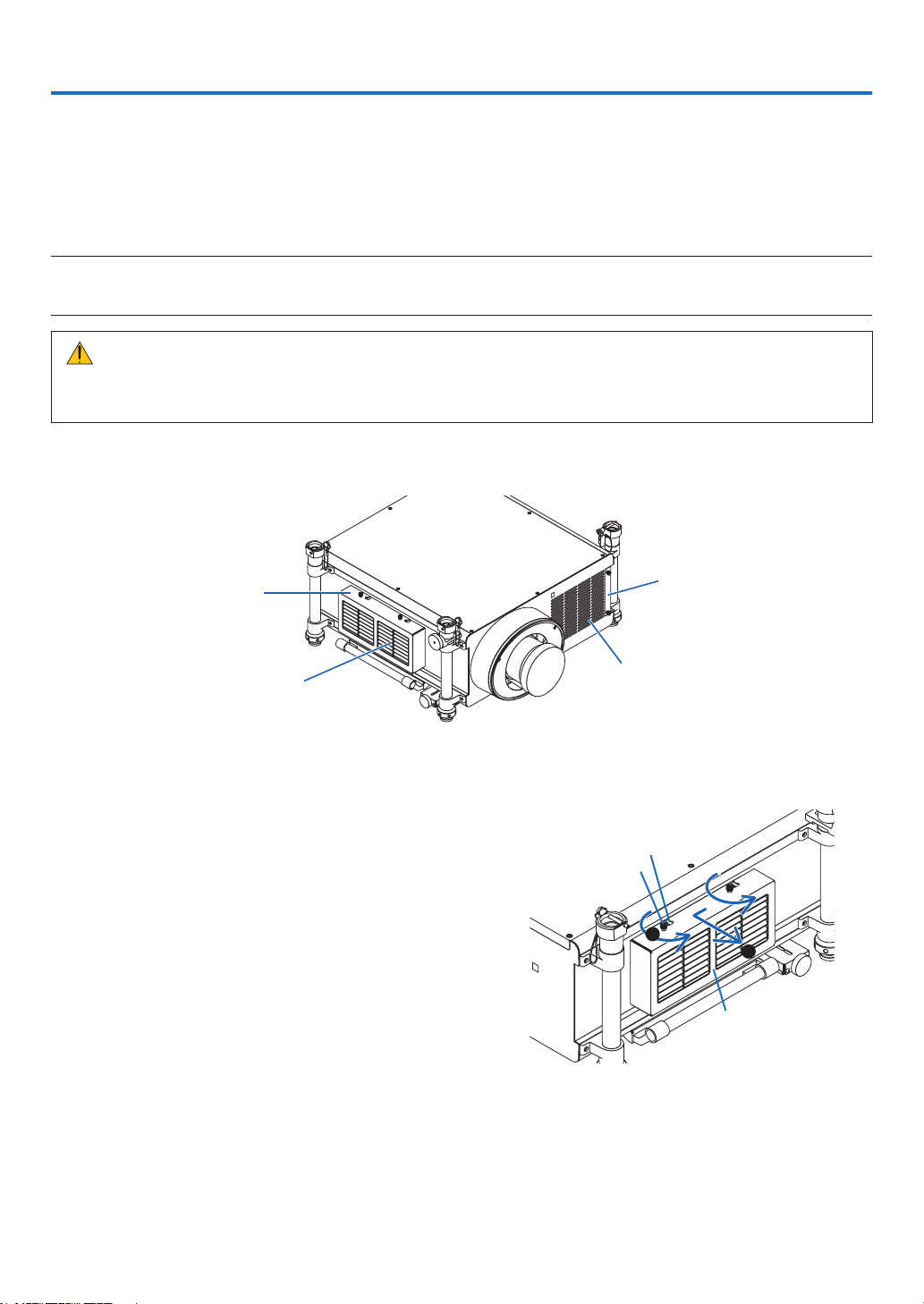
184
Thissectiondescribesthesimplemaintenanceproceduresyoushouldfollowtocleanthelters,thelens,thecabinet,
andtoreplacethelampandthelters.
❶ Cleaning the Filters
Theair-lterspongekeepsdustanddirtfromgettinginsidetheprojectorandshouldbefrequentlycleaned.Ifthelter
isdirtyorclogged,yourprojectormayoverheat.
NOTE:Themessageforltercleaningwillbedisplayedforoneminuteaftertheprojectoristurnedonoroff.Whenthemessageis
displayed,cleanthelters.Thetimetocleantheltersissetto[OFF]attimeofshipment.(→ page 127)
To cancel the message, press any button on the projector cabinet or the remote control.
CAUTION
• Beforecleaningthelters,turnofftheprojector,disconnectthepowercordandthenallowthecabinettocool.
Failuretodosocanresultinelectricshockorburninjuries.
Preparation:Beforecleaningthelters,useavacuumcleanertocleantheventilations(inlet).
Twoltersareattachedontheleftsideandthefrontside.Cleanbothlters.Bothltershavethesameshape.
Whenreplacingthelters,buytheoptionallterNP03FTinadvance.
Filter cover
Inlet
(Thelterisinside)
Filter cover
Inlet
(Thelterisinside.)
Cleaning the filter on the left side
1. Remove the filter cover.
(1)Looseneachofthetwoknobsbyturningthemcounter-
clockwise.
•Theknobsarenotremovable.
•If the knob is too tight to turn, use a Phillips screw-
driver.
(2)Removetheltercoverbyslidingittotheleftandpulling
it out.
1
2
Filter cover
Notch
Knob
7. Maintenance
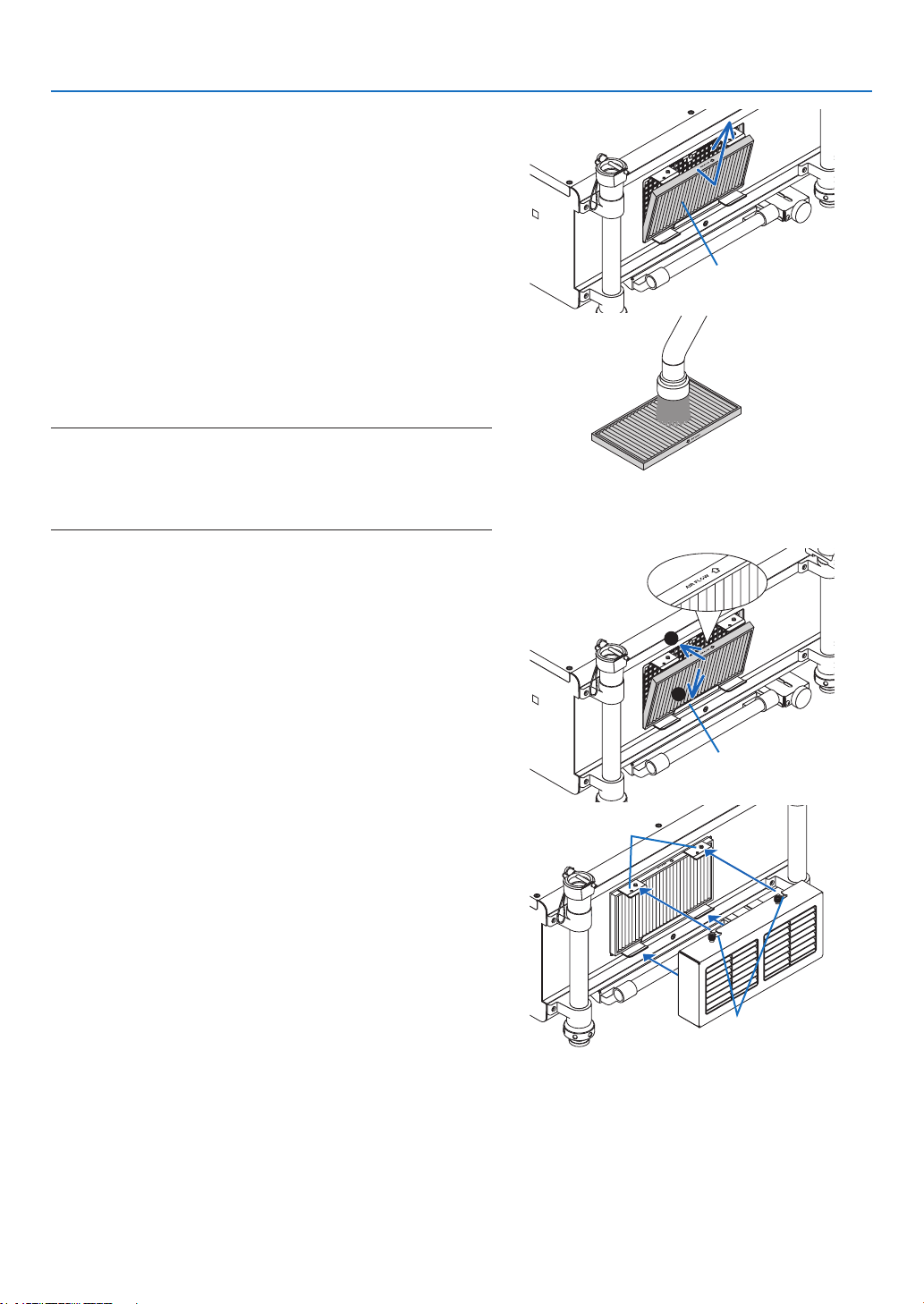
185
7. Maintenance
2. Remove the filter.
Pullthetopofthelteroutwardandremovethelterbylifting
it up.
Filter
3. Useavacuumcleanertovacuumallthedustfromthe
insideofthelter.
Getridofdustintheaccordionlter.
• Removethedustinsidetheltercoverandtheinletofthe
projector as well.
NOTE:
• Wheneveryouvacuumthelter,usethesoftbrushattachmentto
vacuum.Thisistoavoiddamagetothelter.
• Donotwashthelterwithwater.Doingsocanresultindamageto
theltermembraneandalsocauseclogging.
4. Put the filter back into place.
Insertthelterwith“↓AIRFLOW↓”facingtheprojector.
(1)Insertthelterintheange.
(2) Fitthetopedgeofthelterintheinlet.
1
2
Flange
5. Place the filter cover back onto the projector cabinet.
(1)Inserttheguidepin(4locations)oftheprojectorintothe
notch(4locations)oftheltercover.
Notch
Guidepin
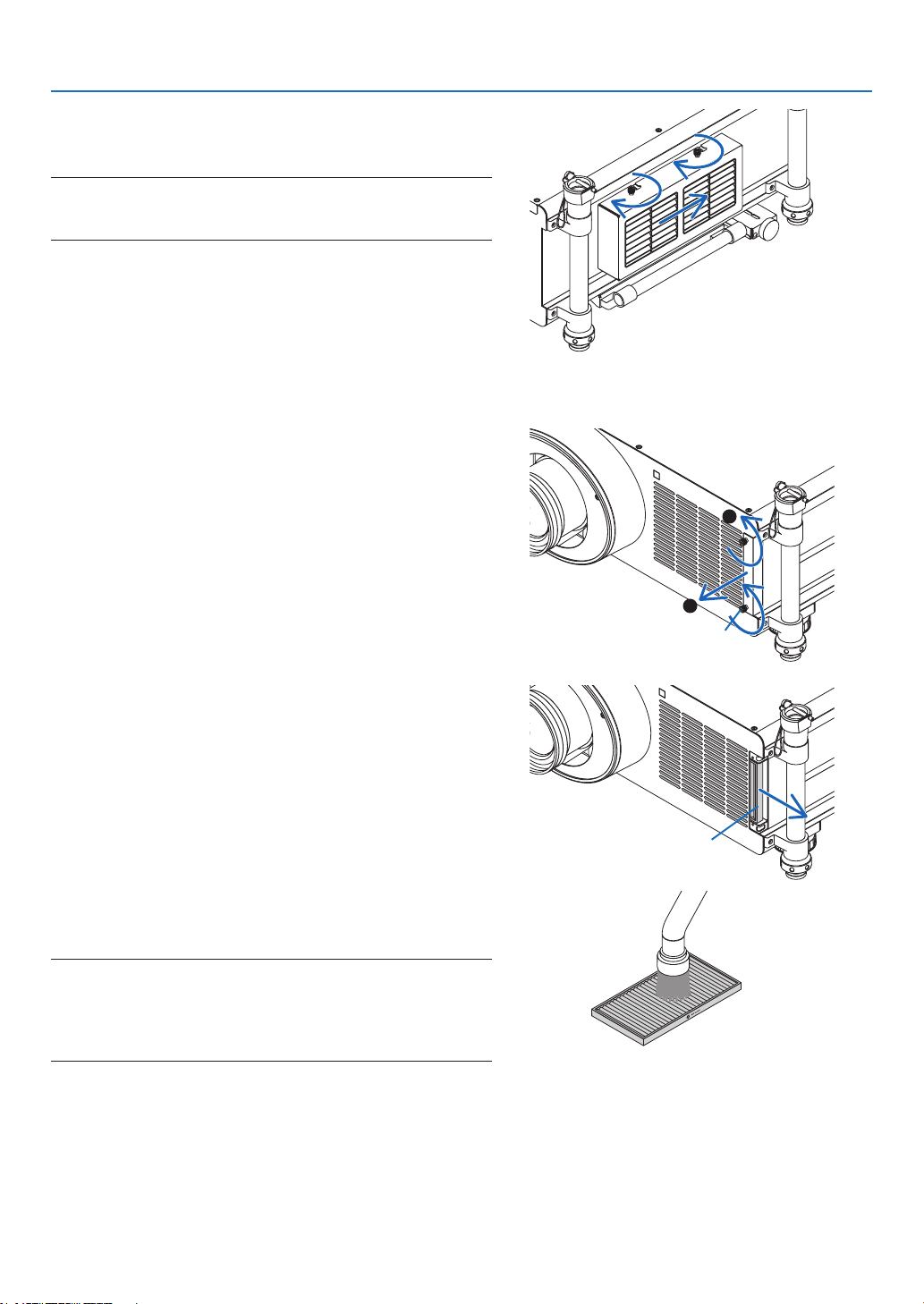
186
7. Maintenance
(2)Slidetheltercovertotherightandtighteneachofthe
twoknobsbyturningthemclockwise.
NOTE:
Besuretocleanbothlters(leftandfrontsides)todisplaythelter
usage hours as accurate as possible.
Cleaning the filter on the front side
1. Remove the filter cover.
(1)Looseneachofthetwoknobsbyturningthemcounter-
clockwise.
•Theknobsarenotremovable.
•If the knob is too tight to turn, use a Phillips screw-
driver.
(2)Removetheltercoverbypullingitout.
1
2
Knob
2. Remove the filter.
Removethelterbypullingittotheright.
Filter
3. Useavacuumcleanertovacuumallthedustfromthe
insideofthelter.
Getridofdustintheaccordionlter.
NOTE:
• Wheneveryouvacuumthelter,usethesoftbrushattachmentto
vacuum.Thisistoavoiddamagetothelter.
• Donotwashthelterwithwater.Doingsocanresultindamageto
theltermembraneandalsocauseclogging.
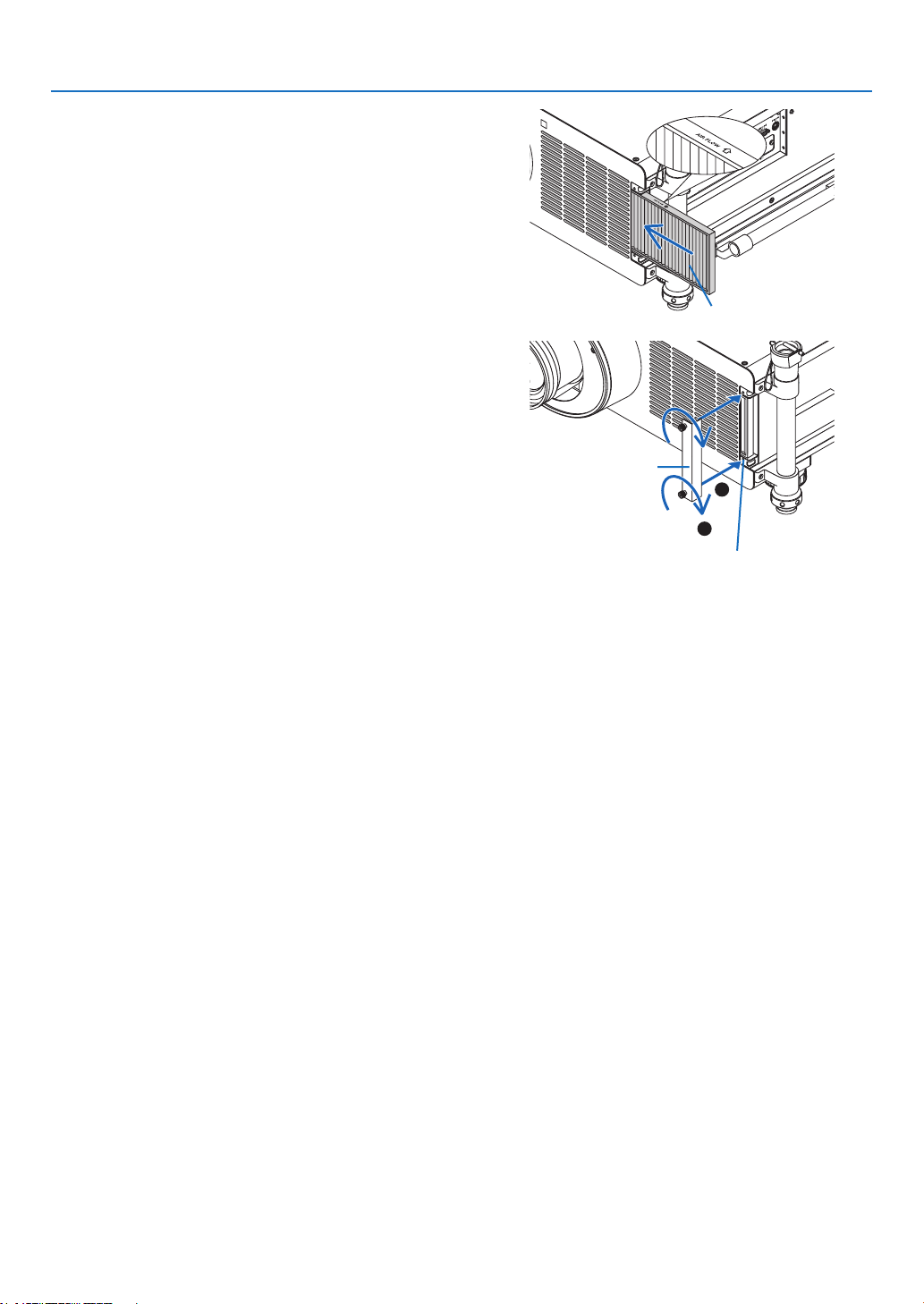
187
7. Maintenance
4. Put the filter back into place.
Insertthelterwith“↓AIRFLOW↓”facingtheprojector.
(1)Insertthelterintheinlet.
(2) Fitthetopedgeofthelterintheinlet.
Filter
5. Place the filter cover back into the projector cabinet.
(1)Aligntheknob(screw)withthescrewhole.
(2)Tighteneachofthetwoknobsbyturningitclockwise.
1
2
Screwhole
Filter cover
6. Clearthelterusagehours.
Plug the power cord into the wall outlet, turn on the main
power switch, and then turn on the projector.
Fromthemenu,select[RESET]→[CLEARFILTERHOURS]
andresetthelterusagehours.(→ page 143)
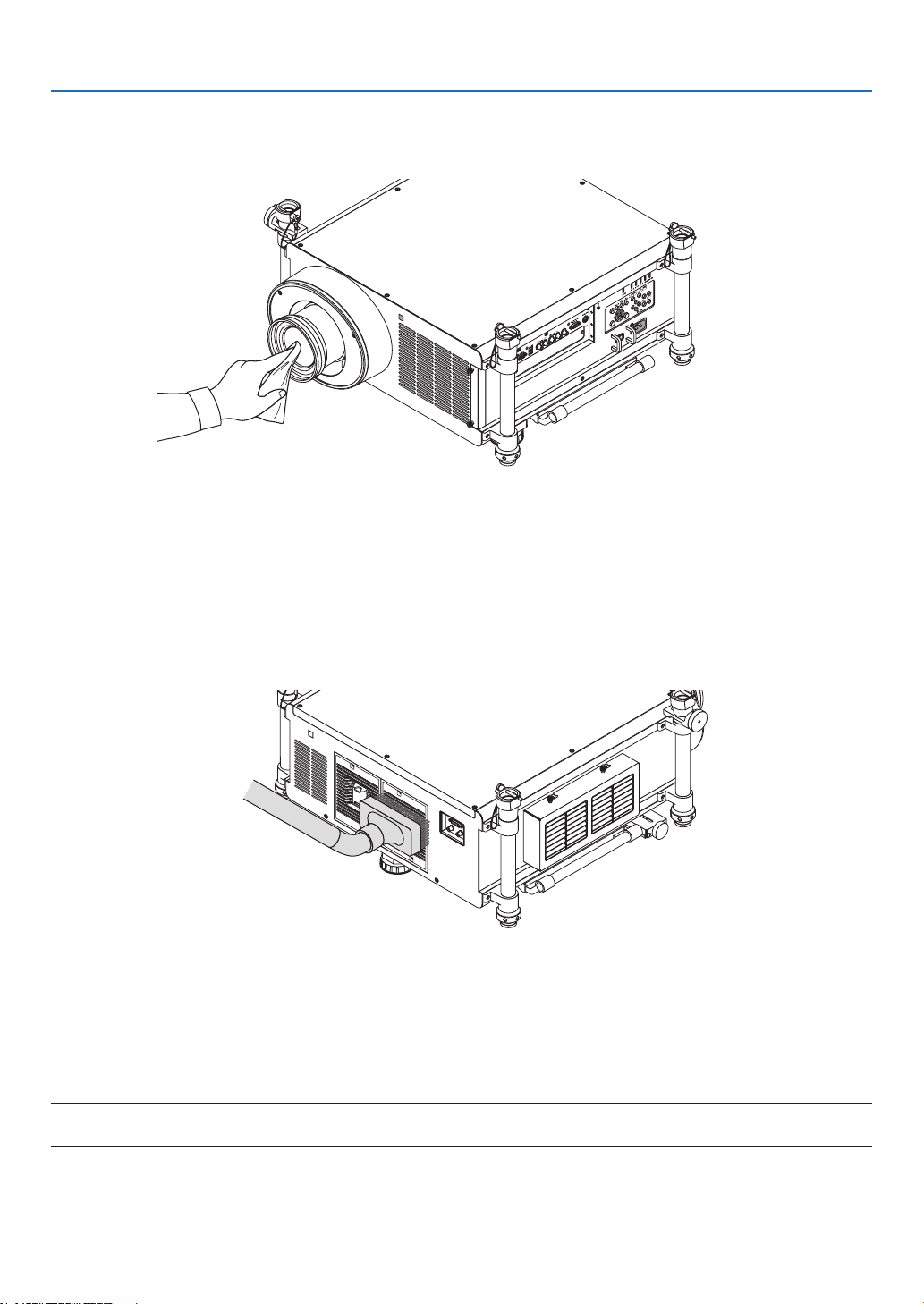
188
7. Maintenance
❷ Cleaning the Lens
• Turnofftheprojectorbeforecleaning.
• Useablowerorlenspapertocleanthelens,andbecarefulnottoscratchormarthelens.
❸ Cleaning the Cabinet
Turnofftheprojector,andunplugtheprojectorbeforecleaning.
• Useadrysoftclothtowipedustoffthecabinet.
Ifheavilysoiled,useamilddetergent.
• Neverusestrongdetergentsorsolventssuchasalcoholorthinner.
• Whencleaningtheventilationslitsorthespeakerusingavacuumcleaner,donotforcethebrushofthevacuum
cleanerintotheslitsofthecabinet.
Vacuumthedustofftheventilationslits.
• Cloggedventilationslitsmaycauseariseintheinternaltemperatureoftheprojector,resultinginmalfunction.
• Donotscratchorhitthecabinetwithyourngersoranyhardobjects
• Contactyourdealerforcleaningtheinsideoftheprojector.
NOTE:Donotapplyvolatileagentsuchasinsecticideonthecabinet,thelens,orthescreen.Donotleavearubberorvinylproduct
inprolongedcontactwithit.Otherwisethesurfacenishwillbedeterioratedorthecoatingmaybestrippedoff.

189
7. Maintenance
❹ Replacing the Lamp and the Filters
Whenthelampreachestheendofitslife,theLAMPindicatorinthecabinetwillblinkredandthemessage“THELAMP
HASREACHEDTHEENDOFITSUSABLELIFE.PLEASEREPLACETHELAMP1(or2).USETHESPECIFIED
LAMPFORSAFETYANDPERFORMANCE.”willappear(*).Eventhoughthelampmaystillbeworking,replacethe
lamptomaintaintheoptimalprojectorperformance.Afterreplacingthelamp,besuretoclearthelamphourmeter.
(→page142)
CAUTION
• DONOTTOUCHTHELAMPimmediatelyafterithasbeenused.Itwillbeextremelyhot.Turntheprojector
offandthendisconnectthepowercord.Allowatleastonehourforthelamptocoolbeforehandling.
• Usethespeciedlampforsafetyandperformance.
• DONOTREMOVEANYSCREWSexcepttwo(2)lampcoverscrewandthree(3)lamphousingscrews.Youcould
receiveanelectricshock.
• Donotbreaktheglassonthelamphousing.
Keepngerprintsofftheglasssurfaceonthelamphousing.Leavingngerprintsontheglasssurfacemightcause
anunwantedshadowandpoorpicturequality.
• Theprojectorwillturnoffandgointostandbymodewhenyoucontinuetousetheprojectorforanother100hours
afterthelamphasreachedtheendofitslife.Ifthishappens,besuretoreplacethelamp.Ifyoucontinuetouse
thelampafterthelampreachestheendofitslife,thelampbulbmayshatter,andpiecesofglassmaybescattered
inthelampcase.Donottouchthemasthepiecesofglassmaycauseinjury.Ifthishappens,contactyourNEC
dealerforlampreplacement.
*NOTE:Thismessagewillbedisplayedunderthefollowingconditions:
• foroneminuteaftertheprojectorhasbeenpoweredon
• whenthe (POWER)buttonontheprojectorcabinetorthePOWEROFFbuttonontheremotecontrolispressed
To turn off the message, press any button on the projector cabinet or the remote control.
Optionallampandtoolsneededforreplacement:
• Phillipsscrewdriver(plus-head)
• Replacementlamp:
NP25LP
Flow of Replacing the Lamp and the Filters
Thefollowingprocedureisanexampleforreplacingbothlamps.
Step 1. Replace the lamp
Step 2. Replace the filters (→ page 192)
Step 3. Clearthelampusagehoursandthelterusagehours(→ page 142, 143)
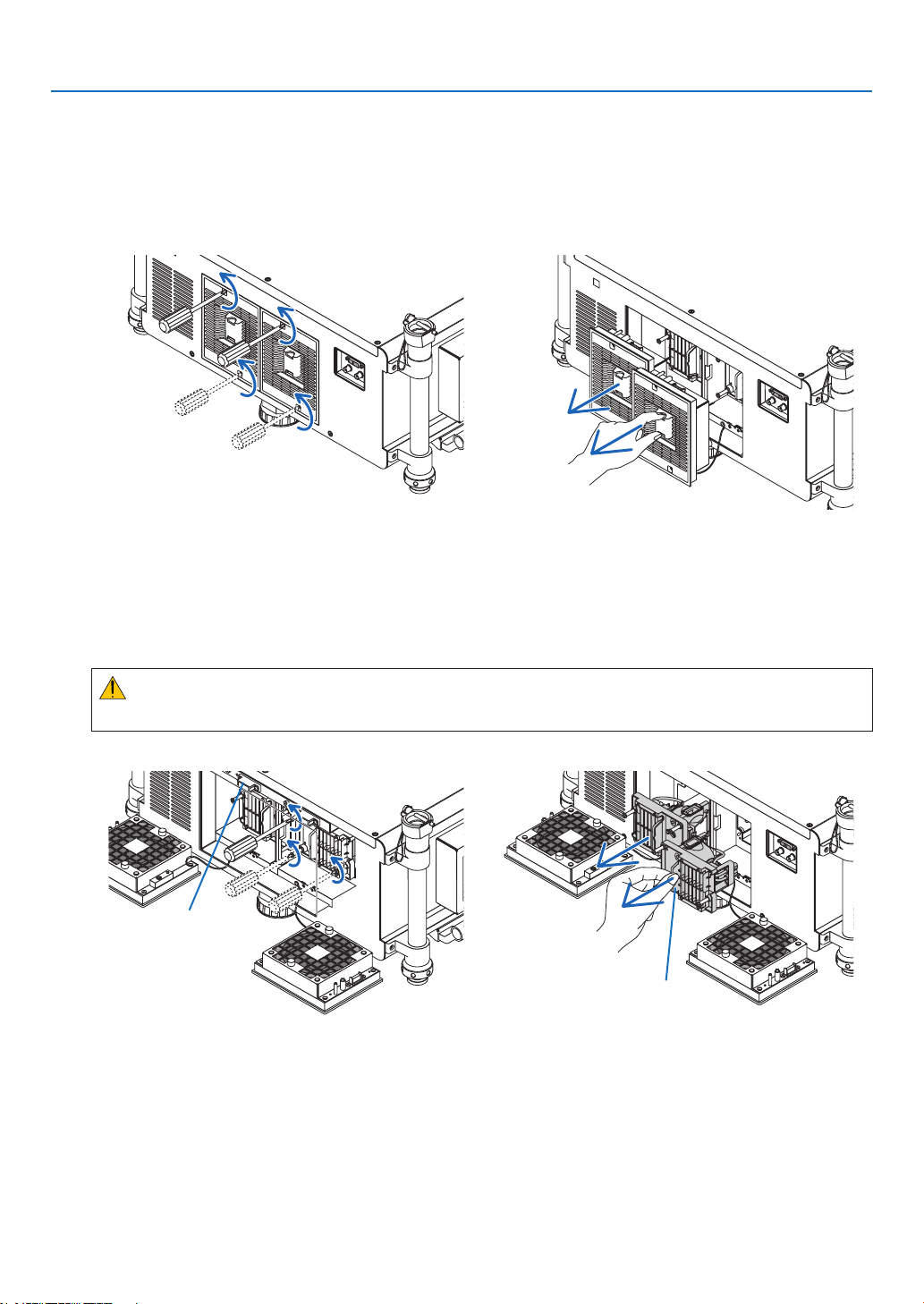
190
7. Maintenance
To replace the lamp:
1. Remove the lamp cover.
(1)Loosenthetwolampcoverscrews.
•Thelampcoverscrewisnotremovable.
(2)Pullthelampcovertowardsyouandremoveit.
2. Remove the lamp housing.
(1)Loosenthethreescrewssecuringthelamphousinguntilthephillipsscrewdrivergoesintoafreewheelingcondi-
tion.
•Thethreescrewsarenotremovable.
•Donottouchtheexhaustfanpowerconnectors.
(2)Removethelamphousingbyholdingit.
CAUTION:
Makesurethatthelamphousingiscoolenoughtohandlebeforeremovingit.
Exhaust fan power
connector
Handle
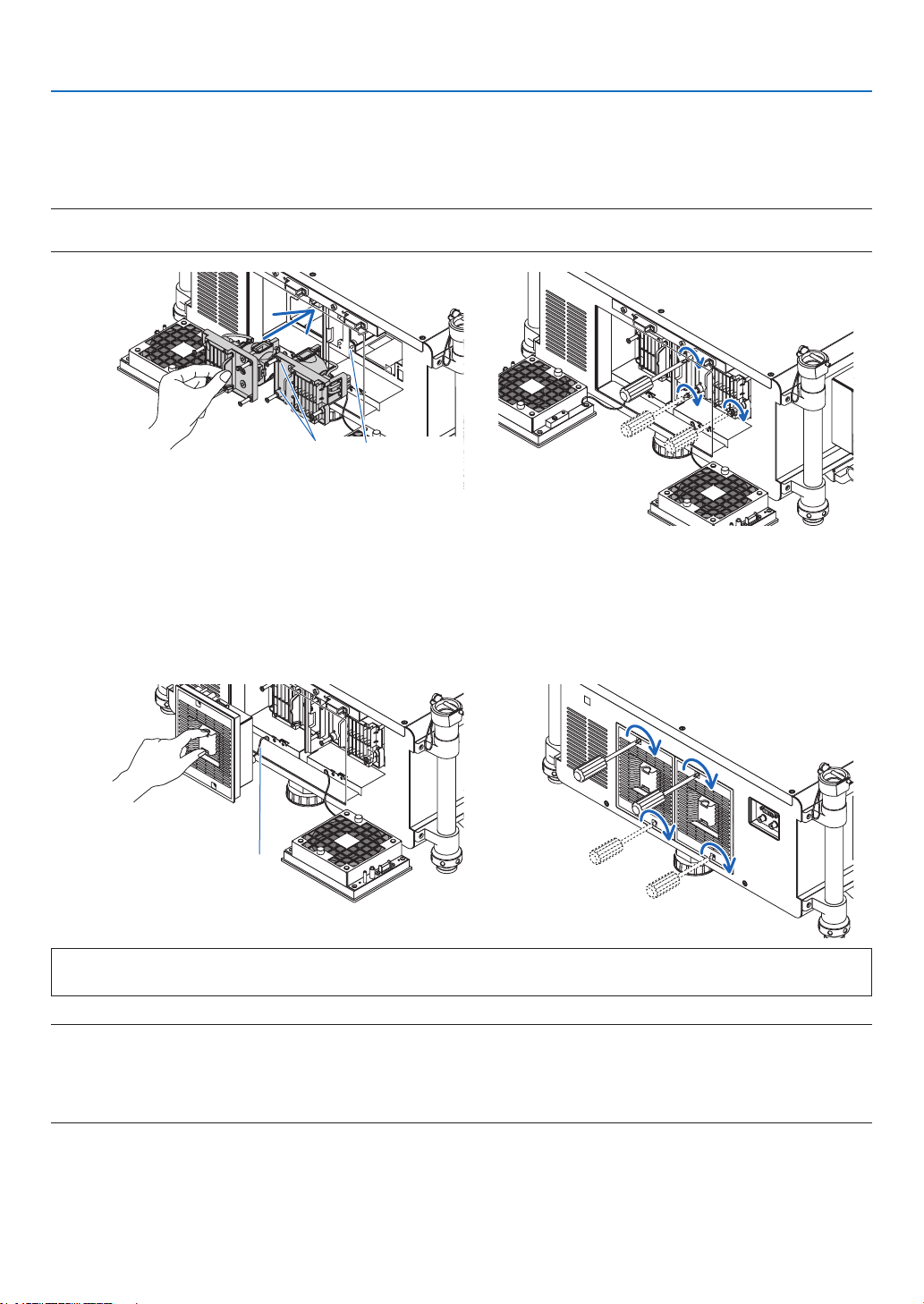
191
7. Maintenance
3. Install a new lamp housing.
(1)Insertanewlamphousinguntilthelamphousingispluggedintothesocket.
(2)Secureitinplacewiththethreescrews.
•Besuretotightenthescrews.
NOTE:
• BesuretoinstallbothLamp1andLamp2.Theprojectorwillnotturnonunlessboththelampsareinstalled.
Alignmenthole
Guidepin
4. Reattach the lamp cover.
(1)Aligntheleftsideofthelampcoverwiththeleftsideofthelamphousingandreattachthelampcover.While
doingso,placethewireinsidethelampcompartmentsoasnottogetitcaughtunderthelampcover.
(2)Tightenthetwoscrewstosecurethelampcover.
•Besuretotightenthescrews.
Wire
This completes the lamp replacement.
Go on to the filter replacement.
NOTE:Whenyoucontinuetousetheprojectorforanother100hoursafterthelamphasreachedtheendofitslife,bothLAMP1
andLAMP2indicatorswilllightredandtheprojectorcannotturnonandthemenuisnotdisplayed.
Ifthishappens,presstheHELPbuttonontheremotecontrolfor10secondstoresetthelampclockbacktozero.
Whenthelamptimeclockisresettozero,theLAMPindicatorgoesout.Whenonlyonelampisreplaced,select[RESET]fromthe
menutoresetthelamphourused.DonotpresstheHELPbutton.
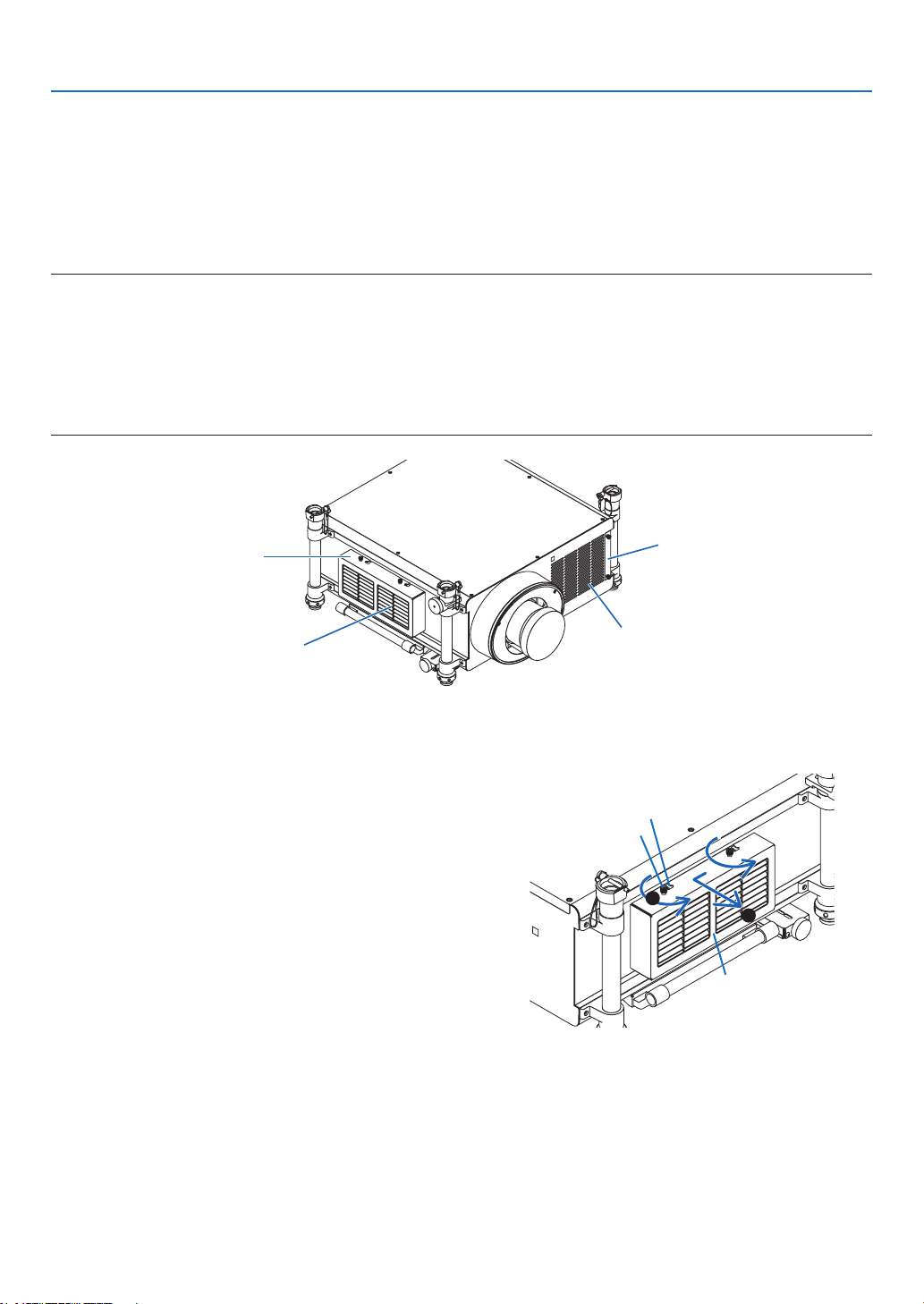
192
7. Maintenance
❺ Replacing the Filters
Itisrecommendedthattheltersarecleanedafterevery5000hoursofuseandreplacedafterevery10000hoursof
use.Thesehourscanvarydependingonyourusageenvironment.
Therearetwolters,onelocatedatthefrontoftheprojectorandoneontheside.
OptionalltersNP03FT(twolter)areavailable.
Smalloneforthefront
Largeonefortheleftside
NOTE:
• Replacebothlterswiththenewonesatthesametime.
• Beforereplacingthelters,useavacuumcleanertovacuumdustanddirtfromthevents(inlet)oftheprojectoranduseadry
soft cloth to wipe dust off the cabinet.
• Theprojectorcontainshigh-precisionparts.Keepoutdustanddirtduringlterreplacement.
• Donotwashthelterwithwater.Waterwilldamagetheltermembrane.
• Attachthelterinthecorrectorientation.Failuretodosomaycausedustanddirttoenterinsidetheprojector,resultinginprojec-
tor malfunction.
Filter cover
Inlet
(Thelterisinside)
Filter cover
Inlet
(Thelterisinside.)
Replacing the filter on the left side
1. Remove the filter cover.
(1)Looseneachofthetwoknobsbyturningthemcounter-
clockwise.
•Theknobsarenotremovable.
•If the knob is too tight to turn, use a Phillips screw-
driver.
(2)Removetheltercoverbyslidingittotheleftandpulling
it out.
1
2
Filter cover
Notch
Knob
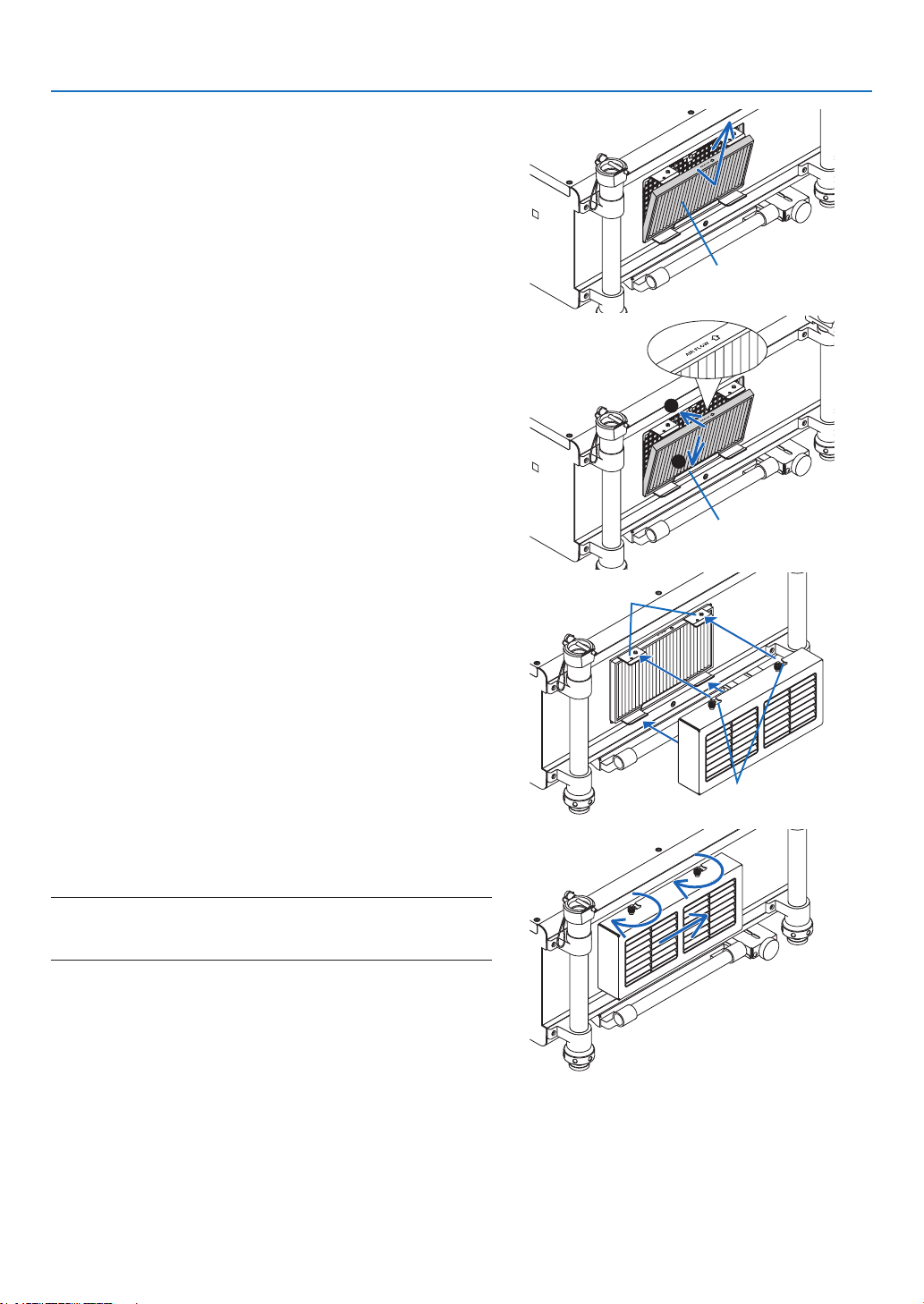
193
7. Maintenance
2. Remove the filter.
Pullthetopofthelteroutwardandremovethelterbylifting
it up.
Filter
3. Install the new filter.
Insertthelterwith“↓AIRFLOW↓”facingtheprojector.
(1)Insertthelterintheange.
(2) Fitthetopedgeofthelterintheinlet.
1
2
Flange
4. Place the filter cover back onto the projector cabinet.
(1)Inserttheguidepin(4locations)oftheprojectorintothe
notch(4locations)oftheltercover.
Notch
Guidepin
(2)Slidetheltercovertotherightandtighteneachofthe
twoknobsbyturningthemclockwise.
NOTE:
Besuretocleanbothlters(leftandfrontsides)todisplaythelter
usage hours as accurate as possible.
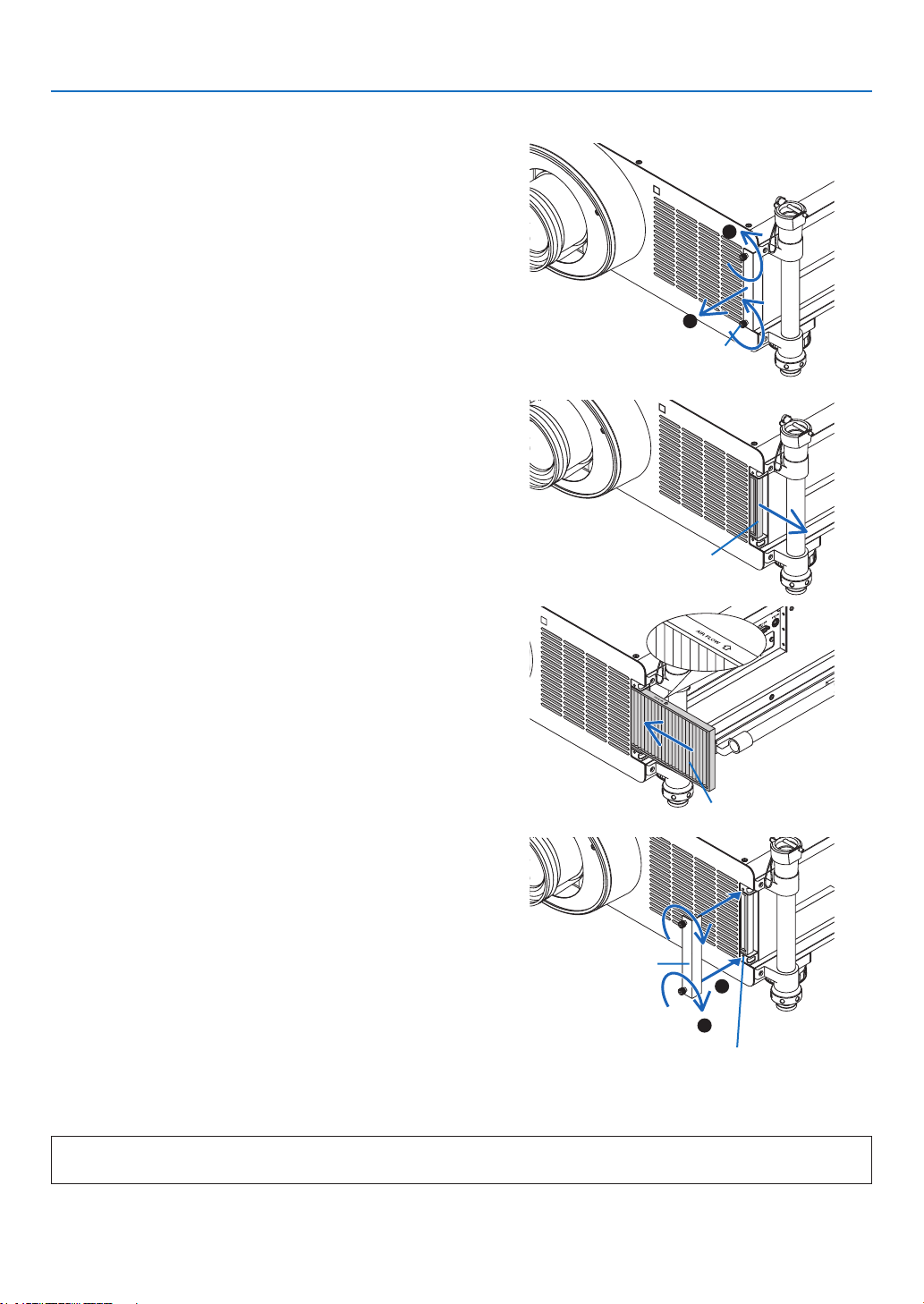
194
7. Maintenance
Replacing the filter on the front side
1. Remove the filter cover.
(1)Looseneachofthetwoknobsbyturningthemcounter-
clockwise.
•Theknobsarenotremovable.
•If the knob is too tight to turn, use a Phillips screw-
driver.
(2)Removetheltercoverbypullingitout.
1
2
Knob
2. Remove the filter.
Removethelterbypullingittotheright.
Filter
3. Install the new filter.
Insertthelterwith“↓AIRFLOW↓”facingtheprojector.
(1)Insertthelterintheinlet.
(2) Fitthetopedgeofthelterintheinlet.
Filter
4. Place the filter cover back into the projector cabinet.
(1)Aligntheknob(screw)withthescrewhole.
(2)Tighteneachofthetwoknobsbyturningitclockwise.
1
2
Screwhole
Filter cover
This completes the filter replacement.
Go on to the clearing lamp and filter hour meters.

195
7. Maintenance
To clear the lamp usage hours and the filter usage hours:
1. Place the projector where you use it.
2. Plug the power cord into the wall outlet, and then turn on the projector.
3. Clearthelampusagehoursandthelterusagehours.
1. Fromthemenu,select[RESET]→[CLEARLAMPHOURS]andresetthelampusagehours.(→ page 142)
2. Select[CLEARFILTERHOURS]andresetthelterusagehours.(→ page 143)

196
8. User Supportware
❶ Installing Software Program
Installation for Windows software
ThesoftwareprogramsexceptImageExpressUtility2forMacandPCControlUtilityPro5supportWindows8,Win-
dows7,WindowsVista,andWindowsXP.
1. Download the updated software program from our web site (http://www.nec-display.com/dl/en/index.
html)
NOTE:
• Toinstalloruninstalleachsoftwareprogram,theWindowsuseraccountmusthave“Administrator”privilege(Windows8,Win-
dows7,WindowsVista)or“ComputerAdministrator”privilege(WindowsXP).
• Exitallrunningprogramsbeforeinstallation.Ifanotherprogramisrunning,theinstallationmaynotbecompleted.
• TorunVirtualRemoteToolorPCControlUtilityPro4onWindows8andWindowsXPProfessional,“Microsoft.NETFramework
Version2.0”isrequired.TheMicrosoft.NETFrameworkVersion2.0,3.0or3.5isavailablefromMicrosoft’swebpage.Download
and install it on your computer.
1. Connect your computer to the internet and visit our website (http://www.nec-display.com/dl/en/index.
html).
2. Downloadthesupportedsoftwareprogramsfrom“Download”andsavean“.exe”letoyourcomputer.
File name is different depending on the version of the software program.
3. Clickthe“.exe”le.
The installation will start.
Follow the instructions on the installer screens to complete the installation.
TIP:
Uninstalling a Software Program
Preparation:
Exitthesoftwareprogrambeforeuninstalling.Touninstallthesoftwareprogram,theWindowsuseraccountmusthave
“Administrator”privilege(Windows8,Windows7andWindowsVista)or“ComputerAdministrator”privilege(Windows
XP).
•ForWindows7/WindowsVista
1 Click“Start”andthen“ControlPanel”.
TheControlPanelwindowwillbedisplayed.
2 Click“Uninstallaprogram”under“Programs”
The“ProgramsandFeatures”windowwillbedisplayed.
3 Selectthesoftwareprogramandclickit.
4 Click“Uninstall/Change”or“Uninstall”.
•Whenthe“UserAccountControl”windowsisdisplayed,click“Continue”.
Follow the instructions on the screens to complete the uninstallation.
•ForWindowsXP
1 Click“Start”andthen“ControlPanel”.
TheControlPanelwindowwillbedisplayed.
2 Double-click“Add/RemovePrograms”.
TheAdd/RemoveProgramswindowwillbedisplayed.
3 Clickthesoftwareprogramfromthelistandthenclick“Remove”.
Follow the instructions on the screens to complete the uninstallation.

197
8. User Supportware
Installation for Macintosh software
ImageExpressUtility2forMacsupportsMacOSX.
1. ConnectyourMacintoshcomputertotheinternetandvisitourwebsite(http://www.nec-display.com/dl/en/
index.html).
2. Download“ImageExpressUtility2forMacOS(Intel)”or“ImageExpressUtility2forMacOS(PowerPC)”
from“Download”.
File name is different depending on the version of the software program.
3. Movethe“ImageExpressUtility2”folderto“Applications”folderusingadrag-and-dropoperation.
TIP:
•Uninstallingasoftwareprogram
1. Putthe“ImageExpressUtility2”foldertotheTrashicon.
2. PutthecongurationleofImageExpressUtility2totheTrashicon.
• ThecongurationleofImageExpressUtility2islocatedin“/user/yourusername/library/Preferences/jp.co.
nec.nevt.ImageExpressUtility.plist”.
Forinstalling/uninstallingPCControlUtilityPro5,seepage210,211.
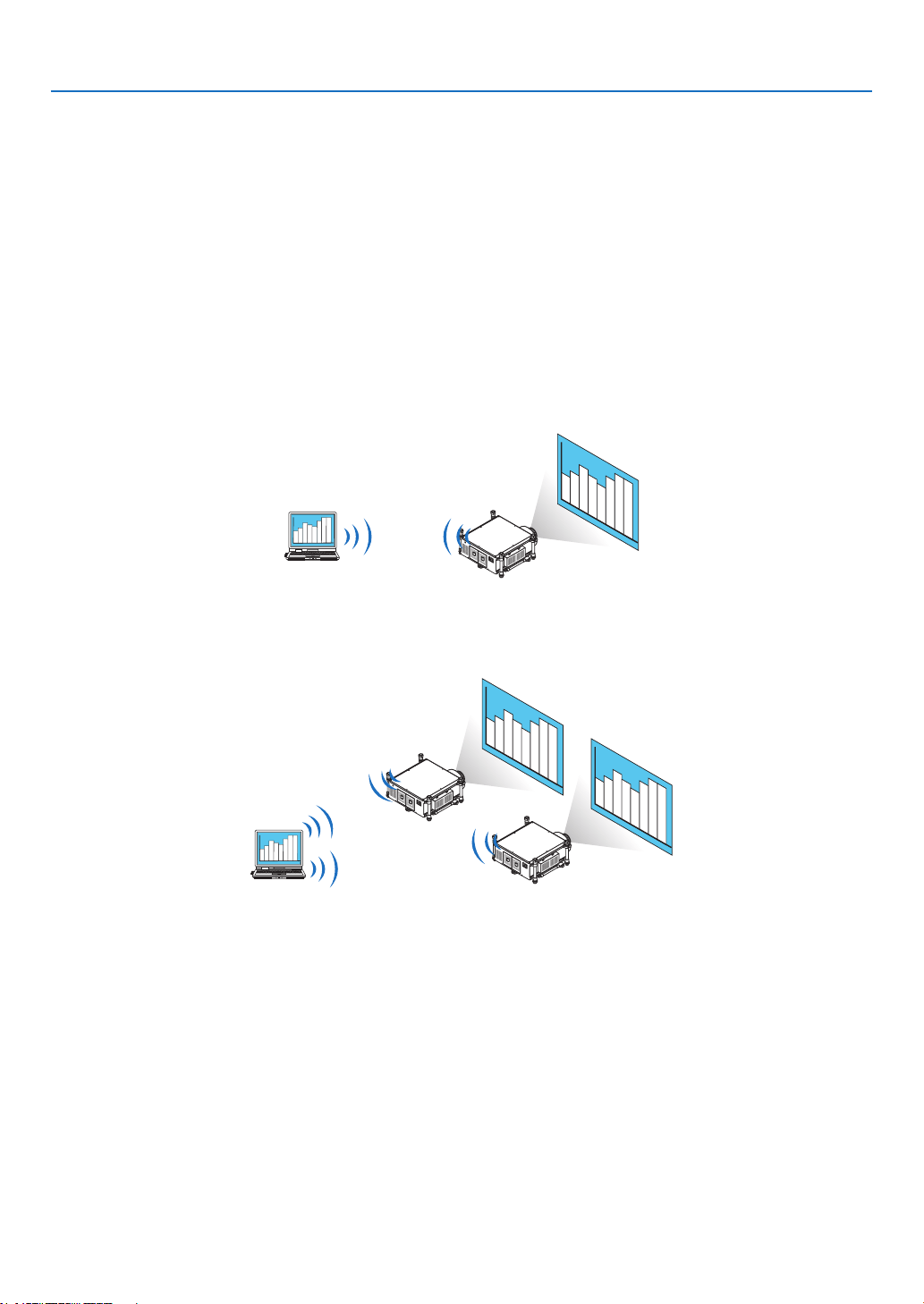
198
8. User Supportware
❷ Projecting Images or Videos from the Projector over a LAN
(Image Express Utility 2.0)
What you can do with Image Express Utility 2.0
• UsingImageExpressUtility2.0allowsyoutosendthescreensofyourcomputerstotheprojectorviawired/wire-
lessLAN.
Theprojectedimagescanbesentfromacomputertonotonlyoneprojectorbutalsototwoormoreprojectorsat
thesametime.
When“MeetingMode”isused,projectedimagescanbesentandreceivedbetweentwoormorecomputers.
• High-speed,high-qualityimagetransmissionsbasedonNEC’soriginalcompressionalgorithm
NEC’soriginalcompressionalgorithmallowshigh-qualityimagestobesentoverthenetworkathighspeed,from
yourcomputertotheprojector.
• Simultaneousprojectionbymultipleprojectors
Imagescanbesentfromacomputertonotonlyoneprojectorbutalsototwoormoreprojectorsatthesame
time.
• “EasyConnection”functionforconnectingwirelessLAN
Byusing“EasyConnection”function*
1
,thecomplicatedsettingofwirelessLANcanbesimplied.
*
1
ThisfunctioncanbeusedwhenWindowsXPisusedastheOSandwhenyouhavea“ComputerAdminis-
trator”privilege.IftheOSisWindows7/WindowsVista,inputoflogonpasswordas“Administrator”maybe
prompted.
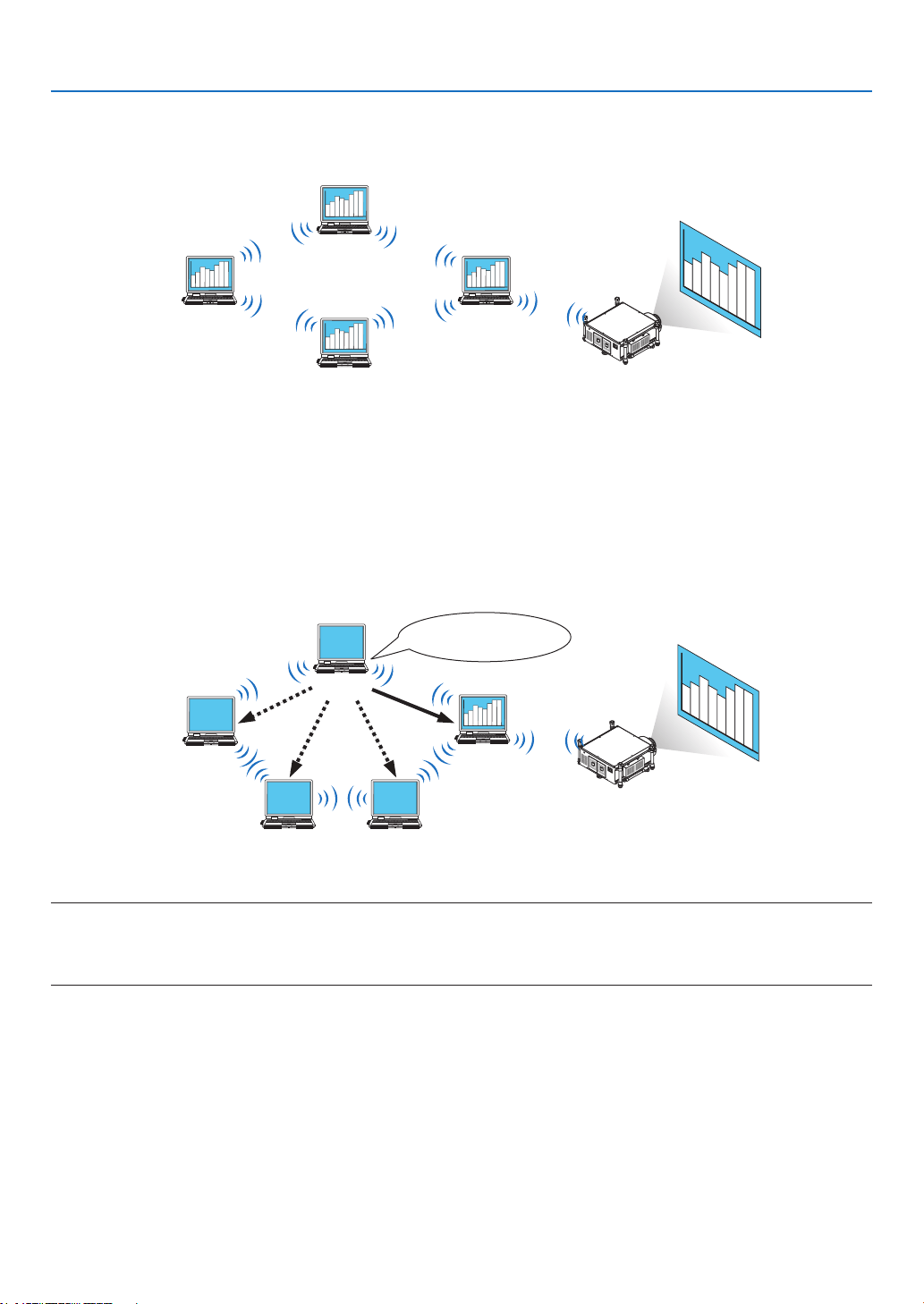
199
8. User Supportware
• Projectedimagescanbetransferredandsavedtocomputers.
When“MeetingMode”isused,projectedimagescanbesenttothecomputersofalltheparticipants(attendants)
ofa“Meeting”.Thereceivedimagescanbesavedtoyourcomputerwithamemo(textdata)attached.
Presenter
Attendant
Attendant
Attendant
• 1-clickswitchingofpresenter
Whenswitchingtoanotherpresenterduringtheconference,theparticipants(attendants)cansimplyclickabutton
toswitchovertothenewpresenter.
• Centralmanagementoftheprojectingcomputer
UsingtheTrainingModeallowsyoutouseasinglecomputer(Manager)tomanagewhichcomputer(Attendant)
projects.Possibleoperationincludesswitchingprojectingcomputerstoprojectfrom,aswellastemporarilytermi-
natingcommunicationwiththeprojector.
Mr� D, please start your
presentation�
Manager
Attendant CAttendant B
Attendant D
(presenter)
Attendant A
NOTE:
TheTrainingModeisnotinstalledviathe“Typical”installationoptionwhenImageExpressUtility2.0isinstalled.
TouseTrainingMode,select“Extension”installationoptionontheinstallselectionscreenthatisdisplayedwhileImageExpress
Utility2.0installationisinprogress,andselect“TrainingMode(Attendant)”or“TrainingMode(Manager)”.
Connecting the projector to a LAN
ConnecttheprojectortotheLANbyfollowingtheinstructionsin“ConnectingtoaWiredLAN”(→page177),“Con-
nectingtoaWirelessLAN”(→page178)and“9ApplicationMenus-NETWORKSETTINGS”(→page146)
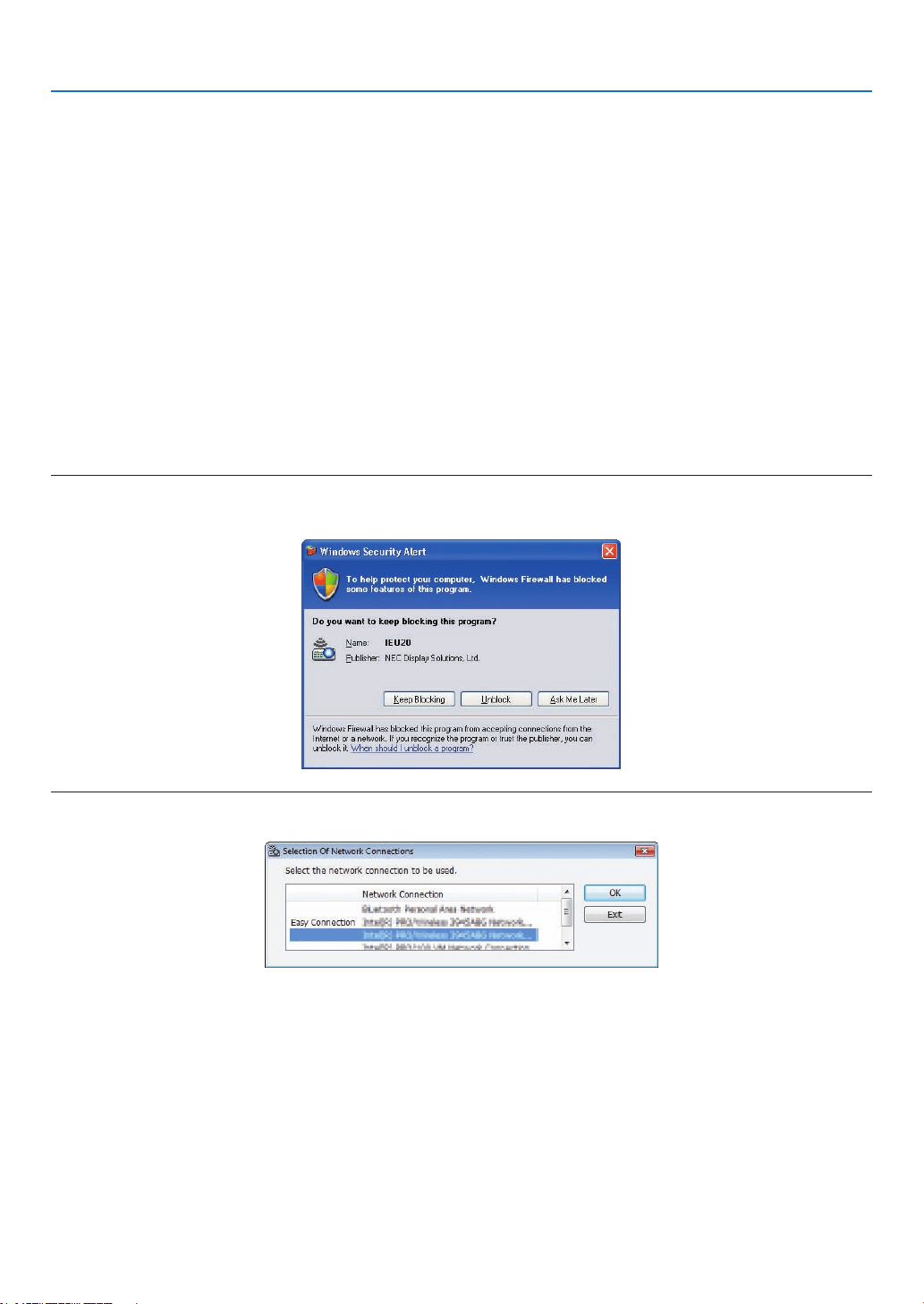
200
8. User Supportware
Basic Operation of Image Express Utility 2.0
ThissectionexplainsthefollowingthreecasesasexamplesofoperatingImageExpressUtility2.0.
(1)Transferringimagestotheprojector
(2)Holdingaconference
(3)Participatinginaconference
Sending Images to Projector
•Connectingprojector
1 TurnonthepowertotheprojectorforwhichLANhasbeenset.
2 ClickWindows[Start]→[AllPrograms]→[NECProjectorUserSupportware]→[ImageExpressUtility2.0]
→[ImageExpressUtility2.0],inthatorder.
The“SelectionOfNetworkConnections”windowwillbedisplayed.
Alistofthenetworkequipmentconnectedtoyourcomputerwillbedisplayed.
IMPORTANT:
AscreenliketheonebelowisdisplayedwhenthesoftwareisstartedonaPCinstalledwithWindowsXPServicePack2(SP2)(or
later).
Click“Unblock”ifthisisdisplayed.
3 Selectthenetworkequipmentthatistobeusedandclick[OK].
Selectthenetworkdevicedisplaying“EasyConnection”iftheproductLANsettingisfor“EasyConnection.”This
willcallupthe“ProjectorList”window.
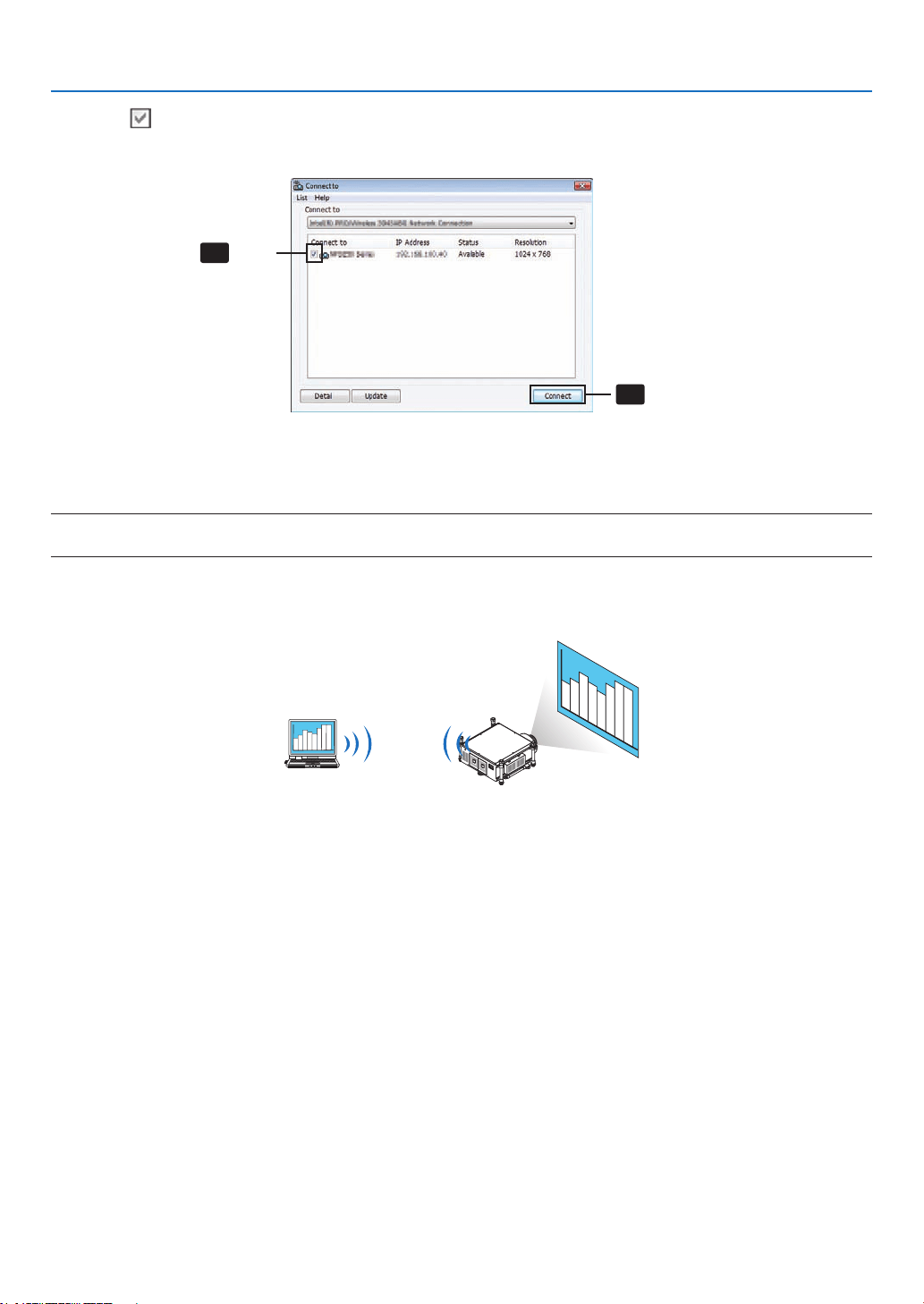
201
8. User Supportware
4 Check( )theprojectortoconnectandclick[Connect].
Ifthenameoftheprojectortoconnectisnotonthelistorifitishidden,click[Update].
4-1
4-2
Click
Click
Thescreenofyourcomputerwillbeprojectedfromtheprojector.
Atthistime,theinputsignaloftheprojectorwillautomaticallychangeto“NETWORK”.
NOTE:
• Whentheprojectorisfound,“1280×800”willbedisplayedintheresolutioneld.
•Transferringimages
Whenyourcomputerisconnectedtotheprojector,thescreenofthecomputerisprojectedfromtheprojectorasis.To
makeyourpresentationbyusingaPowerPointle,openthePowerPointleandstartyourpresentation.
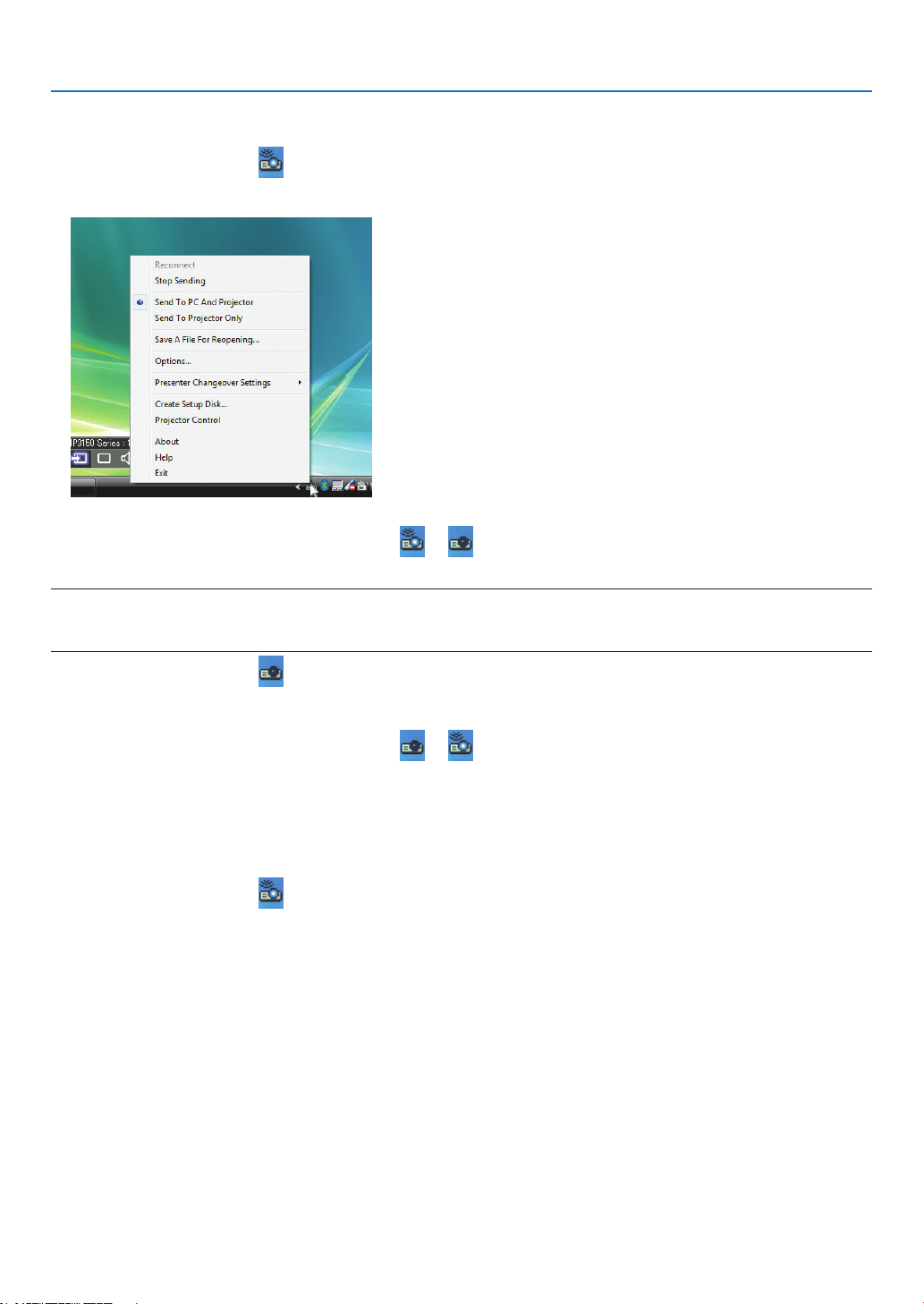
202
8. User Supportware
•Stoppingorresumingthetransmissionofimages
Thetransmissionofthescreenofthecomputertotheprojectorcanbetemporarilystoppedandthenresumed.
1 Clicktheprojectoricon( )ontheWindowstaskbar.
Apop-upmenuwillbedisplayed.
2 Click[StopSending].
Theprojectoricononthetaskbarwillchange( → ).
NOTE:
Evenifthescreenofthecomputerischangedinthisstatus,theimageprojectedfromtheprojectordoesnotchange.
To manipulate the screen that should not be disclosed (projected from the projector), stop transmission.
3 Clicktheprojectoricon( )ontheWindowstaskbar.
Apop-upmenuwillbedisplayed.
4 Click[StartSending].
Theprojectoricononthetaskbarwillchange( → ).
Thetransmissionofthescreenforthecomputerwillberesumed,andthecurrentscreenofthecomputerwillbe
projected from the projector.
•Endthetransmissionofimages
ExitImageExpressUtility2.0.
1 Clicktheprojectoricon( )ontheWindowstaskbar.
Apop-upmenuwillbedisplayed.
2 Click[Exit].
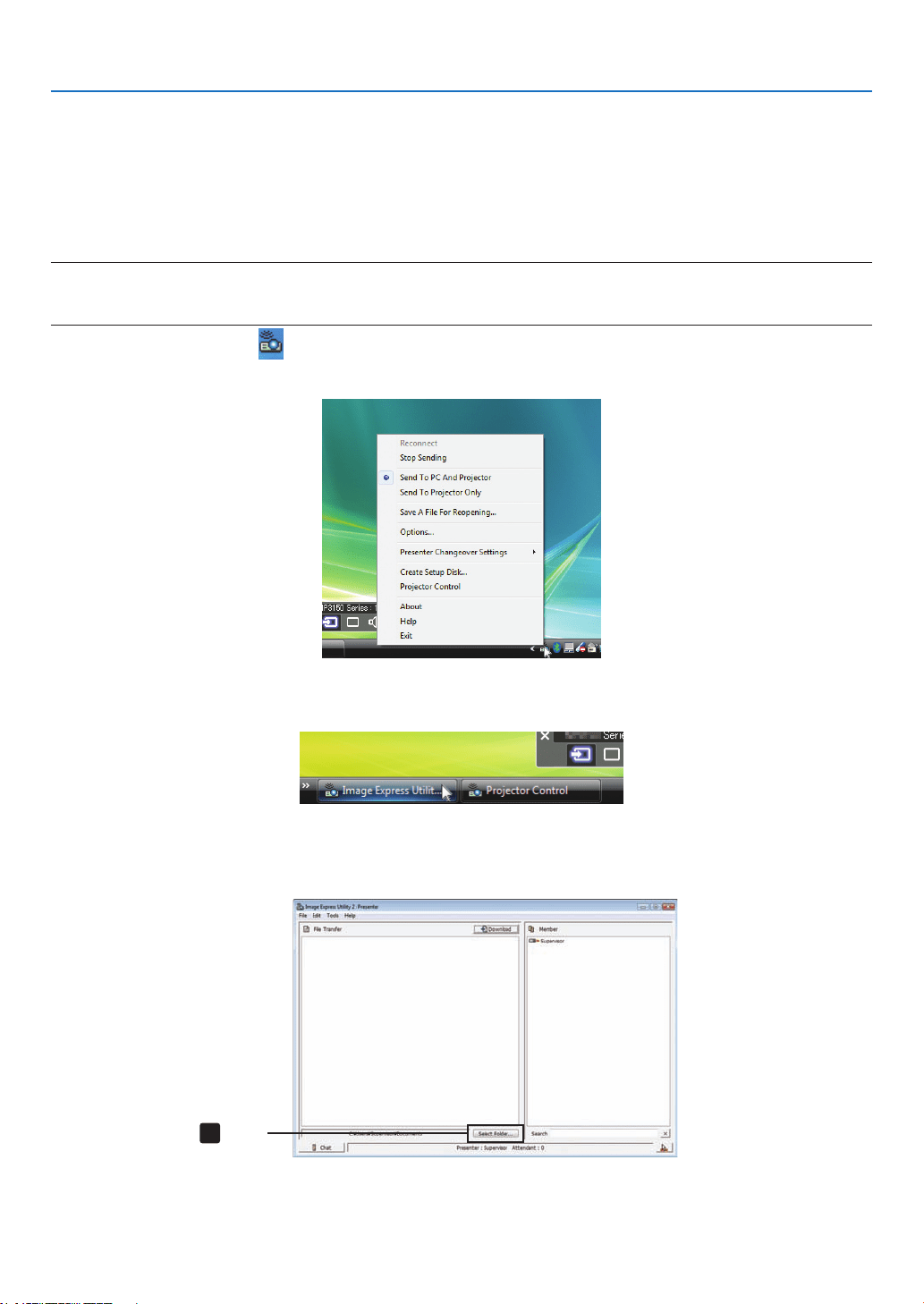
203
8. User Supportware
Holding Conferences
•Holdingconferences
1 Followsteps1through4in“Connectingprojector”of“SendingImagestoProjector”(→ page 200).
Thescreenofyourcomputerwillbeprojectedfromtheprojector.
•Disclosealetotheparticipantsoftheconference.
NOTE:
Todisclosealetotheparticipants,selectioncanbemadeonlyinfolderunits.
Therefore,afolderonlyhavinglesthatcanbedisclosedtotheparticipantsmustbecreatedinadvance.
1 Clicktheprojectoricon( )ontheWindowstaskbar.
Apop-upmenuwillbedisplayed.
2 Beforeclicking[SendtoPCandProjector],checkthatthereisa“•”markapplied.
3 Clickthe[ImageExpressUtility2.0]buttononthetaskbar.
Thepresenterwindowwillbeopened.
4 Click[SelectFolder].
4
Click
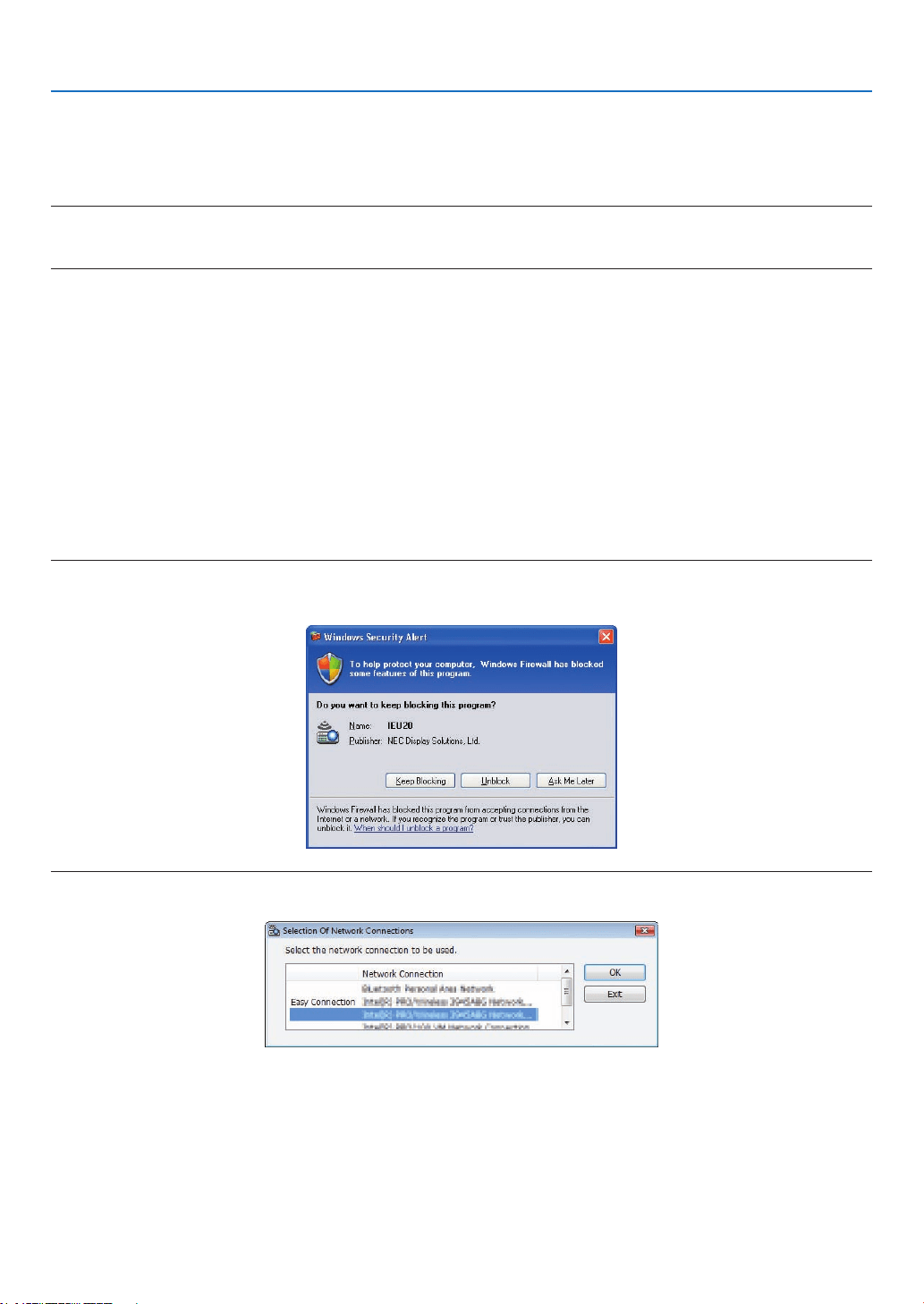
204
8. User Supportware
5 Selectafoldersavingtheletobedisclosedtotheparticipants,andclick[OK].
Theleintheselectedfolderwillbedisplayedinthelistoflestotransfer.
6 Click[Download].
Thelewillbeshowntotheparticipants.
NOTE:
Whenthecomputerisconnectedtotheprojector,thecomputerscreenthatisinofbeingprogressisalsoprojectedfromtheprojec-
tor. To manipulate a screen that should not be shown (not projected), temporarily stop the transmission (→ page 202).
•Endingconference
1 Click[File]inthepresenterwindow,andclick[Exit].
Youcanalsoendtheconferencebyclicking[×]attheupperrightofthepresenterwindow.
Participating in Conference
•Participatinginconferences
1 ClickWindows[Start]→[AllPrograms]→[NECProjectorUserSupportware]→[ImageExpressUtility2.0]
→[ImageExpressUtility2.0],inthatorder.
The“SelectionOfNetworkConnections”windowwillbedisplayed.
Alistofthenetworkequipmentconnectedtoyourcomputerwillbedisplayed.
IMPORTANT:
AscreenliketheonebelowisdisplayedwhenthesoftwareisstartedonaPCinstalledwithWindowsXPServicePack2(SP2)(or
later).
Click“Unblock”ifthisisdisplayed.
2 Selectthenetworkequipmentthatistobeusedandclick[OK].
Selectthenetworkdevicedisplaying“EasyConnection”iftheproductLANsettingisfor“EasyConnection.”This
willcallupthe“MeetingList”window.
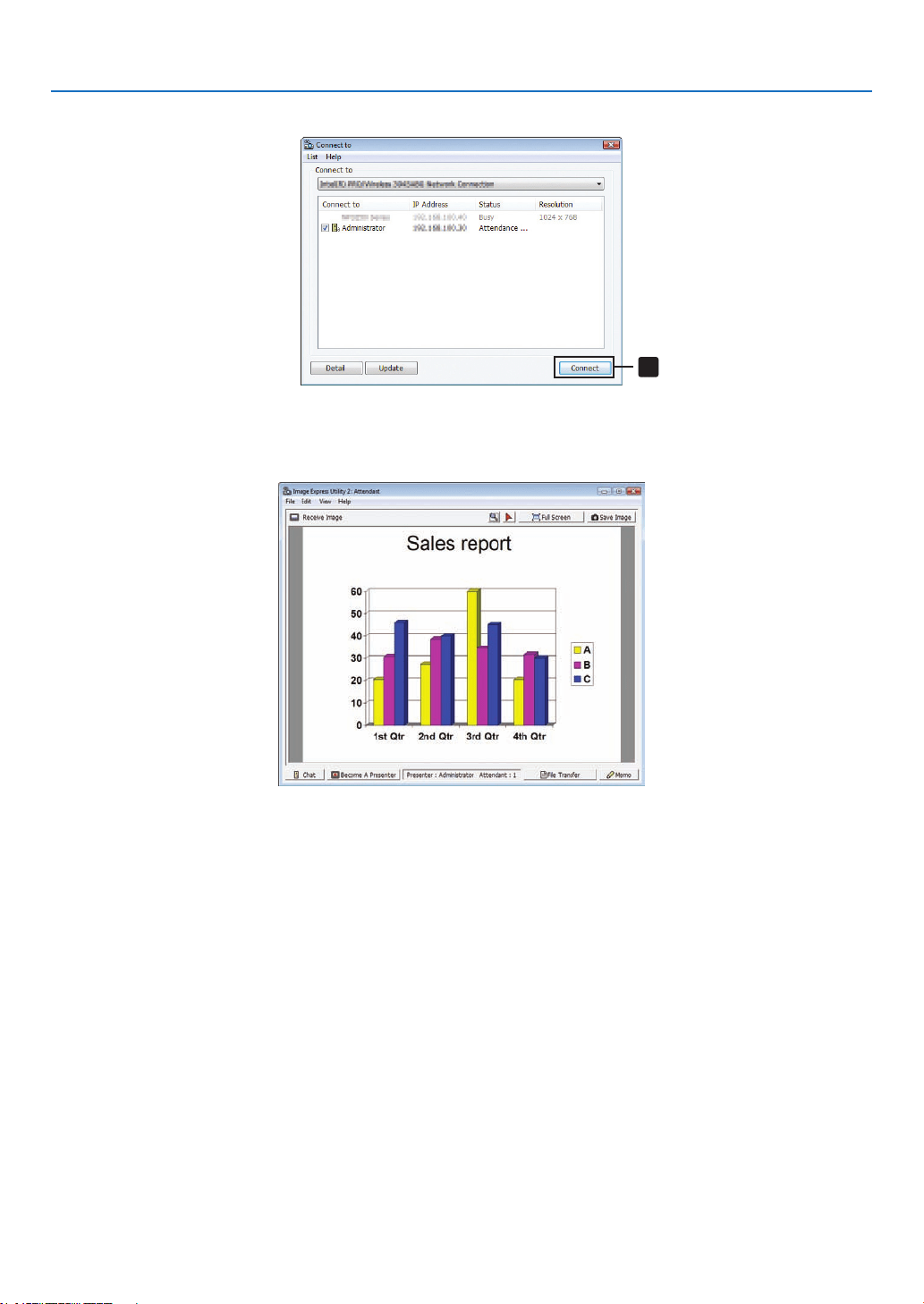
205
8. User Supportware
3 ClicktheMeetingNametoparticipate,andclick[Connect].
3
Click
Thecomputerwillbeconnectedtotheselectedconferenceandtheattendantwindowwillbedisplayed.
Ifthepresenterselects“SendtoPCAndProjector”,theimageprojectedfromtheprojectorisdisplayedintheat-
tendant window.
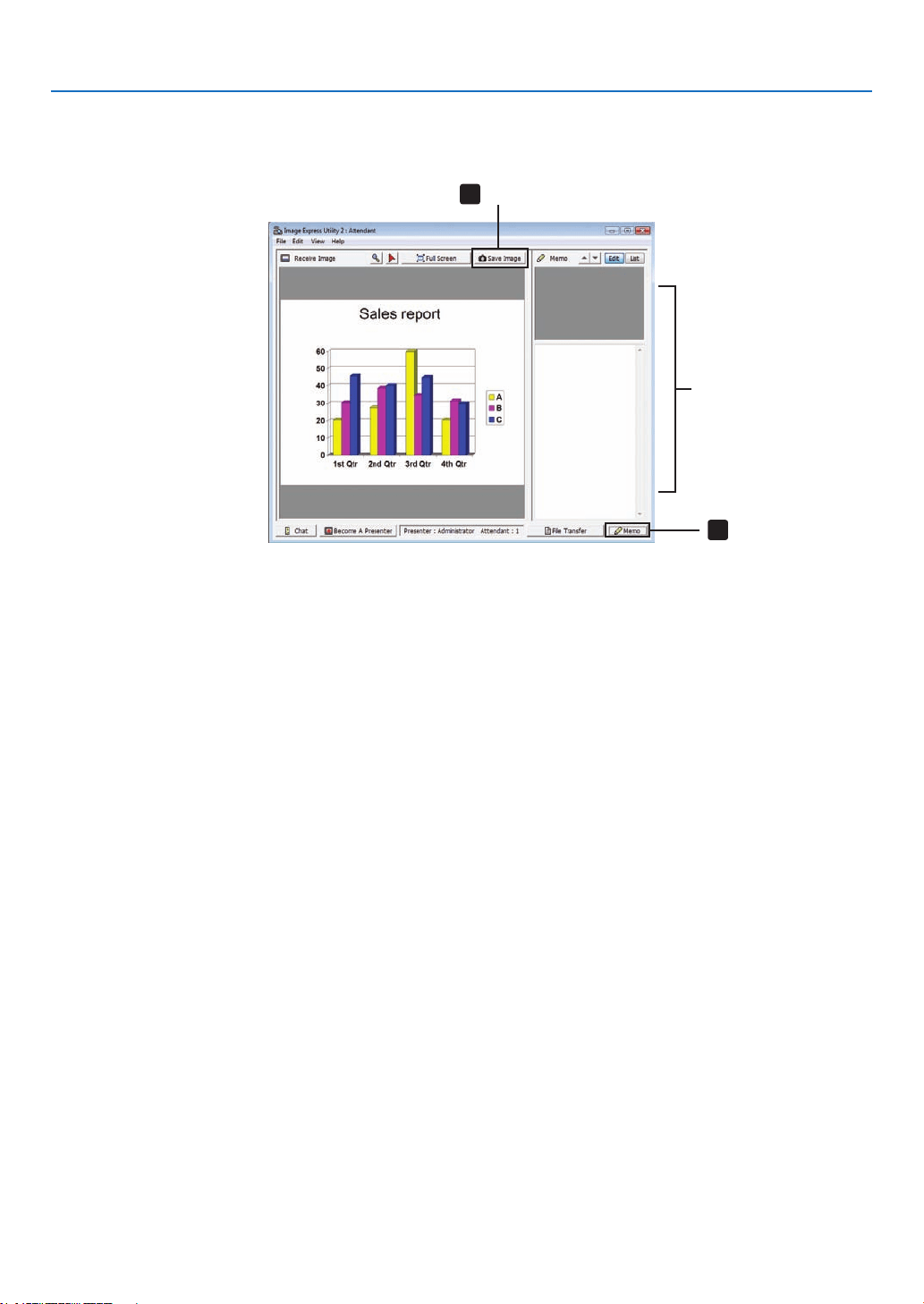
206
8. User Supportware
•Savingreceivedimages
1 Click[Memo]intheattendantwindow.
Amemopanewillbedisplayed.
2
1
Click
Memo pane
Click
2 Click[SaveImage]intheattendantwindow.
Theimagedisplayedintheattendantwindowwillbesaved.
• Thesavedimageisaddedtothememolistandathumbnailisdisplayed.
• Amemocanbeattachedtothesavedimage.
REFERENCE:
• IncaseofWindowsXP,acreatedleissavedto“MyDocuments\ImageExpress\”underthedefaultsettings.IncaseofWindows
7/WindowsVista,“Document\ImageExpress\”isthedefaultfoldertosaveacreatedle.
• Afolderiscreatedbelowthedefaultfolderbasedonthetimeanddateoftheconference,andtheimageissavedtoaleinthe
created folder.
Forexample,ifaconferenceisheldat11:20onMay14,2009,thedefaultfoldernameonWindowsXPwillbe“MyDocuments\
ImageExpress\2009-05-14_11-20_MeetingRecords”.
Inthisfolder,anHTMLlenamed“MeetingRecords”iscreated.
Thesavedimageissavedin“Images”folder.
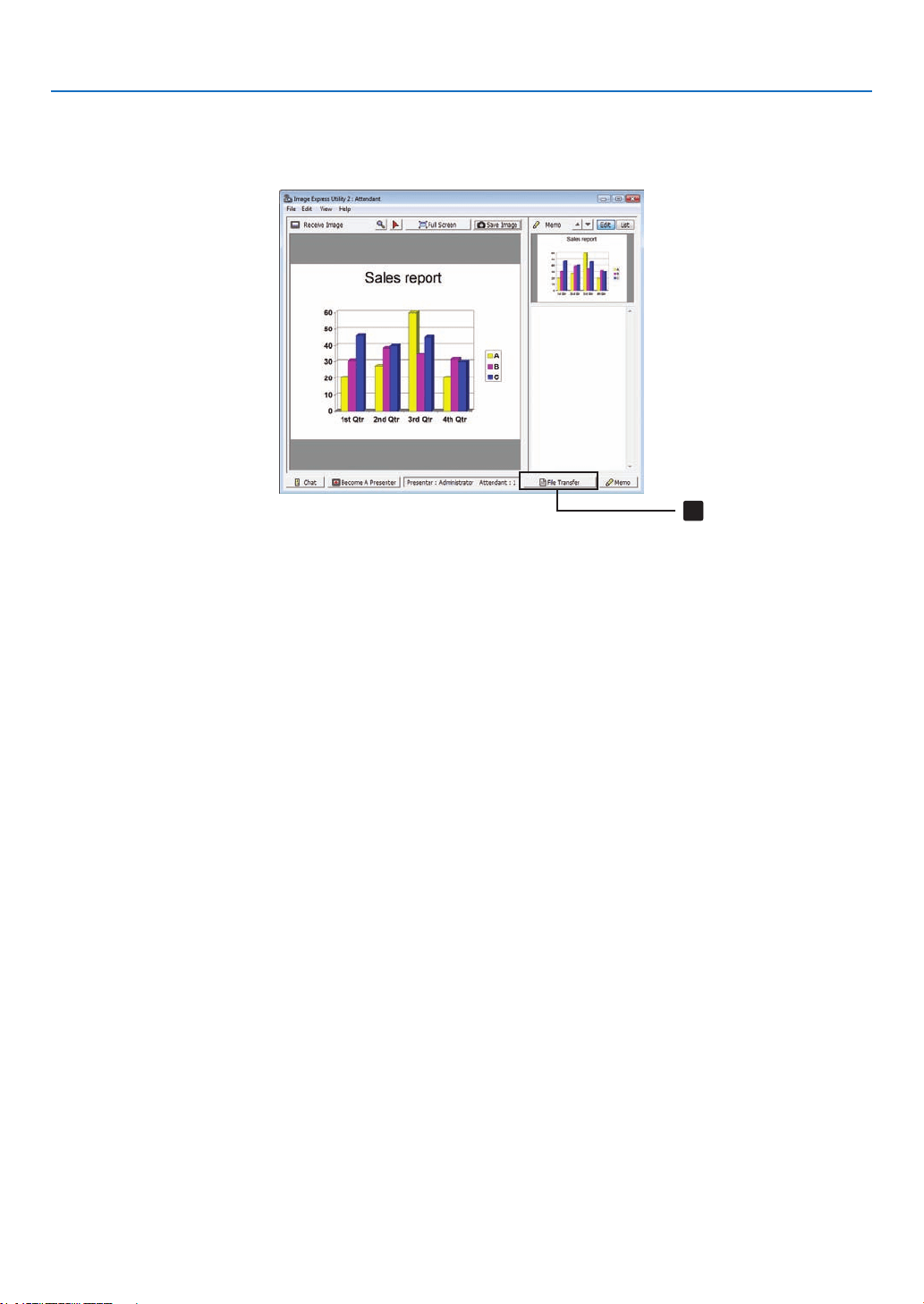
207
8. User Supportware
•Downloadingdisclosedle
1 Click[FileTransfer]intheattendantwindow.
The“FileTransfer”windowwillbeopened.
1
Click
2 Selectaletodownload,andclick[Download].
Downloadingwillbegin.
The progress of the downloading is displayed at the lower left of the window.
3 Whendownloadingiscomplete,click[File]inthe“FileTransfer”window,andclick[Exit].
The“FileTransfer”windowwillbeclosed.
REFERENCE:
• If“OpenAfterDownloading”ischecked,theleisopenedbyspeciedWindowsapplicationsoftwareafterdownloadingiscom-
plete.
• IncaseofWindowsXP,acreatedleissavedto“MyDocuments\ImageExpress\”underthedefaultsettings.IncaseofWindows
7/WindowsVista,“Document\ImageExpress\”isthedefaultfoldertosaveacreatedle.
• Afolderiscreatedbelowthedefaultfolderbasedonthetimeanddateoftheconference,andtheimageissavedtoaleinthe
created folder.
Forexample,ifaconferenceisheldat11:20onMay14,2009,thedefaultfoldernameonWindowsXPwillbe“MyDocuments\
ImageExpress\2009-05-14_11-20_MeetingRecords”.
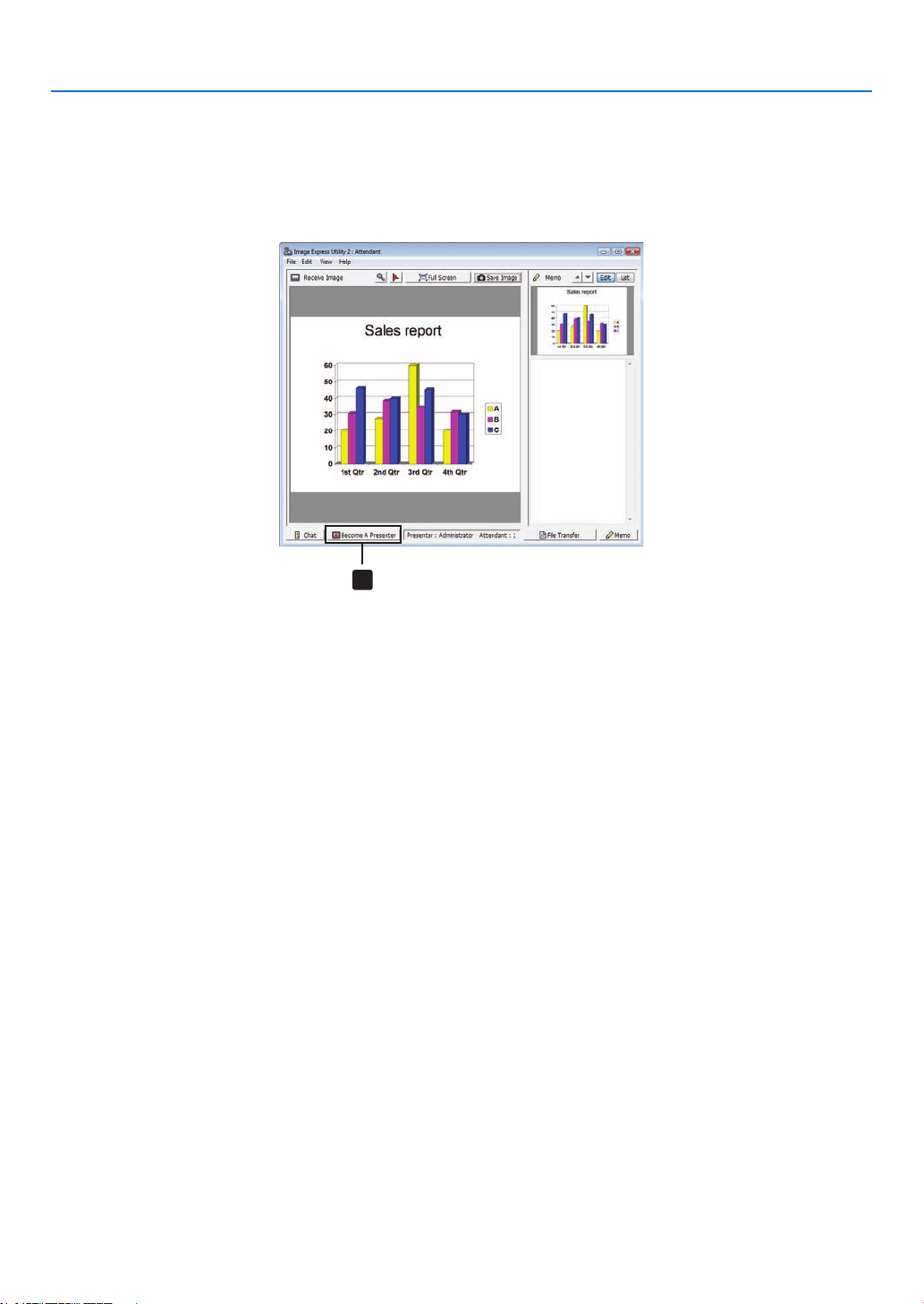
208
8. User Supportware
•Changingpresenter
Threetypesofsettingsmaybemadetochangethepresenter:“NotApproved”,“Approved”,and“ChangingProhibited”
(thesecanbeselectedonlybythepresenter).
Inthefollowingexample,“NotApproved”isselected.
• Click[BecomeAPresenter]intheattendantwindow.
Youwillchangefromaparticipanttoapresenter.
1
Click
•Leavingconference
LeavetheconferenceandexitImageExpressUtility2.0.
• Click[File]intheattendantwindow,andclick[Exit].
Youcanalsoleavetheconferencebyclicking[×]attheupperrightoftheattendantwindow.
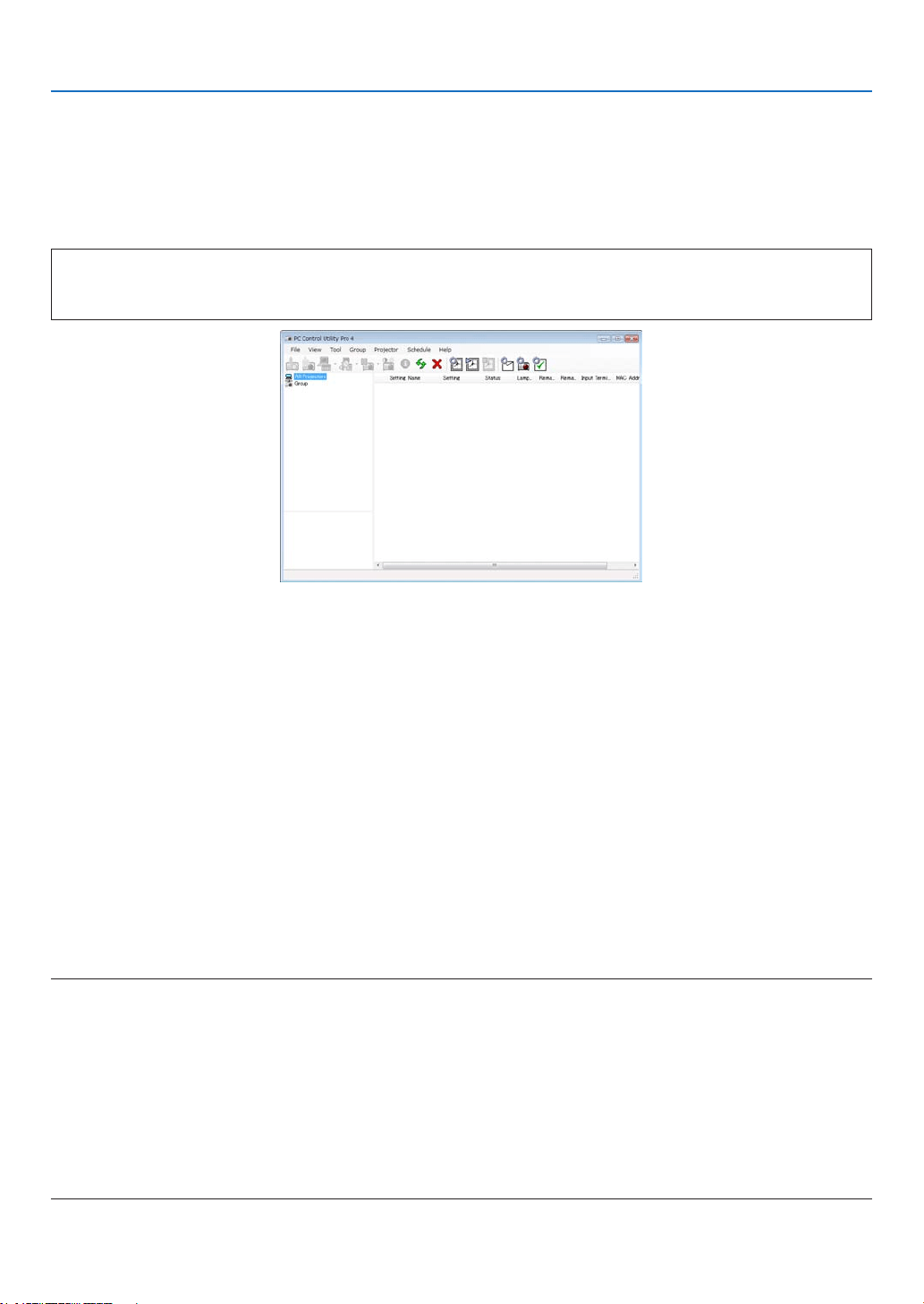
209
8. User Supportware
❸
Controlling the Projector over a LAN (PC Control Utility Pro 4/
Pro 5)
Usingtheutilitysoftware“PCControlUtilityPro4”or“PCControlUtilityPro5”,theprojectorcanbecontrolledfrom
acomputeroveraLAN.
PCControlUtilityPro4isaprogramcompatiblewithWindows.(→thispage)
PCControlUtilityPro5isaprogramcompatiblewithMacOS.(→page210)
Control Functions
PowerOn/Off,signalselection,picturefreeze,picturemute,adjusting,errormessagenotication,eventsched-
ule.
ScreenofPCControlUtilityPro4
ThissectionprovidesanoutlineofpreparationforuseofPCControlUtilityPro4/Pro5.Forinformationonhowtouse
PCControlUtilityPro4/Pro5,seeHelpofPCControlUtilityPro4/Pro5.
TIP:
• PCControlUtilityPro4canbeusedwithaserialconnection.
• PCControlUtilityPro4allowsforadjustingthe3Dsettings.(→ page 77)
Using on Windows
Connect the projector to a LAN.
ConnecttheprojectortotheLANbyfollowingtheinstructionsin“ConnectingtoaWiredLAN”(→page177),“Connect-
ingtoaWirelessLAN(Optional:NP02LMseries)”(→page178)and“❾ApplicationMenu-NETWORKSETTINGS”
(→page146)
Start PC Control Utility Pro 4
Click“Start”→“Allprograms”or“Programs”→“NECProjectorUserSupportware”→“PCControlUtilityPro4”→
“PCControlUtilityPro4”.
NOTE:
• FortheSchedulefunctionofthePCControlutilityPro4towork,youmusthaveyourcomputerrunningandnotinstandby/
sleepmode.Select“PowerOptions”fromthe“ControlPanel”inWindowsanddisableitsstandby/sleepmodebeforerunningthe
scheduler.
[Example]ForWindows7:
Select“ControlPanel”→“SystemandSecurity”→ “Power Options” →“Changewhenthecomputersleeps”→ “Put the computer
to sleep” →
“Never”.
NOTE:
• When[POWER-SAVING]isselectedfor[STANDBYMODE]fromthemenu,theprojectorcannotbeturnedonviathenetwork
(wiredLAN/wirelessLAN)connection.
When[NETWORKSTANDBY]isselectedfor[STANDBYMODE],theprojectorcannotbeturnedonviawirelessLANconnection.

210
8. User Supportware
TIP:
ViewingtheHelpofPCControlUtilityPro4
• DisplayingtheHelpleofPCControlUtilityPro4whileitisrunning.
Click“Help(H)”→“Help(H)…”ofwindowofPCControlUtilityPro4inthisorder.
Thepop-upmenuwillbedisplayed.
• DisplayingthehelpleusingtheStartMenu.
Click“Start”→“Allprograms”or“Programs”→“NECProjectorUserSupportware”→“PCControlUtilityPro4”→
“PCControlUtilityPro4Help”.
TheHelpscreenwillbedisplayed.
Using on Mac OS
Step 1: Install PC Control Utility Pro 5 on the computer
1. Connect your computer to the Internet and visit our website (http://www.nec-display.com/dl/en/index.
html).
2. DownloadtheupdatedPCControlUtilityPro5fromourwebsite.
3. InFinder,control-click(“control”+click)orrightclickthePCControlUtilityPro5.mpkg.
4. Select“Open”fromthetopofcontextualmenuthatappears.
5. Click“Open”inthedialogbox.Ifprompted,enteranadministratornameandpassword.
6. Click“Next”.
“ENDUSERLICENSEAGREEMENT”screenwillbedisplayed.
7. Read“ENDUSERLICENSEAGREEMENT”andclick“Next”.
Theconrmationwindowwillbedisplayed
8. Click“Iacceptthetermsinthelicenseagreement”.
Follow the instructions on the installer screens to complete the installation.
Step 2: Connect the projector to a LAN
ConnecttheprojectortotheLANbyfollowingtheinstructionsin“ConnectingtoaWiredLAN”(→page177),“Connect-
ingtoaWirelessLAN(Optional:NP02LMseries)”(→page178)and“❾ApplicationMenu-NETWORKSETTINGS”
(→page146)
Step 3: Start PC Control Utility Pro 5
1. OpenyourApplicationsfolderinMacOS.
2. Clickthe“PCControlUtilityPro5”folder.
3. Clickthe“PCControlUtilityPro5”icon.
PC Control Utility Pro 5 will start.
NOTE:
• FortheSchedulefunctionofthePCControlutilityPro5towork,youmusthaveyourcomputerrunningandnotinsleepmode.
Select“EnergySaver”fromthe“SystemPreferences”inMacanddisableitssleepmodebeforerunningthescheduler.
• When[POWER-SAVING]isselectedfor[STANDBYMODE]fromthemenu,theprojectorcannotbeturnedonviathenetwork
(wiredLAN/wirelessLAN)connection.
• When[NETWORKSTANDBY]isselectedfor[STANDBYMODE]fromthemenu,theprojectorcannotbeturnedonviawireless
LANconnection.

211
8. User Supportware
TIP:
ViewingtheHelpofPCControlUtilityPro5
•DisplayingtheHelpleofPCControlUtilityPro5whileitisrunning.
• Fromthemenubar,click“Help”→“Help”inthisorder.
TheHelpscreenwillbedisplayed.
•DisplayingtheHelpusingtheDock
1. Open“ApplicationFolder”inMacOS.
2. Clickthe“PCControlUtilityPro5”folder.
3. Clickthe“PCControlUtilityPro5Help”icon.
TheHelpscreenwillbedisplayed.
TIP:
Uninstalling a software program
1. Putthe“PCControlUtilityPro5”foldertotheTrashicon.
2. PutthecongurationleofPCControlUtilityPro5totheTrashicon.
• ThecongurationleofPCControlUtilityPro5islocatedin“/Users/<yourusername>/ApplicationData/NEC
ProjectorUserSupportware/PCControlUtilityPro5”.

212
8. User Supportware
❹ Projecting Your Mac’s Screen Image from the Projector over
a LAN (Image Express Utility 2 for Mac)
UsingImageExpressUtility2forMaccontainedallowsyoutosendtheMac’sscreenimagetotheprojectorovera
network(wiredorwirelessLAN).
ImageExpressUtility2forMacrunsonMacOSX10.2.8orlater.
ItrunsonbothMacOSX(PowerPC)andMacOSX(Intel).
Hereafter,“ImageExpressUtility2forMac”isabbreviatedas“ImageExpressUtility2”.
What you can do with Image Express Utility 2
• ViathenetworkimagesonthescreenofyourMaccanbesenttotheprojectorandprojectedonthescreen.
• Onecomputercansendimagestomorethanoneprojector.
Operating environment
Supported OS
MacOSX10.2.8orlaterrequired
MacOSX10.3.0orlaterrecommended
Processor (CPU)
PowerPCG3600MHzprocessorrequired
PowerPCG4800MHzorhigherrecommended
or
IntelCoreSolo1.5GHzorhigherrequired
Memory
256MBorhigherrequired
Networkenvironment
WiredorwirelessLANrequiredthatsupportsTCP/IP
OnlytheAirPortandAirPortExtremewirelessLANcardsareguaranteedtoworkwithImageExpressUtility2.
“EasyConnection”supportsonlyAirPortandAirPortExtreme.
Supported resolution
VGA(640×480)orhigherrequired
XGA(1024×768)recommended
(1024×768-1280×800recommended)
Supported screen colors
32thousandsofcolors,16.7millioncolorsrequired
*256orfewercolorsarenotsupported.
Connecting the projector to a LAN
ConnecttheprojectortotheLANbyfollowingtheinstructionsin“ConnectingtoaWiredLAN”(→page177),“Con-
nectingtoaWirelessLAN”(→page178)and“9ApplicationMenus-NETWORKSETTINGS”(→page146)
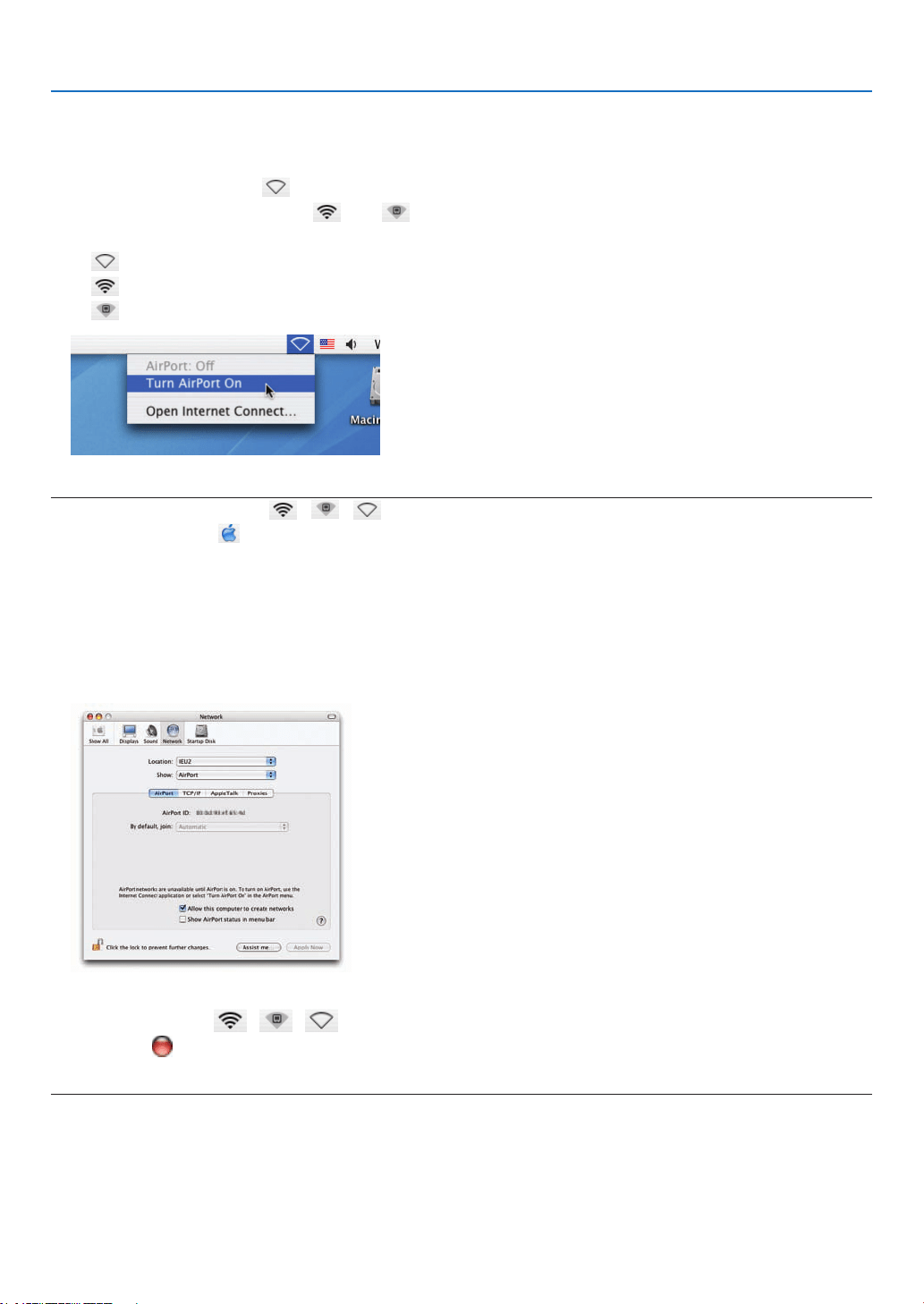
213
8. User Supportware
Using Image Express Utility 2
Connecting to a projector
1 Conrmthattheprojectorhasbeenturnedon.
2 ClicktheAirPortstatus( )ontheMacintoshmenubar,andclick“TurnAirPortOn”.
TheAirPortstatusischangedto“ ”or“ ”.
• AirPortstatustypesandmeanings
...AirPort:Off
...AirPort:On(ininfrastructureconnection)
...AirPort:On(inadhocconnection)
REFERENCE:
When the AirPort status ( / / )isnotdisplayedonthemenubar:
1 ClickAppleMenu( )and[SystemPreferences...].
The“SystemPreferences”windowwillbedisplayed.
2 Click[Network].
TheNetworkcongurationwindowwillbedisplayed.
3 Select[AirPort]in[Show].
4 Click[AirPort]tab.
TheAirPortcongurationitemwillbedisplayed.
5 Checkthe“ShowAirPortstatusinmenubar”checkboxatthebottomcongurationitem.
TheAirPortstatus( / / )willbedisplayedonthemenubar.
6 Clickthe[ ]buttonattheupperleftontheNetworkcongurationwindow.
TheNetworkcongurationwindowwillbeclosed.
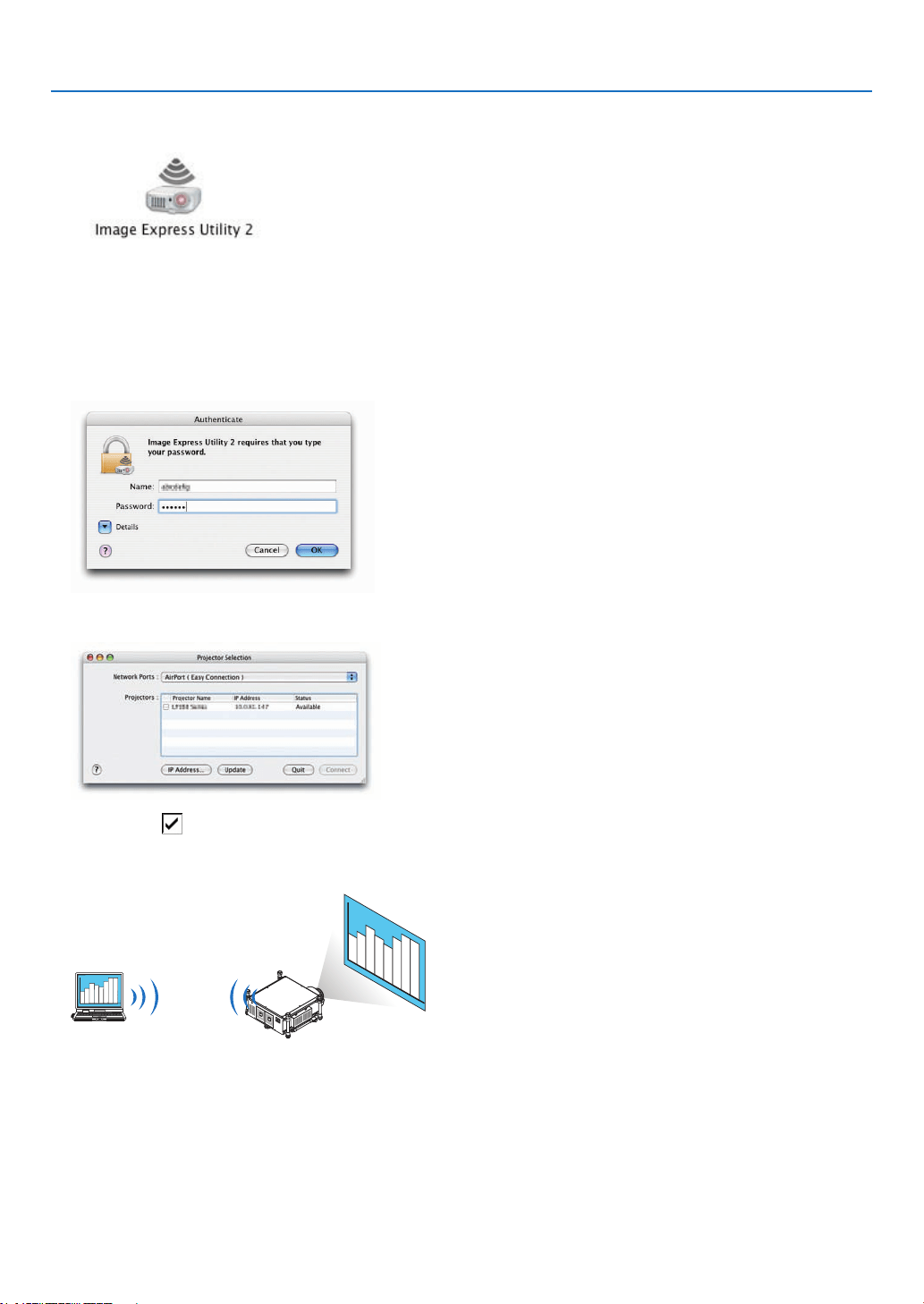
214
8. User Supportware
3 Double-clickthe“ImageExpressUtility2”iconinthe“ImageExpressUtility2”folder.
• Attheinitialstart,the“LicenseAgreement”windowisdisplayed.
Thoroughlyreadtheagreementshownonthescreen,andclick“Iacceptthetermsinthelicenseagreement”
andthe[OK]button.
Next,the“Authenticate”windowwillbedisplayed.
4 EntertheadministratornameandpasswordofyourMacintoshcomputer,andclickthe[OK]button.
The[ProjectorSelection]windowwillbedisplayed.
5 Checkthe( )checkboxtotheleftoftheprojectornametoconnectandclick[Connect].
TheMacintoshcomputerandtheprojectorareconnectedviawirelessLAN,andimagesontheMacintoshscreen
are projected from the projector.
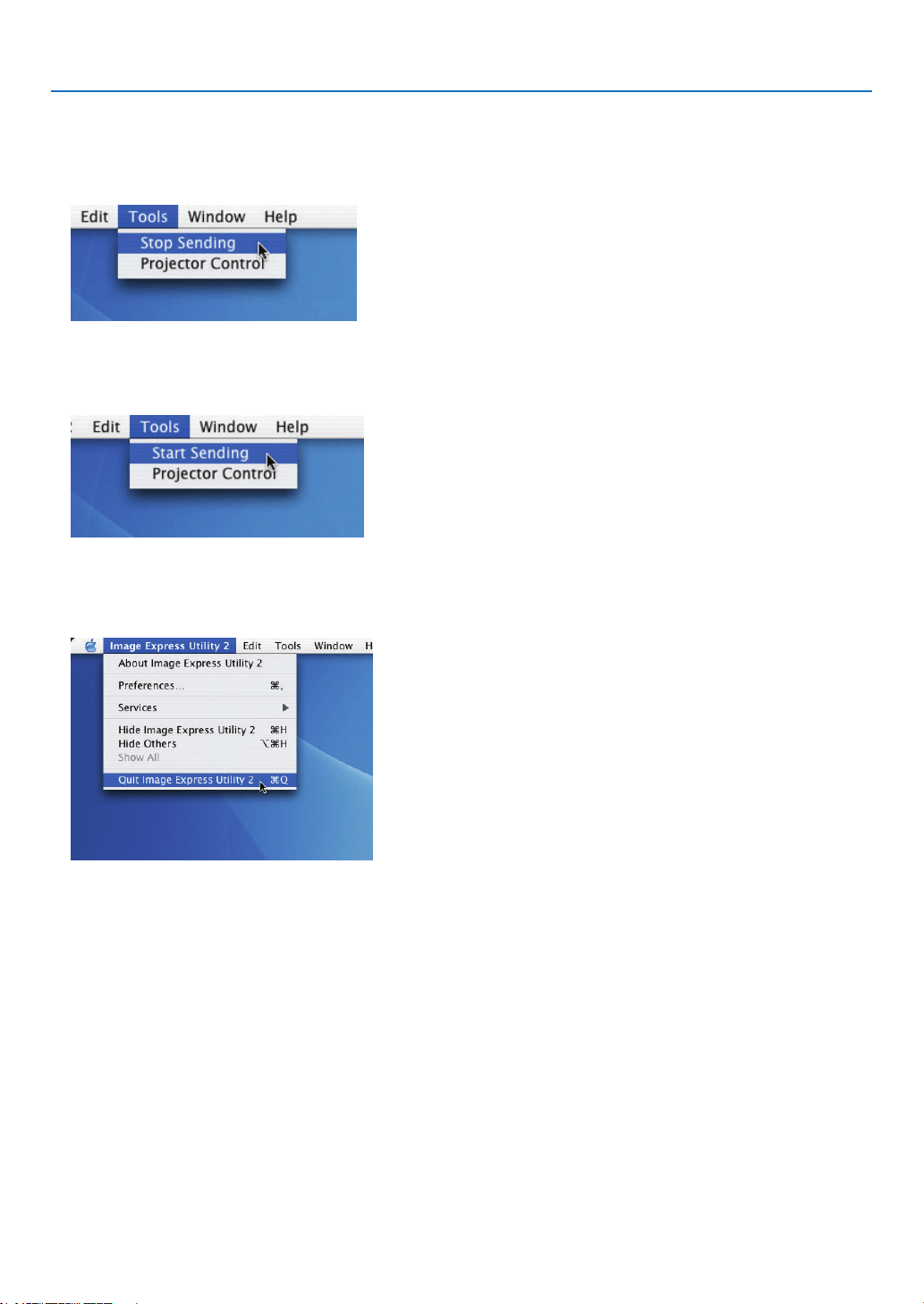
215
8. User Supportware
Stopping/RestartingImageTransmission
•Stoppingimagetransmission
1 Click[Tools]onthemenubar,andclick[StopSending].
Imagetransmissionistemporarilystopped.
•Restartingimagetransmission
1 Click[Tools]onthemenubar,andclick[StartSending].
Imagetransmissionisstartedagain.
ExitingImageExpressUtility2
1 Click[ImageExpressUtility2]onthemenubar,andclick[QuitImageExpressUtility2].
ImageExpressUtility2isexited.
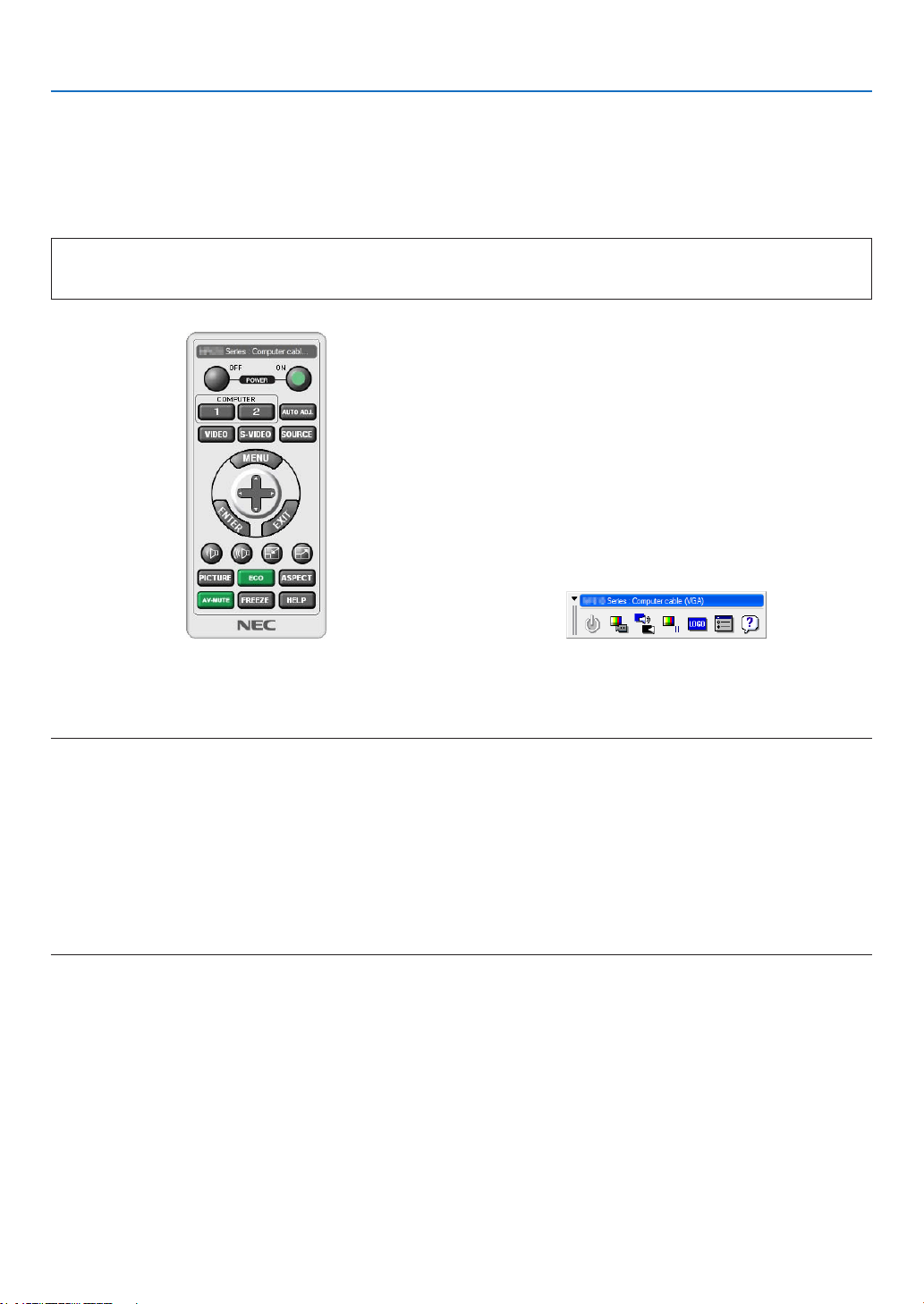
216
8. User Supportware
❺ Operating the Projector Via the LAN (Virtual Remote Tool)
Usingthesoftwareprogram“VirtualRemoteTool”thatyoucandownloadfromourwebsite,VirtualRemotescreen
(ortoolbar)canbedisplayedonyourcomputerscreen.
Thiswillhelpyouperformoperationssuchasprojector’spoweronoroffandsignalselectionviaaLANconnection.It
isalsousedtosendanimagetotheprojectorandregisteritasthelogodataoftheprojector.Afterregisteringit,you
canlockthelogotopreventitfromchanging.
Control Functions
PowerOn/Off,signalselection,picturefreeze,picturemute,Logotransfertotheprojector,andremotecontrolop-
erationonyourPC.
VirtualRemotescreen
RemoteControlWindow Toolbar
ThissectionprovidesanoutlineofpreparationforuseofVirtualRemoteTool.
ForinformationonhowtouseVirtualRemoteTool,seeHelpofVirtualRemoteTool.
NOTE:
• Logodata(graphics)thatcanbesenttotheprojectorwithVirtualRemoteToolhasthefollowingrestrictions:
- Filesize:256KBorless
- Imagesize(resolution):thenativeresolutionofthe projector
- Fileformat:JPEG
• ThelogodatathatissentwithVirtualRemoteToolwillbedisplayedatthecenterofthescreen.Itssurroundingwillbepainted
out in black.
• Onceyouhavechangedthebackgroundselectionfromthedefault“NEClogo”toanotherselection,youcannotreturnthelogoto
thedefault“NEClogo”evenafterusing[RESET].Toputthedefault“NEClogo”backinthebackgroundlogo,youneedtoregister
itasthebackgroundlogobyusingtheimagele(\Logo\NEC_logo_black_WUXGA.jpg)includedonthesuppliedNECProjector
CD-ROM.
TIP:
• VirtualRemoteToolcanbeusedalsowithaserialconnection.
• TodownloadorupdateVirtualRemoteTool,visitourwebsite:http://www.nec-display.com/dl/en/index.html
Connect the projector to a LAN.
ConnecttheprojectortotheLANbyfollowingtheinstructionsin“ConnectingtoaWiredLAN”(→page177),“Con-
nectingtoaWirelessLAN(soldseparately)”(→page178)and“9ApplicationMenus-NETWORKSETTINGS”(→
page146)
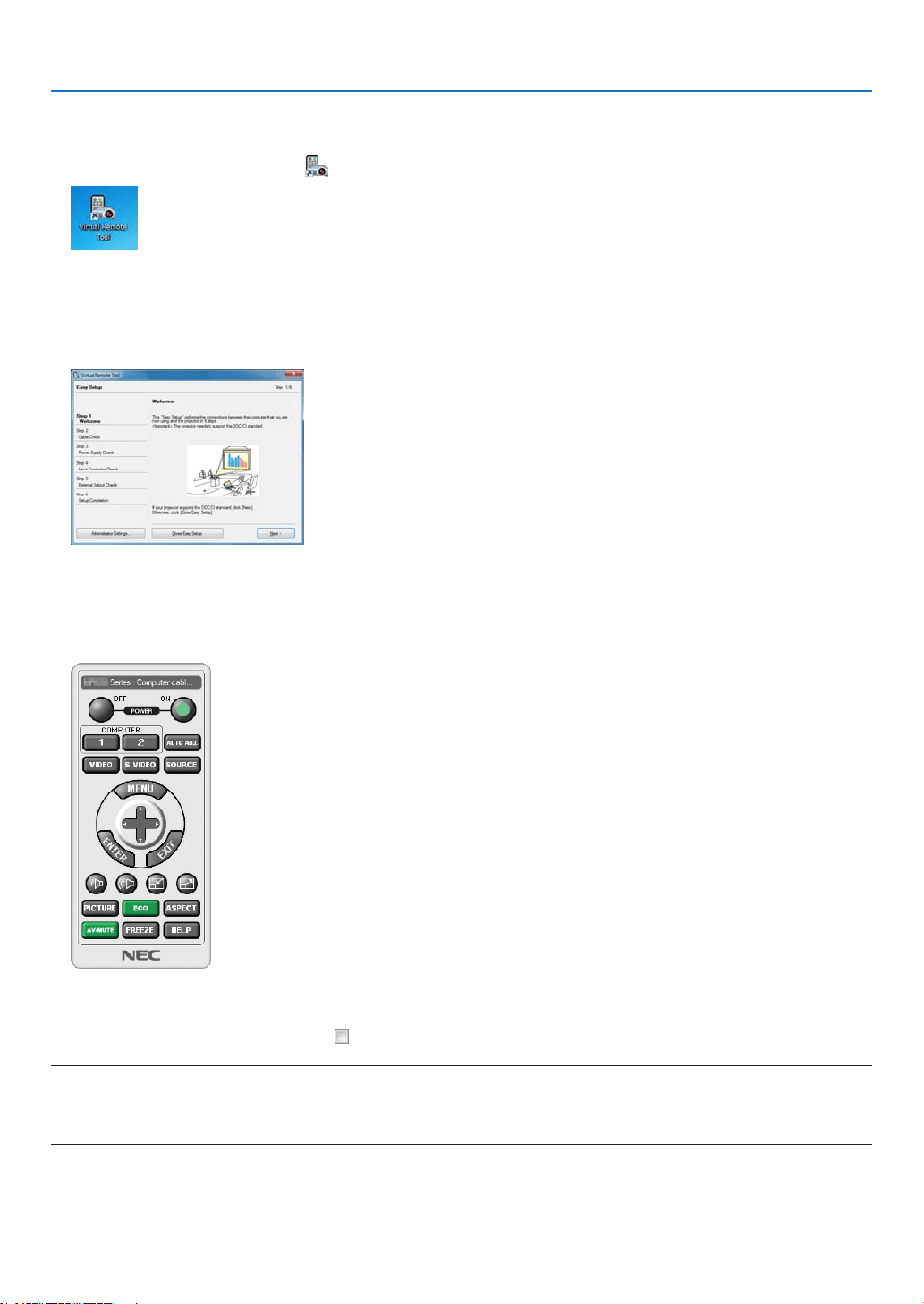
217
8. User Supportware
Start Virtual Remote Tool
Start using the shortcut icon
• Double-clicktheshortcuticon ontheWindowsDesktop.
Start from the Start menu
• Click[Start]→[AllPrograms]or[Programs]→[NECProjectorUserSupportware]→[VirtualRemoteTool]
→[VirtualRemoteTool].
WhenVirtualRemoteToolstartsforthersttime,“EasySetup”windowwillbedisplayed.
The“EasySetup”featureisnotavailableonthismodel.Click“CloseEasySetup”.
Closingthe“EasySetup”windowwilldisplaythe“ProjectorList”window.
Selectyourprojectoryouwishtoconnect.ThiswilldisplaytheVirtualRemotescreen.
TIP:
• TheVirtualRemoteToolscreen(orToolbar)canbedisplayedwithoutdisplaying“EasySetup”window.
To do so, click to place a check mark for “ DonotuseEasySetupnexttime”onthescreen.
NOTE:
• When[POWER-SAVING]isselectedfor[STANDBYMODE]fromthemenu,theprojectorcannotbeturnedonviathenetwork
(wiredLAN/wirelessLAN)connection.When[NETWORKSTANDBY]isselectedfor[STANDBYMODE],theprojectorcannotbe
turnedonviawirelessLANconnection.
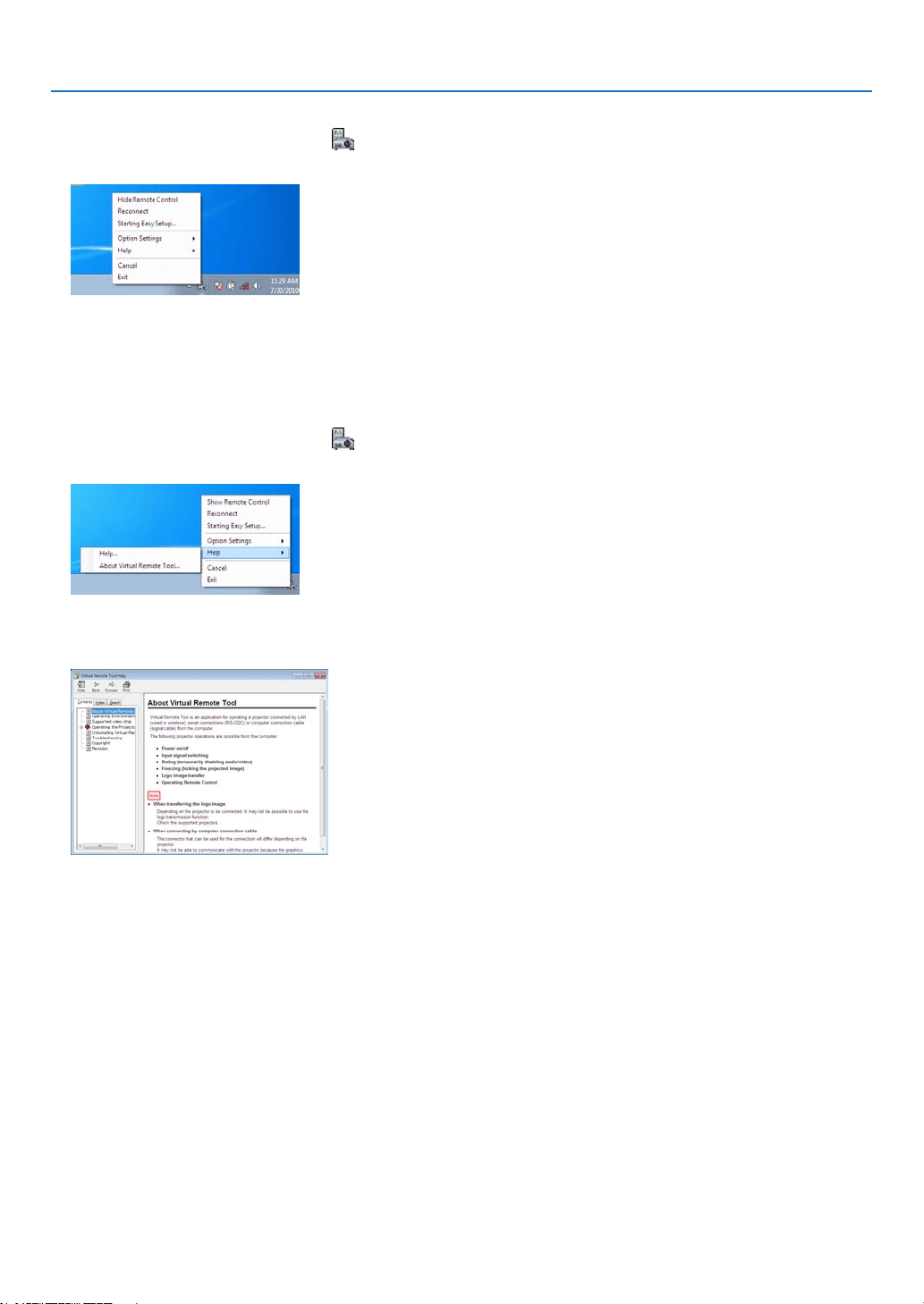
218
8. User Supportware
ExitingVirtualRemoteTool
1 ClicktheVirtualRemoteToolicon ontheTaskbar.
Thepop-upmenuwillbedisplayed.
2 Click“Exit”.
TheVirtualRemoteToolwillbeclosed.
ViewingthehelpleofVirtualRemoteTool
•Displayingthehelpleusingthetaskbar
1 ClicktheVirtualRemoteToolicon onthetaskbarwhenVirtualRemoteToolisrunning.
Thepop-upmenuwillbedisplayed.
2. Click“Help”.
TheHelpscreenwillbedisplayed.
•DisplayingthehelpleusingtheStartMenu.
1. Click“Start”.“Allprograms”or“Programs”.“NECProjectorUserSupportware”.“VirtualRemoteTool”.and
then“VirtualRemoteToolHelp”inthisorder.
TheHelpscreenwillbedisplayed.

219
9. Appendix
❶ Throw distance and screen size
Sixseparatebayonetstylelensescanbeusedonthisprojector.Refertotheinformationonthispageandusealens
suitedfortheinstallationenvironment(screensizeandthrowdistance).Forinstructionsonmountingthelens,see
page167.
Eachnumberprovidedinthetablebelowmeansthethrowdistancebetweenthelenssurfaceandthescreen.
Lens types and throw distance
unit=m
Screensize Lensmodelname
NP25FL NP26ZL NP27ZL NP28ZL NP29ZL NP32ZL
70" — — — — —
1.3–1.6
80" 1.1 — — — — 1.5–1.9
100" 1.4 2.9–4.0 4.0–5.5 9.0 12.0–15.0 1.9–2.3
120" 1.7 3.5–4.8 4.8–6.6 9.0–10.8 12.0–18.0 2.3–2.8
150" 2.2 4.4–6.0 6.0–8.2 9.0–13.5 13.5–22.4 2.9–3.5
200" 3.0 5.9–8.0 8.0–11.0 11.1–17.9 17.9–29.8 3.9–4.7
240" — 7.1–9.6 9.6–13.2 13.3–21.4 21.4–35.7 4.7–5.7
300" — 8.9–12.0 12.1–16.6 16.5–26.8 26.7–44.5 5.9–7.1
400" — 11.9–16.1 16.1–22.1 22.0–35.6 35.5–59.3 7.9–9.5
500" — 14.9–20.1 20.2–24.0 27.4–44.5 44.3–74.0 9.9–12.0
600" — — — — — 11.9–14.4
TIP
• Calculationofthethrowdistancefromthescreensize
NP25FLlensthrowdistance(m)=H×0.67:1.1m(min.)to3.2m(max.)
NP26ZLlensthrowdistance(m)=H×1.35toH×1.84:2.8m(min.)to24.0m(max.)
NP27ZLlensthrowdistance(m)=H×1.84toH×2.54:4.0m(min.)to24.0m(max.)
NP28ZLlensthrowdistance(m)=H×2.62toH×4.20:9.0m(min.)to45.0m(max.)
NP29ZLlensthrowdistance(m)=H×4.21toH×6.96:12.0m(min.)to80.0m(max.)
NP32ZLlensthrowdistance(m)=H×0.9toH×1.1:1.33m(min.)to14.35m(max.)
“H”(Horizontal)referstothescreenwidth.
*Figuresdifferbyseveral%withthetableabovebecausethecalculationisapproximate.
Ex.:Throwdistancewhenprojectingona150"screenusingtheNP27ZLlens:
Accordingtothe“ScreenSize(forreference)”table(→ page 221),H(screenwidth)=323.1cm.
Thethrowdistanceis323.1cm×1.7to323.1cm×2.3=549.3cmto743.13cm(becauseofthezoomlens).
• UsingtheNP28ZLlenswillslightlychangetheimagesize.WhenusingtheNP28ZLlenstoadjusttheimagesize,adjustthefocus
and then the zoom.
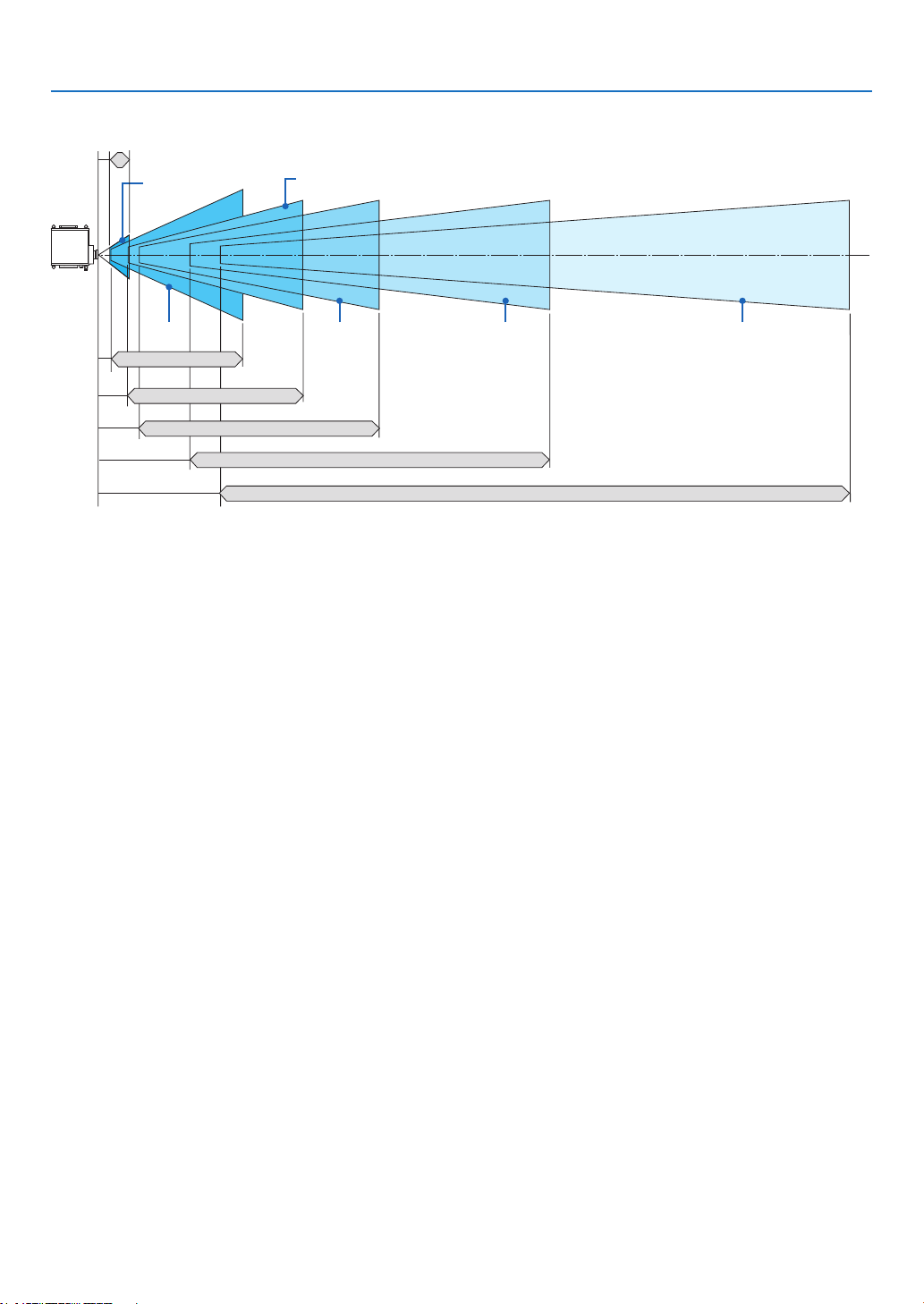
220
9. Appendix
Projection range for the different lenses
80–200
"
100–500
"
100–500"
70–600"
100–500" 100–500"
NP25FL: 1.1–3.2m
NP26ZL: 2.8–24.0m
NP32ZL: 1.3–14.4m
NP27ZL: 4.0–24.0m
NP28ZL: 9.0–45.0m
NP29ZL: 12.0–80.0m
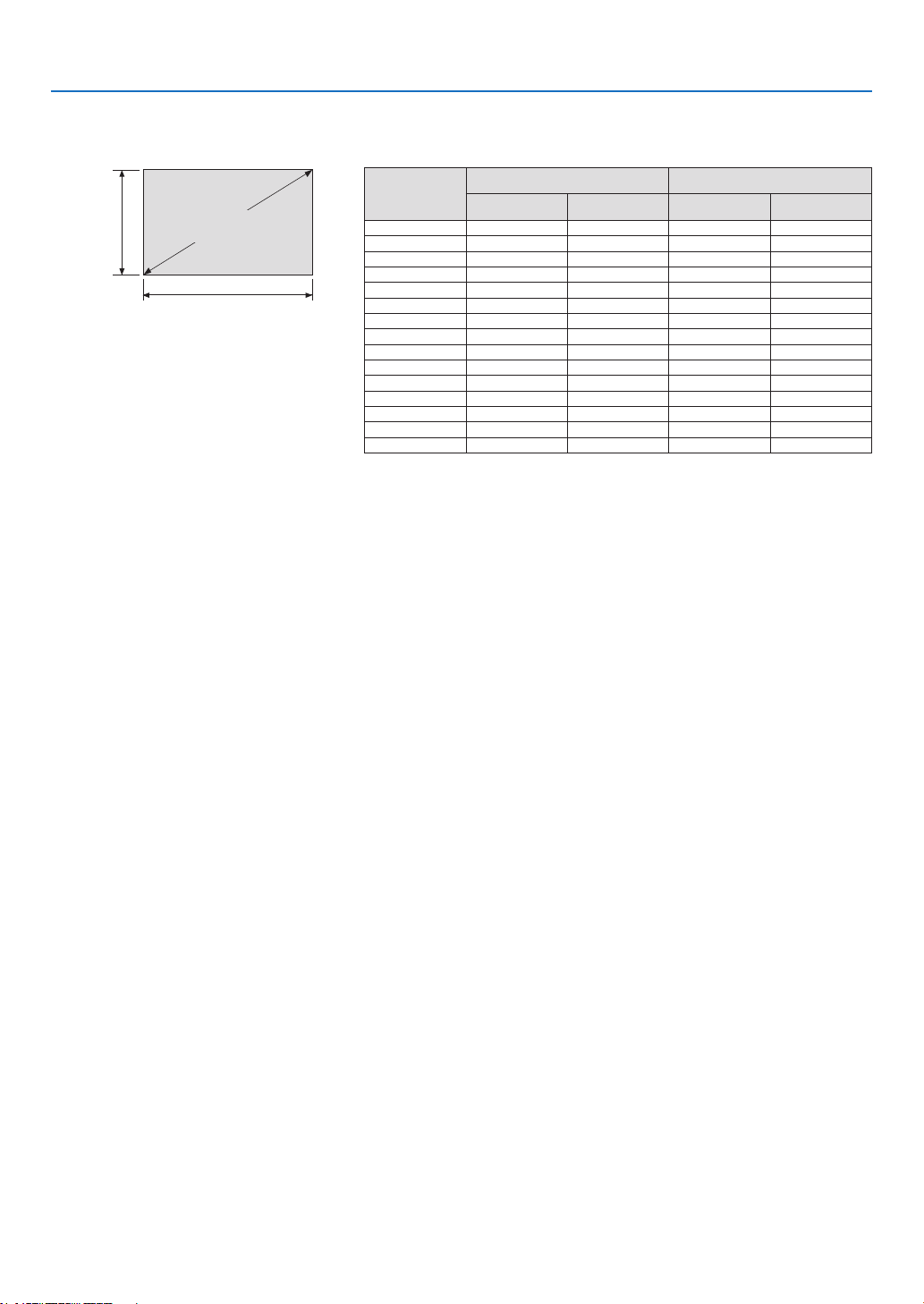
221
9. Appendix
Tables of screen sizes and dimensions
Screen
height
Screenwidth
16:10screensize
(diagonal)
Size(inches) Screenwidth Screenheight
(inches) (cm) (inches) (cm)
50 42.4 107.7 26.5 67.3
60 50.9 129.2 31.8 80.8
70 59.4 150.8 37.1 94.2
80 67.8 172.3 42.4 107.7
100 84.8 215.4 53.0 134.6
120 101.8 258.5 63.6 161.5
150 127.2 323.1 79.5 201.9
200 169.6 430.8 106.0 269.2
240 203.5 516.9 127.2 323.1
300 254.4 646.2 159.0 403.9
350 296.8 753.9 185.5 471.2
400 339.2 861.6 212.0 538.5
450 381.6 969.3 238.5 605.8
500 424.0 1077.0 265.0 673.1
600 508.8 1292.3 318.0 807.7
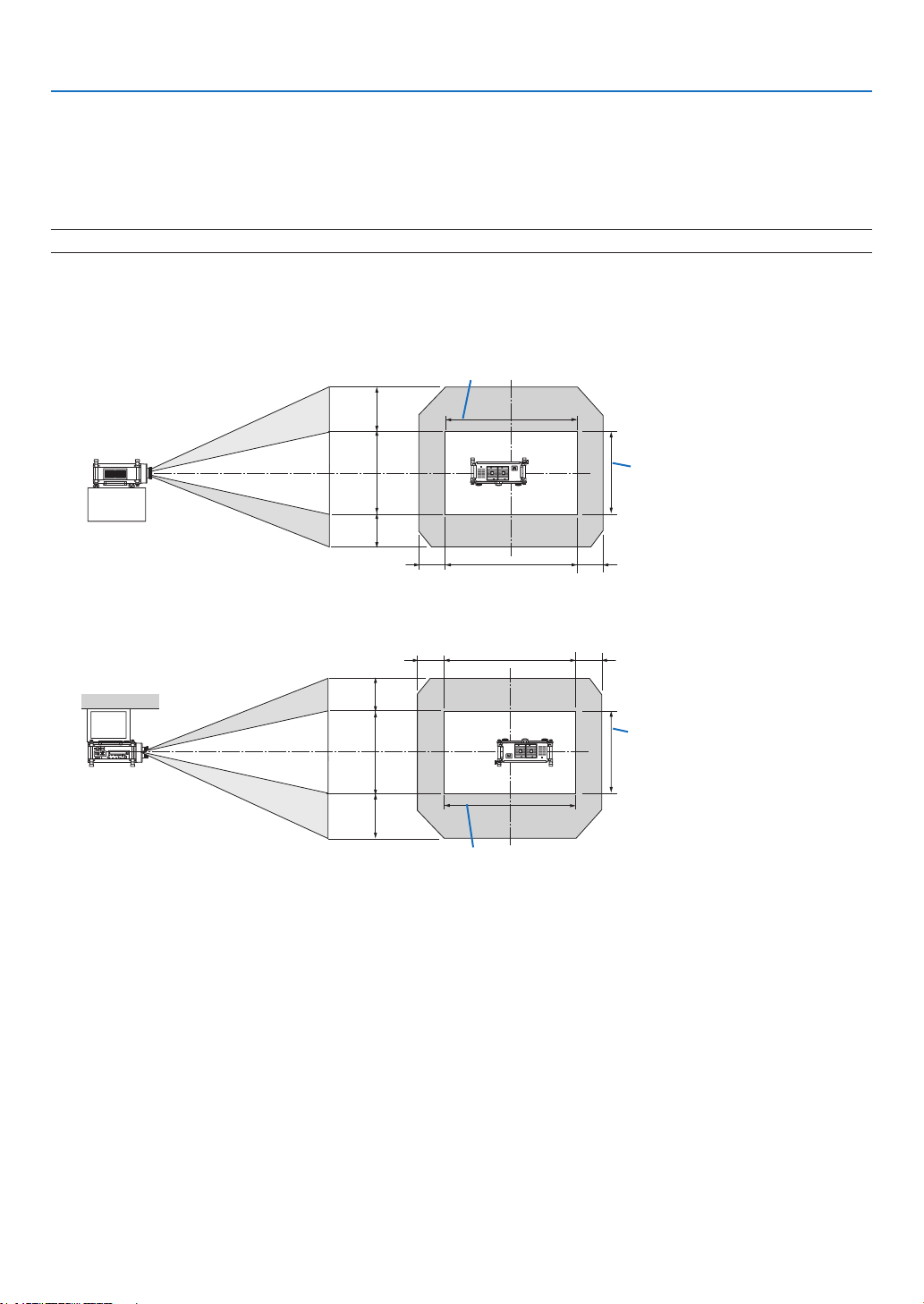
222
9. Appendix
Lens shifting range
ThisprojectorisequippedwithalensshiftfunctionforadjustingthepositionoftheprojectedimagebyusingtheLENS
SHIFT▼▲◀▶buttons.Thelenscanbeshiftedwithintherangeshownbelow.
Description ofsymbols:V indicates vertical (height of the projectedimage), H indicates horizontal(width ofthe
projectedimage).
NOTE:ThelensshiftfunctioncannotbeusedwhentheNP25FLlensisused.
Desk/frontprojection
1V
1H
0.2H 0.2H
0.55V*
0.4V
Height of projected image
Widthofprojectedimage
Ceiling/frontprojector
1V
1H
0.2H 0.2H
0.55V*
0.4V
Height of projected image
Widthofprojectedimage
* Themaximumadjustablerangeforlensshift(V)is0.5VwhentheNP32ZLlensisused.
Ex.:Whenprojectingona150"screen
Accordingtothetablesofscreensizesanddimensionsfor16:10(→page221),H=323.1cm,V=201.9cm.
Adjustmentrangeintheverticaldirection:Theprojectedimagecanbemovedupwards0.55×201.9cm≈111cm,
(whenthelensisatthecenterposition).Foraceiling/frontinstallation,theaboveguresareinverted.
Adjustmentrangeinthehorizontaldirection:Theprojectedimagecanbemovedtotheleft0.2×323.1cm≈64.6cm,
totheright0.2×323.1cm≈64.6cm.
*Figuresdifferbyseveral%becausethecalculationisapproximate.
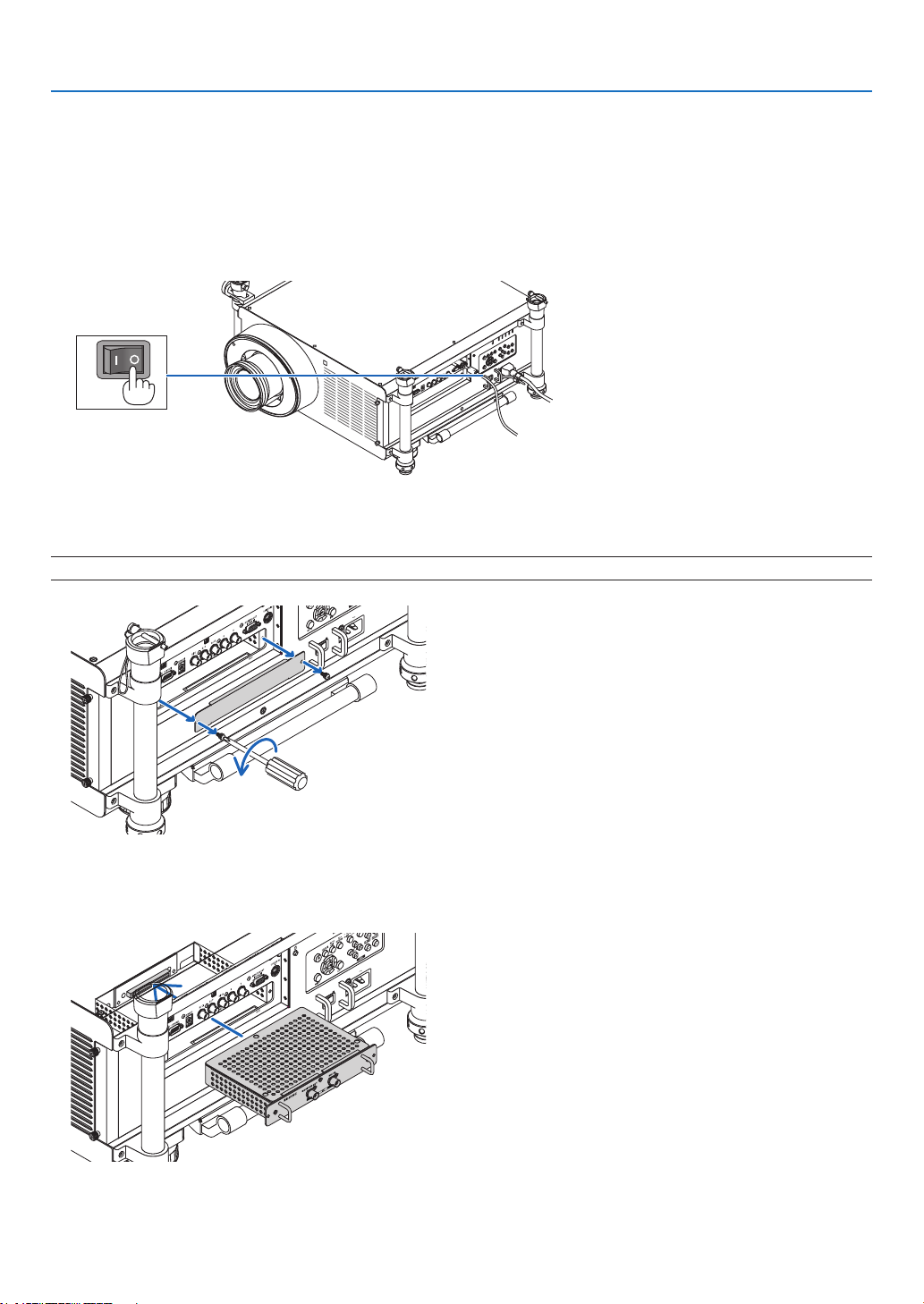
223
9. Appendix
❷ Mounting the Optional Board (sold separately)
CAUTION
Beforemountingorremovingtheoptionalboard,besuretoturnofftheprojector,waitforthefanstostopandturn
offthemainpowerswitch.
Toolneeded:Phillipsscrewdriver(plus-head)
TheSB-01HCboardisusedasanexample.
1. Turnoffthemainpowerswitchoftheprojector.
2. Loosenthetwoscrewsontheslotcoveroftheterminalpanel.
Remove the two screws and the slot cover.
NOTE:Keepthetwoscrewsandtheslotcover.
3. Insert the optional board into the slot.
Makesurethattheboardisinsertedintotheslotinthecorrectorientation.
Incorrectorientationmaycausemiscommunicationbetweentheoptionalboardandprojector.
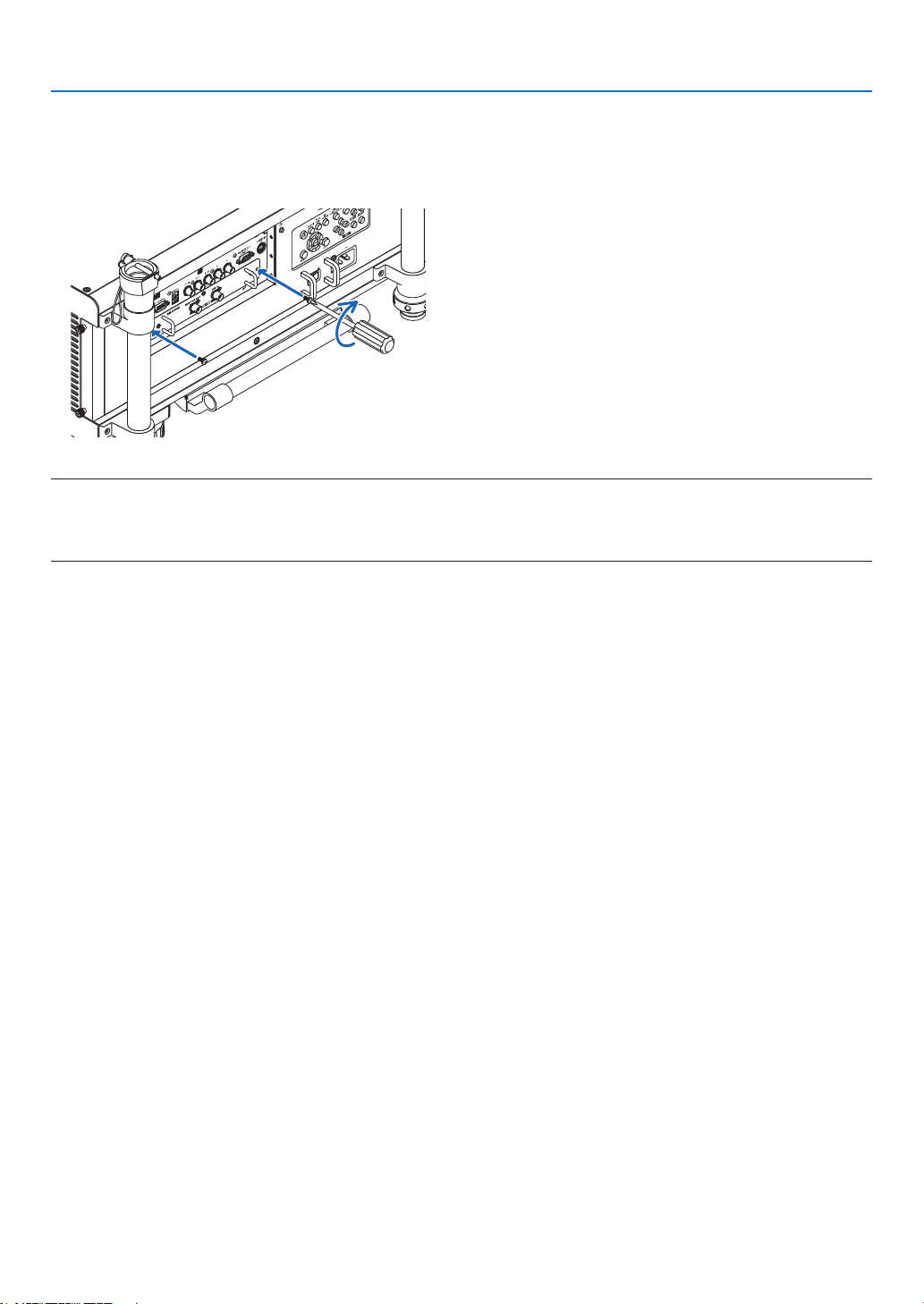
224
9. Appendix
4. Tightenthetwoscrewsonbothsidesoftheslot.
• Besuretotightenthescrews.
Thiswillcompleteinstallationoftheoptionalboard.
Refertotheuser’smanualincludedwiththeboardforsourceselection.
NOTE:
• Mountingtheoptionalboardmaycausethefanstoruninthestandbymodeforthepurposeofcoolingdependingontheoptional
board.Thefanspeedmayalsoincreaseinordertocooltheprojectorproperly.Bothoftheseinstancesareconsiderednormal
and not a malfunction of the projector.

225
9. Appendix
❸ Compatible Input Signal List
Analog RGB
Signal Resolution(dots) AspectRatio RefreshRate(Hz)
VGA 640 × 480 4 : 3 60/72/75/85/iMac
SVGA 800 × 600 4 : 3 56/60/72/75/85/iMac
XGA 1024 × 768 4 : 3 60/70/75/85/iMac
XGA+ 1152 × 864 4 : 3 60/70/75/85
WXGA 1280 × 768 15 : 9 60
1280 × 800 16 : 10 60
1360 × 768 *
1
16 : 9 60
1366 × 768 *
1
16 : 9 60
Quad-VGA 1280 × 960 4 : 3 60/75/85
SXGA 1280 × 1024 5 : 4 60/75/85
SXGA+ 1400 × 1050 4 : 3 60/75
WXGA+ 1440 × 900 16 : 10 60
WXGA++ 1600 × 900 16 : 9 60
UXGA 1600 × 1200 4 : 3 60/65/70/75
WSXGA+ 1680 × 1050 16 : 10 60
WUXGA 1920 × 1200 16 : 10
60(ReducedBlanking)
HD 1280 × 720 16 : 9 60
FullHD 1920 × 1080 16 : 9 60
MAC13" 640 × 480 4 : 3 67
MAC16" 832 × 624 4 : 3 75
MAC19" 1024 × 768 4 : 3 75
MAC21" 1152 × 870 *
2
4 : 3 75
MAC23" 1280 × 1024 5 : 4 65
HDMI
Signal Resolution(dots) AspectRatio RefreshRate(Hz)
VGA 640 × 480 4 : 3 60
SVGA 800 × 600 4 : 3 60
XGA 1024 × 768 4 : 3 60
HD 1280 × 720 16 : 9 60
WXGA 1280 × 768 15 : 9 60
1280 × 800 16 : 10 60
1366 × 768 *
1
16 : 9 60
Quad-VGA 1280 × 960 4 : 3 60
SXGA 1280 × 1024 5 : 4 60
SXGA+ 1400 × 1050 4 : 3 60
WXGA+ 1440 × 900 16 : 10 60
WXGA++ 1600 × 900 16 : 9 60
WSXGA+ 1680 × 1050 16 : 10 60
UXGA 1600 × 1200 4 : 3 60
FullHD 1920 × 1080 16 : 9 60
WUXGA 1920 × 1200 16 : 10
60(ReducedBlanking)
HDTV(1080p) 1920 × 1080 16 : 9 50/60
HDTV(1080i) 1920 × 1080 16 : 9 50/60
HDTV(720p) 1280 × 720 16 : 9 50/60
SDTV(480p) 720 × 480 4:3/16:9 60
SDTV(576p) 720 × 576 4:3/16:9 50
SDTV(480i) 1440 × 480
4:3/16:9 60
SDTV(576i) 1440 × 576
4:3/16:9 50

226
9. Appendix
DisplayPort
Signal Resolution(dots) AspectRatio RefreshRate(Hz)
VGA 640 × 480 4 : 3 60
SVGA 800 × 600 4 : 3 60
XGA 1024 × 768 4 : 3 60
HD 1280 × 720 16 : 9 60
WXGA 1280 × 768 15 : 9 60
1280 × 800 16 : 10 60
1366 × 768 *
1
16 : 9 60
Quad-VGA 1280 × 960 4 : 3 60
SXGA 1280 × 1024 5 : 4 60
SXGA+ 1400 × 1050 4 : 3 60
WXGA+ 1440 × 900 16 : 10 60
WXGA++ 1600 × 900 16 : 9 60
WSXGA+ 1680 × 1050 16 : 10 60
UXGA 1600 × 1200 4 : 3 60
FullHD 1920 × 1080 16 : 9 60
WUXGA 1920 × 1200 16 : 10
60(ReducedBlanking)
HDTV(1080p) 1920 × 1080 16 : 9 50/60
HDTV(720p) 1280 × 720 16 : 9 50/60
SDTV(480p) 720 × 480 4:3/16:9 60
SDTV(576p) 720 × 576 4:3/16:9 50
Component
Signal Resolution(dots) AspectRatio RefreshRate(Hz)
HDTV(1080p) 1920 × 1080 16 : 9 50/60
HDTV(1080i) 1920 × 1080 16 : 9 50/60
HDTV(720p) 1280 × 720 16 : 9 50/60
SDTV(480p) 720 × 480 4:3/16:9 60
SDTV(576p) 720 × 576 4:3/16:9 50
SDTV(480i) 720 × 480 4:3/16:9 60
SDTV(576i) 720 × 576 4:3/16:9 50
CompositeVideo/S-Video
Signal AspectRatio RefreshRate(Hz)
NTSC 4 : 3 60
PAL 4 : 3 50
PAL60 4 : 3 60
SECAM 4 : 3 50
3D(STEREODVI)
Signal Resolution(dots) AspectRatio RefreshRate(Hz)
HDTV(1080p) 1920 × 1080 *
3
16 : 9 120
*1 Theprojectormayfailtodisplaythesesignalscorrectlywhen[AUTO]isselectedfor[ASPECTRATIO]intheon-screenmenu.
Thefactorydefaultis[AUTO]for[ASPECTRATIO].Todisplaythesesignals,select[16:9]for[ASPECTRATIO].
*2 Theprojectormayfailtodisplaythesesignalscorrectlywhen[AUTO]isselectedfor[ASPECTRATIO]intheon-screenmenu.
Thefactorydefaultis[AUTO]for[ASPECTRATIO].Todisplaythesesignals,select[4:3]for[ASPECTRATIO].
*3 SupportingframesequentialformatoverDVIDualLink.
• Signalsexceedingtheprojector’sresolutionarehandledwithscalingtechnology.
• Withscalingtechnology,thesizeofcharactersandruledlinesmaybeunevenandcolorsmaybeblurred.
• Uponshipment,theprojectorissetforsignalswithstandarddisplayresolutionsandfrequencies,butadjustments
mayberequireddependingonthetypeofcomputer.

227
9. Appendix
❹ Specifications
Thissectionprovidestechnicalinformationaboutprojector’sperformance.
Optical
ModelNumber NP-PH1400U
ProjectionSystem DMD™0.96"×3(aspect16:10)
Resolution*
1
1920×1200pixels(WUXGA)
Lens Option(seepage229)
NP25FL
NP26ZL
NP27ZL
NP28ZL
NP29ZL
NP32ZL
PowerLensShift
(NP26ZL,NP27ZL,NP28ZL,NP29ZL,
NP32ZL)
−0.4Vto+0.55V,+/−0.2H
(NP32ZL:+/−0.5V,+/−0.2H)
Lamp 465WAC(360WinECO)
LightOutput*
2
*
3
13500lumens
ECO:75%
ContrastRatio*
3
(fullwhite:fullblack)
2000:1withDYNAMICCONTRASTON
ImageSize(Diagonal) 100-500"(dependingonthelens→page220)
80-200"onNP25FL,70-600"onNP32ZL
ProjectionDistance(Min.-Max.) (dependingonthelens→page219)
*1 Effectivepixelsaremorethan99.99%.
*2 Thisisthelightoutputvalue(lumens)whenthe[PRESET]modeissetto[HIGH-BRIGHT].Ifanyothermodeisselectedasthe
[PRESET]mode,thelightoutputvaluemaydropslightly.
*3 CompliancewithISO21118-2005
Electrical
ModelNumber NP-PH1400U
Inputs
2×RGB/Component(miniD-Sub15P),5×BNC,
1×HDMITypeA(HDMI
®
Connector)HDCPsupported*
4
,
1×DisplayPort(20pinconnecter)HDCPsupported*
4
,
1×S-Video(DIN4P),1×Video(BNC)
1×STEREODVI(DVI-D,DualLink,24P),SYNC(BNC)
1×OptionSlot
Outputs 1×RGB(D-Sub15P),SYNC(BNC)
PCControl 1×PCControlPort(D-Sub9P)
WiredRemote 1×StereominiJack
WiredLANPort 1×RJ-45(10BASE-T/100BASE-TX)
WirelessLANPort(Optional) IEEE802.11b/g/n(optionalWirelessLANUnit[NP02LMSeries]required)
USBPort 1×TypeA
ColorReproduction 10-bitsignalprocessing(1.07billioncolors)(VIEWER,NETWORK:Colors,16.7million
colors)
CompatibleSignals*
5
Analog:VGA/SVGA/XGA/XGA+/WXGA/WXGA+/SXGA/SXGA+/UXGA/WUXGA/480i/480
p/576i/576p/720p/1080i/1080p
HDMI:VGA/SVGA/XGA/WXGA/SXGA/SXGA+/UXGA/WUXGA/480p/576p/720p/1080i/10
80p(Refreshrate:60Hzonly)
HorizontalResolution 540TVlines:NTSC/NTSC4.43/PAL/PAL-M/PAL-N/PAL60
300TVlines:SECAM
ScanRate*
6
Horizontal:15kHzto108kHz(RGB:24kHzorover)
Vertical:48Hzto120Hz(HDMI:50Hzto85Hz)
SyncCompatibility SeparateSync/CompositeSync/SynconGreen
PowerRequirement 200-240VAC,50/60Hz
InputCurrent 6.2A(200-240V)
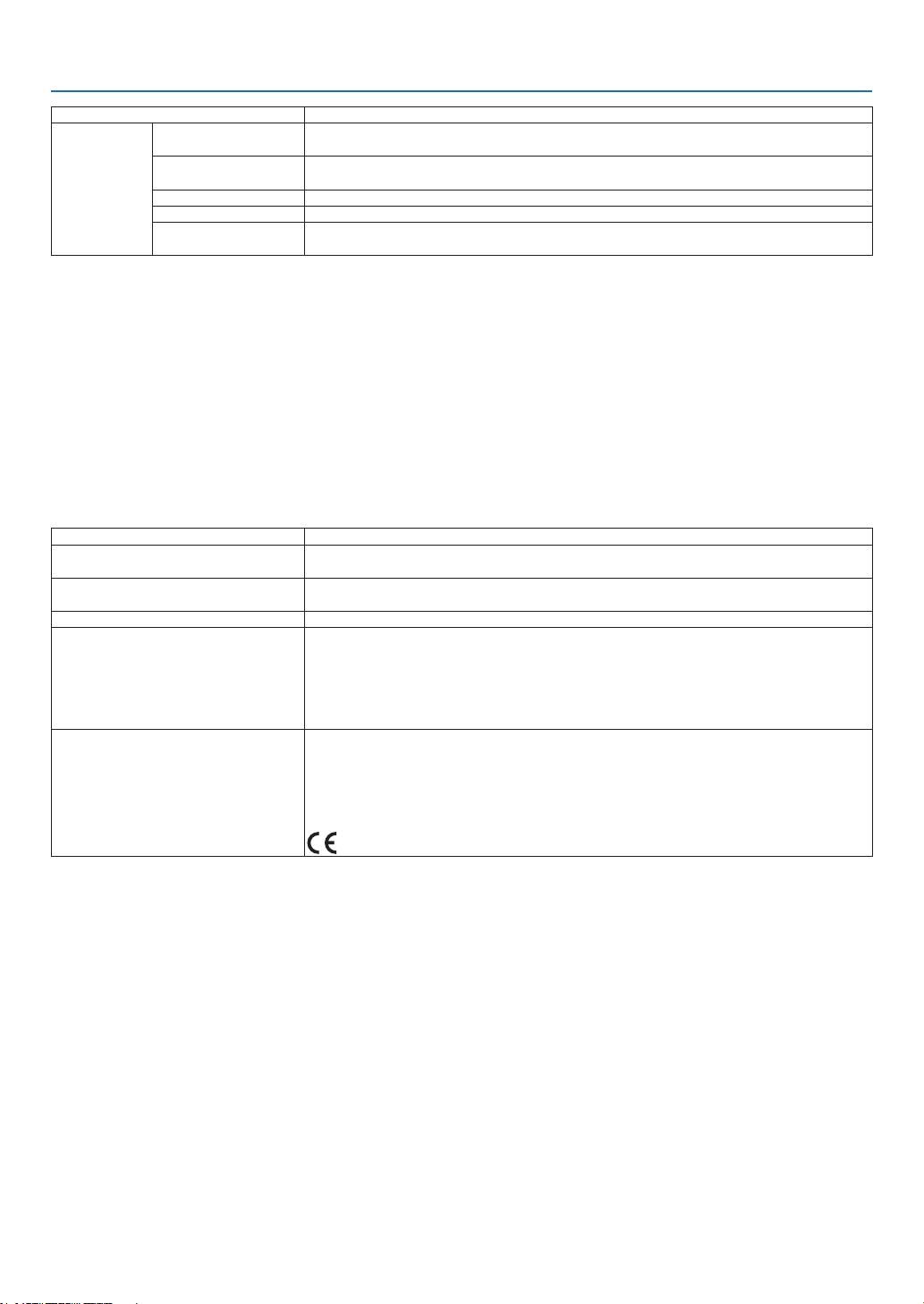
228
9. Appendix
ModelNumber NP-PH1400U
PowerCon-
sumption
(Typicalvalue)
ECOMODEOFF Duallamp:1215W
Singlelamp:705W
ECOMODEON Duallamp:985W
Singlelamp:585W
STANDBY(NORMAL) 90W
NETWORKSTANDBY 60W
STANDBY(POWER-
SAVING)
0.5W
*4 HDMI
®
(DeepColor,LipSync)/DisplayPortwithHDCP
WhatisHDCP/HDCPtechnology?
HDCPisanacronymforHigh-bandwidthDigitalContentProtection.HighbandwidthDigitalContentProtection(HDCP)isasystem
forpreventingillegalcopyingofvideodatasentoveraHigh-DenitionMultimediaInterface(HDMI).
IfyouareunabletoviewmaterialviatheHDMIandDisplayPortinput,thisdoesnotnecessarilymeantheprojectorisnotfunction-
ingproperly.WiththeimplementationofHDCP,theremaybecasesinwhichcertaincontentisprotectedwithHDCPandmight
notbedisplayedduetothedecision/intentionoftheHDCPcommunity(DigitalContentProtection,LLC).
Video:DeepColor;8/10/12-bit,LipSync
Audio:LPCM;upto2ch,samplerate32/44.1/48KHz,samplebit;16/20/24-bit
*5 Animagewithhigherorlowerresolutionthantheprojector’snativeresolution(1920×1200)willbedisplayedwithscalingtech-
nology.
*6 Somescanratesarenotsupporteddependingontheresolutionofitsinputsignal.
Mechanical
ModelNumber NP-PH1400U
Installation
Orientation
Desktop/Front,Desktop/Rear,Ceiling/Front,Ceiling/Rear
Dimensions 22.0"(W)×22.8"(H)×9.3"(D)/558mm(W)×578mm(H)×235mm(D)
(notincludingprotrusions)
Weight 87.1lbs/39.5kg(withoutlens)
Environmental
Considerations
OperationalTemperatures:32°to104°F(0°to40°C)*
7
,
20%to80%humidity(non-condensing)atsealevel
StorageTemperatures:14°to122°F(−10°to60°C),
20%to80%humidity(non-condensing)
Operatingaltitude:0to2600m/8500feet(1600to2600m/5500to8500feet:Set[FAN
MODE]to[HIGHALUTITUDE])
Regulations UL/C-ULApproved(UL60950-1,CSA60950-1)
MeetsDOCCanadaClassArequirements
MeetsFCCClassArequirements
MeetsAS/NZSCISPR.22ClassA
MeetsEMCDirective(EN55022,EN55024,EN61000-3-2,EN61000-3-3)
MeetsLowVoltageDirective(EN60950-1,TUVGSApproved)
*7 95to104°F(35to40ºC)-“Forcedecomode”
Foradditionalinformationvisit:
US:http://www.necdisplay.com/
Europe:http://www.nec-display-solutions.com/
Global:http://www.nec-display.com/global/index.html
Forinformationonouroptionalaccessories,visitourwebsiteorseeourbrochure.
Thespecicationsaresubjecttochangewithoutnotice.
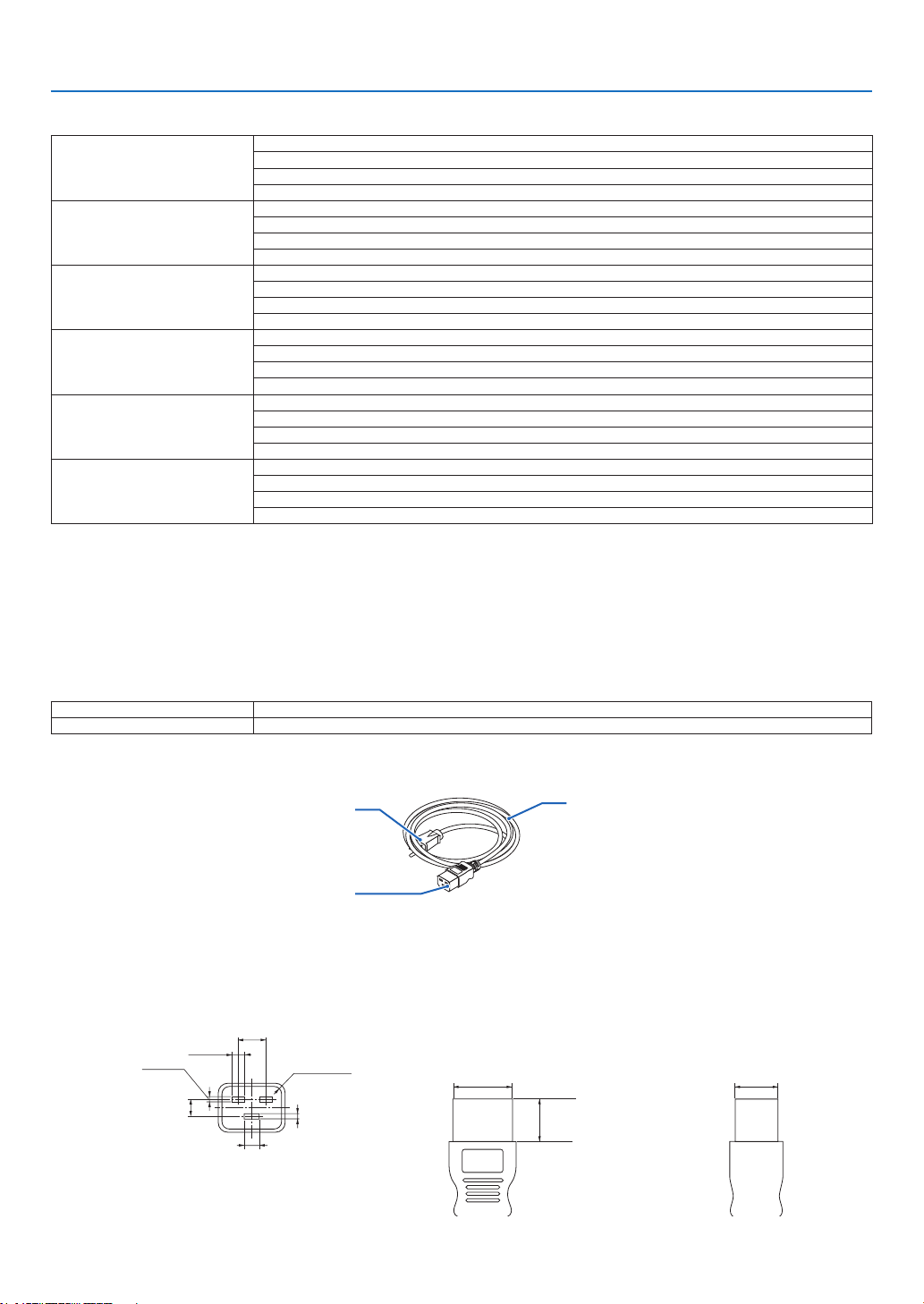
229
9. Appendix
Option lens
NP25FL Manualfocus
throwratio0.67:1,F2.5,f=14.6mm
ImageSize(Diagonal):80–200inches/2.03–5.08m
ProjectionDistance(Min.-Max.):1.1–3.2m
NP26ZL Powerzoomandfocus
throwratio1.39-1.87:1,F2.5,f=28.9-38.9mm
ImageSize(Diagonal):100–500inches/2.54–12.7m
ProjectionDistance(Min.-Max.):2.8–24m
NP27ZL Powerzoomandfocus
throwratio1.87-2.56:1,F2.5,f=39-53.4mm
ImageSize(Diagonal):100–500inches/2.54–12.7m
ProjectionDistance(Min.-Max.):4.0–24.0m
NP28ZL Powerzoomandfocus
throwratio2.56-4.16:1,F2.5,f=52.4-85.3mm
ImageSize(Diagonal):100–500inches/2.54–12.7m
ProjectionDistance(Min.-Max.):9.0–45.0m
NP29ZL Powerzoomandfocus
throwratio4.16-6.96:1,F2.5,f=84.9-142.0mm
ImageSize(Diagonal):100–500inches/2.54–12.7m
ProjectionDistance(Min.-Max.):12.0–80.0m
NP32ZL Powerzoomandfocus
throwratio0.9-1.1:1,F2.5-2.7,f=19.4-23.3mm
ImageSize(Diagonal):70–600inches/1.78–15.2m
ProjectionDistance(Min.-Max.):1.4–14.4m
• Thesespecicationsandtheproduct’sdesignaresubjecttochangewithoutnotice.
Power Cord
Ifthesuppliedpowercordcannotbeusedorinyourareathevoltageconditionisdifferentfromthesuppliedpower
cord,usepowercordsthataresuitablefortheelectricalspecications,typesofpowercordsandregulationsofthe
countryofinstallation,asshowninthefollowingtableasshownbelow.Formoreinformation,contactyourdealer.
Power Cord Electrical Specifications
Powersupply Powercordelectricalspecs
AC200-240V 250V16Aorhigher
Typeofpowercord
plug
connector
cord
Plug and cord
Yourplugmustcomplywithyourcountry’ssafetyrequirementsandyouroutlettype.
Connector
Dimensionsoftheconnectorofthepowercordareshownbelow
7
+0.5
−0
13±0.2
20min
2.5
+0.5
−0
8±0.2
2.5
+0.5
−0
R3.5min
6.0
+0.5
−0
28
+0
−0.9
20
+0
−0.7
Unit:mm
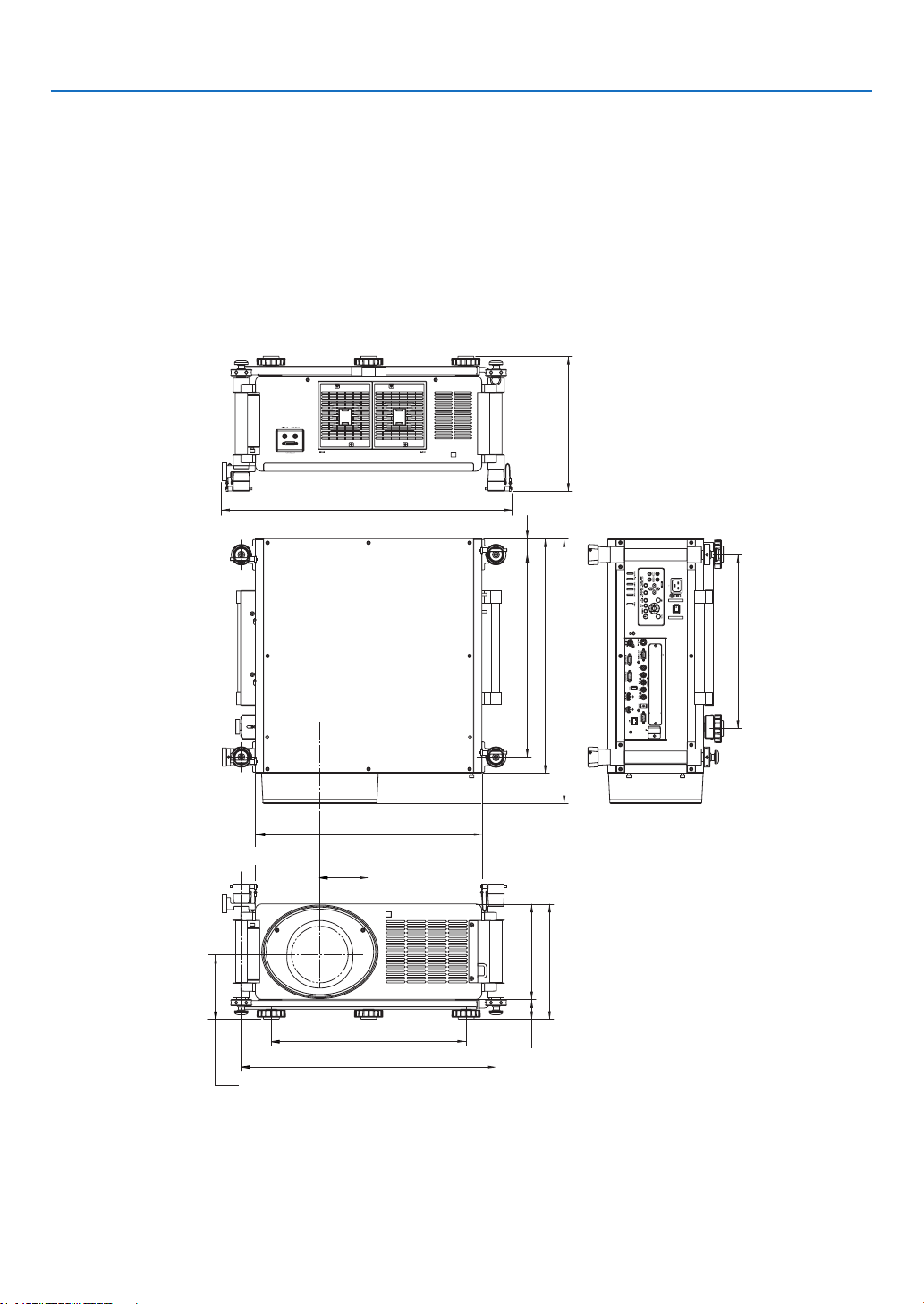
230
9. Appendix
578 (22.8)
653 (25.7)
39.5
(1.6)
499 (19.6)
430 (16.9)
235 (9.3)
283.7 (11.2)
628 (24.7)
480 (18.9)
558 (22)
700 (27.6)
119.9
(4.7)
155.3 (6.1)
333 (13.1)
48.7 (1.9)
❺ Cabinet Dimensions
Lens center
Lens center
Unit:mm(inch)

231
9. Appendix
❻ Pin Assignments of D-Sub COMPUTER Input Connector
Mini D-Sub 15 Pin Connector
SignalLevel
Videosignal:0.7Vp-p(Analog)
Syncsignal:TTLlevel
51423
10
11 12 13 14 15
6978
Pin No. RGB Signal (Analog) YCbCr Signal
1 Red Cr
2
GreenorSynconGreen Y
3 Blue Cb
4 Ground
5 Ground
6
RedGround CrGround
7 GreenGround YGround
8 BlueGround CbGround
9 NoConnection
10 SyncSignalGround
11 NoConnection
12 Bi-directionalDATA(SDA)
13 HorizontalSyncorComposite
Sync
14
VerticalSync
15 DataClock

232
9. Appendix
❼ Troubleshooting
Thissectionhelpsyouresolveproblemsyoumayencounterwhilesettinguporusingtheprojector.
Indicator Messages
POWER Indicator
Indicatordisplay Projectorstatus Procedure
Off Powerisoff. –
Flashing
Blue(shortashes) Preparingtoturnpoweron Waitawhile.
Blue(longashes) Offtimer(enabled)
Programtimer(offtimeenabled)
–
Orange(shortashes) Projectorcooling Waitawhile.
Orange(longashes) Programtimer(ontimeenabled)
Lit Blue Poweron –
Orange
Standbymode(NORMALorNETWORK
STANDBY)
–
Red Standbymode(POWER-SAVING) –
STATUS Indicator
Indicatordisplay Projectorstatus Procedure
Off
Noproblem,orstandby
mode(POWER-SAVING
orNETWORKSTANDBY)
–
Flashing
Red(cyclesof1) Coverproblem Thelampcoverisnotproperlymounted.Mountitproperly.(→Page
191)
Red(cyclesof4) Fanproblem Thecoolingfanhasstoppedturning.ContactanNECprojectorcus-
tomersupportcenterforrepairs.
Flashing Orange Networkconict Itisnotpossibletoconnecttheprojector’sbuilt-inLANandwireless
LANsimultaneouslytothesamenetwork.Toconnecttheprojector’s
built-inLANandwirelessLANsimultaneously,connectthemtodiffer-
entnetworks.
Lit Green Standbymode(NOR-
MAL)
–
Orange
Buttonhasbeenpressed
whileprojectorisinkey
lockmode
Theprojector’skeysarelocked.Thesettingmustbecanceledtooper-
atetheprojector.(→Page131)
Projector’sIDnumber
andremotecontrol’sID
numberdonotmatch
CheckthecontrolIDs.(→Pages131and132)
LAMP1/LAMP2Indicator
Indicatordisplay Projectorstatus Procedure
Off
Thelampisturnedoff. –
Flashing Green
Preparingtorelightlampafter
lightinghasfailed
Waitawhile.
Red Lampreplacementgraceperiod Thelamphasreachedtheendofitsservicelifeandisnowin
thereplacementgraceperiod(100hours).Replacethelamp
assoonaspossible.(→page189)
Red(cyclesof6) Lampdoesnotlight Thelamphasnotturnedon.Waitatleast1minute,thenturn
thepowerbackon.Ifthelampstilldoesnotlight,contactan
NECprojectorcustomersupportcenter.
Lit Red Lampusagetimeexceeded Thelamphasexceededitsusagetime.Theprojector’spower
cannotbeturnedonuntilthelampisreplaced.(→page189)
Green
Lamplit –

233
9. Appendix
Temp. Indicator
Indicatordisplay Projectorstatus Procedure
Off
Noproblem
Flashing Red Temperatureproblem Thetemperatureprotectorhasbeenactivated.Iftheroom
temperatureishigh,movetheprojectortoacoolplace.Ifthe
TEMP.indicatorstillbeashingwhentheprojectorisusedat
operatingtemperatures,contactanNECprojectorcustomer
supportcenter.
Orange Warmingup Theusageenvironmenttemperatureislowerthanthe
projector’soperatingtemperature(0°C).Inthatcase,raise
theusageenvironmenttemperaturetoa0°Corhigherand
turnontheprojector.Iftheprojectoristurnedonataround
0°C,itmaytake5minutestowarmuptheprojector.During
thiswarm-upperiodtheTEMP.indicatorwillash.Whenthe
warm-upiscompleted,theTEMP.indicatorwillgooff.
SHUTTER Indicator
Indicatordisplay Projectorstatus Procedure
Off Light –
Flashing Green
Lenscalibrationisinprocess. –
On Green
Lightshuttered –
If the temperature protector is activated
Ifthe projector’s internaltemperature rises abnormally, the lamp turnsoff and the temperatureindicator ashes
(repeatedlyincyclesof2).
Itmayhappenthattheprojector’stemperatureprotectorissimultaneouslyactivatedandtheprojector’spowerturns
off.
Ifthishappens,dothefollowing:
- Unplugthepowercordfromthepoweroutlet.
- Ifusinginaplacewherethesurroundingtemperatureishigh,movetheprojectortoadifferent,coolplace.
- Ifthereisdustintheventilationholes,clean.(→ pages 184and188)
- Waitassuchabout1hourfortheprojector’sinternaltemperaturetolower.

234
9. Appendix
Common Problems & Solutions
(→“Power/Status/LampIndicator”onpage232.)
Problem CheckTheseItems
Does not turn on or
shut down
• Checkthatthepowercordispluggedinandthatthepowerbuttonontheprojectorcabinetortheremotecontrol
is on� (→ pages 15, 18, 19)
• Ensurethatthelampcoverisinstalledcorrectly.(→ page 191)
• Checktoseeiftheprojectorhasoverheated.Ifthereisinsufcientventilationaroundtheprojectororiftheroom
where you are presenting is particularly warm, move the projector to a cooler location�
• Checktoseeifyoucontinuetousetheprojectorforanother100hoursafterthelamphasreachedtheendofits
life� If so, replace the lamp� After replacing the lamp, reset the lamp hours used� (→ page 142)
• Thelampmayfailtolight.Waitafullminuteandthenturnonthepoweragain.
• Set[FANMODE]to[HIGHALTITUDE]whenusingtheprojectorataltitudesapproximately5500feet/1600meters
or higher� Using the projector at altitudes approximately 5500 feet/1600 meters or higher without setting to [HIGH
ALTITUDE] can cause the projector to overheat and the projector could shut down� If this happens, wait a couple
minutes and turn on the projector� (→ page 133)
If you turn on the projector immediately after the lamp is turned off, the fans run without displaying an image for
some time and then the projector will display the image� Wait for a moment�
Will turn off • Ensurethatthe[OFFTIMER],[AUTOPOWEROFF]or[PROGRAMTIMER]isoff.(→ page 125, 136, 163)
No picture
• Checkiftheappropriateinputisselected.(→ page 22) If there is still no picture, press the SOURCE button or one
of the input buttons again�
• Ensureyourcablesareconnectedproperly.
• Usemenustoadjustthebrightnessandcontrast.(→ page 115)
• Ensurethatthelenscoverisopen.(→ page 18)
• Resetthesettingsoradjustmentstofactorypresetlevelsusingthe[RESET]intheMenu.(→ page 142)
• EnteryourregisteredkeywordiftheSecurityfunctionisenabled.(→ page 46)
• IftheHDMIinputortheDisplayPortsignalcannotbedisplayed,trythefollowing.
- Reinstall your driver for the graphics card built in your computer, or use the updated driver�
For reinstalling or updating your driver, refer to the user guide accompanied with your computer or graphics
card, or contact the support center for your computer manufacturer�
Install the updated driver or OS on your own responsibility�
We are not liable for any trouble and failure caused by this installation�
• BesuretoconnecttheprojectorandnotebookPCwhiletheprojectorisinstandbymodeandbeforeturningon
the power to the notebook PC�
In most cases the output signal from the notebook PC is not turned on unless connected to the projector before
being powered up�
* If the screen goes blank while using your remote control, it may be the result of the computer’s screen-saver
or power management software�
• Seealsothepage236�
Picture suddenly
becomes dark
• CheckiftheprojectorisintheForcedECOmodebecauseoftoohighambienttemperature.Ifthisisthecase,
lower the internal temperature of the projector by selecting [HIGH] for [FAN MODE]� (→ page 133)
Color tone or hue is
unusual
• Checkifanappropriatecolorisselectedin[WALLCOLOR].Ifso,selectanappropriateoption.(→ page 123)
• Adjust[HUE]in[PICTURE].(→ page 115)
Image isn’t square to
the screen
• Repositiontheprojectortoimproveitsangletothescreen.(→ page 24)
• UsetheKeystonecorrectionfunctiontocorrectthetrapezoiddistortion.(→ page 31)
Picture is blurred
• Adjustthefocus.(→ page 29)
• Repositiontheprojectortoimproveitsangletothescreen.(→ page 24)
• Ensure that the distance between the projector and screen is within the adjustment range of the lens.
(→ page 219)
• Hasthelensbeenshiftedbyanamountexceedingtheguaranteedrange?(→ page 222)
• Isthelensinserteduntilitcomestoacompletestop?(→ page 167)
• Condensationmayformonthelensiftheprojectoriscold,broughtintoawarmplaceandisthenturnedon.
Should this happen, let the projector stand until there is no condensation on the lens�
Flicker appears on
screen
• Set[FANMODE]tootherthan[HIGHALTITUDE]modewhenusingtheprojectorataltitudesapproximately5500
feet/1600 meters or lower� Using the projector at altitudes less than approximately 5500 feet/1600 meters and
setting to [HIGH ALTITUDE] can cause the lamp to overcool, causing the image to flicker� Switch [FAN MODE] to
[AUTO]� (→ page 133)

235
9. Appendix
Image is scrolling
vertically, horizontally
or both
• Checkthecomputer’sresolutionandfrequency.Makesurethattheresolutionyouaretryingtodisplayissupported
by the projector� (→ page 225)
• AdjustthecomputerimagemanuallywiththeHorizontal/Verticalinthe[IMAGEOPTIONS].(→ page 117)
Remote control does
not work
• Installnewbatteries.(→ page 10)
• Makesuretherearenoobstaclesbetweenyouandtheprojector.
• Standwithin22feet(7m)oftheprojector.(→ page 10)
• IftheremotecontrolcableplugisinsertedintotheREMOTEjack,theremotecontroldoesnotfunctionwirelessly.
(→ page 11)
• Makesurethattheremotecontrol’sIDcorrespondswiththeprojector’sID.(→ page 131, 132)
Indicator is lit or
blinking
• SeethePOWER/STATUS/LAMPIndicator.(→ page 232)
Cross color in RGB
mode
• PresstheAUTOADJ.buttonontheprojectorcabinetortheremotecontrol.(→ page 33)
• Adjustthecomputerimagemanuallywith[CLOCK]/[PHASE]in[IMAGEOPTIONS]inthemenu.(→ page 116)
No on-screen display
• Checkiftheon-screenmuteisturnedon.Toturnofftheon-screenmute,presstheON-SCREENbuttononthe
remote control or hold down the MENU button on the projector cabinet for at least 10 seconds� (→ page 37)
Formoreinformationcontactyourdealer.

236
9. Appendix
If there is no picture, or the picture is not displayed correctly.
• PoweronprocessfortheprojectorandthePC.
BesuretoconnecttheprojectorandnotebookPCwhiletheprojectorisinstandbymodeandbeforeturningon
thepowertothenotebookPC.
InmostcasestheoutputsignalfromthenotebookPCisnotturnedonunlessconnectedtotheprojectorbefore
beingpoweredup.
NOTE:Youcancheckthehorizontalfrequencyofthecurrentsignalintheprojector’smenuunderInformation.Ifitreads“0kHz”,
this means there is no signal being output from the computer. (→ page 139 or go to next step)
• Enablingthecomputer’sexternaldisplay.
DisplayinganimageonthenotebookPC’sscreendoesnotnecessarilymeanitoutputsasignaltotheprojector.
WhenusingaPCcompatiblelaptop,acombinationoffunctionkeyswillenable/disabletheexternaldisplay.Usu-
ally,thecombinationofthe“Fn”keyalongwithoneofthe12functionkeysgetstheexternaldisplaytocomeon
oroff.Forexample,NEClaptopsuseFn+F3,whileDelllaptopsuseFn+F8keycombinationstotogglethrough
externaldisplayselections.
• Non-standardsignaloutputfromthecomputer
IftheoutputsignalfromanotebookPCisnotanindustrystandard,theprojectedimagemaynotbedisplayed
correctly.Shouldthishappen,deactivatethenotebookPC’sLCDscreenwhentheprojectordisplayisinuse.Each
notebookPChasadifferentwayofdeactivate/reactivatethelocalLCDscreensasdescribedinthepreviousstep.
Refertoyourcomputer’sdocumentationfordetailedinformation.
• ImagedisplayedisincorrectwhenusingaMacintosh
WhenusingaMacintoshwiththeprojector,settheDIPswitchoftheMacadapter(notsuppliedwiththeprojector)
accordingtoyourresolution.Aftersetting,restartyourMacintoshforthechangestotakeaffect.
ForsettingdisplaymodesotherthanthosesupportedbyyourMacintoshandtheprojector,changingtheDIPswitch
onaMacadaptermaybounceanimageslightlyormaydisplaynothing.Shouldthishappen,settheDIPswitch
tothe13"xedmodeandthenrestartyourMacintosh.Afterthat,restoretheDIPswitchestoadisplayablemode
andthenrestarttheMacintoshagain.
NOTE:AVideoAdaptercablemanufacturedbyAppleComputerisneededforaMacBookwhichdoesnothaveaminiD-Sub
15-pinconnector.
• MirroringonaMacBook
* WhenusingtheprojectorwithaMacintoshMacBook,outputmaynotbesetto1024×768unless“mirroring”is
offonyourMacBook.Refertoowner’smanualsuppliedwithyourMacintoshcomputerformirroring.
• FoldersoriconsarehiddenontheMacintoshscreen
Foldersoriconsmaynotbeseenonthescreen.Shouldthishappen,select[View]→[Arrange]fromtheApple
menuandarrangeicons.
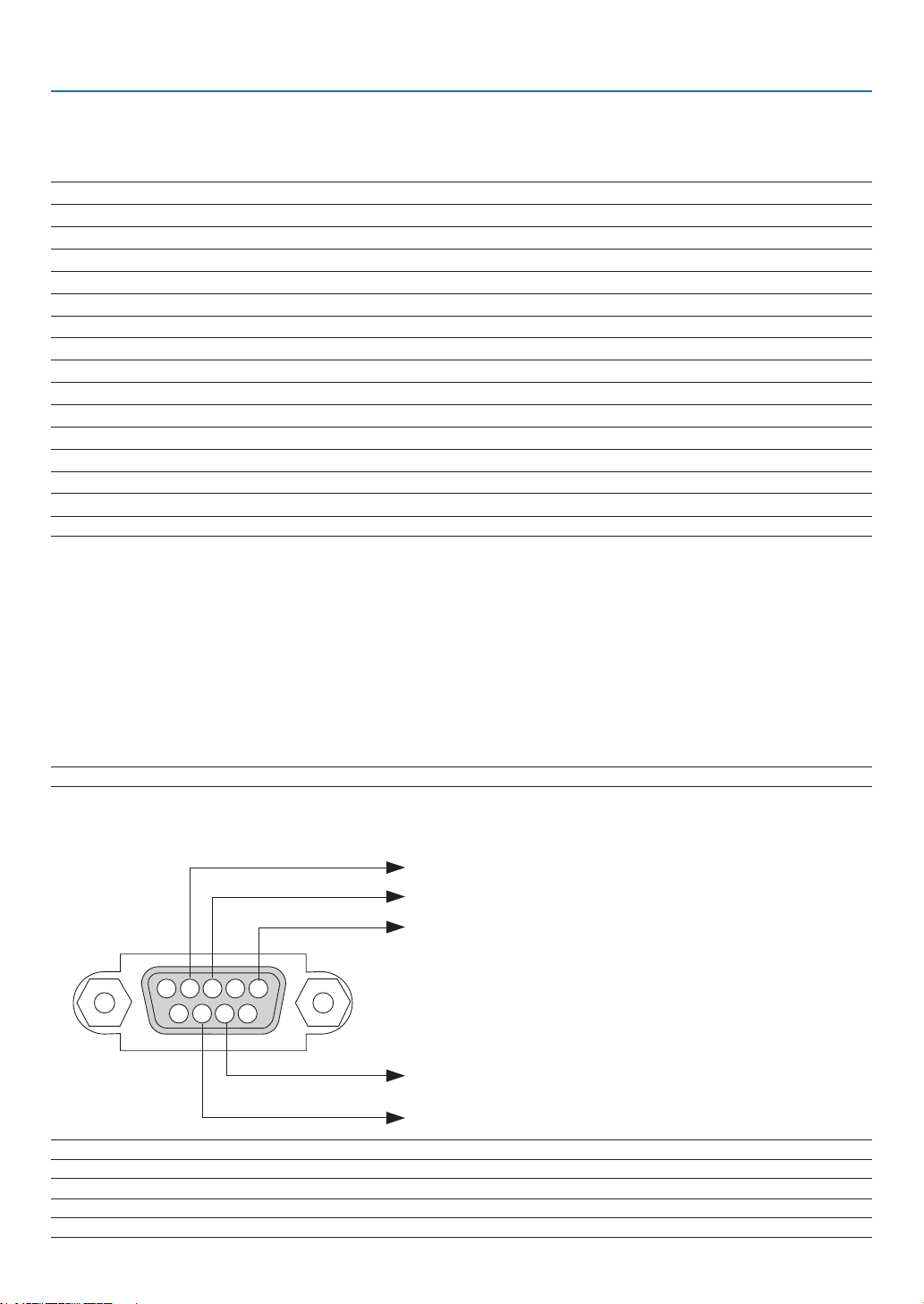
237
9. Appendix
❽ PC Control Codes and Cable Connection
PC Control Codes
Function Code Data
POWER ON 02H 00H 00H 00H 00H 02H
POWER OFF 02H 01H 00H 00H 00H 03H
INPUT SELECT COMPUTER 1 02H 03H 00H 00H 02H 01H 01H 09H
INPUT SELECT COMPUTER 2 02H 03H 00H 00H 02H 01H 02H 0AH
INPUT SELECT COMPUTER 3 02H 03H 00H 00H 02H 01H 03H 0BH
INPUT SELECT HDMI 02H 03H 00H 00H 02H 01H 1AH 22H
INPUT SELECT DisplayPort 02H 03H 00H 00H 02H 01H 1BH 23H
INPUT SELECT VIDEO 02H 03H 00H 00H 02H 01H 06H 0EH
INPUT SELECT S-VIDEO 02H 03H 00H 00H 02H 01H 0BH 13H
INPUT SELECT VIEWER 02H 03H 00H 00H 02H 01H 1FH 27H
INPUT SELECT NETWORK 02H 03H 00H 00H 02H 01H 20H 28H
PICTURE MUTE ON 02H 10H 00H 00H 00H 12H
PICTURE MUTE OFF 02H 11H 00H 00H 00H 13H
NOTE:ContactyourlocaldealerforafulllistofthePCControlCodesifneeded.
Cable Connection
CommunicationProtocol
Baud rate �����������������������������������������38400 bps
Data length
��������������������������������������8 bits
Parity
�����������������������������������������������No parity
Stop bit
��������������������������������������������One bit
X on/off
��������������������������������������������None
Communications procedure
�������������Full duplex
NOTE: Depending on the equipment, a lower baud rate may be recommended for long cable runs.
PC Control Connector (D-SUB 9P)
NOTE 1: Pins 1, 4, 6 and 9 are no used.
NOTE2:Jumper“RequesttoSend”and“CleartoSend”togetheronbothendsofthecabletosimplifycableconnection.
NOTE3:Forlongcablerunsitisrecommendedtosetcommunicationspeedwithinprojectormenusto9600bps.
15243
67 98
ToGNDofPC
To RxD of PC
To TxD of PC
ToRTSofPC
ToCTSofPC

238
9. Appendix
No image is displayed from your PC or video equipment to the
projector�
Still no image even though you connect the projector to the PC
first, then start the PC�
Enabling your notebook PC’s signal output to the projector�
• Acombinationoffunctionkeyswillenable/disabletheexter-
naldisplay.Usually,thecombinationofthe“Fn”keyalong
with one of the 12 function keys turns the external display
on or off.
No image (blue or black background, no display)�
Still no image even though you press the AUTO ADJUST
button�
Still no image even though you carry out [RESET] in the
projector’s menu�
Signal cable’s plug is fully inserted into the input connector
A message appears on the screen�
( _____________________________________________ )
The source connected to the projector is active and available�
Still no image even though you adjust the brightness and/or
the contrast�
Input source’s resolution and frequency are supported by the
projector�
❾ Troubleshooting Check List
Beforecontactingyourdealerorservicepersonnel,checkthefollowinglisttobesurerepairsareneededalsoby
referringtothe“Troubleshooting”sectioninyouruser’smanual.Thischecklistbelowwillhelpussolveyourproblem
moreefciently.
*Printthispageandthenextpageforyourcheck.
Frequency of occurrence □ always □sometimes(Howoften?_____________________) □ other (__________________)
Power
No power (POWER indicator does not light blue) See also “Status
Indicator (STATUS)”�
Power cord’s plug is fully inserted into the wall outlet�
Main power switch is pressed to the ON position�
Lamp cover is installed correctly�
Lamp Hours Used (lamp operation hours) was cleared after
lamp replacement�
No power even though you press and hold the POWER button
for 1 second�
Shut down during operation�
Power cord’s plug is fully inserted into the wall outlet�
Lamp cover is installed correctly�
[AUTO POWER OFF] is turned off (only models with the [AUTO
POWER OFF] function)�
[OFF TIMER] is turned off (only models with the [OFF TIMER]
function)�
Video and Audio
Image is too dark�
Remains unchanged even though you adjust the brightness
and/or the contrast�
Image is distorted�
Image appears to be trapezoidal (unchanged even though you
carry out the [KEYSTONE] adjustment)�
Parts of the image are lost�
Still unchanged even though you press the AUTO ADJUST
button�
Still unchanged even though you carry out [RESET] in the
projector’s menu�
Image is shifted in the vertical or horizontal direction�
Horizontal and vertical positions are correctly adjusted on a
computer signal�
Input source’s resolution and frequency are supported by the
projector�
Some pixels are lost�
Image is flickering�
Still unchanged even though you press the AUTO ADJUST
button�
Still unchanged even though you carry out [RESET] in the
projector’s menu�
Image shows flickering or color drift on a computer signal�
Still unchanged even though you change [FAN MODE] from
[HIGH ALTITUDE] to [AUTO]�
Image appears blurry or out of focus�
Still unchanged even though you checked the signal’s resolution
on PC and changed it to projector’s native resolution�
Still unchanged even though you adjusted the focus�
Other
Remote control does not work�
No obstacles between the sensor of the projector and the
remote control�
Projector is placed near a fluorescent light that can disturb the
infrared remote controls�
Batteries are new and are not reversed in installation�
Buttons on the projector cabinet do not work (only models with the
[CONTROL PANEL LOCK] function)
[CONTROL PANEL LOCK] is not turned on or is disabled in
the menu�
Still unchanged even though you press and hold the EXIT button
for a minimum of 10 seconds�
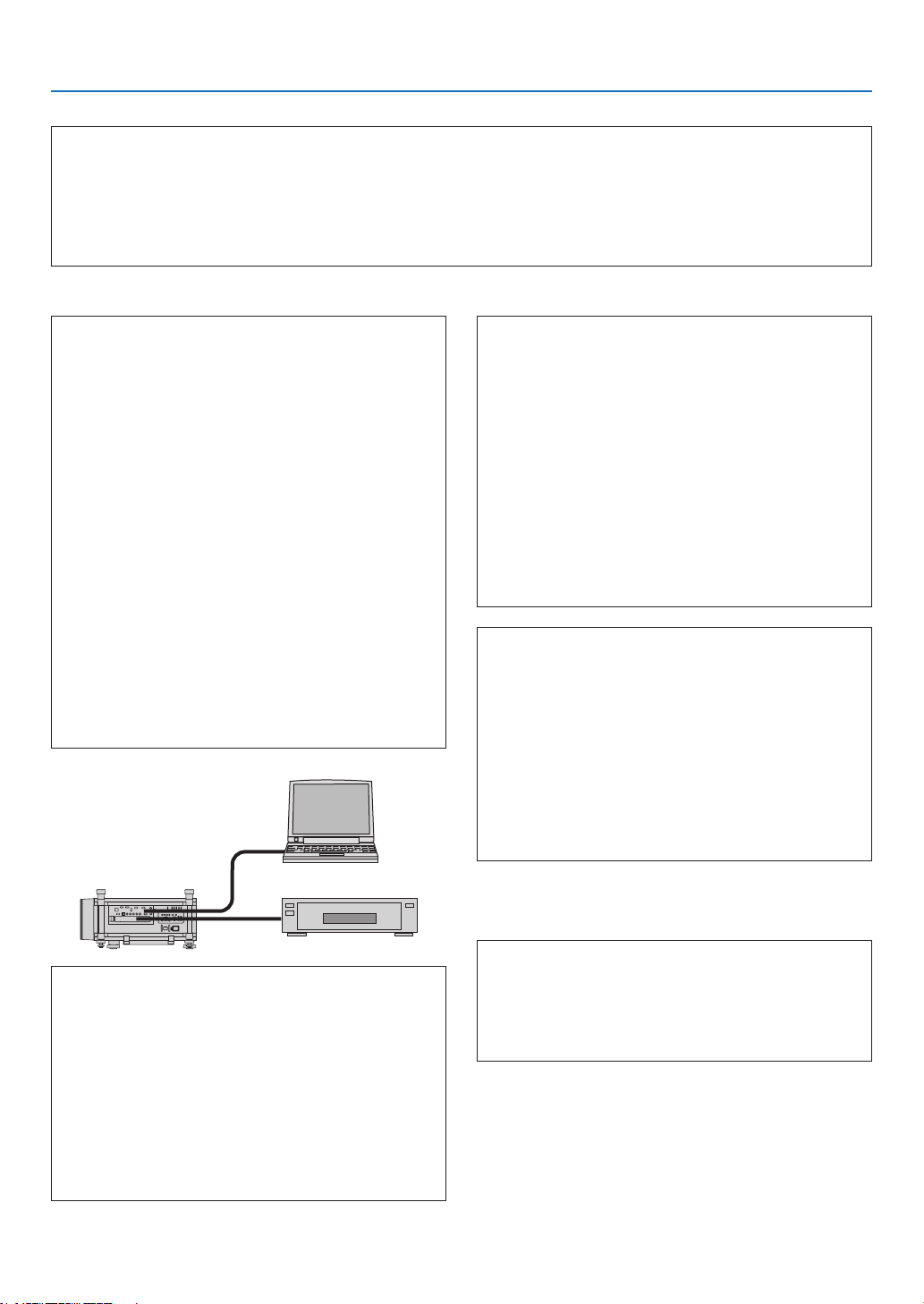
239
9. Appendix
In the space below please describe your problem in detail.
Information on application and environment where your projector is used
Projector
Model number:
Serial No�:
Date of purchase:
Lamp operating time (hours):
Eco Mode: □ OFF □ ON
Information on input signal:
Horizontal synch frequency [ ] kHz
Vertical synch frequency [ ] Hz
Synch polarity H □ (+) □ (−)
V □ (+) □ (−)
Synch type □ Separate □ Composite
□ Sync on Green
STATUS Indicator:
Steady light □ Orange □ Green
Flashing light [ ] cycles
Remote control model number:
Signal cable
NECstandardorothermanufacturer’scable?
Model number: Length: inch/m
Distribution amplifier
Model number:
Switcher
Model number:
Adapter
Model number:
Projector
PC
DVDplayer
Installation environment
Screen size: inch
Screen type: □ White matte □ Beads □ Polarization
□ Wide angle □ High contrast
Throw distance: feet/inch/m
Orientation: □ Ceiling mount □ Desktop
Power outlet connection:
□
Connected directly to wall outlet
□ Connected to power cord extender or other (the
number of connected equipment______________)
□
Connected to a power cord reel or other (the number
of connected equipment______________)
Computer
Manufacturer:
Model number:
Notebook PC □ / Desktop □
Native resolution:
Refresh rate:
Video adapter:
Other:
Videoequipment
VCR, DVD player, Video camera, Video game or other
Manufacturer:
Model number:

240
9. Appendix
❿ REGISTER YOUR PROJECTOR! (for residents in the United
States, Canada, and Mexico)
Pleasetaketimetoregisteryournewprojector.ThiswillactivateyourlimitedpartsandlaborwarrantyandInstaCare
serviceprogram.
Visitourwebsiteatwww.necdisplay.com,clickonsupportcenter/registerproductandsubmityourcompletedform
online.
Uponreceipt,wewillsendaconrmationletterwithallthedetailsyouwillneedtotakeadvantageoffast,reliable
warrantyandserviceprogramsfromtheindustryleader,NECDisplaySolutionsofAmerica,Inc.

©NECDisplaySolutions,Ltd.2013 7N951921