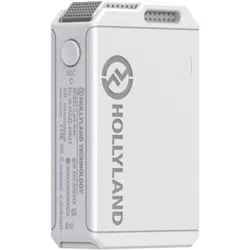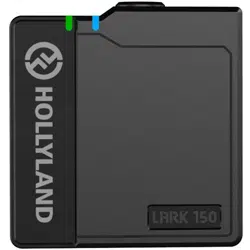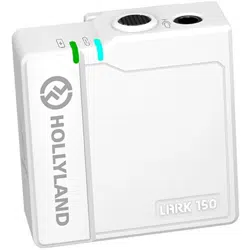

LARK 150
User Manual
V1.0.0


1
Thank you for purchasing Hollyland LARK 150 wireless microphone. Please read this
instruction carefully before using the product. Wish you have a pleasant experience.
5ms Latency with up to 100m Range
2 TX & 1 RX Combo
2.4GHz Digital Wireless Transmission with Clear Sound Under Any Conditions
Mini Size with Lightweight
Professional-Grade Sound Quality
Built-In Lithium Batteries, with an Ultra Long Run Time
21-Stage Digital Gain Adjustment
Contact Charging Case
In-Built Mic and LavMic Switching Automatically
Multiple Systems Using in One Location
FOREWORD
KEY FEATURES
2
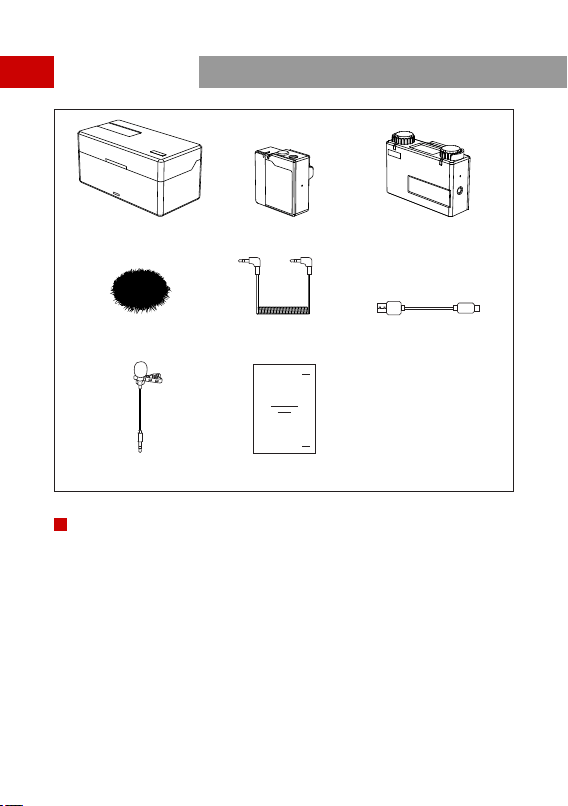
Charging Case
x1
①
Transmitter
x2
②
Receiver
x1
③
x2
④
3.5mm TRS Cable
⑤
Furry Windshield
x1
PACKING LIST
PACKING LIST OF TWO TRANSMITTERS AND ONE RECEIVER
⑤
① ② ③
④ ⑥
⑦ ⑧
USB Type-A to Type-C Cable
x1
⑥
x2
⑦
User Guide
⑧
Lavalier Microphone
x1
* The exact quantity may vary on products configuration. Please take the actual quantity as standard.
3
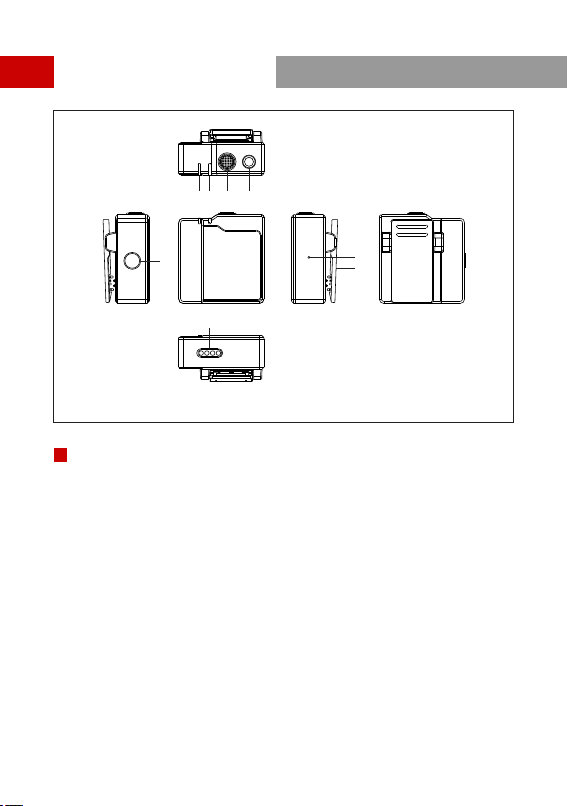
PRODUCT INTERFACES
①② ③ ④
⑤
⑦
⑧
A
⑥
Power Indicator (Red: Low Battery, Green: Safe Battery Status, Orange: Charging)
①
Link Indicator (Blue/Cyan Flashing: Disconnected, Blue/Cyan: Connected,
Orange: MIC Mute)
②
In-built Microphone
③
④
Power Button (Press for 3s to Switch On/Off, Click to Mute)
⑤
3.5mm Audio Input Port
TRANSMITTER
Reset Button
⑥
⑦
Charging/Upgrade Contact
⑧
Installed Belt Clip
A
4
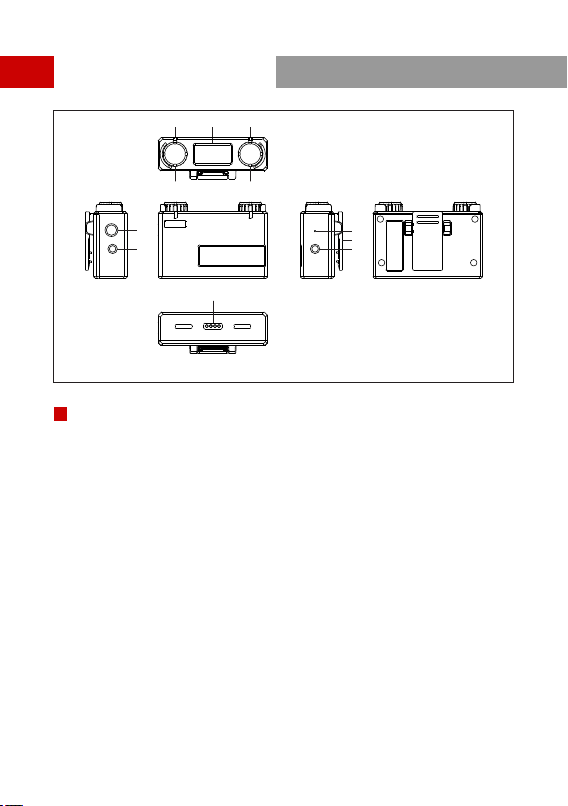
PRODUCT INTERFACES
B
⑦
③① ②
④ ⑤
⑥
⑩
⑨
⑪
⑧
Link Indicator (Left Channel)
①
Display Screen
②
Link Indicator (Right Channel)
③
④
Volume Knob (Right Channel): Adjust the Volume of the Right TX
/Channel Switch Mode: Press to Switch the Channel when Stereo Mode
/Right TX Mute Button: Click to Mute the Right TX
⑤
Volume Knob (Left Channel):Adjust the Volume of the Left TX
/Recording Mode Switch Button: Press to Switch the Recording Mode
/Left TX Mute Button: Click to Mute the Left TX
RECEIVER
Power Button (Press for 3s to Switch On/Off)
⑥
⑦
Reset Button
⑧
3.5mm Headphone Monitoring Port
B
Belt Clip
⑨
⑩
Charging/Upgrade Contact
⑪
3.5mm Audio Output Port
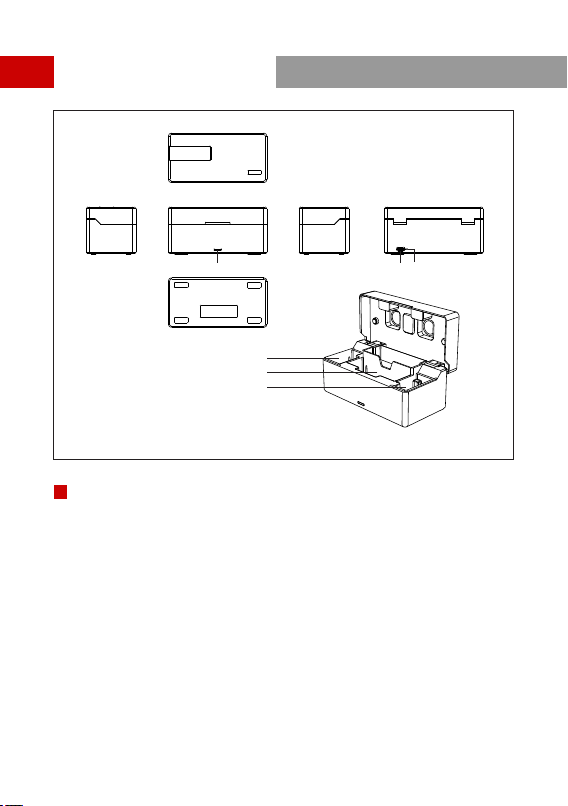
PRODUCT INTERFACES
C
① ②
④
⑤
⑥
③
Power Indicator (Red: Low Battery,Green: Safe Battery Status,Orange: Charging)
①
USB Type-C Port for Charging
②
Reset Button
③
④
RX Charging Slot
⑤
TX Charging Slot
CHARGING CASE
TX Charging Slot
⑥
C
5
6
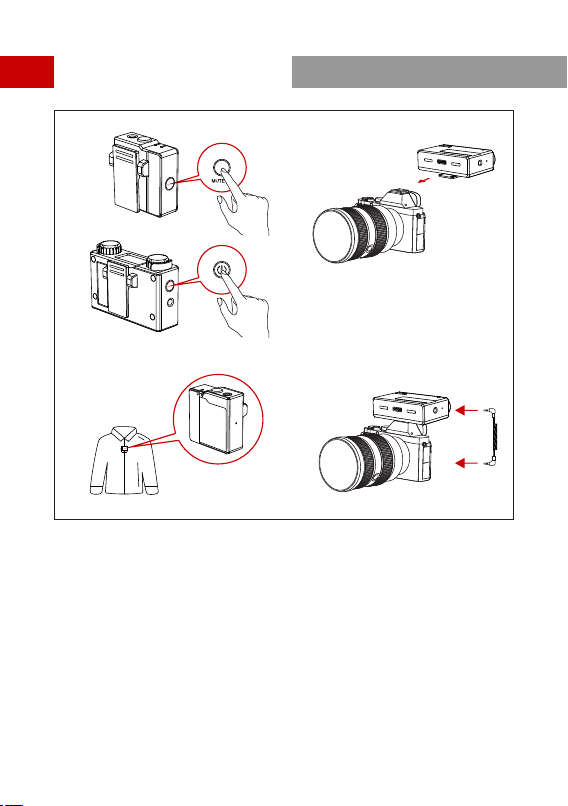
PRODUCT INSTALLATION
①
② ④
③
Press Power Button of TX/RX for 3s to switch on.
①
Install TX as Figure2.
②
Install RX on the Camera.
③
④
Connect the 3.5mm Audio output port of RX with 3.5mm Audio input port of the
camera by 3.5mm TRS cable.
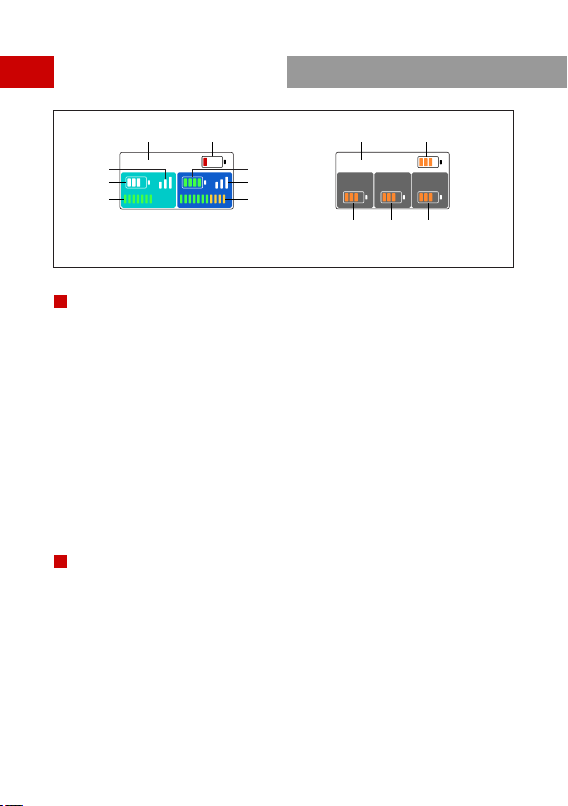
①
Current Recording Mode of RX
②
RX Battery Status
③
④
Cyan TX Battery Status
Cyan TX Signal Strength Status
⑤
Cyan TX Input Volume Status
⑥
Blue TX Battery Status
⑦
Blue TX Signal Strength Status
⑧
Blue TX Input Volume Status
The TX color displayed on main display screen of RX relates to the channel switch
and recording mode, the indicators of RX represents the corresponding TX
①
Identification of Charging Case
②
Charging Case Battery Status (Orange: Charging, Green: Full-Charged)
③
④
RX Battery Status (Orange: Charging, Green: Full-Charged)
Left TX Battery Status (Orange: Charging, Green: Full-Charged)
⑤
Right TX Battery Status (Orange: Charging, Green: Full-Charged)
7
DISPLAY INTRODUCTION
A
B
DISPLAY OF RX
DISPLAY OF RX CHARGING CASE
A B
① ②
④
⑤
⑦
⑧
Stereo
CASE
TX TXRX
③ ⑥
① ②
④ ⑤③
8
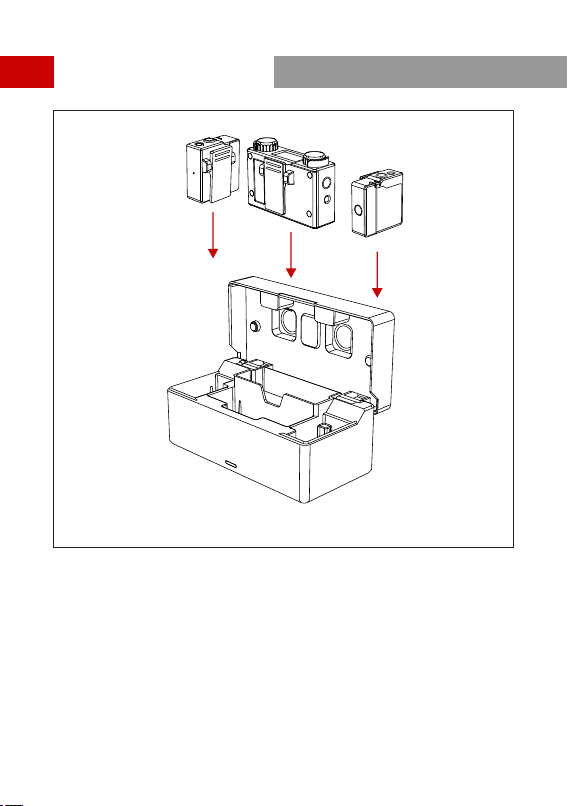
1.Put TX and RX into the charging case at the same time, the unpaired devices will be
paired automatically.
2.Display “√ ” when pair successfully.
3.Display “X”when pair failed.
OPERATING GUIDENCE
①
①
PAIRING
OPERATING GUIDENCE
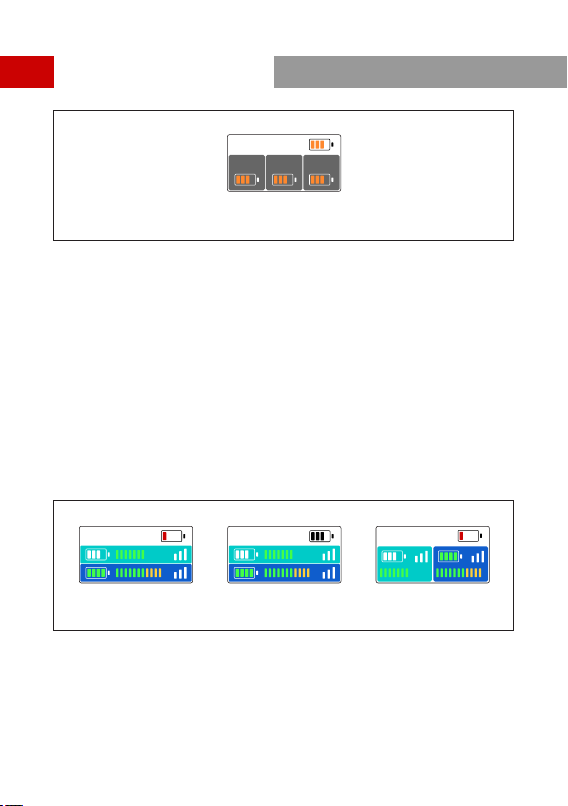
1.It means low battery when the power indicator or the battery icon of RX display
screen is red.
2.TX and RX will be charged when placed into charging case.
3.The indicator of TX will display orange when charging. After placed into the charging
case, TX, RX and charging case's current battery status will be displayed on the
screen of RX.
4.When TX and RX are fully charged, the devices will automatically enter sleep mode.
5.When taking out or putting in TX or TX, the device will automatically wake up and
start up.
6.The indicator of charging case will display red and stop charging TX or RX when the
battery energy is less than 10%.
②
CHARGING
9
②
TX TXRX
CASE
③ ④ ⑤
Stereo
Mono ST -6dB

OPERATING GUIDENCE
1.After taking out, start up and successfully paired TX and RX.
2.Long press left button for 3s to recording mode. Switch successful when the screen
displayed “Mono”.
3.At this time RX switched to mono mode, both left and right channel outputs two
audios of TX.
4.Volume of TX corresponds the indicator could be adjustable at this time by knob.
③
Mono Mode
1.After taking out, start up and successfully paired TX and RX.
2.Long press left button for 3s to recording mode. Switch successful when the screen
displayed “ST”.
3.At this time RX switched to ST mode, both left and right channels output two audios
of TX, but the sound of right channel is 6dB less than left channel, in order to make
sure one of the channels is in the safe output volume.
4.Volume of TX corresponds the indicator could be adjustable at this time by the knob.
④
Safety Track Mode
1.After taking out, start up and successfully paired TX and RX.
2.Long press left button for 3s to recording mode. Switch successful when the screen
displayed “Stereo”.
3.At this time RX switched to Stereo mode. Left side of display screen corresponds to
left channel output, right side of display screen corresponds to right channel output.
4.Left knob controls output volume of left TX which corresponds left channel, right
knob controls output volume of right TX which corresponds right channel.
5.Long press right button for 3s can exchange left and right channels' output and the
TX info displayed on the main screen. The original TX on the left will be displayed on
the right, the volume knob control will also be exchanged.
⑤
Stereo Mode
10
11
PARAMETERS
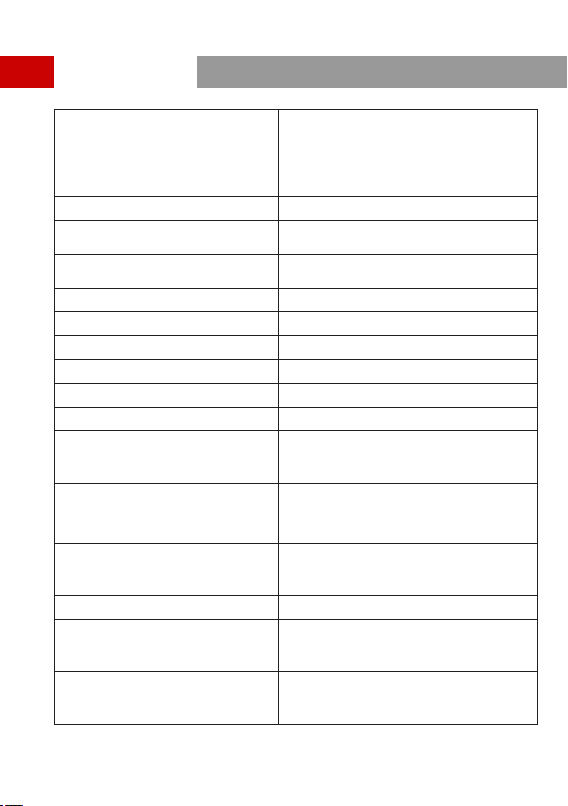
Interfaces
Frequency Bandwidth
Built-In Mic
Lavalier Mic
Reference Audio Input Level
Polar Pattern: Omnidirectional
Frequency Response: 20Hz~20KHz
-65 dBV
Dynamic Range
Omnidirectional
Polar Pattern
21-State: 45dB
Audio Output Level Change Range
Maximum Input Sound Pressure Level
100dB SPL (1KHz@1m)
TX: 3.5mm Audio Input Port
Charging/Upgrading Contacts
RX: 3.5 mm TRS Output Interface
3.5mm Headset Interface
Charging/Upgrading Contacts
Charging Case: USB Type-C Interface
2.4GHz AFH
100 dBA
Transmission Latency
Battery Mode
TX: 200mAh (0.76Wh)
RX: 530mAh (1.96Wh)
Charging Case: 3350mAh (12.16Wh)
5ms
Battery Life
TX: 4.5h
RX: 7.5h
Charging Case: About 2.5 times (Charge 2 TX and 1 RX
at the Same Time in Full Charged States)
Charging Time
TX: 1.5h
RX: 2h
Charging Case: 2.5h
Firmware Upgrade Method
PC
Dimensions
TX: (L*W*H) 37*37*17.5mm
RX: (L*W*H) 67*41*20.5mm
Charging Case: (L*W*H) 121*61*43.5mm
Weight
TX: 20.5g
RX: 51g
Charging Case: 227.5g
Polar Pattern: Omnidirectional
Frequency Response: 20Hz~20KHz