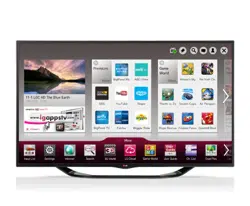

User Guide
This is a 「User Guide」 installed on the TV.
The contents of this guide are subject to change without prior notice for quality
improvement.
Loading page 2...

GP4
eng
1 MovetothedesiredprogrammeandpressWheel(OK)button.Programmeis
selected.
2 PressSetasFavourite.
3 SelectthedesiredFavouritePr.Group.
4 SelectOK.Favouriteisset.
Programmelistwillappear.Selectsthedesiredpresetfavouriteprogramme
fromFavouriteListAtoD.
Loading page 4...
Loading page 5...
Loading page 6...
Loading page 7...
Loading page 8...
Loading page 9...

GP4
eng
ꔽ Reveal
Select this menu to display concealed information, such as
solutions to riddles or puzzles.
ꔼ Update
Displays the TV picture on the screen while waiting for a new
teletext page.
Language
[In Digital Mode Only]
Sets Teletext language.
GP4
eng
(Magic Remote Control) ➾ (Screen Remote Control)
(or press the GUIDE button.)
[Depending on Country] [In Digital mode Only]
This system has an MHEG (Multimedia and hypermedia information coding
expert group) to help your navigation through all the possible viewing options.

GP4
eng
SMART ➾ Settings ➙ OPTION ➙ Data Service
[Depending on country]
This function allows users to choose between MHEG (Digital Teletext) and
Teletext if both exist at the same time.
If only one of them exists, either MHEG or Teletext is enabled regardless of
which option you selected.
GP4
eng
SMART ➾ Settings ➙ PICTURE ➙ Aspect Ratio
Selects the screen aspect ratio.
16:9 Resizes images to fit the screen width.
Just Scan
Displays video images in the original size without removing parts
of the edge of the image.
✎ In DTV/HDMI/Component (over 720p) mode, Just Scan is
available.
✎ In DTV(over 576p) mode, Just Scan is available in Australia
only.
Original
When your TV receives a wide screen signal it will automatically
change to the picture format broadcasted.

GP4
eng
Full Wide
When TV receives the wide screen signal, it will let you adjust
the picture horizontally or vertically, in a linear proportion, to fill
the entire screen fully.
4:3 and 14:9 video is supported in full screen without any video
distortion through DTV input.
✎ In DTV mode, Full Wide is available.
4:3 Resizes images to the previous standard 4:3.
14:9
You can view a picture format of 14:9 or a general TV
programme in the 14:9 mode. The 14:9 screen is viewed in the
same way as in 4:3, but is moved up or down.
Zoom
Resizes the image to fit the screen width. The top and bottom
parts of the image may be cut off.
Cinema
Zoom
Choose Cinema Zoom when you want to enlarge the picture in
correct proportion.

GP4
eng
✎ While viewing an external device, these cases may result in image burn:
- a video with stationary caption (such as network name)
- 4:3 aspect ratio mode for an extended period
Take caution when using these functions.
✎ Available picture size may differ depending on the input signal.
✎ The screen aspect ratios on HDMI-PC input are available in 4:3 and 16:9
only.
✎ [For models supporting 2160p] When a 2160p signal is input or your PC
resolution is set to 3840 x 2160, the Aspect Ratio is fixed to Just Scan.
Loading page 16...
GP4
eng
SMART ➾ Quick Menu ➙ AV Mode
Sets the best picture / audio optimized for different AV modes.
Off Operates with the value set in the picture / sound menu.
Cinema Optimizes picture and audio settings for movies.
Game Optimizes picture and audio settings for games.

GP4
eng
Use the remote control and follow the instructions of the Picture Wizard to
calibrate and adjust for optimum picture quality without expensive pattern
devices or help from a specialist.
Follow the instructions to obtain the optimum picture quality.
GP4
eng
Selects the picture mode optimized for the viewing environment or the
programme.
Vivid
Heightens contrast, brightness and sharpness to
display vivid images.
Standard
Displays images in standard levels of contrast,
brightness and sharpness.
Eco
The Energy Saver feature changes settings on the TV
to reduce power consumption.
Cinema / Game Displays the optimum picture for movie, game.
Loading page 20...
Loading page 21...
Loading page 22...
Loading page 23...
Loading page 24...
Loading page 25...
GP4
eng
Adjusts detailed setting for images.
Noise Reduction Reduces screen noise in the video.
MPEG Noise
Reduction
Reduces noise caused by compressing digital video.
Black Level
Adjusts the brightness or darkness of the screen to suit the
black level of the picture input using the degree of darkness
(black level) of the screen.
Real Cinema Optimizes the screen for movie viewing.

GP4
eng
Eye Care
[Depending on model]
Adjusts screen brightness to prevent eye glare.
Motion Eye Care
[Depending on model]
Saves power consumption by adjusting the brightness
corresponding to the movement of the image on the
screen.
✎ It does not work while watching 3D images.
✎ Depending on input signal or other picture settings, the range of detailed
items for adjustment may differ.

GP4
eng
Resets values customized by the user.
Each picture mode is reset. Select the picture mode you wish to reset.
Loading page 29...
GP4
eng
Optimizes TV audio to the selected sound mode.
Standard Suitable for all types of video.
Music / Cinema /
Sport / Game
[Depending on model]
Sets audio optimized for a specific genre.
User Setting
Adjusts the volume to a level of your choice using the
User EQ.
GP4
eng
Sets Sound Mode at User Setting first.
100 Hz / 300 Hz / 1 kHz /
3 kHz / 10 kHz
Sets EQ by manual adjustment of sound bands.
Reset Resets the equalizer value changed by the user.

GP4
eng
❐
To use Smart Sound Mode
SMART ➾ Settings ➙ SOUND ➙ Smart Sound Mode
Provides the optimized sound adjusted for each content type.
✎ If the Smart Sound Mode function is enabled, Sound Mode, Virtual Surround
Plus and Clear Voice ll are automatically adjusted.

GP4
eng
❐
To use Virtual Surround sound
SMART ➾ Settings ➙ SOUND ➙ Virtual Surround plus
LG’s proprietary audio processing technology allows 5.1ch-like surround sound
from two speakers.
✎ If Clear Voice ll is set to ON, Virtual Surround plus will not be chosen.
❐
To use Clear Voice ll function
SMART ➾ Settings ➙ SOUND ➙ Clear Voice ll
Boosts voice clarity.
GP4
eng
❐
To set Volume Mode
SMART ➾ Settings ➙ SOUND ➙ Volume Mode
Sets various modes for volume control.
Auto Volume
Sets Auto Volume to On. Different volume outputs from
programme to programme. They are then automatically
adjusted for convenient TV watching, when clicking through
different programme.
Volume Control
Using a single volume curve may result in an inaudible or
loud sound depending on the environment. Adjusts volume
levels depending on the time of day (day/night).
Loading page 35...
Loading page 36...
Loading page 37...
Loading page 38...
Loading page 39...
Loading page 40...
Loading page 41...
Loading page 42...
Loading page 43...
Loading page 44...
Loading page 45...
Loading page 46...
Loading page 47...
Loading page 48...
Loading page 49...

GP4
eng
✎ This function only works on devices with the SIMPLINK logo ( ).
Verify that the external device has a SIMPLINK logo.
✎ To use the SIMPLINK function, you need to use a high-speed HDMI
Ⓡ
cable
(with CEC, or Consumer Electronics Control, feature added). High-speed
HDMI
Ⓡ
cables have the No. 13 pin connected for information exchange
between devices.
✎ Turn on or select the media of a device with home theatre features to see
the speaker switch to External Speaker.
✎ Connect with an Optical cable (sold separately) to use External Speaker.
✎ Switching to external input causes devices operating with SIMPLINK to stop.
✎ Use of a third-party device with HDMI-CEC features may cause malfunctions.
✎ Optical cable connection is supported only for models with the optical digital
port.
Loading page 51...
GP4
eng
Sync Power on
If the Auto Power function is set to On in the SIMPLINK
settings, turning on a SIMPLINK device will turn the TV on.
Speaker Selects speaker either on the home theatre unit or the TV.

GP4
eng
Turns off the TV after a preset number of minutes.
To cancel the Sleep Timer, select Off.
GP4
eng
Checks or changes the time while watching TV.
Auto
Synchronizes the TV clock to the digital time information sent by
the TV station.
Manual
Sets the time and date manually if the auto setup does not
correspond to the current time.
Loading page 55...
Loading page 56...
Loading page 57...
Loading page 58...
Loading page 59...
Loading page 60...
Loading page 61...
Loading page 62...
Loading page 63...
Loading page 64...
Loading page 65...
Loading page 66...
Loading page 67...
Loading page 68...
Loading page 69...
Loading page 70...

GP4
eng
Turns the standby light in the front panel of the TV on/off.
GP4
eng
You can adjust the LED brightness of the LG logo at the bottom of the TV.
Brightness
You can set the brightness of LG Logo Light to Off/Low/
Medium/High when the TV power is off.

GP4
eng
When TV is on
You can set the off time of LG Logo Light when the TV
power is on.
• Off right now : The light is turned off as the TV power is
on.
• Off after 10 min : The light is turned off after 10 minutes
when the TV power is on.
✎ The initial brightness is set to Low when the TV power is
on.

GP4
eng
Selects Home Use or Store Demo.
For use at home, select Home Use.
Store Demo is a mode used for store display.
Loading page 75...
GP4
eng
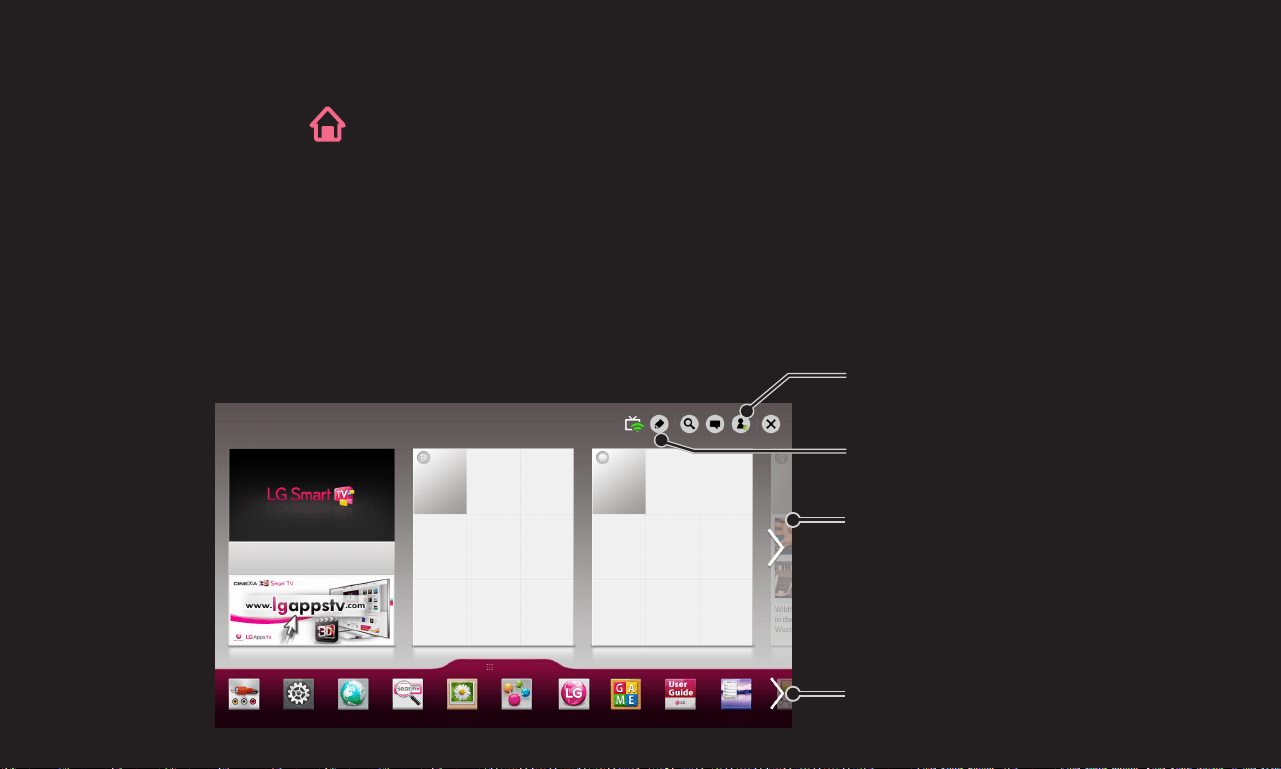
With all Smart TV features on one screen, everyone can access a wealth of
content and applications conveniently via the quick and easy-to-use menu,
arranged by themes such as Live TV, Card, My Apps, etc.
Input List Settings Internet Search Photos Smart Sh... LG Smart... Game Wo... User Guide
Pr.List
Tron Toy story
Monster Ghost Abata
UP Thanks My Boy
SMART
SHARE
TM
More...
Cinema Weather
News Sports Viral Video
Photo Map Game
Premium
More...
More
11-1 MBC HD
July 4 8:30 pm
MY CARD
Select a card that you want
to use.
My Apps
Card Edit
Sign in

GP4
eng
To enable you to easily check and access a wide variety of content and
functions, the main functions are grouped into categories and displayed on
cards.
By selecting the card name, you can go to that category page.
Select Edit at the top of the home screen to switch the position of the cards or
create your own card. (You cannot edit the Live and Premium cards.)
Loading page 78...
Loading page 79...
Loading page 80...
Loading page 81...
Loading page 82...
Loading page 83...
Loading page 84...
Loading page 85...
Loading page 86...
Loading page 87...
Loading page 88...
Loading page 89...
Loading page 90...
Loading page 91...
Loading page 92...
Loading page 93...
Loading page 94...

GP4
eng
Connect a USB storage device (external HDD, USB memory) to the USB port of
TV to enjoy the content files stored in the USB device on your TV.
To remove a USB storage device, select the Quick Menu ➙ USB Device that
you wish to remove; do not remove physically until you see the message that
the USB has been removed. If detached early, an error may occur on the TV or
the USB storage device.
✎ Once a USB device has been selected for removal, it can no longer be read.
Remove the USB storage device and then re-connect it.

GP4
eng
✎ If the USB storage device has a built-in auto recognition program or uses its
own driver, it may not work.
✎ Some USB storage devices may not work or may work incorrectly.
✎ If you use a USB extension cable, the USB device may not be recognized or
may not work properly.
✎ Use only USB storage devices formatted with the Windows FAT32 or NTFS
file system.
✎ For external USB HDDs, it is recommended that you use devices with a
rated voltage of less than 5 V and a rated current of less than 500 mA.
✎ It is recommended to use a USB hub or hard disk drive with power supplied.
(If the power supplied is not enough, the USB storage device may not be
detected properly.)

GP4
eng
✎ It is recommended that you use USB memory sticks of 32 GB or less and USB
HDDs of 2 TB or less.
✎ If a USB HDD with power-saving function does not work properly, turn the
power off and on. For more information, refer to the user manual of the USB
HDD.
✎ Data in USB storage device can be damaged so be sure to back up important
files to other devices. Data maintenance is the user's responsibility and the
manufacturer is not responsible for data loss.
GP4
eng
❐
To use SmartShare™
SMART ➾ SmartShare™
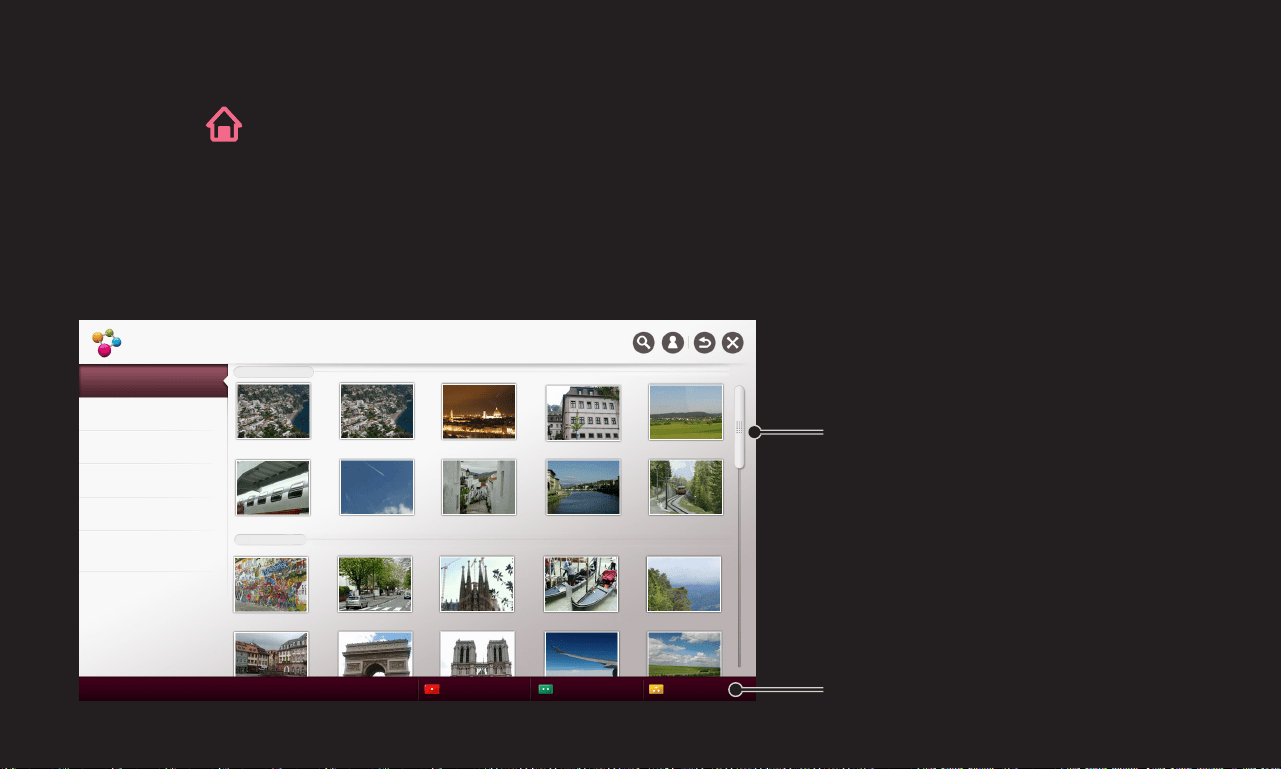
Provides photo / music / video files on your TV by connecting to a USB device or
home network (DLNA).
✎ Image shown may differ from your TV.
Displays photo / music /
video files on all devices
connected to the TV.
Shows how to connect PC,
smartphone/device, and USB.
SmartShare™
Recent
Video
Photo
Music
Recorded TV
Linked Device
Settings Delete History
Connecting guide
Recently Played
Newly Added
000 001 002 003 004
005 006 007 008 009
010 011 012 013 014
GP4
eng
❐
To control video playback
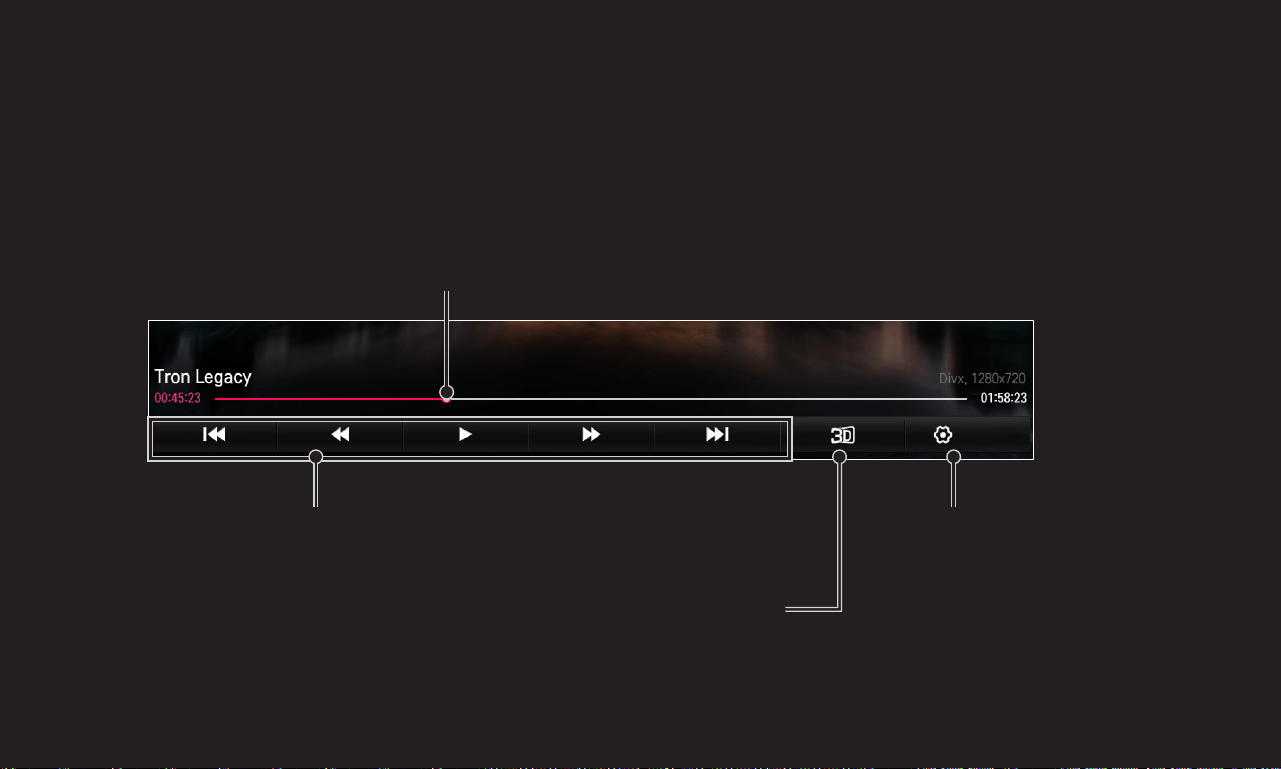
Controls playback and sets options while viewing videos.
✎ Image shown may differ from your TV.
Plays
Selects the desired point and plays
Changes to 3D mode.
Sets options.
Option
GP4
eng
❐
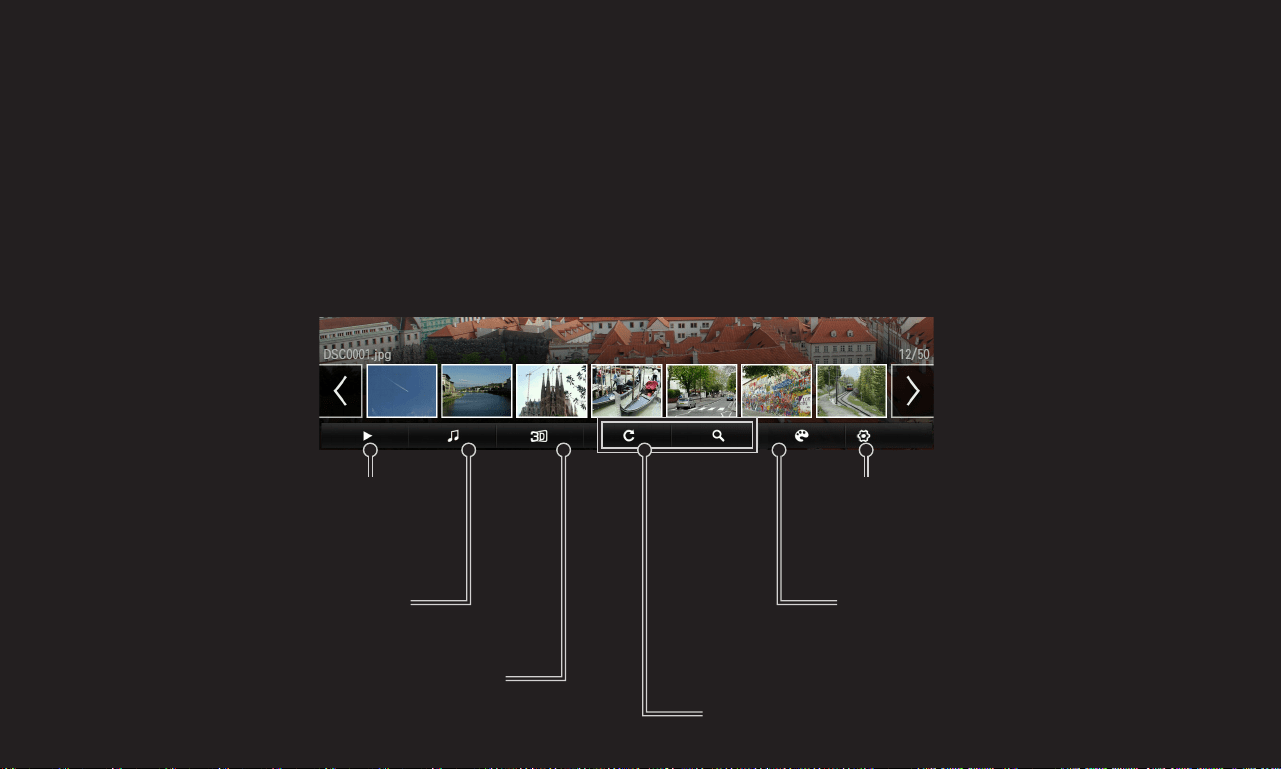
To control photo view
Controls playback and sets options while viewing pictures in full screen.
✎ For 3D pictures, the Slide Show Effect does not work even when the
Slideshow function is enabled.
✎ Image shown may differ from your TV.
Sets options.
Sets the filter.
[Depending on model]
Displays photos as a
slideshow.
Plays background music.
Rotates or enlarges the picture.
Changes to 3D mode.
Option
GP4
eng
❐
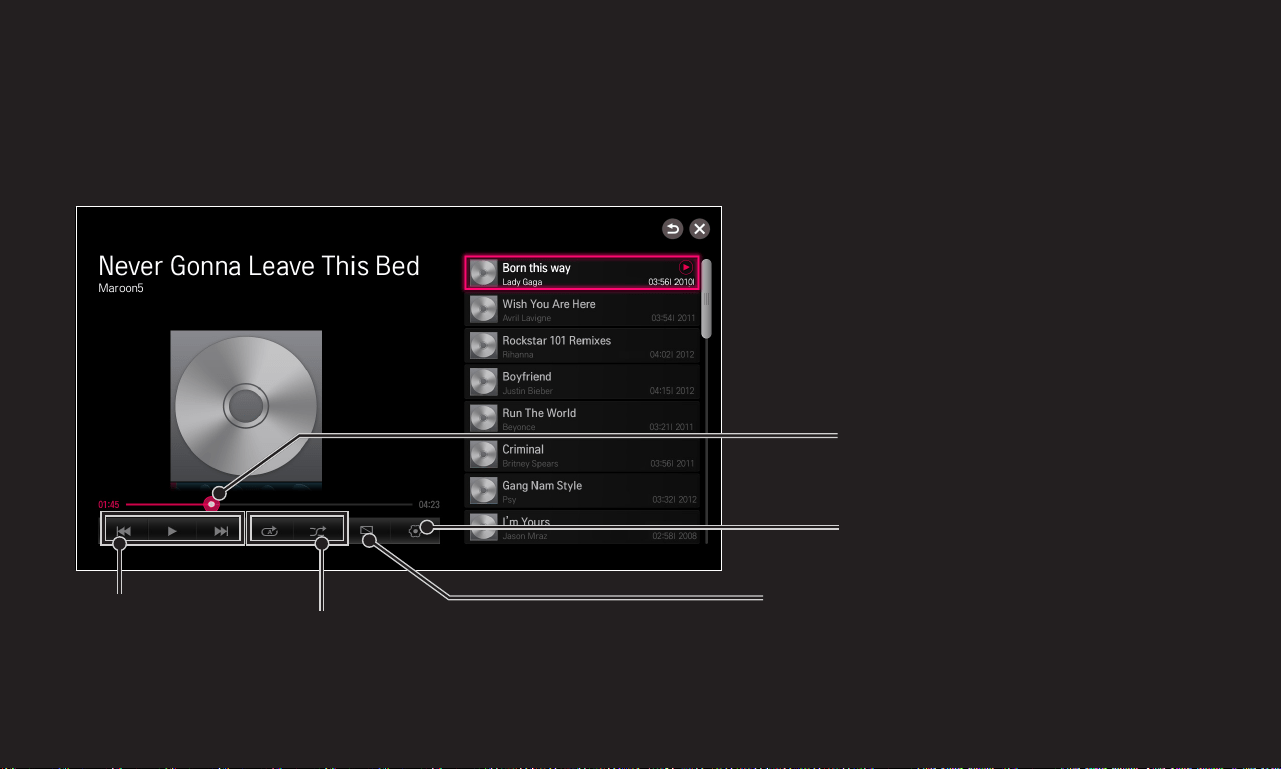
To control music playback
Controls playback and sets options while playing music.
✎ Image shown may differ from your TV.
Selects the desired point and
plays
Sets options
Listens to music with the monitor
turned off.
Sets the repeat/random
function.
Plays
Loading page 102...
GP4
eng
❐
To set SmartShare™ related functions
SMART ➾ SmartShare™ ➙ Settings
Changes settings related to SmartShare
TM
content playback.
❌ Advanced Setting
My TV Name
Changes the name that appears when searching for the TV
from other devices.
Network Status Checks the network connection.
Wi-Fi Direct
Allows use of wireless connection functions such as Wi-Fi
direct and WiDi.
Auto Play on
Receive
Accepts / rejects content transferred from other devices.
Loading page 104...

GP4
eng
❌ Delete History
To delete contents history, press Delete History button below. Use the contents
at Recent menu.

GP4
eng
❐
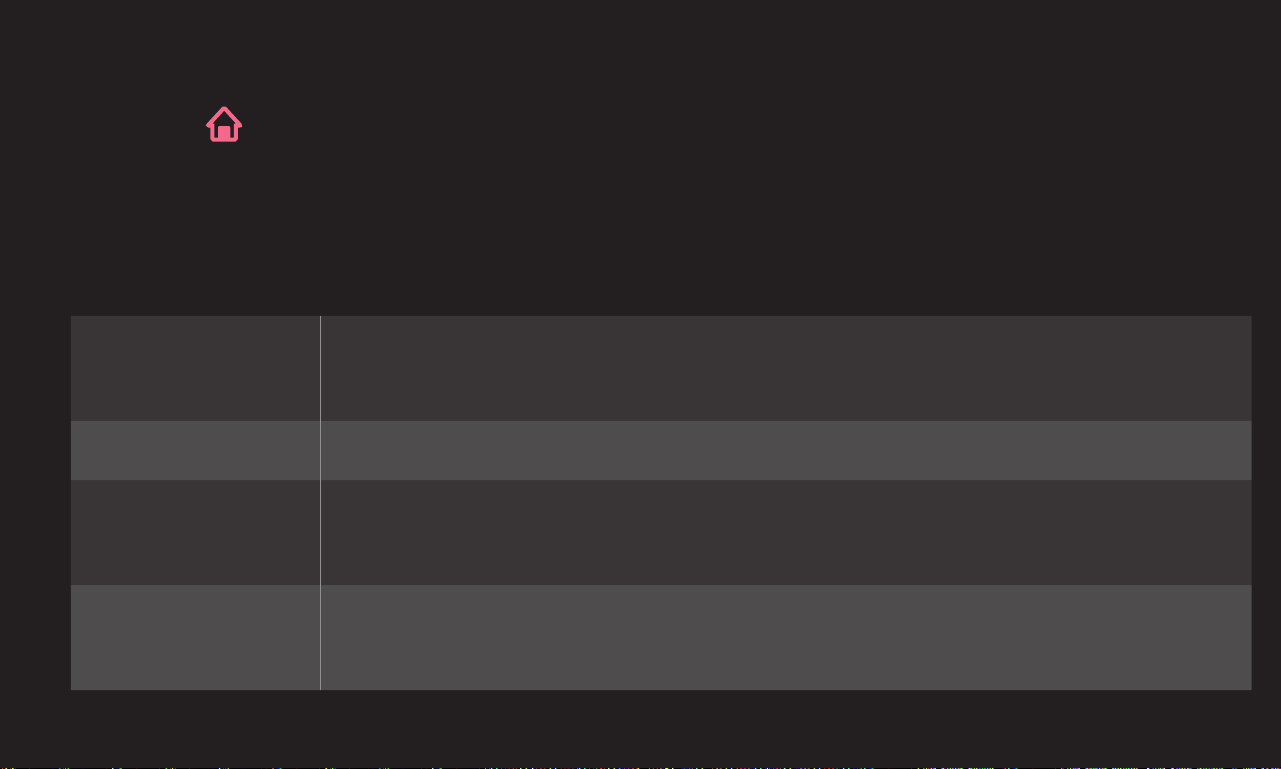
SmartShare™ supporting file
Maximum data transfer rate :
• Full HD
1920 X 1080: 20 Mbps (megabits per second)
• ULTRA HD [Depending on model] ULTRA HD Video
3840 X 2160 (H.264 L5.1) : 50 Mbps
3840 X 2160 (H.265 L5.0) : 25 Mbps

GP4
eng
External subtitle formats supported :
*.smi, *.srt, *.sub (MicroDVD, SubViewer 1.0/2.0),
*.ass, *.ssa, *.txt (TMPlayer), *.psb (PowerDivX), *.dcs (DLP Cinema)
Internal subtitle formats supported :
• Full HD Video
1920 X 1080: XSUB (supports internal subtitles generated from DivX6)
• [Supports only ULTRA HD model] ULTRA HD Video: It does not support
internal subtitles.

GP4
eng
❌ Video Supported Codec
Maximum:
• Full HD :1920 x 1080 @30p
• ULTRA HD [Depending on model] : 3840 x 2160 @ 30p
Extension Codec
.asf
.wmv
Video VC-1 Advanced Profile, VC-1 Simple and Main Profile
Audio
WMA Standard, WMA 9 Professional
.divx
.avi
Video
DivX3.11, DivX4, DivX5, DivX6, XViD, H.264/AVC,
Motion Jpeg, MPEG-4 Part 2
Audio
MPEG-1 Layer I, II, MPEG-1 Layer III (MP3),
Dolby Digital, Dolby Digital Plus, LPCM, ADPCM, DTS
.mp4
.m4v
.mov
Video H.264/AVC, MPEG-4 Part 2
Audio MPEG-1 Layer III (MP3)

GP4
eng
Extension Codec
.3gp
.3g2
Video H.264/AVC, MPEG-4 Part 2
Audio AMR-NB, AMR-WB
.mkv
Video H.264/AVC
Audio Dolby Digital
.ts
.trp
.tp
.mts
.m2ts
Video
H.264/AVC, MPEG-2, VC-1
Audio
MPEG-1 Layer I, II, MPEG-1 Layer III (MP3)
Dolby Digital, Dolby Digital Plus
.vob
Video MPEG-1, MPEG-2
Audio Dolby Digital, MPEG-1 Layer I, II, DVD-LPCM
.mpg
.mpeg
Video MPEG-1, MPEG-2
Audio MPEG-1 Layer I, II, MPEG-1 Layer III(MP3)
GP4
eng
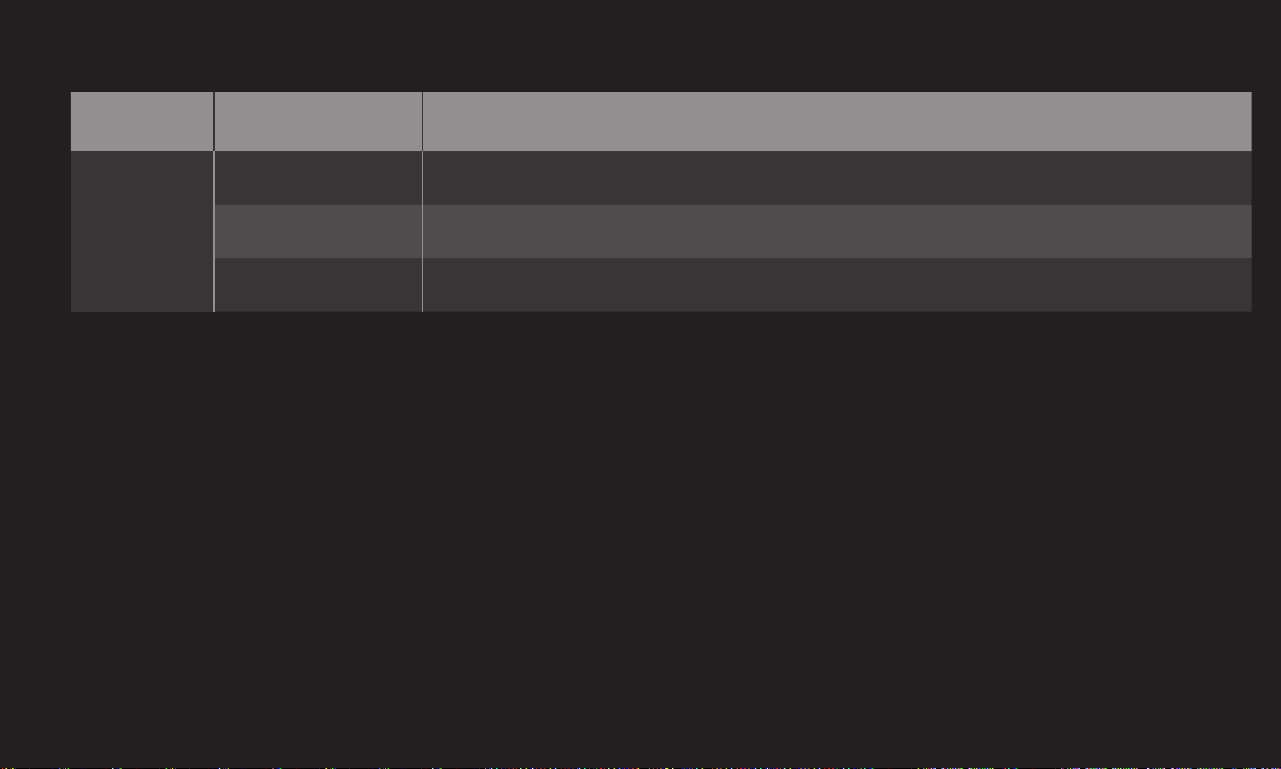
❌ Available music file
File type Item Info
mp3
Bit rate 32 Kbps - 320 Kbps
Sample freq. 16 kHz - 48 kHz
Support MPEG1, MPEG2, Layer2, Layer3
GP4
eng
❌ Available photo file
File type Item Profile
2D
(jpeg, jpg, jpe)
JPEG
Minimum: 64 x 64
Maximum:
Normal Type: 15360 (W) x 8640 (H)
Progressive Type: 1920 (W) x 1440 (H)
3D(jps) JPS
Minimum: 64 x 64
Maximum: Normal Type: 15360 (W) x 8640 (H)
3D(mpo) MPO
4:3 size
3648 x 2736
2592 x 1944
2048 x 1536
3:2 size 3648 x 2432

GP4
eng
❐
Playing video - warning
✎ Some subtitles created by users may not work properly.
✎ The video and subtitle files should be placed in the same folder. For subtitles
to display correctly, the video and subtitle files must have the same name.
✎ Subtitles on an NAS (Network Attached Storage) device may not be
supported depending on the manufacturer and model.
✎ We do not support any stream that contains GMC (Global Motion
Compensation) or Qpel (Quarterpel Motion Estimation).
Loading page 113...

GP4
eng
✎ The file size limit is dependent on the encoding environment.
✎ It works only the above version of Window Media Audio V2.
✎ Video files created by some encoders may not be played back.
✎ Video files in formats other than the ones specified here may not be played
back.
✎ Playback of video files stored on the USB device that do not support High
Speed, may not work properly.
✎ The TV supports DTS audio codec when the USB/HDMI video file playback.

GP4
eng
DLNA stands for Digital Living Network Alliance, which allows you to enjoy video
/ music / photo files stored on a PC or server on your TV via home networking.
The TV and the smartphone should be on the same network.
1 Ensure that Wi-Fi is enabled on the smartphone.
2 Install / run the app to share content on the smartphone.
3 Run “Share my mobile phone Content”.
4 Select the kind of content (video / music / photo) you wish to play.
5 Select the video, music or photo file to play on the TV.
6 Select Add to Play List.
7 Select TV model name on the device you want to play content from.
(TV model name is on the label of the device.)
8 Play ▶ Shows the selected file on TV.

GP4
eng
If the PC's operating system is Windows 7 or Windows 8 or the DLNA-certified
device (e.g. mobile phone) is connected via a network, you can play music /
videos / photos on TV without installing a separate program.
1 Configure TV and PC on the same network. Configure Windows 7 or Windows
8-installed PC on the network.
2 Right-click the music / video / photo file that you want to play and use the
“Remote Playback” feature that comes with Windows 7 or Windows 8.
To play content from a device such as a mobile phone, refer to the user
guide for the device.
3 Content will be played on one device only even if more than one TV or
device is connected. Play speed can vary depending on network speed.

GP4
eng
With a PC having SmartShare PC Software, music / video / photo files may be
replayed on the TV by linking them via home networking.
1 Configure TV and PC on the same network. The TV and each device should
be connected through a single access point to enable DLNA service.
2 Install SmartShare PC Software on the PC from the website. Before
installation, close all running programs including firewall and anti-virus
programs.
3 The sever should be running in order to watch the shared file on your TV.
✎ For the website information, go to SMART ➾ Settings ➙ SUPPORT ➙
Product/Service Info.
✎ For how to use the SmartShare PC software, refer to the software help.

GP4
eng
✎ If the DLNA feature does not work properly, check your network settings.
✎ A 5-GHz access point is needed to view 1080p videos via DLNA. A 2.4-GHz
access point may cause frequent buffering or other problems.
✎ DLNA may not work properly in the wireless network. It is recommended to
connect to the wired network.
✎ When playing video in DLNA mode, Multi Audio and internal subtitles are not
supported.
✎ If more than one TV is connected to a single server in DLNA mode, the
content may not play depending on server performance.
✎ Subtitles may not be supported depending on the DLNA device.
✎ DLNA feature may not work properly depending on the network environment.

GP4
eng
✎ DLNA feature cannot be used with some access points that do not support
multicasting. For more information, refer to the access point manual or
consult the manufacturer.
✎ Supported file types may differ depending on DLNA server environment, even
for file types supported by the TV.
✎ Too many sub-folders and files in one folder may cause malfunction.
✎ The information about the file from the DLNA server may not be displayed
correctly.
✎ When viewing video subtitles on a DLNA server, we recommend that you use
SmartShare PC Software.
✎ If subtitle file is added later, turn off the shared folder and reset.
✎ DRM file located on a SmartShare PC Software server cannot be played.
✎ ULTRA HD video (3840 X 2160) file does not work.
GP4
eng
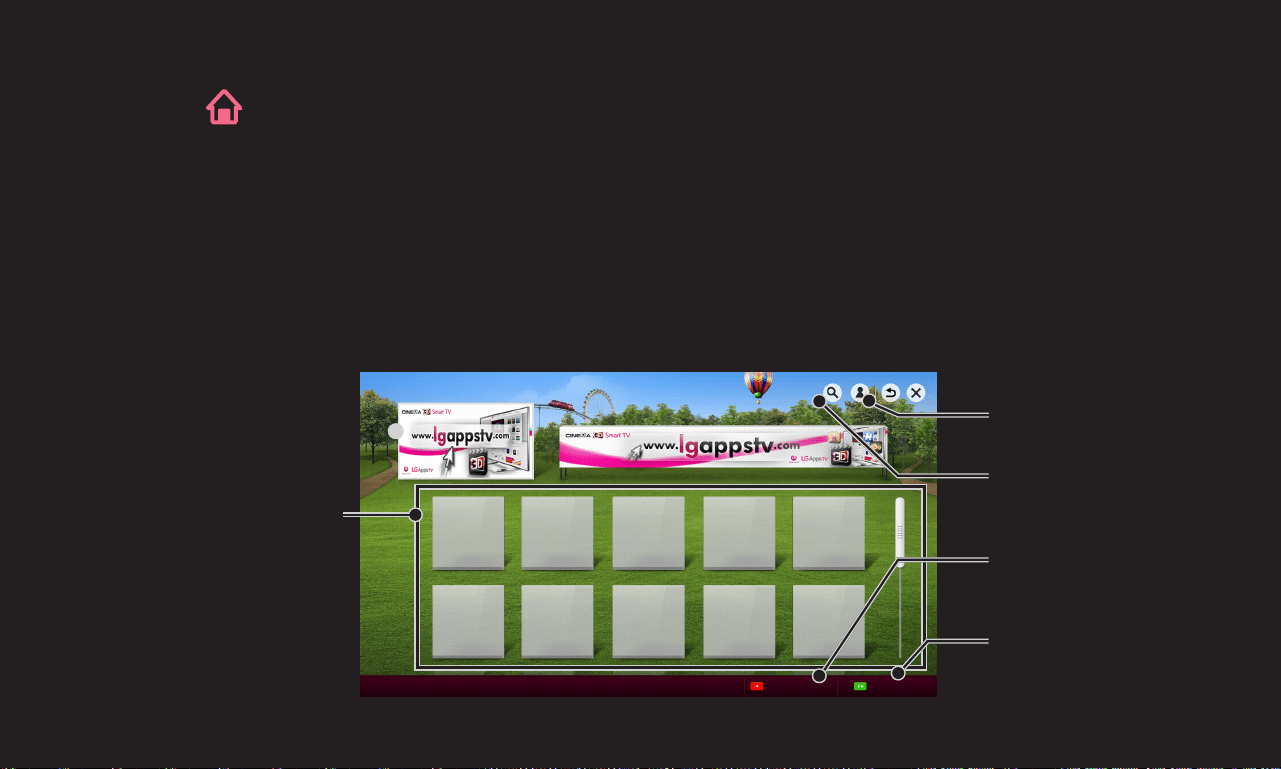
This service gives you easy access to a wide variety of content, such as video,
news and, UCC, at any time, as long as you are connected to the network.
Premium content includes specialized country-specific services taking regional
cultural sensitivities into account as well as global content.
Search
Sign in
PREMIUM
Premium content
Select Content that
you want to use.
WEB Movie Map SNS Play
NEWS
Comic Entertainment Information TV
Add to My Apps
Sets options
Option
Add to My Apps

GP4
eng
A fee is payable for some Premium content.Fee-paying services are paid for
either through LG Electronics’ proprietary billing system or through that of the
relevant content provider.
Before using the LG billing system, you will need to sign up for membership
and register payment information on TV or the website (www.lgappstv.com) to
purchase paid content.
You can sign up for membership on the login screen on your TV or our website.
You can then log into both the TV and the website with one ID.

GP4
eng
1 Click Sign In button on the upper-right side of the screen on the Home page
to sign in.
2 Moves to the desired Premium service.
(For some premium services, separate sign-in is required after signing up for
the premium service.)
3 After reviewing the pricing and service information for the content, click
the Purchase button. (There may be limitations on the available period and
number of times depending on content.)
4 Once the purchasing process is complete, view your purchased content by
clicking the Buy button.
5 Select your ID on upper menu of Home screen and check history of
purchases from My Page ➙ Payment inquiry. It is also available on My Page
➙ Purchase History of web site (www.lgappstv.com).

GP4
eng
Resets Premium list, Premium information, country setting and user sign-in
information. Resetting will resolve errors occurring during Premium update.

GP4
eng
✎ Content offered by service providers are subject to change or deletion
without prior notice to enhance their service quality. Refer to the website
of the relevant content provider for questions, troubleshooting or the latest
information about content. LG Electronics assumes no legal responsibility
for content services and related information, even when a service is
discontinued by the service provider.
✎ The quality of your Premium service may be affected by your Internet
connection. For any questions related to Internet speed or other service
problems, consult your Internet service provider.
✎ For best service quality, we recommend that you subscribe to an Internet
service providing a speed of 4.0 Mbps (1.5 Mbps or faster). If you
experience any Internet speed problem, contact your Internet service
provider.
✎ Some content providers may provide content that is unsuitable for minors.
Parental discretion is advised.
GP4
eng
❐
To use LG Smart World
[This function may not be applied some countries.]
SMART ➾ LG Smart World
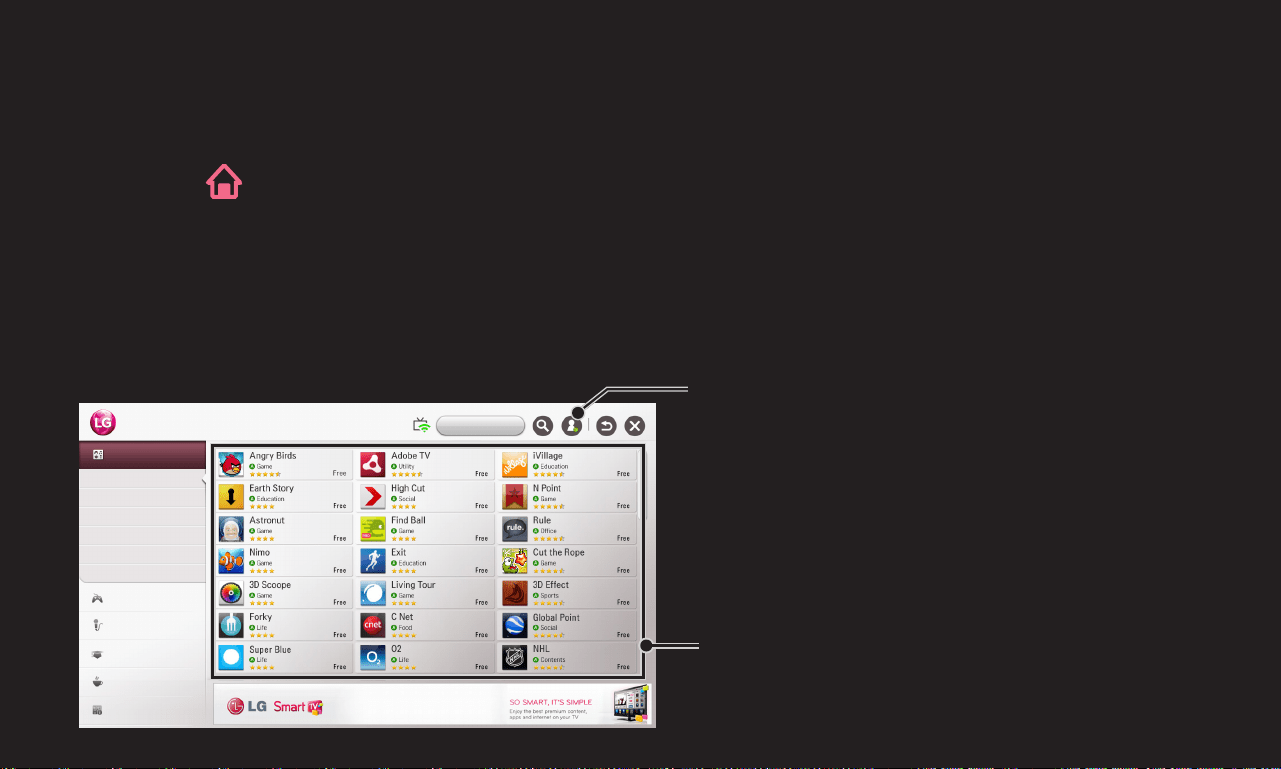
LG Smart World is a TV application service available through Smart TV Service.
You can download and enjoy various kinds of hot paid/free apps including
education, entertainment, life and news.
Select the app to install.
Sign in.
When you sign in, ID is displayed.
When you select the ID, you can select
My Page and Sign Out.
SMART WORLD
All
Hot
Top Paid
Top Free
New
18+
All
Game
Entertainment
Life
Education
News/Info.
My Apps
Loading page 126...

GP4
eng
1 Click the Sign In button at the top of the home screen to log in.
2 Select the LG Smart World card.
3 Select an app you want from the list.
4 Check the details of the app, then select the Install or Buy button.
5 Check that you have the functions or TV accessories required to install the
app, then select the OK button.
6 For paid apps, payment and purchase authentication is required.
7 Select Run once installation is complete to run the app immediately. If you do
not want to run immediately, select Close. If you want to run the app later,
select My Apps to check the list of apps installed on TV.
Loading page 128...

GP4
eng
1 Sign in.
2 Select the currently signed-in ID at the top of the screen.
3 Select My Page.
4 Manages by examining Member Information, My Purchased Apps List and TV
Installed Apps List.
GP4
eng
My Information
Shows basic information about the ID currently signed
in. To change your member information, visit www.
lgappstv.com on your PC.
Payment Inquiry Shows Payment History of the signed-in ID.
Purchased Apps
Shows My Purchased Apps List for the signed-in ID.
You can delete/re-install the purchased apps.
GP4
eng
SMART ➾ Search
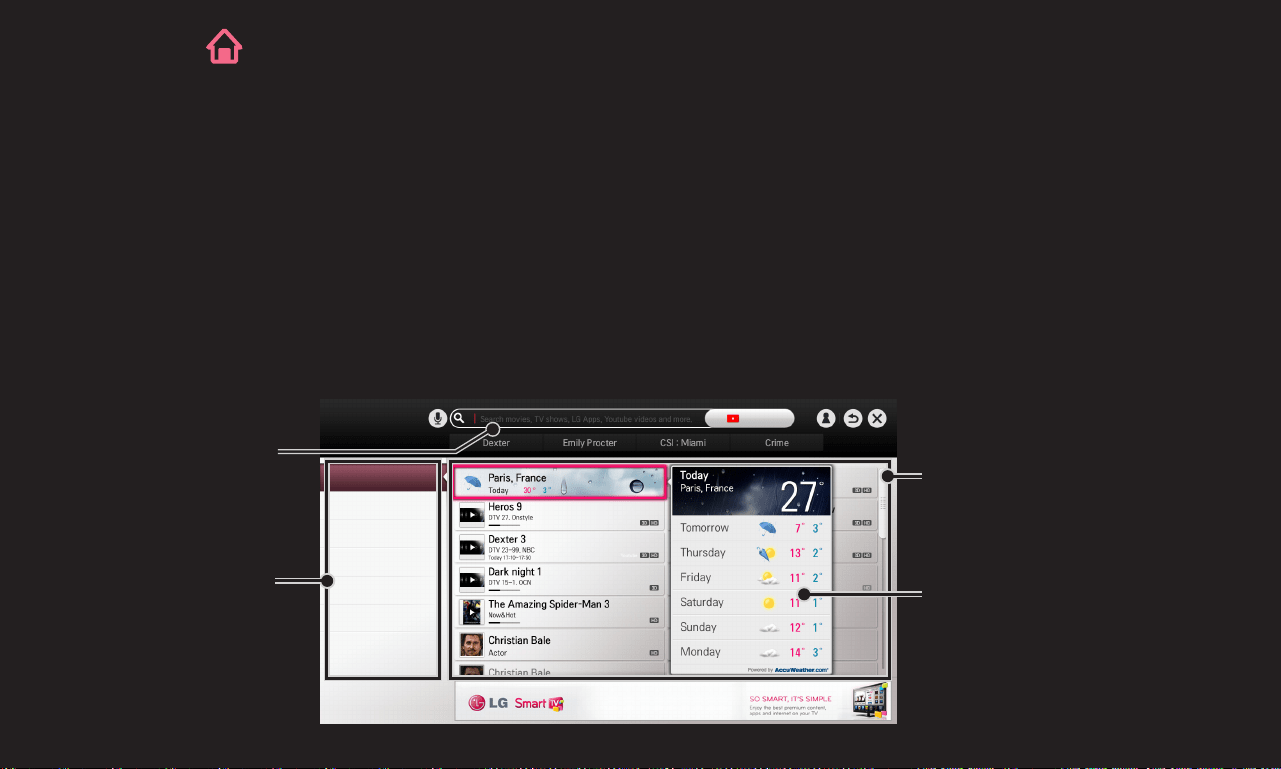
You can search apps and contents using the Search function of LG Smart TV.
When you enter keywords using the input device, such as the remote
control, you can find apps of LG Smart World and some contents of the
Premium service. Links are also provided to go for web search. If you are
using SmartShare
TM
, you can also search contents of SmartShare
TM
. The Search
categories and content types vary depending on the country and will be kept
updating.
Detailed information
about the search item
Category of
search results
SEARCH
Related Keywords
Search
Search results
Enter search
terms.
All
Premium
Smart World
APP Contents
Youtube
News
GP4
ENG
❐
To use the voice recognition function
❌ Using this function through search
1 Go to SMART ➾ Search. Select the voice recognition icon ( ) on the left of
the text field.
2 Speak slowly and clearly after the voice recognition window appears.
3 After the voice recognition is completed, the Similar List window pops up. If
the pop-up window does not have the results you want, press Retry to try
again. Select the most similar result, then it will be displayed in the text field.
Press the Search button to get the result you want.
GP4
ENG
❌ Using this function on the Internet
1 Go to SMART ➾ Internet. Move the Magic Remote Control pointer in
the text field on a website to open the virtual keyboard.
2 Select the voice recognition icon ( ) on the left of the text field on the virtual
keyboard.
3 Speak slowly and clearly after the voice recognition window appears.
4 After the voice recognition is completed, the Similar List window pops up. If
the pop-up window does not have the results you want, press Retry to try
again. Select the most similar result, then it will be displayed on the text field.
Press the Search button on the website to get the result you want.
GP4
ENG
✎ You can use Voice Search when you press the Voice recognition( ) on the
Magic remote control even if QWERTY keyboard is shown on your screen.
✎ Check the network connection before using the voice recognition function.
✎ It is recommended to use the remote control no further than 10 cm from
your face.
✎ The voice recognition may fail if you speak too fast or too slowly.
✎ The recognition rate may vary depending on the user's characteristics
(voice, pronunciation, intonation, and speed) and the environment (noise
and TV volume).
✎ To change the voice recognition language, go to SMART ➾ Settings ➙
OPTION ➙ Language(Language) ➙ Voice Recognition Language.
✎ You can set Avatar to On/Off in SMART ➾ Settings ➙ OPTION ➙ See
Avatar.
[This function may not be available on some models.]
Powered by
GP4
eng
SMART ➾ Internet
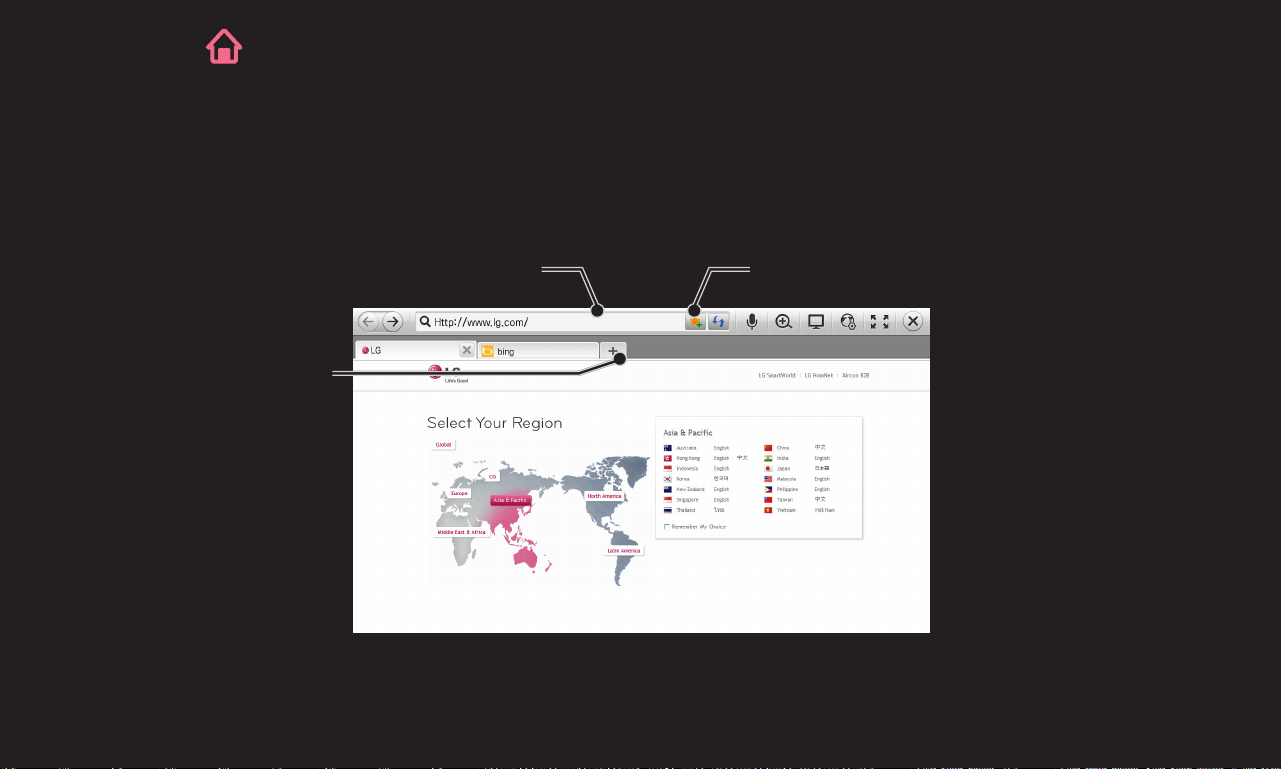
Types URL manually on TV or visits websites added to Favourite.
Chooses when you
open several web
browsers.
Types in the web address. Add the current page to favorites.

GP4
eng
✎ Internet supports up to Flash 11 but does not support platform-dependent
technology like ActiveX.
✎ Internet only works with a pre-installed plug-in.
✎ Internet may not play any media file format other than the following:
JPEG / PNG / GIF
✎ Internet will be forcibly closed when there is insufficient memory.
✎ For the Internet, fonts installed on the TV are used and may not be
displayed normally depending on the content played.
✎ Internet does not support file and font download.
✎ Internet is made for TV so it may have a different function to browsers made
for PC.
✎ Internet is a TV browser and may not work properly when playing some
content files.
GP4
eng
Sign-up is required to use LG Smart World.
Free apps are available immediately after signing up, but you should register
your payment method in order to use paid apps.
You can sign up and register payment methods on the TV or on our website
(www.lgappstv.com).
Problem Solution
When entering menu,
the "Initialising" message
always appears.
• The “Initialising” message appears while the
microprocessor and hardware are rebooted, network
communications are set up, and communication with
SDP (device authentication and basic information
download) is established. This takes about 20 seconds
and is a normal process.
There is no content shown
on the Premium card.
• Content may not be shown if you change the country
setting on Smart TV. Change country in SMART ➾
Settings ➙ OPTION ➙ Service Country Setting.
Loading page 138...
GP4
eng
Problem Solution
Can each family member
use a different ID on a
single TV?
• You can register and use more than one ID on one TV.
• You can view the IDs registered on the TV in SMART
➾ Sign in ➙ ID List.
• You can check the list of apps purchased by each ID.
However, you can see all apps installed by each ID in
SMART ➾ Sign in ➙ My Page.
What should I do if I forget
my ID?
• If you signed up via a PC, use the "Forgot ID?" feature on
the website (www.lgappstv.com).
• If you signed up on the TV, IDs can be viewed in SMART
➾ Sign in ➙ Find ID.

GP4
eng
Problem Solution
I purchased an app
from the website (www.
lgappstv.com). How can I
use it on the TV?
• If you want to check an app you purchased on the TV, sign
in and view it on the Purchased Apps menu.
Select the ID at the top of Home and check the app in My
Page ➙ Purchased Apps.
Can I see my purchased
apps history?
• Select the ID at the top of Home and check the app in My
Page ➙ Purchased Apps.
• Sign in to the website (www.lgappstv.com) and select My
Page ➙ Purchase History.
GP4
eng
Problem Solution
I deleted a paid app - do I
have to purchase it again
to download it?
• If a purchased app is accidentally deleted, you can
download and reinstall it without having to buy it again, as
long as it is still in service.
Select the ID at the top of Home and re-download apps in
My Page ➙ Purchased Apps. (Previously owned apps may
not be re-downloaded or run depending on the software
version.)
Can I use apps from LG
Smart TV's LG Smart
World on both TV and PC?
• Check if the TV model supports LG Smart World.
• Apps from LG Smart TV's LG Smart World can only be run
on LG Smart TV.
• Also, you can purchase apps from the website (www.
lgappstv.com) but cannot use them on PC or Mac so be
careful when purchasing them.
Loading page 142...

GP4
eng
Problem Solution
I forgot my TV password.
What should I do?
• If you only provide the ID and password when signing up
on your TV, you cannot recover your password when it is
lost. Create a new ID and sign up with the ID.
• If you provide other information than the ID and password
when signing up on your TV or the LG website (www.
lgappstv.com), you can recover your password on the
website.
GP4
eng
Problem Solution
Do I have to save the
payment information to
purchase paid apps?
• To purchase paid apps, you should have a credit card
registered on TV or the website (www.lgappstv.com) or
have credit. If you do not want your credit card details to
be saved, charge credit in advance. Charging credit is only
available on our website, and you cannot purchase paid
apps if your credit card details are not registered or you
don’t have enough credit.
Can I return an app that I
have purchased?
• As a member, you may not request a refund if you change
your mind after purchase.
• If there is a defect in the product or a problem of using the
product, which does not caused by your fault, you can ask
for a refund. However, the valid reason for refund must be
provided.
Loading page 145...
GP4
eng
Problem Solution
Do I need to change my
ID format to the email
address?
• For new sign-up members, the ID format has changed
from a combination of numbers and alphabets to the email
address.
• If you are already a member, you can still use your existing
ID or change it to the email address.
What is the LG account?
• The LG account allows you to sign into all of the LG Smart
service with a single ID and password.
You can use the following services with your LG account:
LG Smart TV, LG Cloud, LG Smart World (excluding some
countries), LG Smart ThinQ and LG Smart air conditioning,
etc.
• Additional information may be required depending on the
service.
GP4
ENG
You can change the country setting of your Smart TV.
The Premium service and LG Smart World that are available for the country you
selected will be provided.
Auto Setting A service country is automatically set for your Smart TV.
Manual Setting A service country can be set manually for your Smart TV.
✎ If a network is disconnected while setting the service country, it may not be
set properly.

NC4H
ENG
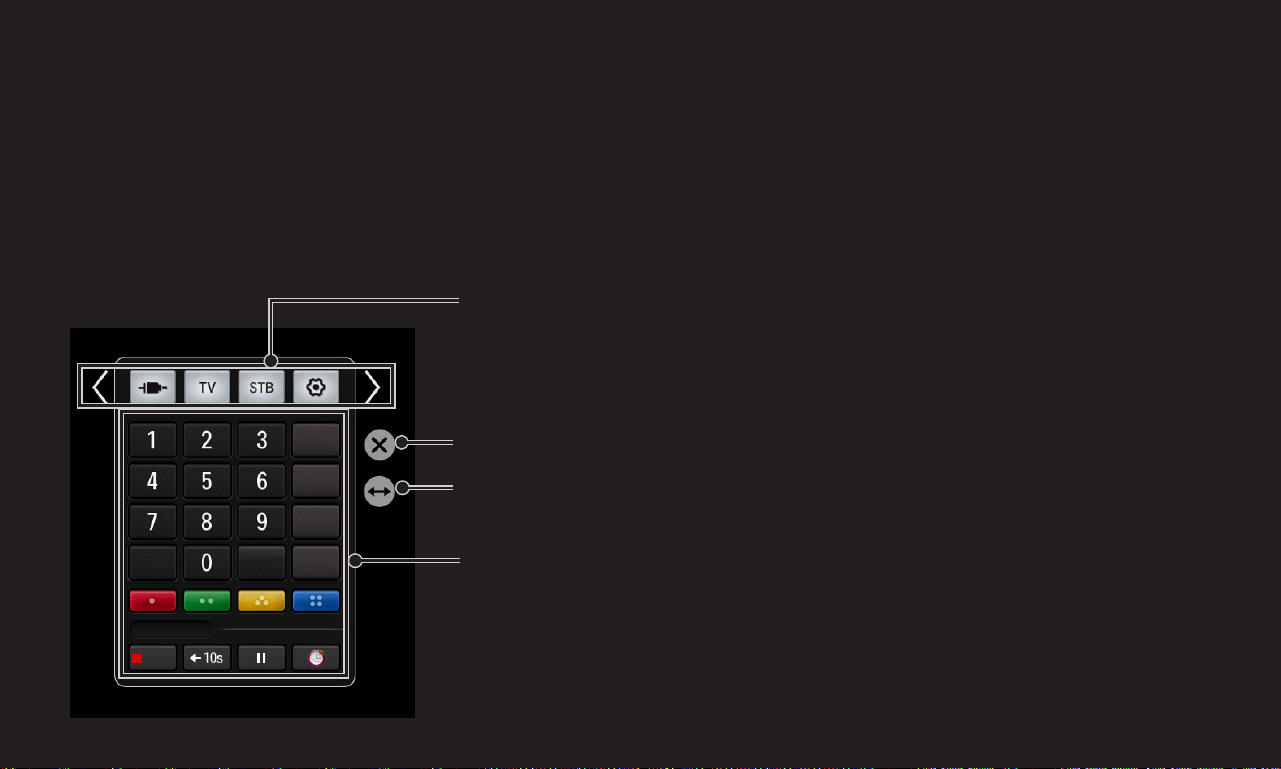
Select a button on the Screen Remote displayed on the screen using the Magic
Remote Control.
NC4H
ENG
✎ The type of buttons on the Screen Remote varies depending on the region
or the type of a connected device.
✎ Image shown may differ from your TV.
Exits the Screen Remote
Moves the position of the Screen Remote to left or right
TV operation buttons
✎ The type of buttons varies depending on the model.
Change Device tab
Time Machine II
REC.
NC4H
ENG
You can control a device connected via SimpLink or MHL using the Screen
Remote.
1 Check if the device is connected to the TV.
2 After pressing the button on the Magic Remote Control, select the
device you want to control in the Change Device tab. The Screen Remote that
can control the device appears.
✎ This may not work with the button for some models.
✎ For more information about SimpLink or MHL connection, please refer to
the connection section of "Owner's Manual" provided with the TV.

GP4
eng
3D imaging is a technology that utilizes the slight difference in the left and right
eyes to make images on TV look just like real-life 3-dimensional space.
1 Play a 3D image title or turn to a 3D programme.
2 Put on 3D glasses.
3 Press 3D button to change to 3D imaging.
4 To end 3D image viewing, press the 3D button on the remote control while
viewing 3D images.
✎ Depending on the input signal, available 3D type may differ.
GP4
eng
Adjusts various aspects of 3D imaging.
3D Mode
Provides appropriate 3D depth.
• 3D Depth : Adjust 3D depth between object and
background.
• 3D Viewpoint : Adjust 3D image closer/farther from
user.
Loading page 153...

GP4
eng
✎ When viewing 3D images, it is recommended that the viewer maintain a
distance of at least twice the screen's diagonal length.
✎ 3D images may not be viewed correctly with shutter-type glasses that require
recharging.
✎ If a future 3D broadcasting format that is not supported by this TV becomes
the standard, you may require an additional device such as a set-top box.
Loading page 155...
Loading page 156...

GP4
ENG
✎ [Depending on model] You can also record digital/analogue programmes
transmitted over an RF cable and content played through the AV IN input.
✎ Recording copyrighted content, provided with a set-top box using an AV
jack, is not supported. Recording genuine DVD/Blu-ray titles is also not
supported.
✎ All broadcasts are protected by copyright; you may need to obtain
permission from the copyright owner prior to reproducing or playing back
these broadcasts. If a user records audio or video using this device, the
recordings must be for personal use only. Selling, transferring or renting
recordings protected by copyright is prohibited.
Loading page 158...
Loading page 159...

GP4
ENG
PresstheRecordingstop( )buttonontheprogressbar,intheInformation
windoworonthescreenremotecontroltoselectRecordingstop.
PresstheRecordingstop( )buttonontheprogressbar,intheInformation
windoworonthescreenremotecontroltoselectRecordingendtimemodify.
✎ Youcansetupto5hoursforRecordingendtimemodify.
Loading page 161...
GP4
ENG
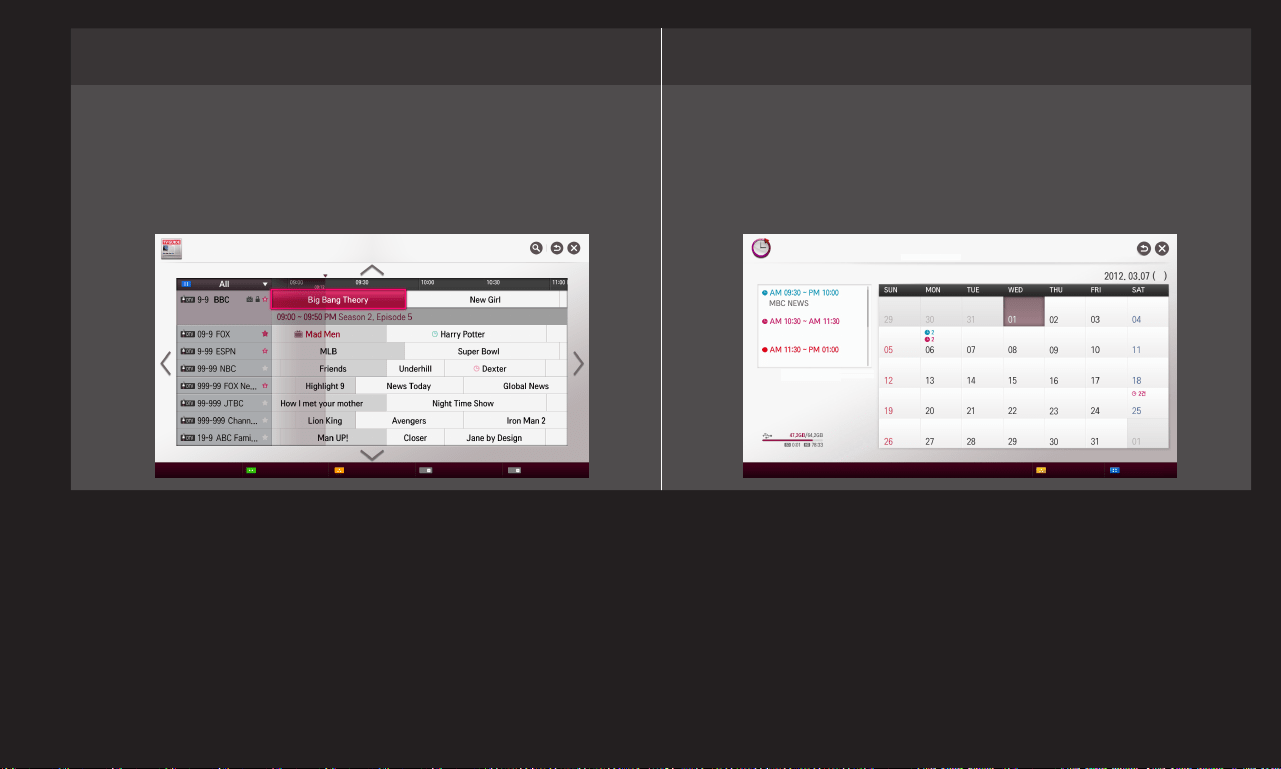
TV Guide Manual Timer
You can select a programme you
want to schedule for watching or
recording.
You can select a date, time and
channel to schedule the watching or
recording time.
✎ Image shown may differ from your TV.
✎ When no Programme Guide is available, only the Manual Timer menus are
displayed.
✎ The length of the scheduled recording should be at least 2 minutes.
TV Guide Manual Timer
Manual Timer Schedule List -24H +24H TV Guide Schedule List
Loading page 163...
GP4
ENG
You can view the recordings stored on a USB device. You can select a
recording to play, delete or upload to the Cloud server.
Play on previous
playtime.
Resumes play of a recording you have played back
before.
Play from the start.
Plays back the selected recording from the
beginning.
Delete Deletes the selected recording.
✎ Up to 600 recordings can be added in Recorded TV.
✎ You can also view the recordings from SMART ➾ SmartShare
TM
➙
Recorded TV.
GP4
ENG
Protection
Prevents the selected recording from being automatically
deleted.
Delete Deletes the selected recording.
Upload to Cloud
[Depending on country]
Uploads and saves the selected recording in the cloud
server.
✎ You can also view the recordings from SMART ➾ SmartShare
TM
➙
Recorded TV.
GP4
ENG
✎ The picture may differ from the screen on the TV.
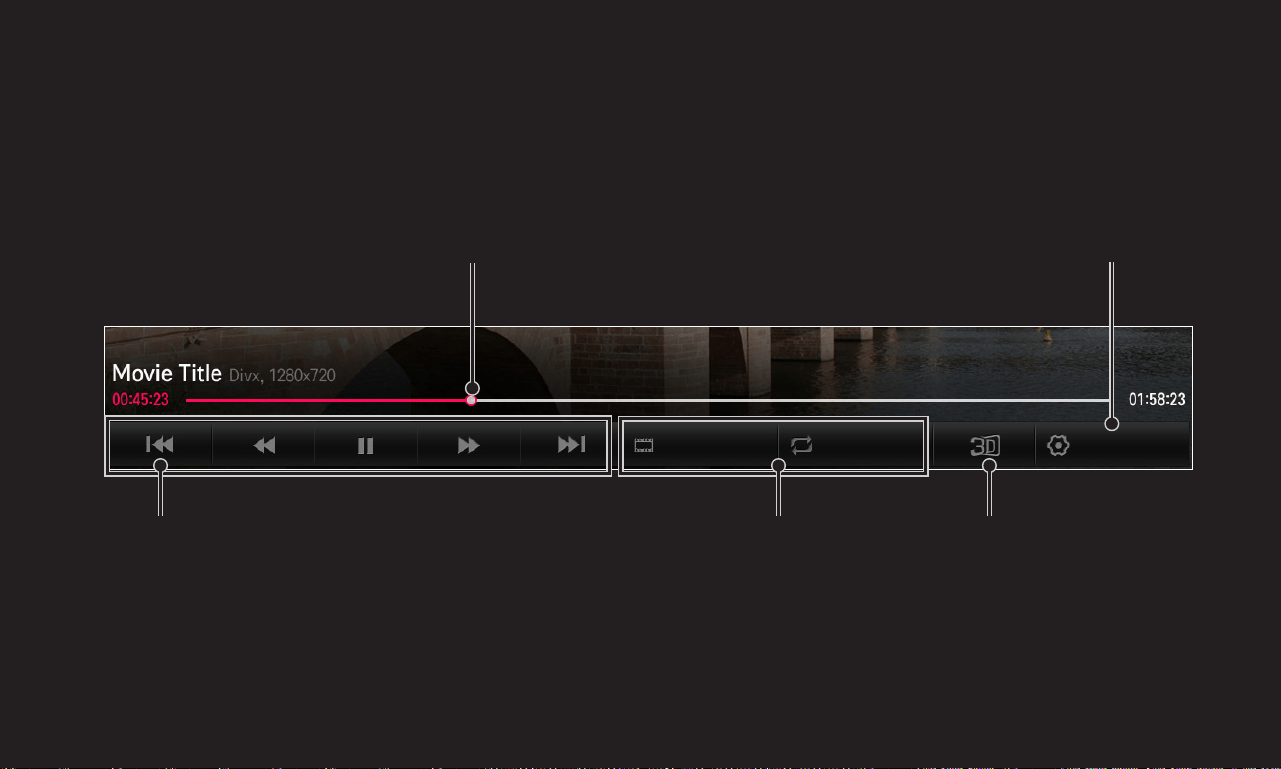
Set recordings playback option
Repeat/save clip View in 3D
(Displayed only for
models that support 3D)
Adjust picture while
playing
Select a point from which to play
Option
RepeatClip-Edit

GP4
ENG
1 PrepareaUSBdevicetobeusedforTimeMachineⅡ.
2 ConnectaUSBstoragedevicetotheportwiththeHDDINlabelattheback
oronthesideofyourTV.
3 TouseaUSBdeviceonlyfortheTimeMachineⅡfunction,youmust
initialisethedevice.
SelectWheel(OK)➾Option➙USBDeviceinitialisationifyouconnecta
devicethathasnotbeeninitialised.TheUSBDeviceinitialisationscreen
appears.
4 TocompleteUSBDeviceInitializationanduseTimeShift,settheTimeShift
modetoON.
✎ YoucanstartUSBDeviceinitialisationfromSMART ➾TimeMachineⅡ
➙Option➙USBDeviceinitialisation.

GP4
ENG
✎ YoucanuseaHardDiskDrive(HDD)orSolidStateDrive(SSD)asaUSB
deviceforTimeMachineⅡonly.
✎ ItisrecommendedthatyouuseaUSBdevicewithacapacitybetween
40GBand2TB.
✎ ForanSSD,thereisalimittotheamountofreading/writingthatcanbe
done.Therefore,itisrecommendedthatyouuseanHDD.
✎ ToremoveaUSBdevice,selectQuickMenu➙USBDevice.Makesureyou
receivetheconfirmationmessagethattheUSBdevicehasbeenremoved.
✎ IfaUSBdeviceisfaulty,theTimeMachineⅡfunctionmaynotoperate
normally.
✎ IfyouuseaUSBextensioncable,theUSBdevicemaynotberecognizedor
maynotworkproperly.

GP4
ENG
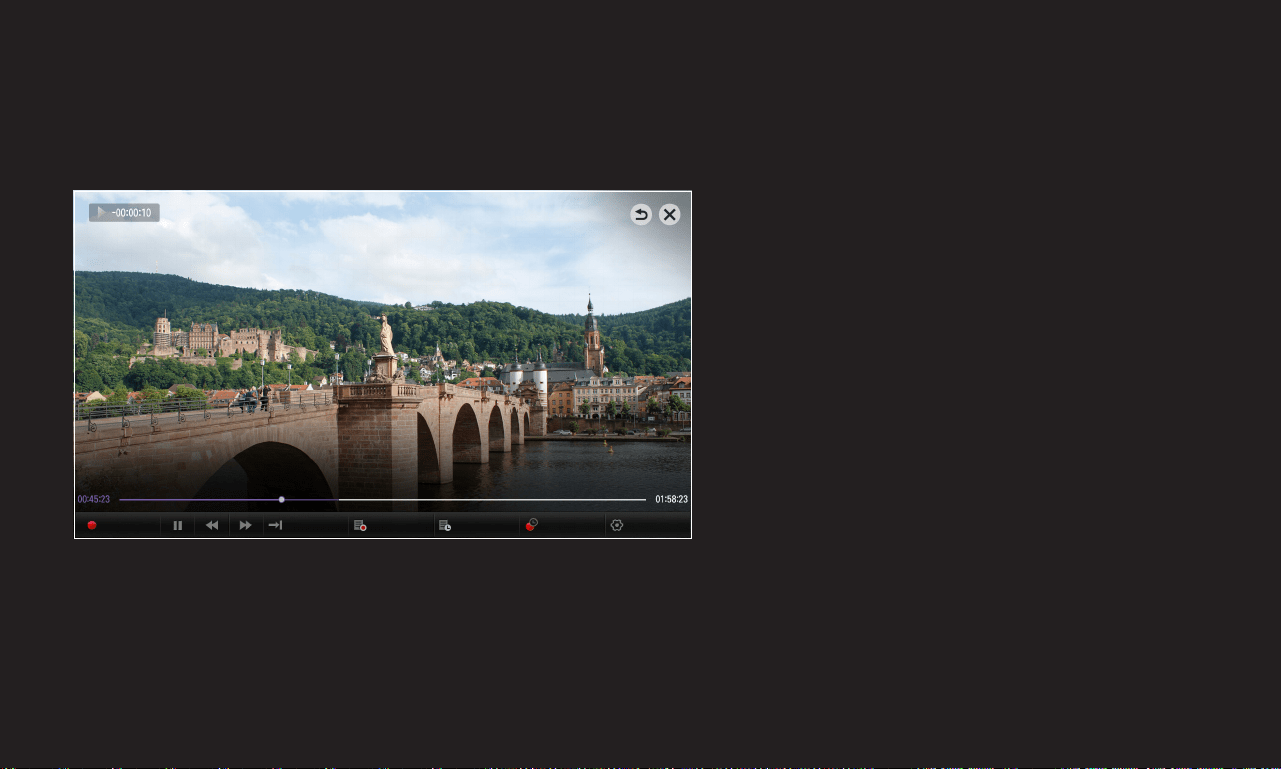
It is a function you can use to save the programme you are currently watching
temporarily on a USB device so you can play back a scene you missed while
watching TV. This function allows you to continue watching from where you
were previously if you go out for a while.
✎ You have to set the TimeShift mode to ON after connecting a USB device to
use the TimeShift function.
✎ [Depending on model] This function works for analogue/digital programmes
and AV input mode.
✎ With the TimeShift function, you can play a programme back for up to two
hours. This time may vary depending on your region.
✎ While in the TimeShift mode, the picture stored by this function is deleted
if you turn off the TV without recording it.
GP4
ENG
Use the left or right navigation button on the Magic remote control to wind the
picture you are watching back or forward by 10 seconds.
✎ You can also operate TimeShift using the left or right navigation button on a
standard remote control.
REC Live Recorded TV Schedule List Schedule Option

GP4
ENG
You can change the settings for Time Machine Ⅱ while using the function.
Recording Quality
[Depending on model]
Sets the picture quality of recordings. You can set it to
High Quality or Normal Quality.
✎ The recording time may vary depending on the
recording quality.
TimeShift
Plays back a scene that you have missed.
• ON: Enables the TimeShift function automatically
when you turn on the TV.
• OFF: Disables the TimeShift function.

GP4
ENG
Auto deleting
Automatically deletes old recordings when a USB device
is full in order to secure space to save new recordings.
✎ Protected recordings are not deleted automatically.
USB Device
initialisation
Sets a connected storage device to be used only for
Time Machine Ⅱ. All data saved on the USB device is
deleted.
Auto-Upload to
Cloud
[Depending on country]
Automatically uploads recordings to the Cloud server.
✎ A storage device on which USB Device initialisation has been performed
will not be detected by a PC.
✎ Recordings saved on a USB device can be damaged. The manufacturer is
not liable for any damaged recordings since it is the user's responsibility to
manage data.

GP4
ENG
You can use Time Machine Ⅱ in various ways by combining it with different
functions.
Cloud
Uploads recordings to the Cloud server so that you can
watch the recordings anywhere by accessing Cloud.
✎ You can use this function on the LG Cloud app on a
smartphone or tablet PC.
On Now
Still pictures are provided for programme searches.
You can record the programme you searched for
immediately or schedule a recording or watching time
for the programme.
Loading page 174...

GP4
ENG
You can control the TV simply by gesturing for the camera.
You can use the Motion Recognition function to turn the TV off, change the
channel and control the volume.
✎ Motion Recognition is only a function for watching TV and it is not supported
when using the smart menu, such as when connecting wireless devices,
including TV apps or USB ports.
TV HDMI1 Component
Move Select
Loading page 176...

GP4
ENG
5 Move your hand left, right, up or down to select a function. Close and open
your fist to start the function.
6 If you lower your hand out of the range of motion recognition, the controller
disappears from the screen.
✎ If you clench your fist for more than one second, the selected function is
performed repeatedly until you open your hand.
✎ If you are watching TV using a set-top box, install an IR blaster (AN-
BL100, sold separately) to control the volume and the channel of the set-
top box using Motion Recognition.
Loading page 178...

GP4
ENG
✎ A gesture may not be recognised in the following cases.
• If Motion Recognition is set to Off in SMART ➾ Settings ➙ OPTION,
: Set it to On.
• If any other menu than the motion recognition controller is displayed on
the TV screen,
: Make it disappear.
• (For the built-in camera) If the camera is not lifted up,
: Make sure to lift up the camera.
✎ Devices connected through a USB port or a wireless connection cannot be
switched via Motion Recognition.

GP4
ENG
✎ If more than one hand is detected by the camera, it works with the first
detected hand only. To use another hand to operate the controller, lower your
hand down to clear the controller from the screen and then raise your hand
up again.
✎ If you hold your hand up with it spread out or gripped, the camera may not
detect your hand. Make sure that you raise your hand with all five fingers
clearly displayed.
✎ Be careful not to move your hand too fast or make too big motion. Move
your hand slowly near your face.
✎ If Motion Recognition does not work properly, lower your hand and then lift it
up again.
✎ If you open your hand at an angle, the camera might mistake this as a fist and
perform the selected function.

GP4
ENG
❐
What is Dual Play mode?
When playing a 1:1 battle game with a game console, such as Playstation, XBox
and Wii, users used to play the game with the screen divided top and bottom or
side by side.
With Dual Play mode, each player can enjoy the game with a full screen.
To play in Dual Play mode, the Dual Play glasses (type A and B) are required.
If your model does not include the Dual Play glasses, please purchase them
separately.

GP4
ENG
❐
Starting Dual Play
1 Connect your game console to your TV.
2 Select SMART ➾ More ➙ Dual Play. The Dual Play mode starts.
3 Put on the Dual Play glasses to enjoy game.
4 The Dual Play mode turns off when you select SMART ➾ More ➙ Dual
Play while it is on.
✎ Select the Screen split mode (Side by Side / Top & Bottom) that the game
supports. If the selected Screen split mode is not supported by the game
you want to play, the Dual Play mode is not available.

GP4
ENG
✎ The game should support the Screen split mode to be played in Dual Play
mode.
✎ If the screen does not look clear enough with the Dual Play glasses on,
players can change the glasses with each other. You should choose proper
glasses according to the operation type of Dual Play.
✎ To set up the game menu, turn off the Dual Play mode.
✎ Certain images may appear to be overlapped during playing game. It is
recommended to play a game facing the center of the screen.
✎ When the game console has a low resolution, the picture quality may not be
good in Dual Play mode.
✎ The picture on the screen is only in 2D in Dual Play mode.
Loading page 184...

GP4
ENG
✎ Do not drop Dual Play glasses or allow them to come into contact with other
objects. This can result in damage to the product.
✎ The lenses of Dual Play glasses (polarizing film) are easily scratched. Use
a soft clean cloth when cleaning them. Foreign particles on the cloth may
cause scratches.
✎ Do not scratch the surface of the Dual Play glasses lenses with sharp objects
or wipe them with chemicals. If the lenses get scratched, images may not
look normal when viewing Dual Play.

GP4
ENG
❐
Dual Play Supporting Mode [FHD]
Input Signal Resolution
Horizontal Frequency
(KHz)
Vertical Frequency
(Hz)
Composite
480i 720x480 15.73 60
576i 720x576 15.625 50
Component
480i 720x480 15.73 60
480p 720x480 31.50 60
576i 720x576 15.625 50
HDMI/
Component
720p 1280x720
45 60
37.5 50
1080i 1920X1080
33.75 60
28.125 50
1080p 1920X1080
67.50 60
56.250 50
27 24
33.75 30
Loading page 187...
GP4
ENG
Input Signal Resolution
Horizontal Frequency
(KHz)
Vertical Frequency
(Hz)
HDMI 2160p 3840x2160
53.95 23.976
54 24
56.25 25
61.43 29.97
67.5 30
✎ Some models may not support Composite/Component input.
✎ Supported Dual Play Formats: Side by Side / Top & Bottom

GP4
kor
You can download the LG TV Remote app from Google Play Store or Apple App
Store and use it on any TV connected with your smartphone.
• Now you can enjoy your favorite TV shows on your smartphone. (Some
models only)
• You can easily enter your account information to log in.
• You can add your favorite channels on your smartphone.
• You can use the functions such as PREMIUM, MY Apps, and SmartShare
TM
directly on your smartphone.
• The text input function is supported, so you can enter text easily. (Text
cannot be entered on some screens.)
• Select the app's touch pad to control in the same way the pointer of the
Magic Remote Control works.
• You can control the game app of the TV by selecting the Game Pad in the
LG TV Remote app.

GP4
kor
• Keypad which allows you to control the set-top box and media devices is
provided. (Some models with specified conditions only.)
• You can set the TV to the power-saving mode while watching TV on your
smartphone.
• You can capture the screen you are watching and share it through social
network services such as Twitter and Facebook.
✎ The supported functions may vary depending on the TV or the version of
the LG TV Remote app.
Loading page 191...

GP4
ENG
Connect your keyboard to the USB port. You can enter text with the keyboard
when using the search function and the Internet.
✎ Text cannot be entered on some screens.
✎ It is recommended to use the product which is tested for compatibility with
LG TV.
LOGITECH K200, LOGITECH K400, MICROSOFT Comfort Curve 2000,
MICROSOFT MS800, and LG Electronics ST-800
✎ You can change the input language by pressing the language switch key (or
the right Alt key) on your keyboard.

GP4
ENG
Connect your gamepad to the USB port on the TV if the game requires a
gamepad.
✎ It is recommended to use an authorized gamepad which is tested for
compatibility with LG TV.
Logitech F310, Logitech F510, Logitech F710, Logitech Rumblepad 2, and
Microsoft Xbox 360 Controller (wired)
Loading page 194...

GP4
eng
✎ When the update starts, the update progress window appears for a short
time and disappears.
✎ The latest version can be obtained via the digital broadcast signal or an
internet connection.
✎ Changing the programme while downloading the software via a digital
broadcast signal interrupts the download process. Returning to the initial
programme allows downloading to resume.
✎ If software is not updated, certain functions may not work properly.
✎ [For Finland/Sweden/Denmark/Norway models.]
If the software update is performed via the broadcasting signal, you will
be prompted to continue the update regardless of whether the Automatic
update mode is enabled or not.

GP4
eng
If the following symptoms occur, please carry out the checks and adjustments
described below. There may be no malfunction.
SMART ➾ Settings ➙ SUPPORT ➙ Signal Test
Shows the MUX and Service information etc. If you select Antenna & Satellite or
Cable & Satellite, a signal test only for Antenna or Cable is displayed.
❐
General
Problem Solution
Cannot view certain
programmes.
• Adjust the location or orientation of the antenna.
• Save the programmes you wish to view later using Auto
Tuning or Programme Edit.
There is a delay after the
TV is switched on before
the image is fully visible.
• This is not a problem. Image noise that may occur when
the TV is first switched is being cleaned up.
GP4
eng
❐
Pictures
SMART ➾ Settings ➙ SUPPORT ➙ Picture Test
First run a Picture Test to verify that the image signal output is normal.
If there is no problem with the test image, check external device connections
and broadcast signals.
Problem Solution
Images from previous
programme or other
programmes linger or the
screen displays annoying
lines.
• Adjust the orientation of the antenna to the TV
transmitter, or refer to the manual for instructions on
connecting the antenna.
Loading page 198...
Loading page 199...
Loading page 200...
Loading page 201...
Loading page 202...
Loading page 203...
Loading page 204...
Loading page 205...
Loading page 206...
Loading page 207...
Loading page 208...