CTK671-ES-1
P
USER’S GUIDE
GUÍA DEL USUARIO
01.8.1, 3:53 PMPage 1

703A-E-002A
GUIDELINES LAID DOWN BY FCC RULES FOR USE OF THE UNIT IN THE U.S.A. (not applicable to other areas).
NOTICE
This equipment has been tested and found to comply with the limits for a Class B digital device, pursuant to Part 15
of the FCC Rules. These limits are designed to provide reasonable protection against harmful interference in a
residential installation. This equipment generates, uses and can radiate radio frequency energy and, if not installed
and used in accordance with the instructions, may cause harmful interference to radio communications. However,
there is no guarantee that interference will not occur in a particular installation. If this equipment does cause harmful
interference to radio or television reception, which can be determined by turning the equipment off and on, the user
is encouraged to try to correct the interference by one or more of the following measures:
• Reorient or relocate the receiving antenna.
• Increase the separation between the equipment and receiver.
• Connect the equipment into an outlet on a circuit different from that to which the receiver is connected.
• Consult the dealer or an experienced radio/TV technician for help.
FCC WARNING
Changes or modifications not expressly approved by the party responsible for compliance could void the user’s
authority to operate the equipment.

E-1
Welcome...
To the happy family of satisfied CASIO electronic musical instrument owners! To get the most
out of the many features and functions of the keyboard, be sure to carefully read this manual
and keep it on hand for future reference.
Important!
Please note the following important information before using this product.
• Before using the optional AD-5 Adaptor to power the unit, be sure to check the AC Adap-
tor for any damage first. Carefully check the power cord for breakage, cuts, exposed wire
and other serious damage. Never let children use an AC adaptor that is seriously dam-
aged.
• Never attempt to recharge batteries.
• Do not use rechargeable batteries.
• Never mix old batteries with new ones.
• Use recommended batteries or equivalent types.
• Always make sure that positive (+) and negative (–) poles are facing correctly as indicated
near the battery compartment.
• Replace batteries as soon as possible after any sign they are getting weak.
• Do not short-circuit the battery terminals.
• The product is not intended for children under 3 years.
• Use only CASIO AD-5 adaptor.
• The AC adaptor is not a toy.
• Be sure to disconnect the AC adaptor before cleaning the product.
CASIO ELECTRONICS CO., LTD.
Unit 6, 1000
North Circular Road
London NW2 7JD, U.K.
This mark is valid in the EU countries only.
Please keep all information for future reference.
703A-E-003A

E-2
Congratulations upon your selection of this CASIO musical instrument. This keyboard
provides you with the following features and functions.
❐ 348 tones, including 100 “Advanced Tones”
A total of 238 standard tones including piano, organ, brass, and other presets provide
you with the sounds you need, while memory for 10 user tones lets you store your
own original creations. 100 of the preset tones are “Advanced Tones,” which are vari-
ations of standard tones created by programming in effects (DSP) and other settings.
❐ 100 Preset Rhythms + 4 User Rhythms
A selection of 100 rhythms includes accompaniments for everything from rock to
pops and jazz.
You can also transfer accompaniment data from your computer and store up to four
of them as user rhythms in keyboard memory.
❐ Auto Accompaniment
Simply play a chord and the corresponding rhythm, bass and chord parts play auto-
matically. One-touch Presets instantly recalls the most suitable tone and tempo set-
tings to match the rhythm you are using.
❐ Big, Information-packed Display
A big built-in display shows chord names, tempo setting, keyboard information, staff
notation of notes played, and more for full support of all your keyboard play. A built-
in backlight keeps the display easy to read, even in total darkness.
❐ Song Memory
Record up to six parts in memory, along with their tone, volume, pan position, and
other parameters for later playback. Realistic ensemble play can also be created us-
ing the Auto Accompaniment function.
❐ Synthesizer Mode
Edit built in sounds to produce your own original creations. Up to 10 of your own
sounds can be stored in memory for recall just like the built-in tones.
Introduction
703A-E-004A

E-3
❐ General MIDI compatibility
The General MIDI tones of this keyboard let you connect to a personal computer to
enjoy “desktop music” capabilities. This keyboard can be used as a desktop music
input device or sound source, and it's just the thing for playback of commercially
available pre-recorded General MIDI music software.
❐ Powerful effects
A collection of powerful effects, such as reverb, chorus, and more, give you total
control over the type of sound you want. You can even change the parameters of an
effect to create your own, original effects. A 4-band equalizer is also included.
❐ Mixer
You can specify tone, volume, pan position, and other parameters for each built-in
Auto Accompaniment part. You can also control the same parameters for each chan-
nel during MIDI input.
❐ Registration Memory
Keyboard setups can be stored in memory for later recall and instant settings when-
ever you need them. Up to 16 setups (4 setups x 4 banks) can be stored in registration
memory.
❐ Data download from your computer
You can use your computer to download data from the CASIO MUSIC SITE.
703A-E-005A

E-4
Safety Precautions
Symbols
Various symbols are used in this user’s guide
and on the product itself to ensure that the
product is used safely and correctly, and to
prevent injury to the user and other persons
as well as damage to property. Those sym-
bols along with their meanings are shown
below.
DANGER
This symbol indicates information that, if
ignored or applied incorrectly, creates the
danger of death or serious personal injury.
WARNING
This indication stipulates matters that have
the risk of causing death or serious injury
if the product is operated incorrectly while
ignoring this indication.
CAUTION
This indication stipulates matters that have
the risk of causing injury as well as mat-
ters for which there is the likelihood of
occurrence of physical damage only if the
product is operated incorrectly while ig-
noring this indication.
Symbol Examples
This triangle symbol ( ) means
that the user should be careful.
(The example at left indicates
electrical shock caution.)
This circle with a line through it
( ) means that the indicated ac-
tion must not be performed. In-
dications within or nearby this
symbol are specifically prohib-
ited. (The example at left indi-
cates that disassembly is prohib-
ited.)
The black dot ( ) means that the
indicated action must be per-
formed. Indications within this
symbol are actions that are spe-
cifically instructed to be per-
formed. (The example at left indi-
cates that the power plug must be
unplugged from the electrical
socket.)
703A-E-006A

E-5
AC Adaptor
Misuse of the AC adaptor’s electric
cord can damage or break it, creat-
ing the risk of fire and electric shock.
Always make sure you observe the
following precautions.
• Never place heavy objects on the
cord or subject it to heat.
• Never try to modify the cord or
subject it to excessive bending.
• Never twist or stretch the cord.
• Should the electric cord or plug
become damaged, contact your
original retailer or authorized
CASIO Service Provider.
AC Adaptor
Never touch the AC adapter while
your hands are wet.
Doing so creates the risk of electric
shock.
Batteries
Misuse of batteries can cause them
to leak, resulting in damage to
nearby objects, or to explode, creat-
ing the risk of fire and personal in-
jury. Always make sure you observe
the following precautions.
• Never try to take batteries apart
or allow them to become shorted.
• Never expose batteries to heat or
dispose of them by incineration.
• Never mix old batteries with new
ones.
• Never mix batteries of different
types.
• Do not charge the batteries.
• Make sure the positive (+) and
negative (–) ends of the batteries
are facing correctly.
703A-E-007A
DANGER
Alkaline Batteries
Perform the following steps imme-
diately if fluid leaking from alka-
line batteries ever gets into your
eyes.
1. Do not rub your eyes! Rinse them
with water.
2. Contact your physician immedi-
ately.
Leaving alkaline battery fluid in
your eyes can lead to loss of sight.
WARNING
Smoke, Strange Odor, Overheating
Continued use of the product while
it is emitting smoke, a strange odor,
or heat creates the risk of fire and
electric shock. Take the following
steps immediately.
1. Turn off power.
2. If you are using the AC adaptor
for power, unplug it from the wall
outlet.
3. Contact your original retailer or
an authorized CASIO Service Pro-
vider.
AC Adaptor
Misuse of the AC adaptor creates
the risk of fire and electric shock.
Always make sure you observe the
following precautions.
• Be sure to use only the AC adap-
tor that is specified for this prod-
uct.
• Use only a power source whose
voltage is the within the rating
marked on the AC adaptor.
• Do not overload electrical outlets
and extension cords.
E-6
Plastic Bags
Never place the plastic bag the prod-
uct comes in over your head or in
your mouth. Doing so creates the
risk of suffocation.
Particular care concerning this pre-
caution is required where small chil-
dren are present.
Keep off of the product and stand.*
Climbing onto the product or stand
can cause it to tip over or become
damaged. Particular care concern-
ing this precaution is required
where small children are present.
Location
Avoid locating the product on an
unstable stand, on an uneven sur-
face, or any other unstable location.
An unstable location can cause the
product to fall over, creating the risk
of personal injury.
703A-E-008A
Do not incinerate the product.
Never throw the product into fire.
Doing so can cause it to explode,
creating the risk of fire and personal
injury.
Water and Foreign Matter
Water, other liquids, and foreign
matter (such as pieces of metal) get-
ting into the product create the risk
of fire and electric shock. Take the
following steps immediately.
1. Turn off power.
2. If you are using the AC adaptor
for power, unplug it from the wall
outlet.
3. Contact your original retailer or
an authorized CASIO Service Pro-
vider.
Disassembly and Modification
Never try to take this product apart
or modify it in any way. Doing so
creates the risk of electric shock,
burn injury, or other personal in-
jury. Leave all internal inspection,
adjustment, and maintenance up to
your original retailer or authorized
CASIO Service Provider.
Dropping and Impact
Continued use of this product after
it has been damaged by dropping
or subjecting it to strong impact cre-
ates the risk of fire and electric
shock. Take the following steps im-
mediately.
1. Turn off power.
2. If you are using the AC adaptor
for power, unplug it from the wall
outlet.
3. Contact your original retailer or
an authorized CASIO Service Pro-
vider.

E-7
Cleaning
Before cleaning the product, always
unplug the AC adaptor from the
wall outlet first. Leaving the AC
adaptor plugged in creates the risk
of damage to the AC adaptor, fire,
and electric shock.
Batteries
Misuse of batteries can cause them
to leak resulting in damage to
nearby objects, or to explode, creat-
ing the risk of fire and personal in-
jury. Always make sure you observe
the following precautions.
• Use only batteries that are speci-
fied for use with this product.
• Remove batteries from the prod-
uct if you do not plan to use it for
a long time.
Connectors
Connect only the specified devices
and equipment to the product’s con-
nectors. Connection of a non-speci-
fied device or equipment creates the
risk of fire and electric shock.
Location
Avoid the following locations for
this product. Such locations create
the risk of fire and electric shock.
• Areas subject to high humidity
or large amounts of dust
• In food preparation areas or other
areas subject to oil smoke
• Near air conditioning equipment,
on a heated carpet, in areas ex-
posed to direct sunlight, inside of
a vehicle parked in the sun, or
any other area that subjects the
product to high temperatures
703A-E-009A
CAUTION
AC Adaptor
Misuse of the AC adaptor creates
the risk of fire and electric shock.
Always make sure you observe the
following precautions.
• Do not locate the electric cord
near a stove or other sources of
heat.
• Never pull on the cord when un-
plugging from the electrical out-
let. Always grasp the AC adap-
tor when unplugging.
AC Adaptor
Misuse of the AC adaptor creates
the risk of fire and electric shock.
Always make sure you observe the
following precautions.
• Insert the AC adaptor into the
wall outlet as far as it will go.
• Unplug the AC adaptor from the
wall outlet during lightening
storms or before leaving on a trip
or other long-term absence.
• At least once a year, unplug the
AC Adaptor from the wall outlet
and wipe away any dust that is
built up in the area around the
prongs of the plug.
Relocating the Product
Before relocating the product, al-
ways unplug the AC adaptor from
the wall outlet and disconnect all
other cables and connecting cords.
Leaving cords connected creates the
risk of damage to the cords, fire,
and electric shock.

E-8
IMPORTANT!
When using batteries, be sure to replace them or shift to one
of the alternate power sources whenever you notice any of
the following symptoms.
• Dim power indicator
• Instrument does not turn on
• Display that is flickering, dim, or difficult to read
• Abnormally low speaker/headphone volume
• Distortion of sound output
• Occasional interruption of sound when playing at high vol-
umes
• Sudden power failure when playing at high volumes
• Flickering or dimming of the display when playing at high
volume
• Continued sound output even after you release a key
• A tone that is totally different from the one that is selected
• Abnormal rhythm pattern and demo tune play
• Loss of power, sound distortion, or low volume when play-
ing from a connected computer or MIDI device
703A-E-010A
Display Screen
• Never push on the display
screen’s LCD panel or subject it
to strong impact. Doing so can
cause the LCD panel’s glass to
crack, creating the risk of personal
injury.
• Should the LCD panel ever crack
or break, never touch the liquid
inside of the panel. LCD panel
liquid can cause skin irritation.
• Should LCD panel liquid ever get
inside your mouth, immediately
wash out your mouth with water
and contact your physician.
• Should LCD panel liquid ever get
into your eyes or onto your skin,
rinse with clear water for at least
15 minutes, and then contact a
physician.
Sound Volume
Do not listen to music at very loud
volumes for long periods. Particu-
lar care concerning this precaution
is required when using headphones.
High volume settings can damage
your hearing.
Heavy Objects
Never place heavy object on top of
the product.
Doing so can make the product top
heavy, causing the product to tip
over or the object to fall from it,
creating the risk of personal injury.
Correct Stand* Assembly
An incorrectly assembled stand can
tip over, causing the product to fall
and creating the risk of personal in-
jury.
Make sure you assemble the stand
correctly, following the assembly
instructions that come with it. Make
sure you mount the product on the
stand correctly.
* Stand is available as an option.

E-9
Avoid heat, humidity or direct sunlight.
Do not overexpose the instrument to direct sunlight, or place it near an air conditioner, or in any extremely hot place.
Do not use near a TV or radio.
This instrument can cause video or audio interference with TV and radio reception. If this happens, move the instrument away
from the TV or radio.
Do not use lacquer, thinner or similar chemicals for cleaning.
Clean the instrument with a soft cloth dampened in a weak solution of water and a neutral detergent. Soak the cloth in the
solution and squeeze until it is almost dry.
Avoid use in areas subjected to temperature extremes.
Extremely high or low temperature can cause figures on the LCD screen to become dim and difficult to read. This condition
should correct itself when the instrument is brought back to normal temperature.
❚
NOTE
• You may notice lines in the finish of the case of this instrument. These lines are a result of the molding process used to shape the plastic
of the case. They are not cracks or breaks in the plastic, and are no cause for concern.
Care of your Instrument
703A-E-011A

E-10
Contents
703A-E-012A
Welcome.................................E-1
Introduction ...........................E-2
Safety Precautions ................E-4
Care of your keyboard ..........E-9
Contents...............................E-10
General Guide......................E-12
About the display ..................................... E-14
Playing a Demo Tune ..............................E-15
Power Supply.......................E-16
Using batteries .........................................E-16
Using the AC Adaptor ..............................E-17
Auto Power Off .........................................E-17
Memory Contents ....................................E-18
Connections......................... E-19
Basic Operations .................E-21
To play the keyboard ................................E-21
Selecting a Tone ......................................E-21
Using an Advanced Tone .........................E-22
Applying Effects to Tones ... E-23
Effect Blocks ............................................E-23
Selecting REVERB and CHORUS ..........E-23
Selecting a DSP type ...............................E-25
Using the Equalizer .............E-27
Auto Accompaniment .........E-28
Selecting a Rhythm ..................................E-28
Playing a Rhythm.....................................E-28
Adjusting the Tempo ................................E-28
Using Auto Accompaniment .....................E-29
Using an Intro Pattern ..............................E-31
Using a Fill-in Pattern ..............................E-32
Using a Rhythm Variation ........................ E-32
Synchro Starting Accompaniment
with Rhythm Play .....................................E-32
Finishing with an Ending Pattern .............E-33
Using One-touch Preset ..........................E-33
Using Auto Harmonize .............................E-33
Adjusting the Accompaniment Volume ....E-34
Mixer Function .....................E-35
What you can do with the Mixer ..............E-35
Turning Channels On and Off ..................E-35
Using the Parameter Edit Mode ..............E-36
How Parameters Work .............................E-37
Synthesizer Mode ................E-38
Synthesizer Mode Functions ...................E-38
Creating a User Tone ............................... E-40
Storing a User Tone In Memory ...............E-42
Registration Memory...........E-44
Registration Memory Features ................E-44
To Save a Setup in Registration Memory ...E-45
To Recall a Setup from Registration
Memory ....................................................E-45

E-11
703A-E-013A
Song Memory Function ......E-46
Tracks ...................................................... E-46
Basic Song Memory operations ...............E-46
Using Real-time Recording......................E-47
Mixer Mode Settings ................................ E-48
Playing Back from Song Memory ............E-49
Recording Melody and Chords
with Step Recording.................................E-49
Recording Multiple Tracks .......................E-52
Correcting Mistakes While Step
Recording................................................. E-54
Editing Memory Contents ........................ E-55
Editing a Song .........................................E-57
Keyboard Settings...............E-59
Using Layer .............................................. E-59
Using Split ................................................E-59
Using Layer and Split Together ...............E-60
Using Touch Response ............................E-61
Transposing the Keyboard....................... E-62
Tuning the Keyboard ............................... E-62
Changing Other Settings .........................E-63
MIDI.......................................E-66
What is MIDI? ..........................................E-66
General MIDI ...........................................E-66
Sending and Receiving MIDI Messages ....E-67
MIDI Settings ...........................................E-67
Using the Data Download Service ...........E-68
Troubleshooting ..................E-69
Specifications ......................E-71
Appendix ............................... A-1
Tone list ......................................................A-1
Drum Assignment List ................................ A-8
Fingered Chord Chart ................................ A-9
Effect List .................................................A-10
DSP Algorithm List ...................................A-12
MIDI Implementation Chart

E-12
General Guide
703A-E-014A
R
E
S
T
/
Y
E
S
/
N
O
(
T
I
E
)
3
F
U
L
L
R
A
N
G
E
M
A
X
M
I
N
P
L
A
Y
R
E
C
O
R
D
S
T
E
P
R
E
C
O
R
D
C
H
O
R
D
F
I
N
G
E
R
E
D
C
A
S
I
O
C
H
O
R
D
N
O
R
M
A
L
BANK STORE
8 9 A B
D
E F
G
H
D
E G
F H
1
2
3
4
5
6 8 0 B
7 9 A C
*
1
BANK STORE
P
L
A
Y
R
E
C
O
R
D
S
T
E
P
R
E
C
O
R
D
R
E
S
T
/
Y
E
S
/
N
O
(
T
I
E
)
3
a
b
a
b
c
d
e
f
a
b
c
d
e
b
c
a
b
a c
d
a
b
a
fedca b
b c d
E-13
*
Attaching of the Score Stand
Firmly press the music stand provided with the keyboard
all the way into the groove on the top of the keyboard.
OUT IN
SUSTAIN/
ASSIGNABLE JACK
MIDI
PHONES/
OUTPUT
DC 9V
H
I J K L M
a b
c
b
703A-E-015A
Rear Panel
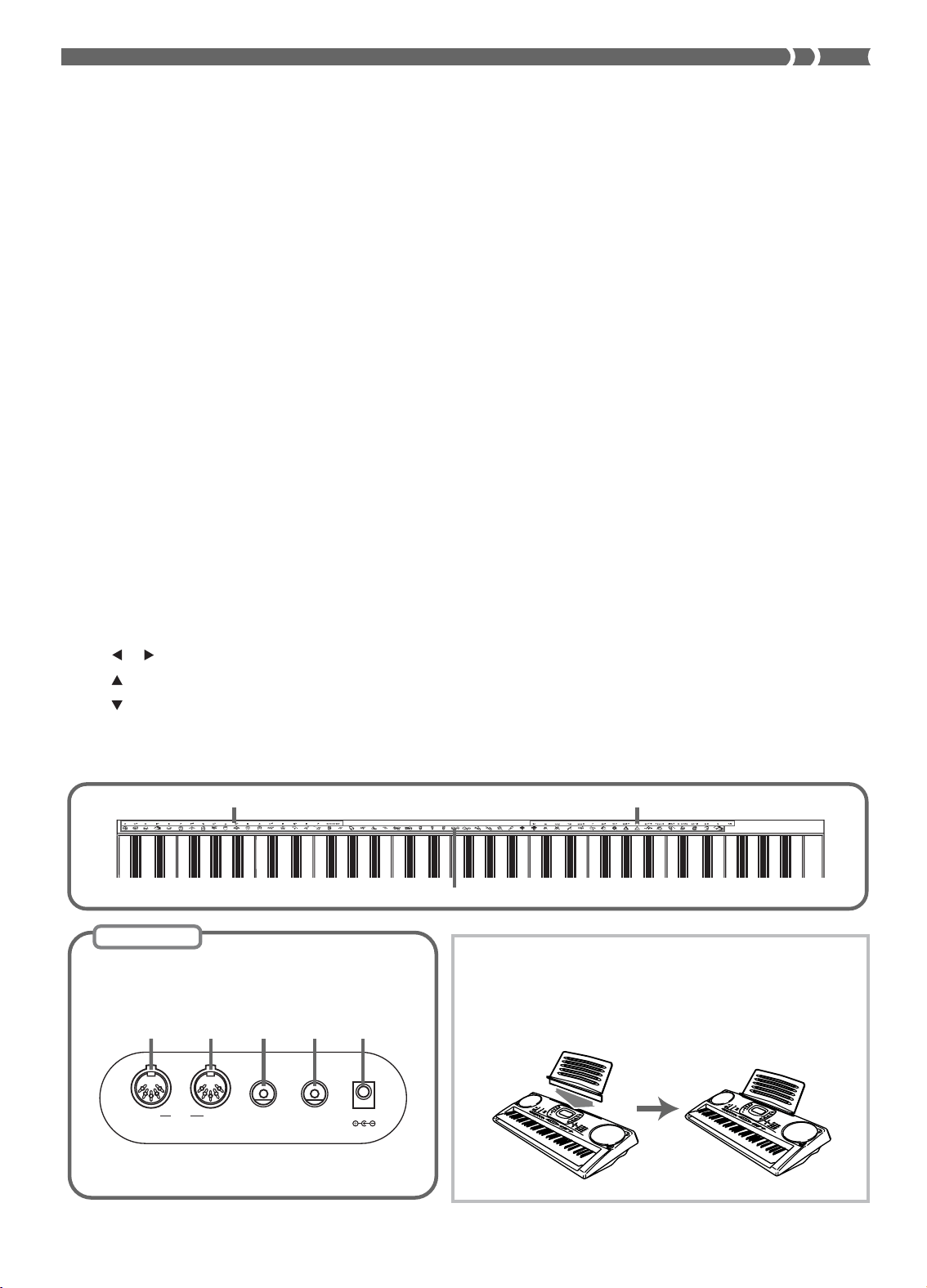
• Key, button, and other names are indicated in the text of this manual using bold type.
1 Speaker
2 POWER button
3 Power indicator
4 MODE switch
5 VOLUME slider
6 Rhythm list
7 Equalizer list
8 a) SONG MEMORY button
b) ONE TOUCH PRESET button
9 a) EQUALIZER button
b) REVERB button
c) CHORUS button
d) DSP button
e) MIXER button
f) ACCOMP VOLUME button
0 Display
A a) DEMO button
b) SYNTH button
c) ADVANCED TONE button
d) TONE button
e) RHYTHM button
B a) [ ] / [ ] CURSOR buttons
b) [ ] EXIT button
c) [ ] ENTER button
C Tone list
D a) INTRO/ENDING 1/2 buttons
b) VARIATION/FILL-IN 1/2 buttons
c) SYNCHRO/FILL-IN NEXT
button
d) START/STOP button
e) TEMPO buttons
E a) BANK button
b) REGISTRATION buttons
c) STORE button
d) SONG MEMORY TRACK
buttons
F a) AUTO HARMONIZE button
b) SPLIT button
c) LAYER button
d) TOUCH/TRANSPOSE/SET-
TING button
G a) Number buttons
• For input of numbers to
change displayed settings.
b) [+]/[–] buttons (YES/NO)
• Negative values can be
changed only by using [+] and
[–] to increment and decre-
ment the displayed value.
H a) CHORD root names
b) Chord types name
c) Percussion instrument list
I MIDI OUT terminal
J MIDI IN terminal
K SUSTAIN/ASSIGNABLE JACK
terminal
L PHONES/OUTPUT terminal
M DC 9V jack

E-14
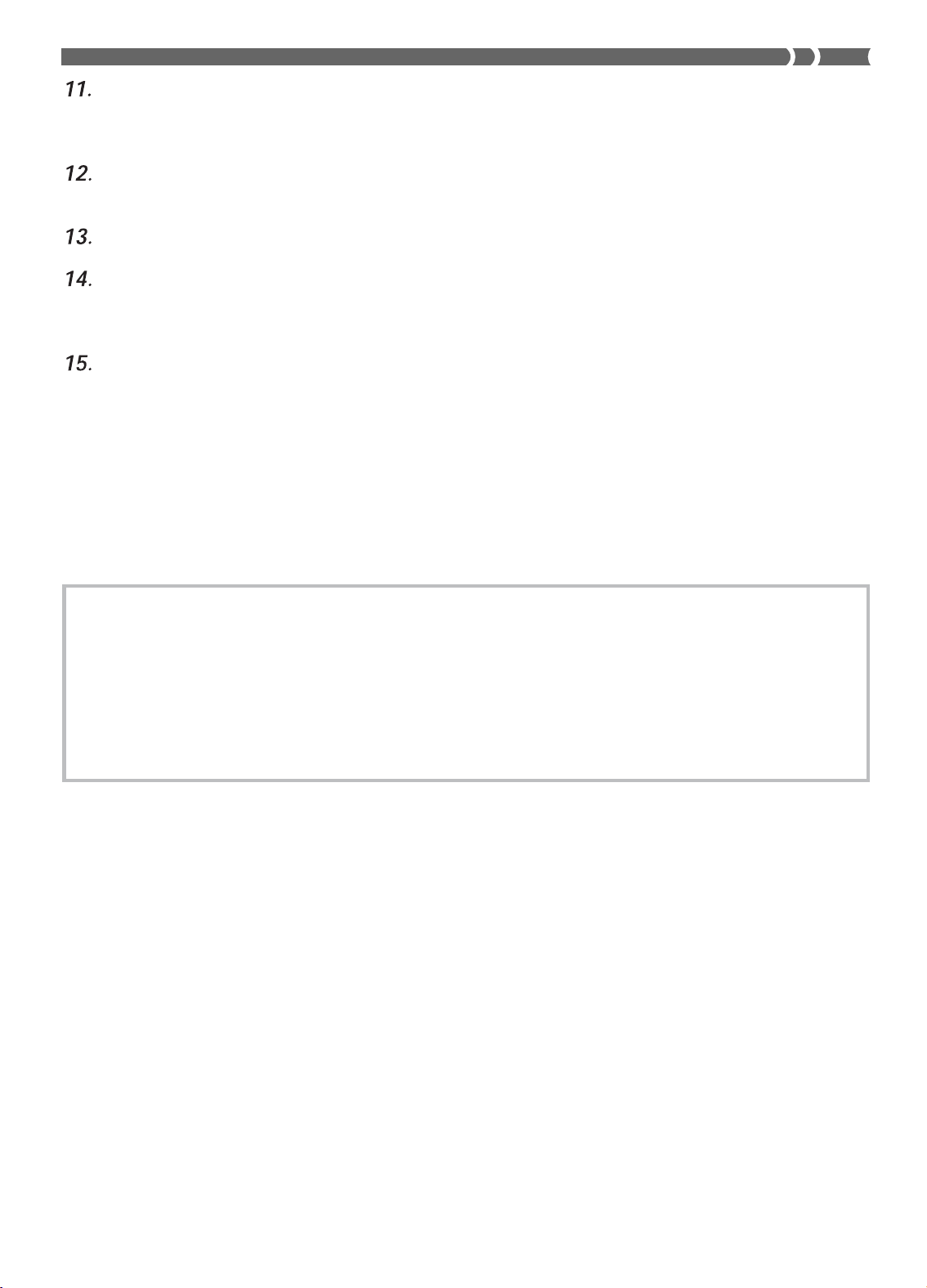
About the display
Indicators appear here to show when reverb, chorus, DSP, the Mixer Mode, Song Memory, or
Touch Response is being used.
The TONE indicator appears when you are selecting or viewing the TONE setting, while RHYTHM
appears for the RHYTHM setting. The AD and TONE indicators both appear when you are select-
ing or viewing an Advanced Tone.
• “AD TONE” stands for “ADVANCED TONE.”
Tone number/Tone name
• The tone number/tone name area is also used to indicate the rhythm number and rhythm name,
and to indicate various functions in the Synthesizer Mode, Mixer Mode, Registration Mode, and
Song Memory Mode.
Indicated keys are those that are operational for the function you are currently performing.
Octave Symbol
Appears when the note produced by the keyboard is one octave higher than the note indicated on
the staff.
Notes you play on the keyboard, notes being played back from Song Memory, chord forms, and
received MIDI data* are shown in the staff on the display.
Indicators appear here to show when the synthesizer, layer, split, or auto harmonize is being used.
This display shows the note played on the keyboard, notes being played back from Song Memory,
chord forms, and received MIDI data*.
The beat number is indicated while a rhythm, Auto-accompaniment, or Song Memory Mode is
being used.
The measure number is indicated while a rhythm, Auto-accompaniment, or Song Memory Mode
is being used.
703A-E-016A
E-15
Playing a Demo Tune
Pressing the DEMO button starts demo tune play. There are two demo tunes, which continuously play in sequence. To
stop demo tune play, press either the DEMO button or the START/STOP button.
❚
NOTE
• Pressing the [+]/[–] buttons skips to the next demo tune.
• MIDI, Layer, and Split are disabled while a demo tune is playing.
The number of beats per minute are indicated while a rhythm, Auto-accompaniment, or Song
Memory Mode is being used.
• The tempo area is also used to indicate the Song Memory function’s clock.
REC flashes on the display during Song Memory record standby. REC remains on the display
without flashing while recording is in progress. STEP is displayed during step recording.
You can turn on the metronome to provide a reference beat for your keyboard play.
Level Meter
The velocity of each channel is indicated as one of three levels. This display also shows the Mixer
channel’s on/off status.
The name of the chord being played is shown on the display while Auto Accompaniment is being
used.
* These items do not appear when a note outside the display range (C2 to C7) is received.
❚
NOTE
• Display examples shown in this User’s Guide are intended for illustrative purposes only. The actual text and values that appear on the
display may differ from the examples shown in this User’s Guide.
703A-E-017A

E-16
This keyboard can be powered by current from a standard
household wall outlet (using the specified AC adaptor) or by
batteries. Always make sure you turn the keyboard off when-
ever you are not using it.
Using batteries
Always make sure you turn off the keyboard before loading
or replacing batteries.
To load batteries
• Make sure that the positive (+) and negative (–) ends are
facing correctly.
The keyboard may not function correctly if you load or re-
place batteries with power turned on. If this happens, turn-
ing the keyboard off and then back on again should return
functions back to normal.
Important Battery Information
■
The following shows the approximate battery life.
• Manganese batteries ......... Approximately 4 hours
The above value is standard battery life at normal tem-
perature, with the keyboard volume at a medium setting.
Temperature extremes or playing at very loud volume
settings can shorten battery life.
■
Any of the following symptoms indicate low battery
power. Replace batteries as soon as possible whenever
any of the following occurs.
• Dim power indicator
• Instrument does not turn on
• Display that is flickering, dim, or difficult to read
• Abnormally low speaker/headphone volume
• Distortion of sound output
• Occasional interruption of sound when playing at high
volumes
• Sudden power failure when playing at high volumes
• Flickering or dimming of the display when playing at
high volume
• Continued sound output even after you release a key
• A tone that is totally different from the one that is se-
lected.
• Abnormal rhythm pattern and demo tune play
• Loss of power, sound distortion, or low volume when
playing from a connected computer or MIDI device
IMPORTANT!
Improper handling of batteries can cause them to burst and
leak, which creates the danger of personal injury or damage
due to contact with battery acid. Be sure to note the following
important precautions.
• Always make sure that the positive (+) and negative (–)
poles are facing correctly as indicated near the battery
compartment.
• To avoid damage caused by leaking batteries, be sure to
remove batteries from the keyboard whenever you leave it
unattended for long periods (such as when leaving on a
trip).
• Never mix batteries of different types.
• Never mix old batteries with new ones.
• Never discard batteries by incinerating them, do not allow
their poles to be shorted (connected to each other), never
take batteries apart, and do not expose batteries to direct
heat.
• Replace batteries as soon as possible after any sign they
are getting weak.
• Never attempt to recharge batteries.
Power Supply
703A-E-018A

E-17
Using the AC Adaptor
Make sure that you use only the AC adaptor specified for
this keyboard.
Specified AC Adaptor: AD-5
Also note the following important warnings and precautions
when using the AC adaptor.
WARNING!
• Take care to avoid any damage to or breakage of the power
cord. Never place any heavy objects on the power cord or ex-
pose it to direct heat. Doing so creates the danger of power
cord damage, fire, and electrical shock.
• Use only the specified AC adaptor. Use of another type of adap-
tor creates the danger of fire and electrical shock.
CAUTION!
• For safety sake, be sure to unplug the AC adaptor from the wall
outlet whenever leaving the keyboard unattended for a long
time (such as when leaving on a trip).
• Always turn off the keyboard and unplug the AC adaptor from
the wall outlet when you are not using the keyboard.
IMPORTANT!
• Make sure that the keyboard is turned off before connect-
ing or disconnecting the AC adaptor.
• Using the AC adaptor for a long time can cause it to be-
come warm to the touch. This is normal and does not indi-
cate malfunction.
Auto Power Off
When you are using battery power, keyboard power turns
off automatically whenever you leave it on without perform-
ing any operation for about 6 minutes. When this happens,
press the POWER button to turn power back on.
❚
NOTE
• Auto Power Off is disabled (it does not function) when you are
using the AC adaptor to power the keyboard.
To disable Auto Power Off
Hold down the TONE button while turning on the keyboard
to disable Auto Power Off.
• When Auto Power Off is disabled, the keyboard does not
turn off automatically no matter how long it is left with no
operation being performed.
• Auto Power Off is automatically enabled whenever you
turn on keyboard power.
Settings
Tone, rhythm, and other “main keyboard settings” in effect
when you turn off the keyboard manually by pressing POW-
ER or when Auto Power Off turns off power are still in effect
the next time you turn power back on.
Main Keyboard Settings
Tone number, layer, split, split point, touch response,
reverb, chorus, DSP, equalizer, rhythm number, tempo,
Mixer Mode settings (channel on/off, tone number, vol-
ume, pan pot), keyboard channel, MIDI In Chord Judge
on/off, accomp MIDI out on/off, assignable jack setting,
accompaniment volume, user area tones (Synthesizer
Mode), user area accompaniments, user area DSP
OUT IN
SUSTAIN/
ASSIGNABLE JACK
MIDI
PHONES/
OUTPUT
DC 9V
DC 9V jack
AC adaptor AD-5
AC outlet
703A-E-019A

E-18
Memory Contents
In addition to the above settings, data stored in the Registra-
tion Mode and Song Memory Mode is also retained when
keyboard power is turned off.
Electrical Power
The settings and memory data described above are retained
as long as the keyboard is being supplied with electrical pow-
er. Unplugging the AC adaptor when batteries are not load-
ed or when loaded batteries are dead cuts off the keyboard’s
electrical power supply. This causes all settings to be initial-
ized to their factory defaults and clears all data stored in
memory.
Power Requirements
Note the following precautions whenever you want to en-
sure that current keyboard settings and memory contents are
not lost.
• Make sure the keyboard is being supplied power through
the AC adaptor before replacing its batteries.
• Before unplugging the AC adaptor, make sure that fresh
batteries are loaded in the keyboard.
• Make sure that keyboard power is turned off before replac-
ing batteries or unplugging the AC adaptor.
Initializing the Keyboard
Use the procedure on page E-65 to initialize the keyboard,
which clears all memory data and returns settings to their
initial factory defaults.
703A-E-020A

E-19
Phones/Output Terminal
Before connecting phones or other external equipment, be
sure to first turn down the volume settings of the keyboard
and the connected equipment. You can then adjust volume
to the desired level after connections are complete.
Rear Panel
Connecting Phones 1
Connecting phones cuts off output from the keyboard’s built-
in speakers, so you can play even late at night without dis-
turbing anyone.
Audio Equipment 2
Connect the keyboard to a audio equipment using a com-
mercially available connecting cord with a standard plug on
one end and two PIN plugs on the other end. Note that the
standard plug you connect to the keyboard must be a stereo
plug, otherwise you will be able to output only one of stereo
channels. In this configuration, you normally set the input
selector of the audio equipment to the terminal (usually
marked AUX IN or something similar) where the cord from
the keyboard is connected. See the user documentation that
comes with your audio equipment for full details.
Musical Instrument Amplifier 3
Use a commercially available connecting cord to connect the
keyboard to a musical instrument amplifier.
❚
NOTE
• Be sure to use a connecting cord that has a stereo standard
plug on the end you connect to the keyboard, and a connector
that provides dual channel (left and right) input to the amplifier
to which you are connecting. The wrong type of connector at
either end can cause one of the stereo channels to be lost.
❚
NOTE
• You can also connect the keyboard to a computer or sequenc-
er. See “MIDI” on page E-66 for details.
OUT IN
SUSTAIN/
ASSIGNABLE JACK
MIDI
PHONES/
OUTPUT
DC 9V
LEFT RIGHT
AUX IN or similar terminal
of audio amplifier
White Red
PIN plug
Stereo standard
plug
Audio connection
PHONES/OUTPUT Terminal
Keyboard amp,
guitar amp, etc.
1
2
3
Connections
INPUT 1
INPUT 2
PIN jack
PIN plug (red)
PIN plug (white)
Stereo standard plug
Keyboard or
guitar amp
To keyboard’s
PHONES/OUTPUT
terminal
Standard plug
When connected to a musical instrument amplifier, set the
volume of the keyboard to a relatively low level and make
output volume adjustments using the amplifier’s controls.
Connection Example
703A-E-021A

E-20
703A-E-022A
Sustain Pedal
• With piano tones, depressing the pedal causes notes to lin-
ger, much like a piano’s damper pedal.
• With organ tones, depressing the pedal causes notes to con-
tinue to sound until the pedal is released.
Sostenuto Pedal
• As with the sustain pedal function described above, de-
pressing the sostenuto pedal causes notes to be sustained.
• This difference between a sostenuto pedal and sustain pedal
is the timing. With a sostenuto pedal, you press the keys
and then depress the pedal before you release the keys. Only
the notes that are sounding when the pedal is depressed
are sustained.
Soft Pedal
Depressing the pedal softens the sound of the notes being
played.
Rhythm Start/Stop Pedal
In this case, the pedal performs the same functions as the
START/STOP button.
OUT IN
SUSTAIN/
ASSIGNABLE JACK
MIDI
PHONES/
OUTPUT
DC 9V
SP-10
SUSTAIN/ASSIGNABLE JACK Terminal
Sustain/Assignable jack Terminal
You can connect an optional sustain pedal (SP-2 or SP-10) to
the SUSTAIN/ASSIGNABLE JACK terminal to enable the ca-
pabilities described below.
For details on how to select the pedal function you want, see
“Changing Other Settings” on page E-63.
Accessories and Options
Use only the accessories and options specified for this key-
board. Use of non-authorized items creates the danger of fire,
electrical shock, and personal injury.

E-21
Example: To select “039 ACOUSTIC BASS”, input 0,
3 and then 9.
❚
NOTE
• Always input all three digits for the tone number, including lead-
ing zeros (if any).
• You can also increment the displayed tone number by press-
ing [+] and decrement it by pressing [–].
• When one of the drum sets is selected (tone numbers 228
through 237), each keyboard key is assigned a different per-
cussion sound. See page A-8 for details.
• The names of tone number 100 through 227 are not marked
on the keyboard console. Refer to the “Tone List” at the back of
this User’s Guide when selecting a tone within this range.
This section provides information on performing basic key-
board operations.
To play the keyboard
Selecting a Tone
This keyboard comes with 348 built-in tones. Use the follow-
ing procedure to select the tone you want to use.
To select a tone
Basic Operations
703A-E-023A

E-22
Using an Advanced Tone
100 of the preset tones are “Advanced Tones,” which are vari-
ations of standard tones created by programming in effects
(DSP) and other settings. For example, PIANO is modified
into STEREO PIANO, ORGAN becomes ROTARY SPEAK-
ER ORGAN, and so on.
To select an Advanced Tone
• This causes “AD” to appear on the display, and caus-
es the currently selected tone to change to its Ad-
vanced Tone version.
• “AD TONE” stands for “ADVANCED TONE.”
• This causes “AD” to disappear from the display, and
returns to the tone to its standard preset.
❚
NOTE
• Preset tone numbers 000 to 099 have Advanced Tone versions.
• Anytime “AD” is on the display indicating that an Advanced Tone
is selected, you can use [+] and [–] to scroll the tone number
on the display.
• If any tone number outside the range of 000 to 099 is selected
when you press the ADVANCED TONE button, the tone auto-
matically changes to the Advanced Tone version of tone number
00.
• Only one of the channels (1 to 16) can have an Advanced Tone
assigned to it at one time. Assigning an Advanced Tone to an-
other channel causes the currently assigned channel to change
automatically to its standard (non-Advanced) version.
703A-E-024A
Polyphony
The term polyphony refers to the maximum number of notes
you can play at the same time. The keyboard has 32-note po-
lyphony, which includes the notes you play as well as the
rhythms and auto-accompaniment patterns that are played
by the keyboard. This means that when a rhythm or auto-
accompaniment pattern is being played by the keyboard, the
number of notes (polyphony) available for keyboard play is
reduced. Also note that some of the tones offer only 16-note
polyphony.
Digital Sampling
A number of the tones that are available with this keyboard
have been recorded and processed using a technique called
digital sampling. To ensure a high level of tonal quality, sam-
ples are taken in the low, mid, and high ranges and then com-
bined to provide you with sounds that are amazingly close to
the originals. You may notice very slight differences in vol-
ume or sound quality for some tones when you play them at
different positions on the keyboard. This is an unavoidable
result of multiple sampling, and it is not a sign of malfunction.
Lit
E-23
This keyboard provides you with a selection of effects that
you can apply to tones.
The built-in effects include a wide variety of variations that
give you access to a selection of general digital effects.
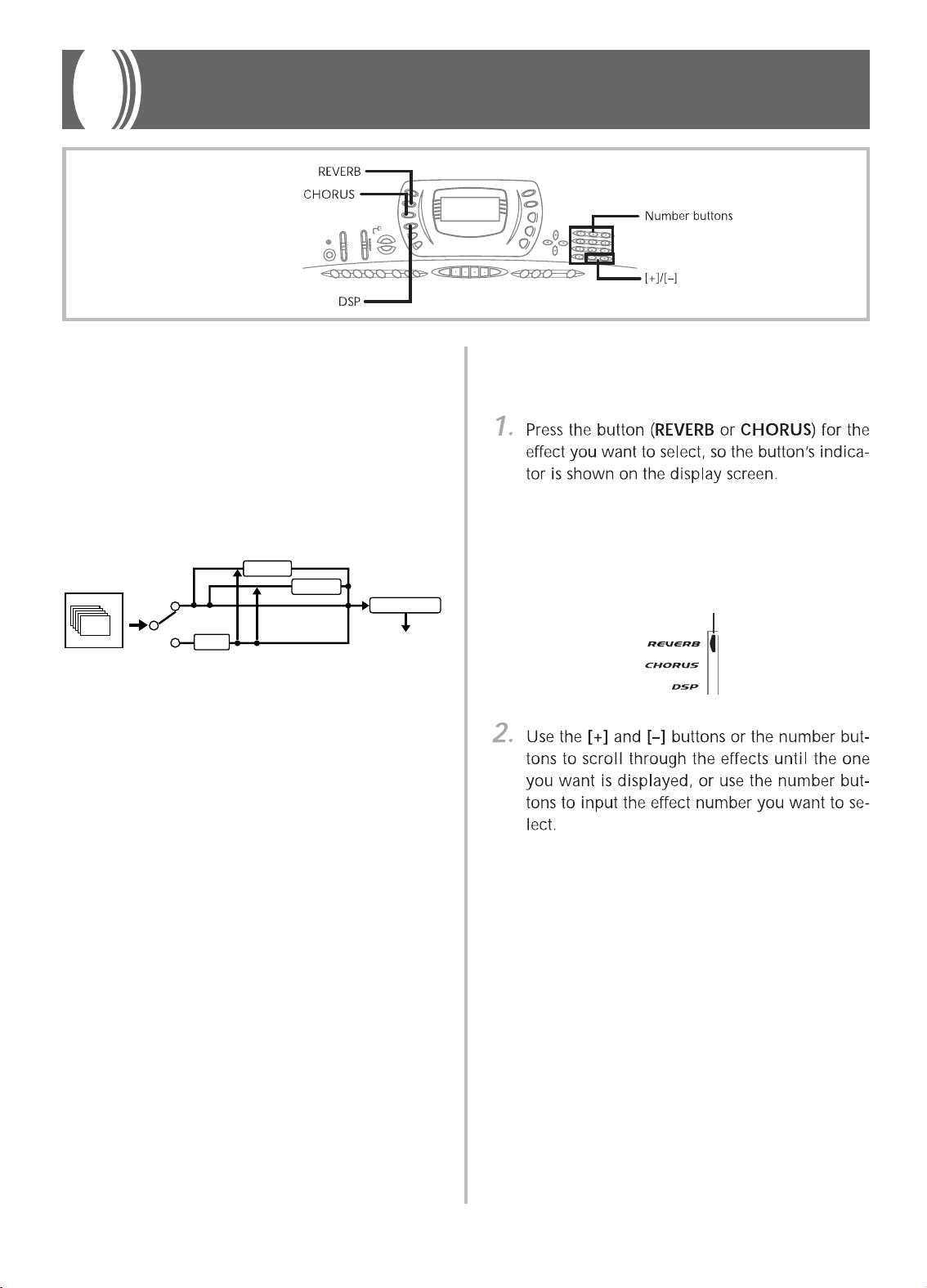
Effect Blocks
The following shows how the effects of this keyboard are or-
ganized.
REVERB
Reverb simulates the acoustics of specific types of environ-
ments. You can choose from among 16 different reverb ef-
fects, including “Room” and “Hall.”
CHORUS
The chorus effect gives sound greater depth by causing it to
vibrate. You can choose from among 16 different chorus ef-
fects, including “Chorus” and “Flanger.”
DSP
DSP effects are applied to the connection between the sound
source and output. You can select distortion and modulation
effects. You can create DSP effect setups and also transfer
downloaded DSP data from your computer. The keyboard
has memory for up to 10 DSP effect setups, which you can
store. See “Using the Data Download Service” on page E-68
and “Saving the Settings of DSP Parameters” on page E-26
for more information.
Selecting REVERB and CHORUS
Perform the following steps to select REVERB or CHORUS.
• An indicator is on the display next to REVERB or
CHORUS when the effect is turned on. The indicator
is not displayed when the corresponding effect is
turned off.
Example: Indicator after the REVERB button is pressed
• See the list on page A-10 for information about the
types of CHORUS and REVERB effects that are avail-
able.
• Here you could also change the parameters of the ef-
fect you selected, if you want. See “Changing the Set-
tings of REVERB and CHORUS Parameters” for more
information.
on
off
DSP Line
16ch
Sound Source
DSP
REVERB
CHORUS
EQUALIZER
Output
Applying Effects to Tones
703A-E-025A
Lit

E-24
703A-E-026A
Changing the Settings of REVERB and
CHORUS Parameters
You can control the relative strength of an effect and how it is
applied. The parameters you can control depend on the ef-
fect. See the following section titled “REVERB and CHORUS
Parameters” for more information.
• This displays the parameter setting screen.
Example: To set the Reverb Time parameter
• This returns to the effect selection screen.
REVERB and CHORUS Parameters
The following describes the parameters for each effect.
REVERB
Reverb effects are associated with either a reverb type or de-
lay type. Parameter settings depend upon the associated type.
● Reverb Type (No. 0 to 5, 8 to 13)
■
Reverb Level (Range: 000 to 127)
Controls the reverb size. A larger number produces larg-
er reverb.
■
Reverb Time (Range: 000 to 127)
Controls how long reverb continues. A larger number
produces longer reverb.
■
ER Level (Initial Echo Sound) (Range: 000 to 127)
This parameter controls the initial reverb volume. The
initial echo sound is the first sound reflected from the
walls and ceiling when a sound is output by this key-
board. A larger value specifies a larger echo sound.
■
High Damp (Range: 000 to 127)
Adjusts the damping of high frequency reverberation
(high sound). A smaller value damps high sounds, creat-
ing a dark reverb. A larger value does not damp high
sounds, for a brighter reverb.
● Delay Type (No. 6, 7, 14, 15)
■
Delay Level (Range: 000 to 127)
Specifies the size of the delay sound. A higher value produc-
es a larger delay sound.
■
Delay Feedback (Range: 000 to 127)
Adjusts delay repeat. A higher value produces a greater num-
ber of repeats.
■
ER Level
Same as Reverb Type
■
High Damp
Same as Reverb Type
CHORUS
■
Chorus Level (Range: 000 to 127)
Specifies the size of the chorus sound.
■
Chorus Rate (Range: 000 to 127)
Specifies the undulation speed of the chorus sound. A
higher value produces faster undulation.
■
Chorus Depth (Range: 000 to 127)
Specifies the undulation depth of the chorus sound. A
higher value produces deeper undulation.
❚
NOTE
• Whether or not an effect is applied to the parts that are sound-
ing also depends on Mixer Mode Reverb Send, Chorus Send,
and DSP on/off settings. See “Mixer Function” on page E-35
for more information.

E-25
703A-E-027A
Selecting a DSP Type
• See the “Effect List” on page A-10 for information
about the DSP types that can be selected.
• Here you could also change the parameters of the ef-
fect you selected, if you want. See “Changing the Set-
tings of DSP Parameters” for more information.
❚
NOTE
• When using a DSP effect, you should use the Mixer to confirm
that the DSP lines of the required parts are turned on. See
“Mixer Function” on page E-35 for more information.
• The DSP type display area shows the DSP number (000 to
109), Ad (Advance tone), or USr (user tone created using DSP).
Setting Basic DSP Parameters
The following are the basic DSP parameters whose settings
you can change.
■
DSP Volume (Range: 000 to 127)
Sets the post-DSP volume.
■
DSP Pan (Range: -64 to 00 to +63)
Sets the post-DSP stereo pan.
■
DSP Hold (Settings: on, oFF)
on: Current DSP line setting is maintained, even when
the tone is changed.
• In the case of an Advance tone, however, changing the
tone causes all DSP line settings except for those of the
selected channel to turn off. See the note on page E-26
for more information.
oFF: Changing the tone switches to the DSP line setting
of the new tone.
• This exits the tone or rhythm setting screen.
Changing the Settings of DSP Parameters
You can control the relative strength of a DSP and how it is
applied. See the following section titled “DSP Parameters”
for more information.
• This displays the parameter setting screen.
• This exits the DSP type setting screen.
DSP Parameters
The following describes the parameters for each DSP.
DSP
■
Parameter 0 to 7
This parameter differs in accordance with the algorithm*
of the selected DSP type. See the “Effect List” on page A-
10 and the “DSP Algorithm List” on page A-12 for more
information.
* Effector structure and operation type
■
DSP Reverb Send (Range: 000 to 127)
Specifies how much of the post-DSP sound should be sent
to reverb.
■
DSP Chorus Send (Range: 000 to 127)
Specifies how much of the post-DSP sound should be sent
to chorus.
E-26
❚
NOTE
• Whether or not an effect is applied to the parts that are sound-
ing also depends on Mixer Mode Reverb Send, Chorus Send,
and DSP on/off settings. See “Mixer Function” on page E-35
for more information.
• Playing a demo tune (page E-15) automatically changes the
effect to the one that is assigned to the tune. You cannot change
or cancel a demo tune effect.
• Changing the effect setting while sound is being output by the
keyboard causes a slight break in the sound when the effect
changes.
• A number of tones, called “Advanced tones,” automatically turn
on the DSP line for more effective tones. If you assign an Ad-
vanced tone to a keyboard part (Channels 1 through 4), the
DSP line turns on automatically and the DSP selection chang-
es in accordance with the settings of the Advanced tone. Also,
the Mixer Mode DSP line on/off setting for the keyboard part to
which the Advanced tone is assigned is turned on.*
* The Mixer DSP line setting is automatically turned off for each
part that does not have an Advanced Tone assigned.
Because of this, DSP effects previously applied to these parts
are cancelled, which can make their tone sound different. In
this case, display the Mixer screen and turn DSP back on.
703A-E-028A
Saving the Settings of DSP Parameters
You can save up to 10 modified DSPs in the user area for
later recall when you need them.
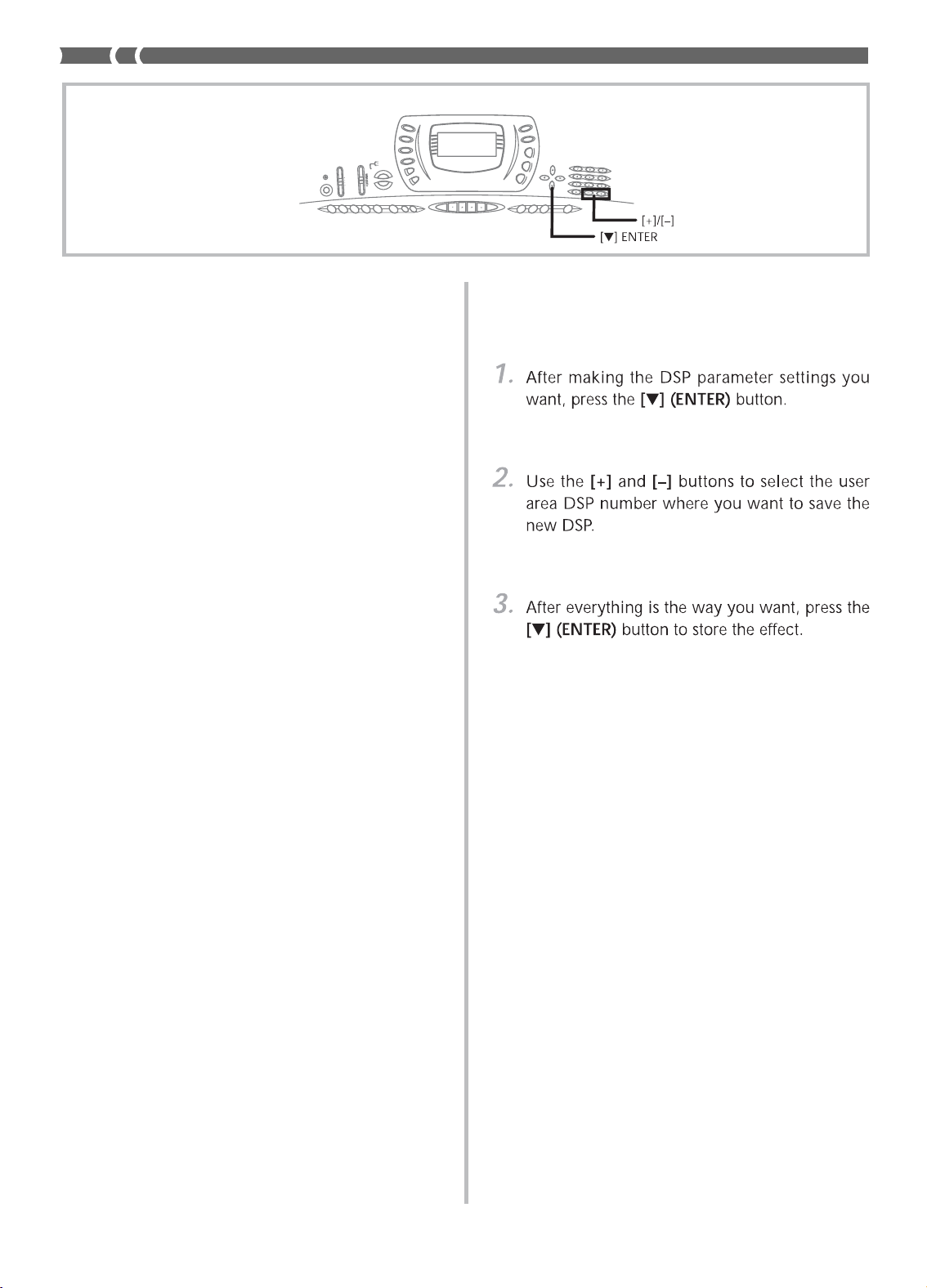
• This causes the DSP number of the user area where
the DSP will be saved to flash on the display.
• You can select a user area DSP number in the range of
100 to 109 only.
• The message “Save OK” appears momentarily on the
display, followed by the tone or rhythm selection
screen.

E-27
Using the Equalizer
The equalizer is another type of effect that you can use to
make adjustments in tone quality. Frequencies are divided
among a number of bands, and raising and lowering the lev-
el of each frequency band alters the sound.
You can reproduce the optimal acoustics for the type of mu-
sic you are playing (classics, for example) by selecting the
applicable equalizer setting.
This keyboard has a built-in four-band equalizer and 10 dif-
ferent settings from which you can choose. You can adjust
the gain (volume) of all four equalizer bands within the range
of -12 to 0 to +12.
To select the equalizer type
• This causes the currently selected equalizer type to
appear on the display.
Example: To select Jazz
• Pressing the [ ] (EXIT) button or the EQUALIZER
button exits the equalizer setting screen.
To adjust the gain (volume) of a band
Example: To adjust the HIGH band
Example: To adjust the gain to 10
• Pressing the [ ] (EXIT) button displays the equalizer
type setting screen.
• Pressing the EQUALIZER button exits the gain (vol-
ume) setting screen.
❚
NOTE
• Changing to another equalizer type causes the band gain set-
tings to change to the initial settings for the newly selected
equalizer type automatically.
703A-E-029A
E-28
This keyboard automatically plays bass and chord parts in
accordance with the chords you finger. The bass and chord
parts are played using sounds and tones that are automati-
cally selected to select the rhythm you are using. All of this
means that you get full, realistic accompaniments for the
melody notes you play with your right hand, creating the
mood of a one-person ensemble.
Selecting a Rhythm
This keyboard provides you with 100 exciting rhythms that
you can select using the following procedure.
You can also transfer accompaniment data from your com-
puter and store up to four of them as user rhythms in key-
board memory. See “Using the Data Download Service” on
page E-68 for more information.
To select a rhythm
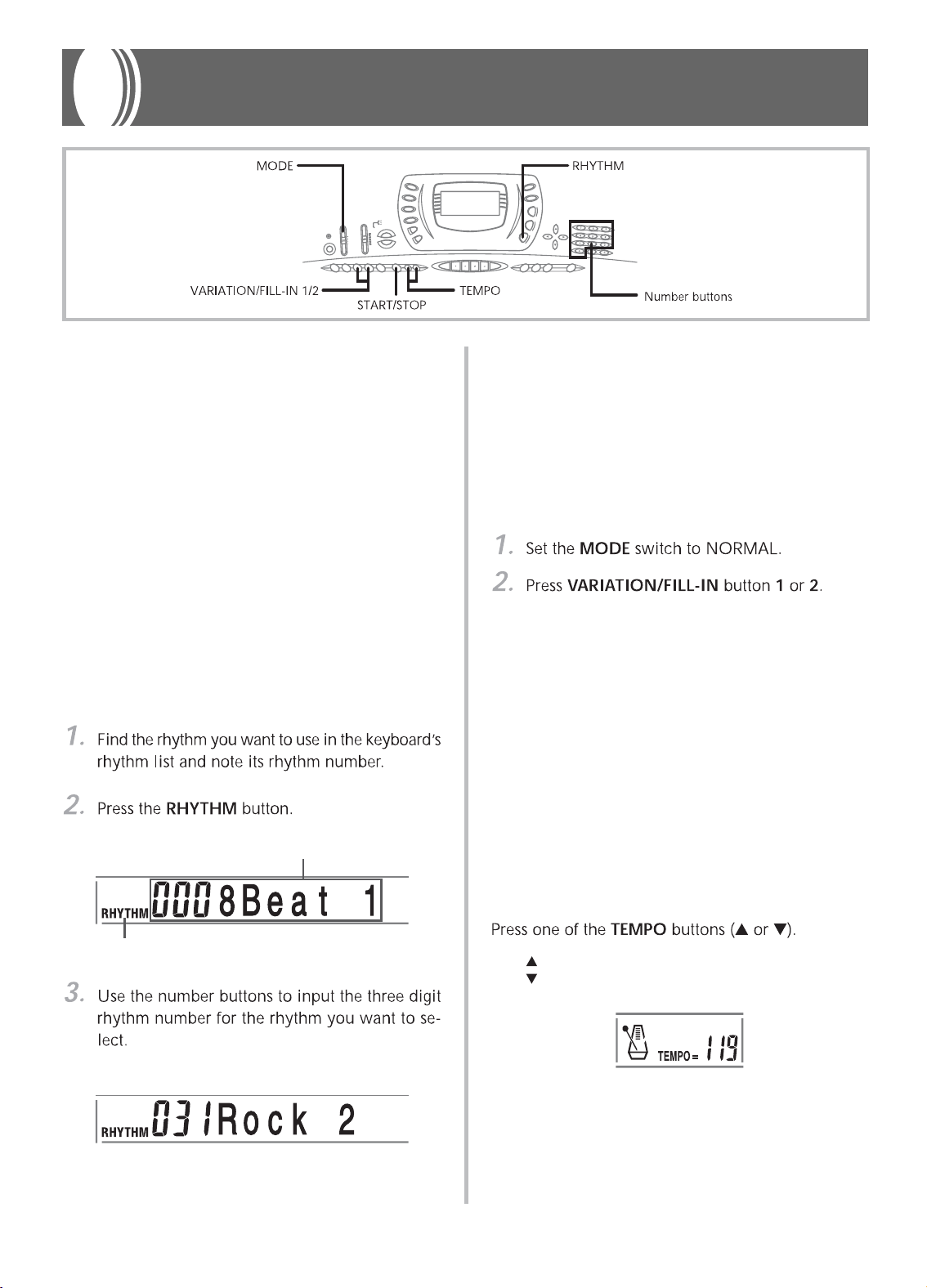
Example: To select “031 ROCK”, input 0, 3 and then 1.
❚
NOTE
• You can also increment the displayed rhythm number by press-
ing [+] and decrement it by pressing [–].
Playing a Rhythm
To play a rhythm
• This starts the play of the selected rhythm.
• To stop rhythm play, press the START/STOP button.
❚
NOTE
• All of the keyboard keys are melody keys while the MODE switch
is set to NORMAL.
Adjusting the Tempo
You can adjust the tempo of rhythm play within a range of 30 to
255 beats per minute. The tempo setting is used for Auto Ac-
companiment chord play, and song memory operations.
To adjust the tempo
: Increments displayed value (increases tempo)
: Decrements displayed value (decreases tempo)
Auto Accompaniment
Appears when RHYTHM button is pressed
Number and name of selected rhythm
703A-E-030A

E-29
❚
NOTE
• Pressing both TEMPO buttons ( and ) at the same time
resets the tempo to the default value of the currently selected
rhythm.
Using Auto Accompaniment
The following procedure describes how to use the keyboard’s
Auto Accompaniment feature. Before starting, you should
first select the rhythm you want to use and set the tempo of
the rhythm to the value you want.
To use Auto Accompaniment
• The actual procedure you should use to play a chord
depends on the current MODE switch position. Refer
to the following pages for details on chord play.
CASIO CHORD .............................. This page
FINGERED ...................................... Page E-30
FULL RANGE CHORD ................ Page E-31
Melody keyboard
Accompaniment
keyboard
❚
NOTE
• The accompaniment keyboard can be used for playing chords
only. No sound will be produced if you try playing single melo-
dy notes on the accompaniment keyboard.
Chord Types
CASIO CHORD accompaniment lets you play four types of
chords with minimal fingering.
CASIO CHORD
This method of chord play makes it possible for anyone to
easily play chords, regardless of previous musical knowledge
and experience. The following describes the CASIO CHORD
“accompaniment keyboard” and “melody keyboard,” and
tells you how to play CASIO CHORDs.
CASIO CHORD Accompaniment Keyboard and
Melody Keyboard
Chord name
Current measure number
and beat number
Basic fingering of current chord
(May be different from chord actually
being played on the keyboard.)
703A-E-031A
Major chords
Major chord names are marked
above the keys of the accompa-
niment keyboard. Note that the
chord produced when you
press an accompaniment key-
board does not change octave,
regardless of which key you use
to play it.
Minor chords (m)
To play a minor chord, keep the
major chord key depressed and
press any other accompaniment
keyboard key located to the
right of the major chord key.
Seventh chords (7)
To play a seventh chord, keep
the major chord key depressed
and press any other two accom-
paniment keyboard keys locat-
ed to the right of the major
chord key.
Minor seventh chords (m7)
To play a minor seventh chord,
keep the major chord key de-
pressed and press any other
three accompaniment key-
board keys located to the right
of the major chord key.
Example
Chord Types
C D E F GA B C D E F
C Major (C)
CD E F G A B C D E F
C minor (Cm)
C D E F GAB C DE F
C seventh (C7)
C D E F G A B C D E F
C minor seventh (Cm7)
E-30
703A-E-032A
❚
NOTE
• It makes no difference whether you press black or white keys
to the right of a major chord key when playing minor and sev-
enth chords.
FINGERED
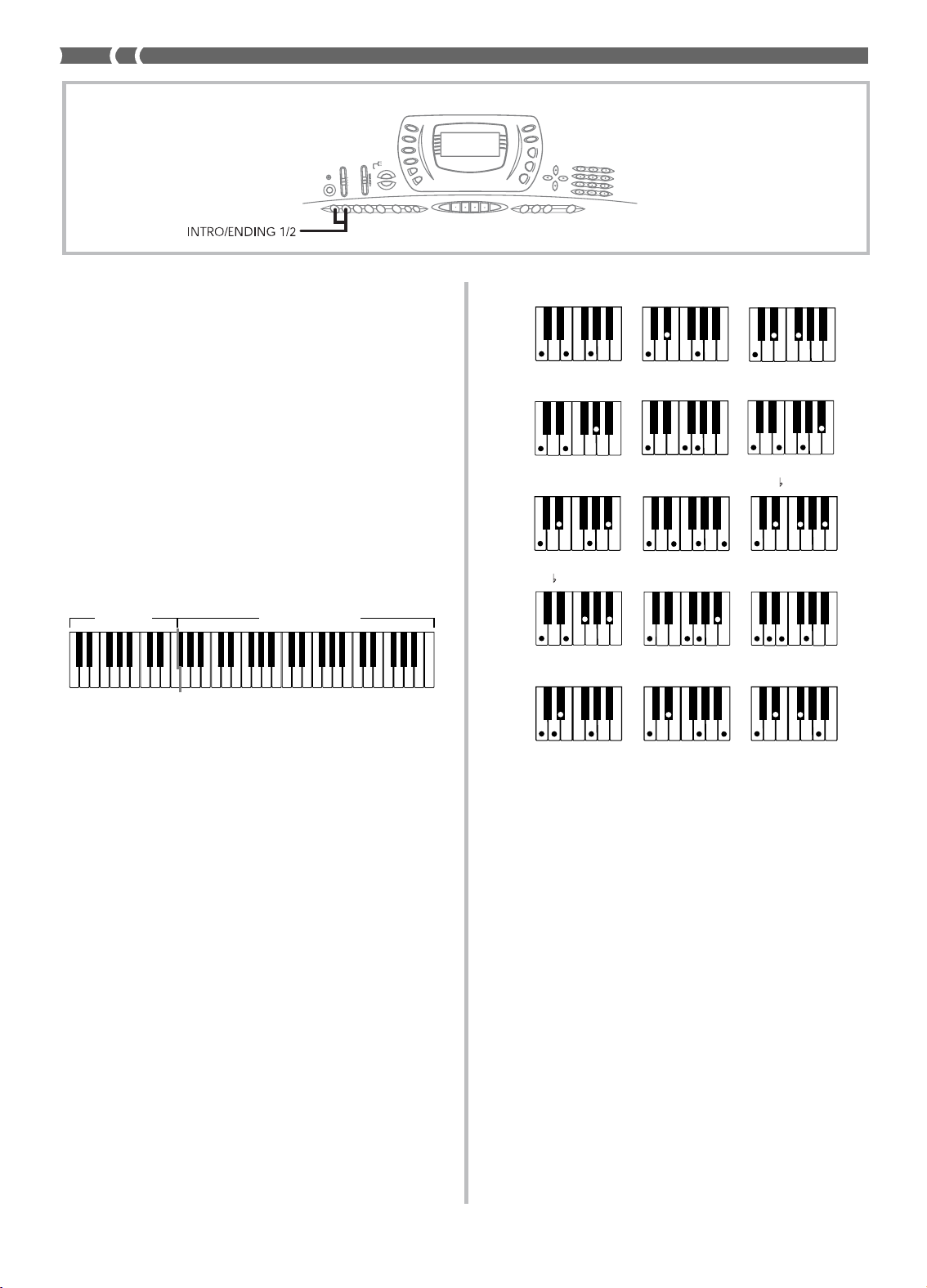
FINGERED provides you with a total of 15 different chord
types. The following describes the FINGERED “accompani-
ment keyboard” and “melody keyboard”, and tells you how
to play a C-root chord using FINGERED.
FINGERED Accompaniment Keyboard and Mel-
ody Keyboard
❚
NOTE
• The accompaniment keyboard can be used for playing chords
only. No sound will be produced if you try playing single melo-
dy notes on the accompaniment keyboard.
Melody keyboard
Accompaniment
keyboard
See the “Fingered Chord Chart” on page A-9 for details on
playing chords with other roots.
*1: Inverted fingerings cannot be used. The lowest note is
the root.
*2: The same chord can be played without pressing the 5th G.
❚
NOTE
• Except for the chords specified in note
*1
above, inverted finger-
ings (i.e. playing E-G-C or G-C-E instead of C-E-G) will pro-
duce the same chords as the standard fingering.
• Except for the exception specified in note
*2
above, all of the
keys that make up a chord must be pressed. Failure to press
even a single key will not play the desired FINGERED chord.
C7
*2
( )
Cm7
*2
( )
C Cm Cdim
Caug
*1
Csus4
Cmaj7
*2
( )
Cm7
5
C7
5 *1
C7sus4
Cadd9
*2
( )
Cmadd9
*2
( )
CmM7
*2
( )
Cdim7
*1

E-31
Example: To play the chord C major.
Any of the fingerings shown in the illustration below will
produce C major.
E
G C
E
CG
❚
NOTE
• As with the FINGERED mode (page E-30), you can play the
notes that form a chord in any combination (1).
• When the lowest note of a chord is separated from its neigh-
boring note by six or more semitones, the lowest note becomes
the bass note (2).
11
11
1 ...... Chord C
22
222 ...... Chord
C
E
703A-E-033A
FULL RANGE CHORD
This accompaniment method provides a total of 38 different
chord types: the 15 chord types available with FINGERED
plus 23 additional types. The keyboard interprets any input
of three or more keys that matches a FULL RANGE CHORD
pattern to be a chord. Any other input (that is not a FULL
RANGE CHORD pattern) is interpreted as melody play. Be-
cause of this, there is no need for a separate accompaniment
keyboard, so the entire keyboard, from end to end, functions
as a melody keyboard that can be used for both melody and
chords.
FULL RANGE CHORD Accompaniment Key-
board and Melody Keyboard
Accompaniment keyboard/Melody keyboard
Chords Recognized by This Keyboard
The following table identifies patterns that are recognized as
chords by FULL RANGE CHORD.
Pattern Type
FINGERED
Number of Variations
The 15 chord patterns shown
under FINGERED on page E-30.
See the “Fingered Chord Chart” on
page A-9 for details on playing
chords with other roots.
23 standard chord fingerings. The
following are examples of the 23
chords available with C as the bass
note.
Standard
Fingerings
C
6
Cm
6
C
69
F
C
G
C
A
C
B
C
Fm
C
Gm
C
Am
C
B m
C
Dm
7
5
C
A
7
C
F
7
C
Fm
7
C
Gm
7
C
A
add9
C
•
•
•
•
•
•
•
•
•
•
•
•
•
D
C
C
C
E
C
B
C
C m
C
Dm
C
•
•
•
•
•
•
Using an Intro Pattern
This keyboard lets you insert a short intro into a rhythm pat-
tern to make startup smoother and more natural.
The following procedure describes how to use the Intro fea-
ture. Before starting, you should first select the rhythm you
want to use, and set the tempo.
To insert an intro
• With the above setup, the intro pattern is played and
the auto accompaniment with intro pattern starts as
soon as you play chords on the accompaniment key-
board.
❚
NOTE
• The standard rhythm pattern starts to play after the intro pat-
tern is complete.

E-32
703A-E-034A
Synchro Starting Accompaniment
with Rhythm Play
You can set up the keyboard to start rhythm play at the same
time you play the accompaniment on the keyboard.
The following procedure describes how to use synchro start.
Before starting, you should first select the rhythm you want
to use, set the tempo, and use the MODE switch to select the
chord play method you want to use (NORMAL, CASIO
CHORD, FINGERED, FULL RANGE CHORD).
To use synchro start
❚
NOTE
• If the MODE switch is set to NORMAL, only the rhythm plays
(without a chord) when you play on the accompaniment key-
board.
• If you press the INTRO/ENDING button 1 or 2 before playing
anything on the keyboard, the rhythm starts automatically with
an intro pattern when you play something on the accompani-
ment keyboard.
• To cancel synchro start standby, press the SYNCHRO/FILL-IN
NEXT button one more time.
Using a Fill-in Pattern
Fill-in patterns let you momentarily change the rhythm pat-
tern to add some interesting variation to your performances.
The following procedure describes how to use the Fill-in fea-
ture.
To insert a fill-in
• To select the Variation 1 rhythm, press the VARIA-
TION/FILL-IN 1 button.
• To select the Variation 2 rhythm, press the VARIA-
TION/FILL-IN 2 button.
❚
NOTE
• The fill-in pattern does not play if you press the VARIATION/
FILL-IN button while an intro pattern is playing.
Using a Rhythm Variation
In addition to the standard rhythm pattern, you can also
switch to a secondary “variation” rhythm pattern for a bit of
variety .
To insert the variation rhythm pattern
• If a Variation 1 rhythm is currently playing, this plays
Fill-in 1, followed by Fill-in 2, and then switches to
the Variation 2 rhythm.
• If a Variation 2 rhythm is currently playing, this plays
Fill-in 2, followed by Fill-in 1, and then switches to
the Variation 1 rhythm.
E-33
Using Auto Harmonize
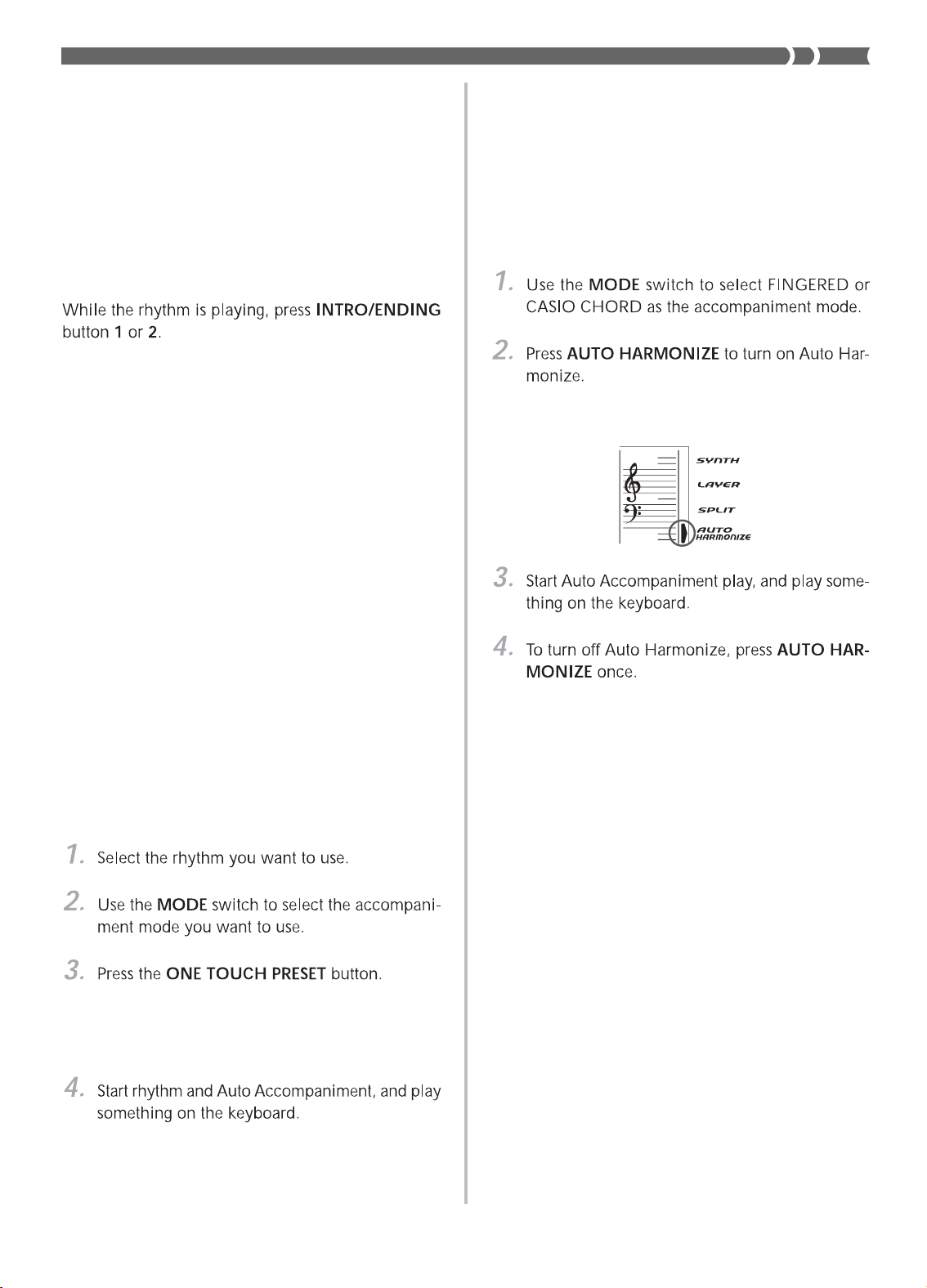
When you are using Auto Accompaniment, Auto Harmonize
automatically adds three additional notes to your melody in
accordance with the chord that is being played. The result is a
harmony effect that makes your melody line richer and fuller.
To use Auto Harmonize
• This causes an indicator to appear next to AUTO
HARMONIZE on the display.
• This causes the indicator next to AUTO HARMONIZE
to disappear.
❚
NOTE
• Auto Harmonize turns off temporarily whenever you start demo
tune play. It turns back on as soon as the operation or function
that caused it to turn off is finished.
• Auto Harmonize is enabled only when the Auto Accompani-
ment mode is FINGERED or CASIO CHORD.
Finishing with an Ending Pattern
You can end your performances with an ending pattern that
brings the rhythm pattern you are using to a natural-sound-
ing conclusion.
The following procedure describes how to insert an ending
pattern. Note that the actual ending pattern played depends
on the rhythm pattern you are using.
To finish with an ending pattern
• The timing when the ending pattern starts depends
on when you press the INTRO/ENDING button 1 or
2. If you press the button before the second beat of
the current measure, the ending pattern starts play-
ing immediately.
❚
NOTE
• Pressing the button at any point in the measure after the sec-
ond beat results in the ending pattern playing from the begin-
ning of the following measure.
Using One-touch Preset
One-touch preset automatically makes the main settings list-
ed below in accordance with the rhythm pattern you are us-
ing.
• Keyboard tone
• Layer on/off
• Tempo
• Effect type
• Harmonize on/off
To use one-touch preset
• This automatically makes the one-touch preset set-
tings in accordance with the rhythm you selected.
• The keyboard automatically enters synchro standby
at this time.
• Accompaniment is played using the one-touch pre-
set settings.
703A-E-035A

E-34
About Auto Harmonize notes and tones
The notes you play on the keyboard are called “melody
notes,” while the notes added to the melody by Auto Har-
monize is called the “harmonize notes.” Auto Harmonize
normally uses the tone you selected for the melody notes as
the tone for the harmonize notes, but you can use the Mixer
(page E-35) to specify a different tone for the harmonize notes.
The harmonize note tone is assigned to Mixer Channel 5, so
change Channel 5 to the tone you want to use for the harmo-
nize notes.
In addition to the tone, you can also use the Mixer to change
a number of other parameters, such as volume balance. See
“Using the Parameter Edit Mode” on page E-36 for details
on these procedures.
❚
NOTE
• The default harmonize note tone when you first turn on Auto
Harmonize is the same tone as the melody note tone.
• Changing the melody tone setting automatically changes the
harmonize note tone to the same setting.
Adjusting the Accompaniment Vol-
ume
You can adjust the volume of the accompaniment parts as a
value in the range of 000 (minimum) to 127 (maximum).
Example: 110
703A-E-036A
Current accompaniment volume setting
❚
NOTE
• Pressing the ACCOMP VOLUME button or [ ] (EXIT) button
returns to the tone or rhythm setting screen.
• Any channel balance settings you make with the Mixer are main-
tained when you change the accompaniment volume setting.
• Pressing [+] and [–] buttons at the same time automatically sets
an accompaniment volume of 100.

E-35
703A-E-037A
What you can do with the Mixer
This keyboard lets you play multiple different musical in-
strument parts at the same time during auto-accompaniment
play, song memory playback, receipt of data through the MIDI
terminal, etc. The Mixer assigns each part to a separate chan-
nel (1 through 16) and lets you control the channel on/off,
volume, and pan pot parameters of each channel.
Channel Assignments
The following shows the parts that are assigned to each of
the 16 channels.
See page E-59 and E-60 for information on layered, split, and
layered/split tones.
See page E-46 for information on the song memory.
Mixer Function
Channel
Part
Number
Channel 1 Main tone
Channel 2 Layered tone
Channel 3 Split tone
Channel 4 Layered/split tone
Channel 5 Harmonize Tone
Channel 6 Auto Accompaniment chord part 1
Channel 7 Auto Accompaniment chord part 2
Channel 8 Auto Accompaniment chord part 3
Channel 9 Auto Accompaniment bass part
Channel 10 Auto Accompaniment rhythm part
Channel 11 Memory track 1
Channel 12 Memory track 2
Channel 13 Memory track 3
Channel 14 Memory track 4
Channel 15 Memory track 5
Channel 16 Memory track 6
❚
NOTE
• Normally, keyboard play is assigned to Channel 1. When Auto
Accompaniment is being used, each part of the accompani-
ment is assigned to Channels 6 through 10.
• When this keyboard is being used as the sound source for an
externally connected computer or other MIDI device, all 16
channels are assigned musical instrument parts. The notes
played over the channel selected by steps 1 and 2 under “Turn-
ing Channels On and Off” in the right column of this page are
shown on the displayed keyboard and staff.
Turning Channels On and Off
Turning a channel off mutes any instrument recorded in the
channel.
To turn channels on and off
• This causes the MIXER indicator to appear on the dis-
play screen.
• This displays the channel selection screen.
Example: To select Channel 2.
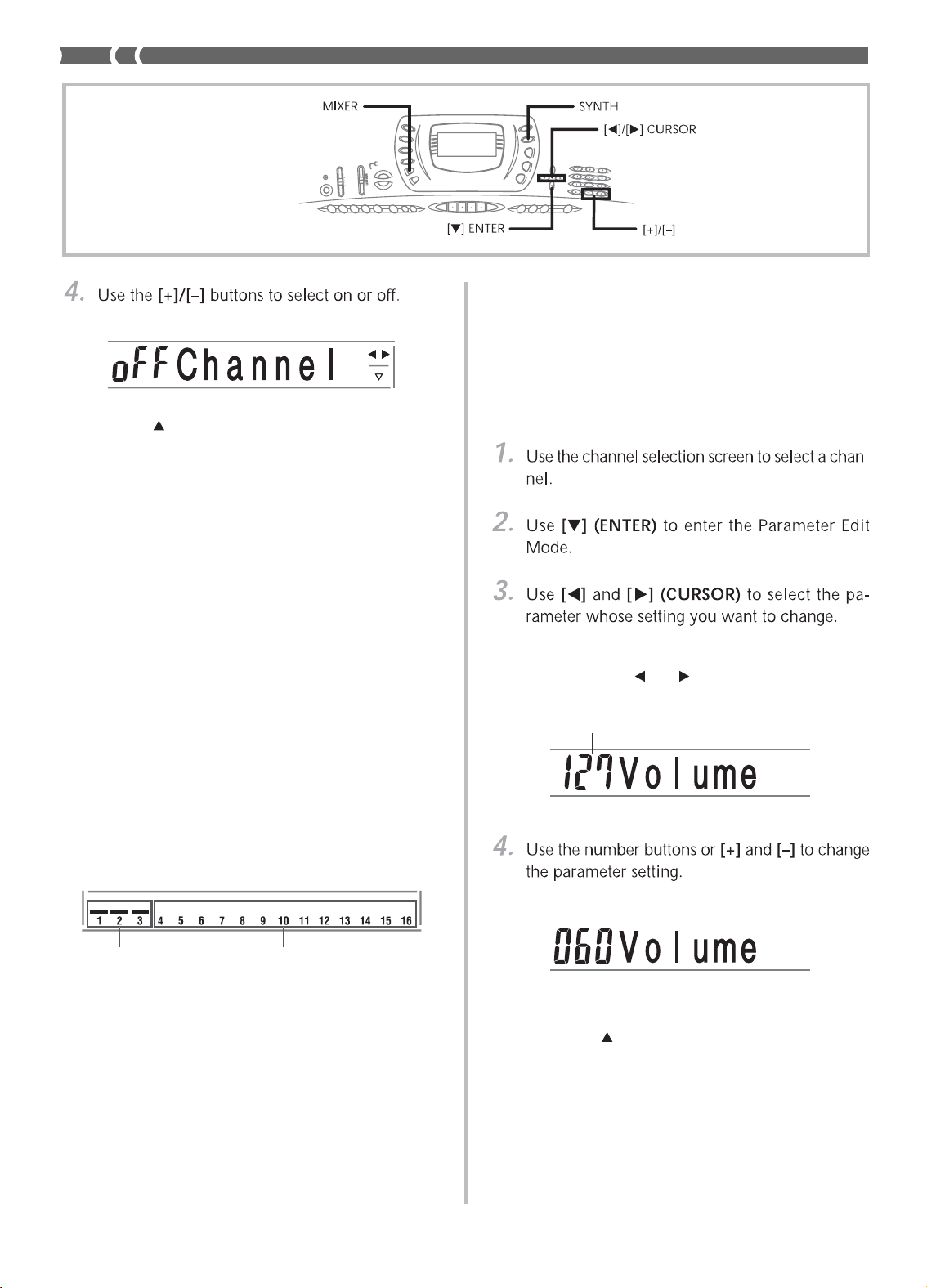
E-36
703A-E-038A
Example: To turn the channel off.
• Press [ ] (EXIT) to return to the channel selection
screen.
• Pressing the MIXER button returns to the Tone Screen.
❚
NOTE
• The MIDI data display shows only the data for the channels
selected with the Mixer.
How Channel On/Off Works
The following describes what happens and what appears on
the display when you turn a channel on or off.
■
On (on)
This setting turns on the currently selected channel, which is
indicated by a bar appearing at the bottom of the level meter
for that channel. This is also the default setting for all chan-
nels when the keyboard is turned on.
■
Off (oFF)
This setting turns off the currently selected channel, which is
indicated by the absence of the bar at the bottom of the level
meter for that channel.
On Off
Indicates channel volume of 127
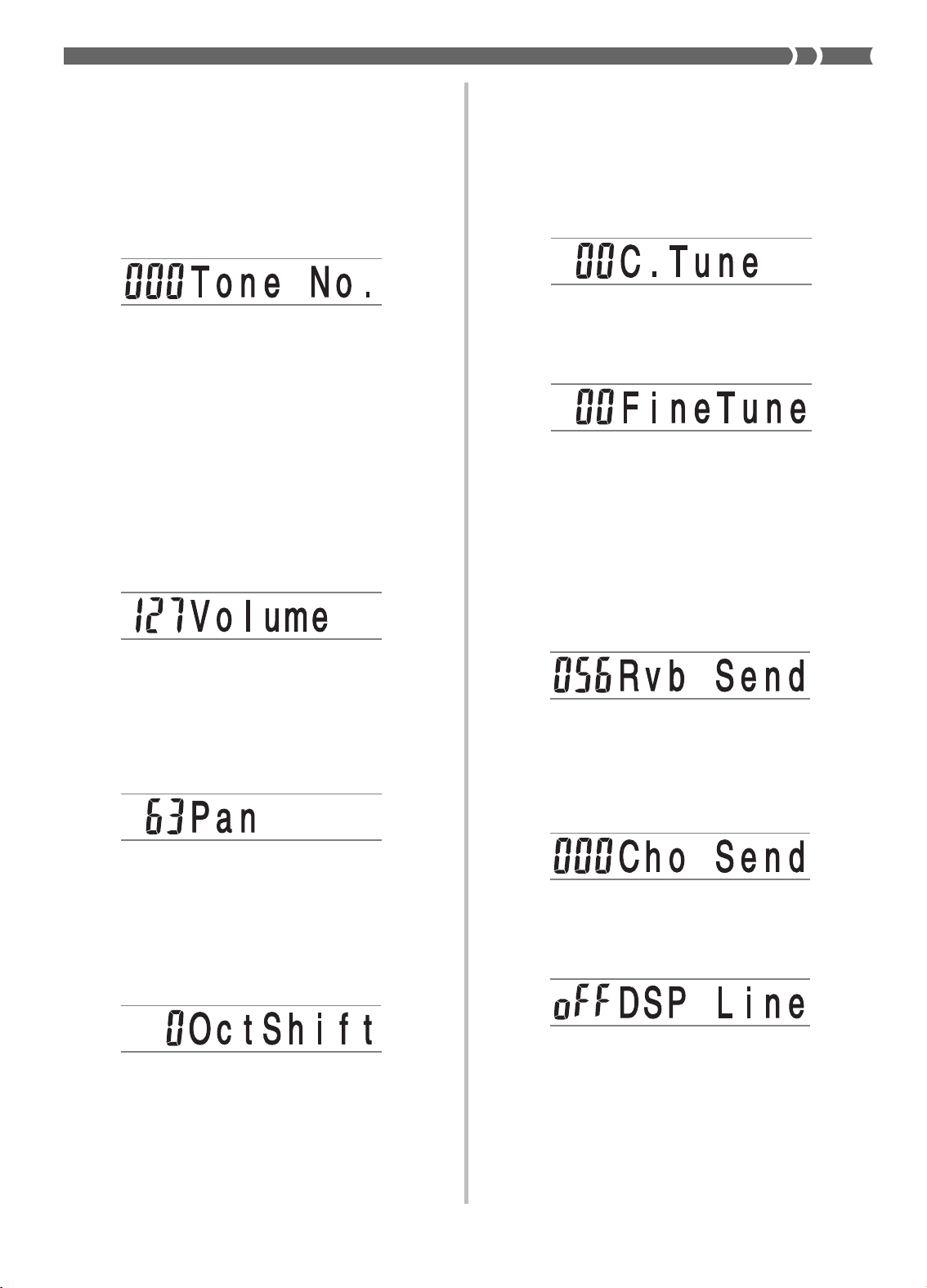
Using the Parameter Edit Mode
In the Parameter Edit Mode, you can change the settings of
ten different parameters (including tone, volume, and pan
pot) for the channel you selected on the Mixer screen.
To change parameters
Example: Select volume setting by displaying “Vol-
ume”.
• Each press of [ ] or [ ] (CURSOR) cycles through
the parameters.
Example: Change the setting to “060”.
• Pressing the MIXER button exits the parameter edit
mode.
• Pressing [ ] (EXIT) returns to the channel selection
screen.
E-37
Tuning Parameters
You can use these parameters to tune each of the parts indi-
vidually.
■
Coarse Tune (Range: –24 to 00 to +24)
This parameter controls the coarse tuning of the selected chan-
nel’s pitch in semitone units.
■
Fine Tune (Range: –99 to 00 to +99)
This parameter controls the fine tuning of the selected chan-
nel’s pitch in cent units.
Effect Parameters
The Mixer lets you control the effects applied to each indi-
vidual part, making it different from the Effect Mode, whose
settings are applied to all parts in general.
■
Reverb Send (Range: 000 to 127)
This parameter controls how much reverb is applied to a part.
A setting of “000” turns reverb off, while a setting of 127 ap-
plies maximum reverb.
■
Chorus Send (Range: 000 to 127)
This parameter controls how much chorus send is applied to
a part. A setting “000” turns chorus send off, while a setting
of 127 applies maximum chorus send.
• “Chorus Send” does not work with drum sounds.
■
DSP Line (Settings: on, oFF)
You can use this parameter to turn DSP line off for a particu-
lar channel, or to turn it on.
❚
NOTE
• Changing the tone, volume, pan pot, coarse tune, fine tune,
reverb send, or chorus send setting causes the corresponding
MIDI message to be output from the MIDI terminal.
• Changing the tone settings changes the tone, reverb send, cho-
rus send, and DSP line* parameter settings.
* When DSP is off (See the note on page E-26.)
703A-E-039A
How Parameters Work
The following are the parameters whose settings can be
changed in the Parameter Edit Mode.
Tone Parameters
■
Tone (Range: 000 to 247)
This parameter controls the tones assigned to each part.
❚
NOTE
• The displayed tone number has only two digits when an Ad-
vanced tone is selected.
■
Part On/Off (Settings: on, oFF)
This parameter can be used to turn each part on (sounds)
and off (does not sound). The current on/off status of each
part is indicated on the display as described below.
■
Volume (Range: 000 to 127)
This is the parameter that controls the volume of the selected
channel.
■
Pan Pot (Range: –64 to 00 to +63)
This parameter controls the pan pot, which is the center point
of the left and right stereo channels. Setting “00” specifies
center, a value less than “00” moves the point left, and a val-
ue greater than “00” moves it right.
■
Octave Shift (Range: –2 to 0 to +2)
You can use octave shift to shift the range of the tone up or
down. When using the piccolo tone, there may be cases when
very high notes you want to play are not included within the
range of the keyboard. When this happens, you can use oc-
tave shift to shift the keyboard range one octave up.
–2 : Range shifted two octaves down.
–1 : Range shifted one octave down.
0 : No shift
+1 : Range shifted one octave up.
+2 : Range shifted two octaves up.
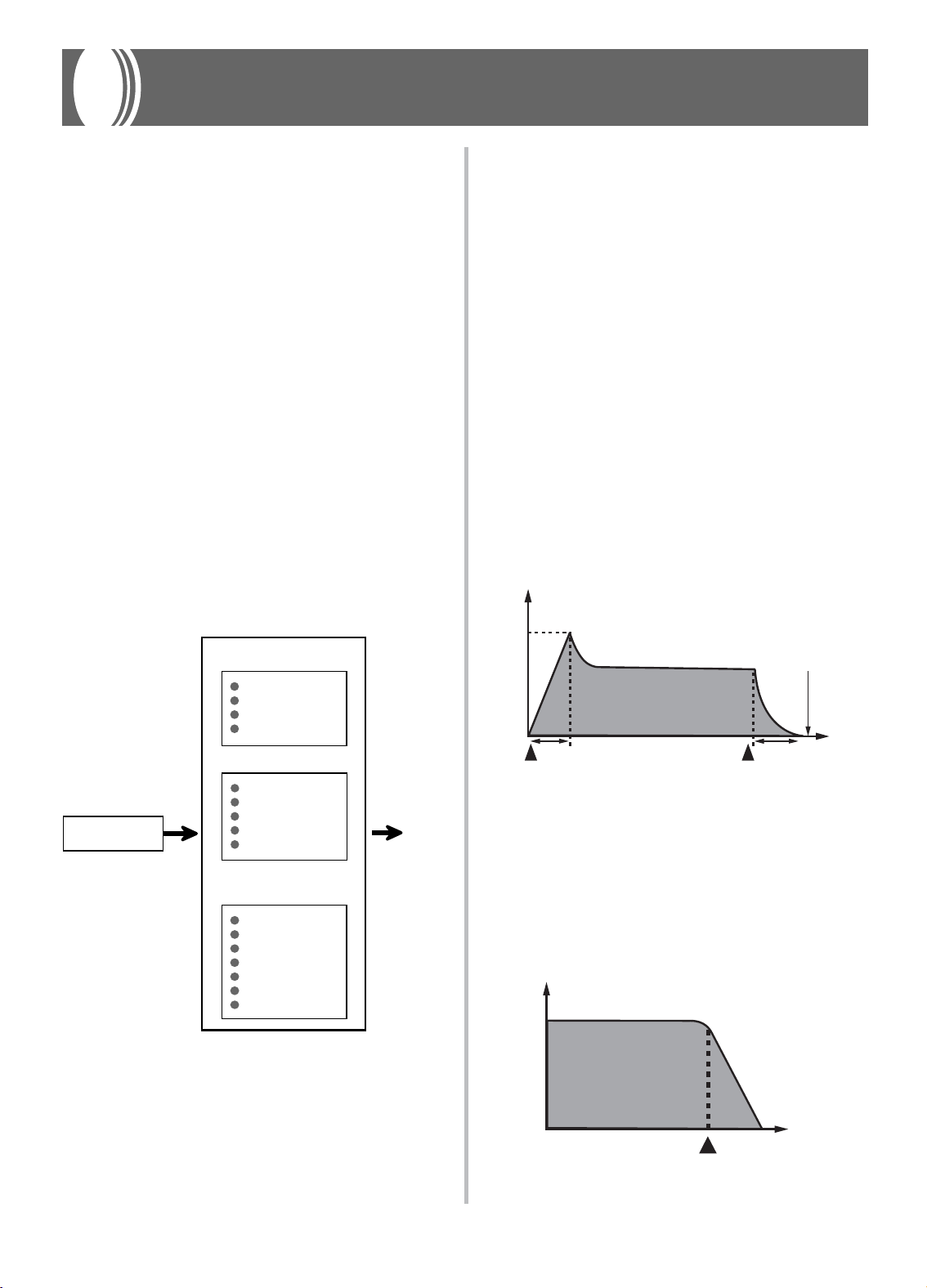
E-38
The Synthesizer Mode of this keyboard provides the tools
for creating your own original tones. Simply select one of the
built-in tones and change its parameters to create your own
original sound. You can even store your sounds in memory
and select it using the same procedure as that used to select a
preset tone.
Synthesizer Mode Functions
The following describes how to use each of the functions
available in the Synthesizer Mode.
Synthesizer Mode Parameters
The preset tones that are built into this keyboard consist of a
number of parameters. To create a user tone, you first recall a
General MIDI tone (100 to 227) or a preset tone (000 to 099)
and then change its parameters to change it to your own tone.
Note that drum set tones (228 through 237) cannot be used
as the basis of a user tone.
The illustration below shows the parameters that make up
the preset tones and what each parameter does. As can be
seen in the illustration, these parameters can be divided into
four groups, each of which is described in detail below.
❚
NOTE
• Synthesizer Mode operations affect the tone selected for Chan-
nel 1.
Synthesizer Mode
703A-E-040A
Volume Characteristic
Parameters
Attack Time
Release Time
Resonance
Cutoff Frequency
Tone Pitch Parameters
Vibrato Type
Vibrato Delay
Vibrato Depth
Vibrato Rate
Octave Shift
Tone Characteristic
Setting Parameters
Level
Touch Sense
Reverb Send
Chorus Send
DSP Line
DSP Type
DSP Parameter
Output
Tone Characteristic
Waveform
Tone Setting
(1) Tone Characteristic Waveform
■
Tone Setting
Specifies which of the preset tones should be used as the orig-
inal tone.
(2) Volume Characteristic Parameters
These parameters control how the tone changes over time,
from when the keyboard key is pressed until the tone de-
cays. You can specify changes in volume and sound charac-
teristics.
■
Attack time
This is the rate or time it takes for the tone to reach its high-
est volume level. You can specify a fast rate, where the tone
reaches its highest volume level immediately, a slow rate
where it gradually rises, or something in between.
■
Release time
This is the rate or time it takes for the tone volume to fall to
zero. You can specify a release that ranges from a sudden fall
to zero, to one that gradually falls to zero.
■
Cutoff Frequency
The cutoff frequency is a parameter for adjusting timbre by
cutting any frequency that is higher than a specific frequen-
cy. A larger cutoff frequency produces a brighter (harder) tim-
bre, while a smaller frequency produces a darker (softer) tim-
bre.
Time
Note ends
Key pressed
A R
Key released
Envelope
A: Attack time
R: Release time
Level
Cutoff frequency
Frequency
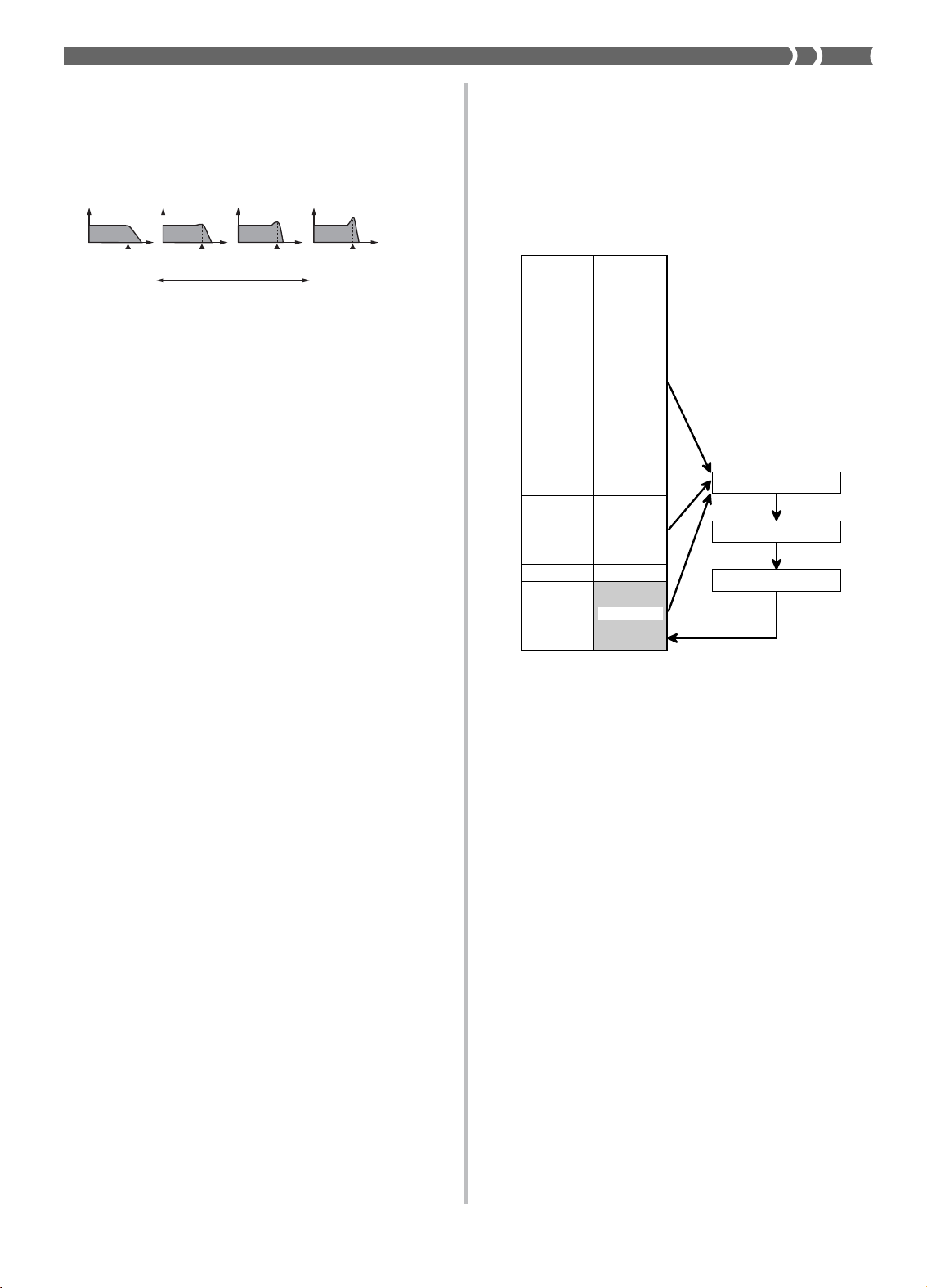
E-39
Saving User Tones
The group of tone numbers from 238 through 247 (User 01
through User 10) is called the “user area” because they are re-
served for storage of user tones. After you recall a preset tone
and change its parameters to create your own user tone, you
can store it in the user area for later recall. You can recall your
tones using the same procedure that you use when selecting a
preset tone.
❚
NOTE
• The keyboard is shipped from the factory with tone number
000 (piano) assigned to the user area.
• Note that creating a user tone (000 to 227) does not change the
preset tone. It creates a new version of the preset tone for stor-
age in the user area.
• You cannot use a drum set tone (228 to 237) as the basis of a
user tone.
703A-E-041A
■
Resonance
Resonance enhances the harmonic components in the vicini-
ty of the cutoff frequency, which creates a distinctive sound.
A larger resonance value enhances the sound as shown in
the figure.
❚
NOTE
• With some tones, a large resonance value can cause distor-
tion or noise during the attack part of the tone.
(3) Tone Pitch Parameters
■
Vibrato Type, Vibrato Delay, Vibrato Depth, Vi-
brato Rate
These parameters adjust the vibrato effect, which causes pe-
riodic changes in the tone.
■
Octave Shift
This parameter controls the octave of all tones.
(4) Tone Characteristic Setting Parameters
■
Level
This parameter controls the overall volume of the tone.
■
Touch Sense
This parameter controls changes in volume and timbre in
accordance with the relative amount of pressure applied to
the keyboard keys. You can specify more volume for stronger
pressure and less volume or a lighter pressure, or you can spec-
ify the same volume regardless of how much pressure is ap-
plied to the keys.
■
Reverb Send, Chorus Send, DSP Line , DSP Type,
DSP Parameter
These parameters control the effects applied to tones.
Level
Cut off frequency
Small Value
Resonance
Large Value
Frequency
Tone numbers
000 ~ 099
00 ~ 99
100 ~ 227
228 ~ 237
238 ~ 247
Tone
Panel Tone
Advanced
Tone
GM tone
Drum Set
User Area
Select the preset tone
Change parameters
Save as an original tone
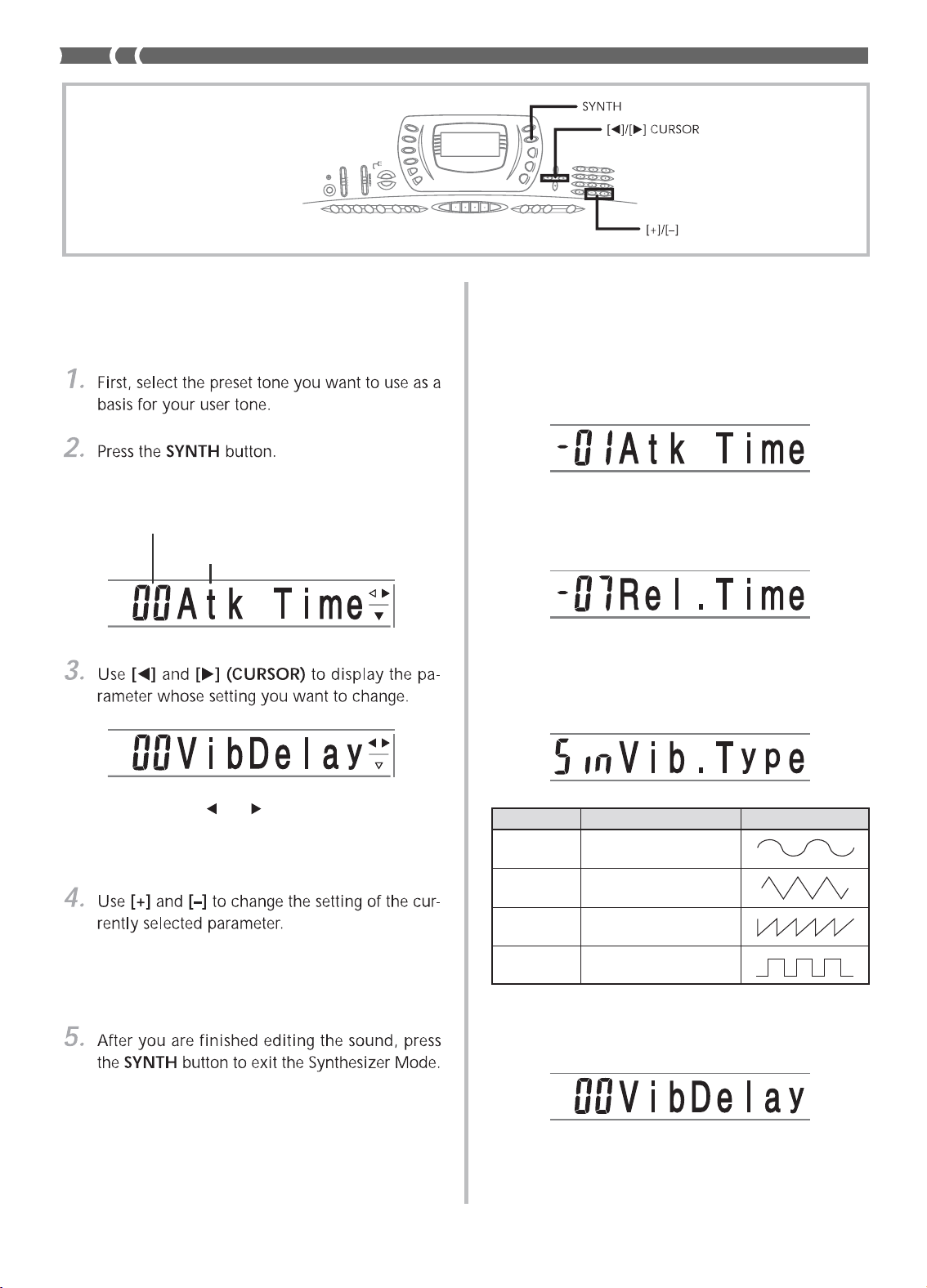
E-40
Creating a User Tone
Use the following procedure to select a preset tone and change
its parameters to create a user tone.
• This enters the Synth Mode, which is indicated by the
indicator next to SYNTH on the display screen.
• Each press of [ ] or [ ] (CURSOR) changes to the
next parameter. See “Parameters and Their Settings”
on this page for information on setting range for each
parameter.
• You can also use the number buttons to input a value
to change a parameter setting. See “Parameters and
Their Settings” on this page for information on set-
ting range for each parameter.
❚
NOTE
• See “Storing a User Tone In Memory” on page E-42 for details
on saving user tone data to memory so it is not deleted.
703A-E-042A
Currently selected parameter
Parameter setting value
Parameters and Their Settings
The following describes the function of each parameter and
provides it’s set range.
■
Attack Time (Range: –64 to 00 to +63)
Time it takes before the tone sounds after a key is pressed
■
Release Time (Range: –64 to 00 to +63)
Time the tone continues to sound after a key is released
■
Vibrato Type (Vibrato Waveform)
(Range: See below.)
Specifies the vibrato type (waveform).
■
Vibrato Delay (Range: –64 to 00 to +63)
Specifies the amount of time before vibrato starts.
Value Meaning Waveform
Sin Sine Wave
tri Triangle Wave
SAU Sawtooth Wave
Sqr Square Wave

E-41
703A-E-043A
■
Vib.Depth (Vibrato Depth) (Range: –64 to 00 to +63)
Depth of the vibrato effect
■
Vib.Rate (Vibrato Rate) (Range: –64 to 00 to +63)
Rate (speed) of the vibrato effect
■
Cut Off Freq. (Cutoff frequency)
(Range: –64 to 00 to +63)
High-band cutoff for the harmonic components of the tone
■
Resonance (Range: –64 to 00 to +63)
Resonance of the tone
■
Oct.Shift (Octave Shift) (Range: –2 to 0 to +2)
Up/down octave shift
■
Level (Range: 000 to 127)
This parameter controls the overall volume of the tone. The
greater the value, the greater the volume. Setting a level of
zero means that the tone does not sound at all. This parame-
ter can be set in a range of 000 to 127.
■
Touch Sensitivity (Range: –64 to 00 to +63)
This parameter controls changes in the volume of the tone in
accordance with the pressure applied to the keyboard keys.
A greater positive value increases the volume of the output
as pressure increases, while a negative value decreases vol-
ume with increased keyboard pressure. A setting of zero spec-
ifies no change in output volume in accordance with key-
board pressure. This parameter can be set in a range of –64 to
+63.
■
Reverb Send (Range: 000 to 127)
This parameter adjusts reverb.
■
Chorus Send (Range: 000 to 127)
This parameter adjusts chorus.
■
DSP Line (Settings: on, oFF)
This parameter controls whether or not the DSP effect is used.
■
DSP Type (Range: 000 to 109)
This parameter specifies a type when a DSP effect is being
used.
■
DSP Parameter
This setting specifies DSP parameters. See “DSP Parameters”
on page E-25, “Effect List” on page A-10, and “DSP Algo-
rithm List” on page A-12 for more information.
❚
NOTE
• If you store an original tone with the DSP line turned on (see
next page), simply recalling the tone automatically changes
the DSP line, DSP type, and DSP parameter settings. This sim-
plifies the recall of original tones that include a DSP effect.
• An indicator appears next to DSP on the display while you are
making DSP type or DSP parameter settings.

E-42
Storing a User Tone In Memory
The following procedure shows how to store a user tone in
memory. Once a tone is stored, you can call it up just as you
do with a preset tone.
To name a user tone and store it in memory
• You can select any tone number from 238 to 247.
• The message “Save OK” appears momentarily on the
display, followed by the tone or rhythm selection
screen.
• To abort the save operation at any time, press the
SYNTH button or the [ ] (EXIT) button to exit the
Synthesizer Mode. Pressing the SYNTH button again
(before selecting another tone) returns to the Synthe-
sizer Mode with all of your parameter settings still in
place.
703A-E-044A
User Tone Creation Hints
The following hints provide helpful advice on making user
tone creation a bit quicker and easier.
Use a preset tone that is similar to the one you are trying to
create.
Whenever you already have a rough idea of the tone you are
trying to create, it is always a good idea to start with a preset
tone that is similar.
■
Experiment with various different settings.
There are no real rules about what a tone should sound like.
Let your imagination run free and experiment with different
combinations. You may be surprised at what you can achieve.

E-43
703A-E-045A
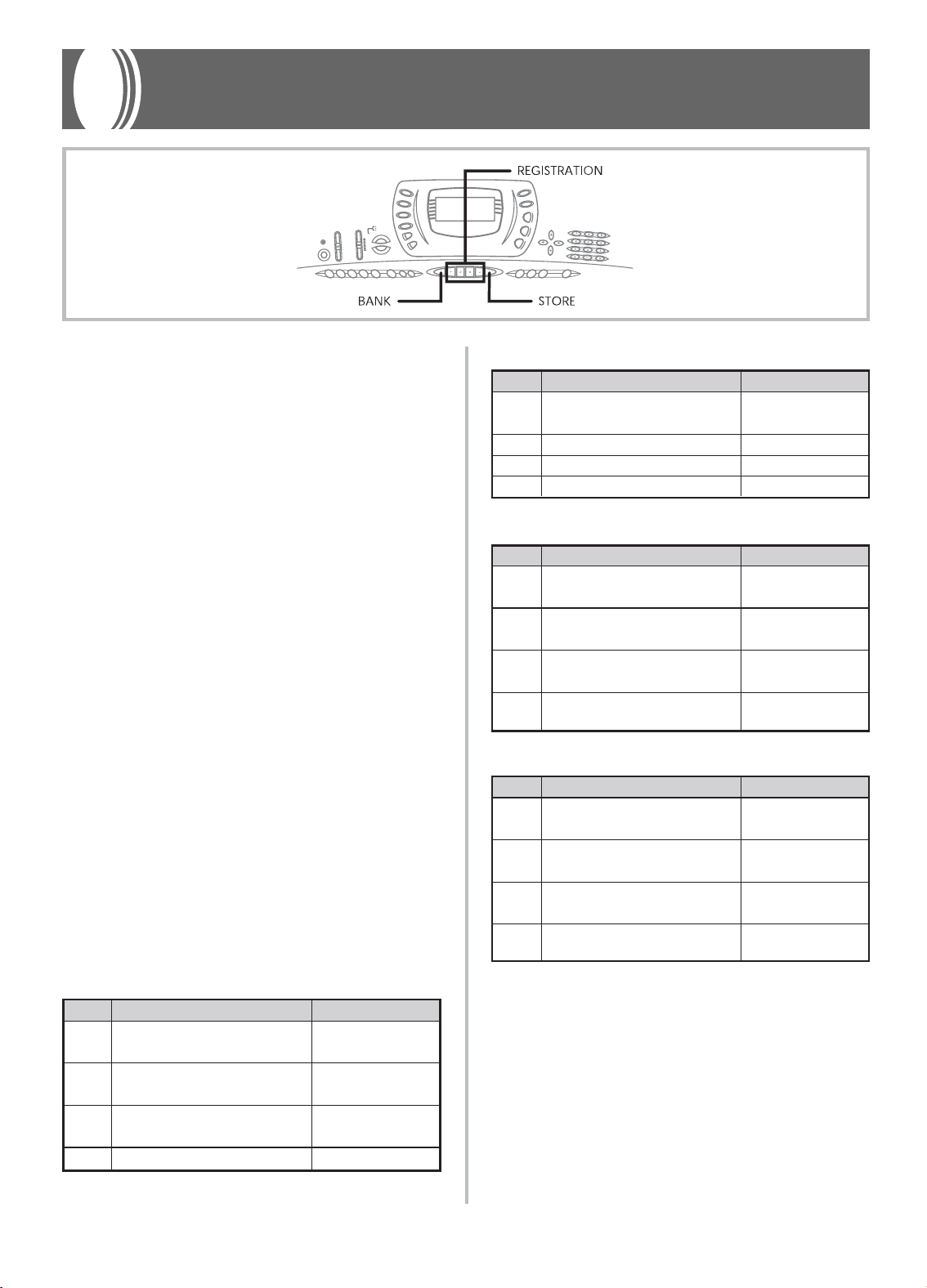
E-44
Registration Memory
Registration Memory Features
Registration memory lets you store up to 16 keyboard setups
(4 sets x 4 banks) for instant recall whenever you need them.
The following is a list of settings that are saved in registra-
tion memory.
Registration Memory Settings
• Tone
• Rhythm
• Tempo
• Split on/off
• Split point
• Layer on/off
• Mixer settings (Channels 1 to 10)
• Effect settings
• Equalizer settings
• Touch Response settings
• Assignable jack setting
• Transpose
• Tuning
• Accompaniment volume setting
• Harmonize on/off
❚
NOTE
• Registration memory functions are disabled while you are us-
ing the Synthesizer, Song Memory or demo tune function.
• In addition to preset tones, user tones created by altering syn-
thesizer parameters and stored in user memory are also saved
to registration memory.
Initial Settings
BANK 0
703A-E-046A
Area TONE RHYTHM
1
* OVD ROCK ORGAN +
DANCE 1
ALTO SAX
2
* VELO.ALTO SAX +
DISCO SOUL
ELEC.PIANO
3
* VELO.CLARINET +
MID BIG BAND
TENOR SAX
4
* VELO.ALTO SAX +
JAZZ COMBO
TRUMPET
BANK 2
Area TONE RHYTHM
1
* VELO.TRUMPET +
POLKA
ACCORDION
2
* VELO.FLUTE +
BOSSA NOVA 1
NYLON STR.GUITAR
3
* VELO.TENOR SAX +
REGGAE 1
STEEL DRUMS
4
* STEREO STRINGS +
BROADWAY
GLOCKENSPIEL
BANK 3
BANK 1
Area TONE RHYTHM
1
* VELO.ALTO SAX +
POP
ROCK ORGAN
2
*
E.PIANO PAD + WHISTLE POP BALLAD
3
*
MORE DISTORTION GT ROCK 2
4 ELEC.GUITAR BLUES
Area TONE RHYTHM
1
* OVD ROCK ORGAN +
8 BEAT DANCE
TENOR SAX
2
* VELO.ALTO SAX +
16 BEAT 2
GRAND PIANO
3
* TREMOLO E.PIANO +
16 BEAT BALLAD 3
MODERN E.PIANO
4
GRAND PIANO 8 BEAT 1
* : Advanced tone

E-45
703A-E-047A
Setup Names
You can assign setups into one of 16 areas, which you can
select using BANK buttons 1 through 4 and the four REGIS-
TRATION buttons. Area names range from 0-1 through 3-4
as shown below.
1 Use the BANK button to select the bank. Each press of
BANK cycle through the bank numbers from 0 to 3.
2 Pressing one of the REGISTRATION buttons (1 to 4) se-
lects the corresponding area in the currently selected bank.
❚
NOTE
• Whenever you save a setup and assign it a setup name, any
setup data previously assigned to that name is replaced with
the new data.
• You can use the keyboard’s MIDI capabilities to save your set-
up data to a computer or other external storage device. See
“Using the Data Download Service” on page E-68 for details.
To Save a Setup in Registration
Memory
• See “Registration Memory Settings” on page E-44 for
details on what data is stored in the registration mem-
ory.
• If you do not perform any operation for about five
seconds after pressing the BANK button, the display
returns to the contents in step 1, above.
• Bank 1 selected.
BANK STORE
21
0-1 0-2 0-3 0-4
1-1 1-2 1-3 1-4
3-1 3-2 3-3 3-4
2-1 2-2 2-3 2-4
1 2 3 4
BANK 0
BANK 1
BANK 2
BANK 3
• The following display appears when you press the 2
button.
❚
NOTE
• The setup is saved as soon as you press a REGISTRATION
button in step 3, above.
To Recall a Setup from Registration
Memory
• If you do not perform any operation for about five
seconds after pressing the BANK button, the keyboard
automatically clears the registration memory recall
screen.
• The setup name along with the message “Recall” ap-
pears on the display.
❚
NOTE
• If you press a REGISTRATION button without using the BANK
button to select a bank first, the last bank number selected is
used.

E-46
This keyboard lets you record up to two separate songs in
song memory for later playback. There are two methods you
can use to record a song: real-time recording where you record
the notes as you play them on the keyboard, and step record-
ing where you input chords and notes one-by-one.
❚
NOTE
• Layer and split cannot be used while standing by for recording
or while recording is being performed in the Song Memory
Mode. Also, layer and split are automatically turned off when-
ever the keyboard goes into record standby or starts record-
ing.
Tracks
Keyboard song memory records and plays back much like a
standard tape recorder. There are a total of six tracks, each of
which can be recorded separately. Besides notes, each track
can have its own tone number. Then when you play back the
tracks together, it sounds like an entire six-piece band. Dur-
ing playback, you can adjust the tempo to change the speed
of playback.
Song Memory Function
703A-E-048A
Selecting a Track
Use the SONG MEMORY TRACK buttons marked CHORD/
TR1 through TR6 to select the track you want.
Song Memory Track Buttons
Track 1 Track 5
Track 3
Track 6
Track 4
Track 2
BANK STORE
Track 1
Start End
Track 2
Track 3
Track 4
Track 5
Track 6
Auto accompaniment (Rhythm,
Bass, Chord 1/2/3), Keyboard play
Keyboard play
Keyboard play
Keyboard play
Keyboard play
Keyboard play
Melody data recorded in track.
❚
NOTE
• With this keyboard, Track 1 is the basic track, which can be
used to record keyboard play, along with Auto Accompaniment.
Tracks 2 through 6 can be used for keyboard play, so they are
called melody tracks. Tracks 2 through 6 are used to add other
parts to what is recorded in Track 1.
• Note that each track is independent of the others. This means
that even if you make a mistake while recording, you only need
to re-record the track where the mistake was made.
• You can use different Mixer settings for each track (page E-
35).
Basic Song Memory operations
The status of the Song Memory changes each time you press
the SONG MEMORY button.
Playback
Real-time Recording
Step Recording
Normal
Flash
Flash

E-47
703A-E-049A
Song number (0 or 1)
Using Real-time Recording
With real-time recording, the notes you play on the keyboard
are recorded as you play them.
To record with real-time recording
• Perform step 2, below, within five seconds after en-
tering record standby.
• The above song number screen remains on the dis-
play for about five seconds. If it disappears before
you have a chance to select a song number, use the
SONG MEMORY button again to re-display it.
• The level meters for tracks 11 through 16 are shown
on the display while the keyboard is in record stand-
by, so you can easily check which tracks are already
recorded. See “Level Meter Contents During Record/
Edit Standby” on page E-53 for details.
• Tone number
• Rhythm number
• Tempo
• MODE switch
• When recording starts, the REC indicator flashes on
the display. After a few moments the indicator stops
flashing, and remains on the display.
• You can also record Auto Accompaniment chords by
selecting the applicable mode with the MODE switch.
• Optional pedal operation is also recorded. See “Track 1
Contents After Real-time Recording”.
• If you make a mistake while recording, you can stop
the record operation and begin over again from step
1, or you can use the editing function (page E-55) to
make corrections.
❚
NOTE
• Using real-time recording to record to a track that already con-
tains recorded data replaces the previous recording with the
new one.
Track 1 Contents After Real-time Record-
ing
In addition to keyboard notes and accompaniment chords,
the following data is also recorded to Track 1 during real-
time recording. This data is applied whenever Track 1 is
played back.
• Tone number
• Rhythm number
• INTRO/ENDING 1 button, INTRO/ENDING 2 button,
VARIATION/FILL-IN 1 button, VARIATION/FILL-IN 2
button, SYNCRHO/FILL-IN NEXT button operations
• Pedal operations (option)
• Effect type
• Accompaniment volume
❚
NOTE
• Starting a record operation also records the Mixer settings for
the other tracks to the song header.
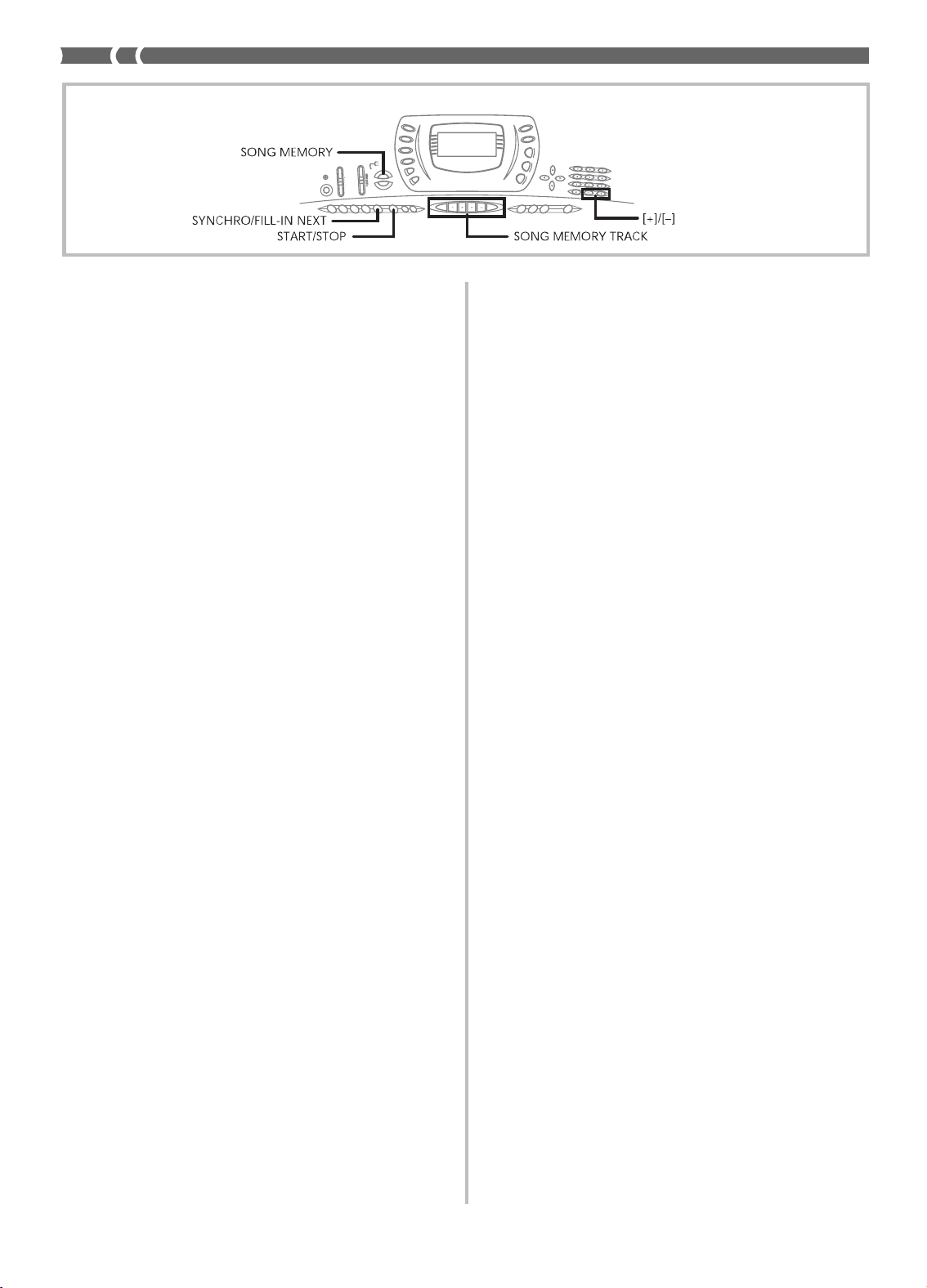
E-48
703A-E-050A
Mixer Mode Settings
Channel 1 Mixer parameters (page E-36) are automatically
recorded to Track 1. You can use the Mixer to change each of
the parameters.
Memory Capacity
The keyboard has memory for approximately 3,500 notes. You
can use all 3,500 notes for a single song, or you can divide
memory between two different songs.
• The measure number and note number flash on the dis-
play whenever remaining memory is less than 100 notes.
• Recording automatically stops (and auto-accompaniment
and rhythm stops playing if they are being used) whenev-
er memory becomes full.
• The same memory area is used for song memory and user
rhythm memory. Because of this, the number of notes you
can store in song memory is lower when there is user
rhythm data stored in memory. You can clear memory con-
tents and free up more space for song memory space using
the Initialize / Delete setting menu (page E-65).
Memory Data Storage
• Whenever you make a new recording, anything previous-
ly stored in memory is replaced.
• Memory contents are retained as long as the keyboard is
being supplied with electrical power. Unplugging the AC
adaptor when batteries are not loaded or when loaded bat-
teries are dead cuts off the keyboard’s electrical power sup-
ply, clearing all data stored in memory. Plug the keyboard
into a wall outlet with the AC adaptor before replacing bat-
teries.
• Turning off the keyboard while a record operation is in
progress causes the contents of the track your are currently
recording to be lost.
• Remember that you can dump memory contents to anoth-
er MIDI device using the procedure described under “Us-
ing the Data Download Service” on page E-68.
Track 1 Real-time Recording Variations
The following describes a number of different variations you
can use when recording to Track 1 using real-time recording.
All of these variations are based upon the procedure described
under “To record with real-time recording” on page E-47.
●
To record without rhythm
Skip step 5. Real-time recording without a rhythm starts when
you press a keyboard key.
●
To start recording with synchro start
In place of step 5, press the SYNCHRO/FILL-IN NEXT but-
ton. Auto-accompaniment and recording will both start when
you play a chord on the accompaniment keyboard.
●
To record using an intro, ending, or fill-in
During recording, the INTRO/ENDING 1/2, SYNCHRO/
FILL-IN NEXT, and VARIATION/FILL-IN 1/2 buttons (pag-
es E-31 to 32) can all be used as they normally are.
●
To synchro start Auto Accompaniment with an
intro pattern
In place of step 5, press the SYNCHRO/FILL-IN NEXT but-
ton and then INTRO/ENDING 1 or INTRO/ENDING 2 but-
ton. Auto-accompaniment will start with the intro pattern
when you play a chord on the accompaniment keyboard.
●
To start Auto Accompaniment part way into a
recording
In place of step 5, press the SYNCHRO/FILL-IN NEXT but-
ton and then play something on the melody keyboard to start
recording without Auto Accompaniment. When you reach
the point where you want accompaniment to start, play a
chord on the accompaniment keyboard to start Auto Accom-
paniment.
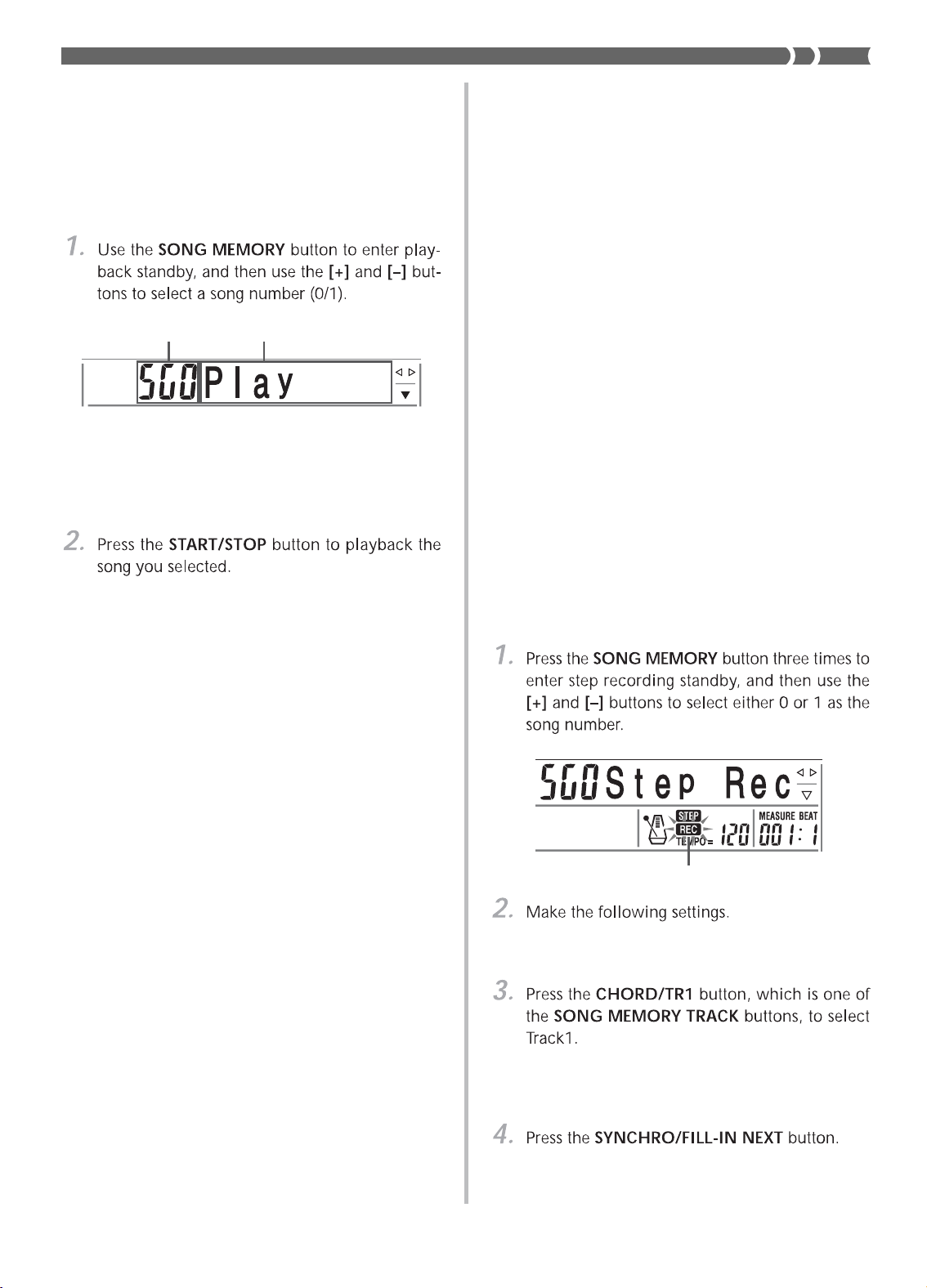
E-49
Recording Melody and Chords with
Step Recording
With step recording, you can record Auto-Accompaniment
chords and notes, and even specify note lengths one by one.
Even those who find it difficult to play along on the key-
board with an Auto-Accompaniment can create Auto-Accom-
paniments based on their own original chord progressions.
The following shows the type of data that can be recorded in
Tracks 1 through 6.
Track 1: Chords and Auto-Accompaniment
Tracks 2 through 6: Keyboard play
With step recording, first record the chords and Auto-Accom-
paniment in Track 1. Next, record the melody in Tracks 2
through 6.
❚
NOTE
• Use the procedure under “To record to Tracks 2 through 6 us-
ing step recording” on page E-52 for details on how to record
to Tracks 2 through 6.
• You can use Track 1 for the melody if you do not plan to record
chords or Auto-Accompaniment. Select Track 1 and then per-
form the procedure under “To record to Tracks 2 through 6 us-
ing realtime recording” on page E-52 to record. In this case,
set the MODE switch to NORMAL before you start recording.
To record chords with step recording
• Rhythm number
• MODE switch
• When recording starts, the REC indicator flashes on
the display. After a few moments the indicator stops
flashing, and remains on the display.
703A-E-051A
Flash
Playing Back from Song Memory
Once you record tracks to song memory, you can play them
back to see what they sound like.
To play back from song memory
• The above song number screen remains on the dis-
play for about five seconds. If it disappears before
you have a chance to select a song number, use the
SONG MEMORY button again to re-display it.
• You can use the TEMPO buttons to adjust the play-
back tempo.
• Press the START/STOP button again to stop playback.
❚
NOTE
• You can play along on the keyboard using layer (page E-57)
and split (page E-57) during playback.
• Pressing the START/STOP button to start playback from song
memory always starts from the beginning of the song.
• The entire keyboard functions as a melody keyboard, regard-
less of the MODE switch setting.
To turn off a specific track
Press the SONG MEMORY TRACK button of the track you
want to turn off, or use the Mixer (Page E-35) to turn off the
channel of the track.
Playback standby
Song number

E-50
Track 1 Contents After Step Recording
In addition to chords, the following data is also recorded to
Track 1 during step recording. This data is applied whenever
Track 1 is played back.
• Rhythm number
• INTRO/ENDING 1 button, INTRO/ENDING 2 button,
VARIATION/FILL-IN 1 button, VARIATION/FILL-IN 2
button, SYNCRHO/FILL-IN NEXT button operations
Specifying Chords in the Normal Mode
When the MODE switch is set to NORMAL during step re-
cording, you can specify chords using a method that is dif-
ferent from CASIO CHORD and FINGERED fingerings. This
chord specification method can be used to input 18 different
chord types using only two keyboard keys, so chords can be
specified even if you don’t know how to actually play them.
To specify a chord, hold down the key on the root input key-
board that specifies the root, and press the key in the chord
type input keyboard to specify the chord type. When input-
ting a chord with a specified bass note, pressing two keys of
the root input keyboard causes the lower note to be specified
as a bass note.
11
11
1Major
22
22
2Minor
33
33
3Augmented
44
444Diminished
55
55
5Suspended four
66
66
6Seventh
77
77
7Minor seventh
88
88
8Major seventh
99
99
9Minor major seventh
703A-E-052A
00
00
0Seventh flat five
AA
AA
AMinor seventh flat five
BB
BB
BSeventh suspended four
CC
CC
CDiminished seventh
DD
DD
DMinor add ninth
EE
EE
EAdd ninth
FF
FF
FMinor sixth
GG
GG
GSixth
HH
HH
HSix ninth
Root input keyboard Chord type input
keyboard
• Use the chord play method that is specified by the
current MODE switch setting (FINGERED, CASIO
CHORD, etc.).
• When the MODE switch is set to NORMAL, specify
the chord using the root input keyboard and chord
type input keyboard. See “Specifying Chords in the
Normal Mode” on this page for details.
* 96 clocks = 1 beat
• Use the number buttons to specify the length of the
chord. See “Specifying the Length of a Note” on page
E-51 for details.
• The specified chord and its length are stored in mem-
ory and the keyboard stands by for input of the next
chord.
• Repeat steps 5 and 6 to input more chords.
• This enters playback standby for the song you have
just recorded.
• To play back the song at this time, press the START/
STOP button.
❚
NOTE
• Use the procedure under “Correcting Mistakes While Step
Recording” on page E-54 to correct input mistakes you make
during step recording.
• You can add on to a track that already contains recorded data
by selecting that track in step 3 of the above procedure. Doing
so automatically locates the step recording start point at the
first beat immediately following the previously recorded data.
• Inputting “0” as the chord length in steps 5 and 6 of the above
procedure specifies a rest, but the rest is not reflected in the
accompaniment contents when the accompaniment is played.
Chord name Measure, beat, and clock at
current location*
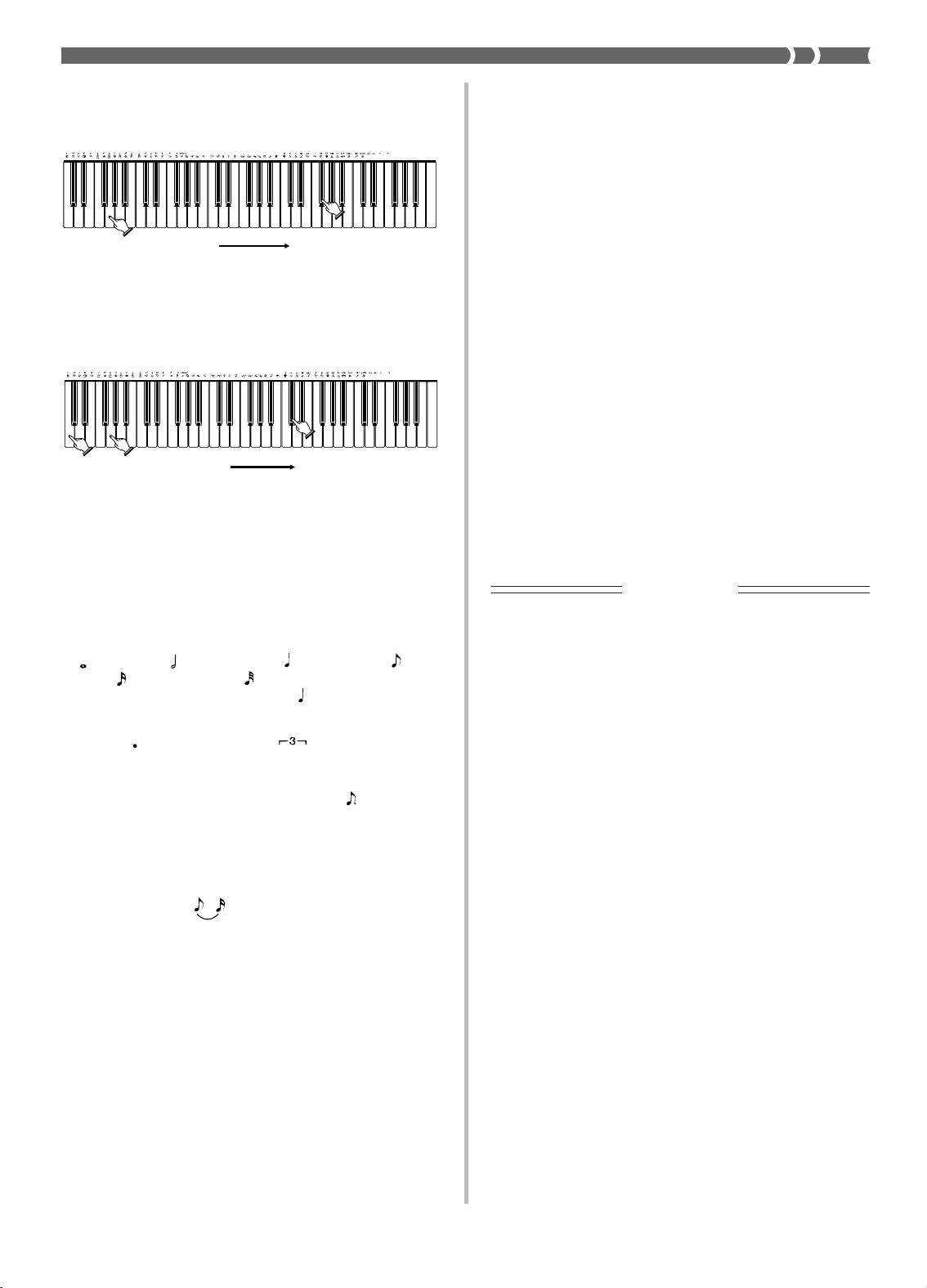
E-51
703A-E-053A
Track 1 Step Recording Variations
The following describes a number of different variations you
can use when recording to Track 1 using step recording. All
of these variations are based upon the procedure described
under “To record chords with step recording” on page E-49.
●
To start accompaniment with an intro pattern
In step 4, press INTRO/ENDING 1 or INTRO/ENDING 2
button after the SYNCHRO/FILL-IN NEXT button.
●
To switch to a rhythm variation
In step 5, press VARIATION/FILL-IN 1 or VARIATION/
FILL-IN 2 button immediately before inputting the chord.
●
To insert a fill in
In step 5, press VARIATION/FILL-IN 1 or VARIATION/
FILL-IN 2 button at the measure or beat immediately before
the chord or beat where you want to insert the fill in.
●
To insert an ending
In step 5, press INTRO/ENDING 1 or INTRO/ENDING 2
button at the measure or beat immediately before the chord
where you want to insert the ending.
IMPORTANT!
The length of the ending depends on the rhythm you are us-
ing. Check the length of the pattern you are using and set the
length of the chord accordingly in step 6. Making the chord
too short in step 6 can result in the ending pattern being cut
off.
●
To step record chords without rhythm
Skip step 4. The specified chord of the length specified by
the number buttons is recorded. A rest can be specified here,
so an original chord pattern can be created.
●
To add chord accompaniment part way
through rhythm play
In Place of step 4 at the start of the recording, press VARIA-
TION/FILL-IN 1 or VARIATION/FILL-IN 2 button and in-
put rests. Then in step 5, input the chords. Only rhythm is
played where you input the rests, and then chord play starts
after the rests.
Example 2: To input Gm/C, hold down C and G on the root
input keyboard and press the m key on the chord
type input keyboard.
Specifying the Length of a Note
During step recording, the number buttons are used to spec-
ify the length of each note.
●
Note lengths
Use number buttons [1] through [6] to specify whole notes
( ), half notes ( ), quarter notes ( ), eighth notes ( ), 16th
notes ( ), and 32nd notes ( ).
Example: To specify a quarter note ( ), press [3].
●
Dots ( ) and triplicates ( )
While holding down the [7] (dot) or [9] (triplicate), use but-
tons [1] through [6] to input the lengths of the notes.
Example: To input a dotted eighth notes ( ), hold down
[7] and press [4].
●
Ties
Input the first and then the second note.
Example: To input , press [4] and then [8]. Next, press
[5]. This note will be tied to the next note you
input (16th note in this example).
●
Rest
Hold down [0] and then use number buttons [1] through [9]
to specify the length of the rest.
Example: To input an eighth note rest, hold down [0] and
press [4].
Hold down key to specify on bass
and chord root.
Press key to specify
chord type.
(G)(C) (m)
Hold down key to specify chord
root.
Press key to specify chord
type.
(G) (m7)
Example 1: To input Gm7, hold down G on the root input
keyboard and press the m7 key on the chord type
input keyboard.

E-52
703A-E-054A
Recording Multiple Tracks
Track 1 of the keyboard’s song memory records Auto Accom-
paniment and keyboard play. In addition, there are five oth-
er melody tracks that you can use to record melody parts
only. You can record different tones to the melody tracks and
build a full ensemble of instruments for your recordings. The
procedure you use for recording to Tracks 2 through 6 is iden-
tical to the one you use when recording to Track 1.
To record to Tracks 2 through 6 using real-
time recording
You can record to Tracks 2 through 6 while playing back what
you originally recorded on Track 1 and any other tracks that
are already recorded.
• The song number you select should be the one where
you previously input Track 1.
• While the keyboard is in record standby, the display
shows the level meters for channels 11 through 16, so
you can check which tracks have already been record-
ed. See “Level Meter Contents During Record/Edit
Standby” on page E-53 for details.
• Tone number
• Tempo (to set playback of the recorded tracks to a tem-
po that is easy for you to follow)
• At this time, the contents of any tracks that are al-
ready recorded start to play back.
• Optional pedal operation you perform is also record-
ed.
Track Contents After Real-time Recording
In addition to keyboard notes, the following data is also re-
corded to the selected track during real-time recording. This
data is applied whenever the track is played back.
• Tone number
• Optional pedal operations
❚
NOTE
• Starting a record operation also records the Mixer settings for
the other tracks to the song header.
To record to Tracks 2 through 6 using step
recording
This procedure describes how to input notes one-by-one,
specifying each note’s pitch and length.
• The song number you select should be the one where
you previously input Track 1.

E-53
Recording track
Not recording track
703A-E-055A
Example: Select Track 2.
• After changing the tone number, press any keyboard
key to clear the tone number and name screen, and
return to the note input screen.
• When touch response is turned on, the amount of
pressure you use to press the keyboard keys is also
recorded. You can also use keyboard keys to input
chords.
❚
NOTE
• Use the procedure under “Correcting Mistakes While Step
Recording” on page E-54 to correct input mistakes you make
during step recording.
• You can add on to a track that already contains recorded data
by selecting that track in step 2 of the above procedure. Doing
so automatically locates the step recording start point at the
first beat immediately following the previously recorded data.
• Whenever you are recording to Tracks 2 through 6, the entire
keyboard functions as a melody keyboard, regardless of the
current MODE switch setting.
Track Contents After Step Recording
In addition to notes and rests, the following data is also re-
corded to the track during step recording. This data is ap-
plied whenever the track is played back.
• Tone number
Level Meter Contents During Record/Edit
Standby
Channels 11 through 16 correspond to Tracks 1 through 6.
Whenever the keyboard is in record or edit (page E-55) stand-
by, the level meter display shows which tracks already con-
tain recorded data and which are still empty. Tracks with
four lit segments already contained recorded data, while
tracks with one lit segment are not yet recorded.
Flash
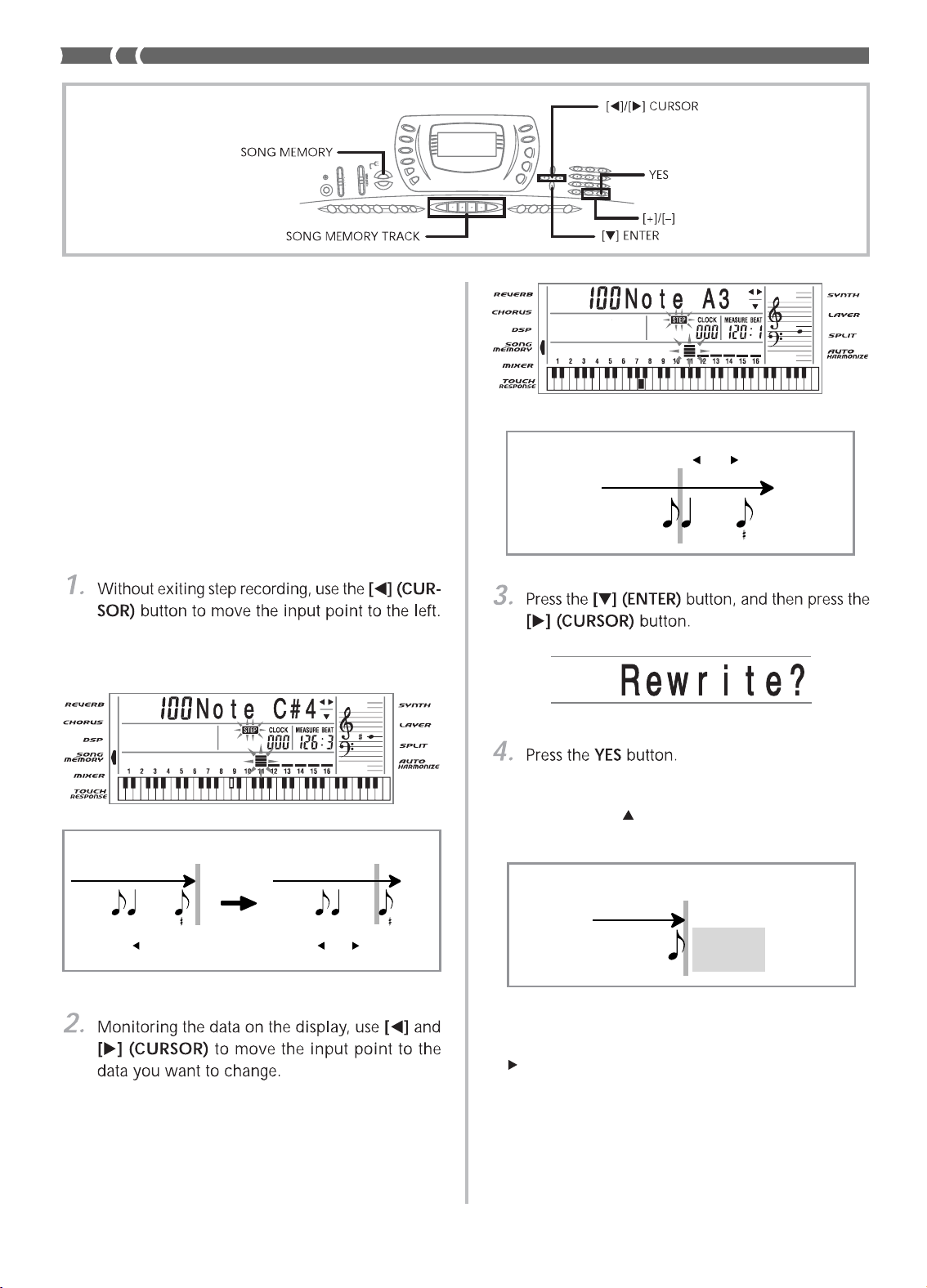
E-54
Correcting Mistakes While Step Re-
cording
Memory data can be thought of as a musical score that
progresses from left to right, with the input point normally
at the far right of the recorded data.
The procedure described here lets you move the input point
to the left in order to make changes in data you have already
input. Note, however, that moving the input point to the left
and changing data automatically deletes all of the data re-
corded to the right of the input point.
To correct mistakes while step recording
• The REC indicator disappears from the display, and
the STEP indicator flashes.
Example: To re-record all note data following the note
A3 located at Measure 120, Beat 1, Clock 0.
• • • • • • • • • • • • • •
C 4A3
Measure 120/Beat 1/Clock 0
(Input point moved to using [ ] and [ ] (CURSOR))
Data flow
• • • • • • •
Measure 120/Beat 1/Clock 0
(
Step re-recording begins from here.
)
Data flow
All data to
the right
is deleted.
703A-E-056A
• This deletes all data from the location you specified
and enters step record standby.
• Pressing the [ ] (EXIT) button or the NO button can-
cels deleting the data.
❚
NOTE
• If you move the input position to the end of the data with the
[ ] (CURSOR) button, the REC indicator appears on the dis-
play, and the STEP indicator stops flashing and remains on the
display.
• • • • • • • • • • • • • • • • • • • • • • • • • • • •
C 4 C 4
Measure 126/Beat 3/Clock 48
(Normal input point)
Measure 126/Beat 3/Clock 0
(Previous data)
Use [ ] and [ ] (CURSOR) to
move left and right.
Press [ ] (CURSOR).
Data flowData flow

E-55
703A-E-057A
To delete specific note data
Editing Memory Contents
After you record to keyboard memory, you can recall indi-
vidual notes and parameter settings (such as tone number)
and make any changes you want. This means you can cor-
rect misplayed notes, make changes in tone selections, etc.
The following types of data can be edited.
• Note intensity
• Notes
• Chords
• Tone numbers
• Rhythm number
• INTRO/ENDING 1 button, INTRO/ENDING 2 button,
VARIATION/FILL-IN 1 button, VARIATION/FILL-IN 2
button, SYNCRHO/FILL-IN NEXT button operations
To edit memory contents
• The REC indicator disappears from the display, and
the STEP indicator flashes.
Flash
Note editing example
• The actual procedures you use to change a parameter
depend on the type of data it contains. See “Editing
Techniques and Display Contents” on page E-56 for
details.
❚
NOTE
• The only parameters that can be editted for Tracks 2 through 6
are notes and tone numbers.
• In the case of real-time recording, you later can change tone
numbers you specified while recording to Tracks 1 through 6 is
in progress.
• You can only change tone numbers that were originally set for
Tracks 2 through 6 using step recording.
• In the case of real-time recording, you later can change rhythm
numbers you specified while recording to Track 1 is in progress.
• You can only change rhythm numbers that were originally set
for Track 1 using step recording.
• You cannot use the edit procedure to add more data to a re-
cording.
• You cannot move portions of a recording to a different location
within the recording.
• Note lengths cannot be changed.
PitchVelocity
Parameter being
edited
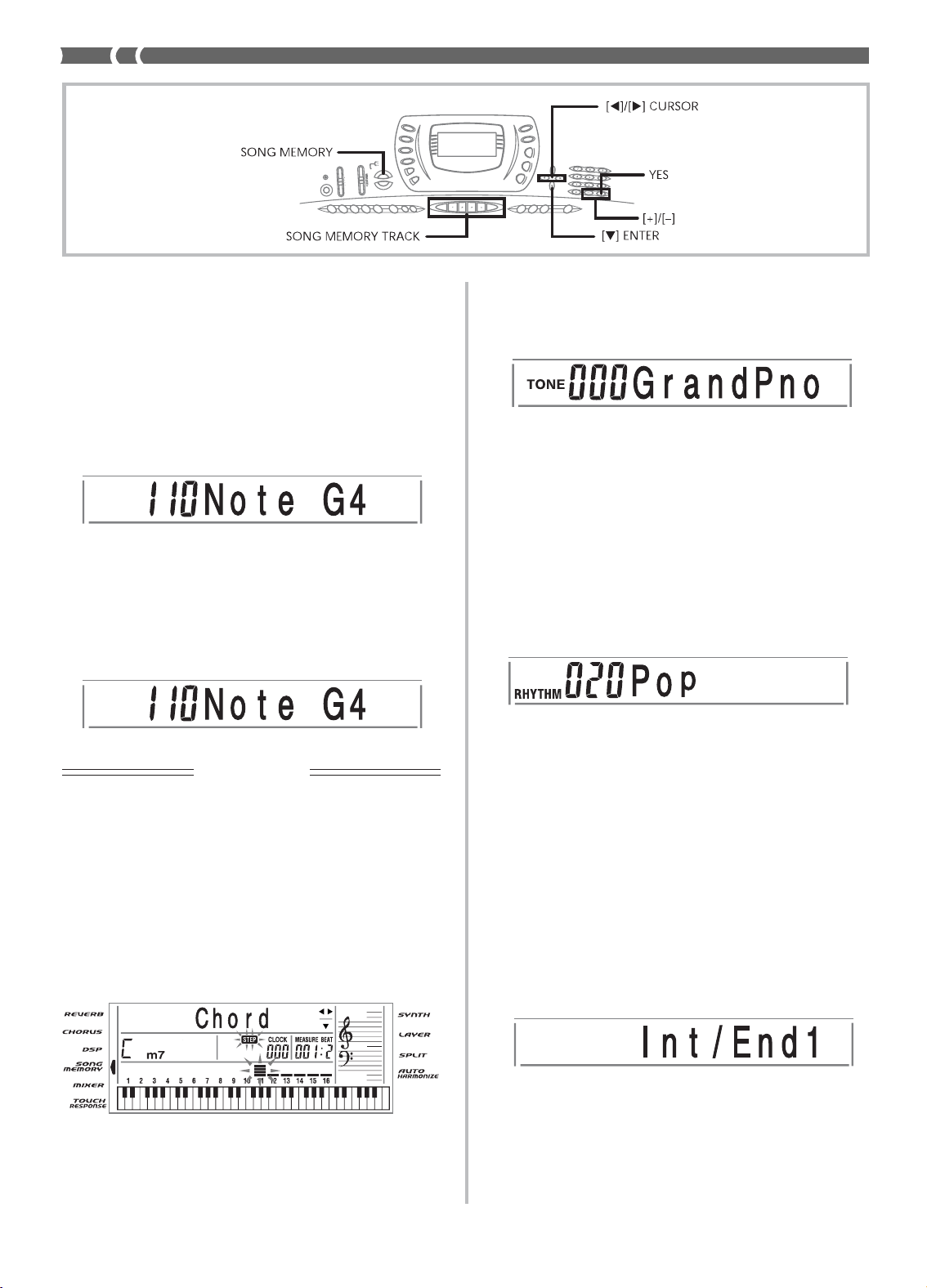
E-56
❚
NOTE
• In the case of real-time recording, you later can change tone
numbers you specified while recording to Tracks 1 through 6 is
in progress.
• You can only change tone numbers that were originally set for
Tracks 2 through 6 using step recording.
●
To change a rhythm number
Use the number buttons or [+] and [–] buttons to change a
rhythm number.
❚
NOTE
• In the case of real-time recording, you later can change rhythm
numbers you specified while recording to Track 1 is in progress.
• You can only change rhythm numbers that were originally set
for Track 1 using step recording.
●
To change a rhythm controller operation
*
* INTRO/ENDING 1 button, INTRO/ENDING 2 button,
VARIATION/FILL IN 1 button, VARIATION/FILL IN 2
button, SYNCRHO/FILL IN NEXT button operations
Press the rhythm controller button you want to change to.
703A-E-058A
Editing Techniques and Display Contents
The following describes the editing techniques you can use
to change the various parameters stored in memory.
●
To change the key pressure (velocity) of a note
Use the number buttons or [+] and [–] to adjust the key pres-
sure.
●
To change the pitch of a note
Input a new note on the keyboard or use [+] and [–] buttons
to change the pitch of a note. The pitch you specify here is
reflected in the keyboard and the notes shown in the staff on
the display.
IMPORTANT!
Whenever editing memory contents, never change a note so
it is identical to the note before or after it. Doing so may alter
the length of the changed note and the note before or after it.
Should this happen, you will have to re-record the entire
track.
●
To change a chord
Use the chord fingering method selected by the MODE switch
(FINGERED, CASIO CHORD, etc.) to input a chord.
●
To change a tone number
Use the number buttons or [+] and [–] buttons to change a
tone number.
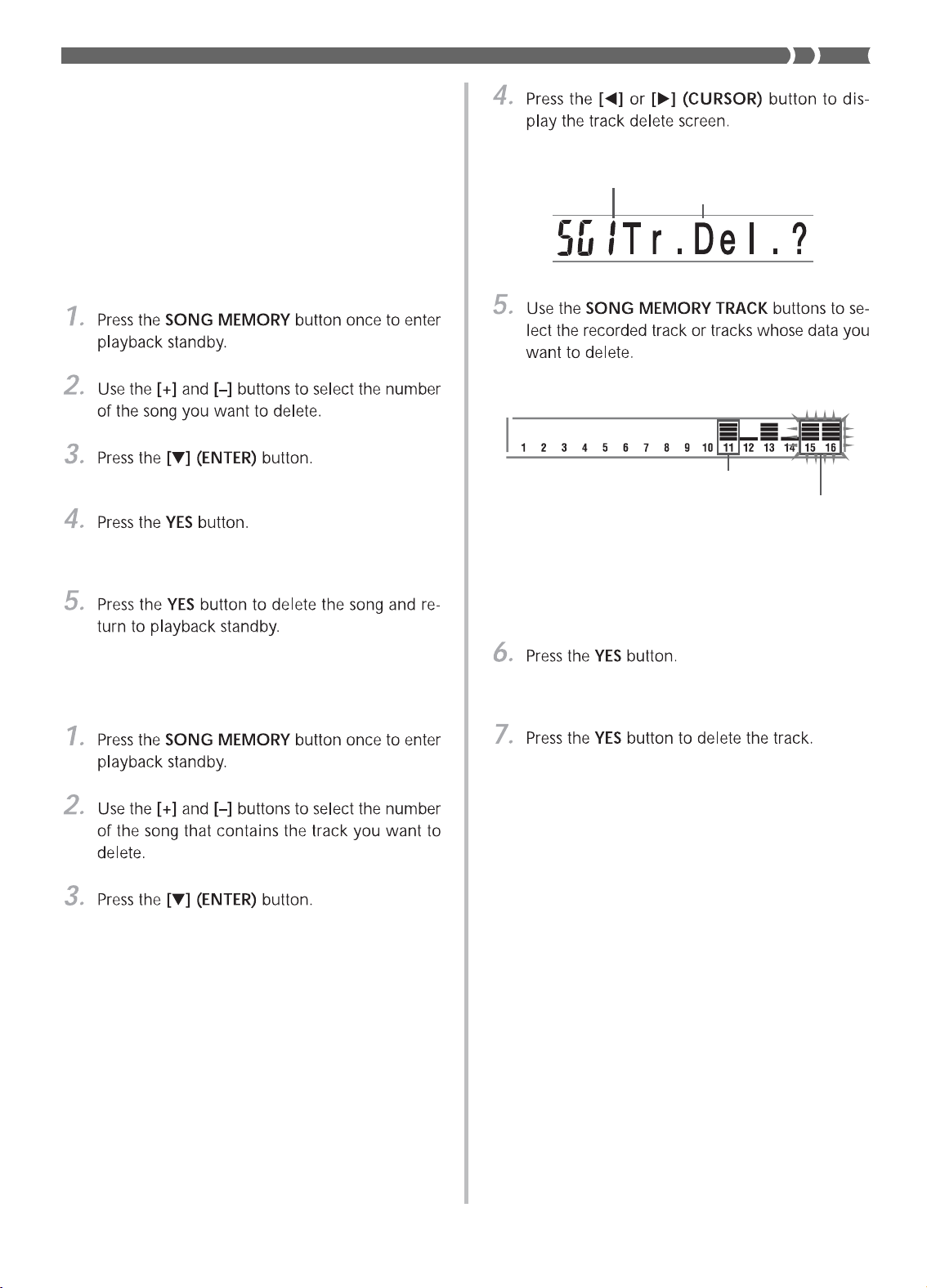
E-57
Track delete standby
• You can specify more than one track for deletion by
pressing more than one track select button.
• To deselect a track, simply press its track select but-
ton again.
• This causes the message “Sure?” to appear, confirm-
ing whether you really want to delete the track.
❚
NOTE
• You cannot change the song number while in track delete stand-
by.
• In the above procedure, you cannot select any track that does
not contain any recorded data.
• Pressing the SONG MEMORY button while in track delete
standby returns to record standby.
Editing a Song
You can perform the following operations in the song edit-
ing mode.
• Delete a song
• Delete a track
• Song header data rewrite (Panel Record)
To delete a song
• This displays the song delete screen.
• This causes the message “Sure?” to appear, confirm-
ing whether you really want to delete the song.
To delete a specific track
• This displays the song delete screen.
Recorded track
Track being deleted (Multiple
tracks can be specified.)
Number of the song that contains the track
(cannot be changed)
Track delete standby
703A-E-059A

E-58
To rewrite song header data (Panel
Record)
You can use a procedure called “Panel Record” to change the
initial Mixer, tempo and other settings stored in the song
header.
• This displays the song delete screen.
• This causes the message “Pnel Rec?” to appear on the
display.
703A-E-060A
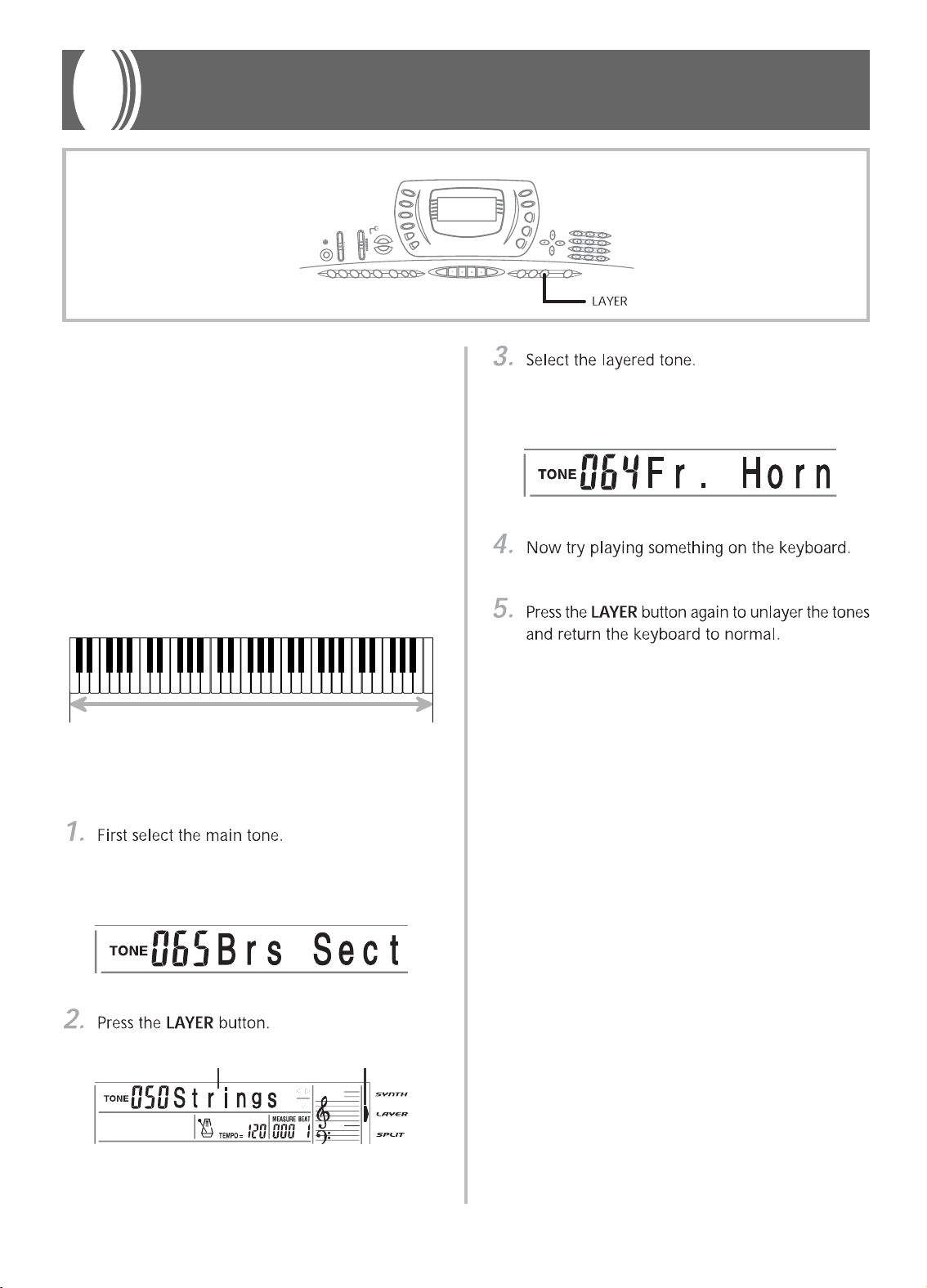
E-59
Using Split
With split you can assign two different tones (a main tone
and a split tone) to either end of the keyboard, which lets
you play one tone with your left hand and another tone with
your right hand. For example, you could select STRINGS as
the main (high range) tone and PIZZICATO STRINGS as the
split (low range) tone, putting an entire string ensemble at
your fingertips.
Split also lets you specify the split point, which is the loca-
tion on the keyboard where the changeover between the two
tones occurs.
❚
NOTE
• Leave the MODE switch in the NORMAL or FULL RANGE
CHORD position.
Example: To select “064 FRENCH HORN” as the lay-
ered tone, use the number buttons to input
0, 6 and then 4.
• Both tones are played at the same time.
❚
NOTE
• The main tone sounds over Channel 1, while the layered tone
sounds over Channel 2. You can also use the Mixer to change
the tone and volume settings for these channels.
• Layer cannot be used while standing by for recording or while
recording is being performed in the Song Memory Mode.
This section describes how to use layer (to play two tones
with a single key) and split (to assign different tones to ei-
ther end of the keyboard), and how to make touch response,
transpose, and tuning settings.
Using Layer
Layer lets you assign two different tones (a main tone and a
layered tone) to the keyboard, both of which play whenever
you press a key. For example, you could layer the FRENCH
HORN tone on the BRASS SECTION tone to produce a rich
and brassy sound.
LAYER
To layer tones
Example: To select “065 BRASS SECTION” as the main
tone, press the TONE button and then use
the number buttons to input 0, 6 and then 5.
Keyboard Settings
703A-E-061A
Main Tone (BRASS SECTION) + Layered Tone (FRENCH HORN)
Selected layer tone Lit

E-60
703A-E-062A
Main Tone (STRINGS)
Split point
Split Tone
(PIZZICATO
STRINGS)
SPLIT
To split the keyboard
Example: To select “050 STRINGS” as the main tone,
press the TONE button and then use the num-
ber buttons to input 0, 5 and then 0.
Example: To select “048 PIZZICATO STRINGS” as the
split tone, use the number buttons to input 0,
4 and then 8.
Split Tone
(PIZZICATO STRINGS)
+
Layered Split Tone
(STRINGS)
Main Tone
(BRASS SECTION)
+
Layered Tone (FRENCH HORN)
Split point
Example: To specify G3 as the split point, press the G3
key.
Selected split tone Lit
• Every key from F 3 and below is assigned the PIZZI-
CATO STRINGS tone, while every key from G3 and
above is assigned the STRINGS tone.
❚
NOTE
• The main tone sounds over Channel 1, while the split tone
sounds over Channel 3. You can also use the Mixer to change
the tone and volume settings for these channels.
• Split cannot be used while standing by for recording or while
recording is being performed in the Memory Mode.
• When the MODE switch is set to CASIO CHORD or FINGERED,
the accompaniment keyboard range is in accordance with the
split point you specify with the above procedure.
Using Layer and Split Together
You can use layer and split together to create a layered split
keyboard. It makes no difference whether you layer tones
first and then split the keyboard, or split the keyboard and
then layer tones. When you use layer and split in combina-
tion, the high range of the keyboard is assigned two tones
(main tone + layered tone), and the low range two tones (split
tone + layered split tone).
LAYER SPLIT

E-61
To split the keyboard and then layer tones
Example: To set “065 BRASS SECTION” as the main
tone.
Example: To set “048 PIZZICATO STRINGS” as the
split tone.
• After specifying the split tone, press the SPLIT but-
ton to unsplit the keyboard.
Example: To set “064 FRENCH HORN” as the layered
tone.
Example: To specify the “050 STRINGS” tone, enter 0,
5, 0.
• Press the LAYER button to unlayer the keyboard, and
the SPLIT button to unsplit it.
oFF Touch : 1 Light : 2 Normal : 3 Heavy
Off
❚
NOTE
• The main tone sounds over Channel 1, the layer tone over Chan-
nel 2, the split tone over Channel 3, and the layer/split tone
over Channel 4. You can also use the Mixer to change the tone
and volume settings for these channels.
Using Touch Response
When touch response is turned on, the relative volume of
sound output by the keyboard is varied in accordance with
the amount of pressure applied, just like an acoustic piano.
To turn touch response on and off
• This displays the Touch Response setting screen.
• “1 Light” outputs powerful sound even with light key
pressure, while “3 Heavy” requires very heavy key
pressure to output powerful sound.
• Pressing [+] and [–] at the same time returns sensitiv-
ity to the “2 Normal” setting.
• When you select “oFF Touch”, the tone does not
change regardless of how much pressure you apply
to the keyboard. This causes the TOUCH RESPONSE
indicator to disappear from the display.
❚
NOTE
• Touch response not only affects the keyboard’s internal sound
source, it also is output as MIDI data.
• Song Memory playback, accompaniment, and external MIDI
note data does not affect the touch response setting.
703A-E-063A
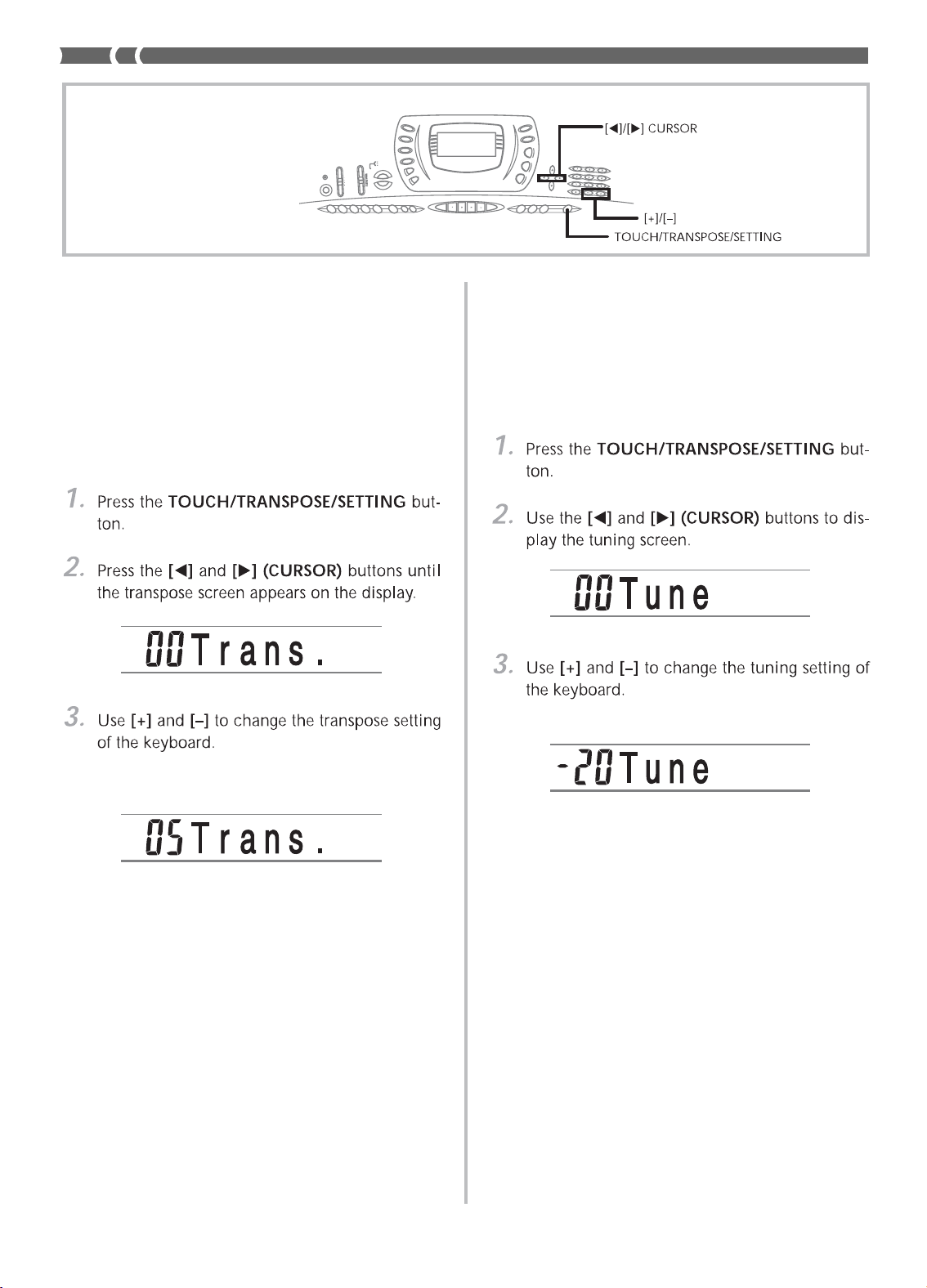
E-62
703A-E-064A
Transposing the Keyboard
Transpose lets you raise and lower the overall key of the key-
board in semitone units. If you want to play an accompani-
ment for a vocalist who sings in a key that’s different from
the keyboard, for example, simply use transpose to change
the key of the keyboard.
To transpose the keyboard
Example: To transpose the keyboard five semitones up-
wards.
• Pressing the TOUCH/TRANSPOSE/SETTING but-
ton exits the transpose screen.
❚
NOTE
• The keyboard can be transposed within a range of –24 (two
octave downwards) to +24 (two octave upwards).
• The transpose setting also affects playback from song mem-
ory and Auto Accompaniment.
Tuning the Keyboard
The tuning feature lets you fine tune the keyboard to match
the tuning of another musical instrument.
To tune the keyboard
Example: To lower the tuning by 20.
• Pressing the TOUCH/TRANSPOSE/SETTING but-
ton exits the transpose screen.
❚
NOTE
• The keyboard can be tuned within a range of –99 cents to +99
cents.
*100 cents is equivalent to one semitone.
• The tuning setting also affects playback from song mem-
ory and Auto Accompaniment.

E-63
Changing Other Settings
Setting Types
The table below shows the parameters whose settings you can change.
Setting menu
Touch Response
(Touch)
Transpose
(Trans.)
Tune
(Tune)
Display/Pedal
(LCD/Jack)
MIDI
(MIDI)
Initialize/Delete
(Init/Del)
Page
E-61
E-62
E-62
E-65
E-65
E-65
Description
Specifies of how sound should change with keyboard pressure.
Adjusts of overall keyboard tuning by semitone units.
Fine adjustment of overall keyboard tuning.
Adjusts display brightness and assigns of effects to pedals.
MIDI settings
Initializes all settings to initial factory defaults, resets specific settings or deletes user
rhythms.
703A-E-065A
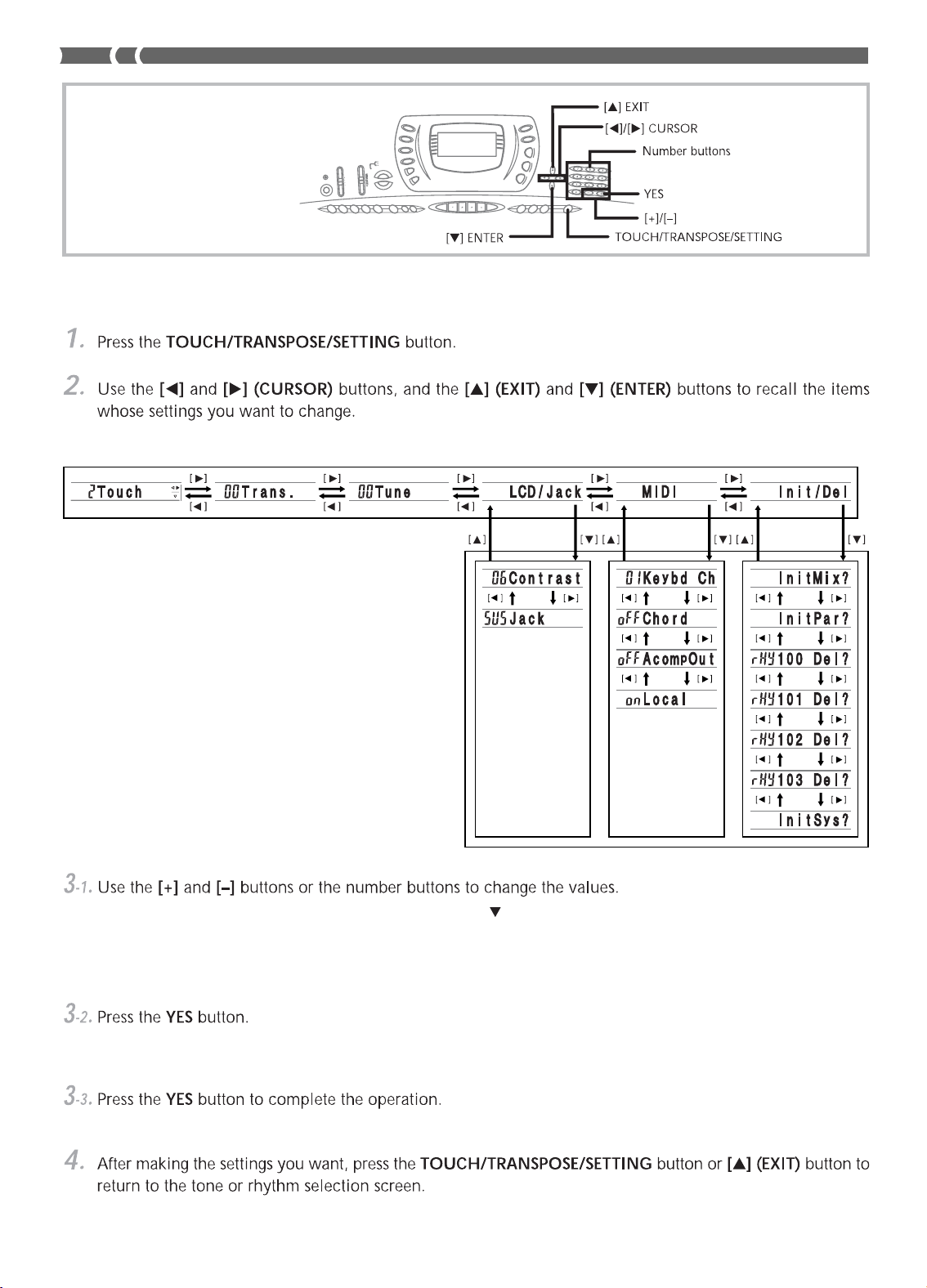
E-64
703A-E-066B
To use the keyboard settings menu
MAIN MENU
SUB MENU
EXIT ENTEREXIT ENTER
EXIT
ENTER
• Settings you make are applied even if you do not press the [ ] (ENTER) button.
• See the following section titled “Setting Menu Items” for details on each setting.
■
In case of an initialize or delete procedure
• This causes the message “Sure?” to appear, confirming whether you really want to perform the initialize or delete opera-
tion.
• This performs the initialize or delete operation and returns to the tone or rhythm selection screen.

E-65
Setting Menu Items
Description
Adjusts display contrast.
Assigns the sustain pedal effect to a pedal.
Assigns the sostenuto pedal effect to a pedal.
Assigns the soft pedal effect to a pedal.
Assigns the START/STOP button function to a ped-
al.
Specifies the send channel for main tone play.
Specifies whether accompaniment range MIDI
Note On messages received from an external de-
vice should be interpreted as auto accompaniment
chords.
Specifies whether this keyboard’s accompaniment
is sent as MIDI messages.
Specifies whether the keyboard should sound the
parts played on it.
Initializes parameters assigned by the Mixer or by
input from an external sequencer.
Initializes all parameters, except for the display
contrast setting.
Deletes user rhythm No. 100 data.
Deletes user rhythm No. 101 data.
Deletes user rhythm No. 102 data.
Deletes user rhythm No. 103 data.
Initializes to initial factory defaults.
Deletes all data in the user area.
Sub menu
Contrast
(Contrast)
Assignable Jack
(Jack)
Keyboard Channel
(Keybd Ch)
MIDI In Chord Judge
(Chord)
Accomp MIDI Out
(AccompOut)
Local Control Setting
(Local)
Mixer Reset
(InitMix?)
Parameter Reset
(InitPar?)
User Rhythm No. 100 Delete
(rHy 100 Del?)
User Rhythm No. 101 Delete
(rHy 101 Del?)
User Rhythm No. 102 Delete
(rHy 102 Del?)
User Rhythm No. 103 Delete
(rHy 103 Del?)
System Delete
(InitSys?)
Range
00 to 12
SUS
SoS
SFt
rhy
01 to 16
on/oFF
on/oFF
on/oFF
—
—
—
—
—
—
—
Default
06
SUS
—
—
—
01
oFF
oFF
on
—
—
—
—
—
—
—
Main menu
Display/
Pedal
(LCD/Jack)
MIDI
(MIDI)
Initialize/
Delete
(Init/Del)
703A-E-067B
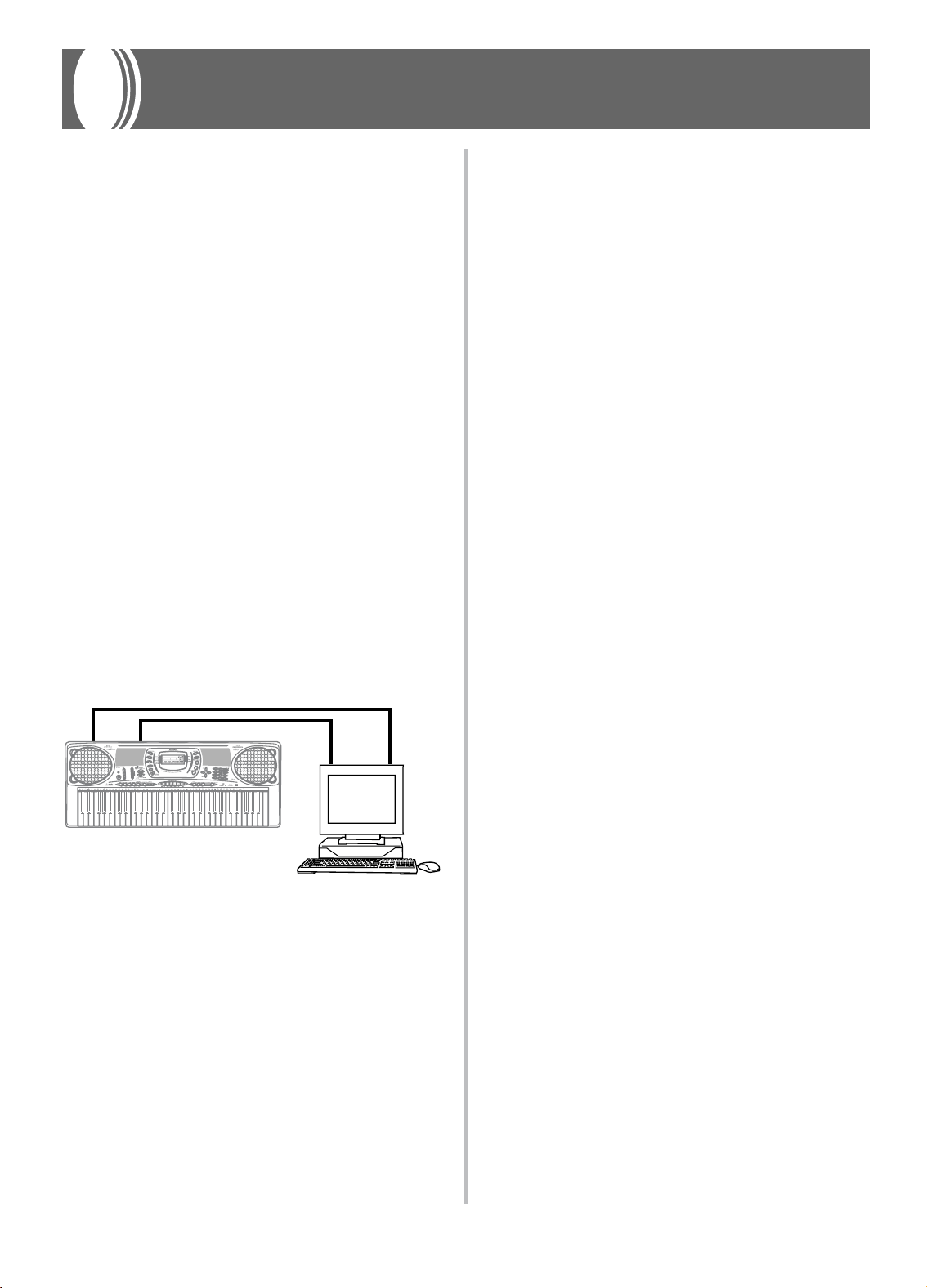
E-66
703A-E-068A
MIDI
What is MIDI?
The letters MIDI stand for Musical Instrument Digital Inter-
face, which is the name of a worldwide standard for digital
signals and connectors that make it possible to exchange
musical data between musical instruments and computers
(devices) produced by different manufacturers. MIDI com-
patible equipment can exchange keyboard key press, key re-
lease, tone change, and other data as messages.
Though you do not need any special knowledge about MIDI
to use this keyboard as a stand-alone unit, MIDI operations
require a bit of specialized knowledge. This section provides
you with an overview of MIDI that will help to get you go-
ing.
MIDI Connections
MIDI messages are send out through the MIDI OUT termi-
nal of one device to the MIDI IN terminal of another ma-
chine over a MIDI cable. To send a message from this key-
board to another device, for example, you must use a MIDI
cable to connect the MIDI OUT terminal of this keyboard to
the MIDI IN terminal of the other device. To send MIDI mes-
sages back to this keyboard, you need to use a MIDI cable to
connect the other device’s MIDI OUT terminal to the MIDI
IN terminal of this keyboard.
To use a computer or other MIDI device to record and play-
back the MIDI data produced by this keyboard, you must
connect the MIDI IN and MIDI OUT terminals of both devic-
es in order to send and receive data.
If a MIDI THRU function provided by the software is being run on
a connected computer or other MIDI device, be sure to turn this
keyboard’s “Local Control Setting” off (page E-65).
MIDI IN MIDI OUT
MIDI IN MIDI OUT
R
E
S
T
/Y
E
S
/
N
O
(
T
I
E
)
3
F
U
L
L
R
A
N
G
E
M
A
X
M
I
N
P
L
A
Y
R
E
C
O
R
D
S
T
E
P
R
E
C
O
R
D
C
H
O
R
D
F
I
N
G
E
R
E
D
C
A
S
I
O
C
H
O
R
D
N
O
R
M
A
L
BANK STORE
Computer etc.
MIDI Channels
MIDI allows you to send the data for multiple parts at the
same time, with each part being sent over a separate MIDI
channel. There are 16 MIDI channels, numbered 1 through
16, and MIDI channel data is always included whenever you
exchange data (key press, pitch bend operation, etc.).
Both the sending device and the receiving machine must be
set to the same channel for the receiving device to correctly
receive and play data. If the receiving device is set to Chan-
nel 2, for example, it receives only MIDI Channel 2 data, and
all other channels are ignored.
This keyboard is equipped with multi-timbre capabilities,
which means it can receive messages over all 16 MIDI chan-
nels and play up to 16 parts at the same time. Tone and vol-
ume settings for each channel can be made using the key-
board’s onboard Mixer, or by an external source that sends
required MIDI control messages.
Keyboard operations performed on this keyboard is sent out by
selecting a MIDI channel (1 to 16) and then sending the appro-
priate message.
General MIDI
General MIDI standardizes MIDI data for all sound source
types, regardless of manufacturer. General MIDI specifies
such factors as tone numbering, drum sounds, and available
MIDI channels for all sound sources. This standard makes it
possible for all MIDI equipment to reproduce the same nu-
ances when playing General MIDI data, regardless of the
manufacturer of the sound source.
This keyboard supports General MIDI, so it can be used to
play commercially available pre-recorded General MIDI data
and General MIDI data send to it from a personal computer.

E-67
Sending and Receiving MIDI Mes-
sages
This keyboard can send notes you play on the keyboard, as
well as auto accompaniment patterns and Song Memory play-
back as MIDI messages to another device.
MIDI Send Data
■
Keyboard Play
Each keyboard part (Channels 1 through 4) is sent over its
own individual MIDI channel. When Auto Harmonize is
turned on, harmonize notes are also sent over each individu-
al MIDI channel.
■
Auto Accompaniment Play
Each accompaniment part is sent over its own individual
MIDI channel. The “Accomp MIDI Out” parameter (page E-
65) is used to specify whether a part is sent.
MIDI Message Receive
■
Multi Channel Receive
The 16 mixer parts can be used to receive data over 16 MIDI
message channels at the same time.
■
Chord Changes when Using Auto Accompani-
ment
MIDI messages received from an external device can be in-
terpreted as chord changes as specified by the fingerings sup-
ported by the auto accompaniment system of this keyboard.
Use the “MIDI In Chord Judge” parameter (page E-65) to turn
this capability on and off.
• See the MIDI Implementation Chart at the back of this Us-
er’s Guide for more information about each MIDI message.
MIDI Settings
You can change the settings of a number of parameters that
control how MIDI messages are sent and received.
MIDI Parameters
You can use the parameter setting procedure (page E-63) to
change the settings of the MIDI parameters described below.
See pages E-64 and E-65 for details about the setting menu
and procedure.
■
MIDI In Chord Judge
This parameter determines whether note data received from
an external device should be interpreted as an auto accom-
paniment chord fingering. Turn on this parameter when you
want to control auto accompaniment chords from a comput-
er or other external device.
• on ........... Causes note data input through MIDI IN to be
interpreted as auto accompaniment chord finger-
ings. The channel specified by the keyboard chan-
nel is used for specifying chords.
• oFF ......... Turns off “MIDI In Chord Judge”.
■
Accomp MIDI Out (Accompaniment MIDI Out)
Turn on this parameter when you want sound auto accom-
paniment on an external devices sound source.
• on ........... Outputs auto accompaniment as MIDI messages
through the keyboard’s MIDI OUT terminal.
• oFF ......... Does not output auto accompaniment.
❚
NOTE
• For details, go to the CASIO Website at the URL below.
http://world.casio.com
703A-E-069A

E-68
703A-E-070A
Using the Data Download Service
Accompaniment, song, tone, DSP, and registration data, as
well as application software for transferring data between
your computer and the keyboard are all available for down-
load at the CASIO MUSIC SITE*.
■
Data and Application Software
Data itself as well as application software for transferring data
between your computer and the keyboard are available for
download at the CASIO MUSIC SITE.
■
Application Software
You can run the application software on your computer and
transfer data you download from the CASIO MUSIC SITE to
the keyboard, and also use your computer’s hard disk for
long-term storage of data you transfer from the keyboard to
your computer.
• See the instructions provided at the CASIO MUSIC SITE
for full information about how to download the applica-
tion software and data.
• See the application software’s online help for information
about how to use the software.
* CASIO MUSIC SITE
http://music.casio.com/
• Note that the service you should use depends on the
area or country.
To connect to a computer
Be sure to turn off the keyboard and your computer before
connecting them. You should also set the volume controller
of the keyboard to a relatively low volume.
❚
NOTE
• When using the application software, make sure that the tone
setting screen (the screen that appears after turning on power)
is on the keyboard’s display screen.
CASIO MUSIC SITE
MIDI IN
CTK-671
MIDI Interface
IN
OUT
MIDI OUT
Internet
Service
Provider
R
E
S
T
/
Y
E
S
/
N
O
(
T
I
E
)
3
F
U
L
L
R
A
N
G
E
M
A
X
M
I
N
P
L
A
Y
R
E
C
O
R
D
S
T
E
P
R
E
C
O
R
D
C
H
O
R
D
F
I
N
G
E
R
E
D
C
A
S
IO
C
H
O
R
D
N
O
R
M
A
L
BANK STORE
E-69
703A-E-071A
Troubleshooting
Problem Possible Cause
Action See page
No keyboard Sound
Any of the following symptoms
while using battery power.
• Dim power indicator
• Instrument does not turn on.
• Display that is flickering, dim, or
difficult to read
• Abnormally low speaker/head-
phone volume
• Distortion of sound output
• Occasional interruption of sound
when playing at high volumes
• Sudden power failure when
playing at high volumes
• Flickering or dimming of the dis-
play when playing at high vol-
ume
• Continued sound output even
after you release a key
• A tone that is totally different
from the one that is selected.
• Abnormal rhythm pattern and
demo tune play
• Loss of power, sound distortion,
or low volume when playing
from a connected computer or
MIDI device
Auto Accompaniment does not
sound.
Sound output does not change
when key pressure is varied.
Playing the keyboard sounds two
tones.
Different tones sound when keys
in different keyboard ranges are
pressed.
1. Power supply problem.
2. Power is not turned on.
3. Volume setting is too low.
4. The MODE switch is in the CASIO
CHORD or FINGERED position.
5. Local Control is off.
6. Mixer channel 1 is turned off.
7. Mixer channel 1 volume setting is
too low.
Low battery power
1. Accompaniment volume is set to
000.
2. Auto Accompaniment part Chan-
nels 6 through 10 are turned off.
3. Auto Accompaniment part Chan-
nels 6 through 10 volume setting is
too low.
Touch response is turned off.
Layer is turned on.
Split is turned on.
1.
Correctly attach the AC adaptor,
make sure that batteries poles (+/–)
are facing correctly, and check to
make sure that batteries are not
dead.
2. Press the POWER button to turn on
power.
3. Use the VOLUME slider to increase
volume.
4. Normal play is not possible on the
accompaniment keyboard while the
MODE switch is set to CASIO
CHORD or FINGERED. Change the
MODE switch setting to NORMAL.
5. Turn on Local Control.
6. Use the Mixer to turn channel 1 on.
7. Use the Mixer to raise the volume
setting for channel 1.
Replace the batteries with a set of new
ones or use the AC adaptor.
1. Use the ACCOMP VOLUME button
to increase the volume.
2. Use the Mixer to turn the channels
on.
3. Use the Mixer to raise the volume
setting for the applicable channel.
Press the TOUCH/TRANSPOSE/SET-
TING button to turn it on.
Press the LAYER button to turn off lay-
ering.
Press the SPLIT button to turn off split.
Page E-16
Page E-21
Page E-21
Page E-29
Page E-65
Page E-35
Page E-36
Pages
E-16, 17
Page E-34
Page E-35
Page E-36
Page E-61
Page E-59
Page E-59

E-70
703A-E-072A
Problem Possible Cause
Action See page
The key or tuning does not match
when playing along with another
MIDI machine.
Parts suddenly drop out during
song memory playback.
Some parts do not play at all dur-
ing song memory playback.
Cannot record Auto Accompani-
ment or rhythm.
Nothing happens when the LAY-
ER or SPLIT button is pressed.
No sound is produced when play-
ing MIDI data from a computer.
Playing on the keyboard produc-
es an unnatural sound when con-
nected to a computer.
Cannot record chord accompani-
ment data on a computer.
1. The tuning or transpose parameter
is set to a value other than 00.
2. Mixer coarse tune, fine tune, and/
or octave shift settings are values
other than 00.
The number of tones being played at
the same time exceeds the keyboard’s
limitation.
1. Channels are turned off.
2. Volume setting is too low.
A track other than Track 1 is selected
as the recording track.
Tracks 2 through 6 are melody tracks.
1. One or more of the melody channels
(2 through 4) is turned off.
2. The volume setting of one or more
of the melody channels (2 through
4) is too low.
3. The keyboard is in record standby.
1. MIDI cables are not connected prop-
erly.
2. Channel is turned off, or volume
setting is too low.
The computer’s MIDI Thru function is
turned on.
Accomp MIDI Out is turned off.
1. Change the transpose or tuning pa-
rameter value to 00.
2. Use the Mixer to change the coarse
tune, fine tune, and/or octave shift
settings to 00.
Use the Mixer to turn unneeded chan-
nels off and decrease the number of
parts being played.
1. Use the Mixer to turn channels on.
2. Use the Mixer to check the volume
setting.
Use the track select buttons to select
Track 1.
1. Use the Mixer to turn on Channels
2 through 4.
2. Use the Mixer to raise the volume
setting of Channels 2 through 4.
3. The LAYER and SPLIT buttons are
disabled during recording and
record standby.
1. Connect MIDI cables properly.
2. Use the Mixer to turn the channel
on, or raise the volume setting.
Turn off the MIDI Thru function on the
computer or turn off Local Control on
the keyboard.
Turn on Accomp MIDI Out.
Page E-62
Page E-37
Page E-35
Page E-35
Page E-36
Page E-47
Page E-35
Page E-36
Page E-46
Page E-66
Pages
E-35, 36
Page E-65
Page E-65

E-71
Model: CTK-671
Keyboard: 61 standard-size keys, 5 octaves with touch response (Off / Light / Normal / Heavy)
Tones: 348 total (100 panel tones + 128 GM tones + 10 drum sounds + 10 user tones + 100
Advanced Tones); layer/split
Rhythm Instrument Tones: 61
Polyphony: 32 notes maximum (16 for certain tones)
Effects: DSP (110 types: internal, 10 user areas) + Reverb (16 types) + Chorus (16 types)
Equalizer: 10 types, 4 bands
Auto Accompaniment
Rhythm Patterns: 104 (internal, 4 user areas)
Tempo: Variable (226 steps, = 30 to 255)
Chords: 3 fingering methods (CASIO CHORD, FINGERED, FULL RANGE CHORD)
Rhythm Controller: START/STOP, INTRO/ENDING 1 and 2, VARIATION/FILL-IN 1 and 2, SYNCHRO/
FILL-IN NEXT
Accomp Volume: 0 to 127 (128 steps)
One-touch Presets: Recalls settings for tone, tempo, layer on/off, and harmonize on/off in accordance
with rhythm.
Auto Harmonize: Automatic addition of notes that harmonize with melody note in accordance with
specified Auto Accompaniment chords.
Memory Function
Songs: 2
Recording Tracks: 6 (2 through 6 are melody tracks)
Recording Methods: Real-time, step
Memory Capacity: Approximately 3,500 notes (total for two songs)
* Same memory is shared for user rhythm storage.
Edit Function: Equipped
Demo Tunes: 2
Synthesizer Function
Parameters: Attack time; release time; resonance; cutoff frequency; vibrato type; vibrato delay;
vibrato depth; vibrato rate; octave shift; level; touch sense; reverb send; chorus send;
DSP line; DSP type and DSP parameter
Registration Memory
Number of Setups: 16 (4 setups x 4 banks)
Memory Contents: Tone select, Rhythm select, Tempo settings, Split on/off, Split point settings, Layer
on/off, Mixer settings (Channels 1~10), Effect settings, Equalizer settings, Touch Re-
sponse settings, Assignable jack setting, Transpose settings, Tuning settings, Accom-
paniment volume settings, Harmonize on/off
Specifications
Tune Number Name Composer Play Time
0 Crystal Fountain Edward Alstrom 1:54
1 Night Breeze Hage Software 1:52
703A-E-073A

E-72
703A-E-074A
Mixer Function
Channels: 16
Parameters: Channel on/off; tone; part on/off; volume; pan pot; octave shift; coarse tune; fine
tune; reverb send; chorus send; DSP line
MIDI: 16 multi-timbre receive, GM Level 1 standard
Other Functions
Transpose: 49 steps (–24 semitones to +24 semitones)
Tuning: Variable (A4 = approximately 440Hz ±100 cents)
LCD: Adjustable contrast
Terminals
MIDI Terminals: IN, OUT
Sustain/Assignable Terminal: Standard jack (sustain, sostenuto, soft, rhythm start/stop)
Headphone/Output Terminal: Stereo standard jack
Output Impedance: 140
Output Voltage: 4.5V (RMS) MAX
Power Supply Terminal: 9V DC
Power Supply: Dual power supply system
Batteries: 6 D-size batteries
Battery Life: Approximately 4 hours continuous operation on manganese batteries
AC Adaptor: AD-5
Auto Power Off: Turns power off approximately six minutes after last key operation. Enabled under
battery power only, can be disabled manually.
Speaker Output: 2.5W + 2.5W
Power consumption: 9V 7.7W
Dimensions: 96.0 x 37.5 x 14.7 cm (37
13
/
16
x 14
3
/
4
x 5
13
/
16
inch)
Weight: Approximately 5.8 kg (12.8lbs) (without batteries)

A-1
0 PIANO GRAND PIANO 0 65 32 N -
1 GRAND PIANO WIDE 0 67 16 N -
2 MELLOW PIANO 0 66 32 N -
3 BRIGHT PIANO 1 65 32 N -
4 MODERN PIANO 1 66 16 N -
5 HONKY-TONK 3 65 16 N -
6 ELEC.GRAND PIANO 2 65 32 N -
7 ELEC.PIANO 4 65 32 N -
8 MODERN E.PIANO 5 65 16 N -
9 GLASS E.PIANO 4 66 16 N -
10 SOFT E.PIANO 5 66 16 N -
11 HARPSICHORD 6 65 32 N -
12 CLAVI 7 65 32 N -
13
CHROMATIC PERC
CELESTA 8 65 32 N -
14 GLOCKENSPIEL 9 65 32 1 -
15 VIBRAPHONE 11 65 32 N -
16 MARIMBA 12 65 32 N -
17 ORGAN DRAWBAR ORGAN 1 16 65 16 N -
18 DRAWBAR ORGAN 2
16 66 32 N -
19 PERC.ORGAN 1 17 65 16 N -
20 PERC.ORGAN 2 17 66 16 N -
21 ELEC.ORGAN 16 67 32 N -
22 JAZZ ORGAN 17 67 16 N -
23 ROCK ORGAN 18 65 16 N -
24 CHURCH ORGAN 19 65 16 N -
25 ACCORDION 21 65 16 N -
26 BANDONEON 23 65 16 N -
27 HARMONICA 22 65 32 N -
Appendix/Apé ndice
Tone List
Panel Tones
Lista de sonidos
Sonidos de panel
28 GUITAR NYLON STR.GUIT
AR 24 65 32 -1 -
29 STEEL STR.GUITAR 25 65 32 -1 -
30 12 STR.GUITAR 25 66 16 -1 -
31 JAZZ GUITAR 26 65 32 -1 -
32 CLEAN GUITAR 27 65 32 -1 -
33 ELEC.GUITAR 27 66 32 -1 -
34 MUTE GUITAR 28 65 32 -1 -
35 OVERDRIVE GT 29 65 32 -1 -
36 DISTORTION GT 30 65 32 -1 -
37 FEEDBACK GT 30 66 16 -1 -
38 BANJO 105 65 32 N -
39 BASS ACOUSTIC BASS 32 65 32 -1 -
40 FINGERED BASS
33 65 32 -1 -
41 PICKED BASS 34 65 32 -1 -
42 FRETLESS BASS 35 65 32 -1 -
43 SLAP BASS 37 65 32 -1 -
44 SAW.SYNTH-BASS 38 65 16 -1 -
45 SQR SYNTH-BASS 39 65 32 -1 -
46
STR/ORCHESTRA
VIOLIN 40 65 32 N -
47 CELLO 42 65 32 -1 -
48 PIZZICATO STRINGS 45 65 32 N -
49 HARP 46 65 32 N -
50 ENSEMBLE STRINGS 48 65 32 N -
51 SLOW STRINGS 49 65 32 N -
52 BRIGHT STRINGS 48 66 32 N -
53 MELLOW STRINGS 49 66 32 N -
54 SYNTH-STRINGS 50 65 32 N -
55
RESO SYNTH-STRINGS
51 65 32 N -
No.
Nº
Tone Group
Grupo de
sonido
Tone Name
Nombre de sonido
Program
Change
Cambio
de
programa
Bank
Select
MSB
MSB de
selecció n
de banco
Maximum
Polyphony
Polifonía
má xima
Range
Type
Tipo
de
gama
DSP
Type
Tipo
DSP
703A-E-147A
No.
Nº
Tone Group
Grupo de
sonido
Tone Name
Nombre de sonido
Program
Change
Cambio
de
programa
Bank
Select
MSB
MSB de
selecció n
de banco
Maximum
Polyphony
Polifonía
má xima
Range
Type
Tipo
de
gama
DSP
Type
Tipo
DSP

A-2
56 CHOIR AAHS 52 65 32 N -
57 VOICE DOO 53 65 32 N -
58 SYNTH-VOICE 54 65 32 N -
59 ORCHESTRA HIT 55 65 16 N -
60 BRASS TRUMPET 56 65 32 N -
61 TROMBONE 57 65 32 -1 -
62 TUBA 58 65 32 -1 -
63 MUTE TRUMPET 59 65 32 N -
64 FRENCH HORN 60 65 16 -1 -
65 BRASS SECTION 61 65 32 N -
66 OCTAVE BRASS 61 66 16 N -
67 BRASS+SYNTH 61 67 16 N -
68
ANALOG SYNTH-BRASS
62 65 32 N -
69
VINTAGE SYNTH-BRASS
63 65 16 N -
70 REED SOPRANO SAX 64 65 32 N -
71 ALTO SAX 65 65 32 -1 -
72 BREATHY A.SAX 65 66 16 -1 -
73 TENOR SAX 66 65 32 -1 -
74 BREATHY T.SAX 66 66 16 -1 -
75 BARITONE SAX 67 65 32 -1 -
76 OBOE 68 65 32 N -
77 CLARINET 71 65 32 N -
78 PIPE PICCOLO 72 65 32 1 -
79 FLUTE 73 65 32 N -
80 MELLOW FLUTE 73 66 16 N -
81 RECORDER 74 65 32 N -
82 PAN FLUTE 75 65 32 N -
83 WHISTLE 78 65 32 N -
84 SYNTH-LEAD SQUARE LEAD 80 65 16 N -
85 SAWTOOTH LEAD 81 65 16 N -
86 CALLIOPE 82 65 16 N -
87 VOICE LEAD 85 65 16 N -
88 FIFTH LEAD 86 65 16 N -
89 BASS+LEAD 87 65 16 N -
90 SYNTH-PAD FANTASY 88 65 16 N -
91 WARM PAD 89 65 32 N -
92 POLYSYNTH 90 65 16 N -
93 BOWED GLASS 92 65 16 N -
94 HALO PAD 94 65 16 N -
95 SWEEP PAD 95 65 32 N -
96 RAIN DROP 96 65 16 N -
97 CRYSTAL 98 65 16 N -
98 ATMOSPHERE 99 65 16 N -
99 BRIGHTNESS 100 65 16 N -
703A-E-148A
No.
Nº
Tone Group
Grupo de
sonido
Tone Name
Nombre de sonido
Program
Change
Cambio
de
programa
Bank
Select
MSB
MSB de
selecció n
de banco
Maximum
Polyphony
Polifonía
má xima
Range
Type
Tipo
de
gama
DSP
Type
Tipo
DSP
No.
Nº
Tone Group
Grupo de
sonido
Tone Name
Nombre de sonido
Program
Change
Cambio
de
programa
Bank
Select
MSB
MSB de
selecció n
de banco
Maximum
Polyphony
Polifonía
má
xima
Range
Type
Tipo
de
gama
DSP
Type
Tipo
DSP
A-3
Advanced Tones
Sonidos avanzados
0 PIANO STEREO PIANO 0 68 32 N Reflect
1 SYNTH-STR.PIANO
0 70 16 N Reflect
2 VOICE PIANO 0 69 16 N Reflect
3 STRINGS PIANO 1 68 16 N Reflect
4 DANCE PIANO 1 69 16 N EnhaDly
5 60'S OCTAVE PIANO 3 68 16 N Equalize
6 MODERN E.G.PIANO 2 68 16 N ChoDly1
7 TREMOLO E.PIANO 4 68 32 N ChoTrem
8 SYNTH-STR.E.PIANO
5 68 16 N Reflect
9 E.PIANO PAD 4 69 16 N StPhase
10 STRINGS E.PIANO 5 69 16 N ChoDly3
11
COUPLED HARPSICHORD
6 68 16 N CmpChoRf
12 RESONANCE CLAVI 7 68 32 N AutoWah
13
CHROMATIC PERC
DELAY CELESTA 8 68 32 N 3TapDly
14
DELAY GLOCKENSPIEL
9 68 32 1 Delay
15
TREMOLO VIBRAPHONE
11 68 32 N ChoTrem
16 PHASER MARIMBA 12 68 32 N PhaDly2
17 ORGAN ROTARY DRAWBAR 16 68 32 N RotRef1
18
OVD ROTARY ORGAN
16 69 32 N OdRot2
19
ROTARY PERC.ORGAN 1
17 68 16 N RotRef2
20
ROTARY PERC.ORGAN 2
17 69 16 N RotRef3
21
ROTARY ELEC.ORGAN
16 70 32 N Rotary2
22 JAZZ DRAWBAR 17 70 32 N Rotary1
23 OVD ROCK ORGAN 18 68 16 N OdRtRef1
24
PURE CHURCH ORGAN
19 68 16 N Reflect
25
OCTAVE ACCORDION
21 68 16 N CmpChoRf
26 NEO BANDONEON 23 68 16 N ChoDly4
27 SLOW HARMONICA 22 68 32 N Room2
28 GUITAR
MELLOW NYLON GUIT
AR
24 68 16 -1 ChoDly3
29
ENHANCED STEEL GUITAR
25 68 16 -1 EnhaDly
30
CHORUS STEEL GUITAR
25 69 32 -1 ChoDly4
31 OCT JAZZ GUITAR 26 68 16 -1 Room3
32
CHORUS CLEAN GUITAR
27 68 32 -1 ChoDly4
33
CRUNCH ELEC.GUIT
AR
27 69 32 -1 CrnDelay
34 MUTED DIST GUITAR 28 68 32 -1 MetalDly
35
AUTO WAH OVERDRIVE GT
29 68 32 -1 AWhOdDly
36
MORE DISTORTION GT
30 68 32 -1 DistDly2
37 FEEDBACK DIST
.GT 30 69 16 -1 DistDly1
38 OCT BANJO 105 68 16 N ChoDly2
39 BASS RIDE BASS 32 68 16 -1 Room1
40 CHORUS FING.BASS
33 68 16 -1 CrnCho
41 COMP.PICKED BASS 34 68 16 -1 CmpEnDly
42
FLAN.FRETLESS BASS
35 68 16 -1 ChoFlan
43 MORE SLAP BASS
37 68 16 -1 EnhaFlan
44
ADVANCED SYNTH-BASS 1
38 68 32 -1 AwCrDly
45
ADVANCED SYNTH-BASS 2
39 68 16 -1 CrnLofi
46
STR/ORCHESTRA
SLOW VIOLIN 40 68 32 N Room2
47 SLOW CELLO 42 68 32 -1 StXDelay
48
PIZZICATO ENSEMBLE
45 68 16 N ChoDly4
49 HARPS 46 68 16 N 3TapDly
50 ENSEMBLE STEREO STRINGS
48 68 16 N Reflect
51 CHAMBER 49 68 16 N Reflect
52
ORCHESTRA STRINGS 1
48 69 16 N Reflect
53
ORCHESTRA STRINGS 2
49 69 16 N ChoDly3
54
PURE SYNTH-STRINGS
50 68 16 N ChoDly3
55
PHASER SYNTH-STR
51 68 16 N PhaAPan2
56 CHOIRS 52 68 16 N Reflect
57 SYNTH-DOO 53 68 16 N DistDly1
58 SYNTH-VOICE PAD 54 68 16 N FlanDly1
59 TIMPANI HIT 55 68 16 N GateRvb2
60 BRASS VELO.TRUMPET 56 68 32 N EnhaDly
61
TROMBONE SECTION
57 68 16 -1 ChoDly1
703A-E-149A
No.
Nº
Tone Group
Grupo de
sonido
Tone Name
Nombre de sonido
Program
Change
Cambio
de
programa
Bank
Select
MSB
MSB de
selecció n
de banco
Maximum
Polyphony
Polifonía
má xima
Range
Type
Tipo
de
gama
DSP
Type
Tipo
DSP
No.
Nº
Tone Group
Grupo de
sonido
Tone Name
Nombre de sonido
Program
Change
Cambio
de
programa
Bank
Select
MSB
MSB de
selecció n
de banco
Maximum
Polyphony
Polifonía
má xima
Range
Type
Tipo
de
gama
DSP
Type
Tipo
DSP

A-4
62 STACK TUBA 58 68 16 -1 CmpEnDly
63
WAH MUTE TRUMPET
59 68 32 N AwCrDly
64 OCT FRENCH HORN 60 68 16 -1 ChoDly3
65 STEREO BRASS 61 68 16 N EnhaDly
66 TRUMPET + BRASS 61 69 16 N Plate1
67 BRASS SFZ 61 70 16 N EnhaDly
68 DEEP SYNTH-BRASS
62 68 16 N EnhaDly
69
SLOW SYNTH-BRASS
63 68 16 N ChoDly4
70 REED MELLOW S.SAX 64 68 16 N Reflect
71 A.SAXYS 65 68 16 -1 EnhaDly
72 VELO.ALTO SAX 65 69 16 -1 Hall2
73 T.SAXYS 66 68 16 -1 Hall2
74 VELO.TENOR SAX
66 69 16 -1 Hall2
75
STACK BARITONE SAX
67 68 16 -1 OdDelay
76 SYNTH-OBOE 68 68 16 N ChoDly4
77 VELO.CLARINET 71 68 16 N Room3
78 PIPE
PICCOLO ENSEMBLE
72 68 16 1 Reflect
79 FLUTE + REED 73 68 16 N StXDelay
80 VELO.FLUTE 73 69 16 N EnhaDly
81 SYNTH-RECORDER
74 68 16 N ChoDly4
82 SYNTH-PAN FLUTE 75 68 16 N AWhChDly
83 WHISTLES 78 68 16 N ChoDly4
84 SYNTH-LEAD MELLOW SQR LEAD 80 68 16 N ChoDly1
85 MELLOW SAW.LEAD 81 68 16 N ChoDly2
86
ADVANCED CALLIOPE
82 68 16 N ChoDly2
87 VOX LEAD 85 68 16 N FlanDly2
88 4TH LEAD 86 68 16 N StDelay
89 FRET LEAD 87 68 16 N EnhaDly
90 SYNTH-PAD NEW FANTASY 88 68 16 N ChoDly3
91 WARM VOX 89 68 16 N AWhChDly
92 POLY SAW 90 68 16 N ChoDly3
93 BOWED PAD 92 68 16 N ChoDly4
94 SPACE VOX 94 68 16 N RotRef1
95 MOVIE SOUND 95 68 16 N FlanDly1
96 NEW GOBLIN 96 68 16 N RgChoDly
703A-E-150A
No.
Nº
Tone Group
Grupo de
sonido
Tone Name
Nombre de sonido
Program
Change
Cambio
de
programa
Bank
Select
MSB
MSB de
selecció n
de banco
Maximum
Polyphony
Polifonía
má xima
Range
Type
Tipo
de
gama
DSP
Type
Tipo
DSP
No.
Nº
Tone Group
Grupo de
sonido
Tone Name
Nombre de sonido
Program
Change
Cambio
de
programa
Bank
Select
MSB
MSB de
selecció n
de banco
Maximum
Polyphony
Polifonía
má
xima
Range
Type
Tipo
de
gama
DSP
Type
Tipo
DSP
97 NEW CRYSTAL 98 68 16 N ChoDly4
98 STAR THEME 99 68 16 N PhaAPan2
99 BRIGHTER 100 68 16 N ChoDly3

A-5
GM Tones
Sonidos GM
100 PIANO Piano 1 0 0 32 N -
101 Piano 2 1 0 32 N -
102 Piano 3 2 0 32 N -
103 HONKY-TONK GM 3 0 16 N -
104 E.PIANO 1 4 0 32 N -
105 E.PIANO 2 5 0 16 N -
106 HARPSICHORD GM 6 0 32 N -
107 CLAVI GM 7 0 32 N -
108
CHROMATIC PERC
CELESTA GM 8 0 32 N -
109 GLOCKENSPIEL OCT
9 0 32 N -
110 MUSIC BOX 10 0 16 N -
111 VIBRAPHONE GM 11 0 32 N -
112 MARIMBA GM 12 0 32 N -
113 XYLOPHONE 13 0 32 N -
114 TUBULAR BELL 14 0 32 N -
115 DULCIMER 15 0 16 N -
116 ORGAN ORGAN 1 16 0 16 N -
117 ORGAN 2 17 0 16 N -
118 ORGAN 3 18 0 16 N -
119 PIPE ORGAN 19 0 16 N -
120 REED ORGAN 20 0 32 N -
121
FRENCH ACCORDION
21 0 16 N -
122 HARMONICA GM 22 0 32 N -
123 BANDONEON GM 23 0 16 N -
124 GUITAR
NYLON STR.GUITAR OCT
24 0 32 N -
125
STEEL STR.GUITAR OCT
25 0 32 N -
126 JAZZ GUITAR OCT 26 0 32 N -
127 CLEAN GUITAR OCT 27 0 32 N -
128 MUTE GUITAR OCT 28 0 32 N -
129 OVERDRIVE GT OCT
29 0 32 N -
130 DISTORTION GT OCT 30 0 32 N -
131 GT HARMONICS 31 0 32 N -
132 BASS
ACOUSTIC BASS OCT
32 0 32 N -
133
FINGERED BASS OCT
33 0 32 N -
134 PICKED BASS OCT
34 0 32 N -
135
FRETLESS BASS OCT
35 0 32 N -
136 SLAP BASS 1 OCT 36 0 32 N -
137 SLAP BASS 2 OCT 37 0 32 N -
138 SYNTH-BASS 1 OCT 38 0 16 N -
139 SYNTH-BASS 2 OCT 39 0 32 N -
140
STR/ORCHESTRA
VIOLIN GM 40 0 32 N -
141 VIOLA 41 0 32 N -
142 CELLO GM 42 0 32 N -
143 CONTRABASS 43 0 32 N -
144 TREMOLO STRINGS
44 0 32 N -
145 PIZZICATO GM 45 0 32 N -
146 HARP GM 46 0 32 N -
147 TIMPANI 47 0 32 N -
148 ENSEMBLE
ORCHESTRA STRINGS 1
48 0 32 N -
149
ORCHESTRA STRINGS 2
49 0 32 N -
150
SAW.SYNTH-STRINGS 1
50 0 32 N -
151
SAW.SYNTH-STRINGS 2
51 0 32 N -
152 VOICE AHH 52 0 32 N -
153 VOCAL DOO 53 0 32 N -
154 SYNTH-VOX 54 0 32 N -
155 ORCHESTRA HIT GM
55 0 16 N -
156 BRASS TRUMPET GM 56 0 32 N -
157 TROMBONE OCT 57 0 32 N -
158 TUBA OCT 58 0 32 N -
159 MUTE TRUMPET GM 59 0 32 N -
160 FRENCH HORN OCT 60 0 16 N -
161 BRASS 61 0 32 N -
162 SYNTH-BRASS 1
62 0 32 N -
163 SYNTH-BRASS 2 63 0 16 N -
164 REED SOPRANO SAX GM 64 0 32 N -
165 ALTO SAX OCT 65 0 32 N -
166 TENOR SAX OCT
66 0 32 N -
167 BARITONE SAX OCT 67 0 32 N -
703A-E-151A
No.
Nº
Tone Group
Grupo de
sonido
Tone Name
Nombre de sonido
Program
Change
Cambio
de
programa
Bank
Select
MSB
MSB de
selecció n
de banco
Maximum
Polyphony
Polifonía
má xima
Range
Type
Tipo
de
gama
DSP
Type
Tipo
DSP
No.
Nº
Tone Group
Grupo de
sonido
Tone Name
Nombre de sonido
Program
Change
Cambio
de
programa
Bank
Select
MSB
MSB de
selecció n
de banco
Maximum
Polyphony
Polifonía
má xima
Range
Type
Tipo
de
gama
DSP
Type
Tipo
DSP

A-6
N Normal
-1 1 Octave Down
-2 2 Octave Down
1 1 Octave Up
2 2 Octave Up
1/2 1/2 Octave
1/4 1/4 Octave
❚
NOTE
Range
Symbol Meaning
206 SHAMISEN 106 0 32 N -
207 KOTO 107 0 32 N -
208 THUMB PIANO 108 0 32 N -
209 BAG PIPE 109 0 16 N -
210 FIDDLE 110 0 32 N -
211 SHANAI 111 0 32 N -
212 TINKLE BELL 112 0 32 N -
213 PERCUSSIVE AGOGO 113 0 32 N -
214 STEEL DRUMS 114 0 16 N -
215 WOOD BLOCK 115 0 32 1/2 -
216 TAIKO 116 0 32 1/2 -
217 MELODIC TOM 117 0 32 1/2 -
218 SYNTH-DRUM 118 0 32 1/2 -
219 REVERSE CYMBAL
119 0 32 1/2 -
220
SOUND EFFECTS
GT FRET NOISE 120 0 32 N -
221 BREATH NOISE 121 0 32 N -
222 SEASHORE 122 0 16 1/4 -
223 BIRD 123 0 16 1/4 -
224 TELEPHONE 124 0 32 1/4 -
225 HELICOPTER 125 0 32 1/4 -
226 APPLAUSE 126 0 16 1/4 -
227 GUNSHOT 127 0 32 N -
168 OBOE GM 68 0 32 N -
169 ENGLISH HORN 69 0 32 N -
170 BASSOON 70 0 32 N -
171 CLARINET GM 71 0 32 N -
172 PIPE PICCOLO OCT 72 0 32 N -
173 FLUTE GM 73 0 32 N -
174 RECORDER GM 74 0 32 N -
175 PAN FLUTE GM 75 0 32 N -
176 BOTTLE BLOW 76 0 16 N -
177 SHAKUHACHI 77 0 16 N -
178 WHISTLE GM 78 0 32 N -
179 OCARINA 79 0 32 N -
180 SYNTH-LEAD SQUARE WAVE 80 0 16 N -
181 SAWTOOTH WAVE 81 0 16 N -
182 CALLIOPE LEAD 82 0 16 N -
183 CHIFF LEAD 83 0 16 N -
184 CHARANG 84 0 16 N -
185 SOLO VOX 85 0 16 N -
186 FIFTH SAW 86 0 16 N -
187 BASS LEAD 87 0 16 N -
188 SYNTH-PAD NEW AGE 88 0 16 N -
189 WARM SYNTH 89 0 32 N -
190 POLYSYNTH GM 90 0 16 N -
191 SPACE CHOIR 91 0 16 N -
192 BOWED PAD 92 0 16 N -
193 METAL PAD 93 0 16 N -
194 HALO SYNTH 94 0 16 N -
195 SWEEP SYNTH 95 0 32 N -
196 SYNTH-SFX RAIN PAD 96 0 16 N -
197 SOUND TRACK 97 0 16 N -
198 CRYSTAL PAD 98 0 16 N -
199 ATMOSPHERE PAD 99 0 16 N -
200 BRIGHT PAD 100 0 16 N -
201 GOBLINS 101 0 16 N -
202 ECHOES 102 0 32 N -
203 SF 103 0 16 N -
204 ETHNIC SITAR 104 0 16 N -
205 BANJO GM 105 0 32 N -
703A-E-152A
No.
Nº
Tone Group
Grupo de
sonido
Tone Name
Nombre de sonido
Program
Change
Cambio
de
programa
Bank
Select
MSB
MSB de
selecció n
de banco
Maximum
Polyphony
Polifonía
má xima
Range
Type
Tipo
de
gama
DSP
Type
Tipo
DSP
No.
Nº
Tone Group
Grupo de
sonido
Tone Name
Nombre de sonido
Program
Change
Cambio
de
programa
Bank
Select
MSB
MSB de
selecció n
de banco
Maximum
Polyphony
Polifonía
má
xima
Range
Type
Tipo
de
gama
DSP
Type
Tipo
DSP
Símbolo Significado
❚
NOTA
Gama
N Normal
-1 1 Octava hacia abajo
-2 2 Octavas hacia abajo
1 1 Octava hacia arriba
2 2 Octavas hacia arriba
1/2 1/2 Octava
1/4 1/4 de Octava
A-7
228 STANDARD SET 1 0 120
229 STANDARD SET 2 1 120
230 ROOM SET 8 120
231 POWER SET 16 120
232 ELECTRONIC SET
24 120
233 SYNTH SET 1 25 120
234 SYNTH SET 2 30 120
235 JAZZ SET 32 120
236 BRUSH SET 40 120
237 ORCHESTRA SET 48 120
238 User 01 0 71
239 User 02 1 71
240 User 03 2 71
241 User 04 3 71
242 User 05 4 71
243 User 06 5 71
244 User 07 6 71
245 User 08 7 71
246 User 09 8 71
247 User 10 9 71
Drum Sounds
Sonidos de batería
User Tones
Sonidos del usuario
703A-E-153A
Tone Group
Grupo de
sonido
Tone Name
Nombre de sonido
Program
Change
Cambio
de
programa
Bank
Select
MSB
MSB de
selecció n
de banco
No.
Nº
No.
Nº
Tone Group
Grupo de
sonido
Tone Name
Nombre de sonido
Program
Change
Cambio
de
programa
Bank
Select
MSB
MSB de
selecció n
de banco
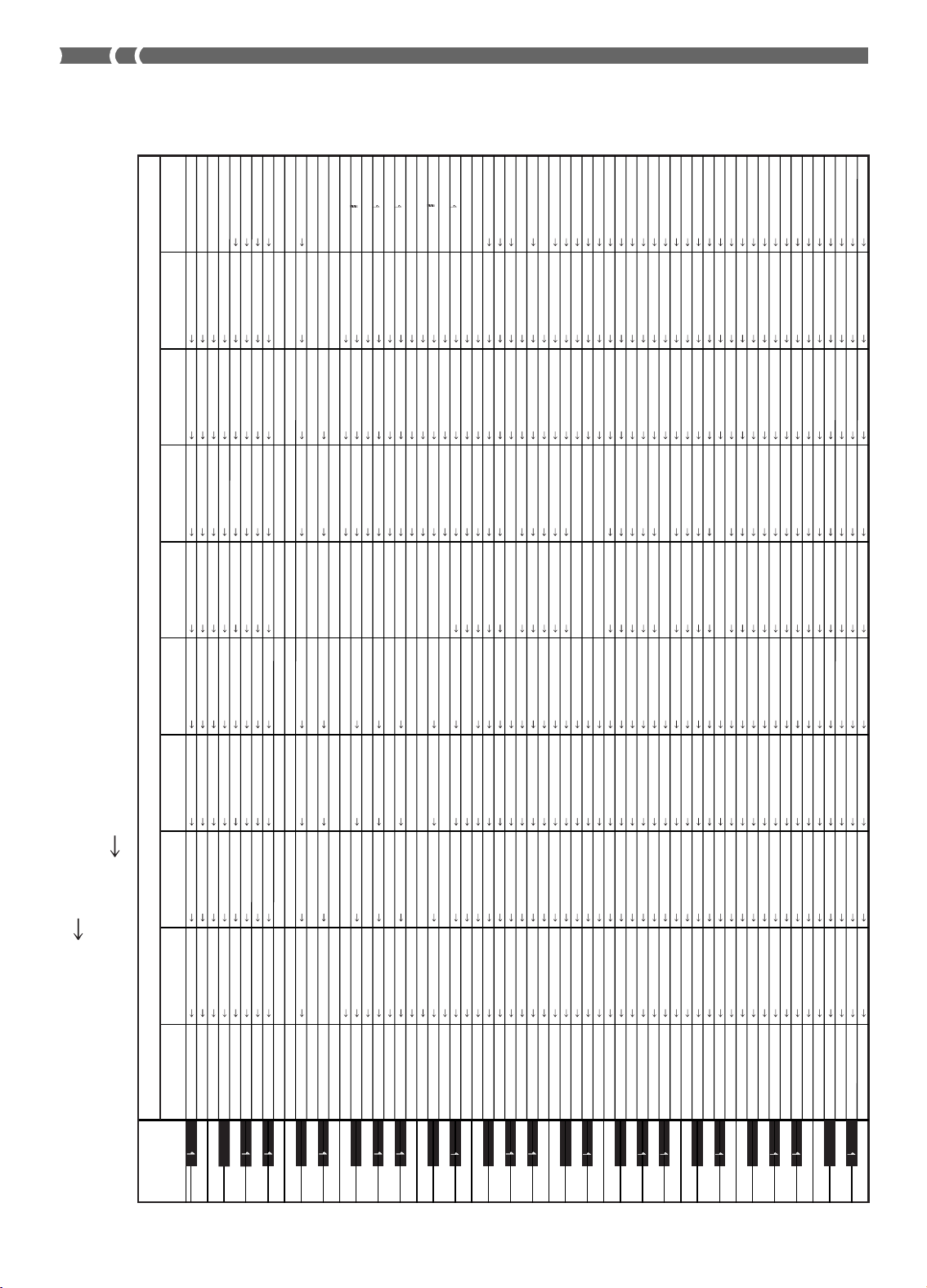
A-8
Key/Note number
Clave/
Nú mero de nota
0: STANDARD SET 1
HIGH Q
SLAP
SCRATCH PUSH
SCRATCH PULL
STICKS
SQUARE CLICK
METRONOME CLICK
METRONOME BELL
STANDARD 1 KICK 2
STANDARD 1 KICK 1
SIDE STICK
STANDARD 1 SNARE 1
HAND CLAP
STANDARD 1 SNARE 2
LOW TOM 2
CLOSED HI-HAT
LOW TOM 1
PEDAL HI-HAT
MID TOM 2
OPEN HI-HAT
MID TOM 1
HIGH TOM 2
CRASH CYMBAL 1
HIGH TOM 1
RIDE CYMBAL 1
CHINESE CYMBAL
RIDE BELL
TAMBOURINE
SPLASH CYMBAL
COWBELL
CRASH CYMBAL 2
VIBRA-SLAP
RIDE CYMBAL 2
HIGH BONGO
LOW BONGO
MUTE HIGH CONGA
OPEN HIGH CONGA
LOW CONGA
HIGH TIMBALE
LOW TIMBALE
HIGH AGOGO
LOW AGOGO
CABASA
MARACAS
SHORT HI WHISTLE
LONG LOW WHISTLE
SHORT GUIRO
LONG GUIRO
CLAVES
HIGH WOOD BLOCK
LOW WOOD BLOCK
MUTE CUICA
OPEN CUICA
MUTE TRIANGLE
OPEN TRIANGLE
SHAKER
JINGLE BELL
BELL TREE
CASTANETS
MUTE SURDO
OPEN SURDO
APPLAUSE
STANDARD 2 KICK 2
STANDARD 2 KICK 1
STANDARD 1 SNARE 1
SYNTH HAND CLAP
STANDARD 1 SNARE 2
ROOM KICK 2
ROOM KICK 1
ROOM SNARE 1
ROOM SNARE 2
ROOM LOW TOM 2
ROOM LOW TOM 1
ROOM MID TOM 2
ROOM MID TOM 1
ROOM HI TOM 2
ROOM HI TOM 1
1: STANDARD SET 2
8: ROOM SET
E1
F1
G1
A1
B1
C2
D2
E2
F2
G2
A2
B2
C3
D3
E3
F3
G3
A3
B3
C4
D4
E4
F4
G4
A4
B4
C5
D5
E5
F5
G5
A5
B5
C6
D6
E6
28
29
31
33
35
36
38
40
41
43
45
47
48
50
52
53
55
57
59
60
62
64
65
67
69
71
72
74
76
77
79
81
83
84
86
88
E 1
F#1
A 1
B 1
C#2
E 2
F#2
A 2
B 2
C#3
E 3
F#3
A 3
B 3
C#4
E 4
F#4
A 4
B 4
C#5
E 5
F#5
A 5
B 5
C#6
E 6
27
30
32
34
37
39
42
44
46
49
51
54
56
58
61
63
66
68
70
73
75
78
80
82
85
87
24: ELEC SET
25: SYNTH 1
30: SYNTH 2
32: JAZZ SET
16: POWER SET
POWER KICK 2
POWER KICK 1
POWER SNARE 1
POWER SNARE 2
ROOM LOW TOM 2
ROOM LOW TOM 1
ROOM MID TOM 2
ROOM MID TOM 1
ROOM HI TOM 2
ROOM HI TOM 1
SYNTH 1 KICK 1
SYNTH 1 KICK 2
SYNTH 1 RIM SHOT
SYNTH 1 SNARE 1
SYNTH HAND CLAP
SYNTH 1 SNARE 2
SYNTH 1 LOW TOM 2
SYNTH 1 CHH 1
SYNTH 1 LOW TOM 1
SYNTH 1 CHH 2
SYNTH 1 MID TOM 2
SYNTH 1 OHH
SYNTH 1 MID TOM 1
SYNTH 1 HI TOM 2
SYNTH 1 CYMBAL
SYNTH 1 HI TOM 1
SYNTH 1 COWBELL
SYNTH 1 HIGH CONGA
SYNTH 1 MID CONGA
SYNTH 1 LOW CONGA
SYNTH 1 MARACAS
SYNTH 1 CLAVES
SYNTH 2 KICK 1
SYNTH 2 KICK 2
SYNTH 2 SNARE 1
SYNTH 2 SNARE 2
SYNTH 1 COWBELL
SYNTH 1 HIGH CONGA
SYNTH 1 MID CONGA
SYNTH 1 LOW CONGA
SYNTH 1 MARACAS
SYNTH 1 CLAVES
ELEC KICK 2
ELEC KICK 1
ELEC SNARE 1
ELEC SNARE 2
ELEC LOW TOM 2
ELEC LOW TOM 1
ELEC MID TOM 2
ELEC MID TOM 1
ELEC HI TOM 2
ELEC HI TOM 1
REVERSE CYMBAL
JAZZ KICK 2
JAZZ KICK 1
JAZZ SNARE 1
JAZZ SNARE 2
JAZZ KICK 2
JAZZ KICK 1
BRUSH TAP
BRUSH SLAP
BRUSH SWIRL
CLOSED HI-HAT
PEDAL HI-HAT
OPEN HI-HAT
RIDE CYMBAL 1
JAZZ KICK 1
CONCERT BASS DRUM
CONCERT SNARE
CASTANETS
CONCERT SNARE
TIMPANI F
TIMPANI F
TIMPANI G
TIMPANI A
TIMPANI A
TIMPANI B
TIMPANI B
TIMPANI C
TIMPANI C
TIMPANI D
TIMPANI E
TIMPANI E
TIMPANI F
CONCERT CYMBAL 2
CONCERT CYMBAL 1
Program Change No. / Drum Set Name / Nú mero de cambio de programa / Nombre de ajuste de batería
48: ORCHESTRA SET
40: BRUSH SET
Drum Assignment List ( Indicates the same sound as STANDARD SET)
Lista de asignació n de batería ( Indica el mismo sonido que STANDARD SET)
703A-E-154A
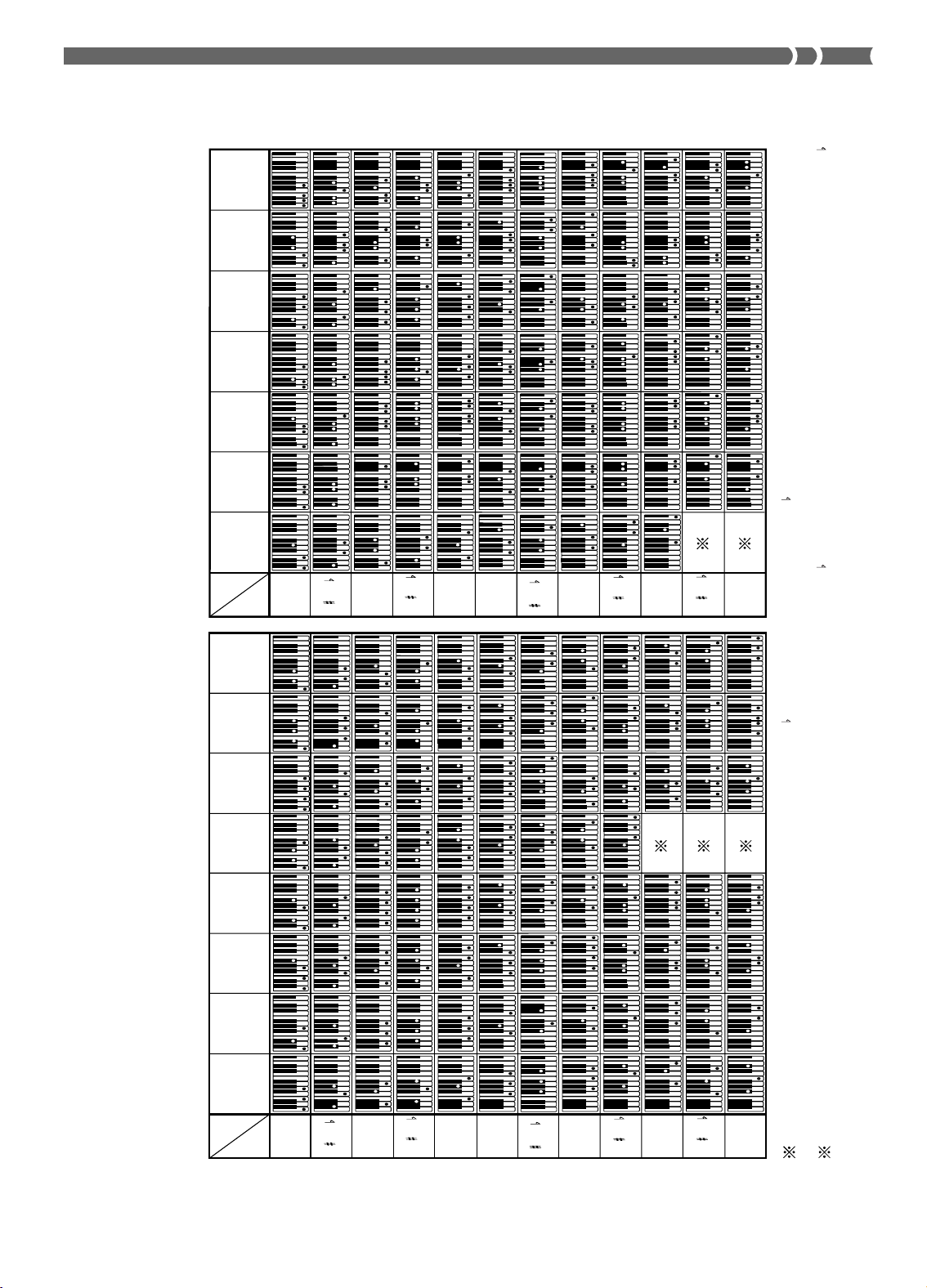
A-9
Root
Nota
fundamental
M m 7 dim7 M7 m7
-5
dim
m7
Chord
Type
Root
Chord
Type
Tipo de
acorde
C
D
E
F
G
A
B
C /(D )
(D )/E
F /(G )
(G )/A
(A )/B
C
D
E
F
G
A
B
C /(D )
(D )/E
F /(G )
(G )/A
(A )/B
aug sus4 7sus4
m
add9
mM7 7
-5
add9
Nota
fundamental
Tipo de
acorde
: You can change the keyboard range of dim7 chords for roots A, B , and B, and aug chords for roots B and B by adjusting the split point setting (page E-59).
: Puede cambiar la gama del teclado de los acordes dim7 para las notas fundamentales A, B y acordes aumentados (augment) para las notas fundamentales B
y B mediante el ajuste del punto de divisió n (pá gina S-59).
703A-E-155A
Fingered Chord Chart
This table shows the fingerings for commonly used chords, including inverted fingerings.
Cuadro de acordes Fingered
Esta tabla muestra las digitaciones para los acordes usados com
ú nmente, incluyendo las digitaciones invertidas.
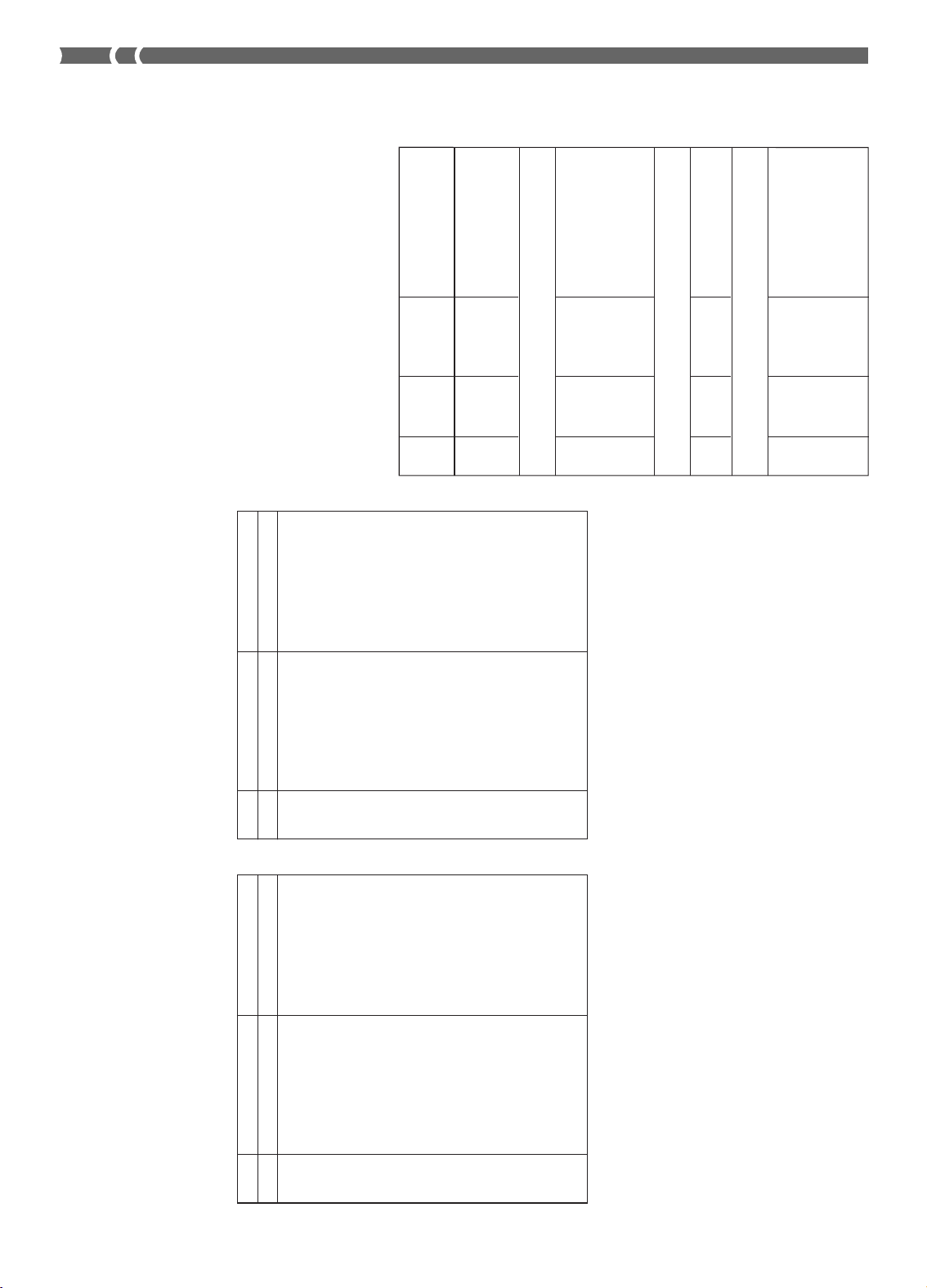
A-10
No. Display Name Type Name
Nº
Nombre de
display
Nombre de tipo
00 Chorus 1 Chorus 1
01 Chorus 2 Chorus 2
02 Chorus 3 Chorus 3
03 Chorus 4 Chorus 4
04 FBChorus Feedback Chorus
05 Flanger1 Flanger 1
06 SDelay 1 Short Delay 1
07 SDelay 2 Short Delay 2
08 SFChorus Soft Chorus
09 BRChorus Bright Chorus
10 DPChorus Deep Chorus
11 Flanger 2 Flanger 2
12 Flanger 3 Flanger 3
13 Flanger 4 Flanger 4
14 SDelay 3 Short Delay 3
15 SDelay 4 Short Delay 4
CHORUS Effect List
Lista de efectos de chorus
(CHORUS)
REVERB Effect List
Lista de efectos de reverberació n
(REVERB)
703A-E-156A
Effect List
Lista de efectos
DSP Effect List
Settable parameters depend on the DSP type. Also, the param-
eters for each DSP type depend on the algorithm* associated
with the DSP type. See the DSP
Algorithm List on page A-12
for more information.
* Effector structure and operation type
Lista de efectos DSP
Los pará metros que pueden ajustarse dependen en el tipo DSP.
También, los pará metros para cada tipo DSP depende en el al-
goritmo* asociado con el tipo DSP. Para mayor informaci
ó n
vea la “Lista de algoritmos DSP” en la pá gina A-12.
* Estructura de generador de efectos y tipo de operació n.
Dynamics Fx
[00] 03 Equalize Equalizer
[01] 06 Comp 1 Compressor 1
[02] 06 Comp 2 Compressor 2
[03] 07 Limiter Limiter
[04] 13 Enhancer Enhancer
Phaser
[05] 10 Phaser Phaser
[06] 09 StPhaser Stereo Phaser
Chorus
[07] 16 Chorus 1 Chorus 1
[08] 17 Chorus 2 Chorus 2
[09] 19 Chorus 3 Chorus 3
[10] 18 Chorus 4 Chorus 4
[11] M05 Enha Cho Enhancer - Chorus
DSP
Algorithm
Display DSP Name
No. ID Name
Nº
Identificació n
Nombre Nombre DSP
DSP (ID) de de
algoritmo presentació n
No. Display Name Type Name
Nº
Nombre de
display
Nombre de tipo
00 Room 1 Room 1
01 Room 2 Room 2
02 Room 3 Room 3
03 Hall 1 Hall 1
04 Hall 2 Hall 2
05 Plate 1 Plate 1
06 Delay Delay
07 PanDelay Pan Delay
08 Plate 2 Plate 2
09 Plate 3 Plate 3
10 LrgRoom 1 Large Room 1
11 LrgRoom 2 Large Room 2
12 Stadium 1 Stadium 1
13 Stadium 2 Stadium 2
14 LongDly 1 Long Delay 1
15 LongDly 2 Long Delay 2
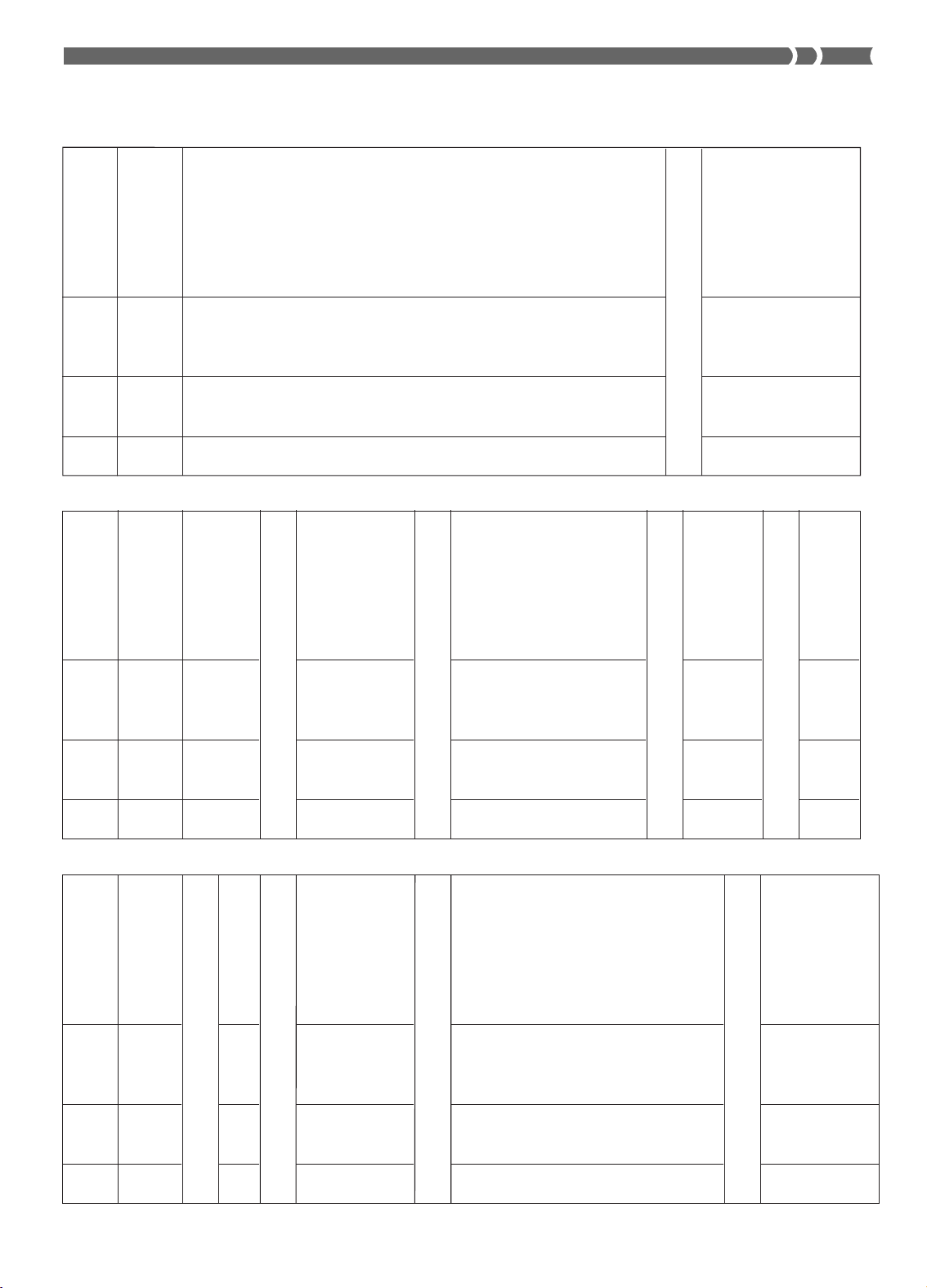
A-11
703A-E-157A
DSP
Algorithm
Display DSP Name
No. ID Name
Nº
Identificació n
Nombre Nombre DSP
DSP (ID) de de
algoritmo presentaci
ó n
DSP
Algorithm
Display DSP Name
No. ID Name
Nº
Identificació n
Nombre Nombre DSP
DSP (ID) de de
algoritmo presentació n
DSP
Algorithm
Display DSP Name
No. ID Name
Nº
Identificaci
ó n
Nombre Nombre DSP
DSP (ID) de de
algoritmo presentació n
Flanger
[12] 26 Flanger Flanger
[13] M07 EnhaFlan Enhancer - Flanger
Delay
[14] 28 Delay Delay
[15] 22 3Tap Dly 3-Tap Delay
[16] 20 St Delay Stereo Delay
[17] 21 StXDelay Stereo Cross Delay
[18] M06 Enha Dly Enhancer - Delay
[19] 25 Reflect Reflection
Cho/Flanger/Delay Combination
[20] M02 PhaCho 1 Phaser - Chorus 1
[21] M02 PhaCho 2 Phaser - Chorus 2
[22] M04 PhaDly 1 Phaser - Delay 1
[23] M04 PhaDly 2 Phaser - Delay 2
[24] M00 ChoDly 1 Chorus - Delay 1
[25] M00 ChoDly 2 Chorus - Delay 2
[26] M01 ChoDly 3 Chorus - Delay 3
[27] M01 ChoDly 4 Chorus - Delay 4
[28] M19 CmpDelay Compressor - Delay
[29] M18 CmpEnDly
Compressor - Enhancer -Delay
[30] M23 CmpChoRf
Compressor - Chorus -Reflection
[31] M08 Cho Flan Chorus - Flanger
[32] M03 FlanDly 1 Flanger - Delay 1
[33] M03 FlanDly 2 Flanger - Delay 2
Reverb
[34] 27 RvbRoom1 Reverb Room 1
[35] 27 RvbRoom2 Reverb Room 2
[36] 27 RvbRoom3 Reverb Room 3
[37] 27 RvbHall 1 Reverb Hall 1
[38] 27 RvbHall 2 Reverb Hall 2
[39] 27 RvbPlate Reverb Plate
[40] 23 GateRvb 1 Gate Reverb 1
[41] 23 GateRvb 2 Gate Reverb 2
[42] 24 GateRvb 3 Gate Reverb 3
[43] 24 GateRvb 4 Gate Reverb 4
Pan/Tremolo Fx
[44] 01 Tremolo Tremolo
[45] M09 Cho Trem Chorus - Tremolo
[46] 00 Auto Pan Auto Pan
[47] M10 PhaAPan 1 Phaser - Auto Pan 1
[48] M10 PhaAPan 2 Phaser - Auto Pan 2
[49] M20 PhaChoAP
Phaser - Chorus - Auto Pan
Rotary Fx
[50] 11 Rotary 1 Rotary 1
[51] 11 Rotary 2 Rotary 2
[52] 12 Od Rot 1 Overdrive - Rotary 1
[53] 12 Od Rot 2 Overdrive - Rotary 2
[54] M17 RotRef 1 Rotary - Reflection 1
[55] M17 RotRef 2 Rotary - Reflection 2
[56] M17 RotRef 3 Rotary - Reflection 3
[57] M16 OdRtRef 1
Overdrive - Rotary - Reflection 1
[58] M16 OdRtRef 2
Overdrive - Rotary - Reflection 2
[59] M16 OdRtRef 3
Overdrive - Rotary - Reflection 3
Wah Fx
[60] 04 LFO Wah LFO Wah
[61] 05 Auto Wah Auto Wah
[62] M21 AWhChDly
Auto Wah - Chorus - Delay
[63] M22 LWhChDly
LFO Wah - Chorus - Delay
Guitar Fx
[64] 08 Crunch Crunch
[65] 08 Ovrdrive Overdrive
[66] 08 Dist 1 Distortion 1
[67] 08 Dist 2 Distortion 2
[68] 08 Metal Metal
[69] 08 Fuzz Fuzz
[70] M29 CrnPhase Crunch - Phaser
[71] M29 Od Phase Overdrive - Phaser
[72] M30 Crn Cho Crunch - Chorus
[73] M30 OdChorus Overdrive - Chorus
[74] M30 Dist Cho Distortion - Chorus
[75] M30 MetalCho Metal - Chorus
[76] M31 DistFlan Distortion - Flanger
[77] M31 Met Flan Metal - Flanger
[78] M28 CrnDelay Crunch - Delay
[79] M28 Od Delay Overdrive - Delay
[80] M28 DistDly 1 Distortion - Delay 1
[81] M28 DistDly 2 Distortion - Delay 2
[82] M28 MetalDly Metal - Delay
[83] M28 Fuzz Dly Fuzz - Delay
[84] M24 CrChoDly
Crunch - Chorus - Delay
[85] M24 DsChoDly
Distortion - Chorus - Delay
[86] M25 CmpCrDly
Compressor - Crunch - Delay
[87] M26 AWhCrDly
Auto Wah - Crunch - Delay
[88] M26 AWhOdDly
Auto Wah - Overdrive - Delay
[89] M26 AWhDsDly
Auto Wah - Distortion - Delay
[90] M27 LWhOdDly
LFO Wah - Overdrive - Delay
[91] M27 LWhDsDly
LFO Wah - Distortion - Delay
SFX
[92] 14 Ring Mod Ring Modulator
[93] M12 RgChoDly
Ring Modulator - Chorus - Delay
[94] M13 RingDist
Ring Modulator - Distortion
[95] 15 Lo-Fi Lo-Fi
[96] M11 CompLoFi Compressor - Lo-Fi
[97] M14 LoFi Ref Lo-Fi - Reflection
[98] M15 Crn LoFi Crunch - Lo-Fi
[99] M15 DistLoFi Distortion - Lo-Fi

A-12
DSP Algorithm List
00 : Auto Pan
■
Function
Continually performs left-right panning of the
input signal in accordance with an LFO.
■
Parameters
0 : Rate (Range: 0 to 127)
Adjusts the panning rate.
1 : Depth (Range: 0 to 127)
Adjusts the panning depth.
01 : Tremolo
■
Function
Adjusts volume of input signal in accor
dance
with an LFO.
■
Parameters
0 : Rate (Range: 0 to 127)
Adjusts the tremolo rate.
1 : Depth (Range: 0 to 127)
Adjusts the tremolo depth.
02 : 2BandEQ
■
Function
This is a two-band equalizer.
■
Parameters
0 : Low Frequency (Range: 0 (200Hz), 1 (400Hz),
2 (800Hz))
Adjusts the cutoff frequency of the low-band
equalizer.
1 :
Low Gain (Range: -12, -11, -10 to 0 to +10, +11, +12)
Adjusts the gain of the low-band equalizer.
2 : High Frequency (Range : 0 (6.0KHz), 1
(8.0KHz), 2 (10KHz))
Adjusts the cutoff frequency of the high-band
equalizer.
3 :
High Gain (Range: -12, -11, -10 to 0 to +10, +11, +12)
Adjusts the gain of the high-band equalizer.
03 :3BandEQ
■
Function
This is a three-band equalizer.
■
Parameters
0 : Low Frequency (Range: 0 (200Hz), 1 (400Hz),
2 (800Hz))
Adjusts the cutoff frequency of the low-band
equalizer.
1 : Low Gain (Range: -12, -11, -10 to 0 to +10, +11,
+12)
Adjusts the gain of the low-band equalizer.
2 : Mid Frequency (Range: 0 (1.0KHz), 1 (1.3KHz),
2 (1.6KHz), 3 (2.0KHz), 4 (3.0KHz), 5 (4.0KHz),
6 (6.0KHz), 7 (8.0KHz))
Adjusts the center fr
equency of the mid-band
equalizer.
3 : Mid Gain (Range: -12, -11, -10 to 0 to +10, +11,
+12)
Adjusts the gain of the mid-band equalizer.
4 : High Frequ ency (Range: 0 (6.0KHz) , 1
(8.0KHz), 2 (10KHz))
Adjusts the cutoff frequency of the high-band
equalizer.
5 : High Gain (Range: -12, -11, -10 to 0 to +10, +11,
+12)
Adjusts the gain of the high-band equalizer
.
04 :LFO Wah
■
Function
This is a “wah” effect that can automatically
affect the frequency in accordance with an LFO.
■
Parameters
0 : Input Level (Range: 0 to 127)
Adjusts the input level. The input signal can
become distorted when the level of the sound
being input, the number of chor
ds, or the Reso-
nance value is large. Adjust this parameter to
eliminate such distortion.
1 : Resonance (Range: 0 to 127)
Adjusts the resonance of the sound.
2 : Manual (Range: 0 to 127)
Adjusts the frequency used as the basis for the
wah filter.
3 : LFO Rate (Range: 0 to 127)
Adjusts the rate of the LFO.
4 : LFO Depth (Range: 0 to 127)
Adjusts the depth of the LFO.
05 :Auto Wah
■
Function
This is a “wah” effect that can automatically
affect the frequency in accordance with the
level of the input signal.
■
Parameters
0 : Input Level (Range: 0 to 127)
Adjusts the input level. The input signal can
become distorted when the level of the sound
being input, the number of chords, or the Reso-
nance value is large. Adjust this parameter to
eliminate such distortion.
1 : Resonance (Range: 0 to 127)
Adjusts the resonance of the sound.
2 : Manual (Range: 0 to 127)
Adjusts the frequency used as the basis for the
wah filter.
703A-E-158A

A-13
3 : Depth(Range: -64 to 0 to +63)
Adjusts the depth of the wah in accordance
with the level of the input signal.
Setting a positive value causes the wah filter
to open in direct proportion with the size of
the input signal, pr
oducing a bright sound.
Setting a negative value causes the W
ah filter
to close in accordance with the size of the in-
put signal, which produces a dark tone qual-
ity. However, large input re-opens the Wah fil-
ter, even if it is closed.
06 : Compressor
■
Function
Compresses the input signal, which can have
the effect of suppressing level variation and
making it possible to sustain dampened
sounds longer.
■
Parameters
0 : Depth (Range: 0 to 127)
Adjusts compression of the audio signal.
1 : Attack (Range: 0 to 127)
Adjusts the attack amount of the input signal.
A smaller value causes prompt compressor
operation, which suppresses the attack of the
input signal.
A larger values delays compressor operation,
which causes attack to be output as-is.
2 : Release (Range: 0 to 127)
Adjusts the time from the point when the in-
put signal drops below a certain level until the
compression operation is stopped.
When an attack feeling is desired (no compres-
sion at the onset of the sound), set this param-
eter to as low a value as possible.
To have compression applied at all times, set a
high value.
3 : Level (Range: 0 to 127)
Adjusts the output level.
The output volume changes in accordance with
the Depth setting and the characteristics of the
input tone. Use this parameter to correct for
such changes.
07 :Limiter
■
Function
This is an effector that you can use to set an
upper limit value on the level of the input sig-
nal.
■
Parameters
0 : Limit (Range: 0 to 127)
Adjusts the volume level from which the limit
is applied.
1 : Attack (Range: 0 to 127)
Adjusts the attack amount of the input signal.
2 : Release (Range: 0 to 127)
Adjusts the time from when the input signal
drops below a certain level until the limit op-
eration stops.
3 : Level (Range: 0 to 127)
Adjusts the level being output.
The output volume changes in accor
dance with
the Limit setting and the characteristics of the
input tone. Use this parameter to correct for
such changes.
08 :Distortion
■
Function
T h i s e f f e c t p r o v i d e s D i s t o r t i o n +
AmpSimulator.
■
Parameters
0 : Gain (Range: 0 to 127)
Adjusts the input gain.
1 : Low (Range: 0 to 127)
Adjusts the low-band gain.
The cutoff frequency differs according to the
preset DSP.
2 : High (Range: 0 to 127)
Adjusts the high-band gain.
The cutoff frequency differs according to the
preset DSP.
3 : Level (Range: 0 to 127)
Adjusts the output level.
09 :Stereo Phaser
■
Function
This is a stereo phaser that modulates the phase
in accordance with a sine wave LFO.
■
Parameters
0 : Resonance (Range: 0 to 127)
Adjusts the resonance of the sound.
1 : Manual (Range: -64 to 0 to +63)
Adjusts the phaser shift volume, which is used
for reference.
2 : Rate (Range: 0 to 127)
Adjusts the rate of the LFO.
3 : Depth (Range: 0 to 127)
Adjusts the depth of the LFO.
4 : Wet Level (Range: 0 to 127)
Adjusts the volume level of the effect.
10 : Phaser
■
Function
This is a monaural phaser that modulates the
phase in accordance with a sine wave LFO.
■
Parameters
0 : Resonance (Range: 0 to 127)
Adjusts the resonance of the sound.
1 : Manual (Range: -64 to 0 to +63)
Adjusts the phaser shift volume, which is used
for reference.
703A-E-159A

A-14
2 : Rate (Range: 0 to 127)
Adjusts the rate of the LFO.
3 : Depth (Range: 0 to 127)
Adjusts the depth of the LFO.
4 : Wet Level (Range: 0 to 127)
Adjusts the level of the effect sound.
11 : Rotary
■
Function
This is a rotary speaker simulator.
■
Parameters
0 : Speed (Range: Slow, Fast)
Switches the speed mode between fast and
slow.
1 : Break (Range: Rotate, Stop)
Stops speaker rotation.
2 : Fall Accel (Range: 0 to 127)
Adjusts acceleration when the speed mode is
switched from fast to slow.
3 : Rise Accel (Range: 0 to 127)
Adjusts acceleration when the speed mode is
switched from slow to fast.
4 : Slow Rate (Range: 0 to 127)
Adjusts speaker rotation speed of the slow
speed mode.
5 : Fast Rate (Range: 0 to 127)
Adjusts speaker rotation speed of the fast speed
mode.
12 : Drive Rotary
■
Function
This is an overdrive - rotary speaker simula-
tor.
■
Parameters
0 : Overdrive Gain (Range: 0 to 127)
Adjusts overdrive gain.
1 : Overdrive Level (Range: 0 to 127)
Adjusts the output level of the overdrive.
2 : Speed(Range: Slow, Fast)
Switches the speed mode between fast and
slow.
3 : Break (Range: Rotate, Stop)
Stops speaker rotation.
4 : Fall Accel (Range: 0 to 127)
Adjusts acceleration when the speed mode is
switched from fast to slow.
5 : Rise Accel (Range: 0 to 127)
Adjusts acceleration when the speed mode is
switched from slow to fast.
6 : Slow Rate (Range: 0 to 127)
Adjusts speaker rotation speed of the slow
speed mode.
7 : Fast Rate (Range: 0 to 127)
Adjusts speaker rotation speed of the fast speed
mode.
13 :Enhancer
■
Function
Enhances the outlines of the low range and
high range of the input signal.
■
Parameters
0 : Low Frequency (Range: 0 to 127)
Adjusts the low range enhancer frequency.
1 : Low Gain (Range: 0 to 127)
Adjusts the low range enhancer gain.
2 : High Frequency (Range: 0 to 127)
Adjusts the high range enhancer fr
equency.
3 : High Gain (Range: 0 to 127)
Adjusts the high range enhancer gain.
14 :Ring Modulator
■
Function
This is a ring modulator (AM modulator) that
makes it possible to modulate the frequency
of internal oscillator (OSC) in accordance with
an internal LFO.
■
Parameters
0 : OSC Frequency (Range: 0 to 127)
Sets the reference frequency of the internal
OSC.
1 : LFO Rate (Range: 0 to 127)
Adjusts the rate of the LFO.
2 : LFO Depth (Range: 0 to 127)
Adjusts the depth of the LFO.
3 : Wet Level (Range: 0 to 127)
Adjusts the level of the effect sound.
4 : Dry Level (Range: 0 to 127)
Adjusts the level of the original sound.
15 :Lo-Fi
■
Function
This is an effector that reproduces a retro-type
Lo-Fi sound using Noise Generator 1 (phono-
graph record player type scratch noise genera-
tor) and Noise Generator 2 (FM radio type
white noise and pink noise continuous noise
generator), and by noise modulation (ampli-
tude modulation =
AM) and distortion of fre-
quency characteristics.
■
Parameters
0 : Noise Level 1 (Range: 0 to 127)
Adjusts the level of Noise Generator 1.
1 : Noise Density 1 (Range: 0 to 127)
Adjusts the noise density of Noise Generator
1.
2 : Noise Level 2 (Range: 0 to 127)
Adjusts the level of Noise Generator 2.
3 : Noise Density 2 (Range: 0 to 127)
Adjusts the noise density of Noise Generator
2.
4 : Tone (Range: 0 to 127)
Adjusts the tone.
5 : Resonance (Range: 0 to 127)
Adjusts the resonance of the sound.
703A-E-160A

A-15
6 : Bass(Range: -64 to 0 to +63)
Adjusts the volume of low sounds.
7 : Level (Range: 0 to 127)
Adjusts the output level.
16 : 1-Phase Chorus
■
Function
This is monaural chorus in accordance with a
sine wave LFO.
■
Parameters
0 : LFO Rate (Range: 0 to 127)
Adjusts the rate of the LFO.
1 : LFO Depth (Range: 0 to 127)
Adjusts the depth of the LFO.
2 : Feedback (Range: -64 to 0 to +63)
Adjusts the feedback of the sound.
3 : Wet Level (Range: 0 to 127)
Adjusts the level of the effect sound.
17 : Sin 2-Phase Chorus
■
Function
This is stereo chorus in accordance with a sine
wave LFO.
■
Parameters
0 : LFO Rate (Range: 0 to 127)
Adjusts the rate of the LFO.
1 : LFO Depth (Range: 0 to 127)
Adjusts the depth of the LFO.
2 : Feedback (Range: -64 to 0 to +63)
Adjusts the feedback of the sound.
3 : Wet Level (Range: 0 to 127)
Adjusts the level of the effect sound.
18 : 3-Phase Chorus
■
Function
This is 3-phase chorus in accordance with two
LFOs of with different sine wave rates.
■
Parameters
0 : Rate1 (Fast LFO Rate) (Range: 0 to 127)
Adjusts the rate of LFO1.
1 : Depth1 (Fast LFO Depth) (Range: 0 to 127)
Adjusts the depth of LFO1.
2 : Rate2 (Slow LFO Rate) (Range: 0 to 127)
Adjusts the rate of LFO2.
3 : Depth2 (Slow LFO Depth) (Range: 0 to 127)
Adjusts the depth of LFO2.
4 : Wet Level (Range: 0 to 127)
Adjusts the level of the effect sound.
19 :Tri 2-Phase Chorus
■
Function
This is stereo chorus in accordance with trian-
gular wave LFO.
■
Parameters
0 : LFO Rate (Range: 0 to 127)
Adjusts the rate of the LFO.
1 : LFO Depth (Range: 0 to 127)
Adjusts the depth of the LFO.
2 : Feedback(Range: -64 to 0 to +63)
Adjusts the feedback of the sound.
3 : Wet Level (Range: 0 to 127)
Adjusts the level of the effect sound.
20 :Stereo Delay 1
■
Function
This is delay of ster
eo input and output.
■
Parameters
0 : Delay Time (Range: 0 to 127)
Adjusts the delay time.
1 : Wet Level (Range: 0 to 127)
Adjusts the level of the ef
fect sound.
2 : Feedback (Range: 0 to 127)
Adjusts the repeat of the delay.
3 : High Damp (Range: 0 to 127)
Adjusts damping of the high-range delay
sound.
The smaller the value, the greater the damp-
ing of high-range delay sound.
4 : Ratio L (Range: 0 to 127)
Adjusts the delay time of the left channel.
Proportional to the value set for Delay Time.
5 : Ratio R (Range: 0 to 127)
Adjusts the delay time of the right channel.
Proportional to the value set for Delay T
ime.
21 :Stereo Delay 2
■
Function
This is cross feedback delay of stereo input and
output.
■
Parameters
0 : Delay Time (Range: 0 to 127)
Adjusts the delay time.
1 : Wet Level (Range: 0 to 127)
Adjusts the level of the effect sound.
2 : Feedback (Range: 0 to 127)
Adjusts the repeat of the delay.
3 : High Damp (Range: 0 to 127)
Adjusts damping of the high-range delay
sound.
The smaller the value, the greater the damp-
ing of high-range delay sound.
4 : Ratio L (Range: 0 to 127)
Adjusts the delay time of the left channel.
Proportional to the value set for Delay T
ime.
5 : Ratio R (Range: 0 to 127)
Adjusts the delay time of the right channel.
Proportional to the value set for Delay Time.
22 :3-Tap Delay
■
Function
This is left/center/right 3-tap delay.
703A-E-161A

A-16
■
Parameters
0 : Delay Time (Range: 0 to 127)
Adjusts the delay time.
1 : Wet Level (Range: 0 to 127)
Adjusts the level of the effect sound.
2 : Feedback (Range: 0 to 127)
Adjusts the repeat of the delay.
3 : High Damp (Range: 0 to 127)
Adjusts damping of the high-range delay
sound.
The smaller the value, the greater the damp-
ing of high-range delay sound.
4 : Ratio L (Range: 0 to 127)
Adjusts the delay time of the left channel.
Proportional to the value set for Delay Time.
5 : Ratio C (Range: 0 to 127)
Adjusts the delay time of the center channel.
Proportional to the value set for Delay Time.
6 : Ratio R (Range: 0 to 127)
Adjusts the delay time of the right channel.
Proportional to the value set for Delay Time.
23 : Gate Reverb
■
Function
This is a fader that creates artificial reverb that
sounds like it is being cut with a gate.
■
Parameters
0 : LPF (Range: 0 to 127)
Adjusts the cutoff frequency of the low-pass
filter.
A smaller value cuts the high range.
1 : HPF (Range: 0 to 127)
Adjusts the cutoff frequency of the high-pass
filter.
A larger value cuts the low range.
2 : Feedback (Range: 0 to 127)
Adjusts the repeat of the reverb.
3 : High Damp (Range: 0 to 127)
Adjusts damping of the high-range delay
sound.
The smaller the value, the greater the damp-
ing of high-range delay sound.
4 : Diffusion (Range: 0 to 127)
Provides fine adjustment of the reverb.
5 : Wet Level (Range: 0 to 127)
Adjusts the level of the effect sound.
6 : Dry Level (Range: 0 to 127)
Adjusts the level of the original sound.
24 :Reverse Gate Reverb
■
Function
This is gate reverb with a reverse rotation ef-
fect.
■
Parameters
0 : LPF (Range: 0 to 127)
Adjusts the cutoff frequency of the low-pass
filter.
A smaller value cuts the high range.
1 : HPF (Range: 0 to 127)
Adjusts the cutoff frequency of the high-pass
filter.
A larger value cuts the low range.
2 : Feedback (Range: 0 to 127)
Adjusts the repeat of the reverb.
3 : High Damp (Range: 0 to 127)
Adjusts damping of the high-range reverb
sound.
The smaller the value, the greater the damp-
ing of high-range reverb sound.
4 : Diffusion (Range: 0 to 127)
Provides fine adjustment of the r
everb.
5 : Wet Level (Range: 0 to 127)
Adjusts the level of the effect sound.
6 : Dry Level (Range: 0 to 127)
Adjusts the level of the original sound.
25 :Reflection
■
Function
This is an effector that extracts the first reflected
sound from a reverb sound.
■
Parameters
0 : Type (Range: 0 to 7)
Selects from among the eight available reflec-
tion patterns.
1 : Wet Level (Range: 0 to 127)
Adjusts the level of the ef
fect sound.
2 : Feedback (Range: 0 to 127)
Adjusts the repeat of the reflected sound.
3 : Tone (Range: 0 to 127)
Adjusts the tone of the reflected sound.
26 :Flanger
■
Function
This is a flanger in accordance with a sine wave
LFO.
■
Parameters
0 : LFO Rate (Range: 0 to 127)
Adjusts the rate of the LFO.
1 : LFO Depth (Range: 0 to 127)
Adjusts the depth of the LFO.
2 : Feedback (Range: -64 to 0 to +63)
Adjusts the feedback of the sound.
3 : Wet Level (Range: 0 to 127)
Adjusts the level of the effect sound.
27 :Reverb
■
Function
This is an effector that preserves the breadth
of a sound by adding a reverb sound.
■
Parameters
0 : Tone (Range: 0 to 127)
Adjusts the tone of the reverb sound.
703A-E-162A

A-17
1 : Time (Range: 0 to 127)
Adjusts the reverb time.
2 : High Damp (Range: 0 to 127)
Adjusts damping of the high-range reverb
sound.
The smaller the value, the greater the damp-
ing of high-range reverb sound.
3 : ER Level (Range: 0 to 127)
Adjusts the level of the initial r
eflection.
4 : Wet Level (Range: 0 to 127)
Adjusts the level of the effect sound.
28 : 2-Tap Delay
■
Function
This is left/right 2-tap delay.
■
Parameters
0 : Delay Time (Range: 0 to 127)
Adjusts the delay time.
1 : Wet Level (Range: 0 to 127)
Adjusts the level of the effect sound.
2 : Feedback (Range: 0 to 127)
Adjusts the repeat of the delay.
3 : High Damp (Range: 0 to 127)
Adjusts damping of the high-range delay
sound.
The smaller the value, the greater the damp-
ing of high-range delay sound.
4 : Ratio L (Range: 0 to 127)
Adjusts the delay time of the left channel.
Proportional to the value set for Delay Time.
5 : Ratio R (Range: 0 to 127)
Adjusts the delay time of the right channel.
Proportional to the value set for Delay Time.
★ The following “Multi” algorithms are used in
combination with the algorithms described above.
Parameters are shard by both types of algorithms.
M00 : Multi00 (Sin 2-Phase Chorus – 2-Tap
Delay)
■
Function
This is a multi effector that is related to Sin 2-
Phase Chorus - 2-Tap Delay.
■
Parameters
0 : Chorus LFO Rate
1 : Chorus LFO Depth
2 : Chorus Feedback
3 : Chorus Wet Level
4 : Delay Time
5 : Delay Wet Level
6 : Delay Feedback
7 : Delay High Damp
M01 : Multi01 (3-Phase Chorus – 3-Tap De-
lay)
■
Function
This is a multi effector that is related to 3-Phase
Chorus - 3-Tap Delay.
■
Parameters
0 : Chorus Rate 1
1 : Chorus Depth 1
2 : Chorus Rate 2
3 : Chorus Depth 2
4 : Chorus Wet Level
5 : Delay Time
6 : Delay Wet Level
7 : Delay Feedback
M02 : Multi02 (Phaser – 3-Phase Chorus)
■
Function
This is a multi effector that is related to Phaser
- 3-Phase Chorus.
■
Parameters
0 : Phaser Resonance
1 : Phaser Manual
2 : Phaser Rate
3 : Phaser Depth
4 : Chorus Rate 1
5 : Chorus Depth 1
6 : Chorus Rate 2
7 : Chorus Depth 2
M03 : Multi03 (Flanger – 2-Tap Delay)
■
Function
This is a multi effector that is related to Flanger
- 2-Tap Delay.
■
Parameters
0 : Flanger LFO Rate
1 : Flanger LFO Depth
2 : Flanger Feedback
3 : Flanger Wet Level
4 : Delay Time
5 : Delay Wet Level
6 : Delay Feedback
7 : Delay High Damp
M04 : Multi04 (Stereo Phaser – Stereo Delay
1)
■
Function
This is a multi effector that is related to Stereo
Phaser - Stereo Delay 1.
■
Parameters
0 : Phaser Resonance
1 : Phaser Manual
2 : Phaser Rate
3 : Phaser Depth
4 : Phaser Wet Level
5 : Delay Time
6 : Delay Wet Level
7 : Delay Feedback
703A-E-163A

A-18
M05 : Multi05 (Enhancer – 1-Phase Chorus)
■
Function
This is a multi effector related to Enhancer - 1-
Phase Chorus.
■
Parameters
0 : Enhancer Low Frequency
1 : Enhancer Low Gain
2 : Enhancer High Fr
equency
3 : Enhancer High Gain
4 : Chorus LFO Rate
5 : Chorus LFO Depth
6 : Chorus Feedback
7 : Chorus Wet Level
M06 : Multi06 (Enhancer – 2-Tap Delay)
■
Function
This is a multi effector that is related to En-
hancer - 2-Tap Delay.
■
Parameters
0 : Enhancer Low Frequency
1 : Enhancer Low Gain
2 : Enhancer High Frequency
3 : Enhancer High Gain
4 : Delay Time
5 : Delay Wet Level
6 : Delay Feedback
7 : Delay High Damp
M07 : Multi07 (Enhancer
– Flanger)
■
Function
This is a multi effector related to Enhancer -
Flanger.
■
Parameters
0 : Enhancer Low Fr
equency
1 : Enhancer Low Gain
2 : Enhancer High Fr
equency
3 : Enhancer High Gain
4 : Flanger LFO Rate
5 : Flanger LFO Depth
6 : Flanger Feedback
7 : Flanger Wet Level
M08: Multi08 (Sin 2-Phase Chorus – Flanger)
■
Function
This is a multi effector that is related to Sin 2-
Phase Chorus - Flanger.
■
Parameters
0 : Chorus LFO Rate
1 : Chorus LFO Depth
2 : Chorus Feedback
3 : Chorus Wet Level
4 : Flanger LFO Rate
5 : Flanger LFO Depth
6 : Flanger Feedback
7 : Flanger Wet Level
M09 : Multi09 (Sin 2-Phase Chorus –
Tremolo)
■
Function
This is a multi effector that is related to Sin 2-
Phase Chorus - Tremolo.
■
Parameters
0 : Chorus LFO Rate
1 : Chorus LFO Depth
2 : Chorus Feedback
3 : Chorus Wet Level
4 : Tremolo Rate
5 : Tremolo Depth
M10 : Multi10 (Stereo Phaser – Auto Pan)
■
Function
This is a multi ef
fector that is related to Stereo
Phaser - Auto Pan.
■
Parameters
0 : Phaser Resonance
1 : Phaser Manual
2 : Phaser Rate
3 : Phaser Depth
4 : Phaser Wet Level
5 : Auto Pan Rate
6 : Auto Pan Depth
M11 : Multi11 (Compressor – Lo-Fi)
■
Function
This is a multi effector related to Compressor -
Lo-Fi.
■
Parameters
0 : Compressor Depth
1 : Compressor Attack
2 : Compressor Level
3 : Lo-Fi Noise 1
4 : Lo-Fi Noise 2
5 : Lo-Fi Tone
6 : Lo-Fi Resonance
7 : Lo-Fi Bass
M12 : Multi12 (Ring Modulator – Sin 2-Phase
Chorus - 2-Tap Delay)
■
Function
This is a multi effector that is related to Ring
Modulator - Sin 2-Phase Chor
us.
■
Parameters
0 : Ring OSC Frequency
1 : Ring LFO Rate
2 : Ring LFO Depth
3 : Ring Wet Level
4 : Ring Dry Level
5 : Chorus LFO Depth
6 : Delay Time
7 : Delay Wet Level
703A-E-164A
A-19
M13 : Multi13 (Ring Modulator – Distortion)
■
Function
This is a multi effector related to Ring Modu-
lator - Distortion.
■
Parameters
0 : Ring OSC Frequency
1 : Ring LFO Rate
2 : Ring LFO Depth
3 : Ring Wet Level
4 : Ring Dry Level
5 : Distortion Gain
6 : Distortion Tone
7 : Distortion Level
M14 : Multi14 (Lo-Fi – Reflection)
■
Function
This is a multi effector related to Lo-Fi - Re-
flection.
■
Parameters
0 : Lo-Fi Noise1
1 : Lo-Fi Noise2
2 : Lo-Fi Tone
3 : Lo-Fi Resonance
4 : Reflection Type
5 : Reflection Wet Level
6 : Reflection Feedback
7 : Reflection Tone
M15 : Multi15 (Distortion
– Lo-Fi)
■
Function
This is a multi effector related to Distortion -
Lo-Fi.
■
Parameters
0 : Distortion Gain
1 : Distortion Low
2 : Distortion High
3 : Distortion Level
4 : Lo-Fi Noise1
5 : Lo-Fi Noise2
6 : Lo-Fi Tone
7 : Lo-Fi Resonance
M16 : Multi16 (Drive Rotary – Reflection)
■
Function
This is a multi effector related to Drive Rotary
- Reflection.
■
Parameters
0 : Drive Rotary Gain
1 : Drive Rotary Level
2 : Drive Rotary Speed
3 : Drive Rotary Slow Rate
4 : Drive Rotary Fast Rate
5 : Reflection Wet Level
6 : Reflection Feedback
7 : Reflection Tone
M17 : Multi17 (Rotary – Reflection)
■
Function
This is a multi effector related to Rotary - Re-
flection.
■
Parameters
0 : Rotary Speed
1 : Rotary Break
2 : Rotary Slow Rate
3 : Rotary Fast Rate
4 : Reflection Wet Level
5 : Reflection Feedback
6 : Reflection Tone
M18 : Multi18 (Compressor – Enhancer - 2-
Tap Delay)
■
Function
This is a multi effector that is related to Com-
pressor - Enhancer - 2-Tap Delay.
■
Parameters
0 : Compressor Depth
1 : Compressor Attack
2 : Compressor Level
3 : Enhancer Low Gain
4 : Enhancer High Gain
5 : Delay Time
6 : Delay Wet Level
7 : Delay Feedback
M19 : Multi19 (Compressor – Stereo Delay
1)
■
Function
This is a multi effector related to Compressor -
Stereo Delay 1.
■
Parameters
0 : Compressor Depth
1 : Compressor Attack
2 : Compressor Release
3 : Compressor Level
4 : Delay Time
5 : Delay Wet Level
6 : Delay Feedback
7 : Delay High Damp
M20 : Multi20 (Phaser – 1-Phase Chorus –
Auto Pan)
■
Function
This is a multi effector that is related to Phaser
- 1-Phase Chorus - Auto Pan.
■
Parameters
0 : Phaser Resonance
703A-E-165A

A-20
1 : Phaser Manual
2 : Phaser Rate
3 : Phaser Depth
4 : Chorus LFO Rate
5 : Chorus LFO Depth
6 : Auto Pan Rate
7 : Auto Pan Depth
M21 : Multi21 (Auto Wah – Tri 2-Phase Cho-
rus – 2-Tap Delay)
■
Function
This is a multi effector that is related to Auto
Wah - Tri 2-Phase Chorus - 2-Tap Delay.
■
Parameters
0 : Wah Resonance
1 : Wah Manual
2 : Wah Depth
3 : Chorus LFO Rate
4 : Chorus LFO Depth
5 : Delay Time
6 : Delay Wet Level
7 : Delay Feedback
M22 : Multi22 (LFO Wah – Tri 2-Phase Cho-
rus – 2-Tap Delay)
■
Function
This is a multi effector that is related to LFO
Wah - Tri 2-Phase Chorus - 2-Tap Delay.
■
Parameters
0 : Wah Resonance
1 : Wah Manual
2 : Wah LFO Rate
3 : Wah LFO Depth
4 : Chorus LFO Depth
5 : Delay Time
6 : Delay Wet Level
7 : Delay Feedback
M23 : Multi23 (Compressor – Sin 2-Phase
Chorus – Reflection)
■
Function
This is a multi effector that is related to Com-
pressor - Sin 2-Phase Chorus - Reflection.
■
Parameters
0 : Compressor Depth
1 : Compressor Attack
2 : Compressor Level
3 : Chorus LFO Rate
4 : Chorus LFO Depth
5 : Reflection Wet Level
6 : Reflection Feedback
7 : Reflection Tone
M24 : Multi24 (Distortion – 1-Phase Chorus
– 2-Tap Delay)
■
Function
This is a multi effector that is related to Distor-
tion - 1-Phase Chorus - 2-Tap Delay.
■
Parameters
0 : Distortion Gain
1 : Distortion Low
2 : Distortion High
3 : Distortion Level
4 : Chorus LFO Depth
5 : Delay Time
6 : Delay Wet Level
7 : Delay Feedback
M25 : Multi25 (Compressor – Distortion – 2-
Tap Delay)
■
Function
This is a multi effector that is related to Com-
pressor - Distortion - 2-Tap Delay.
■
Parameters
0 : Compressor Depth
1 : Distortion Gain
2 : Distortion Low
3 : Distortion High
4 : Distortion Level
5 : Delay Time
6 : Delay Wet Level
7 : Delay Feedback
M26 : Multi26 (Auto Wah – Distortion – 2-Tap
Delay)
■
Function
This is a multi effector that is related to Auto
Wah - Distortion - 2-Tap Delay.
■
Parameters
0 : Wah Manual
1 : Wah Depth
2 : Distortion Gain
3 : Distortion Tone
4 : Distortion Level
5 : Delay Time
6 : Delay Wet Level
7 : Delay Feedback
M27 : Multi27 (LFO Wah – Distortion – 2-Tap
Delay)
■
Function
This is a multi effector that is related to LFO
Wah - Distortion - 2-Tap Delay.
■
Parameters
0 : Wah Manual
1 : Wah LFO Rate
2 : Wah LFO Depth
3 : Distortion Gain
4 : Distortion Level
5 : Delay Time
6 : Delay Wet Level
7 : Delay Feedback
703A-E-166A

A-21
M28 : Multi28 (Distortion – 3-T
ap Delay)
■
Function
This is a multi effector that is related to Distor-
tion - 3-Tap Delay.
■
Parameters
0 : Distortion Gain
1 : Distortion Low
2 : Distortion High
3 : Distortion Level
4 : Delay Time
5 : Delay Wet Level
6 : Delay Feedback
7 : Delay High Damp
M29 : Multi29 (Distortion – Phaser)
■
Function
This is a multi effector related to Distortion -
Phaser.
■
Parameters
0 : Distortion Gain
1 : Distortion Low
2 : Distortion High
3 : Distortion Level
4 : Phaser Resonance
5 : Phaser Manual
6 : Phaser Rate
7 : Phaser Depth
M30 : Multi30 (Distortion
– Sin 2-Phase Cho-
rus)
■
Function
This is a multi effector that is related to Distor-
tion - Sin 2-Phase Chorus.
■
Parameters
0 : Distortion Gain
1 : Distortion Low
703A-E-167A
2 : Distortion High
3 : Distortion Level
4 : Chorus LFO Rate
5 : Chorus LFO Depth
6 : Chorus Feedback
7 : Chorus Wet Level
M31 : Multi31 (Distortion – Flanger)
■
Function
This is a multi effector related to Distortion -
Flanger.
■
Parameters
0 : Distortion Gain
1 : Distortion Low
2 : Distortion High
3 : Distortion Level
4 : Flanger LFO Rate
5 : Flanger LFO Depth
6 : Flanger Feedback
7 : Flanger Wet Level
703A-E-178A
Basic Default
Channel Changed
Default
Mode Messages
Altered
Note
Number: True voice
Velocity Note ON
Note OFF
After Key's
Touch Ch's
Pitch Bender
0, 32
1
6, 38
7
10
11
16
17
18
19
64
66
67
71
Control 72
Change 73
74
76
77
Function ... Transmitted Recognized Remarks
1-16
1-16
Mode 3
X
❊❊❊❊❊❊❊❊❊❊❊❊❊❊
0-127
❊❊❊❊❊❊❊❊❊❊❊❊❊❊
O
9nH v = 1-127
X
9nH v = 0
X
X
X
O
O
O
O
O
O
O
O
O
O
O*
2
O*
2
O*
2
O
O
O
O
O
O
Bank select
Modulation
Data entry
Volume
Pan
Expression
DSP Parameter0
DSP Parameter1
DSP Parameter2
DSP Parameter3
Hold1
Sostenuto
Soft pedal
Resonance
Release Time
Attack Time
Brightness
Vibrato rate
Vibrato de
p
th
*
1
Depends on tone.
1-16
1-16
Mode 3
X
❊❊❊❊❊❊❊❊❊❊❊❊❊❊
0-127
0-127
*
1
O
9nH
v = 1-127
X
X
O
O
O
O
O
O
O
O
O
O
O
O
O
O
O
O
O
O
O
O
O
Model
CTK-671
MIDI Implementation Chart
Version: 1.0

703A-E-179A
Change 73
74
76
77
78
80
81
82
83
91
93
98, 99
100, 101
120
121
Program
Change : True #
System Exclusive
System : Song Pos
Common : Song Sel
: Tune
System : Clock
Real Time :
Commands
Aux
: Local ON/OFF
: All notes OFF
Messages : Active Sense
: Reset
Remarks
O
O
O
O
O
O
O
O
O
O
O
X
O
X
O
O
0-127
❊❊❊❊❊❊❊❊❊❊❊❊❊❊
O
X
X
X
X
X
X
X
X
X
Release
Time
Attack Time
Brightness
Vibrato rate
Vibrato depth
Vibrato delay
DSP Parameter4
DSP Parameter5
DSP Parameter6
DSP Parameter7
Reverb send
Chorus send
NRPN LSB, MSB
RPN LSB, MSB
All sound off
Reset all controller
O
O
O
O
O
O
O
O
O
O
O
O
O
O
O
O
0-127
❊❊❊❊❊❊❊❊❊❊❊❊❊❊
O
X
X
X
X
X
X
O
O
X
Mode 1 : OMNI ON, POLY
Mode 2 : OMNI ON, MONO
O
: Yes
Mode 3 : OMNI OFF, POLY Mode 4 : OMNI OFF, MONO
X
: No
*
2
Selected in accordance with sustain pedal setting.
*
2
Seleccionado de acuerdo con el ajuste del pedal de sustain.
CTK671-ES-1
MA0105-B Printed in Malaysia
P
CASIO COMPUTER CO.,LTD.
This recycle mark indicates that the packaging conforms to
the environmental protection legislation in Germany.
Esta marca de reciclaje indica que el empaquetado se
ajusta a la legislación de protección ambiental en Alemania.
01.8.1, 3:53 PMPage 3