Operating instructions
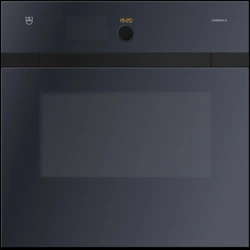
Combair V4000
Oven
V-ZUG-Home
Install the app, network your appliances and
benefit from a wide range of useful functions.

Thank you for choosing to buy one of our products. Your appliance is made to high
standards and is easy to use. Nevertheless, please take the time to read these operating
instructions in order to familiarize yourself with the appliance and get the best use out of
it.
Please follow the safety precautions.
Modifications
Text, diagrams and data correspond to the technical standard of the appliance at the
time these operating instructions went to press. The right to make technical modifications
for the purpose of the further development of the appliances is reserved.
Validity
These operating instructions apply to:
Model designation Type Size system
Combair V4000 60 C4T-21045 60-600
Combair V4000 60P C4T-21055 60-600
Variations depending on the model are noted in the text.
Download updates to your appliance via V-ZUG-Home so that you are always up to
date. The latest operating instructions with the new functions incorporated can be
found here: vzug.com.
© V-ZUG Ltd, CH-6302 Zug, 2022
2

3
Contents
1 Safety precautions 5
1.1 Symbols used......................................................... 5
1.2 General safety precautions.................................. 5
1.3 Appliance-specific safety precautions .............. 5
1.4 Instructions for use................................................ 6
2 Using for the first time 9
3 Appliance description 10
3.1 Construction .........................................................10
3.2 Operating and display elements.......................10
3.3 Cooking space.....................................................12
3.4 Accessories ..........................................................12
4 Operation 14
4.1 Operating the display..........................................14
4.2 Selecting and starting an application ..............15
4.3 Changing an application ....................................17
4.4 Operating time .....................................................17
4.5 Delayed start / end .............................................18
4.6 Food probe temperature ....................................19
4.7 Options ..................................................................20
4.8 Checking and changing the settings...............20
4.9 Preheating.............................................................21
4.10 Setting to start later .............................................21
4.11 Application tips.....................................................22
4.12 Favourites..............................................................22
4.13 Pinning...................................................................23
4.14 Timer ......................................................................24
4.15 Illumination............................................................25
4.16 Display lock ..........................................................25
4.17 Quiet mode ...........................................................26
4.18 Time........................................................................26
4.19 Cancelling / ending before time.......................26
4.20 End of operation ..................................................27
4.21 Subsequent steps................................................28
4.22 Switching the appliance off................................29
4.23 Appliance tips.......................................................29
5 Applications 30
5.1 Top/Bottom heat...................................................30
5.2 Top/Bottom heat humid ......................................30
5.3 Top/bottom heat eco ...........................................30
5.4 Bottom heat ...........................................................31
5.5 PizzaPlus ................................................................31
5.6 Grill ..........................................................................32
5.7 Grill-forced convection.........................................32
5.8 Hot air .....................................................................32
5.9 Hot air humid.........................................................33
5.10 Hot air eco .............................................................33
5.11 Sabbath applications ...........................................34
5.12 Soft roasting...........................................................36
5.13 Keep warm.............................................................38
5.14 Warming plates in the cooking space..............38
5.15 Recipe book ..........................................................39
5.16 EasyCook ...............................................................40
6 V-ZUG-Home 42
6.1 Conditions ..............................................................42
6.2 Initial set-up............................................................42
7 User settings 43
7.1 Adjusting user settings ........................................43
7.2 Language ...............................................................43
7.3 Childproof lock......................................................43
7.4 Display ....................................................................43
7.5 Signals and tones.................................................43
7.6 Individual settings .................................................44
7.7 Assistance functions ............................................44
7.8 Date and time........................................................44
7.9 V-ZUG Home .........................................................45
7.10 Appliance information..........................................45
7.11 Factory settings.....................................................46
7.12 EcoManagement...................................................46
7.13 Customer Services ...............................................46
8 Care and maintenance 46
8.1 Cleaning the exterior............................................46
8.2 Cleaning the cooking space...............................47

4
8.3 Cleaning the baking tray ....................................47
8.4 Pyrolytic self-cleaning .........................................47
8.5 Cleaning the appliance door.............................48
8.6 Cleaning the door seal .......................................51
8.7 Replacing the door seal .....................................51
8.8 Replacing the door seal (in pyrolytic
appliances) ...........................................................52
8.9 Replacing the halogen light bulb .....................53
8.10 Cleaning the accessories and shelf guides ...54
9 Trouble-shooting 55
9.1 Error messages....................................................55
9.2 Other possible problems....................................56
9.3 After a power failure............................................57
10 Accessories and spare parts 57
10.1 Accessories ..........................................................57
10.2 Special accessories ............................................57
10.3 Spare parts ...........................................................58
11 Technical data 58
11.1 Light sources........................................................58
11.2 Note for testing institutes ...................................58
11.3 Temperature measurement ...............................58
11.4 Product fiche ........................................................59
11.5 EcoStandby...........................................................59
12 Tips and tricks 59
12.1 Unsatisfactory cooking result... .........................59
12.2 Saving energy.......................................................60
13 Disposal 61
14 Index 63
16 Service & Support 67

5
1 Safety precautions
1.1 Symbols used
Denotes important safety precau-
tions.
Failure to observe said precautions
can result in injury or in damage to
the appliance or fittings!
Information and precautions that
should be observed.
Information on disposal
Information about the Operating In-
structions
▸ Indicates step-by-step instructions.
– Describes how the appliance reacts
to the steps taken.
▪ Indicates a list.
1.2 General safety precautions
▪ Read the operating instruc-
tions before using the appli-
ance for the first time.
▪ This appliance can be used
by children aged 8 and above
and by persons with reduced
physical, sensory or mental
capabilities, or lack of experi-
ence and/or knowledge,
provided they are supervised
or have been instructed on
the safe use of the appliance
and have understood the haz-
ards involved. Children shall
not play with the appliance.
Cleaning and user mainten-
ance shall not be undertaken
by children without supervi-
sion.
▪ If an appliance is not
equipped with a mains cable
and a plug or other means for
disconnecting from the mains
with a contact opening on
each pole complying with the
conditions of overvoltage cat-
egory III for full isolation, an
isolating device must be in-
corporated into the perman-
ently installed electrical install-
ation in accordance with the
installation regulations.
▪ If the mains cable of this ap-
pliance is damaged, it must
be replaced by the manufac-
turer or its Customer Services
or a similarly qualified person
in order to avoid hazard.
1.3 Appliance-specific safety
precautions
▪ READ THE IMPORTANT
SAFETY PRECAUTIONS
CAREFULLY AND RETAIN
FOR FUTURE USE.
▪ WARNING: The appliance
and its accessible parts get
hot during use. Be careful not

1 Safety precautions
6
to touch the heating ele-
ments. Children under 8
years of age must be kept
away from the appliance un-
less they are constantly su-
pervised.
▪ WARNING: Accessible parts
can get hot during use. Keep
young children away from the
appliance.
▪ This appliance is intended for
use in the home and similar
settings such as: in staff kit-
chens in shops, offices and
other commercial establish-
ments; in agricultural estab-
lishments; by guests in hotels,
motels and other accommod-
ation establishments; in bed
and breakfast establishments.
▪ This appliance is not intended
for use in vehicles or on
board ships or aircraft or in
rooms where there are spe-
cial conditions such as, for in-
stance, a corrosive or explos-
ive atmosphere (dust, steam
or gas) or condensing mois-
ture.
▪ Do not use aggressive or ab-
rasive cleaning agents or
sharp metal scrapers for
cleaning the glass in the oven
door as they could scratch
the surface. This can destroy
the glass.
▪ For appliances with pyrolytic
self-cleaning: Excessive soil-
ing and any and all accessor-
ies (tableware, baking trays,
runners, shelf guides) must
be removed before carrying
out pyrolytic self-cleaning.
▪ Only use the food probe re-
commended for this oven.
▪ Under no circumstances use
a steam cleaner to clean the
appliance.
▪ WARNING: Before replacing
the light bulb, ensure the ap-
pliance is switched off and
disconnected from the mains
power supply to avoid pos-
sible electric shock.
▪ To avoid overheating, the ap-
pliance must not be installed
behind a decor door.
▪ WARNING: Never heat food
or liquids in sealed containers
such as cans or bottles as
they are liable to explode due
to overpressure.
▪ See the «Accessories» sec-
tion for the proper use of in-
sertable parts.
1.4 Instructions for use
Before using for the first time
▪ The appliance must be installed and
connected to the electricity supply in
accordance with the separate installa-
tion instructions. Have a qualified fitter/
electrician carry out the necessary
work.

1 Safety precautions
7
Correct use
▪ The appliance is designed for use in
the home for preparing food. Under no
circumstances flambé or cook food us-
ing a lot of fat in the cooking space! No
liability is assumed for any damage
caused by improper use or incorrect
handling.
▪ Never use the appliance to dry animals,
textiles, paper, etc.!
▪ Do not use the appliance as a room
heater.
▪ The appliance should only be installed
and operated at an ambient temperat-
ure of 5 °C to 35 °C.
▪ Any repairs, modifications or manipula-
tions to the appliance, especially any
electrically live parts, may only be car-
ried out by the manufacturer, its Cus-
tomer Services or a similarly qualified
person. Repairs if carried out incorrectly
may cause serious injury, damage to
the appliance and fittings, as well as af-
fect the functioning of the appliance. If
the appliance is not working properly or
in case a repair is needed, follow the in-
structions given in the «Service & Sup-
port» section. If required, please contact
our Customer Services.
▪ Use original spare parts only.
▪ Retain these operating instructions for
future reference.
▪ The appliance corresponds to recog-
nized technology standards and the rel-
evant safety regulations. Proper use of
the appliance is essential to avoid dam-
age and accidents. Please therefore fol-
low the precautions given in these oper-
ating instructions.
▪ Do not attach magnets to the display.
Note on use
▪ Use the childproof locking facility.
▪ If the appliance is visibly damaged, do
not use it. Contact our Customer Ser-
vices.
▪ If the appliance is not functioning prop-
erly, disconnect it from the power sup-
ply immediately.
▪ Ensure there are no foreign bodies or
pets in the cooking space before clos-
ing the appliance door.
▪ For appliances with a grill: Keep the ap-
pliance door closed while grilling. The
heat could otherwise damage the oper-
ating and display elements or the fitted
units above.
Caution: Risk of burns!
▪ The appliance gets very hot when in
use. The appliance door also gets hot.
▪ Steam and/or hot air may escape from
the cooking space when the appliance
door is opened.
▪ The heated appliance will remain hot for
some time after it is switched off and
will cool down only slowly to room tem-
perature. Allow sufficient time for the
appliance to cool down before, for in-
stance, cleaning it.
▪ Overheated fat and oil can easily catch
fire. Heating oil in the cooking space to
sear meat is dangerous and should not
be done. Never attempt to extinguish
burning oil or fat with water. Danger of
explosion! Smother the flames with a
fire blanket. Keep doors and windows
closed.
▪ Do not pour spirits (brandy, whisky,
schnapps, etc.) over hot food. Danger
of explosion!
▪ Do not leave the appliance unattended
when drying herbs, bread, mushrooms,
etc. If the foodstuff dries out too much,
it can pose a fire hazard.
▪ If you notice smoke possibly coming
from a fire in the appliance or inside the
cooking space, keep the appliance
door closed and disconnect the appli-
ance from the mains power supply.
▪ Accessories get hot in the cooking
space. Use protective gloves or oven
cloths.

1 Safety precautions
8
Caution: Risk of injury!
▪ Be careful not to put fingers in the door
hinges, as there is otherwise a risk of
injury if the appliance door is moved.
Particular care should be taken when
children are around.
▪ Only leave the appliance door open in
the airing position. An open appliance
door poses a danger of tripping or in-
jury! Do not sit or rest on the appliance
door or use it as a storage surface.
▪ For cookers: A hob guard can be fitted
to protect small children. Hob guards
are available from specialist retailers.
Caution: Risk to life!
▪ Danger of suffocation! Keep packaging
material, e.g. plastic film and poly-
styrene, away from children. Packaging
material can be dangerous for children.
How to avoid damaging the appliance
▪ Close the appliance door carefully.
▪ Do not place any protective insert or
aluminium foil on the floor of the cook-
ing space with appliances with no vis-
ible bottom heating element.
▪ Do not use objects that can rust in the
cooking space.
▪ Using knives or cutting wheels on the
baking tray will visibly damage the sur-
face.
▪ To prevent corrosion, leave the appli-
ance door open in the airing position
until the cooking space has cooled
down.
▪ When cleaning the appliance make
sure no water gets inside it. Use a mod-
erately damp cloth. Do not spray the
outside or the inside of the appliance
with water. If water gets inside the appli-
ance, it will cause damage. See the
«Care and maintenance» section.

2 Using for the first time
Before operating the newly installed appliance for the first time, the following steps
should be taken:
▸ Remove packaging and transport materials as well as any protective blue film from
out of the cooking space.
▸ Clean the cooking space and accessories.
▸ Long touch the display.
– The appliance starts.
– Various user settings necessary for operation appear in the display one after the
other.
▸ Make the settings and confirm.
▸ Remove all the accessories from out of the cooking space.
▸ Start the initial burn-in.
If the initial burn-in step is skipped, it must be carried out manually after completing
the initial set-up.
▸ Heat the empty cooking space (without wire shelves, baking trays, etc.) to 200°C
for about 30minutes using the application «Hot air».
Burning-in removes any oily residues in the cooking space. As there is likely to be
some smoke and odour given off, we recommend ventilating the room well during
this phase.
All temperatures in these operating instructions are given in degrees Celsius (°C).
9
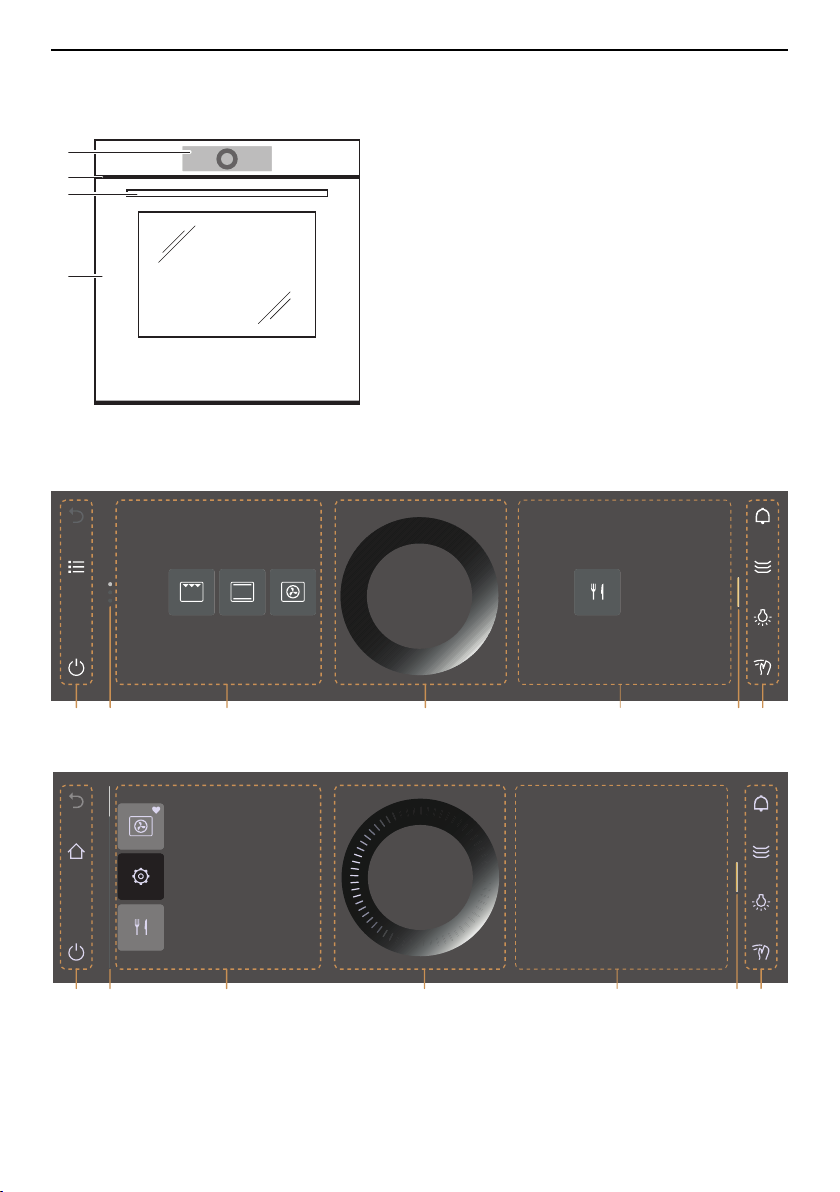
3 Appliance description
3 Appliance description
3.1 Construction
1
2
3
4
1
Operating and display elements
2
Ventilation opening
3
Door handle
4
Appliance door
3.2 Operating and display elements
App view
1 3 5 172 3
List view
1 4 5 172 6
EasyCook
Here is where you can make
all key settings and
customize your appliance.
OK
User settings
Favourite for bread
10
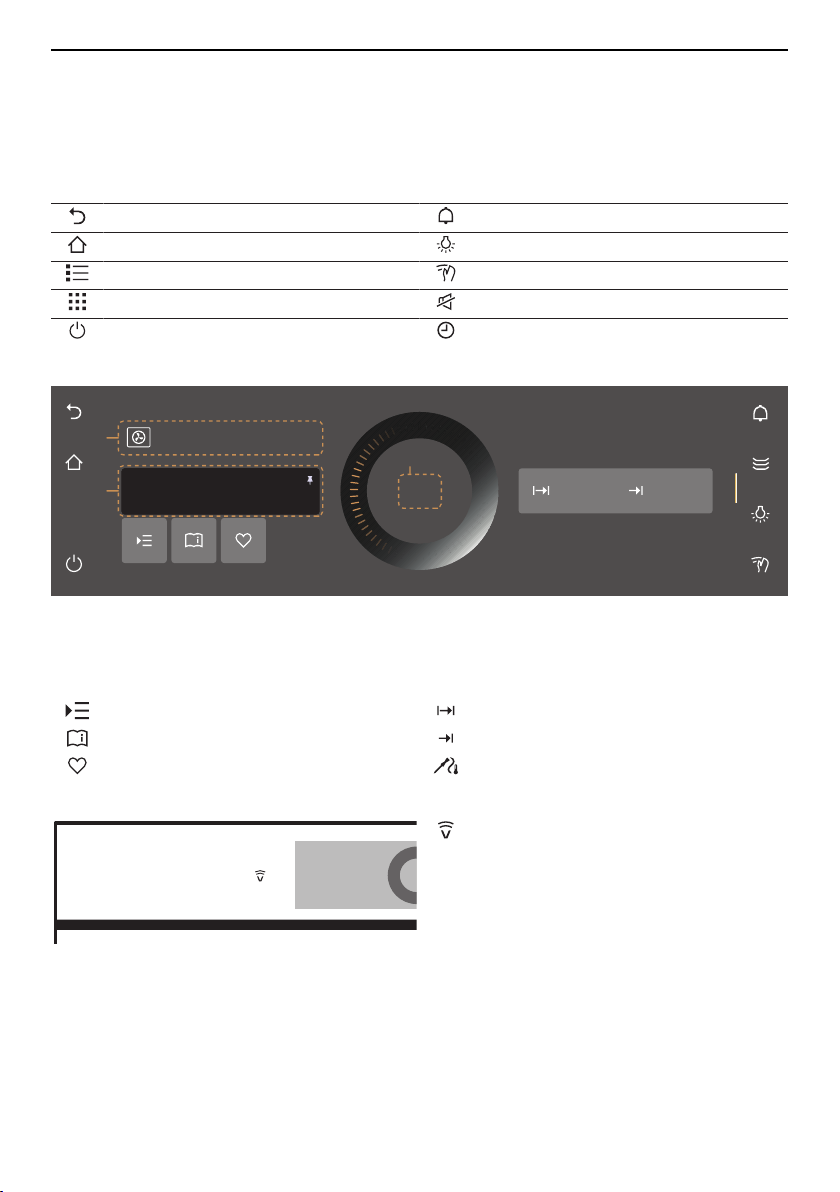
3 Appliance description
1
Function bars with function buttons
5
CircleSlider
2
Scroll bar/position
6
Information
3
Apps
7
Bar for expanding the function bar
4
List of applications
Left function buttons Right function buttons
Step back Timer
Start screen Cooking space illumination
List view Display lock
App view Quiet mode
Switch off Clock
Ready to start
– – – –
Start
Hot air
180°C
1
2
3
1
Application
3
Start operation
2
Main value
Setting options
Options Operating time
Application tips End
Favourite Core temperature
Symbol
V-ZUG-Home
11
3 Appliance description
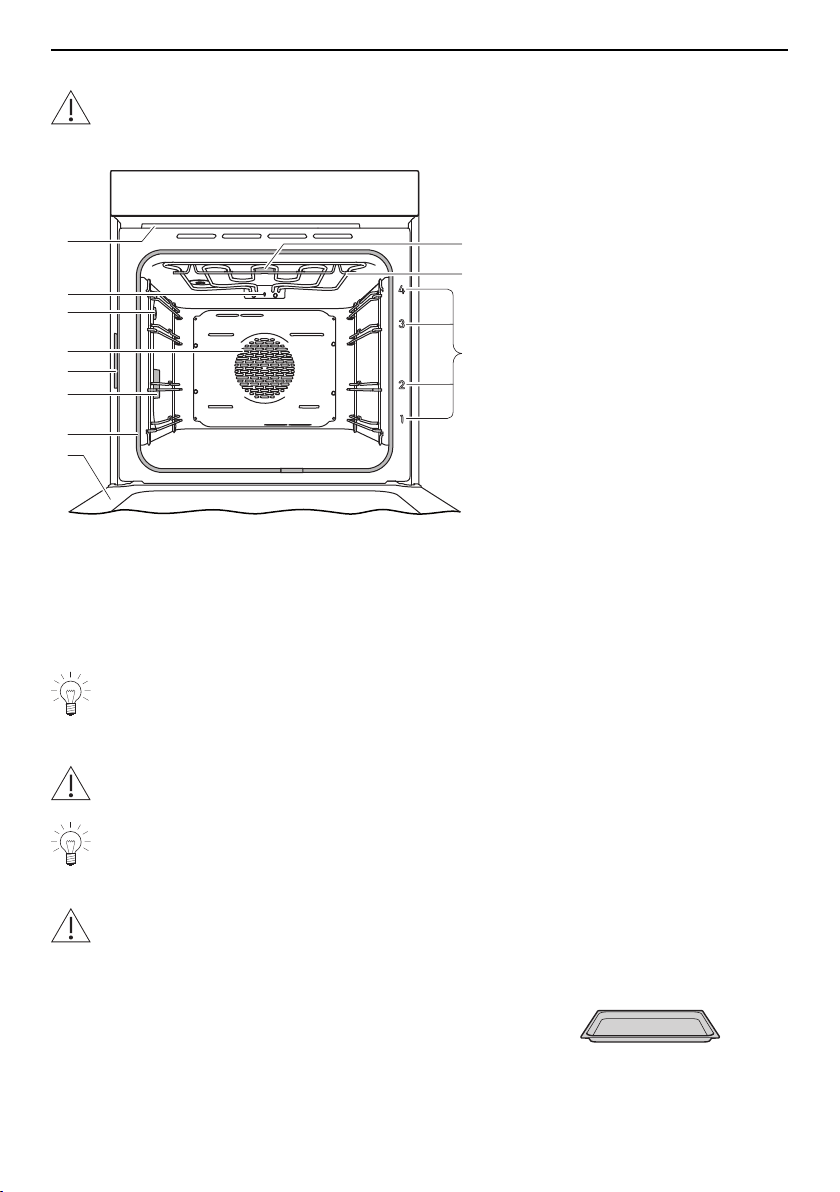
3.3 Cooking space
Using protective inserts or aluminium foil can damage the appliance.
Do not place any protective insert or aluminium foil on the floor of the cooking
space.
9
10
1
2
5
6
8
3
4
3
7
1
Appliance door
6
Socket for food probe
2
Door seal
7
Temperature sensor
3
Cooking space illumination
8
Cooking space ventilation
4
Identification plate
9
Grill / top heat
5
Hot air fan
10
Levels (labelled)
The bottom heating element is beneath the cooking space floor for ease of clean-
ing.
3.4 Accessories
Incorrect handling can cause damage!
Do not use knives or cutting wheels on the accessories.
Do not store the accessories in the cooking space. Remove all non-ovenproof ac-
cessories before use.
Baking tray
Certain foods can damage the surface coating.
Foods such as lye breads (e.g. pretzels), dough or mixture with a high egg-white
content and chicken can affect the non-stick properties of the baking tray. Baking
paper should be used with these kinds of foods.
▪ Baking tin e.g. for flans, bread and biscuits
▪ Use together with the wire shelf as a drip tray.
▪ If not fully covered by the baking, its shape can become
distorted during baking. This is normal. As it cools down,
it will go back to its original form.
12
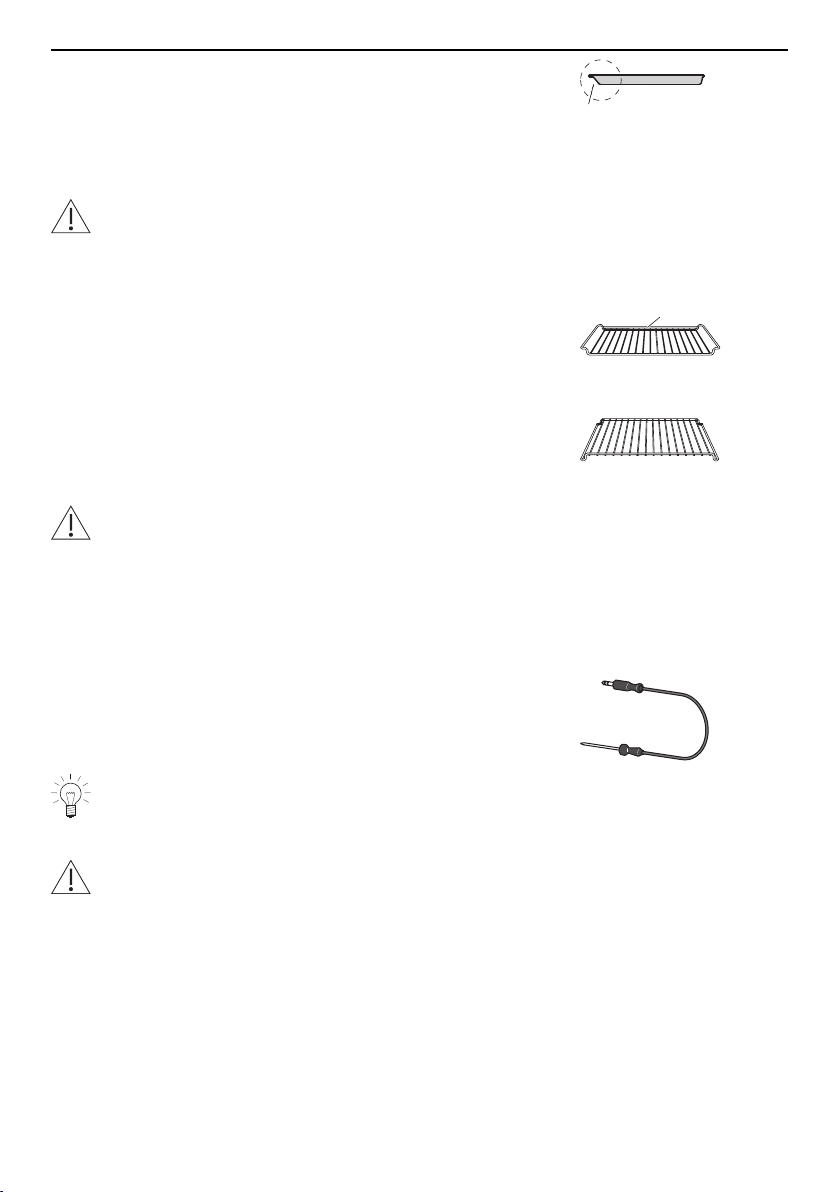
3 Appliance description
▸ Ensure that the «sloped» side1 of the baking tray is to
the back of the cooking space.
1
▸ Only use the normal way round – not upside down.
Wire shelf
If you are using your oven in combination with a Steamer: Do not use the wire
shelf from the oven in the steamer! Risk of rusting!
The wire shelf from the Steamer is distinguished through a metal plate with a
steam symbol.
▪ For standing roasting and baking tins on
▪ For standing meat, frozen pizza, etc. on
▸ Ensure that the bar 1 is to the back of the cooking
space. This enables the food to be removed safely from
the cooking space.
1
▪ Serves as a cooling rack.
3-point food probe
The food probe cannot be used for cooking space temperatures of over 230°C.
There must be a distance between the food probe and the grill / top heating ele-
ment of at least 5cm.
The food probe has three measuring points for particularly precise temperature measure-
ment. These also help to record the food probe temperature correctly even if the food
probe has not been inserted correctly. The measuring points are at points 1, 2 and 4 on
the scale of the food probe.
▪ For measuring the core temperature of food
For recommended food probe temperatures, see «EasyCook».
Special accessories
Place any accessories not included in the scope of delivery on the wire shelf.
▸ Special accessories can be found at: www.vzug.com
13
4 Operation
4 Operation
4.1 Operating the display
Switching the appliance on
The appliance is operated using the display.
The clock is only visible in EcoStandby if enabled in the user settings.
▸ Long touch the display.
– The start screen appears.
Changing the start screen view
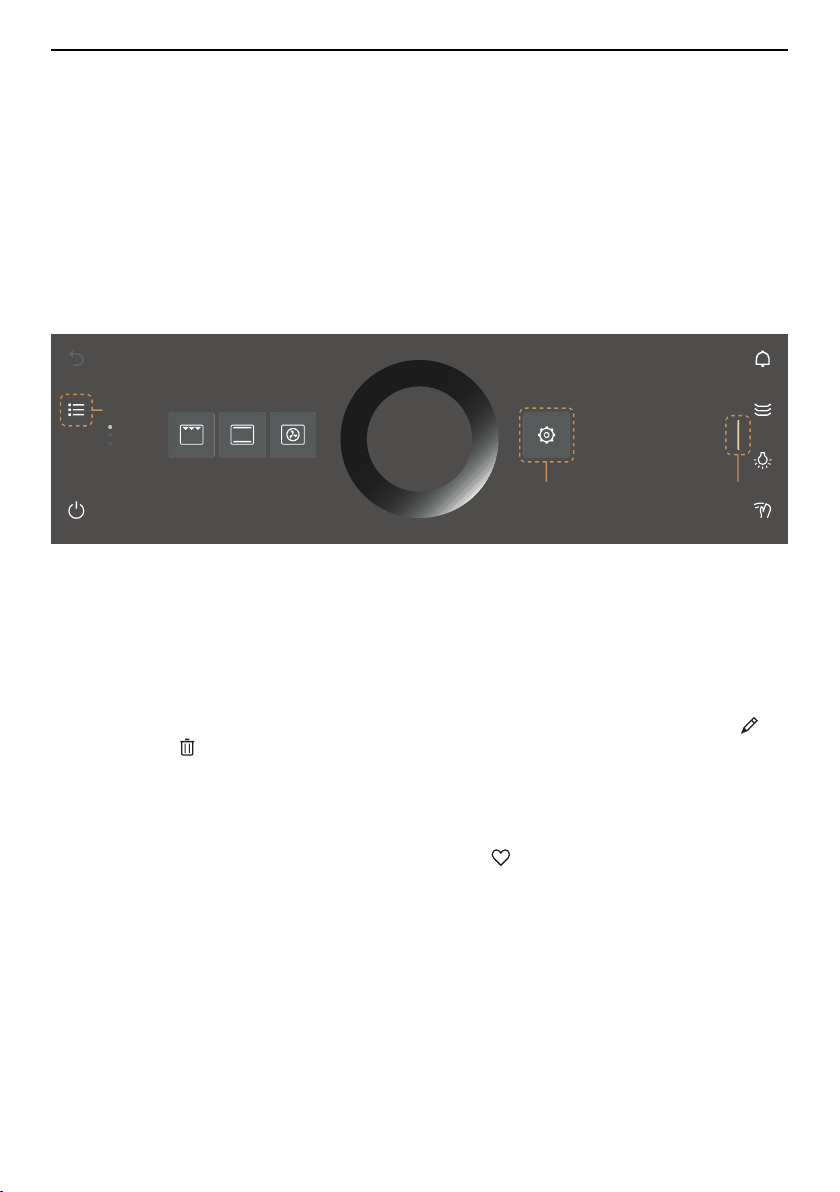
The start screen can be displayed in one of two ways: as an app view (see page 10) or
as a list view. The app view is the factory setting.
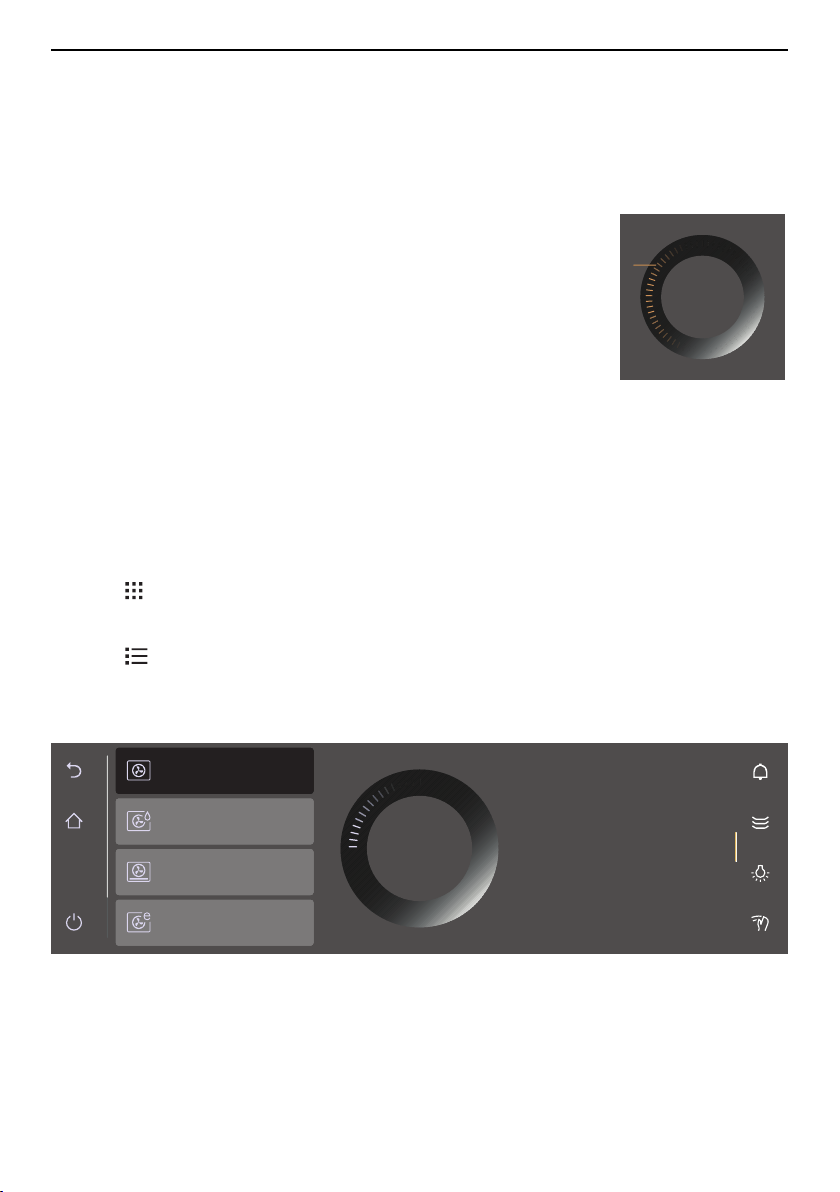
1
32
▸ To temporarily change the view, touch the 1 function button.
– The view is retained only until the display goes dark.
– The change is then discarded.
– When the display is called up again, the view set in the user settings appears.
▸ To permanently change the view, go in the user settings to «Individual settings» and
select the desired start screen view (see page 44).
Displaying quick information
The app view displays the names of the apps as well as the two favourite functions
«Rename» and «Remove».
▸ Press and hold the desired app 2.
– Quick information and the favourites function in Favourites appear above the app
(see page 22).
▸ Release app 2.
– Quick information disappears. In the Favourites application, Quick information
does not disappear in order that Rename or Remove can be selected.
Moving an app
The apps can be moved and reordered in the app view.
▸ Press and hold the desired app 2 and move it to change the app order.
– The apps are spread over several pages; only one app can be moved at a time.
▸ Release app 2.
– The new app order is saved.
14
4 Operation
Expanding the right function bar
The right function bar can be expanded at any time.
▸ Drag the bar 3 to the left.
– The function bar expands.
– More functions appear in the display.
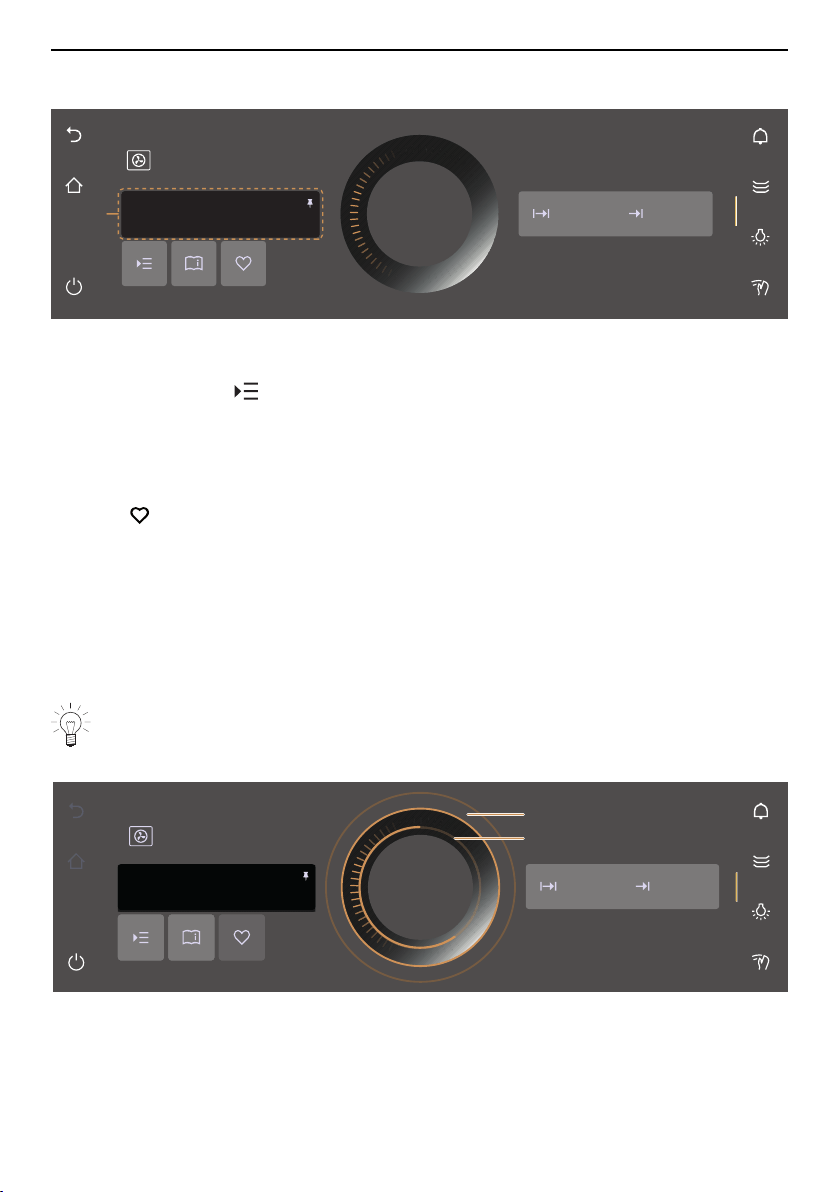
Using the CircleSlider
▸ Touch the desired application or function.
– The colour of the selected range turns amber and can
now be changed.
– The temperature range is already activated and can be
changed directly.
▸ Place your finger on the CircleSlider 4 and move it in a
circle.
– The value range changes.
▸ Release the CircleSlider 4.
▸ Press «Start» to start an application or a function.
Start
4
4.2 Selecting and starting an application
▸ Long touch the display.
– The start screen appears.
Selecting an application group
Either:
▸ In the app view, touch the desired application group.
– The submenu with the associated applications appears in the display.
Or:
▸ In the list view, select the desired application group using the CircleSlider or by
swiping up or down.
▸ Press «OK» or touch the application.
– The submenu with the associated applications appears in the display.
The food is gently cooked through
in an energy-efficient way.
Ideal for gratins and braised dishes.
Hot air eco
Hot air humid
PizzaPlus
Hot air
OK
Selecting an application
▸ Select the desired application using the CircleSlider.
– Choose an item in the list by swiping, navigating and touching it.
▸ Touch the desired application and press «OK» or touch the application again.
– The ready to start screen or another submenu with more applications appears in
the display.
15
4 Operation
▸ If required, repeat the procedure and select the desired application until the ready to
start screen appears in the display:
Start
2h00 13:21
– – – –
1
Hot air
180°C
Adjusting values
▸ If necessary, adjust the main value 1 using the CircleSlider (see page 20).
▸ If necessary, touch and define, adjust or activate the values of other options (see
page 20).
Saving values
▸ Permanently save and pin the adjusted main value 1 for the selected application, if re-
quired (see page 23).
▸ Touch and create a favourite, if required (see page 22).
Starting an application
▸ Press «Start» to start the application.
– The pulsing circle 2 of the CircleSlider indicates that operation has started.
– The actual cooking space temperature is displayed as the cooking space is heating
up (depending on the application and settings).
– The progress bar 3 in the CircleSlider shows the countdown to the time remaining
or the preheating status of the set application, if set.
If the «Preheat» option is enabled, the actual cooking space temperature is not dis-
played as the cooking space is heating up. The progress bar indicates the heating
status instead.
180°C
Hot air
2
3
Stop
1h16 13:21
169°C
16
4 Operation
4.3 Changing an application
If an application has not started yet:
▸ Touch the «Start screen» function button.
– The start screen appears (see page 15).
– A new application can be selected.
If an application is already running:
▸ Press and hold «Stop».
– The application is cancelled (see page 26).
4.4 Operating time
The operating time can be set, adjusted or cancelled before or during operation. The ap-
plication ends automatically when the set duration is up.
Setting the operating time
▸ Select the desired application (see page 15).
▸ In the value range, touch «Operating time» (see page 20).
– The colour of the value range changes to amber.
▸ Set the desired operating time using the CircleSlider.
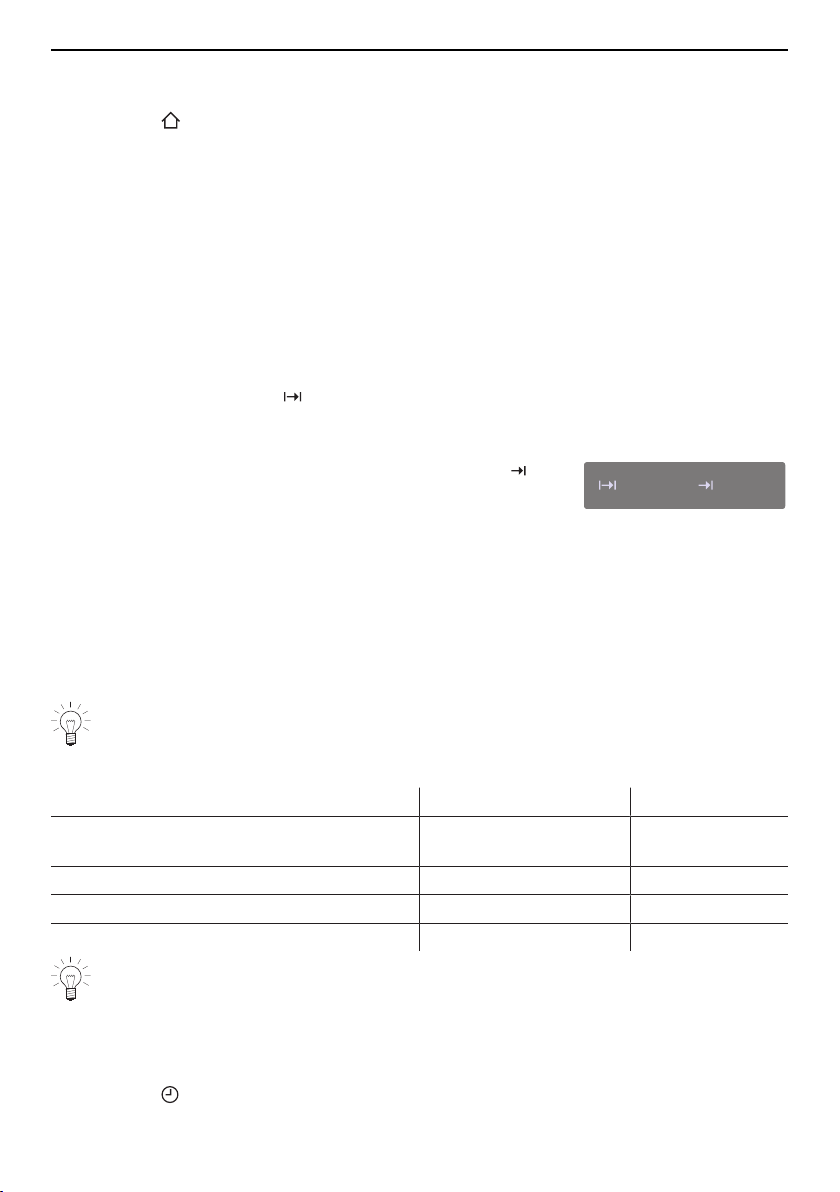
– The desired duration and the calculated end time
appear in the display:
15min
13:21
– If preheating is selected or preset, the end time is the approximate preheating time
plus the set duration. The operating time set only starts to run when preheating has
finished.
▸ Press «Start» to start the application.
– The application starts and the time remaining is displayed.
– The application ends automatically when the set duration is up (see page 27).
– If subsequent steps are available for an application, these can be selected when
the set duration is up (see page 28).
If both «Operating time» and «Preheat» are set, the operating time set does not
start until preheating has finished (see page 21).
Setting range
Application/Function Minimum Maximum
Applications with hot air, top/bottom heat
or grill
10 s 24 h
Keep warm 5 min 1 h 30 min
Warming plates in the cooking space 30 min 10 h
Sabbath applications 1 h 78 h
The operating time cannot be changed for applications with a fixed duration.
Showing the clock during operation
The clock and operating time can be shown during operation.
▸ Expand the function bar.
▸ Touch the «Clock» function button.
– The clock and operating time are shown in the display.
17
4 Operation
Hiding the clock during operation
▸ Either touch or press «OK».
– The clock and operating time are hidden in the display.
4.5 Delayed start / end
The delayed start is activated when for the application selected both the operating time
and end are set. The appliance switches automatically on and off again at the desired
times.
No delayed start can be set for Sabbath applications .
Setting a delayed start
▸ Select the desired application (see page 15).
▸ Set the operating time (see page 17).
▸ Set further options, if required (see page 20).
▸ Put the food in the cooking space if the «Preheat» option has not been turned on.
If the «Preheat» option has been turned on, do not put the food into the cooking
space until the acoustic signal is emitted and the corresponding message ap-
pears.
Before setting the delayed start,
▸ in the value range, touch «End».
– The colour of the value range changes to amber.
▸ Set the desired end time using the CircleSlider.
– The desired duration and the set end time ap-
pear in the display:
15min
13:21
▸ Press «Start» to start the delayed start.
– The time set or remaining to the start of opera-
tion and the end of operation appear in the dis-
play:
15min
13:21
Appliance starts in: 32min
▸ If necessary, check and change the settings (see page 20).
– Any changes to the «Operating time», «End», «Preheat» or «Core temperature» op-
tions cause the time remaining to the start of operation to be recalculated.
If «Operating time» has been set, the end time cannot be set or adjusted during
operation.
Example
▸ Select the «Hot air» application and 180°C.
▸ At 8:00, set an operating time of 1hour and 15minutes.
▸ Set the end time to 11:30.
– The appliance switches on automatically at 10:15 and off again at 11:30.
18

4 Operation
4.6 Food probe temperature
Only use the food probe supplied.
Do not clean the food probe in the dishwasher. Always keep the plug clean.
The food probe is used to measure the temperature inside the food (referred to as the
food probe temperature). As soon as the food reaches the desired target temperature
(the food probe temperature that should be attained at the end of the cooking process),
operation stops automatically. It is also possible to simply measure the food probe tem-
perature without stopping operation.
For a correct food probe temperature reading, the food probe must as far as pos-
sible be fully inserted into the centre of the food.
The optimal target temperature depends on the cut of meat and on the degree of
doneness.
Refer to the information on target temperatures in «EasyCook».
Setting
▸ Plug in the food probe.
▸ Select the desired application (see page 15).
▸ Set the desired temperature using the CircleSlider.
▸ In the value range, touch «Food probe temperature».
– The colour of the value range changes to amber.
▸ Set the desired target temperature using the CircleSlider.
▸ Press «Start» to start the application.
Operation can only be started when the food probe is plugged in the socket in the
appliance.
For applications that use the food probe, the cooking space temperature must not
exceed 230°C, otherwise a message appears.
▸ Check and change the settings.
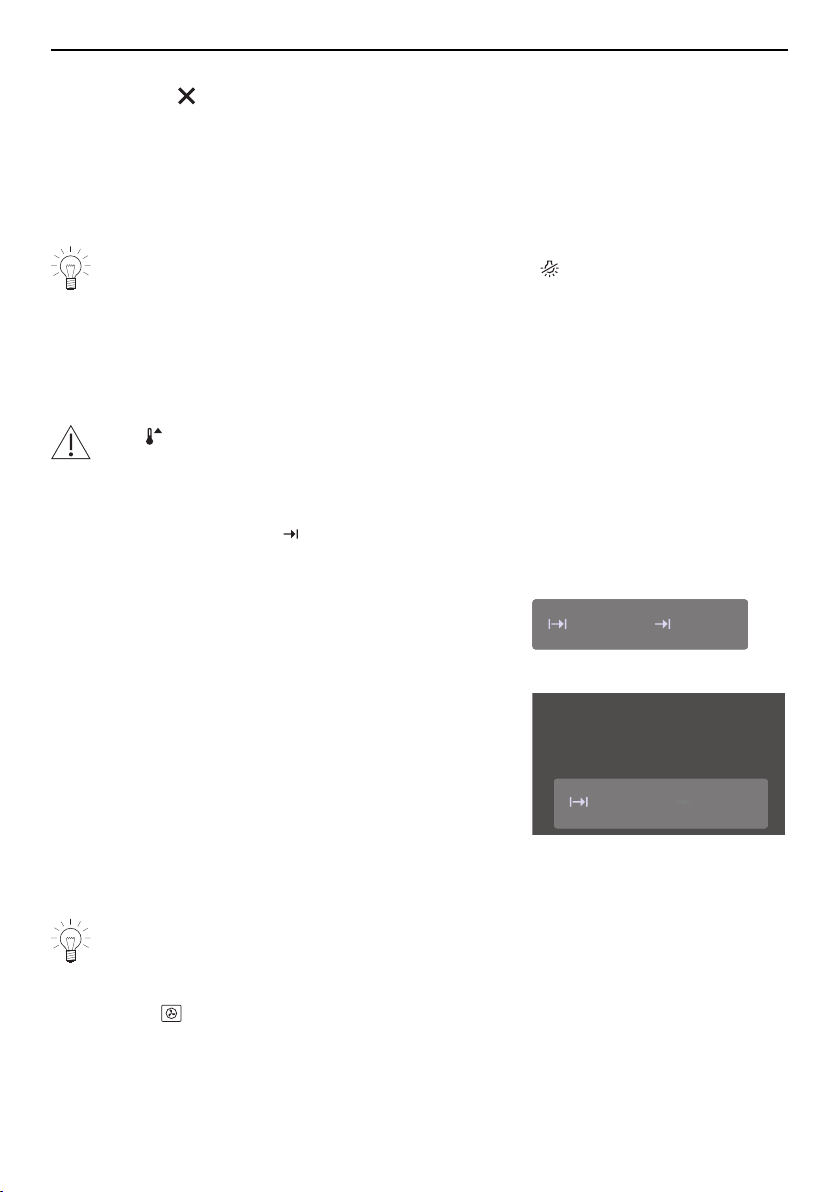
– When cooking, the current food probe temperat-
ure is shown in the bottom part of the display
next to the target temperature.
– The set target temperature is displayed to the
right of .
55min
13:21
75°C
35°C
– Operation ends automatically once the target temperature has been reached (see
page 27).
If the food is left in the cooking space after switching off the appliance, the food
probe temperature can continue to rise due to residual heat.
Measuring the food probe temperature
To measure the food probe temperature only and without operation stopping automatic-
ally when the target temperature is reached, proceed as follows:
▸ Select the desired application (see page 15).
▸ Plug in the food probe.
▸ Press «Start» to start the application.
19
4 Operation
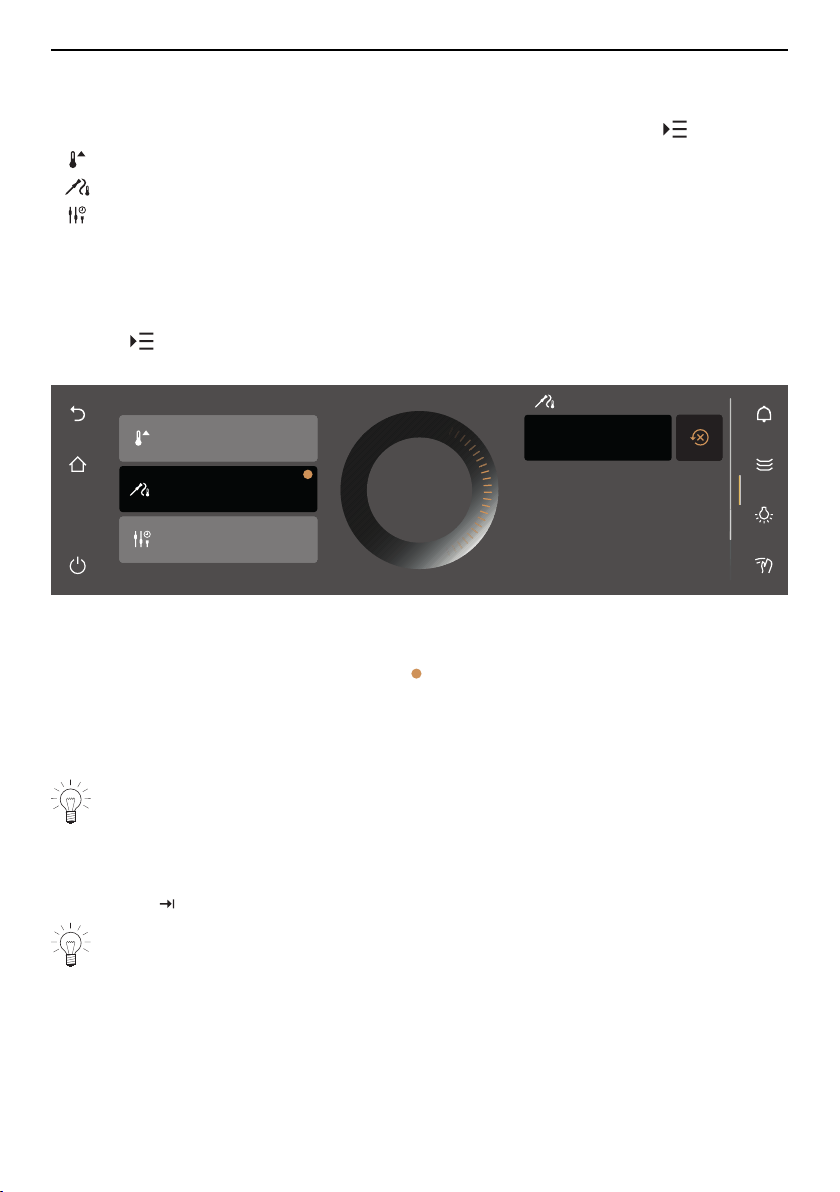
4.7 Options
Overview
Each application offers different options. Your appliance has the following «Options»:
Preheat (see page 21)
Food probe temperature (see page 19)
Start later (see page 21)
Selecting and starting options
▸ Select an application from the desired application group and confirm with «OK», if re-
quired (see page 15).
– The ready to start screen appears in the display.
▸ Touch .
– The options menu appears in the display:
Preheat
OK
Start later
Food probe
temperature
The food probe is required.
If you set a food probe
temperature, the process will
end when the desired food
probe temperature is reached.
If no food probe temperature
57°C
Food probe temperature
▸ Touch the desired option.
▸ In the right content pane of the display, either turn on the option with the switch or
touch the value range and set the desired value using the CircleSlider.
– Each defined option is marked with a .
▸ Confirm the setting with «OK».
– Several settings can also be confirmed at once with «OK».
– The ready to start screen appears in the display.
▸ Press «Start» to start the application.
The «Food probe temperature» option can be set directly in the ready to start
screen. if the food probe is plugged in.
4.8 Checking and changing the settings
Values and settings can be changed before and during operation. Exceptions are setting
the end time during operation (see page 27) and preheating (see page 21).
Only the operating time can be set for Sabbath applications. Values and settings
cannot be changed during operation.
▸ Touch the field for the desired setting.
▸ To adjust or reset a value, touch the value range and adjust the value using the
CircleSlider.
– The colour of the value range changes to amber.
▸ To turn the option on or off, touch the switch.
▸ Confirm the setting with «OK».
20

4 Operation
4.9 Preheating
If the «Preheat» option has been turned on, do not put the food into the cooking
space until the acoustic signal is emitted and the corresponding message ap-
pears.
With Preheat, the cooking space is quickly heated up to the desired temperature.
Overview
Preheating is only possible for the following applications:
Top/bottom heat Grill
Top/bottom heat humid Grill-forced convection
Bottom heat Hot air
PizzaPlus Hot air humid
Turning on preheating in the options
▸ Select the desired application (see page 15).
▸ Touch «Options» and select «Preheat».
▸ Touch the «Preheat» switch.
– «Preheating» is turned on.
▸ Set further options, if required (see page 20).
▸ Confirm the setting with «OK».
▸ Press «Start» to start an application requiring preheating.
– «Preheating» starts.
– The progress of «Preheating» is shown in the CircleSlider.
Introducing food
As soon as the cooking space has preheated,
– an acoustic signal is emitted and a message is displayed. If set, the operating time
does not start to run until the message has been acknowledged.
▸ Place the food in the cooking space.
▸ Close the appliance door and confirm the message with «OK».
– The application starts.
4.10 Setting to start later
With «Start later», an application and its settings can be predefined and set to start at a
later time. The application does not start automatically, but instead only through the inter-
action of the user. The appliance remains ready to start and does not switch back to
EcoStandby.
Setting «Start later»
▸ Select the desired application (see page 15).
▸ Touch «Options» and select «Start later».
▸ Touch the «Start later» switch.
– «Start later» is turned on.
– The settings are saved for up to 36hours.
▸ Set further options, if required (see page 20).
▸ Put the food in the cooking space if the «Preheat» option has not been turned on.
21

4 Operation
Starting «Start later»
▸ Press «Start» to start the application.
– The application starts and the time remaining is displayed.
If both «End» and «Start later» have been set, the end time set is disregarded
when starting «Start later».
4.11 Application tips
The application tips provide helpful suggestions that range from the use of suitable ac-
cessories or cookware to tips specific to a particular application.
If the application is not yet running:
▸ Select the desired application (see page 15).
– The ready to start screen appears in the display.
Showing application tips
▸ Touch «Application tips».
– Tips on the particular applications are shown.
Hiding application tips
▸ To hide tips, touch .
– The ready to start screen or the running operation appears in the display.
4.12 Favourites
Creating a favourite
Favourites can be created from all applications, with the exception of the cleaning pro-
grammes. And all options, with the exception of «End», can be saved. Up to 50 favour-
ites in total can be created.
▸ Select the desired application and adjust the values and settings (see page 15).
▸ Touch «Favourites».
– The favourite names menu appears in the display together with the keyboard.
▸ Customize the favourite name using the keyboard, if required.
▸ To discard favourites, touch .
▸ To save favourites, press «OK».
– Quick information for the favourite is displayed.
– The favourite 1 appears in the start screen as an app with a heart.
1
22

4 Operation
Changing favourites
Once a favourite has been created, it can no longer be changed.
▸ To adjust individual values or settings compared to the old favourite, create a new fa-
vourite and delete the old one if necessary.
Changing favourite names
The favourite name can only be changed in the app view.
▸ If required, touch .
– The start screen appears as an app view.
▸ Press and hold the favourite 1.
– Quick information appears above the app.
▸ Touch «Rename».
– The favourite names menu appears in the display together with the keyboard.
▸ Change the favourite name using the keyboard.
▸ Touch to keep the old favourite name.
▸ Press «OK» to save the new favourite name.
Deleting favourites
The favourite can only be deleted in the app view.
▸ If required, touch .
– The start screen appears as an app view.
▸ Press and hold the favourite 1.
– Quick information appears above the app.
▸ Touch «Clear».
– The following appears in the display: «Do you really want to clear or reset?»
▸ To keep favourites, touch «No».
▸ To delete favourites, touch «Yes».
Starting favourites
▸ In the start screen, touch favourite 1.
– The ready to start screen appears in the display.
▸ Press «Start» to start favourite 1.
4.13 Pinning
To permanently change the recommended main value for an application, it can be fixed
with a pin . A single main value is assigned to each application. Main values can be:
▪ Temperature
▪ Temperature setting
▪ Food entry
Recipe applications and plate warmer cannot be pinned.
23
4 Operation
Pinning a main value
▸ Select the desired application (see page 15).
– The ready to start screen appears in the display.
▸ Adjust the main value using the CircleSlider (see page 20).
▸ Press and hold the main value.
– The colour of the pin changes to amber.
– The main value for the desired application is fixed.
– Whenever the application is called up, the pinned main value appears as a recom-
mended value.
Resetting a pinned main value
▸ In the start screen, touch an application with a pinned main value.
– The ready to start screen appears in the display.
▸ Press and hold the amber-coloured main value.
– The colour of the pin changes to white.
– The main value for the desired application is no longer fixed.
– Whenever the application is called up, the recommended default value appears.
To reset all pinned main values, go to the user setting «Pinned values» (see page
46).
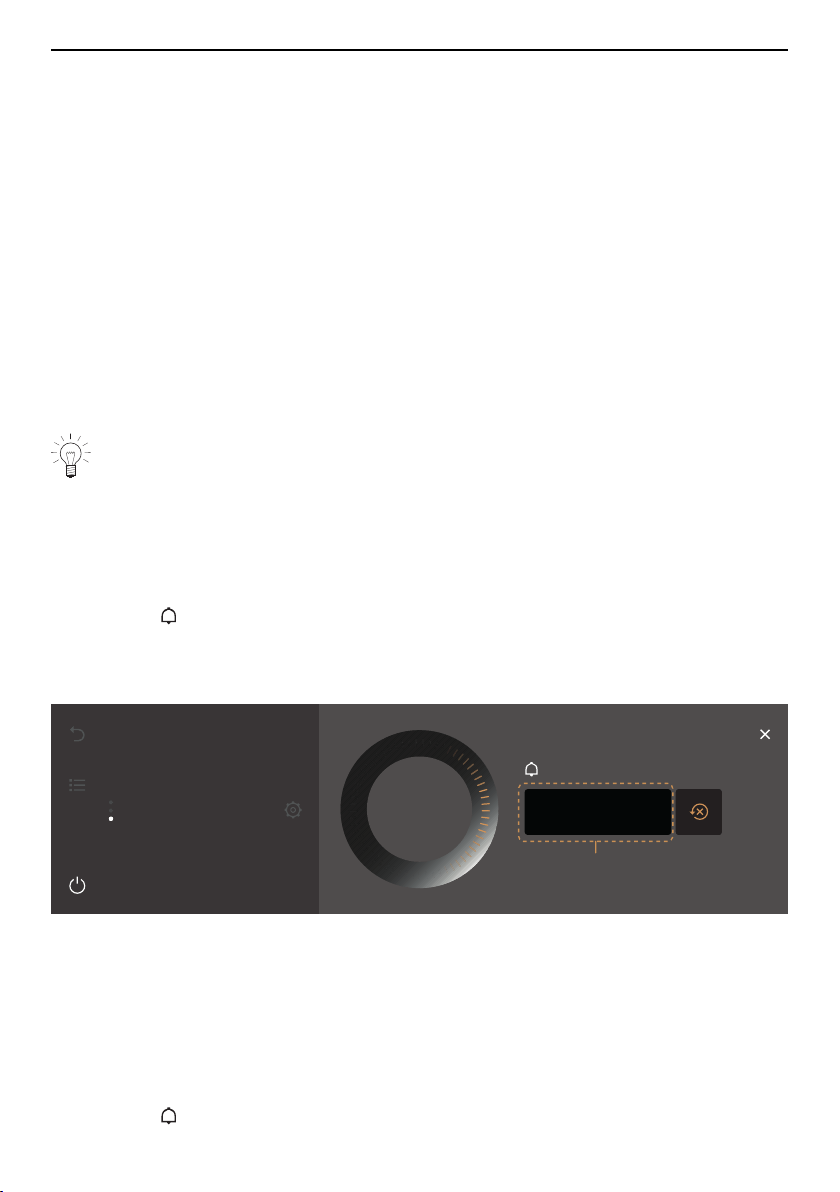
4.14 Timer
The timer functions like an egg timer. It can be used independently of other functions
and applications.
Setting and starting the timer
▸ Touch the «Timer» function button in the right function bar.
– The timer is shown in the display.
– The recommended value 1 appears in amber.
▸ Set the desired operating time using the CircleSlider.
Start
5min 00s
Timer
1
▸ Press «Start».
– The start screen appears.
– The countdown to the time remaining appears in the function bar.
When the duration is up
– an acoustic signal is emitted.
– «Timer finished» appears in the display.
▸ Press «OK» to confirm the message.
Checking and changing
▸ Touch the «Timer» function button.
24

4 Operation
– The countdown to the time remaining appears in the display.
▸ Press and hold «Stop».
– The timer is interrupted.
▸ Shorten or extend the duration of the timer using the CircleSlider.
▸ Press «OK» to confirm the shortening or extending of the duration of the timer.
– The change to the duration of the timer is saved.
– The start screen appears.
– The countdown to the time remaining appears in the display.
The next time the timer is called up, the last duration set automatically appears as
the recommended value.
Turning the timer off before time
▸ Touch the «Timer» function button.
– The countdown to the time remaining appears in the display.
▸ Press and hold «Stop».
4.15 Illumination
The cooking space illumination can be switched on and off at any time.
The cooking space illumination switches on automatically 3 minutes before the set
duration is up.
If the cooking space illumination is turned either on or off when a Sabbath applica-
tion is started it will remain unchanged until the end of operation.
Switching the cooking space illumination on
▸ Touch the «Illumination» function button.
– The colour of the function button changes to amber.
– The cooking space illumination is switched on.
Switching the cooking space illumination off
▸ Touch the «Illumination» function button.
– The colour of the function button changes to white.
– The cooking space illumination is switched off.
4.16 Display lock
This function locks the display to, for example, enable the display to be cleaned or pre-
vent accidental changes to the values. The appliance continues to operate and mes-
sages are still displayed.
Turning on the display lock
▸ Touch the «Display lock» function button.
– The following appears in the display: «Activate»
▸ Touch «Activate».
– appears in the display.
Turning off the display lock
▸ Press and hold .
– The display is unlocked.
25

4 Operation
4.17 Quiet mode
The appliance runs as quietly as possible when in quiet mode. All tones are set at the
lowest volume. The quiet mode can be turned on and off in the user settings (see page
43) as well as by using the quick access in the function bar.
Turning on the quiet mode
▸ Expand the function bar.
▸ Touch the «Quiet mode» function button.
– The quiet mode is shown in the display.
▸ Touch the «Quiet mode» switch.
– «Quiet mode» is turned on.
– The colour of the «Quiet mode» changes to amber in the function bars.
Turning off the quiet mode
▸ Expand the function bar.
▸ Touch the «Quiet mode» function button.
– The quiet mode is shown in the display.
▸ Touch the «Quiet mode» switch.
– «Quiet mode» is turned off.
– The colour of the «Quiet mode» changes to white in the function bars.
4.18 Time
The clock can be shown at any time.
Showing the clock
▸ Expand the function bar.
▸ Touch the «Clock» function button.
– The clock is shown in the display.
– If set, the operating time of an application is also shown.
Hiding the clock
▸ To hide the clock, touch .
– The clock is hidden in the display.
4.19 Cancelling / ending before time
Applications that are running can be cancelled or ended before time.
Cancelling an application
▸ Press and hold «Stop».
180°C
Hot air
Stop
– – – –
169°C
Operating time: 23min 16s
26

4 Operation
– The application is cancelled.
– A feedback tone is emitted, if enabled.
– Depending on the application, the following available options are displayed:
▪ Confirm the question «Do you really want to end the application?» with «Yes».
▪ Select one of the subsequent steps displayed to continue operation (see page
28).
▪ Select the function button to access the parent application menu.
▪ Select the function button to access the start screen (see page 15).
▪ Press and hold the function button to switch the appliance off (see page 29).
If the application has been running for less than 1minute when cancelled, the
ready to start screen appears.
Sabbath applications can only be cancelled using the function button (see page
34).
Ending an application before time
▸ Press and hold the function button.
– Any running application is ended; if switched on, the timer will remain active.
– If turned on, the display lock is deactivated.
– The appliance switches off (see page 29).
4.20 End of operation
When the set duration / the step duration is up or when the set target temperature is
reached.
– The application ends automatically.
– An acoustic signal is emitted.
– If subsequent steps are available, the following appears in the display: «The opera-
tion has finished. Do you want to proceed with a subsequent step?»
▸ Press «No» to end operation now.
▸ Press «Yes» to confirm the message.
– Depending on the application, the following available options are displayed:
▪ Select one of the subsequent steps displayed to continue operation (see page
28).
▪ Select the function button to access the parent application menu.
▪ Select the function button to access the start screen (see page 15).
▪ Press and hold the function button to switch the appliance off (see page 29).
In EcoStandby as long as the temperature in the cooking space is over 80°C.
– In the display appears: «Residual heat in the cooking space». The actual cooking
space temperature is also displayed.
In EcoStandby if the food probe is plugged in.
– The food probe temperature is displayed.
The food can be kept warm with residual heat for some time. As soon as the tem-
perature falls below 80 °C, all the displays go out. If at this point the food probe is
still plugged in, the displays only go out when the food probe is unplugged. The
cooling fan can continue to run.
27
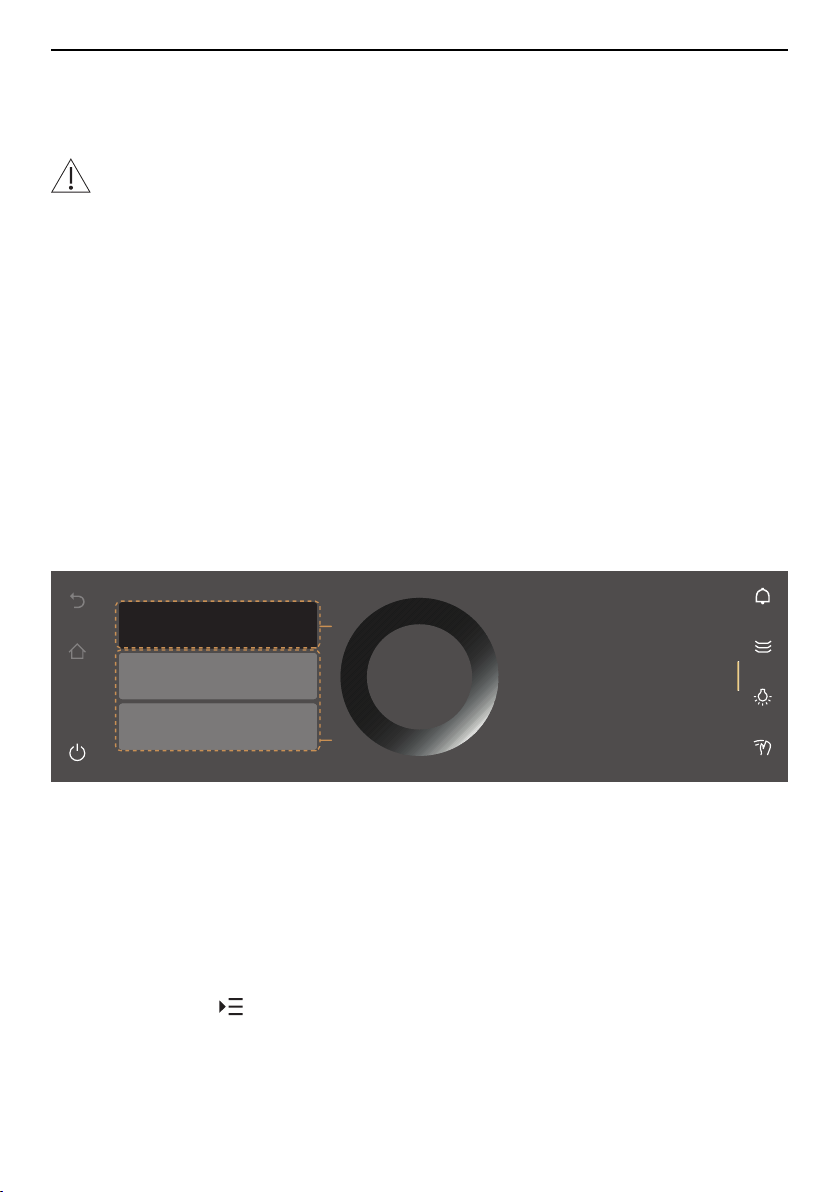
4 Operation
After 3 minutes without interaction.
– The display goes dark and the appliance switches off automatically (see page
29).
Removing the cooked food from the cooking space
Risk of burns!
Hot air may escape from the cooking space when the appliance door is opened.
The accessories get hot. Use protective gloves or oven cloths.
▸ Take the food out of the cooking space when done.
▸ Wipe away traces of water or soiling with a soft cloth to prevent corrosion and un-
pleasant odours.
▸ Leave the appliance door open in the airing position until the cooking space has
cooled down and dried out.
4.21 Subsequent steps
Subsequent steps are applications that can be used to continue operation after an ap-
plication has ended or been cancelled. They are used, for example, to brown food off.
The selection of subsequent steps available depends on the application that has just
ended or been cancelled.
When an application ends or is cancelled and the message «The operation has finished.
Do you want to proceed with a subsequent step?» is confirmed with «Yes» (see page
27),
– subsequent steps available for selection appear in the display:
Ideal for baking cakes,
savouries and biscuits,
on several levels if needed.
Hot air
Gratinate
Baking
bases
1
2
OK
Continuing operation
▸ Select the desired subsequent step.
– With subsequent step 1, the application just ended or cancelled is resumed. The
main value (temperature or temperature setting) is applied directly from the applica-
tion that has ended or been cancelled.
– With subsequent steps 2, the main values available are independent of the applica-
tion that has just ended or been cancelled.
▸ Confirm the selection with «OK».
– The ready to start screen with reduced setting options appears in the display.
▸ If required, touch and set the options (see page 20).
▸ Press «Start» to start the subsequent step.
28

4 Operation
Cancelling operation
To cancel operation, the following options are available:
▪ Select the function button to access the start screen (see page 15).
▪ Press and hold the function button to switch the appliance off (see page 29).
After 3 minutes without interaction.
– The display goes dark and the appliance switches off automatically (see page
29).
4.22 Switching the appliance off
▸ Press and hold the function button.
– Any running application is ended; if turned on, the timer will remain active.
– If turned on, the display lock is deactivated.
– The display goes dark.
– The appliance is in EcoStandby.
Display after switching off
Depending on the application and settings, the following is shown in the darkened dis-
play.
– The residual heat and the temperature if it is above 80°C.
– The food probe temperature if the food probe is still plugged in.
4.23 Appliance tips
Appliance tips provides tips on operating the appliance by topic.
Topics
The following topics can be called up:
▪ Start screen
▪ Function bars
▪ CircleSlider
▪ App view
▪ List view
▪ Food probe
▪ Favourites
▪ Pinning
▪ EasyCook
▪ Cleaning
▪ Preheating
Calling up appliance tips
▸ In the start screen, touch «Appliance tips».
– The appliance tips menu appears in the display.
▸ Select the desired topic.
– Information on the desired topic appears in the right content pane of the display.
29
5 Applications
5 Applications
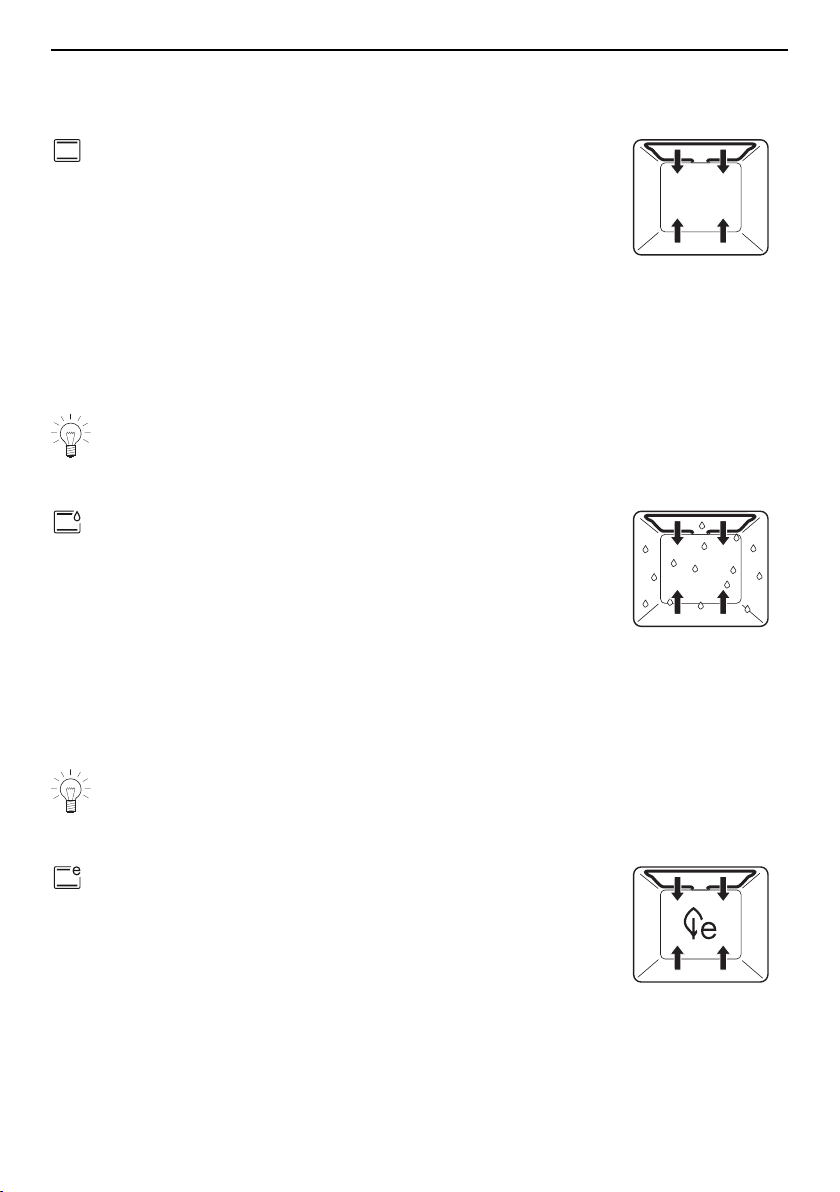
5.1 Top/Bottom heat
Temperature range 30–280 °C
Temperature range for pyrolytic
appliance
30–300 °C
Recommended value 200 °C
Level 2
The cooking space is heated by the top and bottom heating elements.
Uses
▪ Classic application for cooking and baking on onelevel
▪ Cakes, biscuits, bread and roasts
For crispy results, use a dark enamelled tray.
5.2 Top/Bottom heat humid
Temperature range 30–250 °C
Recommended value 200 °C
Level 2
The cooking space is heated by the top and bottom heating elements. The natural hu-
midity produced is largely retained in the cooking space. The food retains its moisture.
Uses
▪ Bread, plaited bread, roasts and gratins on one level
▪ Low temperature cooking
For crispy results, use a dark enamelled tray.
5.3 Top/bottom heat eco
Temperature range 30–250 °C
Recommended value 200 °C
Level 2
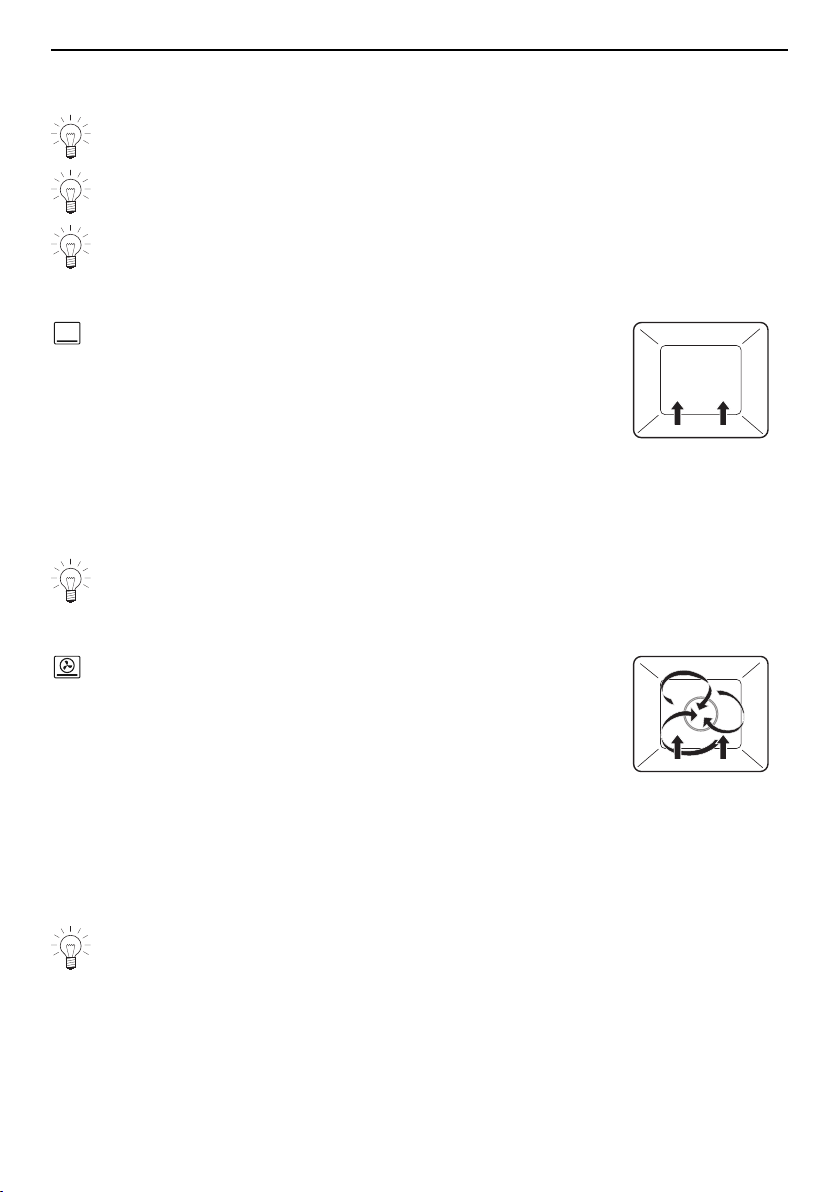
This application is particularly energy-efficient. The cooking space is heated by the top
and bottom heating elements. Any moisture that escapes from the food is retained in the
cooking space, so the food dries out less.
30
5 Applications
Uses
▪ Roasts, gratins, savouries and biscuits
When baking using this application, do not preheat. This lowers the energy con-
sumption. The cooking time can be longer than with classical top/bottom heat.
The temperature is optimized throughout in this application for energy-saving cook-
ing, and this is indicated in the display during operation with «ECO».
For crispy results, use a dark enamelled tray.
5.4 Bottom heat
Temperature range 4 levels
Recommended value Medium (level 2)
Level 1
The cooking space is heated by the bottom heating element.
Uses
▪ Finish off baking
▪ Preserving, bottling
Use a dark enamelled tray or a black tray or tin for crispy results.
5.5 PizzaPlus
Temperature range 30–280 °C
Temperature range for pyrolytic
appliance
30–300 °C
Recommended value 200 °C
Level 2
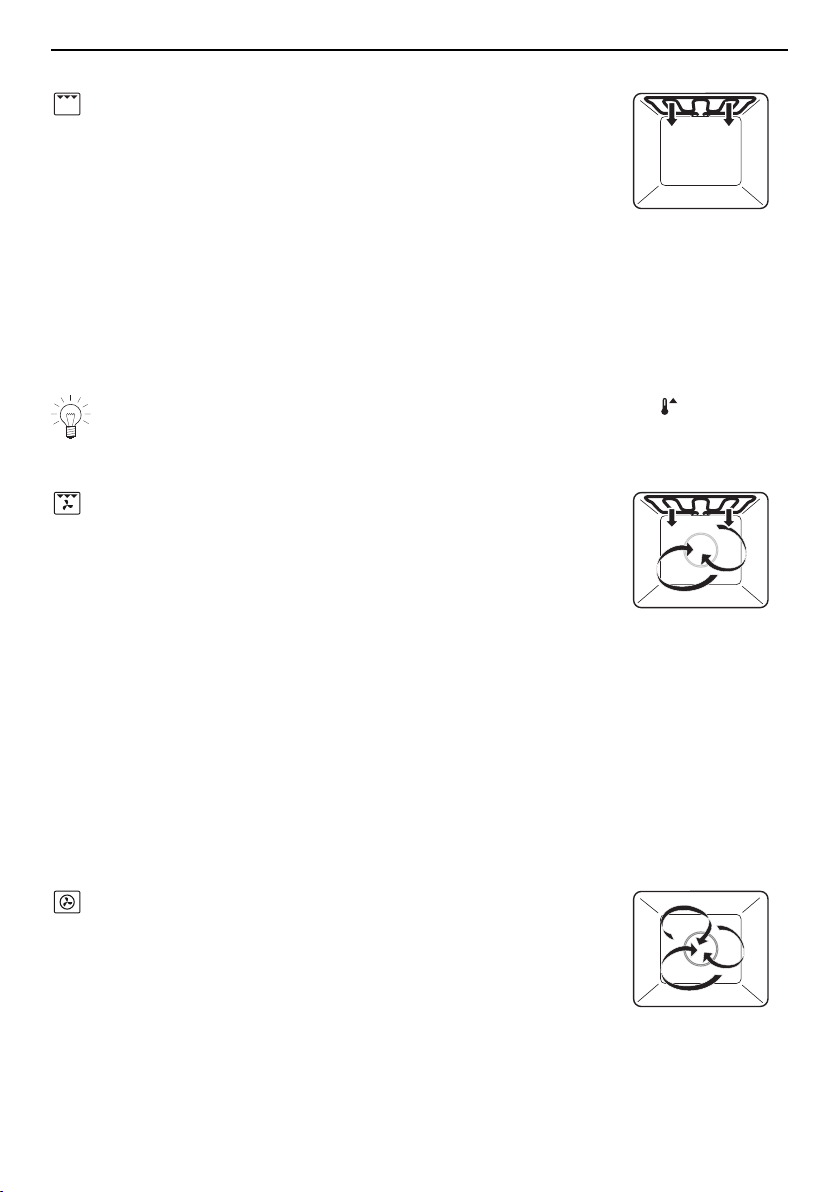
The cooking space is heated by hot air and bottom heat. The base of the food is baked
particularly intensively.
Uses
▪ Pizza, flans and quiches
Use a dark enamelled tray without baking paper for very crispy results.
31
5 Applications
5.6 Grill
Temperature range 4 levels
Recommended value High (level 3)
Level 3 or 4
The cooking space is heated by the grill element.
Application
▪ Flat food for grilling, e.g. chicken parts and sausages
▪ Gratinate
▪ Toast
▸ Place the food to be grilled directly on the wire shelf.
▸ Line the baking tray with aluminium foil and then place it underneath the wire shelf.
For best results, preheat the cooking space for 3 minutes using the option be-
fore introducing the food.
5.7 Grill-forced convection
Temperature range 30–280 °C
Temperature range for pyrolytic
appliance
30–300 °C
Recommended value 200 °C
Level 2 or 3
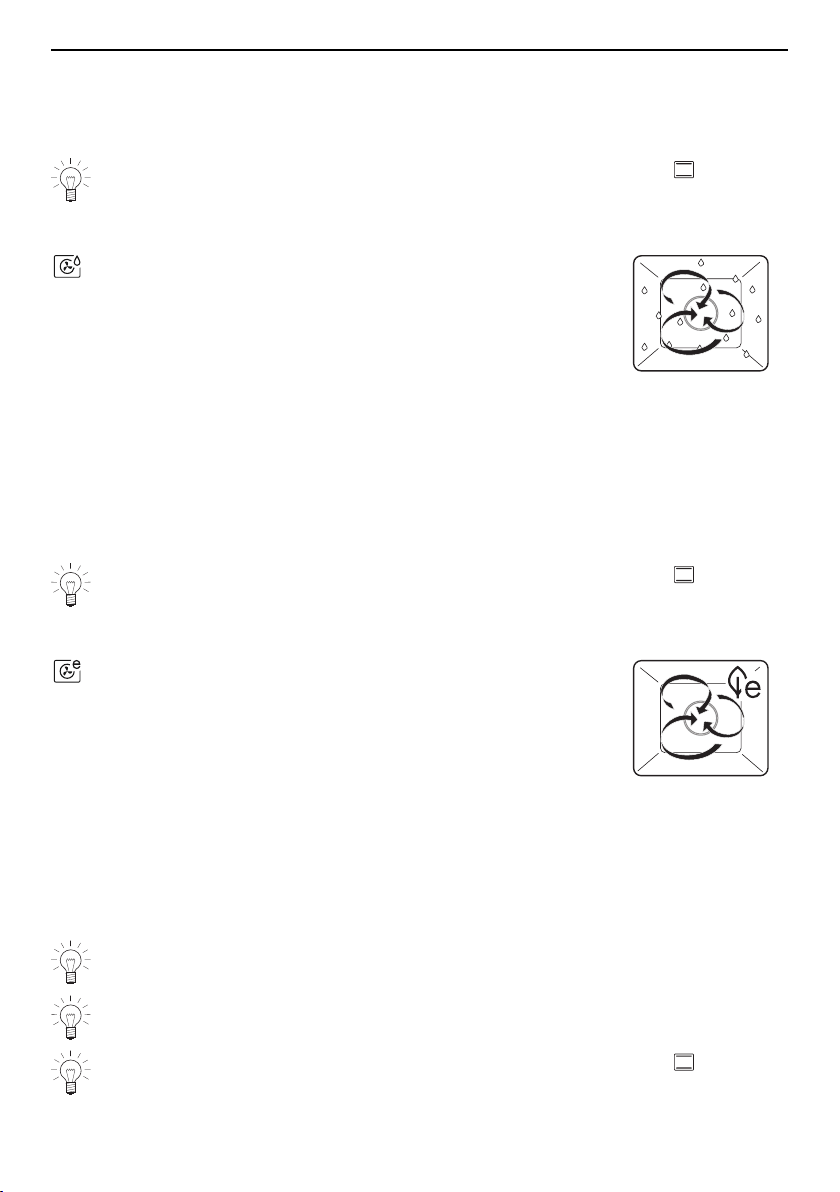
The cooking space is heated by the grill element. The hot air fan distributes the air
evenly in the cooking space.
Uses
▪ Whole chicken
▪ Large, bulky food for grilling
▸ Place the food to be grilled directly on the wire shelf or in porcelain or glass cook-
ware.
▸ Line the baking tray with aluminium foil and then place it underneath the wire shelf.
5.8 Hot air
Temperature range 30–280 °C
Temperature range for pyrolytic
appliance
30–300 °C
Recommended value 180 °C
Level 2 or 1 + 3
(or 1 + 3 + 2)
A heating element behind the back wall of the cooking space heats up the air inside the
cooking space, which is circulated evenly.
32
5 Applications
Uses
▪ Particularly suitable for baking savouries and biscuits on several levels at the same
time
▪ Cakes, bread and roasts
Select a lower temperature (reduce by approximately 20°C) than for as the
heat transfer is more efficient.
5.9 Hot air humid
Temperature range 30–250 °C
Recommended value 180 °C
Level 2 or 1 + 3
(or 1 + 3 + 2)
A heating element behind the back wall of the cooking space heats up the air inside the
cooking space, which is circulated evenly. The natural humidity produced is largely re-
tained in the cooking space. The food retains its moisture.
Uses
▪ For savouries and biscuits on two levels at the same time
▪ For yeast pastries and bread on two levels at the same time
▪ Gratins and baked dishes
Select a lower temperature (reduce by approximately 20°C) than for as the
heat transfer is more efficient.
5.10 Hot air eco
Temperature range 30–250 °C
Recommended value 180 °C
Level 2 or 1 + 3
This application is particularly energy-efficient. A heating element behind the back wall of
the cooking space heats up the air inside the cooking space, which is circulated evenly.
Any moisture that escapes from the food is retained in the cooking space, so the food
dries out less.
Uses
▪ Roasts, gratins, savouries and biscuits
Do not preheat when using this application to cook. This lowers the energy con-
sumption. The cooking time can be longer than with classical hot air.
The temperature is optimized throughout in this application for energy-saving cook-
ing, and this is indicated in the display during operation with «ECO».
Select a lower temperature (reduce by approximately 20°C) than for as the
heat transfer is more efficient.
33

5 Applications
5.11 Sabbath applications
In order to use the applications Sabbath top/bottom heat and Sabbath top/bottom
heat humid, the «Sabbath mode» must be activated in the user settings (see page
44).
Food can be kept warm for up to 78 hours without having to operate the appliance
during this time.
How it functions
▪ The display remains unchanged during operation.
▪ Once a Sabbath application has started it is no longer possible to change the set-
tings.
▪ Tones are deactivated during operation. Certain tones are not muted for legal and
safety reasons.
▪ The cooking space illumination cannot be switched on or off during operation. De-
pending on what had been selected before starting, it remains either on or off for the
entirety.
▪ Opening the appliance door does not affect either the heating or the cooking space il-
lumination.
Selecting and starting
▸ Long touch the display.
– The start screen appears.
▸ Select the Sabbath application group and confirm with «OK», if required (see page
15).
▸ Select the desired application and confirm with «OK».
– The settings for the desired application appear in the display.
▸ Make any desired settings (see page 20).
▸ Press «Start» to start the chosen application.
– The appliance is ready for operation.
▸ Open the appliance door.
▸ Put in the food.
▸ Close the appliance door.
– The cooking process starts, whereby the cooking space is heated up with a slight
time delay.
The cooking process starts only after the appliance door has been opened and
closed once.
Cancelling or ending before time
A Sabbath application that is running can be cancelled or ended before time (see page
26).
▸ Hold the function button depressed.
– The running application ends.
– The display goes dark.
– The appliance switches off (see page 29).
– After restarting the appliance, the start screen appears.
End of operation
When the set duration is up, operation ends as normal (see page 27).
34
5 Applications
Power interruption
How the appliance behaves after a power interruption or failure is described in the «After
a power failure» (see page 57) section.
In the event of a brief power failure, the application is cancelled; the Sabbath mode set-
ting in the user settings remains unchanged.
Tips for best results
▪ Only use pre-cooked food.
▪ Do not leave food in the appliance for too long before use.
The timer cannot be used. The timer switches off when an application is started.
V-ZUG-Home is not available during operation.
Sabbath top/bottom heat
Temperature range 30–140 °C
Recommended value 85 °C
Level 2
The cooking space is heated by the top and bottom heating elements.
Uses
▪ For heating up or keeping pre-cooked, crispy food and bakery goods warm on one
level
▪ Bread, pizza and aperitif nibbles
▪ Low temperature cooking
For crispy results, use a dark enamelled tray.
Sabbath top/bottom heat humid
Temperature range 30–140 °C
Recommended value 85 °C
Level 2
The cooking space is heated by the top and bottom heating elements. The natural hu-
midity produced is largely retained in the cooking space. The food retains its moisture.
Uses
▪ For heating up or keeping food that should not dry out warm on one level.
▪ Vegetables, meat, pasta, baked dishes and roasts
35

5 Applications
5.12 Soft roasting
How it functions
The «Soft roasting» function allows high-quality cuts of meat to be prepared gently.
The end of operation can be set precisely, irrespective of the weight and thickness of the
meat. The temperature is automatically controlled. For long operating times, the temper-
ature is controlled such that it corresponds to low-temperature cooking.
Depending on the type of meat, the cooking time can be set between 1½ and 4½ hours
for «Soft roasting seared».
Tips for best results
▪ Take the meat out of the refrigerator some 30–60 minutes before soft roasting.
▪ Weight of meat: 500–2000 g
▪ Food probe temperature of the meat: up to 76°C
▪ Meat thickness: at least 4cm
▪ Quality: high-quality (not too aged) meat
▪ Select a long cooking time for marbled cuts of meat such as shoulder or neck.
Soft roasting table for «Soft roasting seared»
Cut of meat Degree of
doneness
Recommended target
temperature °C
Fillet of veal medium 59
well done 65
Rump or loin of veal medium 63
well done 69
Shoulder of veal well done 75
Neck of veal well done 75
Veal topside medium 61
well done 71
Veal breast well done 75
Fillet of beef rare 48
medium rare 53
medium 57
well done 65
Sirloin, striploin medium 57
well done 64
Rump of beef medium 63
well done 69
Rib-eye or prime rib of beef medium 60
well done 68
Shoulder of beef medium 72
well done 75
36

5 Applications
Cut of meat Degree of
doneness
Recommended target
temperature °C
Rump or loin of pork medium 61
well done 72
Neck of pork well done 76
Shoulder of pork well done 76
Leg of lamb medium 65
well done 74
Soft roasting seared
▸ Season or marinate the meat.
Remove any marinade made with herbs, mustard, etc. from the meat before sear-
ing. These constituents easily burn.
▸ Salt the meat immediately before searing.
▸ Briefly sear the meat on all sides for no longer than 5 minutes.
▸ Then place the meat on the wire shelf.
The meat can also be browned after cooking. This has little effect on the degree of
doneness of large cuts of meat. For small cuts of meat, the target temperature
should be reduced by 2–3°C.
▸ Insert the food probe into the meat so that the tip is in the centre of the thickest part.
For a correct food probe temperature reading, the food probe must as far as pos-
sible be fully inserted into the centre of the food. The temperature inside the meat
is crucial for optimal results at the end of cooking.
▸ Put the wire shelf with the meat at level 2 and a baking tray, which has been lined with
aluminium foil, at level1.
▸ Insert the food probe plug into the socket.
▸ Start «Soft roasting seared».
Selecting and starting soft roasting
Once the programme has started it is no longer possible to change the target tem-
perature.
▸ Long touch the display.
– The start screen appears.
▸ Select the «Soft roasting» application group and confirm with «OK», if required (see
page 15).
▸ Select the desired type of meat.
▸ Select the desired cut of meat.
▸ Select the desired soft roasting method and confirm with «OK».
▸ If the desired type of meat or cut is not available for selection, select «Freely se-
lect meat type».
▸ Select the For «Soft roasting seared»: degree of doneness (not possible for «Freely
select meat type»).
▸ For «Soft roasting with grill»: Select the desired degree of browning.
– The settings for the application appear in the display.
37

5 Applications
▸ Adjust the recommended value, if necessary, and set a delayed start if desired (see
page 18).
▸ Press «Start» to start soft roasting.
The food probe must be plugged in.
– Soft roasting starts.
– The set target temperature, the current food
probe temperature and the countdown to the
time remaining are displayed.
55min
13:21
75°C
35°C
The appliance door must be kept closed during operation. If the appliance door is
opened while soft roasting is running, the operation is interrupted and then, after a
short time, cancelled.
Cancelling / ending soft roasting before time
▸ Press and hold «Stop» to cancel soft roasting.
– The following appears in the display: «Do you really want to cancel the applica-
tion?»
▸ To cancel or turn off soft roasting before time, touch «Yes».
– The operation is cancelled.
▸ Press and hold the function button to switch the appliance off (see page 29).
If you accidentally pressed «Yes» but still want to finish cooking the meat, you
must select another application.
«Soft roasting» is not suitable for pre-cooked meat.
5.13 Keep warm
Cooked foods can be kept warm using «Keep warm».
If the cooking space is already hot, open the appliance door and allow the cooking
space to cool down for about 10 minutes before starting the «Keep warm» func-
tion. This ensures that the food does not overcook. The longer the food is kept
warm, the greater the changes may be to the consistency of the food.
5.14 Warming plates in the cooking space
If the cooking space is already hot, open the appliance door and allow the cooking
space to cool down for 3 to 4 minutes before starting the «Plate warmer» function.
This is to protect the tableware from damage through stress cracking.
▸ Long touch the display.
– The start screen appears.
▸ Place the tableware in the cooking space.
– Ideally, put the wire shelf in and place the tableware on it.
▸ Touch the «Plate warmer» application.
– The duration and the calculated end time appear in the display.
▸ Set an end time or a delayed start, if required (see page 18).
Select a duration of at least 30 minutes.
38
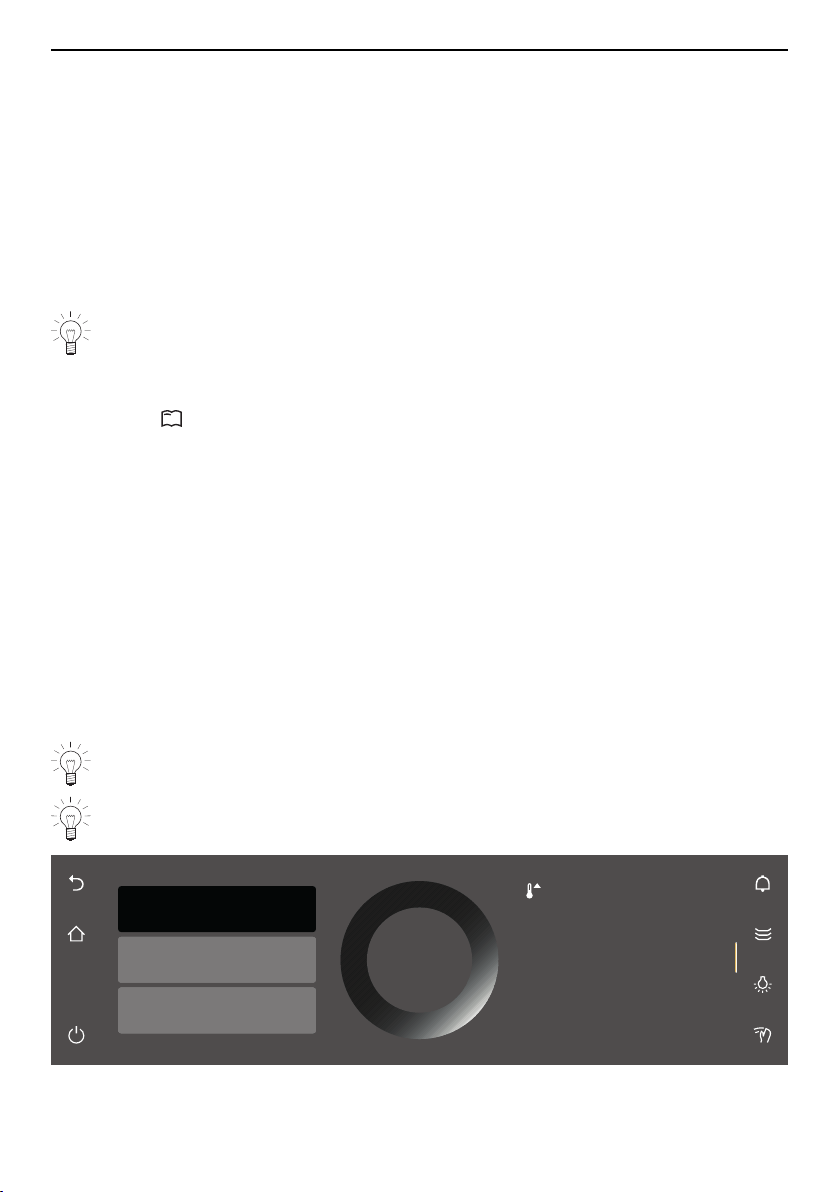
5 Applications
▸ Press «Start» to start «Plate warmer».
– The «Plate warmer» ends automatically when the set duration is up.
5.15 Recipe book
The following recipe book is available for this appliance:
▪ «Baking. With a passion for detail.»
Recipes that are tailored to your appliance can be found in the recipe book. They are
pre-programmed in the appliance and once started run automatically.
You can order the «Baking» recipe book for your appliance at extra cost. The recipes are
already unlocked in the appliance provided it has the necessary applications.
Starting a recipe
For recipes that do not require preheating, place the food in the cold cooking
space.
▸ Long touch the display.
– The start screen appears.
▸ Select the «Recipes» application group and confirm with «OK», if required (see
page 15).
▸ Select the desired recipe book.
▸ Select the desired chapter.
▸ Select the desired recipe and confirm with «OK».
– The settings for the recipe appear in the display.
– Set an end time or a delayed start, if required (see page 18).
▸ To view the individual recipe steps, open the overview of the steps in the left content
pane of the display. Select «1. Step». The overview of the steps opens and information
on each step such as the application, temperature and operating time can be viewed.
The action information contains instructions on what actions need to be taken.
▸ To start the recipe from a particular step, select that step or action and confirm with
«OK». That step is applied to the ready to start screen and the recipe can be started
as usual by touching «Start».
▸ A recipe can be started from any step, i.e. steps can be skipped.
If you want to start the recipe from a later step, select the action before it to get in-
formation about shelf position.
There are steps and actions. Steps are preheating or cooking steps, actions are in-
structions on what actions need to be taken.
1. Step
3. Step
2. Action
Preheat
10min
Recipe requiring preheating.
Do not put the food in until
the appliance has finished
preheating.
180°C
OK
39

5 Applications
If you want to set a delayed start for a recipe that does not require preheating, the
first action step must be skipped. This only indicates in which shelf position the
food should be put. As it has to be confirmed with «OK», this step must be
skipped for a delayed start.
Proceed as follows:
▸ Choose a recipe.
▸ Set a delayed start (see page 18).
▸ Select «2. step» in the overview of steps and confirm with «OK».
– The recipe is now ready to start and starts from the second step when the delayed
start is up.
While the recipe is running
While the recipe is running, it may be necessary to open the appliance door, e.g. to turn
the food over or to put in more food. In such an instance, operation is paused and the
display shows instructions on what to do next.
To continue the recipe, proceed as follows:
▸ Open the appliance door.
▸ Carry out the action, e.g. turn over food.
▸ Close the appliance door and confirm the message with «OK».
– The recipe will continue to run.
Cancelling a recipe
▸ Press and hold «Stop» to cancel the recipe.
– The following appears in the display: «Do you really want to cancel the applica-
tion?»
▸ Touch «Yes» to cancel the recipe.
– The recipe is cancelled.
5.16 EasyCook
EasyCook helps you to prepare any food simply and conveniently. After choosing the
food group and food, the appliance suggests suitable applications, including settings
and accessories.
Overview of food groups
Foodstuffs are grouped into different categories; a foodstuff may be included in more
than one group.
The following food groups can be selected:
Baked dishes and gratins Fruit and berries
Bakery products Poultry
Accompaniments Vegetables
Fish and seafood Flans and pizzas
Meat
40

5 Applications
Selecting and starting foods
A delayed start is only suitable for food that does not need to be refrigerated or to
rise.
▸ Long touch the display.
– The start screen appears.
▸ Select the «EasyCook» application and confirm with «OK», if required (see page
15).
▸ Select the desired food group.
▸ Select the desired type of food.
▸ Select the shape (whole, in pieces, etc.) of the food and confirm with «OK», if re-
quired.
▸ Select the preparation method (cooking, baking, etc.) and confirm with «OK», if re-
quired.
– The settings for the chosen food appear in the display.
▪ Make any desired settings (see page 20).
▪ Press «Start» to start operation.
Dietary styles
In the user settings in the section «Individual settings» under «EasyCook – dietary style»,
certain foods and/or food groups can be deactivated so that EasyCook can be adapted
to suit a personal dietary style.
The following foods are available:
Milk Meat
Eggs Pork
Fish
All activated foodstuffs are highlighted in amber. They can be deactivated by touching
the switch.
Only where this is clear, are foods excluded. For example, if «Milk» is excluded, only
foods and dishes that clearly contain «Cow’s milk» will be hidden. Any number of dietary
styles can be excluded.
Cuisines from around the world
In the user settings in the section «Individual settings» under «EasyCook – cuisines from
around the world», country- and region-specific foods and basic dishes along with their
preparation methods can be activated as a package.
The following national cuisines are available:
▪ Italian ▪ Australian
▪ French ▪ Ukrainian
▪ German ▪ Turkish
▪ Lebanese ▪ Belgian
▪ Chinese ▪ Russian
All activated national cuisines are highlighted in amber. They can be deactivated by
touching the switch.
The activated foods and basic recipes in each packet are then integrated into the struc-
ture of the EasyCook menu. Any number of national cuisines can be activated.
41

6 V-ZUG-Home
6 V-ZUG-Home
Download updates to your appliance via V-ZUG-Home so that you are always up to
date.
6.1 Conditions
The following conditions must be met for full use of V-ZUG-Home:
▪ Access to the internet and to Google Play
TM
Store / App Store
®
▪ Smartphone or tablet that is connected to the home network
▪ System requirements for smartphone or tablet: from Android 6.0 or from iOS 11.0
▪ WLAN/Wi-Fi that meets one of the following standards: 2.4GHz 802.11 b/g/n
Google Play
TM
is a trademark of Google Inc.
Apple and the Apple logo are trademarks of Apple Inc., registered
in the U.S. and other countries. App Store
®
is a service mark of
Apple Inc.
6.2 Initial set-up
When establishing a connection, stay close to your household appliance and have
the password for your wireless network at the ready.
Installing the app
▸ Enable bluetooth and location determination on the smartphone or tablet.
▸ Search the Google Play
TM
Store or the App Store® for «V-ZUG».
▸ Install and open the V-ZUG App.
Enabling the V-ZUG-Home mode on the appliance
▸ Set to the «Display» or «Operate and display» mode under «V-ZUG-Home» in the user
settings.
Connecting the appliance to the home network
▸ In the V-ZUG App, add the household appliance.
– A bluetooth pairing request appears in the V-ZUG App.
– A 6-digit PIN appears in the display of the household appliance.
▸ Enter the 6-digit PIN in the V-ZUG App and confirm the bluetooth pairing request.
– The name of the active WLAN/Wi-Fi appears in the V-ZUG App and then you are
prompted to enter the WLAN/Wi-Fi password.
▸ Enter the WLAN/Wi-Fi password.
– The household appliance is connected to the active WLAN/Wi-Fi connection.
42

7 User settings
7 User settings
7.1 Adjusting user settings
▸ Long touch the display.
– The start screen appears.
▸ Select «User settings» and confirm with «OK», if required (see page 15).
▸ Select the desired user setting.
– The main menu for the desired user setting or another submenu with more user
settings appears in the display.
▸ Make the desired setting.
– The setting is applied immediately.
▸ To exit a submenu, touch .
▸ To exit the user settings, touch .
All user settings except for the quiet mode are retained in the event of a power in-
terruption or failure.
7.2 Language
The language in the display can be changed. Different languages are available for selec-
tion.
7.3 Childproof lock
The childproof lock is to prevent children accidentally switching on the appliance.
When the childproof lock is activated, the appliance can only be operated after first en-
tering a code. The code is displayed in reverse order when unlocking.
The childproof lock is activated within 1minute of the appliance being switched
off.
7.4 Display
Colour scheme
It is possible to choose between a light or dark colour scheme for the display.
Brightness
The brightness of the display can be changed.
Background
The background of the display can be changed. Choose whether to display a solid col-
our, a texture or a texture featuring various ingredients in the background. When a tex-
ture with ingredients is selected, images of different ingredients are displayed on every
page in the app view.
7.5 Signals and tones
Quiet mode
The appliance runs as quietly as possible when in quiet mode. All tones are set at the
lowest volume. This setting is deactivated when the appliance goes into the EcoStandby
mode. The volume of the feedback tones and acoustic signals cannot be changed when
in quiet mode.
Sound worlds
The tonality of the acoustic signals and feedback tones can be changed.
43

7 User settings
Feedback tones
The volume of the feedback tones can be adjusted up or down or turned off completely.
Certain feedback tones are not muted for legal and safety reasons.
A short feedback tone is emitted when the appliance is switched off even if the set-
ting is set to «Off» (safety function).
Acoustic signals
The volume of the acoustic signals can be adjusted up or down. They cannot be turned
off.
Touch anywhere on the display or open the appliance door to stop an acoustic
signal.
7.6 Individual settings
EasyCook – dietary style
Certain foods and food groups can be deactivated so that EasyCook can be adapted to
suit a personal dietary style.
EasyCook – cuisines from around the world
Country- and region-specific foods and basic dishes along with their preparation meth-
ods can be activated as a package and added to EasyCook.
Start screen
Choose whether the applications should be displayed in the app view or the list view
when the start screen is called up.
Temperature unit
The temperature can be displayed in «°C» or «°F».
▪ °C: Degrees Celsius
▪ °F: Degrees Fahrenheit
Sabbath mode
Activates the Sabbath applications on the start screen.
7.7 Assistance functions
Illumination
If set to «On», the cooking space illumination pulses when there is a new message dur-
ing operation.
Touch the symbol to switch the illumination on or off at any time.
If the illumination is not switched off, it will go off automatically within 3 minutes to
save energy.
Preheat tone
If set to «On», a short preheat tone is emitted when it is time to put the food into the
cooking space.
7.8 Date and time
Time synchronization
The «Internet» setting is set automatically when connecting to V-ZUG-Home. The time,
date and time zone are then synchronized directly from the app.
44

7 User settings
Date
The date can be called up and changed.
Time
The time can be called up and changed.
Date and time format
The time can be displayed in the European 24-hour or the US 12-hour format (a.m./
p.m.).
The date can be displayed in the DD.MM.YYYY, YYYY-MM-DD or MM/DD/YYYY format.
Time in standby
It is possible to choose between the settings «Off», «On» and «On with night mode».
Clock design
The visual appearance of the clock on the standby screen can be changed. There are
three clock faces from which to choose: «Digital», «Analogue» and «Dot».
Night mode
The night mode reduces the brightness of the time display. The start time for the night
mode is settable.
The night mode always runs 8hours.
Time synchronization
It is possible to choose between mains synchronization and real-time clock (RTC).
7.9 V-ZUG Home
Mode
It is possible to choose between «Off», «Display» and «Operate and display». To connect
the appliance to «V-ZUG-Home», «Display» or «Operate and display» must be selected.
Displaying information
Displays all relevant information for the connection.
Restarting interface
The interface can be reset if difficulties are experienced establishing a connection.
Resetting
Disconnects all connections to mobile devices.
7.10 Appliance information
Identification numbers
The serial number (SN) and article number are displayed.
Version numbers
The current software versions are displayed.
Demo mode
The appliance shows the current demo mode status. The demo mode can only be
switched on and off in the service menu.
Contacting Customer Services
The contact information for our Customer Services is displayed.
45

8 Care and maintenance
7.11 Factory settings
Pinned values
Resets all pinned values.
Start screen
Resets the start screen to the app view. Favourites remain unchanged.
Favourites
Entering «OK» clears all existing favourites.
V-ZUG-Home
Disconnects all connections to mobile devices.
Factory settings
Resets the settings to the factory default state. All customized data will be lost.
7.12 EcoManagement
Consumption information
Displays the average energy consumption of the last 25 operations, the total energy con-
sumption for the last month (or since a reset in the last month), the total energy con-
sumption for the last year (or since a reset in the last year) and the total energy con-
sumption.
Consumption indicator
If set to «On», the energy consumed is displayed when the application ends.
Resetting
Resets all EcoManagement counters except for total consumption.
7.13 Customer Services
This part of the menu is intended for service staff and is password-protected.
8 Care and maintenance
Risk of burns from hot surfaces!
Allow the appliance and the accessories to cool down before cleaning.
Incorrect handling can result in damage to the appliance!
Use soft cloths only. Do not use any abrasive, alkaline or highly acidic cleaning
agents, metal scrapers that are sharp or scratch, steel wool, scouring pads, etc. as
these products will damage the surfaces. Glass surfaces that are scratched can
crack.
Never use a steam cleaner to clean the appliance.
8.1 Cleaning the exterior
▸ Remove any soiling or residues of cleaning solution immediately.
▸ Clean the surfaces and display with a soft cloth dampened with water and a little
washing-up liquid.
▸ Dry with a soft cloth.
When cleaning the display, the display lock can be used to protect the operating ele-
ments from being unintentionally activated.
46

8 Care and maintenance
8.2 Cleaning the cooking space
Incorrect handling can result in damage to the appliance!
Do not bend the temperature sensor or heating elements.
Do not scour the surface. Scouring will damage the surface.
▸ Remove any soiling from the cooking space while still hand warm. Use a soft cloth
dampened with water and a little washing-up liquid. Wipe dry with a soft cloth.
▸ Remove all traces of cleaning agent, otherwise the non-stick properties of the coating
could be affected.
In the case of stubborn soiling in appliances without pyrolysis:
▸ Use a commercially available oven cleaner and follow the manufacturer’s instructions.
8.3 Cleaning the baking tray
Non-stick properties can be adversely affected.
Do not use any abrasive, acidic or highly alkaline cleaning agents. Do not scour
the surface.
▸ Remove any soiling or residues of cleaning solution immediately.
8.4 Pyrolytic self-cleaning
Risk of burns from hot surfaces!
The appliance front gets hotter than during normal operation. There is likely to be
some smoke given off for a short period of time so ventilate the room during pyro-
lysis. Do not leave the appliance unattended.
Roughly remove grease and oil deposits and baked-on deposits beforehand. Do
not use any chemical cleaning agents. Residues of cleaning agents can cause
chemical reactions, destroy the enamel and give off poisonous fumes.
In pyrolytic self-cleaning, any soiling is burned off at a high temperature. Afterwards the
deposits can easily be removed with a damp cloth. Over time with use the cooking
space can turn matt. Fruit acid and fatty acid deposits can leave stains. This will not af-
fect the cooking or baking characteristics of the appliance nor affect its functioning.
Pyrolytic self-cleaning – including cooling down – takes 3–5 hours depending on
the degree of soiling.
As long as the temperature is over 300°C, the illumination switches off and can-
not be switched back on.
Selecting and starting pyrolytic self-cleaning
Damage to accessories from self-cleaning!
Remove accessories, shelf guides, fully extending runners, cookware and any
other objects from out of the cooking space. Otherwise they can become discol-
oured and their surface rough. The rolling properties of full extension roller runners
deteriorate.
▸ Close the appliance door.
▸ Long touch the display.
▸ Select the application.
▸ Select the degree of soiling.
– The calculated end time for pyrolytic self-cleaning is shown in the display.
47
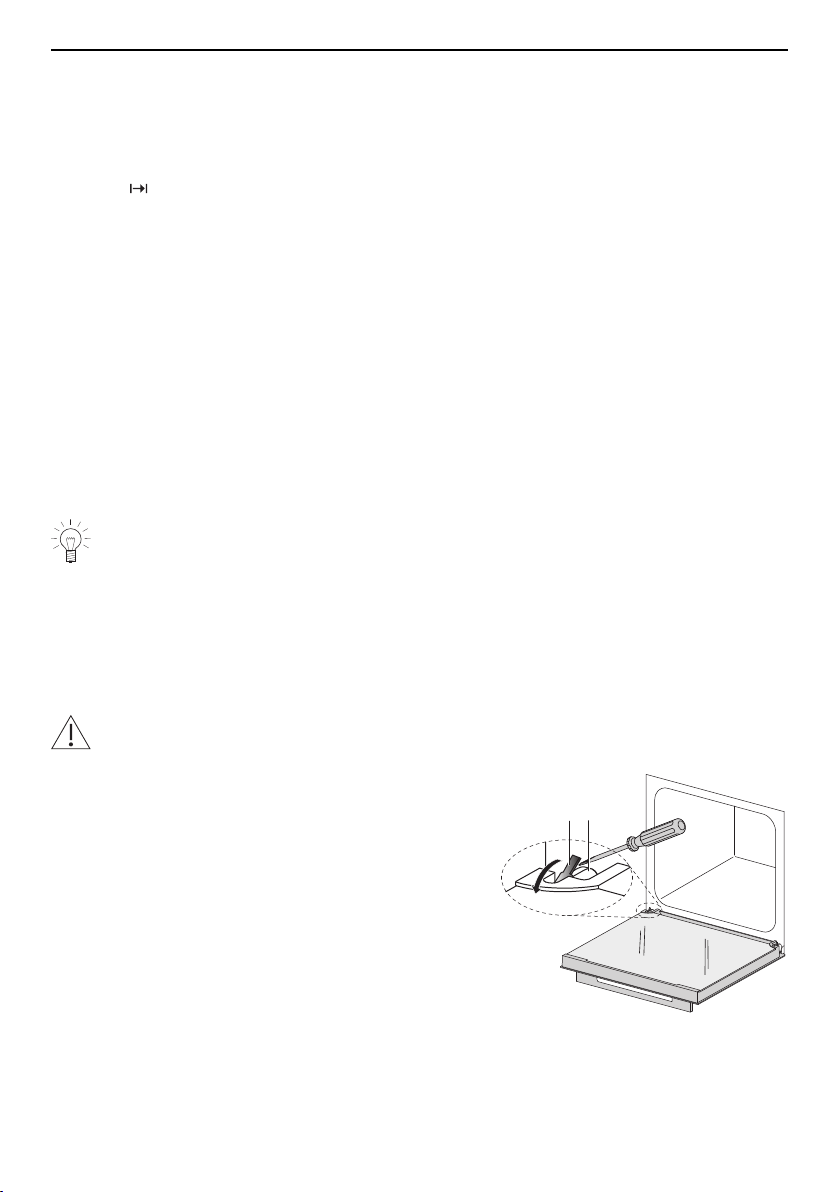
8 Care and maintenance
▸ Touch «Start» to start pyrolytic self-cleaning.
– The appliance door locks.
Delayed start
The start of pyrolytic self-cleaning can be delayed, for example, to take advantage of
lower electricity tariffs.
▸ Select before starting.
▸ Set the desired end time.
▸ Touch «Start».
– The appliance remains switched off and the appliance door locked until the calcu-
lated automatic start.
Cancelling
▸ Touch «Stop» in the display.
– Pyrolytic self-cleaning is cancelled.
– The following appears in the display: «Residual heat in the appliance».
– The appliance door remains locked until the temperature drops below 300°C.
End
The appliance door cannot be opened until the temperature has dropped below 300°C.
▸ Wait until the appliance has cooled to hand warm to remove any residue left behind
using a soft cloth dampened with water. Do not use cleaning agents.
At the front of the cooking space is the door seal. It is susceptible to abrasion and
damage from scouring. The door seal therefore requires gentle cleaning.
8.5 Cleaning the appliance door
▸ Clean the appliance door with a soft cloth dampened with water and a little washing-
up liquid.
▸ Dry with a soft cloth.
Removing the appliance door
The appliance door is heavy. When removing and reinstalling the appliance door,
hold it at the sides firmly with both hands.
▸ Open the appliance door as far as it will go.
▸ Fold the clips 2 on both door hinges 1 forward.
2 1
48
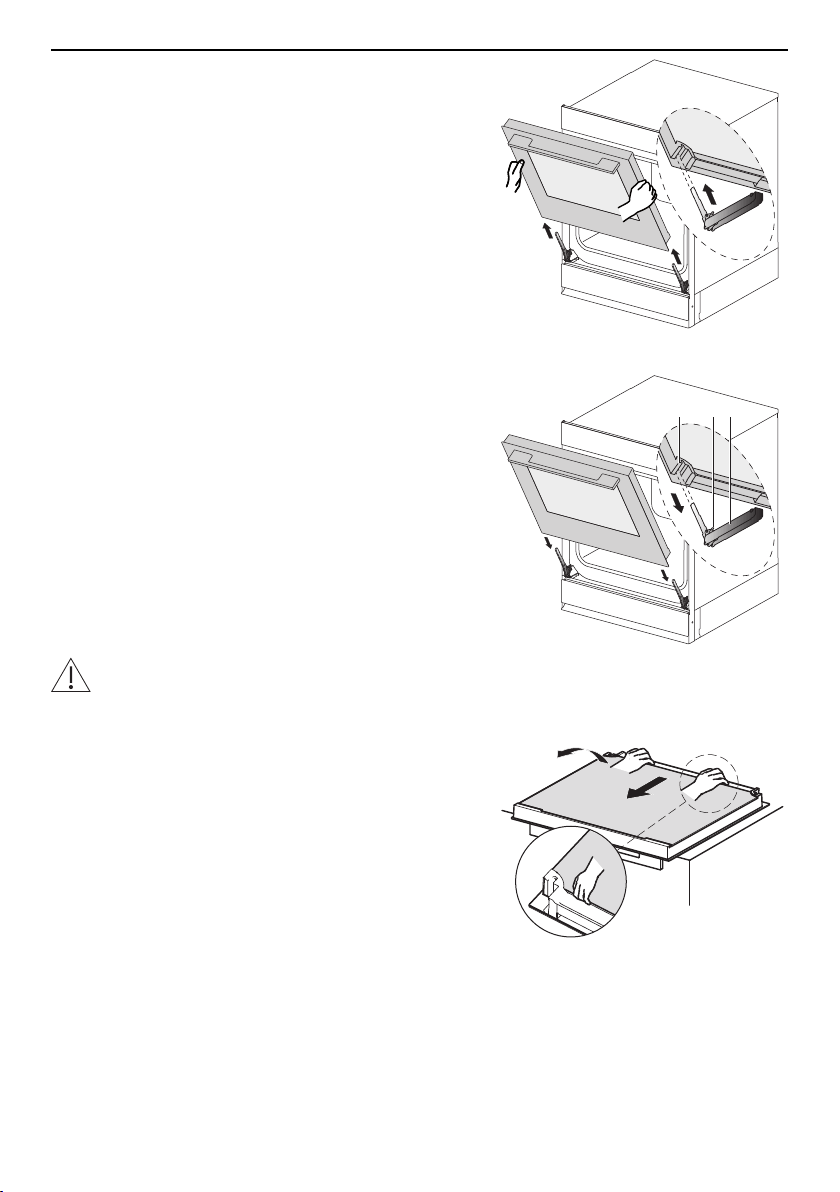
8 Care and maintenance
▸ Close the appliance door as far as its airing
position (about 30°).
▸ Lift the appliance door out evenly and at an
angle.
Reinstalling the appliance door
▸ Push the appliance door 3 evenly into both
hinges 1 as far as it will go.
▸ Open the appliance door as far as it will go
and fold back the clips 2.
– If the appliance door will not close properly,
check the clips 2.
– Do not force the appliance door closed.
3 12
Ensure that the appliance door is pushed in as far as it will go otherwise the appli-
ance could get damaged when it is closed.
Cleaning the door glass
▸ Lay the appliance door on a clean, flat surface
(covered e.g. with a tea towel) with the handle
facing down.
– Make sure the handle does not come into
contact with the surface.
▸ Lean against the appliance door.
▸ Carefully push the glass 1and raise it slightly
up and away from the hinges.
1
49
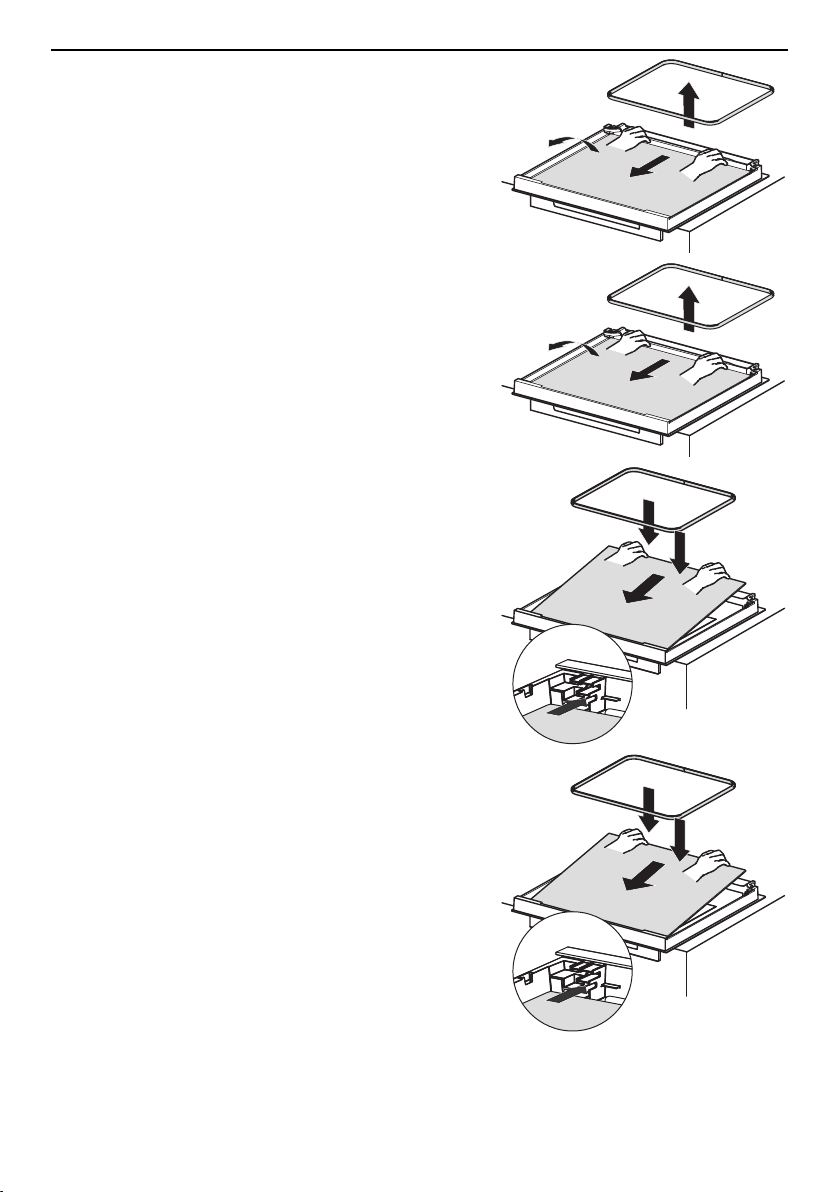
8 Care and maintenance
▸ Remove the seal 2.
▸ Gently push the door glass 3 and raise it
slightly up and away from the hinges.
2
3
Applies to pyrolytic appliances:
▸ Remove the seal 4.
▸ Gently push the door glass 5 and raise it
slightly up and away from the hinges.
▸ Clean the glass panels and dry well.
4
5
▸ Put the door glass 5 back in. To do this, insert
the door glass 5 into the door frame and gently
push it back towards the hinges.
– The markings on the glass must be legible.
▸ Fit the seal 4.
4
5
Applies to all appliances:
▸ Put the door glass 3 back in. To do this, insert
the door glass 3 into the door frame and gently
push it back towards the hinges.
– The markings on the glass must be legible.
▸ Fit the seal 2.
2
3
50

8 Care and maintenance
▸ Insert the door glass 1 into the door frame and
gently push it back towards the hinges.
– The door glass 1 can only be put back if po-
sitioned correctly with the shiny surface on
the outside.
1
8.6 Cleaning the door seal
▸ Clean the door seal with a soft cloth dampened with water, but do not use any clean-
ing agent.
▸ Dry with a soft cloth.
The door seal in appliances with a pyrolysis function is impregnated with graphite,
which can transfer off onto the cloth when being cleaned.
8.7 Replacing the door seal
We generally recommend the door seal be replaced by our service staff. However, you
can also replace the door seal of your appliance yourself.
We accept no liability for any damage caused by the door seal not having been fitted
properly.
Removing the door seal
▸ In each of the four corners, turn the seal out-
wards by about 30° and carefully pull the clip
out of the slot.
▸ When all four clips have been released, re-
move the seal.
▸ Clean the groove in the appliance with a damp
cloth.
1.
2.
3.
4.
X
51
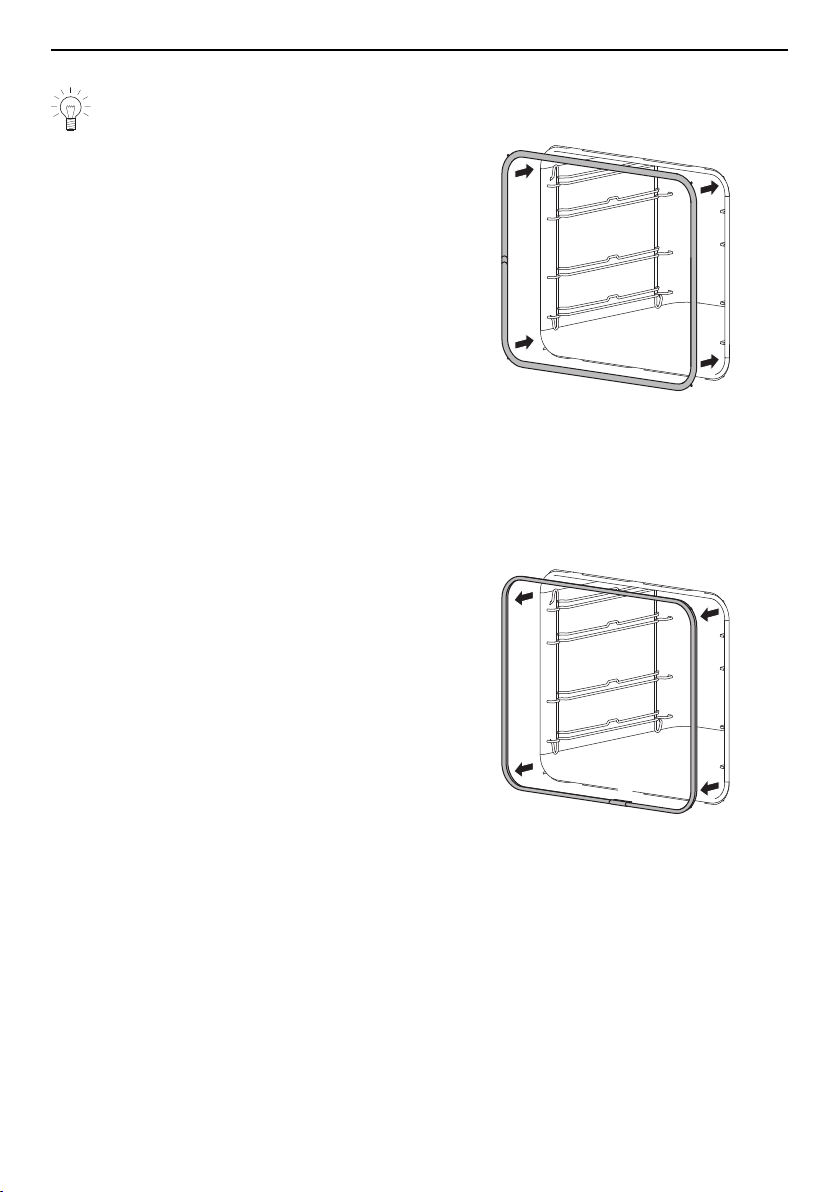
8 Care and maintenance
Fitting the door seal
The joint and vent hole X must be at the left in the middle.
▸ Fit the seal starting in one of the corners at the
top.
▸ Insert the clip from the outside to the inside at
a 30° angle into the slot. Once the seal is fitted
at the top, insert the bottom two clips.
▸ Press the door seal into the groove all around,
i.e. at the top, bottom, left and right.
1.
2.
3.
4.
X
8.8 Replacing the door seal (in pyrolytic appliances)
We generally recommend the door seal be replaced by our service staff. However, you
can also replace the door seal of your appliance yourself.
We accept no liability for any damage caused by the door seal not having been fitted
properly.
Removing the door seal
▸ In each of the four corners, turn the seal out-
wards by about 30° and carefully pull the clip
out of the slot.
▸ When all four clips have been released, re-
move the seal.
▸ Clean the groove in the appliance with a damp
cloth.
1.
2.
3.
4.
X
52
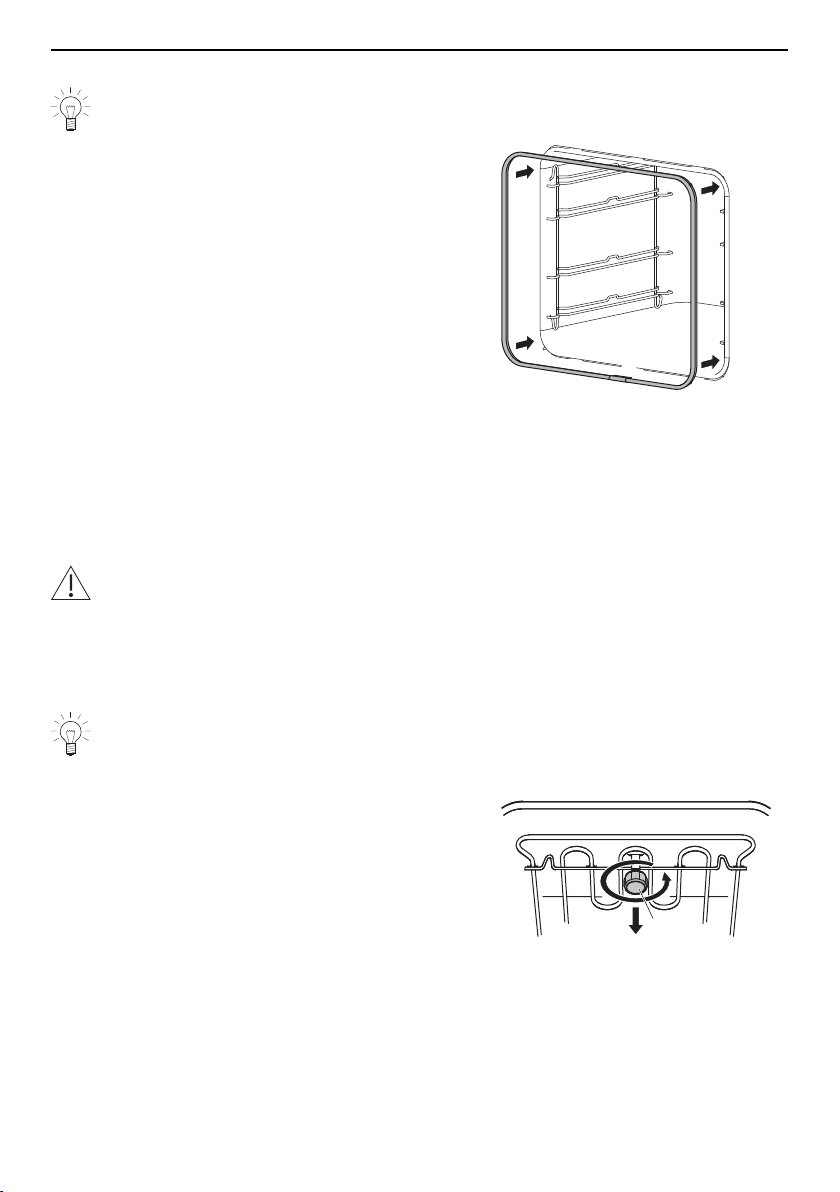
8 Care and maintenance
Fitting the door seal
The joint X must be at the bottom in the middle.
▸ Fit the seal starting in one of the corners at the
top.
▸ Insert the clip so that it hooks into the outer
slot.
▸ Once the seal is fitted at the top, insert the bot-
tom two clips.
▸ Lightly press the seal into the groove all
around, i.e. along the top, bottom, left and
right.
1.
2.
3.
4.
X
Checking the seal is seated properly
All four clips must be hooked in.
▸ If not, remove the seal and put the corner hooks in again.
▸ Lightly press the seal into the groove all around, i.e. along the top, bottom, left and
right.
8.9 Replacing the halogen light bulb
WARNING: Risk of electric shock!
Disconnect the appliance from the mains power supply before replacing the halo-
gen light bulb.
Risk of burns from hot surfaces!
Allow the halogen light bulb and the appliance to cool down before replacing the
halogen light bulb.
Do not touch the halogen light bulb with bare hands. Instead, use a fine, dry,
grease-free cloth.
Overhead illumination
▸ Carefully unscrew the glass light cover 1 anti-
clockwise and remove.
▸ Take out the faulty halogen light bulb.
▸ Carefully plug the new halogen light bulb into
the socket – halogen type G9 / 25W / 230V.
▸ Turning clockwise, screw the glass light cover
back in place.
▸ Reconnect the power supply.
1
53
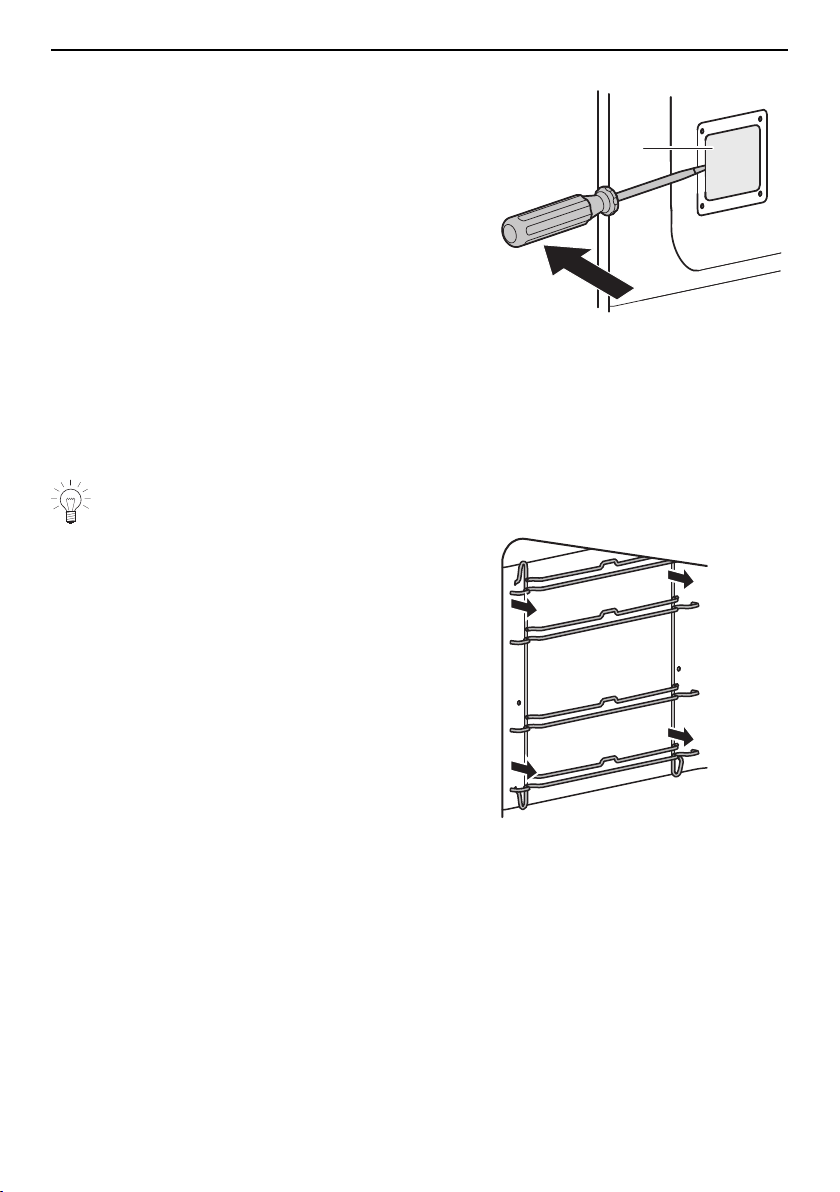
8 Care and maintenance
Lateral illumination
▸ Remove the left shelf guide.
▸ Place the screwdriver along the middle of the
edge of the glass light cover and carefully re-
move the glass light cover 2 from its fixture.
▸ Take out the faulty halogen light bulb.
▸ Carefully plug the new halogen light bulb into
the socket – halogen type G9 / 25W / 230V.
▸ Press the glass light cover 2 back into its fix-
ture.
▸ Put the shelf guide back.
▸ Reconnect the power supply.
2
8.10 Cleaning the accessories and shelf guides
▪ The wire shelf and shelf guides can be cleaned in the dishwasher.
▪ The baking tray can be cleaned in the dishwasher; however, this will affect its non-
stick properties.
Removing and putting back the shelf guides
When inserting the shelf guides take care not to damage the enamel.
▸ Swing the shelf guide at the front into the
middle of the cooking space.
▸ Take the shelf guide out of the opening at the
back.
▸ Put back in reverse order.
54

9 Trouble-shooting
9 Trouble-shooting
You may be able to trouble-shoot the following malfunctions yourself. If not, note down
the error message in full (message, F and E numbers) and call Customer Services.
9.1 Error messages
Message Possible cause Solution
▪ «FX/EXX» ▪ Various situations can
lead to an error mes-
sage.
▸ Acknowledge the error message by
touching «OK».
▸ Switch the power supply off for about
1 minute.
▸ Switch the power supply back on.
▸ If the error appears again, note down
the error message in full along with
the serial number (SN) of the appli-
ance (see page 58).
▸ Disconnect from the power supply.
▸ Contact Customer Services.
▪ «UX/EXX» ▪ Disruption in the
power supply.
▸ Acknowledge the error message by
touching «OK».
▸ Switch the power supply off for about
1 minute.
▸ Switch the power supply back on.
▸ If the error appears again, note down
the error message in full along with
the serial number (SN) of the appli-
ance (see page 58).
▸ Disconnect from the power supply.
▸ Contact Customer Services.
▪ «A1/E24» ▪ Temperature must
drop below 300°C
▸ Allow the appliance to cool down.
▸ Acknowledge the error message by
touching «OK».
– Appliance is ready for operation
again.
▪ «A1/E69» in
pyrolytic appli-
ances
▪ Door status detection
failed.
▸ Push in the door status detection
device next to the locking hook and
keep it pressed.
– The following appears in the dis-
play: «OK».
▸ Press «OK».
▸ Push in the lever of the door status
detection device for 15seconds. Dur-
ing these 15 seconds, the locking
hook will move.
55

9 Trouble-shooting
9.2 Other possible problems
Problem Possible cause Solution
▪ Appliance is
not working
▪ A household fuse or
circuit breaker has
tripped.
▸ Change the fuse.
▸ Reset the circuit breaker.
▪ The fuse or circuit
breaker keeps blow-
ing.
▸ Contact Customer Services.
▪ Interruption in the
power supply.
▸ Check the power supply.
▪ Demo mode is
switched on.
The demo mode can only be switched
off with the security code.
▸ Contact Customer Services.
▪ Appliance is faulty. ▸ Contact Customer Services.
▪ Appliance door
does not open
automatically
(depending on
model)
▪ Power failure ▸ Appliance door can be opened
manually.
▪ Appliance is faulty. ▸ Contact Customer Services.
▪ Illumination is
not working
▪ Halogen light is de-
fective.
▸ Switch off the oven.
▸ Disconnect the appliance from the
electricity supply.
▸ Replace the halogen light bulb.
▪ Cooking time
seems longer
than usual
▪ Appliance only has a
one-phase connec-
tion.
▸ Connect appliance with a two-phase
connection.
▪ Thick smoke is
given off when
grilling
▪ The food is too near
to the heating ele-
ments.
▸ Check that the level selected is as re-
commended in «EasyCook».
▪ Grill setting is too
high.
▸ Reduce grill setting.
▪ The appliance
makes noises
during opera-
tion
▪ Appliance can make
noises at any time
during operation (e.g.
switching, pumping
and fan noises).
Such noise is normal.
56
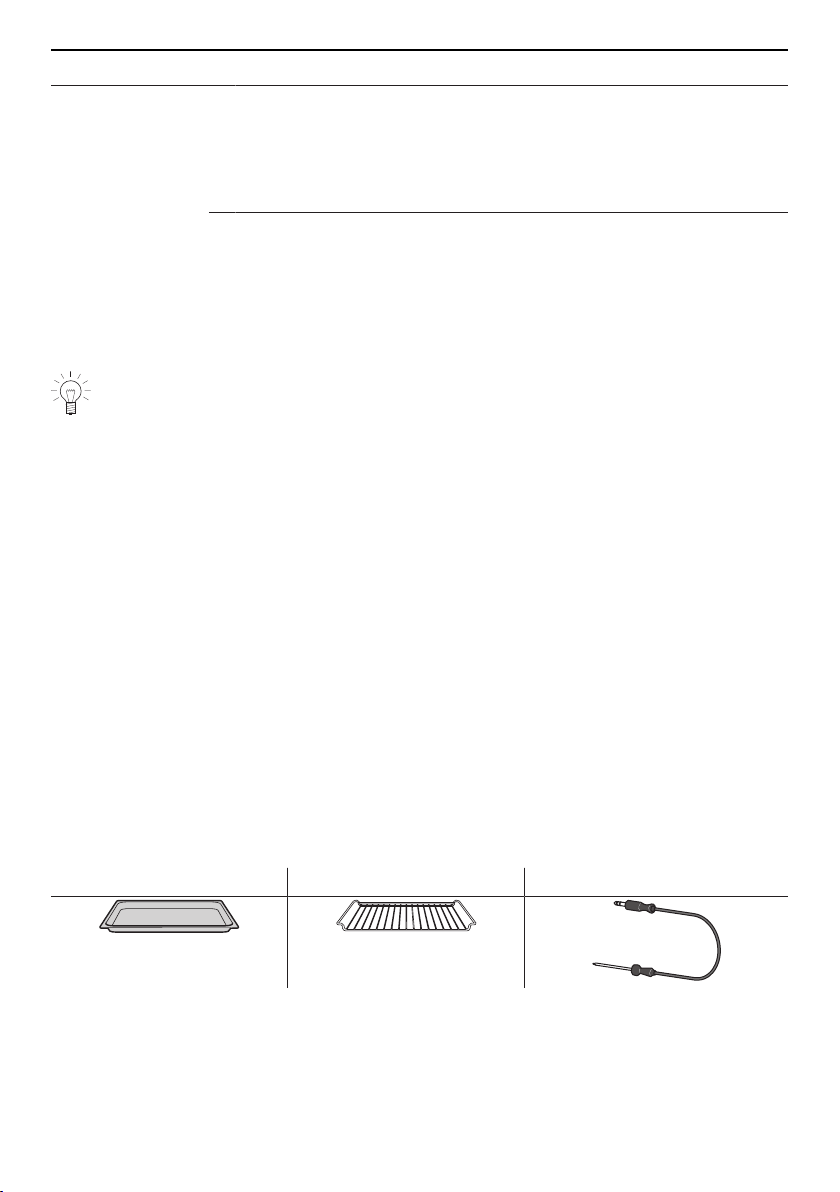
10 Accessories and spare parts
Problem Possible cause Solution
▪ Clock is not
running cor-
rectly
▪ Irregular mains fre-
quency
▸ Turn off the mains synchronization.
Or:
▸ Connect the appliance to the internet.
▸ The time is automatically synchron-
ized.
▪ Internal pulse gener-
ator is imprecise
when mains syn-
chronization is turned
off.
▸ Contact Customer Services.
9.3 After a power failure
The user settings remain unchanged.
Brief power failure during operation
– The current operation of the appliance is cancelled.
– The following appears in the display when the appliance is switched on: «Process
was cancelled due to a power failure».
▸ Press «OK» to confirm the message.
– The start screen appears.
Prolonged power failure
The appliance goes through its initial set-up process after a prolonged power failure.
However, only the time and date need to be reset in order to operate the appliance
again. It is not necessary to make any other settings.
10 Accessories and spare parts
The accessories shown below as well as spare parts can be ordered in addition to the
scope of delivery of the appliance. Ordering spare parts is subject to charge, except in
the event of warranty claims. Please give the product family of the appliance and exact
designation of the accessory or spare part when ordering parts.
10.1 Accessories
TopClean baking tray Wire shelf Food probe
10.2 Special accessories
Information at: www.vzug.com
57
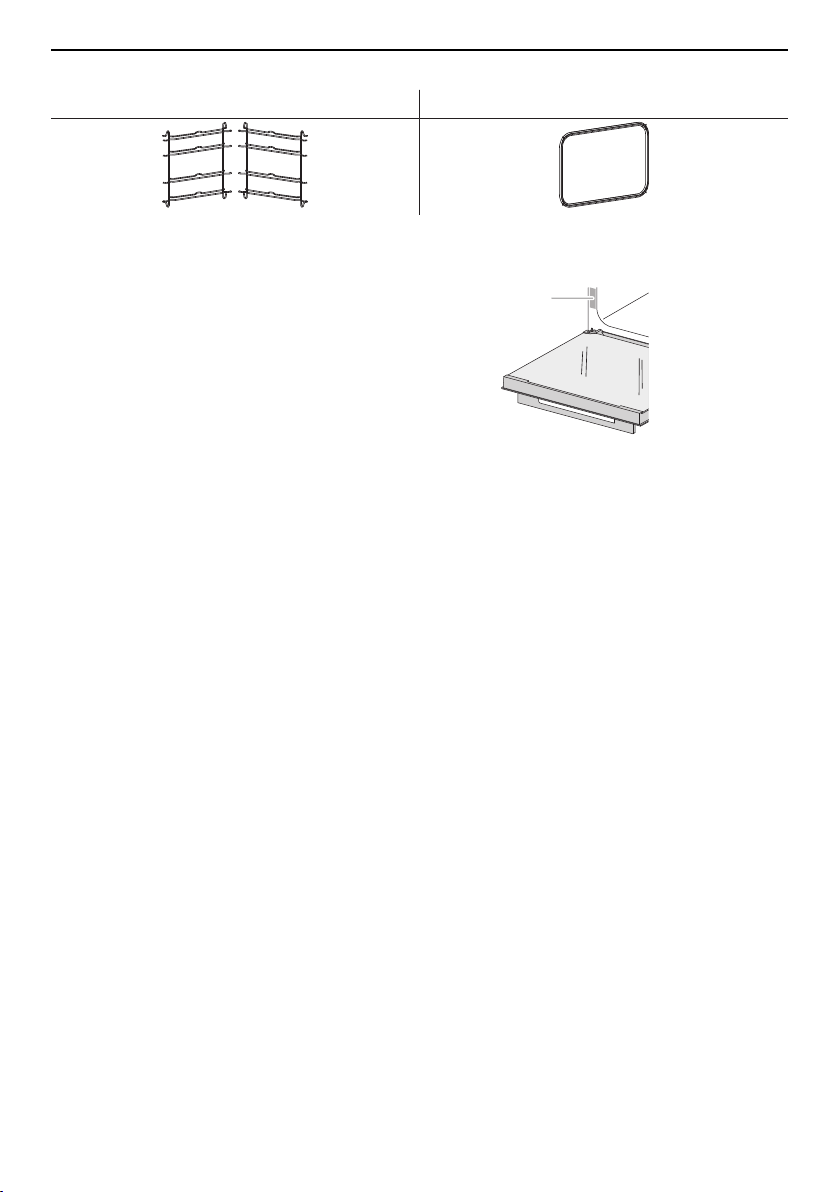
11 Technical data
10.3 Spare parts
Shelf guides, left/right Door seal
11 Technical data
External dimensions
▸ See installation instructions
1
Electrical connection
▸ See identification plate1
11.1 Light sources
This product contains light source of energy efficiency class G.
11.2 Note for testing institutes
Placing thermocouples between the appliance door and the seal can cause lack of leak-
tightness and thus measuring errors.
The usable volume within the meaning of EN 50304 / EN 60350 is obtained with the
shelf guides disassembled.
▪ For appliances with a grill: Keep the appliance door closed while grilling. The heat
could otherwise damage the operating and display elements or the fitted units above.
11.3 Temperature measurement
The temperature inside the cooking space is measured when the cooking space is
empty according to an internationally accepted standard. Own measurements can be im-
precise and are not suitable for checking the accuracy of the temperature.
58

12 Tips and tricks
11.4 Product fiche
In accordance with EU Regulation No.: 66/2014
Brand – V-ZUG Ltd
Type of appliance – Oven
Model designation – C4T | C4T...P
Mass of the appliance kg 36 | 41
Number of cavities – 1
Heat source per cavity – Electricity
Volume per cavity l 69
Energy consumption in conventional mode
1
) kWh/cycle 0.85 | 0.86
Energy consumption in hot air / forced convection
mode
2
)
kWh/cycle 0.79 | 0.8
Energy Efficiency Index per cavity
3
) – 94.1 | 95.3
Measurement and calculation methods used – SN EN
60350-1:2016
1
)
Required to heat a standardized load per cavity
2
)
Required to heat a standardized load per cavity
3
)
Measurement methods: see EU Regulation No. 66/2014, Annex II, Chpt. 1
11.5 EcoStandby
To prevent unnecessary energy consumption, the appliance is equipped with the auto-
matic energy-saving «EcoStandby» function.
12 Tips and tricks
12.1 Unsatisfactory cooking result...
… for Soft roasting
Result Solution
▪ The meat is tough. ▸ Extend the cooking time.
▸ For very lean joints of meat, shorten the cooking time.
▸ Do not use meat that is too aged.
… for baking and roasting
Result Solution
▪ The baking or roast
looks good on the
outside but is still
doughy or raw on the
inside.
▸ Next time, set a lower temperature and lengthen the operat-
ing time.
59

12 Tips and tricks
Result Solution
▪ The cake collapses. ▸ Check that the settings used correspond to those recom-
mended in «EasyCook».
▸ Next time, set a lower temperature and lengthen the operat-
ing time.
▸ Stir the cake mixture well. When finished, bake immediately.
▸ For whisked sponges, beat the egg yolks/whites to a foam
a little longer and then carefully fold into the mixture. When
finished, bake immediately.
▸ Follow the instructions on how much baking powder to add.
Result Solution
▪ The baking has
browned unevenly.
▸ Next time, set a lower temperature and adjust the operating
time.
▸ If using , and , check that the levels used corres-
pond to those recommended in «EasyCook».
▸ Do not push baking tins or bulky foodstuff right to the back
of the cooking space.
▪ The baking has come
out lighter on one
baking tray than on
the other.
▸ Check that the settings used correspond to those recom-
mended in «EasyCook».
Some uneven browning is normal. More even browning is generally achieved at
lower temperatures.
12.2 Saving energy
The «Hot air humid» and especially the «Hot air eco» applications consume less
energy than the «Hot air» application. Applications with «Top/bottom heat» con-
sume the same.
▸ Avoid opening the appliance door frequently.
▸ Only switch the illumination on when needed.
▸ Use residual heat: for cooking times over 30 minutes, switch the appliance off 5–10
minutes before the end of the operating time.
▸ Only preheat the cooking space if the cooking or baking results depend on it.
▸ Minimize preheating.
Power consumption can be reduced to a minimum by selecting «Hide time» in the
user settings. Despite EcoStandby, the safety functions remain active.
60

13 Disposal
13 Disposal
13.1 Packaging
Never allow children to play with packaging material due to the danger of injury or
suffocation. Store the packaging material in a safe location or dispose of it in an
environmentally-friendly way.
13.2 Safety
Render the appliance unusable to prevent accidents caused by improper use (e.g.
through children playing):
▸ Disconnect the appliance from the mains. With a fixed appliance, this is to be carried
out by a qualified electrician. Then cut the mains cable off flush with the appliance.
13.3 Disposal
▪ The «crossed‐out wheeled bin» symbol requires the separate collection of waste
electrical and electronic equipment (WEEE). Such equipment can contain hazardous,
environmentally harmful materials.
▪ These appliances are to be handed over to a designated collection point for the recyc-
ling of electrical and electronic equipment and must not be disposed of with unsorted
household waste. And in this way, you will be helping to protect resources and the en-
vironment.
▪ For more information, please contact the local authorities.
61

Addresses of the importers
Addresses of the importers
AU/
NZ
V-ZUG Australia Pty. Ltd.
2/796 High Street
Kew East 3102, VIC
AUSTRALIA
IL
Digital Kitchen
Hataarucha 3
6350903 Tel Aviv
ISRAEL
CN
V-ZUG (Shanghai)
Domestic Appliance Co. Ltd.
Raffles City Changning Office
Tower 3
No. 1139 Changning Road
200051 Shanghai
CHINA
LB
Kitchen Avenue SAL
Mirna El Chalouhi Highway
Wakim Bldg, Jdeiheh
Beirut
LEBANON
AT/
BE/
DE/
FR/
NL/LU
V-ZUG Europe BVBA
Evolis 102
8530 Harelbeke
BELGIUM
RU
OOO Hometek
Dubininskaya Street 57 building 1
113054 Moscow
RUSSIA
GB/IE
V-ZUG UK Ltd.
One Pancras Square
Gridiron Building
N1C 4G London
GREAT BRITAIN
SG
V-ZUG Singapore Pte. Ltd.
6 Scotts Road
Scotts Square #03-11/12/13
228209 Singapore
SINGAPORE
HK/
MO
V-ZUG Hong Kong Co. Ltd.
12/F, 8 Russell Street
Causeway Bay
HONG KONG
TR
GÜRELLER
Anchor Sit.3A/1-2 Çayyolu
06690 ÇANKAYA/ANKARA
TURKEY
IT
Frigo 2000 S.p.A
Viale Fulvio Testi 125
20092 Cinisello Balsamo (Milano)
ITALY
UA
Private enterprise "Stirion" (MIRS
corp.)
Osipova Street 37
65012 Odessa
UKRAINE
62

14 Index
3-point food probe........................................... 13
A
Accessories ............................................... 12, 57
Addresses of the importers ........................... 62
App
Moving ........................................................... 14
App view............................................................ 10
Appliance
Disposal......................................................... 61
Switching off ................................................. 29
Switching on ................................................. 14
Appliance description ..................................... 10
Appliance door
Reinstalling.................................................... 49
Removing ...................................................... 48
Appliance information
Contacting Customer Services ................. 45
Demo mode.................................................. 45
Identification numbers ................................ 45
Version numbers.......................................... 45
Appliance tips................................................... 29
Calling up ...................................................... 29
Application ........................................................ 15
Changing....................................................... 17
Selecting........................................................ 15
Starting........................................................... 16
Application group
Selecting........................................................ 15
Application tips................................................. 22
Hiding............................................................. 22
Showing......................................................... 22
Applications ...................................................... 30
Assistance functions ....................................... 44
Illumination.................................................... 44
Preheat tone ................................................. 44
B
Baking tray ........................................................ 12
Bottom heat ...................................................... 31
C
Cancelling
Recipes.......................................................... 40
Cancelling an application............................... 26
Care and maintenance ................................... 46
CircleSlider
Reaction ........................................................ 16
Using.............................................................. 15
Cleaning
Accessories .................................................. 54
Appliance door............................................. 48
Baking tray.................................................... 47
Cooking space............................................. 47
Door glass..................................................... 49
Door seal....................................................... 51
Shelf guides.................................................. 54
Cleaning the exterior ....................................... 46
Clock .................................................................. 26
Hiding............................................................. 26
Hiding during operation.............................. 18
Showing......................................................... 26
Showing during operation.......................... 17
Clock design..................................................... 45
Construction...................................................... 10
Cooking space ................................................. 12
Temperature measurement ....................... 58
Cuisines from around the world.................... 41
D
Date and time
Clock.............................................................. 45
Clock synchronization................................. 45
Date................................................................ 45
Date and time format .................................. 45
Night mode ................................................... 45
Time in standby............................................ 45
Time synchronization .................................. 44
Delayed start..................................................... 18
Pyrolytic self-cleaning ................................. 48
Setting............................................................ 18
Dietary styles .................................................... 41
Display
Background .................................................. 43
Brightness ..................................................... 43
Colour scheme............................................. 43
Operating ...................................................... 14
Display lock....................................................... 25
Turning off ..................................................... 25
Turning on..................................................... 25
Disposal............................................................. 61
Door seal
Checking ....................................................... 53
Fitting ...................................................... 52, 53
Removing ............................................... 51, 52
Replacing ............................................... 51, 52
E
EasyCook .......................................................... 40
Food groups ................................................. 40
EcoManagement
Consumption indicator ............................... 46
Consumption information........................... 46
Resetting ....................................................... 46
63

EcoStandby....................................................... 59
Electrical connection ....................................... 58
End ..................................................................... 18
End of operation .............................................. 27
Ending an application before time ............... 27
External dimensions ........................................ 58
F
F and E messages .......................................... 55
Factory settings................................................ 46
Favourites...................................................... 46
Pinned values ............................................... 46
Start screen................................................... 46
V-ZUG-Home................................................. 46
Favourites.......................................................... 22
Changing....................................................... 23
Creating ......................................................... 22
Deleting ......................................................... 23
Starting........................................................... 23
Food probe ................................................ 19, 57
Food probe temperature ................................ 19
Measuring only............................................. 19
Setting............................................................ 19
Function bar...................................................... 11
Function buttons .............................................. 11
Expanding ..................................................... 15
G
Grill ..................................................................... 32
Grill-forced convection .................................... 32
H
Halogen light bulb
Replacing ...................................................... 53
Hot air ................................................................ 32
Hot air eco ........................................................ 33
Hot air humid .................................................... 33
I
Identification plate............................................ 58
Illumination ................................................. 25, 56
Switching off ................................................. 25
Switching on ................................................. 25
Individual settings
EasyCook – cuisines from around the world
........................................................................ 44
EasyCook – dietary style ........................... 44
Sabbath mode.............................................. 44
Start screen................................................... 44
Temperature unit.......................................... 44
K
Keep warm........................................................ 38
L
Lateral illumination........................................... 54
Levels ................................................................. 12
List view ............................................................. 10
Long cooking time........................................... 56
M
Malfunctions...................................................... 55
Model designation .............................................. 2
O
Operating and display elements................... 10
Operating time.................................................. 17
Setting............................................................ 17
Operation........................................................... 14
Options .............................................................. 20
Selecting........................................................ 20
Starting........................................................... 20
Other possible problems................................ 56
Overhead illumination ..................................... 53
P
Pinning ............................................................... 23
Main value..................................................... 24
Resetting a main value............................... 24
PizzaPlus ........................................................... 31
Power failure ..................................................... 57
Power interruption............................................ 57
Preheating ......................................................... 21
Turning on..................................................... 21
Problems ........................................................... 55
Product fiche..................................................... 59
Pyrolytic self-cleaning...................................... 47
Cancelling ..................................................... 48
Starting........................................................... 47
Q
Quick information
Displaying...................................................... 14
Quick instructions ............................................ 68
Quiet mode ....................................................... 26
Turning off ..................................................... 26
Turning on..................................................... 26
R
Ready to start ................................................... 11
Recipe book ..................................................... 39
Recipes.............................................................. 39
Action required............................................. 40
Cancelling ..................................................... 40
Starting........................................................... 39
S
Sabbath applications ...................................... 34
64

14 Index
Cancelling or ending before time............. 34
How it functions ........................................... 34
Selecting and starting ................................. 34
Sabbath top/bottom heat ............................... 35
Sabbath top/bottom heat humid................... 35
Safety precautions
Appliance-specific ..........................................5
Before using for the first time.......................6
Burns hazard ...................................................7
Correct use ......................................................7
How to avoid damaging the appliance
...........................................................................8
Instructions for use.........................................6
Note on use .....................................................7
Risk of injury ....................................................8
Risk to life ........................................................8
Safety warnings
General .............................................................5
Saving energy................................................... 60
Service & Support............................................ 67
Setting options.................................................. 11
Setting range .................................................... 17
Settings
Changing....................................................... 20
Checking ....................................................... 20
Shelf guides
Removing ...................................................... 54
Signals and tones
Acoustic signals........................................... 44
Feedback tones ........................................... 44
Quiet mode ................................................... 43
Sound worlds ............................................... 43
Smartphone
System requirements .................................. 42
Socket ................................................................ 12
Soft roasting............................................... 36, 59
Cancelling or switching off before time... 38
How it functions ........................................... 36
Seared ........................................................... 37
Selecting and starting ................................. 37
Soft roasting table............................................ 36
Spare parts ................................................ 57, 58
Special accessories ................................. 13, 57
Start later ........................................................... 21
Setting............................................................ 21
Starting........................................................... 22
Start screen....................................................... 14
Subsequent steps............................................ 28
Cancelling operation ................................... 29
Continuing operation................................... 28
Symbols ................................................................ 5
T
Tablet
System requirements .................................. 42
Target temperature.......................................... 19
Technical data .................................................. 58
Technical questions......................................... 67
Temperature sensor ........................................ 12
Testing institutes .............................................. 58
Timer .................................................................. 24
Changing....................................................... 24
Checking ....................................................... 24
Setting............................................................ 24
Starting........................................................... 24
Switching off before time ........................... 25
Tips and tricks .................................................. 59
Top/bottom heat .............................................. 30
Top/bottom heat eco ...................................... 30
Top/bottom heat humid.................................. 30
Type....................................................................... 2
U
U and E messages.......................................... 55
Uneven browning............................................. 60
Unsatisfactory cooking results ...................... 59
User settings..................................................... 43
Adjusting........................................................ 43
Appliance information................................. 45
Childproof lock............................................. 43
Customer Services ...................................... 46
Date and time............................................... 44
Display ........................................................... 43
EcoManagement.......................................... 46
Factory settings............................................ 46
Individual settings ........................................ 44
Language ...................................................... 43
Signals and tones........................................ 43
V-ZUG-Home................................................. 45
Using for the first time........................................ 9
V
Validity................................................................... 2
Values
Adjusting........................................................ 16
Saving ............................................................ 16
V-ZUG App........................................................ 42
V-ZUG-Home..................................................... 42
Displaying information ................................ 45
Mode .............................................................. 45
Resetting ....................................................... 45
Restarting interface ..................................... 45
W
Warming plates in the cooking space ......... 38
Warranty extensions ........................................ 67
Wire shelf........................................................... 13
WLAN connection ............................................ 42
65

66
15 Notes

16 Service & Support
The «Trouble-shooting» section gives you valuable tips on how to deal with minor
malfunctions yourself, saving you the time and trouble of calling out a service tech-
nician and any cost that goes along with it.
Information on the V-ZUG warranty can be found at www.vzug.com →Service
→Warranty information. Please read this information carefully.
Please register your appliance straightaway online at www.vzug.com →Service
→Warranty registration. This will allow you to take advantage of the best possible support
in the event of a fault in the appliance during the guarantee period. You will require the
serial number (SN) and appliance designation to register your appliance. You will find
them on the identification plate of your appliance.
My appliance information:
SN: __________________________ Appliance: ________________________________
Please have this appliance information to hand when contacting V-ZUG. Thank you.
▸ Open the appliance door.
– The identification plate is located on the left-side panel.
Your repair order
At www.vzug.com →Service→Service number you will find the telephone number of your
nearest V‑ZUG service centre.
Technical questions, accessories, warranty extensions
V-ZUG is happy to help you with any general administrative or technical queries, to take
your orders for accessories and spare parts and to inform you about our progressive
service agreements.
67
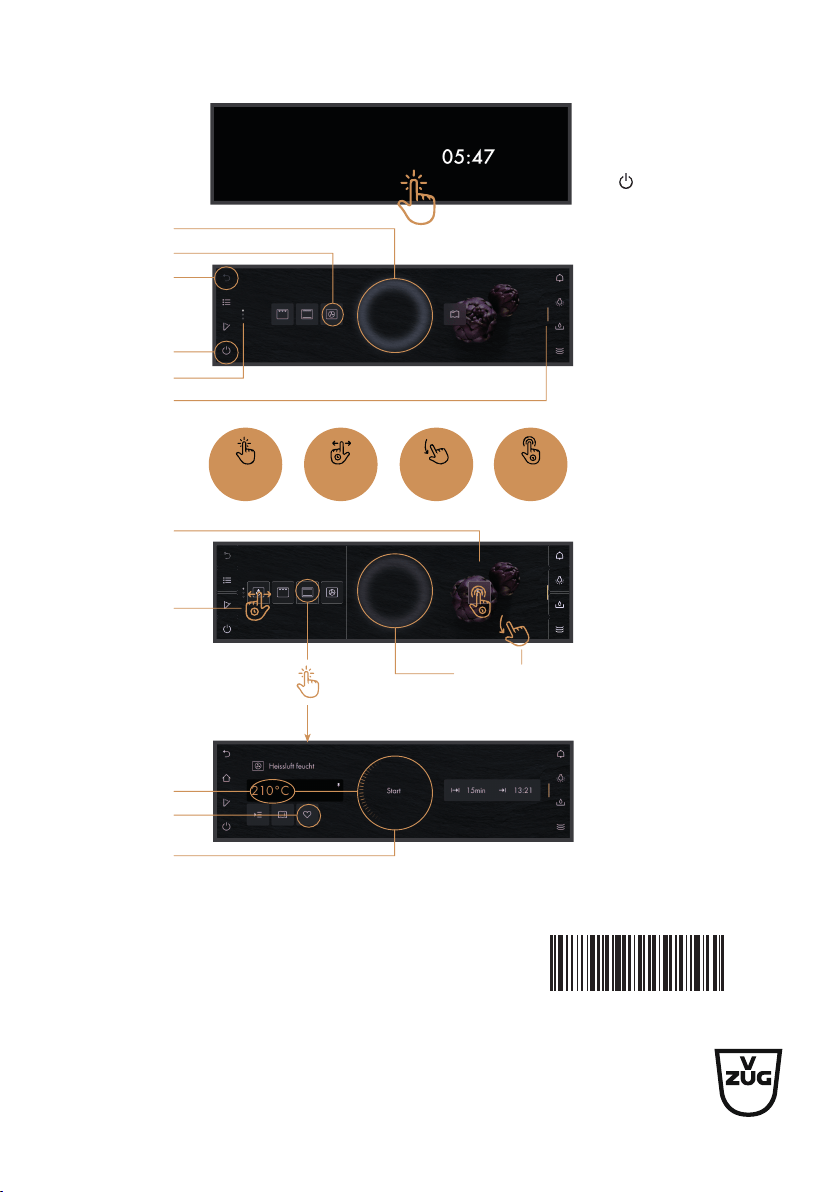
Quick instructions
CircleSlider
Apps
Change view
Off button
Page overview
Expandable
function bar
Page change
Touch
Hold and
move
Swipe Press and
hold
Move app
Quick
information
Temperature
The temperature
can be set using
the CircleSlider.
Adjustable value
On/Off
Touch the display to
switch the appliance on.
Long press and hold
the function button to
switch the appliance off.
Operation
The appliance is operated
using the display. Place your
finger on the CircleSlider
and move it in a circle.
Favourite
V-ZUG Ltd, Industriestrasse 66, CH-6302 Zug
[email protected], www.vzug.com
1094194-05