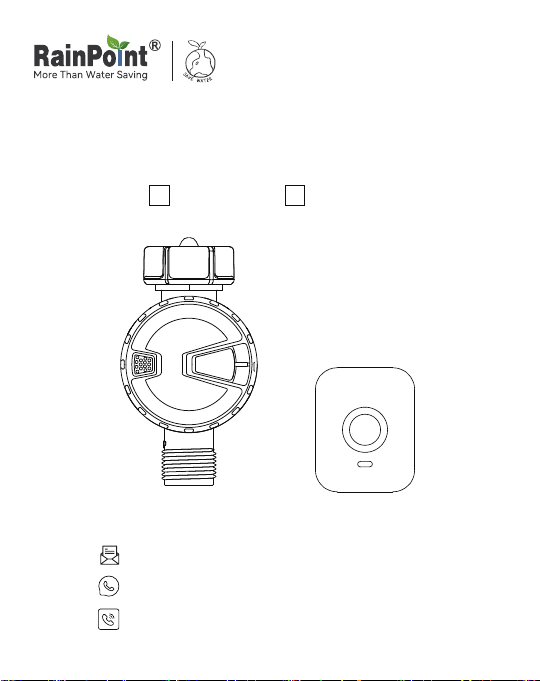
USER MANUAL
English Español
Email: seice@rainpointus.com
WhatsApp: +1 626-780-5952
US: 1-833-381-5659 (EN)
EU: +44 800-808-5337 (EN DE)
Model: TTV102B+TWG009BW
WARM TIPS PLEASE READ
BEFORE USING
Don’t use the water timer when the temperature is
below 37°F(3°C), and please store the timer indoors
to avoid potential freezing damage.
The lter traps di paicles, preventing them from
entering the timer and causing clogging. Please clean
the lter regularly and replace it if worn.
To ensure a longer lifespan, please use 3 new AAA alkaline
batteries (not included). Don’t mix new and old alkaline,
standard (carbon-zinc), or rechargeable batteries.
Only use with clean cold water.
Please activate the water timer before rst use or after a
period of inactivity (Refer to page 6: ACTIVATE THE TIMER
BEFORE USE).
FOR ANY PROBLEMS DURING USE, PLEASE GET
SUPPORT FROM US:
Web: www.rainpointonline.com
Email: se[email protected]
WhatsApp: +1 626-780-5952
US Free Hotline(English):
+1 833-381-5659(MON-FRI 9:30 AM-5:30 PM PST)
UK Free Hotline(English Deutsch):
+44 800-808-5337(MON-FRI 9:00 AM-5:00 PM CET)

CONTENTS
INTRODUCTION
CONTENTS IN THE BOX
PRODUCT OVERVIEW
PRODUCE SPECIFICATIONS
INSTALLATION
1. INSTALL APP ON YOUR PHONE
2. PAIR THE IRRIGATION GATEWAY
3. CONNECT THE BLUETOOTH IRRIGATION TIMER
4. ADD BLUETOOTH IRRIGATION TIMER TO
IRRIGATIONGATEWAY
5. INSTALL THE BLUETOOTH WATER TIMER
6. TEST BEFORE USE
APP PROGRAMMING
APP HOME SCREEN
BLUETOOTH IRRIGATION TIMER
Manual Watering
Manual Irrigation Duration
Manual Rain Delay
How to set the Normal Schedule ?
How to set the Cycle&Soak Schedule ?
SMART AUTOMATION
Automation & Tap-to-Run
Steps To Set Automation Or Tap-To-Run
Home Management
RESET THE DEVICE
TROUBLE SHOOTING
WARNINGS & WARRANTY
FCC NOTICE
CUSTOMER SERVICE
01
01
01
01
02
02
02-05
06-07
08
09
10
11
11
12-13
14
15
16
17
17
18
18
19
20
21
22-24
24
25
26

A B C D
INTRODUCTION
CONTENTS IN THE BOX
A. 1 x TTV102B 1 Zone
Bluetooth Irrigation Timer
B. 1 x TWG009BW
Irrigation Gateway
C. 1 x Instruction Manual
D. 1 x Quick Setup Guide
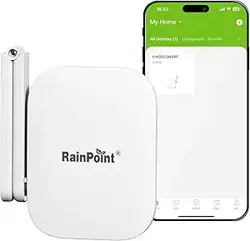
TWG009BW Irrigation Gateway
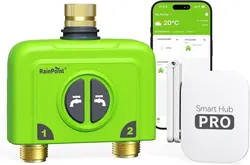
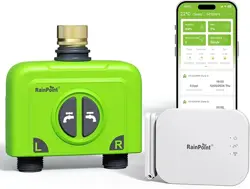
TTV102B Bluetooth Irrigation Timer
Product Oveiew
Min/Max Operating Pressure 0.5bar-8bar (7.25 psi-116.03 psi)
10 Gal/Min (35L/Min)
IP54
Max Flow Rate
Waterproof Rate
37.4℉-122℉(3℃-50℃)
3 AAA (1.5V) alkaline batteries(Excluded)
NH (US) for 3/4"taps
BSP(EU) for 3/4" or 1"taps
Working Temperature
Thread
Power By
Inlet
Outlet
Button
Button
LED Indicator
Light
PRODUCE SPECIFICATIONS
- 01 -

INSTALLATION
1. INSTALL APP ON YOUR PHONE
Rainpoint
2. PAIR THE IRRIGATION GATEWAY
1. Plug your Irrigation Gateway to an indoor power source near your WiFi
router and the outdoor location of your timer
2. Open the RainPoint App and tap ''Add device ''or ''+'' to add a new device.
3. Tap ''Sma Irrigation'' and ''Add Manually''.then select
''Irrigation Gateway ''
1 Download the RainPoint App Search for ''RainPoint'' on Google Play
or App Store or scan the QR code to download the RainPoint APP.
2 Register your RainPoint account Open your RainPoint APP, select Set
Up Follow the prompts to register a RainPoint account withyour
email or mobile number.
- 02 -
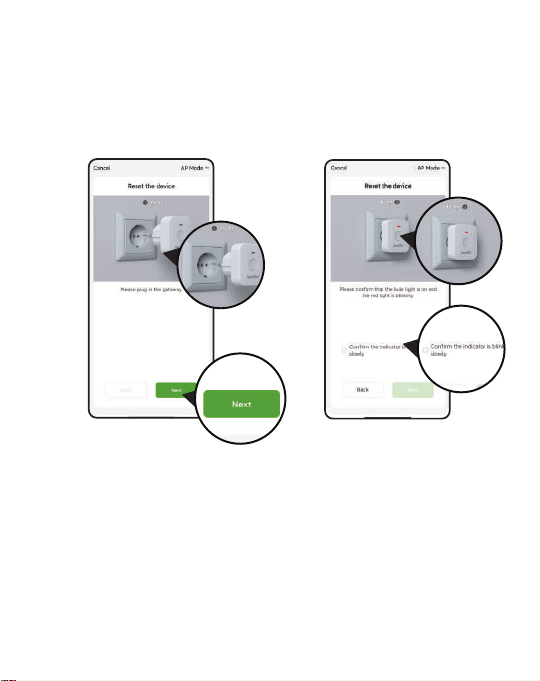
4. Plug the TWG009BW Irrigation Gateway into an outlet near the router
and wait 10 seconds for the device initialization to complete.
Press and hold for 5 seconds until the blue indicator light is always on
and the red indicator light is blinking slowly, Then the APP will search
and pair your Irrigation Gateway automatically.
- 03 -
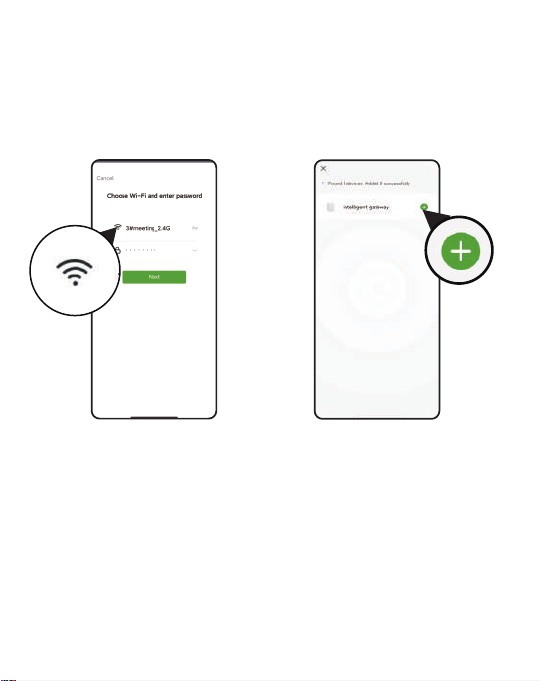
5. Select 2.4Ghz WiFi, and enter the password
Tips: If your router is a dual-band router, and you cannot identify the
2.4Ghz or 5Ghz WiFi, please tap the blue words Common router setting
method to name the 2.4Ghz WiFi dierently, then you can select it
individually.
If you encounter problems during the connection process, please search
@RainPoint on Youtube to watch the operation video, or contact us at
seice@rainpointus.com.
- 04 -
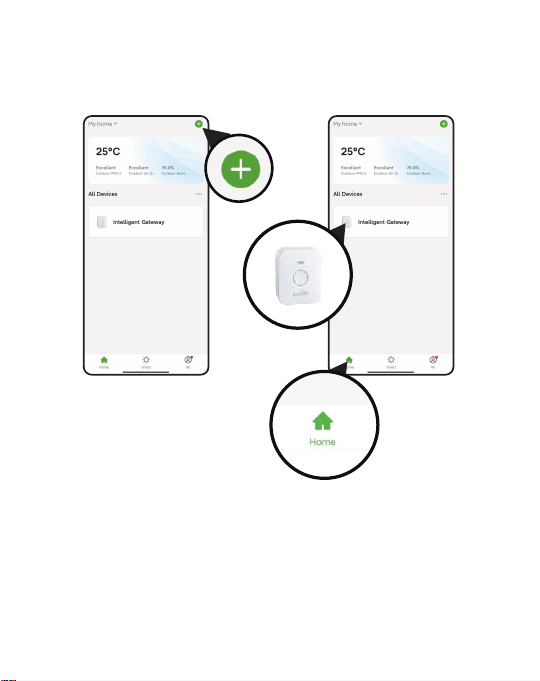
6. After the connection is successful, the color icon of Irrigation Gateway
will be displayed on the APP home screen.
- 05 -
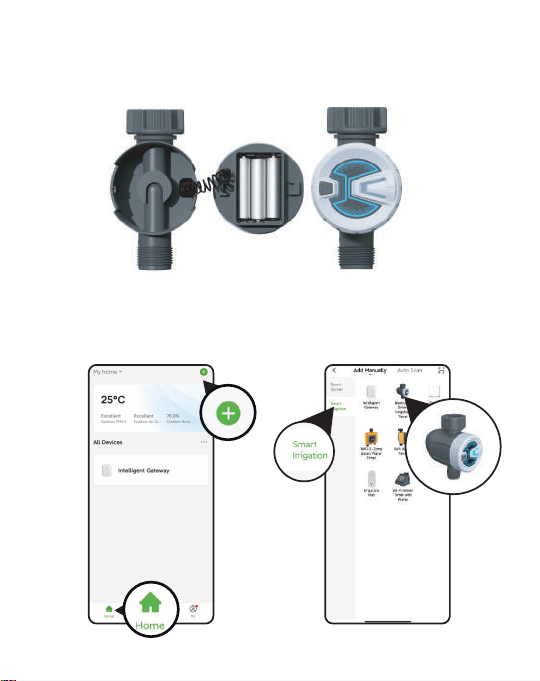
3. CONNECT THE BLUETOOTH IRRIGATION TIMER
1. Inse 3 *AAA alkaline batteries into the batte tray of the timer.
Restore the batte tray and make ceain it is secured.
2. Return to the APP home screen, and tap " + "to add the WiFi timer
3. Tap "Sma Irrigation" and " Add Manually " , then select
" Bluetooth Irrigation Timer "
- 06 -

4. Press and hold the button on the timer until the Blue LED indicator
blink rapidly (2 times per second). Then select "conrm indicator
rapidly blink"and tap Next.
The APP will search and pair your Bluetooth Water Timer automatically.
5. Click " +" on the right side of the device to add the device, and then
click "Done" for nal conrmation after the device is successfully added.
Note:Before adding the water timer, please turn on the Bluetooth for
pairing, and turn o the Bluetooth after the pairing is successful. In
addition, please pay attention to the distance when connecting with
Bluetooth. We recommend that you connect within 1 meter of the
water timer for faster pairing.
- 07 -
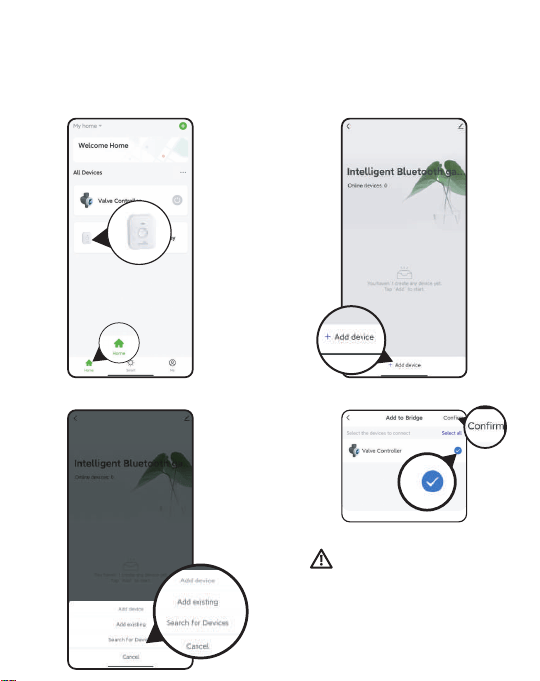
4. ADD BLUETOOTH IRRIGATION TIMER TO
IRRIGATION GATEWAY
1: Go to the home page and
click on the gateway
2: Click on Add Device
4: Select the timer and conrm 3: Select Add existing
When you add the timer
to the Irrigation Gateway
it becomes a remote
controllable timer
- 08 -
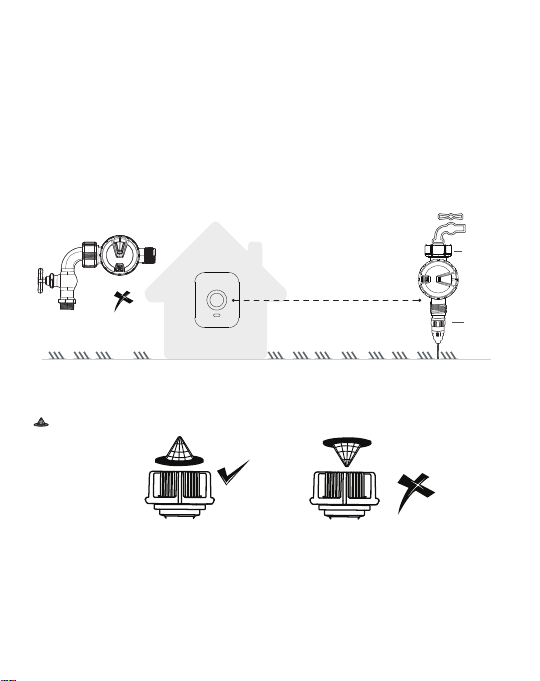
5. INSTALL THE BLUETOOTH WATER TIMER
1) Turn o the garden faucet.
2) Wrap Teon Tape around the faucet threads.
3) Screw the timer to the garden faucet and make the display is as veical
as possible to the ground to prevent rainwater from accumulating and
leaking into the interior.
4) Wrap Teon Tape around the threads of the timer outlets.
5) Screw the garden hoses to the timer outlets.
6) Turn on the faucet after programming the timer.
Tips: If the connection between the timer and the faucet or hose is not
tight or leaking, wrap more Teon Tape(thread seal tape) to make them tight.
Outlet
Inlet
Less than 160 feets
(No bushes, walls blocking)
Please install the lter properly and keep it clean as follows.
Warning
* Please make sure the sma phone is near the Bluetooth water timer
when connecting orsetting the watering plan. The best range for
connection and operation is within 60 meters in the open area. If there
are walls iron gates or bushes blocking, please shoen the distance
betweenthem to better receive the signal.
Please install the lter correctly to achieve better ltering eect.
- 09 -
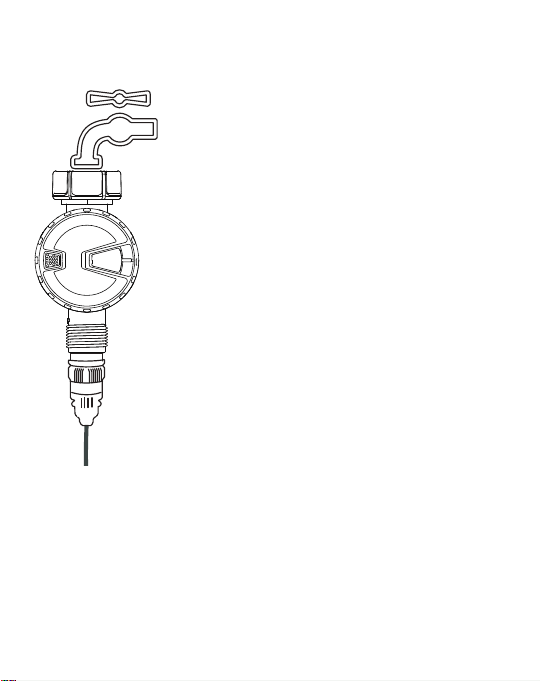
6. TEST BEFORE USE
Note:
When testing, please keep away from the water outlet of the timer to
avoid being splashed and wet.
Congratulations, you have completed the
connectionand installation of the Bluetooth
Irrigation Timer. Please test whether the internal
valve of your water timer is normal before using it.
1. Keep the faucet turned o.
2. Press the button of the timer , with a "click"
sound,the valve inside the timer opens for
manual watering. After a few seconds,press
the button again, the "click" will sound again,
and the valve will close.
3. Turn on the faucet a little bit, press the button
of the timer to check if the water ow out or
shut o as expected. If yes, the valve is normall,
please use it with condence! If not,
please repeat the above steps several times.
The test is over, evething is normal, please
keep the faucet fully turned on!
Explanation: The valve is activated usually, but due to various factors
such as external force or the environment during storage and transpor-
tation, the valve may be protectively closed. In this case, you need to
activate the timer manual.
- 10 -

APP PROGRAMMING
APP HOME SCREEN
Add Devices
You can add multiple
RainPoint devices on
the APP to create a
sma home irrigation
system.
Room Management
Room Management
is for indoor automatic
irrigation system in
dierent room.
Me
On the Me screen,
there is Message
Center and FAQ &
Feedback functions.
You will receive water
leak and low batte
ales on Message
Center. And you can
get FAQ and repo
issue on FAQ &
Feedback.
Local Weather Forecast
Get your local
weathe forecast from
website to realize
intelligent watering.
All Devices
A check list of all the
devices you have
connected. Tap to
enter the operation
page of devices you
have added to
program the
operation schedule
of the device.
Sma
On the Sma screen,
there is Tap-to-Run
and Automation
functions. You can
automate multiple
sma products by
setting conditions and
tasks.
Home Management
You can locate your
home, customize
the home name and
add family members.
It is convenient for you
to manage irrigation
schedules for
dierent residences.
- 11 -

BLUETOOTH IRRIGATION TIMER
Tap the Bluetooth water timer on the all devices list of APP home screen.
It will display all the parameters and functions of the timer manually set
on the APP.
Note:
The Bluetooth timer will follow and peorm the preset watering schedule
after application set successfully, even if the phone or device loses
network connection.
Device Control
Tap on the top right of
the screen, you will enter
the page for device
information.
Batte Status &
Working Status
Display the batte level
of the timer, the current
working mode.
Weather Information
Get your local weather
forecast from website.
Irrigation Time
Manually set the watering
duration of the Bluetooth
timer, it will display the
duration on the screen.
Last Run Time& Next Run Time
The Bluetooth timer for the last watering
time and the next watering time.
- 12 -
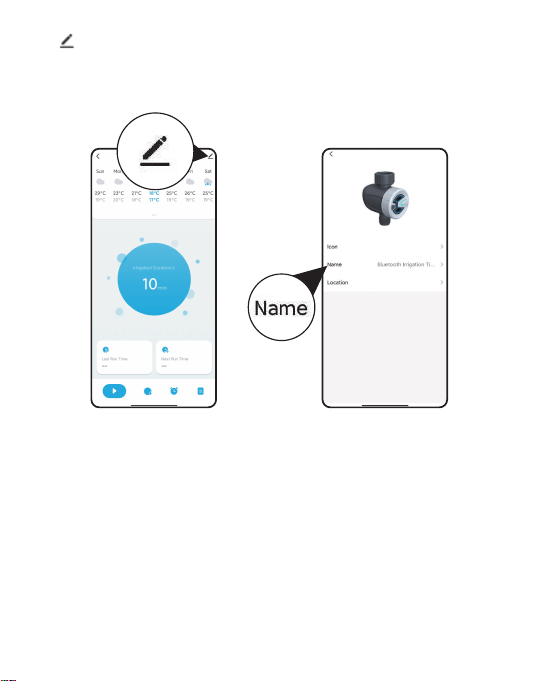
Tap the “Device" name on the screen to setup. You can change the
Device prole for device name. You can name your Bluetooth timer if you
have more than one.This helps you identify your timers.
- 13 -

Manual Watering
(Default watering is 10 minutes)
Manual/Hand Watering(3 methods)
Operating Method 1: APP Home Screen
Operating Method 2: Timer Editing Screen
- 14 -

Operating Method 3:Bluetooth Timer
Press and hold the gray button of the
Bluetooth timer, you will hear a "di" sound
that means the valve is open and the blue
light is ashing. Press again to close the valve.
Manual Irrigation Duration
1. Click the Irrigation Duration button to set the desired manual watering
time and click Save.
2. Go to the home page to tap the sta watering bottom.
- 15 -

Manual Rain Delay
Rain delay applies to rainy days. During the rain delay, the timer stops
watering.
After the rain delay ends, the timer will be executed according to the next
watering plan. The timer can set 24/48/72 hours of rain delay.
- 16 -
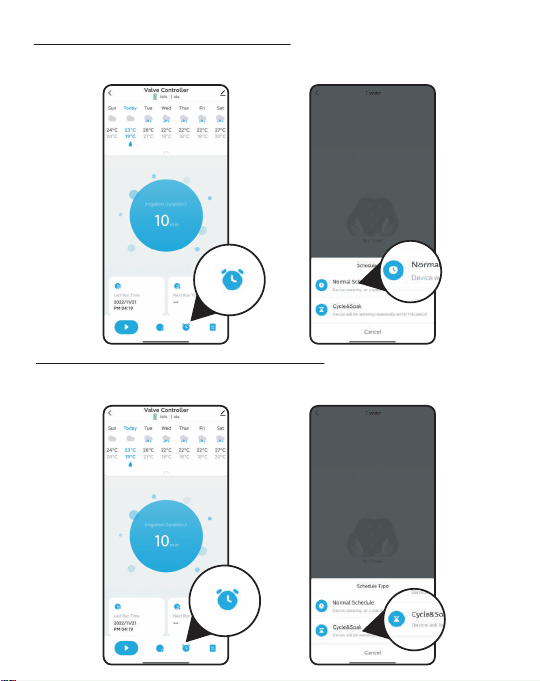
How to set the Normal Schedule ?
1. Click to enter the setting Normal Schedule.
2. Tap to enter the Normal Schedule.
How to set the Cycle&Soak Schedule ?
1. Click to enter the setting Cycle&Soak Schedule.
2. Select Cycle&Soak watering mode.
- 17 -
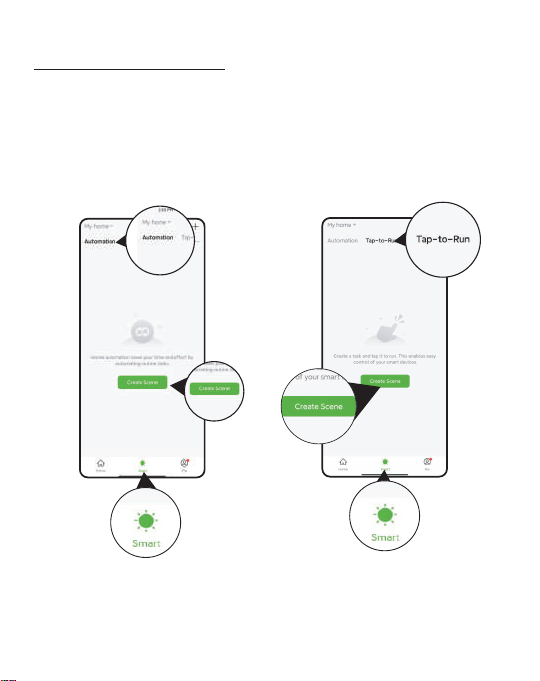
SMART AUTOMATION
Automation & Tap-to-Run
Automation means the devices can execute automatically according to
the set conditions such as the local weather, device status and time.
Tap-to-Run means you can control multiple devices and plans with one
tap.
- 18 -

Steps To Set Automation Or Tap-To-Run
1. Set a condition: According to your needs, set the conditions for
automation or tap-to-run.
2. Set tasks: Set the tasks that the device needs to peorm when the
conditions are met.
3. Save the settings: The device will automatically execute according to
what you set.
- 19 -
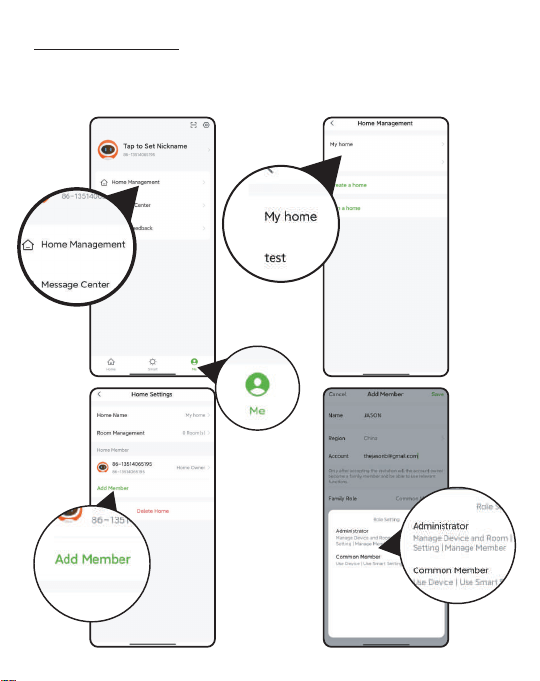
Home Management
1. Tap Me at the bottom of the APP home screen.
2. Select Home Management.
3. Set your home name, room management and home location.
- 20 -

Home Management
1. Tap Me at the bottom of the APP home screen.
2. Select Home Management.
3. Set your home name, room management and home location.
RESET THE DEVICE
How to reset the Irrigation Gateway ?
Step 1. Power OFF or Remove the Bluetooth Hub from the power source.
Step 2. After 10 seconds, power on or plug the Bluetooth hub to the
power source.
Step 3. Press and hold the middle button on the Bluetooth hub without
releasing the button until the indicator light quickly ashed
(2 times per second), then the Bluetooth hub is restored to pair
mode.
How to reset the Bluetooth Irrigation Timer ?
Step 1. Remove all batteries from the batte compament.
Step 2. After 10 seconds,inse 3 fresh AAA(1.5V)alkaline batteries into
the batte compament of the timer.
Step 3. Press and hold the button on the timer without releasing the
button until the blue LED indicator quickly ashed
(2 times per second), then the Bluetooth timer is restored to pair
mode.
- 21 -

TROUBLE SHOOTING
Issue Possible Cause Advice
1. Can't turn on
/o the valve
2. Timer won't
connect
1. Low batte
2. Impurities in water
inlet
3. Unstable network or
delayed response
1. Unstable WIFI
network
2. Long distance
from the hub
1. Replace freshbatteries .
2. Regularly clean the lter
po of impurities to
avoid disruptions in use.
3. Wait a while and t
again.
1. Check that the WIFI
network environment is
working.
2. Close to hubs and
routers when
connected to irrigation
timers.
3. Repair the timer: Press
the button until the
white light ashes
rapidly. (Or remove the
device then reconnect)
3. Hub cannot
connect
1. Not using 2.4GHZ
WIFI
2. Incorrect WIFI
password
3. Hub not in pairing
state
1. Conrm 2.4GHZ WIFI
connection.
2. Conrm that the WIFI
password has been
entered correctly.
3. Press and hold the button
and inse it into the socket
again. After that, the red
and blue indicator lights
sta ashing rapidly means
pairing has been entered.
- 22 -

5. The water
inlet
leakage
1. No lter or not be
placed horizontally
2. The faucet is not the
Right standard 3/4"
1. Add lter and make
sure it's placed
horizontally in the inlet.
2. Make sure the faucet is
a 3/4" faucet.
3. Strengthen it with Seal
tape.
Issue Possible Cause Advice
4. Plan not
executed
on time
1. There are impurities
in the water inlet
lter.
2. Set rain delay
parameter.
3. Preset automatic
mode to close the
valve automatically
when it rains.
4. In low power state,
timer goes into low
power protection
state and does not
execute schedule.
5. No parameters are
set for irrigation
time/period.
1. Inlet impurities need
to be cleared regularly
so that they do not
clog up and inteere
with the irrigation
programme.
2. Check that the rain
delay parameter is set.
3. Check that the
parameters for
automatic mode rain
are set.
4. Replace the batteries
with new ones.
5. Check that the
irrigation time/period
is parameterized.
- 23 -
6. Low water
pressure
1. Filter blockage.
Inlet pressure not
sucient to suppo
watering
1. Check if the lter is
clogged, if so,clean
or replace the lter. 2.
Make sure the timer is
installed properly and
not cross-threaded.
3. Installation of a
booster pump or
other auxilia
equipment of
increasing pressure.
Issue Possible Cause Advice
WARNINGS
1) For outdoor use only. Placing the timer in the sheltered outdoors will
prolongits lifetime.
2) To avoid damage, please tighten it without using tools.
3) The lter should be placed horizontally in the water inlet to prevent leakage.
4) When low power, please replace the batteries to avoid the interruption of
normal operation; when replacing the batteries, please make sure that the
batte tray is d.
5) When the timer is not in use, please remove the batteries and store it ndoors.
6) Don’t use the timer under the temperature more than 120℉(50℃), or less
than 38℉(3℃).
7) Don’t subject the product to extreme force and shock.
8) Severe electrical shock could result if water is sprayed into outlets or sources
of electrical current. Never immerse the product in water.
This product is MADE IN CHINA and conforms to the national standards
of the United States, Britain, Germany and France. Please use this
product correctly. If it needs to be discarded, please properly dispose
according to the national requirements. Please protect the environment.
- 24 -

FCC Notice:
FCC STATEMENT: (FCC ID: 2AWDBTTV102B FCC ID: 2AWDBTWG009BW)
This device complies with Pa 15 of the FCC Rules. Operation is subject
to the following two conditions:
(1) This device may not cause harmful inteerence, and
(2) this device must accept any inteerence received, including
inteerence that may cause undesired operation.
FCC Warning: Any changes or modications not expressly approved by
the pay responsible for compliance could void the user’s authority to
operate this equipment.
Note: This equipment has been tested and found to comply with the
limits for a Class B digital device, pursuant to Pa 15 of the FCC Rules.
These limits are designed to provide reasonable protection against
harmful inteerence in a residential installation. This equipment
generates, uses, and can radiate radio frequency energy and, if not
installed and used in accordance with the instructions, may cause harmful
inteerence to radio communications. However, there is no guarantee
that inteerence will not occur in a paicular installation. If this
equipment does cause harmful inteerence to radio or television
reception, which can be determined by turning the equipment o and on,
the user is encouraged to t to correct the inteerence by one of the
following measures:
• Reorient or relocate the receiving antenna.
• Increase the separation between the equipment and the receiver.
• Connect the equipment into an outlet on a circuit dierent from that
to which the receiver is connected.
• Consult the dealer or an experienced radio/TV technician for help.
Note: The manufacturer is not responsible for any radio or TV inteerence
caused by unauthorized modications to this equipment. Such modica-
tions could void the user’s authority to operate the equipment.
- 25 -

EC REP
NAME:VIAJE ELECTRONIC COMPANY LIMITED
ADDRESS:E588, 13 ADELAIDE ROAD, DUBLIN,
D02 P950, IRELAND
Email:VIAJEELE@outlook.com
FR
CUSTOMER SERVICE
Still have trouble with setup, please search for "RainPoint" on YouTube
for installation videos!
If the user manual doesn't have what you're looking for or you need other
help, please contact us before returning the product to the store and let us
know the LOT NO. of your device.
Email: se[email protected]
WhatsApp: +1 626-780-5952
US Free Hotline(English): +1 833-381-5659
(MON-FRI 9:30 AM-5:30 PM PST)
UK Free Hotline(English Deutsch): +44 800-808-5337
(MON-FRI 9:00 AM-5:00 PM CET)
- 26 -