
E Series
LCD Monitor
User Manual

2
Copyright
Copyright © 2017 by BenQ Corporation. All rights reserved. No part of this publication may
be reproduced, transmitted, transcribed, stored in a retrieval system or translated into any
language or computer language, in any form or by any means, electronic, mechanical, magnetic,
optical, chemical, manual or otherwise, without the prior written permission of BenQ
Corporation.
Disclaimer
BenQ Corporation makes no representations or warranties, either expressed or implied, with
respect to the contents hereof and specifically disclaims any warranties, merchantability or
fitness for any particular purpose. Further, BenQ Corporation reserves the right to revise this
publication and to make changes from time to time in the contents hereof without obligation of
BenQ Corporation to notify any person of such revision or changes.
The performance of flicker-free may be affected by external factors such as poor cable quality,
unstable power supply, signal interference, or poor grounding, and not limited to the above
mentioned external factors. (Applicable for flicker-free models only.)
BenQ ecoFACTS
BenQ has been dedicated to the design and development of greener product as part of its
aspiration to realize the ideal of the "Bringing Enjoyment 'N Quality to Life" corporate vision
with the ultimate goal to achieve a low-carbon society. Besides meeting international regulatory
requirement and standards pertaining to environmental management, BenQ has spared no
efforts in pushing our initiatives further to incorporate life cycle design in the aspects of
material selection, manufacturing, packaging, transportation, using and disposal of the products.
BenQ ecoFACTS label lists key eco-friendly design highlights of each product, hoping to ensure
that consumers make informed green choices at purchase. Check out BenQ's CSR Website at
http://csr.BenQ.com/ for more details on BenQ's environmental commitments and
achievements.
3
Power Safety
• The AC plug isolates this equipment from the AC supply.
• The power supply cord serves as a power disconnect device for pluggable equipment. The
socket outlet should be installed near the equipment and be easily accessible.
• This product should be operated from the type of power indicated on the marked label. If you
are not sure of the type of power available, consult your dealer or local power company.
• The Class I pluggable equipment Type A must be connected to protective earth.
• An approved power cord greater or equal to H03VV-F or H05VV-F, 2G or 3G, 0.75mm
2
must
be used.
For Germany only:
• (If the weight of the product is less than or equal to 3 kg) An approved power cord greater or
equal to H03VV-F, 3G, 0.75mm
2
must be used.
• (If the weight of the product is more than 3 kg) An approved power cord greater or equal to
H05VV-F or H05RR-F, 3G, 0.75mm
2
must be used.
• (If a remote control is provided) RISK OF EXPLOSION IF BATTERY IS REPLACED BY AN
INCORRECT TYPE. DISPOSE OF USED BATTERIES ACCORDING TO THE
INSTRUCTIONS.
For models with adapter:
• Use only the power adapter supplied with your LCD Monitor. Use of another type of power
adapter will result in malfunction and/or danger.
• Allow adequate ventilation around the adapter when using it to operate the device or charge
the battery. Do not cover the power adapter with paper or other objects that will reduce
cooling. Do not use the power adapter while it is inside a carrying case.
• Connect the power adapter to a proper power source.
• Do not attempt to service the power adapter. There are no service parts inside. Replace the
unit if it is damaged or exposed to excess moisture.
Care And Cleaning
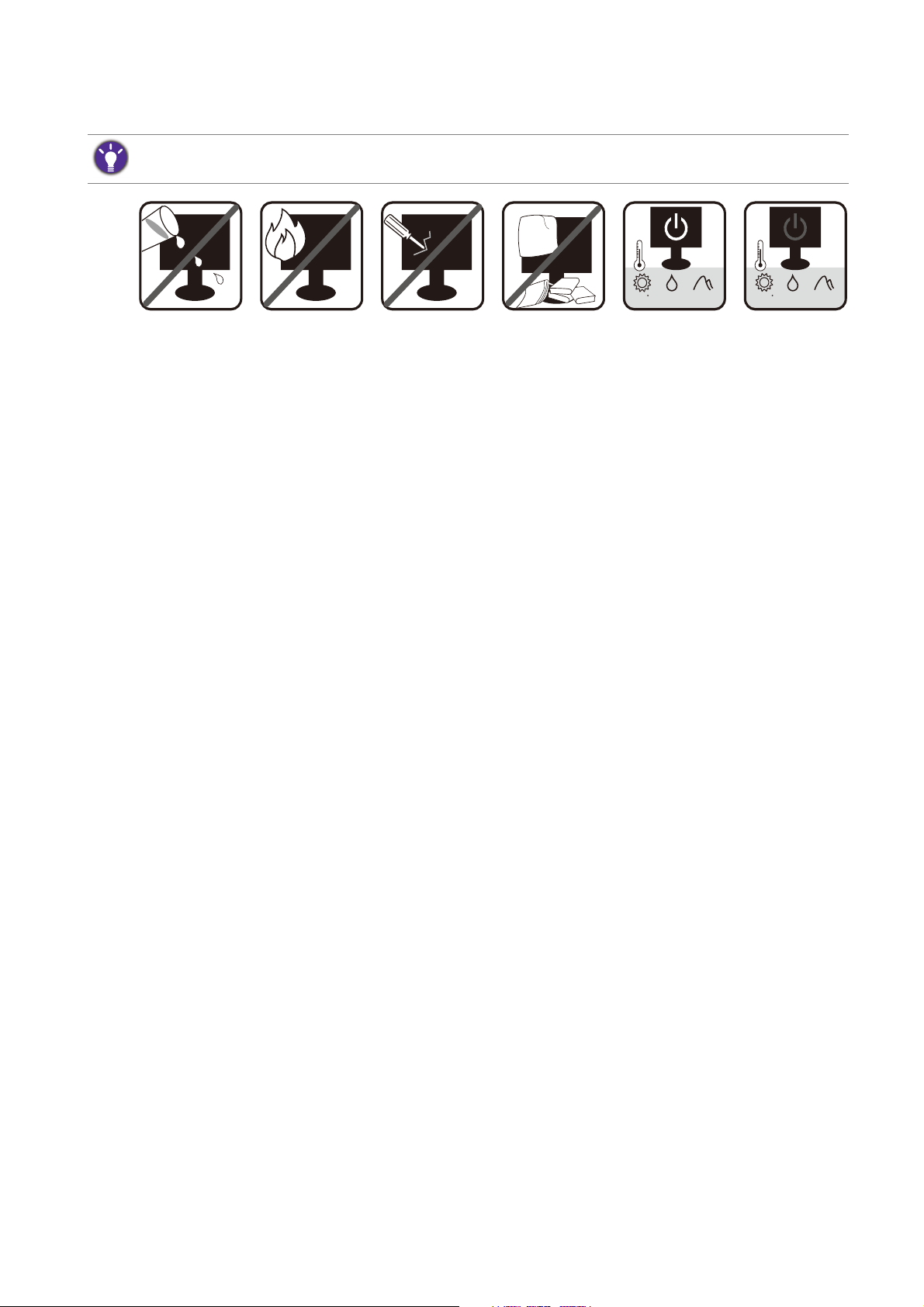
• Do not place the monitor face down on the floor or a desk surface directly. Otherwise,
scratches on the panel surface may occur.
Please follow these safety instructions for best performance, and long life for your monitor.
0~3000 m10~90 %0~40 C 0~12000 m10~60 %-20~60 C

4
• The equipment is to be secured to the building structure before operation.
• (For models that support wall or ceiling mounting)
• Install your monitor and monitor mounting kit on a wall with flat surface.
• Ensure that the wall material and the standard wall mount bracket (purchased separately) are
stable enough to support the weight of the monitor.
• Turn off the monitor and the power before disconnecting the cables from the LCD monitor.
• Always unplug the product from the power outlet before cleaning. Clean the LCD monitor
surface with a lint-free, non-abrasive cloth. Avoid using any liquid, aerosol or glass cleaners.
• Slots and openings on the back or top of the cabinet are for ventilation. They must not be
blocked or covered. Your monitor should never be placed near or over a radiator or heat
sources, or in a built-in installation unless proper ventilation is provided.
• Do not place heavy loads on the monitor to avoid possible personal injury or damage to the
monitor.
• Consider keeping the box and packaging in storage for use in the future when you may need
to transport the monitor.
• Refer to the product label for information on power rating, manufacture date, and
identification markings.
Servicing
• Do not attempt to service this product yourself, as opening or removing covers may expose
you to dangerous voltages or other risks. If any of the above mentioned misuse or other
accident such as dropping or mishandling occurs, contact qualified service personnel for
servicing.
• Contact your place of purchase or visit the local website from
www.BenQ.com for more
support.
Caution
• The monitor should be 50 ~ 70 cm (20 ~ 28 inches) away from your eyes.
• Looking at the screen for an extended period of time causes eye fatigue and may deteriorate
your eyesight. Rest your eyes for 5 ~ 10 minutes for every 1 hour of product use.
• Reduce your eye strain by focusing on objects far way.
• Frequent blinking and eye exercise help keep your eyes from drying out.

Table of Contents
Copyright ......................................................................................................................................2
Getting started .............................................................................................................................6
Getting to know your monitor ................................................................................................9
Front view .................................................................................................................................................... 9
Back view ...................................................................................................................................................10
How to assemble your monitor hardware .........................................................................11
How to detach the stand and the base ...............................................................................................16
Using the monitor wall mounting kit (Models with VESA standard mounting holes) ..............18
Getting the most from your BenQ monitor ......................................................................19
How to install the monitor on a new computer ..............................................................................20
How to upgrade the monitor on an existing computer .................................................................21
How to install on Windows 10 system ...............................................................................................22
How to install on Windows 8 (8.1) system .......................................................................................23
How to install on Windows 7 system .................................................................................................24
How to adjust your monitor ..................................................................................................25
The control panel..................................................................................................................................... 25
Basic menu operation ..............................................................................................................................26
Picture optimization (selected models only) .....................................................................................28
Customizing the hot keys....................................................................................................................... 28
Adjusting display mode............................................................................................................................ 28
Activating FreeSync (selected models only)....................................................................................... 29
Choosing an appropriate picture mode.............................................................................................. 29
Connecting the monitor to your MacBook series product ........................................................... 29
Adjusting screen brightness automatically (Bright Intelligence) (selected models only) ......... 29
Adjusting screen brightness automatically (Bright Intelligence Plus)
(Models with HDR feature only) .......................................................................................................... 30
Working with HDR technology (Models with HDR feature only)............................................... 30
Navigating the main menu .......................................................................................................32
Eye Care menu .........................................................................................................................................33
Picture menu .............................................................................................................................................36
Picture Advanced menu ..........................................................................................................................38
Display menu (selected models only) ..................................................................................................42
Audio menu ...............................................................................................................................................44
System menu .............................................................................................................................................46
Troubleshooting ........................................................................................................................50
Frequently asked questions (FAQ)....................................................................................................... 50
Need more help?...................................................................................................................................... 52
11/17/17
6 Getting started
Getting started
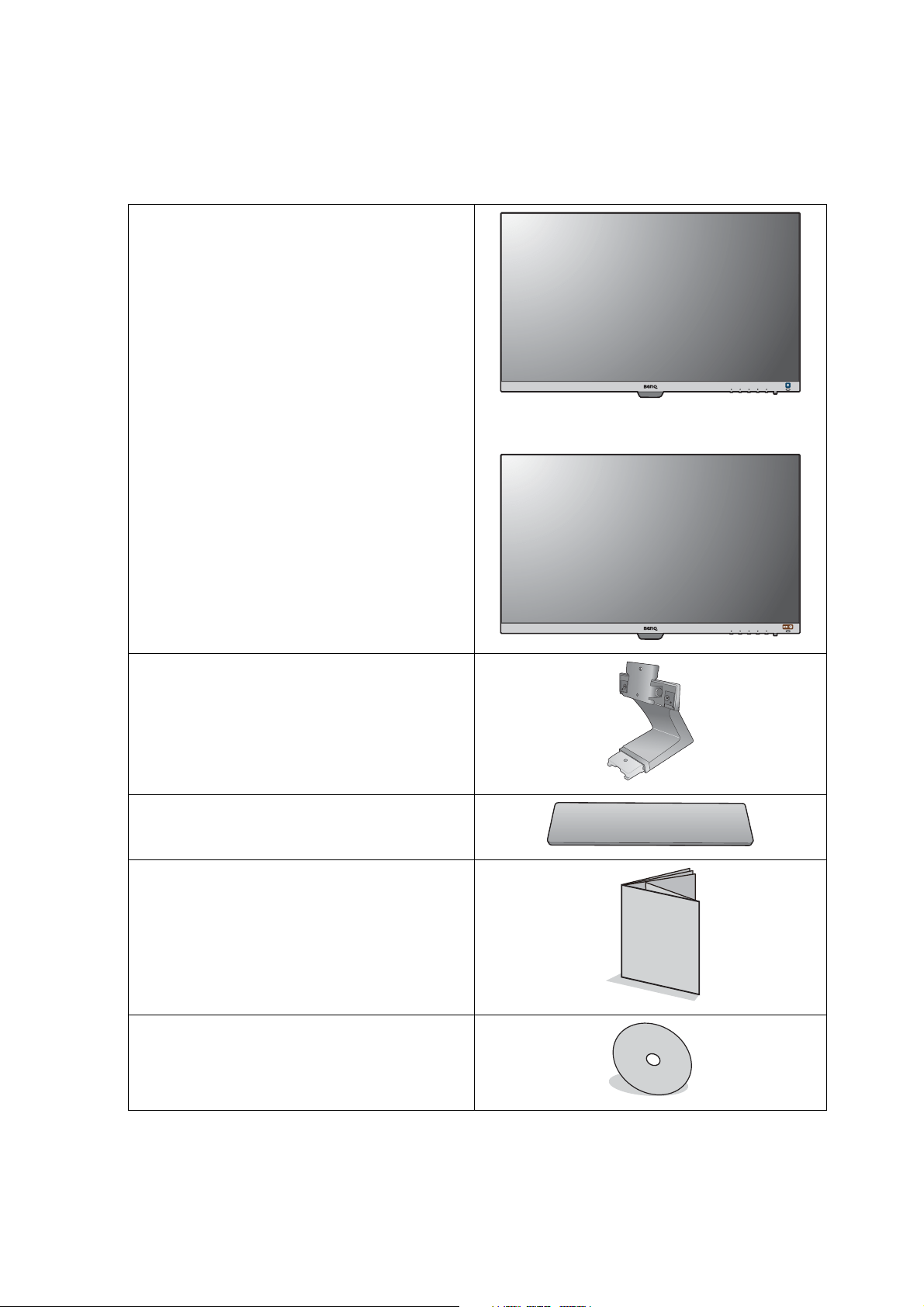
When unpacking please check you have the following items. If any are missing or damaged,
please contact the place of purchase for a replacement.
BenQ LCD Monitor
(Models with HDR feature)
Monitor Stand
Monitor Base
Quick Start Guide
CD-ROM
7 Getting started
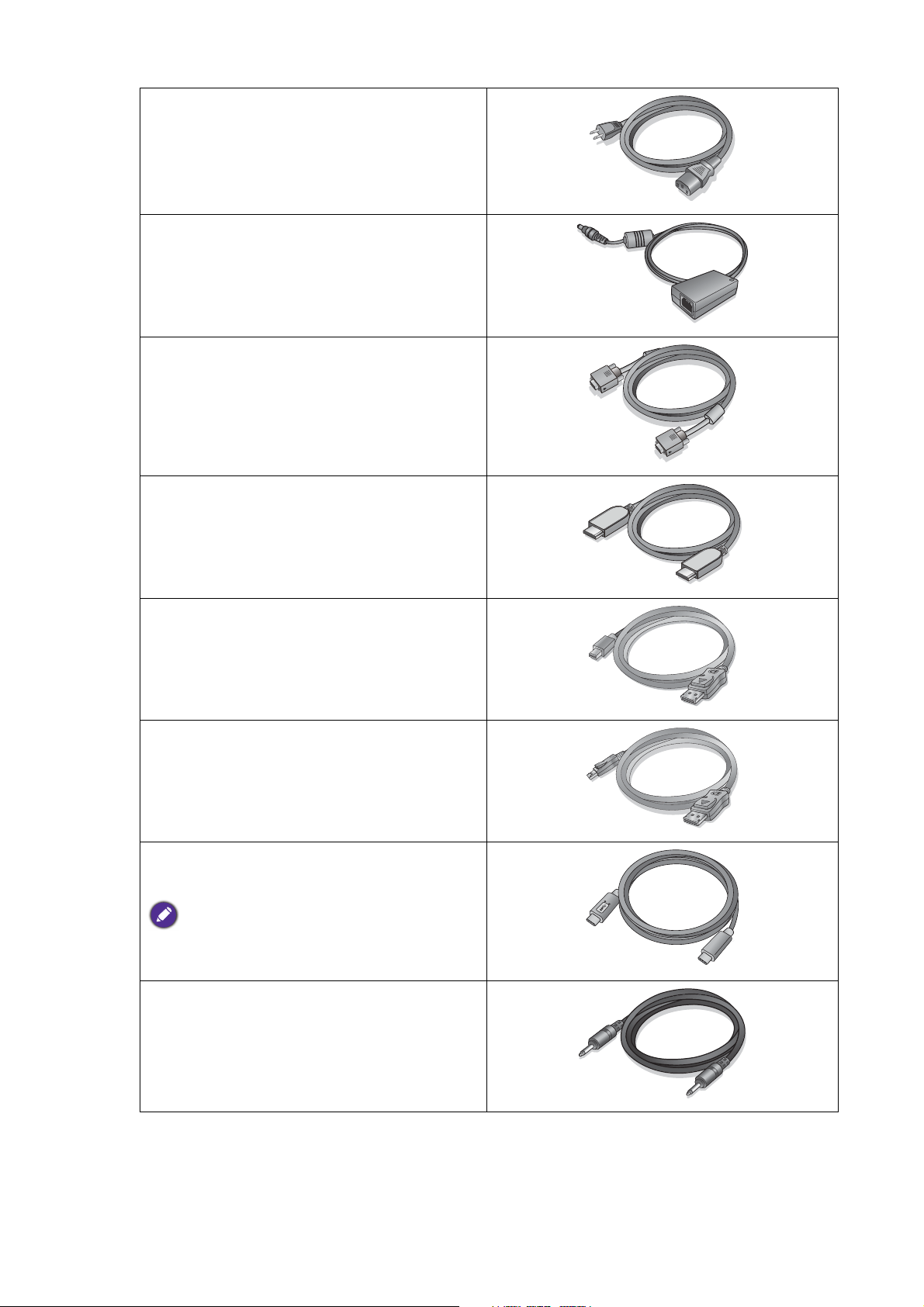
Power Cord
(Picture may differ from product supplied
for your region.)
Power Adapter
(Models without standard VESA mounting
holes)
Video Cable: D-Sub
(Optional accessory)
Video Cable: HDMI
Video Cable: DP to mini DP
(EW32 only)
Video Cable: DP
(Optional accessory)
Video Cable: USB Type-C
(For models with USB Type-C socket only)
Use of the supplied USB Type-C cable is
recommended to ensure data transmission
quality.
Audio Cable
(Optional accessory)

8 Getting started
• Available accessories and the pictures shown here may differ from the actual contents and the product supplied
for your region. And the package contents may subject to change without prior notice. For cables that are not
supplied with your product, you can purchase them separately.
• Consider keeping the box and packaging in storage for use in the future when you may need to transport the
monitor. The fitted foam packing is ideal for protecting the monitor during transport.
Always keep the product and accessories out of reach of small children.
9 Getting to know your monitor
Getting to know your monitor
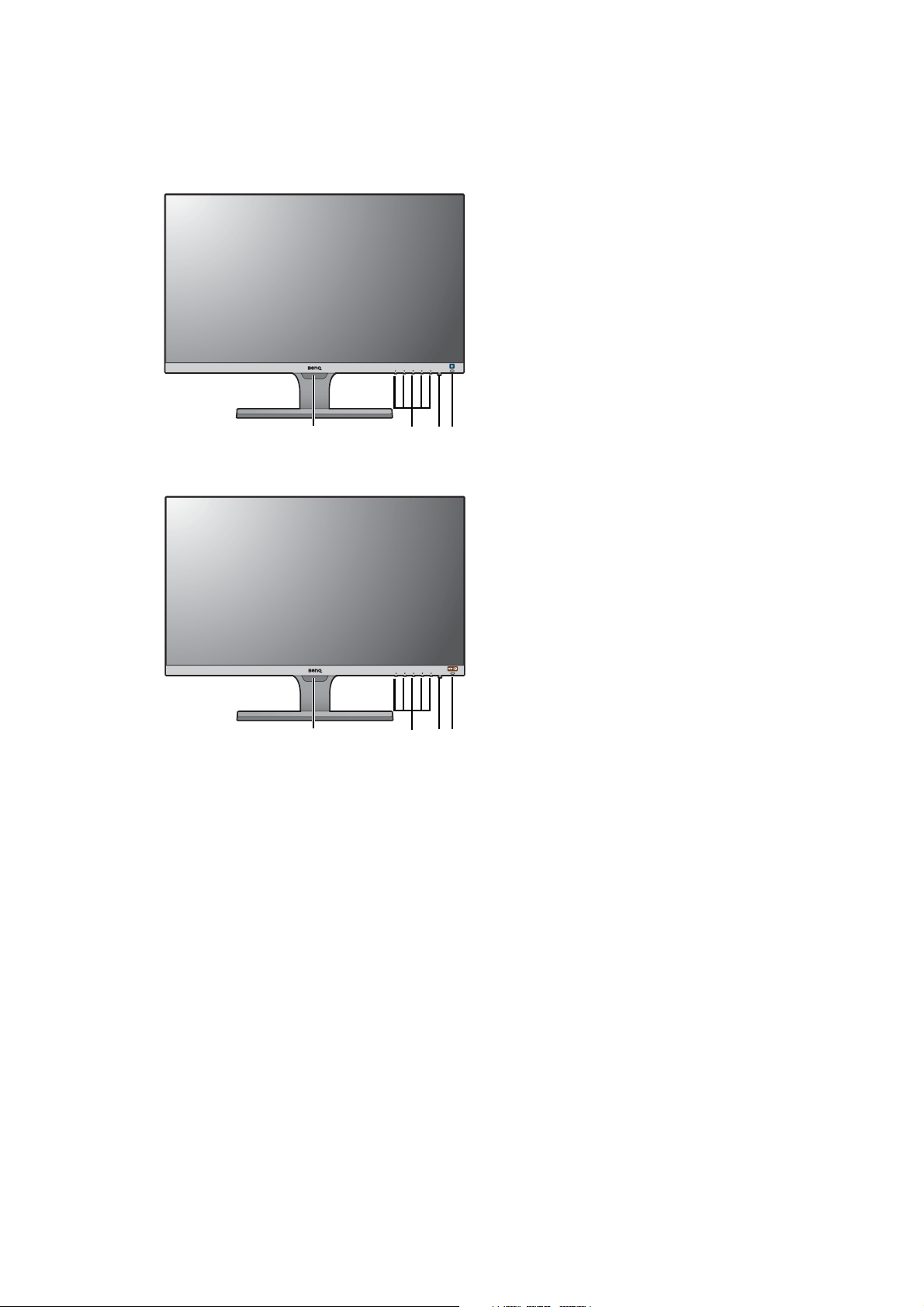
Front view
(Models with HDR feature)
1. Light sensor
2. Control buttons
3. Power button
4. Bright Intelligence hot key
(Models with HDR feature) HDR /
Bright Intelligence Plus hot key
234
1
234
1
10 Getting to know your monitor
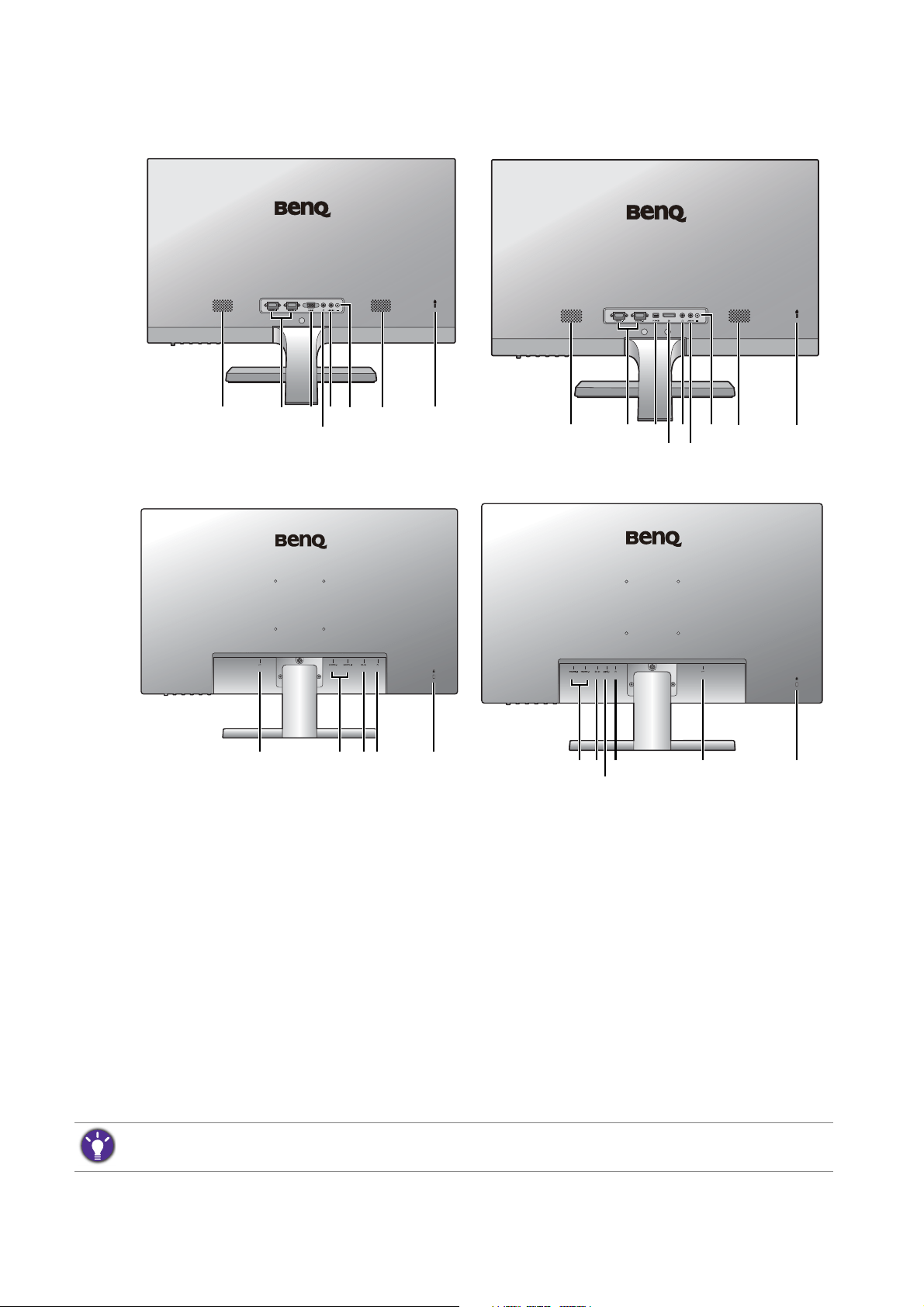
Back view
5. Speakers
6. HDMI socket x 2
7. D-Sub socket
8. Mini DisplayPort socket
9. DisplayPort socket
10. Headphone jack
11. Audio Line In
12. DC power input jack
13. Kensington lock slot
14. AC power input jack
15. USB Type-C port
7511
10
5136 12
EW27
8510
9
5136
11
12
EW32
EL2870U
6910 1314
EW3270U
14 1369
15
10
• Above diagram may vary depending on the model.
• Picture may differ from product supplied for your region.
11 How to assemble your monitor hardware
How to assemble your monitor hardware
• If the computer is turned on you must turn it off before continuing.
Do not plug-in or turn-on the power to the monitor until instructed to do so.
• The following illustrations are for your reference only. Available input and output jacks may vary depending on
the purchased model.
• Avoid finger pressure on the screen surface.
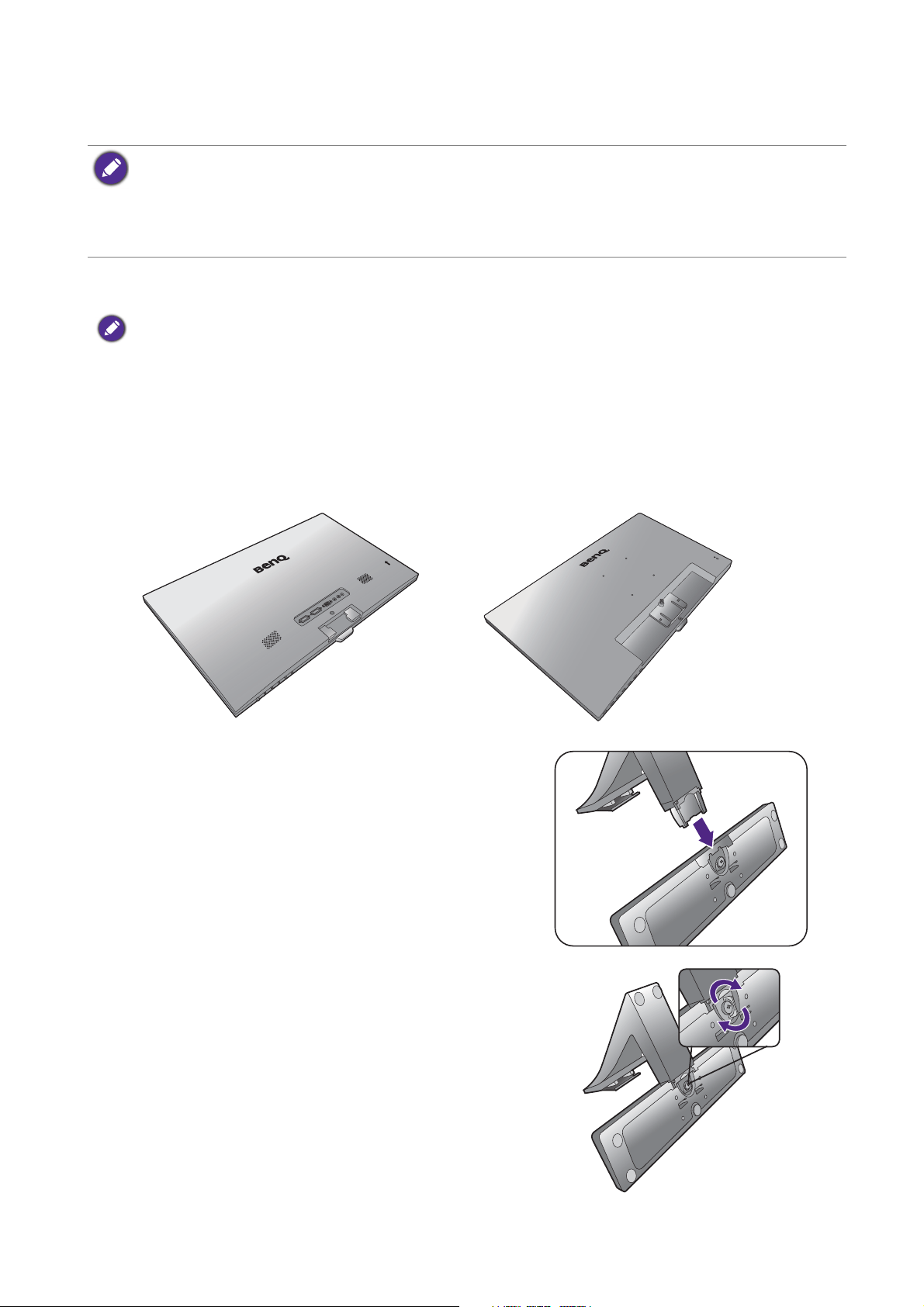
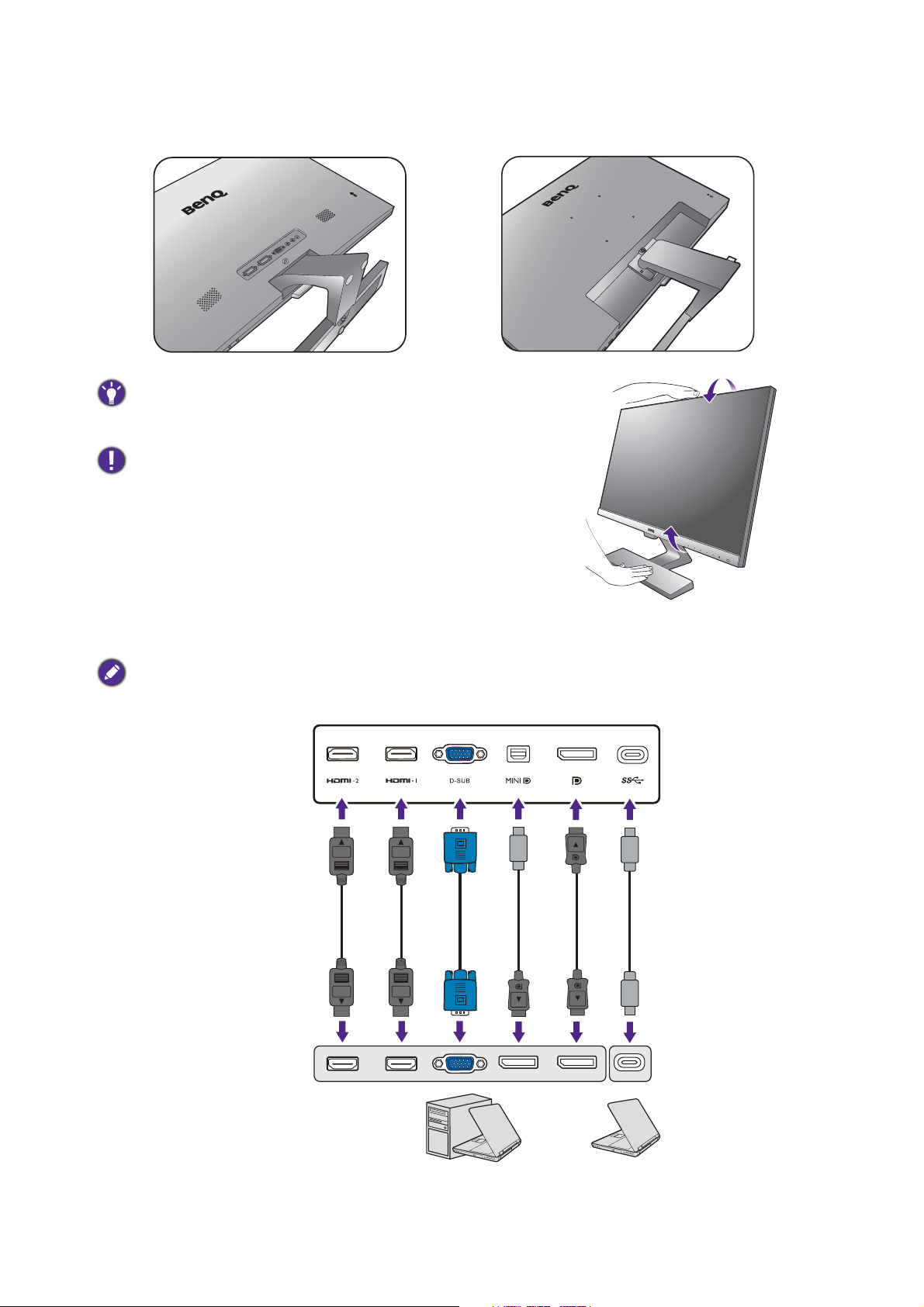
1. Attach the monitor base.
Please be careful to prevent damage to the monitor. Placing the screen surface on an object like a stapler or a
mouse will crack the glass or damage the LCD substrate voiding your warranty. Sliding or scraping the monitor
around on your desk will scratch or damage the monitor surround and controls.
Protect the monitor and screen by clearing a flat open area on your desk and placing a soft item like the
monitor packaging bag on the desk for padding.
Gently lay the screen face down on a flat clean padded surface.
Attach the monitor stand to the monitor base as
illustrated until it locks in place.
Tighten the screw on the bottom of the monitor base
as illustrated.
Models without VESA standard mounting holes Models with VESA standard mounting holes

12 How to assemble your monitor hardware
Orient and align the stand arm with the monitor, then push them together until they click and lock into
place.
Tighten the screw(s) that fixes the stand to the monitor.
To secure or release a screw, a flat-head screwdriver or a coin is required.
Depending on the monitor size, there may be more than one screw that fixes the stand to the monitor. The
illustrations in this document are for your reference only and may look different from the appearance of the
product.
Models without VESA standard mounting holes Models with VESA standard mounting holes
Models without VESA standard mounting holes Models with VESA standard mounting holesModels with VESA standard mounting holes
EW3270U
13 How to assemble your monitor hardware
Carefully lift the monitor, turn it over and place it upright on its stand on a flat even surface.
You should position the monitor and angle the screen to
minimize unwanted reflections from other light sources.
Your monitor is an edge-to-edge monitor and should be
handled with care. Avoid finger pressure on the screen
surface. Adjust the screen angle by placing your hands on the
top and on the base of the monitor as illustrated. Excessive
force on the display is prohibited.
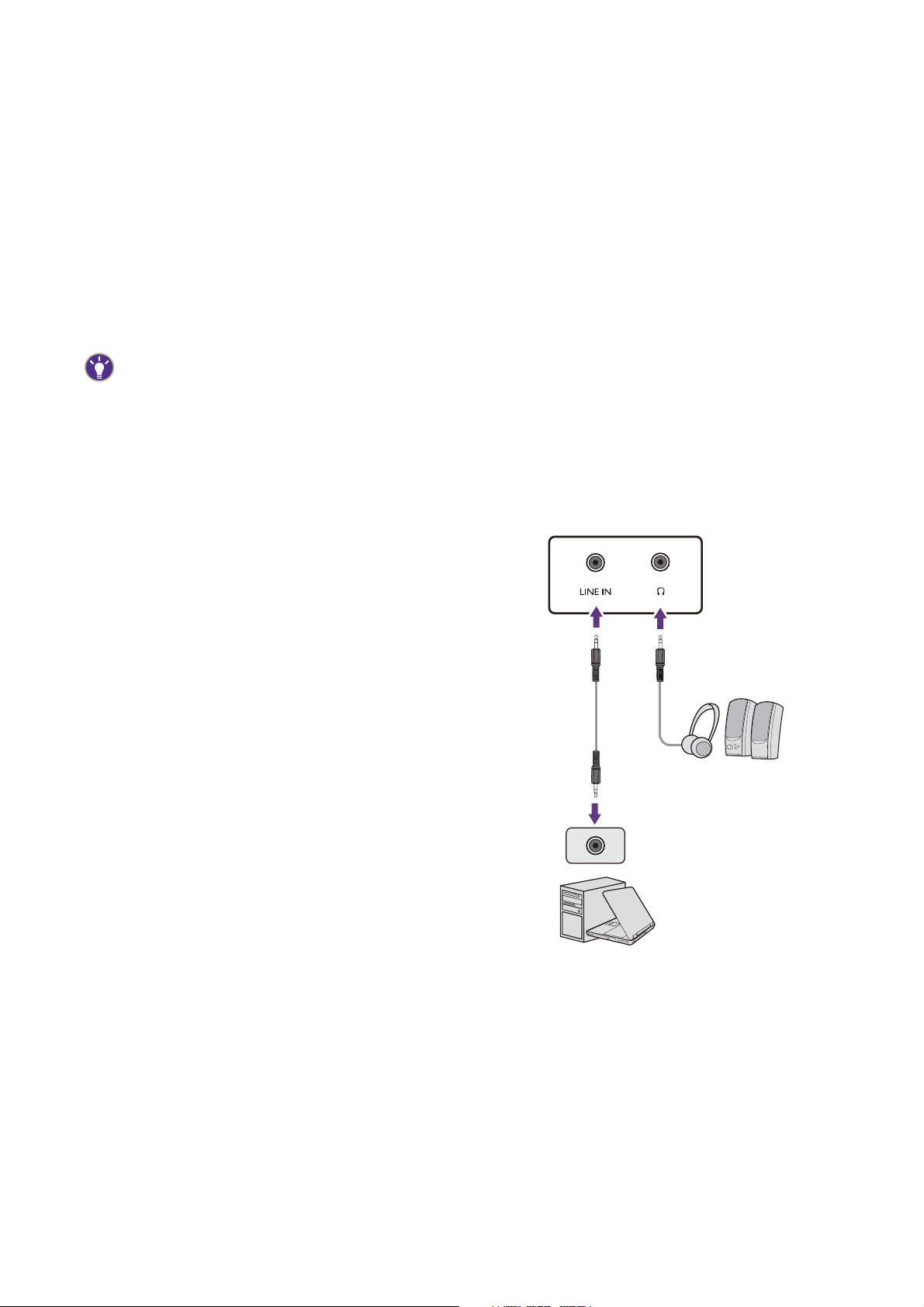
2. Connect the PC video cable.
The video cables included in your package and the socket illustrations may vary depending on the product
supplied for your region.
Models without VESA standard mounting holes Models with VESA standard mounting holes
or or or or or
14 How to assemble your monitor hardware
• Connect the plug of the D-Sub cable (at the end without the ferrite filter) to the monitor video socket.
Connect the other end of the cable (at the end with the ferrite filter) to the computer video socket.
• Connect the plug of the HDMI cable to the HDMI port on the monitor. Connect the other end of the
cable to the HDMI port of a digital output device.
• Connect the plug of the DP cable to the monitor video socket. Connect the other end of the cable to
the computer video socket.
• Connect the plug of the mini DP cable to the monitor video socket. Connect the other end of the
cable to the computer video socket.
• Connect the plug of the supplied USB Type-C cable to the USB Type-C port on the monitor. It allows
signal, audio, and data transmission from the laptop to the monitor.
Tighten all finger screws to prevent the plugs from accidently falling out during use.
• If there is more than one video transmission method available to you, you might want to take the picture quality of
each video cable into consideration before making the connection.
- Better quality: HDMI / mini DP / DP / USB Type-C
- Good quality: D-Sub
• The Type-C port on the monitor transfers data only and does not support power delivery to the laptop. Additional
power supply to the connected laptop is required.
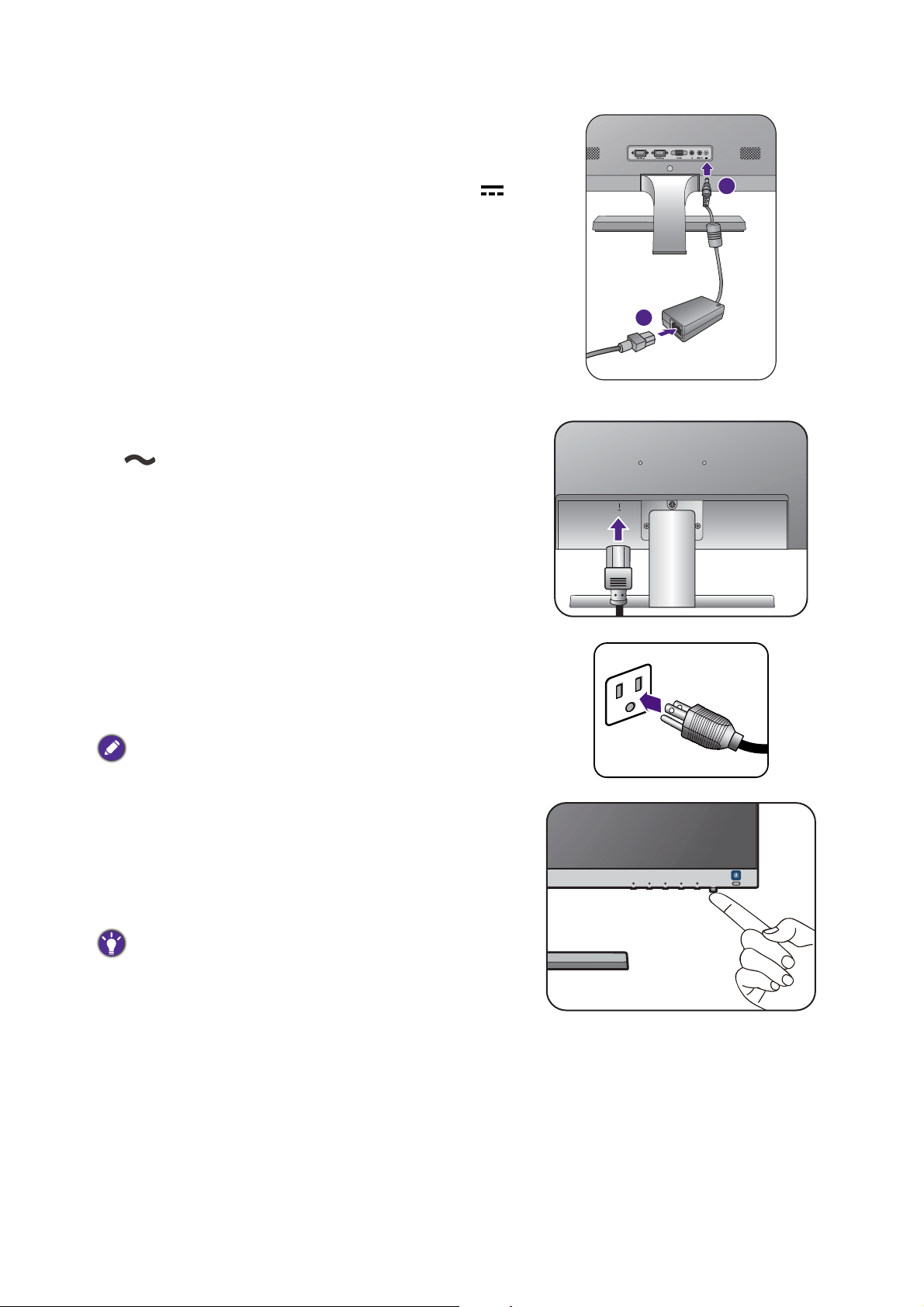
3. Connect the audio cable. (Selected models
only)
• Connect the audio cable between the socket on the
rear of the monitor (Line In) and your computer audio
outlet.
• You may connect headphones to the headphone jack
found next to the Line In jack of the monitor.
15 How to assemble your monitor hardware
4. Connect the power cable to the monitor.
(Models without VESA standard mounting holes)
Connect the power cord to the power adapter. Plug
one end of the power cord into the socket labelled
on the rear of the monitor. Do not connect the other
end to a power outlet just yet.
Models without VESA standard mounting holes
(Models with VESA standard mounting holes)
Plug one end of the power cord into the socket labelled
on the rear of the monitor. Do not connect the
other end to a power outlet just yet.
Models with VESA standard mounting holes
5. Connect-to and turn-on the power.
Plug the other end of the power cord into a power
outlet and turn it on.
Picture may differ from product supplied for your region.
Turn on the monitor by pressing the power button on
the monitor.
Turn on the computer too, and follow the instructions
in
Getting the most from your BenQ monitor on page
19
to install the monitor software.
To extend the service life of the product, we recommend
that you use your computer's power management function.
1
2

16 How to assemble your monitor hardware
How to detach the stand and the base
1. Prepare the monitor and area.
Turn off the monitor and the power before unplugging the power cable. Turn off the computer before
unplugging the monitor signal cable.
Protect the monitor and screen by clearing a flat open area on your desk and placing a soft item like a
towel on the desk for padding, before laying the screen face down on a flat clean padded surface.
Please be careful to prevent damage to the monitor. Placing the screen surface on an object like a stapler or a
mouse will crack the glass or damage the LCD substrate voiding your warranty. Sliding or scraping the monitor
around on your desk will scratch or damage the monitor surround and controls.
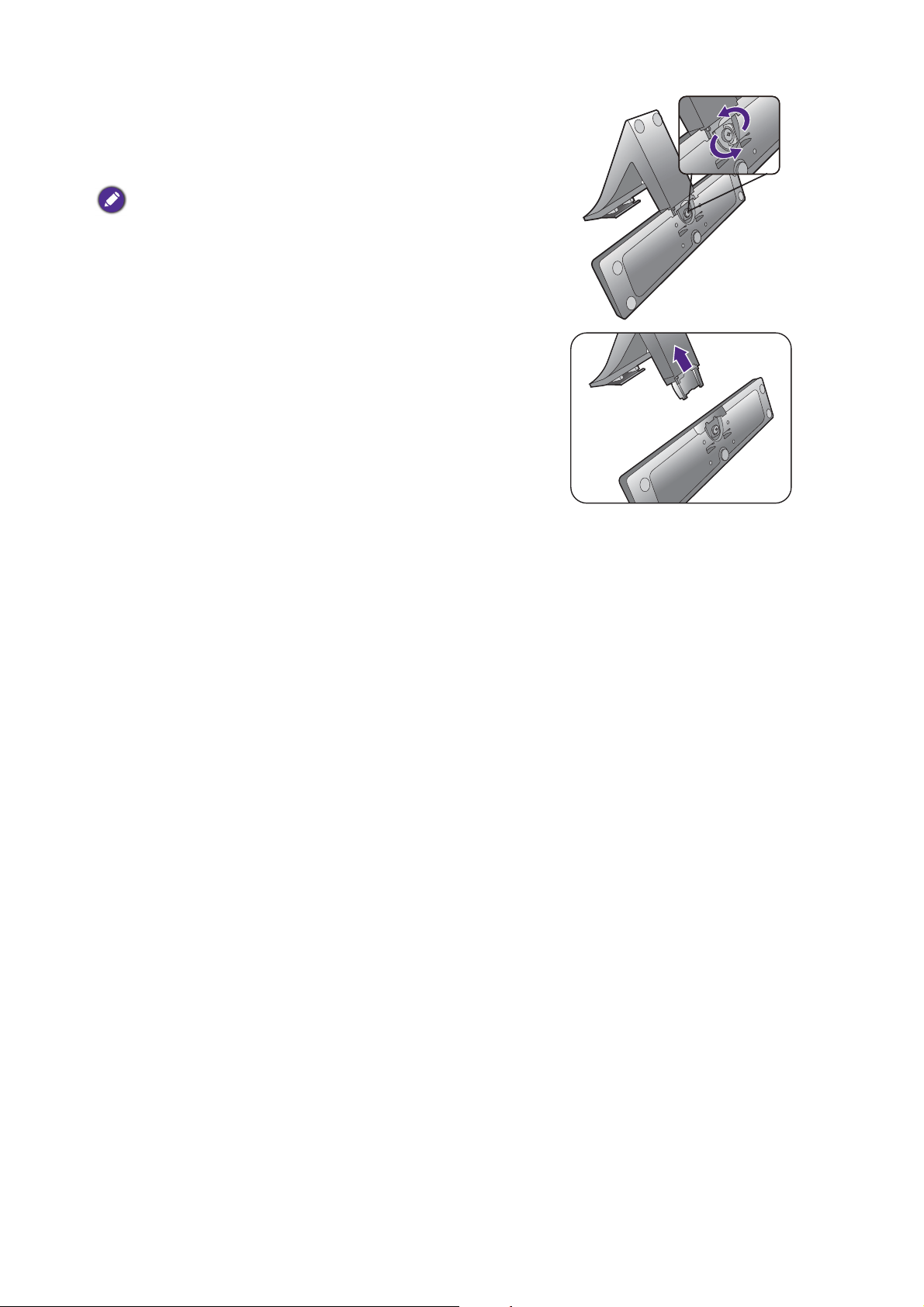
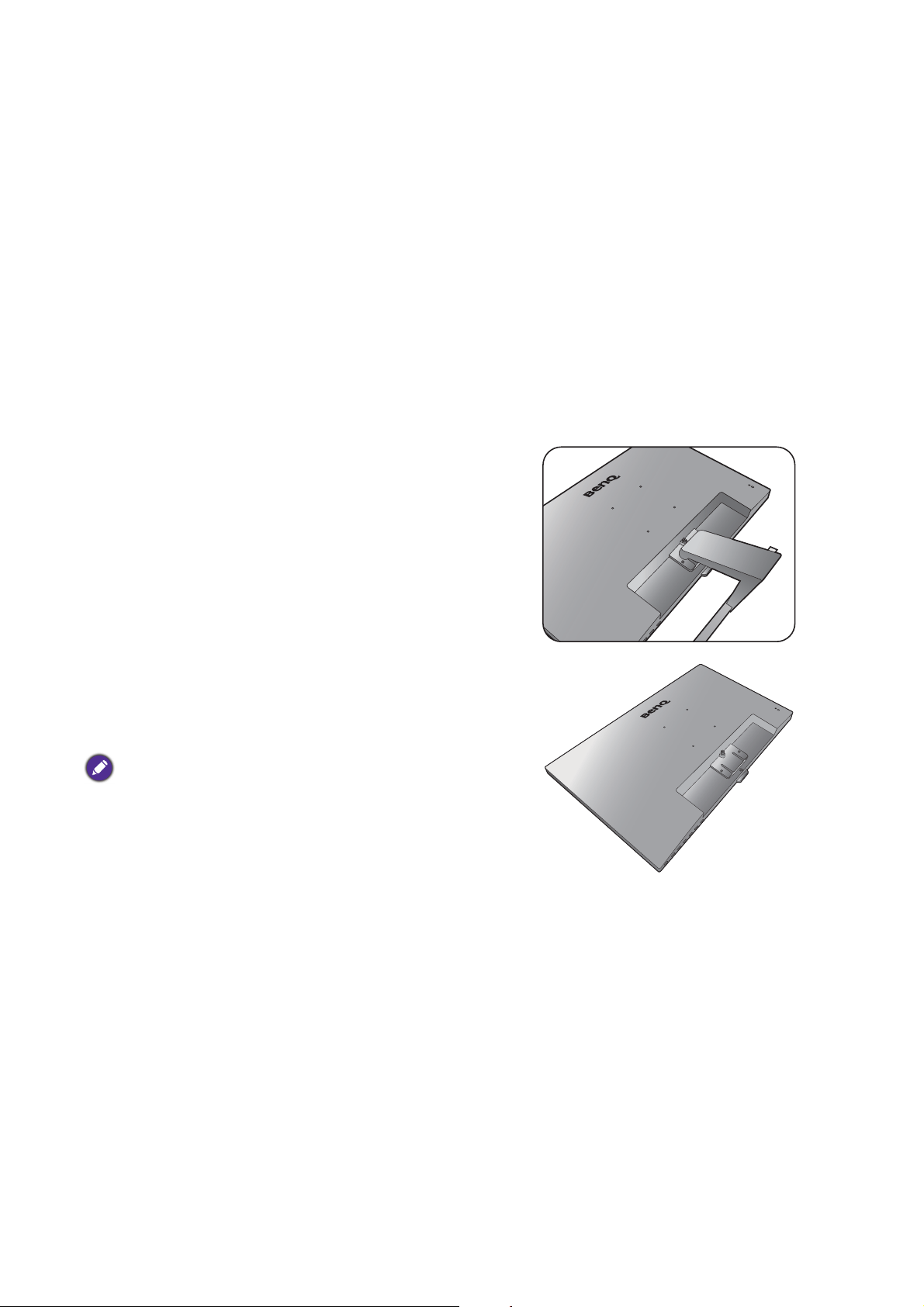
2. Remove the monitor stand.
Release the screw(s) that fixes the stand to the monitor. Then pull the monitor stand backward away
from the monitor.
To secure or release a screw, a flat-head screwdriver or a coin is required.
Depending on the monitor size, there may be more than one screw that fixes the stand to the monitor. The
illustrations in this document are for your reference only and may look different from the appearance of the
product.
Models without VESA standard mounting holes Models with VESA standard mounting holes
2
1
2
1
2
1
Models without VESA standard mounting holes Models with VESA standard mounting holes
EW3270U
17 How to assemble your monitor hardware
3. Remove the monitor base.
Release the screw on the bottom of the monitor base
and detach the monitor base as illustrated.
In case you intend to use your monitor on the stand in the
future, please keep the monitor base, monitor stand, and
screws somewhere safe for future use.
18 How to assemble your monitor hardware
Using the monitor wall mounting kit (Models with VESA
standard mounting holes)
The back of your LCD monitor has a VESA standard mount with 100mm pattern, allowing the
installation of a wall mount bracket. Before starting to install a monitor wall mounting kit,
please read the precautions carefully.
Precautions
•Install your monitor and monitor mounting kit on a wall with flat surface.
•Ensure that the wall material and the standard wall mount bracket (purchased separately) are
stable enough to support the weight of the monitor. Refer to the product specifications for
weight information.
•Turn off the monitor and the power before disconnecting the cables from the LCD monitor.
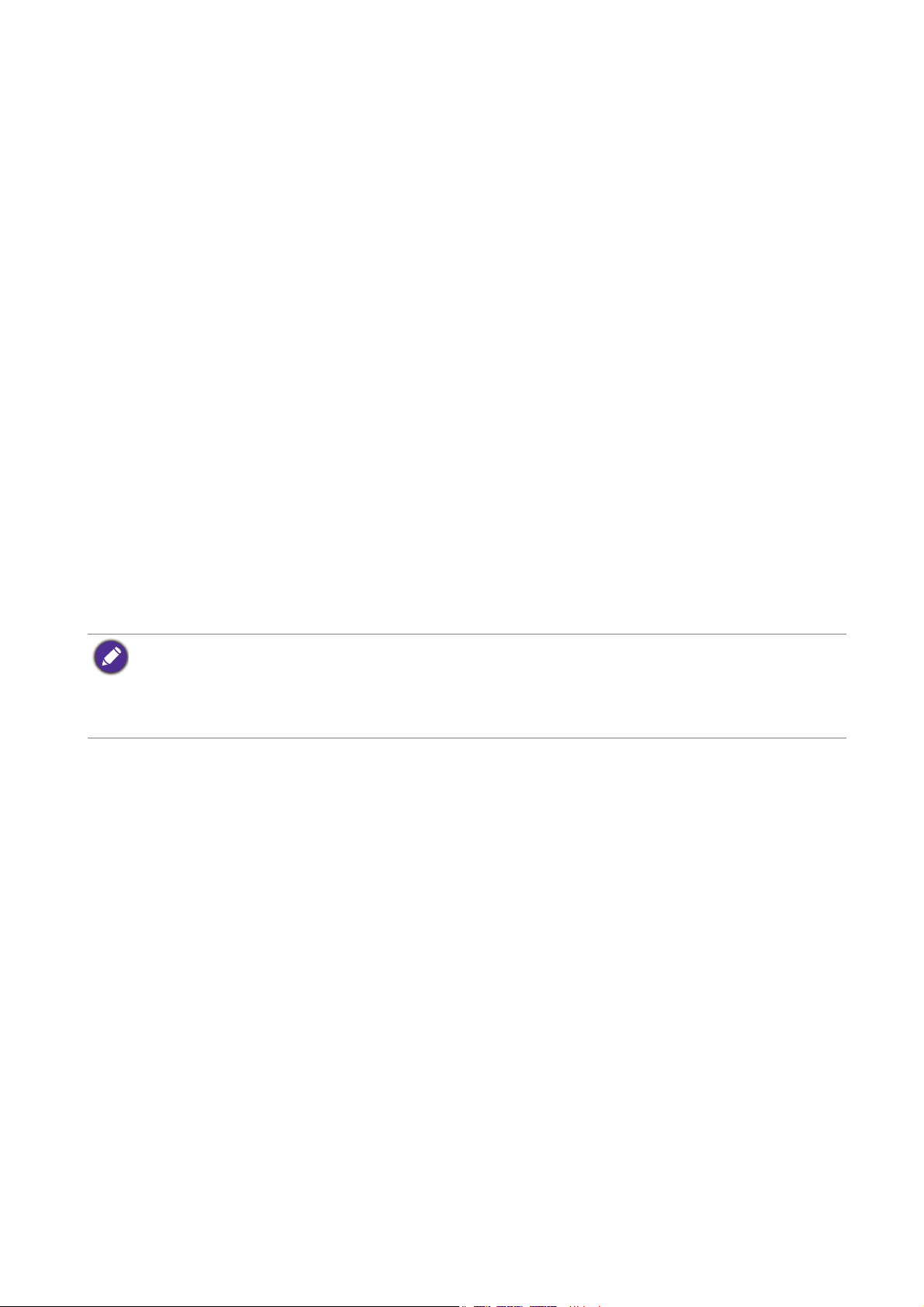
1. Remove the monitor stand.
Lay the screen face down on a clean and well-padded
surface. Detach the monitor stand as instructed in step
1~2 in
How to detach the stand and the base on page
16
.
2. Follow the instruction manuals of the wall
mount bracket you purchased to complete
the installation.
Use four M4 x 10 mm screws to fix a VESA standard wall
mount bracket to the monitor. Make sure that all screws are
tightened and secured properly. Consult a professional
technician or BenQ service for wall mount installation and
safety precautions.
19 Getting the most from your BenQ monitor
Getting the most from your BenQ monitor
To gain the most benefit from your new BenQ LCD monitor, you should install the custom
BenQ LCD Monitor driver software as provided on the BenQ LCD Monitor CD-ROM.
The circumstances under which you connect and install your BenQ LCD Monitor will
determine which process you need to follow to successfully install the BenQ LCD Monitor
driver software. These circumstances relate to which version of Microsoft Windows you are
using, and whether you are connecting the monitor and installing the software onto a new
computer (without existing monitor driver software), or whether you are upgrading an existing
installation (which already has existing monitor driver software) with a newer monitor.
In either case however, the very next time you turn on your computer (after connecting the
monitor to your computer), Windows will automatically recognize the new (or different)
hardware, and will launch its Found New Hardware wizard.
Follow the wizard instructions until it asks you to select a monitor model. At that point, click
the Have Disk button, insert the BenQ LCD Monitor CD-ROM and select the appropriate
monitor model. Further details and step-by-step instructions for either an automatic (new) or
upgrade (existing) installation, see:
•
How to install the monitor on a new computer on page 20.
•
How to upgrade the monitor on an existing computer on page 21.
• If you require a User Name and Password to login to your Windows computer, you must be logged on as an
Administrator or as a member of the Administrators group in order to install the monitor driver software.
Furthermore, if your computer is connected to a network which has security access requirements, network
policy settings may prevent you from installing software on your computer.
• To check the name of the purchased model, refer to the specification label on the monitor.
20 Getting the most from your BenQ monitor
How to install the monitor on a new computer
This instruction details the procedure for selecting and installing the BenQ LCD Monitor driver
software on a new computer which has never had a monitor driver installed before. This
instruction is only suitable for a computer which has never been used before, and for which the
BenQ LCD Monitor is the first ever monitor to be connected to it.
1. Follow the instructions in
How to assemble your monitor hardware on page 11.
When Windows starts, it will automatically detect the new monitor and launch the Found New
Hardware Wizard. Follow the prompts until it displays the option to Install Hardware Device
Drivers.
2. Insert the BenQ LCD Monitor CD-ROM into a CD drive on the computer.
3. Check Search for a suitable driver for my device option, and click Next.
4. Check the option for CD-ROM drives (uncheck all others) and click Next.
5. Look to confirm that the wizard has selected the correct name of your monitor
and click
Next.
6. Click Finish.
7. Restart the computer.
If you are adding the BenQ LCD Monitor to an existing computer that has already had another monitor
connected to it (and has monitor driver software installed), you should not be following these instructions. You
should instead be following the instructions for
How to upgrade the monitor on an existing computer.
To find the suitable driver files for the purchased model, refer to the following table.
Driver files Suitable models
EW2775ZH EW2775ZH
EW277HDR EW277HDR
EL2870U EL2870U
EW3270 EW3270ZL / EW3270ZH / EW3270ZE
EW3270U EW3270U

21 Getting the most from your BenQ monitor
How to upgrade the monitor on an existing computer
This instruction details the procedure for manually updating the existing monitor driver
software on your Microsoft Windows computer. It is currently tested as compatible for
Windows 10, Windows 8 (8.1), and Windows 7 Operating System (OS).
Installing monitor driver software involves selecting an appropriate information file (.inf) on the
BenQ LCD Monitor CD-ROM for the particular model monitor you have connected, and
letting Windows install the corresponding driver files from the CD. You need only steer it in
the right direction. Windows has an Upgrade Device Driver Wizard to automate the task and
guide you through the file selection and installation process.
See:
•
How to install on Windows 10 system on page 22
• How to install on Windows 8 (8.1) system on page 23
• How to install on Windows 7 system on page 24.
The BenQ LCD Monitor driver for your model may well function perfectly with other versions of Windows,
however, as at the time of writing, BenQ has done no testing of this driver on other versions of Windows and
cannot guarantee its operation on those systems.
22 Getting the most from your BenQ monitor
How to install on Windows 10 system
1. Open Display Properties.
Go to Start, Settings, Devices, Devices and Printers and right-click the name of your
monitor from the menu.
2. Select Properties from the menu.
3. Click the Hardware tab.
4. Click Generic PnP Monitor, and then the Properties button.
5. Click the Driver tab and the Update Driver button.
6. Insert the BenQ LCD Monitor CD-ROM into a CD drive on the computer.
7. In the Update Driver Software window, select the option Browse my computer for
driver software.
8. Click Browse and navigate to the following directory: d:\BenQ_LCD\Driver\ (where d is
the drive letter designator for the CD-ROM drive).
9. Select the correct folder name of your monitor from provided driver list, and click Next.
This will copy and install the appropriate monitor driver files to your computer.
10. Click Close.
You may be prompted to restart your computer after the driver update is complete.
The drive letter for your CD drive may differ from the example above depending upon your system - it may be
'D:' or 'E:' or 'F:' etc.
23 Getting the most from your BenQ monitor
How to install on Windows 8 (8.1) system
1. Open Display Properties.
Move the cursor to the lower-right of the screen or press the Windows + C buttons on the
keyboard to bring up the Charm bar. Go to Settings, Control Panel, Devices and Printers
and right-click the name of your monitor from the menu.
Alternatively, right-click the desktop and select Personalize, Display, Devices and Printers,
and right-click the name of your monitor from the menu.
2. Select Properties from the menu.
3. Click the Hardware tab.
4. Click Generic PnP Monitor, and then the Properties button.
5. Click the Driver tab and the Update Driver button.
6. Insert the BenQ LCD Monitor CD-ROM into a CD drive on the computer.
7. In the Update Driver Software window, select the option Browse my computer for
driver software.
8. Click Browse and navigate to the following directory: d:\BenQ_LCD\Driver\ (where d is
the drive letter designator for the CD-ROM drive).
9. Select the correct folder name of your monitor from provided driver list, and click Next.
This will copy and install the appropriate monitor driver files to your computer.
10. Click Close.
You may be prompted to restart your computer after the driver update is complete.
The drive letter for your CD drive may differ from the example above depending upon your system - it may be
'D:' or 'E:' or 'F:' etc.
24 Getting the most from your BenQ monitor
How to install on Windows 7 system
1. Open Display Properties.
Go to Start, Control Panel, Hardware and Sound, Devices and Printers and right-click the
name of your monitor from the menu.
Alternatively, right-click the desktop and select Personalize, Display, Devices and Printers,
and right-click the name of your monitor from the menu.
2. Select Properties from the menu.
3. Click the Hardware tab.
4. Click Generic PnP Monitor, and then the Properties button.
5. Click the Driver tab and the Update Driver button.
6. Insert the BenQ LCD Monitor CD-ROM into a CD drive on the computer.
7. In the Update Driver Software window, select the option Browse my computer for
driver software.
8. Click Browse and navigate to the following directory: d:\BenQ_LCD\Driver\ (where d is
the drive letter designator for the CD-ROM drive).
9. Select the correct folder name of your monitor from provided driver list, and click Next.
This will copy and install the appropriate monitor driver files to your computer.
10. Click Close.
You may be prompted to restart your computer after the driver update is complete.
The drive letter for your CD drive may differ from the example above depending upon your system - it may be
'D:' or 'E:' or 'F:' etc.
25 How to adjust your monitor
How to adjust your monitor
The control panel
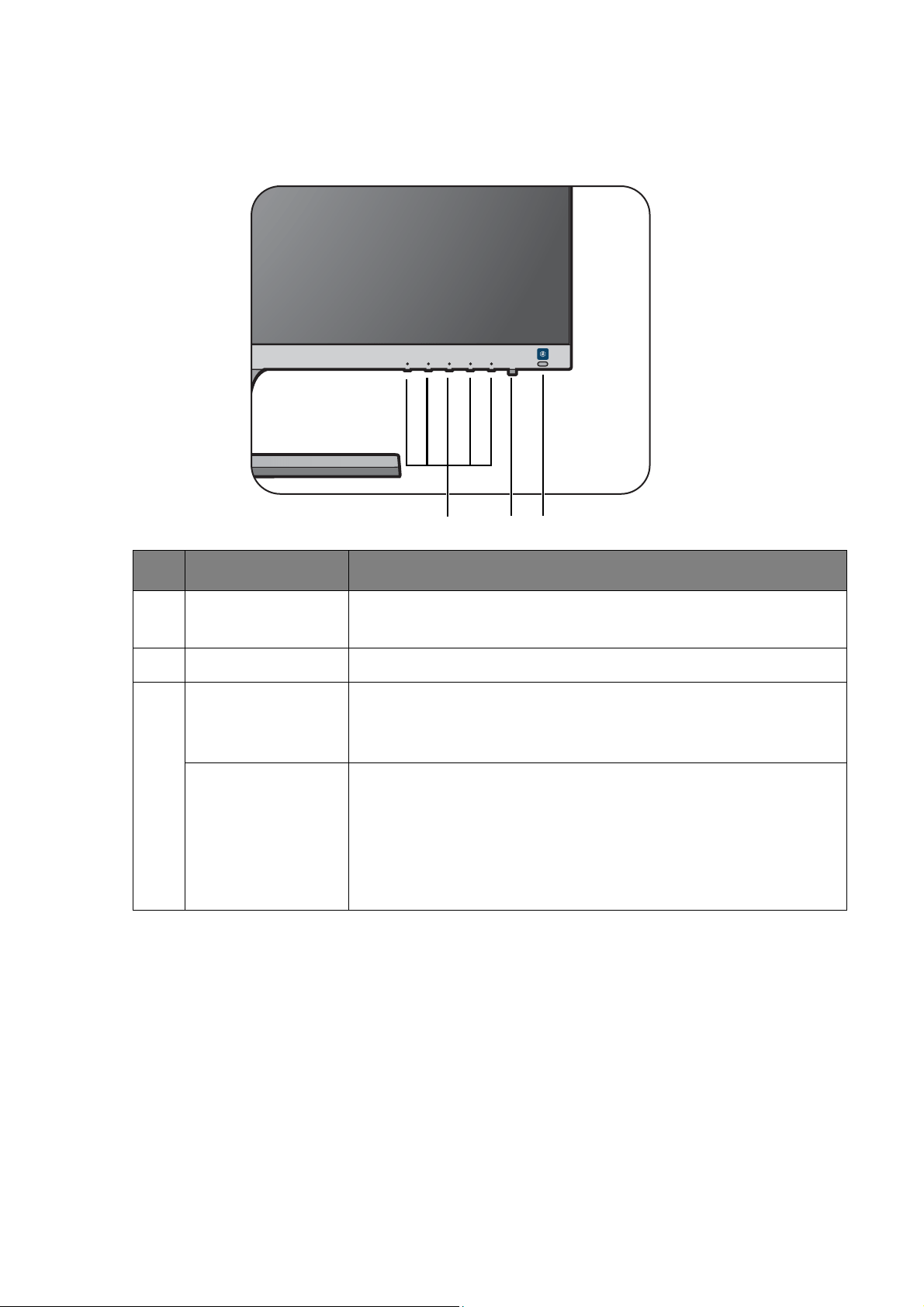
No. Name Description
1. Control keys Accesses the functions or menu items displayed on the screen,
right next to each key.
2. Power key Turns the power on or off.
3. Bright Intelligence
hot key
Turns the Bright Intelligence function on or off. See
Adjusting
screen brightness automatically (Bright Intelligence) (selected
models only) on page 29 for more information.
(Models with HDR
feature)
HDR / Bright
Intelligence Plus hot
key
Turns the HDR and Bright Intelligence Plus functions on or off.
See
Adjusting screen brightness automatically (Bright Intelligence
Plus) (Models with HDR feature only) on page 30 and Working
with HDR technology (Models with HDR feature only) on page
30 for more information.
123
26 How to adjust your monitor
Basic menu operation
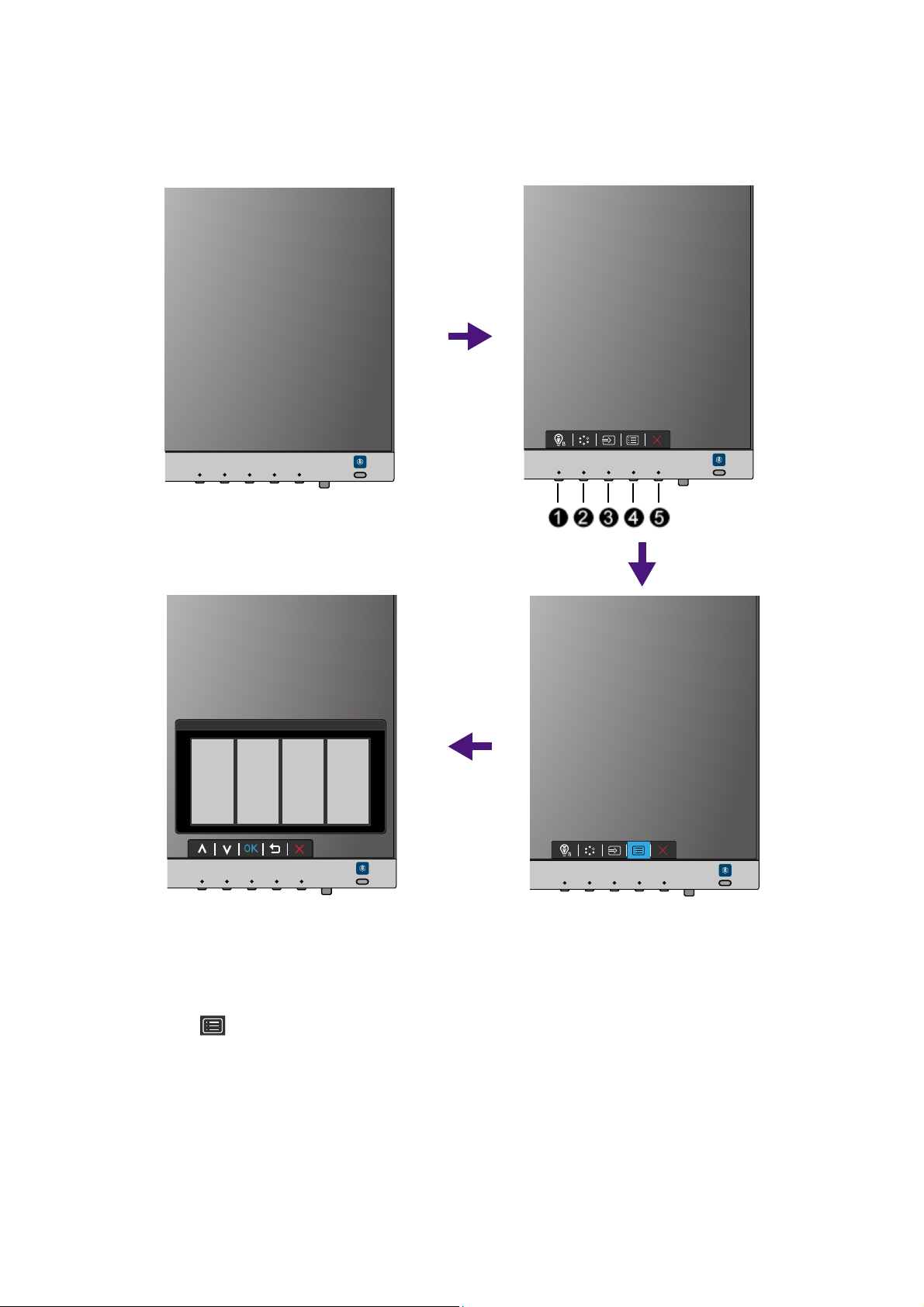
All OSD (On Screen Display) menus can be accessed by the control keys. You can use the OSD
menu to adjust all the settings on your monitor.
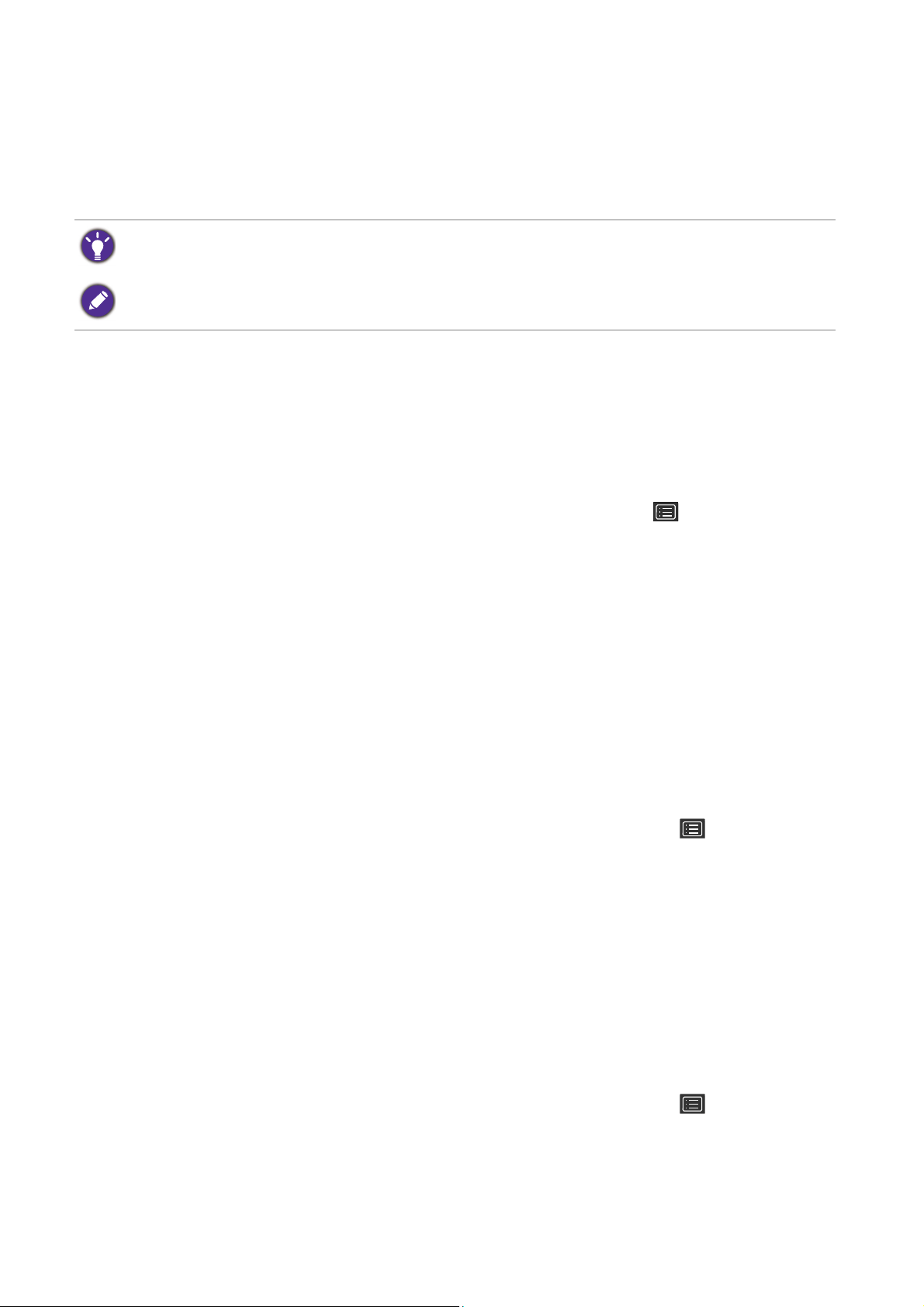
1. Press any of the control keys.
2. The hot key menu is displayed. Some of the controls are custom keys and are designated
for particular functions.
3. Select (Menu) to access the main menu.
4. In the main menu, follow the icons next to the control keys to make adjustments or
selection. See
Navigating the main menu on page 32 for details on the menu options.
12
34
27 How to adjust your monitor
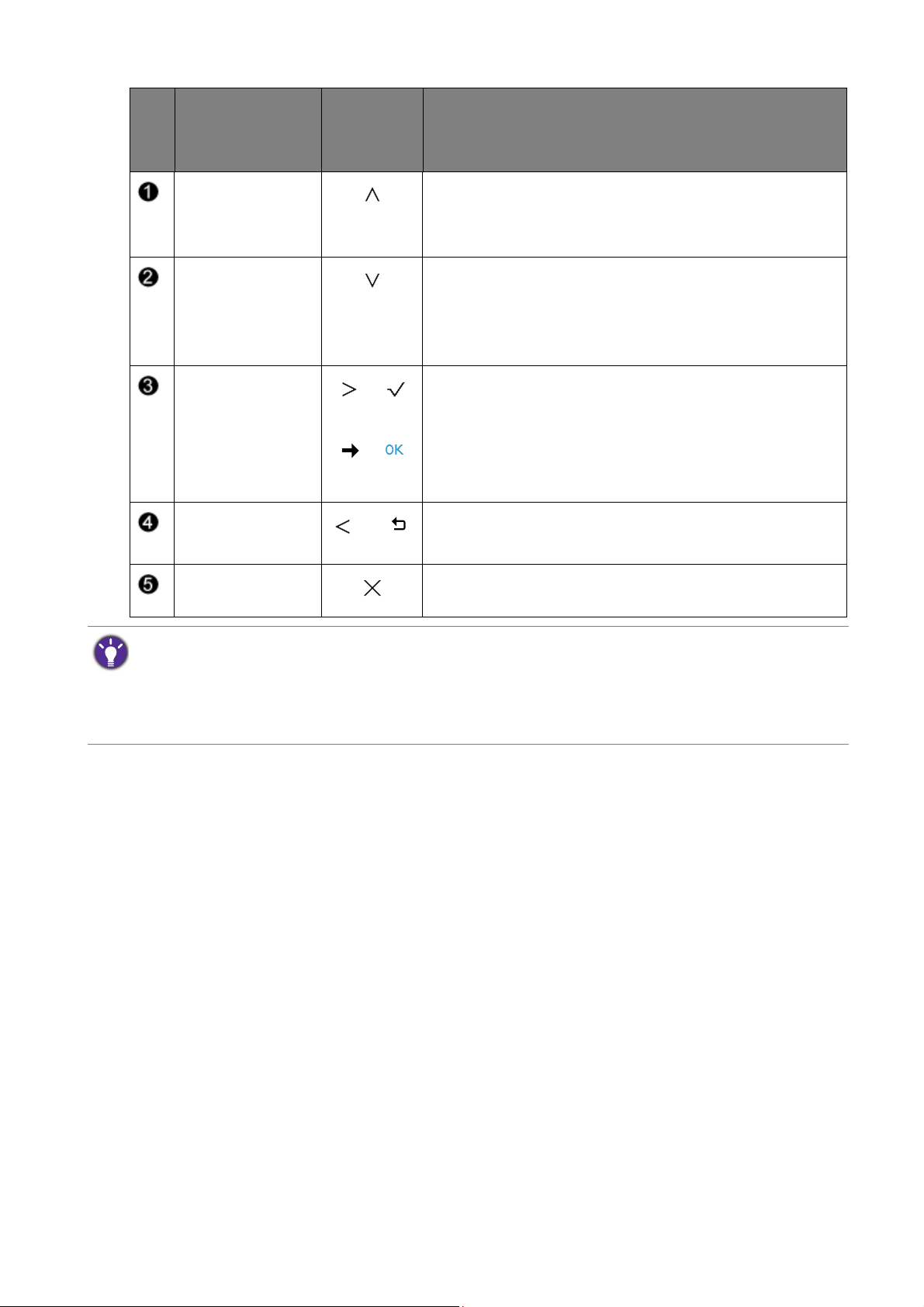
No.
OSD in hot key
menu
OSD icon
in main
menu
Function
Low Blue Light
Plus / Low Blue
Light hot key
• By default, the key is the hot key for Low Blue Light
Plus / Low Blue Light(*).
• For Up/Increase adjustment.
Custom Key 1 • By default, the key is the hot key for Picture Mode.
To change the default settings, see
Customizing the
hot keys on page 28.
• For Down/Decrease adjustment.
Custom Key 2
/
or
/
• By default, the key is the hot key for Input. To change
the default settings, see
Customizing the hot keys on
page 28.
• Enters sub menus.
• Selects menu items.
Menu
or
• Activates the main menu.
• Returns to the previous menu.
Exit Exits OSD menu.
• OSD = On Screen Display.
The hot keys only operate while the main menu is not currently displaying. Hot key displays will disappear after
a few seconds of no key activity.
• To unlock the OSD controls, press and hold any key for 10 seconds.
• *: Available menu options may vary, depending on the product supplied for your region.
28 How to adjust your monitor
Picture optimization (selected models only)
The easiest way to obtain an optimal display from an analog (D-Sub) input is to use the Auto
Adjustment function. Go to Display and Auto Adjustment to optimize the currently displayed
image to the screen.
If you wish, you can always adjust the screen geometric settings manually using geometry menu
items. To assist you in this endeavour, BenQ has provided a screen test image utility which you
can use to check for screen color, grayscale and line gradient display.
1. Run the test program auto.exe from CD-ROM. You could also use any other image, such as
the desktop of your operating system. However, we recommend that you use auto.exe. As
you run auto.exe, a test pattern displays.
2. Press any of the control keys to bring up the hot key menu. Select (Menu) to access
the main menu.
3. Go to Display and Auto Adjustment.
4. If you notice a vertical noise (like a curtain effect-shimmering of vertical lines), select Pixel
Clock and adjust the monitor until the noise disappears.
5. If you notice a horizontal noise, select Phase and adjust the monitor until the noise
disappears.
Customizing the hot keys
The second and the third control keys counted from the left (also called custom keys) perform
as hot keys to provide direct access to pre-defined functions. You can change the default setting
and designate different functions for these keys.
1. Press any of the control keys to bring up the hot key menu, and press (Menu) to
access the main menu.
2. Go to System.
3. Select the custom key you want to change.
4. In the sub menu, select a function that can be accessed by this key. A pop-up message will
appear, showing that the setup is complete.
Adjusting display mode
To display images of aspect ratio other than 16:9 and size other than the panel size of your
purchased model, you can adjust the display mode on the monitor.
1. Press any of the control keys to bring up the hot key menu, and press (Menu) to
access the main menu.
2. Go to Picture Advanced and Display Mode.
3. Select an appropriate display mode. The setting will take effect immediately.
When you connect a digital input signal using a digital (HDMI / DP / mini DP) cable to your monitor, the Auto
Adjustment function will be disabled, because the monitor will automatically display the best image.
Please ensure that the connected graphic card on your computer is set to the native resolution of the monitor
when you use the Auto Adjustment function.
29 How to adjust your monitor
Activating FreeSync (selected models only)
Monitors featuring with the VESA standard FreeSync will eliminate screen tearing, stuttering,
and juddering during gaming.
1. Use a compatible graphics processing units (GPU) with the forthcoming driver. Confirm
supported technologies please visit
www.AMD.com.
2. Ensure to connect with DisplayPort or HDMI. See Connect the PC video cable. on page
13 for more information.
Choosing an appropriate picture mode
Your monitor provides various picture modes that are suitable for different types of images.
See Picture Mode on page 38 for all the available picture modes.
Go to Picture Advanced and Picture Mode for a desired picture mode. If Low Blue Light
Plus is preferred, press the first control key (Low Blue Light Plus hot key) and select one of
the low blue light plus modes from the list.
Connecting the monitor to your MacBook series product
While the monitor is connected to your MacBook series product, switch to M-book mode
which represents MacBook’s color matching and visual representation on your monitor.
1. Connect your monitor to the MacBook series product.
2. Go to Picture Advanced and Picture Mode.
3. Select M-book. The setting will take effect immediately.
Adjusting screen brightness automatically (Bright Intelligence)
(selected models only)
The built-in light sensor works with Bright Intelligence technology to detect the ambient light,
image brightness and contrast, and then balance the screen automatically. It helps keep image
details as well as to reduce eye strain.
To enable this function, press the Bright Intelligence hot key at the lower-right part of the
monitor and select ON. It takes a few seconds to complete the adjustment.
Alternatively, go to Eye Care > Bright Intelligence > ON.
For any questions related to FreeSync performance please refer to www.AMD.com.
The Bright Intelligence function works with certain picture modes only. If it is not available, its menu options will
become grayed out.
The performance of Bright Intelligence may be impacted by the light sources and the monitor tilt angle. You can
increase the light sensor sensitivity from Eye Care > Bright Intelligence > Sensor Sensitivity if needed. See
page 34 for more information.
30 How to adjust your monitor
Adjusting screen brightness automatically (Bright Intelligence
Plus) (Models with HDR feature only)
The built-in light sensor works with Bright Intelligence Plus technology to detect the ambient
light, image brightness, contrast, and color temperature, and then balance the screen
automatically. It helps keep image details as well as to reduce eye strain.
To enable this function, press the HDR / Bright Intelligence Plus hot key at the lower-right
part of the monitor to turn it on. It takes a few seconds to complete the adjustment.
Alternatively, go to Eye Care > B.I.+ (Bright Intelligence Plus) > ON.
Working with HDR technology (Models with HDR feature
only)
To enable HDR function, you need to have a compatible player and content.
1. Make sure a FHD/4K HDR player is ready. Players with the following names and resolutions
are supported. Note that the 4K content on a FHD monitor get resized and is displayed at
1920 x 1080.
2. Make sure HDR content is available. Content may come from a FHD/4K player.
3. Make sure the player and the monitor have been connected via the provided HDMI cable
or an HDMI cable that is HDMI High Speed or HDMI Premium certified.
Enabling HDR function
1. Press any of the control keys to bring up the hot key menu. Select (Menu) to access
the main menu.
2. Go to Picture Advanced and Picture Mode.
3. Select HDR or Cinema HDR. An OSD message displays.
The Bright Intelligence Plus function works with certain picture modes only. If it is not available, its menu options
will become grayed out.
The performance of Bright Intelligence Plus may be impacted by the light sources and the monitor tilt angle. You
can increase the light sensor sensitivity from Eye Care > B.I.+ (Bright Intelligence Plus) > Sensor Sensitivity if
needed. See page 35 for more information.
• Your monitor supports HDR10 technology.
• The information regarding HDR-compatible devices and content in this document is most up-to-date at the
time of publication. For the latest information, contact your device manufacturer and content provider.
Commonly used names for
FHD/4K
(may vary by manufacturer)
FHD, 4K, 4K Ultra HD, UHD, UHD 4K, Ultra HD, 2160p
Supported resolution or modes 1920 x 1080 @ 60 Hz
3840 x 2160 @ 60 Hz (models with a 4K panel)
Commonly used names for
HDR10
(may vary by manufacturer)
HDR Premium, High Dynamic Range, HDR, Ultra HD
Premium

31 How to adjust your monitor
• HDR: On: This means your content player and content are HDR-compatible and the HDR
function is properly enabled. The monitor is following the ST2084 standard to process the HDR
content. In this case, HDR or Cinema HDR are available under Picture Advanced > Picture
Mode.
• HDR: Emulated: This means the input content is not HDR-compatible and the monitor is in
HDR-emulated mode. In this case, all Picture Mode options except HDR and Cinema HDR
are available. Refer to
Working with HDR technology (Models with HDR feature only) on page 30
to check if a supported player, content, and the certified cable are used.
32 Navigating the main menu
Navigating the main menu
You can use the OSD (On Screen Display) menu to adjust all the settings on your monitor.
Press any of the control keys to bring up the hot key menu, and press (Menu) to access
the main menu. See
Basic menu operation on page 26 for details.
Available menu options may vary depending on the input sources, functions and settings. Menu
options that are not available will become grayed out. And keys that are not available will be
disabled and the corresponding OSD icons will disappear. For models without certain functions,
their settings and related items will not appear on the menu.
For more information on each menu, please refer to the following pages:
•
Eye Care menu on page 33
• Picture menu on page 36
•
Picture Advanced menu on page 38
•
Display menu (selected models only) on page 42
• Audio menu on page 44
•
System menu on page 46
The OSD menu languages may differ from the product supplied to your region, see Language on page 47 under
System and OSD Settings for more details.
33 Navigating the main menu
Eye Care menu
Available menu options may vary depending on the input sources, functions and settings. Menu
options that are not available will become grayed out. And keys that are not available will be
disabled and the corresponding OSD icons will disappear. For models without certain
functions, their settings and related items will not appear on the menu.
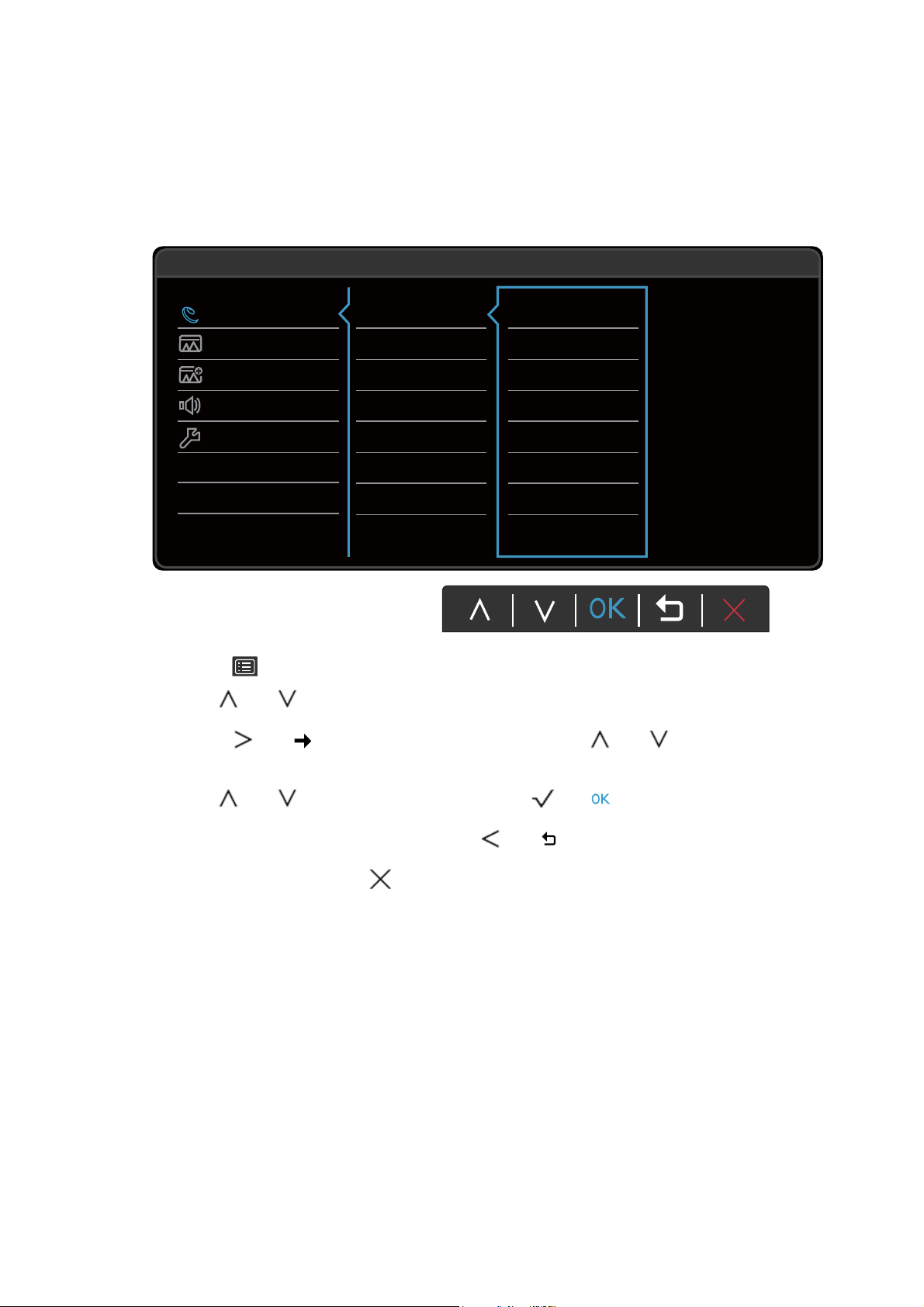
1. Select (Menu) from the hot key menu.
2. Use or to select Eye Care.
3. Select or to go to a sub menu, and then use or to select a menu
item.
4. Use or to make adjustments, or use or to make selection.
5. To return to the previous menu, select or .
6. To exit the menu, select .
Eye Care
Picture
Picture Advanced
Audio
System
Mode: Low Blue Light
Low Blue Light
B.I.+
Multimedia
Web Surfing
Office
Reading
34 Navigating the main menu
(Models with HDR feature)
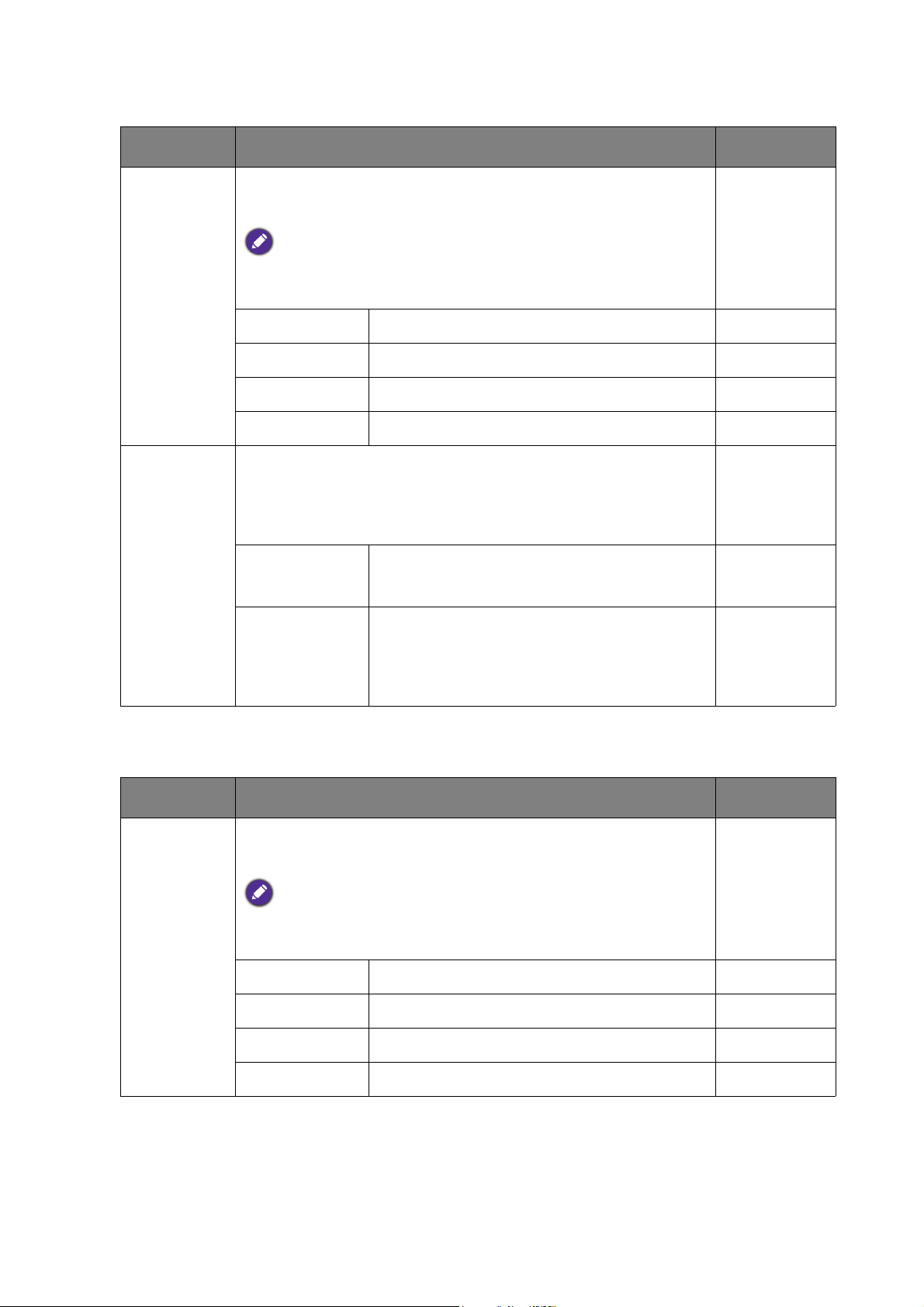
Item Function Range
Low Blue
Light Plus
Decreases the blue light emitted from the display to reduce
the risk of blue light exposure to your eyes.
The amount of blue light reduced in each low blue light plus mode
varies and has been set particularly for the specified scenario.
Choose one mode to suit your needs.
Standard For basic PC application.
Entertainment For viewing multimedia files.
Office For office works or office environment.
Dark Room
For viewing files in a dim light.
Bright
Intelligence
Turns the Bright Intelligence function on or off. The built-in
light sensor works with Bright Intelligence technology to
detect the ambient light, image brightness and contrast, and
then balance the screen automatically.
• ON
• OFF
Light Meter Sets to display the light condition around the
monitor on the screen.
• ON
• OFF
Sensor
Sensitivity
Adjusts sensitivity of light sensor to change
the brightness range to be detected. This
may be helpful to correct uneven lighting in
light detection.
0 ~ 100
Item Function Range
Low Blue
Light
Decreases the blue light emitted from the display to reduce
the risk of blue light exposure to your eyes.
The amount of blue light reduced in each low blue light mode varies
and has been set particularly for the specified scenario. Choose one
mode to suit your needs.
Multimedia For viewing multimedia files.
Web Surfing For web surfing.
Office For office works or office environment.
Reading For reading e-books or documents.
35 Navigating the main menu
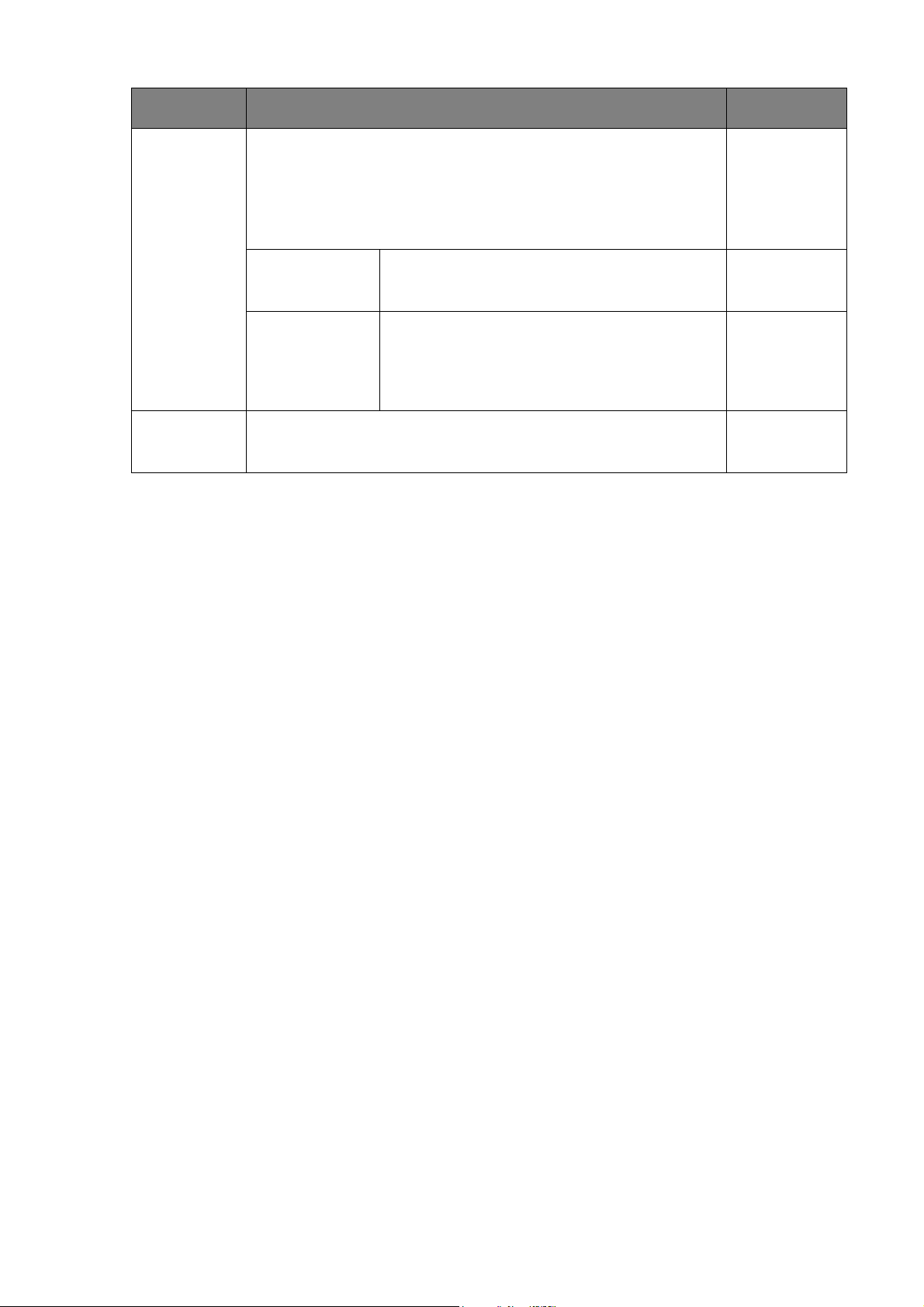
B.I.+ (Bright
Intelligence
Plus)
Turns the Bright Intelligence Plus function on or off. The
built-in light sensor works with Bright Intelligence Plus
technology to detect the ambient light, image brightness,
contrast, and color temperature, and then balance the screen
automatically.
• ON
• OFF
Light Meter Sets to display the light condition around the
monitor on the screen.
• ON
• OFF
Sensor
Sensitivity
Adjusts sensitivity of light sensor to change
the brightness range to be detected. This
may be helpful to correct uneven lighting in
light detection.
0 ~ 100
Adjust by
Duration
The color temperature of the monitor changes as the usage
time increases to reduce possible eye strain.
• ON
• OFF
Item Function Range
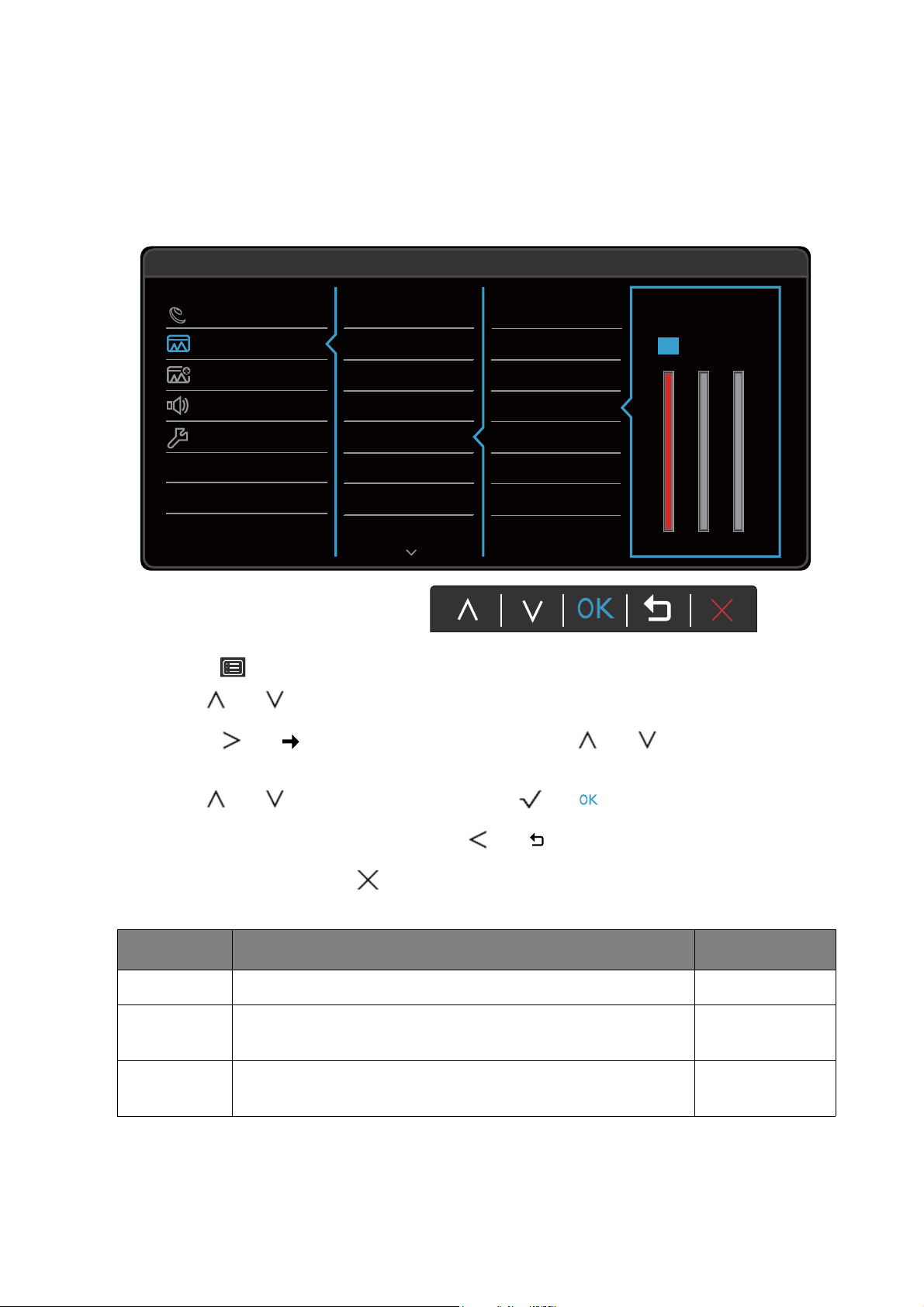
36 Navigating the main menu
Picture menu
Available menu options may vary depending on the input sources, functions and settings. Menu
options that are not available will become grayed out. And keys that are not available will be
disabled and the corresponding OSD icons will disappear. For models without certain functions,
their settings and related items will not appear on the menu.
1. Select (Menu) from the hot key menu.
2. Use or to select Picture.
3. Select or to go to a sub menu, and then use or to select a menu
item.
4. Use or to make adjustments, or use or to make selection.
5. To return to the previous menu, select or .
6. To exit the menu, select .
50
100 100
RG
B
100
Eye Care
Picture
Picture Advanced
Audio
System
Mode: Low Blue Light
Normal
Bluish
Reddish
User Define
Brightness
Contrast
Sharpness
Gamma
Color Temperature
Hue
Saturation
AMA
Item Function Range
Brightness Adjusts the balance between light and dark shades. 0 to 100
Contrast Adjusts the degree of difference between darkness and
lightness.
0 to 100
Sharpness Adjusts the clarity and visibility of the edges of the subjects
in the image.
1 to 10
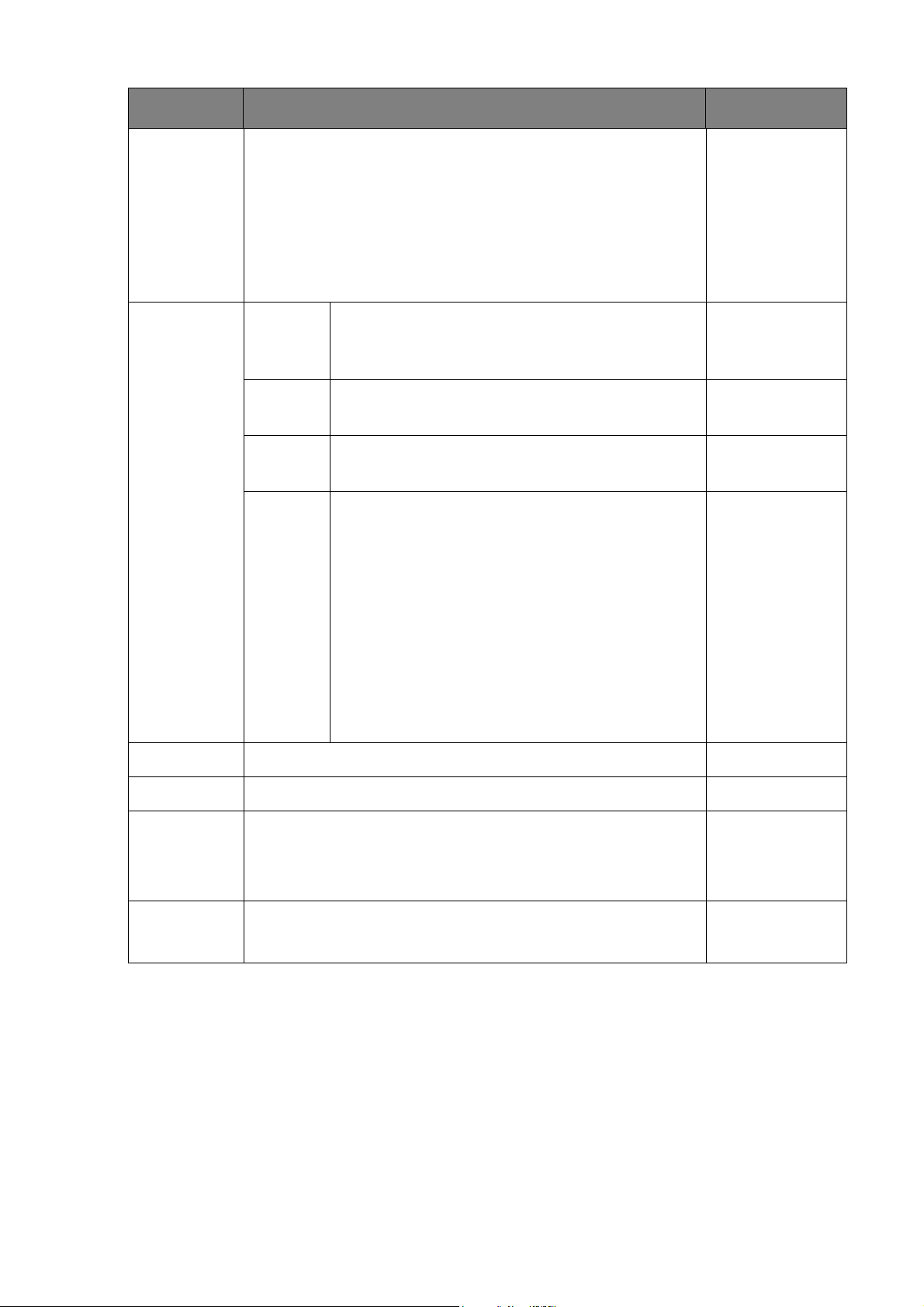
37 Navigating the main menu
Gamma Adjusts the tone luminance. The default value is 3 (the
standard value for Windows).
• 0
• 1
• 2
• 3
• 4
• 5
Color
Temperature
Normal Allows video and still photographs to be viewed
with natural coloring. This is the factory default
color.
Bluish Applies a cool tint to the image and is factory
pre-set to the PC industry standard white color.
Reddish Applies a warm tint to the image and is factory
pre-set to the news print standard white color.
User
Define
The blend of the Red, Green and Blue primary
colors can be altered to change the color tint of
the image. Go to the succeeding R (red),
G (green), and B (blue) menus to change the
settings.
Decreasing one or more of the colors will
reduce their respective influence on the color
tint of the image. (e.g. if you reduce the Blue
level the image will gradually take on a yellowish
tint. If you reduce Green, the image will become
a magenta tint.)
• R (0~100)
• G (0~100)
• B (0~100)
Hue Adjusts the degree of how we perceive colors. 0 ~ 100
Saturation Adjusts the purity degree of colors. 0 ~ 100
AMA Improves the gray level response time of the LCD panel. • OFF
• High
• Premium
Reset Color Resets the custom color settings to the factory defaults. • YES
• NO
Item Function Range
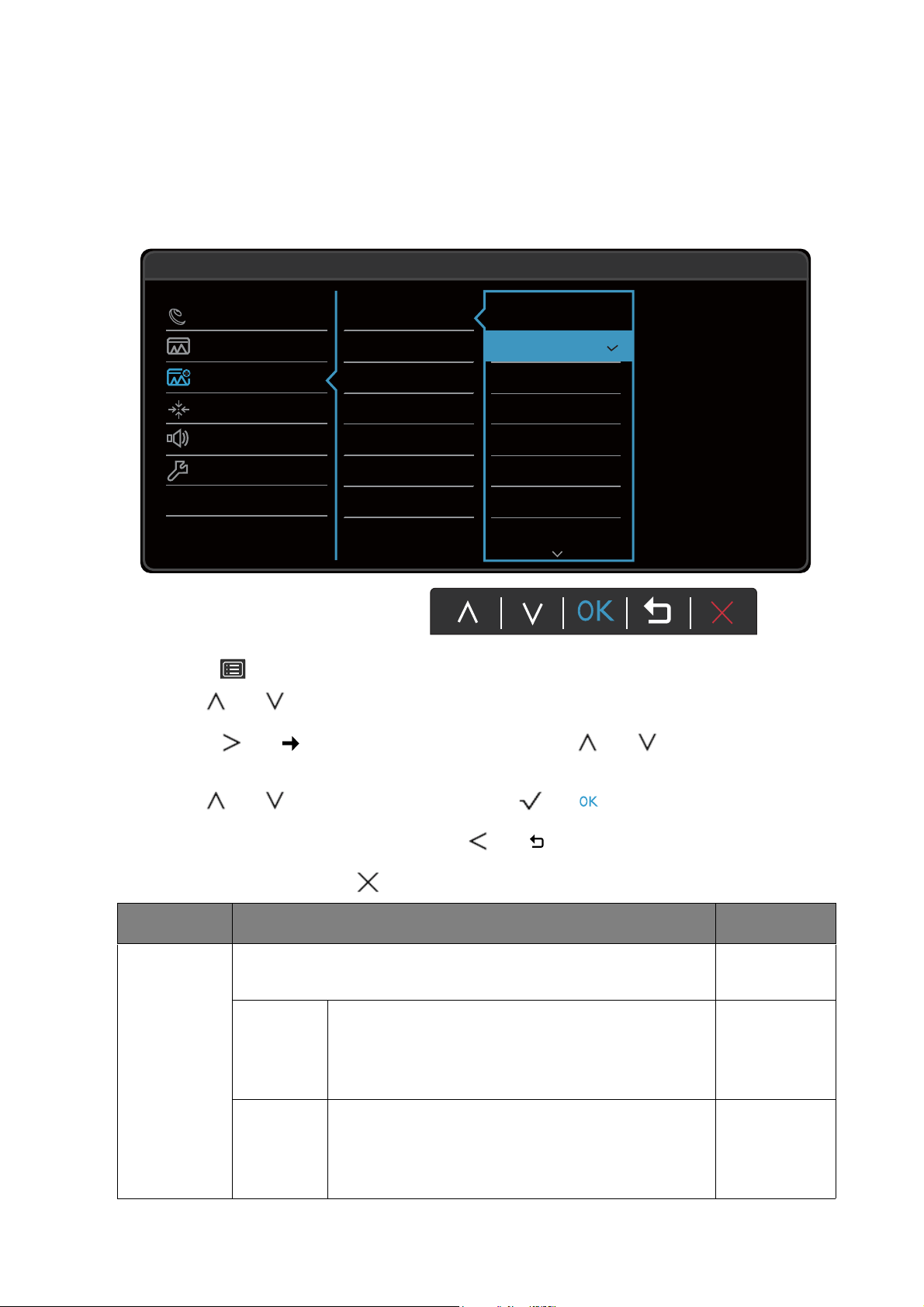
38 Navigating the main menu
Picture Advanced menu
Available menu options may vary depending on the input sources, functions and settings. Menu
options that are not available will become grayed out. And keys that are not available will be
disabled and the corresponding OSD icons will disappear. For models without certain functions,
their settings and related items will not appear on the menu.
1. Select (Menu) from the hot key menu.
2. Use or to select Picture Advanced.
3. Select or to go to a sub menu, and then use or to select a menu
item.
4. Use or to make adjustments, or use or to make selection.
5. To return to the previous menu, select or .
6. To exit the menu, select .
50
Display
Picture
Picture Advanced
Display
Audio
System
Mode: HDR
Picture Mode
Super Resolution
Smart Focus
Dynamic Contrast
Display Mode
Overscan
HDMI RGB PC Range
Standard
HDR
Cinema HDR
Low Blue Light
Game
Photo
sRGB
Rec. 709
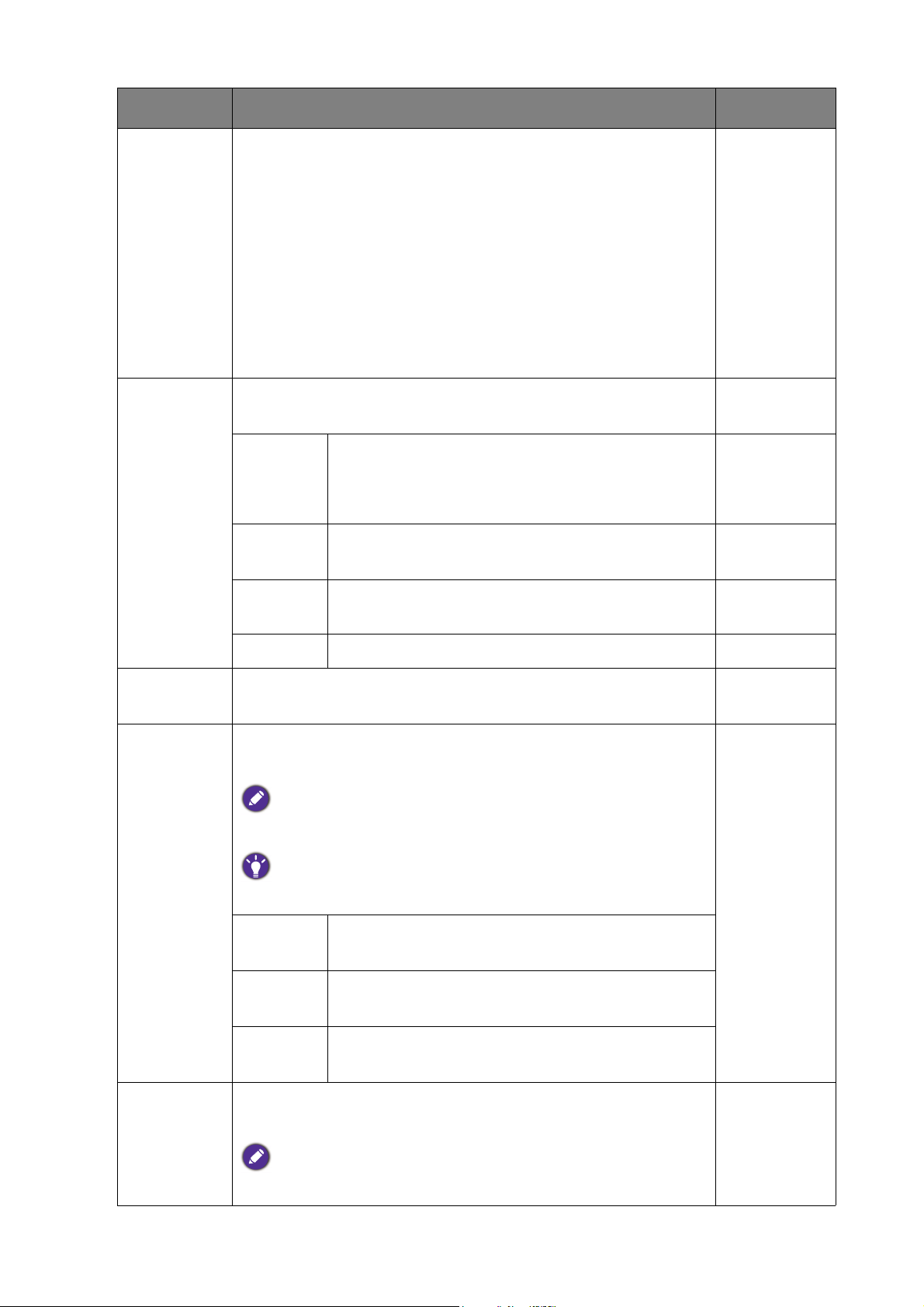
Item Function Range
Picture
Mode
Select a picture mode that best suits the type of images shown
on the screen.
Standard
(Models
with HDR
feature)
For basic PC application.
HDR
(Models
with HDR
feature)
For better color matching representation with
High Dynamic Range (HDR) technology.
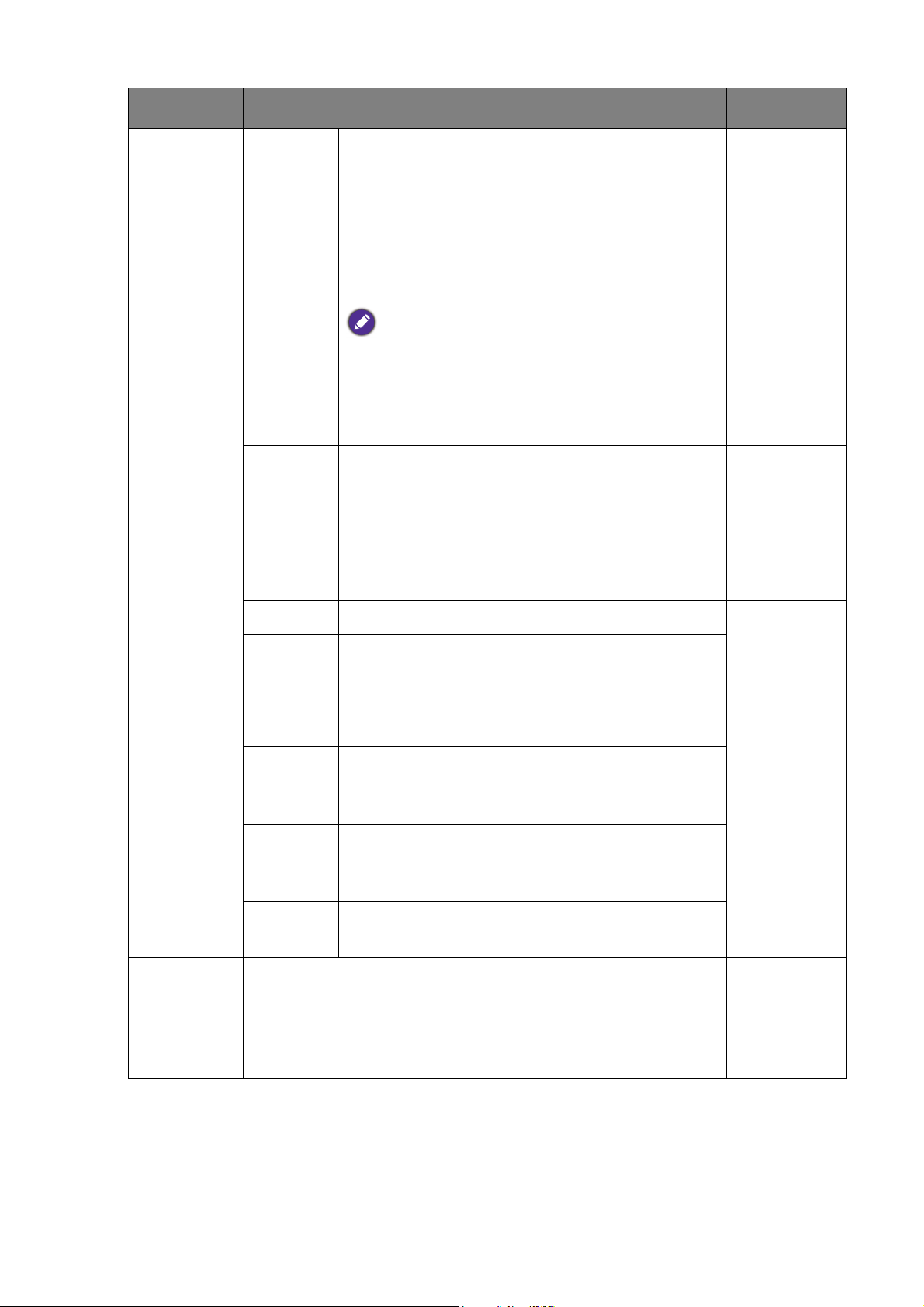
39 Navigating the main menu
Cinema
HDR
(EL2780U
only)
For better color matching representation with
enhanced High Dynamic Range (HDR)
technology.
Low Blue
Light Plus
/ Low
Blue
Light
(Models
with HDR
feature)
Decreases the blue light emitted from the display
to reduce the risk of blue light exposure to your
eyes.
There are 4 low blue light modes to suit different
needs. To select a desired mode, press the Low Blue
Light Plus hot key or go to Eye Care > Low Blue
Light Plus / Low Blue Light. See
Low Blue Light
Plus on page 34
or Low Blue Light on page 34 for
more information.
Rec. 709
(EL2870U
/ EW32
only)
For better color matching representation with
Standard Rec. 709.
Cinema Simulates the experience of movie theater and
recommended for viewing videos.
Game For playing video games.
Photo For viewing still images.
sRGB For better color matching representation with
the peripheral devices, such as printers, digital
cameras, etc.
ECO For saving electricity with low power
consumption by providing minimum brightness
for all running programs.
M-Book Minimizes the visual differences between the
monitor and the connected MacBook series
product.
User Applies a combination of picture settings defined
by users.
Senseye
Demo
(selected
models only)
Displays the preview of screen images under the selected
mode from Picture Mode. The screen will be divided into two
windows; the left window demonstrates images of Standard
mode, while the right window presents the images under the
specified mode.
• ON
• OFF
Item Function Range
40 Navigating the main menu
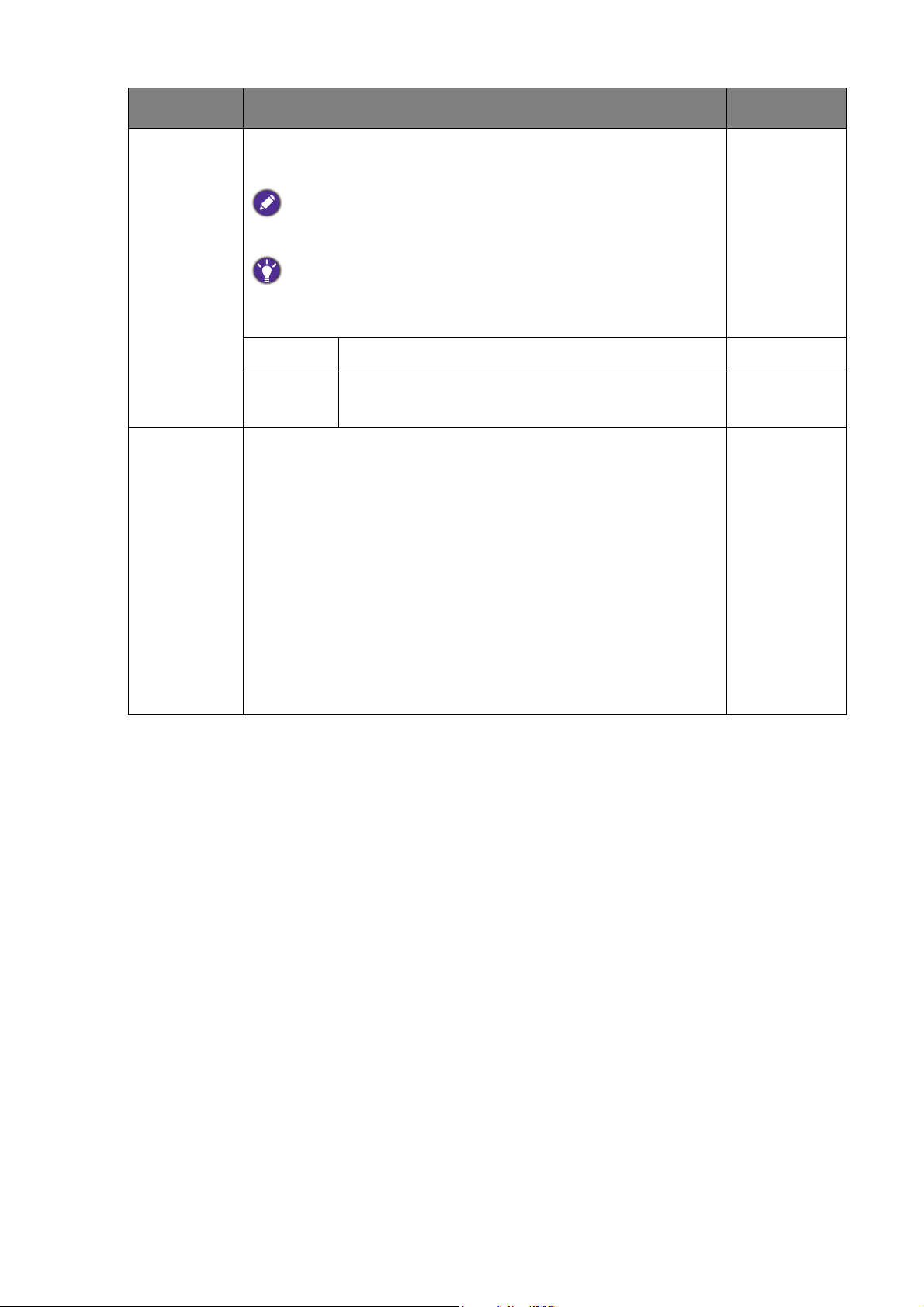
Super
Resolution
Simulates high-resolution images by increasing pixel density of
low-resolution ones.
• ON
• OFF
• Demo
(Models with
HDR feature)
• 0
• 1
• 2
• 3
Smart
Focus
This feature provides a highlight area to focus on certain
content, e.g. a YouTube video or a game in windowed mode.
Size Determines the size of the highlight area. • Small
• Large
• OFF
H.
Position
Adjusts the horizontal position of the highlight
area.
0 ~ 100
V.
Position
Adjusts the vertical position of the highlight area. 0 ~ 100
Scaling Scales the highlight area. 0 ~ 100
Dynamic
Contrast
The function is to automatically detect the distribution of an
input visual signal, and then to create the optimal contrast.
0 to 5
Display
Mode
This feature is provided to allow aspect ratios other than 16:9
to be displayed without geometric distortion.
The options under Display Mode will be different depending on the
input signal sources.
Depending on your selection of Picture Mode, different Display
Mode option is pre-set. Change the setting if needed.
Full Scales the input image to fill the screen. Ideal for
16:9 aspect images.
Aspect The input image is displayed without geometric
distortion filling as much of the display as possible.
1: 1 Displays the input image in its native resolution
without scaling.
Overscan Slightly enlarges the input image. Use this feature to hide
annoying edge noise if present around your image.
Available only when the input source is HDMI or D-Sub (VGA
converted from Component).
• ON
• OFF
Item Function Range
41 Navigating the main menu
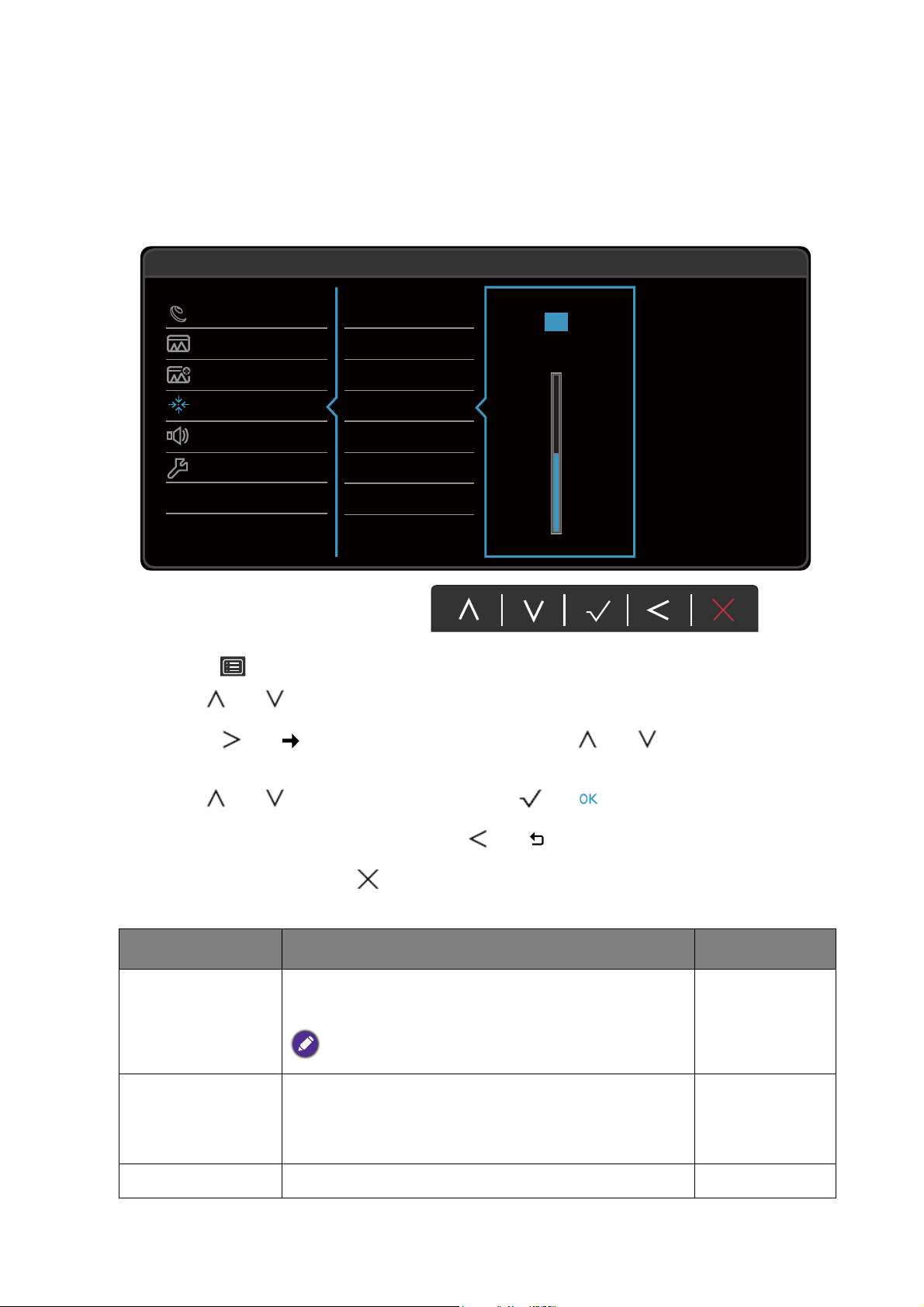
Color
Format
(EW27 only)
Determines the color space (RGB or YUV) based on the
detected video signal.
You might need to manually set the Color Format if colors shown on
the monitor screen do not display properly.
If the input source is HDMI, color format is not selectable. In other
words, Color Format is automatically set depending on the input
video source.
RGB For D-Sub (VGA) input source from PC.
YUV For D-Sub (Component converted from VGA)
input source from a video device.
HDMI RGB
PC Range
Determines the range of color scales. Select an option that
matches the RGB range setting on the connected HDMI
device.
• RGB (0 ~
255)
• RGB (16 ~
235)
(Models with
HDR feature)
• Auto Detect
• RGB (0 ~
255)
• RGB (16 ~
235)
Item Function Range
42 Navigating the main menu
Display menu (selected models only)
Available menu options may vary depending on the input sources, functions and settings. Menu
options that are not available will become grayed out. And keys that are not available will be
disabled and the corresponding OSD icons will disappear. For models without certain functions,
their settings and related items will not appear on the menu.
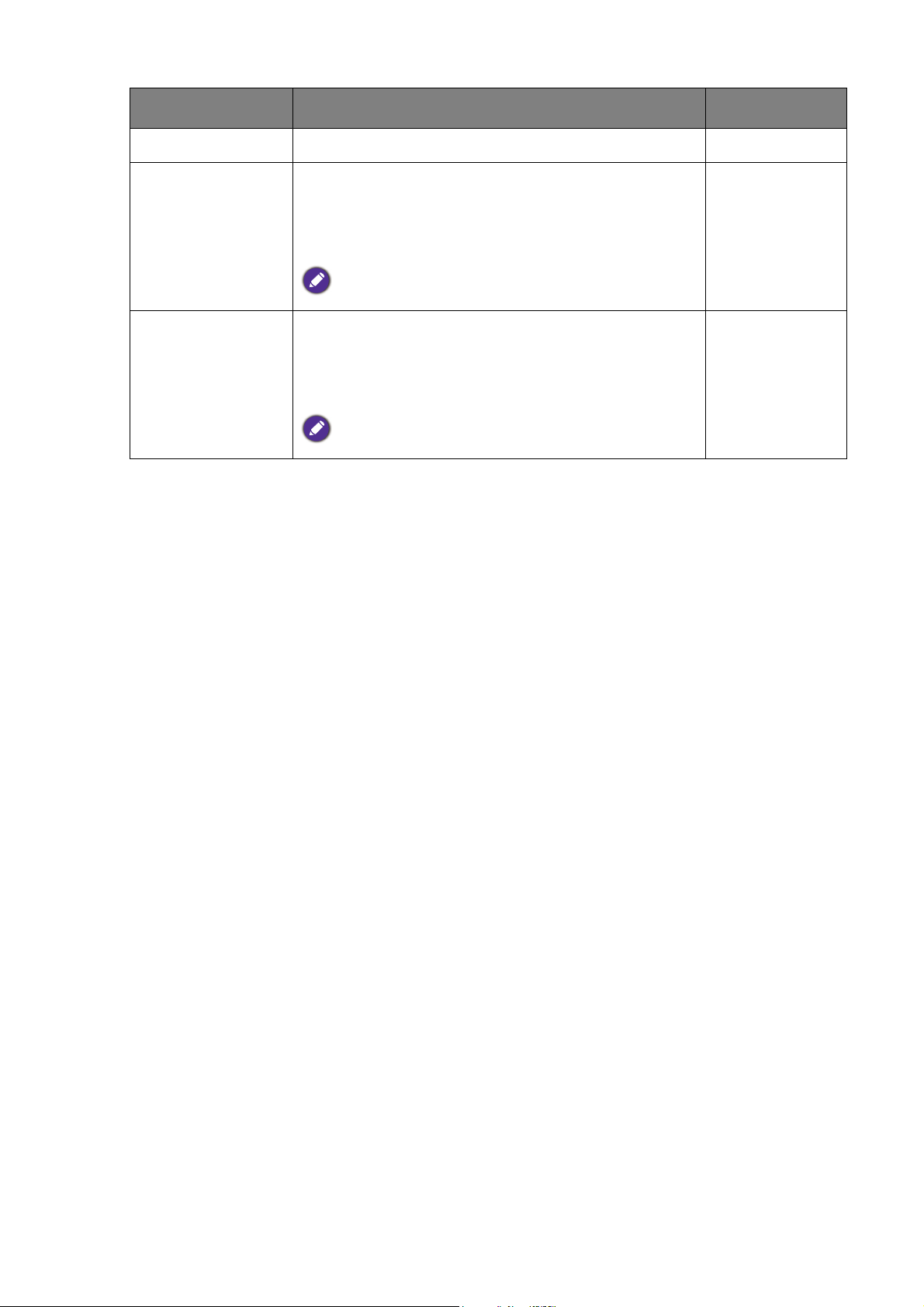
1. Select (Menu) from the hot key menu.
2. Use or to select Display.
3. Select or to go to a sub menu, and then use or to select a menu
item.
4. Use or to make adjustments, or use or to make selection.
5. To return to the previous menu, select or .
6. To exit the menu, select .
Item Function Range
Auto Adjustment Optimizes and adjusts the screen settings
automatically for you.
Not applicable to a digital input signal.
Input Use this to change the input to that appropriate to
your video cable connection type.
• D-Sub
• HDMI 1
• HDMI 2
H. Position Adjusts the horizontal position of the screen image. 0 to 100
50
Eye Care
Picture
Picture Advanced
Display
Audio
System
Mode: Low Blue Light Plus
Auto Adjustment
Input
H. Position
V. Position
Pixel Clock
Phase
43 Navigating the main menu
V. Position Adjusts the vertical position of the screen image. 0 to 100
Pixel Clock Adjusts the pixel clock frequency timing to
synchronize with the analog input video signal.
See also:
Picture optimization (selected models only)
on page 28
.
Not applicable to a digital input signal.
0 to 100
Phase Adjusts the pixel clock phase timing to synchronize
with the analog input video signal.
See also:
Picture optimization (selected models only)
on page 28
.
Not applicable to a digital input signal.
0 to 63
Item Function Range
44 Navigating the main menu
Audio menu
Available menu options may vary depending on the input sources, functions and settings. Menu
options that are not available will become grayed out. And keys that are not available will be
disabled and the corresponding OSD icons will disappear. For models without certain functions,
their settings and related items will not appear on the menu.
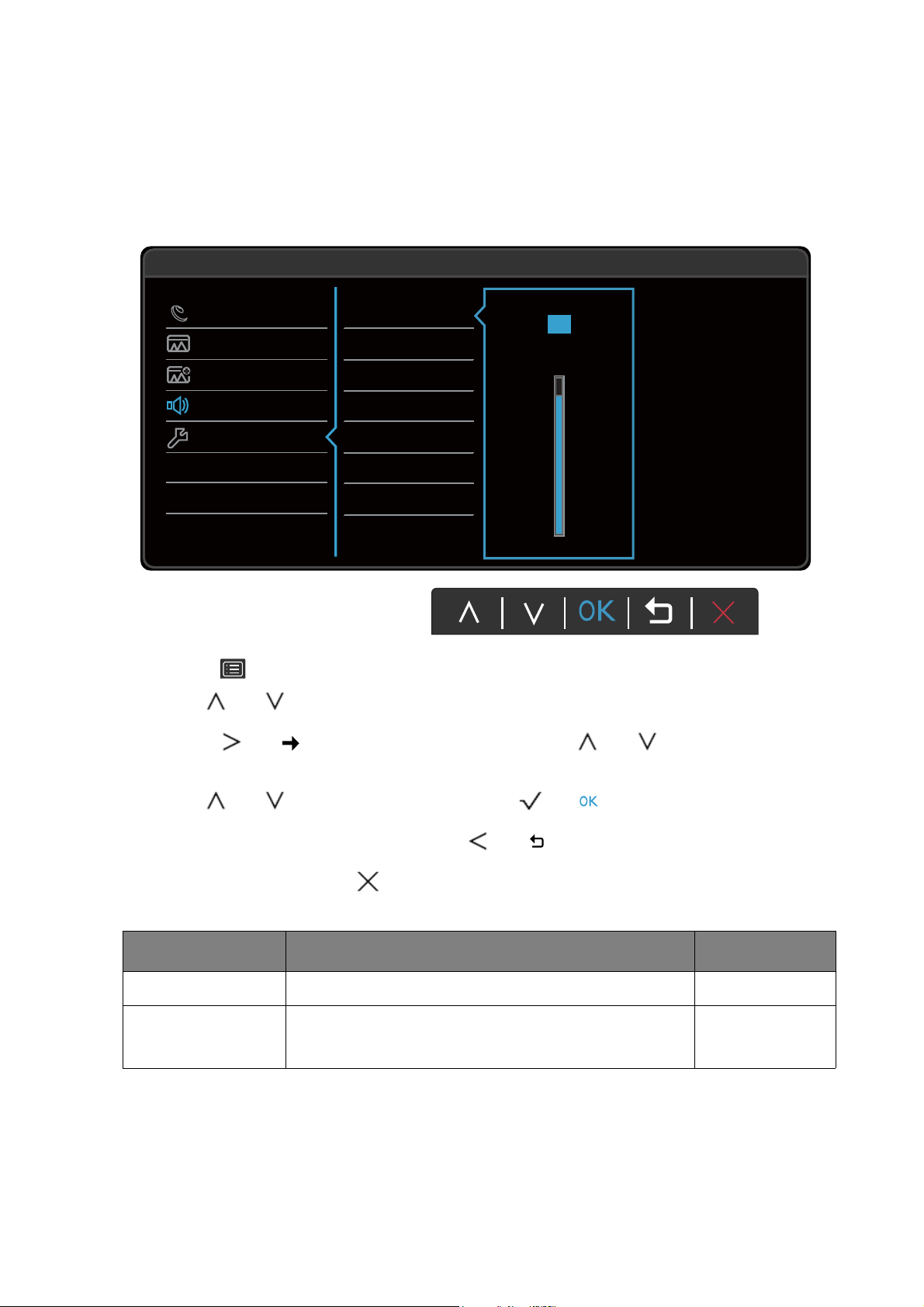
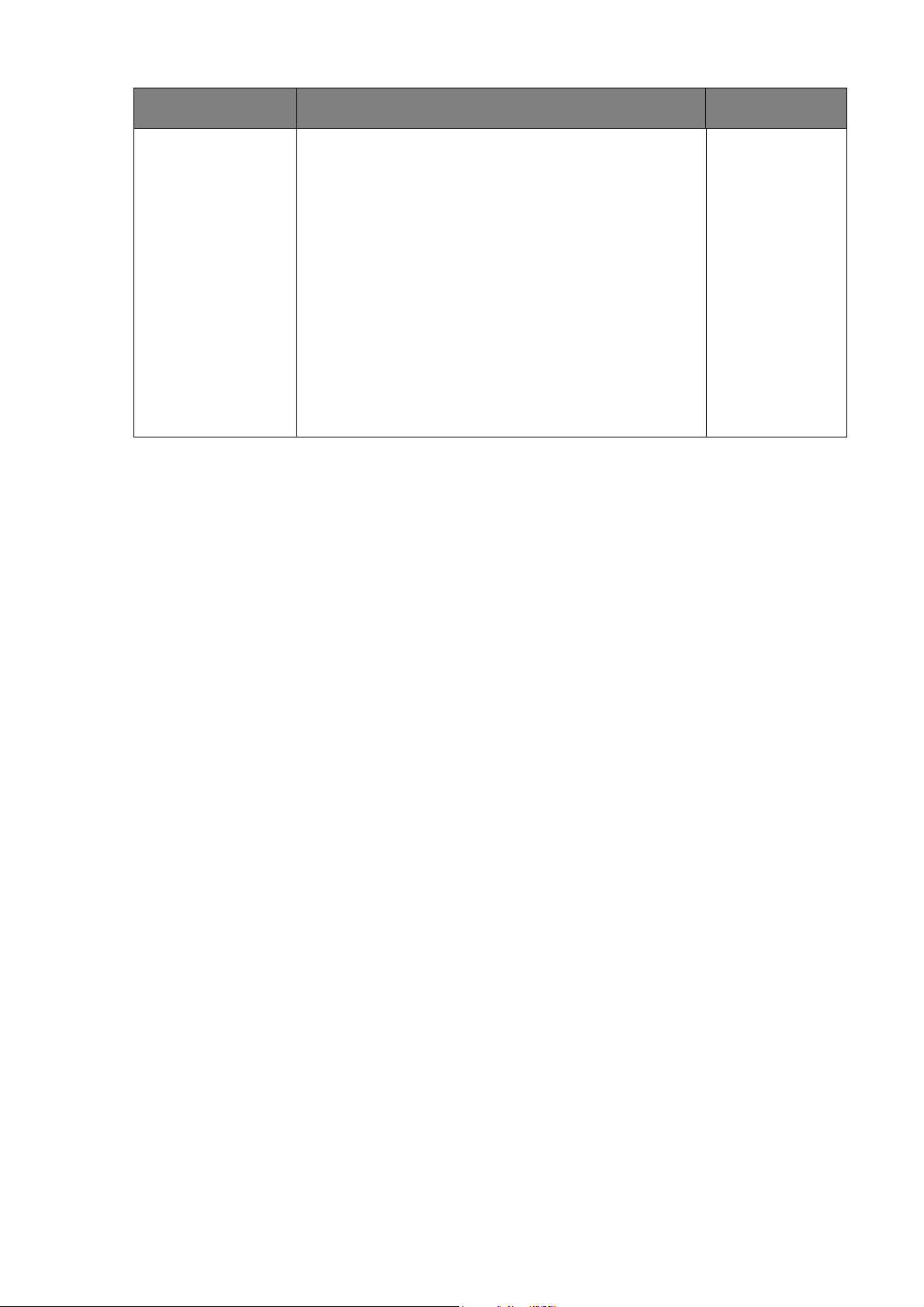
1. Select (Menu) from the hot key menu.
2. Use or to select Audio.
3. Select or to go to a sub menu, and then use or to select a menu
item.
4. Use or to make adjustments, or use or to make selection.
5. To return to the previous menu, select or .
6. To exit the menu, select .
Item Function Range
Volume Adjusts the audio volume. 0 ~ 100
Mute Mutes the audio input. • ON
• OFF
50
Eye Care
Picture
Picture Advanced
Audio
System
Mode: Low Blue Light
92
Volume
Mute
45 Navigating the main menu
Audio Select
(selected models
only)
Allow users to select the audio source or let the
monitor detect it automatically.
(EW27)
• PC Audio
• HDMI Audio
• Auto Detect
(EW32)
• DP Audio
• HDMI Audio
• Auto Detect
(EW277HDR)
• PC Audio
• Auto Detect
Item Function Range
46 Navigating the main menu
System menu
Available menu options may vary depending on the input sources, functions and settings. Menu
options that are not available will become grayed out. And keys that are not available will be
disabled and the corresponding OSD icons will disappear. For models without certain functions,
their settings and related items will not appear on the menu.
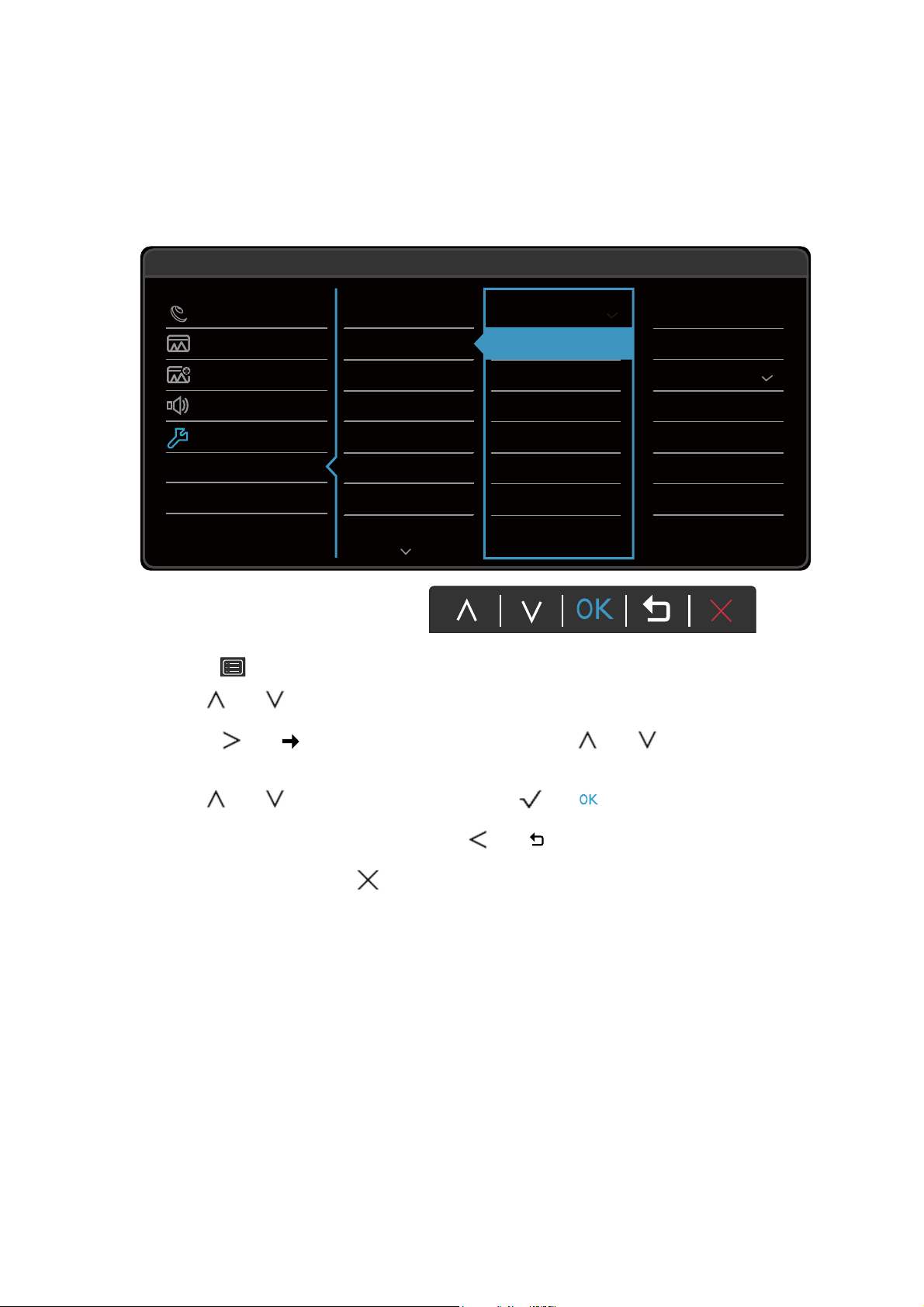
1. Select (Menu) from the hot key menu.
2. Use or to select System.
3. Select or to go to a sub menu, and then use or to select a menu
item.
4. Use or to make adjustments, or use or to make selection.
5. To return to the previous menu, select or .
6. To exit the menu, select .
50
Eye Care
Picture
Picture Advanced
Audio
System
Mode: Low Blue Light
Language
Display Time
OSD Lock
5 Sec.
10 Sec.
15 Sec.
20 Sec.
25 Sec.
30 Sec.
Input
OSD Settings
Custom Key 1
Custom Key 2
DDC/CI
Input Auto Switch
Auto Power Off
Resolution Notice
47 Navigating the main menu
Item Function Range
Input
(EW32 /
EL2870U /
EW3270U
only)
Use this to change the input to that appropriate to your
video cable connection type.
(EW32)
• DisplayPort
• Mini
DisplayPort
• HDMI 1
• HDMI 2
(EL2870U)
• DisplayPort
• HDMI 1
• HDMI 2
(EW3270U)
• DisplayPort
• USB-C
• HDMI1
• HDMI2
OSD
Settings
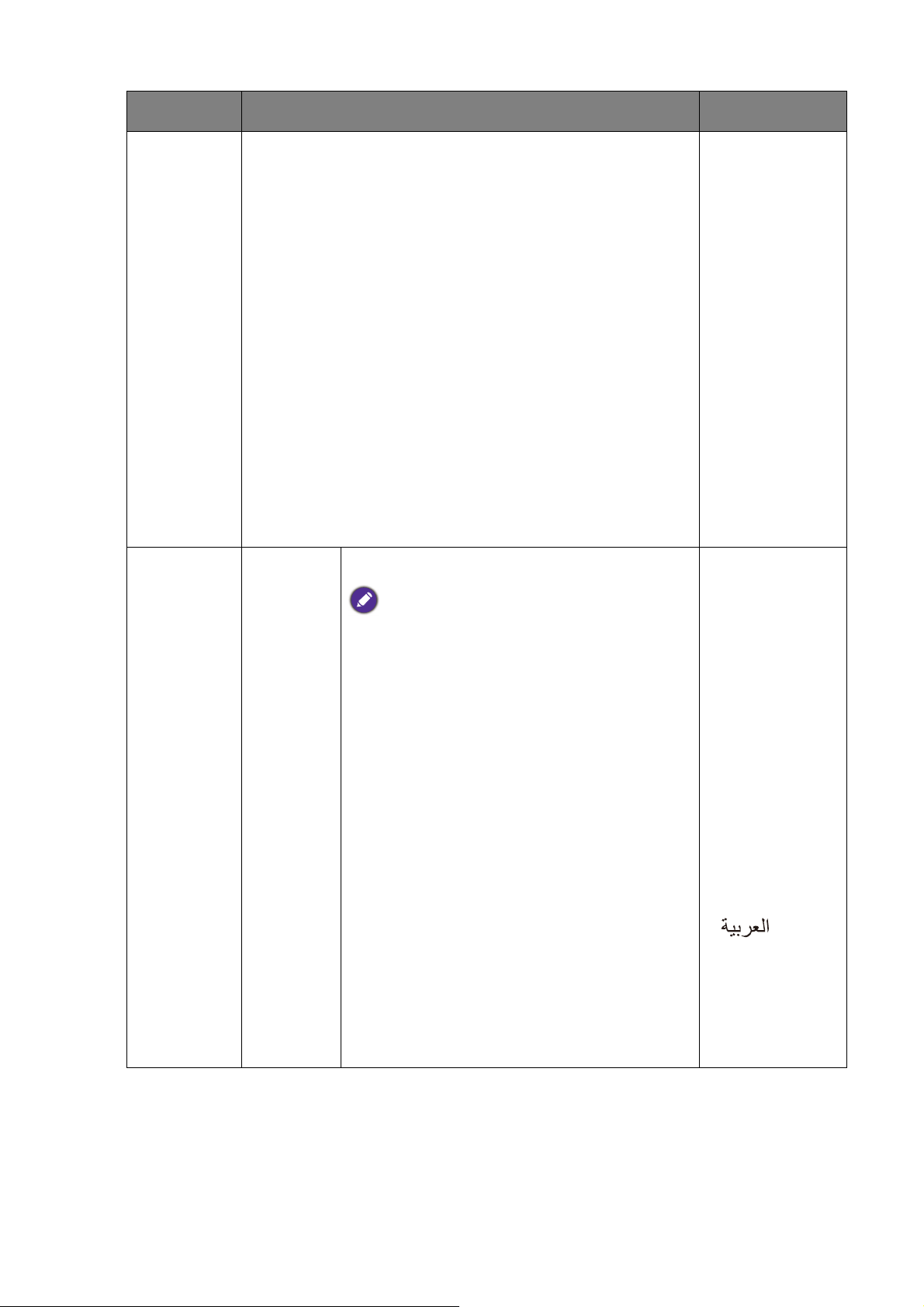
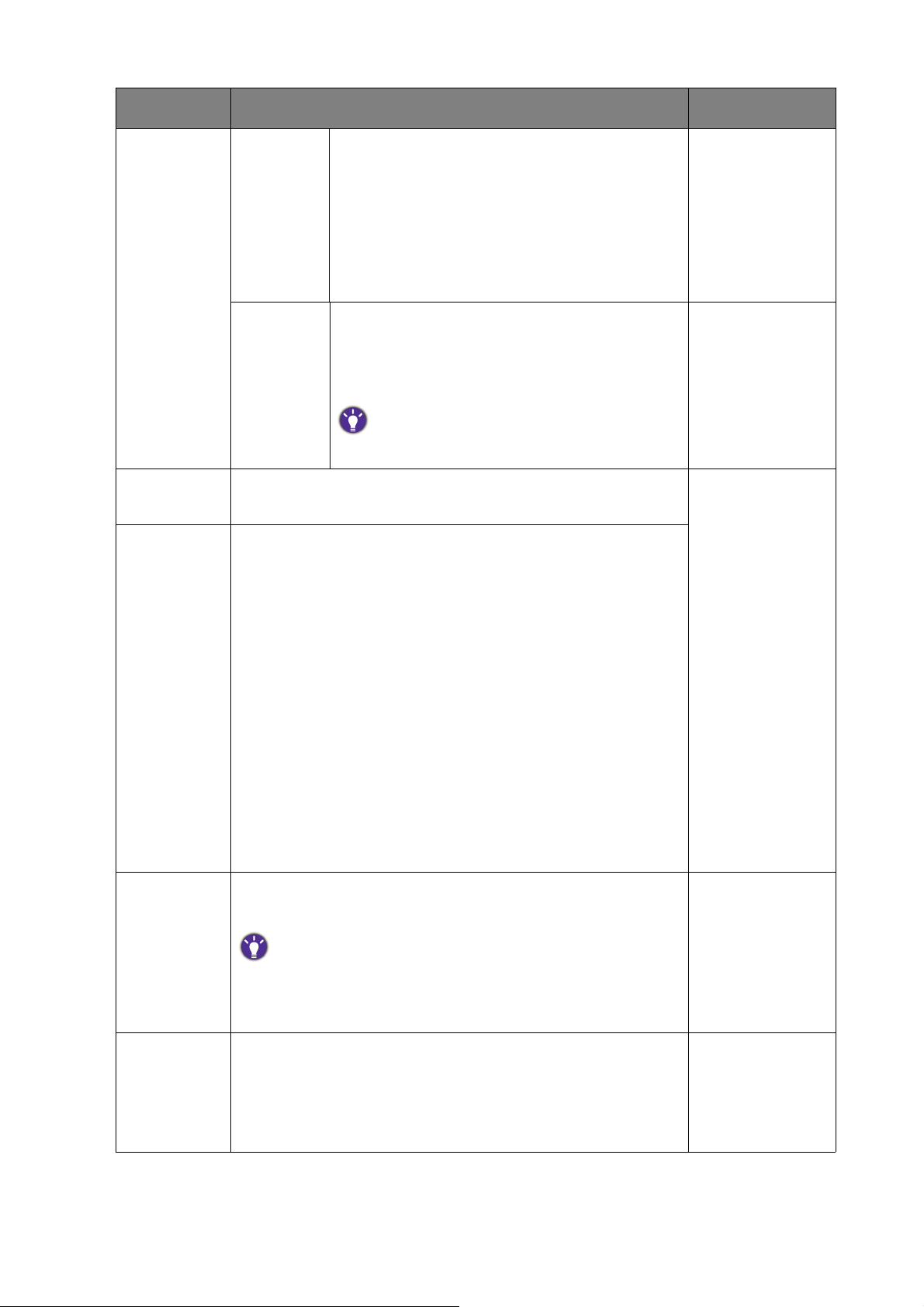
Language Sets the OSD menu language.
The language options displayed on your OSD may
differ from those shown on the right, depending
on the product supplied in your region.
• English
• Français
• Deutsch
• Italiano
• Español
• Polski
• Česky
• Magyar
• Română
• Nederlands
• Русский
• Svenska
• Português
•
• 日本語
• 한국어
• 繁體中文
• 简体中文
48 Navigating the main menu
Display
Time
Adjusts the display time of the OSD menu. • 5 sec.
• 10 sec.
• 15 sec.
• 20 sec.
• 25 sec.
• 30 sec.
OSD Lock Prevents all the monitor settings from being
accidentally changed. When this function is
activated, the OSD controls and hotkey
operations will be disabled.
To unlock the OSD controls, press and hold any
key for 10 seconds.
Custom Key
1
Sets the function to be accessed by custom key 1. • Input
• Picture Mode
• HDR
(EW277HDR
only)
• Super
Resolution
• Smart Focus
• Brightness
• Contrast
• Color
Temperature
• Display Mode
• Volume
• Mute
Custom Key
2
Sets the function to be accessed by custom key 2.
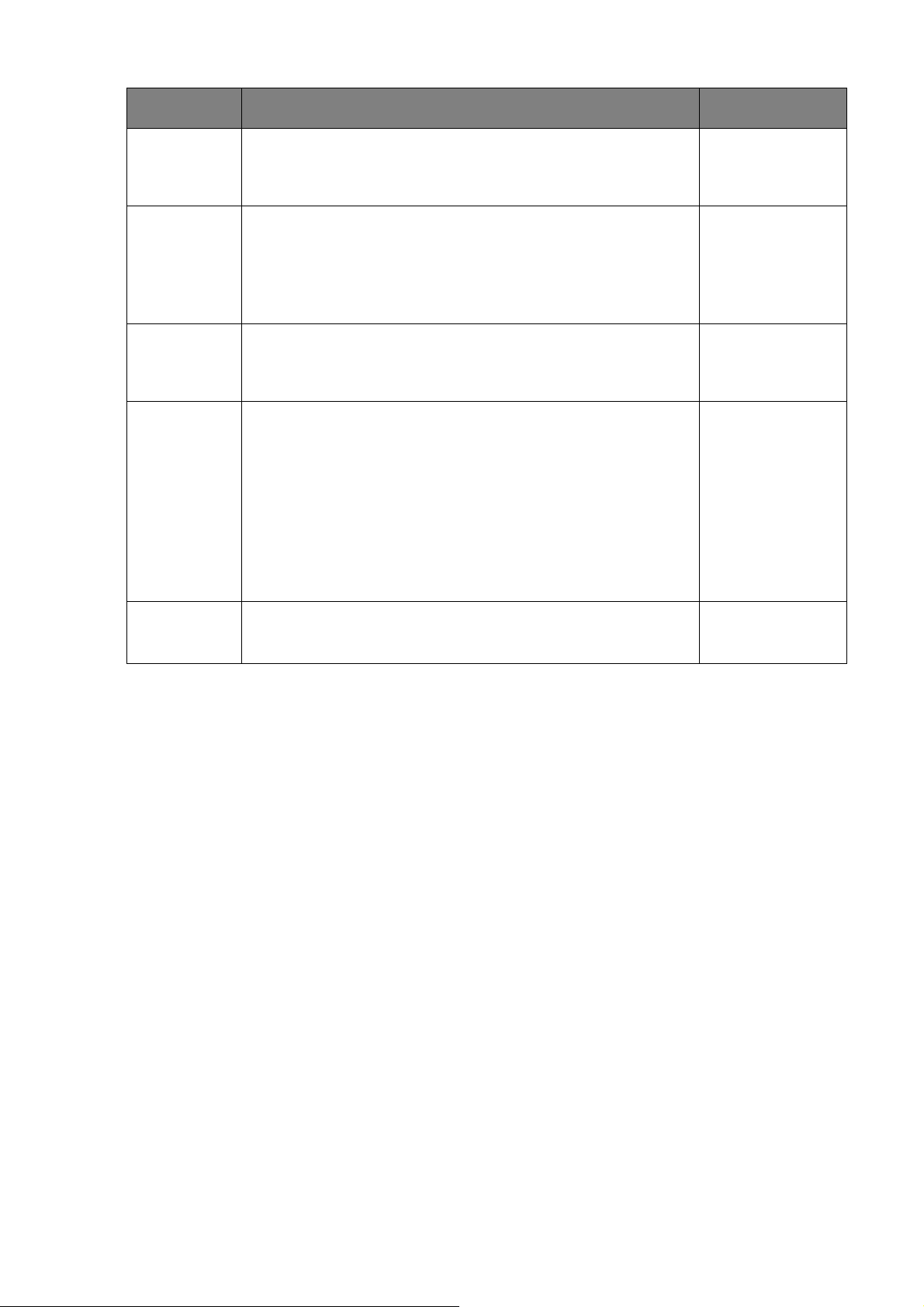
DDC/CI Allows the monitor settings to be set through the software
on the PC.
DDC/CI, short for Display Data Channel/Command Interface,
which was developed by Video Electronics Standards Association
(VESA). DDC/CI capability allows monitor controls to be sent via
the software for remote diagnostics.
• ON
• OFF
Input Auto
Switch
(models with
HDR feature
/ EW32 only)
Sets to automatically detect the available input source. • ON
• OFF
Item Function Range
49 Navigating the main menu
HDMI Auto
Switch
(EW27 only)
When this function is activated, HDMI ports will be in the
input auto select loop. Otherwise, HDMI can only be
selected by input select or by hot key.
• ON
• OFF
Auto Power
Off
Sets the time to power off the monitor automatically in
power saving mode.
• OFF
• 10min.
• 20min.
• 30min.
Resolution
Notice
Sets whether to display the resolution notice of the
recommended resolution when a new input source is
detected by the monitor.
• ON
• OFF
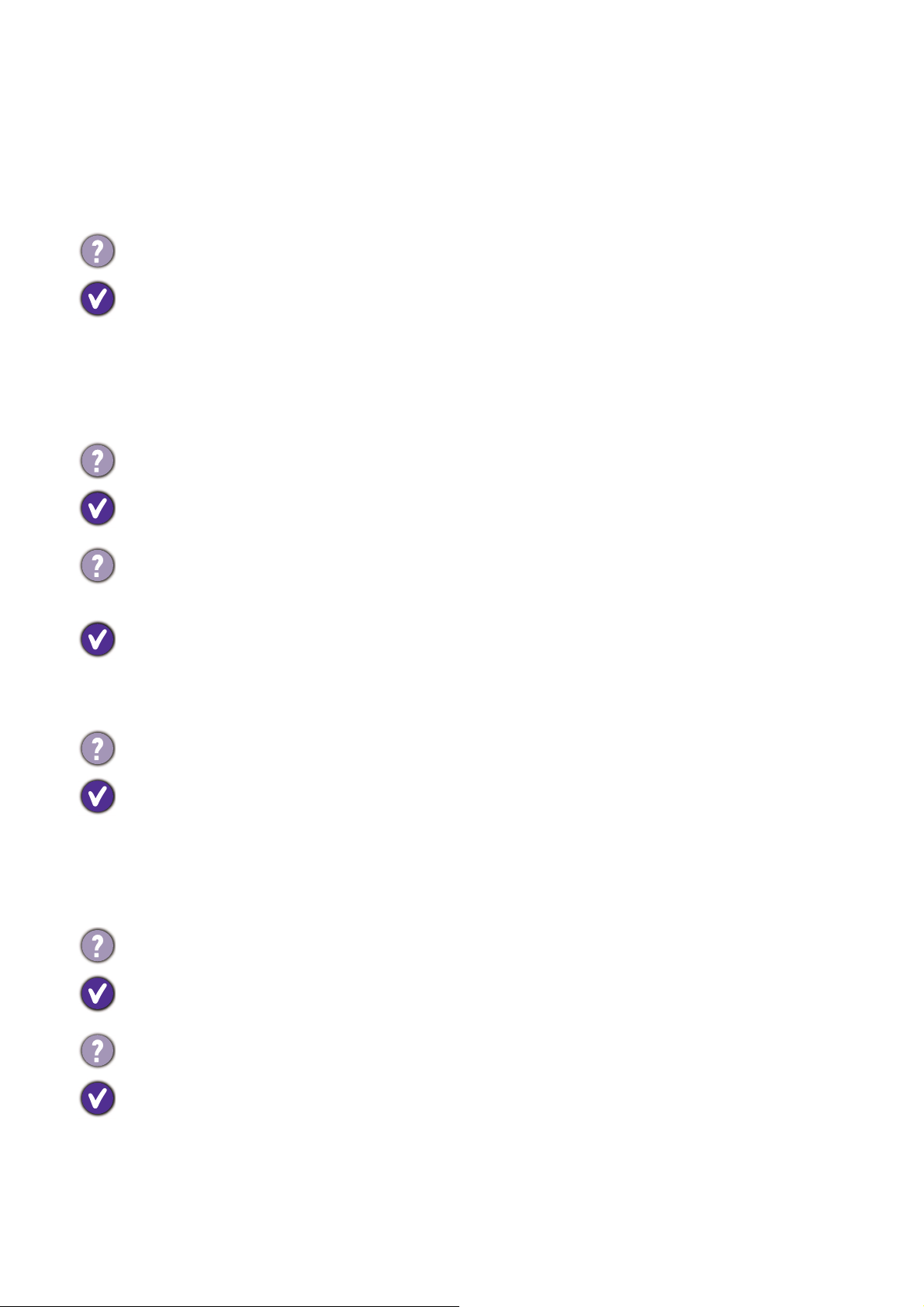
Information Displays the current monitor property settings.
• Input
• Current
Resolution
• Optimum
Resolution
(best with the
monitor)
• Model Name
Reset All Resets all mode, color and geometry settings to the
factory default values.
• YES
• NO
Item Function Range
50 Troubleshooting
Troubleshooting
Frequently asked questions (FAQ)
Imaging
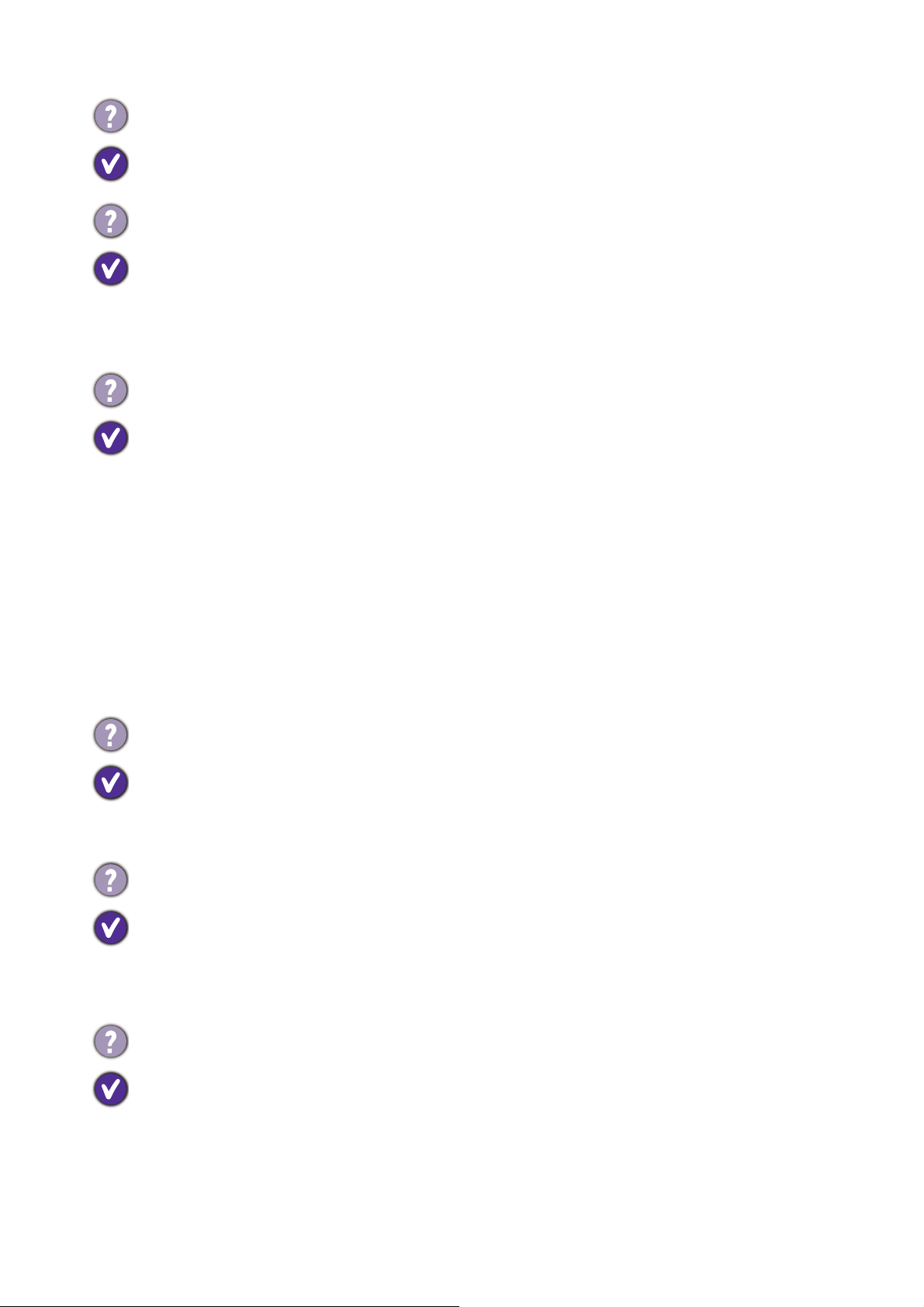
The image is blurred.
• Read the instructions on the link "Adjusting the Screen Resolution" on the CD, and then
select the correct resolution, refresh rate and make adjustments based on these instructions.
• If a VGA extension cable is used, remove the extension cable for the test. Is the image now
in focus? If not, optimize the image by working through the instructions in the "Adjusting
the refresh rate" section on the link "Adjusting the Screen Resolution". It is normal for
blurring to occur due to conduction losses in extension cables. You can minimize these
losses by using an extension cable with better conduction quality or with a built-in booster.
Does the blurring only occur at resolutions lower than the native (maximum) resolution?
Read the instructions on the link "Adjusting the Screen Resolution" on the CD. Select the
native resolution.
Pixel errors can be seen.
One of several pixels is permanently black, one or more pixels are permanently white, one or
more pixels are permanently red, green, blue or another color.
• Clean the LCD screen.
• Cycle power on-off.
• These are pixels that are permanently on or off and is a natural defect that occurs in LCD
technology.
The image has a faulty coloration.
It has a yellow, blue or pink appearance.
Go to Picture and Reset Color, and then choose YES to reset the color settings to the
factory defaults.
If the image is still not correct and the OSD also has faulty coloration, this means one of the
three primary colors is missing in the signal input. Now check the signal cable connectors. If
any pin is bent or broken off, please contact your dealer to get necessary support.
The image is distorted, flashes or flickers.
Read the instructions on the link "Adjusting the Screen Resolution" on the CD, and then
select the correct resolution, refresh rate and make adjustments based on these instructions.
You are running the monitor at its native resolution, but the image is still distorted.
Images from different input sources may appear distorted or stretched on the monitor running
at its native resolution. To have the optimal display performance of each type of input sources,
you can use the Display Mode function to set a proper aspect ratio for the input sources. See
Display Mode on page 40 for details.
51 Troubleshooting
Power LED indicator
OSD controls
OSD messages
Audio
The image is displaced in one direction.
Read the instructions on the link "Adjusting the Screen Resolution" on the CD, and then
select the correct resolution, refresh rate and make adjustments based on these instructions.
Faint shadow from the static image displayed is visible on the screen.
• Activate the power management function to let your computer and monitor go into a low
power "sleep" mode when not actively in use.
• Use a screensaver to prevent the occurrence of image retention.
The LED indicator is green or orange.
• If the LED lights up in solid green, the monitor is powered on.
• If the LED is illuminated in green and there is a message Out of Range on the screen, this
means you are using a display mode that this monitor does not support, please change the
setting to one of the supported mode. Please read the "Preset display modes" section
from the link "Adjusting the Screen Resolution".
• If the LED is illuminated in orange, the power management mode is active. Press any button
on the computer keyboard or move the mouse. If that does not help, check the signal cable
connectors. If any pin is bent or broken off, please contact your dealer to get necessary
support.
• If the LED is off, check the power supply mains socket, the external power supply and the
mains switch.
The OSD controls are inaccessible.
To unlock the OSD controls when it is preset to be locked, press and hold any key for 10
seconds.
A message Out of Range on the screen during computer boot up process.
If there is a message Out of Range on the screen during computer boot up process, this
means computer compatibility caused by operating system or graphic card. The system will
adjust the refresh rate automatically. Just wait until the operating system is launched.
No sound can be heard from the built-in speakers.
• Check whether the desired cable to input audio signals is properly connected. See Connect
the audio cable. (Selected models only) on page 14
for details.
• Increase the volume (volume may be muted or too low).
• Remove your headphone and/or external speakers. (If they are connected to the monitor,
the built-in speakers are automatically muted.)
52 Troubleshooting
Sensors
HDR (models with HDR feature)
USB Type-C connection (models with USB Type-C ports)
Need more help?
If your problems remain after checking this manual, please contact your place of purchase or
visit the local website from
www.BenQ.com for more support and local customer service.
No sound can be heard from the connected external speakers.
• Remove your headphone (if the headphone is connected to the monitor).
• Check whether the headphone jack is properly connected.
• If the external speakers are USB-powered, check whether the USB connection is OK.
• Increase the volume (volume may be muted or too low) on the external speakers.
• If USB Type-C connection is established, make sure the appropriate audio output setting on
your laptop has been selected. You may look for options similar to "USB headphone."
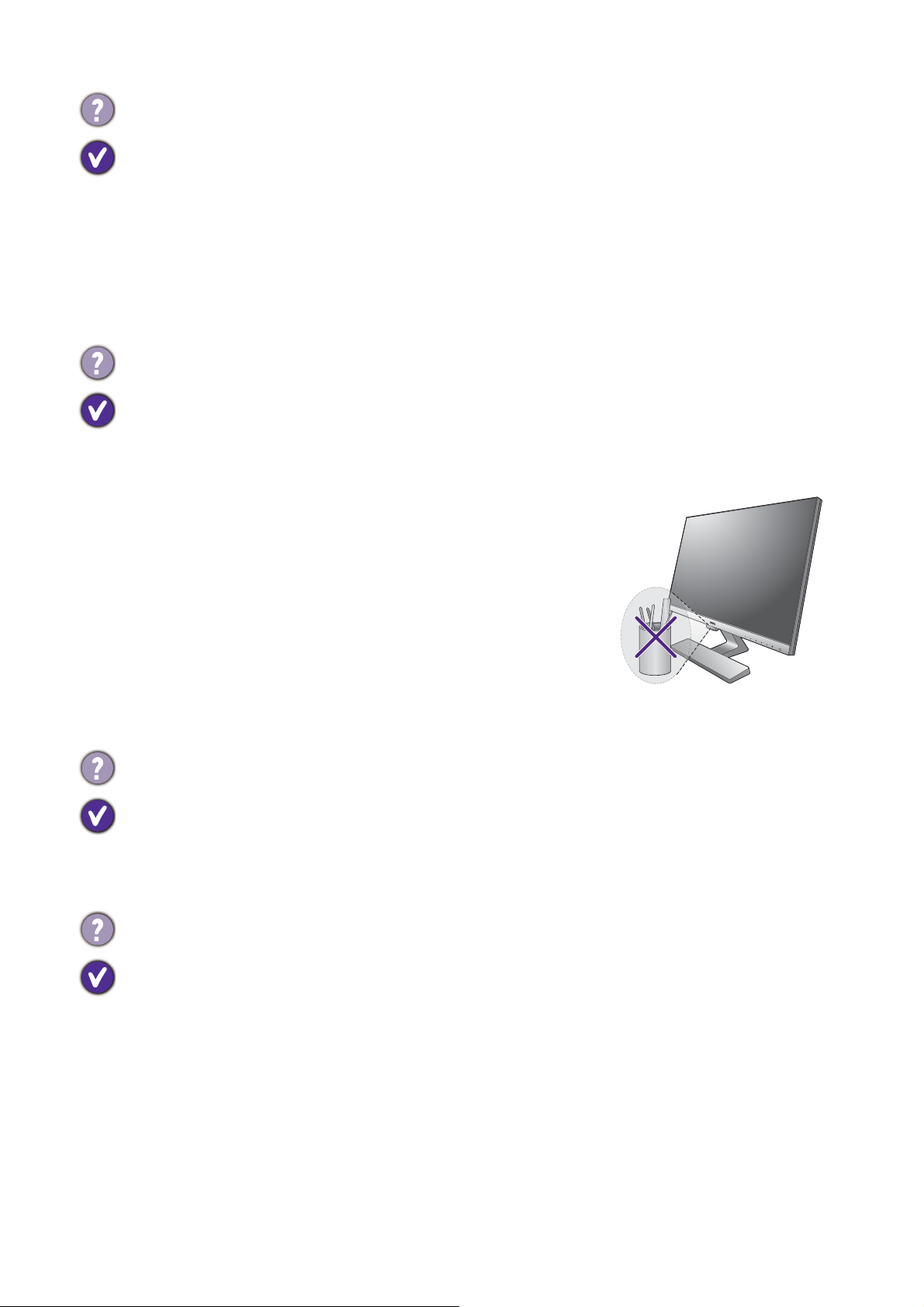
The light sensor of the monitor does not work well.
The light sensor is located at the front bottom of the monitor. Please check:
• If you have removed the sensor protection sticker.
• If the Bright Intelligence / Bright Intelligence Plus function has been turned on. Check Eye
Care > Bright Intelligence / B.I.+ (Bright Intelligence Plus).
• If there are any obstacles in front of the sensor that keep the
sensor from detecting the light properly.
• If there are any objects or clothing in bright colors in front of
the sensor. Bright colors (especially white and fluorescent
colors) reflect light and the sensor cannot detect the main
light sources.
There is a message HDR: Emulated showing on the screen.
This means the input content is not HDR-compatible and the monitor is in HDR-emulated
mode. Refer to
Working with HDR technology (Models with HDR feature only) on page 30 to
check if a supported player, content, and the certified cable are used.
No video or audio output from the laptop with USB Type-C connection.
Check the cable connections and menu settings in the following order.
• Check if the USB Type-C cable has been connected to the monitor and the laptop properly.
See
Connect the PC video cable. on page 13 for more information.
• Check if the input source has been selected to USB-C on System > Input.