FAST. ACCURATE. RELIABLE.
T
RADESMAN
C
ALC
™
TRADES MATH AND CONVERSION CALCULATOR
Model 4400

Pocket RefeRence Guide — 1
(cont’d)
Tradesman CalC™
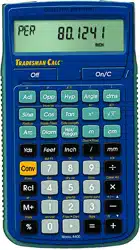
The Tradesman Calc™ Trades Math
and Conversion calculator is designed
to be useful for both teaching technical
trade math and for using on the job in
a variety of settings requiring technical
math. It is ideal for people working in
math-oriented trades and for students
and instructors needing an easy-to-use
handheld calculator with applied math
functions.
With the Tradesman Calc™ you can –
• Work in Architectural (ruler) fractions
(1/4 inch, 1/16 inch, etc.), proper
fractions (2/3), mixed number
fractions (1-2/3) and improper
fractions (5/3)
•
Solve dimensional math problems,
and convert between U.S. and
metric dimensional math units
•
Solve angle and side problems with
trigonometry
•
Enter and solve circle, arc, radius,
hexagonal and polygonal dimensions
•
Convert between decimal and
fraction
•
Enter and solve ratios and
proportions

•
Enter math equations using
parentheses
•
Work with exponents
Use it in the classroom or on the job for
solving math and design problems in –
•
Welding
•
Metal Fabrication
•
Engineering
•
Automotive Service Technology
•
Aviation
•
Drafting
TaBle OF COnTenTs
GETTING STARTED
4
Key Denitions
4
Basic Function Keys 4
Dimensional Function Keys 5
Weight and Volume Keys 6
Trigonometric Function Keys 7
Miscellaneous Function Keys 8
Trades Math Function Keys 10
Setting Fractional Resolutions
13
Preference Settings
15
Calculating Percentages
18
(cont’d)

Pocket RefeRence Guide — 3
Memory Operation
18
Paperless Tape Operation
20
Entering Dimensions and Units
21
Conversions
22
Basic Math Operations
24
USING THE
TRADESMAN CALC
25
Right Triangle Functions
28
Hex/Polygon Functions
30
Arc and Circle Functions
33
Ratio and Proportion Functions
34
Basic D:M:S and
Trigonometry Examples
37
AppENDIx
39
Default Settings
39
Auto Shut-Off
40
Accuracy/Errors
40
Battery
42
Reset
42
REpAIR AND RETURN
43
wARRANTy
44
fCC CLASS b
47
LookING foR NEw IDEAS
49

GeTTinG sTarTed
You may want to practice getting a
feel for your calculator keys by reading
through the key denitions and learning
how to enter data, how to store
values, etc., before proceeding to the
examples.
kEy DEfINITIoNS
Basic Function Keys
O
On/Clear Key — Turns on
power. Pressing once clears
the last entry and the display.
Pressing twice clears all non-
permanent values.
o
Off — Turns all power off.
Clears all non-permanent
values.
+-*
,=
Arithmetic operation keys.
0
-
9
and
.
Keys used for entering
numbers.
%
Percentage — Used to dene a
given percentage of a number.
g
Convert
—
Used with the
dimensional keys to convert
between units or with other keys
to access special functions.

Pocket RefeRence Guide — 5
r
Recall
—
Used with other
keys to recall stored values
and settings.
gr
Store
—
Used for storing
values.
M
Accumulative Memory
—
Adds displayed value to
Accumulative Memory.
gM
M-
—
Subtracts displayed value
from Accumulative Memory.
Dimensional Function Keys
y
Yards
—
Enters or converts
to Yards.
f
Feet
— Enters or converts
to Feet as whole or decimal
numbers. Also used with
i
and
/
keys for entering
Feet-Inch values (e.g.,
6 f
9i1/2
).
Repeated
presses during conversions
toggle between fractional Feet-
Inch and decimal Feet.
i
Inch –
Enters or converts to
Inches. Also used with
/
for entering fractional Inch
values (e.g.,
9i1/2
).
Repeated presses during
conversions toggle between
fractional and decimal Inches.
(cont’d)

/
Fraction Bar – Used to enter
fractions. Fractions can be
entered as proper (1/2, 1/8,
1/16) or improper (3/2, 9/8).
If the denominator (bottom)
is not entered for a fractional
inch value, the calculator’s
fractional accuracy setting is
automatically used for entered
or calculated fractional inches.
m
Millimeters
—
Enters or
converts to millimeters.
C
Centimeters
—
Enters or
converts to centimeters.
n
Meters
—
Enters or converts
to meters.
g 7
Board Feet (Bd Ft)
— Enters
or converts cubic values to
Board Feet.
Weight and Volume Keys
g0
Weight per Volume
(wt/vol) – Stores a new Weight
per Volume as pounds per
cubic foot or other format as
shown below. Default value is
490 pounds per cubic foot of
steel.
• Pounds per cubic foot
• Pounds per cubic inch
• Metric tons per cubic meter
• Kilograms per cubic meter
(cont’d)

Pocket RefeRence Guide — 7
(cont’d)
g4
Pounds (lbs)
—
Enters or
converts a weight or volume
value to Pounds.
g5
Dry Ounces (dry oz)
—
Enters
or converts a value to Dry
Ounces.
g6
Tons
—
Enters or converts a
weight or volume value to Tons.
g1
Kilograms (kg)
—
Enters or
converts a weight or volume
value to kilograms.
g2
Grams
—
Enters or converts
a weight or volume value
to grams.
g3
Metric Tons
—
Enters or
converts a weight or volume
value to metric tons.
Trigonometric Function Keys
s
Sine
—
Calculates the Sine
of an entered degree or
unitless value.
g s
Arcsine
— Calculates the
angle for the entered or
calculated Sine value.
c
Cosine (Cos) — Calculates the
Cosine of an entered degree or
unitless value.

g c
Arccosine — Calculates
the angle for the entered or
calculated Cosine value.
t
Tangent
(Tan) — Calculates
the Tangent of an entered
degree or unitless value.
gt
Arctangent
—
Calculates
the angle for the entered or
calculated Tangent value.
Miscellaneous Functions
gG
Open parenthesis key.
gD
Close parenthesis key.
x
Squares the value in
the display.
!
Calculates the square root of
the number in the display.
gx
x
y
—
Enters an exponential
value other than x
2
or square
root.
g!
x
1/y
—
Enters the exponential
root value.
g,
Reciprocal (1/
x
) – Finds the
reciprocal of a number (e.g.,
8g,=
0.125).
Pocket RefeRence Guide — 9
(cont’d)
g*
Clear All
—
Returns all stored
values to the default
settings. Does not affect
Preference settings.
g-
Change Sign (+/–) —
Toggle
displayed value between
negative and positive value.
g %
Preference settings
g=
Paperless tape
g+
Pi — Displays value of
(3.1415927).
g/
Decimal to Fractional
(Dec ► Frac)
—
Converts
value in display from decimal
to fractional.
An additional press of
/
provides the Least Common
Denominator (lCd) display,
calculating the LCD for the
displayed fraction.
g.
Fractional to Decimal
(Frac ► Dec)
—
Converts
value in display from fractional
to decimal.
g8
Degrees Fahrenheit (°F)
—
Enters or converts to degrees
Fahrenheit.

g9
Degrees Celsius (°C)
—
Enters or converts to degrees
Celsius.
Trades Math Function Keys
a
Adjacent — Enters or
calculates the Adjacent
(horizontal) leg of a right
triangle. Calculates Adjacent
value given two other right-
triangle values. Unitless entries
assumed Inches in U.S. mode;
millimeters in Metric mode.
p
Opposite — Enters or
calculates the Opposite
(vertical) leg or height of a right
triangle. Calculates Opposite
value given two other right-
triangle values. Unitless entries
assumed Inches in U.S. mode;
millimeters in Metric mode.
h
Hypotenuse — Enters or
calculates the Hypotenuse
(diagonal) of a right triangle.
Calculates Hypotenuse
value given two other right-
triangle values. Unitless entries
assumed Inches in U.S. mode;
millimeters in Metric mode.
(cont’d)

Pocket RefeRence Guide — 11
G
Angle — Enters or calculates
an Angle, providing the Adjacent
Angle for both instances.
Calculates an Angle given two
other right-triangle values.
ga
X — Enters or calculates the
x value of a ratio. Calculates x
value given a Ratio and y value.
g p
Y — Enters or calculates the
y value of a ratio. Calculates y
value given a Ratio and x value.
gh
X:Y — Enters or calculates a
ratio. Calculates the Ratio
given values for x and y.
A
Arc — Enters Arc Length or
Arc Angle. Calculates Arc
Length, Arc Angle, Chord
Length, Arc Height, Radius and
Arc Area given any two of the
following values: Arc Angle/
Length, Diameter/Radius, Chord
Length and Arc Height. Arc
solutions cannot be solved for
the following cases: Arc Length
and either Chord Length or
Arc Height.
(cont’d)

d
Diameter — Enters a Diameter
(Circle) or Outside Diameter
(Polygon). Unitless entries
assumed Inches in U.S. mode;
millimeters in Metric mode.
Calculates circle Area and
Circumference given entered
Diameter. Calculates Diameter
given entered Radius.
H
Hex/Polygon — Enters number
of Sides of a Polygon. A
multifunction key that calculates
Interior Angle, Exterior Angle,
Side Length, Outside Diameter,
Inside Diameter, Perimeter and
Area of a Polygon, given the
number of Sides, and either
Side Length, Outside Diameter
or Inside Diameter. Default
number of Sides is 6.
gA
Radius — Enters or calculates
a Radius. Unitless entries
assumed Inches in U.S. mode;
millimeters in Metric mode.
Calculates Radius given
entered Diameter.
(cont’d)

Pocket RefeRence Guide — 13
(cont’d)
gd
Inside Diameter — Enters or
calculates the Inside Diameter
of a Polygon. Unitless entries
assumed Inches in U.S. mode;
millimeters in metric mode.
Calculates Inside Diameter
given number of Sides and
either Side Length or Outside
Diameter.
gH
Side Length — Enters or
calculates the Side Length of
a Polygon. Unitless entries
assumed Inches in U.S. mode;
millimeters in metric mode.
Calculates Side Length given
number of Sides and either
Inside or Outside Diameter.
SETTING fRACTIoNAL
RESoLUTIoNS
The Tradesman Calc is set to display
fractional Inch answers in 64ths of
an Inch. All examples in this User’s
Guide are based on 1/64". However,
you may select Fractional Resolution
to be displayed in other formats (e.g.,
1/16", 1/32", etc.). The methods for
permanently and temporarily changing
Fractional Resolution are shown in the
following sections.

Permanently Set Fractional
Resolution
To permanently set the Fractional
Resolution, you must be in
Preference
Setting mode.
KeYsTrOKe disPlaY
1.
Access Preference Settings:
g%
FRAC 0-1/64
inCh*
2.
Toggle through available Fractional
Resolutions:
+
FRAC 0-1/2
inCh
+
FRAC 0-1/4
inCh
+
FRAC 0-1/8
inCh
+
FRAC 0-1/16
inCh
+
FRAC 0-1/32
inCh
+
(repeats options)
FRAC 0-1/64
inCh
3. To permanently set the Fractional
Resolution you have selected above,
press
O
(or any key) to set the
displayed Fractional Resolution and
exit Preference settings.
KeYsTrOKe disPlaY
O
0.
4. To recall your selected Fractional
Resolution:
r/
STD 0-1/64
inCh
* 1/64" is the default setting. The display may
differ from the example depending on what
the resolution is currently set to.

Pocket RefeRence Guide — 15
Temporarily Set Fractional
Resolution
You can also convert a fractional value
to a different resolution temporarily
while solving a problem. In the example
below, add 1/64th to 44/64th of an Inch
and then convert the answer to other
Fractional Resolutions:
KeYsTrOKe disPlaY
OO
0.
44/64i
0-44/64
inCh
+ 1/64i=
0-45/64
inCh
g1
(1/16)
0-11/16
inCh
g2
(1/2)
0-1/2
inCh
g3
(1/32)
0-23/32
inCh
g4
(1/4)
0-3/4
inCh
g6
(1/64)
0-45/64
inCh
g8
(1/8)
0-3/4
inCh
O O
*
0.
* Changing the Fractional Resolution
on a displayed value does not alter your
Permanent Fractional Resolution Setting (set
in Preference Settings).
Note: This setting is temporary; it will revert
back to your Permanent Fractional Setting
upon press of
O
or when you turn the
calculator off.

pREfERENCE SETTINGS
Press
g
, then
%
to access the
Preferences menu. Continue pressing
%
to toggle through different
Preferences. Press
+
or
-
keys
to toggle between options of the
different Preferences. Press
O
to
exit Preferences. Your calculator will
keep your Preference Settings until a
Full Reset alters your settings to the
default values (see Appendix for more
information).
KeYsTrOKe disPlaY
g%
(Fractional
Resolution)
FraC
0-1/64
inCh
+
FraC
0-1/2
inCh
+
FraC
0-1/4
inCh
+
FraC
0-1/8
inCh
+
FraC
0-1/16
inCh
+
FraC
0-1/32
inCh
+
(repeats options)
FraC
0-1/64
inCh
Second press of
%
(Functional Result
Rounding):
FUNC
0.0000
+
FUNC
0.000
+
FUNC
FLOAt
+
(repeats options)
FUNC
0.0000

Pocket RefeRence Guide — 17
Third press of
%
(Default Unit Format): US UnItS
+
METR UnItS
+
(repeats options) US UnItS
Fourth press of
%
(Area Answer Format): AREA Std.
+
area 0.
sQ FeeT
+
area 0.
sQ inCh
+
area 0.
sQ m
+
area 0.
sQ Yd
+
(repeats options) AREA Std.
Fifth press of
%
(Volume Answer
Format): VOL Std.
+
VOL 0.
CU YD
+
VOL 0.
CU FEET
+
VOL 0.
CU INCH
+
VOL 0.
CU M
+
(repeats options) VOL Std.
Sixth press of
%
(Fractional Mode):
FraC
Std.
+
FraC
COnSt.
+
(repeats options) FRAC Std.
Seventh press of
%
(Mathematical
Operation): MATH OrdEr
+
MATH CHAIn
+
(repeats options) MATH OrdEr

CALCULATING pERCENTAGES
The
%
key can be used for nding
a given percent of a number or for
working add-on, discount or division
percentage calculations. It can be
used with any type of number, in any
dimension (Feet, Inch, millimeter,
etc.) and any type of convention (non-
dimensioned, linear, square or cubic).
Find 18% of 50 square feet:
KeYsTrOKe disPlaY
OO
0.
50f f*18%
9.
sQ FeeT
Take 20% from 17 Feet 6 Inches:
17f6i
-20%
14
FeeT
0
inCh
MEMoRy opERATIoN
Whenever the
M
key is pressed, the
displayed value will be added to the
Memory. Other Memory functions:
FUNCTION KeYsTrOKe
Add to Memory
M
Subtract from Memory
gM
Recall total in Memory
rM
Display/Clear Memory
rr
Clear Memory and replace
with displayed value
SM

Pocket RefeRence Guide — 19
Memory is semi-permanent, clearing
only when you do one of the following:
— turn off the calculator
— press
rr
— press
g*
(Clear All)
When Memory is recalled (
rM
),
consecutive presses of
M
will display
the calculated Average and total Count
of the accumulated values.
Using M+
KeYsTrOKe disPlaY
45M
M+ 45. &
25M
M+ 25. &
15gM
(M-)
M- 15. &
rM
TTL 55. &
M
AVG 18.333333 &
M
CNT 3. &
rr
M+ 55.
Using Memory Storage Keys (M1-M9)
In addition to the standard cumulative
Memory (as previously described),
your calculator has nine independent
Storage Registers – M1 through M9 –
that can be used to permanently store
single, noncumulative values. The
following example shows the use of M1
(
gr1
). To use M2 - M9, replace the
presses of the
1
key with presses of
the corresponding number key (
2
-
9
).
(cont’d)

You can replace a value in one of the
Memory registers by storing a new
value in place of the stored value.
FUNCTION KeYsTrOKe
Store single value in M1
gr 1
Clear M1
0 gr 1
Recall M1
r1
Store 175 into M1, recall the value, and
then clear the value.
KeYsTrOKe disPlaY
175gr1
M-1 175.
oO
0.
r1
M-1 175.
0gr1
M-1 0.
pApERLESS TApE opERATIoN
The Paperless Tape function is useful for
checking gures. You can review your
entries by scrolling through your past 20
entries or calculations. Press
g=
to
access Paperless Tape mode. Press
+
or
-
to scroll forward or backward.
Press
=
to exit mode and continue with
a new entry or calculation.
KeYsTrOKe disPlaY
OO
0.
6 f+
6.
FeeT
5f+
11.
FeeT
4f=
15.
FeeT
(cont’d)

Pocket RefeRence Guide — 21
r =
TTL= 15.
FeeT
+
01 6.
FeeT
+
02 + 5.
FeeT
+
03 + 4.
FeeT
-
02 + 5.
FeeT
=
TTL= 15.
FeeT
+ 1 0f=
25.
FeeT
ENTERING DIMENSIoNS
AND UNITS
Linear Dimensions
The following examples show how linear
dimensions are entered.
Note: The
O
key should be pressed after
each of the entries to clear the display.
dimensiOn KeYsTrOKe
5 Feet
5f
1/2 Inch
1/2i
5 Feet 1-1/2
Inches
5f1i1/2
10 Yards
10y
17.5 meters
17.5n
Square and Cubic Dimensions
For square dimensions, enter the
value and press the unit key twice.
For cubic dimensions, press the unit
key three times.
(cont’d)

dimensiOn KeYsTrOKe
130 square Feet
130 f f
5.5 cubic meters
5.5 nnn
44 square Inches
44 ii
CoNVERSIoNS
Linear Conversions
Convert 10 Feet 6 Inches to other
dimensions, including metric:
KeYsTrOKe disPlaY
OO
0.
10 f6i
10
FeeT
6
inCh
gi
126.
inCh
g f
10.5
FeeT
gm
3200.4
mm
gn
3.2004
m
Square and Cubic Conversions
Convert 6 square Feet to other
square dimensions:
KeYsTrOKe disPlaY
OO
0.
6 ff
6
sQ FeeT
gm
557418.24
sQ mm
gn
0.5574182
sQ m
Convert 0.05 cubic meters to other
cubic dimensions:
KeYsTrOKe disPlaY
OO
0.
(cont’d)

Pocket RefeRence Guide — 23
.05 nnn
0.05
CU M
gC
50000.
CU CM
gi
3051.1872
CU INCH
gf
1.7657333
CU FEET
Weight Conversions
Convert 1.5 Tons to Pounds
and kilograms:
KeYsTrOKe disPlaY
OO
0.
1.5g6
(tons)
1.5
TOn
g4
(lbs)
3000.
lBs
g1
(kg)
1360.7771
KG
Weight per Volume Conversions
Convert a cubic meter of concrete
to pounds. The concrete weighs 111
pounds per cubic foot.
Note: The default weight conversion is 490
pounds per cubic foot.
KeYsTrOKe disPlaY
OO
0.
111
g0
(wt/vol)
111.
lB Per CU FEET
1nnn
1
CU M
g4
(lbs)
3919.928
lBs
g*
*
ALL CLEArEd
*Restores default weight conversion to
default setting of 490 pounds per cubic foot.

Temperature Conversions
Convert 46 °Fahrenheit to °Celsius:
KeYsTrOKe disPlaY
OO
0.
46g8
(°F)
46
°F
g9
(°C)
7.7777778
°C
bASIC MATH opERATIoNS
Adding and Subtracting Dimensions
Add the following measurements:
• 6 Feet 2-1/2 Inches
• 11 Feet 5-1/4 Inches
• 18.25 Inches
Then subtract 2-1/8 Inches.
KeYsTrOKe disPlaY
OO
0.
6f2i
1/2 +
6
FeeT
2-1/2
inCh
11f5i
1/4+
17
FeeT
7-3/4
inCh
18.25
i=
19
FeeT
2
inCh
-2i
1/8=
18
FeeT
11-7/8
inCh
Multiplying Dimensions
Multiply 5 Feet 3 Inches by 11 Feet
6-1/2 Inches:

Pocket RefeRence Guide — 25
(cont’d)
KeYsTrOKe disPlaY
5f3i*
5
FeeT
3
inCh
11f6
i1/2=
60.59375
sQ
FeeT
Multiply 2 Feet 7 Inches by 10:
2f7i
*10=
25
FeeT
10
inCh
Dividing Dimensions
Divide 30 Feet 4 Inches by 7 Inches:
KeYsTrOKe disPlaY
30f4i,7i=
52.
Divide 20 Feet 3 Inches by 9:
20f3i
,9=
2
FeeT
3
inCh
USING THE TRADESMAN CALC
With the Tradesman Calc you can work
in architectural, or ruler fractions (1/2,
1/4, 1/16, etc.), proper fractions (2/3),
mixed number fractions (1-2/3) and
improper fractions (5/3).
If you are working with dimensional
units, be sure to enter the dimensional
unit with the fractions, as shown below.
Fractional Inch values will be displayed
as architectural fractions – 1/2, 1/4, 1/8,
1/16, 1/32 and 1/64.

Note: See pages 15-17 for instructions on
setting the default fractional resolution on
your calculator.
Note: When entering mixed fractions, the
whole number must be less than four digits
– i.e., 1 through 999.
The examples below show how to enter
fractions and toggle between different
formats, such as entering an improper
fraction and toggling to a mixed number.
Enter 10-13/16:
KeYsTrOKe disPlaY
OO
0.
10/13/16
10 13/16
Enter 119-98/99:
OO
0.
119/
98/99
119 98/99
Enter 33/13, convert to mixed number
and toggle back to improper fraction:
OO
0.
33/13
0 33/13
=
2 7/13
/
LCD 0 33/13
Enter 1.4578 and convert to a fraction
and back to a decimal:
KeYsTrOKe disPlaY
OO
0.
(cont’d)

Pocket RefeRence Guide — 27
1.4578
1.4578
g/
1 179/391
g.
1.4578
In this example, add a string of fractions,
change to an improper fraction and to a
decimal fraction.
Add 1-1/3 + 1/4 + 1/6:
KeYsTrOKe disPlaY
OO
0.
1/1/3+
1/4+
1/6=
1 3/4
Toggle to improper fraction:
/
*
LCD 0 21/12
* Shows Least Common Denominator for
entered or calculated fraction.
Toggle to decimal:
g.
1.75
Toggle back to proper fraction:
/
1 3/4
If you have a large fraction, you can
easily simplify it or convert it to its
lowest terms.
Change 30/48 to its lowest terms:
OO
0.
30/48
0 30/48
(cont’d)
g //
0 5/8
Simplify 25/65:
25/65
25/65
g //
0 5/13
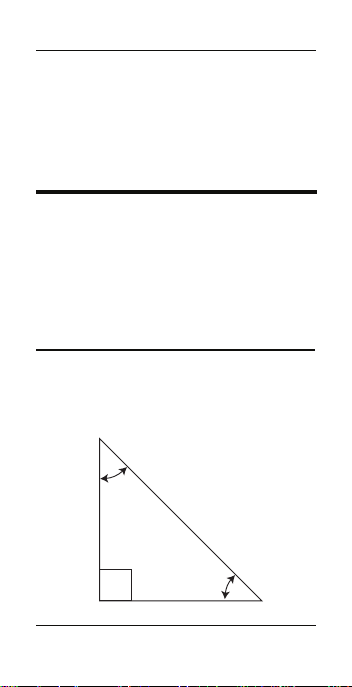
RIGHT TRIANGLE fUNCTIoNS
With the Tradesman Calc, you can
easily solve Right Triangle problems by
simply entering two of four variables:
Adjacent, Opposite, Hypotenuse or
Angle.
Right Triangle − Based on Adjacent
and Opposite Legs
Calculate the Hypotenuse, Angle and
Adjacent Angle of a right triangle with
an Adjacent Leg of 3 Inches and an
Opposite Leg of 4 Inches:
Opposite
Leg: 4
Hypotenuse
A
B
Adjacent
Leg: 3
KeYsTrOKe disPlaY
OO
0.
1. Enter the Adjacent Leg length:
KeYsTrOKe disPlaY
(cont’d)

Pocket RefeRence Guide — 29
3ia
ADJ 3.
inCh
2. Enter the Opposite Leg length:
4ip
OPP 4.
inCh
3. Solve for the Hypotenuse:
h
HYP 5.0000
inCh
4. Solve for the Angle:
G
ANGL 53.1301°
5. Solve for the Adjacent Angle:
G
ADJ 36.8699°
Right Triangle − Based on
Hypotenuse and Angle
Calculate the Adjacent Angle, Adjacent
Leg and Opposite Leg of a right triangle
with a Hypotenuse of 12 Inches and a
known Angle of 35.34°:
KeYsTrOKe disPlaY
OO
0.
1. Enter the Hypotenuse:
12ih
HYP 12.
inCh
2. Enter the Known Angle:
35.34G
ANGL 35.34 °
3. Solve for the Adjacent Angle:
G
ADJ 54.6600 °
4. Solve for the Adjacent Leg:
a
ADJ 9.7888
inCh
(cont’d)

5. Solve for the Opposite Leg:
p
OPP 6.9411
inCh
HEx/poLyGoN fUNCTIoNS
The Hex/Polygon function lets you nd
the Interior Angle and Exterior Angle
of a Polygon, given the number of
Sides. The default number of Sides is
6. If a Side Length, Inside Diameter or
Outside Diameter, is also entered you
can calculate the Polygon’s Side Length,
Outside Diameter, Inside Diameter,
Perimeter and Area.
Find the Interior and Exterior Angles of a
6-sided Polygon:
KeYsTrOKe disPlaY
OO
0.
H
SIDE 6.
H
INT 120.0000 °
H
EXT 60.0000 °
Find the Interior and Exterior Angles of
an 8-sided Polygon:
KeYsTrOKe disPlaY
OO
0.
8 H
SIDE 8.
H
INT 135.0000 °
H
EXT 45.0000 °
(cont’d)
KeYsTrOKe disPlaY

Pocket RefeRence Guide — 31
(cont’d)
Find the Interior and Exterior Angles,
Side Length, Inner Diameter, Perimeter
and Area of an 8-sided Polygon with a
10-Inch Outer Diameter:
KeYsTrOKe disPlaY
OO
0.
1. Enter the Outer Diameter:
10 d
DIA 10.
inCh
2. Enter the Number of Sides:
8H
SIDE 8.
3. Find the Interior Angle:
H
INT 135.0000 °
4. Find the Exterior Angle:
H
EXT 45.0000 °
5. Find the Side Length:
H
LNTH 3.8268
inCh
6. Show the Outside Diameter:
H
OD 10.
inCh
7. Find the Inner Diameter:
H
ID 9.2388
inCh
8. Find the Perimeter:
H
PER 30.6147
inCh
9. Find the Area:
H
AREA 70.7107
sQ inCh

(cont’d)
Find the Interior and Exterior Angles,
Inner Diameter, Outer Diameter,
Perimeter and Area of a 6-sided
Polygon with an 8-Inch Side Length:
KeYsTrOKe disPlaY
OO
0.
1. Enter the Side Length:
8 i gH
LNTH 8.
inCh
2. Select Hex/Polygon function
(default is 6 Sides):
H
SIDE 6.
3. Find the Interior Angle:
H
INT 120.0000 °
4. Find the Exterior Angle:
H
EXT 60.0000 °
5. Show the Side Length:
H
LNTH 8.
inCh
6. Find the Outside Diameter:
H
OD 16.0000
inCh
7. Find the Inner Diameter:
H
ID 13.8564
inCh
8. Find the Perimeter:
H
PER 48.0000
inCh
9. Find the Area:
H
AREA 166.2769
sQ inCh

Pocket RefeRence Guide — 33
ARC AND CIRCLE fUNCTIoNS
With the Tradesman Calc, you can
easily solve Circle and Arc calculations.
Circumference and Area of a Circle
Find the Area and Circumference of a
circle with a Diameter of 11 Inches:
KeYsTrOKe disPlaY
OO
0.
11id
DIA 11.
inCh
d
AREA 95.0332
sQ inCh
d
(Circumference)
CIRC 34.5575
sQ inCh
Arc Calculation –
Radius and Angle Known
Find the Arc Length, Chord Length, Arc
Height and Area of a circle with a Radius
of 4 Inches and an Arc Angle of 180°:
KeYsTrOKe disPlaY
OO
0.
4gA
(Radius)
RAD 4.
inCh
180A
(Arc Angle)
ARC 180.°
A
(Arc Length)
ARC 12.5664
inCh
A
(Chord Length)
CORD 8.0000
inCh
A
(Arc Height)
HGHT 4.0000
inCh
A
(Radius)
RAD 4.
inCh
A
(Area)
AREA 25.1327
sQ inCh
(cont’d)

RATIo AND pRopoRTIoN
fUNCTIoNS
With the Ratio and Proportion keys you
can nd:
• an x value, given a Ratio and y value
• a y value, given a Ratio and x value
• a Ratio, given values for x and y
Ratios and Proportions can be
calculated with or without dimensional
units.
If the Ratio of nitrogen to hydrogen is
1:3, and a sample of ammonia has 1,563
nitrogen atoms, how many hydrogen
atoms are present?
KeYsTrOKe disPlaY
OO
0.
1. Enter the Ratio:
1ga
(x value)
X 1.
3gp
(y value)
Y 3.
2. Show the Ratio:
gh
(X:Y)
1 = 3.0000
3. Enter the known number of
nitrogen atoms:
1563ga
(X)
X 1563.
4. Solve for the unknown number of
hydrogen atoms:
gp
(Y)
Y 4689.0000

Pocket RefeRence Guide — 35
(cont’d)
You can also enter x, y values,
nd proportion values and inverse
proportional values.
Find the ratio if x = 1 and y = 4. Using
the resulting ratio, nd the value of Y if
X = 5. Then, nd the value of X if Y = 8.
KeYsTrOKe disPlaY
OO
0.
1. Enter the Ratio:
1ga
(x value)
X 1.
4gp
(y value)
Y 4.
2. Show the Ratio:
gh
(X:Y)
1 = 4.0000
3. Enter the rst Proportion value (X):
5ga
(X)
X 5.
4. Show resulting Y value:
gp
(Y)
Y 20.0000
5. Change the Y value to 8:
8gp
(Y)
Y 8.
6. Show resulting X:
ga
(X)
X 2.0000
You can also enter x, y values in
dimensional units to nd Ratio values.
Find the ratio if x = 1 Inch and y = 4
Feet. Using the resulting Ratio, nd the
value of Y if X = 2.5 Inches

KeYsTrOKe disPlaY
OO
0.
1. Enter the Ratio:
1iga
(x value)
X 1.
inCh
4fgp
(y value)
Y 4.
FeeT
2. Show the Ratio:
gh
(X:Y)
1 = 48.0000
3. Enter the rst proportional value:
2.5iga
(X)
X 2.5
inCh
4. Show resulting Y value:
gp
(Y)
Y 120.0000
inCh
You can also enter fractional values for x
and y to nd Ratio values.
Find the ratio if x = 3/4 and y = 1. Using
the resulting Ratio, nd the value of Y if
X = 5. Then, nd the value of X if Y = 4.
KeYsTrOKe disPlaY
OO
0.
1. Enter the Ratio:
3/4ga
(x value)
X 0 3/4
1gp
(y value)
Y 1.
2. Show the Ratio:
gh
(X:Y)
1 = 1.3333
3. Enter the proportional X value
5ga
(X)
X 5.
(cont’d)

Pocket RefeRence Guide — 37
4. Show resulting Y value:
gp
(Y)
Y 6.6667
5. Change the proportional Y value to 4:
4 gp
(Y)
Y 4.
6. Show resulting X value:
ga
(X)
X 3.0000
bASIC D:M:S AND
TRIGoNoMETRy ExAMpLES
Converting
Degrees:Minutes:Seconds
Convert 23° 42’ 39” to decimal degrees:
KeYsTrOKe disPlaY
OO
0.
2 3 . 4 2
. 3 9
DMS 23.42.39
D
23.710833°
Convert 44.29° to
degrees:minutes:seconds format:
KeYsTrOKe disPlaY
OO
0.
44.29
44.29
D
DMS 44.17.24°
Note: Improperly formatted entries will be
redisplayed in the correct convention after
any operator key is pressed. For example,
30° 89' 0" entered will be corrected and
displayed as 31° 29' 0" or 31.483333°
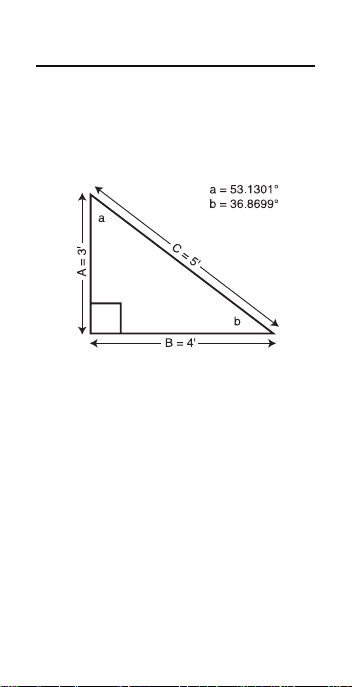
Trigonometric Functions
Trigonometric functions are available
on the Tradesman Calc calculator.
The drawing and formulas below list
basic trigonometric formulas, for your
reference:
Given side A and angle a, nd:
Side C A
,
a
c=
(e.g.,
3f,53.13c=
)
Side B A
*
a
t=
Angle b 90°
-
a
=
Given side A and angle b, nd:
Side B A
,
b
t=
Side C A
,
b
s=
Angle a 90°
-
b
=
Given side B and angle a, nd:
Side A B
,
a
t=
Side C B
,
a
s=
Given side C and angle a, nd:
Side A C
*
a
c=

Pocket RefeRence Guide — 39
(cont’d)
Side B C
*
a
s=
Given side A and side C, nd:
Angle a A
,
C
gc
Angle b A
,
C
gs
Given side B and angle b, nd:
Side C B
,
b
c=
Side A B
*
b
t=
aPPendiX
DEfAULT SETTINGS
After a Clear All (
g*
), your
calculator will return to the following
settings:
STORED VALUES DEFAULT VALUE
Polygon Number of Sides
6
Weight per Volume
490. lB Per CU FEET
If you replace your battery or perform
a Full Reset* (press
o
, hold down
*
and press
O
), your calculator
will return to the following settings (in
addition to those above):
PreFerenCe seTTinGs DEFAULT VALUE
Fractional Resolution 1/64
Functional Result Rounding 0.0000
Default Unit Format US
Area Display Standard

Volume Display Standard
Fractional Mode Standard
Mathematical Operation Order
* Pressing Reset ‒ a small hole located below
the
o
key ‒ will also perform a Full Reset.
AUTo SHUT-off
Your calculator will shut itself off after
about 8-12 minutes of non-use.
ACCURACy/ERRoRS
Accuracy/Display Capacity
Your calculator has a twelve digit
display. This is made up of eight digits
(normal display) and four fractional
digits. You may enter or calculate
values up to 99,999,999.99. Each
calculation is carried out internally to
twelve digits.
Errors
When an incorrect entry is made, or
the answer is beyond the range of
the calculator, an error message will
display. To clear an error condition you
must press the
O
button once.
(cont’d)
PreFerenCe seTTinGs DEFAULT VALUE

Pocket RefeRence Guide — 41
At this point you must determine
what caused the error and re-key the
problem.
Error Codes
OFlO
Overow (too large)
MATH Error
Divide by 0
DIM Error
Dimension error
ENT Error
Invalid entry error
Auto-Range
If an “overow” is created because of
a calculation with small units that are
out of the standard digit range of the
display, the answer will be automatically
expressed in the next larger units
(instead of showing “OFlO”) – e.g.,
100,000,000 mm is shown as
100,000 m.
(cont’d)
bATTERy
This model uses one (1) CR2016
battery (included). This should last
approximately 800 hours of actual use (1
year plus for most people). Should your
calculator display become very dim or
erratic, replace the battery.
Note: Please use caution when disposing of
your old batteries as they contain hazardous
chemicals.
Replacement batteries are available at
most discount or electronics stores. You
may also call Calculated Industries at
1-775-885-4900.
RESET
If your calculator should ever “lock up,”
press Reset – a small hole located
below the
o
key – to perform a total
reset.

Pocket RefeRence Guide — 43
REPAIR AND RETURN
RETURN GUIDELINES
1. Please read the Warranty in this
User’s Guide to determine if your
Calculated Industries product remains
under warranty before calling or
returning any device for evaluation or
repairs.
2. If your product won’t turn on, check the
battery as outlined in the User’s Guide.
3. If you need more assistance, please go
to the website listed below.
4. If you believe you need to return your
product, please call a Calculated
Industries representative between the
hours of 8:00am and 4:00pm Pacic
Time for additional information and
a Return Merchandise Authorization
(RMA).
Call Toll Free: 1-800-854-8075
Outside USA: 1-775-885-4900
www.calculated.com/warranty

WarranTY
Calculated Industries (“CI”) warrants
this product against defects in materials
and workmanship for a period of one (1)
year from the date of original consumer
purchase in the U.S. If a defect exists
during the warranty period, CI, at its
option, will either repair (using new or
remanufactured parts) or replace (with
a new or remanufactured calculator) the
product at no charge.
THE WARRANTY WILL NOT APPLY
TO THE PRODUCT IF IT HAS
BEEN DAMAGED BY MISUSE,
ALTERATION, ACCIDENT, IMPROPER
HANDLING OR OPERATION, OR
IF UNAUTHORIZED REPAIRS ARE
ATTEMPTED OR MADE. SOME
EXAMPLES OF DAMAGES NOT
COVERED BY WARRANTY INCLUDE,
BUT ARE NOT LIMITED TO, BATTERY
LEAKAGE, BENDING, A “BLACK INK
SPOT” OR VISIBLE CRACKING OF
THE LCD, WHICH ARE PRESUMED
TO BE DAMAGES RESULTING FROM
MISUSE OR ABUSE.
To obtain warranty service in the U.S.,
please go to the website.

Pocket RefeRence Guide — 45
A repaired or replacement product
assumes the remaining warranty of the
original product or 90 days, whichever
is longer.
Non-Warranty Repair Service —
U.S.A.
Non-warranty repair covers service
beyond the warranty period, or service
requested due to damage resulting from
misuse or abuse.
Contact Calculated Industries at 1-775-
885-4900 to obtain current product
repair information and charges. Repairs
are guaranteed for 90 days.
Repair Service — Outside the U.S.A.
To obtain warranty or non-warranty
repair service for goods purchased
outside the U.S., contact the dealer
through which you initially purchased
the product. If you cannot reasonably
have the product repaired in your area,
you may contact CI to obtain current
product repair information and charges,
including freight and duties.

Disclaimer
CI MAKES NO WARRANTY OR
REPRESENTATION, EITHER
EXPRESS OR IMPLIED, WITH
RESPECT TO THE PRODUCT’S
QUALITY, PERFORMANCE,
MERCHANTABILITY, OR FITNESS
FOR A PARTICULAR PURPOSE. AS A
RESULT, THIS PRODUCT, INCLUDING
BUT NOT LIMITED TO, KEYSTROKE
PROCEDURES, MATHEMATICAL
ACCURACY AND PREPROGRAMMED
MATERIAL, IS SOLD “AS IS,” AND
YOU THE PURCHASER ASSUME THE
ENTIRE RISK AS TO ITS QUALITY
AND PERFORMANCE.
IN NO EVENT WILL CI BE LIABLE
FOR DIRECT, INDIRECT, SPECIAL,
INCIDENTAL, OR CONSEQUENTIAL
DAMAGES RESULTING FROM ANY
DEFECT IN THE PRODUCT OR ITS
DOCUMENTATION.
The warranty, disclaimer, and remedies
set forth above are exclusive and
replace all others, oral or written,
expressed or implied. No CI dealer,
agent, or employee is authorized to
make any modication, extension, or
addition to this warranty.

Pocket RefeRence Guide — 47
Some states do not allow the exclusion
or limitation of implied warranties or
liability for incidental or consequential
damages, so the above limitation or
exclusion may not apply to you. This
warranty gives you specic rights, and
you may also have other rights, which
vary from state to state.
FCC Class B
This equipment has been certied to
comply with the limits for a Class B
calculating device, pursuant to Subpart J
of Part 15 of FCC rules.
Pocket RefeRence Guide — 49
lOOKinG FOr neW ideas
Calculated Industries, a leading
manufacturer of special-function
calculators and digital measuring
instruments, is always looking for new
product ideas in these areas.
If you have a new product idea, please
visit our “Bright Idea” page at www.
calculated.com/brightidea.asp. For
suggestions about improving this
product or other products, please visit us
at www.calculated.com under “Contact
Us.” Thank you.
4840 Hytech Drive
Carson City, NV 89706 U.S.A.
1-800-854-8075
Fax: 1-775-885-4949
E-mail: [email protected]
www.calculated.com
Designed in the United States of America.
PRG4400E-B
Printed in China