
I
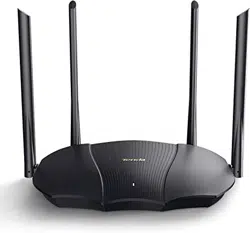
Dual Band Gigabit Wi-Fi 6 Router
User Guide

i
Copyright Statement
© 2021 Shenzhen Tenda Technology Co., Ltd. All rights reserved.
is a registered trademark legally held by Shenzhen Tenda Technology Co., Ltd. Other
brand and product names mentioned herein are trademarks or registered trademarks of their
respective holders. Copyright of the whole product as integration, including its accessories and
software, belongs to Shenzhen Tenda Technology Co., Ltd. No part of this publication can be
reproduced, transmitted, transcribed, stored in a retrieval system, or translated into any language
in any form or by any means without the prior written permission of Shenzhen Tenda Technology
Co., Ltd.
Disclaimer
Pictures, images and product specifications herein are for references only. To improve internal
design, operational function, and/or reliability, Tenda reserves the right to make changes to the
products without obligation to notify any person or organization of such revisions or changes.
Tenda does not assume any liability that may occur due to the use or application of the product
described herein. Every effort has been made in the preparation of this document to ensure
accuracy of the contents, but all statements, information and recommendations in this document
do not constitute the warranty of any kind, express or implied.

ii
Preface
Thank you for choosing Tenda! Please read this user guide before you start.
This user guide is applicable to dual-band gigabit WiFi 6 routers. Functions may differ with product
models, and RX3 is used for illustration in this guide unless otherwise specified. The contained
images and UI screenshots are subject to the actual products.
Conventions
Typographical conventions in this User Guide:
Item
Presentation
Example
Cascading Menus
>
Click Status > Device Status
Parameter and value
Bold
Set User Name to Tom.
UI control
Bold
On the Policy page, click the OK button.
Variable
Italic
Format: XX:XX:XX:XX:XX:XX
Message
“ ”
The “Success” message appears.
Symbols in this User Guide:
Item
Meaning
This format is used to highlight information of importance or special interest.
Ignoring this type of note may result in ineffective configurations, loss of data or
damage to device.
This format is used to highlight a procedure that will save time or resources.
For more documents
If you want to get more documents of the device, visit
www.tendacn.com and search for the
corresponding product model.
The related documents are listed as below.
Document
Description
Quick Installation Guide
It introduces how to set up the device quickly for internet access, the descriptions
of LED indicators, ports, and buttons, FAQ, statement information, and so on.
User Guide
It introduces how to set up more functions of the device for more requirements,
including all functions on the web UI of the device.
iii
Document
Description
Data Sheet
It introduces the basic information of the device, including product overview,
selling points, and specifications.
Technical Support
If you need more help, contact us by any of the following means. We will be glad to assist you as
soon as possible.
Hotline
Global: (86) 755-27657180
(China Time Zone)
Email
support@tenda.cn
United States: 1-800-570-5892
(Toll Free: 7 x 24 hours)
Canada: 1-888-998-8966
(Toll Free: Mon - Fri 9 am - 6 pm PST)
Hong Kong: 00852-81931998
Website
www.tendacn.com

iv
Contents
1 Get to know your device ............................................................................................................... 1
1.1 Introduction ........................................................................................................................... 1
1.2 LED indicator .......................................................................................................................... 1
1.3 Ports and buttons ................................................................................................................... 2
1.4 Label ....................................................................................................................................... 3
2 Web UI ........................................................................................................................................... 4
2.1 Log in to the web UI ............................................................................................................... 4
2.2 Log out of the web UI ............................................................................................................. 5
2.3 Web UI layout ......................................................................................................................... 6
3 Internet status ............................................................................................................................... 7
3.1 Internet status ........................................................................................................................ 7
3.2 Wireless information ............................................................................................................ 11
3.3 System information .............................................................................................................. 12
3.3.1 Basic information ...................................................................................................... 12
3.3.2 WAN status ................................................................................................................ 13
3.3.3 LAN status ................................................................................................................. 13
3.3.4 WiFi status ................................................................................................................. 14
3.3.5 IPv6 status ................................................................................................................. 15
3.4 Online device information.................................................................................................... 16
3.4.1 Add devices to the blacklist ...................................................................................... 16
3.4.2 Remove devices from the blacklist ........................................................................... 17
4 Internet settings .......................................................................................................................... 18
4.1 Access the internet with a PPPoE account ........................................................................... 20
4.2 Access the internet through dynamic IP address ................................................................. 23
4.3 Access the internet with a set of static IP address information .......................................... 25
5 WiFi settings ................................................................................................................................ 27
5.1 WiFi name & password ........................................................................................................ 27
5.1.1 Overview ................................................................................................................... 27
5.1.2 Separate the 2.4 GHz WiFi name from 5 GHz WiFi name ......................................... 28
5.1.3 Change the WiFi name and WiFi password .............................................................. 29
5.1.4 Hide the WiFi network .............................................................................................. 31

v
5.1.5 Connect to a hidden WiFi network ........................................................................... 31
5.2 WiFi schedule ....................................................................................................................... 33
5.2.1 Overview ................................................................................................................... 33
5.2.2 Set a WiFi schedule ................................................................................................... 33
5.3 Wireless repeating ............................................................................................................... 35
5.3.1 Overview ................................................................................................................... 35
5.3.2 Extend the existing WiFi network ............................................................................. 36
5.4 Channel & bandwidth .......................................................................................................... 47
5.5 Transmit power .................................................................................................................... 49
5.6 WPS ...................................................................................................................................... 50
5.6.1 Overview ................................................................................................................... 50
5.6.2 Connect devices to the WiFi network using the WPS button ................................... 50
5.6.3 Connect devices to the WiFi network through the web UI of the router ................. 52
5.6.4 Connect devices to the WiFi network using the PIN code of the router .................. 54
5.7 OFDMA ................................................................................................................................. 55
5.8 AP mode ............................................................................................................................... 56
6 Guest network ............................................................................................................................. 61
6.1 Overview .............................................................................................................................. 61
6.2 An example of configuring the guest network ..................................................................... 63
7 Parental control ........................................................................................................................... 65
7.1 Overview .............................................................................................................................. 65
7.2 Configure the parental control rule ..................................................................................... 66
7.3 An example of adding parental control rules ....................................................................... 67
8 VPN .............................................................................................................................................. 69
8.1 PPTP server .......................................................................................................................... 69
8.1.1 Overview ................................................................................................................... 69
8.1.2 Enable internet users to access resources of the LAN .............................................. 70
8.2 Online PPTP users................................................................................................................. 75
8.3 PPTP/L2TP client ................................................................................................................... 76
8.3.1 Overview ................................................................................................................... 76
8.3.2 Access VPN resources with the router ...................................................................... 77
9 IPv6 .............................................................................................................................................. 78
9.1 IPv6 WAN settings ................................................................................................................ 78
9.2 IPv6 LAN settings .................................................................................................................. 86
10 Advanced settings ....................................................................................................................... 87

vi
10.1 Bandwidth control .............................................................................................................. 87
10.1.1 Overview ................................................................................................................. 87
10.1.2 Set the upload and download speed limit for users ............................................... 87
10.2 IPTV .................................................................................................................................... 89
10.2.1 AX1800 series Wi-Fi 6 router .................................................................................. 89
10.2.2 AX3000 series Wi-Fi 6 router .................................................................................. 92
10.3 Tenda WiFi App .................................................................................................................. 95
10.4 Sleeping mode .................................................................................................................... 98
10.5 LED control ......................................................................................................................... 99
10.6 Filter MAC address ........................................................................................................... 100
10.6.1 Overview ............................................................................................................... 100
10.6.2 Only allow specified device to access the internet ............................................... 100
10.7 Firewall ............................................................................................................................. 103
10.8 Static route ....................................................................................................................... 104
10.8.1 Overview ............................................................................................................... 104
10.8.2 Add a static route rule ........................................................................................... 105
10.9 DDNS ................................................................................................................................ 107
10.9.1 Overview ............................................................................................................... 107
10.9.2 Enable internet users to access LAN resources using a domain name ................. 108
10.10 Virtual server .................................................................................................................. 111
10.10.1 Overview ............................................................................................................. 111
10.10.2 Enable internet users to access LAN resources .................................................. 111
10.11 DMZ host ........................................................................................................................ 115
10.11.1 Overview ............................................................................................................. 115
10.11.2 Enable internet users to access LAN resources .................................................. 115
10.12 UPnP ............................................................................................................................... 119
11 System settings .......................................................................................................................... 120
11.1 LAN settings...................................................................................................................... 120
11.2 DHCP reservation ............................................................................................................. 122
11.2.1 Overview ............................................................................................................... 122
11.2.2 Assign static IP addresses to LAN clients .............................................................. 122
11.3 WAN settings .................................................................................................................... 124
11.3.1 Change MTU value ................................................................................................ 124
11.3.2 Change the WAN speed and duplex mode ........................................................... 125
11.3.3 Change the MAC address of the WAN port .......................................................... 125

vii
11.3.4 Change the service name and server name .......................................................... 127
11.4 Time settings .................................................................................................................... 128
11.4.1 Sync system time with the internet time .............................................................. 128
11.4.2 Set the time manually ........................................................................................... 128
11.5 Login password ................................................................................................................. 129
11.6 Reboot and reset .............................................................................................................. 130
11.6.1 Reboot the router ................................................................................................. 130
11.6.2 Reset the router .................................................................................................... 130
11.7 Upgrade firmware ............................................................................................................ 132
11.7.1 Online upgrade ...................................................................................................... 132
11.7.2 Local upgrade ........................................................................................................ 133
11.8 Backup/Restore ................................................................................................................ 135
11.8.1 Backup the configurations of the router ............................................................... 135
11.8.2 Restore previous configurations of the router ...................................................... 136
11.9 Remote management ...................................................................................................... 138
11.9.1 Overview ............................................................................................................... 138
11.9.2 Enable Tenda techical support to acces and manage the web UI ........................ 139
11.10 System status ................................................................................................................. 141
11.10.1 Basic information ................................................................................................ 141
11.10.2 WAN status .......................................................................................................... 142
11.10.3 LAN status ........................................................................................................... 142
11.10.4 WiFi status ........................................................................................................... 143
11.10.5 IPv6 status ........................................................................................................... 144
11.11 System log ...................................................................................................................... 146
11.12 Automatic maintenance ................................................................................................. 147
Appendix .......................................................................................................................................... 148
A.1 Configuring the computer to obtain an IPv4 address automatically ................................. 148
A.1.1 Windows 10 ............................................................................................................ 148
A.1.2 Windows 8 .............................................................................................................. 151
A.1.3 Windows 7 .............................................................................................................. 153
A.2 Default parameters ............................................................................................................ 155
A.3 Acronyms and Abbreviations ............................................................................................. 156
1
1 Get to know your device
1.1 Introduction
The dual band gigabit Wi-Fi 6 router adopts the next generation Wi-Fi 6 standard, reaching a dual-
concurrent rate of up to 2976 Mbps (2.4 GHz: 574 Mbps, 5GHz: 2402 Mbps). It incorporates MU-
MIMO and OFDMA technologies, improving network performance and capacity. The WPA3 security
protocol, guest network and parental control function ensure the safety and stability of your WiFi
networks.
The wireless rate differs with product models and is illustrated with RX9 Pro above. The specific
wireless rate is subject to the actual product.
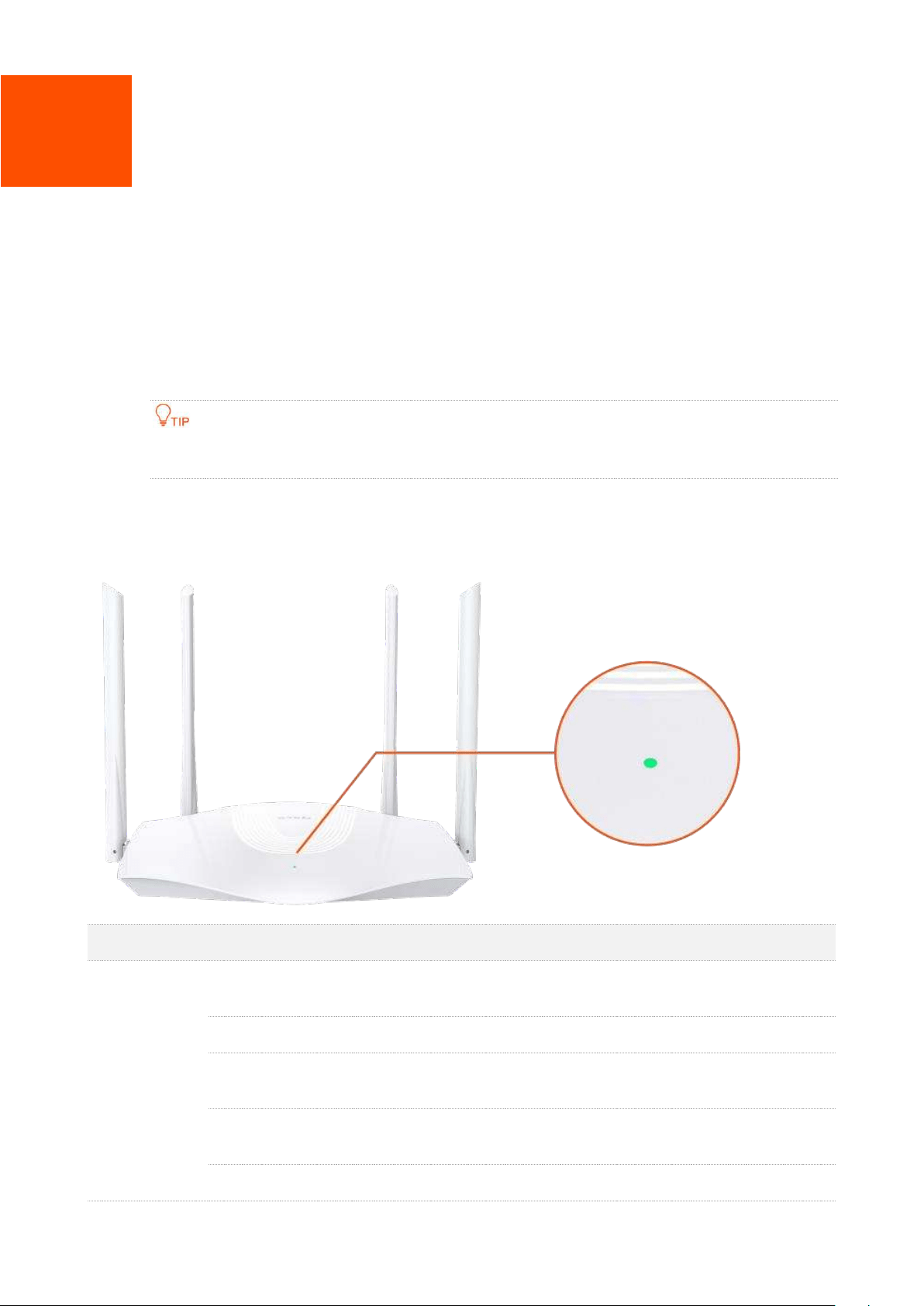
1.2 LED indicator
LED indicator
Status
Description
LED indicator
Solid on
The system is starting up, or the router is already connected to the
internet.
Blinking slowly
The router is not connected to the internet.
Blinking fast for 3
seconds
A device is connected to or disconnected from an Ethernet port of the
router.
Blinking fast for 2
minutes
The router is pending for or performing WPS negotiation.
Off
The system is faulty, or the router is not powered on properly.
2
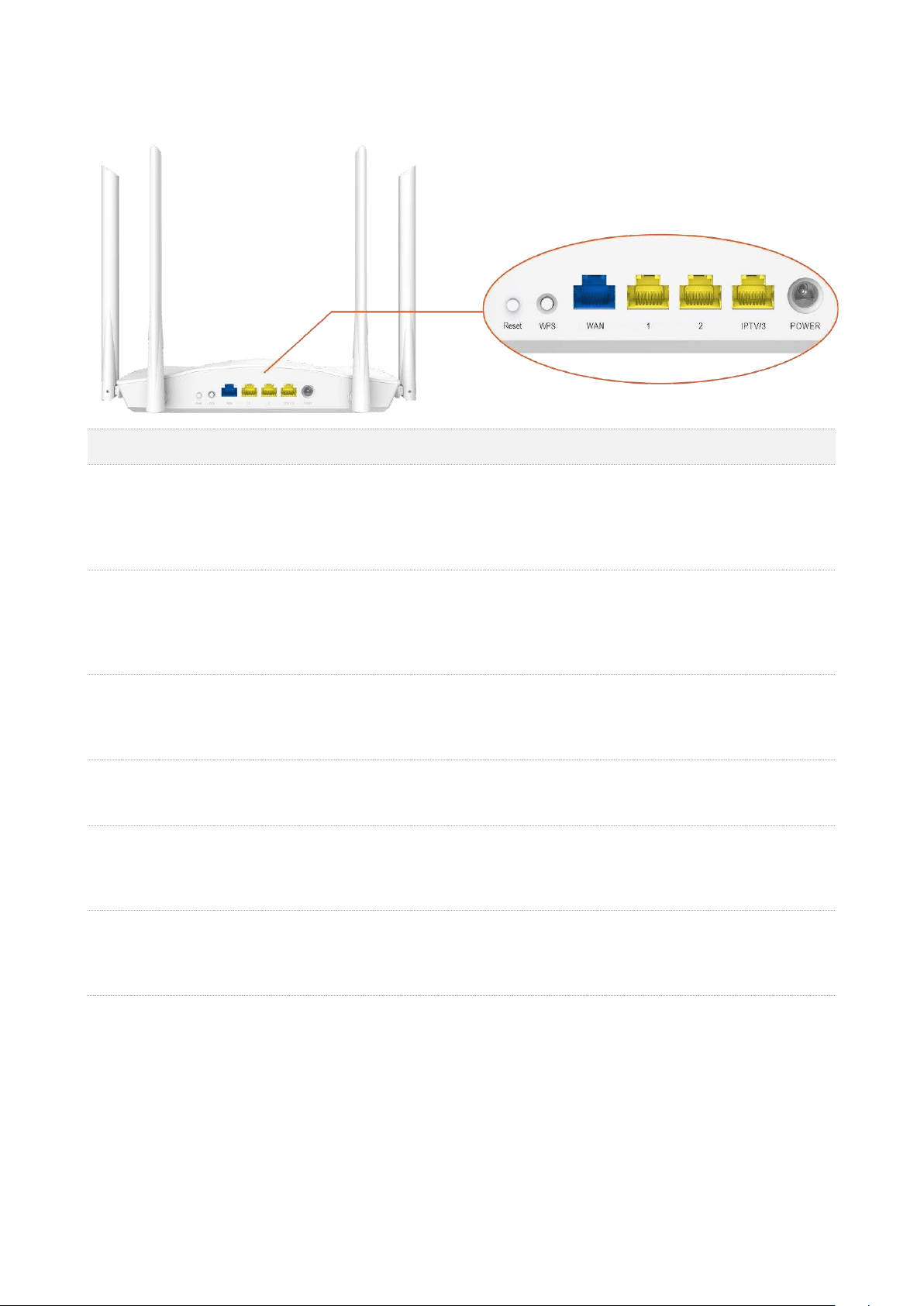
1.3 Ports and buttons
Jack/Port/Button
Description
Reset
Used to restore the factory settings of the router.
Method: When the router is working normally, hold down the button for about 8
seconds, and release it when the LED indicator blinks fast. The router is restored to
factory settings.
WPS
Used to start the WPS negotiation of the router, which enables connection to the
WiFi network without entering the password.
Method: Press the button, and the LED indicator blinks fast. Within 2 minutes,
enable the WPS function of a WPS-enabled device to establish a WPS connection.
WAN
10/100/1000 Mbps auto-negotiation WAN port.
Used to connect to a modem or the Ethernet jack using an Ethernet cable for
internet access.
1, 2
10/100/1000 Mbps auto-negotiation LAN port.
Used to connect to computers, switches or game machines, etc.
IPTV/3
10/100/1000 Mbps auto-negotiation LAN/IPTV port.
It is a LAN port by default. When the IPTV function is enabled, it can only serve as an
IPTV port to connect to a set top box.
POWER
Power jack.
Please use the included power adapter to connect this jack to a power source for
power supply.

3
1.4 Label
The bottom label shows the login IP address, MAC address of the router, serial number, SSID,
password and Pin No. See the following figure..
IP Address: It specifies the default address used to log in to the web UI of the router.
MAC: It specifies the MAC address of the router.
Serial No.: It is required if you need technical assistance to repair your device.
SSID: It specifies the default WiFi name of the router.
Password: It specifies the default WiFi password of the router.
Pin No.: It specifies the PIN code of the router.
4
2 Web UI
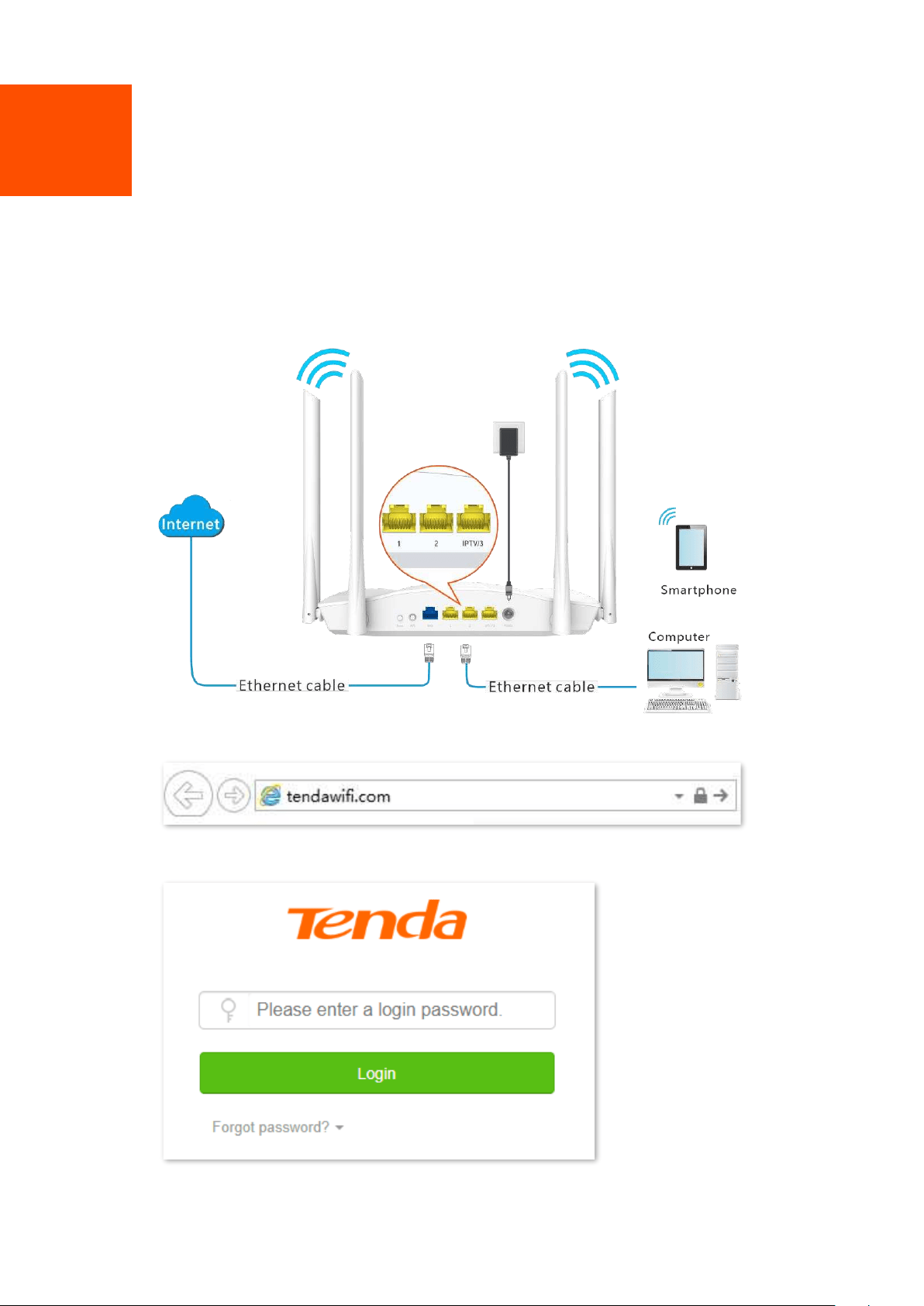
2.1 Log in to the web UI
Step 1 Connect your smartphone to the WiFi network, or connect your computer to a LAN port
(1, 2 or IPTV/3) of the router.
Step 2 Start a web browser on the device connected to the router and visit tendawifi.com.
Step 3 Enter the login password, and click Login.
---End
5
If the above page does not appear, try the following solutions:
⚫
Ensure that the router is powered on properly.
⚫
Ensure that the computer is connected to a LAN port (1, 2 or IPTV/3) of the router, and configure
the computer to obtain an IP address automatically.
⚫
Restore the router to factory settings and try again.
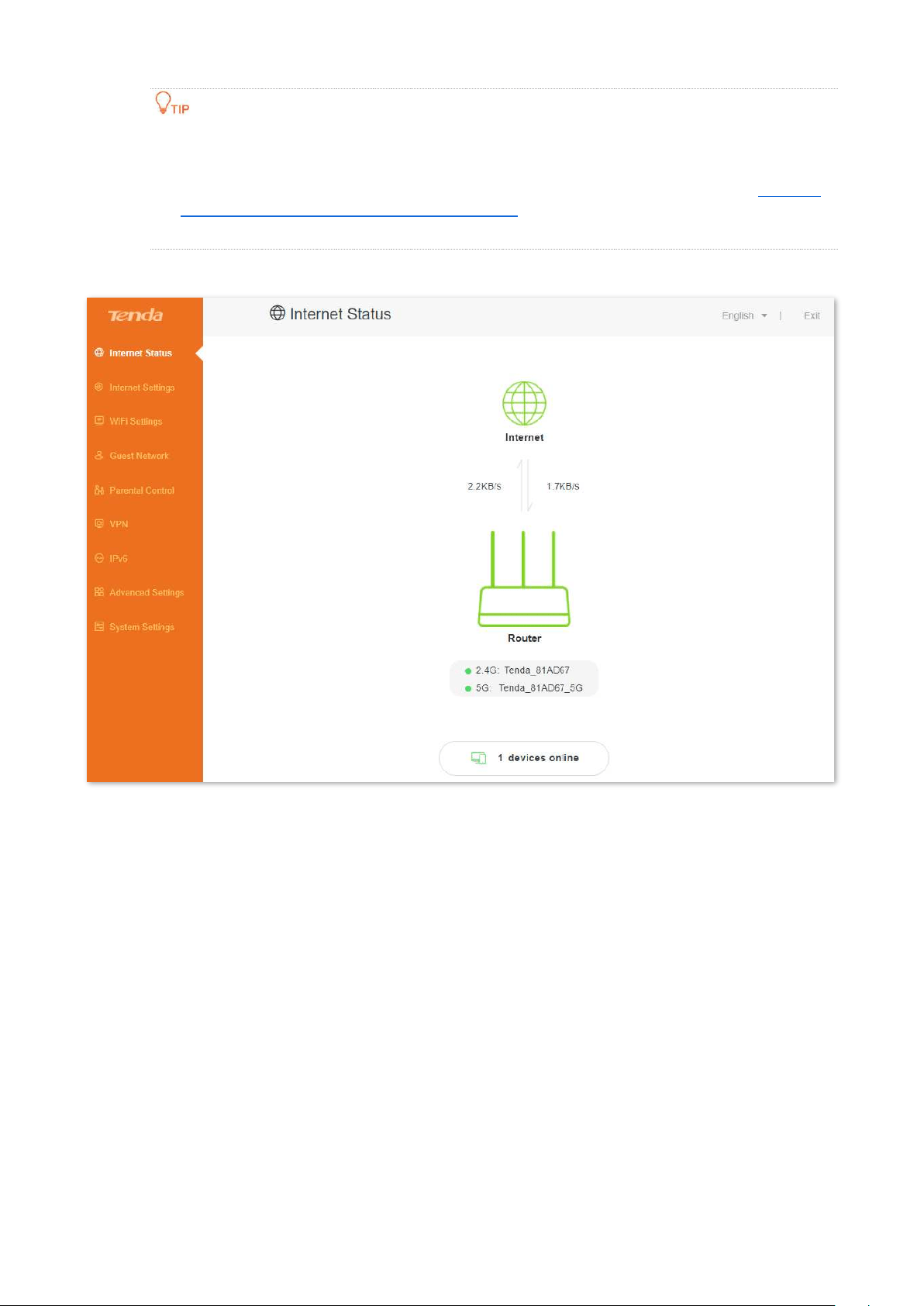
The following page appears.
2.2 Log out of the web UI
If you log in to the web UI of the router and perform no operation within 5 minutes, the router logs
you out automatically. You can also log out by clicking Exit at the top right corner of the web UI.
6
2.3 Web UI layout
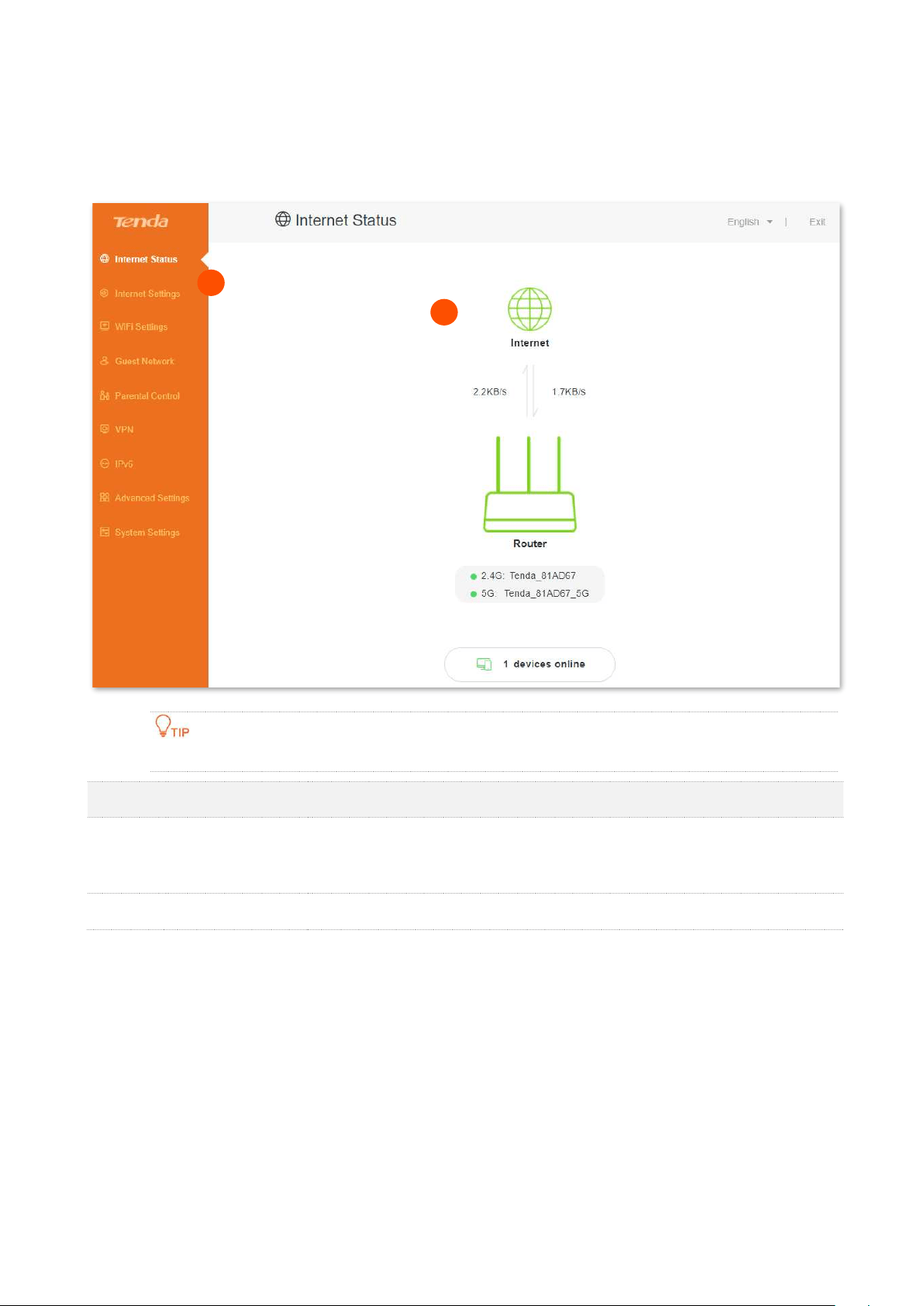
The web UI of the router consists of two sections, including the navigation bar and the
configuration area. See the following figure.
Features displayed in gray are not available or cannot be configured under the current condition.
SN
Name
Description
❶
Navigation bar
It is used to display the function menu of the router. Users can select
functions in the navigation bar and the configuration page appears in the
configuration area.
❷
Configuration area
It is used to modify or view your configurations.
2
1
7
3 Internet status
Log in to the web UI of the router and choose Internet Status to enter the page. On this page, you
can check:
− Internet status
− Wireless information
− System information
− Online devices information
3.1 Internet status
To view internet status:
Step 1 Start a web browser on a device connected to the router and visit tendawifi.com to log in
to the web UI of the router.
Step 2 Choose Internet Status.
---End
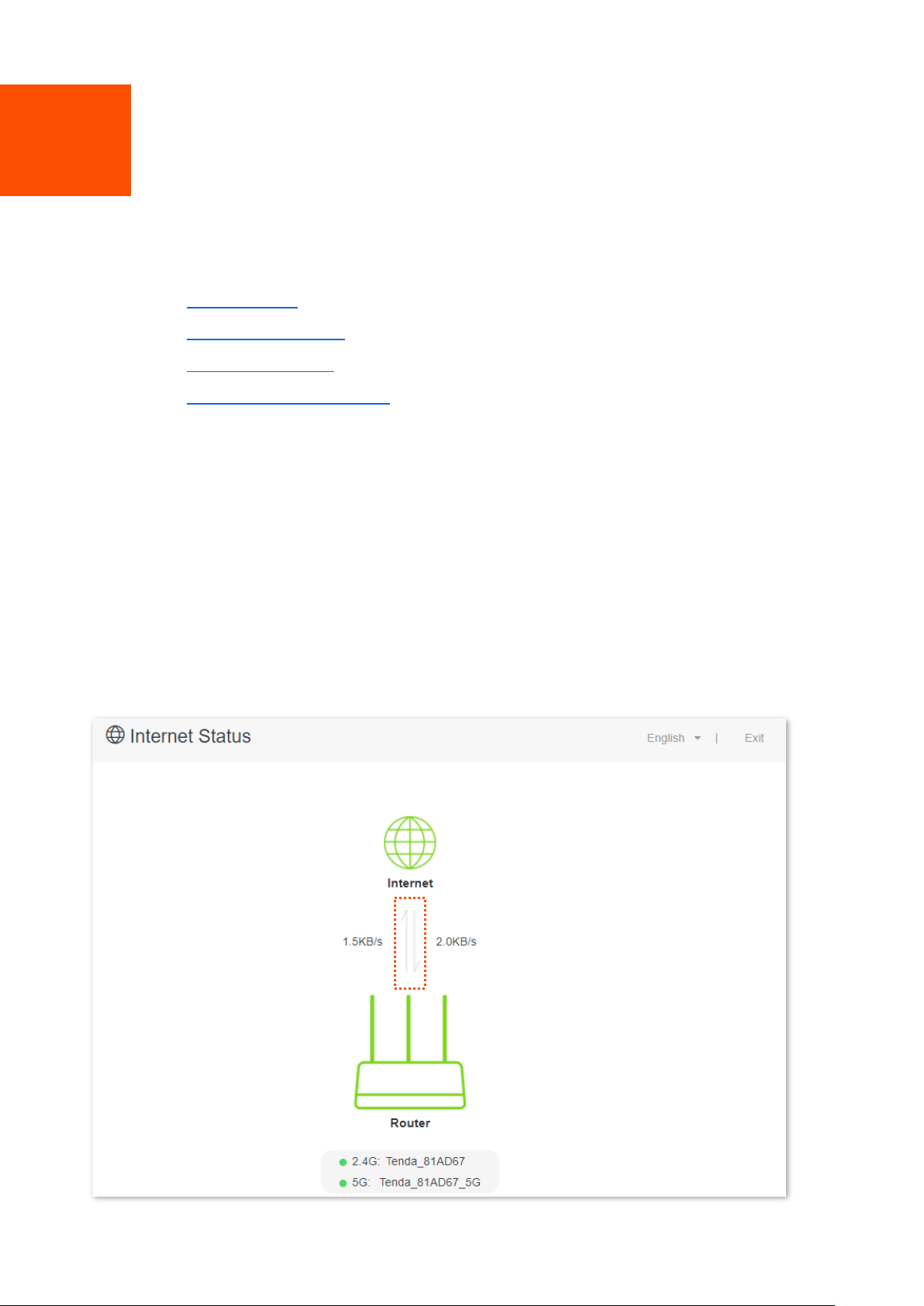
When the Internet and the Router are connected as shown below, the router is connected to the
internet successfully.
8
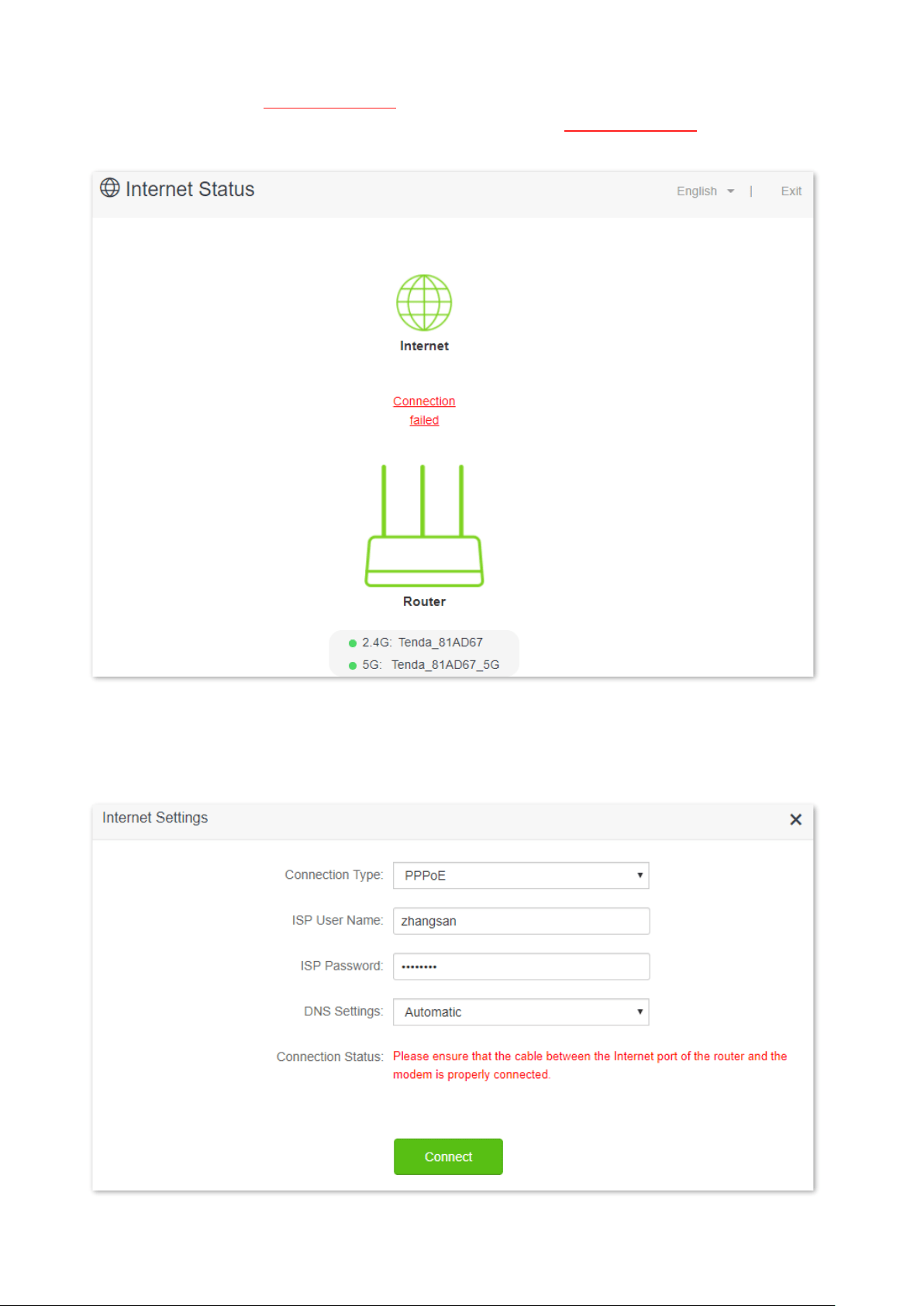
When a red cross and “Connection failed” are shown between the Internet and the Router, it
indicates that the internet connection is abnormal. Please click Connection failed to navigate to the
Internet Settings page and follow the instructions to solve the problem.
When “
Please ensure that the cable between the Internet port of the router and the modem is
properly connected
” is shown on the page, ensure that the WAN port of the router and the LAN
port of the modem or the Ethernet jack are connected properly. If the problem persists, contact
the technical support for help.
9
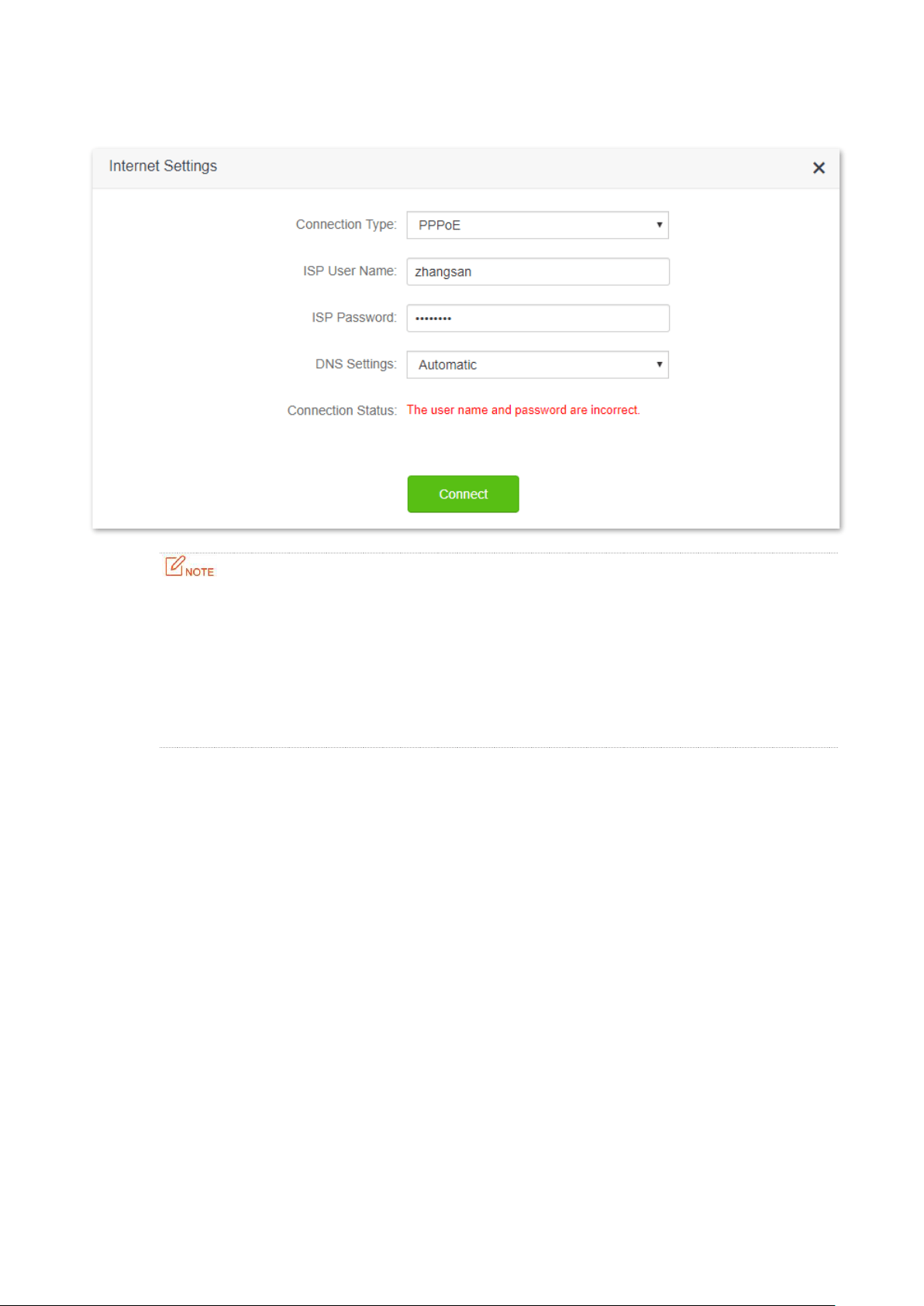
When “The user name and password are incorrect.” is shown on the page, it indicates that the user
name and password you entered are incorrect. Please re-enter the user name and password.
Please consider the following tips when entering the user name and password:
⚫
Pay attention to case sensitivity, such as “Z” and “z”.
⚫
Pay attention to similar letters and numbers, such as “I” and “1”.
⚫
Ensure the completeness of account parameters, such as “0755000513@163.gd”, rather than
“0755000513”
If the problem persists, contact your ISP for help.
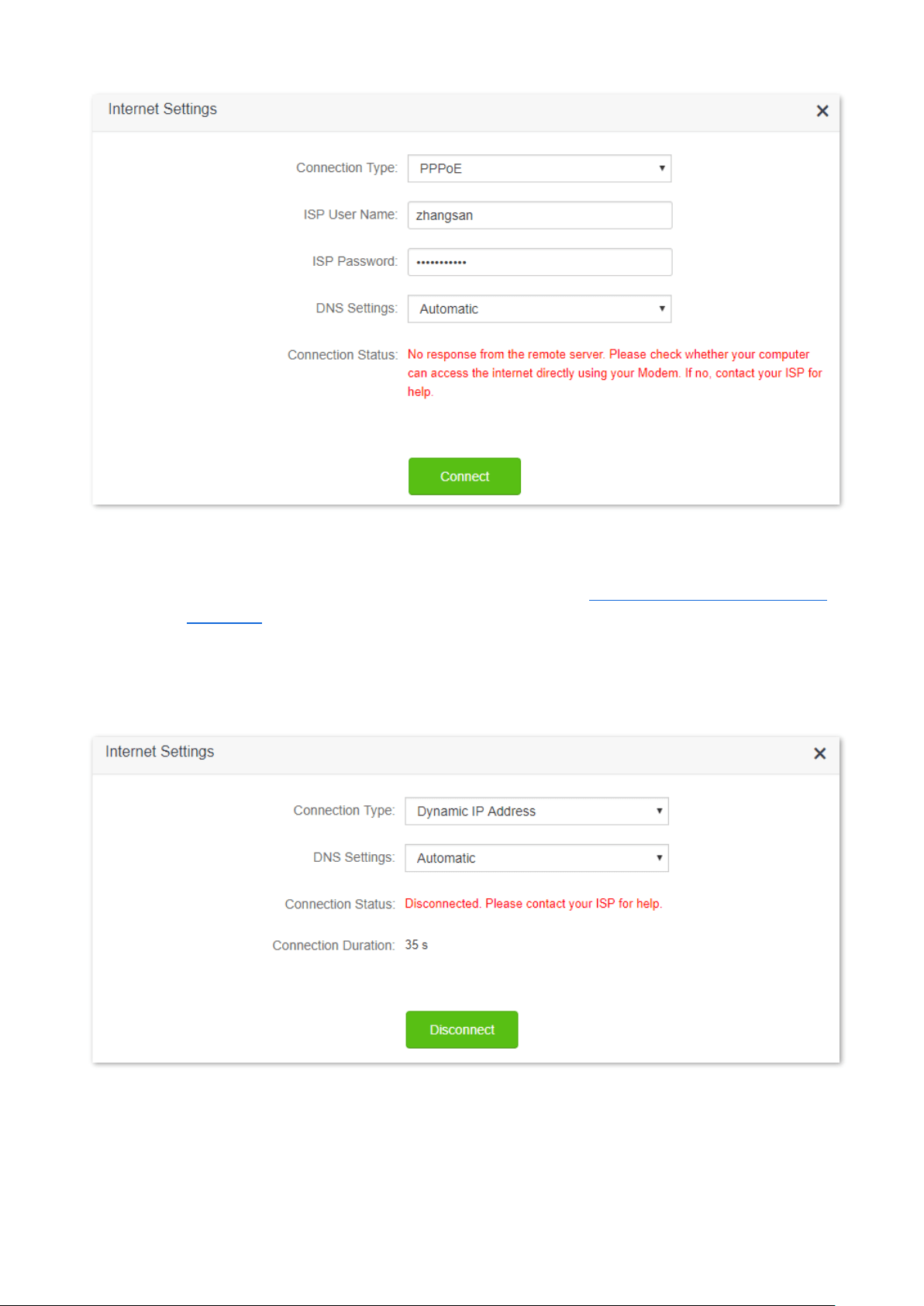
When “No response from the remote server. Please check whether your computer can access the
internet directly using your Modem. If no, contact your ISP for help.
” is shown on the page as
below, try the following methods:
− Ensure that the Ethernet cable in connected properly.
− Ensure that you choose the proper connection type. Contact your ISP for any doubt
about the connection type.
− Power off the router for several minutes, then power it on and try again.
If the problem persists, contact your ISP for help.
10
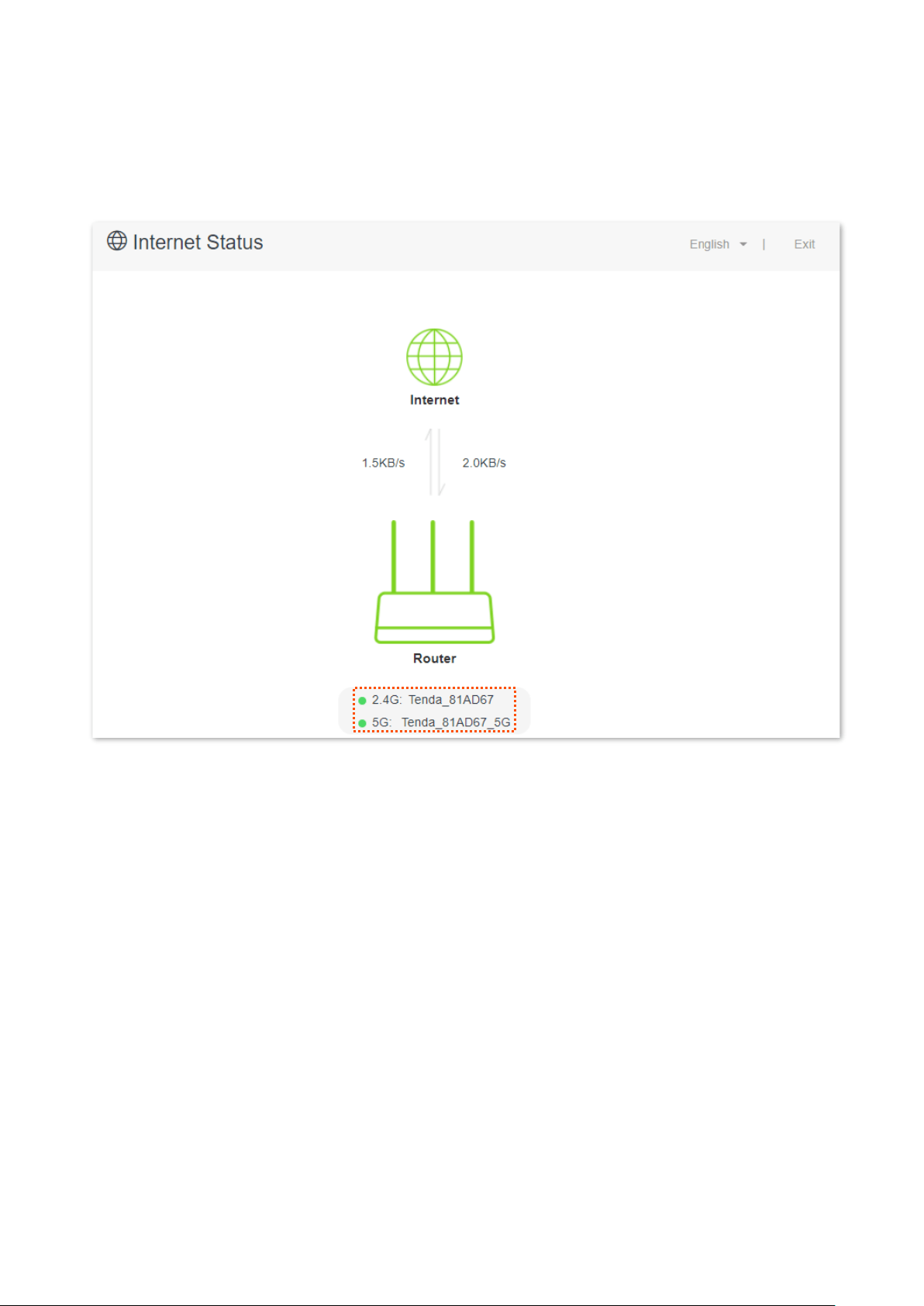
When “Disconnected. Please contact your ISP for help.” is shown on the page as below, try the
following methods:
− Modify the MAC address of WAN port by referring to Change the MAC address of the
WAN port.
− Use another device to configure the router again.
− Ensure that your internet service does not expire.
If the problem persists, contact Tenda technical support.
11
3.2 Wireless information
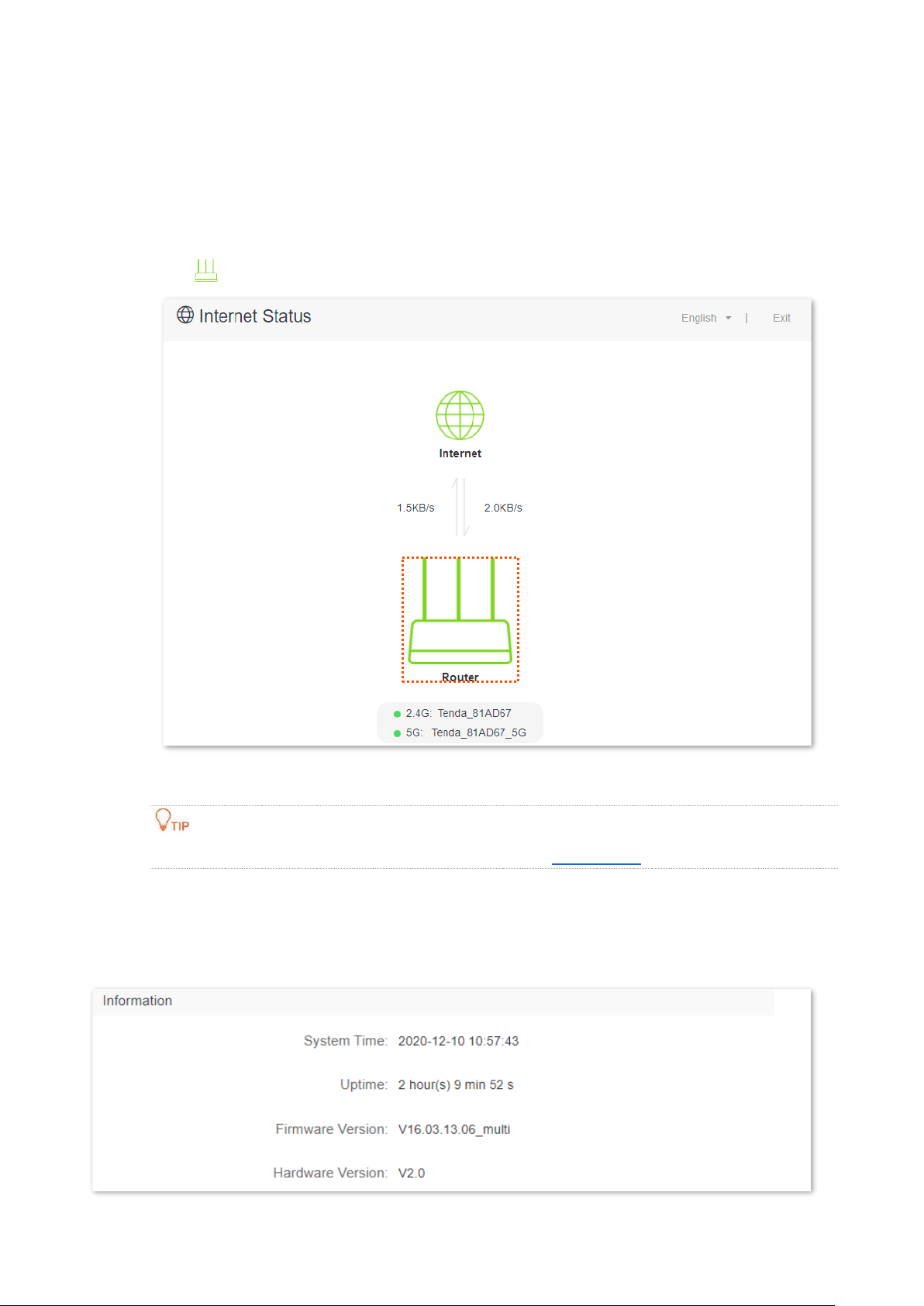
To view the WiFi names of the router, start a web browser on a device connected to the router and
visit tendawifi.com to log in to the web UI of the router. Choose Internet Status, and you can find
the WiFi names on this page.
12
3.3 System information
To view the wireless information:
Step 1 Start a web browser on a device connected to the router and visit tendawifi.com to log in
to the web UI of the router.
Step 2 Choose Internet Status.
Step 3
Click .
---End
For detailed description of parameters on this page, refer to System status.
3.3.1 Basic information
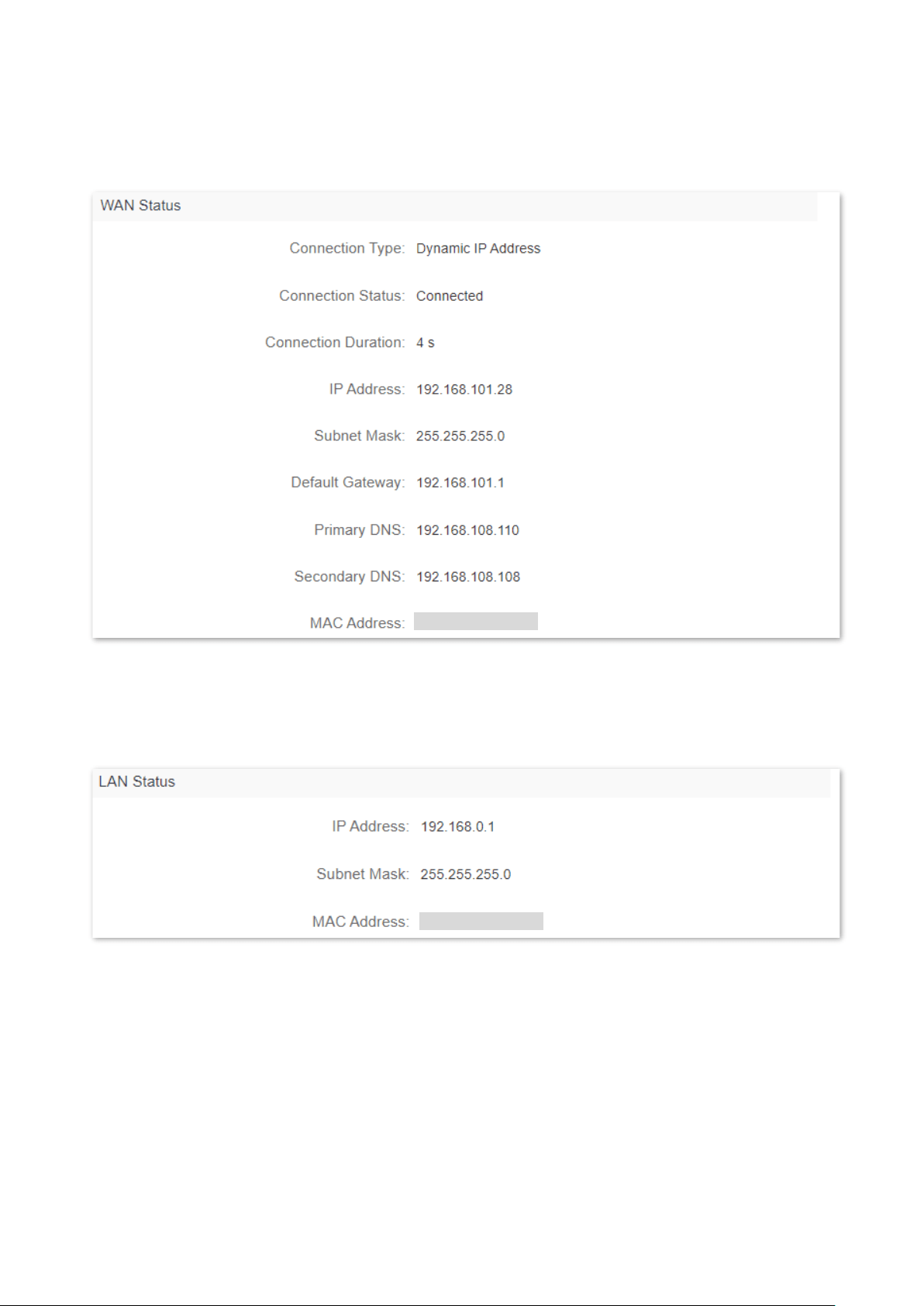
In this part, you can view the basic information of the router, such as system time, uptime and
firmware version, etc.
13
3.3.2 WAN status
In this part, you can view the information of the WAN port, including connection type, connection
status and connection duration, etc.
3.3.3 LAN status
In this part, you can view the LAN information such as LAN IPv4 address, subnet mask and MAC
address.
14
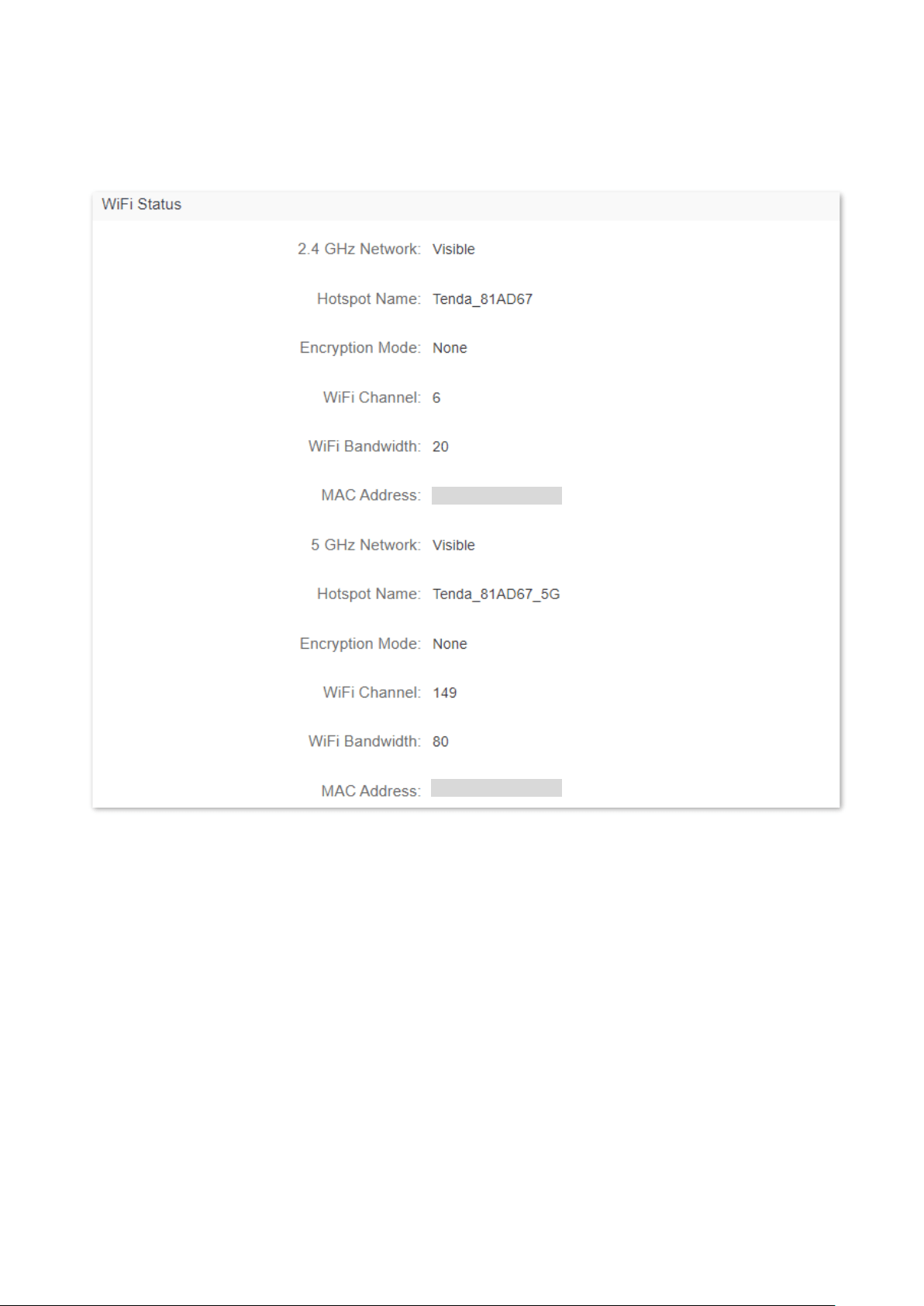
3.3.4 WiFi status
In this part, you can view the information of 2.4 GHz and 5 GHz WiFi network, including visibility,
hotspot name and encryption mode, etc.
15
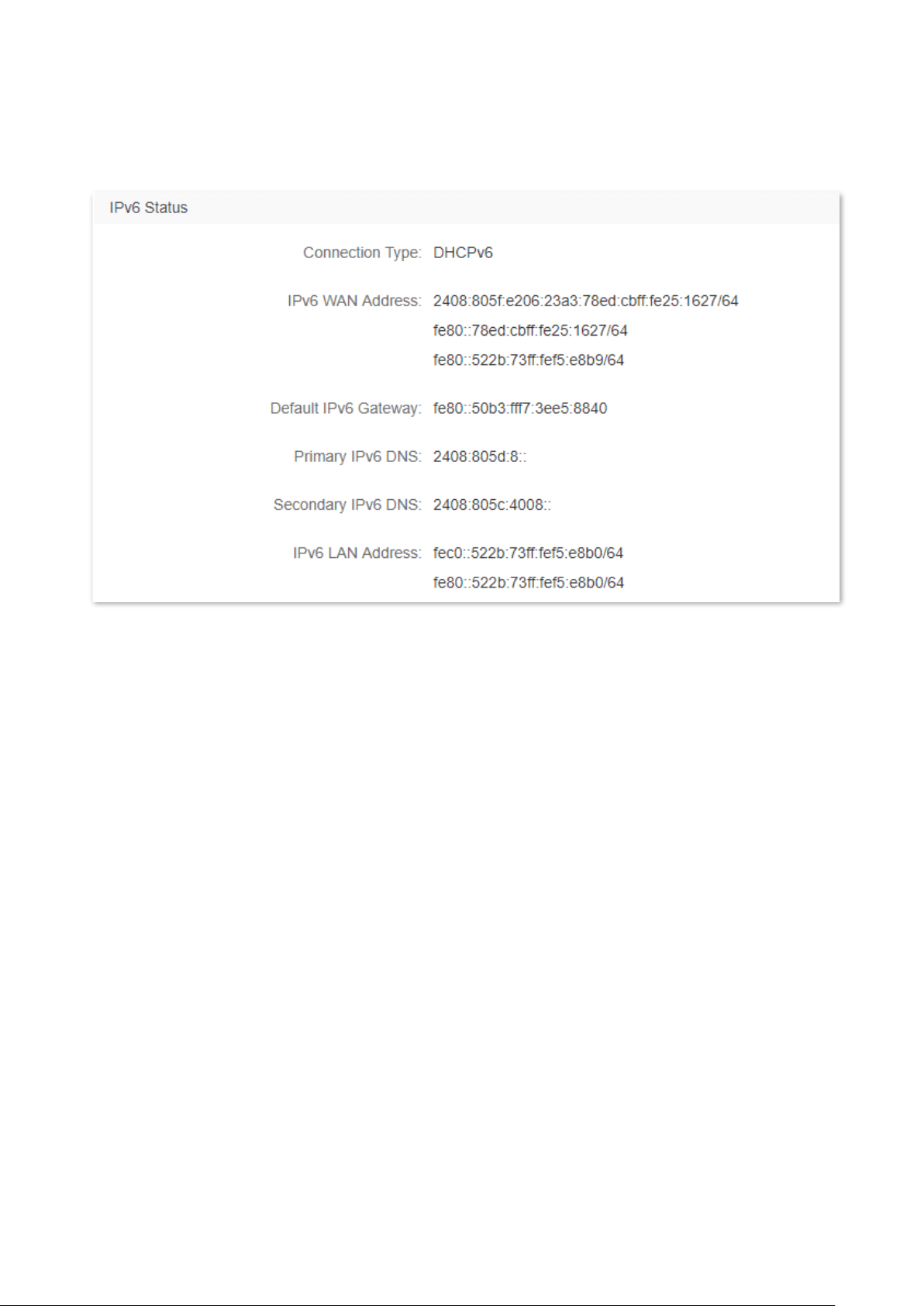
3.3.5 IPv6 status
This part is only displayed when the IPv6 function is enabled. You can view the information of IPv6
connection, including connection type, IPv6 WAN address and IPv6 LAN address.
16
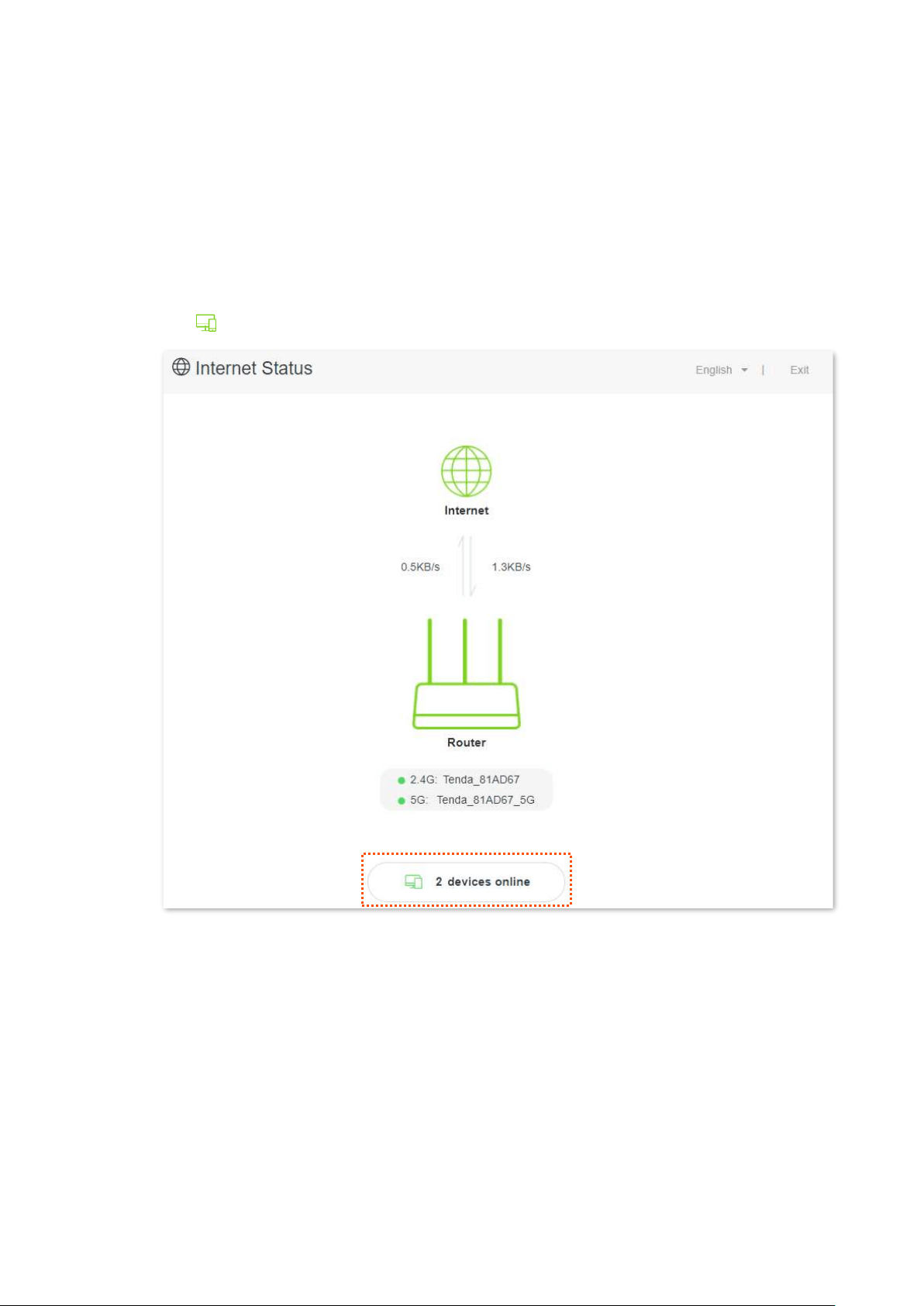
3.4 Online device information
On this page, you can view the information of devices connected to the router, including the
upload speed, download speed and access type, etc. You can also add devices to the blacklist.
To access the page:
Step 1 Start a web browser on a device connected to the router and visit tendawifi.com to log in
to the web UI of the router.
Step 2 Choose Internet Status.
Step 3
Click .
---End
3.4.1
Add devices to the blacklist
Add devices to the blacklist to block the internet access:
Step 1 Choose Attached Devices, and target the device to be added.
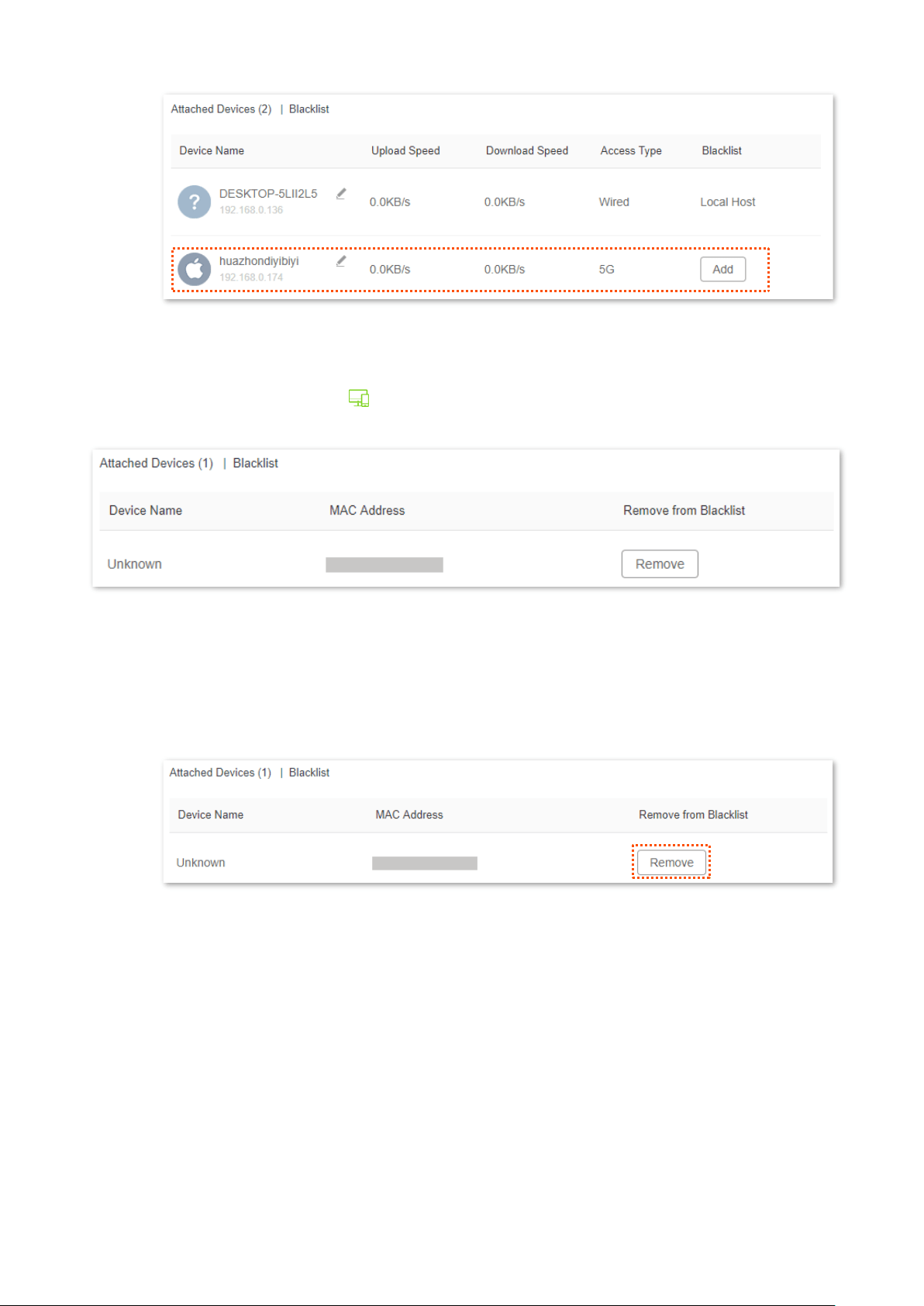
17
Step 2 Click Add.
---End
On the Internet Status page, click , and then click Blacklist, you can view devices that are
added to the blacklist.
3.4.2 Remove devices from the blacklist
To remove devices from the blacklist as required:
Step 1 Choose Blacklist, and target the device to be removed from the blacklist.
Step 2 Click Remove.
---End
18
4 Internet settings
By configuring the internet settings, you can achieve the shared internet access (IPv4) for multiple
users within the LAN.
If you are configuring the router for the first time or after restoring it to factory settings, refer to
the quick installation guide to configure the internet access. After then, you can change the
internet settings by following the instructions in this chapter.
Parameters for accessing the internet are provided by your ISP. Contact your ISP for any doubt.
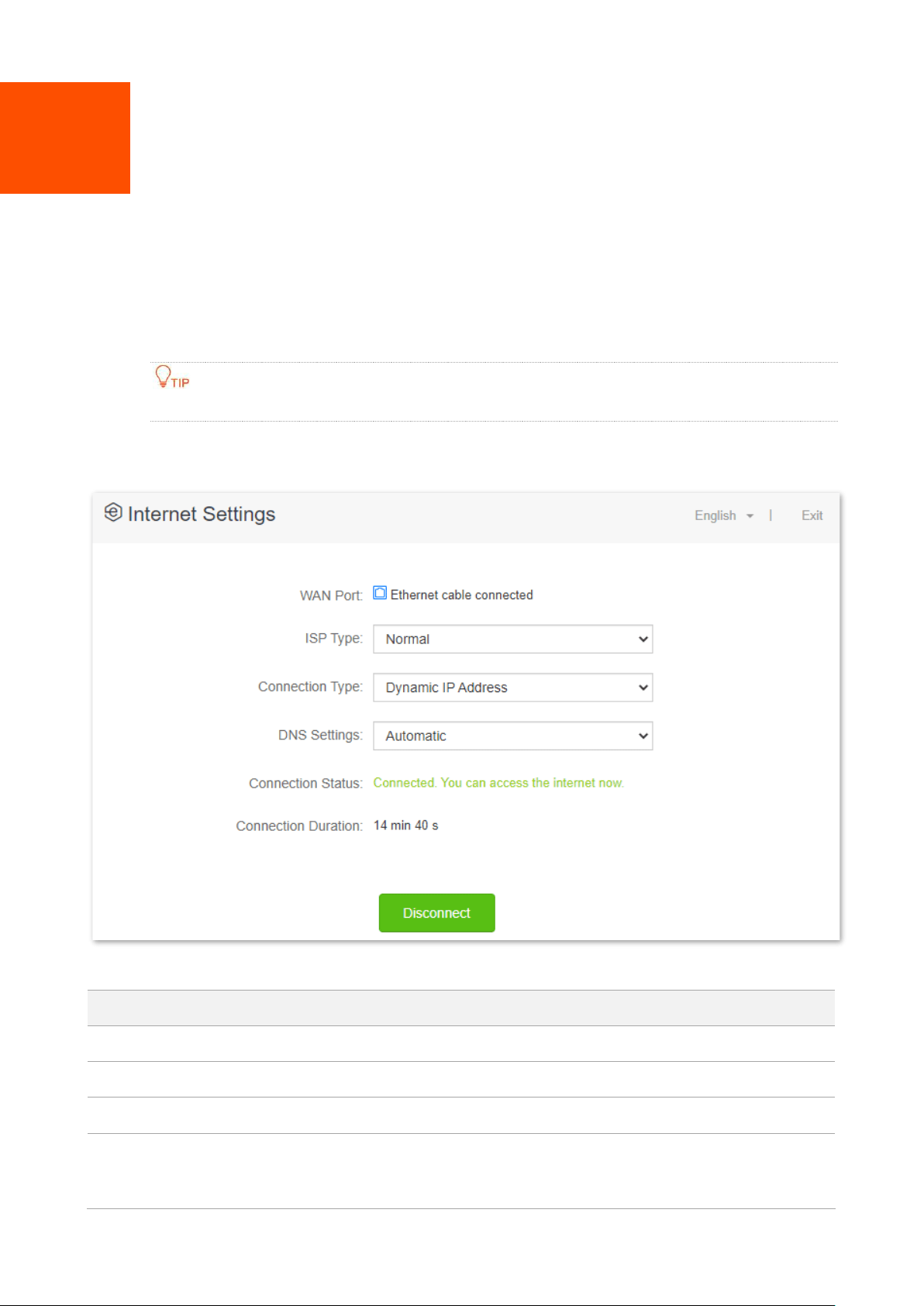
To access the configuration page, log in to the web UI of the router, and navigate to Internet
Settings.
Parameter description
Parameter
Description
WAN Port
It specifies the Ethernet cable connection status on the WAN port.
ISP Type
It specifies your Internet Service Provider (ISP).
Connection Type
It specifies the way which the router uses to connect to the internet.
DNS Settings
It specifies the obtaining method of WAN port DNS address, which is Automatic by
default.
⚫
Automatic: The router obtains a DNS server address from the DHCP server of the

19
Parameter
Description
upstream network automatically.
⚫
Manual: The DNS server address is configured manually.
Connection Status
It specifies the internet connection status.
⚫
When “Connected. You can access the internet now.” is shown here, the router is
connected to the internet successfully.
⚫
When other information is shown here, the router fails to connect to the internet.
Please take corresponding measures according to the tips provided.
Connection Duration
It specifies the duration since the router is connected to the internet.
20
4.1 Access the internet with a PPPoE account
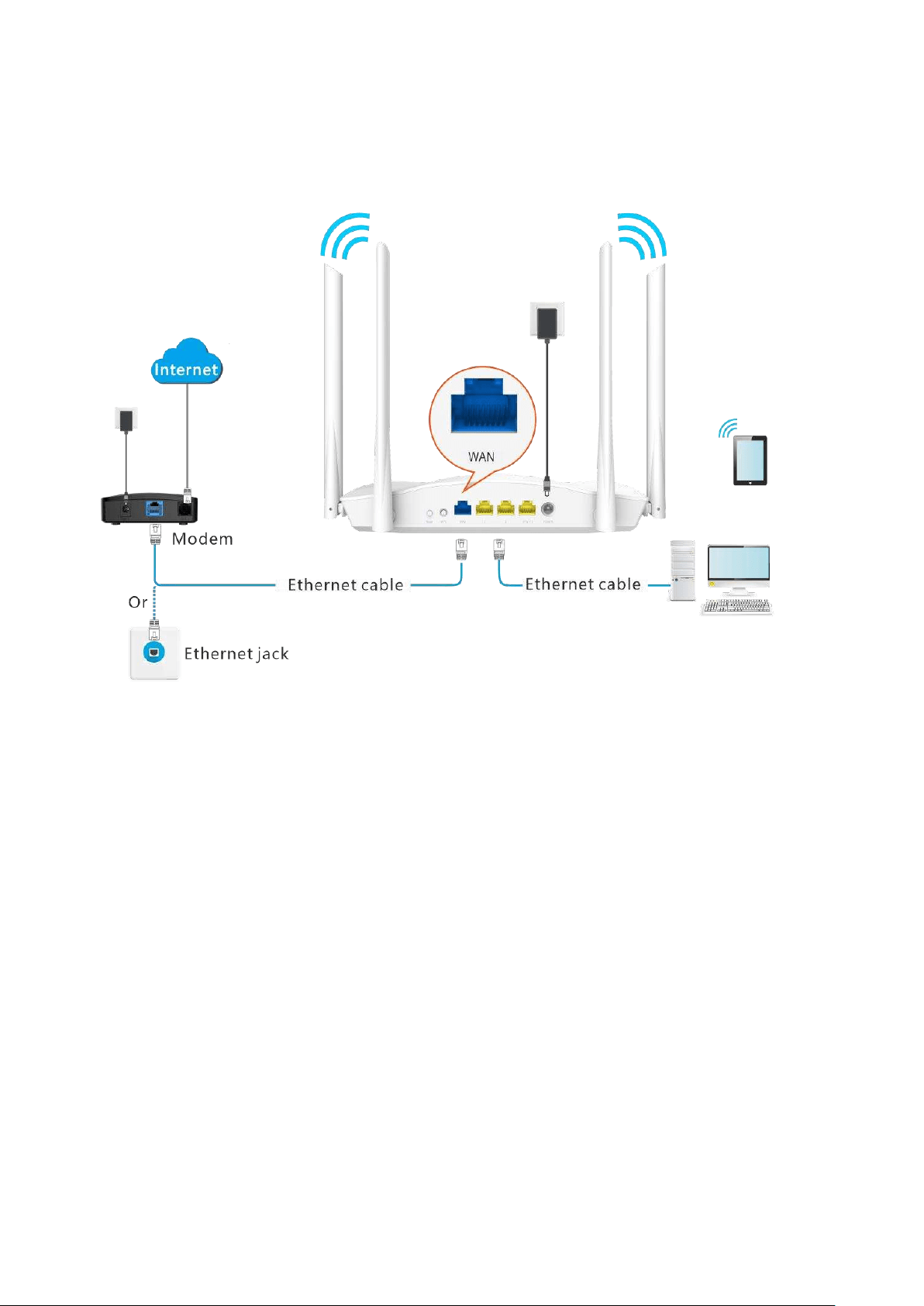
If the ISP provides you with PPPoE user name and password, you can choose this connection type
to access the internet. The application scenario is shown below.
Configuring procedure:
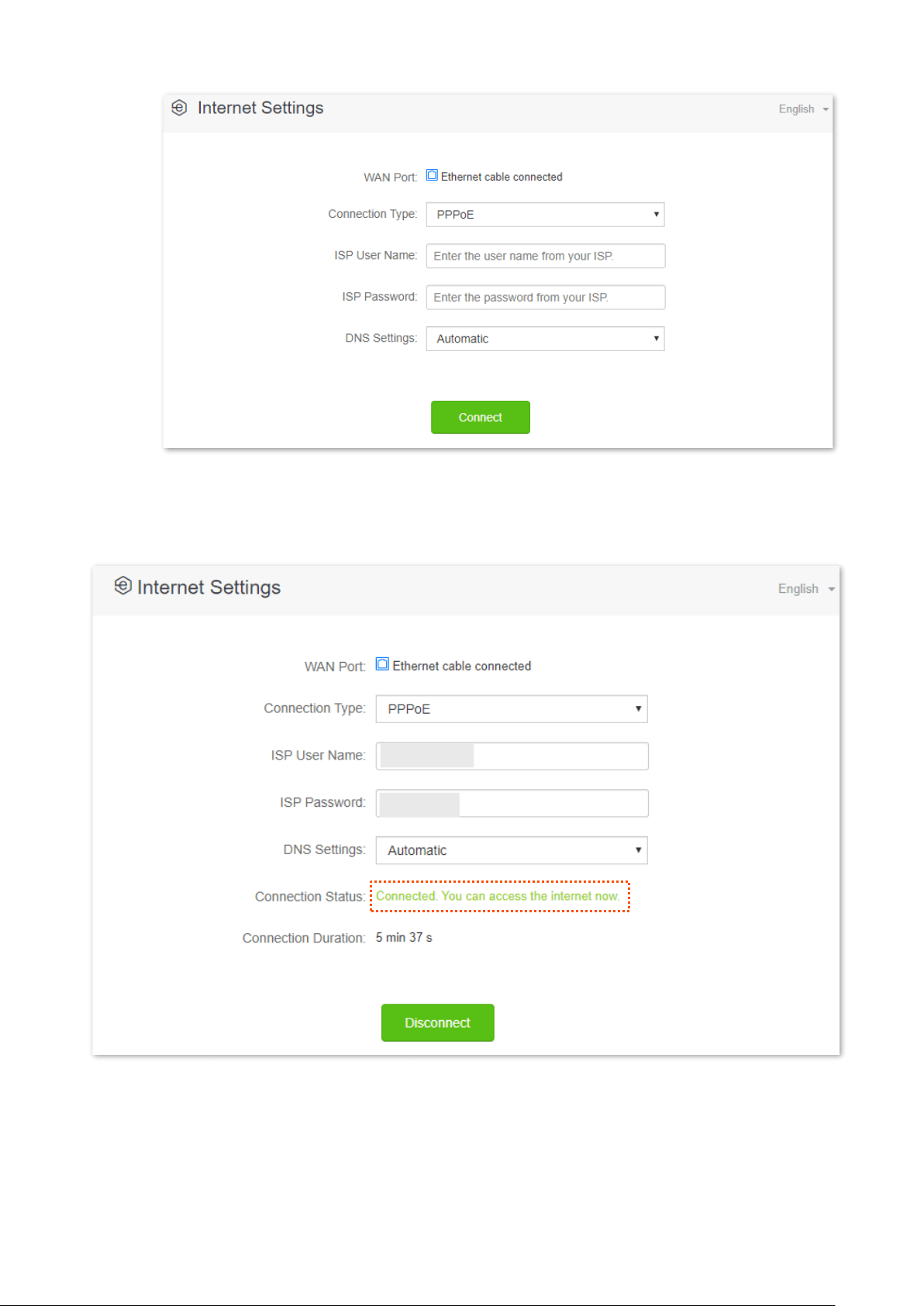
Step 1 Start a web browser on a device connected to the router and visit tendawifi.com to log in
to the web UI of the router.
Step 2 Choose Internet Settings.
Step 3 Set Connection Type to PPPoE.
Step 4 Enter the ISP User Name and ISP Password.
Step 5 Click Connect.
21
---End
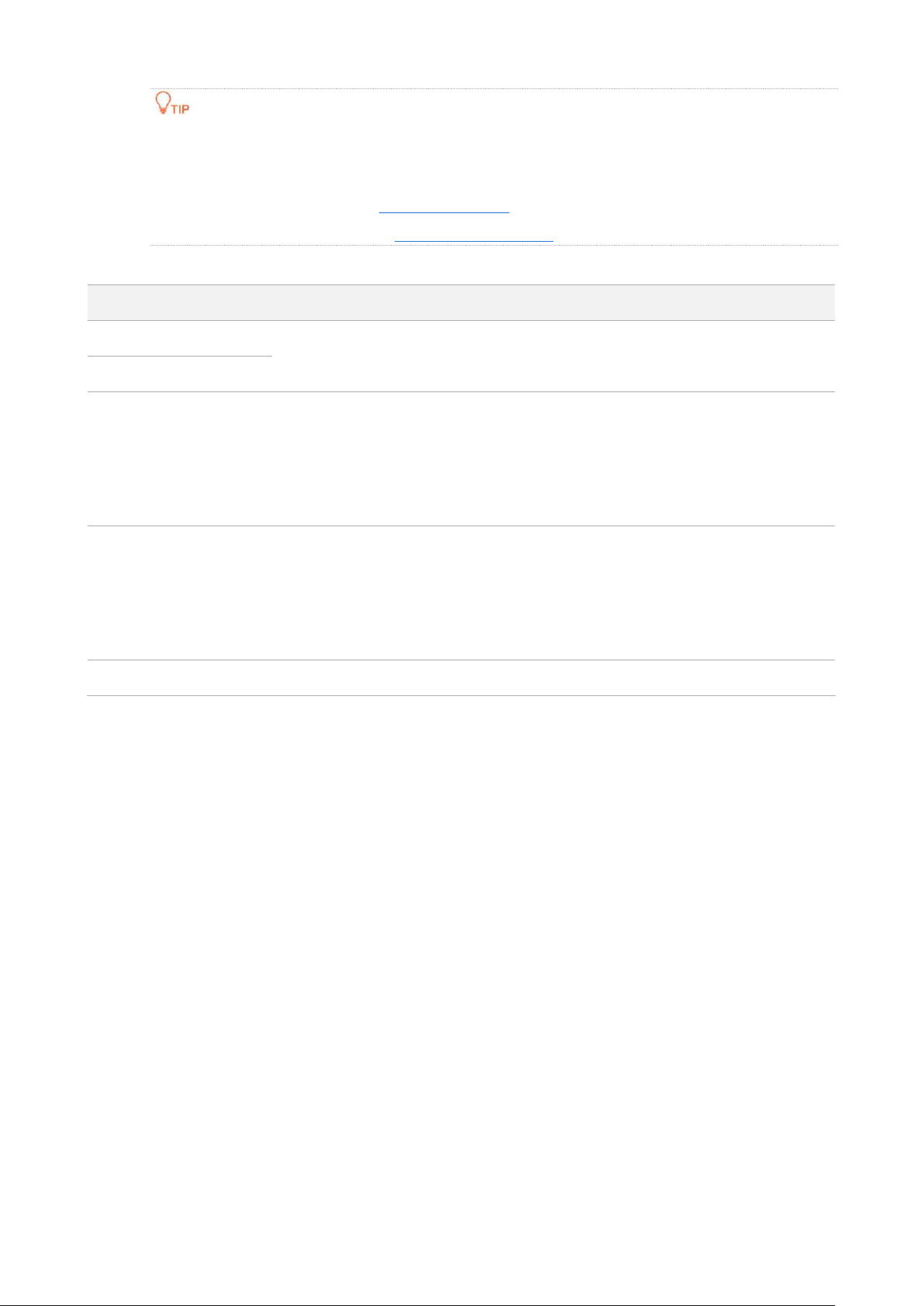
Wait a moment until “Connected. You can access the internet now.” is shown on the page, and you
can access the internet.
22
If you fail to access the internet, try the following methods:
If “No response from the remote server. Please check whether your computer can access the
internet directly using your Modem. If no, contact your ISP for help.
” is shown on the page, you
are recommended to choose
Dynamic IP Address to access the internet.
If the problem persists, refer to View the internet status to find a solution.
Parameter description
Parameter
Description
ISP User Name
When PPPoE is chosen as the connection type, you need to enter the user name
and password provided by your ISP to access the internet.
ISP Password
DNS Settings
It specifies the obtaining method of WAN port DNS address, which is Automatic
by default.
⚫
Automatic: The router obtains a DNS server address from the DHCP server of
the upstream network automatically.
⚫
Manual: The DNS server address is configured manually.
Connection Status
It specifies the internet connection status.
⚫
When “Connected. You can access the internet now.” is shown here, the router
is connected to the internet successfully.
⚫
When other information is shown here, the router fails to connect to the
internet. Please take corresponding measures according to the tips provided.
Connection Duration
It specifies the duration since the router is connected to the internet.

23
4.2 Access the internet through dynamic IP address
Generally, accessing the internet through dynamic IP address is applicable in the following
situations:
− Your ISP does not provide PPPoE user name and password, or any information including IP
address, subnet mask, default gateway and DNS server.
− You already have a router with internet access and want to add another router.
The application scenario is shown below.
Configuring procedure:
Step 1 Start a web browser on a device connected to the router and visit tendawifi.com to log in
to the web UI of the router.
Step 2 Choose Internet Settings.
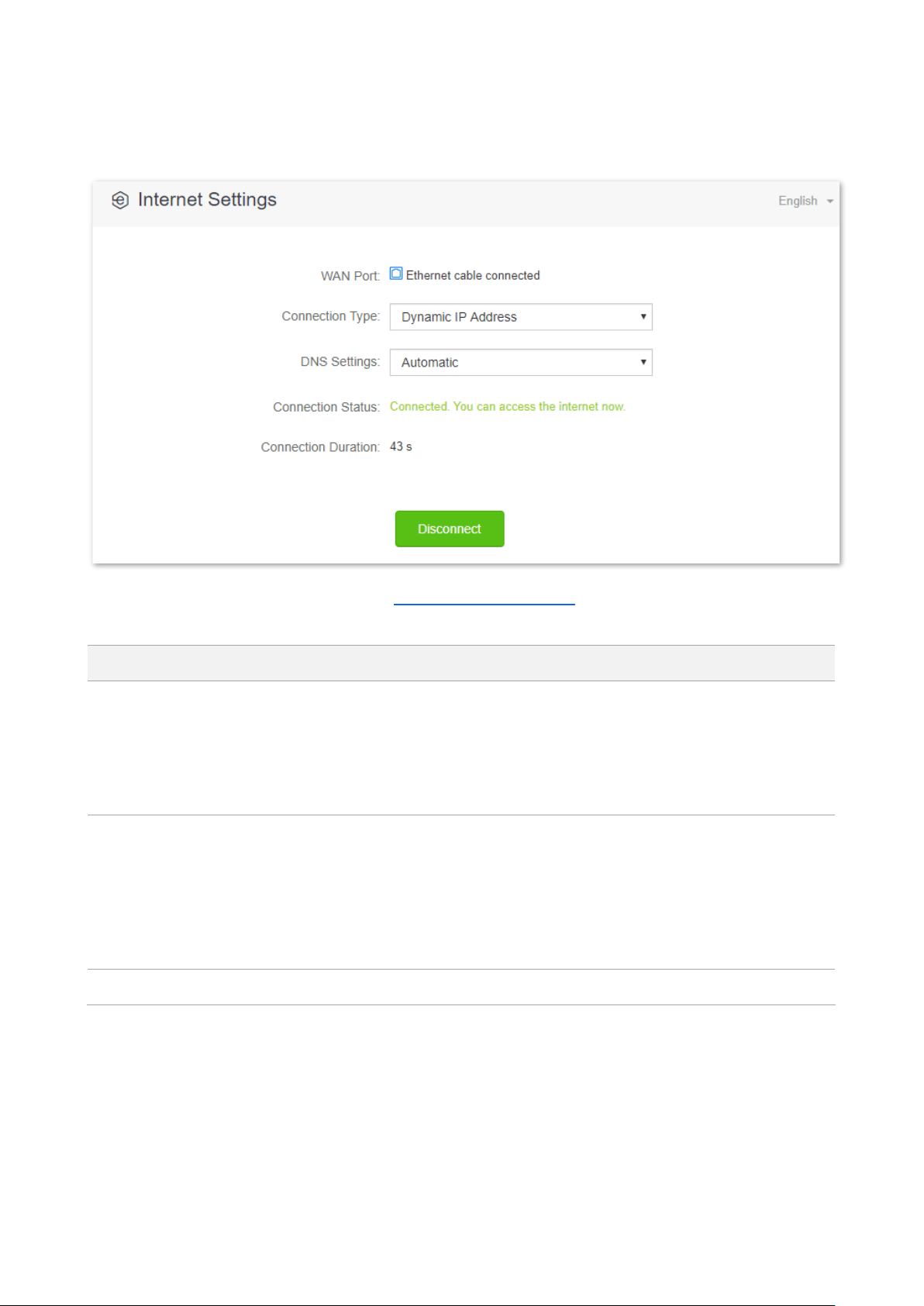
Step 3 Set Connection Type to Dynamic IP Address.
Step 4 Click Connect.
24
---End
Wait a moment until “Connected. You can access the internet now.” is shown on the page, and you
can access the internet.
If you fail to access the internet, refer to
View the internet status to find a solution.
Parameter description
Parameter
Description
DNS Settings
It specifies the obtaining method of WAN DNS address, which is Automatic by
default.
⚫
Automatic: Obtain a DNS server address from the DHCP server of the upstream
network.
⚫
Manual: Configure the DNS server address manually.
Connection Status
It specifies the internet connection status.
⚫
When “Connected. You can access the internet now.” is shown here, the router
is connected to the internet successfully.
⚫
When other information is shown here, the router fails to connect to the
internet. Please take corresponding measures according to information shown
here.
Connection Duration
It specifies the duration since the router is connected to the internet.
25
4.3 Access the internet with a set of static IP
address information
When your ISP provides you with information including IP address, subnet mask, default gateway
and DNS server, you can choose this connection type to access the internet.
Configuring procedure:
Step 1 Start a web browser on a device connected to the router and visit tendawifi.com to log in
to the web UI of the router.
Step 2 Choose Internet Settings.
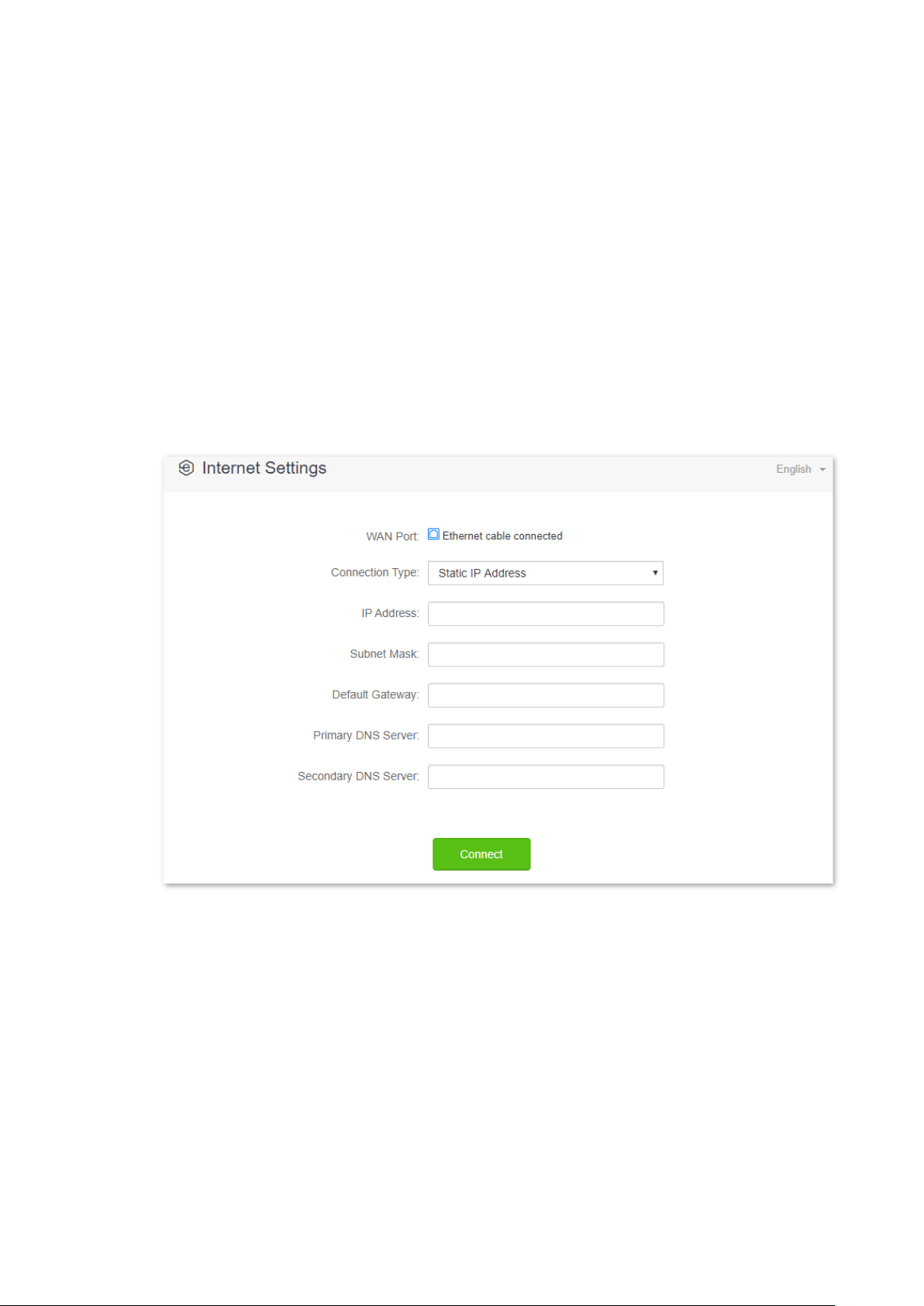
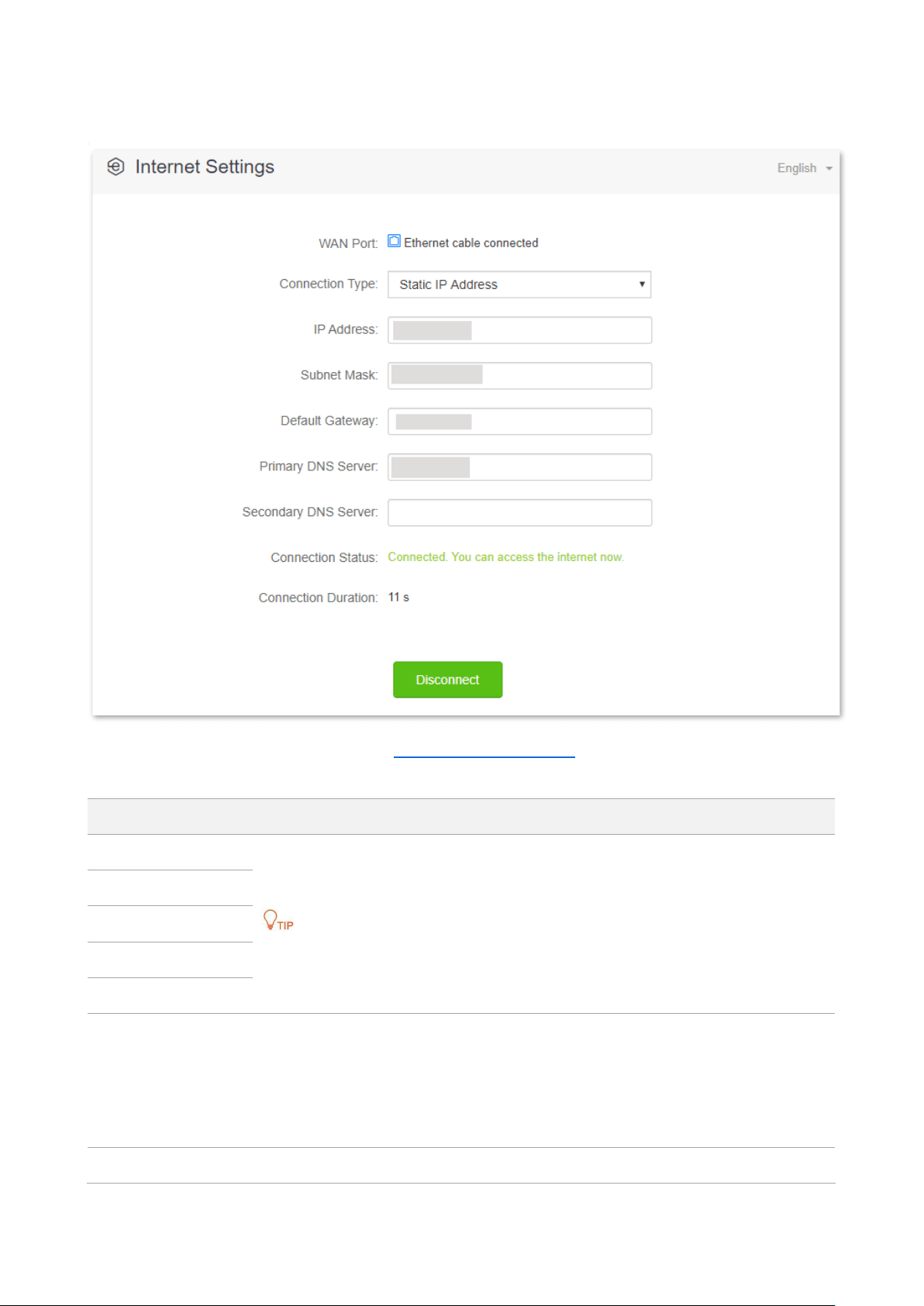
Step 3 Set Connection Type to Static IP Address.
Step 4 Enter IP Address, Subnet Mask, Default Gateway and Primary/Secondary DNS server.
Step 5 Click Connect.
---End
26
Wait a moment until “Connected. You can access the internet now.” is shown on the page, you can
access the internet.
If you fail to access the internet, refer to View the internet status to find a solution.
Parameter description
Parameter
Description
IP Address
When static IP address is chosen as the connection type, enter the fixed IP address
information provided by your ISP.
If your ISP only provides one DNS server, you can leave the secondary DNS server
blank.
Subnet Mask
Default Gateway
Primary DNS Server
Secondary DNS Server
Connection Status
It specifies the internet connection status.
⚫
When “Connected. You can access the internet now.” is shown here, the router is
connected to the internet successfully.
⚫
When other information is shown here, the router fails to connect to the internet.
Please take corresponding measures according to the information shown here.
Connection Duration
It specifies the duration since the router is connected to the internet.
27
5 WiFi settings
5.1 WiFi name & password
5.1.1 Overview
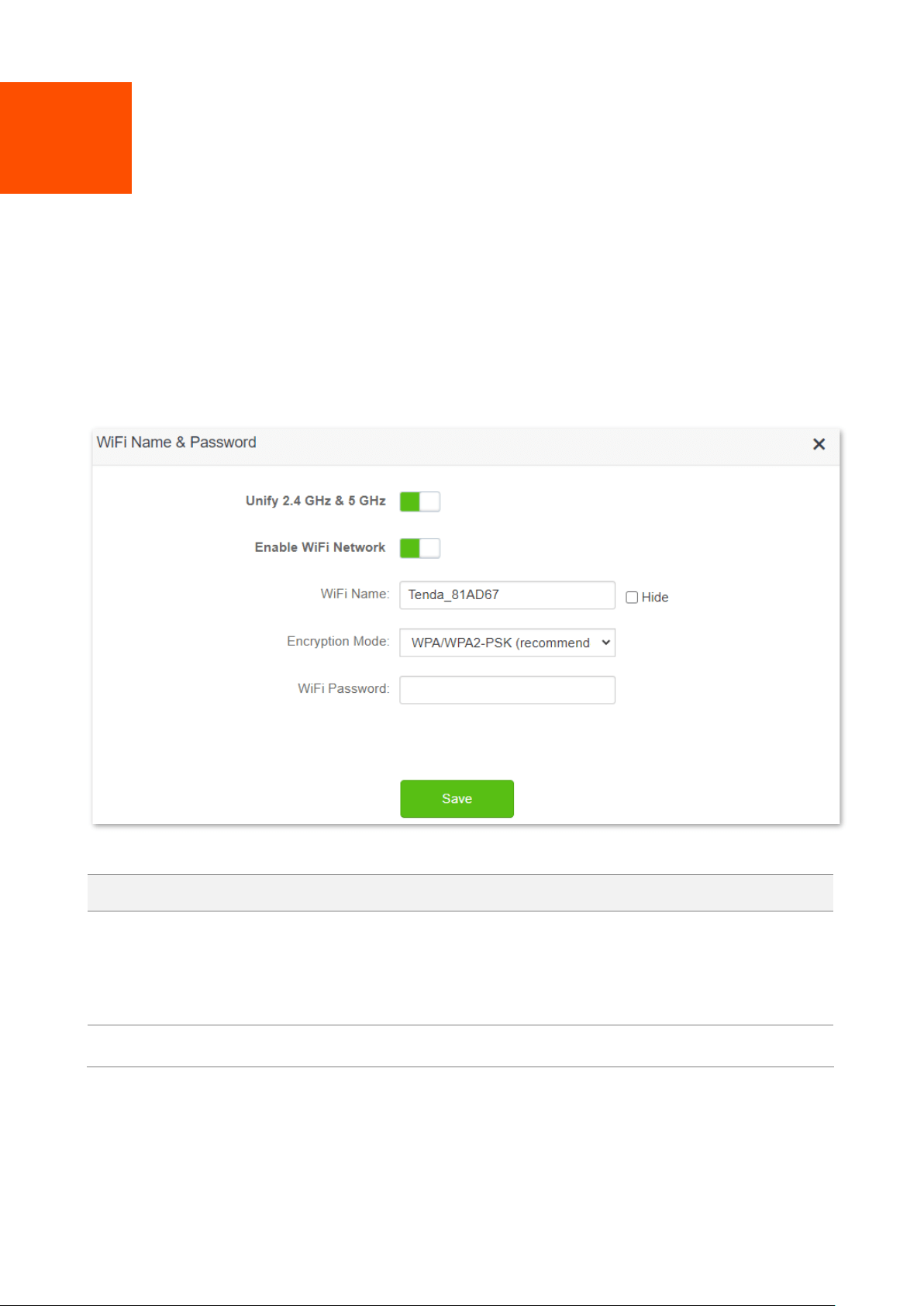
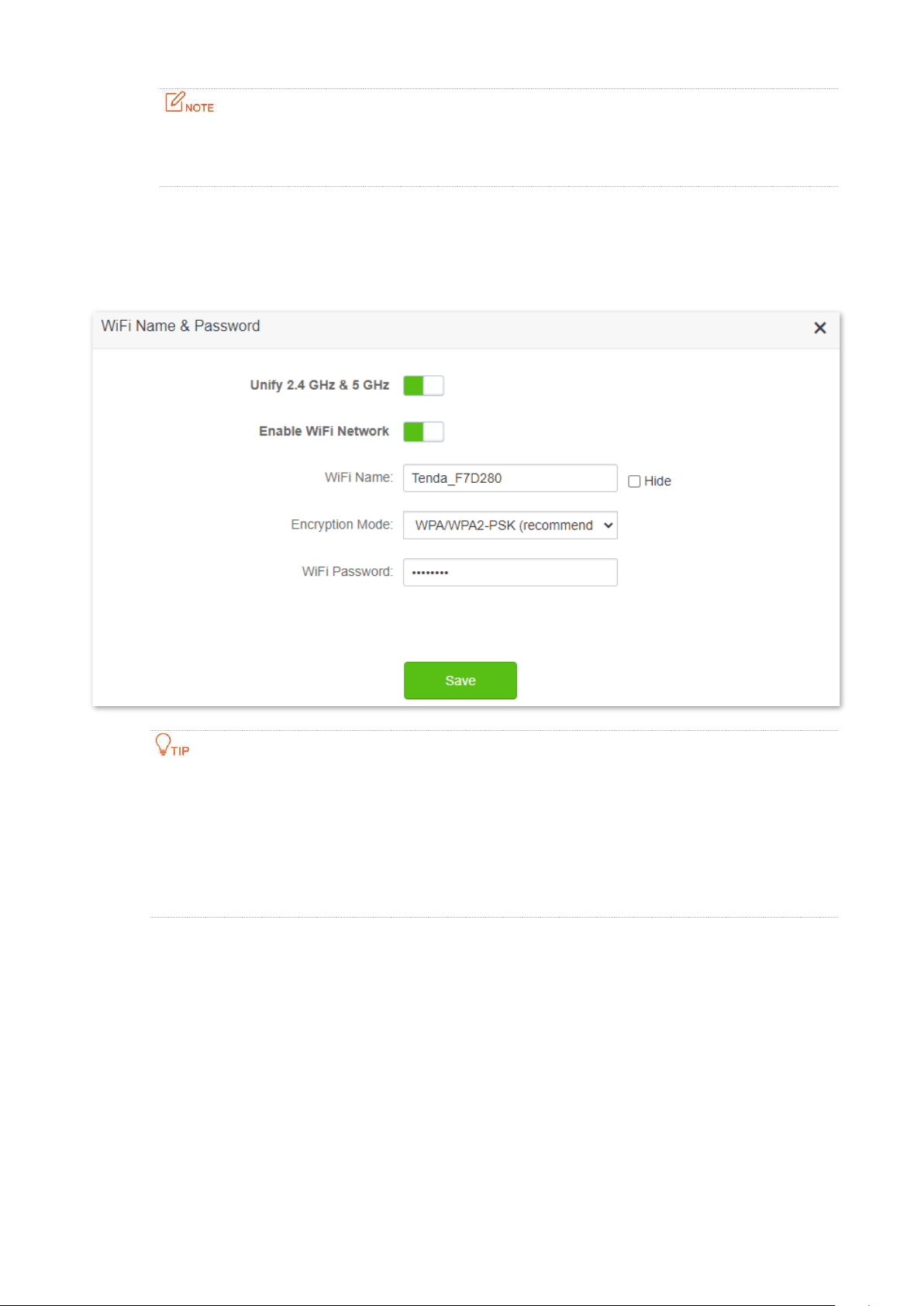
To access the configuration page, log in to the web UI of the router, and navigate to WiFi Settings >
WiFi Name & Password.
On this page, you can configure basic WiFi parameters, such as the WiFi name and password.
Parameter description
Parameter
Description
Unify 2.4 GHz & 5 GHz
It is used to enable or disable the Unify 2.4 GHz & 5 GHz function.
When this function is enabled, the 2.4 GHz and 5 GHz WiFi networks share the SSID
and password. Wi-Fi enabled device connected to it will use the frequency with
better connection quality.
Enable WiFi Network
It is used to enable or disable the WiFi networks of the router.

28
Parameter
Description
2.4 GHz Network
You can enable or disable the 2.4 GHz network and 5 GHz network separately when
the Unify 2.4 GHz & 5 GHz function is disabled.
⚫
If the WiFi-enabled devices such as mobile phones are far away from the router, or
blocked from the router by a wall, it is recommended to connect to the 2.4 GHz
network.
⚫
If the WiFi-enabled devices are close to the router, it is recommended to connect
to the 5 GHz network.
5 GHz Network
WiFi Name
It specifies the WiFi network name (SSID) of the corresponding WiFi network.
Hide
It is used to hide the WiFi name of the WiFi network, improving the security level of
the WiFi network.
When this function is enabled, the WiFi network is invisible to WiFi-enabled devices.
You need to enter the WiFi network information on your WiFi-enabled devices (such
as a smart phone) manually if you want to join the WiFi network.
Encryption Mode
It specifies the encryption modes supported by the router, including:
⚫
None: It indicates that the WiFi network is not encrypted and any clients can
access the network without a password. This option is not recommended as it
leads to low network security.
⚫
WPA-PSK: The network is encrypted with WPA-PSK/AES, which has a better
compatibility than WPA2-PSK.
⚫
WPA2-PSK: The network is encrypted with WPA2-PSK/AES, which has a higher
security level than WPA-PSK.
⚫
WPA/WPA2-PSK (recommended): The network is encrypted with both WPA-PSK
and WPA2-PSK, improving both security and compatibility.
⚫
WPA3-SAE/WPA2-PSK: The network is encrypted with both WPA3-SAE and WPA2-
PSK, improving both security and compatibility.
WPA3-SAE is the upgraded version of WPA2-PSK. If your terminal device does not
support WPA3-SAE, or you get poor WiFi experience, it is recommended to use
WPA/WPA2-PSK (recommended).
WiFi Password
It specifies the password for connecting to the WiFi network. You are strongly
recommended to set a WiFi password for security.
It is recommended to use the combination of numbers, uppercase letters, lowercase
letters and special symbols in the password to enhance the security of the WiFi
network.
5.1.2 Separate the 2.4 GHz WiFi name from 5 GHz WiFi name
The router supports both 2.4 GHz and 5 GHz WiFi networks, which are unified and only one WiFi
name is displayed by default. If you want to separate the WiFi names of the two networks, follow
the procedures below.
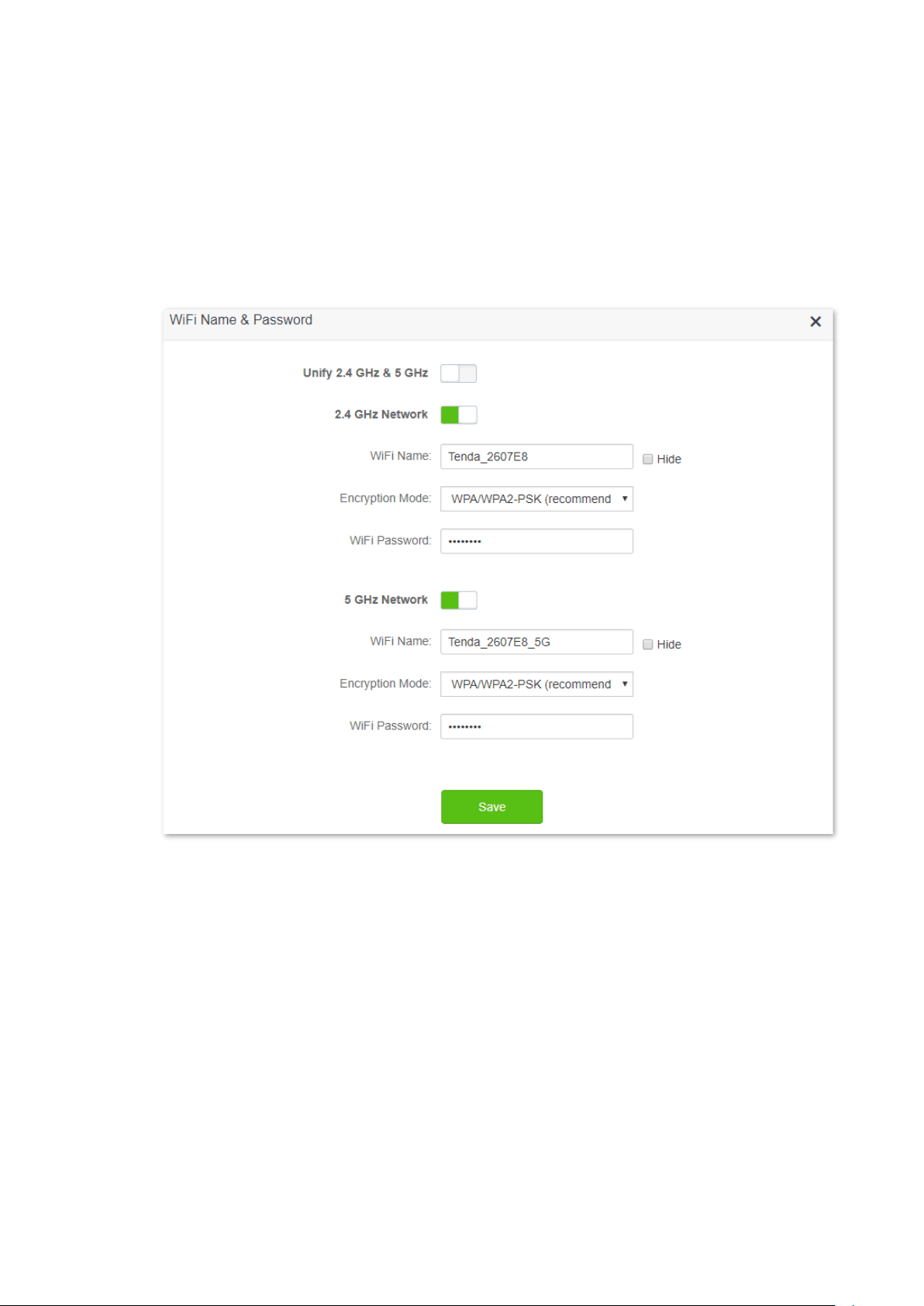
29
Configuring procedure:
Step 1 Start a web browser on a device connected to the router and visit tendawifi.com to log in
to the web UI of the router.
Step 2 Choose WiFi Settings > WiFi Name & Password.
Step 3 Disable Unify 2.4 GHz & 5 GHz.
Step 4 Customize the WiFi Name and WiFi Password of each WiFi network.
Step 5 Click Save.
---End
When completing the configurations, you can connect to the WiFi networks of the router to access
the internet.
5.1.3 Change the WiFi name and WiFi password
The router supports both 2.4 GHz and 5 GHz WiFi networks.
Assume that you want to change the 2.4 GHz WiFi name and password to John_Doe_2.4GHz and
Tenda+Wireless24, and the 5 GHz WiFi name and password to John_Doe_5GHz and
Tenda+Wireless5. Both networks adopt WPA/WPA2-PSK (recommended) as the encryption type.
Configuring procedure:
Step 1 Start a web browser on a device connected to the router and visit tendawifi.com to log in
to the web UI of the router.
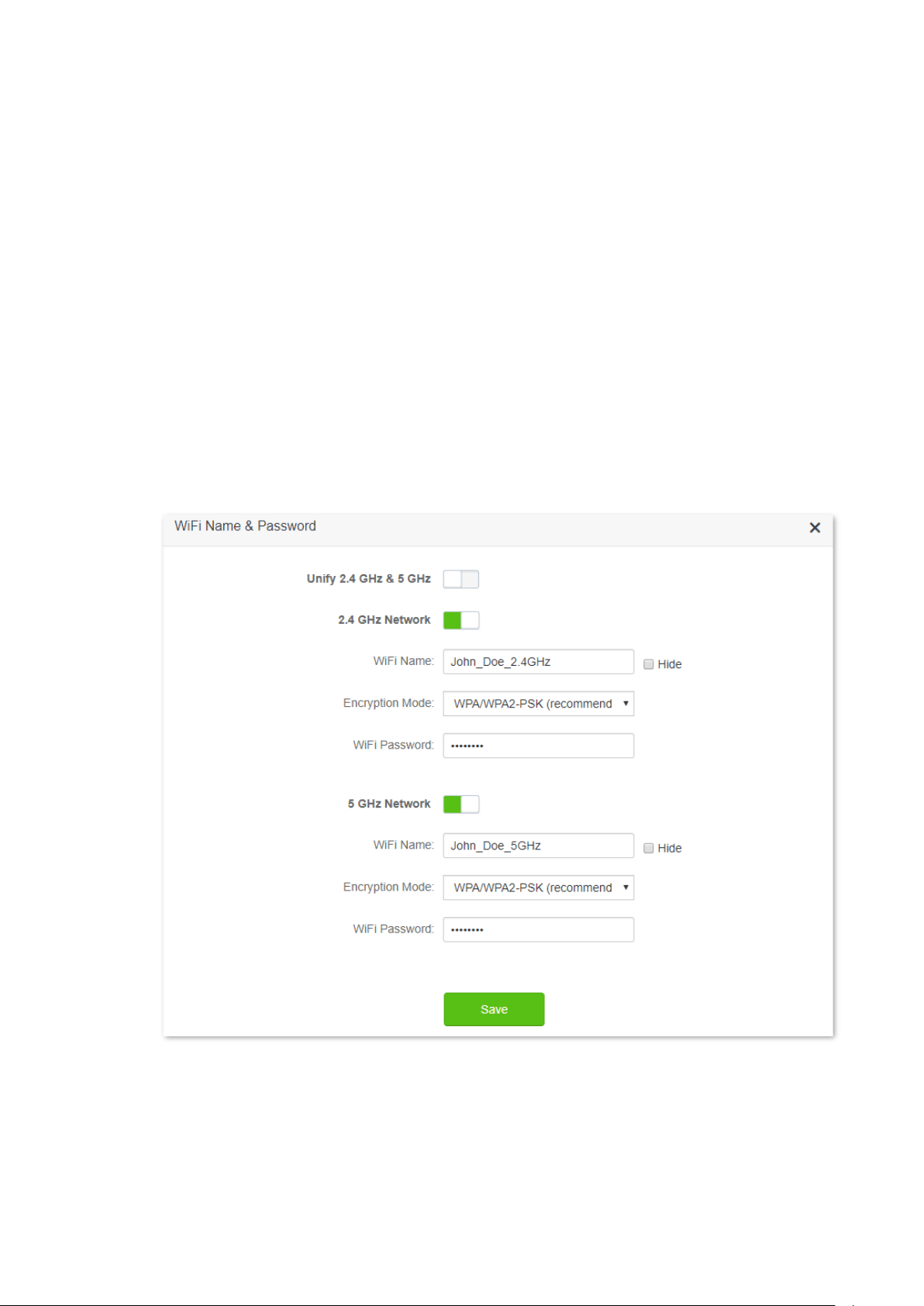
30
Step 2 Choose WiFi Settings > WiFi Name & Password.
Step 3 Disable Unify 2.4 GHz & 5 GHz.
Step 4 Change the parameters of the 2.4 GHz network.
1. Change the WiFi Name of the 2.4 GHz network, which is John_Doe_2.4GHz in this
example.
2. Choose an Encryption Mode, which is WPA/WPA2-PSK (recommended) in this example.
3. Change the WiFi Password of the 2.4 GHz network, which is Tenda+Wireless24 in this
example.
Step 5 Change the parameters of the 5 GHz network.
1. Change the WiFi Name of the 5 GHz network, which is John_Doe_5GHz in this example.
2. Choose an Encryption Mode, which is WPA/WPA2-PSK (recommended) in this example.
3. Change the WiFi Password of the 5 GHz network, which is Tenda+Wireless5 in this
example.
Step 6 Click Save.
---End
When completing the configurations, you can connect your WiFi-enabled devices to the WiFi
networks of the router to access the internet.
31
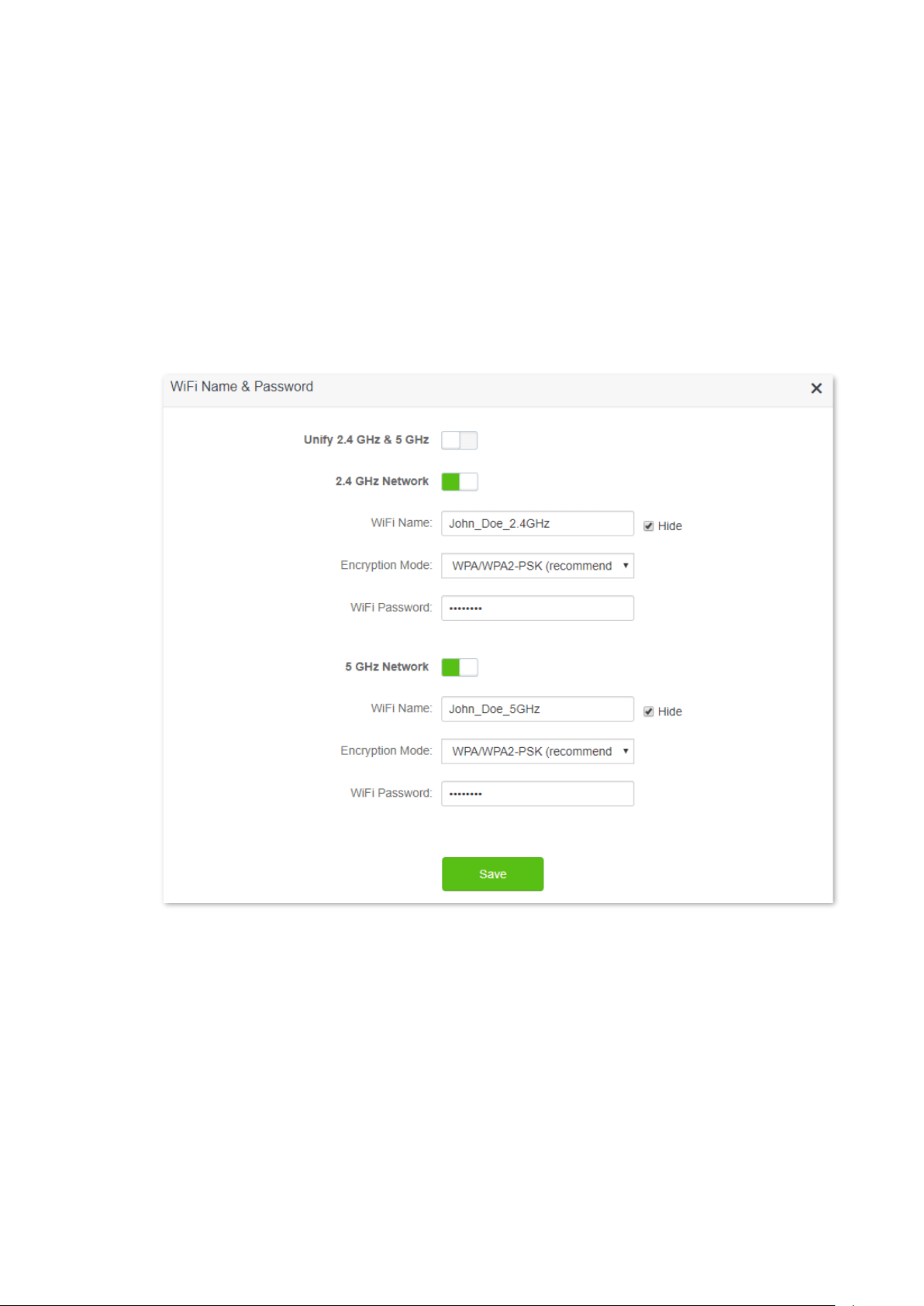
5.1.4 Hide the WiFi network
The hidden WiFi networks are invisible to WiFi-enabled devices, thus improving the security of the
networks.
Configuring procedure:
Step 1 Start a web browser on a device connected to the router and visit tendawifi.com to log in
to the web UI of the router.
Step 2 Choose WiFi Settings > WiFi Name & Password.
Step 3 Tick Hide of the target network.
Step 4 Click Save.
---End
When completing the configurations, the corresponding WiFi network is invisible to WiFi-enabled
devices.
5.1.5 Connect to a hidden WiFi network
When a WiFi network is hidden, you need to enter the WiFi name manually and connect to it.
Assume that the Unify 2.4 GHz & 5 GHz function is enabled and the WiFi parameters are:
− WiFi name: Jone_Doe
− Encryption type: WPA/WPA2-PSK (recommended)
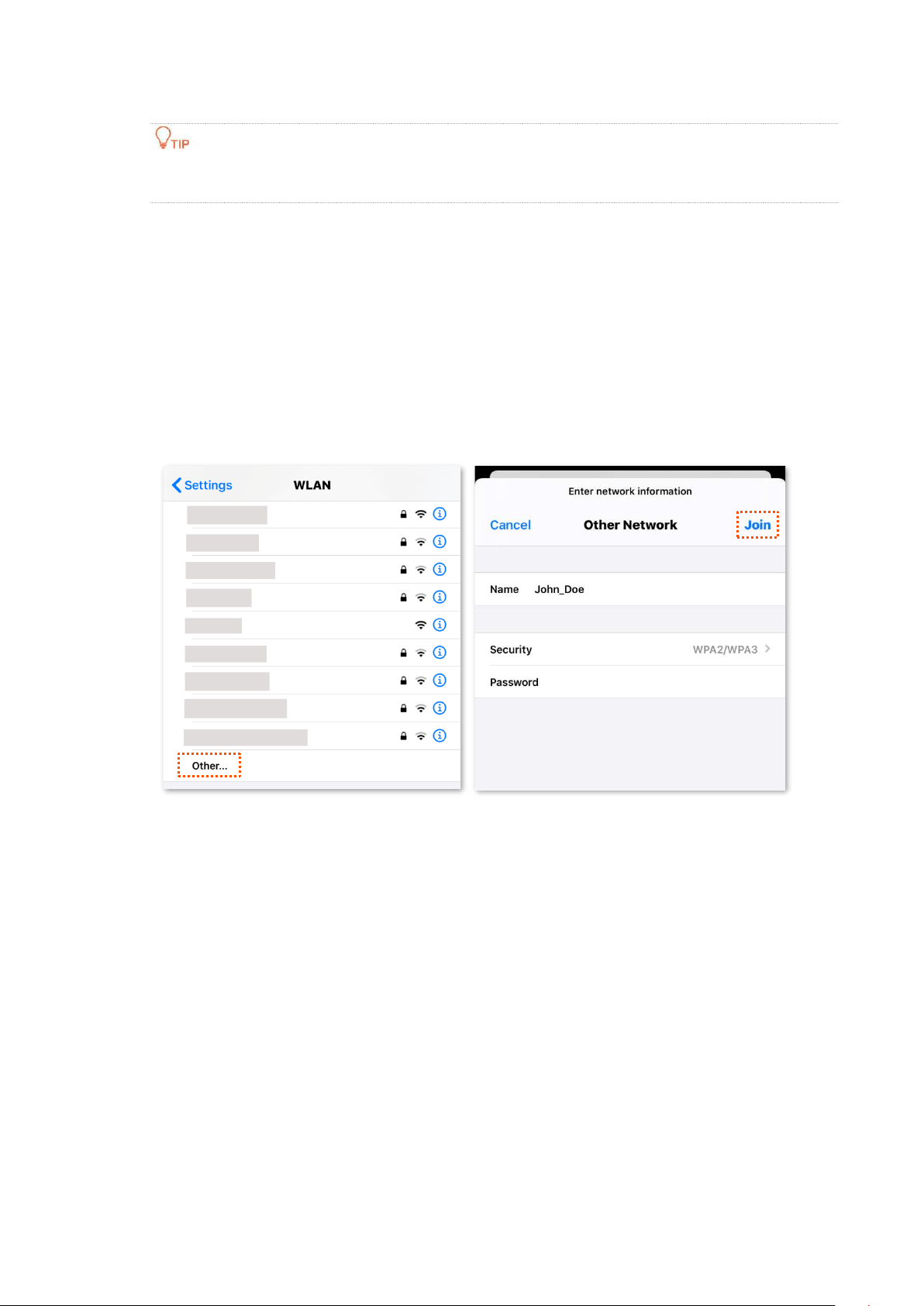
32
− WiFi password: Tenda+Wireless245
If you do not remember the wireless parameters of the WiFi network, log in to the web UI of the router
and navigate to WiFi Settings > WiFi Name & Password to find them.
Connect to the WiFi network on your WiFi-enabled device (Example: iPhone):
Step 1 Tap Settings on your phone, and find WLAN.
Step 2 Enable WLAN.
Step 3 Scroll the WiFi list to the bottom, and tap Other….
Step 4 Enter the WiFi name and password, which are John_Doe and Tenda+Wireless245 in this
example.
Step 5 Set security to WPA2/WPA3 (If WPA2/WPA3 is not available, choose WPA2).
Step 6 Tap Join.
---End
When completing the configurations, you can connect to the hidden WiFi network to access the
internet.
33
5.2 WiFi schedule
5.2.1 Overview
This WiFi Schedule function allows you to disable the WiFi networks of the router at specified
period of time. By default, this function is disabled.
To access the configuration page, log in to the web UI of the router, and choose WiFi Settings >
WiFi Schedule.
To make the WiFi schedule work properly, please ensure the system time is synchronized with the
internet time. Refer to
Sync the system time with the internet time for configuration.
Parameter description
Parameter
Description
WiFi Schedule
It is used to enable/disable the WiFi schedule function.
Turn Off During
It specifies the period when the WiFi networks are disabled.
In
It specifies the day(s) on which the WiFi networks are disabled during the specified period.
5.2.2 Set a WiFi schedule
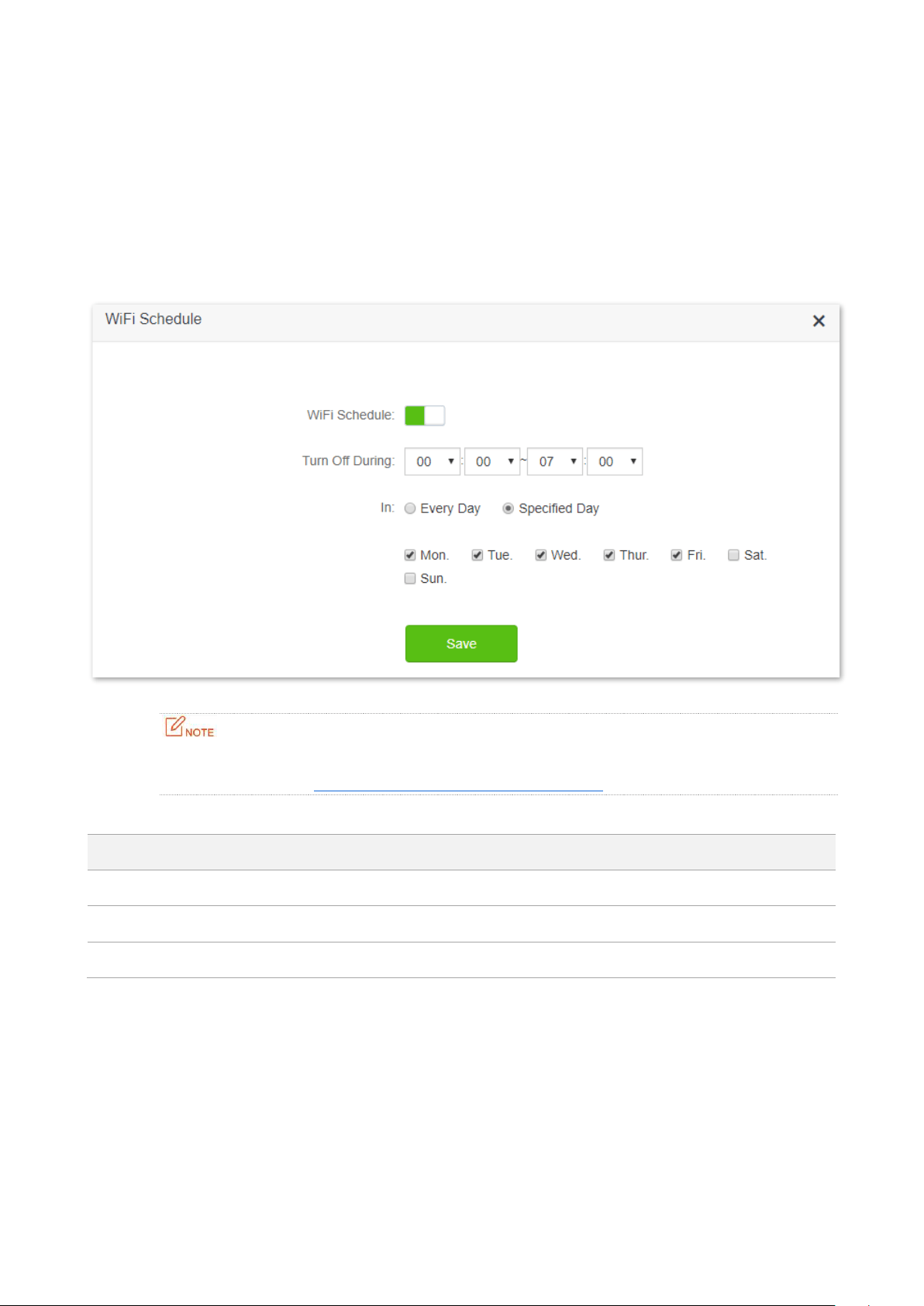
Assume that you want to disable the WiFi network from 22:00 to 7:00 every day.
Configuring procedure:
Step 1 Start a web browser on a device connected to the router and visit tendawifi.com to log in
to the web UI of the router.
Step 2 Choose WiFi Settings > WiFi Schedule.

34
Step 3 Enable WiFi Schedule.
Step 4 Set a period for the WiFi networks to be disabled, which is 22:00~07:00 in this example.
Step 5 Set the days when the function works, which is Every Day in this example.
Step 6 Click Save.
---End
When the configuration is completed, the WiFi networks will be disabled from 10 pm to 7 am
every day.
35
5.3 Wireless repeating
5.3.1 Overview
By configuring the wireless repeating function, you can extend the coverage of an existing
network.
To access the configuration page, log in to the web UI of the router, and choose WiFi Settings >
Wireless Repeating.
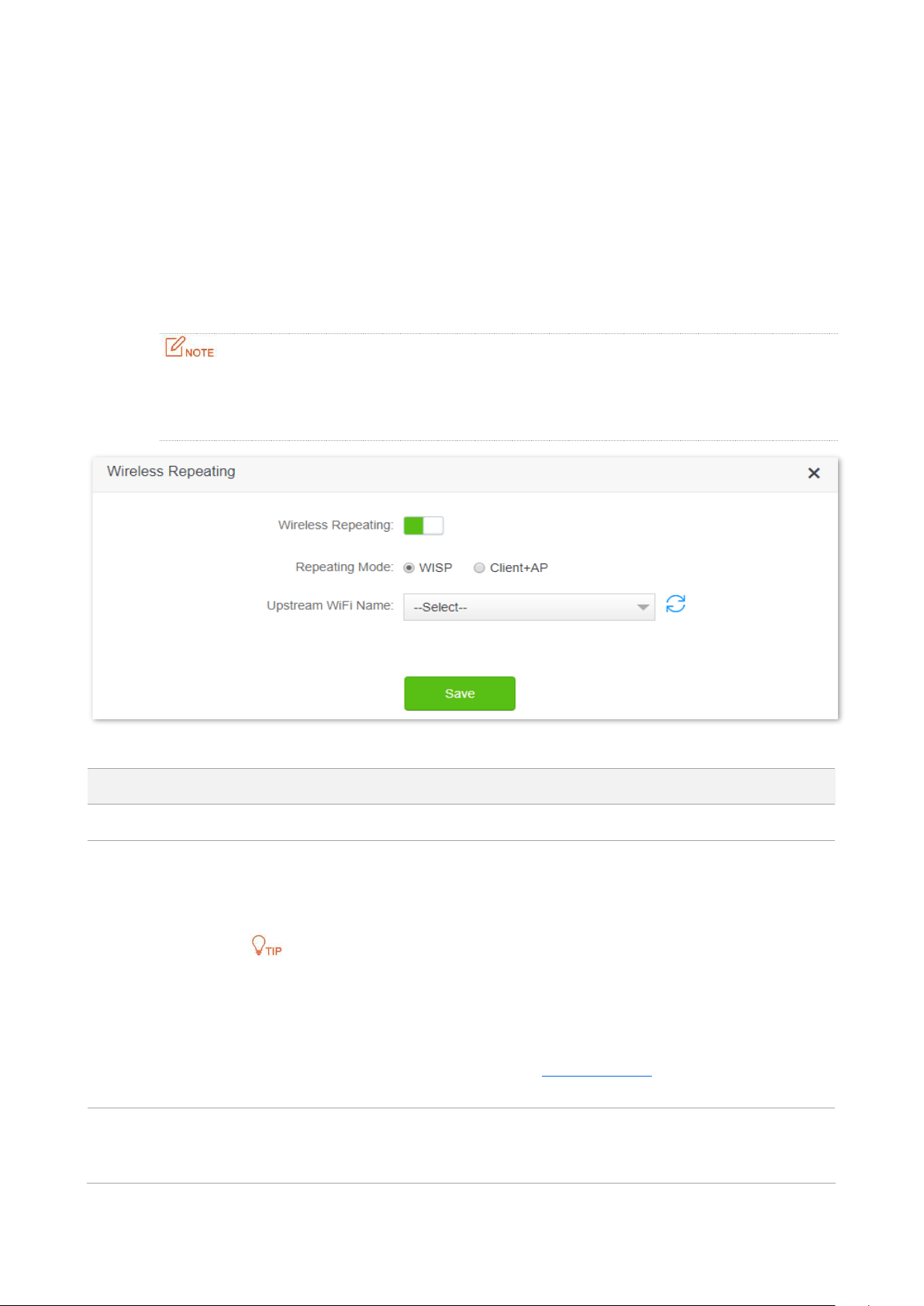
This function is disabled by default. When it is enabled, the page is shown as below.
⚫
When the wireless repeating function is enabled, some other functions will be unavailable, such
as WiFi schedule, guest network, WPS and IPTV.
⚫
When wireless repeating is enabled, do not connect any device to the WAN port of the router.
Parameter description
Parameter
Description
Wireless Repeating
It is used to enable/disable the Wireless Repeating function.
Repeating Mode
Two repeating modes are available:
⚫
WISP mode: Generally used to bridge the hotspot of ISPs.
⚫
Client+AP mode: Able to bridge all kinds of WiFi network.
⚫
When WISP mode is chosen and the LAN IP of the router is at the same network
segment as that of the upstream device, the router will change the LAN IP address to
a different network segment to avoid conflict.
⚫
After the router is set to WISP mode, you are required to access the internet by
referring to the configuring procedures in Internet Settings according to the
connection type you choose.
Upstream WiFi
Name
It specifies the WiFi name that you want to bridge. If you choose Enter a WiFi name
manually, you are required to enter the WiFi Name, Frequency Band and Encryption
Mode, Encryption Algorithm and Upstream WiFi Password manually.
36
Parameter
Description
Upstream WiFi
Password
It specifies the WiFi password of the WiFi name that you want to bridge.
5.3.2 Extend the existing WiFi network
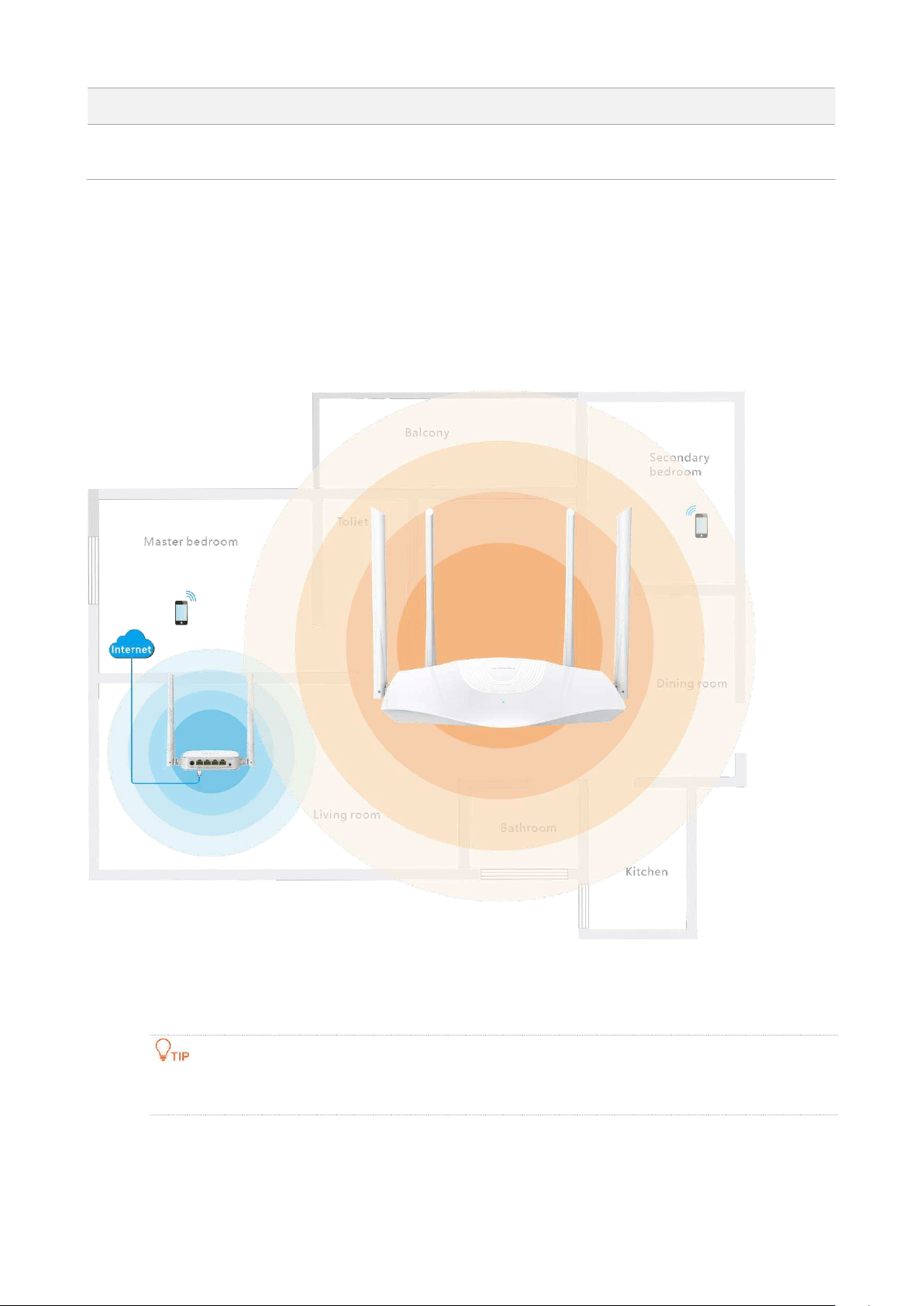
When there is already a router with internet access at your home, you can refer to the
configurations in this part to extend the WiFi network coverage.
Assume that your existing WiFi name and password are:
− WiFi name: Home_WiFi
− WiFi password: Tenda+245
Method 1: Set the new router to WISP mode
Configuring procedure:
If you have finished the quick setup wizard before, start a web browser and visit tendawifi.com on a
connected device, then start from
Step 2.
Step 1 Log in to the web UI of the router.
Original router
New router
37
1. Place the new router near the existing router and power it on. Connect your WiFi-enabled
device to the WiFi network of your new router, or connect a computer to a LAN port of
the router. Do not connect any device to the WAN port of the new router.
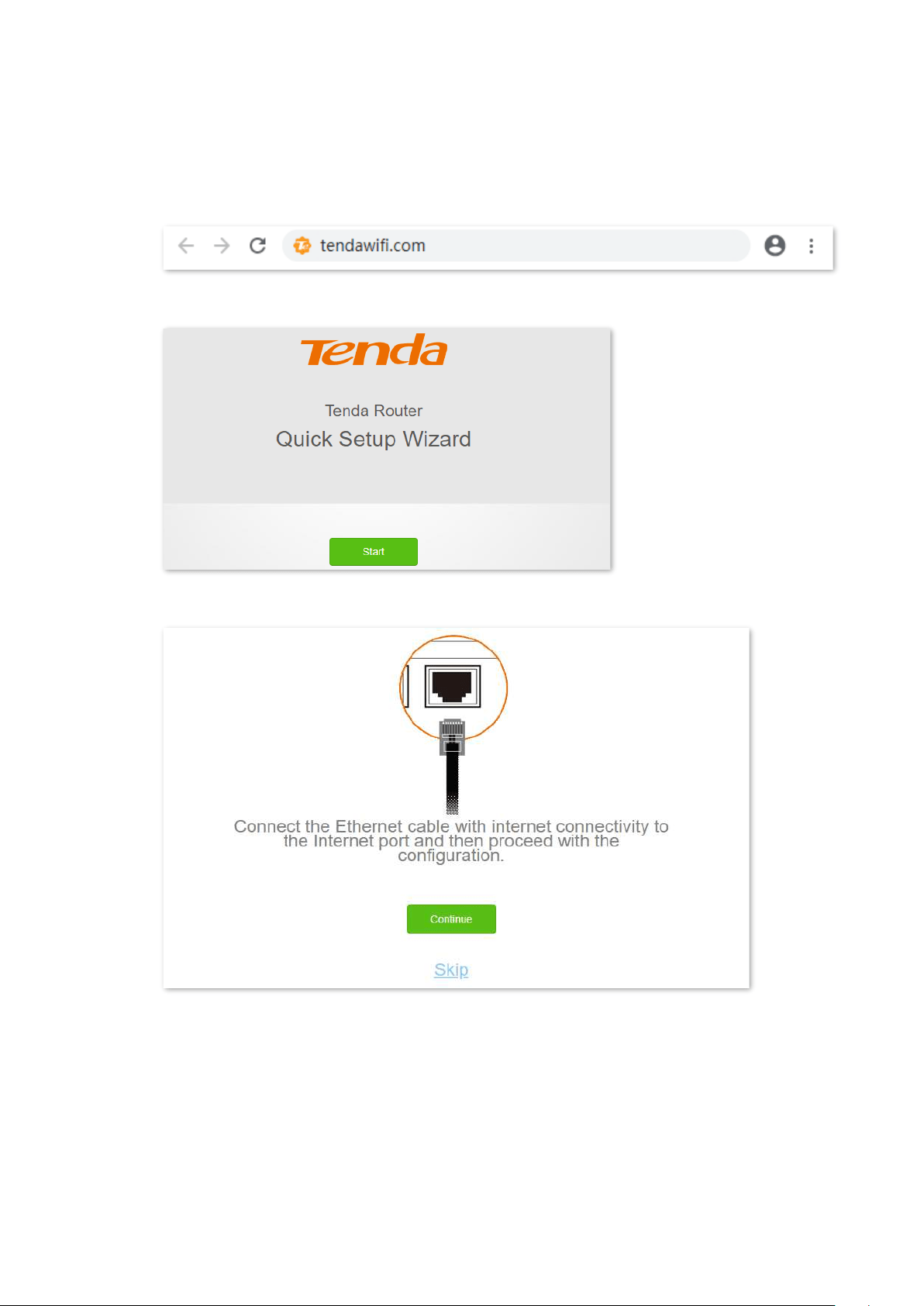
2. Start a web browser on a device connected to the router and visit tendawifi.com to log in
to the web UI of the router. A computer is used for illustration below.
3. Click Start.
4. Click Skip.
38
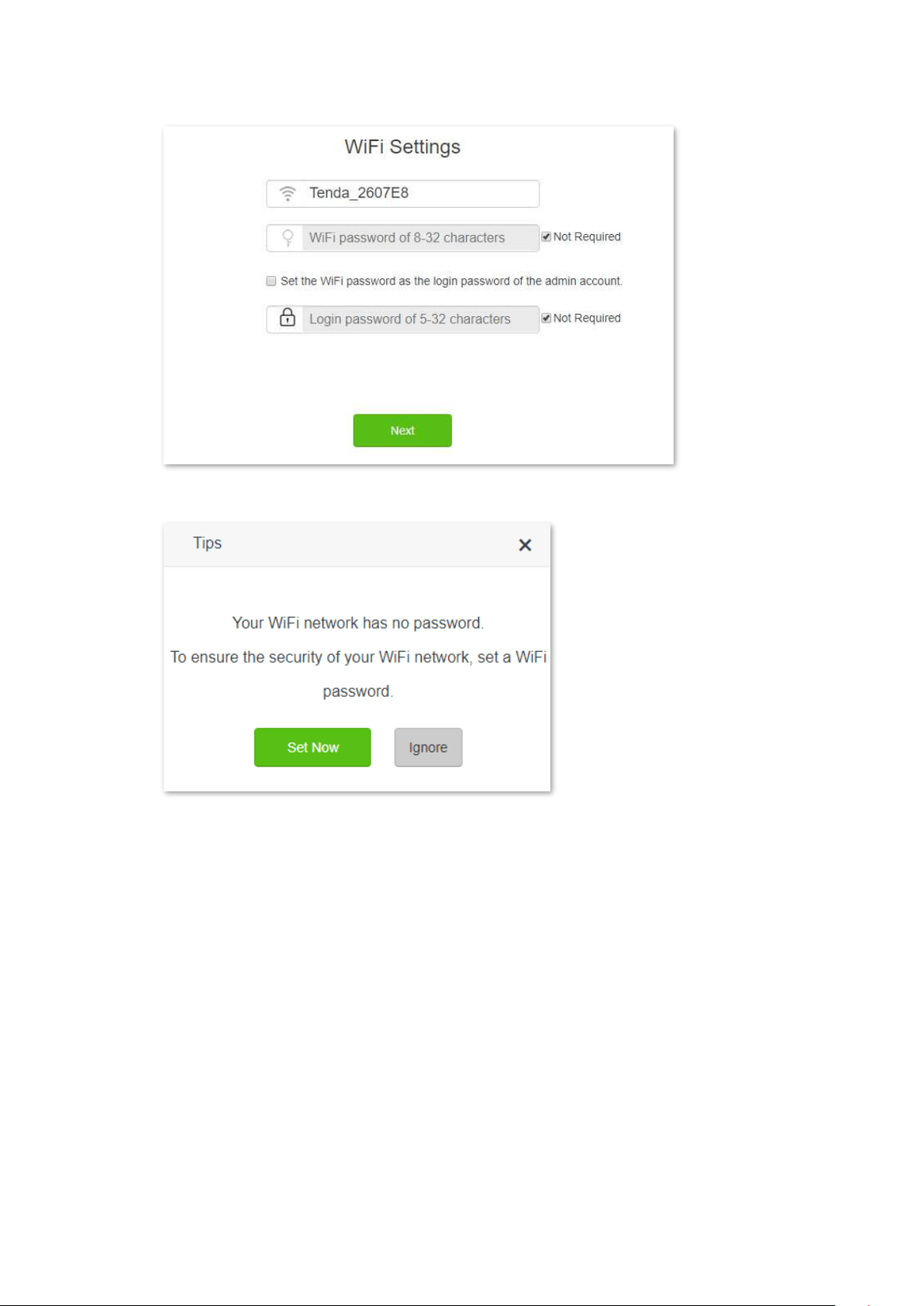
5. Do not set login and WiFi password now by ticking Not Required, and click Next.
6. Click Ignore.
Step 2 Set the new router to WISP mode.
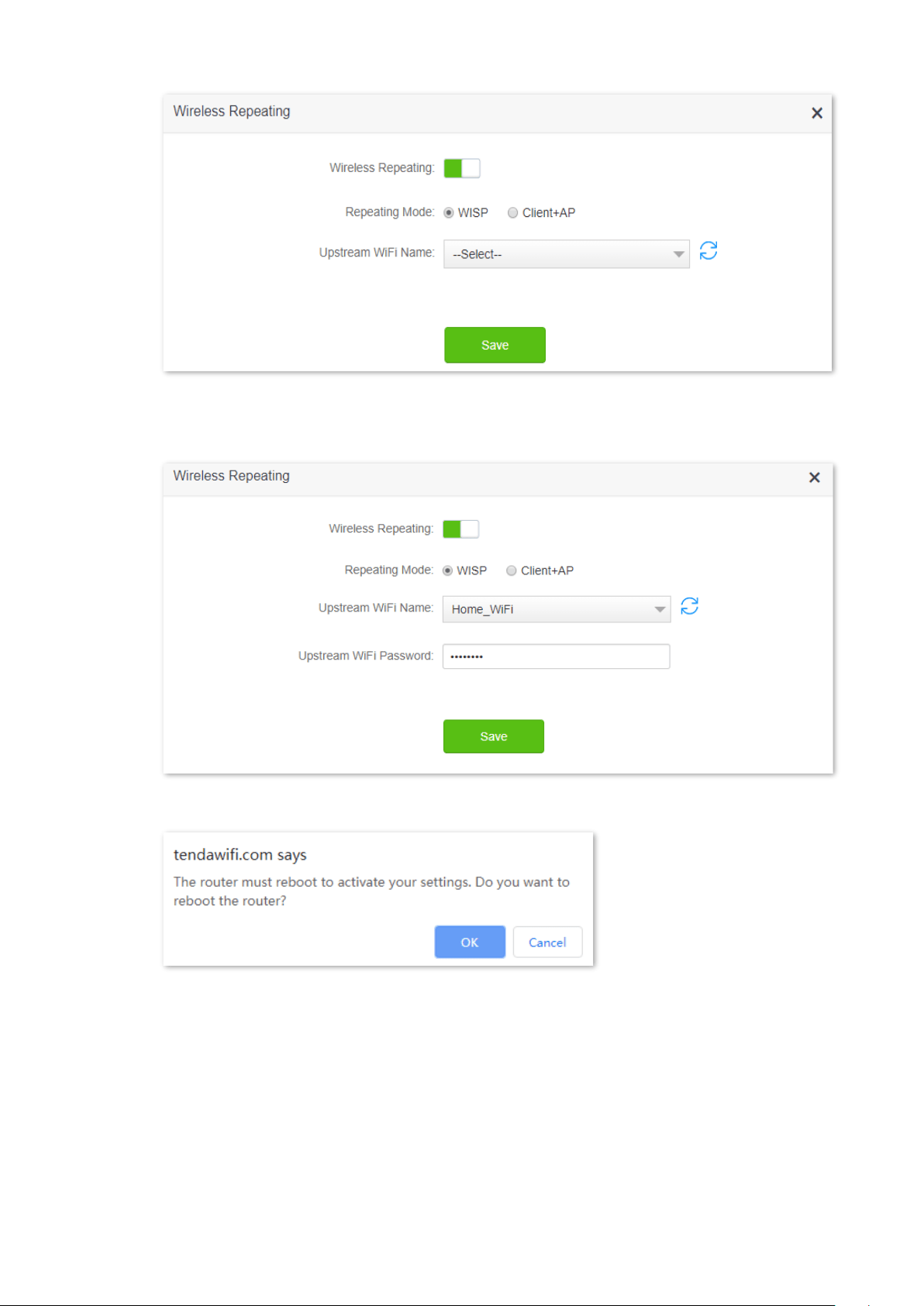
1. Choose WiFi Settings > Wireless Repeating.
2. Enable Wireless Repeating, and choose WISP.
3. Click Select to select an existing WiFi network, which is Home_WiFi in this example.
39
4. Enter the Upstream WiFi Password, which is Tenda+245 in this example.
5. Click Save.
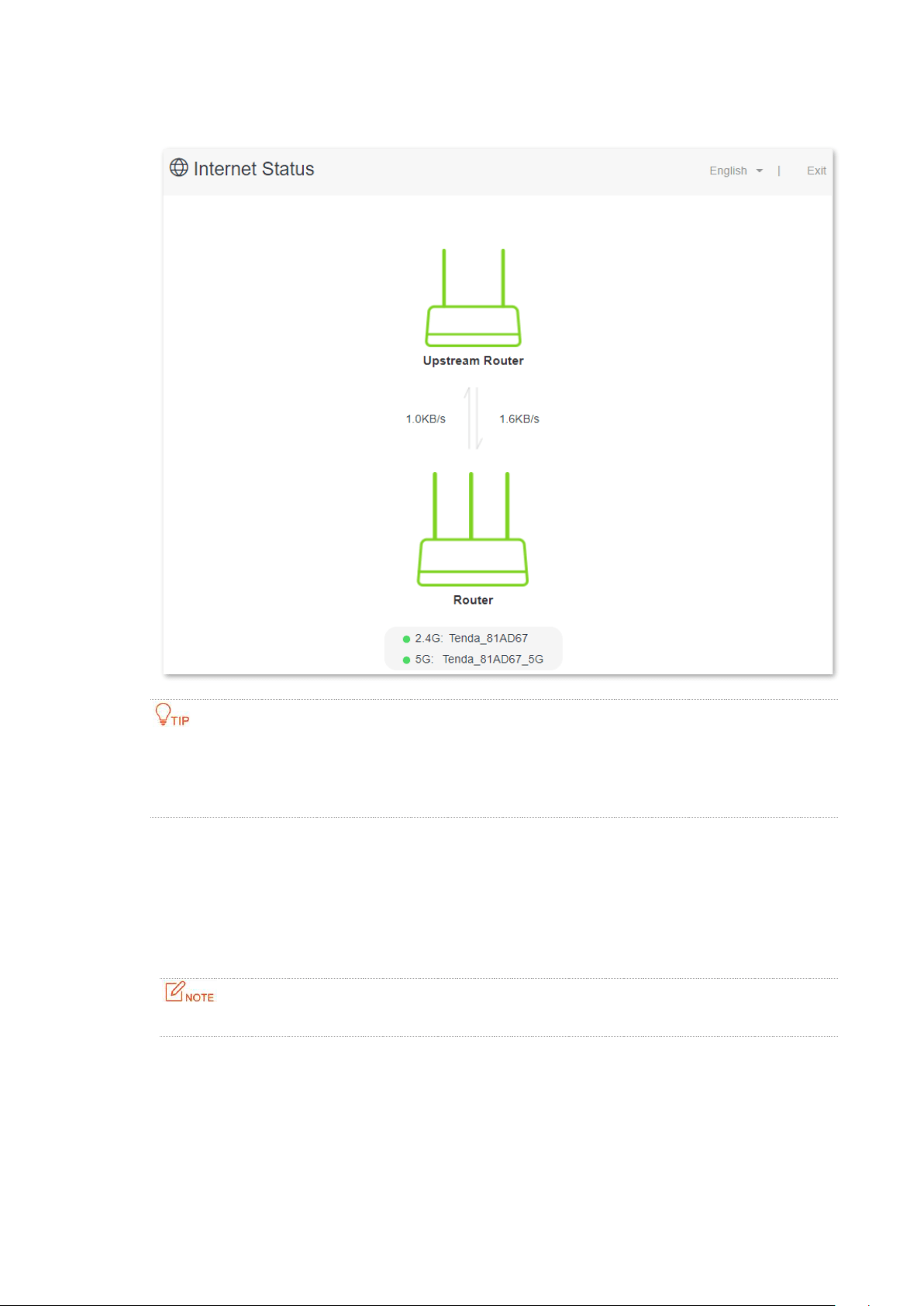
6. Click OK, and wait for the router to reboot.
40
Step 3 Log in to the web UI of the router again, navigate to Internet Status to check if the
wireless repeating succeeds.
If the connection between the Upstream router and Router failed, try the following solutions:
⚫
Ensure that you have entered the correct WiFi password of the WiFi, and mind case sensitivity.
⚫
Ensure that Router is within the wireless coverage of the Upstream router.
Step 4 Relocate the new router by referring to the following suggestions and power it on.
− Between the original router and the uncovered area, but within the coverage of the
original router.
− Away from the microwave oven, electromagnetic oven, refrigerator.
− Above the ground with few obstacles.
Do not connect any device to the WAN port of the new router after setting the router to WISP mode.
---End
To access the internet, connect your computer to a LAN port of the new router, or connect your
smart phone to the WiFi network of the new router.
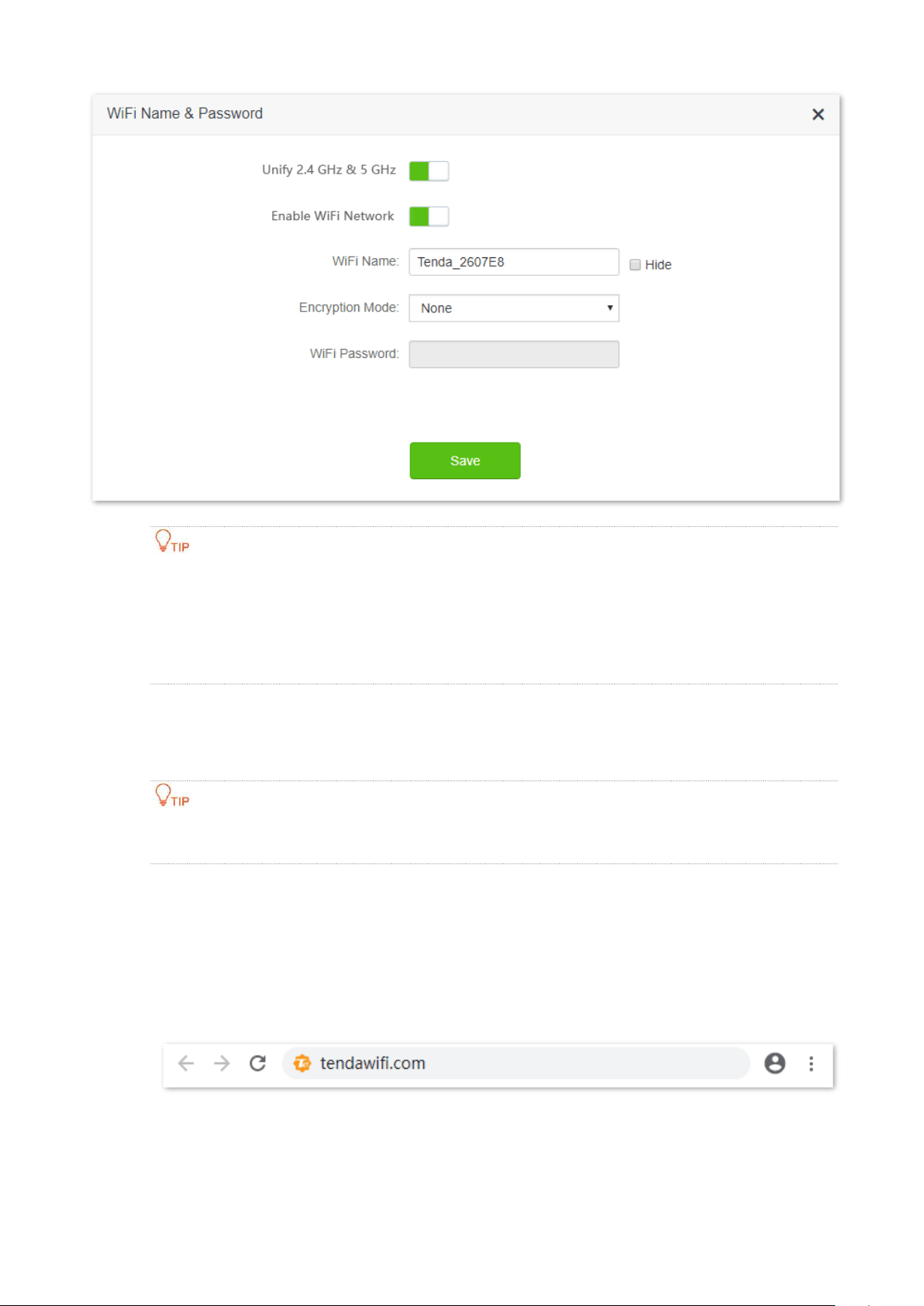
You can find the WiFi name and password on the WiFi Settings > WiFi Name & Password page. If
the network is not encrypted, you can also set a WiFi password on this page for security.
41
If you cannot access the internet, try the following solutions:
⚫
Ensure that the existing router is connected to the internet successfully.
⚫
Ensure that your WiFi-enabled devices are connected to the WiFi network of the new router.
⚫
If the computer connected to the router for repeating cannot access the internet, ensure that the
computer is configured to obtain an IP address and DNS sever automatically.
Method 2: Set the new router to Client+AP mode
Configuring procedure:
If you have finished the quick setup wizard before, start a web browser and visit tendawifi.com on a
connected device, and start from
Step 2.
Step 1 Log in to the web UI of the router.
1. Put the new router near the existing router and power it on. Connect your WiFi-enabled
device to the WiFi network of your new router, or connect a computer to a LAN port of
the router. Do not connect any device to the WAN port of the new router.
2. Start a web browser on a device connected to the router and visit tendawifi.com to log in
to the web UI of the router. A computer is used for illustration below.
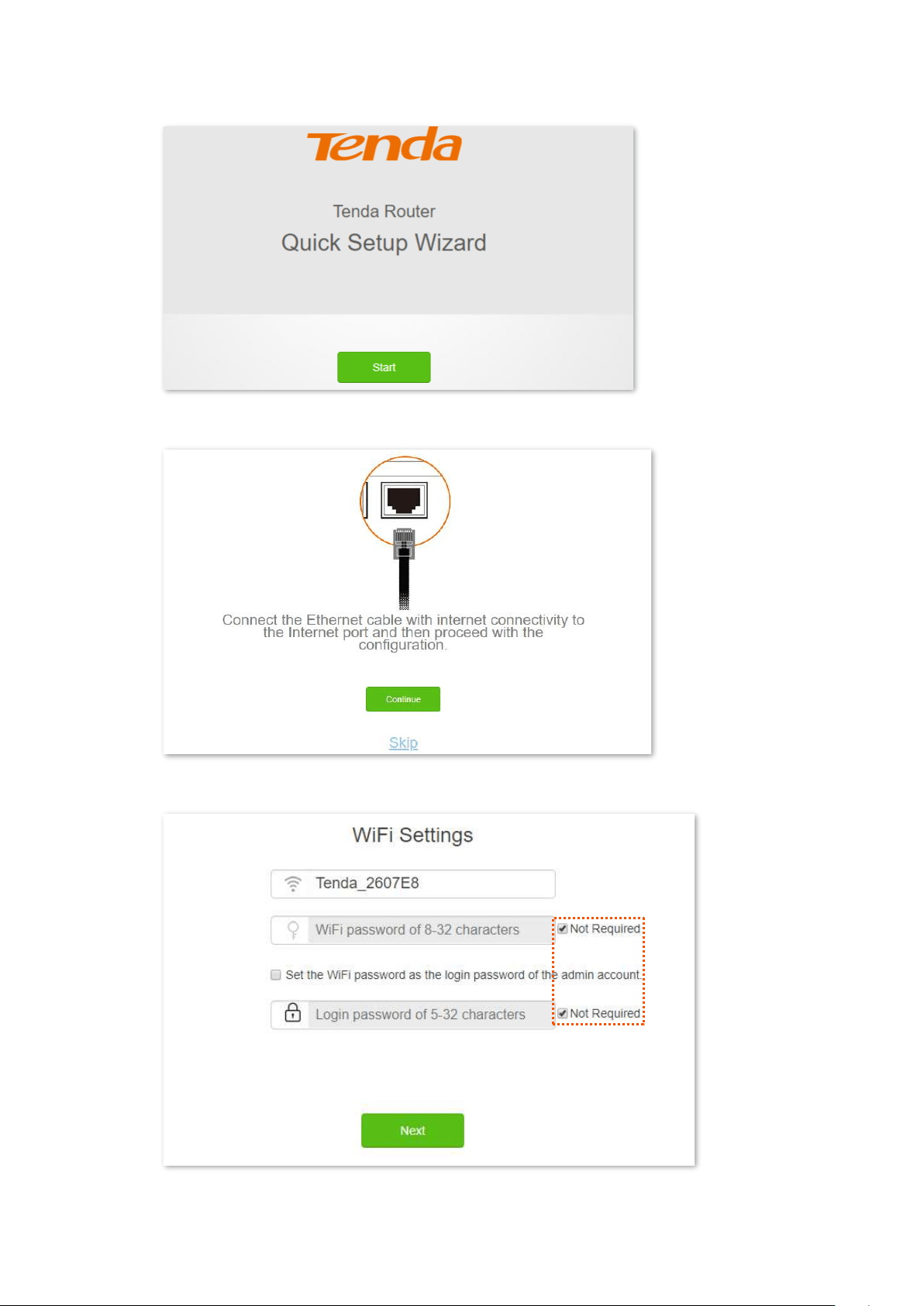
42
3. Click Start.
4. Click Skip.
5. Do not set login and WiFi password now by ticking Not Required, and click Next.
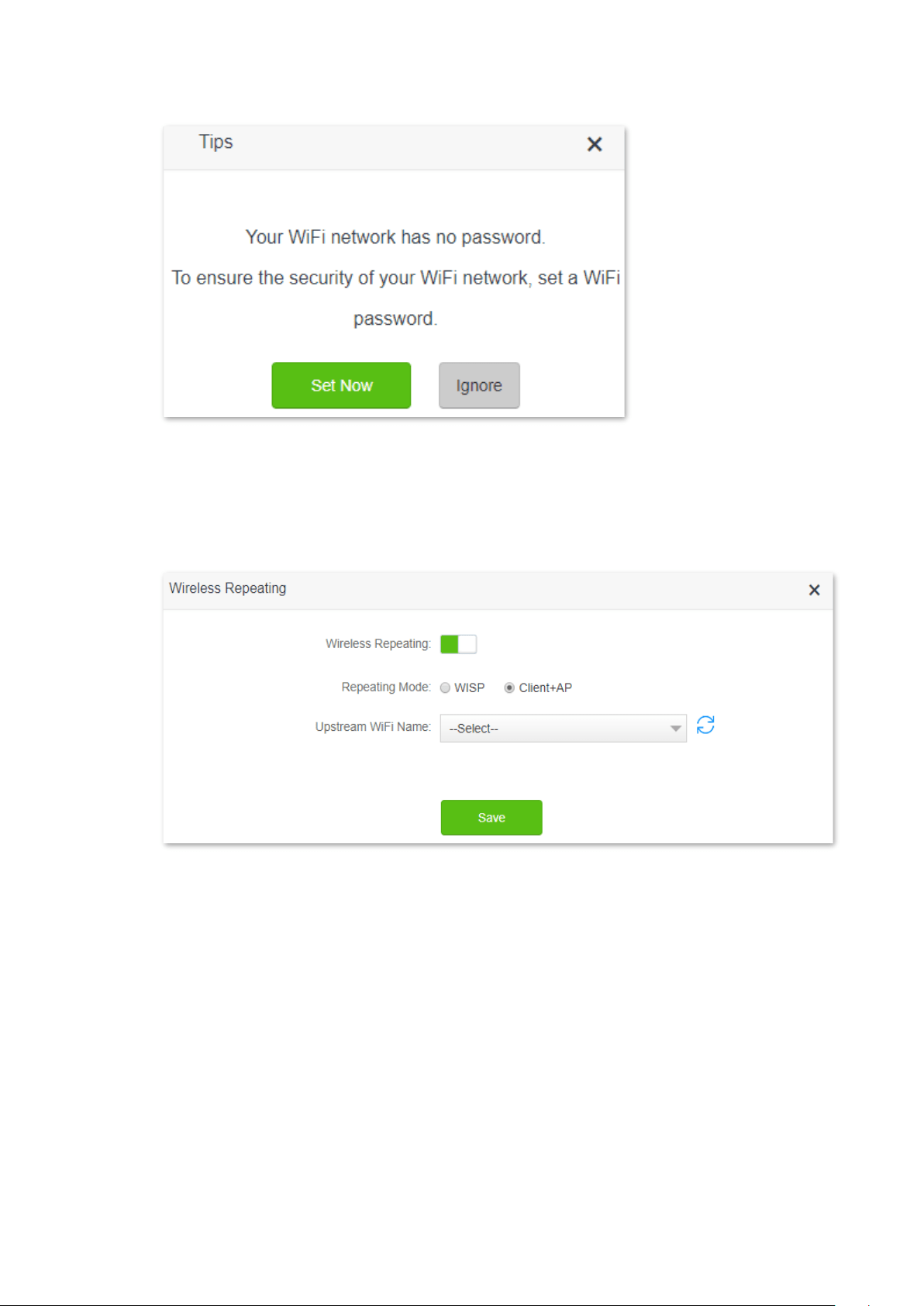
43
6. Click Ignore.
Step 2 Set the new router to Client+AP mode.
1. Choose WiFi Settings > Wireless Repeating.
2. Enable Wireless Repeating, and choose Client+AP.
3. Click Select to select the existing WiFi network, which is Home_WiFi in this example.
4. Enter the Upstream WiFi Password, which is Tenda+245 in this example.
5. Click Save.
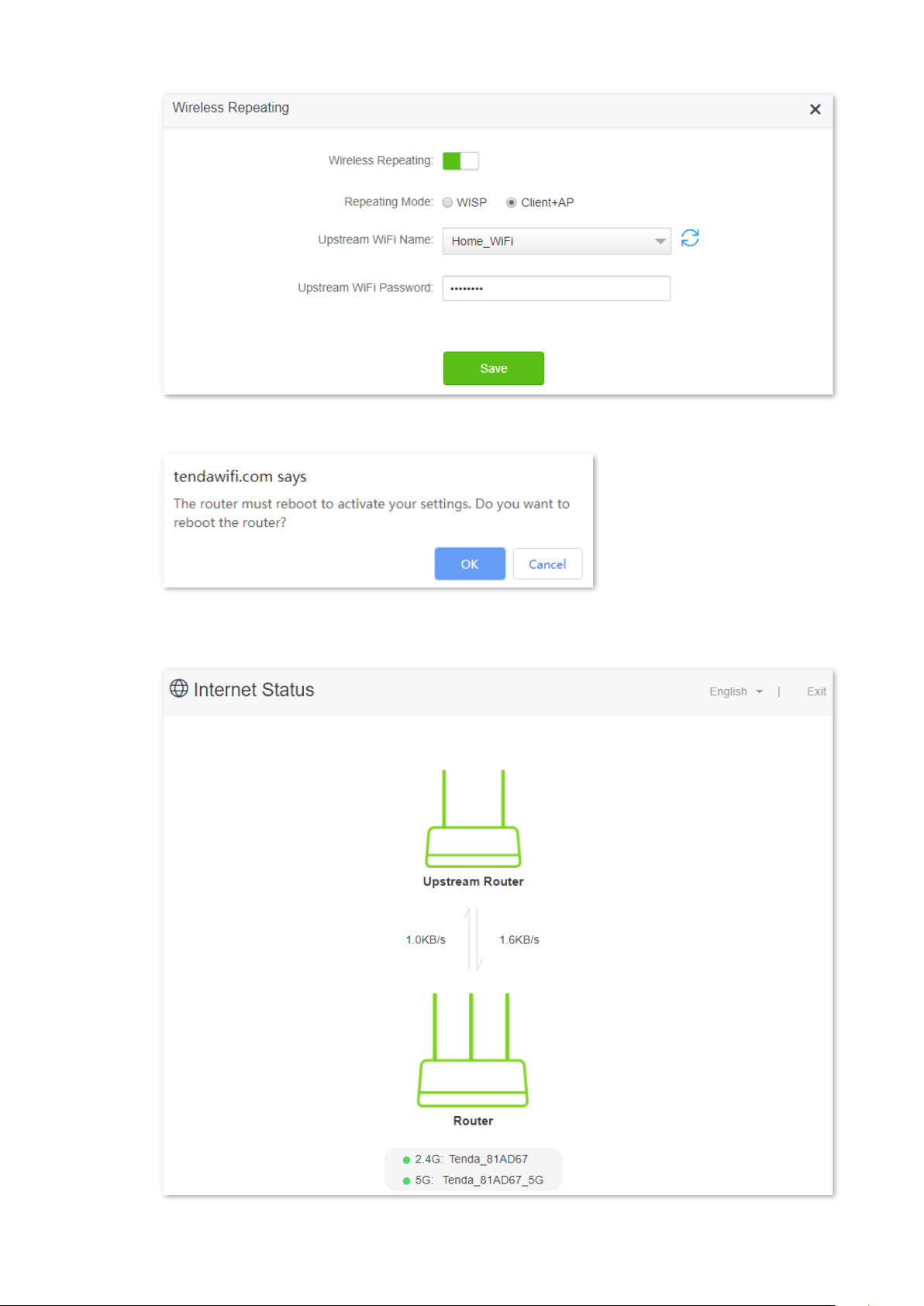
44
6. Click OK, and wait for the router to reboot.
Step 3 Log in to the web UI of the router again, navigate to Internet Status to check if the
wireless repeating succeeds.
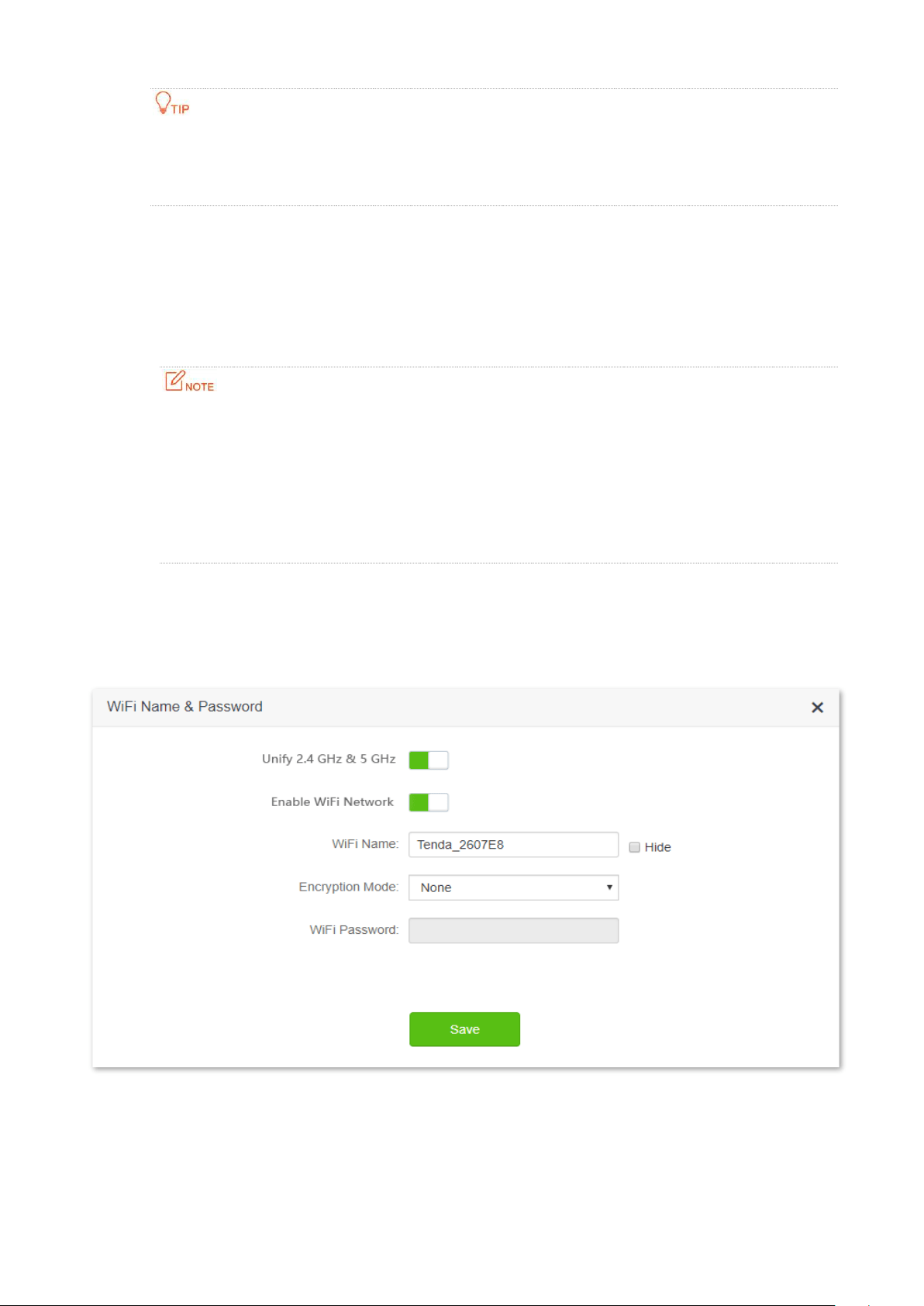
45
If the connection between the Upstream router and Router failed, try the following solutions:
⚫
Ensure that you have entered the correct WiFi password of the WiFi, and mind case sensitivity.
⚫
Ensure that Router is within the wireless coverage of the Upstream router.
Step 4 Relocate the new router by referring to the following suggestions and power it on.
− Locate the new router between the original router and the uncovered area, but
within the coverage of the original router.
− Away from the microwave oven, electromagnetic oven, refrigerator.
− Above the ground with few obstacles.
After the new router is set to Client+AP mode:
⚫
Do not connect any device to the WAN port of the new router.
⚫
The LAN IP address of the router will change. Please log in to the web UI of the router by visiting
tendawifi.com. If there is another network device with the same login domain name
(tendawifi.com) with the router, log in to the upstream router and find the IP address obtained by
the new router in the client list. Then you can log in to the web UI of the router by visiting the IP
address.
To access the internet, connect your computer to a LAN port of the new router, or connect your
smart phone to the WiFi network of the new router.
You can find the WiFi name and password on the WiFi Settings > WiFi Name & Password page. If
the network is not encrypted, you can also set a WiFi password on this page for security.

46
If you cannot access the internet, try the following solutions:
⚫
Ensure that the existing router is connected to the internet successfully.
⚫
Ensure that your WiFi-enabled devices are connected to the WiFi network of the new router.
⚫
If the computer connected to the router cannot access the internet, ensure that the computer is
configured to obtain an IP address and DNS sever automatically.
47
5.4 Channel & bandwidth
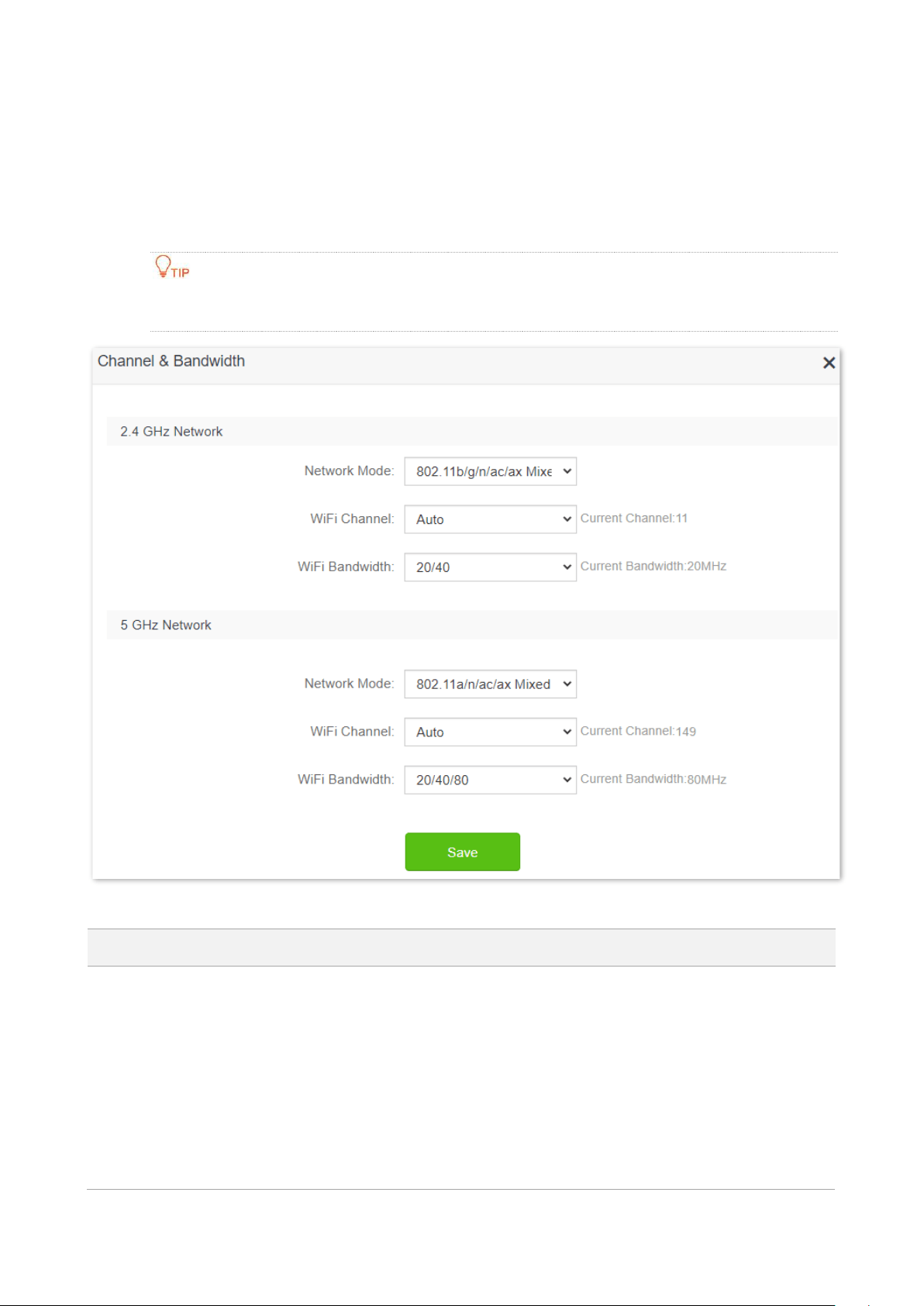
In this section, you are allowed to change network mode, WiFi channel, and WiFi bandwidth of 2.4
GHz and 5 GHz WiFi networks.
To access the configuration page, log in to the web UI of the router, and choose WiFi Settings >
Channel & Bandwidth.
In order not to influence the wireless performance, it is recommended to maintain the default settings
on this page without professional instructions.
Parameter description
Parameter
Description
Network Mode
It specifies various protocols adopted for wireless transmission.
2.4 GHz WiFi network supports the 802.11b/g/n Mixed, 802.11b/g/n/ac Mixed and
802.11b/g/n/ac/ax Mixed modes.
⚫
802.11b/g/n Mixed: It indicates that devices compliant with the IEEE 802.11b or IEEE
802.11g protocol, and devices working at 2.4 GHz and compliant with the IEEE 802.11n
can connect to the 2.4 GHz WiFi network of the router.
⚫
802.11b/g/n/ac Mixed: It indicates that devices compliant with the IEEE 802.11b or IEEE
802.11g protocol, and devices working at 2.4 GHz and compliant with the IEEE 802.11n
or IEEE 802.11 ac protocol can connect to the 2.4 GHz WiFi network of the router.

48
Parameter
Description
⚫
802.11b/g/n/ac/ax Mixed: It indicates that devices compliant with the IEEE 802.11b or
IEEE 802.11g protocol, and devices working at 2.4 GHz and compliant with the IEEE
802.11n, IEEE 802.11ac or IEEE 802.11ax protocol can connect to the 2.4 GHz WiFi
network of the router.
5 GHz WiFi network supports the 802.11a/n Mixed, 802.11a/n/ac Mixed and
802.11a/n/ac/ax Mixed modes.
⚫
802.11a/n Mixed: It indicates that devices complaint with the IEEE 802.11a protocol,
and devices working at 5 GHz and compliant with the IEEE 802.11n can connect to the
router.
⚫
802.11a/n/ac Mixed: It indicates that devices compliant with the IEEE 802.11a protocol,
and devices working at 5 GHz and compliant with the IEEE 802.11n or IEEE 802.11ac
protocol can connect to the router.
⚫
802.11a/n/ac/ax Mixed: It indicates that devices compliant with the IEEE 802.11a
protocol, and devices working at 5 GHz and compliant with the IEEE 802.11n, IEEE
802.11ac or IEEE 802.11ax protocol can connect to the router.
WiFi Channel
It specifies the channel in which the WiFi network works.
By default, the wireless channel is Auto, which indicates that the router selects a channel
for the WiFi network automatically. You are recommended to choose a channel with less
interference for better wireless transmission efficiency. You can use a third-party tool to
scan the WiFi signals nearby to understand the channel usage situations.
WiFi Bandwidth
It specifies the bandwidth of the wireless channel of a WiFi network. Please change the
default settings only when necessary.
⚫
20: It indicates that the channel bandwidth used by the router is 20 MHz.
⚫
40: It indicates that the channel bandwidth used by the router is 40 MHz.
⚫
20/40: It specifies that a router can switch its channel bandwidth between 20 MHz and
40 MHz based on the ambient environment. This option is available only at 2.4 GHz.
⚫
80: It indicates that the channel bandwidth used by the router is 80 MHz. This option is
available only at 5 GHz.
⚫
20/40/80: It specifies that a router can switch its channel bandwidth among 20 MHz, 40
MHz, and 80 MHz based on the ambient environment. This option is available only at 5
GHz.
49
5.5 Transmit power
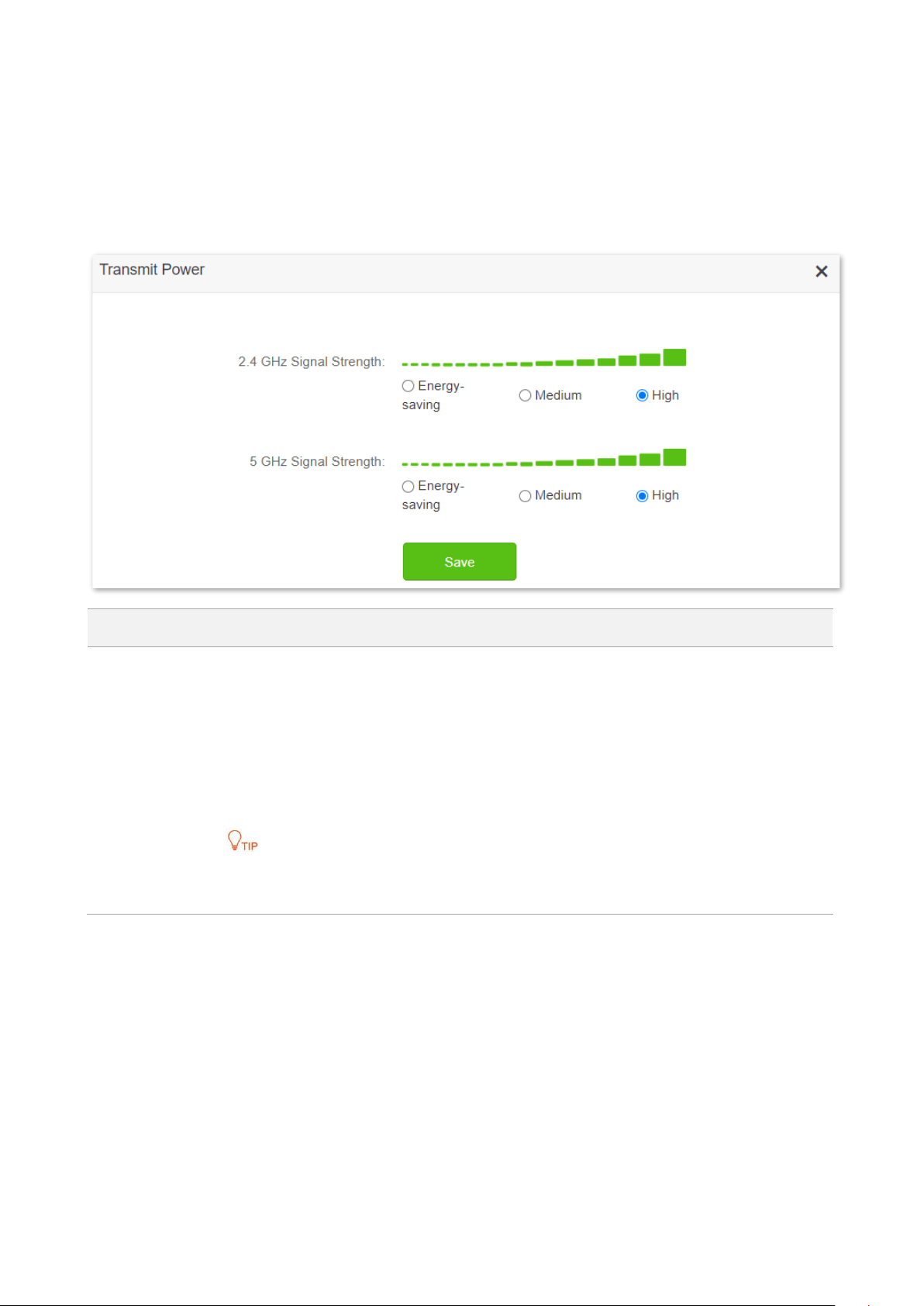
In this module, you can adjust the wall-penetration capability and wireless coverage of the router
by setting the transmit power.
To access the configuration page, log in to the web UI of the router, and choose WiFi Settings >
Transmit Power.
Parameter
Description
Signal Strength
It specifies the mode of signal strength. The default mode is High.
⚫
High: It is typically used to meet wireless coverage requirements in large or multi-barrier
environments.
⚫
Medium: It is typically used to meet wireless coverage requirements in medium-area or
less-obstacle environments.
⚫
Energy-saving: It is typically used to meet wireless coverage requirements in small area
or barrier-free environments and intended to reduce energy consumption.
It is recommended to choose the Energy-saving mode if the internet experience is
satisfactory enough under this mode.
50
5.6 WPS
5.6.1 Overview
The WPS function enables WiFi-enabled devices, such as smartphones, to connect to WiFi
networks of the router without entering the password.
To access the configuration page, log in to the web UI of the router, and choose WiFi Settings >
WPS.
This function is only applicable to WPS-enabled WiFi-enabled devices.
WiFi networks encrypted with WPA3 cannot be connected through WPS.
5.6.2 Connect devices to the WiFi network using the WPS
button
Configuring procedure:
Step 1 Find the WPS button on the rear panel of the router, and hold it down for 1 to 3 seconds.
The LED indicator blinks fast.
Step 2 Configure the WPS function on your WiFi-enabled devices within 2 minutes.
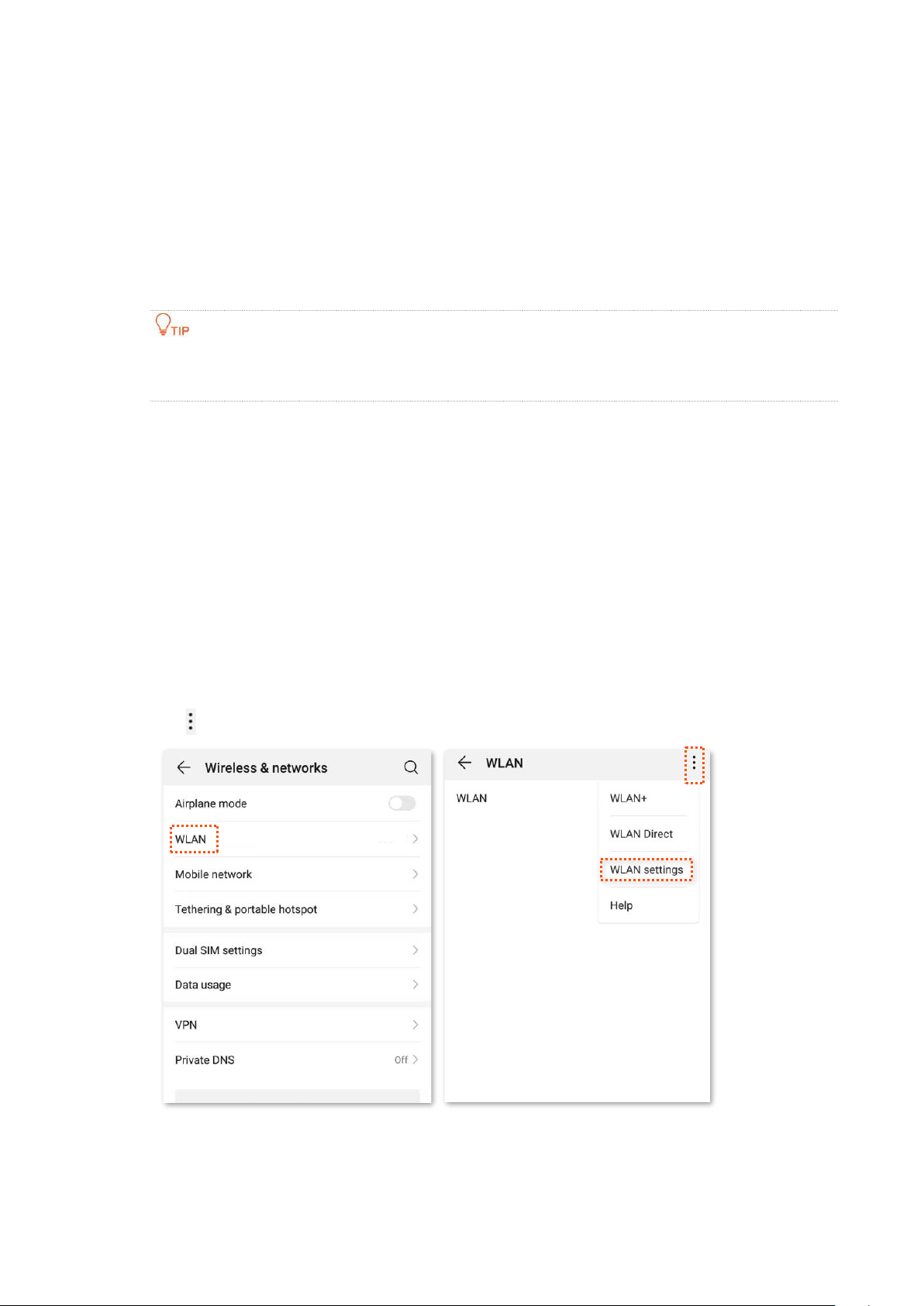
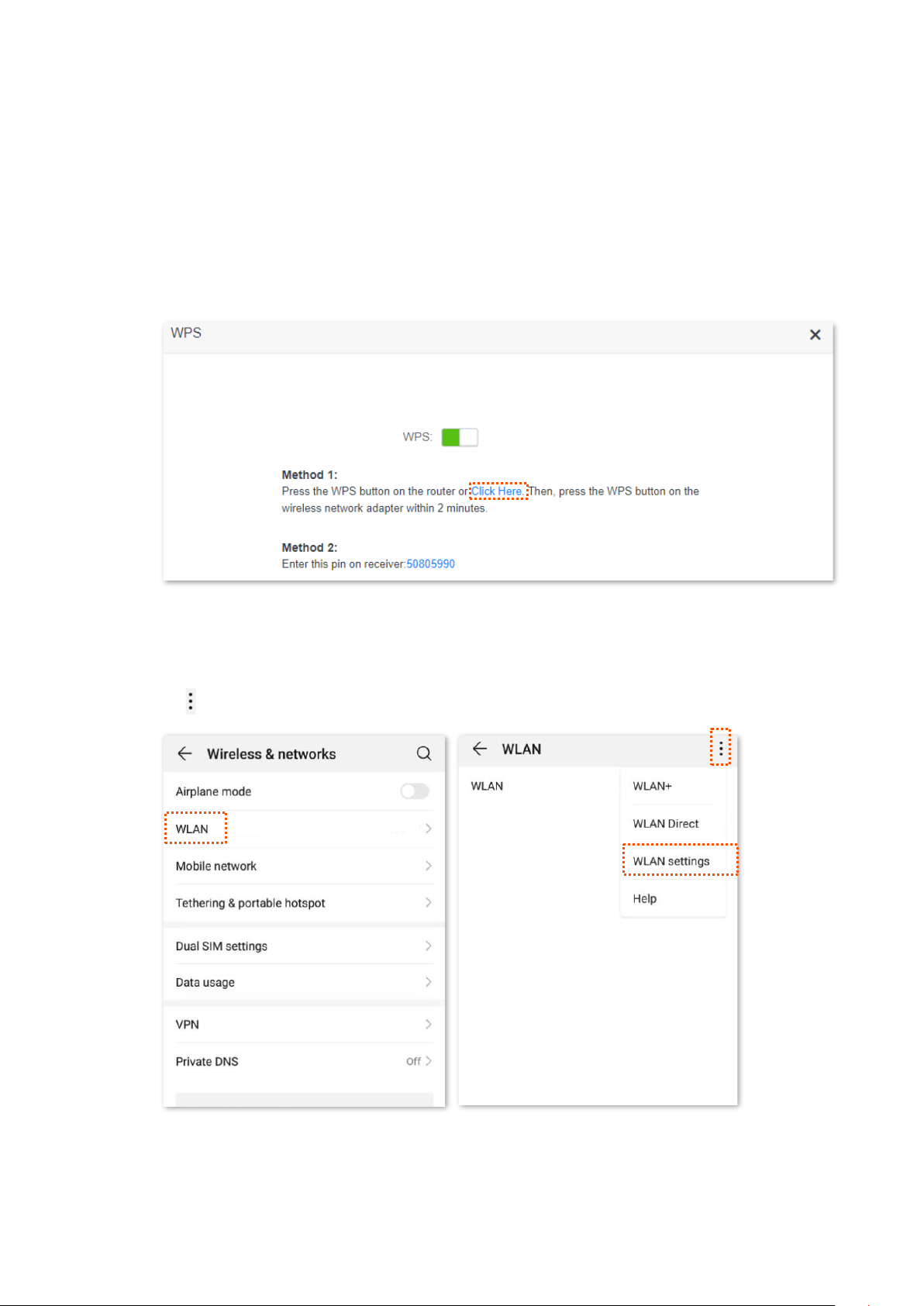
Configurations on various devices may differ (Example: HUAWEI P10).
1. Find Settings on the phone.
2. Choose WLAN.
3.
Tap , and choose WLAN settings.
51
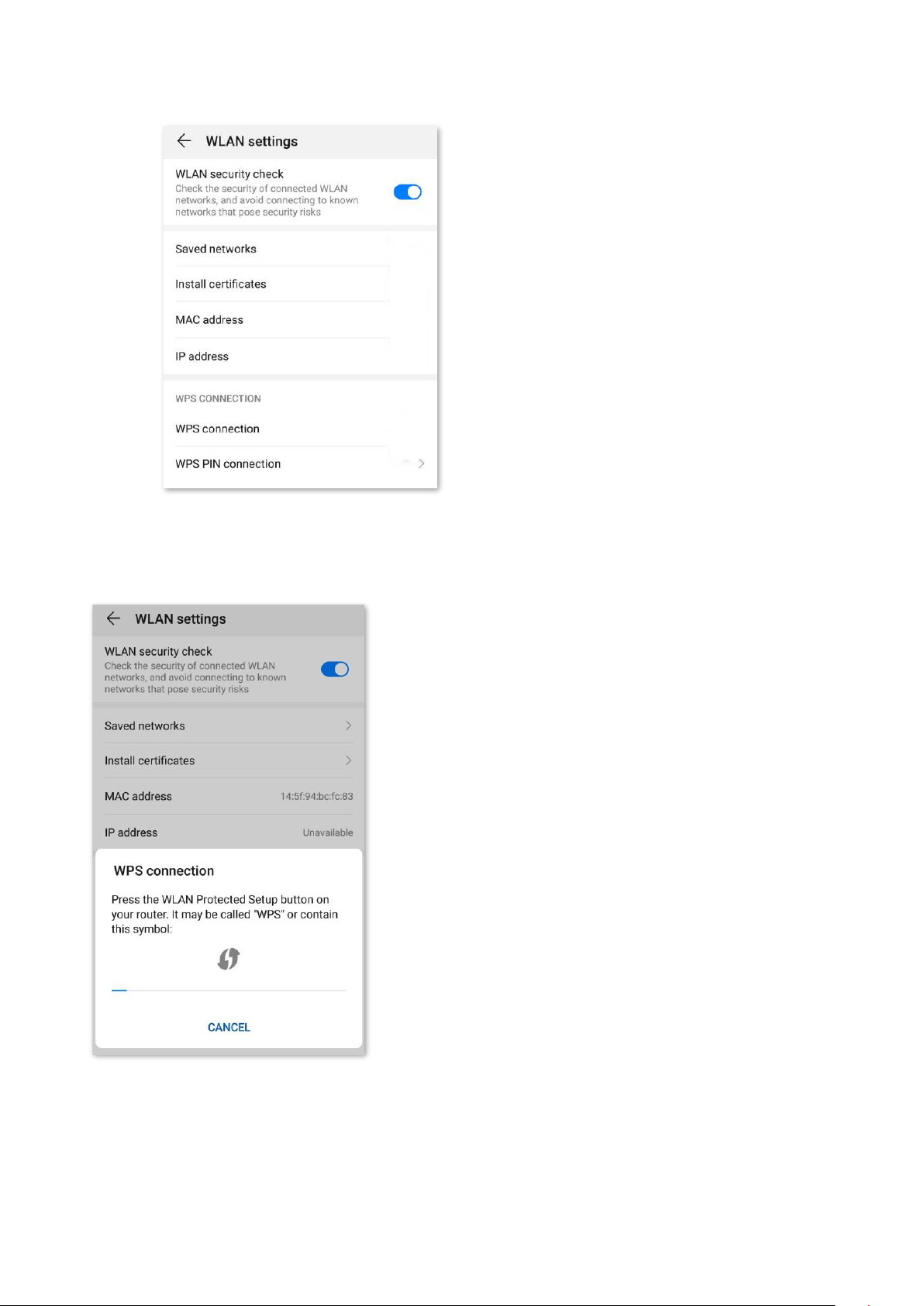
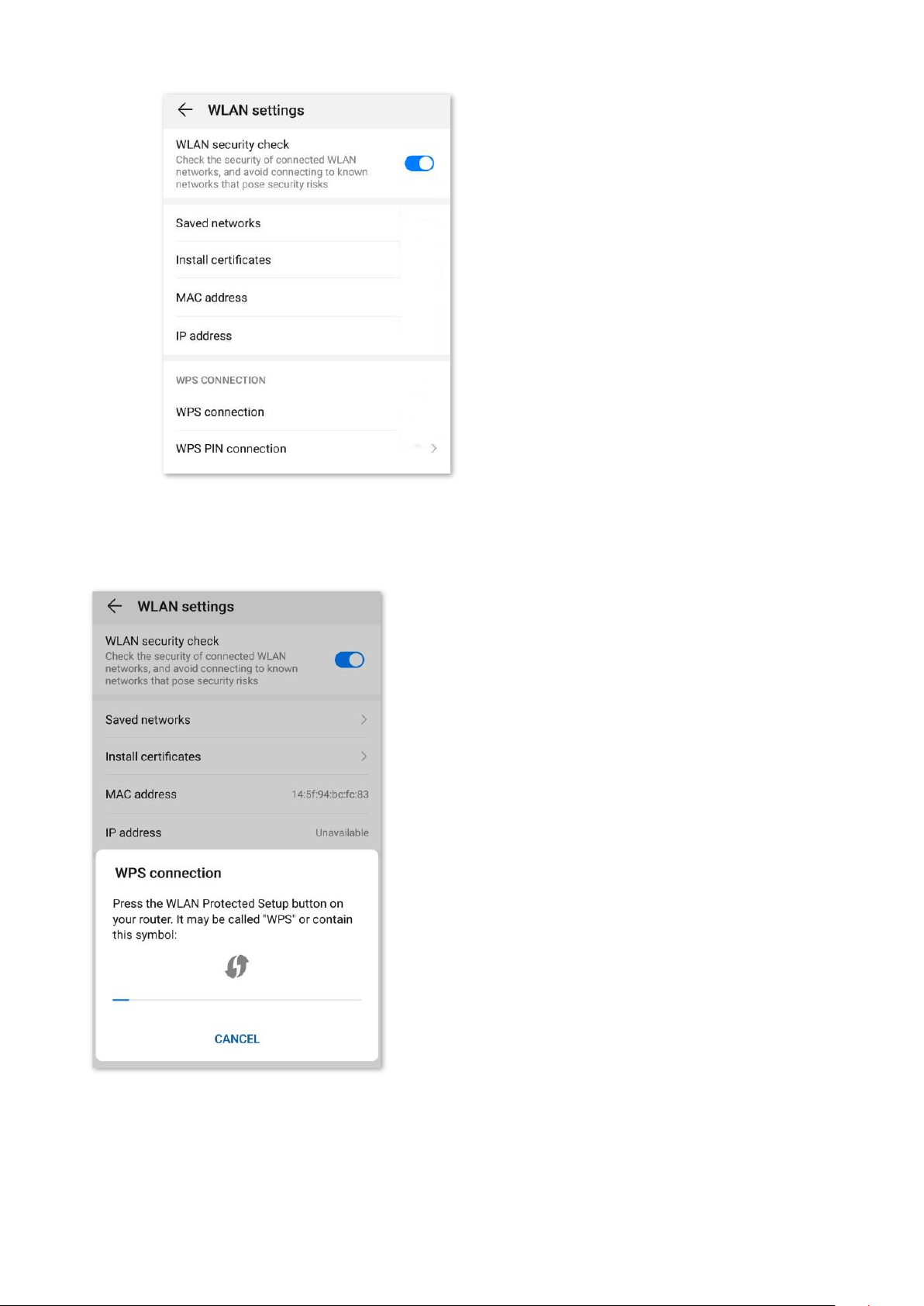
4. Choose WPS connection.
---End
Wait a moment until the WPS negotiation is completed, and the phone is connected to the WiFi
network.
52
5.6.3 Connect devices to the WiFi network through the web UI
of the router
Configuring procedure:
Step 1 Start a web browser on a device connected to the router and visit tendawifi.com to log in
to the web UI of the router.
Step 2 Choose WiFi Settings > WPS.
Step 3 Click Click Here under Method 1.
Step 4 Configure the WPS function on your WiFi-enabled devices within 2 minutes.
Configurations on various devices may differ (Example: HUAWEI P10).
1. Find WLAN settings on the phone.
2. Tap , and choose WLAN settings.
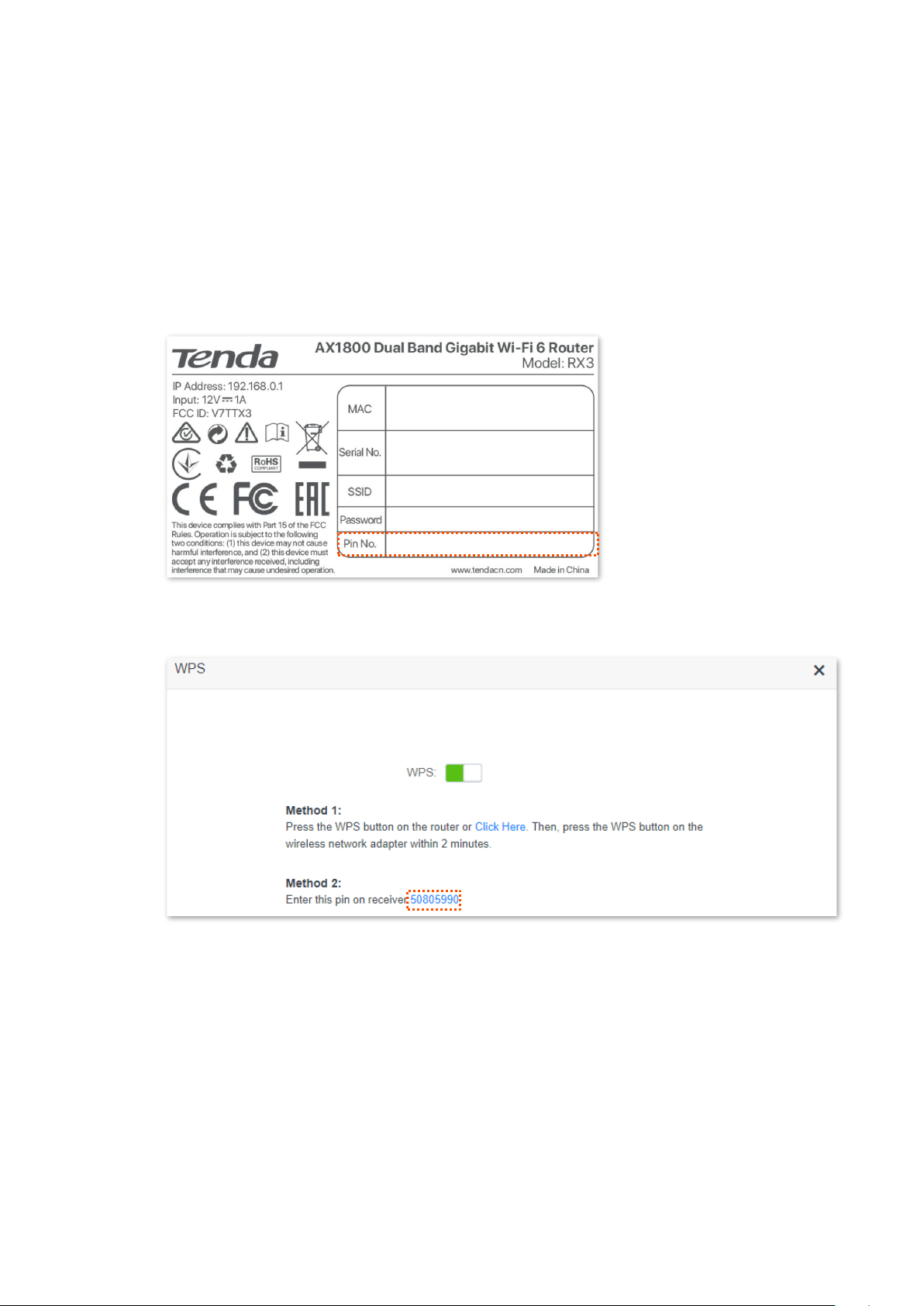
3. Choose WPS connection.
53
---End
Wait a moment until the WPS negotiation is completed, and the phone is connected to the WiFi
network.
54
5.6.4 Connect devices to the WiFi network using the PIN code
of the router
The router supports WPS connection by entering the PIN code on WiFi-enabled devices, which is
usually used on WiFi network adapters. Please refer to the user guide of the WiFi network adapter
for configuration details.
Configuring procedure:
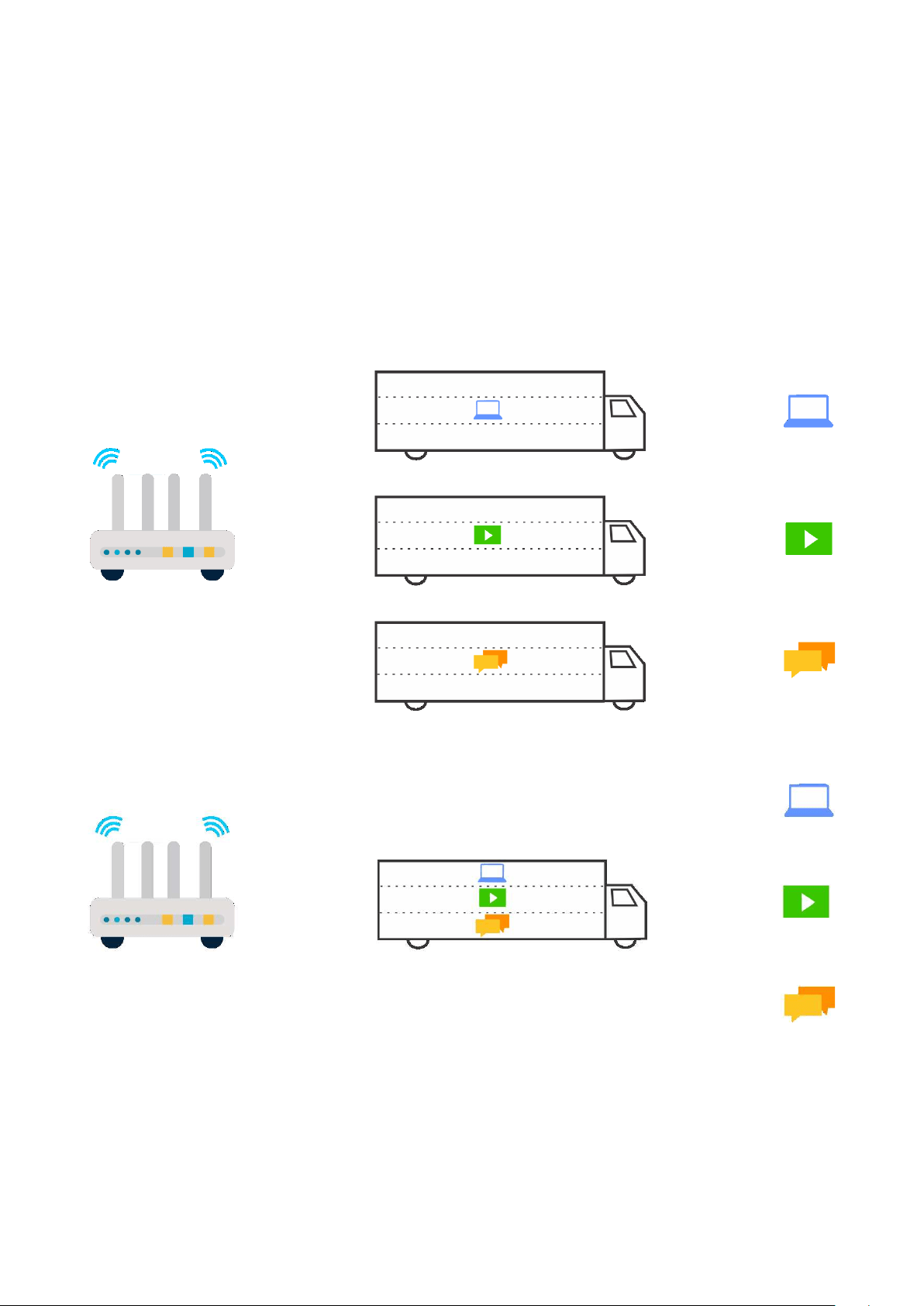
Step 1 Find the PIN code of the router.
You can find the PIN code on the label on the bottom panel of the router.
You can also log in to the web UI of the router, and navigate to WiFi Settings > WPS. The
PIN code is shown under Method 2.
Step 2 Enter the PIN code on the WiFi-enabled device that supports WPS connection using the
PIN code.
---End
Wait a moment until the WPS negotiation is completed, and the WiFi-enabled device is connected
to the WiFi network.
55
5.7 OFDMA
In telecommunications, Orthogonal Frequency-division Multiplexing (OFDM) is a type of digital
transmission and a method of encoding digital data on multiple carrier frequencies. OFDM divides
a channel into subcarriers, but only a single user can transmit on all of the sub-carriers at any given
time.
Orthogonal Frequency-division Multiple Access (OFDMA) is a multi-user version of the popular
OFDM digital modulation scheme. It also divides a channel into subcarriers which is further divided
into subsets, called Resource Units (RUs). These RUs can be assigned to multiple users, therefore
allowing simultaneous low-data-rate transmission from several users.
The mechanisms of OFDM and OFDMA are illustrated as below.
OFDM
OFDMA
To access the configuration page, log in to the web UI of the router, and choose WiFi Settings >
OFDMA. This function is disabled by default.
Router
Channel 1
Channel 2
Channel 3
User 1
User 2
User 3
Subcarrier
Subcarrier
Subcarrier
Subcarrier
Subcarrier
Subcarrier
Subcarrier
Subcarrier
Subcarrier
Router
Channel X
User 1
User 2
User 3
Subcarrier
Subcarrier
Subcarrier
56
5.8 AP mode
When you have a smart home gateway which only provides wired internet access, you can set the
router to work in AP mode to provide wireless coverage.
When the router is set to AP mode:
⚫
Every physical port can be used as a LAN port.
⚫
The LAN IP address of the router will be changed. Please log in to web UI of the router by visiting
tendawifi.com.
⚫
Functions, such as bandwidth control and virtual server will be unavailable. Refer to the web UI for
available functions.
Configuring procedure:
If you have finished the quick setup wizard before, start a web browser and visit tendawifi.com on a
connected device, then start from
Step 3.
Step 1 Power on the router. Connect a computer to a LAN port of the router, or connect your
smart phone to the WiFi network of the router.
Step 2 Log in to the web UI of the router.
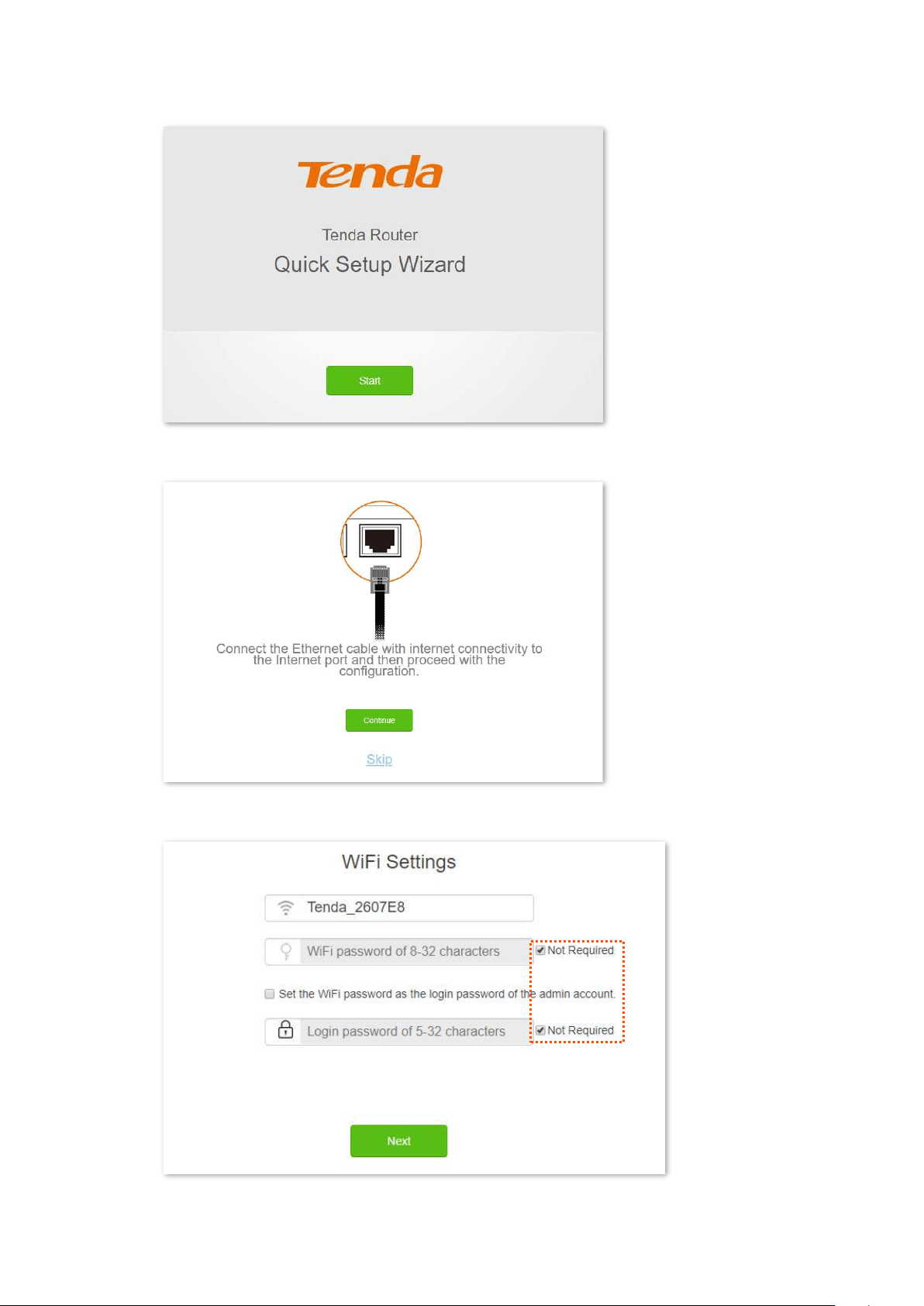
1. Start a web browser on a device connected to the router and visit tendawifi.com to log in
to the web UI of the router. A computer is used for illustration below.
or
57
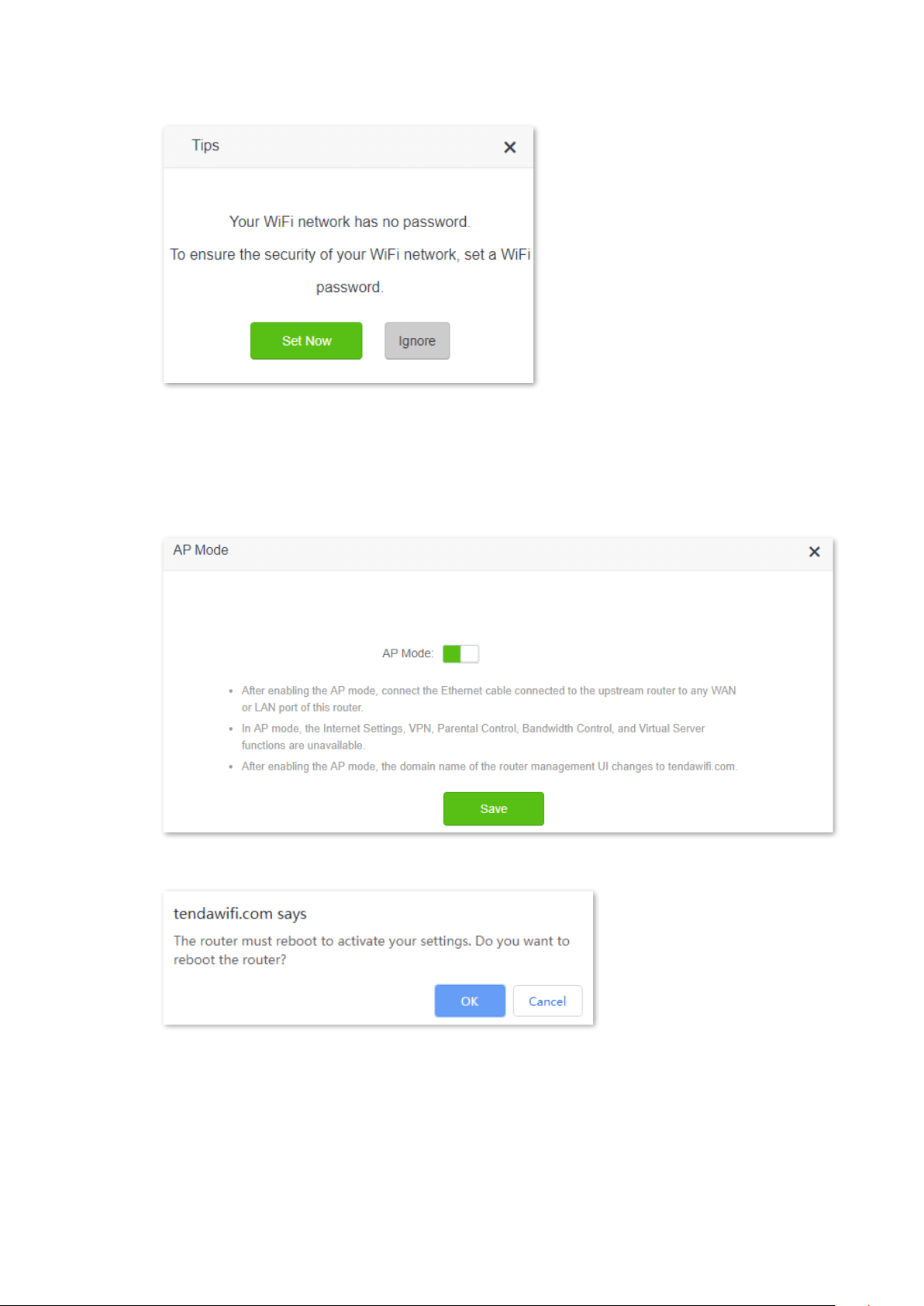
2. Click Start.
3. Click Skip.
4. Do not set login and WiFi password now by ticking No Password, and click Next.
58
5. Click Ignore.
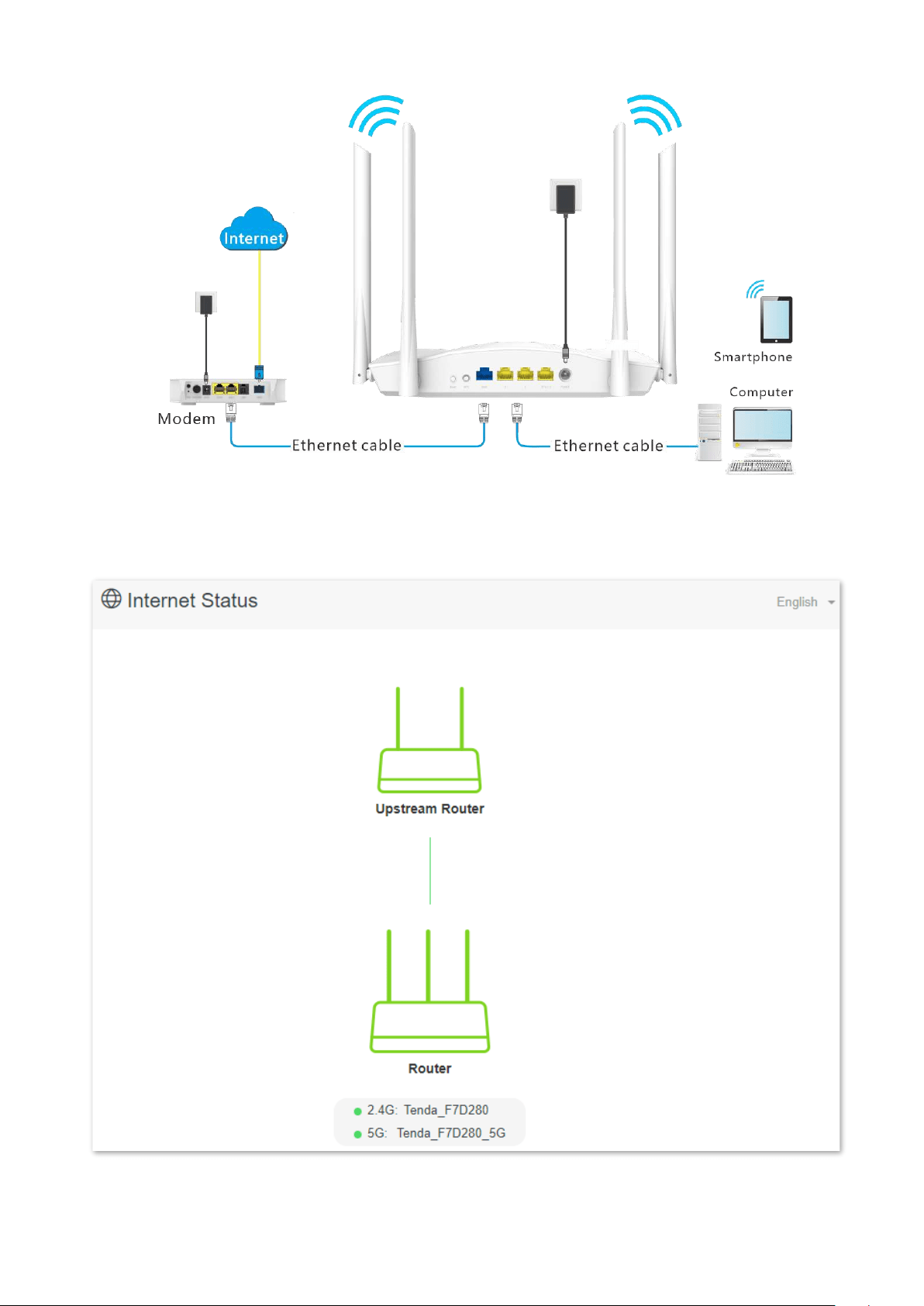
Step 3 Set the router to AP mode.
1. Navigate to WiFi Settings > AP Mode.
2. Enable AP Mode.
3. Click Save.
Step 4 Click OK, and wait for the router to reboot.
Step 5 Connect the upstream device, such as a gateway, to any port of the router.
59
---End
Log in to the web UI of the router again, and navigate to Internet Status to check if the AP mode is
configured successfully.
60
If there is another network device with the same login domain name (tendawifi.com) as the router,
log in to the upstream router and find the IP address obtained by the new router in the client list.
Then you can log in to the web UI of the router by visiting the IP address.
To access the internet, connect your computer to physical port, or connect your smart phone to
the WiFi network.
You can find the WiFi name and password on the WiFi Settings > WiFi Name & Password page. If
the network is not encrypted, you can also set a WiFi password on this page for security.
If you cannot access the internet, try the following solutions:
⚫
Ensure that the existing router is connected to the internet successfully.
⚫
Ensure that your WiFi-enabled devices are connected to the correct WiFi network of the new
router.
⚫
If the computer connected to the router cannot access the internet, ensure that the computer is
configured to obtain an IP address and DNS sever automatically.
61
6 Guest network
6.1 Overview
In this module, you can enable/disable the guest network function and change the WiFi name and
password of the guest network.
A guest network can be set up with a shared bandwidth limit for visitors to access the internet, and
isolated from the main network. It protects the security of the main network and ensures the
bandwidth of your main network.
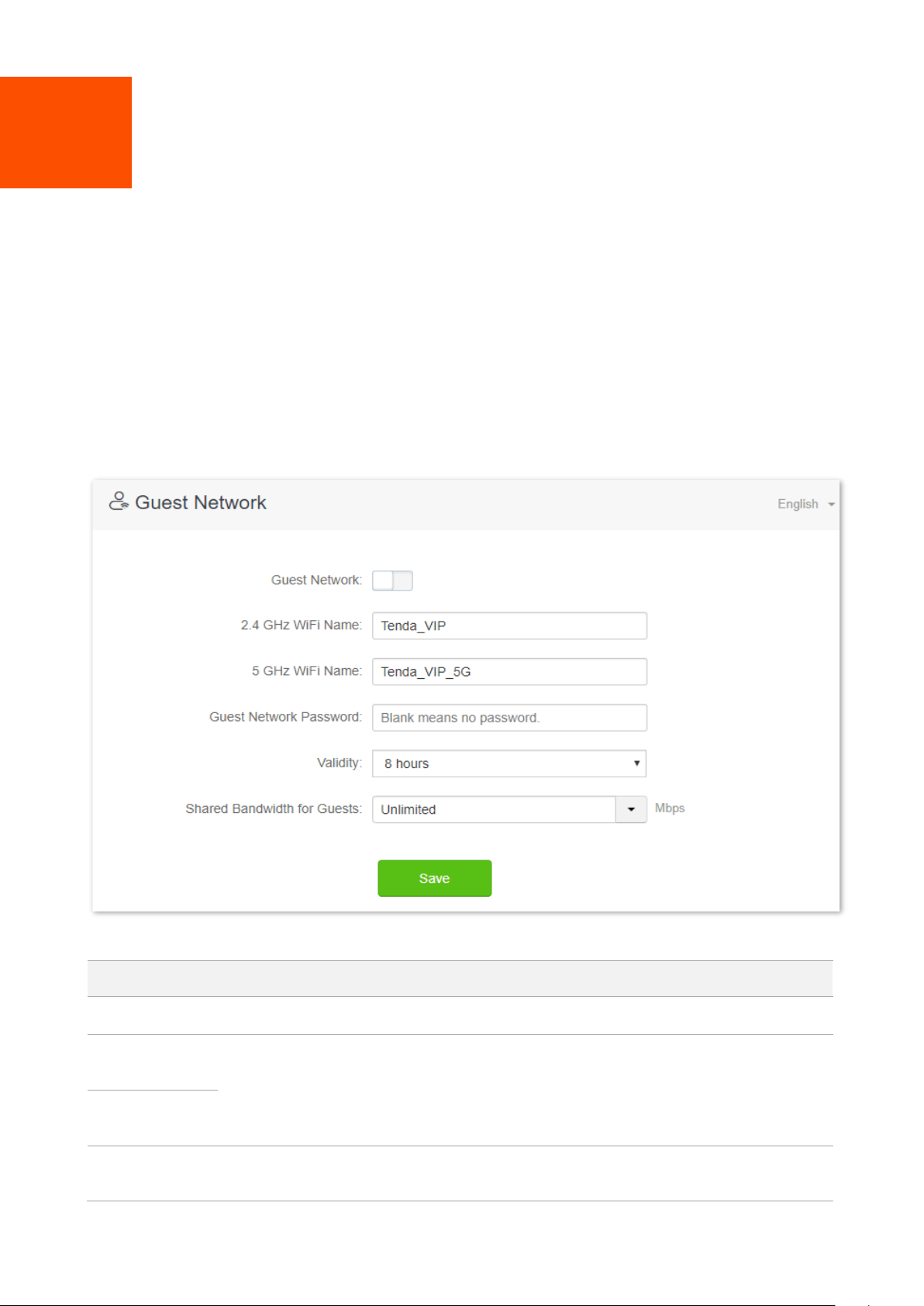
To access the configuration page, log in to the web UI of the router and navigate to the Guest
Network. This function is disabled by default.
Parameter description
Parameter
Description
Guest Network
It is used to enable or disable the guest network function.
2.4 GHz WiFi
Name
It specifies the WiFi name of the router’s guest network. By default, Tenda_VIP is for the
2.4 GHz WiFi network and Tenda_VIP_5G for the 5 GHz WiFi network.
You can change the SSIDs (WiFi names) as required. To distinguish the guest network from
the main network, you are recommended to set different WiFi network names.
5 GHz WiFi
Name
Guest Network
Password
It specifies the password for the router’s two guest networks.

62
Parameter
Description
Validity
It specifies the validity of the guest networks. The guest network function will be disabled
automatically out of the validity period.
Shared
Bandwidth for
Guests
It allows you to specify the maximum upload and download speed for all devices
connected to the guest networks. By default, the bandwidth is not limited.
63
6.2 An example of configuring the guest network
Scenario: A group of friends are going to visit your home and stay for about 8 hours.
Goal: Prevent the use of WiFi network by guests from affecting the network speed of your
computer for work purposes.
Solution: You can configure the guest network function and let your guests to use the guest
networks.
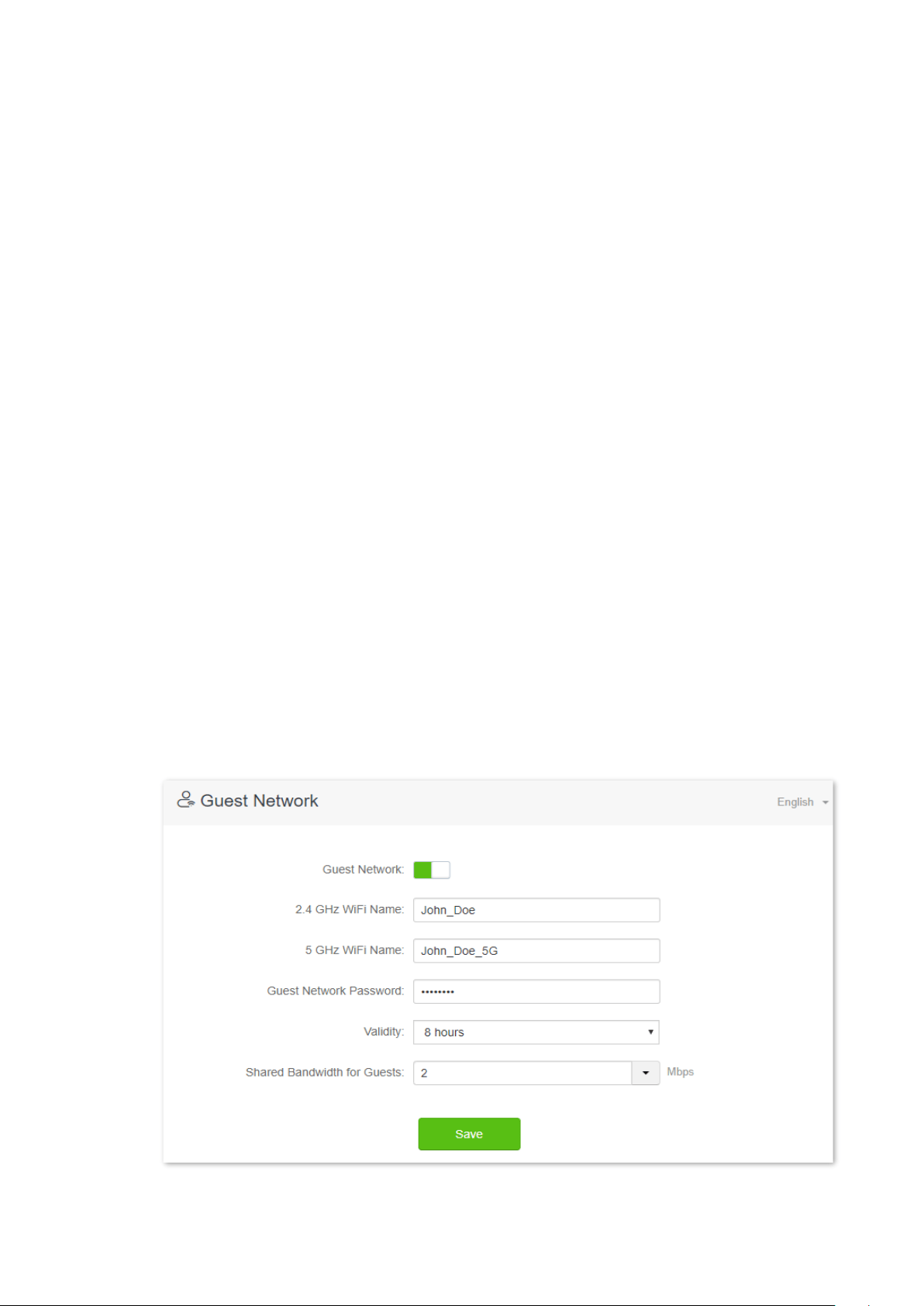
Assume that the parameters you are going to set for the guest WiFi network:
− WiFi names for 2.4 GHz and 5 GHz networks: John_Doe and John_Doe_5G.
− WiFi password for 2.4 GHz and 5 GHz networks: Tenda+245.
− The shared bandwidth for guests: 2 Mbps.
Configuring procedure:
Step 1 Start a web browser on a device connected to the router and visit tendawifi.com to log in
to the web UI of the router.
Step 2 Choose Guest Network.
Step 3 Enable the Guest Network.
Step 4 Set the 2.4 GHz WiFi Name, which is John_Doe in this example.
Step 5 Set the 5 GHz WiFi Name, which is John_Doe_5G in this example.
Step 6 Set Guest Network Password, which is Tenda+245 in this example.
Step 7 Select a validity time from the Validity drop-down box, which is 8 hours in this example.
Step 8 Set the bandwidth in the Shared Bandwidth for Guests drop-down box, which is 2 in this
example.
Step 9 Click Save.

64
---End
During the 8 hours after the configuration, guests can connect their WiFi-enabled devices, such as
smartphones, to John_Doe or John_Doe_5G to access the internet and enjoy the shared
bandwidth of 2 Mbps.
65
7 Parental control
7.1 Overview
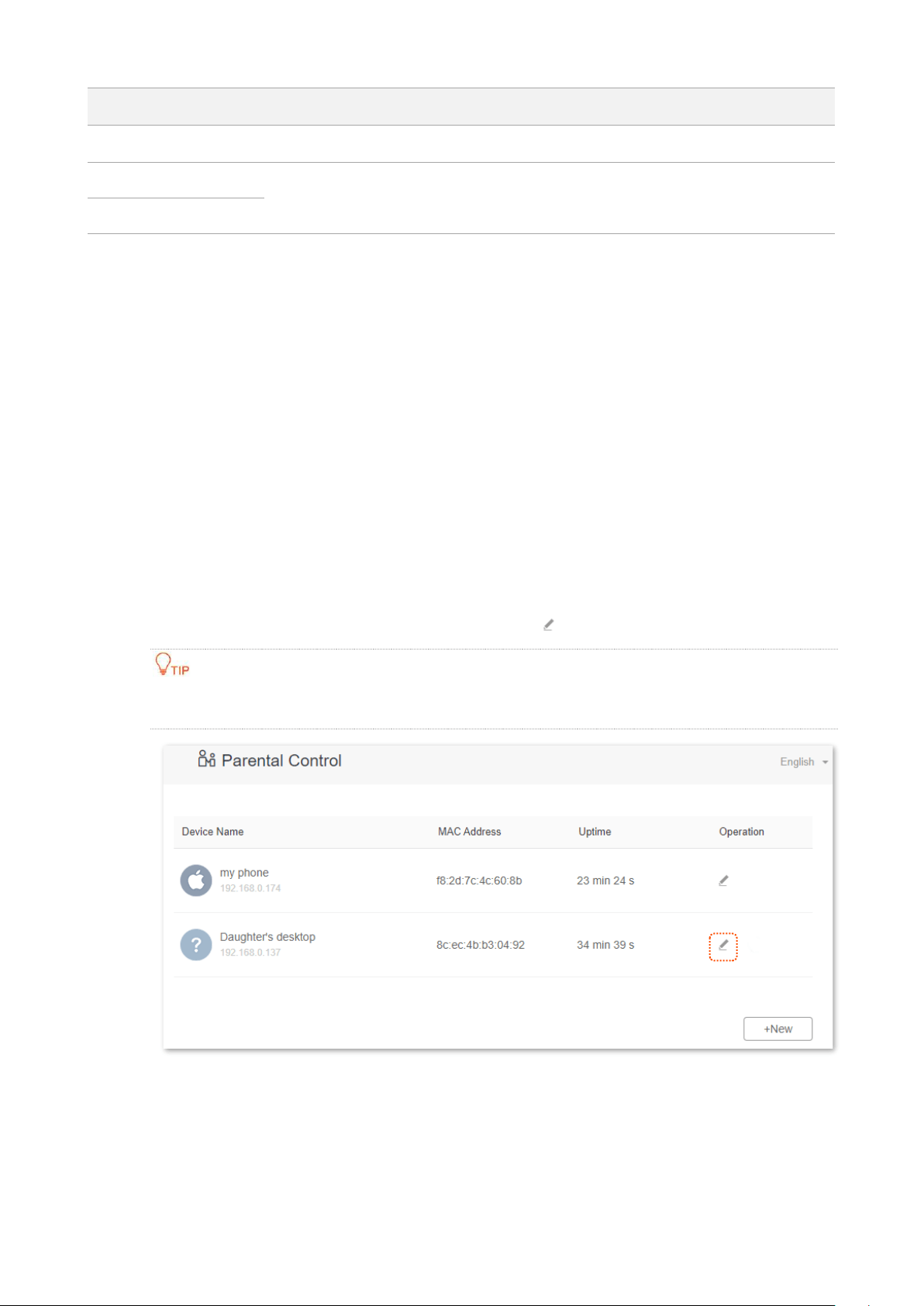
On the parental control page, you can view the information of online devices and configure their
internet access options.
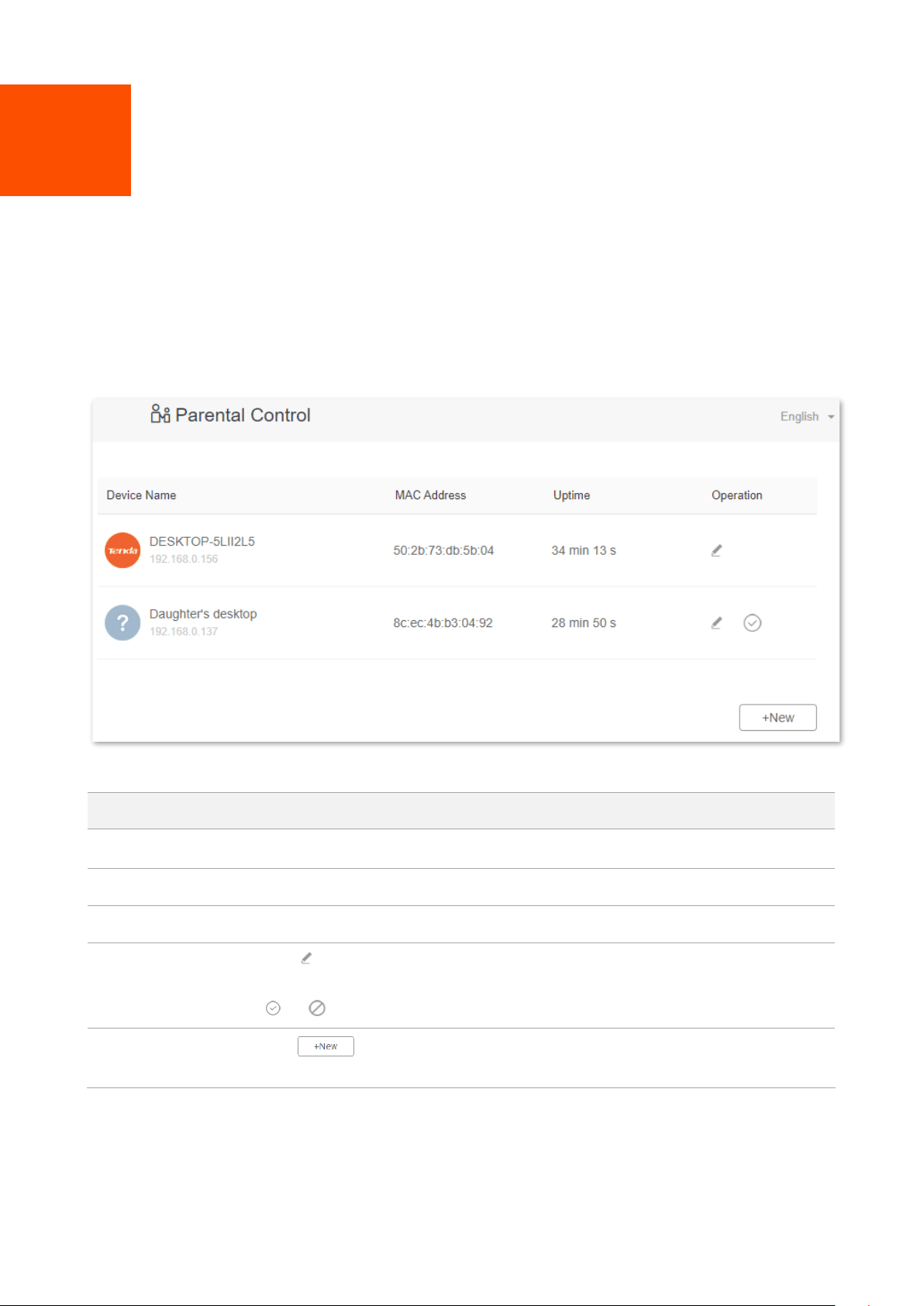
To access the configuration page, log in to the web UI of the router, and navigate to the Parental
Control page.
Parameter description
Parameter
Description
Device Name
It specifies the name of the online device.
MAC Address
It specifies the MAC address of the online device.
Uptime
It specifies the online duration of the device.
Operation
Click to configure the parental control rule for the device.
After you have configured the parental control rule for the device, there should be a
or button, which is used to enable or disable the configured rule.
+New
Click to add parental control rules for devices that are not connected to the
router at the time.
66
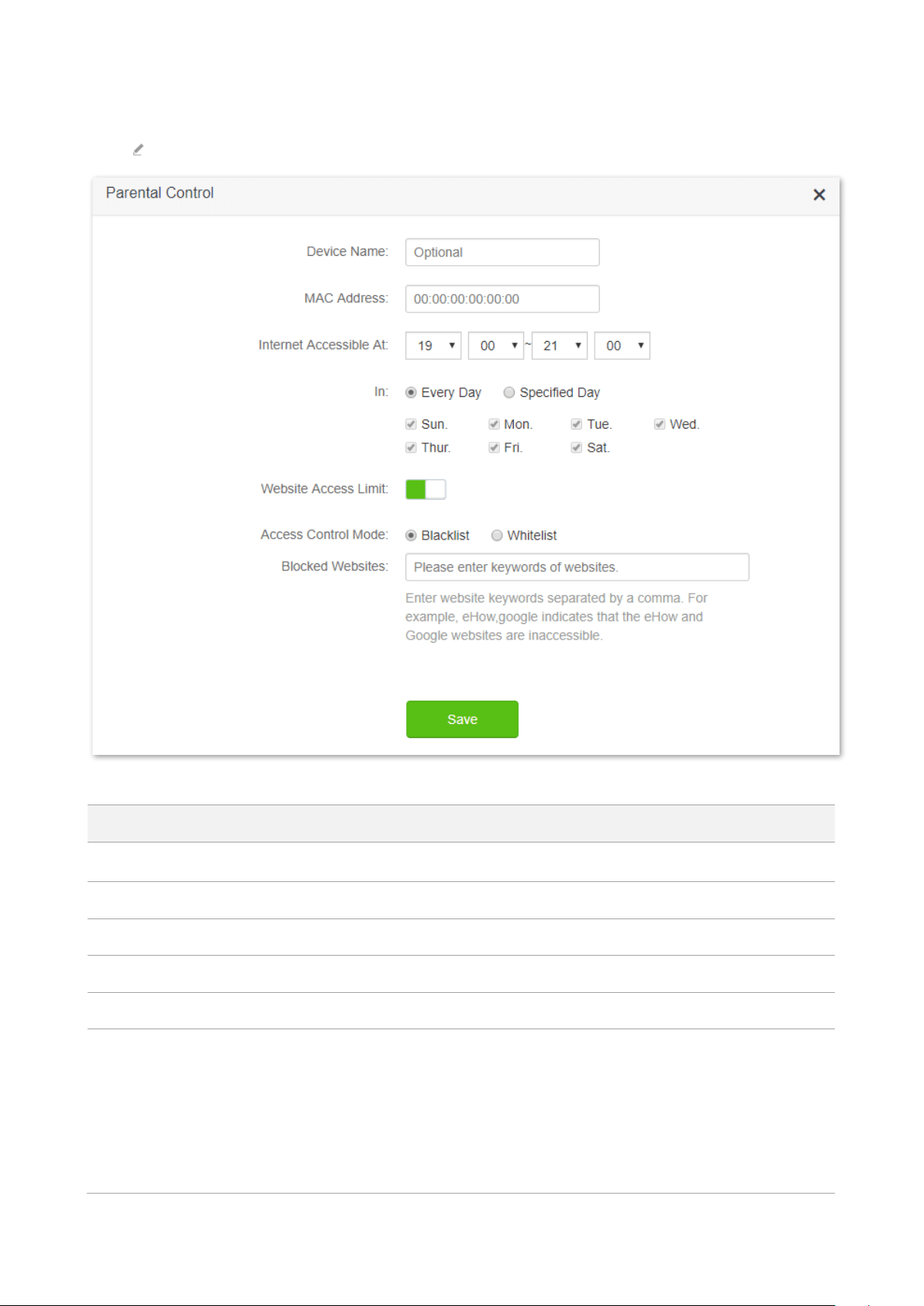
7.2 Configure the parental control rule
Click or +New to edit or add a parental control rule. +New is used for illustration here.
Parameter description
Parameter
Description
Device Name
It specifies the name of the device that the parental control rule applies to.
MAC Address
It specifies the MAC address of the device that the parental control rule applies to.
Internet Accessible At
It specifies the period during which the device can access the internet.
In
It specifies the days when the rule takes effect.
Website Access Limit
It is used to enable or disable the website access limit function.
Access Control Mode
When the website access limit function is enabled, there are two access control
modes available.
⚫
Blacklist: The device is blocked from accessing the websites specified in the rule
during the specified period, but can access other websites. The device cannot
access the internet out of the specified period.
⚫
Whitelist: The device is allowed to access the websites specified in the rule
during the specified period, but cannot access other websites. The device cannot
67
Parameter
Description
access any website out of the specified period.
Blocked Websites
It specifies the websites that the device is blocked from accessing or allowed to
access during the specified period.
Unblocked Websites
7.3 An example of adding parental control rules
Scenario: The final exam for your daughter is approaching and you want to configure her internet
access through the router.
Goal: Your daughter cannot access websites, such as facebook, twitter, youtube and Instagram,
during 8:00 to 22:00 on weekends using the computer in her room, and cannot access the internet
from 22:00 to 8:00.
Solution: You can configure the parental control function to reach the goal.
Configuring procedure:
Step 1 Start a web browser on a device connected to the router and visit tendawifi.com to log in
to the web UI of the router.
Step 2 Choose Parental Control.
Step 3
Find the device to which the rule applies, and click .
If the device to which the rule applies is not online at the time, you can click +New to add a parental
control rule for the device.
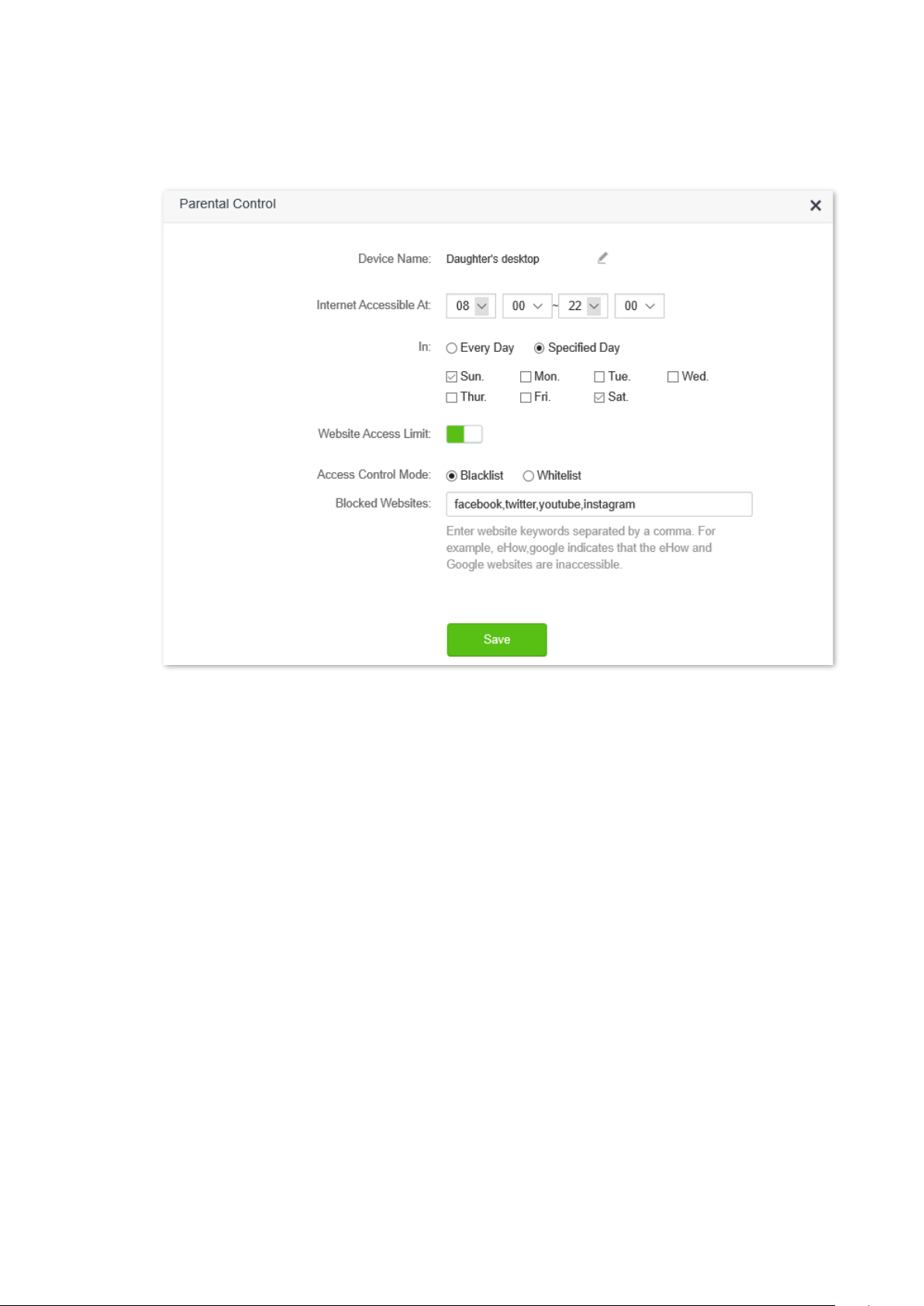
Step 4 Specify the period when the target websites cannot be accessed, which is 8:00 ~ 22:00 in
this example.
Step 5 Choose Specified Day, and tick the days when the rule is applied, which are Sun. and Sat.
in this example.
Step 6 Enable Website Access Limit.
68
Step 7 Choose Blacklist.
Step 8 Set Blocked Websites, which is facebook,twitter,youtube,instagram.
Step 9 Click Save.
---End
After the configuration is completed, your daughter can access any websites except for facebook,
twitter, youtube and instagram from 8:00 to 22:00 on weekends, and she cannot access the
internet at all between 22:00 to 8:00.
69
8 VPN
A VPN (Virtual Private Network) is a private network built on a public network (usually the
Internet). This private network exists only logically and has no actual physical lines. VPN technology
is widely used in corporate networks to share resources between corporate branches and
headquarters, while ensuring that these resources are not exposed to other users on the internet.
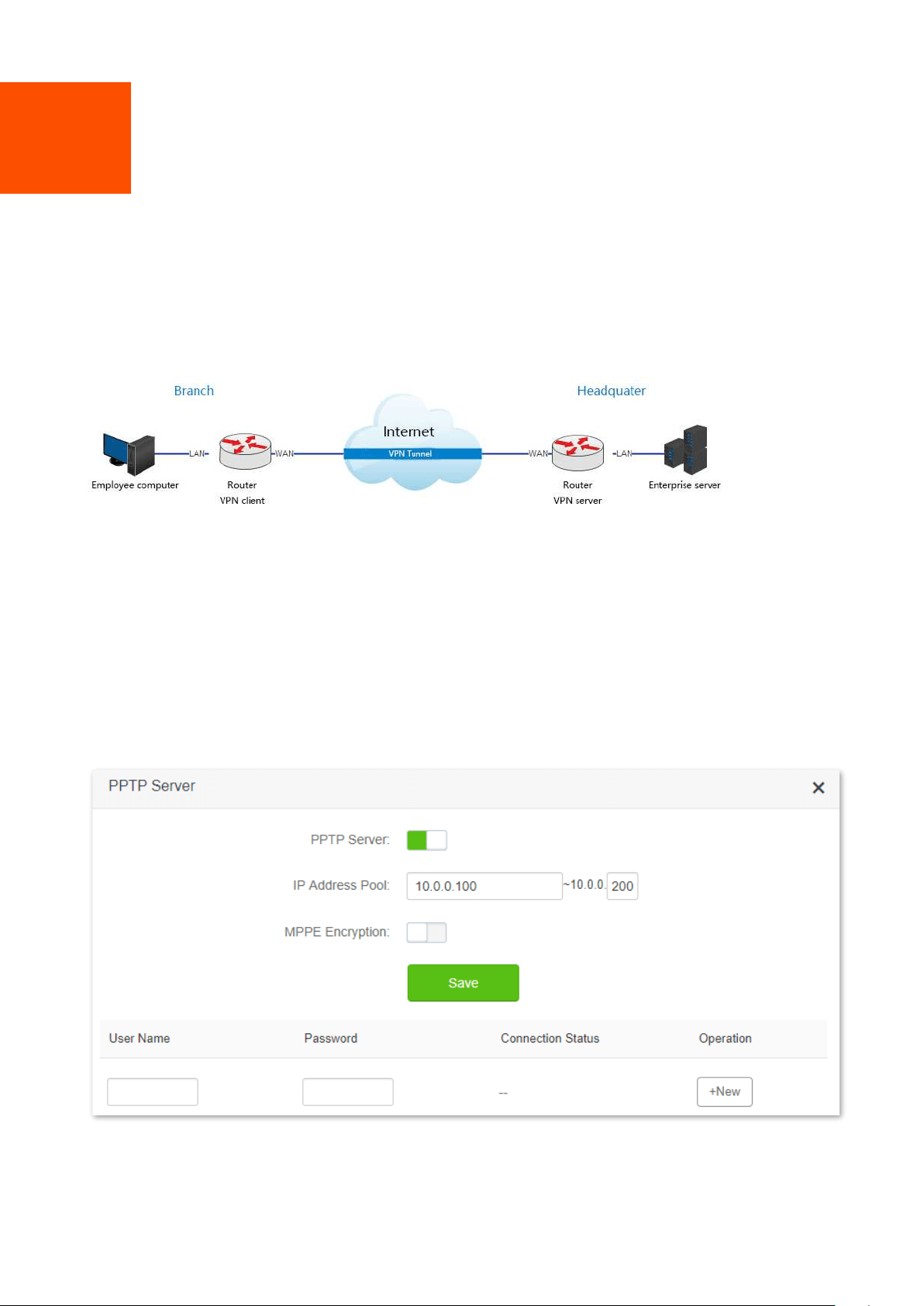
The typology of a VPN network is shown below.
8.1 PPTP server
8.1.1 Overview
This series of routers can function as a PPTP server and accept connections from PPTP clients.
To access the configuration page, log in to the web UI of the router, and choose VPN > PPTP
Server. This function is disabled by default. When it is enabled, the page is shown as below.
70
Parameter description
Parameter
Description
PPTP Server
It is used to enable or disabled the PPTP server.
When it is enabled, the router functions as a PPTP server, which can accept the
connections from PPTP clients.
IP Address Pool
It specifies the range of IP address range within which the PPTP server can assign to
PPTP clients. It is recommended to keep the default settings.
MPPE Encryption
It is used to enable or disable 128-bit data encryption. The encryption settings should be
the same between the PPTP server and PPTP clients. Otherwise, the communication
cannot be achieved normally.
User Name
It specifies the VPN user name and password, which the VPN user needs to enter when
making PPTP dial-ups (VPN connections).
Password
Connection Status
It specifies the connection status of the VPN connection.
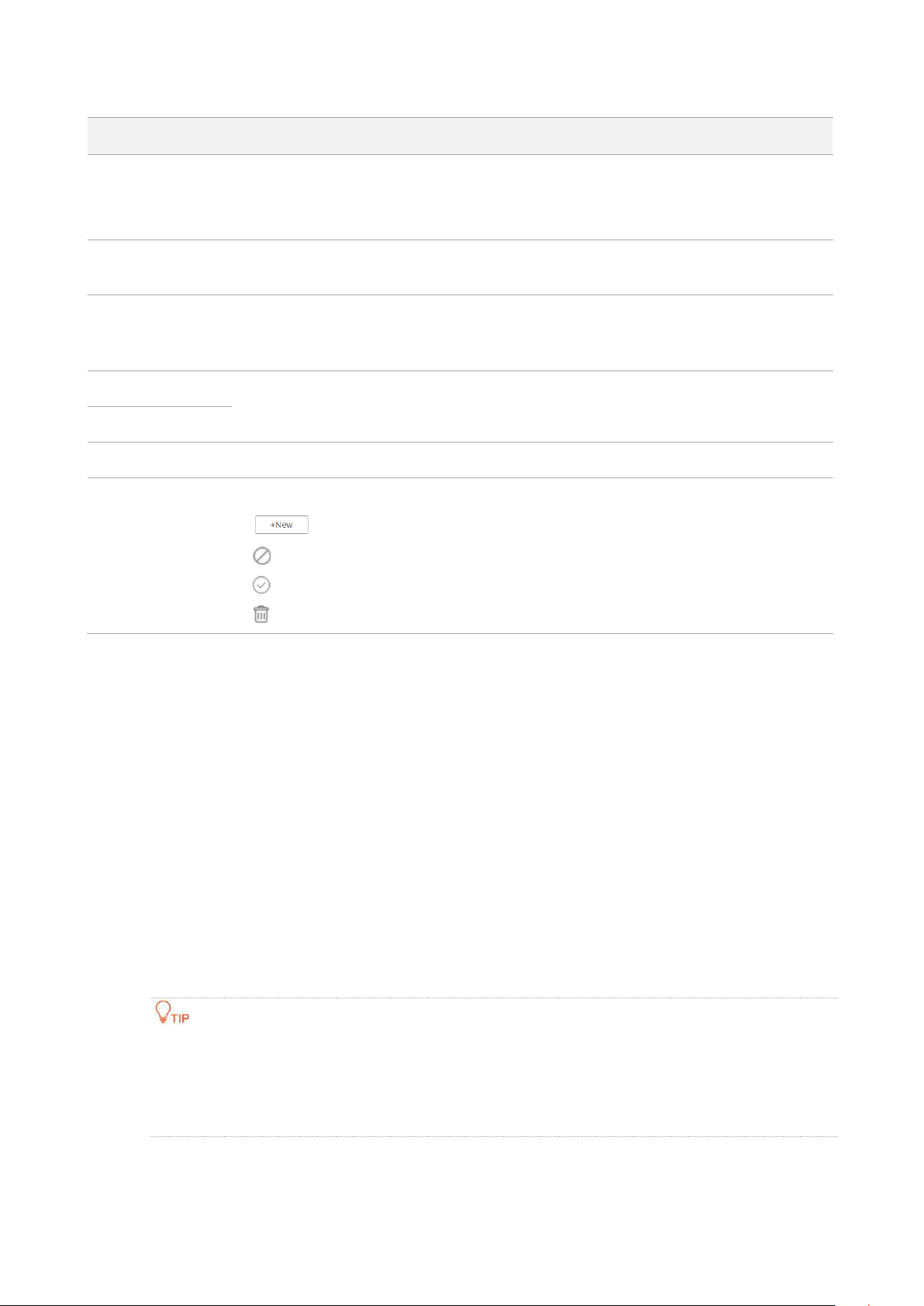
Operation
The available operations include:
⚫
: It is used to add new PPTP user accounts.
⚫
: It is used to disable the PPTP user account.
⚫
: It is used to enable the PPTP user account.
⚫
: It is used to delete the PPTP user account.
8.1.2 Enable internet users to access resources of the LAN
Scenario: You have set up an FTP server within the LAN of the router.
Goal: Open the FTP server to internet users and enable them to access the resources of the FTP
server from the internet.
Solution: You can configure the PPTP server function to reach the goal. Assume that:
− The user name and password that the PPTP server assigns to the client are both
admin1.
− The WAN IP address of router is 113.88.112.220.
− The IP address of the FTP server is 192.168.0.136.
− The FTP server port is 21.
− The FTP login user name and password are both: JohnDoe
Please ensure the WAN IP address of router is a public network. This function may not work on a host
with an IP address of a private network. Common IPv4 addresses are classified into class A, class B and
class C. Private IP addresses of class A range from 10.0.0.0 to 10.255.255.255; Private IP addresses of
class B range from 172.16.0.0-172.31.255.255; Private IP addresses of class C range from 192.168.0.0-
192.168.255.255.
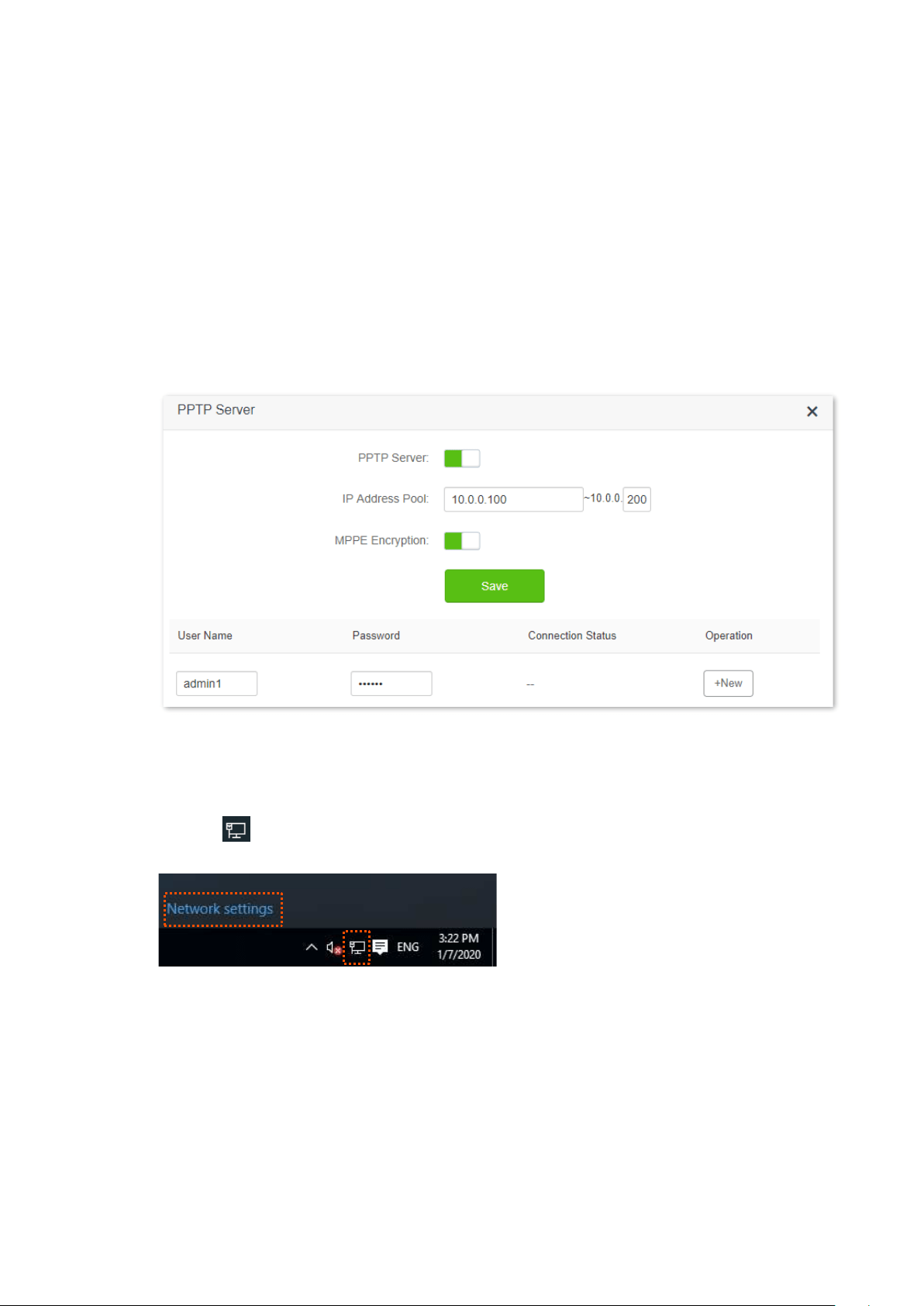
71
Configuring procedure:
Step 1 Start a web browser on a device connected to the router and visit tendawifi.com to log in
to the web UI of the router.
Step 2 Choose VPN > PPTP Server.
Step 3 Enable the PPTP Server.
Step 4 Enable the MPPE Encryption, which means that the encryption digit remains the default
value “128”.
Step 5 Set the User Name and Password of the PPTP server, which are admin1 in this example.
Step 6 Click +New.
Step 7 Click Save.
---End
When completing the configurations, internet users can access the FTP server by following these
steps:
Step 1
Click the icon at the bottom right corner on the desktop, and then click Network
settings.
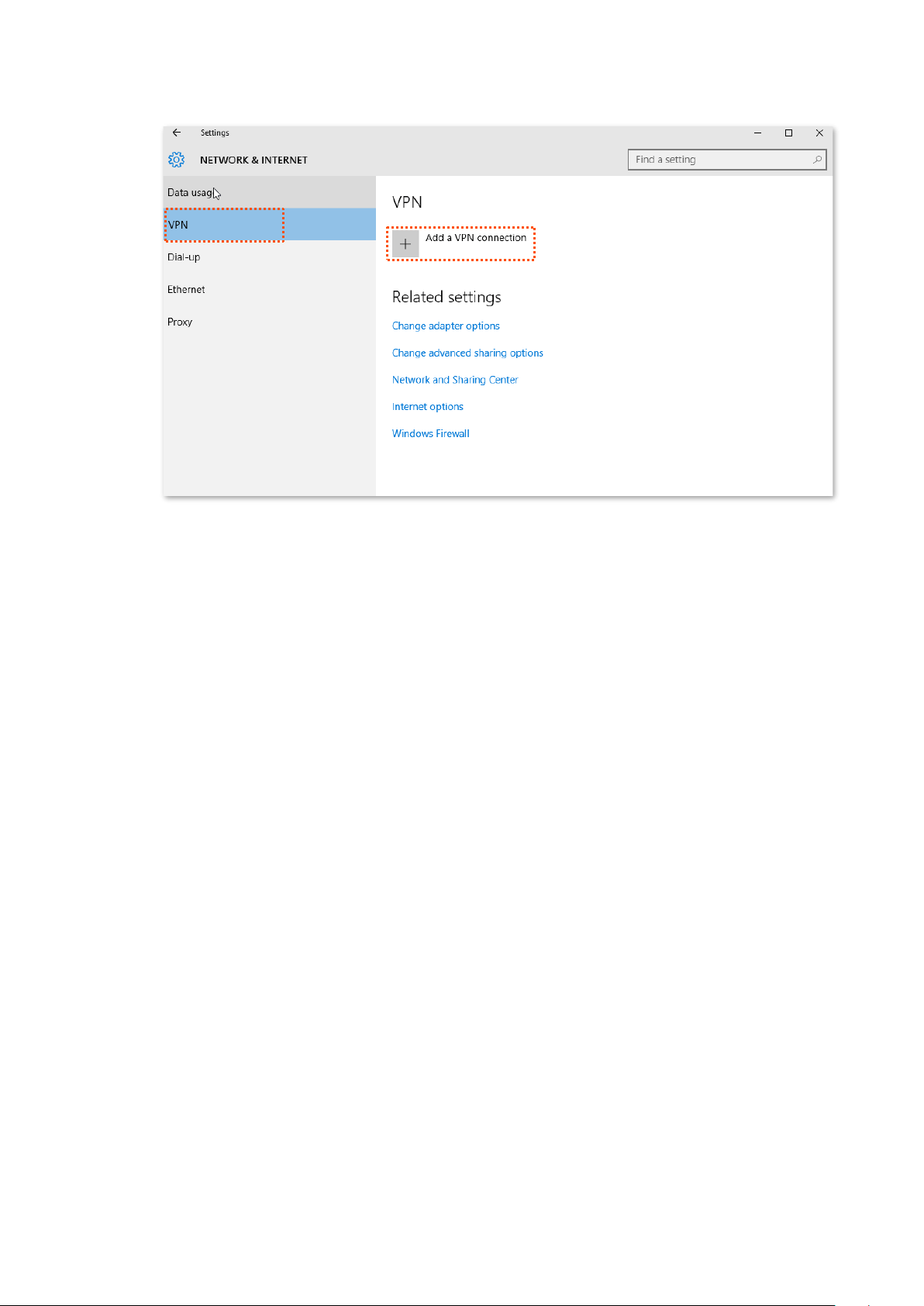
72
Step 2 Choose VPN on the left side, and click Add a VPN connection.
Step 3 Configure the VPN parameters.
1. Enter a connection name, such as VPN connection.
2. Enter the server address, which is 113.88.112.220 in this example.
3. Select a VPN type, which is Point to Point Tunneling Protocol (PPTP) in this example.
4. Select a type of sign-in info, which is User name and password in this example.
5. Enter the user name and password, which are both admin1 in this example.
6. Click Save.
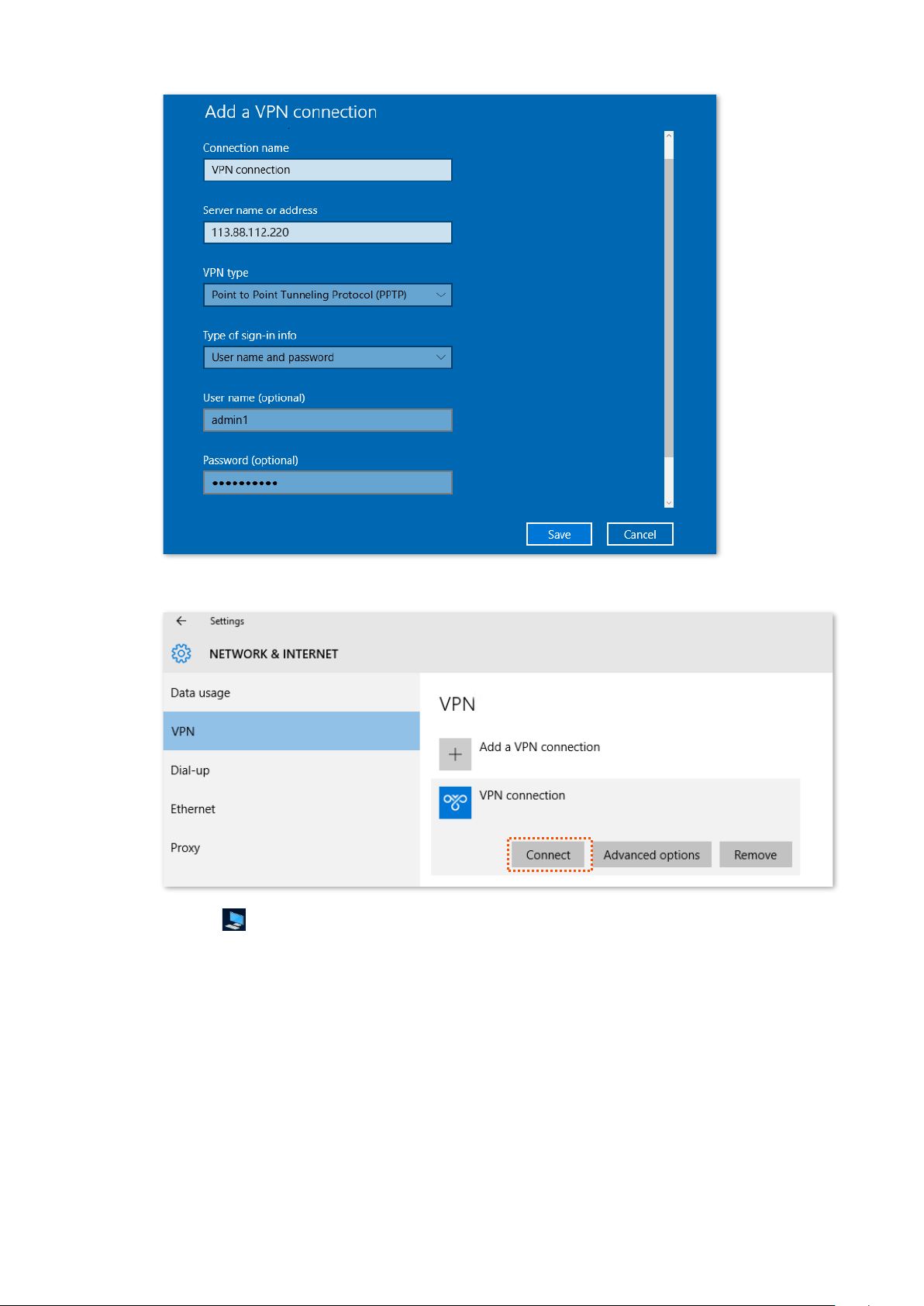
73
Step 4 Target the VPN connection added, and click Connect.
Step 5
Click the icon on the desktop, and enter the address in the address bar to access the
FTP server, which is ftp://192.168.0.136:21 in this example.
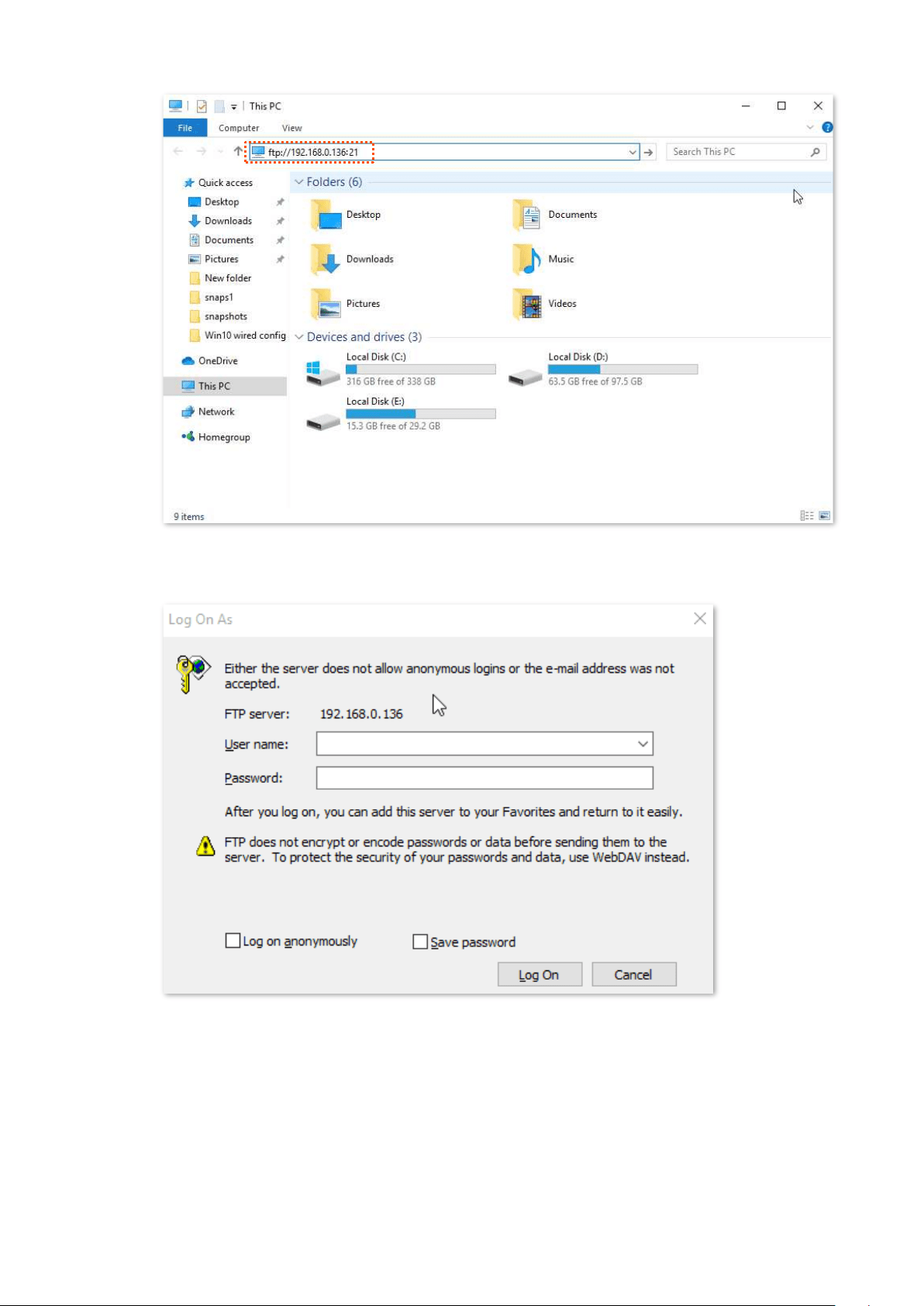
74
Step 6 Enter the user name and password for logging in to the FTP server, which are both
JohnDoe in this example, and click Log On.
---End
By performing the steps above, you can access the resources on the FTP server.
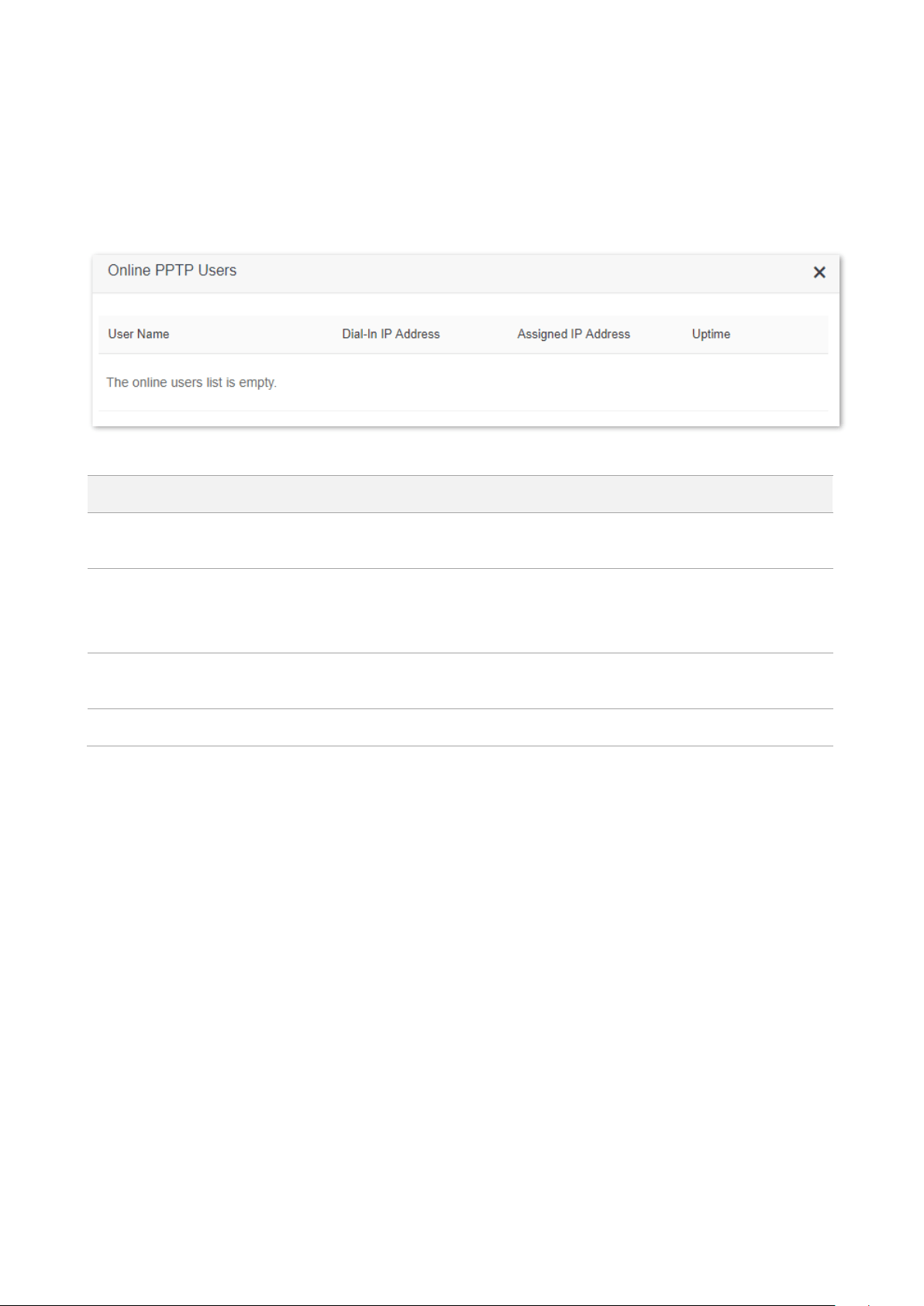
75
8.2 Online PPTP users
When the PPTP server function is enabled, you can view the detailed information of VPN clients
that establish connections with the PPTP server.
To access the configuration page, log in to the web UI of the router, and choose VPN > Online PPTP
Users.
Parameter description
Parameter
Description
User Name
It specifies the VPN user name, which the VPN user uses when making PPTP dial-ups
(VPN connection).
Dial-In IP Address
It specifies the IP address of the PPTP client.
If the client is a router, it will be the IP address of the WAN port whose VPN function is
enabled.
Assigned IP
Address
It specifies the IP address that the PPTP server assigns to the client.
Uptime
It specifies the online time since the VPN connection succeeds.
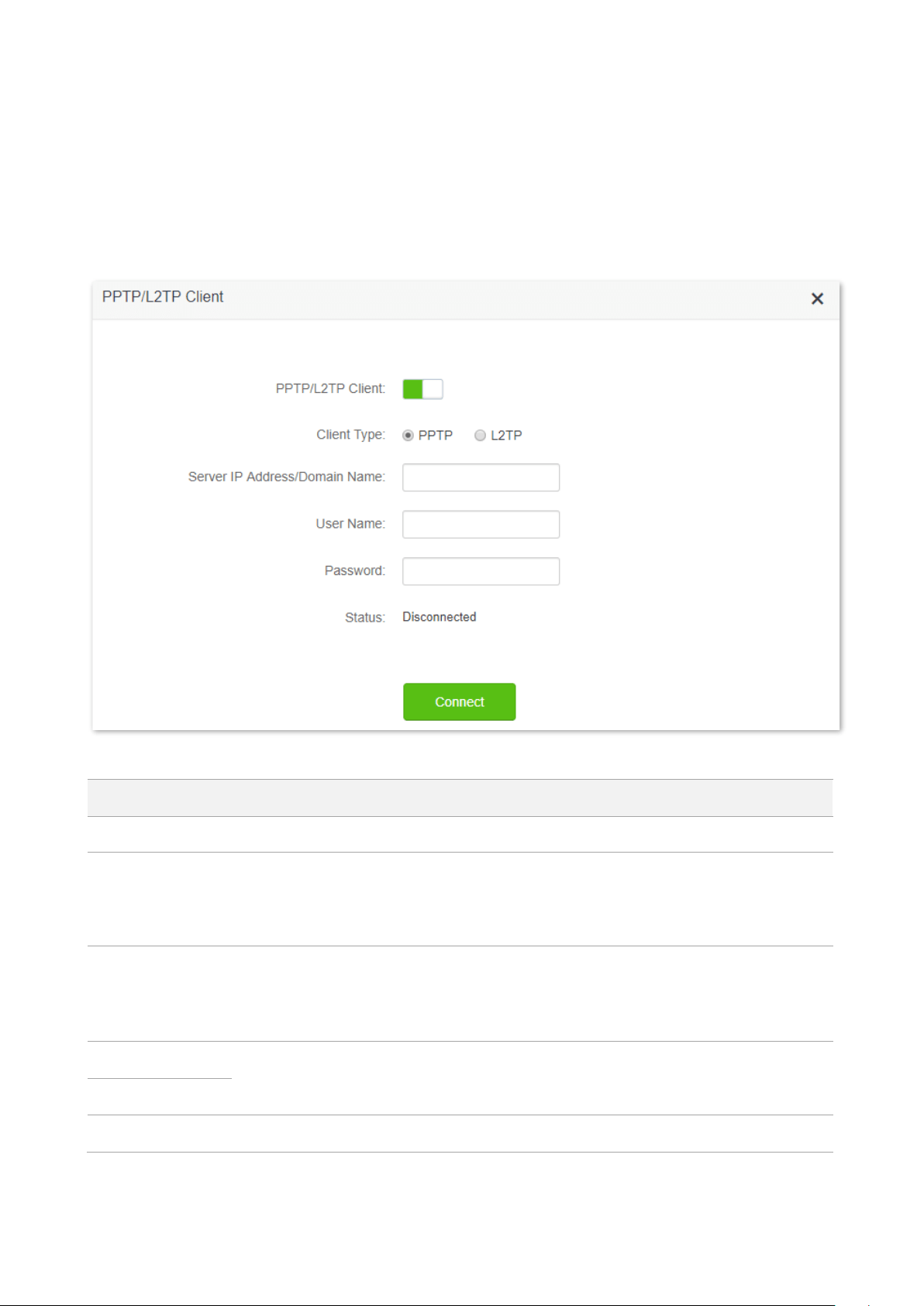
76
8.3 PPTP/L2TP client
8.3.1 Overview
This series of router can function as a PPTP/L2TP client and connect to PPTP/L2TP servers.
The PPTP/L2TP client function is disabled by default. When it is enabled, the page is show as
below.
Parameter description
Parameter
Description
PPTP/L2TP Client
It is used to enable or disable the PPTP/L2TP client function.
Client Type
It specifies the client type that the router serves as, either PPTP or L2TP.
⚫
PPTP: When the router is connecting to a PPTP server, choose this option.
⚫
L2TP: When the router is connecting to a L2TP server, choose this option.
Server IP
Address/Domain
Name
It specifies the IP address or domain name of the PPTP/L2TP server that the router
connects to. Generally, when a router serves as the PPTP/L2TP server at the peer side,
the domain name or IP address should be that of the WAN port whose PPTP/L2TP server
function is enabled.
User Name
It specifies the user name and password that the PPTP/L2TP server assigns to the
PPTP/L2TP clients.
Password
Status
It specifies the connection status of the VPN connection.
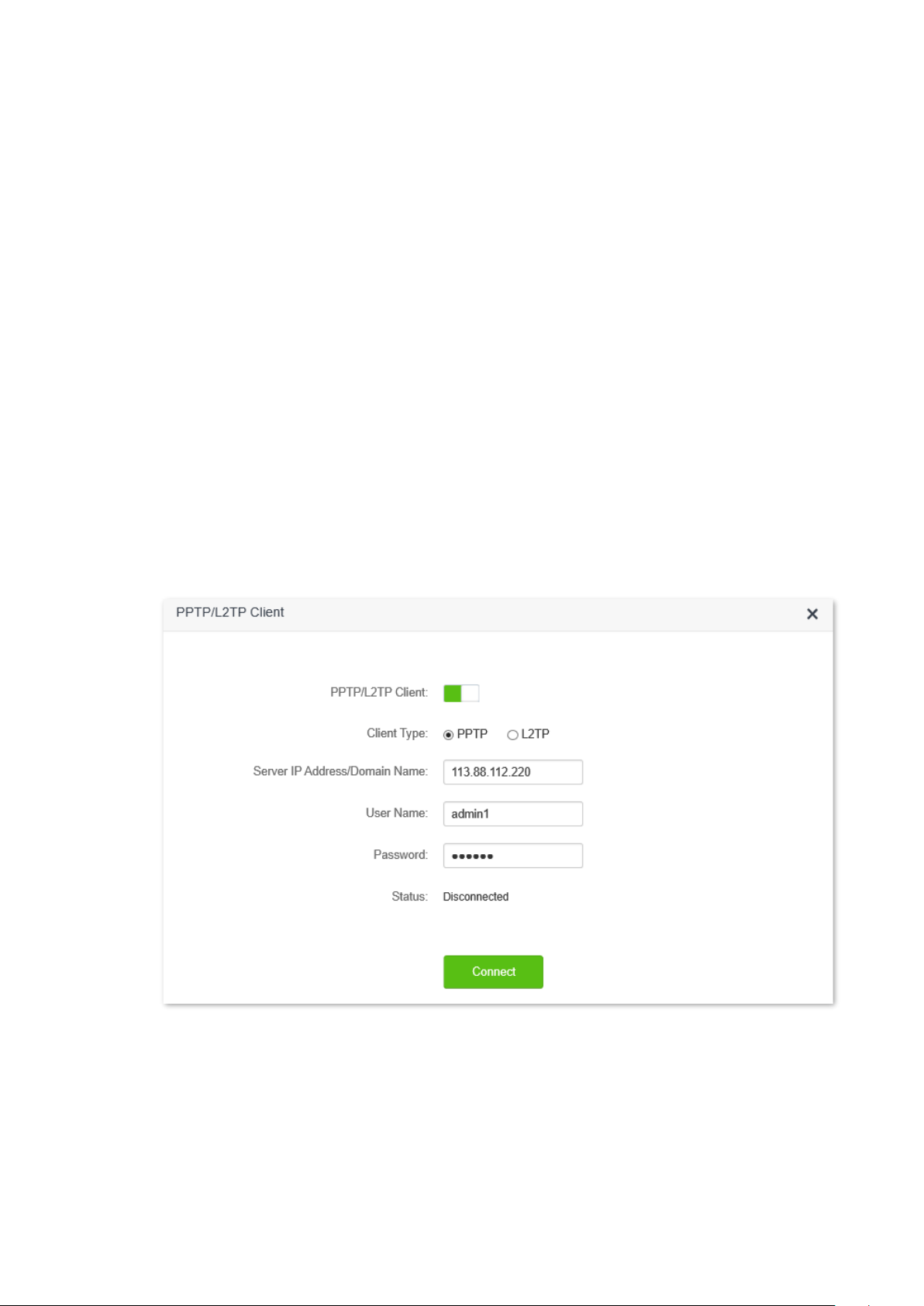
77
8.3.2 Access VPN resources with the router
Scenario: You have subscribed the PPTP VPN service when purchasing the broadband service from
your ISP.
Goal: Access the VPN resources of your ISP.
Solution: You can configure the PPTP/L2TP client function to reach the goal. Assume that:
− The IP address of the PPTP server is 113.88.112.220.
− The user name and password assigned by the PPTP server are both admin1.
Configuring procedure:
Step 1 Start a web browser on a device connected to the router and visit tendawifi.com to log in
to the web UI of the router.
Step 2 Choose VPN > PPTP/L2TP Client.
Step 3 Enable the PPTP/L2TP Client
Step 4 Choose PPTP as the client type.
Step 5 Enter the Server IP Address/Domain Name, which is 113.88.112.220 in this example.
Step 6 Enter the User Name and Password, which are both admin1 in this example.
Step 7 Click Connect.
---End
When Connected is shown behind Status, you can access the VPN resources of your ISP.
78
9 IPv6
This router supports IPv4 and IPv6 dual stack protocols. In the IPv6 part, you can:
−
Perform IPv6 WAN settings
− Change IPv6 LAN settings
9.1 IPv6 WAN settings
The router can access the IPv6 network of ISPs through three connection types. Choose the
connection type by referring to the following chart.
Scenario
Connection Type
⚫
The ISP does not provide any PPPoEv6 user name and password.
⚫
The ISP does not provide information about IPv6 address.
⚫
You have a router that can access IPv6 network.
DHCPv6
IPv6 service is included in the PPPoE user name and password.
PPPoEv6
The ISP provides you with a set of information including IPv6 address, subnet mask,
default gateway and DNS server, etc.
Static IPv6 address
Before configuring the IPv6 function, please ensure that you are within the coverage of IPv6 network
and already subscribe the IPv6 internet service. Contact your ISP for any doubt about it.
DHCPv6
DHCPv6 enables the router to obtain IPv6 address from DHCPv6 server to access the internet,
which is applicable in the following scenarios.
− The ISP does not provide any PPPoEv6 user name and password.
− The ISP does not provide information about IPv6 address.
− You have a router that can access IPv6 network.
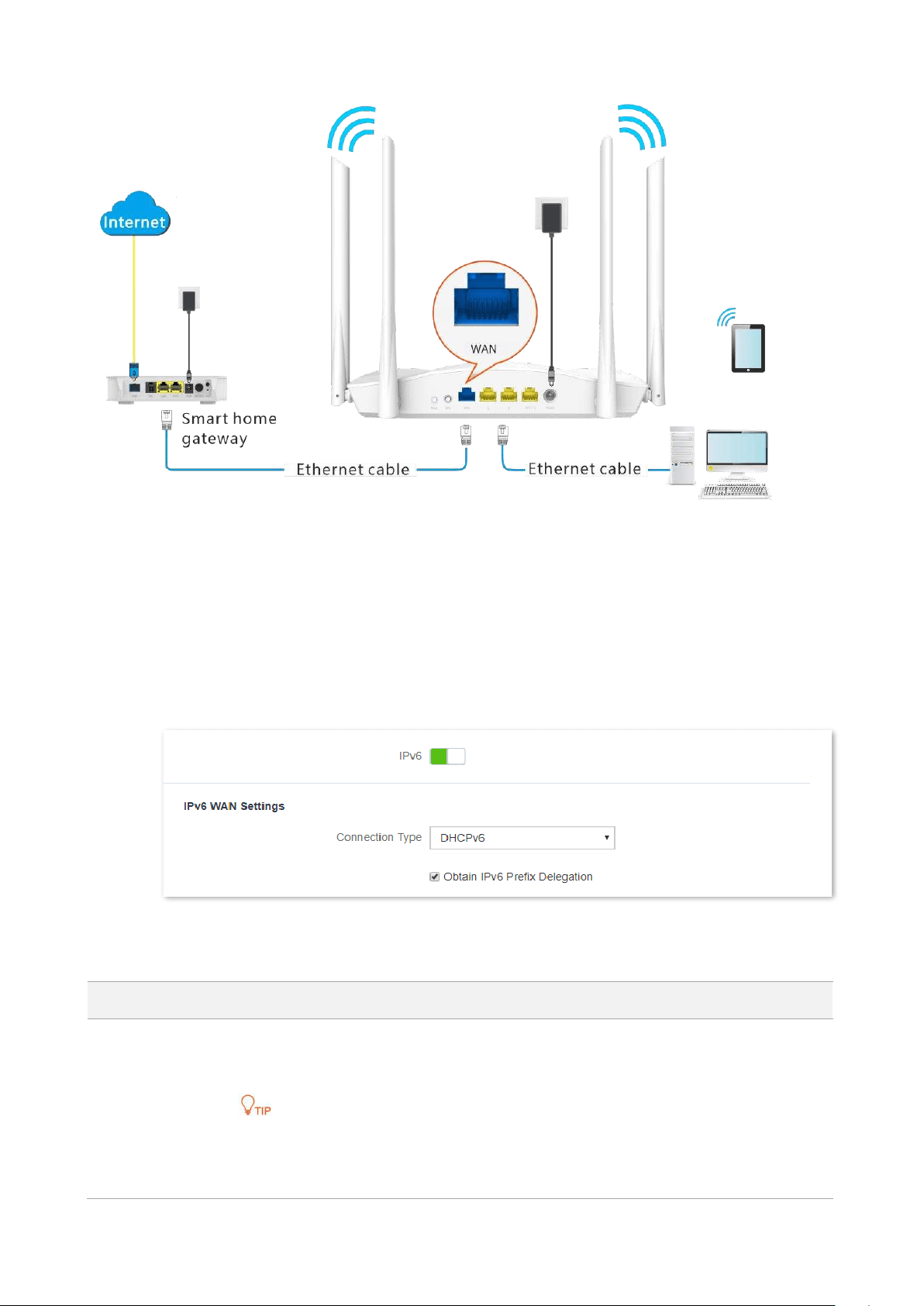
79
Configuring procedure:
Step 1 Start a web browser on a device connected to the router and visit tendawifi.com to log in
to the web UI of the router.
Step 2 Choose IPv6.
Step 3 Enable the IPv6 function.
Step 4 Set the connection type to DHCPv6.
Step 5 Click Save.
---End
Parameter description
Parameter
Description
Obtain IPv6 Prefix
Delegation
When the option is selected, the LAN port of router obtains IPv6 prefix from its
upstream device. If the LAN port cannot obtain the PD prefix, it is because the upstream
device does not support PD prefix delivery. Contact your ISP to solve this problem.
The router supports NAT6. When the connection type is DHCPv6, it is recommended to
disable Obtain IPv6 Prefix Delegation, and the clients obtains IPv6 prefix from the
router.
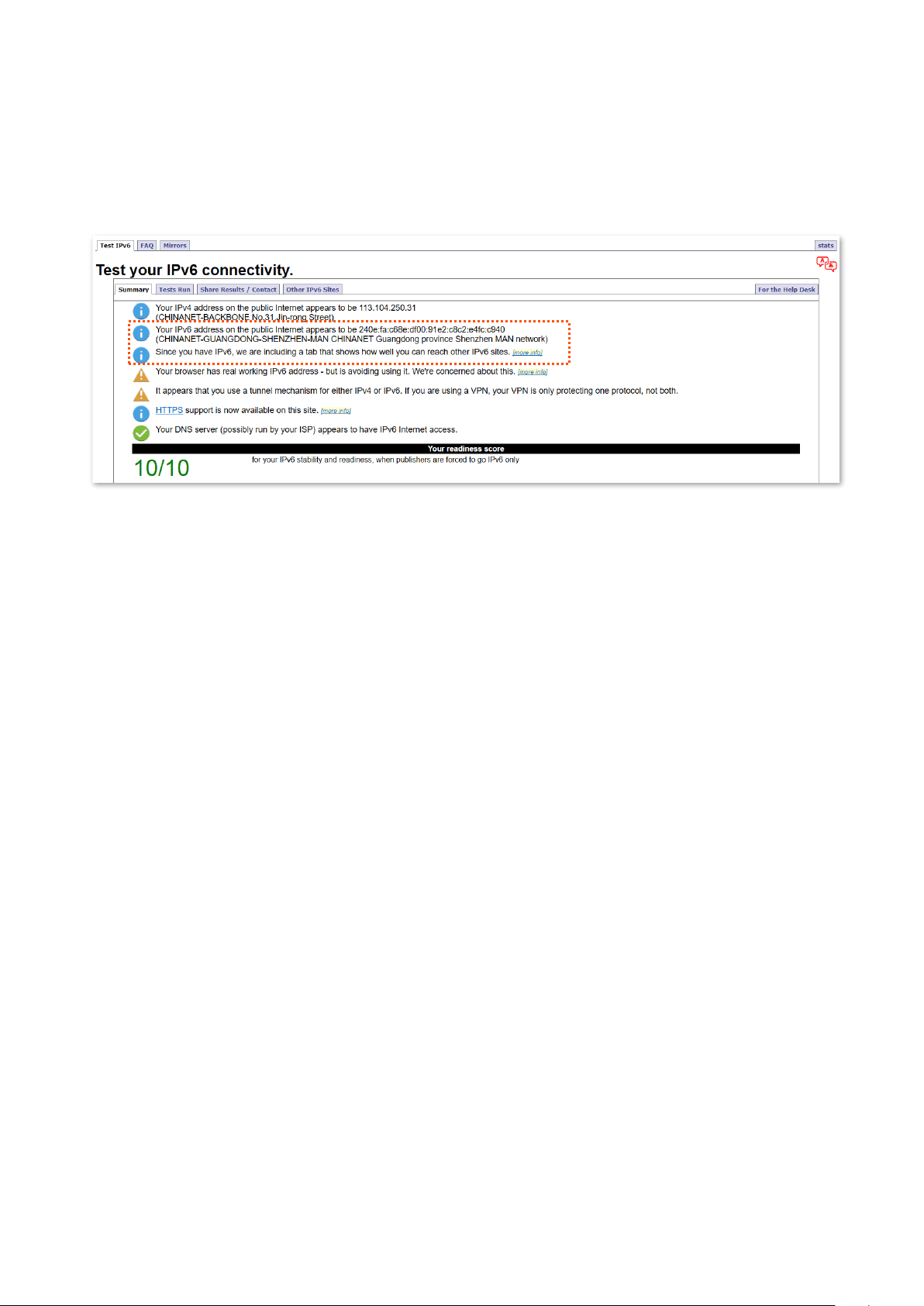
80
IPv6 network test:
Start a web browser on a phone or a computer that is connected to the router, and visit test-
ipv6.com. The website will test your IPv6 connection status.
When “You have IPv6” is shown on the page, it indicates that the configuration succeeds and you
can access IPv6 services.
If the IPv6 network test fails, try the following solutions:
− Navigate to the System Settings > System Status, and move to the IPv6 Status part.
Ensure that the IPv6 WAN address is a global unicast address.
− Ensure that devices connected to router obtain their IPv6 address through DHCPv6.
− Consult your ISP for help.
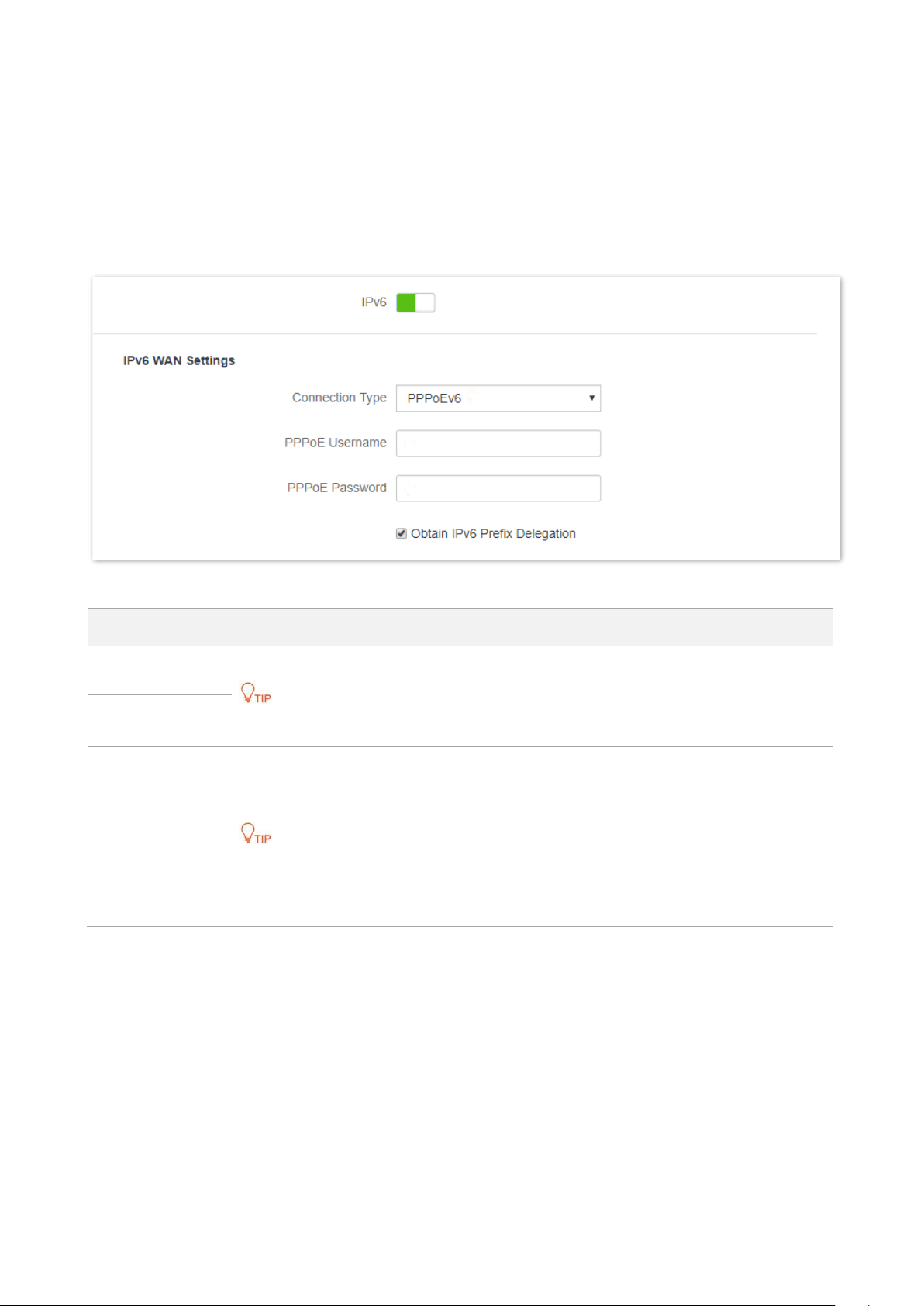
81
PPPoEv6
Overview
If your ISP provides you with the PPPoE user name and password with IPv6 service, you can choose
PPPoEv6 to access the internet.
Log in to the web UI of the router, and navigate to the IPv6. When the connection type is set to
PPPoEv6, the page is shown as below.
Parameter description
Parameter
Description
PPPoE Username
It specifies the PPPoE user name and password provided by your ISP.
IPv4 and IPv6 services share the same PPPoE account.
PPPoE Password
Obtain IPv6 Prefix
Delegation
When the option is selected, the LAN port of router obtains IPv6 prefix from its
upstream device. If the LAN port cannot obtain the PD prefix, it is because the upstream
device does not support PD prefix delivery. Contact your ISP to solve this problem.
The router supports NAT6. When the connection type is DHCPv6, it is recommended to
disable Obtain IPv6 Prefix Delegation, and the clients obtains IPv6 prefix from the
router.
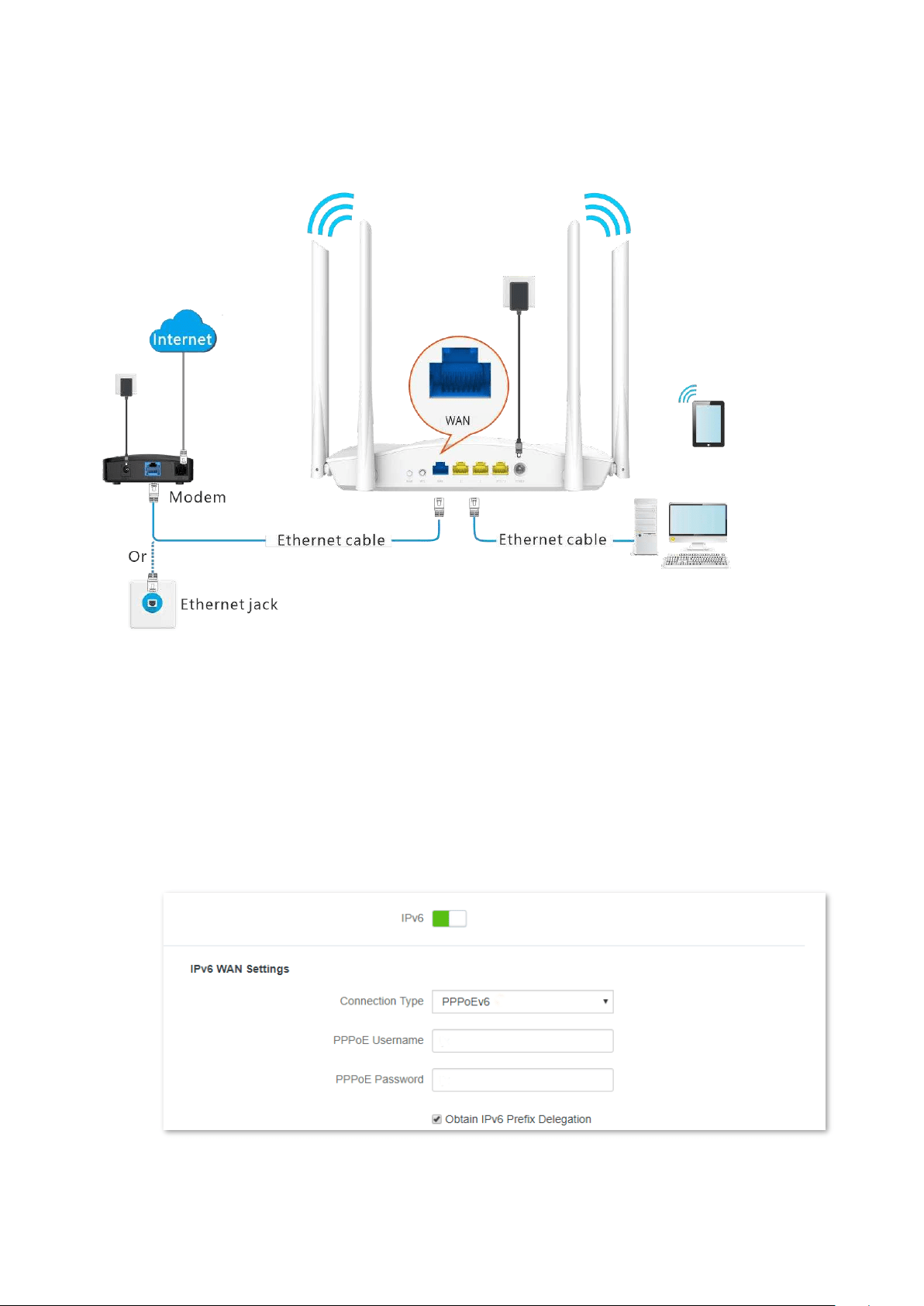
82
Access the internet through PPPoEv6
If the PPPoE account provided by your ISP includes IPv6 service, you can choose PPPoEv6 to access
the IPv6 service. The application scenario is shown as below.
Configuring procedure:
Step 1 Start a web browser on a device connected to the router and visit tendawifi.com to log in
to the web UI of the router.
Step 2 Choose IPv6.
Step 3 Enable the IPv6 function.
Step 4 Set the connection type to PPPoEv6.
Step 5 Enter the PPPoE Username and PPPoE Password.
Step 6 Click Save.
---End
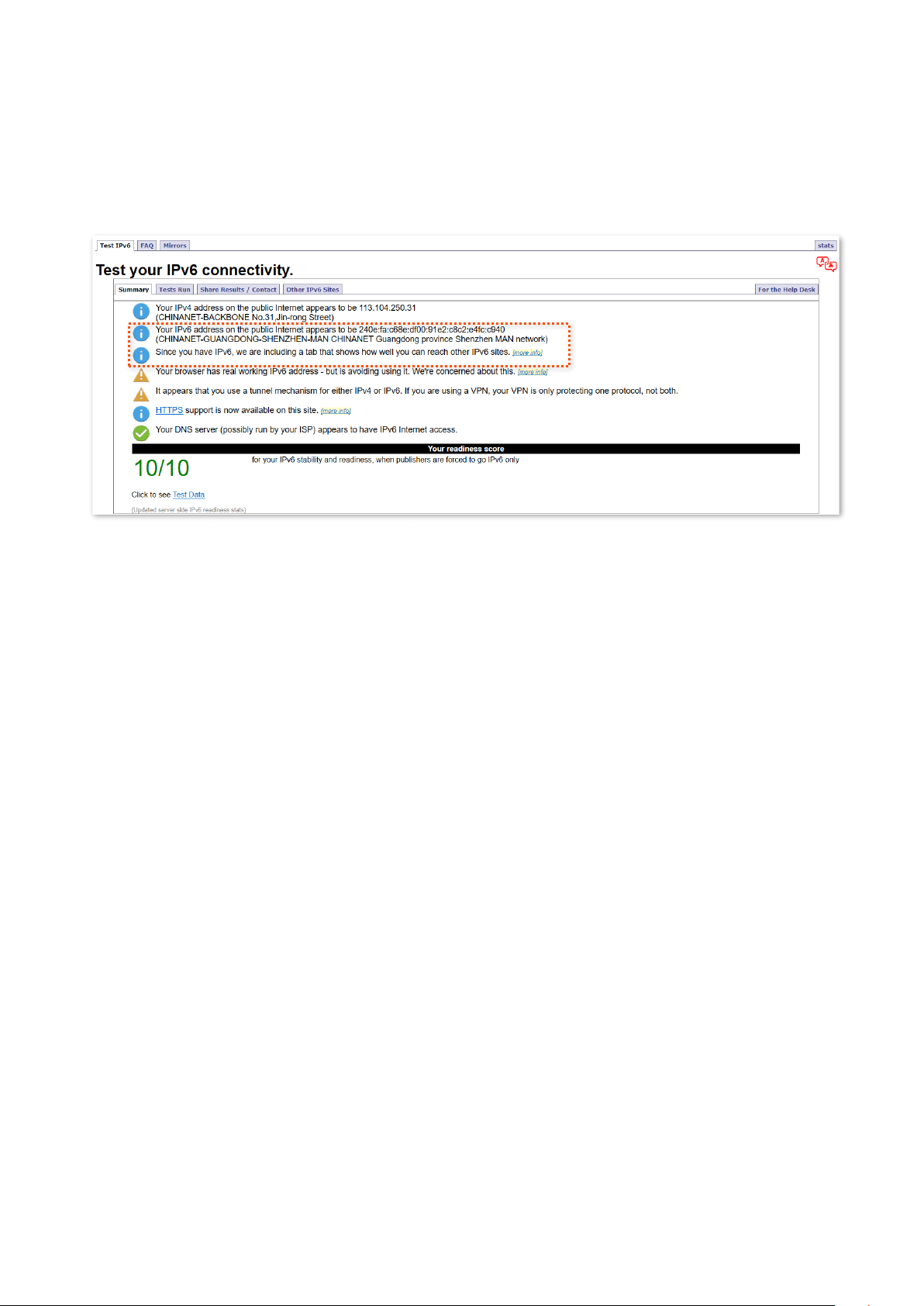
83
IPv6 network test:
Start a web browser on a phone or a computer that is connected to the router, and visit test-
ipv6.com. The website will test your IPv6 connection status.
When “You have IPv6” is shown on the page, it indicates that the configurations succeed and you
can access IPv6 services.
If the IPv6 network test fails, try the following solutions:
− Navigate to the System Settings > System Status, and move to the IPv6 Status part.
Ensure that the IPv6 WAN address is a global unicast address.
− Ensure that devices connected to router obtain their IPv6 address through DHCPv6.
− Consult your ISP for help.
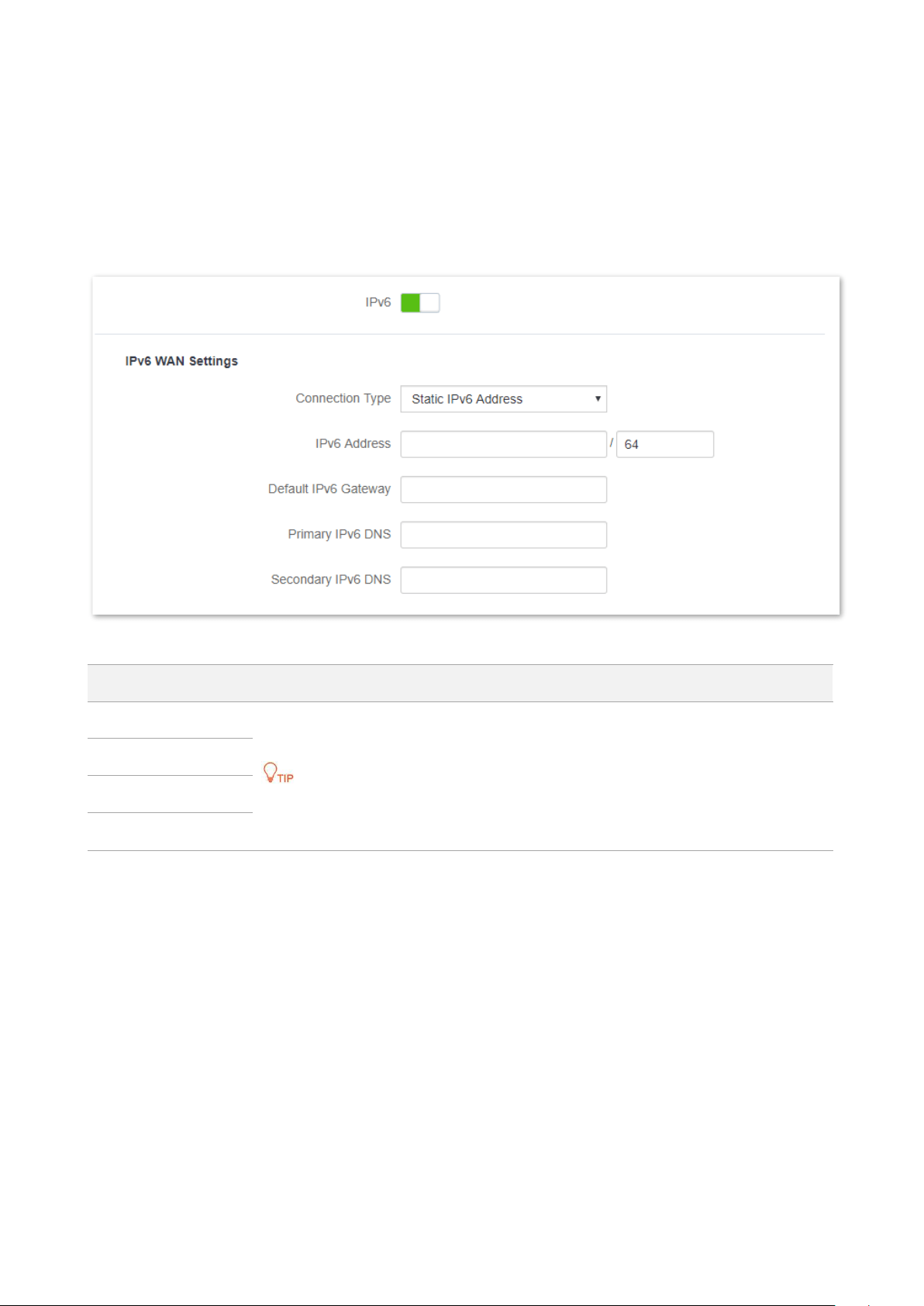
84
Static IPv6 Address
Overview
When your ISP provides you with information including IPv6 address, subnet mask, default
gateway and DNS server, you can choose this connection type to access the internet with IPv6.
Log in to the web UI of the router, and navigate to the IPv6. When the connection type is set to
Static IPv6 Address, the page is shown as below.
Parameter description
Parameter
Description
IPv6 Address
It specifies the fixed IP address information provided by your ISP.
If your ISP only provides one DNS address, leave the secondary IPv6 DNS blank.
Default IPv6 Gateway
Primary IPv6 DNS
Secondary IPv6 DNS
Access the internet through PPPoEv6
Configuring procedure:
Step 1 Start a web browser on a device connected to the router and visit tendawifi.com to log in
to the web UI of the router.
Step 2 Choose IPv6.
Step 3 Enable the IPv6 function.
Step 4 Set the connection type to Static IPv6 Address.
Step 5 Enter the required parameters under IPv6 WAN settings.
Step 6 Enter the IPv6 LAN prefix provided by your ISP in IPv6 LAN Prefix Length.
Step 7 Click Save.
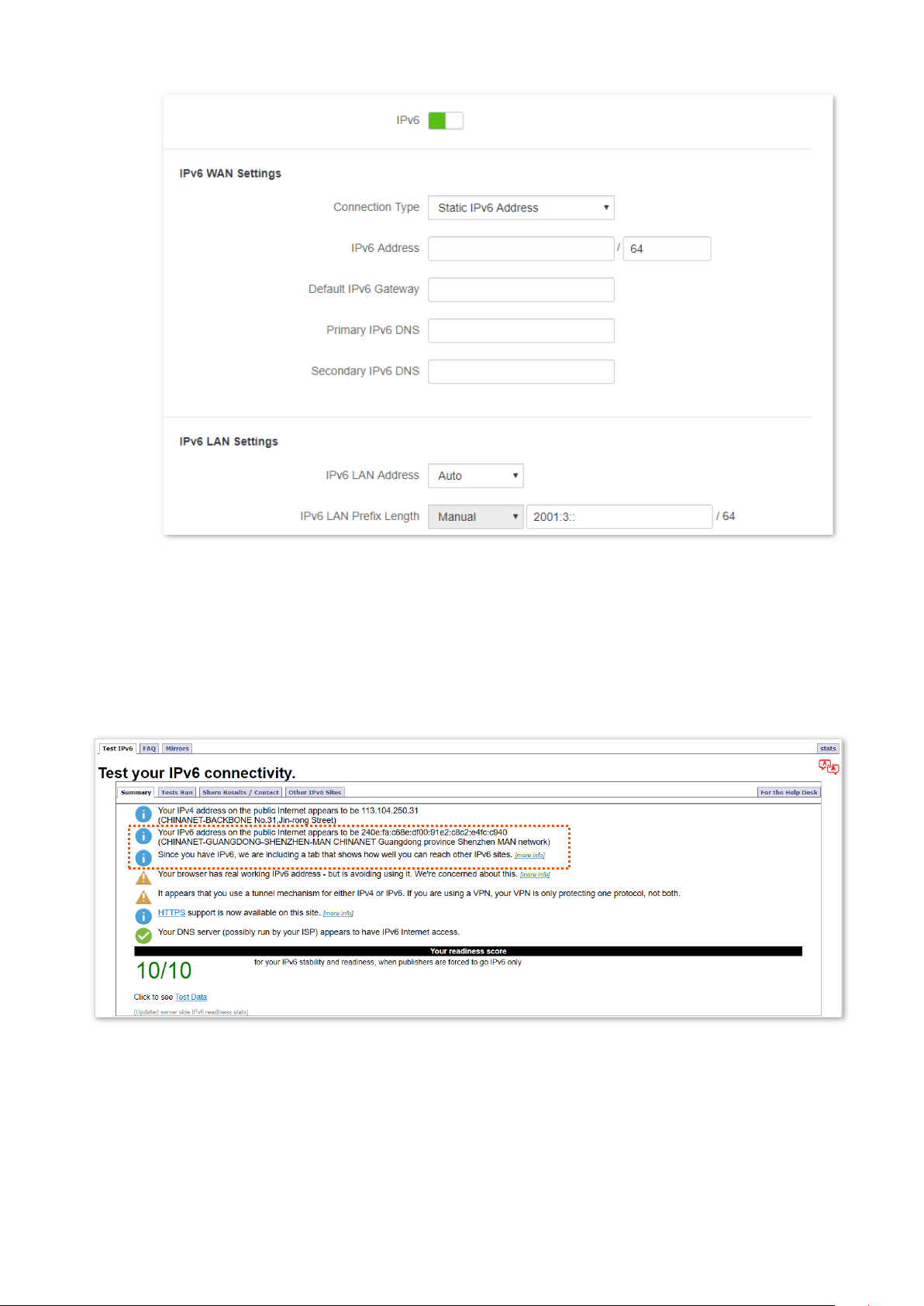
85
---End
IPv6 network test:
Start a web browser on a phone or a computer that is connected to the router, and visit test-
ipv6.com. The website will test your IPv6 connection status.
When “You have IPv6” is shown on the page, it indicates that the configurations succeed and you
can access IPv6 services.
If the IPv6 network test fails, try the following solutions:
− Ensure that you have entered the correct WAN IPv6 address.
− Ensure that devices connected to router obtain their IPv6 address through DHCPv6.
− Consult your ISP for help.
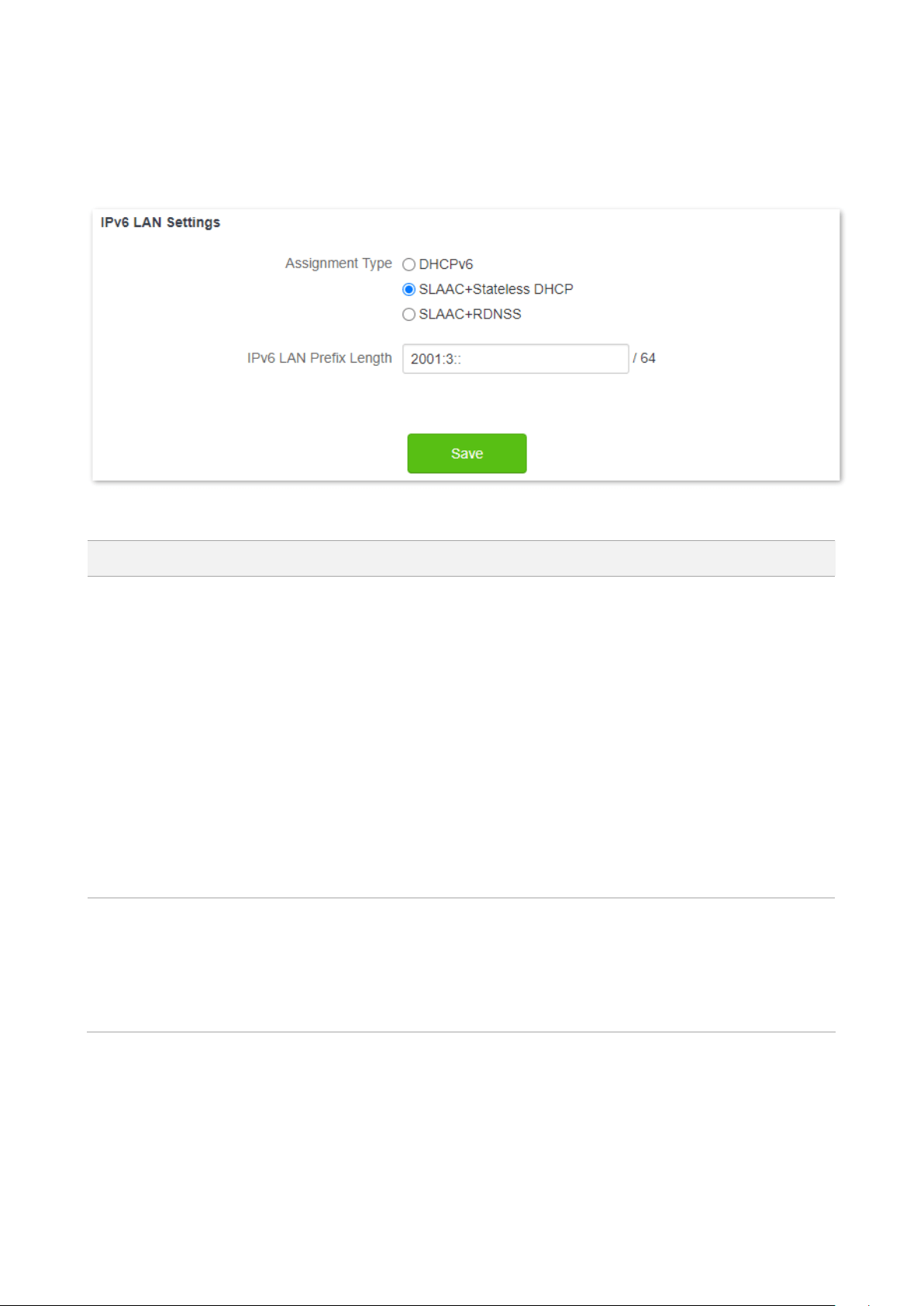
86
9.2 IPv6 LAN settings
To access the page, log in to the web UI of the router and choose IPv6.
You can change the IPv6 LAN settings here.
Parameter description
Parameter
Description
Assignment Type
It specifies how the router assigns IPv6 address to its clients.
⚫
DHCPv6: Dynamic Host Configuration Protocol for IPv6 (DHCPv6) indicates that a
client obtains the complete IPv6 address information from the DHCPv6 server,
including the DNS server address. The gateway address is obtained through Router
Advertisement (RA).
⚫
SLAAC+Stateless DHCP: It indicates that a client obtains the IPv6 prefix and gateway
address through RA, DNS server address from the DHCPv6 server. And the client
generates its unique IPv6 address using the IPv6 prefix contained in the RA and
interface ID which is generated using the EUI-64 method or generated randomly by
the client.
⚫
SLAAC+RDNSS: It indicates that a client obtains an IPv6 prefix and gateway address
through RA and DNS server address from the RDNSS option. And the client generates
its unique IPv6 address using the IPv6 prefix contained in the RA and interface ID
which is generated using the EUI-64 method or generated randomly by the client.
IPv6 LAN Prefix
Length
It specifies the LAN IPv6 prefix.
⚫
If you enable the Obtain IPv6 Prefix Delegation option in IPv6 WAN settings, the
router obtains its LAN IPv6 prefix from its upstream device.
⚫
If you disable the Obtain IPv6 Prefix Delegation option in IPv6 WAN settings, you can
configure the LAN IPv6 prefix manually.
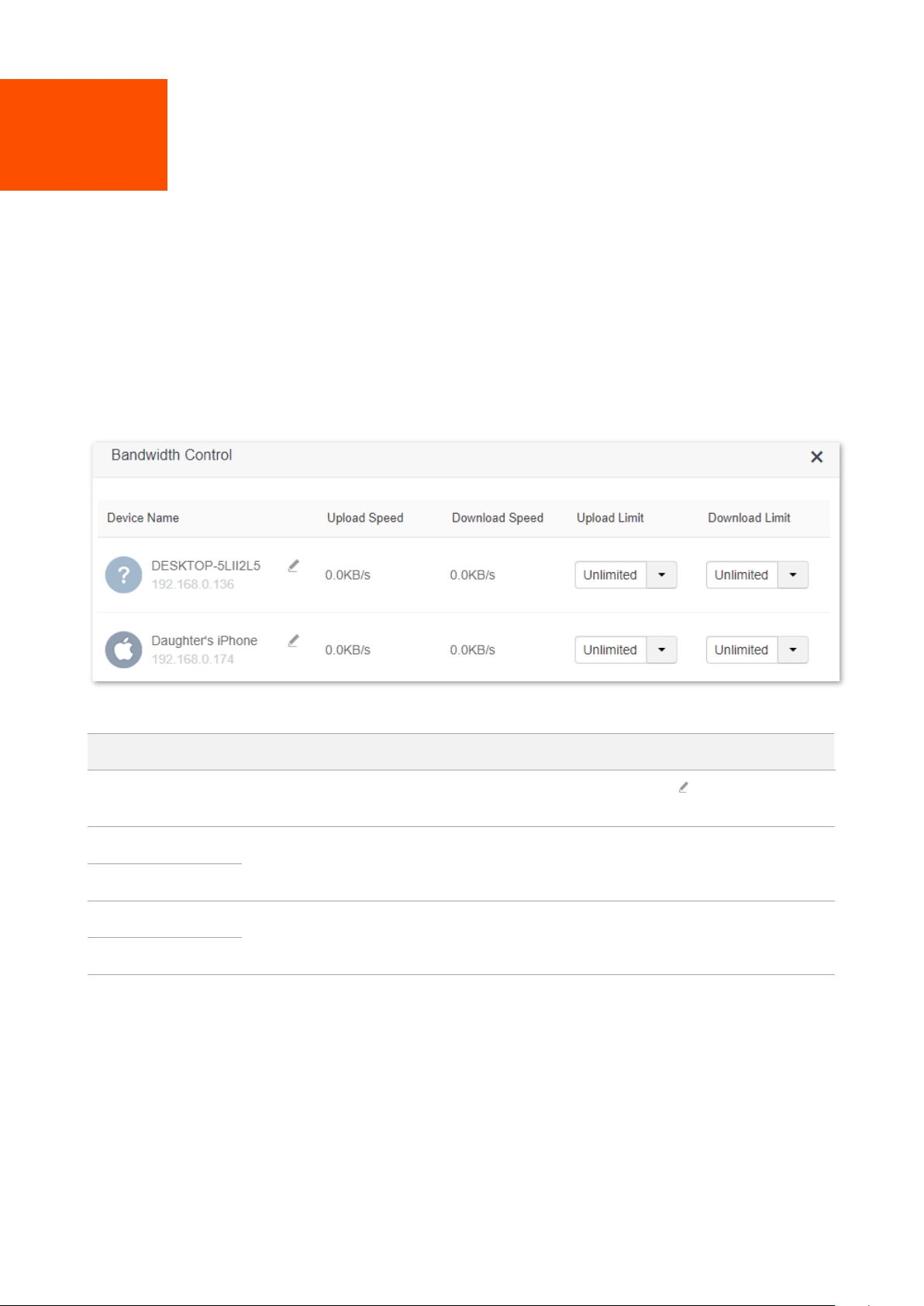
87
10 Advanced settings
10.1 Bandwidth control
10.1.1 Overview
By configuring this function, you can limit the upload and download speed of devices connected to
the router and allocate the bandwidth reasonably.
To access the configuration page, log in to the web UI of the router and choose Advanced
Settings > Bandwidth Control.
Parameter description
Parameter
Description
Device Name
It specifies the name and IP address of the device. You can click to change the
name of the device.
Upload Speed
It specifies the current upload and download speed of the device.
Download Limit
Upload Limit
It specifies the upload and down load speed limit for the device. You can click the
drop-down box to choose a number or set it manually.
Download Limit
10.1.2 Set the upload and download speed limit for users
Scenario: You want to allocate bandwidth equally among connected and enable all connected
devices to enjoy smooth 720p videos.
Solution: Configure the bandwidth control function to meet the requirement.
Configuring procedure:
Step 1 Start a web browser on a device connected to the router and visit tendawifi.com to log in
to the web UI of the router.
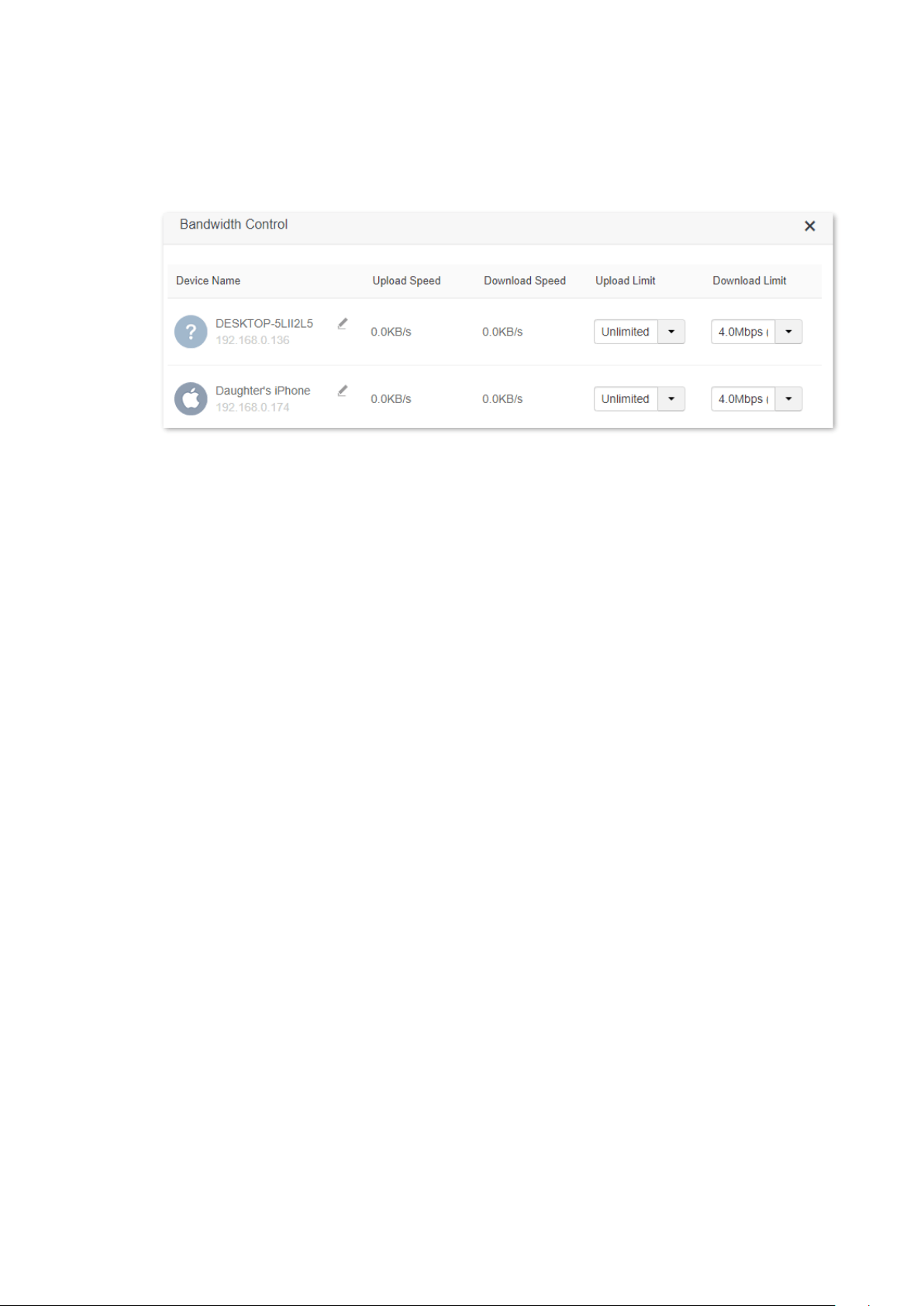
88
Step 2 Choose Advanced Settings > Bandwidth Control.
Step 3 Target the devices to be controlled, and set the Download Limit to 4.0 Mbps (For HD
Video).
Step 4 Click Save.
---End
After the configuration, the highest speed for the device is 4 Mbps (or 512 KB/s) and satisfies the
requirement of 720p videos.
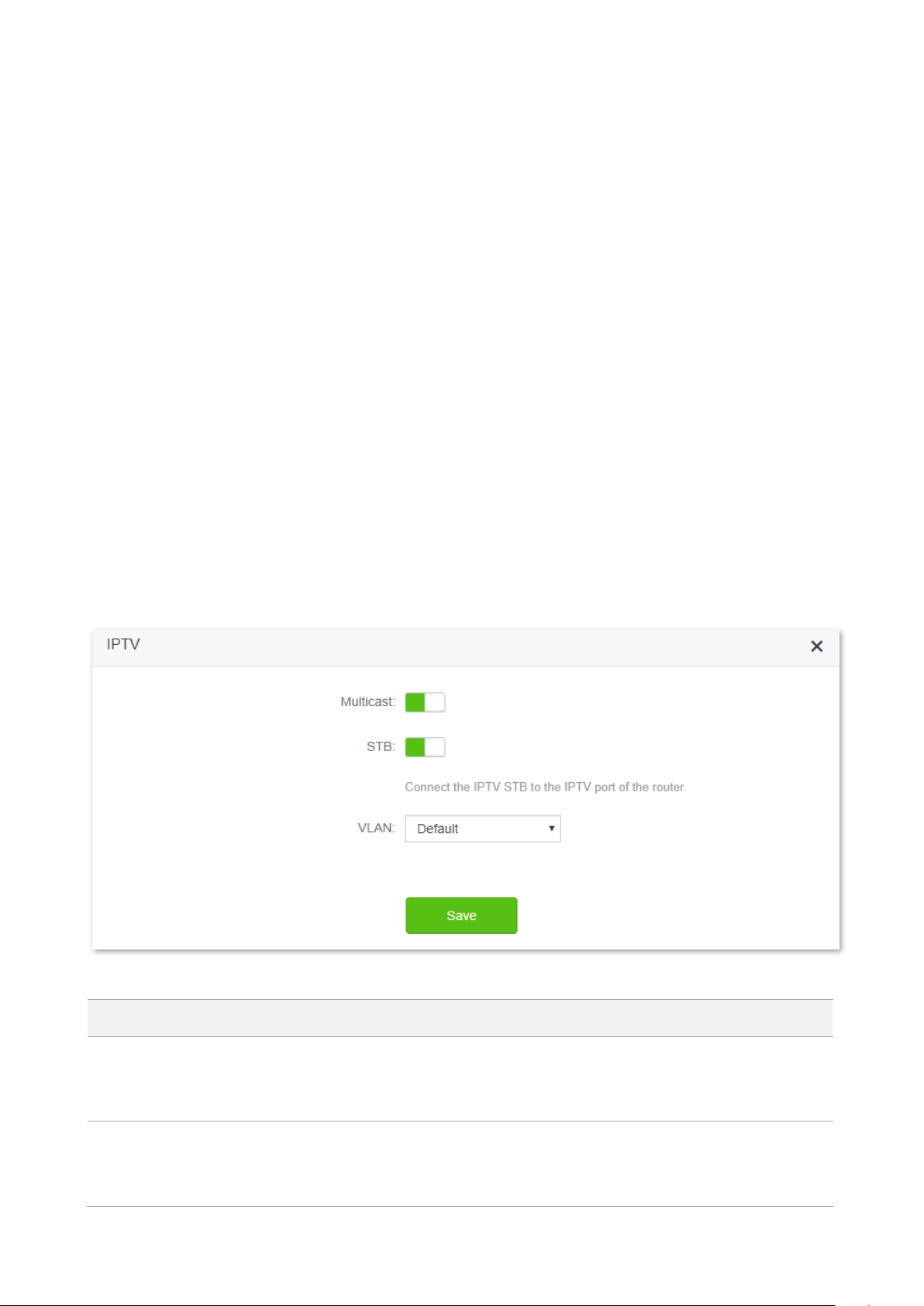
89
10.2 IPTV
IPTV settings on this page may differ with product models. Refer to the corresponding category for
guidance.
10.2.1 AX1800 series Wi-Fi 6 router
Overview
IPTV is the technology integrating internet, multimedia, telecommunication and many other
technologies, providing interactive services, including digital TV, to family users by internet
broadband lines.
You can set the multicast and STB functions here.
− Multicast: If you want to watch multicast videos from the WAN side of the router on
your computer, you can enable the multicast function of the router.
− STB (Set Top Box): If the IPTV service is included in your broadband service, you are
enabled to enjoy both internet access through the router and rich IPTV contents with
a set top box.
To access the configuration page, log in to the web UI of the router and choose Advanced
Settings > IPTV.
The IPTV function is disabled by default. When it is enabled, the page is shown below.
Parameter description
Parameter
Description
STB
It is used to enable and disable the IPTV function of the router.
When this function is enabled, the port IPTV/3 can be used only as an IPTV port and be
connected to an IPTV set top box.
VLAN
It specifies the VLAN ID of your IPTV service.
⚫
If your ISP does not provide any VLAN ID information when the IPTV service is available,
please keep Default.
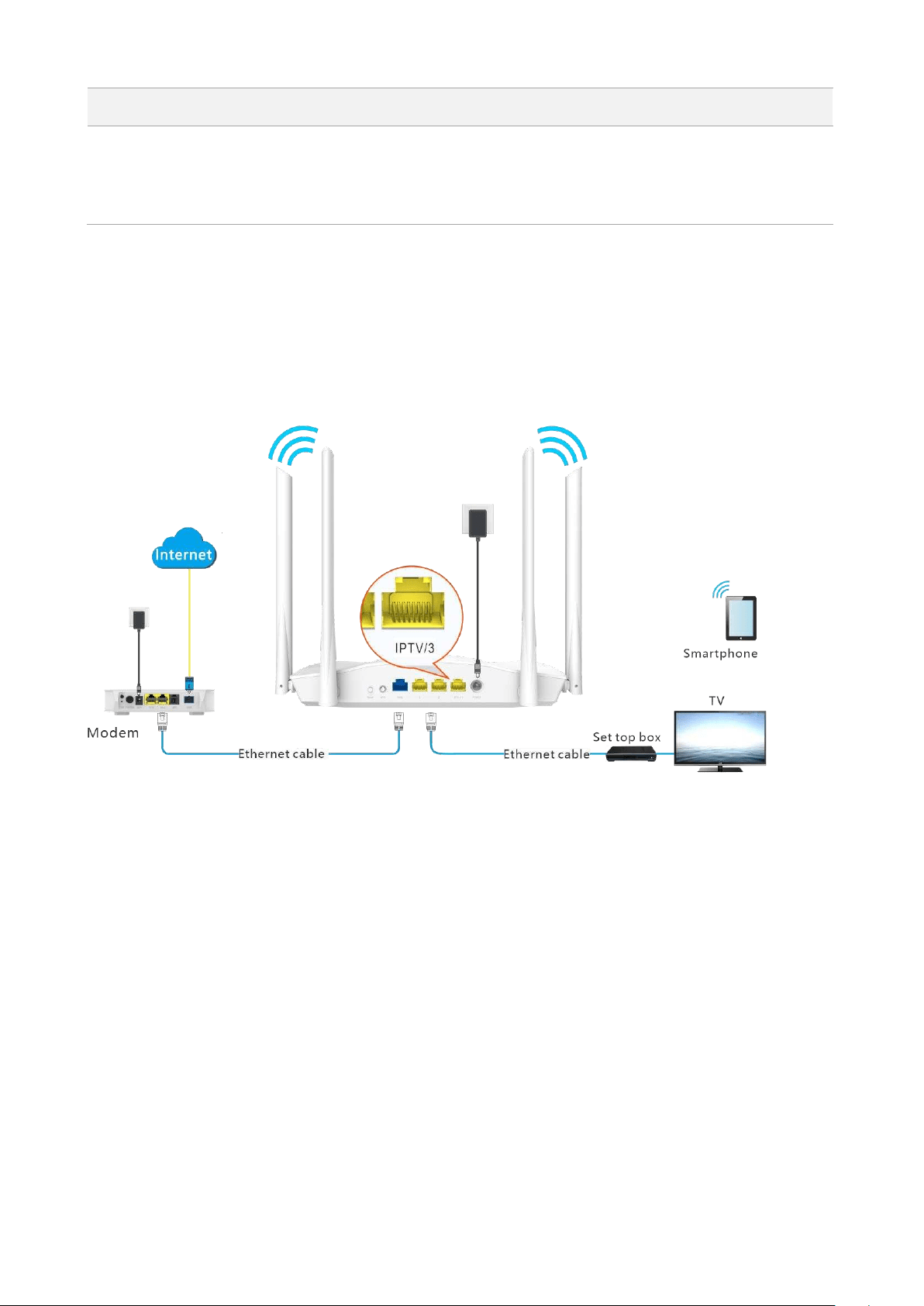
90
Parameter
Description
⚫
If you have obtained VLAN ID from your ISP when the IPTV service is available, please
choose Custom VLAN and enter the VLAN value.
⚫
If you purchased the IPTV service in Shanghai, choose Shanghai VLAN and the desired
VLAN ID.
Watch IPTV programs through the router
Scenario: The IPTV service is included in your broadband service. You have obtained the IPTV
account and password from your ISP, but no VLAN information.
Goal: Watch IPTV programs through the router.
Solution: You can configure the IPTV function to reach the goal.
Configuring procedure:
Step 1 Set your router.
1. Start a web browser on a device connected to the router and visit tendawifi.com to log in
to the web UI of the router.
2. Choose Advanced Settings > IPTV.
3. Enable the STB function.
4. Click Save.
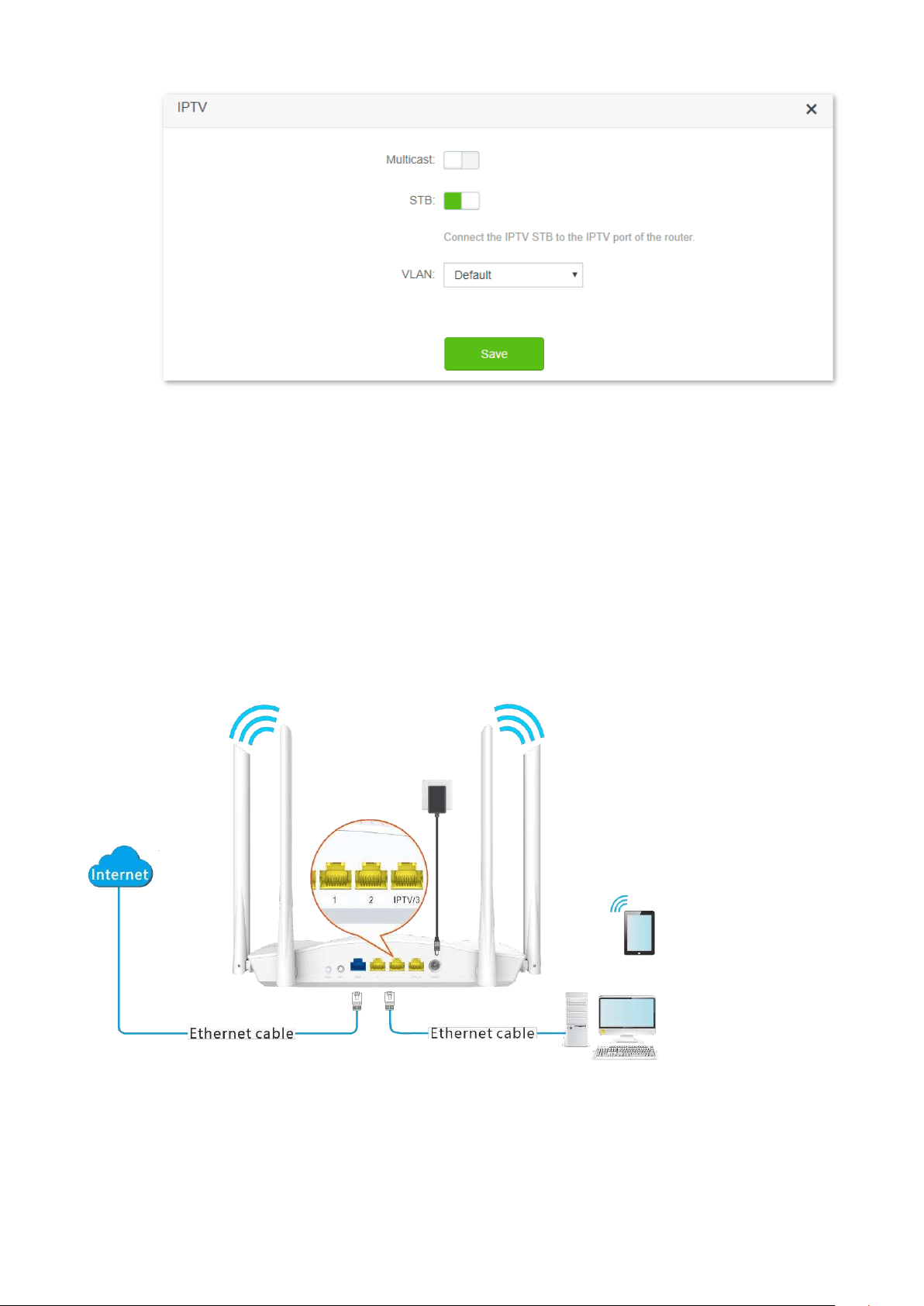
91
Step 2 Configure the set top box.
Use the IPTV user name and password to dial up on the set top box.
---End
When completing the configurations, you can watch IPTV programs on your TV.
Watch multicast videos through the router
Scenario: You have the address of multicast videos.
Goal: You are able to watch multicast videos.
Solution: You can configure the multicast function to reach the goal.
Configuring procedure:
Step 1 Start a web browser on a device connected to the router and visit tendawifi.com to log in
to the web UI of the router.
Step 2 Choose Advanced Settings > IPTV.
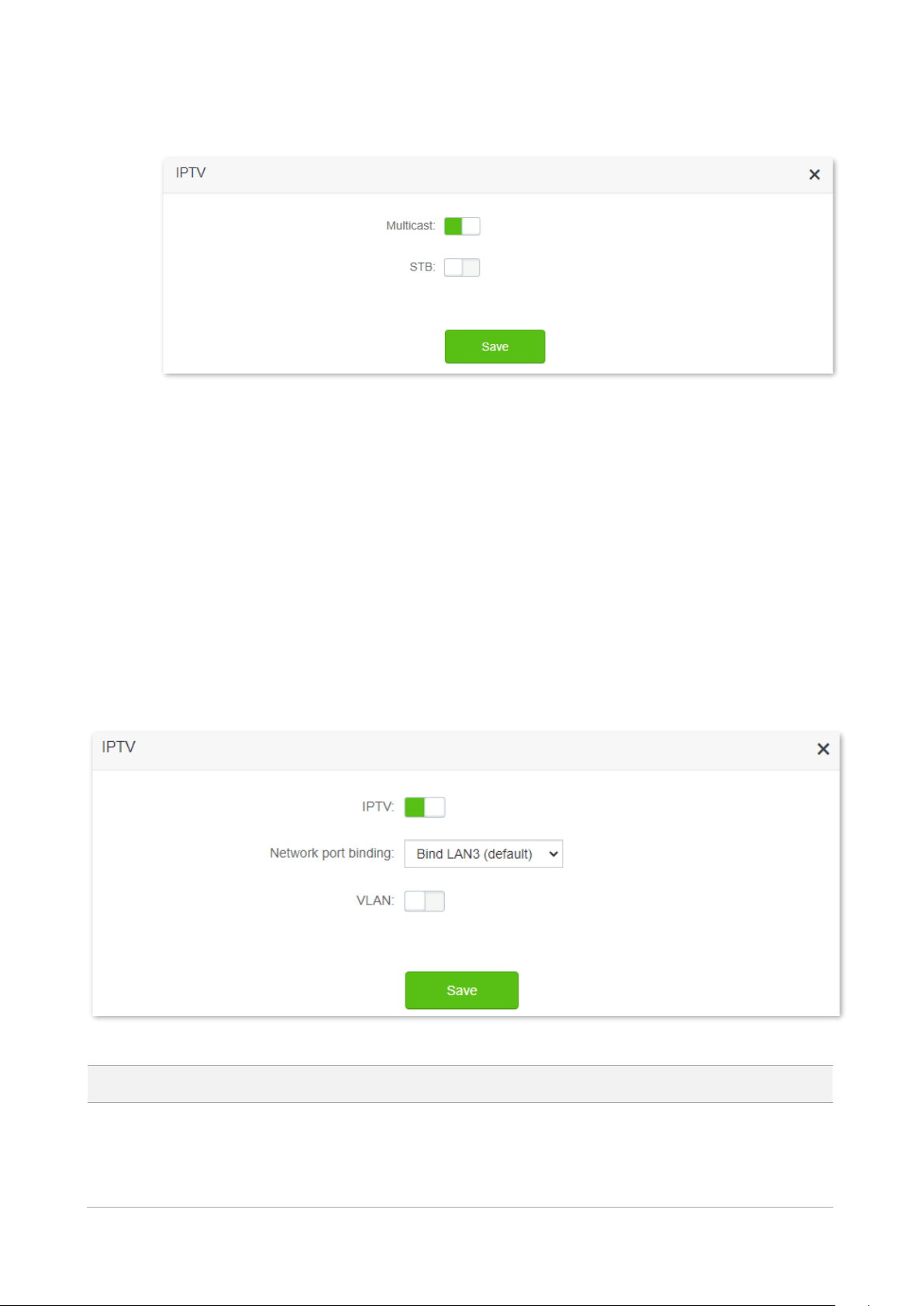
92
Step 3 Enable the Multicast function.
Step 4 Click Save.
---End
When completing the configurations, you can watch multicast videos on your computer.
10.2.2 AX3000 series Wi-Fi 6 router
Overview
If the IPTV service is included in your broadband service, you can enable the IPTV function of the
router, therefore accessing the internet and watching IPTV programs through the router at the
same time.
To access the configuration page, log in to the web UI of the router and choose Advanced
Settings > IPTV.
The IPTV function is disabled by default. When it is enabled, the page is shown below.
Parameter description
Parameter
Description
Network port
binding
It is used to set the IPTV port of the router.
The IPTV port can only be used to connect to a set-top box for IPTV service when the IPTV
function is enabled. By default, LAN3 (IPTV/3) is the IPTV port. you can change it as
required.
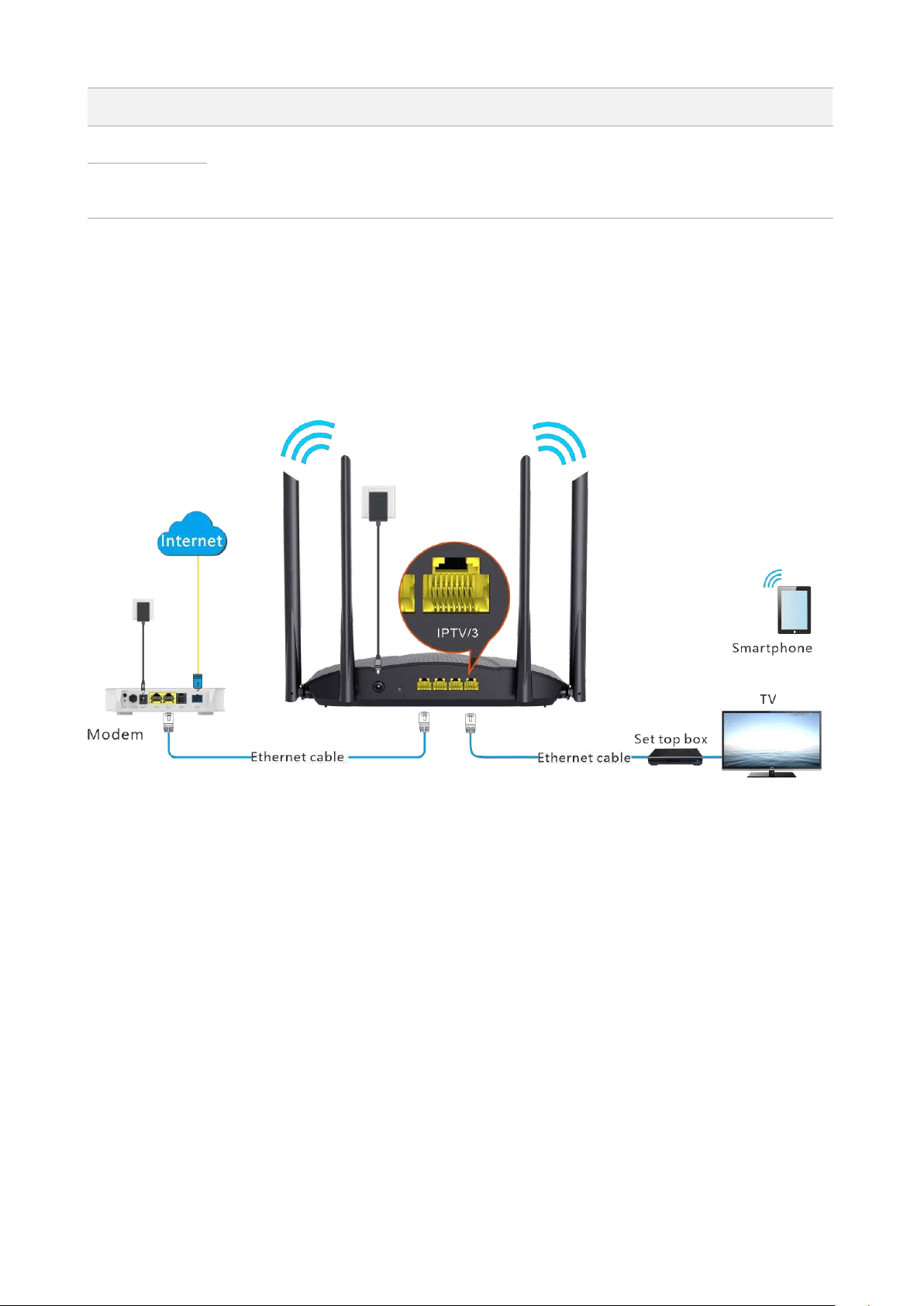
93
Parameter
Description
VLAN
It specifies whether to enable the VLAN function.
If your IPTV function supports VLAN, enable it and enter the VLAN value provided by your
ISP.
VLAN value
setting
Watch IPTV programs through the router
Scenario: The IPTV service is included in your broadband service. You have obtained the IPTV
account and password from your ISP, but no VLAN information.
Goal: Watch IPTV programs through the router.
Solution: You can configure the IPTV function to reach the goal. (RX9 Pro is used for illustration
here)
Configuring procedure:
Step 1 Set your router.
1. Start a web browser on a device connected to the router and visit tendawifi.com to log in
to the web UI of the router.
2. Choose Advanced Settings > IPTV.
3. Enable the IPTV function.
4. Click Save.
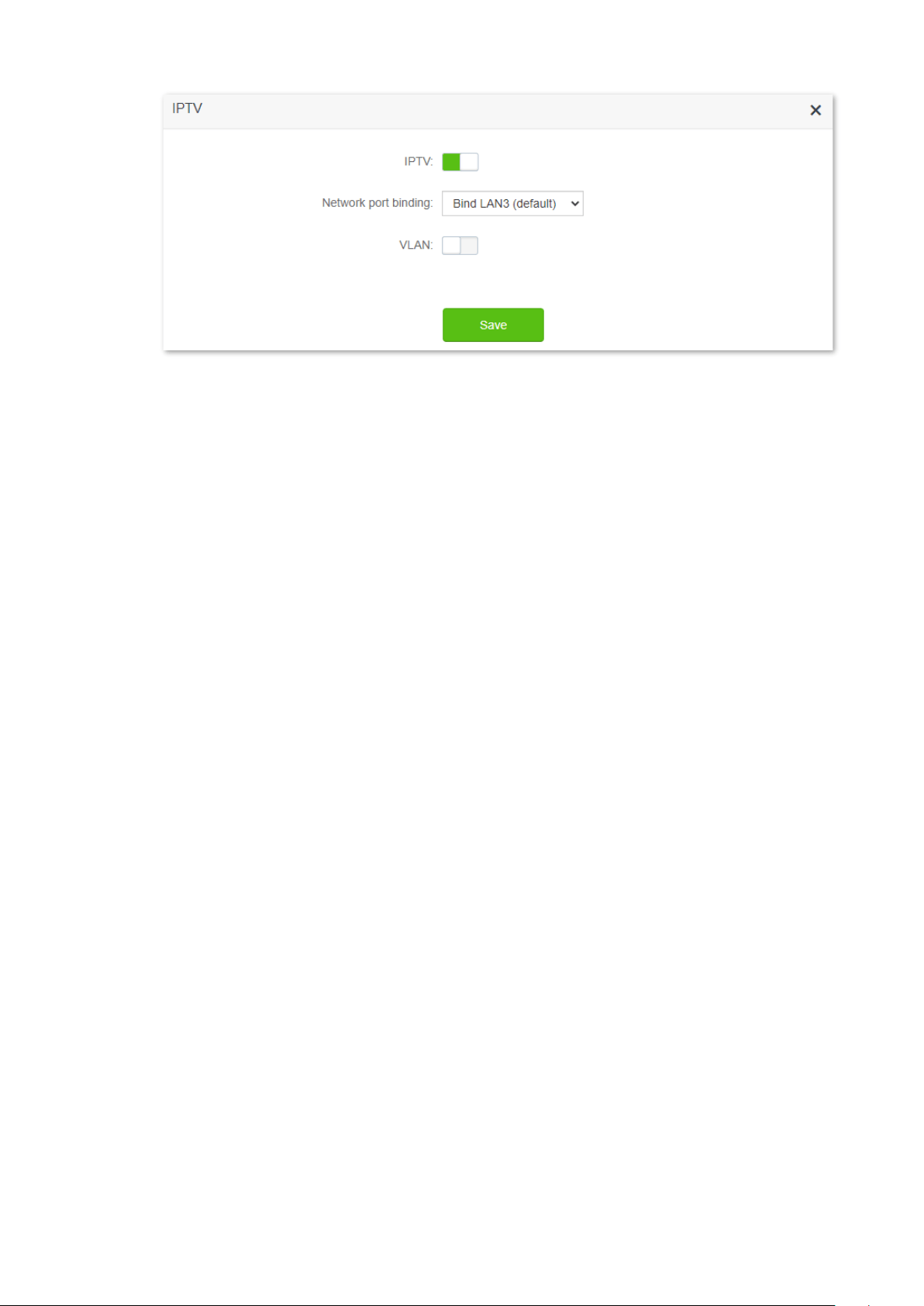
94
Step 2 Configure the set top box.
Use the IPTV user name and password to dial up on the set top box.
---End
When completing the configurations, you can watch IPTV programs on your TV.
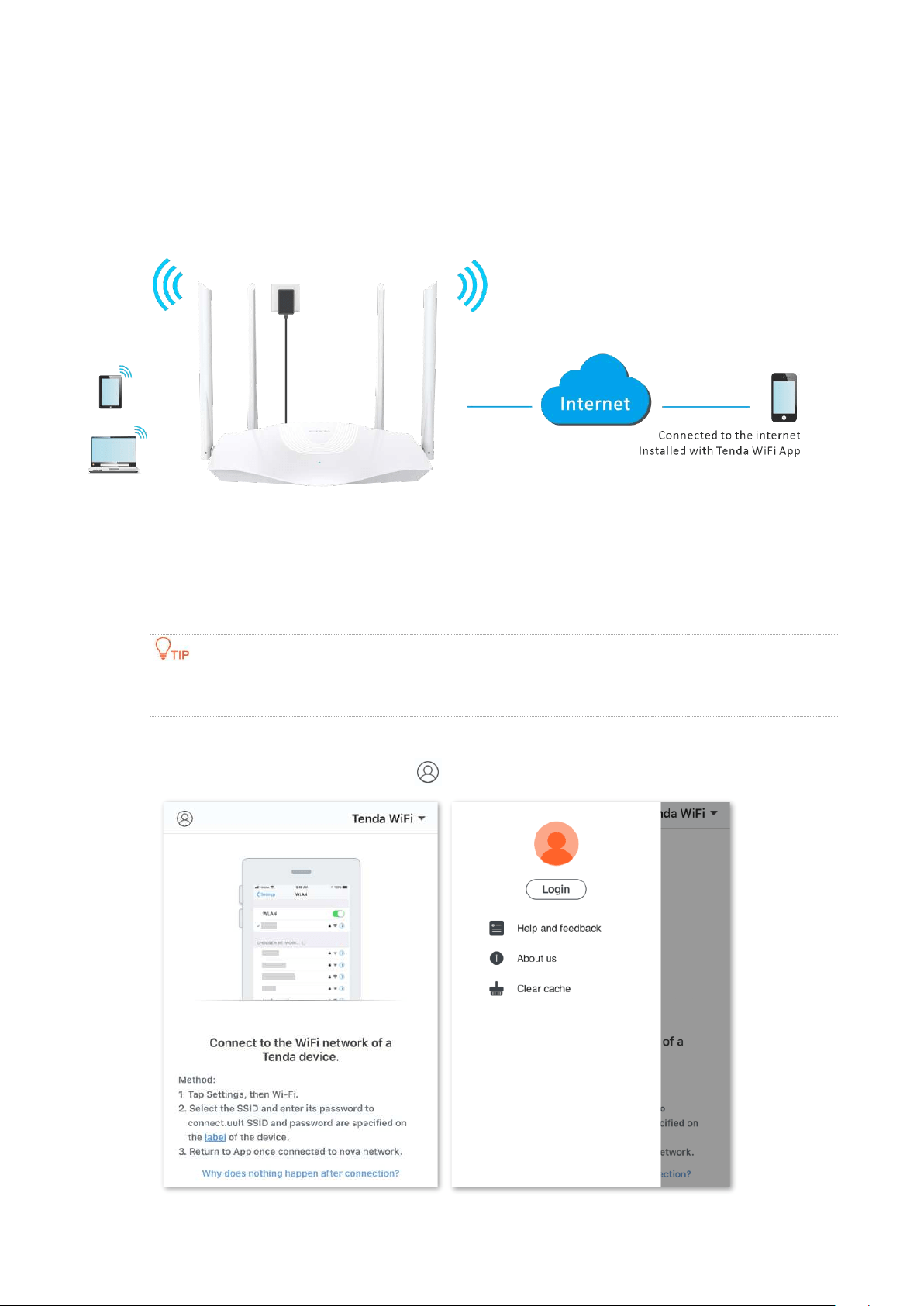
95
10.3 Tenda WiFi App
The router supports management through the Tenda WiFi App. With the App, you can:
− Manage your router within the LAN or through the internet.
− View and download resources on the USB storage device within the LAN and through
the internet (available for routers with USB port).
To manage the router with Tenda WiFi App, follow the steps below (Example: iPhone).
Configuring procedure:
Step 1 Go to the App store and search for the Tenda WiFi App. Download and install it on your
phone.
If you already have a Tenda WiFi App account or want to use the fast login approach, skip to Step 3 and
proceed with the settings.
Step 2 (Optional) Register an account in the Tenda WiFi App.
1.
Open the Tenda WiFi App, tap the at the top left corner and tap Login.
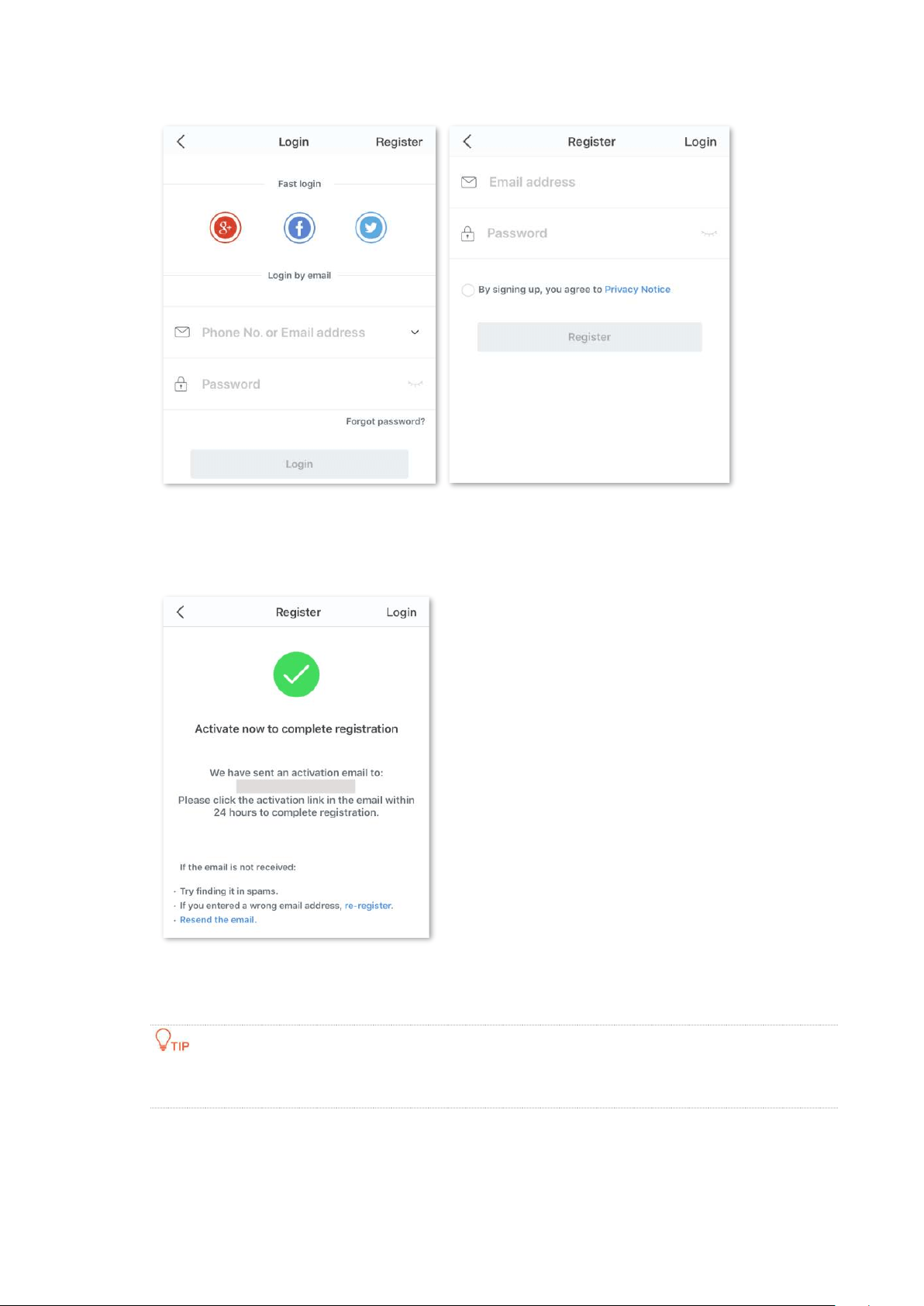
96
2. Tap Register at the top right corner, and register with an Email account.
3. Check the Email sent to your Email account and follow the instruction to finish the Email
account confirmation process.
4. Click Login at the top right corner of the registration page.
Step 3 Log in with the confirmed account.
Follow the instructions on the home page of the Tenda WiFi App to add the router.
You can also choose to log in with your google, facebook and twitter account without registering a
Tenda WiFi App account. Choose an option in Fast login.
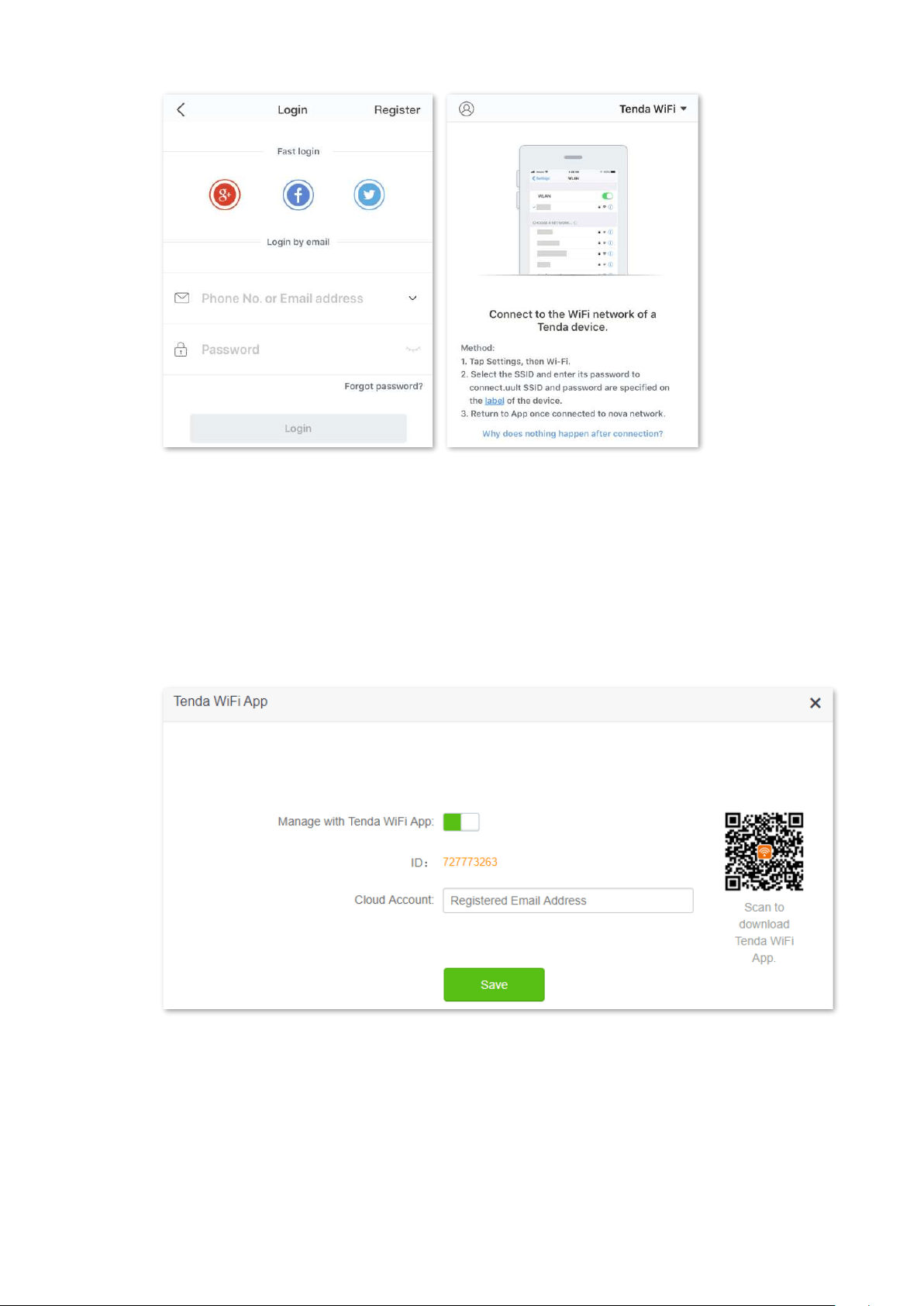
97
Step 4 Bind your router with your smart phone.
1. Start a web browser on the phone connected to the router and visit tendawifi.com to log
in to the web UI of the router.
2. Choose Advanced Settings > Tenda WiFi App.
3. Enable Manage with Tenda WiFi App.
4. Enter an account registered in the Tenda WiFi App in Cloud Account.
5. Click Save.
---End
When completing the configurations, you can manage your router with Tenda WiFi App on your
phone anywhere and anytime through the internet.
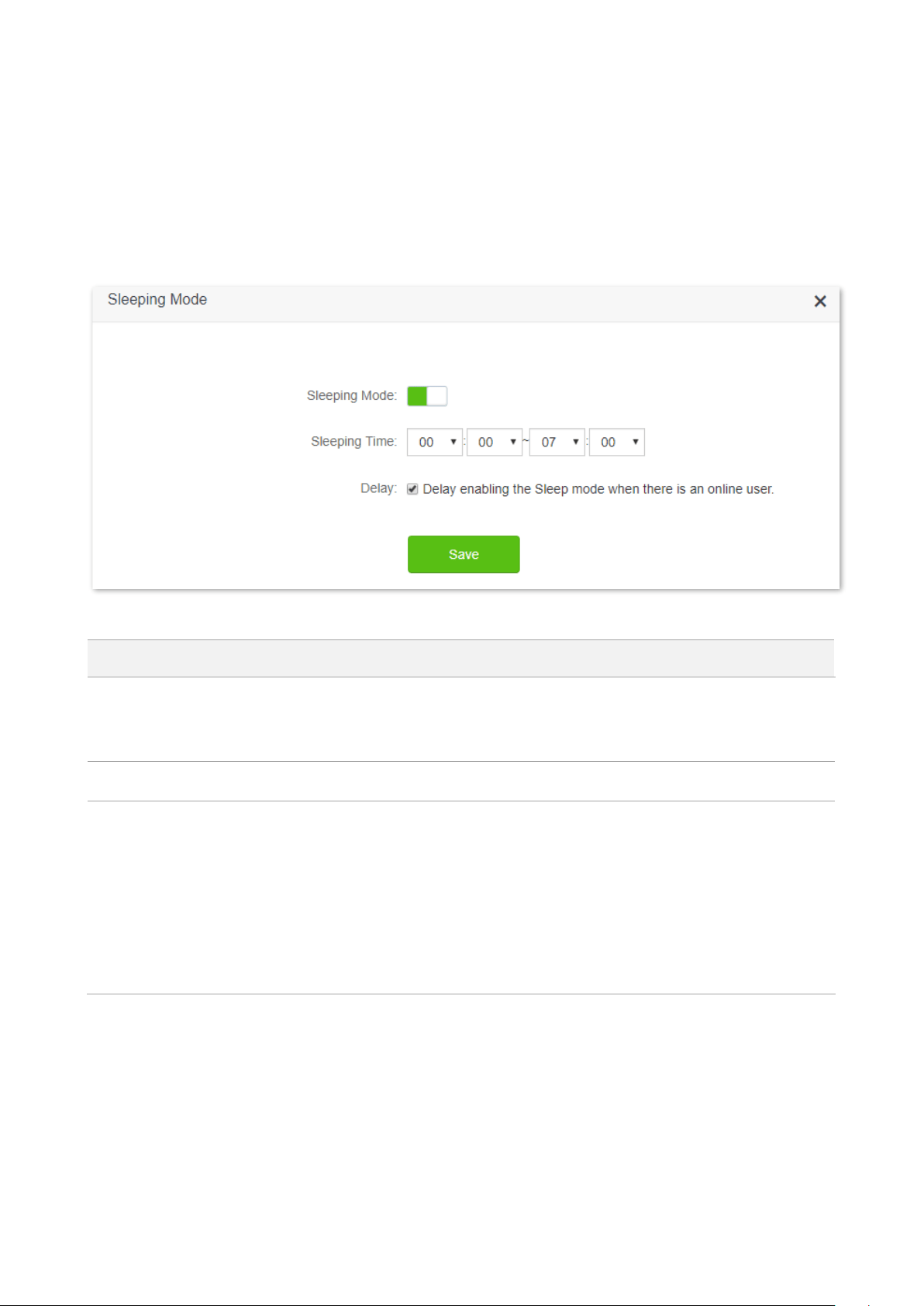
98
10.4 Sleeping mode
When the sleeping mode function is enabled, the router turns off its LED indicators and disables
the WiFi network during the specified period.
To access the configuration page, log in to the web UI of the router, and choose Advanced
Settings > Sleeping Mode.
This function is disabled by default. When it is enabled, the page is shown as below.
Parameter description
Parameter
Description
Sleeping Mode
It is used to enable or disable the function.
When the router is under sleeping mode and you want to use the WiFi network, use
the Tenda WiFi App to wake up the router.
Sleeping Time
It specifies the period during which the router is under the sleeping mode.
Delay
It is used to enable or disable the Delay function.
⚫
Ticked: The function is enabled. During the sleeping time, if there is any user
connected to the router and the traffic over the router's WAN port exceeds 3 KB/s
within 30 minutes, the router will delay entering the sleeping mode. If there is no
user connected to the router and the traffic over the router's WAN port is slower
than 3 KB/s within 3 minutes, the router will enter the sleeping mode.
⚫
Unticked: The function is disabled. The router enters the sleeping mode during the
sleeping time.
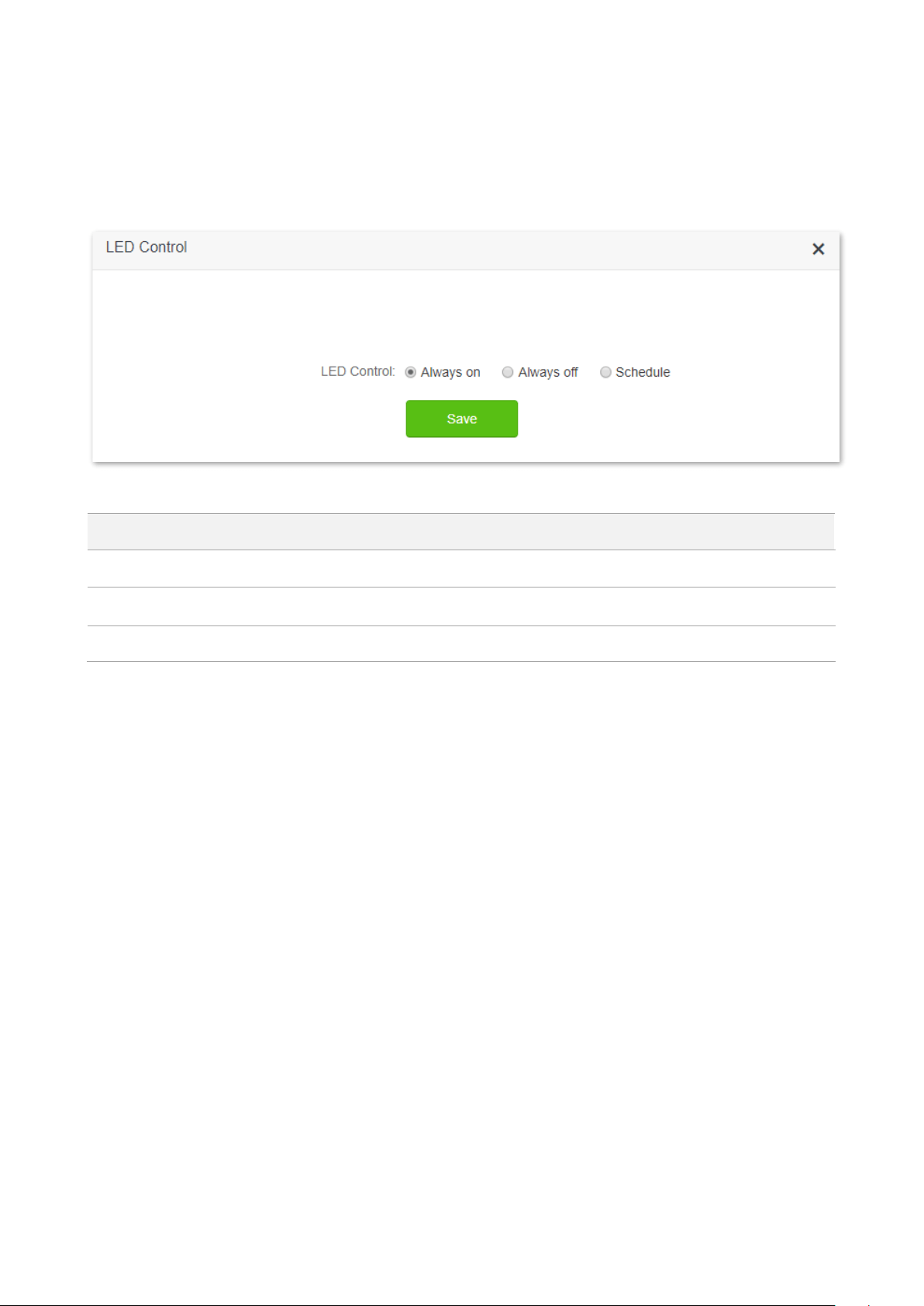
99
10.5 LED control
With the LED control function, you can control the status of the LED indicators.
To access the configuration page, log in to the web UI of the router, and choose Advanced
Settings > LED Control.
Parameter description
Parameter
Description
Always on
All LED indicators stay in their normal status.
Always off
All LED indicators are turned off.
Schedule
LED indicators are only turned off during the specified period.
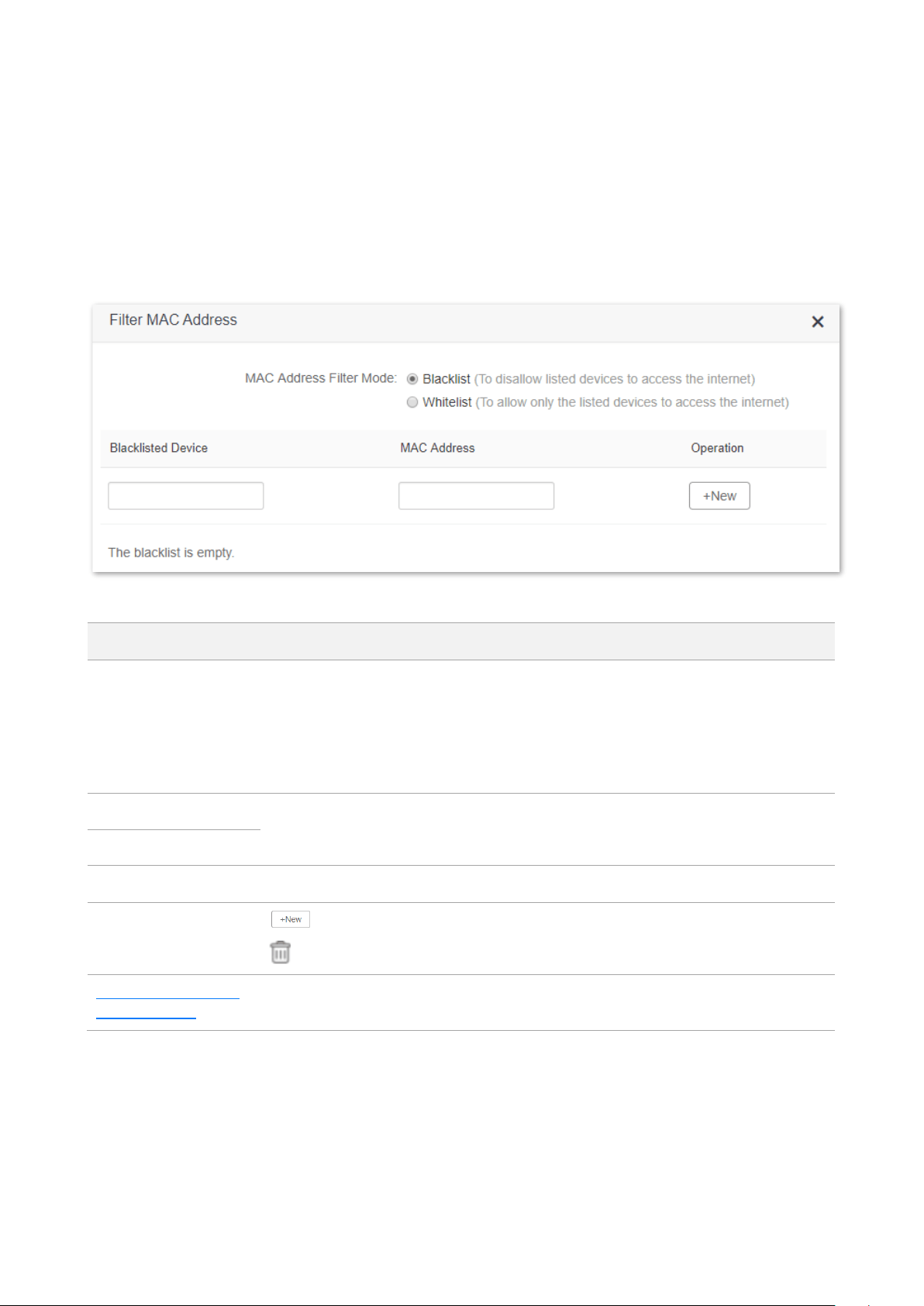
100
10.6 Filter MAC address
10.6.1 Overview
This function enables you to add devices to the whitelist or blacklist to enable or disable specified
users to access the internet through the router.
To access the configuration page, log in to the web UI of the router, and choose Advanced
Settings > Filter MAC address.
Parameter description
Parameter
Description
MAC Address Filter
Mode
It specifies the MAC address filter mode.
⚫
Blacklist: WiFi-enabled devices listed are unable to connect to the WiFi network
of the router, and wired devices listed are unable to access the internet.
⚫
Whitelist: WiFi-enabled devices listed are able to connect to the WiFi network of
the router, and wired devices listed are able to access the internet.
Blacklisted Device
It specifies the name or remark for the device.
Whitelisted Device
MAC Address
It specifies the MAC addresses of devices added to the list.
Operation
: It is used to add new devices the blacklist or whitelist.
: It is used to remove devices from the blacklist or whitelist.
Add all online devices
to the whitelist
It is only available when you set the whitelist for the first time. By clicking it, you can
add all currently connected devices to the whitelist.
10.6.2 Only allow specified device to access the internet
Scenario: The WiFi in your home is misused by unknown users sometimes.
Goal: Only allow certain devices of family members to access the internet.
Solution: You can configure the MAC address filter function to reach the goal.
Assume that:
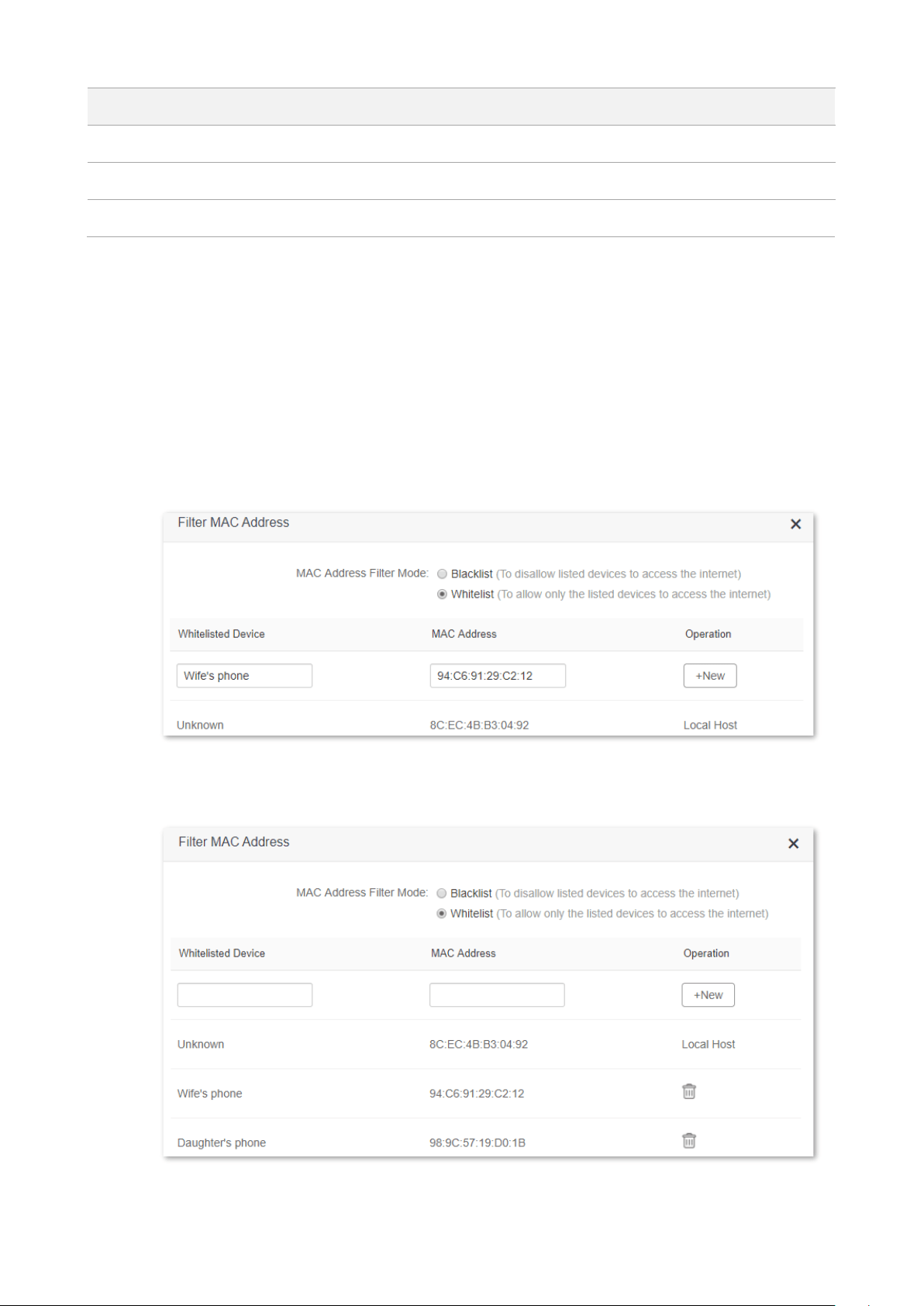
101
Device
MAC address
Status
Your own phone
8C:EC:4B:B3:04:92
Connected
Wife’s phone
94:C6:91:29:C2:12
Disconnected
Daughter’s phone
98:9C:57:19:D0:1B
Disconnected
Configuring procedure:
Step 1 Start a web browser on a device connected to the router and visit tendawifi.com to log in
to the web UI of the router.
Step 2 Choose Advanced Settings > Filter MAC Address.
Step 3 Set the MAC Address Filter Mode to Whitelist.
Step 4 (Optional) Enter the device name in the Whitelist Device field, which is Wife’s phone in
this example.
Step 5 Enter the MAC Address of the device, which is 94:C6:91:29:C2:12 in this example.
Step 6 Click +New.
Step 7 Repeat Step 4 to Step 6 to add Daughter’s phone (98:9C:57:19:D0:1B) to the whitelist.
Step 8 Click Save.
---End

102
When configuration is completed, only the three devices added are able to access the internet
through the router.
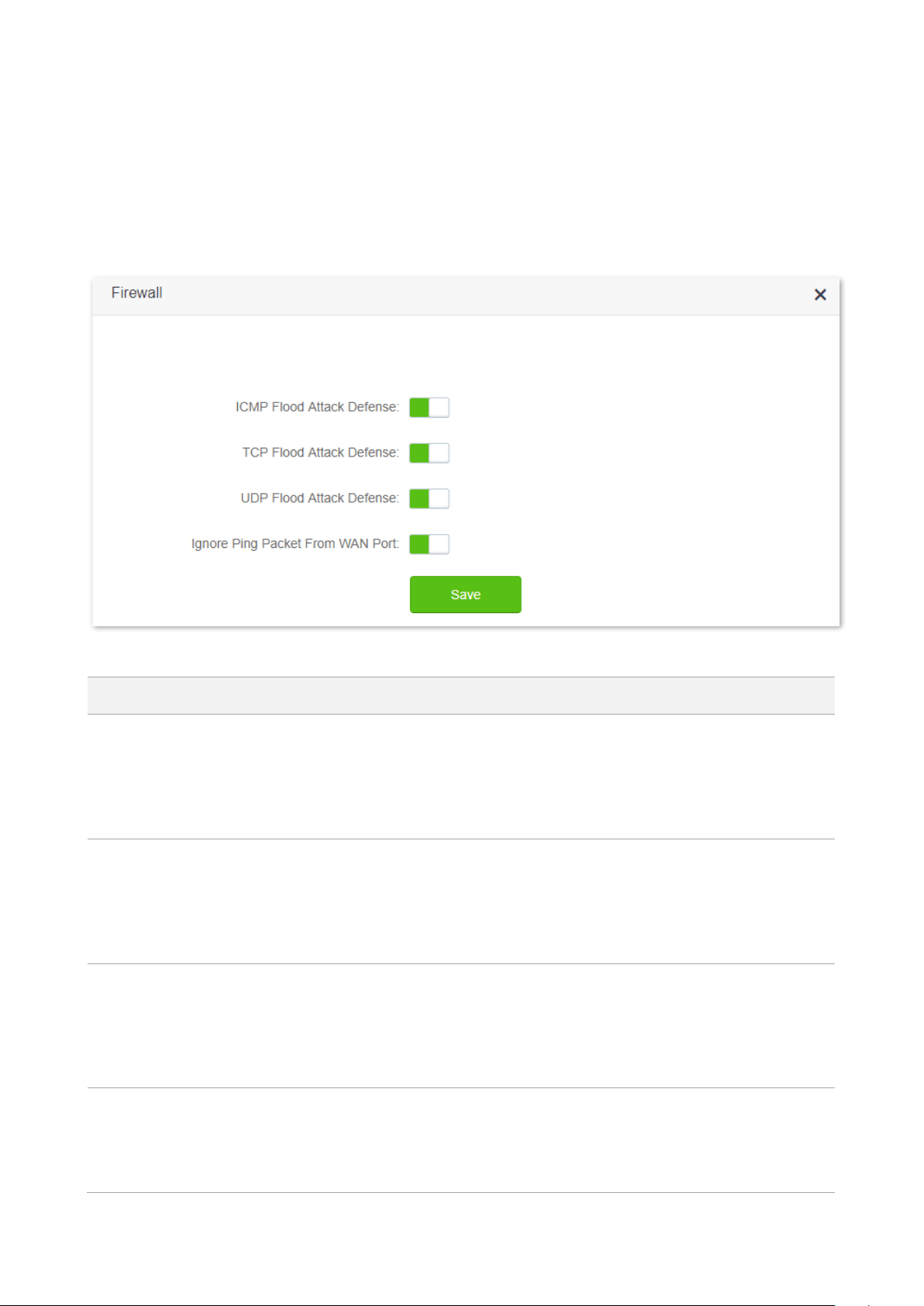
103
10.7 Firewall
The firewall function helps the router detect and defend ICMP flood attack, TCP flood attack and
UDP flood attack, and ignore Ping packet from WAN port. It is recommended to keep the default
settings.
To access the configuration page, log in to the web UI of the router, and choose Advanced
Settings > Firewall.
Parameter description
Parameter
Description
ICMP Flood Attack
Defense
It is used to enable or disable the ICMP flood attack defense.
The ICMP flood attack means that, to implement attacks on the target host, the
attacker sends a large number of ICMP Echo messages to the target host, which
causes the target host to spend a lot of time and resources on processing ICMP
Echo messages, but cannot process normal requests or responses.
TCP Flood Attack
Defense
It is used to enable or disable the TCP flood attack defense.
The TCP flood attack means that, to implement attacks on the target host, the
attacker quickly initiates a large number of TCP connection requests in a short
period of time, and then suspends in a semi-connected state, thereby occupying a
large amount of server resources until the server denies any services.
UDP Flood Attack
Defense
It is used to enable or disable the UDP flood attack defense.
The UDP flood attack is implemented in a similar way with ICMP flood attack, during
which the attacker sends a large number of UDP packets to the target host, causing
the target host to be busy processing these UDP packets, but unable to process
normal packet requests or responses.
Ignore Ping Packet
From WAN Port
It is used to enable or disable the Ignore Ping packet from WAN Port function.
When it is enabled, the router automatically ignores the ping to its WAN from hosts
from the internet and prevent itself from being exposed, while preventing external
ping attacks.
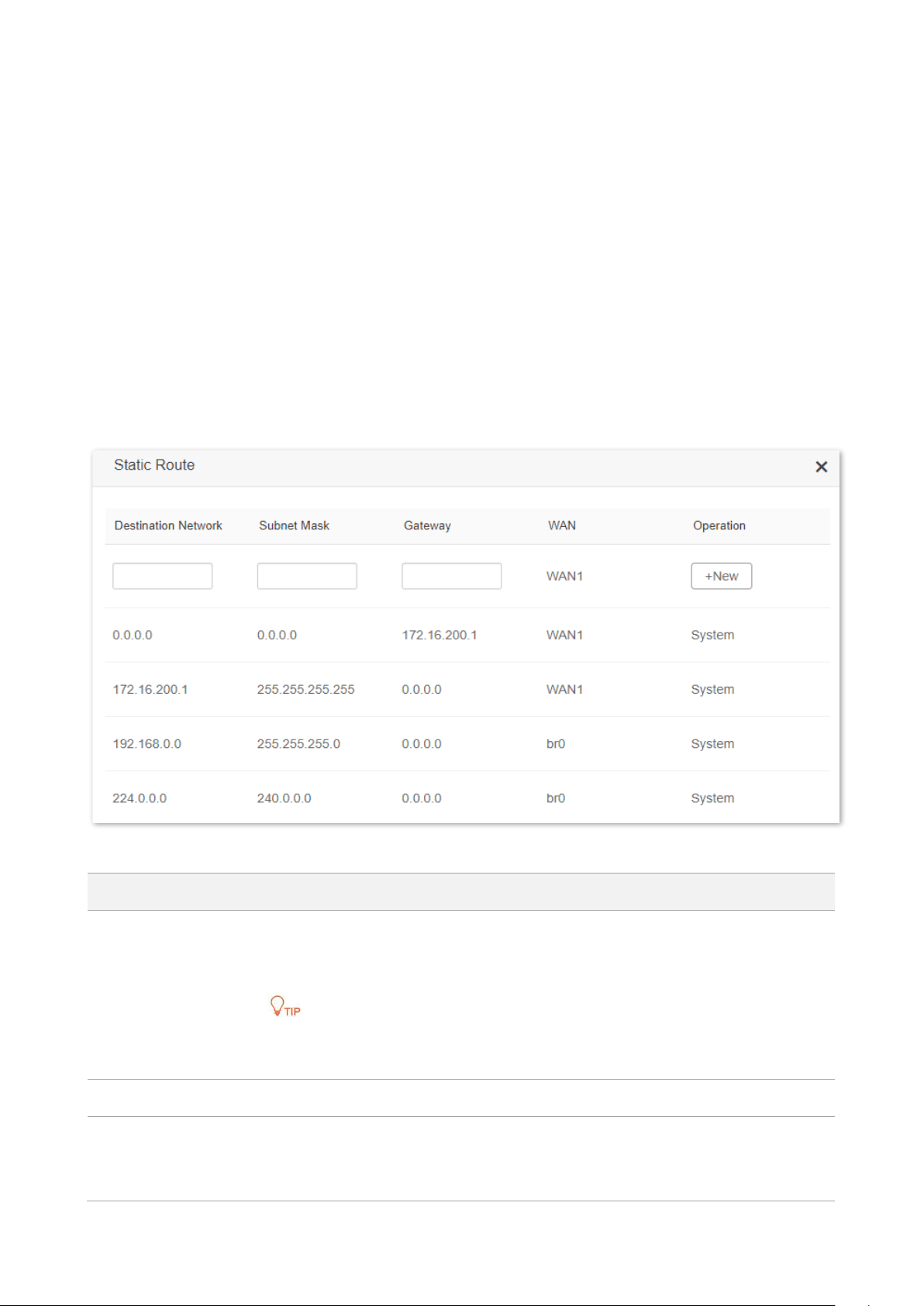
104
10.8 Static route
10.8.1 Overview
Routing is the act of choosing an optimal path to transfer data from a source address to a
destination address. A static route is a special route that is manually configured and has the
advantages of simplicity, efficiency, and reliability. Proper static routing can reduce routing
problems and overload of routing data flow, and improve the forwarding speed of data packets.
A static route is set by specifying the target network, subnet mask, default gateway, and interface.
The target network and subnet mask are used to determine a target network or host. After the
static route is established, all data whose destination address is the destination network of the
static route are directly forwarded to the gateway address through the static route interface.
To access the configuration page, log in to the web UI of the router, and choose Advanced
Settings > Static Route.
Parameter description
Parameter
Description
Destination Network
It specifies the IP address of the destination network.
When the Destination Network and Subnet Mask are both 0.0.0.0, it indicates that
this is the default route.
When the route of packets cannot be found in the routing table, the router will
forward the packets using the default route.
Subnet Mask
It specifies the subnet mask of the destination network.
Gateway
It specifies the ingress IP address of the next hop route after the data packet exits
from the interface of the router.
0.0.0.0 indicates that the destination network is directly connected to the router.

105
Parameter
Description
WAN
It specifies the interface that the packet exits from.
Operation
It is used to add or delete static route rules.
10.8.2 Add a static route rule
Scenario: You have an RX3 and another two routers. Router1 is connected to the internet and its
DHCP server is enabled. Router2 is connected to an intranet and its DHCP server is disabled.
Goal: You are able to access both the internet and intranet at the same time.
Solution: You can configure the static route function to reach the goal.
Assume the LAN IP addresses of these devices are:
− RX3: 192.168.0.1
− Router1: 192.168.10.10
− Router2: 192.168.10.20
The information about the intranet:
− IP address: 172.16.105.0
− Subnet mask: 255.255.255.0
Configuring procedure:
Step 1 Start a web browser on a device connected to the router and visit tendawifi.com to log in
to the web UI of the router.
Step 2 Refer to Access the internet with a dynamic IP address to configure the internet access for
RX3.
LAN: 192.168.0.1
192.168.10.10
192.168.10.20
IP address:
172.16.105.0
Subnet mask:
255.255.255.0
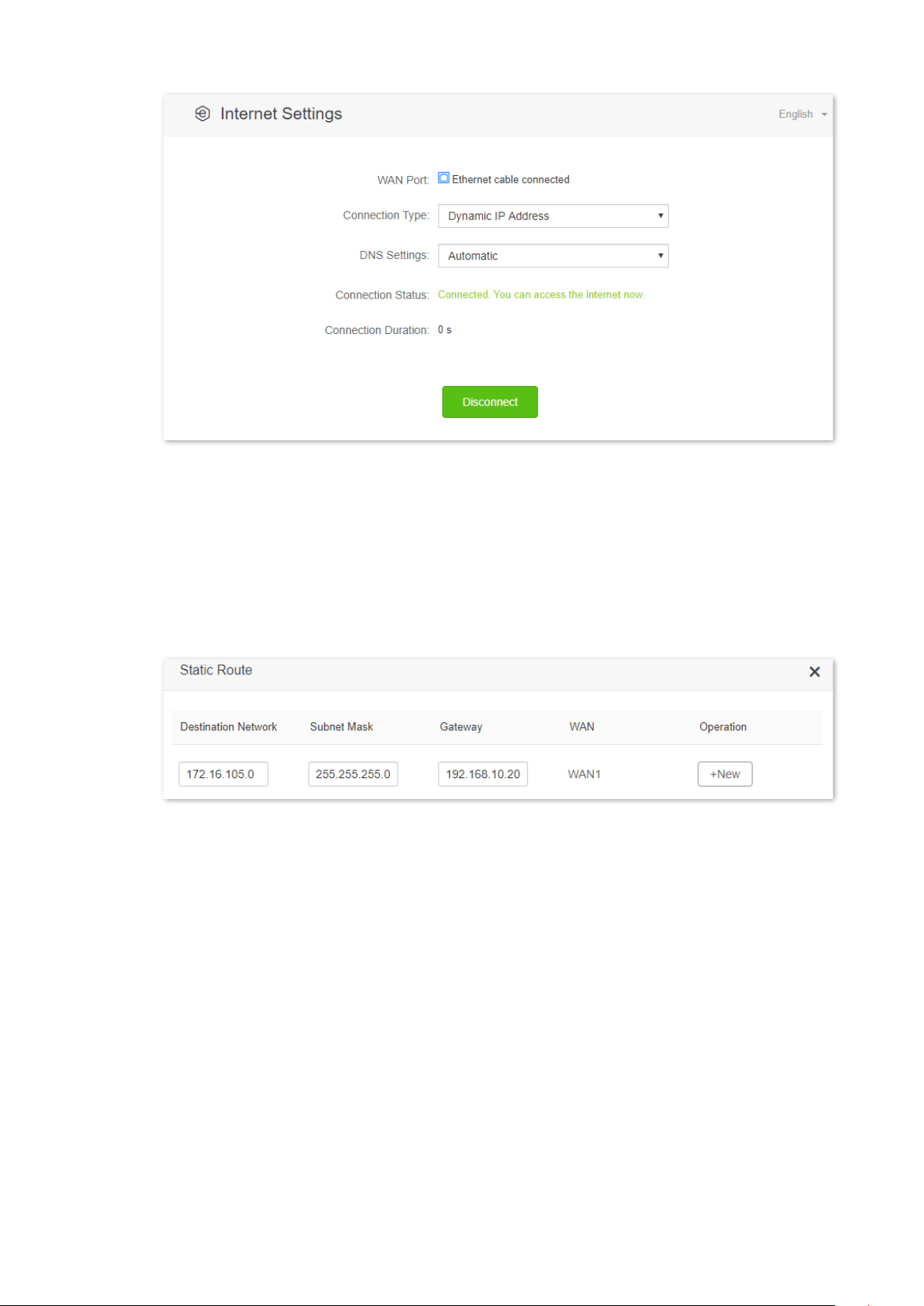
106
Step 3 Add a static route rule on RX3.
1. Choose Advanced Settings > Static Route.
2. Enter the IP address of the destination network, which is 172.16.105.0 in this example.
3. Enter the subnet mask of the destination network, which is 255.255.255.0 in this example.
4. Enter the ingress IP address of the next hop route, which is 192.168.10.20 in this example.
5. Click +New.
---End
When completing the configurations, you can access both the internet and intranet through RX3 at
the same time.
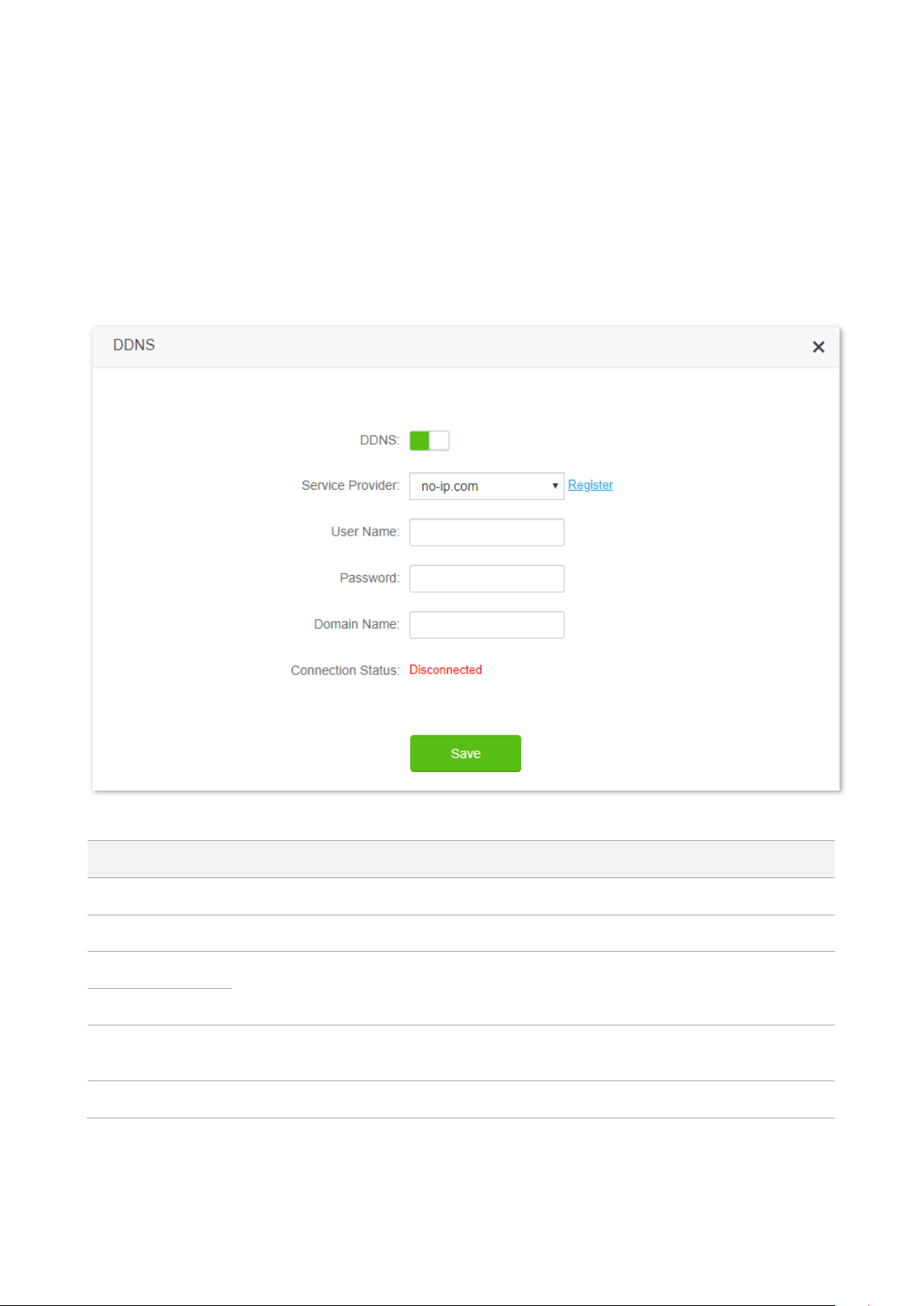
107
10.9 DDNS
10.9.1 Overview
DDNS normally interworks with virtual server, DMZ host and remote management, so that the
internet users can be free from the influence of dynamic WAN IP address and access the internal
server or the router’s web UI with a fixed domain name.
To access the configuration page, log in to the web UI of the router, and choose Advanced
Settings > DDNS.
Parameter description
Parameter
Description
DDNS
It is used to enable or disable the DDNS function.
Service Provider
It specifies the DDNS service provider.
User Name
It specifies the user name and password registered on a DDNS service provider's website
for logging in to the DDNS service.
Password
Domain Name
It specifies the domain name registered on the DDNS service provider’s website. If this
field is invisible after choosing the service provider, it is not required.
Connection Status
It specifies the current connection status of the DDNS service.
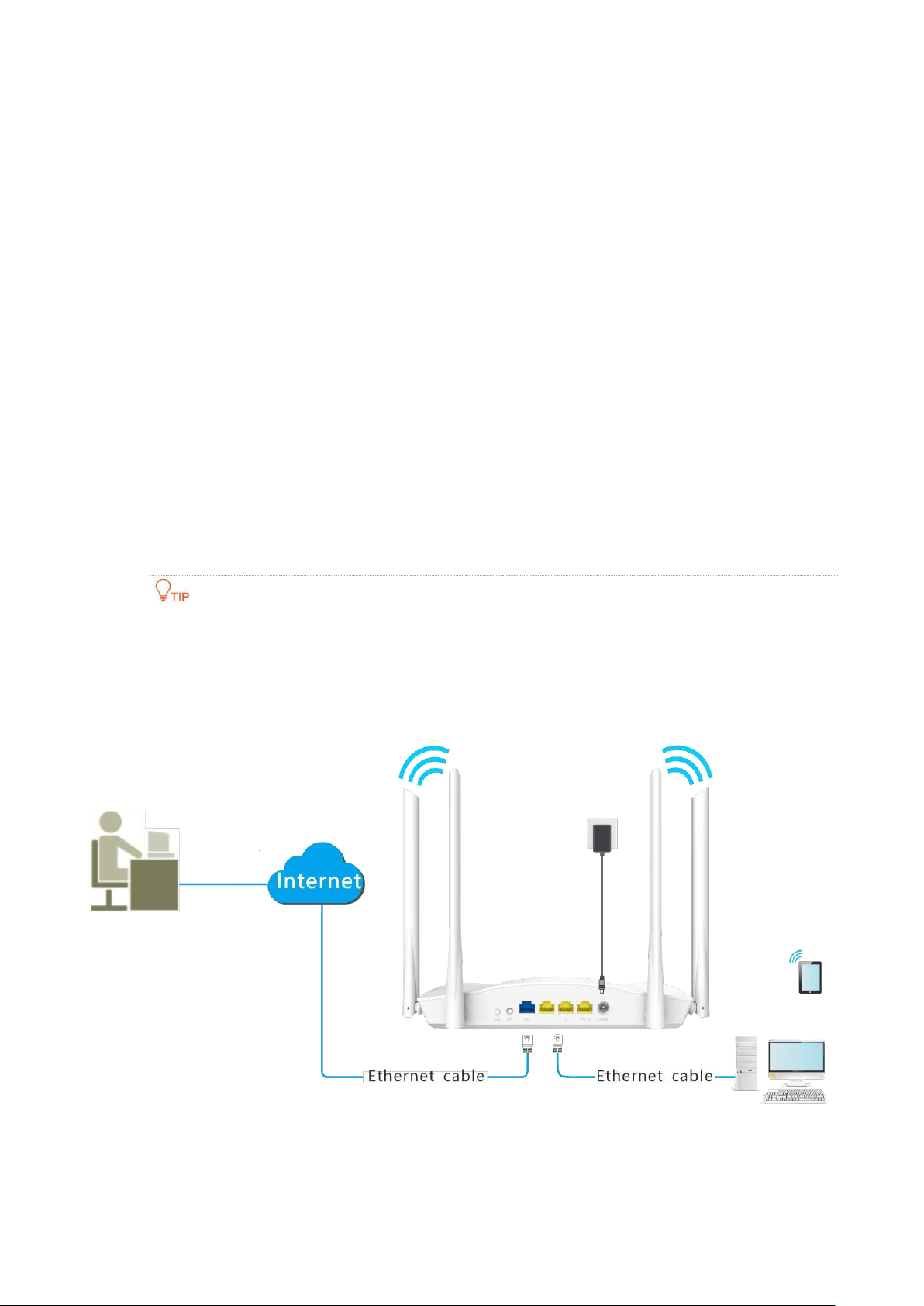
108
10.9.2 Enable internet users to access LAN resources using a
domain name
Scenario: You have set up an FTP server within your LAN.
Goal: Open the FTP server to internet users and enable family members who are not at home to
access the resources of the FTP server from the internet with a domain name.
Solution: You can configure the DDNS plus virtual server functions to reach the goal.
Assume that the information of the FTP server includes:
− IP address: 192.168.0.136
− MAC address of the host: D4:61:DA:1B:CD:89
− Service port: 21
The information of the registered DDNS service:
− Service provider: oray.com
− User name: JohnDoe
− Password: JohnDoe123456
− Domain name: o2849z7222.zicp.vip
Please ensure that router obtains an IP address from the public network. This function may not work
on a host with an IP address of a private network or an intranet IP address assigned by ISPs that start
with 100. Common IPv4 addresses are classified into class A, class B and class C. Private IP addresses of
class A range from 10.0.0.0 to 10.255.255.255; Private IP addresses of class B range from 172.16.0.0-
172.31.255.255; Private IP addresses of class C range from 192.168.0.0-192.168.255.255.
FTP server IP address: 192.168.0.136
MAC address of the host: D4:61:DA:1B:CD:89
The information of the registered DDNS
service:
− Service provider: oray.com
− User name: JohnDoe
− Password: JohnDoe123456
− Domain name: o2849z7222.zicp.vip
Service port: 21
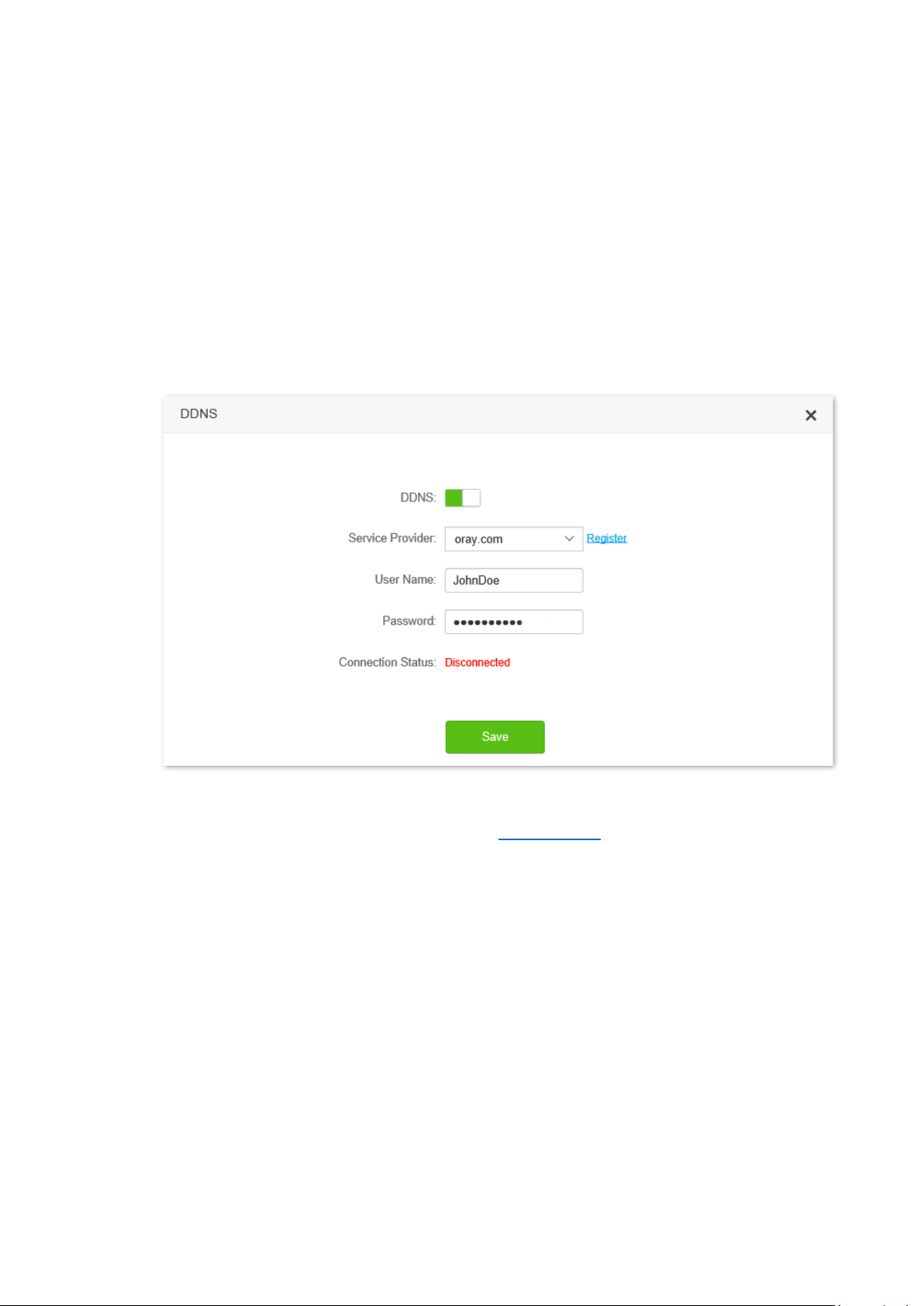
109
Configuring procedure:
Step 1 Start a web browser on a device connected to the router and visit tendawifi.com to log in
to the web UI of the router.
Step 2 Configure the DDNS function.
1. Choose Advanced Settings > DDNS.
2. Enabled the DDNS function.
3. Choose a service provider, which is oray.com in this example.
4. Enter the user name and password, which are JohnDoe and JohnDoe123456 in this
example.
5. Click Save.
Wait a moment, when the Connection Status turns Connected, the configurations succeed.
Step 3 Configure the virtual server function (refer to Virtual server)
---End
When completing the configurations, users from the internet can access the FTP server by visiting
“Intranet service application layer protocol name://the domain name”. If the WAN port number is
not the same as the default intranet service port number, the visiting address should be: “Intranet
service application layer protocol name://the domain name:WAN port number”. In this example,
the address is ftp://o2849z7222.zicp.vip.
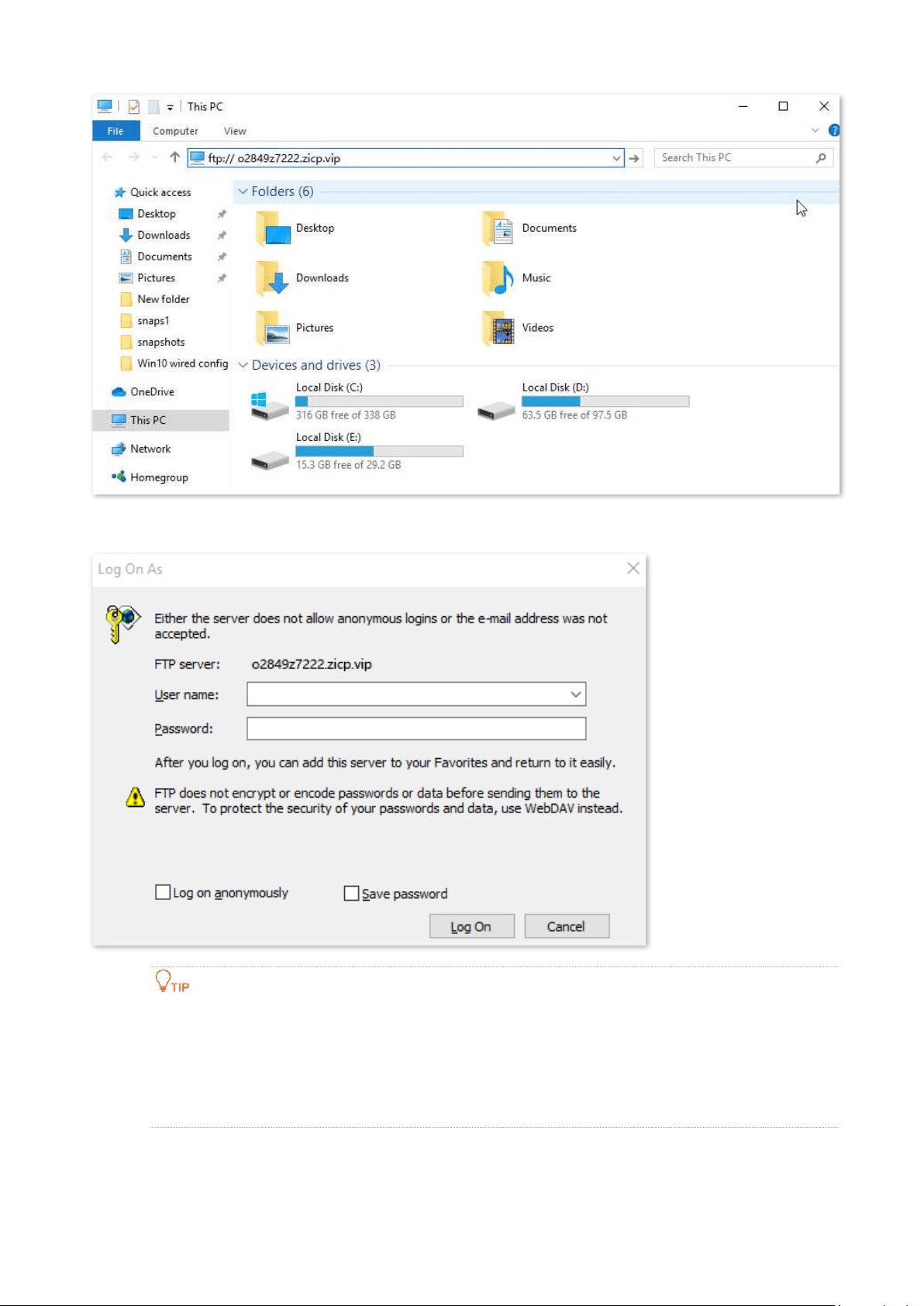
110
Enter the user name and password to access the resources on the FTP server.
After the configurations, if internet users still cannot access the FTP server, try the following methods:
⚫
Ensure that the LAN port number configured in the virtual server function is the same as the
service port number set on the server.
⚫
Close the firewall, antivirus software and security guards on the host of the FTP server and try
again.
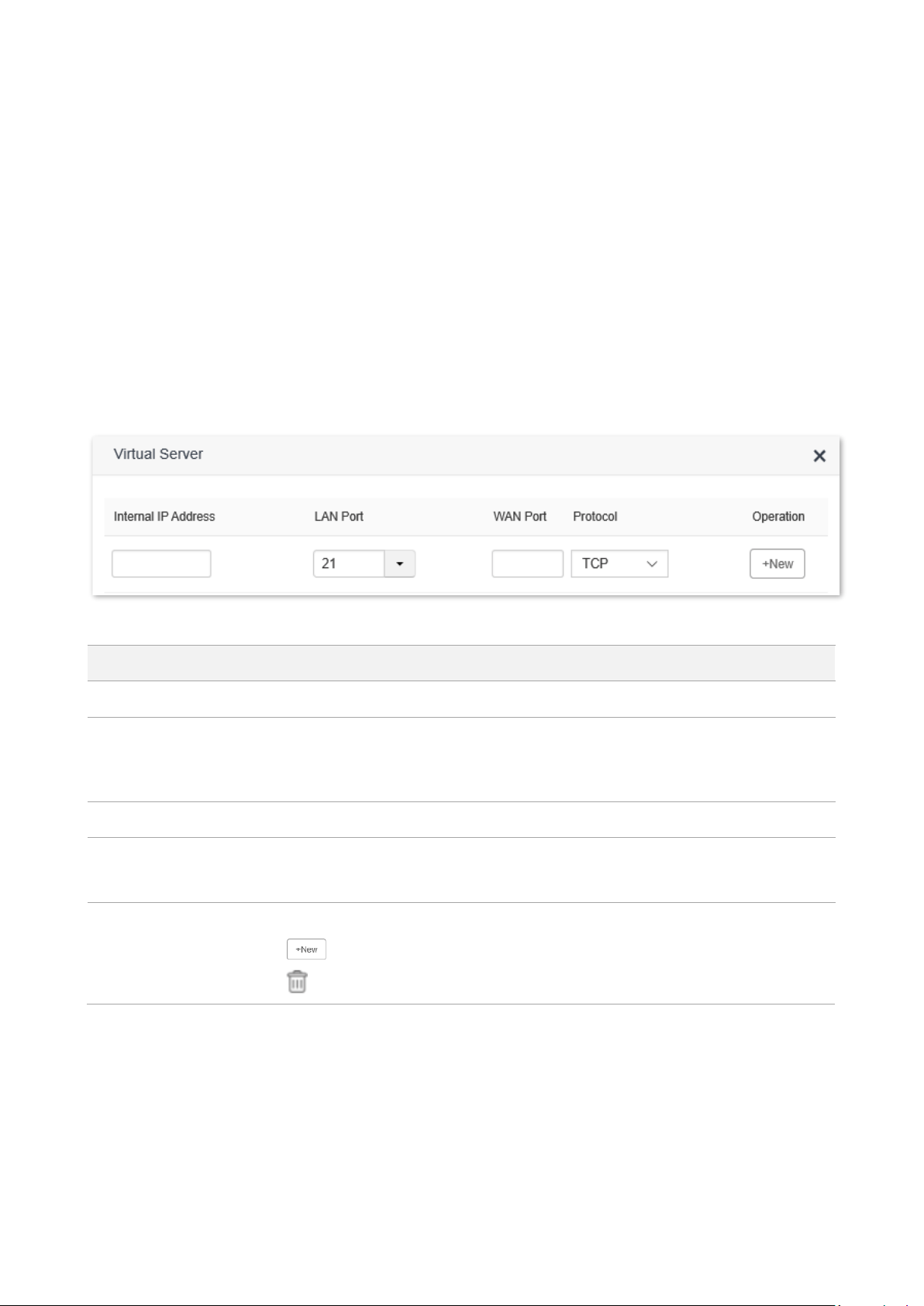
111
10.10 Virtual server
10.10.1 Overview
By default, internet users cannot actively access the LAN of the router.
The virtual server function opens a port of the router, and binds the LAN server to the port using
the server’s IP address and intranet service port. All access requests to the WAN port of the router
will be directed to the server. Therefore, the server within the LAN can be accessed by internet
users and the LAN can be free from attacks from the internet.
For example, the virtual server function enables internet users to access web servers or FTP
servers within the LAN.
To access the configuration page, log in to the web UI of the router, and choose Advanced
Settings > Virtual Server.
Parameter description
Parameter
Description
Internal IP Address
It specifies the IP address of the server within the LAN of the router.
LAN Port
It specifies the service port number of the server under the LAN of the router.
You can either choose a service port number in the drop-down box, or enter a
service port number manually.
WAN Port
It specifies the port of the router which is opened and accessible to internet users.
Protocol
It specifies the transport layer protocol of the service.
If you are not sure about this parameter, TCP&UDP is recommended.
Operation
Available operations include:
⚫
: It is used to add a new virtual server rule.
⚫
: It is used to delete existing virtual server rules.
10.10.2 Enable internet users to access LAN resources
Scenario: You have set up an FTP server within your LAN.
Goal: Open the FTP server to internet users and enable family members who are not at home to
access the resources of the FTP server from the internet.
Solution: You can configure the virtual server function to reach the goal.
Assume that the information of the FTP server includes:
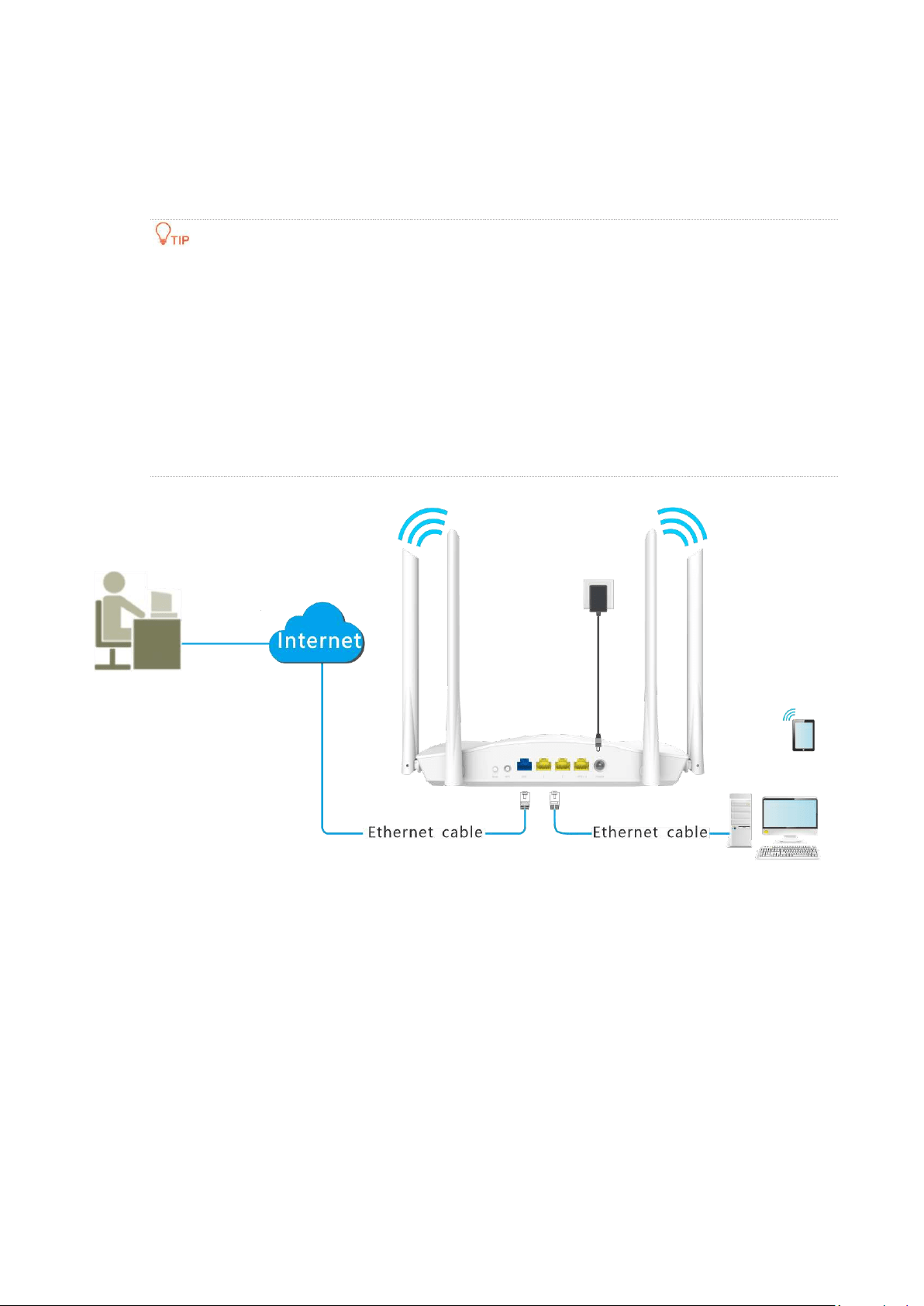
112
− IP address: 192.168.0.136
− MAC address: D4:61:DA:1B:CD:89
− Service port: 21
− The WAN IP address of the router: 102.33.66.88.
⚫
Please ensure that router obtains an IP address from the public network. This function may not
work on a host with an IP address of a private network or an intranet IP address assigned by ISPs
that start with 100. Common IPv4 addresses are classified into class A, class B and class C. Private
IP addresses of class A range from 10.0.0.0 to 10.255.255.255; Private IP addresses of class B range
from 172.16.0.0-172.31.255.255; Private IP addresses of class C range from 192.168.0.0-
192.168.255.255.
⚫
ISPs may block unreported web services to be accessed with the default port number 80.
Therefore, when the default LAN port number is 80, please change it to an uncommon port
number (1024-65535) manually, such as 9999.
⚫
The LAN port number can be different from the WAN port number.
Configuring procedure:
Step 1 Start a web browser on a device connected to the router and visit tendawifi.com to log in
to the web UI of the router.
Step 2 Add a virtual server rule.
1. Choose Advanced Settings > Virtual Server.
2. Enter the Internal IP Address, which is 192.168.0.136 in this example.
3. Choose a LAN Port in the drop-down box, which is 21 in this example.
4. Choose a protocol, which is TCP&UDP in this example.
5. Click +New.
Access using an
IP address
FTP server IP address: 192.168.0.136
MAC address: D4:61:DA:1B:CD:89
Service port: 21
WAN IP address: 102.33.66.88
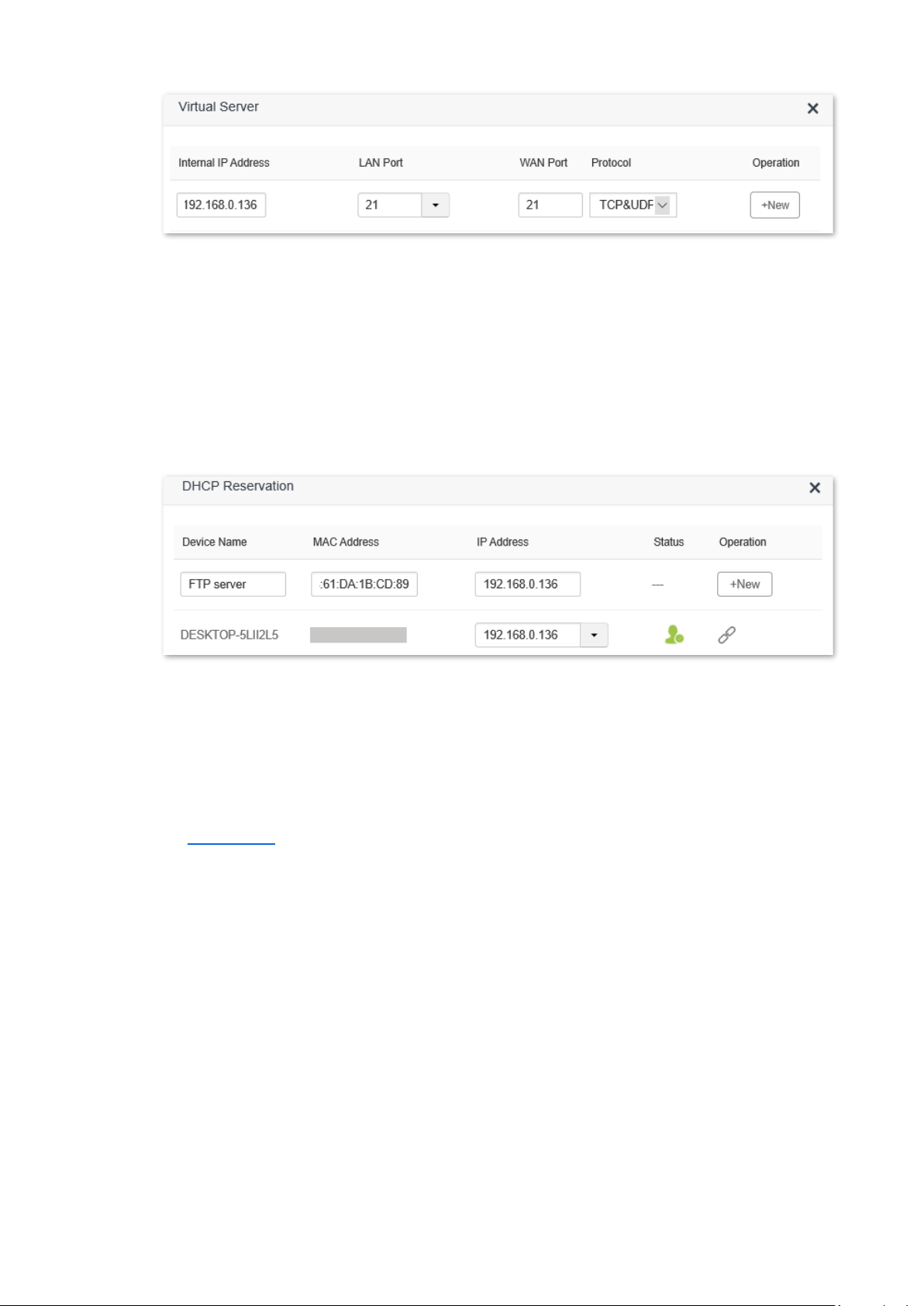
113
Step 3 Assign a fixed IP address to the host where the server locates.
1. Choose System Settings > DHCP Reservation.
2. Specifies a Device Name for the host of the server, which is FTP server in this example.
3. Enter the MAC Address of the host of the server, which is D4:61:DA:1B:CD:89 in this
example.
4. Enter the IP Address of host of the server, which is 192.168.0.136 in this example.
5. Click +New.
---End
When completing the configurations, users from the internet can access the FTP server by visiting
“Intranet service application layer protocol name://WAN IP address of the router”. If the WAN port
number is not the same as the default intranet service port number, the visiting address should be:
“Intranet service application layer protocol name://WAN IP address of the router:WAN port
number”. In this example, the address is “ftp://102.33.66.88”. You can find the WAN IP address of
the router in
WAN status.
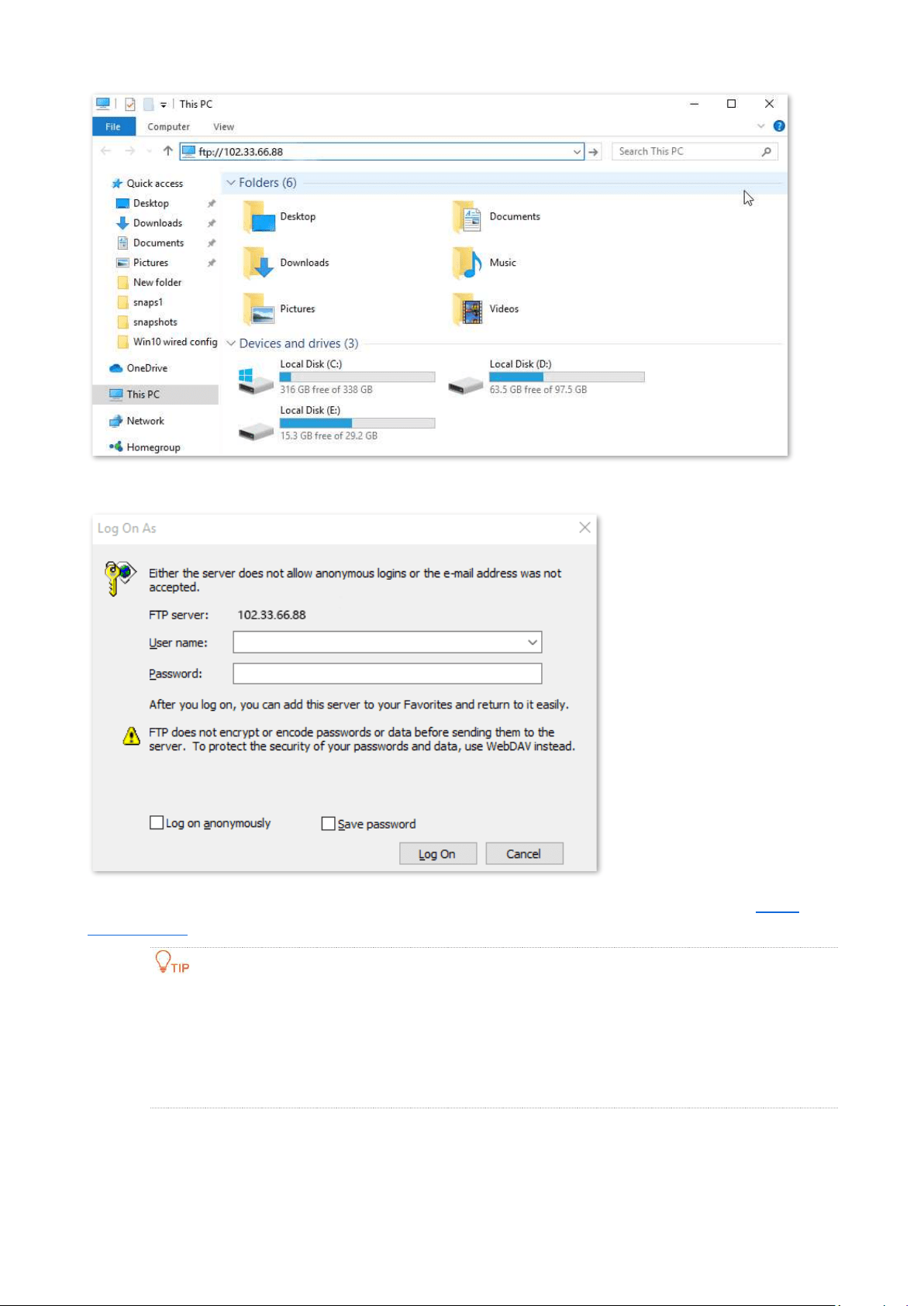
114
Enter the user name and password to access the resources on the FTP server.
If you want to access the server within a LAN using a domain name, refer to the solution DDNS +
Virtual server.
After the configurations, if internet users still cannot access the FTP server, try the following methods:
⚫
Ensure that the LAN port number configured in the virtual server function is the same as the
service port number set on the server.
⚫
Close the firewall, antivirus software and security guards on the host of the FTP server and try
again.
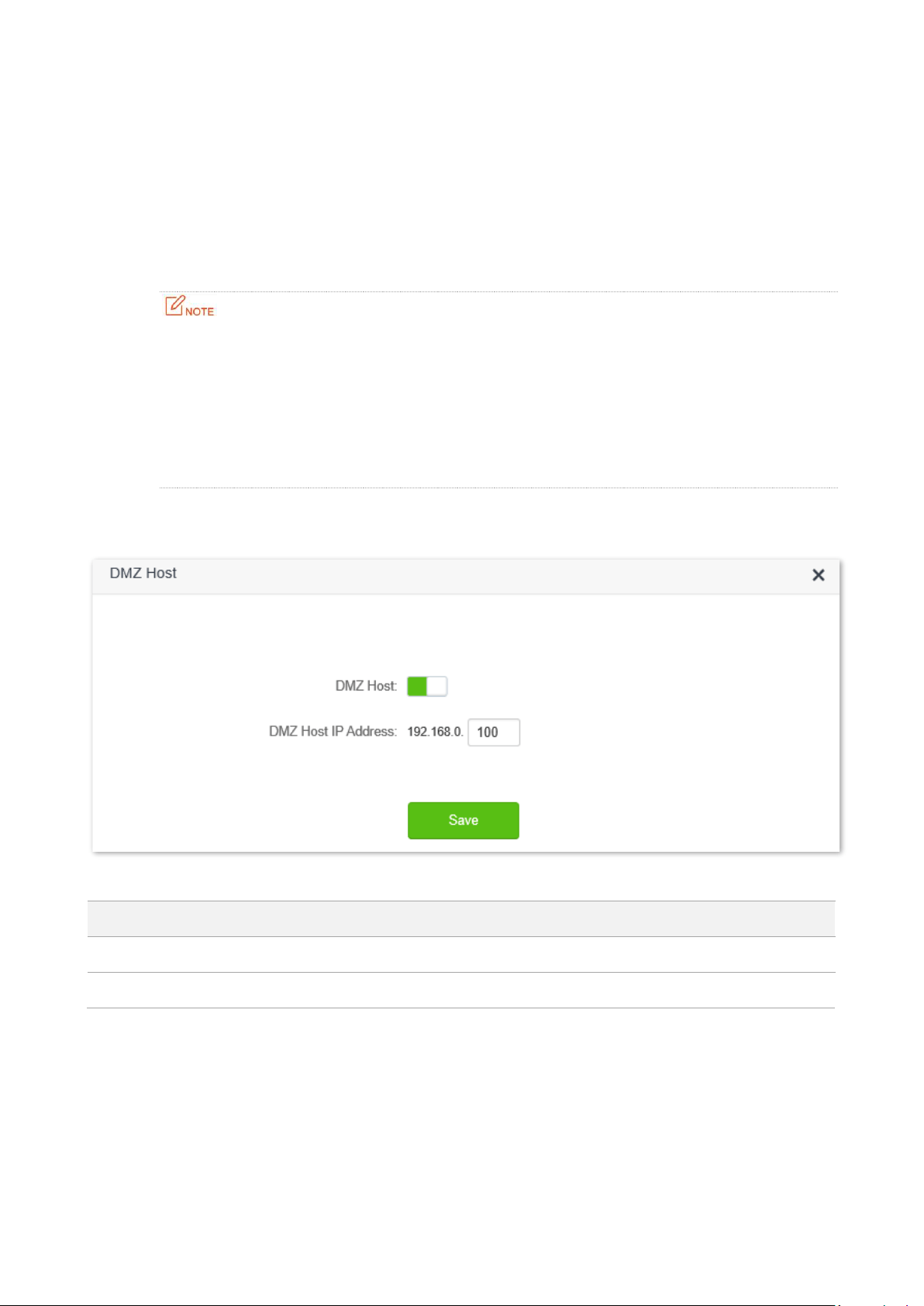
115
10.11 DMZ host
10.11.1 Overview
A DMZ host on a LAN is free from restrictions in communicating with the internet. It is useful for
getting better and smoother experience in video conferences and online games. You can also set
the host of a server within the LAN as a DMZ host when in need of accessing the server from the
internet.
⚫
A DMZ host is not protected by the firewall of the router. A hacker may leverage the DMZ host to
attack your LAN. Therefore, enable the DMZ function only when necessary.
⚫
Hackers may leverage the DMZ host to attack the local network. Do not use the DMZ host function
randomly.
⚫
Security software, antivirus software, and the built-in OS firewall of the computer may cause DMZ
function failures. Disable them when using the DMZ function. If the DMZ function is not required,
you are recommended to disable it and enable your firewall, security, and antivirus software.
To access the configuration page, log in to the web UI of the router, and choose Advanced
Settings > DMZ Host.
Parameter description
Parameter
Description
DMZ Host
It is used to enable or disable the DMZ host function.
DMZ Host IP Address
It specifies the IP address of the host that is to be set as the DMZ host.
10.11.2 Enable internet users to access LAN resources
Scenario: You have set up an FTP server within your LAN.
Goal: Open the FTP server to internet users and enable family members who are not at home to
access the resources of the FTP server from the internet.
Solution: You can configure the DMZ host function to reach the goal.
Assume that the information of the FTP server includes:
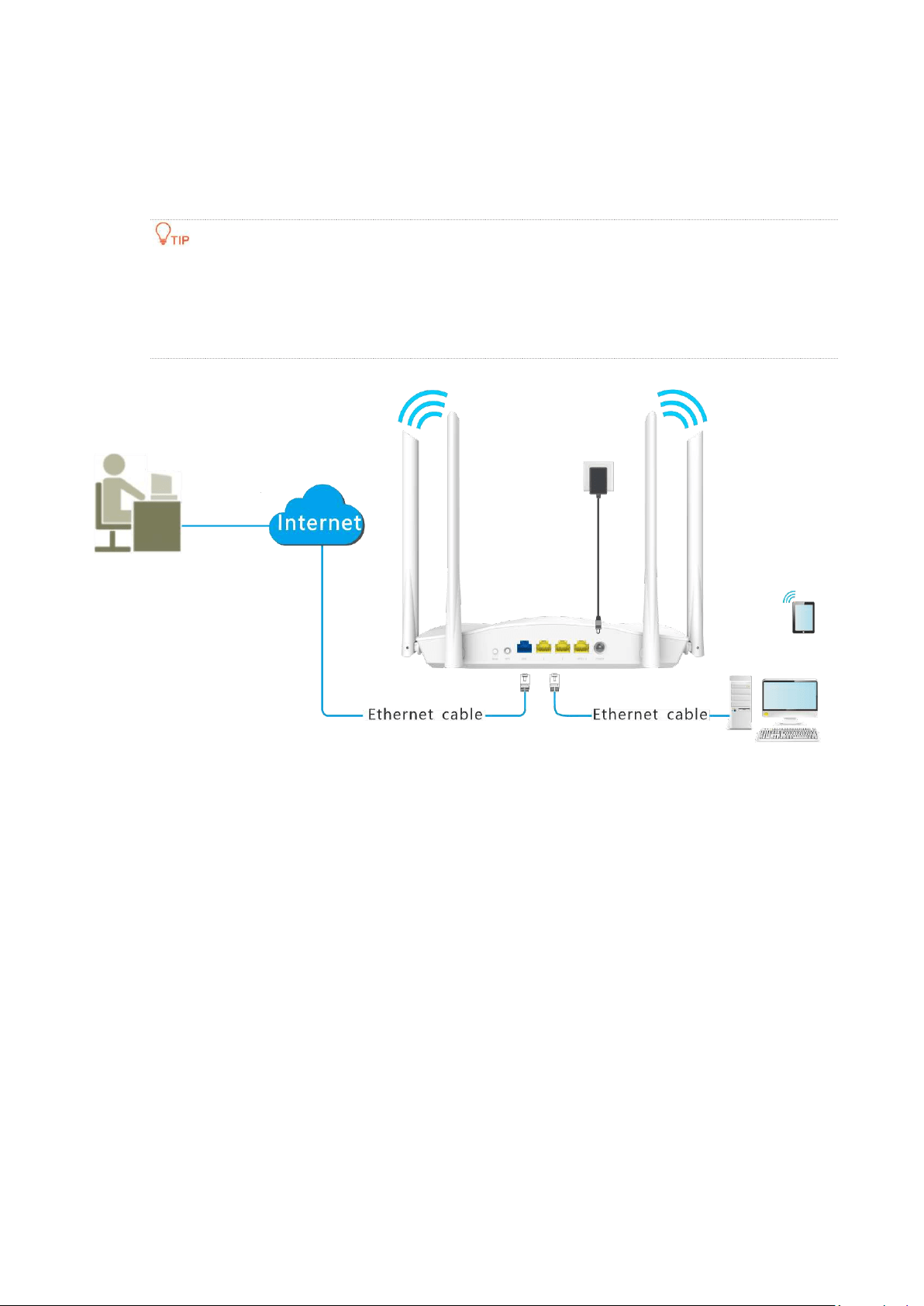
116
− IP address: 192.168.0.136
− MAC address: D4:61:DA:1B:CD:89
− Service port: 21
− The WAN IP address of the router: 102.33.66.88.
Please ensure that router obtains an IP address from the public network. This function may not work
on a host with an IP address of a private network or an intranet IP address assigned by ISPs that start
with 100. Common IPv4 addresses are classified into class A, class B and class C. Private IP addresses of
class A range from 10.0.0.0 to 10.255.255.255; Private IP addresses of class B range from 172.16.0.0-
172.31.255.255; Private IP addresses of class C range from 192.168.0.0-192.168.255.255.
Configuring procedure:
Step 1 Start a web browser on a device connected to the router and visit tendawifi.com to log in
to the web UI of the router.
Step 2 Set the server host as the DMZ host.
1. Choose Advanced Settings > DMZ Host.
2. Enable DMZ Host.
3. Enter the IP address of the host, which is 192.168.0.136 in this example.
4. Click Save.
FTP server IP address: 192.168.0.136
MAC address: D4:61:DA:1B:CD:89
Service port: 21
Access using an
IP address
WAN IP address: 102.33.66.88
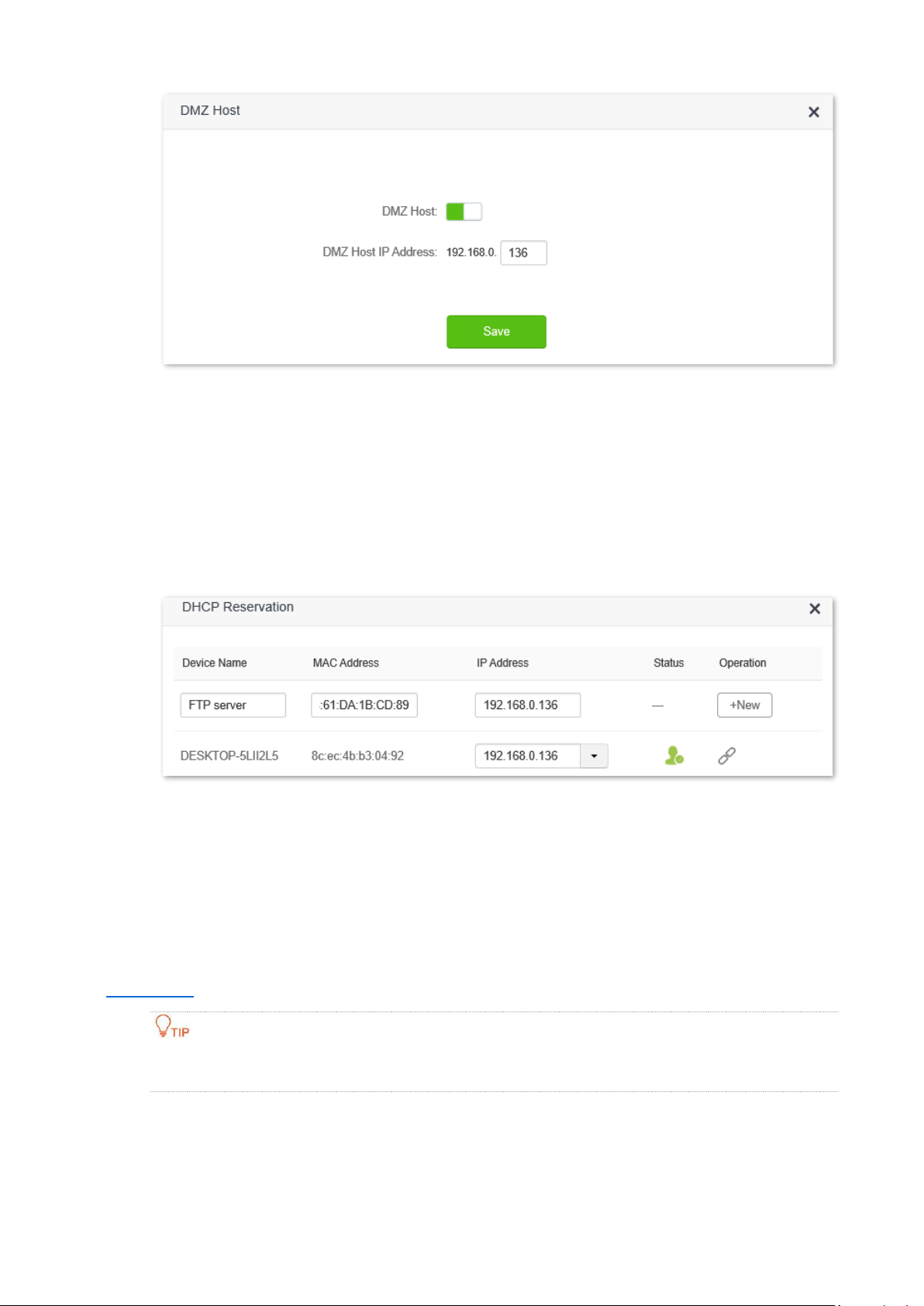
117
Step 3 Assign a fixed IP address to the host where the server locates.
1. Choose System Settings > DHCP Reservation.
2. Specifies a Device Name for the server host, which is FTP server in this example.
3. Enter the MAC Address of the host of the server, which is D4:61:DA:1B:CD:89 in this
example.
4. Enter the reserved IP Address for the server host, which is 192.168.0.136 in this example.
5. Click +New.
----End
When the configurations are completed, users from the internet can access the DMZ host by
visiting “Intranet service application layer protocol name://WAN IP address of the router”. If the
intranet service port number is not the default number, the visiting address should be: “Intranet
service application layer protocol name://WAN IP address of the router:intranet service port
number”.
In this example, the address is “ftp://102.33.66.88”. You can find the WAN IP address of the router
in WAN status.
When the default intranet service port number is 80, please change the service port number to an
uncommon one (1024-65535), such as 9999.
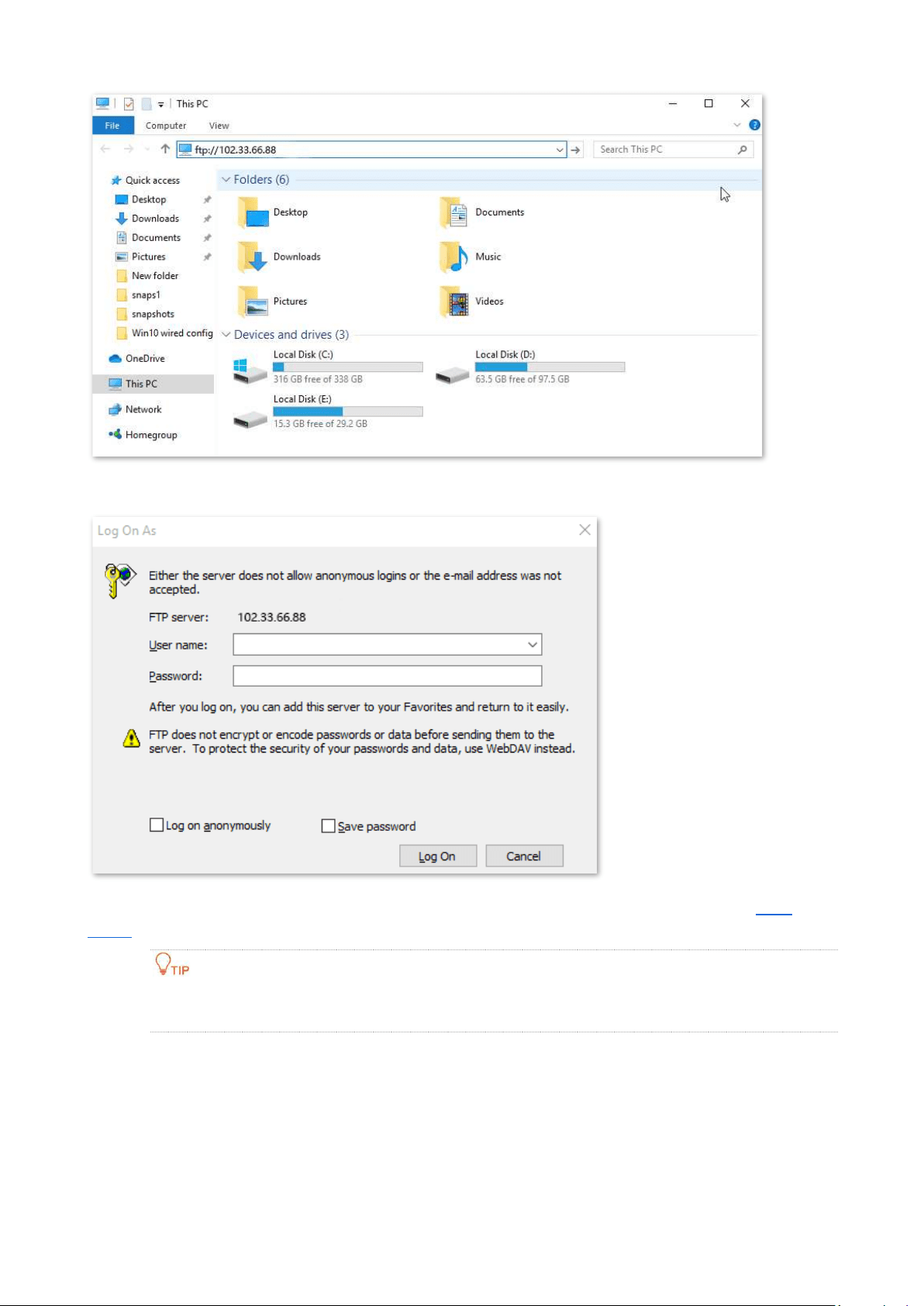
118
Enter the user name and password to access the resources on the FTP server.
If you want to access the server within a LAN using a domain name, refer to the solution
DMZ +
DDNS.
After the configurations, if internet users still cannot access the FTP server, close the firewall, antivirus
software and security guards on the host of the FTP server and try again.
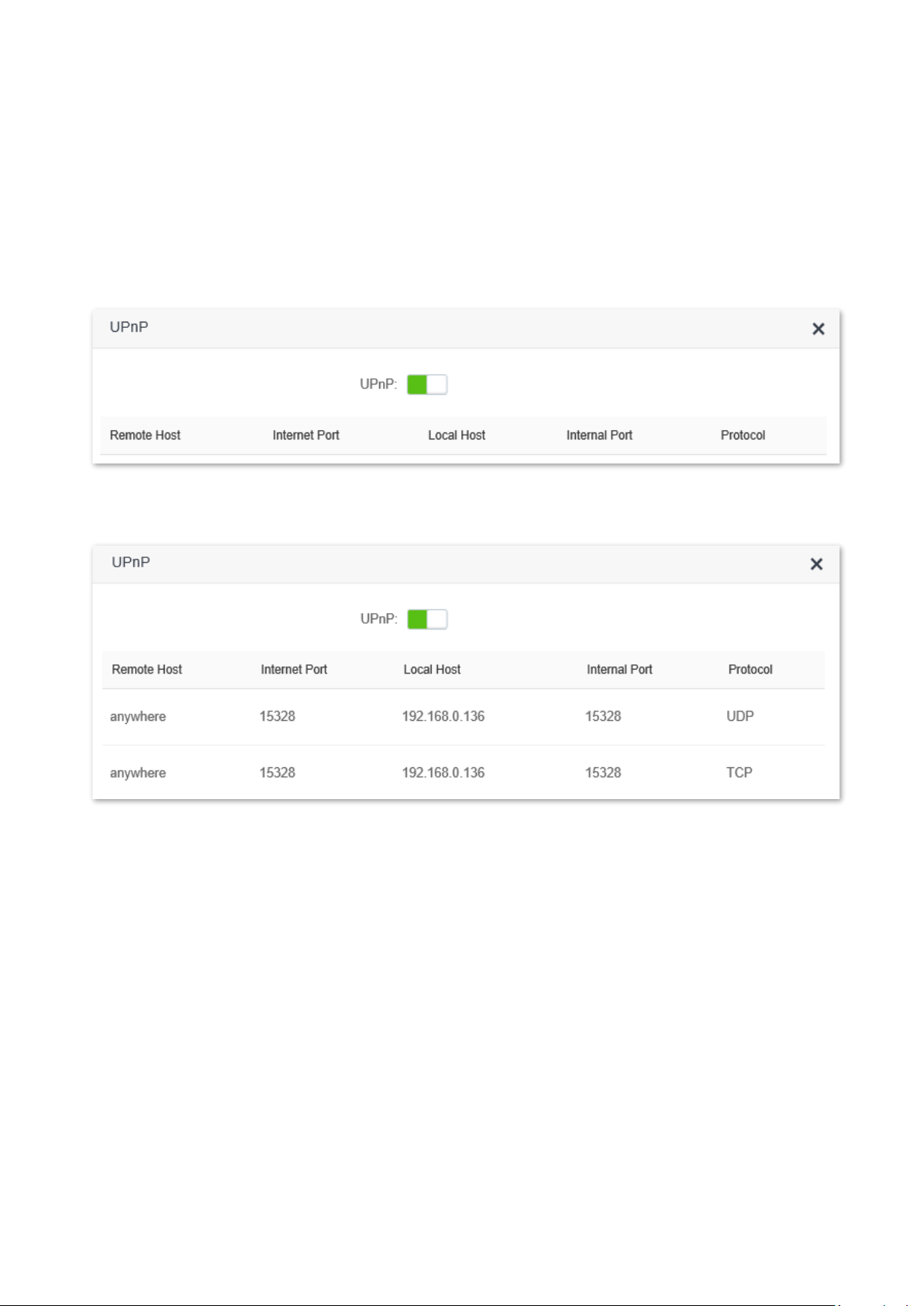
119
10.12 UPnP
UPnP is short for Universal Plug and Play. This function enables the router open port automatically
for UPnP-based programs. It is generally used for P2P programs, such as BitComet and AnyChat,
and helps increase the download speed.
To access the configuration page, log in to the web UI of the router, and choose Advanced
Settings > UPnP.
This function is enabled by default.
When any program that supports the UPnP function is launched, you can find the port conversion
information on this page when the program sends any requests.
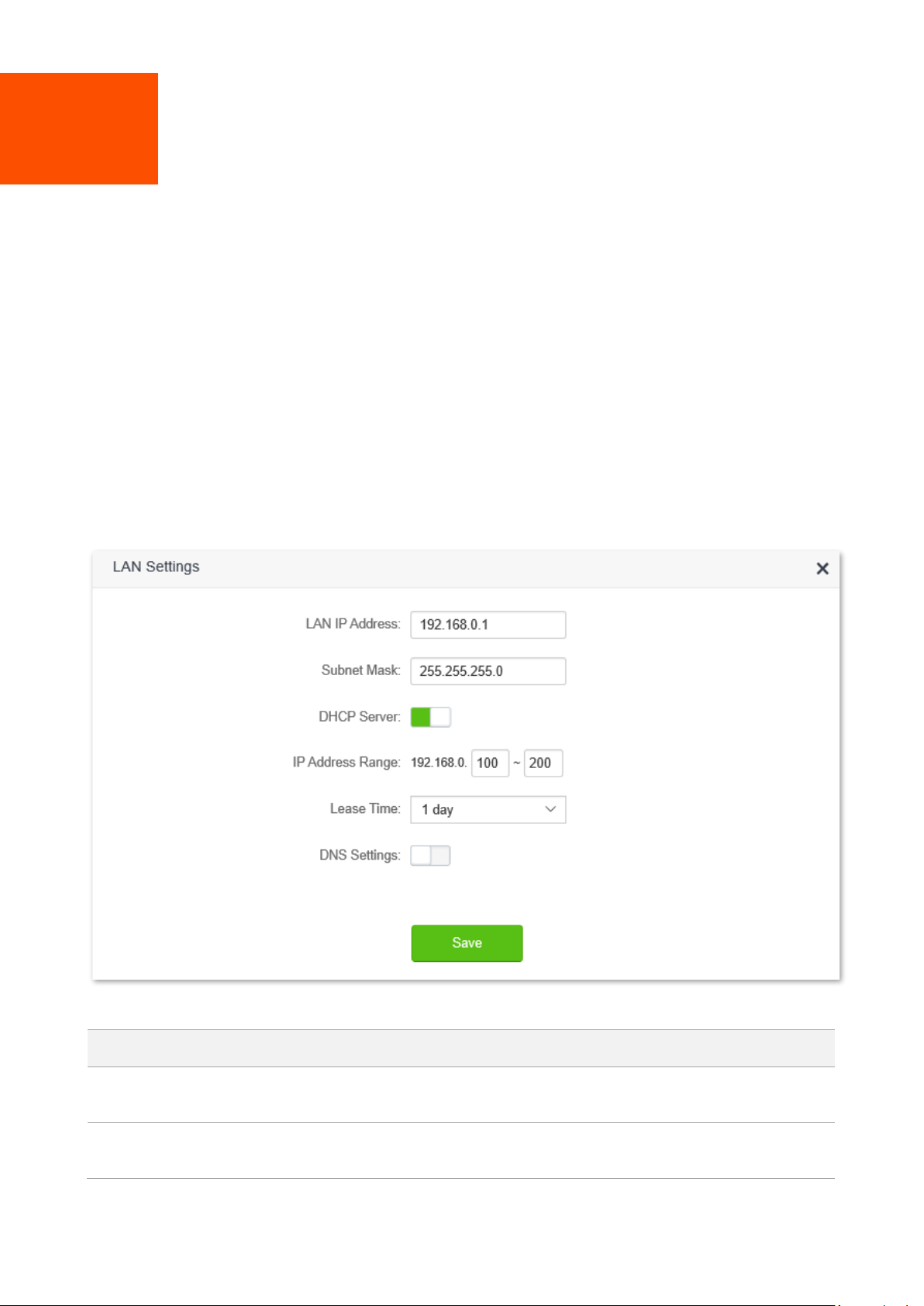
120
11 System settings
11.1 LAN settings
To access the configuration page, log in to the web UI of the router, and choose System Settings >
LAN Settings.
On this page, you can:
◼
Change the LAN IP address and subnet mask of the router.
◼
Change the DHCP server parameters of the router.
The DHCP server can automatically assign IP address, subnet mask, gateway and other
information to clients within the LAN. If you disable this function, you need to manually
configure the IP address information on the client to access the Internet. Do not disable the
DHCP server function unless necessary
◼
Configure the DNS information assigned to clients.
Parameter description
Parameter
Description
LAN IP Address
It specifies the LAN IP address of the router, which is also the management IP
address for logging in to the web UI of the router.
Subnet Mask
It specifies the subnet mask of the LAN port, used to identify the IP address
range of the local area network.

121
Parameter
Description
DHCP
Server
IP Address
Range
It specifies the range of IP addresses that can be assigned to devices connected
to the router. The default range is 192.168.0.100 to 192.168.0.200.
Lease Time
It specifies the valid duration of the IP address that is assigned to a client.
When the lease time reaches half, the client will send a DHCP Request to the
DHCP server for renewal. If the renewal succeeds, the lease is renewed based
on the time of the renewal application; if the renewal fails, the renewal process
is repeated again at 7/8 of the lease period. If it succeeds, the lease is renewed
based on the time of the renewal application. If it still fails, the client needs to
reapply for IP address information after the lease expires.
It is recommended to keep the default value.
DNS
Settings
Primary DNS
Server
It specifies the primary DNS address of the router, which is assigned to the
clients. You can change it if necessary.
Make sure that the primary DNS server is the IP address of the correct DNS
server or DNS proxy. Otherwise, you may fail to access the internet.
Secondary DNS
Server
It specifies the secondary DNS address of the router used to assign to the
clients. It is an optional field and is left blank by default.
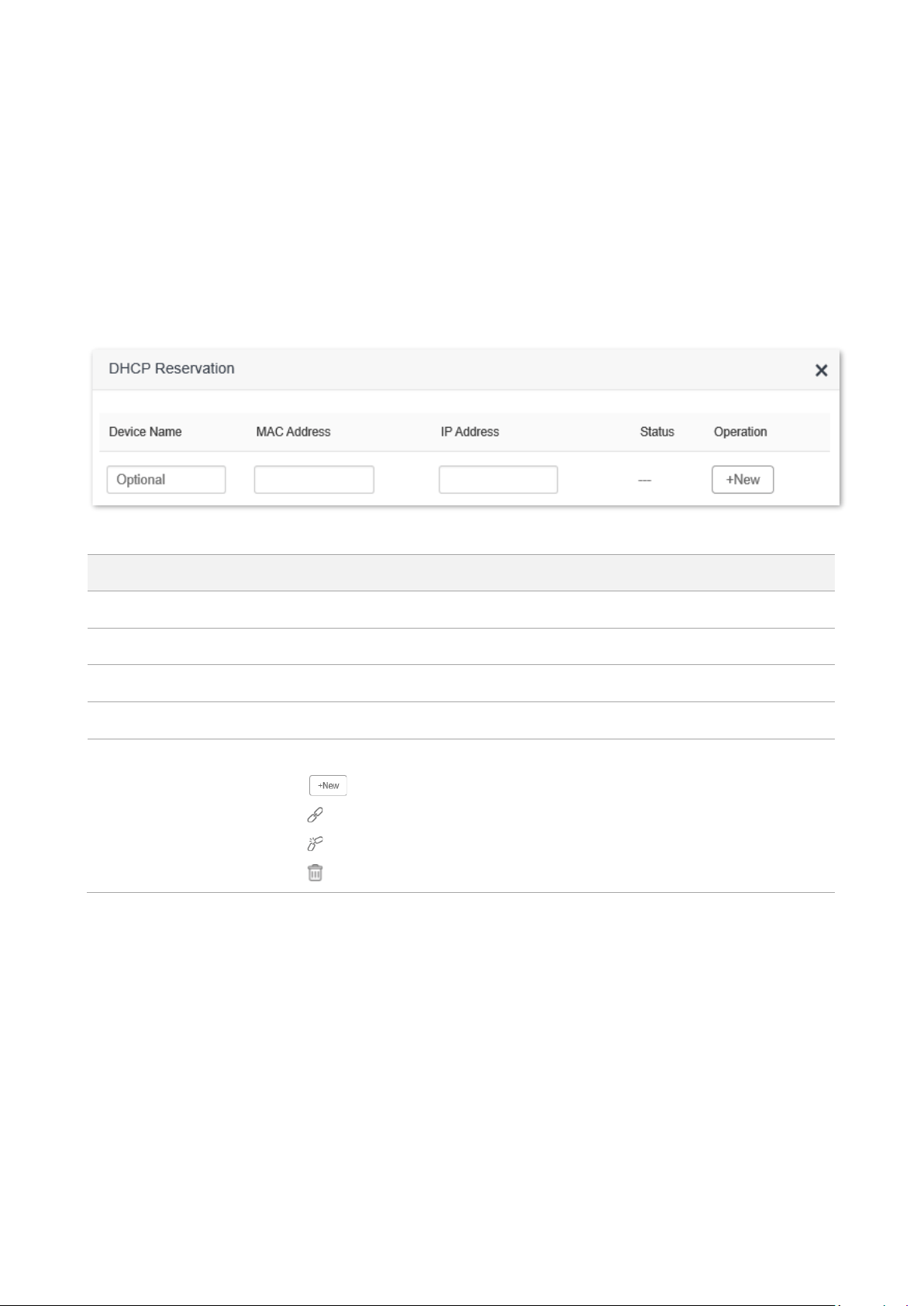
122
11.2 DHCP reservation
11.2.1 Overview
Through the DHCP reservation function, specified clients can always obtain the same IP address
when connecting to the router, ensuring that the router's "Virtual server", "DDNS", "DMZ host"
and other functions can function normally. This function takes effect only when the DHCP server
function of the router is enabled.
To access the configuration page, log in to the web UI of the router, and choose System Settings >
DHCP Reservation.
Parameter description
Parameter
Description
Device Name
It specifies the device name of the client.
MAC Address
It specifies the MAC address of the client.
IP Address
It specifies the IP address reserved for the client.
Status
It specifies whether the client is online or not.
Operation
The available options include:
⚫
: It is used to add a new DHCP reservation rule.
⚫
: It is used to bind the MAC address to the reserved IP address.
⚫
: It is used to unbind the MAC address from the reserved IP address.
⚫
: It is used to delete the DHCP reservation rule.
11.2.2 Assign static IP addresses to LAN clients
Scenario: You have set up an FTP server within your LAN.
Goal: Assign a fixed IP address to the host of the FTP server and prevent the failure of access to the
FTP server owing to the change of IP address.
Solution: You can configure the DHCP reservation function to reach the goal.
Assume that the information of the FTP server includes:
− The fixed IP address for the server: 192.168.0.136
− MAC address of the FTP server host: D4:61:DA:1B:CD:89
Configuring procedure:
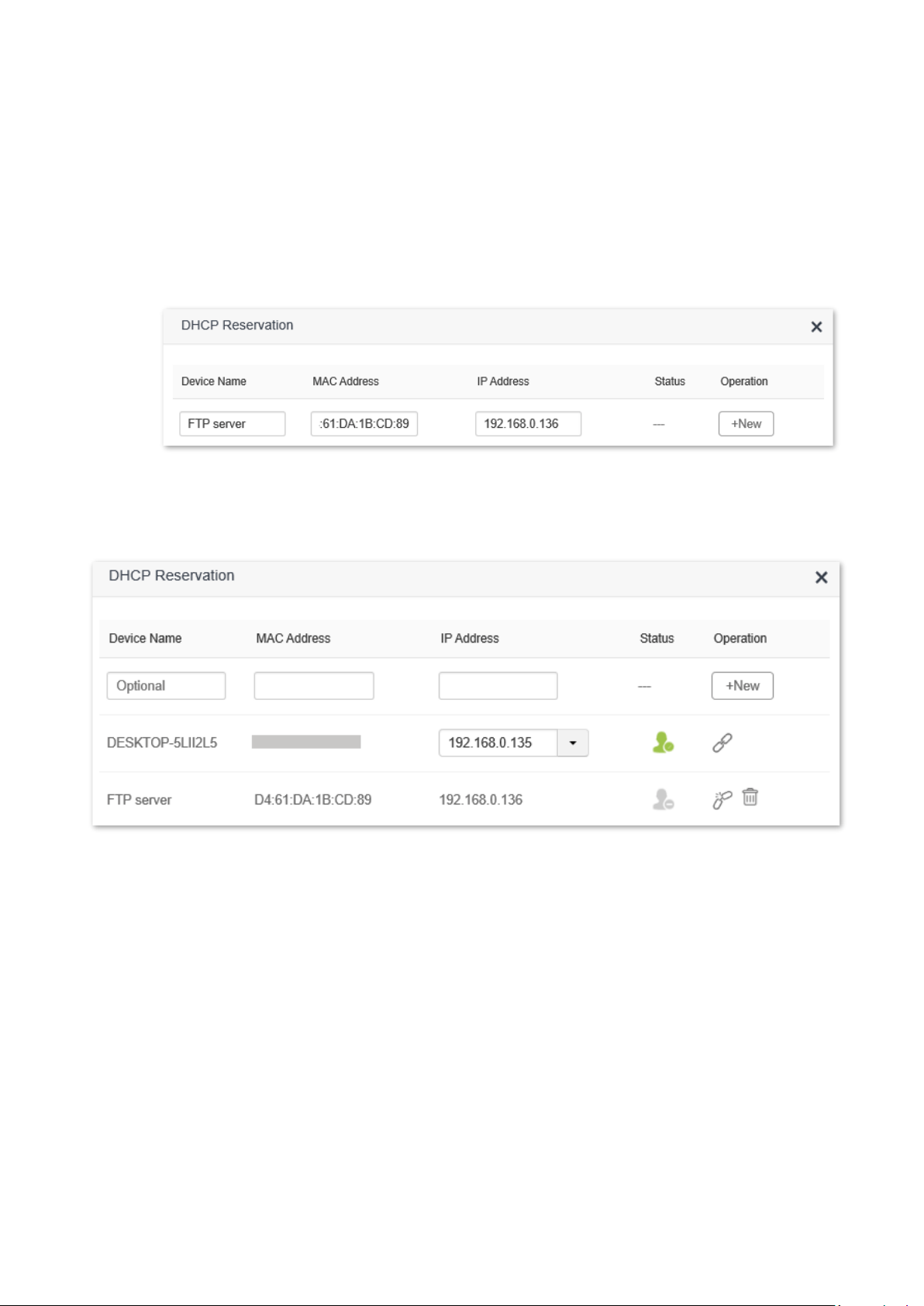
123
Step 1 Start a web browser on a device connected to the router and visit tendawifi.com to log in
to the web UI of the router.
Step 2 Choose System Settings > DHCP Reservation.
Step 3 (Optional) Enter the device name for the host.
Step 4 Enter the MAC address of the host, which is D4:61:DA:1B:CD:89 in this example.
Step 5 Enter the IP address reserved for the host, which is 192.168.0.136 in this example.
Step 6 Click +New.
---End
When the configuration is completed, the page is shown as below and the FTP server host always
gets the same IP address when connecting to the router, which is 192.168.0.136 in this example.
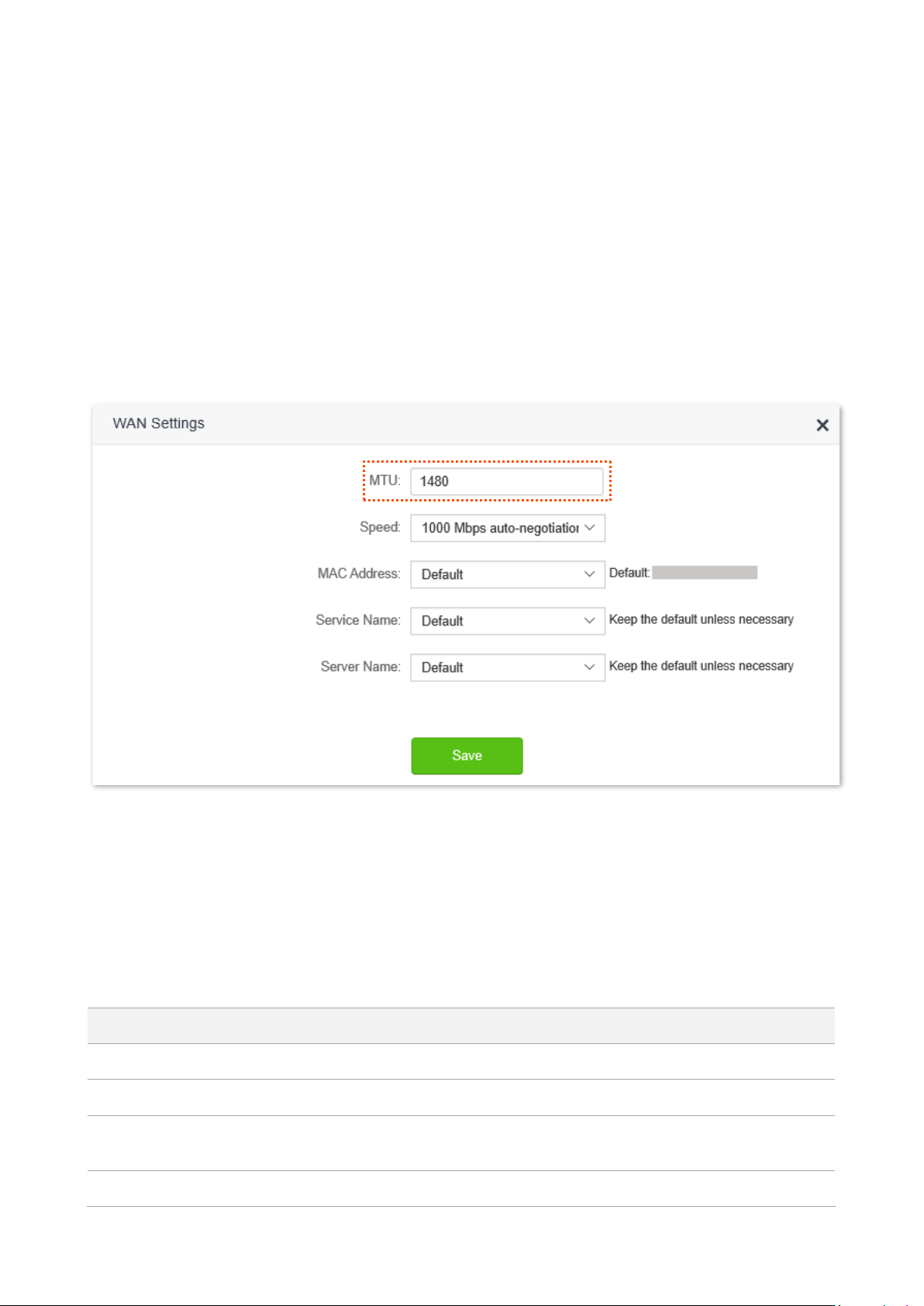
124
11.3 WAN settings
In the WAN Parameters module, you can check and modify MTU value, WAN speed, duplex mode,
MAC address, service name and server name.
11.3.1 Change MTU value
MTU (Maximum Transmission Unit) is the largest data packet transmitted by a network device.
When the connection type is PPPoE, the default MTU value is 1480. When the connection type is
dynamic IP address or static IP address, the default MTU value is 1500. Do not change the value
unless necessary. If you need to, please refer to the following instructions.
To access the configuration page, log in to the web UI of the router, and choose System Settings >
WAN Settings.
Generally, the default value is recommended. Try to change the MTU value when:
− You cannot access some specific websites or encrypted websites (such as E-banking
or Paypal websites).
− You cannot receive and send Emails or access an FTP or POP server.
You can try reducing the value of MTU gradually from 1500 until the problem is resolved (The
recommended range is 1400 to 1500).
MTU application description
MTU
Application
1500
It is commonly used for non-ADSL and non-VPN dial-up connections.
1492, 1480
It is used for ADSL dial-up connections.
1472
It is the maximum value for the ping command. A packet with a larger size is
fragmented.
1468
It is used for DHCP connections.
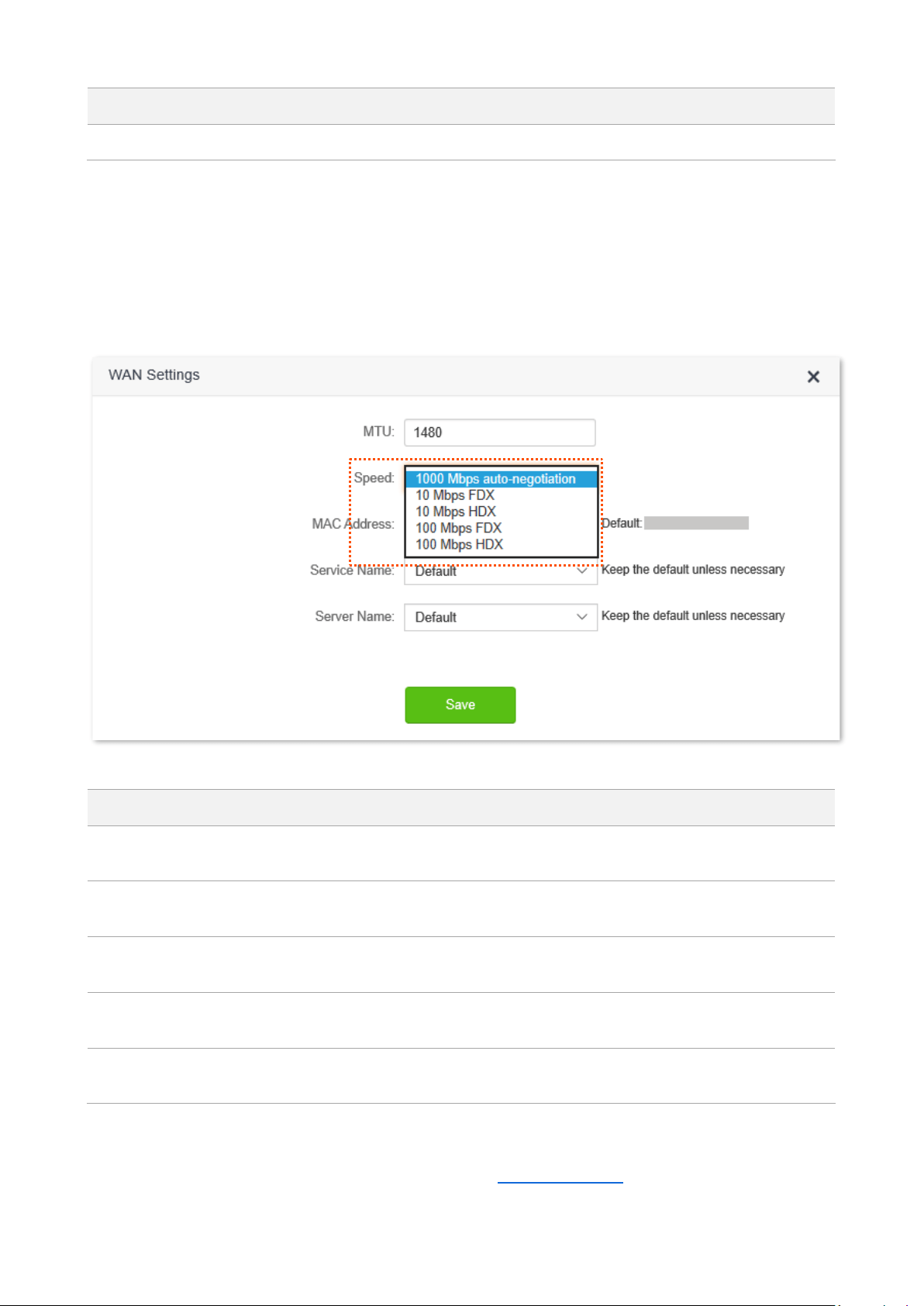
125
MTU
Application
1436
It is used for VPN or PPTP connections.
11.3.2 Change the WAN speed and duplex mode
To access the configuration page, log in to the web UI of the router, and choose System Settings >
WAN Settings.
When the Ethernet cable is intact and connected to the WAN port properly, but Ethernet cable
disconnected is still shown on the Internet Settings page, you can try to change the Speed to 10
Mbps FDX or 10 Mbps HDX to solve the problem. Otherwise, keep the default settings.
MTU parameter description
MTU
Application
1000 Mbps auto-
negotiation
It indicates that the speed and duplex mode are determined through the negotiation
with the peer port.
10 Mbps FDX
10 Mbps Full Duplex. It indicates that the WAN port is working at the speed of 10
Mbps, and the port can receive and send data packets at the same time.
10 Mbps HDX
10 Mbps Half Duplex. It indicates that the WAN port is working at the speed of 10
Mbps, but the port can only receive or send data packets alternately.
100 Mbps FDX
100 Mbps Full Duplex. It indicates that the WAN port is working at the speed of 100
Mbps, and the port can receive and send data packets at the same time.
100 Mbps HDX
100 Mbps Half Duplex. It indicates that the WAN port is working at the speed of 100
Mbps, but the port can only receive or send data packets alternately.
11.3.3 Change the MAC address of the WAN port
If you still cannot access the internet after completing
Internet Settings, it could be the result of
the ISP’s configuration to bind the internet account information with a fixed MAC address. In this
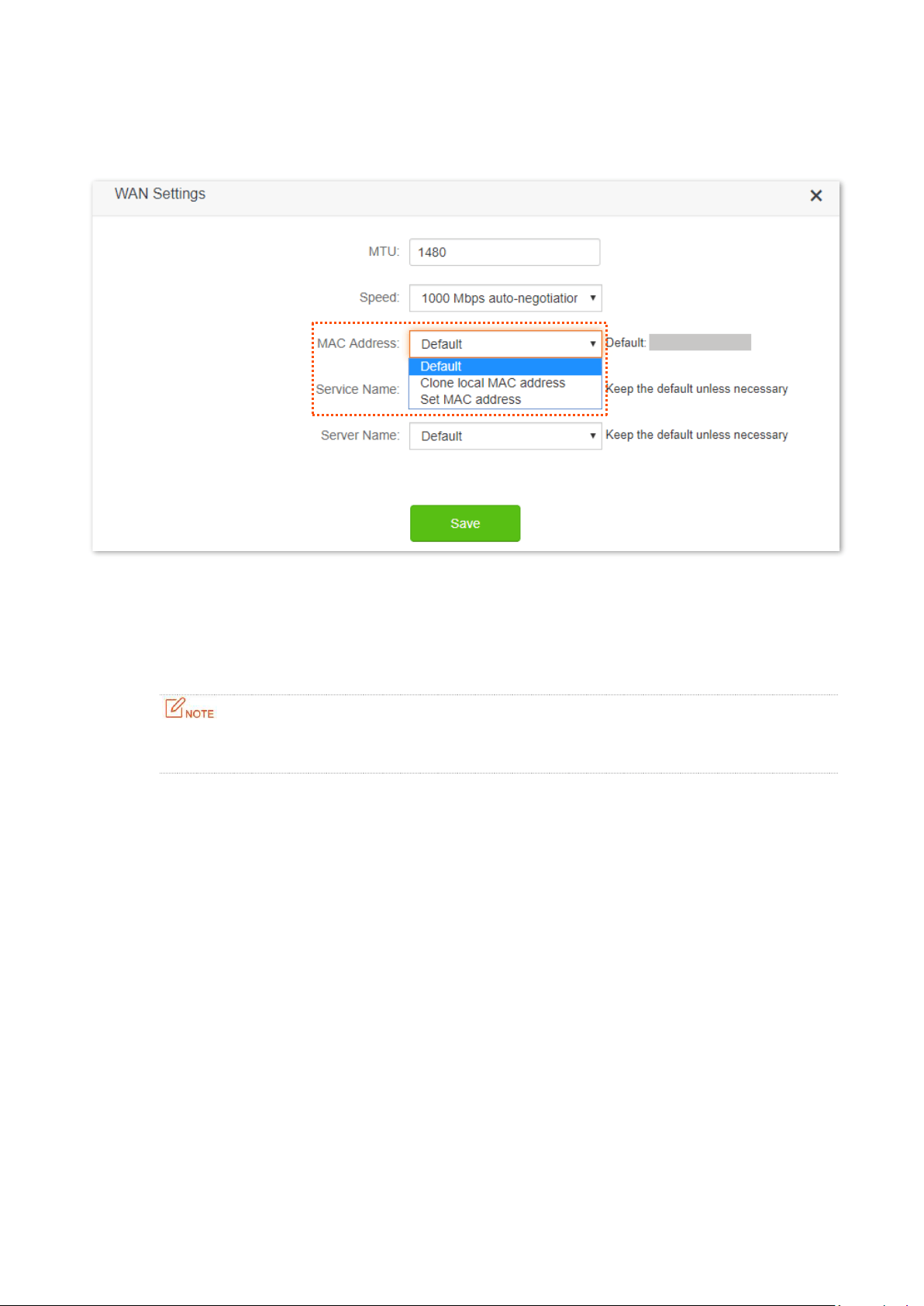
126
case, you can clone and change the MAC address of the router to solve the problem.
To access the configuration page, log in to the web UI of the router, and choose System Settings >
WAN Settings.
− Default: Keep the factory setting of MAC address.
− Clone local MAC address: Set the MAC address of the router to the same as that of
the device which is configuring the router.
− Set MAC address: Manually set a MAC address.
Please ensure the cloned MAC address is that of the computer or the router which is already able to
access the internet.
Configuring procedure:
Step 1 Start a web browser on a device connected to the router and visit tendawifi.com to log in
to the web UI of the router.
Step 2 Choose System Settings > WAN Settings.
Step 3 Click the drop-down box of MAC Address, choose Clone local MAC address, or Set MAC
address and enter the desired MAC address.
Step 4 Click Save.
---End
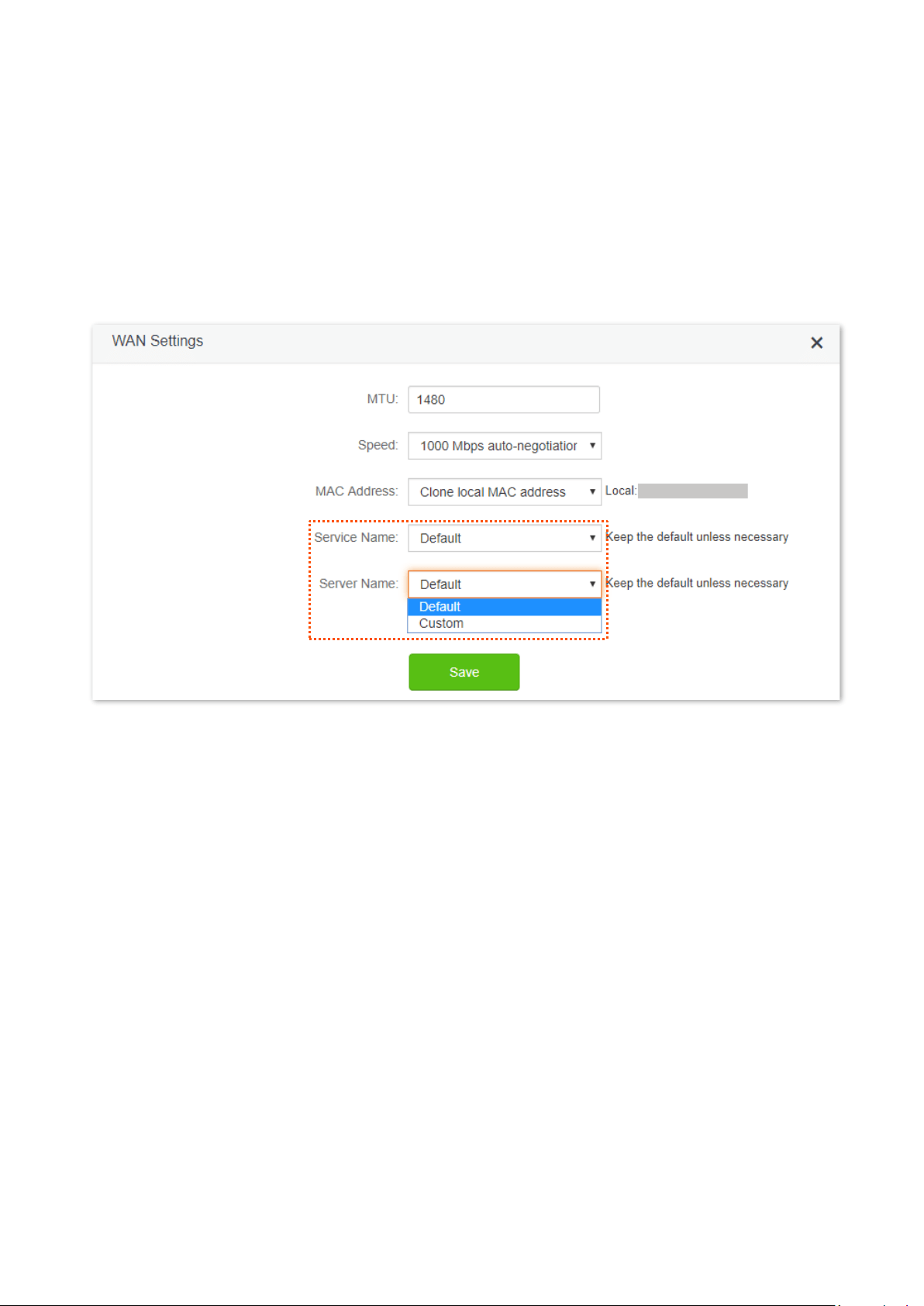
127
11.3.4 Change the service name and server name
To access the configuration page, log in to the web UI of the router, and choose System Settings >
WAN Settings.
Only when the connection type is PPPoE, you may need to change the service name and server
name of the broadband service.
If you obtain the service name and server name from your ISP when purchasing the broadband
service, you can change them on this page after completing the internet settings. Otherwise, keep
the default settings.
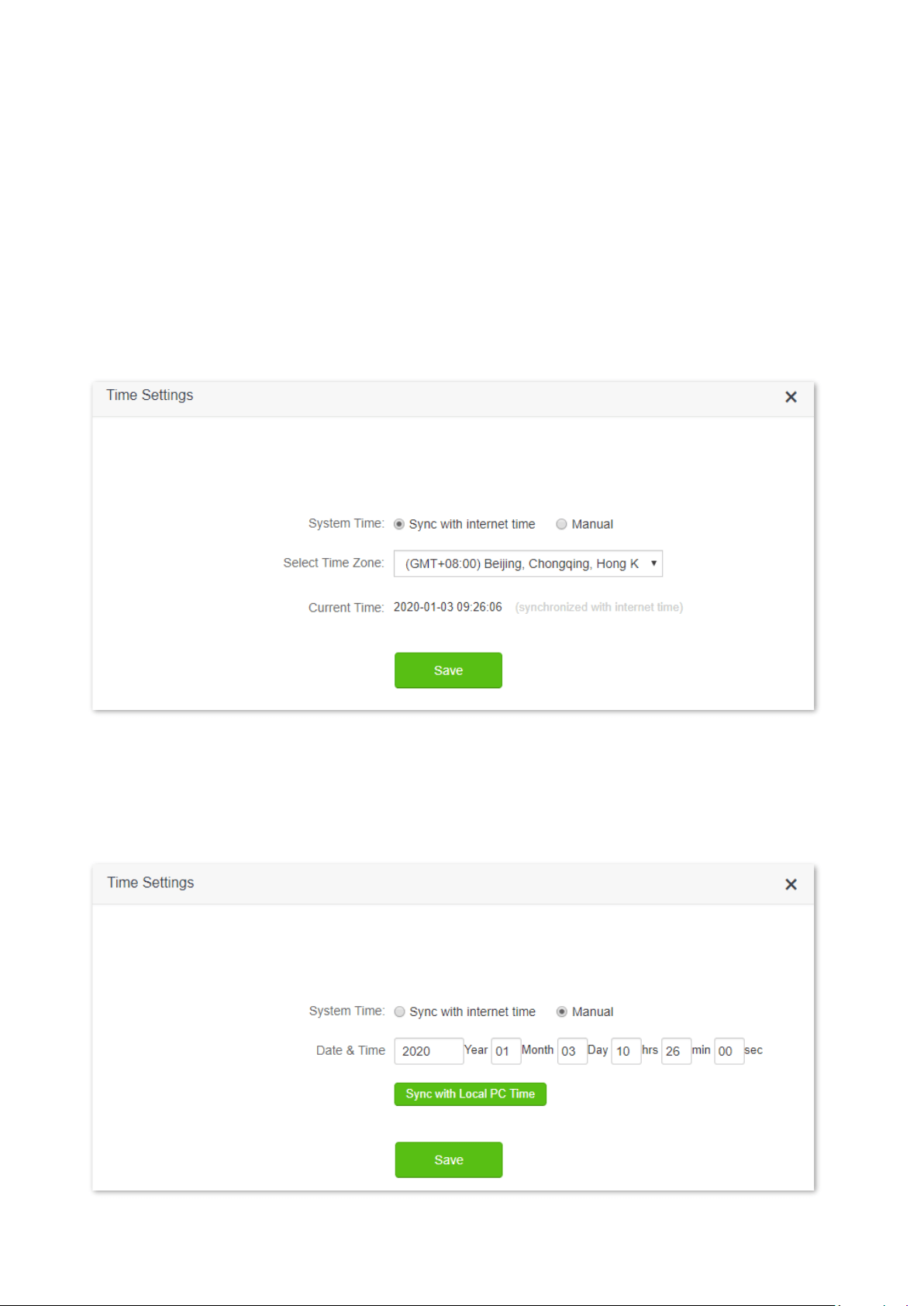
128
11.4 Time settings
To access the configuration page, log in to the web UI of the router, and choose System Settings >
Time Settings.
You can change the time settings on this page. The functioning of functions based on time requires
an accurate system time. The system time of the router can be synchronized with the internet or
set manually. By default, it is synchronized with the internet.
11.4.1 Sync system time with the internet time
Under this mode, the router will automatically sync its time with the internet time when it is
connected to the internet. You can also choose the time zone to be synchronized.
11.4.2 Set the time manually
When the system time is set to Manual, you can enter a desired time or sync the system time of
the router with the device that is configuring the router. Besides, you need to correct it every time
after you reboot the router in order to ensure the accuracy of system time.
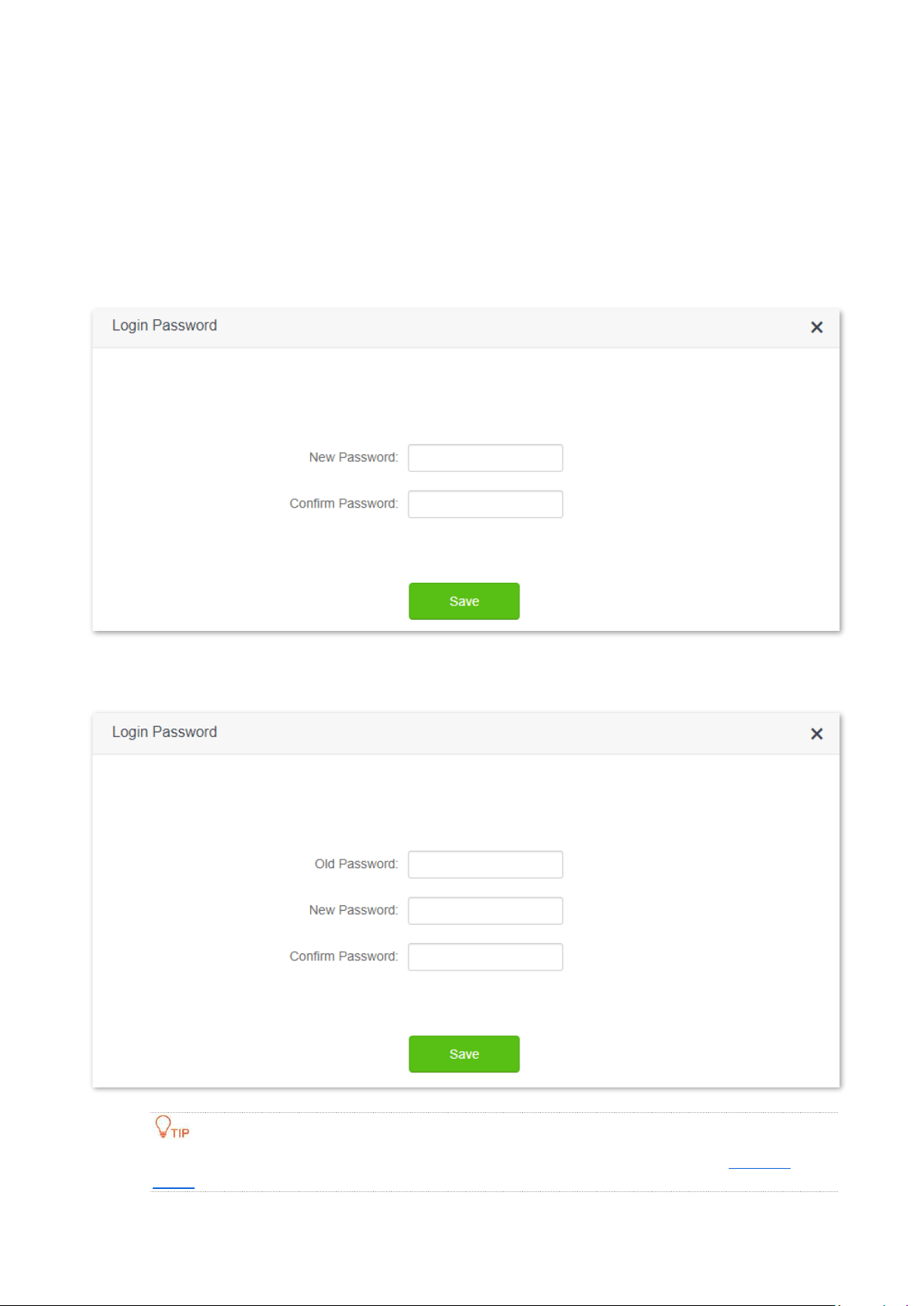
129
11.5 Login password
To ensure network security, a login password is recommended. A login password consisting of
more types of characters, such as uppercase letters and lowercase letters, brings higher security.
To access the login password configuration page, log in to the web UI and choose System
Settings > Login Password.
When you use the router for the first time, no password is required to log in to the web UI of the
router and you can set a login password on this page.
If you have already set a login password, you can change the password on this page and the old
password is required.
If you forget your login password and cannot log in to the web UI of the router, refer to Reset the
router to restore the router to factory settings and log in to the web UI without password.
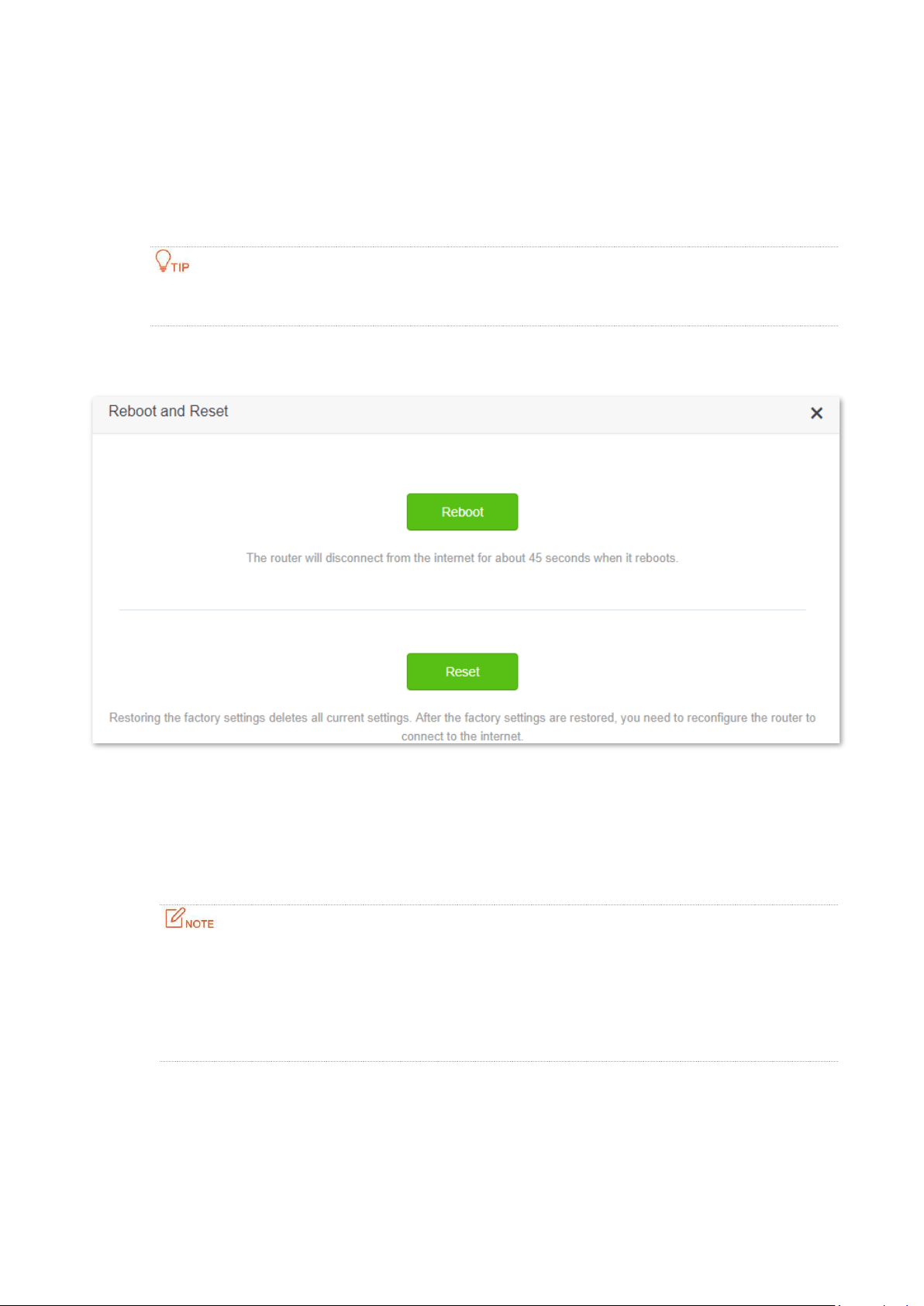
130
11.6 Reboot and reset
11.6.1 Reboot the router
If any parameter fails to take effect or the router does not work properly, you can try rebooting the
router.
Rebooting the router will disconnect all connections to the router. Reboot the router during leisure
times.
To reboot the router, log in to the web UI of the router and choose System Settings > Reboot and
Reset. Click Reboot to reboot the router.
Wait for a moment until the ongoing process finishes.
11.6.2 Reset the router
If you are uncertain about why the internet is inaccessible through the router or you forget the
login password of the router, you can reset the router.
⚫
Resetting the router is not recommended unless you cannot find a solution for the current
problem anyway. You need to reconfigure the router after it is reset.
⚫
Ensure that the power supply of the router is normal when the router is reset. Otherwise, the
router could be damaged.
⚫
The default login IP address is 192.168.0.1 after resetting, and no password is required.
Reset the router using the reset button
Hold down the Reset button on the rear panel of the router for about 8 seconds and release when
the LED indicators blinks fast. The router is reset successfully.
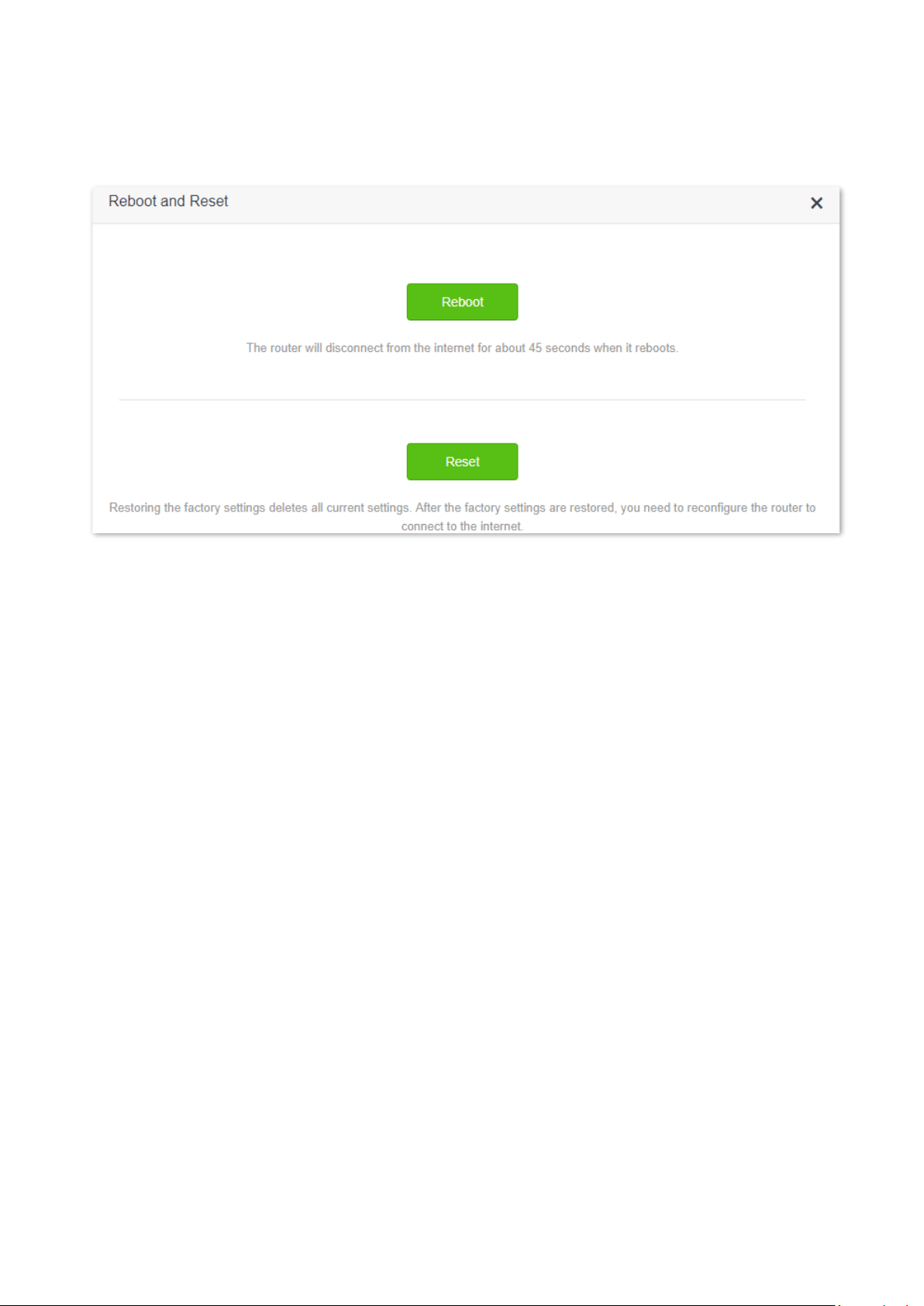
131
Reset the router on the web UI
Start a web browser and log in to the web UI of the router. Choose System Settings > Reboot and
Reset, and click Reset.
Wait for a moment until the ongoing process finishes.
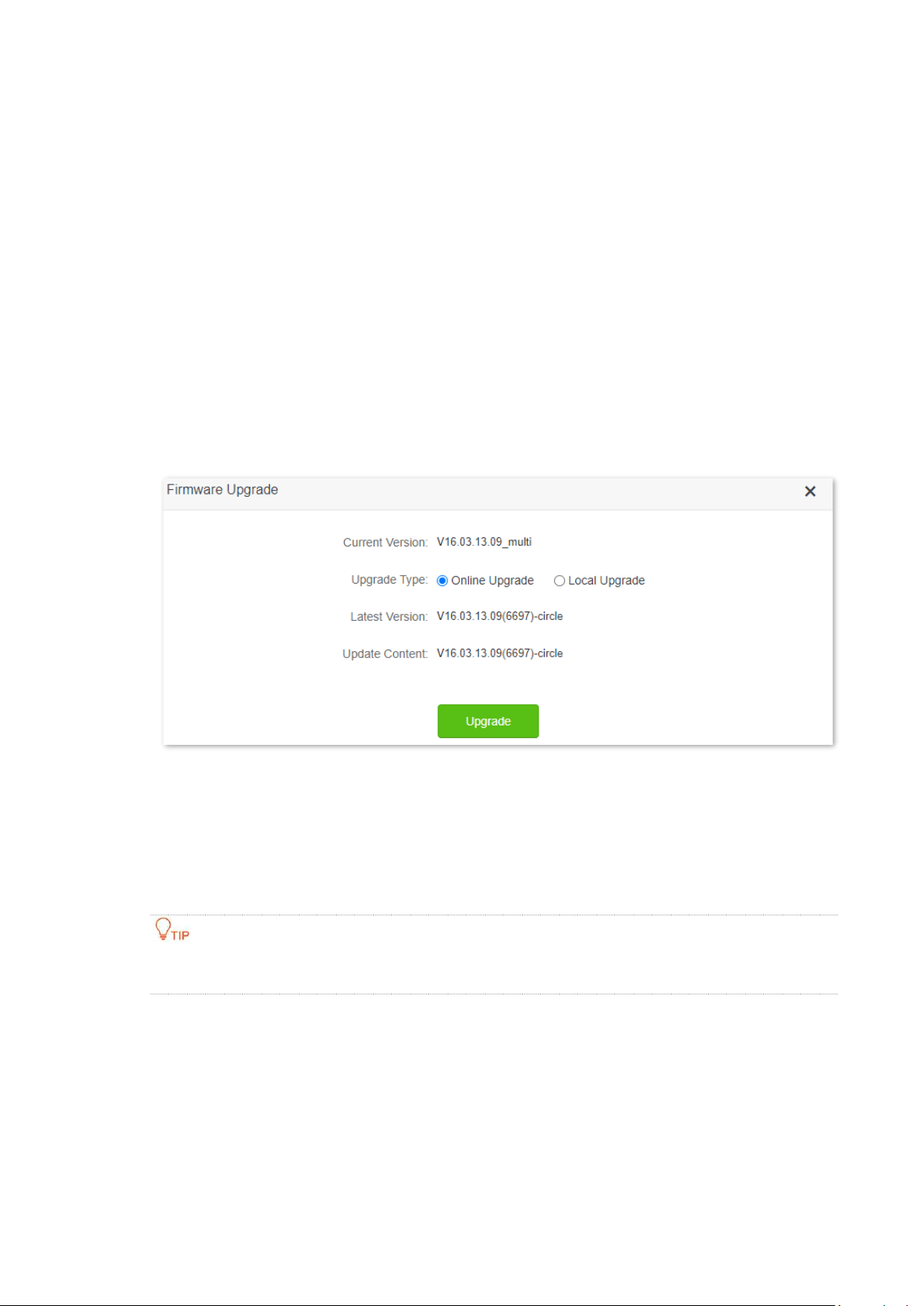
132
11.7 Upgrade firmware
This function enables the router to obtain the latest functions and more stable performance. The
router supports online firmware upgrade and local firmware upgrade.
11.7.1 Online upgrade
When the router is connected to the internet, it auto-detects whether there is a new firmware and
displays the detected information on the page. You can choose whether to upgrade to the latest
firmware.
Configuring procedure:
Step 1 Start a web browser on a device connected to the router and visit tendawifi.com to log in
to the web UI of the router.
Step 2 Choose System Settings > Firmware upgrade.
Step 3 Wait until a new firmware version is detected.
Step 4 Click Update.
---End
Wait for a moment until the ongoing process finishes. Log in to the web UI of the router again.
Choose System Settings > System Status and check whether the upgrade is successful based on
the Firmware Version.
For better performance of the new firmware of the router, you are recommended to reset the router to
factory default settings and re-configure the router when the upgrading is completed.
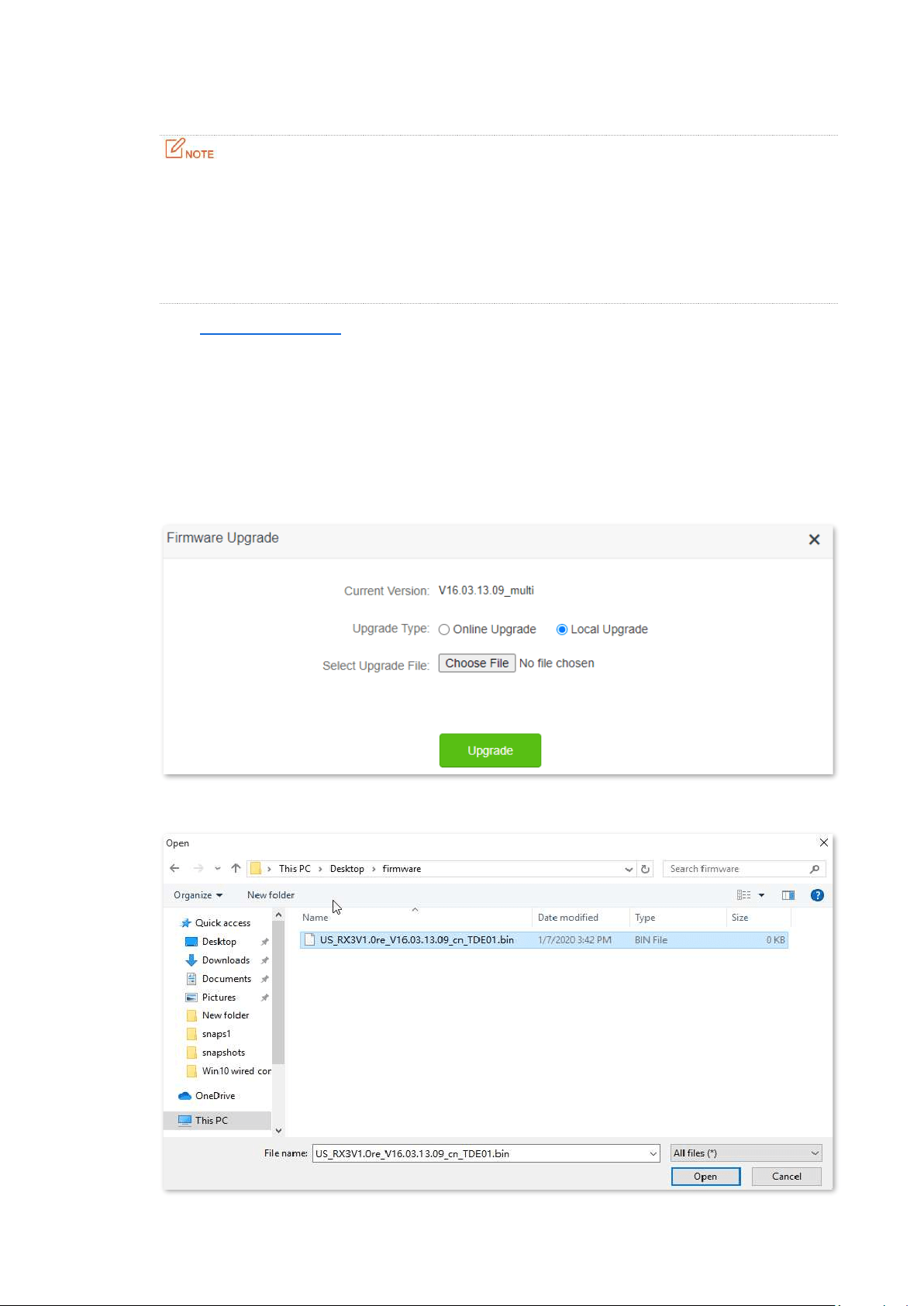
133
11.7.2 Local upgrade
In order to prevent the router from being damaged:
⚫
Ensure that the firmware is applicable to the router.
⚫
It is recommended to upgrade the firmware by connecting a LAN port to a computer and
performing the upgrade on the web UI.
⚫
When you are upgrading the firmware, do not power off the router.
Step 1 Go to www.tendacn.com. Download an applicable firmware of the router to your local
computer and unzip it.
Step 2 Start a web browser on a device connected to the router and visit tendawifi.com to log in
to the web UI of the router.
Step 3 Choose System Settings > Firmware Upgrade.
Step 4 Choose Local Upgrade.
Step 5 Click Choose File.
Step 6 Target the firmware file downloaded previously (extension: bin), and click Open.
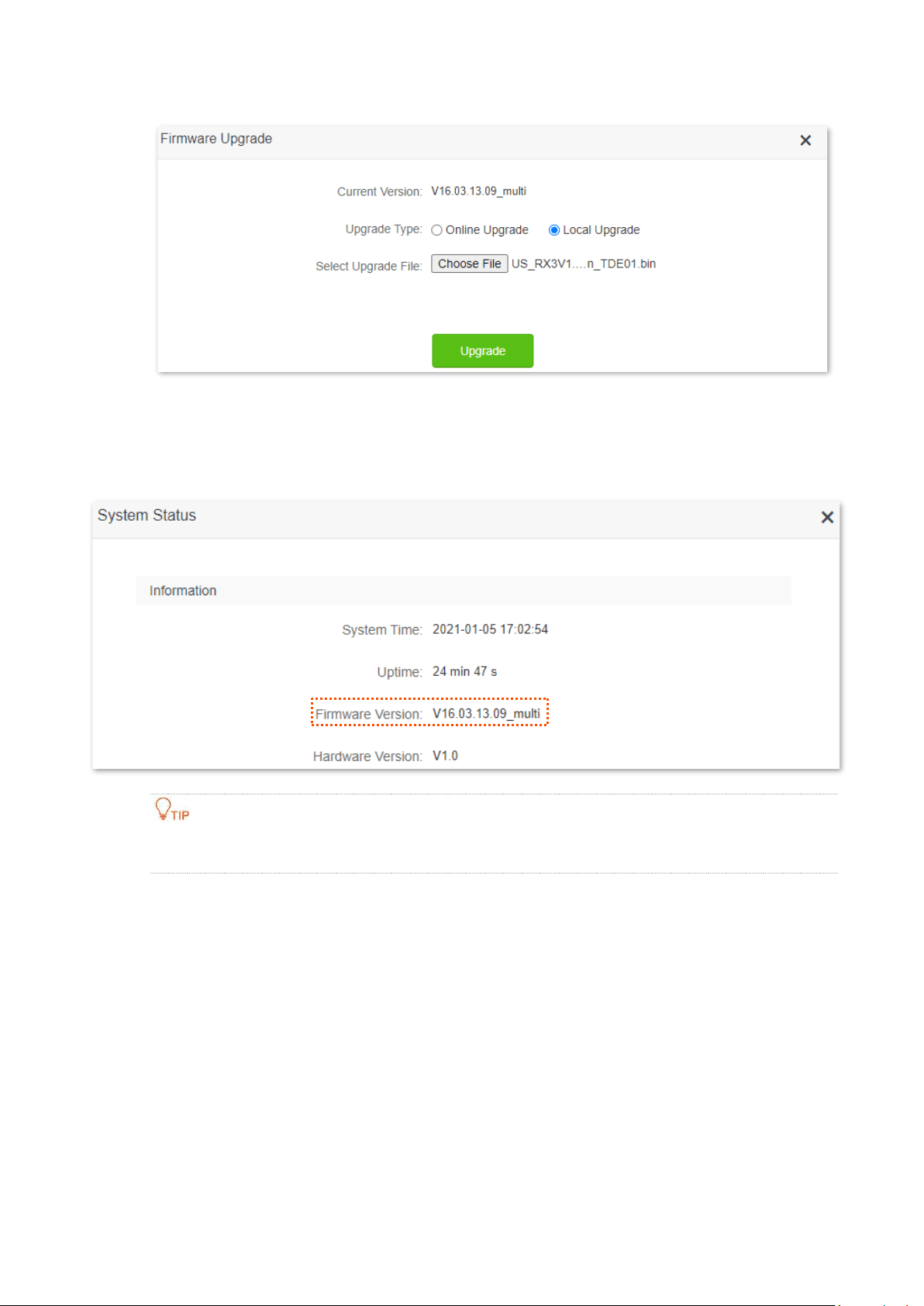
134
Step 7 Click Upgrade.
---End
Wait for a moment until the ongoing process finishes. Log in to the web UI of the router again.
Choose System Settings > System Status and check whether the upgrade is successful based on
the Firmware Version.
For better performance of the new firmware, you are recommended to reset the router to factory
default settings and re-configure the router when the upgrading is completed.
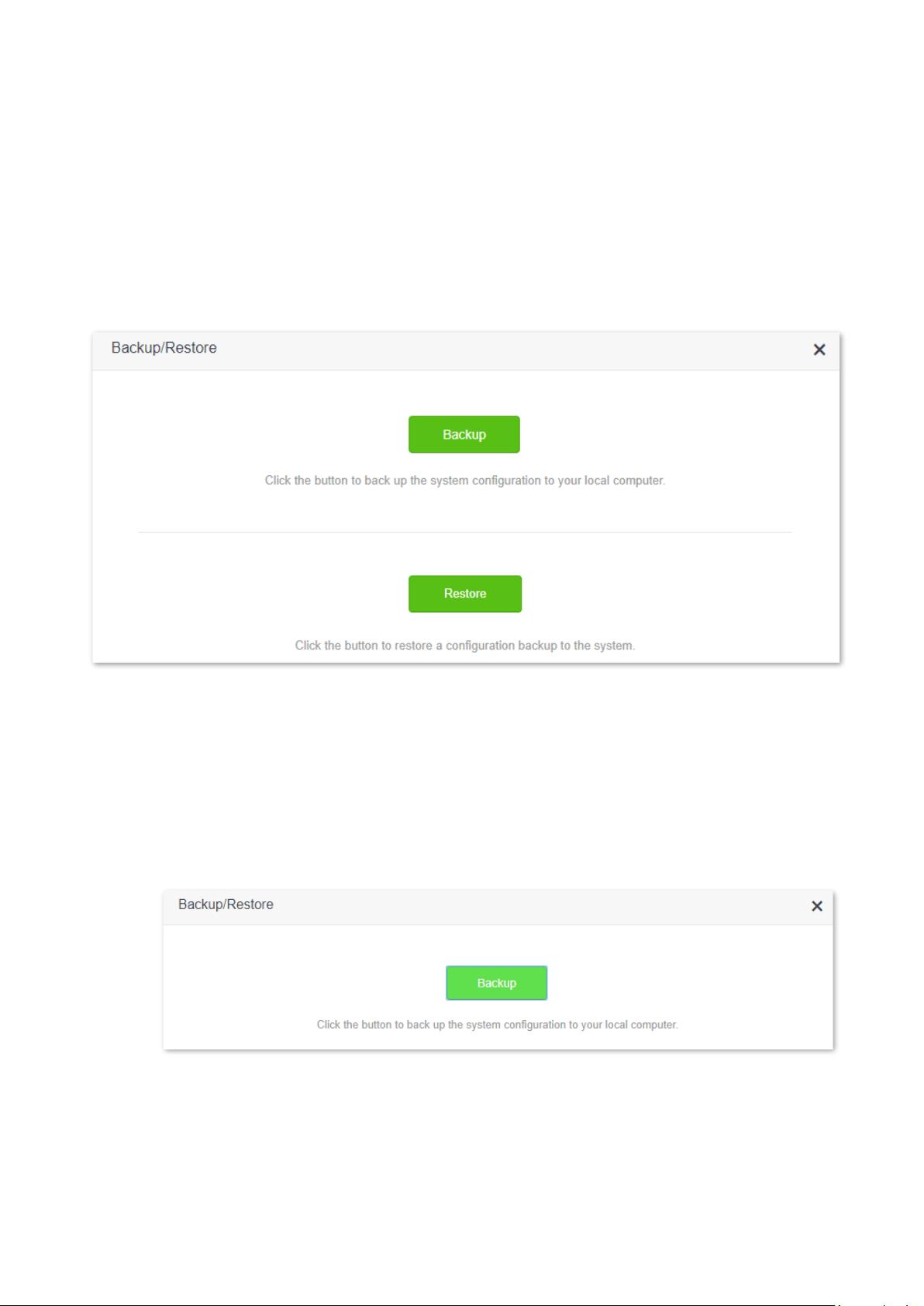
135
11.8 Backup/Restore
In this module, you can back up the current configurations of the router to your computer. You are
recommended to back up the configuration after the settings of the router are significantly
changed, or the router works in a good condition.
After you restore the router to factory settings or upgrade it, you can use this function to restore
the configurations that have been backed up.
To access the configuration page, log in to the web UI of the router, and choose System Settings >
Backup/Restore.
11.8.1 Backup the configurations of the router
To back up the configurations of the router:
Step 1 Start a web browser on a device connected to the router and visit tendawifi.com to log in
to the web UI of the router.
Step 2 Choose System Settings > Backup/Restore.
Step 3 Click Backup.
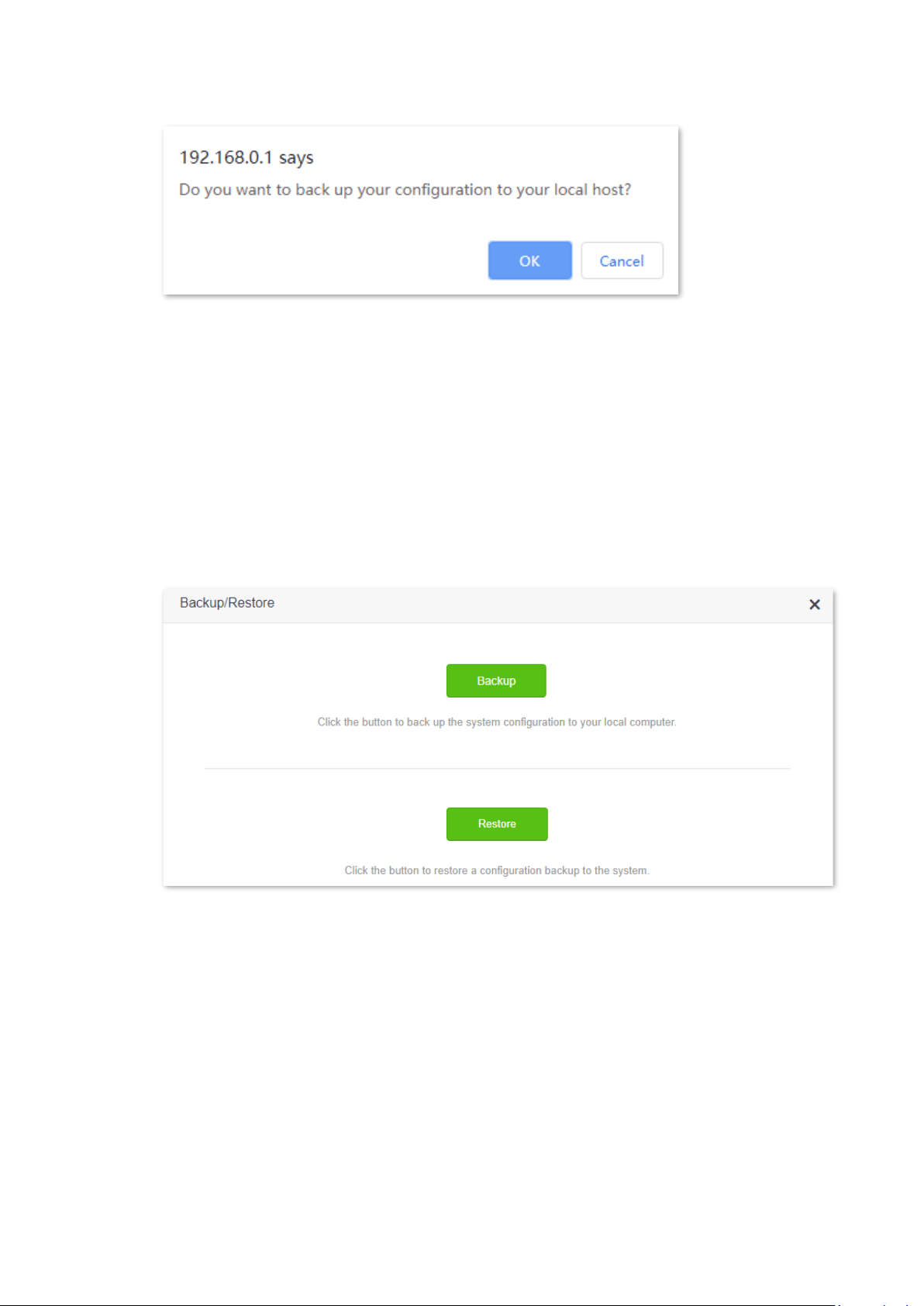
136
Step 4 Click OK in the pop-up window.
---End
A file named RouterCfm.cfg will be downloaded to your local host.
11.8.2 Restore previous configurations of the router
To restore the previous configurations of the router:
Step 1 Start a web browser on a device connected to the router and visit tendawifi.com to log in
to the web UI of the router.
Step 2 Choose System Settings > Backup/Restore.
Step 3 Click Restore.
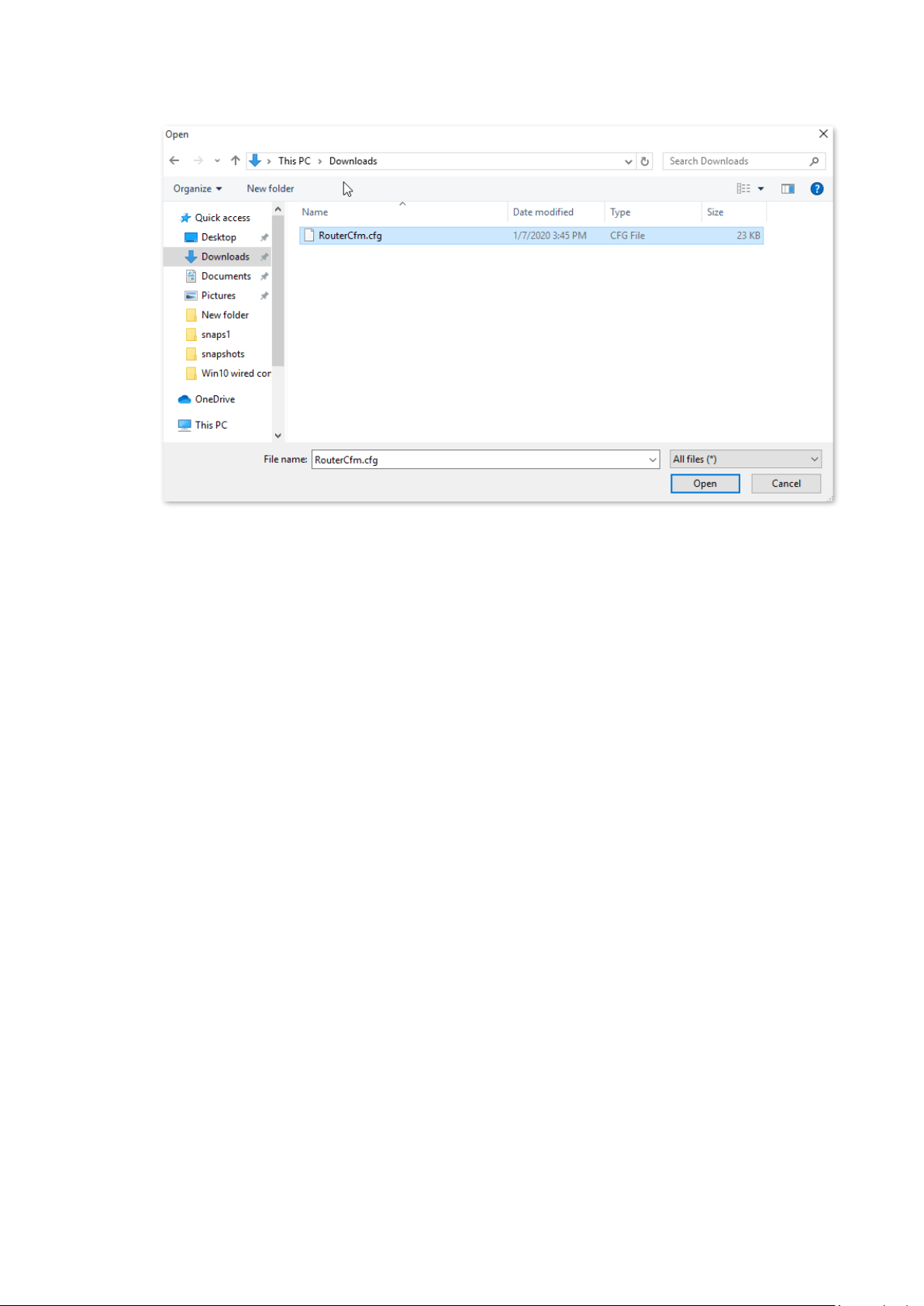
137
Step 4 Choose the configuration file to be restored (extension: cfg), and click Open.
---End
Wait for a moment until the ongoing process finishes, and the router restores previous settings.
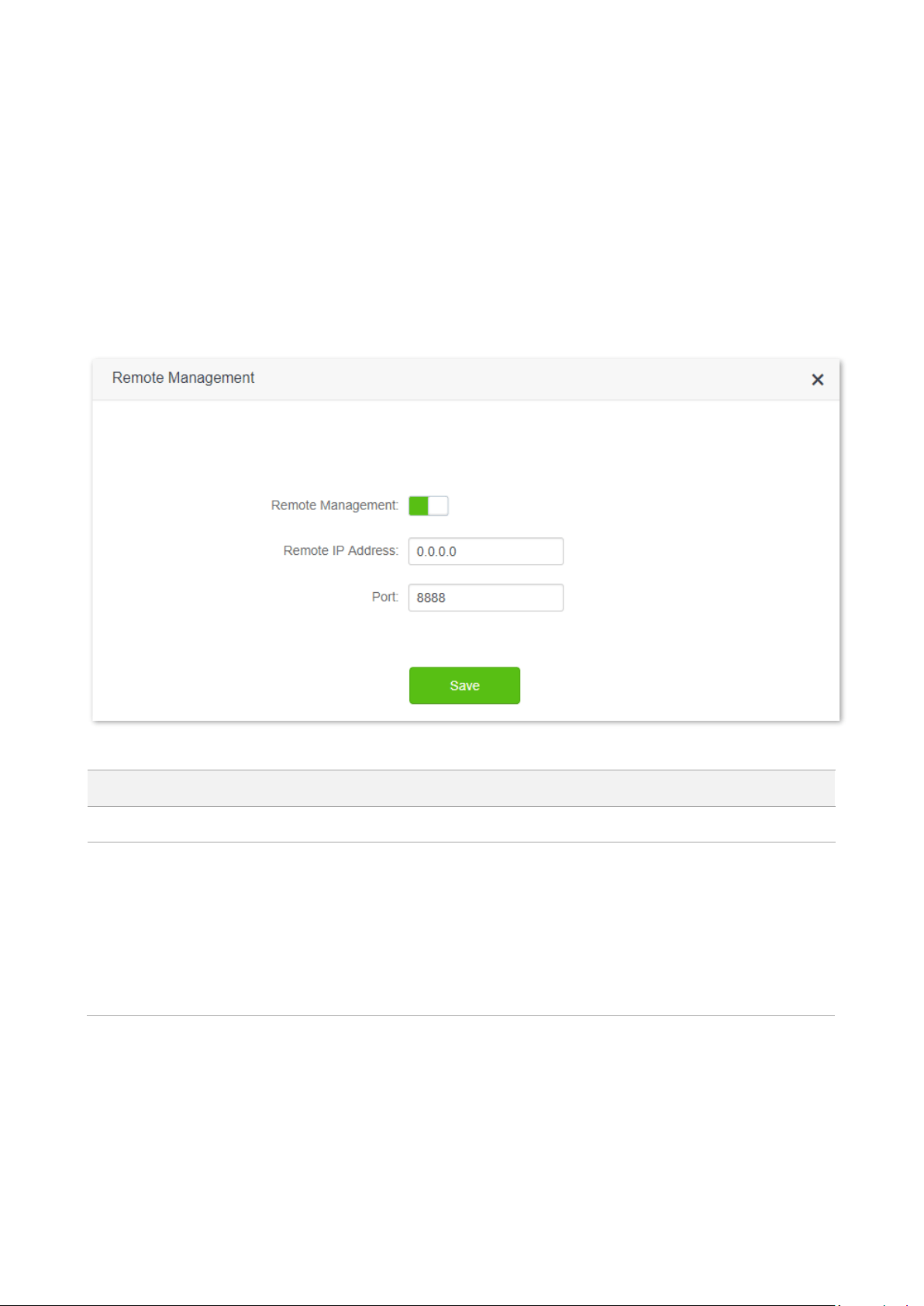
138
11.9 Remote management
11.9.1 Overview
Generally, the web UI of the router can only be accessed on devices that are connected to the
router by a LAN port or wireless connection. When you encounter a network fault, you can ask for
remote technical assistance, which improves efficiency and reduces costs and efforts.
To access the configuration page, log in to the web UI of the router, and choose System Settings >
Remote Management.
By default, this function is disabled. When this function is enabled, the page is shown as below.
Parameter description
Parameter
Description
Remote Management
It is used to enable or disable the remote management function of the router.
Remote IP Address
It specifies the IP address of the host which can access the web UI of the router
remotely.
⚫
0.0.0.0: It indicates that hosts with any IP address from the internet can access
the web UI of the router. It is not recommended for security.
⚫
Other specified IP address: Only the host with the specified IP address can access
the web UI of the router remotely. If the host is under a LAN, ensure that the IP
address is the IP address of the gateway of the host (a public IP address).
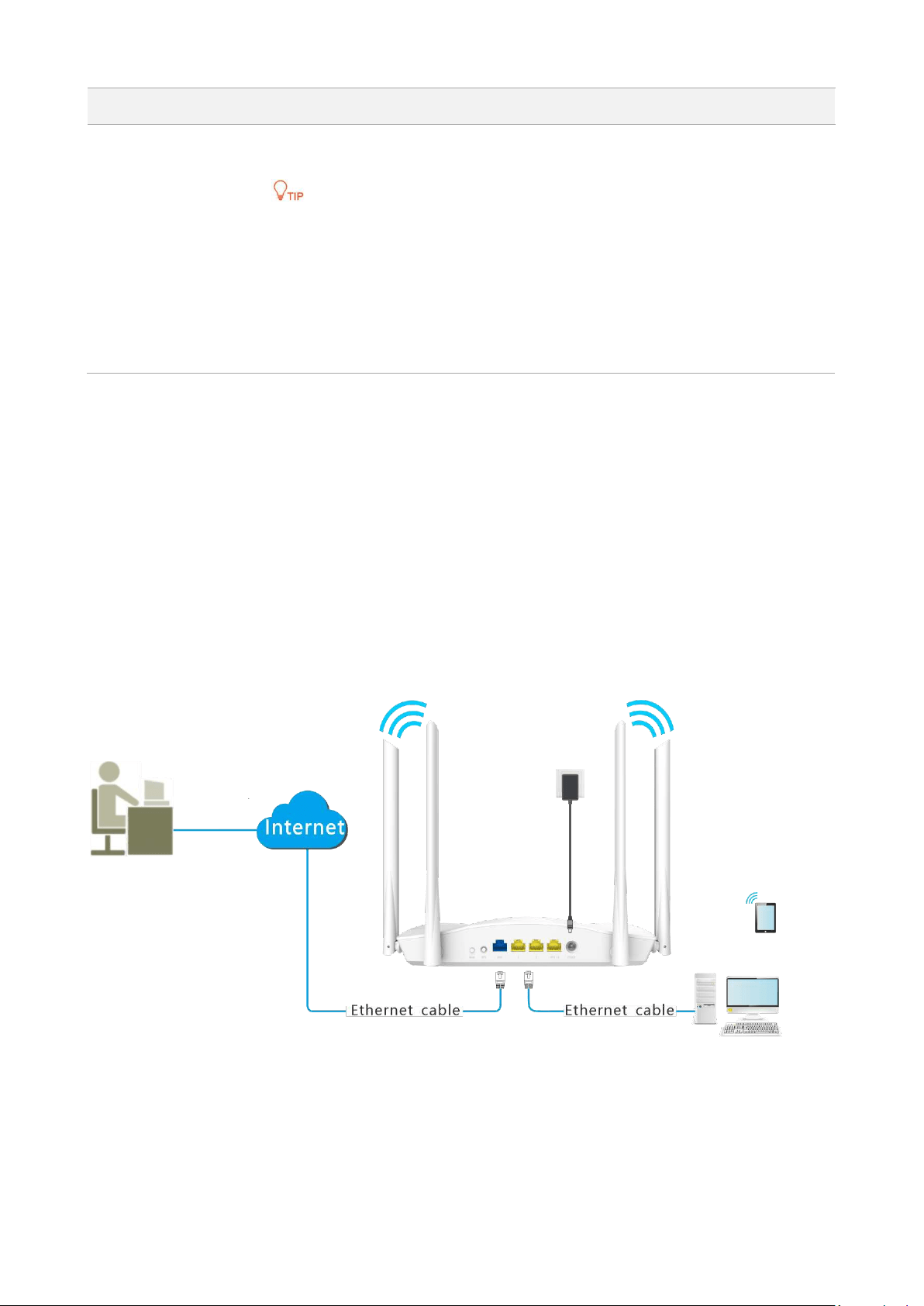
139
Parameter
Description
Port
It specifies the port number of the router which is opened for remote
management. Change it as required.
⚫
The port number from 1 to 1024 has been occupied by familiar services. It is
strongly recommended to enter a port number from 1025 to 65535 to prevent
confliction
⚫
Remote management can be achieved by visiting “http://the WAN IP address of
the router:port number”. If the DDNS host function is enabled, the web UI can
also be accessed through “http://the domain name of the router’s WAN port:port
number”.
11.9.2 Enable Tenda techical support to acces and manage the
web UI
Scenario: You encounter a problem in configuring the router, and the router can access internet
access.
Goal: Ask the Tenda technical support to help you configure the router remotely.
Solution: You can configure the remote management function to reach the goal.
Assume that:
− The IP address of Tenda technical support: 210.76.200.101
− The WAN port IP address of the router: 202.105.106.55
Configuring procedure:
Step 1 Start a web browser on a device connected to the router and visit tendawifi.com to log in
to the web UI of the router.
Step 2 Choose System Settings > Remote Management.
Step 3 Enable the Remote Management.
WAN IP address: 202.105.106.55
Tenda technical support
IP address: 210.76.200.101
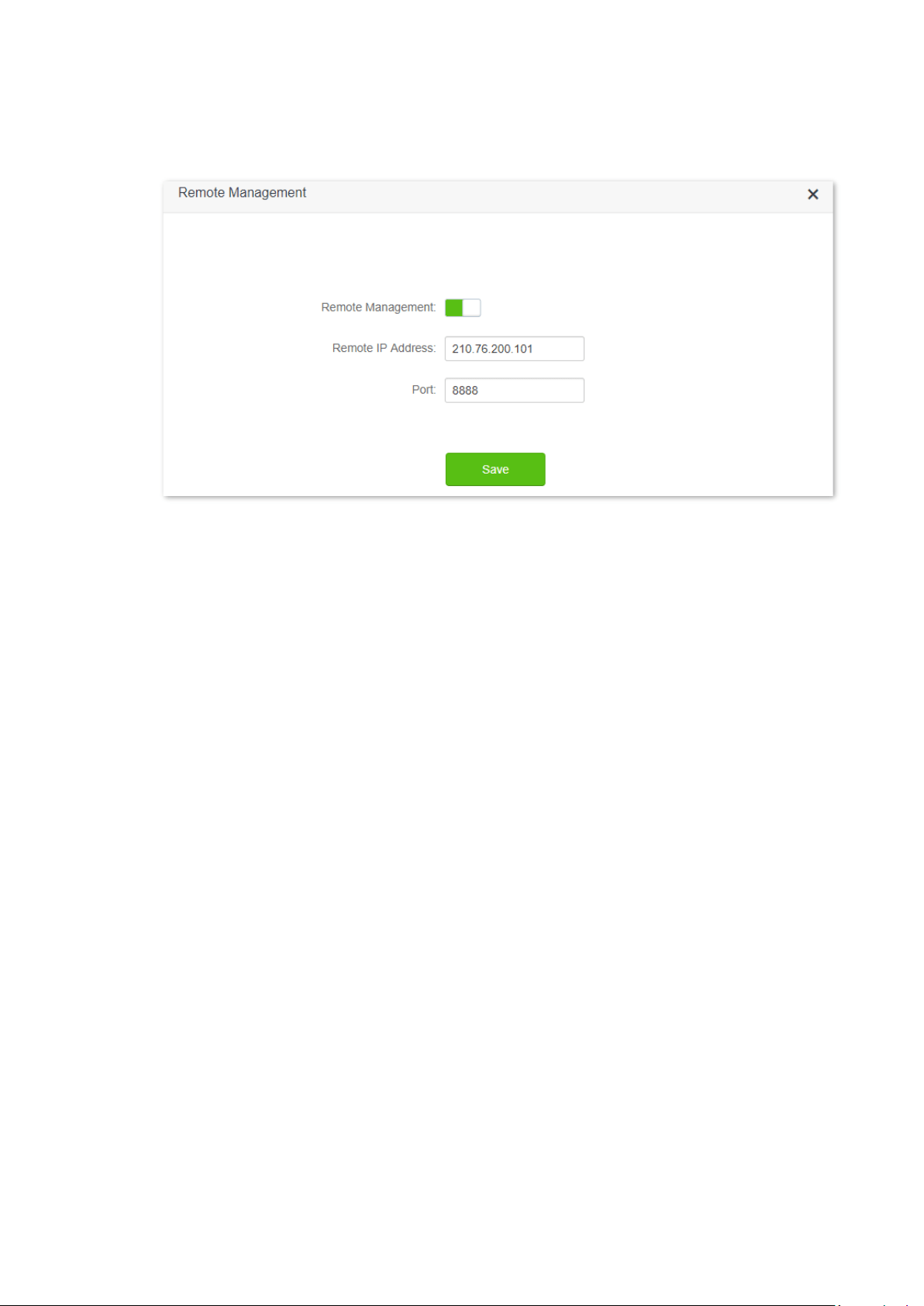
140
Step 4 Enter the IP address that is allowed to access the web UI remotely, which is
210.76.200.101 in this example.
Step 5 Click Save.
---End
When the configurations are completed, the Tenda technical support can access and manage the
web UI of the router by visiting “http://202.105.106.55:8888” on the computer.
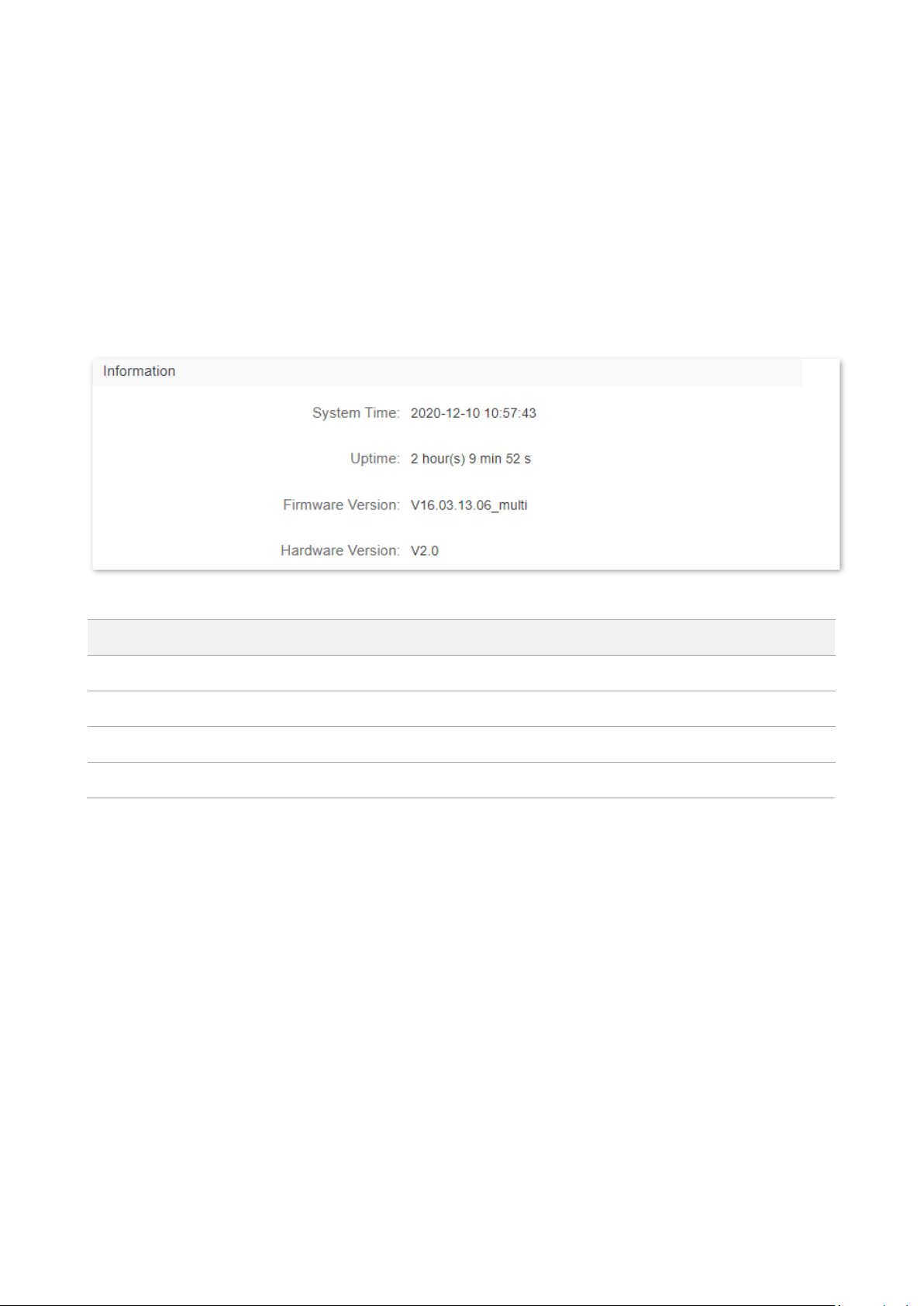
141
11.10 System status
On this page, you can find the basic information of the router, WAN status, LAN status, WiFi status
and IPv6 status.
To access the configuration page, log in to the web UI of the router, and choose System Settings >
System Status.
11.10.1 Basic information
In this part, you can view the basic information of the router, such as system time, uptime and
firmware version, etc.
Parameter description
Parameter
Description
System Time
It specifies the system time of the router.
Uptime
It specifies operating time of the router since it is powered on.
Firmware Version
It specifies the firmware version of the router.
Hardware Version
It specifies the hardware version of the router.
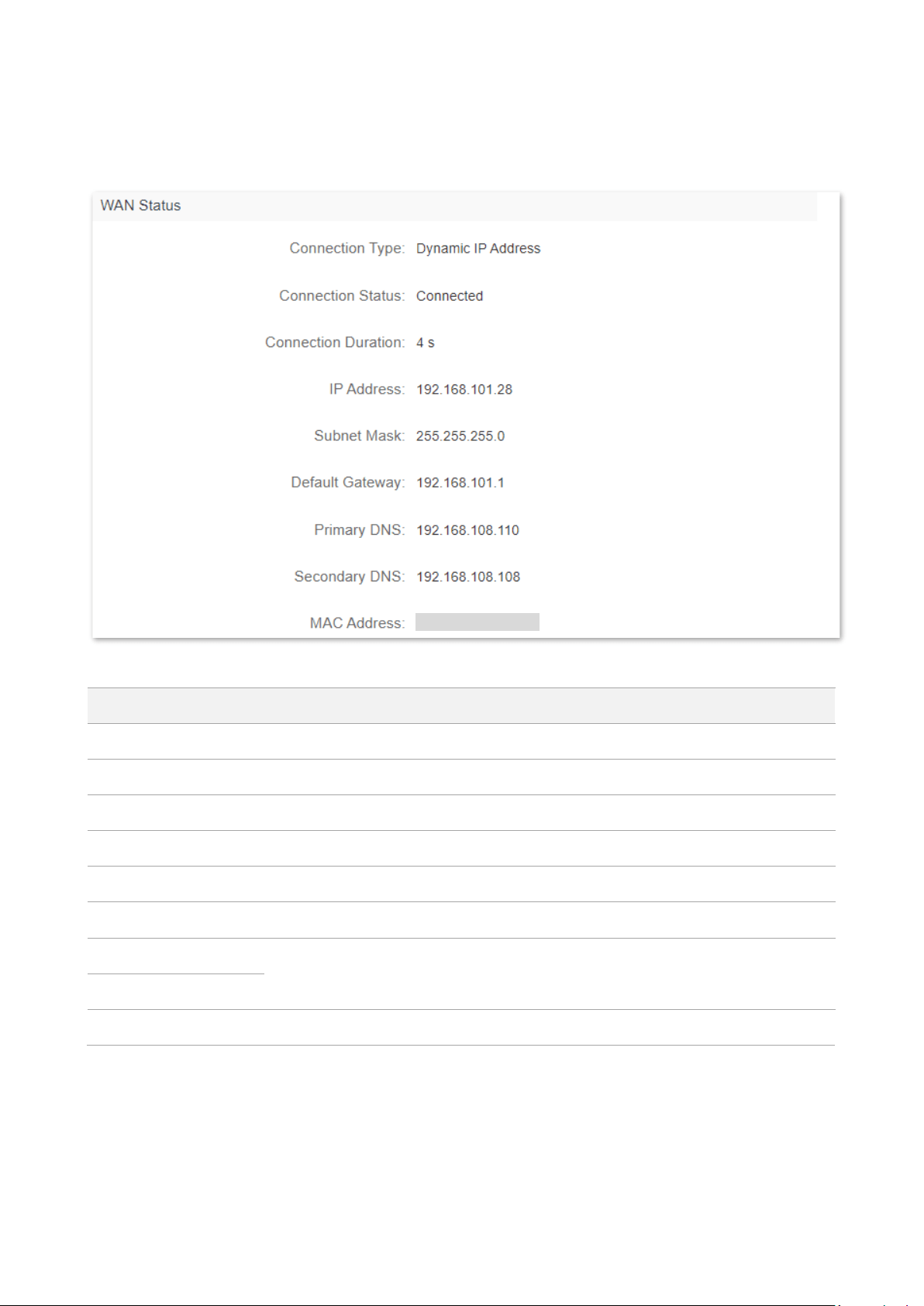
142
11.10.2 WAN status
In this part, you can view the information of the WAN port, including connection type, connection
status and connection duration, etc.
Parameter description
Parameter
Description
Connection Type
It specifies the internet IPv4 connection type of the WAN port.
Connection Status
It specifies internet connection status of the WAN port.
Connection Duratoin
It specifies the duration since the router is connected to the internet.
IP address
It specifies the WAN IP address of the router.
Subnet Mask
It specifies the WAN subnet mask of the router.
Default Gateway
It specifies the gateway IP address of the router.
Primary DNS
It specifies the IP address of primary and secondary DNS servers of the router.
Secondary DNS
MAC Address
It specifies the WAN MAC address of the router.
11.10.3 LAN status
In this part, you can view the LAN information such as LAN IP address, subnet mask and MAC
address.
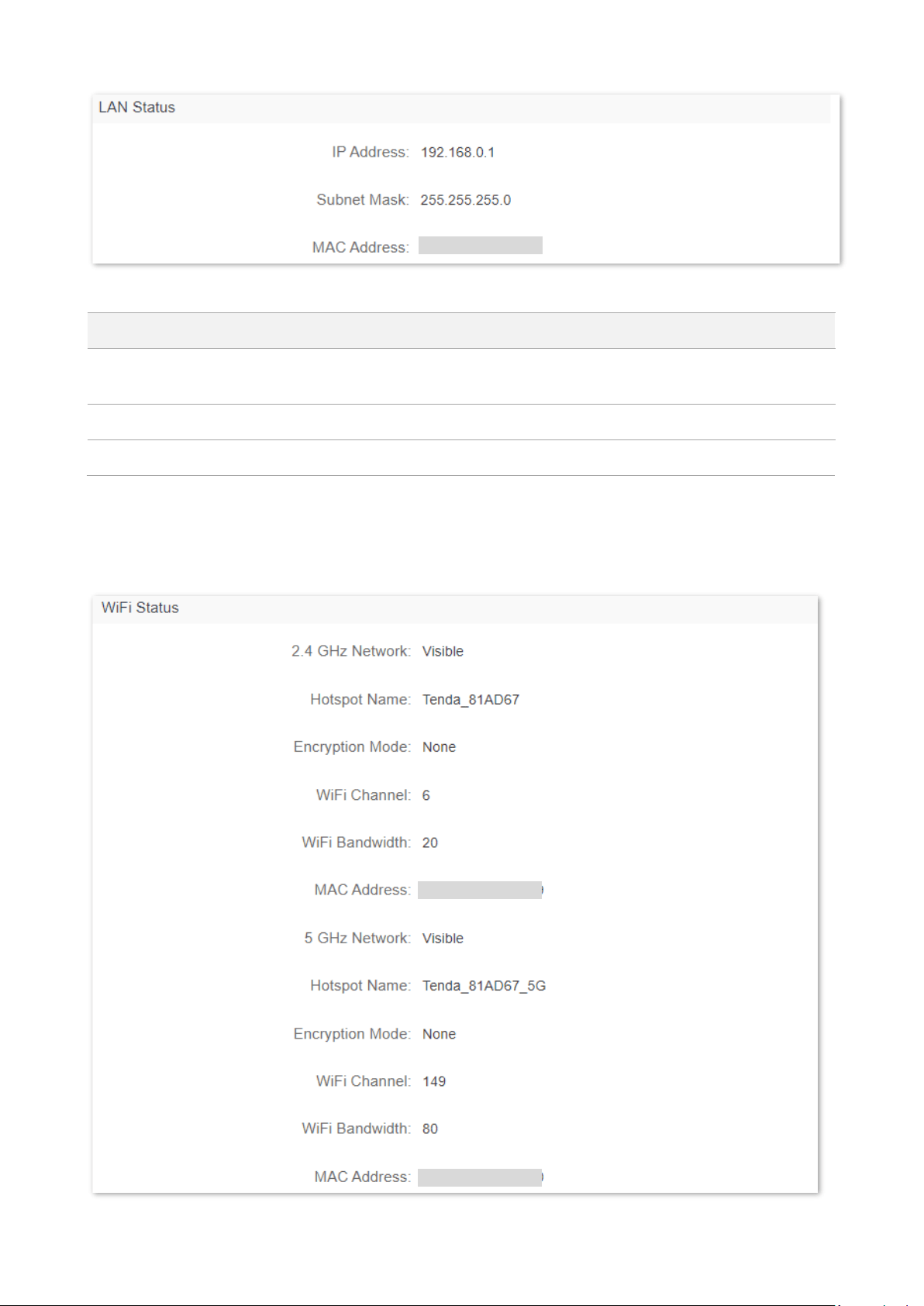
143
Parameter description
Parameter
Description
IP Address
It specifies the LAN IP address of the router, and also the IP address for logging in to
the web UI of the router,
Subnet Mask
It specifies the LAN subnet mask of the router.
MAC Address
It specifies the LAN MAC address of the router.
11.10.4 WiFi status
In this part, you can view the information of 2.4 GHz and 5 GHz WiFi network, including the status,
visibility, hotspot name and encryption mode, etc.
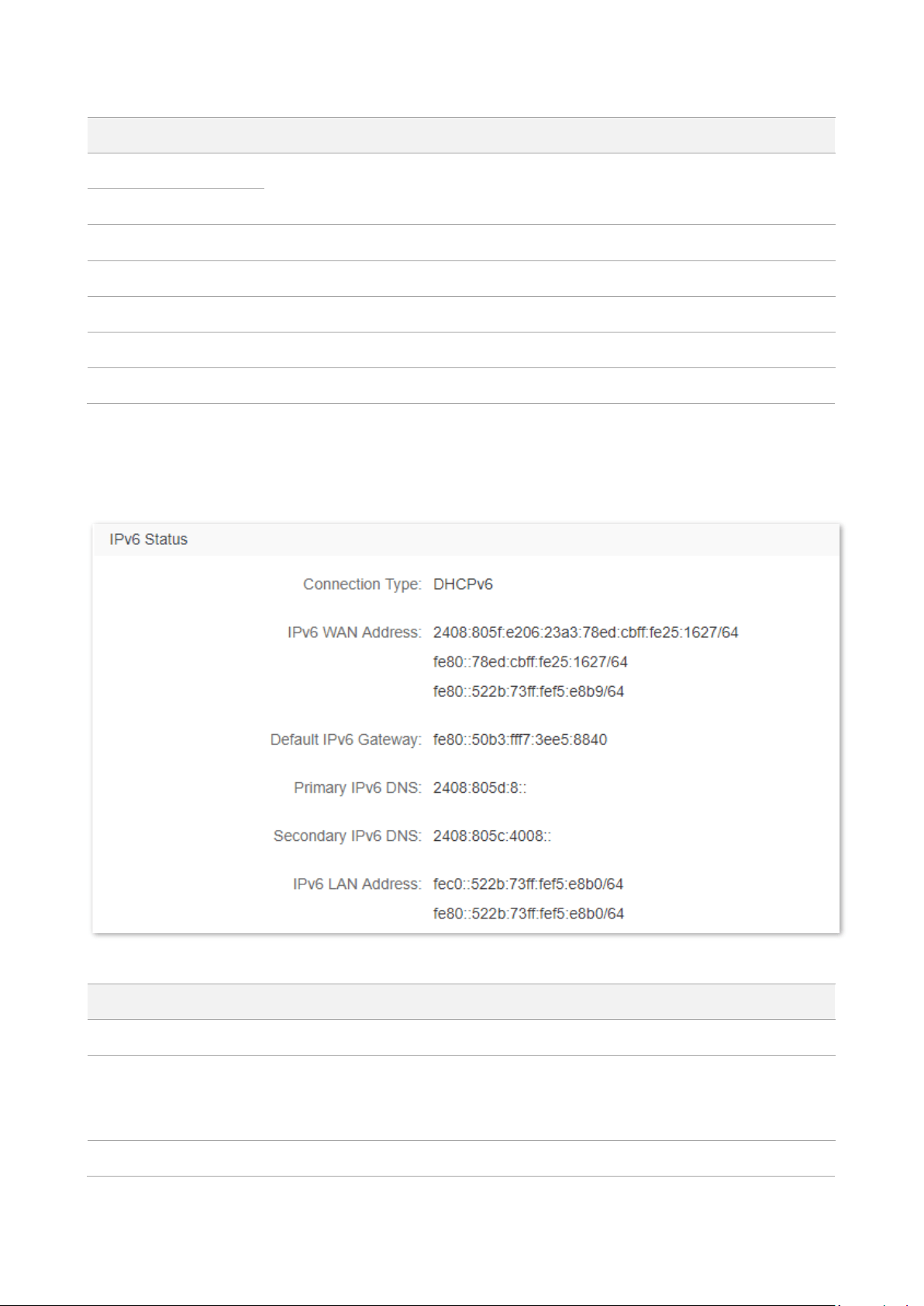
144
Parameter description
Parameter
Description
2.4 GHz Network
It specifies whether the corresponding WiFi network is enabled or disabled, and the
visibility of the WiFi network.
5 GHz Network
Hotspot Name
It specifies the WiFi name of the respective WiFi network.
Encryption Mode
It specifies the encryption mode of the respective WiFi network.
WiFi Channel
It specifies the channel that the respective WiFi network works in.
WiFi Bandwidth
It specifies the bandwidth of the respective WiFi network.
MAC Address
It specifies the MAC address of the respective WiFi network.
11.10.5 IPv6 status
This part is only displayed when the IPv6 function is enabled. You can view the information of IPv6
connection, including connection type, IPv6 WAN address and IPv6 LAN address.
Parameter description
Parameter
Description
Connection Type
It specifies the IPv6 connection type of the router.
IPv6 WAN Address
It specifies the WAN IPv6 address of the router.
After the IPv6 function is configured, the WAN port of the router obtains a global
unicast IPv6 address or a tunnel address, and a link local address.
Default IPv6 Gateway
It specifies the default IPv6 gateway address of IPv6 network.

145
Parameter
Description
Primary IPv6 DNS
It specifies the primary and secondary DNS server address of IPv6 network.
Secondary IPv6 DNS
IPv6 LAN Address
It specifies the LAN IPv6 address of the router.
After the IPv6 function is configured, the LAN port of the router obtains a global
unicast IPv6 address or a tunnel address, and a link local address.
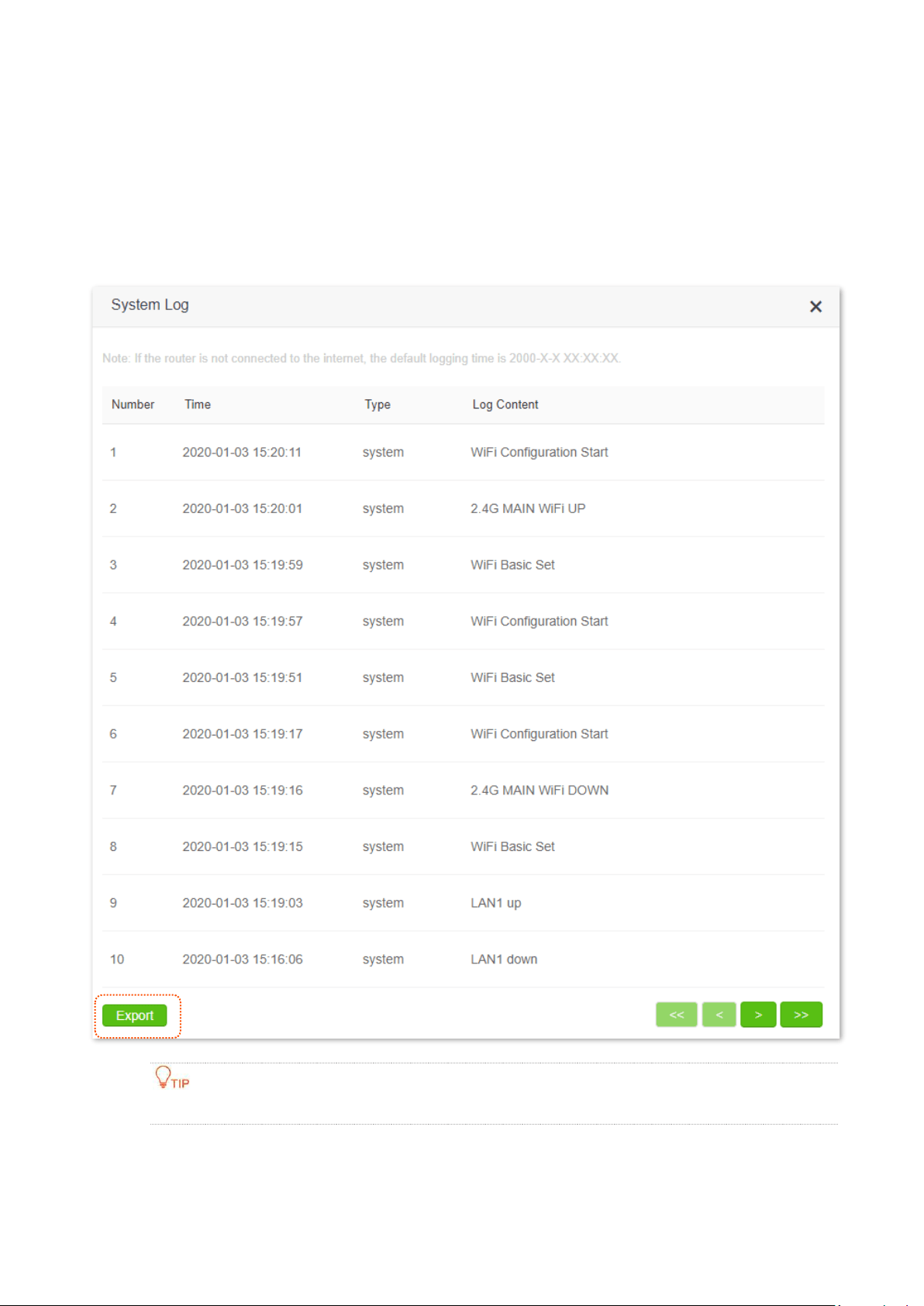
146
11.11 System log
To access the configuration page, log in to the web UI of the router, and choose System Settings >
System Log.
This function logs all key events that occur after the router is started. If you encounter a network
fault, you can turn to system logs for fault rectification.
If necessary, you can also export the system logs to your local computer by clicking Export.
Rebooting the router will clear all previous system logs.
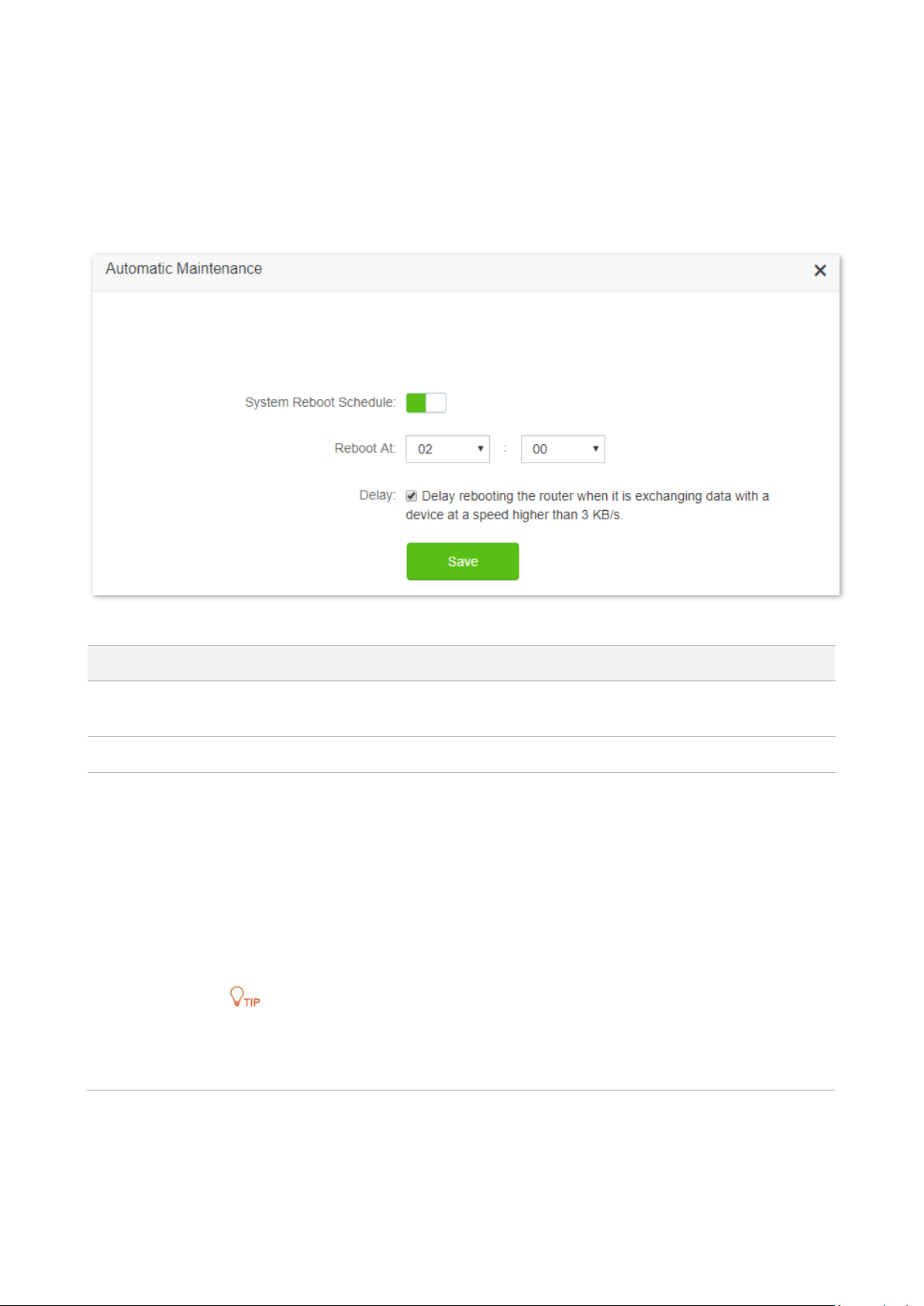
147
11.12 Automatic maintenance
Automatic maintenance enables you to make the router restart regularly. It helps improve the
stability and service life of the router.
To access the configuration page, log in to the web UI of the router, and choose System Settings >
Automatic Maintenance.
Parameter description
Parameter
Description
System Reboot
Schedule
It is used to enable or disable the automatic reboot function.
Reboot At
It specifies the time when the router reboot automatically every day.
Delay
It is used to enable or disable the delay function.
⚫
Ticked: The function is enabled. When the time for rebooting approaches, if there is any
user connected to the router and the traffic over the router's WAN port exceeds 3 KB/s
within 30 minutes, the router will delay rebooting. If there is any user connected to the
router and the traffic over the WAN port does not exceed 3 KB/s within 30 minutes, or
there is no user connected to the router and the traffic over the router's WAN port is
slower than 3 KB/s within 3 minutes, the router will reboot automatically.
⚫
Unticked: The function is disabled. The router enters the sleeping mode during the
sleeping time.
When the system reboot schedule function is enabled, the router detects the traffic over
the WAN port continuously within 2 hours after the specified reboot time and reboot
when the traffic requirement for rebooting is met.
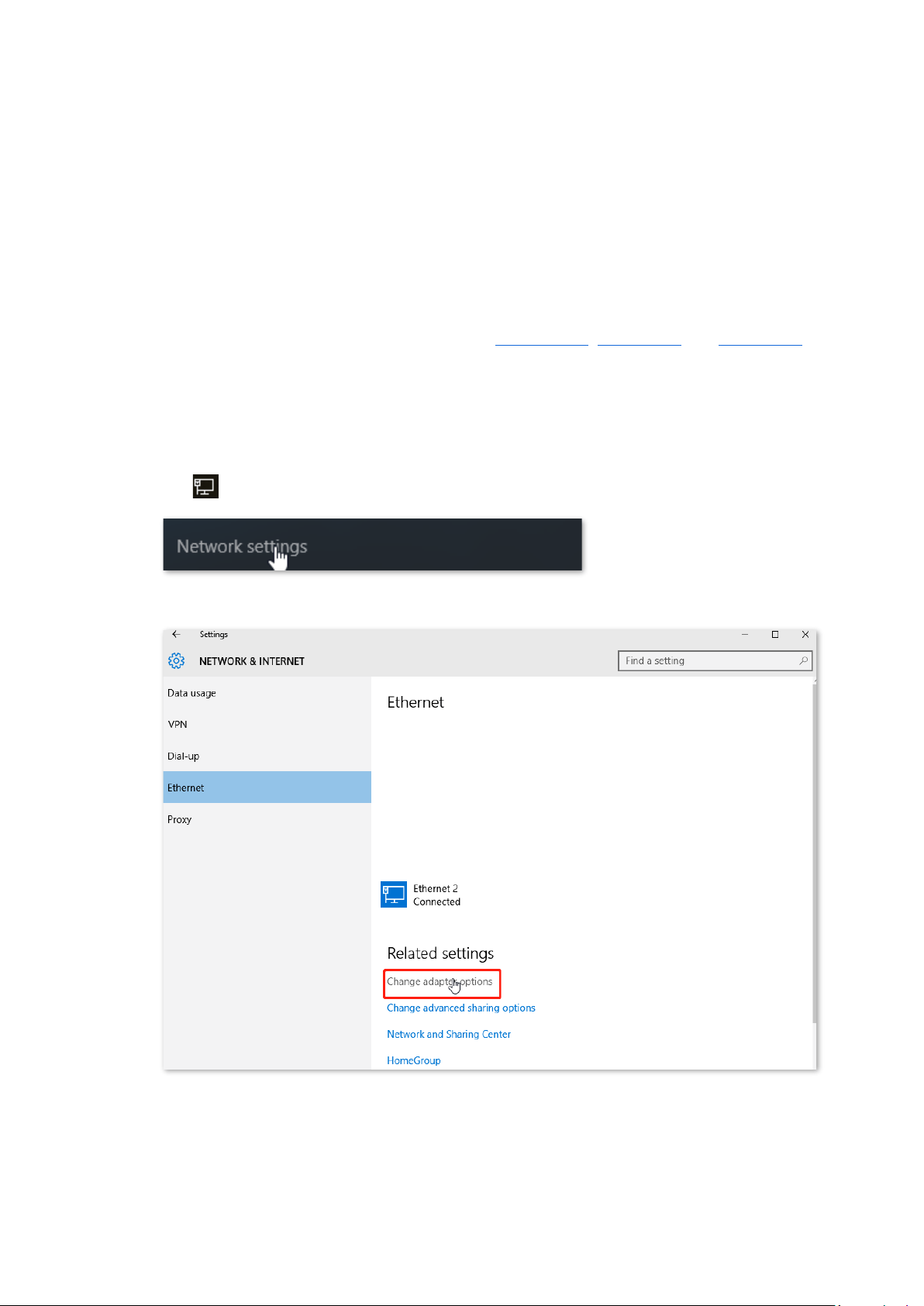
148
Appendix
A.1 Configuring the computer to obtain an IPv4
address automatically
Perform the configuring procedures corresponding to
Windows 10, Windows 8 and Windows 7 as
required. A computer installed with a wired network adapter is used as an example to describe the
procedures. The procedures for configuring computers installed with a WiFi network adapter are
similar.
A.1.1 Windows 10
Step 1 Click in the bottom right corner of the desktop and choose Network settings.
Step 2 Click Change adapter options.
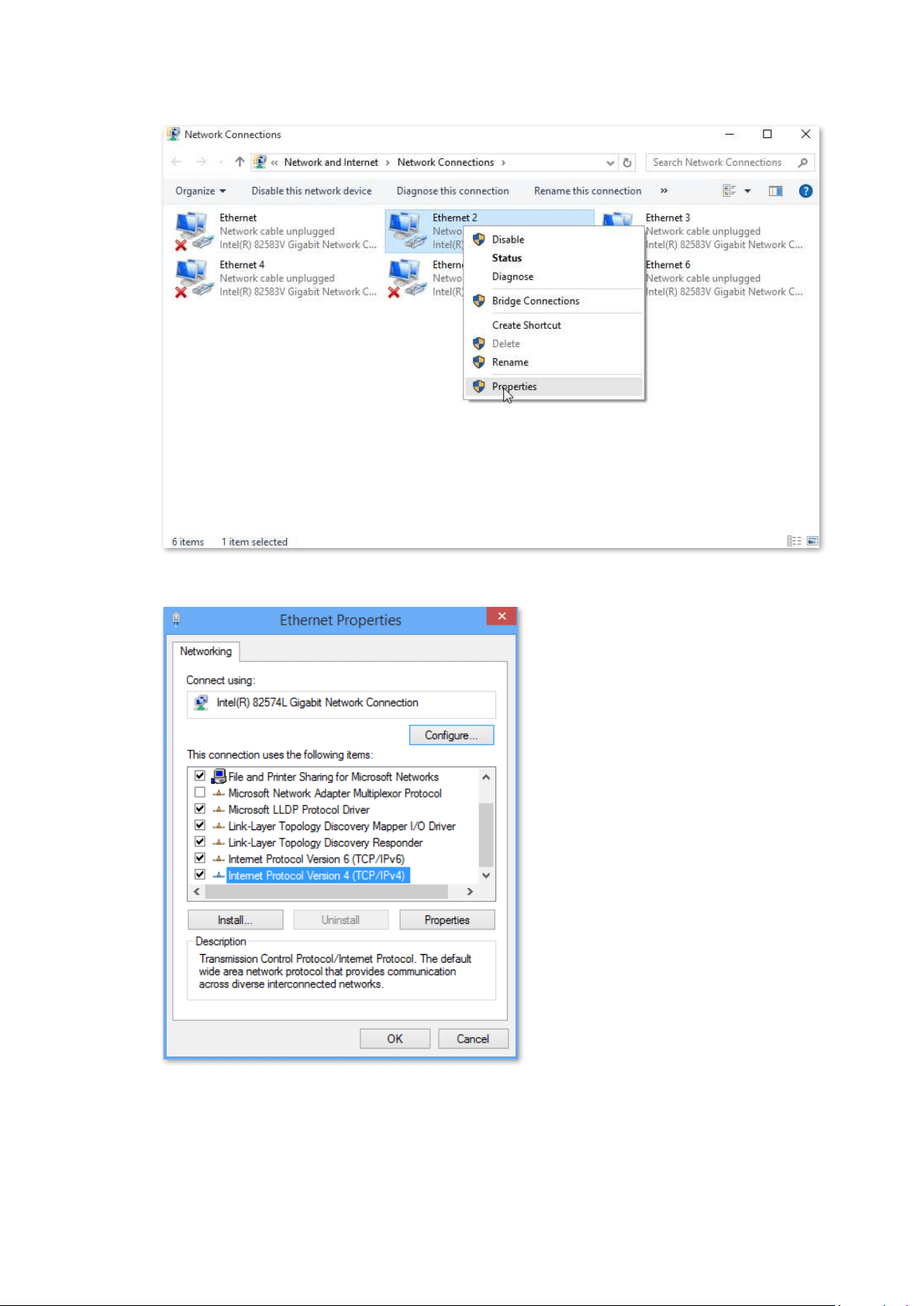
149
Step 3 Right click on the connection which is being connected, and then click Properties.
Step 4 Double-click Internet Protocol Version 4 (TCP/IPv4).
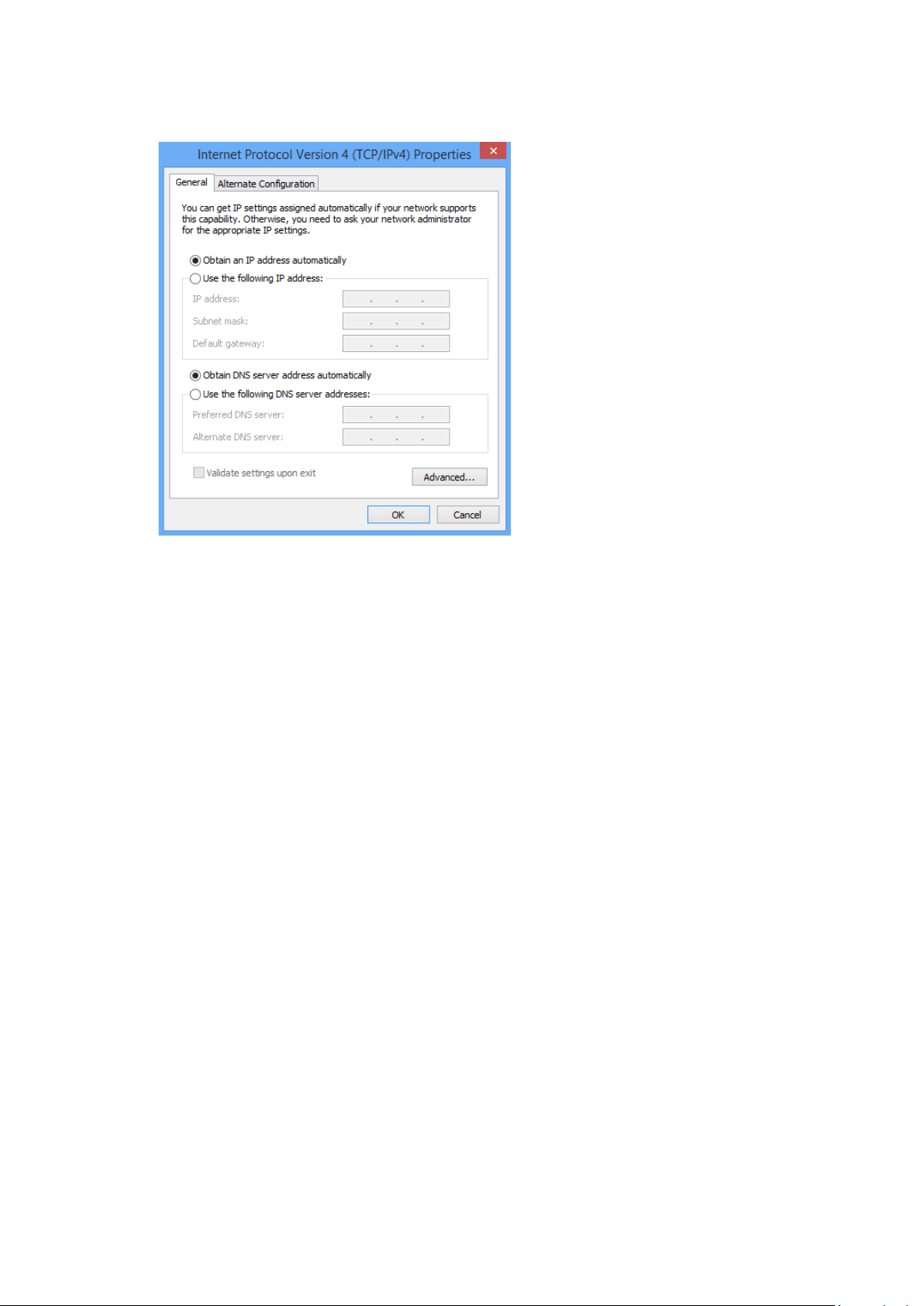
150
Step 5 Select Obtain an IP address automatically and Obtain DNS server address automatically,
and click OK.
Step 6 Click Close in the Ethernet Properties window.
---End
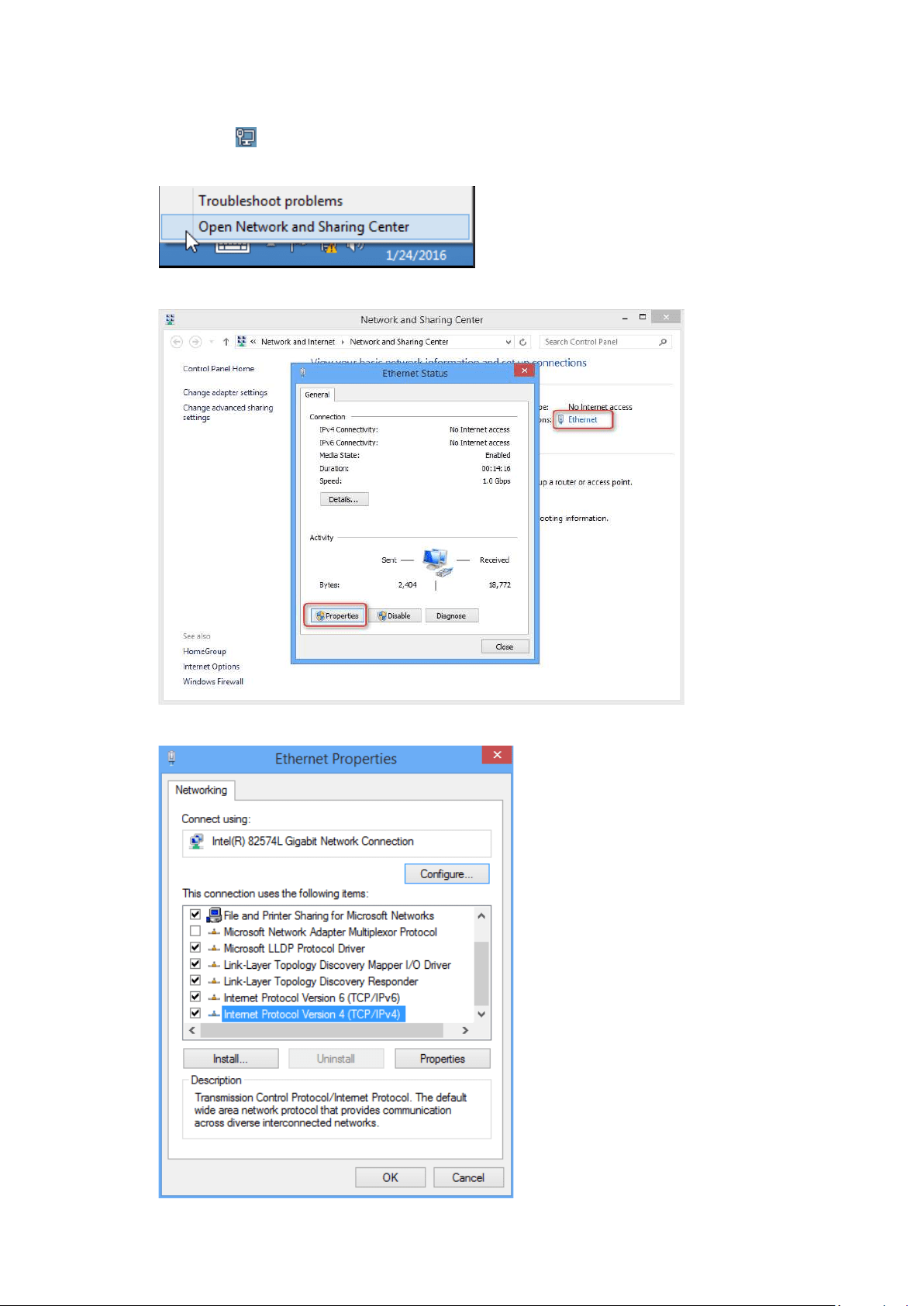
151
A.1.2 Windows 8
Step 1 Right-click in the bottom right corner of the desktop and choose Open Network and
Sharing Center.
Step 2 Click Ethernet and then Properties.
Step 3 Double-click Internet Protocol Version 4 (TCP/IPv4).
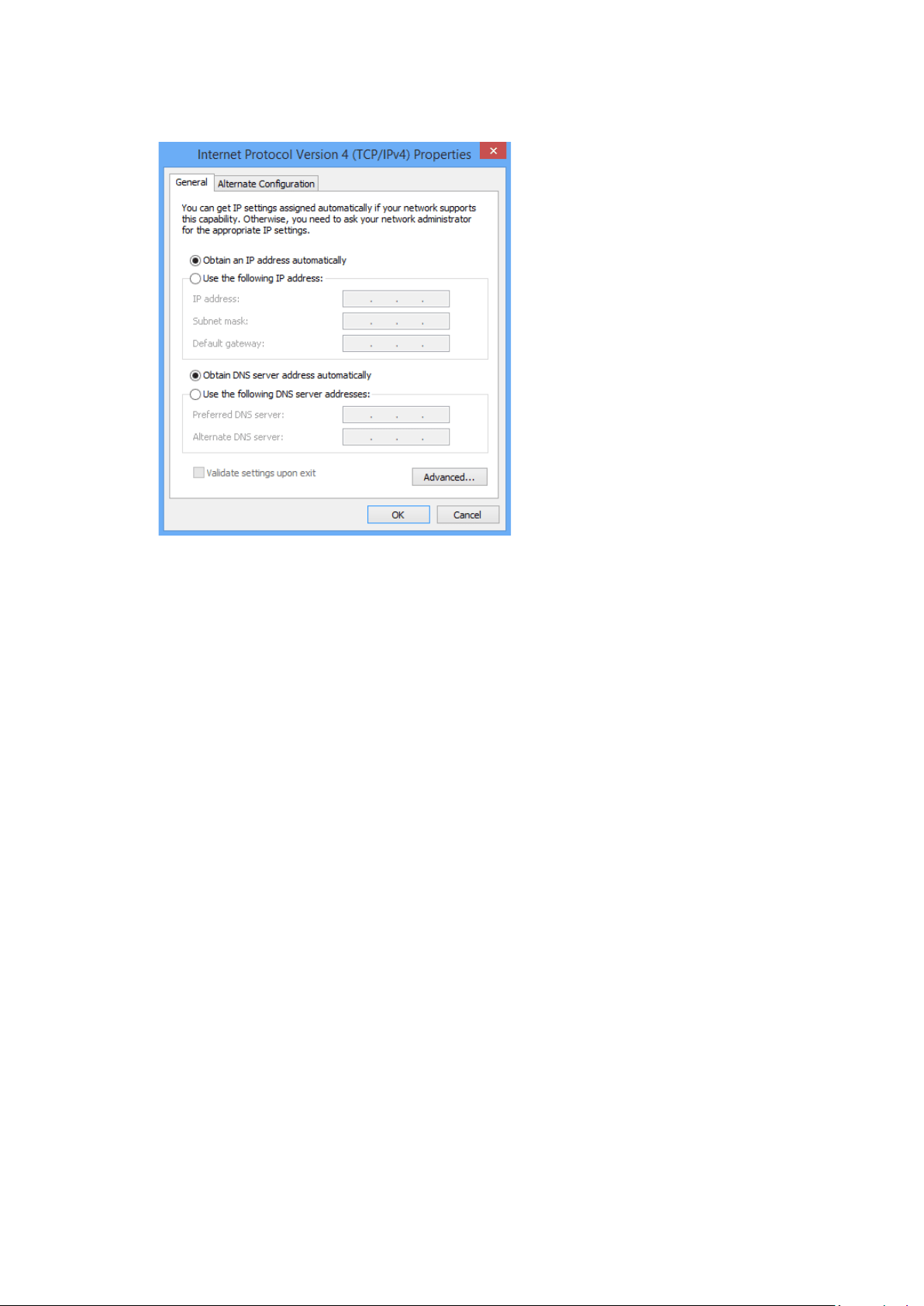
152
Step 4 Select Obtain an IP address automatically and Obtain DNS server address automatically,
and click OK.
Step 5 Click OK in the Ethernet Properties window.
---End
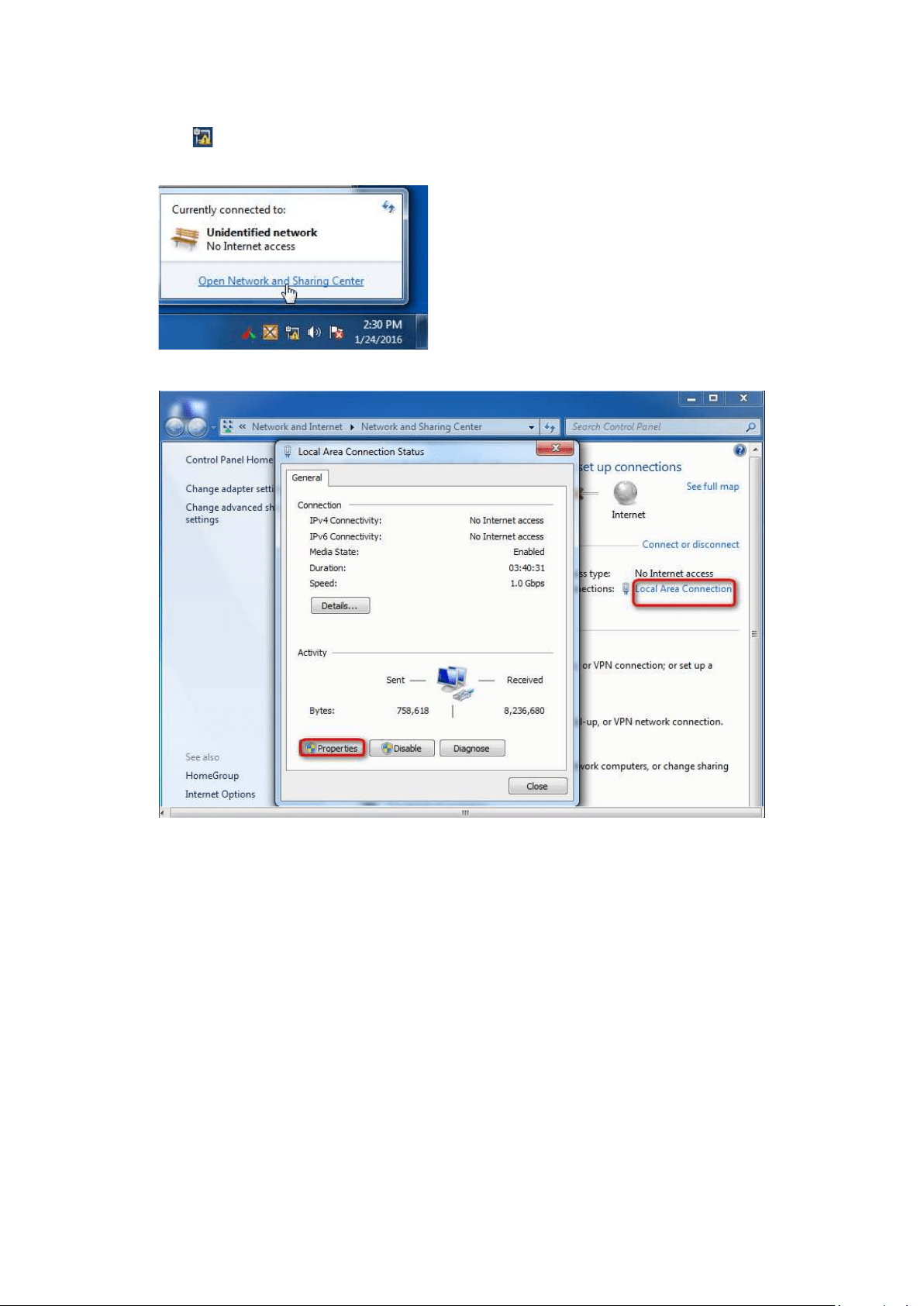
153
A.1.3 Windows 7
Step 1 Click in the bottom right corner of the desktop and choose Open Network and Sharing
Center.
Step 2 Click Local Area Connection and then Properties.
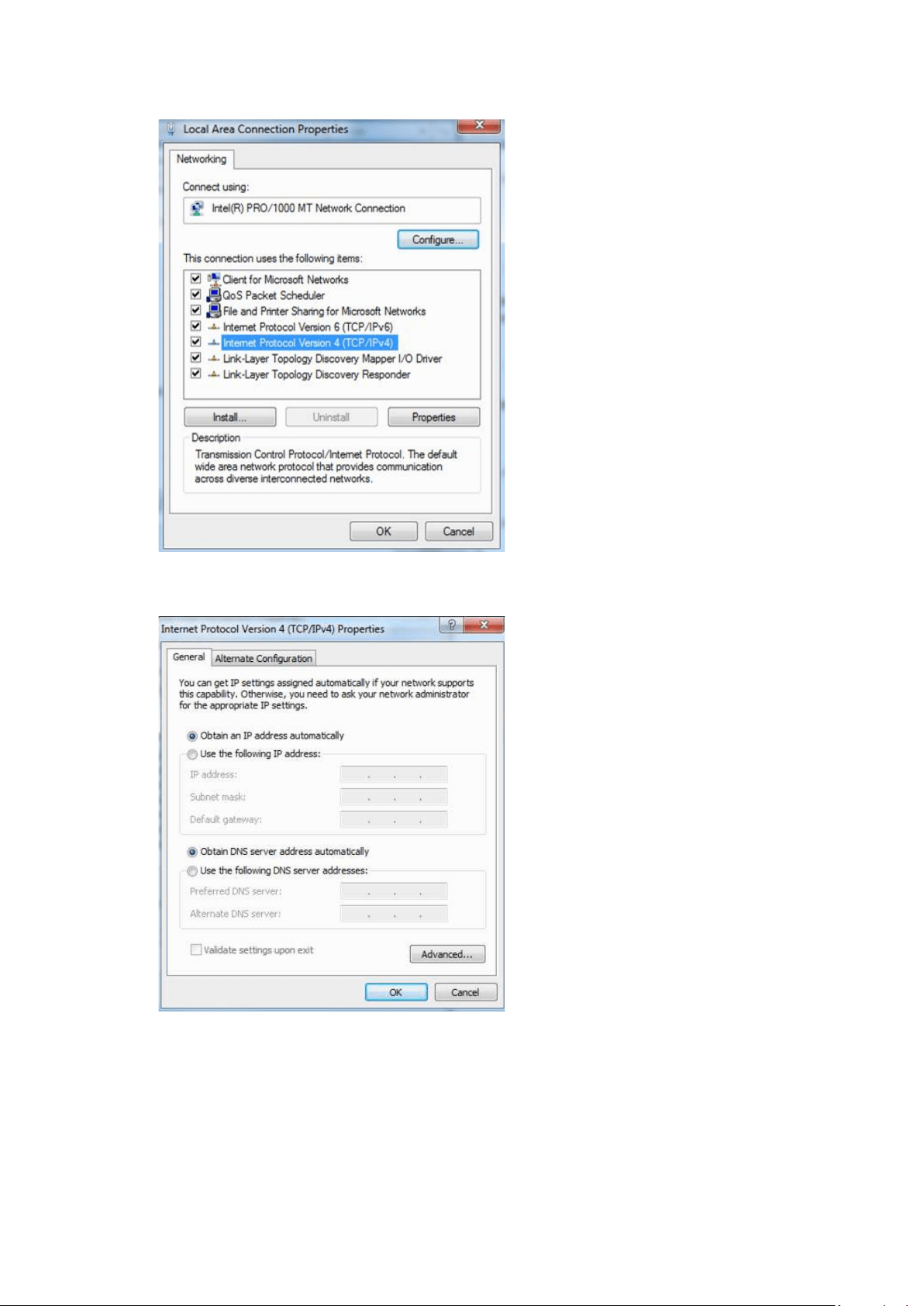
154
Step 3 Double-click Internet Protocol Version 4 (TCP/IPv4).
Step 4 Select Obtain an IP address automatically and Obtain DNS server address automatically,
and click OK.
Step 5 Click OK in the Local Area Connection Properties window.
---End

155
A.2 Default parameters
Parameter
Default value
Login
IP address
192.168.0.1
Password
None
LAN
Parameters
IP Address
192.168.0.1
Subnet Mask
255.255.255.0
DHCP Server
DHCP Server
Enabled
Start IP Address
192.168.0.100
End IP Address
192.168.0.200
Preferred DNS Server
192.168.0.1
Operating Mode
Router mode
Wireless
Settings
WiFi Name
See the label on the bottom of the router
WiFi Password
OFDMA
Disabled
IPv6
Disabled

156
A.3 Acronyms and Abbreviations
Acronym or Abbreviation
Full Spelling
ADSL
Asymmetric Digital Subscriber Line
AES
Advanced Encryption Standard
AP
Access Point
DDNS
Dynamic Domain Name System
DHCP
Dynamic Host Configuration Protocol
DHCPv6
Dynamic Host Configuration Protocol for IPv6
DMZ
Demilitarized Zone
DNS
Domain Name System
FTP
File Transfer Protocol
GMT
Greenwich Mean Time
ICMP
Internet Control Message Protocol
IEEE
Institute of Electrical and Electronics Engineers
IP
Internet Protocol
IPTV
Internet Protocol Television
IPv4
Internet Protocol Version 4
IPv6
Internet Protocol Version 6
ISP
Internet Service Provider
L2TP
Layer 2 Tunneling Protocol
LAN
Local Area Network
LED
Light Emitting Diode
MAC
Medium Access Control
MIMO
Multiple Input Multiple Output
MTU
Maximum Transmission Unit
NAT
Network Address Translation
OFDM
Orthogonal Frequency Division Multiplexing
OFDMA
Orthogonal Frequency Division Multiple Access
PD
Prefix Delegation
PIN
Personal Identification Number

157
Acronym or Abbreviation
Full Spelling
POP
Post Office Protocol
PPPoE
Point-to-Point Protocol over Ethernet
PPTP
Point to Point Tunneling Protocol
RA
Router Advertisement
RDNSS
Recursive Domain Name System Server
RU
Resource Unit
SAE
Simultaneous Authentication of Equals
SLAAC
Stateless Address Autoconfiguration
SSID
Service Set Identifier
STB
Set Top Box
TCP
Transmission Control Protocol
UDP
User Datagram Protocol
UPnP
Universal Plug and Play
USB
Universal Serial Bus
VLAN
Virtual Local Area Network
VPN
Virtual Private Network
WAN
Wide Area Network
WISP
Wireless Internet Service Provider
WPA
Wi-Fi Protected Access
WPA-PSK
WPA-Preshared Key
WPA3-SAE
WPA3-Simultaneous Authentication of Equals
WPS
Wi-Fi Protected Setup
UI
User Interface