CTK900-ES-1
CASIO Europe GmbH
Bornbarch 10, 22848 Norderstedt, Germany
Important!
Please note the following important information before using this product.
•
Before using the optional AD-5 Adaptor to power the unit, be sure to check the AC Adaptor
for any damage first. Carefully check the power cord for breakage, cuts, exposed wire and
other serious damage. Never let children use an AC adaptor that is seriously damaged.
• Never attempt to recharge batteries.
• Do not use rechargeable batteries.
• Never mix old batteries with new ones.
• Use recommended batteries or equivalent types.
• Always make sure that positive (+) and negative (–) poles are facing correctly as indicated
near the battery compartment.
• Replace batteries as soon as possible after any sign they are getting weak.
• Do not short-circuit the battery terminals.
• The product is not intended for children under 3 years.
• Use only CASIO AD-5 adaptor.
• The AC adaptor is not a toy.
• Be sure to disconnect the AC adaptor before cleaning the product.
GUIDELINES LAID DOWN BY FCC RULES FOR USE OF THE UNIT IN THE U.S.A. (not applicable to other areas).
NOTICE
This equipment has been tested and found to comply with the limits for a Class B digital device, pursuant to Part 15 of the
FCC Rules. These limits are designed to provide reasonable protection against harmful interference in a residential
installation. This equipment generates, uses and can radiate radio frequency energy and, if not installed and used in
accordance with the instructions, may cause harmful interference to radio communications. However, there is no guarantee
that interference will not occur in a particular installation. If this equipment does cause harmful interference to radio or
television reception, which can be determined by turning the equipment off and on, the user is encouraged to try to correct
the interference by one or more of the following measures:
• Reorient or relocate the receiving antenna.
• Increase the separation between the equipment and receiver.
• Connect the equipment into an outlet on a circuit different from that to which the receiver is connected.
• Consult the dealer or an experienced radio/TV technician for help.
FCC WARNING
Changes or modifications not expressly approved by the party responsible for compliance could void the user’s authority
to operate the equipment.
707A-E-002A
This mark applies in EU countries only.
Safety Precautions
E-1
Safety Pre cautions
Congratulations on your selection of the CASIO electronic
musical instrument.
• Before using the instrument, be sure to carefully read
through the instructions contained in this manual.
• Please keep all information for future reference.
Symbols
Various symbols are used in this user’s guide and on the
product itself to ensure that the product is used safely and
correctly, and to prevent injury to the user and other persons
as well as damage to property. Those symbols along with
their meanings are shown below.
DANGER
This symbol indicates information that, if ignored or applied
incorrectly, creates the danger of death or serious personal
injury.
WARNING
This indication stipulates matters that have the risk of
causing death or serious injury if the product is operated
incorrectly while ignoring this indication.
CAUTION
This indication stipulates matters that have the risk of
causing injury as well as matters for which there is the
likelihood of occurrence of physical damage only if the
product is operated incorrectly while ignoring this
indication.
Symbol Examples
This triangle symbol ( ) means that the user
should be careful. (The example at left indicates
electrical shock caution.)
This circle with a line through it ( ) means that
the indicated action must not be performed.
Indications within or nearby this symbol are
specifically prohibited. (The example at left
indicates that disassembly is prohibited.)
The black dot ( ) means that the indicated
action must be performed. Indications within
this symbol are actions that are specifically
instructed to be performed. (The example at left
indicates that the power plug must be unplugged
from the electrical socket.)
Alkaline Batteries
Perform the following steps immediately if fluid
leaking from alkaline batteries ever gets into
your eyes.
1. Do not rub your eyes! Rinse them with
water.
2. Contact your physician immediately.
Leaving alkaline battery fluid in your eyes can
lead to loss of sight.
Smoke, Strange Odor, Overheating
Continued use of the product while it is
emitting smoke, a strange odor, or heat creates
the risk of fire and electric shock. Take the
following steps immediately.
1. Turn off power.
2. If you are using the AC adaptor for power,
unplug it from the wall outlet.
3. Contact your original retailer or an
authorized CASIO Service Provider.
AC Adaptor
● Misuse of the AC adaptor creates the risk of
fire and electric shock. Always make sure
you observe the following precautions.
• Be sure to use only the AC adaptor that is
specified for this product.
• Use only a power source whose voltage is
within the rating marked on the AC
adaptor.
• Do not overload electrical outlets and
extension cords.
● Misuse of the AC adaptor’s electric cord can
damage or break it, creating the risk of fire
and electric shock. Always make sure you
observe the following precautions.
• Never place heavy objects on the cord or
subject it to heat.
• Never try to modify the cord or subject it to
excessive bending.
• Never twist or stretch the cord.
• Should the electric cord or plug become
damaged, contact your original retailer or
authorized CASIO Service Provider.
707A-E-003A
ページ 2005年3月9日 水曜日 午後5時29分
Safety Precautions
E-2
● Never touch the AC adaptor while your hands
are wet.
Doing so creates the risk of electric shock.
● Use the AC adaptor where it will not be
splashed with water. Water creates the risk of
fire and electric shock.
● Do not place a vase or any other container
filled with liquid on top of the AC adaptor.
Water creates the risk of fire and electric shock.
Batteries
Misuse of batteries can cause them to leak,
resulting in damage to nearby objects, or to
explode, creating the risk of fire and personal
injury. Always make sure you observe the
following precautions.
• Never try to take batteries apart or allow them
to become shorted.
• Never expose batteries to heat or dispose of
them by incineration.
• Never mix old batteries with new ones.
• Never mix batteries of different types.
• Do not charge the batteries.
• Make sure the positive (+) and negative (–)
ends of the batteries are facing correctly.
Do not incinerate the product.
Never throw the product into fire.
Doing so can cause it to explode, creating the risk
of fire and personal injury.
Water and Foreign Matter
Water, other liquids, and foreign matter (such as
pieces of metal) getting into the product create
the risk of fire and electric shock. Take the
following steps immediately.
1. Turn off power.
2. If you are using the AC adaptor for power,
unplug it from the wall outlet.
3. Contact your original retailer or an
authorized CASIO Service Provider.
Disassembly and Modification
Never try to take this product apart or modify it
in any way. Doing so creates the risk of electric
shock, burn injury, or other personal injury.
Leave all internal inspection, adjustment, and
maintenance up to your original retailer or
authorized CASIO Service Provider.
Dropping and Impact
Continued use of this product after it has been
damaged by dropping or subjecting it to strong
impact creates the risk of fire and electric shock.
Take the following steps immediately.
1. Turn off power.
2. If you are using the AC adaptor for power,
unplug it from the wall outlet.
3. Contact your original retailer or an
authorized CASIO Service Provider.
Plastic Bags
Never place the plastic bag the product comes in
over your head or in your mouth. Doing so
creates the risk of suffocation.
Particular care concerning this precaution is
required where small children are present.
Keep off of the product and stand.*
Climbing onto the product or stand can cause it
to tip over or become damaged. Particular care
concerning this precaution is required where
small children are present.
Location
Avoid locating the product on an unstable
stand, on an uneven surface, or any other
unstable location. An unstable location can
cause the product to fall over, creating the risk
of personal injury.
707A-E-004A
ページ 2005年3月9日 水曜日 午後5時29分
E-3
Safety Precautions
AC Adaptor
● Misuse of the AC adaptor creates the risk of
fire and electric shock. Always make sure
you observe the following precautions.
• Do not locate the electric cord near a stove
or other sources of heat.
• Never pull on the cord when unplugging
from the electrical outlet. Always grasp
the AC adaptor when unplugging.
● Misuse of the AC adaptor creates the risk of
fire and electric shock. Always make sure
you observe the following precautions.
• Insert the AC adaptor into the wall outlet as
far as it will go.
• Unplug the AC adaptor from the wall
outlet during lightening storms or before
leaving on a trip or other long-term
absence.
• At least once a year, unplug the AC
adaptor from the wall outlet and wipe
away any dust that is built up in the area
around the prongs of the plug.
Relocating the Product
Before relocating the product, always unplug
the AC adaptor from the wall outlet and
disconnect all other cables and connecting cords.
Leaving cords connected creates the risk of
damage to the cords, fire, and electric shock.
Cleaning
Before cleaning the product, always unplug the
AC adaptor from the wall outlet first. Leaving
the AC adaptor plugged in creates the risk of
damage to the AC adaptor, fire, and electric
shock.
Batteries
Misuse of batteries can cause them to leak
resulting in damage to nearby objects, or to
explode, creating the risk of fire and personal
injury. Always make sure you observe the
following precautions.
• Use only batteries that are specified for use
with this product.
• Remove batteries from the product if you do
not plan to use it for a long time.
Connectors
Connect only the specified devices and
equipment to the product’s connectors.
Connection of a non-specified device or
equipment creates the risk of fire and electric
shock.
Location
Avoid the following locations for this product.
Such locations create the risk of fire and electric
shock.
• Areas subject to high humidity or large
amounts of dust
• In food preparation areas or other areas
subject to oil smoke
• Near air conditioning equipment, on a
heated carpet, in areas exposed to direct
sunlight, inside of a vehicle parked in the
sun, or any other area that subjects the
product to high temperatures
Display Screen
• Never push on the display screen’s LCD panel
or subject it to strong impact. Doing so can
cause the LCD panel’s glass to crack, creating
the risk of personal injury.
• Should the LCD panel ever crack or break,
never touch the liquid inside of the panel.
LCD panel liquid can cause skin irritation.
• Should LCD panel liquid ever get inside your
mouth, immediately wash out your mouth
with water and contact your physician.
• Should LCD panel liquid ever get into your
eyes or onto your skin, rinse with clear water
for at least 15 minutes, and then contact a
physician.
Sound Volume
Do not listen to music at very loud volumes for
long periods. Particular care concerning this
precaution is required when using headphones.
High volume settings can damage your hearing.
Heavy Objects
Never place heavy object on top of the product.
Doing so can make the product top heavy,
causing the product to tip over or the object to
fall from it, creating the risk of personal injury.
707A-E-005A
ページ 2005年3月9日 水曜日 午後5時29分
Safety Precautions
E-4
* Stand is available as an option.
When using batteries, be sure to replace them or shift to one of
the alternate power sources whenever you notice any of the
following symptoms.
• Dim power indicator
• Instrument does not turn on
• Display that is flickering, dim, or difficult to read
• Abnormally low speaker/headphone volume
• Distortion of sound output
• Occasional interruption of sound when playing at high
volumes
• Sudden power failure when playing at high volumes
• Flickering or dimming of the display when playing at high
volume
• Continued sound output even after you release a key
• A tone that is totally different from the one that is selected
• Abnormal rhythm pattern and demo tune play
• Loss of power, sound distortion, or low volume when playing
from a connected computer or MIDI device
•
Correct Stand* Assembly
An incorrectly assembled stand can tip over,
causing the product to fall and creating the risk
of personal injury.
Make sure you assemble the stand correctly,
following the assembly instructions that come
with it. Make sure you mount the product on the
stand correctly.
707A-E-006A
ページ 2005年3月9日 水曜日 午後5時29分

Introduction
E-5
Introduction
Congratulations upon your selection of this CASIO musical instrument. This keyboard provides you with the following features
and functions.
J
JJ
J 550 Tones Include Rich Advanced Tones
A total of 332 Advanced Tones are programmed with DSP tones to make them richer and more powerful. Advanced tones like
Stereo Piano and Tremolo Electric Piano enhance the Piano and Electric Piano tones to create a totally new sound.
J
JJ
J 50 Drawbar Organ Tones
In addition to the 550 standards tones, the keyboard also includes 50 realistic drawbar organ tones. Drawbar organ tones can be
controlled using nine digital drawbars. You can also select percussion or key click, and even edit the parameters of preset tone and
save up to 100 original tones in user tone memory.
J
JJ
J Flash Memory
Built-in Flash memory lets you expand your selection of tones and rhythms by downloading data from the CASIO MUSIC SITE, or
by the CD-ROM that comes bundled with the keyboard. You can also store up to 200 SMF format music files for playback.
J
JJ
J PIANO SETTING Button
The press of a button optimizes the keyboard setup for piano play.
J
JJ
J 160 Preset Rhythms + 16 User Rhythms
A selection of 160 rhythms includes accompaniments for everything from rock to pops and jazz.
You can also transfer accompaniment data from your computer and store up to 16 of them as user rhythms in keyboard memory.
J
JJ
J Auto Accompaniment
Simply play a chord and the corresponding rhythm, bass and chord parts play automatically. One-touch Preset instantly recalls the
most suitable tone and tempo settings to match the rhythm you are using.
J
JJ
J Big, Information-packed Display
A big built-in display shows chord names, tempo setting, keyboard information, staff notation of notes played, and more for full
support of all your keyboard play. A built-in backlight keeps the display easy to read, even in total darkness.
J
JJ
J Song Memory
Record up to six parts in memory, along with their tone, volume, pan position, and other parameters for later playback. Realistic
ensemble play can also be created using the Auto Accompaniment function.
J
JJ
J Synthesizer Mode
Edit built-in sounds to produce your own original creations. Up to 120 of your own sounds can be stored in memory for recall, just
like the built-in tones.
J
JJ
J General MIDI compatibility
The General MIDI tones of this keyboard let you connect to a personal computer to enjoy “desktop music” capabilities. This
keyboard can be used as a desktop music input device or sound source, and it's just the thing for playback of commercially available
pre-recorded General MIDI music software.
707A-E-007A
ページ 2005年3月9日 水曜日 午後5時29分

Introduction
E-6
J
JJ
J Powerful effects
A collection of powerful effects, such as DSP, reverb, chorus, and more, give you total control over the type of sound you want. You
can even change the parameters of an effect to create your own, original effects. A 4-band equalizer is also included.
J
JJ
J Mixer
You can specify tone, volume, pan position, and other parameters for each built-in Auto Accompaniment part. You can also control
the same parameters for each channel during MIDI input.
J
JJ
J Registration Memory
Keyboard setups can be stored in memory for later recall and instant set up whenever you need them. Up to 32 setups (4 setups ×
8 banks) can be stored in registration memory.
J
JJ
J Data download from your computer
You can use your computer to download data from the CASIO MUSIC SITE.
707A-E-008A
ページ 2005年3月9日 水曜日 午後5時29分

Contents
E-7
Safety Precautions......... E-1
Introduction .................... E-5
General Guide................. E-9
Attaching the Score stand ...................E-10
Playing a Demo Tune..........................E-11
Power Supply ............... E-12
Using batteries ....................................E-12
Using the AC Adaptor .........................E-13
Auto Power Off....................................E-13
Turning Off the Keyboard....................E-14
Memory Contents................................E-14
Connections ................. E-15
Basic Operations.......... E-16
To play the keyboard...........................E-16
Selecting a Tone .................................E-16
PIANO SETTING Button .....................E-18
Using the Drawbar
Organ Mode .................. E-19
To select a drawbar organ tone ..........E-20
To edit a drawbar organ tone ..............E-20
Parameter Details ...............................E-21
To save an edited drawbar
organ tone...........................................E-22
Applying Effects to
Tones.............................E-23
Effect Blocks....................................... E-23
Selecting a DSP Type ........................ E-23
DSP Button......................................... E-25
Selecting REVERB............................. E-25
Selecting CHORUS ............................ E-26
Using the Equalizer ............................ E-27
Auto
Accompaniment ........... E-28
About the MODE button ..................... E-28
Selecting a Rhythm ............................ E-29
Playing a Rhythm ............................... E-29
Adjusting the Tempo .......................... E-29
Using Auto Accompaniment ............... E-30
Using an Intro Pattern ........................ E-32
Using a Fill-in Pattern ......................... E-32
Using a Rhythm Variation................... E-32
Synchro Starting Accompaniment
with Rhythm Play................................ E-33
Finishing with an Ending Pattern........ E-33
Using One-touch Preset ..................... E-34
Using Auto Harmonize ....................... E-34
Adjusting the Accompaniment
Volume ............................................... E-35
Mixer Function.............. E-36
What you can do with the Mixer ......... E-36
Turning Channels On and Off ............ E-36
Using the Parameter Edit Mode ......... E-37
How Parameters Work ....................... E-38
707A-E-009A
ページ 2005年3月9日 水曜日 午後5時29分

Contents
E-8
Synthesizer Mode......... E-40
Synthesizer Mode Functions...............E-40
Creating a User Tone..........................E-43
Storing a User Tone In Memory ..........E-45
Registration Memory ... E-46
Registration Memory Features............E-46
To Save a Setup in Registration
Memory ...............................................E-47
To Recall a Setup from Registration
Memory ...............................................E-48
Song Memory Function
... E-49
Tracks .................................................E-49
Basic Song Memory operations ..........E-50
Using Real-time Recording .................E-50
Mixer Mode Settings ...........................E-51
Playing Back from Song Memory........E-52
Recording Melody and Chords
with Step Recording ............................E-52
Recording Multiple Tracks...................E-55
Correcting Mistakes While Step
Recording............................................E-57
Editing Memory Contents....................E-58
Editing a Song.....................................E-59
Keyboard Settings ....... E-61
Using Layer.........................................E-61
Using Split ...........................................E-62
Using Layer and Split Together...........E-63
Transposing the Keyboard ..................E-64
Using Touch Response.......................E-64
Tuning the Keyboard...........................E-65
Changing Other Settings.....................E-66
Using the SMF Player... E-71
Playing Back an SMF ......................... E-73
Configuring Other Settings ................. E-73
MIDI................................ E-75
What is MIDI?..................................... E-75
General MIDI ...................................... E-75
MIDI Settings...................................... E-75
Using the Music Data Management
Software (on the Bundled CD-ROM)
.. E-76
Troubleshooting ........... E-78
Specifications ............... E-80
Care of your
Instrument..................... E-82
DSP Algorithm List....... E-83
Appendix .........................A-1
Tone List............................................... A-1
Drum Assignment List .......................... A-8
Rhythm List ........................................ A-10
Fingered Chord Chart......................... A-11
Effect List............................................ A-13
MIDI Implementation Chart
707A-E-010A
ページ 2005年3月9日 水曜日 午後5時29分
General Guide
E-9
General Gui de
*1 *2
707A-E-011A
ページ 2005年3月9日 水曜日 午後5時29分
General Guide
E-10
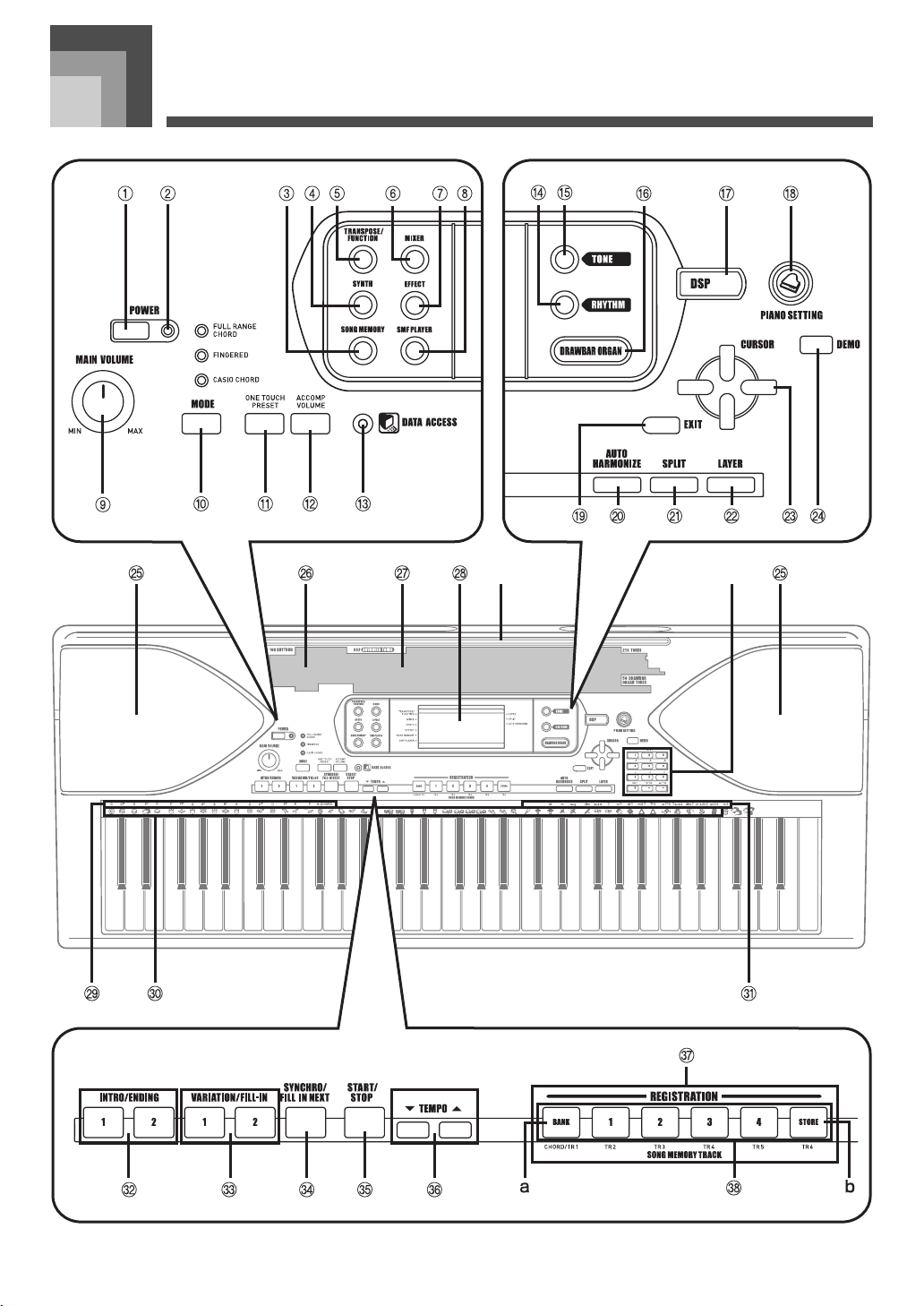
1
POWER button
2
Power indicator
3
SONG MEMORY button
4
SYNTH button
5
TRANSPOSE/FUNCTION button
6
MIXER button
7
EFFECT button
8
SMF PLAYER button
9
MAIN VOLUME knob
bk
MODE button
bl
ONE TOUCH PRESET button
bm
ACCOMP VOLUME button
bn
DATA ACCESS indicator
bo
RHYTHM button
bp
TONE button
bq
DRAWBAR ORGAN button
br
DSP button
bs
PIANO SETTING button
bt
EXIT button
ck
AUTO HARMONIZE button
cl
SPLIT button
cm
LAYER button
cn
[ ] / [ ] / [ ] / [ ]CURSOR buttons
co
DEMO button (*3)
cp
Speaker
cq
Rhythm list
cr
Tone list
cs
Display
ct
CHORD root names
dk
Percussion instrument list
dl
Chord types name
dm
INTRO/ENDING 1/2 buttons
dn
VARIATION/FILL-IN 1/2 buttons
do
SYNCHRO/FILL-IN NEXT button
dp
START/STOP button
dq
TEMPO buttons
dr
REGISTRATION buttons
a) BANK button
b) STORE button
ds
SONG MEMORY TRACK buttons
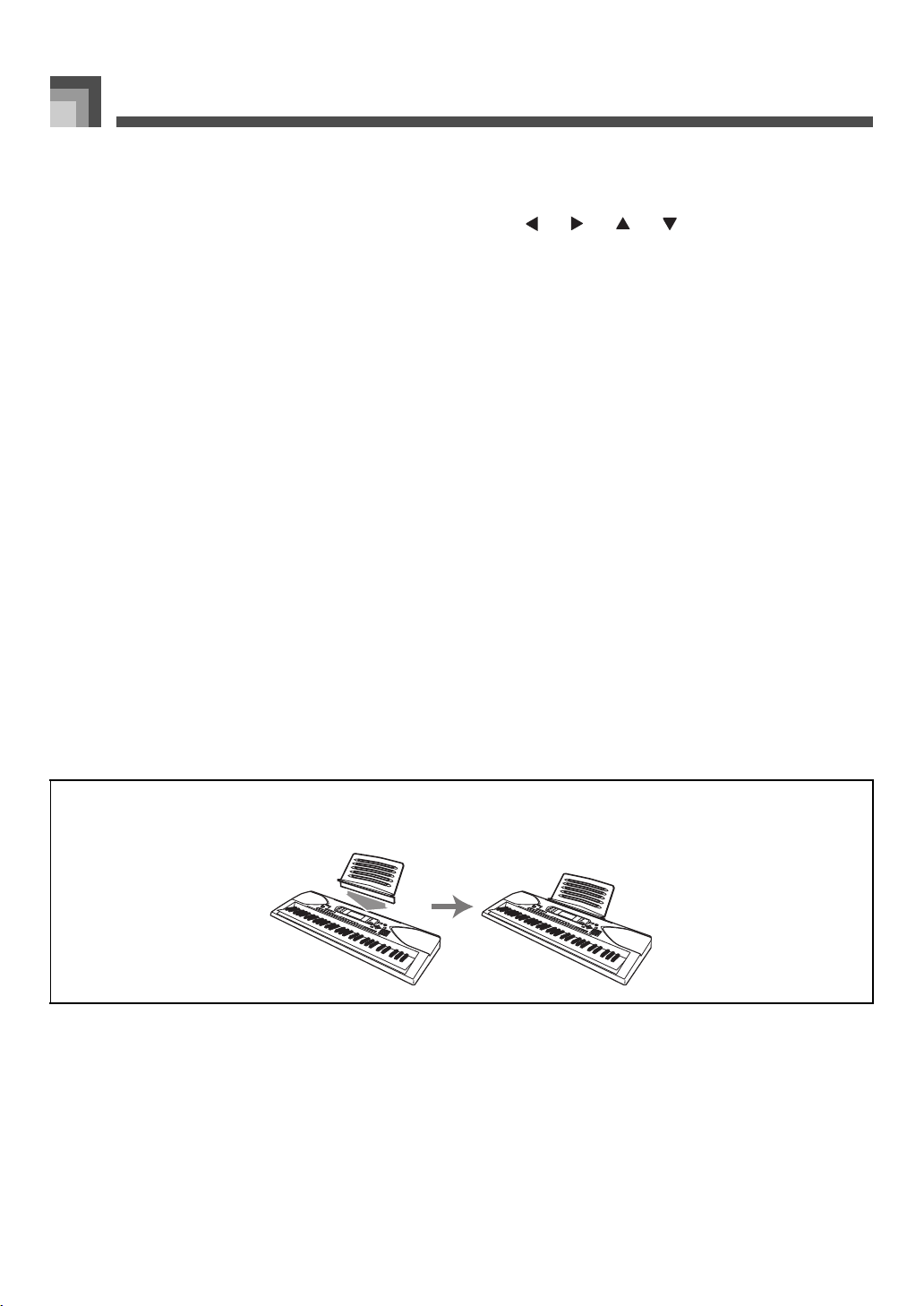
J Attaching the Score stand (*1)
Insert the score stand into the slot at the top of the keyboard as shown in the illustration.
707A-E-012A
ページ 2005年3月9日 水曜日 午後5時29分
E-11
General Guide
J Playing a Demo Tune (*3)
Pressing the DEMO button starts demo tune play. There are 3 demo tunes, which continuously play in sequence. To stop demo tune
play, press either the DEMO button or the START/STOP button.
• Pressing the [+]/[–] buttons skips to the next demo tune.
• The PIANO SETTING button, Layer, and Split are disabled while a demo tune is playing.
• Display examples shown in this User’s Guide are intended for illustrative purposes only. The actual text and values that appear on the
display may differ from the examples shown in this User’s Guide.
• Due to LCD element characteristics, display contrast changes depending on the angle from which you view it. The initial default contrast
setting is one that allows easy viewing for a musician seated directly in front of the display. You can also adjust the contrast to the level
that suits your particular needs. For more information, see page E-69.
*2
dt
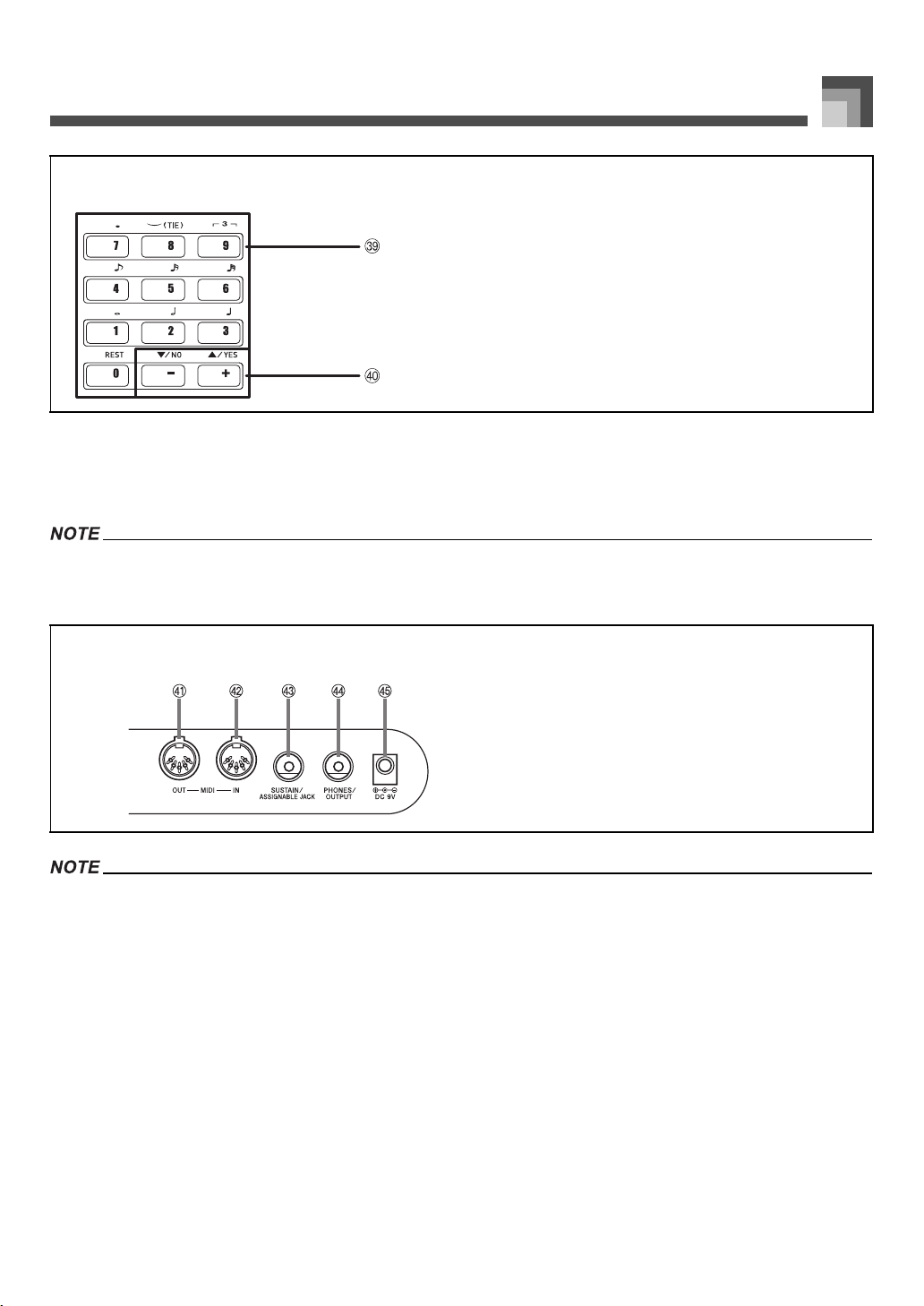
Number buttons
• For input of numbers to change displayed settings.
ek
[+]/[–] buttons (YES/NO)
• Negative values can be changed only by using [+] and [–] to
increment and decrement the displayed value.
Rear Panel
el
MIDI OUT terminal
em
MIDI IN terminal
en
SUSTAIN/ASSIGNABLE JACK terminal
eo
PHONES/OUTPUT terminal
ep
DC 9V jack
707A-E-013A
ページ 2005年3月9日 水曜日 午後5時29分
Power Supply
E-12
Power Supply
This keyboard can be powered by current from a standard
household wall outlet (using the specified AC adaptor) or by
batteries. Always make sure you turn the keyboard off
whenever you are not using it.
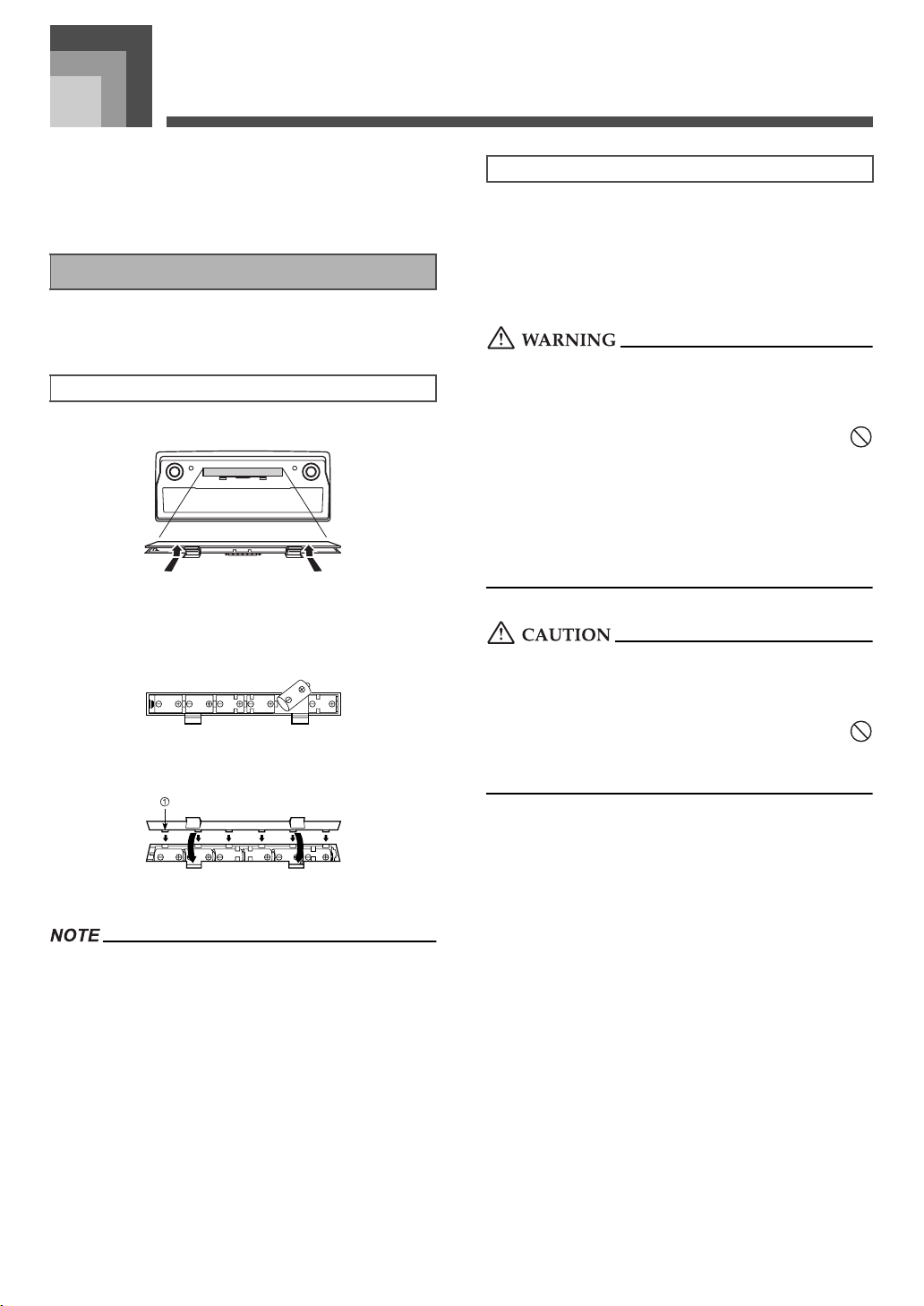
Always make sure you turn off the keyboard before loading
or replacing batteries.
1. Remove the battery compartment cover.
2. Load six D-size batteries into the battery
compartment.
• Make sure that the positive (
+
) and negative (–) ends
are facing correctly.
3. Insert the tabs on the battery compartment cover
into the holes provided and close the cover.
1
Tab
• The keyboard may not function correctly if you load or
replace batteries with power turned on. If this happens,
turning the keyboard off and then back on again should
return functions back to normal.
The following shows the approximate battery life.
• Manganese batteries: Approximately 4 hours
The above value is standard battery life at normal
temperature, with the keyboard volume at a medium
setting. Temperature extremes or playing at very loud
volume settings can shorten battery life.
Misuse of batteries can cause them to leak, resulting in damage
to nearby objects, or to explode, creating the risk of fire and
personal injury. Always make sure you observe the following
precautions.
• Never try to take batteries apart or allow them to
become shorted.
• Never expose batteries to heat or dispose of them by
incineration.
• Never mix old batteries with new ones.
• Never mix batteries of different types.
• Do not charge the batteries.
• Make sure the positive (
+
) and negative (–) ends of the
batteries are facing correctly.
Misuse of batteries can cause them to leak resulting in damage
to nearby objects, or to explode, creating the risk of fire and
personal injury. Always make sure you observe the following
precautions
• Use only batteries that are specified for use with this
product.
• Remove batteries from the product if you do not plan to
use it for a long time.
Using batteries
To load batteries
Important Battery Information
707A-E-014A
ページ 2005年3月9日 水曜日 午後5時29分
E-13
Power Supply
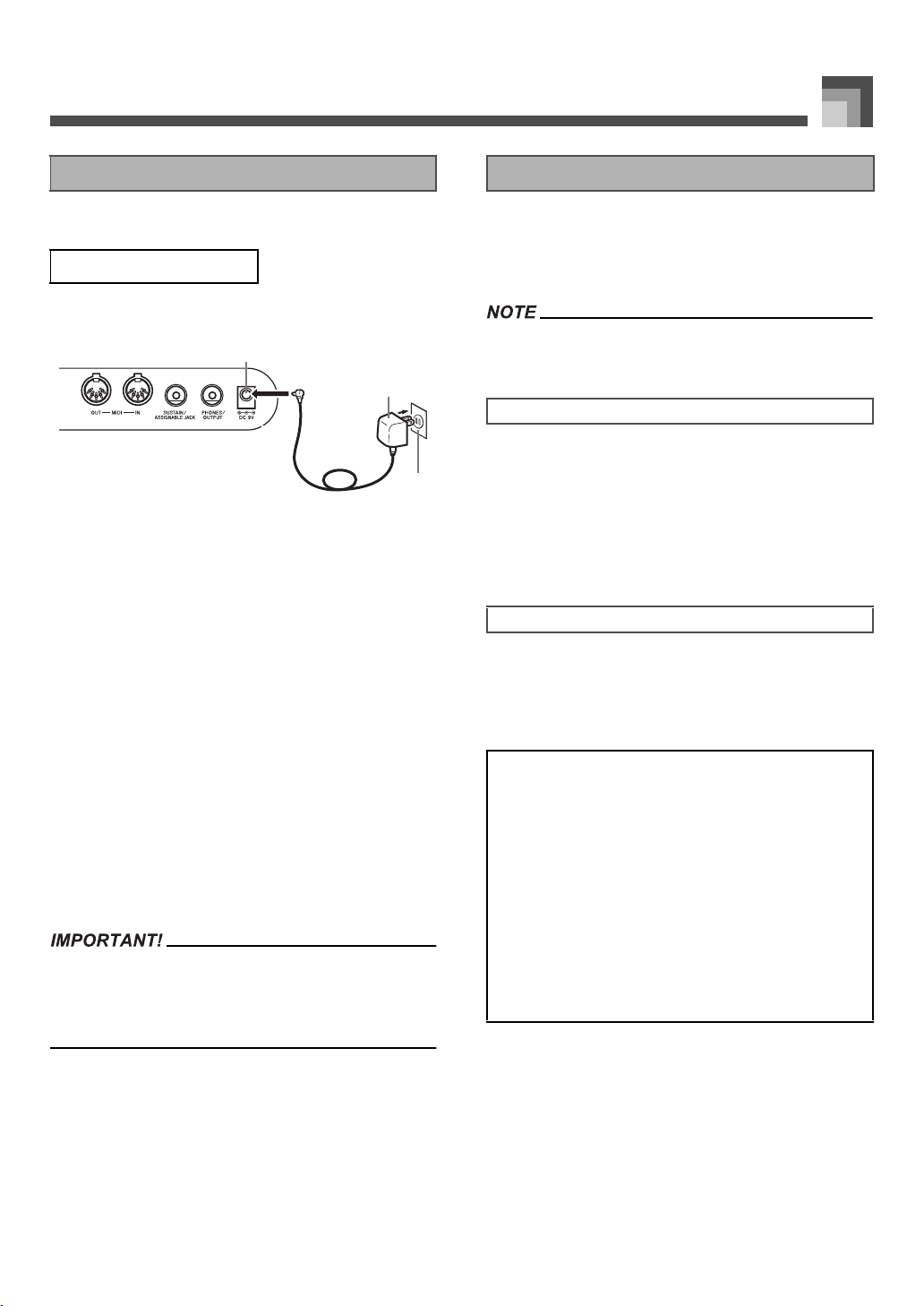
Make sure that you use only the AC adaptor specified for this
keyboard.
Rear Panel
1
DC 9V jack
2
AC adaptor AD-5
3
AC outlet
Note the following important precautions to avoid damage to
the power cord.
● During Use
• Never pull on the cord with excessive force.
• Never repeatedly pull on the cord.
• Never twist the cord at the base of the plug or
connector.
• The power cord should not be stretched tight
while it is in use.
● During Movement
• Before moving the keyboard, be sure to
unplug the AC adaptor from the power outlet.
● During Storage
• Loop and bundle the power cord, but never
wind it around the AC adaptor.
• Make sure that the keyboard is turned off before connecting
or disconnecting the AC adaptor.
• Using the AC adaptor for a long time can cause it to become
warm to the touch. This is normal and does not indicate
malfunction.
When you are using battery power, keyboard power turns off
automatically whenever you leave it on without performing
any operation for about 6 minutes. When this happens, press
the POWER button to turn power back on.
• Auto Power Off is disabled (it does not function) when you
are using the AC adaptor to power the keyboard.
Hold down the TONE button while turning on the keyboard
to disable Auto Power Off.
• When Auto Power Off is disabled, the keyboard does not
turn off automatically no matter how long it is left with no
operation being performed.
• Auto Power Off is automatically enabled whenever you
turn on keyboard power.
Tone, rhythm, and other “main keyboard settings” in effect
when you turn off the keyboard manually by pressing
POWER button or when Auto Power Off turns off power are
still in effect the next time you turn power back on.
Using the AC Adaptor
Specified AC Adaptor: AD-5
2
1
3
Auto Power Off
To disable Auto Power Off
Settings
Main Keyboard Settings
Tone number, layer, split, split point, drawbar organ
tone settings, transpose, tuning, contrast settings, touch
response, reverb, chorus, DSP, equalizer, rhythm
number, tempo, keyboard channel, MIDI In Chord
Judge on/off, accomp MIDI out on/off, assignable jack
setting, accompaniment volume, user area tones
(Synthesizer Mode), user area accompaniments, user
DSP area, Auto Harmonize on/off, Auto Harmonize
type, Mixer hold, DSP hold, Auto Accompaniment
mode, all Mixer parameters, all Synthesizer Mode
parameters, Song Memory song numbers, SMF player
settings (play mode, manual play part, SMF playback
volume)
707A-E-015A
ページ 2005年3月9日 水曜日 午後5時29分
Power Supply
E-14
• Be sure to press the POWER button to turn off power and
make sure that the LCD backlight is off before
disconnecting the AC adaptor or doing anything else.
• Never disconnect the AC adaptor while the keyboard is
turned on or try to turn off power using any other
technique besides pressing the POWER button. Doing so
can cause the contents of the keyboard's Flash memory to
become corrupted. Strange keyboard operation and
abnormal startup when power is turned on are symptoms
of corrupted Flash memory contents. See
“Troubleshooting” on page E-78 for more information.
• While the following message is on the display, never turn off
the keyboard by pressing the POWER button, disconnecting
the AC adaptor, etc.
(message)“Pls Wait” or “Bulk In”
Turning off the keyboard while the above message is on the
display can cause user data (user tones, song memory data,
etc.) currently stored in keyboard memory to become
corrupted. Once corrupted, you may not be able to recall the
data again.
In addition to the above settings, data stored in the
Registration Mode and Song Memory Mode is also retained
when keyboard power is turned off.
J About Flash memory
Your keyboard comes with built-in Flash memory, which can
continue to hold data even when electrical power is totally cut
off. This means that even after batteries go completely dead,
you can attach the AC adaptor, turn on power, and still recall
data stored in memory.
• When running under battery power, be sure to replace
batteries as soon as possible after the first signs of low
battery power (dim power indicator lamp, dim display
characters, etc.) Though the keyboard’s Flash memory is
non-volatile (which means that data is not lost when power is
interrupted), data can be lost if power suddenly fails while
data is being written to flash memory*.
* While storing or deleting user data, while recording with
the synthesizer, while transferring data from a computer,
etc.
J Backing Up Data to a Computer
You can use a MIDI connection to back up keyboard settings
and memory contents on a computer’s hard disk. See
“MIDI”on page E-75 for more information.
Initialization can be used to return keyboard parameters to
their initial factory default settings, or to delete all data
currently in keyboard memory. See page E-70 for more
information about initialization.
Returning the keyboard to its initial factory defaults
You can use the CD-ROM that comes with the keyboard and
your computer to return the keyboard’s flash memory and all
of its parameters to their initial factory default settings. See
“Bundled CD-ROM Data” on page E-76 for details.
Turning Off the Keyboard Memory Contents
Saving Setups and Memory Contents
Initializing the Keyboard
707A-E-016A
ページ 2005年3月9日 水曜日 午後5時29分
Connections
E-15
Connections
Before connecting phones or other external equipment, be
sure to first turn down the volume settings of the keyboard
and the connected equipment. You can then adjust volume to
the desired level after connections are complete.
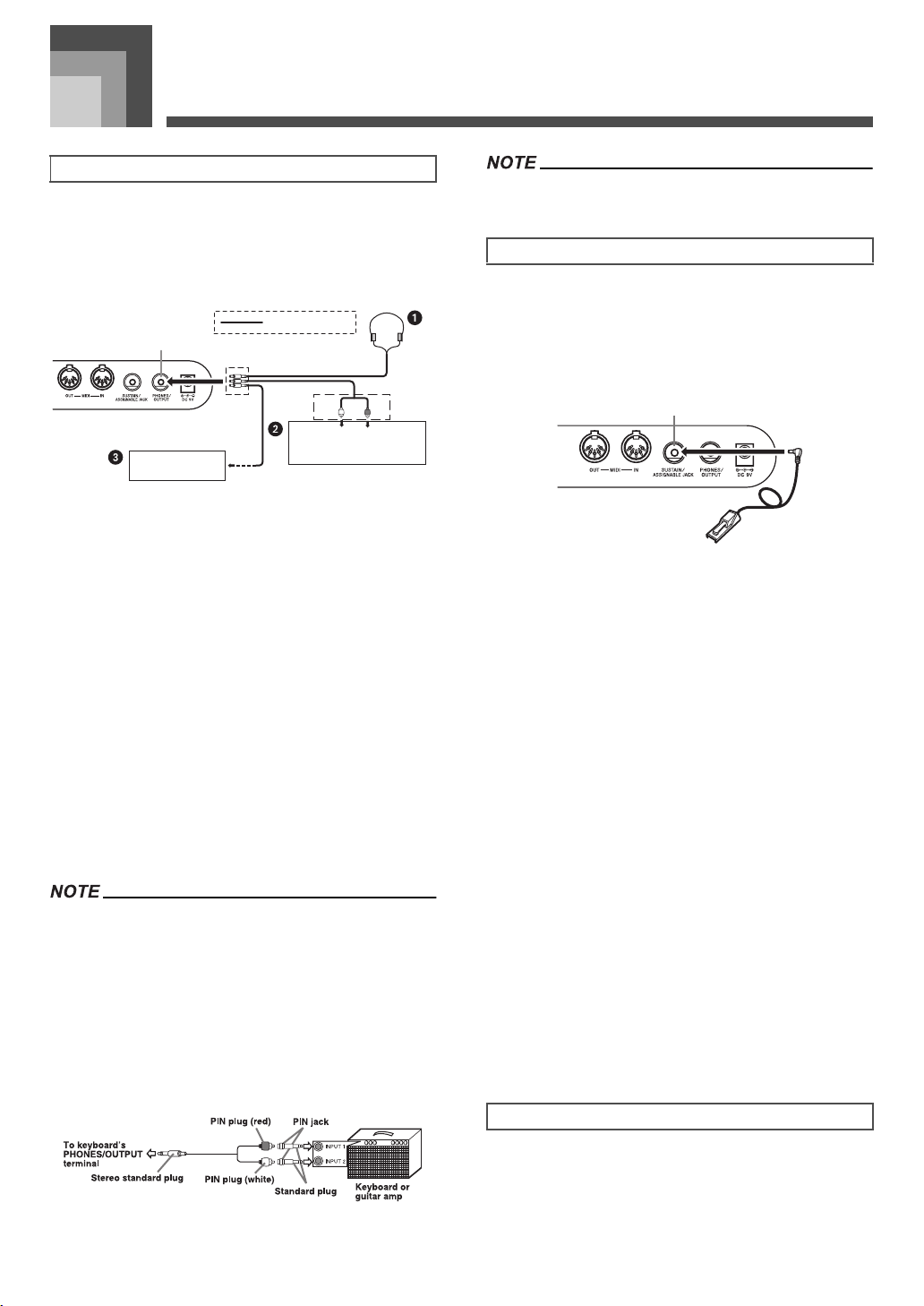
Rear Panel
J Connecting Phones 1
Connecting phones cuts off output from the keyboard’s built-
in speakers, so you can play even late at night without
disturbing anyone.
J Audio Equipment 2
Connect the keyboard to a audio equipment using a
commercially available connecting cord with a standard plug
on one end and two PIN plugs on the other end. Note that the
standard plug you connect to the keyboard must be a stereo
plug, otherwise you will be able to output only one of stereo
channels. In this configuration, you normally set the input
selector of the audio equipment to the terminal (usually
marked AUX IN or something similar) where the cord from
the keyboard is connected. See the user documentation that
comes with your audio equipment for full details.
J Musical Instrument Amplifier 3
Use a commercially available connecting cord to connect the
keyboard to a musical instrument amplifier.
• Be sure to use a connecting cord that has a stereo standard
plug on the end you connect to the keyboard, and a
connector that provides dual channel (left and right) input to
the amplifier to which you are connecting. The wrong type of
connector at either end can cause one of the stereo channels
to be lost.
• When connected to a musical instrument amplifier, set the
volume of the keyboard to a relatively low level and make
output volume adjustments using the amplifier’s controls.
Connection Example
• You can also connect the keyboard to a computer or
sequencer. See “MIDI” on page E-75 for details.
You can connect an optional sustain pedal (SP-3 or SP-20) to
the SUSTAIN/ASSIGNABLE JACK terminal to enable the
capabilities described below.
For details on how to select the pedal function you want, see
“Changing Other Settings” on page E-66.
1
SUSTAIN/ASSIGNABLE JACK Terminal
J Sustain Pedal
• With piano tones, depressing the pedal causes notes to
linger, much like a piano’s damper pedal.
• With organ tones, depressing the pedal causes notes to
continue to sound until the pedal is released.
J Sostenuto Pedal
• As with the sustain pedal function described above,
depressing the sostenuto pedal causes notes to be
sustained.
• This difference between a sostenuto pedal and sustain
pedal is the timing.
• With a sostenuto pedal, you press the keys and then
depress the pedal before you release the keys. Only the
notes that are sounding when the pedal is depressed are
sustained.
J Soft Pedal
Depressing the pedal softens the sound of the notes being
played.
J Rhythm Start/Stop Pedal
In this case, the pedal performs the same functions as the
START/STOP button.
Use only the accessories and options specified for this
keyboard. Use of non-authorized items creates the danger of
fire, electrical shock, and personal injury.
Phones/Output Terminal
White
Red
PIN plug
Stereo standard plug
Audio connection
PHONES/OUTPUT jack
Keyboard amp,
guitar amp, etc.
LEFT
RIGHT
AUX IN or similar terminal
of audio amplifier
Sustain/Assignable jack Terminal
Accessories and Options
1
SP-20
707A-E-017A
ページ 2005年3月9日 水曜日 午後5時29分
Basic Operations
E-16
Basic Op erations
This section provides information on performing basic
keyboard operations.
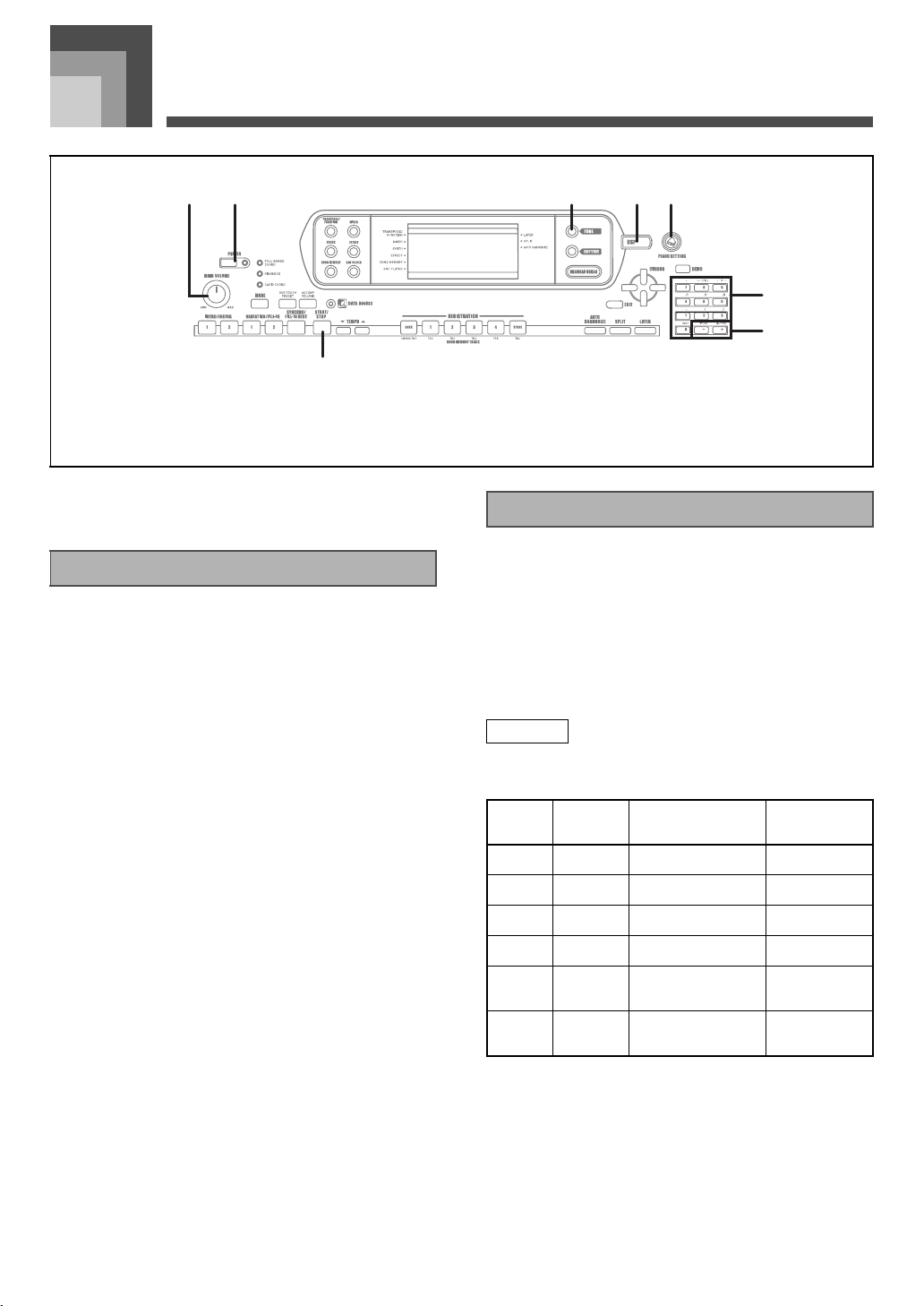
1. Press the POWER button to turn the keyboard on.
• This causes the power indicator to light.
2. Use the MAIN VOLUME knob to set the volume to
a relatively low level.
3. Play something on the keyboard.
This keyboard comes with tones built-in, as shown below.
A partial list of the available tone names is printed on the
keyboard console. See the “Tone List” on page A-1 of this
manual for a complete list.
“Advanced Tones” are variations of standard tones, which
are created by programming in effects (DSP) and other
settings.
For details about drawbar organ tones, see “Using the
Drawbar Organ Mode” on page E-19.
Standard Tones: 550 Preset Tones + 124 User Tones
1
MAIN VOLUME
2
POWER
3
TONE
4
DSP
5
PIANO SETTING
6
START/STOP
7
Number buttons
8
[+]/[–]
1 2
6
43 5
7
8
To play the keyboard
Selecting a Tone
Tone Types
Number
Number of
Tones
Tone Type
DSP Line On/Off
(*1)
000-331 332 Advanced Tones On
400-599 200 Preset Tones Off
600-617 18 Drum Sets Off
700-799 100 User Tones (*2) On/Off (*3)
800-819 20
User Tones with Waves
(*4)
On/Off (*3)
900-903 4
User Drum Sets with
Waves (*4)
On/Off (*5)
707A-E-018A
ページ 2005年3月9日 水曜日 午後5時29分
E-17
Basic Operations
Drawbar Organ Tones:
50 Preset Tones + 100 User Tones
*1 See “Changing Tones and Configuring DSP Effect
Settings” on page E-18.
*2 Memory area for tones created by you. See “Synthesizer
Mode” on page E-40. User tone areas 700 through 799
initially contain the same data as DSP types 000 through
099.
*3 Depends on source tone or user setting. See “Synthesizer
Mode” on page E-40 for more information.
*4 Area for data transferred from a computer. See “Using the
Music Data Management Software (on the Bundled CD-
ROM)” on page E-76 for more information. For
information about waveforms, see “Creating a User Tone”
on page E-43.
*5 Depends on tone. This status can be checked by viewing
the DSP button. See “DSP Button” on page E-25 for more
information.
*6 Memory area for tones created by you. See “To edit a
drawbar organ tone” on page E-20. User drawbar organ
tone areas initially contain two sets of the same data as
drawbar organ tones types 000 through 049.
• You cannot select tone numbers not included in the above
ranges (standard tones 332 through 399, 618 through 699
and 820 through 899, and drawbar organ tones from 050 to
099). When you use the [+] and [–] buttons to scroll through
tone numbers, scrolling jumps across the unused numbers.
Pressing [+] when 617 is selected, for example, jumps to
700.
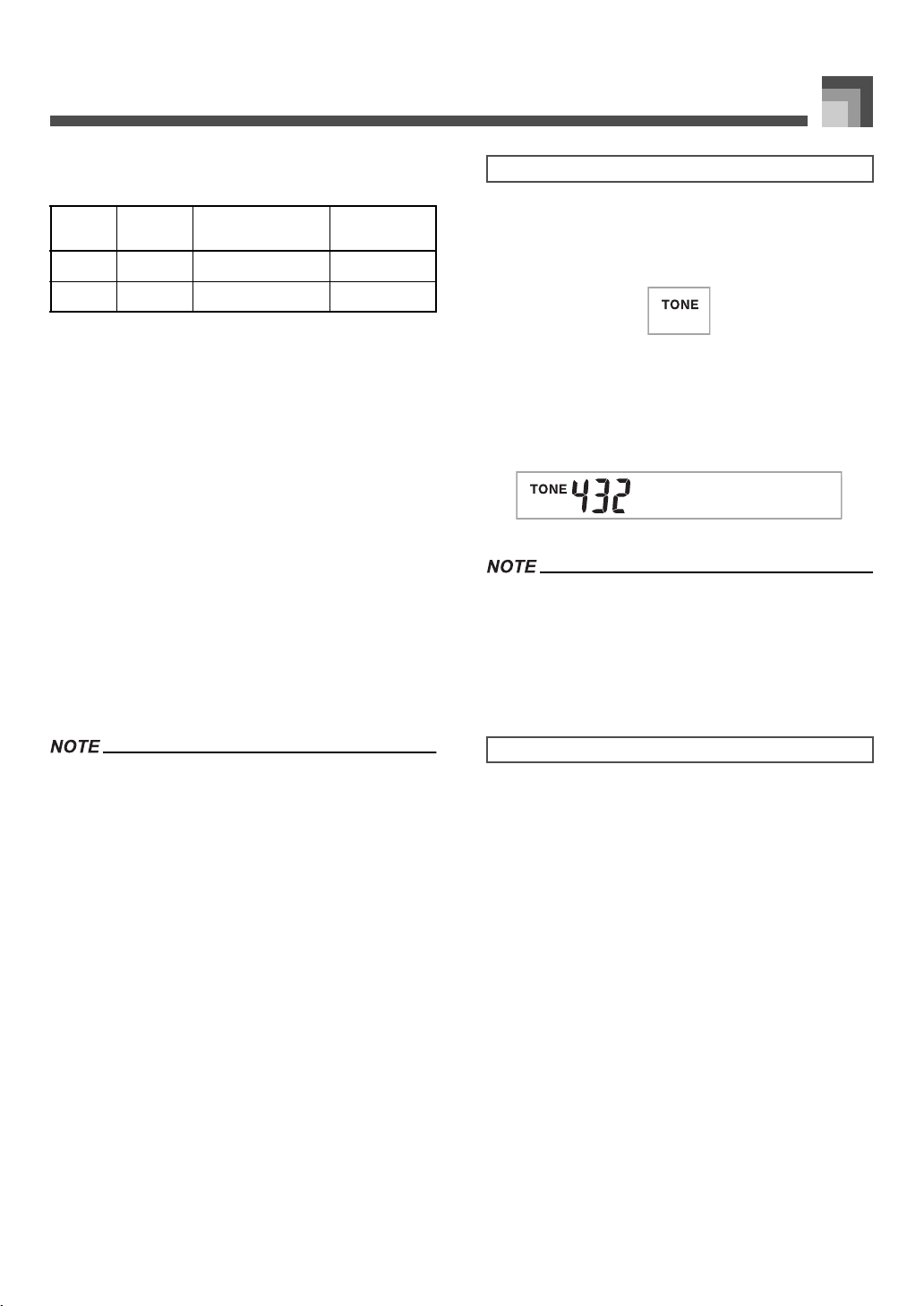
1. Find the tone you want to use in the tone list and
note its tone number.
2. Press the TONE button.
3. Use the number buttons to input the three digit
tone number for the tone you want to select.
Example:
To select “432 GM ACOUSTIC BASS”, input 4, 3
and then 2.
• Always input all three digits for the tone number, including
leading zeros (if any).
• You can also increment the displayed tone number by
pressing [
+
] and decrement it by pressing [–].
• When one of the drum sets is selected (tone numbers 600
through 617), each keyboard key is assigned a different
percussion sound. See page A-8 for details.
The term polyphony refers to the maximum number of notes
you can play at the same time. The keyboard has 32-note
polyphony, which includes the notes you play as well as the
rhythms and auto-accompaniment patterns that are played
by the keyboard. This means that when a rhythm or auto-
accompaniment pattern is being played by the keyboard, the
number of notes (polyphony) available for keyboard play is
reduced. Also note that some of the tones offer only 10-note
polyphony.
Number
Number of
Tones
Tone Type
DSP Line On/Off
(*1)
000-049 50 Preset Tones On/Off (*5)
100-199 100 User Tones (*6) On/Off (*3)
To select a tone
Polyphony
AuBsGsoc
707A-E-019A
ページ 2005年3月14日 月曜日 午後3時25分
Basic Operations
E-18
This keyboard has only a single DSP sound source. Because of
this, selecting tones for which DSP is enabled for multiple
parts when layering or splitting tones (page E-61, E-62) can
cause conflicts. To avoid conflicts, DSP is allocated to the last
DSP enabled tone, and DSP is disabled (DSP line OFF) for all
other parts.
DSP line is a parameter that controls whether or not the
currently selected DSP effect is applied to a part.* Each tone
has a DSP line parameter. Selecting a tone for a part applies
the tone’s DSP line parameter setting to all parts.
* The DSP line parameter is turned on (DSP effect is applied)
for the 332 Advanced Tones numbered 000 through 331,
and turned off (DSP effect not applied) for the 200 preset
tones from 400 to 599. For information about other tones,
see “Tone Types” on page E-16.
Pressing this button changes the setup of the keyboard to
optimize it for piano play.
Settings
J To optimize keyboard settings for piano play
1. Press the PIANO SETTING button.
2. Now try playing something on the keyboard.
• The notes you play will sound with a piano tone.
3. If you want to play with rhythm accompaniment,
press the START/STOP button.
• This causes a rhythm that is optimized for piano will
start to play.
• To stop rhythm play, press the START/STOP button
again.
• Pressing the PIANO SETTING button while a rhythm is
playing stops rhythm play and then changes the keyboard
setup.
• Pressing the PIANO SETTING button while the keyboard is
in the Synthesizer Mode or other mode exits the current
mode and then changes the keyboard setup.
• The setup of the keyboard does not change if you press the
PIANO SETTING button when any one of the following
exists.
* During real-time recording, step recording, or while using
the editing function of the Song Memory
* While the data save or overwrite message is on the
display
* During demo tune play
Changing Tones and Configuring DSP
Effect Settings
PIANO SETTING Button
Tone number: “000”
Rhythm number: “140”
Accompaniment Mode: Normal
Layer: Off
Split: Off
Auto Harmonize: Off
Transpose: 0
Touch Response: Off: Returns to initial default
On: No change
Assignable Jack: SUS
Local Control: On
Mixer Channel 1 Parameter
Setup:
Depends on tone
707A-E-020A
ページ 2005年3月9日 水曜日 午後5時29分
Using the Drawbar Organ Mode
E-19
Using the Draw bar Organ Mode
Your keyboard has built-in “drawbar organ tones” that can be altered using nine digital drawbars whose operations are similar to
the controls on a drawbar organ. You can also select percussion or key click. There is room in memory for storage of up to 100 user-
created drawbar tone variations.
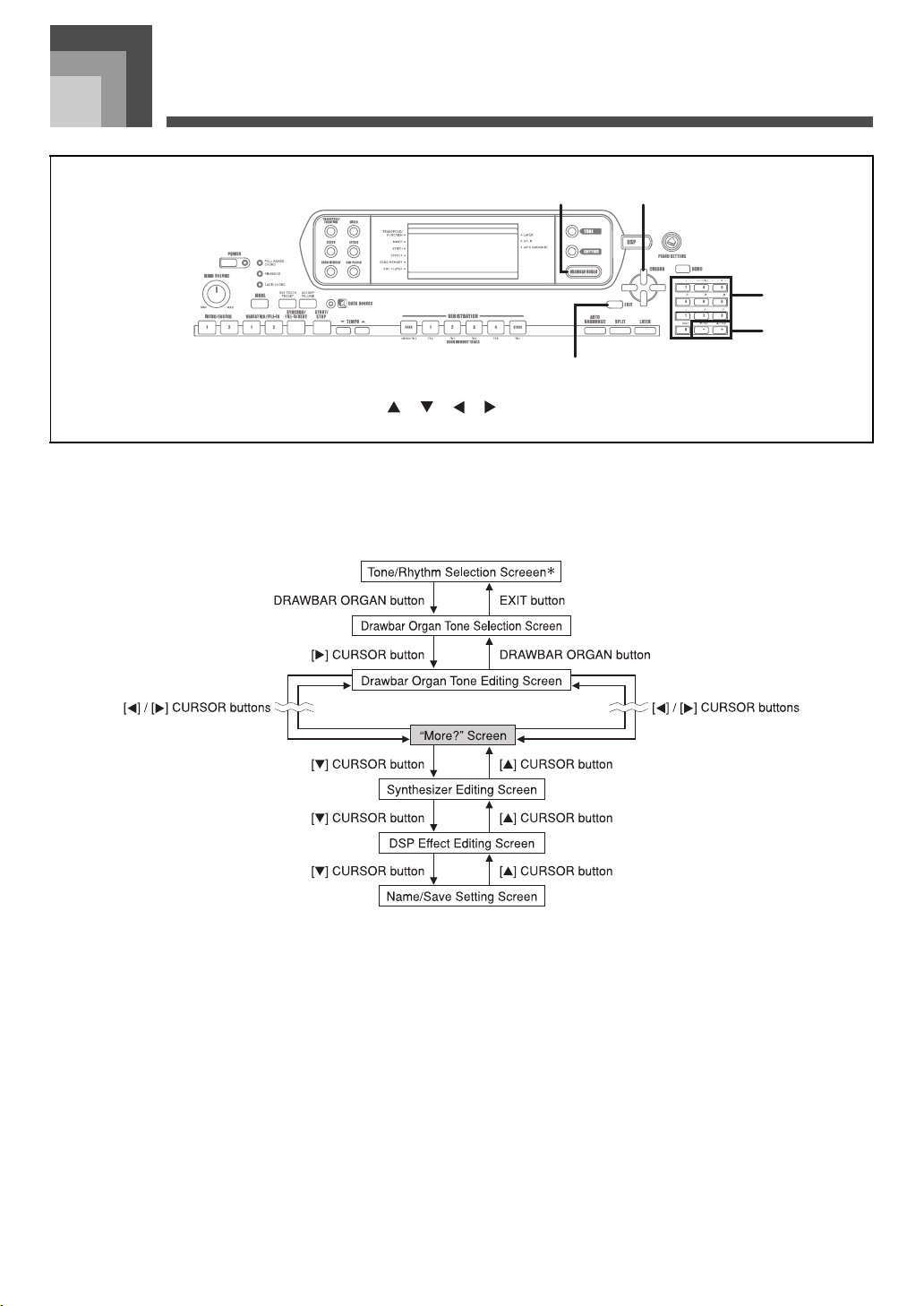
Drawbar Organ Mode Operational Flow
* You can also display the drawbar organ tone selection screen from the Song Memory Mode or SMF Playback Mode screen. In
this case, however, the Drawbar Organ Tone Editing Screen does not appear.
1
DRAWBAR ORGAN
2
[ ]/[ ]/[ ]/[ ] CURSOR
3
EXIT
4
Number buttons
5
[
+
]/[–]
3
21
4
5
707A-E-021A
ページ 2005年3月9日 水曜日 午後5時29分
Using the Drawbar Organ Mode
E-20
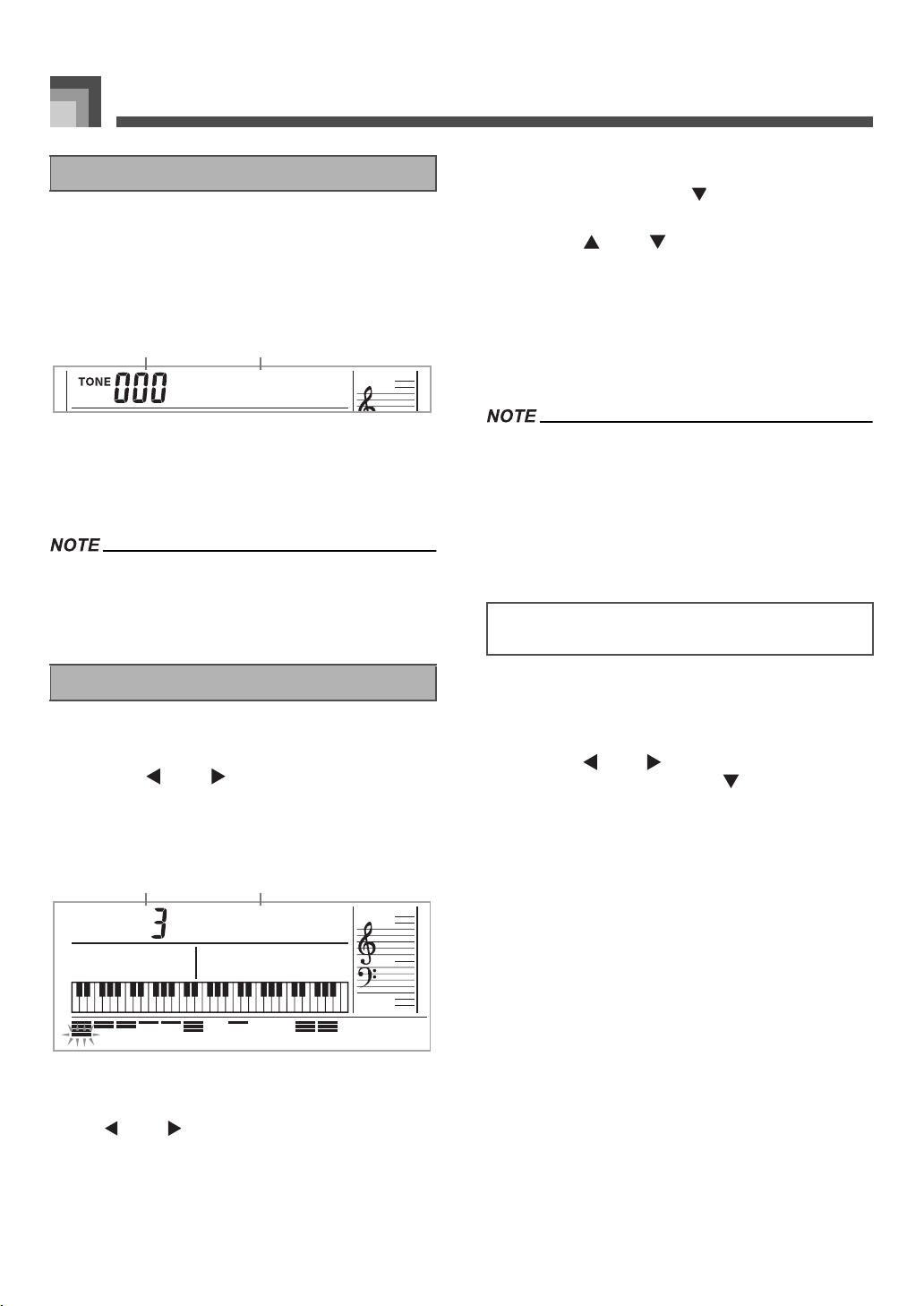
1. Find the drawbar organ tone you want to use in the
tone list and note its tone number.
2. Press the DRAWBAR ORGAN button.
• This causes the drawbar organ tone selection screen to
appear.
1
Tone Number
2
Tone Name
3. Use the number buttons to input the three digit
tone number for the tone you want to select.
• Always input all three digits for the tone number, including
leading zeros (if any).
• You can also increment the displayed tone number by
pressing [
+
] and decrement it by pressing [–].
1. Select the drawbar organ tone (000 to 049, 100 to
199) you want to edit.
2.
Use the [ ] and [ ] CURSOR buttons to display
the drawbar organ tone editing screen. Select the
parameter whose setting you want to change
.
Example:
Selecting the “Ft16’” parameter
1
Parameter Setting
2
Parameter Name
• There are a total of 13 parameters. You can use the
[ ] and [ ] CURSOR buttons to cycle through
them. See “Parameter Details” on page E-21 for more
information.
• While the “More?” screen is on the display, you can
advance to the synthesizer and DSP effect editing
screens by pressing the [ ] CURSOR button or the
[+] button.
3. Use the [ ] and [ ] CURSOR buttons or the [
+
]
and [–] buttons to change the setting of the
currently displayed parameter.
• You can also change a parameter setting by entering a
value with the number buttons.
• You can monitor the changes in a tone by playing
notes on the keyboard as you adjust parameter
settings.
• Selecting a different tone after you edit parameters replaces
parameter settings with those of the newly selected tone.
• If you have drawbar organ tones assigned to more than one
channel, changing the drawbar organ tone setting for one of
the channels causes the same setting to be applied to all of
the other channels as well.
• See “To save an edited drawbar organ tone” on page E-22
for information about saving your edits.
As with standard (non-drawbar) tones, you can edit the
Synthesizer Mode parameters and DSP parameters of
drawbar organ tones (See “Drawbar Organ Mode
Operational Flow” on page E-19).
1. Use the [ ] and [ ] CURSOR buttons to display
“More?”, and then press the [ ] CURSOR button.
• This enters the Synthesizer Mode, which is indicated
by the pointer next to SYNTH on the display screen.
• For the remainder of this procedure, perform the steps
starting from step 3 under “Creating a User Tone” on
page E-43.
To select a drawbar organ tone
To edit a drawbar organ tone
Dwar1bar
1 2
F6’1t
1 2
Editing Synthesizer Mode Parameters and
DSP Parameters of Drawbar Organ Tones
707A-E-022A
ページ 2005年3月9日 水曜日 午後5時29分
E-21
Using the Drawbar Organ Mode
The following provides details about the parameters you can
configure using the drawbar organ tone editing screen.
This parameter defines the position of each drawbar, and the
volume of each overtone. The larger the value, the greater the
corresponding overtone’s volume.
(Ft: Feet)
The parameter determines whether or not a key click is added
when a sustained tone configured using the drawbars is
played.
This parameter lets you add percussion sound, which
provides modulation to sustained tones that you create.
When you hold down a key on the keyboard, the sound
produced decays until it is no longer audible. Pressing the key
again sounds the note again at a louder volume. Percussion
has “2nd Percussion” (2nd overtone pitch) and “3rd
Percussion” (3rd overtone pitch) settings, each of which can
be turned on or off.
You can also specify the percussion decay time, which
controls how long it takes for the percussion sound to decay.
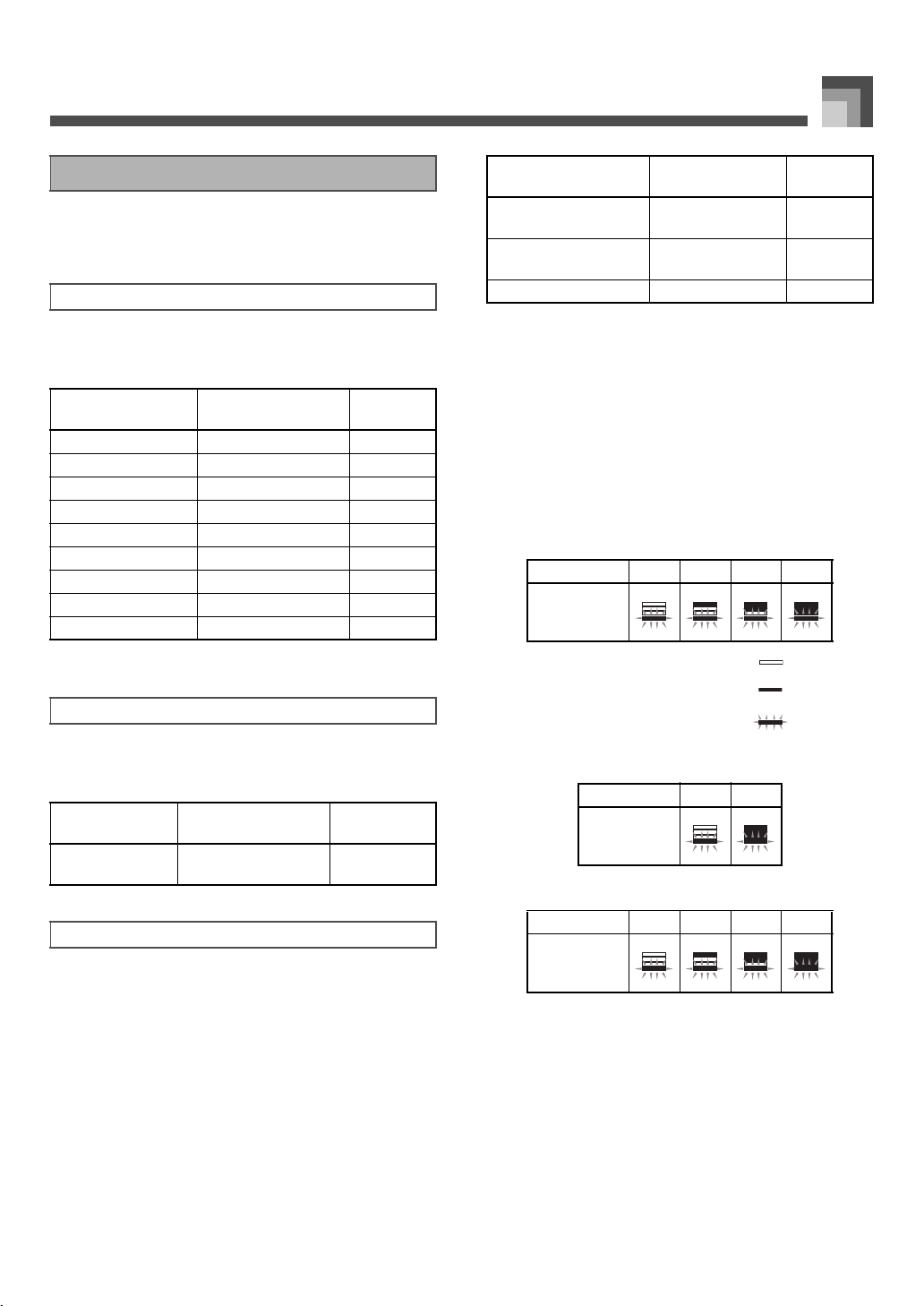
J Display Contents in the Drawbar Organ Mode
In the Drawbar Organ Mode, the current status of the
drawbar positions, key click, and percussion parameters are
indicated on the display’s bar graph as shown in the
illustrations below. There is one line for each parameter, and
the bottom segment of the selected parameter line flashes.
The bottom segment of the bar graph column that represents
the currently selected parameter flashes to indicate that it is
selected.
None of the channel numbers (1 to 16) are displayed in the
drawbar organ tone selection mode and editing mode.
Drawbar Position Graph
Click and Percussion On/Off Graph
Percussion Decay Time Graph
Parameter Details
Drawbar Position
Parameter Name
Parameter Display
Indication
Settings
Drawbar 16’ Ft16’ 0 to 3
Drawbar 5 1/3’ Ft 5 1/3’ 0 to 3
Drawbar 8’ Ft 8’ 0 to 3
Drawbar 4’ Ft 4’ 0 to 3
Drawbar 2 2/3’ Ft 2 2/3’ 0 to 3
Drawbar 2’ Ft 2’ 0 to 3
Drawbar 1 3/5’ Ft 1 3/5’ 0 to 3
Drawbar 1 1/3’ Ft 1 1/3’ 0 to 3
Drawbar 1’ Ft 1’ 0 to 3
Click
Parameter Name
Parameter Display
Indication
Settings
Click Click
oFF:
on:
Click Off
Click On
Percussion
Parameter Name
Parameter Display
Indication
Settings
2nd Percussion Second
oFF:
on:
Off
On
3rd Percussion Third
oFF:
on:
Off
On
Percussion Decay Time Decay 000 to 127
Setting Value 0 1 2 3
Display
Off
On
Flash
Setting Value Off On
Display
Setting Value 0-31 32-63 64-95 96-127
Display
707A-E-023A
ページ 2005年3月9日 水曜日 午後5時29分
Using the Drawbar Organ Mode
E-22
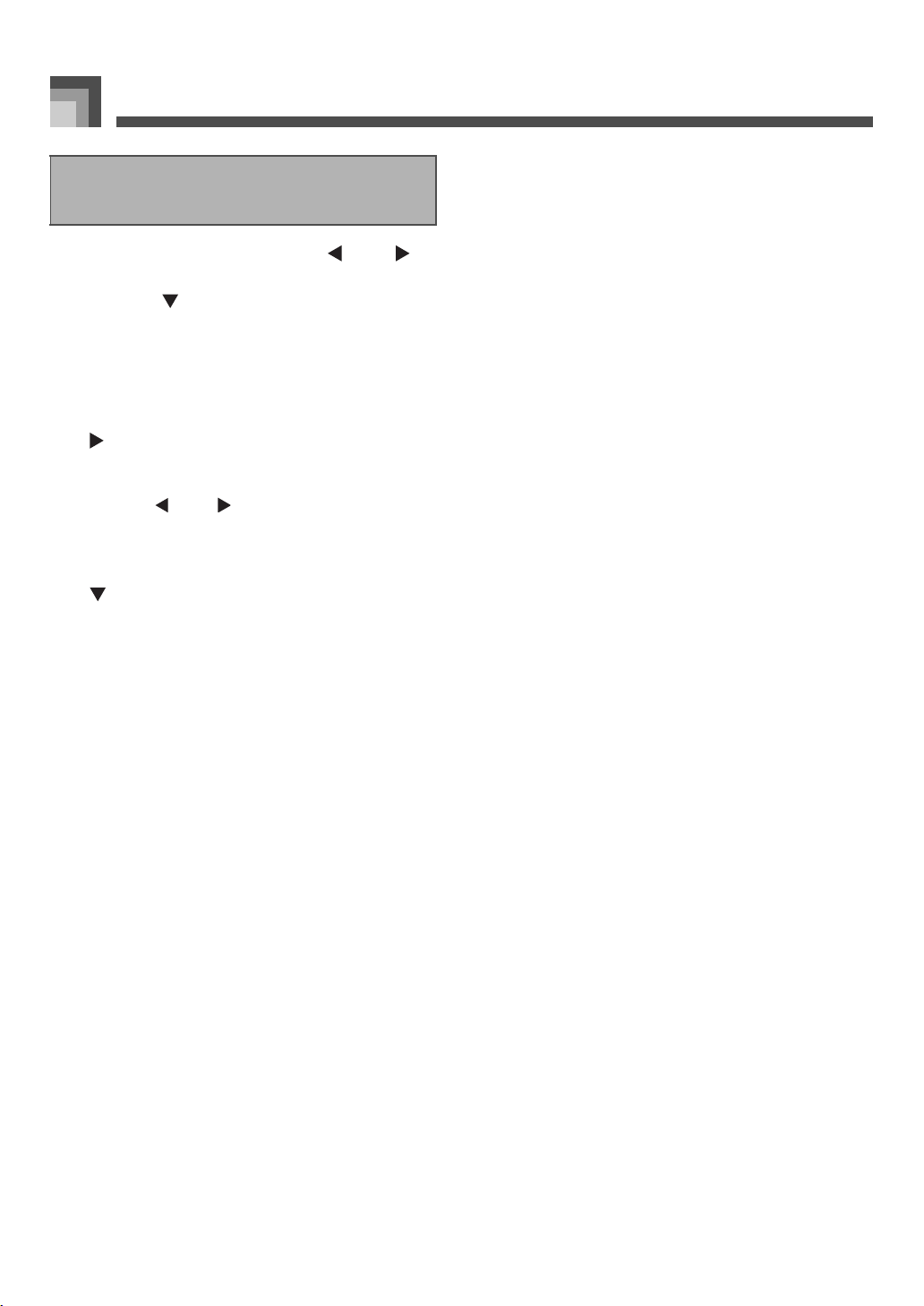
1. After editing parameters, use the [ ] and [ ]
CURSOR buttons to display “More?”.
2. Press the [ ] CURSOR button three times to
display the screen for inputting a tone name and
assigning a tone number.
3. Use the [
+
] and [–] buttons to select a tone number.
• You can select a tone number in the range of 100 to 199.
4. After the tone name is the way you want, press the
[ ] CURSOR button to store the tone.
•Use the [
+
] and [–] buttons to scroll through letters at
the current cursor location.
• Use the [ ] and [ ] CURSOR buttons to move the
cursor left and right.
• See the page E-45 for information about inputting text.
5. After everything is the way you want, press the
[ ] CURSOR button to store the tone.
• This will display a confirmation message asking
whether you really want to save the data. Press the
YES button to save the data.
• After the save operation is complete, the message
“Complete” appears and then the display returns to
the tone selection screen.
• To cancel save, press the EXIT button.
To save an edited drawbar
organ tone
707A-E-024A
ページ 2005年3月9日 水曜日 午後5時29分
Applying Effects to Tones
E-23
Applying E ffects to Tones
This keyboard provides you with a selection of effects that
you can apply to tones.
The built-in effects include a wide variety of variations that
give you access to a selection of general digital effects.
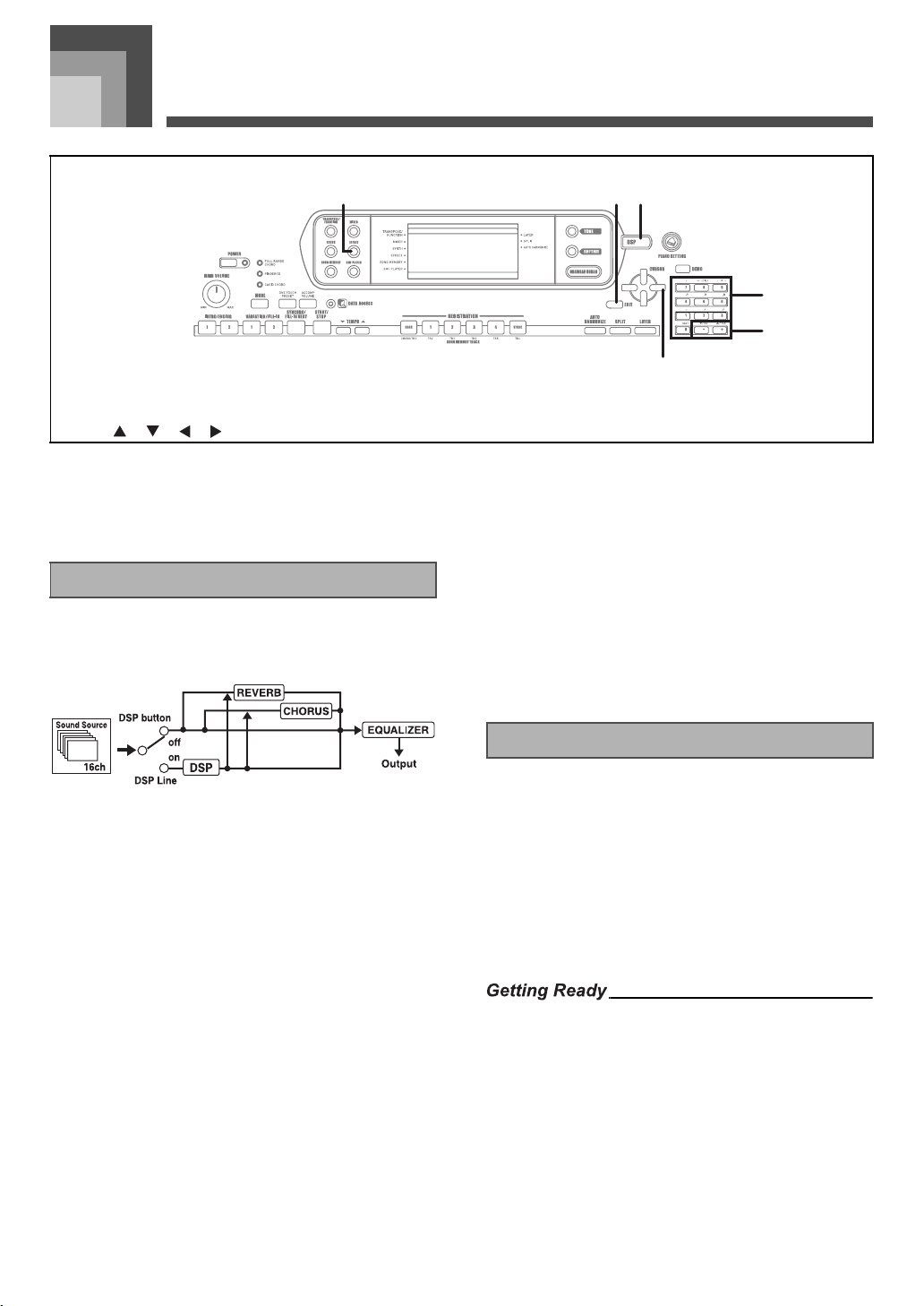
The following shows how the effects of this keyboard are
organized.
J DSP
DSP effects are applied to the connection between the sound
source and output. You can select distortion and modulation
effects. You can create DSP effect setups and also transfer
downloaded DSP data from your computer. The keyboard
has memory that lets you store up to 100 DSP effect setups.
See “Using the Music Data Management Software (on the
Bundled CD-ROM)” on page E-76 and “Saving the Settings of
DSP Parameters” on page E-25 for more information.
J REVERB
Reverb simulates the acoustics of specific types of
environments. You can choose from among 16 different
reverb effects, including “Room” and “Hall.”
J CHORUS
The chorus effect gives sound greater depth by causing it to
vibrate. You can choose from among 16 different chorus
effects, including “Chorus” and “Flanger.”
The equalizer is another type of effect that you can use to
make adjustments in tone quality. Frequencies are divided
among a number of bands, and raising and lowering the level
of each frequency band alters the sound.
You can reproduce the optimal acoustics for the type of music
you are playing (classics, for example) by selecting the
applicable equalizer setting.
In addition to the 100 built-in effect types, you can also edit
effect types to create your own and store them in user
memory. You can have up to 100 effect types in user memory
at one time. You can also select the DSP type of the last DSP
enabled tone that you used. This means you always have
access to the DSP type of Advanced Tones and tones you
download over the Internet. To select the DSP type of the last
DSP enabled tone that you used, select “ton” in step 3 of the
procedure below.
Perform the following steps to select a DSP type.
• When using a DSP effect, you should use the Mixer to
confirm that the DSP lines of the required parts are turned
on. See “Mixer Function” on page E-36 for more information.
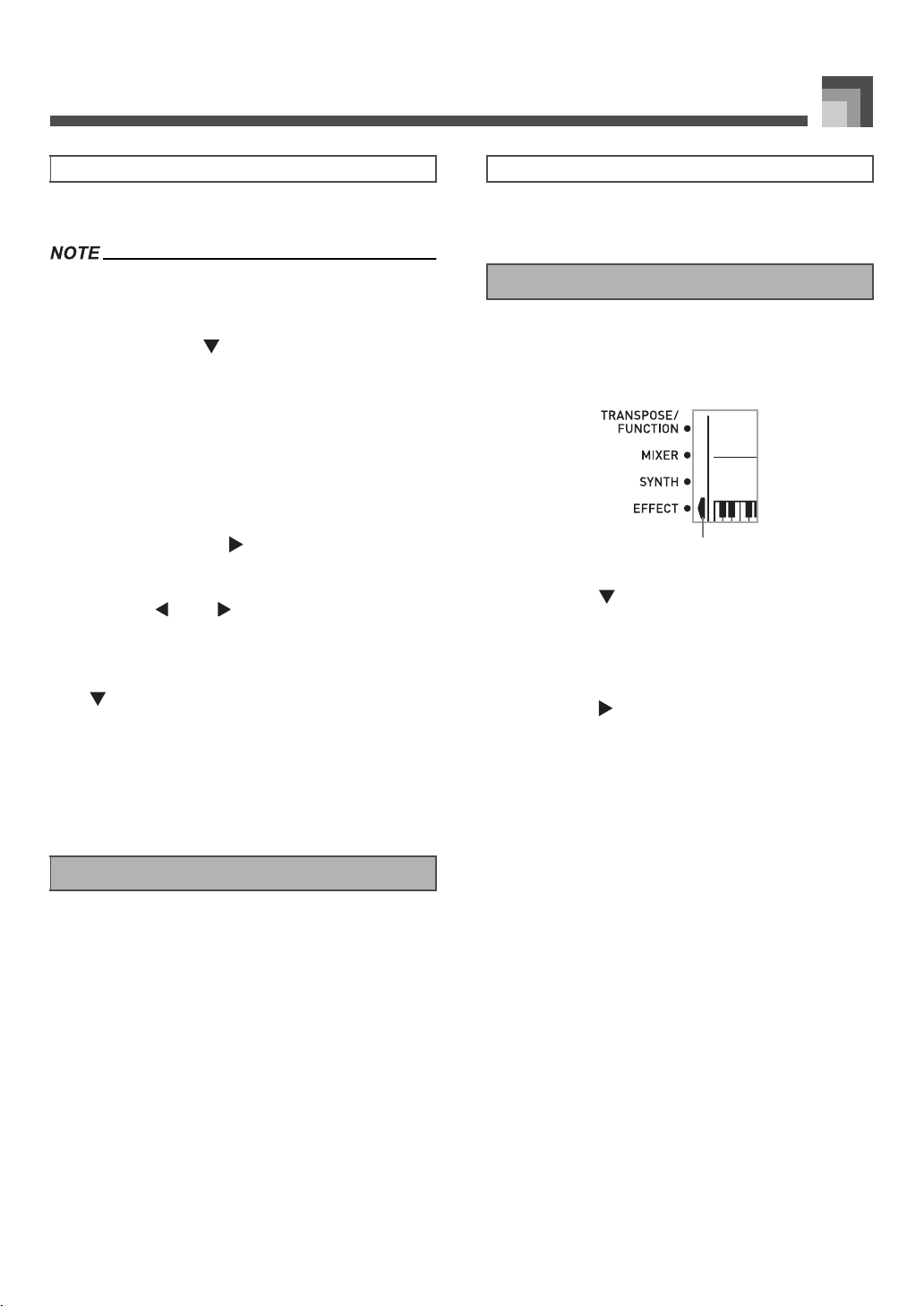
1. Press the EFFECT button so the pointer appears
next to EFFECT on the display.
• The DSP type setting screen (step 3) will appear
automatically about fives seconds after you press the
button.
1
EFFECT
2
EXIT
3
DSP
4
[ ]/[ ]/[ ]/[ ] CURSOR
5
Number buttons
6
[
+
]/[–]
1
4
2 3
5
6
Effect Blocks
Selecting a DSP Type
707A-E-025A
ページ 2005年3月9日 水曜日 午後5時29分
Applying Effects to Tones
E-24
2. Press the [ ] CURSOR button.
3. Use the [+] and [–] buttons or the number buttons
to select the type of DSP you want.
• See the “Effect List” on page A-13 for information
about the DSP types that can be selected.
• Here you could also change the parameters of the
effect you selected, if you want. See “Changing the
Settings of DSP Parameters” for more information.
• The DSP type display area shows the DSP number (000 to
199) or “ton” (user tone created using DSP).
You can control the relative strength of a DSP and how it is
applied. See the following section titled “DSP Parameters” for
more information.
1. After selecting the DSP type you want, use the
[ ] and [ ] CURSOR buttons to display the
parameter whose setting you want to change.
• This displays the parameter setting screen.
2. Use the [
+
] and [–] buttons or the number buttons
to make the parameter setting you want.
•Pressing the [
+
] and [–] buttons at the same time
returns the parameter to its recommended setting.
3. Press the EFFECT or EXIT button.
• This exits the tone or ryhthm setting screen.
The following describes the parameters for each DSP.
J DSP
z Parameter 0 to 7
These parameters differ in accordance with the
algorithm* of the selected DSP type. See the “Effect List”
on page A-13 and the “DSP Algorithm List” on page E-83
for more information.
* Effector structure and operation type
z DSP Reverb Send (Range: 000 to 127)
Specifies how much of the post-DSP sound should be sent
to reverb.
z DSP Chorus Send (Range: 000 to 127)
Specifies how much of the post-DSP sound should be sent
to chorus.
• Whether or not an effect is applied to the parts that are
sounding also depends on Mixer Mode Reverb Send,
Chorus Send, and DSP on/off settings. See “Mixer Function”
on page E-36 for more information.
• Playing a demo tune (page E-11) automatically changes the
effect to the one that is assigned to the tune. You cannot
change or cancel a demo tune effect.
• Changing the effect setting while sound is being output by
the keyboard causes a slight break in the sound when the
effect changes.
• A number of tones, called “Advanced Tones,” automatically
turn on the DSP line for richer, higher quality sound. If you
assign an Advanced Tone to a keyboard part (Channels 1
through 4), the DSP line turns on automatically and the DSP
selection changes in accordance with the settings of the
Advanced Tone. Also, the Mixer Mode DSP line on/off
setting for the keyboard part to which the Advanced Tone is
assigned is turned on.*
* The Mixer DSP line setting is automatically turned off for
each part that does not have an Advanced Tone assigned.
Because of this, DSP effects previously applied to these
parts are cancelled, which can make their tone sound
different. In this case, display the Mixer screen and turn
DSP back on.
Changing the Settings of DSP Parameters
DSP Parameters
707A-E-026A
ページ 2005年3月9日 水曜日 午後5時29分
E-25
Applying Effects to Tones
You can save up to 100 modified DSPs in the user area for
later recall when you need them.
• User DSP areas 100 through 199 initially contain the same
data as DSP types 000 through 099.
1. After making the DSP parameter settings you
want, press the [ ] CURSOR button.
• This causes the DSP number of the user area where the
DSP will be saved to flash on the display.
2. Use the [
+
] and [–] buttons to select the user DSP
area number where you want to save the new
DSP.
• You can select a user DSP area number in the range of
100 to 199 only.
3. After the user DSP area number you want is
selected, press the [ ] CURSOR button.
•Use the [
+
] and [–] buttons to scroll through letters at
the current cursor location.
• Use the [ ] and [ ] CURSOR buttons to move the
cursor left and right.
• See the page E-45 for information about inputting text.
4. After everything is the way you want, press the
[ ] CURSOR button to store the effect.
• This will display a confirmation message asking
whether you really want to save the data. Press the
YES button to save the data.
• The message “Complete” appears momentarily on the
display, followed by the tone or rhythm selection
screen.
Checking the DSP button will tell you whether or not DSP is
enabled for the tone that is currently selected for a part. The
DSP button will be lit for a tone that is DSP enabled (DSP line
ON), and unlit for a tone that is DSP disabled (DSP line OFF).
For example, when you move each part while using the split/
layer function, the DSP button lights or goes out in
accordance with that parts setting.
Pressing the DSP button toggles the tone of the part you are
currently playing on the keyboard between enabled (DSP line
ON) and disabled (DSP line OFF).
1. Press the DSP button to toggle DSP line for the
currently selected part on and off.
Perform the following steps to select REVERB.
1. Press the EFFECT button, so the pointer appears
next to EFFECT on the display screen.
1
Pointer
2. Press the [ ] CURSOR button once.
• This displays the reverb editing screen.
• The reverb type setting screen (step 4) will appear
automatically about fives seconds after you press the
button.
3. Press the [ ] CURSOR button.
4. Use the [
+
] and [–] buttons or the number buttons
to scroll through the reverb types until the one you
want is displayed, or use the number buttons to
input the reverb number you want to select.
• See the list on page A-13 for information about the
types of REVERB effects that are available.
• Here you could also change the parameters of the
effect you selected, if you want. See “Changing the
Settings of REVERB Parameters” on page E-26 for
more information.
Saving the Settings of DSP Parameters
DSP Button
To turn DSP line on and off
Selecting REVERB
1
707A-E-027A
ページ 2005年3月9日 水曜日 午後5時29分
Applying Effects to Tones
E-26
You can control the relative strength of a reverb and how it is
applied. See the following section titled “REVERB
Parameters” for more information.
1. After selecting the reverb type you want, use the
[ ] and [ ] CURSOR buttons to display the
parameter whose setting you want to change.
• This displays the parameter setting screen.
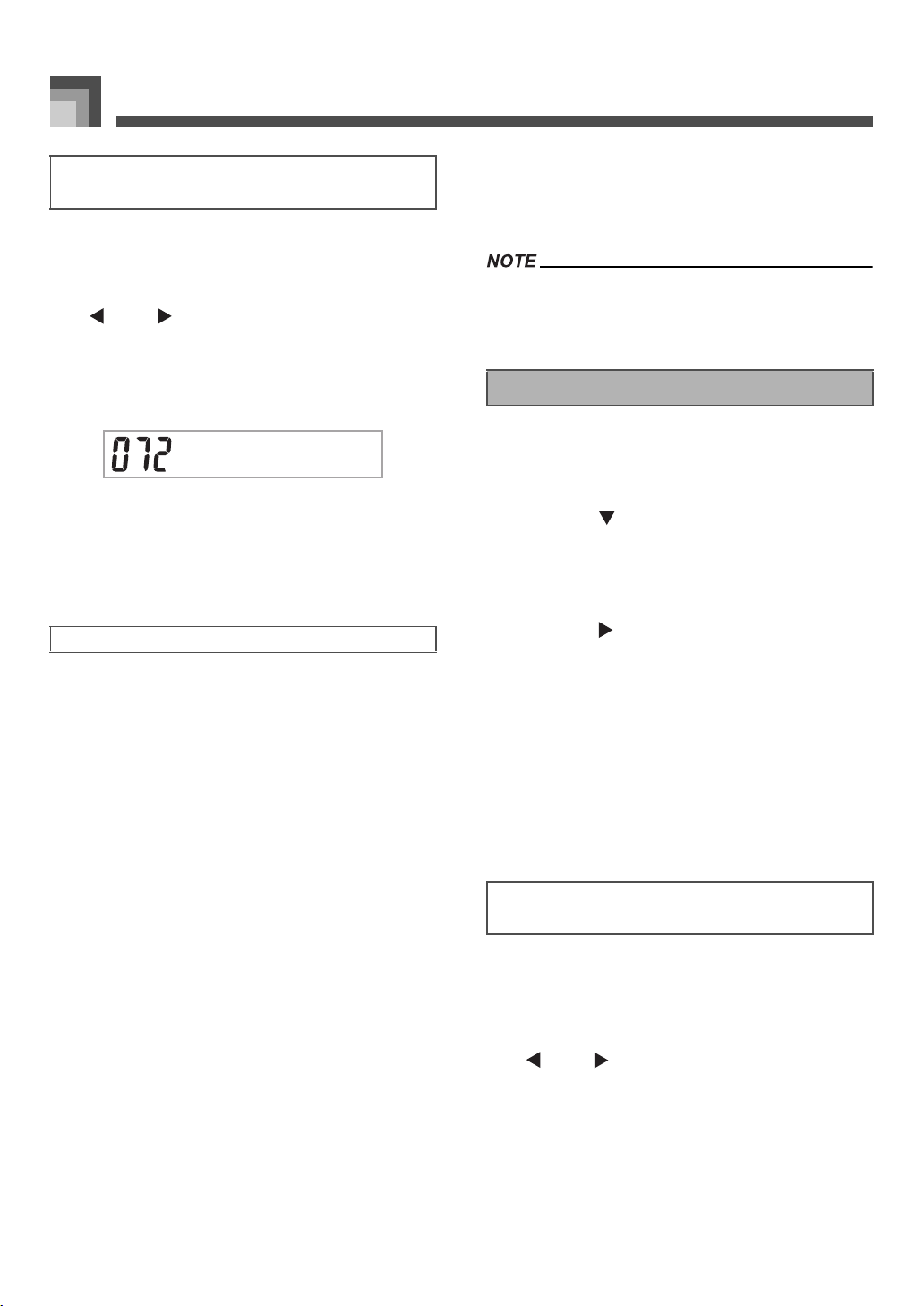
Example:
To set the Reverb Time parameter
2. Use the [+] and [–] buttons or the number buttons
to input the parameter setting you want.
3. Press the EFFECT or EXIT button.
• This returns to the tone or rhythm selection screen.
Reverb effects are associated with either a reverb type or
delay type. Parameter settings depend upon the associated
type.
Reverb Type (No. 0 to 5, 8 to 13)
z Reverb Level (Range: 000 to 127)
Controls the reverb size. A larger number produces
larger reverb.
z Reverb Time (Range: 000 to 127)
Controls how long reverb continues. A larger
number produces longer reverb.
z ER Level (Initial Echo Sound) (Range: 000 to 127)
This parameter controls the initial reverb volume.
The initial echo sound is the first sound reflected
from the walls and ceiling when a sound is output
by this keyboard. A larger value specifies a larger
echo sound.
z High Damp (Range: 000 to 127)
Adjusts the damping of high frequency
reverberation (high sound). A smaller value damps
high sounds, creating a dark reverb. A larger value
does not damp high sounds, for a brighter reverb.
Delay Type (No. 6, 7, 14, 15)
z Delay Level (Range: 000 to 127)
Specifies the size of the delay sound. A higher value
produces a larger delay sound.
z Delay Feedback (Range: 000 to 127)
Adjusts delay repeat. A higher value produces a
greater number of repeats.
z ER Level
Same as Reverb Type
z High Damp
Same as Reverb Type
• Whether or not an effect is applied to the parts that are
sounding also depends on Mixer Mode Reverb Send,
Chorus Send, and DSP on/off settings. See “Mixer Function”
on page E-36 for more information.
Perform the following steps to select CHORUS.
1. Press the EFFECT button, so the pointer appears
next to EFFECT on the display screen.
2. Press the [ ] CURSOR button twice.
• This displays the chorus editing screen.
• The chorus type setting screen (step 4) will appear
automatically about fives seconds after you press the
button.
3. Press the [ ] CURSOR button.
4. Use the [
+
] and [–] buttons or the number buttons
to scroll through the chorus types until the one you
want is displayed, or use the number buttons to
input the chorus number you want to select.
• See the list on page A-13 for information about the
types of CHORUS effects that are available.
• Here you could also change the parameters of the
effect you selected, if you want. See “Changing the
Settings of CHORUS Parameters” for more
information.
You can control the relative strength of an effect and how it is
applied. The parameters you can control depend on the effect.
See the following section titled “CHORUS Parameters” for
more information.
1. After selecting the chorus type you want, use the
[ ] and [ ] CURSOR buttons to display the
parameter whose setting you want to change.
2. Use the [
+
] and [–] buttons or the number buttons
to input the parameter setting you want.
3. Press the EFFECT or EXIT button.
• This returns to the tone or rhythm selection screen.
Changing the Settings of REVERB
Parameters
REVERB Parameters
SimeTvR
Selecting CHORUS
Changing the Settings of CHORUS
Parameters
707A-E-028A
ページ 2005年3月9日 水曜日 午後5時29分
E-27
Applying Effects to Tones
Chorus Level (Range: 000 to 127)
Specifies the size of the chorus sound.
Chorus Rate (Range: 000 to 127)
Specifies the undulation speed of the chorus sound. A
higher value produces faster undulation.
Chorus Depth (Range: 000 to 127)
Specifies the undulation depth of the chorus sound. A
higher value produces deeper undulation.
• Whether or not an effect is applied to the parts that are
sounding also depends on Mixer Mode Reverb Send,
Chorus Send, and DSP on/off settings. See “Mixer Function”
on page E-36 for more information.
This keyboard has a built-in four-band equalizer and 10
different settings from which you can choose. You can adjust
the gain (volume) of all four equalizer bands within the range
of –12 to 0 to +12.
1. Press the EFFECT button so the pointer appears
next to EFFECT on the display screen.
2. Press the [ ] CURSOR button three times.
• This displays the equalizer editing screen.
• The equalizer type setting (step 4) screen will appear
automatically about fives seconds after you press the
button.
3. Press the [ ] CURSOR button.
4. Use the [
+
] and [–] buttons or the number buttons
to select the equalizer type you want.
• See the list on page A-13 for information about the
equalizer types that are available.
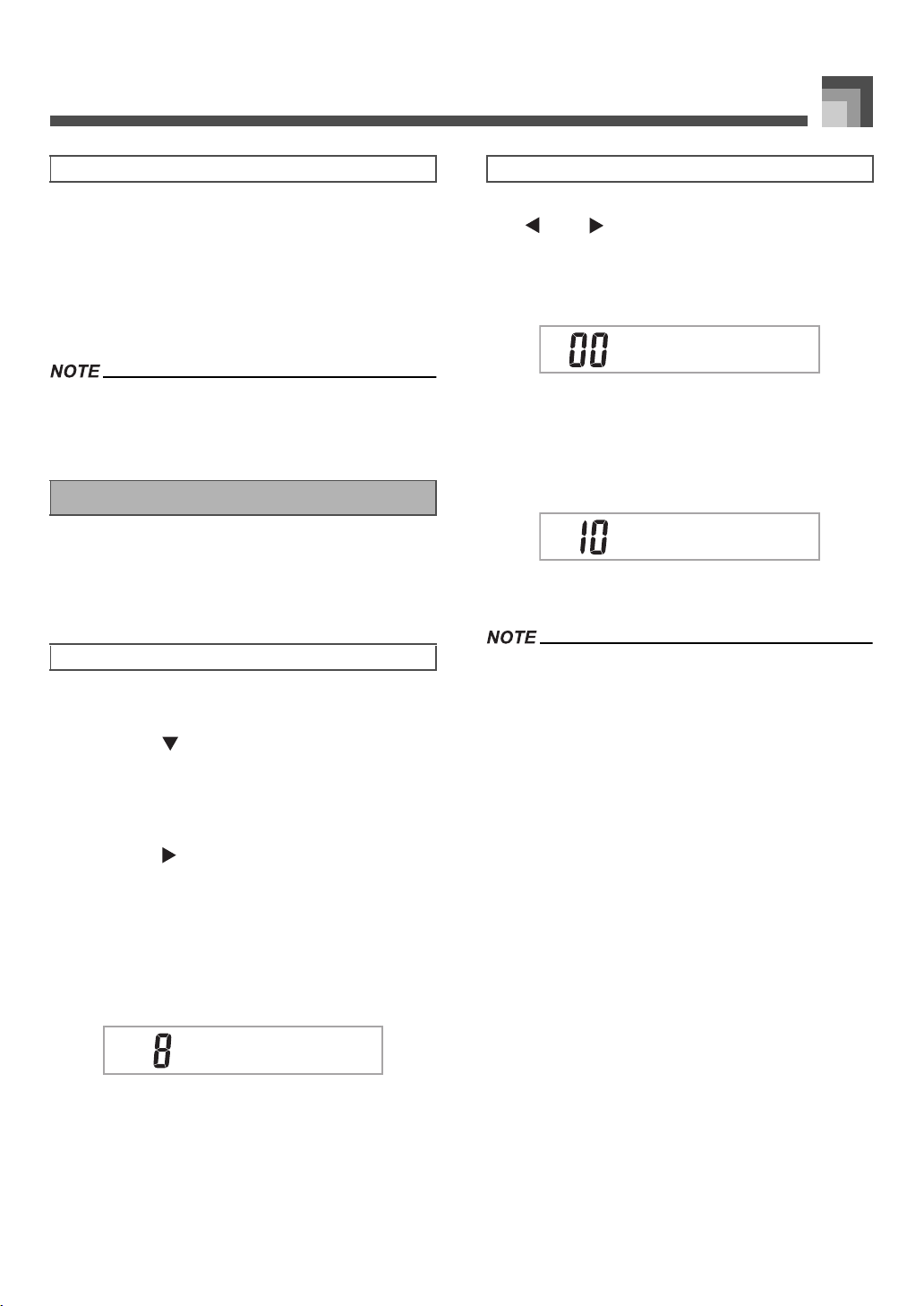
Example:
To select Jazz
• Pressing the EXIT or EFFECT button exits the
equalizer setting screen.
1. After selecting the equalizer type you want, use the
[ ] and [ ] CURSOR buttons to select the band
whose gain you want to adjust.
Example:
To adjust the HIGH band
2. Use the [
+
] and [–] buttons or the number buttons
to adjust the band gain.
Example:
To adjust the gain to 10
• Pressing the EXIT or EFFECT button exits the
equalizer setting screen.
• Changing to another equalizer type causes the band gain
settings to change to the initial settings for the newly selected
equalizer type automatically.
CHORUS Parameters
Using the Equalizer
To select the equalizer type
Jzza
To adjust the gain (volume) of a band
M i
g
hH
q
E
M i
g
hH
q
E
707A-E-029A
ページ 2005年3月9日 水曜日 午後5時29分
Auto Accompaniment
E-28
Auto Accompanim ent
This keyboard automatically plays bass and chord parts in
accordance with the chords you finger. The bass and chord
parts are played using sounds and tones that are
automatically selected to select the rhythm you are using. All
of this means that you get full, realistic accompaniments for
the melody notes you play with your right hand, creating the
mood of a one-person ensemble.
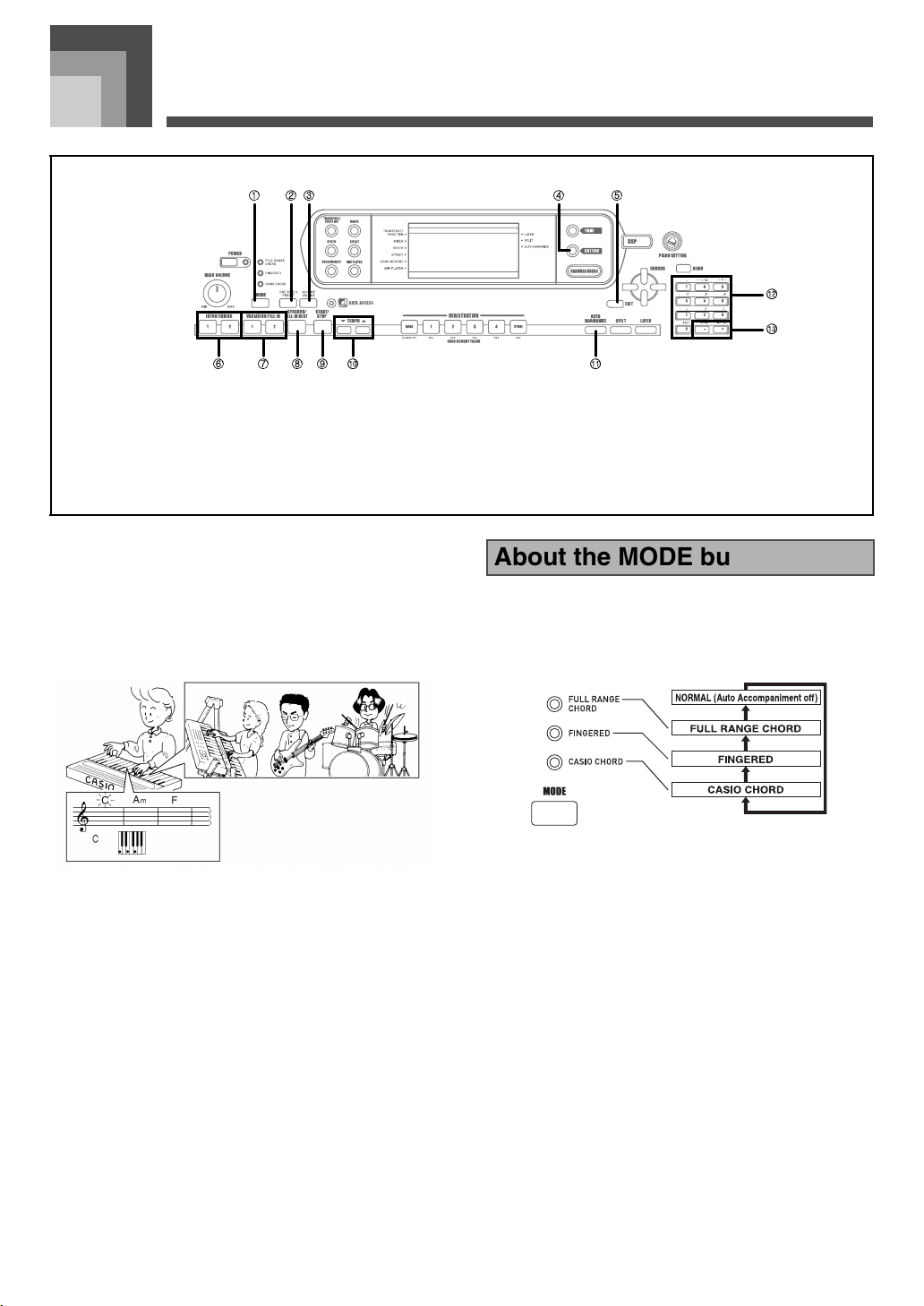
Use the MODE button to select the accompaniment mode you
want to use. Each press of the MODE button cycles through
the available accompaniment modes as shown in the
illustration below.
• Only rhythm sounds are produced when all
accompaniment mode lamps are off.
• The currently selected accompaniment mode is shown by
the mode lamps above the MODE button. Information on
using each of these modes starts from page E-30.
1
MODE
2
ONE TOUCH PRESET
3
ACCOMP VOLUME
4
RHYTHM
5
EXIT
6
INTRO/ENDING 1/2
7
VARIATION/FILL-IN 1/2
8
SYNCHRO/FILL-IN NEXT
9
START/STOP
bk
TEMPO
bl
AUTO HARMONIZE
bm
Number buttons
bn
[
+
]/[–]
421 3 5
9 bl
bm
bn
bk86 7
About the MODE button
707A-E-030A
ページ 2005年3月14日 月曜日 午前11時18分
E-29
Auto Accompaniment
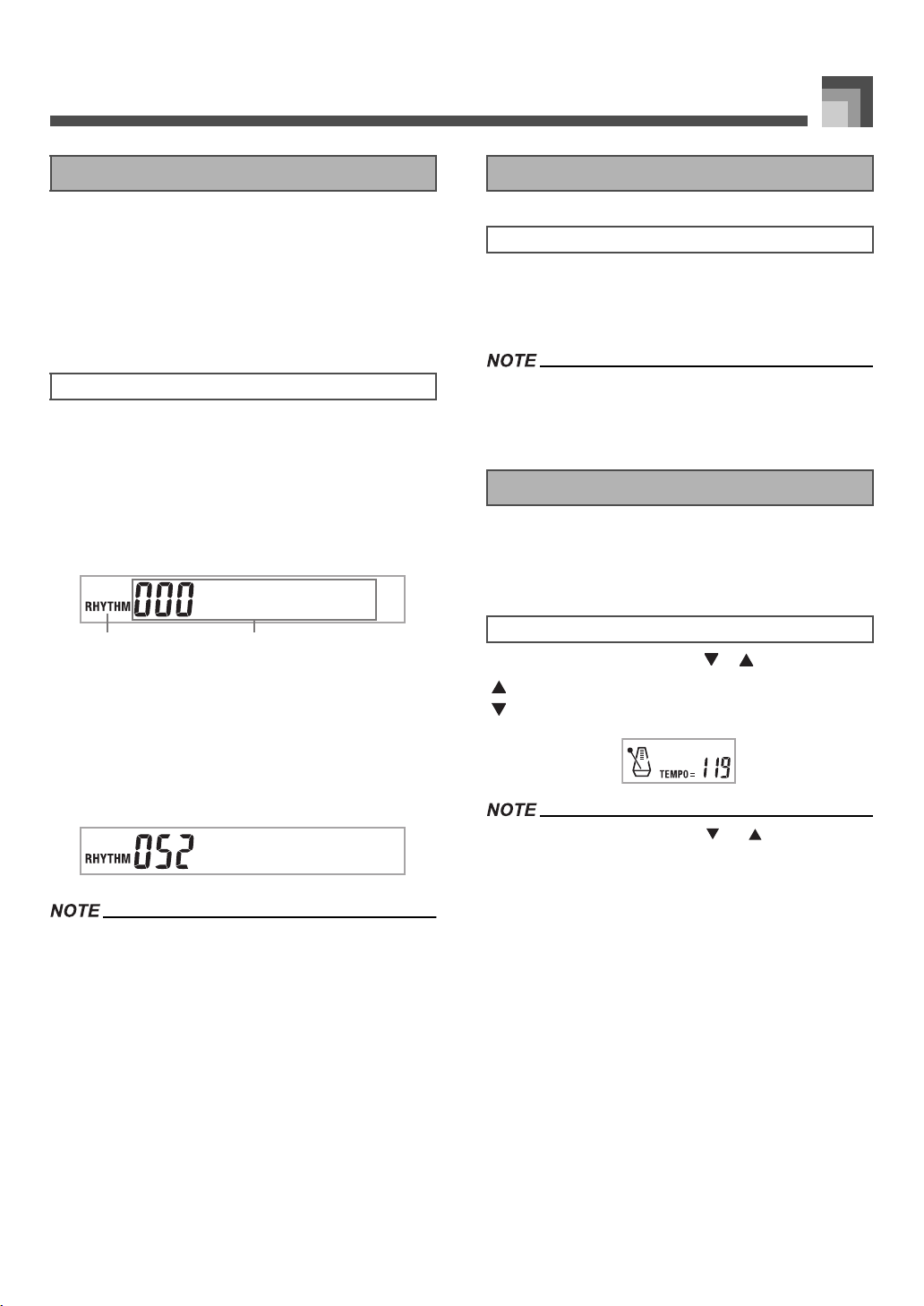
This keyboard provides you with 160 exciting rhythms that
you can select using the following procedure.
You can also transfer accompaniment data from your
computer and store up to 16 of them as user rhythms in
keyboard memory. See “Using the Music Data Management
Software (on the Bundled CD-ROM)” on page E-76 for more
information.
1. Find the rhythm you want to use in the rhythm list
and note its rhythm number.
•
Not all of the available rhythms are shown on the
rhythm list printed on the keyboard console. For a
complete list, see the “Rhythm List” on page A-
10.
2. Press the RHYTHM button.
1
Appears when RHYTHM button is pressed
2
Number and name of selected rhythm
3. Use the number buttons to input the three digit
rhythm number for the rhythm you want to select.
Example:
To select “052 ROCK 2”, input 0, 5 and then 2.
• You can also increment the displayed rhythm number by
pressing [
+
] and decrement it by pressing [–].
1. Press VARIATION/FILL-IN button 1 or 2.
• This starts the play of the selected rhythm.
• To stop rhythm play, press the START/STOP button.
• Chords will sound along with the rhythm if any of the three
accompaniment mode lamps above the MODE button is lit. if
you want to play the rhythm pattern without chords, press the
MODE button until all of the lamps are off.
You can adjust the tempo of rhythm play within a range of 30
to 255 beats per minute. The tempo setting is used for Auto
Accompaniment chord play, and song memory operations.
Press one of the TEMPO buttons ( or ).
• Pressing both TEMPO buttons ( and ) at the same time
resets the tempo to the default value of the currently selected
rhythm.
Selecting a Rhythm
To select a rhythm
8a1teB
12
Rk2co
Playing a Rhythm
To play a rhythm
Adjusting the Tempo
To adjust the tempo
: Increments displayed value (increases tempo)
: Decrements displayed value (decreases tempo)
707A-E-031A
ページ 2005年3月11日 金曜日 午後2時30分
Auto Accompaniment
E-30
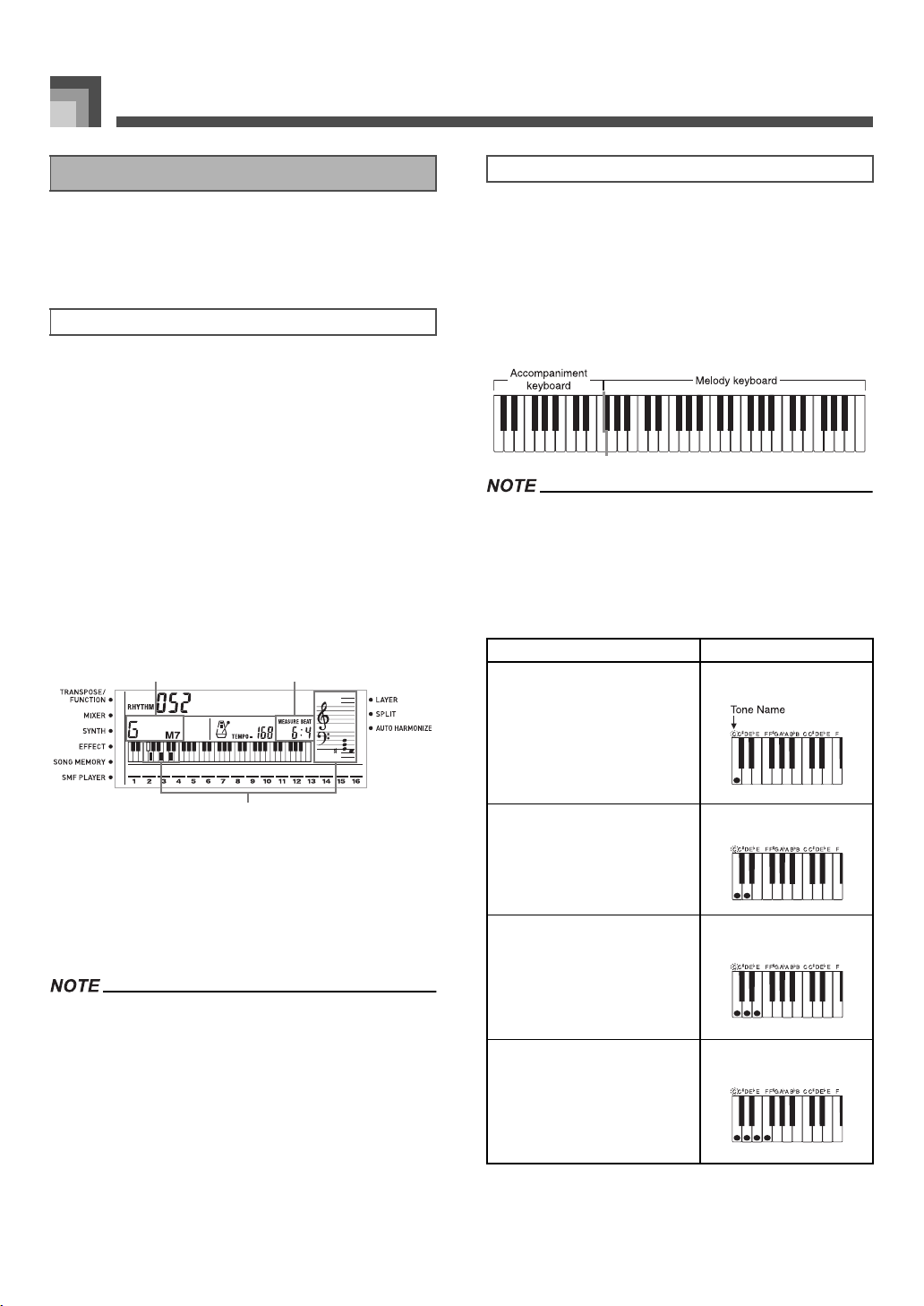
The following procedure describes how to use the keyboard’s
Auto Accompaniment feature. Before starting, you should
first select the rhythm you want to use and set the tempo of
the rhythm to the value you want.
1. Use the MODE button to select FULL RANGE
CHORD, FINGERED, or CASIO CHORD as the
accompaniment mode.
2. Press the START/STOP button to start play of the
currently selected rhythm.
3. Play a chord.
• The actual procedure you should use to play a chord
depends on the currently selected accompaniment
mode. Refer to the following pages for details on
chord play.
1
Chord name
2
Current measure number and beat number
3
Basic fingering of current chord
(May be different from chord actually being played
on the keyboard.)
4. To stop Auto Accompaniment play, press the
START/STOP button again.
• If you press the SYNCHRO/FILL-IN NEXT button and then
the VARIATION/FILL-IN 1/2 buttons in place of the START/
STOP button in step 2, accompaniment will start with an intro
pattern when you perform the operation in step 3. For details
about these buttons, see pages E-32 and E-33.
• If you press the VARIATION/FILL-IN 1/2 buttons in place of
the START/STOP button in step 4, an ending pattern will
play before accompaniment play is ended. For details about
this button, see page E-33.
• You can adjust the accompaniment part volume level
independently of the main volume. For details, see
“Adjusting the Accompaniment Volume” on page E-35.
This method of chord play makes it possible for anyone to
easily play chords, regardless of previous musical knowledge
and experience. The following describes the CASIO CHORD
“accompaniment keyboard” and “melody keyboard,” and
tells you how to play CASIO CHORDs.
J CASIO CHORD Accompaniment Keyboard and
Melody Keyboard
• The accompaniment keyboard can be used for playing
chords only. No sound will be produced if you try playing
single melody notes on the accompaniment keyboard.
J Chord Types
CASIO CHORD accompaniment lets you play four types of
chords with minimal fingering.
Using Auto Accompaniment
To use Auto Accompaniment
CASIO CHORD : Page E-30
FINGERED : Page E-31
FULL RANGE CHORD : Page E-31
Rk2co
1 2
3
CASIO CHORD
Chord Types
Example
Major chords
Major chord names are marked
above the keys of the
accompaniment keyboard. Note
that the chord produced when you
press an accompaniment keyboard
does not change octave, regardless
of which key you use to play it.
C Major (C)
Minor chords (m)
To play a minor chord, keep the
major chord key depressed and
press any other accompaniment
keyboard key located to the right
of the major chord key.
C minor (Cm)
Seventh chords (7)
To play a seventh chord, keep the
major chord key depressed and
press any other two
accompaniment keyboard keys
located to the right of the major
chord key.
C seventh (C7)
Minor seventh chords (m7)
To play a minor seventh chord,
keep the major chord key
depressed and press any other
three accompaniment keyboard
keys located to the right of the
major chord key.
C minor seventh (Cm7)
707A-E-032A
ページ 2005年3月9日 水曜日 午後5時29分
E-31
Auto Accompaniment
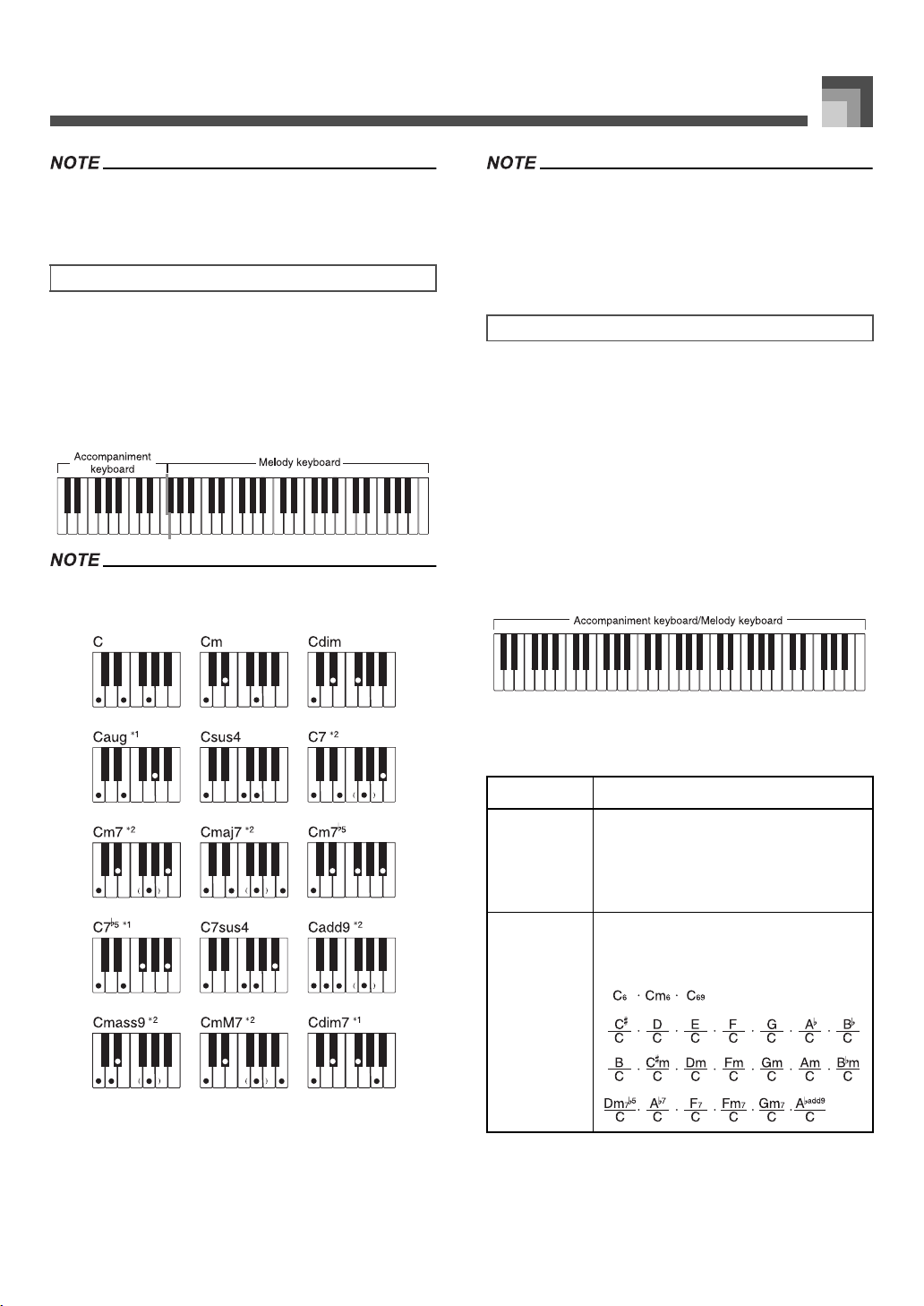
• It makes no difference whether you press black or white keys
to the right of a major chord key when playing minor and
seventh chords.
FINGERED provides you with a total of 15 different chord
types. The following describes the FINGERED
“accompaniment keyboard” and “melody keyboard”, and
tells you how to play a C-root chord using FINGERED.
J FINGERED Accompaniment Keyboard and Melody
Keyboard
• The accompaniment keyboard can be used for playing
chords only. No sound will be produced if you try playing
single melody notes on the accompaniment keyboard.
See the “Fingered Chord Chart” on page A-11 for details on
playing chords with other roots.
*1 Inverted fingerings cannot be used. The lowest note is the
root.
*2 The same chord can be played without pressing the 5th G.
• Except for the chords specified in note*
1
above, inverted
fingerings (i.e. playing E-G-C or G-C-E instead of C-E-G) will
produce the same chords as the standard fingering.
• Except for the exception specified in note*
2
above, all of the
keys that make up a chord must be pressed. Failure to press
even a single key will not play the desired FINGERED chord.
This accompaniment method provides a total of 38 different
chord types: the 15 chord types available with FINGERED
plus 23 additional types. The keyboard interprets any input of
three or more keys that matches a FULL RANGE CHORD
pattern to be a chord. Any other input (that is not a FULL
RANGE CHORD pattern) is interpreted as melody play.
Because of this, there is no need for a separate
accompaniment keyboard, so the entire keyboard, from end
to end, functions as a melody keyboard that can be used for
both melody and chords.
J FULL RANGE CHORD Accompaniment Keyboard
and Melody Keyboard
Chords Recognized by This Keyboard
The following table identifies patterns that are recognized
as chords by FULL RANGE CHORD.
FINGERED
FULL RANGE CHORD
Pattern Type Number of Variations
FINGERED
The 15 chord patterns shown under
FINGERED on page E-31. See the
“Fingered Chord Chart” on page A-11
for details on playing chords with other
roots.
Standard
Fingerings
23 standard chord fingerings. The
following are examples of the 23 chords
available with C as the bass note.
707A-E-033A
ページ 2005年3月9日 水曜日 午後5時29分
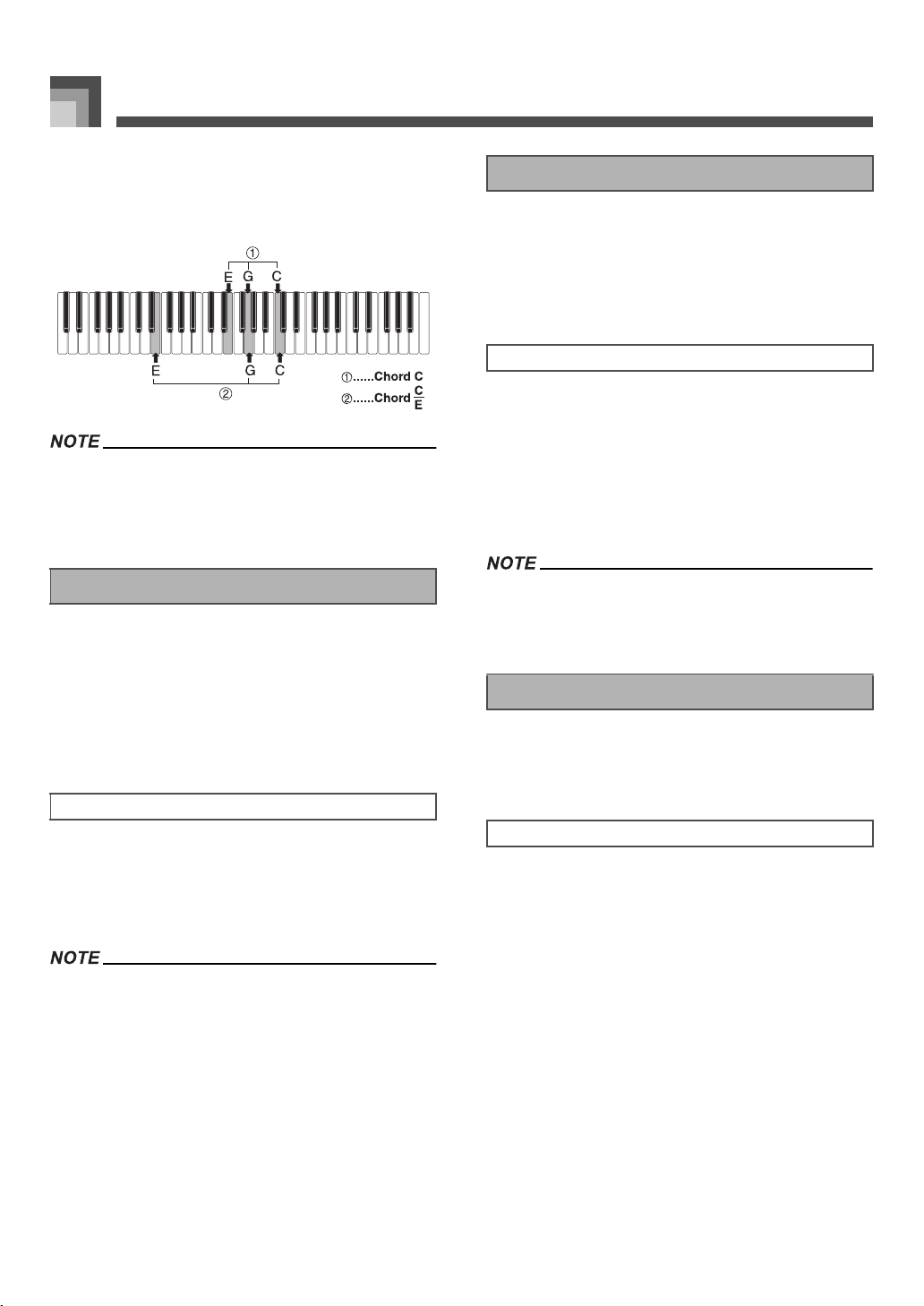
Auto Accompaniment
E-32
Example:
To play the chord C major.
Any of the fingerings shown in the illustration below will
produce C major.
• As with the FINGERED mode (page E-31), you can play the
notes that form a chord in any combination (
1
).
• When the lowest note of a chord is separated from its
neighboring note by six or more semitones, the lowest note
becomes the bass note (
2
).
This keyboard lets you insert a short intro into a rhythm
pattern to make startup smoother and more natural.
The following procedure describes how to use the Intro
feature. Before starting, you should first select the rhythm you
want to use, set the tempo, and use the MODE button to select
the chord play method you want to use (NORMAL, CASIO
CHORD, FINGERED, FULL RANGE CHORD).
1. Press INTRO/ENDING button 1 or 2.
• With the above setup, the intro pattern is played and
the auto accompaniment with intro pattern starts as
soon as you play chords on the accompaniment
keyboard.
• The standard rhythm pattern starts to play after the intro
pattern is complete.
Fill-in patterns let you momentarily change the rhythm
pattern to add some interesting variation to your
performances.
The following procedure describes how to use the Fill-in
feature.
1. Press the START/STOP button to start rhythm
play.
2. Select the fill-in variation you want.
• To insert Fill-in 1, press the VARIATION/FILL-IN 1
button while Variation 1 of the rhythm is playing.
• To insert Fill-in 2, press the VARIATION/FILL-IN 2
button while Variation 2 of the rhythm is playing.
• Only the SYNCHRO/FILL-IN NEXT button is operational
while an intro is playing.
• Holding down the SYNCHRO/FILL-IN NEXT or VARIATION/
FILL-IN 1/2 buttons causes the fill-in pattern to repeat.
In addition to the standard rhythm pattern, you can also
switch to a secondary “variation” rhythm pattern for a bit of
variety.
1. Press the START/STOP button to start rhythm
play.
2. Press the SYNCHRO/FILL-IN NEXT button.
• If a Variation 1 rhythm is currently playing, this plays
Fill-in 1, followed by Fill-in 2, and then switches to the
Variation 2 rhythm.
• If a Variation 2 rhythm is currently playing, this plays
Fill-in 2, followed by Fill-in 1, and then switches to the
Variation 1 rhythm.
• Holding down the SYNCHRO/FILL-IN NEXT button
causes the fill-in pattern to repeat.
Using an Intro Pattern
To insert an intro
Using a Fill-in Pattern
To insert a fill-in
Using a Rhythm Variation
To insert the variation rhythm pattern
707A-E-034A
ページ 2005年3月9日 水曜日 午後5時29分
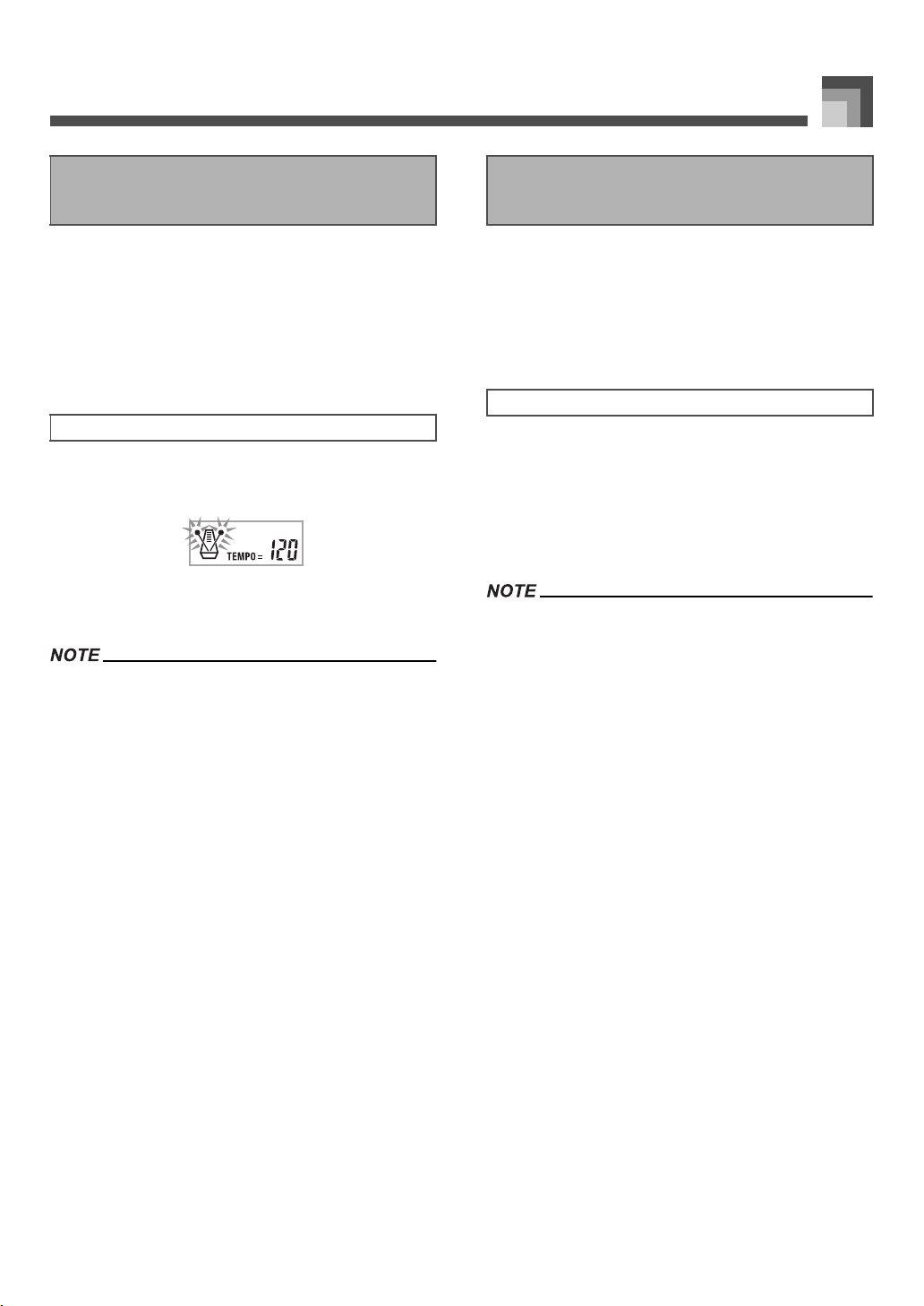
E-33
Auto Accompaniment
You can set up the keyboard to start rhythm play at the same
time you play the accompaniment on the keyboard.
The following procedure describes how to use synchro start.
Before starting, you should first select the rhythm you want to
use, set the tempo, and use the MODE button to select the
chord play method you want to use (NORMAL, CASIO
CHORD, FINGERED, FULL RANGE CHORD).
1. Press the SYNCHRO/FILL-IN NEXT button to put
the keyboard into synchro start standby.
2. Play a chord and the rhythm pattern starts to play
automatically.
• If the MODE button is set to NORMAL, only the rhythm plays
(without a chord) when you play on the accompaniment
keyboard.
• If you press the INTRO/ENDING button 1 or 2 before playing
anything on the keyboard, the rhythm starts automatically
with an intro pattern when you play something on the
accompaniment keyboard.
• To cancel synchro start standby, press the SYNCHRO/FILL-
IN NEXT button one more time.
You can end your performances with an ending pattern that
brings the rhythm pattern you are using to a natural-
sounding conclusion.
The following procedure describes how to insert an ending
pattern. Note that the actual ending pattern played depends
on the rhythm pattern you are using.
1. While the rhythm is playing, press INTRO/
ENDING button 1 or 2.
• The timing when the ending pattern starts depends on
when you press the INTRO/ENDING button 1 or 2. If
you press the button before the second beat of the
current measure, the ending pattern starts playing
immediately.
• Pressing the INTRO/ENDING button prior to the first half
beat at the beginning of a measure plays the ending
immediately. Pressing the button after the first half beat of a
measure causes the ending to be played from the beginning
of the following measure.
Synchro Starting Accompaniment
with Rhythm Play
To use synchro start
Finishing with an Ending
Pattern
To finish with an ending pattern
707A-E-035A
ページ 2005年3月9日 水曜日 午後5時29分
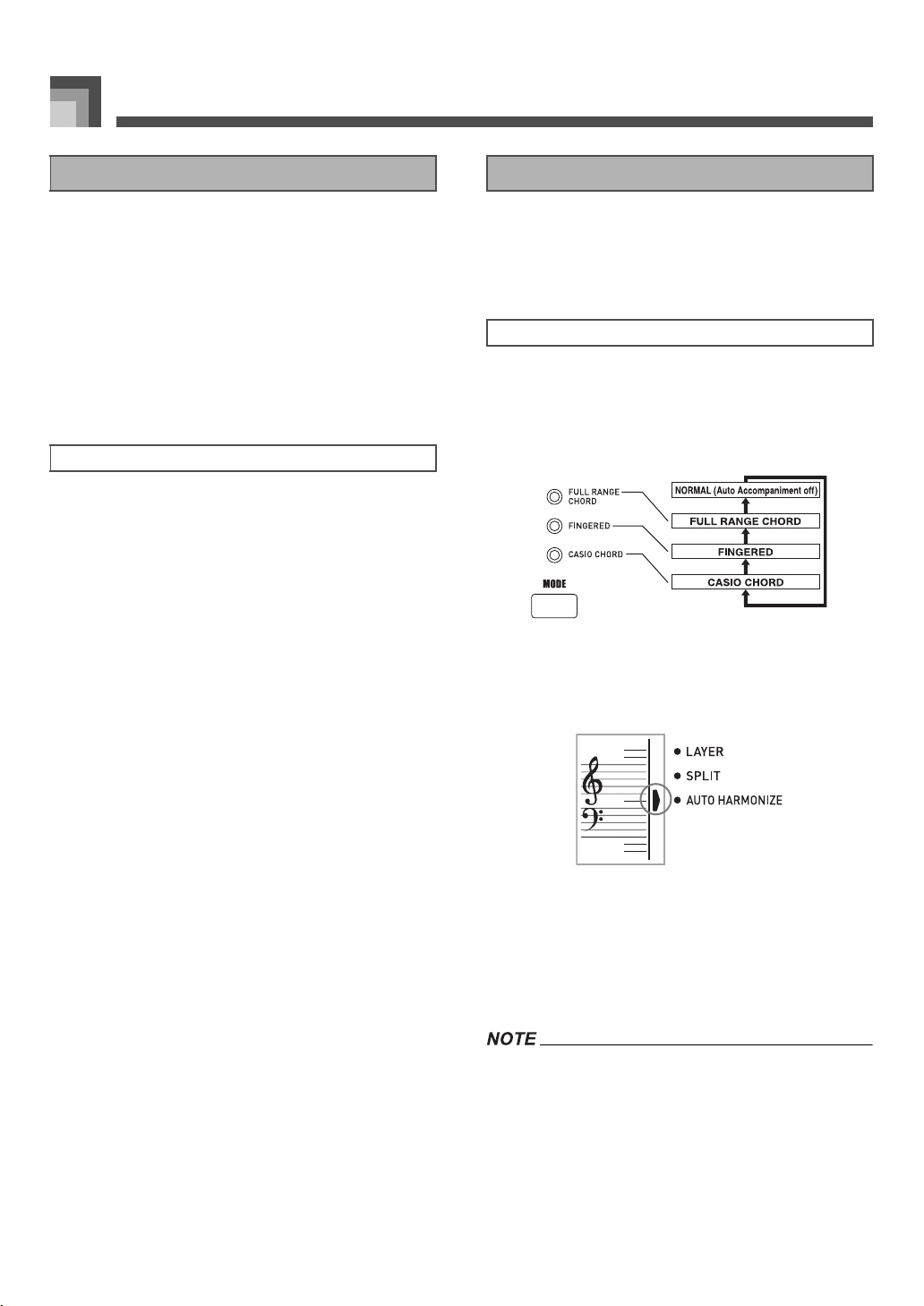
Auto Accompaniment
E-34
One-touch preset automatically makes the main settings
listed below in accordance with the rhythm pattern you are
using.
•Keyboard tone
•Layer on/off
•Split on/off
• Auto Harmonize on/off
• Auto Harmonize type
• Accompaniment volume level
•Tempo
• Effect settings
1. Select the rhythm you want to use.
2. Use the MODE button to select the
accompaniment mode you want to use.
3. Press the ONE TOUCH PRESET button.
• This automatically makes the one-touch preset
settings in accordance with the rhythm you selected.
• The keyboard automatically enters synchro standby at
this time.
4. Start rhythm and Auto Accompaniment, and play
something on the keyboard.
• Accompaniment is played using the one-touch preset
settings.
When you are using Auto Accompaniment, Auto Harmonize
automatically adds additional notes to your melody in
accordance with the chord that is being played. The result is a
harmony effect that makes your melody line richer and fuller.
1. Use the MODE button to select FINGERED or
CASIO CHORD as the accompaniment mode.
• The currently selected accompaniment mode is the
one whose lamp is lit. See “About the MODE button”
on page E-28 for details.
2. Press AUTO HARMONIZE to turn on Auto
Harmonize.
• This causes a pointer to appear next to AUTO
HARMONIZE on the display.
3. Start Auto Accompaniment play, and play
something on the keyboard.
4. To turn off Auto Harmonize, press AUTO
HARMONIZE once.
• This causes the pointer next to AUTO HARMONIZE
to disappear.
• Auto Harmonize turns off temporarily whenever you start
demo tune play. It turns back on as soon as the operation or
function that caused it to turn off is finished.
• Auto Harmonize is enabled only when the Auto
Accompaniment mode is FINGERED or CASIO CHORD.
Using One-touch Preset
To use one-touch preset
Using Auto Harmonize
To use Auto Harmonize
707A-E-036A
ページ 2005年3月9日 水曜日 午後5時29分
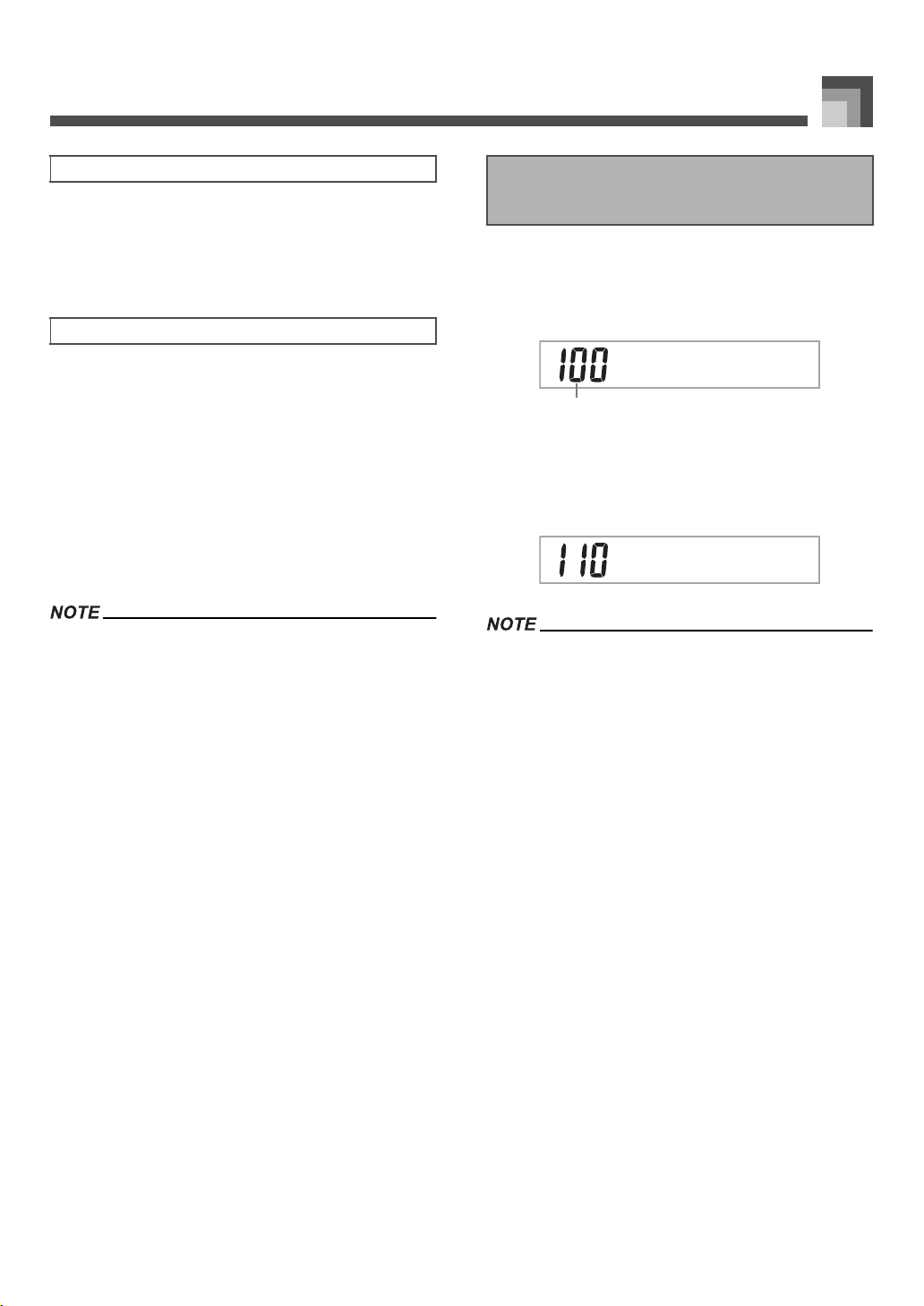
E-35
Auto Accompaniment
Auto Harmonize lets you select from among the 10 Auto
Harmonize types. Type changing is performed by the setting
item using the TRANSPOSE/FUNCTION button.
See “Changing Other Settings” on page E-66 for more
information.
The notes you play on the keyboard are called “melody
notes,” while the notes added to the melody by Auto
Harmonize is called the “harmonize notes.” Auto Harmonize
normally uses the tone you selected for the melody notes as
the tone for the harmonize notes, but you can use the Mixer
(page E-36) to specify a different tone for the harmonize notes.
The harmonize note tone is assigned to Mixer Channel 5, so
change Channel 5 to the tone you want to use for the
harmonize notes.
In addition to the tone, you can also use the Mixer to change
a number of other parameters, such as volume balance. See
“Using the Parameter Edit Mode” on page E-37 for details on
these procedures.
• The default harmonize note tone when you first turn on Auto
Harmonize is the same tone as the melody note tone.
• Changing the melody tone setting automatically changes the
harmonize note tone to the same setting.
You can adjust the volume of the accompaniment parts as a
value in the range of 000 (minimum) to 127 (maximum).
1. Press the ACCOMP VOLUME button.
1
Current accompaniment volume setting
2. Use the number buttons or the [+]/[–] buttons to
change the current volume setting value.
Example: 110
• Pressing the ACCOMP VOLUME button or EXIT button
returns to the tone or rhythm setting screen.
• Any channel balance settings you make with the Mixer are
maintained when you change the accompaniment volume
setting.
• Pressing [+] and [–] buttons at the same time automatically
sets an accompaniment volume of 100.
Auto Harmonize Types
About Auto Harmonize notes and tones
Adjusting the Accompaniment
Volume
AmVol
p
oc
1
AmVol
p
oc
707A-E-037A
ページ 2005年3月9日 水曜日 午後5時29分
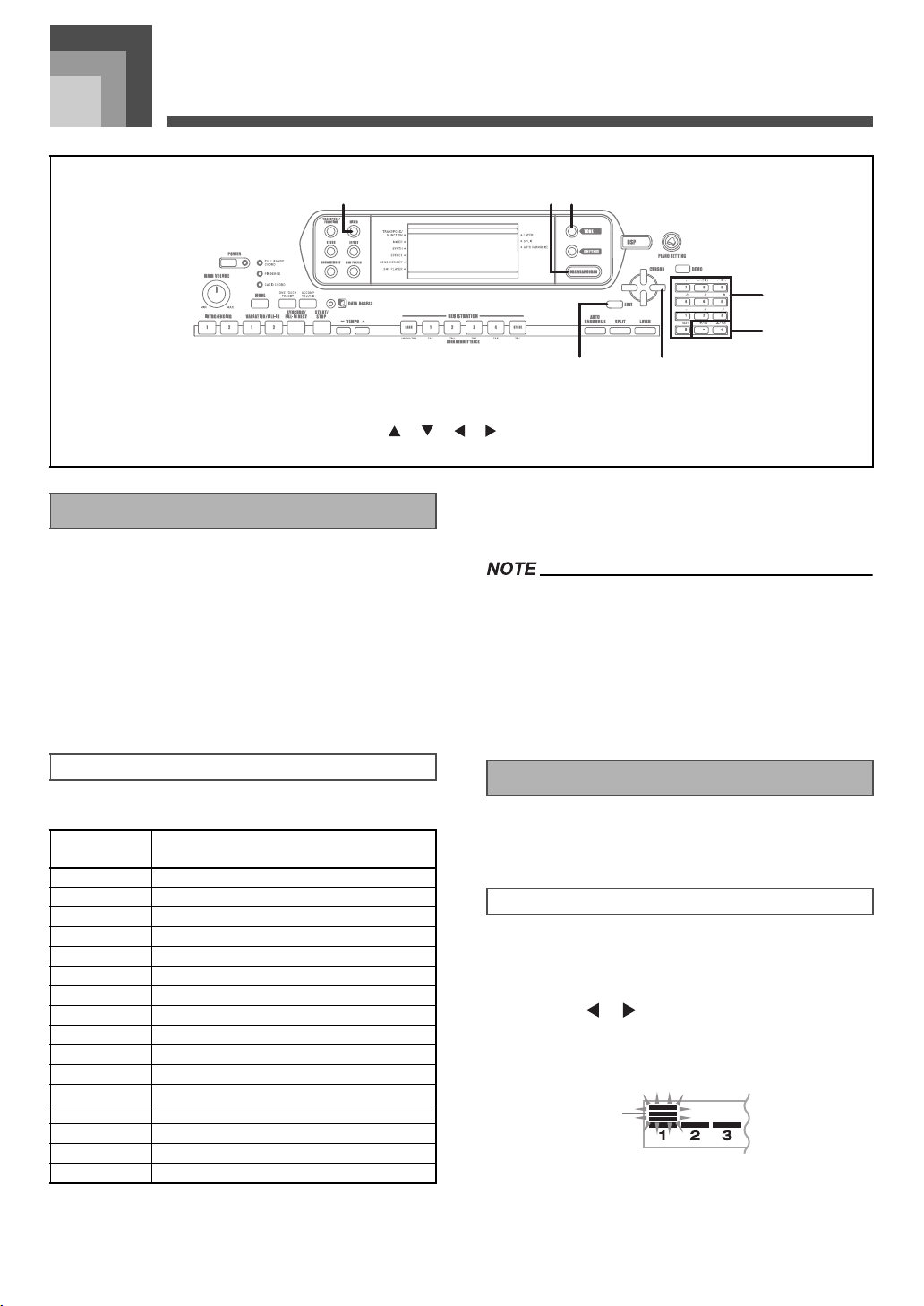
Mixer Function
E-36
Mixer F unction
This keyboard lets you play multiple different musical
instrument parts at the same time during auto-accompaniment
play, song memory playback, receipt of data through the MIDI
terminal, etc. The Mixer assigns each part to a separate channel
(1 through 16) and lets you control the channel on/off, volume,
and pan pot parameters of each channel.
In addition to channels 1 through 16, the Mixer also has a DSP
channel that you can use to adjust the DSP level, DSP pan, and
other DSP parameters.
The following shows the parts that are assigned to each of the
16 channels.
See pages E-61 to E-63 for information on layered, split, and
layered/split tones.
See page E-49 for information on the song memory.
• Normally, keyboard play is assigned to Channel 1. When
Auto Accompaniment is being used, each part of the
accompaniment is assigned to Channels 6 through 10.
• When this keyboard is being used as the sound source for an
externally connected computer or other MIDI device, all 16
channels are assigned musical instrument parts. The notes
played over the channel selected by steps 1 and 2 under
“Turning Channels On and Off” on page E-36 are shown on
the displayed keyboard and staff.
Turning a channel off mutes any instrument recorded in the
channel.
1. Press the MIXER button.
• This causes a pointer to appear on the display next to
MIXER.
2. Use the [ ]/[ ] CURSOR buttons to select a
channel.
Example:
To select Channel 1.
1
Flash
• This causes the upper three segments of the selected
channel's level meter to flash.
1
MIXER
2
DRAWBAR ORGAN
3
TONE
4
EXIT
5
[ ]/[ ]/[ ]/[ ] CURSOR
6
Number buttons
7
[+]/[–]
1 2 3
54
6
7
What you can do with the Mixer
Channel Assignments
Channel
Number
Part
Channel 1 Main tone
Channel 2 Layered tone
Channel 3 Split tone
Channel 4 Layered/split tone
Channel 5 Harmonize Tone
Channel 6 Auto Accompaniment chord part 1
Channel 7 Auto Accompaniment chord part 2
Channel 8 Auto Accompaniment chord part 3
Channel 9 Auto Accompaniment bass part
Channel 10 Auto Accompaniment rhythm part
Channel 11 Song Memory track 1
Channel 12 Song Memory track 2
Channel 13 Song Memory track 3
Channel 14 Song Memory track 4
Channel 15 Song Memory track 5
Channel 16 Song Memory track 6
Turning Channels On and Off
To turn channels on and off
1
707A-E-038A
ページ 2005年3月9日 水曜日 午後5時29分
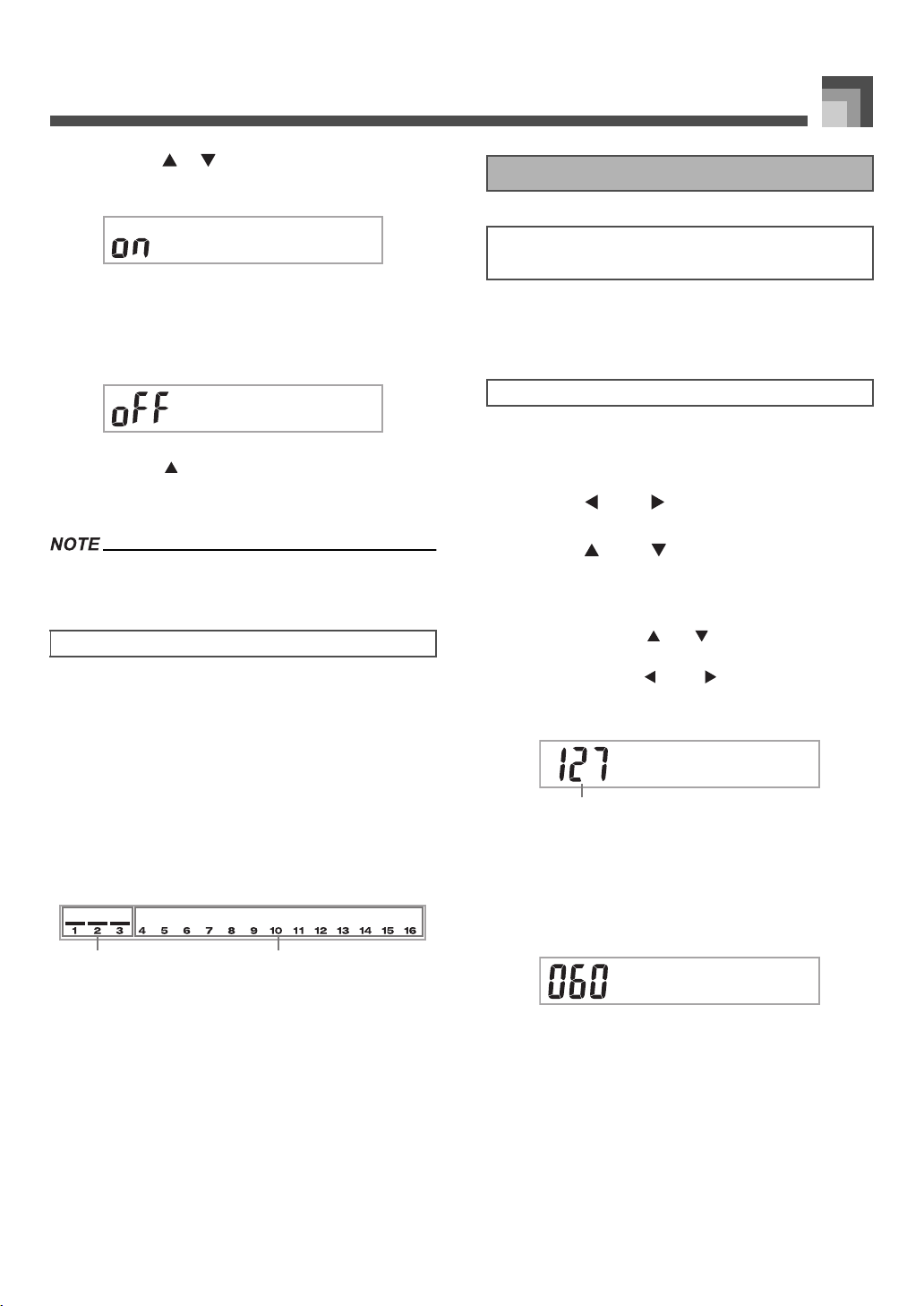
E-37
Mixer Function
3. Press the [ ]/[ ] CURSOR buttons to display
the on/off selection screen.
4. Use the [
+
]/[–] buttons to select on or off.
Example:
To turn the channel off.
• Press the [ ] CURSOR button to return to the
channel selection screen.
• Pressing the MIXER button returns to the Tone Screen.
• The MIDI data display shows only the data for the channels
selected with the Mixer.
The following describes what happens and what appears on
the display when you turn a channel on or off.
z On (on)
This setting turns on the currently selected channel, which is
indicated by a bar appearing at the bottom of the level meter
for that channel. This is also the default setting for all channels
when the keyboard is turned on.
z Off (oFF)
This setting turns off the currently selected channel, which is
indicated by the absence of the bar at the bottom of the level
meter for that channel.
1
On
2
Off
In the Parameter Edit Mode, you can change the settings of
ten different parameters (including tone, volume, and pan
pot) for the channel you selected on the Mixer screen.
1. Press the MIXER button.
• This causes a pointer to appear on the display next to
MIXER.
2. Use the [ ] and [ ] CURSOR buttons to select
the channel you want.
3. Use the [ ] and [ ] CURSOR buttons to select
the parameter whose setting you want to change.
Example:
Select volume setting by displaying “Volume”.
• Each press of the [ ] or [ ] CURSOR buttons cycles
through the parameters.
• You can use the [ ] and [ ] CURSOR buttons to
change to another channel at any time during this
procedure.
1
Indicates channel volume of 127
4. Use the number buttons or [
+
] and [–] to change
the parameter setting.
Example:
Change the setting to “060”.
• Pressing the MIXER or EXIT button exits the
parameter edit mode.
How Channel On/Off Works
Cnelnah
Cnelnah
21
Using the Parameter Edit Mode
Editing the Parameters for Channels 1
through 16
To change parameters
Vuemlo
1
Vuemlo
707A-E-039A
ページ 2005年3月9日 水曜日 午後5時29分
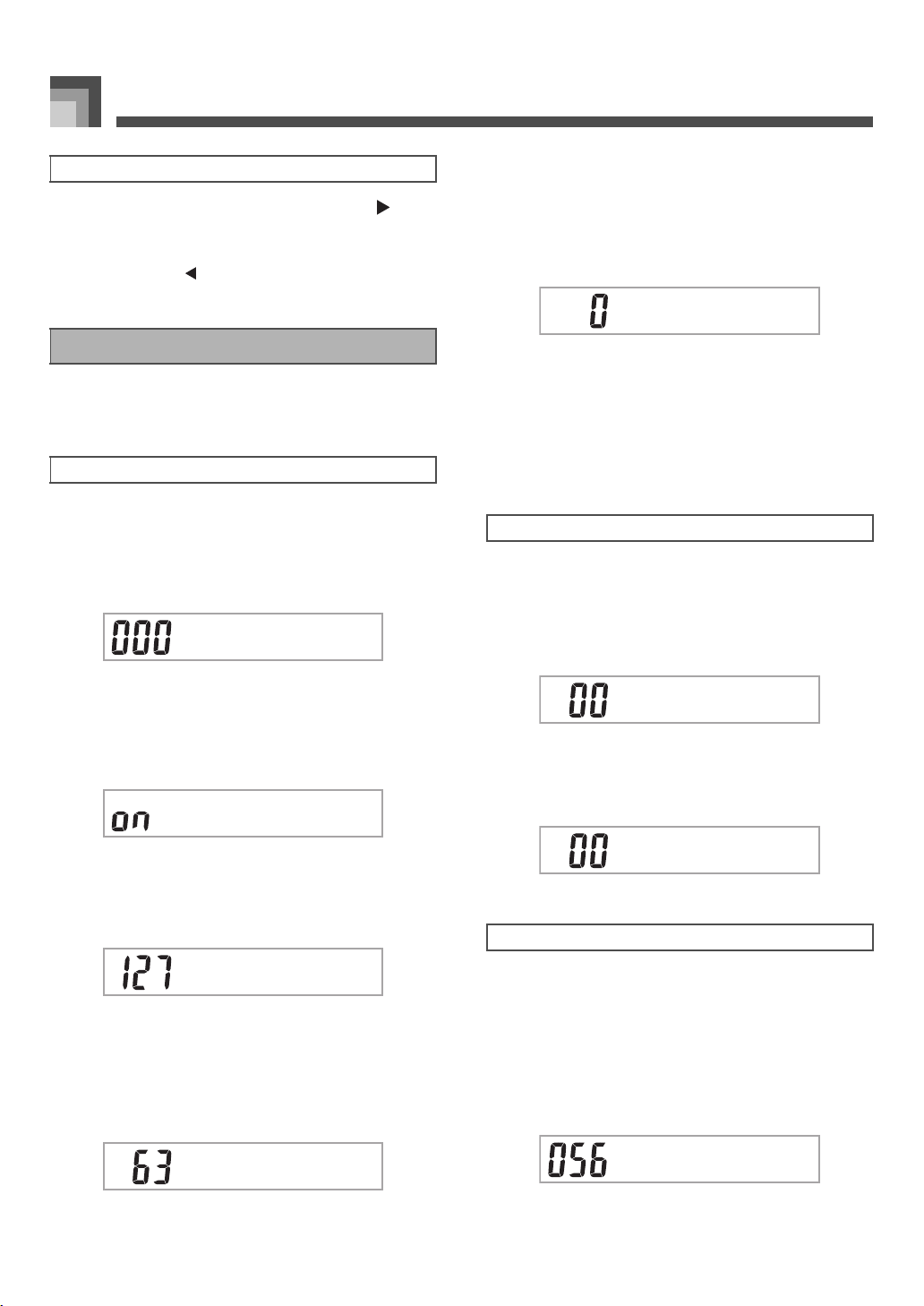
Mixer Function
E-38
1. While Channel 16 is selected, press the [ ]
CURSOR button.
• This selects the DSP channel.
• Pressing the [ ] CURSOR button while the DSP
channel is selected returns to Channel 16.
The following are the parameters whose settings can be
changed in the Parameter Edit Mode.
z Tone (Range: 000 to 903, Drawbar organ tones 000 to 199)
This parameter controls the tones assigned to each part.
Anytime the tone is on the display, you can use the TONE
button or DRAWBAR ORGAN button and then select a
different tone, if you want.
z Part On/Off (Settings: on, oFF)
This parameter can be used to turn each part on (sounds) and
off (does not sound). The current on/off status of each part is
indicated on the display as described below.
z Volume (Range: 000 to 127)
This is the parameter that controls the volume of the selected
channel.
z Pan Pot (Range: –64 to 00 to +63)
This parameter controls the pan pot, which is the center point
of the left and right stereo channels. Setting “00” specifies
center, a value less than “00” moves the point left, and a value
greater than “00” moves it right.
z Octave Shift (Range: –2 to 0 to +2)
You can use octave shift to shift the range of the tone up or
down. When using the piccolo tone, there may be cases when
very high notes you want to play are not included within the
range of the keyboard. When this happens, you can use
octave shift to shift the keyboard range one octave up.
You can use these parameters to tune each of the parts
individually.
z Coarse Tune (Range: –24 to 00 to +24)
This parameter controls the coarse tuning of the selected
channel’s pitch in semitone units.
z Fine Tune (Range: –99 to 00 to +99)
This parameter controls the fine tuning of the selected
channel’s pitch in cent units.
The Mixer lets you control the effects applied to each
individual part, making it different from the Effect Mode,
whose settings are applied to all parts in general.
z Reverb Send (Range: 000 to 127)
This parameter controls how much reverb is applied to a part.
A setting of “000” turns reverb off, while a setting of 127
applies maximum reverb.
• “Reverb Send” does not work with some drum sounds.
Editing DSP Channel Parameters
How Parameters Work
Tone Parameters
SGPnor.t
Cnelnah
Vuemlo
Pna
–2 :Range shifted two octaves down.
–1 :Range shifted one octave down.
0 :No shift
+1 :Range shifted one octave up.
+2 :Range shifted two octaves up.
Tuning Parameters
Effect Parameters
OSifthtc
CuenT.
FeuneTni
RendSbv
707A-E-040A
ページ 2005年3月9日 水曜日 午後5時29分
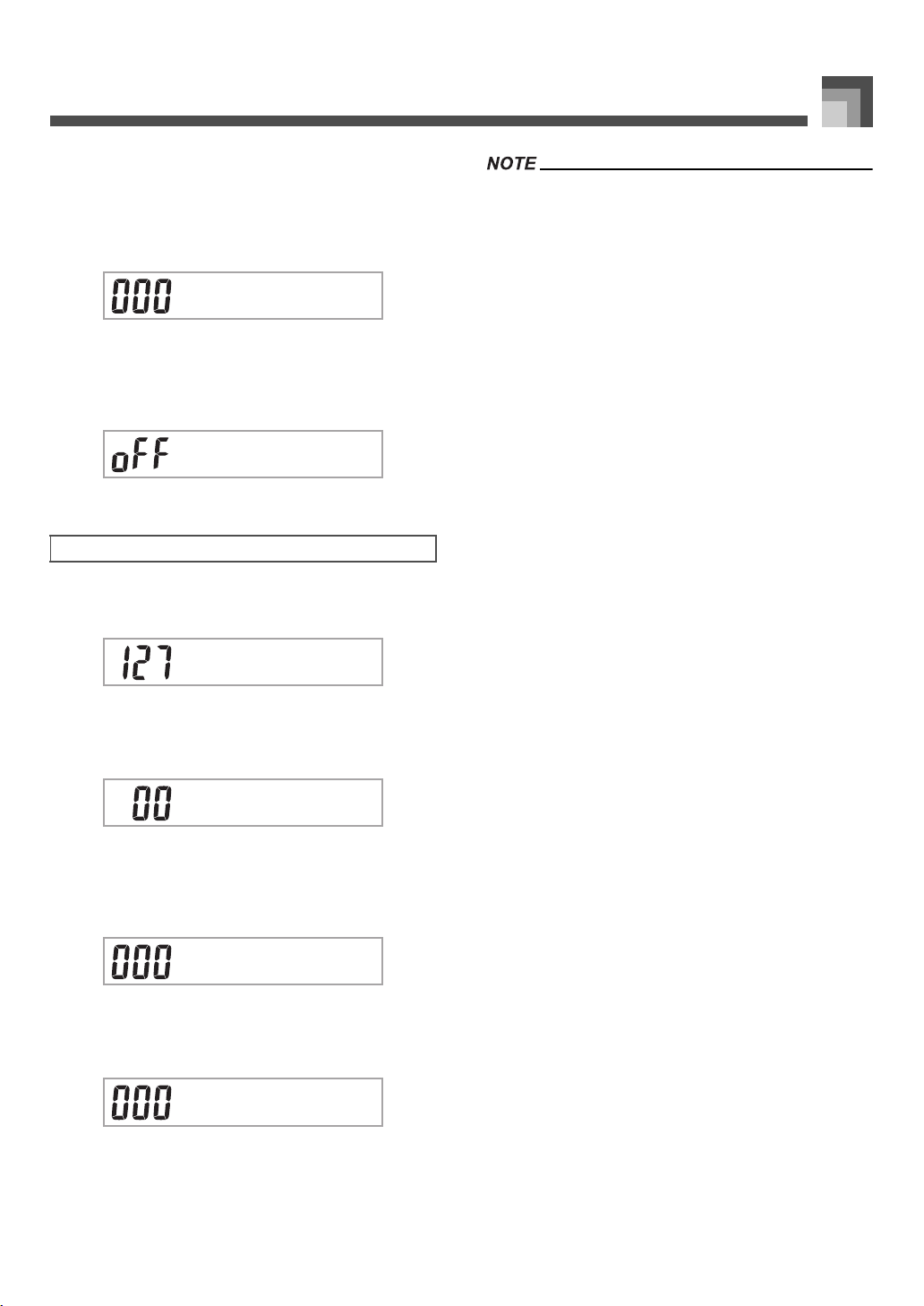
E-39
Mixer Function
z Chorus Send (Range: 000 to 127)
This parameter controls how much chorus send is applied to
a part. A setting “000” turns chorus send off, while a setting
of 127 applies maximum chorus send.
• “Chorus Send” does not work with drum sounds.
z DSP Line (Settings: on, oFF)
You can use this parameter to turn DSP line off for a particular
channel, or to turn it on.
z DSP Level (Range: 0 to 127)
Sets the post-DSP volume.
z DSP Pan (Range: –64 to 0 to 63)
Sets the post-DSP stereo pan.
z DSP System Reverb Send (Range: 000 to 127)
This parameter adjusts how much reverb is applied to all
parts.
z DSP System Chorus Send (Range: 000 to 127)
This parameter adjusts chorus.
• Changing the tone, volume, pan pot, coarse tune, fine tune,
reverb send, or chorus send setting causes the
corresponding MIDI message to be output from the MIDI
terminal.
• Changing the tone settings changes the tone, octave shift,
reverb send, chorus send, and DSP line* parameter settings.
* When DSP is off (See the note on page E-24).
• Turning on the Mixer’s DSP line parameter (page E-24)
causes the settings of the DSP Pan, DSP System Reverb
Send, and DSP System Chorus parameters to be used in
place of the Pan Pot, Reverb Send, and Chorus Send
parameter’s settings.
DSP Part Parameters
CendSoh
DineLPS
DLvelePS
DanPPS
DvSndbR.
DhSndoC.
707A-E-041A
ページ 2005年3月9日 水曜日 午後5時29分
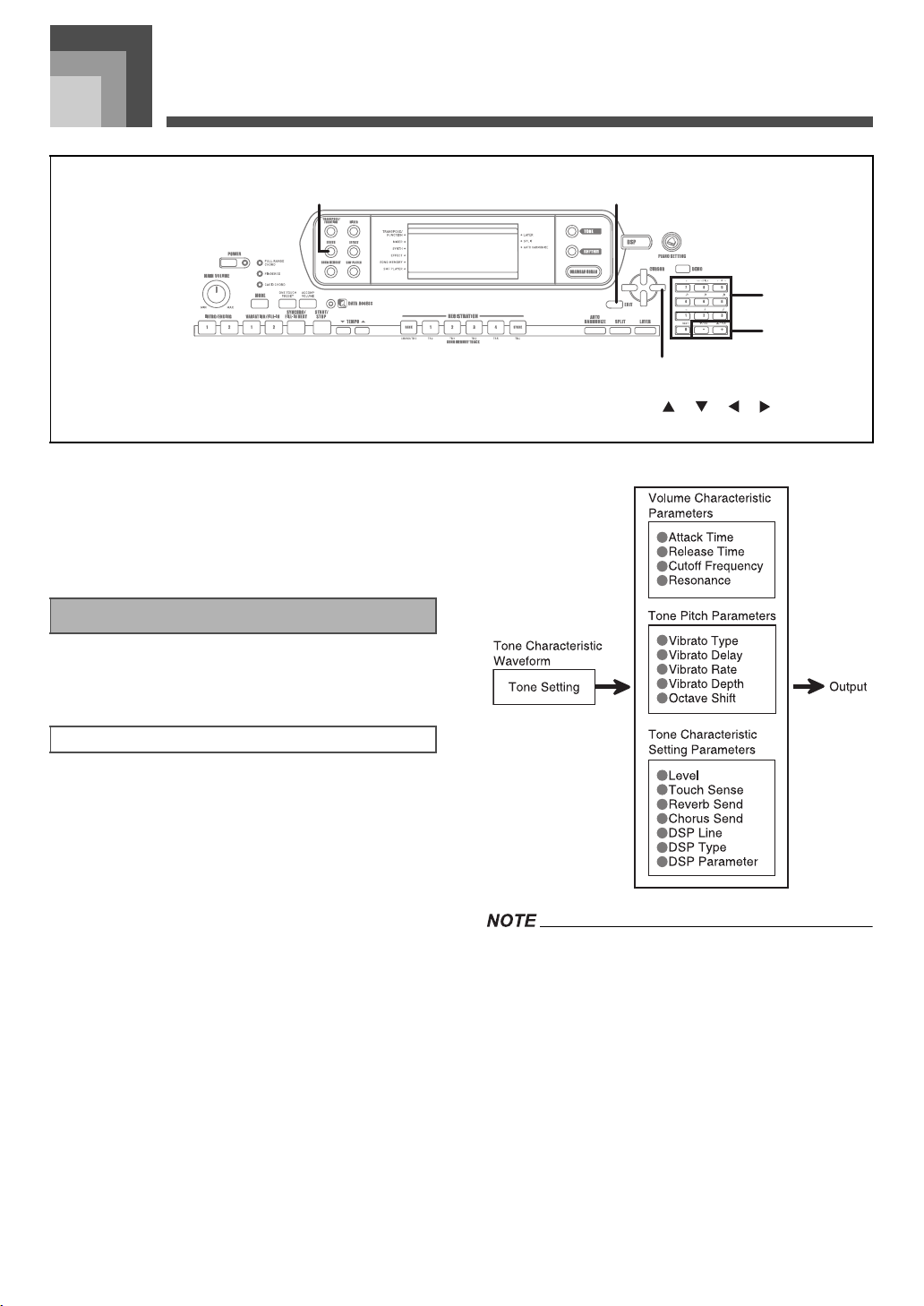
Synthesizer Mode
E-40
Synthesizer Mode
The Synthesizer Mode of this keyboard provides the tools for
creating your own original tones. Simply select one of the
built-in tones and change its parameters to create your own
original sound. You can even store your sounds in memory
and select it using the same procedure as that used to select a
preset tone.
The following describes how to use each of the functions
available in the Synthesizer Mode.
The preset tones that are built into this keyboard consist of a
number of parameters. To create a user tone, you first recall
an advanced tone (000 to 331) or a preset tone (400 to 599) and
then change its parameters to change it to your own tone.
Note that drum set tones (600 through 617) cannot be used as
the basis of a user tone.
The illustration nearby shows the parameters that make up
the preset tones and what each parameter does. As can be
seen in the illustration, parameters can be divided into four
groups, each of which is described in detail below.
• Note that the tone whose parameter you can edit is the one
assigned to the channel (1 through 4) that is currently
selected with the Synthesizer Mode.
1
SYNTH
2
EXIT
3
[ ]/[ ]/[ ]/[ ] CURSOR
4
Number buttons
5
[
+
]/[–]
1
3
2
4
5
Synthesizer Mode Functions
Synthesizer Mode Parameters
707A-E-042A
ページ 2005年3月9日 水曜日 午後5時29分
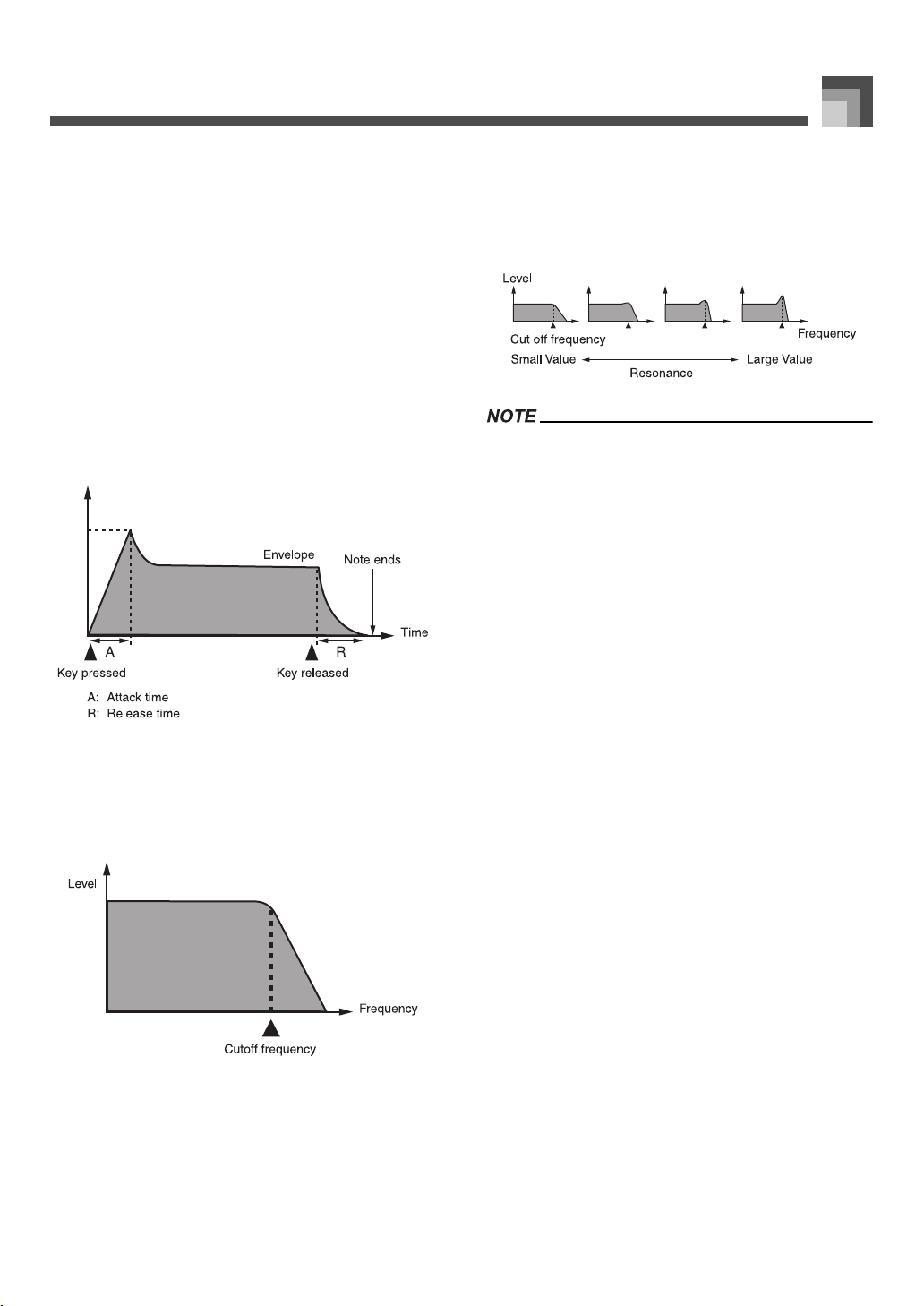
E-41
Synthesizer Mode
J Tone Characteristic Waveform
z Tone Setting
Specifies which of the preset tones should be used as the
original tone.
J Volume Characteristic Parameters
These parameters control how the tone changes over time,
from when the keyboard key is pressed until the tone decays.
You can specify changes in volume and sound characteristics.
z Attack time
This is the rate or time it takes for the tone to reach its highest
volume level. You can specify a fast rate, where the tone
reaches its highest volume level immediately, a slow rate
where it gradually rises, or something in between.
z Release time
z Cutoff Frequency
The cutoff frequency is a parameter for adjusting timbre by
cutting any frequency that is higher than a specific frequency.
A larger cutoff frequency produces a brighter (harder) timbre,
while a smaller frequency produces a darker (softer) timbre.
z Resonance
Resonance enhances the harmonic components in the vicinity
of the cutoff frequency, which creates a distinctive sound. A
larger resonance value enhances the sound as shown in the
figure.
• With some tones, a large resonance value can cause
distortion or noise during the attack part of the tone.
J Tone Pitch Parameters
z Vibrato Type, Vibrato Delay, Vibrato Rate, Vibrato Depth
These parameters adjust the vibrato effect, which causes
periodic changes in the tone.
z Octave Shift
This parameter controls the octave of all tones.
J Tone Characteristic Setting Parameters
z Level
This parameter controls the overall volume of the tone.
z Touch Sense
This parameter controls changes in volume and timbre in
accordance with the relative amount of pressure applied to
the keyboard keys. You can specify more volume for stronger
pressure and less volume or a lighter pressure, or you can
specify the same volume regardless of how much pressure is
applied to the keys.
z Reverb Send, Chorus Send, DSP Line , DSP Type, DSP
Parameter
These parameters control the effects applied to tones.
707A-E-043A
ページ 2005年3月9日 水曜日 午後5時29分
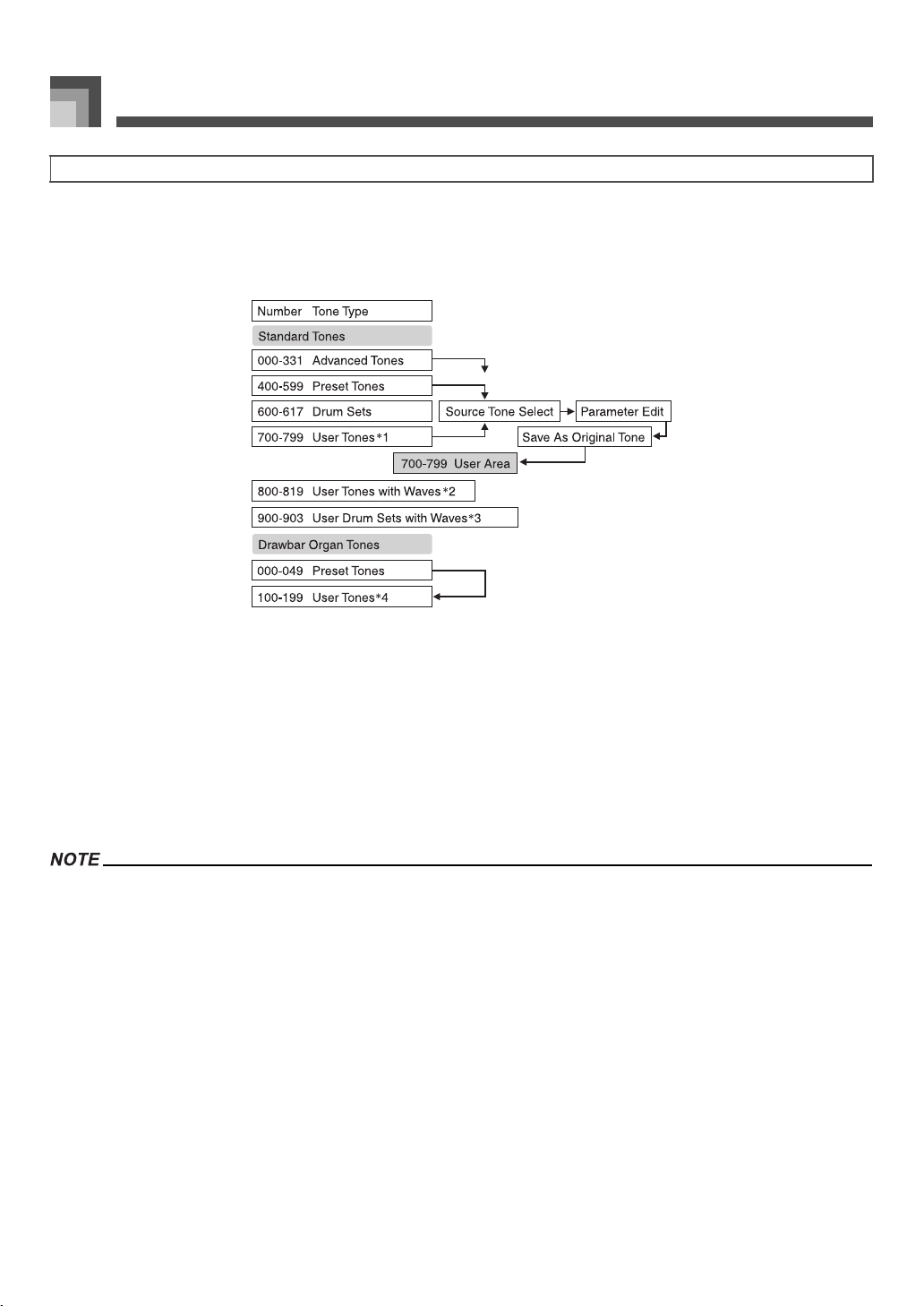
Synthesizer Mode
E-42
The group of tone numbers from 700 through 799 (User 001 through User 100) is called the “user area” because they are reserved
for storage of user tones. After you recall a preset tone and change its parameters to create your own user tone, you can store it in
the user area for later recall. You can recall your tones using the same procedure that you use when selecting a preset tone.
*1: You can select any Advanced Tone, preset tone, or user tone. User tone areas 700 through 799 initially contain the same data
as advanced tones 000 through 099.
*2: Area where data transferred from computer is stored (see “Using the Music Data Management Software (on the Bundled CD-
ROM)” on page E-76). After transfer, you can use the keyboard to edit parameters, but you can only overwrite existing
parameters. You cannot save the data to another number.
*3: Area where data transferred from computer is stored (see “Using the Music Data Management Software (on the Bundled CD-
ROM)” on page E-76). Transfer only is allowed, and no parameter editing is allowed.
*4: User tones created by modifying parameters of one of the preset tones (000 to 049). User drawbar organ tone areas initially
contain two sets of the same data as drawbar organ tones types 000 through 049.
• You can create an original tone using a user tone that includes a waveform (tone number 800 to 819). In this case, the storage area is
the same as the source tone area. For example, an original tone created using tone number 800 as a source tone is stored in user area
number 800.
Saving User Tones
707A-E-044A
ページ 2005年3月9日 水曜日 午後5時29分
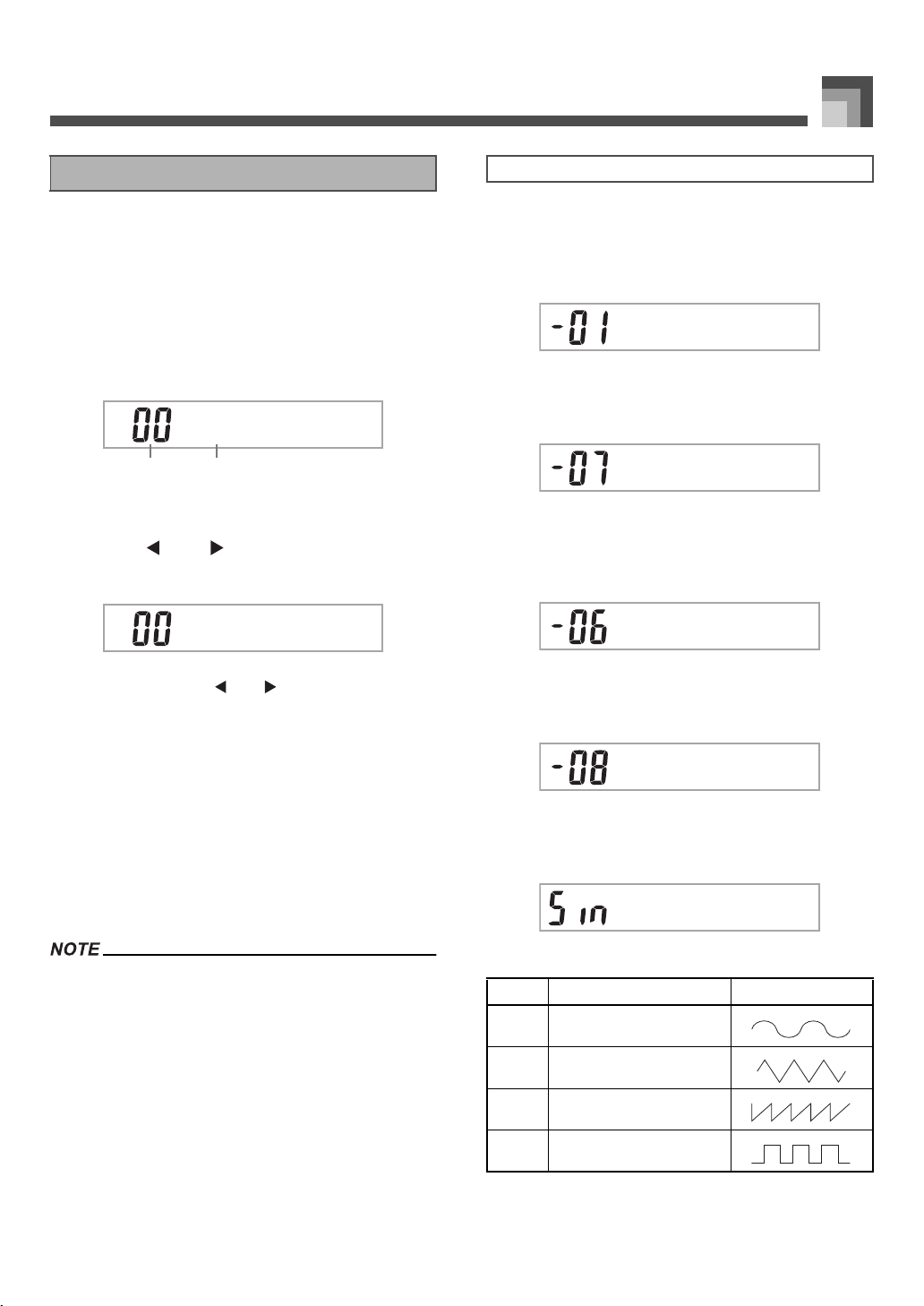
E-43
Synthesizer Mode
Use the following procedure to select a preset tone and
change its parameters to create a user tone.
1. First, select the preset tone you want to use as a
basis for your user tone.
2. Press the SYNTH button.
• This enters the Synthesizer Mode, which is indicated
by the pointer next to SYNTH on the display screen.
1
Parameter setting value
2
Currently selected parameter
3. Use the [ ] and [ ] CURSOR buttons to display
the parameter whose setting you want to change.
• Each press of the [ ] or [ ] CURSOR buttons
changes to the next parameter. See “Parameters and
Their Settings” on page E-43 for information on setting
range for each parameter.
4. Use [
+
] and [–] to change the setting of the
currently selected parameter.
• You can also use the number buttons to input a value
to change a parameter setting. See “Parameters and
Their Settings” on page E-43 for information on setting
range for each parameter.
5. After you are finished editing the sound, press the
SYNTH button to exit the Synthesizer Mode.
• See “Storing a User Tone In Memory” on page E-45 for
details on saving user tone data to memory so it is not
deleted.
The following describes the function of each parameter and
provides its setting range.
z Attack Time (Range: –64 to 00 to +63)
Time it takes before the tone sounds after a key is pressed
z Release Time (Range: –64 to 00 to +63)
Time the tone continues to sound after a key is released
z Cutoff Frequency
(Range: –64 to 00 to +63)
High-band cutoff for the harmonic components of the tone
z Resonance (Range: –64 to 00 to +63)
Resonance of the tone
z Vibrato Waveform (Range: See below.)
Specifies the vibrato waveform.
Creating a User Tone
AimeTkt
1 2
VDla
y
ebi
Parameters and Their Settings
Value Meaning Waveform
Sin Sine Wave
tri Triangle Wave
SAU Sawtooth Wave
Sqr Square Wave
AimeTkt
R.imeTle
CfFr
q
fo-
Roan
.
nse
V.
y
p
eTbi
707A-E-045A
ページ 2005年3月9日 水曜日 午後5時29分
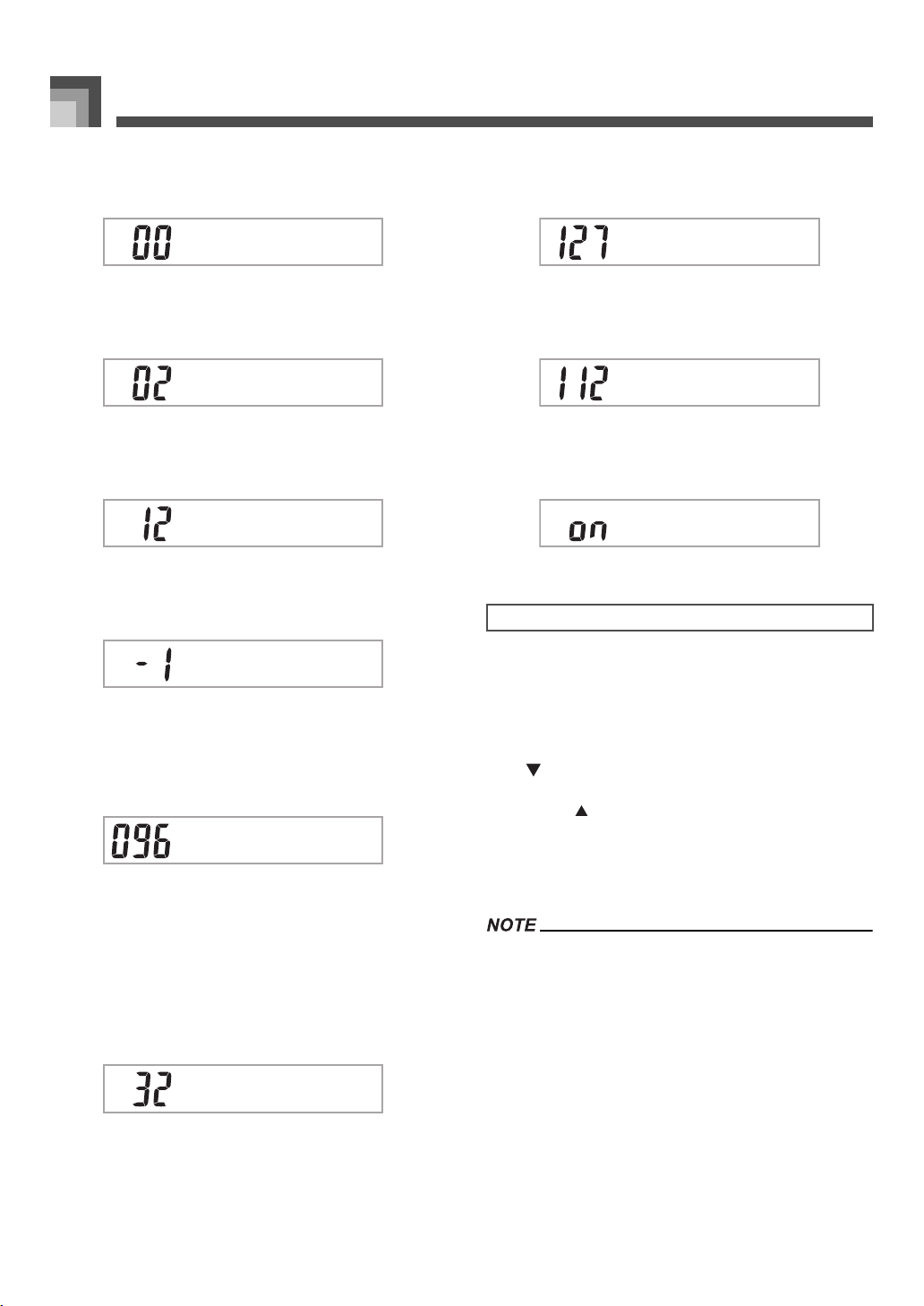
Synthesizer Mode
E-44
z Vibrato Delay (Range: –64 to 00 to +63)
Specifies the amount of time before vibrato starts.
z Vibrato Rate (Range: –64 to 00 to +63)
Rate (speed) of the vibrato effect
z Vibrato Depth (Range: –64 to 00 to +63)
Depth of the vibrato effect
z Octave Shift (Range: –2 to 0 to +2)
Up/down octave shift
z Level (Range: 000 to 127)
This parameter controls the overall volume of the tone. The
greater the value, the greater the volume. Setting a level of
zero means that the tone does not sound at all.
Touch Sensitivity (Range: –64 to 00 to +63)
This parameter controls changes in the volume of the tone in
accordance with the pressure applied to the keyboard keys. A
greater positive value increases the volume of the output as
pressure increases, while a negative value decreases volume
with increased keyboard pressure. A setting of zero specifies
no change in output volume in accordance with keyboard
pressure.
z Reverb Send (Range: 000 to 127)
This parameter adjusts reverb.
z Chorus Send (Range: 000 to 127)
This parameter adjusts chorus.
z DSP Line (Settings: on, oFF)
This parameter controls whether or not the DSP effect is used.
Use the DSP editing screen to select the DSP type and to edit
parameters.
1. Select a tone, press the SYNTH button, and then
configure parameter settings.
2. After everything is the way you want, press the
[ ] CURSOR button once. This advances to the
DSP parameter editing screen.
Pressing the [ ] CURSOR button returns to the Synthesizer
Mode parameter screen.
This setting specifies DSP parameters. See “DSP Parameters”
on page E-24, “Effect List” on page A-13, and “DSP Algorithm
List” on page E-83 for more information.
• If you store an original tone with the DSP line turned on (see
next page), simply recalling the tone automatically changes
the DSP line, DSP type, and DSP parameter settings. This
simplifies the recall of original tones that include a DSP
effect.
• An indicator appears next to DSP on the display while you
are making DSP type or DSP parameter settings.
VDla
y
ebi
V . ateRbi
VD
p
thebi
OSifthtc
Lelve
T S nseehc
DSP Settings
R endSbv
C endSoh
D ineLPS
707A-E-046A
ページ 2005年3月9日 水曜日 午後5時29分
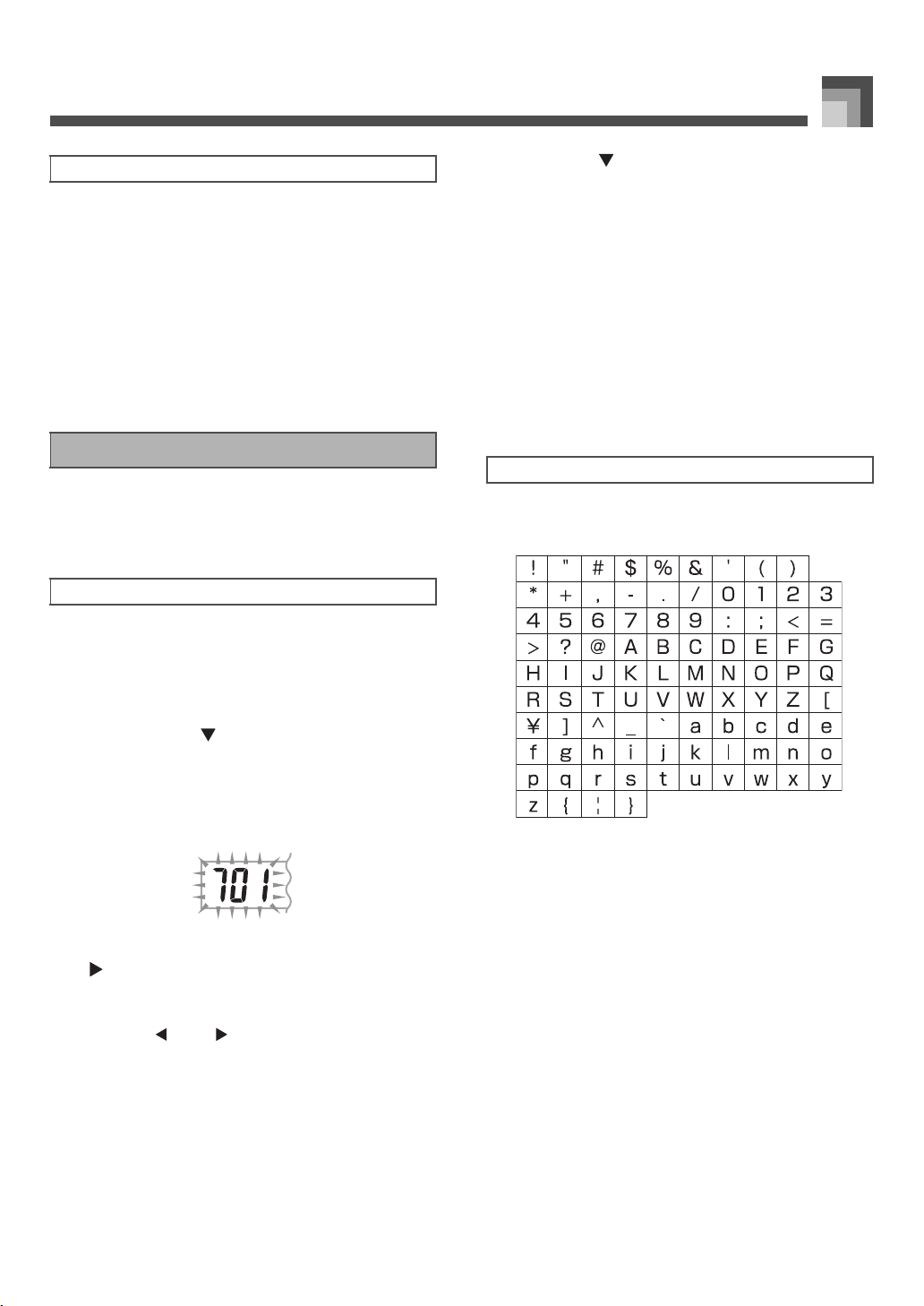
E-45
Synthesizer Mode
The following hints provide helpful advice on making user
tone creation a bit quicker and easier.
Use a preset tone that is similar to the one you are trying to
create.
Whenever you already have a rough idea of the tone you are
trying to create, it is always a good idea to start with a preset
tone that is similar.
z Experiment with various different settings.
There are no real rules about what a tone should sound like.
Let your imagination run free and experiment with different
combinations. You may be surprised at what you can achieve.
The following procedure shows how to store a user tone in
memory. Once a tone is stored, you can call it up just as you
do with a preset tone.
1. Select a preset tone to use as the basis for the
user tone, press the SYNTH button to enter the
Synthesizer Mode, and make the parameter
settings you want.
2. After making parameter settings to create the user
tone, press the [ ] CURSOR button twice.
3. Use [+] and [–] to change the user area tone
number on the display until the one where you
want to store the tone is shown.
• You can select any tone number from 700 to 799.
4. After the tone name is the way you want, press the
[ ] CURSOR button to store the tone.
•Use the [
+
] and [–] buttons to scroll through letters at
the current cursor location.
• Use the [ ] and [ ] CURSOR buttons to move the
cursor left and right.
• See “Inputting Characters” for information about
inputting text.
5. Press the [ ] CURSOR button to save the user
tone.
• This will display a confirmation message asking
whether you really want to save the data. Press the
YES button to save the data.
• The message “Complete” appears momentarily on the
display, followed by the tone or rhythm selection
screen.
• To abort the save operation at any time, press the
SYNTH button or the EXIT button to exit the
Synthesizer Mode. Pressing the SYNTH button again
(before selecting another tone) returns to the
Synthesizer Mode with all of your parameter settings
still in place.
The following are the types of characters you can input when
saving data to the user area.
User Tone Creation Hints
Storing a User Tone In Memory
To name a user tone and store it in memory
Inputting Characters
707A-E-047A
ページ 2005年3月9日 水曜日 午後5時29分
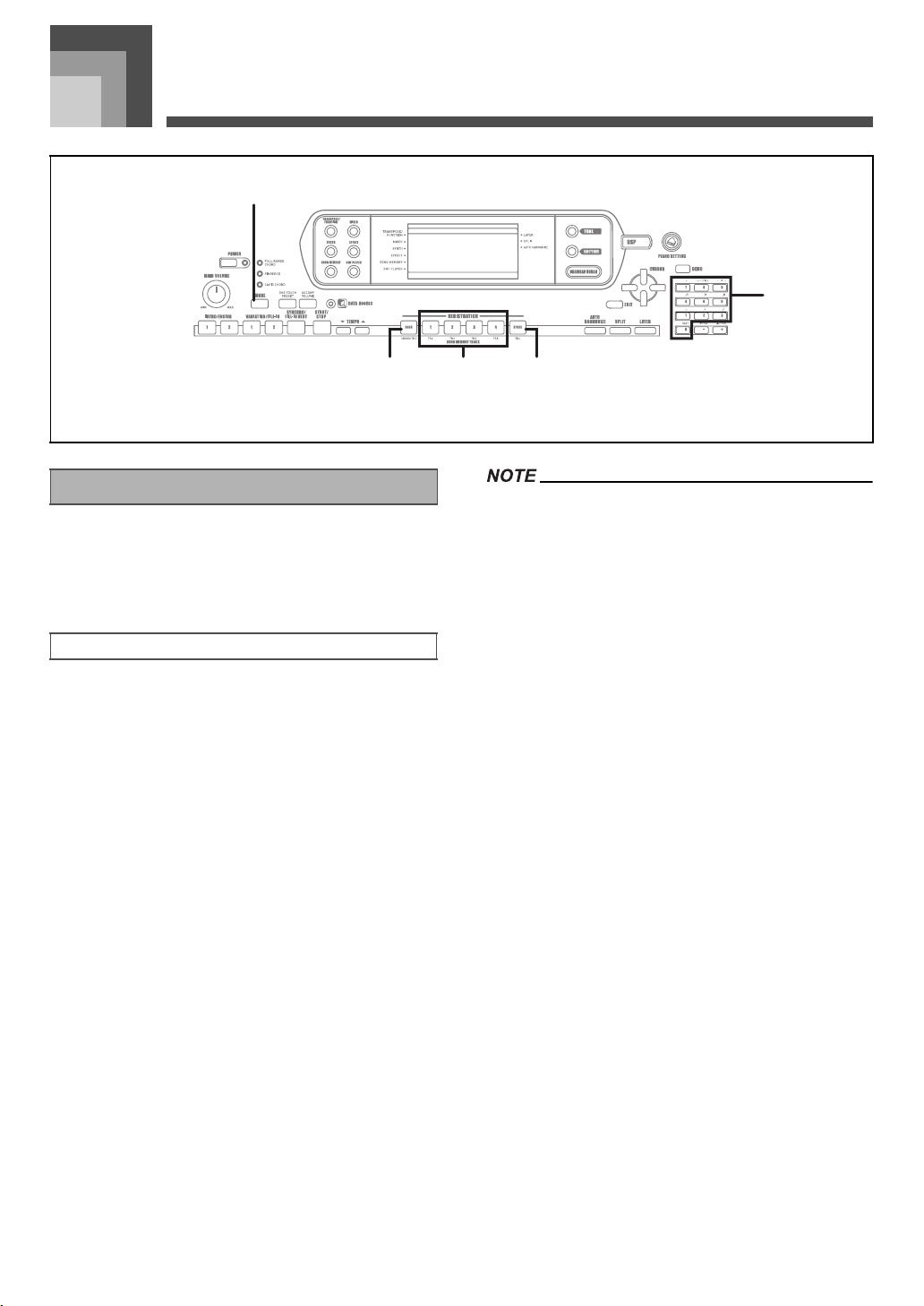
Registration Memory
E-46
Registration Memory
Registration memory lets you store up to 32 keyboard setups
(4 sets × 8 banks) for instant recall whenever you need them.
The following is a list of settings that are saved in registration
memory.
•Tone
•Rhythm
•Tempo
•Layer on/off
•Split on/off
• Split point
• Auto Harmonize on/off
• Mixer settings (Channels 1 to 10)
• Effect settings
• Touch Response settings
• Assignable jack setting
•Transpose
•Tuning
• Accompaniment volume setting
• Auto Harmonize type
• MODE button setting
• Synchro standby state
•Mixer Hold
•DSP Hold
• Synthesizer Mode parameters (Vibrato Waveform, Vibrato
Delay, Vibrato Rate, and Vibrato Depth only)
• Each bank of registration memory initially contains data
when you first use the keyboard. Simple replace the existing
data with your own data.
• Registration memory functions are disabled while you are
using the SMF Player, Song Memory or demo tune function.
1
MODE
2
BANK
3
REGISTRATION
4
STORE
5
Number buttons
1
2 43
5
Registration Memory Features
Registration Memory Settings
707A-E-048A
ページ 2005年3月9日 水曜日 午後5時29分
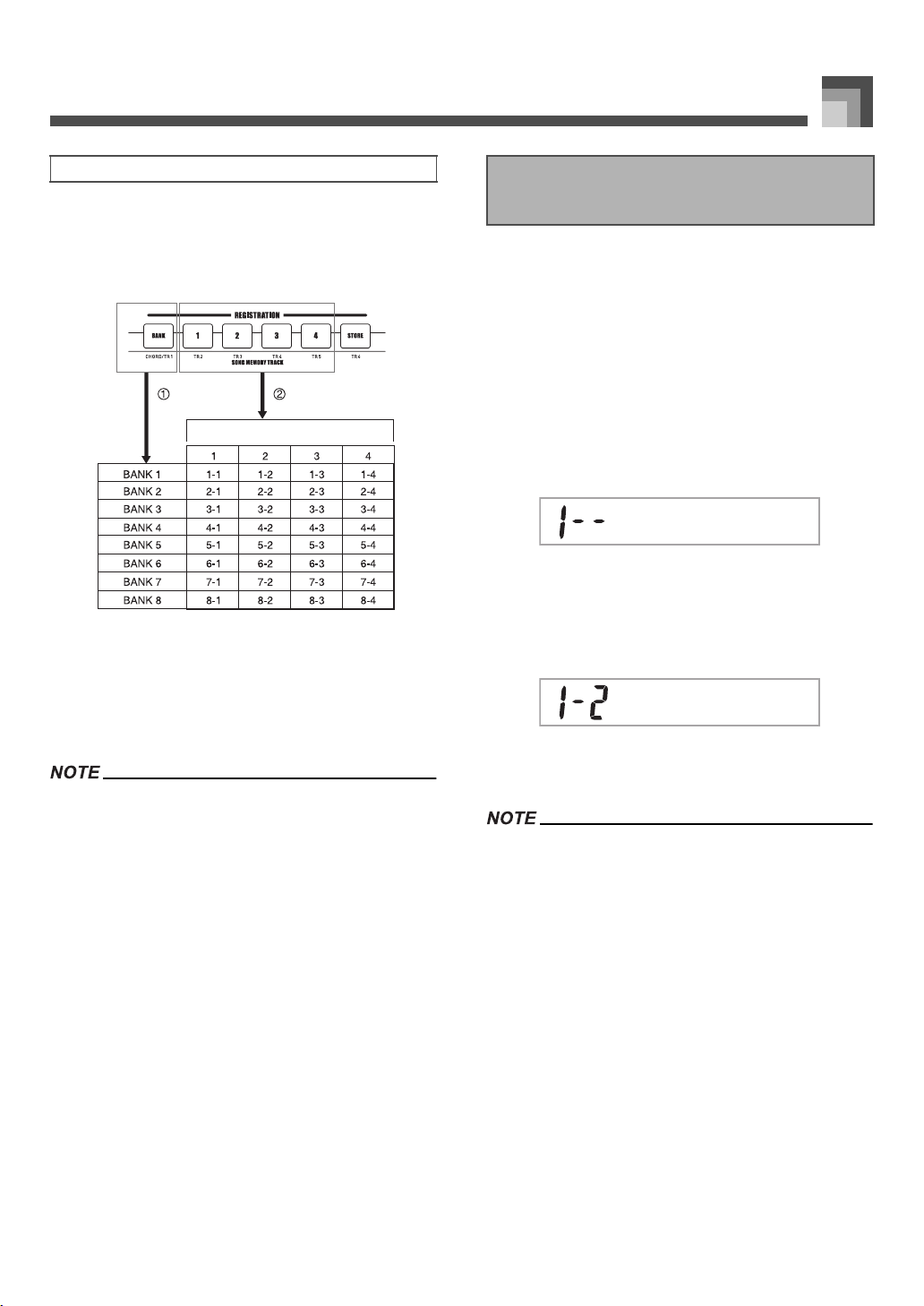
E-47
Registration Memory
You can assign setups into one of 32 areas, which you can
select using BANK buttons 1 through 4 and the four
REGISTRATION buttons. Area names range from 1-1
through 8-4 as shown below.
• Whenever you save a setup and assign it a setup name, any
setup data previously assigned to that name is replaced with
the new data.
• You can use the keyboard’s MIDI capabilities to save your
setup data to a computer or other external storage device.
See “Using the Music Data Management Software (on the
Bundled CD-ROM)” on page E-76 for details.
1. Select a tone and rhythm, and otherwise set up the
keyboard the way you want it.
• See “Registration Memory Features” on page E-46 for
details on what data is stored in the registration
memory.
2. Use the BANK button or the number buttons to
select the bank you want.
• If you do not perform any operation for about five
seconds after pressing the BANK button, the display
returns to the contents in step 1, above.
• Bank 1 selected.
3. While holding down the STORE button, press a
REGISTRATION button (1 to 4).
• The following display appears when you press the 2
button.
4. Release the STORE and REGISTRATION
buttons.
• The setup is saved as soon as you press a REGISTRATION
button in step 3, above.
Setup Names
1
Use the BANK button to select the bank. Each press of
BANK cycles through the bank numbers from 1 to 8.
2
Pressing one of the REGISTRATION buttons (1 to 4)
selects the corresponding area in the currently selected
bank.
To Save a Setup in Registration
Memory
Bkna
Sreot
707A-E-049A
ページ 2005年3月9日 水曜日 午後5時29分
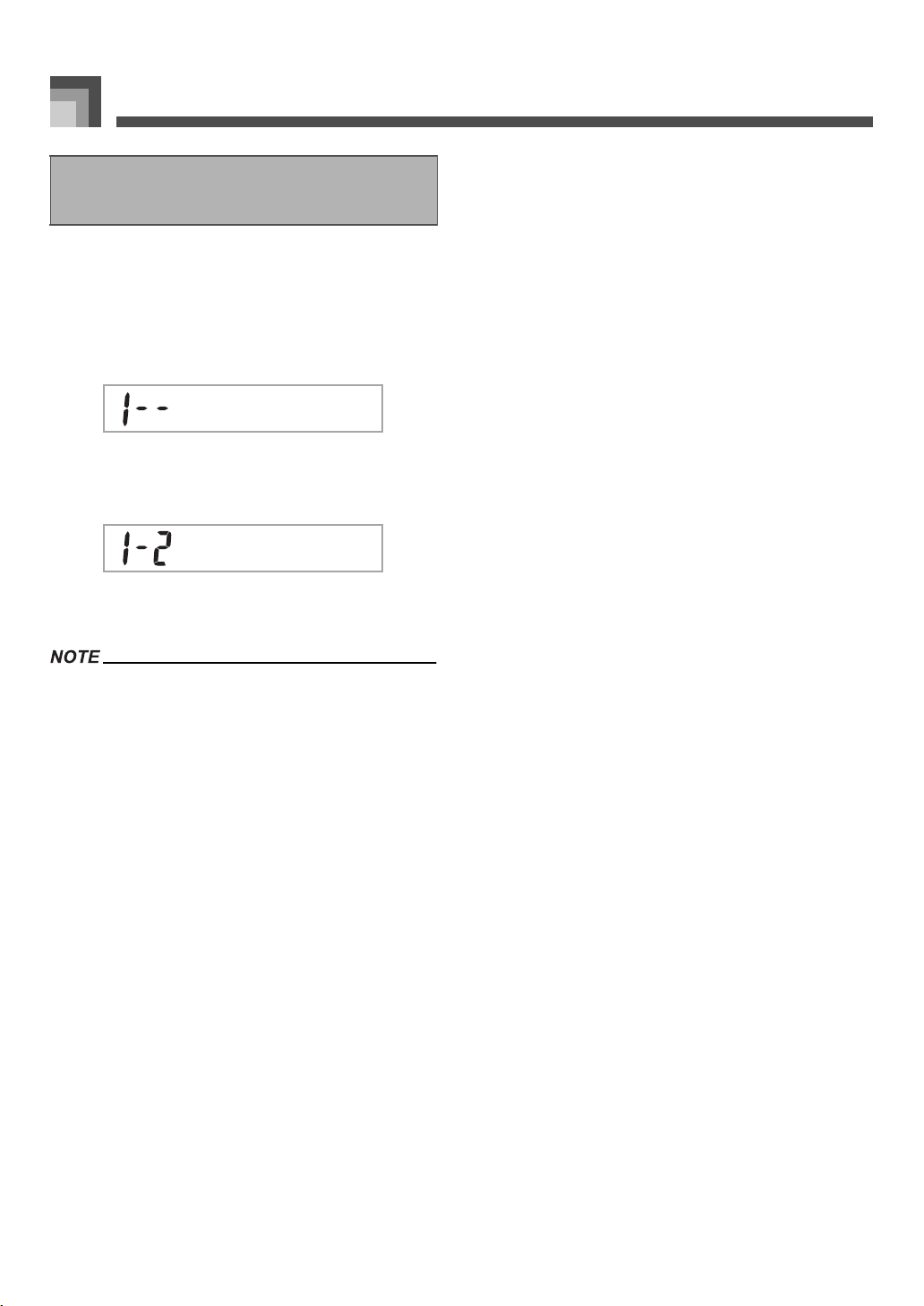
Registration Memory
E-48
1. Use the BANK button or the number buttons to
select the bank.
• If you do not perform any operation for about five
seconds after pressing the BANK button, the keyboard
automatically clears the registration memory recall
screen.
2. Press the REGISTRATION button (1 to 4) for the
area whose setup you want to recall.
• The setup name along with the message “Recall”
appears on the display.
• If you press a REGISTRATION button without using the
BANK button to select a bank first, the last bank number
selected is used.
To Recall a Setup from
Registration Memory
Bkna
Rallce
707A-E-050A
ページ 2005年3月9日 水曜日 午後5時29分
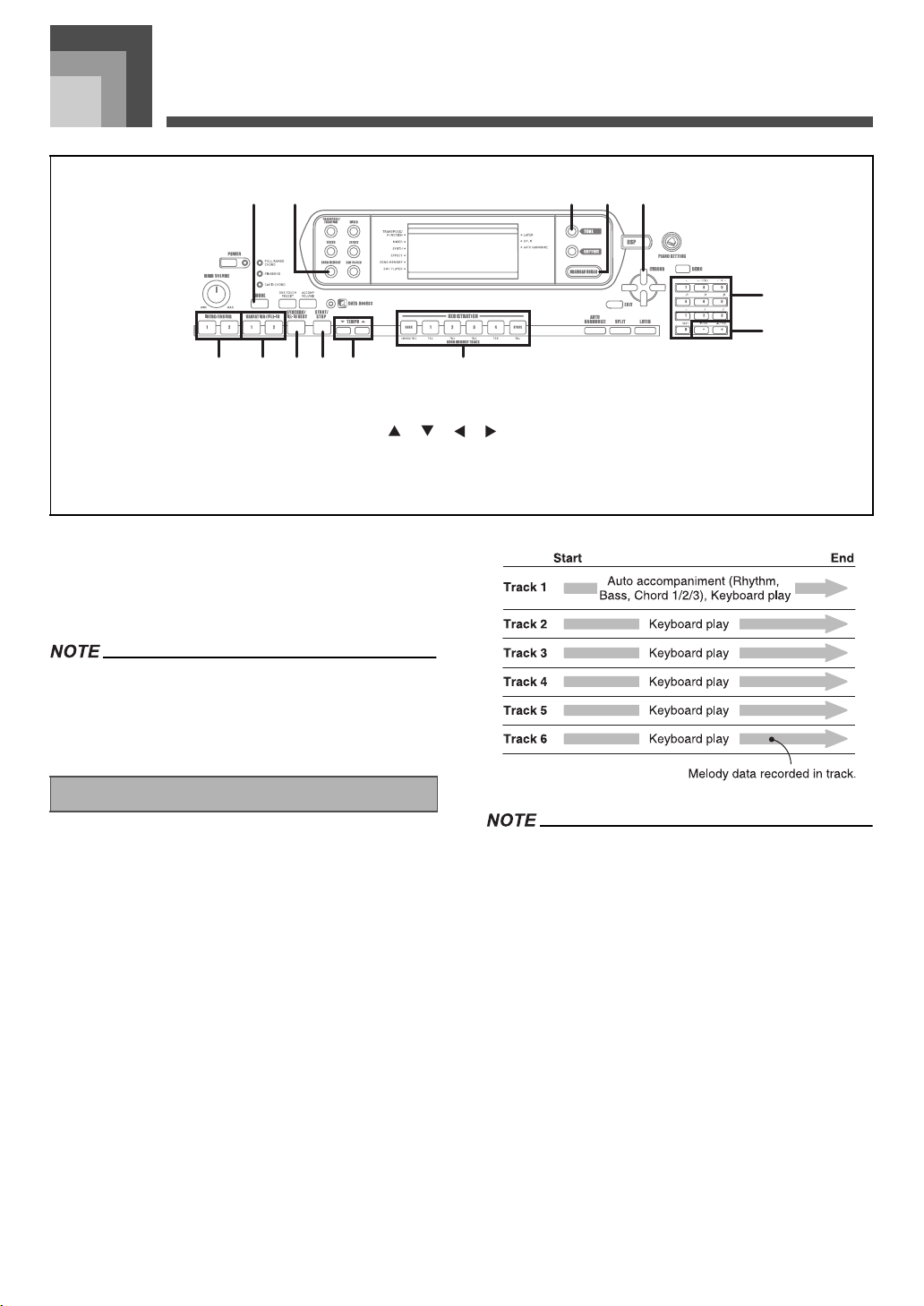
Song Memory Function
E-49
Son g Mem ory Fu ncti on
This keyboard lets you record up to five separate songs in
song memory for later playback. There are two methods you
can use to record a song: real-time recording where you
record the notes as you play them on the keyboard, and step
recording where you input chords and notes one-by-one.
• Layer and split cannot be used while standing by for
recording or while recording is being performed in the Song
Memory Mode. Also, layer and split are automatically turned
off whenever the keyboard goes into record standby or starts
recording.
Keyboard song memory records and plays back much like a
standard tape recorder. There are a total of six tracks, each of
which can be recorded separately. Besides notes, each track
can have its own tone number. Then when you play back the
tracks together, it sounds like an entire six-piece band. During
playback, you can adjust the tempo to change the speed of
playback.
• With this keyboard, Track 1 is the basic track, which can be
used to record keyboard play, along with Auto
Accompaniment. Tracks 2 through 6 can be used for
keyboard play, so they are called melody tracks. Tracks 2
through 6 are used to add other parts to what is recorded in
Track 1.
• Note that each track is independent of the others. This
means that even if you make a mistake while recording, you
only need to re-record the track where the mistake was
made.
• You can use different Mixer settings for each track (page
E-36).
1
MODE
2
SONG MEMORY
3
TONE
4
DRAWBAR ORGAN
5
[ ]/[ ]/[ ]/[ ] CURSOR
6
INTRO/ENDING 1/2
7
VARIATION/FILL-IN 1/2
8
SYNCHRO/FILL-IN NEXT
9
START/STOP
bk
TEMPO
bl
SONG MEMORY TRACK
bm
Number buttons
bn
[+]/[–], YES/NO
2 41
9 bk86 7
3 5
bm
bn
bl
Tracks
707A-E-051A
ページ 2005年3月9日 水曜日 午後5時29分
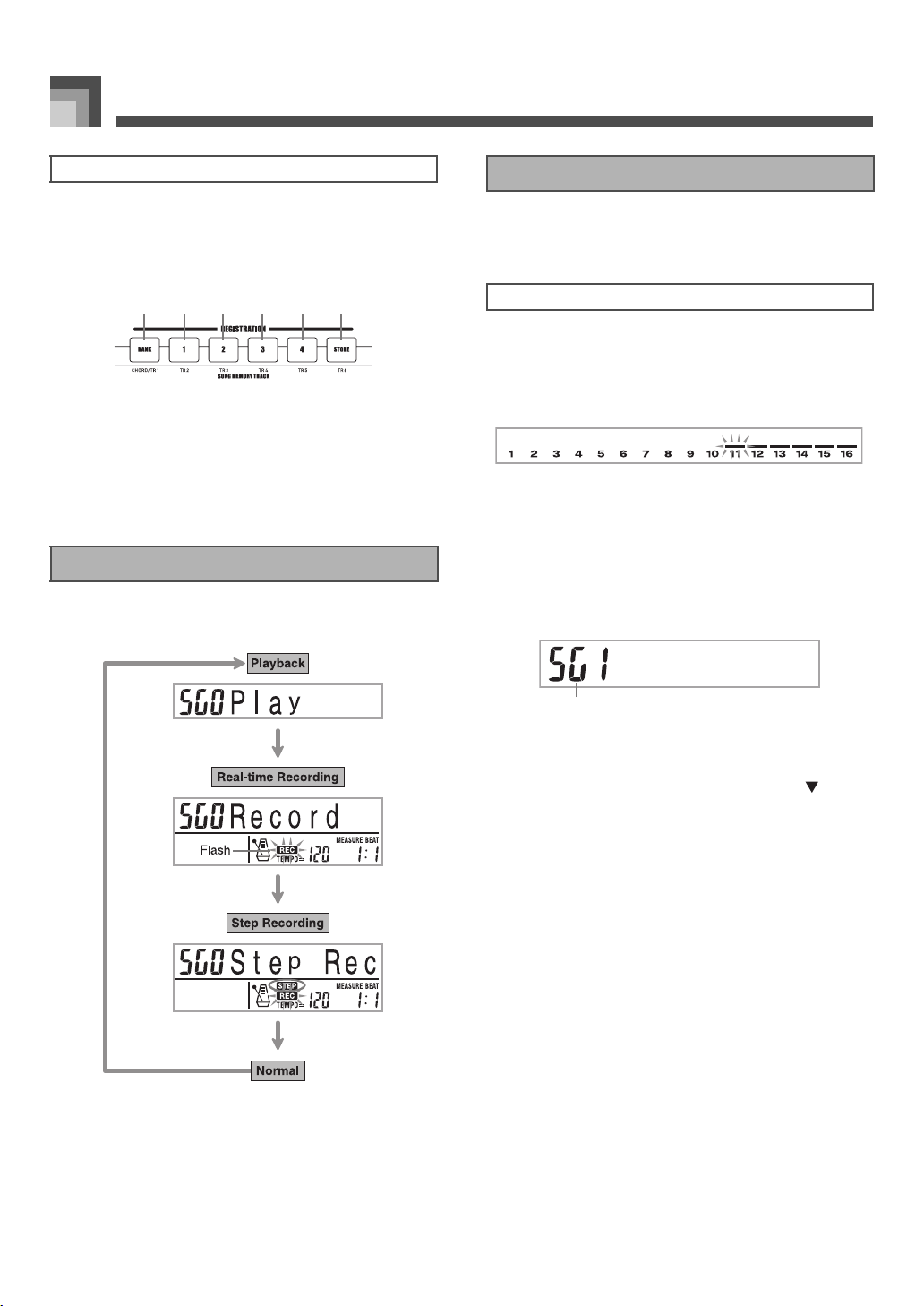
Song Memory Function
E-50
Use the SONG MEMORY TRACK buttons marked CHORD/
TR1 through TR6 to select the track you want.
J SONG MEMORY TRACK Buttons
1
Track 1
2
Track 2
3
Track 3
4
Track 4
5
Track 5
6
Track 6
The status of the Song Memory changes each time you press
the SONG MEMORY button.
With real-time recording, the notes you play on the keyboard
are recorded as you play them.
1. Press the SONG MEMORY button twice to enter
real-time record standby.
• Perform step 2, below, within five seconds after
entering record standby.
• The level meters for tracks 11 through 16 are shown on
the display while the keyboard is in record standby, so
you can easily check which tracks are already
recorded. See “Level Meter Contents During Record/
Edit Standby” on page E-57 for details.
2. Use the number buttons to select a song number
(0 to 4).
1
Song number
• The above song number screen remains on the display
for about five seconds. If it disappears before you have
a chance to select a song number, use the [ ]
CURSOR button to re-display it.
3. Make the following settings.
•Tone number
• Rhythm number
•Tempo
•MODE button
4. Press the START/STOP button to start recording.
•
Real-time recording without a rhythm starts. If you want
to record with a rhythm, press the INTRO/ENDING 1/2
or VARIATION/FILL-IN 1/2
.
• When recording starts, the REC indicator flashes on
the display. After a few moments the indicator stops
flashing, and remains on the display.
Selecting a Track
Basic Song Memory operations
1 2 4 63 5
Using Real-time Recording
To record with real-time recording
Rodrce
1
707A-E-052A
ページ 2005年3月11日 金曜日 午後2時34分
E-51
Song Memory Function
5. Play something on the keyboard.
• You can also record Auto Accompaniment chords by
selecting the applicable mode with the MODE button.
• Optional pedal operation is also recorded. See “Track
1 Contents After Real-time Recording”.
6. Press the START/STOP button to end recording
when you are finish playing.
• If you make a mistake while recording, you can stop
the record operation and begin over again from step 1,
or you can use the editing function (page E-58) to
make corrections.
• Using real-time recording to record to a track that already
contains recorded data replaces the previous recording with
the new one.
In addition to keyboard notes and accompaniment chords,
the following data is also recorded to Track 1 during real-time
recording. This data is applied whenever Track 1 is played
back.
• Tone number
• Rhythm number
• INTRO/ENDING 1 button, INTRO/ENDING 2 button,
VARIATION/FILL-IN 1 button, VARIATION/FILL-IN 2
button, SYNCHRO/FILL-IN NEXT button operations
• Pedal operations (option)
The following data is recorded in the header whenever you
start a recording of a track.
• Mixer settings of other tracks
• Effect type
• Accompaniment volume
• Reverb Level
•Chorus Level
• DSP Hold On/Off
• Mixer Hold On/Off
Channel 1 Mixer parameters (page E-36) are automatically
recorded to Track 1. You can use the Mixer to change each of
the parameters.
The keyboard has memory for approximately 10,000 notes.
• The measure number and note number flash on the display
whenever remaining memory is less than 100 notes.
• Recording automatically stops (and auto-accompaniment
and rhythm stops playing if they are being used) whenever
memory becomes full.
• Initially, nothing is stored in song memory.
• Whenever you make a new recording, anything previously
stored in memory is replaced.
• Turning off the keyboard while a record operation is in
progress causes the contents of the track your are currently
recording to be lost.
• Remember that you can dump memory contents to another
MIDI device using the procedure described under “Using
the Music Data Management Software (on the Bundled
CD-ROM)” on page E-76.
The following describes a number of different variations you
can use when recording to Track 1 using real-time recording.
All of these variations are based upon the procedure
described under “To record with real-time recording” on
page E-50.
J To start recording with synchro start
In place of step 4, press the SYNCHRO/FILL-IN NEXT
button. Auto-accompaniment and recording will both start
when you play a chord on the accompaniment keyboard.
J To record using an intro, ending, or fill-in
During recording, the INTRO/ENDING 1/2, SYNCHRO/
FILL-IN NEXT, and VARIATION/FILL-IN 1/2 buttons
(pages E-32 to E-33) can all be used as they normally are.
J To synchro start Auto Accompaniment with an intro
pattern
In place of step 4, press the SYNCHRO/FILL-IN NEXT
button and then INTRO/ENDING 1 or INTRO/ENDING 2
button. Auto-accompaniment will start with the intro pattern
when you play a chord on the accompaniment keyboard.
Track 1 Contents After Real-time Recording
Mixer Mode Settings
Memory Capacity
Memory Data Storage
Track 1 Real-time Recording Variations
707A-E-053A
ページ 2005年3月9日 水曜日 午後5時29分
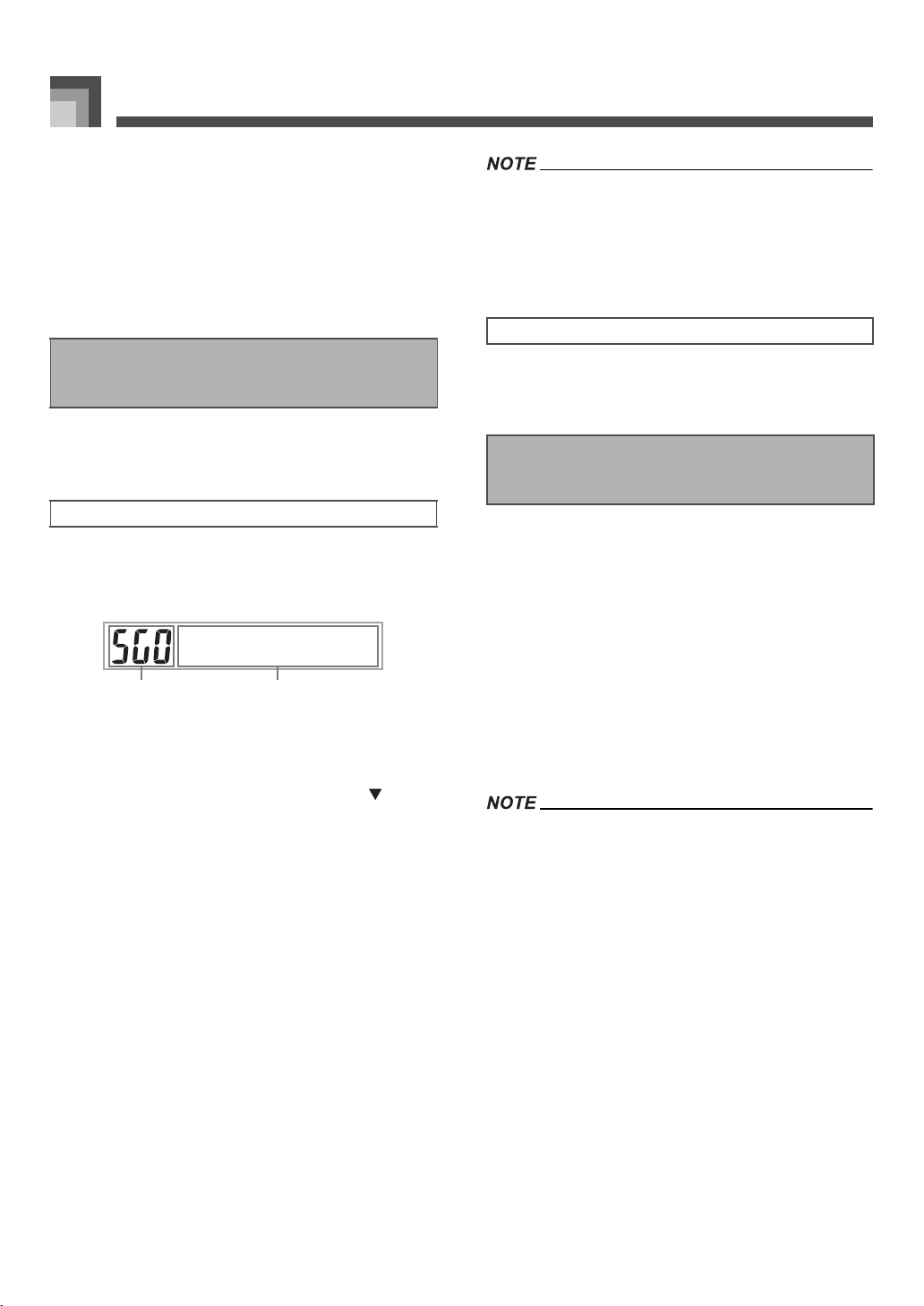
Song Memory Function
E-52
J To start Auto Accompaniment part way into a
recording
In place of step 4, press the SYNCHRO/FILL-IN NEXT
button and then play something on the melody keyboard to
start recording without Auto Accompaniment. When you
reach the point where you want accompaniment to start, play
a chord on the accompaniment keyboard to start Auto
Accompaniment.
Once you record tracks to song memory, you can play them
back to see what they sound like.
1. Use the SONG MEMORY button to enter playback
standby, and then use the number buttons to
select a song number (0 to 4).
1
Song number
2
Playback standby
• The above song number screen remains on the display
for about five seconds. If it disappears before you have
a chance to select a song number, use the [ ]
CURSOR button to re-display it.
2. Press the START/STOP button to playback the
song you selected.
• You can use the TEMPO buttons to adjust the
playback tempo.
• Press the START/STOP button again to stop playback.
• You can play along on the keyboard using layer (page
E-61) and split (page E-62) during playback.
• Pressing the START/STOP button to start playback from
song memory always starts from the beginning of the song.
• The entire keyboard functions as a melody keyboard,
regardless of the accompaniment mode setting.
Press the SONG MEMORY TRACK button of the track you
want to turn off, or use the Mixer (Page E-36) to turn off the
channel of the track.
With step recording, you can record Auto-Accompaniment
chords and notes, and even specify note lengths one by one.
Even those who find it difficult to play along on the keyboard
with an Auto-Accompaniment can create Auto-
Accompaniments based on their own original chord
progressions. The following shows the type of data that can
be recorded in Tracks 1 through 6.
With step recording, first record the chords and Auto-
Accompaniment in Track 1. Next, record the melody in
Tracks 2 through 6.
• Use the procedure under “To record to Tracks 2 through 6
using real-time recording” on page E-55 for details on how to
record to Tracks 2 through 6.
Playing Back from Song
Memory
To play back from song memory
P
y
al
1 2
To turn off a specific track
Recording Melody and Chords
with Step Recording
Track 1 : Chords and Auto-Accompaniment
Tracks 2 through 6 : Keyboard play
707A-E-054A
ページ 2005年3月9日 水曜日 午後5時29分
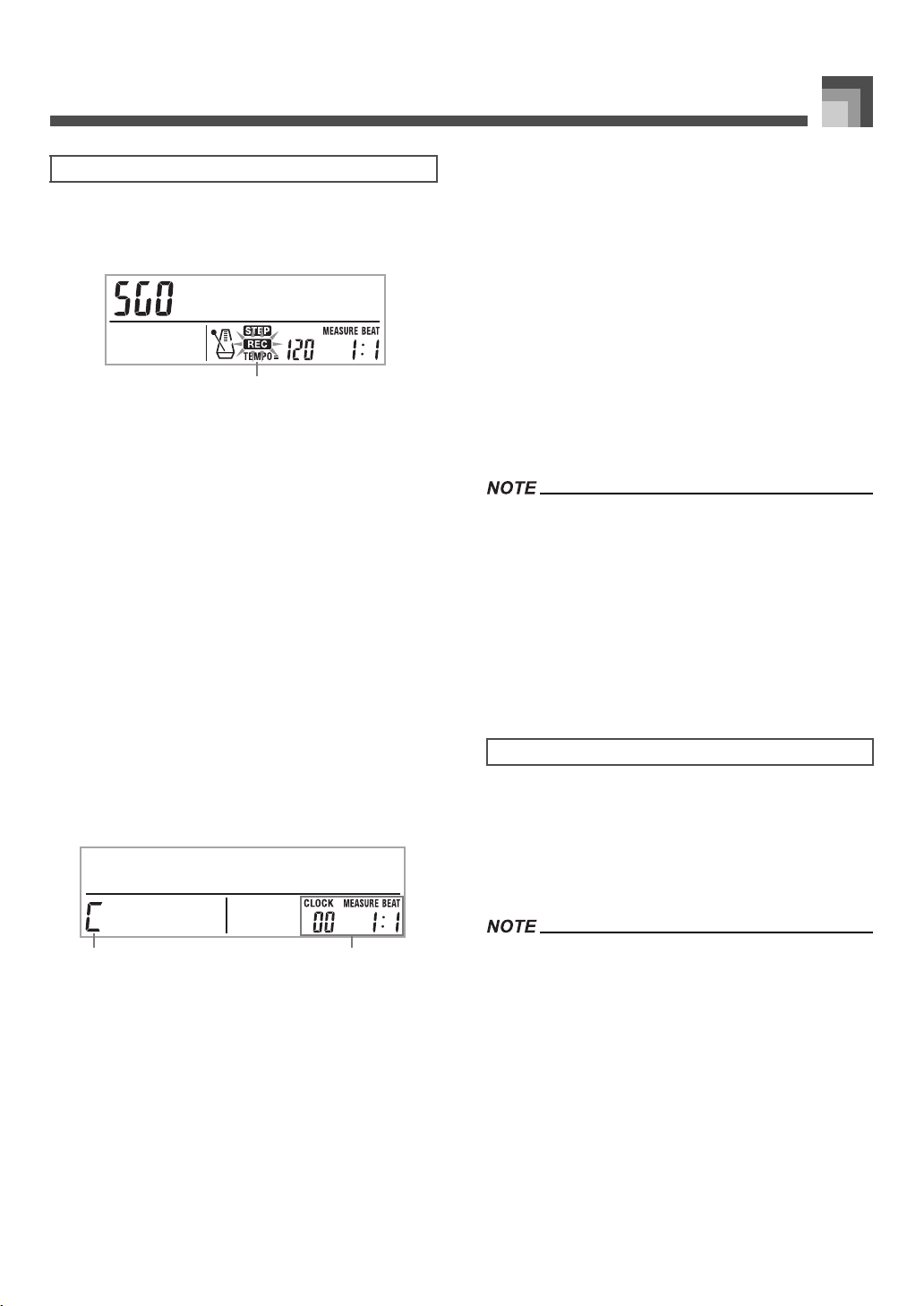
E-53
Song Memory Function
1. Press the SONG MEMORY button three times to
enter step recording standby, and then use the
number buttons to select the song number (0 to 4).
1
Flash
2. Make the following settings.
• Rhythm number
•MODE button
3. Press the CHORD/TR1 button, which is one of the
SONG MEMORY TRACK buttons, to select
Track1.
• When recording starts, the REC indicator flashes on
the display. After a few moments the indicator stops
flashing, and remains on the display.
4. Press the SYNCHRO/FILL-IN NEXT button.
5. Play a chord.
• Use the chord play method that is specified by the
current MODE setting (FINGERED, CASIO CHORD,
etc.).
• When the accompaniment mode is set to NORMAL,
specify the chord using the root input keyboard and
chord type input keyboard. See “Specifying Chords in
the Normal Mode” on page E-54 for details.
1
Chord name
2
Measure, beat, and clock at current location*
* 96 clocks = 1 beat
6. Input the length of the chord (how long it should be
played until the next chord is played).
• Use the number buttons to specify the length of the
chord. See “Specifying the Length of a Note” on page
E-54 for details.
• The specified chord and its length are stored in
memory and the keyboard stands by for input of the
next chord.
• Repeat steps 5 and 6 to input more chords.
7. After you are finished recording, press the
START/STOP button.
• This enters playback standby for the song you have
just recorded.
• To play back the song at this time, press the START/
STOP button.
• Use the procedure under “Correcting Mistakes While Step
Recording” on page E-57 to correct input mistakes you make
during step recording.
• You can add on to a track that already contains recorded
data by selecting that track in step 3 of the above procedure.
Doing so automatically locates the step recording start point
at the first beat immediately following the previously
recorded data.
• Inputting “0” as the chord length in steps 5 and 6 of the above
procedure specifies a rest, but the rest is not reflected in the
accompaniment contents when the accompaniment is
played.
In addition to chords, the following data is also recorded to
Track 1 during step recording. This data is applied whenever
Track 1 is played back.
• Rhythm number
• INTRO/ENDING 1 button, INTRO/ENDING 2 button,
VARIATION/FILL-IN 1 button, VARIATION/FILL-IN 2
button, SYNCHRO/FILL-IN NEXT button operations
• You can also use number buttons 1 through 7, and button 9
to specify the button release timing for the VARIATION/FILL-
IN 1, VARIATION/FILL-IN 2, and SYNCHRO/FILL-IN NEXT
buttons. For more information, see “Specifying the Length of
a Note” on page E-54. Specifying release timing specifies
that the applicable button remains depressed for a particular
amount of time. If you do not specify the release timing, it is
assumed that the button is pressed and then immediately
released.
To record chords with step recording
S
p
Recet
1
Crdoh
21
Track 1 Contents After Step Recording
707A-E-055A
ページ 2005年3月10日 木曜日 午前12時35分
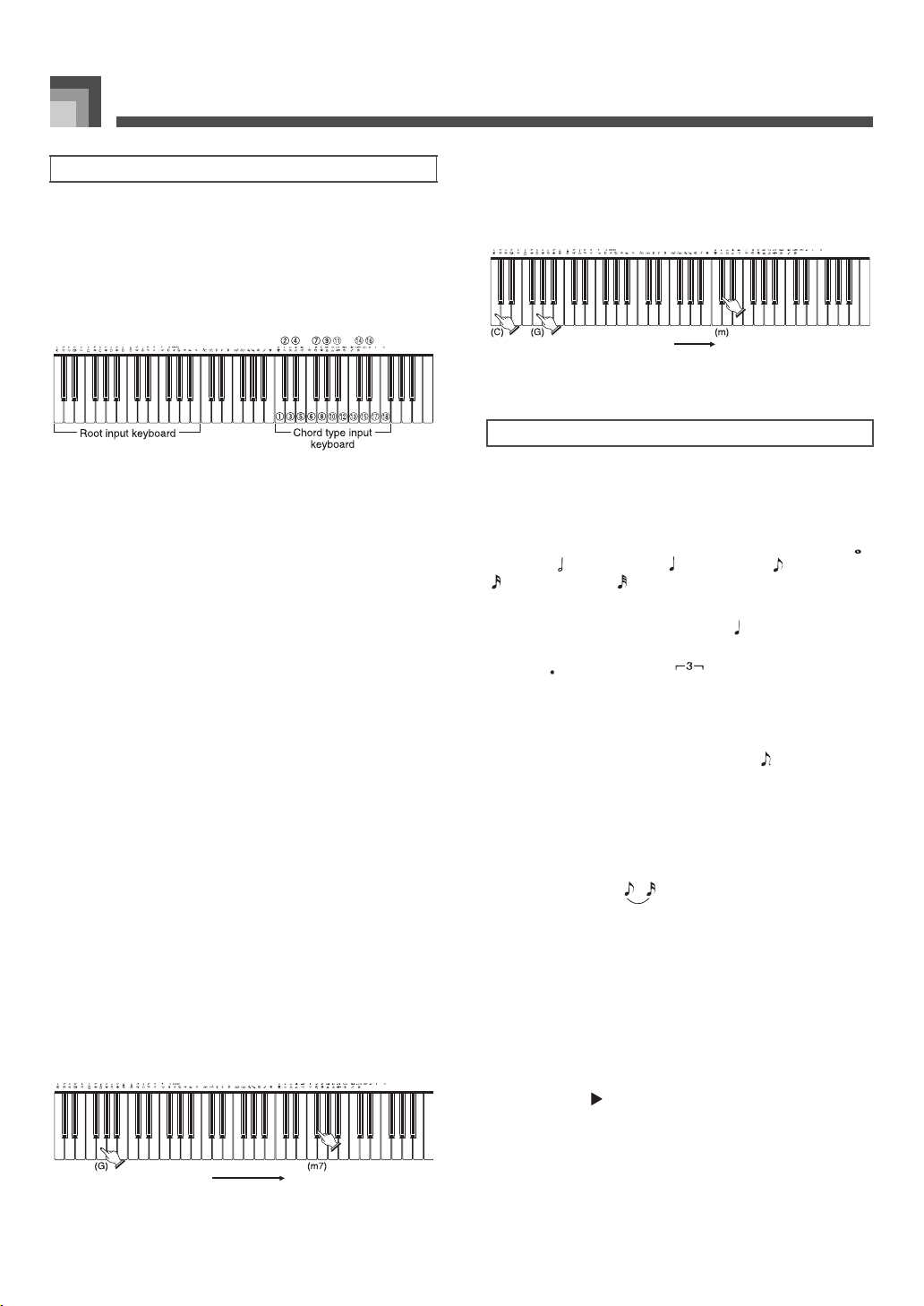
Song Memory Function
E-54
When the accompaniment mode is set to NORMAL during
step recording, you can specify chords using a method that is
different from CASIO CHORD and FINGERED fingerings.
This chord specification method can be used to input 18
different chord types using only two keyboard keys, so
chords can be specified even if you don’t know how to
actually play them.
To specify a chord, hold down the key on the root input
keyboard that specifies the root, and press the key in the
chord type input keyboard to specify the chord type. When
inputting a chord with a specified bass note, pressing two
keys of the root input keyboard causes the lower note to be
specified as a bass note.
Example 1:
To input Gm7, hold down G on the root input
keyboard and press the m7 key on the chord
type input keyboard.
Example 2:
To input Gm/C, hold down C and G on the root
input keyboard and press the m key on the chord
type input keyboard.
During step recording, the number buttons are used to
specify the length of each note.
J Note lengths
Use number buttons [1] through [6] to specify whole notes ( ),
half notes ( ), quarter notes ( ), eighth notes ( ), 16th notes
( ), and 32nd notes ( ).
Example:
To specify a quarter note ( ), press [3].
J Dots ( ) and triplicates ( )
While holding down the [7] (dot) or [9] (triplicate), use
buttons [1] through [6] to input the lengths of the notes.
Example:
To input a dotted eighth notes ( ), hold down [7]
and press [4].
J Ties
Input the first and then the second note.
Example:
To input , press [4] and then [8]. Next, press
[5]. This note will be tied to the next note you
input (16th note in this example).
J Rest
Hold down [0] and then use number buttons [1] through [9]
to specify the length of the rest.
Example:
To input an eighth note rest, hold down [0] and
press [4].
• Pressing the [ ] CURSOR button inputs rests up to the
beginning of the next measure.
Specifying Chords in the Normal Mode
1
Major
2
Minor
3
Augmented
4
Diminished
5
Suspended four
6
Seventh
7
Minor seventh
8
Major seventh
9
Minor major seventh
bk
Seventh flat five
bl
Minor seventh flat five
bm
Seventh suspended four
bn
Diminished seventh
bo
Minor add ninth
bp
Add ninth
bq
Minor sixth
br
Sixth
bs
Six ninth
Press key to specify chord.Hold down key to specify
chord root.
Specifying the Length of a Note
Press key to specify chord.Hold down key to specify on bass
and chord root.
707A-E-056A
ページ 2005年3月9日 水曜日 午後5時29分
E-55
Song Memory Function
The following describes a number of different variations you
can use when recording to Track 1 using step recording. All
of these variations are based upon the procedure described
under “To record chords with step recording” on page E-53.
J To start accompaniment with an intro pattern
In step 4, press INTRO/ENDING 1 or INTRO/ENDING 2
button after the SYNCHRO/FILL-IN NEXT button.
J To switch to a rhythm variation
In step 5, press VARIATION/FILL-IN 1 or VARIATION/
FILL-IN 2 button immediately before inputting the chord.
J To insert a fill in
In step 5, press VARIATION/FILL-IN 1 or VARIATION/
FILL-IN 2 button at the measure or beat immediately before
the chord or beat where you want to insert the fill in.
J To insert an ending
In step 5, press INTRO/ENDING 1 or INTRO/ENDING 2
button at the measure or beat immediately before the chord
where you want to insert the ending.
• The length of the ending depends on the rhythm you are
using. Check the length of the pattern you are using and set
the length of the chord accordingly in step 6. Making the
chord too short in step 6 can result in the ending pattern
being cut off.
J To step record chords without rhythm
Skip step 4. The specified chord of the length specified by the
number buttons is recorded. A rest can be specified here, so
an original chord pattern can be created.
J To add chord accompaniment part way through
rhythm play
In place of step 4 at the start of the recording, press
VARIATION/FILL-IN 1 or VARIATION/FILL-IN 2 button
and input rests. Then in step 5, input the chords. Only rhythm
is played where you input the rests, and then chord play
starts after the rests.
Track 1 of the keyboard’s song memory records Auto
Accompaniment and keyboard play. In addition, there are
five other melody tracks that you can use to record melody
parts only. You can record different tones to the melody
tracks and build a full ensemble of instruments for your
recordings. The procedure you use for recording to Tracks 2
through 6 is identical to the one you use when recording to
Track 1.
You can record to Tracks 2 through 6 while playing back what
you originally recorded on Track 1 and any other tracks that
are already recorded.
1. Press the SONG MEMORY button twice to enter
record standby, and then use the number buttons
to select a song number (0 to 4).
• The song number you select should be the one where
you previously input Track 1.
2. Use the SONG MEMORY TRACK buttons to
select the track you want to record to (2 through 6).
• While the keyboard is in record standby, the display
shows the level meters for channels 11 through 16, so
you can check which tracks have already been
recorded. See “Level Meter Contents During Record/
Edit Standby” on page E-57 for details.
3. Make the following settings.
• Tone number
•Tempo
4. Press the START/STOP button to start recording.
• At this time, the contents of any tracks that are already
recorded start to play back.
• Optional pedal operation you perform is also
recorded.
5. Use the keyboard to play what you want to record
the track you selected.
6. Press the START/STOP button to end recording
when you are finished.
Track 1 Step Recording Variations
Recording Multiple Tracks
To record to Tracks 2 through 6 using real-
time recording
707A-E-057A
ページ 2005年3月9日 水曜日 午後5時29分
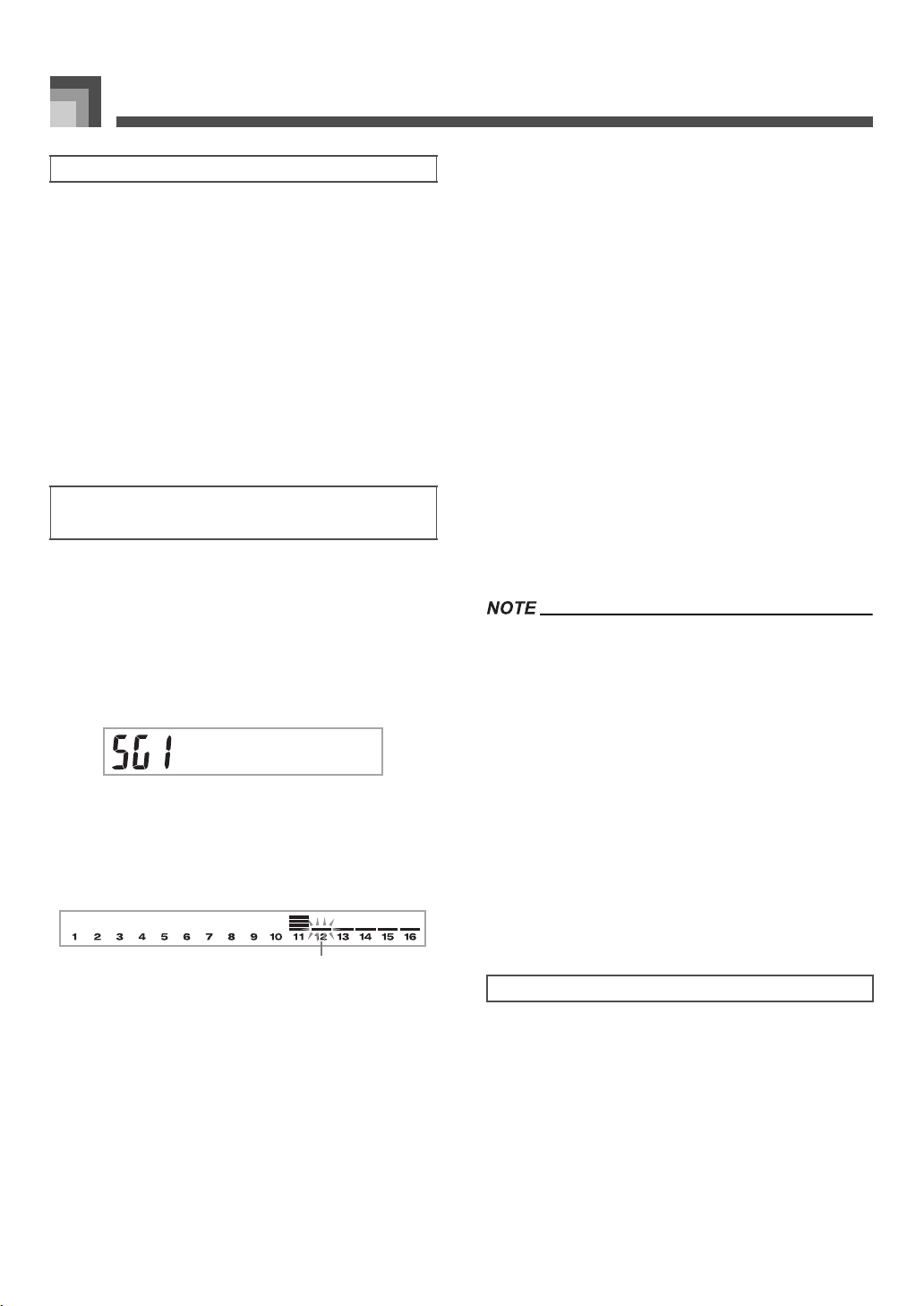
Song Memory Function
E-56
In addition to keyboard notes, the following data is also
recorded to the selected track during real-time recording.
This data is applied whenever the track is played back.
• Tone number
• Optional pedal operations
The following data is recorded in the header whenever you
start a recording of a track.
• Mixer settings of other tracks
• Effect type
• Accompaniment volume
• Reverb Level
•Chorus Level
•DSP Hold On/Off
•Mixer Hold On/Off
This procedure describes how to input notes one-by-one,
specifying each note’s pitch and length.
1. Press the SONG MEMORY button three times to
enter real-time record standby, and then use the
number buttons to select a song number (0 to 4).
• The song number you select should be the one where
you previously input Track 1.
2. Use the SONG MEMORY TRACK buttons to
select the track you want to record to (2 through 6).
Example:
Select Track 2.
1
Flash
3. Specify a tone number.
• Pressing a TONE button or the DRAWBAR ORGAN
button displays the tone number and name on the
display. You can then use the number buttons, or the
[
+
] (increase) and [–] (decrease) buttons to change the
tone.
• After changing the tone number, press any keyboard
key to clear the tone number and name screen, and
return to the note input screen.
4. Use the keyboard keys to input notes, or the [0]
button to input rests.
• At this time, the display shows the keyboard pressure
(velocity). Use the [
+
] (increase) and [–] (decrease)
buttons to change the velocity.
• You can also input a chord.
5. Use the number buttons to input the length of the
note or rest (page E-54).
6. Repeat steps 4 and 5 to input more notes.
7. Press the START/STOP button to end recording
when you are finished.
• Use the procedure under “Correcting Mistakes While Step
Recording” on page E-57 to correct input mistakes you make
during step recording.
• You can add on to a track that already contains recorded
data by selecting that track in step 2 of the above procedure.
Doing so automatically locates the step recording start point
at the first beat immediately following the previously
recorded data.
• Whenever you are recording to Tracks 2 through 6, the entire
keyboard functions as a melody keyboard, regardless of the
current MODE button setting.
• When playing back data recorded with Advanced Tones at
the beginning of multiple tracks, the keyboard uses the DSP
type of the Advanced Tone that is recorded in the track with
the largest track number.
• When playing back a track that was recorded with an
Advanced Tone selected, they may be a slight delay before
the first note of the track sounds. If this happens, try to insert
a very short rest at the beginning of the track.
In addition to notes and rests, the following data is also
recorded to the track during step recording. This data is
applied whenever the track is played back.
• Tone number
Track Contents After Real-time Recording
To record to Tracks 2 through 6 using step
recording
S
p
Recet
1
Track Contents After Step Recording
707A-E-058A
ページ 2005年3月9日 水曜日 午後5時29分
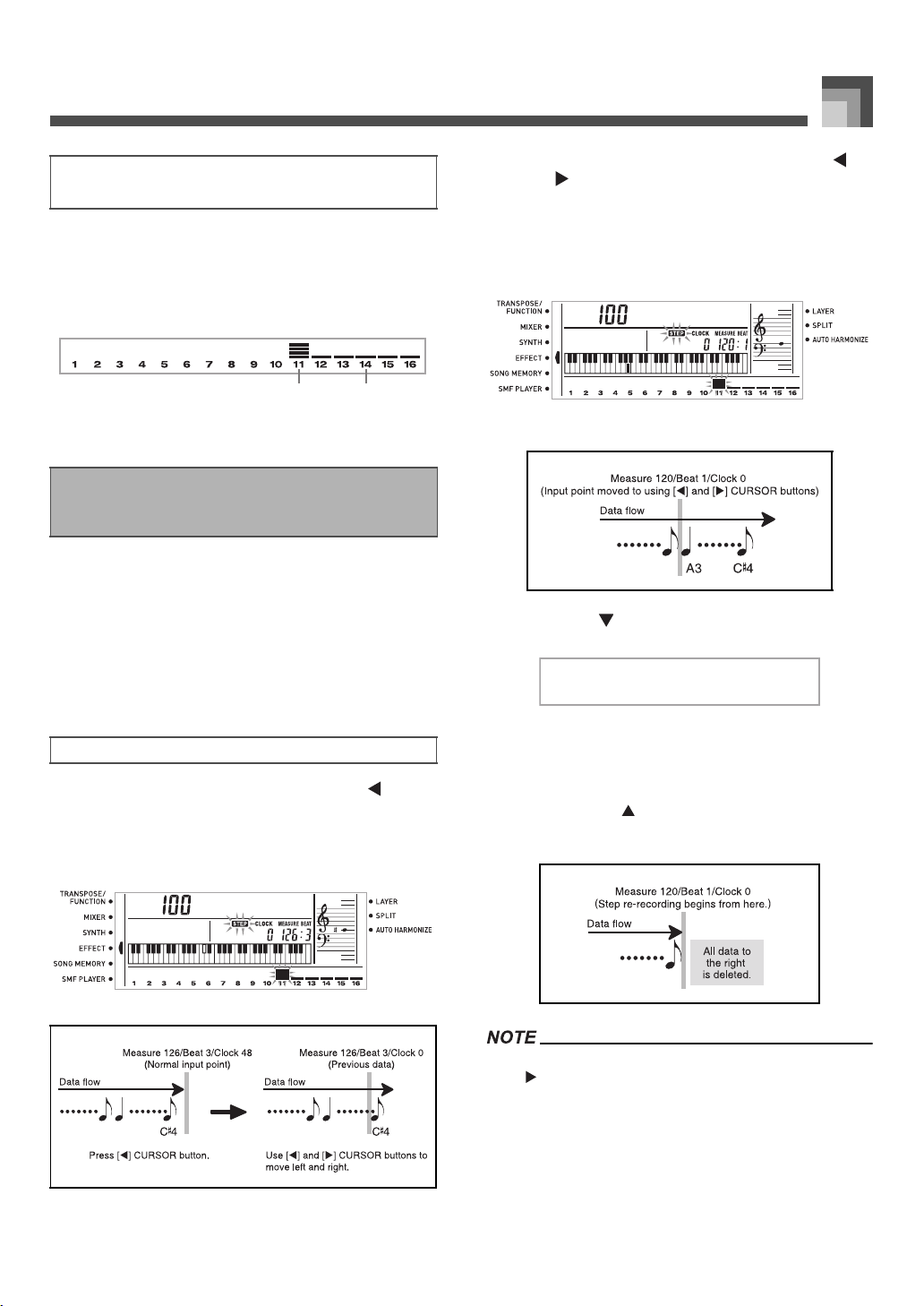
E-57
Song Memory Function
Channels 11 through 16 correspond to Tracks 1 through 6.
Whenever the keyboard is in record or edit (page E-58)
standby, the level meter display shows which tracks already
contain recorded data and which are still empty. Tracks with
four lit segments already contained recorded data, while
tracks with one lit segment are not yet recorded.
1
Recording track
2
Not recording track
Memory data can be thought of as a musical score that
progresses from left to right, with the input point normally at
the far right of the recorded data.
The procedure described here lets you move the input point
to the left in order to make changes in data you have already
input. Note, however, that moving the input point to the left
and changing data automatically deletes all of the data
recorded to the right of the input point.
1. Without exiting step recording, use the [ ]
CURSOR button to move the input point to the left.
• The REC indicator disappears from the display, and
the STEP indicator flashes.
2. Monitoring the data on the display, use the [ ]
and [ ] CURSOR buttons to move the input point
to the data you want to change.
Example:
To re-record all note data following the note A3
located at Measure 120, Beat 1, Clock 0.
3. Press the [ ] CURSOR button.
4. Press the YES button.
• This deletes all data from the location you specified
and enters step record standby.
• Pressing the [ ] CURSOR button or the NO button
cancels deleting the data.
• When you reach the end of the recording by pressing the
[ ] CURSOR button, the REC indicator appears and the
STEP indicator flashes on the display, indicating that you can
add more data using step recording.
Level Meter Contents During Record/Edit
Standby
Correcting Mistakes While Step
Recording
To correct mistakes while step recording
1 2
NeC#4to
NeA3to
Rrte?iwe
707A-E-059A
ページ 2005年3月9日 水曜日 午後5時29分
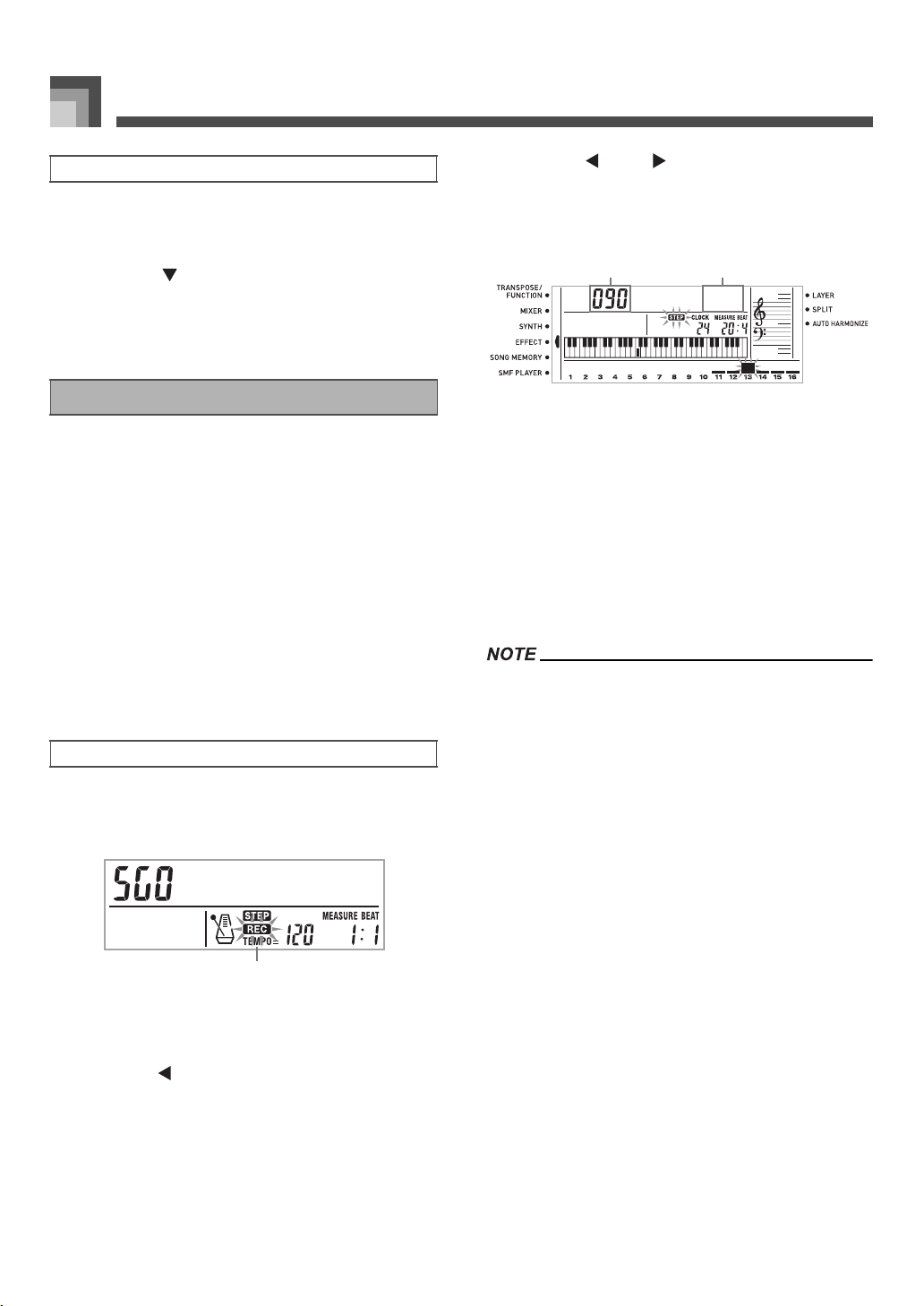
Song Memory Function
E-58
1. Perform steps 1 and 2 under “To correct mistakes
while step recording” above to display the note you
want to delete.
2. Press the [ ] CURSOR button twice.
3. In response to the “Delete?” message that
appears on the screen, press the YES button to
delete the displayed note.
After you record to keyboard memory, you can recall
individual notes and parameter settings (such as tone
number) and make any changes you want. This means you
can correct misplayed notes, make changes in tone selections,
etc.
The following types of data can be edited.
• Note intensity
•Notes
•Chords
• Tone numbers
• Rhythm number
• INTRO/ENDING 1 button, INTRO/ENDING 2 button,
VARIATION/FILL-IN 1 button, VARIATION/FILL-IN 2
button, SYNCHRO/FILL-IN NEXT button operations
1. Press the SONG MEMORY button three times to
enter step recording standby, and then use the [+]
and [–] buttons to select a song number (0 to 4).
1 Flash
2. Use the SONG MEMORY TRACK buttons to
select the recorded track that you want to edit.
3. Press the [ ] CURSOR button to enter the editing
mode.
• The REC indicator disappears from the display, and
the STEP indicator flashes.
4. Use the [ ] and [ ] CURSOR buttons to move
to the location in track where the note or parameter
you want to change is located.
Note editing example
1
Velocity
2
Pitch
5. Make any changes in the value that you want.
• The actual procedures you use to change a parameter
depend on the type of data it contains. See “Editing
Techniques and Display Contents” on page E-59 for
details.
• Repeat steps 4 and 5 to edit other parameters.
6. Press the START/STOP button to end editing
when you are finished.
• The only parameters that can be editted for Tracks 2 through
6 are notes and tone numbers.
• In the case of real-time recording, you later can change tone
numbers you specified while recording to Tracks 1 through 6
is in progress.
• You can only change tone numbers that were originally set
for Tracks 2 through 6 using step recording.
• In the case of real-time recording, you later can change
rhythm numbers you specified while recording to Track 1 is
in progress.
• You can only change rhythm numbers that were originally set
for Track 1 using step recording.
• You cannot use the edit procedure to add more data to a
recording.
• You cannot move portions of a recording to a different
location within the recording.
• Note lengths cannot be changed.
To delete specific note data
Editing Memory Contents
To edit memory contents
S
p
Recet
1
NeC4to
1 2
707A-E-060A
ページ 2005年3月9日 水曜日 午後5時29分
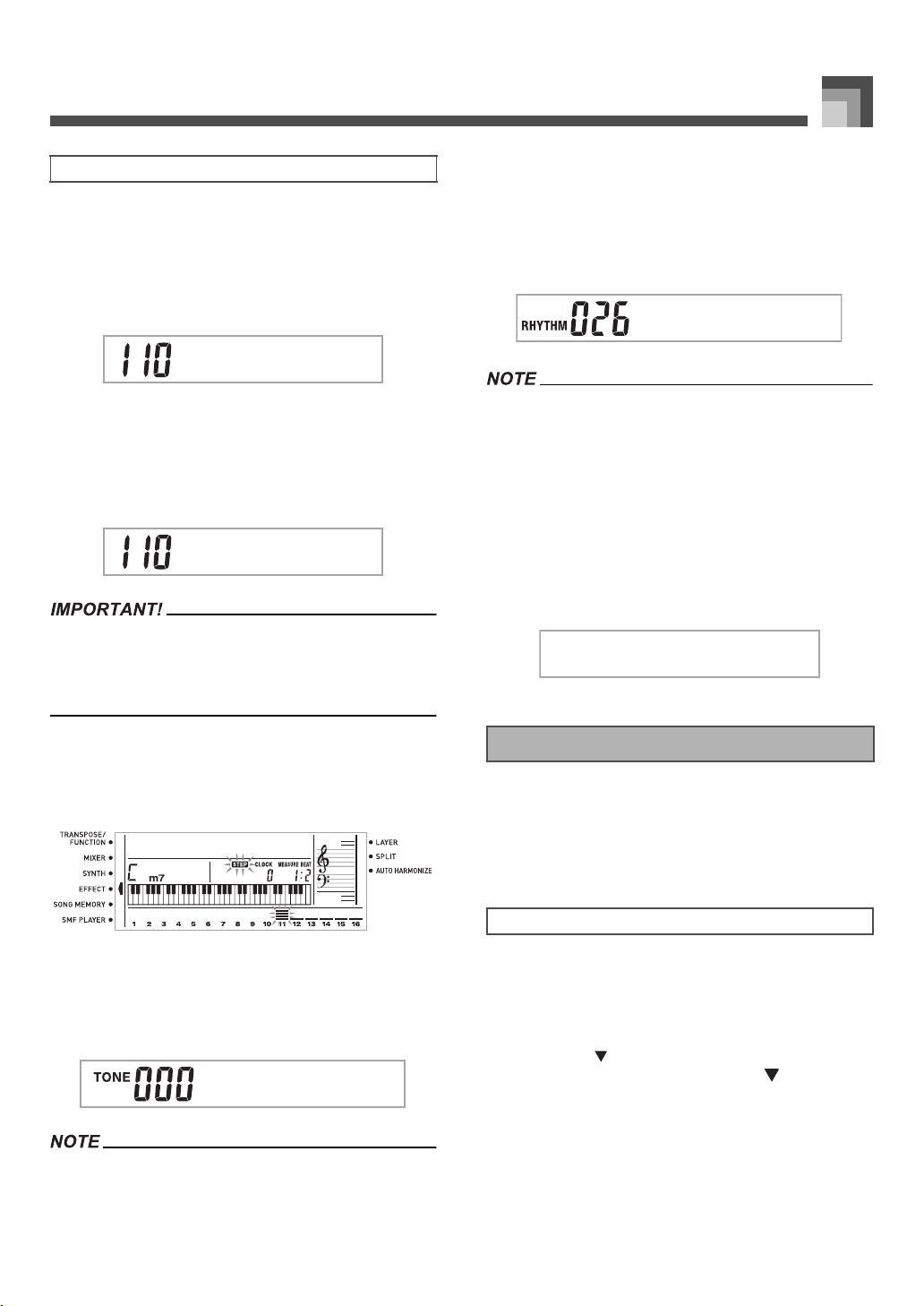
E-59
Song Memory Function
The following describes the editing techniques you can use to
change the various parameters stored in memory.
J To change the key pressure (velocity) of a note
Use the number buttons or [
+
] and [–] to adjust the key
pressure.
J To change the pitch of a note
Input a new note on the keyboard to change the pitch of a
note. The pitch you specify here is reflected in the keyboard
and the notes shown in the staff on the display.
• Whenever editing memory contents, never change a note so
it is identical to the note before or after it. Doing so may alter
the length of the changed note and the note before or after it.
Should this happen, you will have to re-record the entire
track.
J To change a chord
Use the chord fingering method selected by the MODE button
(FINGERED, CASIO CHORD, etc.) to input a chord.
J To change a tone number
Use the number buttons or [
+
] and [–] buttons to change a
tone number.
• In the case of real-time recording, you later can change tone
numbers you specified while recording to Tracks 1 through 6
is in progress.
• You can only change tone numbers that were originally set
for Tracks 2 through 6 using step recording.
J To change a rhythm number
Use the number buttons or [
+
] and [–] buttons to change a
rhythm number.
• In the case of real-time recording, you later can change
rhythm numbers you specified while recording to Track 1 is
in progress.
• You can only change rhythm numbers that were originally set
for Track 1 using step recording.
J To change a rhythm controller operation *
* INTRO/ENDING 1 button, INTRO/ENDING 2 button,
VARIATION/FILL IN 1 button, VARIATION/FILL IN 2
button, SYNCHRO/FILL IN NEXT button operations
Press the rhythm controller button you want to change to.
You can perform the following operations in the song editing
mode.
• Delete a song
• Delete a track
• Song header data rewrite (Panel Record)
1. Press the SONG MEMORY button once to enter
playback standby.
2. Use the [
+
] and [–] buttons to select the number of
the song you want to delete.
3. Press the [ ] CURSOR button. If there is no song
number on the display, press the [ ] CURSOR
button twice.
• This displays the song delete screen.
4. Press the YES button.
• This causes the message “Sure?” to appear,
confirming whether you really want to delete the
song.
Editing Techniques and Display Contents
NeG4to
NeG4to
Crdoh
SGPnor.t
Editing a Song
To delete a song
P1
p
o
I/nd1Etn
707A-E-061A
ページ 2005年3月9日 水曜日 午後5時29分
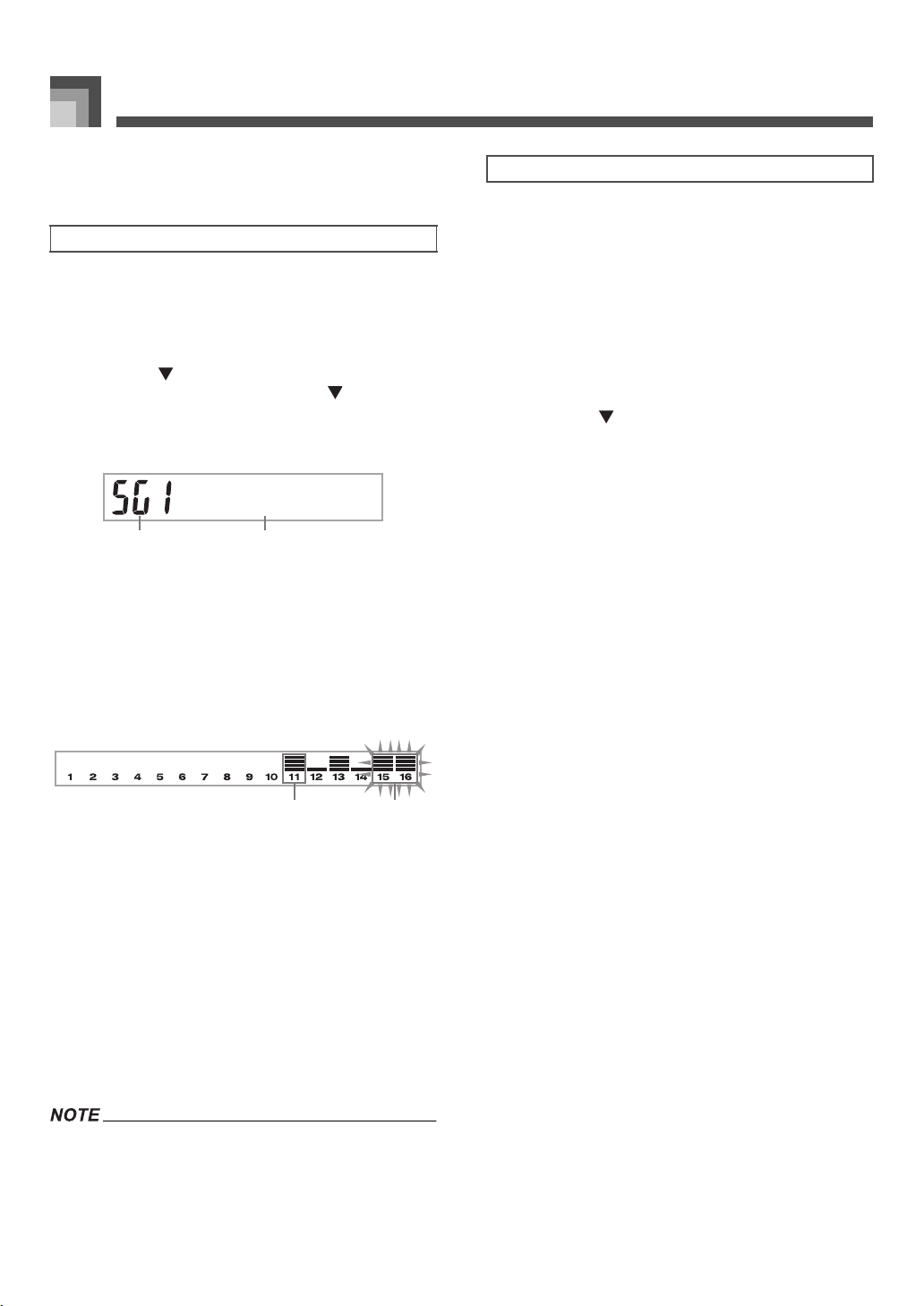
Song Memory Function
E-60
5. Press the YES button to delete the song and return
to playback standby.
1. Press the SONG MEMORY button once to enter
playback standby.
2. Use the [+] and [–] buttons to select the number of
the song that contains the track you want to delete.
3. Press the [ ] CURSOR button. If there is no song
number on the display, press the [ ] CURSOR
button three times.
• This displays the song delete screen.
1
Number of the song that contains the track (cannot
be changed)
2
Track delete standby
4. Use the SONG MEMORY TRACK buttons to
select the recorded track or tracks whose data you
want to delete.
Track delete standby
1
Recorded track
2
Track being deleted (Multiple tracks can be
specified.)
• You can specify more than one track for deletion by
pressing more than one track select button.
• To deselect a track, simply press its track select button
again.
5. Press the YES button.
• This causes the message “Sure?” to appear,
confirming whether you really want to delete the
track.
6. Press the YES button to delete the track.
• You cannot change the song number while in track delete
standby.
• Pressing the SONG MEMORY button while in track delete
standby returns to record standby.
You can use a procedure called “Panel Record” to change the
initial Mixer, tempo and other settings stored in the song
header.
1. Press the SONG MEMORY button once to enter
playback standby.
2. Use the [
+
] and [–] buttons to select the number of
the song that contains the header data you want to
rewrite.
3. Make the changes you want to the header data.
4. Press the [ ] CURSOR button three times.
• This displays the song delete screen.
• This causes the message “Pnel Rec?” to appear on the
display.
5. Press the YES button to rewrite the header data.
To delete a specific track
TDl.?e.r
1 2
1 2
To rewrite song header data (Panel Record)
707A-E-062A
ページ 2005年3月9日 水曜日 午後5時29分
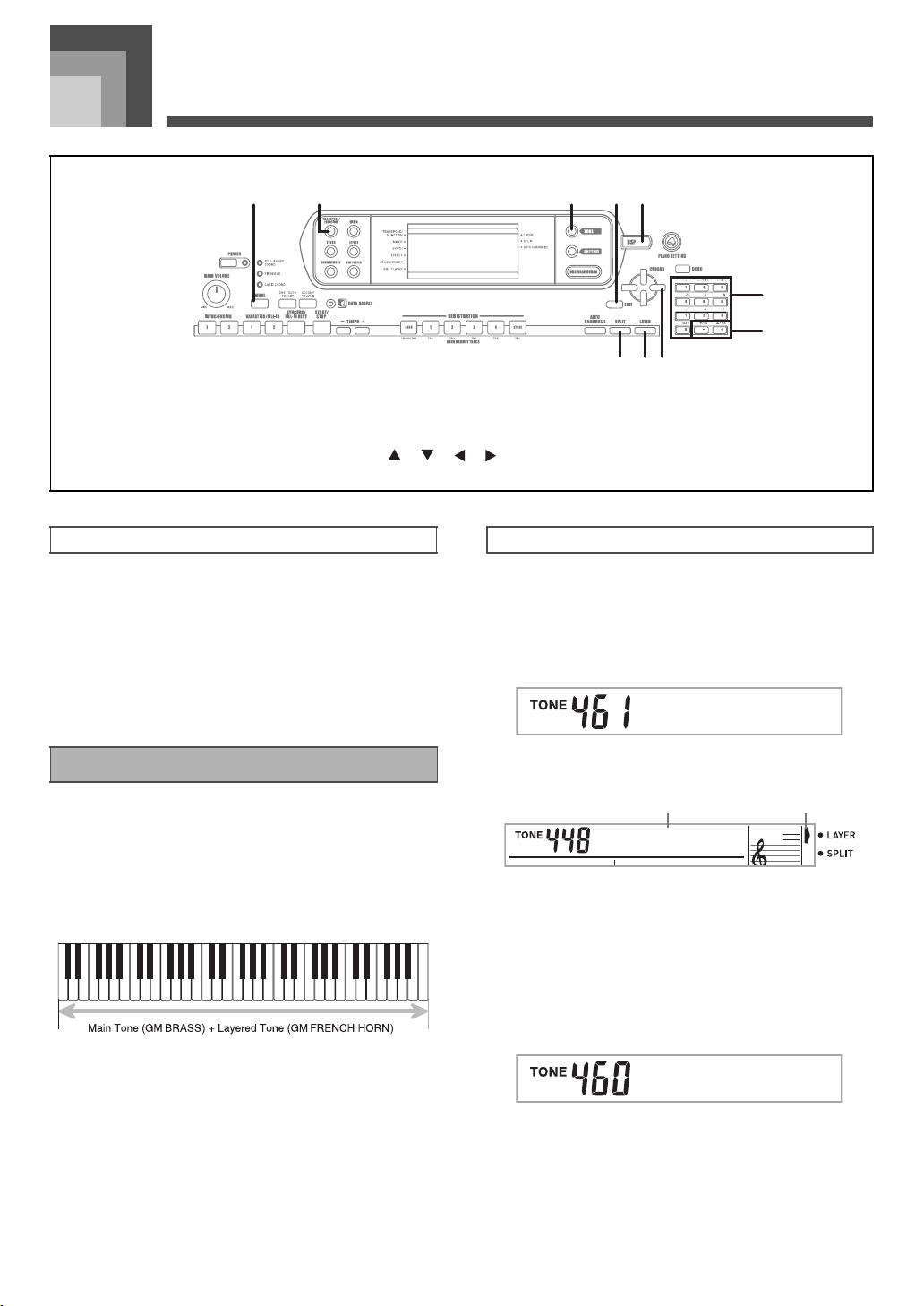
Keyboard Settings
E-61
Keyboard Set tings
Up to four parts (numbered 1 through 4) can be used
simultaneously during keyboard play. These parts can be
used by the layer and split functions explained below.
Layer lets you assign two different tones (a main tone and a
layered tone) to the keyboard, both of which play whenever
you press a key. For example, you could layer the GM
FRENCH HORN tone on the GM BRASS tone to produce a
rich and brassy sound.
J LAYER
1. First select the main tone.
Example:
To select “461 GM BRASS” as the main tone,
press the TONE button and then use the number
buttons to input 4, 6 and then 1.
2. Press the LAYER button.
1
Selected layer tone
2
Pointer
3. Select the layered tone.
Example:
To select “460 GM FRENCH HORN” as the
layered tone, use the number buttons to input 4,
6 and then 0.
4. Now try playing something on the keyboard.
• Both tones are played at the same time.
1
MODE
2
TRANSPOSE/FUNCTION
3 TONE
4
EXIT
5
DSP
6 SPLIT
7
LAYER
8
[ ]/[ ]/[ ]/[ ] CURSOR
9 Number buttons
bk
[
+
]/[–], YES/NO
21
6 7 8
543
9
bk
Parts
Part 1: Main tone part
Part 2: Layered tone part
Part 3: Split tone part
Part 4: Layered and split tone part
Using Layer
To layer tones
Bs Gsar
Si
g
1Gnrt
21
FonGrHr
707A-E-063A
ページ 2005年3月9日 水曜日 午後5時29分
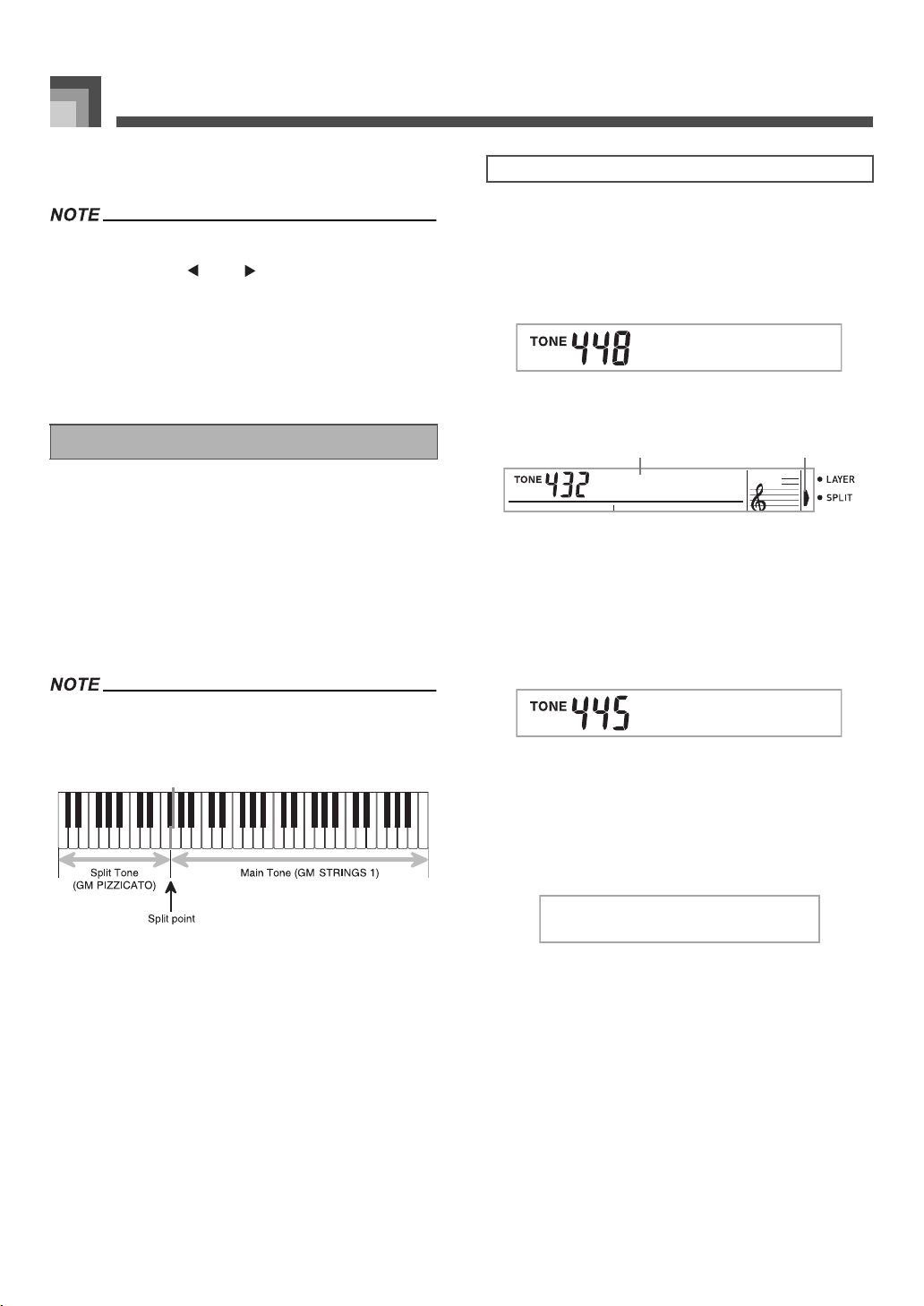
Keyboard Settings
E-62
5. Press the LAYER button again to unlayer the tones
and return the keyboard to normal.
• Turning on layering switches the currently selected part from
Part 1 to Part 2, and displays the layered tone. At that time,
you can use the [ ] and [ ] CURSOR buttons to switch
between parts. Turning off layering returns to Part 1.
• The main tone sounds over Channel 1, while the layered
tone sounds over Channel 2. You can also use the Mixer to
change the tone and volume settings for these channels.
• Note that layering is not possible during record standby or
recording in the Song Memory Mode, or while you are using
the SMF Player Mode.
With split you can assign two different tones (a main tone and
a split tone) to either end of the keyboard, which lets you play
one tone with your left hand and another tone with your right
hand. For example, you could select GM STRINGS 1 as the
main (high range) tone and GM PIZZICATO as the split (low
range) tone, putting an entire string ensemble at your
fingertips.
Split also lets you specify the split point, which is the location
on the keyboard where the changeover between the two tones
occurs.
• Leave the MODE button in the NORMAL or FULL RANGE
CHORD position.
J SPLIT
1. First select the main tone.
Example:
To select “448 GM STRINGS 1” as the main tone,
press the TONE button and then use the number
buttons to input 4, 4 and then 8.
2. Press the SPLIT button.
1
Selected split tone
2
Pointer
3. Select the split tone.
Example:
To select “445 GM PIZZICATO” as the split tone,
use the number buttons to input 4, 4 and then 5.
4. Specify the split point. While holding down the
SPLIT button, press the keyboard key where you
want the leftmost key of the high end range to be.
Example:
To specify G3 as the split point, press the G3 key.
5. Now try playing something on the keyboard.
• Every key from F#3 and below is assigned the GM
PIZZICATO tone, while every key from G3 and above
is assigned the GM STRINGS 1 tone.
6. Press the SPLIT button again to unsplit the
keyboard and return it to normal.
Using Split
To split the keyboard
Si
g
1Gnrt
AuBsGsoc
21
PzatGczi
G3
707A-E-064A
ページ 2005年3月9日 水曜日 午後5時29分
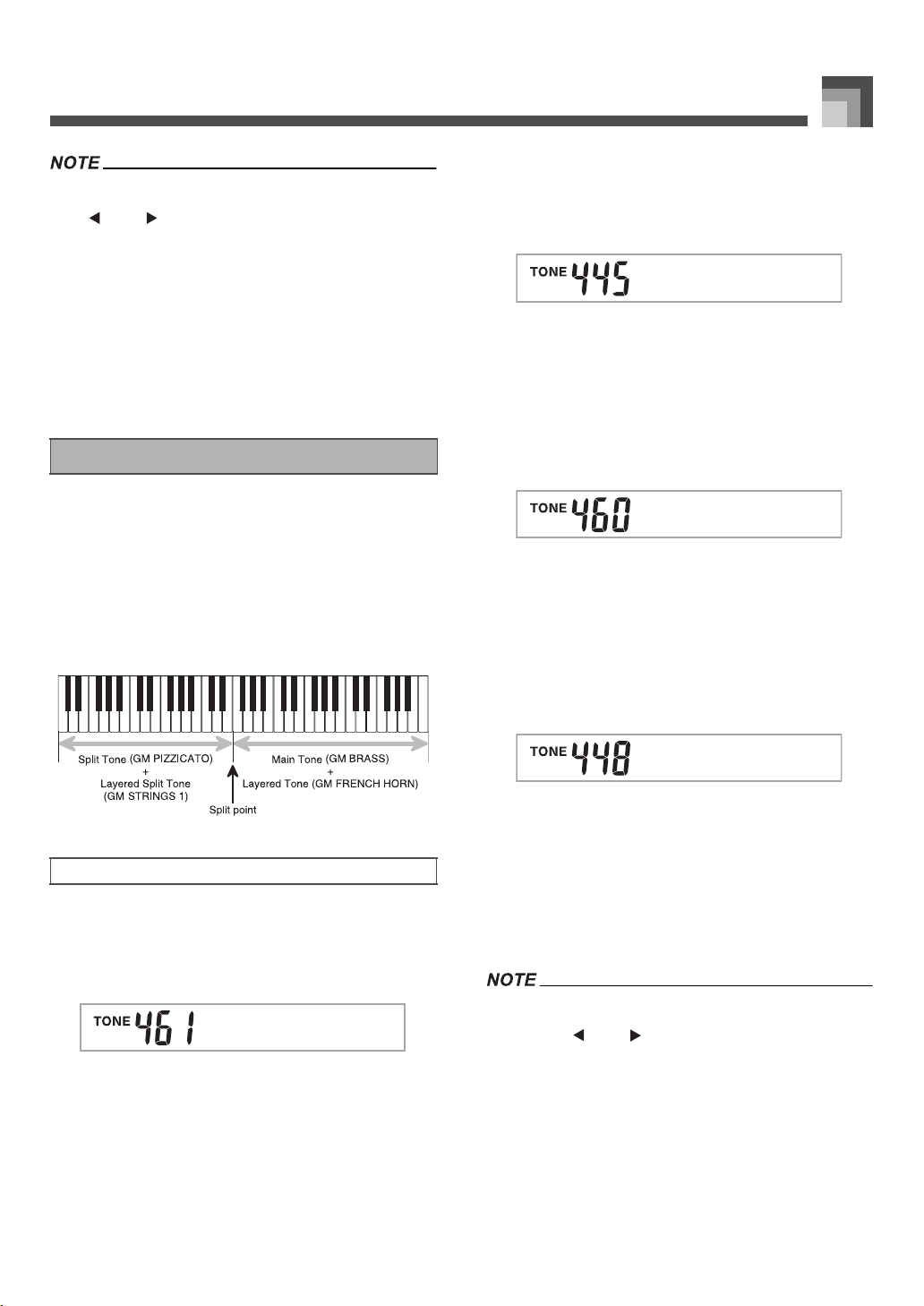
E-63
Keyboard Settings
• Turning on split switches the currently selected part to Part
3, and displays the split tone. At that time, you can use the
[ ] and [ ] CURSOR buttons to switch between parts.
Turning off split returns to Part 1.
• The main tone sounds over Channel 1, while the split tone
sounds over Channel 3. You can also use the Mixer to
change the tone and volume settings for these channels.
• Note that split is not possible during record standby or
recording in the Song Memory Mode, or while you are using
the SMF Player Mode.
• When the accompaniment mode is set to CASIO CHORD or
FINGERED, the accompaniment keyboard range is in
accordance with the split point you specify with the above
procedure.
You can use layer and split together to create a layered split
keyboard. It makes no difference whether you layer tones first
and then split the keyboard, or split the keyboard and then
layer tones. When you use layer and split in combination, the
high range of the keyboard is assigned two tones (main tone
+ layered tone), and the low range two tones (split tone +
layered split tone).
J LAYER SPLIT
1. Press the TONE button and then input the tone
number of the main tone.
Example:
To set “461 GM BRASS” as the main tone.
2. Press the SPLIT button and then input the number
of the split tone.
Example:
To set “445 GM PIZZICATO” as the split tone.
• After specifying the split tone, press the SPLIT button
to unsplit the keyboard.
3. Press the LAYER button and then input the
number of the layered tone.
Example:
To set “460 GM FRENCH HORN” as the layered
tone.
4. Press the SPLIT button or the LAYER button so
both of the SPLIT and LAYER indicators are
displayed.
5. Input the number of the layered split tone.
Example:
To specify the “448 GM STRINGS 1” tone, enter
4, 4, 8.
6. While holding down the SPLIT button, press the
keyboard key where you want the lowest note (the
leftmost key) of the upper range (right side range)
to be.
7. Play something on the keyboard.
• Press the LAYER button to unlayer the keyboard, and
the SPLIT button to unsplit it.
• Turning on layer+split switches the currently selected part to
Part 4, and displays the layered tone. At that time, you can
use the [ ] and [ ] CURSOR buttons to switch between
parts. Turning off layer returns to Part 3, while turning off split
returns to Part 2. Turning off both layer and split returns to
Part 1.
• The main tone sounds over Channel 1, the layer tone over
Channel 2, the split tone over Channel 3, and the layer/split
tone over Channel 4. You can also use the Mixer to change
the tone and volume settings for these channels.
Using Layer and Split Together
To split the keyboard and then layer tones
Bs Gsar
PzatGczi
Fon GrHr
Si
g
1Gnrt
707A-E-065A
ページ 2005年3月9日 水曜日 午後5時29分
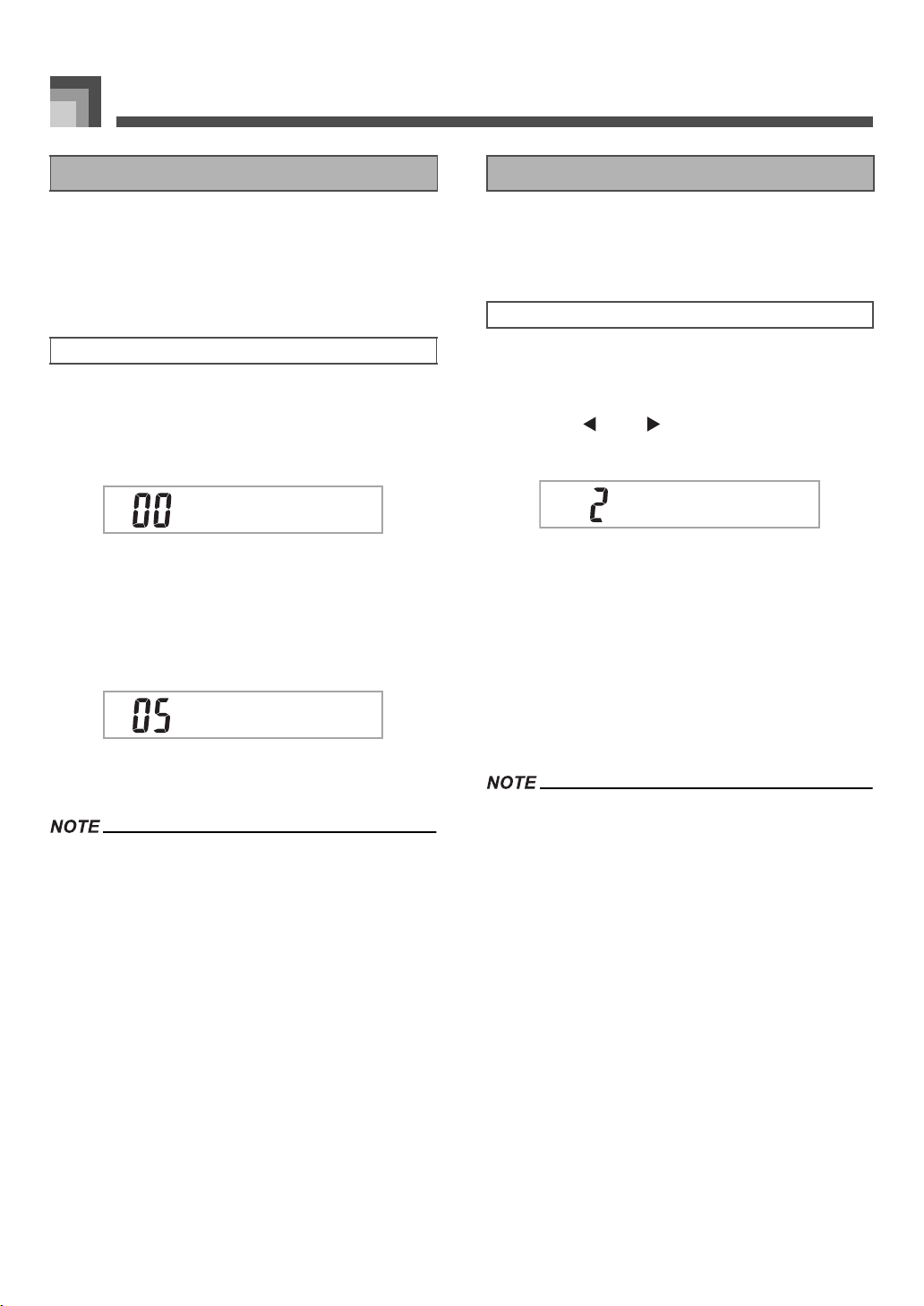
Keyboard Settings
E-64
Transpose lets you raise and lower the overall key of the
keyboard in semitone units. If you want to play an
accompaniment for a vocalist who sings in a key that’s
different from the keyboard, for example, simply use
transpose to change the key of the keyboard.
1. Press the TRANSPOSE/FUNCTION button.
• This causes a pointer to appear on the display next to
TRANSPOSE/FUNCTION, and displays the
transpose setting screen.
2. Use [+] and [–] to change the transpose setting of
the keyboard.
Example:
To transpose the keyboard five semitones
upwards.
• Pressing the TRANSPOSE/FUNCTION button exits
the transpose screen.
• The keyboard can be transposed within a range of –24 (two
octave downwards) to +24 (two octave upwards).
• The transpose setting also affects playback from song
memory and Auto Accompaniment.
• The allowable pitch range you can transpose within depends
on the tone you are using. If a transpose operation causes a
note to be outside of the pitch range for the tone being used,
the keyboard automatically plays the same note in the
nearest octave that falls within the pitch range of the tone you
are using.
When touch response is turned on, the relative volume of
sound output by the keyboard is varied in accordance with
the amount of pressure applied, just like an acoustic piano.
1. Press the TRANSPOSE/FUNCTION button.
• This causes a pointer to appear on the display next to
TRANSPOSE/FUNCTION.
2. Use the [ ] and [ ] CURSOR buttons to display
the touch response setting screen.
3. Use the [
+
] and [–] buttons to select the touch
response sensitivity level.
• “1” outputs powerful sound even with light key
pressure, while “3” requires very heavy key pressure
to output powerful sound.
• Pressing [
+
] and [–] at the same time returns
sensitivity to the “2” setting.
• When you select “oFF”, the tone does not change
regardless of how much pressure you apply to the
keyboard.
• Touch response not only affects the keyboard’s internal
sound source, it also is output as MIDI data.
• Song Memory playback, accompaniment, and external MIDI
note data do not affect the touch response setting.
Transposing the Keyboard
To transpose the keyboard
Tn.sar
Tn.sar
Using Touch Response
To turn touch response on and off
Tchuo
707A-E-066A
ページ 2005年3月9日 水曜日 午後5時29分
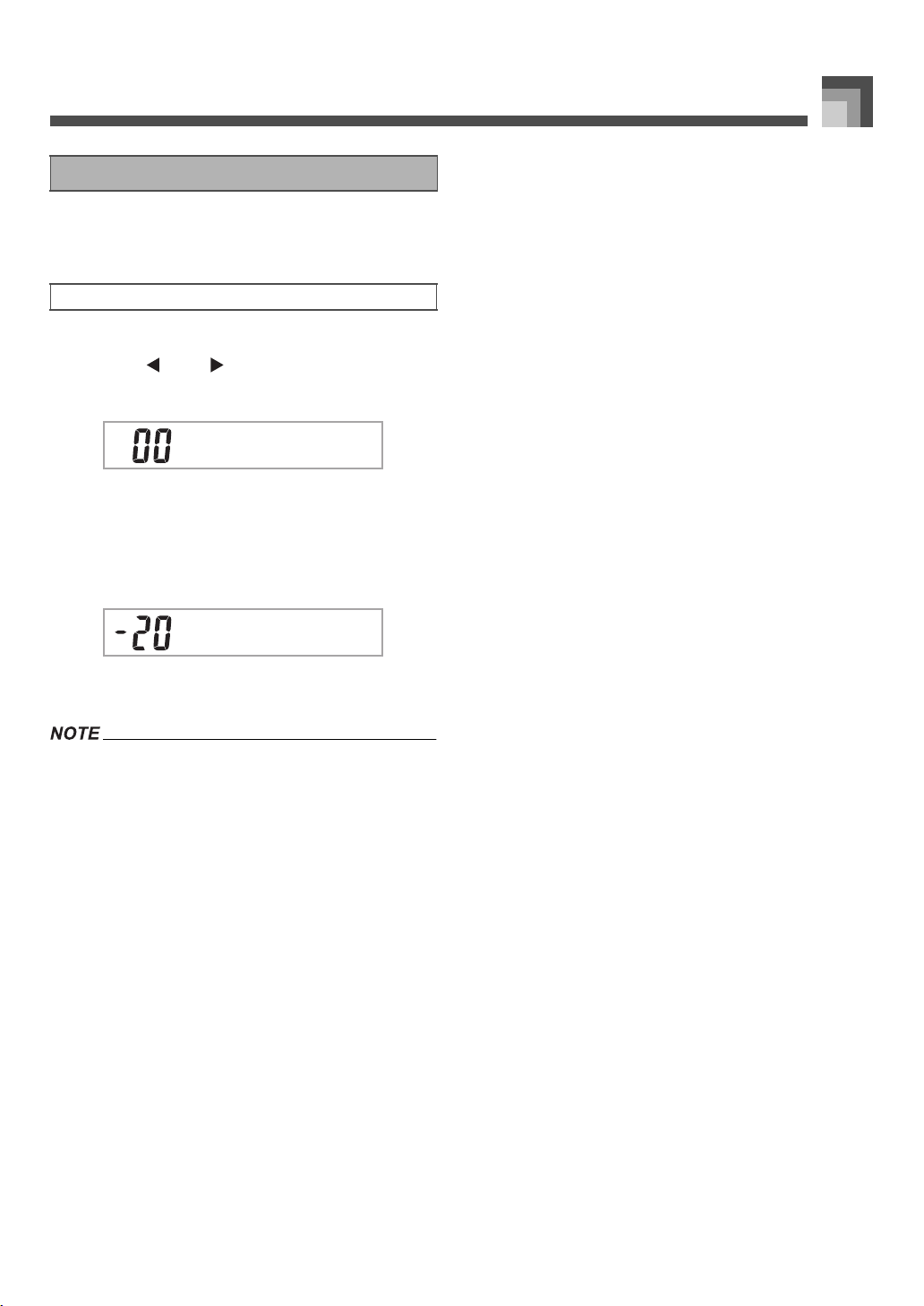
E-65
Keyboard Settings
The tuning feature lets you fine tune the keyboard to match
the tuning of another musical instrument.
1. Press the TRANSPOSE/FUNCTION button.
2. Use the [ ] and [ ] CURSOR buttons to display
the tuning screen.
3. Use [+] and [–] to change the tuning setting of the
keyboard.
Example:
To lower the tuning by 20.
• Pressing the TRANSPOSE/FUNCTION button exits
the transpose screen.
• The keyboard can be tuned within a range of –99 cents to
+99 cents.
* 100 cents is equivalent to one semitone.
• The tuning setting also affects playback from song memory
and Auto Accompaniment.
Tuning the Keyboard
To tune the keyboard
Tenu
Tenu
707A-E-067A
ページ 2005年3月9日 水曜日 午後5時29分
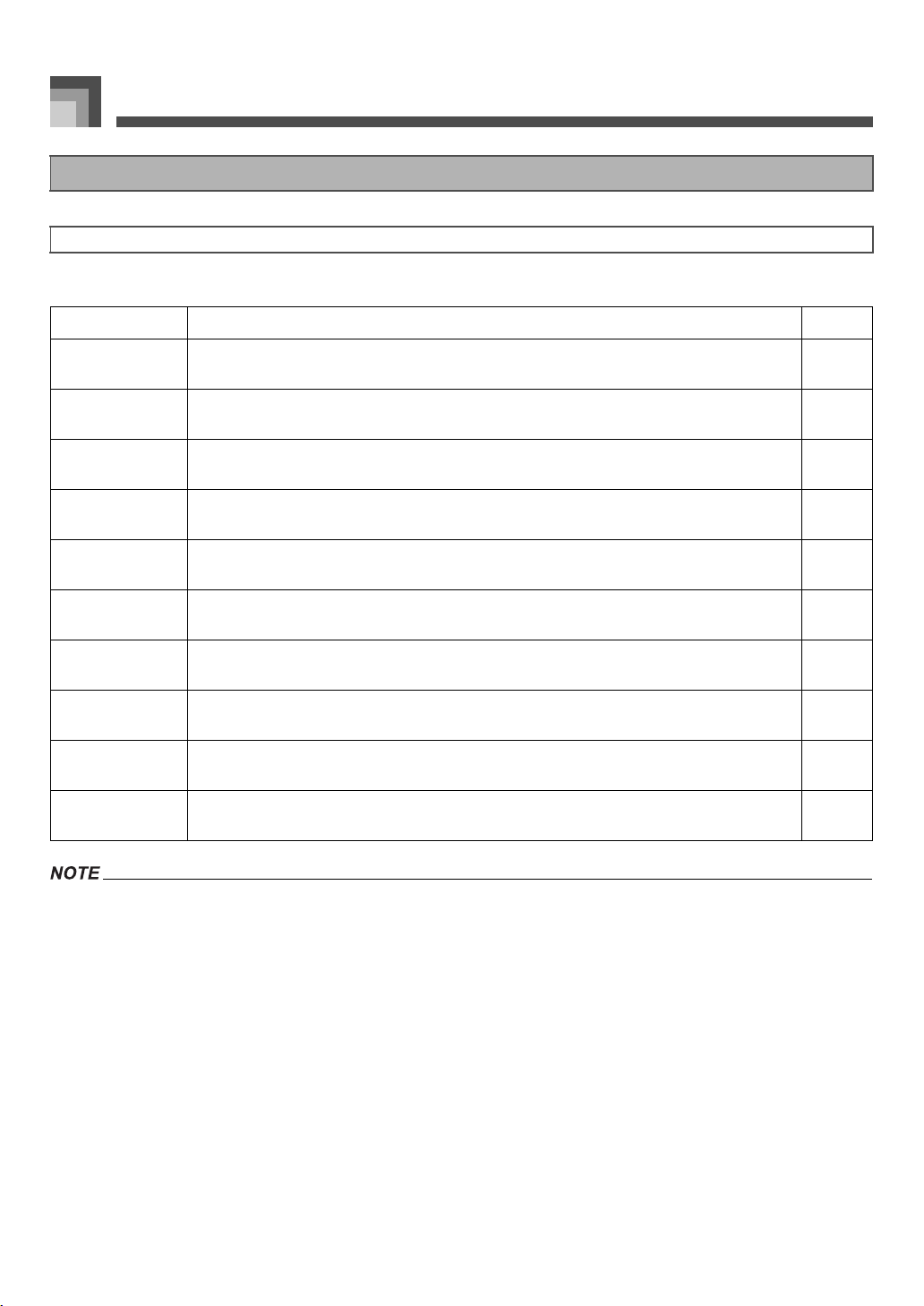
Keyboard Settings
E-66
The table below shows the parameters whose settings you can change.
• The above settings are all saved whenever you turn off the keyboard. For details, see “Memory Contents” on page E-14.
• MIDI settings and Delete/Initialize settings are disabled while you are using the SMF Player or Song Memory function.
Changing Other Settings
Setting Types
Setting menu Description Page
Transpose
(Trans.)
Adjusts overall keyboard tuning by semitone units. E-64
Auto Harmonize
(AutoHarm)
Selects the Auto Harmonize Type. E-69
Touch Response
(Touch)
Specifies how sound should change with keyboard pressure. E-64
Tune
(Tune)
Fine adjustment of overall keyboard tuning. E-65
Contrast
(Contrast)
Adjusts display brightness. E-69
Assignable Jack
(Jack)
Assigns effects to pedals. E-69
Mixer Hold
(MixHold)
Turns mixer hold on or off. E-69
DSP Hold
(DSP Hold)
Turns DSP hold on or off. E-69
MIDI
(MIDI)
MIDI settings E-70
Delete/Initialize
(Del/Init)
Initialization can be used to return keyboard parameters to their initial factory default settings,
or to delete all data currently in keyboard memory.
E-70
707A-E-068A
ページ 2005年3月9日 水曜日 午後5時29分
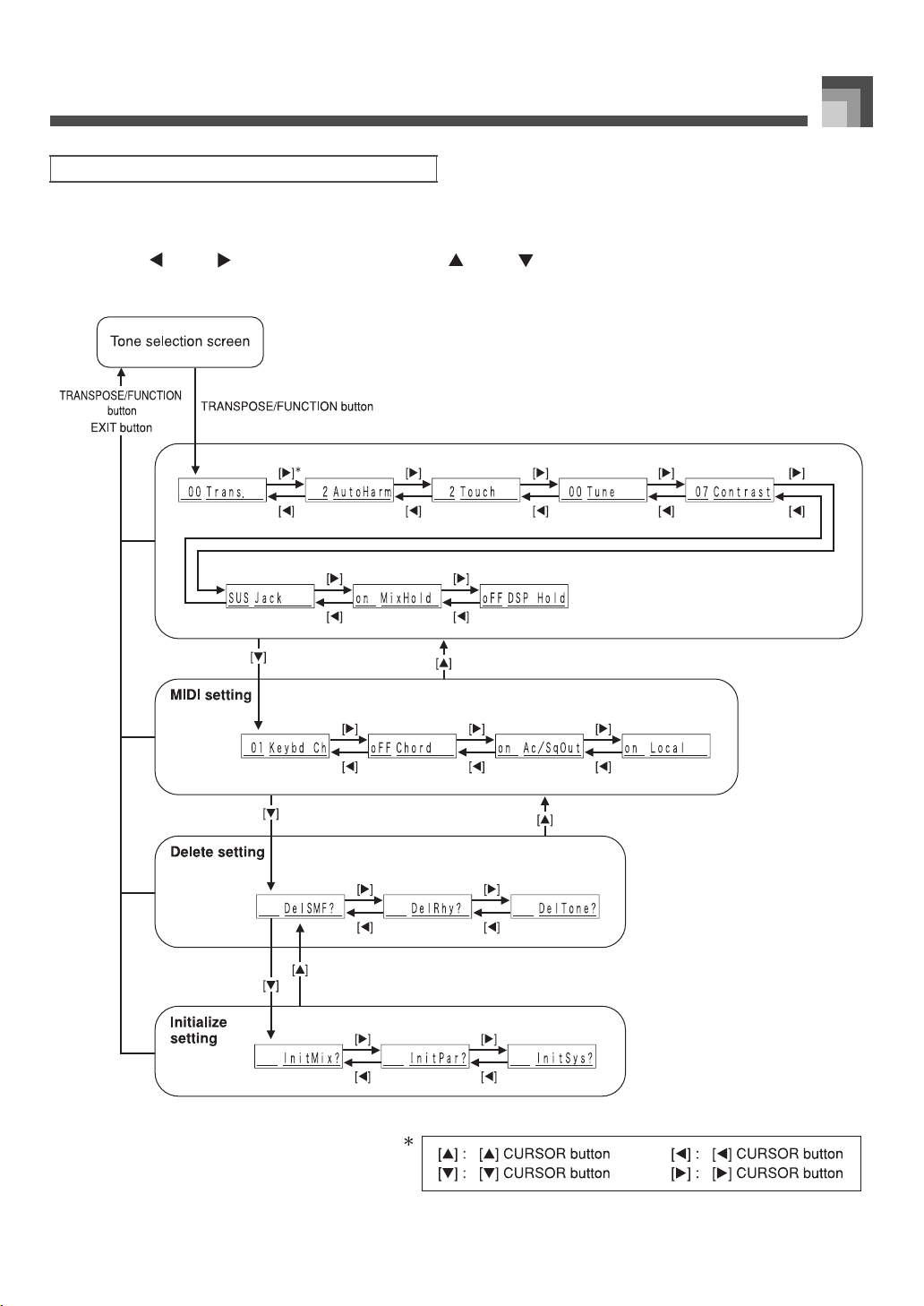
E-67
Keyboard Settings
1. Press the TRANSPOSE/FUNCTION button.
• This causes a pointer to appear on the display next to TRANSPOSE/FUNCTION.
2. Use the [ ] and [ ] CURSOR buttons, and the [ ] and [ ] CURSOR buttons to recall the items whose
settings you want to change.
To use the keyboard settings menu
707A-E-069A
ページ 2005年3月9日 水曜日 午後5時29分
Keyboard Settings
E-68
3. Use the [
+
] and [–] buttons or the number buttons to change the values.
• Settings you make are applied even if you do not press the EXIT button.
• See the following section titled “Setting Menu Items” for details on each setting.
• After making the settings you want, press the TRANSPOSE/FUNCTION button or EXIT button to return to the tone or
rhythm selection screen.
z In case of a delete or initialize procedure
4. Press the YES button.
• This displays the user area number and data name of the data to be deleted.
• The data size value represents kilobyte units.
5. Now use the number buttons, or the [
+
] (increase) and [–] (decrease) buttons to select the data you want.
6. Press the [ ] CURSOR button.
• This causes the message “Sure?” to appear, confirming whether you really want to perform the delete or initialize operation.
7. Press the YES button to complete the operation.
• This performs the delete or initialize operation and returns to the step 5 screen.
8. After making the settings you want, press the TRANSPOSE/FUNCTION button or EXIT button to return to the
tone or rhythm selection screen.
• It can take about 40 seconds to perform a delete or initialize procedure after you pressing the YES button in step 7 above. The message
“Pls Wait” will remain on the display to indicate that a procedure is being performed. Never try to perform any operation while “Pls Wait”
is displayed. Performing any operation can damage the keyboard’s memory and cause it to malfunction.
707A-E-070A
ページ 2005年3月9日 水曜日 午後5時29分
E-69
Keyboard Settings
J Auto Harmonize Types
You can select from among the 10 different types of auto harmonize listed below.
J Other Settings
Setting Menu Items
No. Type Description
0 Duet1 Adds a 1-part harmony to keyboard play.
1 Duet2 Adds a 1-part harmony to keyboard play. Duet2 harmony is more open than Duet1.
2 Country Adds a country-flavor harmony to keyboard play.
3 Octave Adds notes one octave below notes played on the keyboard.
4 5th Adds fifth notes above notes played on the keyboard.
5 3-Way Open Adds two open harmony parts to notes played on the keyboard (creating three-part harmony).
6 3-Way Close Adds two close harmony parts to notes played on the keyboard (creating three-part harmony).
7 Strings Adds harmony suitable for strings.
8 Block Adds block chord notes.
9 Big Band Adds harmony suitable for big band play.
Setting menu Range Default Description
Contrast
(Contrast)
00 to 15 07 Adjusts display contrast.
Assignable Jack
(Jack)
SUS SUS Assigns the sustain pedal effect to a pedal.
SoS — Assigns the sostenuto pedal effect to a pedal.
SFt — Assigns the soft pedal effect to a pedal.
rhy — Assigns the START/STOP button function to a pedal.
Mixer Hold
(MixHold)
on/oFF oFF
When Mixer Hold is turned on, the parameters of accompaniment parts
(Part 6 through Part 10) cannot be modified by accompaniment data.
DSP Hold
(DSP Hold)
on/oFF oFF
on: Current DSP line setting is maintained, even when the tone is
changed.
oFF: Changing the tone switches to the DSP line setting of the new
tone.
707A-E-071A
ページ 2005年3月9日 水曜日 午後5時29分
Keyboard Settings
E-70
J MIDI Settings
J Delete/Initialize Settings
Setting menu Range Default Description
Keyboard Channel
(Keybd Ch)
01 to 16 01 Specifies the send channel for main tone play.
MIDI In Chord Judge
(Chord)
on/oFF oFF
Specifies whether accompaniment range MIDI Note On messages
received from an external device should be interpreted as auto
accompaniment chords.
Accomp/Song MIDI Out
(Ac/sg Out)
on/oFF oFF
Specifies whether this keyboard’s auto accompaniment or song
memory is sent as MIDI messages.
Local Control Setting
(Local)
on/oFF on Specifies whether the keyboard should sound the parts played on it.
Setting menu Range Default Description
SMF Delete — — Deletes selected SMF data.
User Rhythm Delete — — Deletes selected user rhythm data.
User Tone Delete — — Deletes selected user tone data.
Mixer Reset
(InitMix?)
— —
Initializes parameters assigned by the Mixer or by input from an
external sequencer.
Parameter Reset
(InitPar?)
— — Initializes all parameters, except for the display contrast setting.
System Reset
(InitSys?)
— —
Initializes the keyboard’s parameters and registration data, and deletes
all data stored in the keyboard’s user area.
707A-E-072A
ページ 2005年3月9日 水曜日 午後5時29分
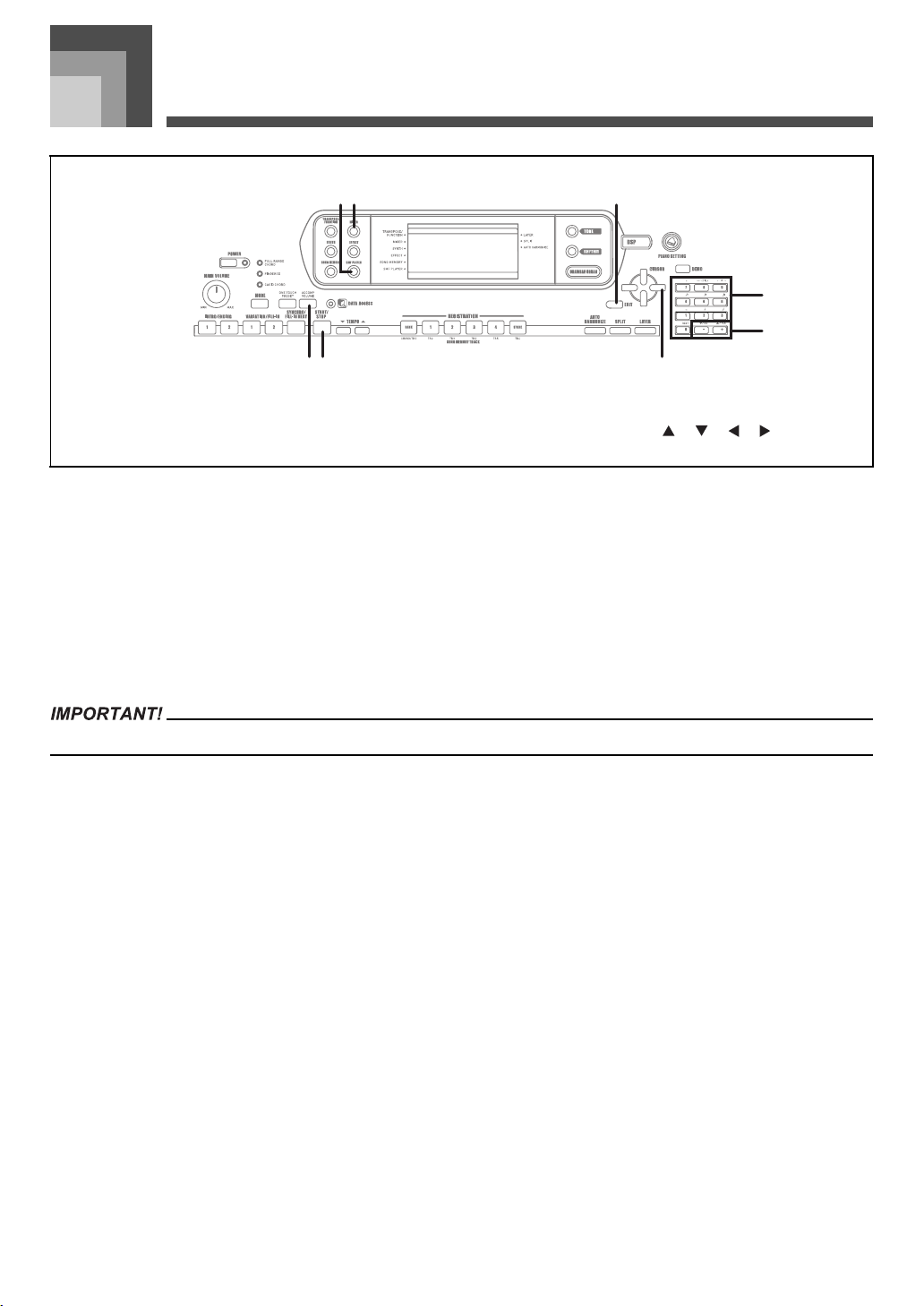
Using the SMF Player
E-71
Using the SMF P layer
The letters “SMF” stand for Standard MIDI File, which is a file format that allows MIDI data to be shared between different software
and sequencers. There are actually three SMF formats, named SMF 0, SMF 1, and SMF 2. This keyboard supports the SMF 0 format,
which is the one that is most widely used today, and so all mentions of “SMF data” in this manual refer to SMF 0 format data.
The Flash Memory built into your keyboard lets you store SMF format music data for playback whenever you want. You can have
up to 200 music files* in Flash Memory at one time. You can use your computer to transfer SMFs from the bundled CD-ROM to
keyboard flash memory, or SMFs you have downloaded from the CASIO MUSIC SITE. See “Using the Music Data Management
Software (on the Bundled CD-ROM)” on page E-76 for more information.
* Note that the number of files you can store in memory also depends on the size of each file. If your files are very large, you may
be able to store fewer than 200.
* Initially, your keyboard comes with three sample SMF tunes in memory.
• Note that CASIO COMPUTER CO., LTD. shall not be held liable for any loss of data stored in this keyboard’s Flash Memory.
1
SMF PLAYER
2
MIXER
3
EXIT
4
ACCOMP VOLUME
5
START/STOP
6
[ ]/[ ]/[ ]/[ ] CURSOR
7
Number buttons
8
[
+
]/[–]
12
5 64
3
7
8
707A-E-073A
ページ 2005年3月9日 水曜日 午後5時29分
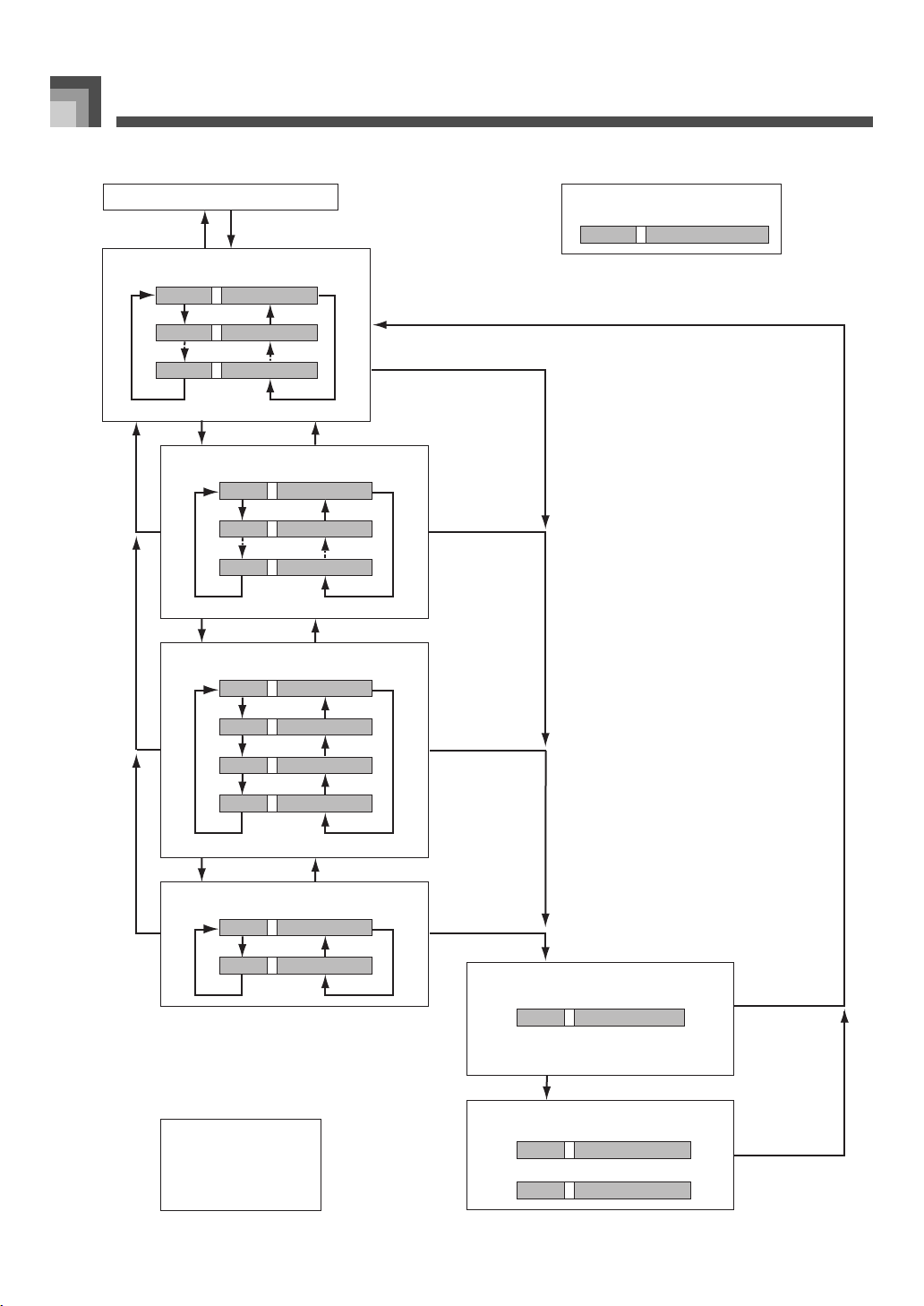
Using the SMF Player
E-72
SMF Player Mode Operational Flow
[
⊳
]*, [
–
]
Select file.
Select play along part.
000
ABC1
File Name
File Number
001 ABC 2
File NameFile Number
Error (Other errors may also occur.)
During SMF playback
Data is not an SMF 0 format
Data is not correct SMF
Err Not SMF0
Err WrongDat
01
Key Ch
Part Number
04
Key Ch
16
Key Ch
001
ABC2
ABC3
[
]*, [+]
[
⊳
], [
–
][
], [+]
[
], [+] [
⊳
], [
–
]
[
⊳
], [
–
][
], [+]
[
⊳
], [
–
]
[
⊳
], [
–
]
[
], [+]
[
], [+]
Direct input using number buttons is also possible.
You can use the [
⊳
] and [
] CURSOR buttons or
[+] and [
–] buttons to change the SMF.
Direct input using number buttons is also possible.
Direct input using number buttons is also possible.
Tone/Rhythm Selection Screen
SMF PLAYER button
SMF PLAYER button
EXIT button
START/STOP button
START/STOP button
START/STOP button
EXIT button
EXIT button
EXIT button
[
]*[
]*
Select output mode.
int
Output
Output Mode
out
Output
[
⊳
], [
–
][
], [+]
[
⊳
], [
–
]
[
], [+]
[
][
]
Select play back mode.
S1
PlayMode
Playback Mode
SL
PlayMode
A1
PlayMode
[
⊳
], [
–
][
], [+]
[
⊳
], [
–
]
[
⊳
], [
–
]
[
], [+]
AL
PlayMode
[
⊳
], [
–
]
[
], [+]
[
], [+]
Direct input using number buttons is also possible.
[
][
]
START/STOP button
Playback stopped.
START/STOP button,
Playback complete.
[
] : [
] CURSOR button
[
] : [
] CURSOR button
[
⊳
] : [
⊳
] CURSOR button
[
] : [
] CURSOR button
*
008
Text Area
Number Area
Display Screen
707A-E-074A
ページ 2005年3月10日 木曜日 午前12時35分
E-73
Using the SMF Player
1. Press the SMF PLAYER button to display the file
selection screen.
• This causes the SMF player pointer to appear on the
display.
• SMF are those whose file names end with the
extension “MID”. An error message appears at this
time if there are no SMF files currently in Flash
Memory.
2. Use the number buttons to input the three-digit file
number of the file you want to play.
• The name of the currently selected file will appear in
the text area of the display. The file number is shown
in the number area of the display. The Tempo/
Measure area of the display shows the size of the file
in kilobytes.
• You can also use the [ ] and [ ] CURSOR buttons
or [+] and [–] buttons to change the file.
3. Press the START/STOP button.
• This starts playback of the selected file.
• You can use the TEMPO buttons to adjust the tempo
within the range of 30 to 255.
• You can turn channels 1 through 16 on and off,
regardless of whether file playback is in progress or
stopped. For more information, see “Turning
Channels On and Off” on page E-36.
4. To stop file playback, press the START/STOP
button again.
The following procedure explains how to control the overall
volume of SMF data playback. You can adjust volume while
playback is stopped or ongoing.
1. Press the ACCOMP VOLUME button.
• This causes the “SMF Vol.” indicator to appear on the
display, along with a value that indicates the current
SMF volume setting.
2. Use the [
+
] and [–] buttons or the number buttons
to adjust the SMF volume.
• You can specify a setting in the range of 000
(minimum) to 127 (maximum).
• Pressing [
+
] and [–] at the same time returns the SMF
volume setting to 100.
• Note that this setting does not affect the volume of the
notes you play on the keyboard.
1. While playback is stopped, select the file you want
to play back.
• Perform steps 1 through 2 under “To play back an
SMF” to select a file.
2. Press the [ ] CURSOR button to display a
screen for selecting the part you want to play on
the keyboard (play along part).
• Use the [ ] and [ ] CURSOR buttons or the [
+
] and
[–] buttons to select the play along part.
• Press the MIXER button to enter the Mixer Mode.
• Turn off the channel that corresponds to the play
along part you selected above. See “Turning Channels
On and Off” on page E-36 for more information.
Performing this step turns off the applicable part so
you can play it on the keyboard along with the rest of
the SMF playback.
• Entering the SMF Player Mode initializes all parts by turning
on all Mixer Mode channels.
• After configuring Mixer Mode settings, press the MIXER
button or EXIT button to return to the SMF Player Mode.
3. Press the [ ] CURSOR button to display the
playback mode selection screen.
• Use the [ ] and [ ] CURSOR buttons or the [
+
] and
[–] buttons to select the playback mode.
• You can select from among the following four
playback modes.
Playing Back an SMF
To play back an SMF
Adjusting SMF Playback Volume
Configuring Other Settings
To configure other settings
S1: One file, one time
SL: One file, repeat
A1: All files, one time
AL: All files, repeat
707A-E-075A
ページ 2005年3月9日 水曜日 午後5時29分
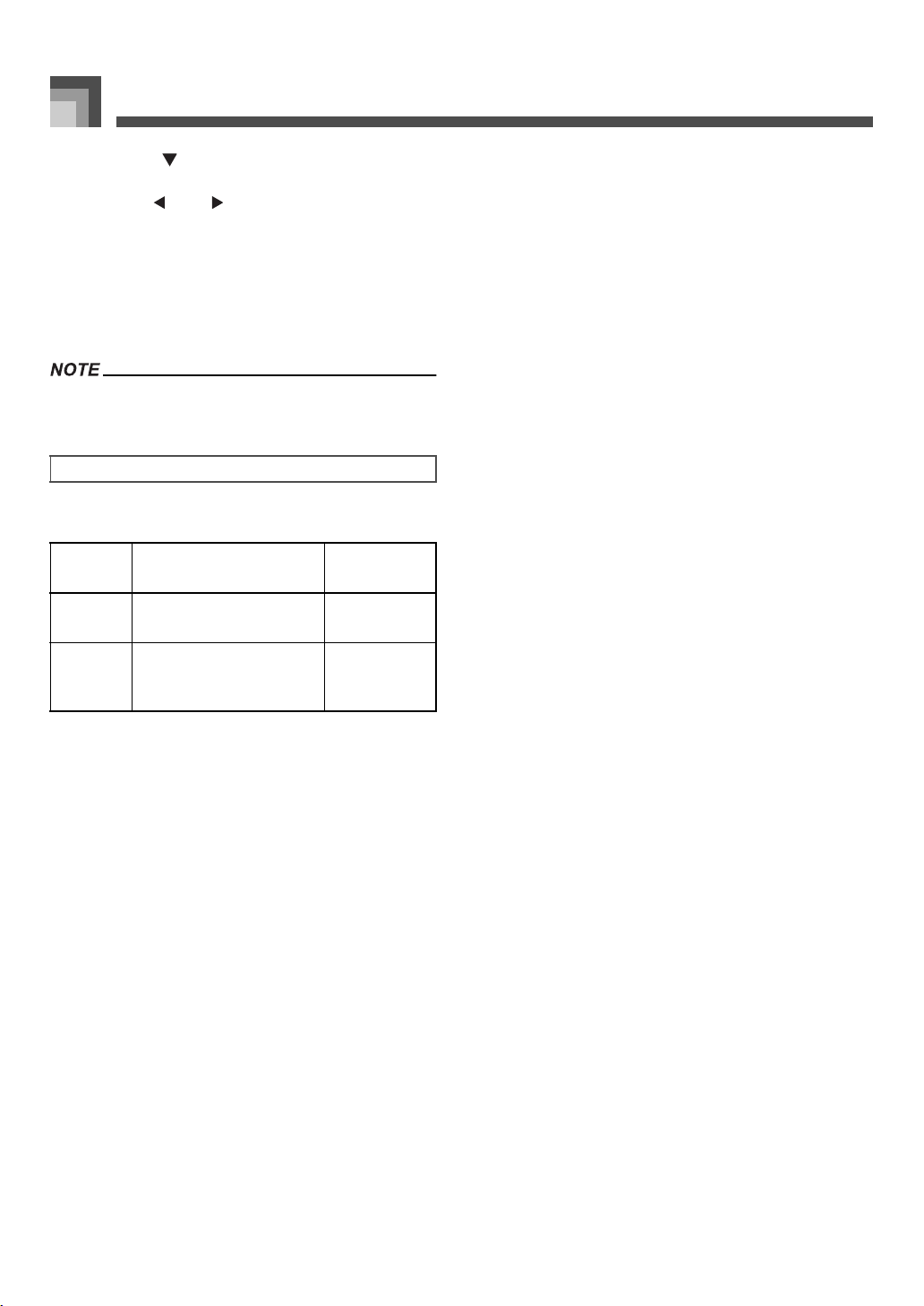
Using the SMF Player
E-74
4. Press the [ ] CURSOR button to display the
output mode selection screen.
• Use the [ ] and [ ] CURSOR buttons or the [
+
] and
[–] buttons to select the output mode.
• You can select from among the following two output
types.
• Layer, split, and Auto Harmonize are automatically turned off
in the SMF Player Mode.
The following explains what you should do when an error
message appears in the SMF Player Mode.
int: Keyboard’s built-in speakers
out: MIDI OUT
SMF Player Error Messages
Error
Message
Cause Action
Err
Not SMF0
You are attempting to play
SMF data that is not Format 0.
Use only Format
0 SMF data.
Err
WrongDat
There is a problem with the
SMF data you are trying to
play or the data is corrupted.
Use different
data.
707A-E-076A
ページ 2005年3月9日 水曜日 午後5時29分
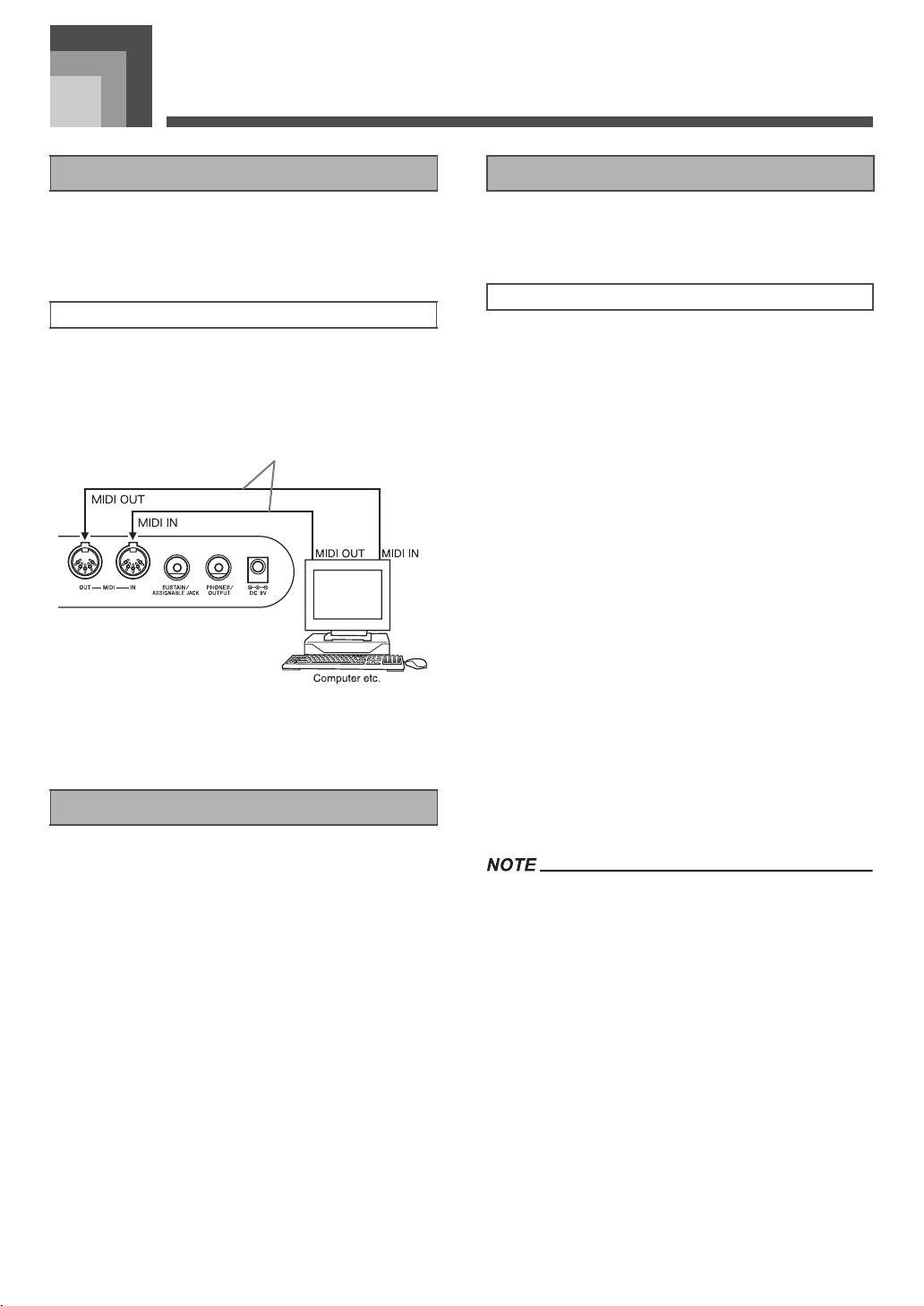
MIDI
E-75
MIDI
MIDI is a standard for digital signals and connectors that
allows musical instruments, computers, and other devices,
regardless of manufacturer, to exchange data with each other.
To use a computer or other MIDI device to record and
playback the MIDI data produced by this keyboard, you must
connect the MIDI IN and MIDI OUT terminals of both devices
in order to send and receive data.
Rear Panel
If a MIDI THRU function provided by the software is being
run on a connected computer or other MIDI device, be sure to
turn this keyboard’s “Local Control Setting” off (page E-70).
This keyboard supports General MIDI, so it can be used to
play commercially available pre-recorded General MIDI data
and General MIDI data send to it from a personal computer.
See the “Tone List” on page A-1 for details about the tones
that are available with GM tones numbered 000 to 127.
You can change the settings of a number of parameters that
control how MIDI messages are sent and received.
You can use the parameter setting procedure (page E-67) to
change the settings of the MIDI parameters described below.
See page E-70 for details about the setting menu and
procedure.
z MIDI In Chord Judge
This parameter determines whether note data received from
an external device should be interpreted as an auto
accompaniment chord fingering. Turn on this parameter
when you want to control auto accompaniment chords from
a computer or other external device.
z Accomp/Song MIDI Out (Accompaniment/Song MIDI
Out)
Turn on this parameter when you want sound auto
accompaniment or Song Memory on an external devices
sound source.
• For details about MIDI specifications, visit the CASIO
Website.
http://world.casio.com
What is MIDI?
MIDI Connections
General MIDI
MIDI cable: MK-5
MIDI Settings
MIDI Parameters
•on : Causes note data input through MIDI IN to be
interpreted as auto accompaniment chord
fingerings. The channel specified by the keyboard
channel is used for specifying chords.
•oFF : Turns off “MIDI In Chord Judge”.
•on : Outputs auto accompaniment or Song Memory as
MIDI messages through the keyboard’s MIDI OUT
terminal.
•oFF : Does not output auto accompaniment or Song
Memory.
707A-E-077A
ページ 2005年3月9日 水曜日 午後5時29分
MIDI
E-76
The Music Data Management Software application on the
CD-ROM that comes bundled with the keyboard lets you
transfer data you downloaded from the CASIO MUSIC SITE
from your computer to keyboard memory. You can also use it
to save keyboard data to your computer’s hard disk. Music
Data Management Software supports transfer of the
following type of data.
•SMF
• Rhythm Patterns
•Registrations
• User songs created in the Song Memory Mode
• Drum sounds with waveform
• Drawbar organ tones
•Tone
• Tones with waveforms
•DSP
• Package file
• All user data
CASIO MUSIC SITE
http://music.casio.com/
Music Data Management Software
Music Data Management Software makes it possible for your
computer to transfer data you downloaded from the CASIO
Music Site to keyboard memory, and to transfer keyboard
memory data to your computer’s hard disk for storage. After
starting up the Music Data Management Software, you can
access the following three converter applications.
Wave Converter
Wave Converter creates keyboard Tone With Wave data from
tone data files (.wav) stored on your computer's hard disk.
Rhythm Converter
Rhythm Converter creates keyboard Rhythm data from SMF
format rhythm data stored on your computer's hard disk.
Parameter Editor
Parameter Editor makes it possible to use your computer to
edit keyboard parameters.
To install the Music Data Management Software
• Before installing the Music Data Management Software, be
sure to read the contents of the applicable readme.txt file.
You can find the readme.txt file inside the same language
folder where the Music Data Management Software you
are installing is located.
1. To install the Music Data Management Software, navigate
to the CD-ROM on your computer and double-click
“wk3-30.exe”. Next, follow the instructions that appear on
your computer screen.
* An English-language manual with detailed explanations
about Music Data Management Software operations is
located in the English folder on the CD-ROM. You can
access the manual by opening its HTML named
“index.html” using one of the following types of web
browser applications. Other language versions of this
manual are available for free download from the CASIO
MUSIC SITE.
Internet Explorer 4 or higher
Netscape Navigator 4.04 or higher
Supported Computer Operating Systems
The Music Data Management Software will run under the
following operating systems.
Windows 98SE
Windows Me
Windows 2000
Windows XP
• Though Music Data Management Software is designed to
run under the standard configurations of the above operating
systems, note that it may not be able to run correctly under
certain software and hardware environments.
• Music Data Management Software does not support
operation on a Macintosh.
Downloading Data
Visit the CASIO MUSIC SITE for information about
downloading data.
When you arrive at the CASIO MUSIC SITE, select a
geographic area or country. Next, select an Internet Data
Expansion System data download service.
Note that the services that are available at the CASIO MUSIC
SITE depend on the area or country you select.
Bundled CD-ROM Data
The CD-ROM that comes bundled with the keyboard has a
folder named “Data”, which contains various data folders.
For details about the data contained in the data folders, see
the “list.txt” file inside of each folder.
Using the Music Data
Management Software (on the
Bundled CD-ROM)
707A-E-078A
ページ 2005年3月9日 水曜日 午後5時29分
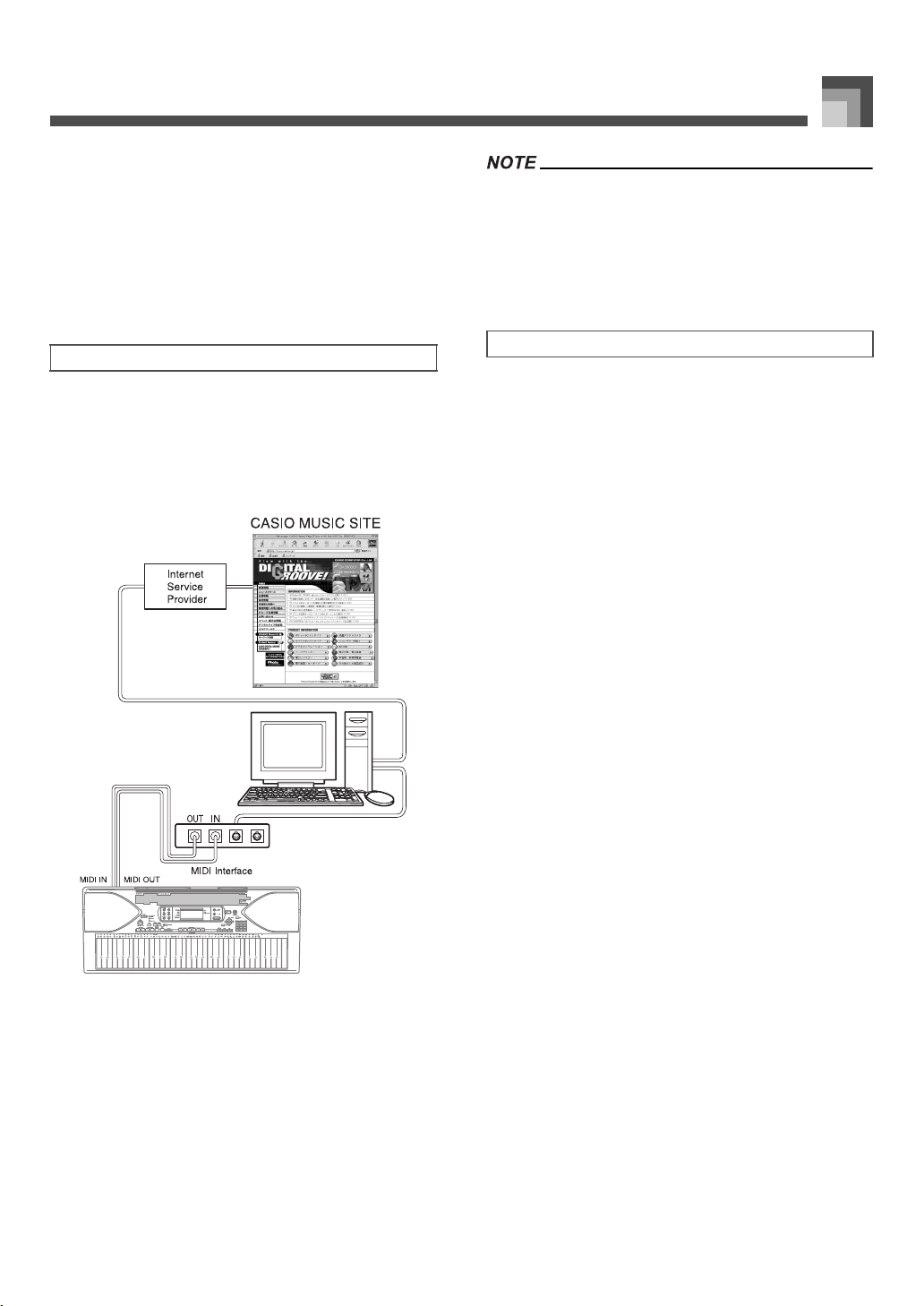
E-77
MIDI
Returning the keyboard to its initial factory defaults
The “Data” folder on the CD-ROM that comes bundled with
the keyboard includes a file named “alldata.ckf”, which
contains factory default setup data. Transferring the
“alldata.ckf” data to the keyboard’s flash memory will return
all settings to their initial factory defaults.
• For information about transferring data to the keyboard’s
flash memory, see the application software manual.
Be sure to turn off the keyboard and your computer before
connecting them. You should also set the volume controller of
the keyboard to a relatively low volume.
1. Connect the keyboard’s MIDI interface to your
computer’s MIDI interface.
2. Turn on the keyboard, and then turn on your
computer or other connected device.
3. Start up the software you want to use on your
computer.
• When using the application software, make sure that the
tone setting screen (the screen that appears after turning on
power) is on the keyboard’s display screen.
• Performing a keyboard operation while transferring data
between it and a computer may interrupt the data transfer.
Do not perform any keyboard operations while data transfer
is in progress.
• The DATA ACCESS lamp lights whenever the keyboard is
exchanging data with a connected computer over a MIDI
cable connection. Never disconnect the MIDI cable while
the DATA ACCESS lamp is lit.
To connect to a computer
CTK-900
DATA ACCESS Lamp
707A-E-079A
ページ 2005年3月18日 金曜日 午後1時57分
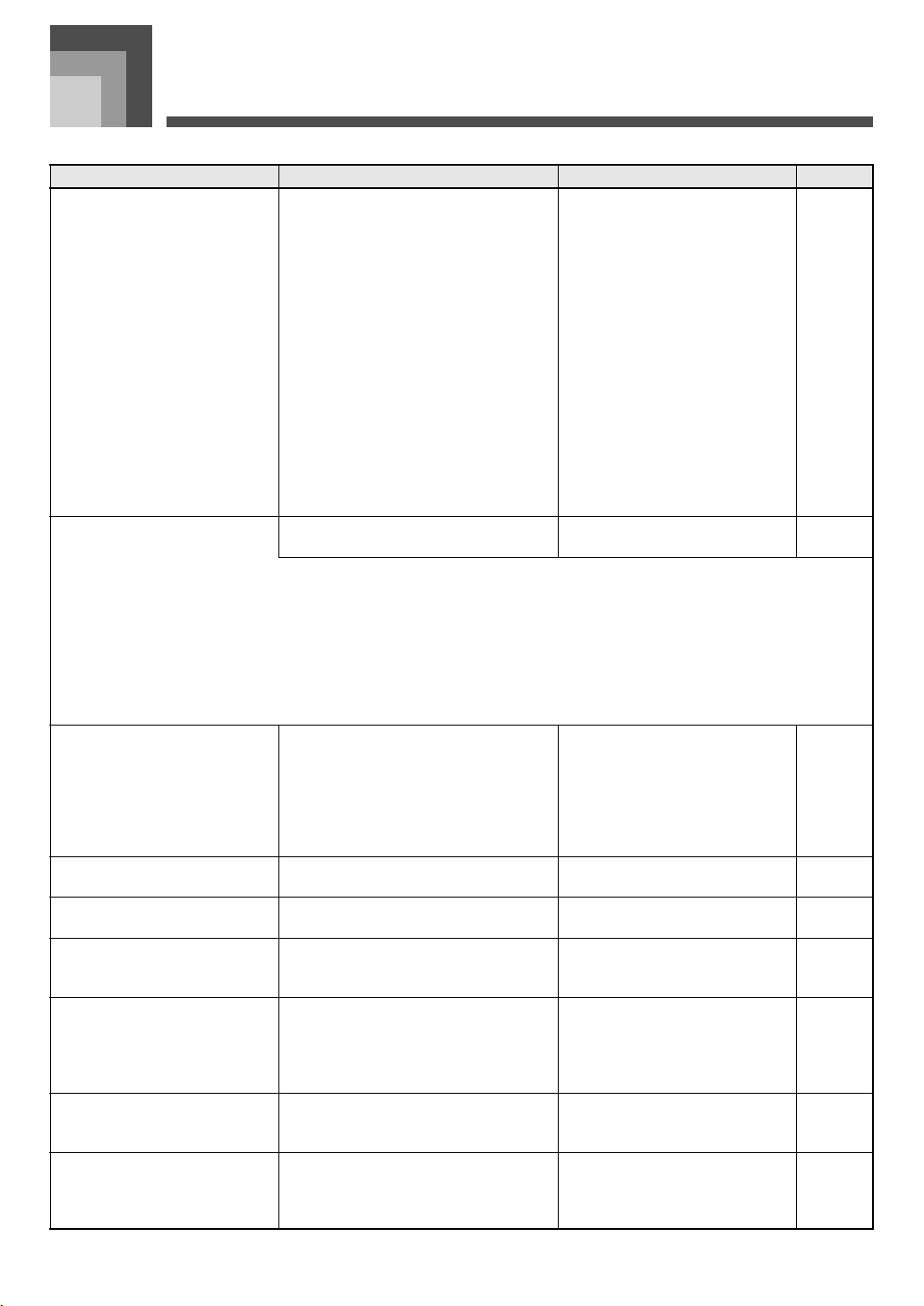
Troubleshooting
E-78
Troubleshoo ting
Problem Possible Cause Action See page
No keyboard Sound 1. Power supply problem.
2. Power is not turned on.
3. Volume setting is too low.
4. Playing in the accompaniment
keyboard area while the MODE
button setting is CASIO CHORD or
FINGERED.
5. Local Control is off.
6. Mixer channel 1 is turned off.
7. Mixer channel 1 volume setting is too
low.
1. Correctly attach the AC
adaptor, make sure that
batteries poles (+/–) are facing
correctly, and check to make
sure that batteries are not dead.
2. Press the POWER button to
turn on power.
3. Use the MAIN VOLUME knob
to increase volume.
4. None of the accompaniment
mode indicators are lit, which
means Auto Accompaniment is
turned off.
5. Turn on Local Control.
6. Use the Mixer to turn channel 1
on.
7. Use the Mixer to raise the
volume setting for channel 1.
E-12, 13
E-16
E-16
E-28
E-70
E-36
E-37, 38
Any of the following symptoms
while using battery power.
Low battery power Replace the batteries with a set of
new ones or use the AC adaptor.
E-12, 13
Auto Accompaniment does not
sound.
1. Accompaniment volume is set to 000.
2. Auto Accompaniment part Channels
6 through 10 are turned off.
3. Auto Accompaniment part Channels
6 through 10 volume setting is too
low.
1. Use the ACCOMP VOLUME
button to increase the volume.
2. Use the Mixer to turn the
channels on.
3. Use the Mixer to raise the
volume setting for the
applicable channel.
E-35
E-36
E-37, 38
Sound output does not change
when key pressure is varied.
Touch response is turned off. Press the TRANSPOSE/
FUNCTION button to turn it on.
E-64
Playing the keyboard sounds two
tones.
Layer is turned on. Press the LAYER button to turn off
layering.
E-61
Different tones sound when keys
in different keyboard ranges are
pressed.
Split is turned on. Press the SPLIT button to turn off
split.
E-62
The key or tuning does not match
when playing along with another
MIDI machine.
1. The tuning or transpose parameter is
set to a value other than 00.
2. Mixer coarse tune, fine tune, and/or
octave shift settings are values other
than 00.
1. Change the transpose or tuning
parameter value to 00.
2. Use the Mixer to change the
coarse tune, fine tune, and/or
octave shift settings to 00.
E-64, 65
E-38
Parts suddenly drop out during
song memory playback.
The number of tones being played at the
same time exceeds the keyboard’s
limitation.
Use the Mixer to turn unneeded
channels off and decrease the
number of parts being played.
E-36
Some parts do not play at all
during song memory playback.
1. Channels are turned off.
2. Volume setting is too low.
1. Use the Mixer to turn channels
on.
2. Use the Mixer to check the
volume setting.
E-36
E-37, 38
• Dim power indicator
• Instrument does not turn on.
• Display that is flickering, dim, or
difficult to read
• Abnormally low speaker/headphone
volume
• Distortion of sound output
• Occasional interruption of sound
when playing at high volumes
• Sudden power failure when playing at
high volumes
• Flickering or dimming of the display
when playing at high volume
• Continued sound output even after
you release a key
• A tone that is totally different from the
one that is selected.
• Abnormal rhythm pattern and demo
tune play
• Loss of power, sound distortion, or
low volume when playing from a
connected computer or MIDI device
707A-E-080A
ページ 2005年3月9日 水曜日 午後5時29分
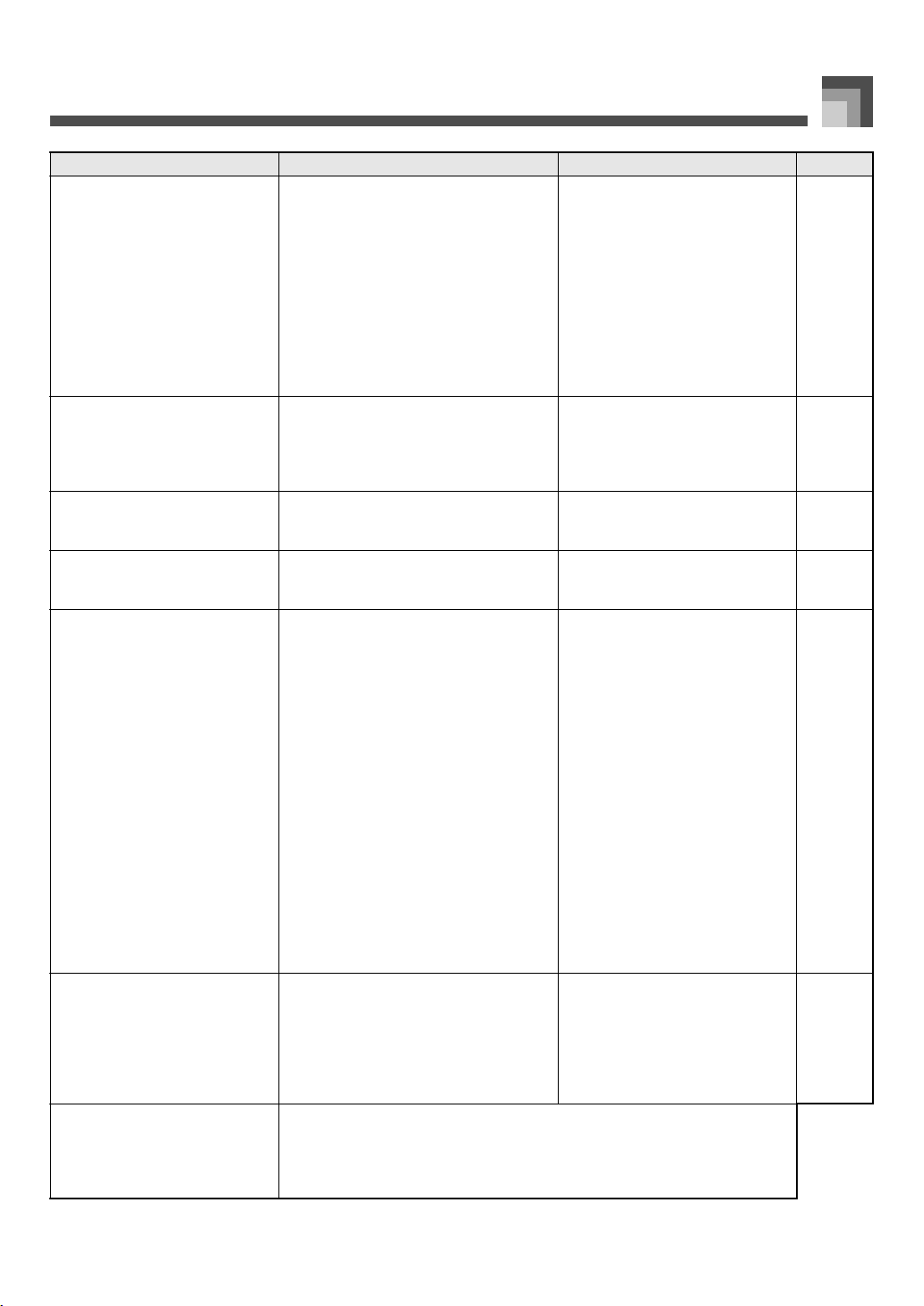
E-79
Troubleshooting
Nothing happens when the
LAYER or SPLIT button is
pressed.
1. One or more of the melody channels
(2 through 4) is turned off.
2. The volume setting of one or more of
the melody channels (2 through 4) is
too low.
3. The keyboard is in record standby.
4. The SMF Player Mode is currently
being use.
1. Use the Mixer to turn on
Channels 2 through 4.
2. Use the Mixer to raise the
volume setting of Channels 2
through 4.
3. The LAYER and SPLIT buttons
are disabled during recording
and record standby.
4. Turn off the SMF Player Mode.
LAYER and SPLIT are not
available while the SMF Player
Mode is in use.
E-36
E-37, 38
E-61, 62
E-71
No sound is produced when
playing MIDI data from a
computer.
1. MIDI cables are not connected
properly.
2. Channel is turned off, or volume
setting is too low.
1. Connect MIDI cables properly.
2. Use the Mixer to turn the
channel on, or raise the volume
setting.
E-75
E-36, 38
Playing on the keyboard produces
an unnatural sound when
connected to a computer.
The computer’s MIDI Thru function is
turned on.
Turn off the MIDI Thru function on
the computer or turn off Local
Control on the keyboard.
E-70
Cannot record chord
accompaniment data on a
computer.
Accomp/Song MIDI Out is turned off. Turn on Accomp/Song MIDI Out. E-70
The keyboard starts up
abnormally when it is turned on.
1. Flash memory is corrupted.
2. The keyboard detected abnormal
flash memory data and is
automatically resetting the keyboard
system.
1. a. Remove the batteries from the
keyboard and disconnect the
AC adaptor and press the
POWER button.
b. Reload the batteries and/or
reconnect the AC adaptor, and
then press the POWER button
again to turn on power
c. Use the TRANSPOSE/
FUNCTION button to perform
the system reset operation
• If this does not solve the
problem, contact your
nearest authorized CASIO
Service Provider to request
repair.
2. Wait (about 40 seconds) until the
“Pls Wait” message disappears
from the display.
E-70
A downloaded tone with
waveform contains noise or
keyboard operations become
abnormal when user data is
selected.
Someone may have turned off the
keyboard while data was being stored in
Flash memory or something else has
caused Flash memory contents to become
corrupted for some reason.
Use the TRANSPOSE/FUNCTION
button to perform the system reset
operation.
If this does not correct the problem,
contact your nearest authorized
CASIO Service Provider to request
maintenance.
E-70
A tone’s quality and volume
sounds slightly different
depending where it is played on
the keyboard.
This is an unavoidable result of the digital sampling process,* and does not
indicate malfunction.
* Multiple digital samples are taken for the low range, middle range, and high
range of the original musical instrument. Because of this, there may be a very
slight difference in tonal quality and volume between sample ranges.
Problem Possible Cause Action See page
707A-E-081A
ページ 2005年3月9日 水曜日 午後5時29分
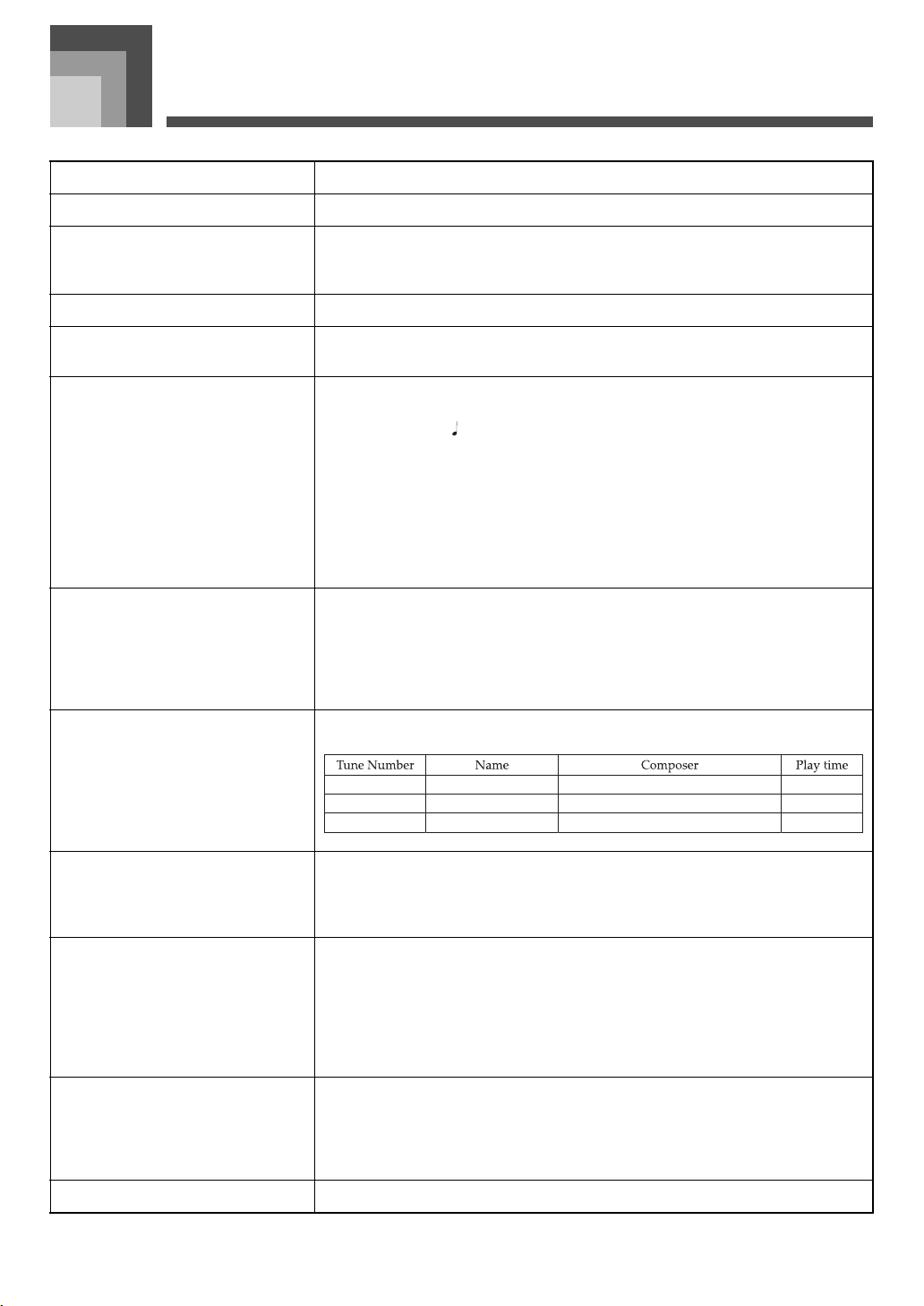
Specifications
E-80
Specifications
Model: CTK-900
Keyboard: 61 standard-size keys, 5 octaves with touch response (Off / 1 / 2 / 3)
Tones: 332 Advanced Tones + 200 Preset Tones + 18 Drum Sets + 100 standard user tones +
20 user tones with waves* + 4 user drum sets with waves* + 50 drawbar organ tones
+ 100 user drawbar organ tones (824 tones total); layer/split
Polyphony: 32 notes maximum (10 for certain tones)
Effects: DSP (200 types: internal, 100 user areas) + Reverb (16 types) + Chorus (16 types) +
Equalizer (10 types, 4 bands)
Auto Accompaniment
• Rhythm Patterns:
•Tempo:
•Chords:
• Rhythm Controller:
•Accomp Volume:
• One-touch Presets:
• Auto Harmonize:
176 (internal, 16 user areas*)
Variable (226 steps, = 30 to 255)
3 fingering methods (CASIO CHORD, FINGERED, FULL RANGE CHORD)
START/STOP, INTRO/ENDING 1 and 2, VARIATION/FILL-IN 1 and 2,
SYNCHRO/FILL-IN NEXT
0 to 127 (128 steps)
Recalls settings for tone, tempo, layer on/off, and harmonize on/off in accordance
with rhythm.
10 types: Automatic addition of notes that harmonize with melody note in accordance
with specified Auto Accompaniment chords.
Memory Function
•Songs:
•Recording Tracks:
• Recording Methods:
•Memory Capacity:
• Edit Function:
5
6 (2 through 6 are melody tracks)
Real-time, step
Approximately 10,000 notes (total for 5 songs)
Equipped
Demo Tunes: 3
Synthesizer Function
• Parameters:
Attack time; release time; resonance; cutoff frequency; vibrato type; vibrato delay;
vibrato depth; vibrato rate; octave shift; level; touch sense; reverb send; chorus send;
DSP line; DSP type and DSP parameter, DSP level.
Registration Memory
•Number of Setups:
• Memory Contents:
32 (4 setups x 8 banks)
Tone, Rhythm, Tempo, Layer on/off, Split on/off, Split point, Harmonize on/off,
Mixer settings (Channels 1 to 10), Effect settings, Touch Response settings, Assignable
jack setting, Transpose, Tuning, Accompaniment volume setting, Auto Harmonize
type, MODE button setting, Synchro standby state, Mixer Hold, DSP Hold,
Synthesizer Mode parameters
Mixer Function
• Channels:
• Parameters:
16
Tone; part on/off; volume; pan pot; octave shift; coarse tune; fine tune; reverb send;
chorus send; DSP line; DSP level; DSP pan; DSP system reverb send; DSP system
chorus send
MIDI: 16 multi-timbre receive, GM Level 1 standard
Street Beatz
Wind from the South
Serendipity Waltz
2:10
2:30
1:52
Steve Turner
Hage Software
TECH-NOTE INTERNATIONAL LTD.
0
1
2
707A-E-082A
ページ 2005年3月9日 水曜日 午後5時29分
E-81
Specifications
* The same memory area is used to store waveform data, accompaniment data, and SMF data.
Other Functions
• Transpose:
• Tuning:
• LCD:
49 steps (–24 semitones to +24 semitones)
Variable (A4 = approximately 440Hz ±100 cents)
Adjustable contrast
SMF Player Flash memory storage for up to 200 files*
• Supported Format: SMF0
Flash Memory Capacity: 4MB
Shared Area: Approximately 3.5MB (waveform data, accompaniment data, SMF data)
• Further storage of waveform, accompaniment, and SMF data becomes impossible
after the total of such data reaches approximately 3.5MB.
Terminals
• MIDI Terminals:
• Sustain/Assignable Terminal:
• Headphone/Output Terminal:
• Power Supply Terminal:
IN, OUT
Standard jack (sustain, sostenuto, soft, rhythm start/stop)
Stereo standard jack
Output Impedance: 140Ω
Output Voltage: 4.5V (RMS) MAX
9V DC
Power Supply
• Batteries:
• Battery Life:
• AC Adaptor:
• Auto Power Off:
Dual power supply system
6 D-size batteries
Approximately 4 hours continuous operation on manganese batteries
AD-5
Turns power off approximately six minutes after last key operation. Enabled under
battery power only, can be disabled manually.
Speaker Output: 3W + 3W
Power consumption: 9V 7.7W
Dimensions: 96.0 × 37.5 × 14.6 cm (37
13
/
16
× 14
3
/
4
× 5
3
/
4
inch)
Weight: Approximately 5.6 kg (12.3lbs) (without batteries)
707A-E-083A
ページ 2005年3月9日 水曜日 午後5時29分
Care of your Instrument
E-82
Care of your Instrument
J Avoid heat, humidity or direct sunlight.
Do not overexpose the instrument to direct sunlight, or place it near an air conditioner, or in any extremely hot place.
J Do not use near a TV or radio.
This instrument can cause video or audio interference with TV and radio reception. If this happens, move the instrument away from
the TV or radio.
J Do not use lacquer, thinner or similar chemicals for cleaning.
Clean the instrument with a soft cloth dampened in a weak solution of water and a neutral detergent. Soak the cloth in the solution
and squeeze until it is almost dry.
J Avoid use in areas subjected to temperature extremes.
Extremely high or low temperature can cause figures on the LCD screen to become dim and difficult to read. This condition should
correct itself when the instrument is brought back to normal temperature.
• You may notice lines in the finish of the case of this instrument. These lines are a result of the molding process used to shape the plastic
of the case. They are not cracks or breaks in the plastic, and are no cause for concern.
707A-E-084A
ページ 2005年3月9日 水曜日 午後5時29分

DSP Algorithm List
E-83
DSP Algorith m L is t
J 00 :Auto Pan
• Function
Continually performs left-right panning of the input signal in
accordance with an LFO.
• Parameters
J 01 :Tremolo
• Function
Adjusts volume of input signal in accordance with an LFO.
• Parameters
J 02 :2BandEQ
• Function
This is a two-band equalizer.
• Parameters
J 03 :3BandEQ
• Function
This is a three-band equalizer.
• Parameters
J 04 :LFO Wah
• Function
This is a “wah” effect that can automatically affect the frequency in
accordance with an LFO.
• Parameters
J 05 :Auto Wah
• Function
This is a “wah” effect that can automatically affect the frequency in
accordance with the level of the input signal.
• Parameters
J 06 :Compressor
• Function
Compresses the input signal, which can have the effect of
suppressing level variation and making it possible to sustain
dampened sounds longer.
• Parameters
J 07 :Limiter
• Function
This is an effector that you can use to set an upper limit value on the
level of the input signal.
• Parameters
J 08 :Distortion
• Function
This effect provides Distortion + AmpSimulator.
• Parameters
0 : Rate (Range: 0 to 127)
Adjusts the panning rate.
1 : Depth (Range: 0 to 127)
Adjusts the panning depth.
0 : Rate (Range: 0 to 127)
Adjusts the tremolo rate.
1 : Depth (Range: 0 to 127)
Adjusts the tremolo depth.
0 : Low Frequency (Range: 0 (200Hz), 1 (400Hz), 2 (800Hz))
Adjusts the cutoff frequency of the low-band equalizer.
1 : Low Gain (Range: –12, –11, –10 to 0 to +10, +11, +12)
Adjusts the gain of the low-band equalizer.
2 : High Frequency (Range: 0 (6.0KHz), 1 (8.0KHz), 2 (10KHz))
Adjusts the cutoff frequency of the high-band equalizer.
3 : High Gain (Range: –12, –11, –10 to 0 to +10, +11, +12)
Adjusts the gain of the high-band equalizer.
0 : Low Frequency (Range: 0 (200Hz), 1 (400Hz), 2 (800Hz))
Adjusts the cutoff frequency of the low-band equalizer.
1: Low Gain (Range: –12, –11, –10 to 0 to +10, +11, +12)
Adjusts the gain of the low-band equalizer.
2: Mid Frequency (Range: 0 (1.0KHz), 1 (1.3KHz), 2 (1.6KHz),
3 (2.0KHz), 4 (3.0KHz), 5 (4.0KHz), 6 (6.0KHz), 7 (8.0KHz))
Adjusts the center frequency of the mid-band equalizer.
3: Mid Gain (Range: –12, –11, –10 to 0 to +10, +11, +12)
Adjusts the gain of the mid-band equalizer.
4: High Frequency (Range: 0 (6.0KHz), 1 (8.0KHz), 2 (10KHz))
Adjusts the cutoff frequency of the high-band equalizer.
5: High Gain (Range: –12, –11, –10 to 0 to +10, +11, +12)
Adjusts the gain of the high-band equalizer.
0: Input Level (Range: 0 to 127)
Adjusts the input level. The input signal can become distorted
when the level of the sound being input, the number of chords,
or the Resonance value is large. Adjust this parameter to
eliminate such distortion.
1: Resonance (Range: 0 to 127)
Adjusts the resonance of the sound.
2: Manual (Range: 0 to 127)
Adjusts the frequency used as the basis for the wah filter.
3: LFO Rate (Range: 0 to 127)
Adjusts the rate of the LFO.
4: LFO Depth (Range: 0 to 127)
Adjusts the depth of the LFO.
0: Input Level (Range: 0 to 127)
Adjusts the input level. The input signal can become distorted
when the level of the sound being input, the number of chords,
or the Resonance value is large. Adjust this parameter to
eliminate such distortion.
1: Resonance (Range: 0 to 127)
Adjusts the resonance of the sound.
2: Manual (Range: 0 to 127)
Adjusts the frequency used as the basis for the wah filter.
3: Depth(Range: –64 to 0 to +63)
Adjusts the depth of the wah in accordance with the level of the
input signal.
Setting a positive value causes the wah filter to open in direct
proportion with the size of the input signal, producing a bright
sound.
Setting a negative value causes the Wah filter to close in
accordance with the size of the input signal, which produces a
dark tone quality. However, large input re-opens the Wah filter,
even if it is closed.
0: Depth (Range: 0 to 127)
Adjusts compression of the audio signal.
1: Attack (Range: 0 to 127)
Adjusts the attack amount of the input signal.
A smaller value causes prompt compressor operation, which
suppresses the attack of the input signal.
A larger values delays compressor operation, which causes
attack to be output as-is.
2: Release (Range: 0 to 127)
Adjusts the time from the point when the input signal drops
below a certain level until the compression operation is stopped.
When an attack feeling is desired (no compression at the onset of
the sound), set this parameter to as low a value as possible.
To have compression applied at all times, set a high value.
3: Level (Range: 0 to 127)
Adjusts the output level.
The output volume changes in accordance with the Depth
setting and the characteristics of the input tone. Use this
parameter to correct for such changes.
0: Limit (Range: 0 to 127)
Adjusts the volume level from which the limit is applied.
1: Attack (Range: 0 to 127)
Adjusts the attack amount of the input signal.
2: Release (Range: 0 to 127)
Adjusts the time from when the input signal drops below a
certain level until the limit operation stops.
3: Level (Range: 0 to 127)
Adjusts the level being output.
The output volume changes in accordance with the Limit setting
and the characteristics of the input tone. Use this parameter to
correct for such changes.
0 : Gain (Range: 0 to 127)
Adjusts the input gain.
707A-E-085A
ページ 2005年3月9日 水曜日 午後5時29分

DSP Algorithm List
E-84
J 09 :Stereo Phaser
• Function
This is a stereo phaser that modulates the phase in accordance with
a sine wave LFO.
• Parameters
J 10 :Phaser
• Function
This is a monaural phaser that modulates the phase in accordance
with a sine wave LFO.
• Parameters
J 11 :Rotary
• Function
This is a rotary speaker simulator.
• Parameters
J 12 :Drive Rotary
• Function
This is an overdrive - rotary speaker simulator.
• Parameters
J 13 :Enhancer
• Function
Enhances the outlines of the low range and high range of the input
signal.
• Parameters
J 14 :Ring Modulator
• Function
This is a ring modulator (AM modulator) that makes it possible to
modulate the frequency of internal oscillator (OSC) in accordance
with an internal LFO.
• Parameters
J 15 :Lo-Fi
• Function
This is an effector that reproduces a retro-type Lo-Fi sound using
Noise Generator 1 (phonograph record player type scratch noise
generator) and Noise Generator 2 (FM radio type white noise and
pink noise continuous noise generator), and by noise modulation
(amplitude modulation = AM) and distortion of frequency
characteristics.
• Parameters
J 16 :1-Phase Chorus
• Function
This is monaural chorus in accordance with a sine wave LFO.
• Parameters
1: Low (Range: 0 to 127)
Adjusts the low-band gain.
The cutoff frequency differs according to the preset DSP.
2: High (Range: 0 to 127)
Adjusts the high-band gain.
The cutoff frequency differs according to the preset DSP.
3: Level (Range: 0 to 127)
Adjusts the output level.
0 : Resonance (Range: 0 to 127)
Adjusts the resonance of the sound.
1: Manual (Range: –64 to 0 to +63)
Adjusts the phaser shift volume, which is used for reference.
2: Rate (Range: 0 to 127)
Adjusts the rate of the LFO.
3: Depth (Range: 0 to 127)
Adjusts the depth of the LFO.
4: Wet Level (Range: 0 to 127)
Adjusts the volume level of the effect.
0: Resonance (Range: 0 to 127)
Adjusts the resonance of the sound.
1: Manual (Range: –64 to 0 to +63)
Adjusts the phaser shift volume, which is used for reference.
2: Rate (Range: 0 to 127)
Adjusts the rate of the LFO.
3: Depth (Range: 0 to 127)
Adjusts the depth of the LFO.
4: Wet Level (Range: 0 to 127)
Adjusts the level of the effect sound.
0: Speed (Range: Slow, Fast)
Switches the speed mode between fast and slow.
1: Break (Range: Rotate, Stop)
Stops speaker rotation.
2: Fall Accel (Range: 0 to 127)
Adjusts acceleration when the speed mode is switched from fast
to slow.
3: Rise Accel (Range: 0 to 127)
Adjusts acceleration when the speed mode is switched from
slow to fast.
4: Slow Rate (Range: 0 to 127)
Adjusts speaker rotation speed of the slow speed mode.
5: Fast Rate (Range: 0 to 127)
Adjusts speaker rotation speed of the fast speed mode.
0: Overdrive Gain (Range: 0 to 127)
Adjusts overdrive gain.
1: Overdrive Level (Range: 0 to 127)
Adjusts the output level of the overdrive.
2: Speed(Range: Slow, Fast)
Switches the speed mode between fast and slow.
3: Break (Range: Rotate, Stop)
Stops speaker rotation.
4: Fall Accel (Range: 0 to 127)
Adjusts acceleration when the speed mode is switched from fast
to slow.
5: Rise Accel (Range: 0 to 127)
Adjusts acceleration when the speed mode is switched from
slow to fast.
6: Slow Rate (Range: 0 to 127)
Adjusts speaker rotation speed of the slow speed mode.
7: Fast Rate (Range: 0 to 127)
Adjusts speaker rotation speed of the fast speed mode.
0: Low Frequency (Range: 0 to 127)
Adjusts the low range enhancer frequency.
1: Low Gain (Range: 0 to 127)
Adjusts the low range enhancer gain.
2: High Frequency (Range: 0 to 127)
Adjusts the high range enhancer frequency.
3: High Gain (Range: 0 to 127)
Adjusts the high range enhancer gain.
0: OSC Frequency (Range: 0 to 127)
Sets the reference frequency of the internal OSC.
1: LFO Rate (Range: 0 to 127)
Adjusts the rate of the LFO.
2: LFO Depth (Range: 0 to 127)
Adjusts the depth of the LFO.
3: Wet Level (Range: 0 to 127)
Adjusts the level of the effect sound.
4: Dry Level (Range: 0 to 127)
Adjusts the level of the original sound.
0: Noise Level 1 (Range: 0 to 127)
Adjusts the level of Noise Generator 1.
1: Noise Density 1 (Range: 0 to 127)
Adjusts the noise density of Noise Generator 1.
2: Noise Level 2 (Range: 0 to 127)
Adjusts the level of Noise Generator 2.
3: Noise Density 2 (Range: 0 to 127)
Adjusts the noise density of Noise Generator 2.
4: Tone (Range: 0 to 127)
Adjusts the tone.
5: Resonance (Range: 0 to 127)
Adjusts the resonance of the sound.
6: Bass(Range: –64 to 0 to +63)
Adjusts the volume of low sounds.
7: Level (Range: 0 to 127)
Adjusts the output level.
0: LFO Rate (Range: 0 to 127)
Adjusts the rate of the LFO.
1: LFO Depth (Range: 0 to 127)
Adjusts the depth of the LFO.
707A-E-086A
ページ 2005年3月9日 水曜日 午後5時29分

E-85
DSP Algorithm List
J 17 :Sin 2-Phase Chorus
• Function
This is stereo chorus in accordance with a sine wave LFO.
• Parameters
J 18 :3-Phase Chorus
• Function
This is 3-phase chorus in accordance with two LFOs of with different
sine wave rates.
• Parameters
J 19 :Tri 2-Phase Chorus
• Function
This is stereo chorus in accordance with triangular wave LFO.
• Parameters
J 20 :Stereo Delay 1
• Function
This is delay of stereo input and output.
• Parameters
J 21 :Stereo Delay 2
• Function
This is cross feedback delay of stereo input and output.
• Parameters
J 22 :3-Tap Delay
• Function
This is left/center/right 3-tap delay.
• Parameters
J 23 :Gate Reverb
• Function
This is a fader that creates artificial reverb that sounds like it is being
cut with a gate.
• Parameters
J 24 :Reverse Gate Reverb
• Function
This is gate reverb with a reverse rotation effect.
• Parameters
2: Feedback (Range: –64 to 0 to +63)
Adjusts the feedback of the sound.
3: Wet Level (Range: 0 to 127)
Adjusts the level of the effect sound.
0: LFO Rate (Range: 0 to 127)
Adjusts the rate of the LFO.
1: LFO Depth (Range: 0 to 127)
Adjusts the depth of the LFO.
2: Feedback (Range: –64 to 0 to +63)
Adjusts the feedback of the sound.
3: Wet Level (Range: 0 to 127)
Adjusts the level of the effect sound.
0: Rate1 (Fast LFO Rate) (Range: 0 to 127)
Adjusts the rate of LFO1.
1: Depth1 (Fast LFO Depth) (Range: 0 to 127)
Adjusts the depth of LFO1.
2: Rate2 (Slow LFO Rate) (Range: 0 to 127)
Adjusts the rate of LFO2.
3: Depth2 (Slow LFO Depth) (Range: 0 to 127)
Adjusts the depth of LFO2.
4: Wet Level (Range: 0 to 127)
Adjusts the level of the effect sound.
0: LFO Rate (Range: 0 to 127)
Adjusts the rate of the LFO.
1: LFO Depth (Range: 0 to 127)
Adjusts the depth of the LFO.
2: Feedback(Range: –64 to 0 to +63)
Adjusts the feedback of the sound.
3: Wet Level (Range: 0 to 127)
Adjusts the level of the effect sound.
0: Delay Time (Range: 0 to 127)
Adjusts the delay time.
1: Wet Level (Range: 0 to 127)
Adjusts the level of the effect sound.
2: Feedback (Range: 0 to 127)
Adjusts the repeat of the delay.
3: High Damp (Range: 0 to 127)
Adjusts damping of the high-range delay sound.
The smaller the value, the greater the damping of high-range
delay sound.
4: Ratio L (Range: 0 to 127)
Adjusts the delay time of the left channel.
Proportional to the value set for Delay Time.
5: Ratio R (Range: 0 to 127)
Adjusts the delay time of the right channel.
Proportional to the value set for Delay Time.
0: Delay Time (Range: 0 to 127)
Adjusts the delay time.
1: Wet Level (Range: 0 to 127)
Adjusts the level of the effect sound.
2: Feedback (Range: 0 to 127)
Adjusts the repeat of the delay.
3: High Damp (Range: 0 to 127)
Adjusts damping of the high-range delay sound.
The smaller the value, the greater the damping of high-range
delay sound.
4: Ratio L (Range: 0 to 127)
Adjusts the delay time of the left channel.
Proportional to the value set for Delay Time.
5: Ratio R (Range: 0 to 127)
Adjusts the delay time of the right channel.
Proportional to the value set for Delay Time.
0: Delay Time (Range: 0 to 127)
Adjusts the delay time.
1: Wet Level (Range: 0 to 127)
Adjusts the level of the effect sound.
2: Feedback (Range: 0 to 127)
Adjusts the repeat of the delay.
3: High Damp (Range: 0 to 127)
Adjusts damping of the high-range delay sound.
The smaller the value, the greater the damping of high-range
delay sound.
4: Ratio L (Range: 0 to 127)
Adjusts the delay time of the left channel.
Proportional to the value set for Delay Time.
5: Ratio C (Range: 0 to 127)
Adjusts the delay time of the center channel.
Proportional to the value set for Delay Time.
6: Ratio R (Range: 0 to 127)
Adjusts the delay time of the right channel.
Proportional to the value set for Delay Time.
0: LPF (Range: 0 to 127)
Adjusts the cutoff frequency of the low-pass filter.
A smaller value cuts the high range.
1: HPF (Range: 0 to 127)
Adjusts the cutoff frequency of the high-pass filter.
A larger value cuts the low range.
2: Feedback (Range: 0 to 127)
Adjusts the repeat of the reverb.
3: High Damp (Range: 0 to 127)
Adjusts damping of the high-range delay sound.
The smaller the value, the greater the damping of high-range
delay sound.
4: Diffusion (Range: 0 to 127)
Provides fine adjustment of the reverb.
5: Wet Level (Range: 0 to 127)
Adjusts the level of the effect sound.
6: Dry Level (Range: 0 to 127)
Adjusts the level of the original sound.
0: LPF (Range: 0 to 127)
Adjusts the cutoff frequency of the low-pass filter.
A smaller value cuts the high range.
1: HPF (Range: 0 to 127)
Adjusts the cutoff frequency of the high-pass filter.
A larger value cuts the low range.
707A-E-087A
ページ 2005年3月9日 水曜日 午後5時29分

DSP Algorithm List
E-86
J 25 :Reflection
• Function
This is an effector that extracts the first reflected sound from a reverb
sound.
• Parameters
J 26 :Flanger
• Function
This is a flanger in accordance with a sine wave LFO.
• Parameters
J 27 :Reverb
• Function
This is an effector that preserves the breadth of a sound by adding a
reverb sound.
• Parameters
J 28 :2-Tap Delay
• Function
This is left/right 2-tap delay.
• Parameters
The following “Multi” algorithms are used in combination with the
algorithms described above. Parameters are shared by both types of
algorithms.
J M00 :Multi00 (Sin 2-Phase Chorus – 2-Tap Delay)
• Function
This is a multi effector that is related to Sin 2-Phase Chorus – 2-Tap
Delay.
• Parameters
J M01 :Multi01 (3-Phase Chorus – 3-Tap Delay)
• Function
This is a multi effector that is related to 3-Phase Chorus – 3-Tap
Delay.
• Parameters
J M02 : Multi02 (Phaser – 3-Phase Chorus)
• Function
This is a multi effector that is related to Phaser – 3-Phase Chorus.
• Parameters
J M03 : Multi03 (Flanger – 2-Tap Delay)
• Function
This is a multi effector that is related to Flanger – 2-Tap Delay.
• Parameters
J M04 : Multi04 (Stereo Phaser – Stereo Delay 1)
• Function
This is a multi effector that is related to Stereo Phaser – Stereo Delay 1.
• Parameters
2: Feedback (Range: 0 to 127)
Adjusts the repeat of the reverb.
3: High Damp (Range: 0 to 127)
Adjusts damping of the high-range reverb sound.
The smaller the value, the greater the damping of high-range
reverb sound.
4: Diffusion (Range: 0 to 127)
Provides fine adjustment of the reverb.
5: Wet Level (Range: 0 to 127)
Adjusts the level of the effect sound.
6: Dry Level (Range: 0 to 127)
Adjusts the level of the original sound.
0: Type (Range: 0 to 7)
Selects from among the eight available reflection patterns.
1: Wet Level (Range: 0 to 127)
Adjusts the level of the effect sound.
2: Feedback (Range: 0 to 127)
Adjusts the repeat of the reflected sound.
3: Tone (Range: 0 to 127)
Adjusts the tone of the reflected sound.
0: LFO Rate (Range: 0 to 127)
Adjusts the rate of the LFO.
1: LFO Depth (Range: 0 to 127)
Adjusts the depth of the LFO.
2: Feedback (Range: –64 to 0 to +63)
Adjusts the feedback of the sound.
3: Wet Level (Range: 0 to 127)
Adjusts the level of the effect sound.
0: Tone (Range: 0 to 127)
Adjusts the tone of the reverb sound.
1: Time (Range: 0 to 127)
Adjusts the reverb time.
2: High Damp (Range: 0 to 127)
Adjusts damping of the high-range reverb sound.
The smaller the value, the greater the damping of high-range
reverb sound.
3: ER Level (Range: 0 to 127)
Adjusts the level of the initial reflection.
4: Wet Level (Range: 0 to 127)
Adjusts the level of the effect sound.
0: Delay Time (Range: 0 to 127)
Adjusts the delay time.
1: Wet Level (Range: 0 to 127)
Adjusts the level of the effect sound.
2: Feedback (Range: 0 to 127)
Adjusts the repeat of the delay.
3: High Damp (Range: 0 to 127)
Adjusts damping of the high-range delay sound.
The smaller the value, the greater the damping of high-range
delay sound.
4: Ratio L (Range: 0 to 127)
Adjusts the delay time of the left channel.
Proportional to the value set for Delay Time.
5: Ratio R (Range: 0 to 127)
Adjusts the delay time of the right channel.
Proportional to the value set for Delay Time.
0: Chorus LFO Rate
1: Chorus LFO Depth
2: Chorus Feedback
3: Chorus Wet Level
4: Delay Time
5: Delay Wet Level
6: Delay Feedback
7: Delay High Damp
0: Chorus Rate 1
1: Chorus Depth 1
2: Chorus Rate 2
3: Chorus Depth 2
4: Chorus Wet Level
5: Delay Time
6: Delay Wet Level
7: Delay Feedback
0: Phaser Resonance
1: Phaser Manual
2: Phaser Rate
3: Phaser Depth
4: Chorus Rate 1
5: Chorus Depth 1
6: Chorus Rate 2
7: Chorus Depth 2
0: Flanger LFO Rate
1: Flanger LFO Depth
2: Flanger Feedback
3: Flanger Wet Level
4: Delay Time
5: Delay Wet Level
6: Delay Feedback
7: Delay High Damp
0: Phaser Resonance
1: Phaser Manual
2: Phaser Rate
3: Phaser Depth
4: Phaser Wet Level
5: Delay Time
6: Delay Wet Level
7: Delay Feedback
707A-E-088A
ページ 2005年3月9日 水曜日 午後5時29分

E-87
DSP Algorithm List
J M05 :Multi05 (Enhancer – 1-Phase Chorus)
• Function
This is a multi effector related to Enhancer – 1-Phase Chorus.
• Parameters
J M06 : Multi06 (Enhancer – 2-Tap Delay)
• Function
This is a multi effector that is related to Enhancer – 2-Tap Delay.
• Parameters
J M07 : Multi07 (Enhancer – Flanger)
• Function
This is a multi effector related to Enhancer – Flanger.
• Parameters
J M08: Multi08 (Sin 2-Phase Chorus – Flanger)
• Function
This is a multi effector that is related to Sin 2-Phase Chorus –
Flanger.
• Parameters
J M09 :Multi09 (Sin 2-Phase Chorus – Tremolo)
• Function
This is a multi effector that is related to Sin 2-Phase Chorus –
Tremolo.
• Parameters
J M10 : Multi10 (Stereo Phaser – Auto Pan)
• Function
This is a multi effector that is related to Stereo Phaser – Auto Pan.
• Parameters
J M11 : Multi11 (Compressor – Lo-Fi)
• Function
This is a multi effector related to Compressor – Lo-Fi.
• Parameters
J M12 :Multi12 (Ring Modulator – Sin 2-Phase Chorus –
2-Tap Delay)
• Function
This is a multi effector that is related to Ring Modulator – Sin 2-
Phase Chorus.
• Parameters
J M13 : Multi13 (Ring Modulator – Distortion)
• Function
This is a multi effector related to Ring Modulator – Distortion.
• Parameters
J M14 :Multi14 (Lo-Fi – Reflection)
• Function
This is a multi effector related to Lo-Fi – Reflection.
• Parameters
J M15 : Multi15 (Distortion – Lo-Fi)
• Function
This is a multi effector related to Distortion – Lo-Fi.
• Parameters
J M16 : Multi16 (Drive Rotary – Reflection)
• Function
0: Enhancer Low Frequency
1: Enhancer Low Gain
2: Enhancer High Frequency
3: Enhancer High Gain
4: Chorus LFO Rate
5: Chorus LFO Depth
6: Chorus Feedback
7: Chorus Wet Level
0: Enhancer Low Frequency
1: Enhancer Low Gain
2: Enhancer High Frequency
3: Enhancer High Gain
4: Delay Time
5: Delay Wet Level
6: Delay Feedback
7: Delay High Damp
0: Enhancer Low Frequency
1: Enhancer Low Gain
2: Enhancer High Frequency
3: Enhancer High Gain
4: Flanger LFO Rate
5: Flanger LFO Depth
6: Flanger Feedback
7: Flanger Wet Level
0: Chorus LFO Rate
1: Chorus LFO Depth
2: Chorus Feedback
3: Chorus Wet Level
4: Flanger LFO Rate
5: Flanger LFO Depth
6: Flanger Feedback
7: Flanger Wet Level
0: Chorus LFO Rate
1: Chorus LFO Depth
2: Chorus Feedback
3: Chorus Wet Level
4: Tremolo Rate
5: Tremolo Depth
0: Phaser Resonance
1: Phaser Manual
2: Phaser Rate
3: Phaser Depth
4: Phaser Wet Level
5: Auto Pan Rate
6: Auto Pan Depth
0: Compressor Depth
1: Compressor Attack
2: Compressor Level
3: Lo-Fi Noise 1
4: Lo-Fi Noise 2
5: Lo-Fi Tone
6: Lo-Fi Resonance
7: Lo-Fi Bass
0: Ring OSC Frequency
1: Ring LFO Rate
2: Ring LFO Depth
3: Ring Wet Level
4: Ring Dry Level
5: Chorus LFO Depth
6: Delay Time
7: Delay Wet Level
0: Ring OSC Frequency
1: Ring LFO Rate
2: Ring LFO Depth
3: Ring Wet Level
4: Ring Dry Level
5: Distortion Gain
6: Distortion Tone
7: Distortion Level
0: Lo-Fi Noise1
1: Lo-Fi Noise2
2: Lo-Fi Tone
3: Lo-Fi Resonance
4: Reflection Type
5: Reflection Wet Level
6: Reflection Feedback
7: Reflection Tone
0: Distortion Gain
1: Distortion Low
2: Distortion High
3: Distortion Level
4: Lo-Fi Noise1
5: Lo-Fi Noise2
6: Lo-Fi Tone
7: Lo-Fi Resonance
707A-E-089A
ページ 2005年3月9日 水曜日 午後5時29分

DSP Algorithm List
E-88
This is a multi effector related to Drive Rotary – Reflection.
• Parameters
J M17 : Multi17 (Rotary – Reflection)
• Function
This is a multi effector related to Rotary – Reflection.
• Parameters
J M18 :Multi18 (Compressor – Enhancer – 2-Tap Delay)
• Function
This is a multi effector that is related to Compressor – Enhancer – 2-
Tap Delay.
• Parameters
J M19 : Multi19 (Compressor – Stereo Delay 1)
• Function
This is a multi effector related to Compressor – Stereo Delay 1.
• Parameters
J M20 :Multi20 (Phaser – 1-Phase Chorus – Auto Pan)
• Function
This is a multi effector that is related to Phaser – 1-Phase Chorus –
Auto Pan.
• Parameters
J M21 :Multi21 (Auto Wah – Tri 2-Phase Chorus – 2-Tap
Delay)
• Function
This is a multi effector that is related to Auto Wah – Tri 2-Phase
Chorus – 2-Tap Delay.
• Parameters
J M22 :Multi22 (LFO Wah – Tri 2-Phase Chorus – 2-Tap
Delay)
• Function
This is a multi effector that is related to LFO Wah – Tri 2-Phase
Chorus – 2-Tap Delay.
• Parameters
J M23 :Multi23 (Compressor – Sin 2-Phase Chorus –
Reflection)
• Function
This is a multi effector that is related to Compressor – Sin 2-Phase
Chorus – Reflection.
• Parameters
J M24 :Multi24 (Distortion – 1-Phase Chorus – 2-Tap
Delay)
• Function
This is a multi effector that is related to Distortion – 1-Phase Chorus
– 2-Tap Delay.
• Parameters
J M25 :Multi25 (Compressor – Distortion – 2-Tap Delay)
• Function
This is a multi effector that is related to Compressor – Distortion – 2-
Tap Delay.
• Parameters
J M26 :Multi26 (Auto Wah – Distortion – 2-Tap Delay)
• Function
This is a multi effector that is related to Auto Wah – Distortion – 2-
Tap Delay.
• Parameters
0: Drive Rotary Gain
1: Drive Rotary Level
2: Drive Rotary Speed
3: Drive Rotary Slow Rate
4: Drive Rotary Fast Rate
5: Reflection Wet Level
6: Reflection Feedback
7: Reflection Tone
0: Rotary Speed
1: Rotary Break
2: Rotary Slow Rate
3: Rotary Fast Rate
4: Reflection Wet Level
5: Reflection Feedback
6: Reflection Tone
0: Compressor Depth
1: Compressor Attack
2: Compressor Level
3: Enhancer Low Gain
4: Enhancer High Gain
5: Delay Time
6: Delay Wet Level
7: Delay Feedback
0: Compressor Depth
1: Compressor Attack
2: Compressor Release
3: Compressor Level
4: Delay Time
5: Delay Wet Level
6: Delay Feedback
7: Delay High Damp
0: Phaser Resonance
1: Phaser Manual
2: Phaser Rate
3: Phaser Depth
4: Chorus LFO Rate
5: Chorus LFO Depth
6: Auto Pan Rate
7: Auto Pan Depth
0: Wah Resonance
1: Wah Manual
2: Wah Depth
3: Chorus LFO Rate
4: Chorus LFO Depth
5: Delay Time
6: Delay Wet Level
7: Delay Feedback
0: Wah Resonance
1: Wah Manual
2: Wah LFO Rate
3: Wah LFO Depth
4: Chorus LFO Depth
5: Delay Time
6: Delay Wet Level
7: Delay Feedback
0: Compressor Depth
1: Compressor Attack
2: Compressor Level
3: Chorus LFO Rate
4: Chorus LFO Depth
5: Reflection Wet Level
6: Reflection Feedback
7: Reflection Tone
0: Distortion Gain
1: Distortion Low
2: Distortion High
3: Distortion Level
4: Chorus LFO Depth
5: Delay Time
6: Delay Wet Level
7: Delay Feedback
0: Compressor Depth
1: Distortion Gain
2: Distortion Low
3: Distortion High
4: Distortion Level
5: Delay Time
6: Delay Wet Level
7: Delay Feedback
0: Wah Manual
1: Wah Depth
2: Distortion Gain
707A-E-090A
ページ 2005年3月9日 水曜日 午後5時29分

E-89
DSP Algorithm List
J M27 :Multi27 (LFO Wah – Distortion – 2-Tap Delay)
• Function
This is a multi effector that is related to LFO Wah – Distortion – 2-
Tap Delay.
• Parameters
J M28 : Multi28 (Distortion – 3-Tap Delay)
• Function
This is a multi effector that is related to Distortion – 3-Tap Delay.
• Parameters
J M29 : Multi29 (Distortion – Phaser)
• Function
This is a multi effector related to Distortion – Phaser.
• Parameters
J M30 :Multi30 (Distortion – Sin 2-Phase Chorus)
• Function
This is a multi effector that is related to Distortion – Sin 2-Phase
Chorus.
• Parameters
J M31 : Multi31 (Distortion – Flanger)
• Function
This is a multi effector related to Distortion – Flanger.
• Parameters
3: Distortion Tone
4: Distortion Level
5: Delay Time
6: Delay Wet Level
7: Delay Feedback
0: Wah Manual
1: Wah LFO Rate
2: Wah LFO Depth
3: Distortion Gain
4: Distortion Level
5: Delay Time
6: Delay Wet Level
7: Delay Feedback
0: Distortion Gain
1: Distortion Low
2: Distortion High
3: Distortion Level
4: Delay Time
5: Delay Wet Level
6: Delay Feedback
7: Delay High Damp
0: Distortion Gain
1: Distortion Low
2: Distortion High
3: Distortion Level
4: Phaser Resonance
5: Phaser Manual
6: Phaser Rate
7: Phaser Depth
0: Distortion Gain
1: Distortion Low
2: Distortion High
3: Distortion Level
4: Chorus LFO Rate
5: Chorus LFO Depth
6: Chorus Feedback
7: Chorus Wet Level
0: Distortion Gain
1: Distortion Low
2: Distortion High
3: Distortion Level
4: Flanger LFO Rate
5: Flanger LFO Depth
6: Flanger Feedback
7: Flanger Wet Level
707A-E-091A
ページ 2005年3月9日 水曜日 午後5時29分
Appendix/Apéndice
A-1
Appendix/A péndice
Tone List/Lista de sonidos
1 No./Nº
2 Tone Group/Grupo de Sonido 3 Tone Name/Nombre de sonido
4 Program Change/Cambio de programa 5
Bank Select MSB/MSB de selección de banco
6 Maximum Polyphony/Polifonía máxima
7 Range Type/Tipo de gama 8 DSP Type/Tipo DSP
Advanced Tones/Sonidos avanzados
1 2 3 4567 8
0 PIANO STEREO GRAND PIANO 0 51 16 N RvbHall1
1 PIANO STEREO MELLOW PIANO 0 52 16 N GateRvb2
2 PIANO STEREO BRIGHT PIANO 1 50 16 N Equalize
3 PIANO GRAND PIANO 0 48 32 N RvbHall1
4 PIANO ROCK PIANO 1 49 32 N Equalize
5 PIANO MODERN PIANO 1 51 16 N Equalize
6 PIANO DANCE PIANO 1 53 16 N Enha Dly
7 PIANO MELLOW PIANO 0 50 32 N Equalize
8 PIANO BRIGHT PIANO 1 48 32 N Enhancer
9 PIANO SYNTH-STR PIANO 0 54 16 N Cho Flan
10 PIANO STRINGS PIANO 1 52 16 N RvbHall1
11 PIANO VOICE PIANO 0 53 16 N Reflect
12 PIANO ELEC.GRAND PIANO 2 48 32 N Equalize
13 PIANO HARPSICHORD 6 51 32 N CmpChoRf
14 PIANO GRAND PIANO WIDE 0 49 32 N Reflect
15 PIANO AMBIENT PIANO 0 55 16 N St.Delay
16 PIANO 1 OCTAVE PIANO 3 51 16 N Equalize
17 PIANO 2 OCTAVE PIANO 3 50 16 N RvbRoom2
18 PIANO MODERN E.G.PIANO 2 50 16 N ChoDly 1
19 PIANO COMP.PIANO 0 56 32 N CmpEnDly
20 PIANO HONKY-TONK 1 3 48 16 N Enhancer
21 PIANO BRIGHT HARPSICHORD 6 52 32 N CmpChoRf
22 PIANO COUPLED HARPSICHORD 6 49 16 N CmpChoRf
23 E.PIANO ELEC.PIANO 1 4 48 32 N Chorus 3
24 E.PIANO ELEC.PIANO 2 5 49 16 N Chorus 3
25 E.PIANO FM ELEC.PIANO 5 48 16 N Chorus 3
26 E.PIANO DYNO ELEC.PIANO 4 49 32 N Chorus 3
27 E.PIANO 60'S ELEC.PIANO 4 52 32 N Auto Pan
28 E.PIANO MELLOW E.PIANO 4 53 16 N CmpChoRf
29 E.PIANO POP ELEC.PIANO 4 50 16 N Equalize
30 E.PIANO TREMOLO E.PIANO 4 56 32 N Cho Trem
31 E.PIANO SOFT E.PIANO 5 51 16 N Equalize
32 E.PIANO GLASS E.PIANO 4 51 16 N Equalize
33 E.PIANO SYNTH-STR E.PIANO 1 4 55 16 N Equalize
34 E.PIANO CLAVI 7 48 32 N Dist 1
35 E.PIANO AUTO WAH E.PIANO 4 57 32 N Auto Wah
36 E.PIANO PHASER E.PIANO 4 58 32 N PhaAPan1
37 E.PIANO MODERN E.PIANO 5 50 16 N Enha Dly
38 E.PIANO WARM ELEC.PIANO 4 59 32 N Cho Trem
39 E.PIANO ELEC.PIANO PAD 4 54 16 N StPhaser
40 E.PIANO SYNTH-STR E.PIANO 2 5 53 16 N Equalize
41 E.PIANO STRINGS E.PIANO 5 54 16 N ChoDly 1
42 E.PIANO RESONANCE CLAVI 7 50 32 N Auto Wah
43 E.PIANO PULSE CLAVI 7 49 32 N CmpEnDly
44 E.PIANO LA CLAVI 7 51 32 N Cho Dly4
45
CHROM.PERC
TREMOLO VIBRAPHONE 11 48 32 N Cho Trem
46
CHROM.PERC
MARIMBA 12 48 32 N Reflect
47
CHROM.PERC
GLOCKENSPIEL 9 48 32 +1 Reflect
48
CHROM.PERC
CELESTA 8 48 32 N Reflect
49
CHROM.PERC
VIBRAPHONE 11 50 32 N Reflect
50
CHROM.PERC
PHASER MARIMBA 12 50 32 N PhaDly 2
51
CHROM.PERC
DELAY GLOCKENSPIEL 9 49 32 +1 ChoDly 2
52
CHROM.PERC
ROTARY CELESTA 8 49 32 N RotRef 2
53 ORGAN ROTARY DRAWBAR 16 52 16 N Rotary 2
54 ORGAN ROTARY PERC.ORGAN 1 17 52 16 N Rotary 2
55 ORGAN ROTARY PERC.ORGAN 2 17 54 16 N RotRef 1
56 ORGAN 70'S ORGAN 17 49 32 N Rotary 1
57 ORGAN TREMOLO ORGAN 16 49 32 N Cho Trem
58 ORGAN JAZZ DRAWBAR 17 53 16 N RotRef 1
59 ORGAN ROCK ORGAN 18 48 16 N Rotary 2
60 ORGAN OVD ROTARY ORGAN 16 54 32 N Od Rot 2
61 ORGAN ROTARY ELEC.ORGAN 16 53 32 N Rotary 2
62 ORGAN CHURCH ORGAN 1 19 48 16 N RvbHall2
63 ORGAN CHAPEL ORGAN 19 51 32 N GateRvb2
64 ORGAN ACCORDION 21 48 16 N Reflect
65 ORGAN BANDONEON 23 48 16 N Reflect
66 ORGAN HARMONICA 22 48 32 N Reflect
67 ORGAN DRAWBAR ORGAN 1 16 48 32 N Reflect
68 ORGAN DRAWBAR ORGAN 2 16 50 32 N Rotary 1
69 ORGAN ELEC.ORGAN 16 51 32 N Reflect
70 ORGAN PERC.ORGAN 1 17 48 16 N Reflect
71 ORGAN PERC.ORGAN 2 17 51 16 N Rotary 2
72 ORGAN JAZZ ORGAN 17 50 16 N Reflect
73 ORGAN OVD ROCK ORGAN 18 49 16 N OdRtRef1
74 ORGAN TAPE ORGAN 20 50 16 N Cho Dly4
75 ORGAN CHURCH ORGAN 2 19 49 16 N GateRvb2
76 ORGAN OCTAVE ACCORDION 21 49 16 N CmpChoRf
77 ORGAN NEO BANDONEON 23 49 16 N ChoDly 4
78 ORGAN SLOW HARMONICA 22 49 32 N RvbRoom2
79 ORGAN WAH HARMONICA 22 50 32 N LWhDsDly
80 GUITAR PURE ACOUSTIC GUITAR 25 49 32 –1 Equalize
81 GUITAR NYLON STR.GUITAR 24 48 32 –1 Equalize
82 GUITAR STEEL STR.GUITAR 25 48 32 –1 Equalize
83 GUITAR JAZZ GUITAR 26 48 32 –1 CmpChoRf
84 GUITAR CHORUS CLEAN GUITAR 27 53 32 –1 CmpEnDly
85 GUITAR ROTARY GUITAR 27 54 32 –1 RotRef 1
86 GUITAR CRUNCH ELEC.GUITAR 27 52 32 –1 CrnDelay
87 GUITAR OVD FRONT GUITAR 29 49 32 –1 CmpOdDly
88 GUITAR FEEDBACK DIST.GT 30 52 16 –1 DistDly1
89 GUITAR MUTE DIST.GUITAR 28 49 32 –1 MetalDly
90 GUITAR MELLOW NYLON GUITAR 24 51 16 –1 ChoDly 3
91 GUITAR 12 STRING GUITAR 25 50 16 –1 Equalize
92 GUITAR
BRIGHT ACOUSTIC GUITAR
25 52 32 –1 Enha Dly
93 GUITAR CHORUS STEEL GUITAR 25 51 16 –1 ChoDly 4
94 GUITAR UKULELE 24 49 32 N CmpChoRf
95 GUITAR BANJO 105 48 32 N Equalize
96 GUITAR OCTAVE JAZZ GUITAR 26 50 16 –1 RvbRoom3
97 GUITAR CHORUS JAZZ GUITAR 26 51 32 –1 OdChorus
98 GUITAR CLEAN GUITAR 27 48 32 –1 Equalize
99 GUITAR ELEC.GUITAR FRONT 27 51 32 –1 Equalize
100 GUITAR ELEC.GUITAR REAR 27 50 32 –1 Equalize
101 GUITAR TREMOLO GUITAR 29 55 32 –1 Cho Trem
102 GUITAR MUTE GUITAR 28 48 32 –1 Equalize
103 GUITAR OVERDRIVE GUITAR 29 48 16 –1 CmpDelay
104 GUITAR OVD REAR GUITAR 29 50 32 –1 Ovrdrive
105 GUITAR DISTORTION FRONT GT 30 50 32 –1 DistDly2
106 GUITAR MORE DISTORTION GT 30 51 16 –1 DistDly2
107 GUITAR TOUCH WAH OVD GT 30 54 16 –1 AWhCrDly
108 GUITAR DISTORTION GUITAR 30 48 16 –1 CmpDelay
109 GUITAR FEEDBACK GUITAR 30 49 16 –1 CmpCrDly
110 GUITAR DISTORTION CLEAN GT 30 53 32 –1 CmpCrDly
111 BASS ACOUSTIC BASS 1 32 48 32 –1 Limiter
112 BASS ACOUSTIC BASS 2 32 49 32 –1 Reflect
113 BASS RIDE BASS 32 50 16 –1 RvbRoom1
114 BASS FINGERED BASS 1 33 48 32 –1 Limiter
115 BASS FINGERED BASS 2 33 49 32 –1 Limiter
116 BASS PICKED BASS 34 48 32 –1 CmpEnDly
117 BASS FRETLESS BASS 35 48 32 –1 ChoDly 1
118 BASS SLAP BASS 37 48 32 –1 Comp 2
119 BASS SAW SYNTH-BASS 1 38 48 16 –1 Chorus 1
120 BASS ANALOG SYNTH-BASS 38 52 32 –1 PhaCho 1
121 BASS CHORUS FINGERED BASS 33 50 16 –1 Crn Cho
122 BASS ROCK PICKED BASS 34 49 32 –1 OdChorus
123 BASS FLAN.FRETLESS BASS 35 49 16 –1 Cho Flan
124 BASS FUNKY SLAP BASS 37 49 32 –1 AWhCrDly
125 BASS SQR SYNTH-BASS 1 39 48 32 –1 Od Rot 1
1 2 3 4567 8
707A-E-182A
ページ 2005年3月10日 木曜日 午後11時13分
A-2
Appendix/Apéndice
126 BASS RESO.SQR BASS 39 50 32 –1 Enha Cho
127 BASS RESO.SAW BASS 1 38 53 32 –1 AWhChDly
128 BASS RESO.SAW BASS 2 38 49 16 –1 PhaDly 2
129 BASS DISTORTION SQR BASS 39 51 16 –1 DistDly1
130 BASS DIGITAL BASS 1 39 52 32 –1 Comp 2
131 BASS DIGITAL BASS 2 39 55 16 –1 Chorus 2
132 BASS ACID BASS 38 50 32 –1 Enhancer
133 BASS SAW SYNTH-BASS 2 38 54 32 –1 Equalize
134 BASS TRI SYNTH-BASS 39 53 32 –1 Equalize
135 BASS SINE BASS 39 54 32 –1 Comp 1
136 BASS FAT SYNTH-BASS 39 56 16 N CmpEnDly
137 BASS ORGAN BASS 1 38 55 32 –1 Comp 1
138 ORCHESTRA VIOLIN 40 48 32 N GateRvb2
139 ORCHESTRA CELLO 42 48 32 –1 GateRvb2
140 ORCHESTRA VIOLA 41 48 32 N GateRvb2
141 ORCHESTRA PIZZICATO ENSEMBLE 45 49 16 N RvbHall1
142 ORCHESTRA HARP 46 48 32 N Reflect
143 ORCHESTRA SLOW VIOLIN 40 49 32 N RvbHall2
144 ORCHESTRA SLOW CELLO 42 49 32 –1 RvbHall2
145 ORCHESTRA PIZZICATO 45 48 32 N Reflect
146 ORCHESTRA HARPS 46 49 16 N Reflect
147 ENSEMBLE STEREO STRINGS 48 51 16 N RvbPlate
148 ENSEMBLE STRING ENSEMBLE 48 48 32 N RvbRoom3
149 ENSEMBLE SLOW STRINGS 49 48 32 N ChoDly 3
150 ENSEMBLE CHAMBER 49 49 16 N Reflect
151 ENSEMBLE PURE SYNTH-STRINGS 50 50 16 N ChoDly 3
152 ENSEMBLE SYNTH-STRINGS 1 50 48 32 N ChoDly 3
153 ENSEMBLE 70'S SYNTH-STR 50 51 16 N RevHall1
154 ENSEMBLE 80'S SYNTH-STR 50 52 16 N ChoDly 4
155 ENSEMBLE STEREO CHOIR 52 50 16 N RvbHall1
156 ENSEMBLE VOICE UUH 53 49 16 N RvbRoom1
157 ENSEMBLE VOICE DOO 53 48 32 N RvbRoom1
158 ENSEMBLE SYNTH-VOICE 1 54 48 32 N Chorus 4
159 ENSEMBLE SYNTH-VOICE 2 54 49 32 N ChoDly 3
160 ENSEMBLE SCAT VOICE 1 53 52 32 N ChoDly 4
161 ENSEMBLE SCAT VOICE 2 53 53 32 N ChoDly 2
162 ENSEMBLE SCAT VOICE 3 53 54 32 –1 ChoDly 4
163 ENSEMBLE BRIGHT STRINGS 48 49 32 N RvbHall1
164 ENSEMBLE WIDE STRINGS 48 52 16 N RvbHall1
165 ENSEMBLE MELLOW STRINGS 49 50 32 N RvbHall1
166 ENSEMBLE ORCHESTRA STRINGS 1 49 51 16 N RvbRoom3
167 ENSEMBLE ORCHESTRA STRINGS 2 49 52 16 N RvbHall1
168 ENSEMBLE RESO.SYNTH-STRINGS 51 48 32 N ChoDly 3
169 ENSEMBLE PHASER SYNTH-STRINGS 51 49 16 N PhaAPan2
170 ENSEMBLE OLD STRINGS ENSEMBLE 49 53 32 N OdChorus
171 ENSEMBLE CHOIR STRINGS 48 53 16 N RvbHall1
172 ENSEMBLE SYNTH-CHOIR 52 51 16 N StXDelay
173 ENSEMBLE SYNTH-DOO 53 50 16 N DistDly1
174 ENSEMBLE MAGIC VOICE DOO 53 51 32 N PhaDly 2
175 ENSEMBLE WAH SYNTH-VOICE 54 55 32 N AWhChDly
176 ENSEMBLE VOICE PAD 54 53 16 N FlanDly3
177 ENSEMBLE BLOW VOICE 54 51 16 N DistDly1
178 ENSEMBLE NOISY SYNTH-VOICE 54 54 16 N FlanDly2
179 ENSEMBLE POP HIT 1 55 52 16 N Equalize
180 ENSEMBLE POP HIT 2 55 53 16 N FlanDly1
181 ENSEMBLE BASS HIT 55 49 16 N DistDly1
182 ENSEMBLE PIANO HIT 55 54 16 N GateRvb2
183 ENSEMBLE ORGAN HIT 55 55 16 N Rotary 2
184 ENSEMBLE ORCHESTRA HIT 1 55 48 16 N RvbHall1
185 ENSEMBLE TECHNO HIT 55 56 16 N MetalDly
186 BRASS PURE TRUMPET 56 52 32 N GateRvb1
187 BRASS TROMBONE 57 50 16 –1 GateRvb2
188 BRASS MUTE TRUMPET 59 48 32 N Enhancer
189 BRASS STEREO BRASS 61 50 16 N RvbPlate
190 BRASS BRASS ENSEMBLE 61 51 16 N Enha Dly
191 BRASS DEEP SYNTH-BRASS 1 62 51 16 N Enha Dly
192 BRASS SOFT SYNTH-BRASS 63 51 16 N Enha Dly
193 BRASS VINTAGE SYNTH-BRASS 63 48 16 N RvbHall2
194 BRASS TRUMPET 1 56 51 16 N GateRvb2
195 BRASS MELLOW TRUMPET 56 50 16 N RvbHall1
196 BRASS MELLOW TROMBONE 57 48 16 –1 RvbHall1
197 BRASS BRIGHT TROMBONE 57 49 32 –1 RvbHall1
198 BRASS TUBA 58 48 32 –1 RvbHall1
199 BRASS FRENCH HORN 60 48 16 –1 RvbHall1
200 BRASS TRUMPET 2 56 53 32 N GateRvb1
1 2 3 4567 8
201 BRASS TROMBONE SECTION 57 51 16 –1 GateRvb2
202 BRASS OCTAVE FRENCH HORN 60 50 16 –1 RvbHall1
203 BRASS BRASS 61 48 32 N RvbHall2
204 BRASS BRASS SFZ 61 53 16 N Comp 2
205 BRASS BRASS+FRENCH HORN 61 55 16 N RvbHall2
206 BRASS OCTAVE BRASS 61 54 16 N RvbHall2
207 BRASS GATE BRASS 61 56 16 N GateRvb1
208 BRASS DEEP SYNTH-BRASS 2 62 53 16 N Enha Dly
209 BRASS ANALOG BRASS 1 62 48 32 N Comp 2
210 BRASS ANALOG BRASS 2 62 54 32 N Equalize
211 BRASS WARM SYNTH-BRASS 63 52 16 N Delay
212 BRASS SLOW SYNTH-BRASS 63 49 16 N ChoDly 4
213 BRASS SQR SYNTH-BRASS 62 52 16 N Delay
214 BRASS SAW SYNTH-BRASS 63 53 16 N Enha Cho
215 BRASS LA SYNTH-BRASS 63 50 16 N PhaDly 1
216 REED BREATHY ALTO SAX 65 50 16 –1 RvbHall1
217 REED BREATHY TENOR SAX 66 50 16 –1 RvbHall1
218 REED MELLOW SOPRANO SAX 64 49 16 N CmpEnDly
219 REED PURE ALTO SAX 65 51 32 –1 GateRvb2
220 REED PURE TENOR SAX 66 51 16 –1 GateRvb2
221 REED CLARINET 71 49 16 N Reflect
222 REED OBOE 68 48 32 N GateRvb2
223 REED SOPRANO SAX 64 48 32 N Equalize
224 REED ALTO SAX 65 48 32 –1 Equalize
225 REED BRIGHT ALTO SAX 65 54 32 –1 Equalize
226 REED TENOR SAX 66 48 32 –1 Equalize
227 REED BARITONE SAX 67 48 32 –1 Equalize
228 REED TREMOLO ALTO SAX 65 49 16 –1 Trem olo
229 REED TREMOLO TENOR SAX 66 49 16 –1 Trem olo
230 REED ALTO SAXYS 65 52 16 –1 Equalize
231 REED TENOR SAXYS 66 52 16 –1 Equalize
232 REED STACK BARITONE SAX 67 49 16 –1 Comp 2
233 REED WAH BARITONE SAX 67 50 16 –1 Auto Wah
234 REED MELLOW CLARINET 71 48 32 N GateRvb2
235 REED SYNTH-OBOE 68 49 16 N ChoDly 4
236 PIPE PURE FLUTE 73 49 16 N GateRvb2
237 PIPE FLUTE 73 48 32 N Reflect
238 PIPE MELLOW FLUTE 73 50 16 N Reflect
239 PIPE PICCOLO 72 48 32 +1 Equalize
240 PIPE PAN FLUT E 75 48 32 N GateRvb2
241 PIPE BOTTLE BLOW 76 48 32 N Equalize
242 PIPE RECORDER 74 48 32 N GateRvb2
243 PIPE WHISTLE 78 48 32 N Tremolo
244 PIPE PICCOLO ENSEMBLE 72 49 16 +1 Equalize
245 PIPE BREATHY FLUTE 73 53 16 N Tre mol o
246 PIPE OCTAVE FLUTE 73 51 16 N Equalize
247 PIPE FLUTE+REED 73 52 16 N StXDelay
248 PIPE SYNTH-PAN FLUTE 75 49 16 N AWhChDly
249 PIPE SYNTH-RECORDER 74 49 16 N ChoDly 4
250 PIPE WHISTLES 78 49 16 N ChoDly 4
251 SYNTH-LEAD SAWTOOTH LEAD 81 48 16 N Enha Dly
252 SYNTH-LEAD MELLOW SAW LEAD 81 53 16 N Enha Dly
253 SYNTH-LEAD GR LEAD 1 81 54 16 N PhaDly 2
254 SYNTH-LEAD SQUARE LEAD 1 80 48 16 N ChoDly 2
255 SYNTH-LEAD SQUARE LEAD 2 80 51 16 N ChoDly 2
256 SYNTH-LEAD VOX SQR LEAD 80 52 16 N ChoDly 4
257 SYNTH-LEAD CALLIOPE LEAD 82 48 16 N Equalize
258 SYNTH-LEAD CHIFF LEAD 1 83 48 16 N Comp 1
259 SYNTH-LEAD CHARANG LEAD 84 48 16 N Equalize
260 SYNTH-LEAD GT SYNTH-LEAD 1 84 49 16 N PhaAPan1
261 SYNTH-LEAD SOLO VOX 85 48 16 N PhaDly 1
262 SYNTH-LEAD FIFTH LEAD 86 48 16 N Auto Wah
263 SYNTH-LEAD HUSKY SAW 86 49 16 N PhaDly 1
264 SYNTH-LEAD BASS LEAD 1 87 48 16 N Chorus 2
265 SYNTH-LEAD BASS LEAD 2 87 50 16 N LFO Wah
266 SYNTH-LEAD VOX SAW LEAD 81 57 16 N RgChoDly
267 SYNTH-LEAD SQUARE LEAD 3 80 53 16 N FlanDly1
268 SYNTH-LEAD MELLOW SQR LEAD 80 54 16 N Tremol o
269 SYNTH-LEAD ADVANCED CALLIOPE 82 49 16 N RvbPlate
270 SYNTH-LEAD SEQ SAW 1 81 55 16 N Equalize
271 SYNTH-LEAD REED SAW 81 56 16 N Enha Cho
272 SYNTH-LEAD PIPE LEAD 82 50 16 N Reflect
273 SYNTH-LEAD ATTACK SQR 1 80 55 16 N Comp 2
274 SYNTH-LEAD ATTACK SQR 2 80 56 16 N 3Tap Dly
275 SYNTH-LEAD PLUCK LEAD 1 84 50 16 N FlanDly2
1 2 3 4567 8
707A-E-183A
ページ 2005年3月10日 木曜日 午後11時13分
Appendix/Apéndice
A-3
276 SYNTH-LEAD PLUCK LEAD 2 84 51 16 N FlanDly2
277 SYNTH-LEAD FIFTH MELLOW 86 50 16 N StXDelay
278 SYNTH-LEAD FOURTH LEAD 86 51 16 N Auto Pan
279 SYNTH-LEAD DETUNE SAW 81 51 16 N Chorus 2
280 SYNTH-LEAD RESO.SAW LEAD 81 58 16 N Phaser
281 SYNTH-LEAD GR LEAD 2 81 59 32 N CmpCrDly
282 SYNTH-LEAD GR LEAD X 81 60 32 N ChoDly 2
283 SYNTH-LEAD VOX LEAD 1 85 50 16 N FlanDly2
284 SYNTH-LEAD REED LEAD 87 51 16 N Equalize
285 SYNTH-LEAD SQUARE WAVE 1 80 49 32 N Auto Pan
286 SYNTH-LEAD SQUARE WAVE 2 80 57 32 N AWhChDly
287 SYNTH-LEAD PERC.CHIFF 1 83 49 16 N Comp 1
288 SYNTH-LEAD CHIFF LEAD 2 83 50 16 N Comp 1
289 SYNTH-LEAD TECH POLYSYNTH 1 86 52 16 N Ring Mod
290 SYNTH-LEAD TECH POLYSYNTH 2 86 54 32 N LoFi Ref
291 SYNTH-LEAD RESONANCE LEAD 86 53 16 N Enha Dly
292 SYNTH-LEAD FRET LEAD 87 52 16 N Enha Dly
293 SYNTH-LEAD SEVENTH SEQ 86 55 16 N Phaser
294 SYNTH-LEAD WAH SEQ 86 56 16 N AWhChDly
295 SYNTH-PAD FANTASY PAD 88 48 16 N PhaDly 2
296 SYNTH-PAD WARM PA D 89 48 32 N Equalize
297 SYNTH-PAD POLYSYNTH PAD 90 48 16 N Cho Trem
298 SYNTH-PAD SPACE VOICE 1 91 48 16 N RotRef 1
299 SYNTH-PAD COSMIC VOICE 91 50 16 N Rotary 2
300 SYNTH-PAD BOWED PAD 92 48 16 N 3Tap Dly
301 SYNTH-PAD METAL PAD 1 93 48 16 N St Delay
302 SYNTH-PAD HALO PAD 94 48 16 N StPhaser
303 SYNTH-PAD SWEEP PAD 95 48 32 N Equalize
1 2 3 4567 8
304 SYNTH-PAD MOVIE SOUND 97 48 16 N FlanDly1
305 SYNTH-PAD NOISY SAW 90 49 16 N Lo-Fi
306 SYNTH-PAD SINE PAD 89 49 16 N Phaser
307 SYNTH-PAD VIBE PAD 96 49 16 N CmpDelay
308 SYNTH-PAD RAIN PAD 96 48 16 N Comp 1
309 SYNTH-PAD CRYSTAL 1 98 48 16 N PhaDly 2
310 SYNTH-PAD CRYSTAL 2 98 50 16 N St Delay
311 SYNTH-PAD ATMOSPHERE PAD 99 48 16 N GateRvb1
312 SYNTH-PAD BRIGHTER 100 49 16 N Delay
313 SYNTH-PAD STAR THEME 103 48 16 N PhaAPan2
314 SYNTH-PAD NEW FANTASY 88 49 16 N ChoDly 3
315 SYNTH-PAD WARM VOX 89 50 16 N Equalize
316 SYNTH-PAD FLUTE PAD 89 51 16 N Equalize
317 SYNTH-PAD ATTACK POLYSYNTH 90 50 16 N Equalize
318 SYNTH-PAD CHIFF CHOIR 91 51 16 N Cho Flan
319 SYNTH-PAD STAR VOICE 1 91 52 16 N DsChoDly
320 SYNTH-PAD STAR VOICE 2 91 53 32 N AWhChDly
321 SYNTH-PAD SPACE VOICE 2 91 49 16 N RgChoDly
322 SYNTH-PAD SPACE CHOIR 91 54 32 N ChoDly 4
323 SYNTH-PAD BOTTLE PAD 92 49 16 N LFO Wah
324 SYNTH-PAD DEEP BLUE 97 49 32 N RevHall2
325 SYNTH-PAD GOBLIN PAD 101 48 16 N Flanger
326 SYNTH-PAD POLY SAW 90 51 16 N ChoDly 3
327 SYNTH-PAD BOUNCE PAD 94 49 16 N Dist Cho
328 SYNTH-PAD SLOW SWEEP 95 49 16 N RgChoDly
329 SYNTH-PAD STEEL PAD 99 49 16 N ChoDly 3
330 SYNTH-PAD WONDER BELL 98 51 16 N GateRvb4
331 SYNTH-PAD SAVANNA 98 52 32 N RgChoDly
1 2 3 4 567 8
Preset Tones/Sonidos preajustados
1 2 3 45678
400 GM GM PIANO 1 0 64 32 N –
401 GM GM PIANO 2 1 64 32 N –
402 GM GM PIANO 3 2 64 32 N –
403 GM GM HONKY-TONK 3 64 16 N –
404 GM GM E.PIANO 1 4 64 32 N –
405 GM GM E.PIANO 2 5 64 16 N –
406 GM GM HARPSICHORD 6 64 32 N –
407 GM GM CLAVI 7 64 32 N –
408 GM GM CELESTA 8 64 32 N –
409 GM GM GLOCKENSPIEL 9 64 32 N –
410 GM GM MUSIC BOX 10 64 16 N –
411 GM GM VIBRAPHONE 11 64 32 N –
412 GM GM MARIMBA 12 64 32 N –
413 GM GM XYLOPHONE 13 64 32 N –
414 GM GM TUBULAR BELL 14 64 32 N –
415 GM GM DULCIMER 15 64 16 N –
416 GM GM ORGAN 1 16 64 32 N –
417 GM GM ORGAN 2 17 64 16 N –
418 GM GM ORGAN 3 18 64 16 N –
419 GM GM PIPE ORGAN 19 64 16 N –
420 GM GM REED ORGAN 20 64 32 N –
421 GM GM ACCORDION 21 64 16 N –
422 GM GM HARMONICA 22 64 32 N –
423 GM GM BANDONEON 23 64 16 N –
424 GM GM NYLON STR.GUITAR 24 64 32 N –
425 GM GM STEEL STR.GUITAR 25 64 32 N –
426 GM GM JAZZ GUITAR 26 64 32 N –
427 GM GM CLEAN GUITAR 27 64 32 N –
428 GM GM MUTE GUITAR 28 64 32 N –
429 GM GM OVERDRIVE GT 29 64 16 N –
430 GM GM DISTORTION GT 30 64 16 N –
431 GM GM GT HARMONICS 31 64 32 N –
432 GM GM ACOUSTIC BASS 32 64 32 N –
433 GM GM FINGERED BASS 33 64 32 N –
434 GM GM PICKED BASS 34 64 32 N –
435 GM GM FRETLESS BASS 35 64 32 N –
436 GM GM SLAP BASS 1 36 64 32 N –
437 GM GM SLAP BASS 2 37 64 32 N –
438 GM GM SYNTH-BASS 1 38 64 16 N –
439 GM GM SYNTH-BASS 2 39 64 32 N –
440 GM GM VIOLIN 40 64 32 N –
441 GM GM VIOLA 41 64 32 N –
442 GM GM CELLO 42 64 32 N –
443 GM GM CONTRABASS 43 64 32 N –
444 GM GM TREMOLO STRINGS 44 64 32 N –
445 GM GM PIZZICATO 45 64 32 N –
446 GM GM HARP 46 64 32 N –
447 GM GM TIMPANI 47 64 32 N –
448 GM GM STRINGS 1 48 64 32 N –
449 GM GM STRINGS 2 49 64 32 N –
450 GM GM SYNTH-STRINGS 1 50 64 32 N –
451 GM GM SYNTH-STRINGS 2 51 64 32 N –
452 GM GM CHOIR AAHS 52 64 32 N –
453 GM GM VOICE DOO 53 64 32 N –
454 GM GM SYNTH-VOICE 54 64 32 N –
455 GM GM ORCHESTRA HIT 55 64 16 N –
456 GM GM TRUMPET 56 64 32 N –
457 GM GM TROMBONE 57 64 32 N –
458 GM GM TUBA 58 64 32 N –
459 GM GM MUTE TRUMPET 59 64 32 N –
460 GM GM FRENCH HORN 60 64 16 N –
461 GM GM BRASS 61 64 32 N –
462 GM GM SYNTH-BRASS 1 62 64 32 N –
463 GM GM SYNTH-BRASS 2 63 64 16 N –
464 GM GM SOPRANO SAX 64 64 32 N –
465 GM GM ALTO SAX 65 64 32 N –
466 GM GM TENOR SAX 66 64 32 N –
467 GM GM BARITONE SAX 67 64 32 N –
468 GM GM OBOE 68 64 32 N –
469 GM GM ENGLISH HORN 69 64 32 N –
470 GM GM BASSOON 70 64 32 N –
471 GM GM CLARINET 71 64 32 N –
472 GM GM PICCOLO 72 64 32 N –
473 GM GM FLUTE 73 64 32 N –
474 GM GM RECORDER 74 64 32 N –
475 GM GM PAN FLUTE 75 64 32 N –
476 GM GM BOTTLE BLOW 76 64 32 N –
477 GM GM SHAKUHACHI 77 64 16 N –
478 GM GM WHISTLE 78 64 32 N –
479 GM GM OCARINA 79 64 32 N –
480 GM GM SQUARE LEAD 80 64 16 N –
481 GM GM SAWTOOTH LEAD 81 64 16 N –
482 GM GM CALLIOPE 82 64 16 N –
483 GM GM CHIFF LEAD 83 64 16 N –
1 2 3 45678
707A-E-184A
ページ 2005年3月10日 木曜日 午後11時13分
A-4
Appendix/Apéndice
484 GM GM CHARANG 84 64 16 N –
485 GM GM VOICE LEAD 85 64 16 N –
486 GM GM FIFTH LEAD 86 64 16 N –
487 GM GM BASS+LEAD 87 64 16 N –
488 GM GM FANTASY 88 64 16 N –
489 GM GM WARM PAD 89 64 32 N –
490 GM GM POLYSYNTH 90 64 16 N –
491 GM GM SPACE CHOIR 91 64 16 N –
492 GM GM BOWED GLASS 92 64 16 N –
493 GM GM METAL PAD 93 64 16 N –
494 GM GM HALO PAD 94 64 16 N –
495 GM GM SWEEP PAD 95 64 32 N –
496 GM GM RAIN DROP 96 64 16 N –
497 GM GM SOUND TRACK 97 64 16 N –
498 GM GM CRYSTAL 98 64 16 N –
499 GM GM ATMOSPHERE 99 64 16 N –
500 GM GM BRIGHTNESS 100 64 16 N –
501 GM GM GOBLINS 101 64 16 N –
502 GM GM ECHOES 102 64 32 N –
503 GM GM SF 103 64 16 N –
504 GM GM SITAR 104 64 16 N –
505 GM GM BANJO 105 64 32 N –
506 GM GM SHAMISEN 106 64 32 N –
507 GM GM KOTO 107 64 32 N –
508 GM GM THUMB PIANO 108 64 32 N –
509 GM GM BAGPIPE 109 64 16 N –
510 GM GM FIDDLE 110 64 32 N –
511 GM GM SHANAI 111 64 32 N –
512 GM GM TINKLE BELL 112 64 32 N –
513 GM GM AGOGO 113 64 32 N –
514 GM GM STEEL DRUMS 114 64 16 N –
515 GM GM WOOD BLOCK 115 64 32 N –
516 GM GM TAIKO 116 64 32 N –
517 GM GM MELODIC TOM 117 64 32 N –
518 GM GM SYNTH-DRUM 118 64 32 N –
519 GM GM REVERSE CYMBAL 119 64 32 N –
520 GM GM GT FRET NOISE 120 64 32 N –
521 GM GM BREATH NOISE 121 64 32 N –
522 GM GM SEASHORE 122 64 16 N –
523 GM GM BIRD 123 64 16 N –
524 GM GM TELEPHONE 124 64 32 N –
525 GM GM HELICOPTER 125 64 32 N –
526 GM GM APPLAUSE 126 64 16 N –
527 GM GM GUNSHOT 127 64 32 N –
528 VARIOUS TECHNO PIANO 1 70 32 N –
529 VARIOUS MODERN E.G.PIANO WIDE 2 65 32 N –
530 VARIOUS HONKY-TONK 2 3 65 16 N –
531 VARIOUS DYNO ELEC.PIANO VAR. 4 65 32 N –
532 VARIOUS 60'S ELEC.PIANO VAR. 4 68 32 N –
533 VARIOUS ELEC.PIANO 3 4 66 16 N –
534 VARIOUS MODERN EP+E.G.PIANO 5 66 16 N –
535 VARIOUS MODERN EP VAR. 5 68 16 N –
536 VARIOUS HARPSICHORD VAR. 6 66 32 N –
537 VARIOUS PULSE CLAVI VAR. 7 65 32 N –
538 VARIOUS VIBRAPHONE VAR. 11 65 32 N –
539 VARIOUS MARIMBA VAR. 12 65 32 N –
540 VARIOUS TREMOLO ORGAN VAR. 16 65 32 N –
541 VARIOUS 70'S ORGAN VAR. 17 65 32 N –
1 2 3 45678
542 VAR IOU S CHURCH ORGAN 3 19 66 16 N –
543 VAR IOU S PUFF ORGAN 20 65 16 N –
544 VAR IOU S NYLON GUITAR RELEASE 24 66 16 N –
545 VAR IOU S ACOUSTIC GUITAR VAR. 25 69 32 N –
546 VAR IOU S PEDAL STEEL 26 65 16 N –
547 VAR IOU S DETUNE CLEAN GT 27 65 16 N –
548 VAR IOU S PLAIN ELEC.GUITAR REAR 27 66 32 N –
549 VAR IOU S
PLAIN ELEC.GUITAR FRONT
27 67 32 N –
550 VAR IOU S FEEDBACK GUITAR VAR. 30 65 16 N –
551 VAR IOU S GUITAR FEEDBACK 31 65 32 N –
552 VAR IOU S ACOUSTIC BASS 1 VAR. 32 67 32 N –
553 VAR IOU S FINGERED BASS 1 VAR. 33 67 32 N –
554 VAR IOU S SAW SYNTH-BASS 3 38 67 16 N –
555 VAR IOU S SAW SYNTH-BASS 4 38 73 16 N –
556 VAR IOU S RESO.SAW BASS 3 38 72 16 N –
557 VAR IOU S ORGAN BASS 2 38 74 16 N –
558 VAR IOU S SQR SYNTH-BASS 2 39 65 16 N –
559 VAR IOU S SQR SYNTH-BASS 3 39 73 16 N –
560 VAR IOU S ATTACK SQR BASS 39 74 16 N –
561 VAR IOU S OCTAVE STRINGS 48 66 16 N –
562 VAR IOU S SYNTH-STRINGS 2 50 65 16 N –
563 VAR IOU S CHOIR+UUH 52 65 16 N –
564 VAR IOU S SCAT VOICE 4 53 71 16 N –
565 VAR IOU S SCAT VOICE 5 53 72 16 N –
566 VAR IOU S SYNTH-VOICE 3 54 68 16 N –
567 VAR IOU S SEQ VOX 54 66 32 N –
568 VAR IOU S BASS HIT VAR. 55 65 16 N –
569 VAR IOU S POP HIT 3 55 66 16 N –
570 VAR IOU S ORCHESTRA HIT 2 55 67 16 N –
571 VAR IOU S TIMPANI HIT 55 73 16 N –
572 VAR IOU S TRUMPET 3 56 65 32 N –
573 VAR IOU S MUTE TRUMPET VAR. 59 65 32 N –
574 VAR IOU S MELLOW FRENCH HORN 60 65 16 N –
575 VAR IOU S BRASS+TRUMPET 61 68 16 N –
576 VAR IOU S BRASS+TROMBONE 61 65 16 N –
577 VAR IOU S SYNTH-BRASS VAR. 62 65 32 N –
578 VAR IOU S OCTAVE SYNTH-BRASS 62 66 16 N –
579 VAR IOU S SYNTH-BRASS SFZ 63 65 16 N –
580 VAR IOU S BREATHY ALTO SAX VAR. 65 69 16 N –
581 VAR IOU S BREATHY TENOR SAX VAR. 66 69 16 N –
582 VAR IOU S MELLOW ALTO SAX 65 65 16 N –
583 VAR IOU S MELLOW TENOR SAX 66 65 16 N –
584 VAR IOU S TRIANGLE WAVE 80 66 32 N –
585 VAR IOU S SQUARE WAVE 3 80 74 32 N –
586 VAR IOU S SAW WAVE 81 65 32 N –
587 VAR IOU S SAW+SQR 81 66 16 N –
588 VAR IOU S SEQ SAW 2 81 68 16 N –
589 VAR IOU S PERC.CHIFF 2 83 67 16 N –
590 VAR IOU S GT SYNTH-LEAD 2 84 68 16 N –
591 VAR IOU S VOX LEAD 2 85 65 16 N –
592 VAR IOU S BASS LEAD 3 87 65 16 N –
593 VAR IOU S SINE SYNTH 89 65 16 N –
594 VAR IOU S SOPRANO PAD 89 68 16 N –
595 VAR IOU S GLASS PAD 92 66 16 N –
596 VAR IOU S METAL PAD 2 93 65 16 N –
597 VAR IOU S FAST SWEEP 95 66 16 N –
598 VAR IOU S WOOD PAD 96 66 16 N –
599 VAR IOU S SYNTH-MALLET 98 65 16 N –
1 2 3 45678
Drum Sets/Ajustes de batería
12 3 45
600 DRUM SET STANDARD SET 1 0 120
601 DRUM SET STANDARD SET 2 1 120
602 DRUM SET STANDARD SET 3 2 120
603 DRUM SET STANDARD SET 4 3 120
604 DRUM SET ROOM SET 8 120
605 DRUM SET POWER SET 16 120
606 DRUM SET ELECTRONIC SET 24 120
607 DRUM SET SYNTH SET 1 25 120
608 DRUM SET SYNTH SET 2 30 120
609 DRUM SET JAZZ SET 32 120
610 DRUM SET BRUSH SET 40 120
611 DRUM SET ORCHESTRA SET 48 120
612 DRUM SET HIP-HOP SET 1 64 120
613 DRUM SET HIP-HOP SET 2 65 120
614 DRUM SET TECHNO SET 1 66 120
615 DRUM SET TECHNO SET 2 67 120
616 DRUM SET DANCE SET 1 68 120
617 DRUM SET DANCE SET 2 69 120
12 3 45
707A-E-185A
ページ 2005年3月10日 木曜日 午後11時13分
Appendix/Apéndice
A-5
User Tones/Sonidos de usuario
12 3 45
700 USER TONE STEREO GRAND PIANO 0 94
701 USER TONE STEREO MELLOW PIANO 1 94
702 USER TONE STEREO BRIGHT PIANO 2 94
703 USER TONE GRAND PIANO 3 94
704 USER TONE ROCK PIANO 4 94
705 USER TONE MODERN PIANO 5 94
706 USER TONE DANCE PIANO 6 94
707 USER TONE MELLOW PIANO 7 94
708 USER TONE BRIGHT PIANO 8 94
709 USER TONE SYNTH-STR PIANO 9 94
710 USER TONE STRINGS PIANO 10 94
711 USER TONE VOICE PIANO 11 94
712 USER TONE ELEC.GRAND PIANO 12 94
713 USER TONE HARPSICHORD 13 94
714 USER TONE GRAND PIANO WIDE 14 94
715 USER TONE AMBIENT PIANO 15 94
716 USER TONE 1 OCTAVE PIANO 16 94
717 USER TONE 2 OCTAVE PIANO 17 94
718 USER TONE MODERN E.G.PIANO 18 94
719 USER TONE COMP.PIANO 19 94
720 USER TONE HONKY-TONK 1 20 94
721 USER TONE BRIGHT HARPSICHORD 21 94
722 USER TONE COUPLED HARPSICHORD 22 94
723 USER TONE ELEC.PIANO 1 23 94
724 USER TONE ELEC.PIANO 2 24 94
725 USER TONE FM ELEC.PIANO 25 94
726 USER TONE DYNO ELEC.PIANO 26 94
727 USER TONE 60'S ELEC.PIANO 27 94
728 USER TONE MELLOW E.PIANO 28 94
729 USER TONE POP ELEC.PIANO 29 94
730 USER TONE TREMOLO E.PIANO 30 94
731 USER TONE SOFT E.PIANO 31 94
732 USER TONE GLASS E.PIANO 32 94
733 USER TONE SYNTH-STR E.PIANO 1 33 94
734 USER TONE CLAVI 34 94
735 USER TONE AUTO WAH E.PIANO 35 94
736 USER TONE PHASER E.PIANO 36 94
737 USER TONE MODERN E.PIANO 37 94
738 USER TONE WARM ELEC.PIANO 38 94
739 USER TONE ELEC.PIANO PAD 39 94
740 USER TONE SYNTH-STR E.PIANO 2 40 94
741 USER TONE STRINGS E.PIANO 41 94
742 USER TONE RESONANCE CLAVI 42 94
743 USER TONE PULSE CLAVI 43 94
744 USER TONE LA CLAVI 44 94
745 USER TONE TREMOLO VIBRAPHONE 45 94
746 USER TONE MARIMBA 46 94
747 USER TONE GLOCKENSPIEL 47 94
748 USER TONE CELESTA 48 94
749 USER TONE VIBRAPHONE 49 94
750 USER TONE PHASER MARIMBA 50 94
751 USER TONE DELAY GLOCKENSPIEL 51 94
752 USER TONE ROTARY CELESTA 52 94
753 USER TONE ROTARY DRAWBAR 53 94
754 USER TONE ROTARY PERC.ORGAN 1 54 94
755 USER TONE ROTARY PERC.ORGAN 2 55 94
756 USER TONE 70'S ORGAN 56 94
757 USER TONE TREMOLO ORGAN 57 94
758 USER TONE JAZZ DRAWBAR 58 94
759 USER TONE ROCK ORGAN 59 94
760 USER TONE OVD ROTARY ORGAN 60 94
761 USER TONE ROTARY ELEC.ORGAN 61 94
762 USER TONE CHURCH ORGAN 1 62 94
763 USER TONE CHAPEL ORGAN 63 94
764 USER TONE ACCORDION 64 94
765 USER TONE BANDONEON 65 94
766 USER TONE HARMONICA 66 94
767 USER TONE DRAWBAR ORGAN 1 67 94
768 USER TONE DRAWBAR ORGAN 2 68 94
769 USER TONE ELEC.ORGAN 69 94
770 USER TONE PERC.ORGAN 1 70 94
771 USER TONE PERC.ORGAN 2 71 94
772 USER TONE JAZZ ORGAN 72 94
773 USER TONE OVD ROCK ORGAN 73 94
774 USER TONE TAPE ORGAN 74 94
775 USER TONE CHURCH ORGAN 2 75 94
776 USER TONE OCTAVE ACCORDION 76 94
777 USER TONE NEO BANDONEON 77 94
778 USER TONE SLOW HARMONICA 78 94
779 USER TONE WAH HARMONICA 79 94
780 USER TONE PURE ACOUSTIC GUITAR 80 94
781 USER TONE NYLON STR.GUITAR 81 94
782 USER TONE STEEL STR.GUITAR 82 94
783 USER TONE JAZZ GUITAR 83 94
784 USER TONE CHORUS CLEAN GUITAR 84 94
785 USER TONE ROTARY GUITAR 85 94
786 USER TONE CRUNCH ELEC.GUITAR 86 94
787 USER TONE OVD FRONT GUITAR 87 94
788 USER TONE FEEDBACK DIST.GT 88 94
789 USER TONE MUTE DIST.GUITAR 89 94
790 USER TONE MELLOW NYLON GUITAR 90 94
791 USER TONE 12 STRING GUITAR 91 94
792 USER TONE
BRIGHT ACOUSTIC GUITAR
92 94
793 USER TONE CHORUS STEEL GUITAR 93 94
794 USER TONE UKULELE 94 94
795 USER TONE BANJO 95 94
796 USER TONE OCTAVE JAZZ GUITAR 96 94
797 USER TONE CHORUS JAZZ GUITAR 97 94
798 USER TONE CLEAN GUITAR 98 94
799 USER TONE ELEC.GUITAR FRONT 99 94
12 3 45
User Tones with Waves/Sonidos de usuario con ondas
12 3 45
800 USER TONE with WAVE PIANO EX. 0 88
801 USER TONE with WAVE CZ SWEEP BASS 1 88
802 USER TONE with WAVE CZ LEAD 1 2 88
803 USER TONE with WAVE CZ SYNTH 1 3 88
804 USER TONE with WAVE VOICE BASS 4 88
805 USER TONE with WAVE NO DATA 5 88
806 USER TONE with WAVE NO DATA 6 88
807 USER TONE with WAVE NO DATA 7 88
808 USER TONE with WAVE NO DATA 8 88
809 USER TONE with WAVE NO DATA 9 88
810 USER TONE with WAVE NO DATA 10 88
811 USER TONE with WAVE NO DATA 11 88
812 USER TONE with WAVE NO DATA 12 88
813 USER TONE with WAVE NO DATA 13 88
814 USER TONE with WAVE NO DATA 14 88
815 USER TONE with WAVE NO DATA 15 88
816 USER TONE with WAVE NO DATA 16 88
817 USER TONE with WAVE NO DATA 17 88
818 USER TONE with WAVE NO DATA 18 88
819 USER TONE with WAVE NO DATA 19 88
12 3 45
User Drum Sets with Waves/Ajustes de batería de usuario con ondas
12 3 45
900 USER DRUM SET with WAVE POWER ROOM SET 0 125
901 USER DRUM SET with WAVE NO DATA 1 125
902 USER DRUM SET with WAVE NO DATA 2 125
903 USER DRUM SET with WAVE NO DATA 3 125
12 3 45
707A-E-186A
ページ 2005年3月10日 木曜日 午後11時13分
A-6
Appendix/Apéndice
Drawbar Organ Preset Tones/Sonidos de órgano con Drawbar
1 2 3 4 567 8
0 DRAWBAR DRAWBAR ORGAN 1 0 96 10 N Rotary
1 DRAWBAR JAZZ ORGAN 1 1 96 10 N Rotary
2 DRAWBAR FULL DRAWBAR 2 96 16 N Rotary
3 DRAWBAR PERC. ORGAN 1 3 96 16 N Rotary
4 DRAWBAR 16'+1' ORGAN 4 96 16 N Rotary
5 DRAWBAR SOUL ORGAN 1 5 96 10 N Rotary
6 DRAWBAR OVERDRIVE ORGAN 1 6 96 16 N OvdRotry
7 DRAWBAR DRAWBAR ORGAN 2 7 96 16 N Rotary
8 DRAWBAR BLOCK ORGAN 1 8 96 16 N OvdRotry
9 DRAWBAR THEATER ORGAN 1 9 96 16 N Rotary
10 DRAWBAR JAZZ ORGAN 2 10 96 10 N Rotary
11 DRAWBAR SOUL ORGAN 2 11 96 16 N Rotary
12 DRAWBAR GOSPEL ORGAN 1 12 96 16 N Rotary
13 DRAWBAR CHORUS ORGAN 1 13 96 16 N Rotary
14 DRAWBAR OVERDRIVE ORGAN 2 14 96 10 N OvdRotry
15 DRAWBAR BLOCK ORGAN 2 15 96 16 N Rotary
16 DRAWBAR DRAWBAR ORGAN 3 16 96 16 N Rotary
17 DRAWBAR PERC. ORGAN 2 17 96 16 N Rotary
18 DRAWBAR THEATER ORGAN 2 18 96 16 N Rotary
19 DRAWBAR GOSPEL ORGAN 2 19 96 16 N Rotary
20 DRAWBAR EVEN ORGAN 20 96 16 N Rotary
21 DRAWBAR FLUTE ORGAN 1 21 96 16 N Rotary
22 DRAWBAR CHORUS ORGAN 2 22 96 16 N Rotary
23 DRAWBAR OVERDRIVE ORGAN 3 23 96 16 N Rotary
24 DRAWBAR 16' ORGAN 24 96 16 N Rotary
25 DRAWBAR SOUL ORGAN 3 25 96 16 N Rotary
26 DRAWBAR PERC. ORGAN 3 26 96 16 N Rotary
27 DRAWBAR DRAWBAR ORGAN 4 27 96 16 N Rotary
28 DRAWBAR PERC. ORGAN 4 28 96 10 N Rotary
29 DRAWBAR ODD ORGAN 29 96 16 N Rotary
30 DRAWBAR REED ORGAN 1 30 96 16 N Rotary
31 DRAWBAR BLOCK ORGAN 3 31 96 10 N Rotary
32 DRAWBAR OVERDRIVE ORGAN 4 32 96 10 N OvdRotry
33 DRAWBAR DRAWBAR ORGAN 5 33 96 10 N Rotary
34 DRAWBAR GOSPEL ORGAN 3 34 96 16 N Rotary
35 DRAWBAR 8' + 4' ORGAN 35 96 32 N Rotary
36 DRAWBAR BLOCK ORGAN 4 36 96 32 N Rotary
37 DRAWBAR REED ORGAN 2 37 96 16 N Rotary
38 DRAWBAR PURE ORGAN 1 38 96 32 N Rotary
39 DRAWBAR DRAWBAR ORGAN 6 39 96 10 N Rotary
40 DRAWBAR DELAY ORGAN 1 40 96 10 N StXDly 2
41 DRAWBAR DEEP CHORUS ORGAN 41 96 32 N Cho.Dly4
42 DRAWBAR TREMOLO ORGAN 42 96 16 N Cho.Trem
43 DRAWBAR DELAY ORGAN 2 43 96 16 N Cho.Dly6
44 DRAWBAR LFO WAH ORGAN 44 96 16 N LWhChDl2
45 DRAWBAR DIST. ORGAN LEAD 45 96 16 N MetalDly
46 DRAWBAR RING ORGAN 46 96 16 N RingMod2
47 DRAWBAR MAD ROTARY ORGAN 47 96 10 N RgChDly2
48 DRAWBAR OLD ORGAN 48 96 16 N LoFiRef2
49 DRAWBAR DIST. RING ORGAN 49 96 10 N DistRing
1 2 3 4 567 8
Drawbar Organ User Tones/Sonidos de usuario de órgano con Drawbar
12 3 45
100 USER DRAWBAR DRAWBAR ORGAN 1 0 104
101 USER DRAWBAR JAZZ ORGAN 1 1 104
102 USER DRAWBAR FULL DRAWBAR 2 104
103 USER DRAWBAR PERC. ORGAN 1 3 104
104 USER DRAWBAR 16'+1' ORGAN 4 104
105 USER DRAWBAR SOUL ORGAN 1 5 104
106 USER DRAWBAR OVERDRIVE ORGAN 1 6 104
107 USER DRAWBAR DRAWBAR ORGAN 2 7 104
108 USER DRAWBAR BLOCK ORGAN 1 8 104
109 USER DRAWBAR THEATER ORGAN 1 9 104
110 USER DRAWBAR JAZZ ORGAN 2 10 104
111 USER DRAWBAR SOUL ORGAN 2 11 104
112 USER DRAWBAR GOSPEL ORGAN 1 12 104
113 USER DRAWBAR CHORUS ORGAN 1 13 104
114 USER DRAWBAR OVERDRIVE ORGAN 2 14 104
115 USER DRAWBAR BLOCK ORGAN 2 15 104
116 USER DRAWBAR DRAWBAR ORGAN 3 16 104
117 USER DRAWBAR PERC. ORGAN 2 17 104
118 USER DRAWBAR THEATER ORGAN 2 18 104
119 USER DRAWBAR GOSPEL ORGAN 2 19 104
120 USER DRAWBAR EVEN ORGAN 20 104
121 USER DRAWBAR FLUTE ORGAN 1 21 104
122 USER DRAWBAR CHORUS ORGAN 2 22 104
123 USER DRAWBAR OVERDRIVE ORGAN 3 23 104
124 USER DRAWBAR 16' ORGAN 24 104
125 USER DRAWBAR SOUL ORGAN 3 25 104
126 USER DRAWBAR PERC. ORGAN 3 26 104
127 USER DRAWBAR DRAWBAR ORGAN 4 27 104
128 USER DRAWBAR PERC. ORGAN 4 28 104
129 USER DRAWBAR ODD ORGAN 29 104
130 USER DRAWBAR REED ORGAN 1 30 104
131 USER DRAWBAR BLOCK ORGAN 3 31 104
132 USER DRAWBAR OVERDRIVE ORGAN 4 32 104
133 USER DRAWBAR DRAWBAR ORGAN 5 33 104
134 USER DRAWBAR GOSPEL ORGAN 3 34 104
135 USER DRAWBAR 8' + 4' ORGAN 35 104
136 USER DRAWBAR BLOCK ORGAN 4 36 104
137 USER DRAWBAR REED ORGAN 2 37 104
138 USER DRAWBAR PURE ORGAN 1 38 104
139 USER DRAWBAR DRAWBAR ORGAN 6 39 104
140 USER DRAWBAR DELAY ORGAN 1 40 104
141 USER DRAWBAR DEEP CHORUS ORGAN 41 104
142 USER DRAWBAR TREMOLO ORGAN 42 104
143 USER DRAWBAR DELAY ORGAN 2 43 104
144 USER DRAWBAR LFO WAH ORGAN 44 104
145 USER DRAWBAR DIST. ORGAN LEAD 45 104
146 USER DRAWBAR RING ORGAN 46 104
147 USER DRAWBAR MAD ROTARY ORGAN 47 104
148 USER DRAWBAR OLD ORGAN 48 104
149 USER DRAWBAR DIST. RING ORGAN 49 104
150 USER DRAWBAR DRAWBAR ORGAN 1 50 104
151 USER DRAWBAR JAZZ ORGAN 1 51 104
152 USER DRAWBAR FULL DRAWBAR 52 104
153 USER DRAWBAR PERC. ORGAN 1 53 104
154 USER DRAWBAR 16'+1' ORGAN 54 104
155 USER DRAWBAR SOUL ORGAN 1 55 104
156 USER DRAWBAR OVERDRIVE ORGAN 1 56 104
157 USER DRAWBAR DRAWBAR ORGAN 2 57 104
158 USER DRAWBAR BLOCK ORGAN 1 58 104
159 USER DRAWBAR THEATER ORGAN 1 59 104
160 USER DRAWBAR JAZZ ORGAN 2 60 104
161 USER DRAWBAR SOUL ORGAN 2 61 104
162 USER DRAWBAR GOSPEL ORGAN 1 62 104
163 USER DRAWBAR CHORUS ORGAN 1 63 104
164 USER DRAWBAR OVERDRIVE ORGAN 2 64 104
165 USER DRAWBAR BLOCK ORGAN 2 65 104
166 USER DRAWBAR DRAWBAR ORGAN 3 66 104
167 USER DRAWBAR PERC. ORGAN 2 67 104
168 USER DRAWBAR THEATER ORGAN 2 68 104
169 USER DRAWBAR GOSPEL ORGAN 2 69 104
170 USER DRAWBAR EVEN ORGAN 70 104
171 USER DRAWBAR FLUTE ORGAN 1 71 104
172 USER DRAWBAR CHORUS ORGAN 2 72 104
173 USER DRAWBAR OVERDRIVE ORGAN 3 73 104
174 USER DRAWBAR 16' ORGAN 74 104
175 USER DRAWBAR SOUL ORGAN 3 75 104
176 USER DRAWBAR PERC. ORGAN 3 76 104
177 USER DRAWBAR DRAWBAR ORGAN 4 77 104
178 USER DRAWBAR PERC. ORGAN 4 78 104
179 USER DRAWBAR ODD ORGAN 79 104
180 USER DRAWBAR REED ORGAN 1 80 104
181 USER DRAWBAR BLOCK ORGAN 3 81 104
12 3 45
707A-E-187A
ページ 2005年3月10日 木曜日 午後11時13分
Appendix/Apéndice
A-7
Range
• The above list shows the initial factory default configuration.
The tone group tone numbers indicated below will change from
those shown in this list if you save original tones to keyboard
memory (page E-42).
• User Tones (Tone Numbers 700 through 799)*1
• User Tones with Waves (Tone Numbers 800 through 819)*2
• User Drum Sets with Waves (Tone Numbers 900 through
903)*3
• Drawbar Organ User Tones (Tone Numbers 100 through
199)*4
*1 The initial factory default is Advanced Tones 000 through 099.
System reset (page E-70) returns to initial factory defaults.
*2 The initial factory default is preset Tone with Wave data for
tone numbers 800 through 804. System reset clears all stored
data.
*3 The initial factory default is preset Drum Set with Wave data for
tone number 900. System reset clears all stored data.
*4 The initial factory default is two sets of the same tones
assigned to drawbar organ tone numbers 000 through 049.
System reset returns to initial factory defaults.
• The CD-ROM that comes bundled with the keyboard can be
used to return all tones to the initial factory defaults shown in
this list. See “Returning the keyboard to its initial factory
defaults” on page E-77 for details.
Gama
• La lista de arriba muestra la configuración predeterminada de
fábrica. Los números de sonido del grupo de sonidos indicados
más abajo serán diferentes de los indicados en esta lista, si se
han almacenado sonidos originales en la memoria del teclado
(página S-42).
• Sonidos de usuario (números de sonidos 700 a 799)*1
• Sonidos de usuario con ondas (números de sonido 800 a
819)*2
• Ajustes de batería de usuario con ondas (números de sonido
900 a 903)*3
• Sonidos de usuario de órgano con Drawbar (números de
sonido 100 a 199)*4
*1 El ajuste predeterminado de fábrica es sonidos avanzados
000 a 099. La reinicialización del sistema (página S-70) hace
que se restablezcan los ajustes de fábrica.
*2 El ajuste predeterminado de fábrica es datos de sonido con
onda predeterminados para los números de sonido 800 a 804.
La reinicialización del sistema borra todos los datos
almacenados.
*3 El ajuste predeterminado de fábrica es datos de ajuste de
batería predeterminados para el número de sonido 900. La
reinicialización del sistema borra todos los datos
almacenados.
*4 El ajuste predeterminado de fábrica es dos ajustes de los
mismos sonidos que los asignados a los sonidos de órgano
con Drawbar números 000 a 049. La reinicialización del
sistema restablece los ajustes de fábrica.
• El CD-ROM que viene con el teclado puede usarse para
reposicionar todos los sonidos a los ajustes predeterminados
de fábrica indicados en esta lista. Para los detalles, vea
“Reposicionando el teclado a los valores predeterminados de
fábrica” en la página S-77.
182 USER DRAWBAR OVERDRIVE ORGAN 4 82 104
183 USER DRAWBAR DRAWBAR ORGAN 5 83 104
184 USER DRAWBAR GOSPEL ORGAN 3 84 104
185 USER DRAWBAR 8' + 4' ORGAN 85 104
186 USER DRAWBAR BLOCK ORGAN 4 86 104
187 USER DRAWBAR REED ORGAN 2 87 104
188 USER DRAWBAR PURE ORGAN 1 88 104
189 USER DRAWBAR DRAWBAR ORGAN 6 89 104
190 USER DRAWBAR DELAY ORGAN 1 90 104
191 USER DRAWBAR DEEP CHORUS ORGAN 91 104
192 USER DRAWBAR TREMOLO ORGAN 92 104
193 USER DRAWBAR DELAY ORGAN 2 93 104
194 USER DRAWBAR LFO WAH ORGAN 94 104
195 USER DRAWBAR DIST. ORGAN LEAD 95 104
196 USER DRAWBAR RING ORGAN 96 104
197 USER DRAWBAR MAD ROTARY ORGAN 97 104
198 USER DRAWBAR OLD ORGAN 98 104
199 USER DRAWBAR DIST. RING ORGAN 99 104
12 3 45
Symbol Meaning
N Normal
-
1
1 Octave Down
+
1
1 Octave Up
Símbolo Significado
N Normal
-
1
1 Octava abajo
+
1
1 Octava arriba
707A-E-188A
ページ 2005年3月24日 木曜日 午前10時55分
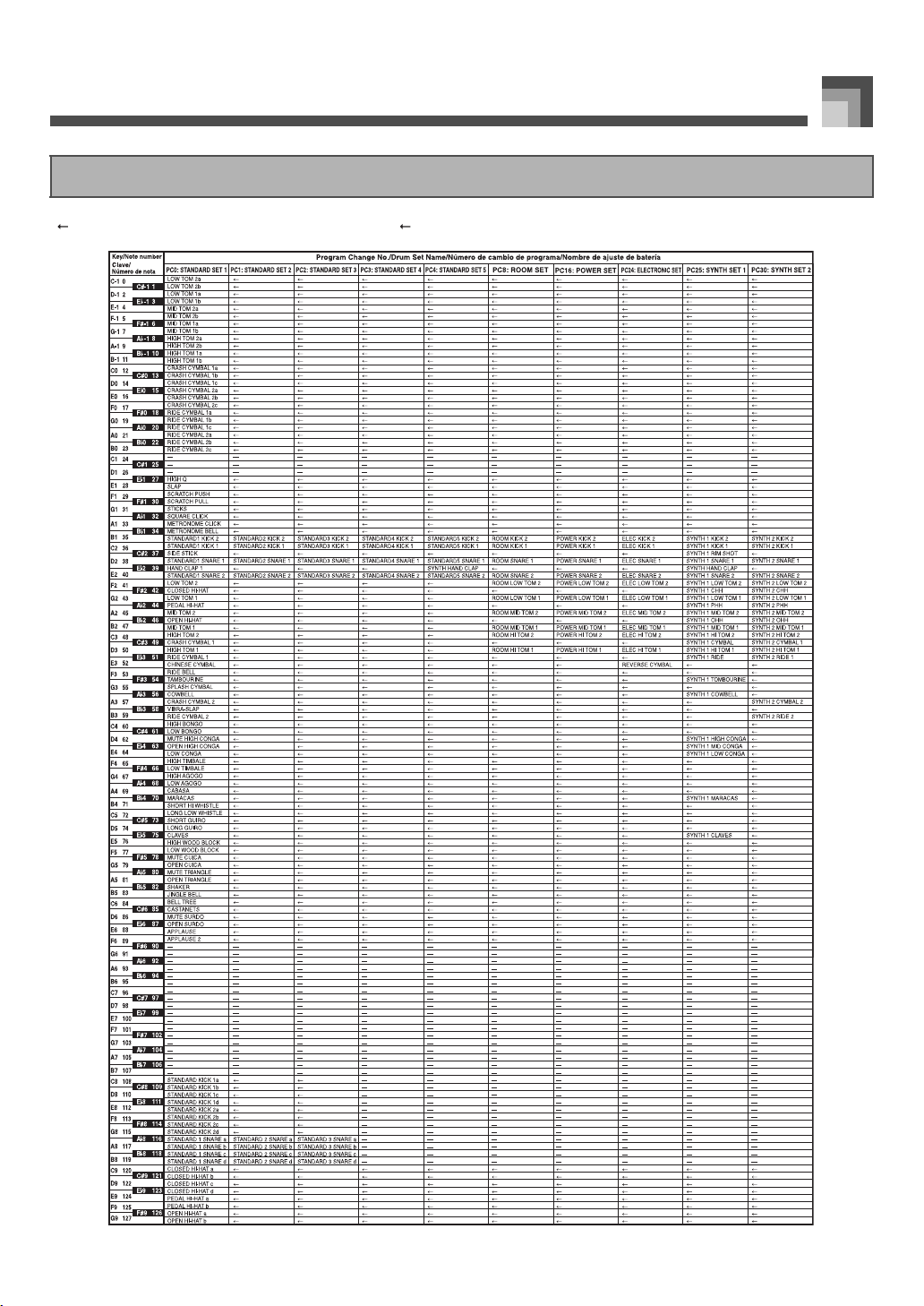
A-8
Appendix/Apéndice
“ ” indicates the same sound as STANDARD SET 1./“ ” indica el mismo sonido que STANDARD SET 1.
Drum Assignment List/Lista de asignación de batería
707A-E-189A
ページ 2005年3月10日 木曜日 午後11時13分
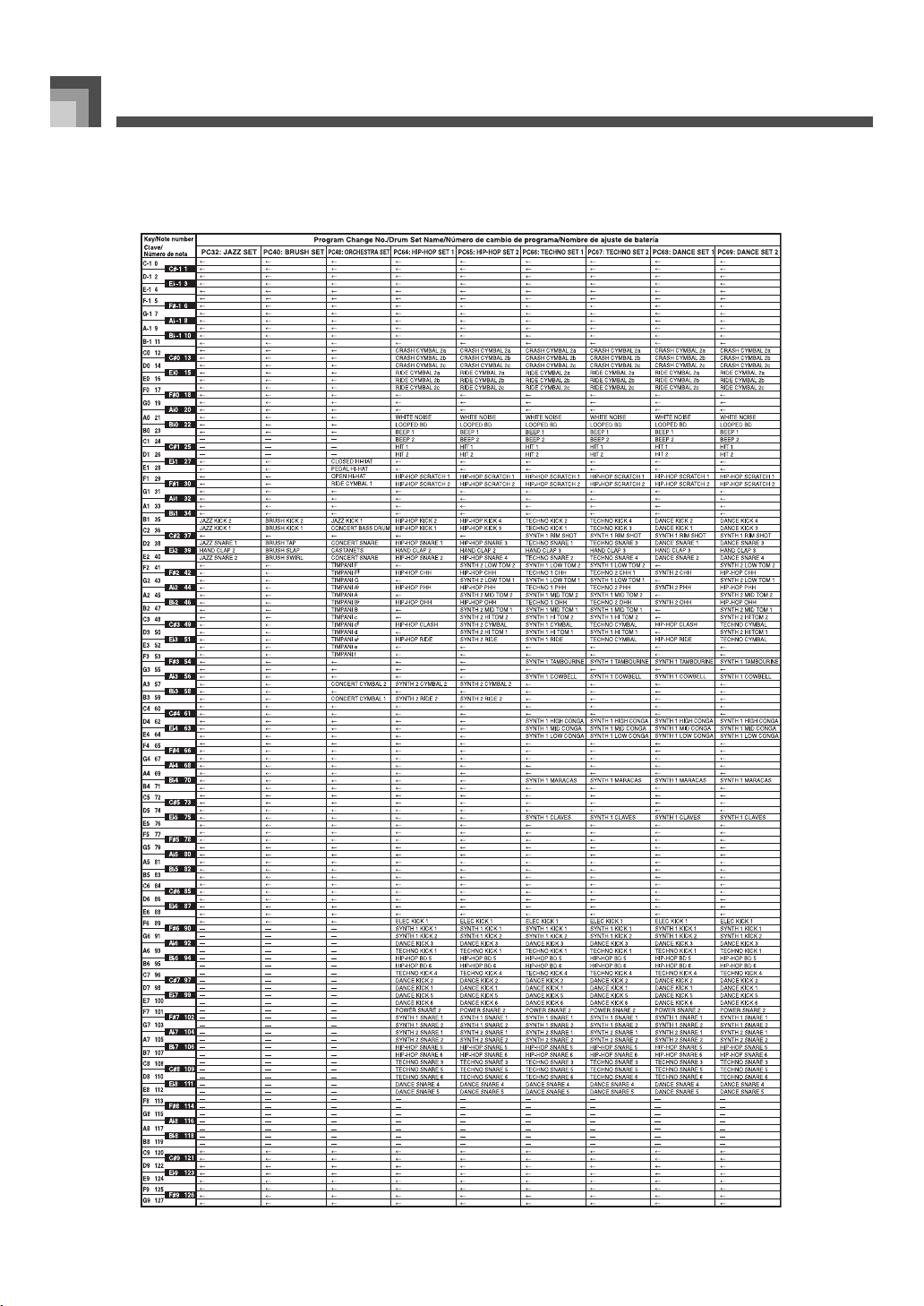
Appendix/Apéndice
A-9
707A-E-190A
ページ 2005年3月10日 木曜日 午後11時13分
A-10
Appendix/Apéndice
Rhythm List/Lista de Ritmo
No./
Nº
Rhythm Name/
Nombre de Ritmo
8 BEAT
000 8 BEAT 1
001 8 BEAT 2
002 8 BEAT 3
003 8 BEAT 4
004 8 BEAT 5
005 8 BEAT POP 1
006 8 BEAT POP 2
007 8 BEAT POP 3
008 8 BEAT POP 4
009 60'S SOUL
010 8 BEAT DANCE
011 POP ROCK 1
012 POP ROCK 2
16 BEAT
013 16 BEAT 1
014 16 BEAT 2
015 16 BEAT 3
016 16 BEAT 4
017 SLOW 16 BEAT
018 16 BEAT SHUFFLE 1
019 16 BEAT SHUFFLE 2
020 16 BEAT SHUFFLE 3
021 16 BEAT SHUFFLE 4
022 FUNK 1
023 FUNK 2
024 FUSION
025 LATIN FUSION
POPS
026 POP 1
027 POP 2
028 CUITAR POP
029 SOUL
030 POP SHUFFLE 1
031 POP SHUFFLE 2
032 SOUL POP
033 WORLD POP
034 MELLOW R&B
035 60'S POP
036 80'S POP
037 OLDIES POP
038 POP WALTZ
BALLAD
039 8 BEAT BALLAD 1
040 8 BEAT BALLAD 2
041 8 BEAT BALLAD 3
042 16 BEAT BALLAD 1
043 16 BEAT BALLAD 2
044 16 BEAT BALLAD 3
045 6/8 BALLAD 1
046 6/8 BALLAD 2
047 ROCK BALLAD
048 POP BALLAD
049 OLDIES BALLAD
050 SERENADE
ROCK
051 ROCK 1
052 ROCK 2
053 ROCK 3
054 R&B
055 SHUFFLE ROCK
056 HEAVY METAL
057 60'S ROCK
058 SHUFFLE BOOGIE
059 BLUES
060 TWIST
DANCE
061 TRANCE 1
062 TRANCE 2
063 AMBIENT 1
064 AMBIENT 2
065 AMBIENT 3
066 RAVE
067 TECHNO
068 DIGITAL ROCK
069 HOUSE
070 LATIN HOUSE
071 DANCE 1
072 DANCE 2
073 MODERN R&B
074 HIP-HOP
075 TRIP-HOP
076 ELECTRIC POP
077 DANCE POP 1
078 DANCE POP 2
No./
Nº
Rhythm Name/
Nombre de Ritmo
079 DANCE POP 3
080 DISCO SOUL
JAZZ
081 FAST BIG BAND
082 MIDDLE BIG BAND
083 SLOW BIG BAND
084 JAZZ COMBO 1
085 JAZZ COMBO 2
086 SWING 1
087 SWING 2
088 SLOW SWING
089 MODERN JAZZ
090 FOX TROT
091 QUICKSTEP
092 JAZZ WALTZ
EUROPEAN
093 POLKA
094 POLKA FOX
095 POP POLKA
096 MARCH 1
097 MARCH 2
098 GERMAN MARCH
099 WALT Z 1
100 WALT Z 2
101 WALT Z 3
102 VIENNESE WALTZ
103 FRENCH WALTZ 1
104 FRENCH WALTZ 2
LATIN/VARIOUS
105 BOSSA NOVA 1
106 BOSSA NOVA 2
107 BOSSA NOVA 3
108 SAMBA 1
109 SAMBA 2
110 MERENGUE
111 CUMBIA
112 CHA-CHA-CHA
113 SALSA
114 BEGUINE 1
115 BEGUINE 2
116 BOLERO
117 MAMBO
118 RHUMBA
No./
Nº
Rhythm Name/
Nombre de Ritmo
119 TANGO 1
120 TANGO 2
121 REGGAE 1
122 REGGAE 2
123 SKA
124 LATIN DISCO
125 BLUEGRASS
126 COUNTRY
127 COUNTRY SHUFFLE
128 COUNTRY WALTZ
129 FAST GOSPEL
130 SLOW GOSPEL
131 BROADWAY
132 JIVE
133 DIXIE
134 PASODOBLE
135 SIRTAKI
136 HAWAIIAN
137 ADANI
138 BALADI
139 SYMPHONY
FOR PIANO
140 PIANO BALLAD 1
141 PIANO BALLAD 2
142 PIANO BALLAD 3
143 EP BALLAD 1
144 EP BALLAD 2
145 BLUES BALLAD
146 MELLOW JAZZ
147 JAZZ COMBO 3
148 RAGTIME
149 BOOGIE WOOGIE
150 ARPEGGIO 1
151 ARPEGGIO 2
152 ARPEGGIO 3
153 PIANO BALLAD 4
154 6/8 MARCH
155 MARCH 3
156 2 BEAT
157 WALTZ 4
158 WALTZ 5
159 WALTZ 6
No./
Nº
Rhythm Name/
Nombre de Ritmo
707A-E-191A
• This list shows the initial factory default configuration, in which
the user area (160 through 175) contains default rhythm data.
• System reset (page E-70) clears all data stored in the user
area.
• The CD-ROM that comes bundled with the keyboard can be
used to return all rhythms to the initial factory defaults shown in
this list. See “Returning the keyboard to its initial factory
defaults” on page E-77 for details.
•
Esta lista muestra la configuración predeterminada de fábrica,
según la cual el área de usuario (160 a 175) contiene datos de
ritmo por omisión
.
• La reinicialización del sistema de la página S-70 borra todos los
datos del área de usuario.
• El CD-ROM que viene con el teclado se puede usar para
reposicionar todos los ritmos a los ajustes predeterminados de
fábrica indicados en esta lista. Para los detalles, ve
“Reposicionando el teclado a los valores predeterminados de
fábrica” en la página S-77.
User Rhythms/Ritmos de usuario
No./
Nº
Rhythm Name/
Nombre de Ritmo
160 METRONOME 4 BEAT
161 METRONOME 3 BEAT
162 METRONOME 2 BEAT
163 POP BEAT
164 URBAN 16 BEAT
165 SHUFFLE BALLAD
166 U.K ROCK
167 UNPLUGGED
168 CYBER TRANCE
169 2 STEP
170 BALLROOM FOX
171 PUNTA
172 BACHATA
173 RAI
174 ZOUK
175 CONCERTO
No./
Nº
Rhythm Name/
Nombre de Ritmo
ページ 2005年3月24日 木曜日 午前9時50分
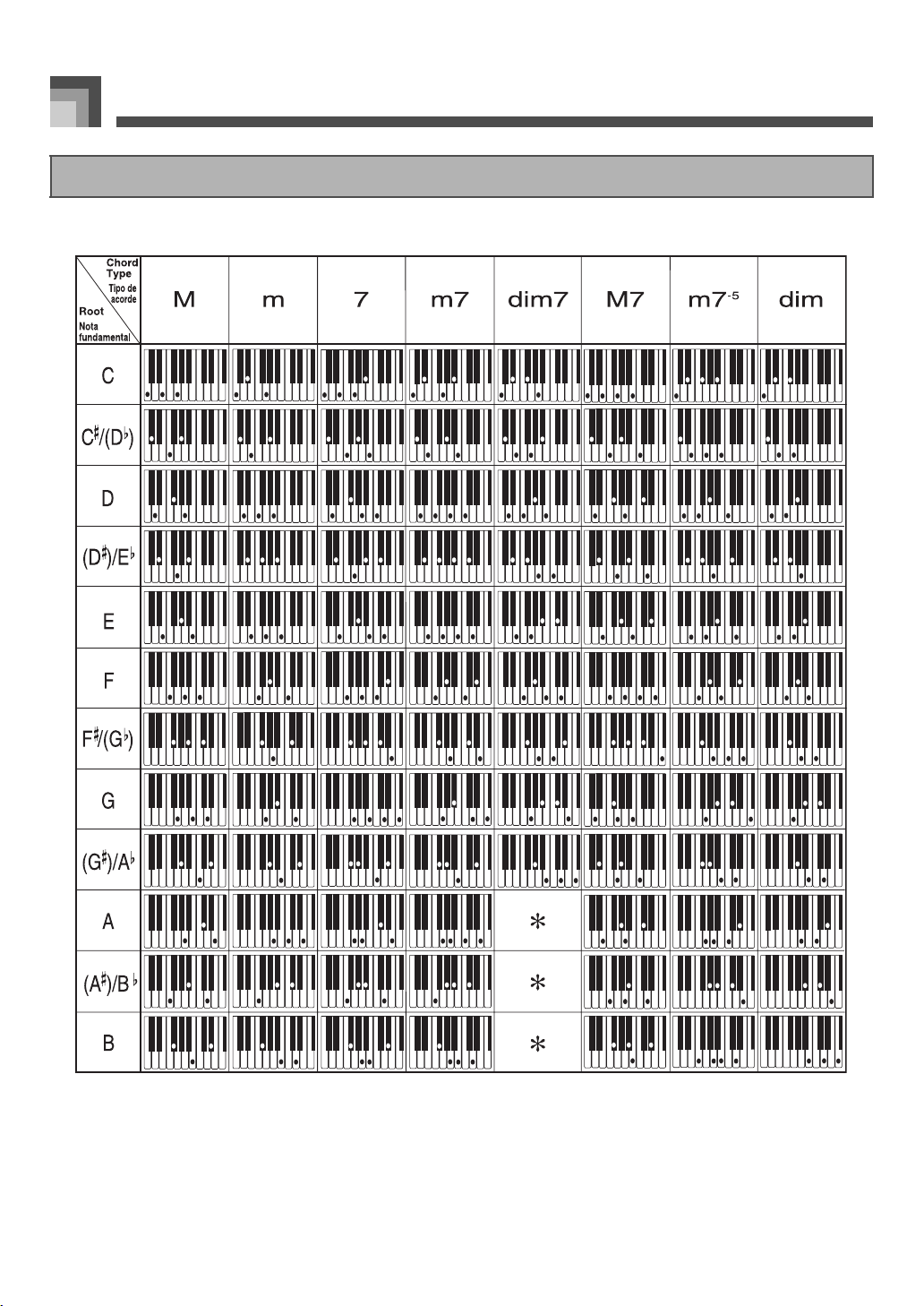
Appendix/Apéndice
A-11
This table shows the fingerings for commonly used chords, including inverted fingerings.
Esta tabla muestra las digitaciones para los acordes usados comúnmente, incluyendo las digitaciones invertidas.
Fingered Chord Chart/Cuadro de acordes Fingered
707A-E-192A
ページ 2005年3月10日 木曜日 午後11時13分
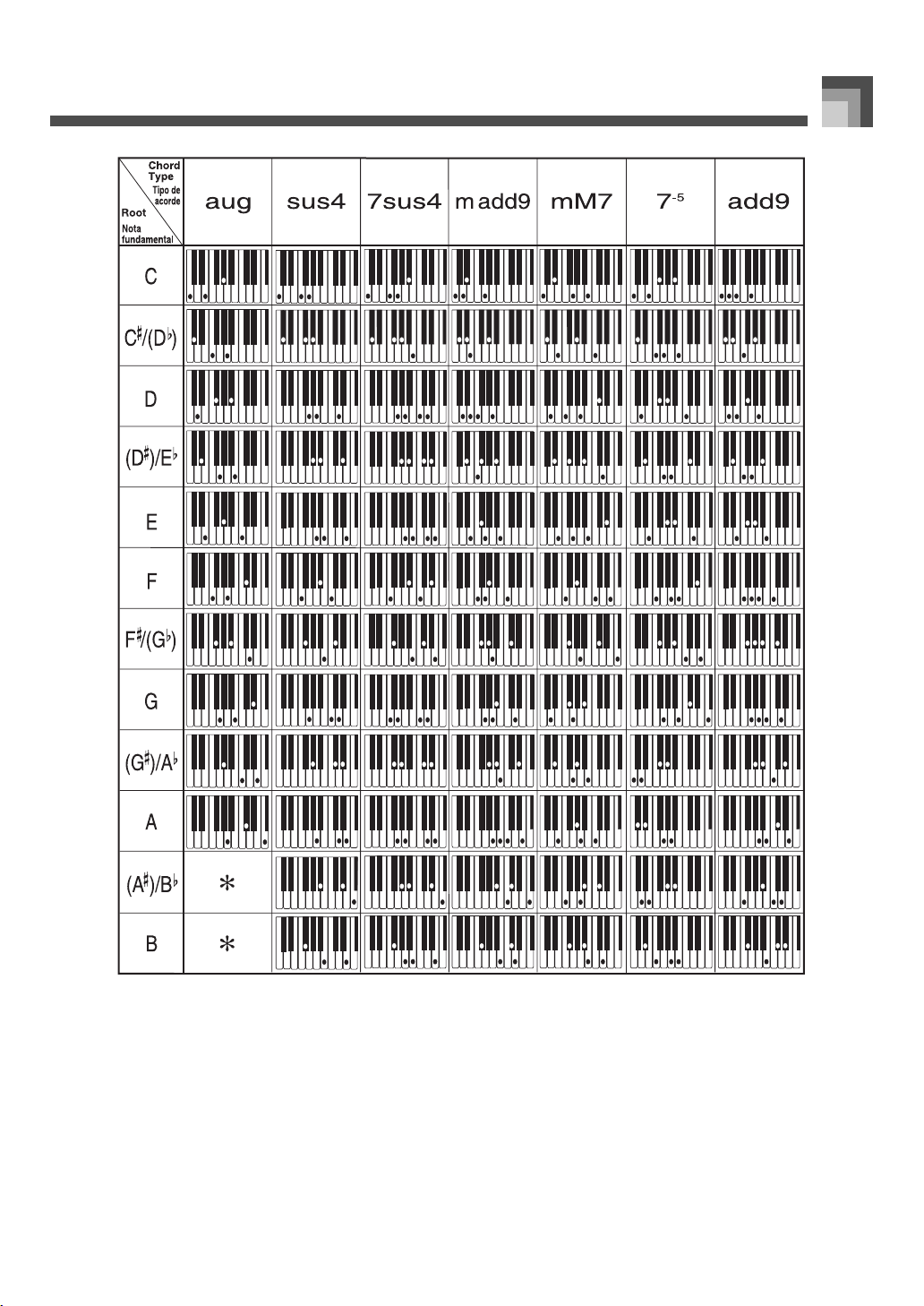
A-12
Appendix/Apéndice
* You can change the keyboard range of dim7 chords for roots A, B
b
, and B, and aug chords for roots B
b
and B by adjusting the
split point setting (page E-62).
* Puede cambiar la gama del teclado de los acordes dim7 para las notas fundamentales A, B
b
y acordes aumentados (augment)
para las notas fundamentales B
b
y B mediante el ajuste del punto de división (página S-62).
707A-E-193A
ページ 2005年3月10日 木曜日 午後11時13分
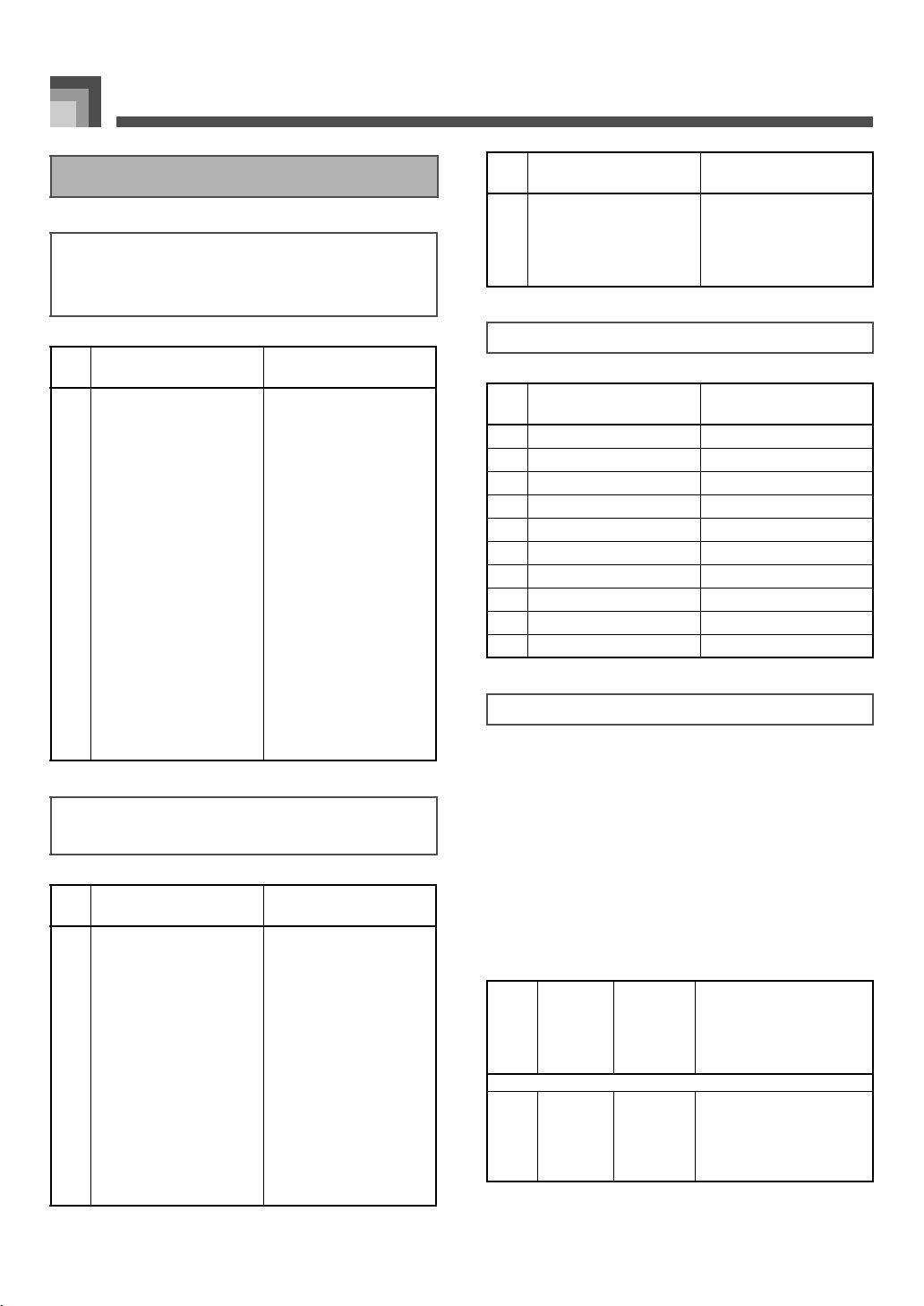
Appendix/Apéndice
A-13
Settable parameters depend on the DSP type. Also, the
parameters for each DSP type depend on the algorithm*
associated with the DSP type. See the DSP Algorithm List on
page E-83 for more information.
* Effector structure and operation type
Los parámetros que pueden ajustarse dependen en el tipo
DSP. También, los parámetros para cada tipo DSP depende
en el algoritmo* asociado con el tipo DSP. Para mayor infor-
mación vea la “Lista de algoritmos DSP” en la página S-83.
* Estructura de generador de efectos y tipo de operación.
Effect List/Lista de efecto
REVERB Effect List/
Lista de efectos de reverberación
(REVERB)
No./
Nº
Display Name/
Nombre de display
Type Name/
Nombre de tipo
00 Room 1 Room 1
01 Room 2 Room 2
02 Room 3 Room 3
03 Hall 1 Hall 1
04 Hall 2 Hall 2
05 Plate 1 Plate 1
06 Delay Delay
07 PanDelay PanDelay
08 Plate 2 Plate 2
09 Plate 3 Plate 3
10 LrgRoom 1 LrgRoom 1
11 LrgRoom 2 LrgRoom 2
12 Stadium 1 Stadium 1
13 Stadium 2 Stadium 2
14 LongDly 1 LongDelay 1
15 LongDly 2 LongDelay 2
CHORUS Effect List/
Lista de efectos de chorus (CHORUS)
No./
Nº
Display Name/
Nombre de display
Type Name/
Nombre de tipo
00 Chorus 1 Chorus 1
01 Chorus 2 Chorus 2
02 Chorus 3 Chorus 3
03 Chorus 4 Chorus 4
04 FBChorus Feedback Chorus
05 Flanger1 Flanger 1
06 SDelay 1 Short Delay 1
07 SDelay 2 Short Delay 2
08 SFChorus Soft Chorus
09 BRChorus Bright Chorus
10 DPChorus Deep Chorus
11 Flanger 2 Flanger 2
12 Flanger 3 Flanger 3
13 Flanger 4 Flanger 4
14 SDelay 3 Short Delay 3
15 SDelay 4 Short Delay 4
Equalizer List/Lista de ecualizador
No./
Nº
Display Name/
Nombre de display
Type Name/
Nombre de tipo
0 Standard Standard
1 Bass + Bass +
2 Treble + Treble +
3 Loudness Loudness
4 Mellow Mellow
5 Bright Bright
6 Rock Rock
7 Dance Dance
8 Jazz Jazz
9 Classic Classic
DSP Effect List/Lista de efectos DSP
DSP
No./
Nº
DSP
Algorithm
ID/
Identificación
(ID) de
algoritmo
Display
Name/
Nombre de
display
DSP Name/Nombre DSP
Dynamics Fx
[00] 03 Equalize Equalizer
[01] 06 Comp 1 Compressor 1
[02] 06 Comp 2 Compressor 2
[03] 07 Limiter Limiter
[04] 13 Enhancer Enhancer
No./
Nº
Display Name/
Nombre de display
Type Name/
Nombre de tipo
707A-E-194A
ページ 2005年3月11日 金曜日 午後2時35分
A-14
Appendix/Apéndice
Phaser
[05] 10 Phaser Phaser
[06] 09 StPhaser Stereo Phaser
Chorus
[07] 16 Chorus 1 Chorus 1
[08] 17 Chorus 2 Chorus 2
[09] 19 Chorus 3 Chorus 3
[10] 18 Chorus 4 Chorus 4
[11] M05 Enha Cho Enhancer - Chorus
Flanger
[12] 26 Flanger Flanger
[13] M07 EnhaFlan Enhancer - Flanger
Delay
[14] 28 Delay Delay
[15] 22 3Tap Delay 3-Tap Delay
[16] 20 St Delay Stereo Delay
[17] 21 StXDelay Stereo Cross Delay
[18] M06 EnhaDly Enhancer - Delay
[19] 25 Reflect Reflection
Cho/Flanger/Delay Combination
[20] M02 PhaCho 1 Phaser - Chorus 1
[21] M02 Pha Cho 2 Phaser - Chorus 2
[22] M04 PhaDly 1 Phaser - Delay 1
[23] M04 PhaDly 2 Phaser - Delay 2
[24] M00 ChoDly 1 Chorus - Delay 1
[25] M00 ChoDly 2 Chorus - Delay 2
[26] M01 ChoDly 3 Chorus - Delay 3
[27] M01 ChoDly 4 Chorus - Delay 4
[28] M19 CmpDelay Compressor - Delay
[29] M18 CmpEnDly
Compressor - Enhancer - Delay
[30] M23 CmpChoRf
Compressor - Chorus - Reflection
[31] M08 Cho Flan Chorus - Flanger
[32] M03 FlanDly 1 Flanger - Delay 1
[33] M03 FlanDly 2 Flanger - Delay 2
Reverb
[34] 27 RvbRoom 1 Reverb Room 1
[35] 27 RvbRoom 2 Reverb Room 2
[36] 27 RvbRoom 3 Reverb Room 3
[37] 27 RvbHall 1 Reverb Hall 1
[38] 27 RvbHall 2 Reverb Hall 2
[39] 27 RvbPlate Reverb Plate
[40] 23 GateRvb 1 Gate Reverb 1
[41] 23 GateRvb 2 Gate Reverb 2
[42] 24 GateRvb 3 Gate Reverb 3
[43] 24 GateRvb 4 Gate Reverb 4
Pan/Tremolo Fx
[44] 01 Tremolo Tremolo
[45] M09 Cho Trem Chorus - Tremolo
[46] 00 Auto Pan Auto Pan
[47] M10 PhaAPan 1 Phaser - Auto Pan 1
[48] M10 PhaAPan 2 Phaser - Auto Pan 2
[49] M20 PhaChoAP Phaser - Chorus - Auto Pan
DSP
No./
Nº
DSP
Algorithm
ID/
Identificación
(ID) de
algoritmo
Display
Name/
Nombre de
display
DSP Name/Nombre DSP
Rotary Fx
[50] 11 Rotary 1 Rotary 1
[51] 11 Rotary 2 Rotary 2
[52] 12 Od Rot 1 Overdrive - Rotary 1
[53] 12 Od Rot 2 Overdrive - Rotary 2
[54] M17 RotRef 1 Rotary - Reflection 1
[55] M17 RotRef 2 Rotary - Reflection 2
[56] M17 RotRef 3 Rotary - Reflection 3
[57] M16 OdRtRef 1
Overdrive - Rotary - Reflection 1
[58] M16 OdRtRef 2
Overdrive - Rotary - Reflection 2
[59] M16 OdRtRef 3
Overdrive - Rotary - Reflection 3
Wah Fx
[60] 04 LFO Wah LFO Wah
[61] 05 Auto Wah Auto Wah
[62] M21
AWhChDly
Auto Wah - Chorus - Delay
[63] M22 LWhChDly LFO Wah - Chorus - Delay
Guitar Fx
[64] 08 Crunch Crunch
[65] 08 Ovrdrive Overdrive
[66] 08 Dist 1 Distortion 1
[67] 08 Dist 2 Distortion 2
[68] 08 Metal Metal
[69] 08 Fuzz Fuzz
[70] M29 CrnPhase Crunch - Phaser
[71] M29 Od Phase Overdrive - Phaser
[72] M30 Crn Cho Crunch - Chorus
[73] M30 OdChorus Overdrive - Chorus
[74] M30 Dist Cho Distortion - Chorus
[75] M30 MetalCho Metal - Chorus
[76] M31 DistFlan Distortion - Flanger
[77] M31 Met Fan Metal - Flanger
[78] M28 CrnDelay Crunch - Delay
[79] M28 Od Delay Overdrive - Delay
[80] M28 DistDly 1 Distortion - Delay 1
[81] M28 DistDly 2 Distortion - Delay 2
[82] M28 MetelDly Metal - Delay
[83] M28 Fuzz Dly Fuzz - Delay
[84] M24 CrChoDly Crunch - Chorus - Delay
[85] M24 DsChoDly Distortion - Chorus - Delay
[86] M25 CmpCrDly
Compressor - Crunch - Delay
[87] M26 AWhCrDly Auto Wah - Crunch - Delay
[88] M26
AWhOdDly
Auto Wah - Overdrive - Delay
[89] M26
AWhDsDly
Auto Wah - Distortion - Delay
[90] M27
LWhOdDly
LFO Wah - Overdrive - Delay
[91] M27 LWhDsDly
LFO Wah - Distortion - Delay
SFX
[92] 14 Ring Mod Ring Modulator
[93] M12 RgChoDly
Ring Modulator - Chorus - Delay
[94] M13 RingDist
Ring Modulator - Distortion
[95] 15 Lo-Fi Lo-Fi
[96] M11 CompLoFi Compressor - Lo-Fi
[97] M14 LoFi Ref Lo-Fi - Reflection
[98] M15 Crn LoFi Crunch - Lo-Fi
[99] M15 DistLoFi Distortion - Lo-Fi
DSP
No./
Nº
DSP
Algorithm
ID/
Identificación
(ID) de
algoritmo
Display
Name/
Nombre de
display
DSP Name/Nombre DSP
707A-E-195A
ページ 2005年3月10日 木曜日 午後11時13分
MIDI Implementation Chart
Model CTK-900
Version : 1.0
Function ...
Transmitted Recognized Remarks
0, 32
1
6, 38
7
10
11
16
17
18
19
64
67
66
71
72
O
X *2
O
O
O
X *2
O
O
O
O
O *3
O *3
O *3
O
O
Bank select
Modulation
Data entry
Volume
Pan
Expression
DSP Parameter0
DSP Parameter1
DSP Parameter2
DSP Parameter3
Hold1
Sostenuto
Soft pedal
Rsonance
Rele
a
se Time
Basic
Channel
Mode
Default
Changed
Default
Messages
Altered
Velocity
After
Touch
Pitch Bender
Note
Number:
Control
Change
True voice
Note ON
Note OFF
Key s
Ch s
1 - 16
1 - 16
Mode 3
X
0 - 127
O 9nH v = 1 - 127
X 9nH v = 0
X
X
X *2
1 - 16
1 - 16
Mode 3
X
0 - 127
0 - 127 *1
O 9nH v = 1 - 127
X
X
O
O
O
O
O
O
O
O
O
O
O
O
O
O
O
O
O
*1 : Depends on tone.
*1 : Depende del tono.
707A-E-202A
ページ 2005年3月9日 水曜日 午後5時29分
73
74
77
76
78
80
81
82
83
91
93
98, 99
100, 101
120
121
Mode 1 : OMNI ON, POLY Mode Mode 2 : OMNI ON, MONO O : Yes
Mode 3 : OMNI OFF, POLY Mode Mode 4 : OMNI OFF, MONO X : No
*2ᴷ Cannot be sent by keyboard play or control panel operations on this instrument, but sent by
Auto Accompaniment or Song Memory Functions.
*2ᴷ Sobre este instrumento no se puede enviar mediante las poeraciones de panel de control o
ejecución de teclado, sino enbiar mediante las funciones de memoria de canciones o de
acompañamiento automático.
*3ᴷ Selected in accordance with sustain pedal setting.
*3ᴷ Seleccionado de acuerdo con el ajuste del pedal de sustain.
O
O
O
O
O
O
O
O
O
O
O
X
O
X
O
Attack Time
Brightness
Vibrato rate
Vibrato depth
Vibrato delay
DSP Parameter4
DSP Parameter5
DSP Parameter6
DSP Parameter7
Reverb send
Chorus send
NRPN LSB, MSB
RPN LSB, MSB
All sound off
Reset all controller
Program
Change
System Exclusive
Common
System
Real Time
Remarks
Aux
Messages
: True #
: Song Pos
: Song Sel
: Tune
: Clock
: Commands
: Local ON/OFF
: All Notes OFF
: Active Sense
: Reset
O 0 - 127
O
X
X
X
O
O
X
X
X
X
O
O
O
O
O
O
O
O
O
O
O
O
O
O
O
O 0 - 127
O
X
X
X
X
X
X
O
O
X
707A-E-203A
F
MA0503-A Printed in China
CTK900-ES-1