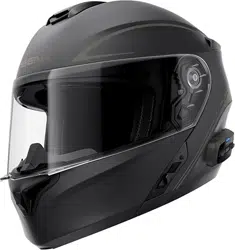

1.2.0_EN_April2022

BLUETOOTH
®
HELMET
1.2.0
USER’S GUIDE
ENGLISH

2
RIDE CONNECTED
Blast your favorite tunes, talk over the intercom
with your buddies, hear directions from your GPS
and more, all through your OUTRUSH Bluetooth
®
System Helmet. With built-in Bluetooth
®
capabilities, HD Intercom, technology has never
felt so minimal or freeing.
Bluetooth
®
3.0
800 meters (880 yards)
One-to-One Intercom
Versatile Jog Dial
Firmware Upgradeable

3
GETTING STARTED
1. Update this product for free with the latest
firmware to fully enjoy the new advanced
features built into this product. Visit sena.com
to see how to update your product.
2. Users can follow Sena on Facebook, YouTube,
Twitter and Instagram to receive the most up
to date information on products, helpful tips
and all other announcements regarding Sena
products.
SENA Technologies, Inc.
Customer Support: sena.com

4
TABLE OF CONTENTS
1. ABOUT THE OUTRUSH BLUETOOTH
HELMET 7
1.1 General Information 7
1.2 Product Details 8
1.2.1 Bluetooth System Button 9
1.2.2 Detachable Inner Parts 10
1.3 Package Contents 10
1.4 Wearing the Helmet 11
1.4.1 Putting on the Helmet 11
1.4.2 Removing the Helmet 11
1.4.3 Removing the Shield Visor 12
1.4.4 Installing the Shield Visor 13
1.4.5 Opening the Chin Guard 14
1.4.6 Removing the Breath Guard 15
1.4.7 Installing the Breath Guard 15
1.4.8 Removing the Cheek Pads 16
1.4.9 Installing the Cheek Pads 16
1.4.10 Removing the Inner Pad 17
1.4.11 Installing the Inner Pad 18
1.4.12 Removing the Sun Visor 19
1.4.13 Installing the Sun Visor 19
1.5 Pre-Ride Helmet Inspection 20
1.5.1 Checking the Exterior 20
1.5.2 Checking the Chinstrap 20
2. GETTING STARTED: BLUETOOTH
SYSTEM 21
2.1 Powering On and Off 21
2.2 Charging 21

5
2.3 Checking the Battery Level 22
2.4 Volume Adjustment 22
2.5 Downloadable Sena Software 23
2.5.1 Sena Device Manager 23
3. PAIRING THE BLUETOOTH SYSTEM
WITH OTHER BLUETOOTH DEVICES 23
3.1 Mobile Phone Pairing 24
3.1.1 Initially Pairing the OUTRUSH 24
3.1.2 Pairing When the OUTRUSH is
Turned Off 24
3.2 Second Mobile Phone Pairing 25
4. MOBILE PHONE USAGE 25
4.1 Making and Answering Calls 25
4.2 Speed Dialing 26
4.2.1 Assigning Speed Dial Presets 26
4.2.2 Using Speed Dial Presets 26
5. BLUETOOTH INTERCOM 27
5.1 Intercom Pairing 27
5.2 Two-way Intercom 28
6. STEREO MUSIC 29
6.1 Playing Music with Bluetooth Devices 29

6
7. GENERAL SETTINGS 30
7.1 Function Priority 30
7.2 Configuration Menu 30
7.2.1 Assigning Speed Dial 31
7.2.2 VOX Phone (Default: Enable) 31
7.2.3 Voice Prompt (Default: Enable) 31
7.2.4 Delete All Pairings 32
7.3 Firmware Upgrades 32
8. TROUBLESHOOTING 32
8.1 Fault Reset 32
8.2 Factory Reset 32
9. MAINTENANCE AND CARE 33
9.1 Outer Shell 33
9.2 Inner Lining 33
9.3 Storing the Helmet 33
QUICK REFERENCE 34

7
1.1
General Information
This product is a motorcycle helmet.
Do not use it for any other purpose than riding a
motorcycle. If you use the helmet for anything else, it
may not provide sufficient protection in an accident.
No helmet can protect the wearer against all possible
impact scenarios.
For maximum protection, the helmet must fit properly
on the head and its retention strap securely fastened
under the chin. With the retention system comfortably
but firmly adjusted, the helmet should allow sufficient
peripheral vision when secured. If the helmet is too
large, it may move on your head while riding. If the
helmet can be removed when pulled from the back in
an upward and forward direction, it’s not fitted properly.
This could cause the helmet to obstruct your vision while
riding or come off in an accident, resulting in personal
injury or death. Please refer to Section 1.4: “Wearing
the Helmet” for more details about properly securing
and wearing your helmet.
The contents of this helmet User’s Guide are subjected
to change without notice. Its illustration may differ
from the actual product. The copyrights for the User’s
Guide belong to Sena Technologies, Inc. Reproduction
or copying of the User’s Guide without permission is
strictly prohibited.
1. ABOUT THE OUTRUSH
BLUETOOTH HELMET
8
ABOUT THE OUTRUSH BLUETOOTH HELMET
1.2
Product Details
1
2
3
4
5
%
$
#
@
!
0
8
6
7
9
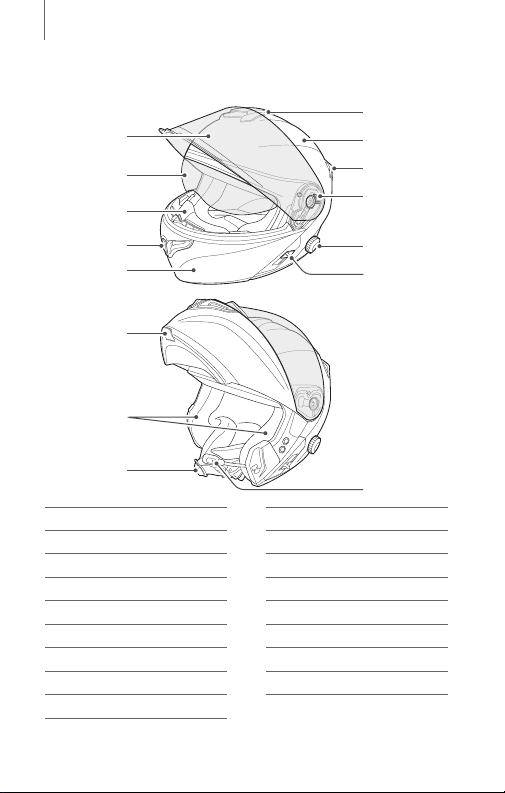
No. Name No. Name
1
Shield Visor
9
Microphone
2
Sun Visor
0
Sun Visor Lever
3
Breath Guard
!
Jog Dial
4
Chin Vent
@
Shield Ratchet
5
Chin Guard
#
Rear Vent
6
Chin Guard Lever
$
Shell
7
Speakers
%
Top Vent
8
Chinstrap
9
ABOUT THE OUTRUSH BLUETOOTH HELMET
1 2 3 4 5
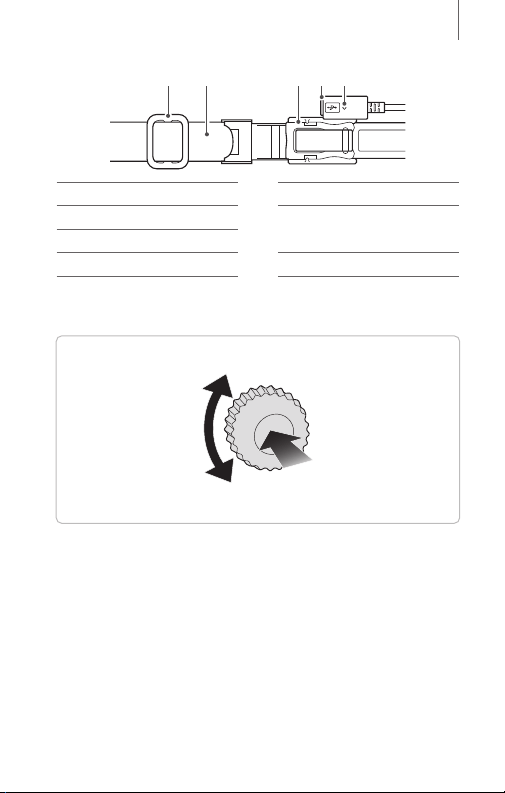
No. Name No. Name
1
Strap Adjuster
4
DC Power Charging &
Firmware Upgrade Port
2
Chinstrap
3
One-touch Bracket
5
Status LED
1.2.1
Bluetooth System Button
Rotate/Rotate
while Pressing
Tap/Press and Hold
10
ABOUT THE OUTRUSH BLUETOOTH HELMET
1.2.2
Detachable Inner Parts
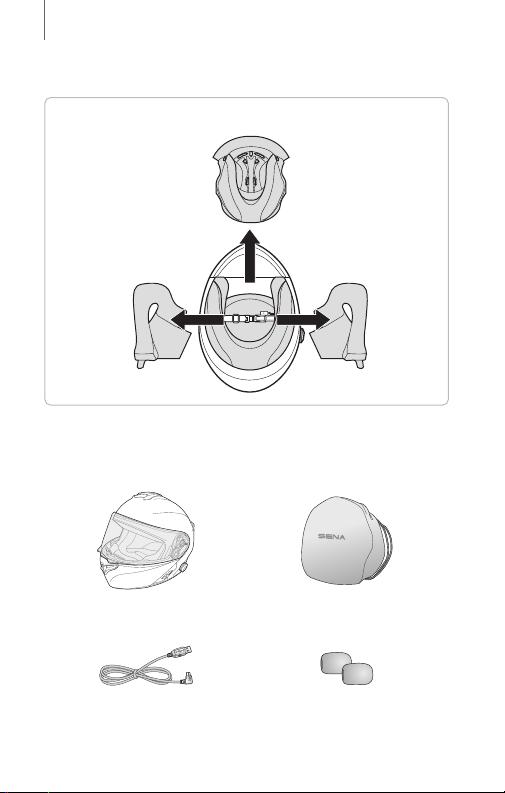
Inner Pad
Cheek Pad (R) Cheek Pad (L)
1.3
Package Contents
Helmet Helmet Pouch
USB Power &
Data Cable
Boom Microphone
Sponges (2)
11
ABOUT THE OUTRUSH BLUETOOTH HELMET
1.4
Wearing the Helmet
1. 4.1
Putting on the Helmet
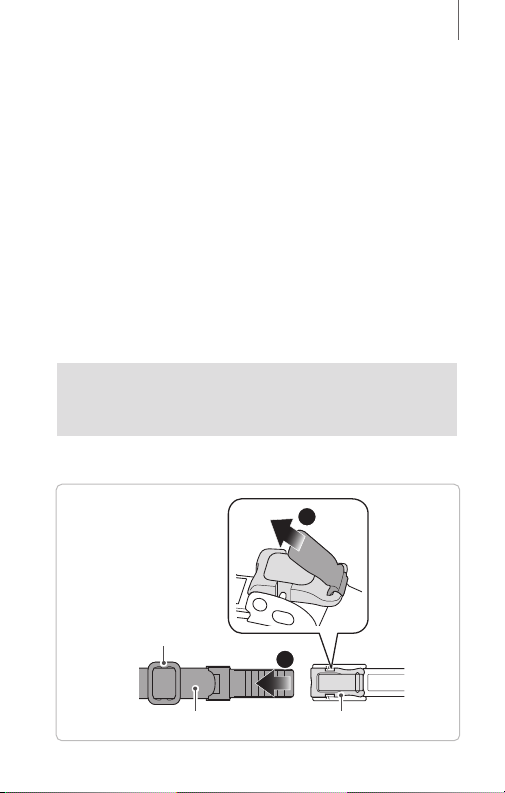
1. Unfasten the chinstrap by using the retention system.
2. Expand the helmet opening with your hand, and slide
your head into the helmet.
3. Fasten the chinstrap as tight as possible without
causing you pain.
1.4.2
Removing the Helmet
1. Unfasten the chinstrap by using the retention system.
2. Gently pull the padded chinstrap outward and slide
the helmet off your head.
Note: Fastening the chinstrap after removing the
helmet will help avoid scratching surfaces it’s placed
upon.
Quick-release retention system
1
2
Chinstrap One-touch Bracket
Strap Adjuster

12
ABOUT THE OUTRUSH BLUETOOTH HELMET
1.4.3
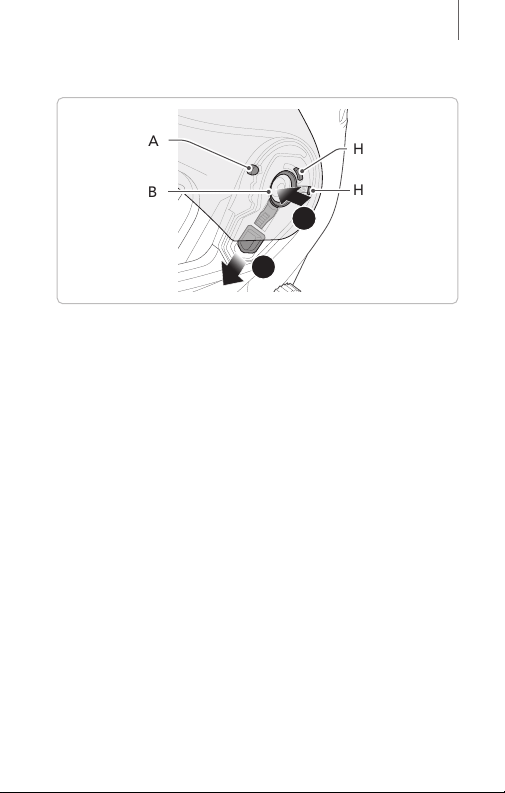
Removing the Shield Visor
2
1
1. Open the shield visor to the fully opened position.
2. Pull the shield visor outward while pushing the shield
ratchet lever downward.
3. Repeat Step 2 on the opposite side.
13
ABOUT THE OUTRUSH BLUETOOTH HELMET
1.4.4
Installing the Shield Visor
2
1
Hook B
Hook A
Hook C
Hook D
1. Align hook A, hook B, hook C, and hook D to the
shield ratchet as shown in the illustration above.
2. Insert hooks A-D into the shield ratchet while pushing
the shield ratchet lever downward.
3. Release the shield ratchet lever to lock the shield visor
into place.
4. Repeat the process on the opposite side.
14
ABOUT THE OUTRUSH BLUETOOTH HELMET
1.4.5
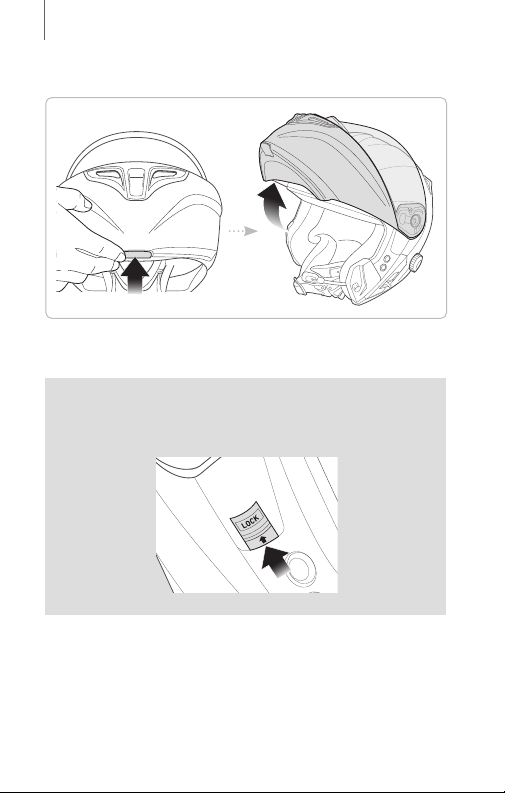
Opening the Chin Guard
Pull the chin guard lever outward and lift the chin guard
upward to the fully opened position.
Note: You can keep the chin guard up by pushing
the chin guard lock lever upward on the left side of
the helmet.

15
ABOUT THE OUTRUSH BLUETOOTH HELMET
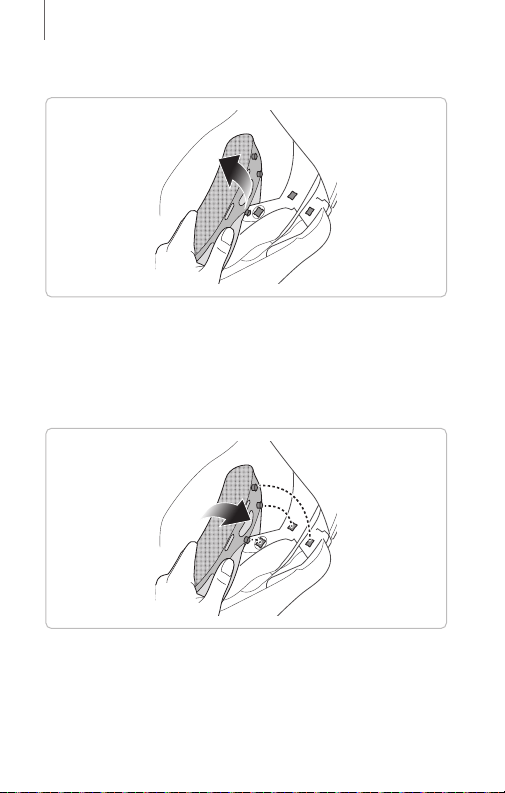
1.4.6
Removing the Breath Guard
Pull the breath guard away from the chin guard until it
separates completely.
1.4.7
Installing the Breath Guard
Insert the three tabs of the breath guard into the slots.
16
ABOUT THE OUTRUSH BLUETOOTH HELMET
1.4.8
Removing the Cheek Pads
1. Unsnap the three fasteners of the cheek pad from the
helmet.
2. Repeat the process on the opposite side.
1.4.9
Installing the Cheek Pads
1. Pass the chinstrap through the hole of the cheek pad
and snap the three fasteners of the cheek pad into
place.
2. Repeat the process on the opposite side.
17
ABOUT THE OUTRUSH BLUETOOTH HELMET
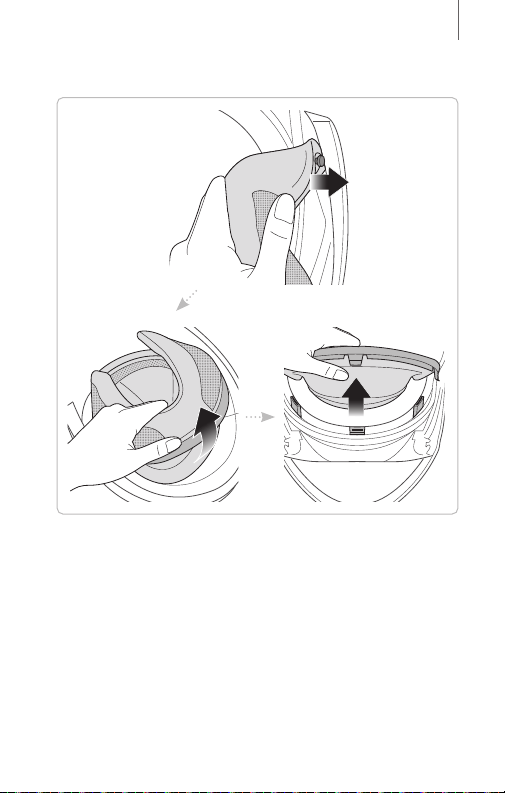
1. 4.10
Removing the Inner Pad
1. Detach the inner pad plate from the inner pin next to
the chin guard.
2. Pull the inner pad away from the back of the helmet.
3. Hold the front section of the inner pad and pull it
away from the front of the helmet.
18
ABOUT THE OUTRUSH BLUETOOTH HELMET
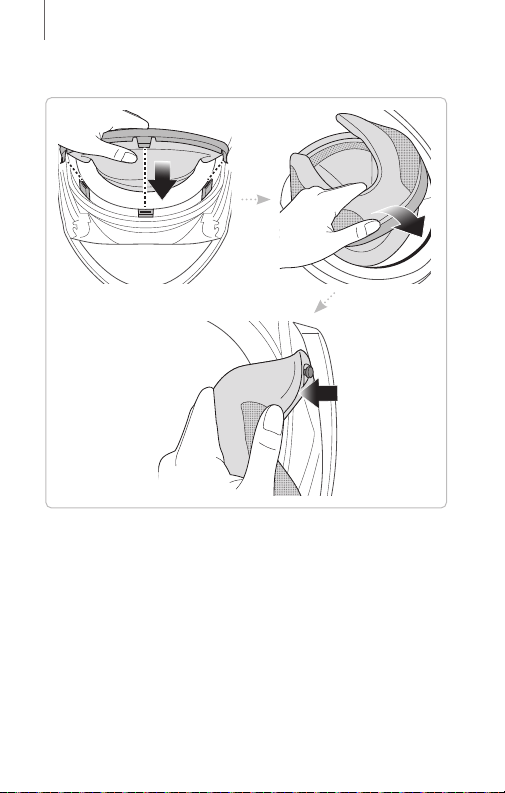
1. 4.11
Installing the Inner Pad
1. Align and insert the three tabs of the inner pad into
the slots of the front section.
2. Insert the rear plastic plate of the inner pad into the
space between the shell and EPS.
3. Attach the inner pad plate to the inner pin next to the
chin guard.
19
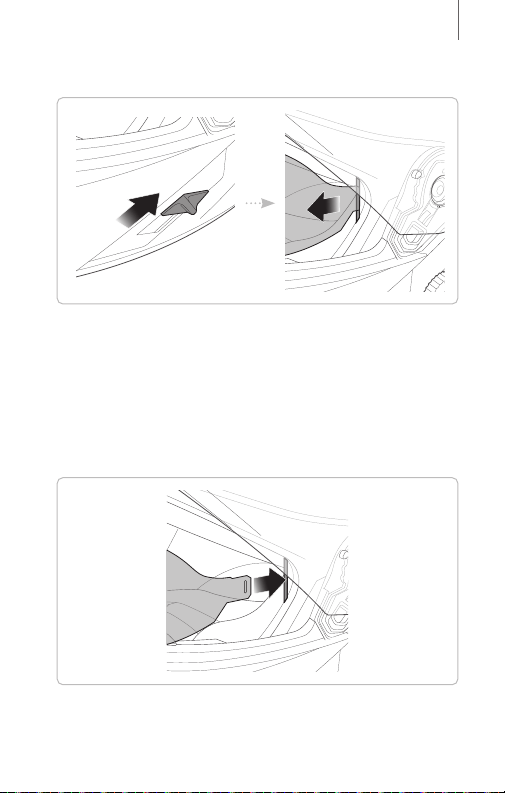
ABOUT THE OUTRUSH BLUETOOTH HELMET
1. 4.12
Removing the Sun Visor
1. Slide the sun visor lever in the direction shown in the
illustration above to lower the sun visor.
2. Pull one side of the visor in the direction shown in the
illustration above.
3. Repeat Step 2 on the opposite side.
1. 4.13
Installing the Sun Visor
1. Insert the sun visor tab into its slot until you hear a
click.
2. Repeat the process on the opposite side.

20
ABOUT THE OUTRUSH BLUETOOTH HELMET
1.5
Pre-Ride Helmet Inspection
1. 5.1
Checking the Exterior
Check the helmet regularly for damage. Small,
superficial scratches will not impair the helmet’s
protective qualities. In the case of more serious damage
(cracks, dents, flaking and cracking paint, etc.), the
helmet should no longer be used.
1.5.2
Checking the Chinstrap
1. Ensure that the chinstrap is properly routed under
your chin.
2. To test the chinstrap tension, slip your index finger
under the chinstrap and pull. If the chinstrap is
loose under the chin, it needs to be tightened. If the
chinstrap loosens when you pull on it, the helmet is
not properly fitted. Undo the chinstrap completely
and try fastening it again, then repeat the test.
3. If you are unable to fasten the chinstrap so that it fits
firmly against the chin, check that your helmet is still
the right size for you.
Note: Repeat the test after each adjustment.
CAUTION: Never ride with the chinstrap
unfastened or incorrectly adjusted. The chinstrap
should fit correctly and should not become loose
when pulled. The fastener is not correctly closed if
the chinstrap becomes loose when pulled.
21
2.1
Powering On and Off
•
Power On
Rotate while pressing the Jog dial clockwise for
1 second.
•
Power Off
Press and hold the Jog dial for 5 seconds.
2.2
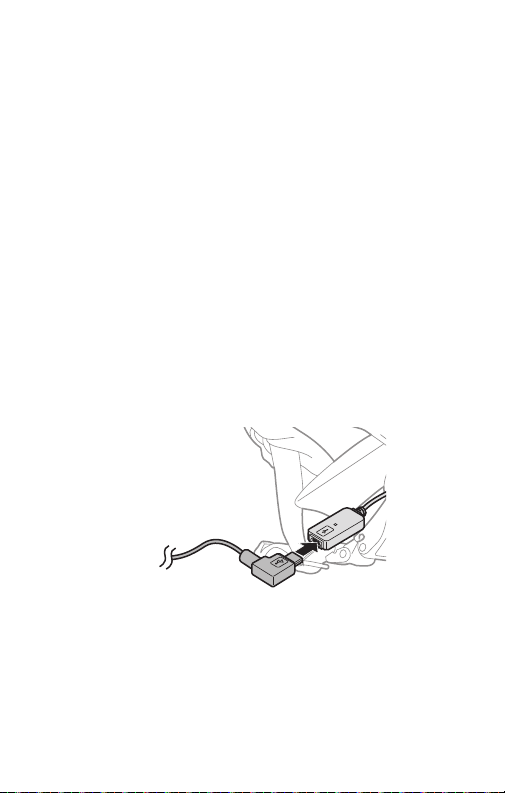
Charging
The Bluetooth system can be charged using many
common methods via the supplied USB power & data
cable: the OUTRUSH is compatible with 5 V input USB-
charged devices only.
Depending upon the charging method, the Bluetooth
system will be fully charged in about 3 hours.
2. GETTING STARTED:
BLUETOOTH SYSTEM

22
GETTING STARTED: BLUETOOTH SYSTEM
Note:
•
Please make sure to take off your helmet while
charging. The Bluetooth system automatically turns
off during charging.
•
Any 3rd party USB charger can be used with Sena
products if the charger is approved by either the
FCC, CE, or IC.
2.3
Checking the Battery Level
When the headset is powering on, the red LED flashes
rapidly indicating the battery level.
4 flashes = High, 70 ~ 100%
3 flashes = Medium, 30 ~ 70%
2 flashes = Low, 0 ~ 30%
2.4
Volume Adjustment
You can raise or lower the volume by rotating the Jog
dial. Volume is set and maintained independently
at different levels for each audio source (i.e. phone,
intercom), even when the Bluetooth system is rebooted.
•
Volume up/down
Rotate the Jog dial clockwise or counterclockwise.

23
PAIRING THE BLUETOOTH SYSTEM WITH OTHER BLUETOOTH DEVICES
2.5
Downloadable Sena Software
2.5.1
Sena Device Manager
The Sena Device Manager allows you to upgrade
the firmware and configure its settings directly from
your PC or Apple computer. For more information on
downloading the Sena Device Manager, please visit
sena.com.
3. PAIRING THE BLUETOOTH
SYSTEM WITH OTHER
BLUETOOTH DEVICES
Before using the Bluetooth system with other Bluetooth
devices for the first time, they’ll need to be “paired”.
This enables them to recognize and communicate
with one another whenever they’re within range. The
Bluetooth system can pair with multiple Bluetooth
devices such as mobile phone, MP3 player, GPS or
Sena SR10 Two-Way Radio Adapter via Mobile Phone
Pairing, Second Mobile Phone Pairing. The Bluetooth
system can also be paired with another Sena headset or
Bluetooth system.

24
PAIRING THE BLUETOOTH SYSTEM WITH OTHER BLUETOOTH DEVICES
3.1
Mobile Phone Pairing
There are two ways to pair the phone.
3.1.1
Initially Pairing the OUTRUSH
The Bluetooth system will automatically enter the phone
pairing mode when you initially turn on the Bluetooth
system or in the following situations:
•
Rebooting after executing the Factory Reset feature; or
•
Rebooting after executing the Delete All Pairings
feature.
1. Rotate while pressing the Jog dial clockwise for
1 second. You will hear a voice prompt, “Phone
pairing”.
2. Select the OUTRUSH in the list of the devices
detected on the mobile phone. Enter 0000 for the
PIN. Some mobile phones may not ask for the PIN.
Note:
•
The phone pairing mode lasts for 3 minutes.
•
To cancel phone pairing, tap the Jog dial.
3.1.2
Pairing When the OUTRUSH is Turned Off
1. Rotate while pressing the Jog dial clockwise for
5 seconds when the Bluetooth system is turned off.
You will hear a voice prompt, “Configuration menu”.
2. Rotate the Jog dial until you hear a voice prompt,
“Phone pairing”. Search for Bluetooth devices on
your mobile phone.

25
MOBILE PHONE USAGE
3. Select the OUTRUSH in the list of the devices
detected on the mobile phone. Enter 0000 for the
PIN. Some mobile phones may not ask for the PIN.
3.2
Second Mobile Phone Pairing
Pairing with Additional Mobile Phone, GPS, MP3 Players
or Sena SR10 Two-way Radio Adapter.
1. Rotate while pressing the Jog dial clockwise for
5 seconds when the Bluetooth system is turned off.
You will hear a voice prompt, “Configuration menu”.
2. Rotate the Jog dial until you hear a voice prompt,
“Second mobile phone pairing”. Search for
Bluetooth devices on your mobile phone.
3. Select the OUTRUSH in the list of the devices
detected on the mobile phone. Enter 0000 for the
PIN. Some mobile phones may not ask for the PIN.
4. MOBILE PHONE USAGE
4.1
Making and Answering Calls
•
Answering/Ending a call
Tap the Jog dial.
•
Rejecting a call
Press and hold the Jog dial for 1 second.
•
Make a Call with Voice dialer
Rotate while pressing the Jog dial clockwise.

26
MOBILE PHONE USAGE
4.2
Speed Dialing
4.2.1
Assigning Speed Dial Presets
You need to assign speed dial numbers before using the
speed dial. Speed Dial Presets could be assigned in the
settings menu.
4.2.2
Using Speed Dial Presets
1. Rotate while pressing the Jog dial counterclockwise.
2. Rotate the Jog dial to navigate between the menus.
You will hear voice prompts for each menu item.
3. Tap the Jog dial to select a voice menu among the
followings:
(1) Last number redial (4) Speed dial 3
(2) Speed dial 1 (5) Cancel
(3) Speed dial 2
4. To redial the last number called, tap the Jog dial
when you hear a voice prompt saying “Last number
redial”.
5. To call one of the speed dials, tap the Jog dial when
you hear a voice prompt, “Speed Dial (#)”.
6. If you want to exit the speed dial immediately, rotate
the Jog dial until you hear a voice prompt, “Cancel”,
and tap the Jog dial.
27
5.1
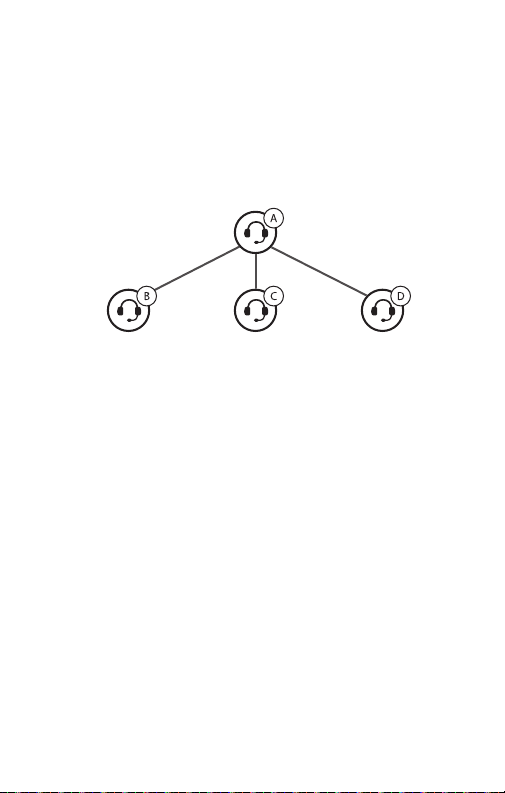
Intercom Pairing
Up to three other people can be paired with the helmet
for Bluetooth intercom conversations.
Intercom
Friend B
Intercom
Friend C
Intercom
Friend D
YOU
1. Rotate while pressing the Jog dial clockwise for
5 seconds when the two helmet (A and B) are turned
off. You will hear a voice prompt, “Configuration
menu”.
2. Rotate the Jog dial until you hear a voice prompt,
“Intercom pairing”.
3. Simply tap the Jog dial of any one of the two helmet
A or B and wait until the intercom connection is
automatically established.
4. Repeat steps 1 and 2 to pair with Intercom Friends C
& D.
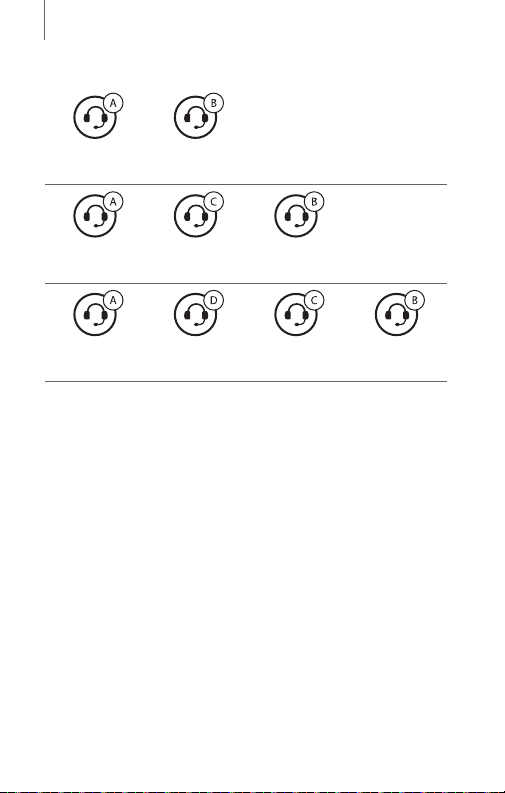
5. The intercom pairing queue is
‘Last-Come, First-
Served’
. If a headset has multiple paired headsets
for intercom conversations, the last paired headset is
set as
first intercom friend
. The previous intercom
friend becomes
second intercom friend
, and
third
intercom friend
.
5. BLUETOOTH INTERCOM
28
BLUETOOTH INTERCOM
Last-Come, First-Served
YOU Intercom
Friend 1
YOU Intercom
Friend 1
Intercom
Friend 2
YOU Intercom
Friend 1
Intercom
Friend 2
Intercom
Friend 3
5.2
Two-way Intercom
You can start an intercom conversation with one of any intercom
friends by tapping the Jog Dial. Tap the Jog Dial once to
intercom with the
First Intercom Friend
, tap the Jog Dial twice
to intercom with the
Second Intercom Friend
, and tap the Jog
Dial three times to intercom with the
Third Intercom Friend
.

29
STEREO MUSIC
Intercom
Friend 1
= Tap the Jog Dial.
Intercom
Friend 2
= Double tap the Jog Dial.
Intercom
Friend 3
= Tap the Jog Dial three times.
6. STEREO MUSIC
6.1
Playing Music with Bluetooth Devices
•
Play or Pause music
Press and hold the Jog dial for 1 second.
•
Track forward/back
Rotate while pressing the Jog dial clockwise or
counterclockwise.

30
7.1
Function Priority
The Bluetooth system operates in the following order of
priority:
(highest) Mobile phone
Bluetooth Intercom
(lowest) Bluetooth stereo music
A lower priority function is always interrupted by a
higher priority function.
7.2
Configuration Menu
You can set the configuration of the Bluetooth system by
the voice menu instruction described below.
To enter the Configuration Menu, rotate while
pressing the Jog dial clockwise for 5 seconds when
the Bluetooth system is turned off. You will hear a voice
prompt, “Configuration menu”.
Configuration Setting Enable/Disable or Execute
Phone Pairing None
Second Mobile Phone Pairing None
Intercom Pairing None
Speed Dial Execute
VOX Phone Enable/Disable
Voice Prompt Enable/Disable
Delete All Pairings Execute
Factory Reset Execute
Exit configuration Execute
7. GENERAL SETTINGS

31
GENERAL SETTINGS
7.2.1
Assigning Speed Dial
1. To assign a phone number as a speed dial, rotate the
Jog dial until you hear a voice prompt, “Speed dial”.
2. Tap the Jog dial, and you will hear a voice prompt,
“Speed dial one” and “Phone connected”.
–
Rotate the Jog dial to select one of three speed dial
numbers by hearing voice prompt, “Speed dial (#)”.
3. Call a phone number you want to assign and you
will hear a voice prompt, “Save speed dial (#)”.
The phone number is automatically assigned to the
selected speed dial number. Then the phone call will
hang up immediately.
4. To exit the menu, rotate the Jog dial clockwise or
counter clockwise until you hear a voice prompt,
“Cancel”, and tap the Jog dial to confirm. You will
then hear a voice prompt “Cancel”.
7.2.2
VOX Phone (Default: Enable)
If this feature is enabled, you can answer incoming calls
by voice. When you hear a ringtone for an incoming
call, you can answer the phone by saying a word such as
“Hello” loudly or by blowing air into the microphone.
VOX Phone is temporarily disabled if you are connected
to intercom. If this feature is disabled, you have to tap
the Jog dial to answer an incoming call.
7.2.3
Voice Prompt (Default: Enable)
You can disable voice prompts by configuration setting,
but the following voice prompts are always on.
–
Voice prompts for configuration setting menu
–
Voice prompts for factory reset
–
Voice prompts for speed dial

32
TROUBLESHOOTING
7.2.4
Delete All Pairings
To delete all Bluetooth pairing information. rotate the
Jog dial until you hear a voice prompt, “Delete all
pairings”, and tap the Jog dial to confirm.
7.3
Firmware Upgrades
The Bluetooth system supports firmware upgrades.
You can update the firmware using the Sena Device
Manager. Please visit Sena Bluetooth website at
sena.com to check the latest software downloads.
8. TROUBLESHOOTING
8.1
Fault Reset
When the Bluetooth system is not working properly,
you can easily reset the unit. When the USB charging &
data cable connects a power supply to the system, the
system will automatically be turned off and a fault reset
will occur.
8.2
Factory Reset
If you want to restore the headset to factory default
settings, use the Factory Reset in the configuration
menu. The headset automatically restores the default
settings and turns off.

33
9.1
Outer Shell
Use a soft cloth and a small amount of water to remove
bugs from the exterior.
Note: Never use gasoline, diesel fuel, thinners or
solvents to clean the helmet. These substances can
cause serious damage to the helmet, even though
the resulting damage may not be visible. The full
safety function of the helmet can then no longer be
guaranteed.
9.2
Inner Lining
The inner lining of the helmet is completely removable.
Its headliner can be washed by hand using mild soap at
a maximum temperature of 30°C (86°F). Allow the lining
to dry at room temperature.
9.3
Storing the Helmet
Store the helmet in a dry, dark, well-ventilated location,
out of the reach of children and animals. Always position
the helmet so that it cannot fall to the floor. Damage
that occurs in this way is not covered by the warranty.
9. MAINTENANCE AND CARE
34
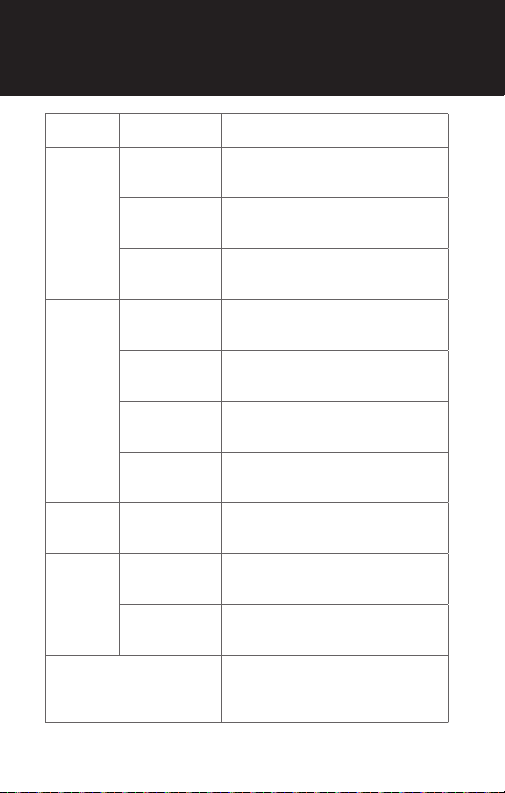
Type Operation Button Command
Basic
Function
Power on
Rotate while pressing the Jog dial
clockwise for 1 second
Power off
Press and hold the Jog dial for
5 seconds
Volume
adjustment
Rotate the Jog dial
Mobile
Phone
Answer & end
phone call
Tap the Jog dial
Voice dial
Rotate while pressing the Jog dial
clockwise
Speed dial
Rotate while pressing the Jog dial
counterclockwise
Reject
incoming call
Press and hold the Jog dial for
1 second
Intercom
Start/End
Intercom
Tap the Jog dial
Music
Play/Pause
Press and hold the Jog dial for
1 second
Track forward/
back
Rotate while pressing the Jog dial
clockwise/counterclockwise
Configuration Menu
1. Turn off the Bluetooth system
2. Rotate while pressing the Jog
dial clockwise for 5 seconds
QUICK REFERENCE

© 1998–2022 Sena Technologies, Inc. All rights reserved.
Sena Technologies, Inc. reserves the right to make any changes
and improvements to its product without providing prior notice.
Sena™ is a trademark of Sena Technologies, Inc. or its
subsidiaries in the USA and other countries. SF1™, SF2™,
SF4™, SFR™, SRL™, Momentum™, Momentum INC™,
Momentum Lite™, Momentum Pro™, Momentum INC Pro™,
Momentum EVO™, Cavalry™, Latitude SR™, Latitude SX™,
Latitude S1™, 30K™, 33i™, 50S™, 50R™, 50C™, 5S™, 5R™, 5R
LITE™, 20S EVO™, 20S™, 10S™, 10C™, 10C PRO™, ProRide
EVO™, 10C EVO™, 10U™, 10Upad™, 10R™, ACS10™, ACS-
RAM™, C1™, 3S™, 3S PLUS™, SMH5™, SMH5-FM™, SMH5
MultiCom™, SMH10™, SMH10R™, SPH10™, SPH10H-FM™,
Savage™, Prism Tube WiFi™, Prism™, Bluetooth Audio Pack
for GoPro
®
, Impulse™, R1™, R1 EVO™, R1 EVO CS™, R2™,
R2 EVO™, R2X™, M1™, M1 EVO™, RUMBA™, RC1™, RC3™,
RC4™, Stryker™, Handlebar Remote™, Wristband Remote™,
PowerPro Mount™, Powerbank™, FreeWire™, WiFi Docking
Station™, WiFi Sync Cable™, WiFi Adapter™, +mesh™, +Mesh
Universal™, MeshPort Blue™, MeshPort Red™, MeshPort
Black™, Econo™, OUTRUSH™, OUTRUSH R™, OUTSTAR™,
OUTSTAR S™, OUTFORCE™, OUTRIDE™, EcoCom™,
Parani A10™, Parani A20™, Parani M10™, pi™, Snowtalk™,
Snowtalk2™, SR10™, SR10i™, SM10™, SPIDER RT1™, SPIDER
ST1™, X1™, X1 Pro™, X1S™, Expand™, Expand Boom™,
Bluetooth Mic & Intercom™, Tufftalk™, Tufftalk Lite™, Tufftalk
M™ are trademarks of Sena Technologies, Inc. or its subsidiaries.
These trademarks may not be used without the express
permission of Sena.
GoPro
®
is a registered trademark of Woodman Labs of San
Mateo, California. Sena Technologies, Inc. (“Sena”) is not
affiliated with Woodman Labs, Inc. The Sena Bluetooth Pack
for GoPro
®
is an aftermarket accessory specially designed and
manufactured by Sena Technologies, Inc. for the GoPro
®
Hero3
and Hero4 allowing for Bluetooth capabilities.
The Bluetooth
®
word mark and logos are owned by the Bluetooth
SIG, Inc. and any use of such marks by Sena is under license.
iPhone
®
and iPod
®
touch are registered trademarks of Apple Inc.
Address: 152 Technology Drive Irvine, CA 92618
Copyright © 2022 Sena Technologies, Inc.
All rights reserved.