January 20, 2023 | 3519 view(s) | 16 people thought this was helpful
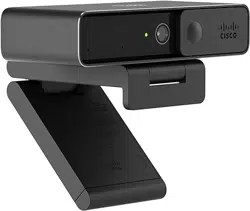
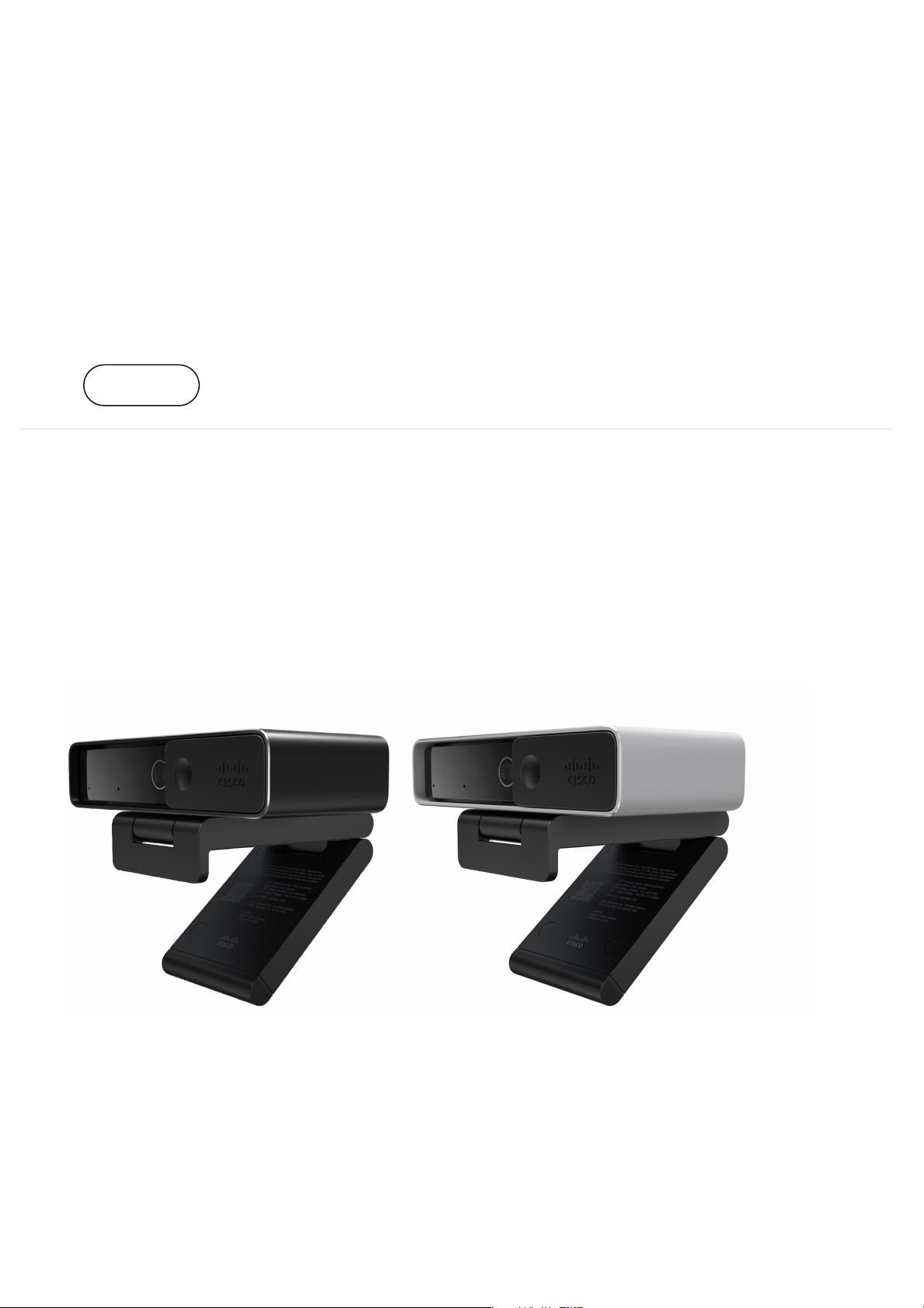
Cisco Desk Camera 4K
The Cisco Desk Camera 4K is a USB web camera for video conferencing, video
streaming, and video recording. The camera provides up to 4K Ultra HD video
and high-definition audio.
With multiple options for resolution and frame rate, the camera meets the use cases with Webex App, Webex
Meetings, Cisco Jabber, and all popular third-party video conferencing and video streaming apps. The
autofocus, face detection, and 10x digital zoom enhance your video experience for meeting and video
streaming.
The camera has a privacy shutter. You can use it to turn off the video stream and block the camera lens when
the device isn't in use.
Product:
Cameras
For:
User
Devices:
Desk Camera 4k
Subscribe
The camera has two Omni Directional Microphones with noise-canceling features, providing audio input for
calls, meetings, and recordings.
The camera supports Windows Hello for secure login to your system.
The adjustable clip with a tripod screw thread offers mounting flexibility on a laptop, an external display, a tripod,
or a desk stand in various open office spaces, huddle rooms, and home offices. The two USB cables shipped
with the camera allow easy connection to computers or devices with fully functional USB-A or USB-C ports.
The Cisco Desk Camera app works with the camera and allows you to record videos, take snapshots,
customize the camera settings, and upgrade the firmware.
For more product information, see https://www.cisco.com/c/en/us/products/collaboration-endpoints/webex-desk-
camera/index.html?dtid=osscdc000283&carousel=1.
What's in the box
The following items are shipped within the box. If anything is missing, contact your retailer.
Cisco Desk Camera 4K x 1
USB 3.0 C-C cable x 1
USB 3.0 C-A cable x 1
Pointer Card x 1
Get to know your camera
Use this information to familiarize yourself with the camera before you use it.
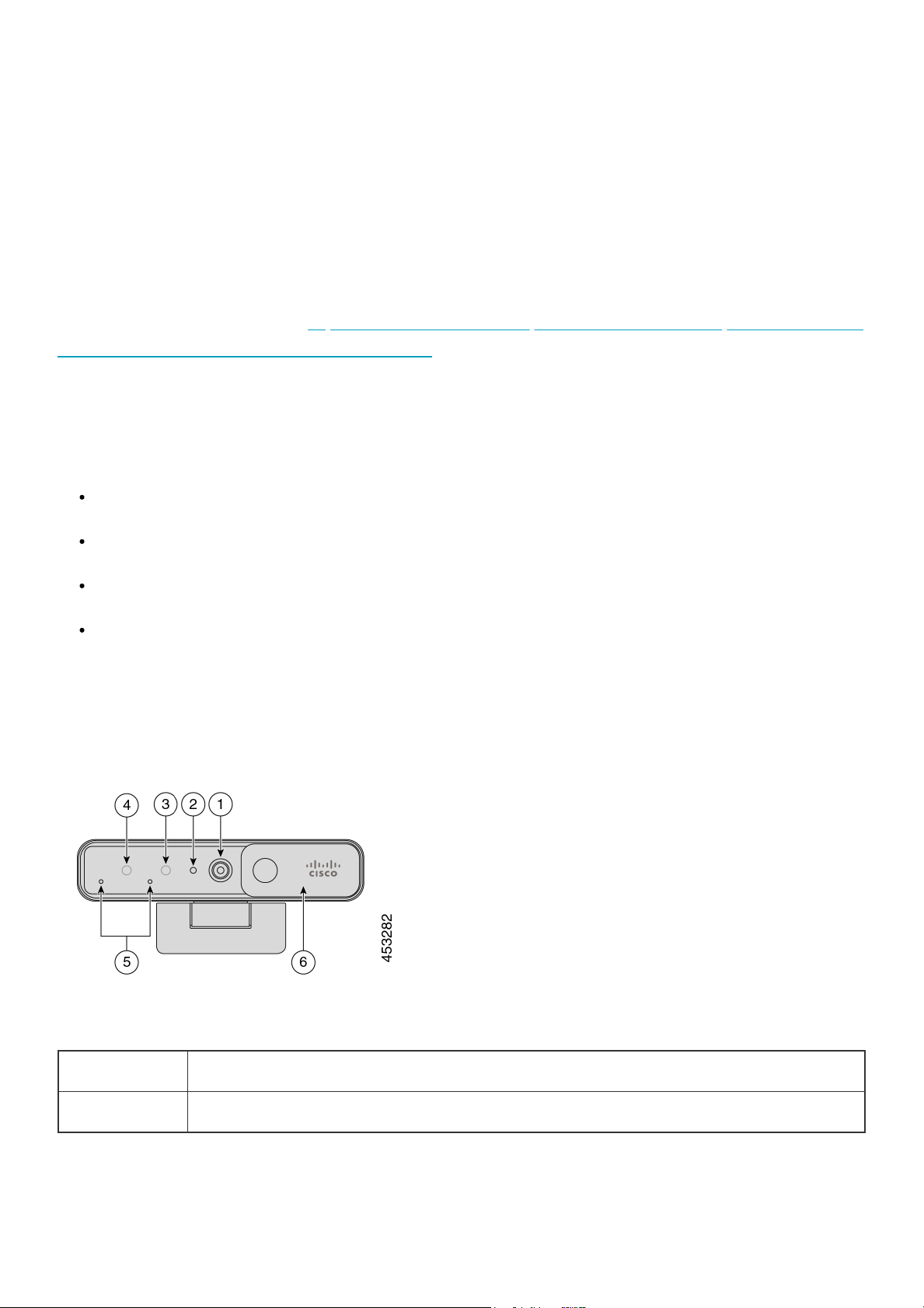
Figure 2: Cisco Desk Camera 4K front view
Table 1. Hardware Components on the Front
Component Description
1. RGB camera Supports video stream and static snapshots.
Component Description
2. LED indicator
Indicates the camera status:
Solid green for 1.5 seconds: camera is booting.
Solid green: RGB camera is in use.
Off: RGB camera is in standby mode or the shutter is closed.
3. IR camera Supports Windows Hello via the IR sensor.
4. IR LED
Indicates the IR camera status:
Flash red: The IR camera is in use by Windows Hello.
Off: The IR camera is not in sue.
5. Microphones The audio input channel of the camera.
6. Shutter Turns the video stream on or off and blocks the camera lens when closed to protect privacy.
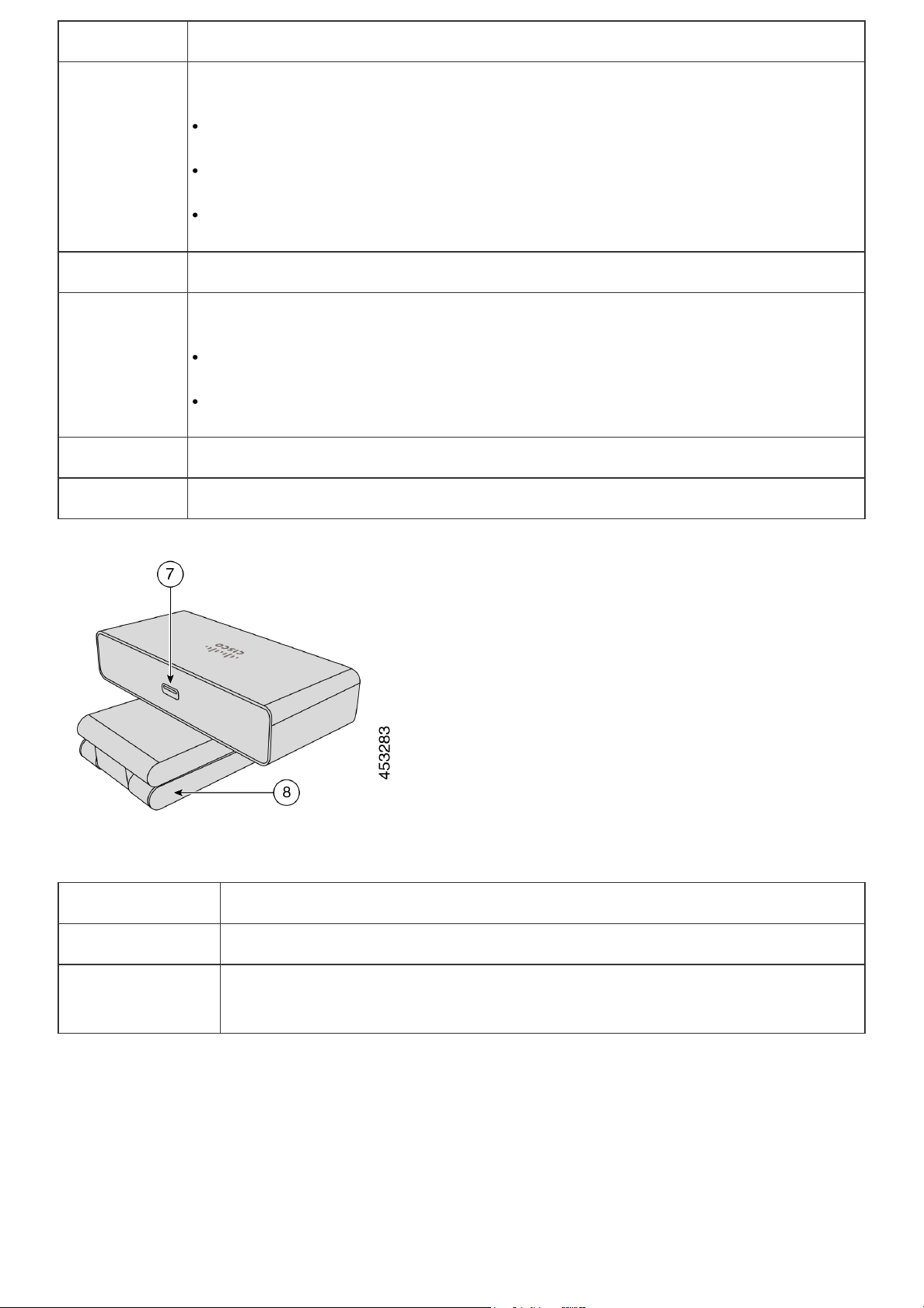
Figure 3: Cisco Desk Camera 4K back view
Table 2. Hardware Components at the Back
Component Description
7. USB-C port The USB cable plugs into this port to connect the camera to a computer.
8. Camera base and
clip
Supports multiple mounting options on flat surfaces or on top of displays. The
adjustable hinge provides flexible angles.
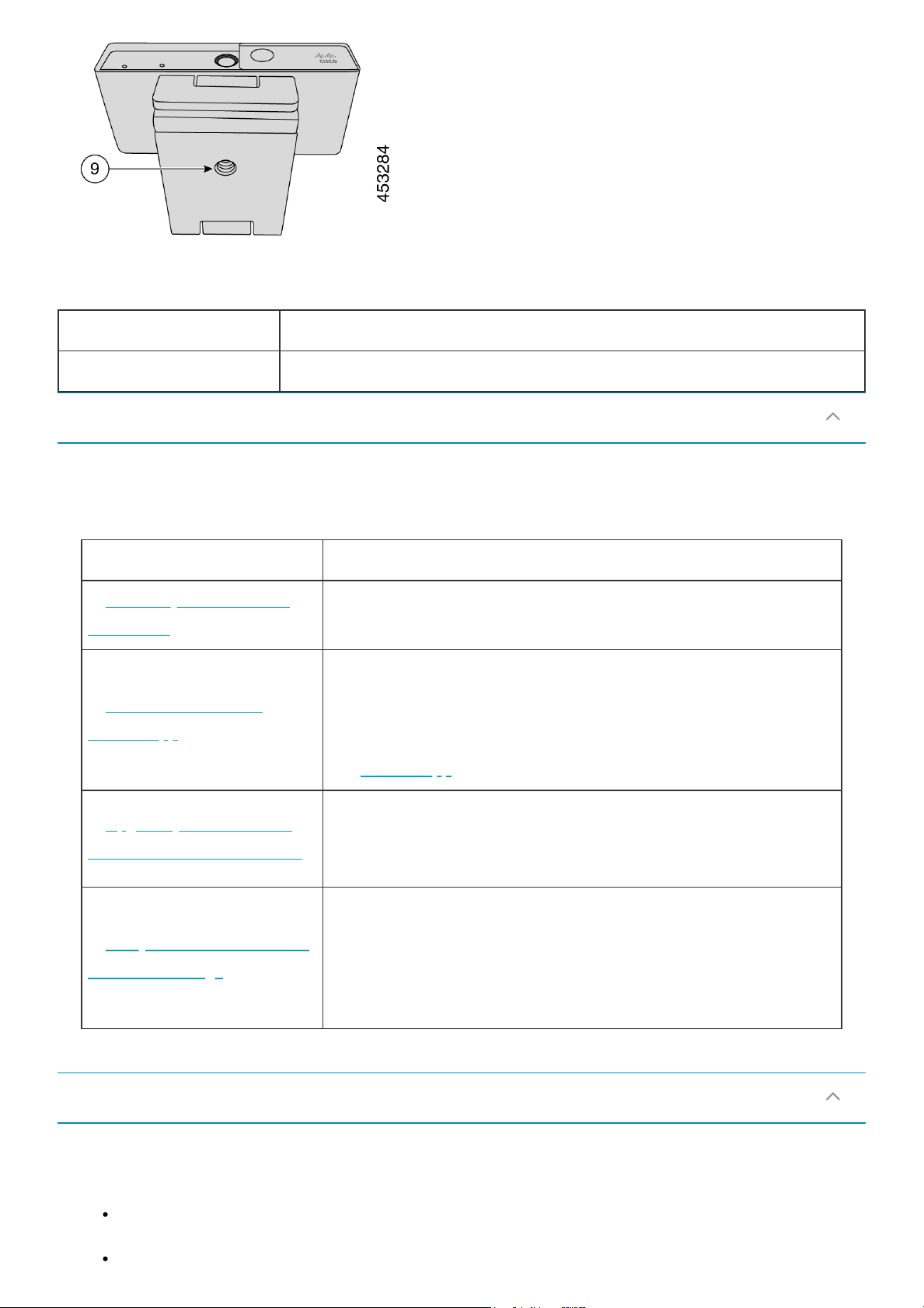
Figure 4: Cisco Desk Camera 4K bottom view
Table 3. Hardware Component at Bottom
Component Description
9. Tripod screw thread Use the 1/4"-20 screw thread to mount the camera to a tripod.
Follow the workflow to get your camera ready for use.
Table 4. Camera setup workflow
Step Purpose
1. Connect your Cisco Desk
Camera 4K
Connect the camera to your computer so that the video conferencing
or streaming apps can use the camera.
2. Install the Cisco Desk
Camera app
Install the camera app to update the firmware, customize
configurations, shoot videos, and take snapshots.
For more information about what you can do with the camera app,
see Camera App.
3. Upgrade your Cisco Desk
Camera to the latest firmware
We continue delivering new features and enhancements with
firmware iterations. Keep your camera up to date to get the latest
features.
4. Use your camera for Webex
calls and meetings
Configure Webex App or Webex Meetings to use your Cisco Desk
Camera.
You can also change the camera settings or upgrade the firmware
from Webex App.
See the following sections for more help information:
To look for more documentation about your camera, go to Help Center.
To look for technical support, go to Cisco technical support.
Set up your camera
Need more help?

To view the hardware warranty terms, go to Cisco one-year limited hardware warranty terms.
Go to the Desk Camera Help home page to get more help content about your camera. If you don't
find the topic of your interest there, try to search for it and use the filters on the left to narrow down
the results, if necessary.
Cisco provides around-the-clock technical support services, both online and over the phone to all
customers, partners, resellers, and distributors who hold valid Cisco service contracts.
You should have your Cisco.com User ID, Contract, and Serial numbers ready when you contact
Cisco Support to prevent any delays with your support request.
In addition, support staff need the following information:
Serial number—Every device has a serial number on the surface of the clip.
Time and date issue occurred—Support staff use device logs or cloud metrics to
troubleshoot issues. It is helpful to have the approximate local time and date.
Device Logs—Support staff may require the device logs to identify the root cause of your
issue.
A brief description—Include any actions prior to the incident.
Most firmware issues can be resolved by support staff without a Return Material Authorization
(RMA). It is best to use the RMA process for hardware issues.
You can find a list of Cisco worldwide support centers at
https://www.cisco.com/c/en/us/support/web/tsd-cisco-worldwide-contacts.html.
Help Center
Cisco technical support
Cisco one-year limited hardware warranty terms

Special terms apply to your hardware warranty and services that you can use during the warranty
period.
Your formal Warranty Statement, including the warranties and license agreements applicable to
Cisco software, is available at Product Warranties.
Cisco Desk Camera safety and compliance information
Was this article helpful?
Yes, thank you! Not really
Cisco Desk Camera safety and compliance