


Ver. 2 11/18
• Apple, Mac, and MacBook are trademarks of Apple Inc. registered in the U.S. and other countries.
• Microsoft, Windows, Windows Vista, Internet Explorer, .NET Framework and PowerPoint are either a registered
trademark or trademark of Microsoft Corporation in the United States and/or other countries.
• Cinema Quality Picture logo, AccuBlend, NaViSet, and Virtual Remote are trademarks or registered trademarks of
NEC Dispolay Solutions, Ltd. in Japan, in the United State and other countries.
• The terms HDMI and HDMI High-Denition Multimedia Interface, and the HDMI Logo are trademarks or registered
trademarks of HDMI Licensing Administrator, Inc. in the United States and other countries.
• DisplayPort and DisplayPort Compliance Logo are trademarks owned by the Video Electronics Standards Associa-
tion in the United States and other countries.
• HDBaseT™ and the HDBaseT Alliance logo are trademarks of the HDBaseT Alliance.
• DLP
®
, DLP logo and BrilliantColor are trademarks or registered trademarks of Texas Instruments in the United States
and other countries.
• PJLink trademark and logo are trademarks applied for registration or are already registered in Japan, the United
States of America and other countries and areas.
• Blu-ray is a trademark of Blu-ray Disc Association
• CRESTRON and CRESTRON ROOMVIEW are trademarks or registered trademarks of Crestron Electronics, Inc.
in the United States and other countries.
• Ethernet is either a registered trademark or trademark of Fuji Xerox Co., Ltd.
• Extron and XTP are registered trademarks of RGB Systems, Inc. in the United States.
• Other product and company names mentioned in this user’s manual may be the trademarks or registered trademarks
of their respective holders.
• Virtual Remote Tool uses WinI2C/DDC library, © Nicomsoft Ltd.
NOTES
(1) The contents of this user’s manual may not be reprinted in part or whole without permission.
(2) The contents of this user’s manual are subject to change without notice.
(3) Great care has been taken in the preparation of this user’s manual; however, should you notice any questionable
points, errors or omissions, please contact us.
(4) Notwithstanding article (3), NEC will not be responsible for any claims on loss of prot or other matters deemed
to result from using the Projector.
i
Important Information
Please use the power cord supplied with this projector. If the supplied power cord does not satisfy
requirements of your country’s safety standard, and voltage and current for your region, make
sure to use the power cord that conforms to and satises them.
• The power cord you use must be approved by and comply with the safety standards of your
country. Please refer to the page 151 about the power cord specication.
Rated voltage by country is listed below for your reference. For selecting an appropriate power
cord, please check rated voltage for your region by yourself.
AC 230 V : European countries
AC 120 V : North America
Safety Cautions
Precautions
Please read this manual carefully before using your NEC projector and keep the manual handy for future reference.
CAUTION
To turn off main power, be sure to remove the plug from power outlet.
The power outlet socket should be installed as near to the equipment as possible, and should be easily
accessible.
CAUTION
TO PREVENT SHOCK, DO NOT OPEN THE CABINET.
THERE ARE HIGH-VOLTAGE COMPONENTS INSIDE.
REFER SERVICING TO QUALIFIED SERVICE PERSONNEL.
This symbol warns the user that uninsulated voltage within the unit may be sufficient to cause electrical
shock. Therefore, it is dangerous to make any kind of contact with any part inside of the unit.
This symbol alerts the user that important information concerning the operation and maintenance of this
unit has been provided.
The information should be read carefully to avoid problems.
WARNING: TO PREVENT FIRE OR SHOCK, DO NOT EXPOSE THIS UNIT TO RAIN OR MOISTURE.
DO NOT USE THIS UNIT’S PLUG WITH AN EXTENSION CORD OR IN AN OUTLET UNLESS ALL THE PRONGS
CAN BE FULLY INSERTED.
Machine Noise Information Regulation - 3. GPSGV,
The highest sound pressure level is less than 70 dB (A) in accordance with EN ISO 7779.
ii
Important Information
Disposing of your used product
In the European Union
EU-wide legislation as implemented in each Member State requires that used electrical and electronic prod-
ucts carrying the mark (left) must be disposed of separately from normal household waste. This includes
projectors and their electrical accessories. When you dispose of such products, please follow the guidance
of your local authority and/or ask the shop where you purchased the product.
After collecting the used products, they are reused and recycled in a proper way. This effort will help us reduce
the wastes as well as the negative impact to the human health and the environment at the minimum level.
The mark on the electrical and electronic products only applies to the current European Union Member States.
Outside the European Union
If you wish to dispose of used electrical and electronic products outside the European union, please contact
your local authority and ask for the correct method of disposal.
For EU: The crossed-out wheeled bin implies that used batteries should not be put to the general household
waste! There is a separate collection system for used batteries, to allow proper treatment and recycling in
accordance with legislation.
According the EU directive 2006/66/EC, the battery can’t be disposed improperly. The battery shall be sepa-
rated to collect by local service.
WARNING
This equipment is compliant with Class A of CISPR 32. In a residential environment this equipment may cause
radio interference.
RF Interference (for USA only)
WARNING
• The Federal Communications Commission does not allow any modications or changes to the unit EXCEPT
those specied by NEC Display Solutions of America, Inc. in this manual. Failure to comply with this government
regulation could void your right to operate this equipment.
• This equipment has been tested and found to comply with the limits for a Class A digital device, pursuant to Part
15 of the FCC Rules. These limits are designed to provide reasonable protection against harmful interference
when the equipment is operated in a commercial environment. This equipment generates, uses, and can radi-
ate radio frequency energy and, if not installed and used in accordance with the installation manual, may cause
harmful interference to radio communications. Operation of this equipment in a residential area is likely to cause
harmful interference in which case the user will be required to correct the interference at his own expense.
• This device complies with Part 15 of FCC Rules. Operation is subject to the following two conditions.
(1) This device may not cause harmful interference, and (2) this device must accept any interference received,
including interference that may cause undesired operation.
Important Safeguards
These safety instructions are to ensure the long life of your projector and to prevent re and shock. Please read them
carefully and heed all warnings.
WARNING
• When the projector is damaged, cooling uids may come out of internal part.
Should this happen, immediately turn off the AC supply to the projector and contact your dealer.
DO NOT touch and drink the cooling uid. When the cooling uids are swallowed or contacted with
your eyes, please consult medical attention immediately. If you touch the cooling uid with your hand,
rinse your hands well under running water.
iii
Important Information
Installation
• Do not place the projector in the following conditions:
- on an unstable cart, stand, or table.
- near water, baths, or damp rooms.
- in direct sunlight, near heaters, or heat radiating appliances.
- in a dusty, smoky or steamy environment.
- on a sheet of paper or cloth, rugs or carpets.
• Do not install and store the projector in the below circumstances. Failure to do so may cause of malfunction.
- In powerful magnetic elds
- In corrosive gas environment
- Outdoors
• If you wish to have the projector installed on the ceiling:
- Do not attempt to install the projector yourself.
- The projector must be installed by qualied technicians in order to ensure proper operation and reduce the risk
of bodily injury.
- In addition, the ceiling must be strong enough to support the projector and the installation must be in accordance
with any local building codes.
- Please consult your dealer for more information.
WARNING
• Do not cover the lens with the lens cap or equivalent while the projector is on. Doing so can lead to melting of
the cap due to the heat emitted from the light output.
• Do not place any objects, which are easily affected by heat, in front of the projector lens. Doing so could lead
to the object melting from the heat that is emitted from the light output.
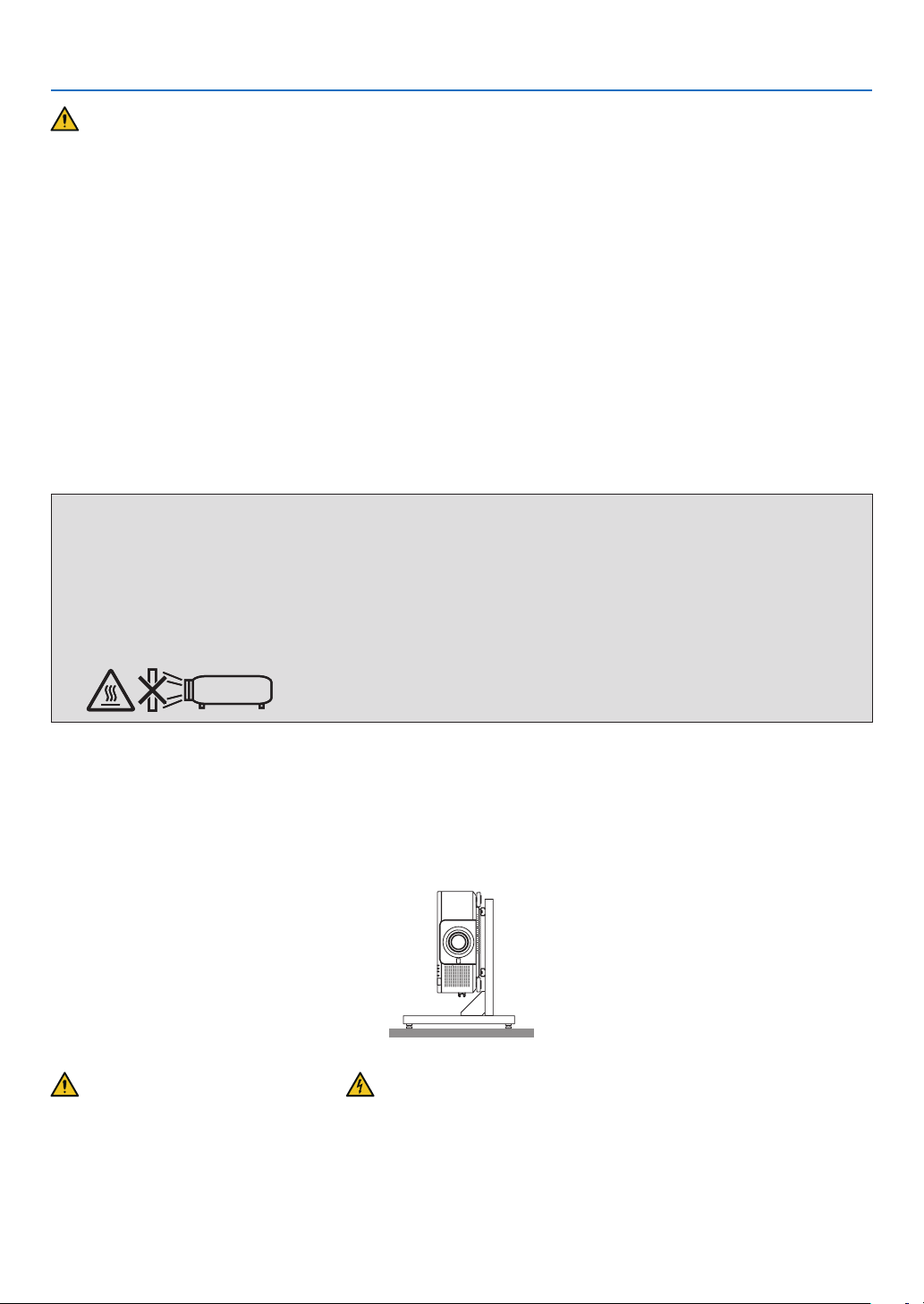
The below pictogram indicated on the cabinet means the precaution for avoiding to place objects in front of the
projector lens.
This projector can be installed any angle within vertical and horizontal 360° range, however, life of optical parts will
be shorten in the following installation state:
• When the projector is installed on which lens faces downward.
• When the intake vent on the projector side faces downward in the portrait installation. (→ page 137)
For portrait installation, install the projector with the intake vent at the bottom. Observe precautions for portrait installation.
* A customized stand is required to be attached to the projector. (→ page 138)
Fire and Shock Precautions
• Ensure that there is sufficient ventilation and that vents are unobstructed to prevent the build-up of heat inside your
projector. Allow enough space between your projector and a wall. (→ page xi)
• Do not try to touch the exhaust vent on the rear side (when seen from the front) as it can become heated while the
projector is turned on and immediately after the projector is turned off. Parts of the projector may become tempo-
rarily heated if the projector is turned off with the POWER button or if the AC power supply is disconnected during
normal projector operation.
Use caution when picking up the projector.
iv
Important Information
• Prevent foreign objects such as paper clips and bits of paper from falling into your projector. Do not attempt to retrieve
any objects that might fall into your projector. Do not insert any metal objects such as a wire or screwdriver into your
projector. If something should fall into your projector, disconnect it immediately and have the object removed by a
qualied service personnel.
• Do not place any objects on top of the projector.
• Do not touch the power plug during a thunderstorm. Doing so can cause electrical shock or re.
• The projector is designed to operate on a power supply of 110-240V AC 50/60 Hz. Ensure that your power supply
ts this requirement before attempting to use your projector.
• Make sure to mount the power cord stopper before attempting to use your projector. Please refer to page 15 about
the power cord stopper.
• Do not look into the light source using optical instruments (such as magnifying glasses and mirrors). Visual impair-
ment could result.
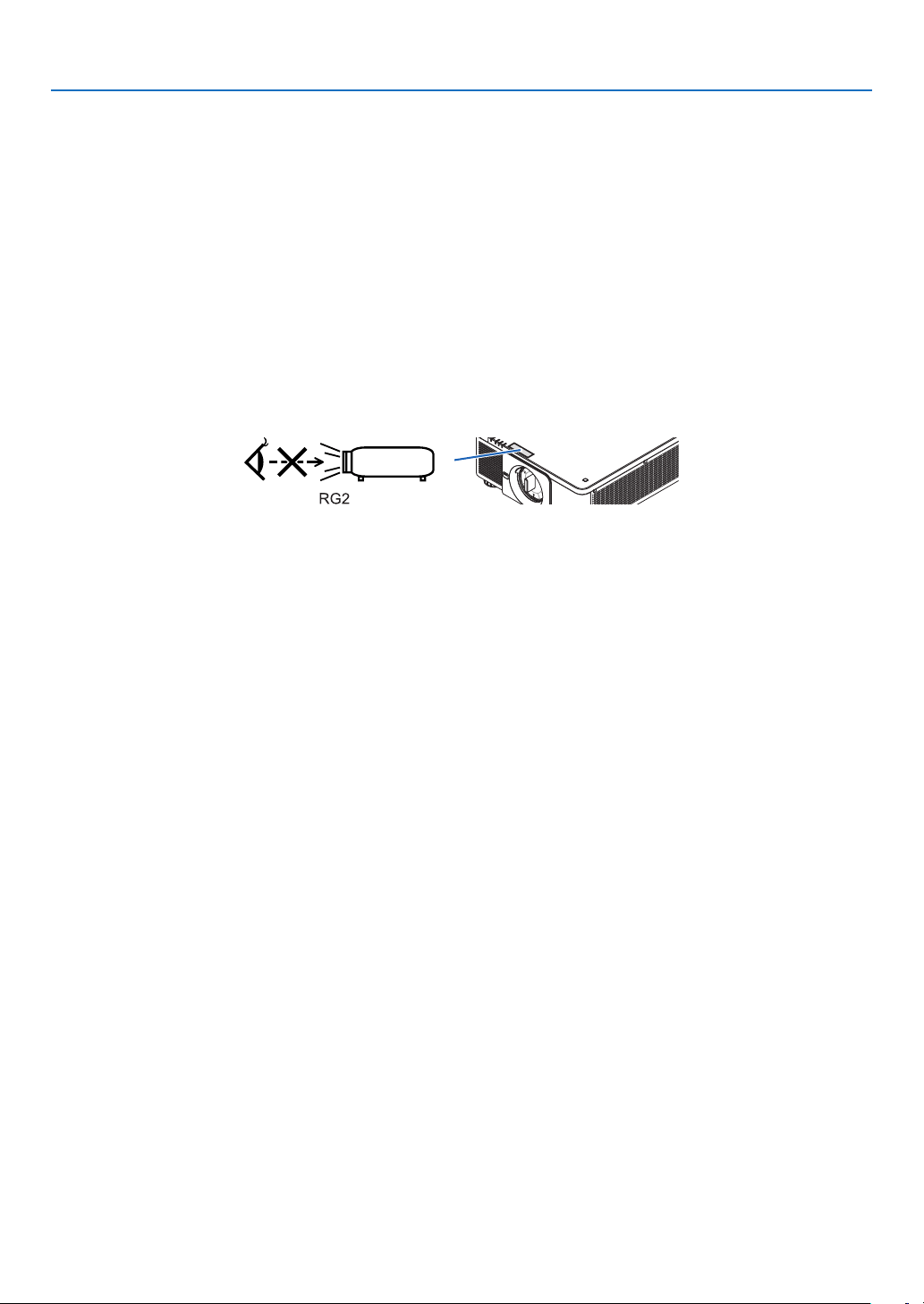
• When turning on the projector, ensure that nobody is facing towards the lens in the path of the light emitted from the
laser. Do not look into the lens while the projector is on. Serious damage to your eyes could result. The following
label, that is indicated at the lens-mounting-section on the projector cabinet, describes this projector is categorized
in the risk group 2 of IEC 62471-5: 2015. As with any bright light source, do not stare into the beam, RG2 IEC
62471-5: 2015.
• Perform the adjustment from behind or from the side of the projector. Adjusting from the front could expose your
eyes to strong light which could injure them.
• Keep any items (magnifying glass etc.) out of the light path of the projector. The light path being projected from the
lens is extensive, therefore any kind of abnormal objects that can redirect light coming out of the lens, can cause
an unpredictable outcome such as a re or injury to the eyes.
• Do not place any objects, which are easily affected by heat, in front of a projector exhaust vent.
Doing so could lead to the object melting or getting your hands burned from the heat that is emitted from the exhaust
vent.
• Handle the power cord carefully. A damaged or frayed power cord can cause electric shock or re.
- Do not use any power cord other than the one supplied with the projector.
- Do not bend or tug the power cord excessively.
- Do not place the power cord under the projector, or any heavy object.
- Do not cover the power cord with other soft materials such as rugs.
- Do not heat the power cord.
- Do not handle the power plug with wet hands.
• Turn off the projector, unplug the power cord and have the projector serviced by a qualied service personnel under
the following conditions:
- When the power cord or plug is damaged or frayed.
- If liquid has been spilled into the projector, or if it has been exposed to rain or water.
- If the projector does not operate normally when you follow the instructions described in this user’s manual.
- If the projector has been dropped or the cabinet has been damaged.
- If the projector exhibits a distinct change in performance, indicating a need for service.
• Disconnect the power cord and any other cables before carrying the projector.
• Turn off the projector and unplug the power cord before cleaning the cabinet.
• Turn off the projector and unplug the power cord if the projector is not to be used for an extended period of time.
• When using a LAN cable:
For safety, do not connect to the terminal for peripheral device wiring that might have excessive voltage.
• Do not use the malfunctioned projector. It may cause of not only electric shock or re but also serious damage to
your eye sight.
• Do not let children to operate the projector by themselves. If the projector is operated by children, adults need to
attend and keep their eyes on children.
• If damage or malfunction of the projector is found, immediately stop to use it and consult your dealer for repair.
• Never disassemble, repair, and remodel by end users. If these are performed by end users, it may cause of serious
problem on users’ safety.
• Consult your dealer for disposing the projector. Never disassemble the projector before disposing it.
v
Important Information
CAUTION
• Keep hands away from the lens mounting portion while performing a lens shift. Failure to do so could result in
ngers being pinched by the moving lens.
• Do not use the tilt-foot for purposes other than originally intended. Misuses such as gripping the tilt-foot or hang-
ing on the wall can cause damage to the projector.
• Select [HIGH] in Fan mode if you continue to use the projector for consecutive days. (From the menu, select
[SETUP] → [INSTALLATION(1)] → [FAN MODE] → [HIGH].)
• Do not unplug the power cord from the wall outlet or projector when the projector is powered on. Doing so can
cause damage to the AC IN terminal of the projector and (or) the prong plug of the power cord.
To turn off the AC power supply when the projector is powered on, use the projector’s main power switch, a
power strip equipped with a switch, or a breaker.
• When moving the projector, make sure you have at least two people. Attempting to move the projector alone
could result in back pain or other injuries.
Caution on Handling the Optional Lens
When shipping the projector with the lens, remove the lens before shipping the projector. Always attach the dust cap
to the lens whenever it is not mounted on the projector. The lens and the lens shift mechanism may encounter dam-
age caused by improper handling during transportation.
Do not hold the lens part when carrying the projector.
Doing so could cause the focus ring to rotate, resulting in accidental dropping of the projector.
In the condition the projector is no lens mounted, do not put your hands in the lens mount opening for carrying the
projector.
For mounting, replacing, and cleaning the lens, make sure to power off the projector and disconnect the power cord.
Failure to do so can result in eye injury, electric shock, or burn injuries.
Keep hands away from the lens mounting portion while performing a lens shift. Failure to do so could result in ngers
being pinched by the moving lens.
Cable information
CAUTION
For HDMI, DisplayPort, BNC, LAN, and RS232C, please use a shielded cable.
Use of other cables may cause interference with radio and television reception.
vi
Important Information
Precautions when installing or replacing the lens unit sold separately (LENS
CALIBRATION)
After installing or replacing the lens unit, press either the CALIBRATION button on the main unit or the INFO/L-CALIB.
button while pressing the CTL button on the remote control to carry out [LENS CALIBRATION]. (→ page 17, 110)
By carrying out [LENS CALIBRATION], the adjustment range of the zoom, focus, and shift of the [LENS MEMORY]
is calibrated.
Contact your dealer to install and replace the lens unit.
Remote Control Precautions
• Handle the remote control carefully.
• If the remote control gets wet, wipe it dry immediately.
• Avoid excessive heat and humidity.
• Do not short, heat, or take apart batteries.
• Do not throw batteries into re.
• If you will not be using the remote control for a long time, remove the batteries.
• Ensure that you have the batteries’ polarity (+/−) aligned correctly.
• Do not use new and old batteries together, or use different types of batteries together.
• Dispose of used batteries according to your local regulations.
Light Module
1. A light module containing multiple laser diodes is equipped in the product as the light source.
2. These laser diodes are sealed in the light module. No maintenance or service is required for the performance of
the light module.
3. End user is not allowed to replace the light module.
4. Contact qualied distributor for light module replacement and further information.
Laser Safety Caution
• For USA
This product is classied as Class 3R of IEC 60825-1 Second edition 2007-03
Complies with FDA performance standards for laser products except for deviations pursuant to Laser Notice No.
50, dated June 24, 2007.
For other regions
This product is classied as Class 1 of IEC 60825-1 Third edition 2014-05 and EN 60825-1 Third edition 2014-08.
This product is classied as RG2 of IEC 62471-5 First edition 2015-06.
Obey the laws and regulations of your country in relation to the installation and management of the device.
• Outline of laser emitted from the built-in light module:
• Wave length: 450–460 nm
• Maximum power: 380 W
• Radiation pattern from the protective housing:
• Wave length: 450–460 nm
• Maximum laser radiation output: 0.253 mJ
• Pulse duration: 0.5 ms
• Repetition frequency: 240 Hz
• The laser module is equipped in this product. Use of controls or adjustments of procedures other than those speci-
ed herein may result in hazardous radiation exposure.
CAUTION
• Use of controls or adjustments or performance of procedures other than those specied herein may result in
hazardous radiation exposure.
CAUTION – CLASS 3R OF IEC 60825-1 SECOND EDITION LASER PRODUCT
LASER LIGHT – AVOID DIRECT EYE EXPOSURE
vii
Important Information
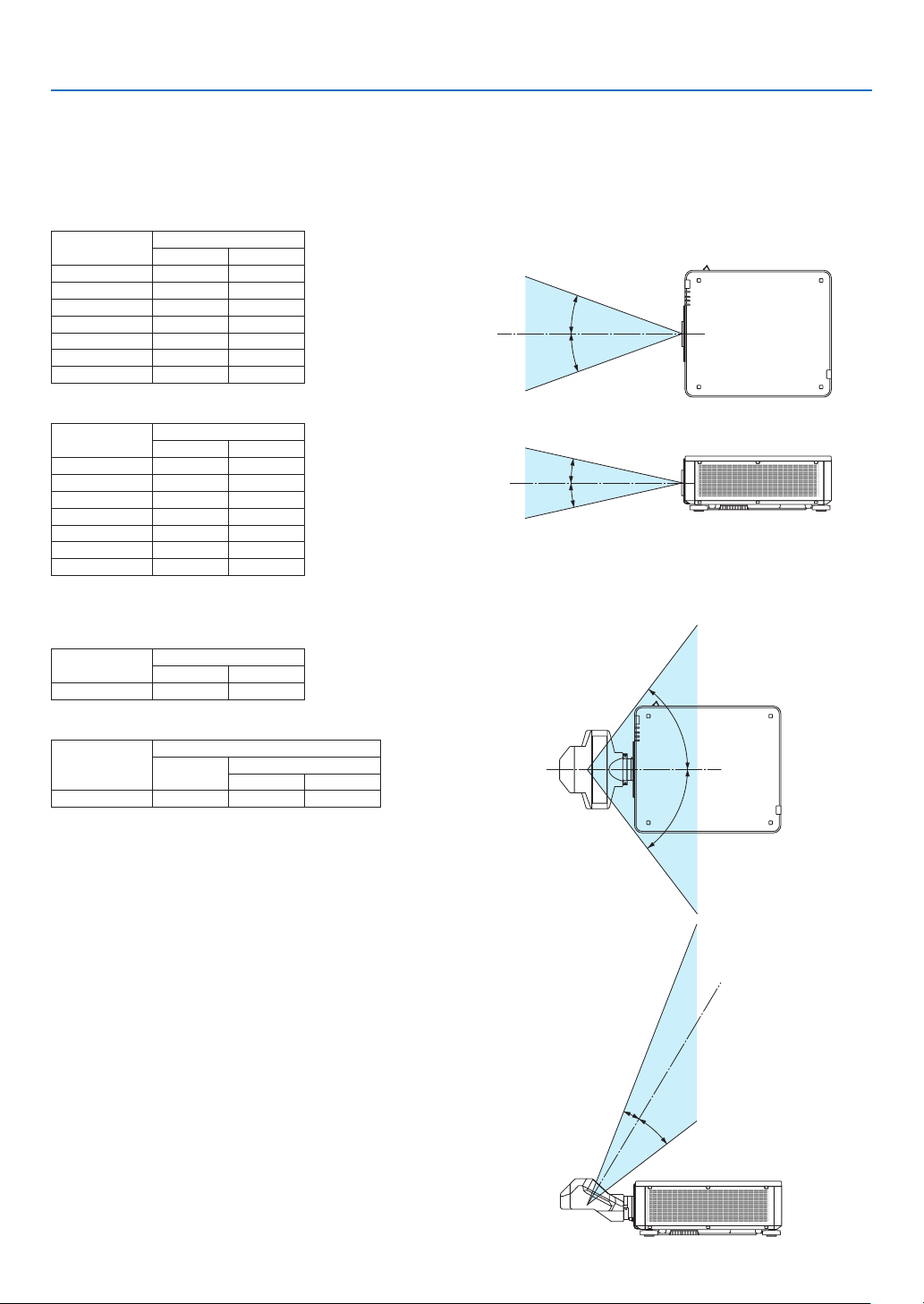
Laser light radiation range
The gure below shows the maximum radiation range of the laser light.
(unit: degree)
Applicable lens unit: NP16FL-4K/NP17ZL-4K/NP18ZL-4K/NP19ZL-4K/NP20ZL-4K/NP21ZL-4K/NP31ZL-4K
Horizontal angle H
Lens Zoom
Tele Wide
NP16FL-4K — 32.6
NP17ZL-4K 15.5 21.6
NP18ZL-4K 12.3 16.0
NP19ZL-4K 7.7 12.6
NP20ZL-4K 5.3 7.9
NP21ZL-4K 3.4 5.4
NP31ZL-4K 27.6 33.2
Vertical angle V
Lens Zoom
Tele Wide
NP16FL-4K — 19.7
NP17ZL-4K 8.9 12.5
NP18ZL-4K 7.0 9.1
NP19ZL-4K 4.3 7.1
NP20ZL-4K 3.0 4.5
NP21ZL-4K 1.9 3.0
NP31ZL-4K 16.4 20.2
H
H
V
V
Applicable lens unit: NP39ML-4K
Horizontal angle H
Lens Zoom
Tele Wide
NP39ML-4K — 53.0
Vertical angle V
Lens Zoom
Tele Wide
V1 V2
NP39ML-4K — 9.5 18.8
H
H
V
1
V
2
viii
Important Information
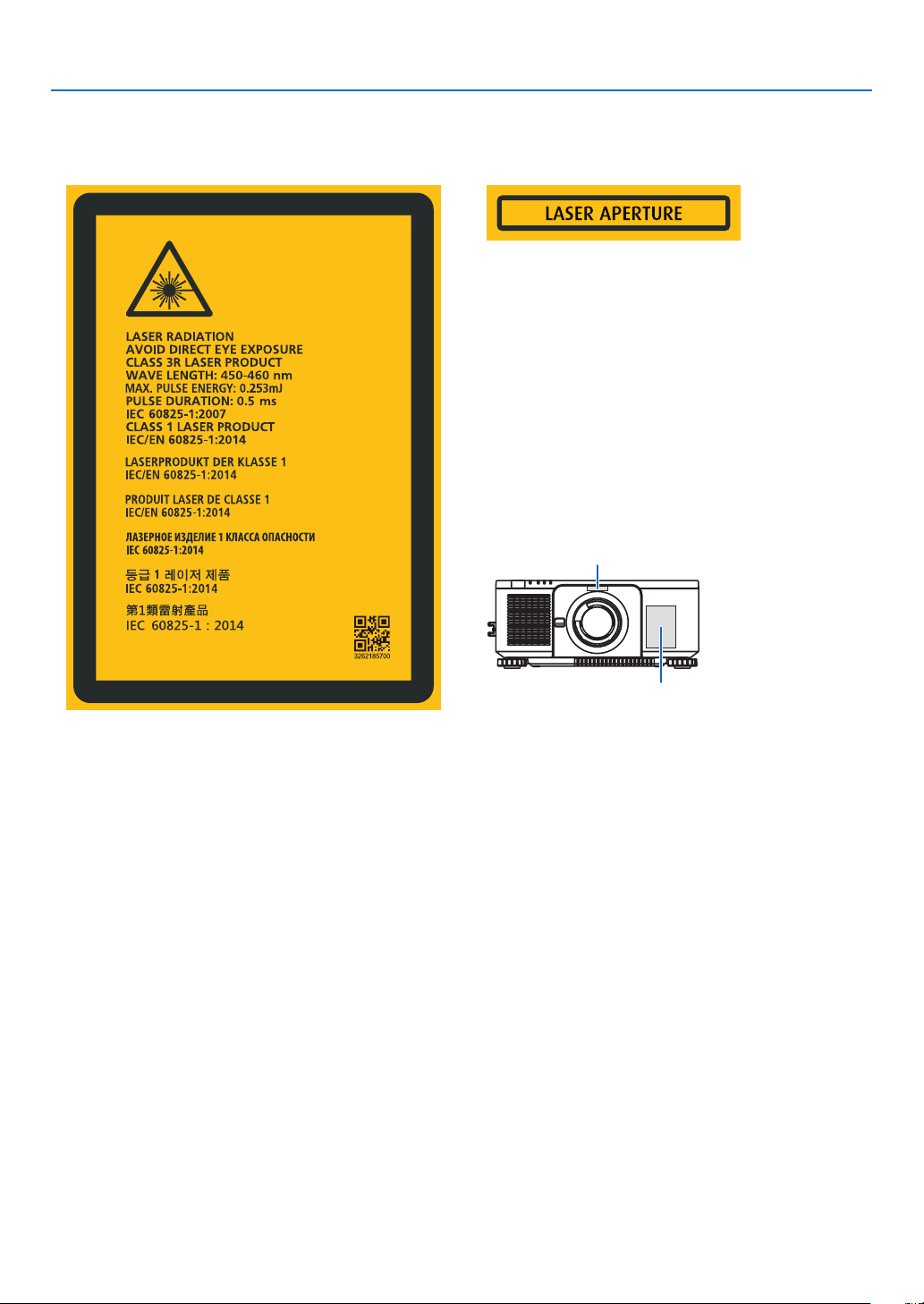
• These labels of the LASER PRODUCT in CLASS 3R conforming to IEC 60825-1 Second edition, and in Class 1
conforming to IEC 60825-1 Third edition are stuck on the below indicated positions.
Label 1 Label 2
Label 1
Label 2
ix
Important Information
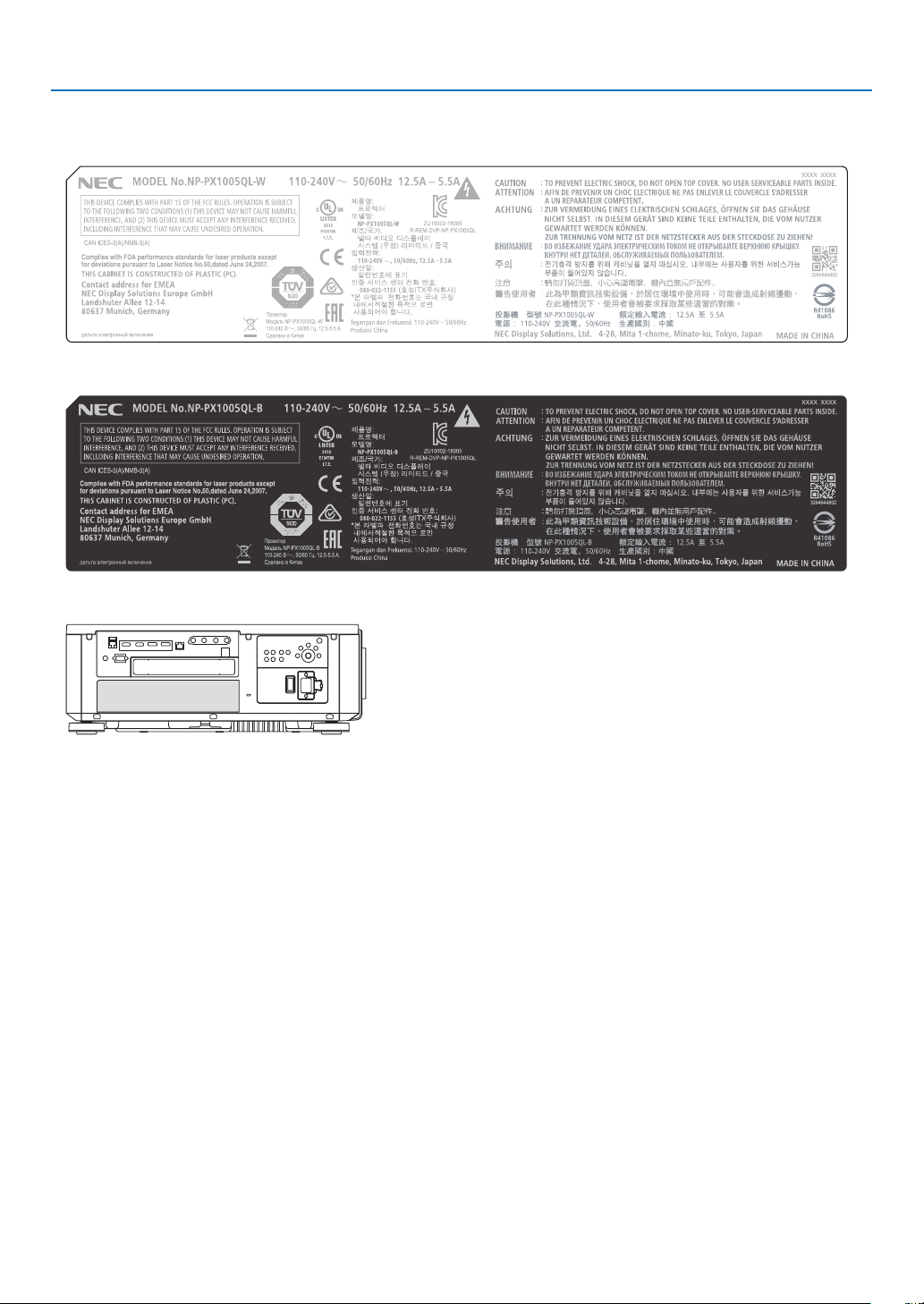
• Manufacturer's ID Label
(For PX1005QL-W)
(For PX1005QL-B)
Position of the Manufacturer's ID Label

x
Important Information
About Copyright of original projected pictures:
Please note that using this projector for the purpose of commercial gain or the attraction of public attention in a venue
such as a coffee shop or hotel and employing compression or expansion of the screen image with the following func-
tions may raise concern about the infringement of copyrights which are protected by copyright law:
[ASPECT RATIO], [KEYSTONE], Magnifying feature and other similar features.
xi
Important Information
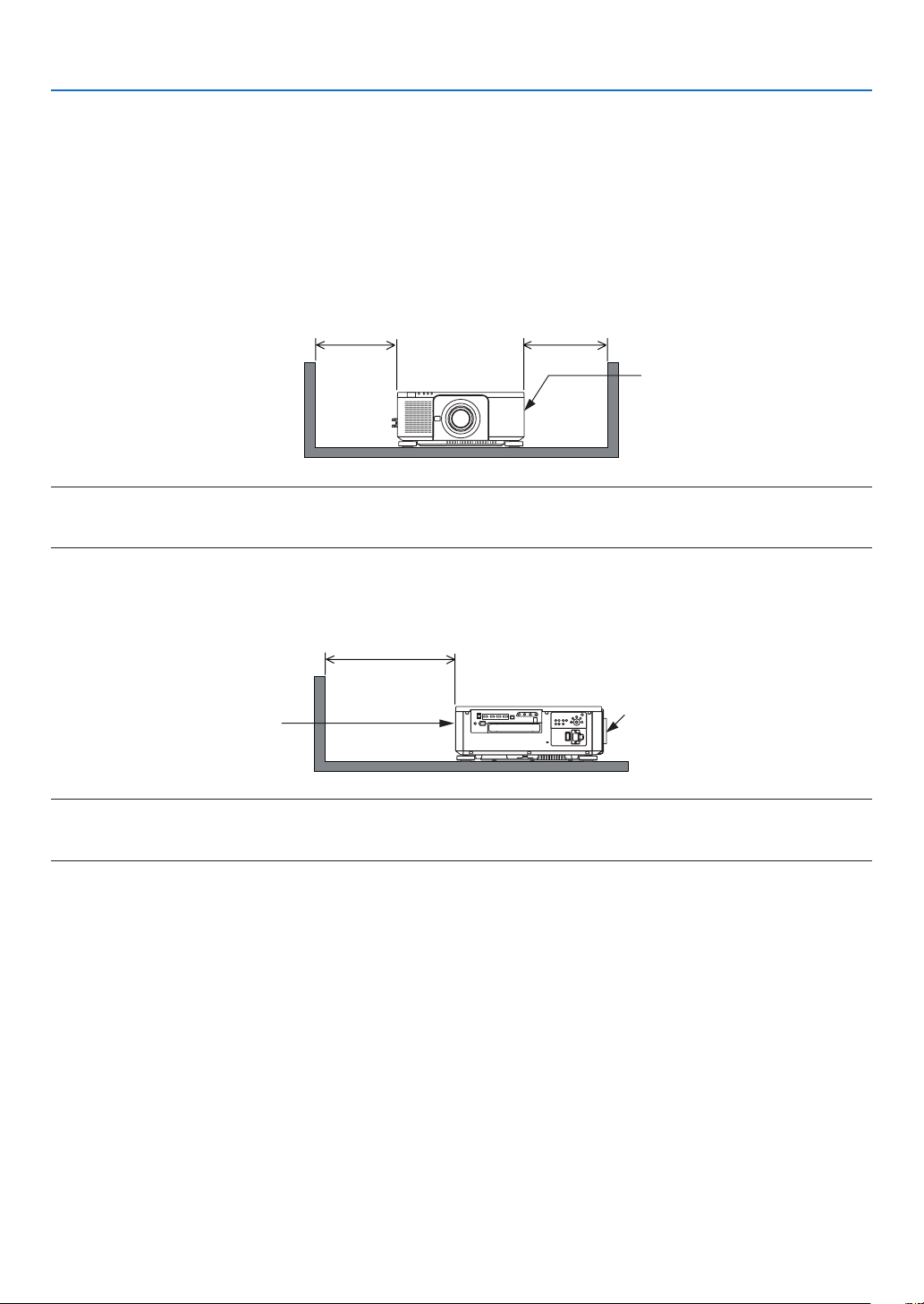
Clearance for Installing the Projector
Allow ample clearance between the projector and its surroundings as shown below.
The high temperature exhaust coming out of the device may be sucked into the device again.
Avoid installing the projector in a place where air movement from the HVAC is directed at the projector.
Heated air from the HVAC can be taken in by the projector’s intake vent. If this happens, the temperature inside the
projector will rise too high causing the over-temperature protector to automatically turn off the projectors power.
• Concerning to the portrait projection, please refer “Portrait projection” on page 137.
Example 1 – If there are walls on both sides of the projector.
30 cm/11.8" or greater 30 cm/11.8" or greater
Intake vent
NOTE:
• The drawing shows the proper clearance required for the left and right of the projector assuming sufficient clearance has been
kept for the front, back and top of the projector.
Example 2 – If there is a wall behind the projector.
50 cm/19.7" or greater
Lens
Exhaust vent
NOTE:
• The drawing shows the proper clearance required for the back of the projector assuming sufficient clearance has been kept for
the right, left and top of the projector.

xii
Table of Contents
Important Information ............................................................................................i
1. Introduction ...........................................................................................................1
❶ What’s in the Box? ..........................................................................................................1
❷ Introduction to the Projector ............................................................................................3
❸ Part Names of the Projector ...........................................................................................6
❹ Part Names of the Remote Control ...............................................................................10
2. Projecting an Image (Basic Operation) ...............................................13
❶ Flow of Projecting an Image .........................................................................................13
❷ Connecting Your Computer/Connecting the Power Cord ..............................................14
❸ Turning on the Projector ................................................................................................ 16
❹ Selecting a Source .......................................................................................................19
❺ Adjusting the Picture Size and Position ........................................................................22
❻ Turning off the Projector ................................................................................................33
❼ After Use .......................................................................................................................34
3. Convenient Features ......................................................................................35
❶ Turn off the light of the projector (LENS SHUTTER) .....................................................35
❷ Turning off the Image (AV-MUTE) .................................................................................35
❸ Turning Off the On-Screen Menu (On-Screen Mute) ....................................................35
❹ Shift the On-Screen Menu displaying position ..............................................................36
❺ Freezing a Picture .........................................................................................................37
❻ Magnifying a Picture .....................................................................................................38
❼ Adjustment of luminance (brightness) and energy-saving effect ..................................39
❽ Correcting Horizontal and Vertical Keystone Distortion [CORNERSTONE] ..................43
❾ Preventing the Unauthorized Use of the Projector [SECURITY] ...................................46
❿ Controlling the Projector by Using an HTTP Browser ...................................................49
⓫ Storing Changes for Lens Shift, Zoom, and Focus [LENS MEMORY]..........................51
4. Multi-Screen Projection ...............................................................................57
❶ Things that can be done using multi-screen projection ................................................57
❷ Using a single projector to project two or four types of videos at the same time
[PICTURE BY PICTURE] ........................................................................................ 58
❸ Line up multiple projectors to display a high resolution image in a larger screen
[TILING] ..................................................................................................................60
❹ Adjust boundaries of a projected image [EDGE BLENDING] ....................................... 64

xiii
Table of Contents
5. Using On-Screen Menu .................................................................................71
❶ Using the Menus ...........................................................................................................71
❷ Menu Elements .............................................................................................................72
❸ List of Menu Items ........................................................................................................73
❹ Menu Descriptions & Functions [INPUT] ......................................................................79
❺ Menu Descriptions & Functions [ADJUST] ...................................................................83
❻ Menu Descriptions & Functions [DISPLAY] ..................................................................95
❼ Menu Descriptions & Functions [SETUP] ................................................................... 105
❽ Menu Descriptions & Functions [INFO.] .....................................................................129
6. Installation and Connections ..................................................................133
❶ Mounting a lens (sold separately) ...............................................................................133
❷ Connecting to Other Equipment .................................................................................135
❸ Portrait projection (vertical orientation) ....................................................................... 137
❹ Stacking projectors .....................................................................................................139
7. Maintenance .....................................................................................................142
❶ Cleaning the Lens.......................................................................................................142
❷ Cleaning the Cabinet
..................................................................................................142
8. Appendix ..............................................................................................................143
❶ Throw distance and screen size .................................................................................143
❷ Mounting the Optional Board (sold separately) ..........................................................147
❸ Compatible Input Signal List .......................................................................................149
❹ Specications .............................................................................................................151
❺ Cabinet Dimensions ...................................................................................................154
❻ Pin assignments and signal names of main terminals................................................155
❼ About the ASCII Control Command ............................................................................157
❽ Changing the Background Logo (Virtual Remote Tool) ...............................................159
❾ Troubleshooting ..........................................................................................................160
❿ PC Control Codes and Cable Connection ..................................................................167
⓫ Troubleshooting Check List .........................................................................................168
1
1. Introduction
❶ What’s in the Box?
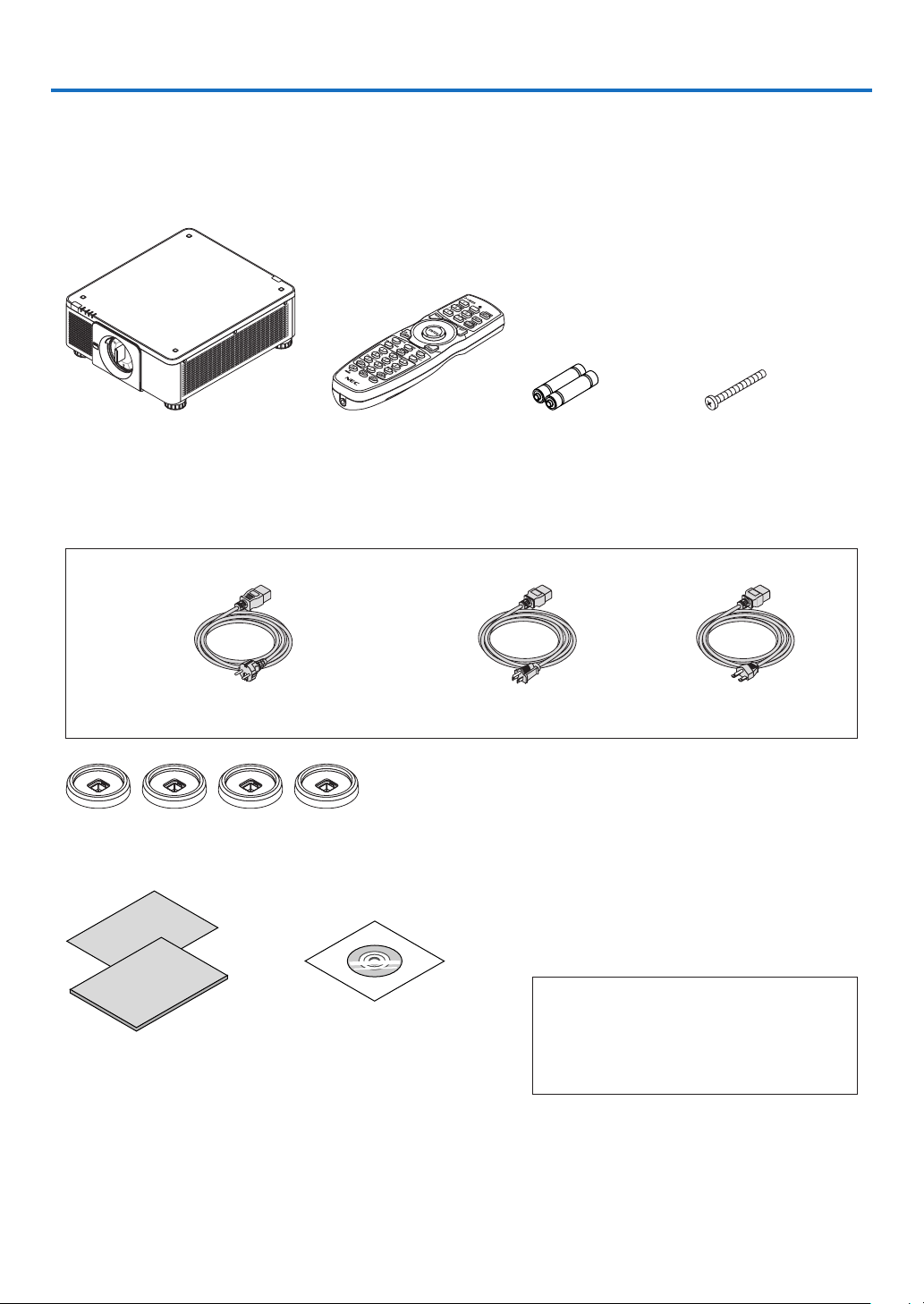
Make sure your box contains everything listed. If any pieces are missing, contact your dealer.
Please save the original box and packing materials if you ever need to ship your projector.
Projector
Dust cap for lens
* The projector is shipped without
a lens. For the types of lens and
throw distances, see page 143.
Remote control
(7N901041)
AA alkaline batteries
(x2)
Lens theft prevention
screw (79TM1071)
This screw makes it dif-
cult to remove the lens
mounted on the projec-
tor. ( → page 134)
Power cord × 3
(79TM1021) (79TQ1001 for AC 120 V) (79TQ1011 for AC 200 V)
For Europe/Asia/South America For North America
4 Stacking holders (79TM1101)
When stacking projectors (double stacking), the tilt foot of the upper projector will be placed onto these stacking holders. (→
page 139)
For North America only
Limited warranty
For customers in Europe:
You will nd our current valid Guarantee Policy
on our Web Site:
https://www.nec-display-solutions.com
• Important Infomation
(7N8N9041)
• Quick Setup Guide (For North
America: 7N8N9051) (For Other
countries than North America:
7N8N9051 and 7N8N9061)
• Security Sticker
(Use this sticker when security
password is set on.)
NEC Projector CD-ROM
User’s manual (PDF)
(7N952732)
2
1. Introduction
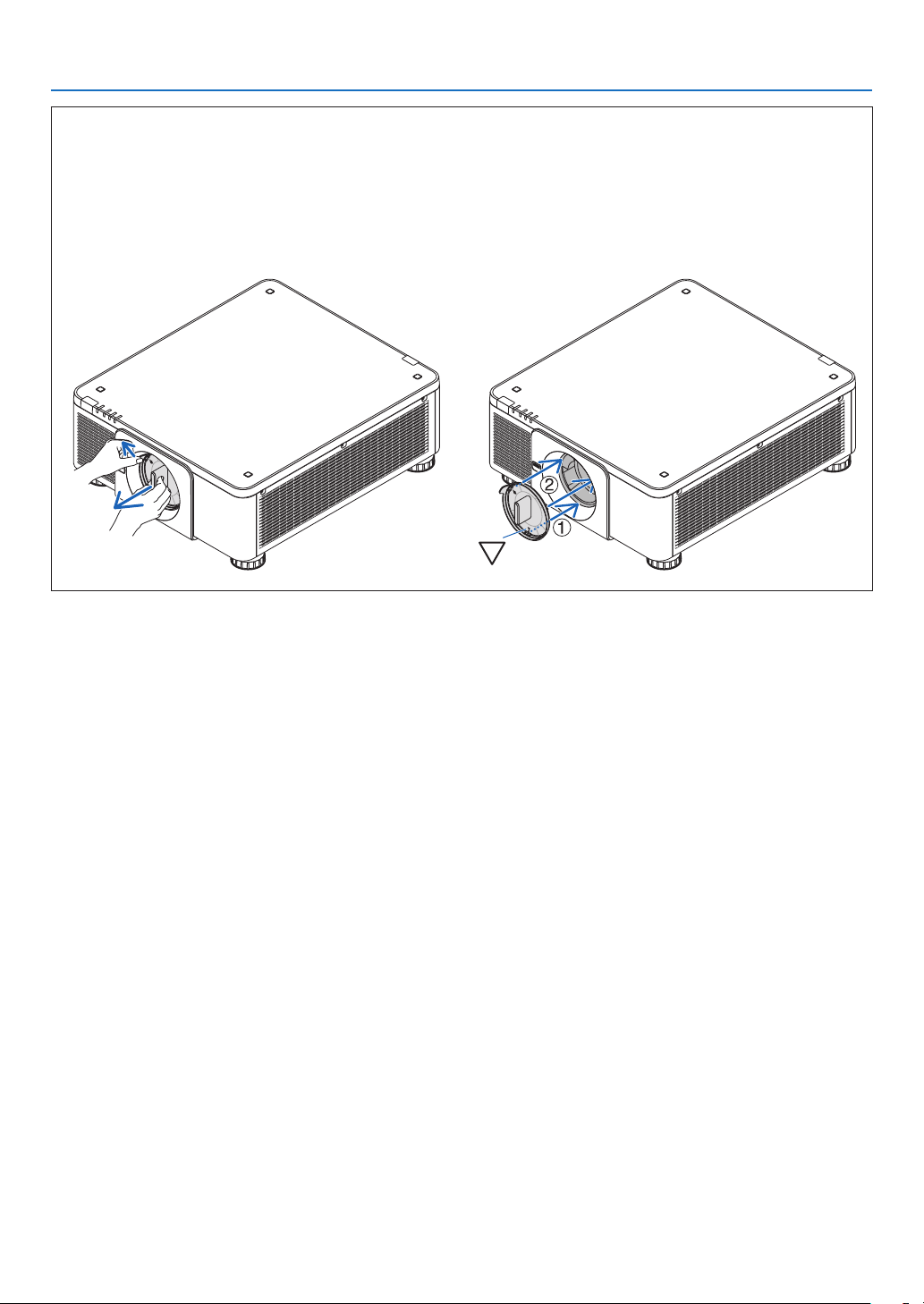
Removing/Attaching the Dust Cap
To remove the dust cap from the projector, push the
tongue at the top left outward and pull the knob at the
center of the cap.
To attach the dust cap to the projector, locate the catch
on the lower end of the dust cap and place it into the
opening of the projector with the point of a triangle mark
(▽) facing downward (① in the gure below), and then
push the upper end of the dust cap against the projec-
tor to place the catches into the slot while clutching the
handle (② in the gure below).

3
1. Introduction
❷ Introduction to the Projector
This section introduces you to your new projector and describes the features and controls.
General
• Single-chip DLP projector with high resolution and high brightness
Realized to project the image in the resolution 3840 × 2160 pixels (4K UHD), the aspect ratio in 16:9, and the
brightness in 10000 lumens.
• Superior dust-proof structure
Adapted the cycle cooling system for cooling down the optical parts. By this system, air in the light source is cooled
down and circulated. As the result, the optical parts are not exposed to the open air and enable to keep brightness
without contamination by dust.
* Can not prevent contamination by dust completely.
Light source · Brightness
• A long-life laser diode is equipped in the light module
The product can be operated at low cost because the laser light source can be used for a long time without requir-
ing replacement or maintenance.
• Brightness can be adjusted within a wide range
Unlike with ordinary light sources, the brightness can be adjusted from 20 to 100% in 1% increments.
• [CONSTANT BRIGHTNESS] mode
Brightness normally decreases with use, but by selecting [CONSTANT BRIGHTNESS] mode, sensors inside the
projector detect and automatically adjust the output, thereby maintaining constant brightness throughout the life
of the light module.
However, if brightness output is set at the maximum, brightness will decrease with use.
Installation
• Wide range of optional lenses selectable according to the place of installation
This projector supports 8 types of optional lenses, providing a selection of lenses adapted to a variety of places
of installation and projection methods.
In addition, the lenses can be mounted and removed in one touch.
Note that no lens is mounted upon shipment from the factory. Please purchase optional lenses separately.
• This projector can be installed any angle within vertical and horizontal 360° range, however, life of optical
parts will be shorten in the following installation state:
• When the projector is installed on which lens faces downward.
• When the intake vent on the projector side faces downward in the portrait installation.
• Double stackable for high light output projection
By stacking 2 projectors, increased brightness on a large screen is possible.
• Power lens control for quick and easy adjustment
By using buttons on the projector or the remote control, zoom, focus, and position (lens shift) can be adjusted.

4
1. Introduction
Videos
• High quality pictures using Cinema Quality Picture technology
The device displays high-resolution pictures with its rich gradation expression capability and by improving the
contrast in the picture boundary area using the development technology for digital cinema projectors and the
unique NEC video processor for image processing.
• A variety of input terminals such as HDMI, DisplayPort, HDBaseT, SDI, etc.
The projector is equipped with HDMI (1/2), DisplayPort (1/2), HDBaseT, SDI (1/2/3/4) input terminals. Moreover,
You can install optional boards (sold separately) to SLOT.
The projector’s HDMI input terminals and DisplayPort input terminals support HDCP.
HDBaseT, promoted and advanced by the HDBaseT Alliance, is a consumer electronic (CE) and commercial
connectivity technology.
• Displaying two or four images at the same time (PICTURE BY PICTURE)
With this single projector you can project two or four images at the same time.
When projecting two images, you can adjust its position on the screen. The projector also supports the portrait
projection.
• Multi-screen projection using multiple projectors
You can line up multiple projectors to display a high resolution image in a larger screen.
Furthermore, the boundaries of the screens are smoothed using an edge blending function.
• Slot for optional board
This projector has a slot for optional boards (sold separately).
Network
• Supports wired LAN
Equips the LAN and HDBaseT (RJ-45) ports. Utilizing a wired LAN connected with these ports, it enables to control
the projector by a computer.
• Convenient utility software (User Supportware)
This projector supports our utility software (NaViSet Administrator 2, Virtual Remote Tool, etc.).
NaViSet Administrator 2 helps you control the projector by a computer via wired LAN connection.
Virtual Remote Tool helps you perform operations by a virtual remote control such as projector's power on or off
and signal selection via wired LAN connection. Moreover, it has function to send an image to the projector and
register it as the logo data.
Please visit our web site for downloading each software.
URL: https://www.nec-display.com/dl/en/index.html
• CRESTRON ROOMVIEW and Extron XTP compatibility
The projector supports CRESTRON ROOMVIEW and Extron XTP, allowing multiple devices connected in the
network to be managed and controlled from a computer. Moreover, it enables to output and control image via an
Extron XTP transmitter connected with the projector.

5
1. Introduction
About this user’s manual
The fastest way to get started is to take your time and do everything right the rst time. Take a few minutes now to
review the user’s manual. This may save you time later on. At the beginning of each section of the manual you’ll nd
an overview. If the section doesn’t apply, you can skip it.
6
1. Introduction
❸ Part Names of the Projector
Front/Top
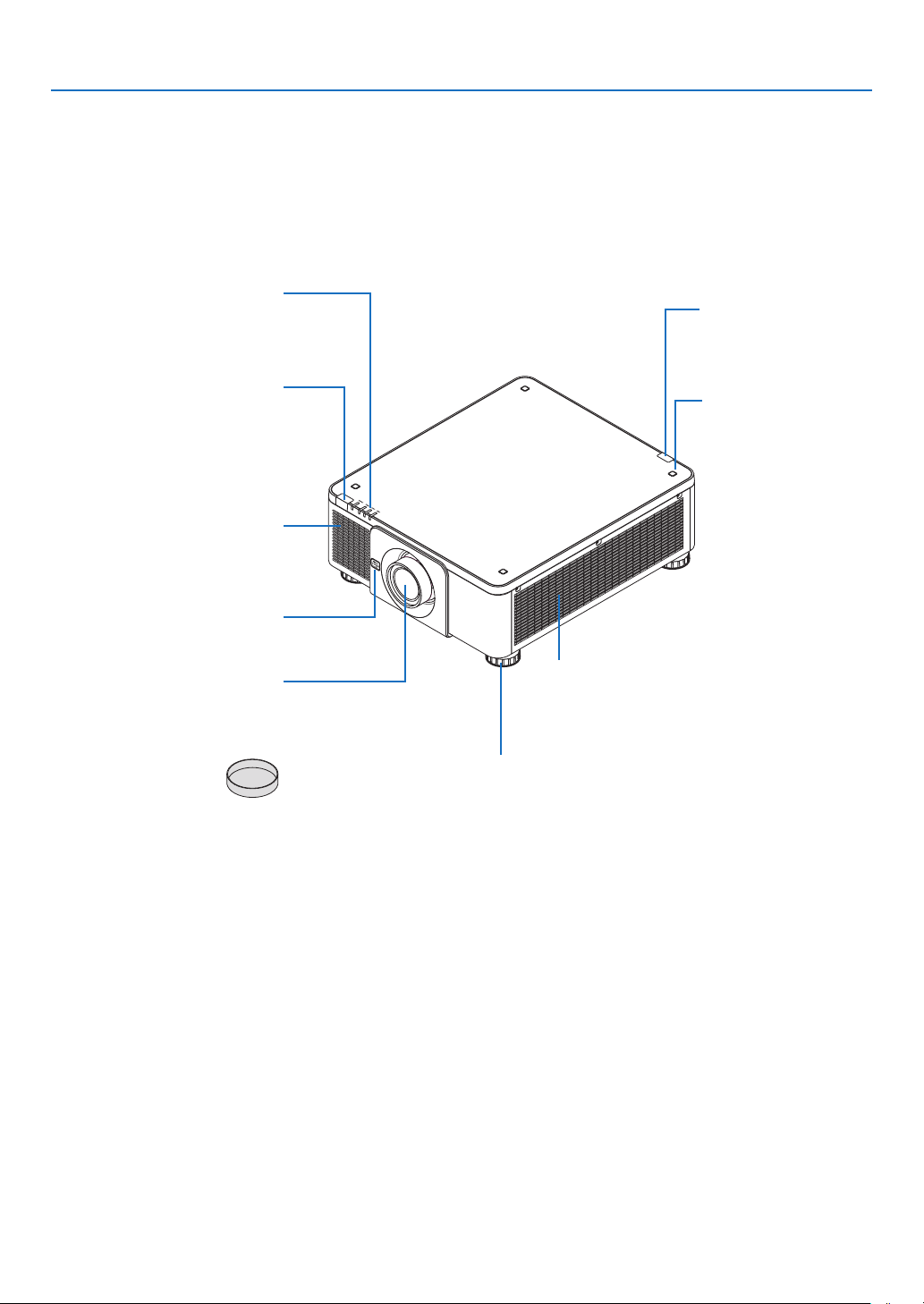
The lens is sold separately. The description below is for when the NP18ZL-4K lens is mounted.
Lens
Remote Sensor (located on the
front and the rear)
(→ page 12)
Indicator Panel
(→ page 8)
Intake vent
Takes in air to cool the unit.
(→ page xi, 142)
Remote Sensor
(→ page 12)
Stacking Holder xing
section
(4 locations)
Intake vent
Takes in air to cool the unit.
(→ page xi, 142)
Tilt Foot
(→ page 32)
Lens Release (LENS) Button
(→ page 134)
Lens Cap
(The lens cap is attached
to the lens.)
7
1. Introduction
Rear
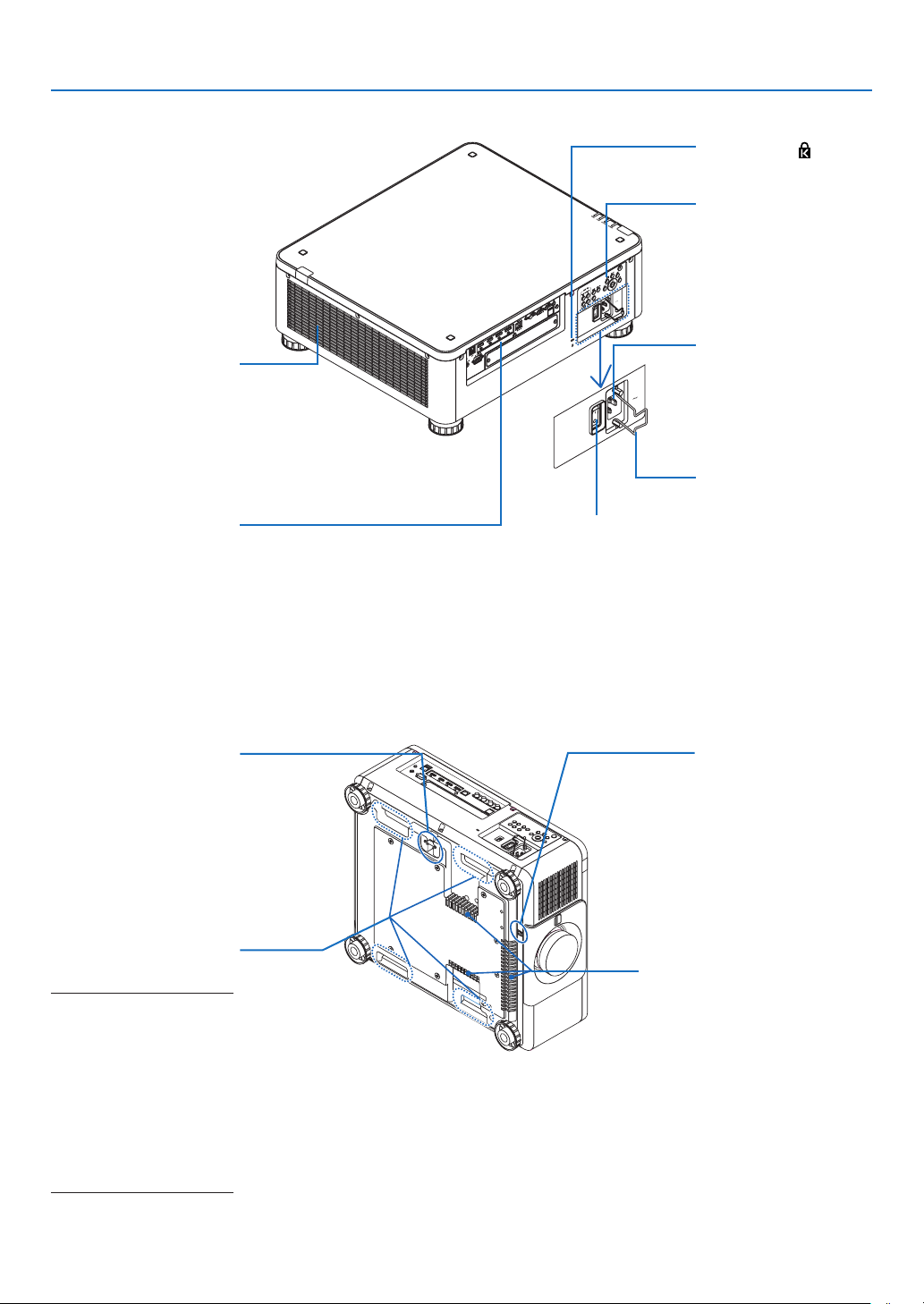
AC IN terminal
Connect the supplied
power cord’s three-pin
plug here, and plug the
other end into an active
wall outlet. (→ page 14)
Theft prevention screw
hole for the lens unit
Main power switch
While AC power is being supplied, set the
main power switch to ON position (|), then
your projector will enter a standby state.
Power Cord Stopper
(→ page 15)
* Security and theft protection lock compatible with Kensington security cables/equipment.
For products, visit Kensington’s website.
Security Bar
Fixing a theft prevention
device.
The security bar accepts
security wires or chains
up to 0.18 inch/4.6 mm in
diameter.
Handle (located on 4 posi-
tions)
For transportation
NOTE:
• For moving the projector,
make sure you have at least
two people. At the same
time, do not grip and hold
the projector other than by
these handles. Attempting
to move the projector alone
could result in back pain or
other injuries.
Intake vent
Takes in air to cool the unit.
(→ page xi, 142)
Terminals
(→ page 9)
Exhaust vent
Heated aiir is exhausted
from here.
(→ page xi, 142)
Controls
(→ page 8)
Security Slot (
)*
8
1. Introduction
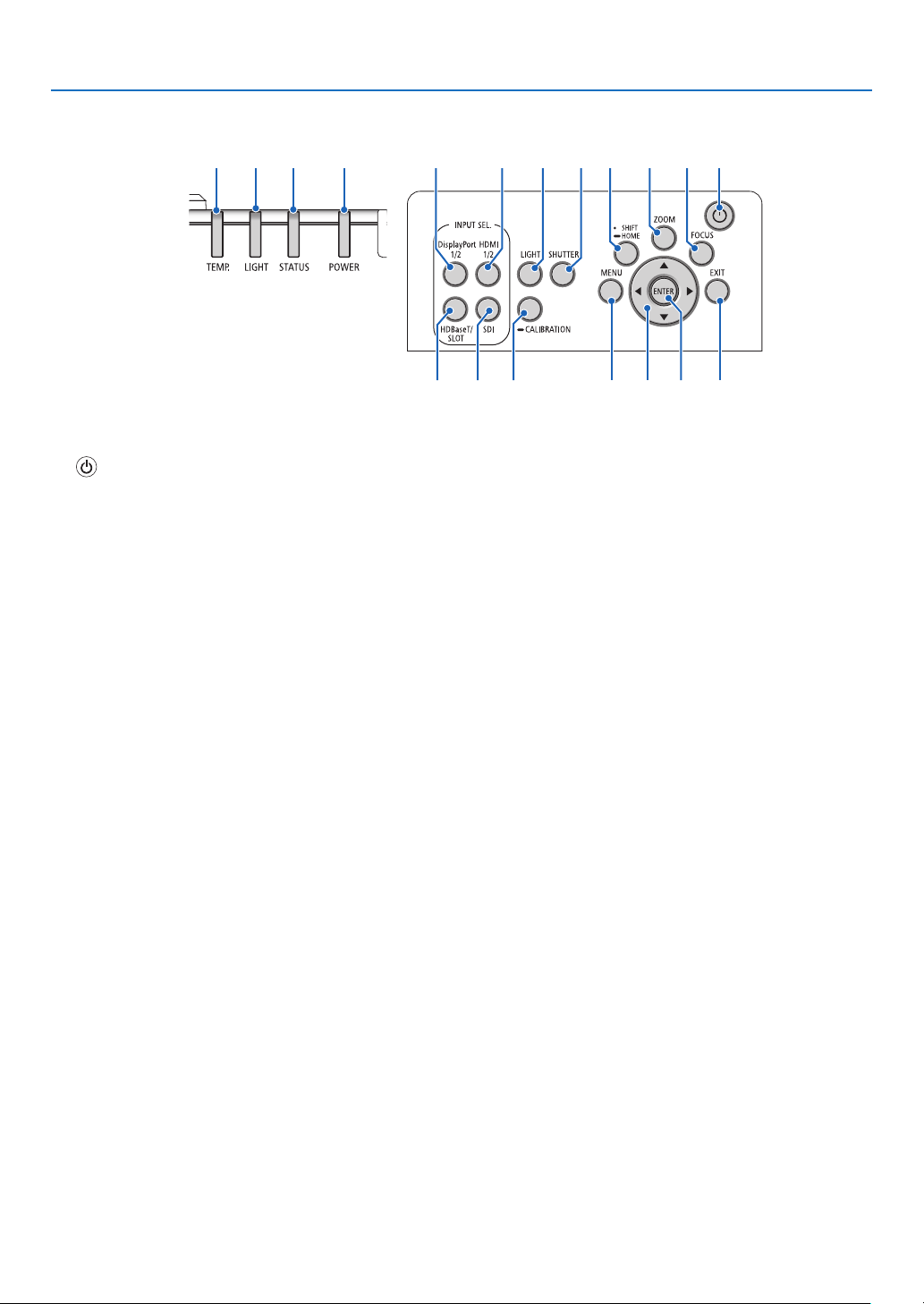
Controls/Indicator Panel
10 11
5 4 3 2 16
8
7
9 12 13
18 1517
14 16
19
1. (POWER) Button
(→ page 17, 33)
2. POWER Indicator
(→ page 17, 33, 160)
3. STATUS Indicator
(→ page 160)
4. LIGHT Indicator
(→ page 160)
5. TEMP. Indicator
(→ page 41, 162)
6. HDMI 1/2 Button
(→ page 19)
7. DisplayPort 1/2 Button
(→ page 19)
8. HDBaseT/SLOT Button
(→ page 19)
9. SDI Button
(→ page 19)
10. MENU Button
(→ page 71)
11. ▲▼◀▶ Buttons
(→ page 71)
12. ENTER Button
(→ page 71)
13. EXIT Button
(→ page 71)
14. SHIFT/HOME Button
(→ page 23)
15. ZOOM Button
(→ page 31)
16. FOCUS Button
(→ page 26)
17. LIGHT Button
(→ page 39)
18. SHUTTER Button
(→ page 35)
19. CALIBRATION Button
(→ page 17, 110)
9
1. Introduction
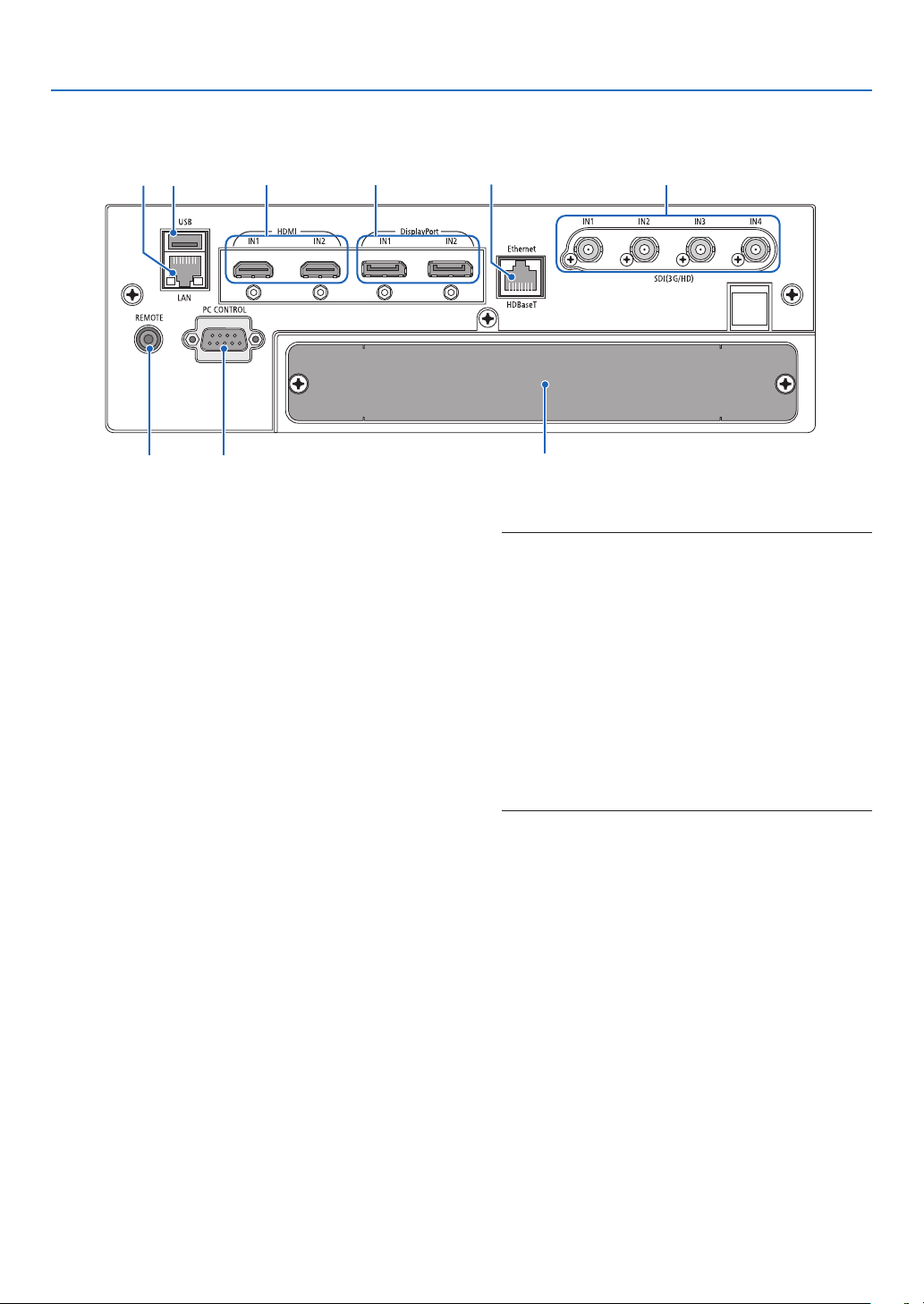
Terminals Features
6
7
4
9
35
8
1 2
1. HDMI1 IN/HDMI2 IN Terminal [HDMI IN1/IN2]
(Type A)
(→ page 135)
2. DisplayPort1 IN/DisplayPort2 IN Terminal
[DisplayPort IN1/IN2] (DisplayPort 20 Pin)
(→ page 135)
3. HDBaseT Port [Ethernet/HDBaseT] (RJ-45)
(→ page 135)
4. SDI1/SDI2/SDI3/SDI4 IN Terminal [SDI(3G/HD)
IN1/IN2/IN3/IN4] (BNC)
(→ page 135)
5. USB Port (Type A)
(For future expansion. This port allows for power sup-
ply.)
6. LAN port [LAN] (RJ-45)
The port for controlling the projector from a PC via
a network. Connect the projector and the PC with a
shielded twisted pair (STP) cable of Category 5e or
higher (sold commercially).
7. REMOTE Terminal (Stereo Mini)
Use this jack for wired remote control of the projector
using a commercially available remote cable with ⌀3.5
stereo mini-plug (without resistance).
Connect the projector and the supplied remote control
using a commercially available wired remote control
cable.
(→ page 12)
NOTE:
• When a remote control cable is connected to the REMOTE
terminal, infrared remote control operations cannot be
performed.
• Power cannot be supplied from the REMOTE terminal to
the remote control.
• When [HDBaseT] is selected in the [REMOTE SENSOR]
and the projector is connected to a commercially-available
transmission device that supports HDBaseT, remote
control operations in infra-red cannot be carried out if
transmission of remote control signals has been set up in
the transmission device. However, remote control using
infrared rays can be carried out when the power supply
of the transmission device is switched off.
8. PC CONTROL Port (D-Sub 9 Pin)
Use this port to connect a PC or control system.
This enables you to control the projector using serial
communication protocol. Use a shielded RS232C
cable (sold commercially). If you are writing your own
program, typical PC control codes are on page 167.
9. SLOT
(→ page 147)
10
1. Introduction
❹ Part Names of the Remote Control
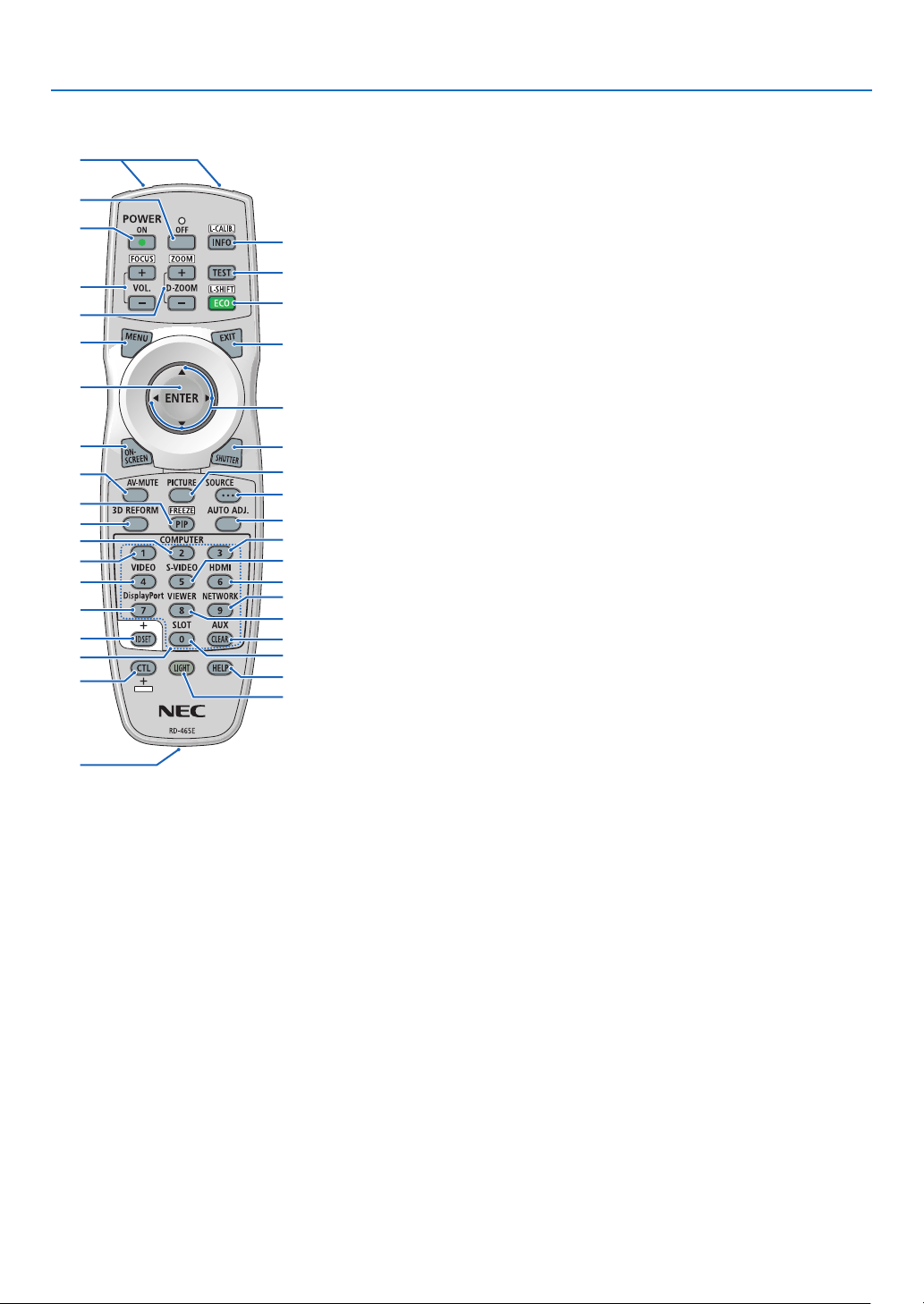
6. VOL./FOCUS +/− Buttons
(The VOL. button function cannot
be used with this series of projec-
tors.)
(→ page 26)
7. D-ZOOM/ZOOM +/− Buttons
(→ page 38, 31)
8. TEST Button
(→ page 79)
9. ECO/L-SHIFT Button
(→ page 39, 25)
10. MENU Button
(→ page 71)
11. EXIT Button
(→ page 71)
12. ENTER Button
(→ page 71)
13. ▲▼◀▶ Button
(→ page 71)
14. ON-SCREEN Button
(→ page 35)
15. SHUTTER Button
(→ page 35)
16. AV-MUTE Button
(→ page 35)
17. PICTURE Button
(→ page 83, 86)
18. SOURCE Button
(→ page 20)
19. 3D REFORM Button
(→ page 43)
20. PIP/FREEZE Button
(→ page 37)
21. AUTO ADJ. Button
When projecting the HDMI, Dis-
playPort, HDBaseT, SDI or SLOT
screen, the conditions are auto-
matically adjusted to an optimum
state.
22, 23, 24. COMPUTER 1/2/3
Button
(not available on this series of
projectors)
25. VIDEO Button
(not available on this series of
projectors)
1
3
4
6
14
10
12
16
20
7
2
5
8
9
11
15
18
17
13
21
19
25
28
33
23
22
36
24
30
26
29
35
27
32
31
37
34
26. S-VIDEO Button
(not available on this series of
projectors)
27. HDMI Button
(→ page 19)
28. DisplayPort Button
(→ page 19)
29. VIEWER Button
(not available on this series of
projectors)
30. NETWORK Button
(→ page 19)
31. SLOT Button
(→ page 19)
32. AUX Button
(→ page 19)
33. ID SET Button
(→ page 116)
34. Numeric (0 to 9/CLEAR)
Buttons
(→ page 116)
35. CTL Button
This button is used in conjunction
with other buttons, similar to a
CTRL key on a computer.
36. LIGHT Button
This button is used to turn on the
backlight for the remote control
buttons.
The backlight will turn off if no
button operation is made for 10
seconds.
37. HELP Button
(→ page 129)
1. Infrared Transmitter
(→ page 12)
2. Remote Jack
Connect a commercially available
remote cable here for wired opera-
tion. (→ page 12)
3. POWER ON Button
(→ page 17)
4. POWER OFF Button
(→ page 33)
5. INFO/L-CALIB. Button
Display the [SOURCE(1)] screen
of the on-screen menu.
(→ page 129)
[LENS CALIBRATION] of the lens
unit is carried out when you press
the CTL button at the same time.
(→ page 17, 110)
11
1. Introduction
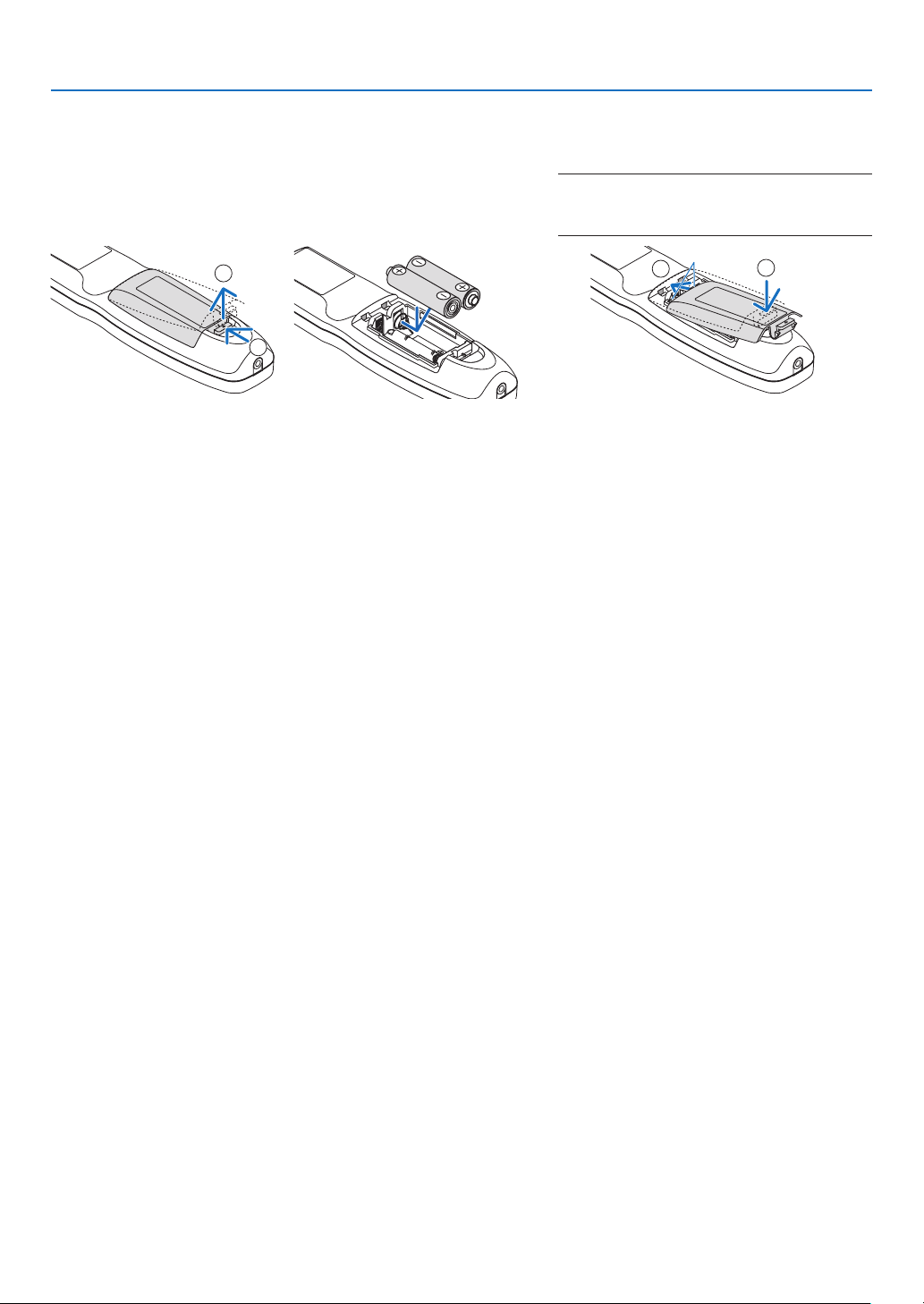
Battery Installation
1. Press the catch and remove
the battery cover.
2. Install new ones (AA). En-
sure that you have the bat-
teries’ polarity (+/−) aligned
correctly.
3. Slip the cover back over the batteries until
it snaps into place.
NOTE:
• Do not mix different types of batteries or new
and old batteries.
1
2
1
2
Remote Control Precautions
• Handle the remote control carefully.
• If the remote control gets wet, wipe it dry immediately.
• Avoid excessive heat and humidity.
• Do not short, heat, or take apart batteries.
• Do not throw batteries into re.
• If you will not be using the remote control for a long time, remove the batteries.
• Ensure that you have the batteries’ polarity (+/−) aligned correctly.
• Do not use new and old batteries together, or use different types of batteries together.
• Dispose of used batteries according to your local regulations.
12
1. Introduction
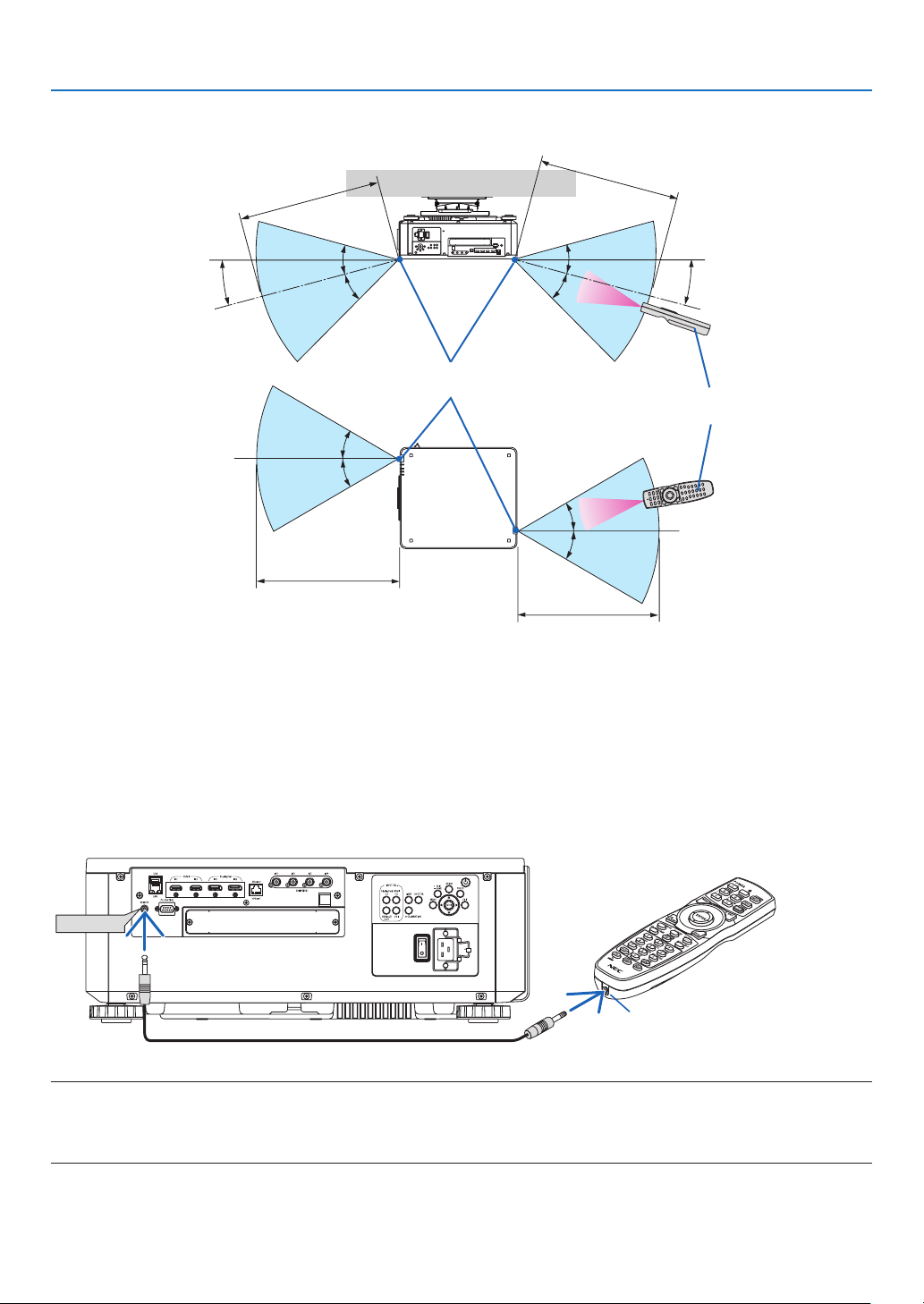
Operating Range for Wireless Remote Control
7 m/276 inch
7 m/276 inch
Remote control
Remote sensor on projector cabinet
7 m/276 inch
7 m/276 inch
30°
30°
30°
30°
15°
30°
30°
30°
15°
30°
• The infrared signal operates by line-of-sight up to a distance of above meters and within a 60-degree angle of the
remote sensor on the projector cabinet.
• The projector will not respond if there are objects between the remote control and the sensor, or if strong light falls
on the sensor. Weak batteries will also prevent the remote control from properly operating the projector.
Using the Remote Control in Wired Operation
Connect one end of the remote cable to the REMOTE terminal and the other end to the remote jack on the remote
control.
REMOTE
Remote Jack
NOTE:
• When a remote cable is inserted into the REMOTE terminal, the remote control does not work for infrared wireless communication.
• Power will not be supplied to the remote control by the projector via the REMOTE jack. Battery is needed when the remote control
is used in wired operation.

13
This section describes how to turn on the projector and to project a picture onto the screen.
❶ Flow of Projecting an Image
Step 1
• Connecting your computer / Connecting the power cord (→ page 14)
Step 2
• Turning on the projector (→ page 16)
Step 3
• Selecting a source (→ page 19)
Step 4
• Adjusting the picture size and position (→ page 22)
• Correcting keystone distortion [CORNERSTONE] (→ page 43)
Step 5
• Adjusting a picture
Step 6
• Making a presentation
Step 7
• Turning off the projector (→ page 33)
Step 8
• After use (→ page 34)
2. Projecting an Image (Basic Operation)
14
2. Projecting an Image (Basic Operation)
❷ Connecting Your Computer/Connecting the Power Cord
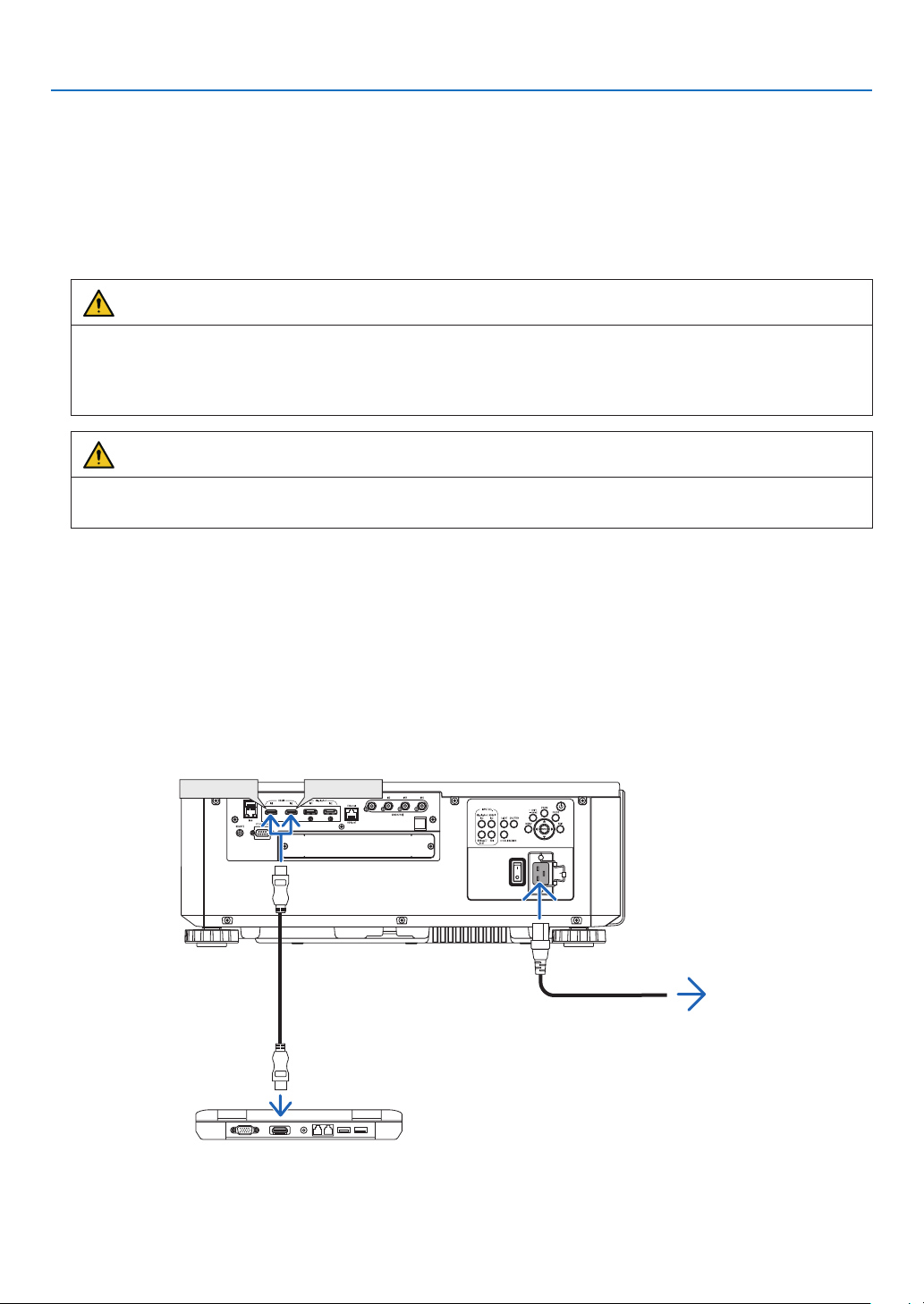
1. Connect your computer to the projector.
This section will show you a basic connection to a computer. For information about other connections, see “6-2.
Connecting to Other Equipment” on page 135.
Connect the HDMI output terminal of the computer to the HDMI1 or HDMI2 input terminal of the unit.
2. Connect the supplied power cord to the projector.
WARNING
MAKE SURE TO TAKE THE GROUND CONNECTION FOR THE DEVICE.
TO PREVENT FIRE OR SHOCK, DO NOT EXPOSE THIS UNIT TO RAIN OR MOISTURE.
DO NOT USE THIS UNIT'S PLUG WITH AN EXTENSION CORD OR IN AN OUTLET UNLESS ALL THE
PRONGS CAN BE FULLY INSERTED.
CAUTION
This equipment is designed to be used in the condition of the power cord connected to earth. If the power cord
is not connected to the earth, it may cause electric shock. Please make sure the power cord is earthed properly.
Important Information:
• When plugging in or unplugging the supplied power cord, make sure that the main power switch is pushed
to the off [O] position. Failure to do so may cause damage to the projector.
• Do not use a three-phase power supply. Doing so may cause of malfunction.
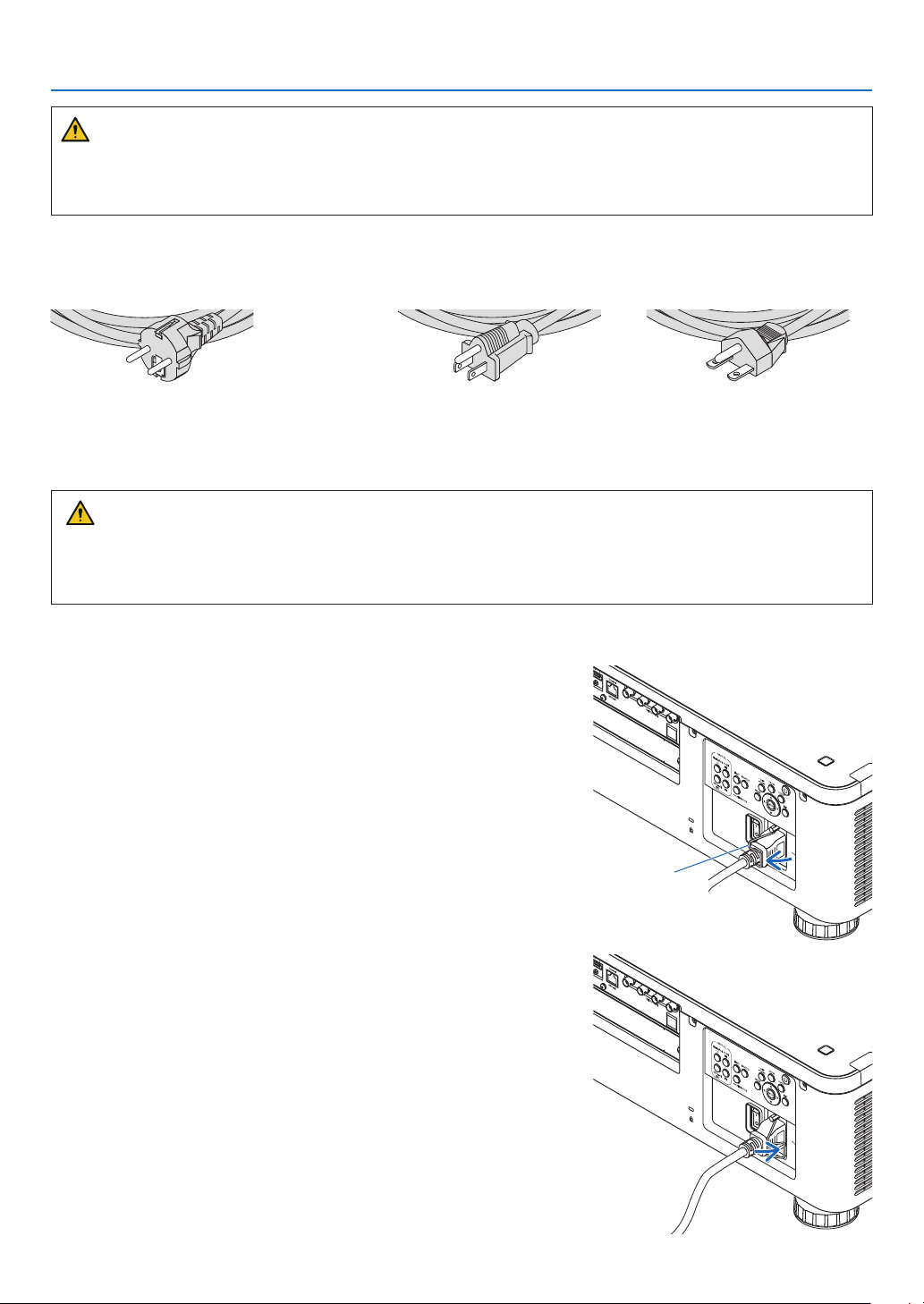
First connect the supplied power cord’s three-pin plug to the AC IN terminal of the projector, and then connect
the other plug of the supplied power cord in the wall outlet. Do not use any plug converter.
HDMI IN1 HDMI IN2
Make sure that the prongs are fully inserted into
both the AC IN terminal and the wall outlet.
To wall outlet
HDMI cable (with ferrite core)
(sold commercially)
15
2. Projecting an Image (Basic Operation)
CAUTION
Parts of the projector may become temporarily heated if the projector is turned off with the POWER button or if the
AC power supply is disconnected during normal projector operation.
Use caution when picking up the projector.
Using the Supplied Power Cords
Select the power cord suitable for your country or region.
For Europe/Asia/South America For North America
(120 V) (200 V)
Using the Power Cord Stopper
To prevent the power cord from accidently removing from the AC IN of the projector, attach the power cord stopper
to clamp the power cord.
CAUTION
• To prevent the power cord from coming loose, make sure that all the prongs of the power cord are fully inserted
into the AC IN terminal of the projector before using the power cord stopper to x the power cord. A loose
contact of the power cord may cause a re or electric shock.
Attaching the power cord stopper
1. Raise up the power cord stopper and lay it over the power cord.
Power cord
stopper
• For releasing the stopper, raise up the stopper and lay it down to
the opposite side.
16
2. Projecting an Image (Basic Operation)
❸ Turning on the Projector
NOTE:
• The projector has two power switches: A main power switch and a POWER button (POWER ON and OFF on the remote control)
• Turning on the projector:
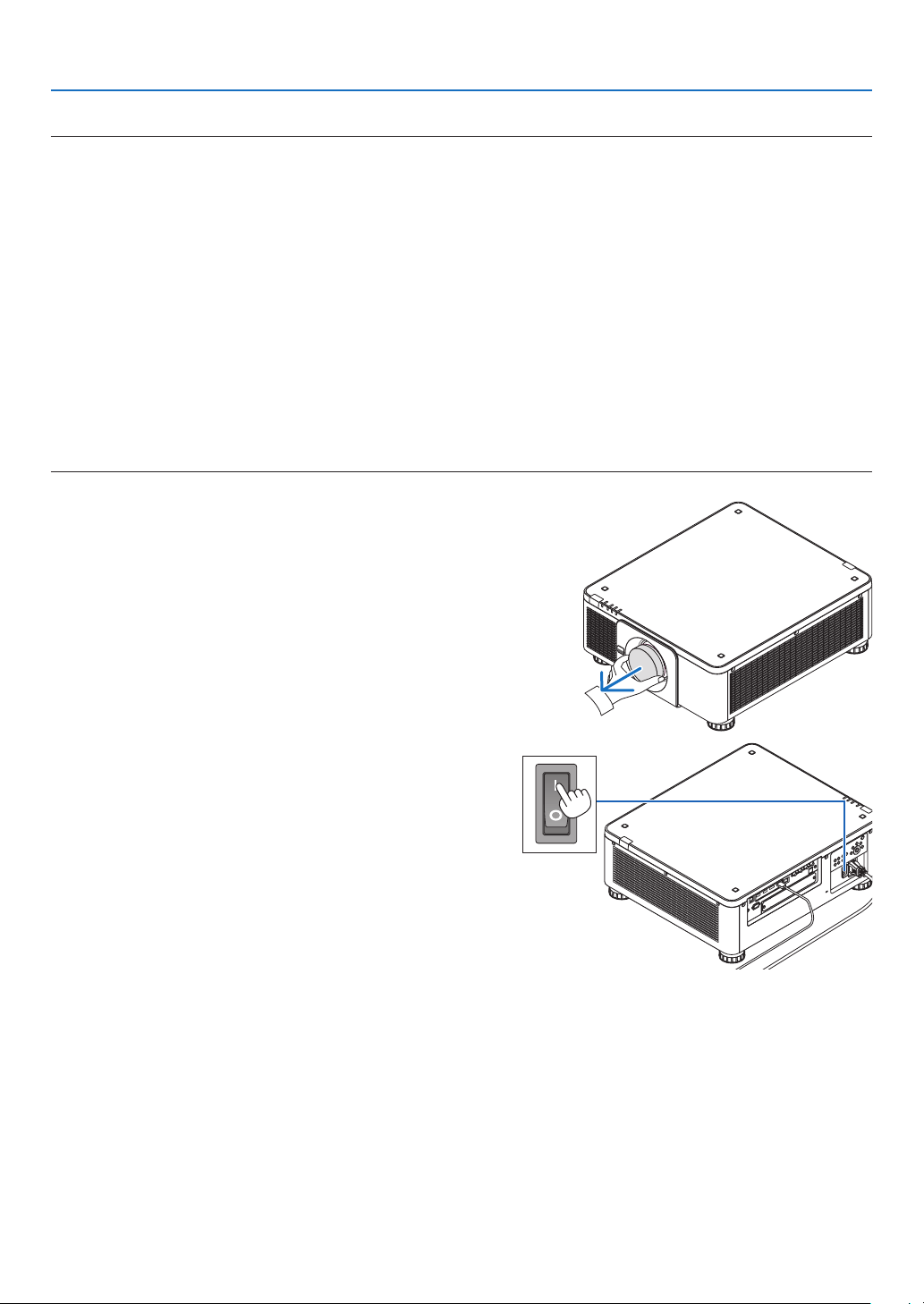
1. Press the main power switch to the ON position (I).
The projector will go into standby mode.
2. Press the POWER button .
The projector will become ready to use.
• Turning off the projector:
1. Press the POWER button.
The conrmation message will be displayed.
2. Press the POWER button again.
The projector will go into standby mode.
3. Press the main power switch to the OFF position (O).
The projector will be turned off.
1. Remove the lens cap from the lens unit.
2. Press the main power switch to the ON position ( I ).
POWER indicator lights up in green. If there is no opera-
tion from the unit or communication from the connected
device, the unit will go into the standby state after a while.
(When the standby mode is set to “Normal”)
(→ page 126)
17
2. Projecting an Image (Basic Operation)
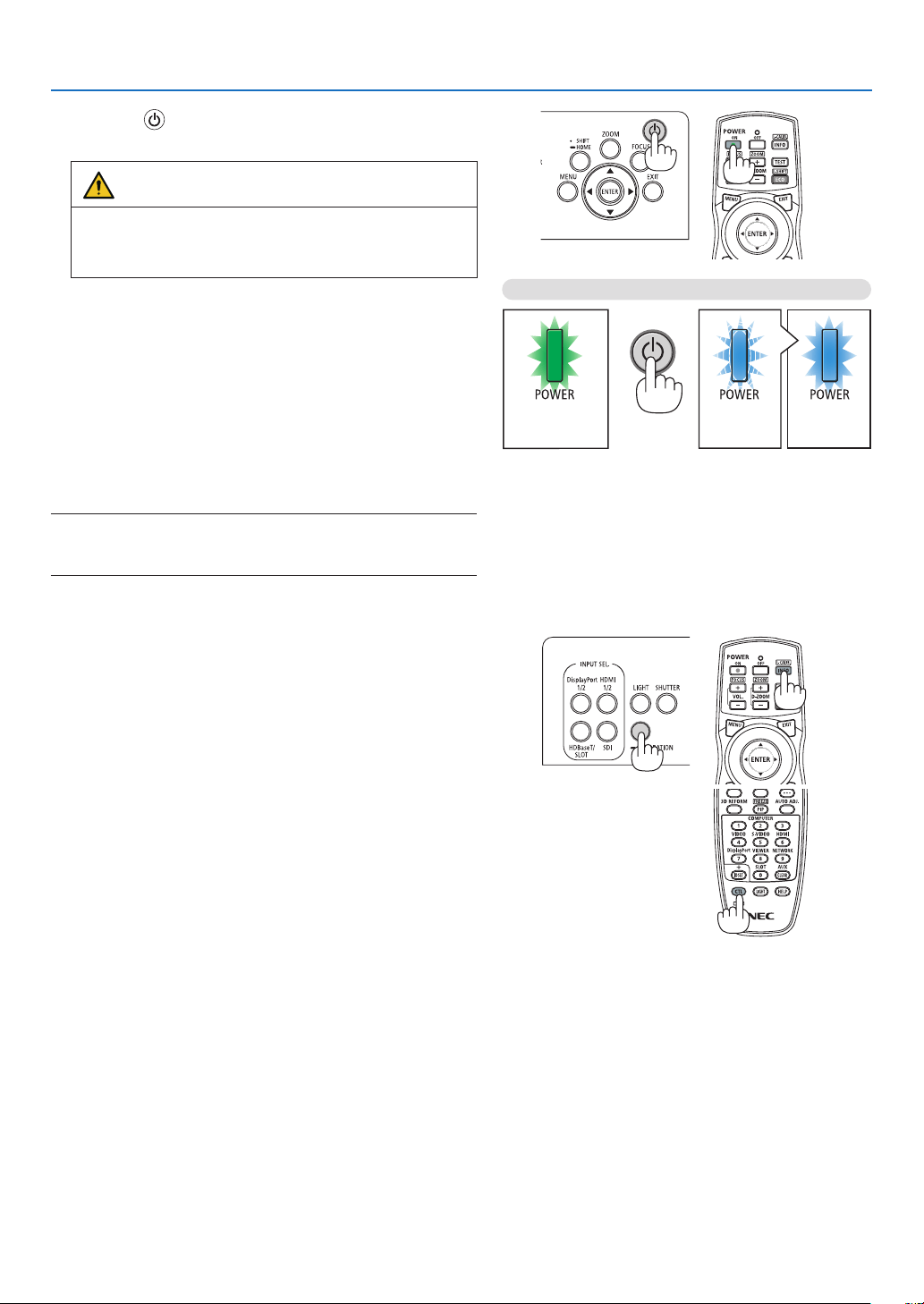
3. Press the (POWER) button on the projector cabinet
or the POWER ON button on the remote control.
WARNING
The projector produces a strong light. When turning on
the power, make sure no one within projection range is
looking at the lens.
The POWER indicator goes from a steady green light to
a ashing blue light, and the picture is projected on the
screen.
TIP:
• When the message “PROJECTOR IS LOCKED! ENTER YOUR
PASSWORD.” is displayed, it means that the [SECURITY]
feature is turned on. (→ page 46)
After you turn on your projector, ensure that the computer
or video source is turned on.
NOTE:
• The blue screen ([BLUE] background) is displayed when no signal
is being input (by factory default menu settings).
Sleep Blinking Power On
Steady green light
Blinking blue
light
Steady blue
light
Performing Lens Calibration
After installation or replacement of the lens, be sure to perform
[LENS CALIBRATION] by pressing and holding the CALIBRA-
TION button on the projector cabinet for at least two seconds
or by holding the CTL button and pressing the INFO/L-CALIB.
button on the remote control. Perform [LENS CALIBRATION]
also when trouble is found on the lens shift motion. Calibra-
tion corrects the adjustable zoom, shift, and focus range. If
calibration is not performed, you may not be able to get the
best focus and zoom even if you adjust the focus and zoom
for the lens. While performing Lens Calibration, the STATUS
indicator ashes in green twice per cycle.
• The following lenses need calibration:
NP16FL-4K, NP17ZL-4K, NP18ZL-4K, NP19ZL-4K,
NP20ZL-4K, NP21ZL-4K, NP31ZL-4K
18
2. Projecting an Image (Basic Operation)
Note on Startup screen (Menu Language Select screen)
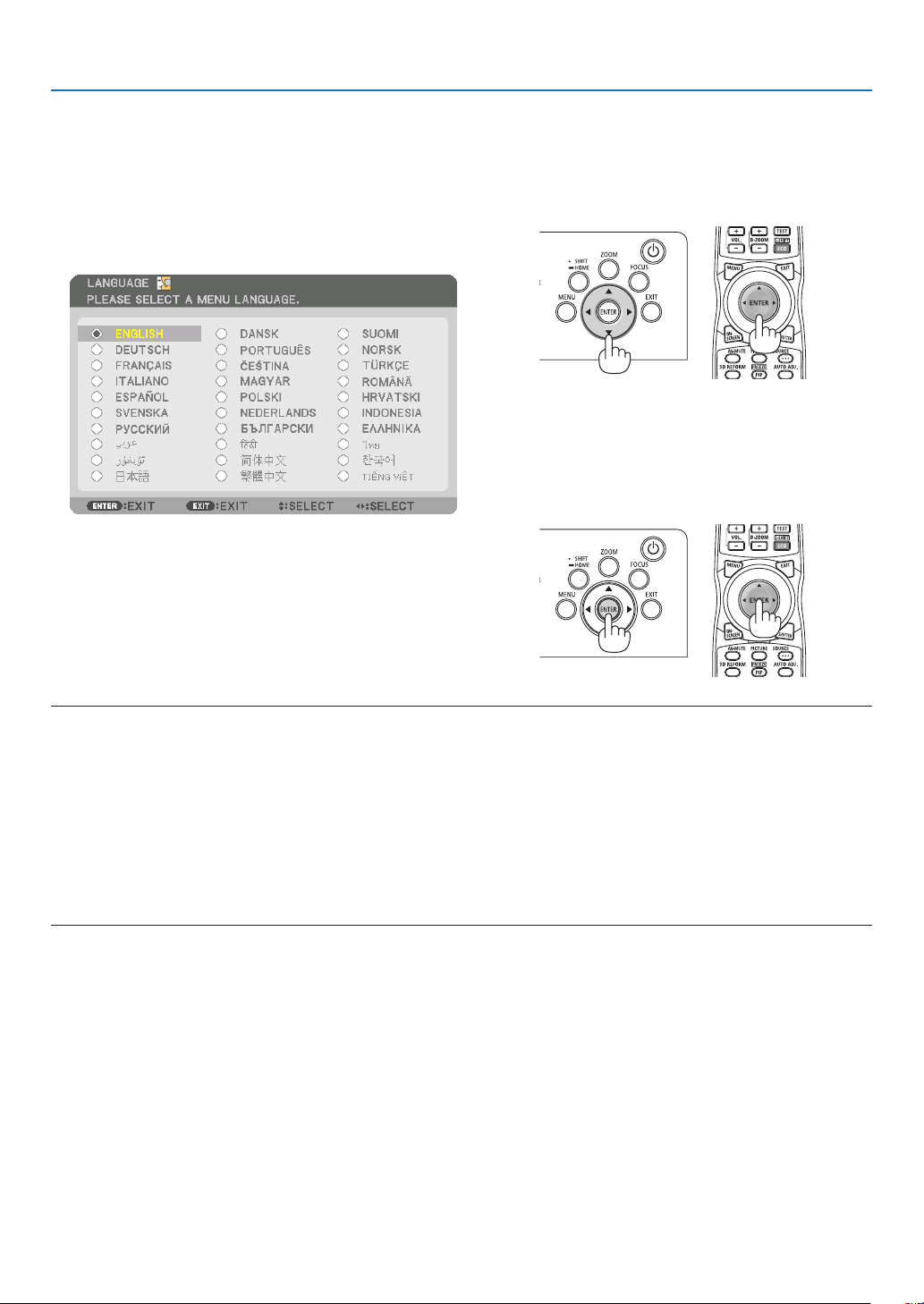
When you rst turn on the projector, you will get the Startup menu. This menu gives you the opportunity to select one
of the 30 menu languages.
To select a menu language, follow these steps:
1. Use the ▲, ▼, ◀ or ▶ button to select one of the 30
languages from the menu.
2. Press the ENTER button to execute the selection.
After this has been done, you can proceed to the menu
operation.
If you want, you can select the menu language later.
(→ [LANGUAGE] on page 75 and 105)
NOTE:
• If the message, [PLEASE SET "DATE AND TIME".] is shown, please set the current date and time. (→ page 115)
• In the case this message is not shown, the [DATE AND TIME SETTING] is recommended to complete.
• If one of the following things happens, the projector will not turn on.
- If the internal temperature of the projector is too high, the projector detects abnormal high temperature. In this condition the
projector will not turn on to protect the internal system. If this happens, wait for the projector’s internal components to cool
down.
- If the STATUS indicator lights orange with the power button pressed, it means that the [CONTROL PANEL LOCK] is turned on.
Cancel the lock by turning it off. (→ page 115)
• While the POWER indicator is blinking blue in short cycles, the power cannot be turned off by using the power button. (While the
POWER indicator is blinking blue in long cycles, the OFF TIMER is functioned and the power can be turned off.)
19
2. Projecting an Image (Basic Operation)
❹ Selecting a Source
Selecting the computer or video source
NOTE:
• Turn on the computer or video source equipment connected to the projector.
Using the Direct button
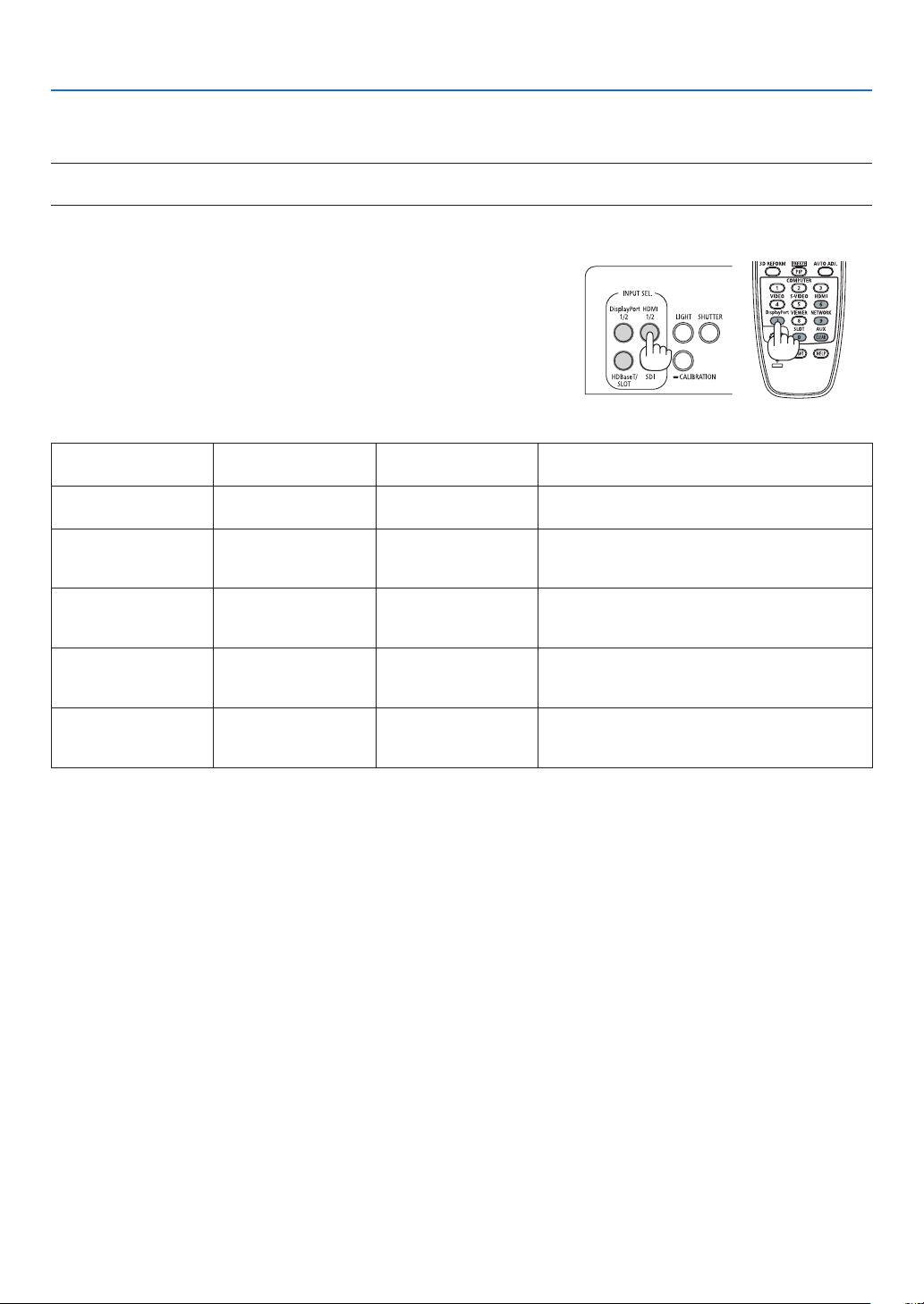
Press the Direct button on the projector cabinet or remote control.
Select the input according to the connection terminal.
Input connector Button on the projector
cabinet
Button on the remote
control
Note
HDMI1/2 IN HDMI 1/2 HDMI Switches between HDMI1 and HDMI2 each time
it is pressed.
DisplayPort 1/2 IN DisplayPort 1/2 DisplayPort
• Switches between DisplayPort1 and DisplayPort2
each time it is pressed.
• Select DisplayPort1 for dual link.
SDI 1/2/3/4 IN SDI AUX • Switches between SDI1, SDI2, SDI3 and SDI4
each time it is pressed.
• Select SDI1 for quad link or dual link.
HDBaseT HDBaseT/SLOT NETWORK Each time the button of the projector cabinet is
pressed, the mode switches between HDBaseT
and SLOT.
SLOT HDBaseT/SLOT SLOT Each time the button of the projector cabinet is
pressed, the mode switches between HDBaseT
and SLOT.
20
2. Projecting an Image (Basic Operation)
Detecting the Signal Automatically
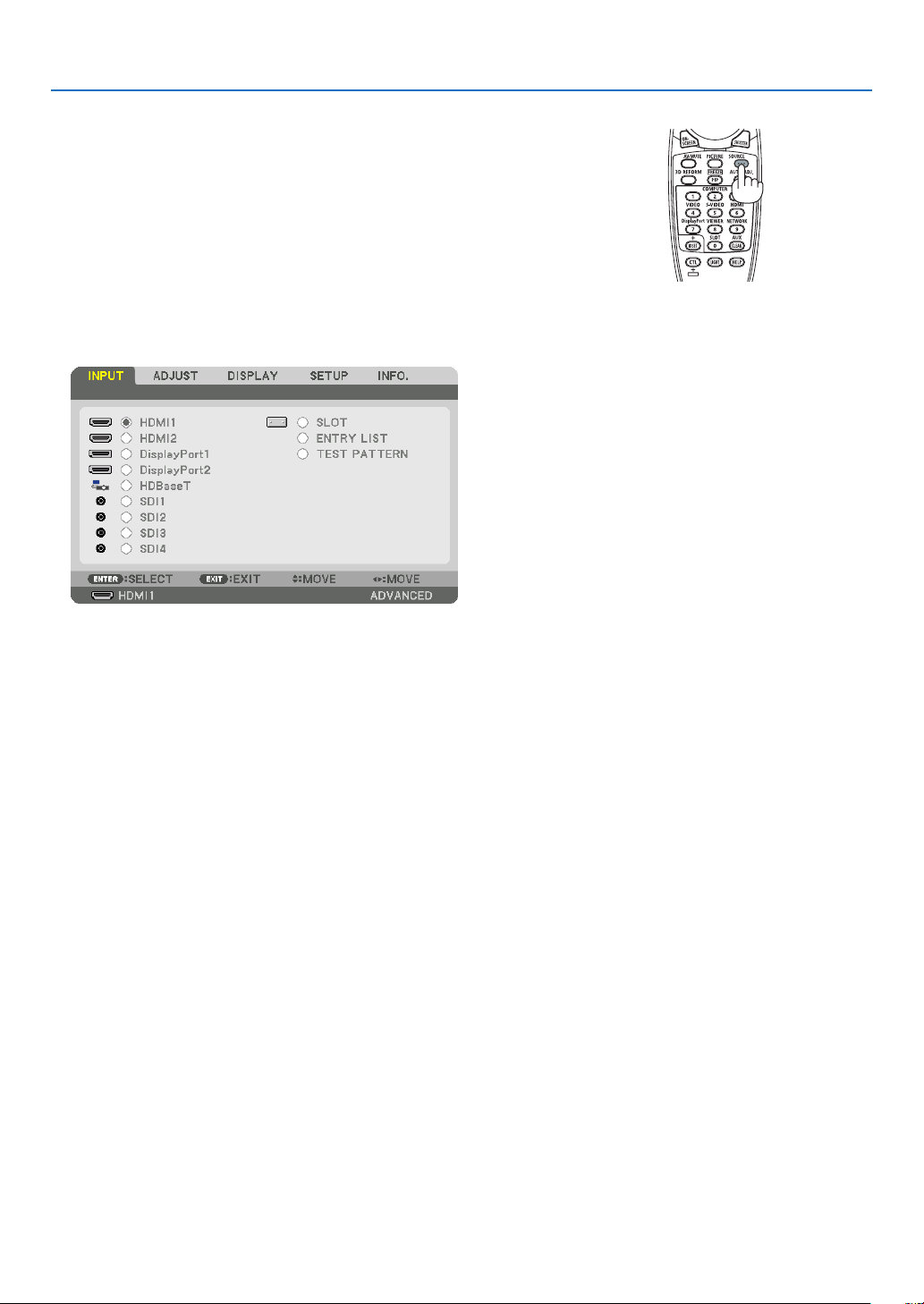
Press the SOURCE button for 1 second or longer. The projector will
search for the available input source and display it. The input source will
change as follows:
HDMI1 → HDMI2 → DisplayPort1 → DisplayPort2 → HDBaseT → SDI1
→ SDI2 → SDI3 → SDI4 → SLOT……
TIP:
• If no input signal is present, the input will be skipped.
• Press it briey to display the [INPUT] screen.
Press the ▼/▲ buttons to match the target input terminal and then
press the ENTER button to switch the input. To delete the menu
display in the [INPUT] screen, press the MENU or EXIT button.
21
2. Projecting an Image (Basic Operation)
Selecting Default Source
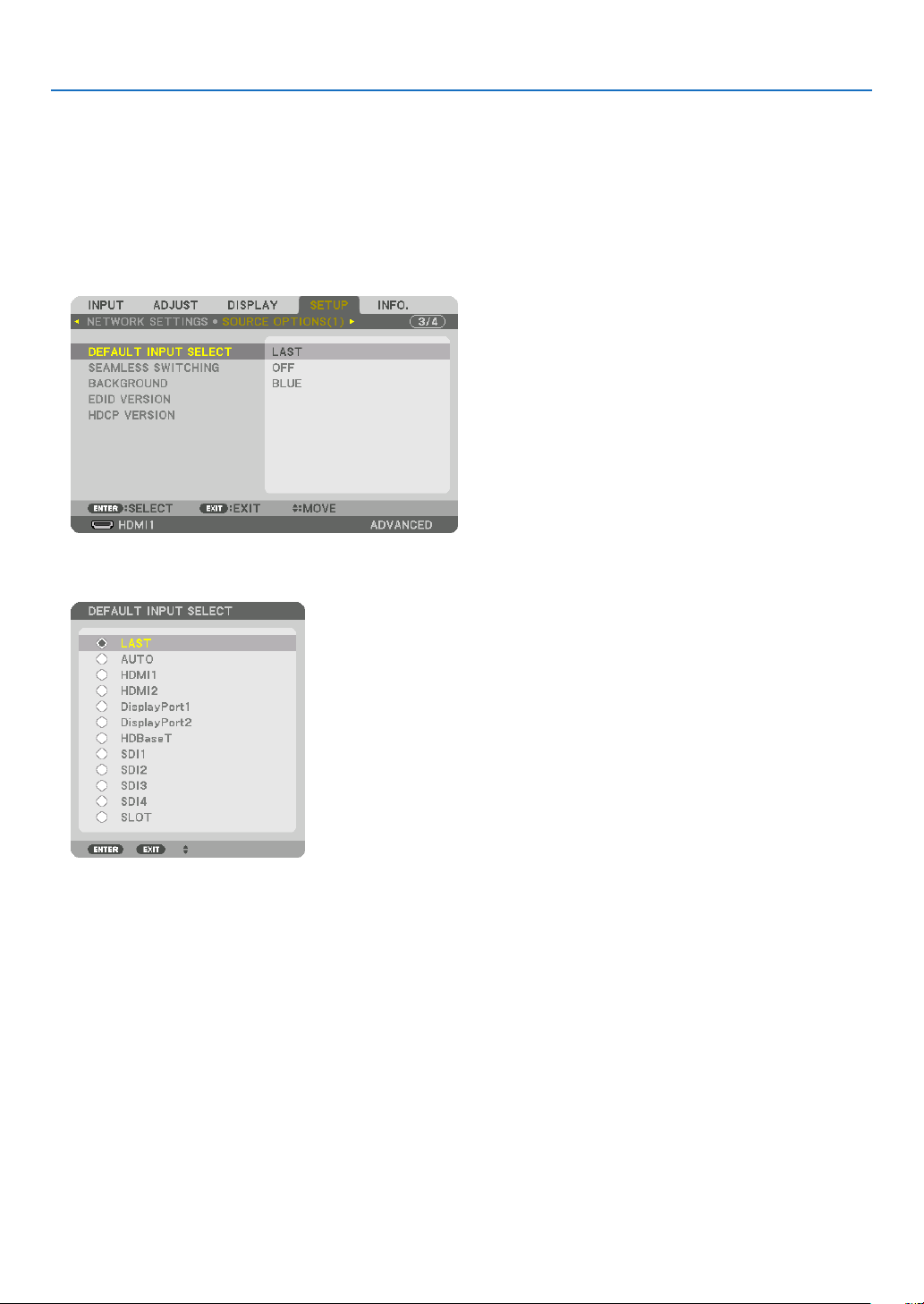
You can set a source as the default source so that it will be displayed each time the projector is turned on.
1. Press the MENU button.
The menu will be displayed.
2. Press the ▶ button to select [SETUP] and press the ▼ button or the ENTER button to select [MENU(1)].
3. Press the ▶ button to select [SOURCE OPTIONS(1)].
4. Press the ▼ button to select [DEFAULT INPUT SELECT] and press the ENTER button.
The [DEFAULT INPUT SELECT] screen will be displayed.
(→ page 123)
5. Select a source as the default source, and press the ENTER button.
6. Press the EXIT button three times to close the menu.
7. Restart the projector.
The source you selected in step 5 will be projected.
TIP:
• When the projector is in Standby mode, applying a computer signal from a computer will power on the projector and simultane-
ously project the computer’s image.
([AUTO POWER ON SELECT] → page 126)
22
2. Projecting an Image (Basic Operation)
❺ Adjusting the Picture Size and Position
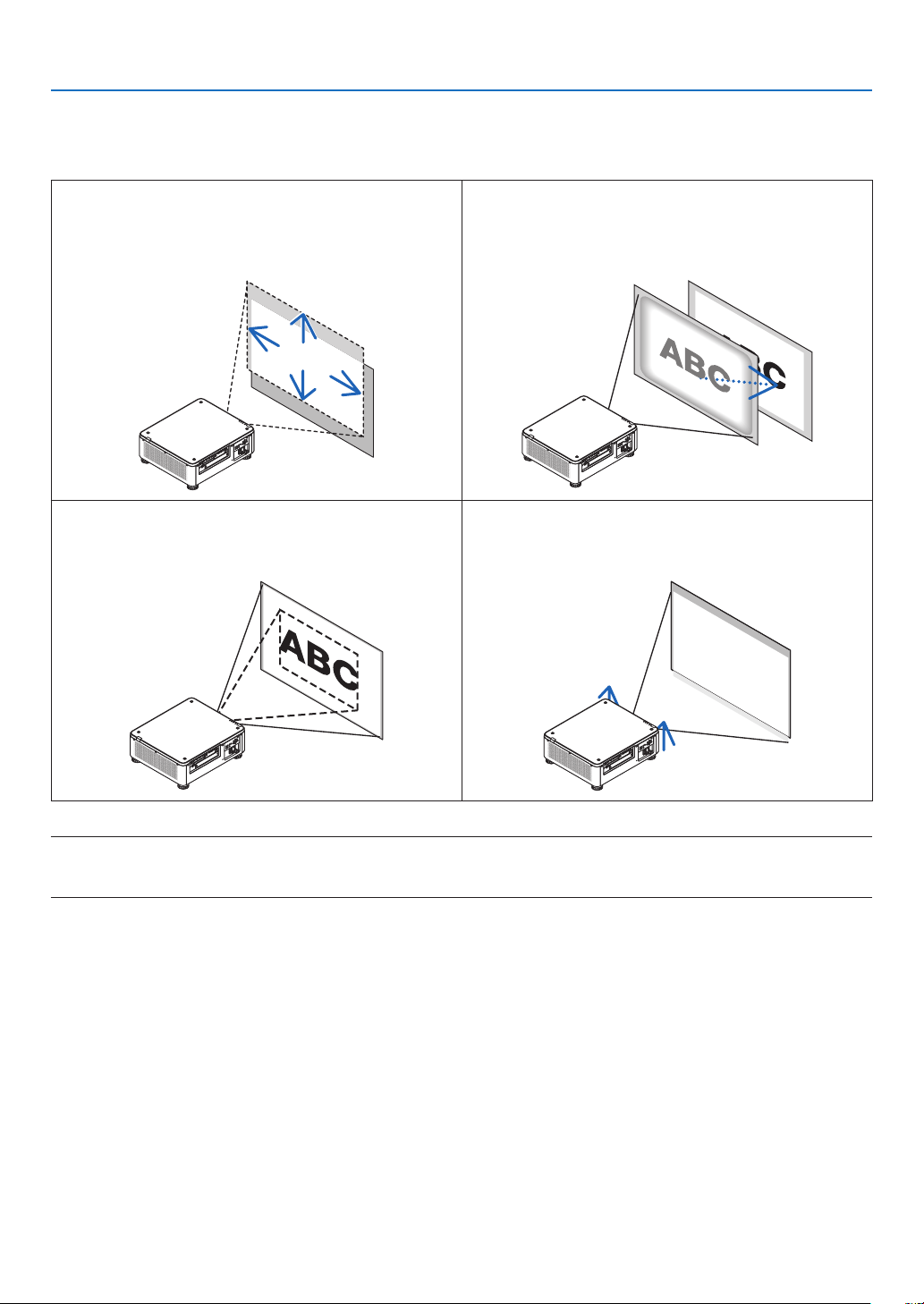
In this chapter drawings and cables are omitted for clarity.
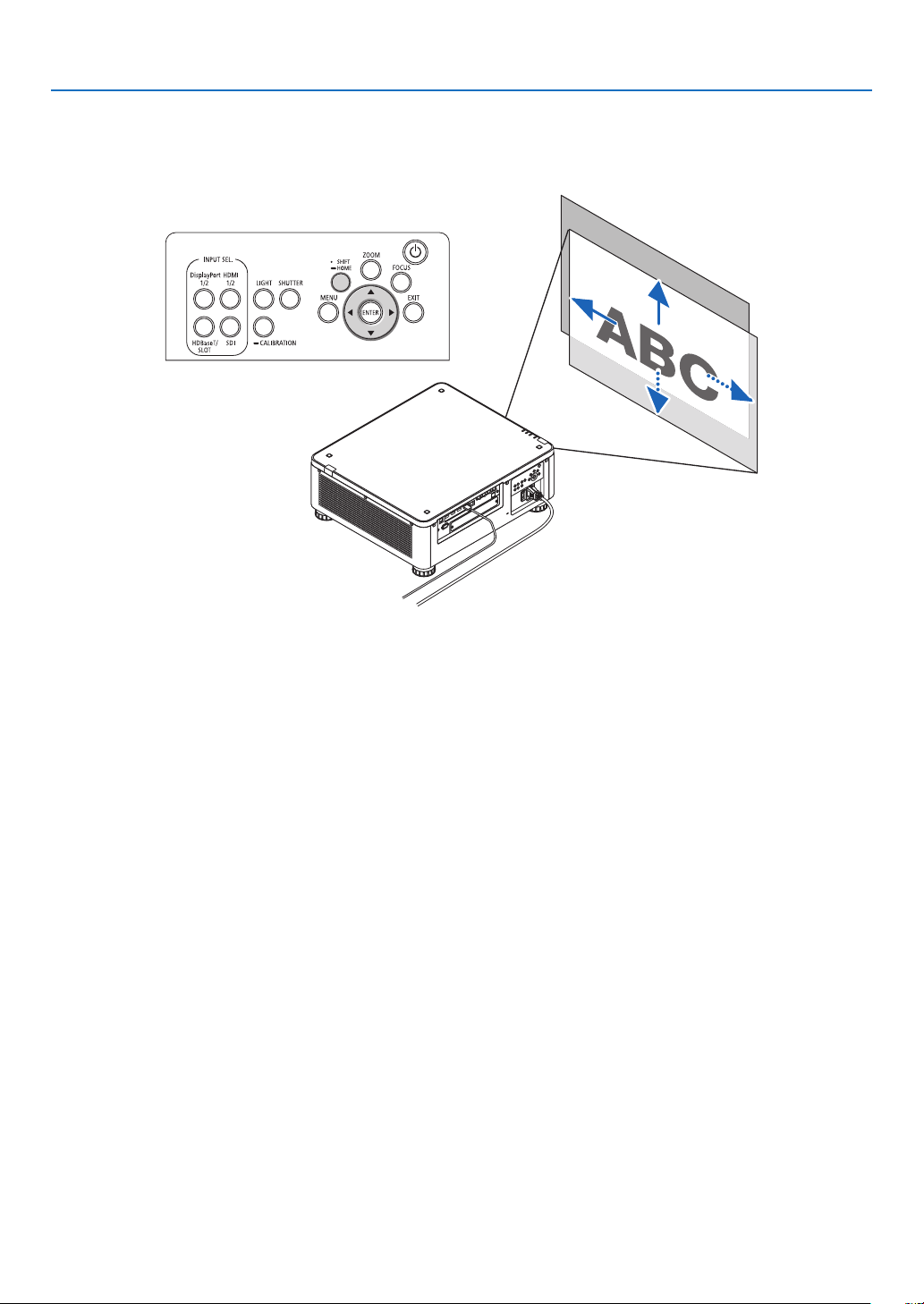
Adjusting the projected image’s vertical and horizontal
position
[Lens shift]
(→ page 23)
Adjusting the focus
[Focus]
(→ page 26)
Finely adjusting the size of an image
[Zoom]
(→ page 31)
Adjusting the projected image’s height and horizontal tilt
[Tilt foot] *¹
(→ page 32)
NOTE*
1
:
• Adjust the projected image’s height using the tilt foot when you want to project the image at a position higher than the lens shift
adjustment range.
TIP:
• Built-in test patterns can be conveniently used for adjusting the picture size and position. (→ page 79)
A press of the TEST button will display the test pattern. The ◀ or ▶ button can select one test pattern. To close the test pattern,
change the source to another.
23
2. Projecting an Image (Basic Operation)
Adjusting the vertical position of a projected image (Lens shift)
CAUTION
• Perform the adjustment from behind or from the side of the projector. Performing adjustment from the front could
expose your eyes to strong light which could injure them.
• Keep hands away from the lens mounting portion while performing a lens shift. Failure to do so could result in
ngers being pinched by the moving lens.
NOTE:
• The lens shift function is not available on the projector with either NP16FL-4K or NP39ML-4K lens installed.
For using NP16FL-4K, set back the lens to the home position.
For using NP39ML-4K, select [SETUP] → [INSTALLATION(2)] → [LENS POSITION] → [TYPE] on the onscreen menu, the lens
will be moved to the appropriate position automatically.
• Shifting the lens to the maximum in oblique angle will cause the edges of the image to become dark or will cause dark shadows.
Adjusting with buttons on the cabinet
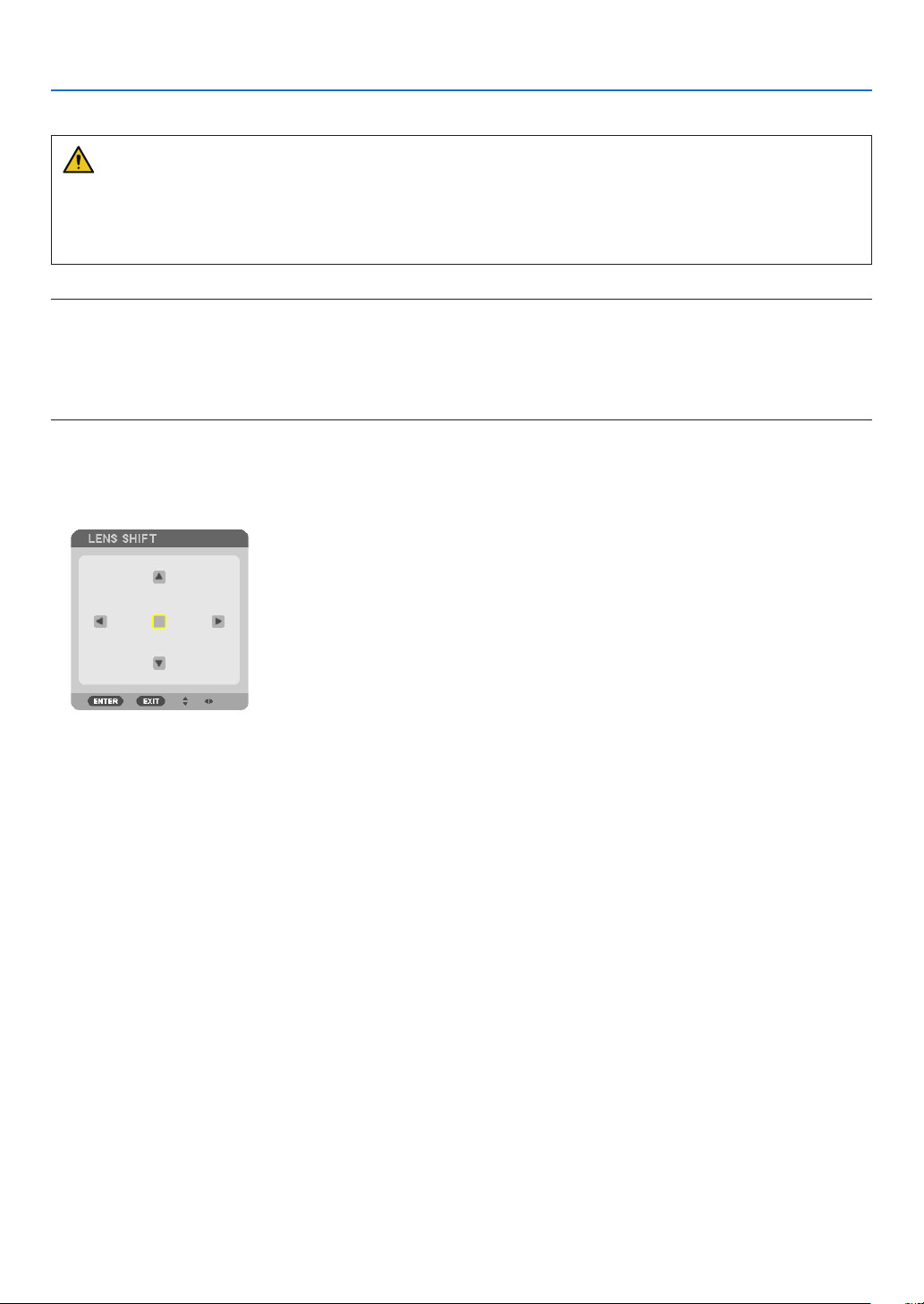
1. Press the SHIFT/HOME button.
The [LENS SHIFT] screen will be displayed.
24
2. Projecting an Image (Basic Operation)
2. Press the ▼▲◀ or ▶ button.
Use the ▼▲◀▶ buttons to move the projected image.
• Returning the lens shift position to the home position
Press and hold the SHIFT/HOME button for 2 seconds to return the lens shift position to the home position
(nearly center position)
25
2. Projecting an Image (Basic Operation)
Adjusting with the remote control
1. Hold the CTL button and press the ECO/L-SHIFT button.
The [LENS SHIFT] screen will be displayed.
2. Press the ▼▲◀ or ▶ button.
Use the ▼▲◀▶ buttons to move the projected image.
NOTE:
Lens Calibration
If the power of the projector is wrongly shut down during the motion of lens shift, it may shift the home position of the lens and
may cause of malfunction. The STATUS indicator flashed in Orange to inform this kind of trouble occurrence. In this case, perform
lens calibration.
Lens calibration procedures
1. Power on the projector.
2. Press the (CALIBRATION) button on the control panel over 2 seconds or keep pressing the CTL button and press the INFO/L-
CALIB. button on the remote control.
Calibration is performed.
TIP:
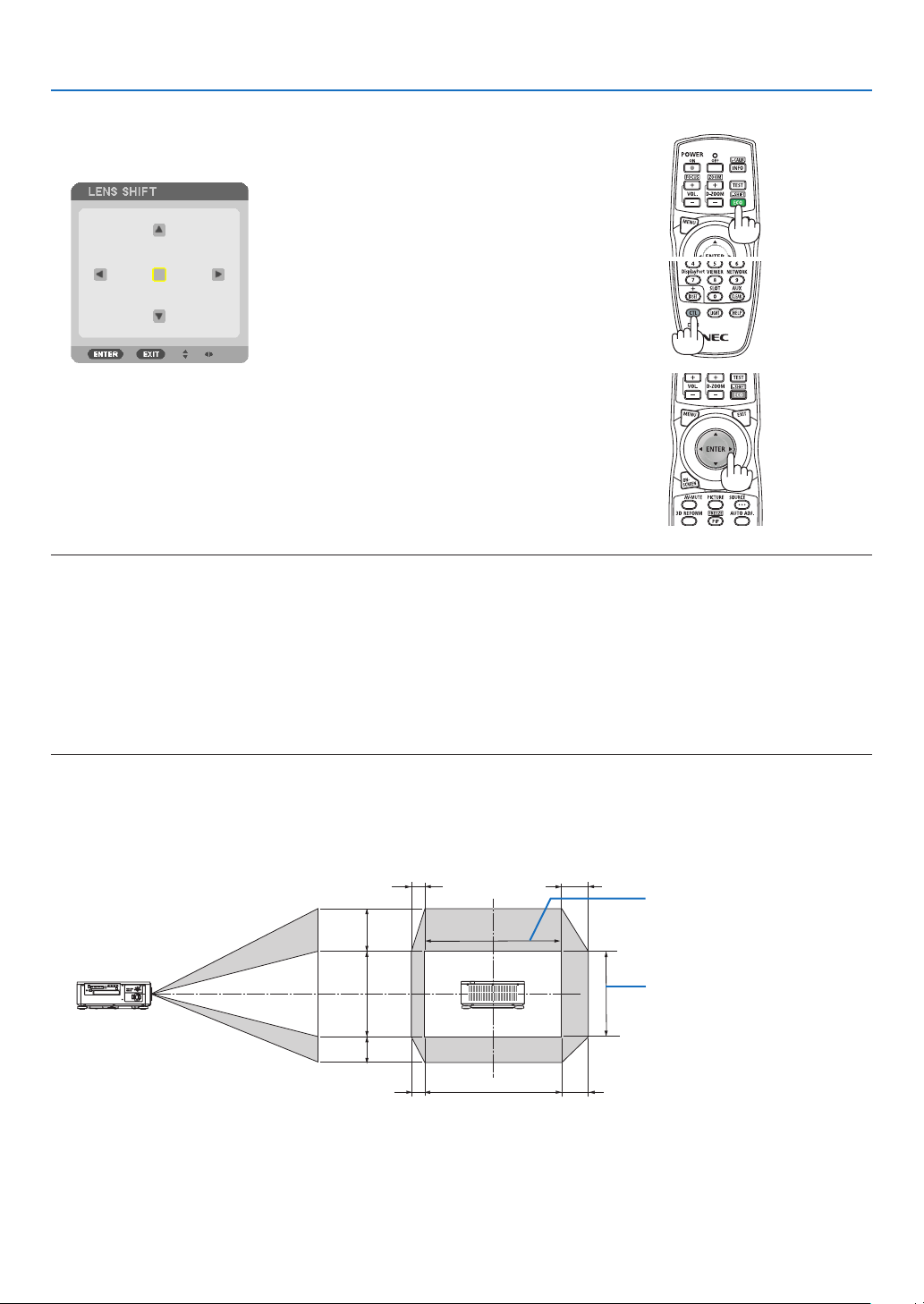
• The diagram below shows the lens shift adjustment range (projection mode: desktop front). To raise the projection position higher
than this, adjust by the tilt foot. (→ page 32)
100%V
50%V
30%V
100%H
20%H
10%H
10%H
20%H
Height of projected image
Width of projected image
Description of symbols: V indicates vertical (height of the projected image), H indicates horizontal (width of the projected image).
26
2. Projecting an Image (Basic Operation)
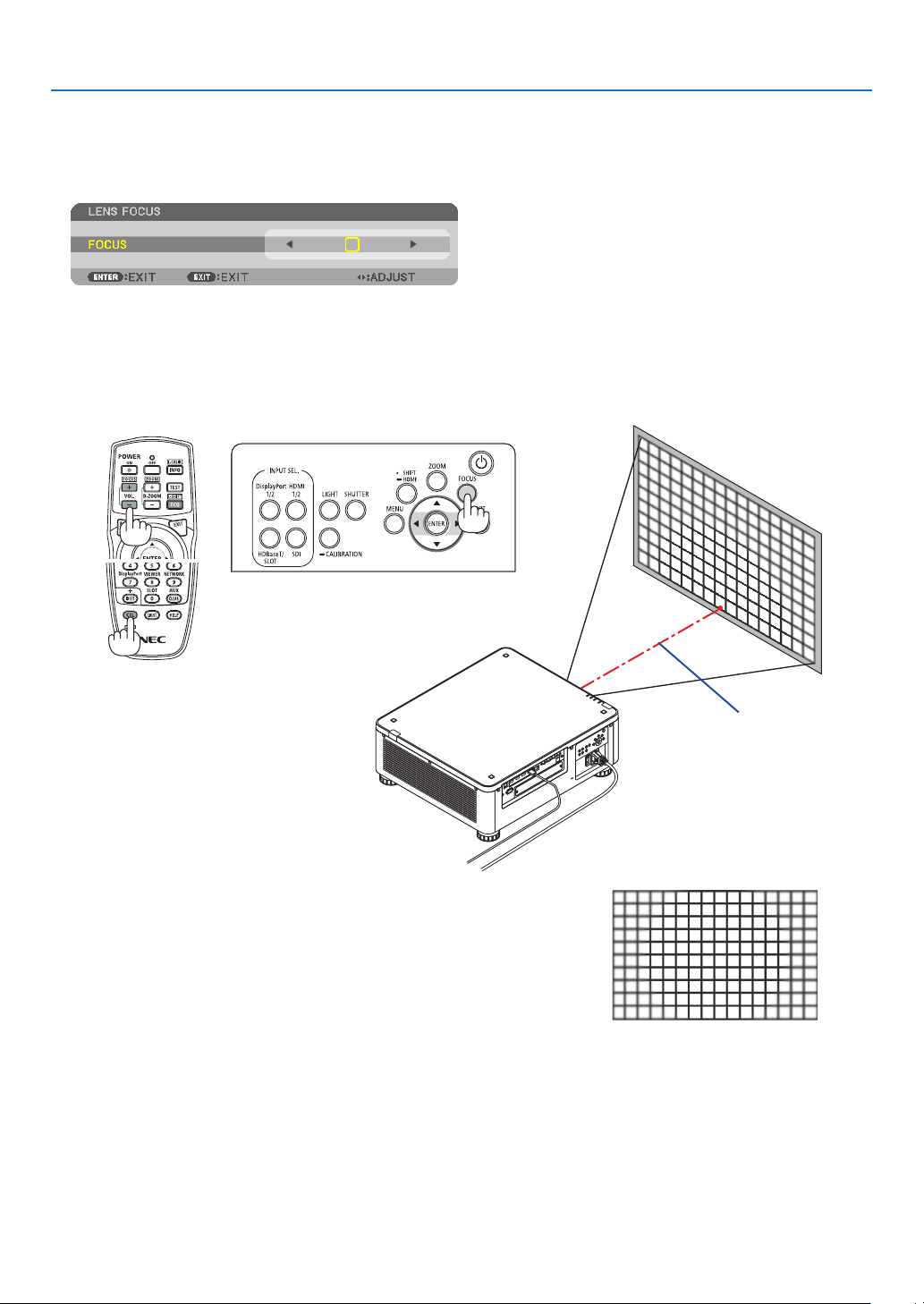
Focus
Recommend to perform the focus adjustment after leaving the projector under the state the TEST PATTERN has
been projected for over 30 minutes.
Please refer to page 82 in the User’s Manual about the TEST PATTERN.
Applicable lens unit: NP16FL-4K/NP17ZL-4K/NP18ZL-4K/NP19ZL-4K/NP20ZL-4K/NP21ZL-4K
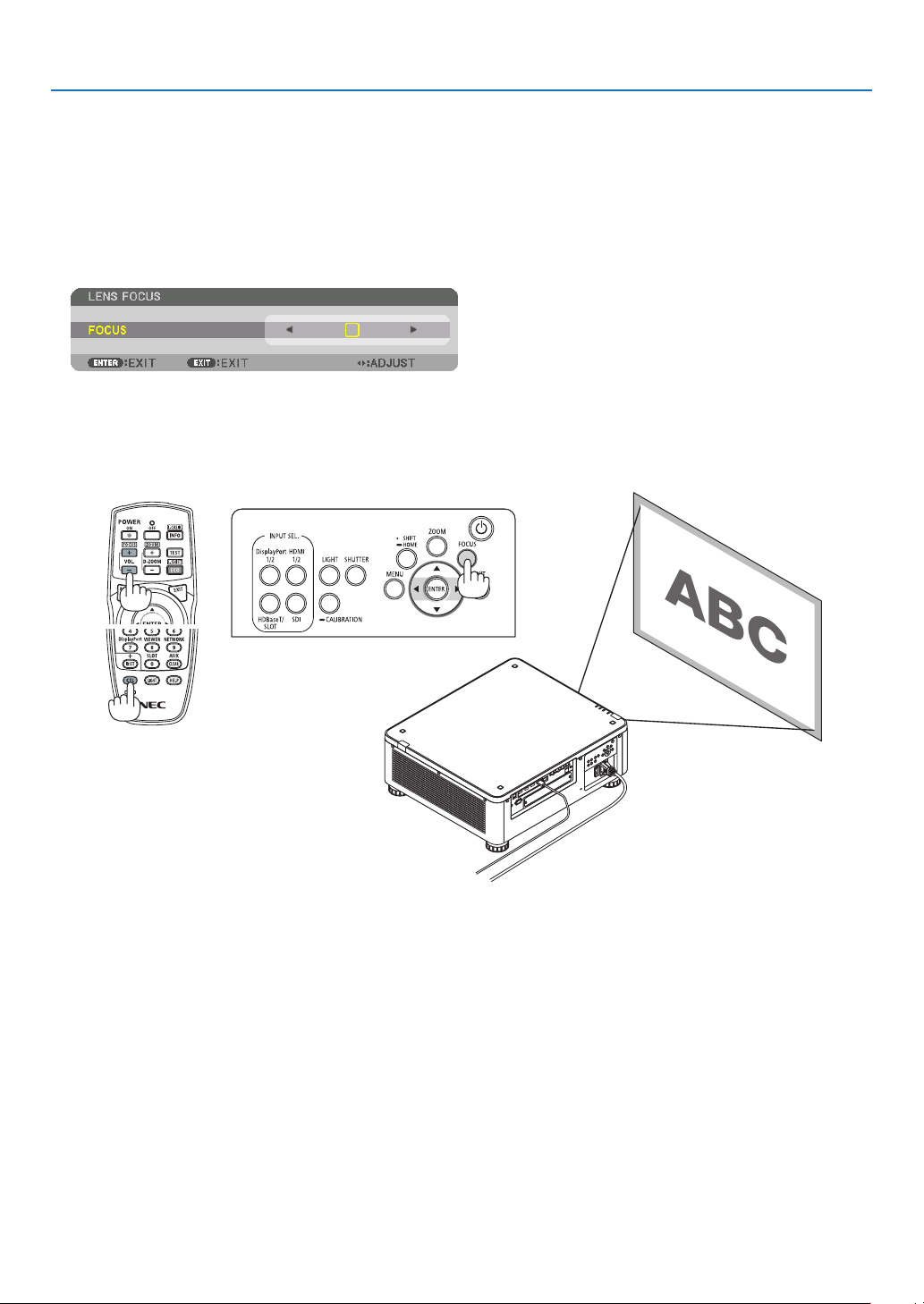
1. Press the FOCUS button.
The FOCUS adjustment bar will be displayed on.
2. Press ◀▶ buttons to adjust focus.
• On the remote control, while pressing on the CTL button, press on VOL/FOCUS (+) or (−) button.
• ◀ or ▶ buttons on the remote control are also available to adjust FOCUS while the FOCUS adjustment bar is
displayed on.
TIP:
• To obtain the best focus, perform the following (for permanent installation)
Preparation: Warm up the projector for one hour.
1. Use the FOCUS button and the ◀▶ buttons to make sure you obtain the best focus. If you do not, move the projector back and
forth.
2. Select the [TEST PATTERN] from the menu and display the test pattern. (→ page 79)
• You can also use the TEST button on the remote control to display the test pattern.
3. Press the FOCUS button to display the focus adjustment bar, then press the ◀ button until the pixel lattice of the test pattern
cannot be seen any more.
• The FOCUS adjustment bar displaying position can be shifted or be turned off temporarily. (→ page 36)
4. Keep pressing the ▶ button until you obtain the best focus.
If you adjust beyond the best focal point, go back to step 3 and repeat the procedures.
27
2. Projecting an Image (Basic Operation)
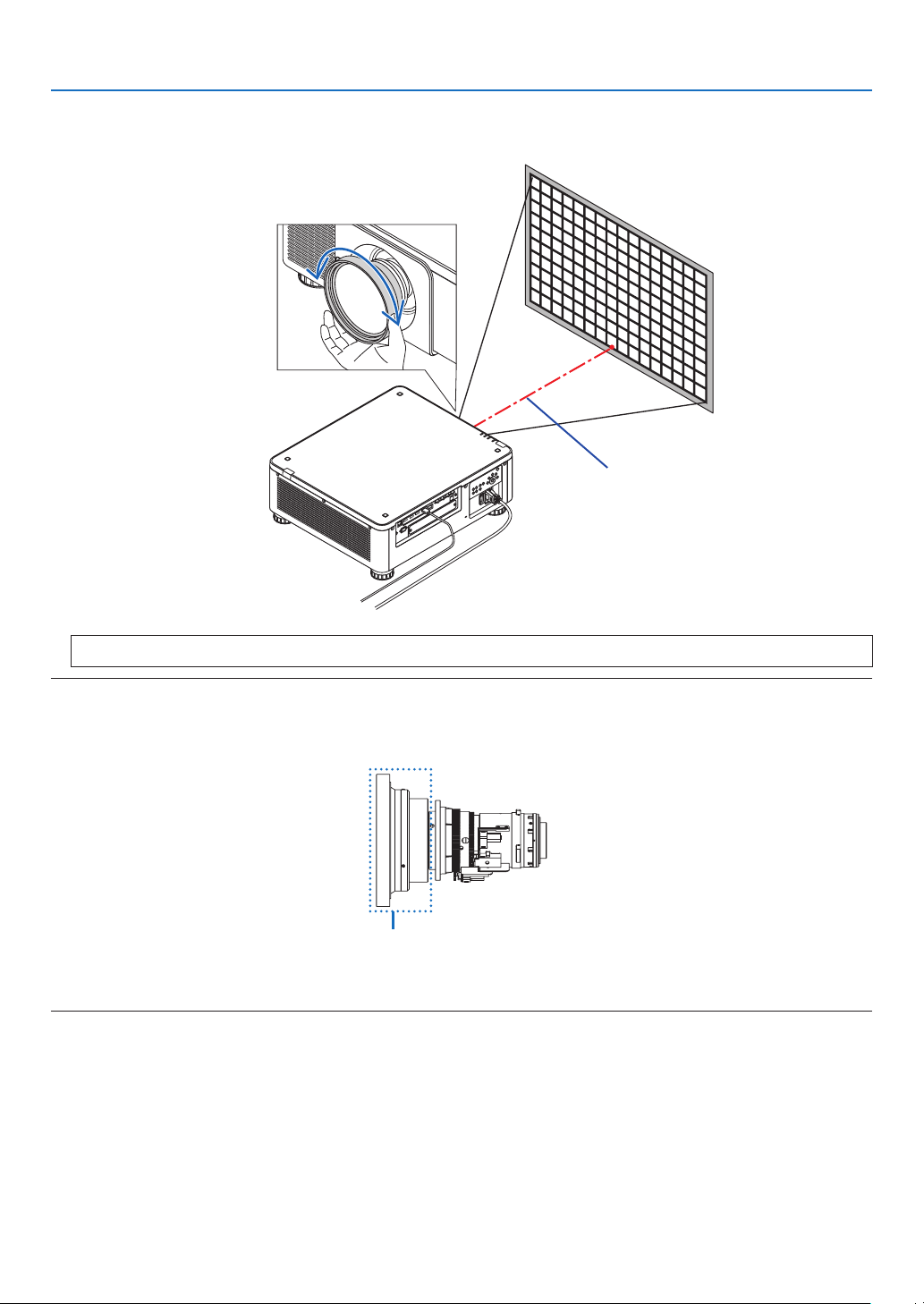
Applicable lens unit: NP31ZL-4K
1. Focus on the projected image around the optical axis. (Powered focus)
Press the FOCUS button to display the focus adjustment bar. Press the ◀▶ button to adjust the focus near the
optical axis.
• On the remote control, while pressing on the CTL button, press on VOL/FOCUS (+) or (−) button.
• ◀ or ▶ buttons on the remote control are also available to adjust FOCUS while the FOCUS adjustment bar is
displayed on.
The drawing below shows an example when the projected image is shifted upward. In this case the optical axis
is at the bottom edge of the projected image.
Optical axis
* When the lens is at the center position, the optical axis is at the
center of the image. In this case, adjust the focus at the center of
the projected image.
28
2. Projecting an Image (Basic Operation)
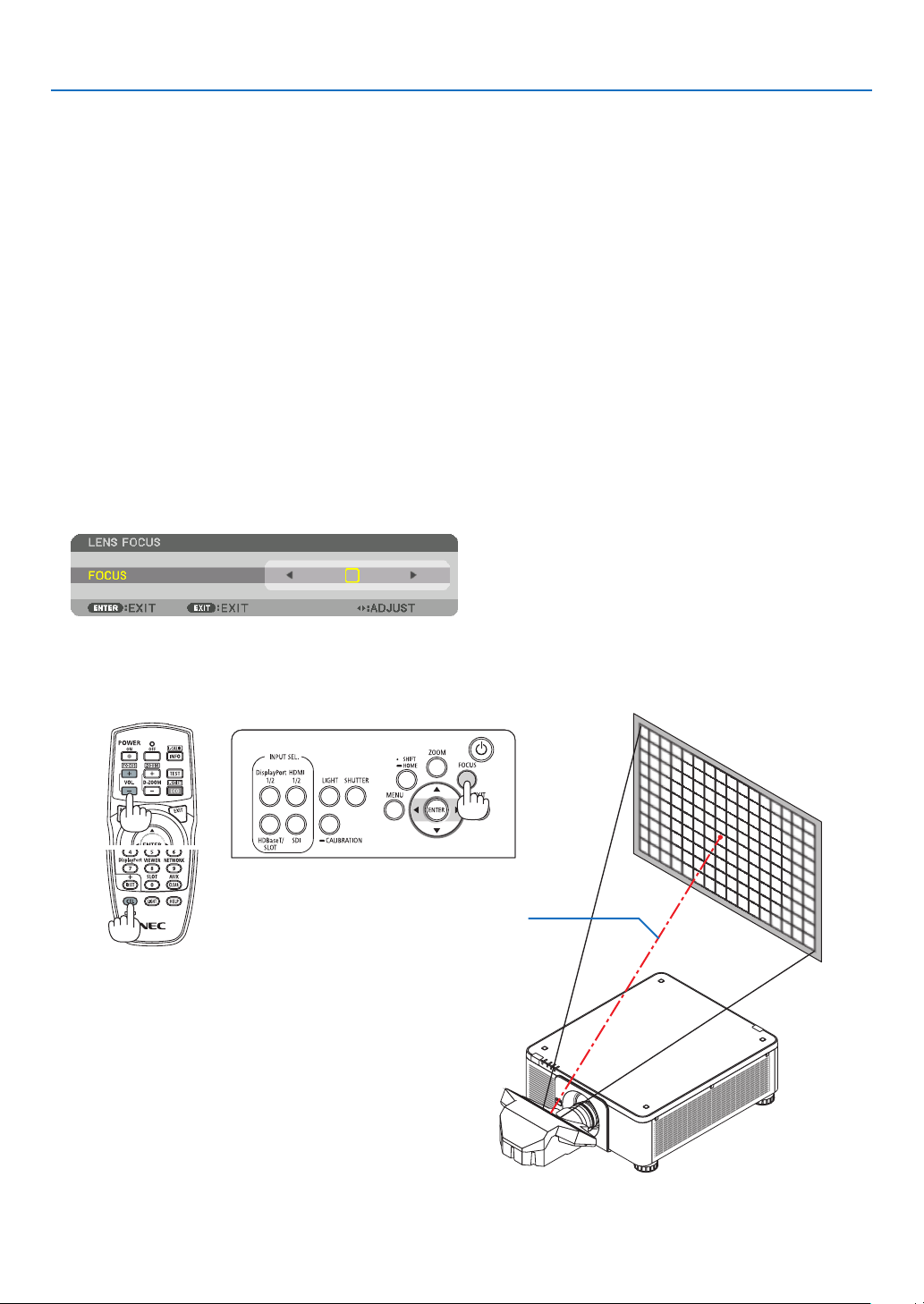
2. Adjust the focus at the edges of the projected image. (Manual focus)
Turn the edge focus ring clockwise or counterclockwise.
Optical axis
This completes adjusting the projected image’s overall focus.
NOTE:
• The NP31ZL-4K supports the Lens Memory function, which allows you to store adjusted value for Lens Shift, Zoom, and Focus.
If you accidentally move the Edge focus ring (drawing shown below) after having stored adjusted values, the adjusted values
stored in the Lens Memory will not be correctly applied.
Edge focus ring
After having removed the lens from the projector and mounted it back, call up the adjusted values stored in the Lens Memory and
then follow Step 2 in the procedure above to adjust the focus at the edges of the projected image again.
29
2. Projecting an Image (Basic Operation)
TIP:
• To obtain the best focus, perform the following (for permanent installation)
Preparation: Warm up the projector for one hour.
1. Press the FOCUS button and the ◀▶ buttons to check the adjustable focus range. For checking it by the remote control, press
and hold the CTL button and press VOL./FOCUS +/− button. If the projector in use is not within the adjustable focus range,
move the projector back and forth.
2. Select the [TEST PATTERN] from the menu and display the test pattern. (→ page 79)
• For displaying the test pattern by the remote control, press TEST button.
3. Press the FOCUS button to display the Focus Adjustment Bar, then press the < button until the pixel lattice of the test pattern
cannot be seen any more.
• The FOCUS adjustment bar displaying position can be shifted or be turned off temporarily. (→ page 36)
4. Keep pressing the ▶ button until you obtain the best focus.
For obtaining the best focus by the remote control, press the VOL./FOCUS + button while holding to press the CTL button.
If you adjust beyond the best focal point, go back to step 3 and repeat the procedures.
5. Turn the edge focus ring clockwise or counterclockwise to adjust the focus at the edges of the projected image.
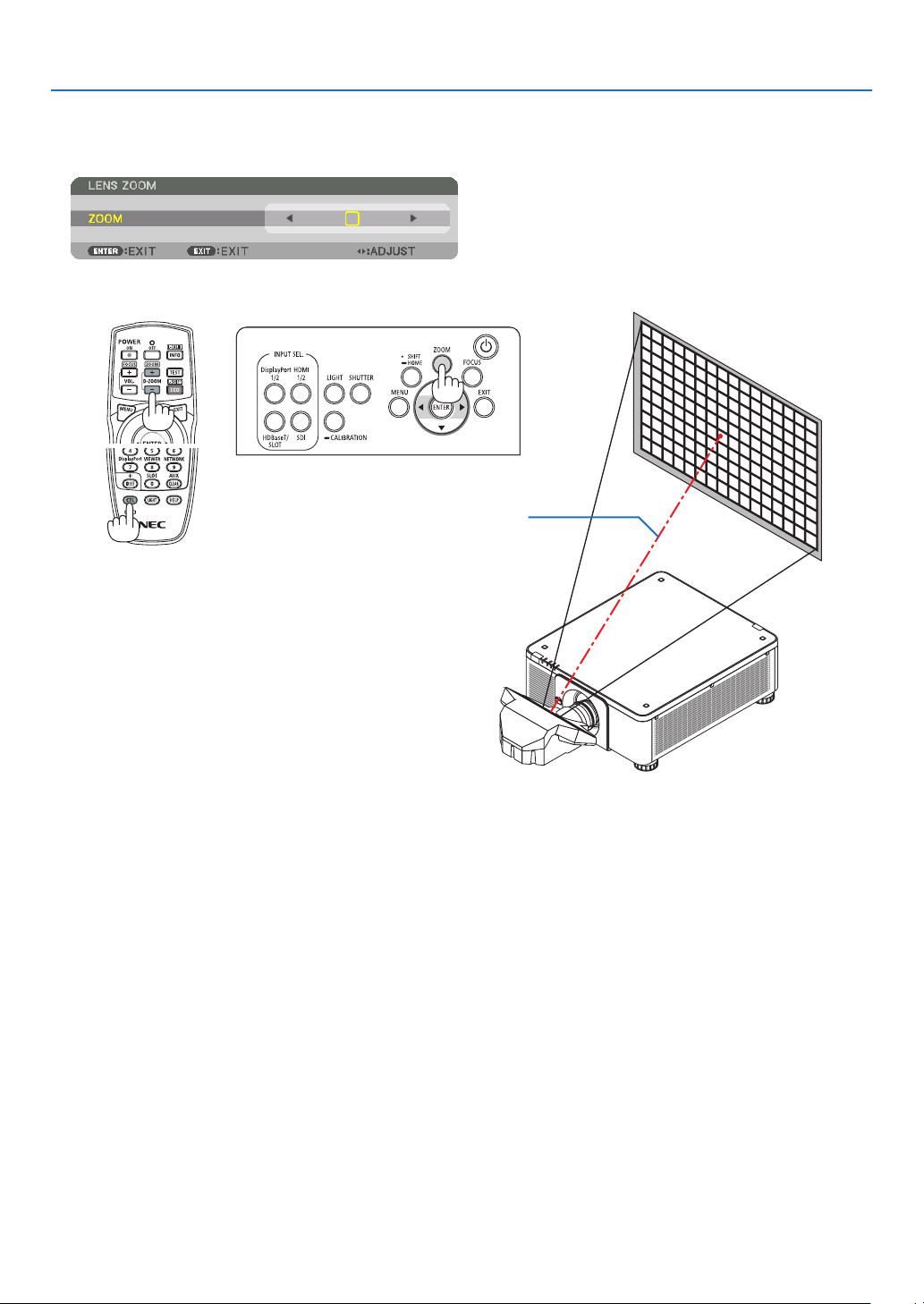
Applicable lens unit: NP39ML-4K
1. Focus on the projected image around the optical axis. (Powered focus)
Press the FOCUS button to display the focus adjustment bar. Press the ◀▶ button to adjust the focus near the
optical axis.
• On the remote control, while pressing on the CTL button, press on VOL/FOCUS (+) or (−) button.
• ◀ or ▶ buttons on the remote control are also available to adjust FOCUS while the FOCUS adjustment bar is
displayed on.
Optical axis
30
2. Projecting an Image (Basic Operation)
2. Adjust the focus at the edges of the projected image.
Press the ZOOM button to display the zoom adjustment bar. Press the ◀▶ button to adjust the focus around the
screen.
Focus around the optical axis set at step 1 is remained unchanged.
Optical axis
3. Repeat steps 1 and 2 until the optimal focus can be obtained on whole image.
TIP:
• To obtain the best focus, perform the following (for permanent installation)
Preparation: Warm up the projector for one hour.
1. Use the FOCUS button and the ◀▶ buttons to make sure you obtain the best focus. If you do not, move the projector back and
forth.
2. Select the [TEST PATTERN] from the menu and display the test pattern. (→ page 79)
• You can also use the TEST button on the remote control to display the test pattern.
3. Press the FOCUS button to display the Focus Adjustment Bar, then press the ◀ button until the pixel lattice of the test pattern
cannot be seen any more.
• The FOCUS adjustment bar displaying position can be shifted or be turned off temporarily. (→ page 36)
4. Keep pressing the ▶ button until you obtain the best focus.
If you adjust beyond the best focal point, go back to step 3 and repeat the procedures.
5. Press the ZOOM button to display the zoom adjustment bar and press the ◀▶ button to adjust the focus around the screen.
Press the D-ZOOM/ZOOM +/− button holding to press the CTL button for adjusting it by the remote control.
Repeat steps 1 to 5 until the optimal focus can be obtained on whole image.
31
2. Projecting an Image (Basic Operation)
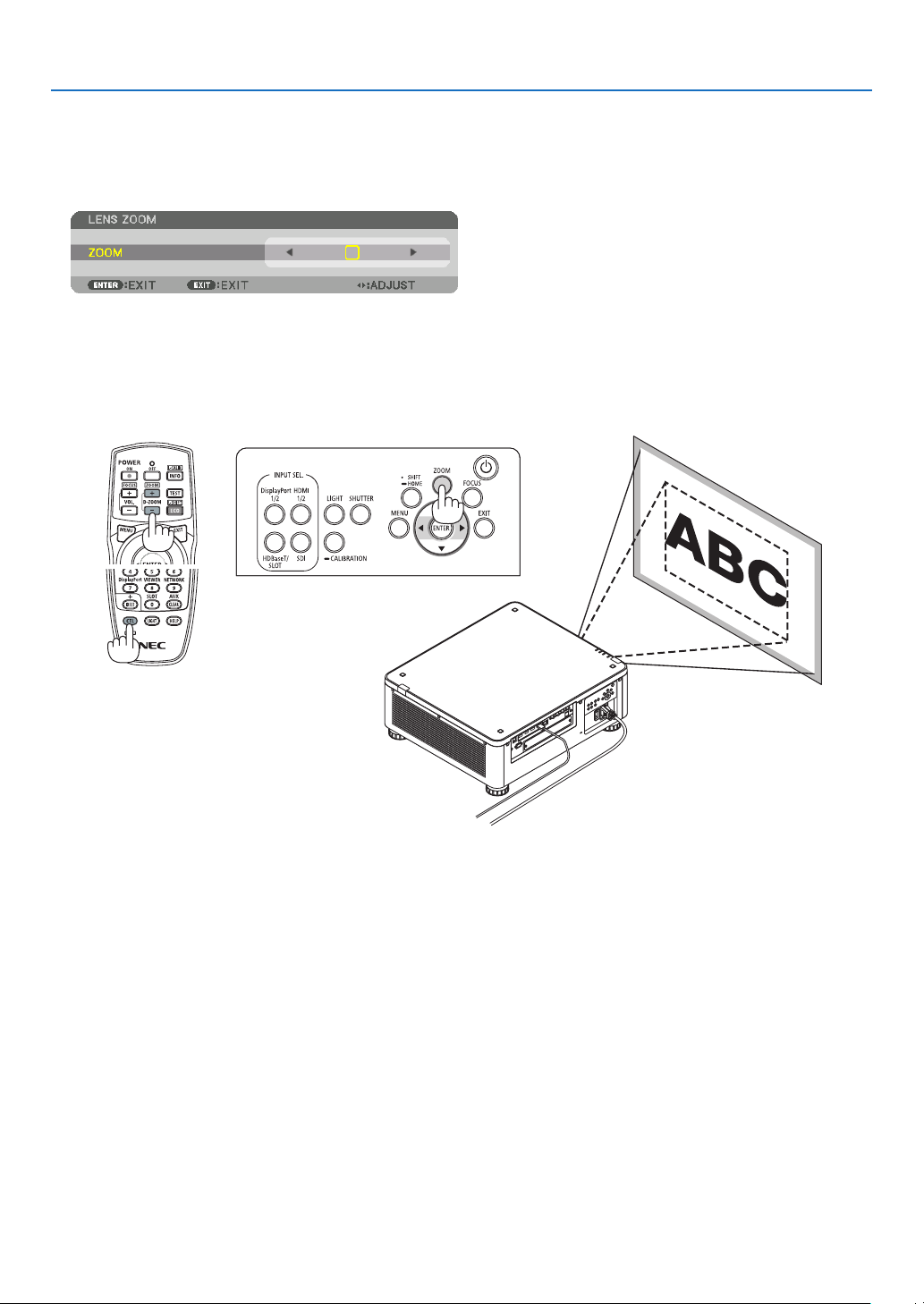
Zoom
Applicable lens units: NP17ZL-4K/NP18ZL-4K/NP19ZL-4K/NP20ZL-4K/NP21ZL-4K/NP31ZL-4K
1. Press the ZOOM button.
The ZOOM adjustment bar will be displayed on.
2. Press ◀▶ buttons to adjust zoom.
• On the remote control, while pressing on the CTL button, press the D-ZOOM/ZOOM (+) or (−) button.
The zoom is adjusted.
• ◀ or ▶ buttons on the remote control are available to adjust ZOOM while the ZOOM adjustment bar is displayed
on.
32
2. Projecting an Image (Basic Operation)
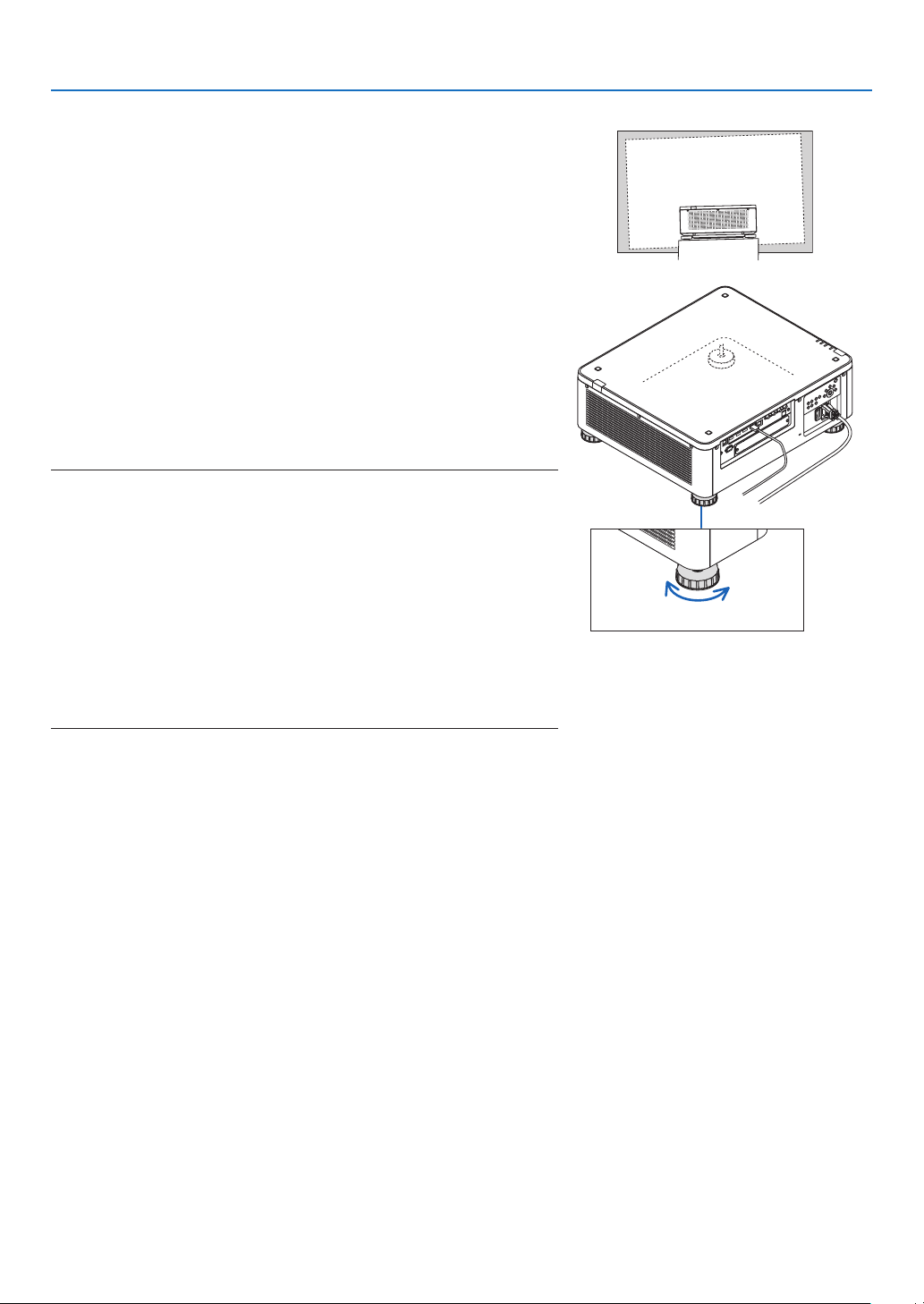
Adjusting the Tilt Foot
1. The position to project image may be adjusted by the tilt foot
positioned at four corners of the cabinet bottom.
The tilt foot height can be adjusted by its turn.
“To adjust the height of the projected image”
The height of the projected image is adjusted by turning either front
or rear tilt foot.
“If the projected image is tilted”
If the projected image is tilted, turn either left or right tilt foot to adjust
the image so that it is level.
• If the projected image is distorted, see “3-8 Correcting Horizontal
and Vertical Keystone Distortion [CORNERSTONE]” (→ page 43)
and “[GEOMETRIC CORRECTION]” (→ page 97).
• The tilt foot can be lengthened by a maximum of 48 mm.
• The tilt foot can be used to tilt the projector by a maximum of 6°.
NOTE:
• Do not lengthen the tilt foot any more than 50 mm/1.9". Doing so will make the
tilt feet’s mount section unstable and could cause the tilt feet to come off the
projector.
• Pay attention to lengthen or shorten two tilt foot at front at the same time. Same
for the rear foot, otherwise, the weight of the projector is loaded on one side
and it may cause of damage to it.
• Do not use the tilt foot for any purpose other than adjusting the projector’s
projection angle.
Handling the tilt foot improperly, such as carrying the projector by grasping the
tilt foot or hooking it onto a wall using the tilt foot, could damage the projector.
• Please check level of the lens unit When the lens unit NP39ML-4K is installed
on since the lens unit may sligtly incline in left or right.
Tilt foot
(there is one more in the rear)
Up Down
33
2. Projecting an Image (Basic Operation)
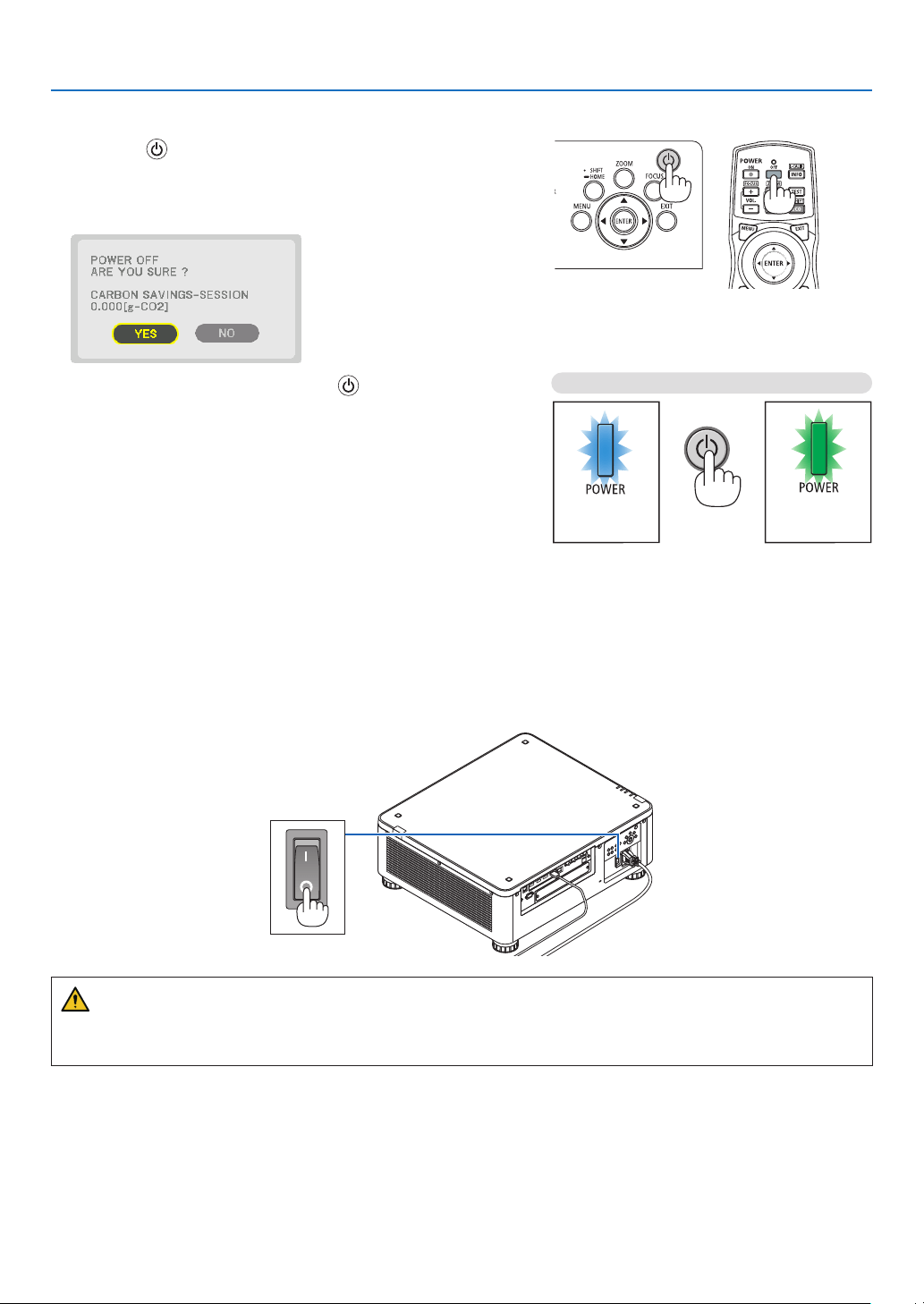
❻ Turning off the Projector
1. Press the (POWER) button on the projector cabinet or
the POWER OFF button on the remote control.
The [POWER OFF / ARE YOU SURE ? / CARBON SAVINGS-
SESSION 0.000[g-CO2]] message will appear.
2. Press one among the ENTER, the (POWER), and the
POWER OFF button.
The light source will be turned off and the power supply will
be cut. The projector will go to sleep state and the POWER
indicator will light in green. If no operation is performed on the
projector and no signal is input to the projector, the projector
will be in standby state. (In the state, the standby mode is
NORMAL.)
• If you do not want to turn off, select [NO] by ◀/▶button and
press ENTER.
3. Make sure the projector is in STANDBY MODE, then turn
off the main power switch (○ OFF)
The POWER indicator will go off and the main power will turn
off.
• While the POWER indicator is blinking blue in short cycles,
the power cannot be turned off.
Power On
Steady blue light
Sleep
Steady green light
CAUTION:
Parts of the projector may temporarily overheat if the projector is turned off with the main power switch or the AC
power supply is disconnected while the projector is in operation or the cooling fan is running. Handle with care.

34
2. Projecting an Image (Basic Operation)
NOTE:
• Do not unplug the power cord from the projector or from the power outlet while an image is being projected. Doing so could
deteriorate the projector’s AC IN terminal or the power plug’s contact. To turn off the AC power supply when the projector is
powered on, use the projector’s main power switch, a power strip equipped with a switch, or a breaker.
• Do not turn off the main power switch or disconnect the AC power supply within 10 seconds of making adjustments or setting
changes and closing the menu. Doing so can cause loss of adjustments and settings.
❼ After Use
Preparation: Make sure that the projector is turned off.
1. Unplug the power cord.
2. Disconnect any other cables.
3. Mount the lens cap on the lens.
4. Before moving the projector, screw in the tilt foot if they have been lengthened.
35
3. Convenient Features
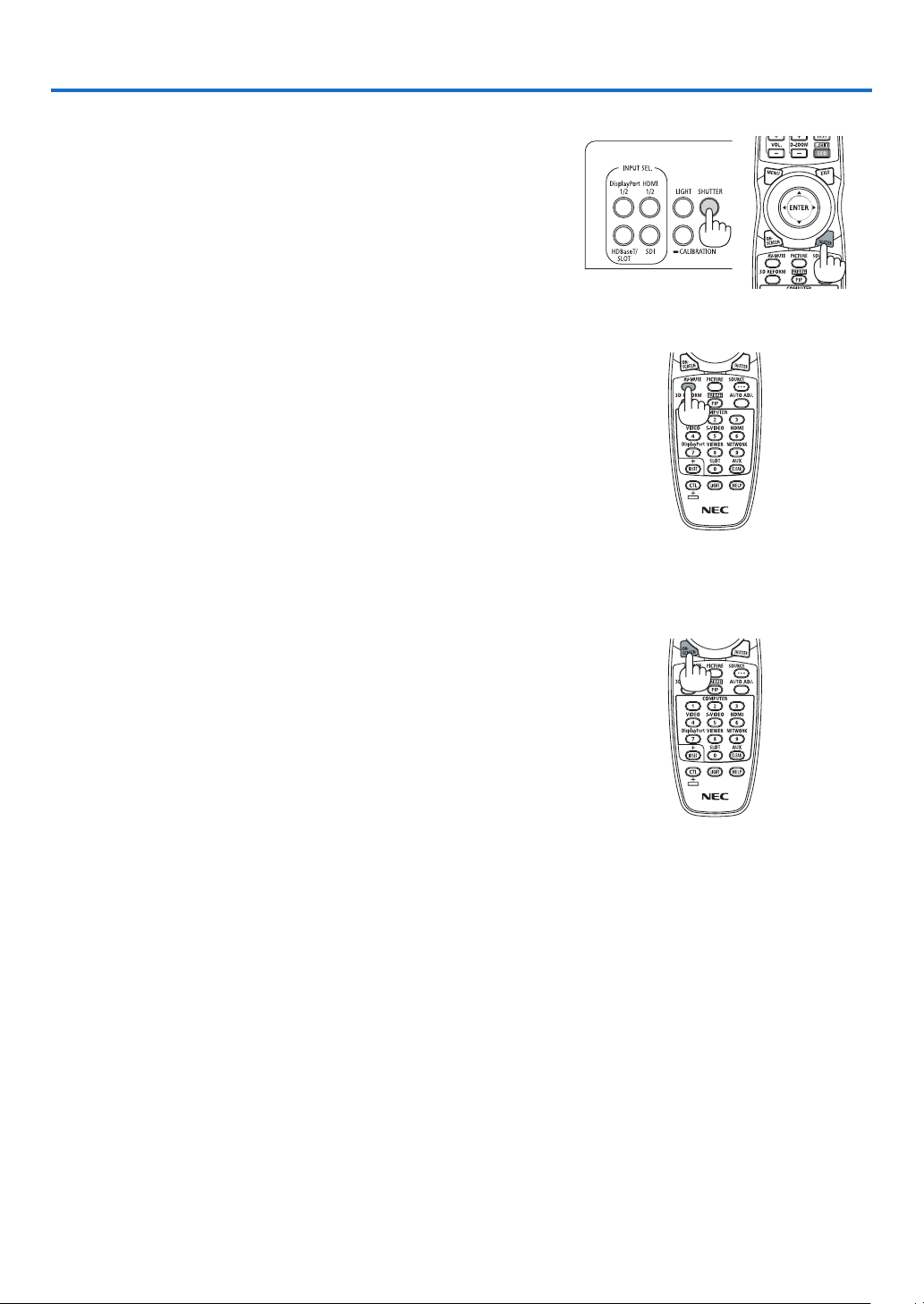
❶ Turn off the light of the projector (LENS SHUTTER)
Press the SHUTTER button.
The light source will turn off temporarily.
Press again to allow the screen to become illuminated again.
• You can set the projection light to gradually fade in or out.
❷ Turning off the Image (AV-MUTE)
Press the AV-MUTE button to turn off the image for a short period of time.
Press again to restore the image.
TIP:
• The video will disappear but not the menu display.
❸ Turning Off the On-Screen Menu (On-Screen Mute)
A press of the ON-SCREEN button on the remote control will hide the
on-screen menu, the source display and other messages. Press again
to restore them.
TIP:
• To confirm that the on-screen mute is turned on, press the MENU button. If the on-screen menu is not displayed even though
you press the MENU button, it means the on-screen mute is turned on.
• The on-screen mute is maintained even when the projector is turned off,
• Holding down the MENU button on the projector cabinet for at least 10 seconds will turn off the on-screen mute.
36
3. Convenient Features
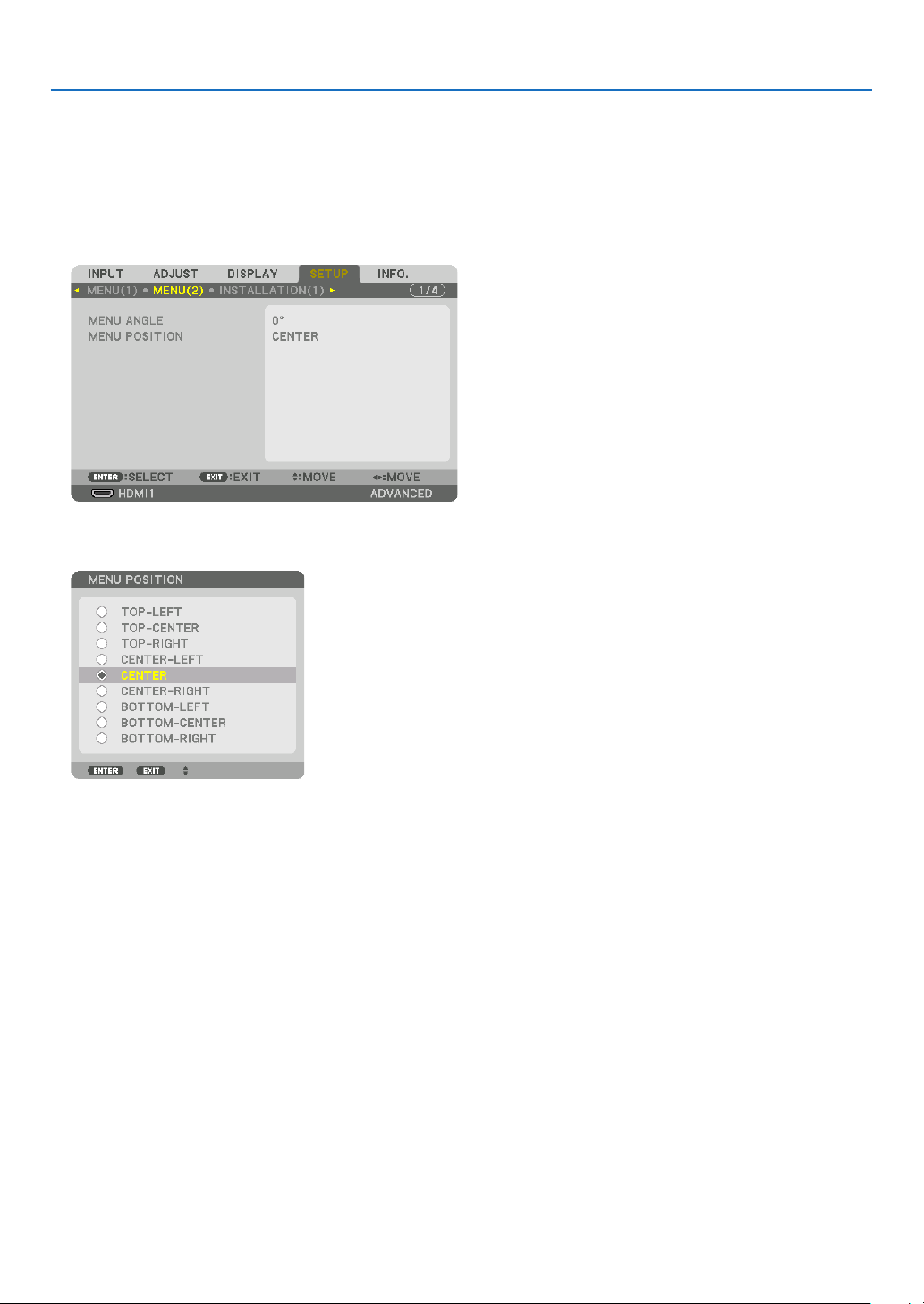
❹ Shift the On-Screen Menu displaying position
1. Press the MENU button.
The On-Screen Menu will be displayed on.
2. Move the cursor by the ▶ button to the [SETUP] and then press the ENTER button.
The cursor will move to the [MENU(1)].
3. Move the cursor by the ▶ button to the [MENU(2)].
4. Move the cursor by the ▼ button to the [MENU POSITION] and then press the ENTER.
The On-Screen Menu will go into the [MENU POSITION] select screen.
5. Press the ▼▲ button, select the menu position, and press the ENTER button.
For nishing the setting on the On-Screen Menu, press the MENU button on the remote control.
TIP:
• The display position of the menu is saved even when the power supply of the projector is turned off.
• When you change the [MENU ANGLE], the display position of the menu returns to the original state when it was first shipped
from the factory.
• This function does not influence to the display position of input terminal information and message.

37
3. Convenient Features
❺ Freezing a Picture
Hold the CTL button and press the PIP/FREEZE button to freeze a picture.
Press again to resume motion.
NOTE:
• The image is frozen but the original video is still playing ahead.
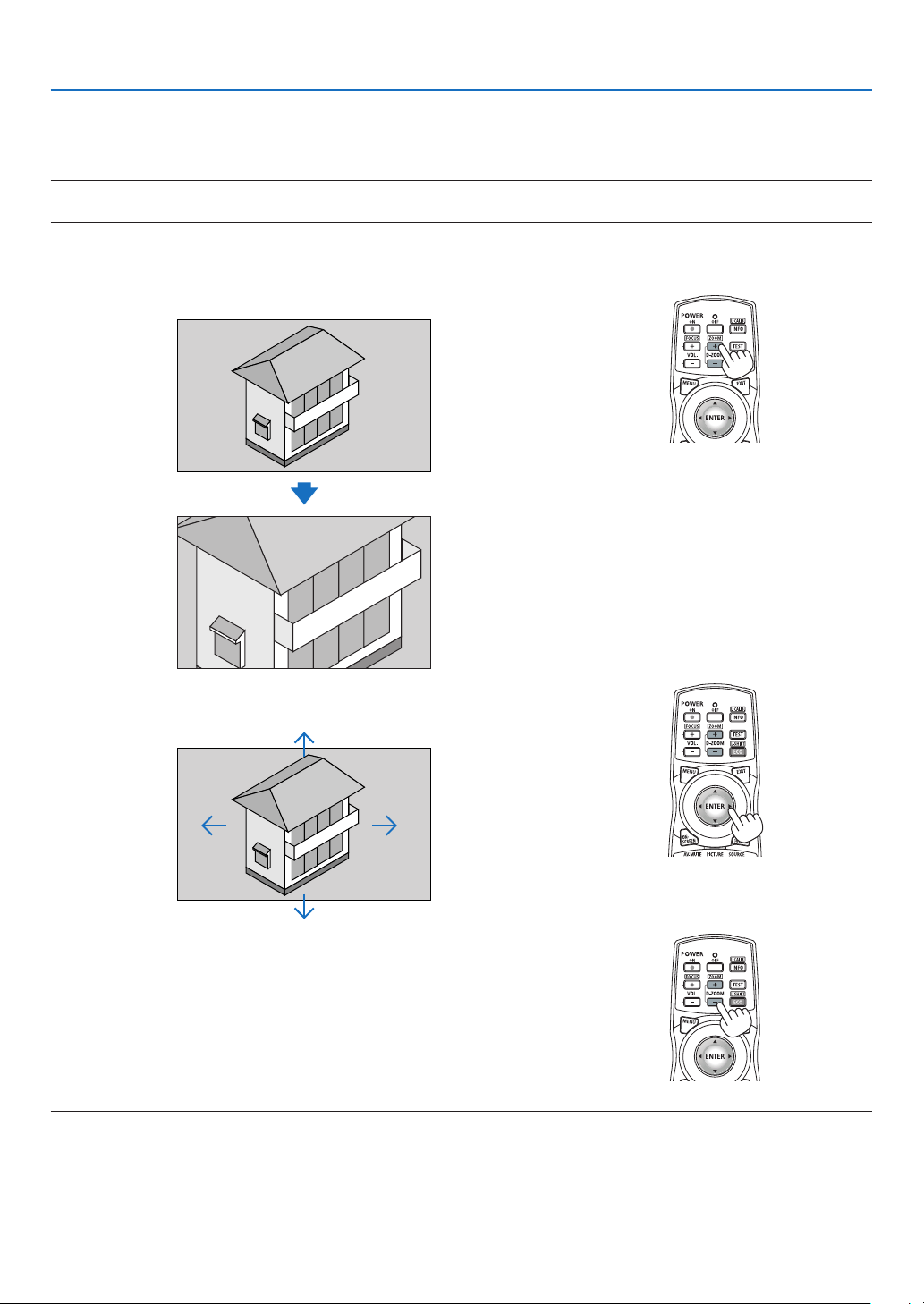
38
3. Convenient Features
❻ Magnifying a Picture
You can magnify the picture up to four times.
NOTE:
• Depending on an input signal, the maximum magnification may be less than four times, or the function may be restricted.
To do so:
1. Press the D-ZOOM (+) button to magnify the picture.
2. Press the ▲▼◀▶ button.
The area of the magnied image will be moved
3. Press the D-ZOOM (−) button.
Each time the D-ZOOM (−) button is pressed, the image is demagni-
ed.
NOTE:
• The image will be magnified or demagnified at the center of the screen.
• Displaying the menu will cancel the current magnification.
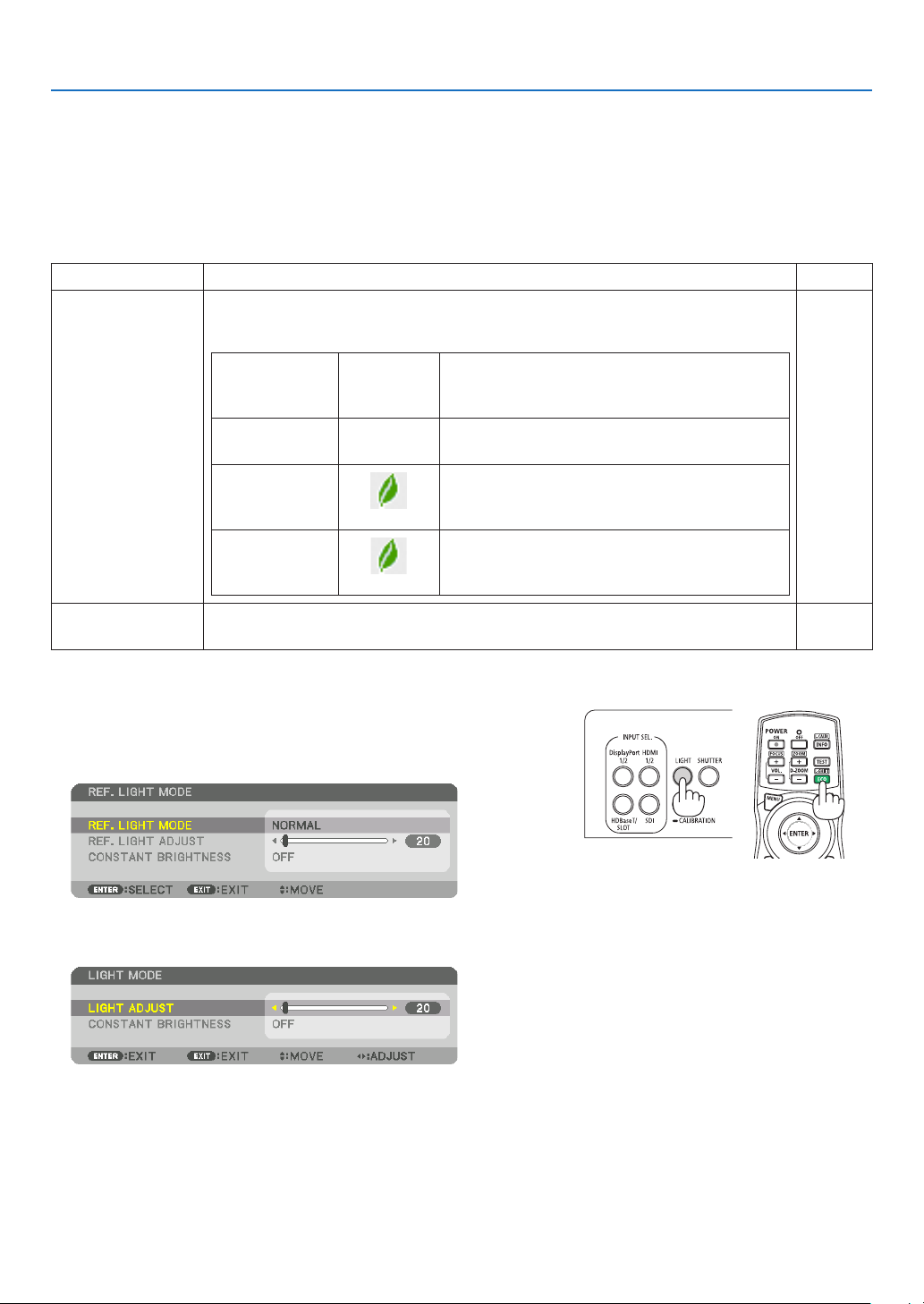
39
3. Convenient Features
❼ Adjustment of luminance (brightness) and energy-saving
effect
You can adjust the output of the unit to a range of 20 - 100% (in increments of 1%) and control the brightness after
adjustment to keep it constant. Also, set the [REF. LIGHT MODE] to ECO1 or ECO2 to reduce the brightness and
operating sound. By saving energy consumption, the CO2 emission from this projector can be reduced. There are
two ways to set the light mode.
Function name Description Page
REF. LIGHT
MODE
The adjustment values of the [REF. LIGHT MODE] and brightness are saved as a
setting common to all input signals.
Valid when the [MODE] (→ page 83) is set to [STANDARD].
REF. LIGHT
MODE
Icon at the
bottom of
the menu
Description
NORMAL 100% brightness
The screen will be brightly lit.
ECO1
Brightness will be at about 80%.
The cooling fan will also slow down accordingly.
Lower power consumption
ECO2
Brightness will be at about 50%.
The cooling fan will also slow down accordingly.
Lower power consumption considerably
108
LIGHT MODE Adjust the brightness and save it for each input signal.
Valid when the [MODE] (→ page 83) is set to [PROFESSIONAL].
85
Display the LIGHT MODE screen
1. Press LIGHT button on the cabinet.
• In another way, press ECO/L-SHIFT button on the remote control.
When [STANDARD] is selected for [MODE]
The [REF. LIGHT MODE] screen will be displayed.
When [PROFESSIONAL] is selected for [MODE]
The [LIGHT MODE] screen will be displayed.
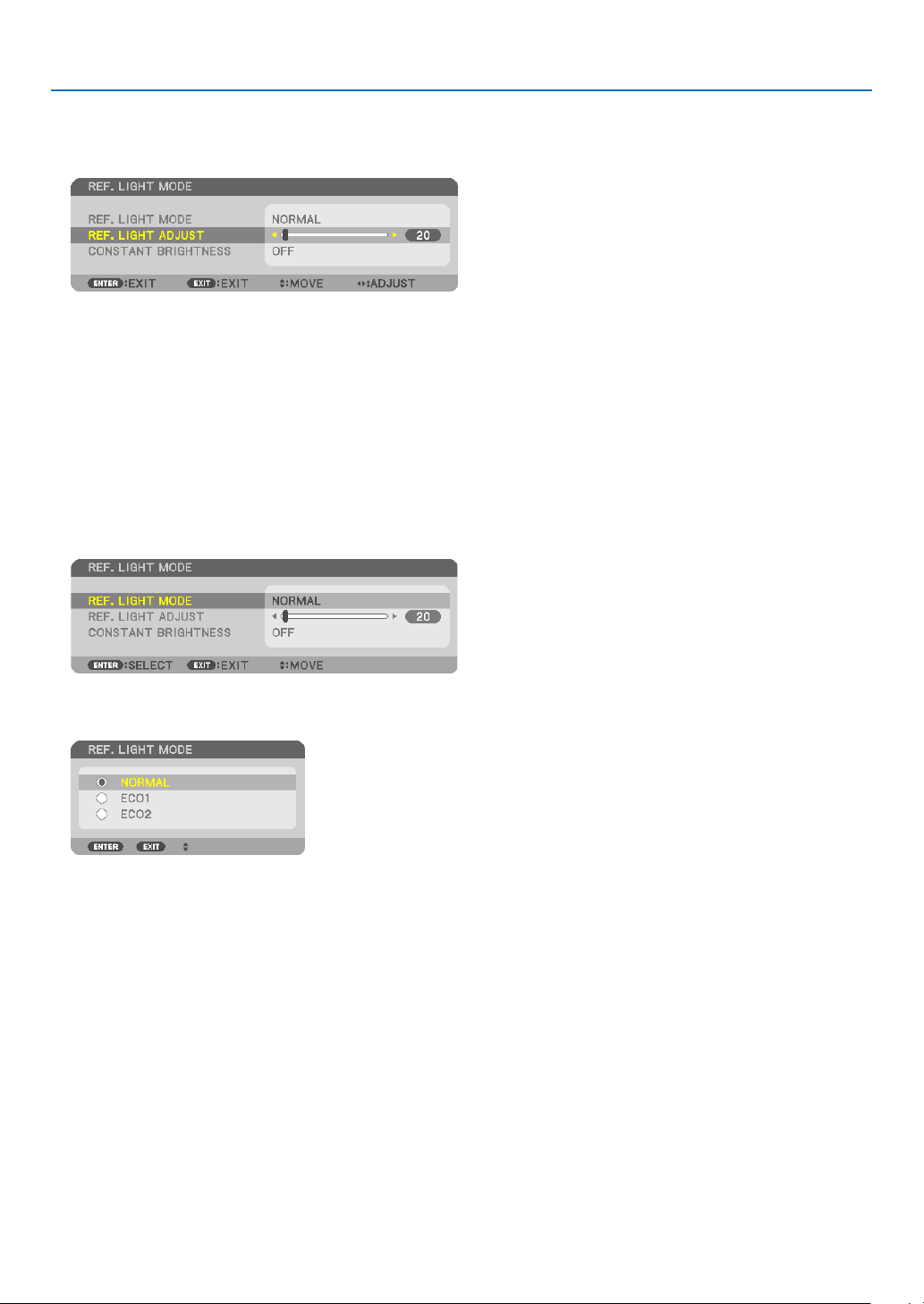
40
3. Convenient Features
Perform LIGHT ADJUST
An explanation is given here using the [REF. LIGHT MODE] screen.
1. Press the ▼ button to adjust the cursor to [REF. LIGHT ADJUST].
2. Press the ◀▶ button to adjust.
To keep the brightness after adjustment constant, set [CONSTANT BRIGHTNESS] to [ON].
Press the MENU button to cancel the menu screen.
TIP:
• Brightness normally decreases with use, but by selecting [CONSTANT BRIGHTNESS] mode, sensors inside the projector detect
brightness and automatically adjust the output, thereby maintaining a constant brightness throughout the life of the light module.
However, if output is already at its maximum, brightness will decrease with use.
Change [REF. LIGHT MODE]
1. With the cursor adjusted to [REF. LIGHT MODE], press the ENTER button.
The [REF. LIGHT MODE] selection screen will be displayed.
2. Use the ▼▲ buttons to make a selection, and press the ENTER button.
The display will return to the [REF. LIGHT MODE] screen and the selected option will be applied.
Press the MENU button to return to the original screen.
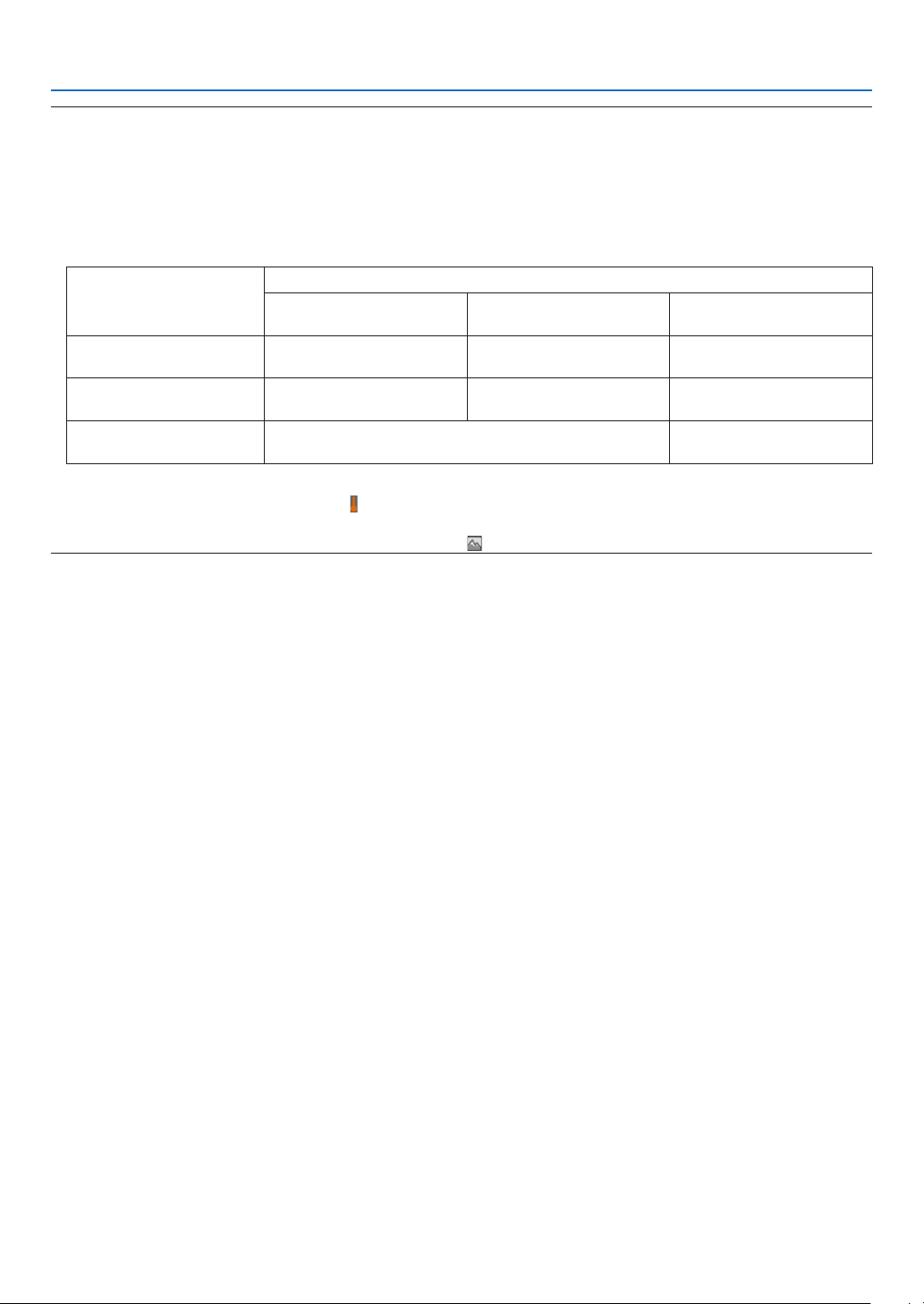
41
3. Convenient Features
NOTE:
• The light module hours used can be checked in [USAGE TIME] on the menu. Select [INFO.] → [USAGE TIME].
• After a lapse of 1 minute from when the projector displays a blue, black or logo screen, [REF. LIGHT MODE] will automatically
switch to [ECO].
• This projector equips the sensor to detect atmospheric pressure and temperature and the projector controls the power based on
the detected values. When the projector is used in high altitude and high temperature, the light source brightness becomes lower
regardless of the setting for LIGHT MODE. This is called “Forced ECO MODE”. Please refer the below table for the conditions and
output power in Forced ECO MODE.
Altitudes Atmospheric temperature
5–30°C
(41–86°F)
31–36°C
(87–96°F)
37–40°C
(98–104°F)
1600–3000 m
(5500–10000 ft)
100% 90% 70%
600–1600 m
(2000–5500 ft)
100% 90% 80%
0–600 m
(0–2000 ft)
100% 80%
• When the projector is in the Forced ECO MODE, the picture brightness decreases slightly and the TEMP. indicator lights orange.
At the same time the Thermometer symbol [ ] is displayed at the bottom of the menu.
When in the Forced ECO MODE, the light mode does not change even if the LIGHT MODE setting is changed. When the atmospheric
pressure sensor detects height over 600 m, the HIGH symbol [ ] will be displayed at the bottom of the menu.
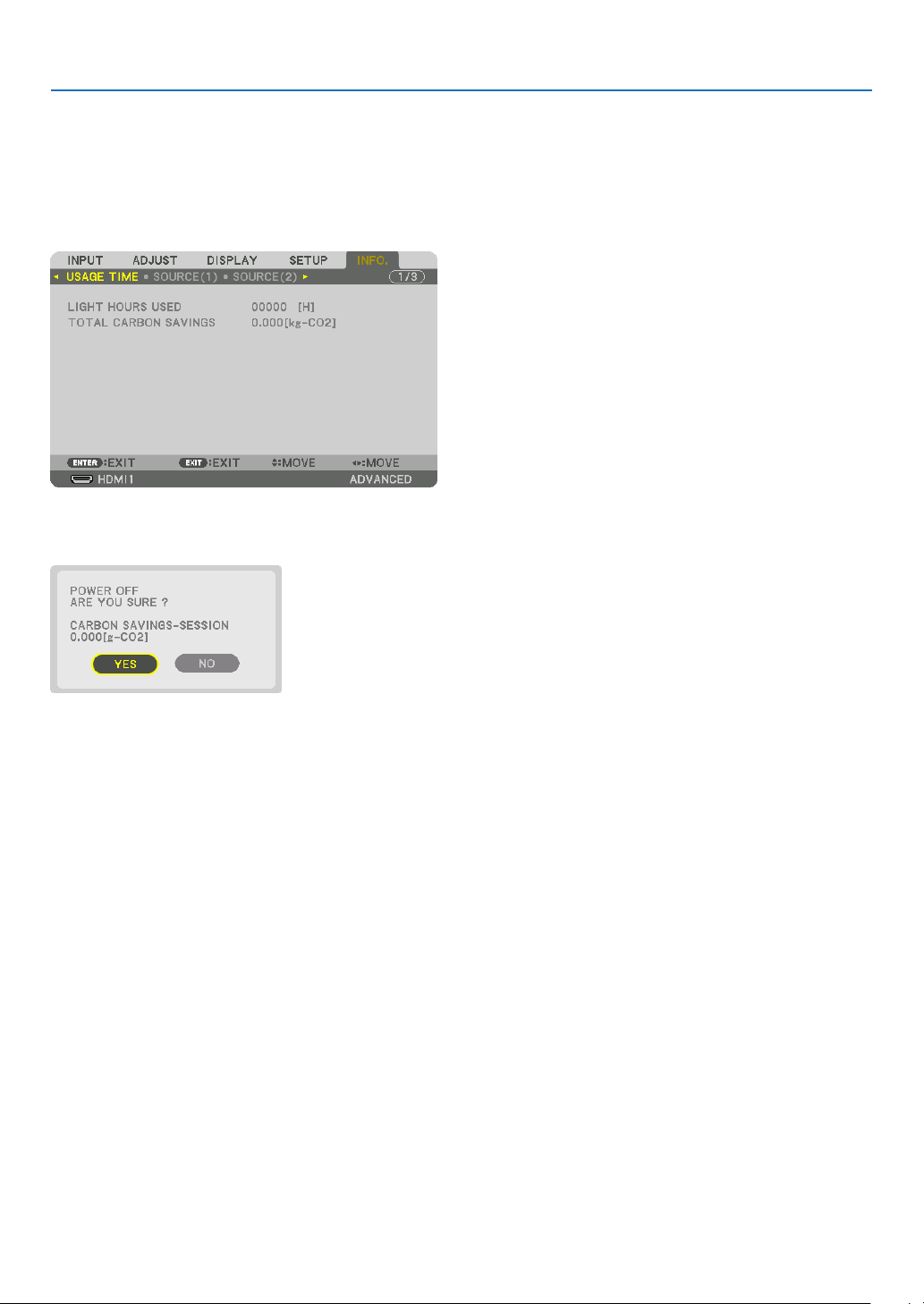
42
3. Convenient Features
Checking Energy-Saving Effect [CARBON METER]
This feature will show energy-saving effect in terms of CO
2
emission reduction (kg) when the projector’s [LIGHT MODE]
is set to either [ECO1] or [ECO2]. This feature is called as [CARBON METER].
There are two messages: [TOTAL CARBON SAVINGS] and [CARBON SAVINGS-SESSION]. The [TOTAL CARBON
SAVINGS] message shows the total amount of CO
2
emission reduction from the time of shipment up to now. You can
check the information on [USAGE TIME] from [INFO.] of the menu. (→ page 129)
The [CARBON SAVINGS-SESSION] message shows the amount of CO
2
emission reduction between the time of
changing to LIGHT MODE immediately after the time of power-on and the time of power-off. The [CARBON SAVINGS-
SESSION] message will be displayed in the [POWER OFF/ ARE YOU SURE ?] message at the time of power-off.
TIP:
• The formula shown below is used to calculate the amount of CO
2
emission reduction. Amount of CO
2
emission reduction = (Power
consumption in [NORMAL] [REF. LIGHT MODE] – Power consumption in current setting) × CO
2
conversion factor.* When an
energy-saving [LIGHT MODE] is selected, or the Lens Shutter is used, there will be a further reduction in CO
2
emission.
* Calculation for amount of CO
2
emission reduction is based on an OECD publication “CO
2
Emissions from Fuel Combustion,
2008 Edition”.
• The [TOTAL CARBON SAVINGS] is calculated based on savings recorded in 15 minutes intervals.
• This formula will not apply to the power consumption which is not affected by whether [REF. LIGHT MODE] is turned on or off.
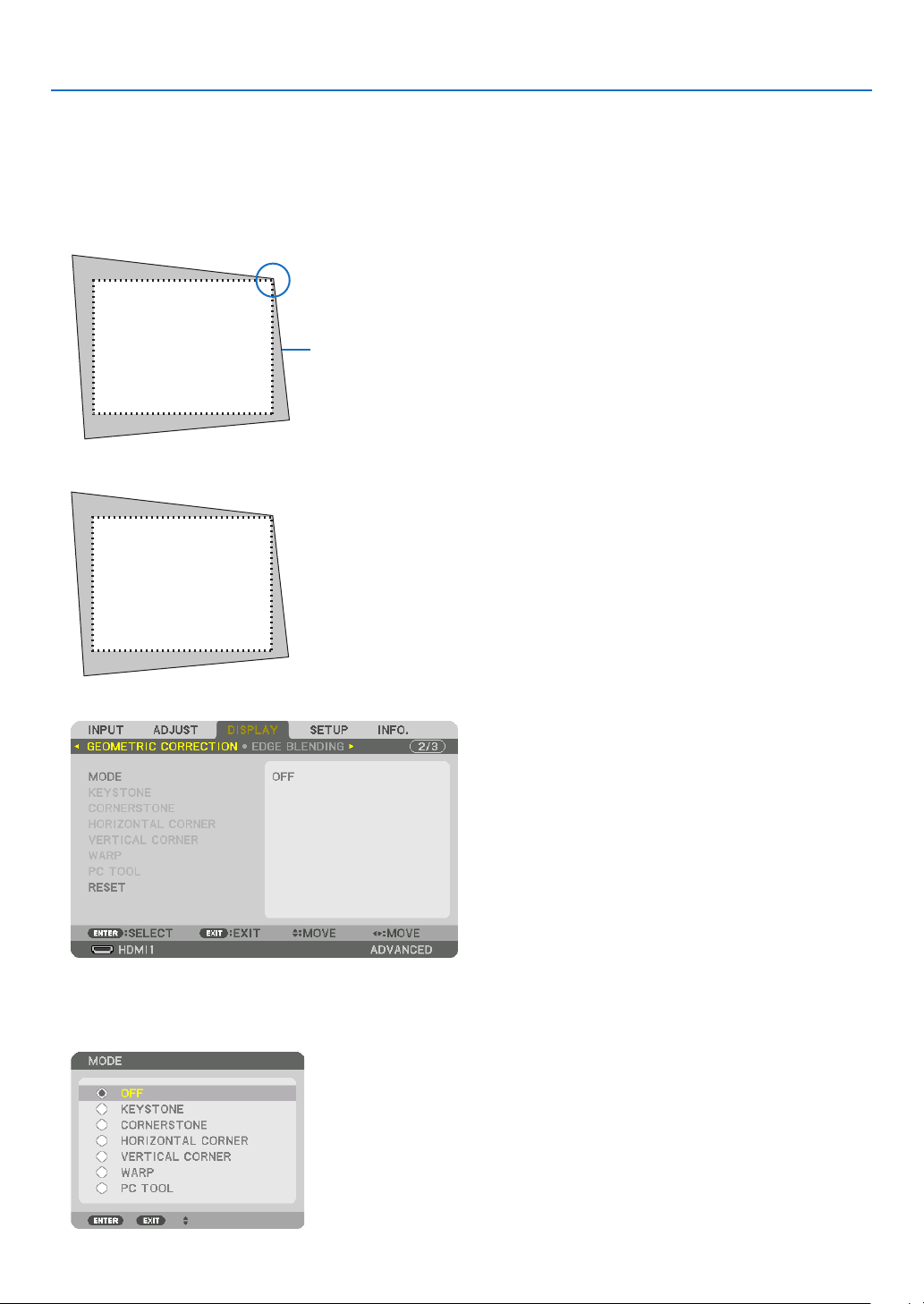
43
3. Convenient Features
❽ Correcting Horizontal and Vertical Keystone Distortion
[CORNERSTONE]
Use the [CORNERSTONE] feature to correct keystone (trapezoidal) distortion to make the top or bottom and the left
or right side of the screen longer or shorter so that the projected image is rectangular.
1. Project an image so that the screen is smaller than the area of the raster.
Projected image
The drawing shows the upper right corner.
2. Pick up any one of the corners and align the corner of the image with a corner of the screen.
3. Press the 3D REFORM button.
Display the [GEOMETRIC CORRECTION] screen of the on-screen menu.
4. Move the cursor onto [MODE] by ▼ button and press the ENTER.
The mode selection screen will displayed on.
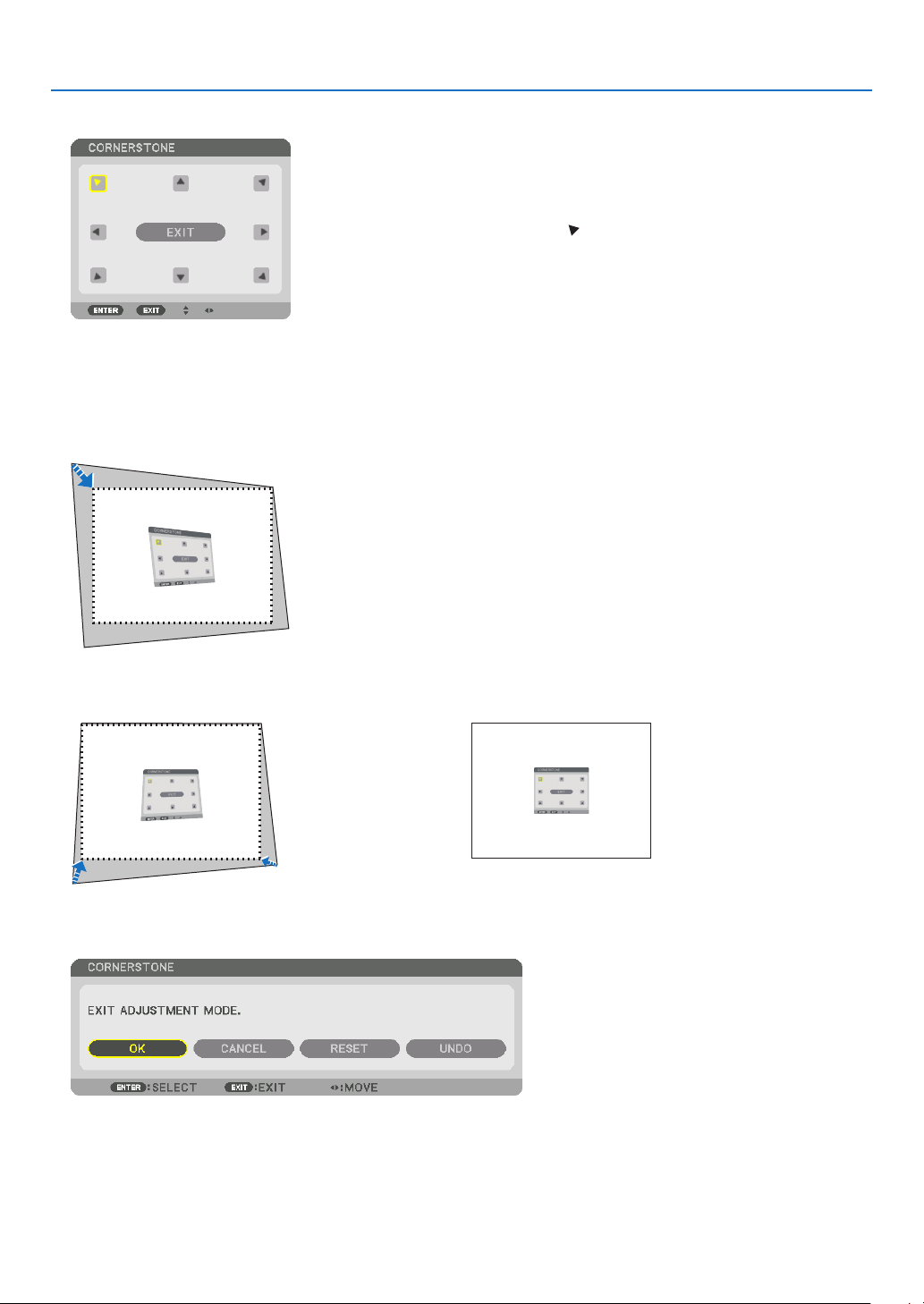
44
3. Convenient Features
5. Press the ▼ button to align with the [CORNERSTONE] and then press the ENTER button.
The drawing shows the upper left icon ( ) is selected.
The screen will switch to the [CORNERSTONE] screen.
6. Use the ▲▼◀▶ button to select one icon (▲) which points in the direction you wish to move the projected
image frame.
7. Press the ENTER button.
8. Use the ▲▼◀▶ button to move the projected image frame as shown on the example.
9. Press the ENTER button.
10
. Use the ▲▼◀▶ button to select another icon which points in the direction.
11
. Repeat steps from 7 to 10 to complete the cornerstone adjustment.
12
. On the [CORNERSTONE] screen, select [EXIT] or press the EXIT button on the remote control.
The conrmation screen is displayed.
13
. Press the ◀ or ▶ button to highlight the [OK] and press the ENTER button.
This completes the [CORNERSTONE] correction.
• Returning to the [CORNERSTONE] screen, select [CANCEL] and press the ENTER button.

45
3. Convenient Features
NOTE:
• Even if the installation angle is changed when the projector is turned on again, the correction values in the previous time has been
maintained.
• Carry out either one of the following actions to clear the adjustment value of [CORNERSTONE].
• In Step 12, select [RESET] and then press the ENTER button.
• In the state [CORNERSTONE] has been selected for [MODE] in the [GEOMETRIC CORRECTION]:
• Press the 3D REFORM button for 2 or more seconds.
• Run [GEOMETRIC CORRECTION] → [RESET] in the on-screen menu.
• Using CORNERSTONE correction can cause the image to be slightly blurred because the correction is made electronically.
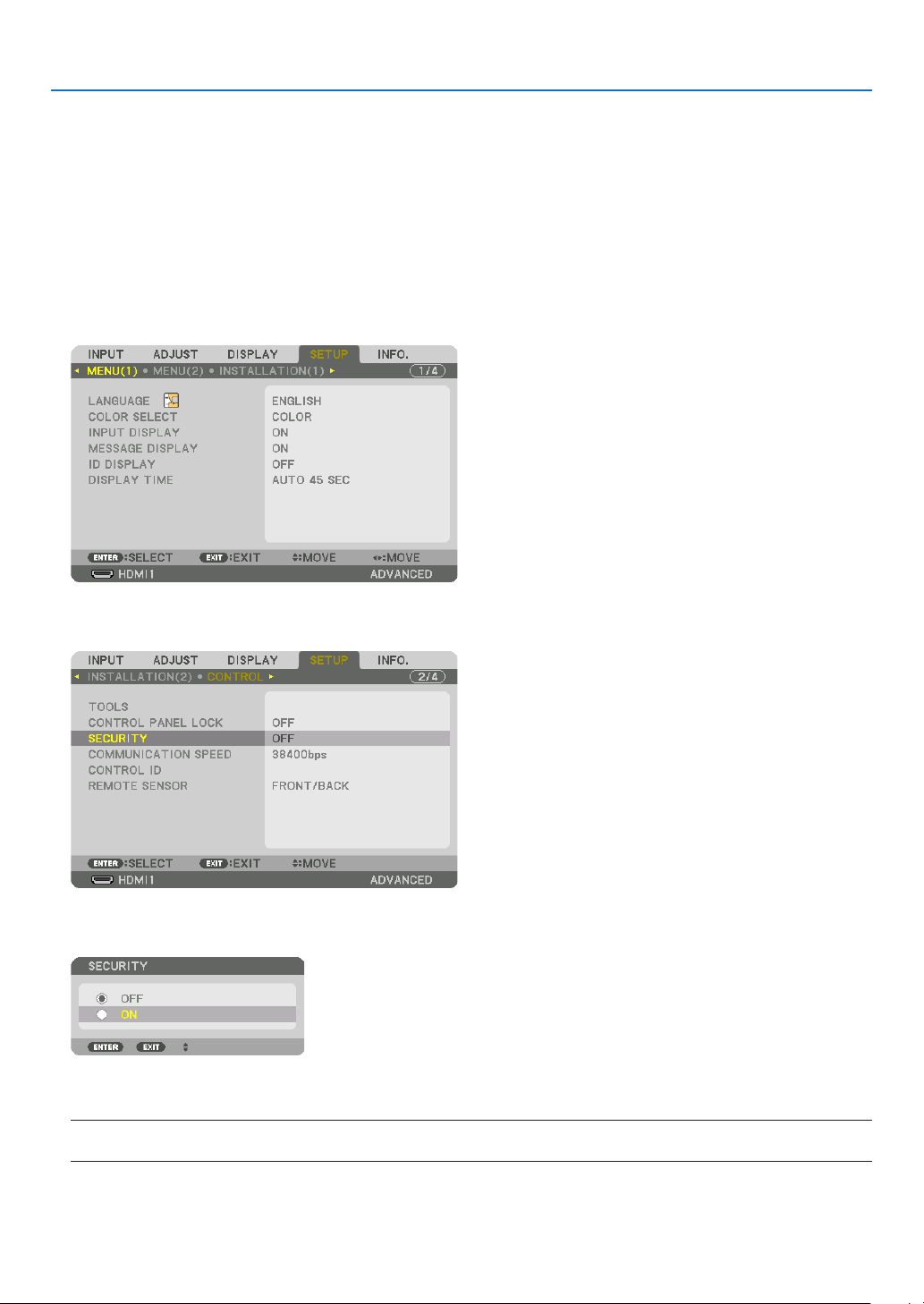
46
3. Convenient Features
❾
Preventing the Unauthorized Use of the Projector [SECURITY]
A keyword can be set for your projector using the Menu to avoid operation by an unauthorized user. When a keyword
is set, turning on the projector will display the Keyword input screen. Unless the correct keyword is entered, the pro-
jector cannot project an image.
• The [SECURITY] setting cannot be cancelled by using the [RESET] of the menu.
To enable the Security function:
1. Press the MENU button.
The menu will be displayed.
2. Press the ▶ button twice to select [SETUP] and press the ▼ button or the ENTER button to select [MENU(1)].
3. Press the ▶ button to select [CONTROL].
4. Press the ▼ button three times to select [SECURITY] and press the ENTER button.
The OFF/ON menu will be displayed.
5. Press the ▼ button to select [ON] and press the ENTER button.
The [SECURITY KEYWORD] screen will be displayed.
6. Type your keyword in a combination of the four ▲▼◀▶ buttons and press the ENTER button.
NOTE:
• A keyword must be 4 to 10 digits in length.
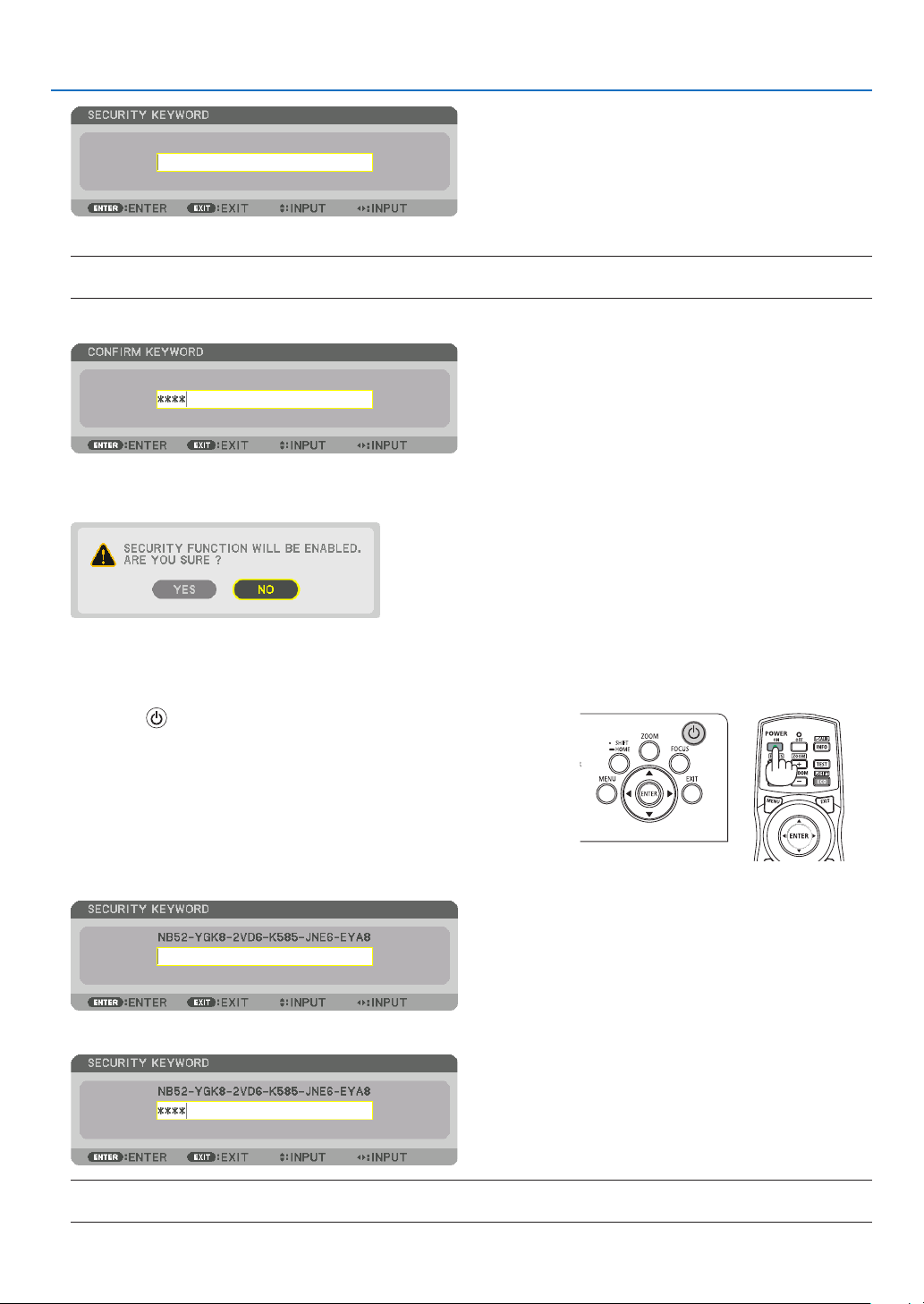
47
3. Convenient Features
The [CONFIRM KEYWORD] screen will be displayed.
NOTE:
• Make a note of your password and store it in a safe place.
7. Type your keyword in the same combination of ▲▼◀▶ buttons and press the ENTER button.
The conrmation screen will be displayed.
8. Select [YES] and press the ENTER button.
The SECURITY function has been enabled.
To turn on the projector when [SECURITY] is enabled:
1. Press the button.
• If using the remote control, press the POWER ON button.
The projector will be turned on and display a message to the effect
that the projector is locked.
2. Press the MENU button.
3. Type in the correct keyword and press the ENTER button. The projector will display an image.
NOTE:
• The security disable mode is maintained until the main power is turned off or unplugging the power cord.
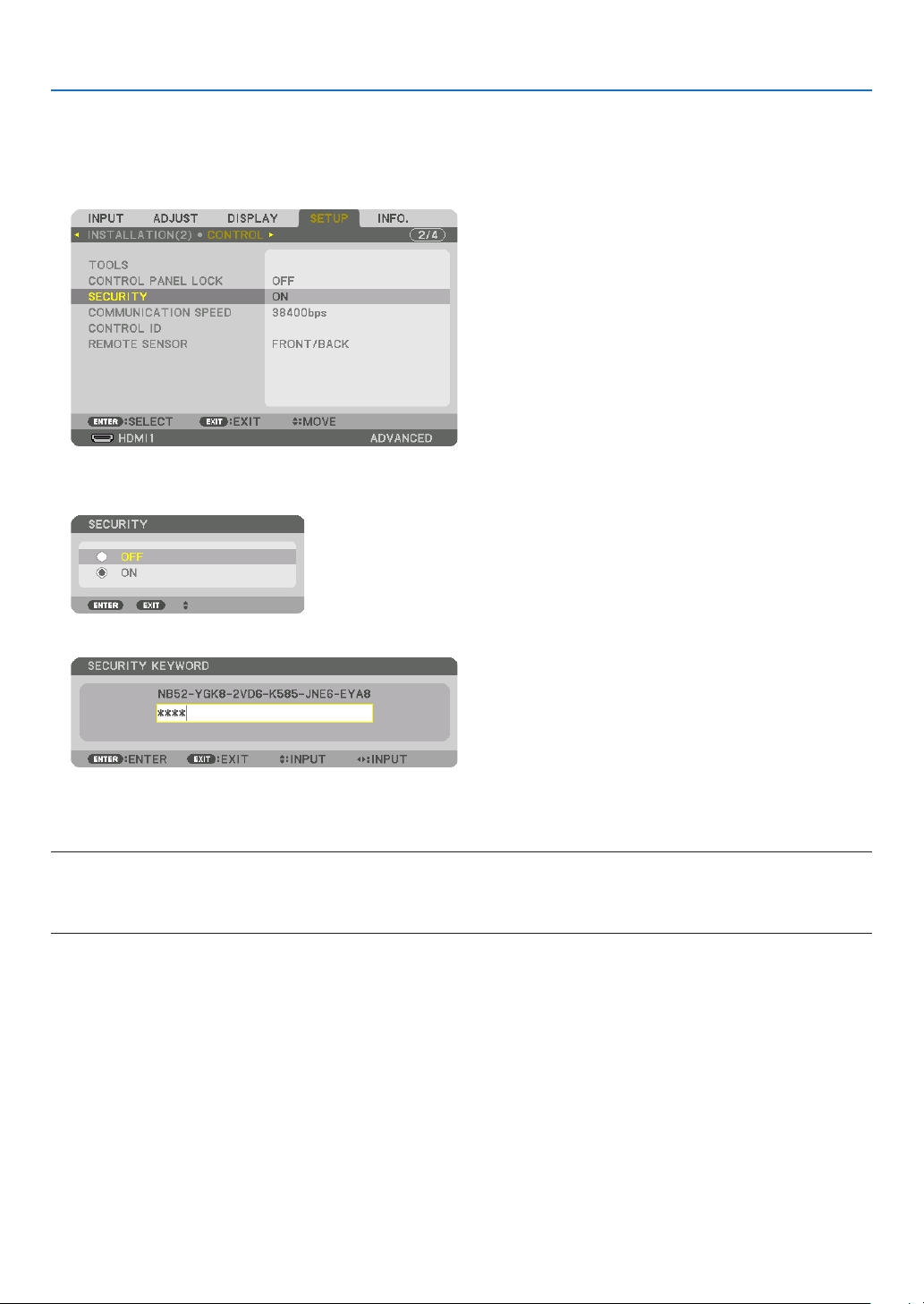
48
3. Convenient Features
To disable the SECURITY function:
1. Press the MENU button.
The menu will be displayed.
2. Select [SETUP] → [CONTROL] → [SECURITY] and press the ENTER button.
The OFF/ON menu will be displayed.
3. Select [OFF] and press the ENTER button.
The SECURITY KEYWORD screen will be displayed.
4. Type in your keyword and press the ENTER button.
When the correct keyword is entered, the SECURITY function will be disabled.
NOTE:
• If you forget your keyword, contact your dealer. Your dealer will provide you with your keyword in exchange for your request
code. Your request code is displayed in the Keyword Confirmation screen. In this example [NB52-YGK8-2VD6-K585-JNE6-EYA8]
is a request code.

49
3. Convenient Features
❿ Controlling the Projector by Using an HTTP Browser
Overview
Using the web browser on the computer, the HTTP server screen of the projector can be displayed to operate the
projector.
Possible operations on the HTTP server screen
• Congure the settings required for connecting the projector to the network (wired LAN).
• Congure the email notication. (ALERT MAIL)
When the projector is connected to a network (wired LAN), notications on various errors are sent to the email
address that has been set up.
• Operate the projector.
Operations such power on/off of the projector, input terminal switchover, picture control, and lens control etc. can
be carried out.
• Congure the [PJLink PASSWORD], [AMX BEACON], and [CRESTRON] etc.
For details about settings and adjustments, see the explanation on the screen menu.
To view the HTTP server screen
1. Connect the projector to the computer with a LAN cable sold commercially. (→ page 9)
2. Select [SETUP] → [NETWORK SETTINGS] → [WIRED LAN] in the on-screen menu to congure the network
settings. (→ page 119)
3. Start up the web browser on your computer and enter the address or URL in the input eld.
Specify the address or URL as “http://<IP Address of Projector>/index.html”.
The HTTP server screen will be displayed.
TIP:
• The factory setting IP address is [DHCP ON].
NOTE:
• To use the projector in a network, consult with your network administrator about network settings.
• The display’s or button’s response can be slowed down or operation may not be accepted depending the settings of your network.
Should this happen, consult your network administrator. The projector may not respond if its buttons are repeatedly pressed in
rapid intervals. Should this happen, wait a moment and repeat. If you still can’t get any response, turn off and back on the projec-
tor.
• If the PROJECTOR NETWORK SETTINGS screen does not appear in the web browser, press the Ctrl+F5 keys to refresh your web
browser (or clear the cache).
• This projector uses “JavaScript” and “Cookies” and the browser should be set to accept these functions. The setting method will
vary depending on the version of browser. Please refer to the help files and the other information provided in your software.
Preparation before Use
Connect the projector to a commercially available LAN cable before engaging in browser operations. (→ page 9)
Operation with a browser that uses a proxy server may not be possible depending on the type of proxy server and the
setting method. Although the type of proxy server will be a factor, it is possible that items that have actually been set
will not be displayed depending on the effectiveness of the cache, and the contents set from the browser may not be
reected in operation. It is recommended that a proxy server not be used unless it is unavoidable.

50
3. Convenient Features
Handling of the Address for Operation via a Browser
Regarding the actual address that is entered for the address or entered to the URL column when operation of the
projector is via a browser, the host name can be used as it is when the host name corresponding to the IP address
of the projector has been registered to the domain name server by a network administrator, or the host name cor-
responding to the IP address of the projector has been set in the “HOSTS” le of the computer being used.
Example 1: When the host name of the projector has been set to “pj.nec.co.jp”, access is gained to the network
setting by specifying
http://pj.nec.co.jp/index.html
for the address or the entry column of the URL.
Example 2: When the IP address of the projector is “192.168.73.1”, access is gained to the network setting by
specifying
http://192.168.73.1/index.html
for the address or the entry column of the URL.
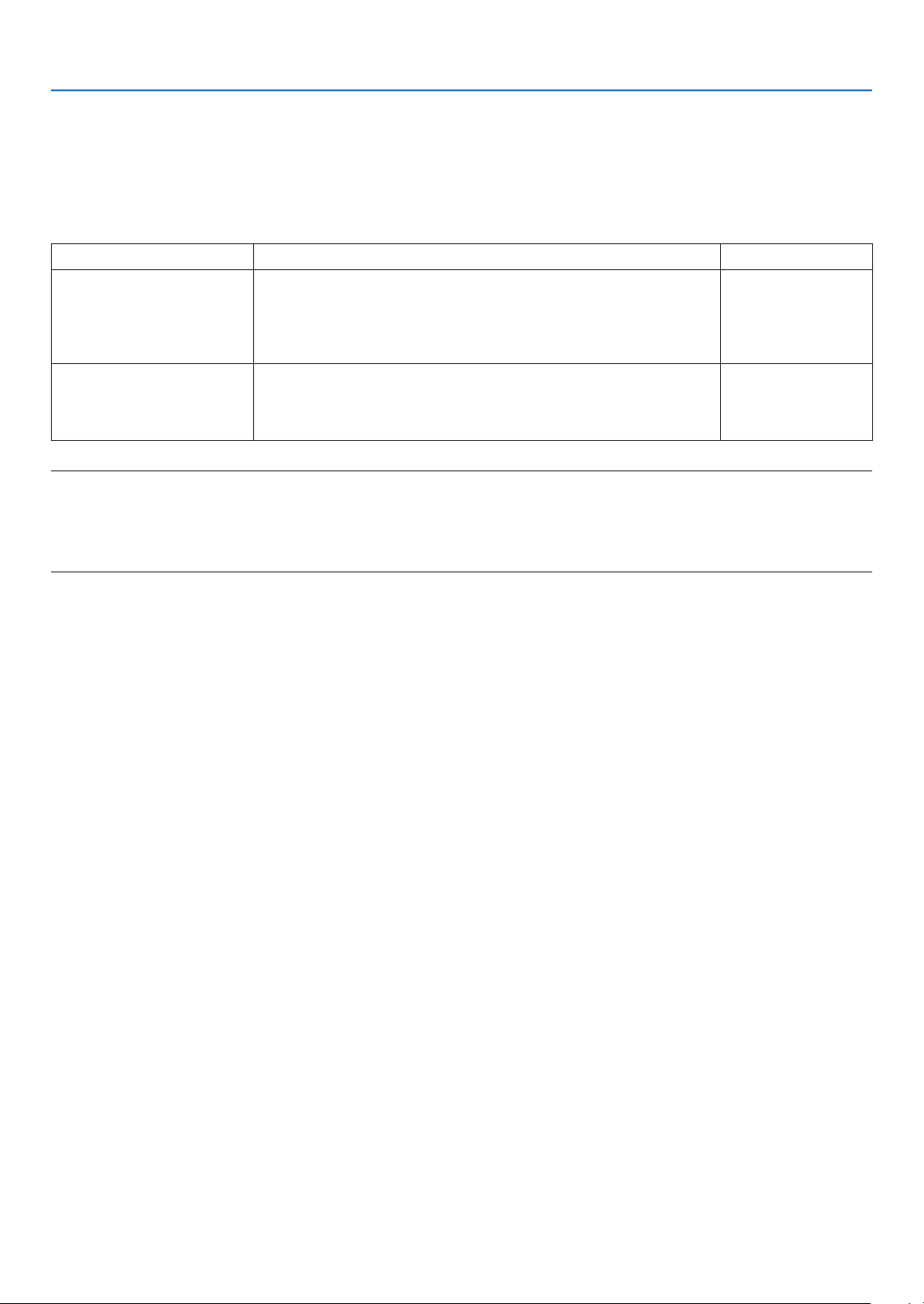
51
3. Convenient Features
⓫ Storing Changes for Lens Shift, Zoom, and Focus [LENS
MEMORY]
The adjusted values can be stored in projector memory when using the LENS SHIFT, ZOOM and FOCUS buttons
of the projector. Adjusted values can be applied to the signal you selected. This will eliminate the need to adjust lens
shift, focus, and zoom at the time of source selection. There are two ways to save adjusted values for lens shift,
zoom, and focus.
Function name Description page
REF. LENS MEMORY Adjusted values common to all input signals. At the time of installation,
two kinds of adjusted values can be stored.
If no adjusted values are stored in [LENS MEMORY], adjusted values
from the selected prole ([REF. LENS MEMORY]) will be applied for
lens adjustment.
→ page 110
LENS MEMORY Adjusted values for each input signal.
Use the adjusted values for the signal with a different aspect ratio or
resolution. The adjusted values can be applied at the time of source
selection.
→ page 93
NOTE:
• For using the lens unit NP16FL-4K, NP17ZL-4K, NP18ZL-4K, NP19ZL-4K, NP20ZL-4K, NP21ZL-4K, and NP31ZL-4K, be sure to
carry out [LENS CALIBRATION] after replacing the lens unit. (→ page 17, 110)
• For the lens unit, NP16FL-4K, the storable value as [LENS MEMORY] feature is for [FOCUS] only.
• The [LENS MEMORY] feature is not available for the lens unit, NP39ML-4K.
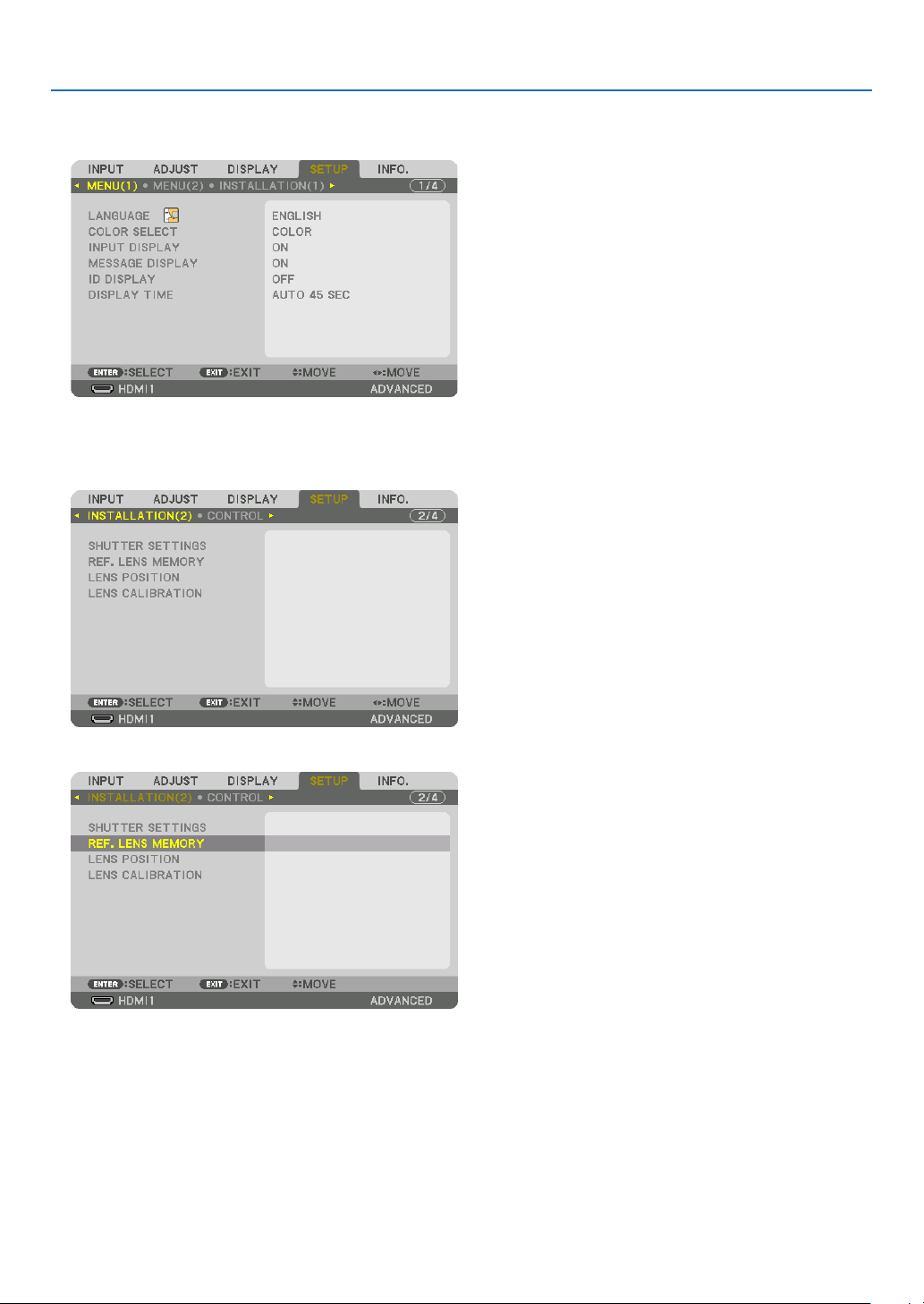
52
3. Convenient Features
To store your adjusted values in [REF. LENS MEMORY]:
1. Press the MENU button.
The menu will be displayed.
2. Press the ▶ button to select [SETUP] and press the ENTER button.
3. Press the ▶ button to select [INSTALLATION(2)].
4. Press the ▼ button to select [REF. LENS MEMORY] and press the ENTER button.
The [REF. LENS MEMORY] screen will be displayed.
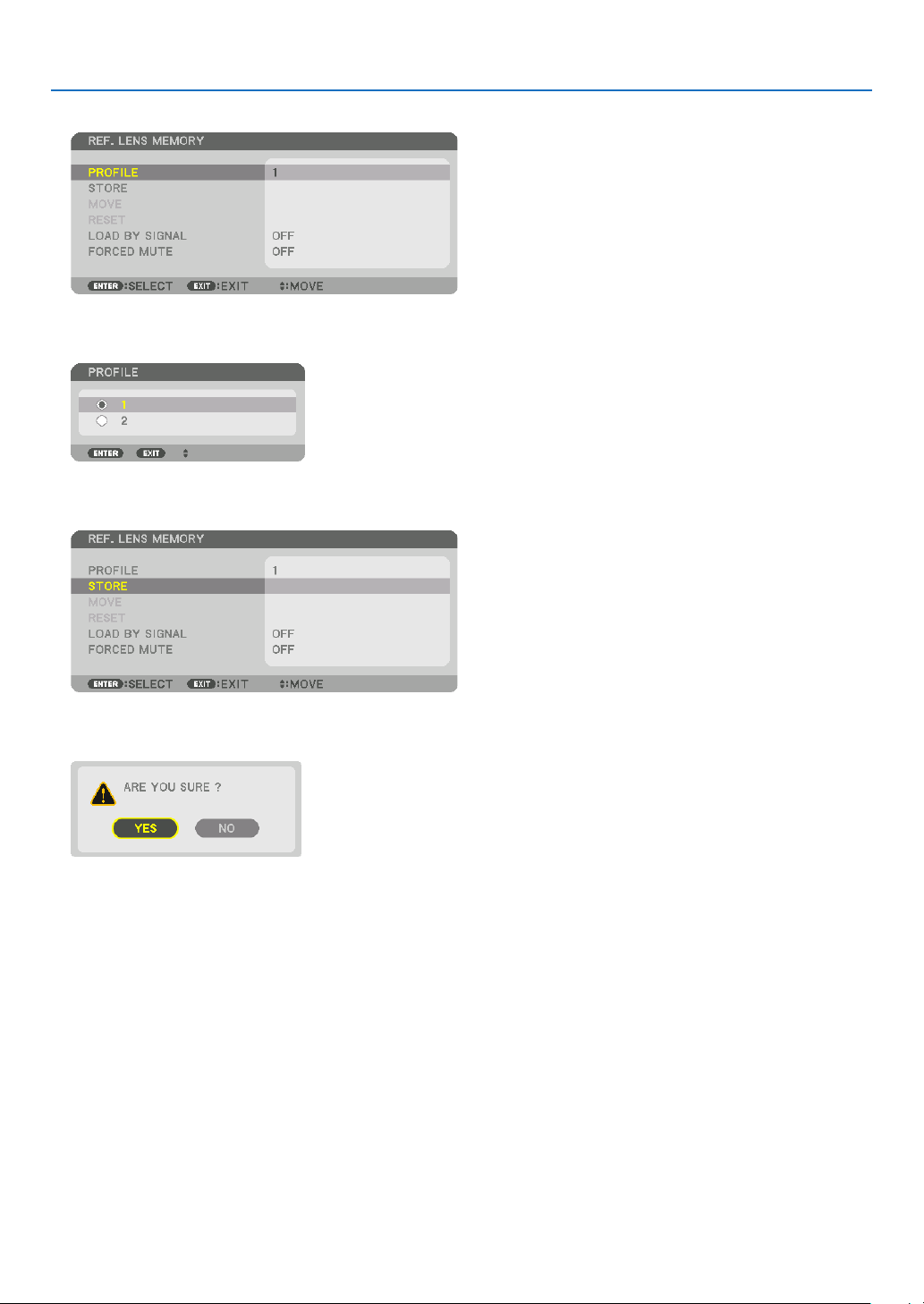
53
3. Convenient Features
5. Make sure [PROFILE] is highlighted, then press the ENTER button.
The [PROFILE] selection screen appears.
6. Press the ▼/▲ buttons to select the [PROFILE] number, then press the ENTER button.
Return to the [REF. LENS MEMORY] settings screen.
7. Select [STORE] and press the ENTER button.
The conrmation screen will be displayed.
8. Press the ◀ button to select and [YES] and press the ENTER button.
Select a [PROFILE] number and save the adjusted [LENS SHIFT], [ZOOM], and [FOCUS] values to it.
• To turn off the image during the lens shift, set [FORCED MUTE] to [ON]. (→ page 110)
9. Press the MENU button.
The menu will be closed.
TIP:
• To store adjusted values for each input source, use the Lens Memory function. (→ page 93)
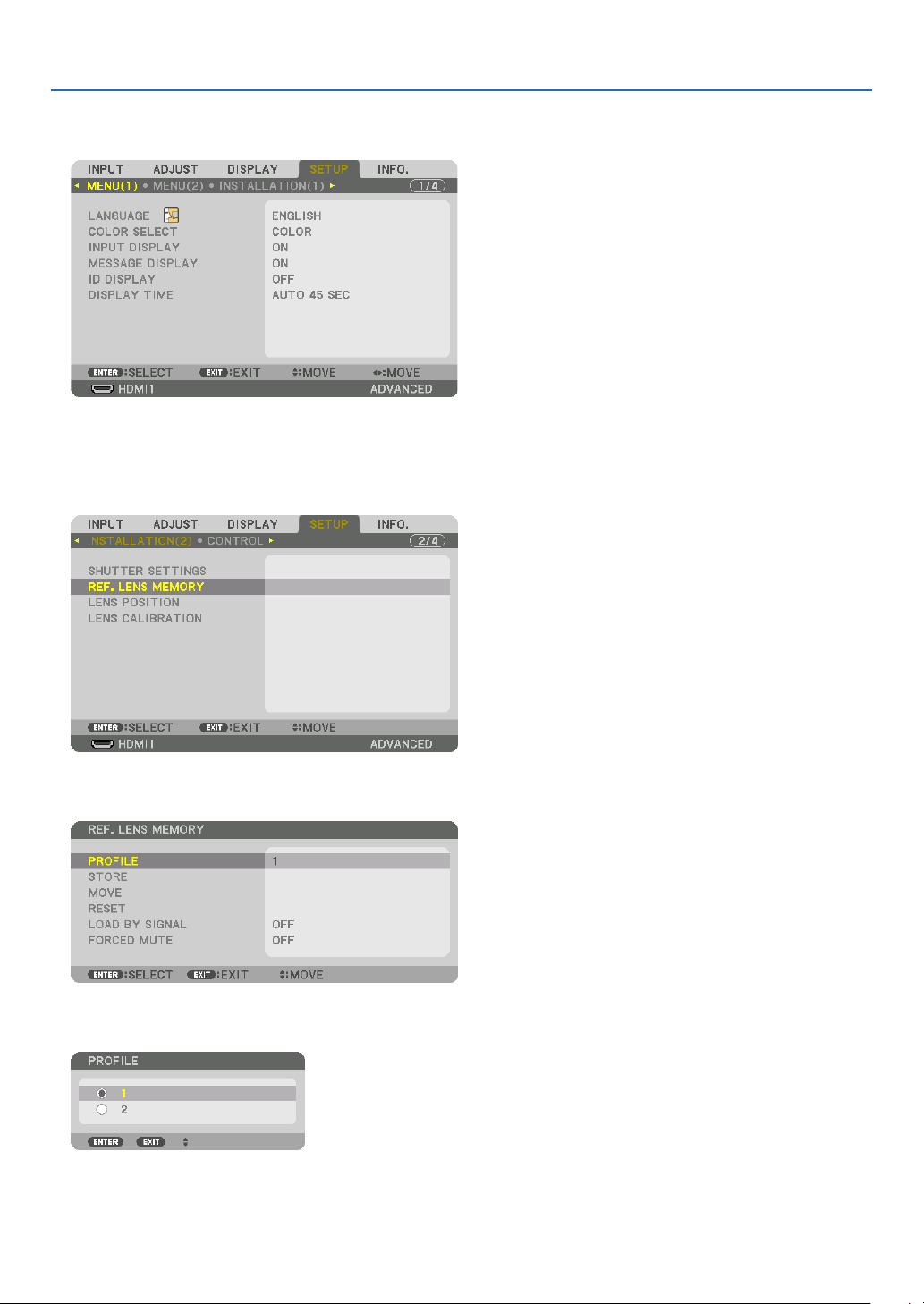
54
3. Convenient Features
To call up your adjusted values from [REF. LENS MEMORY]:
1. Press the MENU button.
The menu will be displayed.
2. Press the ▶ button to select [SETUP] and press the ENTER button.
3. Press the ▶ button to select [INSTALLATION(2)].
4. Press the ▼ button to select [REF. LENS MEMORY] and press the ENTER button.
The [REF. LENS MEMORY] screen will be displayed.
5. Make sure [PROFILE] is highlighted, then press the ENTER button.
The [PROFILE] selection screen appears.
6. Press the ▼/▲ buttons to select the [PROFILE] number, then press the ENTER button.
Return to the [REF. LENS MEMORY] settings screen.
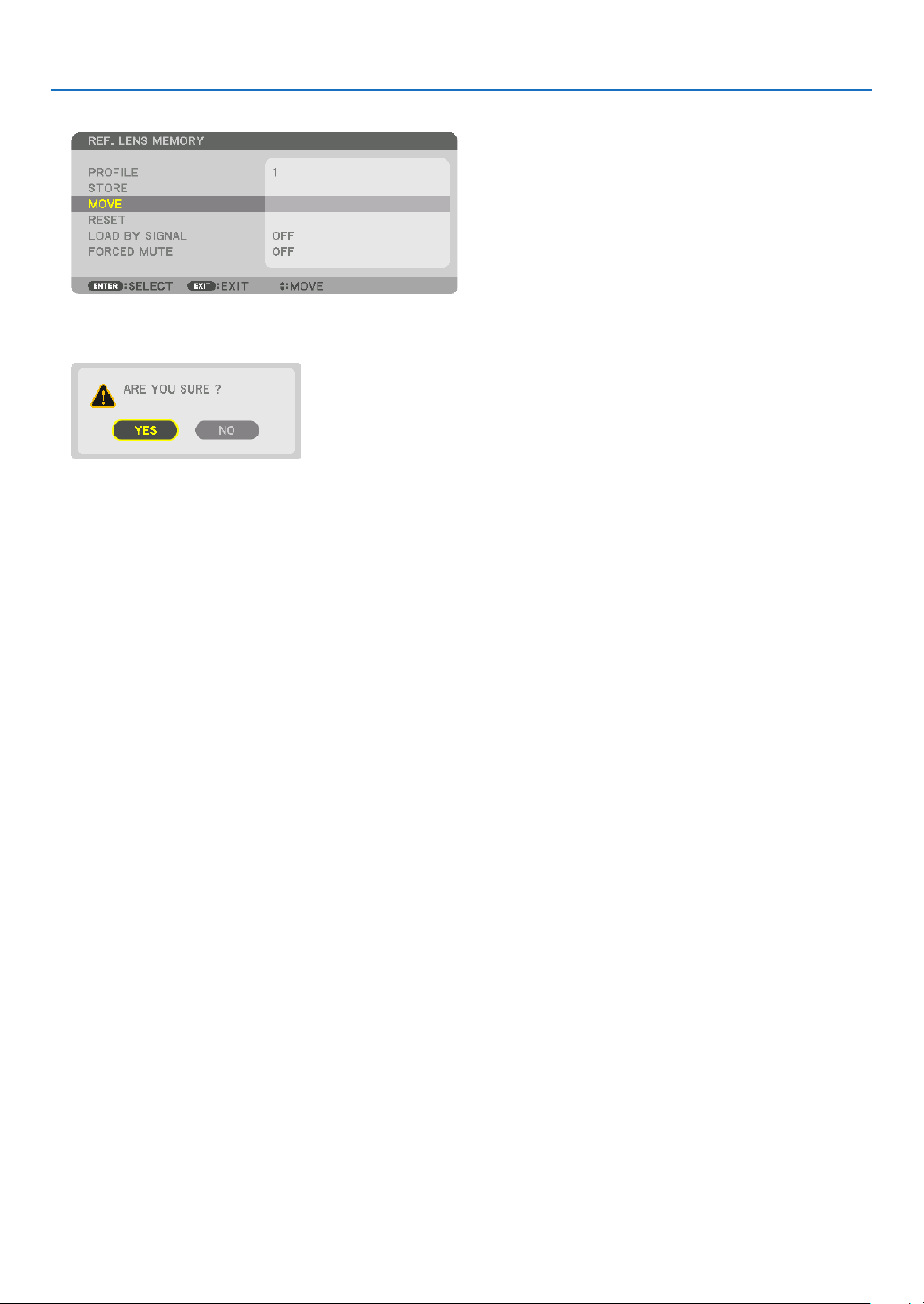
55
3. Convenient Features
7. Select [MOVE] and press the ENTER button.
The lens will shift based on the adjusted values stored in the selected [PROFILE].
8. Press the ◀ button to select and [YES] and press the ENTER button.
The adjusted values will be applied to the current signal. .
9. Press the MENU button.
The menu will be closed.
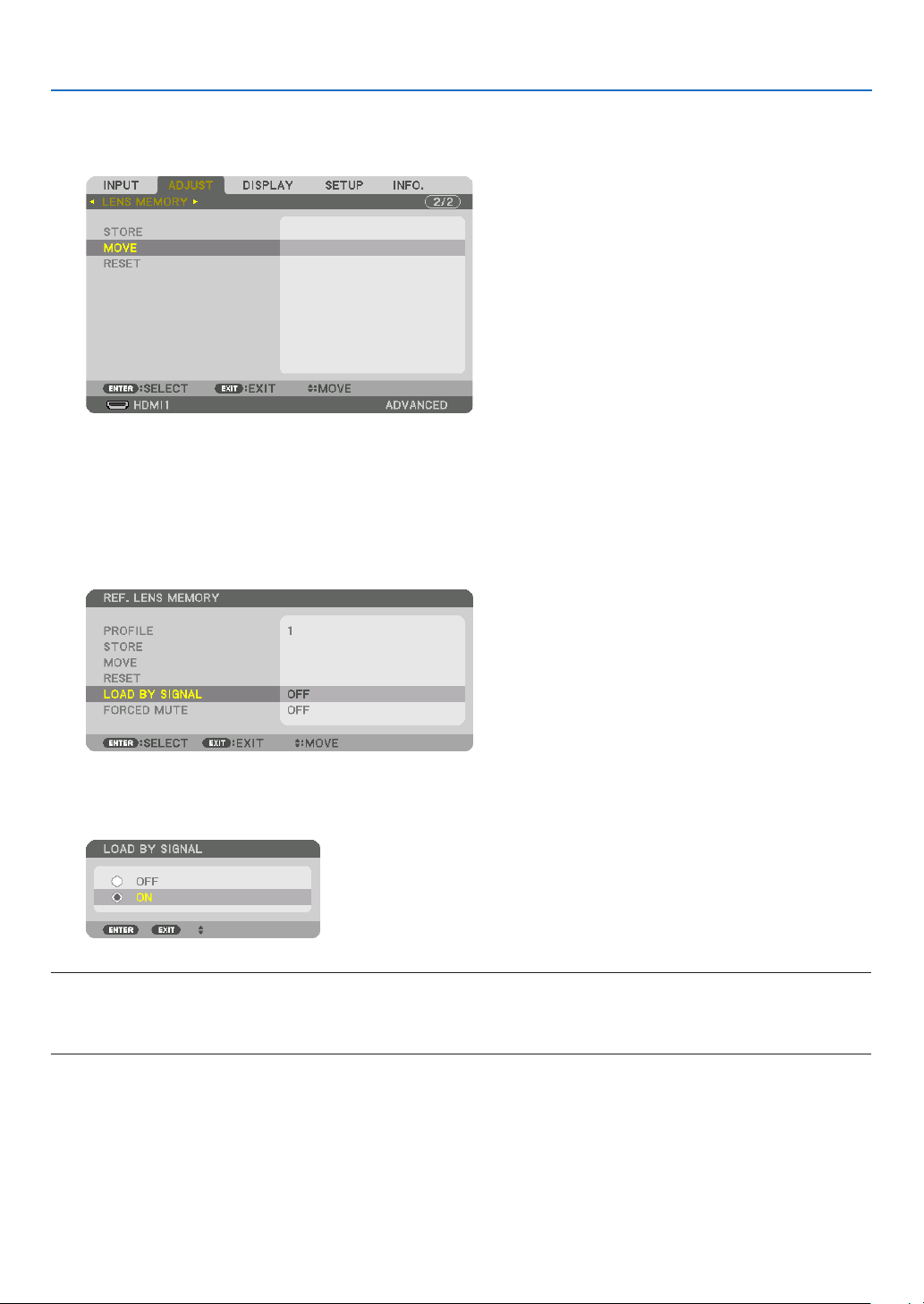
56
3. Convenient Features
TIP:
• To call up the stored values from [LENS MEMORY]:
1. From the menu, select [ADJUST] → [LENS MEMORY] → [MOVE] and press the ENTER button.
The conrmation screen will be displayed.
2. Press the ◀ button to select and [YES] and press the ENTER button.
During projection, if the adjusted values for an input signal have been saved, the lens will shift. If not, the lens
will shift according to the adjusted values stored in the selected [REF. LENS MEMORY] [PROFILE] number.
• To automatically apply the stored values at the time of source selection:
1. From the menu, select [SETUP] → [REF. LENS MEMORY] → [LOAD BY SIGNAL] and press the ENTER
button.
2. Press the ▼ button to select and [ON] and press the ENTER button.
This will move the lens automatically to the position at the time of source selection according to the adjusted
values.
NOTE:
• The Lens Memory function may not produce a completely aligned image (due to tolerances in the lenses) using the adjusted
values stored in the projector. After calling up and applying the stored values from the Lens Memory function, finely adjust the
lens shift, zoom and focus to produce the best possible image.
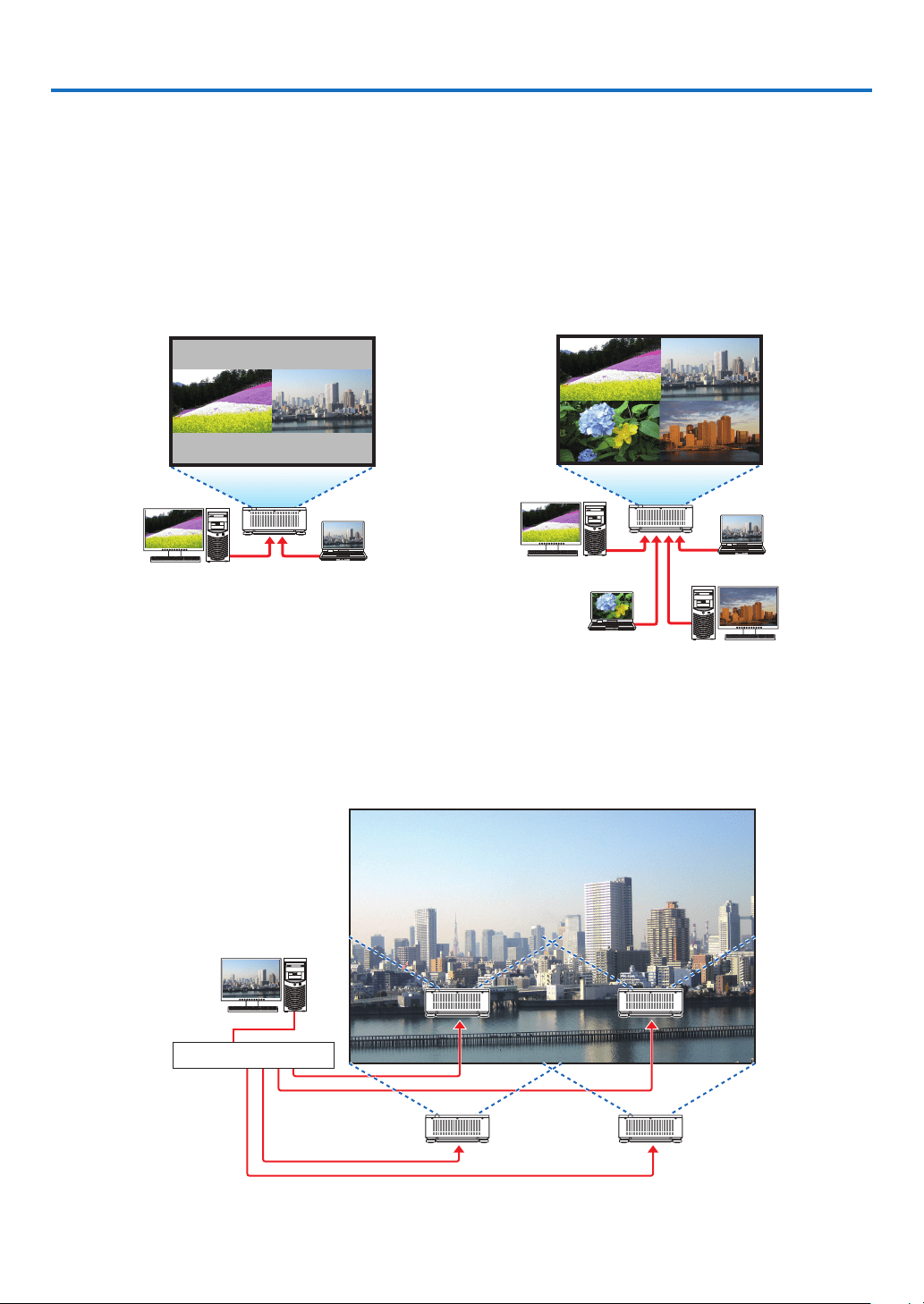
57
4. Multi-Screen Projection
This projector can be used singly or arranged in multiple units for multi-screen projection.
❶ Things that can be done using multi-screen projection
Case 1
Using a single projector to project two or four types of videos at the same time [PICTURE BY PICTURE]
Connection example and projection image
Projecting two types of images
(Input) (Input)
(Input)
(Input)
(Input)
(Input)
Projecting four types of images
Case 2
Lien up multiple projectors to project a high-resolution image in a larger screen. [TILING]
Connection example and projection image
A video splitter
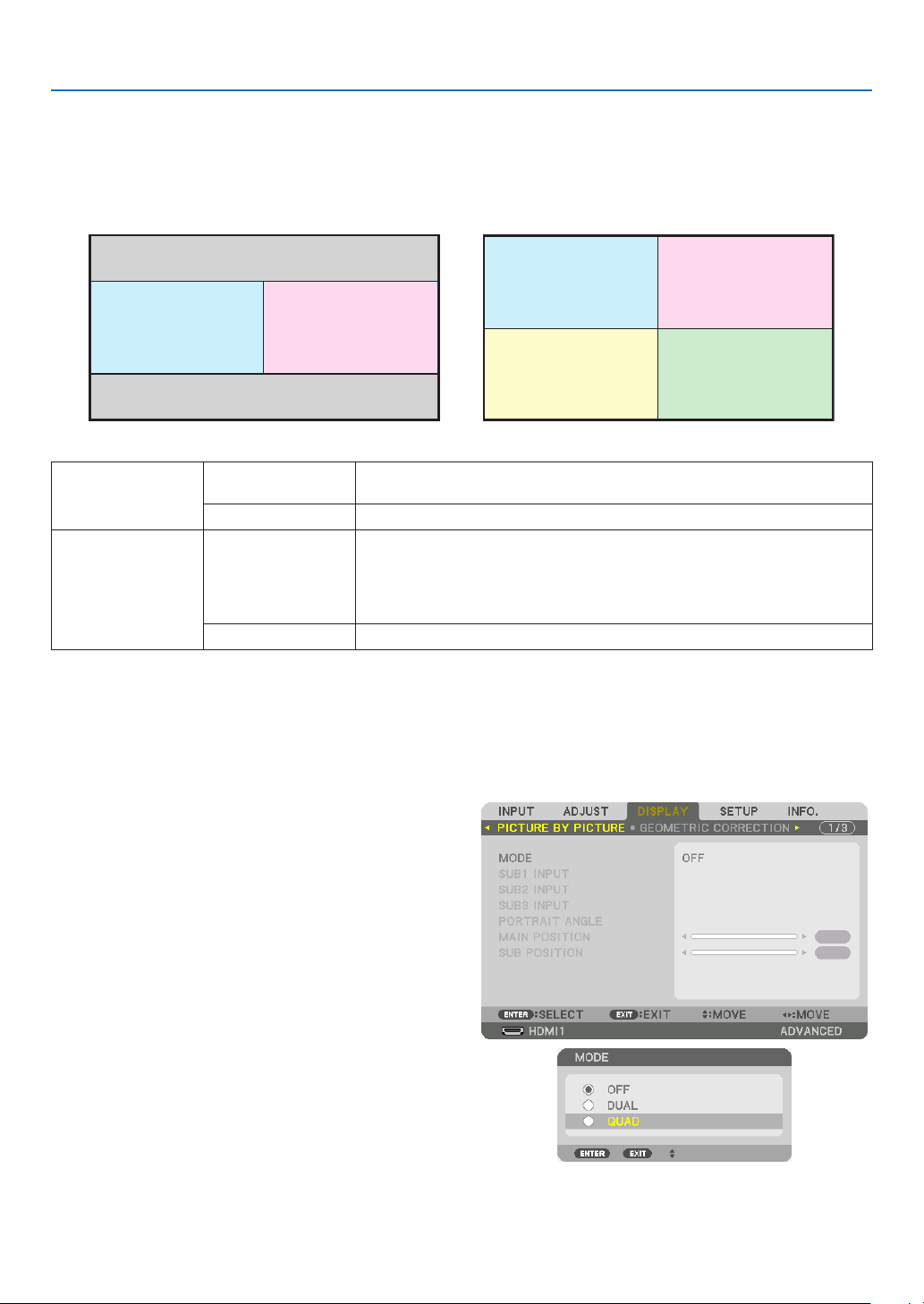
4. Multi-Screen Projection
58
❷ Using a single projector to project two or four types of
videos at the same time [PICTURE BY PICTURE]
• The projection video in the rst screen display is known as the MAIN display while the projection video
that is called out subsequently is known as the SUB1, SUB2 and SUB3 display.
MAIN SUB1
MAIN
SUB2
SUB1
SUB3
• The PICTURE BY PICTURE function supports the following input terminals and input signals.
Input terminals Two screens SDI1, SDI2, SDI3, SDI4, HDMI1, HDMI2, DisplayPort1, DisplayPort2,
HDBaseT, SLOT
Four screens SDI1, SDI2, SDI3, SDI4, HDMI1, HDMI2, DisplayPort1, DisplayPort2
Input signals Two screens
• When [PORTRAIT ANGLE] is set to [0°],
Signals up to 4K 30 Hz (excluding Deep Color)
• When [PORTRAIT ANGLE] is set to [90°] or [270°],
Progressive signals up to WXGA ++ 60 Hz
1920 × 1080p 24/25/30 Hz signal
Four screens Progressive signals up to 1920 × 1080 60 Hz
Projecting four screens
This section provides procedures for projecting four types of images at the same time.
Preparation:
Connect the projector to devices that output four types of images and turn on the power of all the devices.
1. Press the MENU button to display the on-screen
menu and select [DISPLAY] → [PICTURE BY PIC-
TURE].
2. Select [MODE] using the ▼/▲ buttons, and press the
ENTER button.
This displays the [MODE] screen.
3. Select [QUAD] using the ▼/▲ buttons, and press the
ENTER button.
The display returns to the PICTURE BY PICTURE
screen.
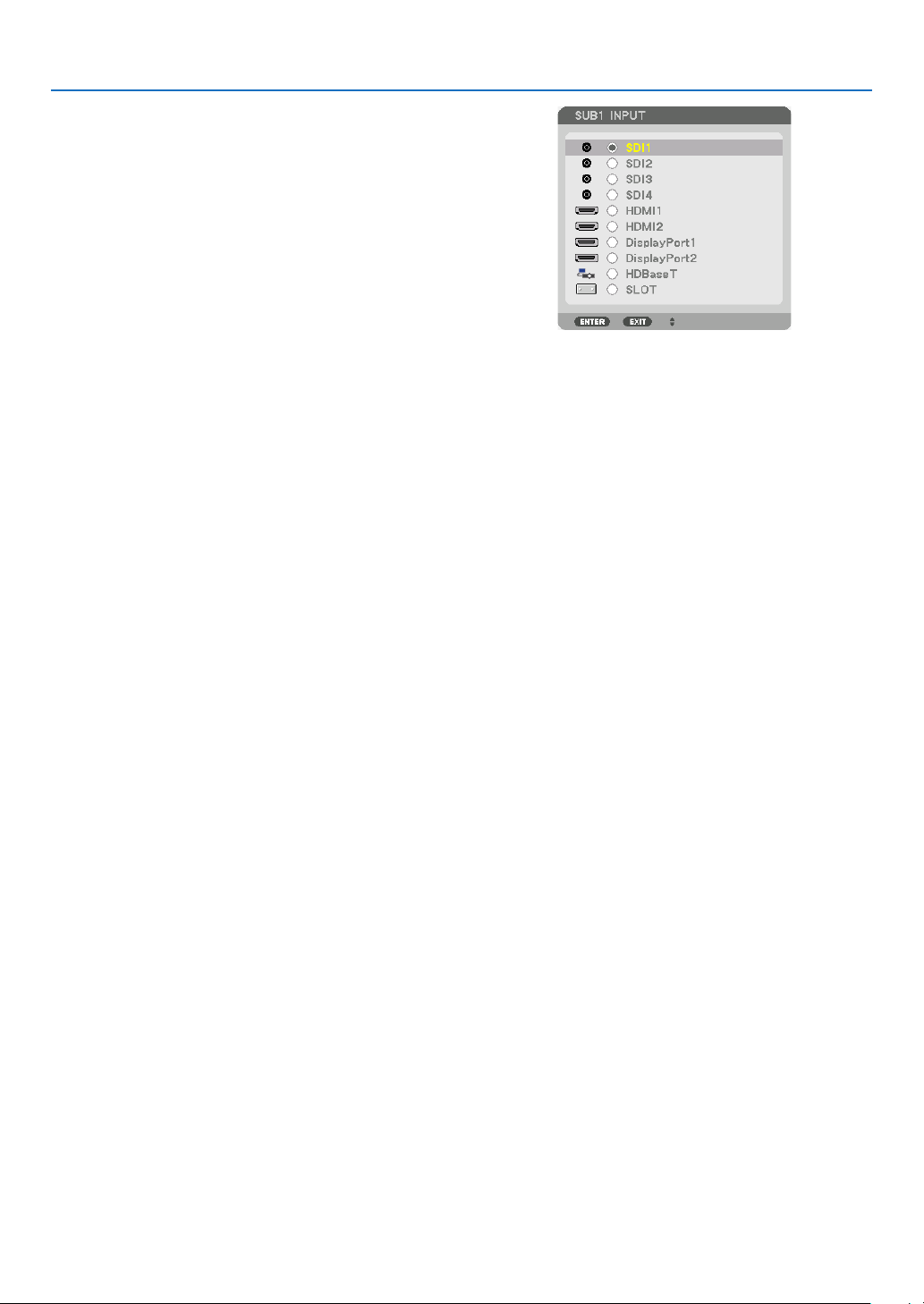
4. Multi-Screen Projection
59
4. Select [SUB1 INPUT] using the ▼/▲ buttons, and
press the ENTER button.
This displays the [SUB1 IMPUT] screen.
5. Select an input signal for SUB 1 using the ▼/▲ but-
tons and press the ENTER button.
The display returns to the PICTURE BY PICTURE
screen.
6. Perform the same steps as 4 and 5 to select input
signals for SUB2 and SUB3.
7. Press the MENU button.
The on-screen menu will disappear.
• To return to a single screen, select [OFF] from the MODE select screen in Step 3.
TIP:
• To project two screens, select [DUAL] in the step 3, and select the input signal for SUB1 in the steps 4 and 5.
• In the case of projecting two screens, you can set the orientation of screen to the portrait position or adjust the display position.
(→ page 95, 96)
Restrictions
• The following operations are enabled only for the main display.
• Visual adjustments
• Video magnication / demagnication using the partial D-ZOOM/ZOOM +/− buttons.
• The following operations are enabled for MAIN, SUB1, SUB2, and SUB3. These operations cannot be applied
individually.
• Momentary deletion of video (AV Mute)
• Video pause (Freeze)
• When TEST PATTERN is displayed, the single screen is projected.
• In the following cases, PICTURE BY PICTURE cannot be used.
• When [PICTURE SETTING] → [MODE] is set to [ZOOM] or [TILING]
• When MAIN is set to SDI1 and [SDI LINK] is set to other than [SINGLE]
• When MAIN is set to DisplayPort 1 and [DP LINK] is set to [DUAL]
• The following operations cannot be made when [PICTURE BY PICTURE] is used.
• DYNAMIC CONTRAST
• IMAGE OPTIONS (when MODE is set to [DUAL] and [PORTRAIT ANGLE] is set to [90°] or [270°])
• ASPECT RATIO (when MODE is set to [QUAD])
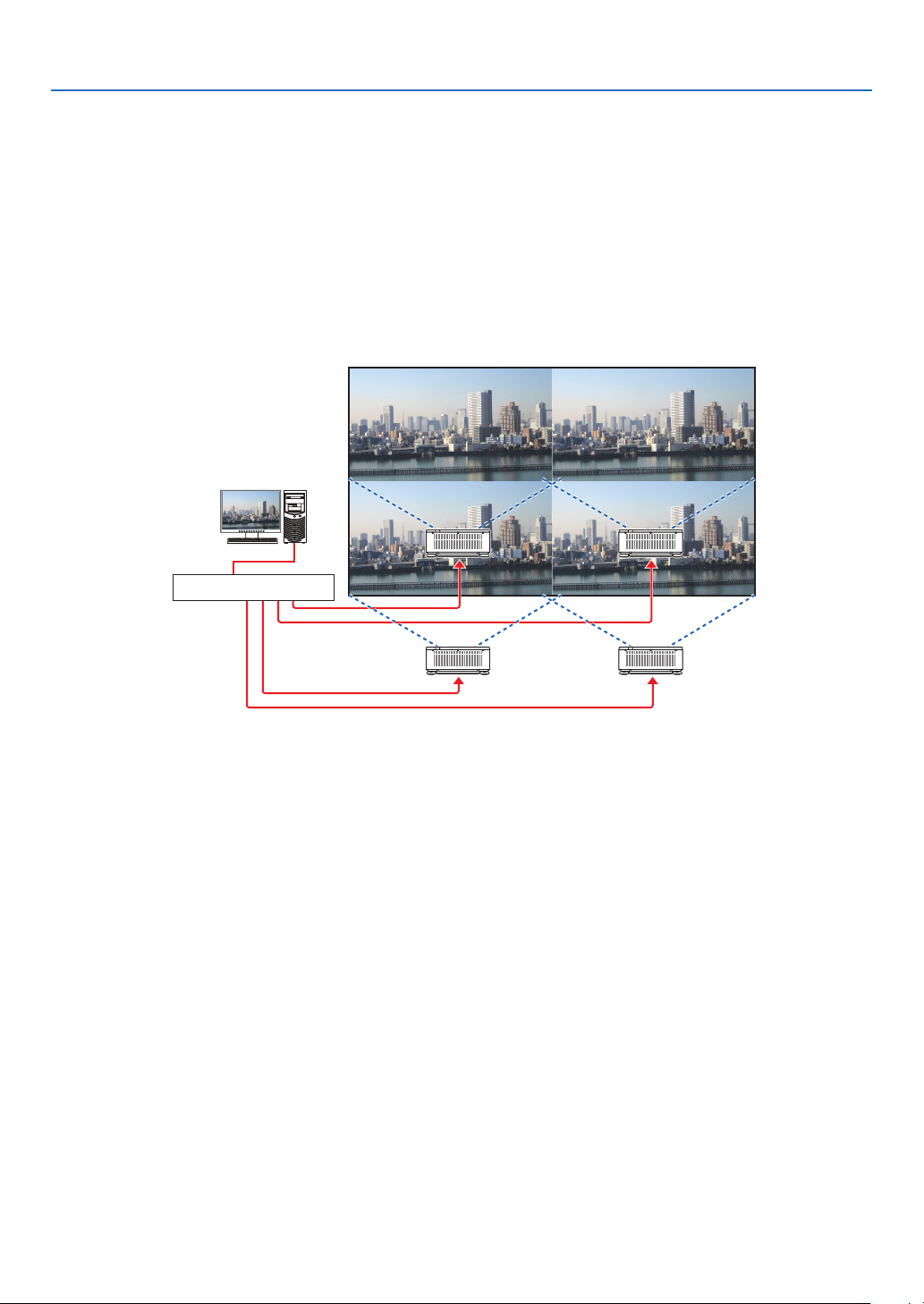
4. Multi-Screen Projection
60
❸ Line up multiple projectors to display a high resolution
image in a larger screen [TILING]
This section provides procedures for projecting an image with a resolution of 3840 × 2160 (4K UHD) by using four
projectors.
Preparation:
• Arrange four projectors in a 2 × 2 layout.
Connect your video output equipment to the four projectors via a video splitter.
• Turn on the power of all devices to project the same four images
A video splitter
When performing settings or adjustments using one remote control, enable the [CONTROL ID] for assigning ID to each
projector so as not to activate the other projectors. (→ page 116)
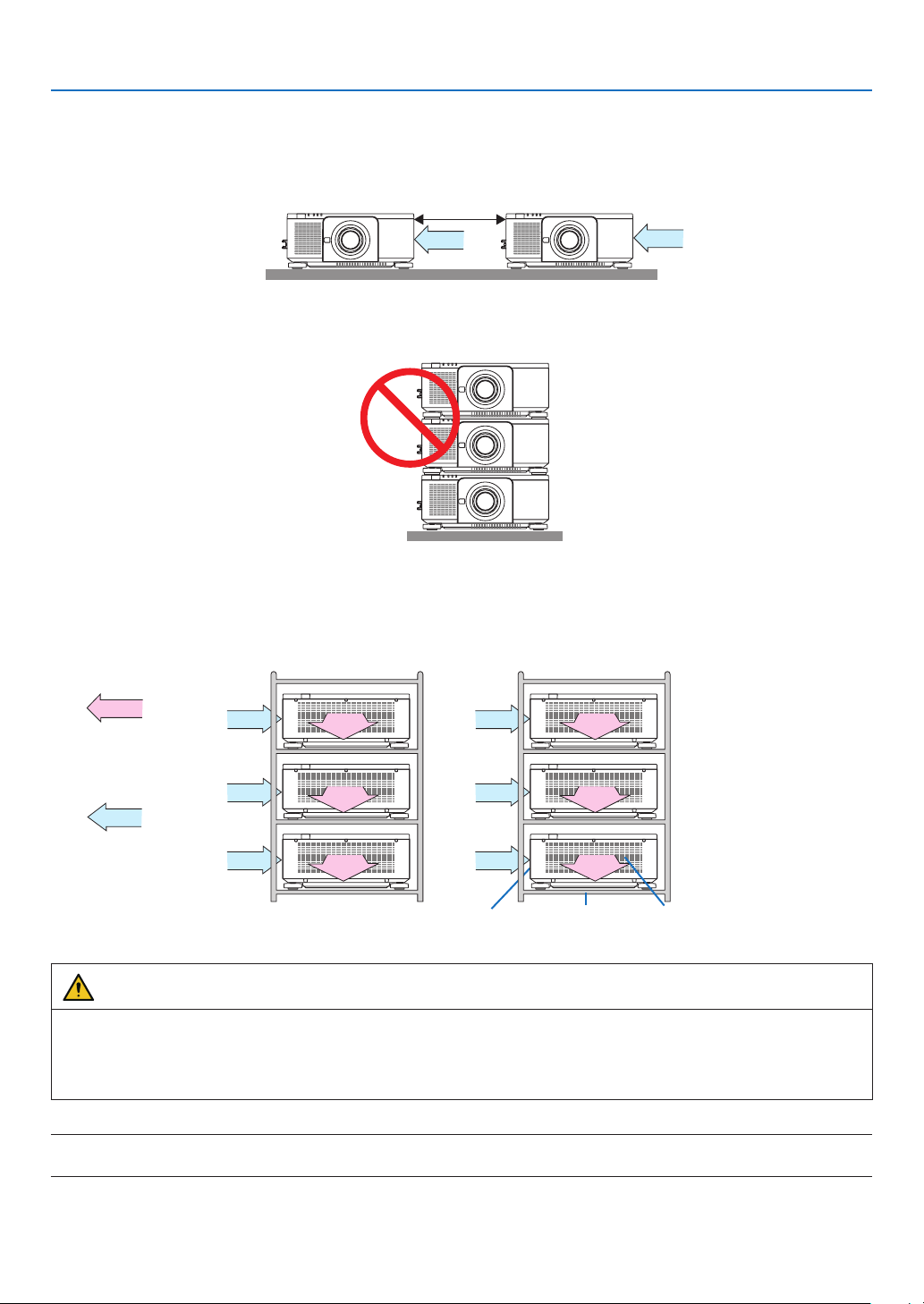
4. Multi-Screen Projection
61
Things to note when installing projectors
• Leave 30 cm or over space between each projectors and between the intake vent and the wall for installing projec-
tors side by side, so that air intake of the projectors are not obstructed. When the air intake and discharge outlet
are obstructed, the temperature inside the projector will rise and this may result in a malfunction.
30 cm or greater
• Two projectors can be stacked on top of each other (STACK setting). (→ page 139) Do not attempt to directly stack
three or more projectors. When the projectors are piled up on top of one another, they may fall down, resulting in
damage and failure.
• Installation example when using 3 or more projectors
The following installation is recommended when installing a combination of 3 or more projectors for multi-screen
projection.
[Installation example]
Exhaust ventIntake vent Cabinet
Air exhaust
Air intake
Back Back
WARNING
Please request the dealer for special installation services such as when mounting the projector to the ceiling. Never
carry out the installation by yourself. The projector may fall down and result in injury. Please use a sturdy cabinet
that can withstand the weight of the projector for the installation. Please do not pile up the projectors directly on
top of one another.
NOTE:
• For the range of the projection distance, please refer to the Appendix “Throw distance and screen size”. (→ page 143)
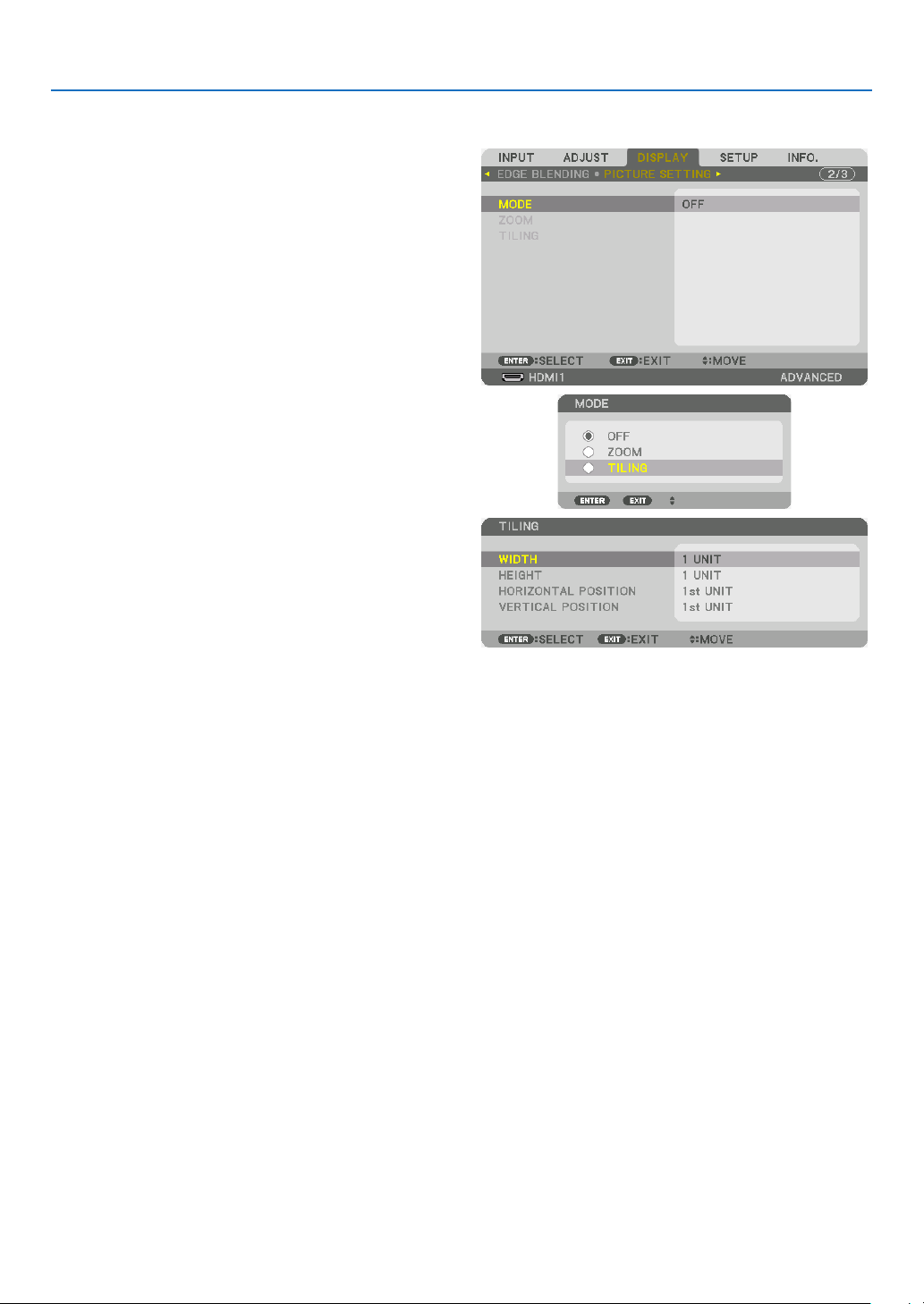
4. Multi-Screen Projection
62
Setting TILING
1. Press the MENU button to display the on-screen
menu and select [DISPLAY] → [PICTURE SETTING]
→ [MODE].
This displays the [MODE] screen.
2. Select [TILING] using the ▼/▲ buttons, and press
the ENTER button.
The display returns to the PICTURE SETTING screen.
3. Select [TILING] using the ▼/▲ buttons, and press
the ENTER button.
This displays the [TILING] screen.
4. Set [WIDTH], [HEIGHT], [HORIZONTAL POSITION], and [VERTICAL POSITION]
(1) In the screen for setting the number of horizontal units, select [2 UNITS]. (number of units in the horizontal
direction)
(2) In the screen for setting the number of vertical units, select [2 UNITS]. (number of units in the vertical direction)
(3) In the screen for setting the horizontal order, select [1st UNIT] or [2nd UNIT].
(look at the screens, the one on the left is the [1st UNIT] while the one on the right is the [2nd UNIT])
(4) In the screen for setting the vertical order, select the [1st UNIT] or the [2nd UNIT].
(look at the screens, the one at the top is the [1st UNIT] while the one at the bottom is the [2nd UNIT])

4. Multi-Screen Projection
63
After completing setting for the steps 1 to 4, a single image will be displayed to ll the screen.
5. Press the MENU button.
The on-screen menu will disappear.
6. Adjust the lens shift of each projector to ne-tune the boundaries of the screen.
To make boundaries less noticeable of a projected image, use [EDGE BLENDING] to adjust them. (→ next page)
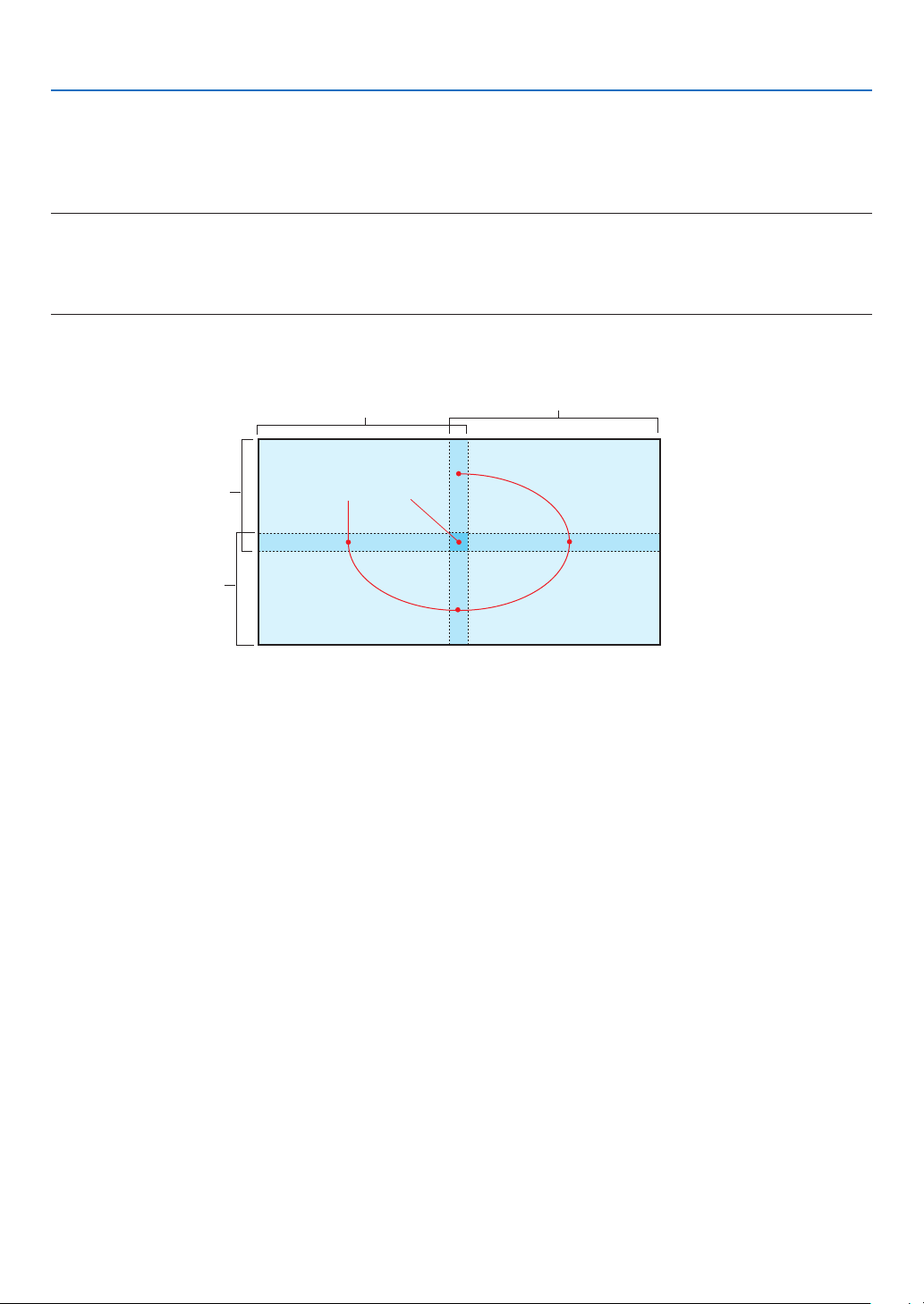
4. Multi-Screen Projection
64
❹ Adjust boundaries of a projected image [EDGE BLENDING]
This projector is equipped with an “EDGE BLENDING Function” that makes the edges (boundaries) of the projection
screen indistinguishable.
NOTE:
• Before performing the Edge Blending function, place the projector in the correct position so that the image becomes square in
the appropriate size, and then make optical adjustments (lens shift, focus, and zoom).
• Adjust the brightness of each projector using [REF. LIGHT ADJUST] under [REF. LIGHT MODE]. In addition, use [REF. WHITE
BALANCE] to adjust the [CONTRAST], [BRIGHTNESS] and [UNIFORMITY].
The following procedure shows an example of four projectors in a 2 × 2 layout.
Edge Blending area
Projected area
Projected area
Projected area
Projected area
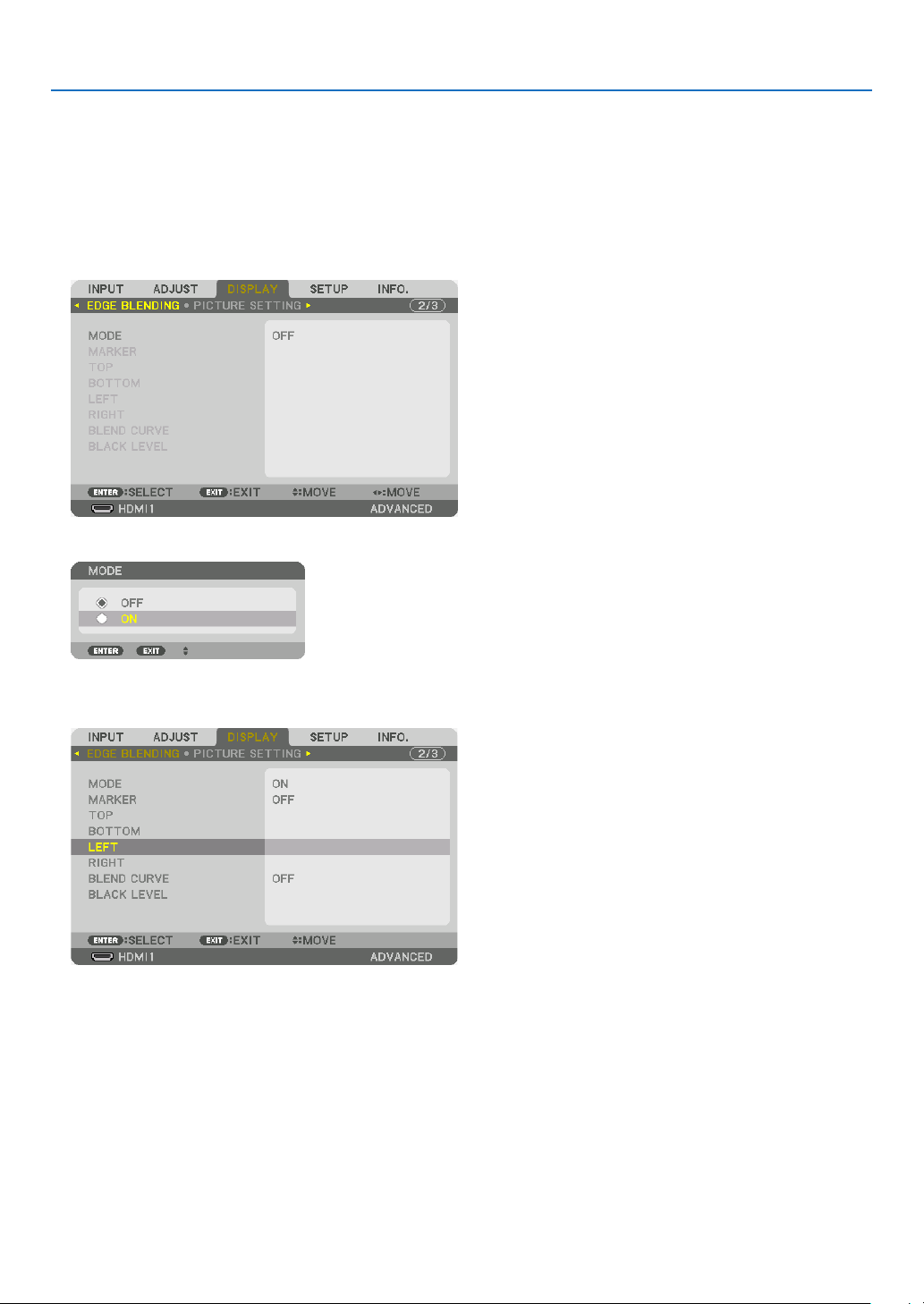
4. Multi-Screen Projection
65
Setting the overlap of projection screens
① Enable [EDGE BLENDING].
1. Press the MENU button.
The menu will be displayed.
2. Select [DISPLAY] → [EDGE BLENDING].
The [EDGE BLENDING] screen will be displayed. Align the cursor with [MODE] and then press the ENTER but-
ton. The mode screen will be displayed.
3. Select [MODE] → [ON] and press the ENTER button.
This enables the Edge Blending function. The following menu items are available:
[MARKER], [TOP], [BOTTOM], [LEFT], [RIGHT], [BLEND CURVE], and [BLACK LEVEL]
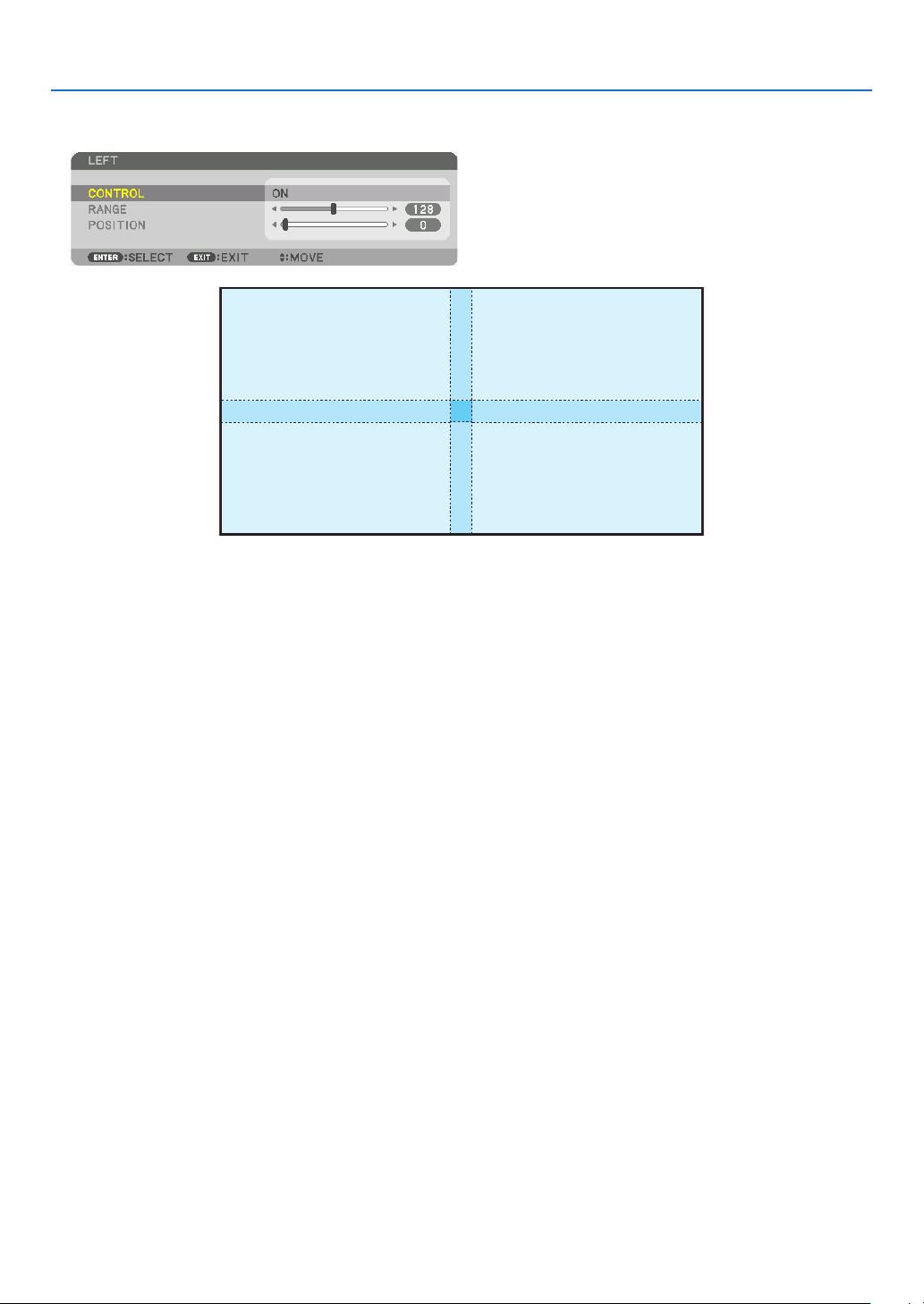
4. Multi-Screen Projection
66
4. Select an appropriate item from [TOP], [BOTTOM], [LEFT], and [RIGHT] for an area of overlapped edges,
and turn on [CONTROL].
TOP: OFF
LEFT: OFF RIGHT: ON
BOTTOM: ON
TOP: ON
LEFT: OFF RIGHT: ON
BOTTOM: OFF
TOP: OFF
LEFT: ON RIGHT: OFF
BOTTOM: ON
TOP: ON
LEFT: ON RIGHT: OFF
BOTTOM: OFF
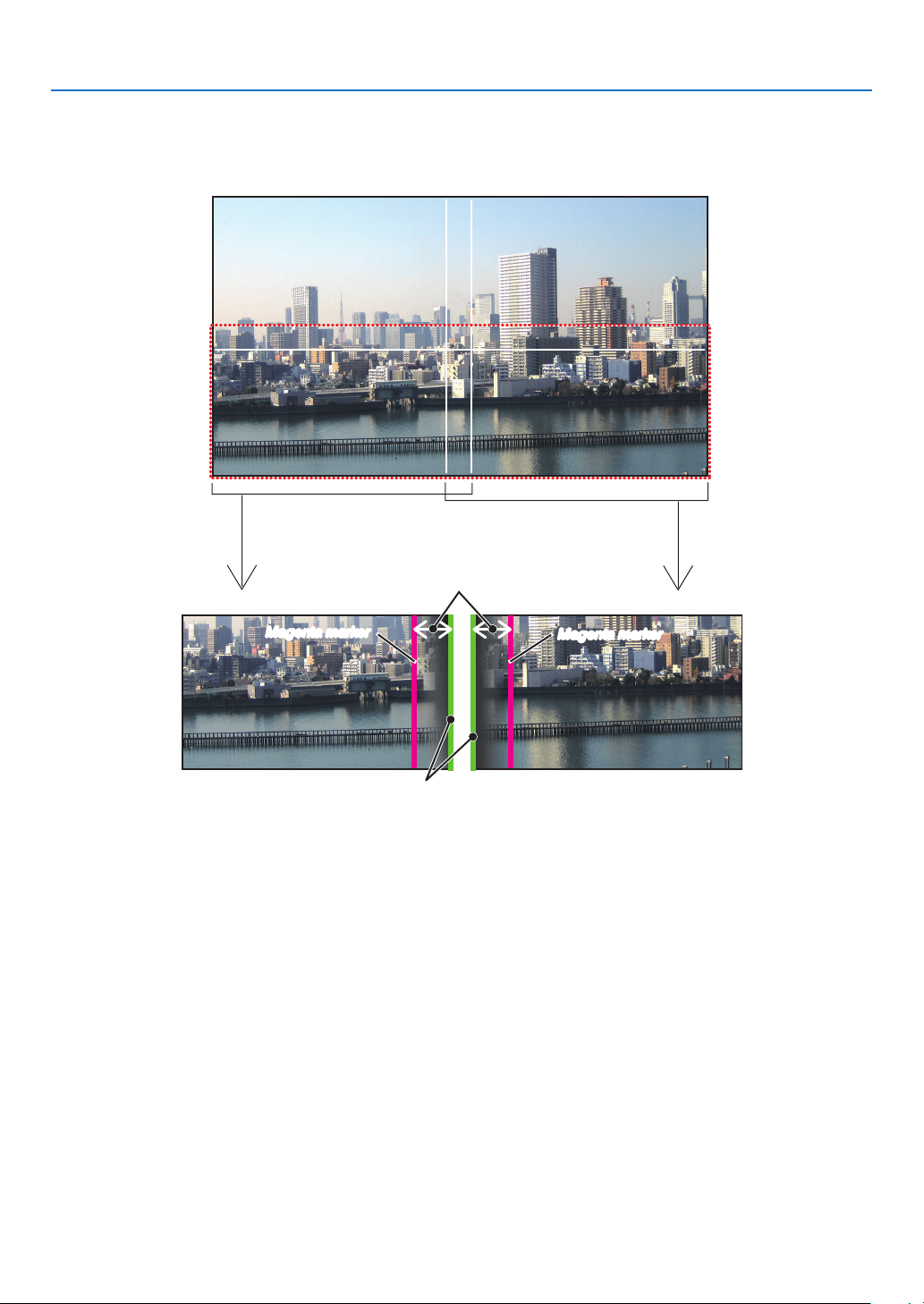
4. Multi-Screen Projection
67
② Adjust [RANGE] and [POSITION] to determine an area of overlapped edges of images
projected from each projector.
Turning on [MARKER] will display markers in magenta and green.
The magenta marker is used for [RANGE] and green one for [POSITION].
[RANGE]
(Determine an area of overlapped edges of images.)
[POSITION]
(Determine the position of overlapped edges of images.)
Green marker
Turn on [RIGHT]
Magenta marker
Turn on [LEFT]
Magenta marker
* The 2 screens are separated in the diagram for explanatory purposes.
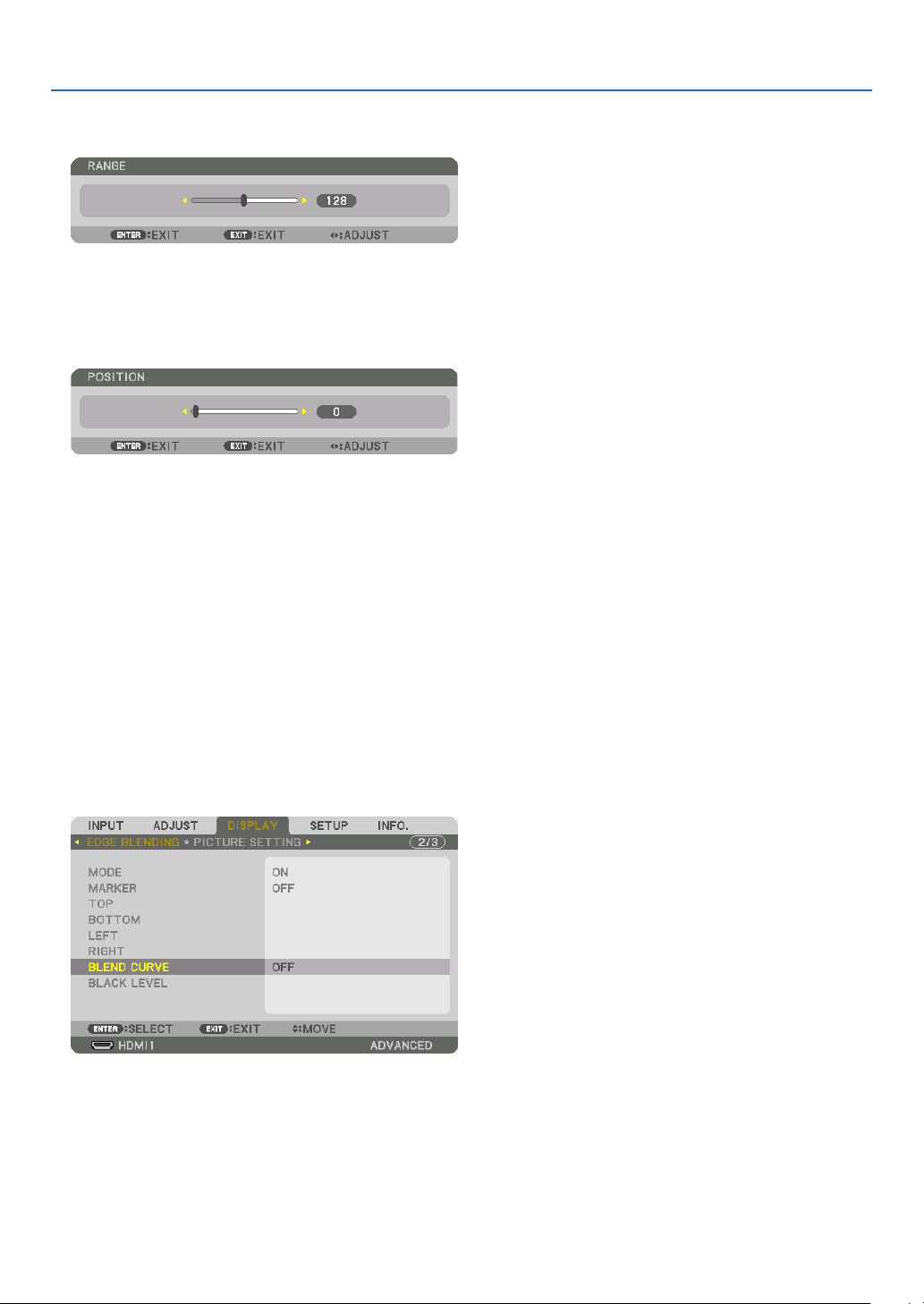
4. Multi-Screen Projection
68
1 Adjust [RANGE].
Use the ◀ or ▶ button to adjust the overlapped area.
TIP:
• Adjust to overlap one projector’ marker with the other projector’s marker.
2 Adjust [POSITION].
Use the ◀ or ▶ button to align one edge with the other edge of overlapped images.
TIP:
• When displaying a signal with a different resolution, perform the Edge Blending function from the start.
• Setting of [MARKER] will not be saved and return to [OFF] when the projector is turned off.
• To display or hide the marker while the projector is running, turn on or off [MARKER] from the menu.
[BLEND CURVE]
Adjust the brightness of the overlapped section on the screens. According to the necessity, adjust the brightness of
the overlapped section on the screens by the [BLEND CURVE] AND [BLACK LEVEL].
• Set the [MODE] to [ON] for selecting [BLEND CURVE] and [BLACK LEVEL].
Selecting an option for the [BLEND CURVE]
By controlling the graduation of the overlapped section on the screens, it makes the border on the projected screens
inconspicuous. Select the optimal option among nine.
1. On the On-Screen Menu, move the cursor onto the [DISPLAY] → [EDGE BLENDING] → [BLEND CURVE] and
then press the ENTER. The option setting screen for the [BREND CURVE] is displayed on.
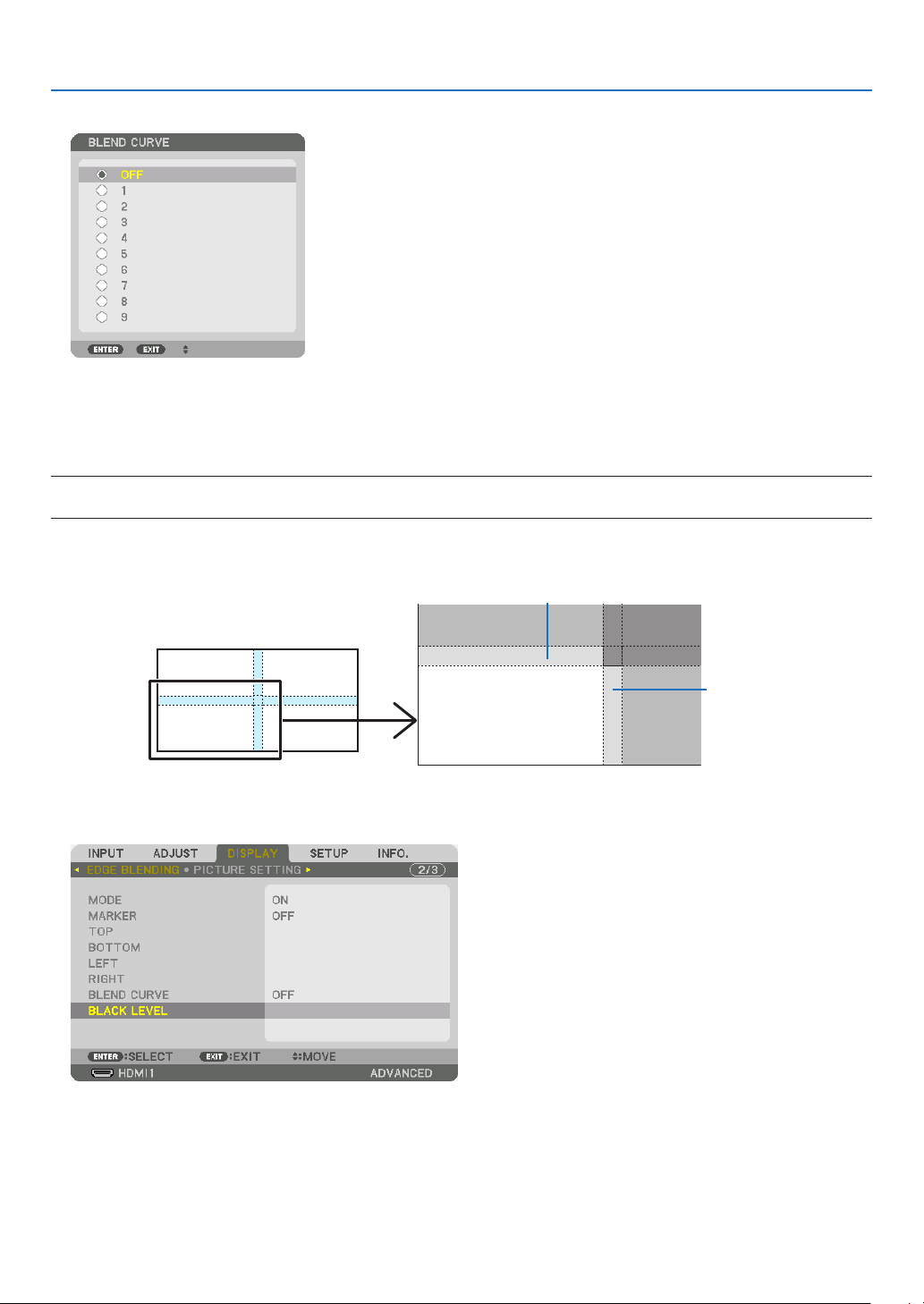
4. Multi-Screen Projection
69
2. Select one option among nine by ▲ or ▼.
Black Level Adjustment
This adjusts the black level of the overlapping area and the non-overlapping area of the multi-screen (EDGE BLENDING).
Adjust the brightness level if you feel the difference is too large.
NOTE:
• Adjustable area varies depending on what combination of [TOP], [BOTTOM], [LEFT] and [RIGHT] are turned on.
The black level of the lower left projector is adjusted as shown in the gure.
CENTER
TOP
RIGHT
BORDER(TOP)
BORDER(RIGHT)
1. Select [DISPLAY] → [EDGE BLENDING] → [BLACK LEVEL] and press the ENTER button.
The screen will switch to the black level adjustment screen.
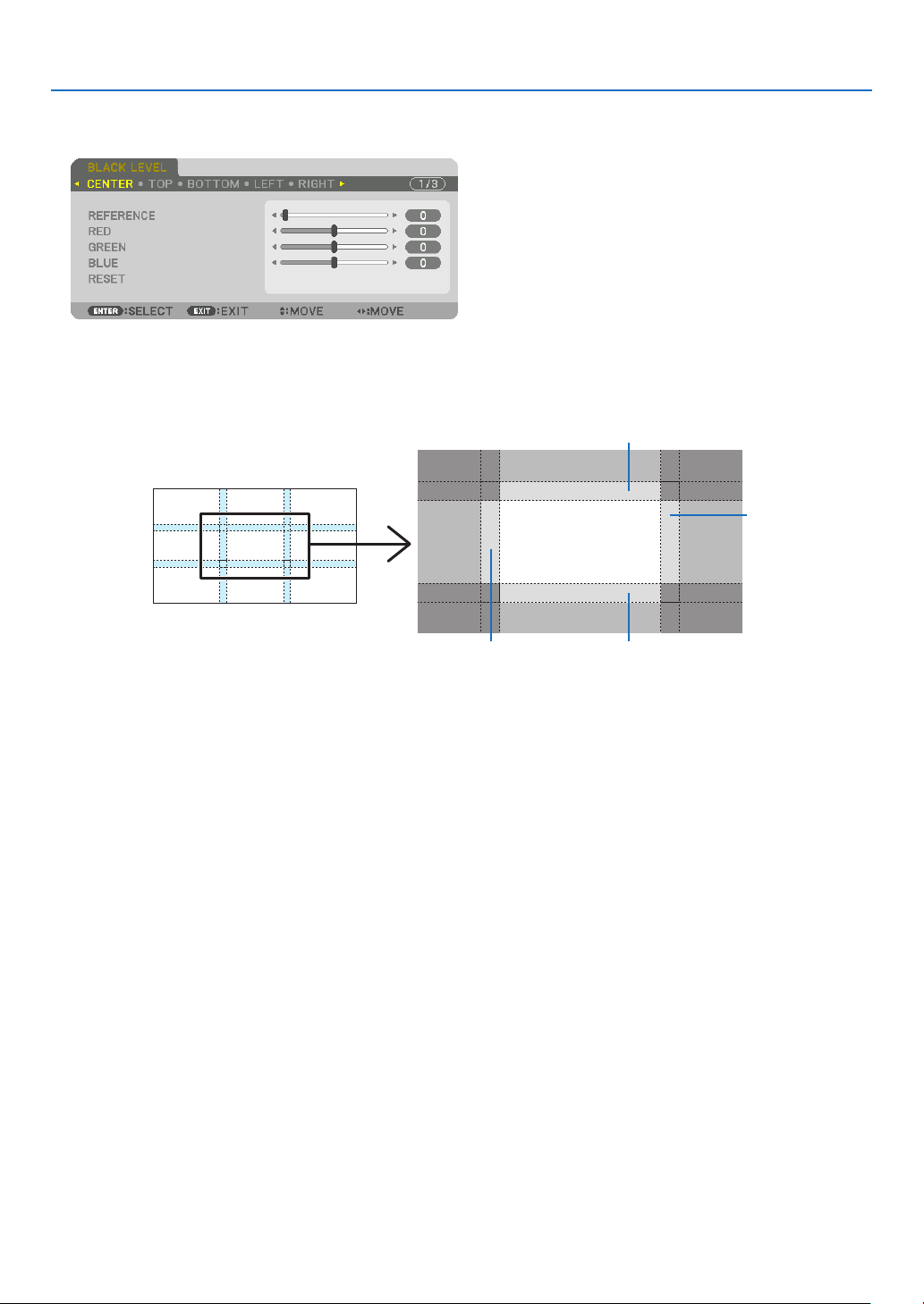
4. Multi-Screen Projection
70
2. Use the ◀, ▶, ▼ or ▲ button to select an item and use the ◀ or ▶ to adjust the black level.
Do this for the other projector if necessary.
TIP:
9-segmented portions for Black Level adjustment
The black level of the center projector is adjusted as shown in the figure.
CENTER
BORDER(BOTTOM)BORDER(LEFT)
BORDER(TOP)
TOP
BOTTOM
RIGHTLEFT
BORDER(RIGHT)
TIP:
• The number of black level division screens changes depending on the number of edge blending positions selected (top, bottom,
right, left). In addition, when the top / bottom and left / right ends are selected, the corner division screen appears.
• The edge blending width is the width set in the range and the corner is formed by the intersecting area of the top / bottom ends
or left / right ends.
• The [BLACK LEVEL] can be adjusted to make it brighter only.
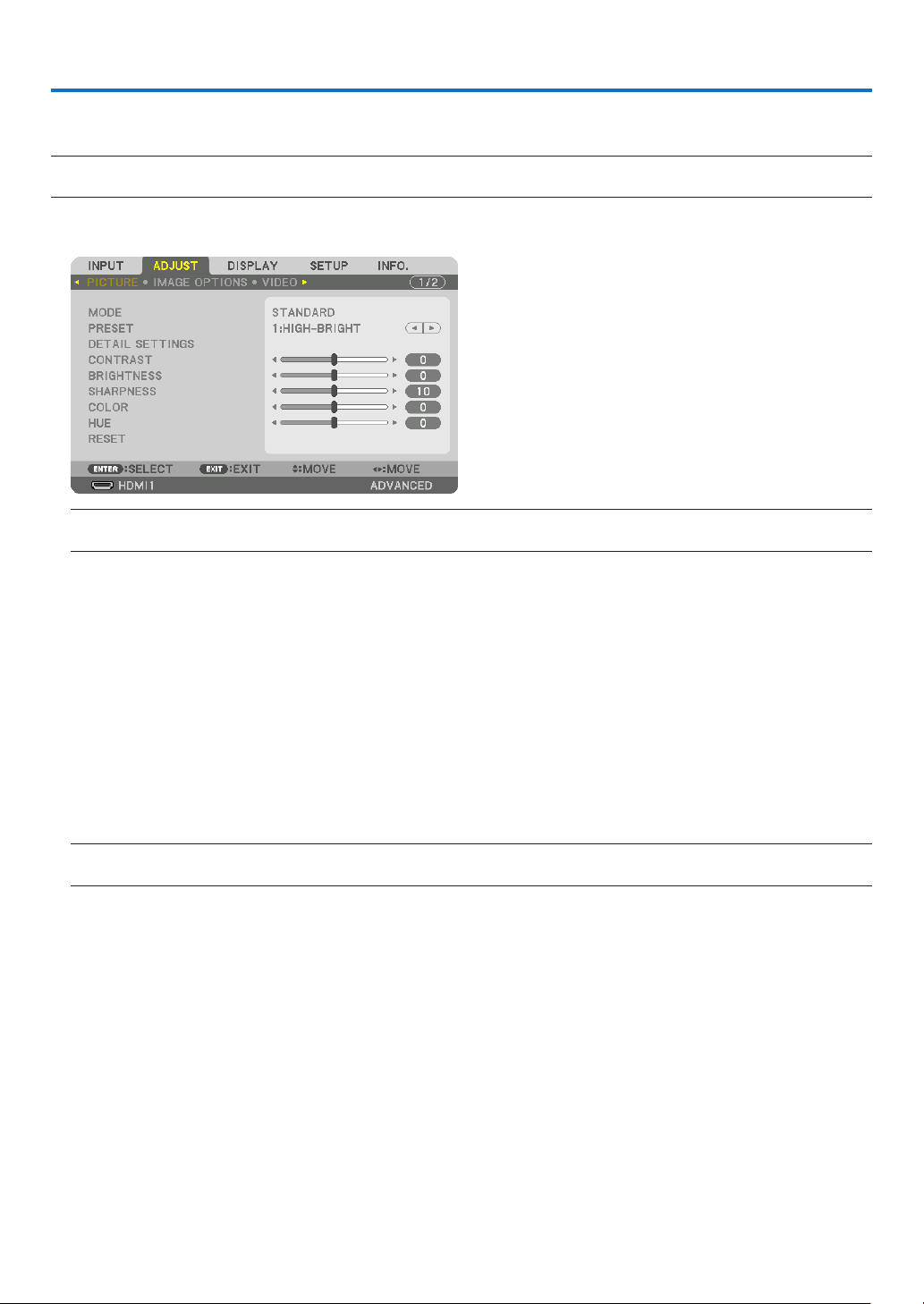
71
5. Using On-Screen Menu
❶ Using the Menus
NOTE:
• The on-screen menu may not be displayed correctly depending on input signal and the projector setting.
1. Press the MENU button on the remote control or the projector cabinet to display the menu.
NOTE:
• The commands such as ENTER, EXIT, ▲▼, ◀▶ in the bottom show available buttons for your operation.
2. Press the ◀▶ buttons on the remote control or the projector cabinet to display the submenu.
3. Press the ENTER button on the remote control or the projector cabinet to highlight the top item or the rst
tab.
4. Use the ▲▼ buttons on the remote control or the projector cabinet to select the item you want to adjust or
set.
You can use the ◀▶ buttons on the remote control or the projector cabinet to select the tab you want.
5. Press the ENTER button on the remote control or the projector cabinet to display the submenu window.
6. Adjust the level or turn the selected item on or off by using the ▲▼◀▶ buttons on the remote control or the
projector cabinet.
Changes are stored until adjusted again.
7. Repeat steps 2-6 to adjust an additional item, or press the EXIT button on the remote control or the projector
cabinet to quit the menu display.
NOTE:
• When a menu or message is displayed, several lines of information may be lost, depending on the signal or settings.
8. Press the MENU button to close the menu.
To return to the previous menu, press the EXIT button.
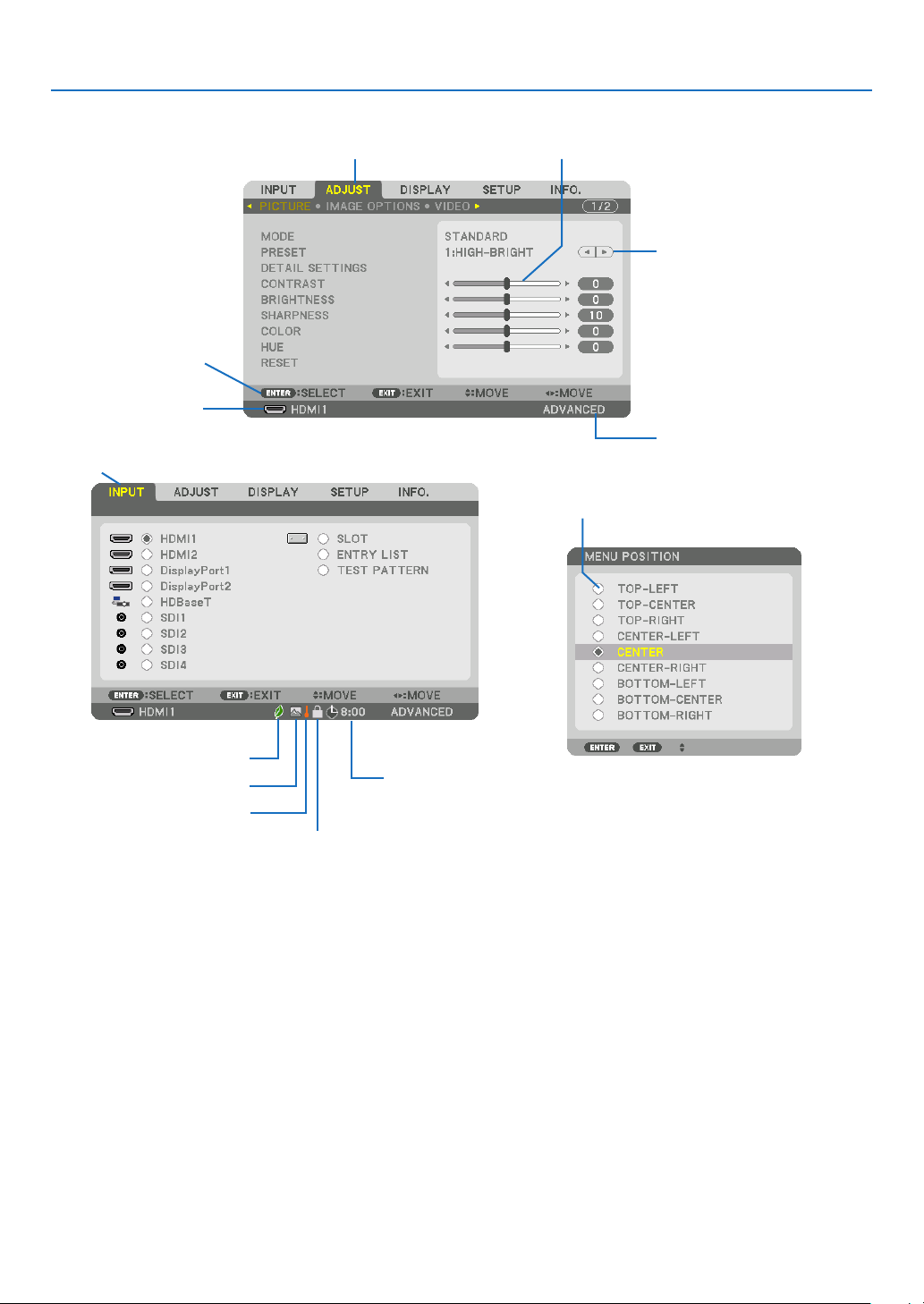
72
5. Using On-Screen Menu
❷
Menu Elements
Slide bar
Solid triangle
Menu mode
Ta b
Radio button
Menu windows or dialog boxes typically have the following elements:
Highlight ����������������������������� Indicates the selected menu or item�
Solid triangle ����������������������Indicates further choices are available� A highlighted triangle indicates the item is active�
Tab ��������������������������������������Indicates a group of features in a dialog box� Selecting on any tab brings its page to the front�
Radio button ����������������������� Use this round button to select an option in a dialog box�
Source ��������������������������������Indicates the currently selected source�
Menu mode ������������������������Indicates the current menu mode: BASIC or ADVANCED�
Off Timer remaining time ���� Indicates the remaining countdown time when the [OFF TIMER] is preset�
Slide bar �����������������������������Indicates settings or the direction of adjustment�
REF� LIGHT MODE symbol �� Indicates the [REF� LIGHT MODE] is set to [ECO1] or [ECO2]�
Thermometer symbol ���������Indicates the projector is in the Forced ECO MODE�
High symbol �����������������������Indicates the built-in atmospheric pressure sensor detects height over 600 m�
Key Lock symbol ����������������Indicates the [CONTROL PANEL LOCK] is enabled�
Source
Available buttons
Key Lock symbol
Off Timer remaining
time
Highlight
High symbol
REF. LIGHT MODE symbol
Thermometer symbol
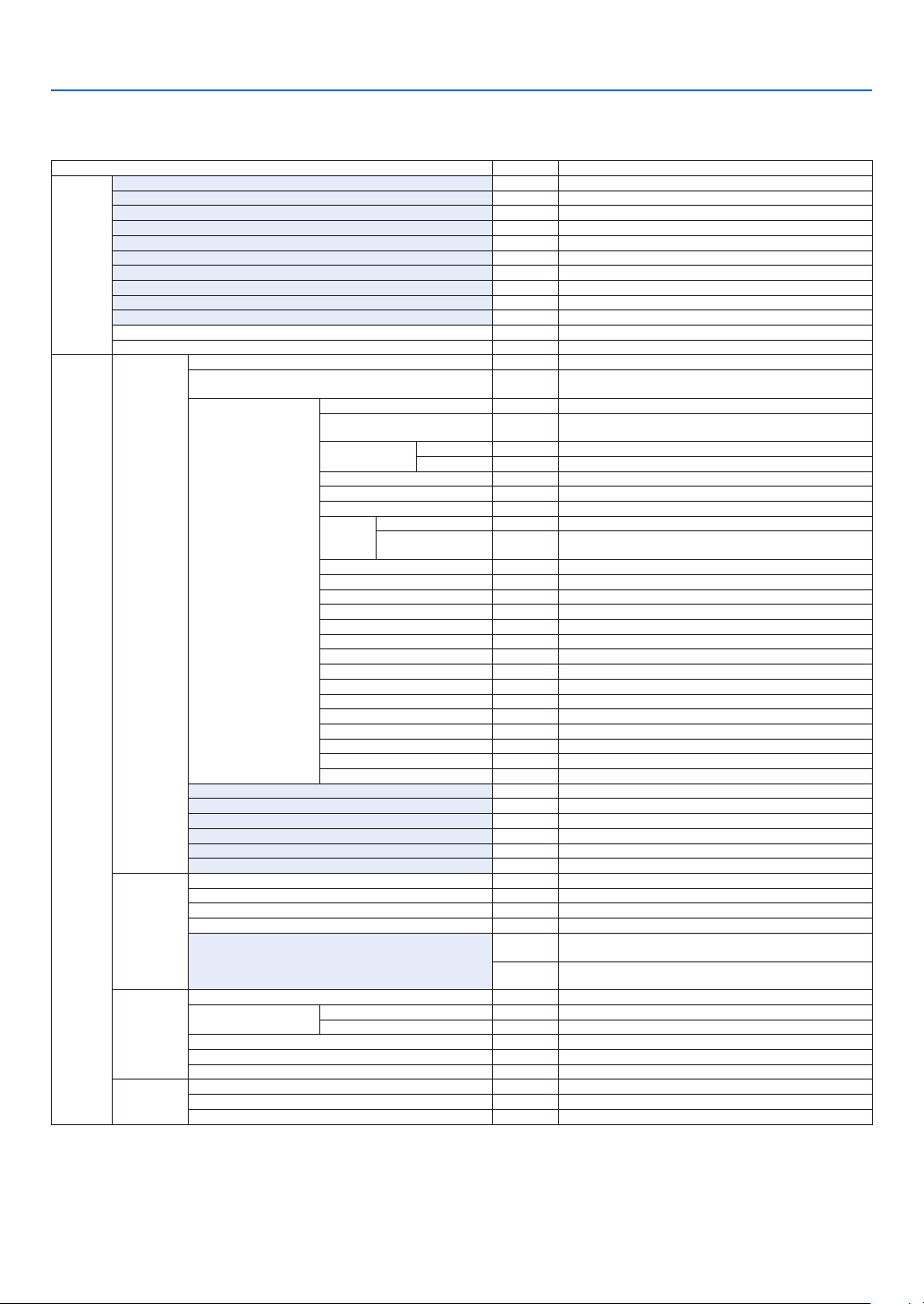
73
5. Using On-Screen Menu
* The asterisk (*) indicates that the default setting varies depending on the signal.
*1 The [GAMMA CORRECTION] item is available when an item other than [DICOM SIM.] is selected for [REFERENCE].
*2 The [SCREEN SIZE] item is available when [DICOM SIM.] is selected for [REFERENCE].
*3 When [HIGH-BRIGHT] is selected in [REFERENCE], the [COLOR TEMPERATURE] is not available.
*4 The [HDR MODE] item is available exclusively for 4K signal.
• Basic menu items are indicated by shaded area.
❸ List of Menu Items
Some menu items are not available depending on the input source.
Menu Item Default Options
INPUT
HDMI1
HDMI2
DisplayPort1
DisplayPort2
HDBaseT
SDI1
SDI2
SDI3
SDI4
SLOT
ENTRY LIST
TEST PATTERN
ADJUST
PICTURE
MODE STANDARD STANDARD, PROFESSIONAL
PRESET *
AUTO, HIGH-BRIGHT, PRESENTATION, VIDEO, MOVIE, GRAPHIC,
sRGB, DICOM SIM�, EDGE BLENDING
DETAIL SETTINGS
GENERAL
REFERENCE *
HIGH-BRIGHT, PRESENTATION, VIDEO, MOVIE, GRAPHIC, sRGB,
DICOM SIM�, EDGE BLENDING
GAMMA
CORRECTION*
1
SELECT DYNAMIC, NATURAL, BLACK DETAIL
REFERENCE
SCREEN SIZE*
2
* LARGE, MEDIUM, SMALL
COLOR TEMPERATURE*
3
*
DYNAMIC CONTRAST * OFF, ON
LIGHT
MODE
LIGHT ADJUST
CONSTANT
BRIGHTNESS
OFF OFF, ON
Brilliant Color * OFF, MEDIUM, HIGH
WHITE BALANCE
CONTRAST R 0
CONTRAST G 0
CONTRAST B 0
BRIGHTNESS R 0
BRIGHTNESS G 0
BRIGHTNESS B 0
COLOR CORRECTION
RED 0 HUE, SATURATION
GREEN 0 HUE, SATURATION
BLUE 0 HUE, SATURATION
YELLOW 0 HUE, SATURATION
MAGENTA 0 HUE, SATURATION
CYAN 0 HUE, SATURATION
CONTRAST 50
BRIGHTNESS 50
SHARPNESS 10
COLOR 50
HUE 0
RESET
IMAGE
OPTIONS
HORIZONTAL *
VERTICAL *
BLANKING * TOP, BOTTOM, LEFT, RIGHT
OVERSCAN AUTO AUTO, 0[%], 5[%], 10[%]
ASPECT RATIO
AUTO
(HDTV/SDTV) AUTO, NORMAL, 4:3, LETTERBOX, WIDE SCREEN,
ZOOM, FULL
AUTO
(COMPUTER) AUTO, NORMAL, 4:3, 5:4, 16:9, 15:9, 16:10, FULL,
NATIVE
VIDEO
DEINTERLACE NORMAL NORMAL, MOVIE, STILL
CONTRAST
ENHANCEMENT
MODE AUTO OFF, AUTO, NORMAL
GAIN
SIGNAL TYPE AUTO AUTO, RGB, REC601, REC709, REC2020
VIDEO LEVEL AUTO AUTO, NORMAL, ENHANCED, SUPER WHITE
HDR MODE*
4
AUTO AUTO, OFF, ON
LENS
MEMORY
STORE
MOVE
RESET
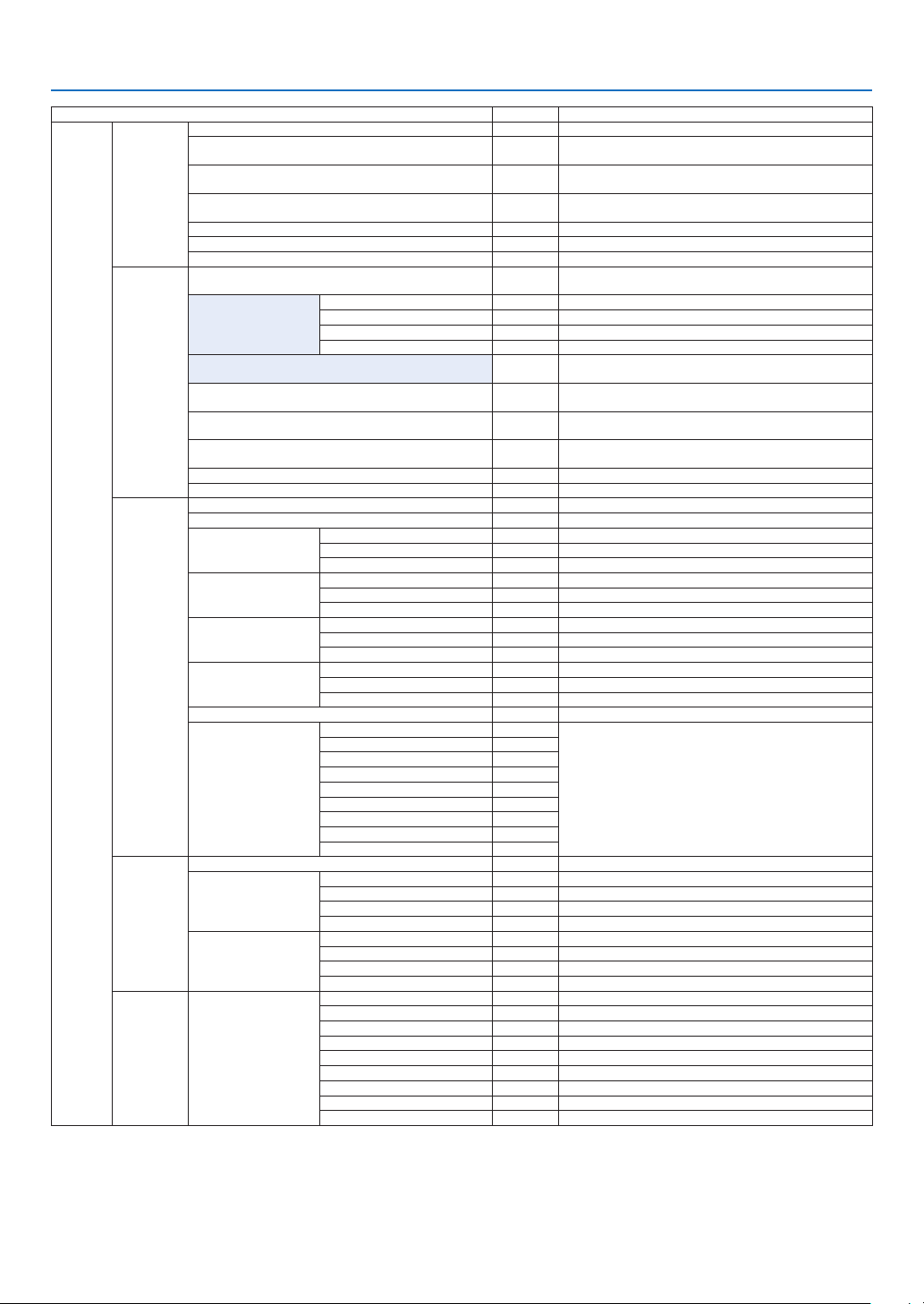
74
5. Using On-Screen Menu
Menu Item Default Options
DISPLAY
PICTURE BY
PICTURE
MODE OFF OFF, DUAL, QUAD
SUB1 INPUT
SDI1, SDI2, SDI3, SDI4, HDMI1, HDMI2, DisplayPort1,
DisplayPort2, HDBaseT, SLOT
SUB2 INPUT
SDI1, SDI2, SDI3, SDI4, HDMI1, HDMI2, DisplayPort1,
DisplayPort2
SUB3 INPUT
SDI1, SDI2, SDI3, SDI4, HDMI1, HDMI2, DisplayPort1,
DisplayPort2
PORTRAIT ANGLE 0° 0°, 90°, 270°
MAIN POSITION
SUB POSITION
GEOMETRIC
CORRECTION
MODE
OFF, KEYSTONE, CORNERSTONE, HORIZONTAL CORNER,
VERTICAL CORNER, WARP, PC TOOL
KEYSTONE
HORIZONTAL
VERTICAL
TILT
THROW RATIO
CORNERSTONE
TOP-LEFT, TOP, TOP-RIGHT, LEFT, RIGHT, BOTTOM-LEFT,
BOTTOM, BOTTOM-RIGHT
HORIZONTAL CORNER
TOP-LEFT, TOP, TOP-RIGHT, LEFT, RIGHT, BOTTOM-LEFT,
BOTTOM, BOTTOM-RIGHT
VERTICAL CORNER
TOP-LEFT, TOP, TOP-RIGHT, LEFT, RIGHT, BOTTOM-LEFT,
BOTTOM, BOTTOM-RIGHT
WARP
TOP-LEFT, TOP, TOP-RIGHT, LEFT, RIGHT, BOTTOM-LEFT,
BOTTOM, BOTTOM-RIGHT
PC TOOL OFF OFF, 1, 2, 3
RESET
EDGE
BLENDING
MODE OFF OFF, ON
MARKER OFF OFF, ON
TOP
CONTROL ON OFF, ON
RANGE
POSITION
BOTTOM
CONTROL ON OFF, ON
RANGE
POSITION
LEFT
CONTROL ON OFF, ON
RANGE
POSITION
RIGHT
CONTROL ON OFF, ON
RANGE
POSITION
BLEND CURVE 5 OFF, 1, 2, 3, 4, 5, 6, 7, 8, 9
BLACK LEVEL
CENTER
REFERENCE, RED, GREEN, BLUE, RESET
TOP
BOTTOM
LEFT
RIGHT
BORDER(TOP)
BORDER(BOTTOM)
BORDER(LEFT)
BORDER(RIGHT)
PICTURE
SETTING
MODE OFF OFF, ZOOM, TILING
ZOOM
HORIZONTAL ZOOM
VERTICAL ZOOM
HORIZONTAL POSITION
VERTICAL POSITION
TILING
WIDTH
HEIGHT
HORIZONTAL POSITION
VERTICAL POSITION
MULTI
SCREEN
WHITE BALANCE
MODE OFF OFF, ON
CONTRAST W
CONTRAST R
CONTRAST G
CONTRAST B
BRIGHTNESS W
BRIGHTNESS R
BRIGHTNESS G
BRIGHTNESS B
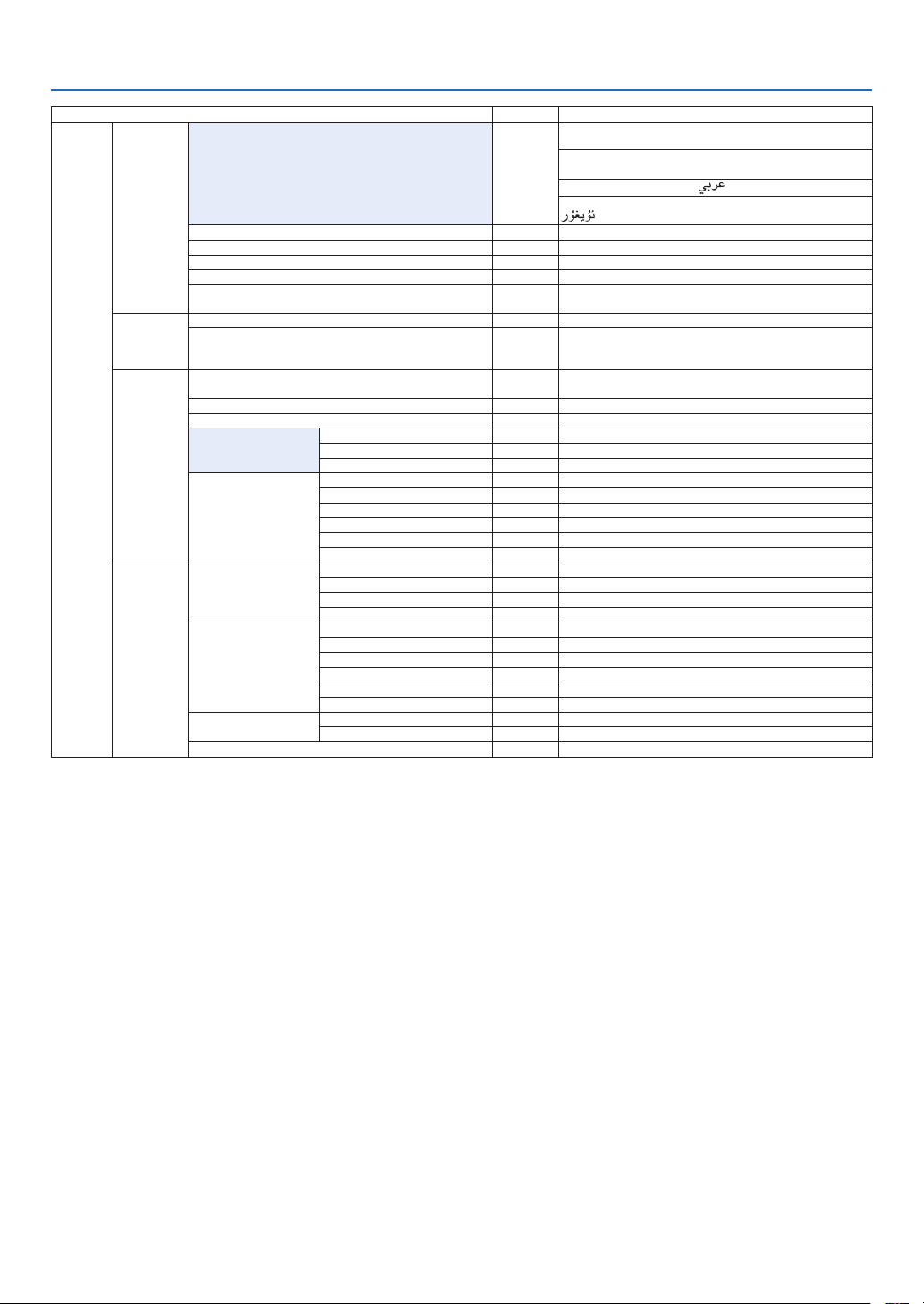
75
5. Using On-Screen Menu
Menu Item Default Options
SETUP
MENU(1)
LANGUAGE ENGLISH
ENGLISH, DEUTSCH, FRANÇAIS, ITALIANO, ESPAÑOL, SVENSKA,
日本語
DANSK, PORTUGUÊS, ČEŠTINA, MAGYAR, POLSKI,
NEDERLANDS, SUOMI
NORSK, TÜRKÇE, РУССКИЙ,
, Ελληνικά, 简体中文, 한국어
ROMÂNĂ, HRVATSKA, БЪЛГАРСКИ, INDONESIA, , ไทย,
, 繁體中文, Tiếng Việt
COLOR SELECT COLOR COLOR, MONOCHROME
INPUT DISPLAY ON OFF, ON
MESSAGE DISPLAY ON OFF, ON
ID DISPLAY ON OFF, ON
DISPLAY TIME
AUTO 45
SEC
MANUAL, AUTO 5 SEC, AUTO 15 SEC, AUTO 45 SEC
MENU(2)
MENU ANGLE 0° 0°, 90°, 270°
MENU POSITION CENTER
TOP-LEFT, TOP-CENTER, TOP-RIGHT, CENTER-LEFT, CENTER,
CENTER-RIGHT, BOTTOM-LEFT, BOTTOM-CENTER, BOTTOM-
RIGHT
INSTALLA-
TION(1)
ORIENTATION
DESKTOP
FRONT
DESKTOP FRONT, CEILING REAR, DESKTOP REAR, CEILING
FRONT
SCREEN TYPE FREE FREE, 4:3 SCREEN, 16:9 SCREEN, 16:10 SCREEN
FAN MODE AUTO AUTO, HIGH
REF� LIGHT MODE
REF� LIGHT MODE NORMAL NORMAL, ECO1, ECO2
REF� LIGHT ADJUST
CONSTANT BRIGHTNESS OFF OFF, ON
REF� WHITE BALANCE
CONTRAST R
CONTRAST G
CONTRAST B
BRIGHTNESS R
BRIGHTNESS G
BRIGHTNESS B
INSTALLA-
TION(2)
SHUTTER SETTINGS
POWER ON SHUTTER OPEN OPEN, CLOSE
PICTURE MUTE SHUTTER OPEN OPEN, CLOSE
FADE IN TIME 0–10 SEC
FADE OUT TIME 0–10 SEC
REF� LENS MEMORY
PROFILE 1 1, 2
STORE
MOVE
RESET
LOAD BY SIGNAL OFF OFF, ON
FORCED MUTE OFF OFF, ON
LENS POSITION
HOME
TYPE NP39ML
LENS CALIBRATION
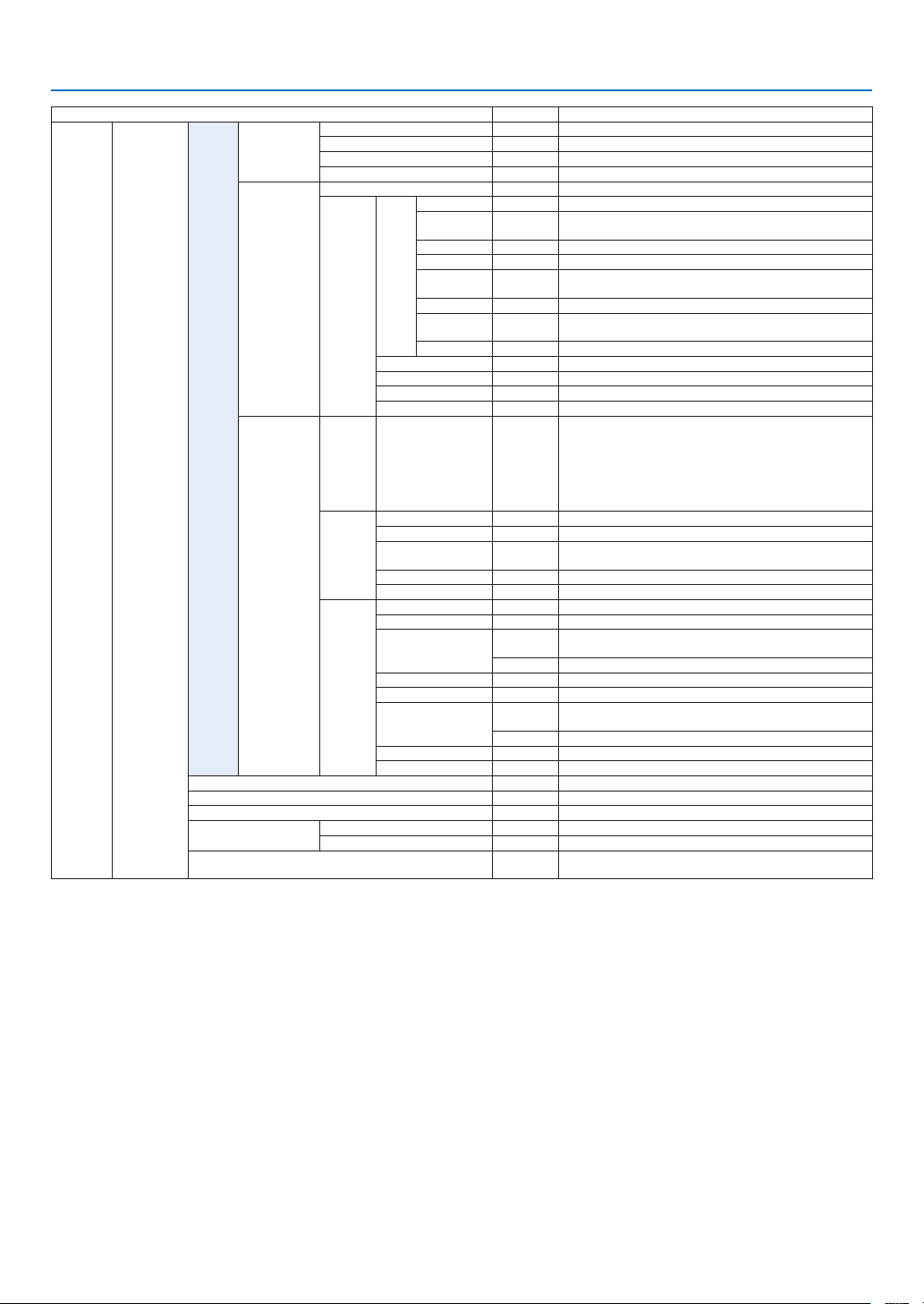
76
5. Using On-Screen Menu
Menu Item Default Options
SETUP CONTROL
TOOLS
ADMINISTRA-
TOR MODE
MENU MODE ADVANCED ADVANCED, BASIC
NOT SAVE SETTING VALUES OFF OFF, ON
NEW PASSWORD
CONFIRM PASSWORD
PROGRAM
TIMER
ENABLE OFF OFF, ON
SETTINGS
EDIT
ACTIVE OFF OFF, ON
DAY SUN
SUN, MON, TUE, WED, THU, FRI, SAT, MON-FRI, MON-SAT,
EVERY DAY
TIME
FUNCTION POWER POWER, INPUT
ADVANCED
SETTINGS
POWER OFF OFF, ON
INPUT HDMI1
HDMI1, HDMI2, DisplayPort1, DisplayPort2, HDBaseT, SDI1, SDI2,
SDI3, SDI4, SLOT
REPEAT OFF OFF, ON
DELETE
UP
DOWN
BACK
DATE AND TIME
SETTINGS
TIME
ZONE
SETTIMGS
UTC
-12:00, -11:30, -11:00, -10:30, -10:00, -09:30, -09:00, -08:30,
-08:00, -07:30, -07:00, -06:30, -06:00, -05:30, -05:00, -04:30,
-04:00, -03:30, -03:00, -02:30, -02:00, -01:30, -01:00, -00:30,
00:00, +00:30, +01:00, +01:30, +02:00, +02:30, +03:00, +03:30,
+04:00, +04:30, +05:00, +05:30, +06:00, +06:30, +07:00, +07:30,
+08:00, +08:30, +09:00, +09:30, +10:00, +10:30, +11:00, +11:30,
+12:00, +12:30, +13:00
DATE
AND TIME
SETTINGS
DATE MM/DD/YYYY
TIME HH:MM
INTERNET TIME
SERVER
OFF, ON
IP ADDRESS
UPDATE
SUMMER
TIME
SETTINGS
ENABLE OFF, ON
MON(START) 1, 2, 3, 4, 5, 6, 7, 8, 9, 10, 11, 12
DAY(START)
FIRST WEEK, SECOND WEEK, THIRD WEEK, FOURTH WEEK, LAST
WEEK
SUN, MON, TUE, WED, THU, FRI, SAT
TIME(START)
MON(EXIT) 1, 2, 3, 4, 5, 6, 7, 8, 9, 10, 11, 12
DAY(EXIT)
FIRST WEEK, SECOND WEEK, THIRD WEEK, FOURTH WEEK, LAST
WEEK
SUN, MON, TUE, WED, THU, FRI, SAT
TIME(EXIT)
TIME DIFFERENCE +01:00, +00:30, -00:30, -01:00
CONTROL PANEL LOCK OFF OFF, ON
SECURITY OFF OFF, ON
COMMUNICATION SPEED 38400bps 4800bps, 9600bps, 19200bps, 38400bps, 115200bps
CONTROL ID
CONTROL ID NUMBER 1 1–254
CONTROL ID OFF OFF, ON
REMOTE SENSOR
FRONT/
BACK
FRONT/BACK, FRONT, BACK, HDBaseT
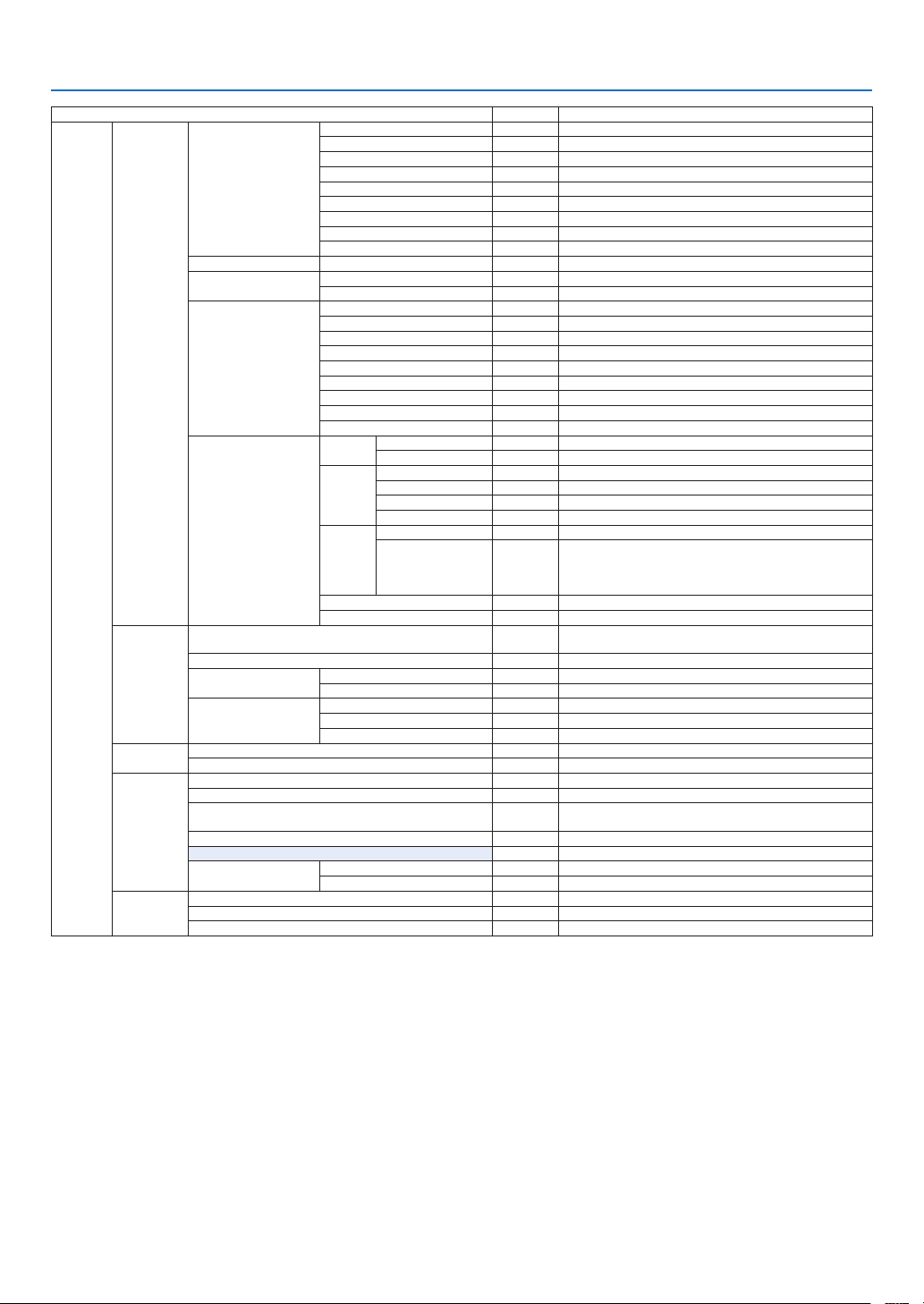
77
5. Using On-Screen Menu
Menu Item Default Options
SETUP
NETWORK
SETTINGS
WIRED LAN
INTERFACE LAN, HDBaseT
PROFILES PROFILE 1, PROFILE 2
DHCP OFF, ON
IP ADDRESS
SUBNET MASK
GATEWAY
AUTO DNS OFF, ON
DNS CONFIGURATION
RECONNECT
PROJECTOR NAME PROJECTOR NAME PJ-********
DOMAIN
HOST NAME pj-********
DOMAIN NAME
ALERT MAIL
ALERT MAIL OFF, ON
HOST NAME pj-********
DOMAIN NAME
SENDER'S ADDRESS
SMTP SERVER NAME
RECIPIENT'S ADDRESS 1
RECIPIENT'S ADDRESS 2
RECIPIENT'S ADDRESS 3
TEST MAIL
NETWORK SERVICE
HTTP
SERVER
NEW PASSWORD
CONFIRM PASSWORD
PJLink
NEW PASSWORD
CONFIRM PASSWORD
CLASS CLASS1, CLASS2
DESTINATION
CRESTRON
ROOMVIEW OFF, ON
CRESTRON
CONTROL (ENABLE,
CONTROLLER IP
ADDRESS, IP ID)
AMX BEACON OFF, ON
Extron XTP OFF, ON
SOURCE
OPTIONS(1)
DEFAULT INPUT SELECT LAST
LAST, AUTO, HDMI1, HDMI2, DisplayPort1, DisplayPort2,
HDBaseT, SDI1, SDI2, SDI3, SDI4, SLOT
BACKGROUND BLUE BLUE, BLACK, LOGO
EDID VERSION
HDMI1 MODE2 MODE1, MODE2
HDMI2 MODE2 MODE1, MODE2
HDCP VERSION
HDMI1
HDCP2�2 HDCP2�2, HDCP1�4
HDMI2 HDCP2�2 HDCP2�2, HDCP1�4
HDBaseT HDCP1�4 HDCP2�2, HDCP1�4
SOURCE
OPTIONS(2)
SDI LINK SINGLE SINGLE, QUAD, QUAD(2SI), DUAL
DP LINK SINGLE SINGLE, DUAL
POWER
OPTIONS
STANDBY MODE NORMAL NORMAL, SLEEP
DIRECT POWER ON OFF OFF, ON
AUTO POWER ON SELECT OFF
OFF, HDMI1, HDMI2, DisplayPort1, DisplayPort2, HDBaseT, SDI1,
SDI2, SDI3, SDI4, SLOT
AUTO POWER OFF OFF OFF, 0:05, 0:10, 0:15, 0:20, 0:30, 1:00
OFF TIMER OFF OFF, 0:30, 1:00, 2:00, 4:00, 8:00, 12:00, 16:00
SLOT POWER
PROJECTOR ON ON OFF, ON
PROJECTOR STANDBY ENABLE DISABLE, ENABLE
RESET
CURRENT SIGNAL
ALL DATA
ALL DATA (INCLUDING ENTRY LIST)
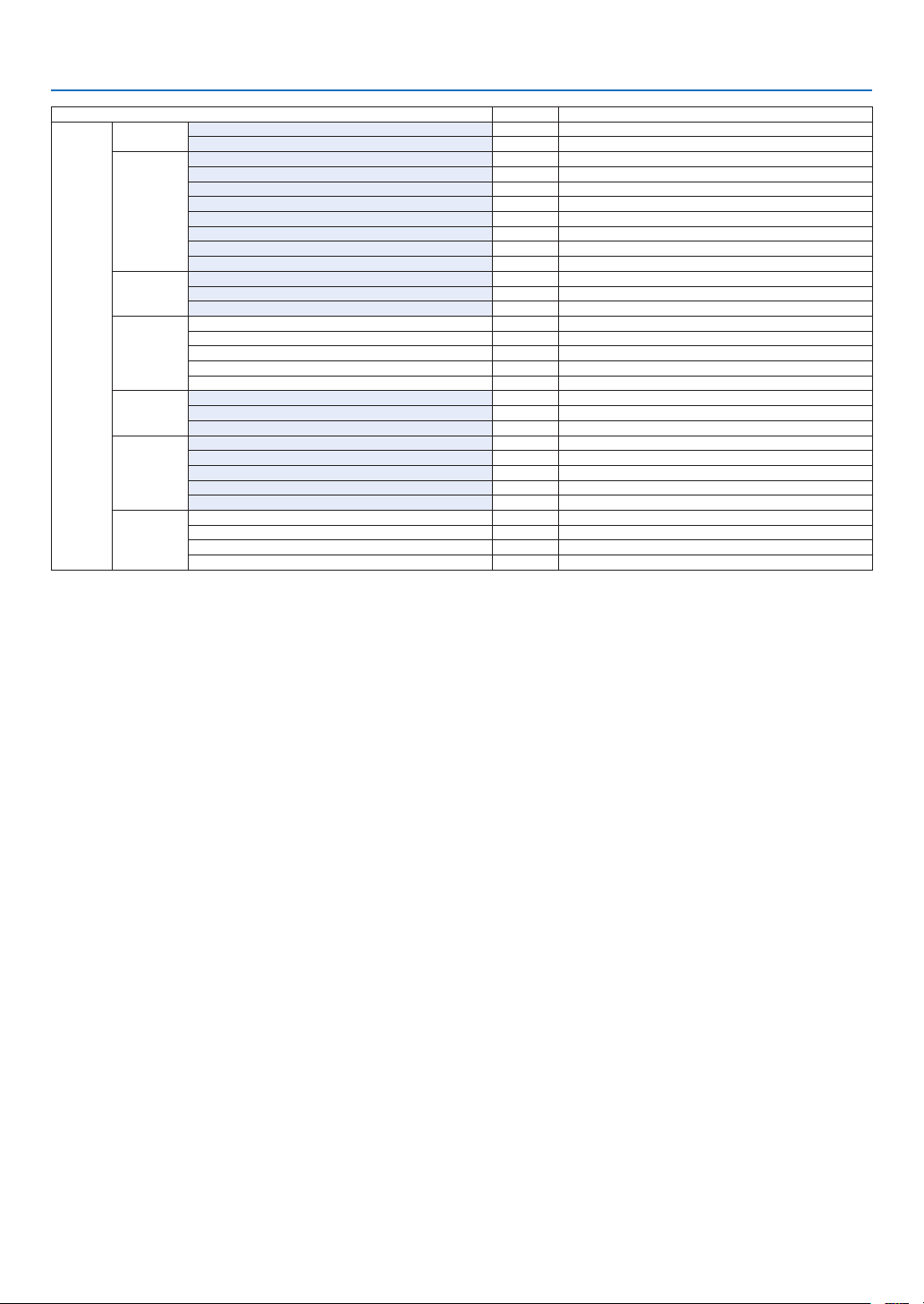
78
5. Using On-Screen Menu
Menu Item Default Options
INFO�
USAGE TIME
LIGHT HOURS USED
TOTAL CARBON SAVINGS
SOURCE(1)
INPUT TERMINAL
RESOLUTION
HORIZONTAL FREQUENCY
VERTICAL FREQUENCY
SYNC POLARITY
SCAN TYPE
SOURCE NAME
ENTRY NO�
SOURCE(2)
SIGNAL TYPE
BIT DEPTH
VIDEO LEVEL
WIRED LAN
IP ADDRESS
SUBNET MASK
GATEWAY
MAC ADDRESS
DNS
VERSION
FIRMWARE
DATA
FIRMWARE2
OTHERS
DATE TIME
PROJECTOR NAME
MODEL NO�
SERIAL NUMBER
CONTROL ID*
5
HDBaseT
SIGNAL QUALITY
OPERATION MODE
LINK STATUS
HDMI STATUS
*5 [CONTROL ID] will be displayed when [CONTROL ID] has been set up.
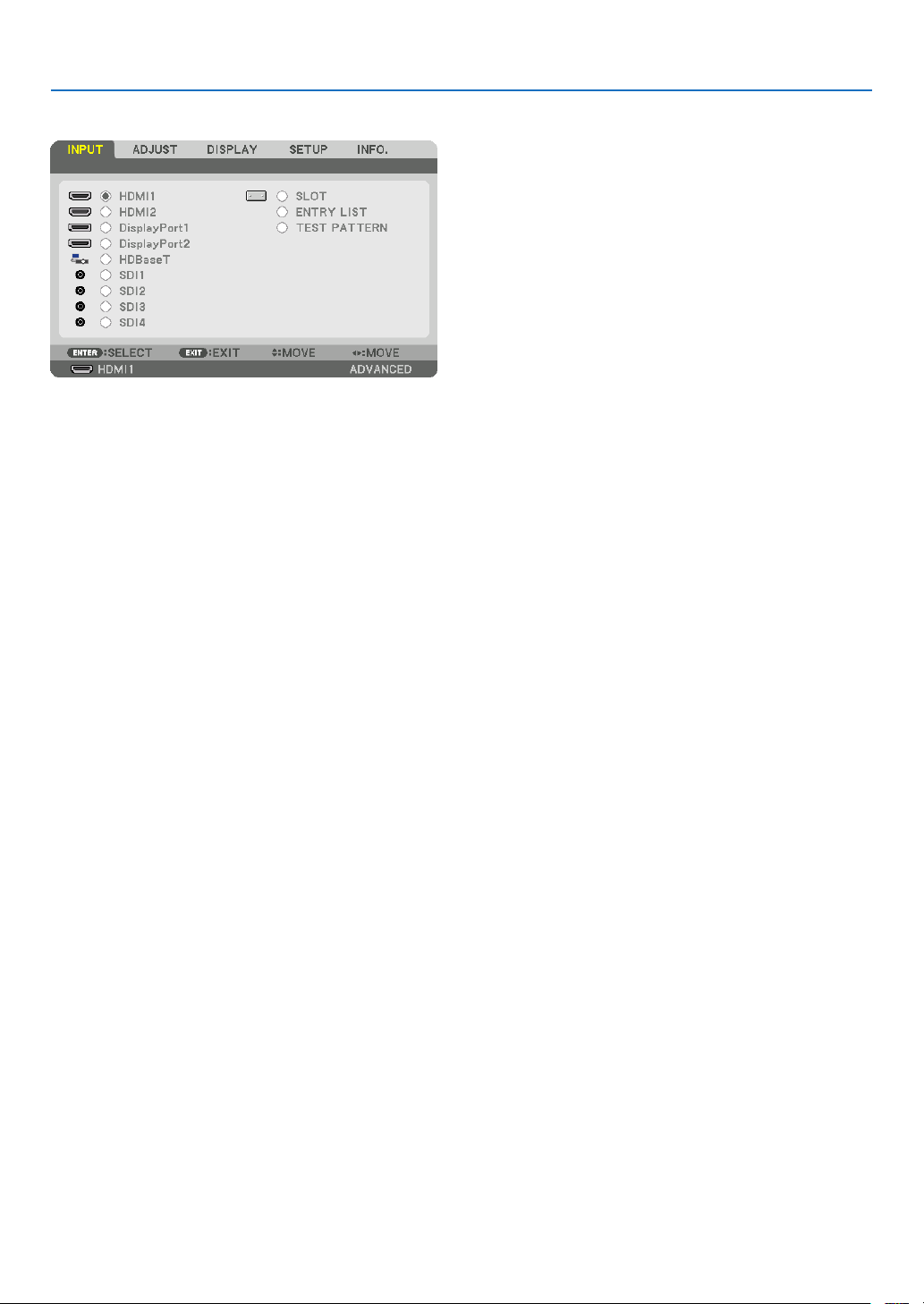
79
5. Using On-Screen Menu
❹ Menu Descriptions & Functions [INPUT]
HDMI1
This projects the video of the device connected to the HDMI 1 IN terminal.
HDMI2
This projects the video of the device connected to the HDMI 2 IN terminal.
DisplayPort1
This projects the video of the device connected to the DisplayPort1 IN terminal.
Select this port also when DisplayPort is connected in the dual link mode.
DisplayPort2
This projects the video of the device connected to the DisplayPort2 IN terminal.
HDBaseT
Projecting the HDBaseT signal.
SDI1
This projects the video of the device connected to the SDI1 IN terminal.
Select this port also when SDI is connected in the quad link or dual link mode.
SDI2
This projects the video of the device connected to the SDI2 IN terminal.
SDI3
This projects the video of the device connected to the SDI3 IN terminal.
SDI4
This projects the video of the device connected to the SDI4 IN terminal.
SLOT
Projects the picture via the optional board (sold separately) inserted into the SLOT.
ENTRY LIST
Displays a list of signals. See the following pages.
TEST PATTERN
Closes the menu and switches to the test pattern screen.
Select the pattern using the ◀▶ buttons.
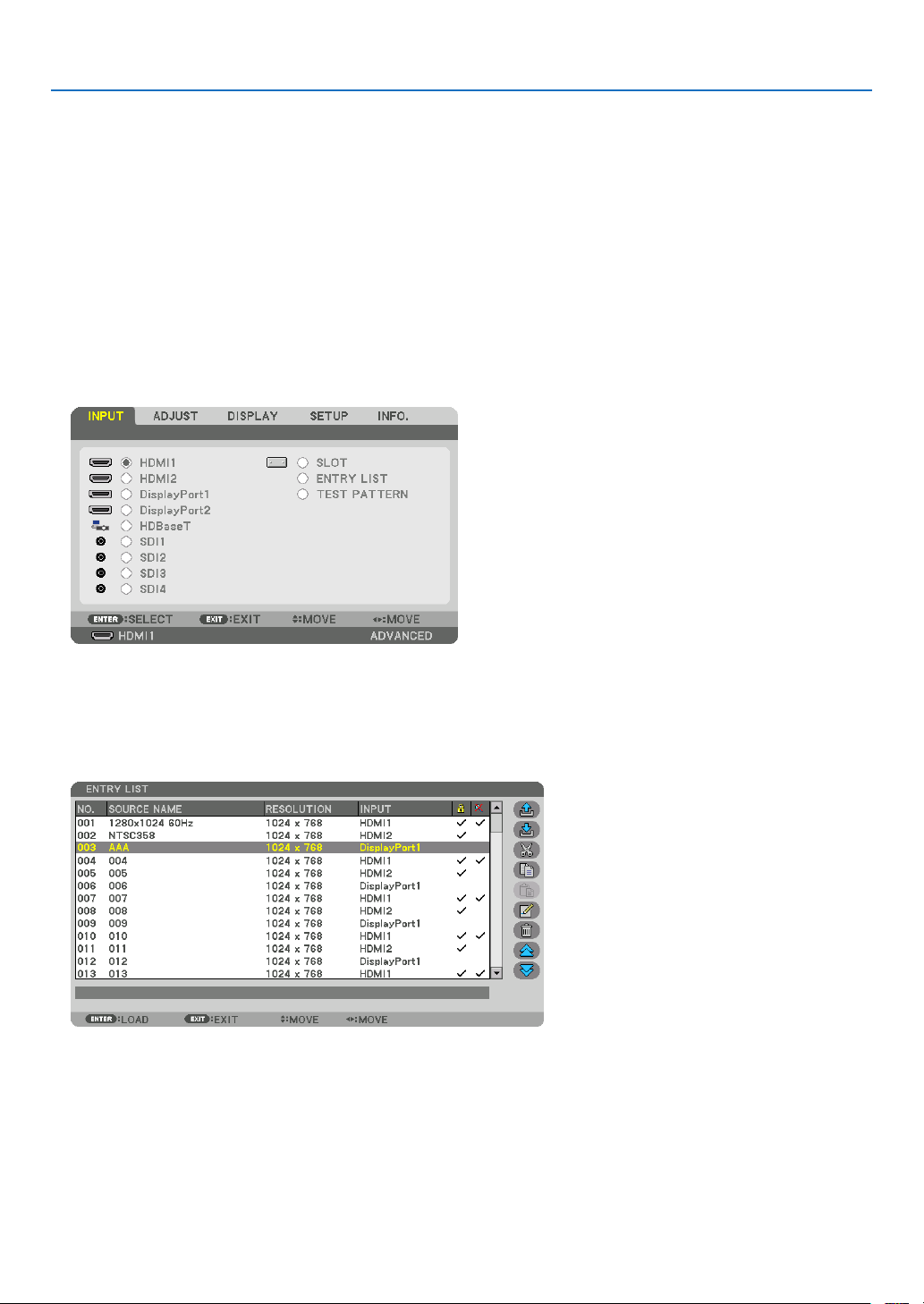
80
5. Using On-Screen Menu
Using the Entry List
The projected signals can be registered in the Entry list. Also, when you perform image settings, lens memory regis-
tration, etc., the adjustment value of the signal is automatically registered in the Entry list of this unit. The (adjustment
values of) registered signals can be loaded from the Entry List whenever necessary. When recalling a registered
signal, the video can be displayed faster compared to an unregistered signal.
However, only up to 100 patterns can be registered in the Entry List. When 100 patterns have been registered in the
Entry List, an error message is then displayed and no additional patterns can be registered. You should thus delete
(adjustment values of) signals that are no longer needed.
Displaying the Entry list
1. Press the MENU button.
The menu will be displayed.
2. Press the ◀ or ▶ button to select [INPUT].
The INPUT list will be displayed.
3. Use the ◀, ▶, ▲, or ▼ to select [ENTRY LIST] and press the ENTER button.
The ENTRY LIST windows will be displayed.
If the ENTRY LIST window is not displayed, switch the menu to [ADVANCED].
To switch the menu between [ADVANCED] and [BASIC], select [SETUP] → [CONTROL] → [TOOLS] → [AD-
MINISTRATOR MODE] → [MENU MODE]. (→ page 111)
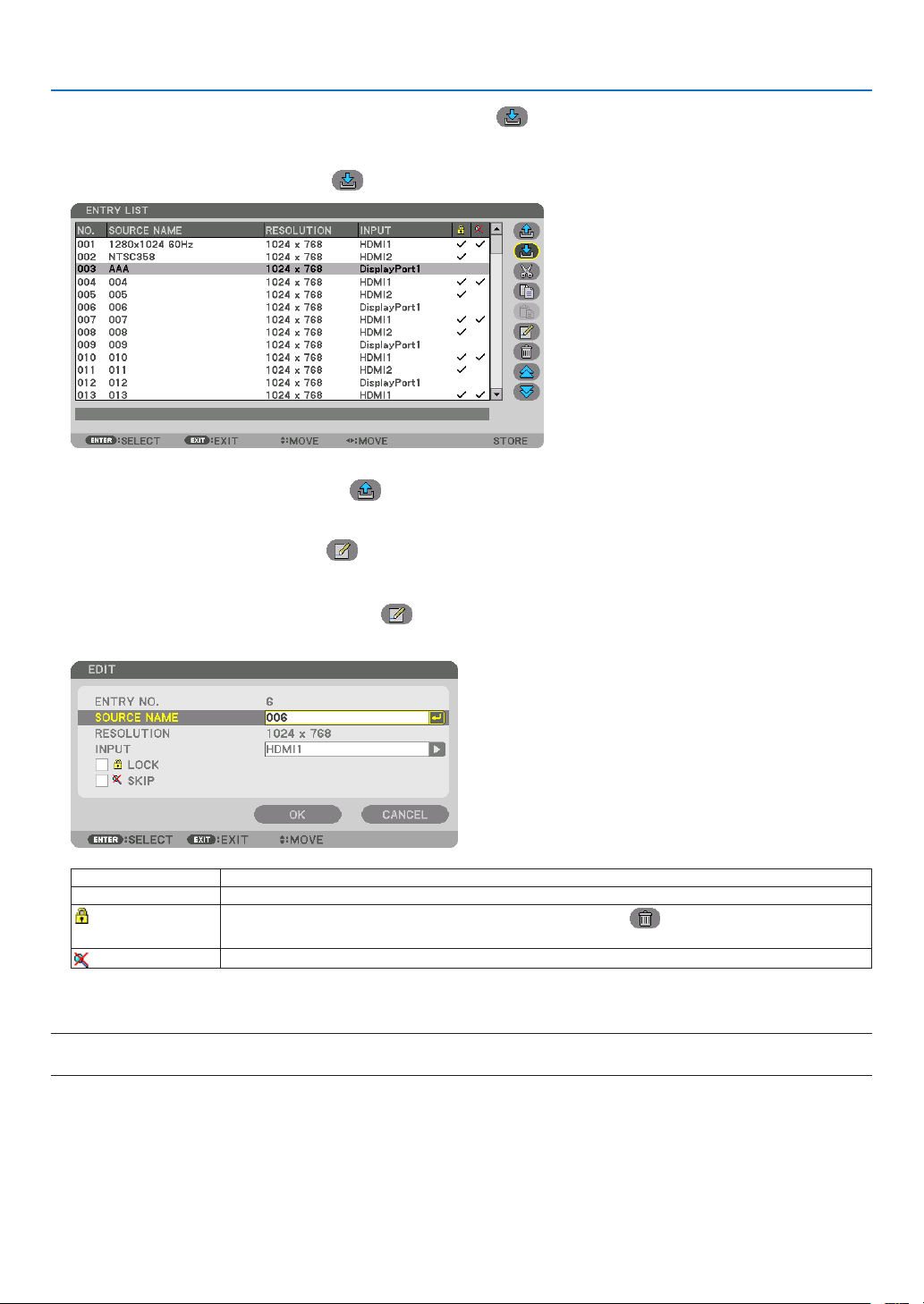
81
5. Using On-Screen Menu
Entering the currently projected signal into the Entry List [ (STORE)]
1. Press the ▲ or ▼ button to select any number.
2. Press the ◀ or ▶ button to select [ (STORE)] and press the ENTER button.
Calling up a signal from the Entry List [ (LOAD)]
Press the ▲ or ▼ button to select a signal and press the ENTER button.
Editing a signal from the Entry List [
(EDIT)]
1. Press the ▲ or ▼ button to select a signal you wish to edit.
2. Press the ◀, ▶, ▲, or ▼ button to select [ (EDIT)] and press the ENTER button.
The EDIT window will be displayed.
SOURCE NAME Enter a signal name. Up to 18 alphanumeric characters can be used.
INPUT The input terminal can be changed.
LOCK
Set so that the selected signal cannot be deleted when [
(ALL DELETE)] is executed.
The changes made after LOCK execution cannot be saved.
SKIP
Set so that the selected signal will be skipped during auto search.
3. Set the above items and select [OK] and press the ENTER button.
NOTE:
• The input terminal cannot be changed to the currently projected signal.
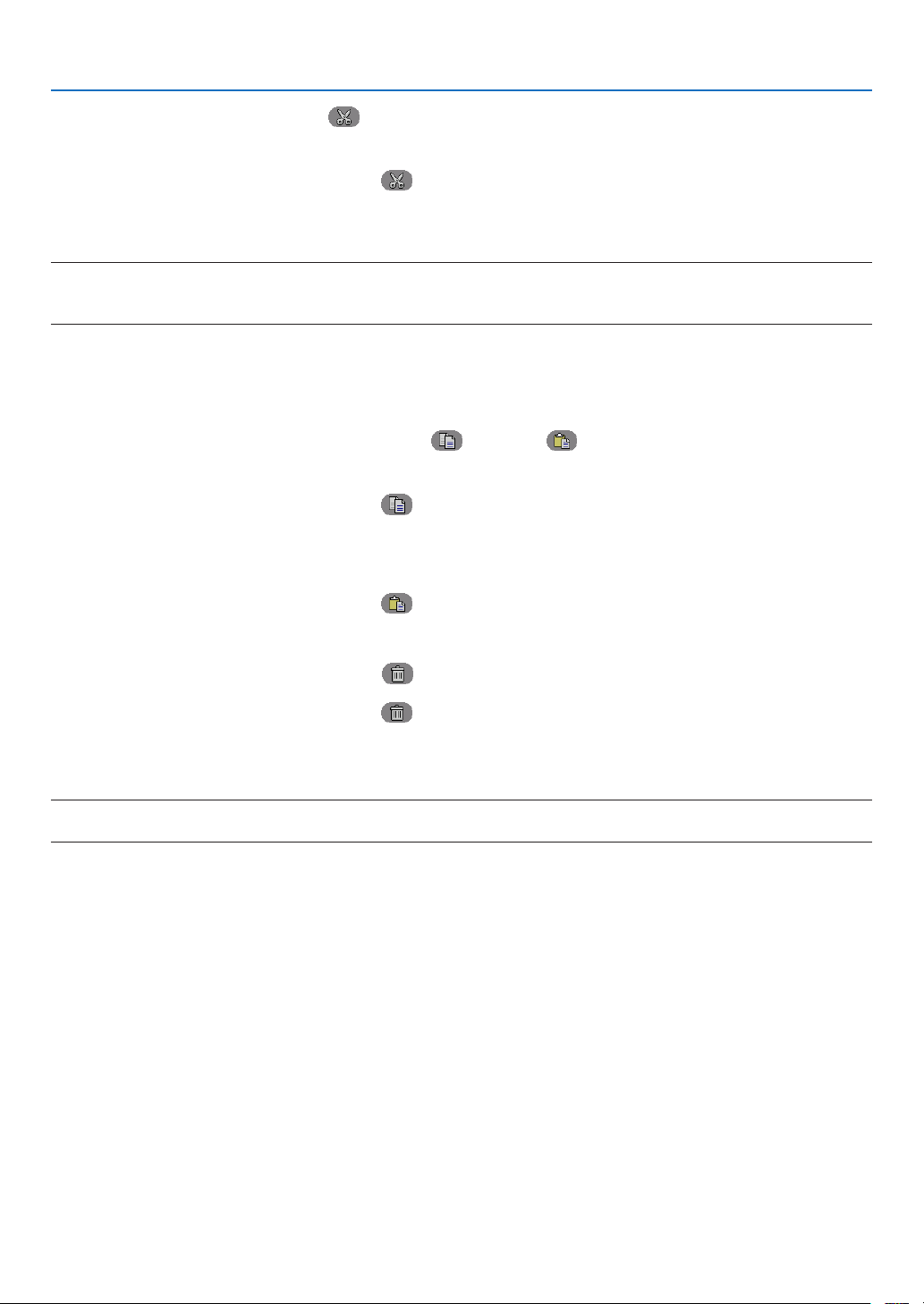
82
5. Using On-Screen Menu
Cutting a signal from the Entry List [ (CUT)]
1. Press the ▲ or ▼ button to select a signal you wish to delete.
2. Press the ◀, ▶, ▲, or ▼ button to select [ (CUT)] and press the ENTER button.
The signal will be deleted from the Entry List and the deleted signal will be displayed on the clipboard at the bot-
tom of the Entry List.
NOTE:
• The currently projected signal cannot be deleted.
• When the locked signal is selected, it will be displayed in gray which indicates it is not available.
TIP:
• Data on the clipboard can be passed onto the Entry List.
• Data on the clipboard will not be lost after the Entry List is closed.
Copying and pasting a signal from the Entry List [ (COPY)] / [ (PASTE)]
1. Press the ▲ or ▼ button to select a signal you wish to copy.
2. Press the ◀, ▶, ▲, or ▼ button to select [ (COPY)] and press the ENTER button.
The copied signal will be displayed on the clipboard at the bottom of the Entry List.
3. Press the ◀ or ▶ button to move to the list.
4. Press the ▲ or ▼ button to select a signal.
5. Press the ◀, ▶, ▲, or ▼ button to select [ (PASTE)] and press the ENTER button.
Data on the clipboard will be pasted to the signal.
Deleting all the signals from the Entry List [ (ALL DELTE)]
1. Press the ◀, ▶, ▲, or ▼ button to select [ (ALL DELETE)] and press the ENTER button.
The conrmation message will be displayed.
2. Press the ◀ or ▶ button to select [YES] and press the ENTER button.
NOTE:
• The locked signal cannot be deleted.
Using Test Pattern [TEST PATTERN]
Displays the test pattern for adjusting distortion on the screen and the focus at the time of the projector setup. Once
the [TEST PATTERN] on the onscreen menu is selected, the pattern for adjustment will be displayed on. If you nd
distortion on the pattern, adjust the projector installation angle or correct distortion by pressing the Geometric. button
on the remote. If the focus adjustment is required, press the FOCUS button on the remote control for displaying the
FOCUS adjustment screen and then adjust FOCUS by ◀ or ▶ button. Recommend to perform the focus adjustment
after leaving the projector under the state the TEST PATTERN has been projected for over 30 minutes. Press EXIT
button to close the test pattern and return to the menu.
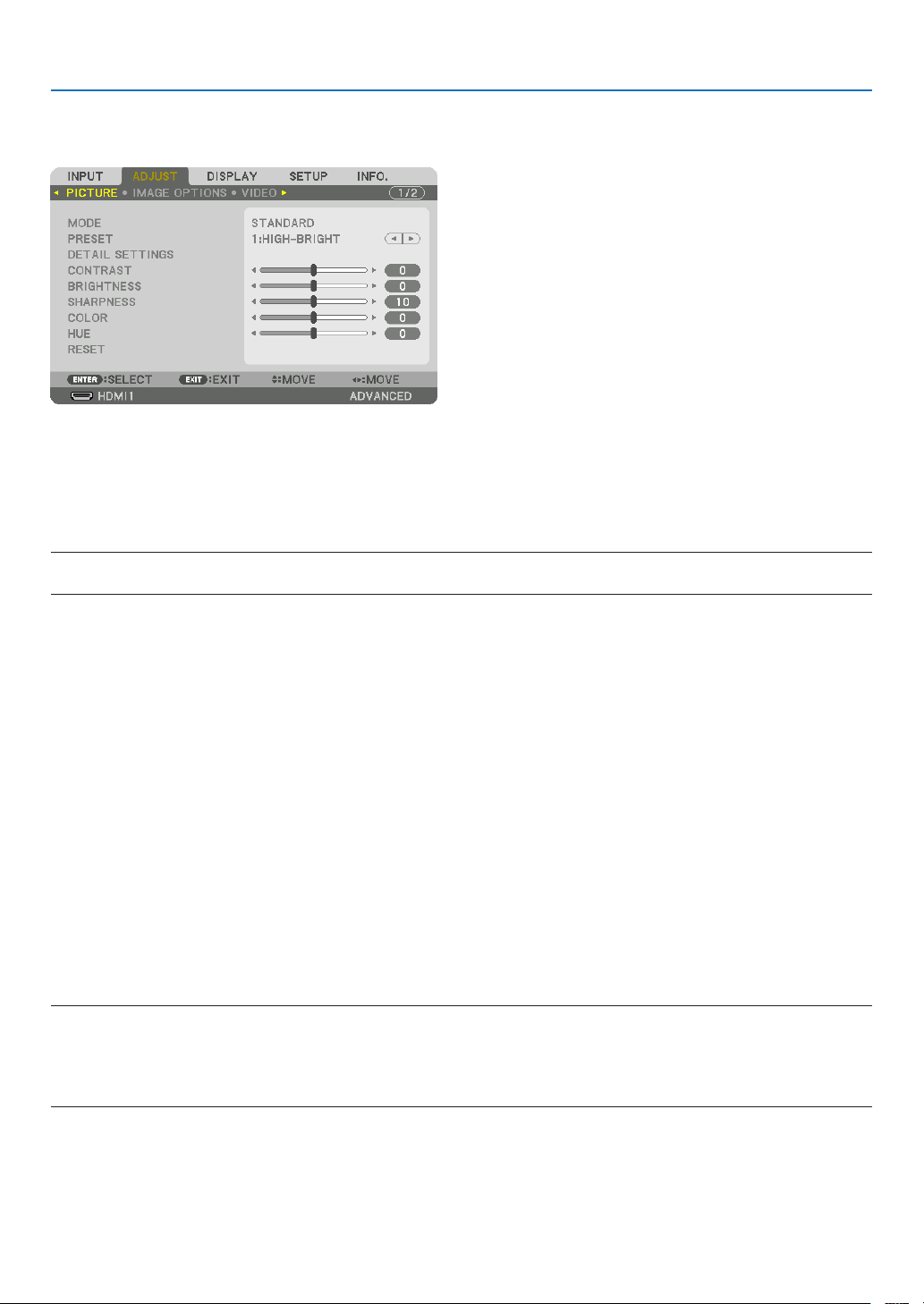
83
5. Using On-Screen Menu
❺ Menu Descriptions & Functions [ADJUST]
[PICTURE]
[MODE]
This function allows you to determine how to save settings for [DETAIL SETTINGS] of [PRESET] for each input.
STANDARD ������������ Saves settings for each item of [PRESET] (Preset 1 through 8)
PROFESSIONAL
����� Saves all the settings of [PICTURE] for each input�
NOTE:
• When [TEST PATTERN] is displayed, [MODE] cannot be selected.
[PRESET]
This function allows you to select optimized settings for your projected image.
You can adjust neutral tint for yellow, cyan or magenta.
There are seven factory presets optimized for various types of images. You can also use [DETAIL SETTINGS] to set
user adjustable settings to customize each gamma or color.
Your settings can be stored in [PRESET 1] to [PRESET 8].
AUTO
��������������������� Automatically distinguish the optimal setting for the input signal�
HIGH-BRIGHT �������� Recommended for use in a brightly lit room�
PRESENTATION ����� Recommended for making a presentation using a PowerPoint file�
VIDEO �������������������� Recommended for typical TV program viewing�
MOVIE ������������������� Recommended for movies�
GRAPHIC ��������������� Recommended for graphics�
sRGB ��������������������� Standard color values
DICOM SIM� ���������� Recommended for DICOM simulation format�
EDGE BLENDING ��� Recommended for edge blending�
NOTE:
• The [DICOM SIM.] option is for training/reference only and should not be used for actual diagnosis.
• DICOM stands for Digital Imaging and Communications in Medicine. It is a standard developed by the American College of Radiol-
ogy (ACR) and the National Electrical Manufacturers Association (NEMA).
The standard specifies how digital image data can be moved from system to system.
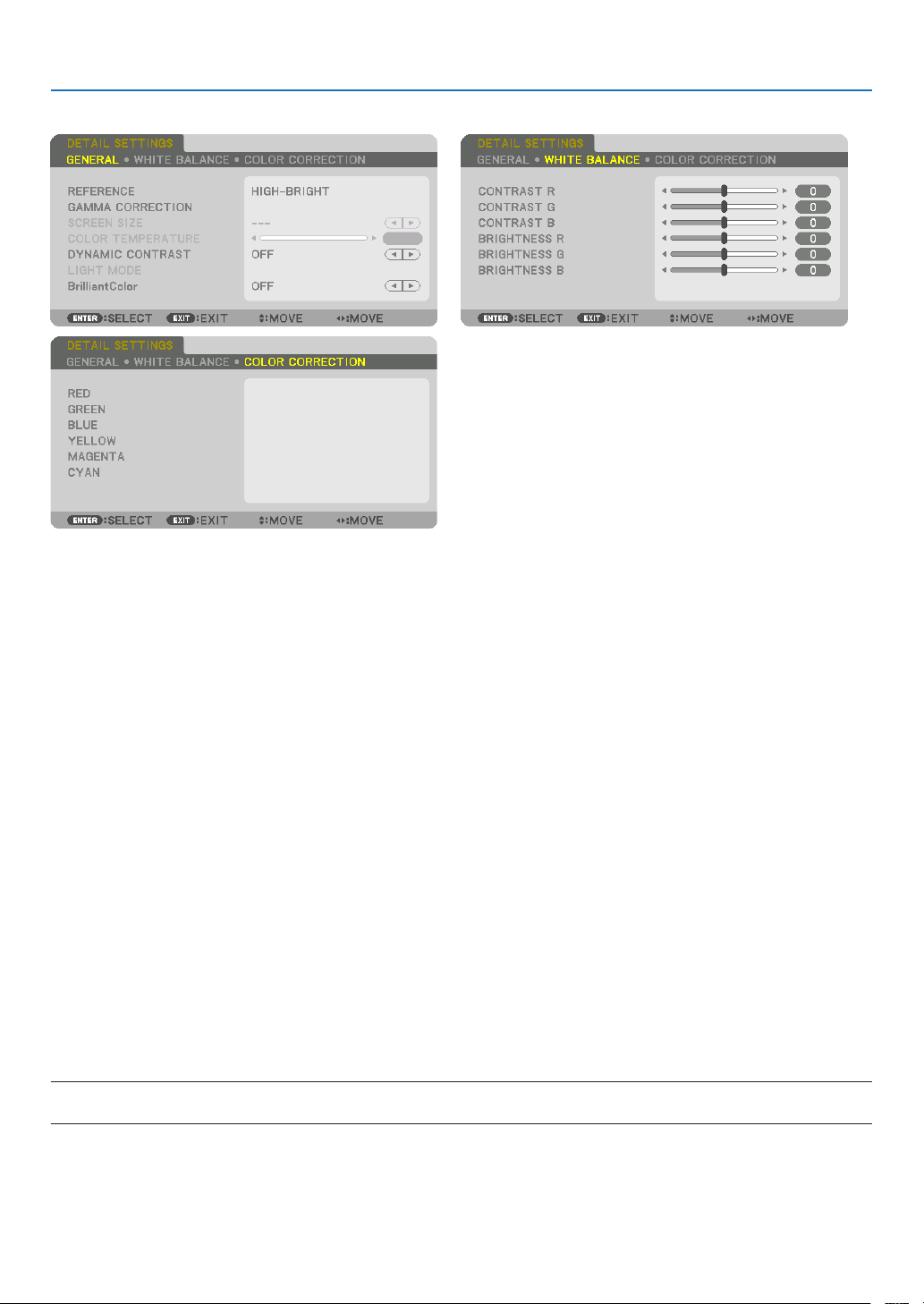
84
5. Using On-Screen Menu
[DETAIL SETTINGS]
[GENERAL]
Storing Your Customized Settings [REFERENCE]
This function allows you to store your customized settings in [PRESET 1] to [PRESET 8].
First, select a base preset mode from [REFERENCE], then set [GAMMA CORRECTION] and [COLOR TEMPERA-
TURE].
HIGH-BRIGHT �������� Recommended for use in a brightly lit room�
PRESENTATION ����� Recommended for making a presentation using a PowerPoint file�
VIDEO �������������������� Recommended for typical TV program viewing�
MOVIE ������������������� Recommended for movies�
GRAPHIC ��������������� Recommended for graphics�
sRGB ��������������������� Standard color values�
DICOM SIM� ���������� Recommended for DICOM simulation format�
EDGE BLENDING ��� Recommended for edge blending�
Selecting Gamma Correction Mode [GAMMA CORRECTION]
Each mode in [SELECT] corrects color tone of projected image and is recommended for:
DYNAMIC
�������������� Creates a high-contrast picture�
NATURAL ��������������� Natural reproduction of the picture�
BLACK DETAIL ������� Emphasizes detail in dark areas of the picture�
In [REFERENCE], it adjusts corrected value for projected image. Higher value means deeper correction.
NOTE:
• This function is not available when [DICOM SIM.] is selected for [DETAIL SETTINGS].
85
5. Using On-Screen Menu
Selecting Screen Size for DICOM SIM [SCREEN SIZE]
This function will perform gamma correction appropriate for the screen size.
LARGE
������������������� For screen size of 300"
MEDIUM
���������������� For screen size of 200"
SMALL
������������������� For screen size of 100"
NOTE:
• This function is available only when [DICOM SIM.] is selected for [DETAIL SETTINGS].
Adjusting Color Temperature [COLOR TEMPERATURE]
This option allows you to select the color temperature of your choice.
A value from 5000K to 10500K can be set.
NOTE:
• When [HIGH-BRIGHT] is selected in [REFERENCE], this function is not available.
• When [PRESENTATION] is selected for [REFERENCE], the COLOR TEMPERATURE adjustment changes to 3 levels: 0, 1 and 2.
Adjusting Brightness and Contrast [DYNAMIC CONTRAST]
If [ON] is selected, the most optimal contrast ratio is used according to the picture.
NOTE:
• Depending on the conditions, projector settings such as [DYNAMIC CONTRAST] may not be able to be selected.
Adjusting Brightness [LIGHT MODE]
Adjust the brightness of the projector and save it for each input signal. (→ page 39)
With the [REF. LIGHT MODE] set to [NORMAL], the adjustment will be valid if the PICTURE [MODE] is set to [PRO-
FESSIONAL].
LIGHT ADJUST Brightness can be adjusted in 1% increments from 20 to 100%.
CONSTANT BRIGHTNESS OFF [CONSTANT BRIGHTNESS] mode will be canceled.
ON Maintains the brightness that is in effect at the time [ON] is selected. Unless [OFF]
is selected, the same settings will remain in effect even when the projector is
turned off.
• To re-adjust the brightness, rst turn this setting OFF before making further adjust-
ments.
NOTE:
• [CONSTANT BRIGHTNESS] mode is a function used to maintain the brightness at
a constant level. Color will not be fixed.
• The [CONSTANT BRIGHTNESS] setting will not be saved for each input signal.
[Brilliant Color]
Selects the brightness of the color white.
Selecting options from [MEDIUM] to [HIGH] increases the brightness of the color white.
NOTE:
• If under [REFERENCE], [HIGH-BRIGHT] or [PRESENTATION] are selected, [BrilliantColor] cannot be changed.
86
5. Using On-Screen Menu
Adjusting White Balance [WHITE BALANCE]
This allows you to adjust the white balance. Contrast for each color (RGB) to adjust the white level of the screen;
Brightness for each color (RGB) is used to adjust the black level of the screen.
[COLOR CORRECTION]
Corrects the color for all signals.
Adjusts the tone for the colors red, green, blue, yellow, magenta and cyan.
RED HUE + Direction Magenta direction
− Direction Yellow direction
SATURATION + Direction Vivid
− Direction Weak
GREEN HUE + Direction Yellow direction
− Direction Cyan direction
SATURATION + Direction Vivid
− Direction Weak
BLUE HUE + Direction Cyan direction
− Direction Magenta direction
SATURATION + Direction Vivid
− Direction Weak
YELLOW HUE + Direction Red direction
− Direction Green direction
SATURATION + Direction Vivid
− Direction Weak
MAGENTA HUE + Direction Blue direction
− Direction Red direction
SATURATION + Direction Vivid
− Direction Weak
CYAN HUE + Direction Green direction
− Direction Blue direction
SATURATION + Direction Vivid
− Direction Weak
[CONTRAST]
Adjusts the intensity of the image according to the incoming signal.
[BRIGHTNESS]
Adjusts the brightness level or the back raster intensity.
[SHARPNESS]
Controls the detail of the image.
[COLOR]
Increases or decreases the color saturation level.
[HUE]
Varies the color level from +/− green to +/− blue. The red level is used as reference.
NOTE:
• When [TEST PATTERN] is displayed, [CONTRAST], [BRIGHTNESS], [SHARPNESS], [COLOR] and [HUE] cannot be adjusted.
[RESET]
The settings and adjustments for [PICTURE] will be returned to the factory default settings with the exception of the
following; Preset numbers and [REFERENCE] within the [PRESET] screen.
The settings and adjustments under [DETAIL SETTINGS] within the [PRESET] screen that are not currently selected
will not be reset.
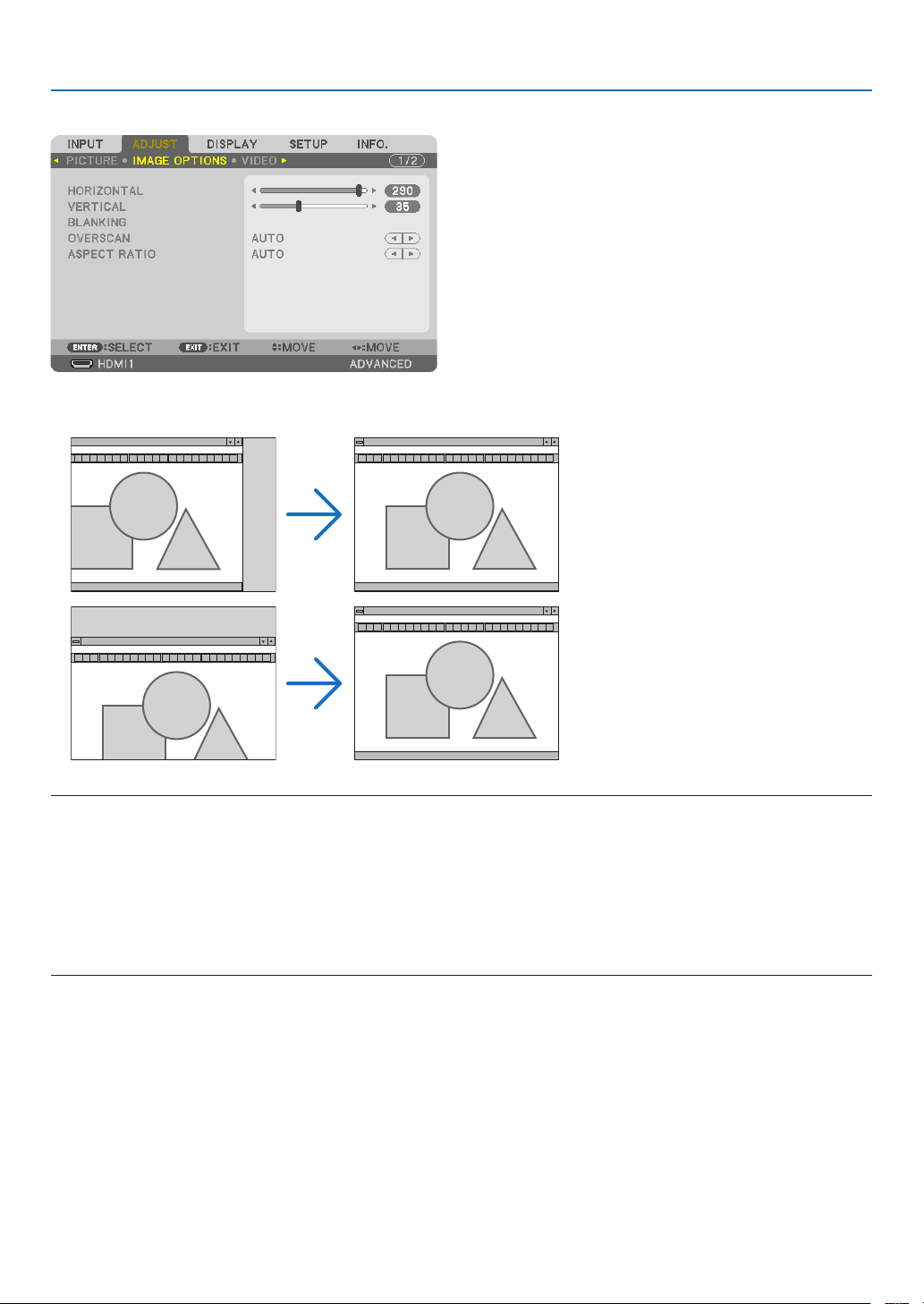
87
5. Using On-Screen Menu
[IMAGE OPTIONS]
Adjusting Horizontal/Vertical Position [HORIZONTAL/VERTICAL]
Adjusts the image location horizontally and vertically.
NOTE:
• The adjustments for [HORIZONTAL] and [VERTICAL] will be stored in memory for the current signal. The next time you project
the signal with the same resolution, horizontal and vertical frequency, its adjustments will be called up and applied.
To delete adjustments stored in memory, from the menu, you select [SETUP] → [RESET] → [CURRENT SIGNAL] and reset the
adjustments.
• In the following cases, [HORIZONTAL] and [VERTICAL] cannot be adjusted.
- When the input signal is an interlace signal
- When [SDI LINK] is set to [QUAD] or [QUAD(2SI)]
- When [DP LINK] is set to [DUAL]
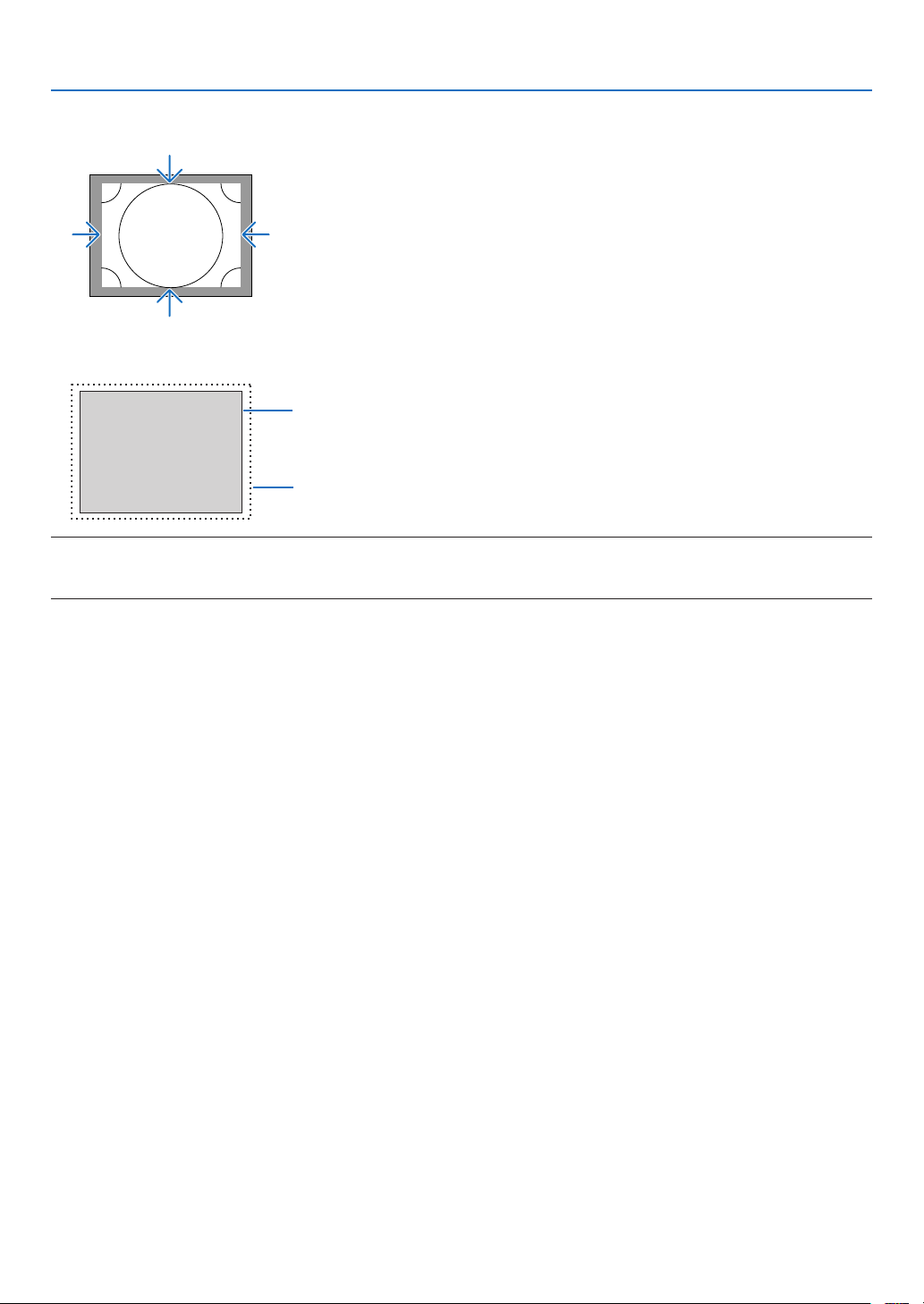
88
5. Using On-Screen Menu
[BLANKING]
Adjusts the display range (blanking) at the top, bottom, left and right edges of the input signal.
Selecting Overscan Percentage [OVERSCAN]
Select overscan percentage (Auto, 0%, 5% and 10%) for signal.
Projected image
Overscaned by 10%
NOTE:
• The [OVERSCAN] item is not available:
- when [NATIVE] is selected for [ASPECT RATIO].
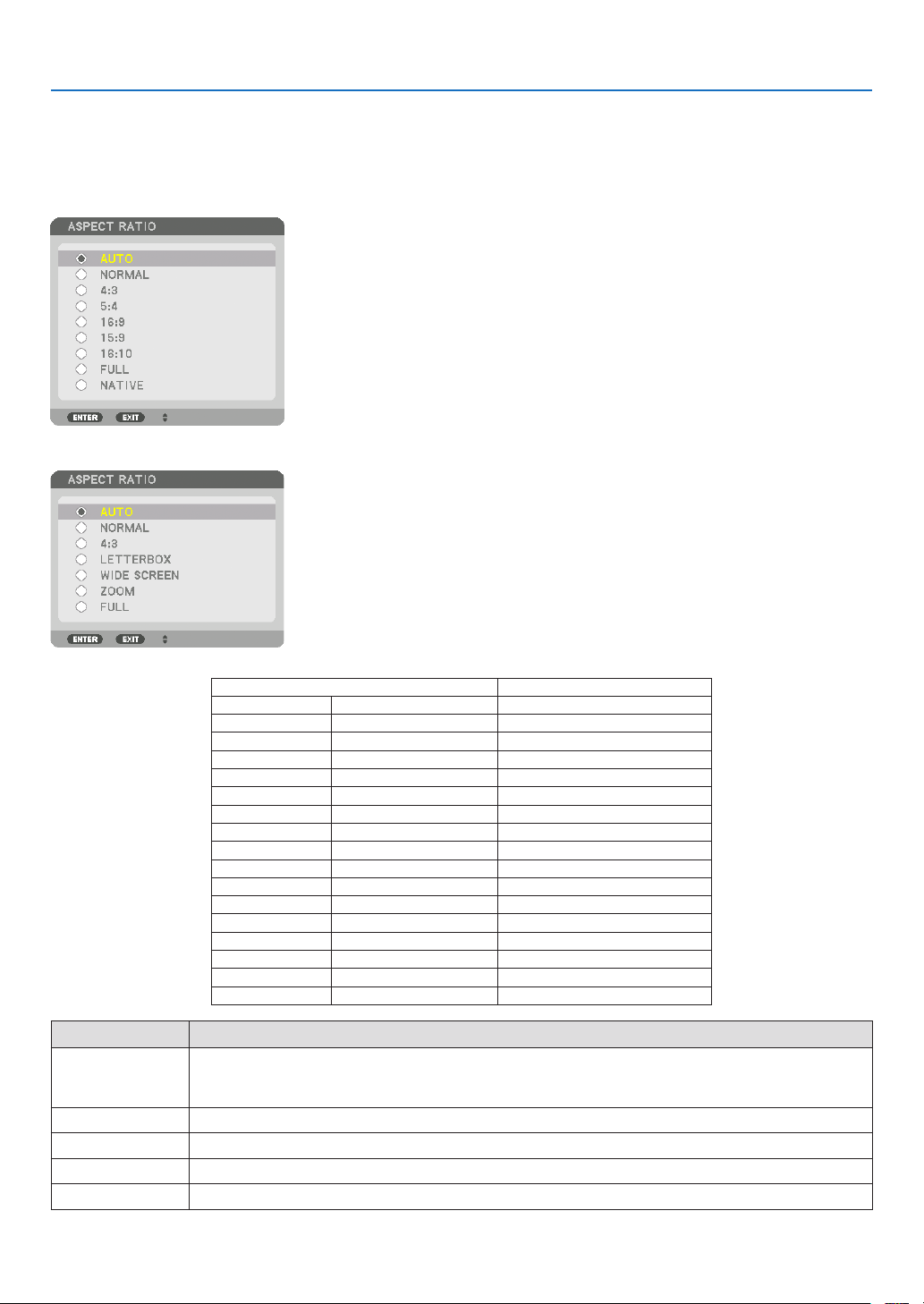
89
5. Using On-Screen Menu
Selecting the Aspect Ratio [ASPECT RATIO]
Use this function to select the screen’s lateral:longitudinal aspect ratio.
The projector automatically identies the signal being input and sets the optimum aspect ratio.
For Computer signal
For HDTV/SDTV signals
Resolution Aspect Ratio
VGA 640 × 480 4:3
SVGA 800 × 600 4:3
XGA 1024 × 768 4:3
WXGA 1280 × 768 15:9
WXGA 1280 × 800 16:10
HD(FWXGA) 1366 × 768 approx. 16:9
WXGA+ 1440 × 900 16:10
SXGA 1280 × 1024 5:4
SXGA+ 1400 × 1050 4:3
WXGA++ 1600 × 900 16:9
UXGA 1600 × 1200 4:3
WSXGA+ 1680 × 1050 16:10
FHD(1080P) 1920 × 1080 16:9
WUXGA 1920 × 1200 16:10
WQXGA 2560 × 1600 16:10
4K 3840 × 2160 16:9
4K 4096 × 2160 19:7
Options Function
AUTO The projector will automatically determine the incoming signal and display it in its aspect ratio.
The projector may erroneously determine the aspect ratio depending on its signal. If this occurs, select
the appropriate aspect ratio from the following.
NORMAL The image is displayed in its original aspect ratio of its input signal..
4:3 The image is displayed in 4:3 aspect ratio.
5:4 The image is displayed in 5:4 aspect ratio
16:9 The image is displayed in 16:9 aspect ratio
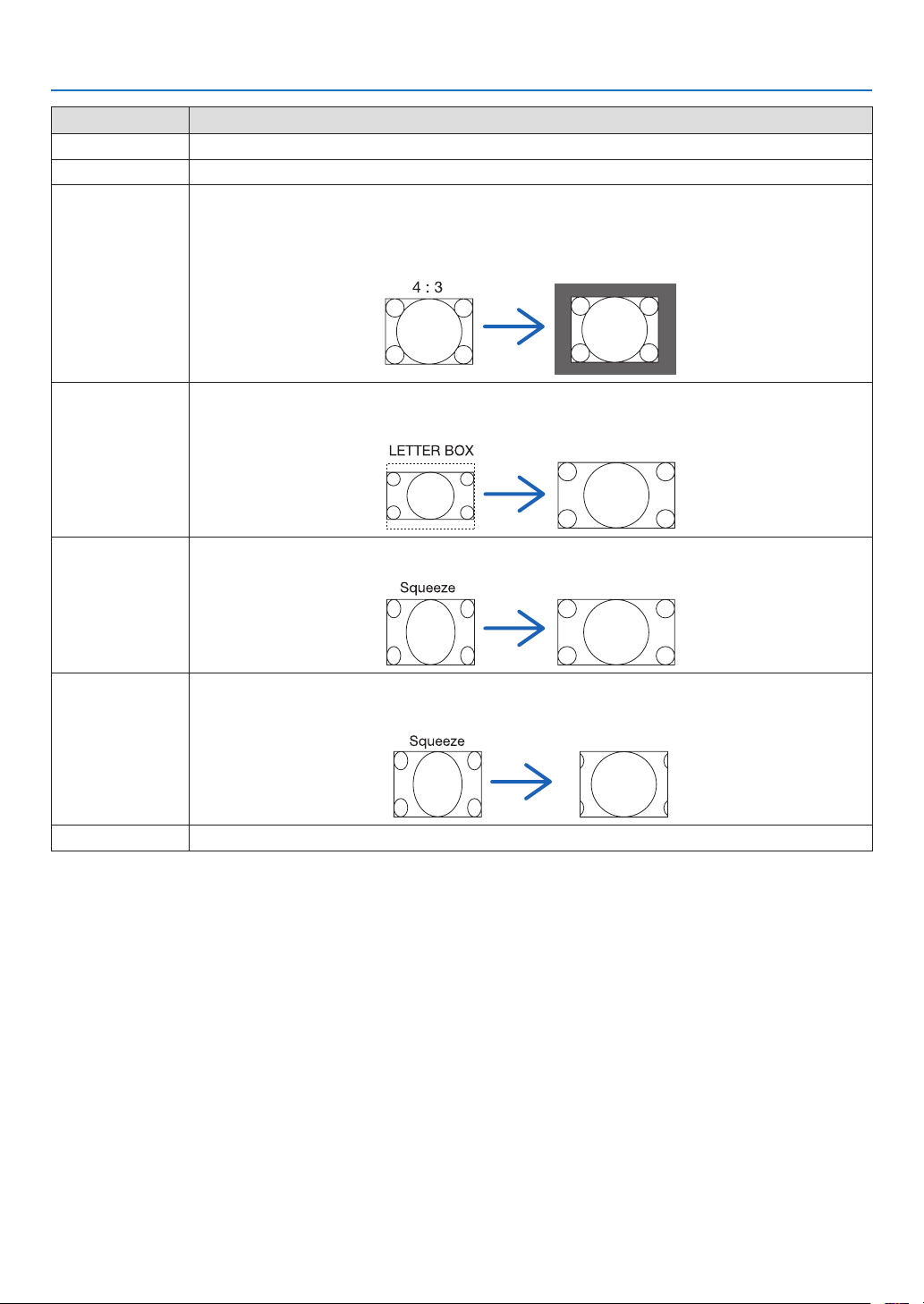
90
5. Using On-Screen Menu
Options Function
15:9 The image is displayed in 15:9 aspect ratio
16:10 The image is displayed in 16:10 aspect ratio
NATIVE The projector displays the current image in its true resolution when the incoming computer signal has a
lower or higher resolution than the projector’s native resolution. (→ page 3)
When the incoming computer signal has a higher resolution than the projector’s native resolution, the
center of an image will be displayed.
LETTER BOX The image of a letterbox signal (16:9) is stretched equally in the horizontal and vertical directions to t the
screen.
WIDE SCREEN The image of a squeeze signal(16:9) is stretched left and right in 16:9.
ZOOM The image of a squeeze signal (16:9) is stretched left and right in 4:3.
Parts of the displayed image are cropped at the left and right edges and therefore not visible.
FULL Project to full screen size.
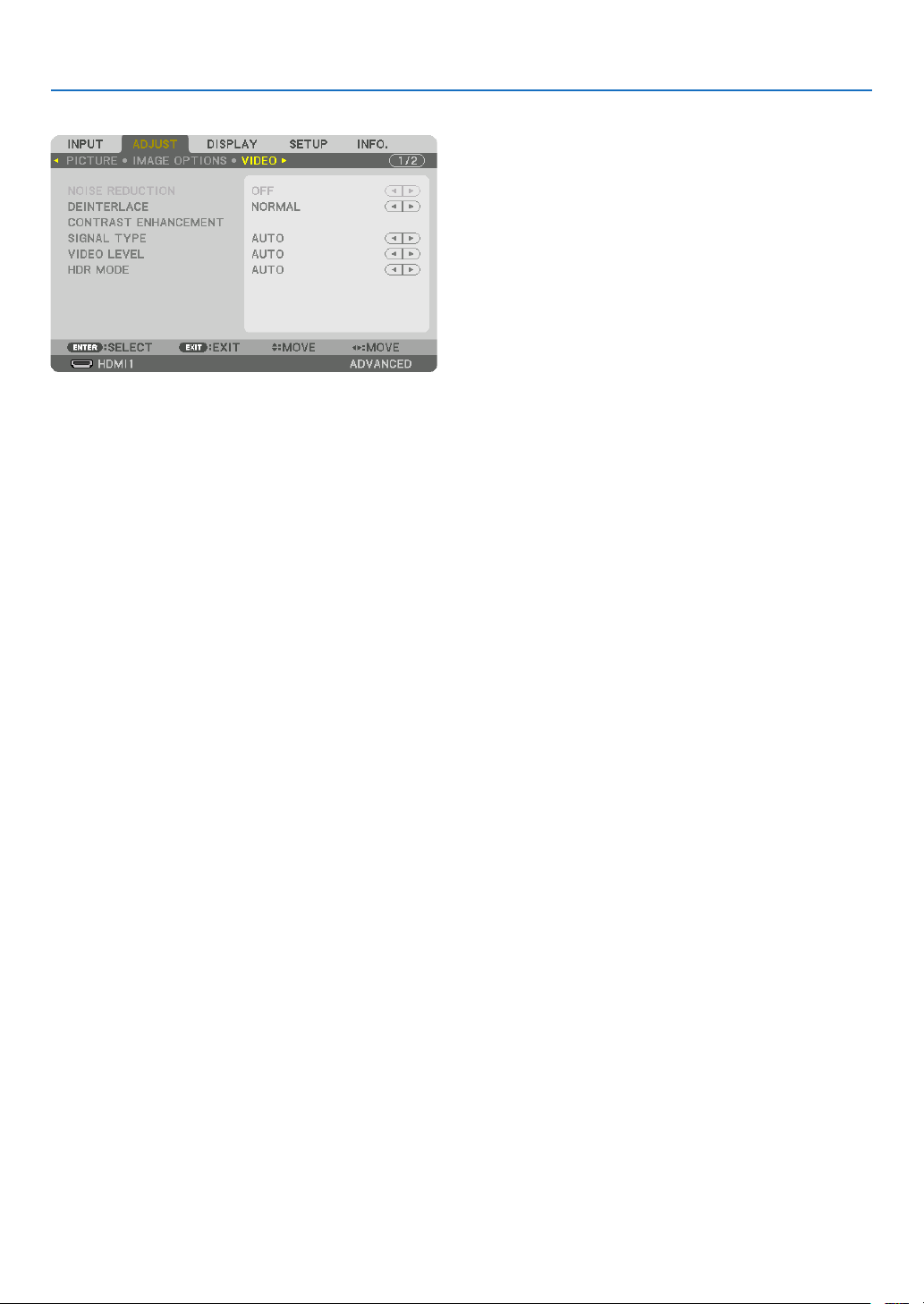
91
5. Using On-Screen Menu
[VIDEO]
Selecting Interlaced Progressive Conversion Process Mode [DEINTERLACE]
This function allows you to select an interlaced-to-progressive conversion process for video signals.
NORMAL
���������������� Automatically distinguishes a moving image from a static image to create a distinct image� Please select
[MOVIE] if there are any obvious jitter and noises�
MOVIE ������������������� Select when projecting moving images� This is suitable for signals with a lot of jitter and noise�
STILL ��������������������� Select when projecting static images� The video will flicker when a moving image is projected�
[CONTRAST ENHANCEMENT]
Using the characteristics of the human eye, a picture quality with a sense of contrast and resolution is achieved.
OFF ������������������������ Suite vision is switched off�
AUTO ��������������������� Contrast and picture quality are automatically improved using the suite vision function�
NORMAL ���������������� Adjust the gain manually�

92
5. Using On-Screen Menu
[SIGNAL TYPE]
Selection of RGB and component signals. Normally, this is set to [AUTO]. Please change the setting if the color of
the image remains unnatural.
AUTO
��������������������� Automatically distinguishes RGB and component signals�
RGB ����������������������� Switches to the RGB input�
REC601 ������������������ Switches to the component signal conforming to the ITU-R BT�601 standard�
Setting appropriate to SDTV images�
REC709 ������������������ Switches to the component signal conforming to the ITU-R BT�709 standard�
Setting appropriate to HDTV images�
REC2020 ���������������� Switches to the component signal conforming to the ITU-R BT�2020 standard�
Setting appropriate to 4K images�
[VIDEO LEVEL]
Selection of the video signal level when connecting an external device to the HDMI 1 IN terminal, HDMI 2 IN terminal,
DisplayPort1 IN terminal, DisplayPort2 IN terminal, and HDBaseT IN terminal of the projector.
AUTO
��������������������� The video level is switched automatically based on the information from the device outputting the signal�
Depending on the connected device, this setting may not be made properly� In this case, switch to [NORMAL]
or [ENHANCED] from the menu and view with the optimum setting�
NORMAL ���������������� This disables the enhanced mode�
ENHANCED ������������ This improves the image’s contrast, expressing the dark and light sections more dynamically�
SUPER WHITE ������� The video contrast is improved and the dark areas appear more dynamic�
[HDR MODE]
AUTO ��������������������� Automatically distinguishes HDR signal�
OFF ������������������������ Projects the image based on the input signal
ON
������������������������� Projects the image conforming to the HDR signal
NOTE:
• These options are available exclusively for 4K signal.
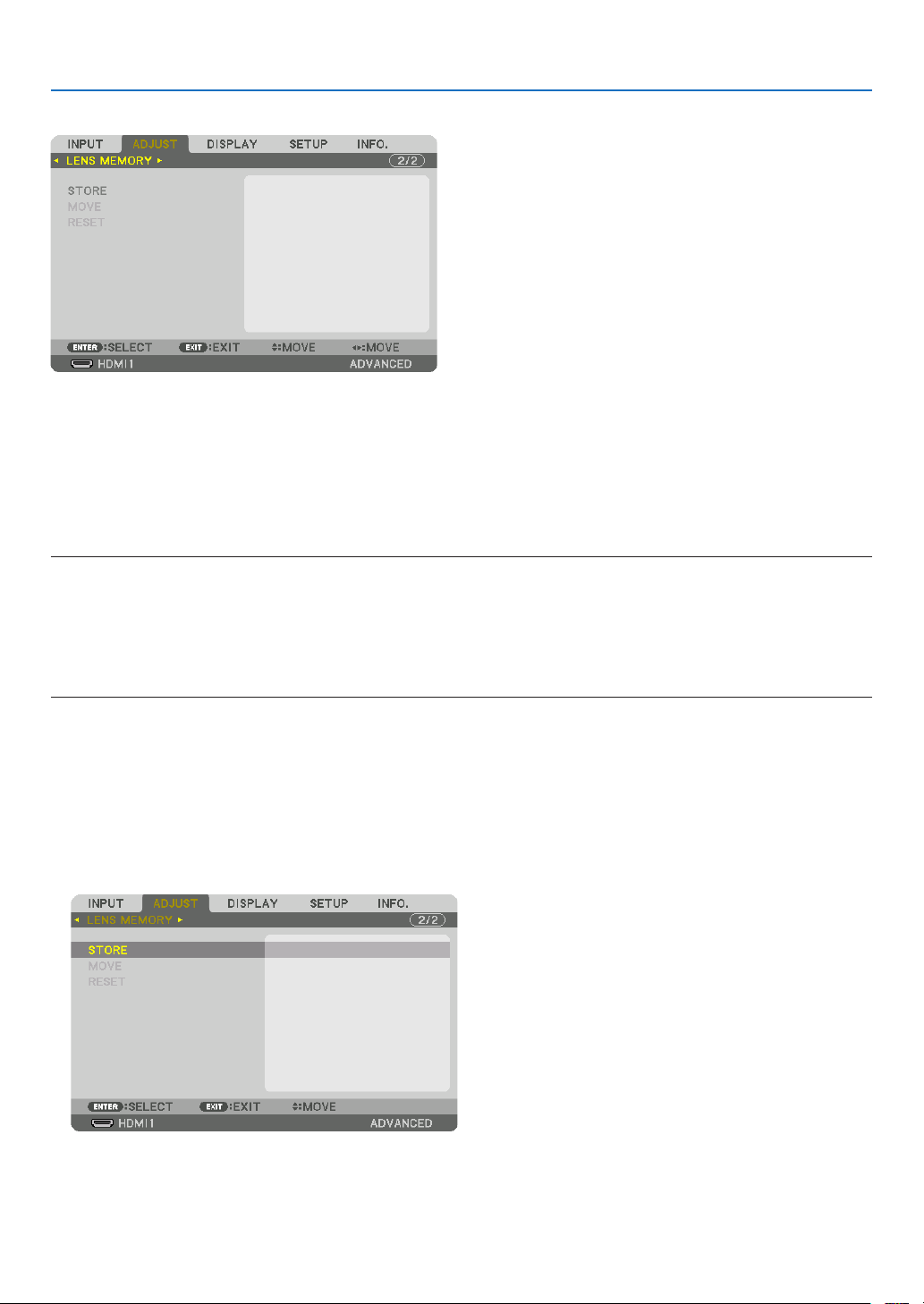
93
5. Using On-Screen Menu
Using the Lens Memory Function [LENS MEMORY]
This function serves to store the adjusted values for each input signal when using the LENS SHIFT, ZOOM and FO-
CUS buttons of the projector. Adjusted values can be applied to the signal you selected. This will eliminate the need
to adjust lens shift, focus, and zoom at the time of source selection.
STORE ������������������� Stores the current adjusted values in memory for each input signal�
MOVE �������������������� Applies the adjusted values to the current signal�
RESET �������������������� Returns the adjusted values to the last condition�
NOTE:
• Lens memory adjustments will be automatically registered the ENTRY LIST. These lens memory adjustments can be loaded from
the ENTRY LIST. (→ page 80)
Note that performing [CUT] or [ALL DELETE] in the ENTRY LIST will delete lens memory adjustments as well as source adjust-
ments. This deletion will not take effect until other adjustments is loaded.
• For storing each adjustment of lens shift, zoom and focus as common value for all input signal, store them as reference lens
memory.
To store your adjusted values in [LENS MEMORY]:
1. Project the connected device signal you want to adjust.
2. Adjust the projecting image of position, size and focus by the L-SHIFT, ZOOM +/−, and FOCUS +/− buttons.
• Adjustment can be performed by the remote control. Please refer to “❺ Adjusting the Picture Size and Posi-
tion” on page 22.
• Slight adjustment by moving the projector position and by the tilt foot is not subject of [LENS MEMORY].
3. Move the cursor on [STORE] and press ENTER.
4. Move the cursor on [YES] and press ENTER.
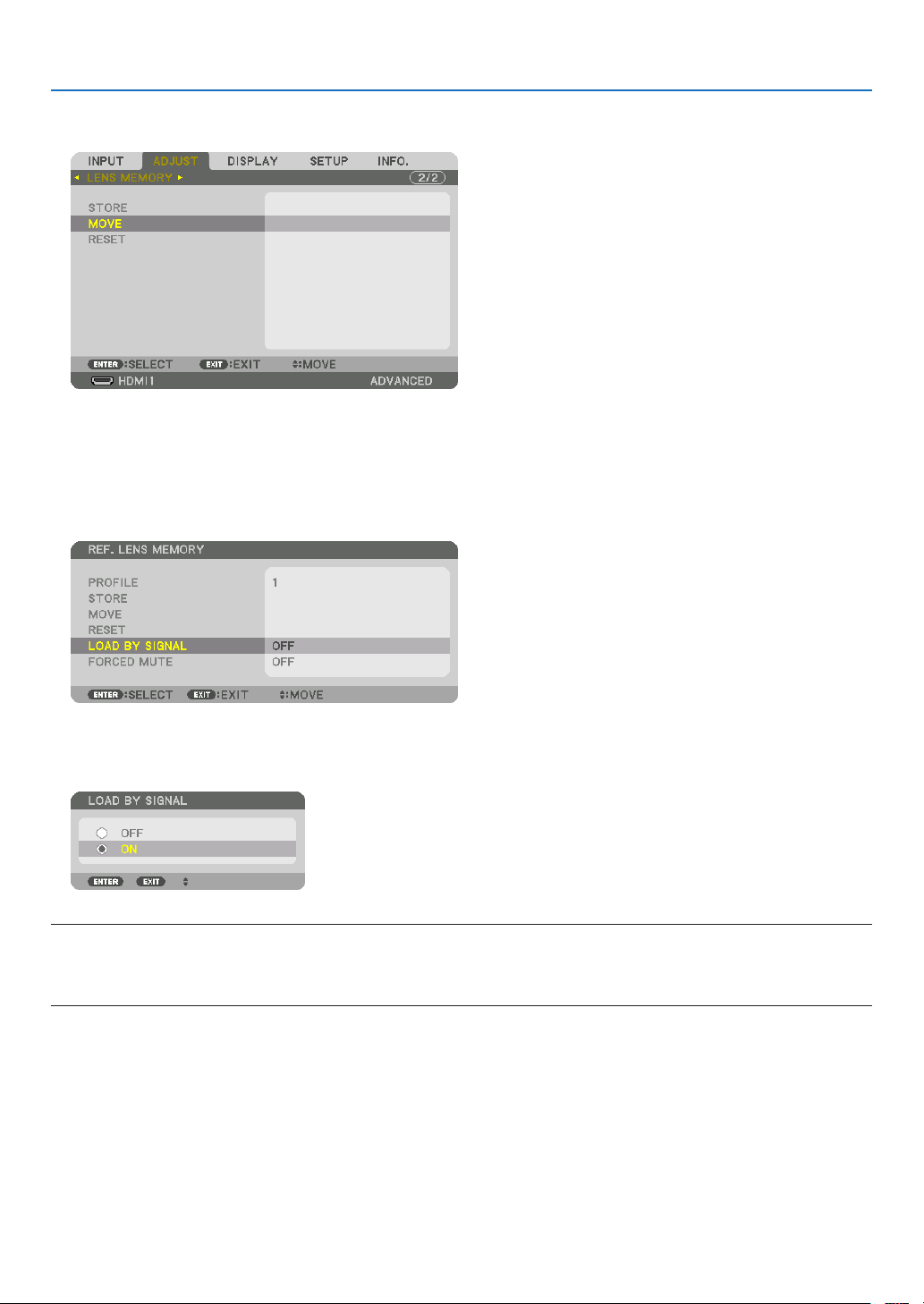
94
5. Using On-Screen Menu
To call up the adjusted values from [LENS MEMORY]:
1. From the menu, select [ADJUST] → [LENS MEMORY] → [MOVE] and press the ENTER button.
The conrmation screen will be displayed.
2. Press the ◀ button to select and [YES] and press the ENTER button.
To automatically apply the adjusted values at the time of source selection:
1. From the menu, select [SETUP] → [INSTALLATION(2)] → [REF. LENS MEMORY] → [LOAD BY SIGNAL] and
press the ENTER button.
2. Press the ▼ button to select and [ON] and press the ENTER button.
This will move the lens automatically to the position at the time of source selection according to the adjusted
values.
NOTE:
• The Lens Memory function may not produce a completely aligned image (due to tolerances in the lenses) using the adjusted
values stored in the projector. After calling up and applying the adjusted values from the Lens Memory function, finely adjust the
lens shift, zoom and focus to produce the best possible image.
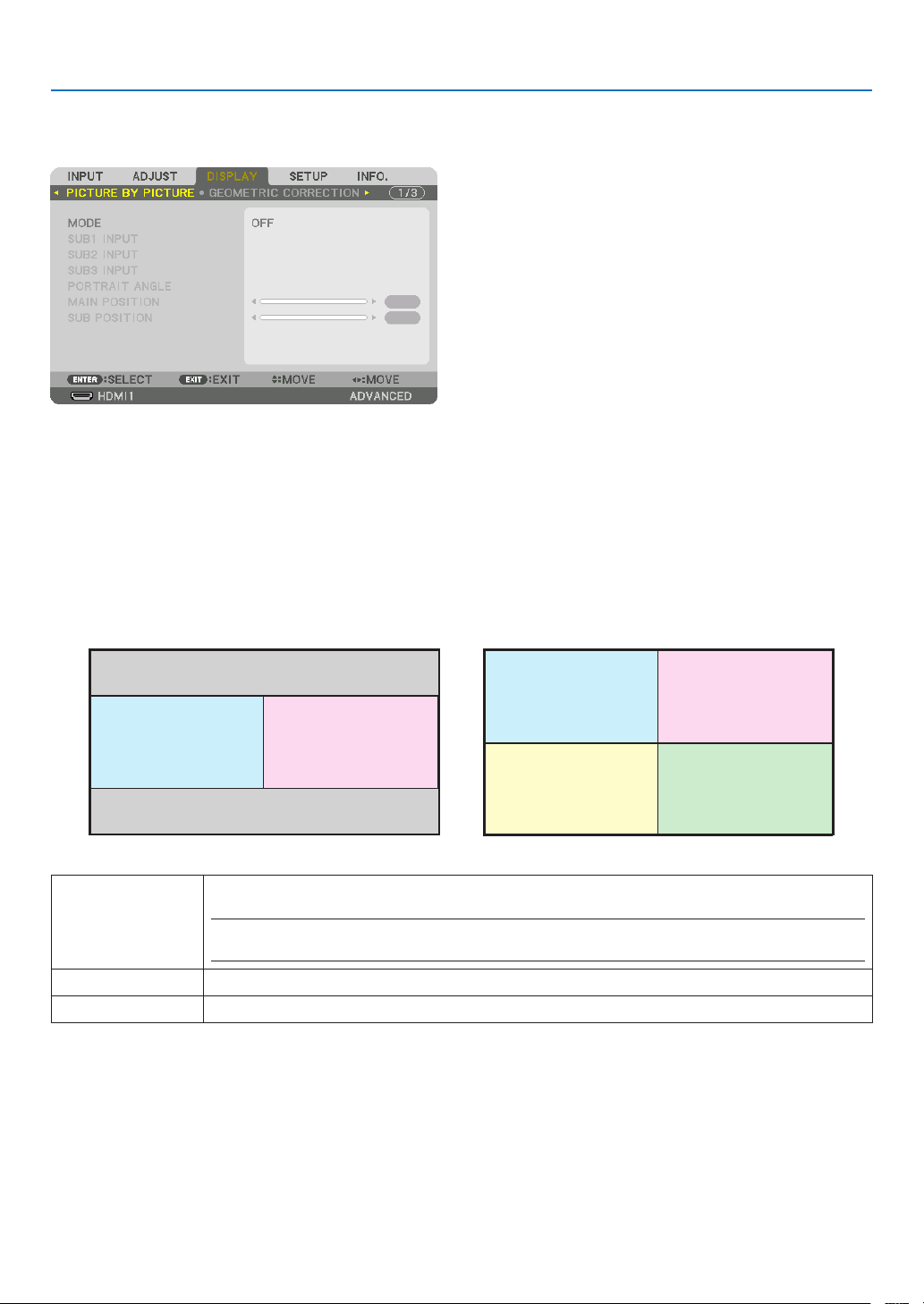
95
5. Using On-Screen Menu
❻ Menu Descriptions & Functions [DISPLAY]
[PICTURE BY PICTURE]
Please refer to “❷ Using a single projector to project two or four types of videos at the same time [PICTURE BY
PICTURE]” (→ page 58) for the operation.
MODE
Switch to a single-screen display, a two-screen display, or a four-screen display.
SUB1 INPUT/SUB2 INPUT/SUB3 INPUT
Select an input signal to be displayed on the sub screen.
MAIN
Two-screen display Four-screen display
SUB1
MAIN
SUB2
SUB1
SUB3
SUB1 INPUT Select an input signal to be displayed in the SUB 1 screen for a two-screen display or a four-
screen display.
NOTE:
• HDBaseT and SLOT are available only when [MODE] is set to [DUAL].
SUB2 INPUT Select an input signal to be displayed in the SUB 2 screen for a four-screen display.
SUB3 INPUT Select an input signal to be displayed in the SUB 3 screen for a four-screen display.
PORTRAIT ANGLE
Select the angle of screen orientation for a two-screen display in the portrait projection.
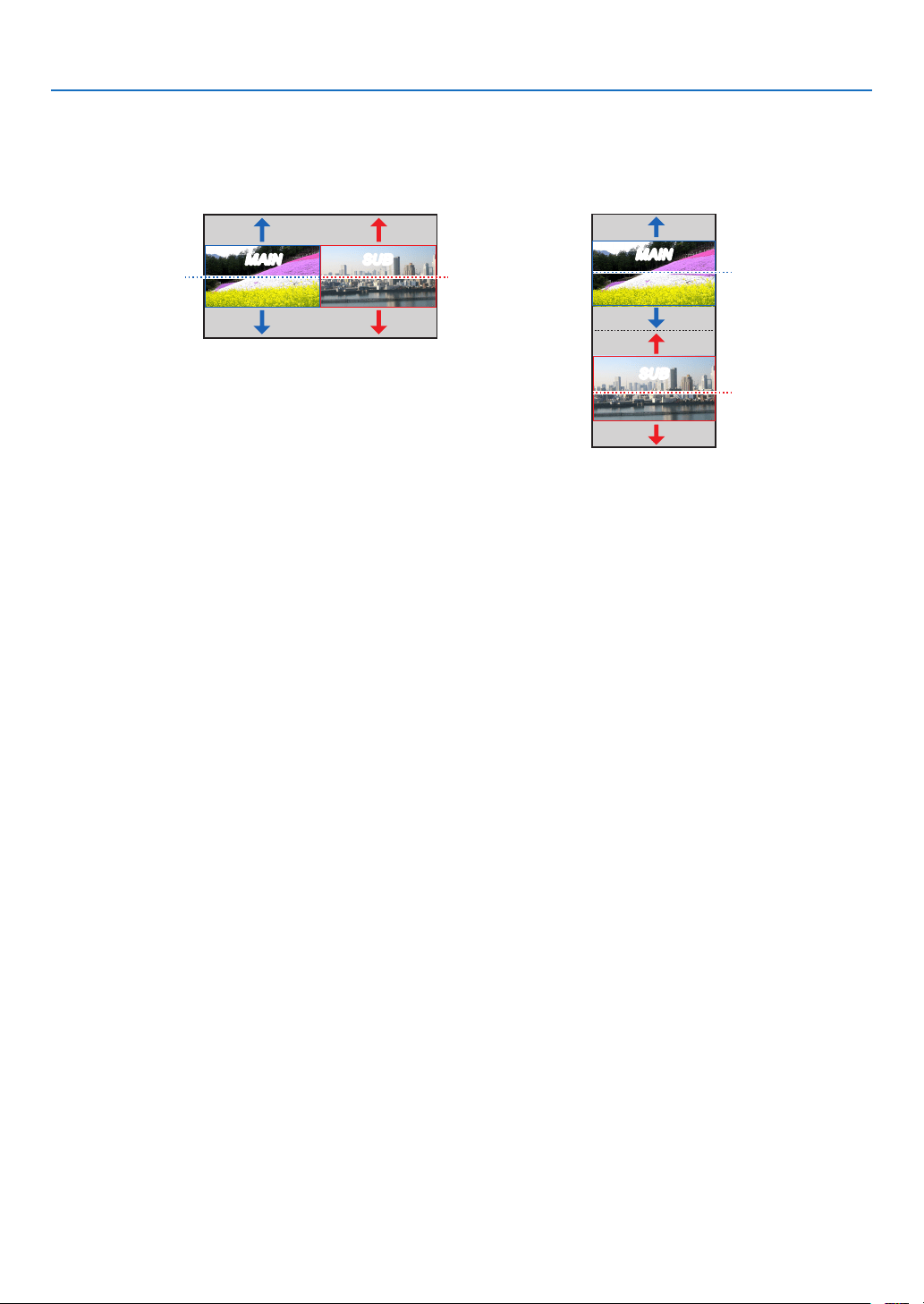
96
5. Using On-Screen Menu
MAIN POSITION/SUB POSITION
Adjust the vertical position of image for a two-screen display.
MAIN SUB
Reference position
[0]
Reference position
[0]
Portrait projection
Reference position
[0]
Movable range =
center of screen
Reference position
[0]
MAIN
SUB
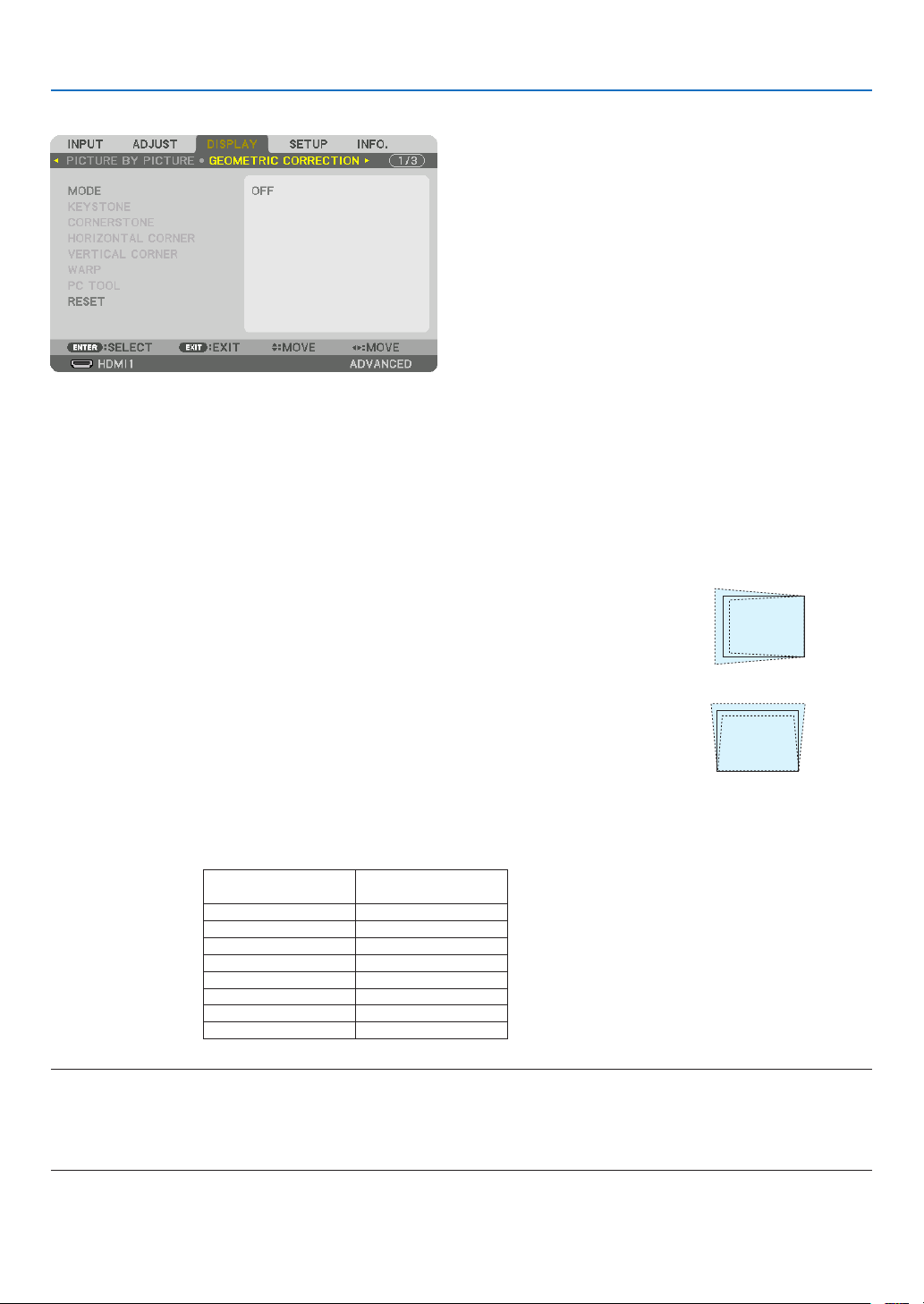
97
5. Using On-Screen Menu
[GEOMETRIC CORRECTION]
MODE
Set pattern for correcting distortion. If [OFF] is selected, the [GEOMETRIC CORRECTION] becomes ineffective.
If you need to change the [MENU ANGLE], make sure to change it before performing the [GEOMETRIC CORREC-
TION]. If [MENU ANGLE] is changed after performing the [GEOMETRIC CORRECTION], corrected values will be
reset to the default values.
KEYSTONE
Correct distortion in horizontal and vertical directions.
HORIZONTAL
��������� Adjustments when projecting from a diagonal direction to the
screen�
VERTICAL �������������� Adjustments when projecting from the top or bottom direction to
the screen�
TILT ����������������������� Adjusts the distortion when performing trapezoidal correction with the screen moved in the vertical direction
using the lens shift�
THROW RATIO ������� Adjusts according to the projection ratio of the optional lens used�
Model name of lens
unit
Adjustment range
NP16FL-4K 7–8
NP17ZL-4K 12–18
NP18ZL-4K 17–23
NP19ZL-4K 21–37
NP20ZL-4K 34–55
NP21ZL-4K 50–85
NP31ZL-4K 7–10
NP39ML-4K 4
NOTE:
• When power is supplied to the device, the adjustment value of the [KEYSTONE] used previously is retained even if the gradient
of the device is changed.
• As electrical correction is carried out by [KEYSTONE], the brightness may be reduced or the screen quality may deteriorate
sometimes.
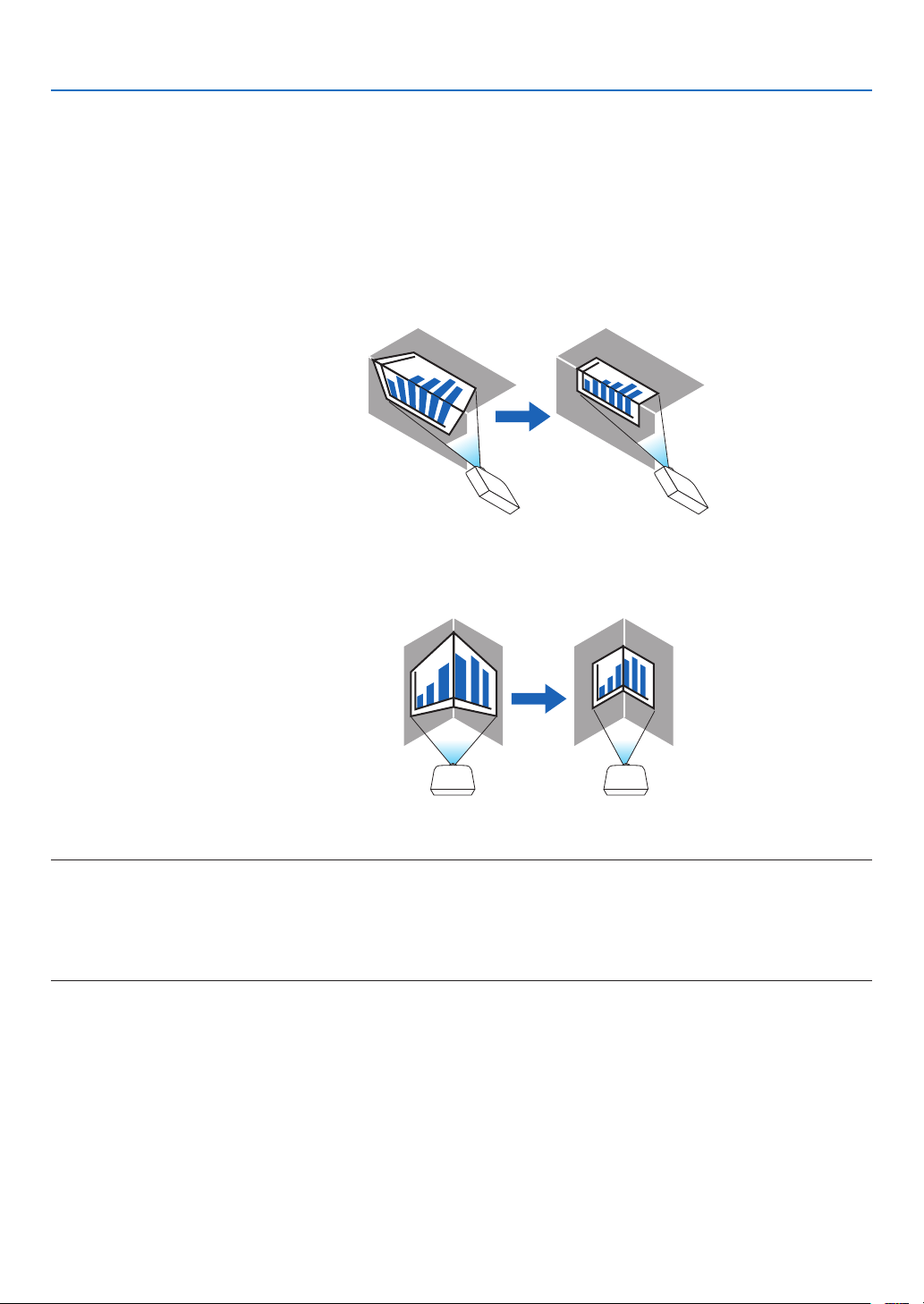
98
5. Using On-Screen Menu
CORNERSTONE
Display the 4-point correction screen and adjust the trapezoidal distortion of the projection screen.
Please refer to “❽ Correcting Horizontal and Vertical Keystone Distortion [CORNERSTONE]” (→ page 43) for details
on the operation.
HORIZONTAL CORNER/VERTICAL CORNER
Distortion correction for corner projection such as wall surfaces.
HORIZONTAL CORNER
������������������������������ Performs correction for projection onto a wall lying at an angle to the horizontal direction�
* Reverse angle correction is also possible�
VERTICAL CORNER
������������������������������ Performs correction for projection onto a wall lying at an angle to the vertical direction�
* Reverse angle correction is also possible�
NOTE:
• When the maximum adjustment range is exceeded, distortion adjustment is disabled. Set up the projector at an optimal angle as
the deterioration in the image quality increases as the distortion adjustment volume gets larger.
• Please note that the image will go out of focus due to the difference in the distance between the upper and lower or left and right
sides and the center of the screen for projections cutting across corners. Lenses with short focal points are also not recommended
for projections cutting across corners as the image will go out of focus.
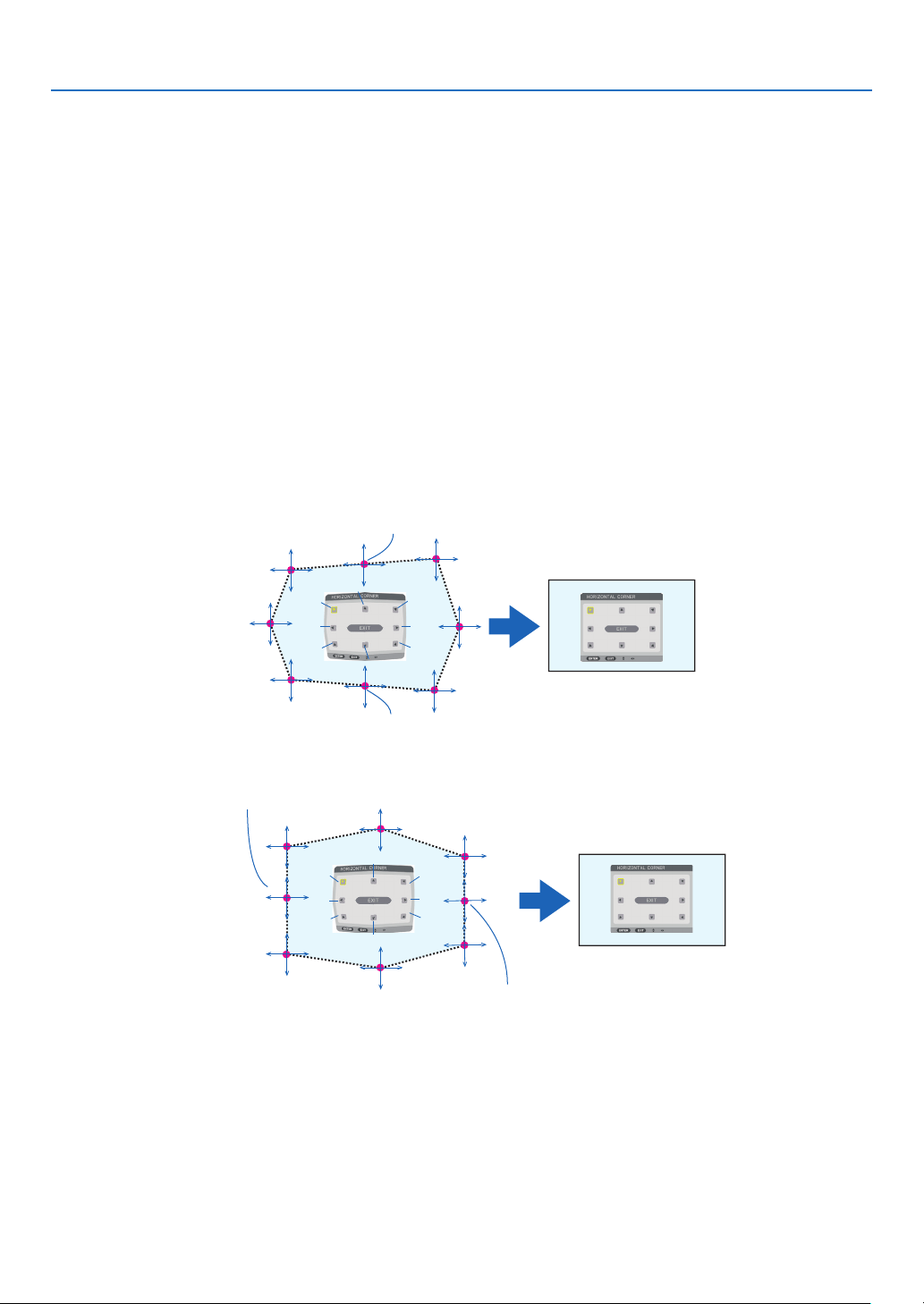
99
5. Using On-Screen Menu
Adjustment method
1. Align the cursor with the [HORIZONTAL CORNER] or [VERTICAL CORNER] of the [GEOMETRIC CORREC-
TION] menu and then press the ENTER button.
The adjustment screen will be displayed.
2. Press the ▼▲◀▶ buttons to align the cursor (yellow box) with the target adjustment point and then press
the ENTER button.
The cursor will change into an adjustment point (yellow in color).
3. Press the ▼▲◀▶ buttons to adjust the corners or sides of the screen and then press the ENTER button.
The adjustment point will go back to being a cursor (yellow box).
Explanation of screen transition
• The adjustment points of the four corners (a, c, f and h in the drawing) will move independently.
• The following adjustment points differ at the [HORIZONTAL CORNER] and [VERTICAL CORNER].
HORIZONTAL CORNER: When Point b in the drawing is moved, and the upper side and Point g are moved,
the lower side will move in a parallel manner.
VERTICAL CORNER: When Point d in the drawing is moved, and the left side and Point e are moved, the right
side will move in a parallel manner.
[Adjustment points of the [HORIZONTAL CORNER] screen and movement points of the projection screen]
a
b
b
c
d
e
f
g
h
a
c
d
e
f
g
h
Point b will be displaced in a parallel manner at the same time as Points a, b, c
Point g will be displaced in a parallel manner at the same time as Points f, g, h
[Adjustment points of the [VERTICAL CORNER] screen and movement points of the projection screen]
a
a
b
b
c
c
d
d
e
e
f
f
g
g
h
h
Point d will be displaced in a parallel manner at the same time as Points a, d, f
Point e will be displaced in a parallel manner at the same time as Points f, g, h
4. Start from Step 2 onwards to adjust the other points.
5. When the adjustment is completed, press the ▼▲◀▶ buttons to align the cursor with the [EXIT] in the ad-
justment screen and then press theENTER button.
Switch to the [GEOMETRIC CORRECTION] menu screen.
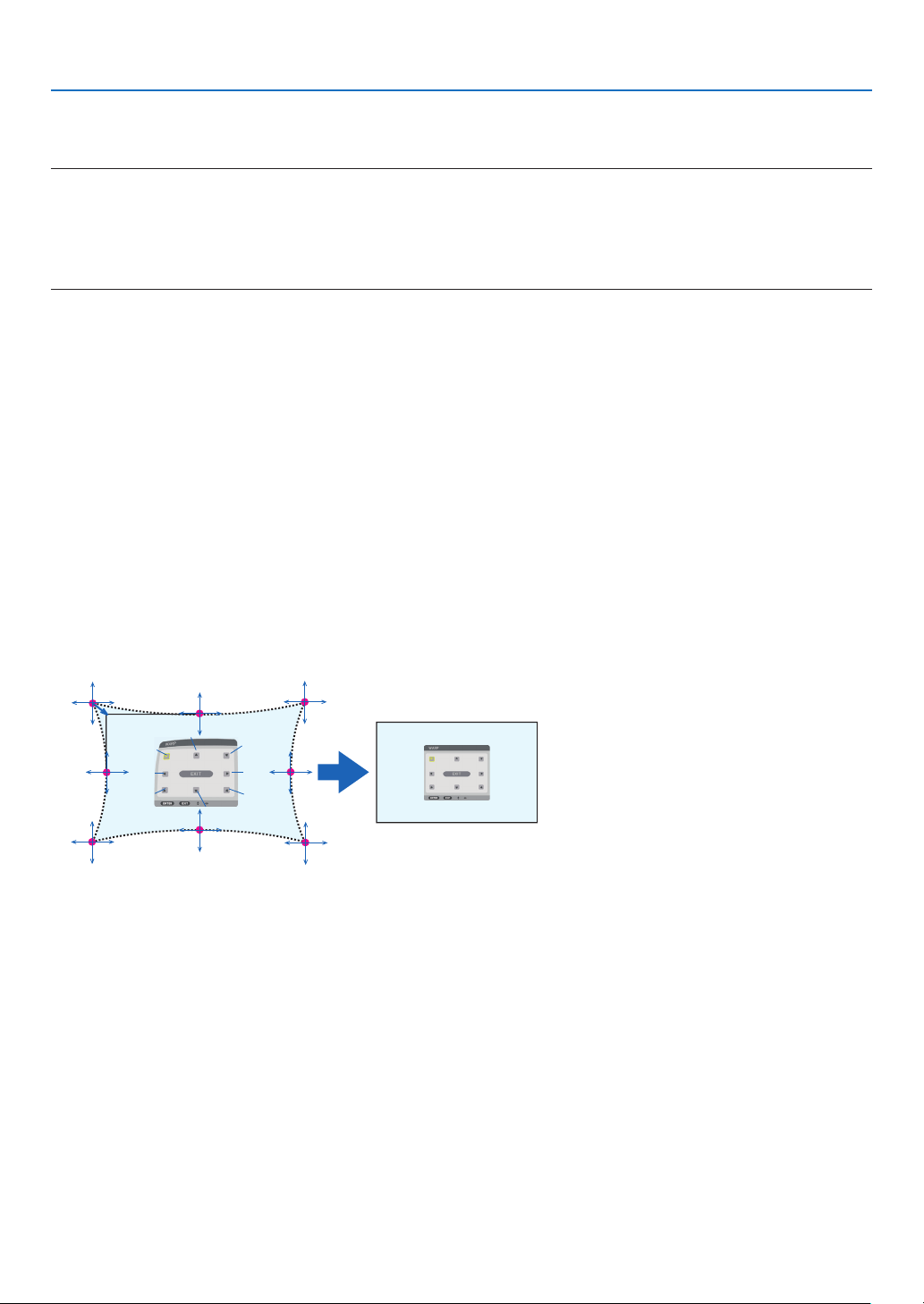
100
5. Using On-Screen Menu
WARP
Correct projected image distortion on a specic surface as a column or a sphere.
NOTE:
• When the maximum adjustment range is exceeded, distortion adjustment is disabled. Set up the projector at an optimal angle
since the more the adjustment volume gets large, the more image quality gets deterioration.
• Please note that the image will go out of focus due to the difference in the distance between peripheries and the center of the screen
for projections cutting across corners as on a column or a sphere. Lenses with short focal points are also not recommended for
projections cutting across corners as the image will go out of focus.
Adjustment method
1. Align the cursor with the [WARP] of the [GEOMETRIC CORRECTION] menu and the press the ENTER.
Adjustment screen will be displayed on.
2. Press the ▼▲◀▶ buttons to align the cursor (blue box) with the target adjustment point and then press the
ENTER.
The cursor will change into an adjustment point (yellow in color).
3. Press the ▼▲◀▶ buttons to adjust the corners or sides of the screen and then press the ENTER.
The cursor will back to yellow box.
Explanation for correcting distortion
• Eight adjustment points can be moved independently.
• For left and right sides, use ◀/▶ buttons for adjusting the range of distortion, and ▼/▲ buttons for adjusting
the distortion peak.
• For top and bottom sides, use ▼/▲ buttons for adjusting the range of distortion, and ◀/▶ buttons for adjusting
the distortion peak.
• For corners, use ▼▲◀▶ buttons for moving positions.
a
b
c
e
h
d
g
f
b
a
c
d
e
f
g
h
4. For adjusting other points, repeat Step2 onwards.
5. When the adjustment is completed, move the cursor onto the [EXIT] on the adjustment screen and press
the ENTER.
The screen will be switched to the [GEOMETRIC CORRECTION] menu.
The adjustment completion screen will be displayed on.
6. Press ◀ or ▶ button to move the cursor onto [OK] then press [ENTER].
The adjusted values for WARP are stored and the screen display goes back to the [GEOMETRIC CORRECTION].
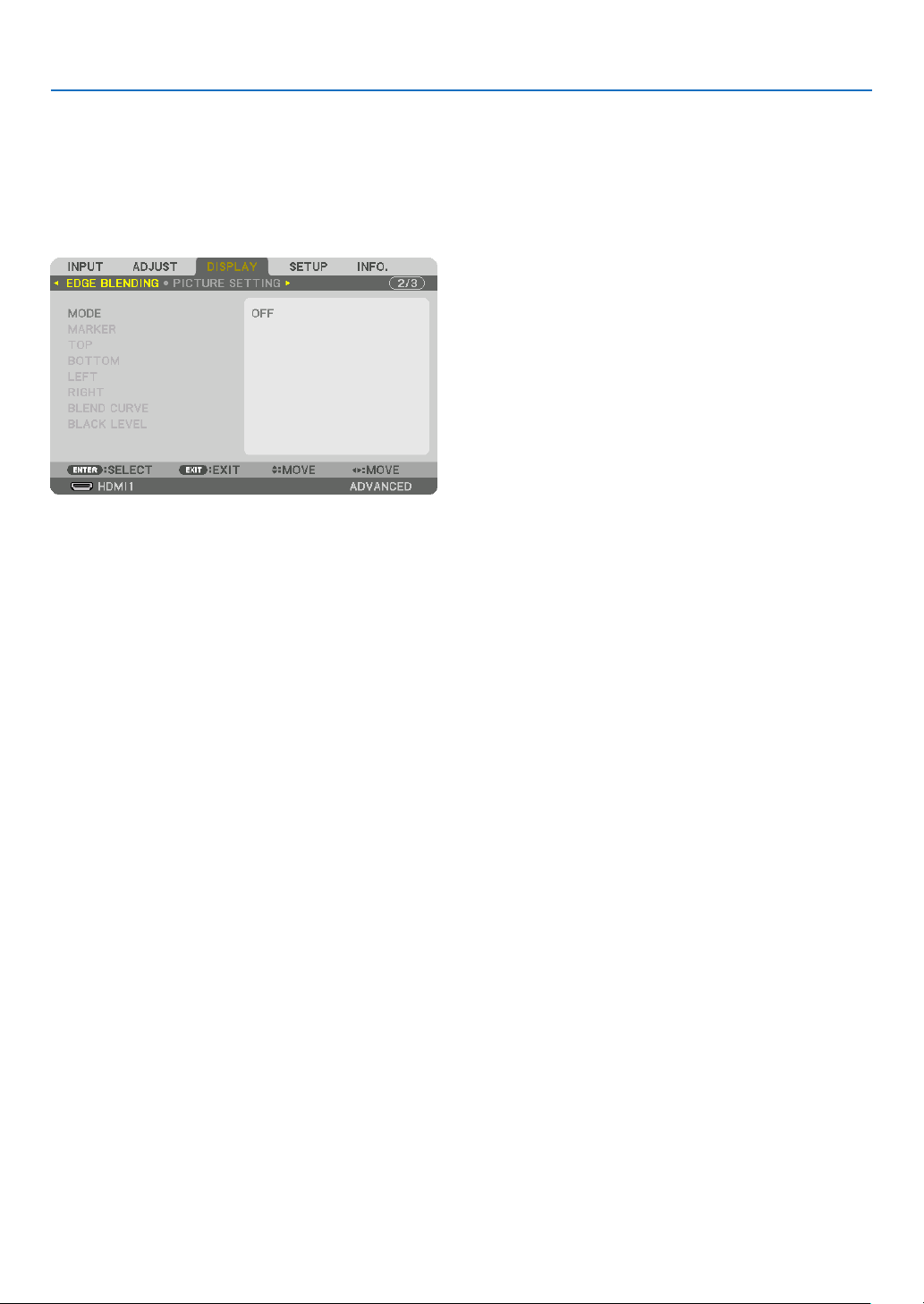
101
5. Using On-Screen Menu
RESET
Reset the adjustment value that has been selected in [GEOMETRIC CORRECTION] (return to the initial value). It
becomes ineffective when [OFF] is selected for [MODE].
• The adjusted value can be reset also by pressing the 3D REFORM button for two seconds or longer on the remote
control.
[EDGE BLENDING]
This adjusts the edges (boundaries) of the projection screen when projecting high resolution videos using a combina-
tion of several projectors in the up, down, left and right positions.
MODE
This enables or disables the EDGE BLENDING function.
When [MODE] is set to [ON], the [MARKER], [TOP], [BOTTOM], [LEFT], [RIGHT], [BLACK LEVEL] and [BLEND
CURVE] settings can be adjusted.
MARKER
Set whether to display marker or not when adjusting the range and display position. When turned on, a magenta
marker for adjusting the range adjustment and a green marker for adjusting the display position will be displayed.
TOP/BOTTOM/LEFT/RIGHT
This selects the EDGE BLENDING locations on the left, right, top and bottom on the screen.
The following settings can be adjusted when an item is selected. (→ page 64)
CONTROL �������������� Enable TOP, BOTTOM, LEFT and RIGHT functions�
RANGE ������������������� Adjust the range (width) of the edge blending�
POSITION �������������� Adjust the display position of the edge blending�
BLEND CURVE
Set brightness for the [EDGE BLENDING] sections. (→ page 68)
BLACK LEVEL
Adjust the black level of the [EDGE BLENDING] section. (→ page 69)
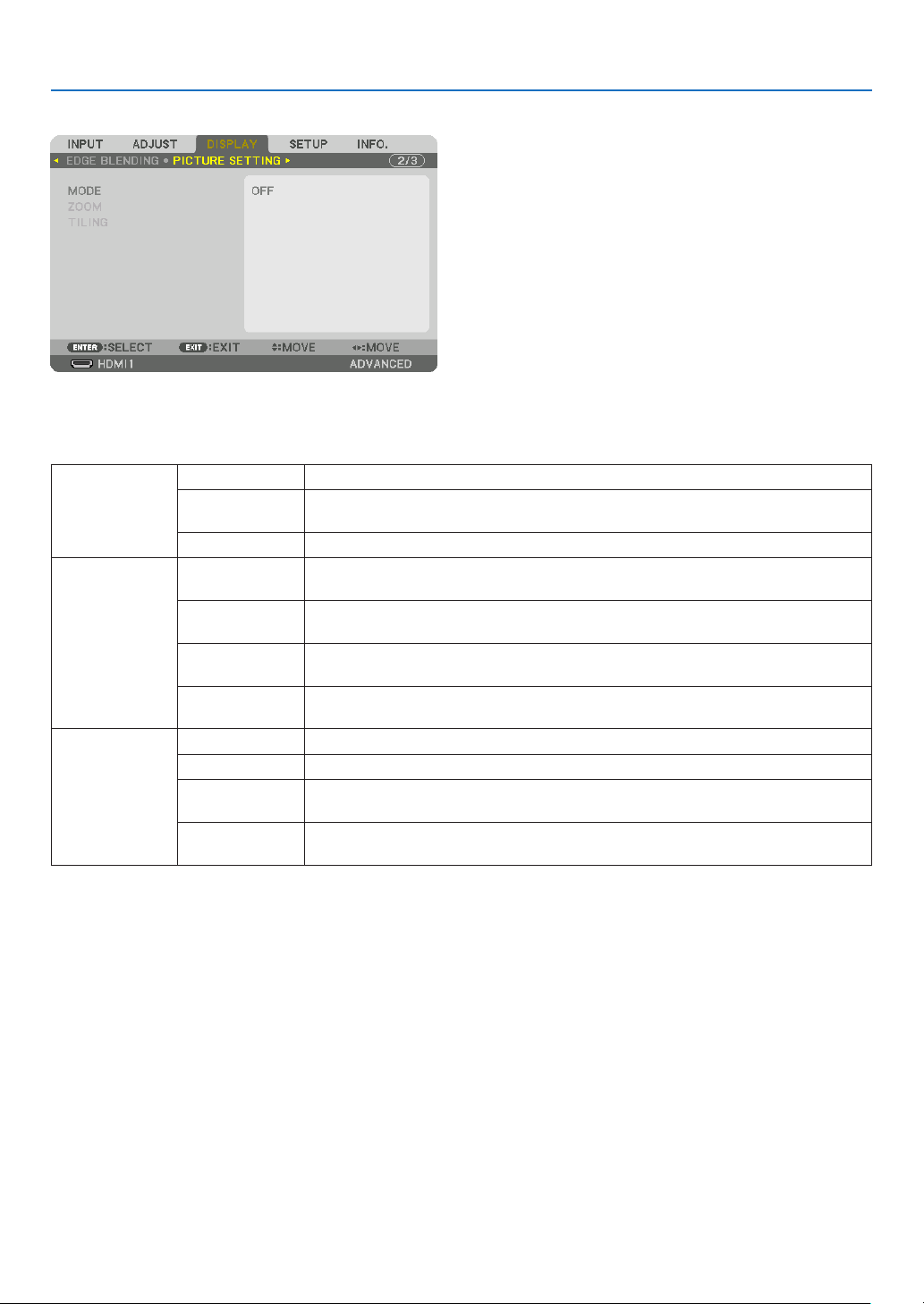
102
5. Using On-Screen Menu
[PICTURE SETTING]
This sets the division conditions for reducing or enlarging the image area and displaying it in the desired position or
for projecting using a combination of several projectors.
Please refer to “4. Multi-Screen Projection” (→ page 57) for details.
MODE OFF Use the projector in a standalone state.
ZOOM This adjusts the position and width of the video area that you wish to divide. The edge
blending width will also be automatically set to that width.
TILING This assigns the divided screens to the projectors.
ZOOM HORIZONTAL
ZOOM
This enlarges the video area in the horizontal direction.
VERTICAL
ZOOM
This enlarges the video area in the vertical direction.
HORIZONTAL
POSITION
This shifts the video area in the horizontal direction.
VERTICAL PO-
SITION
This shifts the video area in the vertical direction.
TILING WIDTH This selects the number of projectors to be arranged horizontally.
HEIGHT This selects the number of projectors to be arranged vertically.
HORIZONTAL
POSITION
This selects the position of the projector starting from the left among those arranged
horizontally.
VERTICAL PO-
SITION
This selects the position of the projector starting from the top among those arranged
vertically.
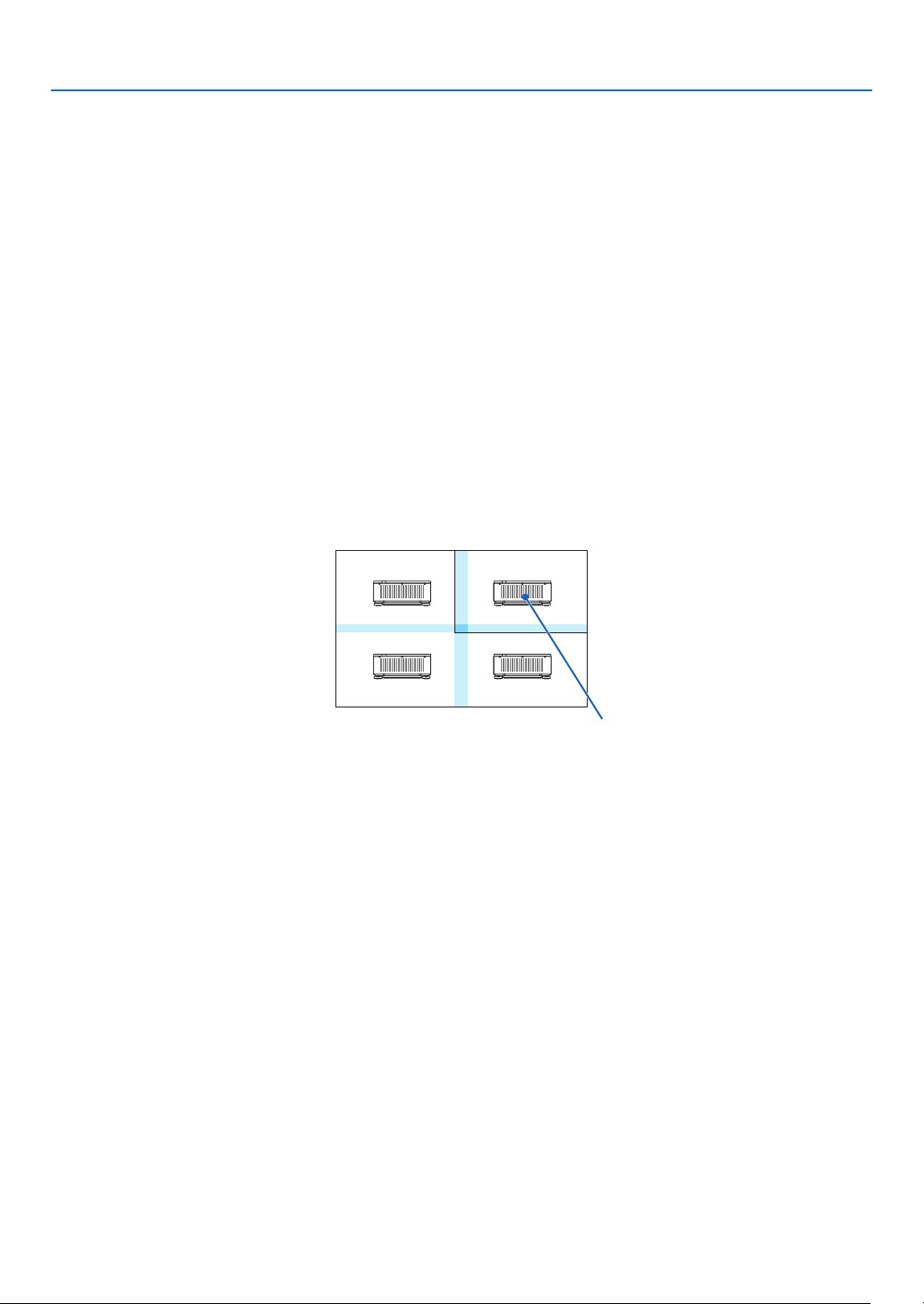
103
5. Using On-Screen Menu
Conditions for using tiling
• All the projectors need to full the following conditions.
• The panel size must be the same
• The projection screen size must be the same
• The left and right ends or top and bottom ends of the projection screen must be consistent.
• The settings for the left and right edges of the edge blending are the same
• The settings for the top and bottom edges of the edge blending are the same
If the tiling conditions are satised, the video screen of the projector at each installation position will be automati-
cally extracted and projected.
If the tiling conditions are not satised, adjust the video screen of the projector at each installation position using
the zoom function.
• Assign a unique control ID to each projector.
• Set the “Color setting” and “DeepColor setting” on your Blu-ray player or computer to “Auto”. Refer to the owner’s
manual accompanied with your Blu-ray player or computer for more information. Connect an HDMI output signal
of your Blu-ray player or computer to the rst projector and then connect to the HDBaseT OUT/Ethernet port on
the rst projector to the HDBaseT IN/Ethernet port on the second projector, same to the sequel projectors..
Tiling setting example) Number of horizontal units = 2, Number of vertical units = 2
Horizontal order = Second unit
Vertical order = First unit
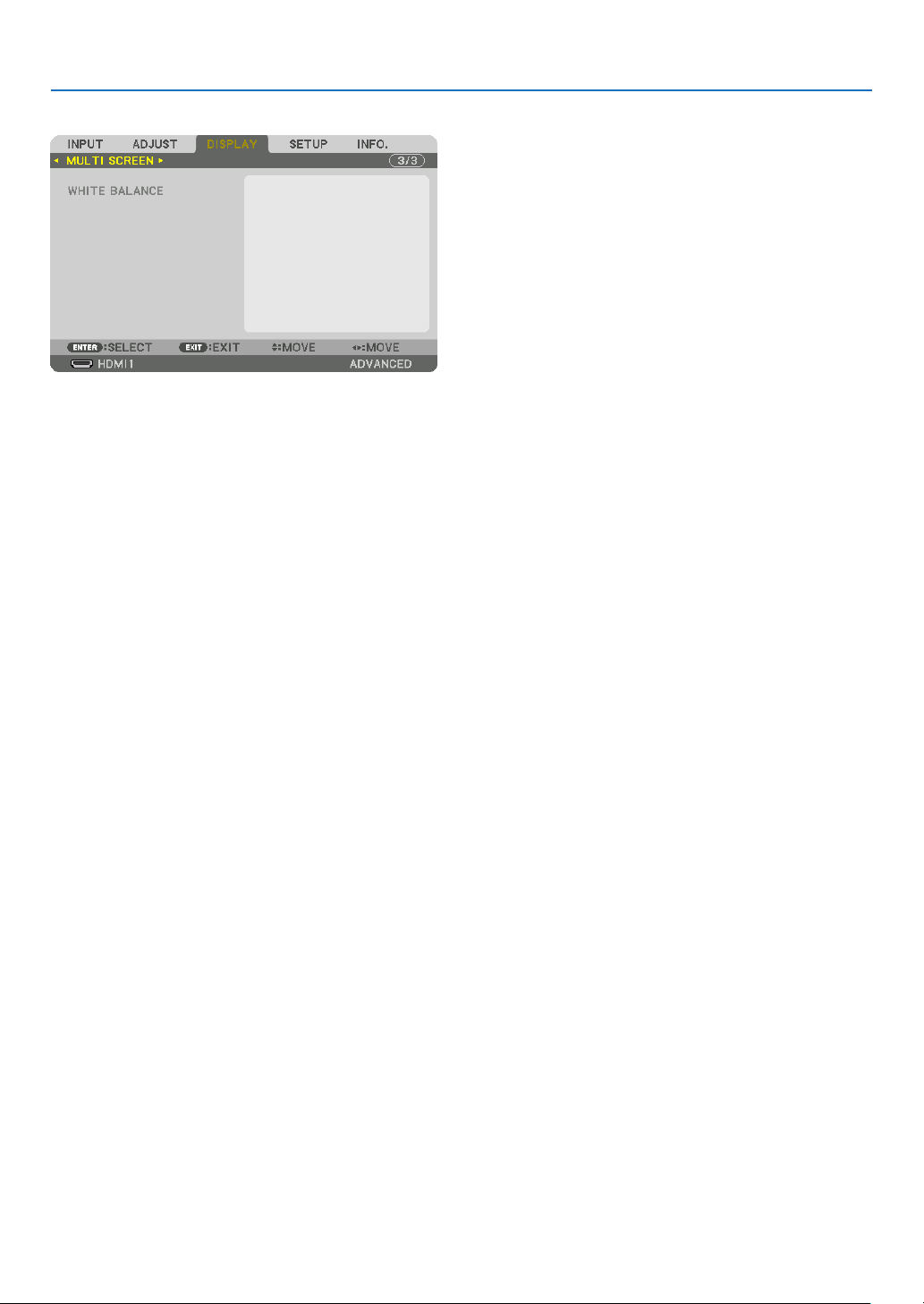
104
5. Using On-Screen Menu
[MULTI SCREEN]
WHITE BALANCE
This adjusts the white balance for each projector when projecting using a combination of several projectors.
This can be adjusted when [MODE] is set to [ON].
CONTRAST W, CONTRAST R, CONTRAST G, CONTRAST B
������������������������������ Adjusting the white color of the video�
BRIGHTNESS W, BRIGHTNESS R, BRIGHTNESS G, BRIGHTNESS B
������������������������������ Adjusting the black color of the video�
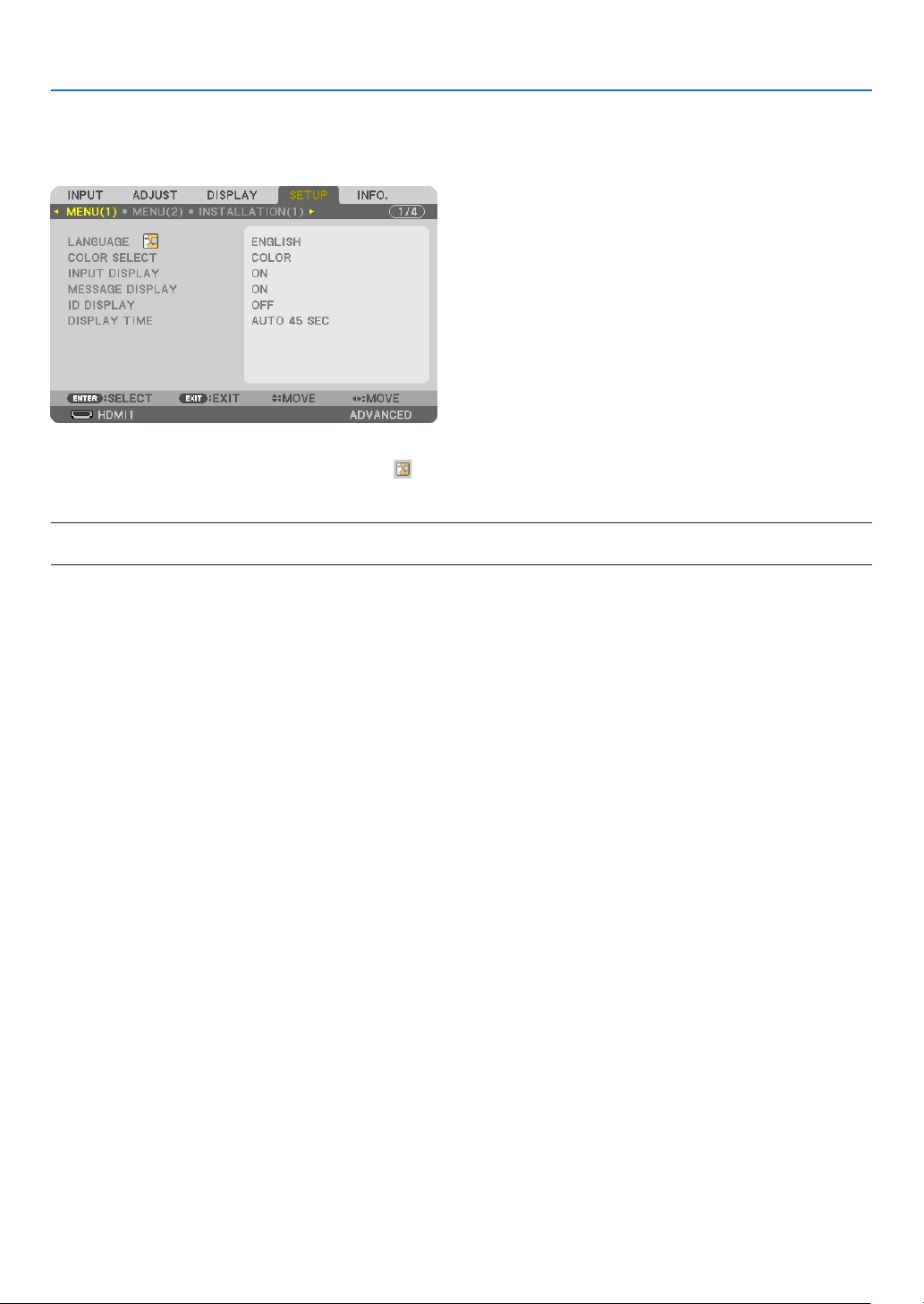
105
5. Using On-Screen Menu
❼ Menu Descriptions & Functions [SETUP]
[MENU(1)]
Selecting Menu Language [LANGUAGE]
You can choose one of 30 languages for on-screen instructions.
NOTE:
• Your setting will not be affected even when [RESET] is done from the menu.
Selecting Menu Color [COLOR SELECT]
You can choose between two options for menu color: COLOR and MONOCHROME.
Turning On / Off Source Display [INPUT DISPLAY]
This option turns on or off input name display such as HDMI1 to be displayed on the top right of the screen.
Turning messages on and off [MESSAGE DISPLAY]
This option selects whether or not to display projector messages at the bottom of the projected image.
Even when “OFF” is selected, the security lock warning is displayed. The security lock warning turns off when the
security lock is canceled.
Turning ON/OFF Control ID [ID DISPLAY]
This option turns on or off the ID number which is displayed when the ID SET button on the remote control is pressed.
(→ page 116)
Selecting Menu Display Time [DISPLAY TIME]
This option allows you to select how long the projector waits after the last touch of a button to turn off the menu. The
preset choices are [MANUAL], [AUTO 5 SEC], [AUTO 15 SEC], and [AUTO 45 SEC]. The [AUTO 45 SEC] is the
factory preset.
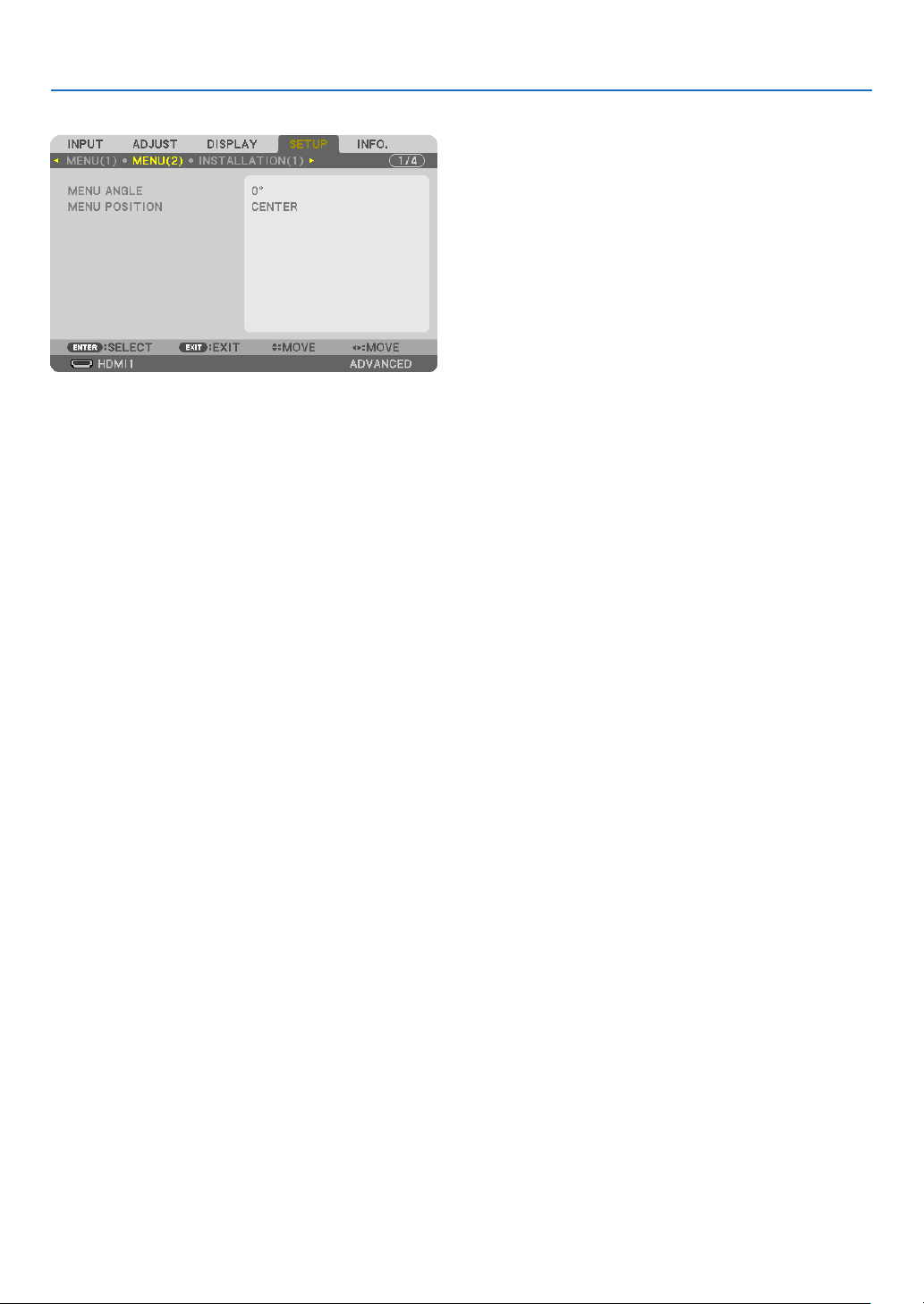
106
5. Using On-Screen Menu
[MENU(2)]
[MENU ANGLE]
Select the direction for displaying the menu.
[MENU POSITION]
Shift the menu displaying position. You can choose from 9 locations.
TIP
• The display position of the menu is saved even when the power supply of the projector is turned off.
• When you change the [MENU ANGLE], the display position of the menu returns to the original state when it was first shipped
from the factory.
• Input terminal and message displaying position are not influenced by the [MENU POSITION].
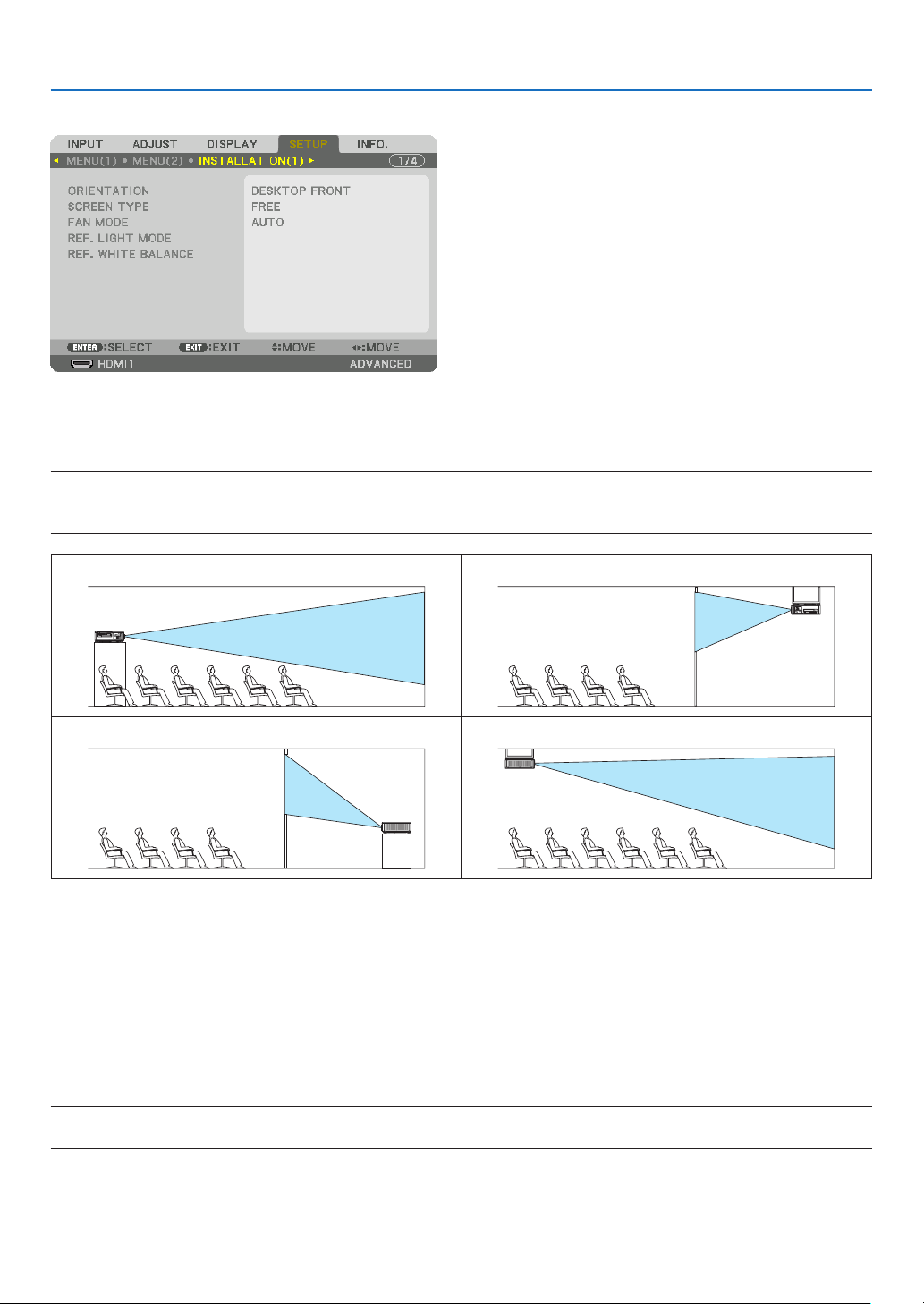
107
5. Using On-Screen Menu
[INSTALLATION(1)]
Selecting Projector Orientation [ORIENTATION]
This reorients your image for your type of projection. The options are: desktop front projection, ceiling rear projection,
desktop rear projection, and ceiling front projection.
NOTE:
• Please consult the dealer if you require special installation services e.g. when mounting the projector to a ceiling. Never install
the projector on your own. This may result in the projector falling down and causing injury to people.
DESKTOP FRONT CEILING REAR
DESKTOP REAR CEILING FRONT
Selecting Aspect Ratio and Position for Screen [SCREEN TYPE]
Sets the aspect ratio of the projection screen.
FREE ���������������������� The ratio of panel is selected� Select this when projecting 17:9 screen (4K)�
4:3 SCREEN ����������� For a screen with a 4:3 aspect ratio
16:9 SCREEN
��������� For a screen with a 16:9 aspect ratio
16:10 SCREEN
������� For a screen with a 16:10 aspect ratio
NOTE:
• After changing the screen type, check the setting of [ASPECT RATIO] in the menu. (→ page 89)
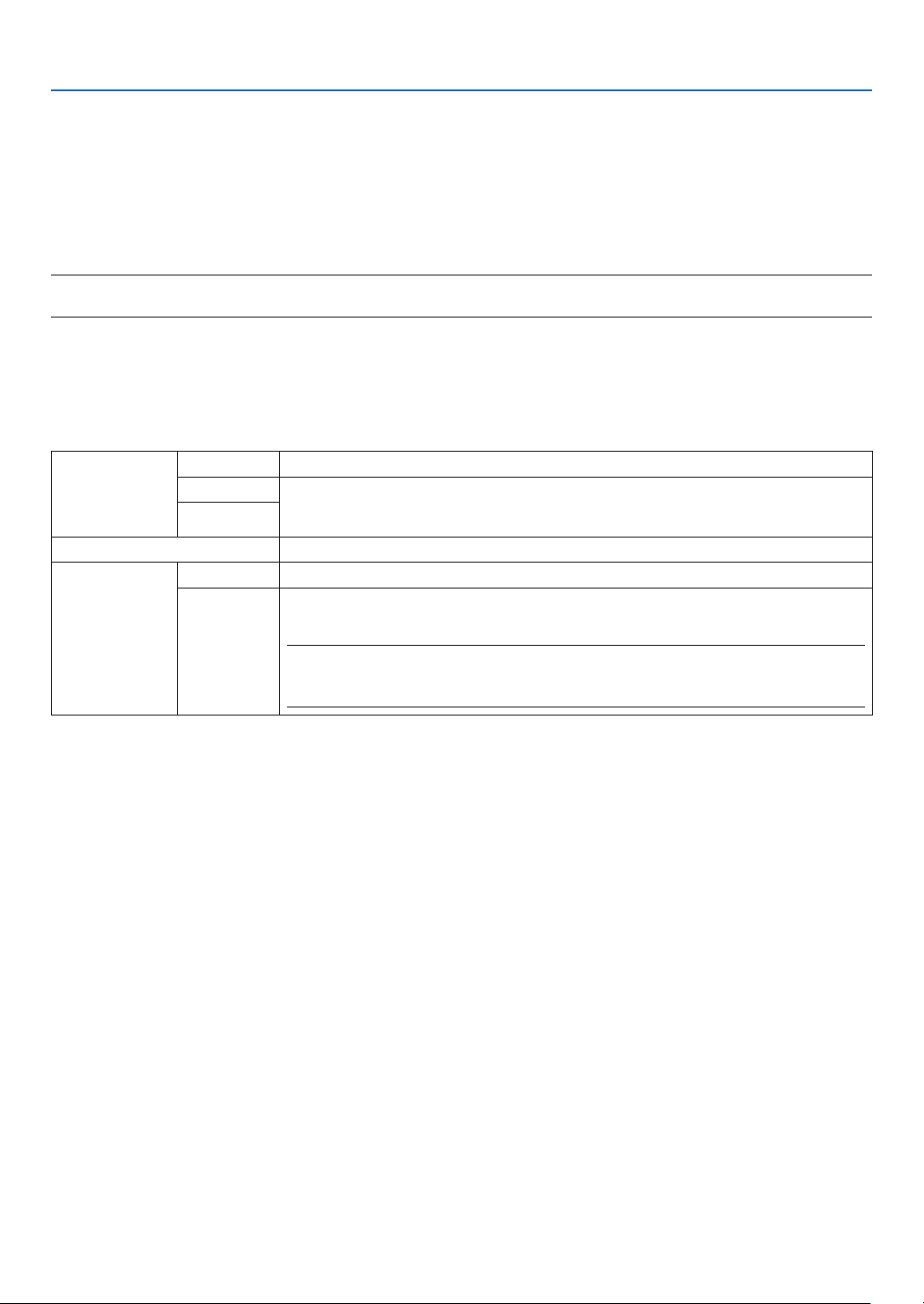
108
5. Using On-Screen Menu
Selecting Fan Mode [FAN MODE]
Fan Mode is used to set the speed of the internal cooling fan.
AUTO ��������������������� Standard mode supplying superior quietness�
HIGH ���������������������� Output the maximum cooling power for prolong life of parts�
• If you use the projector continuously for several days, please make sure to set [HIGH] for [FAN MODE].
NOTE:
• Your setting will not be affected even when [RESET] is done from the menu.
[REF. LIGHT MODE]
Adjust this when you want to use the unit with a lower brightness or when you want to save energy (→ page 39).
This can also be used to adjust the brightness between the different projectors when using a combination of multiple
projectors.
REF. LIGHT
MODE
NORMAL The light module luminance (brightness) will become 100% and the screen will turn bright.
ECO1 By controlling the brightness and fan speed according to the selected setting, energy can
be saved and motion noise and the power consumption can be lowered.
Can be selected when [CONSTANT BRIGHTNESS] mode is set to [OFF].
ECO2
REF. LIGHT ADJUST Brightness can be adjusted in 1% increments from 20 to 100%.
CONSTANT
BRIGHTNESS
OFF [CONSTANT BRIGHTNESS] mode will be canceled.
ON Maintains the brightness that is in effect at the time [ON] is selected. Unless [OFF] is se-
lected, the same settings will remain in effect even when the projector is turned off.
• To re-adjust the brightness, rst turn this setting OFF before making further adjustments.
NOTE:
• [CONSTANT BRIGHTNESS] mode is a function used to maintain the brightness at a constant
level. Color will not be fixed.
TIP:
• When using multi-screen projection, it is recommended to adjust the brightness to a slightly lower level, then setting the [CON-
STANT BRIGHTNESS] mode to [ON].
[REF. WHITE BALANCE]
This feature allows you to adjust the white balance for all signals.
The white and black levels of the signal are adjusted for optimum color reproduction.
CONTRAST R/CONTRAST G/CONTRAST B
������������������������������ These adjust the picture’s white color�
BRIGHTNESS R/BRIGHTNESS G/BRIGHTNESS B
������������������������������ These adjust the picture’s black color�
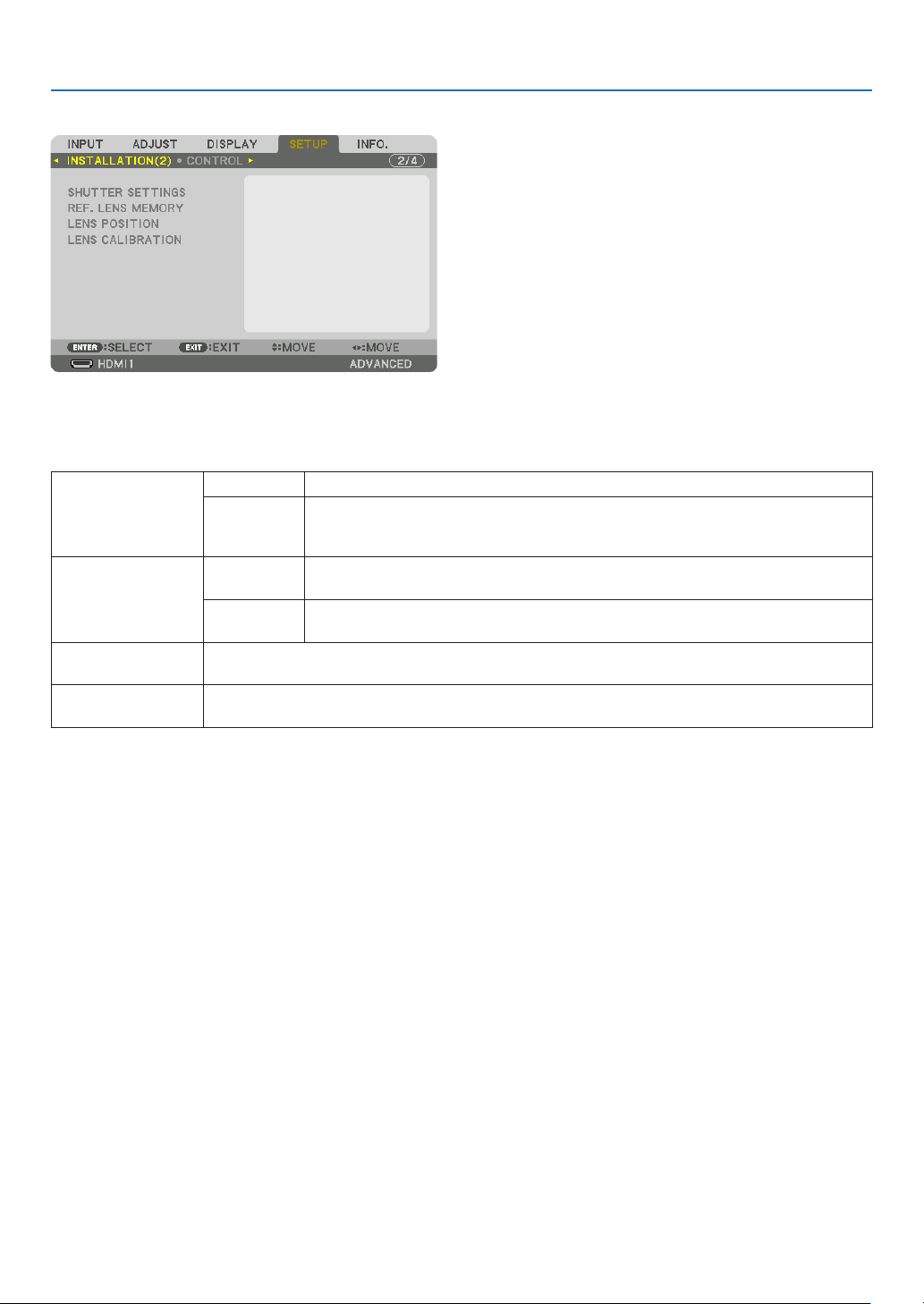
109
5. Using On-Screen Menu
[INSTALLATION(2)]
[SHUTTER SETTINGS]
Enabling and disabling the lens shutter function. You can also set how long the light will take to fade in and fade out
when either the SHUTTER button.
POWER ON SHUT-
TER
OPEN When the power is turned on, the light source comes on and the picture is projected.
CLOSE The light source does not come on when the power is turned on.
When the SHUTTER button is pressed, the shutter is released and the light source is
turned on.
PICTURE MUTE
SHUTTER
OPEN The light source is still on when the picture is turned off for switching the input termi-
nals.
CLOSE The light source turns off when the picture is turned off for switching the input termi-
nals.
FADE IN TIME Set how long the light will take to fade in after the SHUTTER button is pressed.
The time can be set from 0 to 10 seconds in increments of 1 second.
FADE OUT TIME Set how long the light will take to fade out after the SHUTTER button is pressed.
The time can be set from 0 to 10 seconds in increments of 1 second.

110
5. Using On-Screen Menu
Using the Reference Lens Memory Function [REF. LENS MEMORY]
This function serves to store the adjusted values common to all input sources when using the LENS SHIFT, ZOOM
and FOCUS buttons of the projector or the remote control. The adjusted values stored in memory can be used as a
reference to the current.
PROFILE ���������������� Select a stored [PROFILE] number�
STORE ������������������� Stores the current adjusted values in memory as a reference�
MOVE �������������������� Applies the adjusted reference values stored in [STORE] to the current signal�
RESET �������������������� Reset selected [PROFILE] number [REF� LENS MEMORY] to the factory default settings�
LOAD BY SIGNAL �� When you switch signals the lens will shift to the lens shift, zoom, and focus values for the selected [PRO-
FILE] number�
If no adjusted values have been saved to [LENS MEMORY], the lens will apply [REF� LENS MEMORY]
adjusted values� Alternatively, if no adjusted values have been saved to [REF� LENS MEMORY], the unit will
return to factory default settings�
FORCED MUTE ������ To turn off the image during lens shift, select [ON]�
NOTE:
• Adjusted values in [REF.LENS MEMORY] will not be returned to default when performing [CURRENT SIGNAL] or [ALL DATA] for
[RESET] from the menu.
• To store adjusted values for each input source, use the Lens Memory function. (→ page 93)
[LENS POSITION]
Move the lens position.
HOME
�������������������� Set back the lens to the home position�
TYPE ���������������������� Select this for using the lens unit NP39ML-4K� The lens position will be adjusted to the appropriate position�
[LENS CALIBRATION]
The adjustment range of the zoom, focus, and shift of the [LENS MEMORY] is calibrated.
Be sure to carry out [LENS CALIBRATION] after replacing the lens.
Applicable lens unit: NP16FL-4K/NP17ZL-4K/NP18ZL-4K/NP19ZL-4K/NP20ZL-4K/NP21ZL-4K/NP31ZL-4K
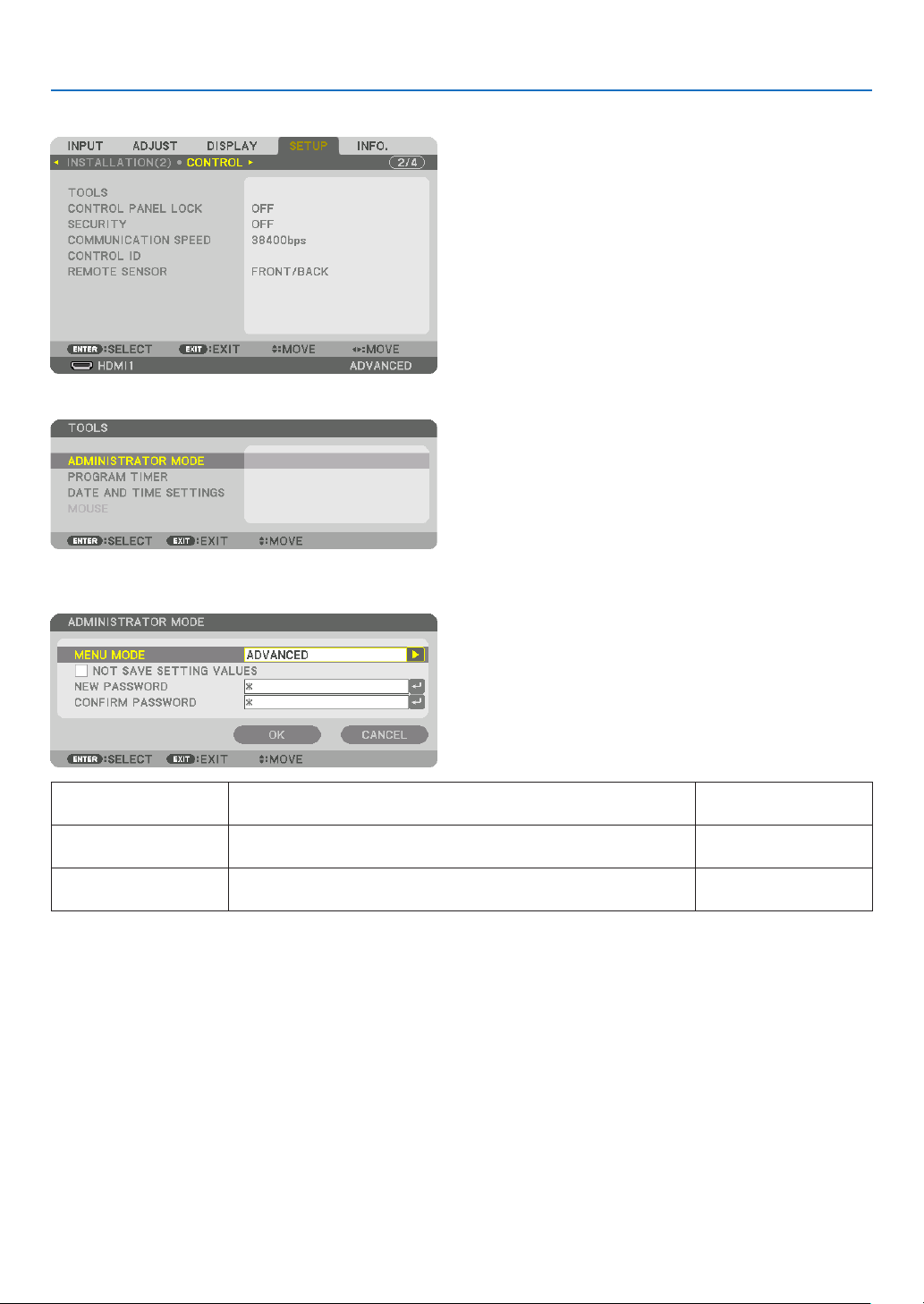
111
5. Using On-Screen Menu
[CONTROL]
TOOLS
ADMINISTRATOR MODE
This allows you to select MENU MODE, save settings, and set a password for the administrator mode.
MENU MODE Select either [BASIC] or [ADVANCED] menu.
(→ page 73)
—
NOT SAVE SETTING
VALUES
Placing a check mark will not save your projector settings.
Clear this check box to save your projector settings.
—
NEW PASSWORD/CON-
FIRM PASSWORD
Assign a password for the administrator mode. Up to 10 alphanumeric
characters
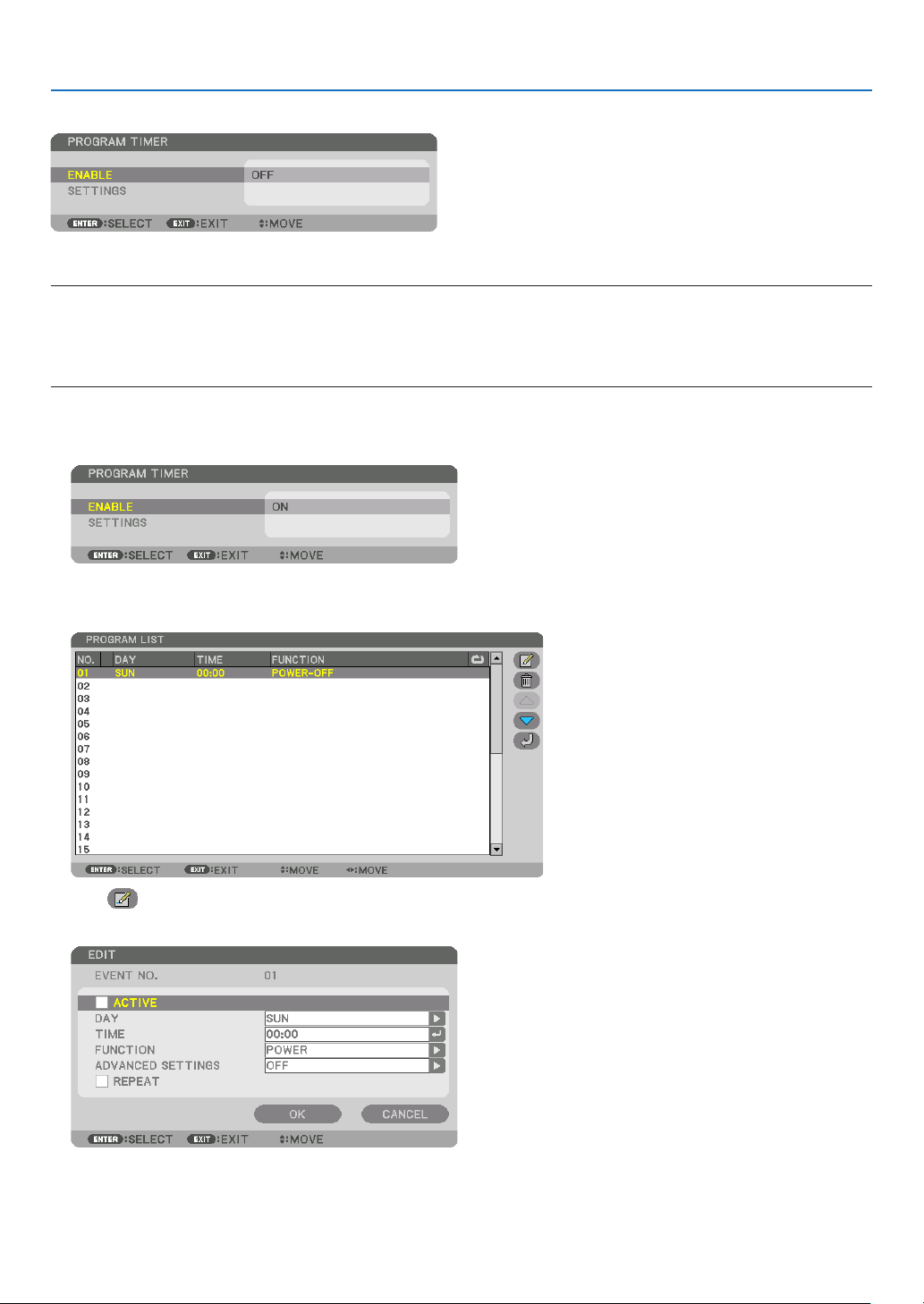
112
5. Using On-Screen Menu
PROGRAM TIMER
This option turns on/standby the projector and changes video signals automatically at a specied time.
NOTE:
• Before using [PROGRAM TIMER], make sure that the [DATE AND TIME] feature is set. (→ page 115)
Make sure that the projector is in the standby condition with the POWER cable connected.
The projector has a built-in clock. The clock will keep working for about a month after the main power is turned off. If the main
power is not supplied to the projector for a month or more, it requires to set [DATE AND TIME SETTINGS] feature again.
Setting a new program timer
1. On the PROGRAM TIMER screen, use the ▲ or ▼ button to select [SETTINGS] and press the ENTER button.
The [PROGRAM LIST] screen will be displayed.
2. Select a blank program number and press the ENTER button.
The [ (EDIT)] screen will be displayed.
3. Make settings for each item as required.
ACTIVE ������������������ Place a check mark to enable the program�
DAY ������������������������ Select days of the week for the program timer� To execute the program from Monday to Friday, select [MON-
FRI]� To execute the program in everyday basis, select [EVERYDAY]�
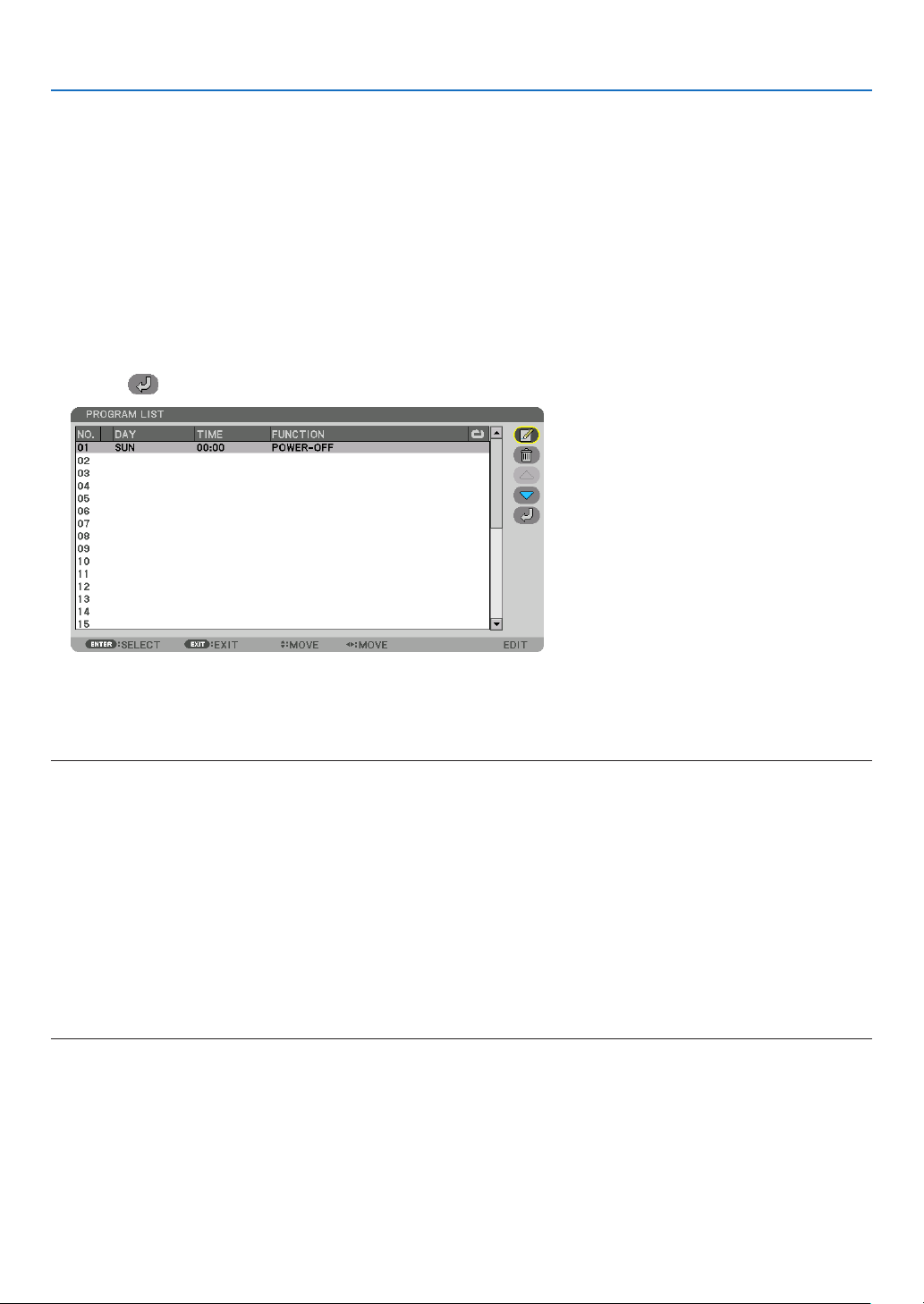
113
5. Using On-Screen Menu
TIME ���������������������� Set the time to execute the program� Enter time in 24-hour format�
FUNCTION ������������� Select a function to be executed� Selecting [POWER] will allow you to turn on or off the projector by setting
[ADVANCED SETTINGS]� Selecting [INPUT] will allow you to select an input terminal by setting [ADVANCED
SETTINGS]� Selecting [LIGHT MODE] will allow you to select [LIGHT MODE] by setting [ADVANCED SET-
TINGS]�
ADVANCED SETTINGS
������������������������������ Select one option for the selected item in [FUNCTION]�
REPEAT ������������������ Place a check mark to repeat the program continuing basis� To use the program this week only, clear the
check mark�
4. Select [OK] and press the ENTER button.
This will complete the settings.
You will be returned to the [PROGRAM LIST] screen.
5. Select [ (BACK)] and press the ENTER button.
You will be returned to the [PROGRAM TIMER] screen.
6. Select [EXIT] and press the ENTER button.
You will be returned to the [TOOLS] screen.
NOTE:
• Up to 30 different timer settings can be programmed.
• The Program Timer is executed on a set time basis, not in a program basis.
• Once the program not marked with a check in [REPEAT] has been executed, the check mark in the [ACTIVE] check box will be
cleared automatically and the program will be disabled.
• When the on-time and the off-time set for the same time, the off-time setting will take preference.
• When two different sources are set for the same time, the larger program number will take preference.
• The on-time setting will not be executed while the cooling fans are running or an error is occurring.
• If the off-time setting is expired under the condition in which the power off is not possible, the off-timer setting will not be executed
until the power off becomes possible.
• Programs not marked with a check mark in [ACTIVE] of the [EDIT] screen will not be executed even if the Program Timer is
enabled.
• When the projector is turned on by using the program timer and if you want to turn off the projector, set the off-time or do it
manually so as not to leave the projector on for a long period of time.

114
5. Using On-Screen Menu
Activating the program timer
1. Select [ENABLE] on the [PROGRAM TIMER] screen and press the ENTER button.
The selection screen will be displayed.
2. Press the ▼ button to align the cursor with [ON] and then press the ENTER button.
Return to the [PROGRAM TIMER] screen.
NOTE:
• When the effective settings of the [PROGRAM TIMER] have not been set to [ON], the program will not be executed even if the
[ACTIVE] items in the program list have been ticked.
• Even when the effective settings of the [PROGRAM TIMER] are set to [ON], the [PROGRAM TIMER] will not work until the [PRO-
GRAM TIMER] screen is closed.
Editing the programmed settings
1. On the [PROGRAM LIST] screen, select a program you want to edit and press the ENTER button.
2. Change the settings on the [EDIT] screen.
3. Select [OK] and press the ENTER button.
The programmed settings will be changed.
You will be returned to the [PROGRAM LIST] screen.
Changing the order of programs
1. On the [PROGRAM LIST] screen, select a program whose order you want to change and press the ▶ button.
2. Press the ▼ button to select ▲ or ▼.
3. Press the ENTER button a few times to select a row to which you wish to move the program.
The order of the programs will be changed.
Deleting the programs
1. On the [PROGRAM LIST] screen, select a program number you want to delete and press the ▶ button.
2. Press the ▼ button to select [ (DELETE)].
3. Press the ENTER button.
The conrmation screen will be displayed.
4. Select [YES] and press the ENTER button.
The program will be deleted.
This will complete deleting the program.
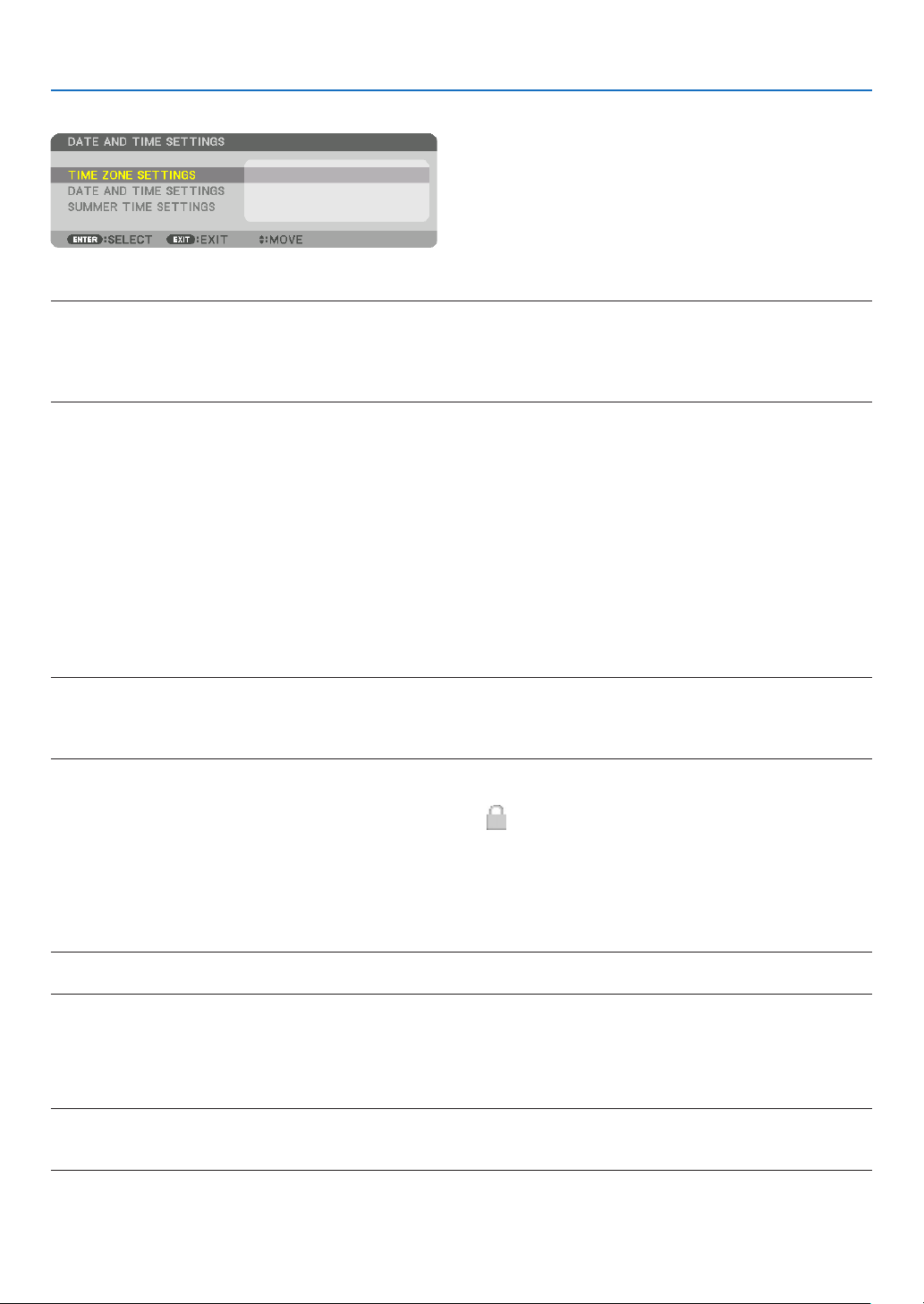
115
5. Using On-Screen Menu
DATE AND TIME SETTINGS
You can set the current time, month, date, and year.
NOTE:
• The projector has a built-in clock. The clock will keep working for about a month after the main power is turned off. If the main
power is off for a month or more, the built-in clock will cease. If the built-in clock ceases, set the date and time again. The built-in
clock will not cease while in the standby mode. In order to activate the built-in clock continuously even when the projector is not
used, leave it in the standby state not plugging off the power cable.
TIME ZONE SETTINGS
�������������� Select your time zone�
DATE AND TIME SETTINGS ������ Set your current date (MM/DD/YYYY) and time (HH:MM)�
INTERNET TIME SERVER: If you place a check mark, the projector’s built-in clock will be syn-
chronized with an Internet time server in every 24 hours and at the time of projector’s startup�
UPDATE: Synchronizes the projector’s built-in clock immediately� The UPDATE button is not
available unless the INTERNET TIME SERVER check box is turned on�
SUMMER TIME SETTINGS ������� If you place a check mark, the clock for daylight saving will be enabled�
Disabling the Cabinet Buttons [CONTROL PANEL LOCK]
This option turns on or off the CONTROL PANEL LOCK function.
NOTE:
• How to cancel the [CONTROL PANEL LOCK]
When the [CONTROL PANEL LOCK] is set to [ON], press the EXIT button on the cabinet for 10 seconds or longer to cancel the
[CONTROL PANEL LOCK] setting.
TIP:
• When the [CONTROL PANEL LOCK] is turned on, a key lock icon [ ] will be displayed at the bottom right of the menu.
• This CONTROL PANEL LOCK does not affect the remote control functions.
Enabling Security [SECURITY]
This feature turns on or off the SECURITY function.
Unless the correct keyword is entered, the projector cannot project an image. (→ page 46)
NOTE:
• Your setting will not be affected even when [RESET] is done from the menu.
Selecting Communication Speed [COMMUNICATION SPEED]
This feature sets the communication speed for the PC Control port (D-Sub 9P). Make sure to set the appropriate
speed for the device to connect.
NOTE:
• Select [38400bps] or less when using our utility software “NaViSet Administrator 2”.
• Your selected communication speed will not be affected even when [RESET] is done from the menu.
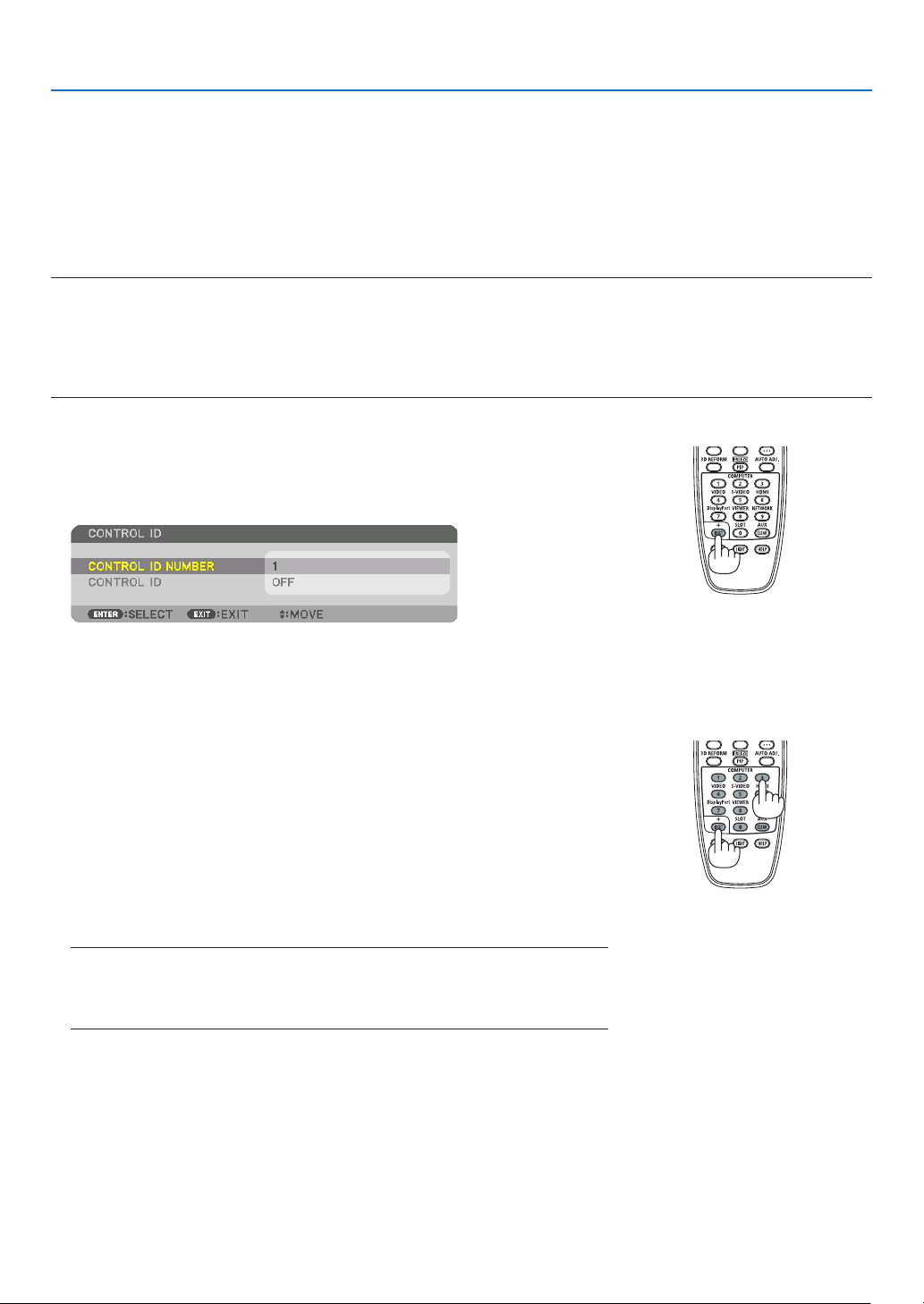
116
5. Using On-Screen Menu
Setting ID to the Projector [CONTROL ID]
You can operate multiple projectors separately and independently with the single remote control that has the CONTROL
ID function. If you assign the same ID to all the projectors, you can conveniently operate all the projectors together
using the single remote control. To do so, you have to assign an ID number to each projector.
CONTROL ID NUMBER
������� Select a number from 1 to 254 you wish to assign to your projector�
CONTROL ID �����������������������Select [OFF] to turn off the CONTROL ID setting and select [ON] to turn on the CONTROL ID setting�
NOTE:
• When [ON] is selected for [CONTROL ID], the projector cannot be operated by using the remote control that does not support
the CONTROL ID function. (In this case the buttons on the projector cabinet can be used.)
• Your setting will not be affected even when [RESET] is done from the menu.
• Pressing and holding the ENTER button on the projector cabinet for 10 seconds will display the menu for canceling the Control
ID.
Assigning or Changing the Control ID
1. Turn on the projector.
2. Press the ID SET button on the remote control.
The CONTROL ID screen will be displayed.
If the projector can be operated with the current remote control ID, the [AC-
TIVE] will be displayed. If the projector cannot be operated with the current
remote control ID, the [INACTIVE] will be displayed. To operate the inactive
projector, assign the control ID used for the projector by using the following
procedure (Step 3).
3. Press one of numeric keypad buttons while pressing and holding the ID
SET button on the remote control.
Example:
To assign “3”, press the “3” button on the remote control.
No ID means that all the projectors can be operated together with a single
remote control. To set “No ID”, enter “000” or press the CLEAR button.
TIP: The range of IDs is from 1 to 254.
4. Release the ID SET button.
The updated CONTROL ID screen will be displayed.
NOTE:
• The IDs can be cleared in a few days after the batteries are run down or removed.
• Accidentally pressing any one of the buttons of the remote control will clear currently
specified ID with batteries removed.

117
5. Using On-Screen Menu
Turning On or Off Remote Sensor [REMOTE SENSOR]
This option determines which remote sensor on the projector is enabled in wireless mode.
The options are: FRONT/BACK, FRONT, BACK, and HDBaseT*.
NOTE:
• The remote control of the projector will not be able to receive signals if the power supply of the HDBaseT transmission device
connected to the projector is switched on when this has been set to “HDBaseT”.
TIP:
• If the remote control system does not function when direct sunlight or strong illumination strikes the remote control sensor of
the projector, change to other option.
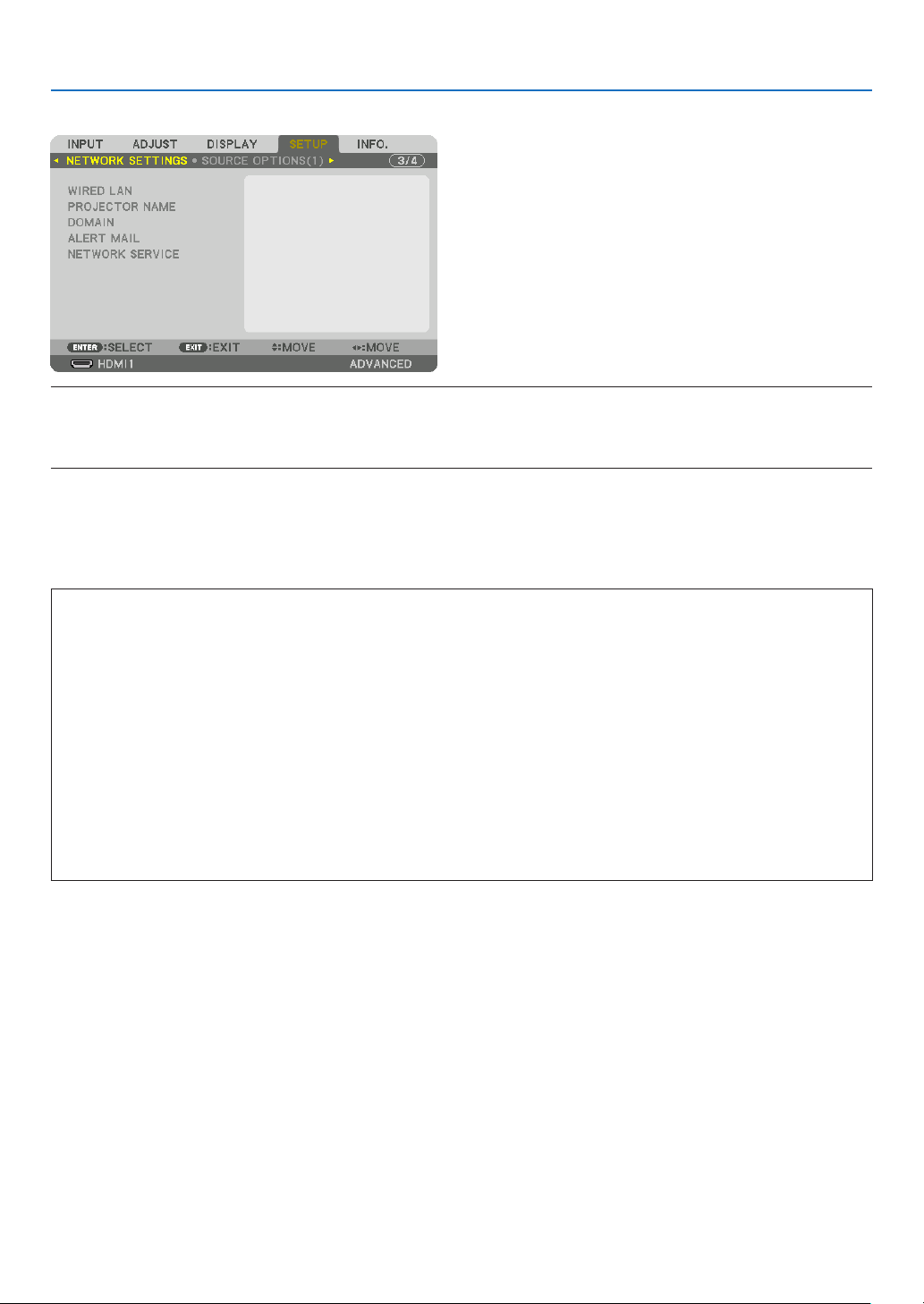
118
5. Using On-Screen Menu
[NETWORK SETTINGS]
Important:
• Consult with your network administrator about these settings.
• When using a wired LAN, connect the Ethernet cable (LAN cable) to the LAN port on the projector. (→ page 9)
• Please use a shielded twisted pair (STP) cable of Category 5e or higher for the LAN cable (sold commercially).
TIP:
• The network settings you make will not be affected even when [RESET] is done from the menu.
Hints on How to Set Up LAN Connection
To set up the projector for a LAN connection:
Select [WIRED LAN] → [PROFILES] → [PROFILE 1] or [PROFILE 2].
Two settings can be set for wired LAN.
Next turn on or off for [DHCP], [IP ADDRESS], [SUBNET MASK], and [GATEWAY] and select [OK] and press the
ENTER button. (→ page 119)
To recall LAN settings stored in the prole number:
Select [PROFILE 1] or [PROFILE 2] for wired LAN, and then select [OK] and press the ENTER button. (→ page 119)
To connect a DHCP server:
Turn on [DHCP] for wired LAN. Select [ON] and press the ENTER button. To specify IP address without using the
DHCP server, turn off [DHCP]. (→ page 119)
To receive error messages via e-mail:
Select [ALERT MAIL], and set [SENDER'S ADDRESS], [SMTP SERVER NAME], and [RECIPIENT'S ADDRESS].
Last, select [OK] and press the ENTER button. (→ page 121)
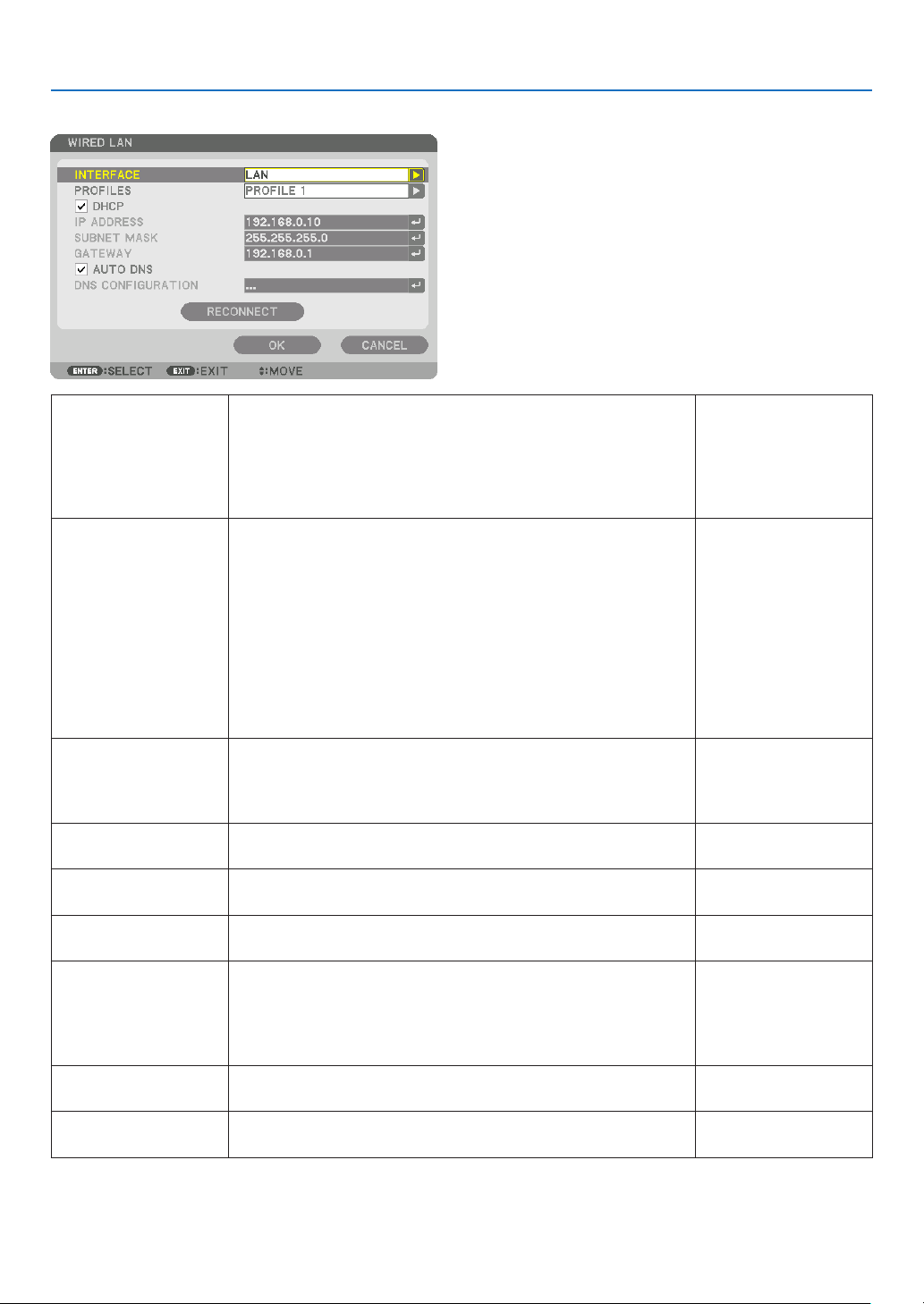
119
5. Using On-Screen Menu
WIRED LAN
INTERFACE Select [LAN] for using the LAN port for connecting to the wired
LAN. Select [HDBaseT] for using the HDBaseT port for connect-
ing to the wired LAN. The control from the connected device will
be disabled if no signal is sent and received for three minutes if
the projector is connected to wired LAN thru the HDBaseT. For
refusing this, set the standby mode to [SLEEP] in advance.
—
PROFILES
• The settings for the wired LAN can be recorded in the projector
memory in two ways.
• Select [PROFILE 1] or [PROFILE 2] and then do settings for
[DHCP] and the other options.
After doing this, select [OK] and press the ENTER button. This
will store your settings in memory.
• To recall the settings from memory:
After selecting [PROFILE 1] or [PROFILE 2] from the [PRO-
FILES] list.
Select [OK] and press the ENTER button.
• Select [DISABLE] when not connecting to a wired LAN
—
DHCP Place a check mark to automatically assign an IP address to the
projector from your DHCP server.
Clear this check box to register the IP address or subnet mask
number obtained from your network administrator.
—
IP ADDRESS Set your IP address of the network connected to the projector
when [DHCP] is turned off.
Up to 12 numeric
characters
SUBNET MASK Set your subnet mask number of the network connected to the
projector when [DHCP] is turned off.
Up to 12 numeric
characters
GATEWAY Set the default gateway of the network connected to the projector
when [DHCP] is turned off.
Up to 12 numeric
characters
AUTO DNS Place a check mark to automatically assign the IP address of your
DNS server connected to the projector from your DHCP server.
Clear this check box to set the IP address of your DNS server
connected to the projector.
[AUTO DNS] can be set for the HDBaseT port only.
Up to 12 numeric
characters
DNS CONFIGURA-
TION
Set the IP address of your DNS server on the network connected
to the projector when [AUTO DNS] is cleared.
Up to 12 numeric
characters
RECONNECT Retry to connect the projector to a network. Try this if you have
changed [PROFILES].
—
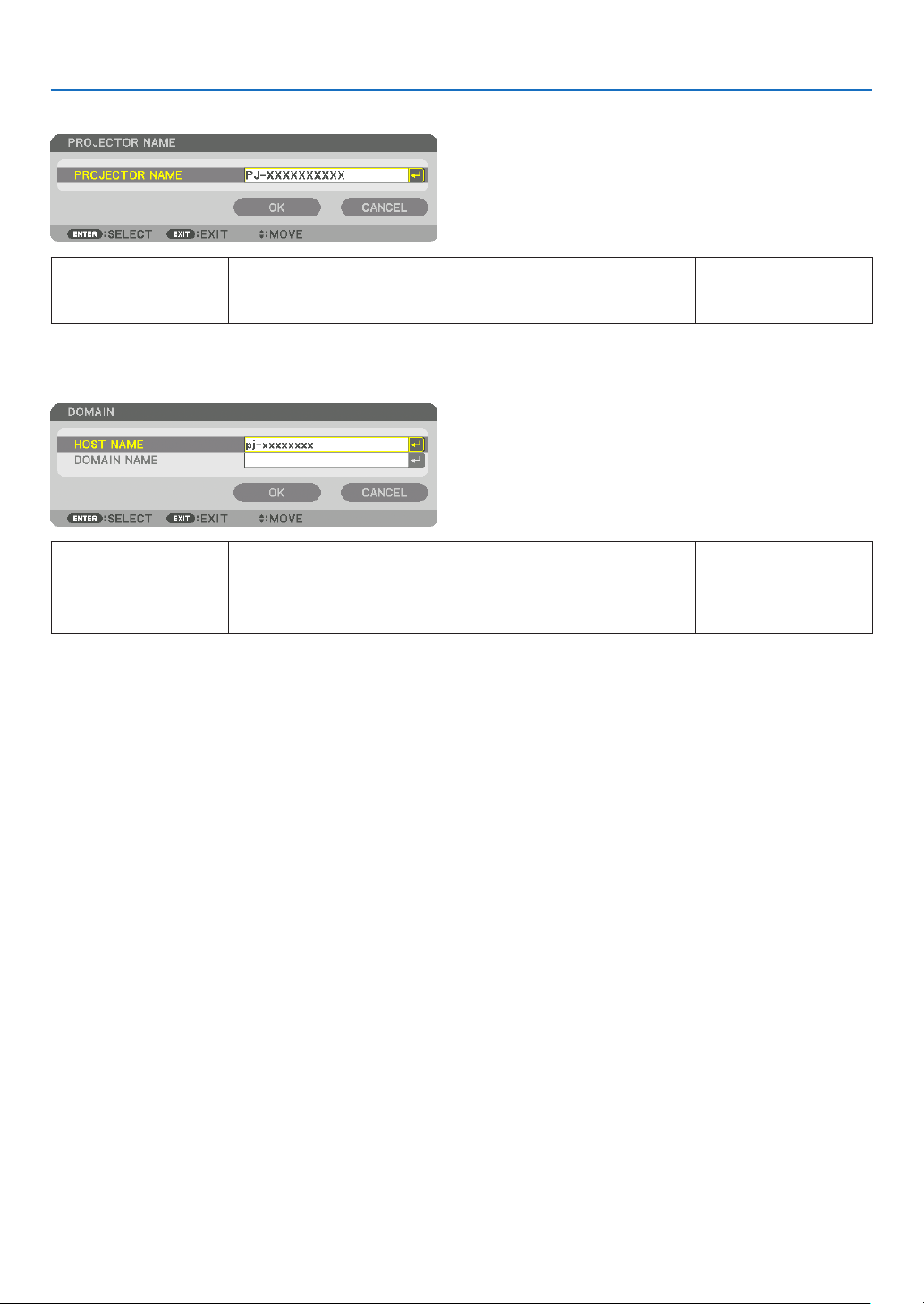
120
5. Using On-Screen Menu
PROJECTOR NAME
PROJECTOR NAME Set a unique projector name. Up to 16 alphanu-
meric characters and
symbols
DOMAIN
Set a host name and domain name of the projector.
HOST NAME Set a host name of the projector. Up to 16 alphanumeric
characters
DOMAIN NAME Set a domain name of the projector. Up to 60 alphanumeric
characters
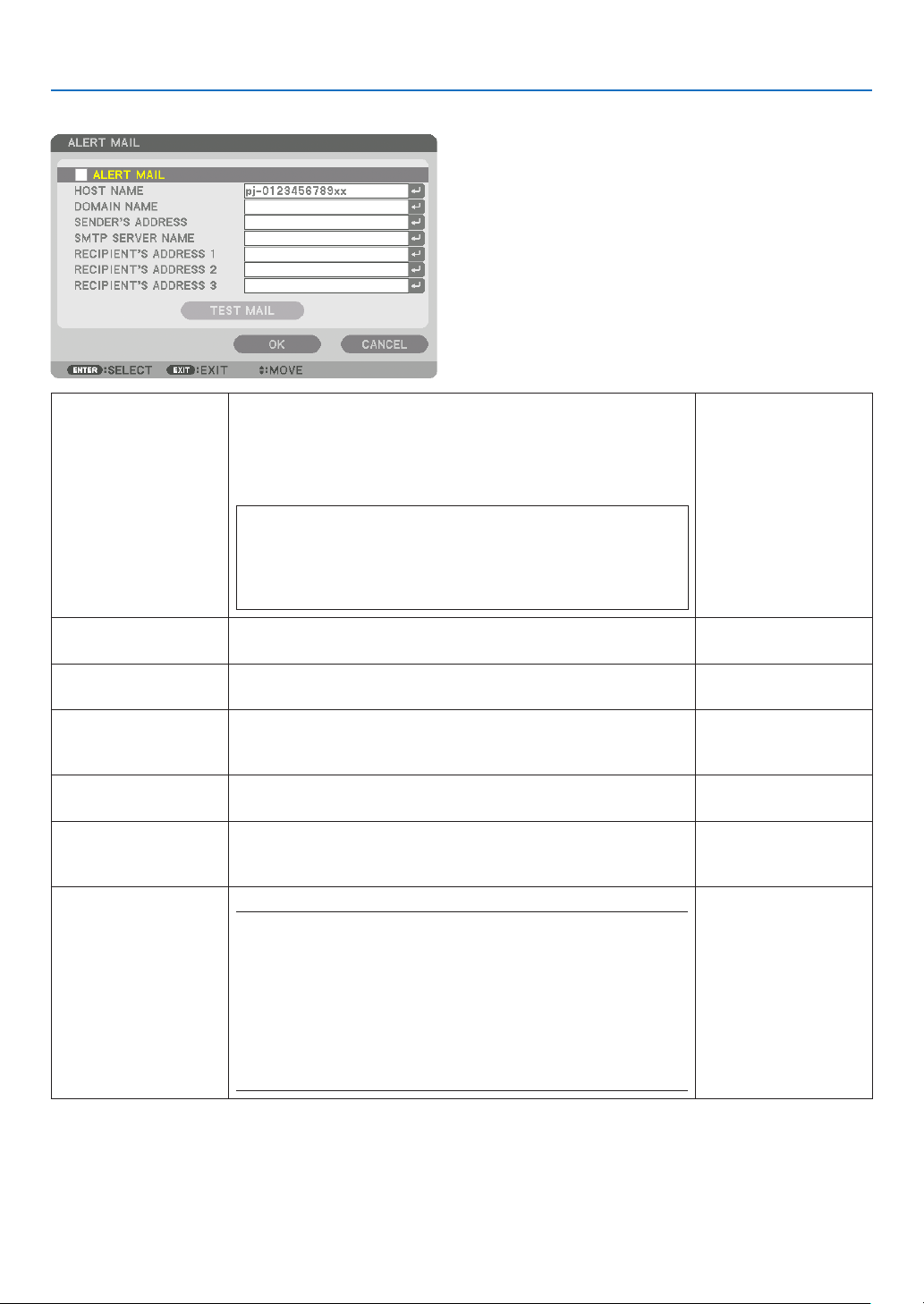
121
5. Using On-Screen Menu
ALERT MAIL
ALERT MAIL This option will notify your computer of error messages via e-mail
when using wireless or wired LAN.
Placing a checkmark will turn on the Alert Mail feature�
Clearing a checkmark will turn off the Alert Mail feature�
Sample of a message to be sent from the projector:
Subject: [Projector] Projector Information
THE COOLING FAN HAS STOPPED.
[INFORMATION]
PROJECTOR NAME: xxxxx
LIGHT HOURS USED: xxxx[H]
—
HOST NAME Type in a host name. Up to 16 alphanumeric
characters
DOMAIN NAME Type in a domain name of the network connected to the projector. Up to 60 alphanumeric
characters
SENDER'S AD-
DRESS
Specify the sender’s address. Up to 60 alphanu-
meric characters and
symbols
SMTP SERVER
NAME
Type in the SMTP server name to be connected to the projector. Up to 60 alphanumeric
characters
RECIPIENT'S AD-
DRESS 1, 2, 3
Type in your recipient’s address. Up to 60 alphanu-
meric characters and
symbols
TEST MAIL Send a test mail to check if your settings are correct.
NOTE:
• If you entered an incorrect address in a test, you may not receive an
Alert mail. Should this happen, check if the Recipient’s Address is
correctly set.
• Unless any one of the [SENDER'S ADDRESS], [SMTP SERVER'S
NAME] or [RECIPIENT'S ADDRESS 1-3] is selected, [TEST MAIL] is
not available.
• Be sure to highlight [OK] and press the ENTER button before executing
[TEST MAIL].
—
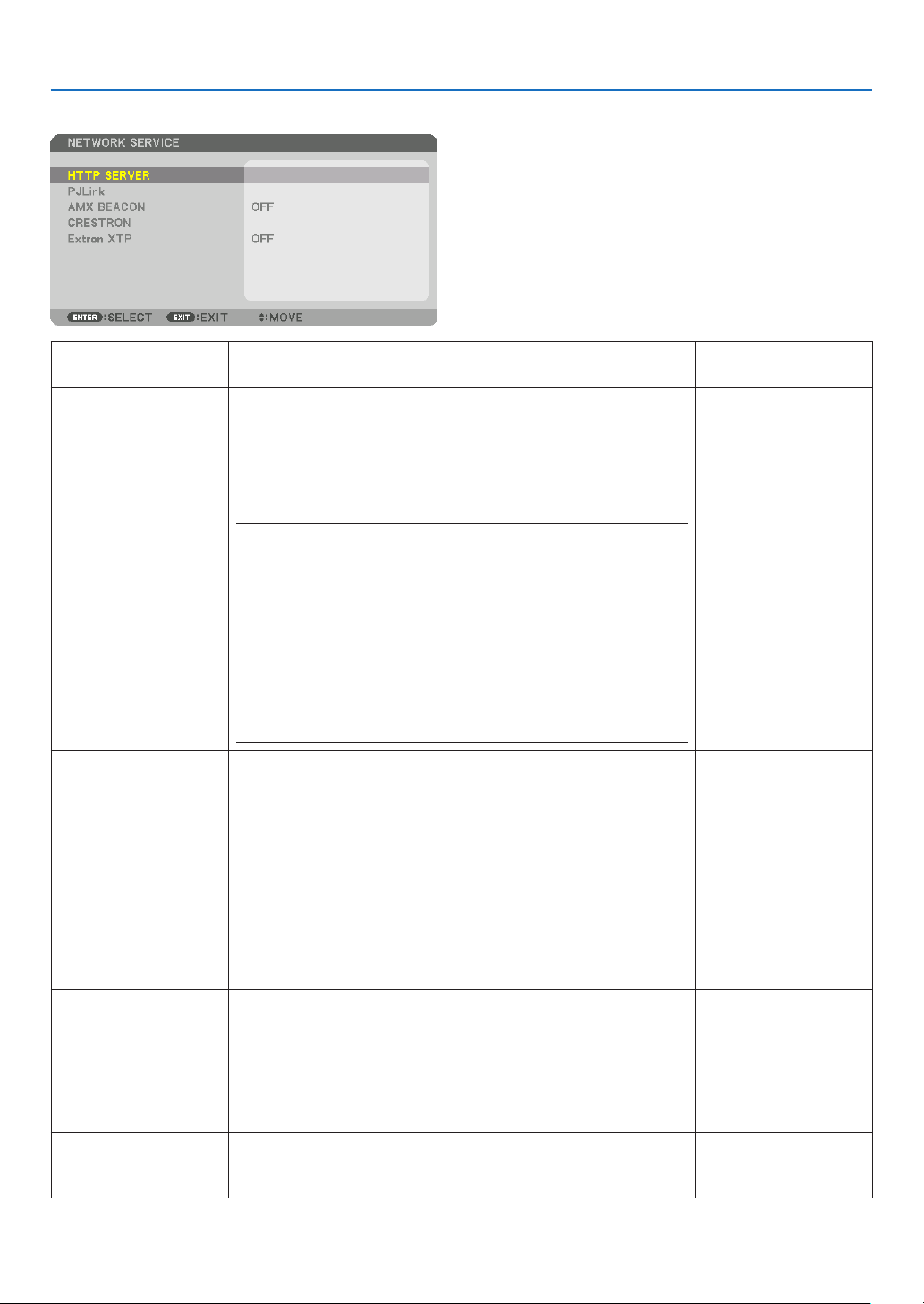
122
5. Using On-Screen Menu
NETWORK SERVICE
HTTP SERVER Set a password for your HTTP server. Up to 10 alphanumeric
characters
PJLink Congure the settings for using PJLink.
PASSWORD
����������� Set the password�
CLASS ������������������� To use functions with PJLink Class 2 specifica-
tions, set [CLASS 2]�
DESTINATION �������� When the CLASS is set to “CLASS 2”, input the
IP address of the destination�
NOTE:
• Do not forget your password. However, if you forget your password,
consult with your dealer.
• What is PJLink?
PJLink is a standardization of protocol used for controlling projectors
of different manufacturers. This standard protocol is established by
Japan Business Machine and Information System Industries Associa-
tion (JBMIA) in 2005.
The projector supports all the commands of PJLink Class 1.
• Setting of PJLink will not be affected even when [RESET] is done from
the menu.
Up to 32 alphanumeric
characters
AMX BEACON Turn on or off for detection from AMX Device Discovery when
connecting to the network supported by AMX’s NetLinx control
system.
TIP:
• When using a device that supports AMX Device Discovery, all AMX
NetLinx control system will recognize the device and download the
appropriate Device Discovery Module from an AMX server.
Placing a checkmark will enable detecting the projector from AMX Device
Discovery�
Clearing a checkmark will disable detecting the projector from AMX
Device Discovery�
—
CRESTRON ROOMVIEW: Turn on or off when controlling the projector from
your PC.
CRESTRON CONTROL: Turn on or off when controlling the
projector from your controller.
• CONTROLLER IP ADDRESS: Enter your IP address of CREST-
RON SERVER.
• IP ID: Enter your IP ID of CRESTRON SERVER.
Up to 12 numeric
characters
Extron XTP Set for connecting this projector to the Extron XTP transmitter. ON
will enable to connect with the XTP transmitter. OFF will disable
to connect with the XTP transmitter.
—
TIP: The CRESTRON settings are required only for use with CRESTRON ROOMVIEW.
For more information, visit http://www.crestron.com
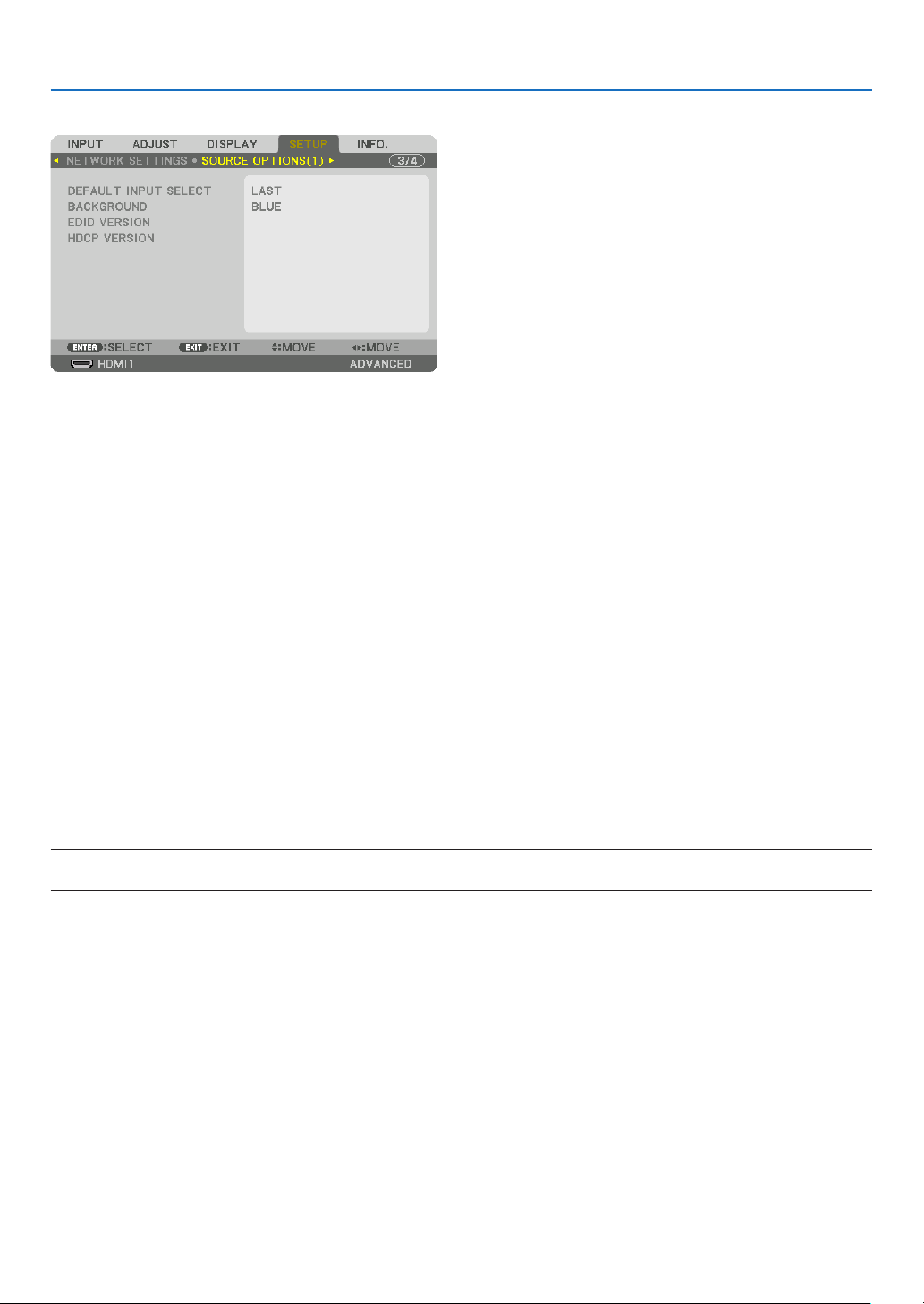
123
5. Using On-Screen Menu
[SOURCE OPTIONS(1)]
Selecting Default Source [DEFAULT INPUT SELECT]
You can set the projector to default to any one of its inputs each time the projector is turned on.
LAST
���������������������� Sets the projector to default to the previous or last active input each time the projector is turned on�
AUTO ��������������������� Searches for an active source in order of HDMI1 → HDMI2 → DisplayPort1 → DisplayPort2 → HDBaseT
→ SDI1 → SDI2 → SDI3 → SDI4 → SLOT and displays the first found source�
HDMI1 ������������������� Displays the digital source from the HDMI 1 IN connector every time the projector is turned on�
HDMI2 ������������������� Displays the digital source from the HDMI 2 IN connector every time the projector is turned on�
DisplayPort1 ���������� Displays the digital source from the DisplayPort1 IN connector every time the projector is turned on�
DisplayPort2 ���������� Displays the digital source from the DisplayPort2 IN connector every time the projector is turned on�
HDBaseT ���������������� Project the HDBaseT signal�
SDI1 ���������������������� Displays the digital source from the SDI1 IN terminal every time the projector is turned on�
SDI2 ���������������������� Displays the digital source from the SDI2 IN terminal every time the projector is turned on�
SDI3 ���������������������� Displays the digital source from the SDI3 IN terminal every time the projector is turned on�
SDI4 ���������������������� Displays the digital source from the SDI4 IN terminal every time the projector is turned on�
SLOT ���������������������� Displays the picture via the optional board (sold separately) inserted into the SLOT�
Selecting a Color or Logo for Background [BACKGROUND]
Use this feature to display a blue/black screen or logo when no signal is available. The default background is [BLUE].
NOTE:
• To change the image displayed as the logo, see page 159.

124
5. Using On-Screen Menu
[EDID VERSION]
Switch the EDID version for the HDMI 1 IN and HDMI 2 IN terminals.
MODE1 ������������������ Supports general signal
MODE2
������������������ Supports 4K signal
Select this mode for displaying 4K image using the device supporting 4K
NOTE:
• If image and sound can not be output in [MODE2], switch to [MODE1].
[HDCP VERSION]
Switch the HDCP version for the HDMI 1 IN, HDMI 2 IN and HDBaseT IN/Ethernet terminals.
HDCP2�2 ���������������� Automatically switch the mode HDCP2�2 and HDCP1�4
HDCP1�4 ���������������� Forcedly perform transmission with HDCP1�4
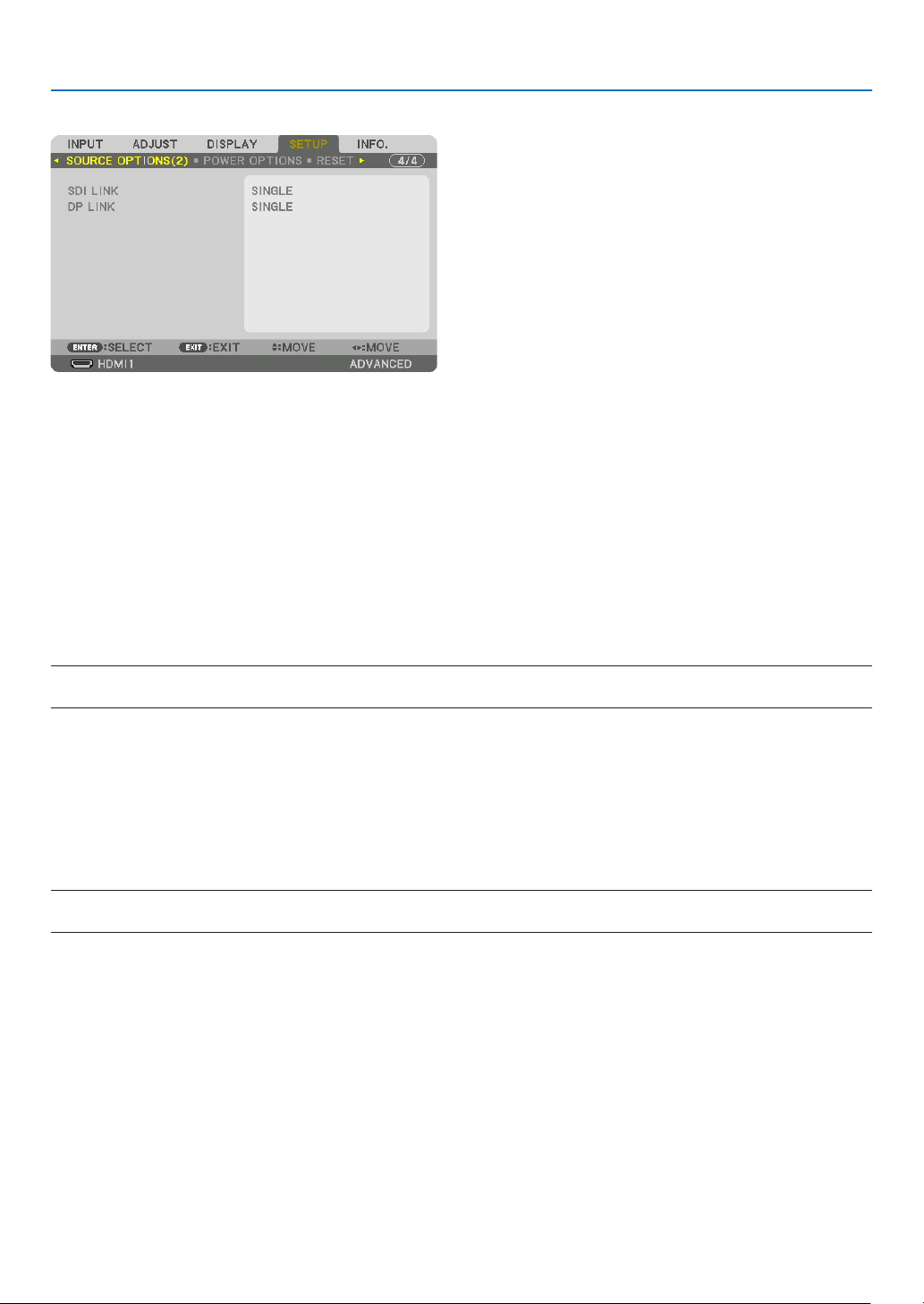
125
5. Using On-Screen Menu
[SOURCE OPTIONS(2)]
[SDI LINK]
Select the display method of the signal input to the SDI1/SDI2/SDI3/SDI4 input terminal.
Set [QUAD] to display 4K signals with four SDI connections.
SINGLE
������������������ Set the SDI1 input and SDI2 input and SDI3 input and SDI4 input to the respective single link (one input
signal is displayed as one image)�
QUAD ��������������������� Set the SDI1 input and SDI2 input and SDI3 input and SDI4 input to quad link (the four input signals are
displayed as one image)� Select when the transmission format is set to Square Division�
QUAD(2SI) ������������� Set the SDI1 input and SDI2 input and SDI3 input and SDI4 input to quad link (the four input signals are
displayed as one image)� Select when the transmission format is set to 2 Sample Interleave�
DUAL ��������������������� Dual display with SDI1 input and SDI 2 input�
NOTE:
• To display images in the quad link, quad (2SI) link, or dual link mode, select the SDI1 input.
[DP LINK]
Select the display method of the signal input to the DisplayPort1/DisplayPort2 input terminal.
SINGLE ������������������ Set the DisplayPort1 input and DisplayPort2 input to the respective single link (one input signal is displayed
as one image)�
DUAL ��������������������� Dual display with DisplayPort1 input and DisplayPort1 input�
NOTE:
• To display images in the dual link mode, select the DisplayPort 1 input.
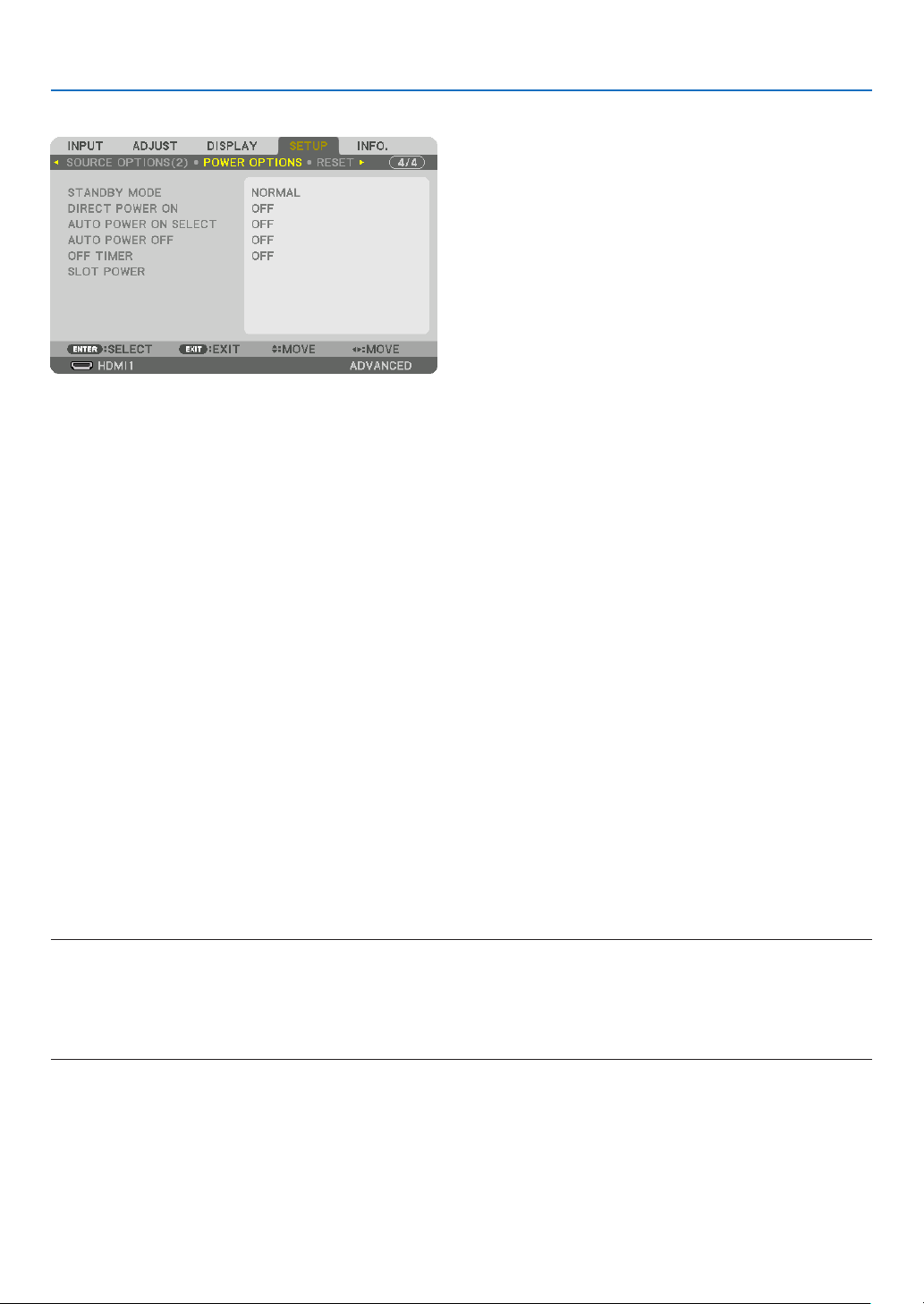
126
5. Using On-Screen Menu
[POWER OPTIONS]
[STANDBY MODE]
Select the standby setting after turning off the power supply of the unit.
NORMAL ���������������� Automatically transit the standby state and control consumption power based on the projector setting and
the state of the connected device� (→ page 163)
SLEEP
�������������������� Maintain the state of sleep� Consumption power becomes higher than the setting of NORMAL� Select this
when a commercially available HDBaseT compatible transmission device is always connected to the HDBaseT
port for use�
TIP:
• The [STANDBY MODE] setting is not changed by [RESET].
• Consumption power in the STANDBY MODE is excluded from the calculation for carbon saving.
Enabling Direct Power On [DIRECT POWER ON]
Turns the projector on automatically when the power cable is inserted into an active power outlet. This eliminates the
need to always use the POWER button on the remote control or projector cabinet.
Turning On the Projector by Detecting Input Signal [AUTO POWER ON SELECT]
Under the state of standby, the projector automatically detects and projects synchronizing signal input from the se-
lected terminals by this function.
OFF ������������������������ AUTO POWER ON SELECT function becomes inactive�
HDMI1, HDMI2, DisplayPort1, DisplayPort2, HDBaseT, SDI1, SDI2, SDI3, SDI4, SLOT
������������������������������ When the projector detects the computer signal input from the selected terminal, automatically it will be
turned ON and will project the computer screen�
NOTE:
• If you want to activate this AUTO POWER ON SELECT function after powering OFF the projector, interrupt signal from input
terminals or pull out the computer cable from the projector and wait for over 3 seconds and then input signal from the selected
terminal.
• The HDBaseT port, SDI 1 / SDI 2 / SDI 3 / SDI 4 IN terminal and SLOT can be used only when the unit is in the sleep mode. (→
page 163)

127
5. Using On-Screen Menu
Enabling Power Management [AUTO POWER OFF]
When this option is selected you can enable the projector to automatically turn off (at the selected time: 0:05, 0:10,
0:15, 0:20, 0:30, 1:00) if there is no signal received by any input or if no operation is performed.
Using Off Timer [OFF TIMER]
1. Select your desired time between 30 minutes and 16 hours: OFF, 0:30, 1:00, 2:00, 4:00, 8:00, 12:00, 16:00.
2. Press the ENTER button on the remote control.
3. The remaining time starts counting down and it is displayed at the bottom of the On-Screen Menu.
4. The projector will turn off after the countdown is complete.
NOTE:
• To cancel the preset time, set [OFF] for the preset time or turn off the power.
• When the remaining time reaches 3 minutes before the projector is turned off, the [THE PROJECTOR WILL TURN OFF WITHIN 3
MINUTES] message will be displayed on the bottom of the screen.
Setting for the Optional Board [SLOT POWER]
When using the optional board installed in the slot, set the following options.
PROJECTOR ON ���� This feature will turn on or off the power to the optional board�
OFF: Forcibly turn off the power to the optional board installed in the slot�
ON: Turn on the power to the optional board installed in the slot�
PROJECTOR STANDBY
������������������������������ This feature will automatically enable or disable the optional board installed in the slot when the projector
is in standby�
DISABLE: Select this option to disable the optional board in the projector standby�
ENABLE: Select this option to enable the optional board in the projector standby�
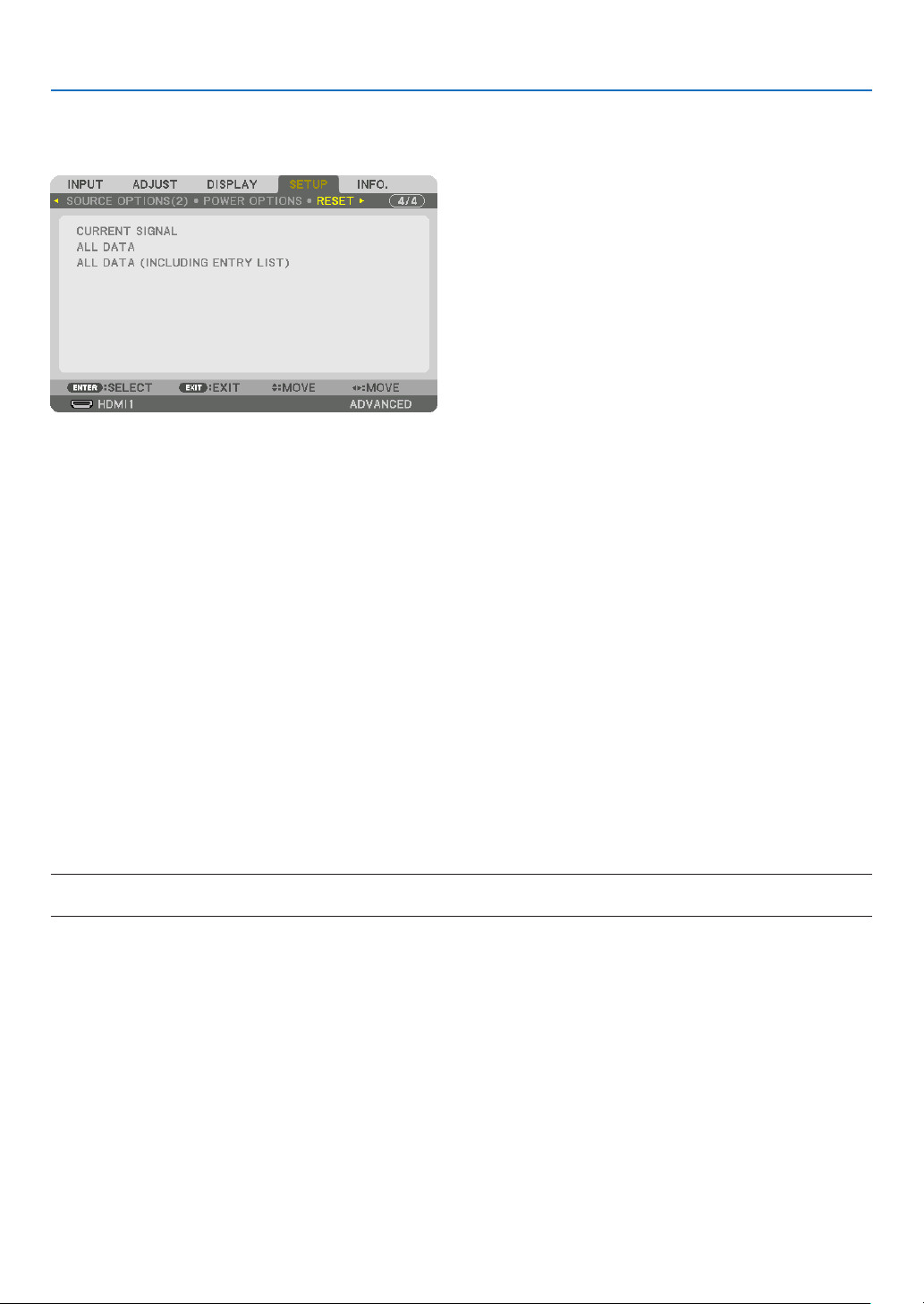
128
5. Using On-Screen Menu
Returning to Factory Default [RESET]
The RESET feature allows you to change adjustments and settings to the factory preset for a (all) source (s) except
the following:
[CURRENT SIGNAL]
Resets the adjustments for the current signal to the factory preset levels.
The items that can be reset are: [PRESET], [CONTRAST], [BRIGHTNESS], [COLOR], [HUE], [SHARPNESS], [AS-
PECT RATIO], [HORIZONTAL], [VERTICAL], [CLOCK], [PHASE], and [OVERSCAN].
[ALL DATA]
Reset all the adjustments and settings for all the signals to the factory preset.
All items can be reset EXCEPT [ENTRY LIST], [GEOMETRIC CORRECTION], [EDGE BLENDING], [PICTURE SET-
TING], [MULTI SCREEN], [LANGUAGE], [SCREEN TYPE], [FAN MODE], [REF. WHITE BALANCE], [REF. LENS
MEMORY], [ADMINISTRATOR MODE], [DATE AND TIME SETTINGS], [CONTROL PANEL LOCK], [SECURITY],
[COMMUNICATION SPEED], [CONTROL ID], [NETWORK SETTINGS], [BACKGROUND], [EDID VERSION], [HDCP
VERSION], [SDI LINK], [DP LINK], [OFF TIMER], [LIGHT HOURS USED].
[ALL DATA (INCLUDING ENTRY LIST)]
Reset all the adjustments and settings for all the signals including the [ENTRY LIST] to the factory preset except
[GEOMETRIC CORRECTION], [EDGE BLENDING], [PICTURE SETTING], [MULTI SCREEN], [LANGUAGE],
[SCREEN TYPE], [FAN MODE], [REF. WHITE BALANCE], [REF. LENS MEMORY], [ADMINISTRATOR MODE],
[DATE AND TIME SETTINGS], [CONTROL PANEL LOCK], [SECURITY], [COMMUNICATION SPEED], [CONTROL
ID], [NETWORK SETTINGS], [BACKGROUND], [EDID VERSION], [HDCP VERSION], [SDI LINK], [DP LINK], [OFF
TIMER], [LIGHT HOURS USED].
Also deletes all the signals in the [ENTRY LIST] and returns to the factory preset.
NOTE:
• Locked signals in Entry List cannot be reset.
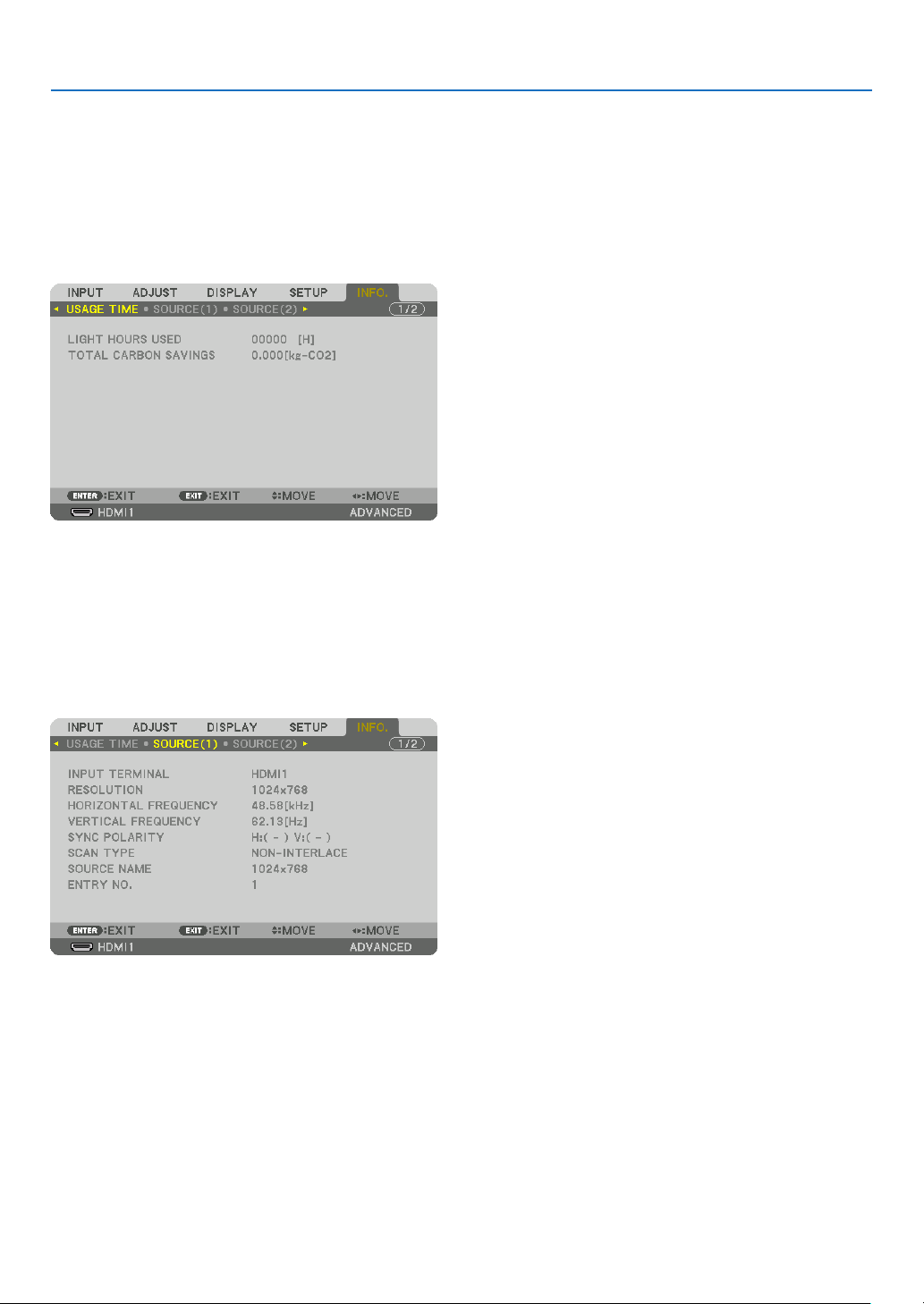
129
5. Using On-Screen Menu
❽ Menu Descriptions & Functions [INFO.]
Displays the status of the current signal and light module usage. This item has ten pages. The information included
is as follows:
TIP:
• Pressing the HELP button on the remote control will show the [INFO.] menu items.
[USAGE TIME]
[LIGHT HOURS USED] (H)
[TOTAL CARBON SAVINGS] (kg-CO2)
• [TOTAL CARBON SAVINGS]
This displays the estimated carbon saving information in kg. The carbon footprint factor in the carbon saving
calculation is based on the OECD (2008 Edition). (→ page 42)
[SOURCE(1)]
INPUT TERMINAL RESOLUTION
HORIZONTAL FREQUENCY VERTICAL FREQUENCY
SYNC POLARITY SCAN TYPE
SOURCE NAME ENTRY NO.
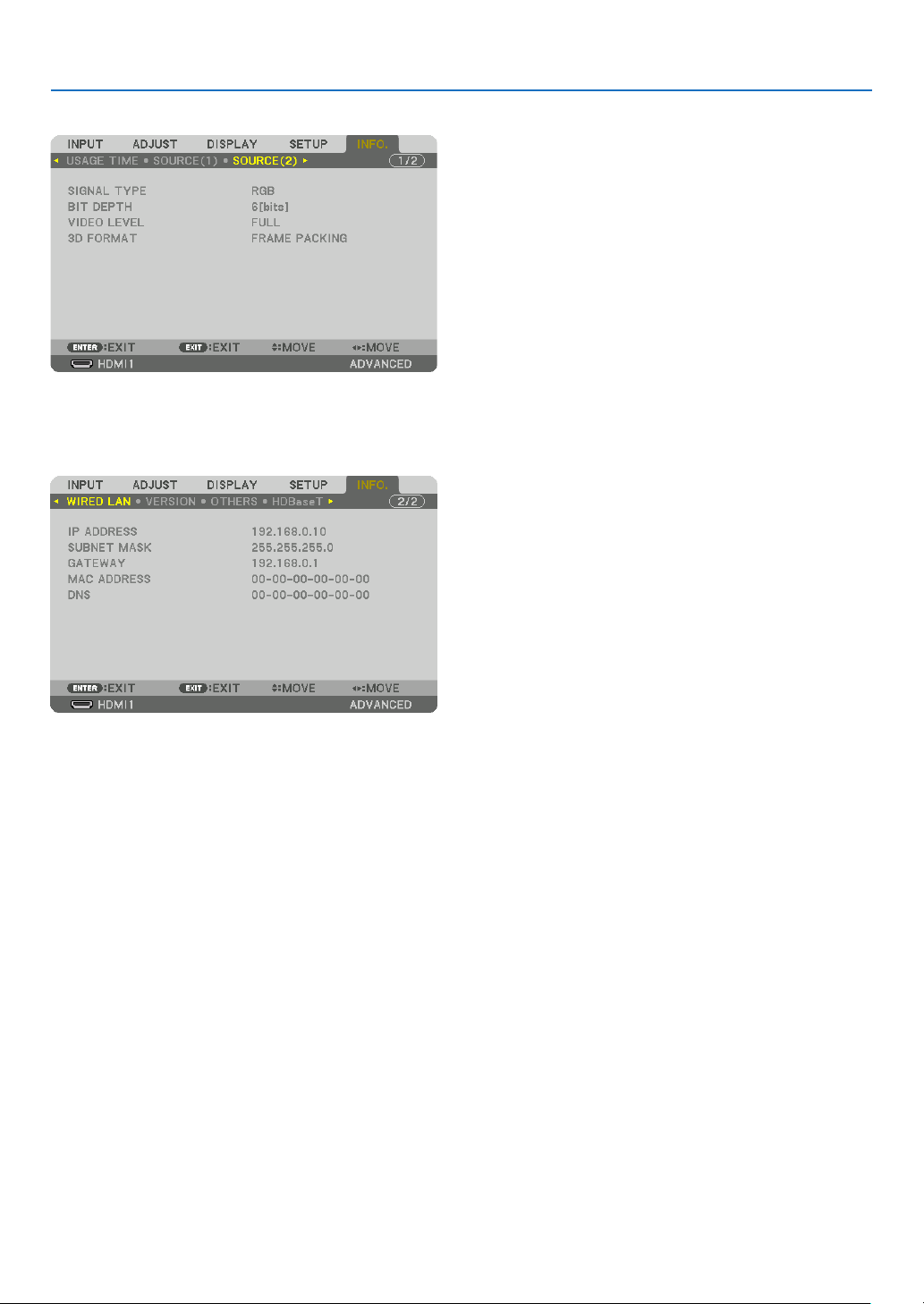
130
5. Using On-Screen Menu
[SOURCE(2)]
SIGNAL TYPE BIT DEPTH
VIDEO LEVEL
[WIRED LAN]
IP ADDRESS SUBNET MASK
GATEWAY MAC ADDRESS
DNS
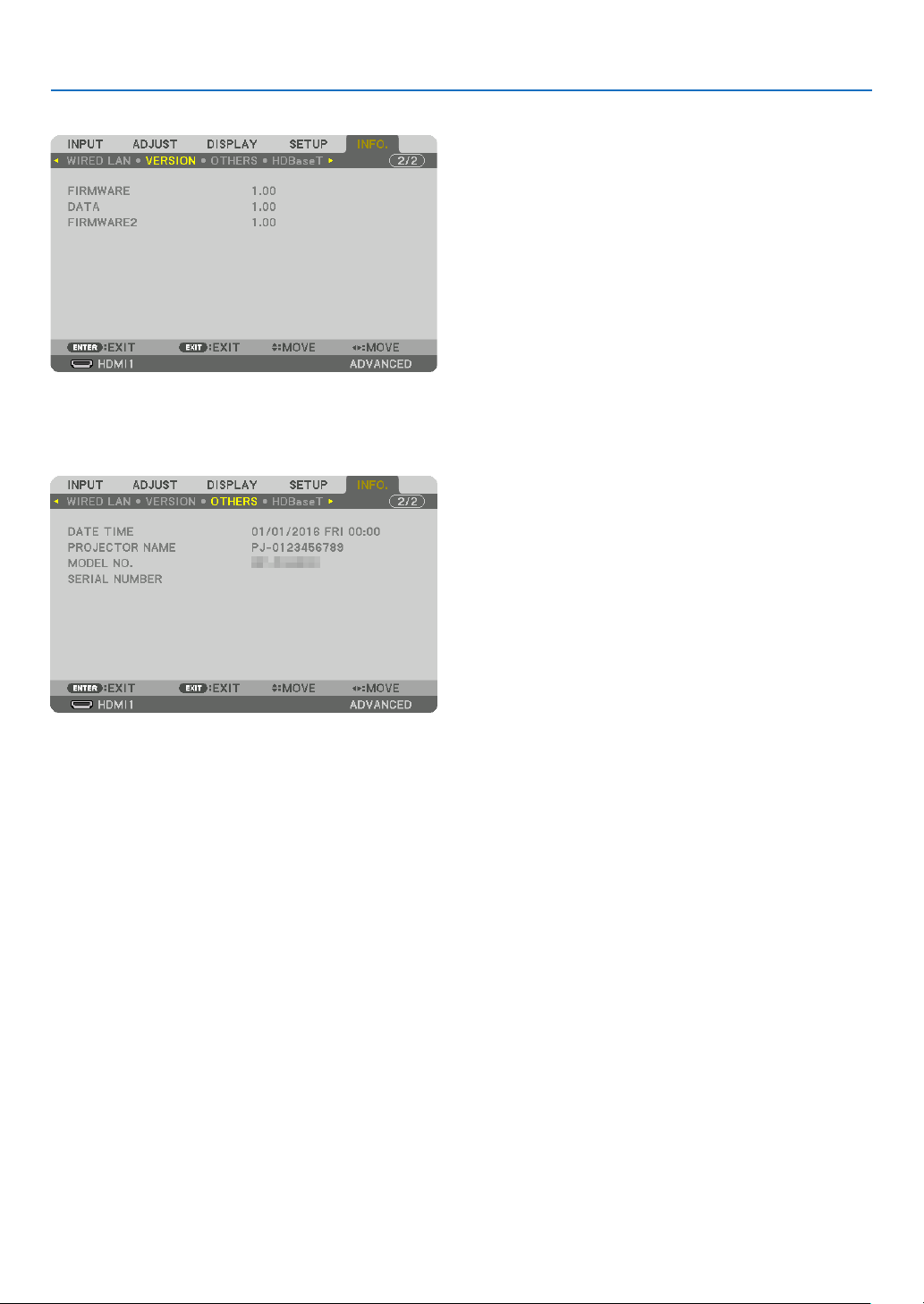
131
5. Using On-Screen Menu
[VERSION]
FIRMWARE DATA
FIRMWARE2
[OTHERS]
DATE TIME PROJECTOR NAME
MODEL NO. SERIAL NUMBER
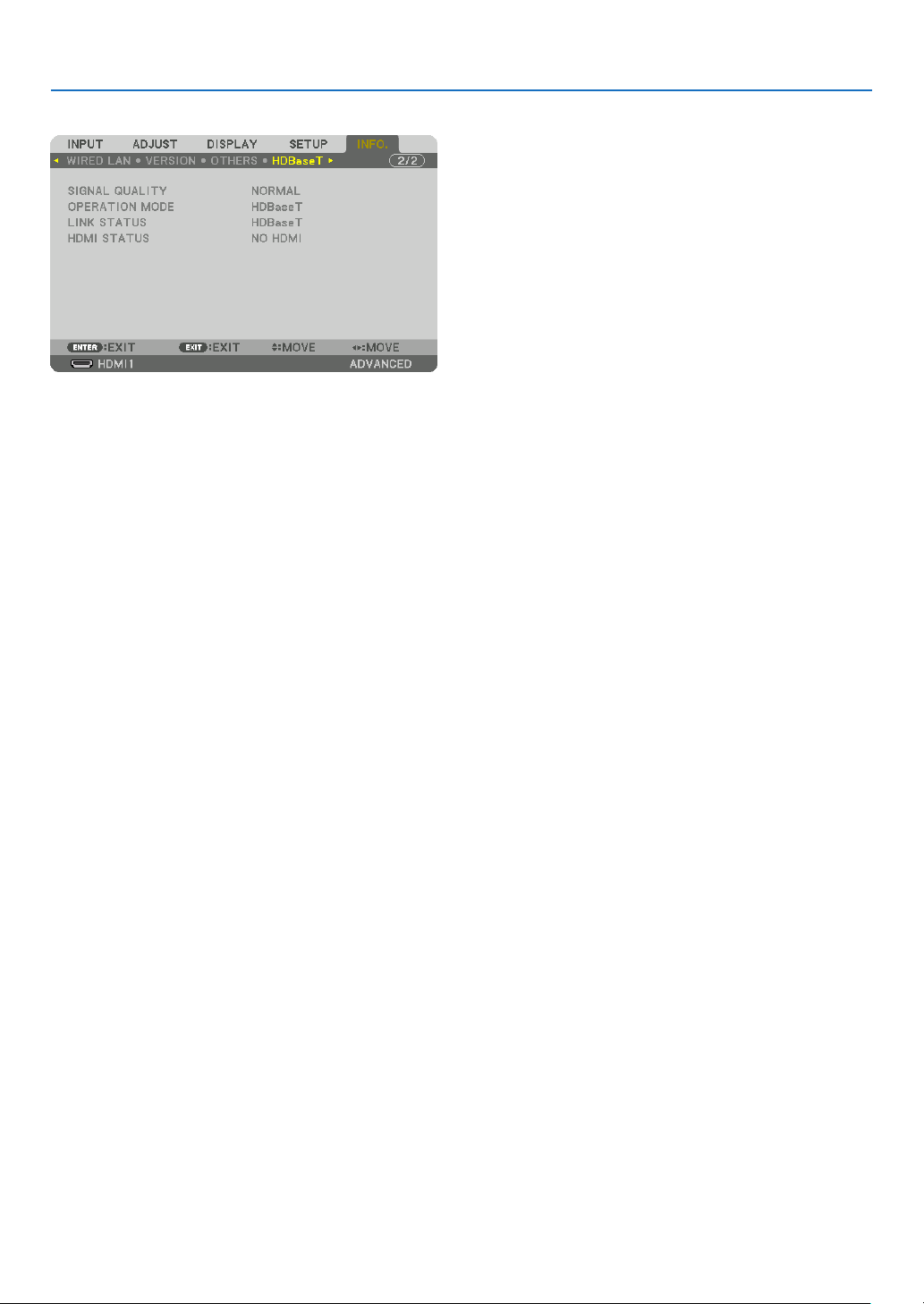
132
5. Using On-Screen Menu
[HDBaseT]
SIGNAL QUALITY OPERATION MODE
LINK STATUS HDMI STATUS
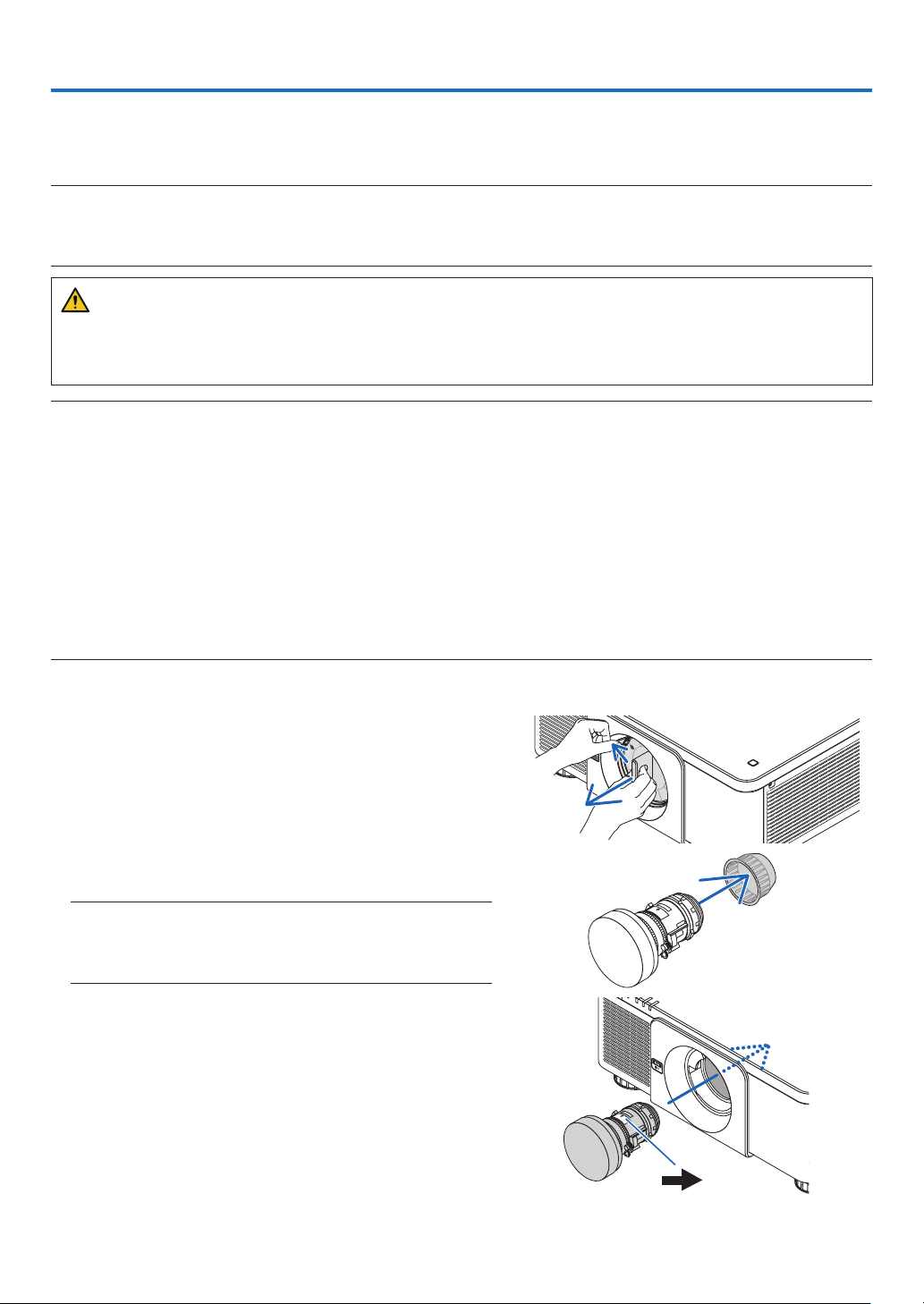
133
❶ Mounting a lens (sold separately)
This projector can be used with 8 kinds of optional lenses (sold separately). The descriptions here are for the NP18ZL-
4K (standard zoom) lens. Mount other lenses in the same manner. See page 153 for lens options.
Important:
• For using the following option lenses, be sure to carry out [LENS CALIBRATION] after replacing the lens. (→ page 17, 110)
The following lenses need calibration:
NP16FL-4K, NP17ZL-4K, NP18ZL-4K, NP19ZL-4K, NP20ZL-4K, NP21ZL-4K, NP31ZL-4K
WARNING
(1) Turn off the power and wait for the cooling fan to stop, (2) turn off the main power switch, (3) disconnect the
power cord and wait for the unit to cool before mounting or removing the lens. Failure to do so can result in eye
injury, electric shock, or burn injuries.
NOTE:
• The projector and lenses are made of precision parts. Do not subject them to shock or excessive forces.
• Remove the separately sold lens when moving the projector. If not, the lens could be subject to shock while the projector is being
moved, damaging the lens and the lens shift mechanism.
• When dismounting the lens from the projector, return the lens position to the home position before turning off the power. Failure
to do so may prevent the lens from being mounted or dismounted because of narrow space between the projector and the lens.
• Never touch the lens surface while the projector is operating.
• Be very careful not to let dirt, grease, etc., on the lens surface and not to scratch the lens surface.
• Perform these operations on a flat surface over a piece of cloth, etc., to prevent the lens from getting scratched.
• When leaving the lens off the projector for long periods of time, mount the dust cap on the projector to prevent dust or dirt from
getting inside. If the lens remains detached from the projector for long periods of time, dust may collect within the optical unit
and damage the lens, causing deterioration of projected image.
• Lenses other than specified in this manual cannot be mounted on this projector.
Mounting the lens
1. Remove the dust cap from the projector.
Push the tongue at the top left outward and pull the knob at
the center of the cap.
2. Remove the lens cap on the back of the lens.
• The lens NP18ZL-4K is used as an example.
NOTE:
• Make sure to remove the lens cap at the unit back side. If the lens
unit with the lens cap remaining on is installed on the projector,
it may cause of malfunction.
3. Hold the lens unit aligning the labelled arrow on the unit
coming top and insert the unit to the projector.
Insert the lens slowly all the way in, keeping the positioning
slit at the same angle.
Arrow mark
6. Installation and Connections
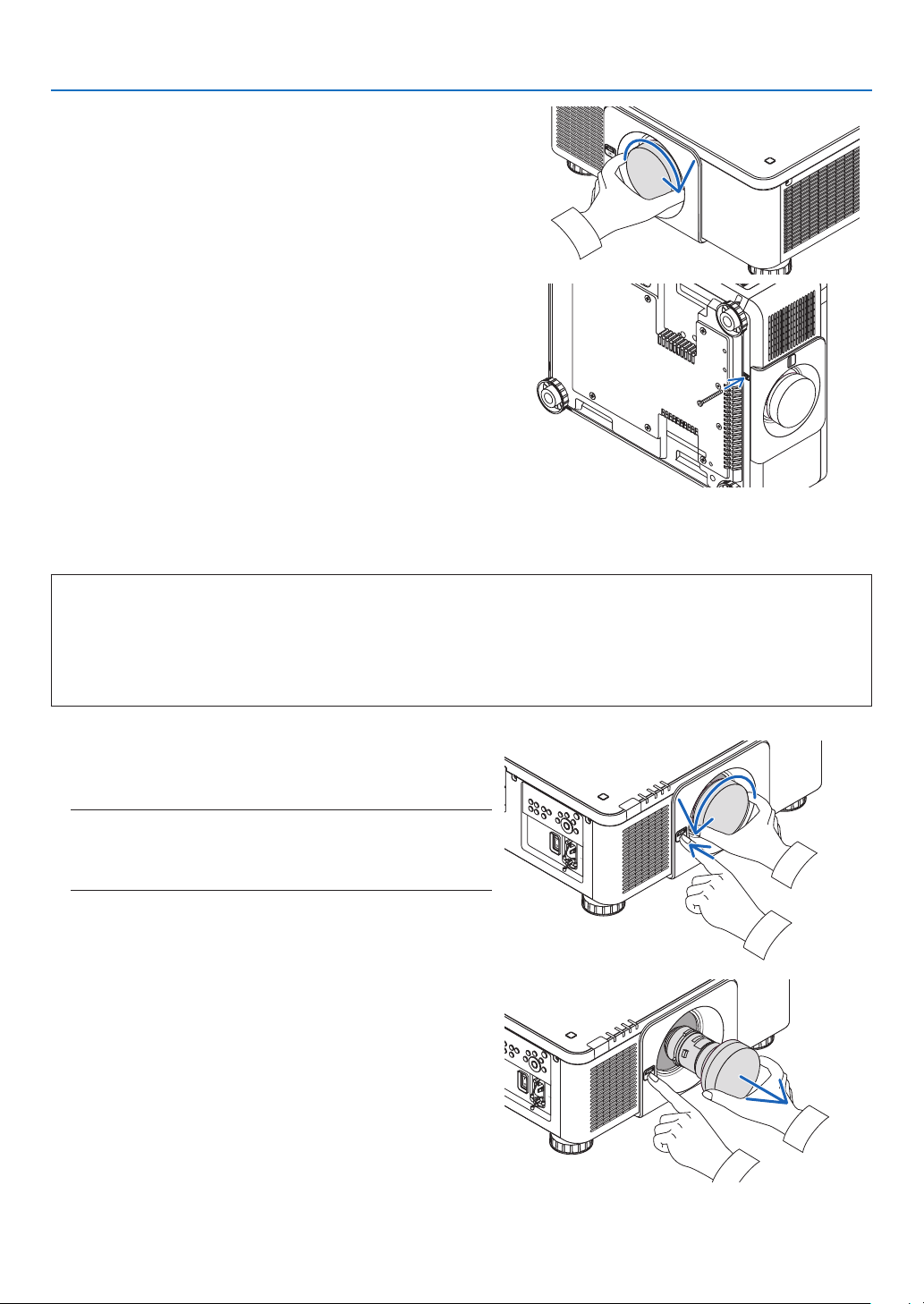
134
6. Installation and Connections
4. Turn the lens unit rightward until click is heard.
The lens is now fastened onto the projector.
TIP:
• Mounting the lens theft prevention screw
Fasten the lens theft prevention screw included with the projector to
the bottom of the projector so that the lens cannot be removed easily.
Removing the lens
Before removing the lens:
1. Turn on the projector and display an image. (→ page 16)
2. Press and hold the SHIFT/HOME button over 2 seconds.
The lens position will be moved to the home position.
3. Turn off the main power switch, and then unplug the power cord.
4. Wait until the projector cabinet is cool enough to handle.
1. While pressing the LENS release button on the projector’s
front panel fully in, turn the lens counterclockwise.
The lens comes off.
NOTE:
• If the lens cannot be removed when the LENS release button
is pressed, check whether the lens theft prevention screw is
mounted.
2. After slowly pulling the lens off the projector, release the
LENS release button.
- After removing the lens, mount the lens caps (front and
back) included with the lens before storing the lens.
- If no lens is going to be mounted on the projector, mount
the dust cap included with the projector.
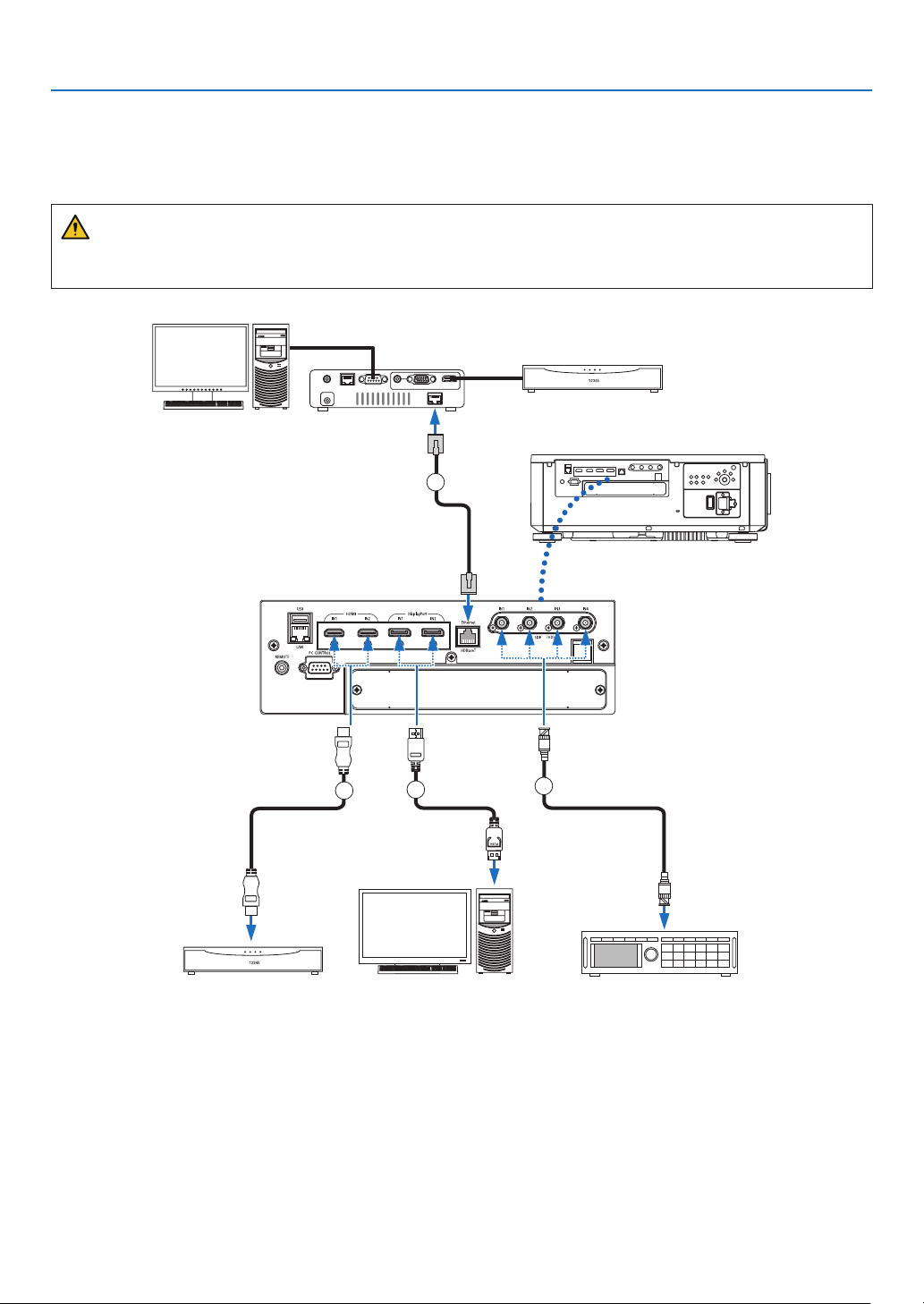
135
6. Installation and Connections
❷ Connecting to Other Equipment
Below is an example of connections to external equipment.
No connection cables are included with this unit. Use the appropriate cables for the connections.
CAUTION
For HDMI, DisplayPort, BNC and LAN, please use a shielded cable.
Use of other cables may cause interference with radio and television reception.
1
2
3
4
Professional video equipment, etc. Computer, etc. Blu-ray player, etc.
HDBaseT transmission device, etc.
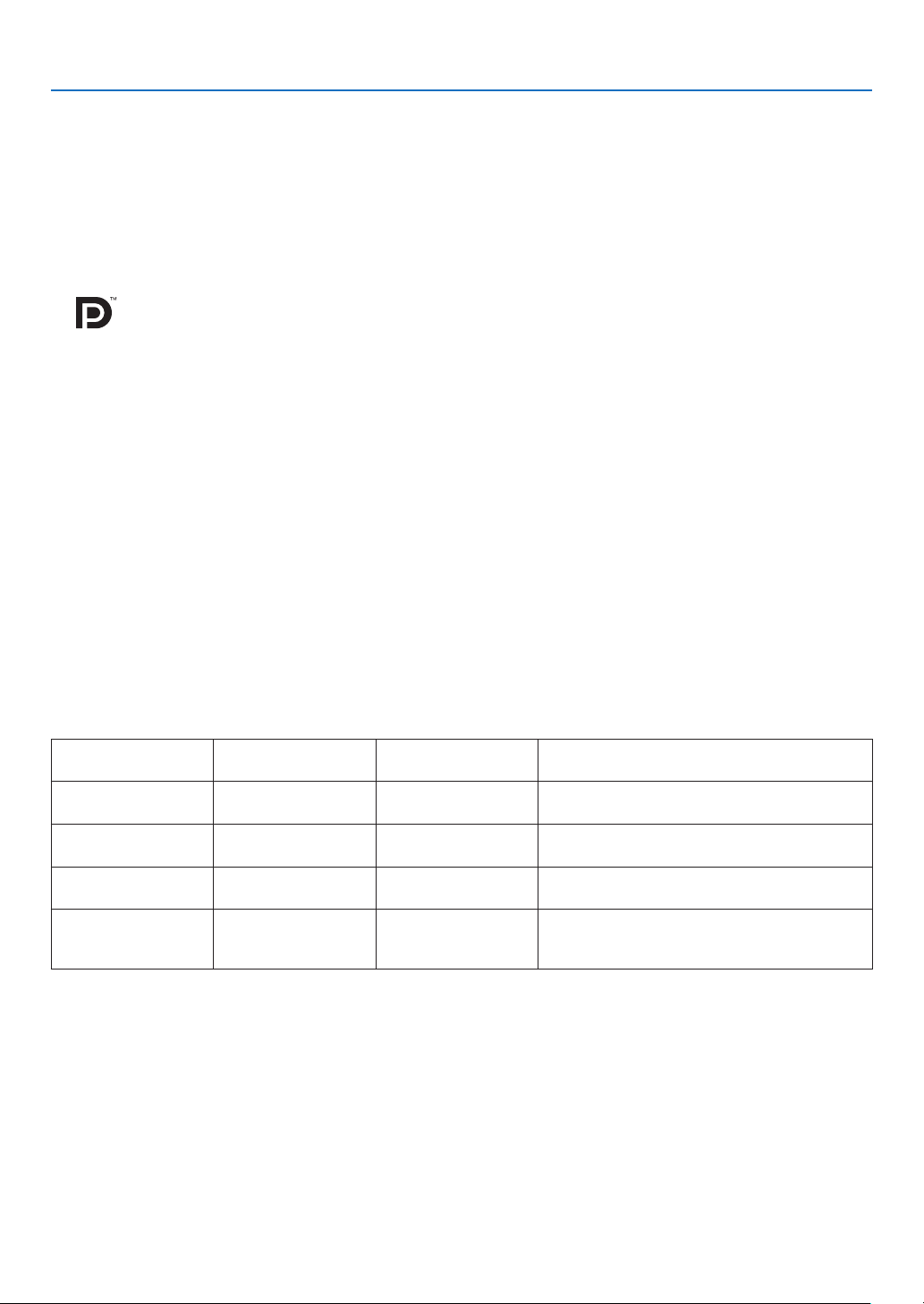
136
6. Installation and Connections
① HDMI cable (not supplied)
• Use a certied High Speed HDMI
®
Cable or High Speed HDMI
®
Cable with Ethernet.
• When connecting the HDMI 1 IN or HDMI 2 IN connector of the projector to the Blu-ray player, the projector's video
level can be made settings in accordance with the Blu-ray player's video level. In the menu select [ADJUST] →
[VIDEO] → [VIDEO LEVEL] and make necessary settings.
② DisplayPort cable (not supplied)
• Use a certied DisplayPort cable.
③ BNC cable (not supplied)
• Use cables that are 5C-FB or higher (5C-FB, 7C-FB, etc.) or Belden 1694A or higher. In addition, use cables with
a cable length 100m or less.
• The length of cables that can be used may differ, depending on the signal.
④ LAN cable (not supplied)
• Please use a shielded twisted pair (STP) cable of Category 5e or higher for the LAN cable (sold commercially).
• The HDBaseT port of the projector supports HDMI signals (HDCP) from transmission devices, control signals from
external devices (serial, LAN) and remote control signals (IR commands).
• The maximum transmission distance over the LAN cable is 100 m. (the maximum distance is 70 m for a 4K signal)
• Please do not use other transmission equipment between the projector and transmission equipment. The picture
quality may be degraded as a result.
• This projector is not guaranteed to work with all HDBaseT transmission devices sold commercially.
After turning on the power of the unit, select the input according to the connection terminal.
Input connector Button on the projector
cabinet
Button on the remote
control
Note
HDMI1/2 IN HDMI 1/2 HDMI Switches between HDMI1 and HDMI2 each time
it is pressed.
DisplayPort 1/2 IN DisplayPort 1/2 DisplayPort Switches between DisplayPort1 and DisplayPort2
each time it is pressed.
SDI 1/2/3/4 IN SDI AUX Switches between SDI1, SDI2, SDI3 and SDI4
each time it is pressed.
HDBaseT HDBaseT/SLOT NETWORK Each time the button of the projector cabinet is
pressed, the mode switches between HDBaseT
and SLOT.
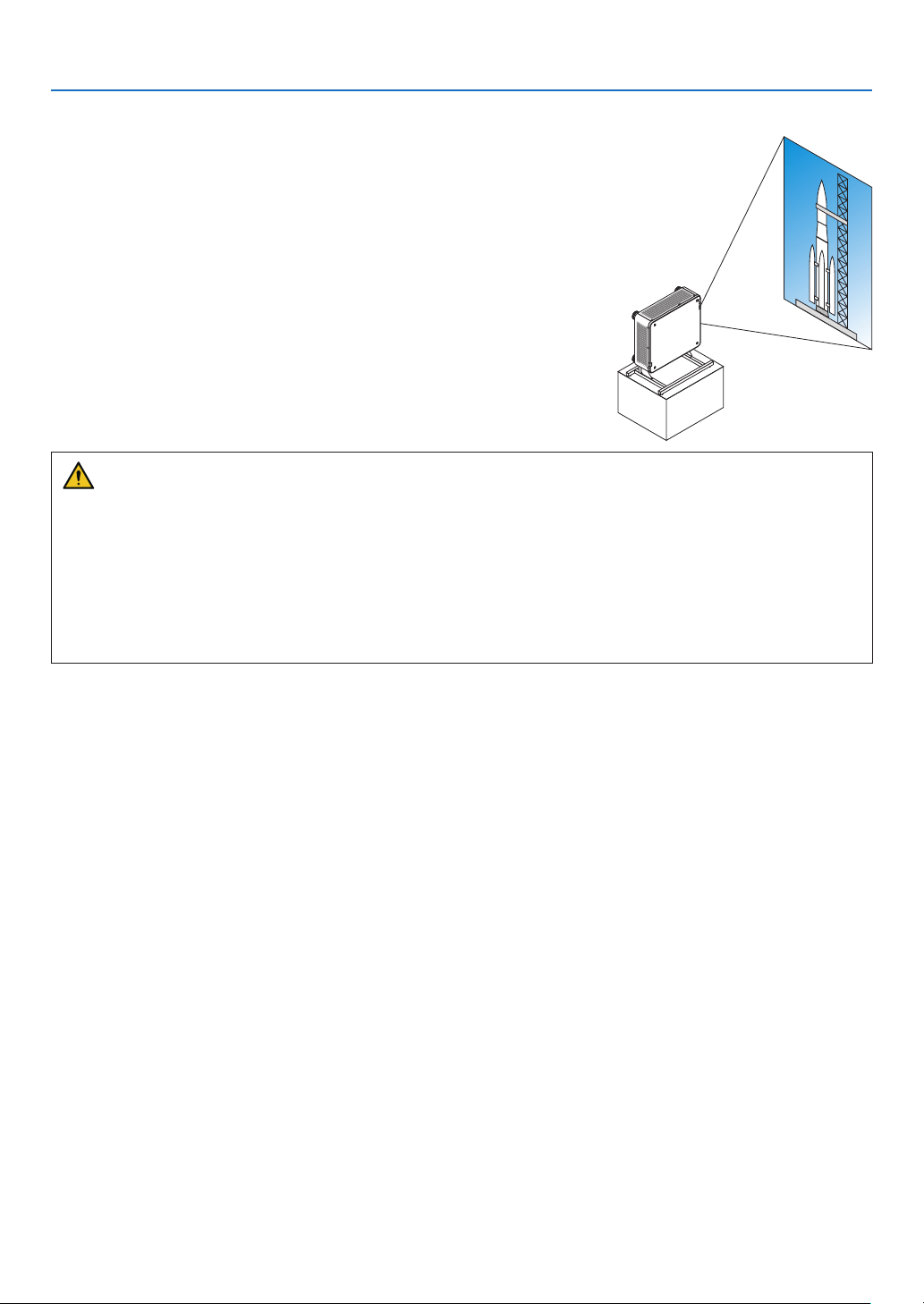
137
6. Installation and Connections
❸ Portrait projection (vertical orientation)
This projector can be installed vertically to display computer images in
portrait orientation.
The menu displaying position can be shifted by selecting the [SETUP] →
[MENU(2)] → [MENU ANGLE].
Precautions during installation
• Please do not install the projector in a vertical orientation on top of the oor or table on its own. If not, the pro-
jector may fall over, resulting in injury, damage or malfunction.
• A stand for supporting the projector needs to be made for this purpose to keep intake air ow securely and
preventive measure of falling over. The stand must be designed such that the center of gravity of the projector
is located well within the legs of the stand. If not, the projector may fall over and result in injury, damage and
malfunction.
• If the projector is installed on which the intake vent facing down, optical part life may be shorten.
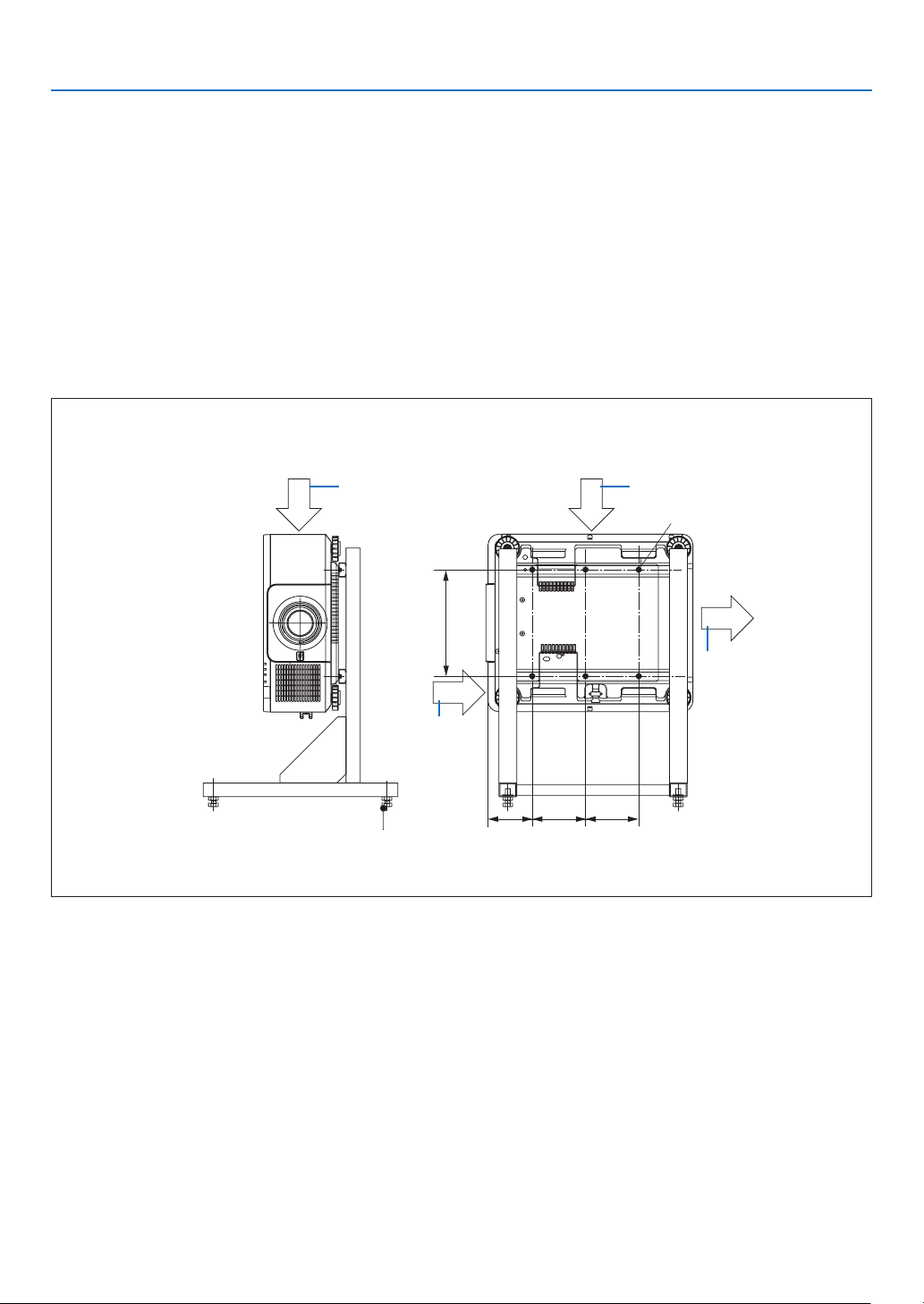
138
6. Installation and Connections
Design and manufacturing conditions for the stand
Please hire an installation service provider (for a fee) for the design and manufacture of a customized stand to be
used for portrait projection. Please ensure that the design complies with the following conditions:
• There are 3 ventilation holes at the bottom of the projector. These holes should remain unobstructed.
• Use the 6 screw holes at the back of the projector to secure it to the stand.
Screw hole center dimension: 300 × 300 (pitch = 150) mm
Screw hole dimension on the projector: M4 with the maximum depth 16 mm
4 of the legs can be unscrewed for removal.
• Horizontal adjustment mechanism (for example, bolts and nuts in 4 places)
• Please design the stand so that it does not easily topple over.
Reference drawings
* The drawing showing the dimensional requirements is not an actual stand design drawing.
300
150 150124.5
[Side View][Front View]
(Unit: mm)
Horizontal adjuster
Air exhaust
6 - M4 bolt
Air intakeAir intake
Air intake
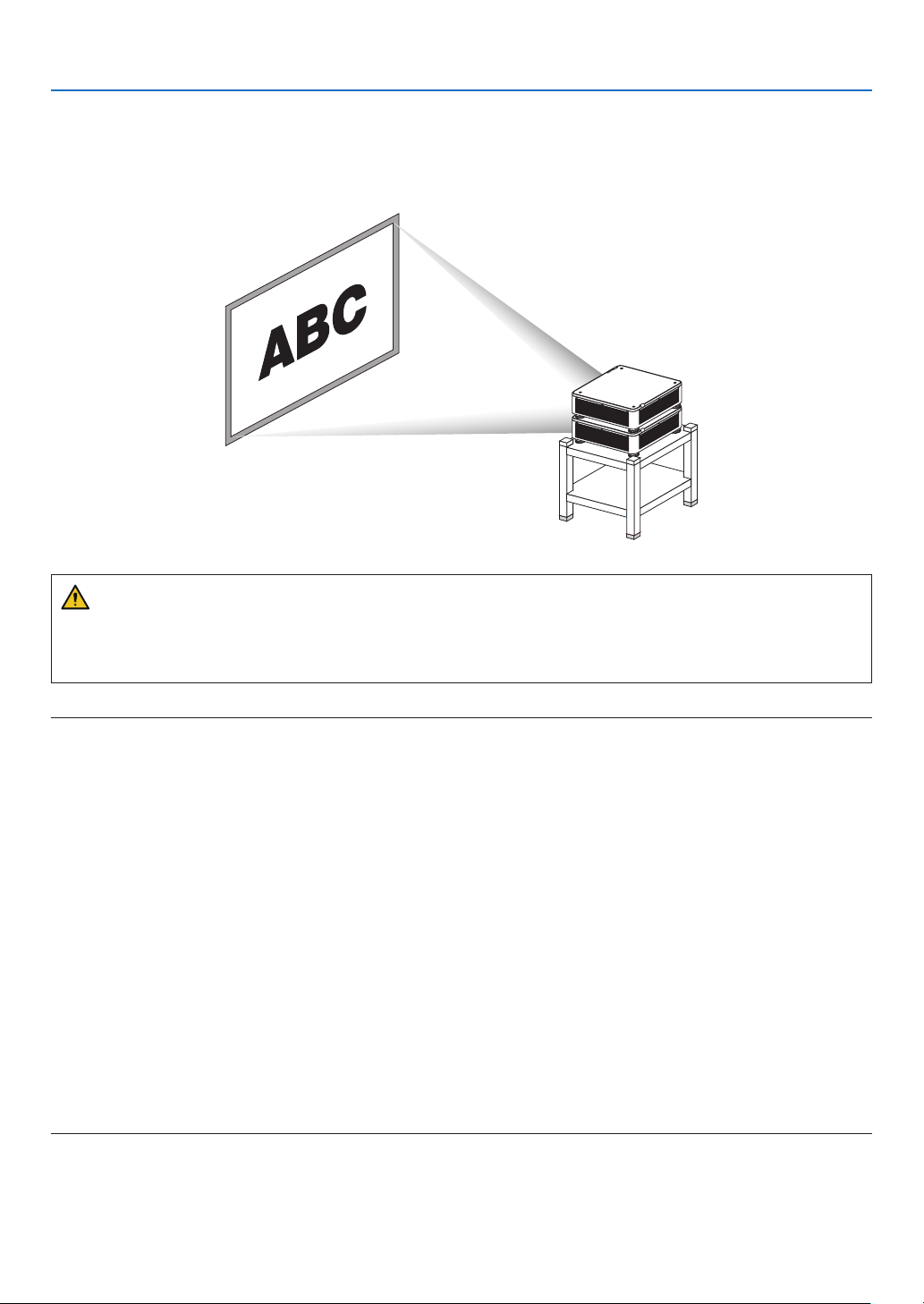
139
6. Installation and Connections
❹ Stacking projectors
The projected image brightness can be doubled by gravity stacking up to two projectors without external support.
This is called “Stacking Projection”.
2 projectors can be stacked on top of each other for “Stacking” setup.
CAUTION:
• A minimum of two persons are required to carry the projector. Otherwise the projector may tumble or drop, caus-
ing personal injury.
• Grip the handles for moving the projector.
NOTE:
• Projectors with different model numbers cannot be gravity stacked.
Optional lenses with the same model numbers must be used for stacking projection.
• For stacking projectors, attach the supplied four stacking holders to the top of the lower projector. (→ next page)
• It does not support overlay accuracy by stacked projectors. Precise images as small texts and detailed graphics can not be clearly
read or seen.
• Use a commercially available distribution amplifier to both the primary (upper) and the secondary (lower) projectors to distribute
signal to two outputs of the two projectors.
• Notes for stacking
- Ask your service person for setting up and adjusting projectors.
- Set up the projectors in a place or structure in a way with sufficient strength to support the combined weight of the two projec-
tors. The single projector with a lens weighs up to approximately 34 kg/ 75 lbs.
- To prevent the projectors from falling, fasten them in a way to withstand earthquakes.
- Double stacking will cause room temperature to increase. Ventilate the room well.
- Do not attempt to stack projectors on the ceiling. Gravity stacking cannot be done on the ceiling.
- Warm up the projectors for one hour before the desired projection is obtained.
- Make sure that the position of the upper projector does not exceed its specifications. When setting up the two projectors,
adjustable height range for the tilt foot on the upper projector is added to the total adjustable range.
- Set up the projectors so that the projected image shows as little geometric distortions as possible. The lens is different in
geometric distortion between wide(+) and tele (−) for zoom.
- Adjust the horizontal lens shift to the lens center.
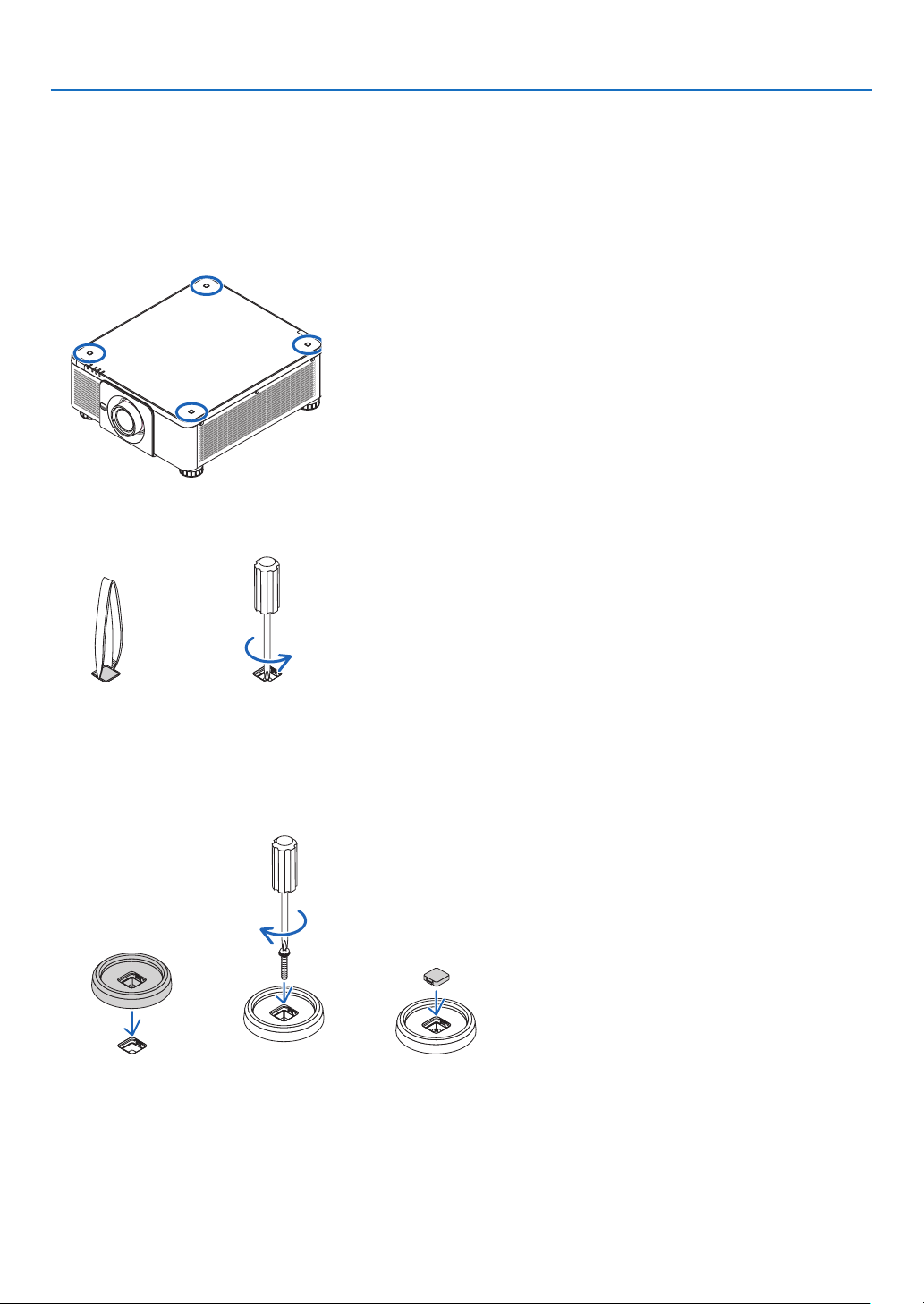
140
6. Installation and Connections
Attaching Stacking Holders
Attach three stacking holders to three locations on the top of the lower projector.
Preparation:
Tools required are Phillips screwdriver (plus-head) and four stacking holders packaged with the projector.
Loosen the tilt foot (four locations) of the projector.
1. Remove rubber caps and screws at four locations.
(1) Use your tweezers or nail to pinch and pull up the rubber cap.
(2) Remove the screw from a square hole.
(1) (2)
2. Attach the three stacking holders at four locations.
(1) Place a stacking holder in a square hole.
(2) Use the screw removed at Step 1 to x the stacking holder in the square hole.
(3) Put the rubber cap removed at Step 1 back into the square hole.
• Snap the tabs on both of the rubber cap into the slits on both sides in the square hole.
(1) (2) (3)
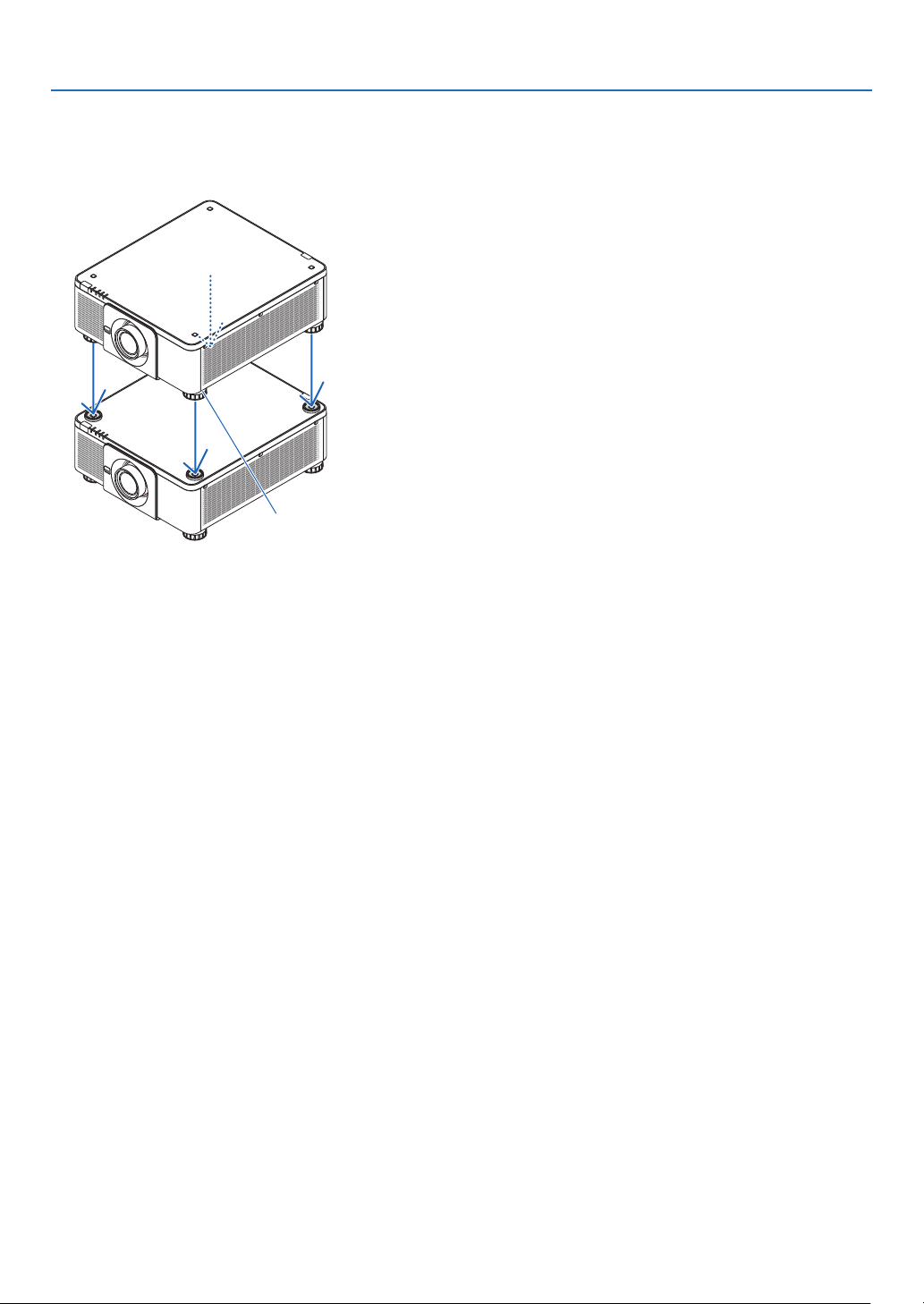
141
6. Installation and Connections
3. Put another projector on the rst projector.
Put each tilt foot of the upper projector on the stacking holders (four locations).
• Each tilt foot has a rubber. Place each tilt foot rubber on stacking holders (four locations).
Foot rubber
TIP:
• To remove the stacking holders, perform the above steps in reverse order.
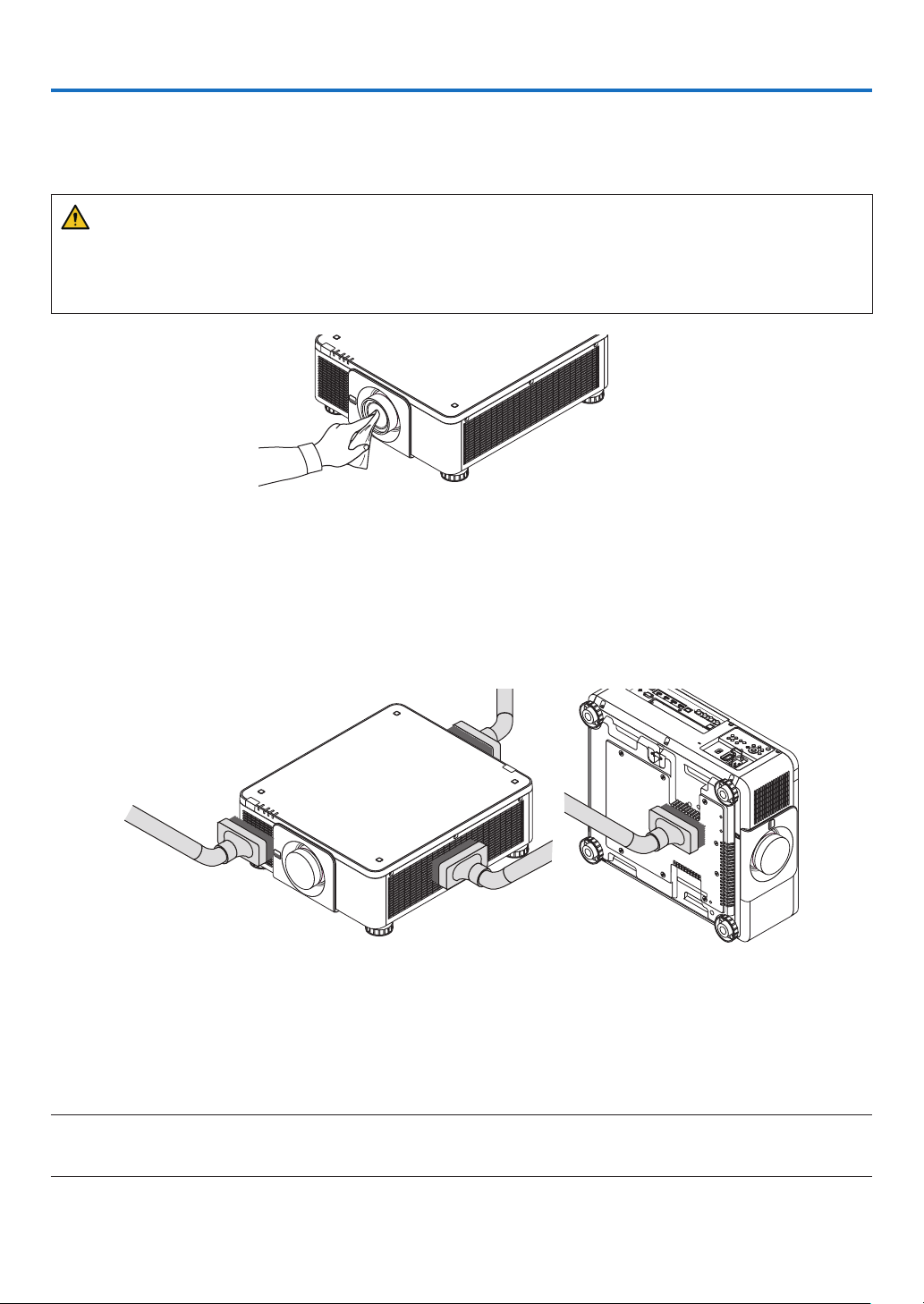
142
7. Maintenance
❶ Cleaning the Lens
• Turn off the projector before cleaning.
• Use a blower or lens paper to clean the lens, and be careful not to scratch or mar the lens.
WARNING
• Please do not use a spray containing ammable gas to remove dust attached to the lens, etc. Doing so may
result in res.
• Do not look into the lens while the projector is on. Serious damage to your eyes could result.
❷ Cleaning the Cabinet
Turn off the projector, and unplug the projector before cleaning.
• Use a dry soft cloth to wipe dust off the cabinet.
If heavily soiled, use a mild detergent.
• Never use strong detergents or solvents such as alcohol or thinner.
• When cleaning the ventilation slits or the speaker using a vacuum cleaner, do not force the brush of the vacuum
cleaner into the slits of the cabinet.
Vacuum the dust off the ventilation slits.
• Poor ventilation caused by dust accumulation in ventilation openings (also at the bottom of the projector) can result
in overheating and malfunction. These areas should be cleaned regularly.
• Do not scratch or hit the cabinet with your ngers or any hard objects
• Contact your dealer for cleaning the inside of the projector.
NOTE:
• Do not apply volatile agent such as insecticide on the cabinet, the lens, or the screen. Do not leave a rubber or vinyl product in
prolonged contact with it. Otherwise the surface finish will be deteriorated or the coating may be stripped off.
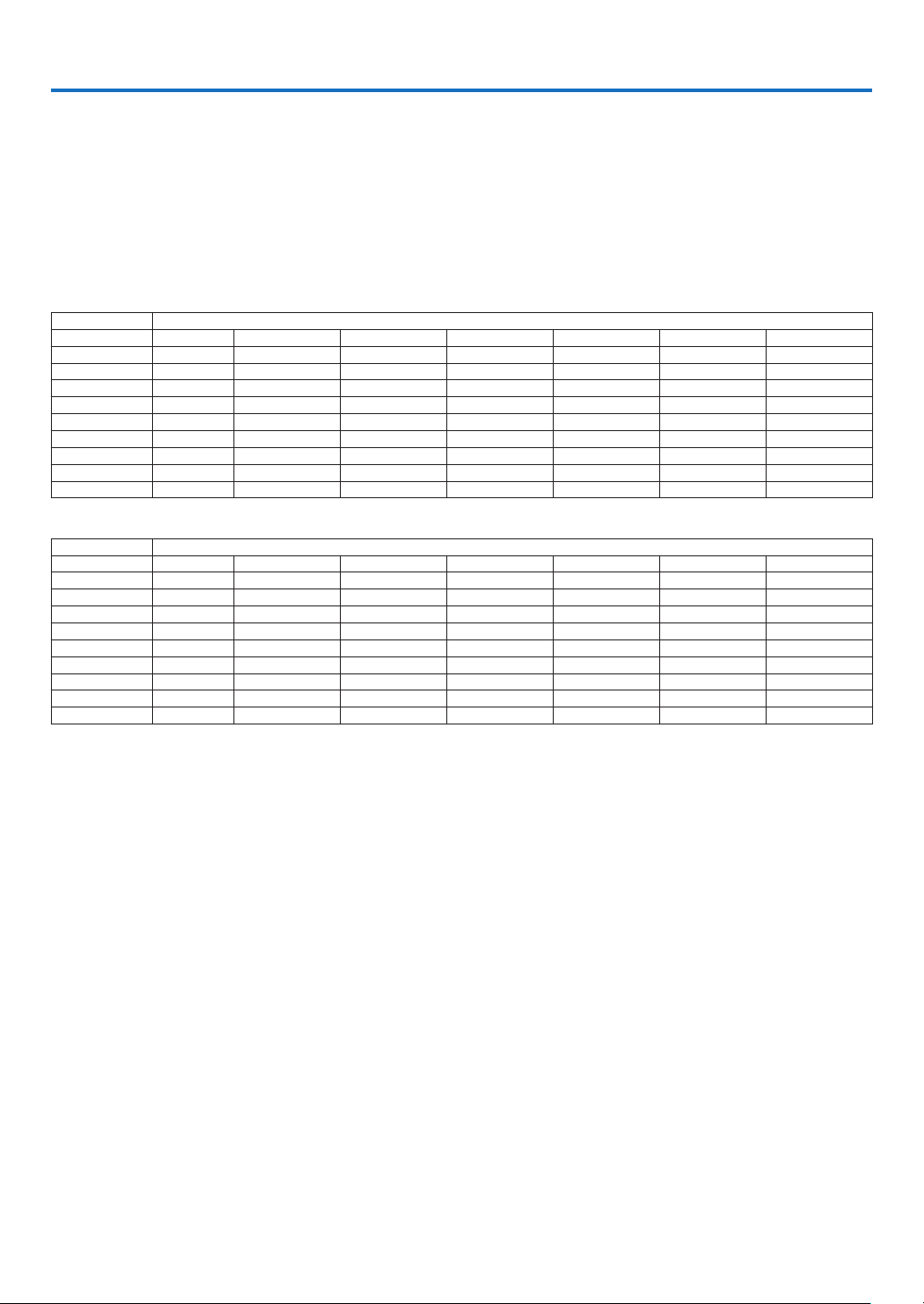
143
❶ Throw distance and screen size
This projector can be used with 8 kinds of optional lenses (sold separately). Refer to the information on this page and
use a lens suited for the installation environment (screen size and throw distance). For instructions on mounting the
lens, see page 133.
Lens types and throw distance
Applicable lens unit: NP16FL-4K/NP17ZL-4K/NP18ZL-4K/NP19ZL-4K/NP20ZL-4K/NP21ZL-4K/
NP31ZL-4K
(Unit: inch)
Screen size Lens unit model name
inch NP16FL-4K NP17ZL-4K NP18ZL-4K NP19ZL-4K NP20ZL-4K NP21ZL-4K NP31ZL-4K
50 32 53 – 77 73 – 97 95 – 159 152 – 232 224 – 356 32 – 40
70 46 75 – 108 104 – 137 134 – 223 215 – 326 319 – 503 45 – 57
100 67 109 – 155 150 – 197 192 – 320 310 – 468 460 – 724 65 – 82
120 80 131 – 187 180 – 237 231 – 385 373 – 563 554 – 871 78 – 98
150 101 164 – 234 226 – 297 290 – 482 468 – 705 696 – 1092 98 – 123
180 121 197 – 281 271 – 357 349 – 579 562 – 847 837 – 1312 118 – 148
200 135 219 –
313 302 – 396 388 – 644 625 – 942 932 – 1459 132 – 165
250 169 274 – 391 378 – 496 485 – 806 783 – 1179 1168 – 1827 165 – 206
300 205 330 – 470 454 – 596 583 – 968 941 – 1416 1404 – 2195 199 – 248
(Unit: m)
Screen size Lens unit model name
inch NP16FL-4K NP17ZL-4K NP18ZL-4K NP19ZL-4K NP20ZL-4K NP21ZL-4K NP31ZL-4K
50 0.8 1.4 – 1.9 1.9 – 2.5 2.4 – 4.0 3.9 – 5.9 5.7 – 9.0 0.8 – 1.0
70 1.2 1.9 – 2.7 2.6 – 3.5 3.4 – 5.7 5.5 – 8.3 8.1 – 12.8 1.1 – 1.4
100 1.7 2.8 – 3.9 3.8 – 5.0 4.9 – 8.1 7.9 – 11.9 11.7 – 18.4 1.7 – 2.1
120 2.0 3.3 – 4.7 4.6 – 6.0 5.9 – 9.8 9.5 – 14.3 14.1 – 22.1 2.0 – 2.5
150 2.6 4.2 – 5.9 5.7 – 7.5 7.4 – 12.2 11.9 – 17.9 17.7 – 27.7 2.5 – 3.1
180 3.1 5.0 – 7.1 6.9 – 9.1 8.9 – 14.7 14.3 – 21.5 21.3 – 33.3 3.0 – 3.8
200 3.4 5.6 –
7.9 7.7 – 10.1 9.8 – 16.4 15.9 – 23.9 23.7 – 37.1 3.3 – 4.2
250 4.3 7.0 – 9.9 9.6 – 12.6 12.3 – 20.5 19.9 – 29.9 29.7 – 46.4 4.2 – 5.2
300 5.2 8.4 – 11.9 11.5 – 15.1 14.8 – 24.6 23.9 – 36.0 35.6 – 55.7 5.0 – 6.3
TIP:
Calculation of the throw distance from the screen size
NP16FL-4K lens throw distance (m) = H × 0.76 : 32"/0.8 m (min.) to 205"/5.2 m (max.)
NP17ZL-4K lens throw distance (m) = H × 1.24 to H × 1.78 : 53"/1.4 m (min.) to 470"/11.9 m (max.)
NP18ZL-4K lens throw distance (m) = H × 1.71 to H × 2.25 : 73"/1.9 m (min.) to 596"/15.1 m (max.)
NP19ZL-4K lens throw distance (m) = H × 2.20 to H × 3.67 : 95"/2.4 m (min.) to 968"/24.6 m (max.)
NP20ZL-4K lens throw distance (m) = H × 3.54 to H × 5.36 : 152"/3.9 m (min.) to 1416"/36.0 m (max.)
NP21ZL-4K lens throw distance (m) = H × 5.25 to H × 8.28 : 224"/5.7 m (min.) to 2195"/55.7 m (max.)
NP31ZL-4K lens throw distance (m) = H × 0.74 to H × 0.93 : 32"/0.8 m (min.) to 248"/6.3 m (max.)
“H” (Horizontal) refers to the screen width.
* Figures differ by several % with the table above because the calculation is approximate.
Ex.: Throw distance when projecting on a 100" screen using the NP18ZL-4K lens:
According to the “Screen Size (for reference)” table (→ page 145), H (screen width) = 87.1"/221.3 cm (approx. 2.21 m).
The throw distance is 87.1"/2.21 m × 1.71 to 87.1"/2.21 m × 2.25 = 149"/3.8 m to 196"/5.0 m (because of the zoom lens).
8. Appendix
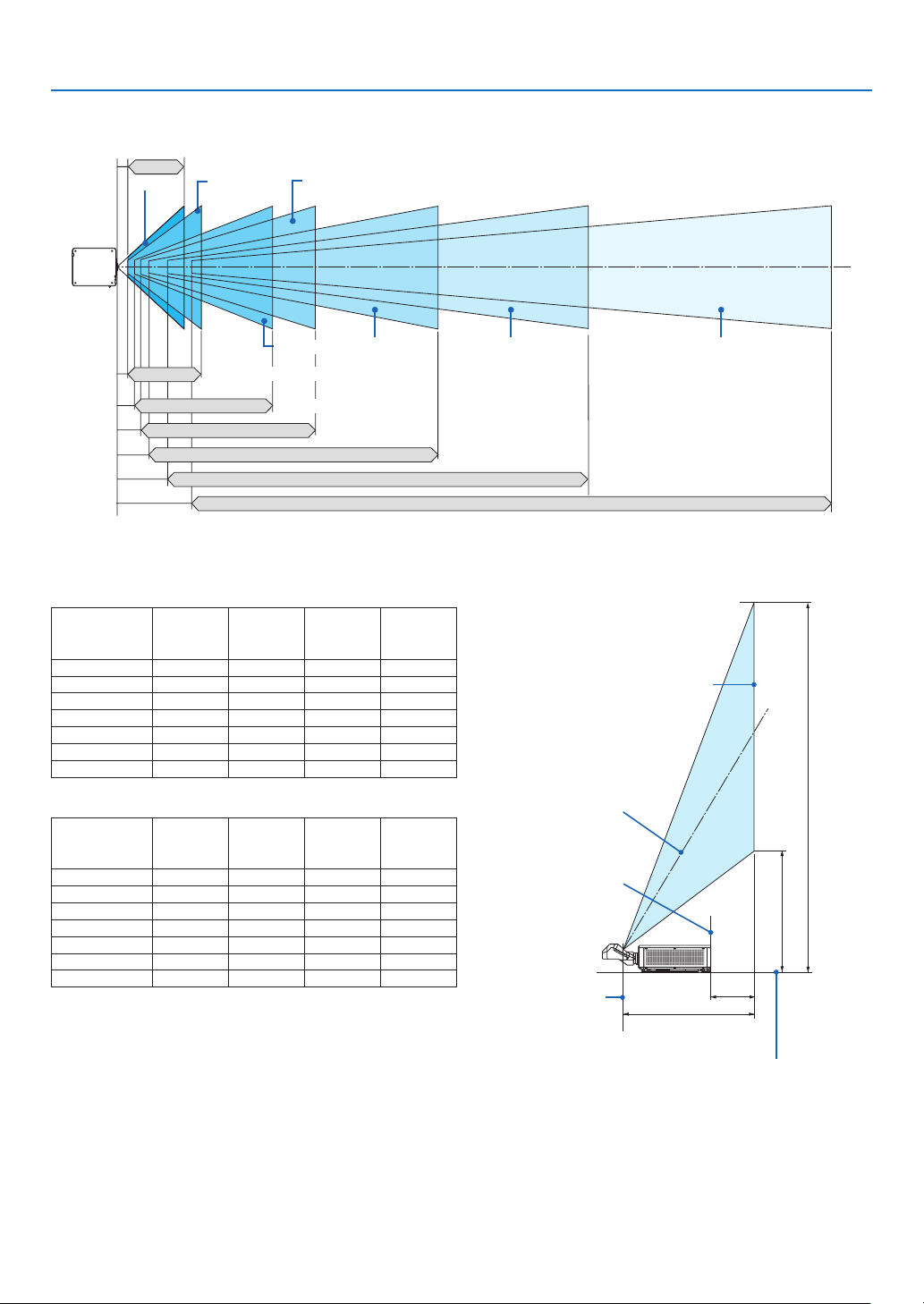
144
8. Appendix
Projection range for the different lenses
50–300"
50–300"
50–300"
50–300" 50–300" 50–300"
NP16FL-4K: 32"–205"/0.8–5.2 m
NP18ZL-4K: 73"–596"/1.9–15.1 m
NP19ZL-4K: 95"–968"/2.4–24.6 m
NP20ZL-4K: 152"–1416"/3.9–36.0 m
NP21ZL-4K: 224"–2195"/5.7–55.7 m
50–300"
NP17ZL-4K: 53"–470"/1.4–11.9 m
NP31ZL-4K: 32"–248"/0.8–6.3 m
Applicable lens unit: NP39ML-4K
(Unit: inch)
Screen size
(inch)
Throw
distance
L1
L2 H1 H2
100 33 −0.4 80 30
120 39 6 94 35
150 48 15 116 43
200 63 30 153 55
250 78 45 190 68
300 93 60 227 80
350 109 75 264 92
(Unit: m)
Screen size
(inch)
Throw
distance
L1
L2 H1 H2
100 0.83 −0.01 2.02 0.77
120 0.99 0.15 2.40 0.90
150 1.22 0.38 2.96 1.09
200 1.60 0.76 3.90 1.40
250 1.99 1.15 4.83 1.72
300 2.37 1.53 5.77 2.03
350 2.76 1.92 6.71 2.35
TIP:
Calculation of the throw distance from the screen size
NP39ML-4K lens throw distance (m) = H × 0.38 : 33"/0.8 m (min.)
to 109"/2.8 m (max.)
“H” (Horizontal) refers to the screen width.
* Figures differ by several % with the table above because the
calculation is approximate.
L1
H1
H2
L2
Screen face
Screen center
Projector rear face
Center of the lens unit
projection window
Projector bottom face
(In the condition the tilt foot is not
lengthen)
[Throw distance]
Screen
bottom
end
Screen top end
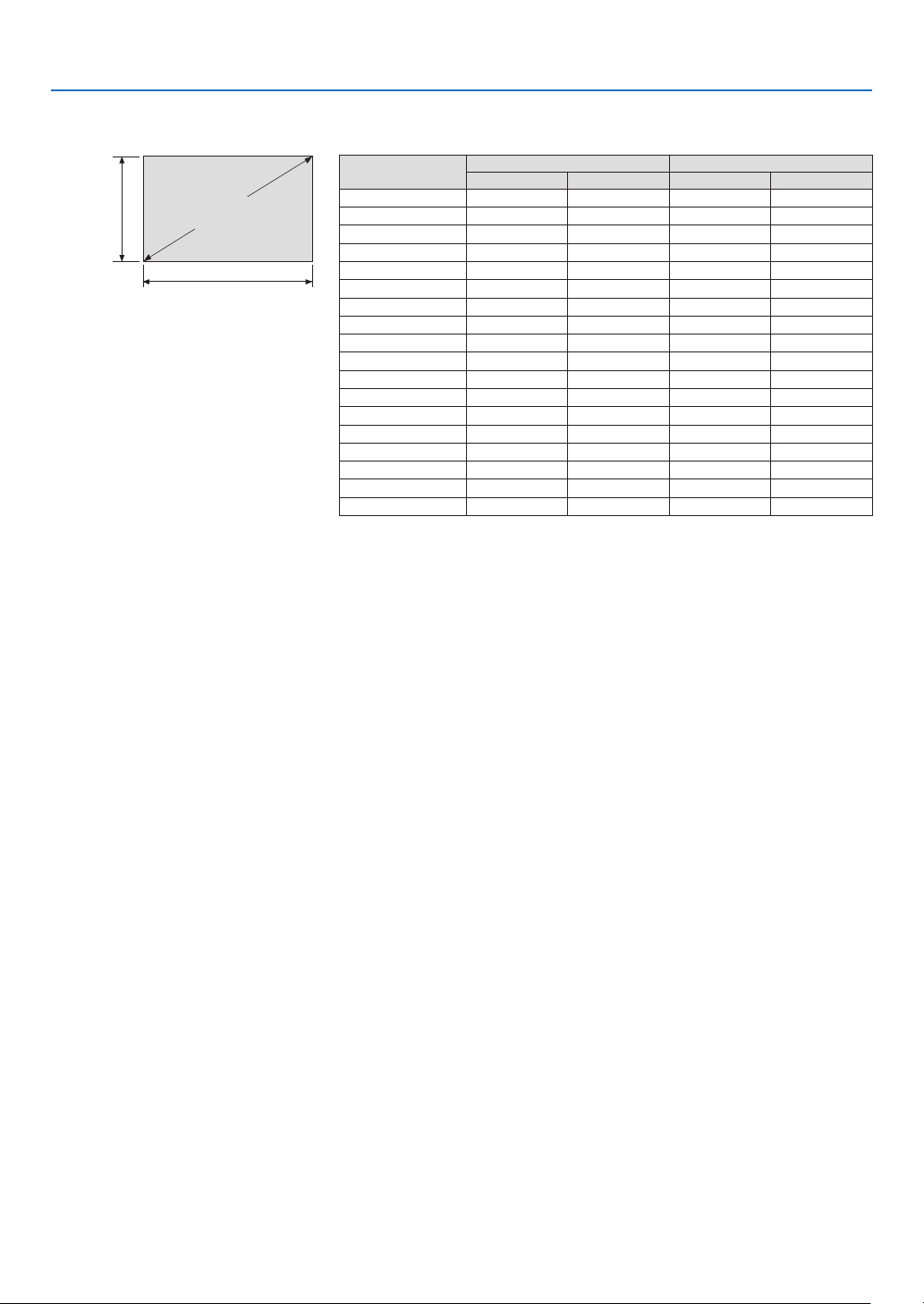
145
8. Appendix
Tables of screen sizes and dimensions
Screen
height
Screen width
16:9 screen size
(diagonal)
Size (inches) Screen width Screen height
(inches) (cm) (inches) (cm)
40 34.8 88.5 19.6 49.9
50 43.5 110.6 24.5 62.3
60 61.0 154.9 34.4 87.3
90 78.4 199.2 44.2 112.2
100 87.1 221.3 49.1 124.7
120 104.6 265.6 58.9 149.6
150 130.7 331.9 73.6 187.0
180 156.8 398.3 88.3 224.4
200 174.3 442.6 98.2 249.4
220 191.7 486.8 108.0 274.3
250 217.8 553.2 122.7 311.7
280 243.9 619.6 137.4 349.1
300 261.4 663.9 147.2 374.0
320 278.8 708.1 157.1 399.0
350 304.9 774.5 171.8 436.4
400 348.5 885.2 196.3 498.7
450 392.0 995.8 220.9 561.1
500 435.6 1106.5 245.4 623.4
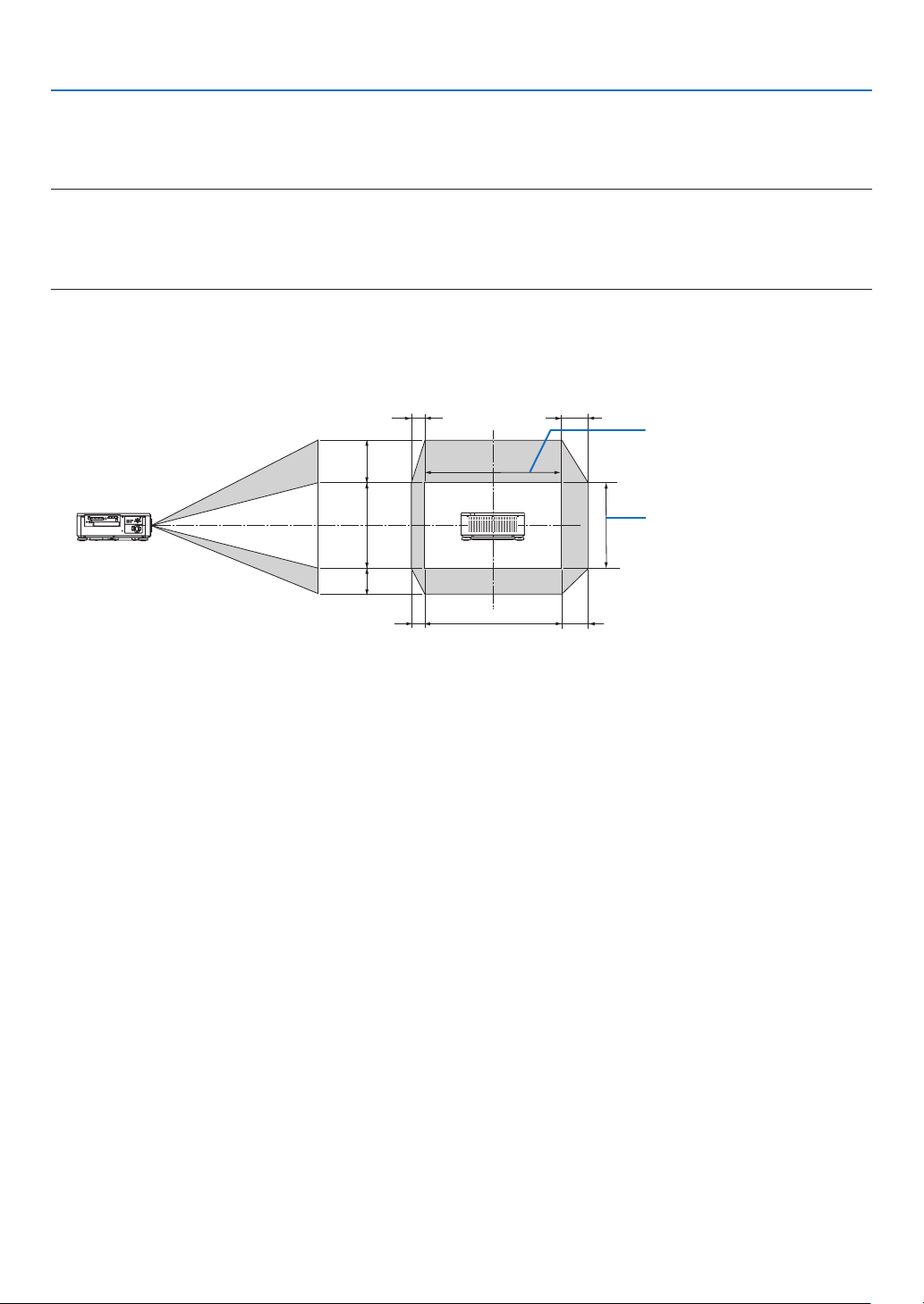
146
8. Appendix
Lens shifting range
This projector is equipped with a lens shift function for adjusting the position of the projected image by using the LENS
SHIFT buttons (→ page 23). The lens can be shifted within the range shown below.
NOTE:
• Please do not use the lens shift function when projecting portrait images. Please use it with the lens in the center when one
among the lens units, NP16FL-4K, NP17ZL-4K, NP18ZL-4K, NP19ZL-4K, NP20ZL-4K, NP21ZL-4K or NP31ZL-4K is fixed on. For
using the lens unit NP39ML-4K, select [TYPE] for [LENS POSITION] in [INSTALLATION(2)] in [SETUP] on the onsceen menu for
moving the lens at the appropriate position.
Legend: V “Vertical” refers to the screen height and H “Horizontal” refers to the screen width. The lens shift range is
expressed as a ratio of height and width, respectively.
100%V
50%V
30%V
100%H
20%H
10%H
10%H
20%H
Height of projected image
Width of projected image
* The lens shift range is the same for ceiling installation.
(Example) When using to project on a 150" screen
According to the “Table of screen sizes and dimensions” (→ page 145), H = 130.7"/331.9 cm, V = 73.6"/187.0 cm.
Adjustment range in the vertical direction: the projected image can be moved upwards 0.5 × 73.6"/187.0 cm ≈ 36.8"/93.5
cm, downwards approximately 0.3 × 73.6"/187.0 cm ≈ 22.1"/56.1 cm (when the lens is at the center position).
Adjustment range in the horizontal direction: the projected image can be moved to the left 0.1 × 130.7"/331.9 cm ≈
13.1"/33.2 cm, to the right approximately 0.2 × 130.7"/331.9 cm ≈ 26.1"/66.4 cm.
* Figures differ by several % because the calculation is approximate.
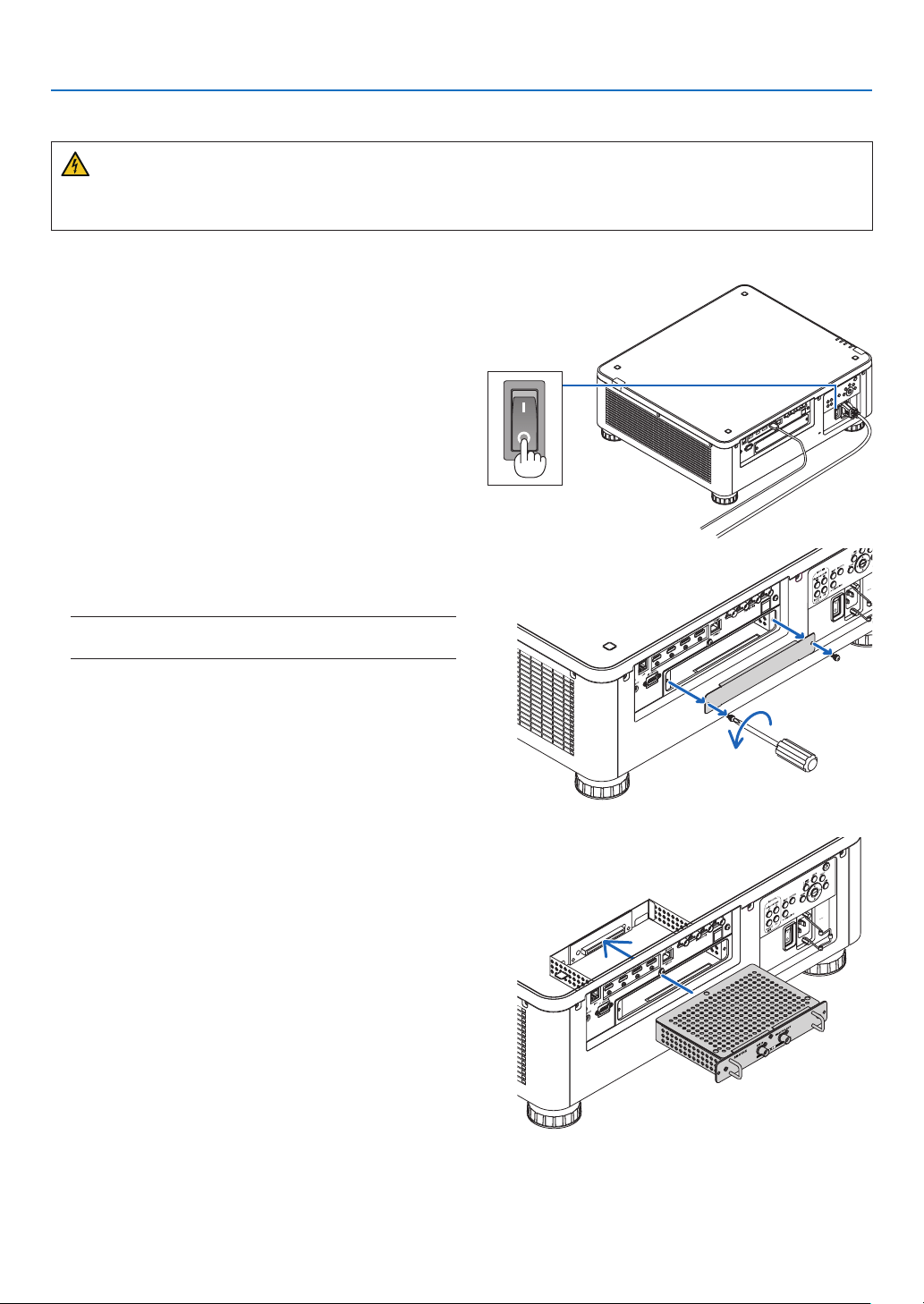
147
8. Appendix
❷ Mounting the Optional Board (sold separately)
CAUTION
Before mounting or removing the optional board, be sure to turn off the projector, wait for the fans to stop and turn
off the main power switch.
Tool needed: Phillips screwdriver (plus-head)
1. Turn off the main power switch of the projector.
2. Loosen the two screws on the SLOT cover of the
terminals.
Remove the two screws and the SLOT cover.
NOTE:
• Keep the two screws and the slot cover.
3. Insert the optional board into the slot.
Make sure that the board is inserted into the slot in the
correct orientation.
Incorrect orientation may cause miscommunication
between the optional board and projector.
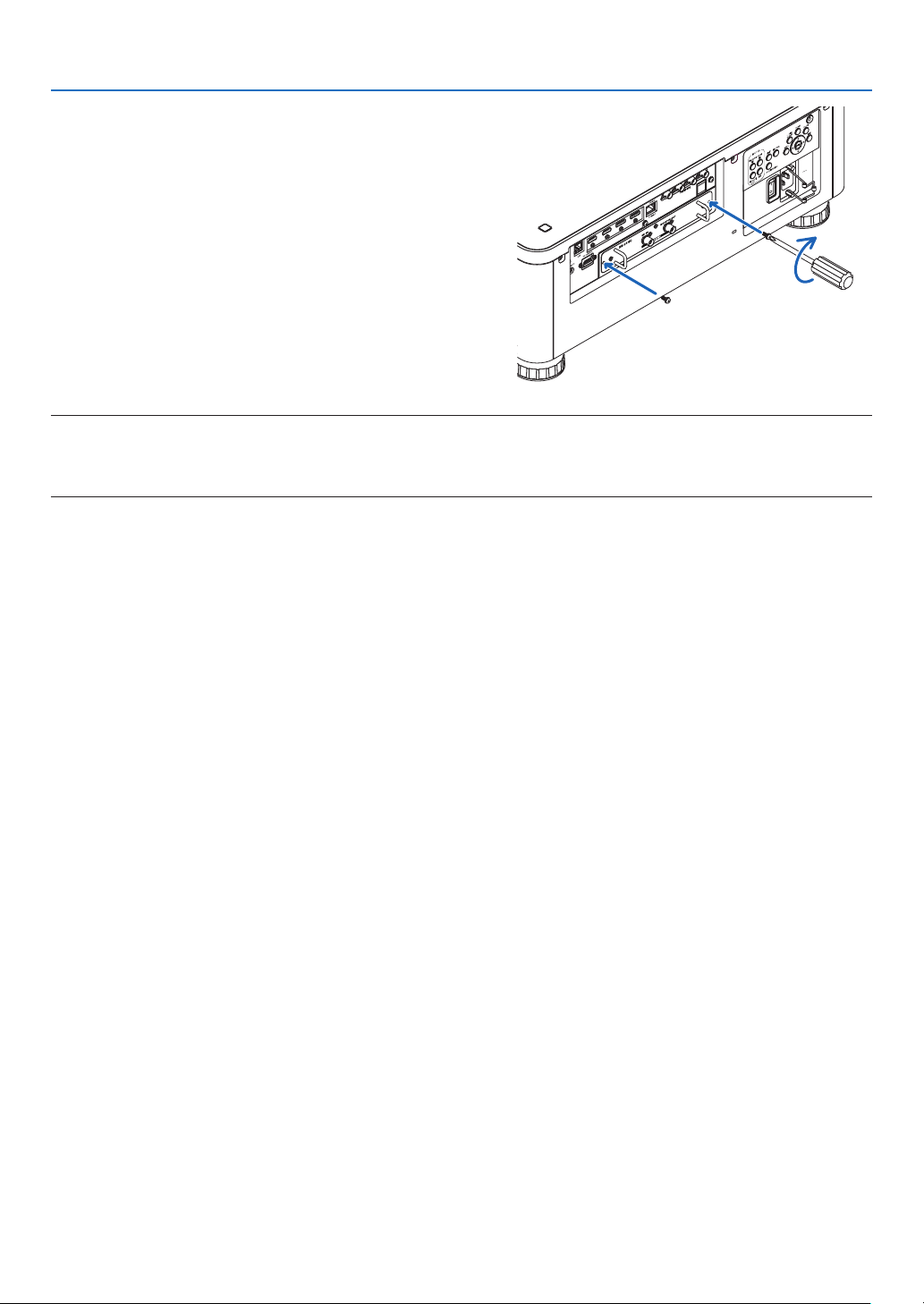
148
8. Appendix
4. Tighten the two screws on both sides of the slot.
• Be sure to tighten the screws.
This will complete installation of the optional board.
To select the optional board source, select SLOT as
the input.
NOTE:
• Mounting the optional board may cause the fans to run in the standby mode for the purpose of cooling depending on the optional
board. The fan speed may also increase in order to cool the projector properly. Both of these instances are considered normal
and not a malfunction of the projector.
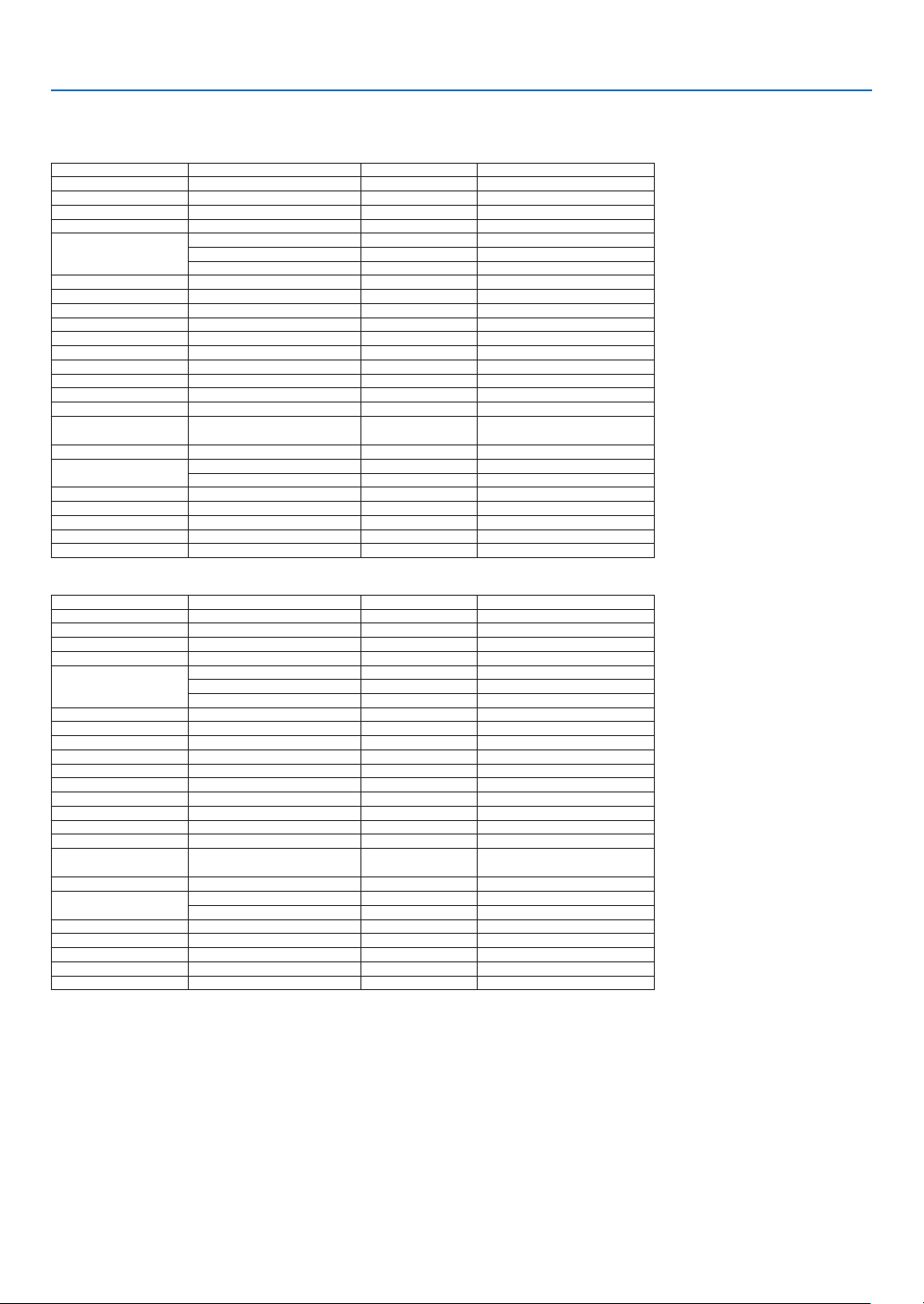
149
8. Appendix
❸ Compatible Input Signal List
HDMI
Signal Resolution ( dots ) Aspect Ratio Refresh Rate ( Hz )
VGA 640 × 480 4 : 3 60
SVGA 800 × 600 4 : 3 60
XGA 1024 × 768 4 : 3 60
HD 1280 × 720 16 : 9 60
WXGA
1280 × 768 15 : 9 60
1280 × 800 16 : 10 60
1366 × 768 *
1
16 : 9 60
Quad-VGA 1280 × 960 4 : 3 60
SXGA 1280 × 1024 5 : 4 60
SXGA+ 1400 × 1050 4 : 3 60
WXGA+ 1440 × 900 16 : 10 60
WXGA++ 1600 × 900 16 : 9 60
WSXGA+ 1680 × 1050 16 : 10 60
UXGA 1600 × 1200 4 : 3 60
Full HD 1920 × 1080 16 : 9 60
WUXGA 1920 × 1200 16 : 10 60 (Reduced Blanking)
2K 2048
× 1080 17 : 9 60
WQHD
iMac 27"
2560 × 1440 16 : 9 60
WQXGA 2560 × 1600 16 : 10 60 (Reduced Blanking)
4K
3840 × 2160 *
2
16 : 9 23.98/24/25/29.97/30/50/60
4096 × 2160 17 : 9 23.98/24/25/29.97/30/50/60
HDTV(1080p) 1920 × 1080 16 : 9 50/60
HDTV(1080i) 1920 × 1080 16 : 9 50/60
HDTV (720p) 1280 × 720 16 : 9 50/60
SDTV (480i/p) 720/1440 × 480 4:3 / 16:9 60
SDTV (576i/p) 720/1440 × 576 4:3 / 16:9 50
HDBaseT
Signal Resolution ( dots ) Aspect Ratio Refresh Rate ( Hz )
VGA 640 × 480 4 : 3 60
SVGA 800 × 600 4 : 3 60
XGA 1024 × 768 4 : 3 60
HD 1280 × 720 16 : 9 60
WXGA
1280 × 768 15 : 9 60
1280 × 800 16 : 10 60
1366 × 768 *
1
16 : 9 60
Quad-VGA 1280 × 960 4 : 3 60
SXGA 1280 × 1024 5 : 4 60
SXGA+ 1400 × 1050 4 : 3 60
WXGA+ 1440 × 900 16 : 10 60
WXGA++ 1600 × 900 16 : 9 60
WSXGA+ 1680 × 1050 16 : 10 60
UXGA 1600 × 1200 4 : 3 60
Full HD 1920 × 1080 16 : 9 60
WUXGA 1920 × 1200 16 : 10 60 (Reduced Blanking)
2K 2048
× 1080 17 : 9 60
WQHD
iMac 27"
2560 × 1440 16 : 9 60
WQXGA 2560 × 1600 16 : 10 60 (Reduced Blanking)
4K
3840 × 2160 *
2
16 : 9 23.98/24/25/29.97/30
4096 × 2160 17 : 9 23.98/24/25/29.97/30
HDTV(1080p) 1920 × 1080 16 : 9 50/60
HDTV(1080i) 1920 × 1080 16 : 9 50/60
HDTV (720p) 1280 × 720 16 : 9 50/60
SDTV (480i/p) 720/1440 × 480 4:3 / 16:9 60
SDTV (576i/p) 720/1440 × 576 4:3 / 16:9 50
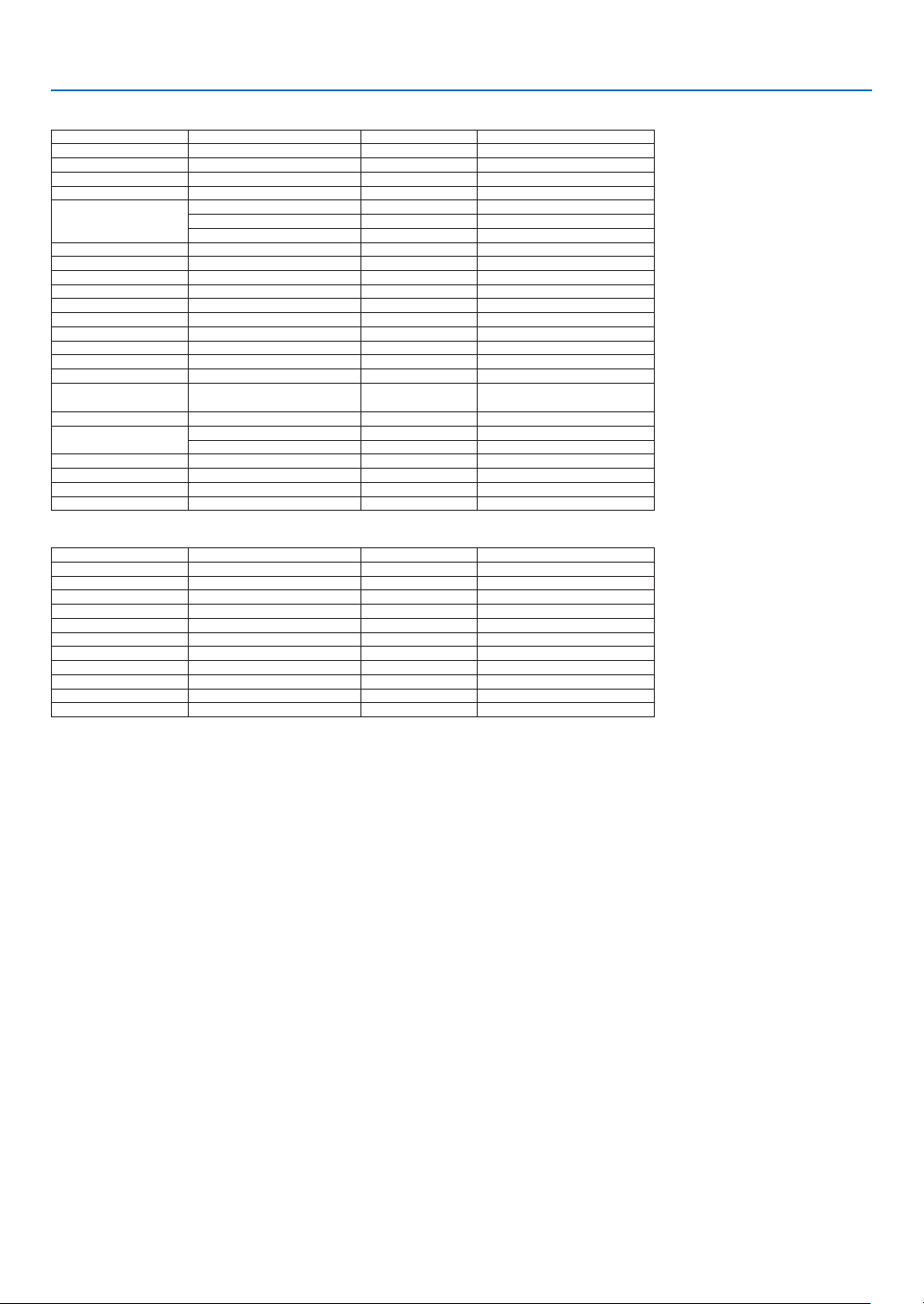
150
8. Appendix
DisplayPort
Signal Resolution ( dots ) Aspect Ratio Refresh Rate ( Hz )
VGA 640 × 480 4 : 3 60
SVGA 800 × 600 4 : 3 60
XGA 1024 × 768 4 : 3 60
HD 1280 × 720 16 : 9 60
WXGA
1280 × 768 15 : 9 60
1280 × 800 16 : 10 60
1366 × 768 *
1
16 : 9 60
Quad-VGA 1280 × 960 4 : 3 60
SXGA 1280 × 1024 5 : 4 60
SXGA+ 1400 × 1050 4 : 3 60
WXGA+ 1440 × 900 16 : 10 60
WXGA++ 1600 × 900 16 : 9 60
WSXGA+ 1680 × 1050 16 : 10 60
UXGA 1600 × 1200 4 : 3 60
Full HD 1920 × 1080 16 : 9 60
WUXGA 1920 × 1200 16 : 10 60 (Reduced Blanking)
2K 2048
× 1080 17 : 9 60
WQHD
iMac 27"
2560 × 1440 16 : 9 60
WQXGA 2560 × 1600 16 : 10 60 (Reduced Blanking)
4K
3840 × 2160 *
2
16 : 9 23.98/24/25/29.97/30/50/60
4096 × 2160 17 : 9 23.98/24/25/29.97/30/50/60
HDTV(1080p) 1920 × 1080 16 : 9 50/60
HDTV (720p) 1280 × 720 16 : 9 50/60
SDTV (480i/p) 720/1440 × 480 4:3 / 16:9 60
SDTV (576i/p) 720/1440 × 576 4:3 / 16:9 50
SDI
Signal Resolution ( dots ) Aspect Ratio Refresh Rate ( Hz )
HD-SDI (1035i) 1920 × 1035 16 : 9 60
HD-SDI (1080i) 1920 × 1080 16 : 9 50/60
HD-SDI (1080p) 1920 × 1080 16 : 9 24pSF
HD-SDI (1080p) 1920 × 1080 16 : 9 24/25/30
HD-SDI (720p) 1280 × 720 16 : 9 24/25/30/50/60
3G-SDI (1080p) 1920 × 1080 16 : 9 50/60
3G-SDI (1080p) 1920 × 1080 16 : 9 24/25/30
3G-SDI (1080p) 1920 × 1080 16 : 9 24pSF
3G-SDI (1080i) 1920 × 1080 16 : 9 50/60
Quad SDI 3840 × 2160 *
2
16 : 9 24/25/30/50/60
Quad SDI 4096 × 2160 17 : 9 24/25/30/50/60
*1 The projector may fail to display these signals correctly when [AUTO] is selected for [ASPECT RATIO] in the on-screen menu.
The factory default is [AUTO] for [ASPECT RATIO]. To display these signals, select [16:9] for [ASPECT RATIO].
*2 Native resolution
• Signals exceeding the projector’s resolution are handled with Advanced AccuBlend.
• With Advanced AccuBlend, the size of characters and ruled lines may be uneven and colors may be blurred.
• Upon shipment, the projector is set for signals with standard display resolutions and frequencies, but adjustments may be required
depending on the type of computer.
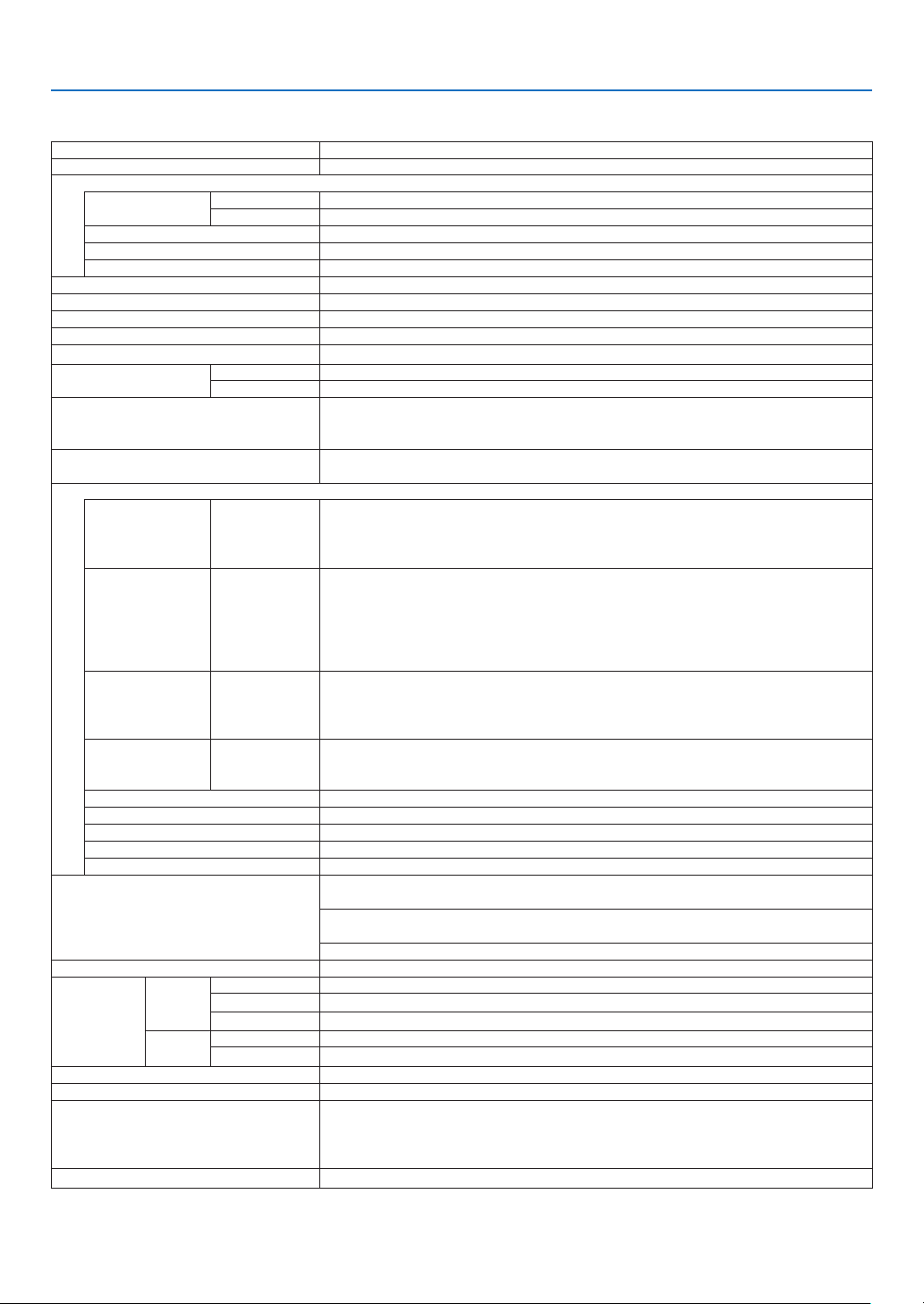
151
8. Appendix
❹ Specifications
Model name PX1005QL-W/PX1005QL-B
Method Single DLP
®
chip
Specications of main parts
DMD panel Size 0.66" (aspect ratio: 16:9)
Pixels
(*1)
4,150,047 (2716 dots × 1528 lines)
Projection lenses
Please refer to the specications of option lens (→ page 153)
Light source Laser Diode
Optical device Optical isolation by dichroic mirror, combining by dichroic prism
Display resolution 8,294,400 (3840 dots × 2160 lines)
Light output
(*2)
(*3)
10000 lm
Contrast ratio
(*2)
(all white/all black) 10,000:1 with dynamic contrast
Screen size (throw distance)
Please refer to the “Throw distance and screen size” (→ page 143)
Color reproducibility 10-bit color processing (approx. 1.07 billion colors)
Scanning frequency Horizontal Digital: 15 kHz, 24 to 153 kHz, conforming to VESA standards
Vertical Digital: 24, 25, 30, 48 Hz, 50 to 85 Hz, 100, 120 Hz conforming to VESA standards
Main adjustment functions Power zoom, power focus, power lens shift, input signal switching (HDMI/DisplayPort/
SDI/HDBaseT/SLOT), auto image adjustment, picture maginication, muting (video),
power on/standby, on-screen display/selection, etc.
Max. display resolution (horizontal ×
vertical)
Digital: 4096 × 2160 (handled with Advanced AccuBlend)
Input/output terminals
HDMI Video input HDMI
®
Connector type A × 2
Deep Color (color depth): 8-/10-/12-bit compatible
Colorimetry: RGB, YCbCr444, YCbCr422, YCbCr420, REC2020, REC709, REC601
Supports HDCP
(*4)
, 4K and HDR
DisplayPort Video input DisplayPort × 2
Data rate: 5.4 Gbps/2.7 Gbps/1.62 Gbps
No. lanes: 1 lane/2 lanes/4 lanes
Deep Color (color depth): 8-/10-/12-bit compatible
Colorimetry: RGB, YCbCr444, YCbCr422, REC709, REC601
Supports HDCP
(*4)
, 4K
Ethernet/HDBaseT
port
Video input RJ-45 × 1, 100BASE-TX
Deep Color (color depth): 8-/10-/12-bit compatible
Colorimetry: RGB, YCbCr444, YCbCr422, YCbCr420, BT2020, REC709, REC601
Supports HDCP
(*4)
, 4K
SDI (3G/HD) Video input BNC × 4
Input signals: SMPTE259M, SMPTE292M, SMPTE424M
Colorimetry: RGB, YCbCr444, YCbCr422
PC control terminal D-Sub 9-pin × 1
USB port USB type A × 1
LAN port RJ-45 × 1, Supports 10BASE-T/100BASE-TX
Remote terminal Stereo mini jack × 1
SLOT For mounting separately sold options
Usage environment
(*5)
Operating temperature: 41 to 104°F (5 to 40°C)
Operating humidity: 20 to 80% (with no condensation)
Storage temperature: 14 to 140°F (-10 to 60°C)
Storage humidity: 20 to 80% (with no condensation)
Operating altitude: 0 to 3000 m/10,000 feet
Power supply 110-240 V AC, 50/60Hz
Power con-
sumption
REF.
LIGHT
MODE
NORMAL 1181 W (110-130 V)/1222 W (200-240 V)
ECO1 1002 W (110-130 V)/977 W (200-240 V)
ECO2 658 W (110-130 V)/646 W (200-240 V)
STAND-
BY
Link-up 0.88 W (110-130 V)/0.92 W (200-240 V)
Link-down 0.33 W (110-130 V)/0.35 W (200-240 V)
Rated input current 12.5 A-5.5 A
Power cord specication 15 A or higher
(*6)
External dimensions 19.7" (width) × 8.3" (height) × 22.7" (depth)/500 (width) × 211 (height) × 577 (depth)
mm (not including protruding parts)
19.7" (width) × 8.5" (height) × 23.0" (depth)/500 (width) × 216 (height) × 583 (depth)
mm (including protruding parts)
Weight 68.8 lbs/31.2 kg (not including lens)

152
8. Appendix
*1 Effective pixels are more than 99.99%.
*2 This is the light output value that results from setting the [REF. LIGHT MODE] to [NORMAL] and setting the [PRESET] to [HIGH-
BRIGHT] while using the NP18ZL-4K lens (sold separately).
The light output value is lower when setting the [REF. LIGHT MODE] to [ECO1] or [ECO2]. ([ECO1]: about 80%, [ECO2]: about
50%). If any other mode is selected as the [PRESET] mode, the light output value may drop slightly.
*3 Compliance with ISO21118-2012
*4 If you are unable to view material via the HDMI input, DisplayPort input and HDBaseT input, this does not necessarily mean the
projector is not functioning properly. With the implementation of HDCP technology, there may be cases in which certain content
is protected with HDCP and might not be displayed due to the decision/intention of the HDCP community (Digital Content Protec-
tion, LLC).
Video: Deep Color, 8/10/12-bit
HDMI: Supports HDCP 1.4/2.2
DisplayPort: Supports HDCP 1.4
HDBaseT: Supports HDCP 1.4/2.2
*5 Depending on the altitude and temperature, the projector goes into “Forced ECO MODE”.
*6 In UK, use a BS-approved power cord with molded plug having a black (16A) fuse installed for use with this projector.
• These specications and the product’s design are subject to change without notice.
For additional information visit:
US: https://www.necdisplay.com/
Europe: https://www.nec-display-solutions.com/
Global: https://www.nec-display.com/global/index.html
For information on our optional accessories, visit our website or see our brochure.
153
8. Appendix
Option lens (sold separately)
NP16FL-4K Power focus
throw ratio 0.76:1, F1.85, f = 11.6 mm
NP17ZL-4K Power zoom and focus
throw ratio 1.24–1.78:1, F1.85–2.50, f = 18.7–26.5 mm
NP18ZL-4K Power zoom and focus
throw ratio 1.71–2.25:1, F1.70–1.90, f = 26.0–34.0 mm
NP19ZL-4K Power zoom and focus
throw ratio 2.20–3.67:1, F1.86–2.48, f = 32.9–54.2 mm
NP20ZL-4K Power zoom and focus
throw ratio 3.54–5.36:1, F1.85–2.41, f = 52.8–79.1 mm
NP21ZL-4K Power zoom and focus
throw ratio 5.25–8.28:1, F1.85–2.48, f = 78.5–121.9 mm
NP31ZL-4K Power zoom and focus
throw ratio 0.74–0.93:1, F1.96–2.30, f = 11.3–14.1 mm
NP39ML-4K Power focus
Throw ratio 0.38:1, F2.0, f = 5.64 mm
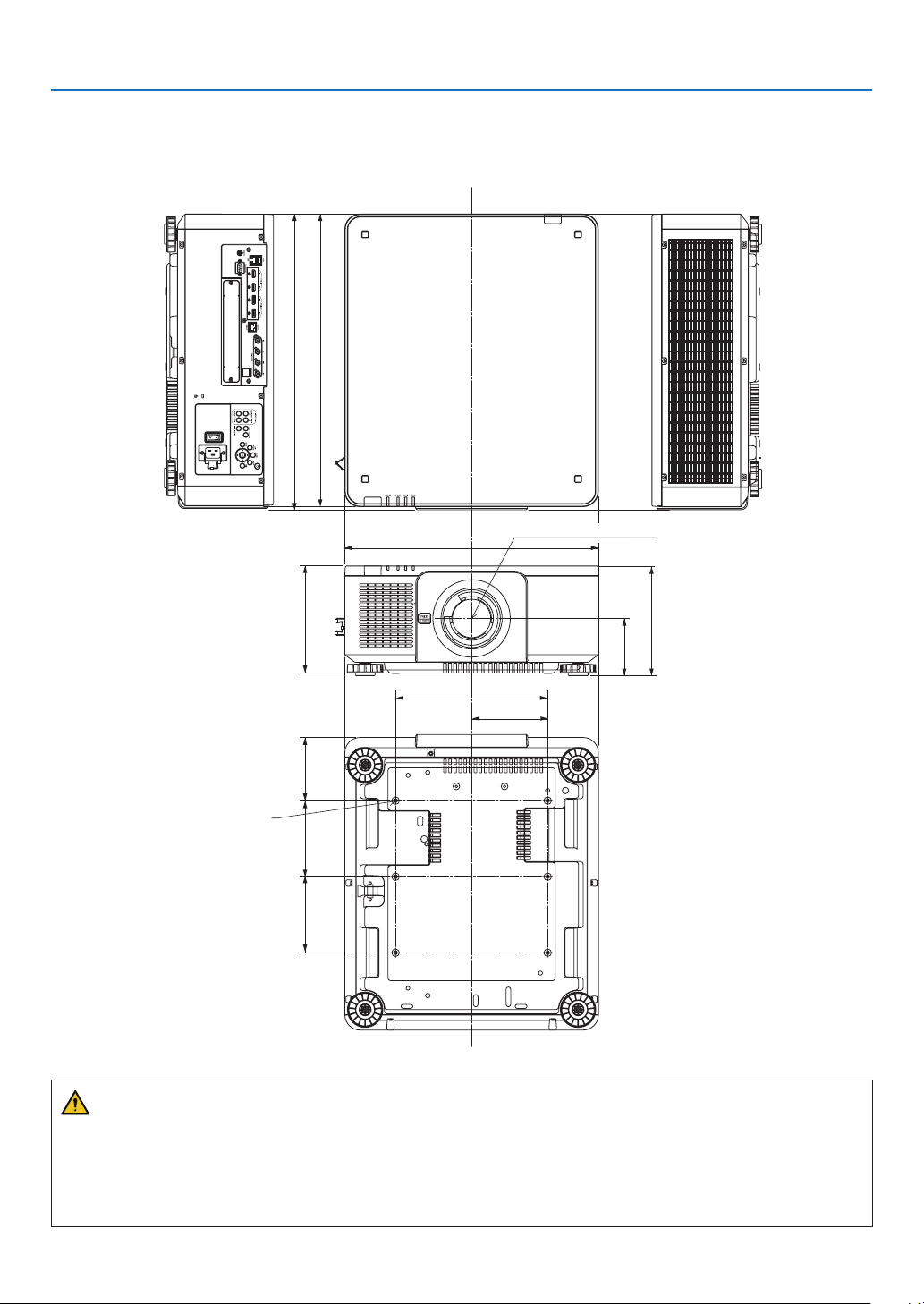
154
8. Appendix
❺ Cabinet Dimensions
Unit: mm (inch)
500 (19.7)
300 (11.8)
150 (5.9)
583 (23)
577 (22.7)
112.5 (4.4)
216 (8.5)
211 (8.3)
124.5 (4.9)150 (5.9)150 (5.9)
Lens center
6-M4 × L16 (Max) for Ceiling
Mount*
* The screws specications for
Ceiling Mount:
Screw type: M4
Screw hole dimension on the
projector: M4 with the maximum
depth 16 mm (0.63")
CAUTION
Do not attempt to mount the projector on a ceiling yourself.
The projector must be installed by qualied technicians in order to ensure proper operation and reduce the risk of
bodily injury.
In addition, the ceiling must be strong enough to support the projector and the installation must be in accordance
with any local building codes. Please consult your dealer for more information.
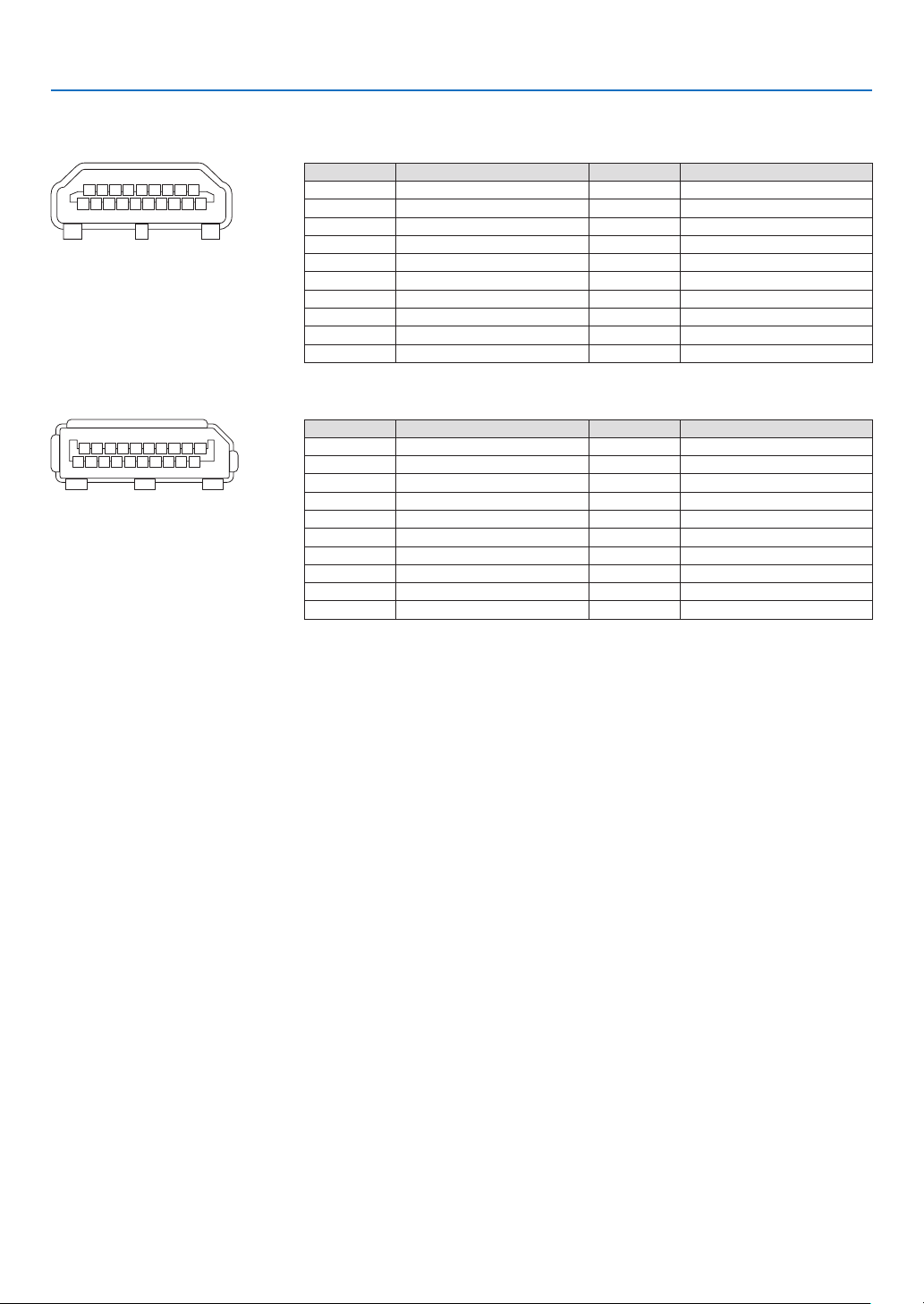
155
8. Appendix
❻ Pin assignments and signal names of main terminals
HDMI IN 1/2 Terminal (Type A)
135791113151719
246810 12 14 16 18
Pin No. Signal Pin No. Signal
1 TMDS Data 2+ 11 TMDS Clock Shield
2 TMDS Data 2 Shield 12 TMDS Clock−
3 TMDS Data 2− 13 CEC
4 TMDS Data 1+ 14 Disconnection
5 TMDS Data 1 Shield 15 SCL
6 TMDS Data 1− 16 SDA
7 TMDS Data 0+ 17 DDC/CEC grounding
8 TMDS Data 0 Shield 18 +5 V power supply
9 TMDS Data 0− 19 Hot plug detection
10 TMDS Clock +
DisplayPort IN 1/2 Terminal
135791113151719
246810 12 14 16 18 20
Pin No. Signal Pin No. Signal
1 Main link lane 3− 11 Grounding 0
2 Grounding 3 12 Main link lane 0+
3 Main link lane 3+ 13 Conguration 1
4 Main link lane 2− 14 Conguration 2
5 Grounding 2 15 Supplementary channel +
6 Main link lane 2+ 16 Grounding 4
7 Main link lane 1− 17 Supplementary channel −
8 Grounding 1 18 Hot plug detection
9 Main link lane 1+ 19 Return
10 Main link lane 0− 20 +3.3 V power supply
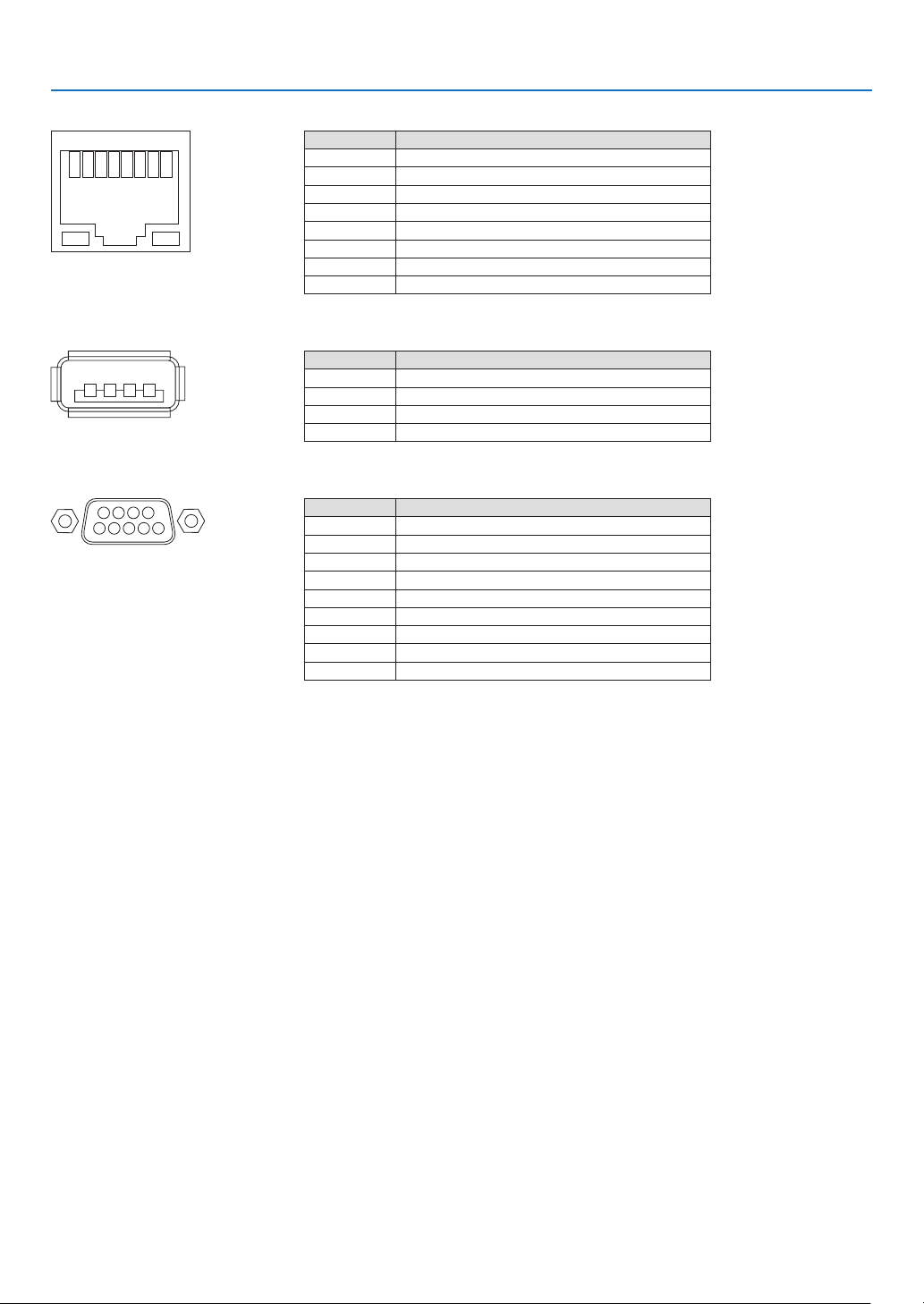
156
8. Appendix
Ethernet/HDBaseT Port (RJ-45)
12345678
Pin No. Signal
1 TxD+/HDBT0+
2 TxD−/HDBT0−
3 RxD+/HDBT1+
4 Disconnection/HDBT2+
5 Disconnection/HDBT2−
6 RxD−/HDBT1−
7 Disconnection/HDBT3+
8 Disconnection/HDBT3−
USB Port (Type A)
1
3 24
Pin No. Signal
1 V
BUS
2 D−
3 D+
4 Grounding
PC CONTROL Port (D-Sub 9 Pin)
1234
5
6789
Pin No. Signal
1 Unused
2
RxD reception data
3 TxD transmission data
4 Unused
5 Grounding
6 Unused
7
RTS transmission request
8 CTS transmission allowed
9 Unused
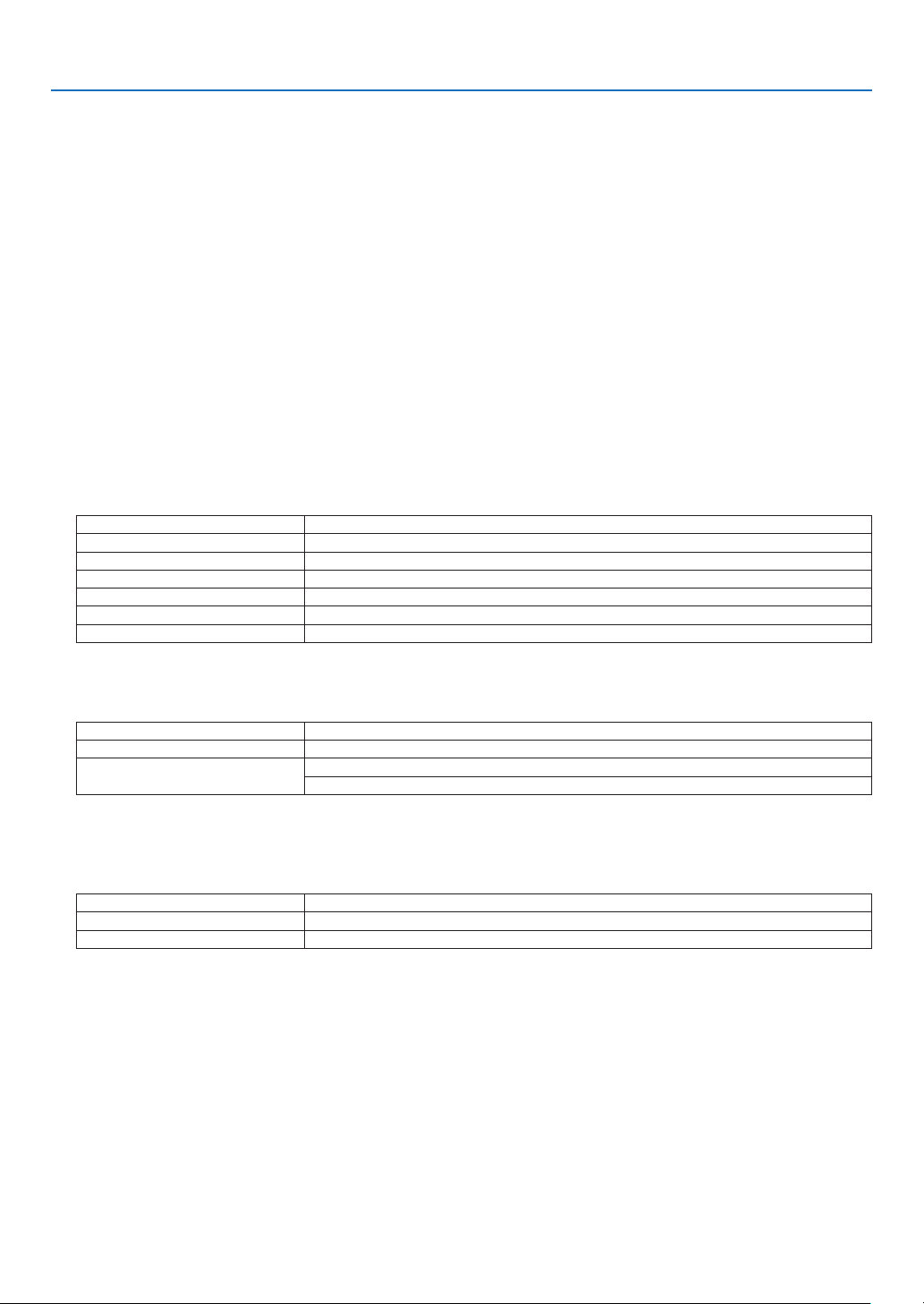
157
8. Appendix
❼ About the ASCII Control Command
This device supports the common ASCII Control Command for controlling our projector and monitor.
Please visit our web site for detailed information about the command.
https://www.nec-display.com/dl/en/pj_manual/lineup.html
HOW TO CONNECT WITH AN EXTERNAL DEVICE
There are two methods to connect the projector with an external device such as a computer.
1. Connection thru the serial port.
Connects the projector to a computer by a serial cable (straight cable).
2. Connection via network (LAN/HDBaseT)
Connects the projector to a computer by a LAN cable.
Concerning to the type of LAN cable, please ask to your network administrator.
CONNECTION INTERFACE
1. Connection thru the serial port.
Communication Protocol
Item Information
Baud rate 115200/38400/19200/9600/4800 bps
Data length 8 bits
Parity bit No parity
Stop bit 1 bit
Flow control None
Communications procedure Full duplex
2. Connection via network
Communication Protocol (Connection via LAN)
Item Information
Communication speed Set automatically (10/100 Mbps)
Supported standard IEEE802.3 (10BASE-T)
IEEE802.3u (100BASE-TX, Auto-Negotiation)
Use the TCP port number 7142 for transmitting and receiving command.
Communication Protocol (Connection via HDBaseT)
Item Information
Communication speed 100 Mbps
Supported standard IEEE802.3u (100BASE-TX, Auto-Negotiation)
Use the TCP port number 7142 for transmitting and receiving command.
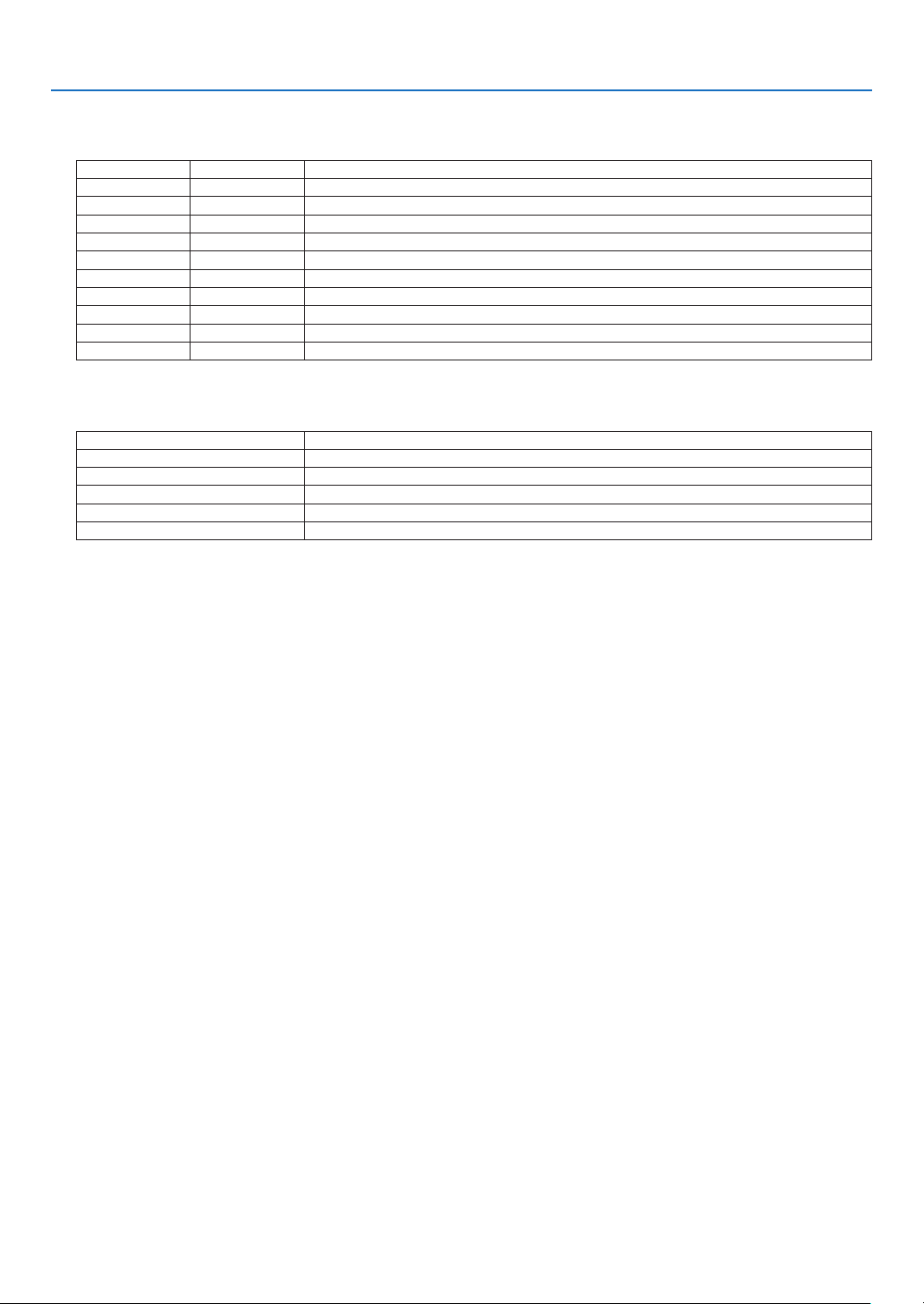
158
8. Appendix
PARAMETERS FOR THIS DEVICE
Input command
Input terminal Response Parameter
HDMI1 hdmi1 hdmi1 or hdmi
HDMI2 hdmi2 hdmi2
DisplayPort1 displayport1 displayport1 or displayport
DisplayPort2 displayport2 displayport2
HDBaseT hdbaset hdbaset or hdbaset1
SDI1 sdi1 sdi1 or sdi
SDI2 sdi2 sdi2
SDI3 sdi3 sdi3
SDI4 sdi4 sdi4
SLOT slot slot or slot1
Status command
Response Error Status
error:temp Temperature error
error:fan Fan trouble
error:light Light source trouble
error:lens Lens trouble
error:system System trouble
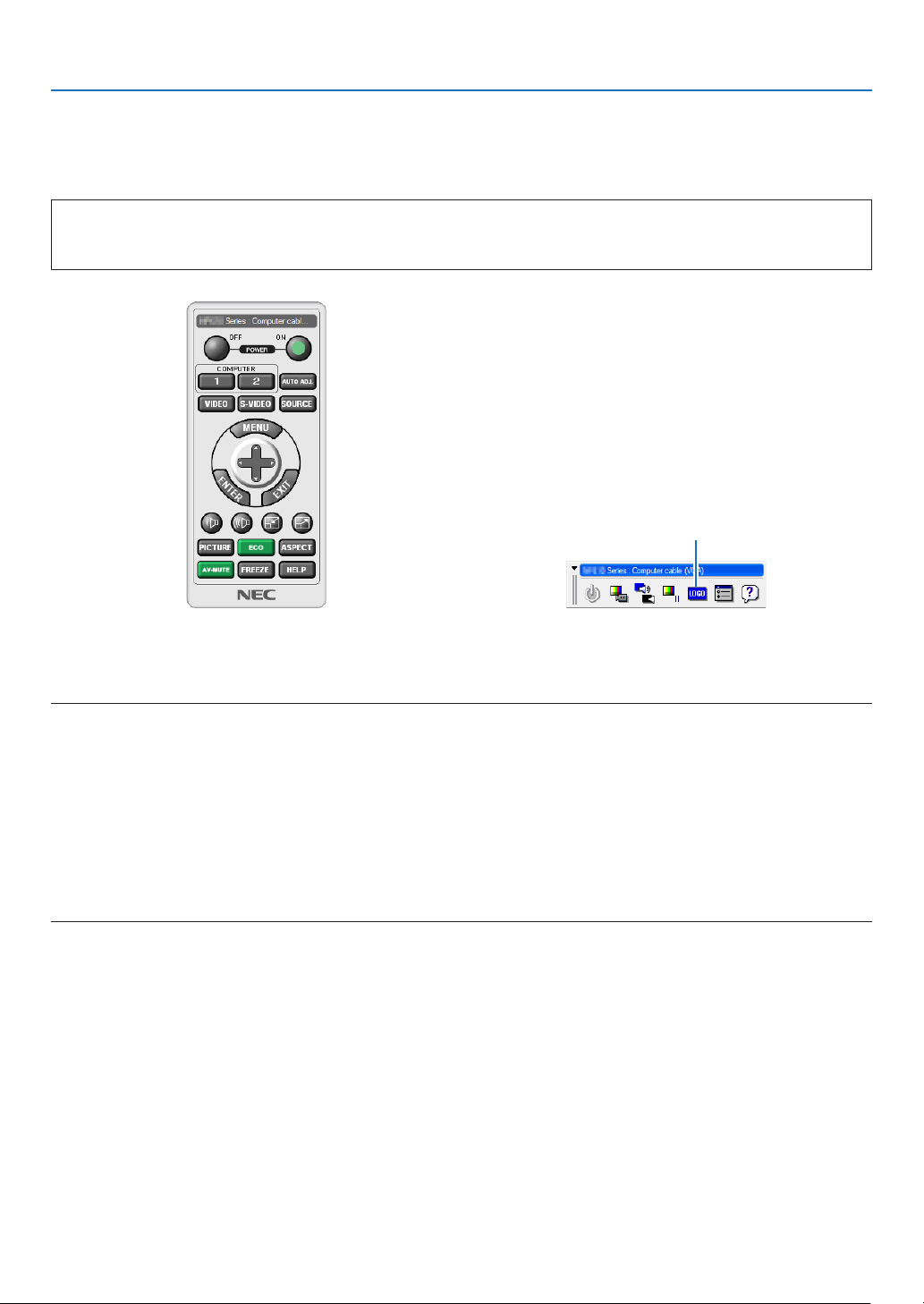
159
8. Appendix
❽ Changing the Background Logo (Virtual Remote Tool)
This will help you perform operations such as projector’s power on or off and signal selection via a LAN connection.
It is also used to send an image to the projector and register it as the logo data of the projector. After registering it,
you can lock the logo to prevent it from changing.
Control Functions
Power On/Off, signal selection, picture freeze, picture mute, Logo transfer to the projector, and remote control
operation on your PC.
Virtual Remote screen
Use this button for changing
the background logo.
Remote Control Window Toolbar
For getting the Virtual Remote Tool, please visit our web site and download it:
https://www.nec-display.com/dl/en/index.html
NOTE:
• Remote Control Window is not available for changing the background logo.
Please see the HELP menu of the Virtual Remote Tool about how to display the Toolbar.
• Logo data (graphics) that can be sent to the projector with Virtual Remote Tool has the following restrictions:
(Only via serial or LAN connection)
* File size: Within 512 kilobytes
* Image size: Within the resolution of the projector
* File format: PNG (Full color)
• Logo data (image) sent using the Virtual Remote Tool will be displayed in the center with the surrounding area in black.
• To put the default “NEC logo” back in the background logo, you need to register it as the background logo by using the image file
(\Logo\NEC_logo2018_3840x2160.png) included on the supplied NEC Projector CD-ROM.
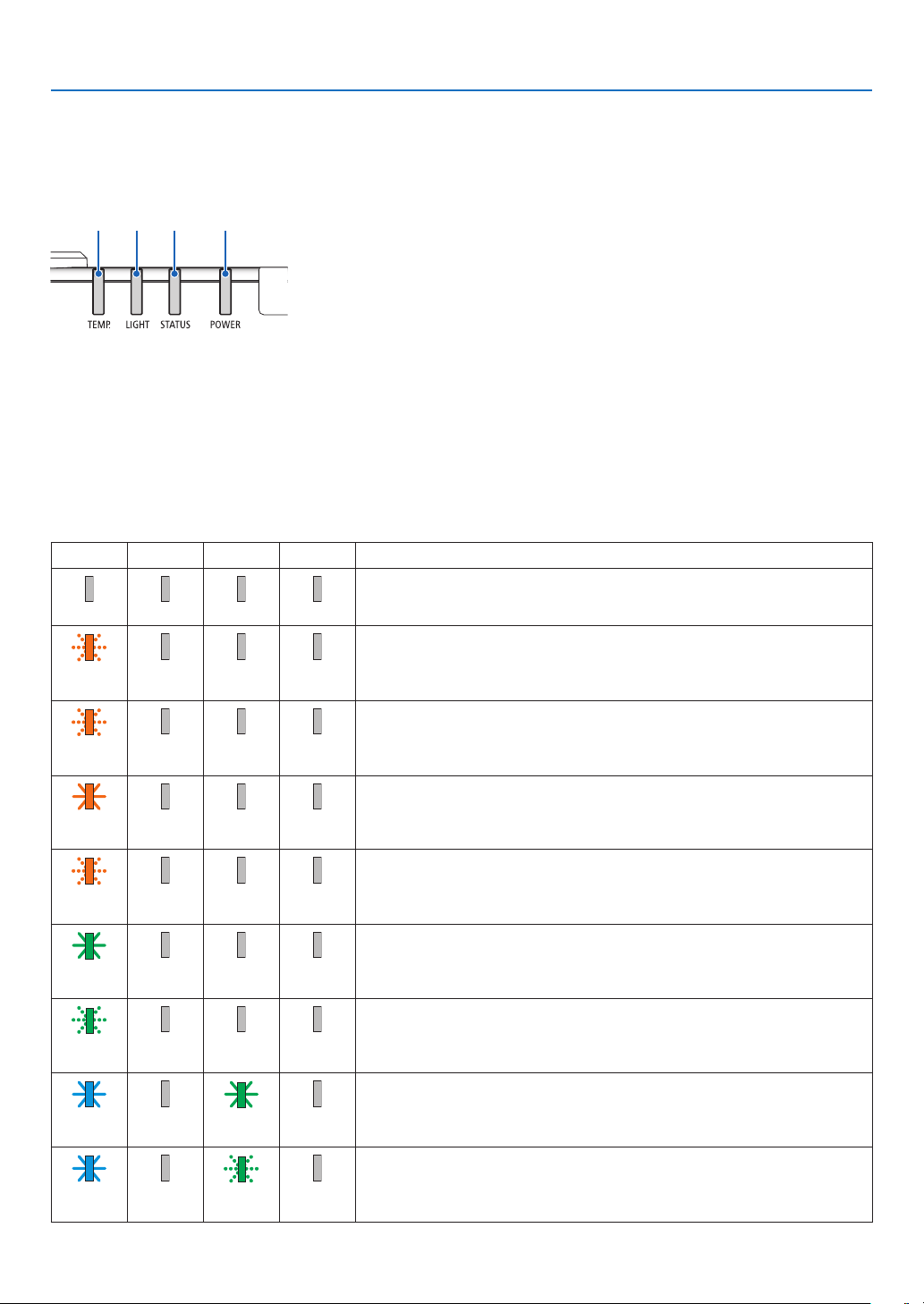
160
8. Appendix
❾ Troubleshooting
This section helps you resolve problems you may encounter while setting up or using the projector.
Feature of each indicator
②③④ ①
① POWER indicator
This indicator informs the power status of the projector.
② STATUS indicator
This indicator lights/blinks when a button is pressed while the CONTROL
PANEL LOCK function is utilized, or while performing the lens calibration and
specic operations.
③
LIGHT indicator
This indicator informs the state of light source, used time of the light source,
and the status of REF. LIGHT MODE.
④
TEMP. indicator
This is the temperature indicator informing temperature trouble when the
ambient temperature is too high/low.
Indicator Message (Status message)
POWER STATUS LIGHT TEMP. Projector status
Power is off
Off Off Off Off
In the state of Standby (Standby mode is NORMAL and the network is ready.
Orange
(Blink*
1
)
Off Off Off
In the state of Standby (Standby mode is NORMAL and the network is unavail-
able.
Orange
(Blink*
2
)
Off Off Off
In the state of Standby (Standby mode is NORMAL and the network is avail-
able)
Orange
(Light)
Off Off Off
ON time as the program timer is activated. (In the state of Standby)
Orange
(Blink*
3
)
Off Off Off
In the state of Sleep
Green
(Light)
Off Off Off
ON time as the program timer is activated. (In the state of Sleep)
Green
(Blink*
3
)
Off Off Off
Powered state (REF. LIGHT MODE is NORMAL or ECO1)
Blue
(Light)
Off Green
(Light)
Off
Powered state (REF. LIGHT MODE is ECO2)
Blue
(Light)
Off Green
(Blink*
3
)
Off
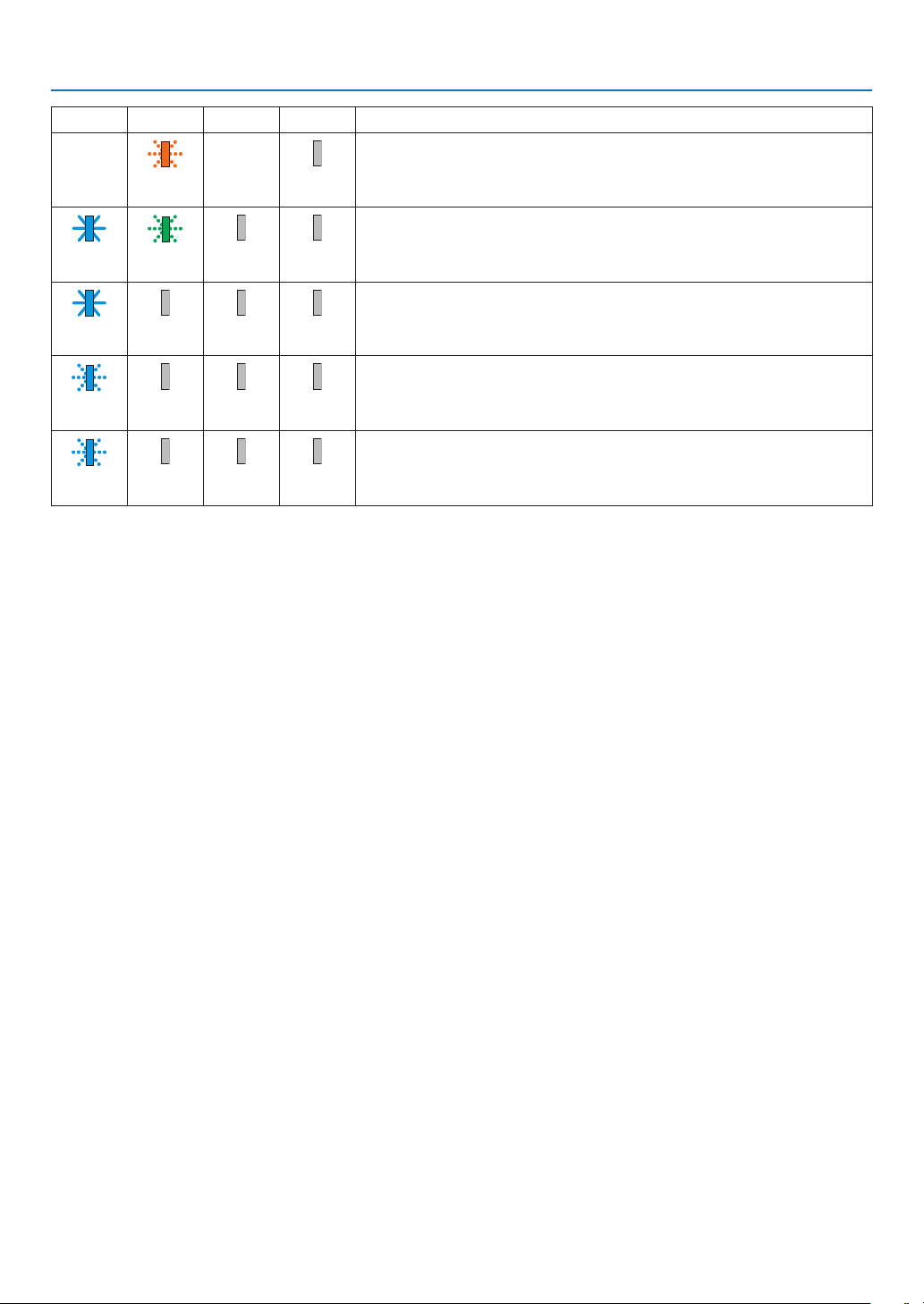
161
8. Appendix
POWER STATUS LIGHT TEMP. Projector status
Lens calibration implement request.
Status
varies
Orange
(Blink*
4
)
Status
varies
Off
Performing the lens calibration
Blue
(Light)
Green
(Blink*
4
)
Status
varies
Off
Shutter function is activating
Blue
(Light)
Status
varies
Off Off
OFF Timer is activated, OFF time as the proogram timer is activated (Powered
state)
Blue
(Blink*
3
)
Off Status
varies
Off
Preparing for powering ON
Blue
(Blink*
5
)
Off Off Off
*1 Repetition to light on for 1.5 seconds / off for 1.5 seconds
*2 Repetition to light on for 1.5 seconds / off for 7.5 seconds
*3 Repetition to light on for 2.5 seconds / off for 0.5 seconds
*4 Repetition to light on for 0.5 seconds / off for 0.5 seconds / on for 0.5 seconds / off for 2.5 seconds
*5 Repetition to light on for 0.5 seconds / off for 0.5 seconds
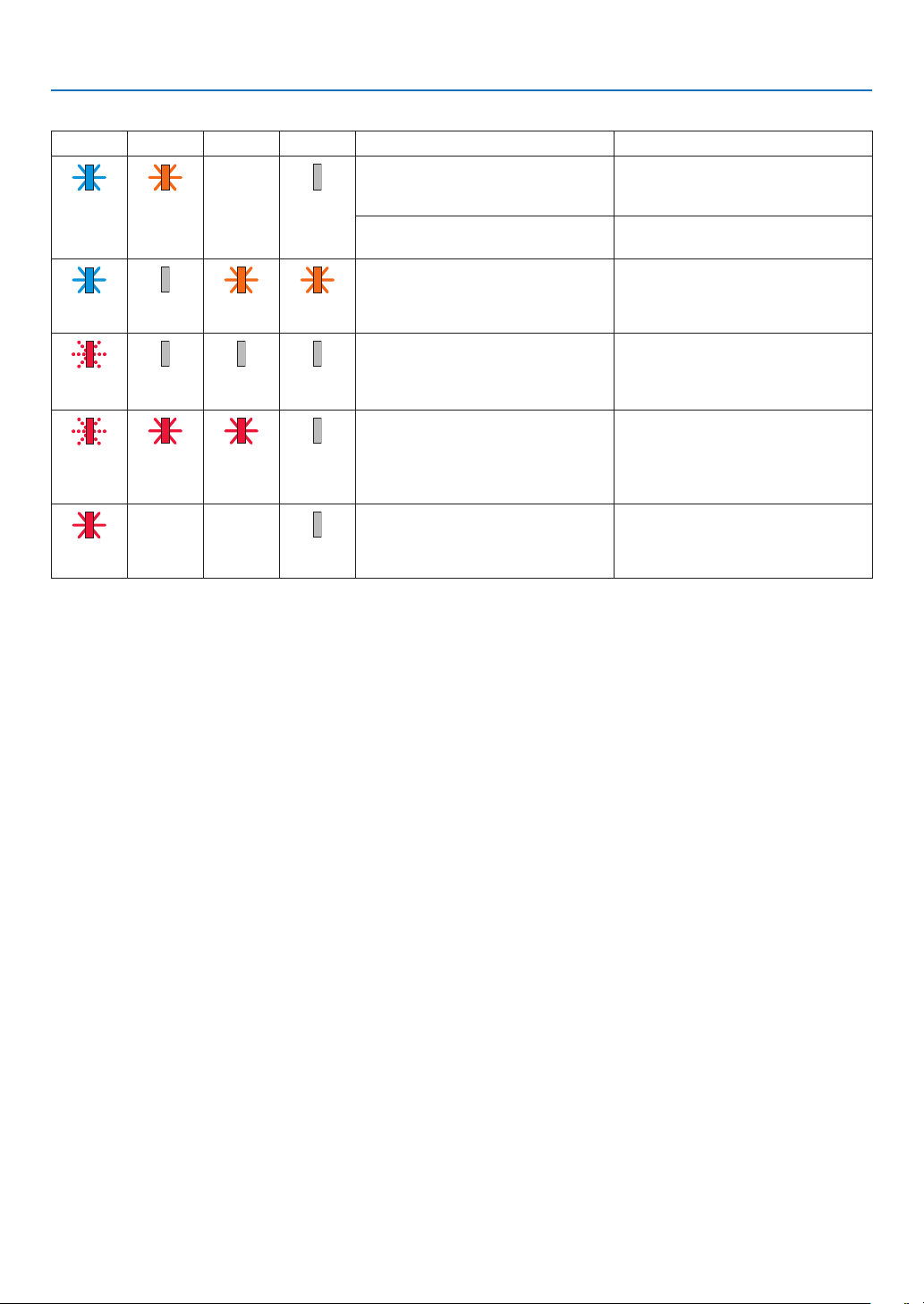
162
8. Appendix
Indicator Message (Error message)
POWER STATUS LIGHT TEMP. Projector status Procedure
A button has been pressed while the
KEY LOCK is activated.
The projector’s keys are locked. The
setting must be canceled to operate
the projector. (→ page 115)
Blue
(Light)
Orange
(Light)
Status
varies
Off
ID numbers for the projector and the
remote control do not match.
Check the control IDs (→ page 116)
Temperature problem (In the Forced
ECO)
Ambient temteprature is high. Lower
the room temperature.
Blue
(Light)
Off Orange
(Light)
Orange
(Light)
Temperature problem Ambient temperature is out of the
operation temperature. Check if any
obstruction stays near the exhaust
vent.
Red
(Blink*
5
)
Off Off Off
Lens mounting error/Lens problem Lens is not mounted properly. Mout
it (→ see page 133). If the indicator
message is remain unchanged even if
the lens is mounted properly, contact
your dealer.
Red
(Blink*
5
)
Red
(Light)
Red
(Light)
Off
Error requiring service support Contact your dealer or service person-
nel. Make sure to check and inform
indicator status for asking to repair.
Red
(Light)
Status
varies
Status
varies
Off
*1 Repetition to light on for 1.5 seconds / off for 1.5 seconds
*2 Repetition to light on for 1.5 seconds / off for 7.5 seconds
*3 Repetition to light on for 2.5 seconds / off for 0.5 seconds
*4 Repetition to light on for 0.5 seconds / off for 0.5 seconds / on for 0.5 seconds / off for 2.5 seconds
*5 Repetition to light on for 0.5 seconds / off for 0.5 seconds
• When the thermal protector is activated:
When inside temperature of the projector becomes too high or low, the POWER indicator start to red blink in a short cycle. After
this happened, the thermal protector will activate and the projector may be turned off.
In this case, please take the below measures:
- Pull out the power plug from the wall inlet.
- Place the projector in cool place if it has been placed in high ambient temperature.
- Clean the exhaust vent if dust has accumulated on.
- Leave the projector for about one hour until inside temperature gets lower.
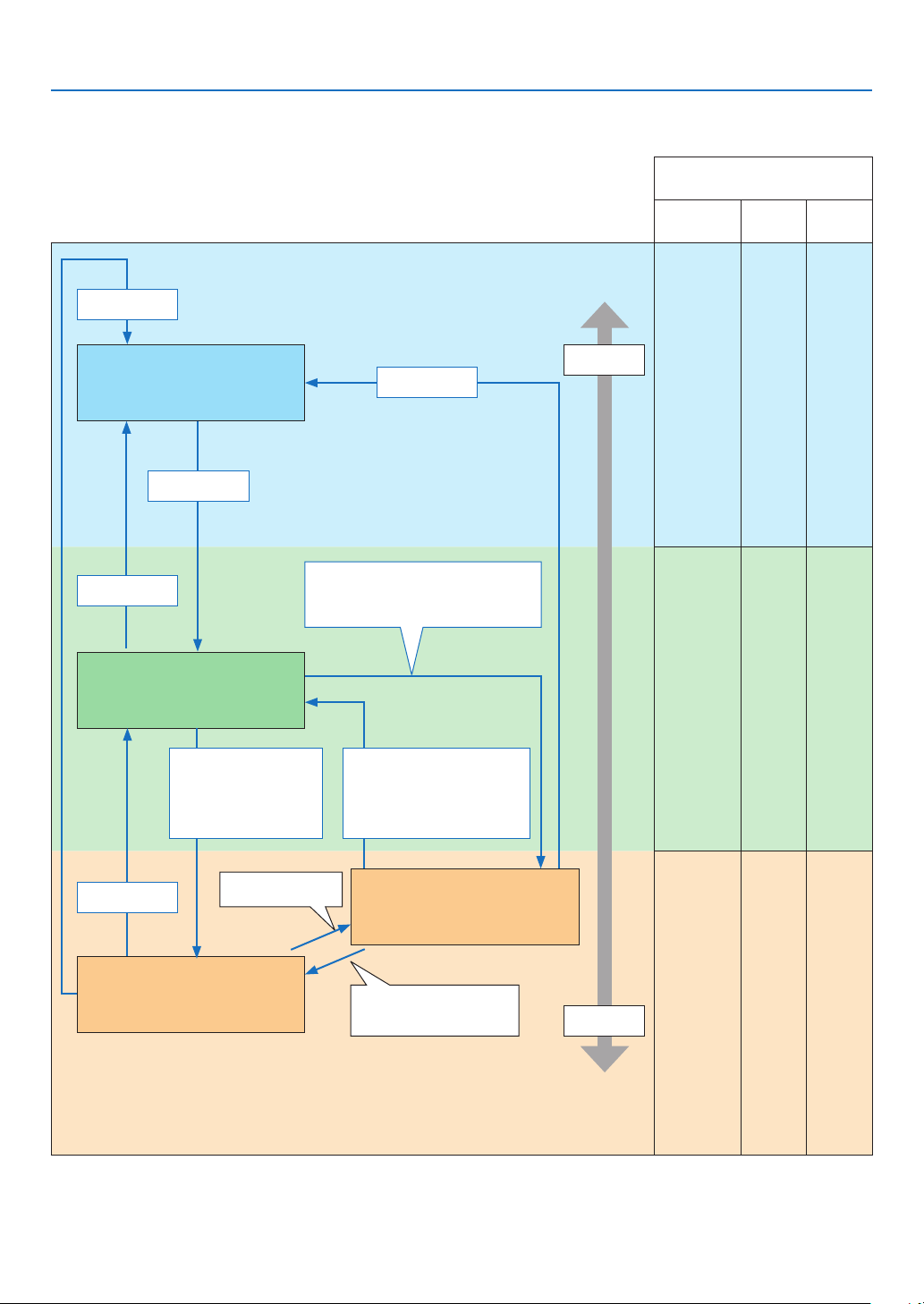
163
8. Appendix
Explanation on the POWER indicator and standby state
In the state the selected PROFILE for WIRED LAN is available.
Available ports in each state
(○: Available, ×: Unavailable)
HDBaseT
LAN PC CON-
TROL
○ ○ ○
○ ○ ○
× ○ ○
Indicator : Lights in blue
Powered ON state
Indicator : Lights in green
Sleep state
Indicator: Blinks in orange
Standby state: Waiting to link with the
network
Indicator: Lights in orange
Standby state: The network is linked�
Link-up network
Link-down network for approx�
10 seconds
Power
consumption
High
Low
Power On
Input signal
• Input signal
• Operation on the web browser
via the HTTP server (→ See
page 49)
No operation / No communication with the
link-up network / No signal input for approx�
180 seconds
Power Off
Power On
Power On
No operation/Link-down
network/No signal input for
approx� 10 seconds
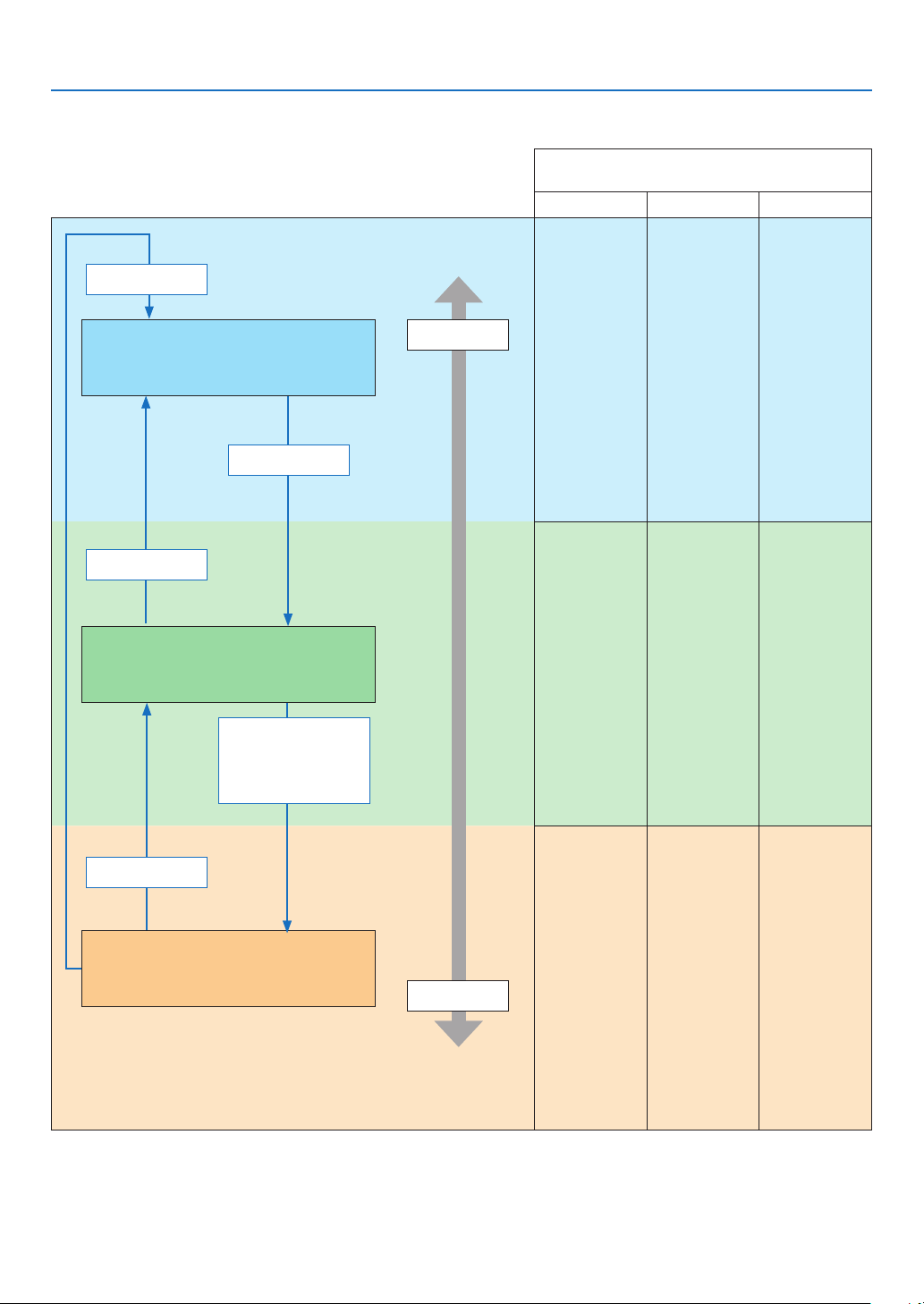
164
8. Appendix
In the state the selected PROFILE for WIRED LAN is unavailable.
Available ports in each state
(○: Available, ×: Unavailable)
HDBaseT LAN PC CONTROL
○ × ○
○ × ○
× × ○
Indicator: Lights in blue
Powered ON state
Indicator: Lights in green
Sleep state
Indicator: Blinks in orange (with long interval)
Standby state: The network is unavailable�
Power consumption
High
Low
Power On
Input signal
Power Off
Power On
No operation / No signal in-
put for approx� 10 seconds
165
8. Appendix
Common Problems & Solutions
(→ “POWER/STATUS/LIGHT/TEMP. Indicator” on page 160.)
Problem Check These Items
Does not turn on
or shut down
• Check that the power cord is plugged in and that the power button on the projector cabinet or the remote
control is on� (→ pages 14, 16)
• Check to see if the projector has overheated� If there is insufficient ventilation around the projector or if the
room where you are presenting is particularly warm, move the projector to a cooler location�
• The light module may fail to light� Wait a full minute and then turn on the power again�
• In case it’s hard to think the trouble is not caused on the above mentioned conditions, unplug the power
cord from the outlet� Then wait 5 minutes before plugging it in again�
Will turn off
• Ensure that the [OFF TIMER], [AUTO POWER OFF] or [PROGRAM TIMER] is off� (→ page 112, 127)
No picture
• Check if the appropriate input is selected� (→ page 19) If there is still no picture, press the SOURCE button
or one of the source buttons again�
• Ensure your cables are connected properly�
• Use menus to adjust the brightness and contrast� (→ page 86)
• Check that the SHUTTER (lens shutter) or AV MUTE (image off) buttons are not pressed�
• Check the [POWER ON SHUTTER] in the onscreen menu is not set to [CLOSE]�
• Reset the settings or adjustments to factory preset levels using the [RESET] in the Menu� (→ page 128)
• Enter your registered keyword if the Security function is enabled� (→ page 46)
• If the HDMI IN 1/2 or the DisplayPort IN 1/2 signal cannot be displayed, try the following�
- Reinstall your driver for the video card built in your computer, or use the updated driver�
For reinstalling or updating your driver, refer to the user guide accompanied with your computer or video
card, or contact the support center for your computer manufacturer�
Install the updated driver or OS on your own responsibility�
We are not liable for any trouble and failure caused by this installation�
• Signals may not be supported depending on the HDBaseT transmission device� IR and RS232C cannot be
used in certain cases as well�
• Be sure to connect the projector and notebook PC while the projector is in standby mode and before turning
on the power to the notebook PC�
In most cases the output signal from the notebook PC is not turned on unless connected to the projector
before being powered up�
* If the screen goes blank while using your remote control, it may be the result of the computer’s screen-
saver or power management software�
• See also the page 166�
Picture suddenly
becomes dark
• Check if the projector is in the Forced ECO mode because of too high ambient temperature�
Color tone or hue is
unusual
• Adjust [HUE] in [PICTURE]� (→ page 86)
Image isn’t square to
the screen
• Reposition the projector to improve its angle to the screen� (→ page 22)
• Use the Keystone correction function to correct the trapezoid distortion� (→ page 43)
Picture is blurred
• Adjust the focus� (→ page 26)
• Reposition the projector to improve its angle to the screen� (→ page 22)
• Ensure that the distance between the projector and screen is within the adjustment range of the lens�
(→ page 143)
• Has the lens been shifted by an amount exceeding the guaranteed range? (→ page 146)
• Condensation may form on the lens if the projector is cold, brought into a warm place and is then turned
on� Should this happen, let the projector stand until there is no condensation on the lens�
Remote control does
not work
• Install new batteries� (→ page 11)
• Make sure there are no obstacles between you and the projector�
• Stand within 22 feet (7 m) of the projector� (→ page 12)
Indicator is lit or
blinking
• See the POWER/STATUS/LIGHT/TEMP� Indicator� (→ page 160)
For more information contact your dealer.

166
8. Appendix
If there is no picture, or the picture is not displayed correctly.
• Power on process for the projector and the PC.
Be sure to connect the projector and notebook PC while the projector is in standby mode and before turning on
the power to the notebook PC.
In most cases the output signal from the notebook PC is not turned on unless connected to the projector before
being powered up.
NOTE:
• You can check the horizontal frequency of the current signal in the projector’s menu under Information. If it reads “0kHz”,
this means there is no signal being output from the computer. (→ page 129 or go to next step)
• Enabling the computer’s external display.
Displaying an image on the notebook PC’s screen does not necessarily mean it outputs a signal to the projector.
When using a PC compatible laptop, a combination of function keys will enable/disable the external display. Usu-
ally, the combination of the “Fn” key along with one of the 12 function keys gets the external display to come on
or off. For example, NEC laptops use Fn + F3, while Dell laptops use Fn + F8 key combinations to toggle through
external display selections.
• Non-standard signal output from the computer
If the output signal from a notebook PC is not an industry standard, the projected image may not be displayed
correctly. Should this happen, deactivate the notebook PC’s LCD screen when the projector display is in use. Each
notebook PC has a different way of deactivate/reactivate the local LCD screens as described in the previous step.
Refer to your computer’s documentation for detailed information.
• Image displayed is incorrect when using a Mac
When using a Mac with the projector, set the DIPswitch of the Mac adapter (not supplied with the projector) ac-
cording to your resolution. After setting, restart your Mac for the changes to take affect.
For setting display modes other than those supported by your Mac and the projector, changing the DIP switch on
a Mac adapter may bounce an image slightly or may display nothing. Should this happen, set the DIP switch to
the 13" xed mode and then restart your Mac. After that, restore the DIP switches to a displayable mode and then
restart the Mac again.
NOTE:
• A Video Adapter cable manufactured by Apple Computer is needed for a MacBook which does not have a mini D-Sub 15-pin
terminal.
• Mirroring on a MacBook
* When using the projector with a MacBook, output may not be set to the display resolution of the unit unless
“mirroring” is off on your MacBook. Refer to owner’s manual supplied with your Mac computer for mirroring.
• Folders or icons are hidden on the Mac screen
Folders or icons may not be seen on the screen. Should this happen, select [View] → [Arrange] from the Apple
menu and arrange icons.
167
8. Appendix
❿ PC Control Codes and Cable Connection
PC Control Codes
Function Code Data
POWER ON 02H 00H 00H 00H 00H 02H
POWER OFF 02H 01H 00H 00H 00H 03H
INPUT SELECT HDMI1 02H 03H 00H 00H 02H 01H A1H A9H
INPUT SELECT HDMI2 02H 03H 00H 00H 02H 01H A2H AAH
INPUT SELECT DisplayPort1 02H 03H 00H 00H 02H 01H A6H AEH
INPUT SELECT DisplayPort2 02H 03H 00H 00H 02H 01H A7H AFH
INPUT SELECT HDBaseT 02H 03H 00H 00H 02H 01H 20H 28H
INPUT SELECT SDI1 02H 03H 00H 00H 02H 01H C4H CCH
INPUT SELECT SDI2 02H 03H 00H 00H 02H 01H C5H CDH
INPUT SELECT SDI3 02H 03H 00H 00H 02H 01H C6H CEH
INPUT SELECT SDI4 02H 03H 00H 00H 02H 01H C7H CFH
INPUT SELECT SLOT 02H 03H 00H 00H 02H 01H ABH B3H
PICTURE MUTE ON 02H 10H 00H 00H 00H 12H
PICTURE MUTE OFF 02H 11H 00H 00H 00H 13H
NOTE:
• Contact your local dealer for a full list of the PC Control Codes if needed.
Cable Connection
Communication Protocol
Baud rate �����������������������������������������38400 bps
Data length
��������������������������������������8 bits
Parity
�����������������������������������������������No parity
Stop bit
��������������������������������������������One bit
X on/off
��������������������������������������������None
Communications procedure
�������������Full duplex
NOTE:
• Depending on the equipment, a lower baud rate may be recommended for long cable runs.
PC Control Terminal (D-SUB 9P)
15243
67 98
To GND of PC
To RxD of PC
To TxD of PC
To RTS of PC
To CTS of PC
NOTE:
• Pins 1, 4, 6 and 9 are no used.
• Jumper “Request to Send” and “Clear to Send” together on both ends of the cable to simplify cable connection.
• For long cable runs it is recommended to set communication speed within projector menus to 9600 bps.
168
8. Appendix
⓫ Troubleshooting Check List
Before contacting your dealer or service personnel, check the following list to be sure repairs are needed also by
referring to the “Troubleshooting” section in your user’s manual. This checklist below will help us solve your problem
more efficiently.
* Print this page and the next page for your check.
Frequency of occurrence □ always □ sometimes (How often?_____________________) □ other (__________________)
Power
□
No power (POWER indicator does not light blue)� See also “Status
Indicator (STATUS)”�
□
Power cord’s plug is fully inserted into the wall outlet�
□
No power even though you press and hold the POWER button�
□
The main power switch is in the “ON (I)” position�
□
Shut down during operation�
□
Power cord’s plug is fully inserted into the wall outlet�
□
[AUTO POWER OFF] is turned off (only models with the [AUTO
POWER OFF] function)�
□
[OFF TIMER] is turned off (only models with the [OFF TIMER]
function)�
Video and Audio
□
No image is displayed from your PC or video equipment to the
projector�
□
Still no image even though you connect the projector to the PC
first, then start the PC�
□
Enabling your notebook PC’s signal output to the projector�
• A combination of function keys will enable/disable the exter-
nal display. Usually, the combination of the “Fn” key along
with one of the 12 function keys turns the external display
on or off.
□
No image (blue or black background, no display)�
□
Still no image even though you press the AUTO ADJUST button�
□
Still no image even though you carry out [RESET] in the
projector’s menu�
□
Signal cable’s plug is fully inserted into the input terminal
□
A message appears on the screen�
( _____________________________________________ )
□
The source connected to the projector is active and available�
□
Still no image even though you adjust the brightness and/or
the contrast�
□
Input source’s resolution and frequency are supported by the
projector�
□
Image is too dark�
□
Remains unchanged even though you adjust the brightness
and/or the contrast�
□
Image is distorted�
□
Image appears to be trapezoidal (unchanged even though you
carry out the [KEYSTONE] adjustment)�
□
Parts of the image are lost�
□
Still unchanged even though you press the AUTO ADJUST
button�
□
Still unchanged even though you carry out [RESET] in the
projector’s menu�
□
Image is shifted in the vertical or horizontal direction�
□
Horizontal and vertical positions are correctly adjusted on a
computer signal�
□
Input source’s resolution and frequency are supported by the
projector�
□
Some pixels are lost�
□
Image is flickering�
□
Still unchanged even though you press the AUTO ADJUST
button�
□
Still unchanged even though you carry out [RESET] in the
projector’s menu�
□
Image shows flickering or color drift on a computer signal�
□
Still unchanged even though you change [FAN MODE] from
[HIGH] to [AUTO]�
□
Image appears blurry or out of focus�
□
Still unchanged even though you checked the signal’s resolution
on PC and changed it to projector’s native resolution�
□
Still unchanged even though you adjusted the focus�
Other
□
Remote control does not work�
□
No obstacles between the sensor of the projector and the
remote control�
□
Projector is placed near a fluorescent light that can disturb the
infrared remote controls�
□
Batteries are new and are not reversed in installation�
□
Buttons on the projector cabinet do not work (only models with the
[CONTROL PANEL LOCK] function)
□
[CONTROL PANEL LOCK] is not turned on or is disabled in
the menu�
□
Still unchanged even though you press and hold the EXIT button
for a minimum of 10 seconds�
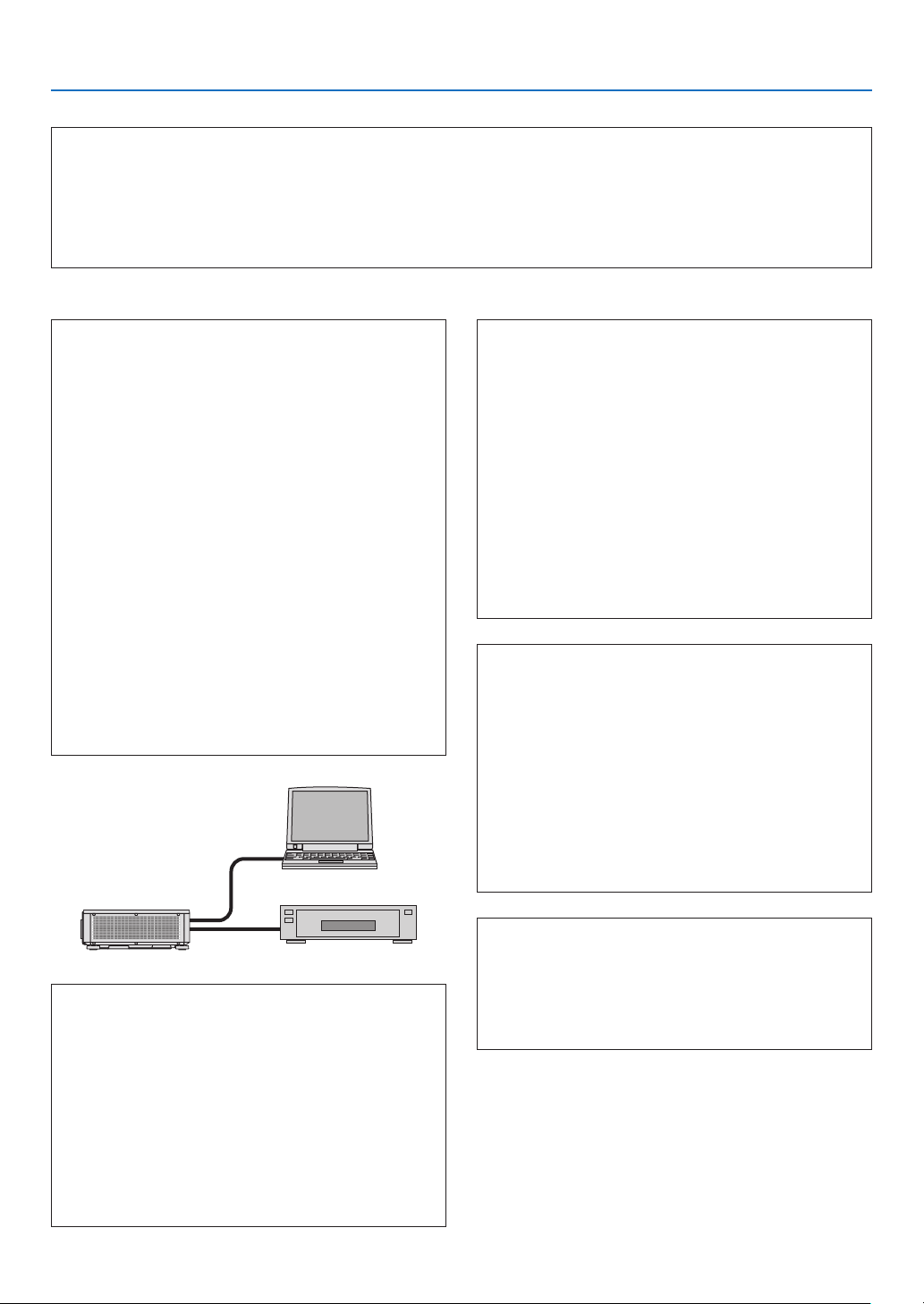
169
8. Appendix
In the space below please describe your problem in detail.
Information on application and environment where your projector is used
Projector
PC
Blu-ray player
Projector
Model number:
Serial No�:
Date of purchase:
Light module operating time (hours):
Eco Mode: □ OFF □ ON
Information on input signal:
Horizontal synch frequency [ ] kHz
Vertical synch frequency [ ] Hz
Synch polarity H □ (+) □ (−)
V □ (+) □ (−)
Synch type □ Separate □ Composite
□ Sync on Green
STATUS Indicator:
Steady light □ Orange □ Green
Flashing light [ ] cycles
Remote control model number:
Installation environment
Screen size: inch
Screen type: □ White matte □ Beads □ Polarization
□ Wide angle □ High contrast
Throw distance: feet/inch/m
Orientation: □ Ceiling mount □ Desktop
Power outlet connection:
□
Connected directly to wall outlet
□ Connected to power cord extender or other (the
number of connected equipment______________)
□
Connected to a power cord reel or other (the number
of connected equipment______________)
Computer
Manufacturer:
Model number:
Notebook PC □ / Desktop □
Native resolution:
Refresh rate:
Video adapter:
Other:
Video equipment
VCR, Blu-ray player, Video camera, Video game or other
Manufacturer:
Model number:
Signal cable
NEC standard or other manufacturer’s cable?
Model number: Length: inch/m
Distribution amplifier
Model number:
Switcher
Model number:
Adapter
Model number:

© NEC Display Solutions, Ltd. 2018 7N952732