
NEC Technologies
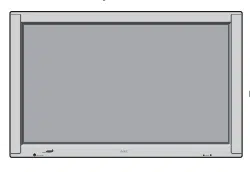
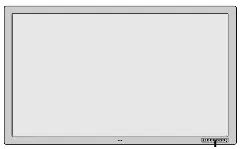
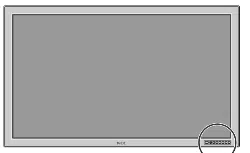
PlasmaSync Plasma Monitor
User’s Manual
Important Information
Warnings and Safety Precaution
The NEC Multimedia monitor PlasmaSync 4200W is
designed and manufactured to provide long, trouble-
free service. No maintenance other than cleaning is
required. Use a soft dry cloth to clean the panel. Never
use solvents such as alcohol or thinner to clean the
panel surface.
For operating safety and to avoid damage to the unit,
read carefully and observe the following instructions.
To avoid shock and fire hazards:
1. Provide adequate space for ventilation to avoid inter-
nal heat build-up. Do not cover rear vents or install in a
closed cabinet or shelves.
The unit is equipped with cooling fans. If you enclose
the unit in a cabinet or rack, be sure there is adequate
space at the top of the unit to allow hot air to rise and
escape.
If the monitor becomes too hot, the overheat protector
will be activated and the monitor will be turned off. If
this happens, turn off the power to the monitor and un-
plug the power cord. If the room where the monitor is
installed is particularly hot, move the monitor to a cooler
location, and wait for the monitor to cool for 60 min-
utes. If the problem persists, contact your NEC dealer
for service.
2. Do not use the power cord polarized plug with exten-
sion cords or outlets unless the prongs can be completely
inserted.
3. Do not expose unit to water or moisture.
4. Avoid damage to the power cord, and do not attempt to
modify the power cord.
5. Unplug unit during electrical storms or if unit will not
be used over a long period.
6. Do not open the cabinet which has potentially danger-
ous high voltage components inside. If the unit is dam-
aged in this way the warranty will be void. Moreover,
there is a serious risk of electric shock.
7. Do not attempt to service or repair the unit. NEC is not
liable for any bodily harm or damage caused if unquali-
fied persons attempt service or open the back cover.
Refer all service to authorized NEC Service Centers.
To avoid damage and prolong operating life:
1. Use only with 120V 50/60Hz AC power supply. Con-
tinued operation at line voltages greater than 120 Volts
AC will shorten the life of the unit, and might even
cause a fire hazard.
2. Handle the unit carefully when installing it and do not
drop.
3. Locate set away from heat, excessive dust, and direct
sunlight.
4. Protect the inside of the unit from liquids and small
metal objects. In case of accident, unplug the unit and
have it serviced by an authorized NEC Service Center.
5. Do not hit or scratch the panel surface as this causes
flaws on the surface of the screen.
6. The equipment should be installed by a serviceperson.
No one other than a serviceperson should install the
equipment. Attempting to do so may result in injury.
7. Do not display a same still image on the screenfor long,
consecutive time. Otherwise, the afterimage may ap-
pear on a part of a panel.
Precautions
Please read this manual carefully before using your NEC
PlasmaSync - 42inch Plasma Monitor PX-42M3A and keep
the manual handy for future reference.
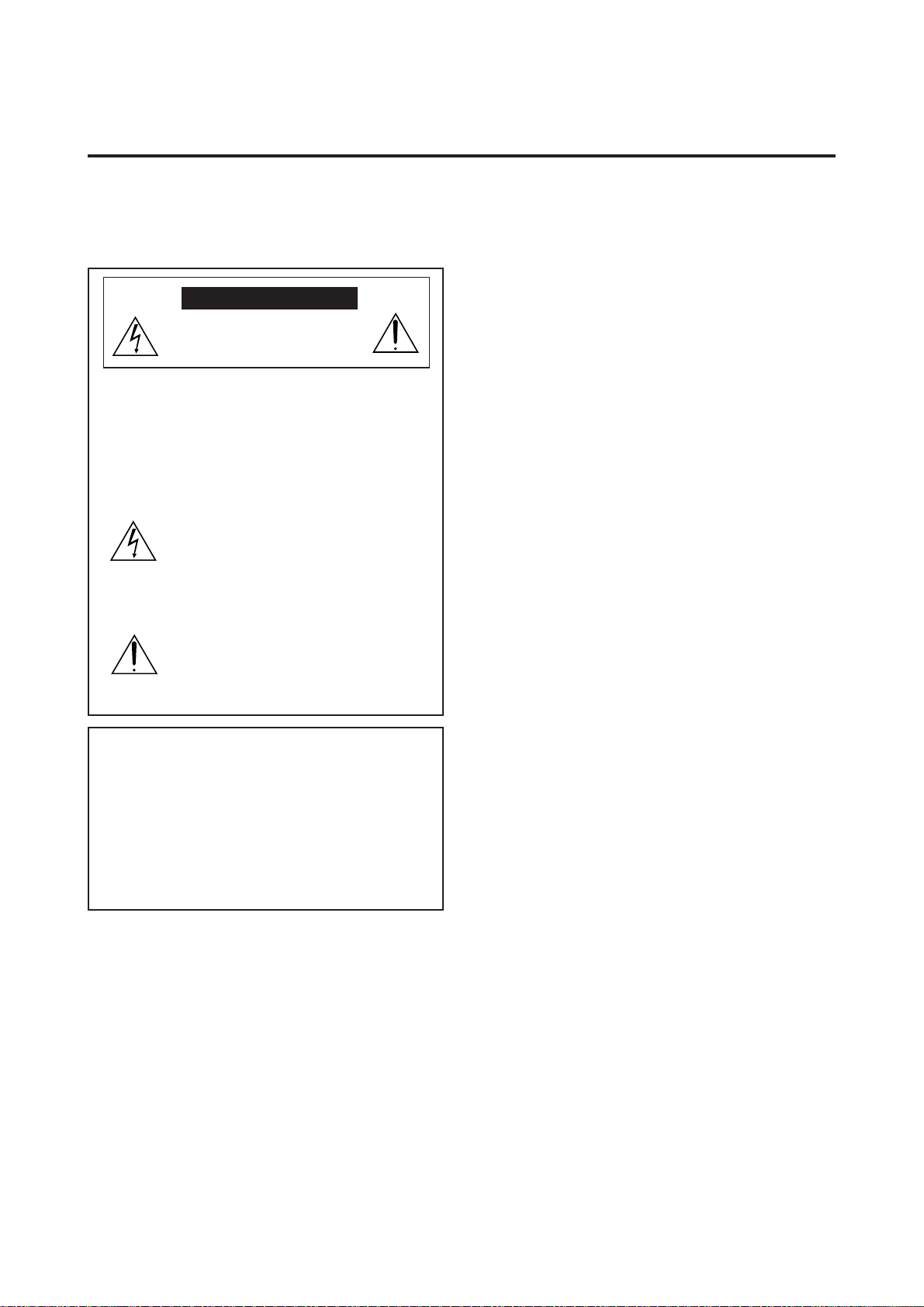
RISK OF ELECTRIC SHOCK
DO NOT OPEN
CAUTION: TO REDUCE THE RISK OF ELECTRIC
SHOCK, DO NOT REMOVE COVER.
NO USER-SERVICEABLE PARTS IN-
SIDE. REFER SERVICING TO QUALI-
FIED SERVICE PERSONNEL.
This symbol warns the user that uninsulated
voltage within the unit may have sufficient
magnitude to cause electric shock. There-
fore, it is dangerous to make any kind of
contact with any part inside of this unit.
This symbol alerts the user that important
literature concerning the operation and
maintenance of this unit has been included.
Therefore, it should be read carefully in
order to avoid any problems.
WARNING
TO PREVENT FIRE OR SHOCK HAZARDS, DO NOT
EXPOSE THIS UNIT TO RAIN OR MOISTURE. ALSO
DO NOT USE THIS UNIT'S POLARIZED PLUG WITH
AN EXTENSION CORD RECEPTACLE OR OTHER OUT-
LETS, UNLESS THE PRONGS CAN BE FULLY IN-
SERTED. REFRAIN FROM OPENING THE CABINET AS
THERE ARE HIGH-VOLTAGE COMPONENTS INSIDE.
REFER SERVICING TO QUALIFIED SERVICE PER-
SONNEL.
DOC compliance Notice
This Class A digital apparatus meets all requirements of
the Canadian Interference-Causing Equipment Regulations.
WARNING
This equipment has been tested and found to comply with
the limits for a Class A digital device, pursuant to Part 15 of
the FCC Rules. These limits are designed to provide rea-
sonable protection against harmful interference when the
equipment is operated in a commercial environment. This
equipment generates, uses, and can radiate radio frequency
energy and, if not installed and used in accordance with
the instruction manual, may cause harmful interference to
radio communications. Operation of this equipment in a resi-
dential area is likely to cause harmful interference in which
case the user will be required to correct the interference at
his own expense.
CAUTION
Mises en garde et précautions de sécurité
Le moniteur Multimédia PlasmaSync 4200W de NEC est conçu
et fabriqués pour assurer une longue durée de service sans
problèmes. Aucun entretien à l’exception du nettoyage n’est
nécessaire. Utiliser un chiffon doux et sec. Ne jamais utiliser
de détergents puissants ou des solvents, tel que l'alcool ouun
diluant pour nettoyer le moniteur à écran plasma.
Pour un fonctionnement sûr et afin d’éviter d’endommager
l’appareil, lire attentivement et respecter les instructions
suivantes.
Afin d’éviter tout risque d’électrocution et d’incendie:
1. Réserver un espace libre suffisant pour la ventilation
afin d’éviter une accumulation de chaleur interne. Ne
pas couvrir les trous d’aération arrière ou installer
l’appareil dans un coffret fermé ou sur une étagère.
L’appareil est équipé d’ailettes de refroidissement sur
le dessus. Si l’appareil est logé dans un coffret ou sur
une étagère, s’assurer qu’il y a un espace libre suffisant
pour la dissipation de la chaleur.
2. Ne pas utiliser la fiche polarisée du cordon
d’alimentation avec des prolongateurs ou des prises de
courant, sauf si les lames peuvent être insérées à fond.
3. Ne pas exposer à L'eau ou à l’humidité.
4. Eviter d’endommager le cordon d’alimentation, et ne
pas modifier le cordon d’alimentation.
5. Débrancher l’appareil pendant les tempêtes ou si
l’appareil n’est pas utilisé pendant une longue période.
6. Ne pas ouvrir le coffret. Des composants de haute ten-
sion se trouvent à l’intérieur. Si l’appareil est
endommagé de cette manière, la garantie devient
caduque. De plus, il y a risque d’électrocution.
7. Ne pas essayer de réparer ou entretenir l’appareil soi-
même. NEC ne saura être tenu pour responsable pour
toute blessure ou dommage causé par des personnes
non qualifiées qui essayent de réparer ou d’ouvrir le
couvercle arrière. Confier toute réparation à un centre
de service agréé NEC.
Pour éviter des dommages et prolonger la durée de
service de l’appareil:
1. N’utiliser qu’une source d’alimentation de 120 V 50/
60 Hz CA. Le fait d’utiliser l’appareil en continu à des
tensions de ligne supérieures à 120 Volts CA réduit sa
durée de vie et risque de provoquer un incendie.
2. Manipuler l’appareil avec soin pendant son déplacement
et ne pas le faire tomber.
3. Eloigner l’appareil des endroits chauds, très poussiéreux
et exposés en plein soleil.
4. Eviter que des liquides et des petits objets métalliques
pénètrent à l’intérieur de l’appareil. En cas d’accident,
débrancher l’appareil et le confier à un centre de serv-
ice agréé NEC.
5. Ne pas frapper ou rayer la surface de la écran plasma,
car des défauts risquent de se produire sur la surface de
la écran plasma.
6. Cet équipement doit être installé uniquement par un
technicien qualifié du Service après-vente. Aucune autre
personne ne doit installer cet équipement. Toute tenta-
tive risque de causer des blessures.
7. Ne pas afficher sur l'écran le même arrêt sur image
consécutivement pendant une longue durée, sinon
l'après-image peut apparaître sur une partie du panneau.
Précautions
Veuillez lire ce manuel avec attention avant d'utiliser votre
PlasmaSync NEC - Moniteur Plasma 42 pouces PX-42M3A et con-
server ce manuel à portée de la main pour une consultation ultérieure.
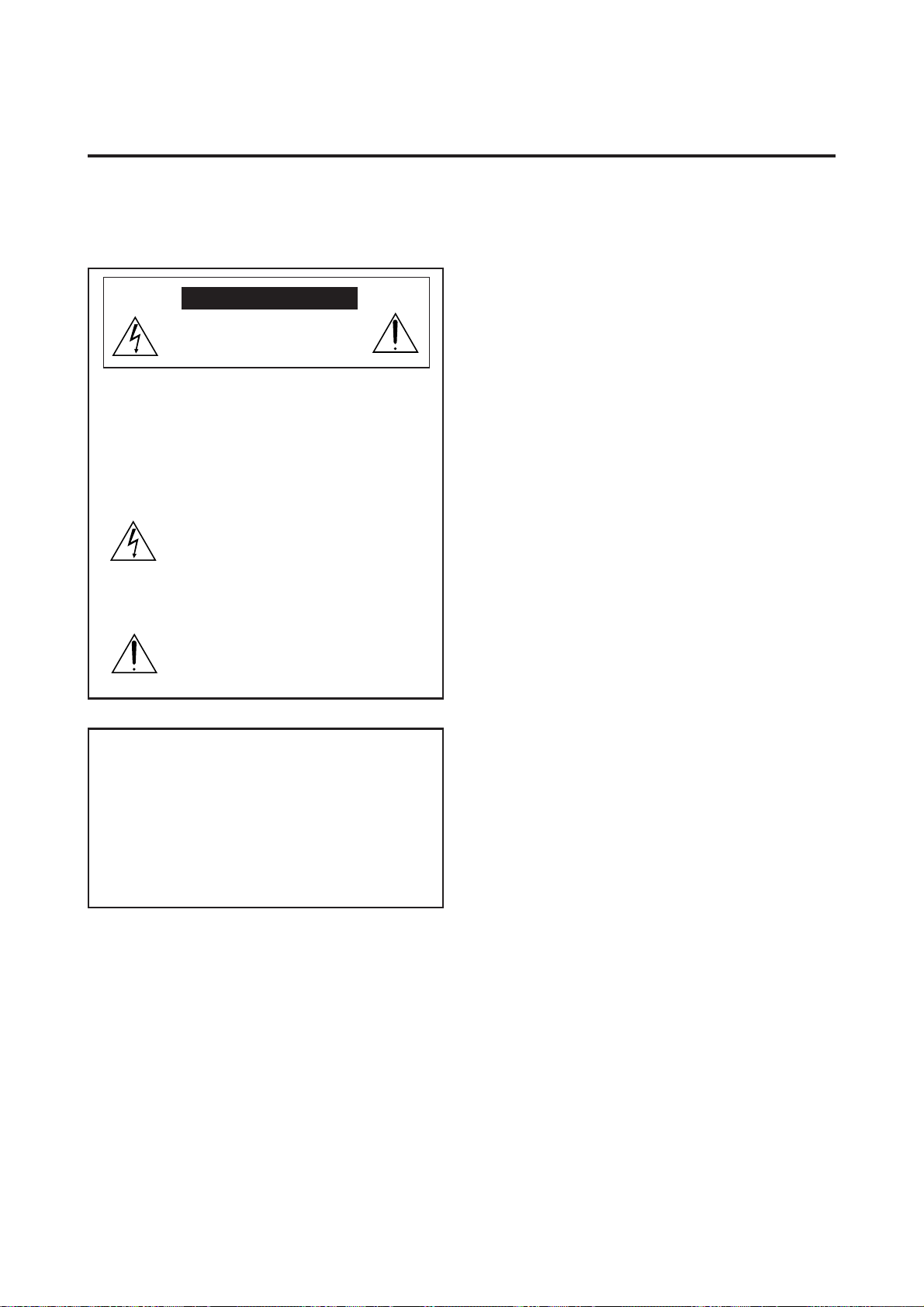
RISQUE D’ELECTROCUTION
NE PAS OUVRIR
MISE EN GARDE: AFIN DE REDUIRE LES RISQUES D’ELECTRO-
CUTION, NE PAS DEPOSER LE COUVERCLE, IL N’Y
A AUCUNE PIECE UTILISABLE A L’INTERIEUR DE
CET APPAREIL. NE CONFIER LES TRAVAUX
D’ENTRETIEN QU’A UN PERSONNEL QUALIFIE.
Ce symbole a pour but de prévenir l’utilisateur de la
présence d’une tension dangereuse, non isolée se trouvant
à l’intérieur de l’appareil. Elle est d’une intensité suffisante
pour constituer un risque d’électrocution. Eviter le con-
tact avec les pièces à l’intérieur de cet appareil.
Ce symbole a pour but de prévenir l’utilisateur de la
présence d’importantes instructions concernant l’entretien
et le fonctionnement de cet appareil. Par conséquent, elles
doivent être lues attentivement afin d’éviter des
problèmes.
AVERTISSEMENT
AFIN DE REDUIRE LES RISQUES D’INCENDIE OU
D’ELECTROCUTION, NE PAS EXPOSER CET APPAREIL A LA
PLUIE OU A L’HUMIDITE. AUSSI, NE PAS UTILISER LA FICHE
POLARISEE AVEC UN PROLONGATEUR OU UNE AUTRE PRISE
DE COURANT SAUF SI CES LAMES PEUVENT ETRE INSEREES
A FOND. NE PAS OUVRIR LE COFFRET, DES COMPOSANTS
HAUTE TENSION SE TROUVENT A L’INTERIEUR. LAISSER A
UN PERSONNEL QUALIFIE LE SOIN DE REPARER CET
APPAREIL.
DOC avis de conformation
Cet appareil numérigue de la classe A respecte toutes les exi-
gences du Réglement sur le Matériel Brouilleur du Canada.
AVERTISSEMENT
Cet équipement a été testé et certifié conforme avec les limi-
tations des équipements numériques de Classe A,
conformément à l'article & (du règlement FCC. Ces limites
sont conçues pour assurer une protection raisonnable contre
les interférences nuisibles lorsque l'équipement est utilisé en
milieu commercial. Cet équipement génère, utilise, et peut
produire de l'énergie de fréquence radio et, s'il n'est pas installé
et utilisé selon le manuel d'instruction, peut provoquer des
interférences nuisibles aux communications radio. L'utilisation
de cet équipement dans une zone résidentielle est suscepti-
ble de provoquer des interférences nuisibles, dans quel cas
l'utilisateur est tenu de remédier à ces interférences à ses frais.
ATTENTION

NEC Technologies, Inc. (hereafter NECTECH) warrants
this product to be free from defects in material and work-
manship under the following terms.
HOW LONG IS THE WARRANTY?
Parts and labor are warranted for (1) One Year from the
date of the first customer purchase.
WHO IS PROTECTED?
This warranty may be enforced only by the first purchaser.
WHAT IS COVERED AND WHAT IS NOT COVERED
Except as specified below, this warranty covers all defects
in material or workmanship in this product. The following
are not covered by the warranty:
1. Any product which is not distributed in the U.S.A.,
Canada and Mexico by NECTECH or which is not pur-
chased in the U.S.A., Canada or Mexico from an au-
thorized NECTECH dealer. If you are uncertain as to
whether a dealer is authorized, please contact
NECTECH at 800-836-0655.
2. Any product on which the serial number has been de-
faced, modified or removed.
3. Damage, deterioration or malfunction resulting from:
a.Accident, misuse, abuse, neglect, fire, water, light-
ning or other acts of nature, unauthorized product
modification, or failure to follow instructions sup-
plied with the product.
b.Repair or attempted repair by anyone not authorized
by NECTECH.
c.Any shipment of the product (claims must be pre-
sented to the carrier).
d.Removal or installation of the product.
e.Any other cause which does not relate to a product
defect.
f. Burns or residual images upon the phosphor of the
tubes.
4. Cartons, carrying cases, batteries, external cabinets,
magnetic tapes, or any accessories used in connection
with the product.
WHAT WE WILL PAY FOR AND WHAT WE WILL
NOT PAY FOR
We will pay labor and material expenses for covered items,
but we will not pay for the following:
1. Removal or installation charges.
2. Costs of initial technical adjustments (set-up), includ-
ing adjustment of user controls. These costs are the re-
sponsibility of the NECTECH dealer from whom the
product was purchased.
3. Payment of shipping charges.
HOW YOU CAN GET WARRANTY SERVICE
1. To obtain service on your product, consult the dealer
from whom you purchased the product.
2. Whenever warranty service is required, the original
dated invoice (or a copy) must be presented as proof of
warranty coverage. Please also include in any mailing
your name, address and a description of the problem(s).
3. For the name of the nearest NECTECH authorized serv-
ice center, call NECTECH at 800-836-0655.
LIMITATION OF IMPLIED WARRANTIES
All implied warranties, including warranties of
merchantability and fitness for a particular purchase, are
limited in duration to the length of this warranty.
EXCLUSION OF DAMAGES
NECTECH' s liability for any defective product is limited
to the repair or replacement of the product at our option.
NECTECH shall not be liable for:
1. Damage to other property caused by any defects in this
product, damages based upon inconvenience, loss of
use of the product, loss of time, commercial loss; or
2. Any other damages whether incidental, consequential
or otherwise. Some states do not allow limitation on
how long an implied warranty lasts and/or do not al-
low the exclusion or limitation of incidental or conse-
quential damages, so the above limitations and exclu-
sions may not apply to you.
HOW STATE LAW RELATES TO THE WARRANTY
This warranty gives you specific legal rights, and you may
also have other rights which vary from state to state.
FOR MORE INFORMATION, TELEPHONE 800-836-
0655
NEC TECHNOLOGIES, INC.
1250 N. Arlington Heights Road, Suite 500
Itasca, Illinois 60143-1248
Note:
All products returned to NECTECH for service
MUST have prior approval. To get approval, call NEC
Technologies at 800-836-0655.
Limited Warranty Plasma Monitors
NECTECH warrants this product distrib-
uted or purchased in North America only.

Contents
How to Attach Options to the Plasma Monitor
......... 1
Introduction ..................................................... 2
Introduction to the PlasmaSync 42–inch
Plasma Monitor ....................................................... 2
The features you'll enjoy include: .............................. 2
Contents of the Package ........................................... 2
Part Names and Function ................................. 3
Front View .............................................................. 3
Rear View / Terminal Board ..................................... 4
Remote Controller .................................................... 5
Battery Installation and Replacement ......................... 6
Using the wired remote control mode ........................ 7
Operating Range .................................................... 7
Handling the remote controller ................................. 7
Installation...................................................... 8
Connecting Your PC Or Macintosh Computer ............ 9
Examples of DIP switch setting .................................. 9
Connecting Your Document Camera .......................... 9
Connecting Your VCR Or Laser Disc Player ................ 9
Connecting Your DVD Player .................................... 9
External Speaker Connections ................................ 10
PC signal compatibility .......................................... 12
Mini D-Sub 15 Pin RGB Signal Composition ............ 12
Basic Operations ............................................ 13
POWER ................................................................ 13
To turn the unit ON and OFF: ................................... 13
VOLUME .............................................................. 13
To adjust the volume: ................................................ 13
MUTE ................................................................... 13
To cancel the sound:.................................................. 13
DISPLAY ................................................................ 13
To check the settings: ................................................ 13
VISUAL CONTROL ................................................ 13
To adjust the picture's contrast:................................. 13
To adjust the picture's brightness: ............................. 13
To adjust the picture's color: ..................................... 13
To adjust the picture's tint (NTSC only): .................. 13
To adjust the picture's sharpness: .............................. 13
OFF TIMER............................................................ 14
To set the off timer:................................................... 14
To check the remaining time:.................................... 14
Canceling the off timer ............................................. 14
WIDE Operations ............................................ 15
Watching with a wide screen (manual).................... 15
When watching videos or high definition
laser discs .................................................................. 15
Watching computer images with a wide screen ........ 16
OSM Controls ................................................. 17
Menu Operations .................................................. 17
Picture/Sound Settings Menu.................................. 19
Adjusting the picture................................................. 19
Setting the picture mode according to the
brightness of the room .............................................. 20
Reducting noise in the picture .................................. 21
Adjusting the treble, bass and left/right balance ....... 22
Screen Settings Menu............................................. 23
Adjusting the position and size of the wide screen...23
Adjusting the Position, Fine Picture and Picture Adj
of the computer image ..............................................24
Adjusting the position of the menu display .............. 26
Function Settings Menu .......................................... 27
Setting the power management for computer images
....... 27
POWER/STANDBY indicator..................................28
Watching moving computer images.......................... 29
Setting the appropriate screen size for the
computer image (with wide VGA signals)................30
Setting the on-screen display ....................................31
Resetting to the default values ..................................31
Information Menu .................................................. 32
Checking the frequencies and polarities
of input signals .......................................................... 32
Setting the appropriate main menu display
for the system ............................................................ 33
Setting the language for the menus ........................... 34
Setting the video signal format ................................. 35
Table for Signals Supported............................ 36
Supported resolution.............................................. 36
Troubleshooting ............................................. 37
Specifications ................................................. 38
1
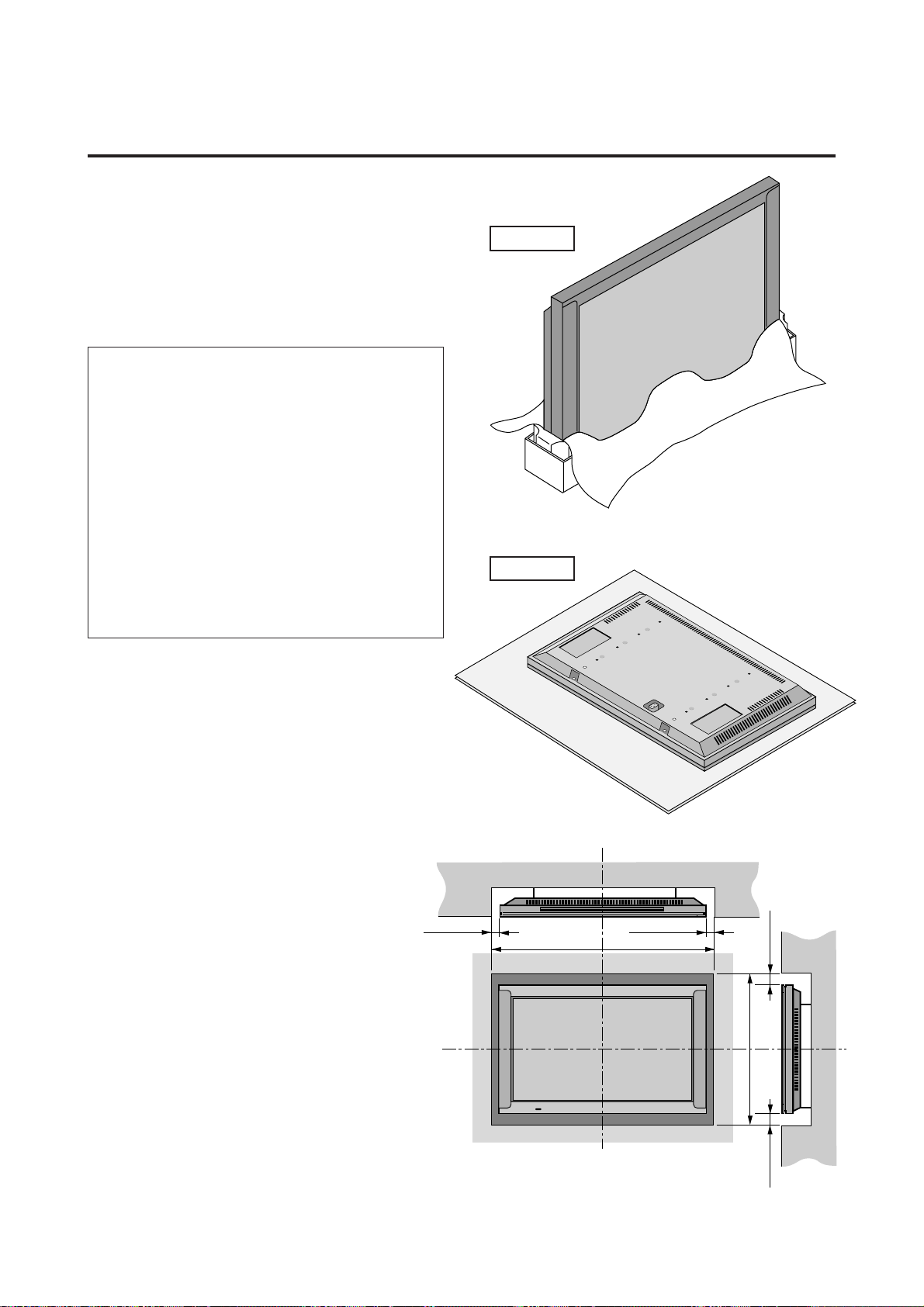
How to Attach Options to the Plasma Monitor
Drawing A
Drawing B
31mm (1.22")
1110mm (43.7")
748mm (29.5")
31mm (1.22")
50mm (2") 50mm (2")
Wall
Wall
Ventilation Requirements for
enclosure mounting
To allow heat to disperse, leave space between
surrounding objects as shown on the diagram be-
low when installing.
You can attach your option to the plasma monitor in one of
the following two ways:
* As it is made upright. (See Drawing A)
* As it is laid down with the screen face down (See Draw-
ing B). Lay the protective sheet, which was wrapped
around the monitor when it was packaged, beneath the
screen surface so as not to scratch the screen face.
• This device cannot be installed on its own.
Be sure to use a stand or original mounting
unit. (Wall mount unit, Stand, etc)
* See page 2.
• For correct installation and mounting it is
strongly recommended to use a
trained,authorized NEC dealer.
Failure to follow correct mounting proce-
dures could result in damage to the equip-
ment or injury to the installer.
Product warranty does not couer damage
caused by improper installation.

2
Introduction
Introduction to the PlasmaSync 42–inch
Plasma Monitor
NEC's PlasmaSync™ is a seamless blend of cutting-edge
visual technology and sophisticated design.
At 42-inches, with a 16:9 aspect ratio, the PlasmaSync™
certainly makes a big impression. However, at a mere 3.6
inches/ 91mm thin, the monitor's sleek techno-art lines
blend in well with most interiors. PlasmaSync's crisp, vivid
image quality will transform data from any graphic me-
dium from PCs to DVD players- into art.
And weighing only 92.6 lbs/ 42kg, it actually can be hung
almost anywhere.
NEC has made sure that a host of multimedia resources
can be easily connected and displayed as brilliantly as in-
tended on the PlasmaSync™ monitor.
The features you'll enjoy include:
• 42-inch screen
• 16:9 aspect ratio
• 3.6 in/ 91mm thin
• 92.6 lbs/ 42kg light
• High-resolution screen:8532480 pixels
• 160-degrees of viewing pleasure-horizontally and verti-
cally
• Flicker-and warp-free, full undistorted image, corner to
corner.
• Not affected by magnetic fields-no color drifts or screen
warps
• VGA, SVGA, NTSC, PAL and SECAM
• PCs, VCRs, Laser Disc and DVD players
• Softscaling automatically converts SVGA signals to
VGA
• RGB input(1), Video/S-Video input(1), DVD/ HD in-
put(1), audio output(1), external control input(1)
• CCF (Capsulated Color Filter) and black stripes
• New drive technology
• Component video input terminal for DVD, 15.75kHz (Y,
CB, CR)
• NEC's OSM™ is a menu-driven control system
• On-screen image adjustments are a snap
• Seven languages (English, German, French, Italian,
Spanish, Swedish, and Japanese)
• Facilitate remote adjustment of image size and posi-
tion, screen geometry, audio levels, and more.
• [Option] A mulfunction LCD Remote Control that makes
operation of connected VCR, Laser Disc, and DVD pos-
sible from a single unit. It also has a "learning function"
that turns it into a total remote control. Also a touch of
the panel converts images shown in a conventional 4:3
ratio into a wide screen 16:9 ratio format.
Contents of the Package
M PlasmaSync 4200W plasma monitor
M Power cord
M RGB cable (Mini D-Sub 15-pin to Mini D-Sub 15-
pin connector)
M Adapter for Macintosh
M Remote control unit with two AA Batteries
M User's manual
M Safety metal fitting (2 pieces)*
M Screw for safety metal fitting (2 pieces)*
M Plug cable
* These are fittings for fastening the unit to a wall to
prevent tipping due to external shock when using the
stand (option). Fasten the safety fittings to the holes
in the back of the monitor using the safety fitting
mount screws.
Options
• Wall mount unit
• Ceiling mount unit
• Tilt mount unit
• Stand
• Others
Note
These instructions are for both the standard (included)
remote control unit and the optional LCD remote con-
troller (PX-RC1E). For details on operating the LCD
remote controller, refer to the operating instructions
included with LCD remote controller.
3
Part Names and Function
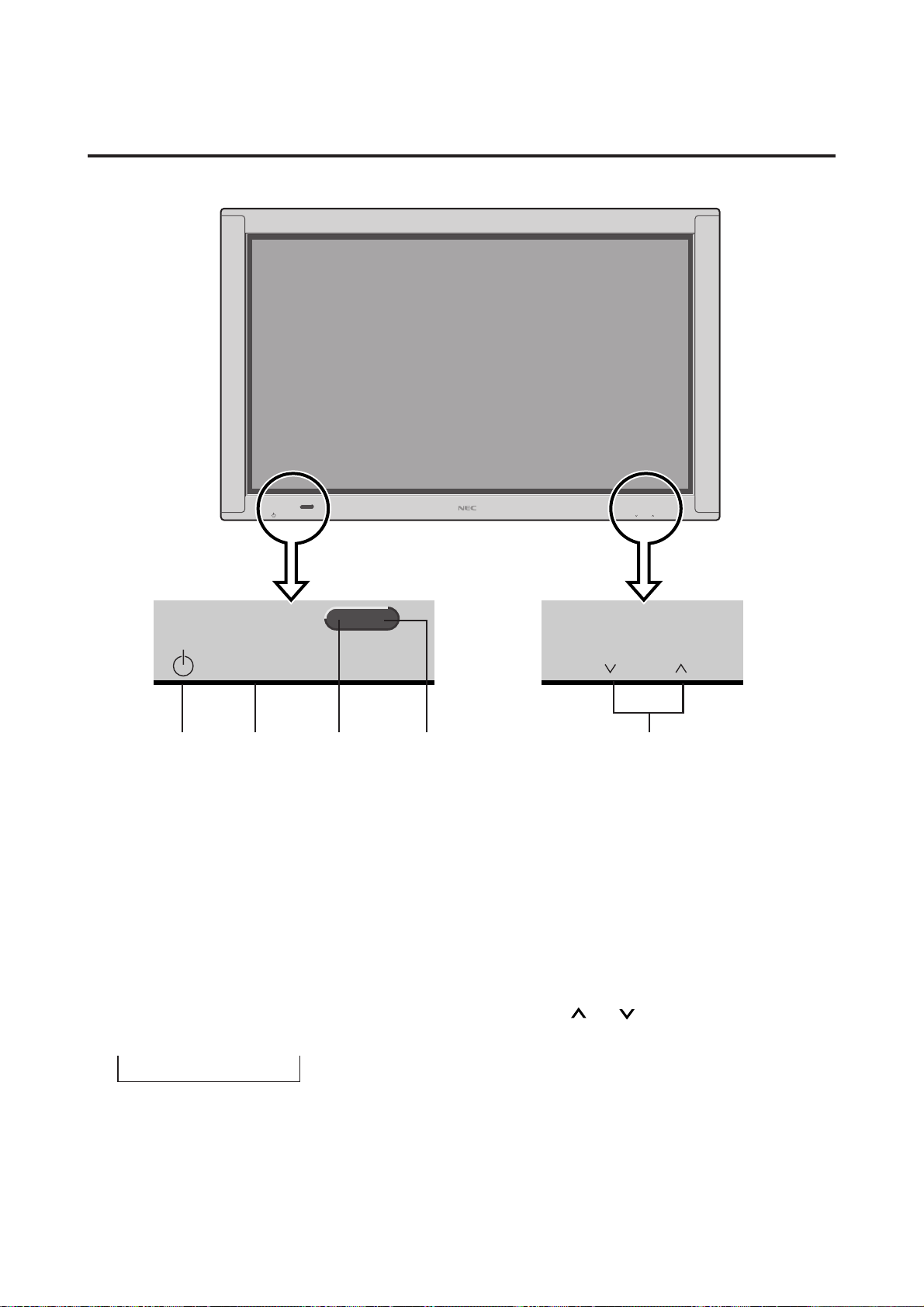
Front View
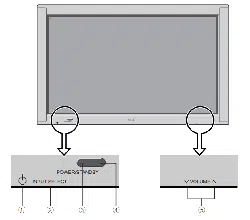
POWER/STANDBY
INPUT SELECT VOLUME
POWER/STANDBY
INPUT SELECT
VOLUME
12 3 4 5
1 Power
Turns the monitor's power on and off.
2 INPUT SELECT
Switches the input, in the following order:
→ VIDEO → DVD/HD → RGB
3 POWER/STANDBY indicator
When the power is on ............................Lights green.
When the power is in the standby mode ... Lights red.
4 Remote sensor window
Receives the signals from the remote control unit.
5 VOLUME and
Adjust the volume.
4
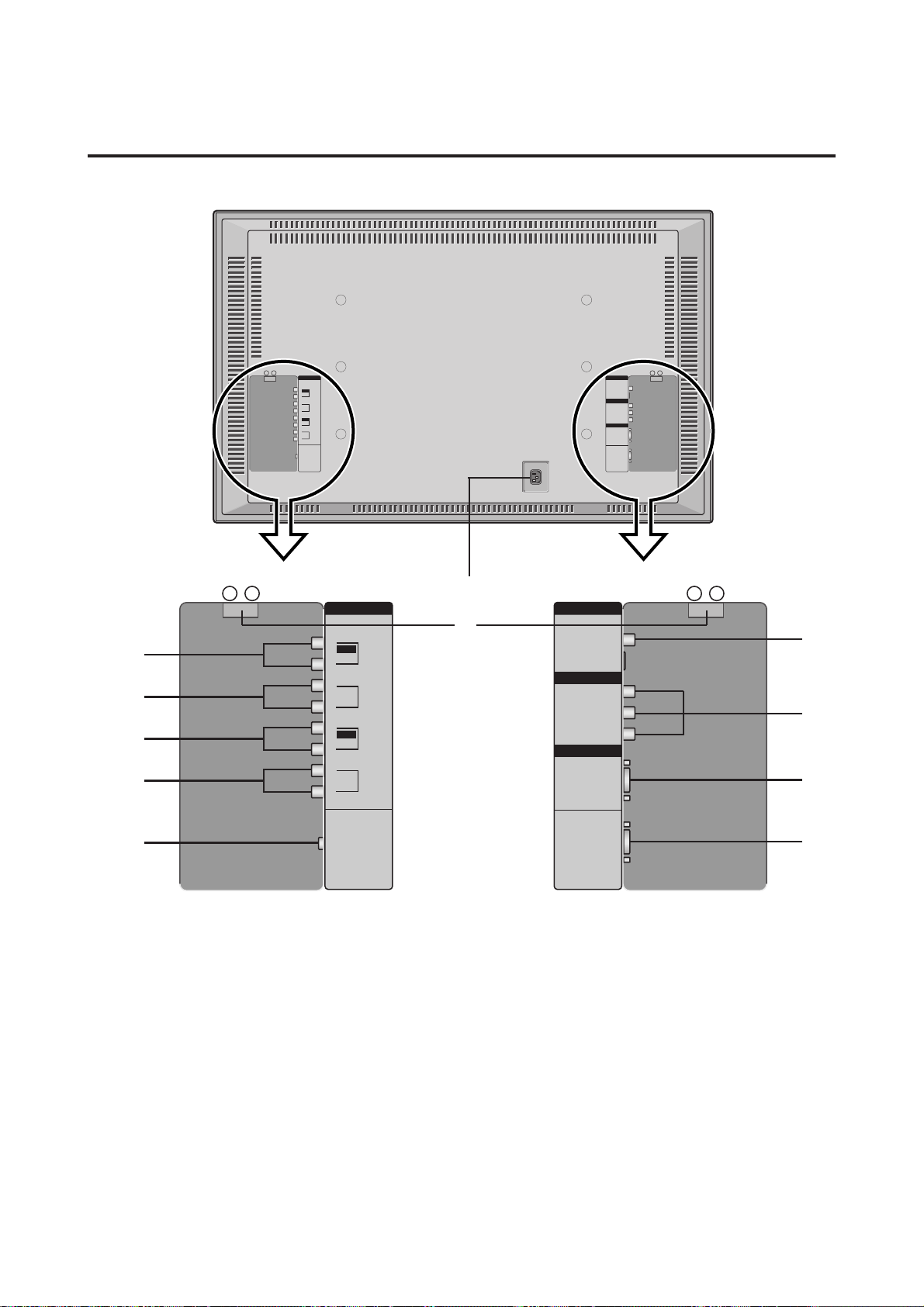
Rear View/ Terminal Board
AUDIO
VIDEO
IN
L
R
MONO
DVD/HD
IN
L
R
RGB
IN
L
R
MONO
AUDIO
OUT
(VARIABLE)
L
R
REMOTE
CONTROL
EXT SPEAKER R
+ –
EXT SPEAKER L
+ –
VIDEO
VIDEO IN
Y/Y
C
B
/P
B
C
R
/P
R
RGB IN
S-VIDEO IN
EXTERNAL
CONTROL
DVD/HD
RGB
AC IN
F EXTERNAL CONTROL
Connect this to the PDP control terminal on the AVP
selector (optional PX-SL1A). This also serves as your
control terminal for a personal computer.
G AC IN
Connect the included power cord here.
H EXT SPEAKER L and R
Connect speakers here.
H
B
A
C
F
G
A
B
C
D
E
A VIDEO IN/AUDIO IN
Connect VCR's, DVD's or Laser Discs, etc. here.
B DVD/HD (Y/Y, CB/PB and CR/PR) IN/ AUDIO IN
Connect DVD's, high definition Laser Discs, etc. here.
C RGB IN/ AUDIO IN
Connect Computer Source here.
D AUDIO OUT
Connect to a woofer.
The output level depends on the volume setting.
E REMOTE CONTROL
Connect the supplied remote cable here.
5
Remote Controller
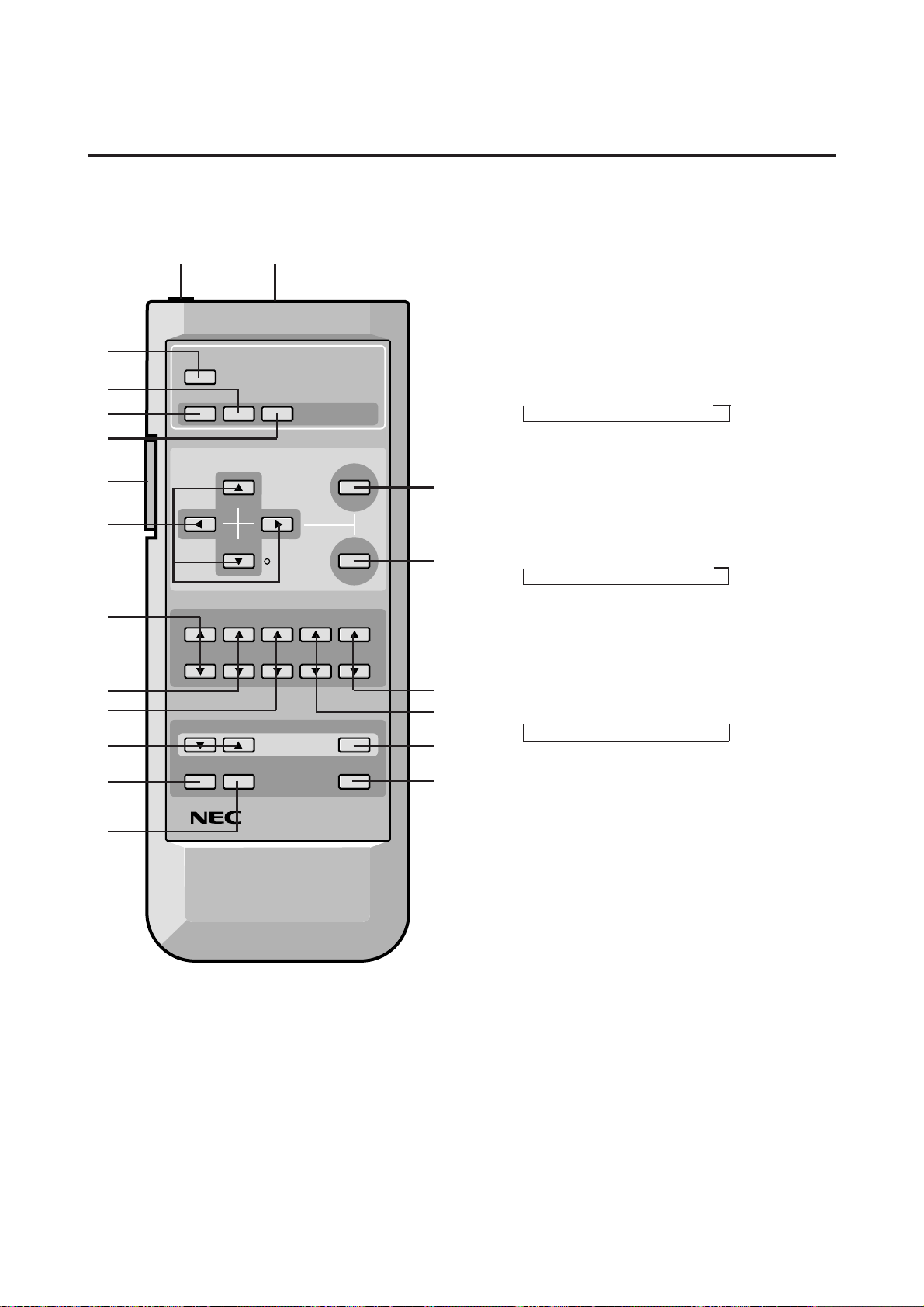
1 POWER
Turns the monitor's power on and off.
2 RGB/PC
Press this button to select RGB/PC as the source.
RGB/PC can also be selected using the INPUT SELECT
button on the monitor. The input switches as follows
each time the button is pressed:
→ VIDEO → DVD/HD → RGB/PC
3 VIDEO
Press this button to select VIDEO as the source.
VIDEO can also be selected using the INPUT SELECT
button on the monitor. The input switches as follows
each time the button is pressed:
→ VIDEO → DVD/HD → RGB/PC
4 DVD / HD
Press this button to select DVD/HD as the source.
DVD/HD can also be selected using the INPUT SE-
LECT button on the monitor. The input switches as fol-
lows each time the button is pressed:
→ VIDEO → DVD/HD → RGB/PC
5 MENU
Use this button to turn the main menu on/off.
6 OK
Use this button to approve selections and settings.
7 Cursor (▲ / ▼ /
§
/
©
)
Use these buttons to select items or settings and to ad-
just settings.
8 CONTRAST (▲ / ▼)
Adjusts the picture's contrast.
9 BRIGHT (▲ / ▼)
Adjusts the picture's brightness.
0 COLOR (▲ / ▼)
Adjusts the color density.
A TINT (▲ / ▼)
Adjusts the picture's tint.(NTSC only)
B SHARPNESS (▲ / ▼)
Adjusts the picture's sharpness.
POWER
RGB/PC VIDEO DVD/HD
CURSOR
CONTRAST
BRIGHT COLOR
VOLUME
WIDE DISPLAY OFF TIMER
MUTE
TINT
SHARPNESS
POSITION / CONTROL
VISUAL CONTROL
OK
MENU
BACKLIGHT SYSTEM
REMOTE CONTROLLER
RD-327
1
3
2
4
H
7
8
9
0
C
E
F
5
6
B
A
D
G
I J
6
C VOLUME (▲ / ▼)
Adjust the volume.
D MUTE
Mutes the sound.
E WIDE
The type of broadcast is detected automatically, and the
recommended wide screen is set.
F DISPLAY
Displays the source settings on the screen.
G OFF TIMER
Activates the off timer for the unit.
H BACK LIGHT switch
Turns the back light on and off.
Turn on when using the remote controller in dark rooms.
Note:
The backlight key characters may be invisible
in a bright-lit room. Make sure that the backlight switch
is OFF when the remote control unit is not used.
If no button operation is made whithin 30 seconds when
the backlight is lit in the wireless condition, the
backlight will go off automatically. To turn the backlight
on again, set the switch to the OFF position, then set it
to the ON position.
I Remote Jack
Insert the plug of the supplied remote cable when using
the supplied remote control unit in the wired condition.
Connecting the monitor and the remote control unit with
the supplied remote cable turns on the backlight inde-
pendent of the backlight switch setting when the moni-
tor is powered on.
J Remote contorol signal transmitter
Transmits the remote control signals.
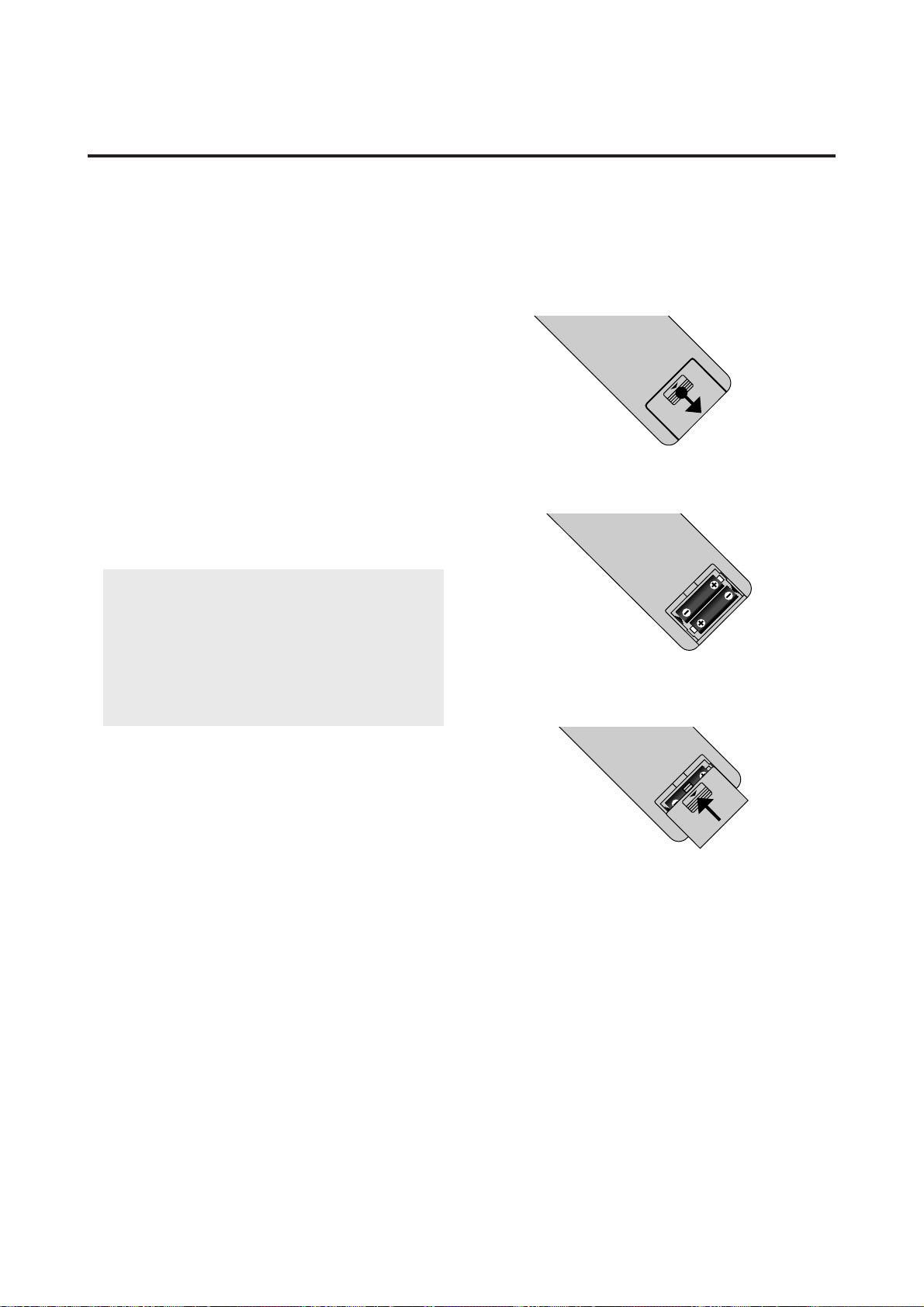
Battery Installation and Replacement
Insert the 2 "AA" batteries, making sure to set them in
with the proper polarity.
1.Press and pull.
2.Load the batteries in the direction indicated by the "+"
and "–" marks in the case.
3.Put the lid back on.
7
AUDIO
OUT
(VARIABLE)
L
R
REMOTE
CONTROL
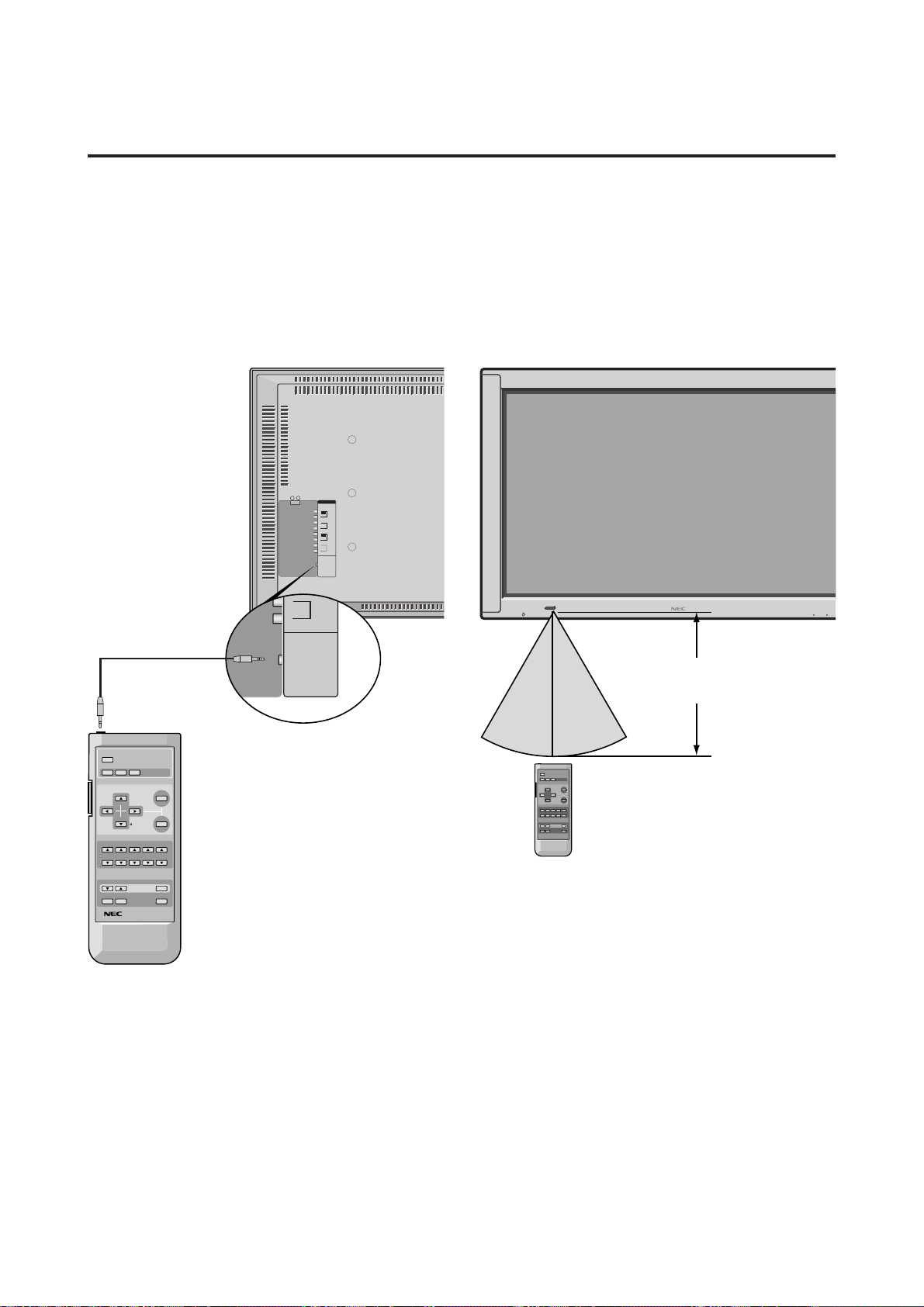
Using the wired remote control mode
Connect the included remote control cable to the remote
control unit's "REMOTE CONTROL" terminal.
When the cable is connected, the mode automatically
switches to wired remote control.
When the wired remote control mode is used, the remote
control unit can be operated even if no batteries are loaded.
POWER
RGB/PC VIDEO DVD/HD
CURSOR
CONTRAST
BRIGHT COLOR
VOLUME
WIDE DISPLAY OFF TIMER
MUTE
TINT
SHARPNESS
POSITION / CONTROL
VISUAL CONTROL
OK
MENU
BACKLIGHT SYSTEM
REMOTE CONTROLLER
RD-327
Remote Control Cable
To Remote Jack
POWER/STANDBY
INPUT SELECT VOLUME
30˚ 30˚
Approx.
7m/ 23ft
Operating Range
* Use the remote controller within a distance of about 7 m
/ 23ft. from the front of the monitor's remote control sen-
sor and at a horizontal angle of within 30°.
* The remote control operation may not function if the
monitor's remote control sensor is exposed to direct sun-
light or strong artificial light, or if there is an obstacle
between the sensor and the remote control unit.
Handling the remote controller
• Do not drop or mishandle the remote control unit.
• Do not get the remote control unit wet. If the remote
gets wet, wipe it dry immediately.
• Avoid heat and humidity.
• When not using the remote control unit for a long pe-
riod, remove the batteries.
• Do not use new and old batteries together, or use differ-
ent types together.
• Do not take apart the batteries, heat them, or throw them
into a fire.
• When using the remote control unit in the wireless con-
dition, be sure to unplug the remote cable from the RE-
MOTE CONTROL terminal on the monitor.
8
VIDEO IN
S-VIDEO IN
Y/Y
CB/PB
CR/PR
RGB IN
VIDEO IN
L
(MONO)
R
EXTERNAL
CONTROL
REMOTE
CONTROL
VIDEOAUDIO
DVD/HD
RGB
RGB IN
L
MONO
R
AUDIO OUT
L
(VARIABLE)
R
DVD/HD IN
L
R
AC IN
Installation
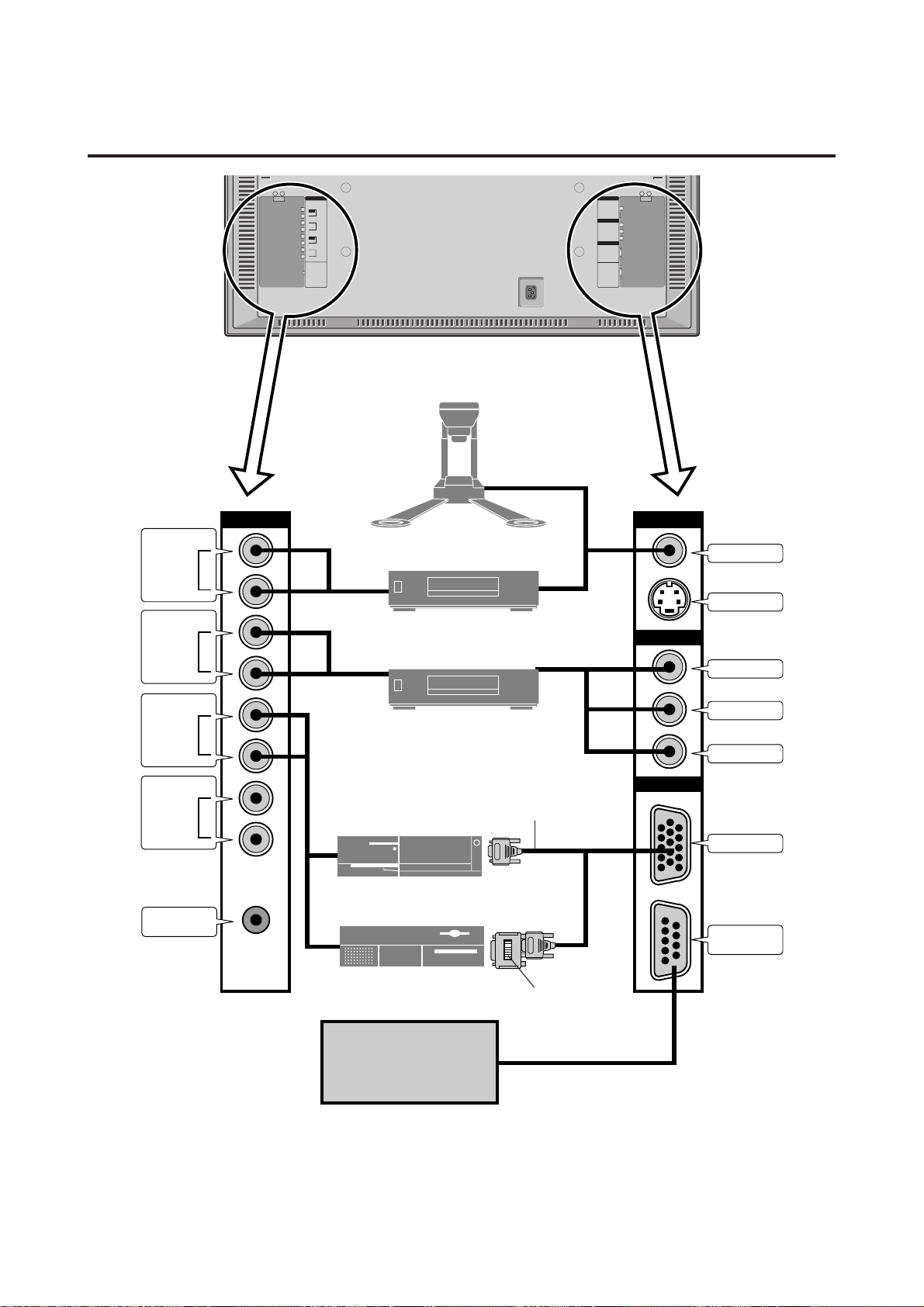
To video, S-video inputs on
the PlasmaSync 4200W
Document Camera
VCR or Laser Disc Player
DVD Player
Signal cable (supplied)
To Mini D-Sub 15 pin connector
on the PlasmaSync 4200W
Monitor adapter for
Macintosh (supplied)
IBM VGA or Compatibles
Macintosh or Compatibles
(Desk top type)
External
Control
9
Connecting Your PC Or Macintosh
Computer
Connecting your PC or Macintosh computer to your
PlasmaSync 4200W will enable you to display your
computer's screen image for an impressive presentation. The
PlasmaSync 4200W supports the signals described on page
12.
To connect to a PC, Macintosh or computer equipped with
an SVGA/VGA adapter or compatible graphics adapter,
simply:
1. Turn off the power to your PlasmaSync 4200W and
computer.
2.
If your PC does not support SVGA/VGA you will need to
install an SVGA/VGA graphics board. Consult your
computer's owner's manual for your SVGA/VGA configu-
ration. If you need to install a new board, see the manual
that comes with your new graphics board for installation
instructions.
3. Use the signal cable that's supplied to connect your PC or
Macintosh computer to the PlasmaSync 4200W. For
Macintosh, use the supplied monitor adapter to connect
to your computer's video port.
4. Turn on the PlasmaSync 4200W and the computer.
5. If the PlasmaSync 4200W goes blank after a period of
inactivity, it may be caused by a screen saver installed on
the computer you've connected to the PlasmaSync
4200W.
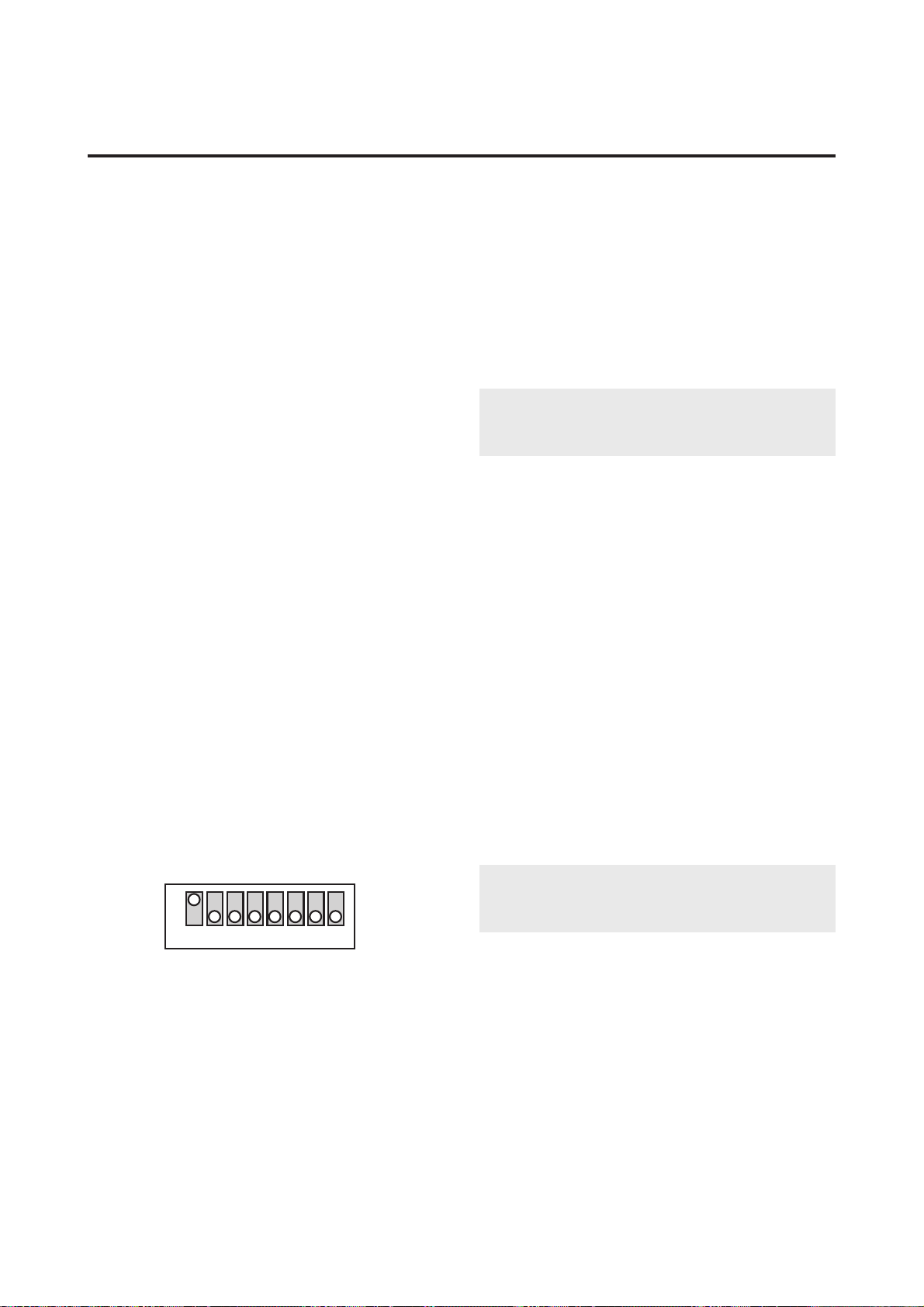
When using a Macintosh with the PlasmaSync 4200W, set
the DIP switch of the supplied monitor adapter according to
your resolution. After setting, restart your Macintosh.
See the following pages for setting of the DIP switch.
Examples of DIP switch setting
ON
→
1 2 3 4 5 6 7 8
13” fixed mode
Connecting Your Document Camera
You can connect your PlasmaSync 4200W to a document
camera. To do so, simply:
1. Turn off the power to your PlasmaSync 4200W and
document camera.
2. Use a standard video cable to connect your document
camera to the Video input on your PlasmaSync 4200W.
3. Turn on the PlasmaSync 4200W and the document cam-
era.
Note:
Refer to your document camera's owner's
manual for more information about your camera's video
output requirements.
Connecting Your VCR Or Laser Disc Player
Use common RCA cables (not provided) to connect your
VCR or laser disc player to your PlasmaSync 4200W. To
make these connections, simply:
1. Turn off the power to your PlasmaSync 4200W and
VCR or laser disc player.
2. Connect one end of your RCA cable to the video out-
put connector on the back of your VCR or laser disc
player, connect the other end to the Video input on your
PlasmaSync 4200W. Use standard RCA audio patch
cords to connect the audio from your VCR or laser disc
player to your PlasmaSync 4200W (if your VCR or
laser disc player has this capability). Be careful to keep
your right and left channel connections correct for stereo
sound.
3. Turn on the PlasmaSync 4200W and the VCR or laser
disc player.
Note:
Refer to your VCR or laser disc player owner's
manual for more information about your equipment's
video output requirements.
Connecting Your DVD Player
You can connect your PlasmaSync 4200W to a DVD player.
To do so, simply:
1. Turn off the power to your PlasmaSync 4200W and
DVD player.
2. Use a standard video cable to connect your DVD player
to the Y, Cb, and Cr inputs on your PlasmaSync 4200W.
3. Turn on the PlasmaSync 4200W and the DVD player.
10
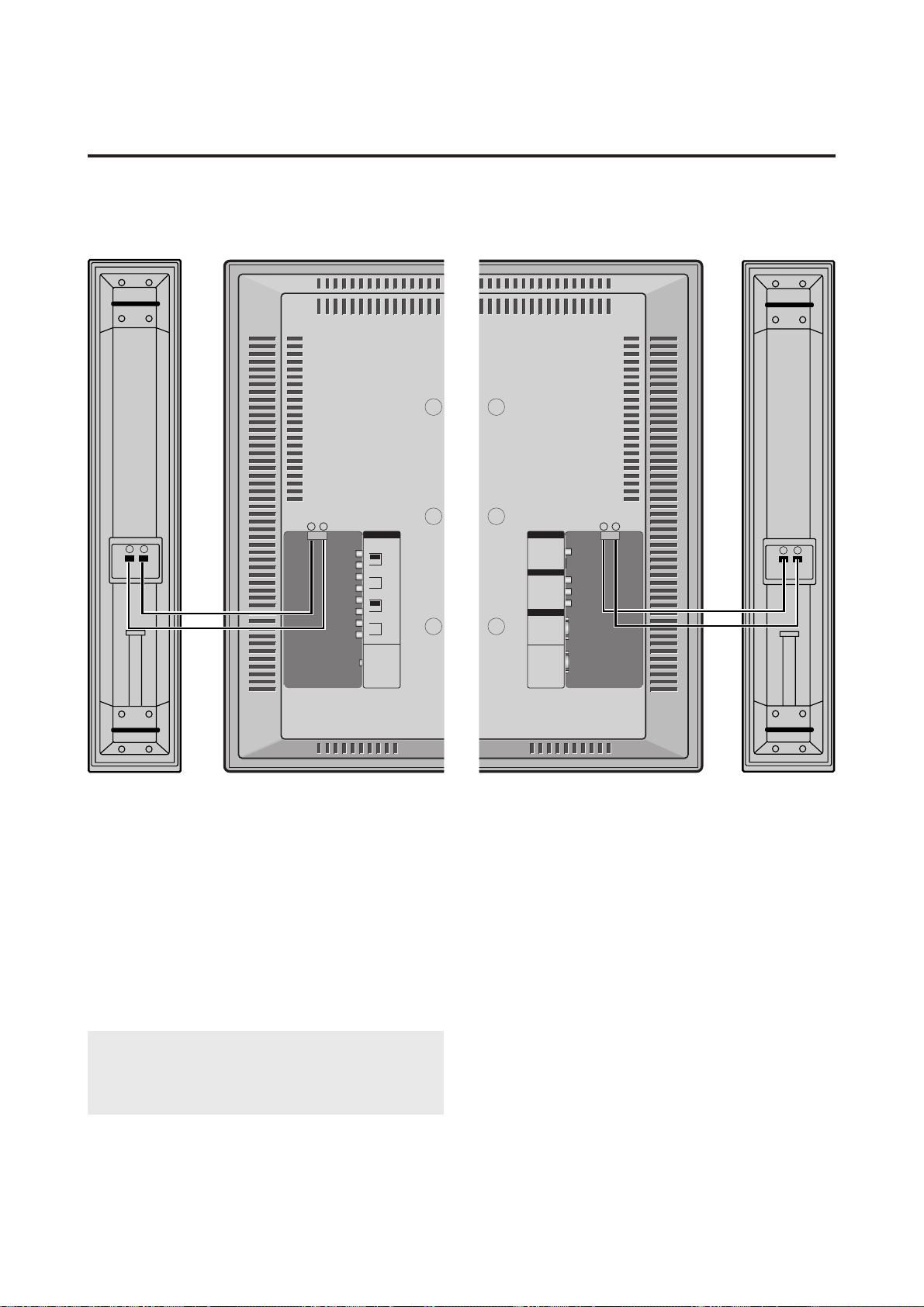
External Speaker Connections
External speakers may be connected to the PlasmaSync
4200W to reproduce sound from VIDEO, DVD or RGB
signal sources.
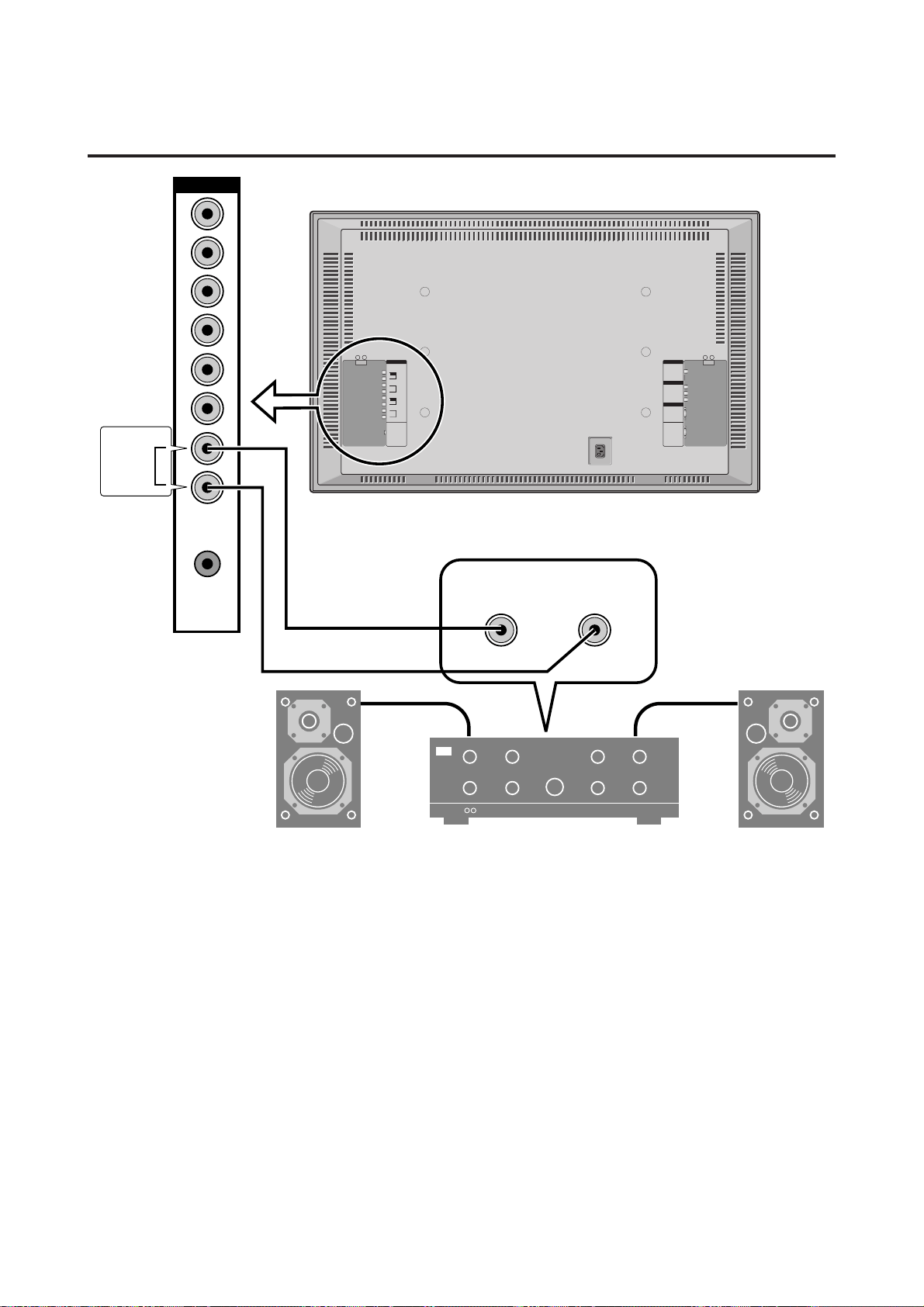
External speakers may be connected directly to the SPEAK-
ERS terminals or indirectly by connecting a stereo system
amplifier to the audio outputs.
CAUTION:
Unplug the PlasmaSync 4200W and all
connected components before connecting external
speakers. Use only speakers with 6-ohm impedance and
a power output rating of 7 watts or more.
To connect external speakers directly to the PlasmaSync
4200W:
1. Strip the ends of the speaker wires.
2. Press down the tabs below the SPEAKERS terminals,
insert the speaker wire and release the tab to secure the
speaker wire connection:
[a] Connect the right speaker (located at right side
of the monitor when viewed from the front)
positive (+) wire to RIGHT +.
[b] Connect the right speaker negative (–) wire to
RIGHT -.
[c] Connect the left speaker negative (–) wire to
LEFT–.
[d] Connect the left speaker positive wire (+) to
LEFT+.
– +
AUDIO
VIDEO
IN
L
R
MONO
DVD/HD
IN
L
R
RGB
IN
L
R
MONO
AUDIO
OUT
(VARIABLE)
L
R
REMOTE
CONTROL
EXT SPEAKER R
+ –
– +
EXT SPEAKER L
+ –
VIDEO
VIDEO IN
Y/Y
C
B
/P
B
C
R
/P
R
RGB IN
S-VIDEO IN
EXTERNAL
CONTROL
DVD/HD
RGB
11
To connect the PlasmaSync 4200W to stereo system speak-
ers:
1. Connect AUDIO OUT L to the stereo amplifier AUX
INPUT L.
2. Connect AUDIO OUT R to the stereo amplifier AUX
INPUT R.
AUDIO
AC IN
R
L
LINE OR
AUX INPUT
LINE OR
AUX INPUT
STEREO AMP
AUDIO OUT
L
(VARIABLE)
R
12
PC signal compatibility
Pin Assignments and Signal Levels for 15 pin RGB (Analog)
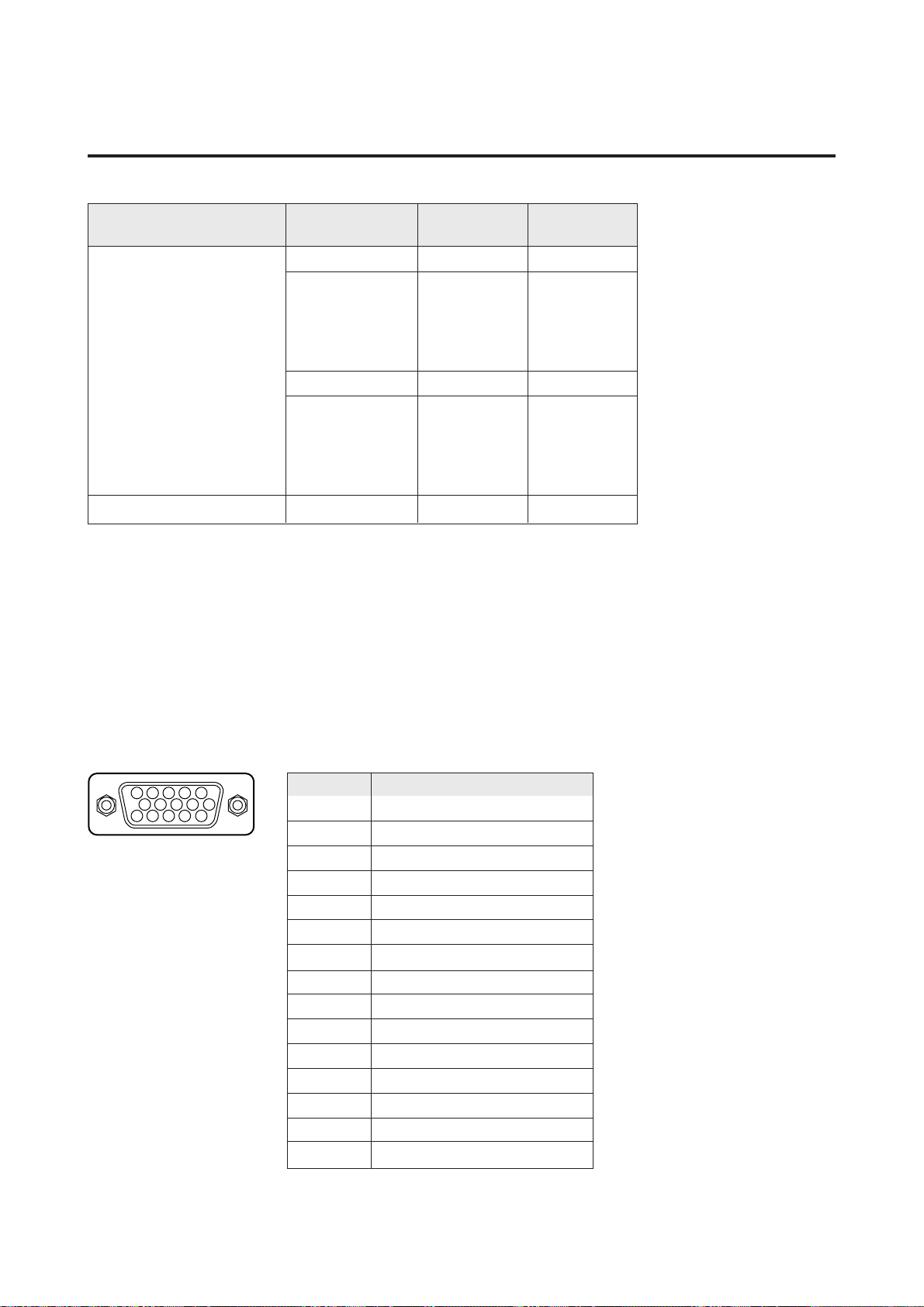
Mini D-Sub 15 Pin RGB Signal Composition
5 4 3 2 1
15 14 13 12 11
10 9 8 7 6
Pin No.
1
2
3
4
5
6
7
8
9
10
11
12
13
14
15
Signal to be connected
RED
GREEN or Sync. on Green
BLUE
No Connection
GND
RED (GND)
GREEN (GND)
BLUE (GND)
No Connection
SYNC (GND)
No Connection
SDA
H. sync
V. sync
SCL
Horizontal
frequency (kHz)
31.5
31.5
37.9
37.5
39.4
31.0
35.2
37.9
48.1
46.9
35.0
Vertical
frequency (Hz)
70.1
59.9
72.8
75.0
75.0
60.0
56.3
60.3
72.2
75.0
66.7
Dots 2 lines
6402400
6402480
8482480*
2
8002600
*
1
*
1
6402480
Model
*IBM PC/AT compatible
computers
*Apple Macintosh
*1 Signals with these frequencies are only displayed in the normal mode (4:3).
*2 Only when using a graphic accelerator board that is capable of displaying 8482480.
* “IBM PC/AT” is a registered trademark of International Business Machines, Inc. of the United States.
* “Apple Macintosh” is a registered trademark of Apple Computer, Inc. of the United States.

13
Basic Operations
POWER
To turn the unit ON and OFF:
1. Plug the power cord into an active AC power outlet.
2. Press the POWER button (on the remote controller) to
turn on.
The monitor’s POWER/STANDBY indicator will light
up(green) when the unit is on.
3. Press the POWER button (on the remote controller or
the unit) to turn off.
The monitor’s POWER/STANDBY indicator turns red
and the standby mode is set.
VOLUME
To adjust the volume:
1. Press and hold the VOLUME ▲ button (on the remote
controller or the unit) to increase to the desired level.
2. Press and hold the VOLUME ▼ button (on the remote
controller or the unit) to decrease to the desired level.
MUTE
To cancel the sound:
Press the MUTE button on the remote controller to cancel
sound; press again to restore.
DISPLAY
To check the settings:
1. The screen changes each time the DISPLAY button is
pressed.
2. If the button is not pressed for approximately three sec-
onds, the menu turn off.
VISUAL CONTROL
TO adjust the picture's contrast:
1, Press and hold the CONTRAST ▲ button for higher
contrast.
2, Press and hold the CONTRAST ▼ button for lower
contrast.
TO adjust the picture's brightness:
1, Press and hold the BRIGHT ▲ button for a brighter
picture.
2, Press and hold the BRIGHT ▼ button for a darker pic-
ture.
TO adjust the picture's color:
1, Press and hold the COLOR ▲ button for more color
saturation.
2, Press and hold the COLOR ▼ button for less color satu-
ration.
TO adjust the picture's tint (NTSC only):
1, Press and hold the TINT ▲ button for a greener tint.
2, Press and hold the TINT ▼ button for a redder tint.
TO adjust the picture's sharpness:
1, Press and hold the SHARPNESS ▲ button for a sharper
picture.
2, Press and hold the SHARPNESS ▼ button for a softer
picture.
*If no key operation is made within five seconds, the OSM
display will disappear.

14
OFF TIMER
To set the off timer:
The off timer can be set to turn the power off after 30,
60, 90 or 120 minutes.
1. Press the OFF TIMER button to start the timer at 30
minutes.
2. Press the OFF TIMER button to the desired time.
3. The timer starts when the menu turns off.
→ 30 → 60 → 90 → 120 → 0
To check the remaining time:
1. Once the off timer has been set, press the OFF TIMER
button once.
2. The remaining time is displayed, then turns off after a
few seconds.
3. When five minutes remain the remaining time appears
until it reaches zero.
Canceling the off timer
1. Press the OFF TIMER button twice in a row.
2. The off timer is canceled.
Note:
After the power is turned off with the off timer ...
A slight current is still supplied to the monitor. When
you are leaving home or do not plan to use the system
for a long period of time, turn off the power of the moni-
tor.
OFF TIMER30
OFF TIMER28
OFF TIMER0
15
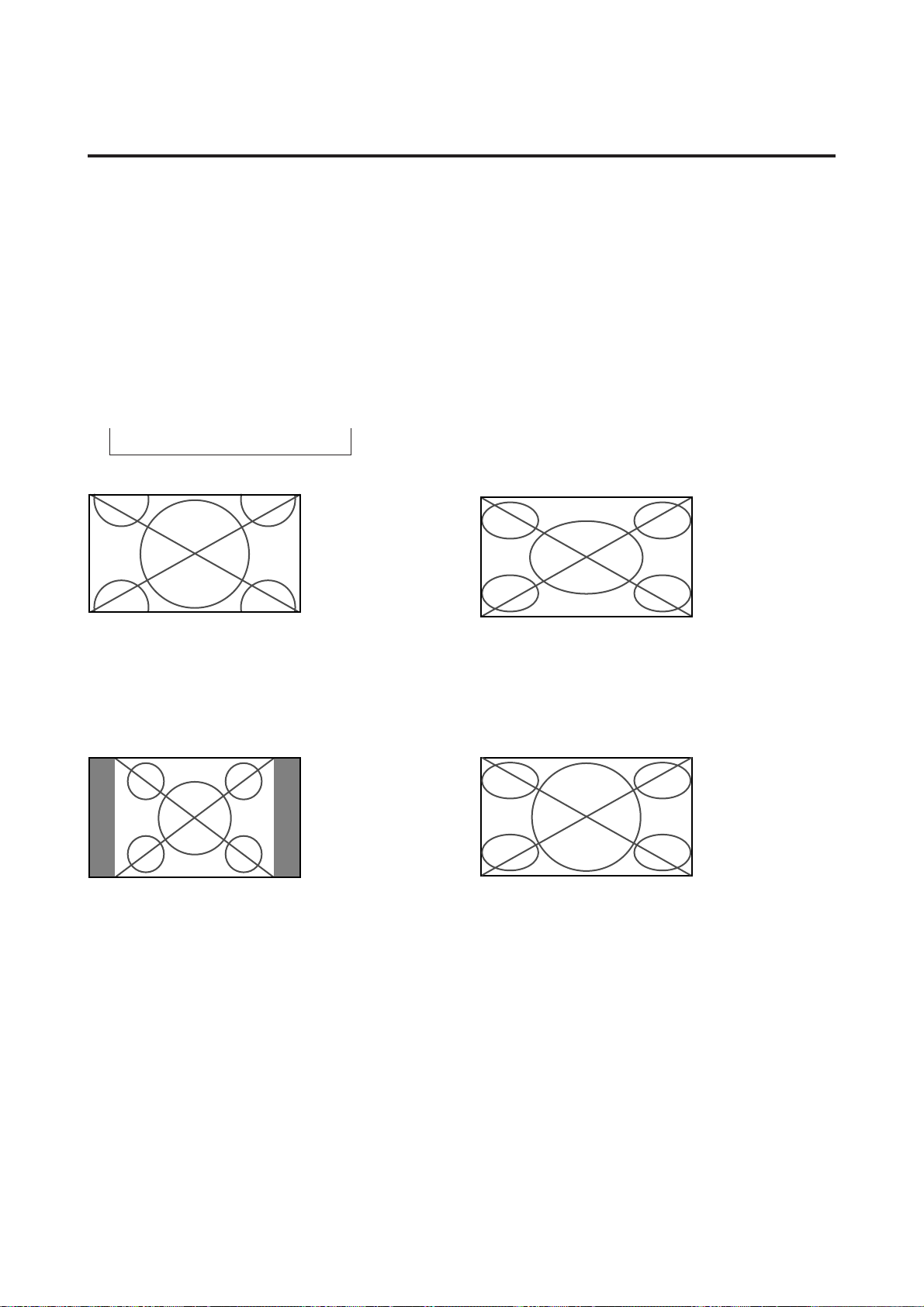
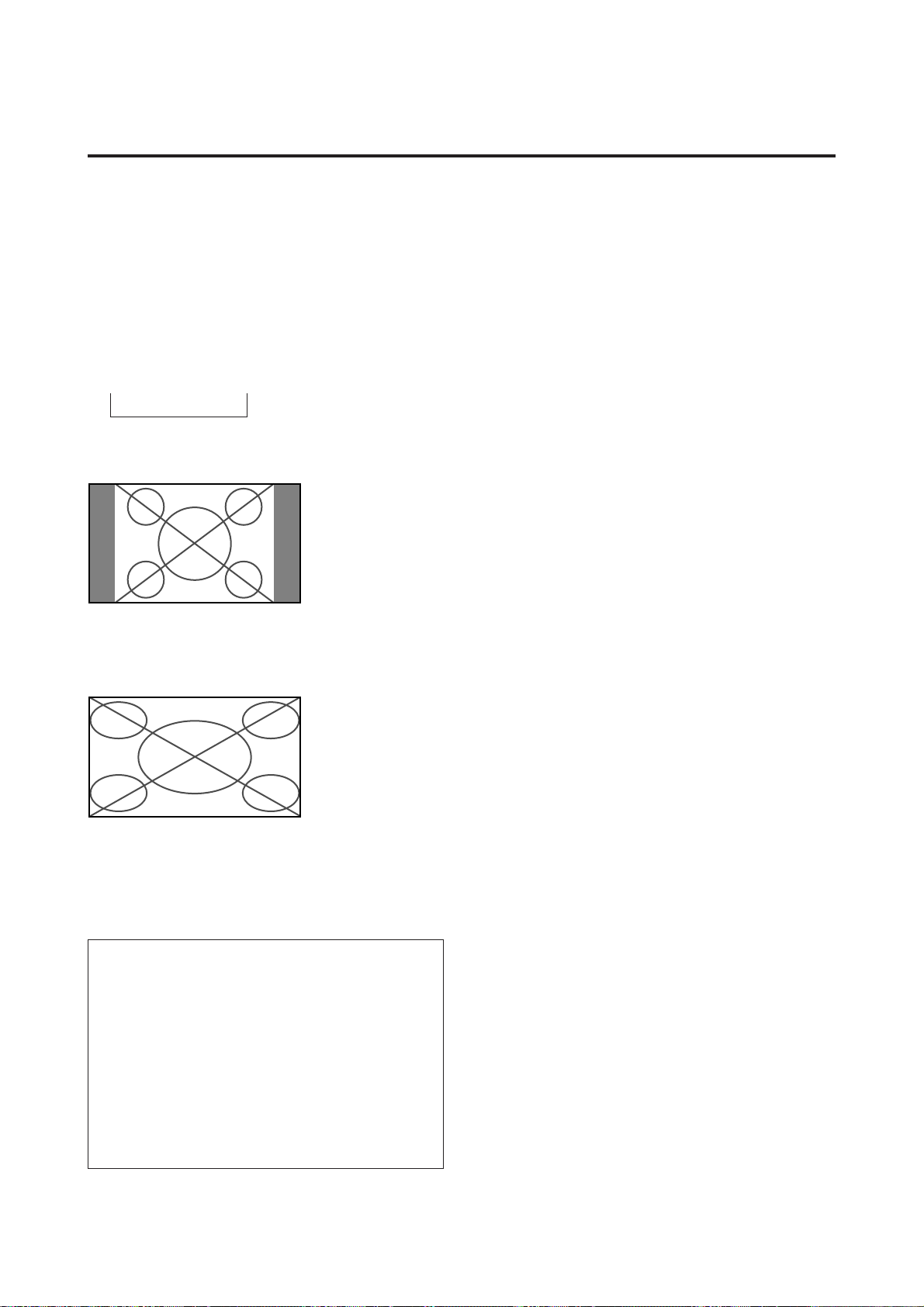
FULL size screen
The image is expanded in the horizontal direction.
* Images compressed in the horizontal direction ("squeezed
images") are expanded in the horizontal direction and
displayed on the entire screen. (Normal images are ex-
panded in the horizontal direction.)
STADIUM size screen
The picture is expanded in the horizontal and vertical di-
rections at different ratios.
* Use this for watching normal video programs (4:3) with
a wide screen.
Watching with a wide screen (manual)
With this function, you can select one of four screen sizes.
When watching videos or high definition laser
discs
1. Press the "WIDE/AUTO WIDE" button on the remote
controller.
WIDE Operations
2. Within 3 seconds ...
Press the "WIDE/AUTO WIDE" button again.
The screen size switches as follows:
→ ZOOM → NORMAL → FULL → STADIUM
ZOOM size screen
The picture is expanded in the horizontal and vertical di-
rection, maintaining the original proportions.
* Use this for theater size (wide) movies, etc.
NORMAL size screen (4:3)
The normal size screen is displayed.
* The picture has the same size as normal video pictures
(4:3).
16
Watching computer images with a
wide screen
Switch to a wide screen for a more powerful picture.
1. Press the "WIDE / AUTO WIDE" button on the remote
controller.
Information
m Supported resolution
• When 800 dot 2 600 line signals are input, they are
automatically scaled to 640 dot 2 480 line or 800
dot 2 480 line signals.
• When 852 dot 2 480 line wide VGA (*) signals with
a vertical frequency of 60 Hz and horizontal frequency
of 31.72 kHz are input, select "ON" for the "WIDE
RGB " setting.
* "IBM PC/AT" and "VGA" are registered trademarks
of IBM, Inc. of the United States.
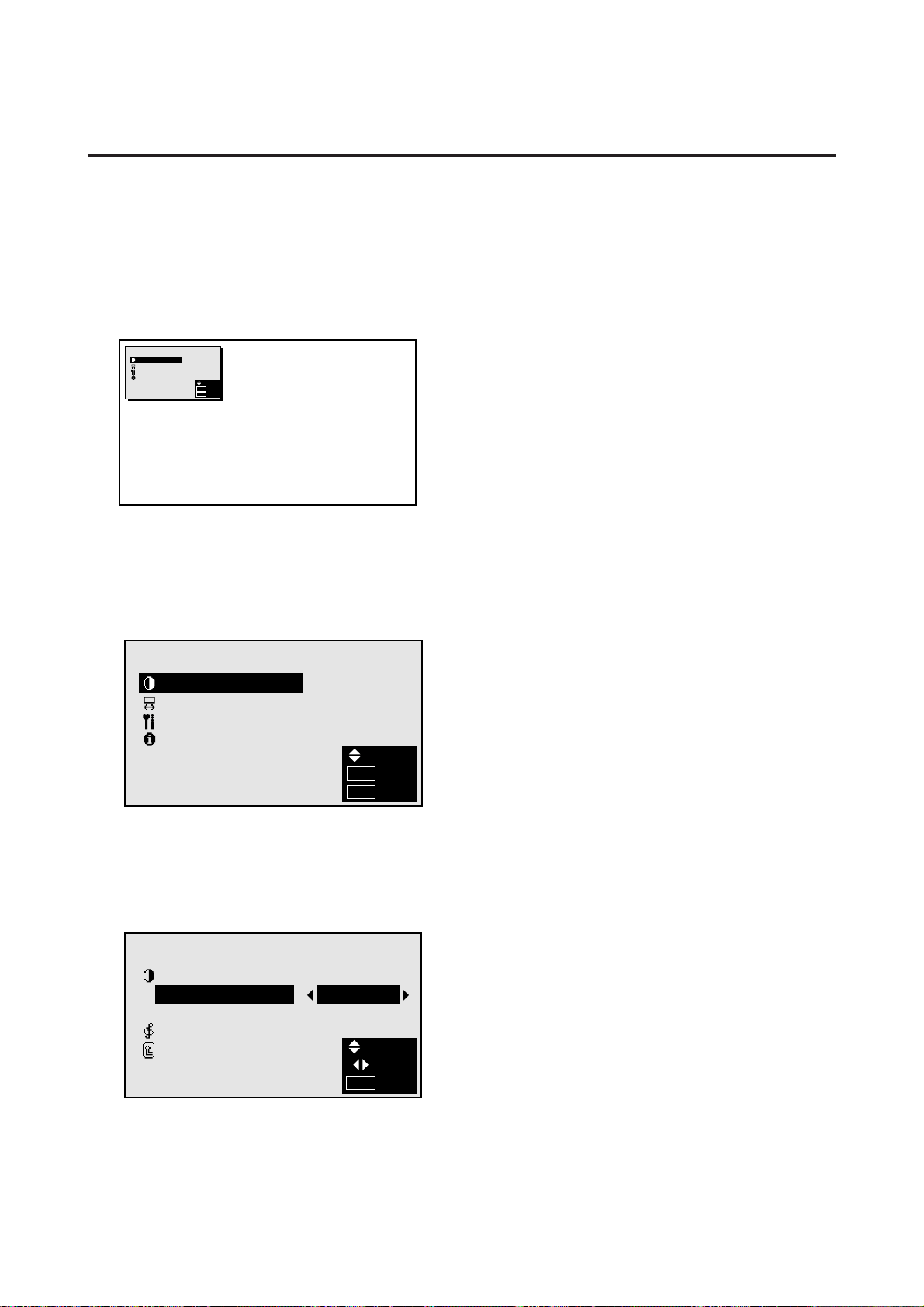
The picture has the same size as the normal computer im-
age.
FULL size screen
The image is expanded in the horizontal direction.
2. Within 3 seconds ...
Press the "WIDE/AUTO WIDE" button again.
The screen size switches as follows:
→ NORMAL → FULL
NORMAL size screen (4:3)
17
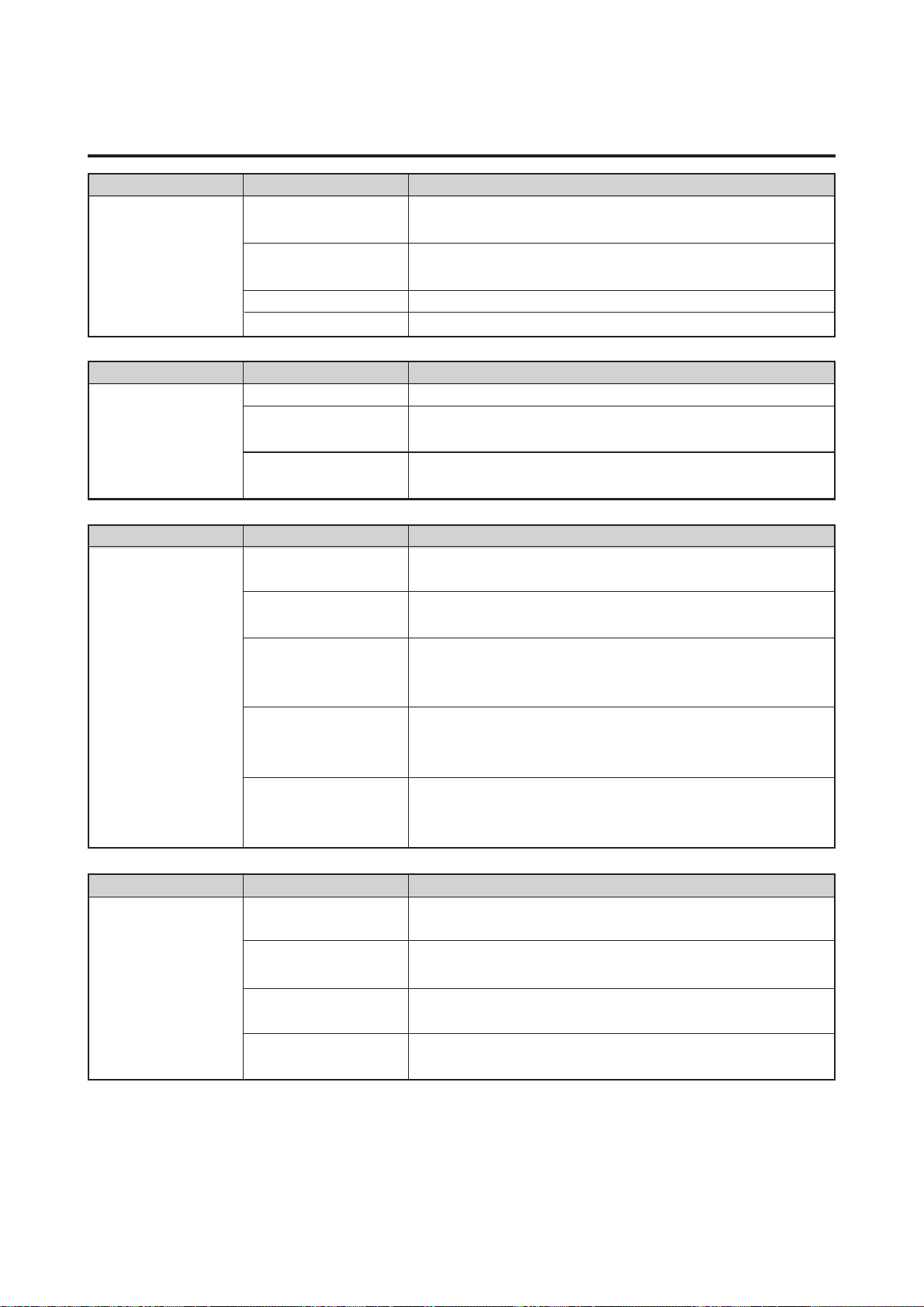
The following describes how to use the menus and the se-
lected items.
1. Press the MENU button on the remote controller to dis-
play the MAIN MENU.
2. Press the cursor buttons ▲ ▼ on the remote controller
to highlight the menu you wish to enter.
3. Press the OK button on the remote controller to select
a submenu or item.
4. Adjust the level or change the setting of the selected
item by using the cursor buttons § © on the remote
controller.
OSM(On Screen Menu) Controls
Menu Operations
Actually the OSM is displayed with respect the to
screen as shown on the diagram.
* Depending on the screen's mode, the OSM may be dis-
played slightly differently.
In the explanation, the OSM section is shown close up.
MAIN MENU
PICTURE/SOUND
SCREEN
FUNCTION
INFORMATION
SEL.
OK
EXIT
OK
MENU
MAIN MENU
PICTURE/SOUND
SCREEN
FUNCTION
INFORMATION
SEL.
OK
EXIT
OK
MENU
PICTURE/SOUND
PICTURE
PICTURE MODE : MEMORY
N R : NR–1
SOUND
RETURN
SEL.
ADJ.
EXIT
MENU
5. The change is stored until you adjust it again.
6. Repeat steps 2 – 5 to adjust an additional item, or press
the MENU button on the remote controller to exit the
menu display.
18
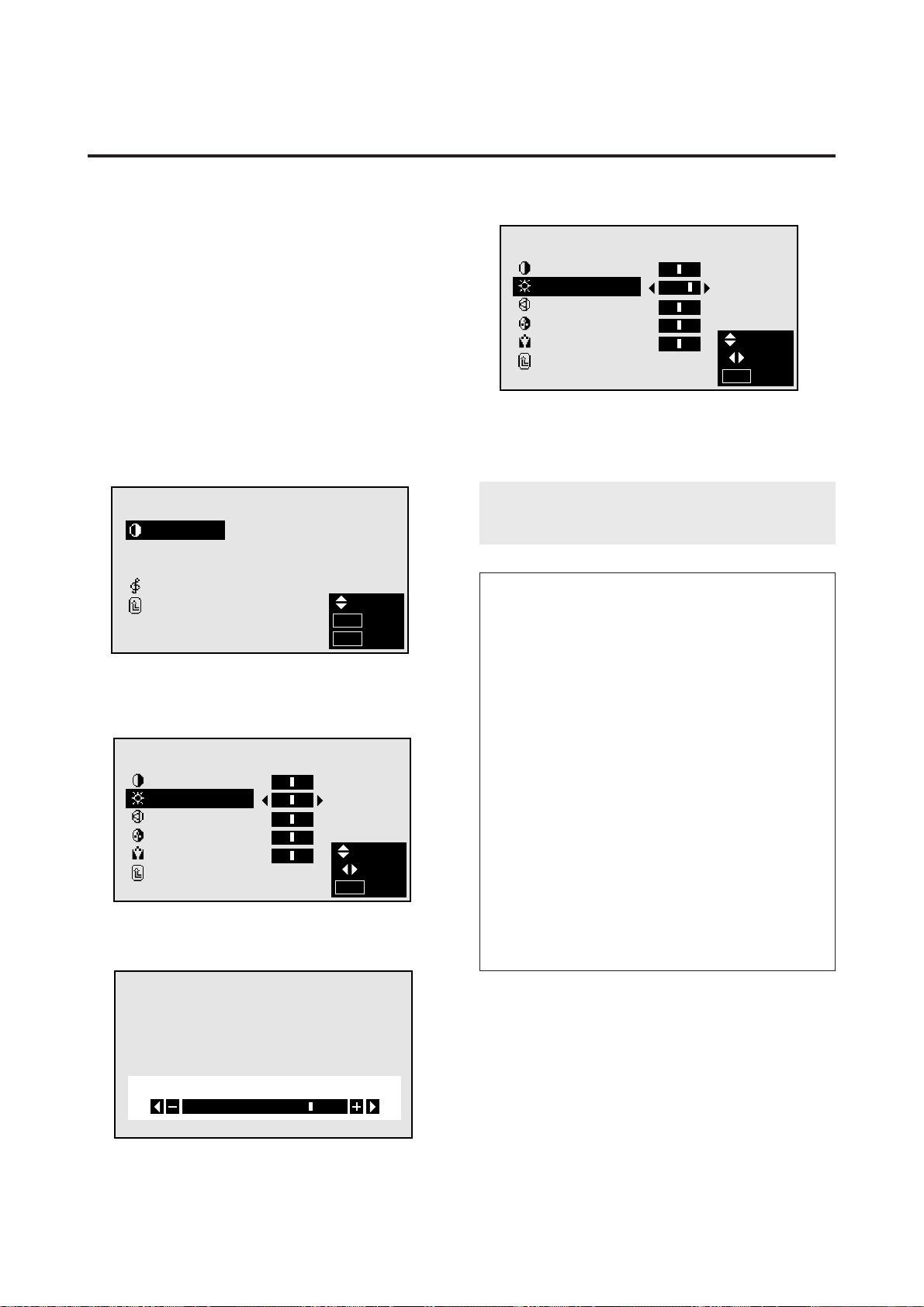
Main menu Sub menu Functions
PICTURE/SOUND PICTURE Adjusts the contrast, brightness, sharpness, color and
tint.
PICTURE MODE Sets the picture mode according to the VIDEO environment
and image software.
NR Reduces noise visible in image.
SOUND Sets the bass, treble and left/right balance.
Main menu Sub menu Functions
SCREEN WIDE ADJ. Adjusts the wide screen's vertical position and size.
RGB ADJ. Adjusts the computer image's vertical and horizontal posi-
tions, fine picture, picture adj.
OSM ADJ. Adjusts the vertical and horizontal positions of the menu
display.
Main menu Sub menu Functions
FUNCTION POWER MGT Sets the monitor for use as an energy-saving display when
used with a computer.
RGB SELECT Sets whether to use the RGB still mode or moving picture
(video) mode when a computer is connected.
WIDE RGB Switches the screen when 852 dot x 480 line signals are
inputted (when set to "ON").
Normally set to "AUTO".
OSM Turns the on-screen display (channel number, screen mode,
etc.) off (when set to "OFF").
When set to "ON", the on-screen display is displayed.
RESET Resets all the settings (PICTURE, SOUND, WIDE adjust-
ments, RGB adjustments, OSM adjustments) to the factory
default values.
Main menu Sub menu Functions
INFORMATION FREQUENCY Used to check the frequency and synchronizing polarities
of the signal currently being inputted.
COMMUNICATION Sets the main menu display for the connected equipment
(monitor or selector).
LANGUAGE Sets the language of the menus (Japanese, English, Ger-
man, French, Swedish, Italian or Spanish).
COLOR SYSTEM Sets the VIDEO format (PAL, SECAM, 4.43 NTSC or 3.58
NTSC).
19
Picture/Sound Settings Menu
Adjusting the picture
The contrast, brightness, sharpness, color and tint can be
adjusted as desired.
Example: Adjusting the brightness
Press the MENU button on the remote controller to dis-
play the MAIN MENU on the screen, then...
1. Use the ▲ and ▼ buttons to select “PICTURE/
SOUND”, then press the “OK” button.
The “PICTURE/SOUND” screen appears.
2. Use the ▲ and ▼ buttons to select “PICTURE”, then
press the “OK” button.
5. Press the “OK” button.
The brightness adjustment is completed.
PICTURE
CONTRAST
BRIGHTNESS
SHARPNESS
COLOR
TINT
RETURN
:
:
:
:
:
SEL.
ADJ.
EXIT
MENU
6 Once the adjustment is completed ...
Press the “MENU” button.
All menus disappear.
Note:
If “CAN NOT ADJUST” appears ...
When trying to enter the PICTURE submenu, make sure
PICTURE MODE is set to MEMORY.
Information
m Picture adjustment screen
CONTRAST .......Changes the picture’s contrast.
BRIGHTNESS....Changes the picture’s brightness.
SHARPNESS.....Changes the picture’s sharpness.
Adjust for the desired sharpness.
COLOR ..............Changes the color density.
TINT ...................Changes the picture’s tint. (NTSC
only)
Adjust for natural colored skin,
background, etc.
m Adjusting the computer image
Only the contrast and brightness can be adjusted when
a computer signal is connected.
m Restoring the factory default settings
Select “RESET” under the picture mode settings.
PICTURE/SOUND
PICTURE
PICTURE MODE : MEMORY
N R : NR–1
SOUND
RETURN
SEL.
OK
EXIT
OK
MENU
The “PICTURE” screen appears.
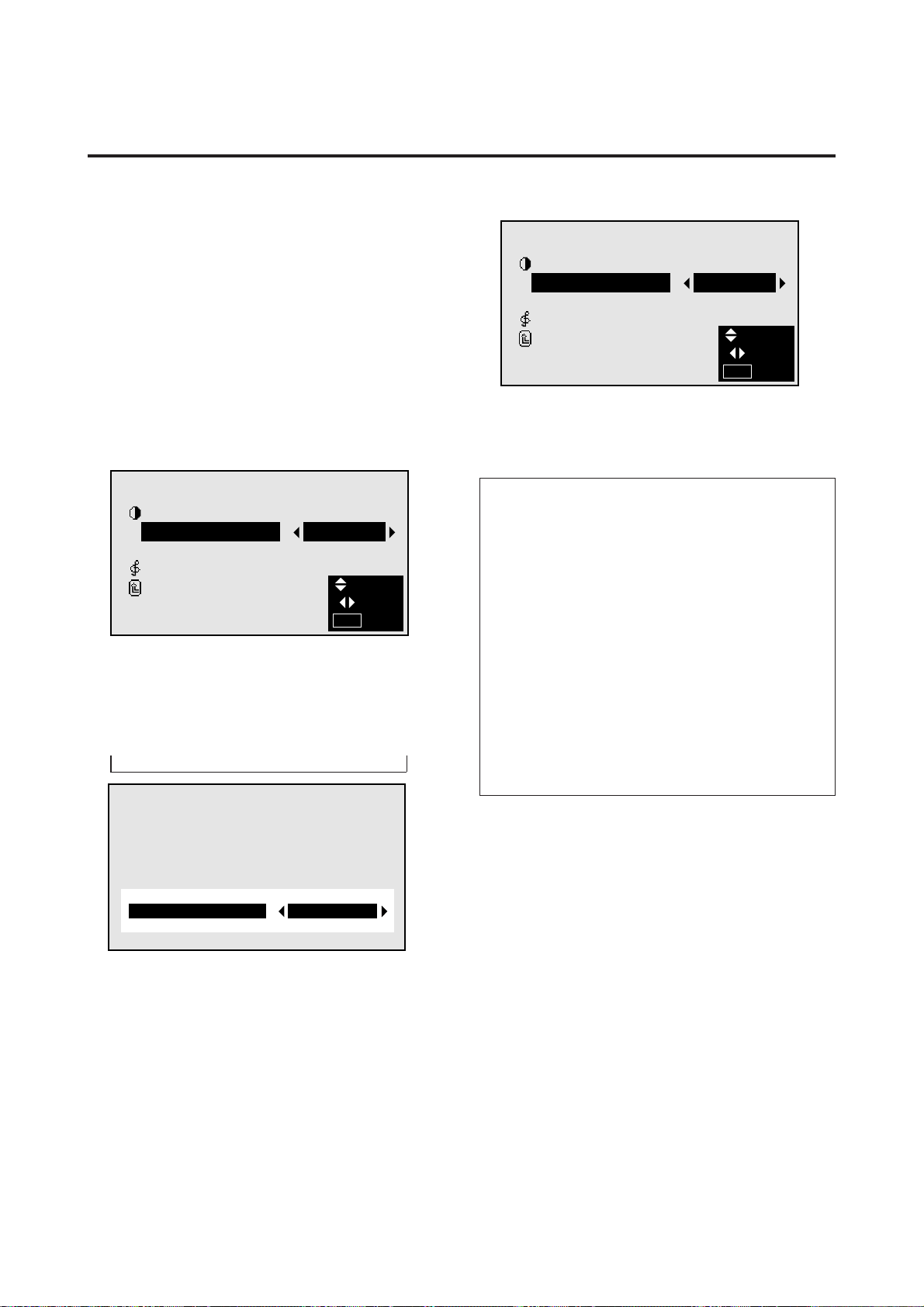
3. To adjust the brightness ...
Use the ▲ and ▼ buttons to select “BRIGHTNESS”.
PICTURE
CONTRAST
BRIGHTNESS
SHARPNESS
COLOR
TINT
RETURN
:
:
:
:
:
SEL.
ADJ.
EXIT
MENU
4. Use the § and © buttons to adjust the picture.
BRIGHTNESS
* If neither the § or © button is pressed within 5 sec-
onds, the current setting is set and the previous screen
reappears.
20
Setting the picture mode according to the bright-
ness of the room
There are four picture modes that can be used effectively
according to the environment in which you are viewing
the display.
Example: Setting the “THEATER” mode
Press the MENU button on the remote controller to dis-
play the MAIN MENU on the screen, then...
1. Use the ▲ and ▼ buttons to select “PICTURE/
SOUND”, then press the “OK” button.
The “PICTURE/SOUND” screen appears.
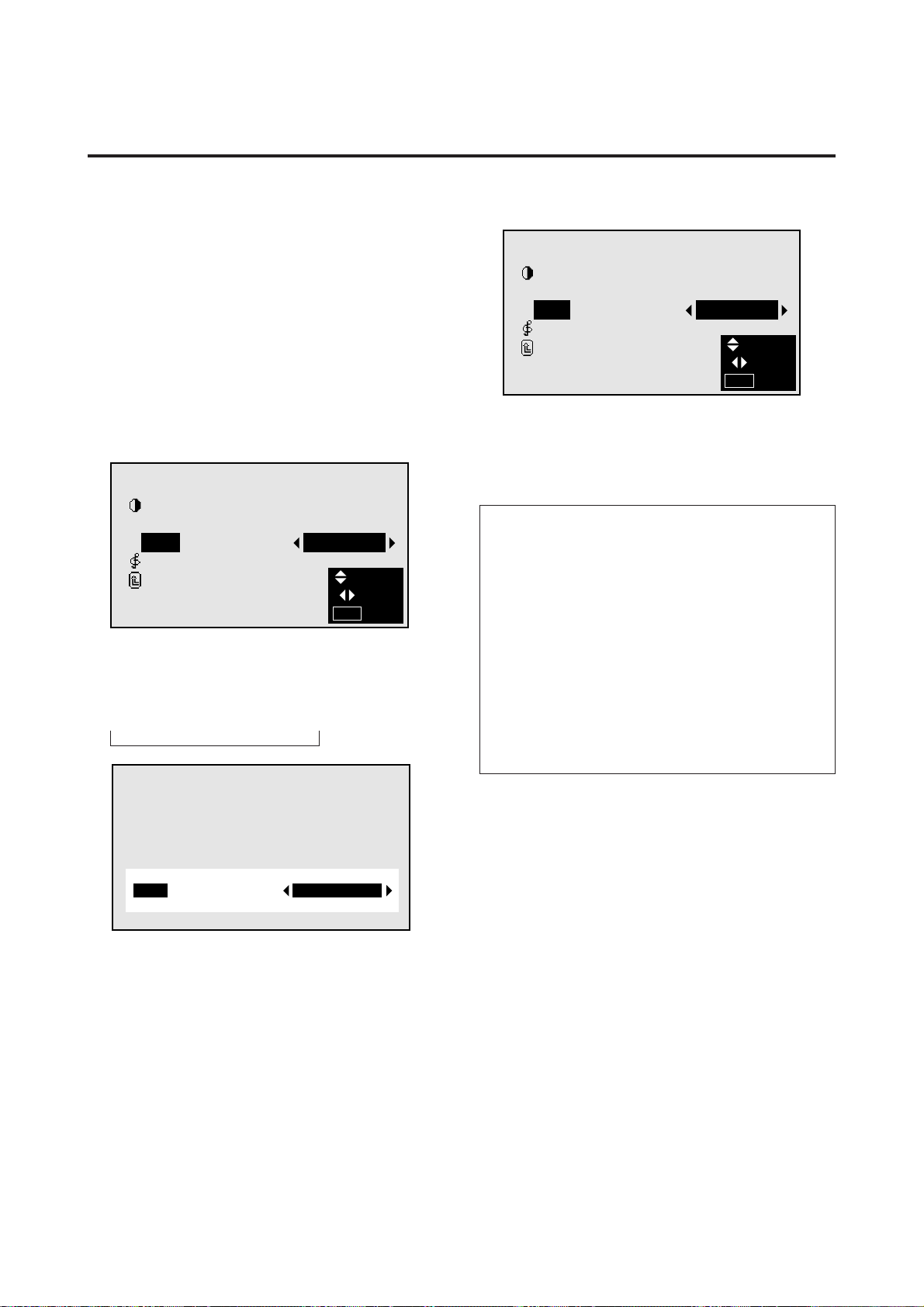
2. Use the ▲ and ▼ buttons to select “PICTURE MODE”.
4. Press the “OK” button.
The picture mode is set to “THEATER”.
5. Once the adjustment is completed ...
Press the “MENU” button.
All menus disappear.
Information
m Types of picture modes
MEMORY ......The last picture adjustments are stored
here.
THEATER......Set this mode when watching video in
a dark room.
This mode provides darker, finer pic-
tures, like the screen in movie theaters.
NORMAL.......Set this mode when watching video in
a bright room.
This mode provides dynamic pictures
with distinct differences between light
and dark sections.
RESET ..........Use this to reset the picture to the fac-
tory default settings.
PICTURE/SOUND
PICTURE
PICTURE MODE : MEMORY
N R : NR–1
SOUND
RETURN
SEL.
ADJ.
EXIT
MENU
PICTURE/SOUND
PICTURE
PICTURE MODE : THEATER
N R : NR-1
SOUND
RETURN
SEL.
ADJ.
EXIT
MENU
THEATERPICTURE MODE :
3. To set to “THEATER” ...
Use the § and © buttons to select “THEATER”.
The mode switches as follows when the § and © but-
tons are pressed:
→ MEMORY ↔ THEATER ↔ NORMAL ↔ RESET ←
* If neither the § or © button is pressed within 5 sec-
onds, the current selection is set and the previous
screen reappears.
21
Reducing noise in the picture
Use these settings if the picture is noise due to poor recep-
tion or when playing video tapes on which the picture qual-
ity is poor.
Example: Setting “NR-2”
Press the MENU button on the remote controller to dis-
play the MAIN MENU on the screen, then...
1. Use the ▲ and ▼ buttons to select “PICTURE/
SOUND”, then press the “OK” button.
The “PICTURE/SOUND” screen appears.
2. Use the ▲ and ▼ buttons to select “NR “.
4. Press the “OK” button.
The noise reduction mode is set to “NR-2”.
PICTURE/SOUND
PICTURE
PICTURE MODE : MEMORY
N R : NR–1
SOUND
RETURN
SEL.
ADJ.
EXIT
MENU
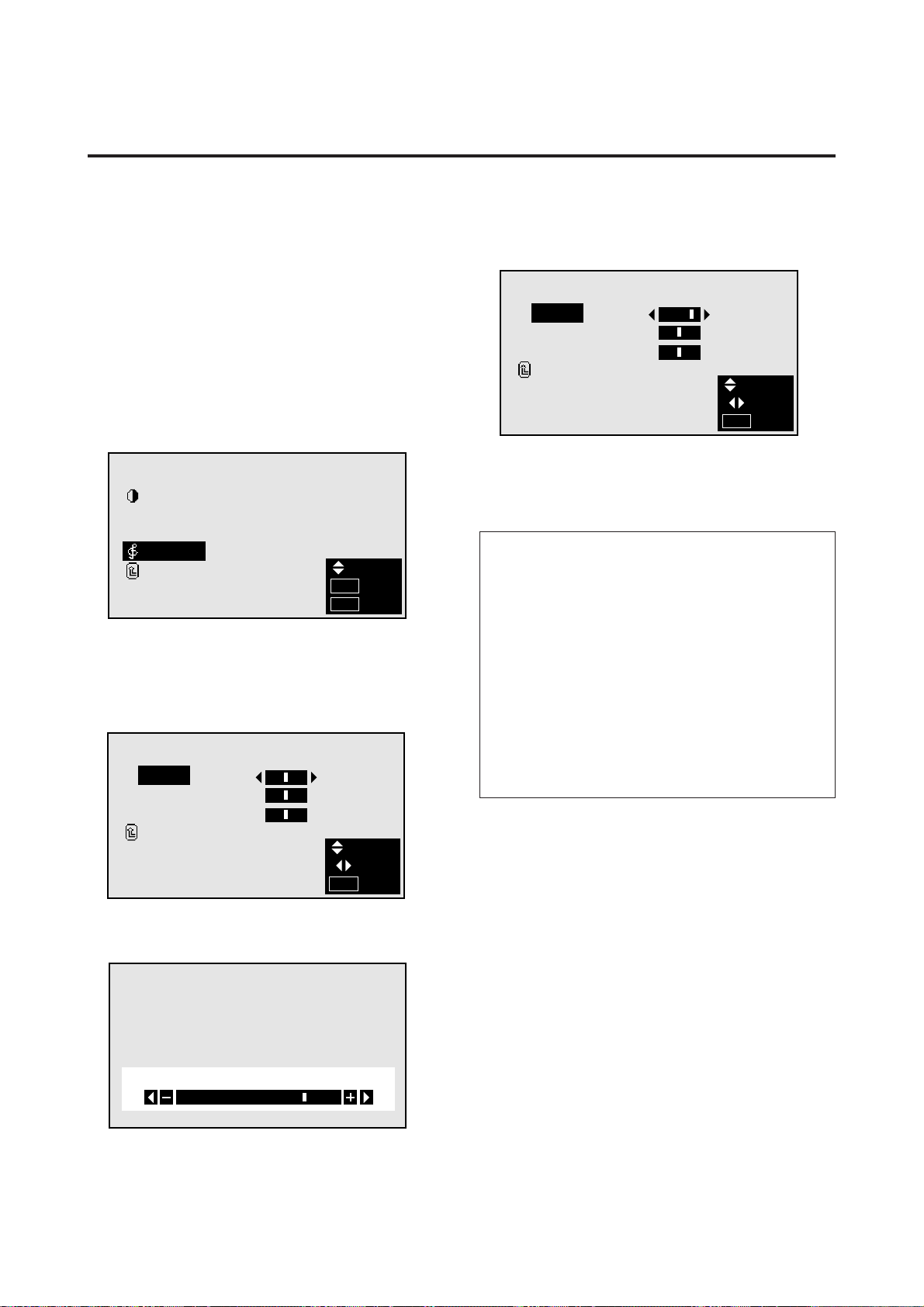
NR-2N R :
3. Use the § and © buttons to select “NR-2”.
The mode switches as follows when the § and © but-
tons are pressed:
→ OFF ↔ NR–1 ↔ NR–2 ↔ NR–3 ←
* If neither the § or © button is pressed within 5 sec-
onds, the current selection is set and the previous
screen reappears.
PICTURE/SOUND
PICTURE
PICTURE MODE : MEMORY
N R : NR–2
SOUND
RETURN
SEL.
ADJ.
EXIT
MENU
5. Once the setting is completed ...
Press the “MENU” button.
All menus disappear.
Information
m NR
* “NR” stands for Noise Reduction.
* This function reduces noise in the picture.
m Types of noise reduction
There are three types of noise reduction. Each has a dif-
ferent level of noise reduction.
NR-1
NR-2
NR-3
OFF..........Turns the noise reduction function off.
22
Adjusting the treble, bass and left/right balance
The treble, bass and left/right balance can be adjusted to
suit your tastes.
Example: Adjusting the bass
Press the MENU button on the remote controller to dis-
play the MAIN MENU on the screen, then...
1. Use the ▲ and ▼ buttons to select “PICTURE/
SOUND”, then press the “OK” button.
The “PICTURE/SOUND” screen appears.
2. Use the ▲ and ▼ buttons to select “SOUND”, then
press the “OK” button.
To continue adjusting the sound ...
Repeat from step 3.
5. Press the “OK” button.
The bass has now been adjusted.
SOUND
BASS
TREBLE
BALANCE
RETURN
:
:
:
SEL.
ADJ.
EXIT
MENU
6. Once the adjustment is completed ...
Press the “MENU” button.
All menus disappear.
Information
m Sound settings menu
BASS .................Changes the level of low frequency
sound.
TREBLE .............Changes the level of high frequency
sound.
BALANCE ..........Changes the balance of the left and
right channels.
m Restoring the factory default settings
Select “RESET” under the function menu. Note that this
also restores other settings to the factory defaults.
PICTURE/SOUND
PICTURE
PICTURE MODE : MEMORY
N R : NR–1
SOUND
RETURN
SEL.
OK
EXIT
OK
MENU
The “SOUND” screen appears.
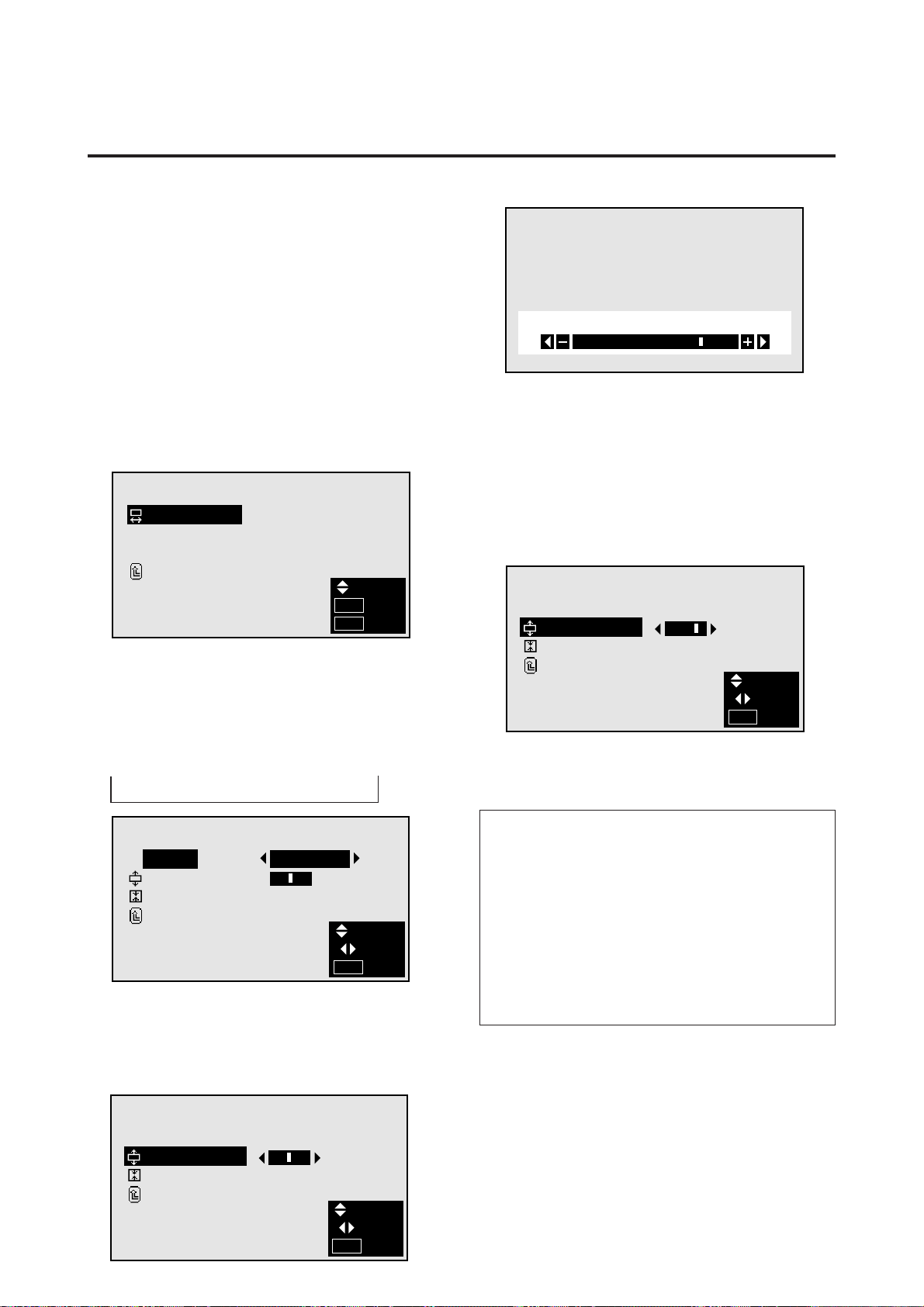
3. To adjust the bass ...
Use the ▲ and ▼ buttons to select “BASS”.
SOUND
BASS
TREBLE
BALANCE
RETURN
:
:
:
SEL.
ADJ.
EXIT
MENU
BASS
* If neither the § or © button is pressed within 5 sec-
onds, the current selection is set and the previous
screen reappears.
4. Adjust the bass using the § and © buttons.
23
Screen Settings Menu
Adjusting the position and size of the wide screen
The position and size of the wide screen can be fine-adjusted.
Example: Adjusting the vertical position in the zoom mode
Press the MENU button on the remote controller to dis-
play the MAIN MENU on the screen, then...
1. Use the ▲ and ▼ buttons to select “SCREEN”, then
press the “OK” button.
The “SCREEN” screen appears.
2. Use the ▲ and ▼ buttons to select “WIDE ADJ.”, then
press the “OK” button.
SCREEN
WIDE ADJ.
RGB ADJ.
OSM ADJ.
RETURN
SEL.
OK
EXIT
OK
MENU
The “WIDE ADJ.” screen appears.
3. To adjust the zoom mode ...
Use the § and © buttons to select “ZOOM”.
The mode switches as follows when the § and © but-
tons are pressed:
→ ZOOM ↔ NORMAL ↔ FULL ↔ STADIUM ←
WIDE ADJ.
MODE
V–POSITION
V–HEIGHT
RETURN
:
:
:
0
SEL.
ADJ.
EXIT
MENU
ZOOM
*The mode can also be switched by pressing the “WIDE/
AUTO WIDE” button on the remote controller.
4. To adjust the vertical position ...
Use the ▲ and ▼ buttons to select “V-POSITION”.
5. Adjust using the § and © buttons.
* If neither the § or © button is pressed within 5 sec-
WIDE ADJ.
MODE
V–POSITION
V–HEIGHT
RETURN
:
:
:
SEL.
ADJ.
EXIT
MENU
ZOOM
0
V–POSITION
onds, the current adjustment is set and the previous
screen reappears.
To continue making other wide screen adjustments ...
Repeat from step 4.
6. Press the “OK” button.
The wide screen’s vertical position has now been ad-
justed.
7. Once the adjustment is completed ...
WIDE ADJ.
MODE
V–POSITION
V–HEIGHT
RETURN
:
:
:
0
SEL.
ADJ.
EXIT
MENU
ZOOM
Press the “MENU” button.
All menus disappear.
Information
m Adjusting the wide screen
V-POSITION.......Adjusts the vertical position of the
picture.
V-HEIGHT ..........Adjusts the vertical size of the pic-
ture.
m Restoring the factory default settings
Select “RESET” under the function menu. Note that this
also restores other settings to the factory defaults.

24
Adjusting the Position, Fine Picture and Picture
Adj of a computer image
When a computer image is displayed, the position of the
image can be adjusted and flickering of the image can be
corrected.
Example: Adjusting the vertical position in the nor-
mal mode
Press the MENU button on the remote controller to dis-
play the MAIN MENU on the screen, then...
1. Use the ▲ and ▼ buttons to select “SCREEN”, then
press the “OK” button.
The “SCREEN” menu appears.
2. Use the ▲ and ▼ buttons to select “RGB ADJ.”, then
press the “OK” button.
4. To adjust the vertical position ...
Use the ▲ and ▼ buttons to select “V-POSITION”.
RGB ADJ.
MODE
V–POSITION
H–POSITION
FINE PICTURE
PICTURE ADJ.
RETURN
:
:
:
:
:
SEL.
ADJ.
EXIT
MENU
NORMAL
SCREEN
WIDE ADJ.
RGB ADJ.
OSM ADJ.
RETURN
SEL.
OK
EXIT
OK
MENU
The “RGB ADJ.” screen appears.
3. To adjust the normal mode ...
Use the § and © buttons to select “NORMAL”.
The mode switches as follows when the § and © but-
tons are pressed:
→ NORMAL ↔ FULL ←
RGB ADJ.
MODE
V–POSITION
H–POSITION
FINE PICTURE
PICTURE ADJ.
RETURN
:
:
:
:
:
SEL.
ADJ.
EXIT
MENU
NORMAL
* The mode can also be switched by pressing the
“WIDE/AUTO WIDE” button on the remote control-
ler.
V–POSITION
* If neither the § or © button is pressed within 5 sec-
onds, the current adjustment is set and the previous
screen reappears.
To continue making other computer image adjustments
...
Repeat from step 4.
6. Press the “OK” button.
The wide screen’s vertical position has now been ad-
justed.
RGB ADJ.
MODE
V–POSITION
H–POSITION
FINE PICTURE
PICTURE ADJ.
RETURN
:
:
:
:
:
SEL.
ADJ.
EXIT
MENU
NORMAL
7. Once all adjustments are completed ...
Press the “MENU” button.
All menus disappear.
5. Adjust using the § and © buttons.

25
Information
m Screen modes
FULL*.................The image is displayed over the
entire screen. Set this mode for wide
images. (16 : 9)
An 8002600 input signal is con-
verted to an 8002480 signal.
NORMAL* ..........Set this mode for the same size as
normal VIDEO pictures (4:3).
An 8002600 input signal is con-
verted to a 6402480 signal.
* For compatibility set Table for Signals Supported on
page 36.
Adjusting the position of the computer image
V-POSITION.......Adjusts the vertical position of the
image.
H-POSITION ......Adjusts the horizontal position of
the image.
FINE PICTURE ..Adjusts for flickering.
PICTURE ADJ....Adjusts for striped patterns on the
image.
m Restoring the factory default settings
Select “RESET” under the function menu. Note that this
also restores other settings to the factory defaults.
26
OSM ADJ.
V–POSITION
H–POSITION
RETURN
:
:
SEL.
ADJ.
EXIT
MENU
Adjusting the position of the menu display
Use these operations to adjust the position of the menus
that appear on screen.
Example: Adjusting the vertical position of the menu
display
Press the MENU button on the remote controller to dis-
play the MAIN MENU on the screen, then...
1. Use the ▲ and ▼ buttons to select “SCREEN”, then
press the “OK” button.
The “SCREEN” menu appears.
2. Use the ▲ and ▼ buttons to select “OSM ADJ.”, then
press the “OK” button.
SCREEN
WIDE ADJ.
RGB ADJ.
OSM ADJ.
RETURN
SEL.
OK
EXIT
OK
MENU
OSM ADJ.
V–POSITION
H–POSITION
RETURN
:
:
SEL.
ADJ.
EXIT
MENU
The “OSM ADJ.” screen appears.
3. To adjust the vertical position ...
Use the ▲ and ▼ buttons to select “V-POSITION”.
4. Adjust using the § and © buttons.
OSM ADJ.
V–POSITION
H–POSITION
RETURN
:
:
SEL.
ADJ.
EXIT
MENU
OSM ADJ.
V–POSITION
H–POSITION
RETURN
:
:
SEL.
ADJ.
EXIT
MENU
To continue making other menu position adjustments...
Repeat from step 3.
5. Once all adjustments are completed ...
Press the “MENU” button.
The menu disappears.
Information
m Adjusting the position of the menu display
V-POSITION.......Adjusts the vertical position of the
menu display.
H-POSITION ......Adjusts the horizontal position of
the menu display.
m Restoring the factory default settings
Select “RESET” under the function menu. Note that this
also restores other settings to the factory defaults.
27
Function Settings Menu
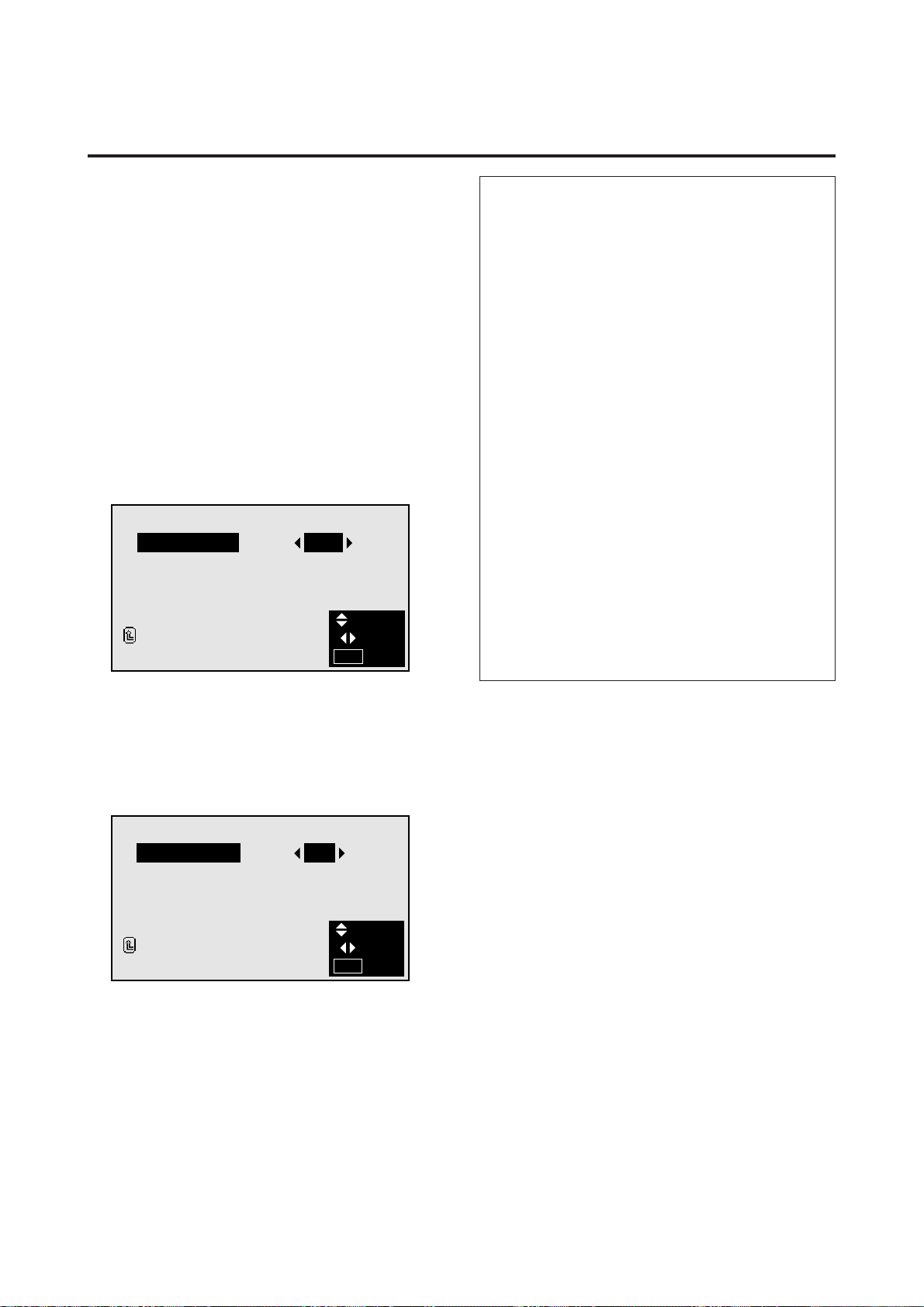
Setting the power management for computer images
This energy-saving (power management) function auto-
matically reduces the monitor’s power consumption if no
operation is performed for a certain amount of time.
Example: Turning the power management function on
Press the MENU button on the remote controller to dis-
play the MAIN MENU on the screen, then...
1. Use the ▲ and ▼ buttons to select “FUNCTION”, then
press the “OK” button.
The “FUNCTION” screen appears.
2. Use the ▲ and ▼ buttons to select “POWER MGT”.
Information
m Power management function
* The power management function automatically re-
duces the monitor’s power consumption if the
computer’s keyboard or mouse is not operated for a
certain amount of time. This function can be used
when using the monitor with a computer conforming
to the VESA DPMS format.
* If the computer’s power is not turned on or if the com-
puter and selector tuner are not properly connected,
the system is set to the off state.
* For instructions on using the computer’s power man-
agement function, refer to the computer’s operating
instructions.
m Power management settings
ON............In this mode the power management func-
tion is turned on.
OFF..........In this mode the power management func-
tion is turned off.
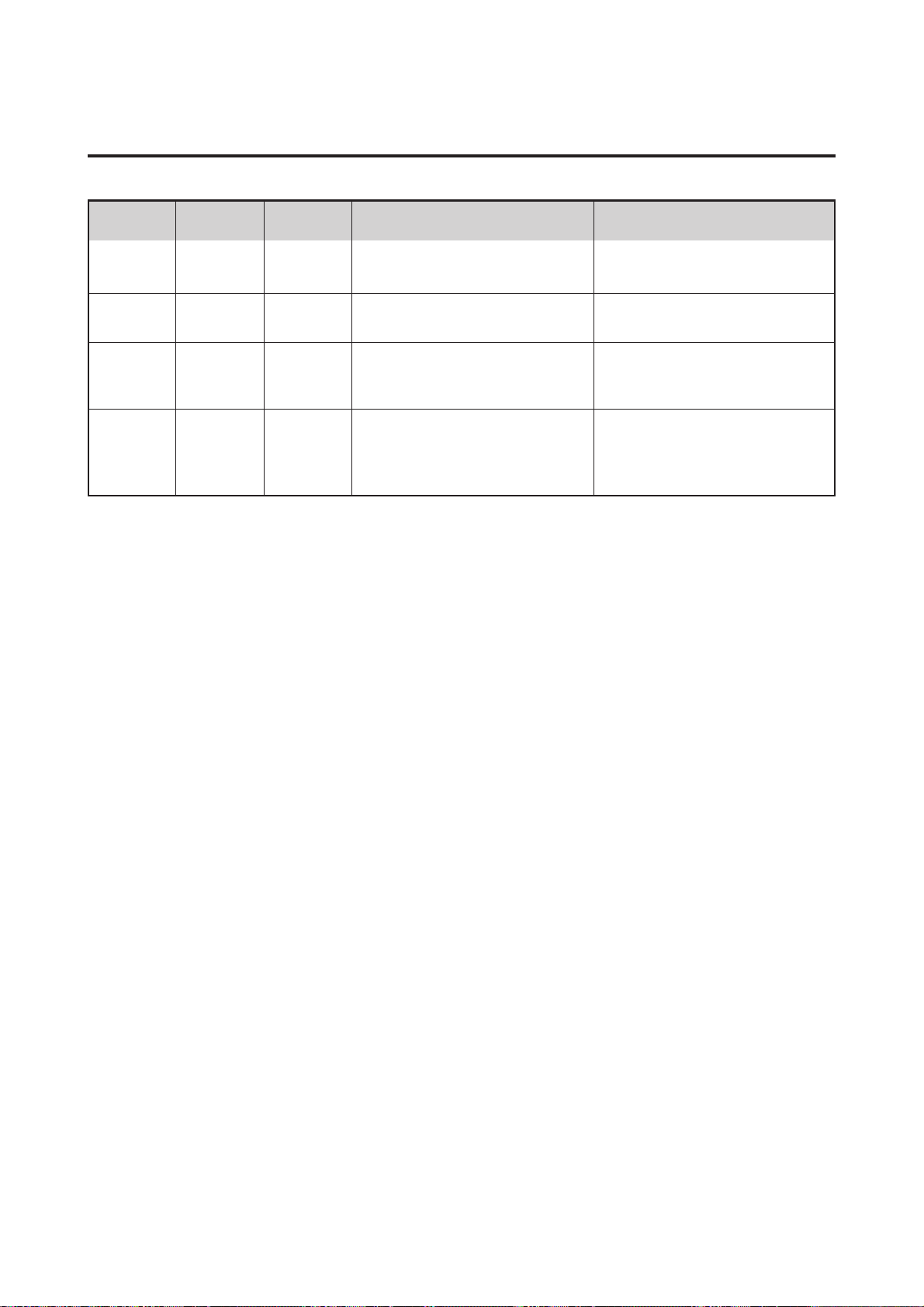
m Power management function and POWER/
STANDBY indicator
The POWER/STANDBY indicator indicates the status
of the power management function.
FUNCTION
POWER MGT
RGB SELECT
WIDE RGB
OSM
RESET
RETURN
:
:
:
:
OFF
RGB
AUTO
ON
SEL.
ADJ.
EXIT
MENU
3. To turn the power management function on ...
Use the § and © buttons to select “ON”.
The mode switches as follows each time the § or ©
button is pressed:
ON ↔ OFF
FUNCTION
POWER MGT
RGB SELECT
WIDE RGB
OSM
RESET
RETURN
:
:
:
:
ON
RGB
AUTO
ON
SEL.
ADJ.
EXIT
MENU
4. Once the setting is completed ...
Press the “MENU” button.
The power management function is turned on, and the
menu disappears.
28
POWER/STANDBY indicator
Power management
mode
Power management
operating status
POWER/STANDBY
indicator
Description
Turning the picture back on
Picture already on.
Operate the keyboard or mouse. The pic-
ture reappears immediately.
Operate the keyboard or mouse. The pic-
ture reappears, but more time is required
than from the standby mode.
Operate the keyboard or mouse. The pic-
ture reappears, but more time is required
than from the standby mode or suspend
mode.
Horizontal and vertical synchronizing sig-
nals are being present from the computer.
No horizontal synchronizing signals are
sent from the computer.
No vertical synchronizing signals are sent
from the computer.
No horizontal or vertical synchronizing
signals are sent from the computer.
On
Standby
Suspend
Green
Yellow
Red
Not activated.
Activated.
Activated.
Off Red Activated.
29
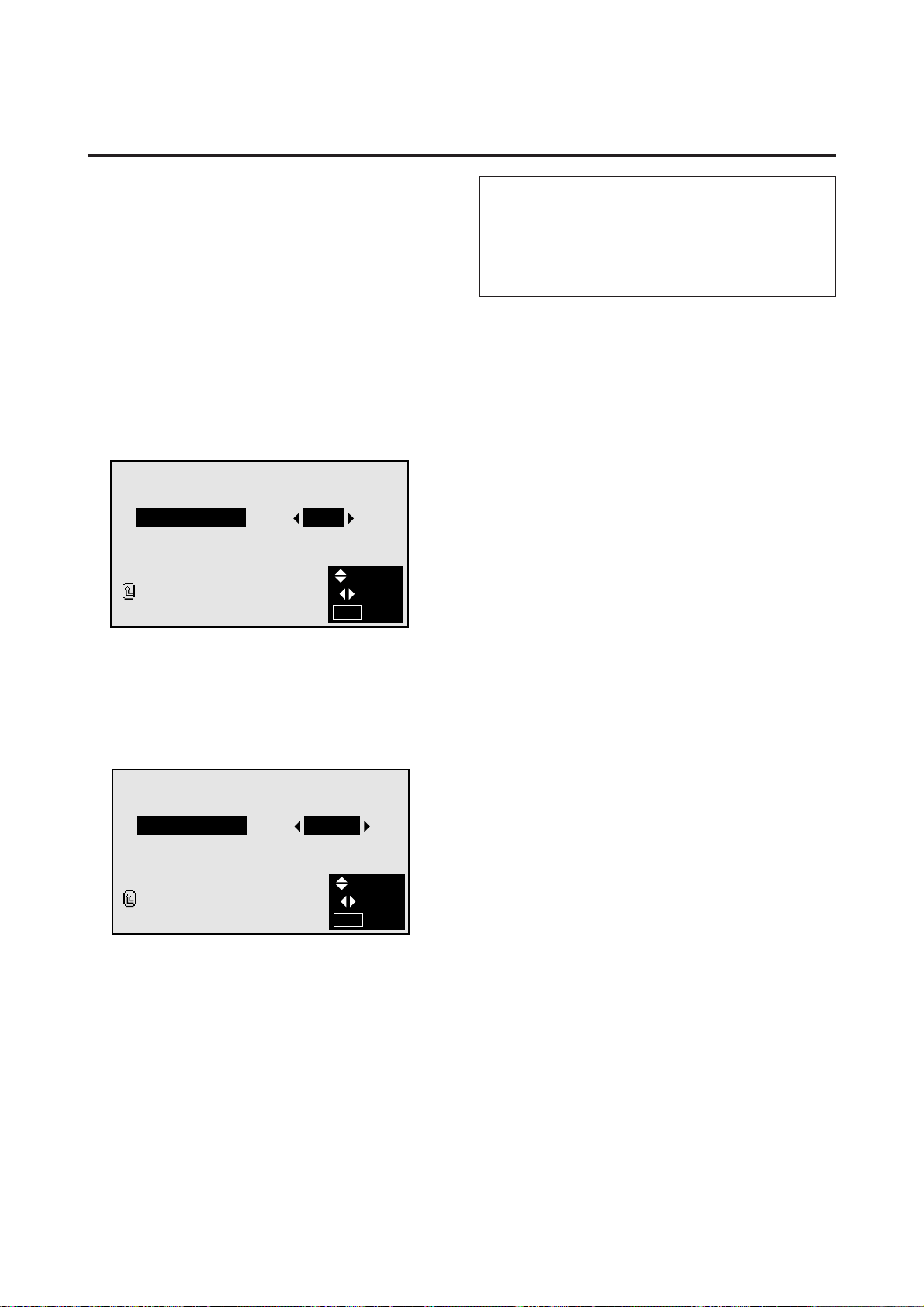
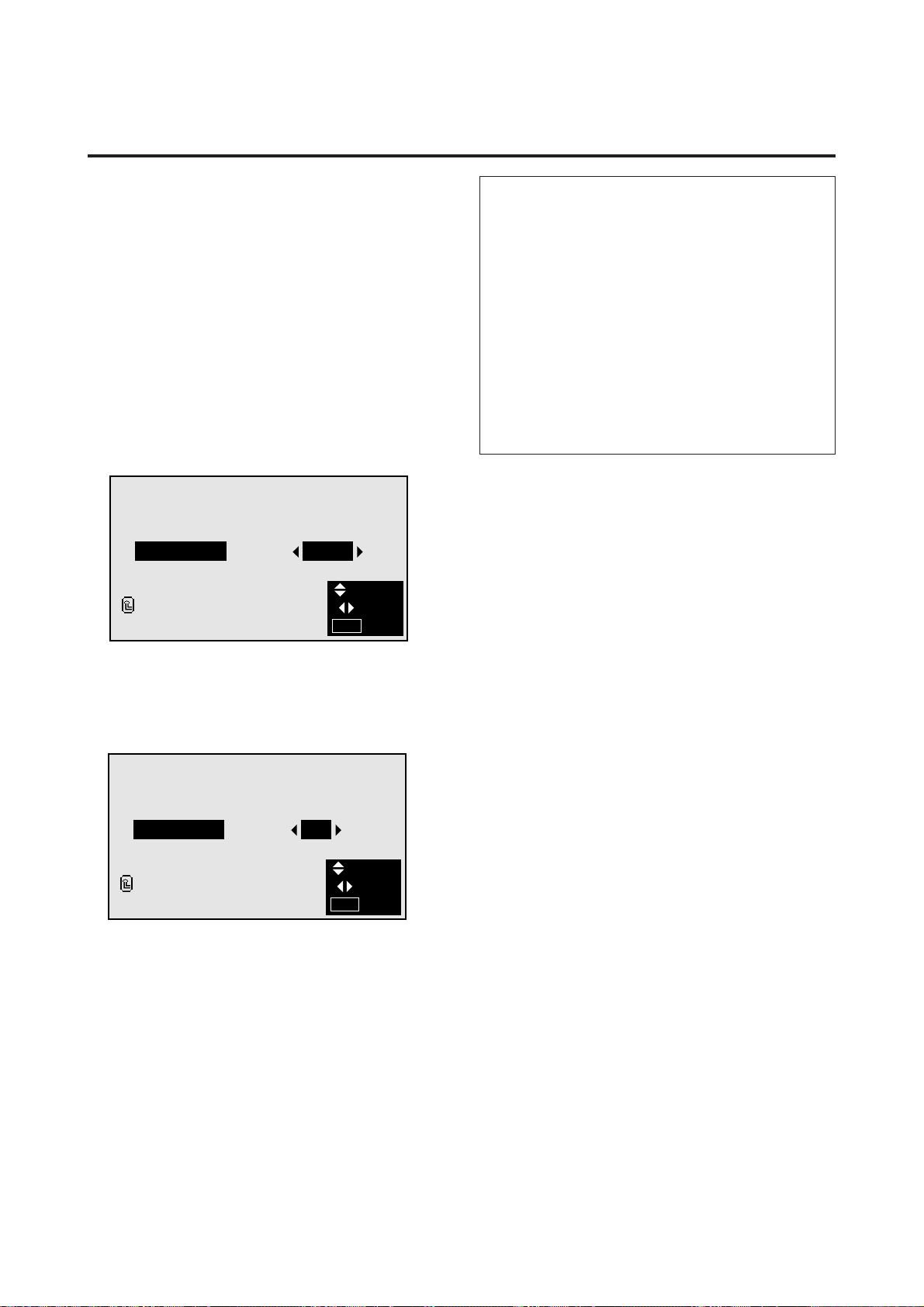
Watching moving computer images
Select whether to use the RGB mode or the moving pic-
ture (video) mode for computer images.
Example: Setting the RGB select mode to “VIDEO”
Press the MENU button on the remote controller to dis-
play the MAIN MENU on the screen, then...
1. Use the ▲ and ▼ buttons to select “FUNCTION”, then
press the “OK” button.
The “FUNCTION” screen appears.
2. Use the ▲ and ▼ buttons to select “RGB SELECT”.
FUNCTION
POWER MGT
RGB SELECT
WIDE RGB
OSM
RESET
RETURN
:
:
:
:
OFF
RGB
AUTO
ON
SEL.
ADJ.
EXIT
MENU
Information
m RGB SELECT modes
RGB .........Use this mode for normal computer images.
VIDEO ......Set this mode when watching moving com-
puter images.
3. To set the RGB select mode to “VIDEO” ...
Use the § and © buttons to select “VIDEO”.
The mode switches as follows each time the § or ©
button is pressed:
RGB ↔ VIDEO
FUNCTION
POWER MGT
RGB SELECT
WIDE RGB
OSM
RESET
RETURN
:
:
:
:
OFF
VIDEO
AUTO
ON
SEL.
ADJ.
EXIT
MENU
4. Once the setting is completed ...
Press the “MENU” button.
The RGB select mode is set to “VIDEO”, and the menu
disappears.
30
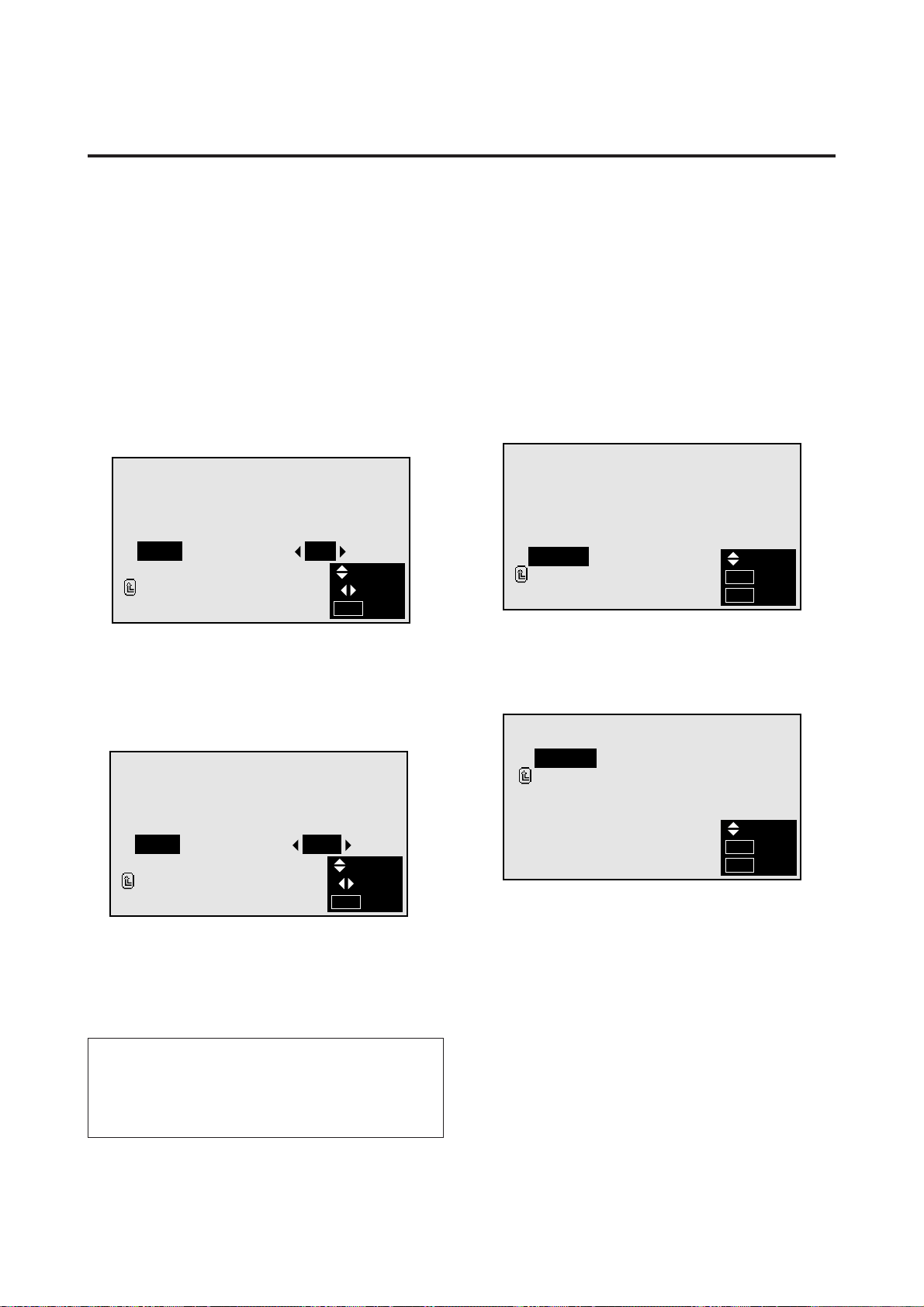
Setting the appropriate screen size for the com-
puter image (with wide VGA signals)
This function switches the screen to the appropriate size
when 852 dot2480 line signals are input.
Example: Setting the “WIDE RGB” mode to “ON”
Press the MENU button on the remote controller to dis-
play the MAIN MENU on the screen, then...
1. Use the up and down buttons to select “FUNCTION”,
then press the “OK” button.
The “FUNCTION” screen appears.
2. Use the ▲ and ▼ buttons to select “WIDE RGB”.
Information
m WIDE RGB settings
AUTO ............Use this setting when watching normal
computer images. Normally set this
mode.
ON.................When an 852 dot2480 line signal with
a vertical frequency of 60 Hz and a hori-
zontal frequency of 31.72 kHz is input,
the image may be compressed horizon-
tally. To prevent this, set WIDE RGB
to ON.
* “IBM PC/AT” and “VGA” are registered trademarks of IBM,
Inc. of the United States.
FUNCTION
POWER MGT
RGB SELECT
WIDE RGB
OSM
RESET
RETURN
:
:
:
:
OFF
RGB
AUTO
ON
SEL.
ADJ.
EXIT
MENU
3. To turn the “WIDE RGB” mode on ...
Use the § and © buttons to select “ON”.
The mode switches as follows each time the § or ©
button is pressed:
AUTO ↔ ON
FUNCTION
POWER MGT
RGB SELECT
WIDE RGB
OSM
RESET
RETURN
:
:
:
:
OFF
RGB
ON
ON
SEL.
ADJ.
EXIT
MENU
4. Once the setting is completed ...
Press the “MENU” button.
The WIDE RGB mode is turned on, and the menu dis-
appears.
31
Setting the on-screen display
When using the monitor for presentations, etc., the moni-
tor can be set so that the input source, screen mode, etc.,
do not appear.
Example: Turning the on-screen display mode off
Press the MENU button on the remote controller to dis-
play the MAIN MENU on the screen, then...
1. Use the ▲ and ▼ buttons to select “FUNCTION”, then
press the “OK” button.
The “FUNCTION” screen appears.
2. Use the ▲ and ▼ buttons to select “OSM”.
FUNCTION
POWER MGT
RGB SELECT
WIDE RGB
OSM
RESET
RETURN
:
:
:
:
OFF
RGB
AUTO
ON
SEL.
ADJ.
EXIT
MENU
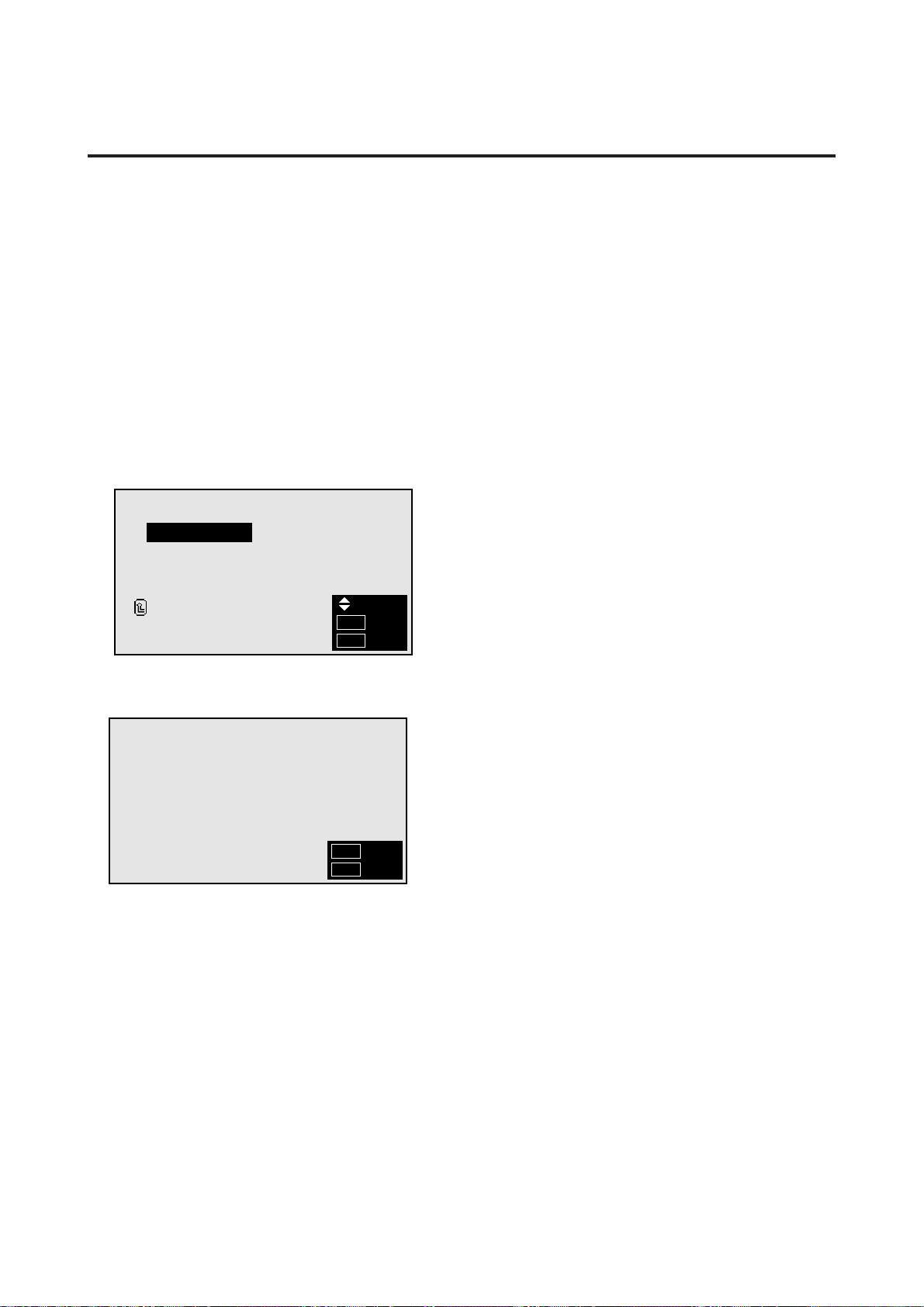
Resetting to the default values
Use these operations to restore all the picture adjustments,
audio settings, wide adjustments, RGB adjustments, OSM
adjustments, etc., to the factory default values.
Press the MENU button on the remote controller to dis-
play the MAIN MENU on the screen, then...
1. Use the ▲ and ▼ buttons to select “FUNCTION”, then
press the “OK” button.
The “FUNCTION” screen appears.
2. Use the ▲ and ▼ buttons to select “RESET”, then press
the “OK” button.
The “RESET” screen appears.
3. Use the ▲ and ▼ buttons to select “RESET”, then press
the “OK” button.
RESET
RESET
RETURN
SEL.
OK
EXIT
OK
MENU
All the settings are restored to the default values.
4. Once the setting is completed ...
Press the “MENU” button.
The menu disappears.
3. To turn the on-screen display mode off ...
Use the § and © buttons to select “OFF”.
The mode switches as follows each time the § or ©
button is pressed:
ON ↔ OFF
FUNCTION
POWER MGT
RGB SELECT
WIDE RGB
OSM
RESET
RETURN
:
:
:
:
OFF
RGB
AUTO
OFF
SEL.
ADJ.
EXIT
MENU
4. Once the setting is completed ...
Press the “MENU” button.
The on-screen display mode is turned off, and the menu
disappears.
Information
m OSM modes
ON.................The on-screen display appears.
OFF ...............The on-screen display does not appear.
FUNCTION
POWER MGT
RGB SELECT
WIDE RGB
OSM
RESET
RETURN
:
:
:
:
OFF
RGB
AUTO
ON
SEL.
OK
EXIT
OK
MENU
32
Information Menu
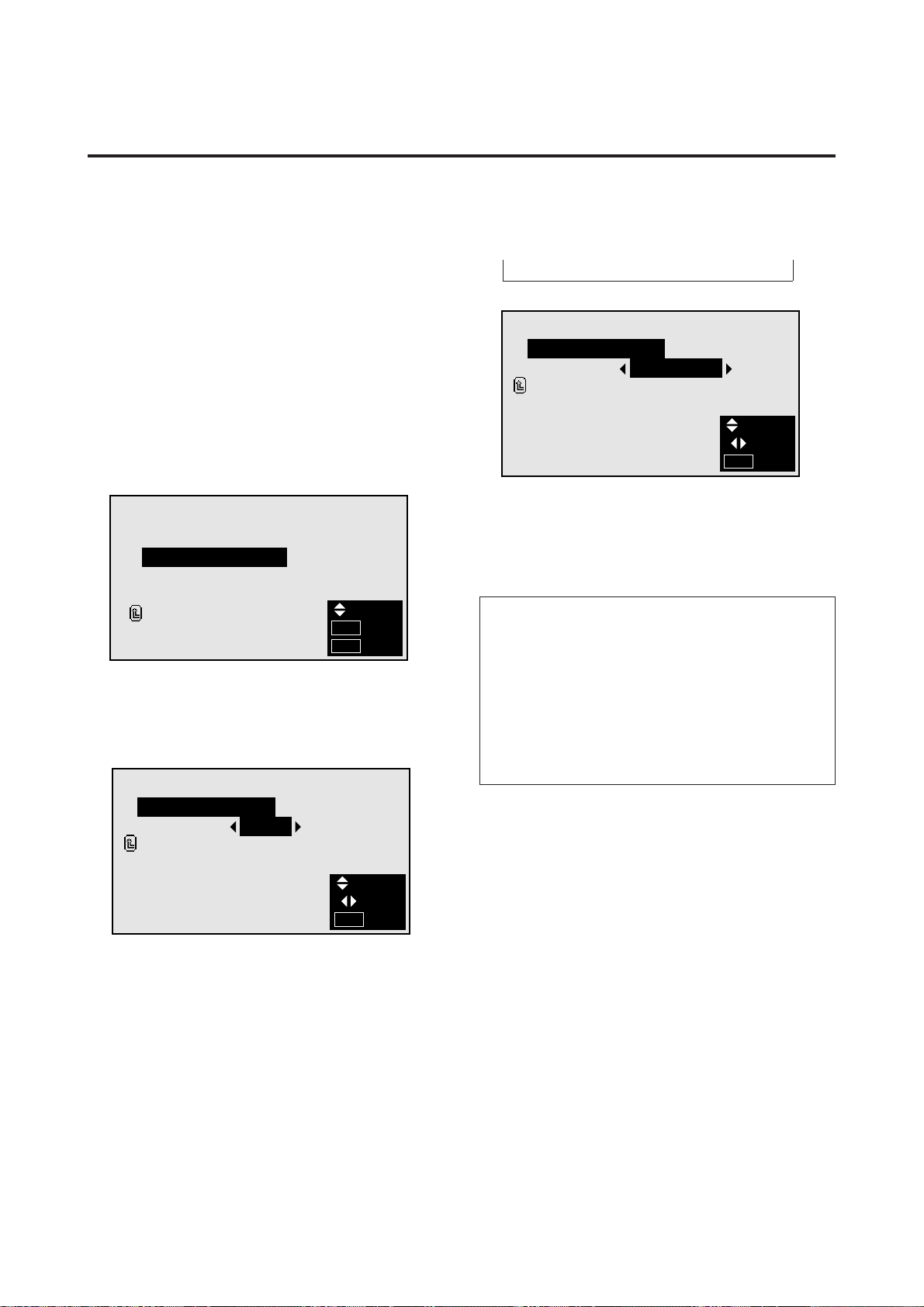
Checking the frequencies and polarities of input
signals
Use this function to check the frequencies and polarities of
the signals currently being inputted from a computer, etc.
Press the MENU button on the remote controller to dis-
play the MAIN MENU on the screen, then...
1. Use the ▲ and ▼ buttons to select “INFORMATION”,
then press the “OK” button.
The “INFORMATION” screen appears.
2. Use the ▲ and ▼ buttons to select “FREQUENCY”,
then press the “OK” button.
INFORMATION
FREQUENCY
COMMUNICATION
LANGUAGE
COLOR SYSTEM
RETURN
SEL.
OK
EXIT
OK
MENU
3. The frequency is displayed.
FREQUENCY
H. FREQ
V. FREQ
H. POL
V. POL
37.50KHz
75.0Hz
NEG.
NEG.
:
:
:
:
RET
EXIT
OK
MENU
* Press the “OK” button to return to the previous screen.
4. Once you have checked the frequency ...
Press the “MENU” button.
The menu disappears.
33
Setting the appropriate main menu display for the
system
Set the main menu display according to the connected
equipment (monitor only, selector).
Example: When a selector is connected (setting “SE-
LECTOR”)
Press the MENU button on the remote controller to dis-
play the MAIN MENU on the screen, then...
1. Use the ▲ and ▼ buttons to select “INFORMATION”,
then press the “OK” button.
The “INFORMATION” screen appears.
2. Use the ▲ and ▼ buttons to select “COMMUNICA-
TION”, then press the “OK” button.
4. To set to “ SELECTOR “ ...
Use the § and © buttons to select “SELECTOR”.
The mode switches as follows when the § and © but-
tons are pressed:
→ AUTO ↔ TUNER ↔ SELECTOR ↔ NO INPUT ←
INFORMATION
FREQUENCY
COMMUNICATION
LANGUAGE
COLOR SYSTEM
RETURN
SEL.
OK
EXIT
OK
MENU
The “COMMUNICATION” screen appears.
3. Use the ▲ and ▼ buttons to select “COMMUNICA-
TION”.
COMMUNICATION
COMMUNICATION
RETURN
AUTO:
SEL.
ADJ.
EXIT
MENU
COMMUNICATION
COMMUNICATION
RETURN
SELECTOR:
SEL.
ADJ.
EXIT
MENU
5. Once the setting is completed ...
Press the “MENU” button.
The communications setting is set to “SELECTOR”
and the menu disappears.
Information
m “COMMUNICATION” settings
AUTO .................Detects the connected equipment
automatically.
TUNER...............Not available on this model.
SELECTOR........Set this when a selector (optional
PX-SL1A) is connected.
NO INPUT..........Set this when using the monitor
alone.
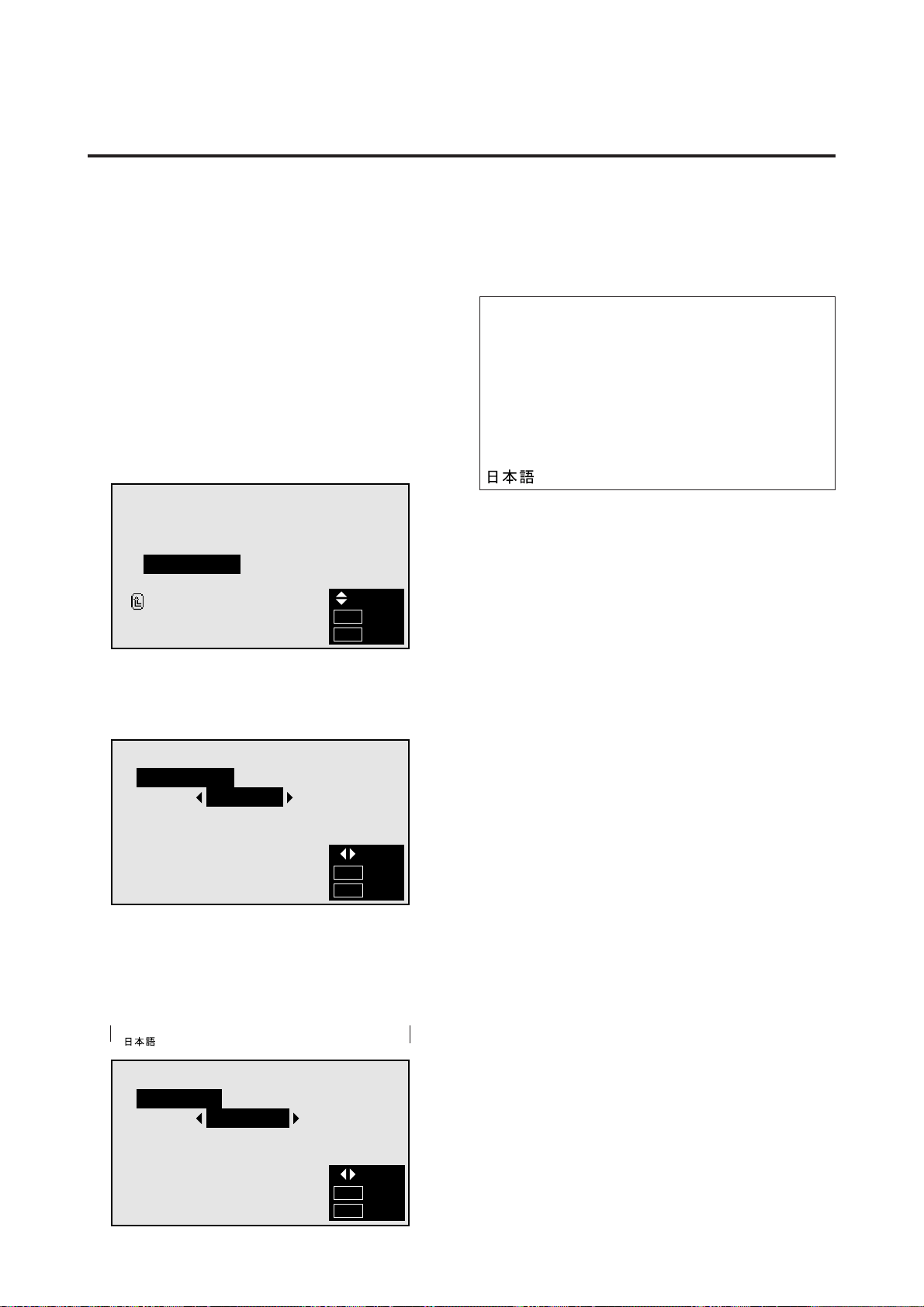
34
Setting the language for the menus
The menu display can be set to one of seven languages:
Japanese, English, German, French, Swedish, Italian or
Spanish.
Example: Setting the menu display to “DEUTSCH”
Press the MENU button on the remote controller to dis-
play the MAIN MENU on the screen, then...
1. Use the ▲ and ▼ buttons to select “INFORMATION”,
then press the “OK” button.
The “INFORMATION” screen appears.
2. Use the ▲ and ▼ buttons to select “LANGUAGE”,
then press the “OK” button.
INFORMATION
FREQUENCY
COMMUNICATION
LANGUAGE
COLOR SYSTEM
RETURN
SEL.
OK
EXIT
OK
MENU
The “LANGUAGE” screen appears.
3. Use the ▲ and ▼ buttons to select “LANGUAGE”.
LANGUAGE
LANGUAGE
ENGLISH:
ADJ.
OK
EXIT
OK
MENU
5. Press the “OK” button.
The display language is switched to Deutsch.
6. Once the setting is completed ...
Press the “MENU” button.
The menu disappears.
Information
m Language settings
ENGLISH............. English
DEUTSCH ........... German
FRANÇAIS .......... French
ESPAÑOL ............ Spanish
ITALIANO ........... Italian
SVENSKA ........... Swedish
.................. Japanese
SPRACHE
SPRACHE
DEUTSCH:
ADJ.
OK
EXIT
OK
MENU
4. To select “ DEUTSCH “ ...
Use the § and © buttons to select “ DEUTSCH “.
The mode switches as follows when the § and © but-
tons are pressed:
→ ENGLISH ↔ DEUTSCH ↔ FRANÇAIS ←
→ ↔ SVENSKA ↔ ITALIANO ↔ ESPAÑOL ←
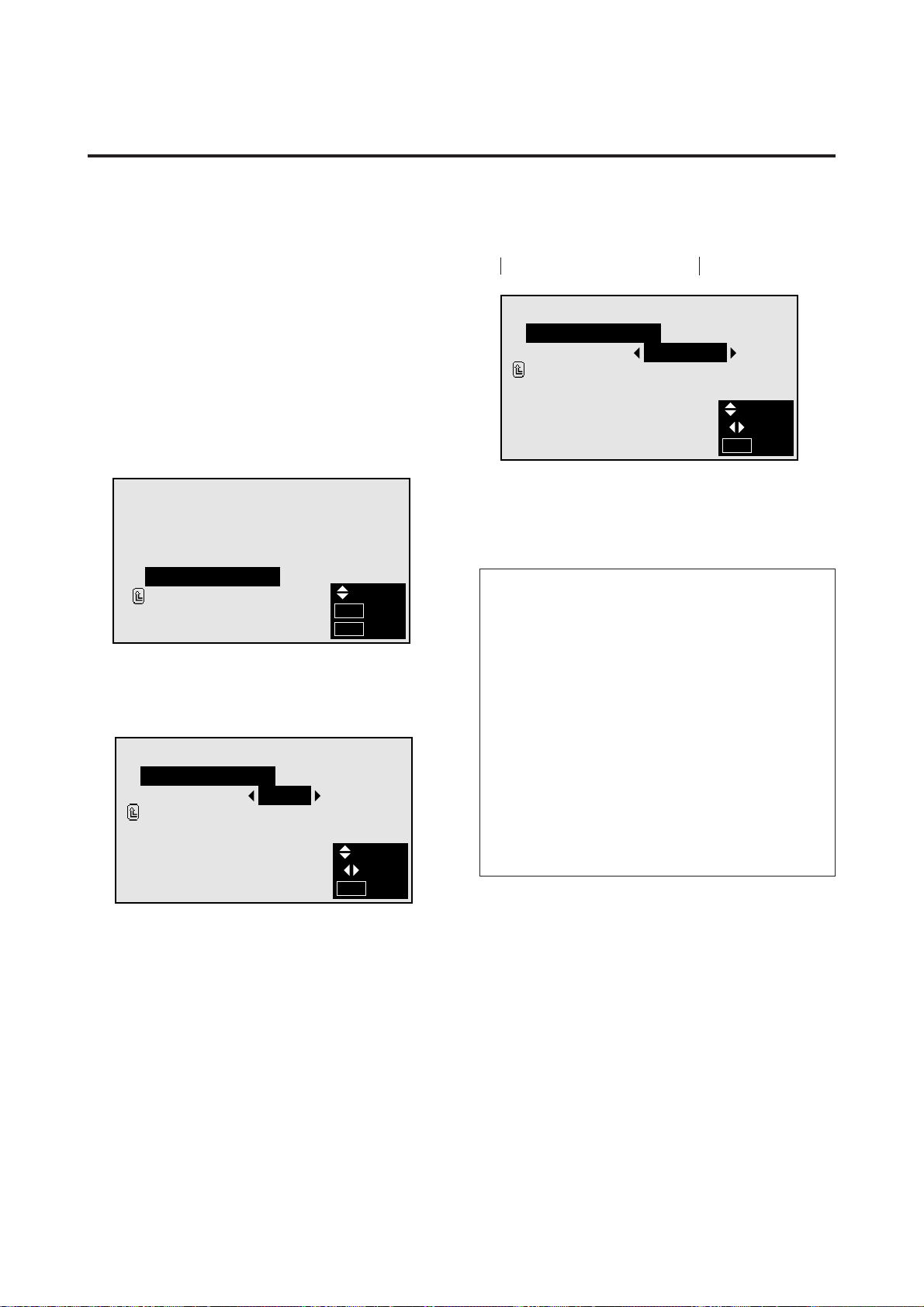
35
COLOR SYSTEM
COLOR SYSTEM
RETURN
3.58NTSC:
SEL.
ADJ.
EXIT
MENU
Setting the video signal format
Use these operations to set the video signal format (PAL,
SECAM, 4.43 NTSC or 3.58 NTSC).
Example: Setting the video signal format to “3.58
NTSC”
Press the MENU button on the remote controller to dis-
play the MAIN MENU on the screen, then...
1. Use the ▲ and ▼ buttons to select “INFORMATION”,
then press the “OK” button.
The “INFORMATION” screen appears.
2. Use the ▲ and ▼ buttons to select “COLOR SYSTEM”,
then press the “OK” button.
4. To select “3.58 NTSC” ...
Use the § and © buttons to select “3.58 NTSC”.
The mode switches as follows when the § and © but-
tons are pressed:
→ AUTO ↔ PAL ↔ SECAM ←
→ 3.58NTSC ↔ 4.43NTSC ←−−
5. Once the setting is completed ...
Press the “MENU” button.
The color system is set to “3.58 NTSC”, and the menu
disappears.
Information
m Video signal formats
Different countries use different formats for video sig-
nals. Set to the format used in your current country.
AUTO ............The video signals are automatically de-
tected and the format is set accordingly.
PAL................This is the standard format used mainly
in the United Kingdom and Germany.
SECAM .........This is the standard format used mainly
in France and Russia.
4.43 NTSC ....This format is used for videos in coun-
tries using PAL and SECAM video sig-
nals.
3.58 NTSC ....This is the standard format used mainly
in Japan and the United States.
INFORMATION
FREQUENCY
COMMUNICATION
LANGUAGE
COLOR SYSTEM
RETURN
SEL.
OK
EXIT
OK
MENU
The “COLOR SYSTEM” screen appears.
3. Use the ▲ and ▼ buttons to select “COLOR SYSTEM”.
COLOR SYSTEM
COLOR SYSTEM
RETURN
AUTO:
SEL.
ADJ.
EXIT
MENU
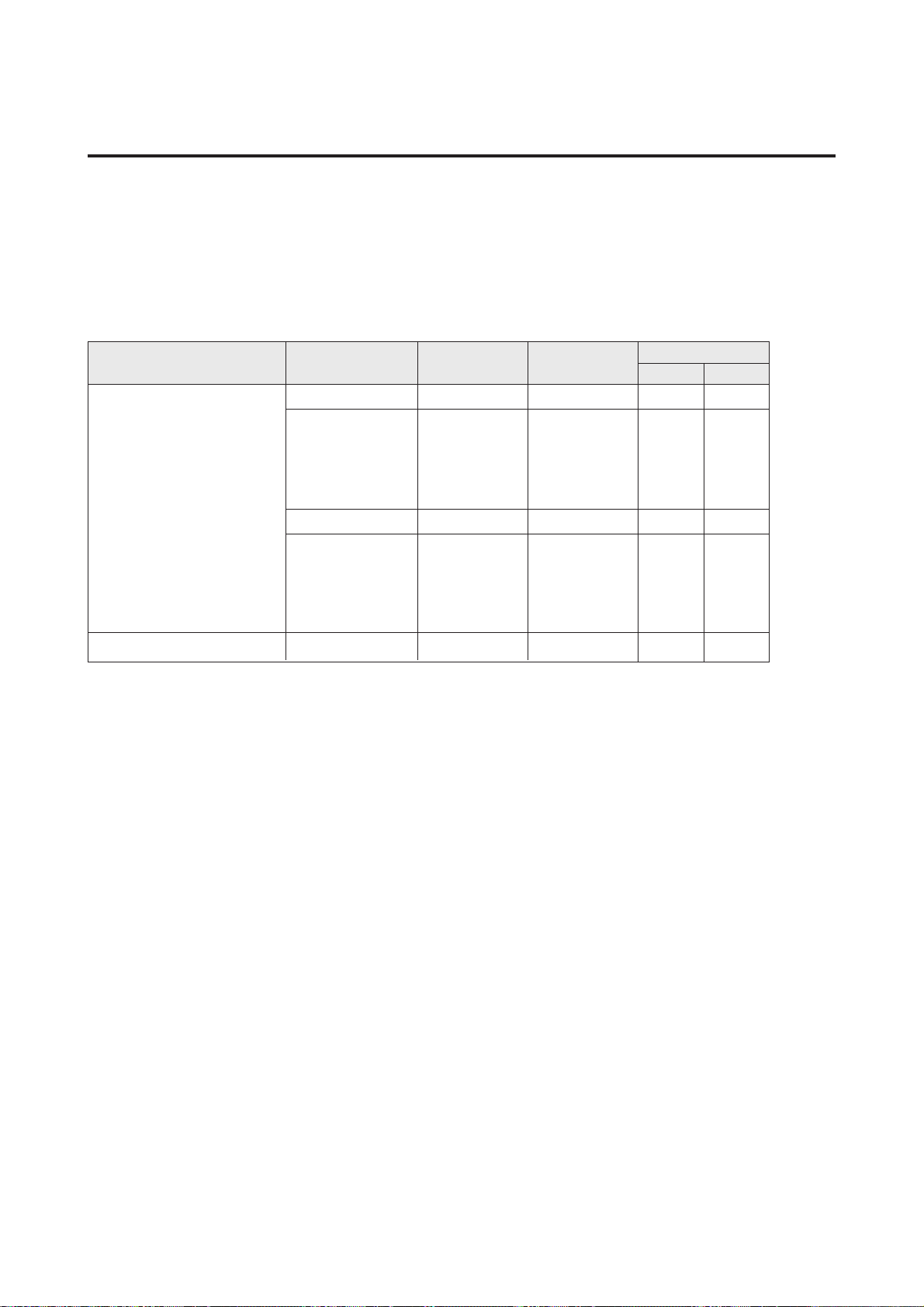
36
Table for Signals Supported
Supported resolution
• When 800 dot 2 600 line signals are input, they are converted to 640 dot 2 480 line or 800 dot 2 480 line
signals.
Computer input signals supported on this system
Screen mode
Horizontal
frequency (kHz)
31.5
31.5
37.9
37.5
39.4
31.0
35.2
37.9
48.1
46.9
35.0
Vertical
frequency (Hz)
70.1
59.9
72.8
75.0
75.0
60.0
56.3
60.3
72.2
75.0
66.7
Dots 2 lines
6402400
6402480
8482480*
2
8002600
*
1
*
1
6402480
Model
NORMAL FULL
*IBM PC/AT compatible
computers
*Apple Macintosh
*1 Signals with these frequencies are only displayed in the normal mode (4:3).
*2 Only when using a graphic accelerator board that is capable of displaying 8482480.
*3 This signal is converted to a 6402480 signal.
*4 This signal is converted to an 8002480 signal.
* “IBM PC/AT” and “VGA” are a registered trademark of International Business Machines, Inc. of the United
States.
* “Apple Macintosh” is a registered trademark of Apple Computer, Inc. of the United States.
YES
YES
YES
YES
YES
YES
YES*
3
YES*
3
YES*
3
YES*
3
YES
YES
YES
YES
YES
YES
NO
YES*
4
YES*
4
NO
NO
YES
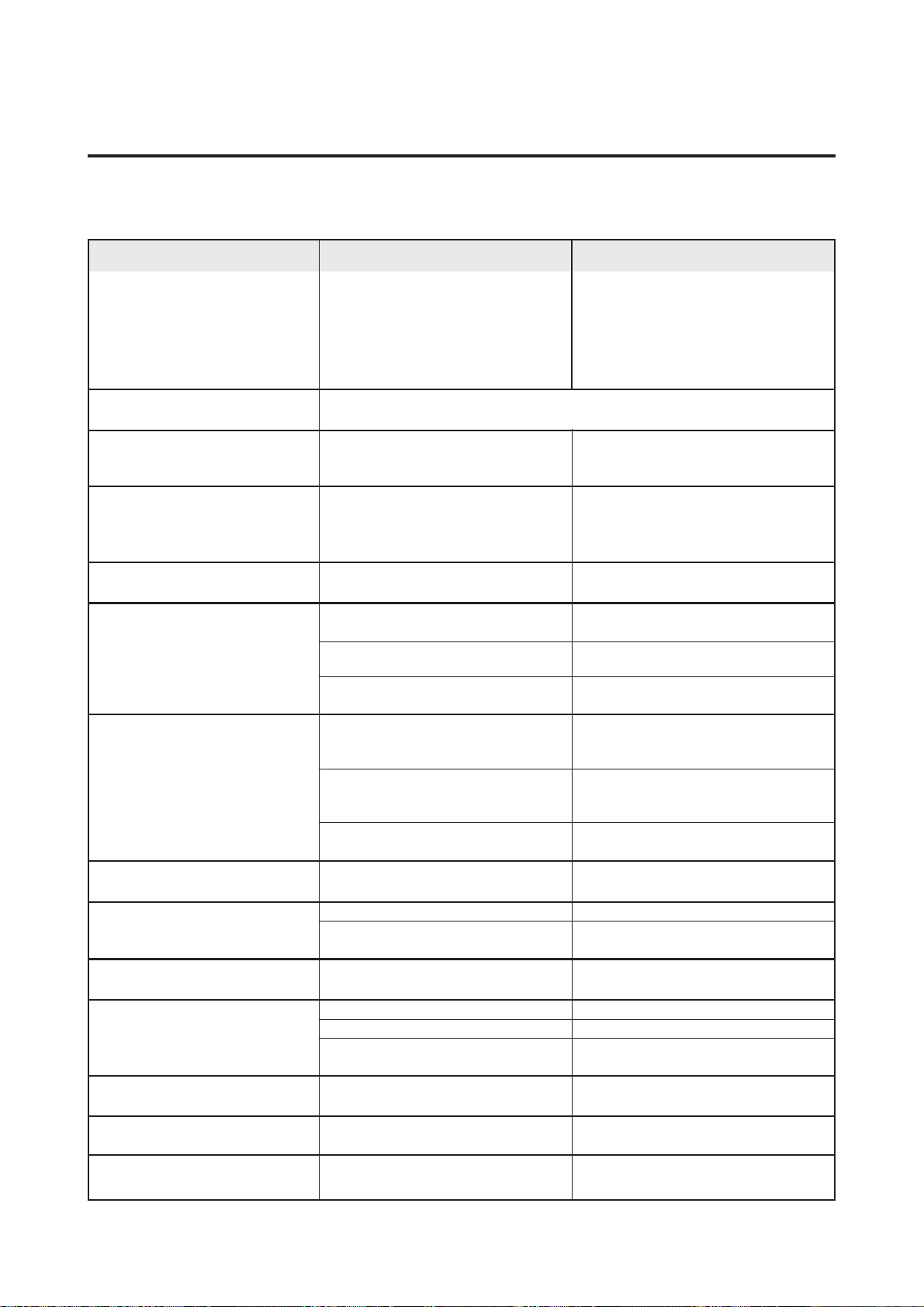
37
Sound can be heard from inside the dis-
play.
There are points shining on the screen
or points that do not light.
Afterimages appear.
Picture is disturbed.
Sound is noisy.
Remote control unit operates errone-
ously.
The remote controller does not work.
Monitor’s power does not turn on when
the remote controller’s power button is
pressed.
Monitor does not operate when the re-
mote controller’s buttons are pressed.
No sound or picture is produced.
Picture appears but no sound is pro-
duced.
Tint is poor or colors are weak.
Nothing appears on screen.
Part of picture is cut off or picture is
not centered.
Image is too large or too small.
Picture is unstable.
• Is there a wall or other object near the
display which is reflecting the sound?
• Has a still picture from a video or a com-
puter image been displayed for a long
period of time?
• Is a connected component set directly in
front or at the side of the display?
• Are the remote controller’s batteries
worn out?
• Is the monitor’s power cord plugged into
a power outlet?
• Are all the monitor’s indicators off?
• Are the remote controller’s batteries
worn out?
• Is the remote controller pointed at the
monitor, or is there an obstacle between
the remote controller and the monitor?
• Is direct sunlight or strong artificial light
shining on the monitor’s remote control
sensor?
• Are the remote controller’s batteries
worn out?
• Is the monitor’s power cord plugged into
a power outlet?
• Is the volume set at the minimum?
• Is the mute mode set?
• Are the speakers properly connected?
• Are the tint and colors properly adjusted?
• Is the computer’s power turned on?
• Is the computer connected?
• Is the power manager function in the
standby or off mode?
• Is the position adjustment appropriate?
• Is the screen size adjustment appropri-
ate?
• Is the computer’s resolution setting ap-
propriate?
Troubleshooting
If the picture quality is poor or there is some other problem, check the adjustments, operations, etc., before requesting
service.
• Move the display away from the wall or
other object reflecting the sound.
The display is equipped with built-in ven-
tilation fans for preventing overheating. In
some cases the sound of the fan turning
may be heard.
• Play a moving picture.
The afterimage will gradually disappear.
• Leave some space between the display and
the connected components.
• Replace all two batteries with new ones.
• Plug the monitor’s power cord into a power
outlet.
• Press the power button on the monitor to
turn on the power.
• Replace all two batteries with new ones.
• Point the remote controller at the monitor’s
remote control sensor when pressing but-
tons, or remove the obstacle.
• Eliminate the light by closing curtains, point-
ing the light in a different direction, etc.
• Replace all two batteries with new ones.
• Plug the monitor’s power cord into a power
outlet.
• Increase the volume.
• Press the remote controller’s mute button.
• Connect the speakers properly.
• Adjust the tint and color (under “PIC-
TURE”).
• Turn on the computer’s power.
• Connect the computer to the monitor.
• Operate the computer (move the mouse,
etc.).
• Adjust the “RGB ADJ.” properly.
• Press the “WIDE/AUTO WIDE” button on
the remote controller and adjust properly.
• Set to the proper resolution.
Symptom Checks Remedy
• Picture of plasma display consist of a collection of tiny fluorescent points. Some
of the picture elements may not light, and others may shine.
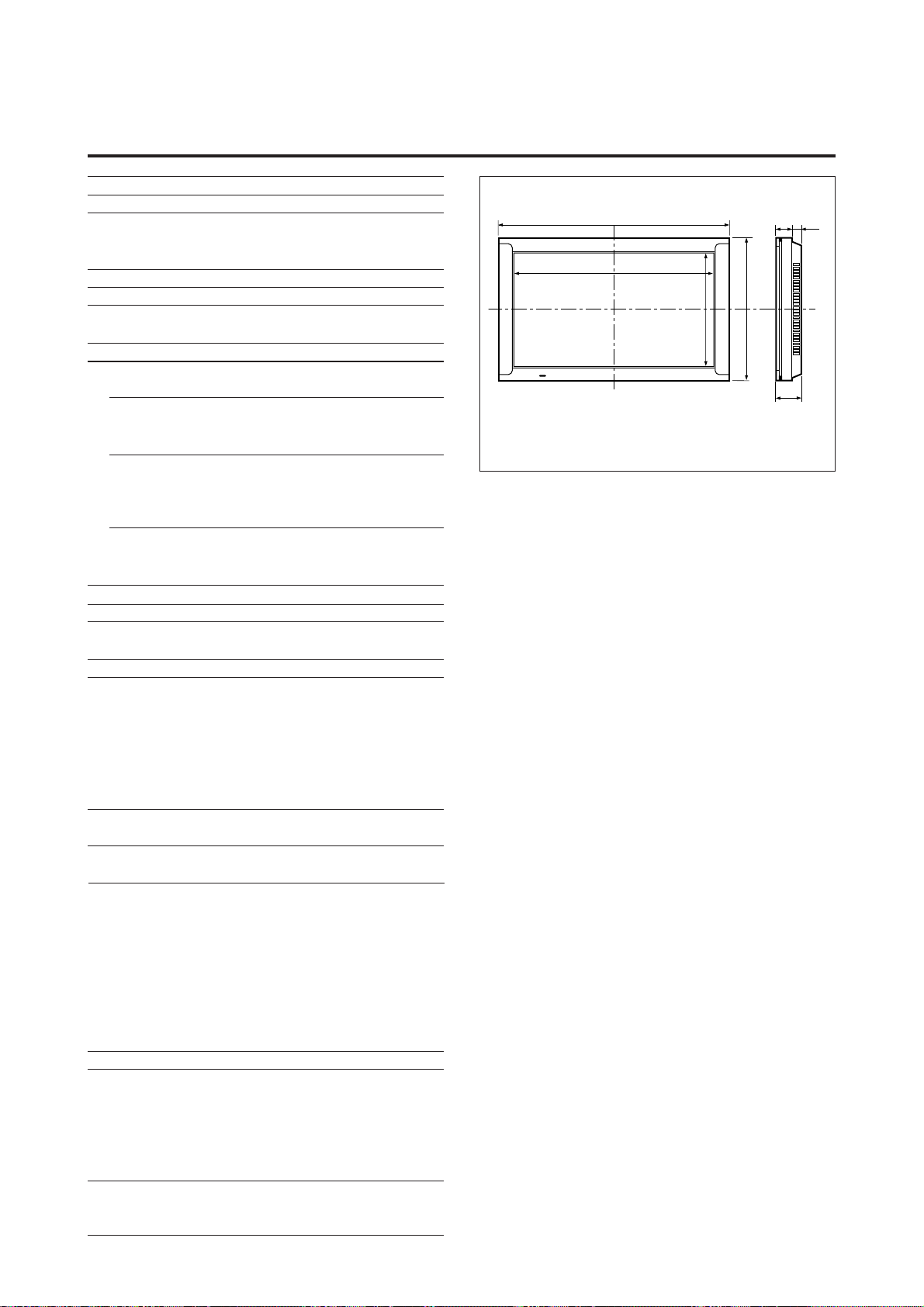
38
Specifications
The features and specifications may be subject to change without
notice.
Units are in inch
(mm)
Product Name
Product Code
Screen Size
Aspect Ratio
Resolution
Pixel Pitch
Color Reproduction
Signals
Input Signals
RGB Input terminals
Visual
Audio
Video Input terminals
Visual
Audio
DVD/HD Input terminals
Visual
Audio
Power Supply
Current Rating
Dimensions
Weight
Environmental Considerations
Operating Temperature
Humidity
Altitude
Storage Temperature
Humidity
Altitude
Front Panel User Controls
Remote Control Functions
OSM Functions
Other Features
Accessories
Regulations
PlasmaSync™ 4200W Plasma Monitor
PX-42M3 A
36.3"(H)220.4"(V) inches
921(H)2518.4(V) mm
diagonal 42"
16 : 9
853(H)2480(V) pixels
0.04"(H)20.04"(V) inches
1.08(H)21.08(V) mm
256 levels, analog RGB : 16,770,000 colors
RGB, NTSC, PAL, SECAM, HD, DVD
mini D-sub 15-pin21
Stereo RCA21
RCA21
(S-Video: 4-pin DIN21)
Stereo RCA21
RCA (Y/Y, CB/PB, CR/PR)
Stereo RCA21
AC120V 50/60Hz
5.5A (maximum)
41.3 (W)225.5 (H)23.6 (D) in
1048 (W)2648 (H)291 (D) mm
92.6 lbs / 42.0 kg
0°C to 40°C / 32°F to 104°F
20 to 80%
0 to 1900m / 0 to 6230ft
-10°C to 50°C / 14°F to 122°F
10 to 90%
0 to 3000m / 0 to 9840ft
Power on/off, Input source select,
Volume up/down
Input selct, OSM control, Visual control, Vol-
ume control, Wireless/ Wired remote control
Picture (Contrast / Brightness / Sharpness /
Color / Tint / Picture mode / Noise reduc-
tions), Sound (Bass / Treble / Balance),
Screen adjustment (Wide adjustment / RGB
adjustment / OSM adjustment), Function
(Power management / RGB select / Wide
RGB / OSM / Reset), Information (Fre-
quency / Communication / Language / Color
system)
Power management, plug and play
Remote controller with two AA batteries,
Plug cable, Adapter for Macintosh, RGB ca-
ble (Mini D-Sub 15-pin to Mini D-Sub 15-
pin connector), Power code, Safety metal fit-
ting, Screw for safety metal fitting, User's
Manual
UL Approved (UL 1950, CSA 950)
DOC Canada requirements
Meets FCC class A requirements
3.6"
(91)
2.1"
(54)
1.5"
(37)
41.3" (1048)
36.3" (921)
25.5" (648)
20.4" (518.4)

NEC Technologies, Inc.
1250 N. Arlington Heights Road, Suite 500
Itasca, Illinois 60143-1248
Printed in Japan
78409781