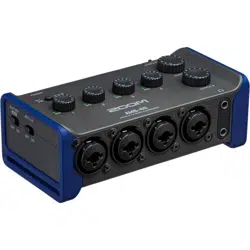
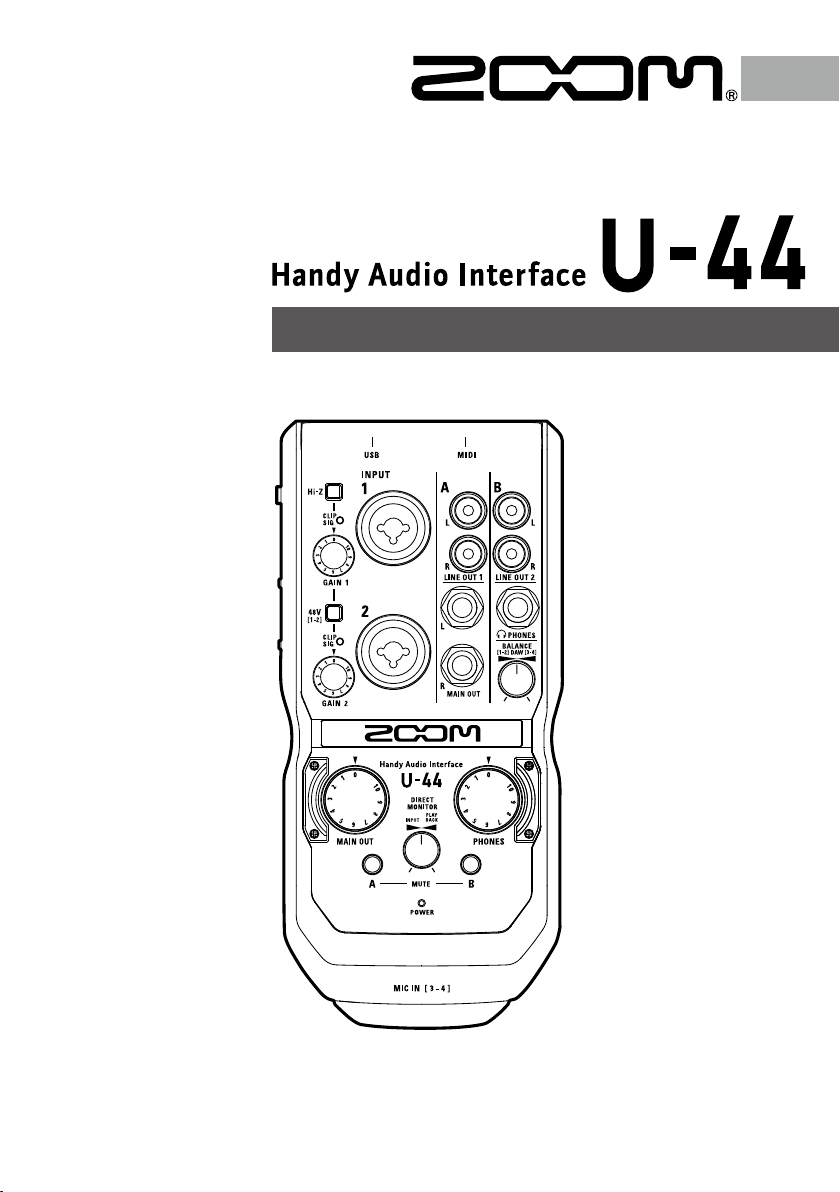
© 2016 ZOOM CORPORATION
Copying or reprinting this manual in part or in whole without permission is prohibited.
Operation Manual
2
Introduction
Thank you for choosing the ZOOM Handy Audio Interface. To achieve the best results—and to protect your
investment—please read this manual carefully and retain it for future reference. Use this product only as directed.
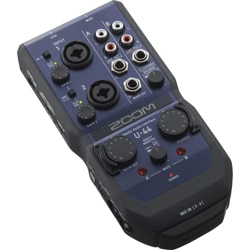
4-in/4-out Audio Interface
The ZOOM
is a high quality audio interface that supports audio recording and playback at resolutions up to 24-
bit/96 kHz.
Featuring an asynchronous transfer system,
is not impacted by computer jitter, and reproduces audio with
complete accuracy.
can be used with computers running Windows and Mac OS X, as well as with an iOS device.
High-Performance Mic Preamps
is equipped with high-performance mic preamps that are based on the same design as our H-Series Handy
Recorders.
+48V phantom power can be supplied to each input. INPUT 1 also supports Hi-Z input.
Additionally, H-Series mic capsules can be connected to the
.
Designed with the DJ in Mind
The
features 2 RCA outputs that make it easy to connect DJ mixers or other devices. The balance between
computer playback signals 1-2 and 3-4 can be adjusted for the LINE OUT 2 and PHONES outputs.
For example, you can balance the PHONES output between click and MAIN OUT signals during a live performance. Or
you can balance between the cue and MAIN OUT signals during a DJ performance.
Plus, the PHONES jack delivers enough volume output for use in clubs and other small venues.
Standalone AD/DA Mode
In standalone mode, the
can be used as a high-quality mic preamp and AD/DA converter.
can convert digital output from a DVD or Blu-ray player to analog output, and also convert analog input to
digital output.
Contents
Introduction
Introduction ………………………………………… 2
Safety and Usage Precautions ………………… 3
Part Names ………………………………………… 4
Connecting with a Computer/iOS device ……… 6
Recording …………………………………………… 11
Playback …………………………………………… 14
Connecting MIDI Devices ………………………… 18
Using Digital Audio Equipment ………………… 19
Connecting ZOOM H-Series Mic Capsules ……22
Using as a Standalone AD/DA Converter and Mic
Preamp (Standalone Mode) ………………………24
Troubleshooting …………………………………… 25
Specications ……………………………………… 26
Signal Flow Diagrams …………………………… 27
3
Safety and Usage Precautions
Safety Precautions
In this operation manual, symbols are used to highlight
warnings and cautions that you must read to prevent
accidents. The meanings of these symbols are as follows.
Warning
Something that could cause serious injury or
death
Caution
Something that could cause injury or damage
to the equipment
Other symbols used
An action that is mandatory
An action that is prohibited
Warning
Warning
Alterations
Do not open the case or modify the product.
Operation using an AC adapter
Never use any AC adapter other than a ZOOM AD-17.
Always hold the AC adapter itself when disconnecting it from an outlet.
Operation with external DC power supply
Use a 5V external DC power supply.
Carefully study the warning indications of the external DC power supply
before use.
Operation using batteries
Use 2 ordinary 1.5-volt AA batteries (alkaline or nickel-metal hydride).
Read battery warning labels carefully.
Always close the battery compartment cover when using the unit.
Warning
Caution
Product handling
Do not drop, bump or apply excessive force to the unit.
Be careful not to allow foreign objects or liquids to enter the unit.
Battery handling
Install the batteries with the correct +/− orientation.
Use a specied battery type.
Do not mix new and old batteries or different brands or types at the same
time.
When not using the unit for an extended period of time, remove the
batteries.
If a battery leak should occur, wipe the battery compartment and the
battery terminals carefully to remove all residue.
Operating environment
Do not use in extremely high or low temperatures.
Do not use near heaters, stoves and other heat sources.
Do not use in very high humidity or where it could be splashed by water.
Do not use in places with frequent vibrations.
Do not use in places with much dust or sand.
Mic handling
Before connecting a mic, always turn the power off. Do not use excessive
force when connecting it.
Attach the protective cap when no mic is connected for extended periods.
Connection cables and input/output jacks
Always turn the power OFF for all equipment before connecting any cables.
Always disconnect all connection cables and the AC adapter before moving
the unit.
Volume
Do not use at a loud volume for a long time.
Usage Precautions
Interference with other electrical equipment
For safety considerations,
is designed to minimize the emission
of electromagnetic waves and suppress interference from external
electromagnetic waves. However, interference could still occur if is
placed next to equipment that is very susceptible to interference or that
emits powerful electromagnetic waves. If this occurs, place the
and
the other device farther apart.
With any type of digital control device—including the —
electromagnetic interference can cause malfunction, corrupt or destroy
data, or cause other unexpected issues. Always exercise caution.
Cleaning
Use a soft cloth to clean the exterior of the unit if it becomes dirty. If
necessary, use a damp cloth that has been wrung out well to wipe it.
Never use abrasive cleansers, wax or solvents such as alcohol, benzene
or paint thinner.
Temperature considerations
The
may become warm after long periods of continuous use. This is
normal, as long as the unit does not become too hot to touch.
Breakdown and malfunction
If the
malfunctions or operates abnormally, disconnect it
immediately. Contact the store where you purchased the unit, or
contact ZOOM customer service with the following information: product
model, serial number, and the specic symptoms of the breakdown or
malfunction—along with your name, address, and telephone number.
Copyrights
• Windows
®
is a registered trademark of Microsoft
®
Corporation.
• Mac
®
, iPad
®
and Lightning™ are trademarks or registered trademarks
of Apple Inc.
• MIDI is a registered trademark of Association of Musical Electronics
Industry (AMEI).
• iOS is a trademark or registered trademark of Cisco Systems, Inc.
(USA).
• Other product names, registered trademarks and company names in
this document are the property of their respective companies.
Note: All trademarks and registered trademarks in this document are for
identication purposes only and are not intended to infringe on the
copyrights of their respective owners.
Recording for any purpose other than personal use from copyrighted
sources, including CDs, records, tapes, live performances, video works
and broadcasts, without permission of the copyright holder is prohibited
by law.
ZOOM Corporation will not assume any responsibility related to
infringements of copyrights.
Safety and Usage Precautions
• Reorient or relocate the receiving antenna.
• Increase the separation between the equipment and receiver.
•
Connect the equipment to an outlet on a circuit different from that to
which the receiver is connected.
• Consult the dealer or an experienced radio/TV technician for help.
FCC regulation warning (for U.S.A.)
This equipment has been tested and found to comply with the limits
for a Class B digital device, pursuant to Part 15 of the FCC Rules. These
limits are designed to provide reasonable protection against harmful
interference in a residential installation. This equipment generates, uses,
and can radiate radio frequency energy and, if not installed and used in
accordance with the instructions, may cause harmful interference to radio
communications. However, there is no guarantee that interference will
not occur in a particular installation. If this equipment does cause harmful
interference to radio or television reception, which can be determined by
turning the equipment off and on, the user is encouraged to try to correct
the interference by one or more of the following measures:
Declaration of Conformity
For EU Countries
4
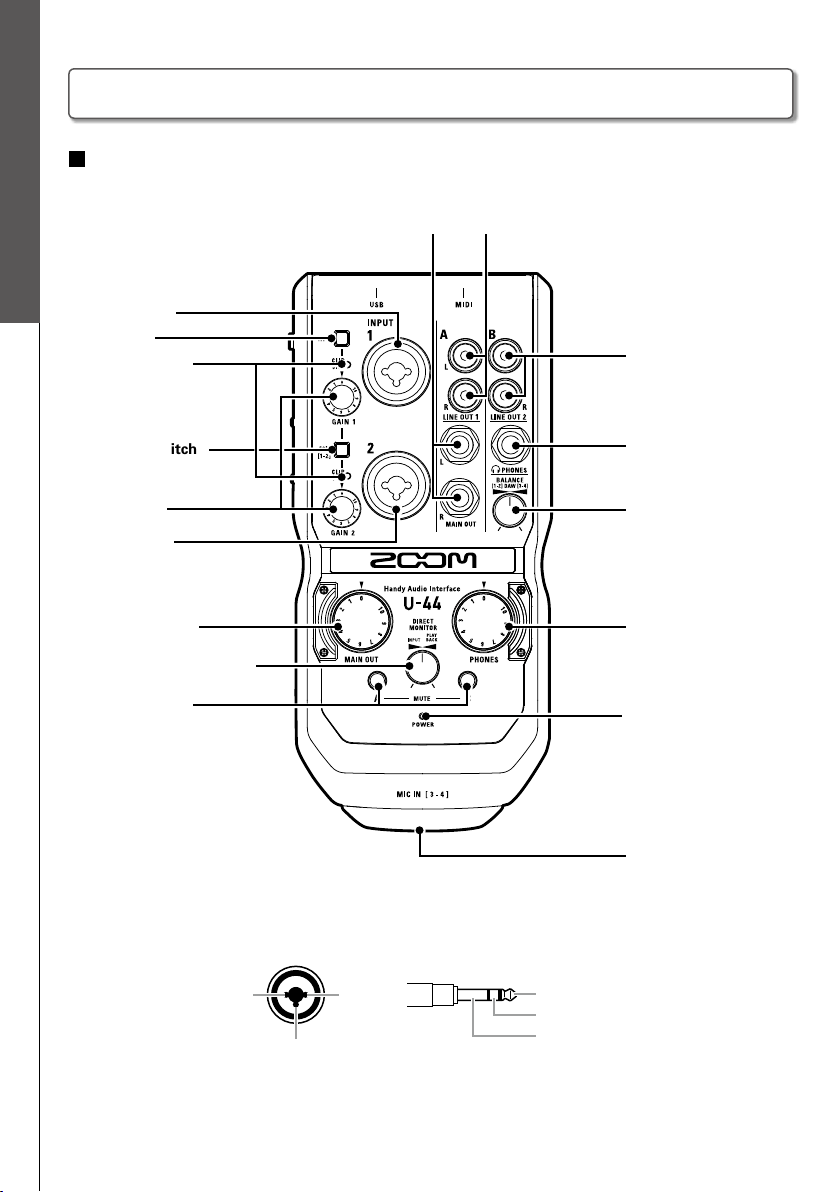
Part Names
INPUT 2 jack
Level indicators
GAIN knobs
Power indicator
MIC IN connector
PHONES jack
BALANCE knob
PHONES knob
PHANTOM switch
MAIN OUT knob
MAIN OUT jacks
LINE OUT 1 jacks
LINE OUT 2 jacks
DIRECT MONITOR knob
MUTE switches
Hi-Z switch
INPUT 1 jack
To p
XLR TRS
1: GND
2: HOT
3: COLD
TIP: HOT
RING: COLD
SLEEVE: GND
1
2
3
Part Names
5
Part Names
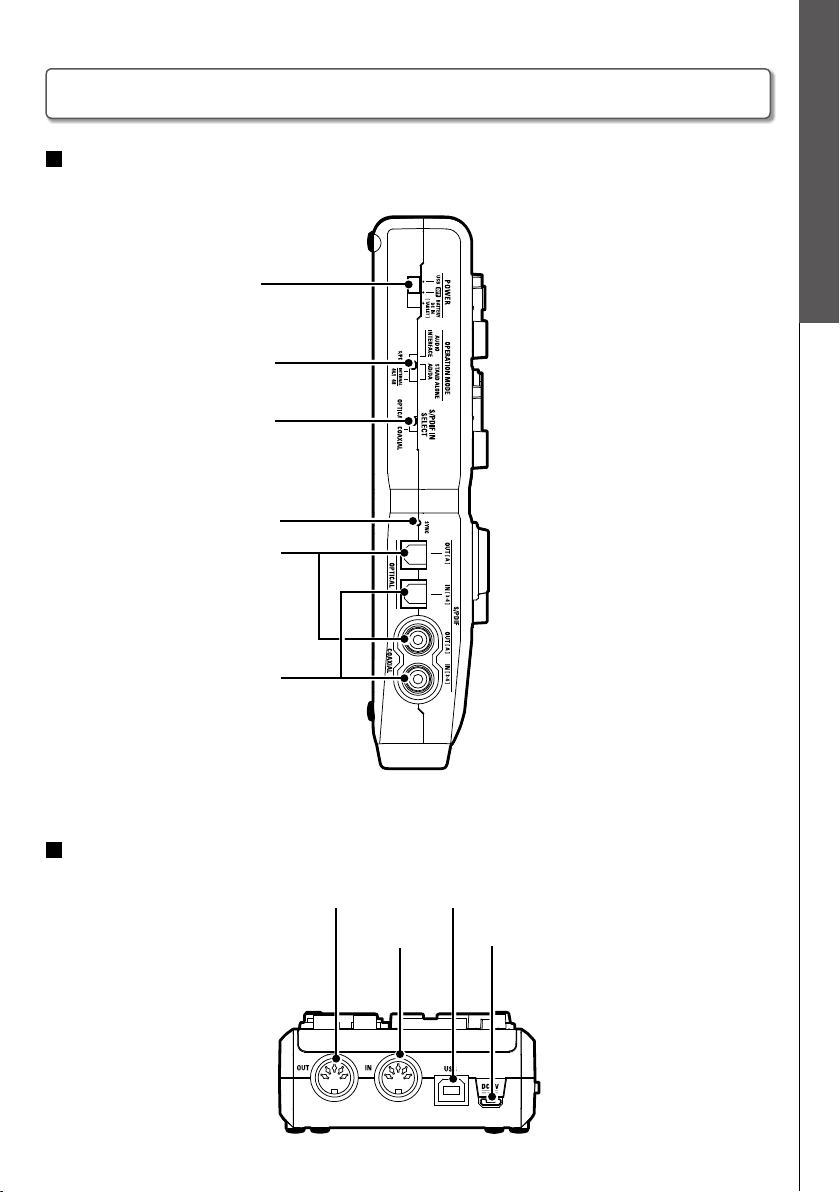
POWER switch
OPERATION MODE switch
S/PDIF IN SELECT switch
SYNC indicator
DC 5V connectorMIDI IN jack
USB 2.0 portMIDI OUT jack
S/PDIF OUT jacks
S/PDIF IN jacks
Left side
Back
Part Names (continued)
6
Connecting with a Computer/iOS device
Do not connect the until installation completes.
Windows
1. Download the ZOOM U-44 Driver from http://www.zoom.co.jp/downloads/ to
your computer.
NOTE
• You can download the latest ZOOM U-44 driver from the above website.
• Download the driver for the operating system that you are using.
2. Launch the installer and install the driver.
Follow the instructions that appear on screen to install the ZOOM U-44 driver.
NOTE
• See the Installation Guide included in the driver package for detailed installation procedures.
Mac
Driver installation is not necessary when using a Mac.
Installing the Driver
Installing the Driver
7
Connecting with a Computer/iOS device
Using bus power
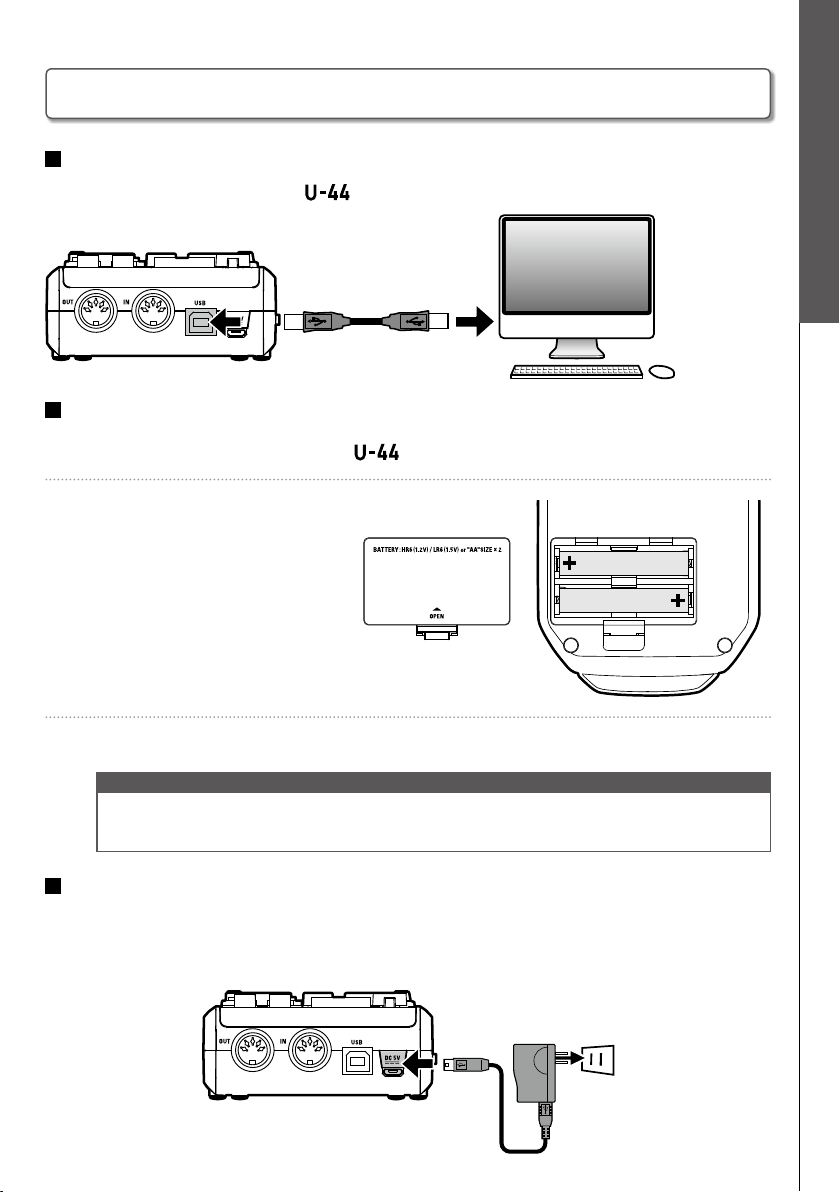
Use a USB cable to connect the
to the computer.
<Back>
Using batteries
1. Open the battery cover on the
bottom.
2. Install the batteries.
3. Replace the battery cover.
NOTE
• Use only alkaline alkaline batteries or rechargeable NiMH batteries.
• The power indicator will blink when the battery charge becomes low. Turn the power off immediately and install new
batteries.
Using an external power supply
Connect either the optional AD-17 adapter, a commercially available USB power adapter, or
a mobile USB battery to the DC 5V connector.
<Back>
Choosing a Power Source
Choosing a Power Source
8
Connecting with a Computer/iOS device
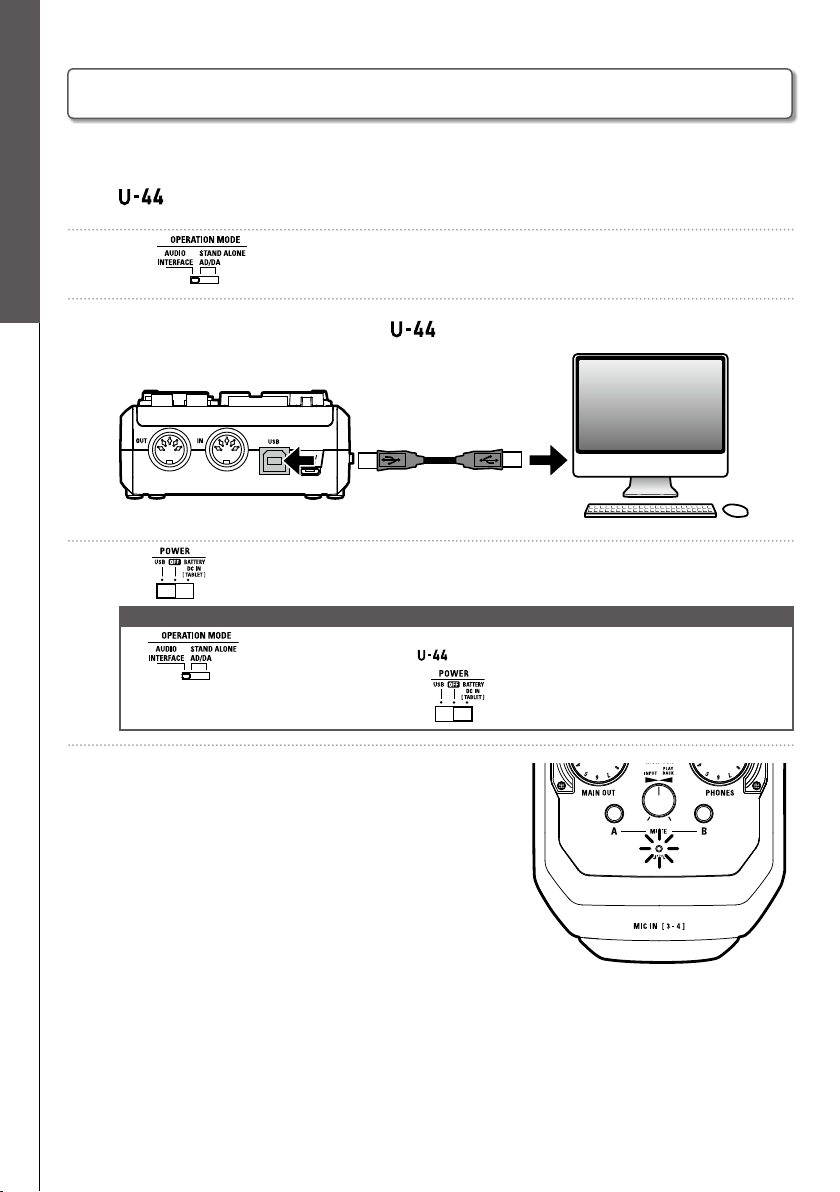
1. Minimize the volume of any output devices that are currently connected to the
.
2. Set to AUDIO INTERFACE.
3. Use a USB cable to connect the
to the computer.
<Back>
4. Set to USB or BATTERY/DC IN to turn the power on.
NOTE
• If is set to AUDIO INTERFACE, the can only be used if it is connected to a computer.
• When using batteries or an external power supply, set to BATTERY/DC IN.
5. Conrm that the power indicator is lit.
Connecting with a Computer
Connecting with a Computer
9
Connecting with a Computer/iOS device
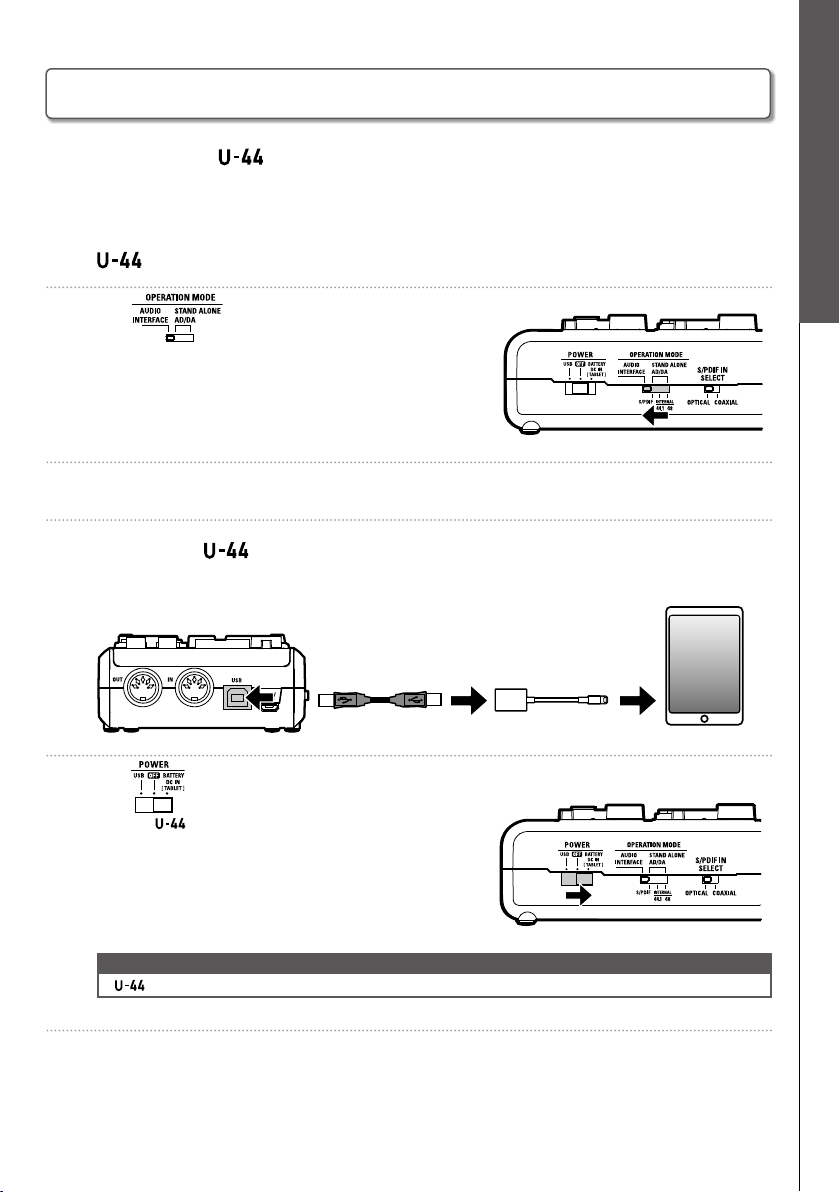
You can connect the to an iOS device when using either the optional AD-17 power
adapter, an external DC power supply, or AA batteries.
1. Minimize the volume of any output devices that are currently connected to the
.
2. Set to AUDIO INTERFACE.
3. Install batteries or connect an external power supply. (→ P. 7)
4. Connect the
to the iOS device using an Apple iPad Camera Connection Kit
or Lightning to USB Camera Adapter.
<Back>
5. Set to BATTERY/DC IN.
After the
turns on, it will connect to the iOS device.
NOTE
• cannot accept bus power from an iOS device.
6. Conrm that the power indicator is lit.
<Left side>
iOS device Connection
iOS device Connection
10
Connecting with a Computer/iOS device
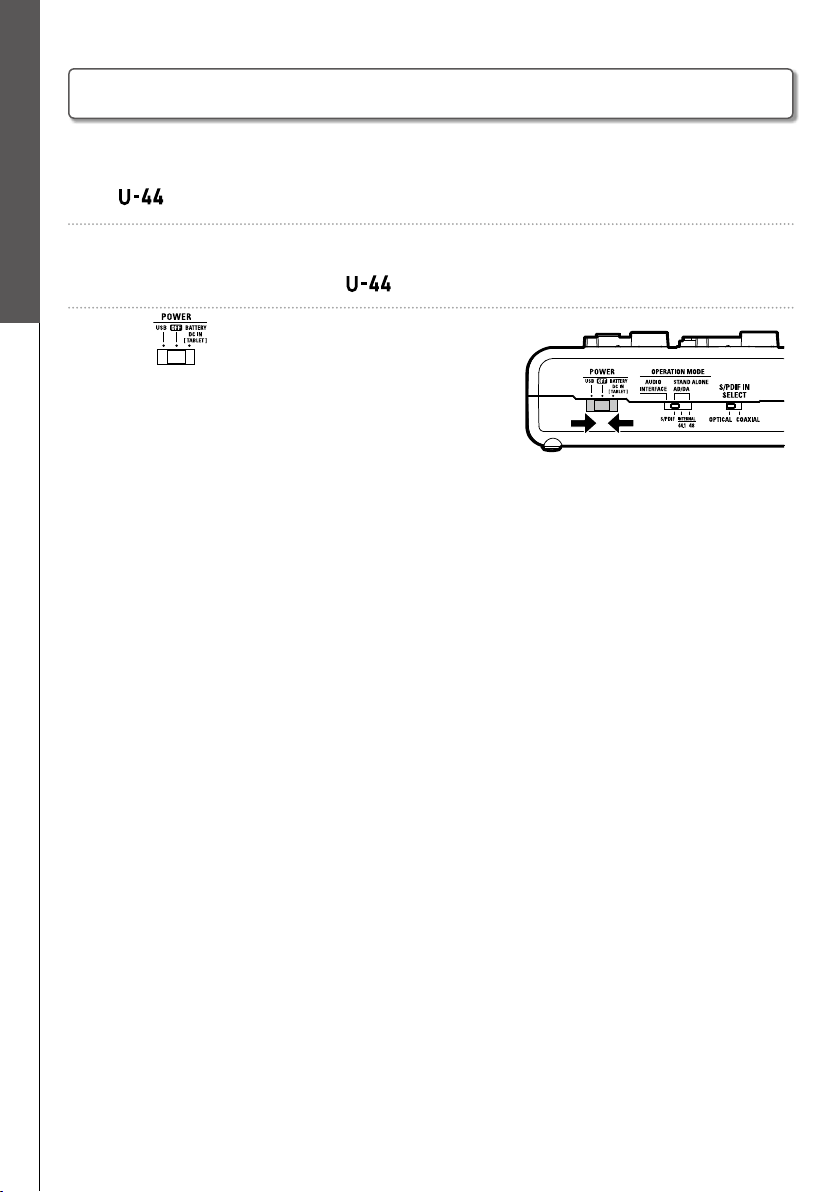
1. Minimize the volume of any output devices that are currently connected to the
.
2. Turn off amps, monitor speakers, and any other output equipment that is
currently connected to the
.
3. Set to OFF.
Turning the Power Off
Turning the Power Off
11
Recording
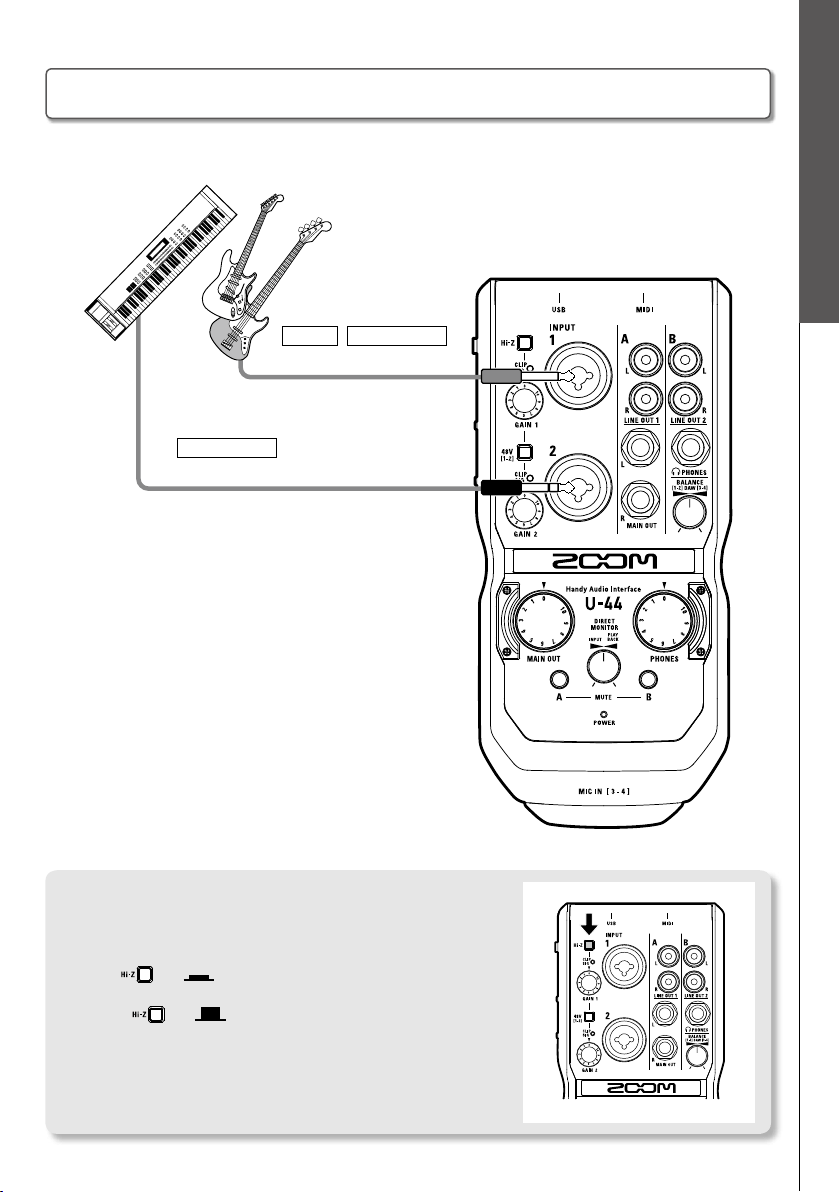
Instruments can be connected to INPUTS 1 and 2 using TRS or mono instrument cables.
Bass guitar
(TRS cable)
(mono instrument cable)
Keyboard
Guitar
Using the Hi-Z Function
• The Hi-Z function can only be used with INPUT 1.
• When connecting a guitar or bass with passive pickups, use INPUT 1
and turn on (
).
• When connecting a keyboard or other instrument, connect it to INPUT
1 and turn off (
), or connect it to INPUT 2.
Connecting Instruments
Connecting Instruments
12
Recording
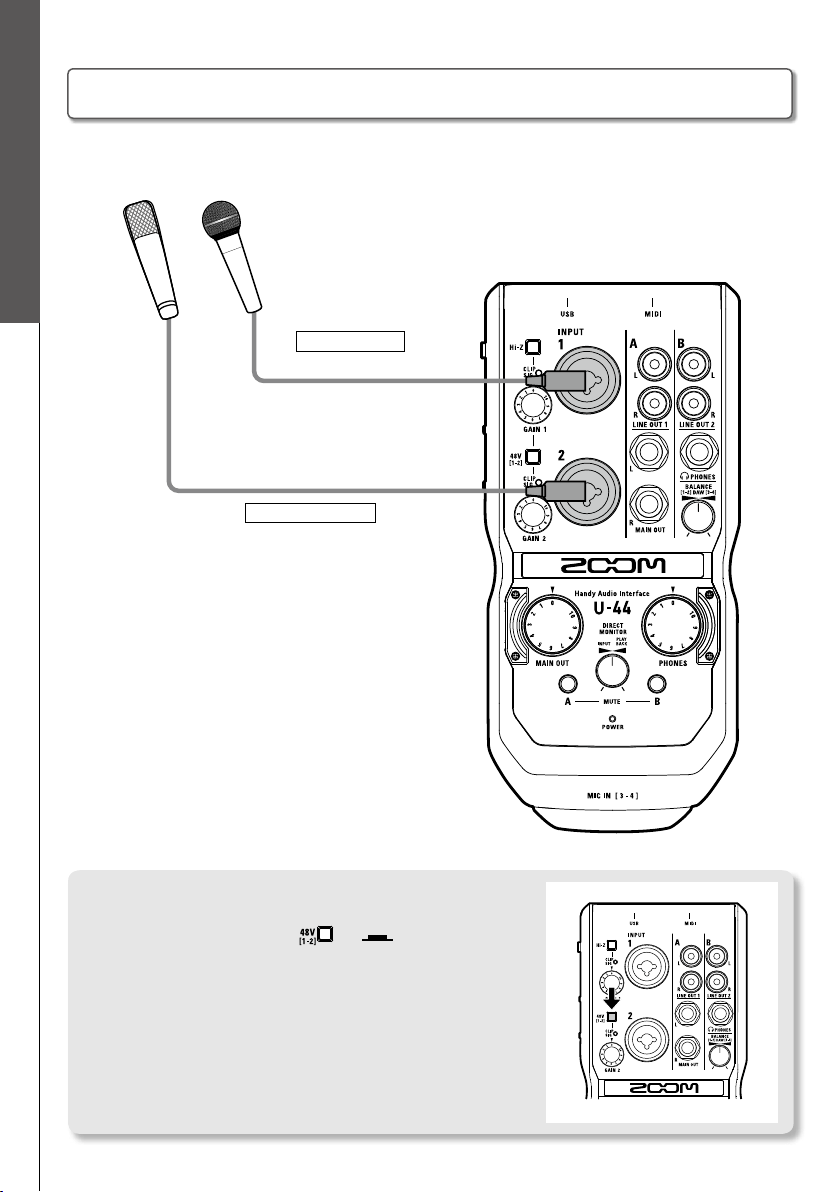
Connecting Mics
Using Phantom Power
• When using a condenser mic, turn on ( ).
• When on, phantom power is supplied to both INPUTS 1 and 2.
Mics can be connected to INPUTS 1/2 using XLR cables.
Dynamic mic
Condenser mic
(XLR cable)
(XLR cable)
Connecting Mics
13
Recording
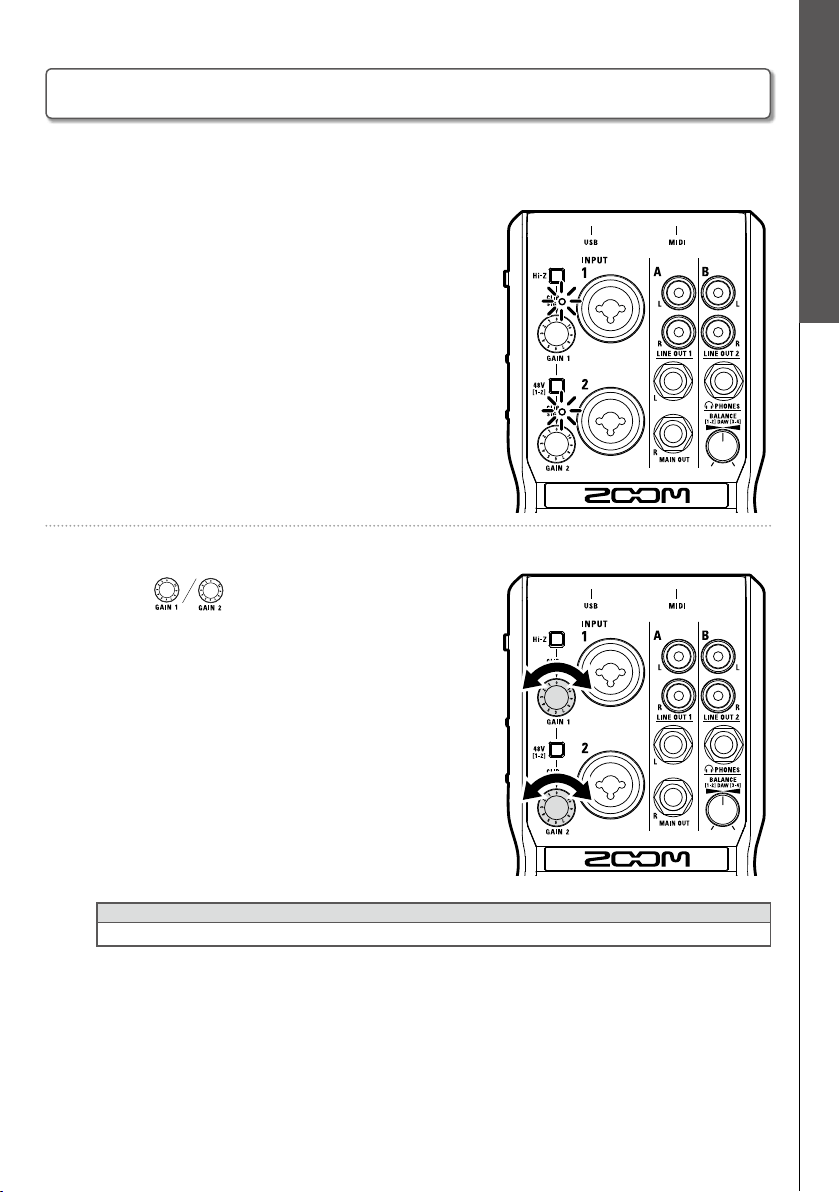
Adjusting Input Gain
You can adjust the gain of each input.
1. Check the status of the input signal.
Green light: Input signal is present.
Red light: Input signal is clipping.
2. Adjust the input gain.
Turn the .
HINT
• To avoid distorted recordings, adjust the input gain so the level indicator doesn't light up red.
Adjusting Input Gain
14
Playback
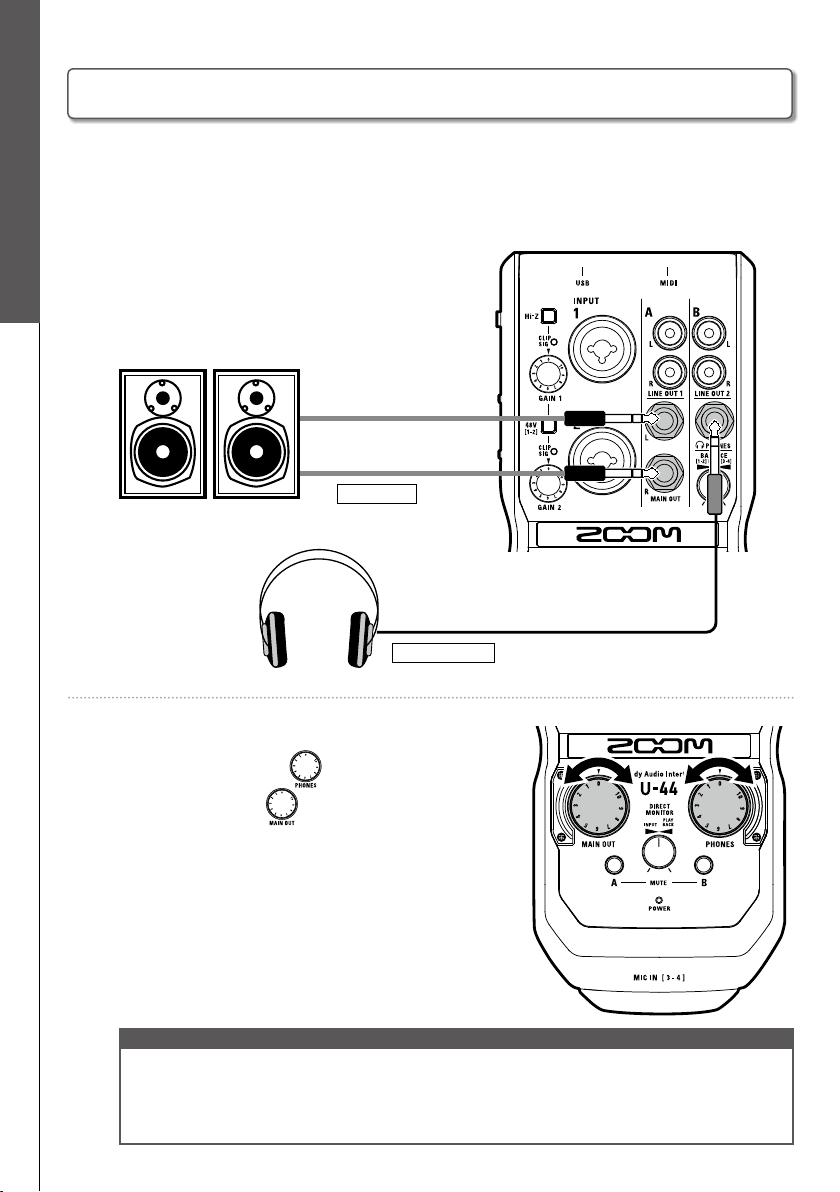
Connecting Headphones and Speakers
Connect headphones to the PHONES jack, speakers to the MAIN OUT jacks, and adjust
the volume levels accordingly.
1. Connect headphones or speakers.
Speakers
Headphones
2.
Adjust the headphones/speakers volume.
Headphones volume:
Turn .
Speakers volume: Turn .
NOTE
• The LINE OUT 1 jacks deliver the same signal output as the MAIN OUT jacks.
• The LINE OUT 2 jacks deliver the same signal output as the PHONES jack.
• The LINE OUT 1 and 2 volume levels can’t be changed.
• The MAIN OUT/LINE OUT 1 jacks deliver output from computer playback signals 1-2.
• The PHONES/LINE OUT 2 jacks deliver output from the adjusted balance of computer playback signals 1-2 and 3-4. (→ P. 17)
Connecting Headphones and Speakers
15
Playback
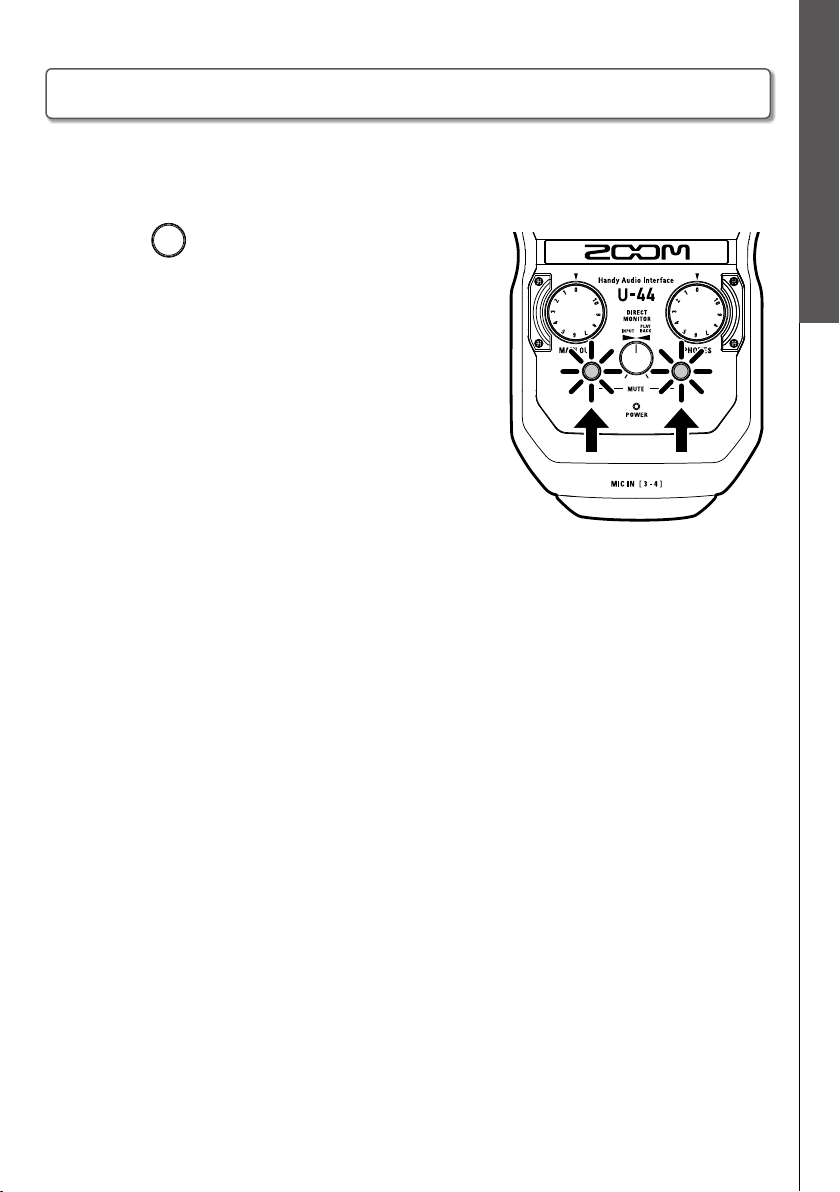
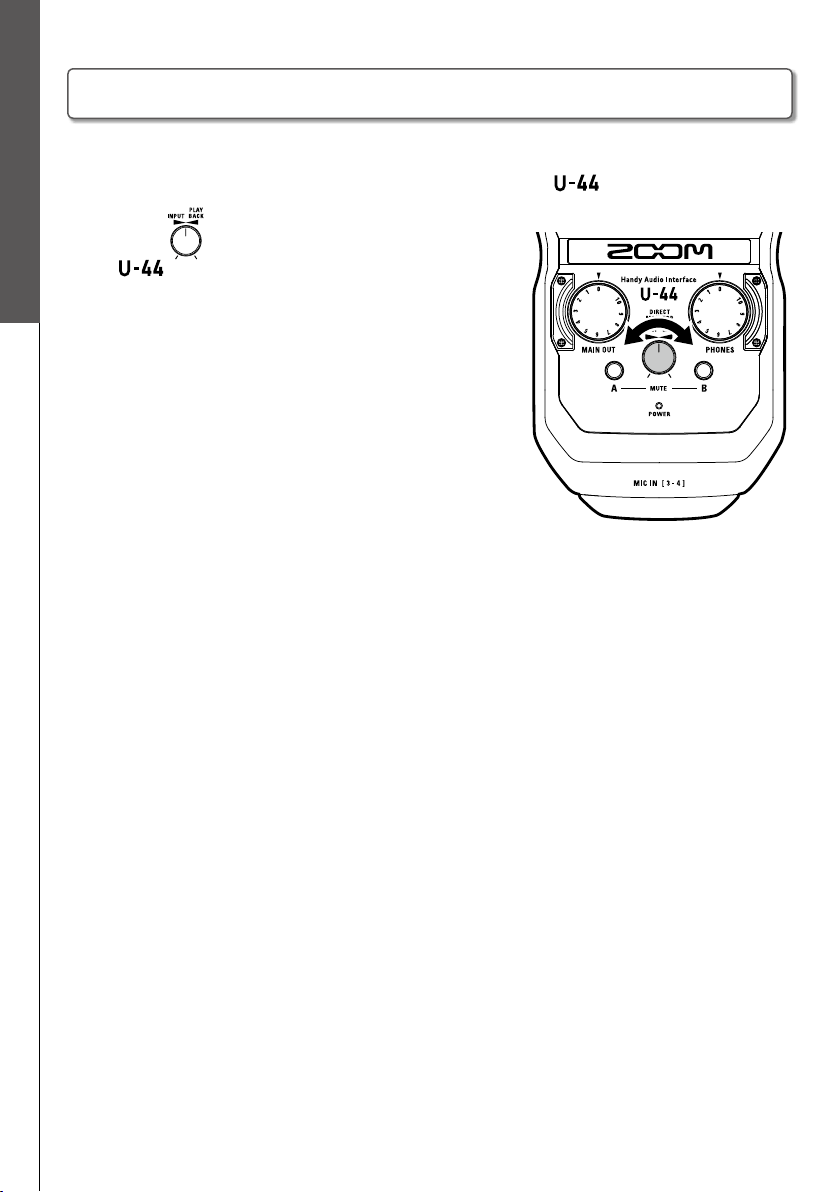
Muting Outputs
The outputs of channels A (MAIN OUT/LINE OUT 1) and B (PHONES/LINE OUT 2) can be
muted/unmuted.
1. Press for the channel you want to mute.
Lit: Muted
Unlit: Not muted
Muting Outputs
16
Playback
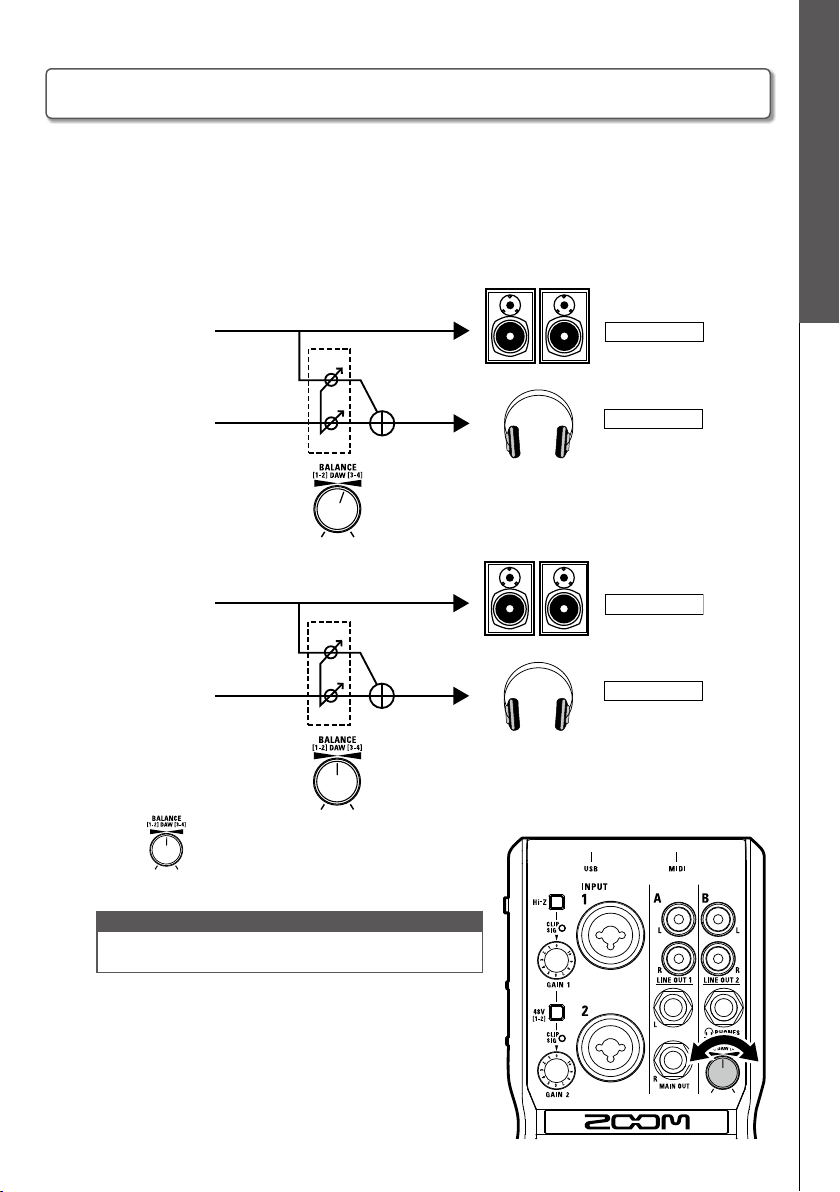
Using Direct Monitoring
Direct monitoring enables you to listen to input signals before they pass through the
computer. This allows you to hear the sound coming into the
without latency.
1. Turn to adjust the balance between the
audio input and the computer playback
signals.
Using Direct Monitoring
17
Playback
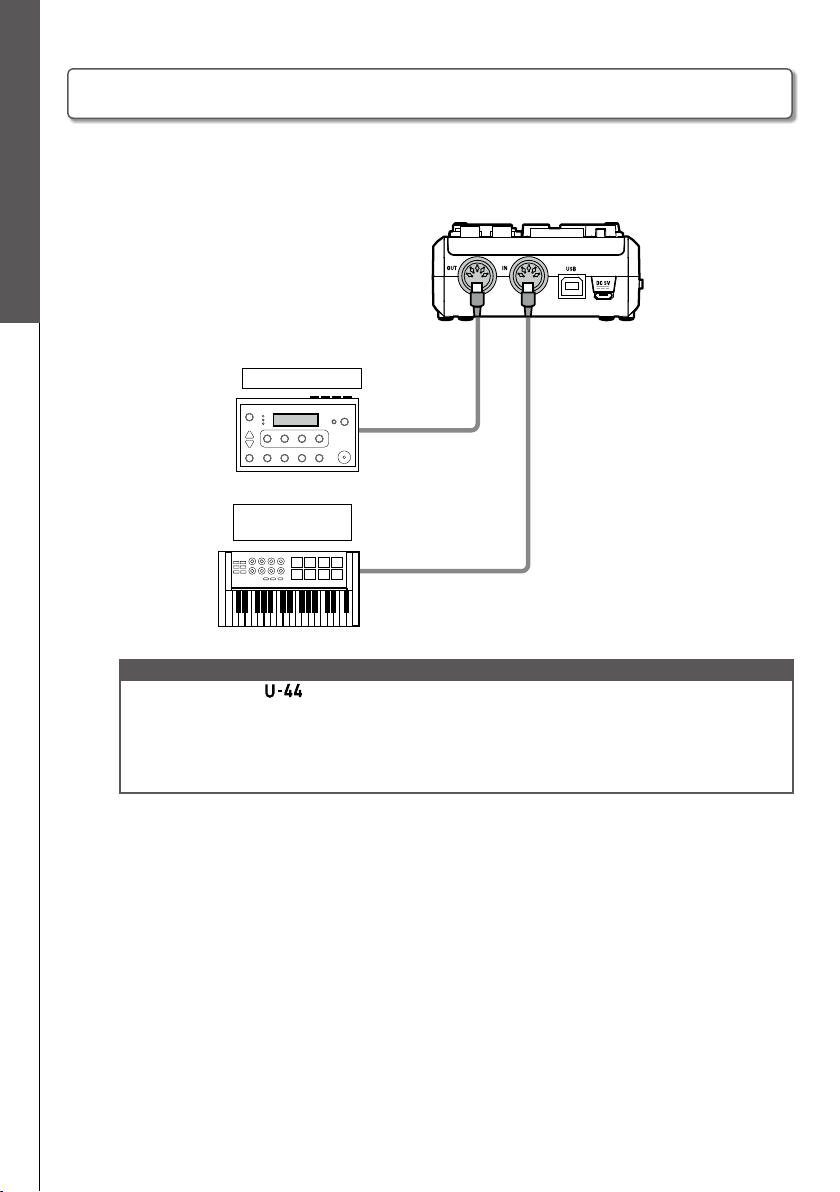
The balance between computer playback signals 1-2 and 3-4 can be adjusted for the LINE
OUT 2 and PHONES outputs.
For example, you can balance the PHONES output between click track and MAIN OUT
signals during a live performance. Or you can balance between the cue and MAIN OUT
signals during a DJ performance.
Live performance
Speakers
Headphones
DAW software
MAIN OUT
[1-2]
30%
70%
Click track
[3-4]
DJ performance
DAW software
MAIN OUT
[1-2]
50%
50%
Cue audio
[3-4]
Speakers
Headphones
1.
Turn to adjust the balance between
computer playback signals 1-2 and 3-4.
NOTE
• Computer playback signals 1-2 are output from the MAIN OUT/LINE
OUT 1 jacks.
Adjusting the Computer Playback Signal Balance
Adjusting the Computer Playback Signal Balance
18
Connecting MIDI Devices
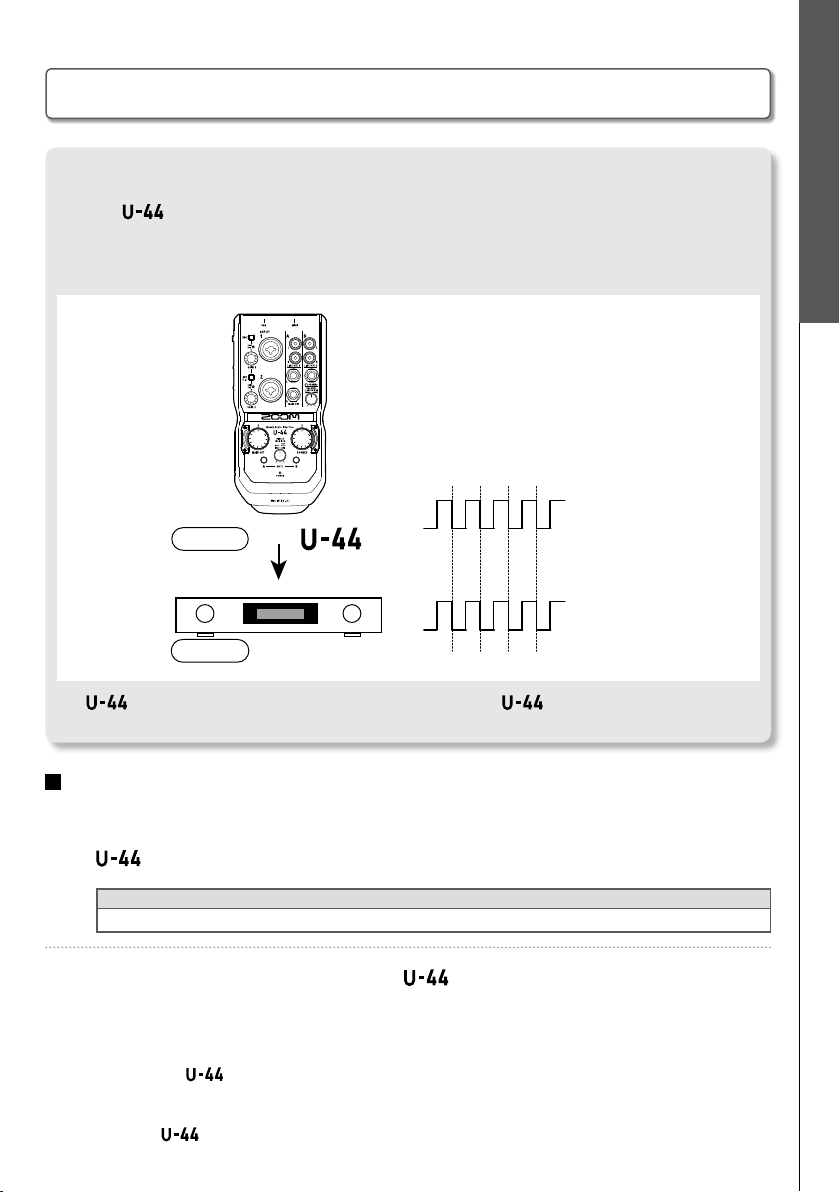
Use MIDI cables to connect MIDI devices to the MIDI IN and MIDI OUT jacks.
Sound module
MIDI OUT jack
MIDI OUT jack
MIDI IN jack
MIDI IN jack
MIDI keyboard or
MIDI controller
<Back>
NOTE
• When you connect the to a DAW using a MIDI port, follow the instructions below to ensure proper connectivity
and functionality.
<Windows>
Use ZOOM U-44 Driver. Do not use MIDI IN/OUT 2 (ZOOM U-44 Driver).
<Mac>
Use ZOOM U-44 MIDI I/O Port. Do not use ZOOM U-44 Reserved Port.
Connecting MIDI Devices
19
Using Digital Audio Equipment
About the Digital Audio Clock
When the is connected to other digital audio equipment, the audio clock must be synchronized in order to
accurately transfer audio data. If the devices are not synchronized, unwanted noise and other problems will occur.
To synchronize the audio clock, one device must operate as the master—which sets the reference clock—and the
other must operate as a slave.
Audio clock
Reference
clock
Synchronized
clock
Master
Slave
Digital device
The is operating as the master, and the audio clock of the and the other digital device are
synchronized.
Connecting S/PDIF Devices
1. Minimize the volume of any output devices that are currently connected to the
.
HINT
• After you connect the device, noise may occur until the audio clock is synchronized.
2. Set the same sampling rates for the
and the connected device.
Follow the procedures below to change the sampling rate.
<Windows>
Open the Control Panel on your computer. Select "Hardware and Sound" and select the desired sample rate
on the ZOOM
Control Panel.
<Mac>
Open the Utilities folder in the Applications folder, double-click the Audio MIDI Setup application, and then
select the
.
Using Digital Audio Equipment
20
Using Digital Audio Equipment
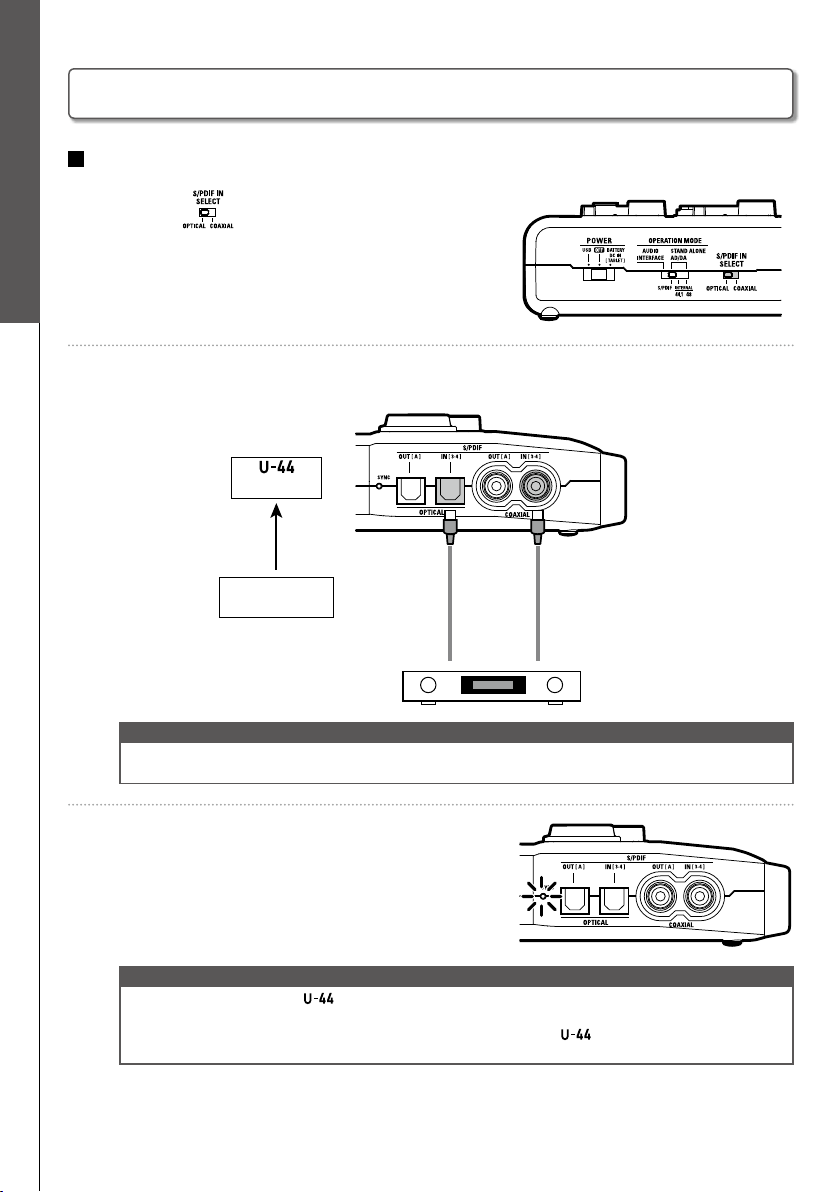
Inputting an S/PDIF signal
1.
Switch to OPTICAL or COAXIAL to select
the input you want to use.
2. Connect the S/PDIF device to the S/PDIF IN jack set in step 1.
S/PDIF OUT jack
S/PDIF IN jack S/PDIF IN jack
S/PDIF device
(output)
(input)
NOTE
• When a mic capsule is connected to the MIC IN connector, the S/PDIF inputs are disabled.
• The S/PDIF inputs are assigned to INPUT 3/4.
3. Confirm synchronization has occurred by
checking that the SYNC indicator is lit.
NOTE
• To synchronize audio clock, the and the connected device must have the same sampling rate settings.
• The SYNC indicator will blink when a digital audio device is connected to a S/PDIF IN (OPTICAL or COAXIAL) but
synchronization with the digital audio device is not possible. In this case, the will operate using its internal clock.
Check the S/PDIF IN SELECT switch setting.
Using Digital Audio Equipment (continued)
21
Using Digital Audio Equipment
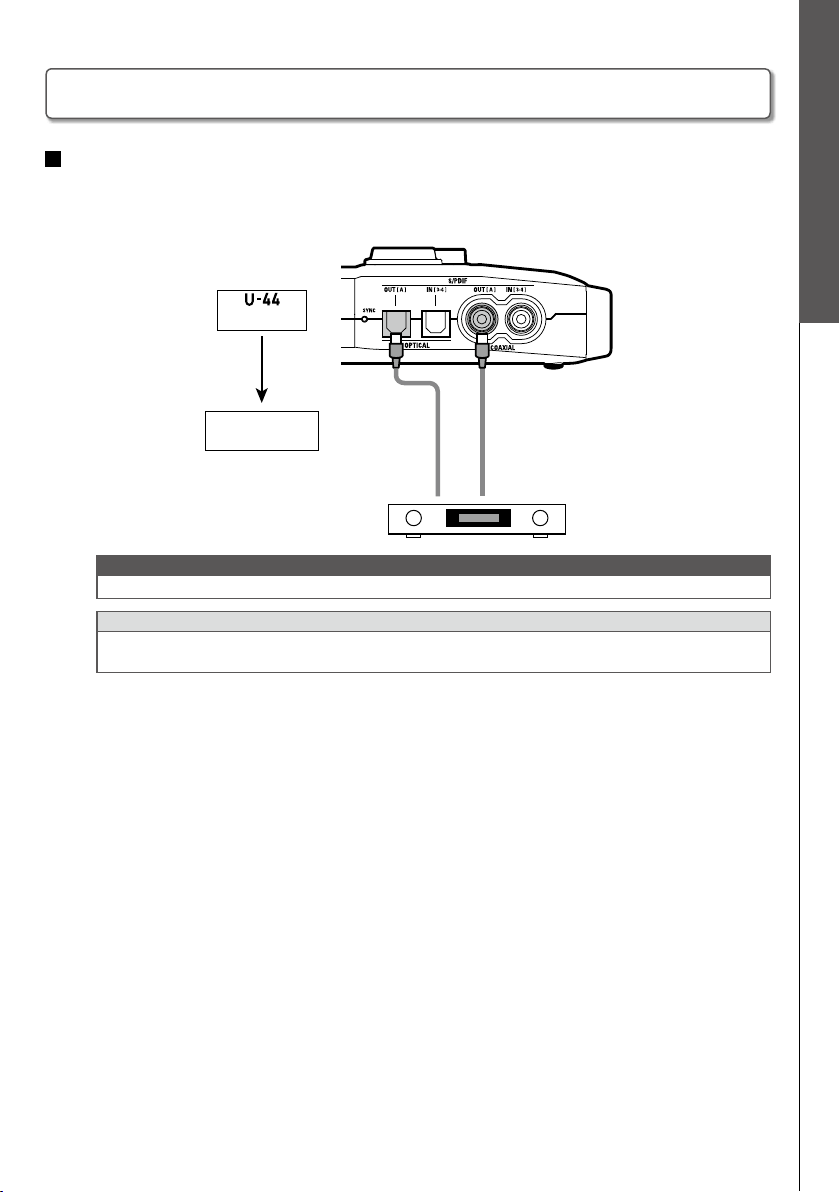
Outputting a S/PDIF signal
1. Connect the S/PDIF device to the S/PDIF OUT jack.
S/PDIF IN jack
S/PDIF OUT jack
S/PDIF OUT jack
S/PDIF device
(input)
(output)
NOTE
• S/PDIF outputs the same signals as the MAIN OUT and LINE OUT 1 jacks.
HINT
• The S/PDIF IN SELECT switch only affects S/PDIF input. S/PDIF output signals are always delivered from both the
OPTICAL OUT and COAXIAL OUT jacks.
Using Digital Audio Equipment (continued)
22
Connecting ZOOM H-Series Mic Capsules
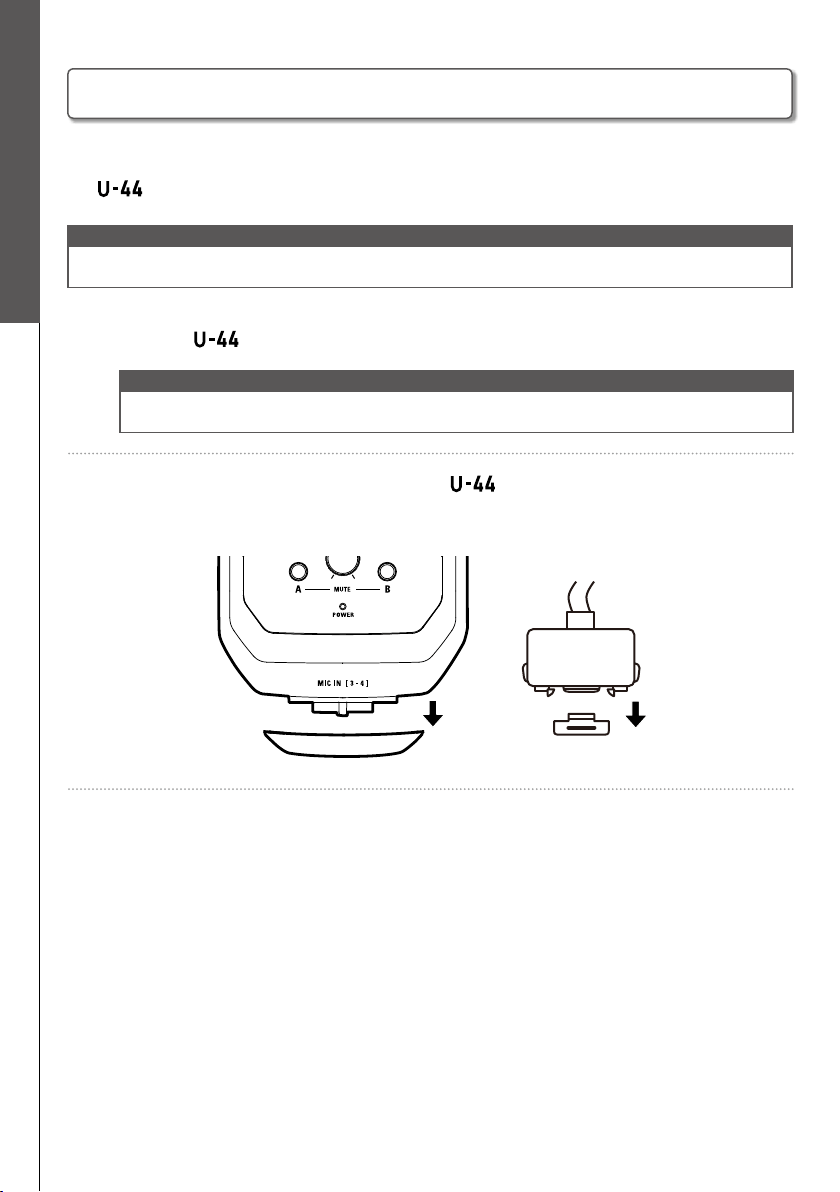
A ZOOM H-Series mic capsule can be connected to the MIC IN connector on the front of
the
.
NOTE
• The mic capsule input is assigned to INPUT 3/4.
• When a mic capsule is connected, the S/PDIF IN (OPTICAL and COAXIAL) jacks cannot be used.
1. Turn the power OFF.
NOTE
• Always turn the power off before connecting a mic capsule. If you connect a mic capsule while the power is on, it will not
be usable.
2. Remove the protective caps from the
and the mic capsule or extension
cable.
Connecting ZOOM H-Series Mic Capsules
23
Connecting ZOOM H-Series Mic Capsules
Connecting ZOOM H-Series Mic Capsules (continued)
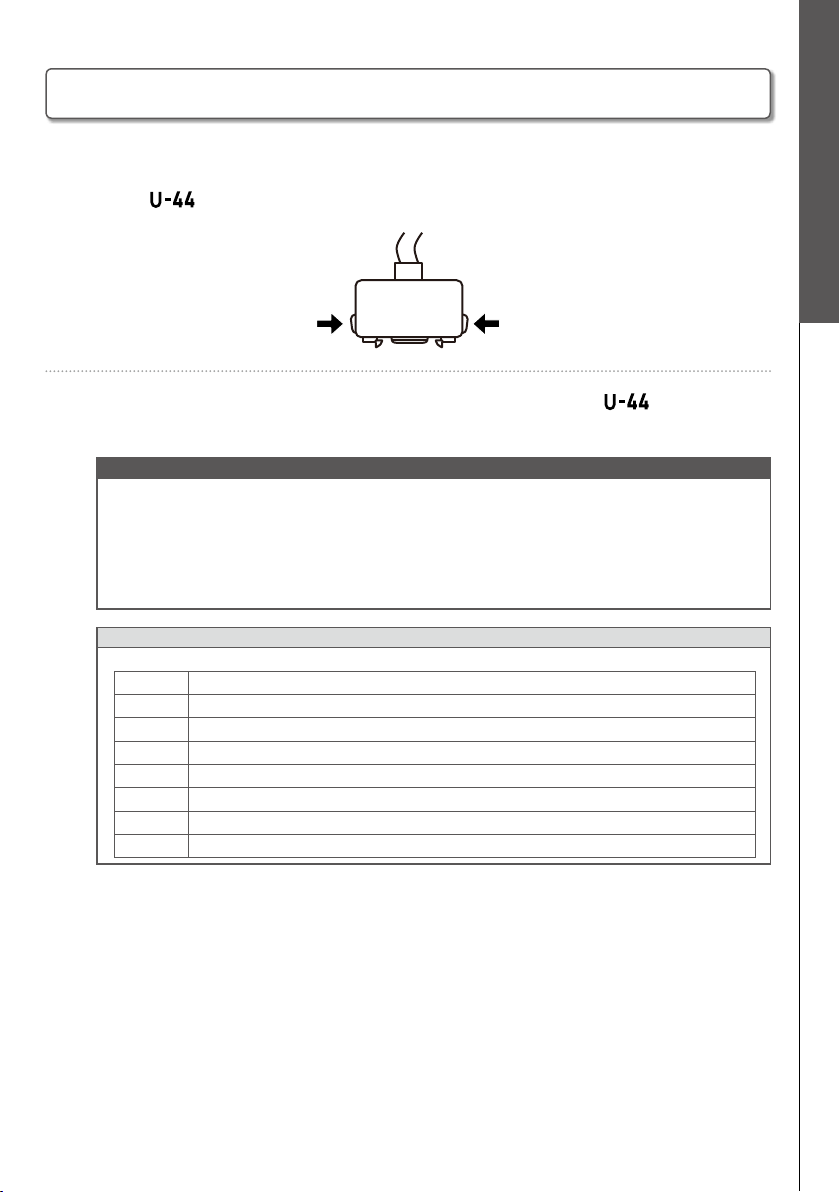
3. Press the buttons on the sides of the mic capsule or extension cable, connect it
to the
MIC IN connector, and insert it completely.
4. To disconnect a mic capsule or extension cable, turn the off. Press the
sides of the capsule or cable and pull it away.
NOTE
• Be careful not to use too much force when disconnecting. You could damage the mic capsule, extension cable, or main
unit.
• Attach the protective cap when a mic capsule or extension cable is not in use.
• With the MSH-6 and SSH-6, audio data is recorded in RAW format. Since the RAW data format is different from that used
by ordinary stereo les, the stereo width must be adjusted and the data must be converted to an ordinary stereo le after
recording by using ZOOM MS Decoder or other plug-in software.
• The SGH-6 is a mono mic.
HINT
• ZOOM H-Series Mic Capsules and Extension Cables
XYH-6 Adjustable Stereo X/Y Microphone Capsule
XYH-5 Shock Mounted Stereo X/Y Microphone Capsule
MSH-6 Mid-Side Microphone Capsule
SGH-6 Shotgun Microphone Capsule
SSH-6 Mid-Side Stereo Shotgun Microphone Capsule
EXH-6 Dual XLR/TRS Input Capsule
ECM-3 The three-meter-long extension cable for ZOOM's Mic Capsule options.
ECM-6 The six-meter-long extension cable for ZOOM's Mic Capsule options.
24
Using as a Standalone AD/DA Converter and Mic Preamp
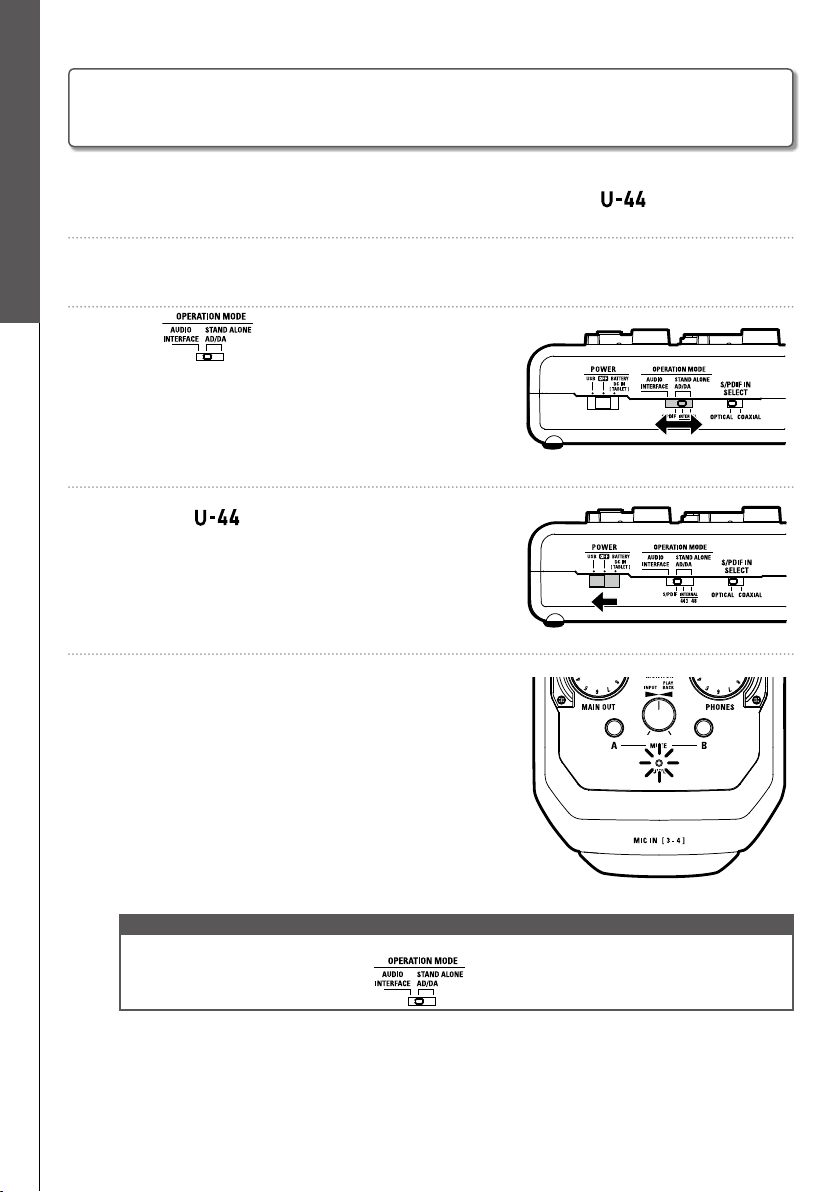
1. Minimize the volume of output devices connected to the .
2. Supply power. (
→
P. 7)
3. Use to set the sampling rate.
INTERNAL: Function using 44.1 or 48 kHz sampling rate.
(Master)
S/PDIF: Use the sampling rate of the signal input through the
OPTICAL IN or COAXIAL IN.
(Slave)
4. Turn the
on using the power supplied in
step
2.
5. Conrm that the power indicator is lit.
NOTE
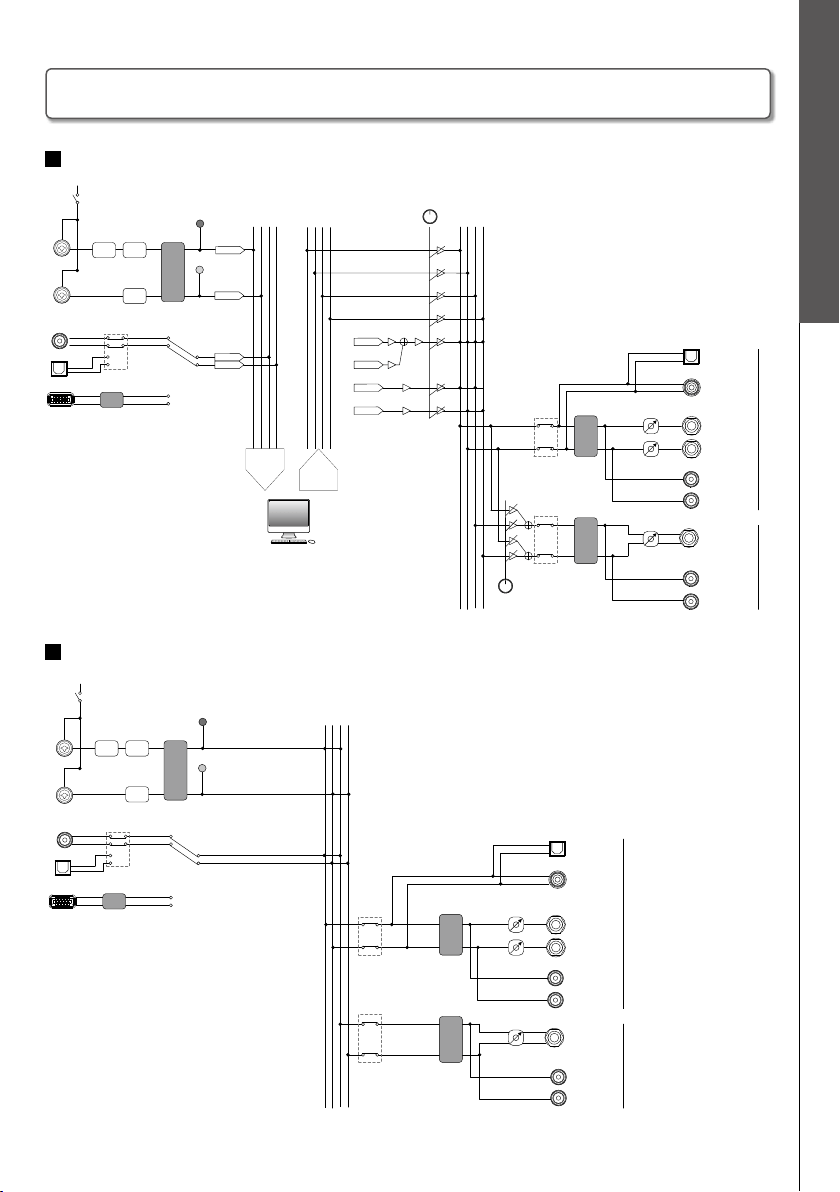
• See P. 27 for the signal ow diagram when using standalone AD/DA mode.
• The sampling rate cannot be changed using after start up.
Using as a Standalone AD/DA Converter and Mic Preamp
(Standalone Mode)
25
Troubleshooting
Cannot select or use the device
• Confirm that the
is connected to the
computer correctly.
• Quit all the software that is using the
,
and disconnect and reconnect the USB cable
connected to the
.
• Reinstall the driver.
• Connect the
directly to a USB port on the
computer. Do not connect it to a USB hub.
• Set OPERATION MODE to AUDIO INTERFACE.
(
→
P. 8)
Playback sound cannot be heard or is quiet
• Check the speaker connections and volume
settings on the speakers.
• Adjust the OUTPUT and PHONES volume
controls.
• Conrm that the Sound setting of the computer
that you are using is set to "ZOOM U-44".
• Adjust the DIRECT MONITOR knob.
• If no sound can be heard or the volume is low
from the PHONES/LINE OUT 2 outputs, adjust
the BALANCE knob.
Recorded audio is too loud, too quiet or silent
• Adjust the input gain of the .
• When using a condenser mic, turn phantom
power on.
• Confirm that the Sound setting of the
computer that you are using is set to "ZOOM
U-44".
The sound of the device connected to the
input jack is distorted
• Conrm that the level indicators are not lighting
red. If they are, lower the input levels.
Sound skips during playback or recording
• If you can adjust the audio buffer size of the
software that you are using, increase the buffer
size.
• Turn the automatic sleep function and other
computer power saving settings OFF.
• Connect the directly to a USB port on the
computer. Do not connect it to a USB hub.
Cannot play or record
• Conrm that the Sound setting of the computer
that you are using is set to "ZOOM U-44".
• Confirm that
is set for input and output
in the software you are using.
• Confirm that
is connected to the
computer correctly.
• Quit all software that is using the
, then
disconnect and reconnect the
’s USB
cable.
Cannot use with an iOS device
• Set OPERATION MODE to AUDIO INTERFACE.
(
→
P. 8)
• Confirm that the batteries are loaded or the
external power supply is connected correctly.
(
→
P. 7)
• Set the POWER switch to BATTERY/DC IN to
turn the power on.
Sound skips during digital input or output
• Confirm that the device used for audio clock
synchronization is connected correctly.
• If the
is the master, confirm that audio
clock is synchronized on the connected device.
• If the
is a slave, conrm that the correct
clock source and sampling rate are selected
and that the SYNC indicator is lit.
Cannot use in standalone AD/DA mode
• Set the OPERATION MODE to STAND ALONE
and select the correct clock source before
turning the power on.
Troubleshooting
26
Specications
ANALOG IN INPUT 1/2 Connector TRS/XLR combo jacks
(XLR: 2 hot, TRS: TIP hot)
Input gain 0 – 43 dB
Input impedance 2.6 kΩ (MIC IN)
1.1 MΩ (when Hi-Z ON)
Maximum input level +2.7 dBu (MIC IN) /+20.7 dBu (TRS IN)
Phantom power +48 V
MIC IN Supported mics XYH-6, MSH-6, SGH-6, EXH-6, SSH-6, XYH-5
ANALOG OUT MAIN OUT L/R Connector TRS phone jacks (unbalanced)
Maximum output level +10 dBu (at 0 dBFS)
Output impedance 330 Ω
LINE OUT 1/2 Connector RCA (coaxial)
Maximum output level +8 dBu (at 0 dBFS)
Output impedance 1 kΩ
PNONES Connector Standard stereo phone jack
30 mW x 2 (into 32 Ω load)
Maximum output level +10 dBu (at 0 dBFS)
Output impedance 33 Ω
DIGITAL IN/
OUT
S/PDIF
OPTICAL
Connector TOSLINK
Supported sampling
frequencies
96 kHz, 88.2 kHz, 48 kHz, 44.1 kHz
S/PDIF
COAXIAL
Connector RCA (coaxial)
Supported sampling
frequencies
96 kHz, 88.2 kHz, 48 kHz, 44.1 kHz
Frequency characteristics At 44.1 kHz: ±1.5 dB: 20 Hz - 20 kHz
At 96 kHz: ±2 dB: 20 Hz - 40 kHz
Input conversion noise Measured EIN: -119.5 dB (IHF-A)
(with 43 dB, 150 Ω input)
Number of audio recording and playback channels Recording: 4 channels
Playback: 4 channels
Sampling frequencies 96 kHz, 88.2 kHz, 48 kHz, 44.1 kHz
Bit depth 24-bit
Interface USB2.0
MIDI IN/OUT 5 pin DIN jack
Power Source USB bus power (Type B)/ZOOM AD-17 (Micro-B)/DC 5 V power supply
(Micro-B)/2 AA batteries (about 4 hours continuous operation with
phantom power off)
Power consumption 5 W maximum
Dimensions 198.8 mm (D) × 92.3 mm (W) × 42.7 mm (H)
Weight (main unit only) 310 g
* 0 dBu = 0.775 Vrms
Note: The continuous operation time with batteries is just an estimate. This result is from in-house testing methods. The actual time will vary greatly
according to operating conditions.
Specications
27
Signal Flow Diagrams
Signal Flow Diagrams
AUDIO INTERFACE mode signal ow diagram
Standalone AD/DA mode signal ow diagram
A B
Hi-Z/
Lo-Z
Gain
Gain
To Computer
From Computer
48V
INPUT2
INPUT1
LEVEL
INDICATOR
OPTICAL OUT
LINE OUT 1 L
LINE OUT 1 R
PHONES
LINE OUT 2 L
LINE OUT 2 R
COAXIAL OUT
MAIN OUT L
MAIN OUT R
MUTE
SWITCH A
MUTE
SWITCH B
BALANCE
MAIN OUT
VOLUME
PHONES
VOLUME
AD
DA
DA
AD
INPUT1
INPUT2
INPUT3
INPUT4
INPUT OUTPUT OUTPUT
DIRECT
MONITOR
1 2 3 4
1 2 3 4
1 2 3 4
S/PDIF IN
SELECT SWITCH
COAXIAL IN
OPTICAL IN
MIC IN
INPUT1
-6dB -6dB
-6dB
-6dB
-6dB
INPUT2
INPUT3
INPUT4
OPTICAL OUT
LINE OUT 1 L
LINE OUT 1 R
PHONES
LINE OUT 2 L
LINE OUT 2 R
COAXIAL OUT
MAIN OUT L
MAIN OUT R
COAXIAL IN
OPTICAL IN
MIC IN
S/PDIF IN
SELECT SWITCH
Hi-Z/
Lo-Z
Gain
Gain
AD
AD
48V
LEVEL
INDICATOR
DA
DA
OUTPUT
1 2 3 4
MAIN OUT
VOLUME
PHONES
VOLUME
A B
MUTE
SWITCH A
MUTE
SWITCH B

Z2I-2572-04
ZOOM CORPORATION
4-4-3 Kandasurugadai, Chiyoda-ku, Tokyo 101-0062 Japan
http://www.zoom.co.jp