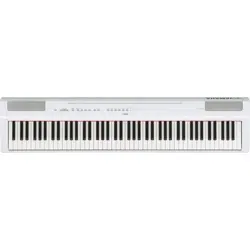
DIGITAL PIANO
Owner’s Manual
EN
Appendix IntroductionReference
Before using the instrument, be sure to read “PRECAUTIONS” on pages 5 – 6.

2

3
P-125a Owner’s Manual
4
The model number, serial number, power requirements, etc., may be found on or near the name plate, which is at the
bottom of the unit. You should note this serial number in the space provided below and retain this manual as a perma-
nent record of your purchase to aid identification in the event of theft.
Model No.
Serial No.
(1003-M06 plate bottom en 01)
Information for users on collection and disposal of old equipment:
This symbol on the products, packaging, and/or accompanying documents means that used electrical and electronic products
should not be mixed with general household waste.
For proper treatment, recovery and recycling of old products, please take them to applicable collection points, in accordance with
your national legislation.
By disposing of these products correctly, you will help to save valuable resources and prevent any potential negative effects on
human health and the environment which could otherwise arise from inappropriate waste handling.
For more information about collection and recycling of old products, please contact your local municipality, your waste disposal
service or the point of sale where you purchased the items.
For business users in the European Union:
If you wish to discard electrical and electronic equipment, please contact your dealer or supplier for further information.
Information on Disposal in other Countries outside the European Union:
This symbol is only valid in the European Union. If you wish to discard these items, please contact your local authorities or dealer
and ask for the correct method of disposal.
(58-M02 WEEE en 01)
5
P-125a Owner’s Manual
PRECAUTIONS
PLEASE READ CAREFULLY BEFORE PROCEEDING
Especially in the case of children, a guardian should provide guidance on how to
properly use and handle the product before actual use.
Please keep this manual in a safe and handy place for future reference.
WARNING
Always follow the basic precautions listed below to avoid the possibility of serious injury or even death from electrical
shock, short-circuiting, damages, fire or other hazards. These precautions include, but are not limited to, the
following:
• Do not place the power cord near heat sources such as heaters or radiators. Also,
do not excessively bend or otherwise damage the cord, or place heavy objects on
it.
• Do not touch the product or the power plug during an electrical storm.
• Use only the correct voltage specified for the product. The required voltage is
printed on the name plate of the product.
• Use the specified AC adaptor (page 25).
• Check the power plug periodically and remove any dirt or dust which may have
accumulated on it.
• Insert the power plug firmly all the way into the AC outlet. Using the product
when it is not plugged in sufficiently can cause dust to accumulate on the plug,
possibly resulting in fire or skin burns.
• When setting up the product, make sure that the AC outlet you are using is easily
accessible. If some trouble or malfunction occurs, immediately turn off the power
switch and disconnect the plug from the outlet. Even when the power switch is
turned off, as long as the power cord is not unplugged from the wall AC outlet,
the product will not be disconnected from the power source.
• Do not connect the product to an electrical outlet using a multi-plug outlet
extender. Doing so can result in lower sound quality, or possibly cause
overheating in the outlet.
• When disconnecting the power plug, always hold the plug itself and not the cord.
Pulling by the cord can damage it and cause electric shocks or a fire.
• If not using the product for long periods of time, be sure to pull the power plug
from the AC outlet.
• This product contains no user-serviceable parts. Do not attempt to disassemble
the internal parts or modify them in any way.
• Do not expose the product to rain, use it near water or in damp or wet conditions,
or place on it any containers (such as vases, bottles or glasses) containing
liquids which might spill into any openings or places where water may drop. A
liquid such as water getting into the product may cause a fire, electric shocks, or
malfunctions.
• Use the AC adaptor indoors only. Do not use in any wet environments.
• Never insert or remove a power plug with wet hands.
• Do not place any burning items or open flames near the product, since they may
cause a fire.
• If any of the following problems occur, immediately turn off the power switch and
disconnect the power plug from the outlet.
Finally have the device inspected by Yamaha service personnel.
- The power cord or plug becomes frayed or damaged.
- Unusual smells or smoke are emitted.
- Some object, or water has been dropped into the product.
- There is a sudden loss of sound during use of the product.
- Cracks or other visible damage appear on the product.
Power supply
Do not disassemble
Water warning
Fire warning
If you notice any abnormality
DMI-10 1/2
6
P-125a Owner’s Manual
CAUTION
Always follow the basic precautions listed below to avoid the possibility of physical injury to you or others, or damage
to the product or other property. These precautions include, but are not limited to, the following:
• Do not place the product in an unstable position or a location with excessive
vibration, where it might accidentally fall over and cause injury.
• Before moving the product, remove all connected cables, to prevent damage to
the cables or injury to anyone who might trip over them.
• Use only the stand specified for the product. When attaching it, use the provided
screws only. Failure to do so could cause damage to the internal components or
result in the product falling over.
• Before connecting the product to other electronic components, turn off the power
for all components. Before turning the power on or off for all components, set all
volume levels to minimum.
• Be sure to set the volumes of all components at their minimum levels and
gradually raise the volume controls while playing the product to set the desired
listening level.
• Do not insert foreign materials such as metal or paper into any openings or gaps
of the product. Failure to observe this may cause a fire, electric shocks, or
malfunctions.
• Do not rest your weight on, or place heavy objects on the product, and do not use
excessive force on the buttons, switches or connectors.
• Do not use the product or headphones for a long period of time at a high or
uncomfortable volume level, since this can cause permanent hearing loss. If you
experience any hearing loss or ringing in the ears, consult a physician.
• Remove the power plug from the AC outlet before cleaning the unit. Failure to
observe this may cause electric shocks.
Always turn the power off when the product is not in use.
Even when the [ ] (Standby/On) switch is in standby status (power lamp is off), electricity is still flowing to the product at the minimum level.
When you are not using the product for a long time, make sure you unplug the power cord from the wall AC outlet.
NOTICE
To avoid the possibility of malfunction/ damage to the product,
damage to data, or damage to other property, follow the notices
below.
Handling
• Do not use the instrument in the vicinity of a TV, radio, stereo equipment, mobile
phone, or other electric devices. Otherwise, the instrument, TV, or radio may
generate noise.
• When you use the instrument along with an app on your smart device, such as a
smartphone or tablet, we recommend that you enable “Airplane Mode” on the
device to avoid noise caused by communication.
• Do not expose the instrument to excessive dust or vibrations, or extreme cold or
heat (such as in direct sunlight, near a heater, or in a car during the day) to
prevent the possibility of disfiguration, damage to the internal components or
unstable operation. (Verified operating temperature range: 5° – 40°C, or 41° –
104°F.)
• Do not place vinyl, plastic or rubber objects on the instrument, since this might
discolor the instrument.
Maintenance
• When cleaning the instrument, use a soft and dry/slightly damp cloth. Do not use
paint thinners, solvents, alcohol, cleaning fluids, or chemical-impregnated
wiping cloths.
Saving data
• Some of the data of this instrument (page 24) are retained when the power is
turned off. However, the saved data may be lost due to some failure, an operation
mistake, etc. Save your important data onto an external device such as a computer
(page 24).
Information
About copyrights
• The copyright of the “content”*
1
installed in this product belongs to Yamaha
Corporation or its copyright holder. Except as permitted by copyright laws and
other relevant laws, such as copying for personal use, it is prohibited to
“reproduce or divert”*
2
without the permission of the copyright holder. When
using the content, consult with a copyright expert.
If you create music or perform with the contents through the original use of the
product, and then record and distribute them, the permission of Yamaha
Corporation is not required regardless of whether the distribution method is paid
or free of charge.
*1: The word “content” includes a computer program, audio data, Accompaniment Style data,
MIDI data, waveform data, voice recording data, music score, and score data, etc.
*2: The phrase “reproduce or divert” includes taking out the content itself in this product, or
recording and distributing it without changes in a similar manner.
About functions/data bundled with the instrument
• Some of the preset Songs have been edited for length or arrangement, and may
not be exactly the same as the original.
About this manual
• The illustrations as shown in this manual are for instructional purposes only.
• iPhone, iPad of Apple Inc., registered in the U.S. and other countries.
• The company names and product names in this manual are the trademarks or
registered trademarks of their respective companies.
Tuning
• Unlike an acoustic piano, this instrument does not need to be tuned by an expert
(although the pitch can be user-adjusted to match other instruments). This is
because the pitch of digital instruments is always maintained perfectly.
About disposal
• When disposing of this product, please contact the appropriate local authorities.
Location
Connections
Handling
Yamaha cannot be held responsible for damage caused by improper use or modifications to the product, or data that is lost or destroyed.
DMI-10 2/2
P-125a Owner’s Manual
7
Appendix IntroductionReference
Contents
PRECAUTIONS ...................................................... 5
With this instrument, you can:................................. 7
About the Manuals .................................................. 8
About the Key Operations....................................... 8
Included Accessories .............................................. 8
Introduction
Panel Controls and Terminals 9
Setting Up 10
Power Requirements ............................................ 10
Turning the Power On/Standby............................. 10
Auto Power Off Function....................................... 10
Adjusting the Master Volume ................................ 11
Operation Confirmation Sounds............................ 11
Using Headphones ............................................... 11
Using a Pedal (Sustain) ........................................ 12
Using the Pedal Unit (sold separately).................. 12
Reference
Selecting & Playing Voices 13
Selecting a Voice .................................................. 13
Using Table EQ..................................................... 13
Strengthening the Overall Sound (Sound Boost).. 13
Layering Two Voices (Dual).................................. 14
Splitting the Keyboard (Split) ................................ 15
Playing Duo........................................................... 15
Using the Metronome 16
Voice Confirmation of Current Tempo Value (in English)
.. 16
Adjusting the Tempo ............................................. 16
Selecting a Beat (Time Signature) ........................ 16
Adjusting the Volume ............................................ 16
Setting Various Items for Performances 17
Tuning, Transpose ................................................ 17
Reverb, Touch Sensitivity ..................................... 17
Playing Back Songs 18
Listening to the Voice Demo Songs ......................18
Listening to the 50 Preset Songs or External Songs
...18
Using Quick Play ...................................................19
Song Playback and Practice of Each Part 19
Adding Accompaniment to Your Performance
(Rhythm) 20
Adjusting the Volume.............................................20
Adjusting the Tempo..............................................20
Recording Your Performance 21
Quick Recording .................................................... 21
Recording Independently to Two Parts .................21
Deleting the User Song ......................................... 22
Changing the Initial Settings of the Recorded Song
...22
Connecting Other Equipment 23
Connecting External Speakers ..............................23
Connecting a Smart Device...................................23
Connecting to a Computer.....................................24
Data Backup and Initializing 24
Appendix
Troubleshooting 25
Specifications 25
Voice List (Detailed) 26
Index 27
List 28
With this instrument, you can:
Enjoy the feel of an authentic piano action with the Graded Hammer Standard (GHS) keyboard.
Listen to the 50 Classics, or practice these preset songs by playing each part separately (pages 18
and 19).
Feel like a pro with the Rhythm feature that automatically adds accompaniment when you play the
keyboard (page 20).
Practice effectively by using the built-in recorder and metronome (pages 16 and 21).
“Smart Pianist” (free download) lets you make various settings intuitively while viewing the screen
(page 23).
P-125a Owner’s Manual
8
Thank you for purchasing this Yamaha Digital Piano!
This instrument provides exceptionally high-quality sound and expressive control for your
playing enjoyment.
We recommend that you read this manual carefully so that you can fully take advantage of
the advanced and convenient functions of the instrument.
We also recommend that you keep this manual in a safe and handy place for future refer-
ence.
This instrument has the following documents and
instructional materials.
Included Documents
Owner’s Manual (this book)
Explains how to use the instrument.
Quick Operation Guide
Shows in chart form the functions
assigned to the buttons and the keyboard
for quick understanding.
Online Materials
• Smart Device Connection Manual
Explains how to connect the instrument to smart
devices, such as iPhone, iPad, etc.
• Computer-related Operations
Contains instructions about computer-related func-
tions.
• MIDI Reference
Contains MIDI-related information.
• MIDI Basics (only in English, French, German
and Spanish)
Contains basic explanations about what MIDI is and
can do.
To obtain these materials, access the Yamaha Down-
loads website, then enter the model name for search-
ing the desired files.
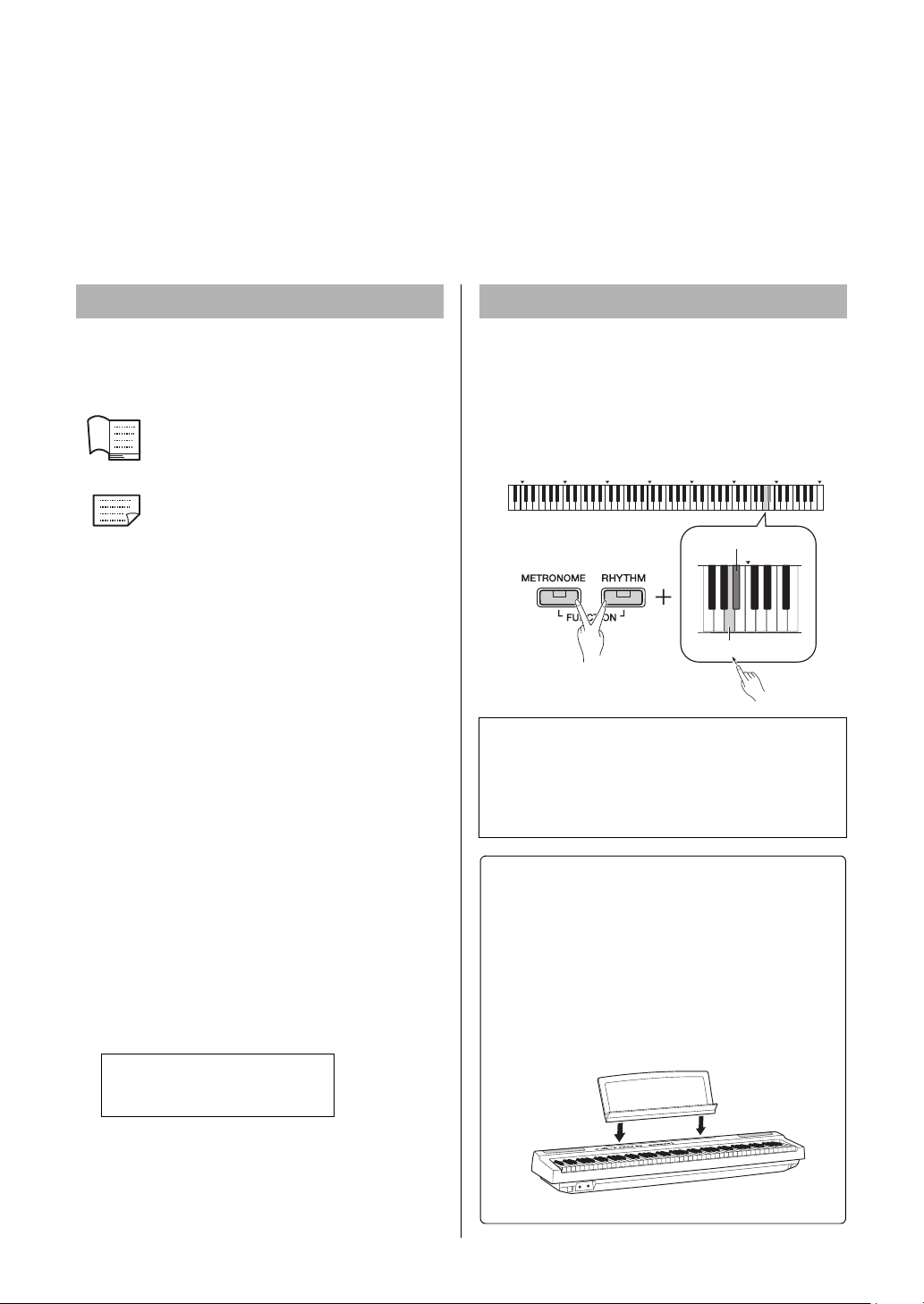
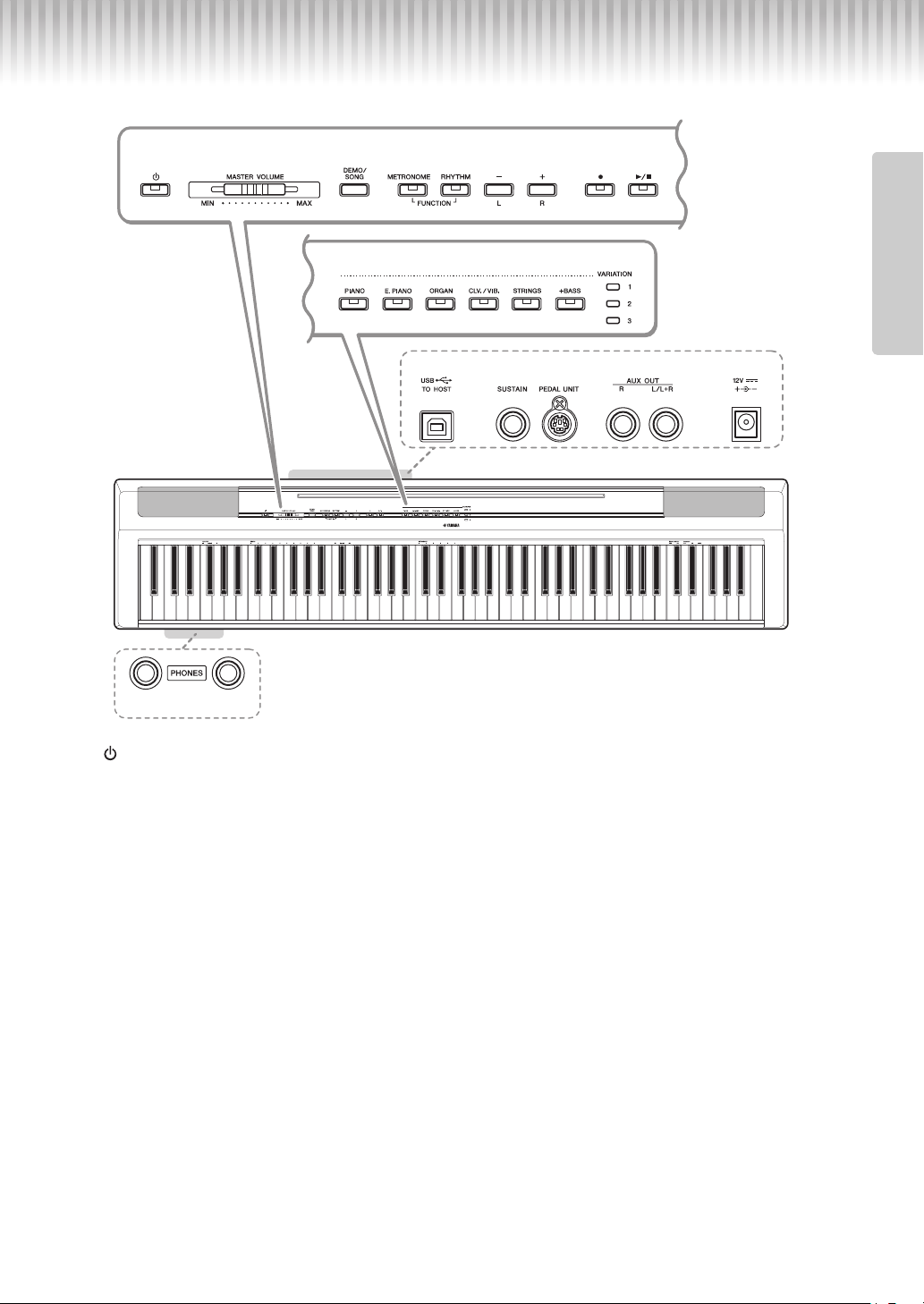
While holding down the button(s), press the appropri-
ate key to make various settings, such as turning the
function on or off, playing back the Songs and so on.
If you come across the illustrations like below in this
manual, press the same key while holding down the
same button(s) as illustrated.
About the Manuals
Yamaha Downloads
https://download.yamaha.com/
About the Key Operations
Above illustration indicates
q While simultaneously holding down the
[METRONOME] and [RHYTHM] buttons…
w Press one of the shaded keys briefly.
Finally, release all the buttons.
C0 C1 C2 C3 C4 C5 C6 C7
w
q
C6
While holding down
A#5: On
A5: Off
Included Accessories
• Owner’s Manual x1
• Quick Operation Guide x1
•AC Adaptor*x1
• Online Member Product Registration x1
• Footswitch x1
* May not be included depending on your particular area. Please check
with your Yamaha dealer.
• Music Rest x1
Insert into
the slot
P-125a Owner’s Manual
9
Introduction
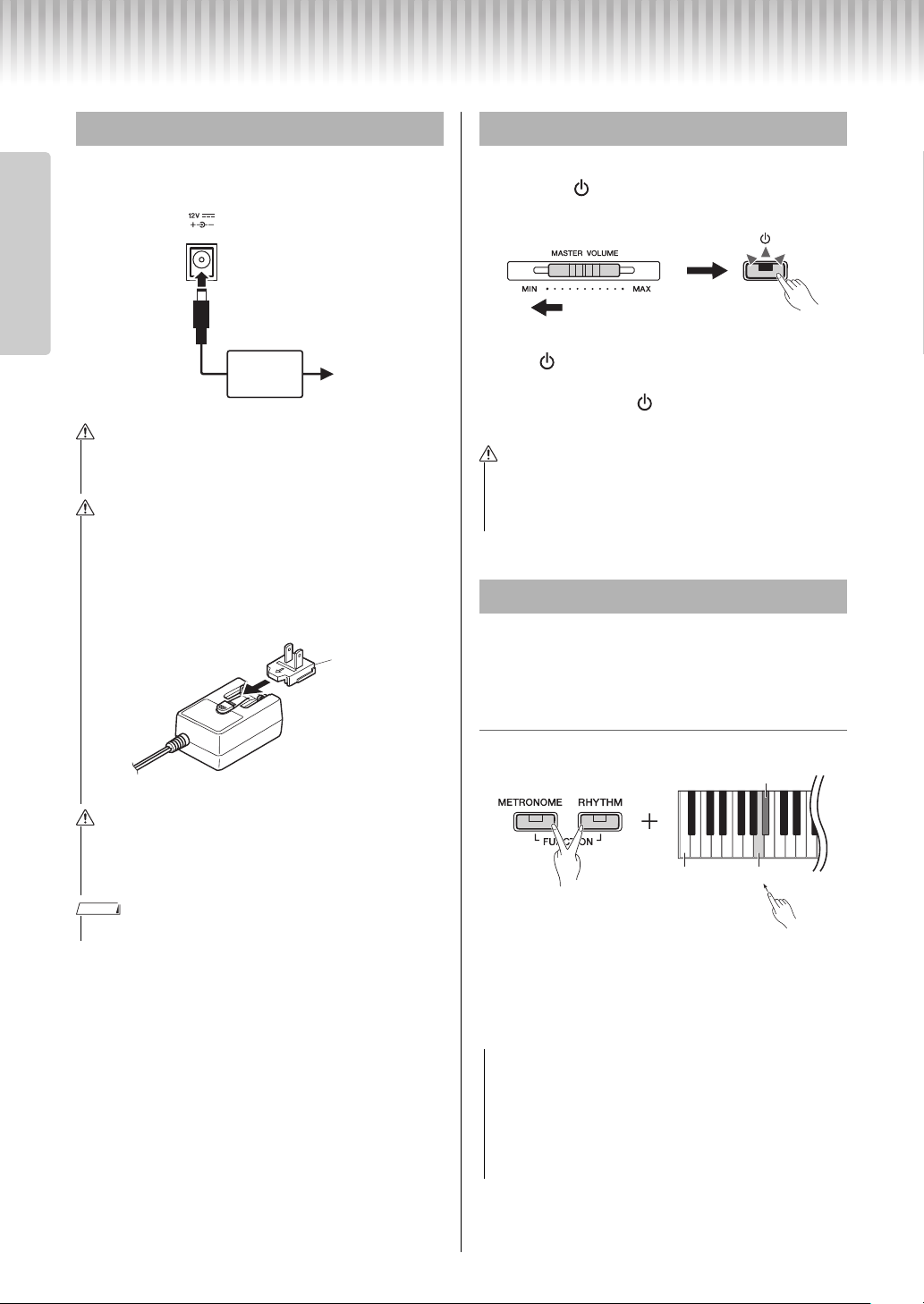
Panel Controls and Terminals
q [ ] (Standby/On) switch ......................page 10
For turning the power on or setting to standby.
w [MASTER VOLUME] slider....................page 11
For adjusting the volume of the entire sound.
e [DEMO/SONG] button ...........................page 18
For playing the Demo Songs and the Preset Songs.
r [METRONOME] button ..........................page 16
For starting or stopping the metronome.
t [RHYTHM] button ................................. page 20
For starting or stopping the rhythm.
y [-][+], [L][R] buttons ........pages 15 – 16, 18, 22
For selecting a Song during playback, adjusting the
tempo, and selecting the Song part for recording
and playback.
u [] (Record) button .............................. page 21
For recording your keyboard performance.
i [/] (Play/Stop) button ...................... page 21
For playing back or stopping the recorded perfor-
mance.
o Voice buttons.........................................page 13
For selecting a Voice or two Voices played simulta-
neously, such as Piano and Organ.
!0 [USB TO HOST] terminal ......................page 24
For connecting to a computer or a smart device
such as iPhone or iPad.
!1 [SUSTAIN] jack......................................page 12
For connecting the included footswitch, an
optional footswitch and foot pedal.
!2 [PEDAL UNIT] jack................................page 12
For connecting an optional pedal unit.
!3 AUX OUT [R][L/L+R] jacks ...................page 23
For connecting external audio equipment.
!4 DC IN jack ..............................................page 10
For connecting the power adaptor.
!5 [PHONES] jacks ....................................page 11
For connecting a set of standard stereo head-
phones.
!3 !4!2!1!0
!5
qwerty
ui
o
C0 C1 C2 C3 C4 C5 C6 C7
A-1
About the Built-in Speakers
Since sound from the built-in speakers also comes from the bottom
of the instrument, we recommend that you use an optional keyboard
stand for better sound. When playing the instrument placed on a
desk or table, turn on the Table EQ function (page 13.)
Shows the jacks and terminals as seen when viewed from the rear of the instrument.
Introduction
P-125a Owner’s Manual
10
Introduction
Setting Up
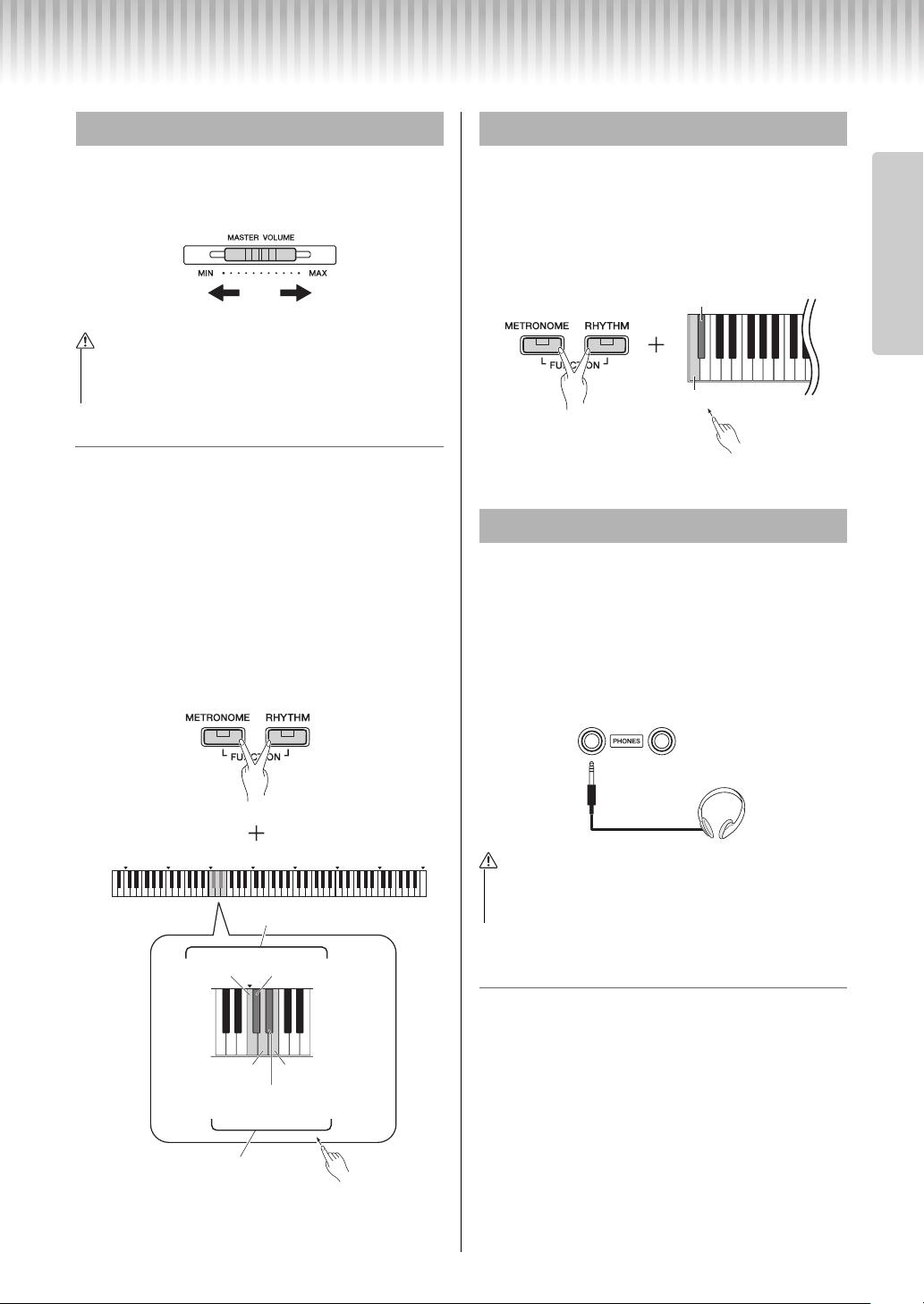
Connect the AC adaptor in the order shown in the
illustration.
q Turn down the [MASTER VOLUME] to “MIN”.
w Press the [ ] (Standby/On) switch to turn the
power on.
The [ ] (Standby/On) switch lights up. Adjust
the volume as desired while playing the keyboard.
e Press and hold the [ ] (Standby/On) switch for
about a second to turn the power to standby mode.
To prevent unnecessary power consumption, this
function automatically turns the power off if the
instrument is not operated for 30 minutes.
To disable/enable the Auto Power Off function
Default setting: Enable
When the power is off, turn the power on while hold-
ing down the lowest key disables Auto Power Off. The
[
] lamp flashes three times, indicating that the Auto
Power Off function has been disabled.
Power Requirements
• Use the specified AC adaptor (page 25) only. Using the
wrong AC adaptor can result in damage to the instrument
or overheating.
• When using the AC adaptor with a removable plug, make
sure to keep the plug attached to the AC adaptor. Using the
plug alone can cause electric shock or fire.
• Never touch the metallic section when attaching the plug.
To avoid electric shock, short circuit or damage, also be
careful that there is no dust between the AC adaptor and
plug.
• When setting up the product, make sure that the AC outlet
you are using is easily accessible. If some trouble or mal-
function occurs, immediately turn the power off and dis-
connect the plug from the outlet.
• Follow the order shown above in reverse when disconnecting the AC adaptor.
AC adaptor
AC outlet
DC IN jack
(page 9)
q
w
WARNING
WARNING
Plug
Slide the plug as
indicated.
* The shape of the plug differs depending on your area.
WARNING
NOTE
Turning the Power On/Standby
• Even when the power switch is turned off, electricity is still
flowing to the product at the minimum level. When you are
not using the product for a long time, make sure to unplug
the power cord from the wall AC outlet.
Auto Power Off Function
• If your digital piano is connected to other equipment such
as amplifiers, speakers, or a computer but you do not
intend to use it for 30 minutes, we recommend that you
turn off all devices as described in their owner’s manuals.
Doing so eliminates the risk of damage to the other equip-
ment. If you do not want the instrument to turn off auto-
matically when connected to other equipment, disable the
Auto Power Off function.
w
q
WARNING
w
q
Lowest
key
While holding
down
A#0: Enable
A0: Disable
NOTICE
Setting Up
P-125a Owner’s Manual
11
Introduction
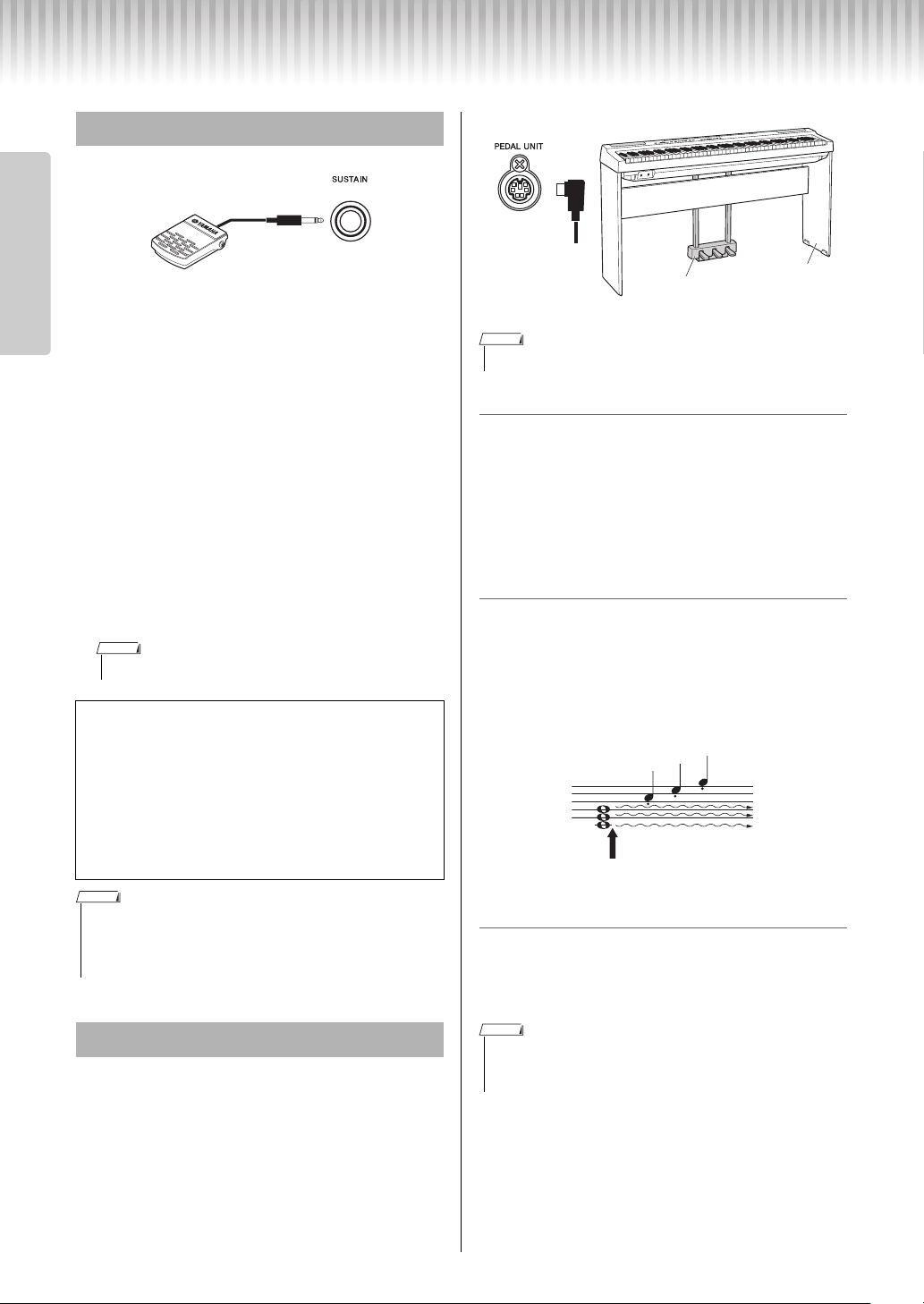
To adjust the volume of the entire keyboard sound, use
the [MASTER VOLUME] while playing the key-
board.
Intelligent Acoustic Control (IAC)
With this function, the sound quality of this instru-
ment is automatically adjusted and controlled accord-
ing to the overall volume. Even when the volume is
low, you can hear both low sounds and high sounds
clearly. IAC Control is effective only from the sound
output of the instrument speakers.
IAC On/Off
Default setting: On
IAC Depth
Setting range: -3 – 0 – +3
Default setting: 0
When a setup is changed using a button and key com-
bination, an operation sound (“On,” “Off,” click,
tempo value input) is sounded. This confirmation
sound can be enabled (On) or disabled (Off) as
desired.
Default setting: On
Connect a pair of headphones to the [PHONES] jack.
Since this instrument is equipped with two
[PHONES] jacks, you can connect two pairs of head-
phones. If you are using only one pair, insert the plug
into either of these jacks.
If your headphones have a stereo mini plug, use a ste-
reo conversion plug to convert it to a standard stereo
phone plug.
Reproducing natural sound distance (Stereo-
phonic Optimizer)
Default setting: on
The Stereophonic Optimizer recreate for headphones
a natural distance between your ears and the instru-
ment, just as when playing an acoustic piano.
Stereophonic Optimizer On/Off
While holding down [PIANO], press the F3 key to
turn the function off or F#3 to turn on.
Adjusting the Master Volume
• Do not use the instrument for a long period of time at a
high or uncomfortable volume level, since this can cause
permanent hearing loss.
LouderSofter
CAUTION
C2
C0 C1 C2
C3
C4 C5 C6 C7
w
q
C#2: OnC2: Off
E2: Up by 1D2: Down by 1
While holding
down
D#2: 0
(reset to the default setting)
IAC Depth
IAC On/Off
Operation Confirmation Sounds
Using Headphones
• Do not use the headphones for a long period of time at a
high or uncomfortable volume level, since this can cause
permanent hearing loss.
w
q
Lowest key: Off
While holding
down
Second lowest key: On
Standard stereo
phone plug
CAUTION
Setting Up
P-125a Owner’s Manual
12
Introduction
You can produce a natural sustain as you play by
pressing the included footswitch plugged into the
[SUSTAIN] jack.
Also an optional FC3A foot pedal or FC4A or FC5
footswitch can be connected to this jack. The FC3A
lets you use the Half Pedal function.
Damper Resonance
When you select a Piano Voice, pressing the foot-
switch activates the Damper Resonance/ Sustain
sampling effect (when on) to accurately recreate
the resonance of an acoustic piano’s strings.
To turn the effect on and enable footswitch control,
simultaneously hold down [PIANO] and press the
C#3 key; to turn it off, simultaneously hold down
[PIANO] and press C3.
Default setting: on
The [PEDAL UNIT] jack is for connecting the LP-1
pedal unit (sold separately). When connecting the
pedal unit, make sure to also assemble the unit on the
L-125 keyboard stand (sold separately).
Damper (Right) Pedal
Pressing this pedal will sustain notes longer. Releas-
ing this pedal immediately stops (damps) any sus-
tained notes. The damper pedal is compatible with the
Damper Resonance (see column at left). A “half-
pedal” function of this pedal creates partial sustain
effects, depending on how far down you press the
pedal.
Sostenuto (Center) Pedal
If you play a note or chord on the keyboard and press
the sostenuto pedal while the note(s) are held, those
notes will sustain as long as you hold the pedal (as if
the damper pedal had been pressed) but all subse-
quently played notes will not be sustained. This makes
it possible to sustain a chord, for example, while other
notes are played “staccato.”
Soft (Left) Pedal
The soft pedal reduces the volume and slightly
changes the timbre of notes played while the pedal is
pressed. The soft pedal will not affect notes that are
already playing when it is pressed.
Using a Pedal (Sustain)
• Damper Resonance cannot be used in Duo (page 15).
Half-pedal function (for FC3A and Pedal Unit)
This function allows you to vary the sustain length
depending on how far the pedal is pressed. The far-
ther down you press the pedal, the more the sound
sustains. For example, if you press the damper pedal
and all notes you are playing sound a bit murky and
loud with too much sustain, you can release the pedal
half way or higher to decrease the sustain (murki-
ness).
• Do not press the footswich when turning the power on. Doing this changes the
recognized polarity of the footswitch, resulting in reversed footswitch operation.
• Make sure that power is OFF when connecting or disconnecting the footswitch
or pedal.
Using the Pedal Unit (sold separately)
NOTE
NOTE
• Make sure that power is off when connecting or disconnecting the pedal unit.
• When the “Jazz Organ” is selected, pressing and releasing this pedal switches
between “fast” and “slow” of the Rotary Speaker speed. When the Vibraphone is
selected, this pedal switches Vibrato on and off.
LP-1
(Sold separately)
L-125
(Sold separately)
NOTE
If you press and hold the sostenuto pedal here,
only the notes held at this timing will be sustained.
NOTE
P-125a Owner’s Manual
13
Reference
Reference
Selecting & Playing Voices
The instrument has a wide variety of Voices, or instrument sounds, for your enjoyment, including Piano and
Organ.
The Voices of the instrument are conveniently divided into
specific groups and each of them are assigned to the Voice
buttons.
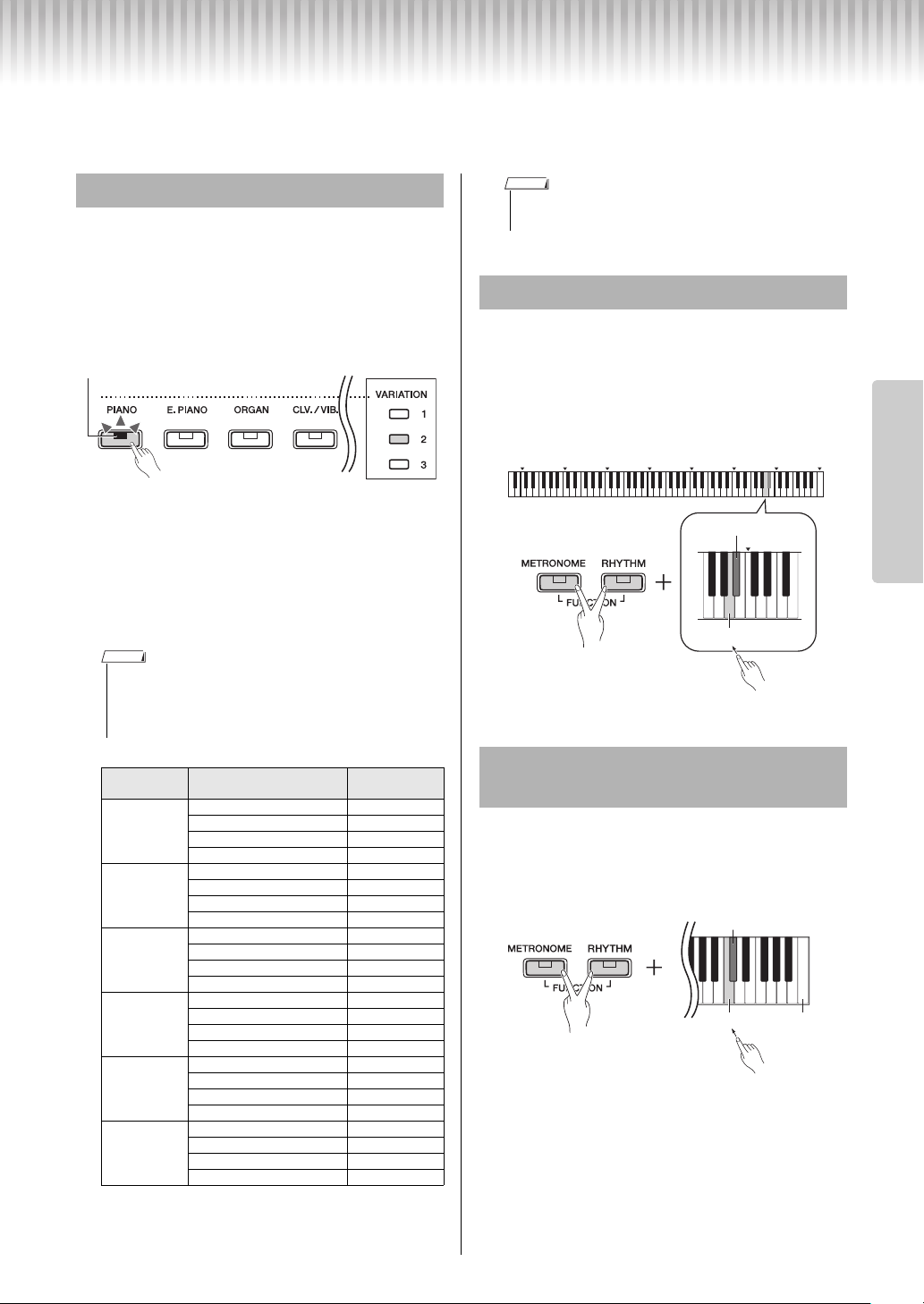
1
Press a Voice button (page 9).
A Voice is called up from the selected group. Try
playing the keyboard and listening to the sound.
Pressing the same Voice button selects the Voices
in the group in order. For details, refer to the Voice
List below. When the first Voice in the group is
selected, a Variation lamp is off. When a Variation
Voice 1 – 3 is selected, the corresponding varia-
tion lamp lights up.
Voice List
Refer to the “Voice List (Detailed)” on page 26 for
more information on the characteristics of each
preset Voice.
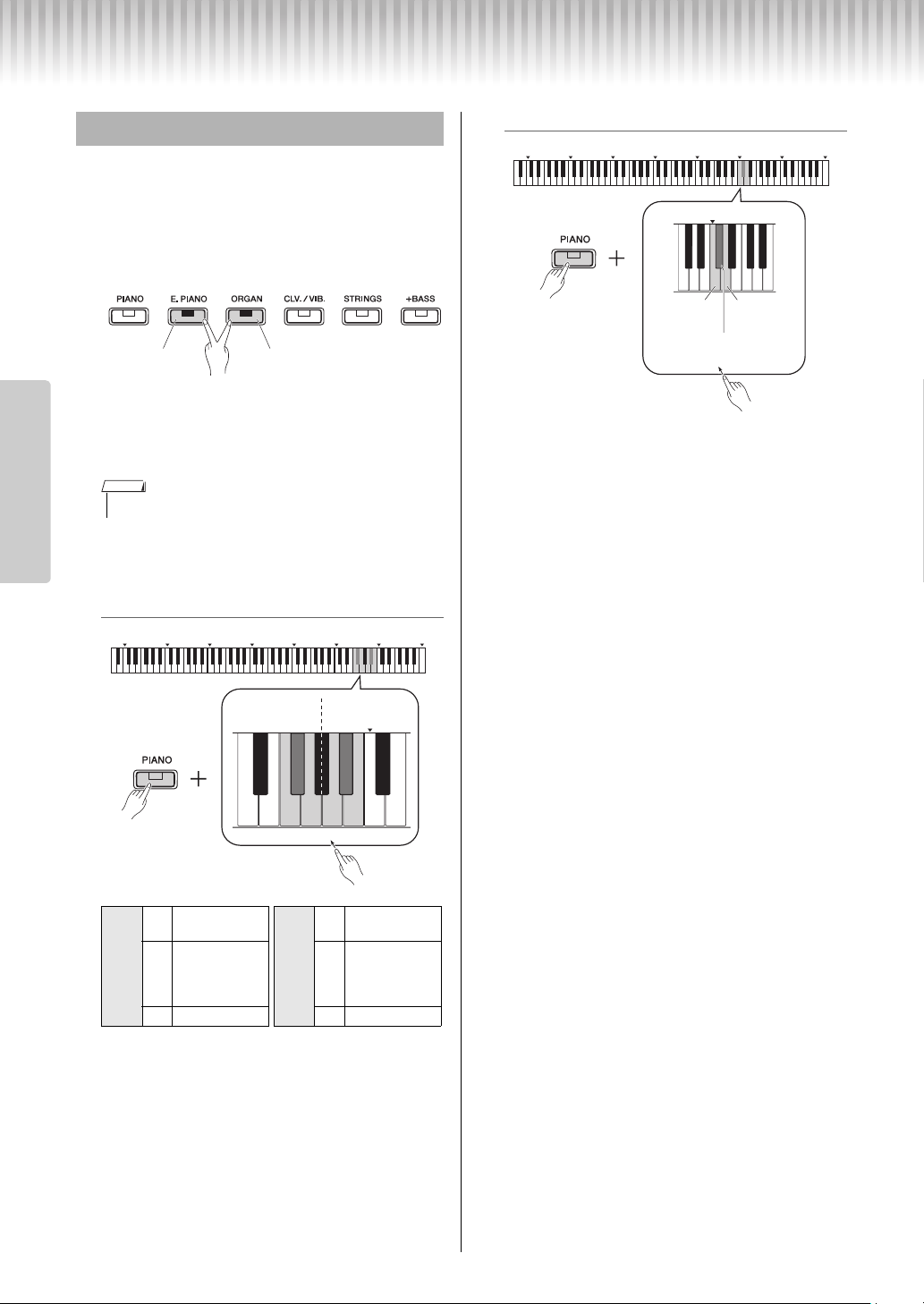
When this is set to on, speaker sound will be opti-
mized for playing the keyboard placed on the table or
desk. This function is effective only from the sound
output of the instrument speakers. Turn off when you
play the keyboard installed on the stand.
Default setting: off
This function is particularly useful when you want not
only notes played very loud, but also those played
softly, to be clearly audible.
Default setting: off
* Refer to the printing above the keyboard (SOUND BOOST
OFF/ON).
Selecting a Voice
• The last selected Voice in the selected group will be called up when the
Voice button is pressed. This will be reset to the first Voice when you
turn off the power.
• Pressing [+BASS] turn on the Split function (page 15).
Voice Button
(Group)
Voice Name Variation
[PIANO]
Grand Piano
Live Grand
1
Ballad Grand
2
Bright Grand
3
[E.PIANO]
Stage E.Piano
DX E.Piano
1
Vintage E.Piano
2
Synth Piano
3
[ORGAN]
Jazz Organ
Rock Organ
1
Organ Principal
2
Organ Tutti
3
[CLV./VIB.]
Harpsichord 8’
Harpsi.8’+4’
1
E.Clavichord
2
Vibraphone
3
[STRINGS]
Strings
Slow Strings
1
Choir
2
Synth Pad
3
[+BASS]
Acoustic Bass
Electric Bass
1
Bass & Cymbal
2
Fretless Bass
3
Lights up
In this example, Ballad Grand (variation 2) in the
[PIANO] button is selected.
Variation
lamp
NOTE
• To familiarize yourself with the characteristics of the voices, listen to the
Demo Songs for each Voice (page 18).
Using Table EQ
Strengthening the Overall Sound
(Sound Boost)
NOTE
C0 C1 C2 C3 C4 C5 C6 C7
w
q
C6
A#5: On
A5: Off
While holding down
w
q
C#6: On
C6: Off
Highest
key
While holding down
Selecting & Playing Voices
P-125a Owner’s Manual
14
Reference
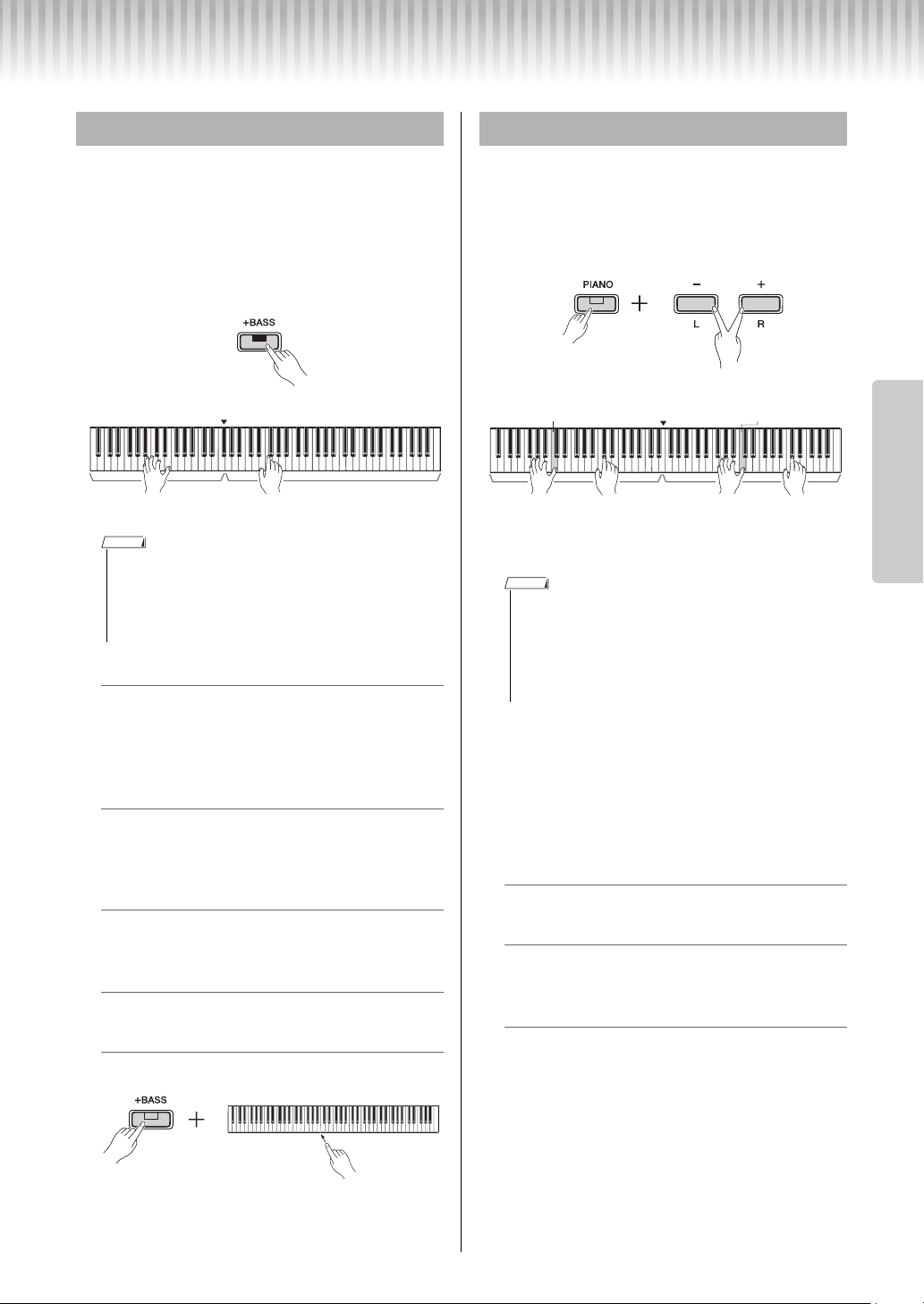
You can layer two Voices and play them simultane-
ously to create a more richly textured sound.
1
Engage Dual.
Choose two desired Voices, then press those Voice
buttons simultaneously.
Note that the Voice of the left side button is desig-
nated as Voice 1, while the Voice of the right side
button is designated as Voice 2. The Variation
lamps indicate the status of Voice 1.
2
Play the keyboard to enjoy the dual
sound.
To shift the Octave for each Voice:
Setting range: -2 – +2
To adjust the balance between two Voices:
Setting range: -6 – 0 – +6
Settings below “0” increase the volume of Voice 2,
while settings above “0” increase the volume of
Voice 1, in relation to the other.
3
To exit from Dual, simply press any
Voice button.
Layering Two Voices (Dual)
• You cannot layer two Voices from the same group.
Voice
2
F5
Down by 1
octave
Voice
1
A5
Down by 1
octave
F#5
Default setting
(different for
each Voice
combination)
A#5
Default setting
(different for
each Voice
combination)
G5 Up by 1 octave B5 Up by 1 octave
Left: Voice 1 Right: Voice 2
NOTE
C0 C1 C2 C3 C4 C5 C6 C7
w
q
C6
F#5
A#5
F5 G5 A5 B5
Voice 1Voice 2
While holding
down
C0 C1 C2
C3
C4 C5 C6 C7
w
q
C5
D5: up
by 1
C5: down
by 1
C#5: 0
(default setting)
While holding
down
Selecting & Playing Voices
P-125a Owner’s Manual
15
Reference
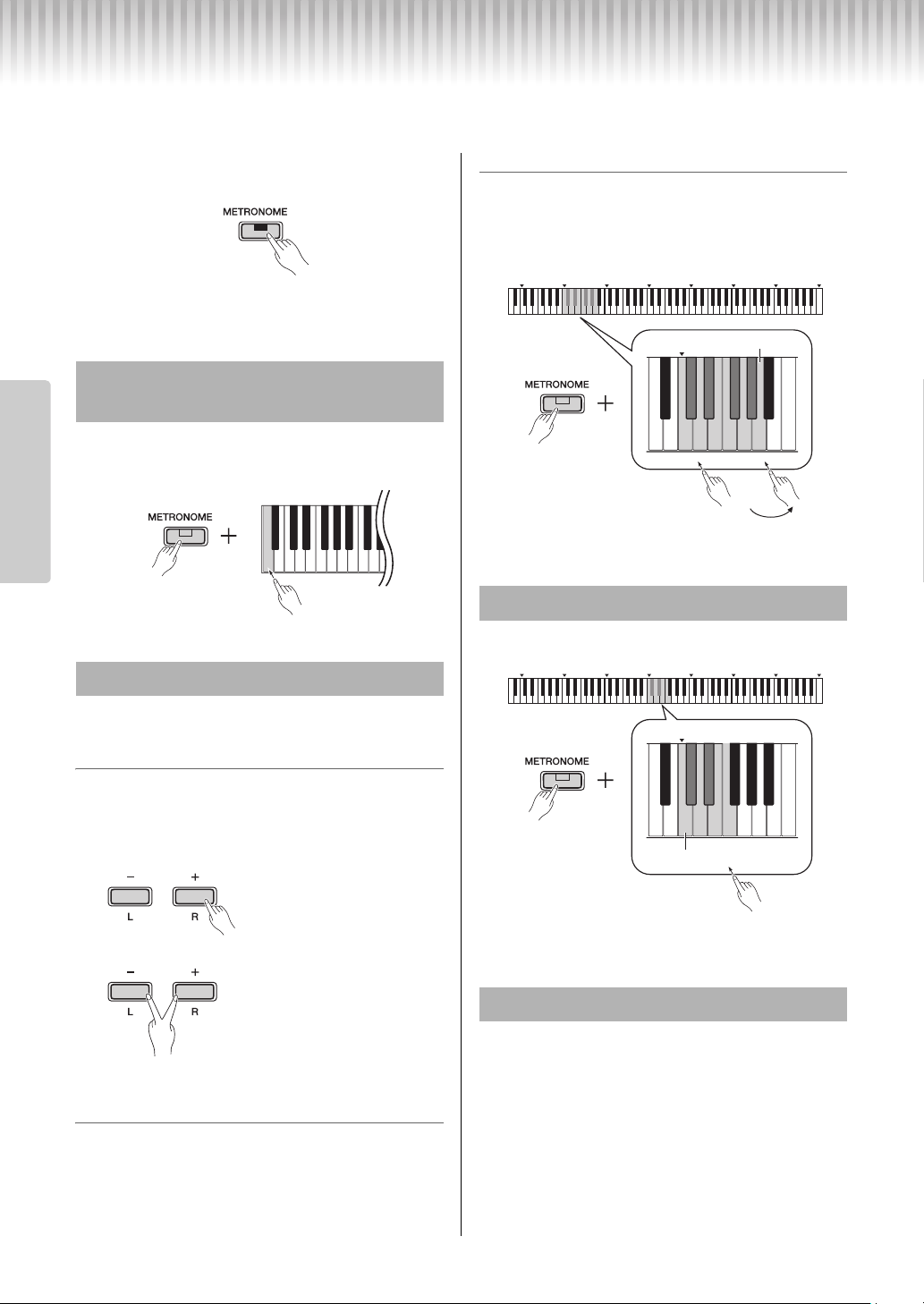
Split mode enables you to play two different Voices
on the keyboard — for example, acoustic bass with
your left hand and piano with your right.
1
Press [+BASS] to engage Split.
The keyboard is divided into the two sections with
the F#2 key as the Split Point. Play the keyboard.
To change the Left Voice to another bass Voice:
Press [+BASS] repeatedly to select the bass
Voices in the [+BASS] group in order. Refer to the
Voice list on page 13.
To change the Left Voice to any Voice
other than bass:
While holding down [+BASS], select a desired
Voice by pressing the Voice button several times
as necessary.
To shift the Octave for each Voice:
Same as in Dual (see previous page).
To adjust the volume balance between two
Voices:
Same as in Dual (see previous page).
To change the Split Point:
While holding [+BASS], press the desired key.
2
To exit from Split, simply press any
Voice button.
This function allows two different players to play the
instrument, one on the left and the other on the right,
over the same octave range.
1
Engage Duo.
The keyboard is divided into two sections, with
the E3 key as the Split Point.
2
One person can play the left section of
the keyboard while the other plays the
right.
Sounds played with the left voice are played from
the left speaker, and sounds played with the right
voice are played from the right speaker.
To select the Voice:
Refer to step 1 on page 13.
To shift the Octave for each section:
Same as in Dual (page 14).
To adjust the volume balance between two
keyboard sections:
Same as in Dual (page 14).
3
To exit from Duo, perform the same
operation as in step 1.
Pedal function in Duo
• Damper Pedal: Applies Sustain to the right section.
• Sostenuto Pedal: Applies Sustain to both sections.
• Soft Pedal: Applies Sustain to the left section.
Splitting the Keyboard (Split)
• Only Dual, Split or Duo can be called up; both or all cannot be used
together.
• The damper pedal of the pedal unit cannot be used on the left Voice when
a bass Voice is selected for the left Voice.
• The Variation lamps indicate the status of Voice 2.
Split Point (Default: F#2)
Left Voice
(Voice 2)
Right Voice
(Voice 1)
NOTE
Playing Duo
• Different Voices cannot be assigned to the Right Voice and Left Voice.
• The Split Point cannot be changed from E3.
• Only Dual, Split or Duo can be called up; both or all cannot be used
together.
• Turning Duo turns off Reverb, Damper Resonance and Stereophonic
Optimizer.
Split Point (E3)
Left Voice (Voice 2) Right Voice (Voice 1)
Equivalent to C3
(middle C)
Equivalent to C3
(middle C)
q
w
While holding
down
NOTE
P-125a Owner’s Manual
16
Reference
Using the Metronome
The Metronome is convenient for practicing with an accurate tempo.
1
Press [METRONOME] to start the
Metronome.
2
Press [METRONOME] again to stop the
Metronome.
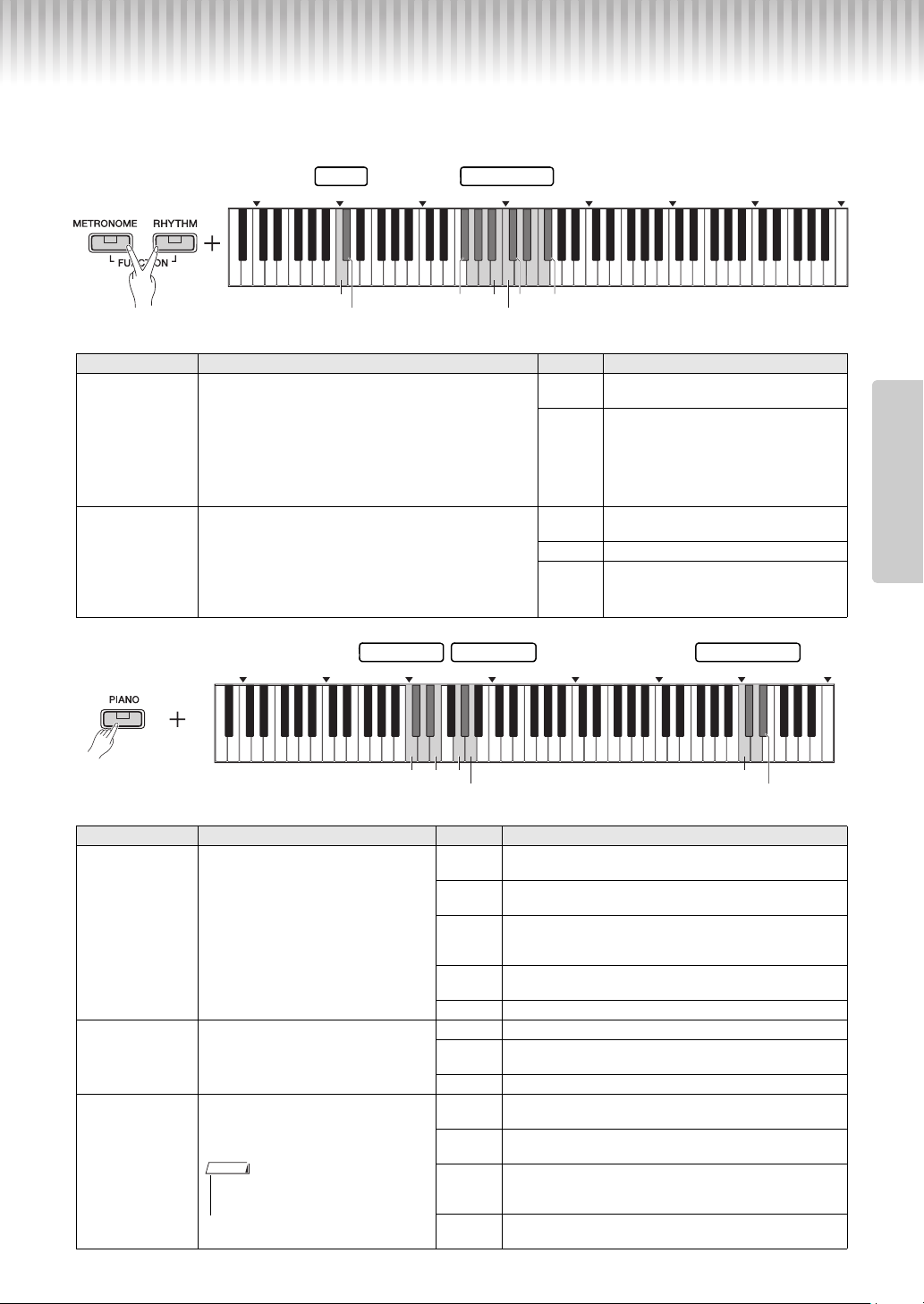
While holding down [METRONOME], press the low-
est key.
Setting range: 5 – 280 (default setting: 120)
To increase or decrease the value by 1:
When the metronome is playing back, press [+] to
increase or [-] to decrease. When it is stopped, press
[+] to increase or [-] to decrease while holding down
[METRONOME].
To increase or decrease the value by 10:
While holding down [METRONOME], press the C2
key to decrease the value by 10, C#2 to reset to the
default value, or D2 to increase by 10.
* Refer to the “TEMPO” indications (-10/default/+10) printed
above these keys.
To specify a three-digit value:
For example to specify “80,” press the relevant G1 (8)
and A1 (0) keys in order.
A numeric value is read out when a relevant key is
pressed.
* Refer to the “TEMPO” indications (1 to 9, 0) printed above
these keys.
Setting range: - (default setting: no beat), 2, 3, 4, 5, 6
* Refer to the “METRONOME” indications (- to 6) printed
above these keys.
Setting range: 1 – 10 (default setting: 7)
While holding down [METRONOME], press the F0
key to decrease the value by 1, F#0 key to reset to the
default value, or G0 key to increase by 1.
* Refer to the “VOLUME” indications (-1/default/+1) printed
above these keys.
Voice Confirmation of Current
Tempo Value (in English)
Adjusting the Tempo
w
q
While holding
down
Holding either button continuously
increases or decreases the value
Pressing simultaneously reset to
the default setting
Selecting a Beat (Time Signature)
Adjusting the Volume
1
24 79
35680
C0 C1 C2
C3
C4 C5 C6 C7
q
A1
C1
w
While holding
down
24
3
–
56
C3
C0 C1 C2 C3 C4 C5 C6 C7
q
w
No beat
While holding
down
P-125a Owner’s Manual
17
Reference
Setting Various Items for Performances
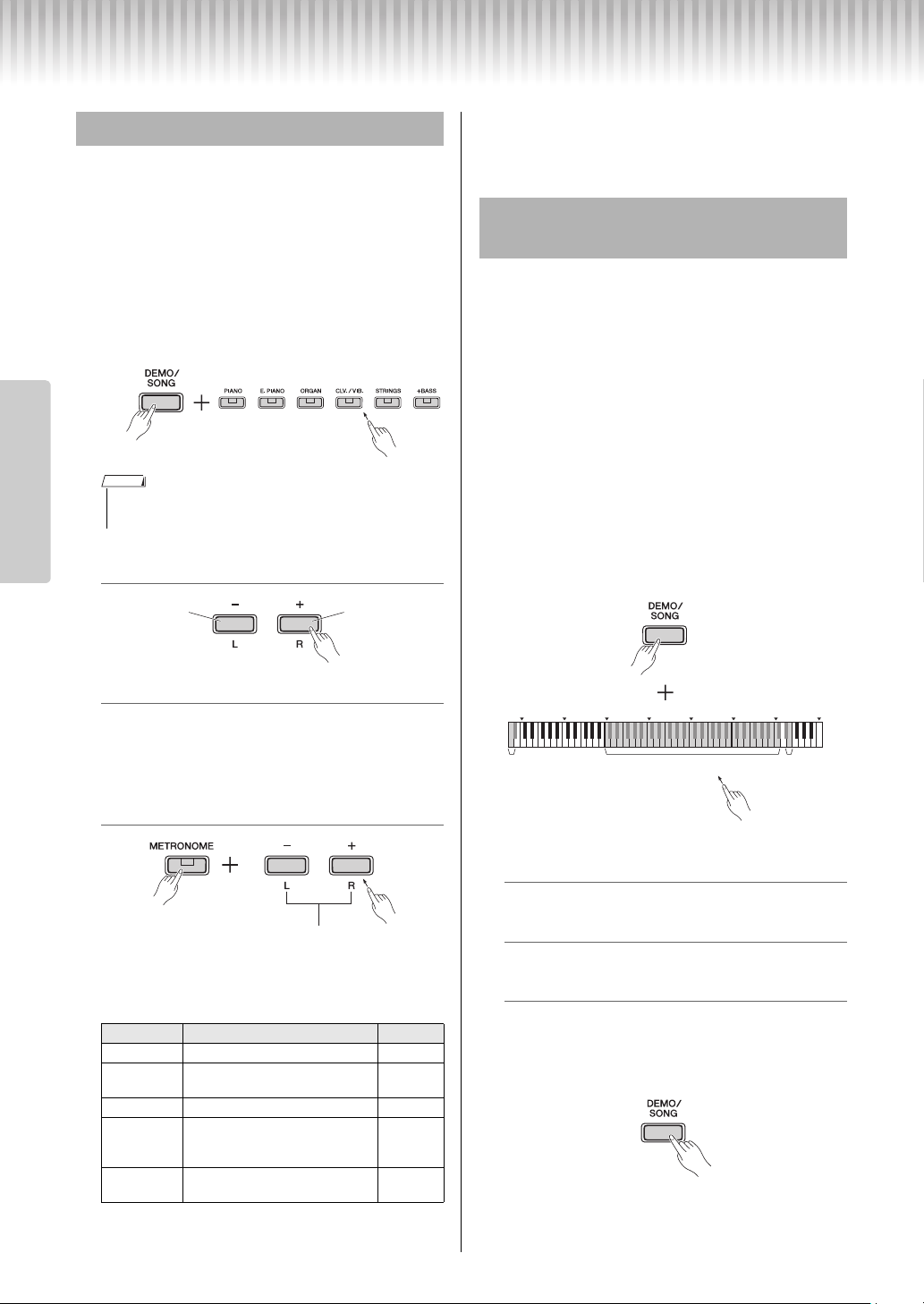
To set items shown in the tables below, hold down the corresponding buttons or button, and press the correspond-
ing keys on the keyboard. Refer to the separate “Quick Operation Guide.”
Tuning, Transpose
Reverb, Touch Sensitivity
Item Description Keys Settings
Fine-tuning the
Pitch
Using the Tuning setting, you can fine tune the pitch of the entire
instrument. This can be extremely useful when playing your dig-
ital piano along with other instruments or recorded music.
While holding down [METRONOME] and [RHYTHM] simul-
taneously, press [+] or [-] to tune up or down in about 0.2 Hz
steps, or press [+] and [-] simultaneously to reset to the
default setting (440.0 Hz).
Setting range: 414.8 – 440.0 – 466.8 Hz
C1
Resets the pitch to the default (A3 = 440.0
Hz).
C#1 Sets the pitch to A3 = 442.0 Hz.
Key Transposition
You can shift or transpose the pitch of the entire keyboard
up or down in semitones.
For example, if you set the transpose to “+5,” playing a C
key will produce an F pitch. You could, therefore, play a
song as if it was in C major and the digital piano would
transpose it to the key of F major.
Setting range: -6 (F#2) – 0 (C3) – +6 (F#3)
F#2 – B2
Transposes the pitch down (to play lower
notes than the actual keys).
C3 Restores the original pitch (0).
C
#
3 – F
#
3
Transposes the pitch up (to play higher
notes than the actual keys).
Item Description Keys Settings
Setting the Reverb
Type
Using the digital piano’s Reverb function,
you can add reverberation similar to that
of a concert hall to individual Voices.
Whenever you select a Voice, the most
suitable reverb will be automatically set;
however, you can freely set the Reverb
Type as desired.
C2
Recital Hall: Simulates the clear reverb sound you would
hear in a medium-sized concert hall for piano recitals.
C#2
Concert Hall:
Simulates the gorgeous reverb sound you
would hear in a large concert hall for orchestral performances
D2
Chamber: Suitable for playing chamber music; simulates the
intimate reverb sound you would hear in a spacious room,
such as for classical music recitals.
D#2
Club: Simulates the vivid reverb sound you would hear in a
live music venue or a jazz club.
E2 Off: No effect is applied.
Setting the Reverb
Depth
Adjusts the Reverb Depth.
Setting range: 0 – 20
G2 Decreases by one.
G#2
Restores the default setting (which is the best suited depth
setting for the current Voice.)
A2 Increases by one.
Changing the
Touch Sensitivity
You can specify the degree of Touch Sen-
sitivity (how the sound responds to your
playing strength).
C6
Soft: The volume level does not change much when you
play the keyboard soft or hard.
C#6
Medium: This is the standard piano touch response (default
setting).
D6
Hard: The volume level changes very widely from pianissimo
to fortissimo to facilitate dynamic and dramatic expression.
You have to hit the keys hard to produce a loud sound.
D#6
Fixed: The volume level does not change at all regardless of
whether you play the keyboard soft or hard.
C0 C1 C2 C3 C4 C5 C6 C7
C1 F#2
C3
B2 F#3
C#1
C#3
TransposeTuning
C0 C1 C2 C3 C4 C5 C6 C7
C2 E2 G2
A2
C6
D#6
Touch SensitivityReverb Type Reverb Depth
• Touch Sensitivity cannot be used for organ
Voices and harpsichord Voices.
NOTE
P-125a Owner’s Manual
18
Reference
Playing Back Songs
Special individual Demo Songs are provided for all of
the Voices of the instrument (except the Bass Voice
Variations 1 – 3).
1
While holding down [DEMO/SONG], press
one of the Voice buttons as necessary
times to select a desired Voice.
The Demo Songs for all Voices will play back in
sequence. During playback, you can change the
Demo Song by selecting a different Voice.
To select the previous or next Song during
playback:
To play back from the beginning of the Song:
During playback, press [+] and [-] simultaneously
to jump to the playback position at the beginning
of the Song then continue playback at the last
specified tempo.
To adjust the playback tempo:
Holding [-] or [+] changes the value continuously.
Demo Song List
The demonstration pieces listed above are short rearranged excerpts of the origi-
nal compositions. All other songs are original (© Yamaha Corporation).
2
Press [DEMO/SONG] or [/] to stop
playback.
In addition to the Demo Songs, Preset Songs are pro-
vided for your listening pleasure. Choose a Song from
the Preset Song List on page 28, then follow the instruc-
tions below. Also, up to two External Songs transferred
from a computer can be played back on this instrument.
For details on External Songs, refer to “Connecting to a
Computer” on page 24.
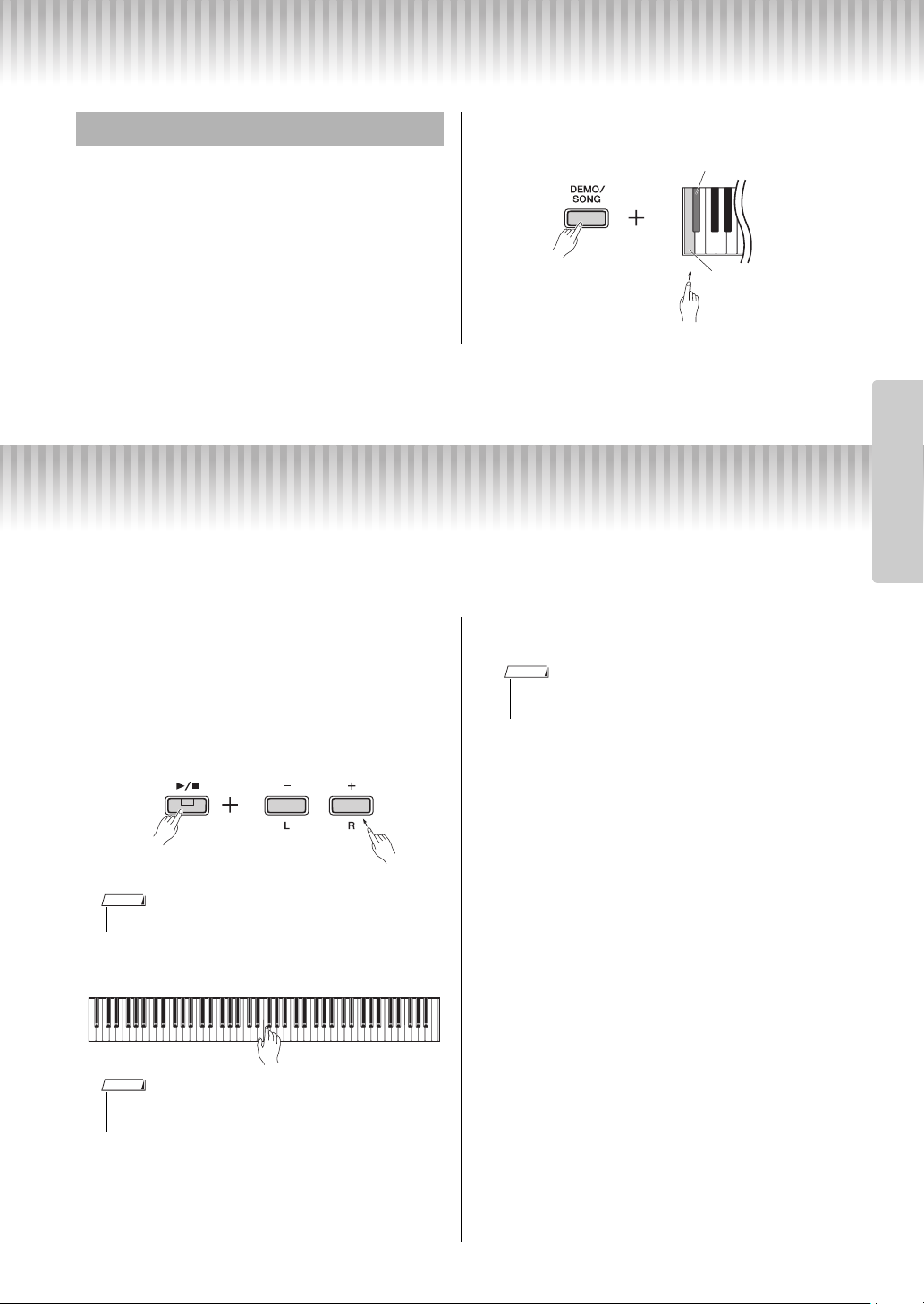
1
While holding down [DEMO/SONG],
press the key corresponding to the
desired preset Song or External Song to
start playback.
The Preset Songs or External Songs will play back
in sequence.
For details on the key assignments, see separate
“Quick Operation Guide.”
To select the previous or next Song during
playback:
Same as in Demo Songs (see column at left).
To play back from the beginning of the Song:
Same as in Demo Songs (see column at left).
To adjust the playback tempo:
Same as in Demo Songs (see column at left).
2
Press [DEMO/SONG] or [/] to stop
playback.
Listening to the Voice Demo Songs
• Simply pressing [DEMO/SONG] will start playback of all Demo Songs
from the first (Grand Piano) in sequence.
Voice Name Title
Composer
Ballad Grand
Intermezzo, 6 Stücke, op.118-2 J. Brahms
Organ
Principal
Herr Christ, der ein’ge Gottes-
Sohn, BWV 601
J.S. Bach
Organ Tutti Triosonate Nr.6, BWV 530 J.S. Bach
Harpsichord
8’
Concerto a cembalo obbligato, 2
violini, viola e continuo No.7,
BWV 1058
J.S. Bach
Harpsi.8’+4’
Gigue, Französische Suiten Nr.5,
BWV 816
J.S. Bach
q
w
While holding down
NOTE
Previous Song Next Song
q
w
Pressing simultaneously
reset to the default value.
While holding
down
Listening to the 50 Preset Songs or
External Songs
C0 C1 C2
C3
C4 C5 C6 C7
q
w
Quick
Play
Preset Songs External
Songs
While holding
down
Song Playback and Practice of Each Part
P-125a Owner’s Manual
19
Reference
This Quick Play feature enables you to specify
whether a Song should play back immediately from
the very first note, or play back any silence or rests
that exist before the first note. While holding down
[DEMO/SONG], press the lowest key to turn this
function off or second lowest key to turn on.
Default setting: on
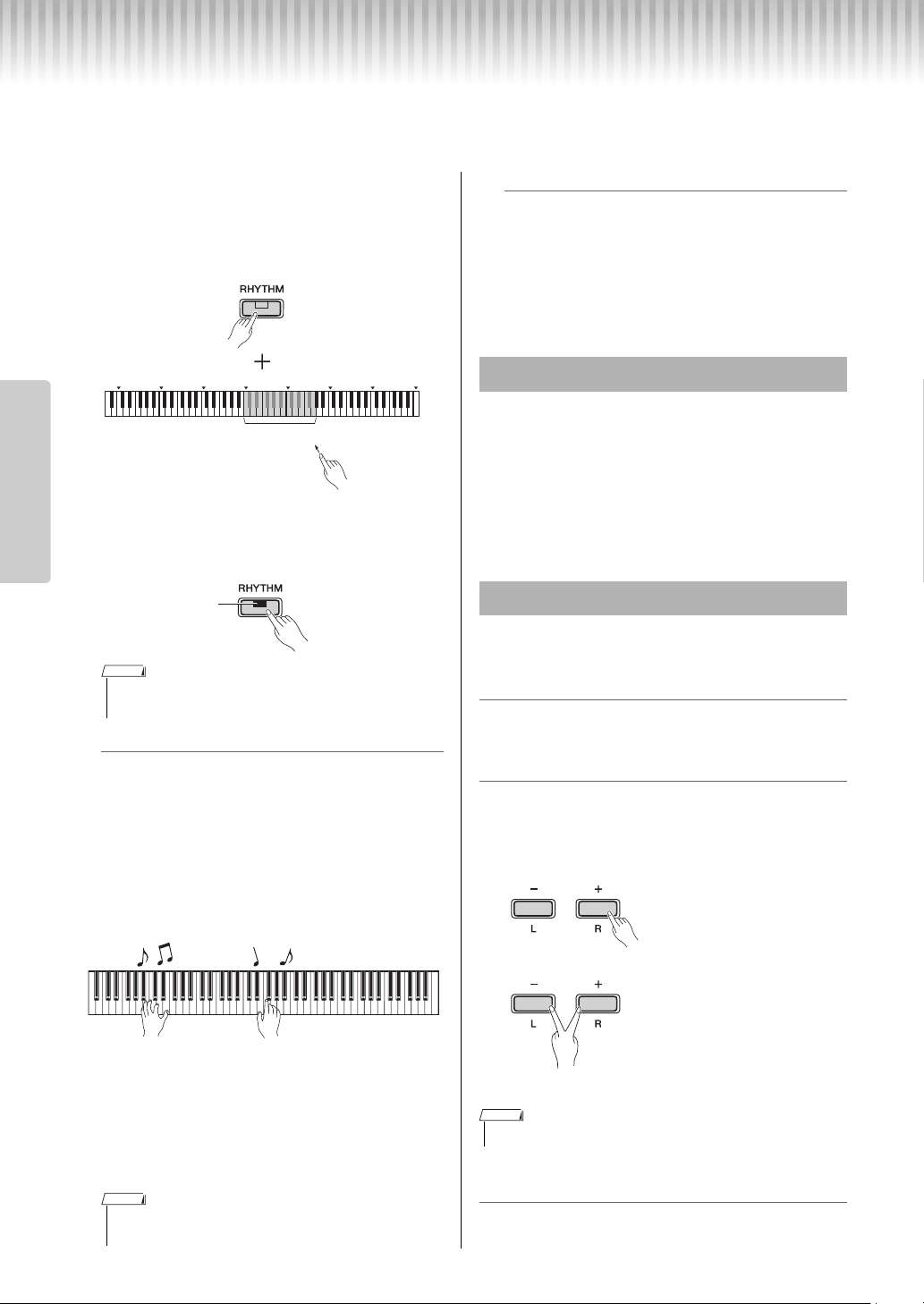
Song Playback and Practice of Each Part
All Songs (except for the Demo Songs; page 18) let you turn on or off the [L] and [R] parts individually. By turn-
ing off [R], for example, you can practice the [R] part while the [L] part is playing back, and vice versa.
1
Start playback of the desired Song.
To start the User Song, press [/].
To start a Preset Song, see page 18, “Listening to
the 50 Preset Songs or External Songs.”
2
While holding down [/], press [L] or
[R] to turn the Part on/off.
3
Practice the part which is turned off.
4
Press [DEMO/SONG] or [/] to stop
playback.
Using Quick Play
w
q
Second lowest key: On
Lowest key: Off
While holding
down
• The Rhythm part recorded to a User Song cannot be muted.
• Songs 16 – 20 of “50 Classics” are duet songs. The right-hand Part is
for the first player, and the left-hand Part is for the second player.
q
w
While holding
down
NOTE
NOTE
• Selecting another Song or stopping the Song will cancel the on/off status
of the parts.
NOTE
Reference
P-125a Owner’s Manual
20
Reference
Adding Accompaniment to Your Performance (Rhythm)
You can select a Rhythm (drums and bass accompaniment) from a variety of musical genres, such as Pop and
Jazz, and play along with it. Refer to the Rhythms on page 28.
1
While holding [RHYTHM], press one of
the C3 – G4 keys to select the desired
Rhythm.
For details on which Rhythm is assigned to each
key, see separate “Quick Operation Guide.”
2
Press [RHYTHM] to start the percussion
part of the selected Rhythm from the
Intro section.
Setting Intro/Ending on or off
This adds an Intro/Ending to the beginning or at
the end of the rhythm section. You can enable
(On) or disable (Off) the sound of the Intro/Ending
as desired. While holding down [RHYTHM],
press one of the keys: F5 (Intro Off), F#5 (Intro
On), G5 (Ending Off) or G#5 (Ending On).
Default setting: on
3
Play your performance along with the Rhythm.
Play the keyboard with your both hands. The
instrument will automatically create appropriate
accompaniment bass sound while you play, based
on the chords you play. Less than three notes can
be played to indicate the chords (based on the pre-
viously played chord, etc.). 9th, 11th and 13th
chords cannot be played.
Bass On/Off
While holding down [RHYTHM], press C5 (Off)
or C#5 (On; default setting).
4
Press [RHYTHM] to stop playback.
The lamp turns off, and the keyboard returns to the
original status.
Setting range: 1 – 10 (Default setting: 7)
While holding down [RHYTHM], press the F0 key to
decrease the value by 1, F#0 to reset to the default
value, or G0 to increase by 1.
* Refer to the “VOLUME” indications (-1/default/+1) printed
above these keys.
Setting range: 5 – 280 (default setting: 120)
Voice confirmation of current Tempo value (in
English):
While holding down [RHYTHM], press the lowest
key.
To increase or decrease the value by 1:
When the Rhythm is playing back, press [+] to
increase or [-] to decrease. When it is stopped, press
[+] to increase or [-] to decrease while holding down
the [RHYTHM].
To increase or decrease the value by 10 or to
specify a three-digit value:
While holding down [RHYTHM], press the same key
as in Metronome Tempo (page 16).
• Intro will not be played back when you start the Rhythm during Song
playback.
• For details on how to play Chords, refer to commercially available chord
books.
C0 C1 C2 C3 C4 C5 C6 C7
q
w
C3 – G4
While holding
down
Flashes
NOTE
NOTE
Adjusting the Volume
Adjusting the Tempo
• The Rhythm tempo setting is reflected also in the Metronome
Holding either button continuously
increases or decreases the value
Pressing simultaneously resets to
the default value
NOTE
P-125a Owner’s Manual
21
Reference
Recording Your Performance
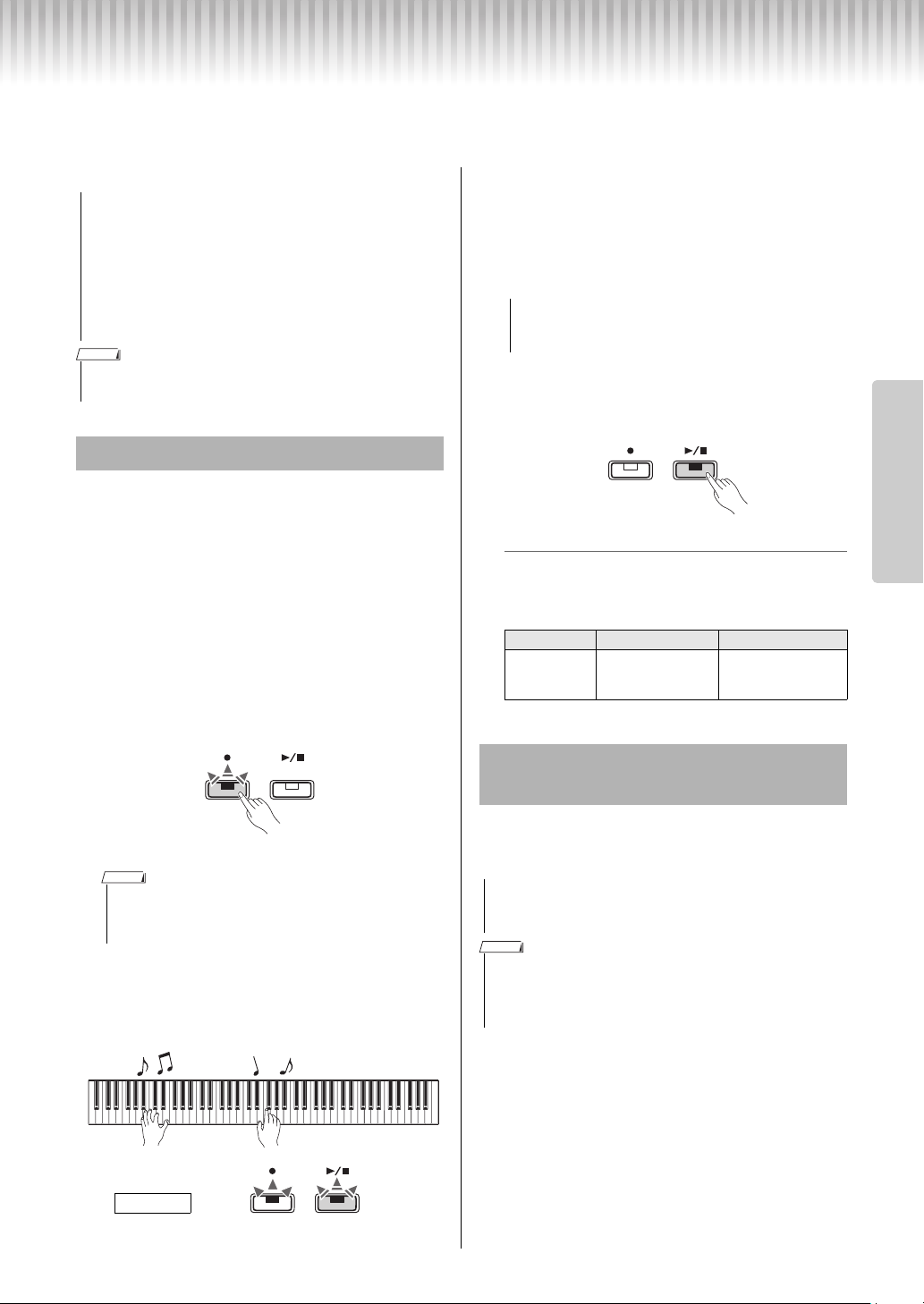
You can record your keyboard performance as a User Song in SMF format. Up to two Parts (L and R) can be
recorded separately.
You can record a Rhythm with your performance.
1
Before recording, make the settings
such as Voice, Beat, Tempo and
Rhythm.
Because some of the settings cannot be changed
after the Record mode is engaged, make the set-
tings according to your performance preferences.
2
Press the [] to engage Record Ready
mode.
The [] lamp will flash according to the current
tempo.
To exit from Record Ready mode, press [].
3
Play the keyboard or press [/] to start
recording.
You can also start recording by pressing the
[RHYTHM].
4
Press either [] or [/] to stop
recording.
The [] and [/] lamps flash, indicating that the
recorded data is being stored. After the operation
is completed, the [] and [
/] lamps turns off.
5
To hear the recorded Song, press [/]
to start playback.
Press [/] again to stop playback.
Part Assignment
When either the Split or Duo is used for recording,
the data as listed below will be recorded to each
part.
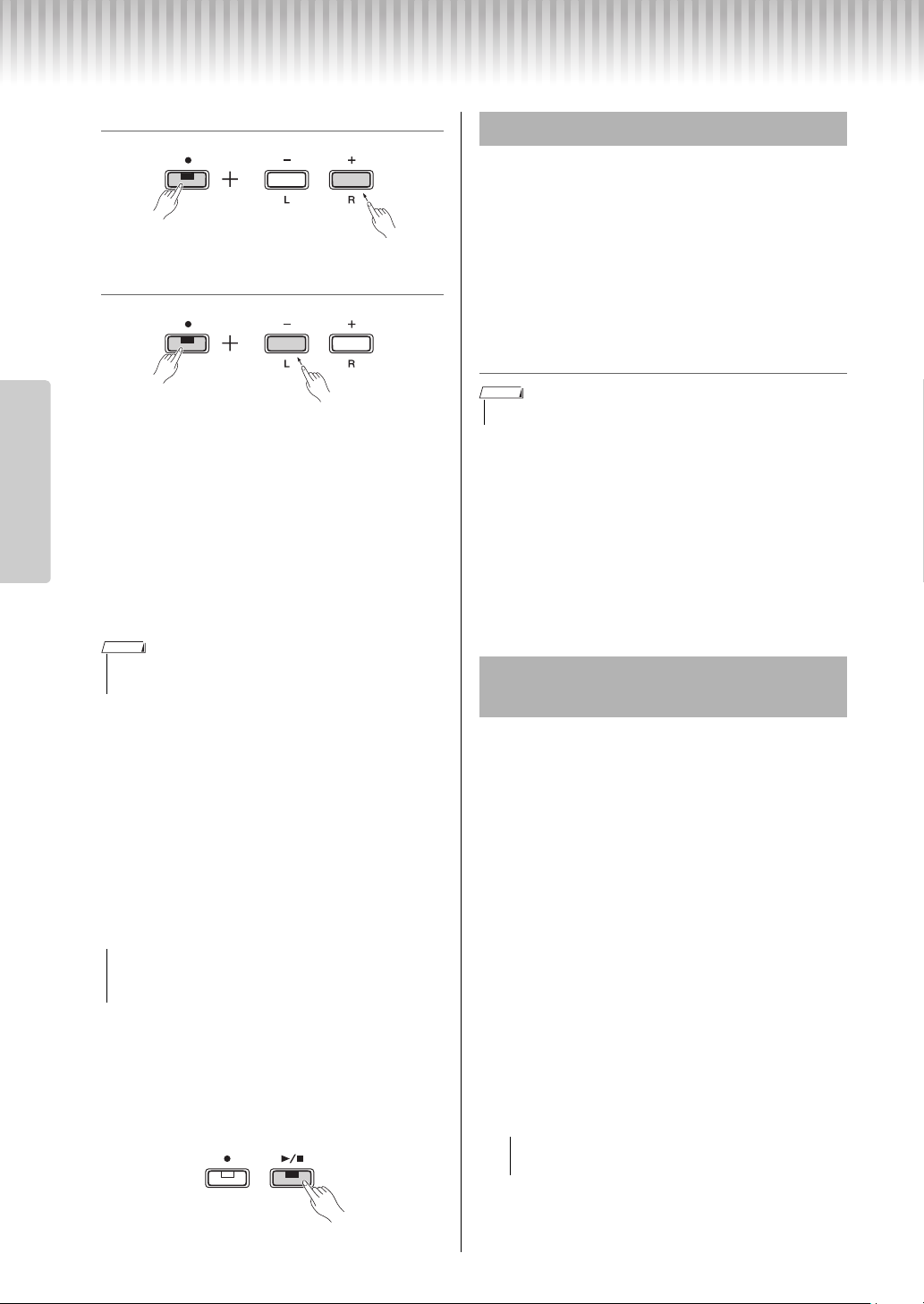
You can record your performance to the L part (left
hand part) and R part (right hand part) separately.
1
Before recording, make the settings
such as Voice, Beat or Rhythm.
2
While holding down [], press [R] or [L]
for the part you want to record, to
engage Record Ready Mode.
To exit from Record Ready mode, press [].
• Note that the Recording operation replaces already
recorded data with the newly recorded data, since only
one User Song is available. To save the recorded data,
transfer it to a computer as an SMF file. For details, refer to
“Computer-related Operations” on page 8.
• If the data capacity of the instrument approaches full when
you engage Record Ready mode, the [] and [
/] lamps
flash quickly for about three seconds. In this case, your
performance may not be recorded.
• You can record up to 100 KB (or approximately 11,000 notes) on this instru-
ment.
Quick Recording
• You cannot engage Record Ready mode while a Song is playing.
• You can use the Metronome while recording; however, the Metronome
sound will not be recorded.
NOTICE
NOTE
Flashes
NOTE
Lights up Flashes
Recording
• Never turn off the power while the recorded data is
being stored (while the lamps are flashing). Other-
wise, all recorded data will be lost.
L part R part
When Split or
Duo is on:
Keyboard perfor-
mance in the left
hand section
Keyboard perfor-
mance in the right
hand section
Recording Independently to Two
Parts
• If you select a Part containing data, the Recording opera-
tion will replace the already-recorded data with the new
data.
• When you use Split or Duo, use the Quick Recording method. You cannot
record each part separately.
• Rhythm can only be recorded to a blank Song (both L/R parts are empty). If you
want to record a Rhythm, make sure to record first to a blank Song.
NOTICE
NOTICE
NOTE
Recording Your Performance
P-125a Owner’s Manual
22
Reference
To record the right part ([R]):
To record the left part ([L]):
After a while, the [] lamp will flash at the cur-
rent tempo. When the already recorded data exists,
the [] and [
/] lamps will flash at the current
tempo.
If data has already been recorded to the other
Part:
The data in this Part will be played back while
recording. To turn the Part off or on, hold down
[
/] and press the appropriate Part button.
3
Start recording.
Play the keyboard or press [/] to start record-
ing. The [] lamp lights up while the [
/] lamp
flashes at the current tempo.
4
Press either [] or [/] to stop
recording.
The [] and [/] lamps flash, indicating that the
recorded data is being stored. After the operation
is completed, the [] and [
/] lamps will be
turned off.
5
If desired, record the other part by
repeating Steps 1 – 4.
6
To hear the recorded Song, Press [/]
to start playback.
Press [/] again to stop playback.
1
While holding down [], press [DEMO/
SONG].
The [] and [/] lamps flash (in alternation).
To exit from this status, press [].
2
Press [/] to delete the data of the
entire Song.
After the operation is completed, [] and [/]
lamps turn off.
To delete a specific Part:
1
While holding down [], press [L] or [R] to
engage the Record Ready mode.
The [] lamp will flash.
2
Press [/] to start recording without playing the
keyboard.
3
Press [] or [/] to stop recording.
All data recorded for the selected Part will be
deleted, and the lamp turns off.
The following parameter settings of the Song can be
changed after the Record operation is completed.
For individual parts:
Voice, Balance, Reverb Depth, Damper Reso-
nance
For the entire Song:
Tempo, Reverb Type
1
Make settings for the above parameters,
as desired.
2
While holding down [], press the
desired Part button to engage Record
Ready mode.
If you want to change the value of the parameters
shared by two parts, select either part.
The [] lamp will flash according to the current
tempo.
3
While holding down [], press [/] to
change the initial settings and to exit
from Record Ready mode.
• You can use the Metronome while recording; however, the Metronome
sound will not be recorded.
• Never turn off the power while the recorded data is
being stored (while the lamps are flashing). Other-
wise, all recorded data will be lost.
q
w
While holding
down
q
w
While holding
down
NOTE
NOTICE
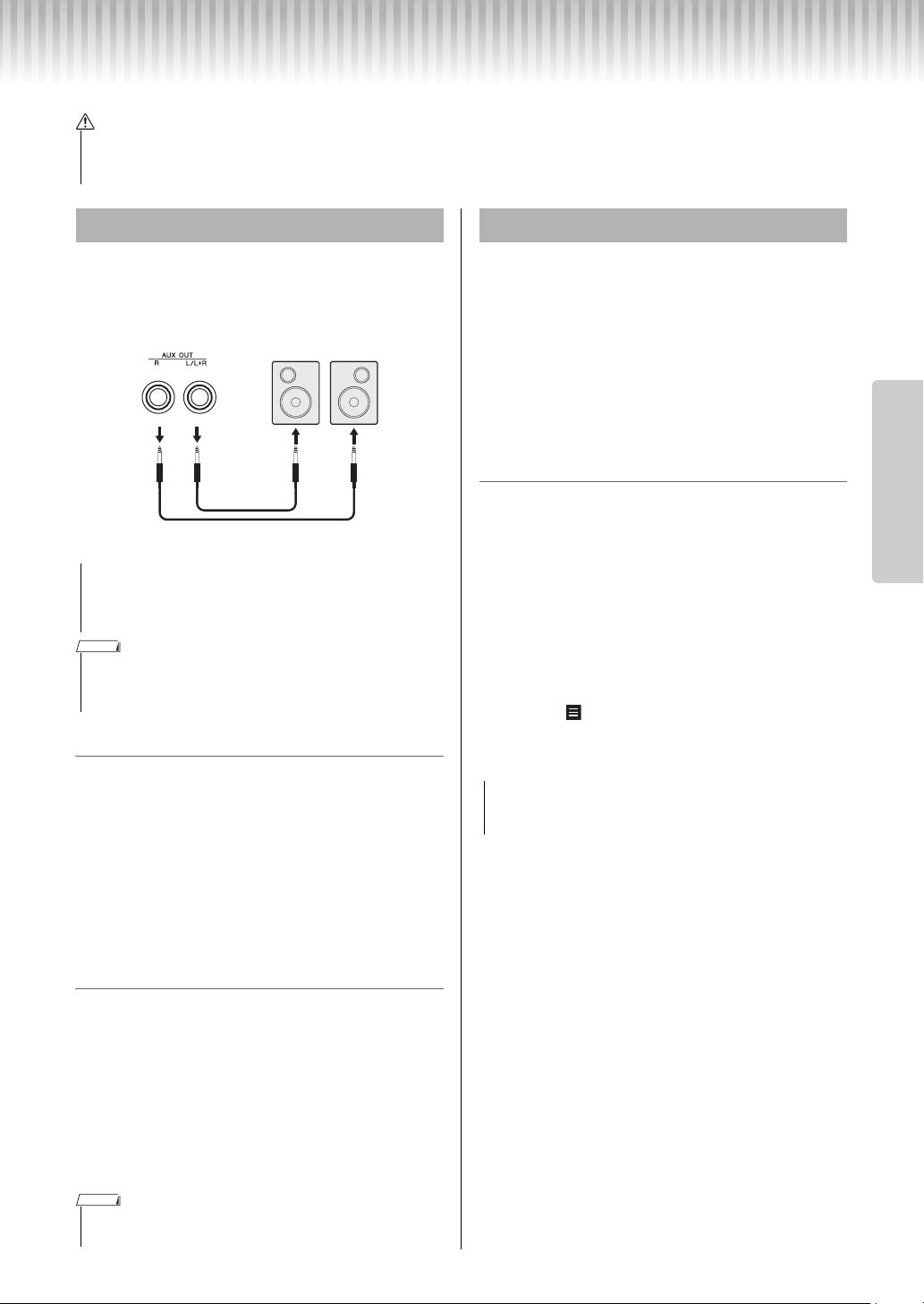
Deleting the User Song
• Rhythm cannot be deleted with this operation.
Changing the Initial Settings of the
Recorded Song
• In this status, do not press [/] or any key. Other-
wise, recording starts and the data will be deleted.
NOTE
NOTICE
P-125a Owner’s Manual
23
Reference
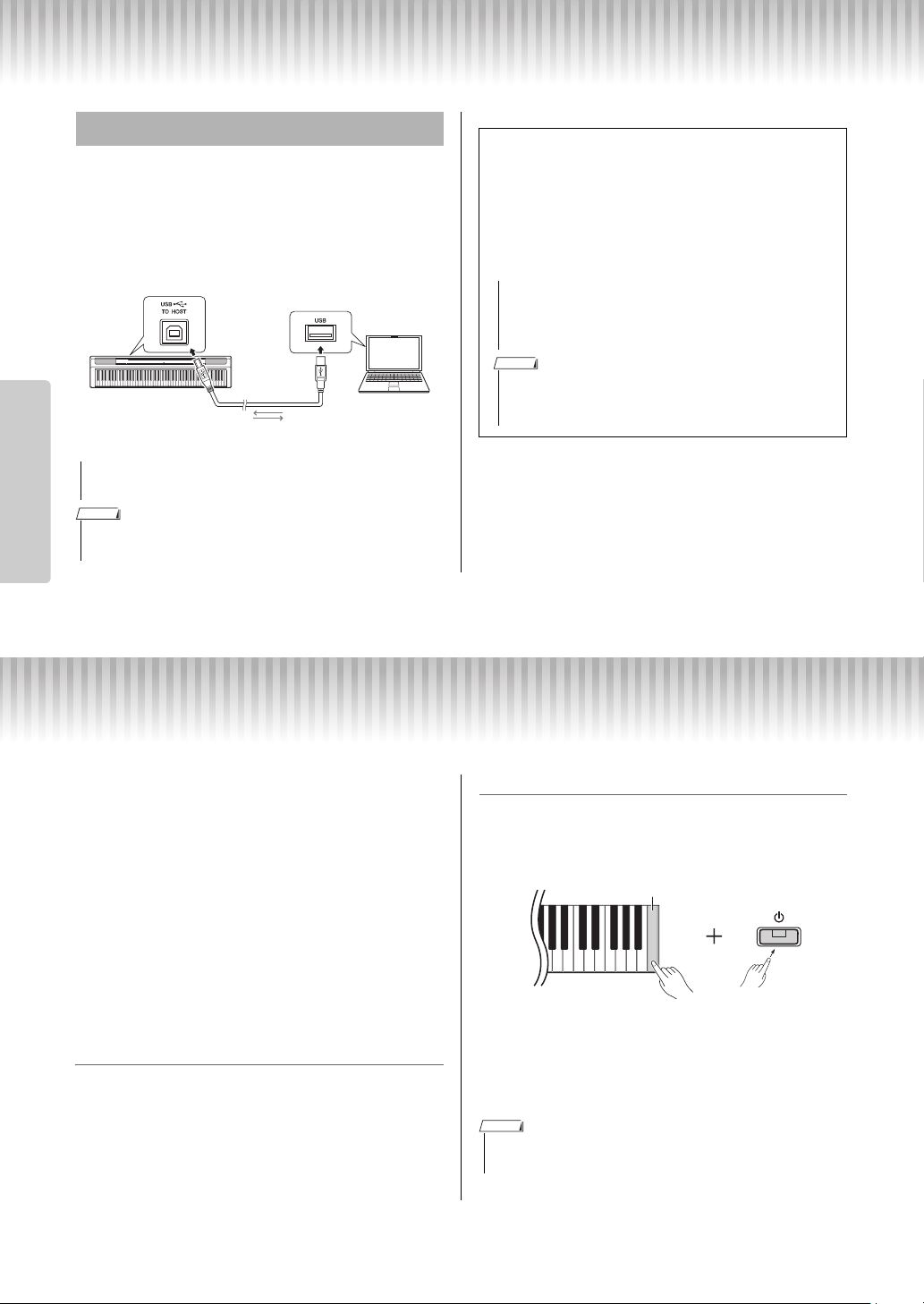
Connecting Other Equipment
Use these jacks to connect your digital piano to pow-
ered speakers and the like in order to play at higher
volumes. Refer to the diagram below and use audio
cables for connection.
Speaker on/off setting
You can set whether the sound of this instrument is
always output from its built-in speaker or not. While
holding down [METRONOME] and [RHYTHM]
simultaneously, press the D6 key to turn off, D#6 to
turn on, or E6 (AUTO) to mute the sound output from
its built-in speaker when headphones are connected.
(This is the default setting.)
Default setting: Auto
* Refer to the “SPEAKER OFF/ON/AUTO” indications printed
above these keys.
Adjusting the volume of the external speakers
This parameter is used to specify how the volume of
audio output via the [AUX OUT] jack is controlled.
When set to “Variable (Off),” you can adjust the vol-
ume using [MASTER VOLUME]; when set to “Fixed
(On),” the volume will be fixed at the same level,
regardless of the slider position. While holding down
[METRONOME] and [RHYTHM] simultaneously,
press the F5 key to set to “Variable,” or press the F#5
key to set to “Fixed.”
Default setting: Variable (Off)
With your smart device (such as an iPhone or iPad)
connected to your digital piano, you can use a wide
range of apps to expand the functionality of your
instrument in exciting new ways.
For information about the compatible apps and smart
devices, access the web page of the respective apps on
the following page:
https://www.yamaha.com/kbdapps/
For details on how to connect the devices, refer to the
“Smart Device Connection Manual” on page 8.
Smart device application — Smart Pianist
Smart Pianist (free download) lets you make various
settings intuitively while viewing the screen, and
allows you to display the notation, depending on the
selected data.
The functions that can be set vary depending on the
model. For details, access the “Smart Pianist” page on
the website above.
Use a USB cable to connect this instrument to a smart
device. For instructions on connecting, Connection Wiz-
ard in Smart Pianist will guide you according to the oper-
ating condition and environment. To start the Connection
Wizard, tap “ ” (Menu) located at the upper left of the
screen to open the Menu display, and then tap “Instru-
ment”
“Start Connection Wizard.”
• Before connecting the instrument to other electronic components, turn off the power to all the components. Before turning the
power on or off to all components, set all volume levels to minimum (0). Otherwise, electrical shock or damage to the compo-
nents may result.
CAUTION
Connecting External Speakers
• When the instrument’s sound is output to an external
device, first turn on the power to the instrument, then to
the external device. Reverse this order when you turn the
power off.
• Select cables and plugs with the lowest resistance possible.
• Use only the [L/L+R] AUX OUT jack if you wish to output the digital piano’s
sound in mono.
• When this parameter is set to “Fixed,” the headphones volume will also be
fixed.
Powered speakers
AUX INAUX OUT
mono phone
plugs
(standard)
Audio cable
Instrument
mono phone
plugs
(standard)
NOTICE
NOTE
NOTE
Connecting a Smart Device
• Activating the “Smart Pianist” app while the instrument is
connected to the smart device overwrites the settings on
the instrument by that of “Smart Pianist.”
NOTICE
Data Backup and Initializing
P-125a Owner’s Manual
24
Reference
Connecting the [USB TO HOST] terminal of this
instrument and the computer via a USB cable allows
you to transmit/receive MIDI data to/from the com-
puter. For details on using a computer with this instru-
ment, refer to the “Computer-related Operations” on
page 8.
Data Backup and Initializing
The following data will automatically be maintained
as backup data even if you turn off the power.
• User Song
• External Song
• Backup data:
Metronome/Rhythm Volume, Metronome Beat,
Touch Sensitivity, Tuning, Split Point, Auto Power
OFF setting, IAC on/off, IAC Depth, Intro/Ending
on/off, Operation Confirmation Sounds on/off,
AUX OUT volume settings, Stereophonic Opti-
mizer on/off, Speaker on/off, Table EQ on/off
To save the User Song data to a computer:
The User Song (USERSONG00.mid) can be trans-
ferred to a computer and saved as a SMF file. For
details, refer to the “Computer-related Operations” on
page 8.
To initialize the backup data:
While holding down the highest key, turn the power
on to initialize the backup data to the factory initial
settings.
Both the [] and [
/] lamps flash, indicating that
the initialization is being executed. After the operation
is completed, both lamps turn off.
Connecting to a Computer
• Use an AB type USB cable of less than 3 meters. USB 3.0
cables cannot be used.
• Only MIDI data can be transmitted/received from/to this instrument. No audio
data can be transmitted/received.
[USB TO HOST] terminal
Instrument
USB cable
Computer
NOTICE
NOTE
Types of file that can be exchanged with a com-
puter
Songs:
• User Song (USERSONG00 .mid)
• External Songs: files with a .mid extension (SMF
format 0 or 1)
• Before you transfer an SMF file from a computer, make
sure to transfer the User Song to a computer for safe
keeping, since already-recorded data will be replaced
with the new transfer.
• Certain MIDI files in SMF format 0 or 1 may contain data that is not sup-
ported by your digital piano. In such a case, the files may not play as origi-
nally intended.
NOTICE
NOTE
• If this instrument somehow malfunctions or fails to operate properly, try initial-
izing the data as described above.
w
q
Highest key
While holding
down
NOTE

P-125a Owner’s Manual
25
Appendix
Appendix
Troubleshooting
Specifications
Dimensions (W x D X H)
• 1,326 mm × 295 mm × 166 mm (52-3/16” x 11-5/8” x 6-9/16”)
Weight
• 11.8 kg (26 lbs. 0 oz.)
Keyboards
• 88 keys (A-1 – C7)
• GHS (Graded Hammer Standard) keyboard with matte black keytops
• Touch Sensitivity (Hard/Medium/Soft/Fixed)
Tone Generation / Voice
• Piano Sound: Pure CF Sound Engine
• Piano Effect: Damper Resonance, Stereo Sustain Samples, Key-
off Samples, String Resonance
• 24 Preset Voices
• Polyphony: 192
Effects/Functions
• 4 Reverb types, Sound Boost, Table EQ, Intelligent Acoustic
Control (IAC), Stereophonic Optimizer, Dual, Split, Duo
Accompaniment Rhythm
• Preset: 20
Song Recording/Playback (MIDI data only)
• Preset: 21 Voice Demo Songs, 50 Classic Songs
• 1 User Song with 2 tracks
• Data Capacity: Approx. 100 KB/Song (approx. 11,000 notes)
• Compatible Data Format
Playback: SMF (format 0, format 1)
Recording: SMF (format 0)
Storage
• Internal Memory: Total maximum size approx. 900 KB (User
song: One song approx. 100 KB, Loading song data from a com-
puter: Up to 2 Songs)
Overall Controls
• Transpose: -6 – 0 – +6
• Fine Tuning: 414.8 – 440.0 – 466.8 Hz
• Metronome
• Tempo: 5 – 280
Connectivity
• DC IN (12 V), PHONES (Standard stereo phone jack) x 2, SUS-
TAIN, PEDAL UNIT, USB TO HOST, AUX OUT
Amplifiers
• 7 W x 2
Speakers
• 12 cm x 2 + 4 cm x 2
Power Supply
• AC Adaptor PA-150 or an equivalent recommended by Yamaha
• Power Consumption: 9 W (When using PA-150 AC adaptor)
• Auto Power Off Function
Included Accessories
• Owner’s Manual, Quick Operation Guide, AC Adaptor PA-150 or
an equivalent recommended by Yamaha*, Online Member Prod-
uct Registration, Footswitch, Music Rest
* May not be included depending on your particular area.
Please check with your Yamaha dealer.
Separately Sold Accessories
• Keyboard Stand (L-125), Pedal Unit (LP-1), Foot Pedal (FC3A),
Footswitch (FC4A/FC5), Headphones (HPH-50/HPH-100/HPH-
150), AC Adaptor (PA-150 or an equivalent recommended by
Yamaha), Wireless MIDI adaptor (UD-BT01), Keyboard Bag (SC-
KB850)
* The contents of this manual apply to the latest specifications as of the
publishing date. To obtain the latest manual, access the Yamaha website
then download the manual file. Since specifications, equipment or sepa-
rately sold accessories may not be the same in every locale, please check
with your Yamaha dealer.
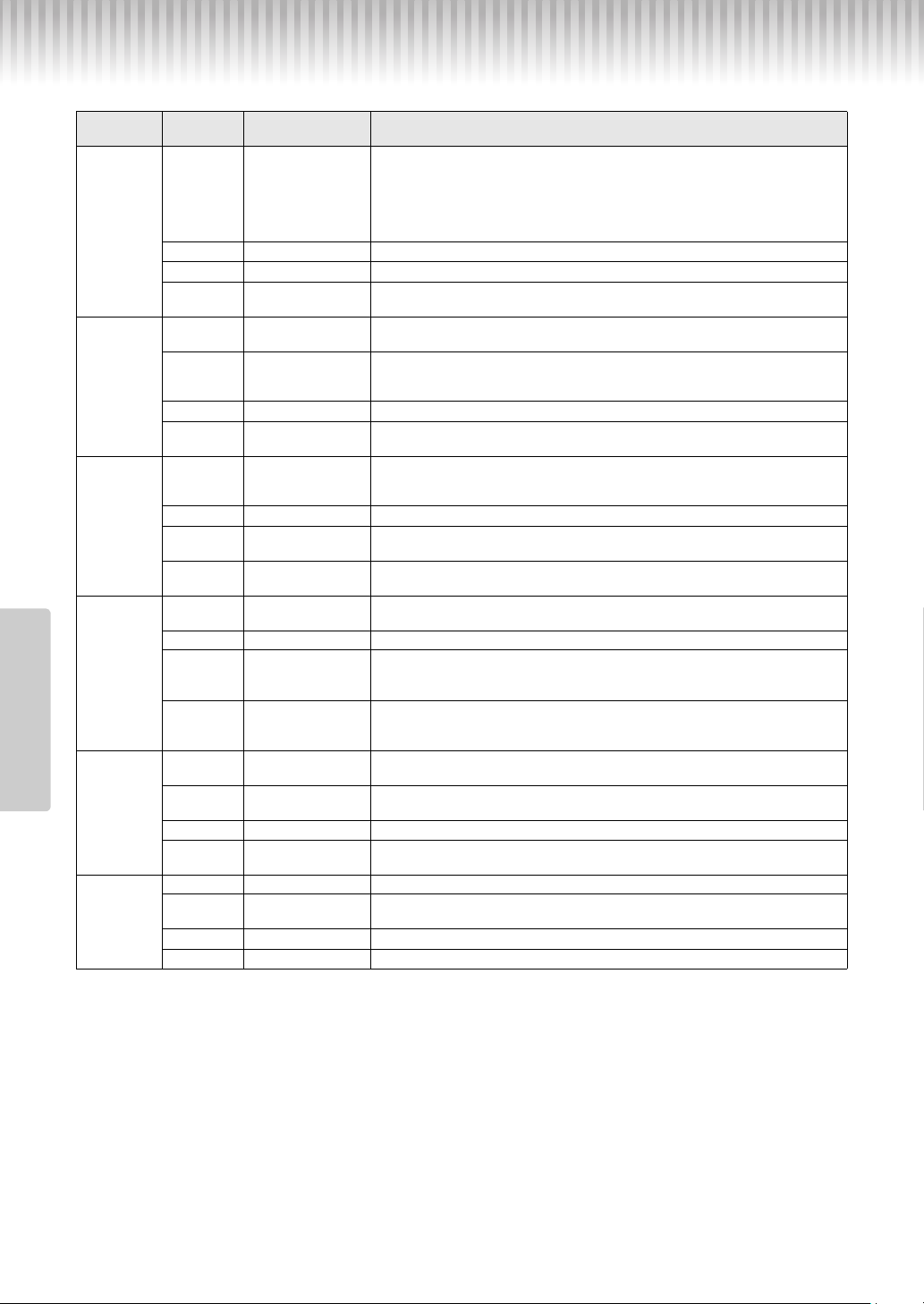
Problem Possible Cause and Solution
When the instrument is turned on or off, a pop-
ping sound is temporarily produced.
This is normal and indicates that the instrument is receiving electrical power.
The instrument does not turn on.
The instrument has not been plugged in properly. Securely connect the AC adaptor to
the DC IN jack on the instrument and to the AC outlet (page 10).
When the instrument is turned on, the power
turns off suddenly and unexpectedly.
If an AC adaptor other than the one specified is used, the power may be turned off sud-
denly and unexpectedly.
The instrument is automatically turned off even if
no operation is done.
This is normal. This occurs due to the Auto Power Off function (page 10).
Noise is heard from the speakers or head-
phones.
The noise may be due to interference caused by the use of a mobile phone in close proxim-
ity to the instrument. Turn off the mobile phone, or use it further away from the instrument.
Noise is heard from the instrument’s speakers or
headphones when using the instrument with your
smart device, such as an iPhone/iPad.
When you use the instrument along with your smart device, we recommend that you set
that device’s “Airplane Mode” to on in order to avoid noise caused by communication.
The overall volume is low, or no sound is heard.
The Master Volume is set too low; set it to an appropriate level using the [MASTER
VOLUME] (page 11).
The digital piano’s speakers are turned off. Turn them back on (page 23).
Make sure a pair of headphones or conversion adaptor is not connected to the head-
phones jack (page 11).
Make sure that Local Control is ON. For details, refer to “MIDI Reference” (page 8) on
the website.
Moving the [MASTER VOLUME] slider does not
change the volume of the headphones.
Have you set the external speaker volume to “Fixed”?
Change the external speaker volume to “Variable.” (page 23)
The pedal has no effect.
The pedal cable/plug may not be properly connected. Make sure to securely insert the
pedal plug into the [SUSTAIN] or [PEDAL UNIT] jack (page 12).
The footswitch (for sustain) seems to produce
the opposite effect.
The polarity of the footswitch is reversed because the footswitch was pressed when the
power was turned on. Turn off the power and turn it on again to reset the function. Make
sure to not press the footswitch when turning the power on.
Appendix
P-125a Owner’s Manual
26
Appendix
Voice List (Detailed)
Voice Button
(Group)
Variation Voice Name Description
[PIANO]
Grand Piano
This sound was sampled from a concert grand piano. It uses different samples
depending on the strength of your playing and produces smoother tonal changes.
Even the tonal changes produced by the damper pedal and the subtle sounds of
releasing a key are reproduced. The sympathetic vibration (string resonance) that
occurs among the strings of an acoustic piano has also been simulated. Suitable not
only for classical compositions but also for piano pieces of any style.
1 Live Grand Spacious and clear piano with bright reverb. Good for popular music.
2 Ballad Grand Warm and soft piano sound. Good for relaxing music.
3 Bright Grand
Bright piano sound. Clear tone helps the sound to “cut through” when playing in an
ensemble.
[E.PIANO]
Stage E.Piano
The sound of an electric piano using hammer-struck metallic “tines.” Soft tone when
played lightly, and an aggressive tone when played hard.
1 DX E.Piano
An electronic piano sound created by FM synthesis. Extremely “musical” response
with varying timbre according to keyboard dynamics. Good for standard popular
music.
2 Vintage E.Piano A slightly different electric piano sound often heard in rock and popular music.
3 Synth Piano
A synth-generated type electronic piano sound often heard in popular music. Used in
the Dual mode it blends well with an acoustic piano Voice.
[ORGAN]
Jazz Organ
A “tonewheel” type electric organ. Often heard in jazz and rock music. When the sep-
arately sold Pedal Unit (LP-1) is connected, the rotary speed of the “ROTARY SP”
effect can be switched by using the left pedal.
1 Rock Organ Bright and edgy electric organ sound. Good for rock music.
2 Organ Principal
A typical pipe organ sound (8 feet + 4 feet + 2 feet). Good for sacred music from the
Baroque period.
3 Organ Tutti
This is the organ’s full coupler sound often associated with Bach’s “Toccata and
Fugue.”
[CLV./VIB.]
Harpsichord 8’
The definitive instrument for baroque music. Authentic harpsichord sound, with
plucked strings, no touch response, and characteristic key-release sound.
1 Harpsi.8’+4’ Mixes the same Voice an octave higher for a more brilliant tone.
2 E.Clavichord
A hammer-struck keyboard instrument that utilizes an electric pickup that is often
heard in funk and soul music. Its tone is noted for the unique sound produced when
the keys are released.
3 Vibraphone
Played with relatively soft mallets. The tone becomes more metallic the harder you
play. When the separately sold Pedal Unit (LP-1) is connected, the left pedal switches
Vibrato on and off.
[STRINGS]
Strings
Stereo-sampled, large-scale strings ensemble with realistic reverb. Try combining this
Voice with piano in the Dual mode.
1 Slow Strings
Spacious strings ensemble with a slow attack. Try combining this Voice with a piano
or electric piano in the Dual mode.
2 Choir A big, spacious choir Voice. Perfect for creating rich harmonies in slow pieces.
3 Synth Pad
A warm, mellow, and spacious synth sound. Ideal for sustained parts in the back-
ground of an ensemble.
[+BASS]
Acoustic Bass An upright bass played fingerstyle. Ideal for jazz and Latin music.
1 Electric Bass
Electric bass for a wide range of music styles, including jazz, rock, popular, and
more.
2 Bass & Cymbal Adds a cymbal Voice to the bass sound. Ideal for walking bass lines in jazz tunes.
3 Fretless Bass The sound of a fretless bass. Suitable for styles such as jazz and fusion.

P-125a Owner’s Manual
27
Appendix
Index
Numerics
50 Preset Songs ..................................................... 18, 28
A
AC adaptor ..................................................................10
Accessories ................................................................... 8
Accompaniment ..........................................................20
Auto Power Off ........................................................... 10
B
Backup ......................................................................... 24
Beat ..............................................................................16
C
Computer .....................................................................24
Computer-related Operations ......................................8
D
Damper (Right) Pedal ................................................12
Damper Resonance ..................................................... 12
Delete (User Song) ..................................................... 22
Demo Song List ..........................................................18
Demo Songs ................................................................18
Dual .............................................................................14
Duo ..............................................................................15
E
External Songs ............................................................18
F
Footswitch ...................................................................12
H
Headphones ................................................................. 11
I
Initializing ................................................................... 24
Intelligent Acoustic Control (IAC) ........................... 11
K
Key Transposition ....................................................... 17
M
Manuals ......................................................................... 8
Metronome .................................................................. 16
MIDI Basics ..................................................................8
MIDI Reference ............................................................8
Music Rest .................................................................... 8
O
Octave ..........................................................................14
Operation Confirmation Sounds ............................... 11
P
Part ............................................................................... 19
Pedal ............................................................................ 12
Pedal Unit ................................................................... 12
Pitch ............................................................................. 17
Playback (User Song) ................................................ 21
Playback (Voice Demo/50 Preset Song) .................. 18
Power ........................................................................... 10
Practice ........................................................................ 19
Q
Quick Operation Guide ................................................ 8
Quick Play .................................................................. 19
R
Recording .................................................................... 21
Reverb ......................................................................... 17
Rhythm .................................................................. 20, 28
S
Smart device ............................................................... 23
Smart Device Connection Manual .............................. 8
Smart Pianist ............................................................... 23
Soft (Left) Pedal ......................................................... 12
Songs ..................................................................... 18, 28
Sostenuto (Center) Pedal ........................................... 12
Sound Boost ................................................................ 13
Speakers ...................................................................... 23
Split ............................................................................. 15
Stereophonic Optimizer ............................................. 11
Sustain ......................................................................... 12
T
Table EQ ..................................................................... 13
Tempo .............................................................. 16, 18, 20
Terminals ...................................................................... 9
Touch Sensitivity ........................................................ 17
Transpose .................................................................... 17
Troubleshooting .......................................................... 25
Tuning ......................................................................... 17
U
USB TO HOST ............................................................ 9
User Song .................................................................... 21
V
Variation Voice ........................................................... 13
Vo i c e L i s t .................................................................... 13
Voice List (Detailed) .................................................. 26
Vo i c e s .......................................................................... 13
Vo l u m e .................................................................. 16, 20
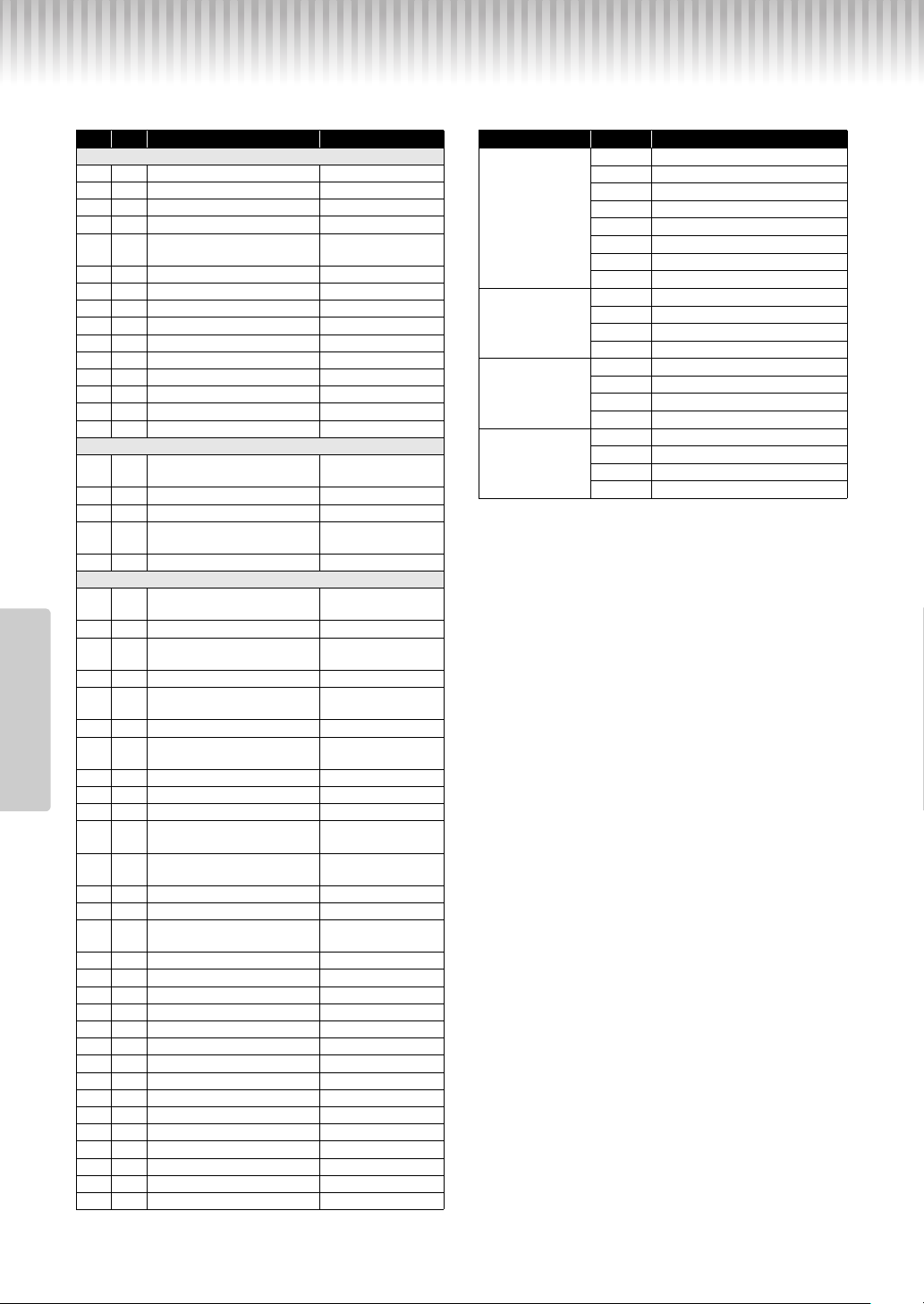
28
Appendix
P-125a Owner’s Manual
List
50 Preset Songs (50 Classical Music Masterpieces) Rhythms
No. Key Song Name Composer
Arrangements
1C2Canon D dur J. Pachelbel
2C#2 Air On the G String J. S. Bach
3D2Jesus, Joy of Man’s Desiring J. S. Bach
4D#2 Twinkle, Twinkle, Little Star Traditional
5E2
Piano Sonate op.31-2
“Tempest” 3rd mov.
L. v. Beethoven
6F2Ode to Joy L. v. Beethoven
7F#2 Wiegenlied op.98-2 F. P. Schubert
8G2Grande Valse Brillante F. F. Chopin
9G#2 Polonaise op.53 “Héroïque” F. F. Chopin
10 A2 La Campanella F. Liszt
11 A #2 Salut d’amour op.12 E. Elgar
12 B2 From the New World A. Dvořák
13 C3 Sicilienne G. U. Fauré
14 C#3 Clair de lune C. A. Debussy
15 D3 Jupiter (The Planets) G. Holst
Duets
16 D#3
Menuett (Eine kleine
Nachtmusik K.525)
W. A. Mozart
17 E3 Menuett G dur L. v. Beethoven
18 F3 Marcia alla Turca L. v. Beethoven
19 F#3
Piano Concerto No.1 op.11
2nd mov.
F. F. Chopin
20 G3 The Nutcracker Medley P. I. Tchaikovsky
Original Compositions
21 G#3
Prelude (Wohltemperierte
Klavier I No.1)
J. S. Bach
22 A3 Menuett G dur BWV Anh.114 J. S. Bach
23 A#3
Piano Sonate No.15 K.545
1st mov.
W. A. Mozart
24 B3 Turkish March W. A. Mozart
25 C4
Piano Sonate op.13
“Pathétique” 2nd mov.
L. v. Beethoven
26 C#4 Für Elise L. v. Beethoven
27 D4
Piano Sonate op.27-2
“Mondschein” 1st mov.
L. v. Beethoven
28 D#4 Impromptu op.90-2 F. P. Schubert
29 E4 Frühlingslied op.62-6
J. L. F. Mendelssohn
30 F4 Fantaisie-Impromptu F. F. Chopin
31 F#4
Etude op.10-3 “Chanson de
l’adieu”
F. F. Chopin
32 G4
Etude op.10-12
“Revolutionary”
F. F. Chopin
33 G#4 Valse op.64-1 “Petit chien” F. F. Chopin
34 A4 Nocturne op.9-2 F. F. Chopin
35 A#4
Nocturne KK4a-16/BI 49
[Posth.]
F. F. Chopin
36 B4 Träumerei R. Schumann
37 C5 Barcarolle P. I. Tchaikovsky
38 C#5 La prière d’une Vierge T. Badarzewska
39 D5 Liebesträume No.3 F. Liszt
40 D#5 Blumenlied G. Lange
41 E5 Humoresque A. Dvořák
42 F5 Arietta E. H. Grieg
43 F#5 Tango (España) I. Albéniz
44 G5 The Entertainer S. Joplin
45 G#5 Maple Leaf Rag S. Joplin
46 A5 La Fille aux Cheveux de Lin C. A. Debussy
47 A#2 Arabesque No.1 C. A. Debussy
48 B5 Cakewalk C. A. Debussy
49 C6 Je te veux E. Satie
50 C#6 Gymnopédies No.1 E. Satie
Category No. Name
Pop&Rock
1 8Beat
2 16Beat
3Shuffle1
4Shuffle2
5Shuffle3
6 Gospel
7 8BeatBallad
86-8SlowRock
Jazz
9 FastJazz
10 SlowJazz
11 Swing
12 JazzWaltz
Latin
13 Samba
14 BossaNova
15 Rumba
16 Salsa
Kids&Holiday
17 KidsPop
18 6-8March
19 ChristmasSwing
20 Christmas3-4

29
Memo
30
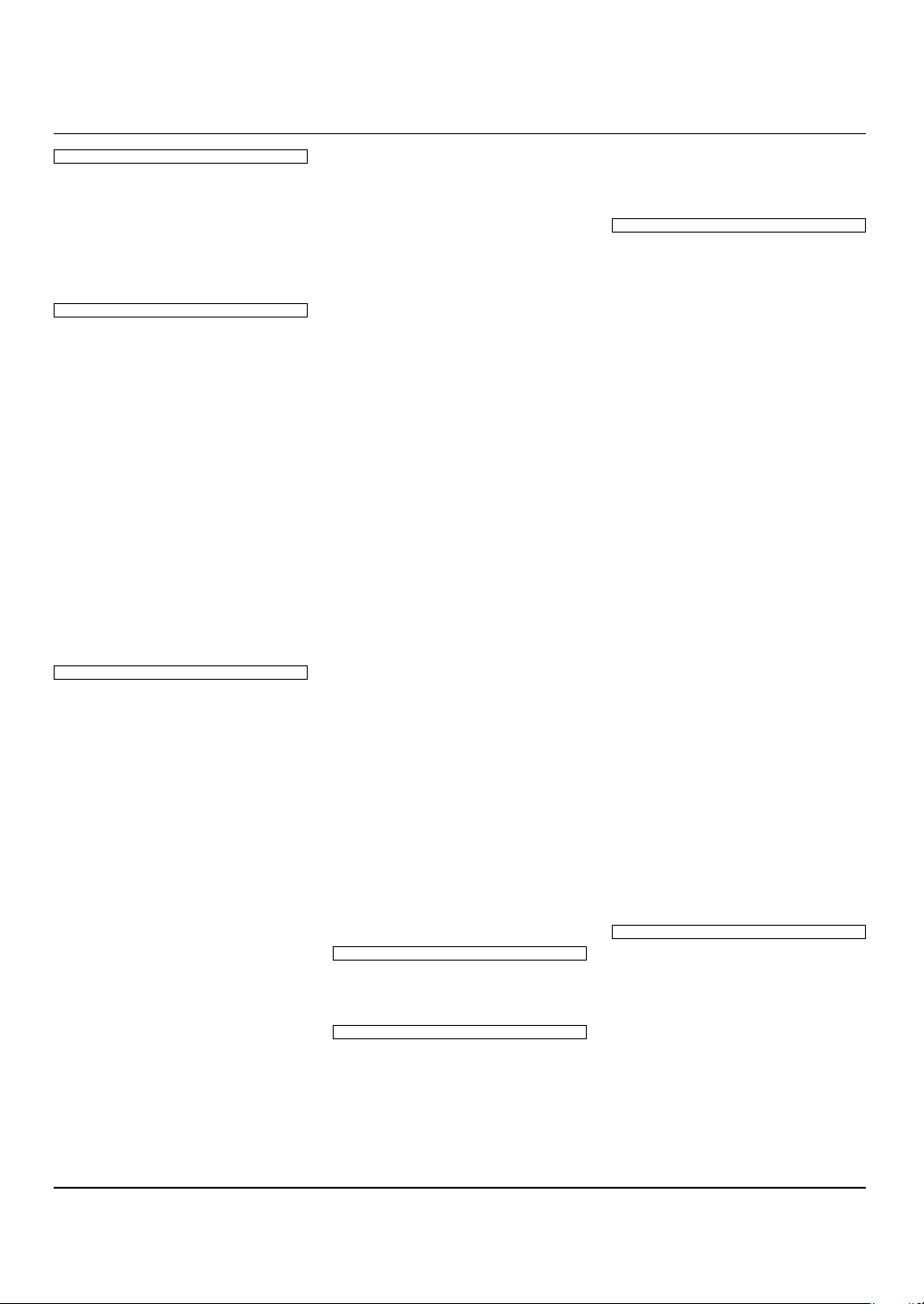
For details of products, please contact your nearest Yamaha representative or the authorized distributor listed below.
CANADA
Yamaha Canada Music Ltd.
135 Milner Avenue, Toronto, Ontario M1S 3R1,
Canada
Tel: +1-416-298-1311
U.S.A.
Yamaha Corporation of America
6600 Orangethorpe Avenue, Buena Park, CA 90620,
U.S.A.
Tel: +1-714-522-9011
MEXICO
Yamaha de México, S.A. de C.V.
Av. Insurgentes Sur 1647 Piso 9, Col. San José
Insurgentes, Delegación Benito Juárez, CDMX,
C.P. 03900, México
Tel: +52-55-5804-0600
BRAZIL
Yamaha Musical do Brasil Ltda.
Praça Professor José Lannes, 40-Cjs 21 e 22, Brooklin
Paulista Novo CEP 04571-100 – São Paulo – SP,
Brazil
Tel: +55-11-3704-1377
ARGENTINA
Yamaha Music Latin America, S.A.,
Sucursal Argentina
Olga Cossettini 1553, Piso 4 Norte,
Madero Este-C1107CEK,
Buenos Aires, Argentina
Tel: +54-11-4119-7000
PANAMA AND OTHER LATIN
AMERICAN REGIONS/
CARIBBEAN REGIONS
Yamaha Music Latin America, S.A.
Edificio Torre Davivienda, Piso: 20
Avenida Balboa, Marbella, Corregimiento de Bella
Vista, Ciudad de Panamá, Rep. de Panamá
Tel: +507-269-5311
THE UNITED KINGDOM/IRELAND
Yamaha Music Europe GmbH (UK)
Sherbourne Drive, Tilbrook, Milton Keynes,
MK7 8BL, U.K.
Tel: +44-1908-366700
GERMANY
Yamaha Music Europe GmbH
Siemensstrasse 22-34, 25462 Rellingen, Germany
Tel: +49-4101-303-0
SWITZERLAND/LIECHTENSTEIN
Yamaha Music Europe GmbH, Branch
Switzerland in Thalwil
Seestrasse 18a, 8800 Thalwil, Switzerland
Tel: +41-44-3878080
AUSTRIA/CROATIA/
CZECH REPUBLIC
/
HUNGARY/ROMANIA/SLOVAKIA/
SLOVENIA
Yamaha Music Europe GmbH, Branch Austria
Schleiergasse 20, 1100 Wien, Austria
Tel: +43-1-60203900
POLAND
Yamaha Music Europe
Sp.z o.o. Oddzia w Polsce
ul. Wielicka 52, 02-657 Warszawa, Poland
Tel: +48-22-880-08-88
BULGARIA
Dinacord Bulgaria LTD.
Bul.Iskarsko Schose 7 Targowski Zentar Ewropa
1528 Sofia, Bulgaria
Tel: +359-2-978-20-25
MALTA
Olimpus Music Ltd.
Valletta Road, Mosta MST9010, Malta
Tel: +356-2133-2093
NETHERLANDS/BELGIUM/
LUXEMBOURG
Yamaha Music Europe, Branch Benelux
Clarissenhof 5b, 4133 AB Vianen, The Netherlands
Tel: +31-347-358040
FRANCE
Yamaha Music Europe
7 rue Ambroise Croizat, Zone d'activités de Pariest,
77183 Croissy-Beaubourg, France
Tel: +33-1-6461-4000
ITALY
Yamaha Music Europe GmbH, Branch Italy
Via Tinelli N.67/69 20855 Gerno di Lesmo (MB),
Italy
Tel: +39-039-9065-1
SPAIN/PORTUGAL
Yamaha Music Europe GmbH Ibérica, Sucursal
en España
Ctra. de la Coruña km. 17,200, 28231
Las Rozas de Madrid, Spain
Tel: +34-91-639-88-88
GREECE
Philippos Nakas S.A. The Music House
19th klm. Leof. Lavriou 190 02 Peania – Attiki,
Greece
Tel: +30-210-6686260
SWEDEN
Yamaha Music Europe GmbH Germany Filial
Scandinavia
JA Wettergrensgata 1, 400 43 Göteborg, Sweden
Tel: +46-31-89-34-00
DENMARK
Yamaha Music Denmark,
Fillial of Yamaha Music Europe GmbH, Tyskland
Generatorvej 8C, ST. TH., 2860 Søborg, Denmark
Tel: +45-44-92-49-00
FINLAND
F-Musiikki Oy
Antaksentie 4
FI-01510 Vantaa, Finland
Tel: +358 (0)96185111
NORWAY
Yamaha Music Europe GmbH Germany -
Norwegian Branch
Grini Næringspark 1, 1332 Østerås, Norway
Tel: +47-6716-7800
ICELAND
Hljodfaerahusid Ehf.
Sidumula 20
IS-108 Reykjavik, Iceland
Tel: +354-525-5050
CYPRUS
Nakas Music Cyprus Ltd.
Nikis Ave 2k
1086 Nicosia
Tel: + 357-22-511080
Major Music Center
21 Ali Riza Ave. Ortakoy
P.O.Box 475 Lefkoa, Cyprus
Tel: (392) 227 9213
RUSSIA
Yamaha Music (Russia) LLC.
Room 37, entrance 7, bld. 7, Kievskaya street,
Moscow, 121059, Russia
Tel: +7-495-626-5005
OTHER EUROPEAN REGIONS
Yamaha Music Europe GmbH
Siemensstrasse 22-34, 25462 Rellingen, Germany
Tel: +49-4101-303-0
Yamaha Music Gulf FZE
JAFZA-16, Office 512, P.O.Box 17328,
Jebel Ali FZE, Dubai, UAE
Tel: +971-4-801-1500
TURKEY
Yamaha Music Europe GmbH
Merkezi Almanya Türkiye stanbul ubesi
Mor Sumbul Sokak Varyap Meridian Business
1.Blok No:1 113-114-115
Bati Atasehir Istanbul, Turkey
Tel: +90-216-275-7960
ISRAEL
RBX International Co., Ltd.
P.O Box 10245, Petach-Tikva, 49002
Tel: (972) 3-925-6900
OTHER REGIONS
Yamaha Music Gulf FZE
JAFZA-16, Office 512, P.O.Box 17328,
Jebel Ali FZE, Dubai, UAE
Tel: +971-4-801-1500
THE PEOPLE’S REPUBLIC OF CHINA
Yamaha Music & Electronics (China) Co., Ltd.
2F, Yunhedasha, 1818 Xinzha-lu, Jingan-qu,
Shanghai, China
Tel: +86-400-051-7700
HONG KONG
Tom Lee Music Co., Ltd.
11/F., Silvercord Tower 1, 30 Canton Road,
Tsimshatsui, Kowloon, Hong Kong
Tel: +852-2737-7688
INDIA
Yamaha Music India Private Limited
P-401, JMD Megapolis, Sector-48, Sohna Road,
Gurugram-122018, Haryana, India
Tel: +91-124-485-3300
INDONESIA
PT Yamaha Musik Indonesia Distributor
Yamaha Music Center Bldg. Jalan Jend. Gatot
Subroto Kav. 4, Jakarta 12930, Indonesia
Tel: +62-21-520-2577
KOREA
Yamaha Music Korea Ltd.
11F, Prudential Tower, 298, Gangnam-daero,
Gangnam-gu, Seoul, 06253, Korea
Tel: +82-2-3467-3300
MALAYSIA
Yamaha Music (Malaysia) Sdn. Bhd.
No.8, Jalan Perbandaran, Kelana Jaya, 47301
Petaling Jaya, Selangor, Malaysia
Tel: +60-3-78030900
SINGAPORE
Yamaha Music (Asia) Private Limited
Block 202 Hougang Street 21, #02-00,
Singapore 530202, Singapore
Tel: +65-6740-9200
TAIWAN
Yamaha Music & Electronics Taiwan Co., Ltd.
2F., No.1, Yuandong Rd., Banqiao Dist.,
New Taipei City 22063, Taiwan (R.O.C.)
Tel: +886-2-7741-8888
THAILAND
Siam Music Yamaha Co., Ltd.
3, 4, 15, 16th Fl., Siam Motors Building,
891/1 Rama 1 Road, Wangmai,
Pathumwan, Bangkok 10330, Thailand
Tel: +66-2215-2622
VIETNAM
Yamaha Music Vietnam Company Limited
15th Floor, Nam A Bank Tower, 201-203 Cach
Mang Thang Tam St., Ward 4, Dist.3,
Ho Chi Minh City, Vietnam
Tel: +84-28-3818-1122
OTHER ASIAN REGIONS
https://asia-latinamerica-mea.yamaha.com/
index.html
AUSTRALIA
Yamaha Music Australia Pty. Ltd.
Level 1, 80 Market Street, South Melbourne,
VIC 3205 Australia
Tel: +61-3-9693-5111
NEW ZEALAND
Music Works LTD
P.O.BOX 6246 Wellesley, Auckland 4680,
New Zealand
Tel: +64-9-634-0099
REGIONS AND TRUST
TERRITORIES IN PACIFIC OCEAN
https://asia-latinamerica-mea.yamaha.com/
index.html
NORTH AMERICA
CENTRAL & SOUTH AMERICA
EUROPE
AFRICA
MIDDLE EAST
ASIA
OCEANIA
DMI30
Head Office/Manufacturer: Yamaha Corporation 10-1, Nakazawa-cho, Naka-ku, Hamamatsu, 430-8650, Japan
Importer (European Union): Yamaha Music Europe GmbH Siemensstrasse 22-34, 25462 Rellingen, Germany
Importer (United Kingdom): Yamaha Music Europe GmbH (UK) Sherbourne Drive, Tilbrook, Milton Keynes, MK7 8BL, United Kingdom

VFU0680
Manual Development Group
© 2022 Yamaha Corporation
Published 05/2022 POTY-A0
Yamaha Global Site
https://www.yamaha.com/
Yamaha Downloads
https://download.yamaha.com/