How to log in to the Linksys mesh router
using LinksysSmartWiFi.com
The recommended method to manage and set up your Mesh Router is through the Linksys
app. If you need to access the Linksys mesh router using LinksysSmartWiFi.com, follow
the instructions below.
NOTE: Before you begin, make sure that you have already set up the router using
the Linksys app and that your devices are connected to your router's
network. Click here for instructions.
Directions
Step 1:
Launch a web browser, enter your router’s IP address in the Address bar and hit [ENTER].
NOTE: The default IP address is 192.168.1.1. You can also check your router's IP address
using the Linksys app. To do this, go to Dashboard > Menu > Network Administration.
Step 2:
Click on the mobile phone image on your page or click on the Continue to Linksys Smart
Wi-Fi link.
Step 3:
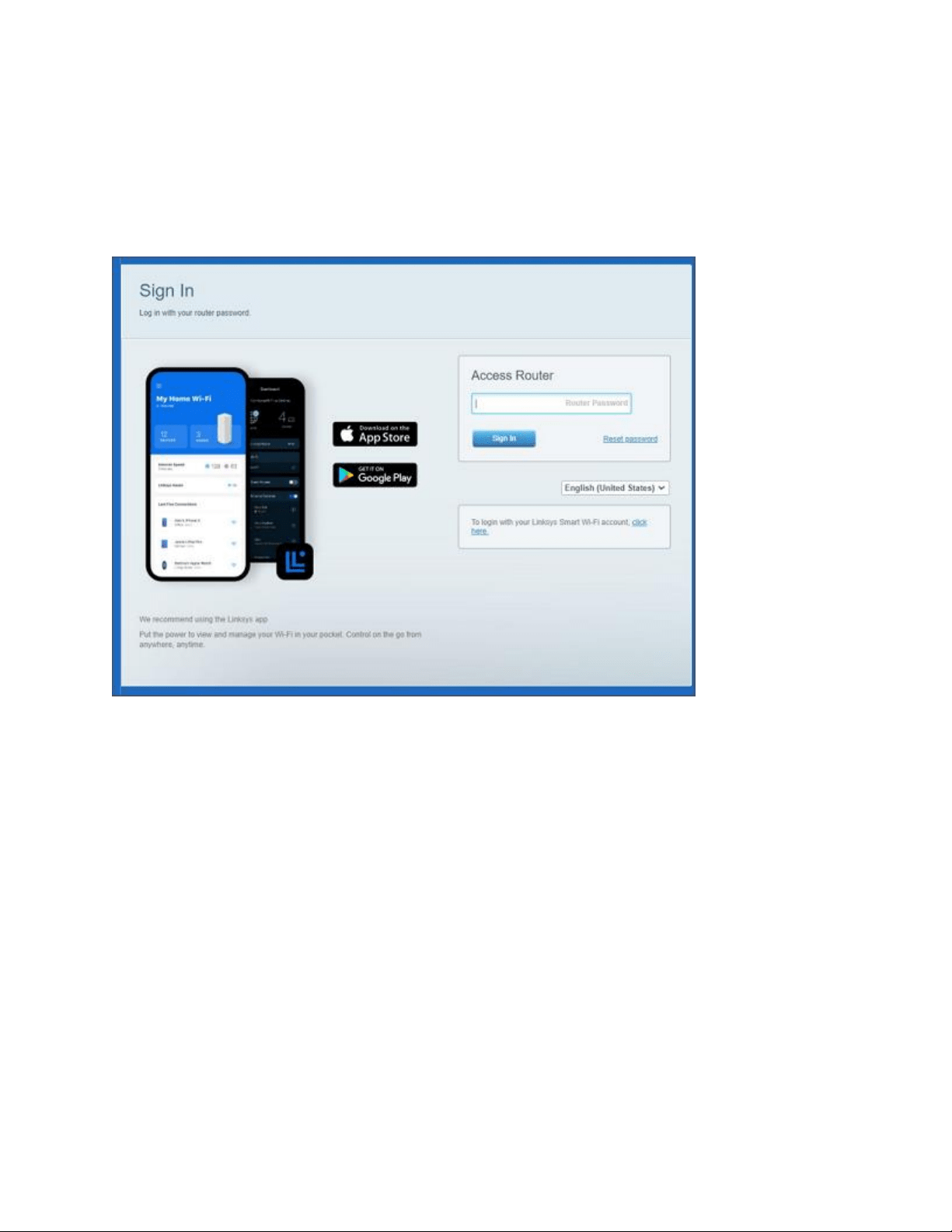
There are two ways you can access LinksysSmartWiFi.com:
a. You can enter your account credentials, then click Sign In.
b. You can also click the link next to For local access, enter your admin password in the
field, and then click Sign In (see below).
NOTE: You may get prompted to enter a five-digit recovery key. This key code can be
found on the product label of your router. You will then be prompted to type in your router’s
new admin password and hint. This prompt appears when you have not customized your
router password through the Linksys app.
Step 4:
You will be redirected to the router’s Dashboard
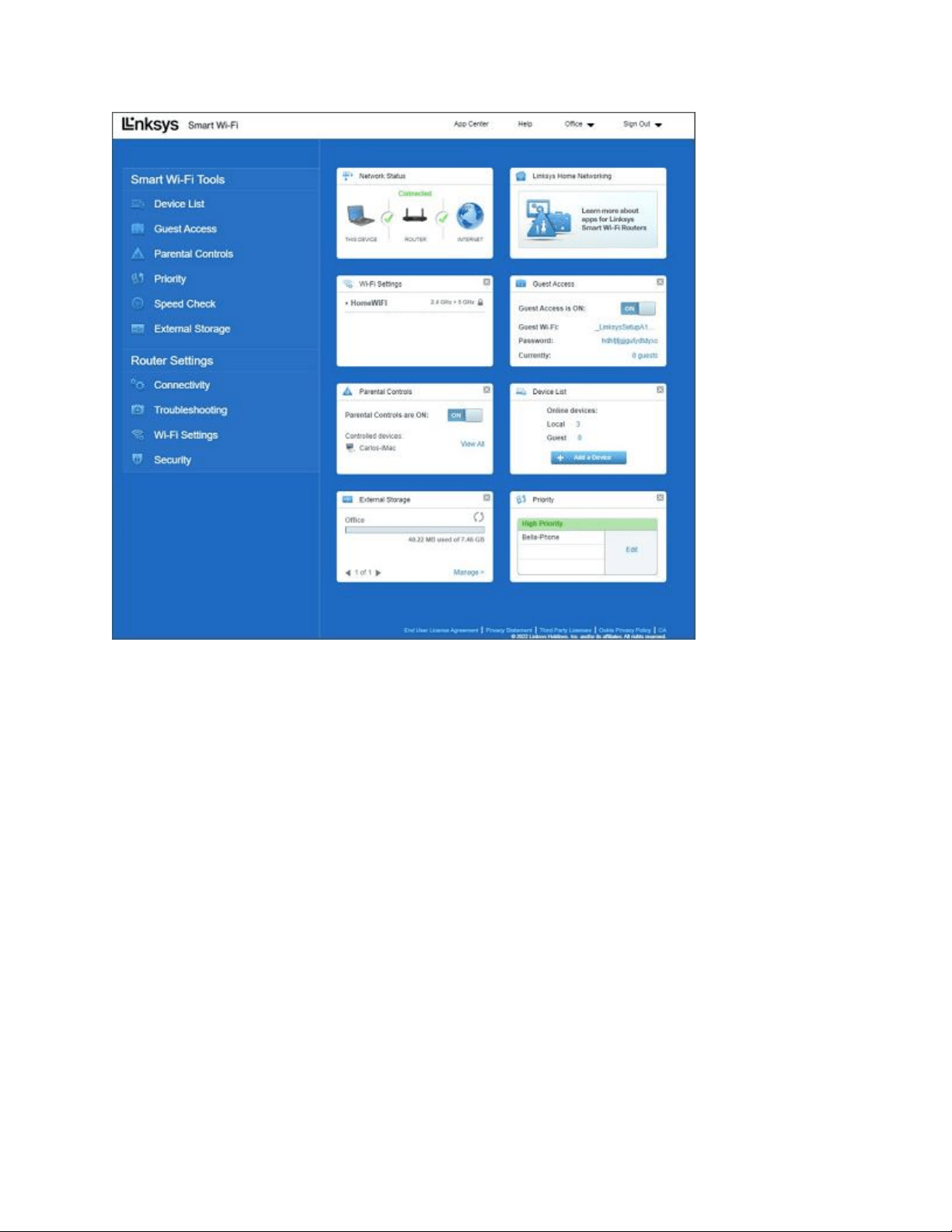
You have successfully logged in to your Linksys mesh router.
Getting to know the Linksys app
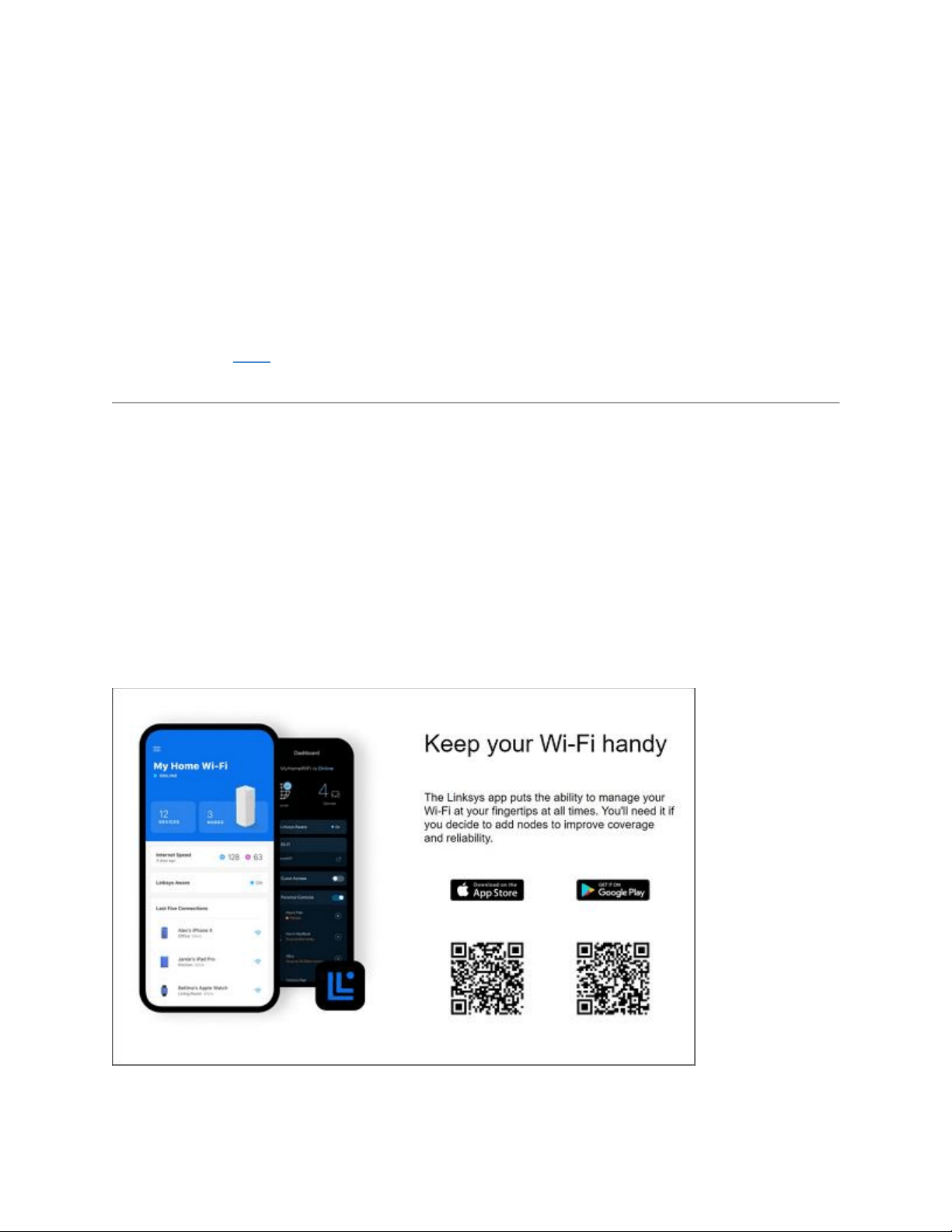
The Linksys app allows you to monitor and manage Linksys Smart WiFi Routers and Linksys
Intelligent Mesh. With the Linksys app, you can access your home network anywhere,
anytime. You can also set up WiFi access for guests or restrict your kids from accessing social
networking sites when they should be doing homework. You can even choose which device
gets priority bandwidth to reduce lag times and buffering on your network. You no longer have to be
tethered to your desk at home to manage your home network.
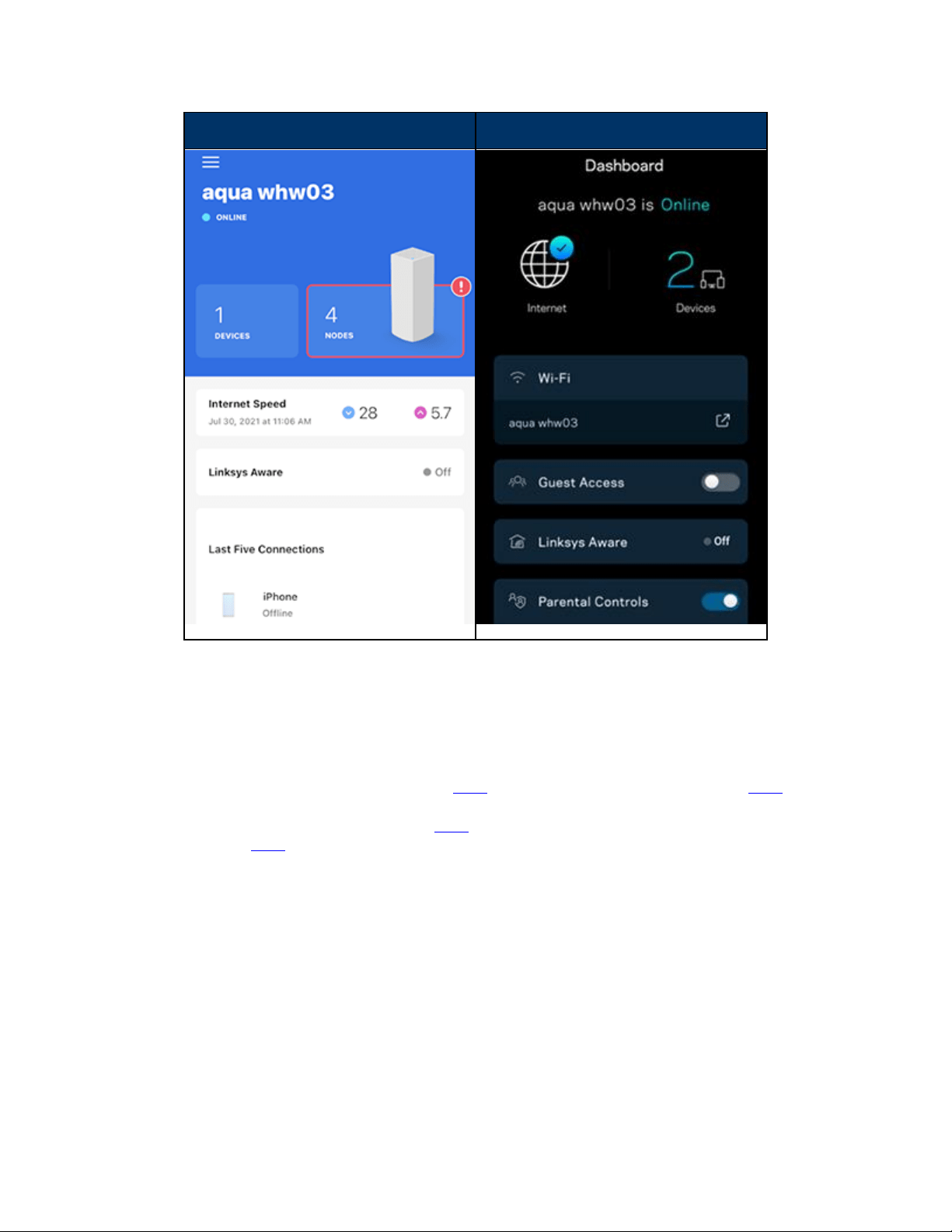
The dashboard is the landing page of the Linksys app. It displays how many devices are connected
to the network and whether the router is connected to the internet or not.
iOS
Android™
Product Requirements
The Linksys app can only be installed and used once the following requirements are met:
Linksys Smart WiFi Router or Linksys Intelligent Mesh. To know more about the
Linksys Smart WiFi Router, click here. For Linksys Intelligent Mesh, click here.
A mobile device with the latest version of the Linksys app. To download the Linksys
app from the App Store
®
, click here. To download from the Google Play™ store,
click here.
Linksys cloud account
Key Features
Here are the key features of the Linksys app:
Remote Access – Access and manage your network from anywhere.
Dashboard – Quickly view the status of your home WiFi.
Guest Access – Easily grant your friends and family internet access on your separate
guest network.
Priority – Prioritize which devices on your network get the most bandwidth for less lag
time and buffering.

Parental Controls – Create a safe internet experience for your kids, even while on-the-
go. You can control the usage, restrict access to certain websites or block specific
devices from accessing the internet.
Router or node offline notifications
Disassociate router or node