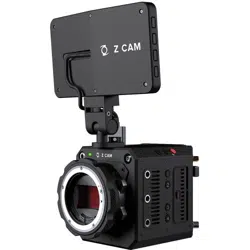

Z CAM E2 Flagship Series
(Z CAM E2-M4 / E2-S6 / E2-S6G / E2-F6 / E2-F8)
User Manual v0.4
(Firmware 0.98)
1.
Introduction
1.1.
Camera Introduction
1.2.
Lens Mount
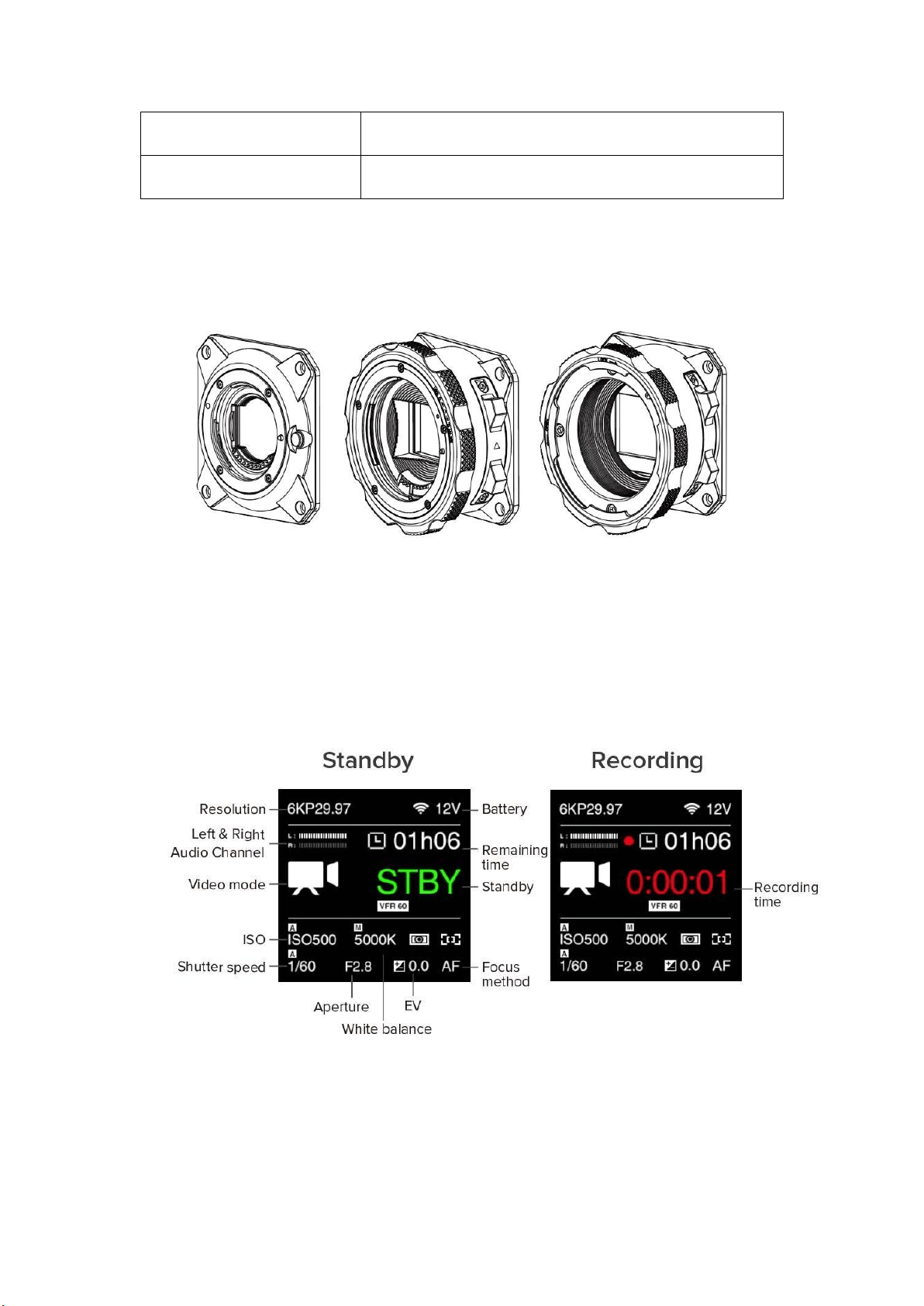
There are EF or PL lens mount options for Z CAM E2 flagship series, and MFT lens mount
for Z CAM E2-S6 only. It’s interchangeable and you can purchase additional lens mount
module to change it with professional tools (only for EF and PL lens mount) *.
Model
Lens Mount
Z CAM E2-S6
EF / PL / M / MFT
Z CAM E2-F6
EF / PL / M
Z CAM E2-F8
EF / PL / M
* Replacement of lens mount is recommended to be operated by the manufacturer's
designated agent/dealer or under professional guidance. The failure of the camera may be
appearing due to changing the lens mount by the user.
MFT lens mount EF lens mount PL lens mount
1.3.
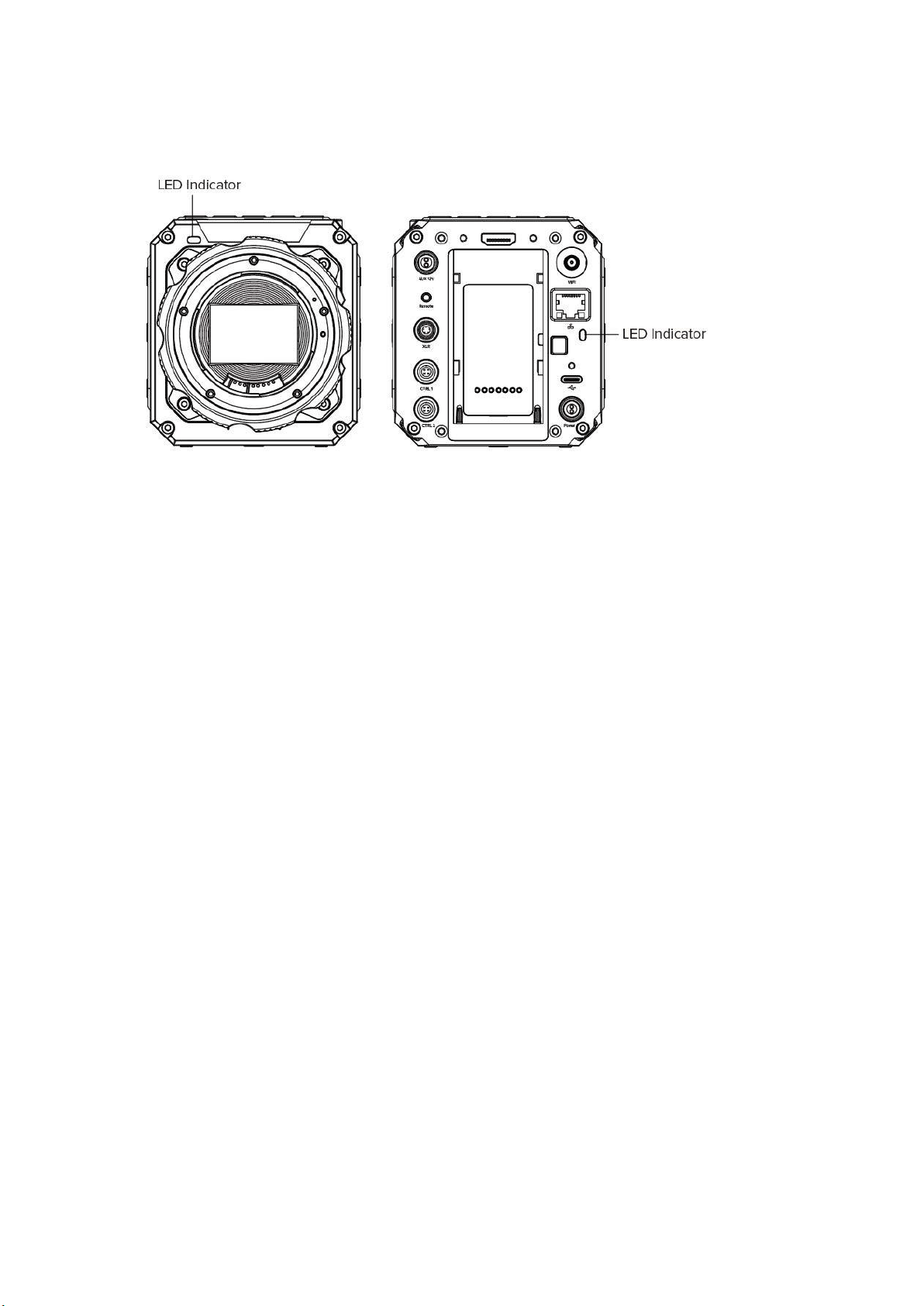
LCD Screen
The content displayed on the LCD Screen will be different when the camera is in different
mode.
Standby & Recording
Preview
Press FN + OK button when the camera is in Standby mode, it will switch to Preview
mode. Press FN + OK again to come back to Standby mode.

Playback
Short press Power button when the camera is in Standby / Preview mode, it will
switch to Playback mode. Short press Power button again to come back to Standby
/ Preview mode.
1.4.
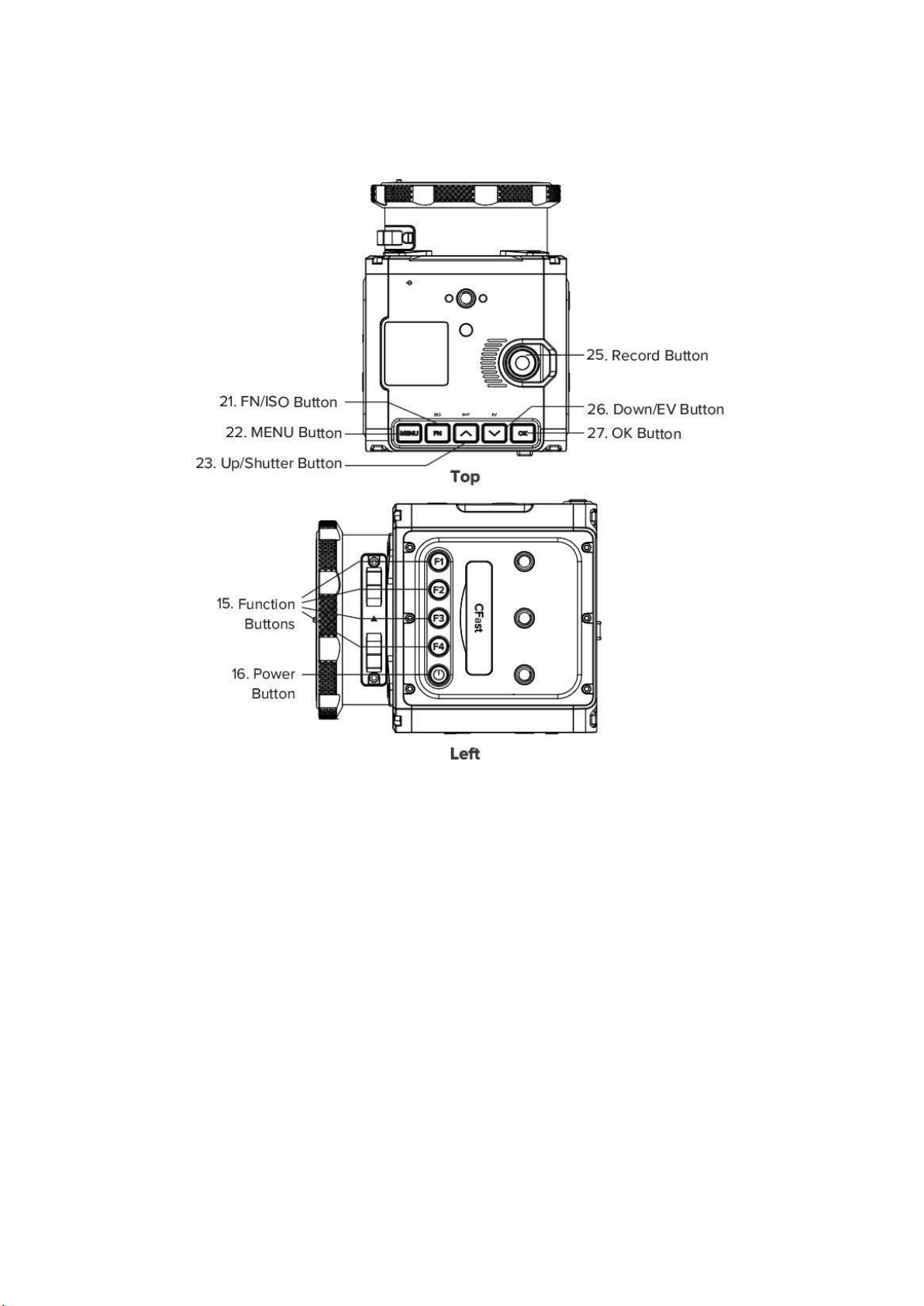
LED Indicator Status
Green
: Standby
Red
: Recording.
Flashing Red (every 1s)
: No memory card.
Flashing Red (every 0.5s)
: Memory card is full.
Flashing Red (every 0.2s)
: Camera overheat.
Flashing Red (very fast)
: Critical error.
Flashing Red (fast & slow alternant)
: Low battery
1.5.
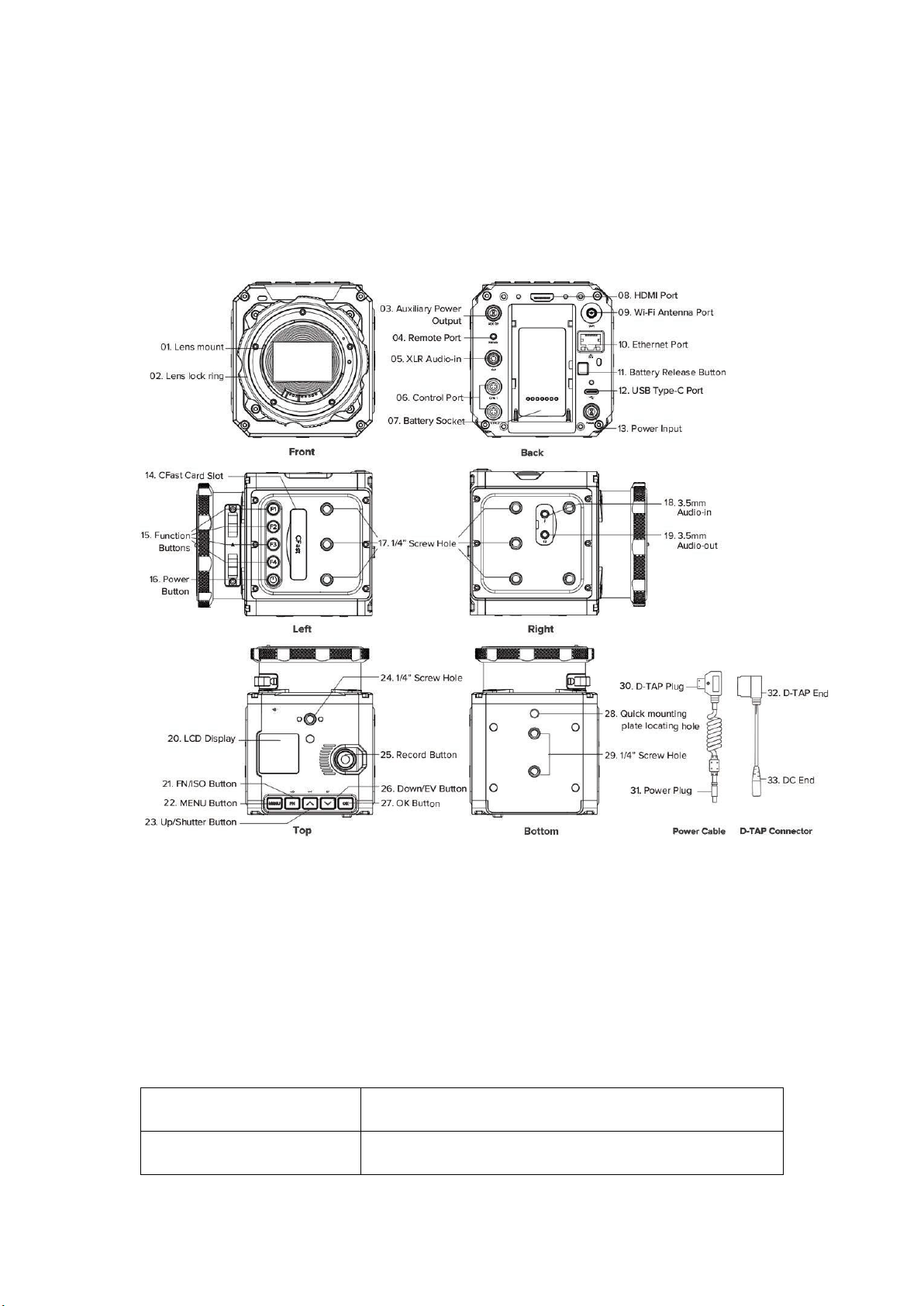
Buttons
MENU button: Enter / exit the camera settings, or return to the previous menu in
camera settings.
FN / ISO button: FN function in camera settings, or ISO quick setting in standby /
preview / recording mode by default.
Up / SHT button: Up selection (or add value) in camera settings, or Shutter Speed /
Shutter Angle quick setting in standby / preview / recording mode by default.
Down / EV button: Down selection (or reduce value) in camera settings, or EV quick
setting in standby / preview / recording mode by default.
OK button: Confirmation in camera settings, or to trigger the Auto Focus function in
standby / preview / recording mode by default (with lens supports auto focus and the
Auto Focus function on the camera is enabled).
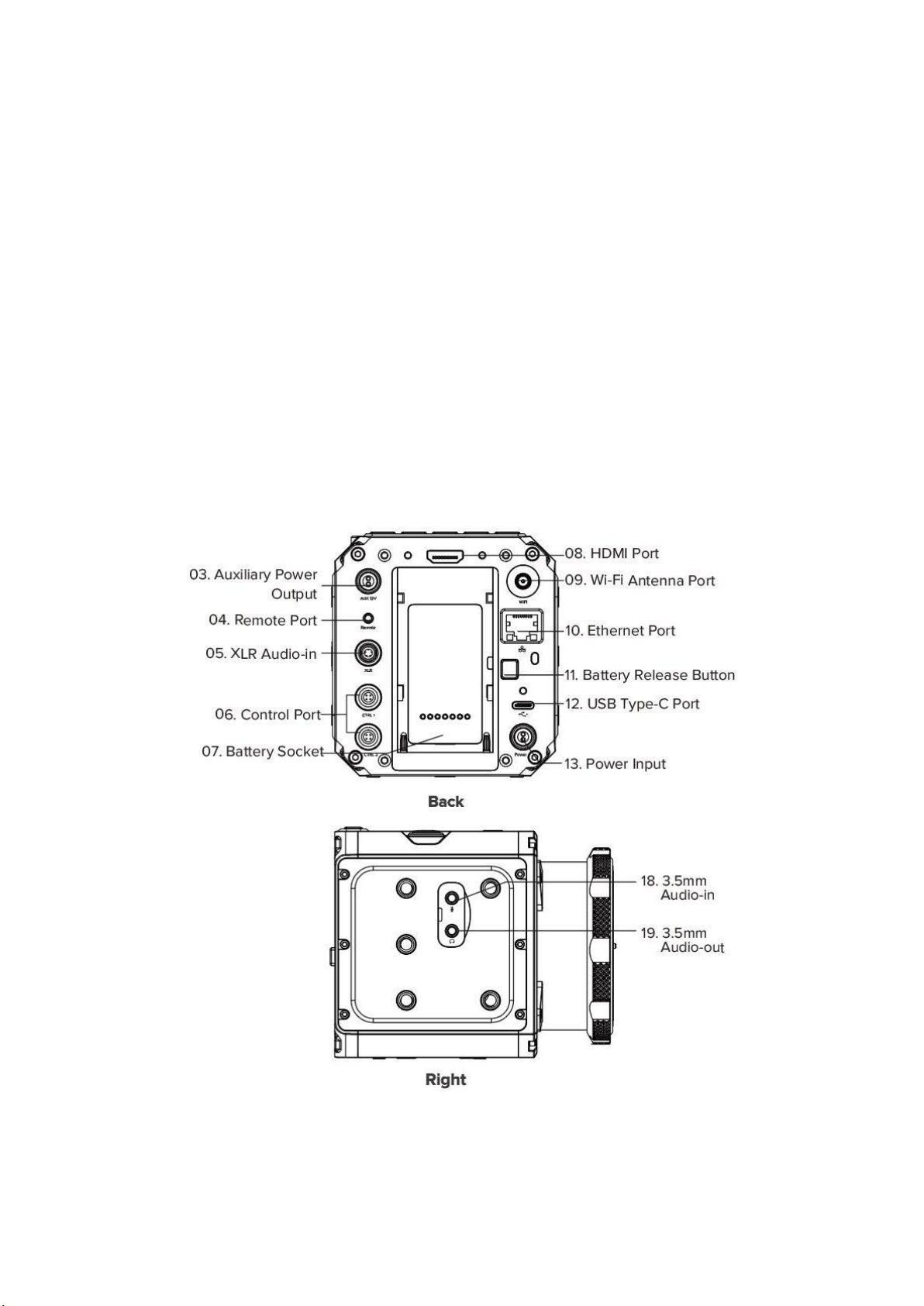
F1 button: AEL (Auto Exposure Lock) by default.
F2 button: Load profile by default.
F3: Aperture quick setting by default.
F4: No function by default.
Power button: Long press for 3 seconds to power on / off the camera, short press to
switch to / back from Playback mode.
Note: Quick setting function of FN / Up / Down / OK / F1 / F2 / F3 / F4 buttons can be
changed in system menu (2.10 System – User button).
1.6.
Interfaces
Auxiliary Power Output:
DC 12V (2-pin LEMO socket), can supply power to other
devices.
Remote: 2.5mm jack socket, compatible with Sony LANC protocol.
XLR audio-in: 5-pin LEMO port for dual-channel XLR microphone, require additional
XLR audio connector (compatible with ARRI Mini XLR connector).
Control Port: 2 x serial port (4 pin aviation connector), support RS232 protocol.
HDMI port: HDMI 2.0 Type A standard port
Wi-Fi antenna port: Connect Wi-Fi antenna to use, 2.4GHz / 5GHz Wi-Fi antenna
port, support 802.11 b/g/n standard.
Ethernet port: Gigabit Ethernet port for camera control, setting & live preview.
USB Type C port: USB 3.0 standard. Can be connected to mobile devices for camera
control, setting and live preview, and be connected to computers for data transmission.
3.5mm Audio-in: 3.5mm (TRS) jack socket for stereo audio input (Mic Level & Line
Level supported), can connect to microphone or audio output device.
3.5mm Audio-out: 3.5mm (TRS) jack socket for support stereo output, can be
connected to headset or earphone.
1.7.
Power Options
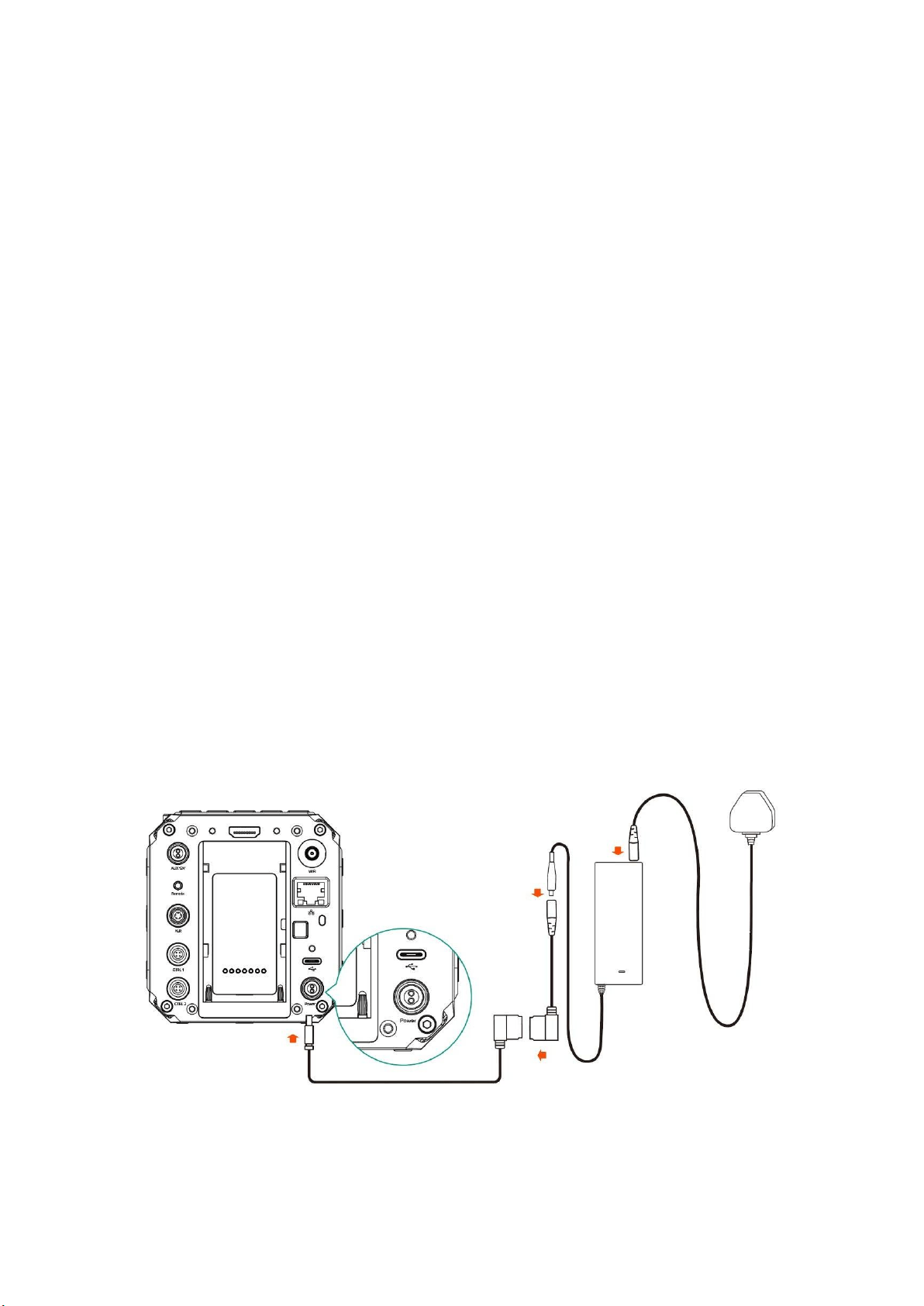
External Power Source: The camera comes with a power cable (D-TAP plug end), D-
TAP/DC connector
,
and can be connected to an AC/DC power adapter with 12V / 3~5A
output, and 2.1 x 5.5mm DC plug. (Power adapter not included in the package)
Camera Battery: The battery socket is compatible with SONY NP-F series batteries,
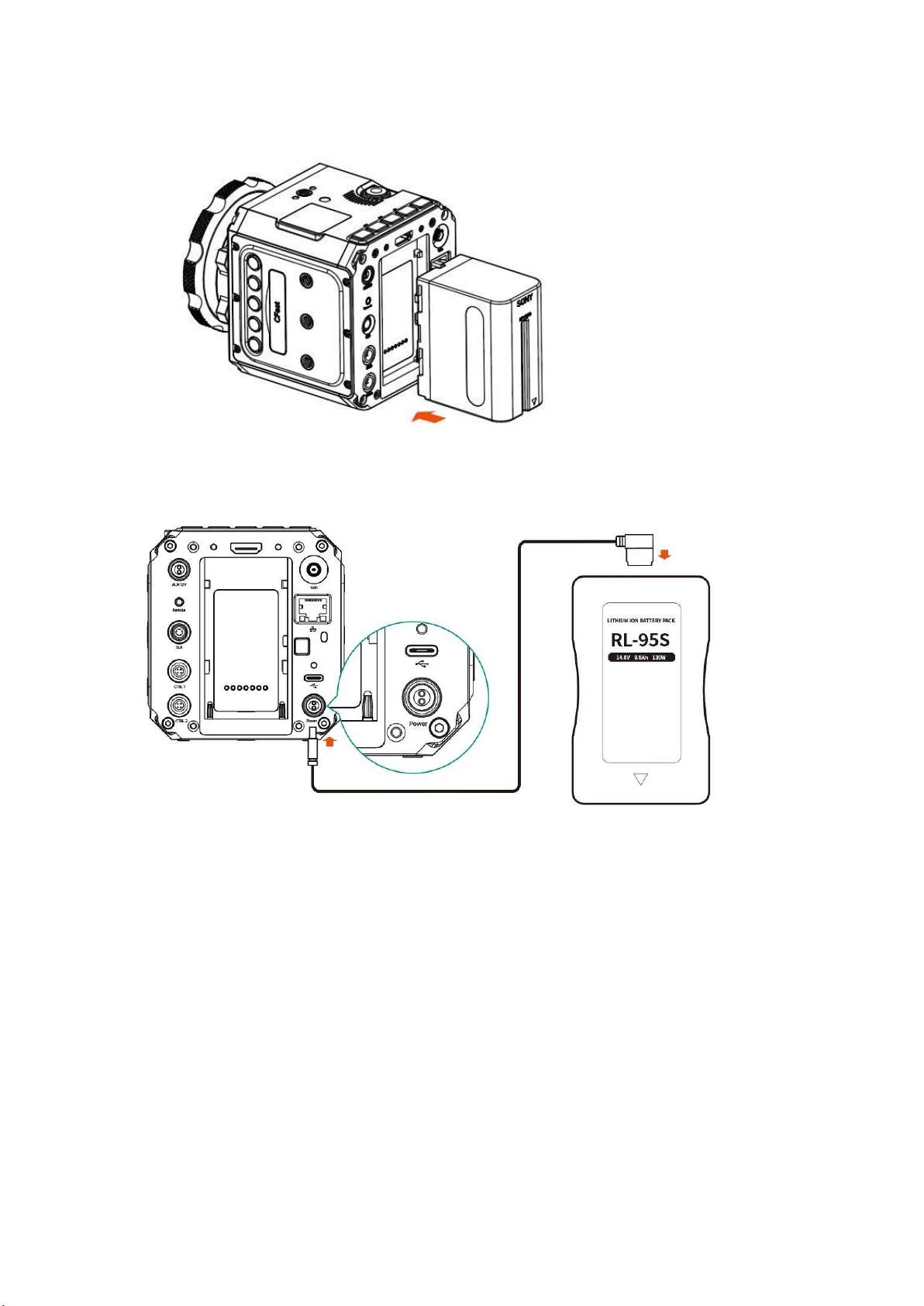
including NP-F970/770/550 etc. (Battery not included in the package)
V Mount Battery: Connect the camera to a V mount battery (with D-TAP port) with the
power cable (D-TAP plug).
1.8.
Storage
The camera uses CFast 2.0 card or SSD as storage.
CFast card: The camera has 1 x internal CFast card slot, which supports CFast 2.0
standard. Insert the CFast card with correct direction, push it to the end until it’s locked.
To take out the CFast card, push in the card and it will be unlocked, then take it out
from the slot.
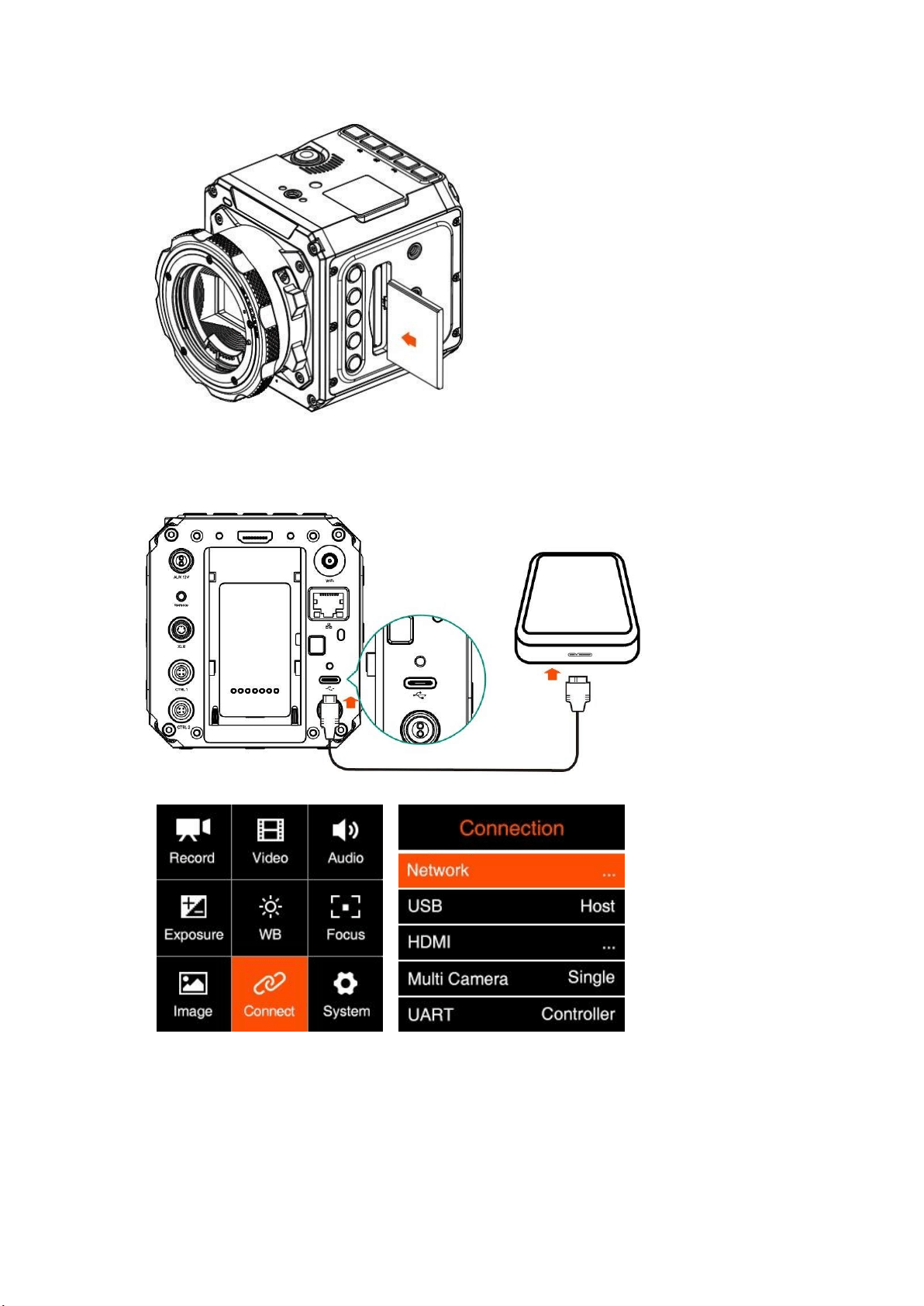
SSD: Connect the SSD through USB-C port on back of camera as storage. (Note:
USB-C port must be in “Host” mode, see 2.9 Connect - USB)
Please not that the SSD will NOT be recognized if there is CFast card in the camera.
Attention: When using a CFast or SSD on Z CAM E2 for the first time, please format it
before recording (2.10 System – Format Card).

2.
Camera Settings
2.1.
Quick Setting
When the camera is in Standby or Recording mode, some key settings can be quickly
accessed by pressing the buttons on the camera.
ISO: Press FN to set ISO, then press Up / Down to adjust the value, and OK to
confirm.
Shutter: Press UP to set shutter speed / angle (refer to 2.5 Exposure – Shutter
Operation about shutter speed / shutter angle), then press Up / Down to adjust
the value, and OK to confirm.
Aperture
:
Press F3 to set the aperture, then press Up / Down to adjust the
value, and OK to confirm.
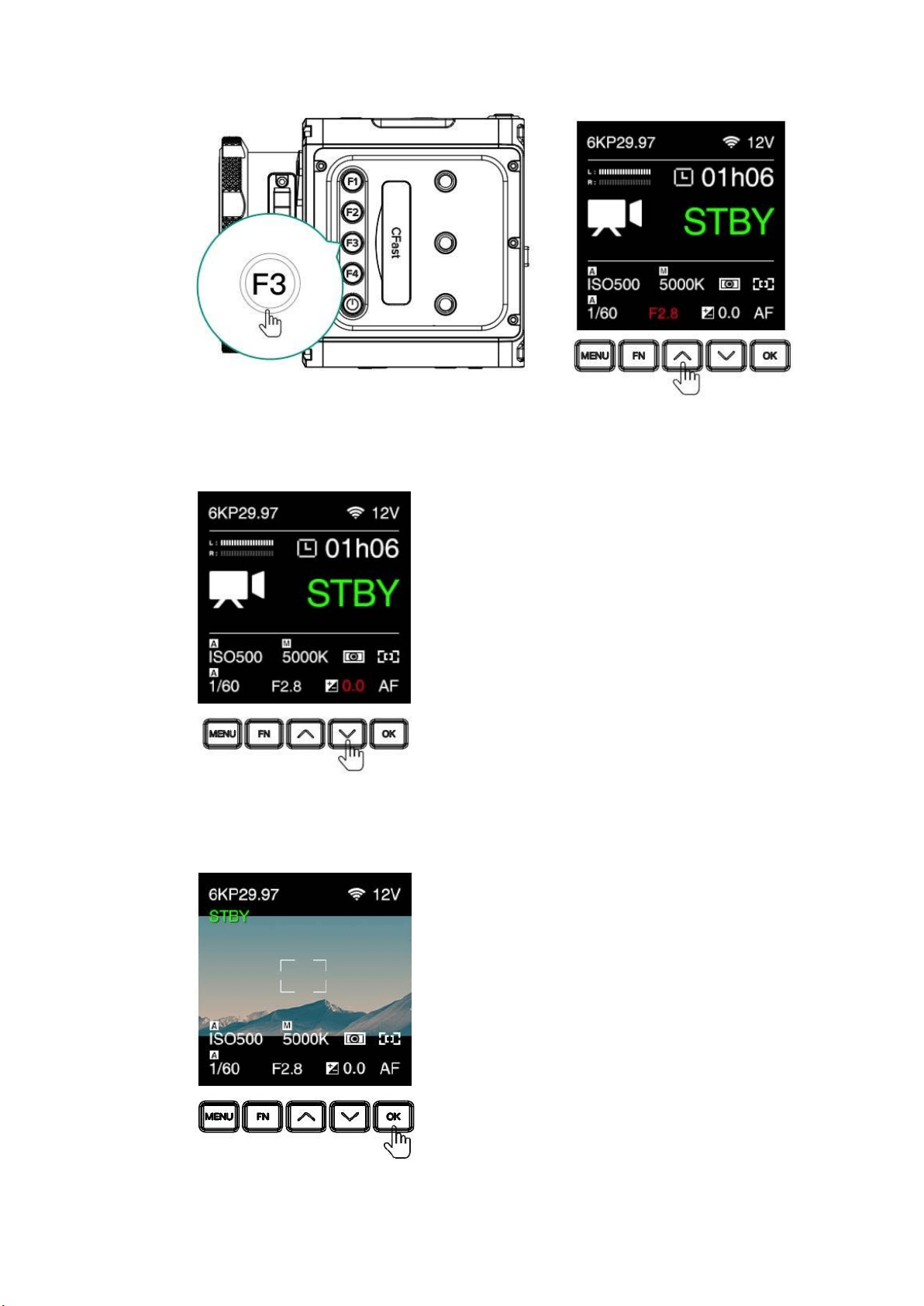
EV: Press DOWN to set EV, then press Up / Down to adjust the value, and OK to
confirm.
AF: When the lens supports auto focus and the Focus on the camera is set to AF,
press OK to trigger the auto focus function.

AEL (F1): Press F1 to lock the exposure, then press again to unlock
Load profile (F2)
:
Load the configuration saved in the camera. (2.10 System
User Profile).
Note: Quick setting function on the buttons can be changed in system setting (2.10
System – User Button).
2.2.
Record
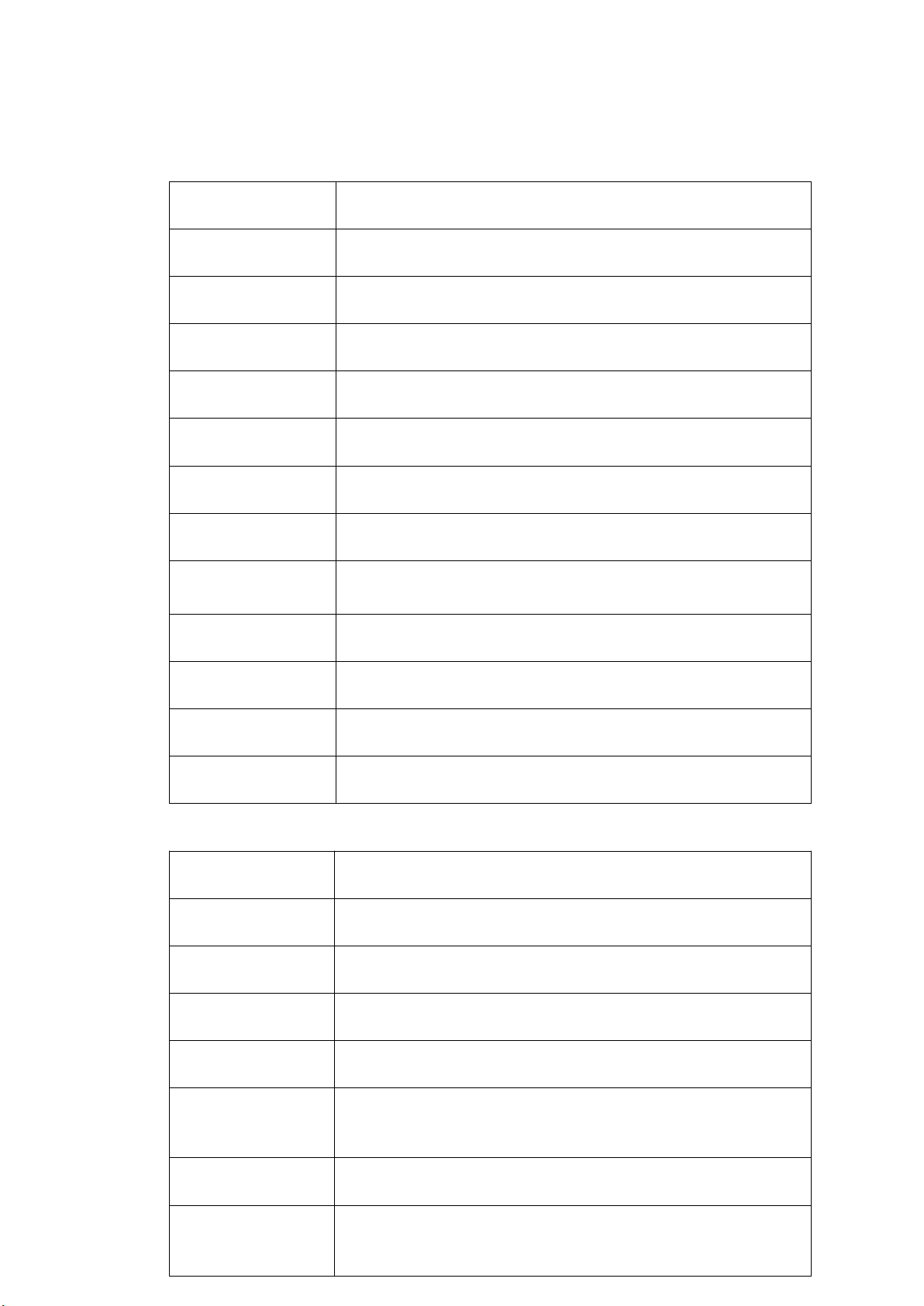
Resolution
Z CAM E2-M4
Resolution
Details
4K DCI
4096 x 2160
4K DCI (Low Noise)
4096 x 2160
4K UHD
3840 x 2160
4K UHD (Low Noise)
3840 x 2160
4K DCI 2.4:1
4096 x 1728 (2.4:1 aspect ratio)
4K 2.4:1
3840 x 1600 (2.4:1 aspect ratio)
3696 x 2772
3696 x 2772
3696 x 2772 (Low
Noise)
3696 x 2772
3312 x 2760
3312 x 2760
Super16
2704 x 1600
Super16 16:9
2112 x 1188 (16:9 aspect ratio)
FHD
1920 x 1080, S16 mode, suitable for S16 cinema camera lens.
Z CAM E2-S6
Resolution
Details
6244 x 4168
Open Gate
6K UHD
5760 x 3240
6K DCI
6144 x 3240
6K 2.4:1
6144 x 2592 (2.4:1 aspect ratio)
5K 4:3
5552 x 4164 (4:3 aspect ratio),can be used with anamorphic
lens.
5K DCI
5120 × 2700
5K 6:5
4992 x 4160
(
6:5 aspect ratio),can be used with anamorphic
lens.

5K
4800 × 2700
4K DCI (Low Noise)
4096 x 2160, Low Noise Mode*
4K DCI
4096 x 2160
4K DCI 3:2
4096 x 2732
4K 2.4:1
4096 x 1728 (2.4:1 aspect ratio)
4K UHD (Low Noise)
3840 x 2160, Low Noise Mode*
4K UHD
3840 x 2160
Super16 (16:9)
3392 x 1908 (16:9), S16 mode
,
suitable for S16 cinema camera
lens.
2.8K
2868 × 1512
FHD
1920 x 1080
Z CAM E2-S6G
Resolution
Details
6144 x 4096
Open Gate
6K DCI
6144 x 3240
6K UHD
5760 x 3240
6K 2.4:1
6064 x 2560 (2.4:1 aspect ratio)
4K DCI
4096 x 2160
4K UHD
3840 x 2160
4K DCI 2.4:1
4096 x 1728 (2.4:1 aspect ratio)
FHD
1920 x 1080
Z CAM E2-F6
Resolution
Details
6064 x 4040
Open Gate
6K UHD
5760 x 3240
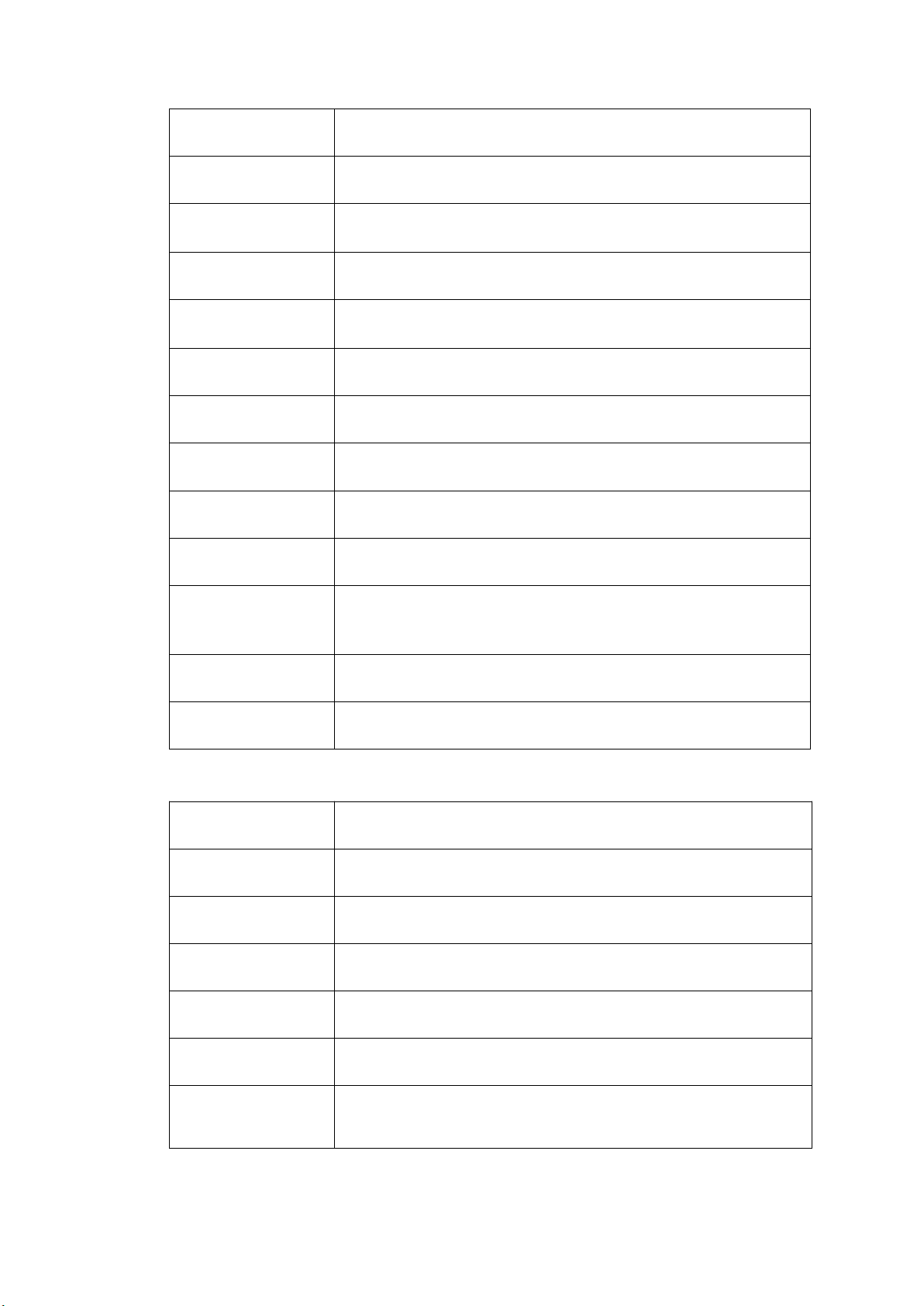
6K DCI
6064 x 3196
6K 2.4:1
6064 x 2560 ( 2.4:1 aspect ratio)
5K 4:3
5376 x 4032 (4:3 aspect ratio), can be used with anamorphic
lens.
5K DCI
5120 × 2700
5K 6:5
4848 x 4040
(
6:5 aspect ratio), can be used with anamorphic
lens.
5K
4800 × 2700
4K DCI
4096 x 2160
4K DCI 3:2
4096 × 2732
4K UHD
3840 x 2160
4K 2.4:1
4096 x 1728 (2.4:1 aspect ratio)
Super16 (16:9)
2112 x 1188 (16:9), S16 mode, suitable for S16 cinema
cameralens.
2.8K
2868 × 1512
FHD
1920 x 1080
Z CAM E2-F8
Resolution
Details
8K 2.4:1
8192 x 3456
8K UHD
7680 x 4320
6K DCI
6144 x 3240
6K UHD
5760 x 3240
4K UHD
3840 x 2160
Super16 (16:9)
3392 x 1908 (16:9), S16 mode, suitable for S16 cinema camera
lens.
* With lower noise in shadow area in this mode, but the jelly effect will be more obvious.
So it is suitable for static scenes shooting or less moving scene.
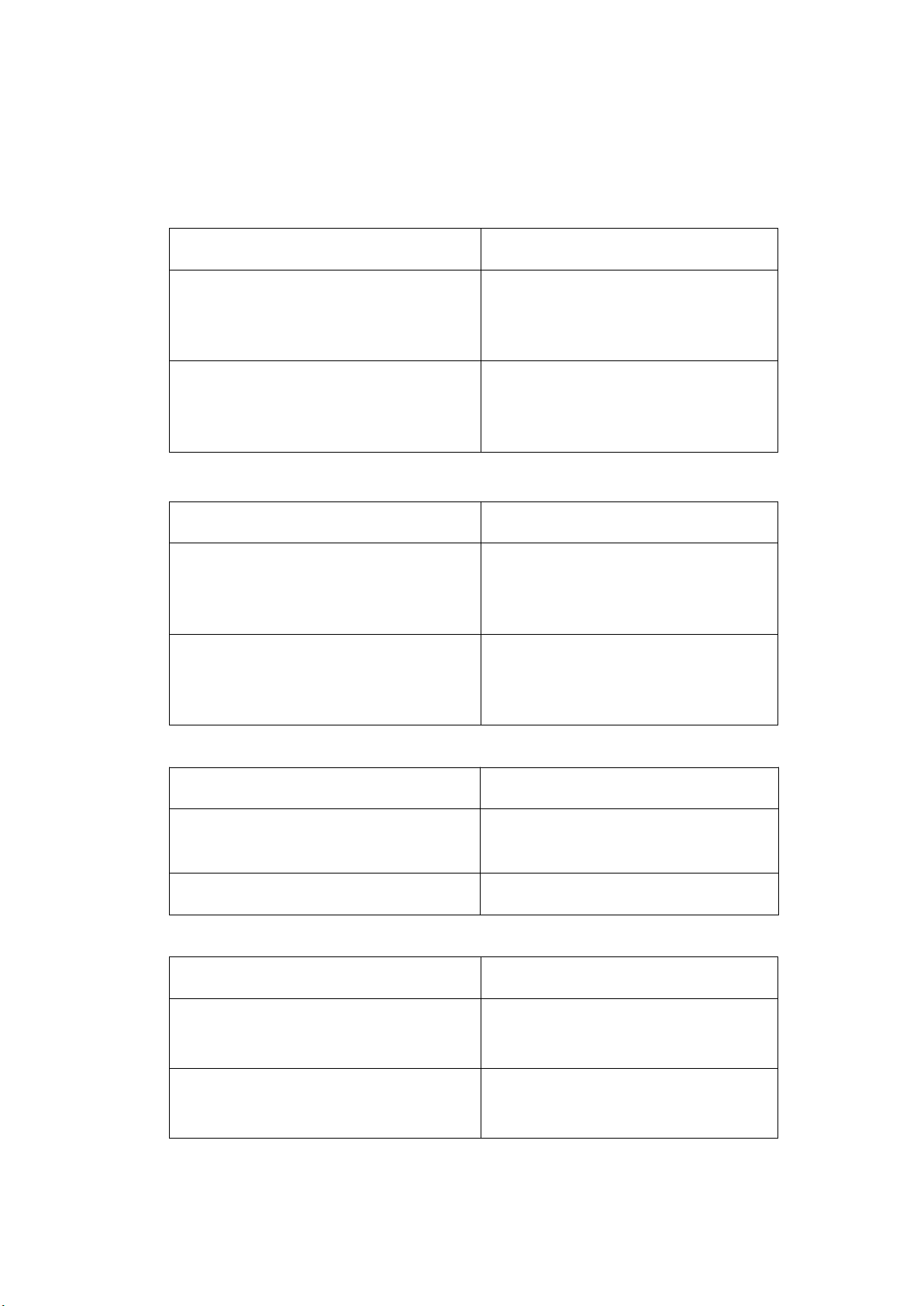
Project FPS: Frame rate of the video project. It will be different for each camera when
the resolution is set to different values.
Z CAM E2-M4
Resolution
Frame Rate
(
fps
)
4K UHD (Low Noise) / 3696x2772 /
3696x2772 (Low Noise) /
4K DCI (Low Noise)
23.98 / 24 / 25 / 29.97
4K UHD / 4K DCI / 4K DCI 2.4:1 /
4K 2.4:1 / 3312 x 2760 / Super16 /
Super16 16:9 / FHD
23.98 / 24 / 25 / 29.97 / 50 / 59.94
Z CAM E2-S6
Resolution
Frame Rate
(
fps
)
6244x4168 / 6K DCI / 6K UHD / 5K 4:3 /
5K 6:5 / 4K DCI (Low Noise) /
4K DCI 3:2 / 4K UHD (Low Noise)
23.98 / 24 / 25 / 29.97
6K 2.4:1 5K DCI / 5K / 4K DCI 2.4:1 /
4K DCI / 4K 2.4:1 / 4K UHD /
Super16 (16:9) / FHD
23.98 / 24 / 25 / 29.97 / 50 / 59.94
Z CAM E2-S6G
Resolution
Frame Rate
(
fps
)
6144 x 4096 / 6K DCI / 6K UHD /
6K 2:4:1 / 4K DCI / 4K UHD
23.98 / 24 / 25 / 29.97
4K DCI 2.4:1 / FHD
23.98 / 24 / 25 / 29.97 / 50 / 59.94
Z CAM E2-F6
Resolution
Frame Rate
(
fps
)
6064 x 4040 / 6K DCI / 6K UHD / 5K 4:3 /
5K 6:5 / 4K DCI 3:2
23.98 / 24 / 25 / 29.97
6K 2.4:1 / 5K DCI / 5K / 4K DCI 2.4:1 /
4K DCI / 4K UHD / Super16 (16:9) / FHD
23.98 / 24 / 25 / 29.97 / 50 / 59.94

Z CAM E2-F8
Resolution
Frame Rate
(
fps
)
8K 2.4:1 / 8K UHD / 6K DCI / 6K UHD
23.98 / 24 / 25 / 29.97
4K UHD / Super16 (16:9)
23.98 / 24 / 25 / 29.97 / 50 / 59.94
File format: MOV / MP4
Split duration: 1 / 5 / 10 / 15 / 20 / 30 / 60 min. The camera will split the video with
the length set here automatically.
Note
:
After the first section via camera automatically splitting, the out of sync
problem between audio and video will happen. You need to use “Z CAM™ Video
Concatenator” to merge the video section before the post editing and processing.
The download link as below:
http://www.z-cam.com/cn/software-update/
Time Code: Set the time code, there are sub-items as below:
Time Code Source: Internal / External
Time Code Value: Reset / Manual / Current
- Reset: Reset the time code value to 0.
- Manual Input: Set the time code value manually 00:00:00:00
(
hour:minute:second:frame).
- Current Time: Set time according to the camera system setting time.
Count Up: Rec Run / Free Run.
- Rec Run: Counts the time code only when recording video.
- Free Run: Counts the time code even when not recording video (including
when the camera is power off)
Time Code Mode: DF / NDF.
- DF: The camera modifies the difference between recorded time and time
code. Seconds and frames are separated by “.”. (Example: 00:00:00.00)
- NDF: Records the time code without drop frame. Seconds and frames are
separated by “:”. (Example: 00:00:00:00)
HDMI Display: On / Off. To enable / disable the display of time code through
HDMI output.

Playback FR: Default / VFR. When it’s set to Default, the frame rate of playback will
be the same as set in Project FPS, when it’s set VFR, the frame rate of playback will
be the same as set in Variable Frame Rate (2.3 Video – Variable Frame Rate)
For example: Set “Record”-“Project FPS” to 29.97, and “Video”-“Variable Frame Rate”
to 120. If the "playback FR" is set to “Default”, the playback frame rate of the video is
29.97fps (4-fold slow motion). If the "playback frame rate" is set to ‘’Variable Frame
Rate’’, the playback frame rate of the video is 120fps (normal speed).
Meta Setup: Set the camera metadata, include “Camera ID” and “Reel Name”.
Camera ID
:
A ~ Z
Reel Name
:
001 ~ 999
Pre Roll: On / Off. Set “Pre Roll” to “ON”, there would appear one red flashing circle
on the left of remaining recording time (See the below picture) . To press Record
button to start recording, the camera will automatically save the first 5 seconds
before pressing record button.
2.3.
Video
Variable Frame Rate (VFR): With VFR you can set a different frame rate for capturing
based on the Project FPS for recording, in this way you can get a slow-motion or fast-
motion footage.
VFR options are related to the Resolution and Project FPS in Record setting. And
the maximum VFR is related to the exact camera model and resolution, see
below:
Z CAM E2-M4
Resolution
Max Variable Frame Rate (fps)
4K DCI
120
4K DCI (Low Noise)
30
4K UHD
120
4K UHD (Low Noise)
30
4K 2.4:1
160
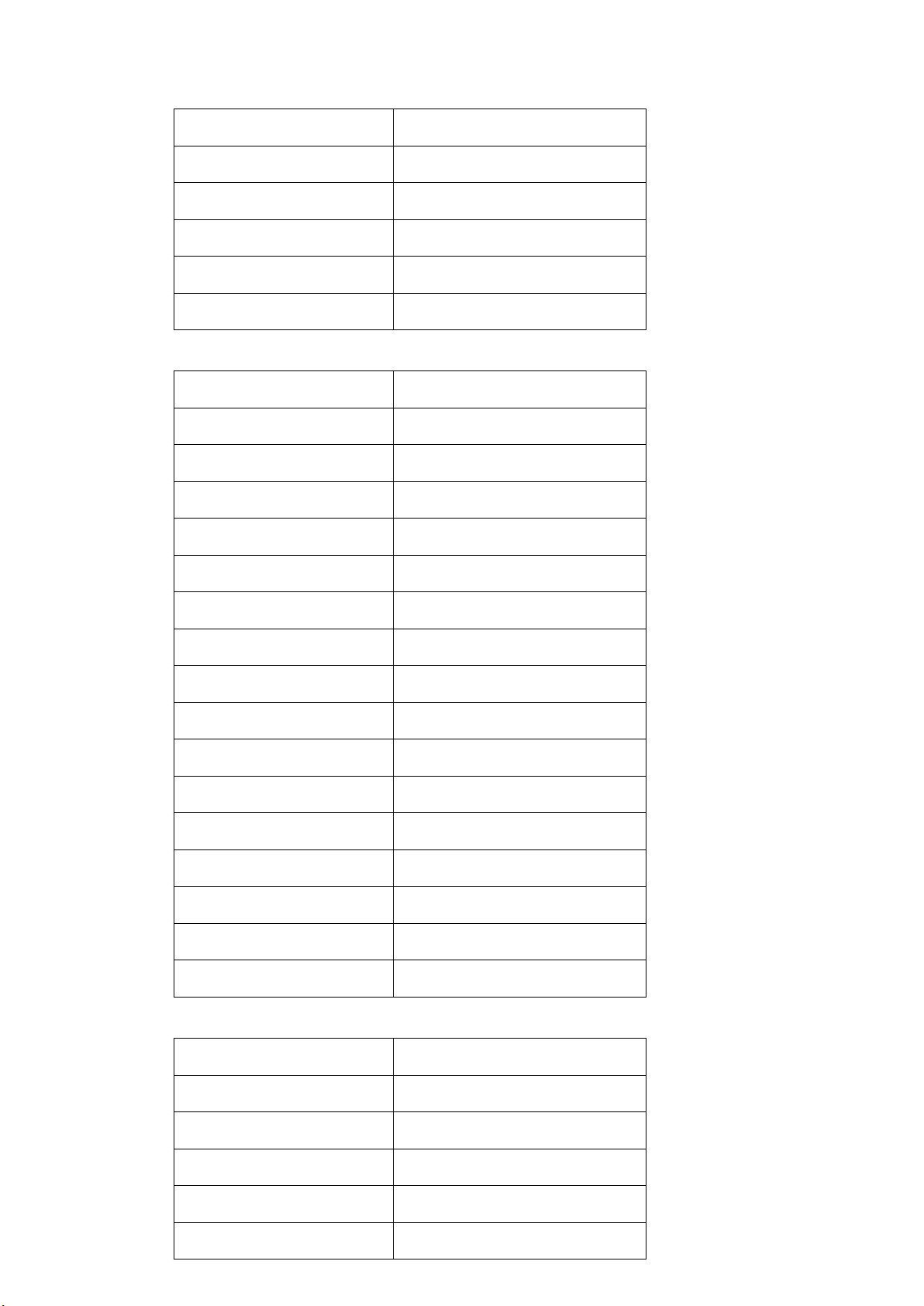
4K DCI 2.4:1
150
3696 x 2772
60
3312 x 2760
60
Super16
160
Super16 16:9
170
FHD
240
Z CAM E2-S6
Resolution
Max Variable Frame Rate (fps)
6244 x 4148
30
6K DCI
48
6K UHD
48
6K 2.4:1
60
5K 4:3
30
5K 6:5
30
5K DCI
60
5K
60
4K DCI 2:4:1
100
4K DCI 3:2
30
4K DCI
75
4K DCI (Low Noise)
30
4K UHD
75
4K UHD (Low Noise)
30
Super16
90
FHD
120
Z CAM E2-S6G
Resolution
Max Variable Frame Rate (fps)
5K DCI
60
5K
60
4K DCI
90
4K DCI 3:2
30
4K UHD
90
Z CAM E2-F6
Resolution
Max Variable Frame Rate (fps)
6064 x 4040
30
6K DCI
48
6K UHD
48
6K 2.4:1
60
5K 4:3
30
5K 6:5
30
4K DCI
90
4K UHD
90
4K 2.4:1
120
Super16 (16:9)
170
FHD
120
Z CAM E2-F8
Resolution
Max Variable Frame Rate (fps)
8K 2.4:1
30
8K UHD
30
6K DCI
30
6K UHD
30
4K UHD
60
Super16 (16:9)
60
*Each resolution to the highest variable frame rate subject to H.265 encoder standard.
Encoder: H.264 / H.265 / ZRAW
The corresponding color bit depth and sampling of each encoding format are asfollows:
Encoder
H.264
H.265
ZRAW
Color Bit Depth
8bit
10bit
12bit
Color Sampling
4:2:0
4:2:0
N/A
Max frame rate @30fps for ZRAW encoder.
Bitrate: High / Middle / Low. Value of the bitrate varies in different resolution and frame
rate.
Resolution
Frame Rate Range
(
fps)*
Bitrate
(
Mbps
)
H
M
L
8K
(
8K 2.4:1
,
8K
UHD
)
FR <= 30
500
400
200
6K(Open Gate,6K
DCI
,
6K UHD
,
6K 2.4:1
)
30 < FR <= 60
300
190
130
FR <= 30
250
160
100
5K
(
5K 4:3
,
5K 6:5
)
FR <= 30
250
160
100
4K
(
4K DCI
,
4K UHD
,
4K 2.4:1
)
/ Super16
(16:9)
FR > 60
300
200
160
30 < FR <= 60
230
150
100
FR <= 30
200
130
60
FHD
FR > 60
200
130
60
30 < FR <= 60
60
30
15
FR <= 30
30
20
10
* If VFR is activated, the frame rate here refers to the frame rate in VFR, otherwise it
refers to the frame rate in Movie Format.
For ZRAW, the bitrate is 1.2Gbps.
Proxy Track: On / Off. To enable or disable proxy track recording during video
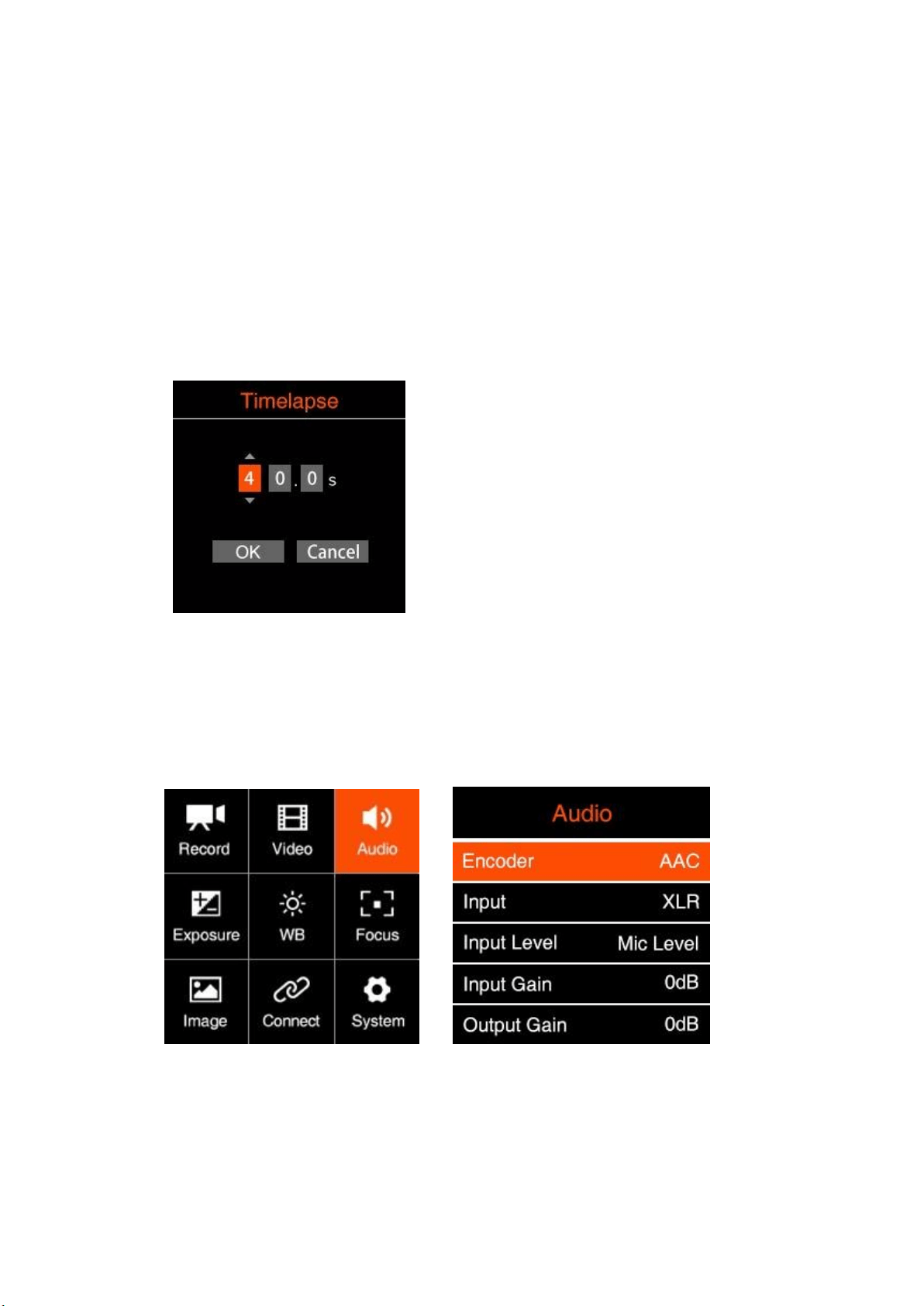
recording, it will automatically “On” when using ZRAW as recording encoder, which
will record a second video track (H.265) into the video file.
Rotation: Normal / Upside Down. Rotate the image by 180 degrees.
Note: This setting is available only when the frame rate of recording is under 30fps
(include 30fps). The display on the LCD and the video output from HDMI will not be
rotated during preview and recording in current firmware, and only the video recorded
in the storage will be rotated when it’s set to “Upside Down”.
Timelapse: Off / Manual, when it’s Off, the camera is in normal record mode. When it
is set to a specific value, the camera is in time lapse video mode.
VFR Control
:
Coarse / Fine
- Coarse
:
Adjust based on the camera’s preset value within the range of VFR
- Fine
:
VFR fine control within the range of VFR, 1 frame per step.
2.4.
Audio
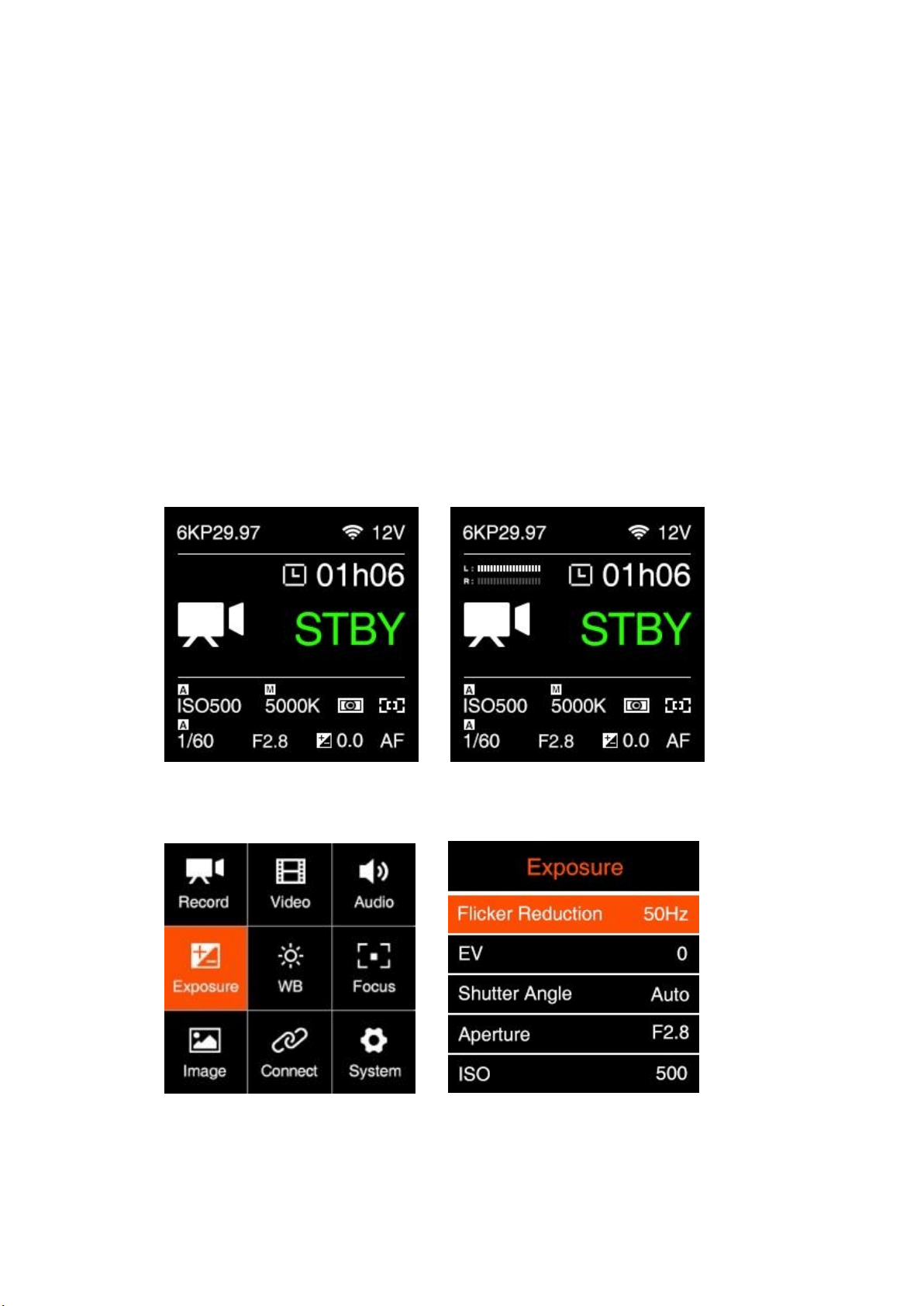
Encoder: None / AAC / PCM
Input: Off / Microphone / XLR / Mic Left + XLR Right / Mic Right + XLR Left
Off
:
Turn off all audio input.
Microphone
:
The camera will use built-in microphone as audio input if there is
no external microphone plugged into the 3.5mm audio-in port, and will use the
external microphone if there is one plugged into the 3.5mm audio-in port.
XLR
:
Take XLR port as audio-in
Mic Left + XLR Right: Take 3.5mm audio-in(microphone) left channel, and XLR
port right channel to merge for audio-in
Mic Right + XLR Left: Take 3.5mm audio-in(microphone) right channel, and
XLR port left channel to merge for audio-in
Input Level: Mic Level / Line Level
Input Gain: -10 ~ 12 dB, can be set manually.
Output Gain: -10 ~ 12 dB, can be set manually.
Phantom Power: Enable / Disable. Available when “Input” is set to “XLR”,” Mic Left +
XLR Right” and “Mic Right + XLR Left” to enable or disable the phantom power of the
XLR port.
Audio Level Display: Disable / Enable,enabling this setting displays the audio level
on the standby screen.
2.5.
Exposure
Flicker Reduction
:
60Hz / 50Hz. It’s set to eliminate light flicking caused by the
frequency of the electricity, which is 60Hz in North America and some parts of Asia.
(South Korea
,
Philippines
,
Taiwan of China), And 50Hz for China mainland, other
countries and regions.
EV: -3.0 ~ 3.0
Shutter Speed / Shutter Angle: This setting depends on whether “Shutter Speed” or
“Shutter Angle” is selected in 2.5 Exposure - Shutter Operation
Shutter Speed: Auto / Manual(1” ~ 1/8000”)*
Shutter Angle: Auto / Manual(1°~ 360°)
* The minimum shutter speed “1” is available only when" variable frame rate "is set to
“1”.
Aperture: It shows the range of aperture of the lens, and can be adjusted manually if
it’s an electrical lens. Only for lenses with electronic contacts. If the lens used is a
purely mechanical without electronic contacts, the aperture value is not shown here.
ISO: ISO optional values depend on the setting in ISO control. The native ISO value
varies from different models.
eND: 1.70 ~ 6.70 stop.
eND Mode: ND 101 / ND 102
Minimum ISO: This setting will only be enabled when ISO is set to “Auto”.
Max ISO: This setting will only be enabled when ISO is set to “Auto”.
Max Shutter Speed / Max Shutter Angle: This setting will be activated if Shutter
Speed / Shutter Angle is in Auto mode.
Max Shutter Speed: Auto / Manual (1” ~ 1/1600”)*
Max Shutter Angle: Auto / Manual (1
°
~ 360
°
)
* Minimum shutter speed “1” is optional only when variable frame rate is set to “1”.
Metering Mode: Center / Average / Spot, it sets the metering mode of exposure.
Shutter Operation: Speed / Angle
ISO Control: Fine / Native ISO
Fine: ISO can be set in detail value within ISO range (according to standard ISO
definition)
Native ISO: only native ISO can be selected.
Extended Manual ISO: On / Off
AE Speed: Slow / Normal / Fast
Lock In Record: Off / On. Enable this function, it will automatically lock the exposure
during recording.
ISO Control
ISO
Fine
400 ~ 128000
Native ISO
Z CAM E2-S6G: 1250
Dual Native ISO
Z CAM E2-F6: 400 / 2500
Z CAM E2-S6 & E2-F8: 400 / 1250
Z CAM E2-M4 WDR On/Off: 250 / 1250 500 / 2500

2.6.
White Balance
Mode: Auto / Incandescent / Cloudy / D10000 / Fluorescent / Daylight / Shade /
Manual
Kelvin: When White Balance is set to “Auto” or “Preset Value”, it shows the current
color temperature, when White Balance is set to “Manual”, it can be adjusted
manually (2300 K ~ 7500 K)
Tint: -100 ~ 100, default is 0.
Priority: Ambiance / White
- Ambiance: To increase the intensity of the image’s warm color cast when
shooting a tungsten-light scene.
- White: To reduce the intensity of the image’s warm color cast when shooting a
tungsten-light scene.
Lock In Record: Off / On. Enable this function, it will automatically lock the white
balance during recording.
* AWB always use white priority in Z-Log2
2.7.
Focus
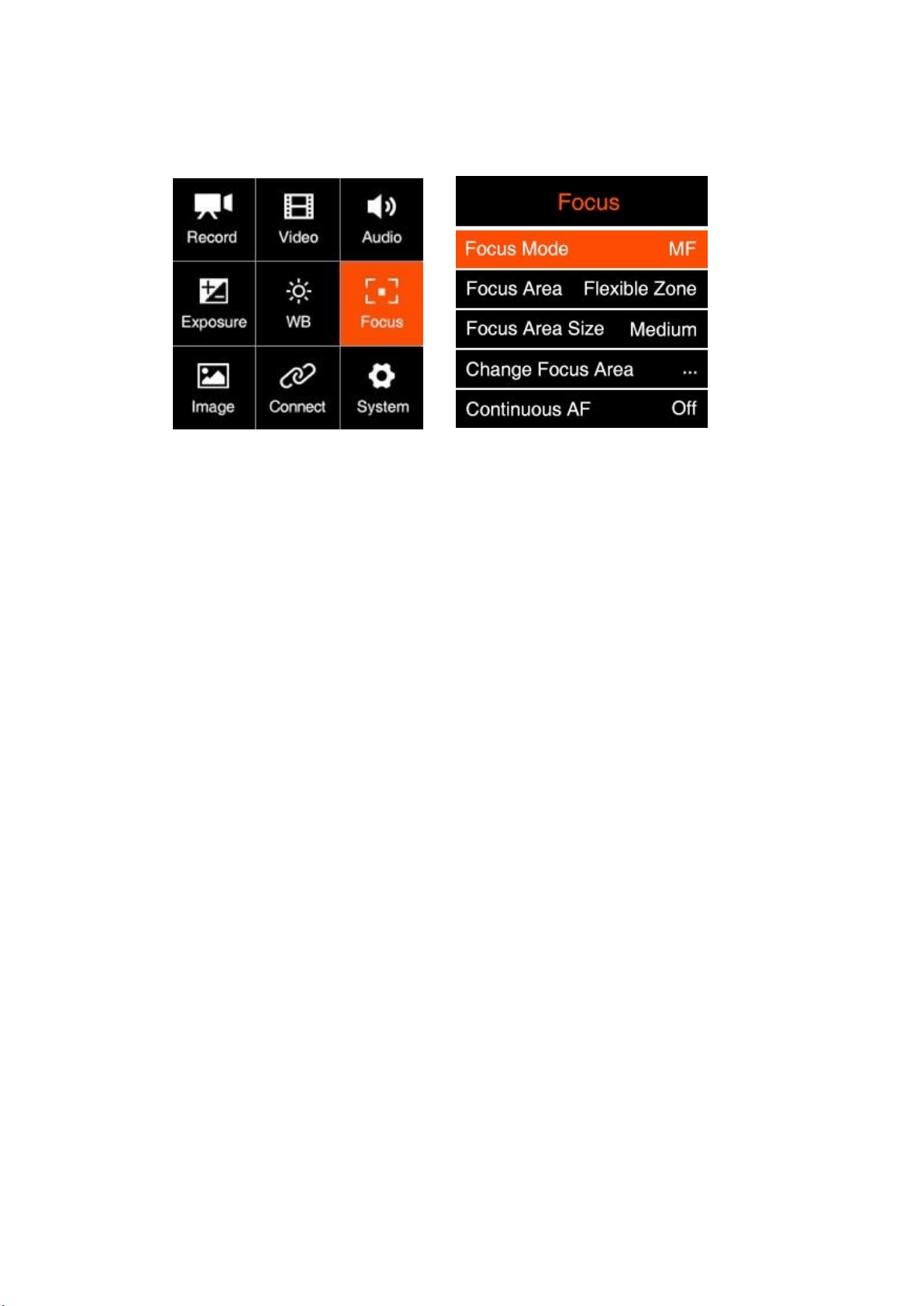
Focus Mode: MF (Manual Focus) / AF (Auto Focus)
Focus Area: Flexible Zone / Human Track. This will only be enabled when Focus
Mode is set to “Auto Focus”.
- Flexible Zone: Can move focus area via Up / Down button
- Human Track: The camera can detect whether there is a human body in the
picture. If yes, the focus area will keep tracking the human body automatically.
Focus Area size: Small / Medium / Large. This will only be enabled when Focus
Mode is set to “AF” and Focus Area is set to “Flexible Zone”.
Change Focus Area: Move the focus area via Up / Down button. This will only be
enabled when Focus Mode is set to “AF” and Focus Area is set to “Flexible Zone”.
Continuous AF (CAF): On / Off. This will only be enabled when Focus Mode is set
to “Auto Focus”. When CAF is activated, the camera will continuously adjust the focus
as to follow the target object when it is moving.
Live CAF: On / Off. This will only be enabled when CAF is set to “On”. Active
continuous focus in real time according to the scene.
CAF Sensitivity: High / Medium / Low. This will only be enabled when CAF is
activated.
MF Assist
Preview: On / Off
Recording: On / Off
This will only be enabled when Focus Mode is set to MF. When it is set to On, the
image in the focus mode will enlarged to 2 x size on the screen (both LCD display
and HDMI output) when the focus is being adjusted manually. And it be set for
Preview and Recording separately.
2.8.
Image
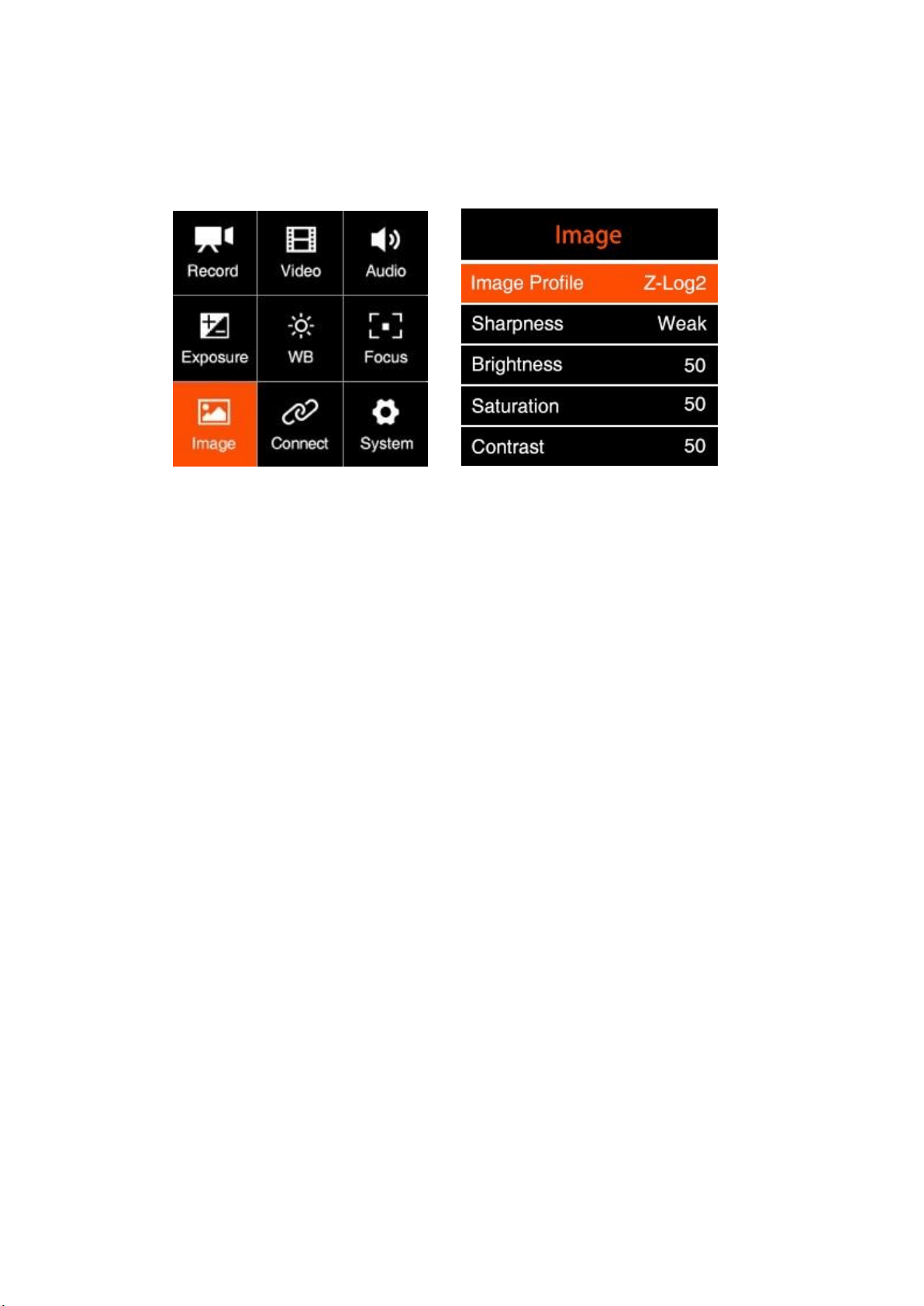
Image Profile: Rec.709 / Z-Log2 / Flat / HLG
- Rec.709
:
It is Rec.709 like color space, which is usually used for directly output
- Z-Log2
:
It is the log developed by Z CAM, with 13 stops of dynamic range and
reserve more detain in highlight area, good enough for post processing.
- FLAT
:
It is 709 like curve with color information, and lower the contrast for easy
post processing.
- HLG (Hybrid Log-Gamma): Encode the high-light and low-light parts of the HDR
signal in two different ways in which the low-light part use the standard gamma
curve and the high-light part use the logarithmic curve.
Sharpness: Strong / Medium / Week, default Medium.
Brightness: 0~100, default is 50.
Saturation: 0~100, default is 50.
Contrast: 0~100, default 50.
Luminance Level: Full / Limited. The range of luminance level is 0~255 when it’s set
to Full, and 16~235 when it’s set to Limited.
2.9.
Connect
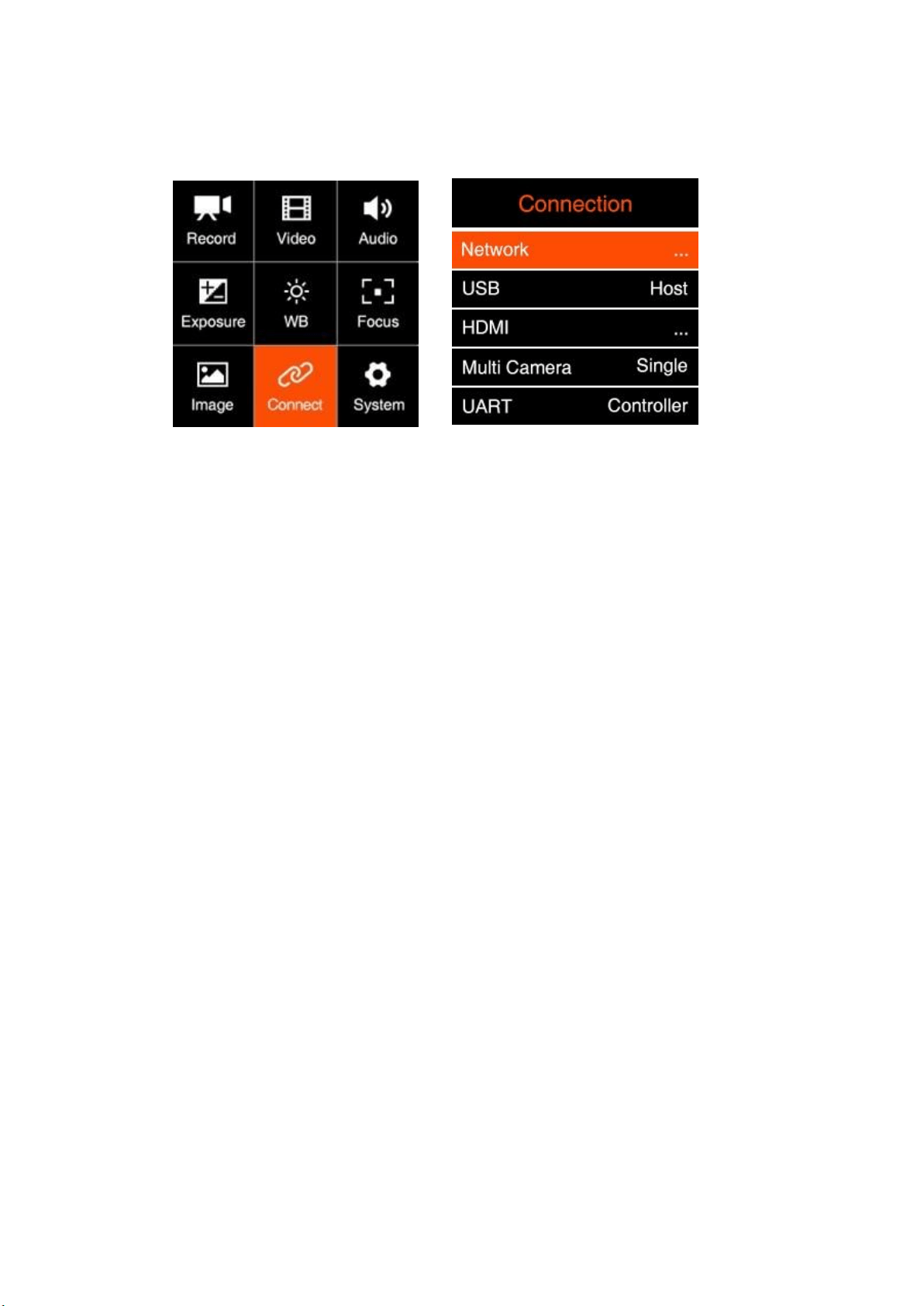
Network: there are sub-items as below:
Wi-Fi: Off / On. When the Wi-Fi is activated, here will show the Wi-Fi ID, which
is ZCAM-E2-XX-XXXX (last four digits which match to the camera ID), and the
default password is: 12345678, which can only be changed with iOS app (6.
Using Z Camera App)
Wi-Fi IP: Here will show IP address of the Wi-Fi when it’s is activated.
ETH. Mode (Ethernet Mode): Direct / Router / Static
-
Router: Camera is connected to the computer through a router, IP address
will be assigned by the router.
- Direct: Camera is connected to the computer directly through Ethernet
cable, camera will generate the IP address. The default is: 10.98.32.1
-
Static: to set the IP address with configuration file. (Please contact Z CAM’s
technical support if you want to set this)
ETH. IP: IP address of the Ethernet when it’s connected.
USB: Host / Mass Storage / Network / Serial
Host: The camera will act as a host device which can transfer data to external
storage (SSD e.g.) or communicate with external device like smart phone or
tablet etc. with Z Camera app (6. Using Z Camera App).
Mass Storage: The camera will be recognized as a storage when it is
connected to a computer (PC / Mac), and the file on the CFast card inside the
camera can be accessed.
Network: The camera will act as a RNDIS device.
The camera will be recognized as a RNDIS device when it is connected to a

computer (PC / Mac) or external device. Computer or external device can
access or control the camera using the HTTP API. (for HTTP API information,
contact Z CAM technical support)
Serial: The camera will be controlled by UART command from a computer
through USB port.
HDMI: Display Info. / OSD Layout / Resolution / Use EDID
Display Info: On / Off. Turn on / off camera status on HDMI monitor.
OSD Layout: Type 1 / Type 2
Type 1: Assist tool as waveform etc. display on the video directly.
Type 2: Add the black frame area to display assist tool.
Resolution: Auto / Manual (options supported by the HDMI display).
Auto: The camera will select the most suitable format (resolution & frame rate)
from the HDMI monitor.
Manual: Here will list the formats supported by the HDMI monitor for the user to
select manually.
Use EDID: Disable / Enable. This setting determines whether the camera
automatically reads the EDID information of the HDMI connected monitor.
UART Role
:
Controller / Pelco D / Multiplexer / Linear TC.
UART Role2:Controller / Pelco D / Multiplexer / Linear TC, can set separately:
- Controller: The camera will be controlled by UART command from a computer
through COM port.
-
Pelco D:The camera will control the external device like a gimbal through COM
port with Pelco D protocol.
- Multiplexer:Need 3
rd
-party device to support.
- Linear TC: to be supported with extra accessories later.
2.10.
System
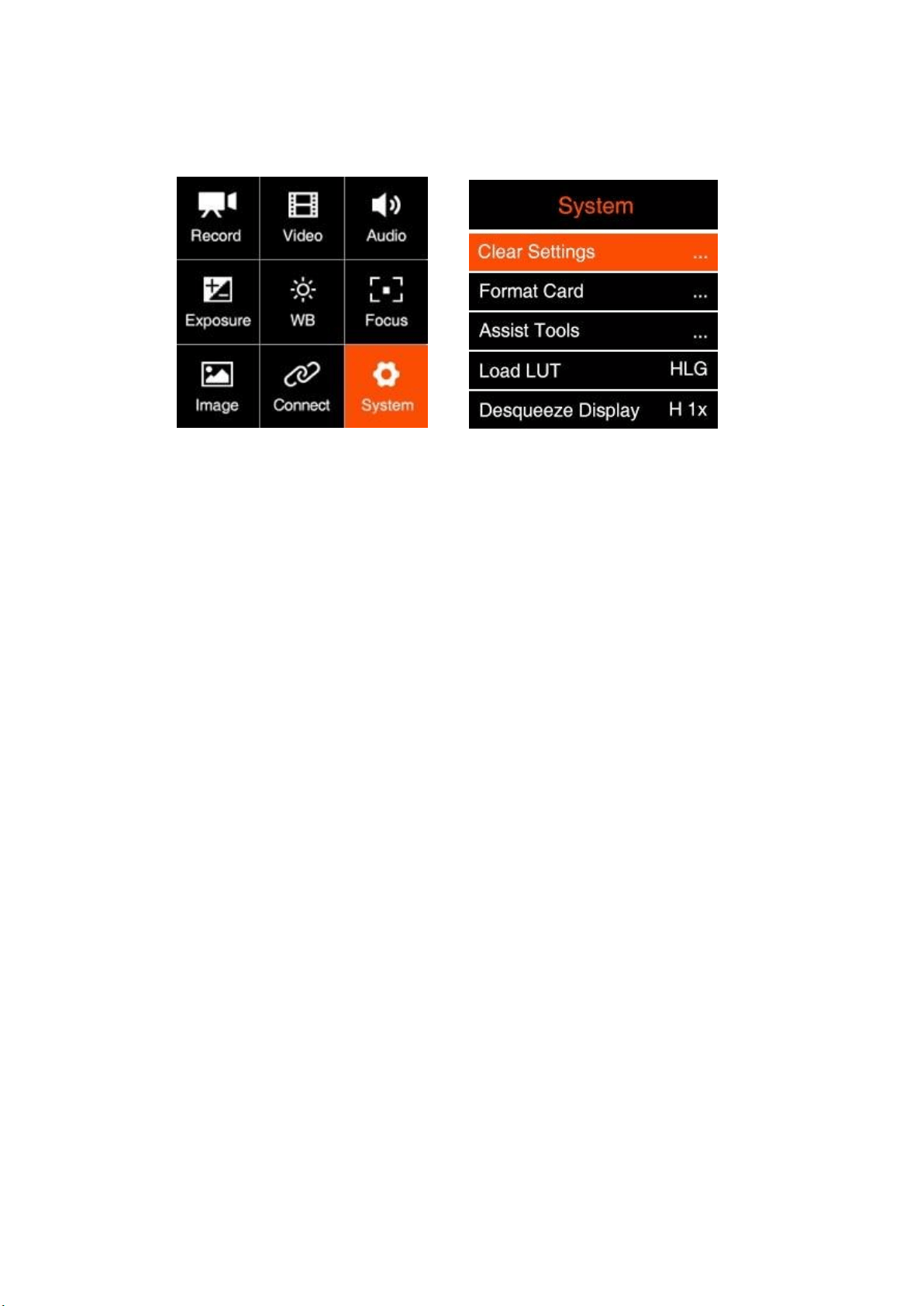
Clear Settings:Clear all the Settings in the camera and set them to default values.
Format Card
:
Format the CFast card or the external SSD connected through USB
Type C port (if there is no CFast card in the camera). Please note that formatting
will erase ALL DATA in the storage!
Assist Tools: There is three sub-items in this setting: Display / Scope / Peak /
Exposure / Frame Line / Center Mark / Grid Line / Safe Area
Display: On / Off. To enable or disable the assist tool on the display. Please
note that when the assist tool is enabled, the effect will be output through HDMI
together with the video stream. So you would need to turn it off if you are using
external recorder though HDMI connection.
Scope: Tool / Opacity / Measure
-Tool: Disable / Waveform / Parade / Vectorscope / Histogram, HDMI output
monitor view
-Opacity: 10~100, adjust the tool’s transparency on the display
-Measure: Without LUT / With LUT, if it's set to ” With LUT”, then the scope tool
will measure on the video with LUT, otherwise it will measure the video without
LUT.
Peak: Enable / Color / Monochrome / Threshold
- Enable: Off / On, to enable / disable the Peak tool and set the color of
peaking focus.
- Color: Red, Green, Blue, Orange and White, choose the color of peaking
focus display.

- Monochrome: Off / On
,
enable
“
Monochrome
”,
the screen becomes
black and white, the peak color setting to remain.
-
Threshold: 10~100, the high threshold means the extraneous edges on
the back wall are not quite in focus.
Exposure: Tool / Zebra1 Setting / Zebra2 Setting
- Tool: Disable / False Color / Zebra / Monochrome
Select the appropriate exposure assist tool or turn it off. The False Color/
Waveform / Vectorscope are only displayed on the HDMI output screen.
- Zebra1 setting: 55~100, it can only be set when the tool is selected as
"zebra".
- Zebra2 setting: 0~50, it can only be set when the tool is selected as
"zebra".
Frame line: Ratio / Color
- Ratio: None / 2.4:1 / 2.35:1 / 1.9:1 / 1.85:1 / 4:3 Frame line can be
displayed on the HDMI output screen according to the selected ratio.
-
Color: Red, Green, Blue, Orange and White, can choose the color of frame
line.
Center Mark: Enable / Color
- Enable: On / Off, when setting “Enable”, there display cross mark on the
center of HDMI output screen.
- Color: Red, Green, Blue, Orange and White, can choose the color of
center mark.
Grid Line: On / Off, to turn on / off the grid line on HDMI output.
Safe Area: On / Off, to turn on / off the safe area frame line on HDMI output.
Load LUT: None / Rec709 / V709 / LC709A / zRGB_AR / zRGB_AX2 / sRGB /
sCINE_709 / Rec2020 / HLG / P3D60 / P3D65 / P3DCI / F709 / Import
Note:
1.
To import external LUT, the LUT file must be saved to MISC/looks/preview/ of
the storage (CFast card or external SSD).
2. The LUT file must be x33 cube format.
3. File name of the LUT can not exceed 16 letters and with no space.
4. LUT is available in playback mode

Desqueeze Display: H 1x / H 1.33x / H 1.5x / H 1.8x / H 2x / V 1x / V 1.33x / V 1.5x
/ V 1.8x / V 2x.. When the camera is using an anamorphic lens, it’s to set the de-
squeeze ratio as to horizontally or vertically resize the image correctly.
User Profile: Save Profile / Load Profile / Save To Card / Load From Card
Save Profile: Export current camera settings to a file and save it in the memory
of the camera.
Load Profile: Select the saved configuration in the camera, import and apply it
to the camera settings.
Save To Card: Export the current camera settings as a configuration file and
save in storage of the camera (save in /MISC/profile/ directory, with file name
suffix.prf)
Load From Card: Import the configuration file from the storage, and apply it to
the camera settings.
Note: Configuration files saved on a memory card can be renamed, but only in English
letters.
User Button: Users can set the function for the keys (including FN / F1 / F2 / F3 / F4
/ POWER / UP / DOWN / OK) on the camera except MENU. It can be defined as
shortcut setting functions., which includes as below:
Playback (for power button only) / AE Lock / AF Lock / White Balance Lock /
Aperture / ISO / Peak / Exposure Tool / Scope Tool / White Balance / HDMI OSD /
Shutter / Exposure Value / AF / Magnifier / Focus Area / None
Note: the custom function of the power button is short press trigger, long press the
power button is still on/off function.
Record Indicator: On / Off. Set both front LED light and back LED light on / off
Restore Lens Pos.: Disable / Enable.
When it’s set to “Enable”, the camera will remember the latest focusing position of the
lens when the camera is shut down and restore it when it’s powered on again (with
the same lens only).
LCD Brightness: 10 ~ 100, default 50.
Power: Auto Power Off / Auto Standby / Low Alarm / Power Output
Auto Power OFF:Off / 30s / 1min / 2mins / 4mins / 8mins / 15mins
Auto Standby: Off / 1min / 5mins / 15mins
Low Alarm: NP-F series battery / V Mount battery, Low alarm voltage value for
camera can be set for the different batteries.
- NP-F series battery
:
6.6V ~ 7.6V
,
Default as 6.8V
- V Mount Battery
:
13.2V ~ 14.2V
,
Default as 13.3V
Power Output: auxiliary power output,
DC 12V (2-pin LEMO socket), can supply
power to other devices.
Language
:
简体中⽂
/ English
Date / Time: Set the date and time of the camera.
Time Zone: Set the time zone of the camera.
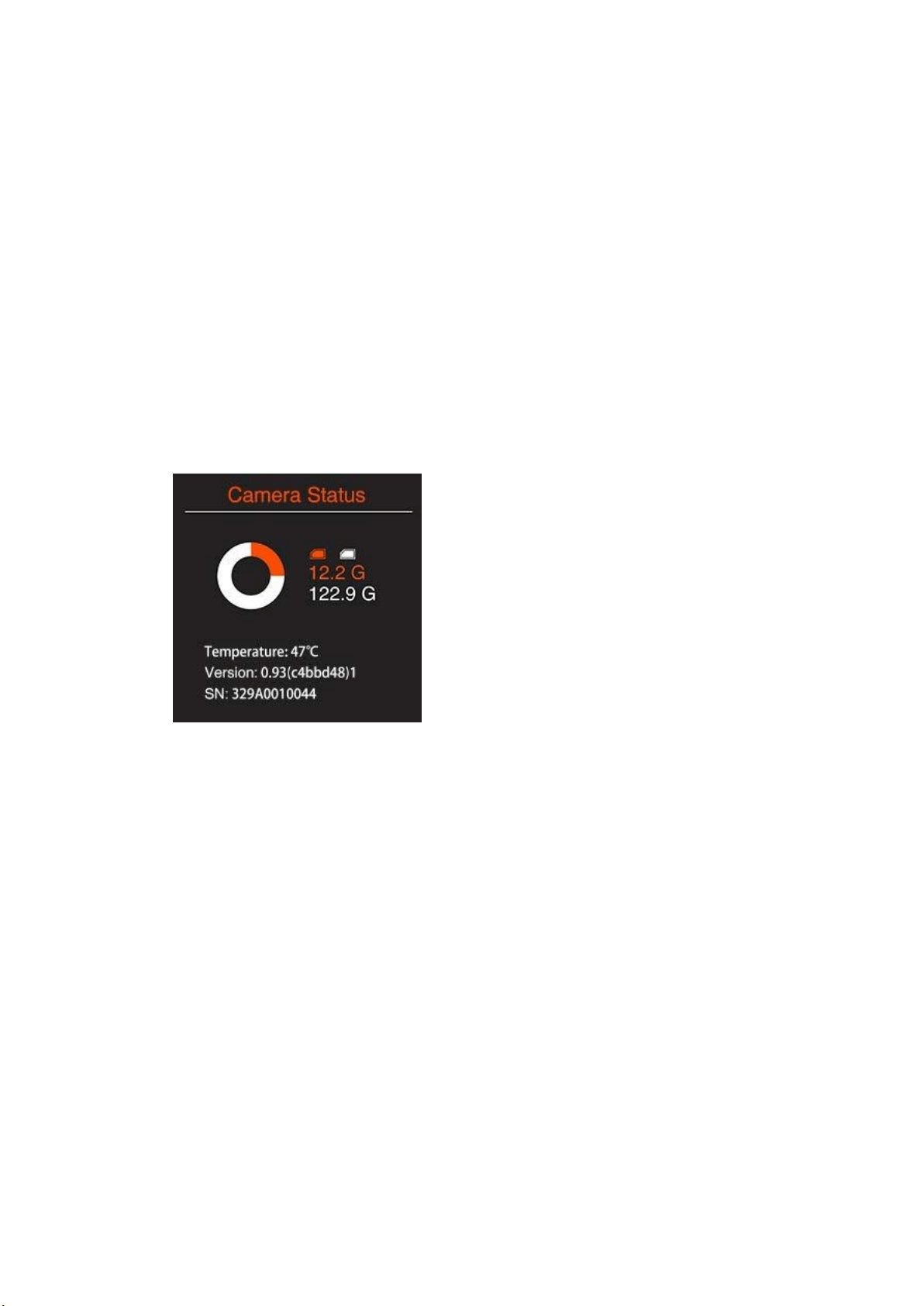
Camera Status: Displays the current status of the camera, including storage capacity
(used and remaining space),temperature (inside the camera) , firmware version and
camera ID etc.
Version: Firmware version of the camera. If there is other version of firmware (newer
or older) on root of storage (CFast card or external SSD), press OK when Version is
selected and there will pop up a message to update the firmware.
3.
Video Recording
3.1.
Start / Stop Recording
While camera is in Standby mode with CFast card inserted or SSD connected (and the
storage is not full), press Record button to start recording, and press Record button again
to stop recording.
The recording time and remaining time for recording (depends on the capacity of the
storage) would appear on the LCD display.

3.2.
Variable Frame Rate (VFR) Video Recording
VFR will enable you to record a footage with higher / lower frame rate in capturing than in
playback, which is usually called slow motion / fast motion effect.
Fox example, to use Z CAM E2-F6 record a 4K 2.4:1 @120fps footage with playback frame
rate in 4K 2.4:1 @29.97fps for example, you would need to follow the steps as below:
1)
In Record setting, set Resolution to “4K 2.4:1”, Project FPS to “29.97” and make sure
Playback FR is set to “Default”.
2) In Video setting, set Variable Frame Rate (VFR) to “120”.
3) Go back to the standby status, an “VFR 120” icon would show up on LCD display,
which means the camera is working with VFR in 120fps.
Note: Different resolution and frame rate settings correspond to different variable frame
rate range. Refer to 2.2 Record and 2.3 Video.
3.3.
Timelapse Video Recording
With Timelapse function, the camera can record time-lapse video with steps are as follows:
1) Set Video - Variable Framerate to "off", otherwise it is not able to enable Timelapse
setting.
2) In Video - Timelapse setting, set the Timelapse interval value (the interval is the time
between each frame shot) through the FN key (skip to the next setting item), and UP/
DOWN button, then select “OK” to confirm it.
The minimum unit of interval time is milliseconds (0.1s), and the range can be set as
0.2s ~ 60s.

3) After the timelapse interval is confirmed, the value will show in the item Timelapse,
and the camera icon will change to timelpase recording mode on the standby screen.
4) Set other required video parameters, except the Variable Framerate can not be
opened, the rest is the same as normal recording video.
5) Press Record button and the camera will start recording. Note that he recording time
shown on the screen is the time-length of the video file that is being recorded, but not
the time used for recording.
The formula to calculable the time required for recording and the time-length of the
video file is:
Recording time = Timelapse interval time x frame rate x time-length of video file
For example, if the timelapse interval is set to 0.5s and the recording frame rate is
25fps, then as to record 1 minute of timelapse video, the time required for recording
will be 0.5 x 25 x 1 =12.5 minutes.
4.
Video Playback & File Management
4.1.
Video Playback
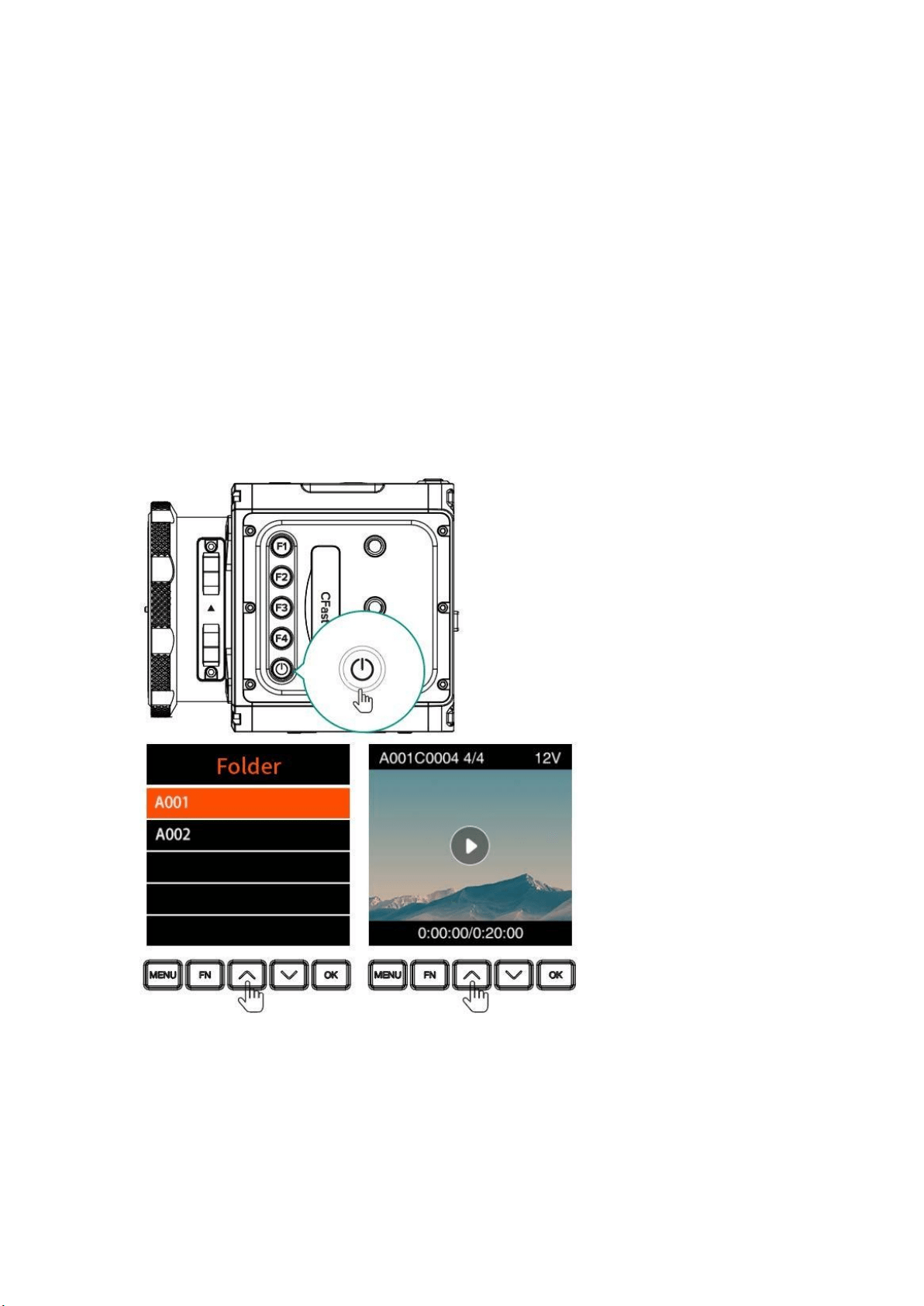
While camera is in Standby mode, short press Power button to enter into Playback mode,
on the LCD display there would list the file folders on the storage (CFast card or external
SSD).
Come into the folder then will show the thumbnail, video serial No. and the total number of
the latest video in the folder. Press Up / Down button to browse the footages inside the
folder.
Press OK button to play the selected footage. When the footage is being played, press the
Up / Down button to speed up / slow down (2x faster / slower).
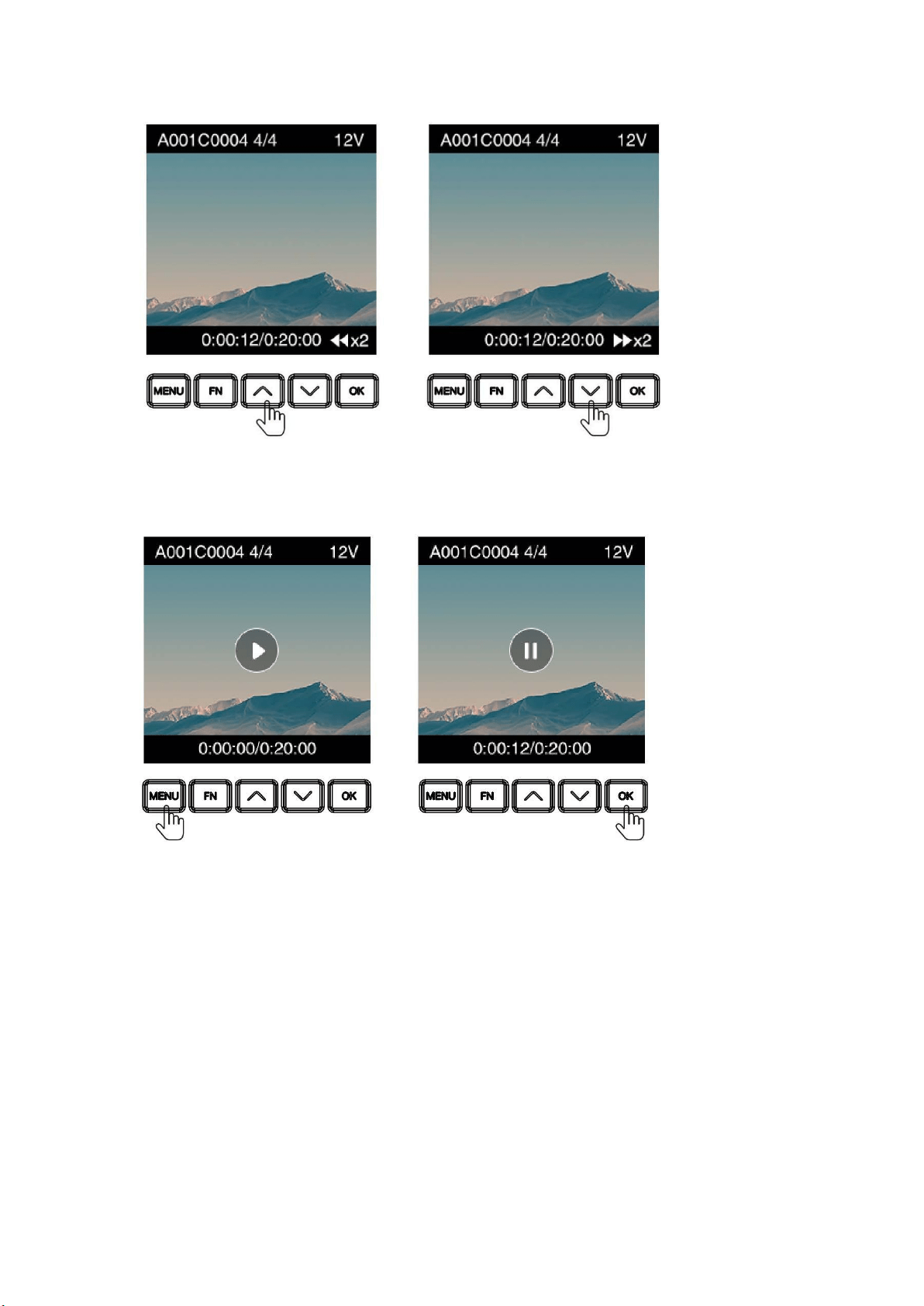
Press OK button to pause, and press MENU button to stop it.
Please note if there is no storage in the camera, or there is storage in the camera but no
video footage in the storage (or other files not supported), there will be alert message on
the screen.

Note:LUT is supported in playback
4.2.
Delete Video
Under Playback mode, long press FN button when the video is not playing, there will be
a pop-up confirmation message ”Delete the file?” , select “Confirm” and then press OK to
delete the file.
Note: The deleted file is not restorable, please double check before this action.
4.3.
Download Video
Besides taking out the CFast card to get the footages recorded, you can also get the
footages from the camera (with CFast card inside) to a computer through a USB Type C
cable:
1. Power on the camera.
2. In Connect setting, set USB to “Mass storage”.
3. Connect the camera to a computer with an USB Type C cable, an “USB” icon would
show up on LCD screen, then it’s connected successfully.

4. PC will detect the camera and shows it as external storage device. You can access &
manage the files in the CFast card inside the camera.
5.
Connect to the Camera
5.1.
Wi-Fi Connection
You can connect the camera to an external device (smart phone / tablet) or a computer
(PC / Mac) through Wi-Fi with following steps:
1. Install a Wi-Fi antenna to the Wi-Fi Antenna Port of the camera.
2. In Connect – Network setting menu, set the Wi-Fi to “On”
,
go back to Network
setting, there will show the Wi-Fi ID: ZCAM-E2-XX-XXXX (last 4 digits match to
camera ID) on the Wi-Fi item.
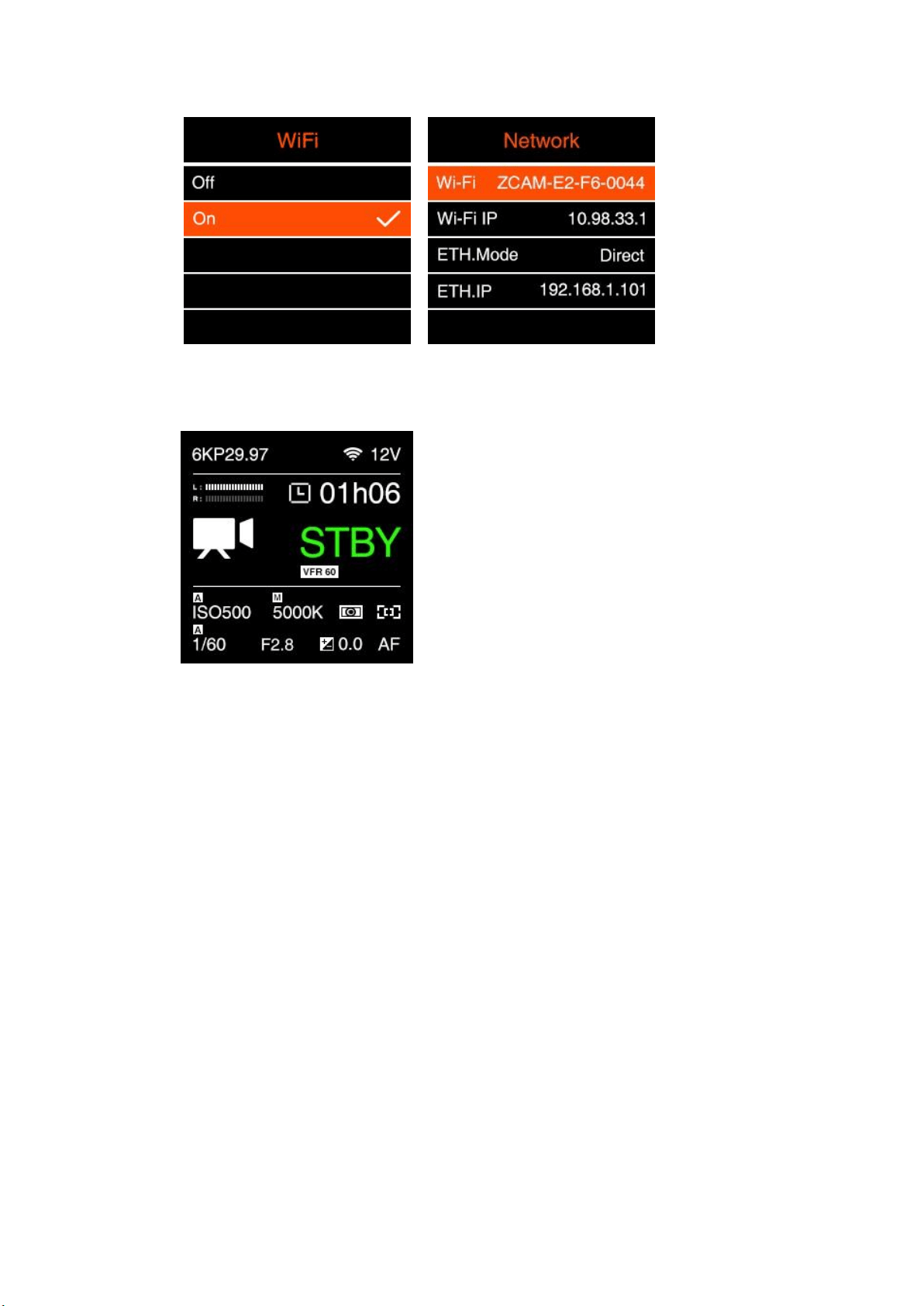
3. Press MENU to go back to Standby screen, there will be a Wi-Fi icon on top of the
screen.
4. Connect to the camera from the iOS device or a computer with that Wi-Fi ID, and
the default password of the Wi-Fi is 12345678. (not changeable for now)
5.2.
Ethernet Connection
There are 2 options to connect the camera to a computer through Ethernet: Direct
Connection or Connection through a Router:
Direct connection
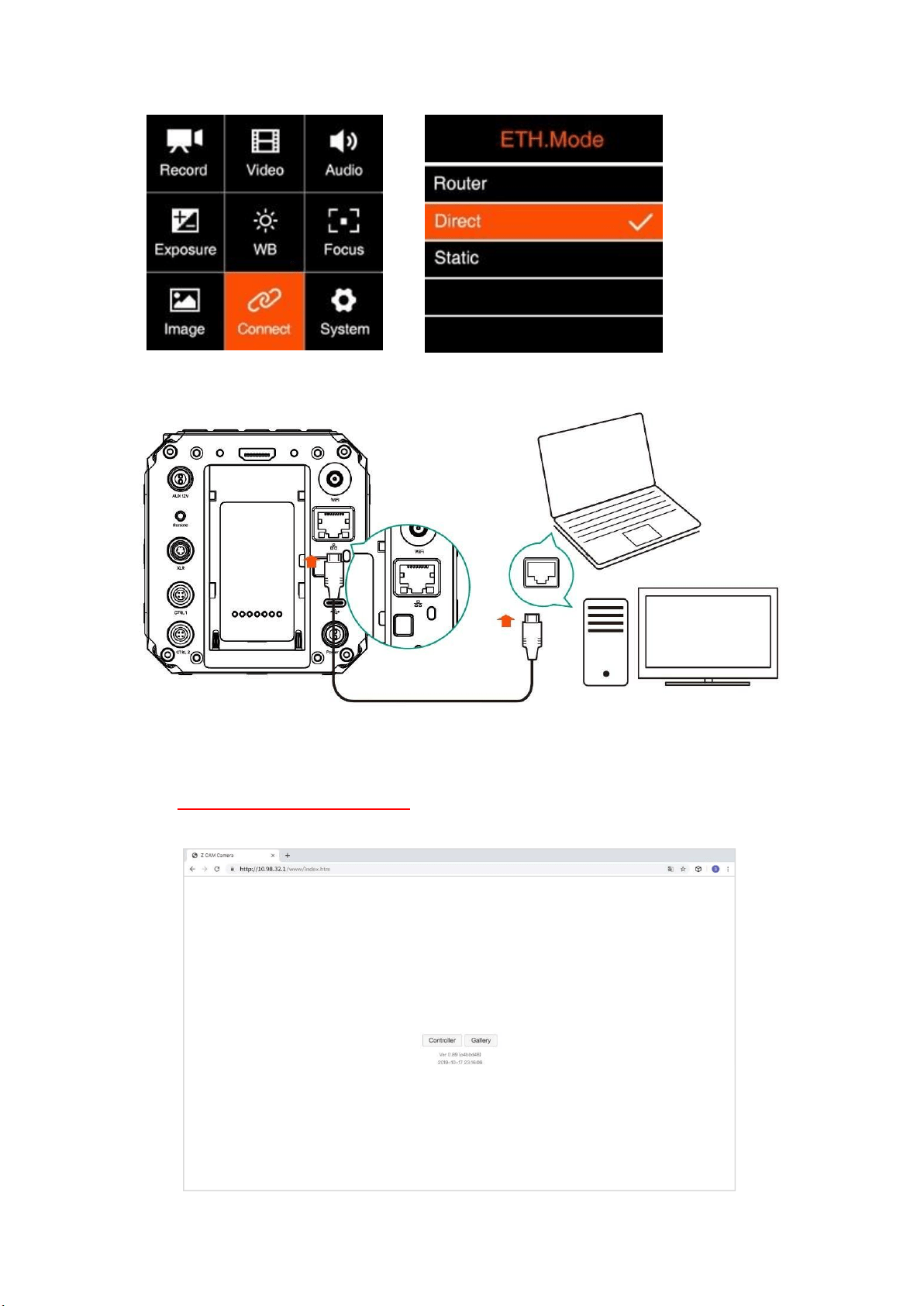
Follow the steps below to set up direct Ethernet connection between the camera and the
computer:
1. Set the Network-ETH. Mode to “Direct” in Connect-Network setting (default).
Connection through a Router
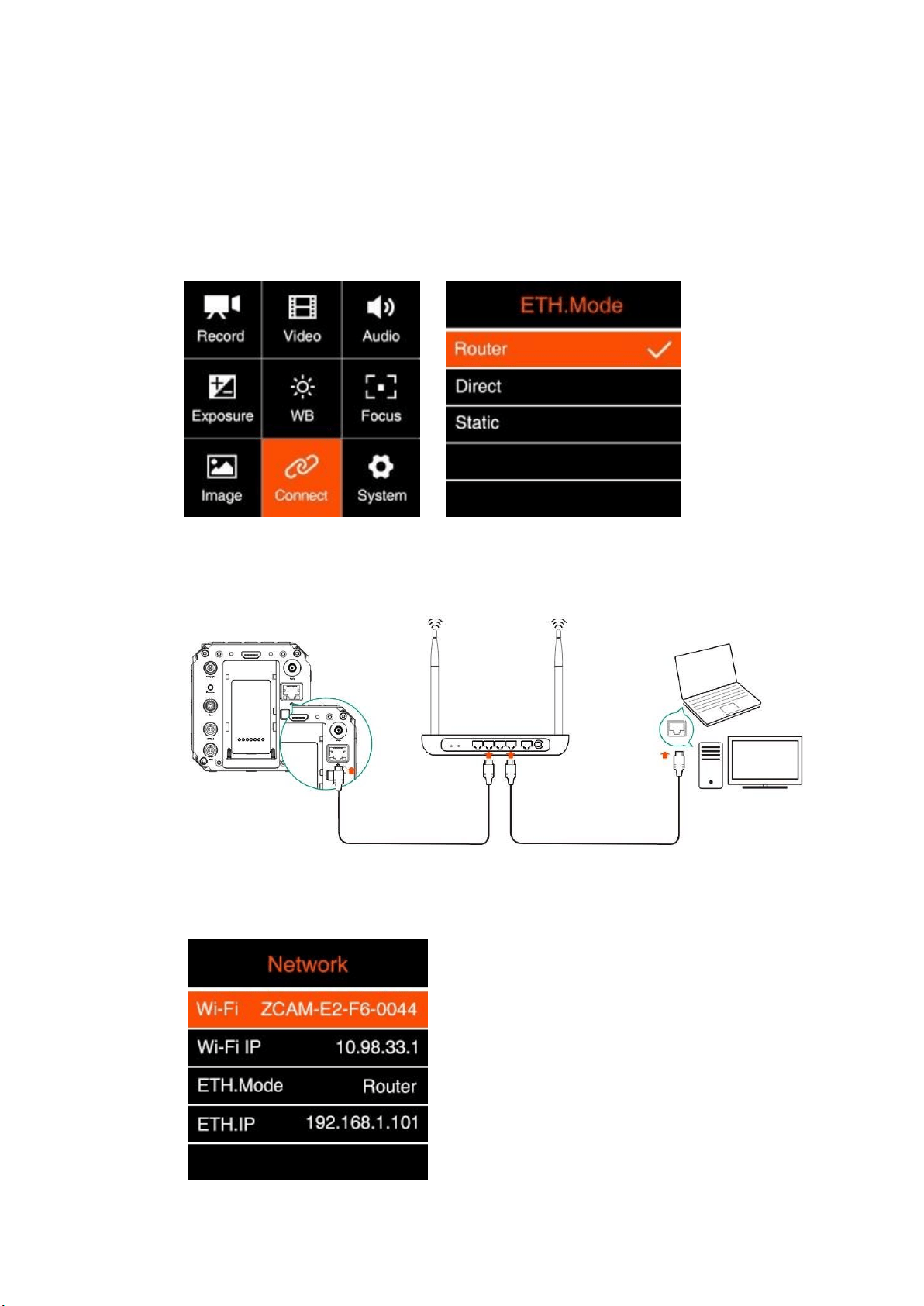
You can set up an Ethernet connection between the camera and a computer through a
router with following steps:
1. Set the Network-ETH. Mode to “Router” in Connect-Network setting (2.10
Connect – Network-ETH. mode)
2. Connect the camera to a router with an Ethernet cable, then connect the router to
the computer with Ethernet cable or Wi-Fi. (Note: Camera and PC should connect
to the LAN port of router, not WAN port)
3. Check the Connect – Network setting, and there will show the IP address of the
camera on ETH.IP item (e.g. 192.168.1.101) if the connection is OK.

6. Using Z Camera App
Download and install the Z Camera App from App Store to your device (smart phone or
tablet), then you can use this device to live view and control the camera including start /
stop recording and most of the settings, with following steps
Install App: Search "Z Camera" in App Store to download and install it.
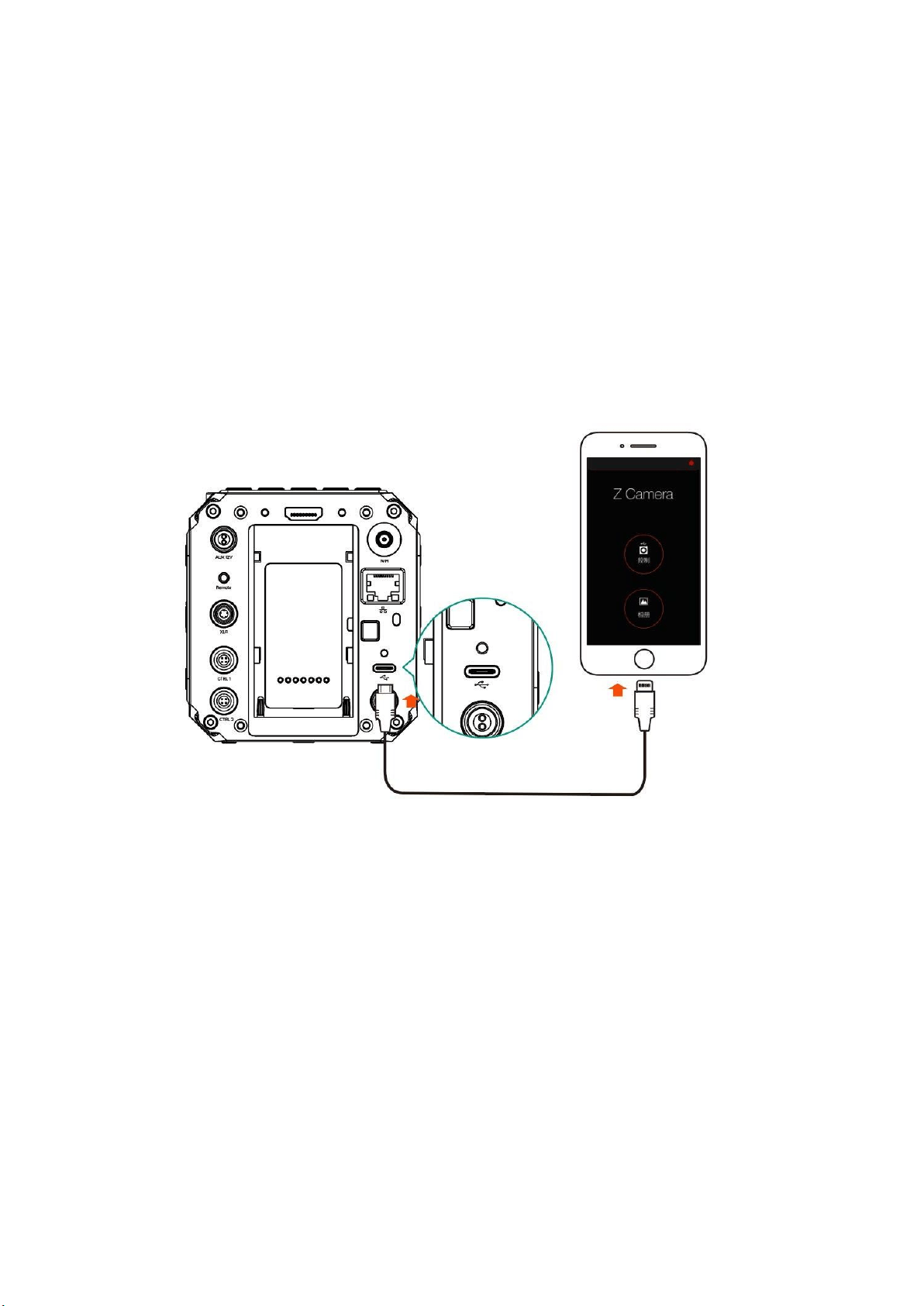
Connect to camera: Connect the device to the camera with an USB Type C to Lighting
cable as below, or through Wi-Fi.
Wi-Fi connection refer to the section 5.1. The steps of USB connection are as follows:
1. Connect the device to the camera via USB cable
2. If it’s the 1
st
time to connect the device to the camera, there will be a pop-up message
on your device “Trust this device?”, click “Yes” and it will ask you to input password,
which is the password to unlock your iOS device.
3. Open Z Camera App, if the camera is connected successfully, the “Control” icon will
be activated (it’s gray color if there is no connection) and there will be a small USB or
Wi-Fi icon on (depends the connection method you use). Click the “Control” icon and
you will come into the live-view and control panel.
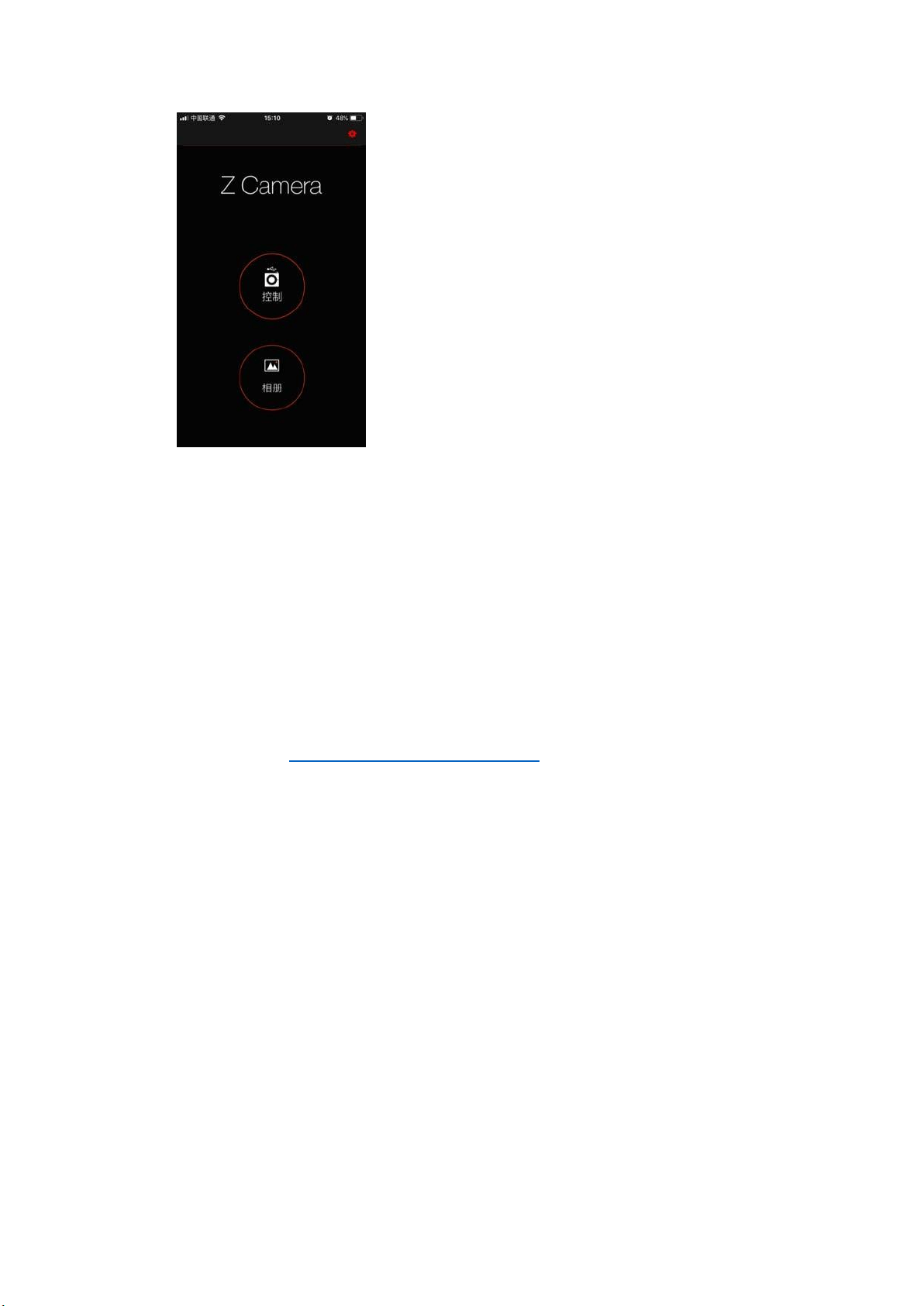
Details about the Z Camera app will be added in the future update of the document.
In the App, you can monitor and play back the video of the camera in real time, and
set camera parameters through the menu.
7. Firmware Upgrade
Follow the steps below to upgrade the firmware of the camera:
1. Download the latest version of firmware (E2_FX_FW_0.93.zip) for Z CAM E2 from Z
CAM’s website: http://www.z-cam.com/e2/updates/
2. Put the firmware file to the root directory of the CFast card (DO NOT unzip it!).
3. Insert the CFast card to the camera and power it on.
If the firmware version of file in the card is higher than the camera’s one, there will be
a pop-up message for firmware upgrade. Select “OK” and press OK button, the
camera will upgrade the firmware* and restart the camera after it’s finished.

4. If the version of the firmware file in CFast card is the same as or lower than the
camera’s one (to refresh or downgrade the firmware), there will be no pop-up message
when the camera is powered on. Go to Version in System setting, press OK button
and you will see the pop-up message for firmware update. Select “OK” and press OK
button to update the firmware*.
* Please make sure the camera will not power off during the firmware upgrade / update
process.
8. Camera Maintenance
As the camera is a precise instrument, please do not drop it or let it suffer physical
strike.
As the camera is not waterproof, please do not use it in water or under a humid
environment.

If the camera is infiltrated by water accidentally, please shut it down, cut off the
power or take off the battery (if any), take out the memory card, and drying the
camera within 24 hours.
The working temperature of the camera is 0-40°C. Please do not place or use the
camera in an environment where the temperature is lower than 0°C or higher than
40°C.
Please do not let the camera and the installed lens to face the sun for long time.
Please do not touch the image sensor while removing the lens.
Please do not use any detergent containing organic solvent to clean the camera
body and the lens.
Please use soft lens cloth to clean the camera body regularly.
Please do not disassemble the camera by yourself.
Please do not place the camera in a darkroom or a lab or other places where
corrosive chemicals are stored.
Disclaimer: All product features and technical specifications stated above are subjected to Z CAM’s sole interpretation
and explanation.