
User Manual I
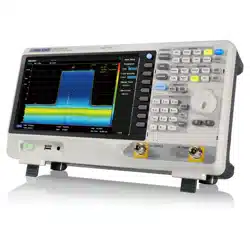
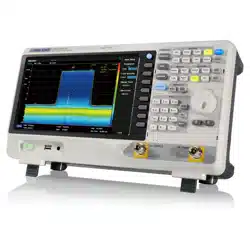
SSA3000X Plus
Spectrum Analyzer
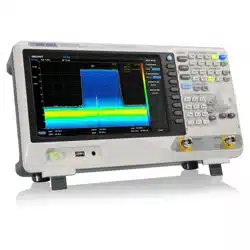
SSA3000X-R
Real-Time spectrum Analyzer
SVA1000X
Spectrum & Vector Network Analyzer
User Manual
UM0703P-E02C


User Manual I
Copyright and Declaration
Copyright
SIGLENT TECHNOLOGIES CO., LTD All Rights Reserved.
Trademark Information
SIGLENT is the registered trademark of SIGLENT TECHNOLOGIES CO., LTD
Declaration
● SIGLENT products are protected by patent law worldwide
● SIGLENT reserves the right to modify or change parts of or all the specifications
or pricing policies at company’s sole decision.
● Information in this publication replaces all previously corresponding material.
● Any way of copying, extracting or translating the contents of this manual is not
allowed without the permission of SIGLENT.
● SIGLENT will not be responsible for losses caused by either incidental or
consequential in connection with the furnishing, use or performance of this manual
as well as any information contained.
Product Certification
SIGLENT guarantees this product conforms to the national and industrial standards in
China as well as the ISO9001: 2008 standard and the ISO14001: 2004 standard. Other
international standard conformance certification is in progress.

SIGLENT
II User Manual
Safety Information
General Safety Summary
Carefully read the following safety precautions to avoid any personal injury or damage to the
instrument and any products connected to it. To avoid potential hazards, please use the
instrument as specified.
Use Proper AC Power Line
Only the power cord designed for the instrument and authorized by the local country should be used.
Ground the Instrument
The instrument is grounded through the protective earth conductor of the power line. To avoid electric
shock, please make sure the instrument is grounded correctly before connecting its input or output
terminals.
Connect the Probe Correctly.
If a probe is used, do not connect the ground lead to high voltage since it has an isobaric electric potential
as the ground.
Look Over All Terminals’ Ratings
To avoid fire or electric shock, please look over all ratings and sign instruction of the instrument. Before
connecting the instrument, please read the manual carefully to gain more information about the ratings.
Use Proper Overvoltage Protection
Make sure that no over-voltage (such as that caused by a thunderstorm) can reach the product, or else
the operator might be exposed to danger of electrical shock.
Electrostatic Prevention
Operate the instrument in an electrostatic discharge protective area environment to avoid damages
induced by static discharge. Always ground both the internal and external conductors of the cable to
release static before connecting.
Maintain Proper Ventilation
Inadequate ventilation may cause increasing of the instrument’s temperature, which will eventually
damage the instrument. So keep well ventilated and inspect the intake and fan regularly.
Avoid Exposed Circuit or Components
Do not touch exposed contacts or components when the power is on.
Do Not Operate Without Covers
Do not operate the instrument with covers or panels removed.
SIGLENT
Use proper Fuse.
Use Only the Specified Fuse.
Keep Product Surfaces Clean and Dry.
To avoid the influence of dust and/or moisture in the air, please keep the surface of the device clean
and dry.
Do Not Operate in Wet Conditions.
In order to avoid short circuiting to the interior of the device or electric shock, please do not operate the
instrument in a humid environment.
Do Not Operate in an Explosive Atmosphere.
In order to avoid damage to the device or personal injury, it is important to operate the device away from
an explosive atmosphere.
Any parts of the device and its accessories are not allowed to be changed or replaced, other than
authorized by the manufacturer or his agent.
Make sure not to position the equipment so that it is difficult to operate the disconnecting device..
Safety Terms and Symbols
Terms in this Manual. These terms may appear in this manual:
WARNING
Warning statements indicate the conditions or practices that could
result in injury or loss of life.
CAUTION
Caution statements indicate the conditions or practices that could
result in damage to this product or other property.
Terms on the product:
DANGER Indicates direct injuries or hazards that may happen.
WARNING Indicates potential injuries or hazards that may happen.
CAUTION Indicates potential damages to the instrument or other property that may happen.
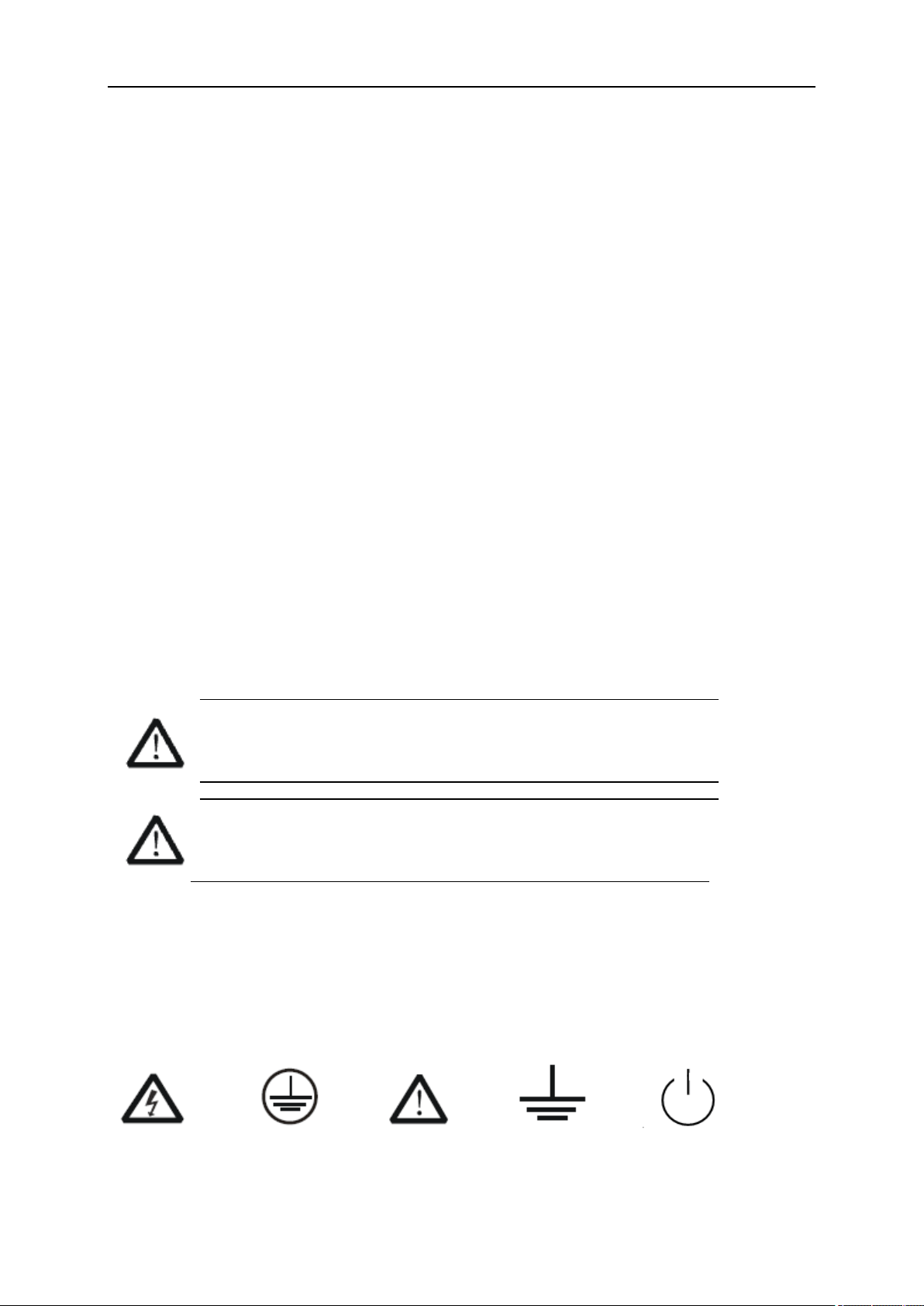
Symbols on the product:
Hazardous protective Earth Warning Test Power Switch
Voltage Terminal Ground

SIGLENT
IV User Manual
Measurement Category
Measurement Categories
This analyzer can make measurements in other circuits that are not directly connected to mains.
WARNING
This analyzer can only be used for measurements within its specified measurement
categories.
Not to use the product for measurements within other measurement
categories, such as CAT II, CAT III, CAT IV.
Not to use the equipment for measurements on mains circuits
Measurement Category Definitions
Measurement category II is for measurements performed on circuits directly connected to the low
voltage installation. Examples are measurements on household appliances, portable tools and
similar equipment.
Measurement category III is for measurements performed in the building installation. Examples are
measurements on distribution boards, circuit-breakers, wiring, including cables, bus-bars, junction
boxes, switches, socket-outlets in the fixed installation, and equipment for industrial use and some
other equipment, for example. Stationary motors with permanent connection to the fixed installation.
Measurement category IV is for measurements performed at the source of the low-voltage
installation. Examples are electricity meters and measurements on primary over current protection
devices and ripple control units.
SIGLENT
Working Environment
Temperature
Operating: 0℃ to +40℃
Non-operation: -20℃ to +70℃
Humidity
Under +35℃: ≤80% relative humidity
+35℃ to +40℃: ≤60% relative humidity
WARNING
To avoid short circuit inside the instrument or electric shock,
please do not operate in humid environment.
Altitude
Operating: less than 3 km
Non-operation: less than 15 km
Degree of protection
IP20
Installation (overvoltage) Category
This product is powered by mains conforming to installation (overvoltage) category II.
WARNING
Make sure that no overvoltage (such as that caused by thunderbolt) can reach the
product, or else the operator might expose to danger of electric shock.
Installation (overvoltage) Category Definitions
Installation (overvoltage) category I refers to signal level which is applicable to equipment
measurement terminals connected to the source circuit. In these terminals, precautions are done
to limit the transient voltage to the corresponding low level.
Installation (overvoltage) category II refers to the local power distribution level which is applicable
to equipment connected to the AC line (AC power).
SIGLENT
VI User Manual
Ventilation Requirement
This analyzer uses fan to force cooling. Please make sure that the air intake and exhaust areas
are free from obstructions and have free air. When using the analyzer in a bench-top or rack
setting, provide at least 10 cm clearance beside, above and behind the instrument for adequate
ventilation.
WARNING
Inadequate ventilation may cause temperature increase which would damage the
instrument. So please keep the instrument well ventilated during operation and inspect
the intake and fan regularly.
General Care and Cleaning
Care
Do not store or leave the instrument in direct sunshine for long periods of time.
WARNING
To avoid damages to the instrument or probe, please do not leave them in fog, liquid,
or solvent.
Cleaning
Please perform the following steps to clean the instrument and probe regularly according to its
operating conditions.
1. Disconnect the instrument from all power sources, and then clean it with a soft wet cloth.
2. Clean the loose dust on the outside of the instrument and probe with a soft cloth. When
cleaning the LCD, take care to avoid scarifying it.
WARNING
To avoid damages to the surface of the instrument and probe, please do not use any
corrosive liquid or chemical cleanser.
WARNING
Make sure that the instrument is completely dry before restarting it to avoid short
circuits or personal injuries.

SIGLENT
L'information de sûreté
Résumé général de sûreté
Lisez soigneusement les mesures de sécurité suivantes pour éviter n'importe quelles blessures
ou les dommages à l'instrument et à tous les produits se sont reliés à eux. Pour éviter des
risques, utilisez svp l'instrument comme indiqué.
Employez la ligne à haute tension appropriée
Seulement le cordon de secteur conçu pour l'instrument et autorisé par le pays local a pu être
employé.
A rectifié l'instrument.
L'instrument est fondu par le conducteur protecteur de terra de la ligne à haute tension. Pour
éviter la décharge électrique, le conducteur moulu doit être relié à la terre. Assurez-vous que
l'instrument est fondu correctement avant de relier ses bornes d'entrée ou de rendement.
Reliez le fil de signal correctement.
Le potentiel de l'au sol de fil de signal est égal à la terre, ainsi ne relie pas le fil de signal à une
tension.
Regardez estimations au-dessus de toutes les bornes des'
Pour éviter le feu ou la décharge électrique, regardez svp au-dessus de toutes les estimations et
instruction de signe de l'instrument. Avant de relier l'instrument, lisez svp le manuel
soigneusement pour obtenir plus d'informations sur les estimations.
Employez la protection appropriée de surtension
Assurez-vous qu'aucune surtension (comme cela provoqué par un orage) ne peut atteindre le
produit, ou bien l'opérateur pourrait exposer au danger du choc électrique.
Empêchement électrostatique
Fonctionnez dans un environnement protecteur de secteur de décharge électrostatique pour
éviter des dommages induits par décharge statique. A toujours rectifié les conducteurs internes et
externes du câble pour libérer la charge statique avant de se relier.
La ventilation insatisfaisante de ventilation
bonne de subsistance peut causer l'augmentation de la température, qui endommagera par la
suite l'instrument. Gardez ainsi la ventilation bonne et inspectez la prise et éventez
régulièrement.
Évitez le circuit ou les composants exposés
ne touchent pas les contacts ou les composants exposés quand le courant passe.

SIGLENT
VIII User Manual
Employez l'utilisation appropriée
de fusible seulement le fusible indiqué.
Ne fonctionnez pas sans couvertures
n'actionnent pas l'instrument des couvertures ou des panneaux étant coupés.
Ne fonctionnez pas avec des échecs suspectés.
Si vous suspectez les dommages se produisent à l'instrument, l'ont inspecté par le personnel de
service qualifié avant d'autres opérations. N'importe quel entretien, ajustement ou remplacement
particulièrement aux circuits ou aux accessoires doivent être exécutés par le personnel autorisé
par SIGLENT.
Ne fonctionnez pas en conditions humides.
Afin d'éviter de court-circuiter à l'intérieur du dispositif ou de la décharge électrique, svp ne
fonctionnez pas dans un environnement humide.
Do Not Operate in an Explosive Atmosphere.
Ne fonctionnez pas dans une atmosphère explosive.
Afin d'éviter d'endommager le dispositif ou les blessures, il est important d'utiliser le dispositif loin
à partir d'une atmosphère explosive.
Maintenez les surfaces de produit propres et sèches.
Pour éviter l'influence de la poussière et/ou de l'humidité en air, maintenez svp la surface du
dispositif propre et sèche.
En manipulant la sûreté
manipulez svp avec soin pendant le transport pour éviter d'endommager des boutons, des
interfaces de bouton et d'autres parties sur les panneaux.
Le corps ou l'opérateur responsable devrait se référer au manuel d'instruction pour préserver la
protection se permettent par l'équipement. Si l'équipement est utilisé en quelque sorte non indiqué
par le fabricant, la protection fournie par l'équipement peut être altérée.
On ne permet à aucune pièce du dispositif et de ses accessoires d'être changé ou remplacé, autre
qu'autorisé par le fabricant ou son agent.
Pas placez l'équipement de sorte qu'il soit difficile d'utiliser le dispositif débranchant (prise
détachable).
SIGLENT
Limites et symboles de sûreté
Limites en ce manuel. Ces limites peuvent apparaître en ce manuel :
Les rapports
d'avertissement D'AVERTISSEMENT indiquent les conditions ou les
pratiques qui pourraient avoir comme conséquence les dommages ou la
perte de la ie.
Les rapports
d'attention d'ATTENTION indiquent les conditions ou les pratiques qui
pourraient avoir comme consequenceles dommages à ce produit ou à
toute autre propriété.
Limites sur le produit. Ces limites peuvent apparaître sur le produit :
Le DANGER indique les dommages ou les risques directs qui peuvent se produire.
Dommages ou risques potentiels de WARNINGIndicates qui peuvent se produire.
L'ATTENTION indique des dommages potentiels à l'instrument ou à toute autre propriété qui
peuvent se produire.
Si la trouvaille de tels symboles sur le produit, consultent le manuel pour découvrir la nature du
risque et des actions qui doivent être pris.
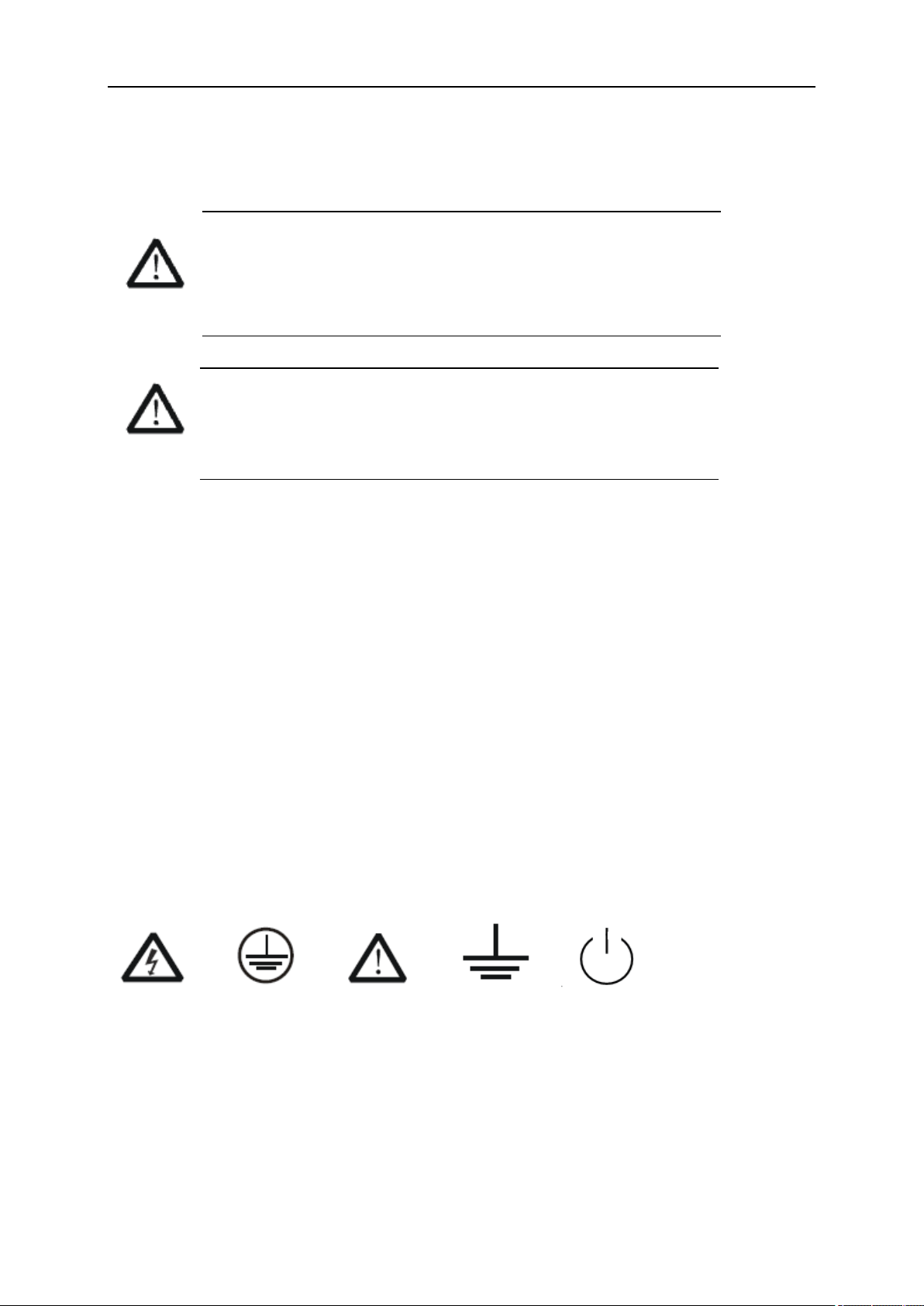
Symboles sur le produit. Ces symboles peuvent apparaître sur le produit :
Dangereux Protecteur Avertissement Châssis Puissance
Tension Au sol de la terre Ground Switch
SIGLENT
X User Manual
Catégorie de mesure
Les analyzers peuvent faire des mesures dans d'autres circuits qui ne sont pas directement reliés
aux forces. Pour ne pas employer le produit pour des mesures dans d'autres catégories de
mesure, telles que le CAT II, CAT III, CAT IV.
Ne pas utiliser l'équipement pour des mesures sur des forces circuite, pour ne pas utiliser
l'équipement pour des mesures sur la tension excèdent la gamme de tension décrivent dans le
manuel.
Les rapports
cet analyzers peut seulement être employé pour des mesures dans
ses catégories indiquées de mesure.
La catégorie II de mesure
de définitions de catégorie de mesure est pour des mesures effectuées sur des circuits
directement reliés à l'installation de basse tension. Les exemples sont des mesures sur des
appareils électroménagers, des outils portatifs et l'équipement semblable.
La catégorie III de mesure est pour des mesures effectuées dans l'installation de bâtiment. Les
exemples sont des mesures sur des conseils de distribution, des disjoncteurs, le câblage, y
compris des câbles, des barres omnibus, des boîtes de jonction, des commutateurs, des douille-
sorties dans l'installation fixe, et l'équipement à l'utilisation industrielle et à un autre équipement,
par exemple. Moteurs stationnaires avec le raccordement permanent à l'installation fixe.
La catégorie IV de mesure est pour des mesures effectuées à la source d'installation de basse
tension.Les exemples sont des mètres et des mesures de l'électricité sur les dispositifs de
protection d'excédent primaire et les unités de commande courants d'ondulation.
SIGLENT
Environnement de fonctionnement
Température
En fonctionnement: 0 à + 40
Non-fonctionnement: -20 à + 70
Humidité
Moins de + 35: humidité relative ≤80%
+ 35 à + 40 ℃: humidité relative ≤60%
EN AVERTISSANT
d'éviter le court-circuit à l'intérieur de l'instrument ou de la décharge électrique, svp
ne fonctionnez pas dans l'environnement humide.
Opération
d'altitude : moins de 3 kilomètres
de non-fonctionnement : moins de 15 kilomètres
Degré de protection
IP20
La catégorie d'installation (surtension)
ce produit est actionnée par des forces conformément à la catégorie II. d'installation (surtension).
EN AVERTISSANT
assurez-vous qu'aucune surtension (comme cela provoqué par coup de
foudre) ne peut atteindre le produit, ou bien l'opérateur pourrait
exposer au danger de la décharge électrique.
La catégorie II d'installation de définitions de catégorie d'installation (surtension) (surtension) se
rapporte au niveau local de distribution d'énergie qui est applicable à l'équipement relié à la ligne
à C.A. (courant alternatif).
Condition de ventilation
This analyzer uses fan to force cooling. Please make sure that the air intake and exhaust areas
are free from obstructions and have free air. When using the analyzer in a bench-top or rack
setting, provide at least 10 cm clearance beside, above and behind the instrument for adequate
ventilation.
Cet analyzer utilise le ventilateur pour forcer le refroidissement. Veuillez s'assurer que les
secteurs d'entrée et d'échappement d'air sont exempts des obstructions et ont l'air libre. À l'aide
SIGLENT
XII User Manual
de l'analyzer dans un mettre hors jeu-dessus ou un arrangement de support, fournissez au moins
le dégagement de 10 centimètres près, au-dessus et derrière de l'instrument pour à ventilation
proportionnée.
La ventilation insatisfaisante peut causer l'augmentation de la température qui
endommagerait l'instrument. Veuillez ainsi la subsistance l'instrument bien aéré lors
du fonctionnement et inspectez la prise et éventez régulièrement.
Soin général et nettoyage
Ne stockez pas ou ne laissez pas l'instrument en soleil direct pendant de longues périodes.
Pour éviter d'endommager l'instrument, svp ne les laissez pas dans le brouillard, le
liquide, ou le dissolvant.
nettoyage
Veuillez exécuter les étapes suivantes pour nettoyer l'instrument régulièrement selon ses
conditions de fonctionnement.
1. Démontez l'instrument de toutes les sources d'énergie, et puis nettoyez-le avec un tissu
humide mou.
2. Nettoyez la poussière lâche sur l'extérieur de l'instrument avec un tissu mou. En nettoyant
l'affichage à cristaux liquides, salut pour éviter de le scarifier.
Pour éviter d'endommager la surface de l'instrument, svp n'utilisez aucune épierreuse
corrosive de liquide ou de produit chimique.
Assurez-vous que l'instrument est complètement sec avant de le remettre en marche
pour éviter des courts-circuits ou des blessures.

SIGLENT
Allgemeine Sicherheitshinweise
Um Verletzungen oder Schäden am Gerät und den damit verbundenen Produkten zu
vermeiden, lesen Sie die folgenden Sicherheitshinweise sorgfältig durch.
Um mögliche Gefahren zu vermeiden, verwenden Sie bitte das Gerät wie angegeben.
Wartungsarbeiten an diesem Gerät dürfen nur von qualifiziertem Reparaturpersonal
durchgeführt werden.
Verwendung eines geeigneten Netzkabels
Verwenden Sie nur das für das Gerät vorgesehene und von den örtlichen Behörden
zugelassene Netzkabel.
Erdung des Gerätes
Das Gerät ist über den Schutzleiter des Netzkabels geerdet. Um einen elektrischen Schlag
zu vermeiden, vergewissern Sie sich bitte, bevor Sie seine Eingangs- oder
Ausgangsklemmen anschließen, dass das Gerät korrekt geerdet ist.
Anschluss der Signalleitung
Die Masse der Signalleitung ist auf dem gleichen Potential wie die Erdung des Gerätes.
Schließen Sie daher die Masseleitung nie an eine Hochspannung an. Berühren Sie keine
freiliegenden Kontakte oder Komponenten.
Verschaffen Sie sich einen Überblick über alle Anschluss-Ratings
Um Brände oder Stromschläge zu vermeiden, lesen Sie bitte alle Bemerkungen und
Anweisungen des Gerätes. Bevor Sie das Gerät anschließen, lesen Sie bitte das Handbuch
sorgfältig durch, um weitere Informationen über die Nennleistungen zu erhalten.
Betreiben Sie kein Gerät, bei dem der Verdacht besteht, dass es defekt ist.
Wenn Sie vermuten, dass das Produkt beschädigt ist, lassen Sie es bitte von qualifiziertem
Fachpersonal überprüfen. Vermeiden Sie den Kontakt mit freiliegenden Stromkreisen oder
Drähten. Berühren Sie keine freiliegenden Kontakte oder Komponenten, wenn das Gerät
eingeschaltet ist.
Verwenden Sie einen geeigneten Überspannungsschutz
Stellen Sie sicher, dass keine Überspannung (z.B. durch ein Gewitter) auf das Produkt
gelangen kann, da sonst der Bediener der Gefahr eines Stromschlags ausgesetzt sein kann.
Nicht ohne Abdeckungen betreiben
Betreiben Sie das Gerät nicht bei abgenommenen Abdeckungen oder Platten.
Halten Sie die Oberfläche des Gerätes sauber und trocken.
Nicht unter nassen/feuchten Bedingungen betreiben.
Betreiben Sie das Gerät nicht in einer explosiven Atmosphäre.
Vermeiden Sie es, dieses Gerät einem Feuer auszusetzen.
SIGLENT
XIV User Manual
Sicherheitshinweise und Symbole
In diesem Produkt verwendete Begriffe. Diese Begriffe können im Produkt erscheinen:
GEFAHR weist auf eine mögliche, sofortige und direkte Verletzung oder Gefährdung hin.
WARNUNG weist auf möglicherweise auftretende Verletzungen oder Gefahren hin
VORSICHT weist auf möglicherweise auftretende Schäden am Gerät oder anderen
Gegenständen
hin
In diesem Produkt verwendete Symbole. Diese Symbole können auf dem Produkt
erscheinen:
Gefährliche Schutzerde Sicherheitswarnung Erdung Netzschalter
Spannung

SIGLENT
CONTENTS
COPYRIGHT AND DECLARATION ........................................................................................................................ I
SAFETY INFORMATION ..................................................................................................................................... II
GENERAL SAFETY SUMMARY ...................................................................................................................................... II
SAFETY TERMS AND SYMBOLS .................................................................................................................................... III
MEASUREMENT CATEGORY ....................................................................................................................................... IV
WORKING ENVIRONMENT .......................................................................................................................................... V
VENTILATION REQUIREMENT ..................................................................................................................................... VI
GENERAL CARE AND CLEANING .................................................................................................................................. VI
L'INFORMATION DE SÛRETÉ ........................................................................................................................... VII
RÉSUMÉ GÉNÉRAL DE SÛRETÉ ................................................................................................................................... VII
LIMITES ET SYMBOLES DE SÛRETÉ ................................................................................................................................ IX
CATÉGORIE DE MESURE.............................................................................................................................................. X
ENVIRONNEMENT DE FONCTIONNEMENT ..................................................................................................................... XI
CONDITION DE VENTILATION ...................................................................................................................................... XI
SOIN GÉNÉRAL ET NETTOYAGE ................................................................................................................................... XII
ALLGEMEINE SICHERHEITSHINWEISE ............................................................................................................. XIII
SICHERHEITSHINWEISE UND SYMBOLE ....................................................................................................................... XIV
CHAPTER 1 QUICK START .......................................................................................................................... 1
1.1 GENERAL INSPECTION ................................................................................................................................... 1
1.2 APPEARANCE AND DIMENSION ....................................................................................................................... 1
1.3 PREPARING FOR USE ..................................................................................................................................... 2
1.3.1 Adjust the Supporting Legs .............................................................................................................. 2
1.3.2 Connect to AC Power Supply ............................................................................................................ 2
1.4 FRONT PANEL .............................................................................................................................................. 3
1.4.1 Front Panel Function Keys................................................................................................................ 3
1.4.2 Front Panel Key Backlight ................................................................................................................ 5
1.4.3 Using the Numeric Keyboard ........................................................................................................... 5
1.4.4 Front Panel Connectors ................................................................................................................... 6
1.5 REAR PANEL ................................................................................................................................................ 7
1.6 USER INTERFACE .......................................................................................................................................... 9
1.7 MODE...................................................................................................................................................... 12
1.8 FIRMWARE OPERATION ............................................................................................................................... 13
1.8.1 Check System Information ............................................................................................................. 13
1.8.2 Load Option ................................................................................................................................... 13
1.8.3 Firmware Upgrade ........................................................................................................................ 13
1.9 REMOTE CONTROL ..................................................................................................................................... 13
1.10 TOUCH OPERATION .................................................................................................................................... 14
1.11 USING BUILT-IN HELP.................................................................................................................................. 14
CHAPTER 2 SPECTRUM ANALYZER MODE .............................................................................................. 15

SIGLENT
XVI User Manual
2.1 BASIC SETTINGS ......................................................................................................................................... 15
2.1.1 Frequency ...................................................................................................................................... 15
2.1.2 Span ............................................................................................................................................... 20
2.1.3 Amplitude ...................................................................................................................................... 22
2.1.4 Auto Tune ...................................................................................................................................... 25
2.2 SWEEP AND FUNCTIONS .............................................................................................................................. 27
2.2.1 BW ................................................................................................................................................. 27
2.2.2 Trace .............................................................................................................................................. 29
2.2.3 Detect ............................................................................................................................................ 31
2.2.4 Sweep ............................................................................................................................................ 32
2.2.5 Trigger ........................................................................................................................................... 34
2.2.6 Limit ............................................................................................................................................... 35
2.2.7 TG (Tracking Generator) ................................................................................................................ 37
2.2.8 Demod ........................................................................................................................................... 39
2.3 MARKER ................................................................................................................................................... 41
2.3.1 Marker ........................................................................................................................................... 41
2.3.2 Marker -> ....................................................................................................................................... 44
2.3.3 Marker Fn ...................................................................................................................................... 45
2.3.4 Peak ............................................................................................................................................... 47
2.4 MEASUREMENT ......................................................................................................................................... 50
2.4.1 Meas .............................................................................................................................................. 50
2.4.2 Meas setup .................................................................................................................................... 51
CHAPTER 3 VECTOR NETWORK ANALYZER ............................................................................................. 62
3.1 USER INTERFACE ........................................................................................................................................ 62
3.2 BASIC SETTINGS ......................................................................................................................................... 63
3.2.1 Frequency ...................................................................................................................................... 63
3.2.2 Span ............................................................................................................................................... 64
3.2.3 Amplitude ...................................................................................................................................... 65
3.3 SWEEP AND FUNCTIONS .............................................................................................................................. 66
3.3.1 BW ................................................................................................................................................. 66
3.3.2 Trace .............................................................................................................................................. 67
3.3.3 Sweep ............................................................................................................................................ 69
3.3.4 TG .................................................................................................................................................. 70
3.4 MARKER ................................................................................................................................................... 70
3.4.1 Marker ........................................................................................................................................... 70
3.4.2 .Peak .............................................................................................................................................. 73
3.4.3 Marker Fn ...................................................................................................................................... 74
3.5 MEAS SETUP ............................................................................................................................................. 74
3.5.1 Stimulus ......................................................................................................................................... 74
3.5.2 Meas .............................................................................................................................................. 75
3.5.3 Format ........................................................................................................................................... 75
3.5.4 Scale .............................................................................................................................................. 76
3.5.5 Trace .............................................................................................................................................. 76
3.5.6 Calibration ..................................................................................................................................... 76

SIGLENT
CHAPTER 4 DISTANCE-TO-FAULT MODE .................................................................................................. 80
4.1 USER INTERFACE ........................................................................................................................................ 80
4.2 MEASUREMENT ......................................................................................................................................... 81
4.2.1 Start Distance ................................................................................................................................ 81
4.2.2 Stop Distance ................................................................................................................................. 81
4.2.3 Unit ................................................................................................................................................ 82
4.2.4 Velocity Factor ............................................................................................................................... 82
4.2.5 Cable Atten .................................................................................................................................... 83
4.2.6 Window ......................................................................................................................................... 83
4.2.7 Calibration ..................................................................................................................................... 83
CHAPTER 5 MODULATION ANALYZER .................................................................................................... 85
5.1 USER INTERFACE ........................................................................................................................................ 85
5.2 BASIC SETTINGS ......................................................................................................................................... 86
5.2.1 Frequency ...................................................................................................................................... 86
5.3 MEASUREMENT ......................................................................................................................................... 87
5.3.1 Digital Modulation Analysis .......................................................................................................... 87
5.3.2 Analog Modulation Analysis .......................................................................................................... 91
5.4 SWEEP AND FUNCTIONS .............................................................................................................................. 92
5.4.1 Trigger ........................................................................................................................................... 92
5.4.2 Sweep ............................................................................................................................................ 92
CHAPTER 6 REAL-TIME SPECTRUM ANALYZER ........................................................................................ 93
6.1 BASIC SETTINGS ......................................................................................................................................... 93
6.1.1 Frequency ...................................................................................................................................... 93
6.1.2 Span ............................................................................................................................................... 95
6.1.3 Amplitude ...................................................................................................................................... 96
6.2 SWEEP AND FUNCTIONS .............................................................................................................................. 98
6.2.1 BW ................................................................................................................................................. 98
6.2.2 Trace .............................................................................................................................................. 98
6.2.3 Detect ............................................................................................................................................ 99
6.2.4 Sweep .......................................................................................................................................... 100
6.2.5 Trigger ......................................................................................................................................... 102
6.2.6 FMT ............................................................................................................................................. 103
6.3 MARKER ................................................................................................................................................. 104
6.3.1 Marker ......................................................................................................................................... 104
6.3.2 Peak ............................................................................................................................................. 105
6.3.3 Marker-> ...................................................................................................................................... 106
6.4 MEASUREMENT ....................................................................................................................................... 107
6.4.1 Meas ............................................................................................................................................ 107
6.4.2 Meas setup .................................................................................................................................. 111
CHAPTER 7 EMI MEASUREMENT .......................................................................................................... 112
7.1 INTRODUCTION ........................................................................................................................................ 112
7.2 BASIC SETTINGS ....................................................................................................................................... 114

SIGLENT
XVIII User Manual
7.2.1 Frequency .................................................................................................................................... 114
7.2.2 Span ............................................................................................................................................. 115
7.2.3 Amplitude .................................................................................................................................... 116
7.3 SWEEP AND FUNCTIONS ............................................................................................................................ 119
7.3.1 BW ............................................................................................................................................... 119
7.3.2 Trace ............................................................................................................................................ 120
7.3.3 Detect .......................................................................................................................................... 121
7.3.4 Sweep .......................................................................................................................................... 121
7.3.5 Limit ............................................................................................................................................. 123
7.4 MARKER ................................................................................................................................................. 124
7.4.1 Marker ......................................................................................................................................... 124
7.4.2 Marker-> ...................................................................................................................................... 126
7.4.3 Peak ............................................................................................................................................. 126
7.5 MEASUREMENT ....................................................................................................................................... 127
7.5.1 Sequence ..................................................................................................................................... 127
7.5.2 Start / Stop Sequence .................................................................................................................. 128
7.5.3 Scan Config .................................................................................................................................. 128
7.5.4 Search .......................................................................................................................................... 129
7.5.5 Meas ............................................................................................................................................ 129
7.5.6 Signal List..................................................................................................................................... 129
7.5.1 Meter ........................................................................................................................................... 131
CHAPTER 8 SYSTEM SETTINGS .............................................................................................................. 131
8.1 SYSTEM .................................................................................................................................................. 131
8.1.1 Language ..................................................................................................................................... 131
8.1.2 Power On/Preset ......................................................................................................................... 132
8.1.3 Interface ...................................................................................................................................... 132
8.1.4 Calibration ................................................................................................................................... 134
8.1.5 System Info .................................................................................................................................. 134
8.1.6 Date and Time ............................................................................................................................. 135
8.1.7 Self Test........................................................................................................................................ 135
8.2 DISPLAY .................................................................................................................................................. 136
8.2.1 Grid Brightness ............................................................................................................................ 136
8.2.2 Screenshot ................................................................................................................................... 136
8.2.3 Touch Settings ............................................................................................................................. 137
8.2.4 Power Saving ............................................................................................................................... 137
8.2.5 Annotation................................................................................................................................... 138
8.2.6 Display Line ................................................................................................................................. 138
8.3 FILE ....................................................................................................................................................... 139
8.3.1 Browser ....................................................................................................................................... 139
8.3.2 Open/Load ................................................................................................................................... 139
8.3.3 Back ............................................................................................................................................. 139
8.3.4 View Type .................................................................................................................................... 139
8.3.5 Save Type ..................................................................................................................................... 139
8.3.6 Save ............................................................................................................................................. 140

SIGLENT
8.3.7 Create Folder ............................................................................................................................... 140
8.3.8 Operate ....................................................................................................................................... 140
8.4 SHORTCUT KEY ........................................................................................................................................ 141
8.4.1 Preset........................................................................................................................................... 141
8.4.2 Couple .......................................................................................................................................... 151
8.4.3 Help ............................................................................................................................................. 152
8.4.4 Save ............................................................................................................................................. 152
CHAPTER 9 PROGRAMMING OVERVIEW .............................................................................................. 153
9.1 REMOTELY OPERATING THE ANALYZER .......................................................................................................... 153
9.1.1 USB: Connecting the Analyzer via the USB Device port ............................................................... 153
9.1.2 LAN: Connecting the Analyzer via the LAN port .......................................................................... 153
9.1.3 GPIB: Connecting the Analyzer via the USB-Host port ................................................................. 154
9.2 BUILD COMMUNICATION ........................................................................................................................... 155
9.2.1 Build Communication Using VISA ................................................................................................ 155
9.2.2 Build Communication Using Sockets/Telnet ................................................................................ 157
9.3 REMOTE CONTROL CAPABILITIES ................................................................................................................. 157
9.3.1 User-defined Programming ......................................................................................................... 157
9.3.2 Send SCPI Commands via NI MAX ............................................................................................... 157
9.3.3 Easy Spectrum Software .............................................................................................................. 160
9.3.4 Web Control ................................................................................................................................. 161
CHAPTER 10 SERVICE AND SUPPORT...................................................................................................... 162
10.1 SERVICE SUMMARY ................................................................................................................................... 162
10.2 TROUBLESHOOTING .................................................................................................................................. 162
SIGLENT
Chapter 1 Quick Start
This chapter guides users to quickly get familiar with the appearance, dimensions, front/rear panel and
the user interface, as well as announcements during the first use of the analyzer.
1.1 General Inspection
1. Inspect the shipping container
Keep the damaged shipping container or cushioning material until the contents of the shipment have
been completely checked and the instrument has passed both electrical and mechanical tests.
The consigner or carrier will be responsible for damages to the instrument resulting from shipment.
SIGLENT will not provide free maintenance or replacement.
2. Inspect the instrument
If the instrument is found to be damaged, defective or fails in electrical or mechanical tests, please
contact SIGLENT.
3. Check the accessories
Please check the accessories according to the packing list in the box. If the accessories are incomplete
or damaged, please contact your SIGLENT sales representative.
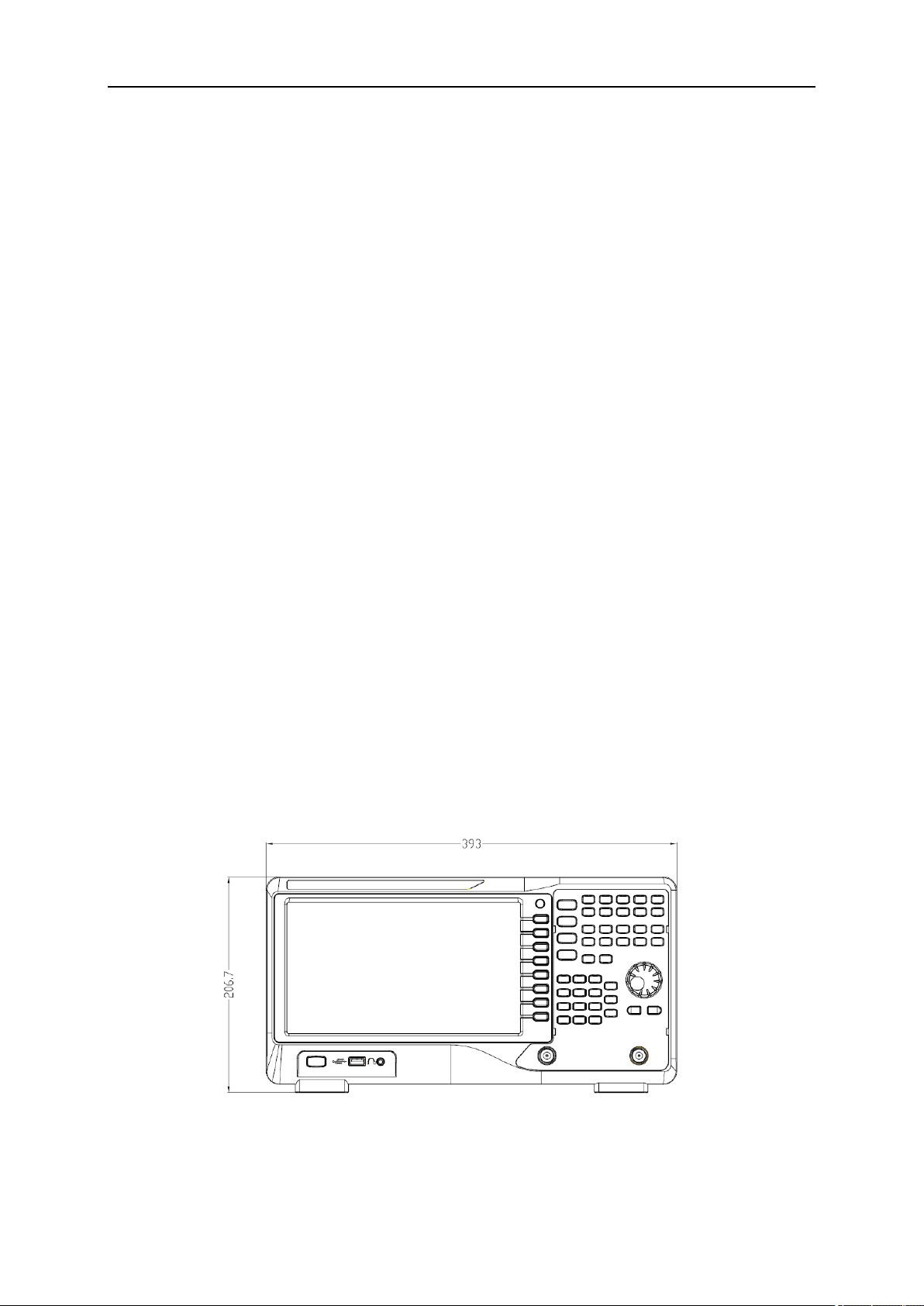
1.2 Appearance and Dimension
Figure 1-1 Front View
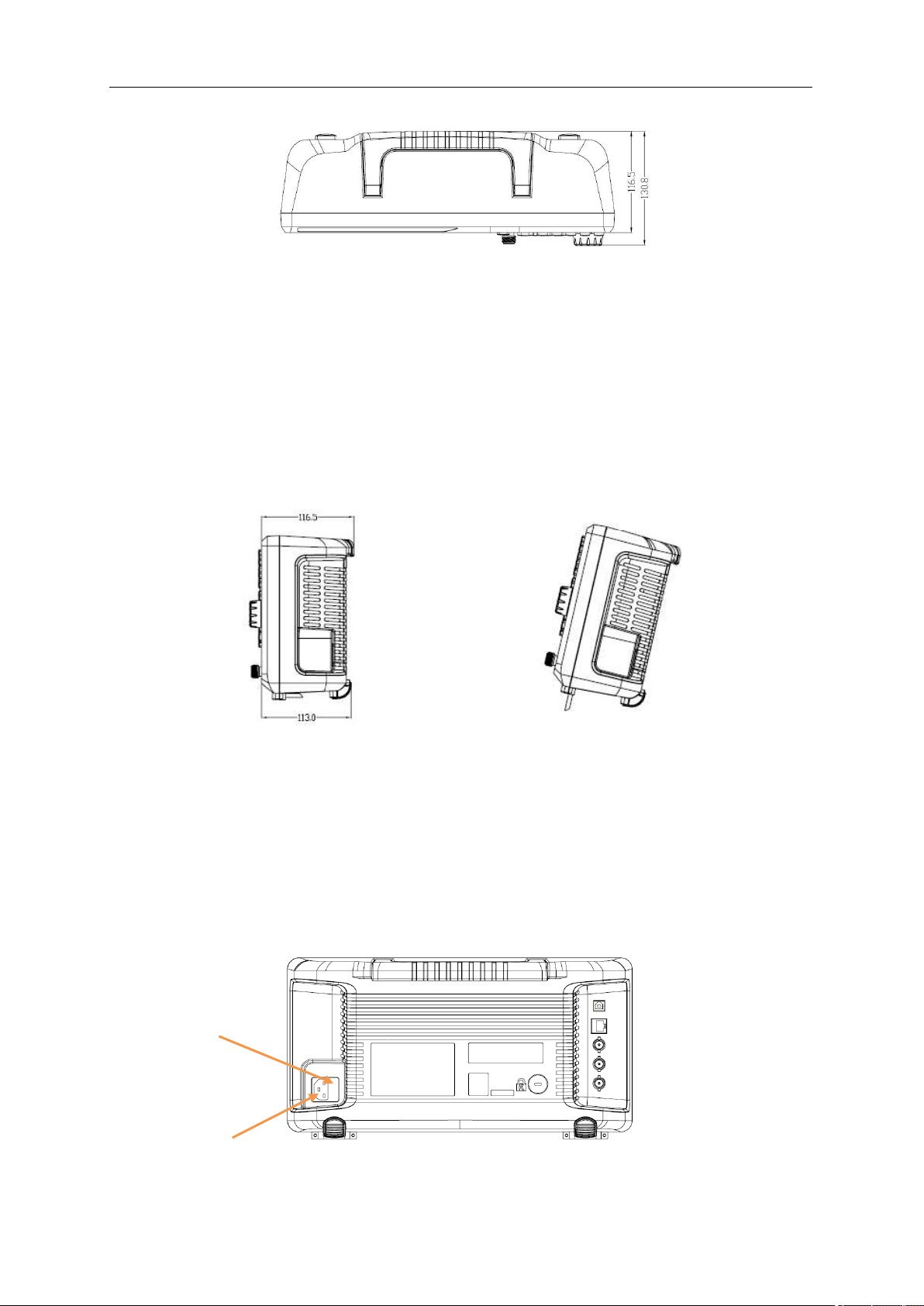
SIGLENT
2 User Manual
Figure 1-2 Top View
1.3 Preparing for Use
1.3.1 Adjust the Supporting Legs
Adjust the supporting legs properly to use them as stands to tilt the analyzer upwards for stable
placement as well as easier operation and observation of the instrument display.
Figure 1-3 before adjusting Figure 1-4 after adjusting
1.3.2 Connect to AC Power Supply
The spectrum analyzer accepts 100-240V, 50/60Hz or 100-120V 400Hz AC power supply. Please use
the provided power cord to connect the instrument to the power source as shown in the figure below.
Before powering on, make sure the analyzer is protected by a fuse.
Figure 1-5 Power Cord Connection
The Plug
Fuse holder
SIGLENT
1.4 Front Panel
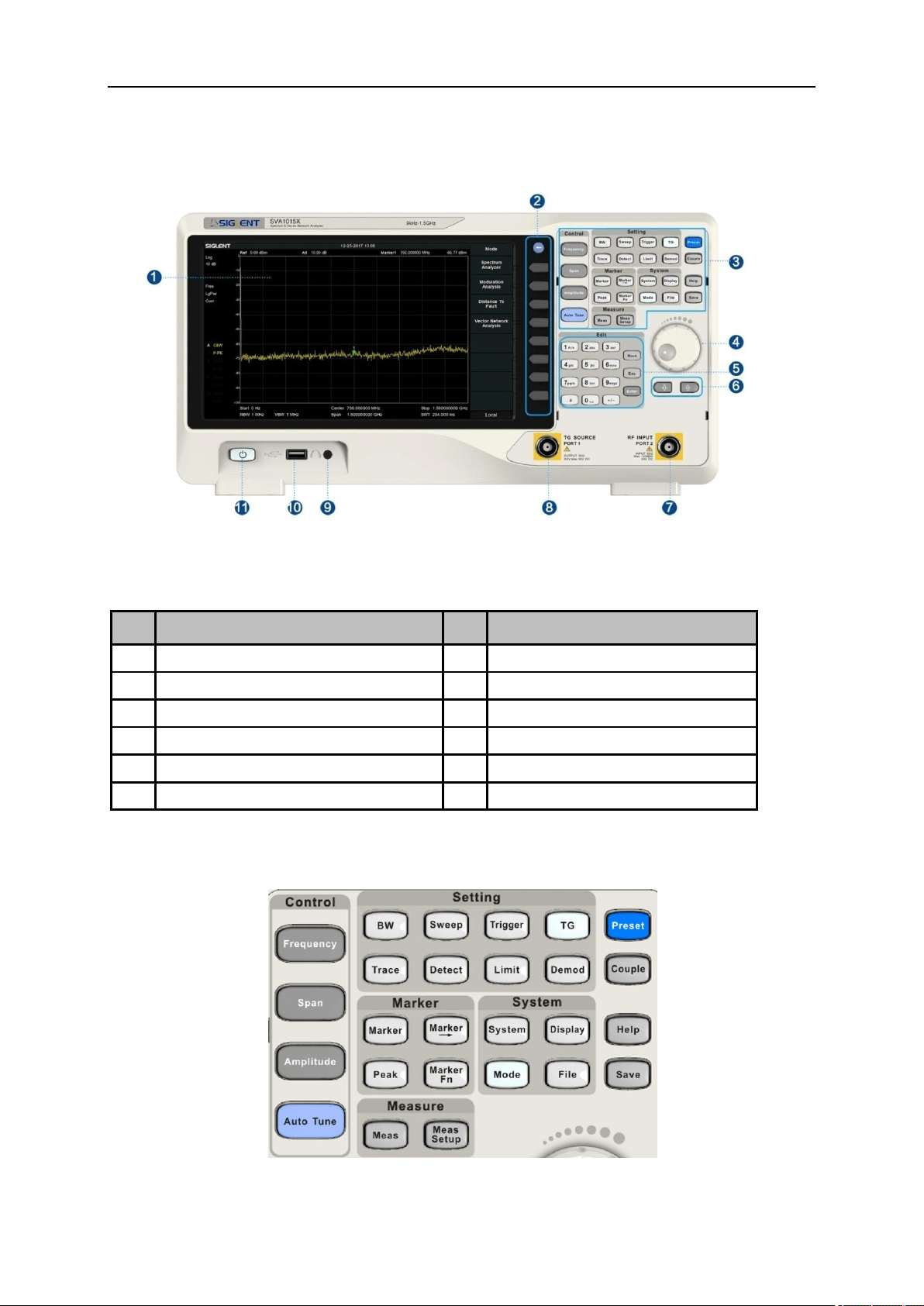
Figure 1-6 the Front Panel
Table 1-1 Front Panel Description
NO.
Description
NO.
Description
1
User Graphical Interface, touch support
7
RF Input, VNA port 2
2
Menu Control Keys
8
TG Output, VNA port 1
3
Function Keys
9
3.5 mm Earphone interface
4
Knob
10
USB Host
5
Numeric / Letter Keyboard
11
Power Switch
6
Arrow Keys
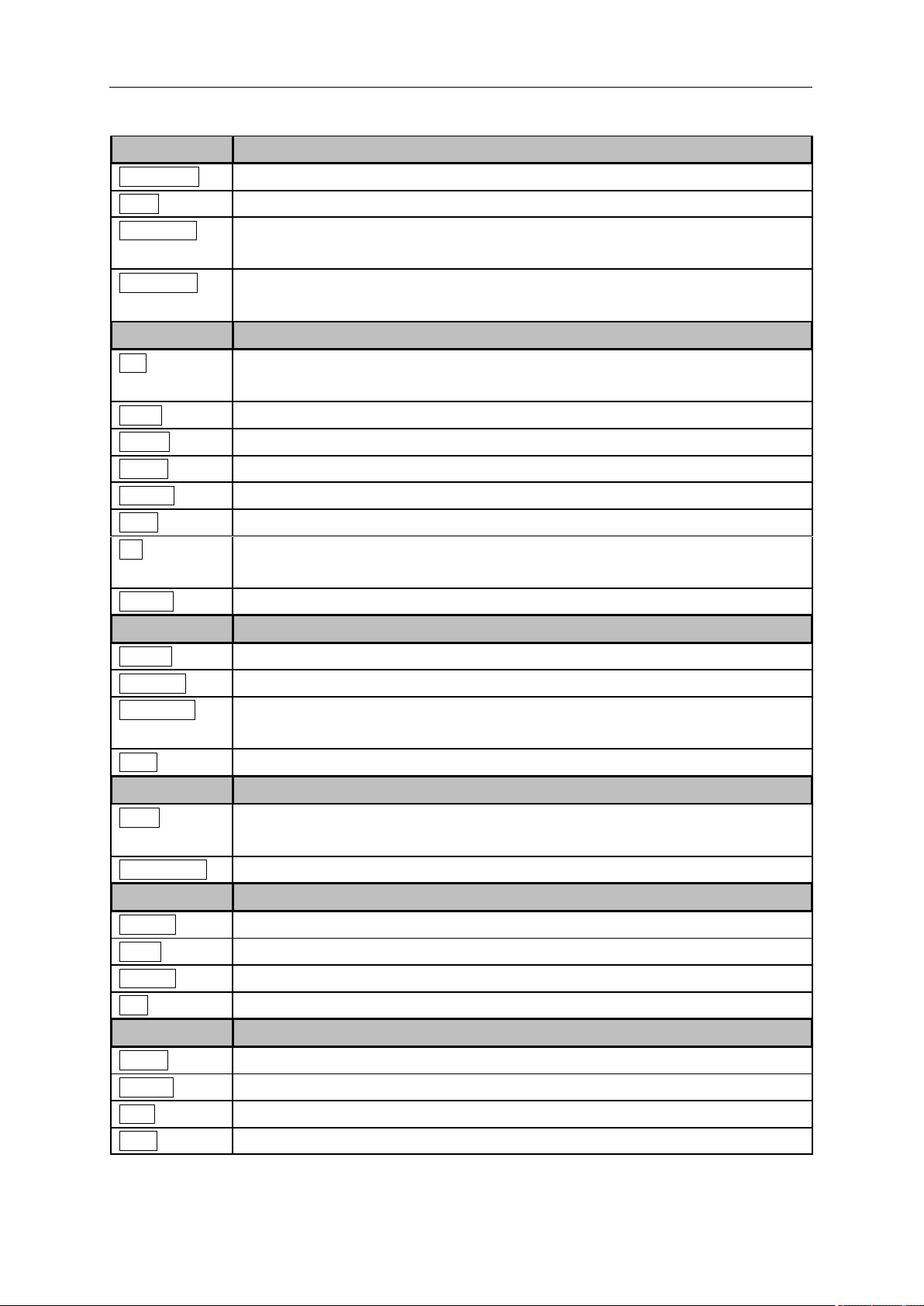
1.4.1 Front Panel Function Keys
Figure 1-7 Function Keys area
SIGLENT
4 User Manual
Table 1-2 Function keys description
Control Keys
Description
Frequency
Set the parameters of frequency, and Peak→CF, CF→Step.
Span
Set the parameters of span, and X-scale (Log-Linear) setup.
Amplitude
Set the parameters of amplitude, including Ref Level, Attenuator, Preamp, etc.; and
Correction setup.
Auto Tune
Scan the full span rapidly and move the biggest signal to center freq, and
automatically sets the optimal parameters according to the signal.
Setting Keys
Description
BW
Set the parameters of RBW and VBW, Average Type (Log power, Power, Voltage),
and Filter Type (-3 dB Gauss\ -6 dB EMI).
Trace
Select Trace, Trace setup and Trace math.
Sweep
Set the parameters of sweep, and EMI QPD Dwell Time.
Detect
Select the detector type for each trace independently.
Trigger
Select triggers in Free Trigger, Video Trigger and External Trigger.
Limit
Set the Pass\Fail Limit.
TG
Set the parameters of tracking generator. Including TG Level, TG Level offset
Normalization setup. The backlight LED is on when TG source is working.
Demod
Set the demodulation parameters of the AM and FM for audio listening.
Marker Keys
Description
Marker
Set the Markers and Marker Table.
Marker->
Set other system parameters based on the current marker’s value.
Marker Fn
Special functions of the marker such as noise marker, N dB bandwidth
measurement and frequency counter.
Peak
Search for the peak signal, peak search configuration and peak table.
Meas Keys
Description
Meas
In spectrum analyzer mode, selects the Advanced Measurement function.
In non-spectrum analyzer mode, select corresponding settings.
Meas Setup
Set the measurement parameters.
System Keys
Description
System
Set the system parameters.
Mode
Select the working modes.
Display
Set the display parameters.
File
Use the file system and files.
Shortcut Keys
Description
Preset
Sets the system to certain status.
Couple
Set the parameters of some functions between auto and manual.
Help
Turn on the built-in help.
Save
Save Shortcut Key.
SIGLENT
1.4.2 Front Panel Key Backlight
The on/off state and the color of the backlights of some keys at the front panel indicate the working
state of the analyzer. The states are as listed below.
1. Power Switch
Constant on: indicates the instrument is in normal operating state.
2. Mode
When the function is Spectrum Analyzer, the backlight turns off. When in other modes, the backlight
turns on.
3. TG
When the TG source is on, the backlight of TG turns on and turns off when the function is off.
1.4.3 Using the Numeric Keyboard
The analyzer provides a numeric keyboard at the front panel. The numeric keyboard supports English
uppercase/lowercase characters, numbers and common symbols (including decimal point, #, space and
+/-) and are mainly used to edit file or folder names and set parameters.
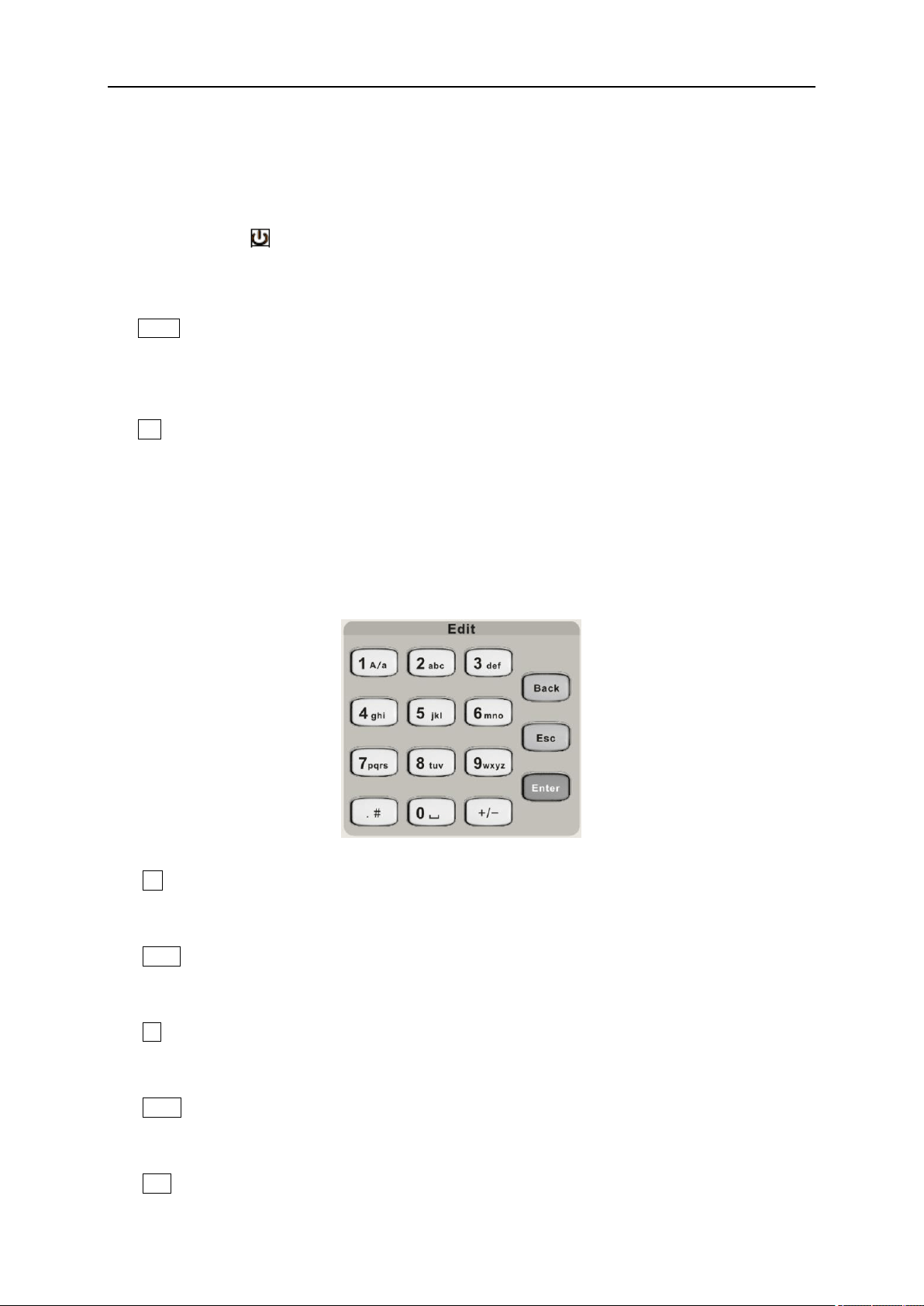
Figure 1-8 Numeric Keyboards
1. +/-
In number input, set the sign of number; in file input, switch in number and letter.
2. 1 A/a
In number input, enter number 1; in file input, switch between uppercase and lowercase letter.
3. . #
In number input, enter a decimal point. In English input, enter special characters.
4. Back
In parameter editing, press this key to delete the character on the left of the cursor.
5. Esc
SIGLENT
6 User Manual
● During parameter editing process, press this key to clear the inputs in the active function area and
exit parameter input.
● When the instrument is in remote mode, use this key to return to local mode.
6. Enter
In parameter editing, the system will complete the input and insert a default unit for the parameter.
1.4.4 Front Panel Connectors
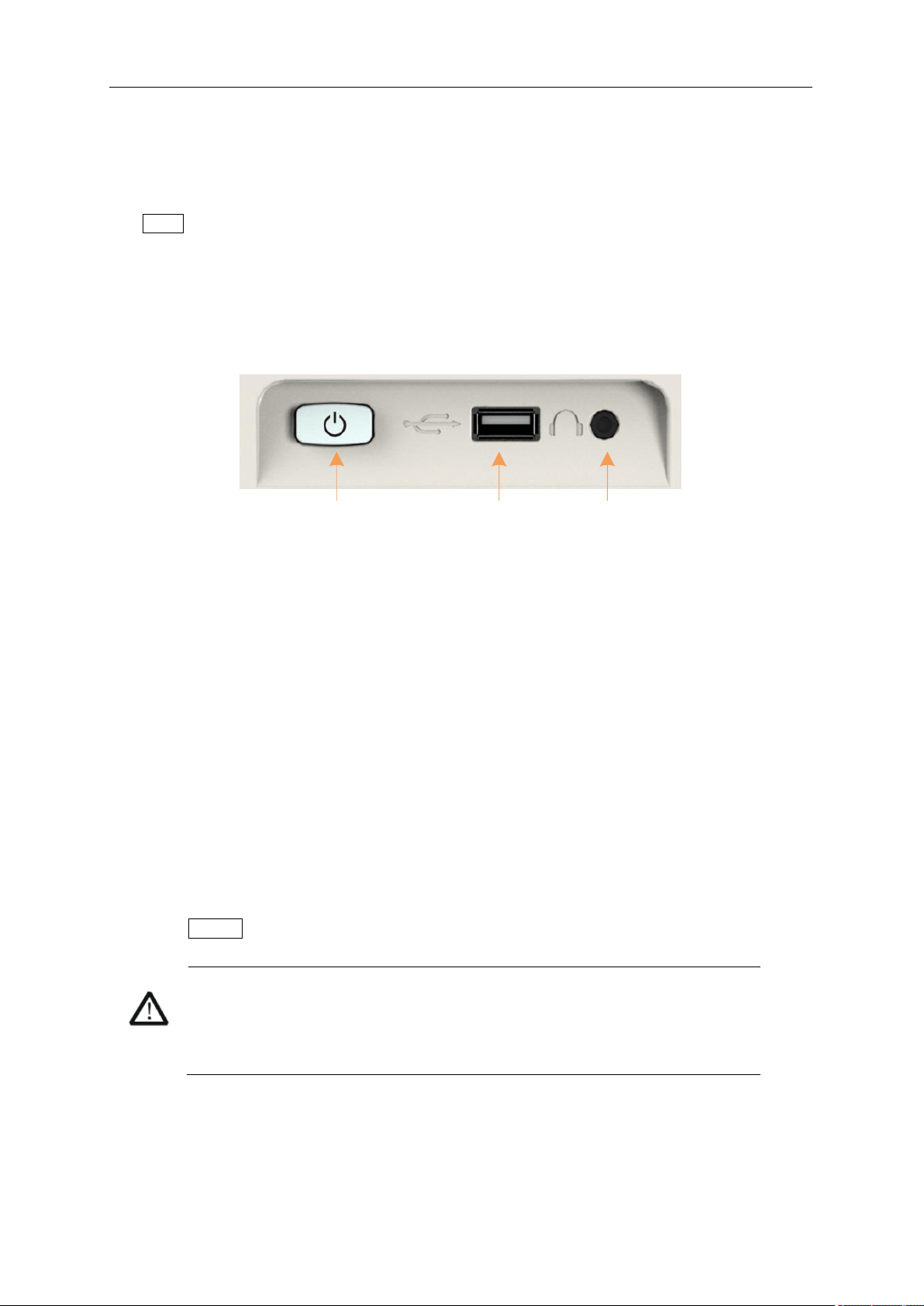
1
2
3
Figure 1-9 Front Panel Connectors (1)
1. Power Switch
Power on / Power down the instrument
2. USB Host
● The analyzer can serve as a “host” device to connect external USB devices. This interface is
available for USB storage devices, the SIGLENT GPIB-USB adapter, wireless or wired mouse and
keyboard, or the SIGLENT Ecal electronic calibration module.
● Read and write functions for an external USB storage device or store the files,for instance contents
currently displayed on the screen in the USB storage device in .png or .jpg or .bmp format.
3. Earphone Jack
The analyzer can demodulate AM and FM signals. Insert a 3.5 mm earphone into to the jack to acquire
the audio output of the demodulated signal. You can turn on or off the earphone output and adjust the
volume via Demod ->Volume.
CAUTION
Protect your hearing. Please turn the volume down to zero before using the
earphone. Gradually turn the volume up to a comfortable level after putting in
the earphone.
SIGLENT
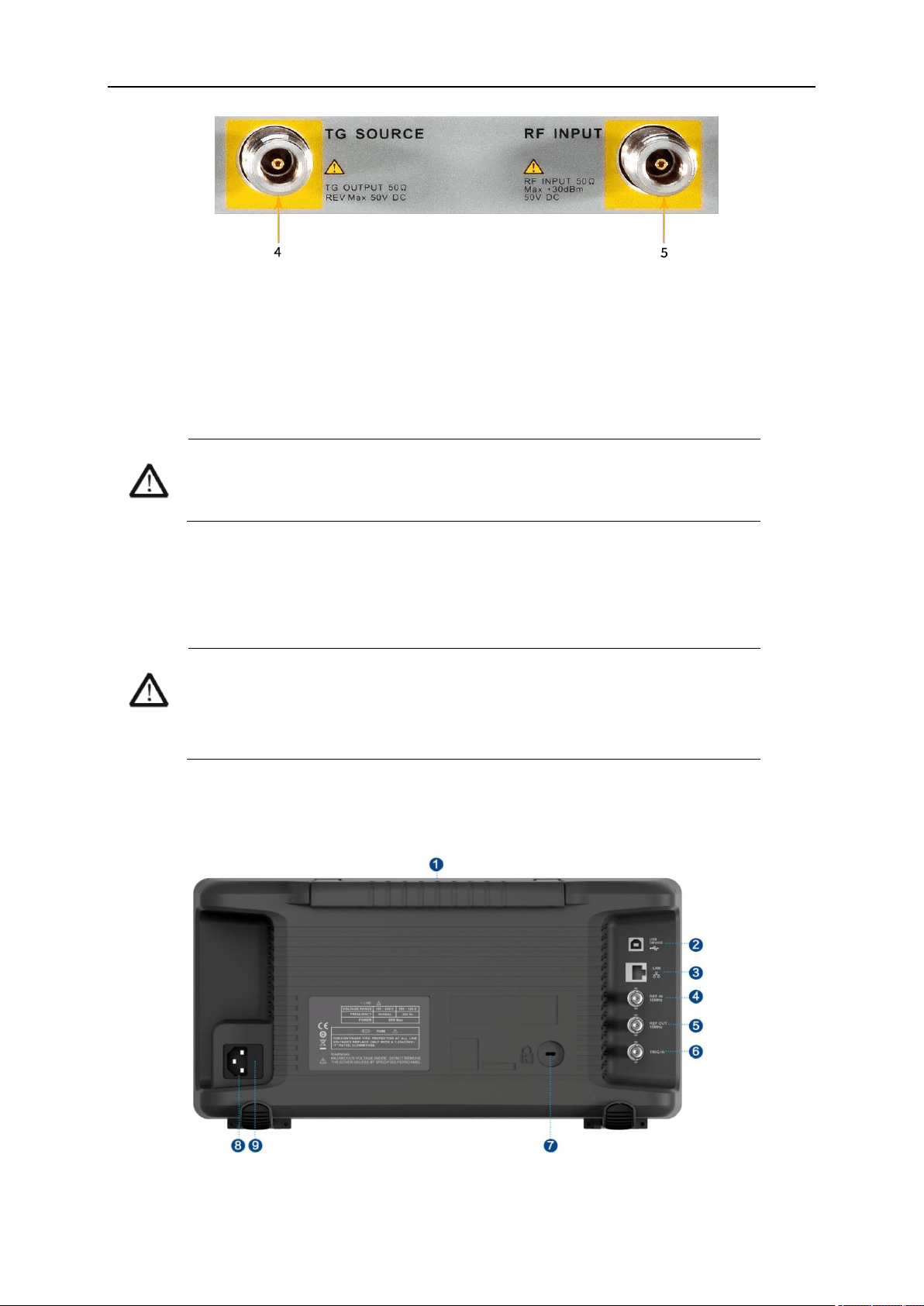
Figure 1-10 Front Panel Connectors (2)
4. TG SOURCE, VNA PORT 1
● The TG SOURCE can be connected to a device-under-test (DUT) through a cable with a male N-
type male connector.
● In the VNA mode, this port is used as the single port of S11 and the output port of S21.
CAUTION
To avoid damaging to the tracking generator, the reverse DC voltage cannot
exceed 50 V
5. RF INPUT, VNA PORT 2
● The RF INPUT can be connected to the DUT through a cable with a male N-type connector
● In the VNA mode, this port is used as the input port for S21 measurements.
CAUTION
To avoid damaging to the instrument, he DC voltage component and the
maximum continuous power of the AC (RF) signal component cannot exceed
50 V and +30 dBm respectively.
1.5 Rear Panel
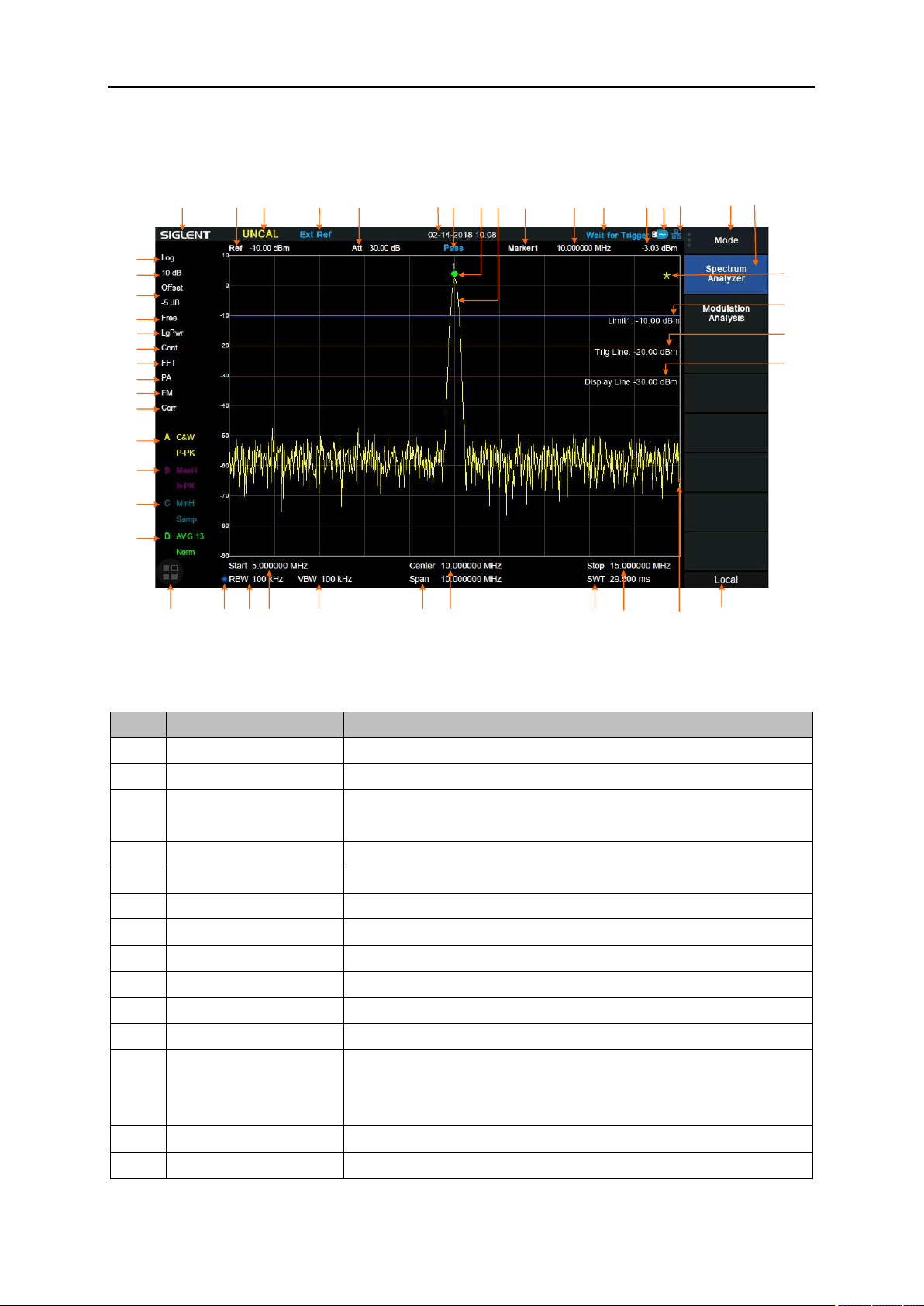
Figure 1-11 Rear Panel

SIGLENT
8 User Manual
1. Handle
Pull up the handle vertically for easy carrying of the instrument. When you do not need the handle, press
it down.
2. USB Device Interface
Through this interface, the analyzer can be connected to PC for remote control.
3. LAN Interface
Through this interface, the analyzer can be connected to your local network (LAN) for remote control.
4. REF IN 10 MHz
The analyzer can use the internal or an external reference source.
● When a 10 MHz external clock signal is received through the [10 MHz IN] connector, this signal is
used as the external reference source and “Ext Ref” is displayed in the status bar of the user
interface. When the external reference is lost or not connected, the instrument switches to its
internal reference source automatically and “Ext Ref” on the screen disappears.
● The [10 MHz IN] and [10 MHz OUT] connectors are usually used to build synchronization among
multiple instruments.
5. REF OUT 10 MHz
The analyzer can use the internal or an external reference source.
● When an internal reference source is used, the [10 MHz OUT] connector can output a 10 MHz
clock signal generated by the analyzer. This signal can be used to synchronize other instruments.
● The [10 MHz OUT] and [10 MHz IN] connectors are usually used to build synchronization among
multiple instruments.
6. Trigger in
In external trigger mode, the analyzer will update the trace scan after the Trigger In connector receives
an external trigger signal that meets the trigger input specifications.
7. Security Lock Hole
If needed, you can use a security lock(purchased separately) to lock the analyzer to a desired location.
8. AC Power Supply
The analyzer accepts 100-240V, 50/60 or 100-120VA 400Hz power supply. Please use the power cord
provided as accessories to connect the instrument.
9. Fuse
Before power on, make sure the analyzer is protected by the proper input fuse.
SIGLENT
1.6 User Interface
1
2
3 4 5 976 10
17
41
40
38
37
39
36
35
34
33
32
31
30
29
28 27 25 24 23 22 20 19 18
16
14
13
1211
8
15
26
42
46
44
45
43
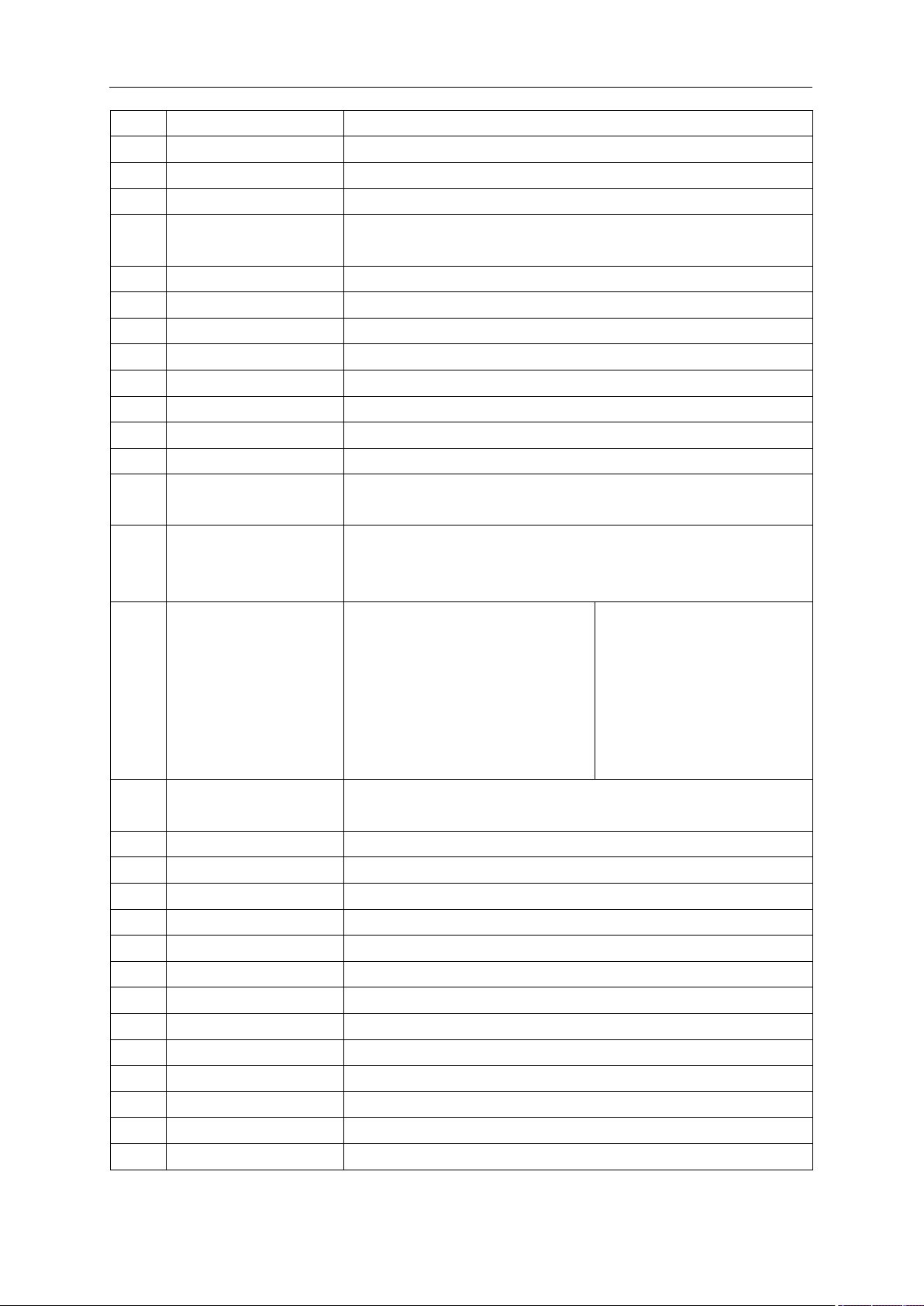
Figure 1-12 User Interface of spectrum analyzer mode
Table 1-3 User Interface labels of spectrum analyzer mode
NO.
Name
Description
1
SIGLENT
SIGLENT logo
2
Ref
Reference level
3
UNCAL
The sweep time is less than the auto couple time, the measure
result may have decreased accuracy
4
EXT REF
Valid Ext 10 MHz reference clock detected indicator
5
Att
Attenuator Value
6
Day and time
System time
7
Pass/Fail status
Limit Pass/Fail status
8
Marker
Current active marker
9
Trace
Active trace
10
Marker instruction
Current marker, touch to open a new marker
11
Marker x value
Unit: frequency, frequency delta or time
12
State indication
Auto Tune: Automatically sets the optimal parameters according to
the characteristics of the signal.
Waiting for Trigger
13
Marker y value
Amplitude value or amplitude delta value
14
USB storage device
The identification is displayed when a USB flash drive is inserted
SIGLENT
10 User Manual
identification
15
Main menu touch logo
Clicking this button will bring up the main menu
16
Menu title
Function of the current menu.
17
Menu items
Menu items of the current function
18
Operation status
LOCAL or REMOTE mode. When REMOTE, keys would be
locked.
19
Sweep indication
Indicates the currently scanned frequency position
20
Stop frequency
Stop frequency value
21
Sweep time
Time duration of a single sweep
22
Center frequency
Center frequency value
23
Span
Span value
24
VBW
Video bandwidth
25
Start frequency
The first frequency of a sweep
26
RBW
Resolution bandwidth
27
Manually instructions
When it appears, this parameter is not automatically coupled but
manually configured
28
Touch assistant
Click to open the common functions for measurement.
Touch Assist can be moved to any position on the screen and
turned off in the DISPLAY menu
29
30
31
32
Trace
A\B\C\D
status
Trace type:
C&W: Clear Write
MaxH: Max Hold
MinH: Min Hold
View: View
AVG: average.
Detect type:
P-PK: Positive peak
N-PK: Positive peak
Samp: Sample
Norm: Normal
AVG: average
Q-PK: Quasi-peak
33
Correction
Indicates that there is a user-configured amplitude correction table
being mathematically applied to the displayed trace data
34
AM or FM
AM or FM demodulation activated
35
PA
Enable or disable the Preamplifier
36
FFT
Sweep mode is FFT
37
Single or Continue
Sweep mode single or continuous
38
Average type
Log power\Power\Voltage power
39
Trigger type
Free\Video\External trigger
40
Ref offset
34:Ref offset identification;35:Ref offset value
41
Scale/Div
Scale value
42
Scale type
Logarithm or linearity
43
Not-ready Star
The traces are not ready to use until current sweep completes
44
Limit line
Limit Pass/Fail level
45
Trigger level
Video trigger level
46
Display line
Reference display line
SIGLENT
1 2
3 4 5 976
10
15
16
14
13
12 11
8
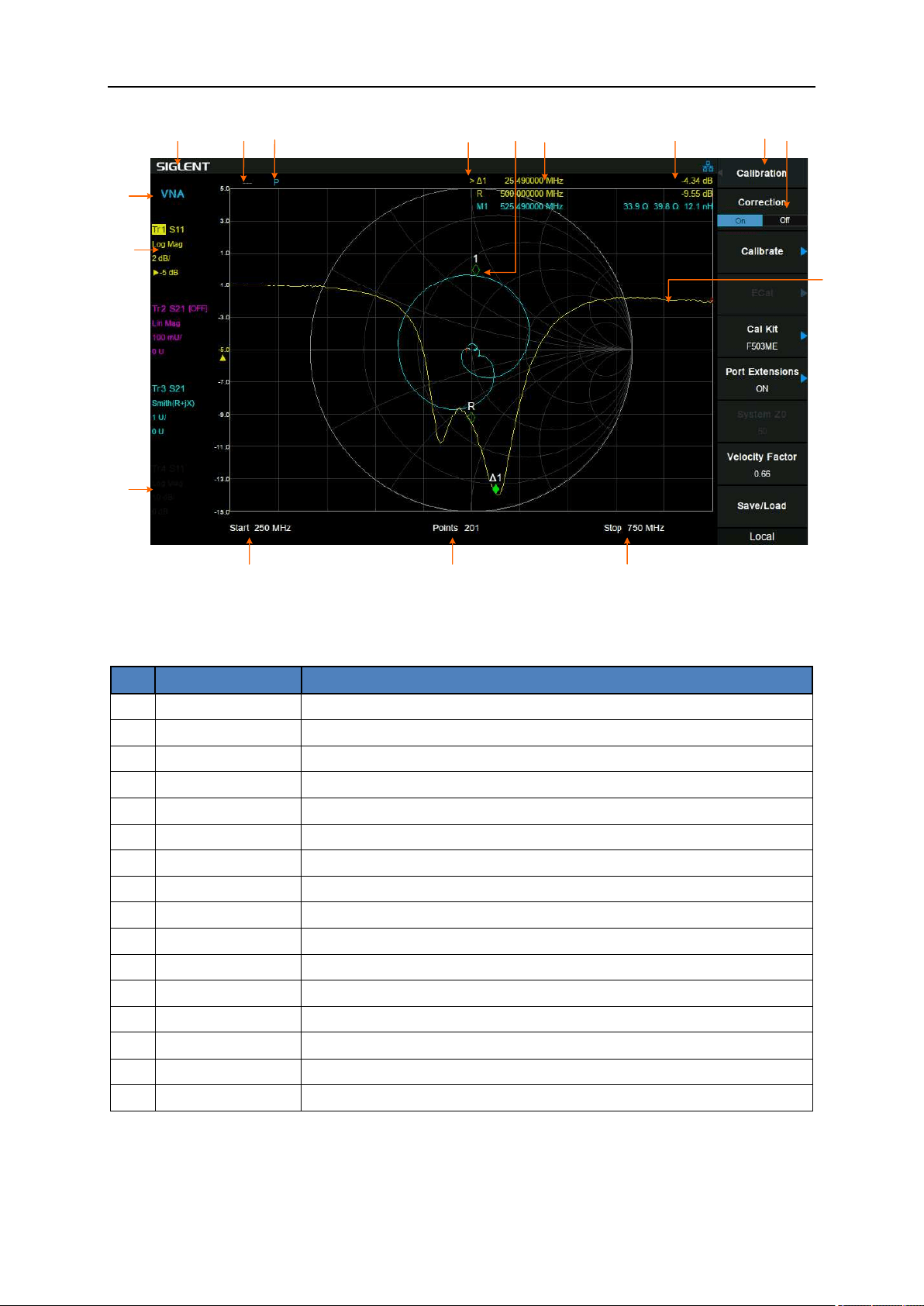
Figure 1-13 User Interface of Vector Network Analyzer Mode
Table 1-4 Vector Network Analyzer Mode User Interface labels
NO.
Name
Description
1
SIGLENT
SIGLENT logo
2
Calibration Status
Cor: Calibrated; Off : Correction Off; C?: Need to re-calibrate;
3
Port Extensions
P: Port Extensions is On
4
Marker Table
Active Marker indication,every trace 6 markers
5
Marker
Current trace active marker
6
Marker x value
Marker frequency
7
Marker y value
Unit depend on trace format
8
Menu title
Function of the current menu.
9
Menu items
Menu items of the current function
10
Stop frequency
Stop frequency value
11
Points
Measurement points number,101~751
12
Start frequency
The first frequency of a sweep
13
Mode
Mode indication
14
Trace active
Highlight active trace indication depend on trace format
15
Trace deactive
Gray indicationd
16
Trace
Active trace

SIGLENT
12 User Manual
1.7 Mode
The analyzer offers a variety of operating modes that can be purchased separately. They can be
selected via the Mode key:
● Spectrum Analyzer Mode
The default mode of the analyzer. It offers a general-purpose spectrum analyzer with a tracking
generator, and some advanced measurement.
● Vector Network Analyzer Mode
In this mode, the analyzer offers a vector network analysis function and operation UI. It is able to
measure full 1 port S11 and single direction S21 parameters.
● Distance-To-Fault Mode
It is a performance verification and failure analysis tool, used for antenna and transmission line service
and maintenance. It returns VSWR versus distance, to show the effects of poor connections, damaged
cables, or faulty antennas.
● Modulation Analyzer Mode
In this mode, the analyzer offers analog signal analysis (AM/FM) and digital vector signal analysis
(ASK/FSK/PSK/MSK/OAM) functions.
● EMI Measurement Mode
In this mode, the analyzer provides the EMI pre-compatibility measurement function, including a
sequence test, a CISPR EMC filter and QP detector, and a set of EMC limit standard lines.
● Real-Time Spectrum Analyzer Mode
In this mode, the analyzer offers real-time spectrum analysis with density, 3D, spectrogram, PvT, etc.
from multi-views and dimensions to monitor complex signals.
Front panel key menus may be different in different modes.

SIGLENT
1.8 Firmware Operation
1.8.1 Check System Information
Users can get the system information by press System-> “System Info”, including
● Product Model, Serial and Host ID
● Software Version and hardware Version
● Option Information
1.8.2 Load Option
Refer to the procedures below to activate the options you have purchased.
1. Press System-> “System Info”-> “Load Option”
2. Enter the license key in the onscreen window. Press Enter to confirm your input and terminate the
license key input. Or
3. Load the .lic file provided by pressing File -> “Load” from internal memory or USB stick.
The option will be enabled after rebooting.
1.8.3 Firmware Upgrade
Follow this procedure to update the instrument firmware:
1. Download the firmware package from an official SIGLENT website.
2. Extract and copy the .ADS file into the root directory of an USB stick.
3. Plug the USB stick into the USB Host connector. Press System-> “System Info”-> “Firmware
Update”; find the .ADS file in USB stick.
4. Press the “Load”, the analyzer will perform the update process automatically.
● The upgrade process will take several minutes. When the upgrade is completed, the machine will
reboot.
● Any interruption during the update process will result in update failure and system data loss. This
is not covered under the warranty and the user will bear repair costs and shipping.
● Do not remove the USB storage device until the update is finished.
1.9 Remote Control
The analyzer supports communication with computers via USB, LAN, and GPIB-USB interfaces. By
using these interfaces, in combination with programming languages and/or NI-VISA software, users
can remotely control the analyzer based on a SCPI (Standard Commands for Programmable
Instruments) compliant command set, LabView and IVI (Interchangeable Virtual Instrument), to
interoperate with other programmable instruments.
SIGLENT
14 User Manual
You can also remote monitor and control the analyzer in Web Browser or Easy Spectrum.
For more details, refer to the ‘Programming Guide’ or contact your nearest SIGLENT office.
1.10 Touch Operation
The analyzer has a 10.1-inch multi-touch screen and supports various gesture operations. Including:
● Press or click on the upper-right-corner of the screen to enter the main menu;
● Swipe up and down or left and right in the waveform area to change the X-axis center coordinate
or Y-axis reference level;
● Perform two-points scaling in the waveform area to change the X-axis span;
● Click on a screen parameter or menu for parameter selection or editing;
● Open and drag the marker;
● Use auxiliary shortcuts to perform common operations.
You can turn the touch screen function on and off via Display->’Touch Settings’.
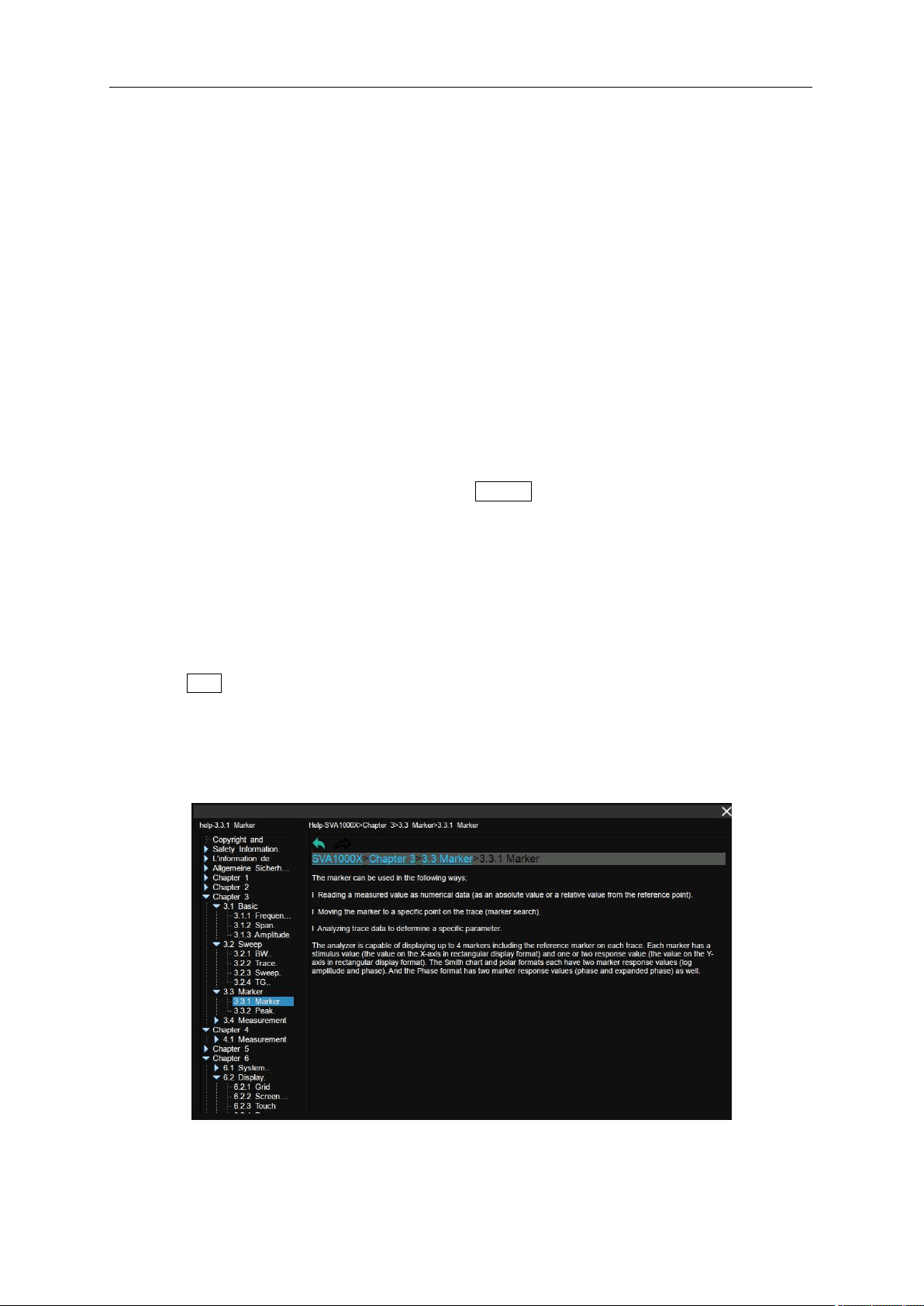
1.11 Using Built-in Help
The built-in help system provides information about every function key at the front panel and every
menu soft key.
● Press Help and the embedded help would show up.
● Click on the items in the contents tree on the left to navigate to any topics interested.
● Click the green back or forward arrow to go back or forward to the contents just read.
● Click the close sign button in the top right corner or press the Esc front-panel key to quit the help
system.
Figure 1-14 help information
SIGLENT
Chapter 2 Spectrum Analyzer Mode
Press Mode, select ‘Spectrum Analyzer’ to enter spectrum analyzer mode.
The ‘Spectrum Analyzer’ mode is the default mode of the analyzer. In this mode, the Mode backlight
does not light up; in other modes, the Mode backlight will light up.
This chapter introduces in detail the function keys and menu functions of the front panel in Spectrum
Analyzer Mode.
2.1 Basic Settings
2.1.1 Frequency
Set the frequency-related parameters and functions of the analyzer. The sweep will restart every time
the frequency parameters are modified.
The frequency range of a channel can be expressed by three parameters: Start Frequency, Center
Frequency and Stop Frequency. If any of the parameters change, the others will be adjusted
automatically in order to ensure the coupling relationship among them:
startstopspan
stopstartcenter
fff
)/2f(ff
−=
+=
, Where
span
f
is the span.
2.1.1.1 Center Frequency
Set the center frequency of the current sweep. The center frequency and span values are displayed at
the bottom of the grid respectively.
● Modifying the center frequency will modify both the start frequency and stop frequency when the
span is constant (except when the start frequency or stop frequency reaches the boundary).
● In Zero Span, the start frequency, stop frequency and center frequency are always the same value.
Table 2-1 Center Frequency
Parameter
Explanation
Default
Full Span/2
Range
Zero Span, 0 Hz ~ Full Span
Nonzero Span, 50 Hz ~ (Full Span -50Hz)
Unit
GHz, MHz, kHz, Hz
Knob Step
Span > 0, step = Span/200, min 1 Hz
Span = 0, step = RBW/100, min 1 Hz
Direction Key Step
Freq Step
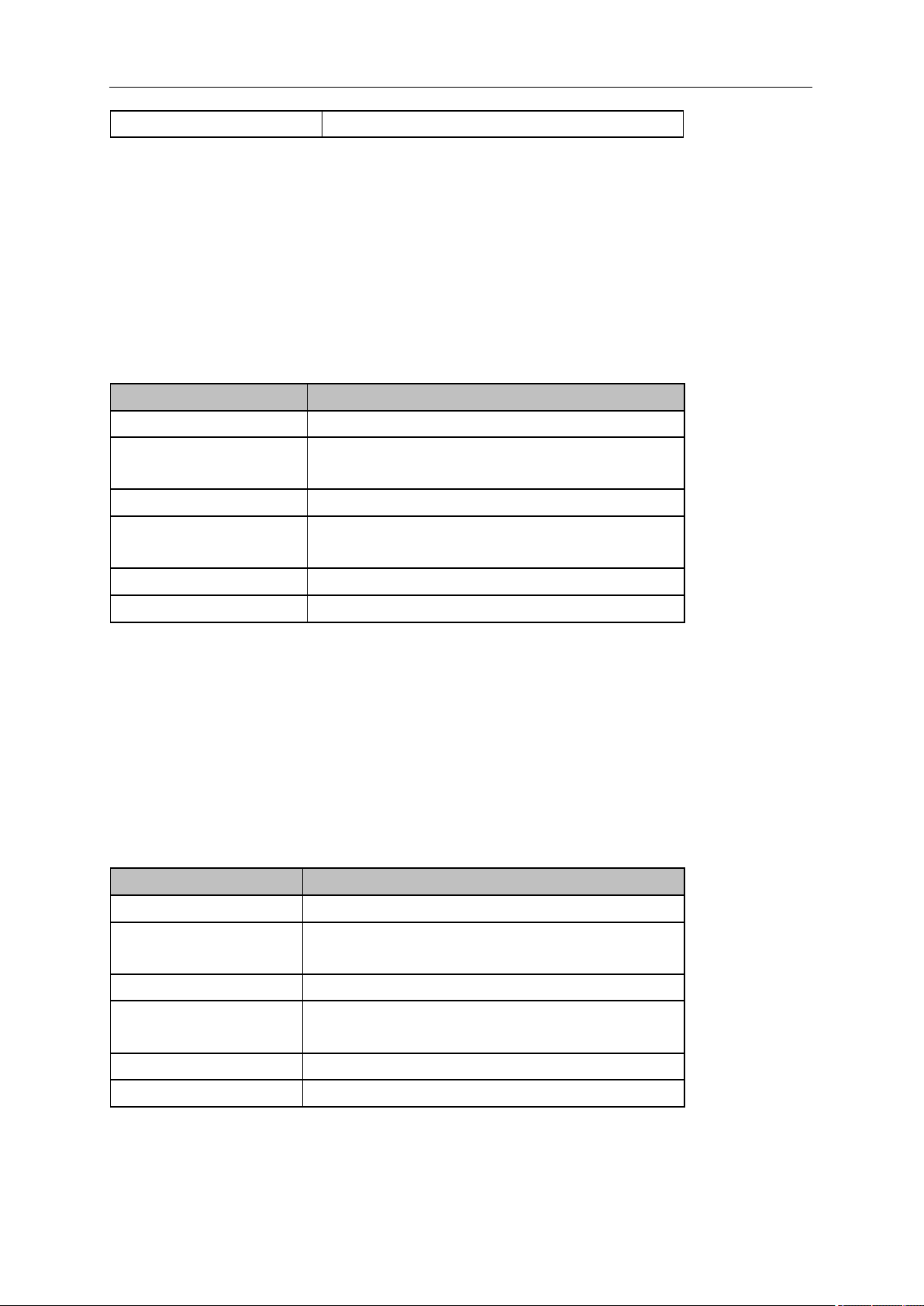
SIGLENT
16 User Manual
Related to
Start Freq, Stop Freq
2.1.1.2 Start Frequency
Set the start frequency of the current sweep. The start and stop frequencies are displayed at the bottom
of the grid respectively.
● The span and center frequency vary with the start frequency when the Span does not reach the
minimum. For more details, please refer to “Span”.
● In Zero Span, the start frequency, stop frequency and center frequency are the same value.
Table 2-2 Start Frequency
Parameter
Explanation
Default
0 Hz
Range
Zero Span, 0 Hz ~ Full Span
Nonzero Span, 0 Hz ~ (Full Span-100Hz)
Unit
GHz, MHz, kHz, Hz
Knob Step
Span > 0, step = Span/200, min 1 Hz
Span = 0, step = RBW/100, min 1 Hz
Direction Key Step
Freq Step
Related to
Center Freq, Span
2.1.1.3 Stop Frequency
Set the stop frequency of the current sweep. The start and stop frequencies are displayed at the lower
right sides of the grid respectively.
● The span and center frequency vary with the stop frequency. The change of the span will affect
other system parameters. For more details, please refer to “Span”.
● In Zero Span, the start frequency, stop frequency and center frequency are always the same value.
Table 2-3 Stop Frequency
Parameter
Explanation
Default
Full Span
Range
Zero Span: 0 Hz ~ Full Span
Nonzero Span: 100 Hz ~ Full Span
Unit
GHz, MHz, kHz, Hz
Knob Step
Span > 0, step = Span/200, min 1 Hz
Span = 0, step = RBW/100, min 1 Hz
Direction Key Step
Freq Step
Related to
Center Freq, Span
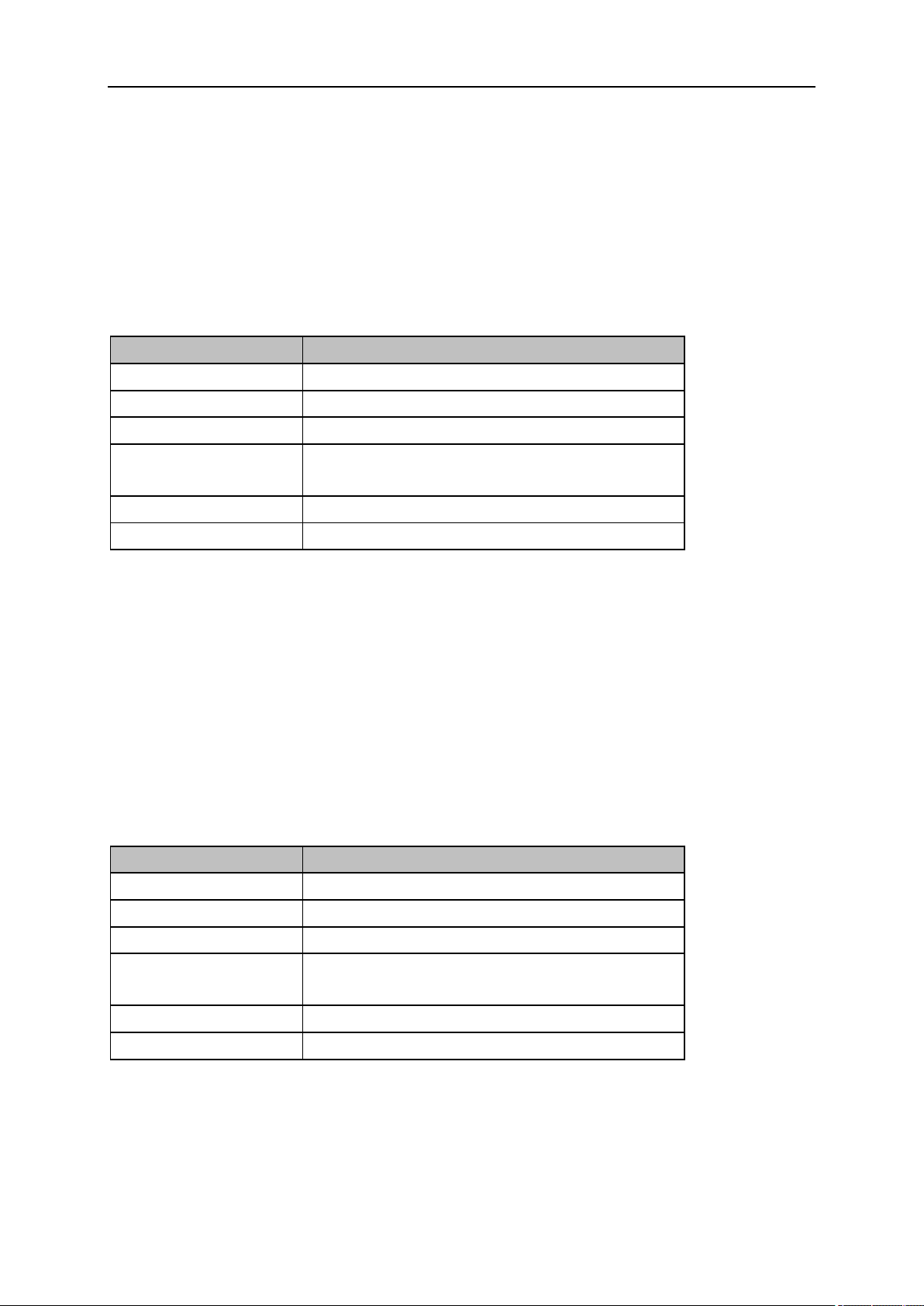
SIGLENT
2.1.1.4 Freq Offset
Set the frequency offset value to illustrate the frequency conversion between the measured device and
the input of the spectrum analyzer.
● This parameter does not affect any hardware settings of the spectrum analyzer, but only changes
the display values of center frequency, start frequency and stop frequency.
● To eliminate the frequency offset value, the frequency offset value can be set to 0 Hz.
Table 2-4 Freq Offset
Parameter
Explanation
Default
0 Hz
Range
-100GHz ~ 100GHz
Unit
GHz, MHz, kHz, Hz
Knob Step
Span > 0, Step = Span/200, min 1 Hz
Span = 0, Step = RBW/100, min 1 Hz
Direction Key Step
Freq Step
Related to
Center Freq, Start Freq, Stop Freq
2.1.1.5 Freq Step
Setting the value of Freq Step will change the direction key step of center frequency, start frequency,
stop frequency and frequency offset.
● At a fixed step change the value of the center frequency can reach the purpose of switching
measurement channels rapidly and continuously.
● There are two kinds of frequency step modes:Auto and Manual. In Auto mode, the Freq step is
1/10 of the span in Non-zero span or equals the RBW while in Zero Span. In Manual mode, you
can set the step using the numeric keys.
Table 2-5 Freq Step
Parameter
Explanation
Default
Full Span/10
Range
1Hz ~ Full Span
Unit
GHz, MHz, kHz, Hz
Knob Step
Span > 0, Step = Span/200, min 1 Hz
Span = 0, Step = RBW/100, min 1 Hz
Direction Key Step
In 1-2-5 sequence
Related to
RBW, Span and related parameters
2.1.1.6 Signal Track
Turn on or off the signal tracking function. It is used to track the signal whose frequency is unstable and
the instantaneous change of the amplitude is less than 3 dB. By marking cursor 1 on the measured
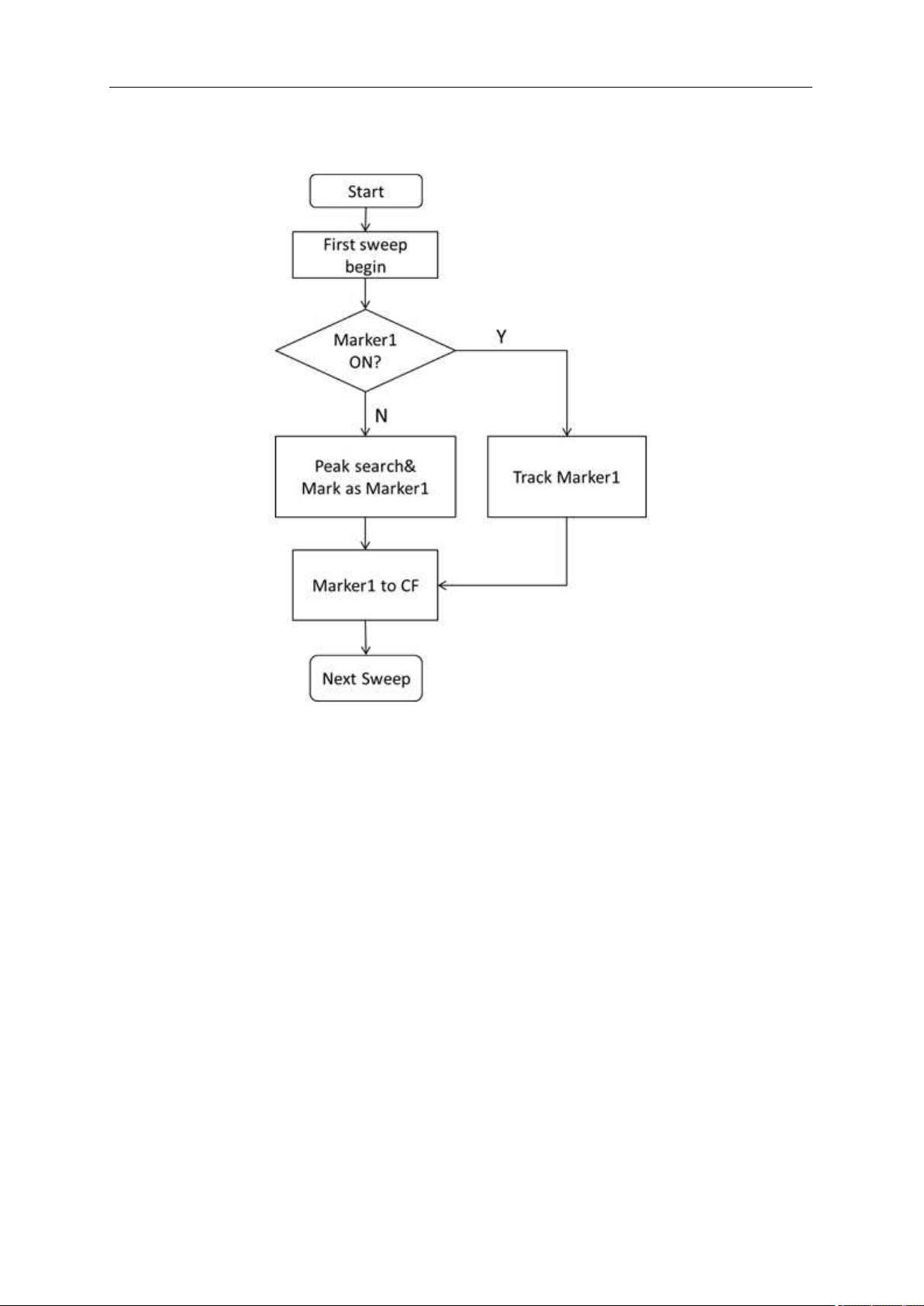
SIGLENT
18 User Manual
signal, the change of the measured signal can be tracked and measured all the time.
The signal tracking process is shown in the following figure:
Figure 2-1 Signal Tracking Flow
● When Marker1 is on, turn on signal tracking, a point whose amplitude does not change more than
3 dB near Marker1 will be searched and marked, and the frequency at that point will be set to
center frequency.
● When Maker1 is off, turn on signal tracking, Marker1 will be activated, and a peak search will be
performed, and then the peak frequency will be set to center frequency.
● Signal tracking function is only available in sweep analysis. Signal tracking function is turned off in
following cases:
• Zero Span mode
• Tracking Generator (TG) open
• Traces are not updated, including single sweep mode or View mode.
• Cont Peak function turned on
• Other non-SA measurement modes
2.1.1.7 Peak -> CF
Executes a peak search and sets the center frequency (CF) of the display to the frequency of the current
peak. The function is invalid in Zero Span.
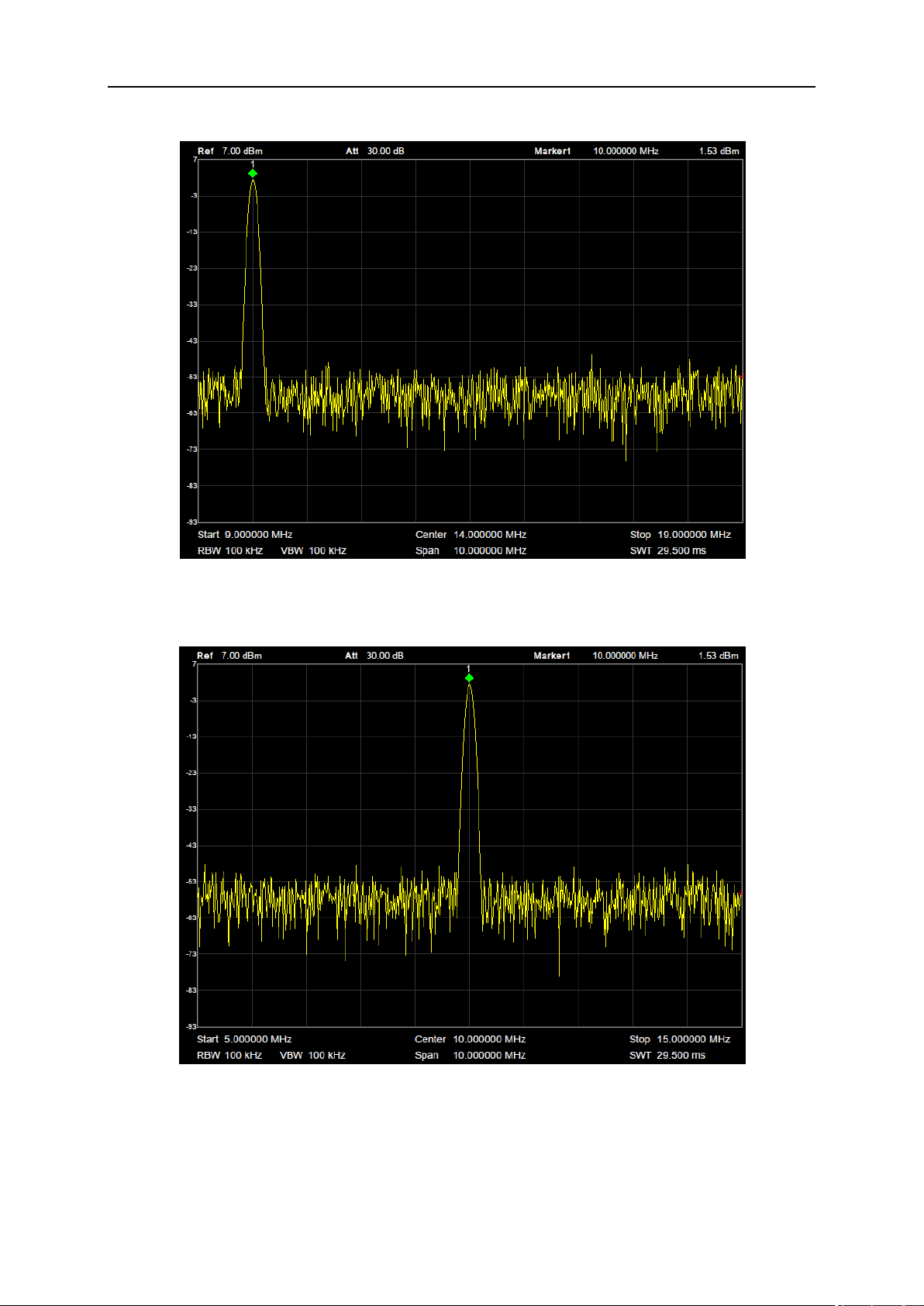
SIGLENT
Figure 2-2 before Peak -> CF
Figure 2-3 after Peak -> CF
2.1.1.8 CF -> Step
Set the current center frequency as the Freq Step. At this point, the Freq Step will switch to “Manual”
SIGLENT
20 User Manual
mode automatically. This function is usually used in channel switching. For example, in harmonic
measurement, firstly locate the signal at the center frequency (CF) of the display, and then execute
CF->Step. Next you can press the upward direction key continuously to measure each order of harmonic
in sequence.
2.1.2 Span
Set the span of the analyzer. Any change of this parameter will affect the frequency parameters and
restart the sweep.
2.1.2.1 Span
Set the frequency range of the current sweep. The center frequency and span are displayed at the
bottom of the grid respectively.
● The start and stop frequency vary with the span when the center frequency is constant.
● In non-zero span mode, the span can be set down to 100 Hz and up to the full span described in
Specifications. When the span is set to the maximum, the analyzer enters full span mode.
● Modifying the span in non-zero span mode may cause an automatic change in both Freq Step and
RBW if they are in Auto mode. Besides, the change of RBW may influence VBW (in Auto VBW
mode).
● Variation in the span, RBW or VBW would cause a change in the sweep time.
Table 2-6 Span
Parameter
Explanation
Default
Full Span
Range
0 Hz ~ Full Span
Unit
GHz, MHz, kHz, Hz
Knob Step
Span/200, min 1 Hz
Direction Key Step
In 1-2-5 sequence
Related to
Start Freq, Stop Freq, Freq Step, RBW, Sweep time
Note: 0 Hz is available only in zero span.
2.1.2.2 Full Span
Set the span of the analyzer to the maximum available frequency span.
2.1.2.3 Zero Span
Set the span of the analyzer to 0Hz. Both the start and stop frequencies will equal to center frequency
and the horizontal axis will denote time. The analyzer measures the time domain characteristics of the
amplitude of the corresponding frequency point of the input signal.
● The following functions are invalid in Zero span:
• Frequency: Peak->CF and Signal Track;
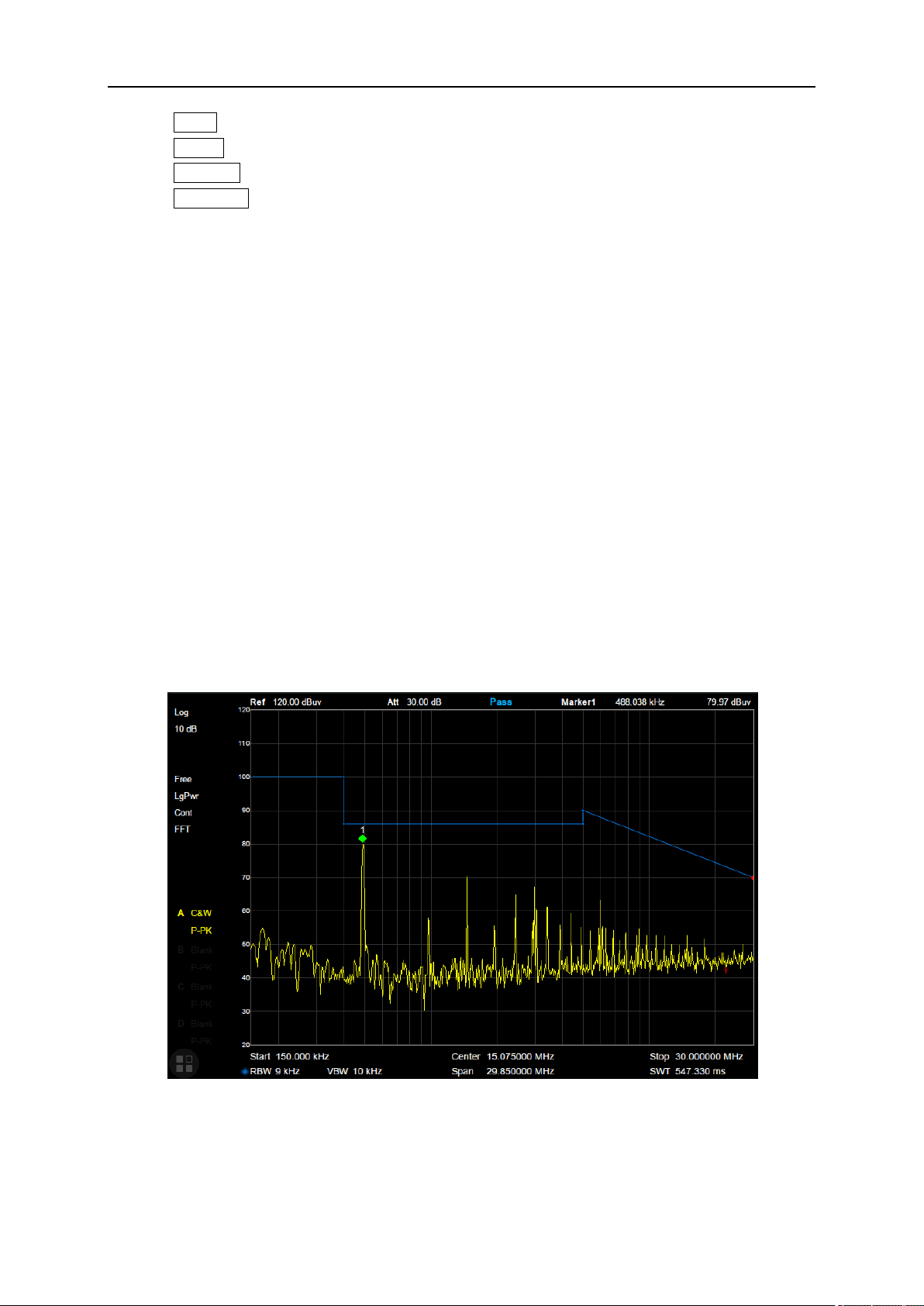
SIGLENT
• SPAN: Zoom In and Zoom Out;
• Sweep: Sweep Mode;
• Marker->: M->CF, M->CF step, M->Start Freq, M->Stop Freq, M->Span and M->CF;
• Marker Fn: Read Out (default option: Time);
2.1.2.4 Zoom In
Set the span to half of its current value. At this point, the signal on the screen will be amplified to observe
signal details.
2.1.2.5 Zoom Out
Set the span to twice the current value. At this point, the signal on the screen will be reduced to gain
more information about the nearby spectrum.
2.1.2.6 Last Span
Set the span to the previous span setting.
2.1.2.7 X-Scale
Set the scale type of X-axis to Linear (Lin) or Logarithmic (Log) scale.
In Log scale type, the frequency scale of X-axis is displayed in the logarithmic form, and Meas function
is invalid.
Figure 2-4 Logarithmic X Scale
SIGLENT
22 User Manual
2.1.3 Amplitude
Set the amplitude parameters of the analyzer. Through modifying these parameters, signals under
measurement can be displayed in a proper mode for easier observation and minimum error. Any change
of Ref Level, Attenuator Value, Preamp mode and Ref Offset will restart sweep.
2.1.3.1 Ref Level
Set the maximum power or voltage that can be currently displayed in the trace window. The value is
displayed at the upper left corner of the screen grid.
The maximum reference (Ref) level available is affected by the maximum mixing level; input attenuation
is adjusted under a constant maximum mixing level in order to fulfill the following condition:
Ref <= ATT - PA - 20dBm, where ATT = Attenuation value, PA = Preamplifier value
Table 2-7 Ref Level
Parameter
Explanation
Default
0 dBm
Range
-200 dBm ~ 20 dBm
Unit
dBm, dBmV, dBuV, dBuA, V, W
Knob Step
In Log scale mode, step = Scale/10
In Lin scale mode, step = 0.1 dBm
Direction Key Step
In Log scale mode, step = Scale
In Lin scale mode, step = 1 dBm
Related to
Attenuator, Preamp, Ref Offset
Note: the maximum reference level of different machine models may be different, please refer to the
data manual specifically.
2.1.3.2 Attenuator
Set the value for the internal attenuator of the RF input. So that the large signal can be low distortion
and the small signal can pass through the mixer with low noise.
Ref <= ATT - PA - 20dBm, where ATT = Attenuation value, PA = Preamplifier value
Input attenuation can be set up to auto or manual mode.
● Auto mode: the attenuation value is automatically adjusted according to the state of preamplifier
and the current reference level.
● The maximum input attenuation can be set to 31 dB. When the set parameters do not meet the
above formula, you can adjust the reference level.
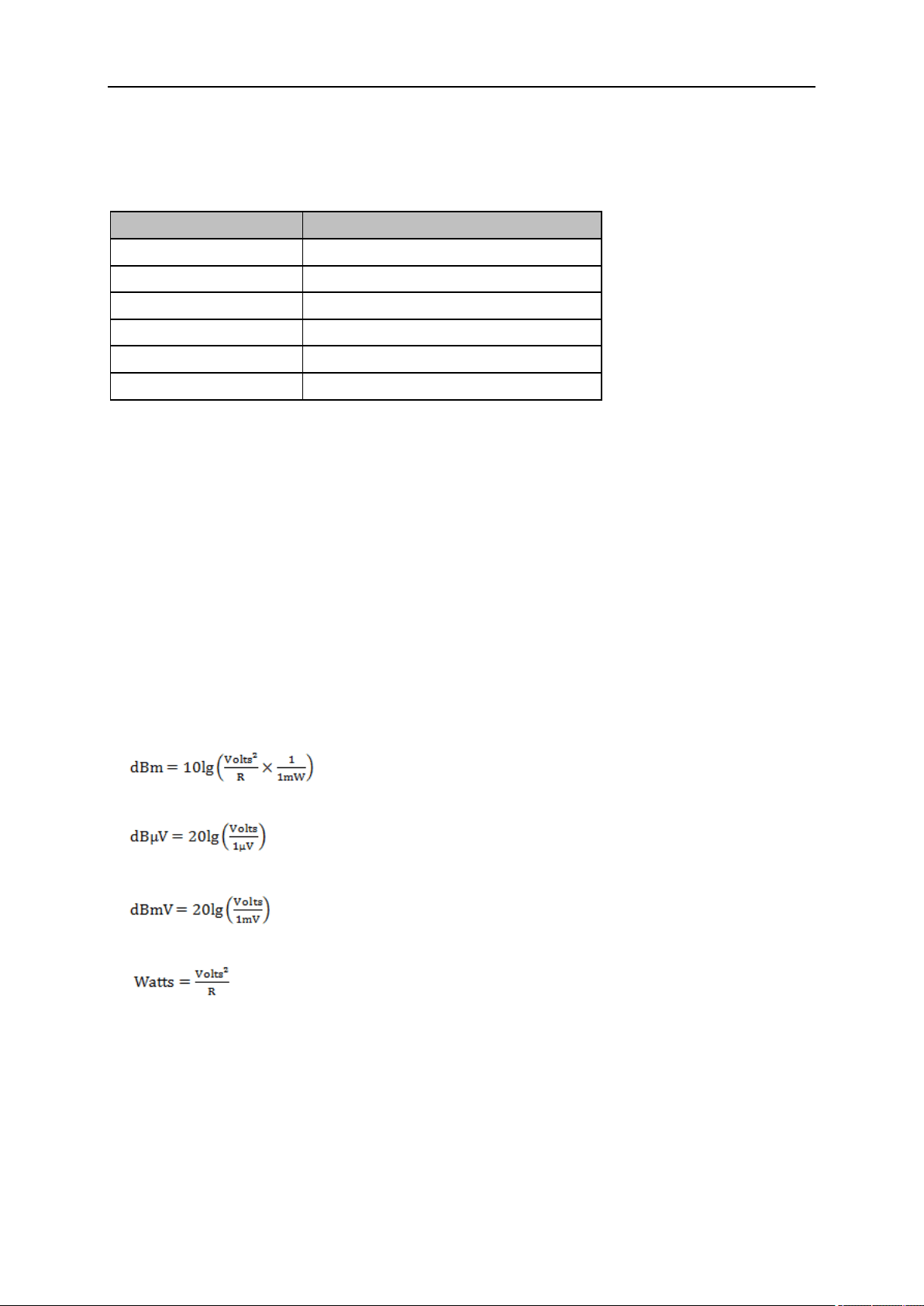
SIGLENT
Table 2-8 Attenuator
Parameter
Explanation
Default
20 dB
Range
0 ~ 31 dB
Unit
dB
Knob Step
1 dB
Direction Key Step
5 dB
Related to
Preamp, Ref level
Note: the maximum attenuator value of different machine models may be different, please refer to the
data manual specifically.
2.1.3.3 RF Preamp
Control the state of the internal preamplifier (PA) located in the RF input signal path. When the signal-
under-measurement is small, turning on the preamplifier can reduce the displayed noise level and aid
distinguishing small signals from the noise.
The corresponding icon “PA” will appear at the left side of the screen when the preamplifier is turned on.
2.1.3.4 Units
Set the unit of the Y-axis to dBm, dBmV, dBuV, dBuA, Volts (RMS) or Watts. Default is dBm.
The conversion relationships between units are as follows.
Where, R denotes the reference impedance. The default value is 50Ω and can be adjusted by pressing
“Correction -> RF input”. The “75 Ω” impedance is just a numeric value, not a real impedance. Setting
the RF input to 75 Ω will not change the actual input impedance. A 75 Ω feed-through adapter is required
to match 75 Ω circuits to the 50 Ω input of the analyzer.
SIGLENT
24 User Manual
2.1.3.5 Scale
Set the logarithmic units per vertical grid division on the display. This function is only available when the
scale type is set to “log”.
● By changing the scale, the displayed amplitude range is adjusted.
● The Minimum range: Reference level –10 × current scale value.
● The Maximum range: The reference level.
Table 2-9 Scale/Div
Parameter
Explanation
Default
10 dB
Range
0.1 dB ~ 20 dB
Unit
dB
Knob Step
Scale>=1, 1 dB,
Scale<1, 0.1dB
Direction Key Step
1-2-5 sequence
Related to
Scale Type
2.1.3.6 Scale Type
Set the scale type of the Y-axis to Lin or Log. The default is Log.
● In Lin mode, the vertical Scale value cannot be changed. The Display area is set for reference level
of 0%.
● In Log scale type, the Y-axis denotes the logarithmic coordinate. The value shown at the top of the
grid is the reference level and each grid represent the scale value. The unit of Y-axis will
automatically switch to the default unit (dBm) in Log scale type when the scale type is changed
from Lin to Log.
● In Lin scale type, the Y-axis denotes the liner coordinate; the values shown at the top of the grid
and the bottom of the grid are the reference level and 0 V. The scale setting function is invalid. The
unit of Y-axis will automatically switch to the default unit (Volts) in Lin scale type when the scale
type is charged from Log to Lin.
2.1.3.7 Ref Offset
Assign an offset to the reference level to compensate for gains or losses generated between the device
under measurement and the analyzer.
The change of this value changes both the reference level readout and the amplitude readout of the
marker; but does not impact the position of traces on the screen.
Table 2-10 Ref Offset
Parameter
Explanation
Default
0 dB
SIGLENT
Range
-100 dB ~ 100 dB
Unit
dB
Knob Step
Not support
Direction Key Step
Not support
Related to
Ref Level
2.1.3.8 Correction
Correct the displayed amplitude to compensate for gains or losses from external devices such as
antennas and cables. When using this function, you can view the correction data table and save or load
the current correction data. When amplitude correction is enabled, both the trace and related
measurement results will be mathematically corrected. Positive correction values are added to the
measured values. Negative (-) correction values are subtracted from the measured values.
1. RF Input
Set the input impedance for numeric voltage-to-power conversions. To measure a 75 Ω device, you
should use a 75 Ω to 50 Ω adapters to connect the analyzer with the system-under-test and then set the
input impedance to 75 Ω.
2. Apply Correction
Enable or disable amplitude corrections. Default is Off. The analyzer provides four correction factors
that can be created and edited separately, but they can be applied independently in any combination.
3. Edit Correction factors
Table 2-11 Edit Correction table
Function
Explanation
Correction
Select the correction factor on or off.
Add Point
Add a point into correction table.
Point Num
Select a point to edit by point num.
Frequency
Edit the frequency value for the current selected point.
Amplitude
Edit the amplitude value for the current selected point.
Del Point
Delete the selected correction point.
Del All
Clear all data of the correction table.
Save/Load
Save or load correction data. You can save the current correction data into
or load correction data from a specified file.
2.1.4 Auto Tune
The analyzer will search for signals automatically throughout the full frequency range and adjust the
frequency and amplitude settings for optimum display of the strongest signal.
● In the process of auto search, The “Auto Tune” is shown in the status bar on the screen until the
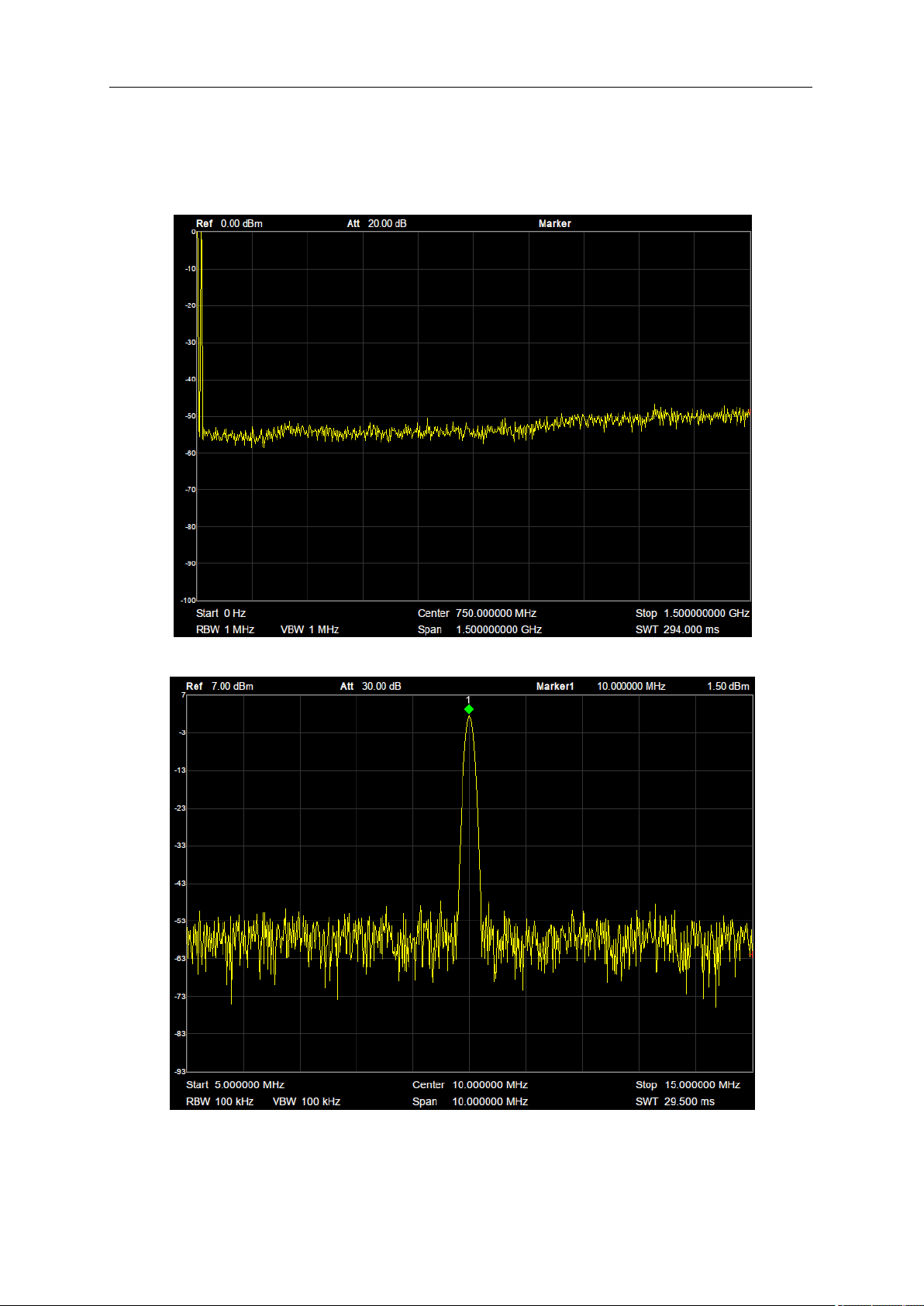
SIGLENT
26 User Manual
search is finished.
● Some parameters such as the reference level, scale, input attenuation and maximum mixing level
may be changed during the auto search.
Figure 2-5 before Auto Tune
Figure 2-6 after Auto Tune
SIGLENT
2.2 Sweep and Functions
2.2.1 BW
The bandwidth menu contains the RBW (Resolution Bandwidth), VBW (Video Bandwidth), average type
and filter type. Filter type includes the EMI filter type that enables EMI measurement controls.
2.2.1.1 Resolution Bandwidth
Set the resolution bandwidth in order to distinguish between signals which have frequency components
that are near one another.
● Reducing the RBW will increase the frequency resolution, but will also increase the sweep time
dramatically (Sweep Time is affected by a combination of RBW and VBW when the analyzer is in
Auto mode).
● Generally, the frequency resolution ability is affected by RBW, RBW Filter shape factor, LO Phase
noise, and LO Residual FM.
● RBW varies with the span (non-zero span) in Auto RBW mode.
● Under EMI filter, RBW can only be set to 200 Hz, 9 kHz, 120 kHz and 1 MHz with a 6dB shape
factor.
Table 2-12 RBW
Parameter
Explanation
Default
1 MHz
Range
1 Hz ~ 1 MHz
Unit
MHz, kHz, Hz
Knob Step
in 1, 3, 10 sequence
Direction Key Step
in 1, 3, 10 sequence
Relation
Span, VBW, V/R Ratio, Sweep Time
Notes: RBW of above table is in Gauss filter type.
2.2.1.2 Video Bandwidth
Set the video bandwidth in order to filter out the noise outside the video band.
● Reducing the VBW will smooth the trace and helps to highlight small signals from noise, but it will
also increase the sweep time (Sweep Time is affected by a combination of RBW and VBW when it
is in Auto mode).
● VBW varies with RBW when it is in Auto mode. While in Manual mode, VBW is not affected by
RBW.
SIGLENT
28 User Manual
Table 2-13 VBW
Parameter
Explanation
Default
1 MHz
Range
1 Hz ~ 1 MHz
Unit
MHz, kHz, Hz
Knob Step
in 1, 3 sequence
Direction Key Step
in 1, 3 sequence
Relation
RBW, V/R Ratio, Sweep Time
2.2.1.3 V/R Ratio
Set the ratio of VBW to RBW. This value is different while measuring different kinds of signals:
● Sine/Continuous Wave (CW) signals: Use 1 to 3 (for faster sweeps)
● Pulsed/transient signals: Use 10 (to reduce the influence on the amplitude of transient signals)
● Noise signals: Generally use 0.1 (to obtain the average of noises)
Table 2-14 V/R Ratio
Parameter
Explanation
Default
1
Range
0.001 ~ 1000
Unit
N/A
Knob Step
in 1, 3 sequence
Direction Key Step
in 1, 3 sequence
Relation
RBW, VBW
2.2.1.4 Average Type
Choose one of the following averaging types: log power (video), power (RMS), or voltage averaging.
When trace average is on, the average type is shown on the left side of the display.
1. Log Power
Select the logarithmic (decibel) scale for all filtering and averaging processes. This scale is "Video"
because it is the most common display and analysis scale for the video signal within analyzer. This scale
is excellent for finding Sine/CW signals near noise.
2. Power Average
In this average type, all filtering and averaging processes work on the power (the square of the
magnitude) of the signal, instead of its log or envelope voltage. This scale is best for real-time power
measurement of complex signals.
3. Voltage Average
In this Average type, all filtering and averaging processes work on the voltage of the envelope of the
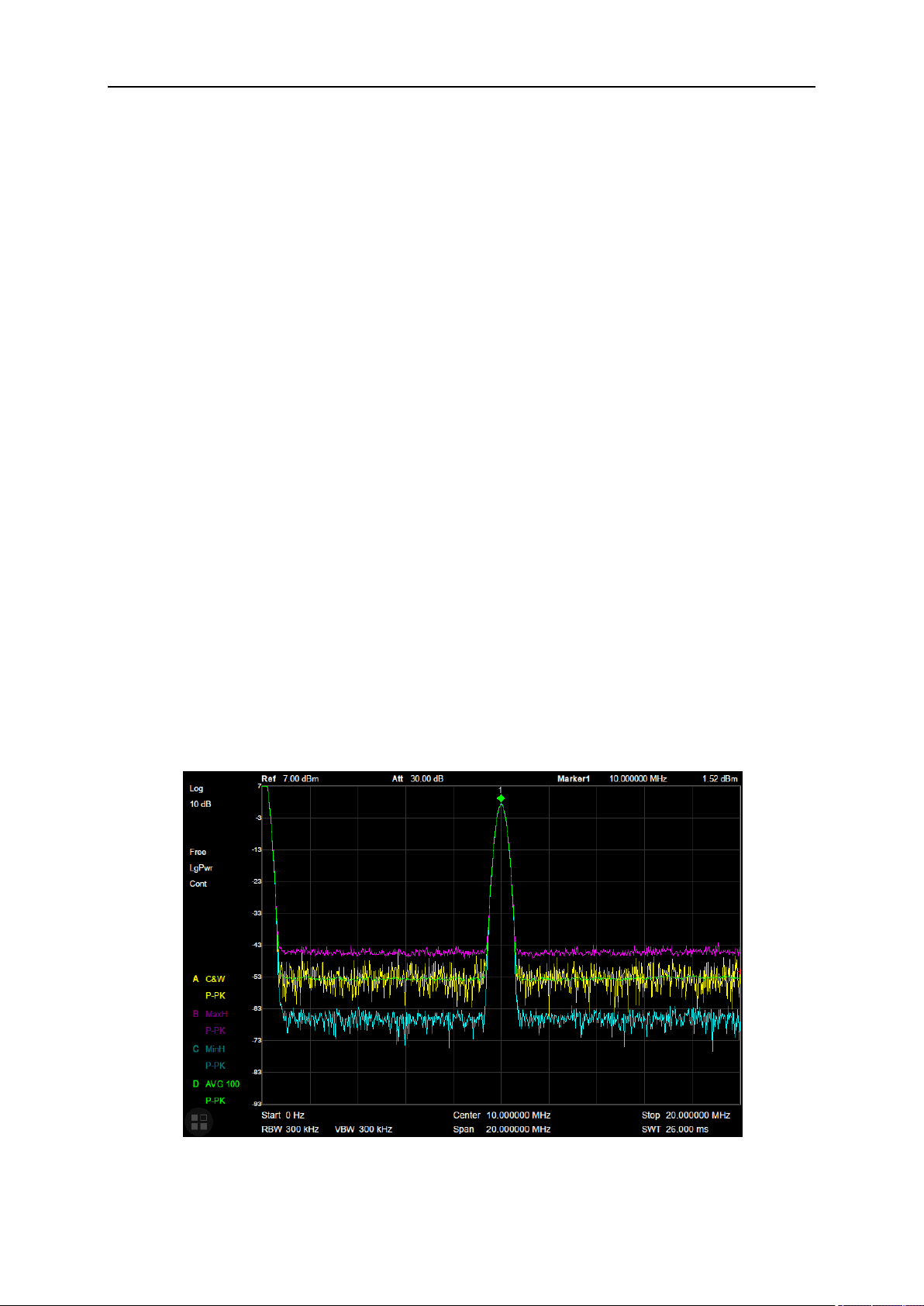
SIGLENT
signal. This scale is suitable for observing rise and fall behavior of AM or pulse-modulated signals such
as radar and TDMA transmitters.
2.2.1.5 Filter
Set the RBW filter type. The analyzer supports two kinds of RBW filters: “Gauss” (-3 dB bandwidth) and
“EMI” (-6 dB bandwidth).
When “EMI” is selected, resolution bandwidth can only be 200 Hz, 9 kHz, 120 kHz and 1 MHz
“Quasi-Peak” detector is available only when “EMI” filter is turned on.
2.2.2 Trace
The sweep signal is displayed as a trace on the screen.
2.2.2.1 Select Trace
The analyzer allows for up to four traces to be displayed at the same time. Each trace has its own color
(Trace A - Yellow, Trace B - Purple, Trace C - Light blue and Trace D - Green). All traces can be set
parameter independently. As a default, analyzer will choose Trace A and set the type of the trace as
Clear Write.
2.2.2.2 Trace Type
Set the type of the current trace or disable it. The system calculates the sampled data using a specific
operation method according to the trace type selected and displays the result. Trace types include Clear
Write, Max Hold, Min Hold, View, Average and Blank. The corresponding icon of the trace type will be
displayed in the status bar at the left of the screen, as shown in the figure below.
Figure 2-7 Trace Type
SIGLENT
30 User Manual
1. Clear Write
Erases any data previously stored in the selected trace, and display the data sampled in real-time of
each point on the trace.
2. Max Hold
Retain the maximum level for each point of the selected trace. Update the data if a new maximum level
is detected in successive sweeps. Max Hold is very effective when measuring events that may take
successive scans to measure accurately. Some common applications include FM Deviation, AM NRSC,
and frequency hopping or drift.
3. Min Hold
Display the minimum value from multiple sweeps for each point of the trace and update the data if a
new minimum is generated in successive sweeps.
4. View
Freezes and holds the amplitude data of the selected trace. The trace data is not updated as the
analyzer sweeps.
5. Blank
Disable the trace display and all measurements of this trace.
6. Average
Set the averages times of the selected trace.
More averages can reduce the noise and the influence of other random signals; thus highlighting the
stable signal characteristics. The larger the averages times is, the smoother the trace will be. Enabling
averaging will take more time to collect the full spectral information because the analyzer needs to
sweep the set average count. The displayed data is averaged in a first-in-first-out fashion.
Table 2-15 Average Times
Parameter
Explanation
Default
100
Range
1 ~ 999
Unit
N/A
Knob Step
1
Direction Key Step
5
2.2.2.3 Math
Set the computational method of the math trace.
1. Output Z
The Math result is denoted by the Z variable and can be displayed by trace A, B, C, or D.
SIGLENT
2. Input X, Y
Input X, Y can be applied to trace A, B, C, or D.
3. Calculation Type
The analyzer provides the calculation types as shown below:
● Power Diff: X-Y+Offset→Z
● Power Sum: X+Y+Offset→Z
● Log Offset: X+ Offset→Z
● Log Diff: X-Y-Ref→Z
4. Offset value
Table 2-16 Offset value
Parameter
Explanation
Default
0 dB
Range
-100 dB ~ 100 dB
Unit
dB
Knob Step
1 dB
Direction Key Step
1 dB
2.2.3 Detect
The analyzer displays the sweep signal on the screen in the form of a trace. For each trace point, the
analyzer always captures all the data within a specific time interval and processes (Peak, Average, etc.)
the data using the detector currently selected, then it displays the processed data (a single data point)
on the screen.
Select an appropriate detector type according to the actual application in order to ensure the accuracy
of the measurement.
The available types are Pos Peak, Neg Peak, Sample, Normal, Average and Quasi Peak. The default
is Pos peak.
1. Positive Peak
For each trace point, Positive Peak detector displays the maximum value of data sampled within the
corresponding time interval.
2. Negative Peak
For each trace point, Negative Peak detector displays the minimum value of data sampled within the
corresponding time interval.
3. Sample
For each trace point, Sample detector displays the transient level corresponding to the central time point
SIGLENT
32 User Manual
of the corresponding time interval. This detector type is applicable to noise or noise-like signal.
4. Normal
Normal detector (also called ROSENFELL Detector) displays the maximum value and the minimum
value of the sample data segment in turn: Odd-numbered data points display the maximum value and
even-numbered data points display the minimum value. In this way, the amplitude variation range of the
signal is clearly shown.
5. Average
For each trace point, Average detector displays the average value of data sampled within the
corresponding time interval.
6. Quasi-Peak
Quasi-Peak (QP) detector, which is a weighted form of peak detector, is used for EMC pulse testing.
The QP detector is designed to follow CISPR-16 response specifications. For a single frequency point,
the detector detects the peaks within the QP dwell time.
The peaks detected are weighted using a digital model that follows a defined response curve as well as
the time constant specified in the CISPR 16 standards. The measurement time for QP is far longer than
Peak Detector.
2.2.4 Sweep
Sets parameters about the Sweep functions, including sweep time, sweep times, sweep mode, etc.
2.2.4.1 Sweep Time
Sets the time needed for the analyzer to finish a sweep within the span range. The sweep time can be
set in “Auto” or “Manual” mode and the default is “Auto”.
◆ In non-zero span, the analyzer selects the shortest sweep time on the basis of the current RBW
and VBW settings if Auto is selected.
◆ Decreasing the sweep time will decrease measurement time. However, an error may be caused if
the specified sweep time is less than the minimum sweep time in Auto coupling; at this point,
“UNCAL” is shown in the status bar on the screen. Measurements taken with “UNCAL” showing
may not meet the specifications of the instrument and can have significant error.
Table 2-17 Sweep Time
Parameter
Explanation
Default
N/A
Range
900 us ~ 1.5 ks (Quasi Peak: 900us ~ 15ks)
Unit
ks, s, ms, us
Knob Step
Sweep time/100, min =1 ms
Direction Key Step
in 1, 3 sequence
SIGLENT
2.2.4.2 Sweep Rule
The analyzer provides two sweep time rules to meet the different sweep time requirements:
● Speed: Activates the default fast sweep time rule.
● Accuracy: Activates the normal sweep time rule to ensure increased measurement accuracy.
The Speed sweep time rule provides a fast measurement function that decreases the sweep time. While
the Accuracy Sweep rule will increase the measurement accuracy.
2.2.4.3 Sweep
Set the sweep mode in single or continuous, the default is continuous. The corresponding icon of the
sweep will be displayed in the status bar at the left of the screen.
1. Single
Set the sweep mode to “Single”. The number on the parameter icon denotes the current sweep times.
2. Numbers
Set the sweeps times for a single sweep. In single sweep mode, the system executes the specified
sweeps times and the number shown on the icon in the status bar at the left of the screen varies with
the process of the sweep.
3. Continue
Set the sweep mode to “Continue”. The character Cont on the parameter icon denotes the analyzer is
sweeping continuously.
● If the instrument is in single sweep mode and no measurement function is enabled, press this key
and the system will enter continuous sweep mode and sweep continuously if the trigger conditions
are satisfied.
● If the instrument is in single sweep mode and a measurement function is on, press this key and the
system will enter continuous sweep mode and measure continuously if the trigger conditions are
satisfied.
● In continuous sweep mode, the system will send a trigger initialization signal automatically and
enter the trigger condition judgment directly after each sweep.
Table 2-18 Sweep Times
Parameter
Explanation
Default
1
Range
1 ~ 99999
Unit
N/A
Knob Step
1
Direction Key Step
1
SIGLENT
34 User Manual
2.2.4.4 Sweep Mode
Sweep mode includes auto mode, sweep mode and FFT mode.
1. Auto
When the sweep mode is auto, the analyzer selects the sweep mode automatically between Sweep and
FFT Mode in the shortest time.
2. Sweep
True swept operation including point-by-point scanning. The Sweep mode is available when the RBW
is in 30 Hz – 1 MHz. For a spectrum analyzer that scans at a single point, each time it tunes to the
corresponding frequency, it only completes the energy detection of the current frequency point.
3. FFT
The FFT mode is only available when RBW is in 1 Hz - 10 kHz. For a spectrum analyzer that performs
scanning in FFT steps, each time it tunes to a certain frequency, it will stay longer, and it also analyzes
all the energy in a frequency band. Therefore. The selected range of FFT step scanning become wider,
but the basic process has not changed fundamentally compared to scaning at a single point. Simply put,
FFT can be regarded as a series of parallel IF filters working at the same time, thus speeding up the
frequency sweep.
When the tracking generator (TG) is on, the sweep mode is forced to Sweep.
2.2.4.5 QPD Dwell Time
Dwell time is the measurement time at a single frequency. QP detector gets its weighted envelope
response during this dwell time. The longer dwell time is, the more sufficiently the QP detector responses
to a single frequency, and the more accurate the QP detector envelope is.
Table 2-19 QPD Dwell Times
Parameter
Explanation
Default
50 ms
Range
0 s ~ 10 s
Unit
ks, s, ms, us
Knob Step
1 ms
Direction Key Step
1 ms
2.2.5 Trigger
2.2.5.1 Free Run
The trigger conditions are satisfied at any time and the analyzer generates trigger signals
continuously.
SIGLENT
2.2.5.2 Video Trigger
A trigger signal will be generated when the system detects a video signal of which the voltage exceeds
the specified video trigger level.
Set the trigger level with the video trigger menu entry. At this point, the trigger level line (Trig Line) and
value are displayed on the screen.
Table 2-20 Trigger Setup
Parameter
Explanation
Default
0 dBm
Range
-300 dBm ~ 50 dBm
Unit
dBm
Knob Step
1 dBm
Direction Key Step
10 dBm
2.2.5.3 External
In this mode, an external signal (TTL signal) is input from the [TRIGGER IN] connector at the rear panel
and trigger signals are generated when this signal fulfills the specified trigger edge condition.
Set the trigger edge in external trigger to the rising (Pos) or falling (Neg) edge of the pulse.
2.2.6 Limit
The analyzer supports Pass/Fail test function. In this function, the measured curve will be compared
with the pre-edited curve. If the related rules are met, the result is “Pass”, else the result is “Fail”.
2.2.6.1 Limit1
Enable or disable limit1.
2.2.6.2 Limit1 Edit
Edit the properties of limit1.
Table 2-21 Limit1 Edit Menu
Function
Explanation
Type
Select upper or lower limit type. The default value is Upper.
Mode
Select limit line or limit point. The default value is Line.
Set the number of the point to be edited if you selected the point type, and
the range is 1 ~ 100.
Add point
Add a new point for editing.
X-axis
Edit the X-axis value (frequency or time) of the current point.
Amplitude
Edit the amplitude of the current point or line.
SIGLENT
36 User Manual
Del Point
Delete the point whose number is selected in Mode.
Del All
Delete all the points.
Save/Load
Save or load the limit file.
X Offset
Set offsets of X axis.
Y Offset
Set offsets of Y axis
2.2.6.3 Limit2
Enable or disable limit2.
2.2.6.4 Limit2 Edit
Edit the properties of limit2.
Table 2-22 Limit2 Edit Menu
Function
Explanation
Type
Select upper or lower limit type. The default value is Lower.
Mode
Select limit line or limit point. The default value is Line.
Set the number of the point to be edited if you selected the point type, and
the range is 1 ~ 100.
Add point
Add a new point for editing.
X-axis
Edit the X-axis value (frequency or time) of the current point.
Amplitude
Edit the amplitude of the current point or line.
Del Point
Delete the point whose number is selected in Mode.
Del All
Delete all points.
Save/Load
Save or load the limit file.
X Offset
Set offsets of X axis.
Y Offset
Set offsets of Y axis
2.2.6.5 Test
Enable or disable the limit test function.
2.2.6.6 Setup
1. Fail to stop
Turn on or off the Fail to stop function. If the function is on, the analyzer will stop sweep and retain the
test result when the test result is “Fail”.
2. Buzzer
Turn on or off the buzzer. When the buzzer is on, it beeps when the test result is “Fail”.
3. X Axis
Set the X-axis to frequency or time domain. The default value is Freq.
SIGLENT
Note that all the points of the current limit line will be deleted if the X-axis unit changes.
2.2.7 TG (Tracking Generator)
Set the parameters related to the tracking generator (TG) and normalize.
2.2.7.1 TG
The tracking generator is a signal source with an adjustable frequency and amplitude. When the TG is
enabled, a signal with the same frequency of the current sweep signal will be output from the [TG
SOURCE] connector at the front panel. The power of the signal could be set through the menu. The TG
output frequency follows the analyzer sweep frequency. For example, if the sweep is set to scan from 1
MHz to 10 MHz, the TG output frequency will change from 1 MHz to 10 MHz in coordinated steps with
the sweep. In Zero Span mode, the TG frequency will match the center frequency of the analyzer.
2.2.7.2 TG Level
Set the output power of the signal of the tracking generator.
Table 2-23 TG Level
Parameter
Explanation
Default
-20 dBm
Range
-20 dBm ~ 0 dBm
Unit
dBm
Knob Step
1 dBm
Direction Key Step
10 dBm
2.2.7.3 TG Level Offset
Assigns a certain offset to the output power of the TG when gains or losses occur between the TG
output and external device in order to display the actual power value.
● This parameter only changes the readout of the TG output power, rather than the actual value.
● The offset could be either a positive (gain in the external output) or a negative (loss in the external
output).
Table 2-24 TG Level Offset
Parameter
Explanation
Default
0 dB
Range
-200 dB ~ 200 dB
Unit
dB
Knob Step
1 dB
Direction Key Step
10 dB
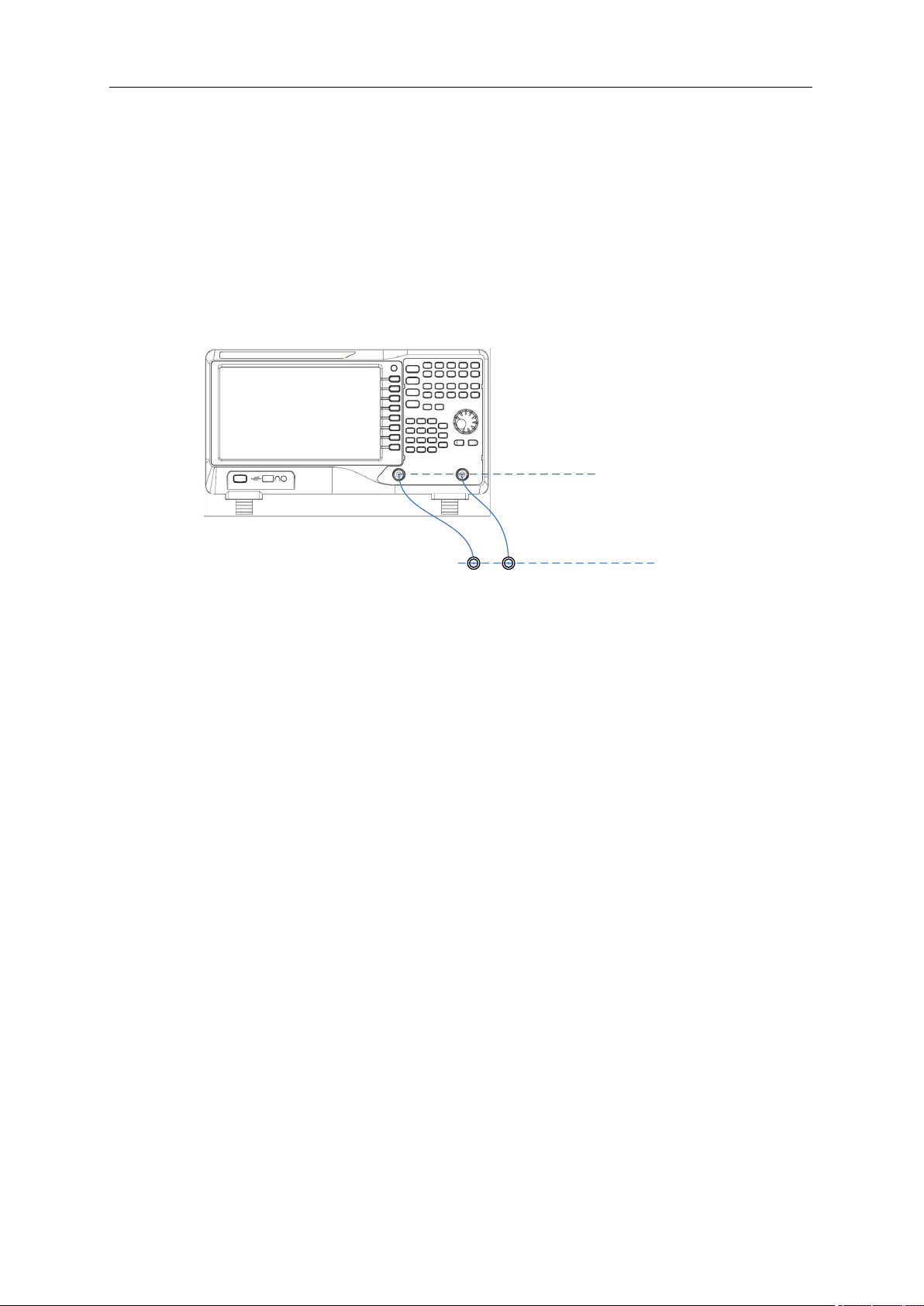
SIGLENT
38 User Manual
2.2.7.4 Normalize
Normalization can eliminate errors in the TG Level. Before using this function, connect the [TG SOURCE]
output terminal of the TG with the [RF INPUT] input terminal of the analyzer.
The reference trace can be stored by pressing the “Store Ref” button after the current sweep finished.
Then the normalize function can be enabled. When normalization is enabled, the corresponding value
of the reference trace will be subtracted from the trace data after every sweep.
The reference trace must be stored before the normalize function can be used.
Default
reference plane
Normalized
reference plane
Figure 2-8 Normalize
2.2.7.5 Store Ref
Before enable the normalize function, you should press the “Store Ref” button to store the data of Trace
A to Trace D. Then Trace D is the reference trace.
● The tracking generator needs to be turned on first, and the reference trace can be saved only when
the first screen is scanned.
● The normalization can be enabled only after the reference trace is stored.
● After you stored the reference trace and enabled the normalization, if then you change some
parameters which will change the sweep frequency and sweep time, the "UNCAL" sign will be
displayed in the upper left corner of the screen, indicating that the reference trace is no longer
applicable to the new trace, and prompting you to save the reference trace again.
2.2.7.6 Ref Trace
Set whether to display the reference trace or not. If “View” is selected, the reference trace saved will be
shown in “View” type.
Note: When normalization is enabled, the unit of Y-axis is “dB” and will not be influenced by the definition
in AMPT->Units. At this point, “(dB)” is displayed under the Y-axis scale in the user interface.
2.2.7.7 Norm Ref Level
Adjust the vertical position of the trace on the screen by adjusting the reference level when normalization
is enabled.
SIGLENT
This operation differs from the Ref Level function in the AMPT menu. This parameter has no influence
on the reference level of the analyzer.
Table 2-25 Reference level under normalization
Parameter
Explanation
Default
0 dB
Range
-200 dB ~ 200 dB
Unit
dB
Knob Step
1 dB
Direction Key Step
10 dB
2.2.7.8 Norm Ref Pos
Adjust the vertical position of the normalization reference level on the screen by adjusting the reference
position when normalization is enabled.
● The function of this menu is like that of Norm Ref Level. When it is set to 0%, the normalization
reference level is displayed at the bottom of the screen grid and at the top when it is set to 100%.
Table 2-26 TG reference position under normalization
Parameter
Explanation
Default
100%
Range
0 ~ 100%
Unit
100%
Knob Step
1%
Direction Key Step
10%
2.2.8 Demod
Press Demod at the front panel to enter the demodulation setting menu. Both AM and FM
demodulations are available on the analyzer.
2.2.8.1 Demod (AM/FM)
Set the demodulation type to AM or FM or off. The default is off.
● The analyzer features an earphone jack and the demodulated signal can be output in audio
frequency (AF) mode through the earphone. The frequency and intensity of AF denotes the
frequency and amplitude of the signal respectively.
● A marker would be enabled automatically, place it at the desired frequency and set a demod time.
The analyzer would demod at the marker frequency for the demod time, and then performs a normal
sweep.
● Zero span and linear scale type amplitude can be used to see the time domain waveform of the
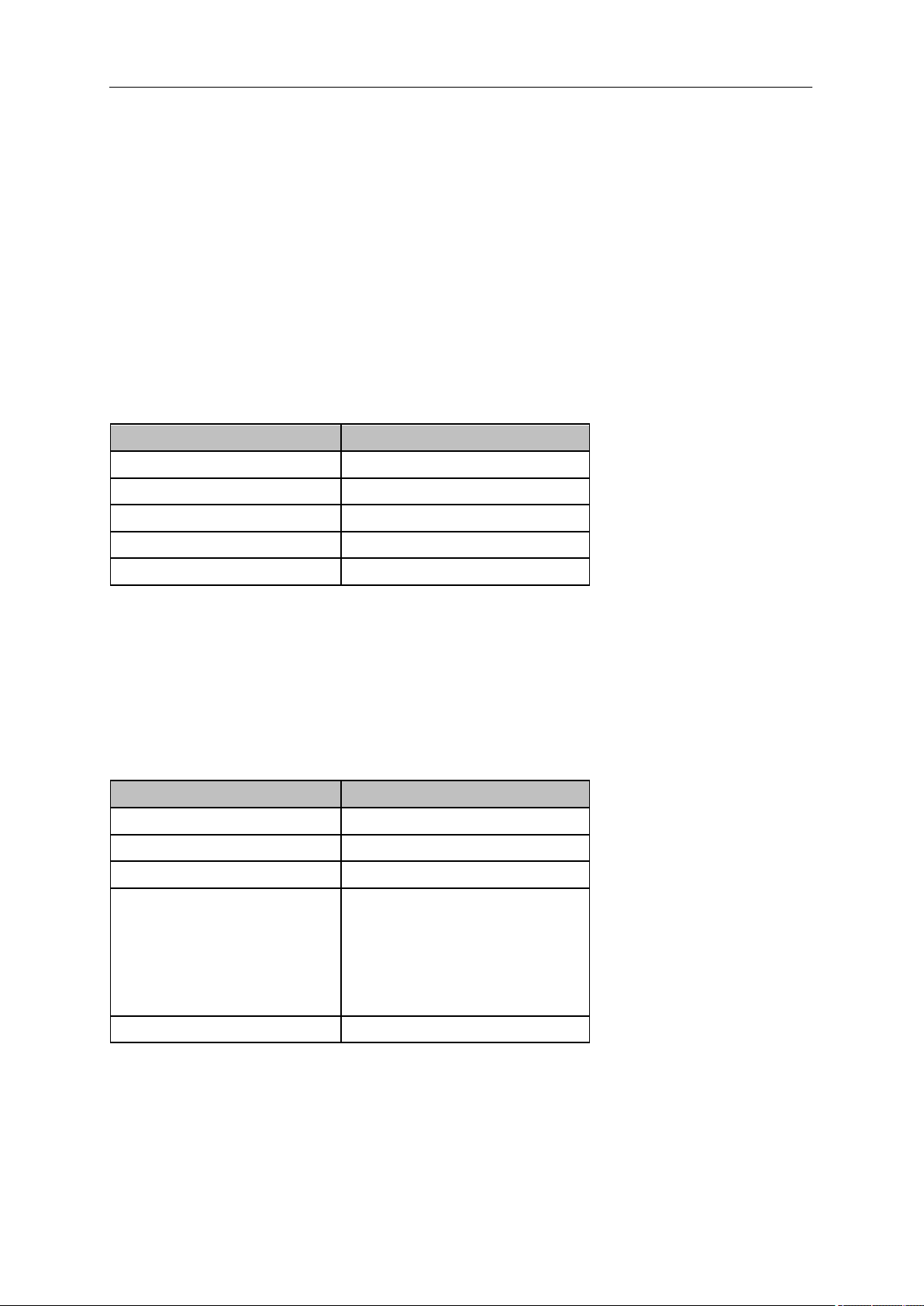
SIGLENT
40 User Manual
modulated signal.
More demodulation analysis, please refer to AM/FM modulation analyzer in MA option.
2.2.8.2 Earphone
Set the status of the earphone. When it is on, the demodulated signal can be heard through the earphone
during the demodulation. By default, it is off.
2.2.8.3 Volume
Set the volume of the earphone.
Table 2-27 Volume
Parameter
Explanation
Default
6
Range
0 ~ 10
Unit
N/A
Knob Step
1
Direction Key Step
1
2.2.8.4 Demod Time
Set the time for the analyzer to complete a signal demodulation after each sweep.
If the Earphone is set to “On”, you will hear the demodulated signal through the earphone during the
demodulation. A longer demod dwell time is recommended for demodulating audio signals.
Table 2-28 Demod time
Parameter
Explanation
Default
5 s
Range
5 ms ~ 1000 s
Unit
ks, s, ms, us
Knob Step
0 ms ~ 100 ms, step = 1 ms
100 ms ~ 1 s, step = 10 ms
1 s ~ 10 s, step = 100 ms
10 s ~ 100 s, step = 1 s
100 s ~ 1000 s, step = 10 s
Direction Key Step
In 1-2-5 step sequence
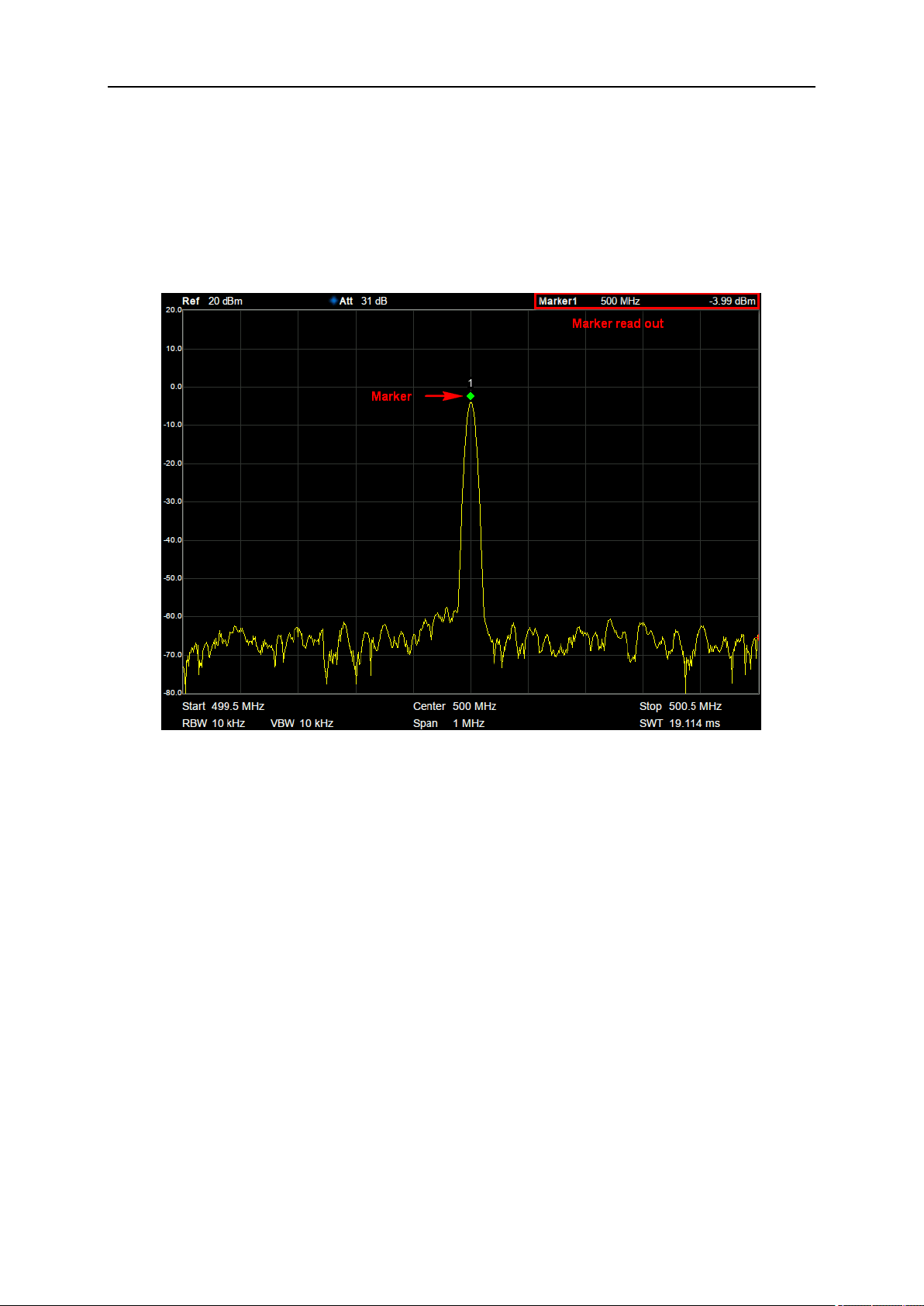
SIGLENT
2.3 Marker
2.3.1 Marker
The marker appears as a rhombic sign (as shown below) for identifying points on a trace. You can easily
read the amplitude, frequency and sweep time of the marked point on the trace.
Figure 2-9 Marker
● The analyzer allows for up to eight/four pairs of markers to be displayed at one time, but only one
pair or a single marker is active every time.
● You can use the numeric keys, knob or direction keys to modify the desired frequency or time as
well as view the readouts of different points on the trace.
2.3.1.1 Select Marker
Select one of the eight markers. The default is Marker1. When a marker is selected, you can set its type,
trace to be marked, readout type and other related parameters. The enabled marker will appear on the
trace selected through the Select Trace option and the readouts of this marker are also displayed in the
active function area and at the upper right corner of the screen.

SIGLENT
42 User Manual
Table 2-29 Marker parameters
Parameter
Explanation
Default
Center Frequency
Range
0 ~ Full Span
Unit
Readout = Frequency: GHz, MHz, kHz, Hz
Readout = Time or Period: s, ms, us, ns, ps
Knob Step
Readout = Frequency, Step = Span/(Sweep Points - 1)
Readout = Time or Period, Step = Sweep Time/(Sweep Points - 1)
Direction Key Step
Readout = Frequency, Step = Span/10
Readout = Time or Period, Step = Sweep Time/10
2.3.1.2 Select Trace
Select the trace to be marked by the current marker. Valid selections include A, B, C, or D.
2.3.1.3 Normal
One of the marker types. It is used to measure the X (Frequency or Time) and Y (Amplitude) values of
a certain point on the trace. When selected, a marker with the number of the current marker (such as
“1”) appears on the trace.
● If no active marker exists currently, a marker will be enabled automatically at the center frequency
of the current trace.
● You can use the numeric keys, knob or direction keys to move the marker. The readouts of the
marker will be displayed at the upper right corner of the screen.
● The readout resolution of the X-axis (frequency or time) is related to the span. For higher readout
resolution, reduce the span.
2.3.1.4 Delta
One of the marker types. It is used to measure the delta values of X (Frequency or Time) and Y
(Amplitude) between the reference point and a certain point on the trace. When selected, a pair of
markers appears on the trace: Fixed Related Marker (marked by a combination of the marker number
and letter “+”, such as “2+”) and the Delta Marker (marked by the “∆”, such as “1∆2”).
● After the marker selects “Delta”, the original marker will become the delta measurement marker,
and the related marker of the incrementing sequence number will become the reference “fixed”
marker
● The delta marker is in the "relative to" state, and its X-axis position can be changed; the related
marker is in the "fixed" state by default (the X-axis and Y-axis positions are fixed), but the X-axis
can be adjusted by changing to the "normal" state.
● The first row in the upper right corner of the trace area shows the frequency (or time) difference
and amplitude difference between the two markers; the second row in the upper right corner of the
trace area shows the X axis and amplitude value of the related marker.
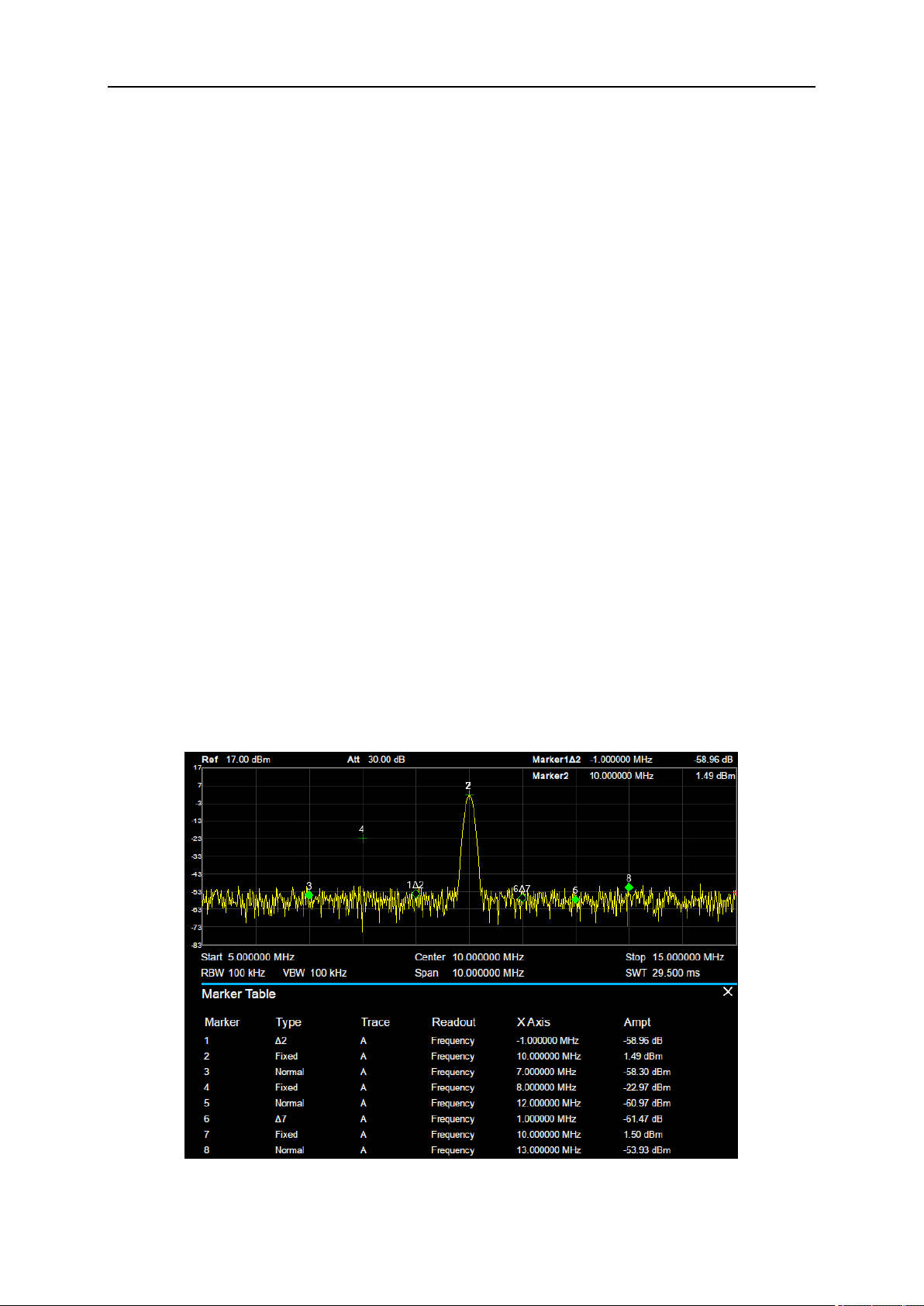
SIGLENT
2.3.1.5 Fixed
One of the marker types. When “Fixed” is selected, the X-axis and Y-axis of the marker will not change
by the trace and can only be changed through the menu. The fixed marker is marked with "+".
After the marker selects “Delta”, the original marker will become the delta measurement marker, and the
related marker of the incrementing sequence number will become the reference “fixed” marker
2.3.1.6 Off
Turn off the marker currently selected. The marker information displayed on the screen and functions
based on the marker will also be turned off.
2.3.1.7 Relative To
“Relative to” is used to measure the delta values of X (Frequency or Time) and Y (Amplitude) between
two markers which can mark on different traces.
After the marker selects “Delta”, the original marker will become the delta measurement marker, and the
related marker of the incrementing sequence number will become the reference “fixed” marker
2.3.1.8 Marker Table
Enable or disable the Marker Table.
Display all the markers enabled on the lower portion of the screen, including marker number, trace
number, marker readout type, X-axis readout and amplitude. Through this table you can view the
measurement values of multiple points. The table allows for up to eight markers to be displayed at one
time.
Figure 2-10 Marker table

SIGLENT
44 User Manual
2.3.2 Marker ->
1. M->CF
Set the center frequency of the analyzer to the frequency of the current marker.
● If the Normal marker is selected, the center frequency will be set to the frequency of the current
marker.
● If the Delta or Delta Pair marker is selected, the center frequency will be set to the frequency of
the Delta Marker.
● The function is invalid in Zero span.
2. M -> CF Step
Set the center frequency step of the analyzer to the frequency of the current marker.
● If the Normal marker is selected, the center frequency step will be set to the frequency of the
current marker.
● If the Delta or Delta Pair marker is selected, the center frequency step will be set to the frequency
of the Delta Marker.
● The function is invalid in Zero span.
3. M -> Start Freq
Set the start frequency of the analyzer to the frequency of the current marker.
● If the Normal marker is selected, the start frequency will be set to the frequency of the current
marker.
● If the Delta or Delta Pair marker is selected, the start frequency will be set to the frequency of the
Delta Marker.
● The function is invalid in Zero span.
4. M -> Stop Freq
Set the stop frequency of the analyzer to the frequency of the current marker.
● If the Normal marker is selected, the stop frequency will be set to the frequency of the current
marker.
● If the Delta or Delta Pair marker is selected, the stop frequency will be set to the frequency of the
Delta Marker.
● The function is invalid in Zero span.
5. M ->Ref Level
Set the reference level of the analyzer to the amplitude of the current marker.
● If the Normal marker is selected, the reference level will be set to the amplitude of the current
marker.
● If the Delta or Delta Pair marker is selected, the reference level will be set to the amplitude of the
Delta Marker.
6. ΔM->Span
Set the span of the analyzer to the frequency difference between the two markers in Delta marker type.
● If the Normal marker is selected, this function is invalid.

SIGLENT
● The function is invalid in Zero span.
7. ΔM->CF
Set the center frequency of the analyzer to the frequency difference between the two markers in Delta
marker type.
● If the Normal marker is selected, this function is invalid.
● The function is invalid in Zero span.
2.3.3 Marker Fn
Special marker functions including Noise Marker, N dB BW and Freq Counter.
2.3.3.1 Select Marker
Select one of the eight markers (1, 2, 3, 4, 5, 6, 7 and 8) and the default is Marker1.
2.3.3.2 Noise Marker
Execute the Noise marker function for the selected marker and read the normalized noise power spectral
density.
● If the current marker is “Off” in the Marker menu, pressing Noise Marker will first set it to Normal
type automatically; then measure the average noise level at the marked point and normalize this
value to 1 Hz bandwidth. During this process, certain compensation is always made based on the
detection and trace types. The measurement will be more precise if RMS Avg or Sample detection
type is used.
● This function can be used for measuring the C/N ratio.
2.3.3.3 N dB BW
Enable the N dB BW measurement or set the value of N dB. The N dB BW denotes the frequency
difference between two points that are located on both sides of the current marker and with N dB fall
(N<0) or rise (N>0) in amplitude as shown in the figure on the next page.
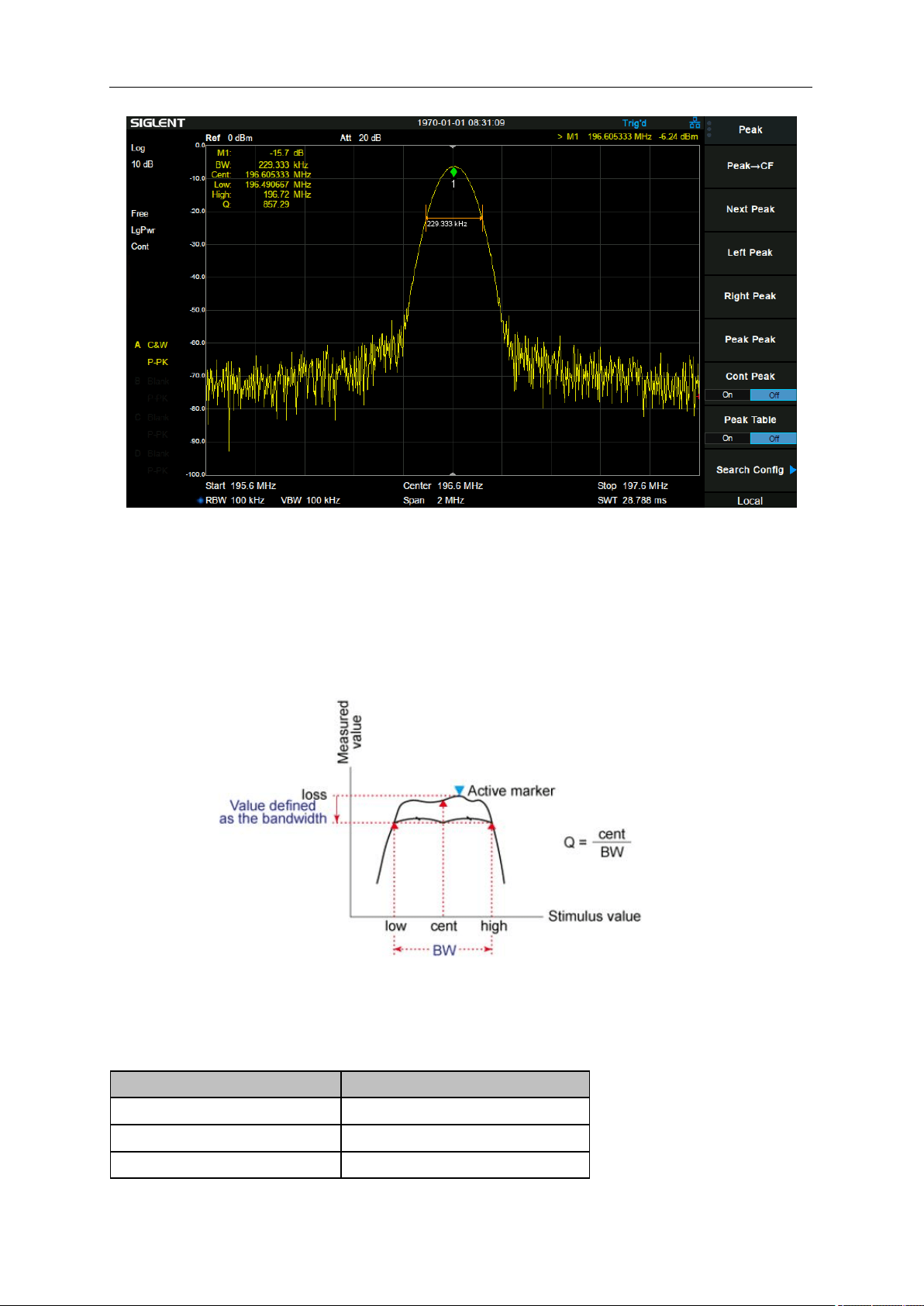
SIGLENT
46 User Manual
Figure 2-11 N dB BW
When the measurement starts, the analyzer will search for the two points which are located at both sides
of the current point with N dB fall or rise in amplitude and display the frequency difference between the
two points in the active function area. "----" would be displayed if the search fails.
The parameters in the figure are shown as:
Figure 2-12 N dB parameter
Table 2-30 N dB Noise
Parameter
Explanation
Default
-3 dB
Range
-100 dB ~ 100 dB
Unit
dB

SIGLENT
Knob Step
0.1 dB
Direction Key Step
1 dB
2.3.3.4 Freq Counter
Turn on or off the frequency counter. The frequency readout is accuracy is up to 0.01 Hz.
● The function is valid only when selecting marker 1.
● If marker 1 is selected but not active, turning on the frequency counter will open marker 1 Normal
marker automatically.
● The frequency counter measures the frequency near the center frequency in Zero span.
2.3.3.5 Off
Turn off the noise marker, N dB BW measurement or Frequency Counter, but not the marker itself.
2.3.3.6 Read Out
Select a desired readout type for the X-axis for the marker. Different markers can use different readout
types. This setting will change the readout type and affect the marker readings in the active function
area and at the upper right corner of the screen, but will not change the actual value.
1. Frequency
In this type, Normal marker shows the absolute frequency. Delta markers and Delta Pair markers show
the frequency difference between the delta marker and reference marker. The default readout mode in
non-zero span is “Frequency”.
Note: This type is invalid in Zero span.
2. Period
In this type, the Normal marker shows the reciprocal of frequency; while Delta marker and Delta Pair
marker show the reciprocal of frequency difference. When the frequency difference is zero, the
reciprocal is infinite and 100 Ts is displayed.
Note: This type is invalid in Zero span.
3. Δ Time
In this type, the Normal marker shows the time difference between the marker and the start of the sweep;
while Delta marker and Delta Pair marker show the sweep time difference between the delta marker
and reference marker.
The default readout mode in Zero span is Δ Time.
2.3.4 Peak
Open the peak search setting menu and execute peak search.

SIGLENT
48 User Manual
2.3.4.1 Peak -> CF
Execute peak search and set the center frequency of the analyzer to the frequency of the peak.
2.3.4.2 Next Peak
Search for and mark the peak whose amplitude is closest to that of the current peak and which meets
the peak search condition.
2.3.4.3 Next Left Peak
Search for and mark the nearest peak which is located at the left side of the current peak and meets the
peak search condition.
2.3.4.4 Next Right Peak
Search for and mark the nearest peak which is located at the right side of the current peak and meets
the peak search condition.
2.3.4.5 Peak Peak
Execute peak search and minimum search at the same time and mark the results with delta pair markers.
Wherein, the result of peak search is marked with the delta marker and the result of minimum search is
marked with the reference marker.
2.3.4.6 Count Peak
Enable or disable continuous peak search. The default is Off. When enabled, the system will always
execute a peak search automatically after each sweep in order to track the signal under measurement.
2.3.4.7 Peak Table
Open the peak table (in the lower window) which lists the peaks (with frequency and amplitude) that
meet the peak search condition. Up to 16 peaks can be displayed in the table.
2.3.4.8 Search Config
Define the conditions of peak search for various peak searches. A real peak should meet the
requirements of both the “Peak Excursion” and “Peak Threshold”.
1. Peak Threshold
Assign a minimum for the peak amplitude. Peaks whose amplitudes are greater than the specified peak
threshold are treated as real peaks.
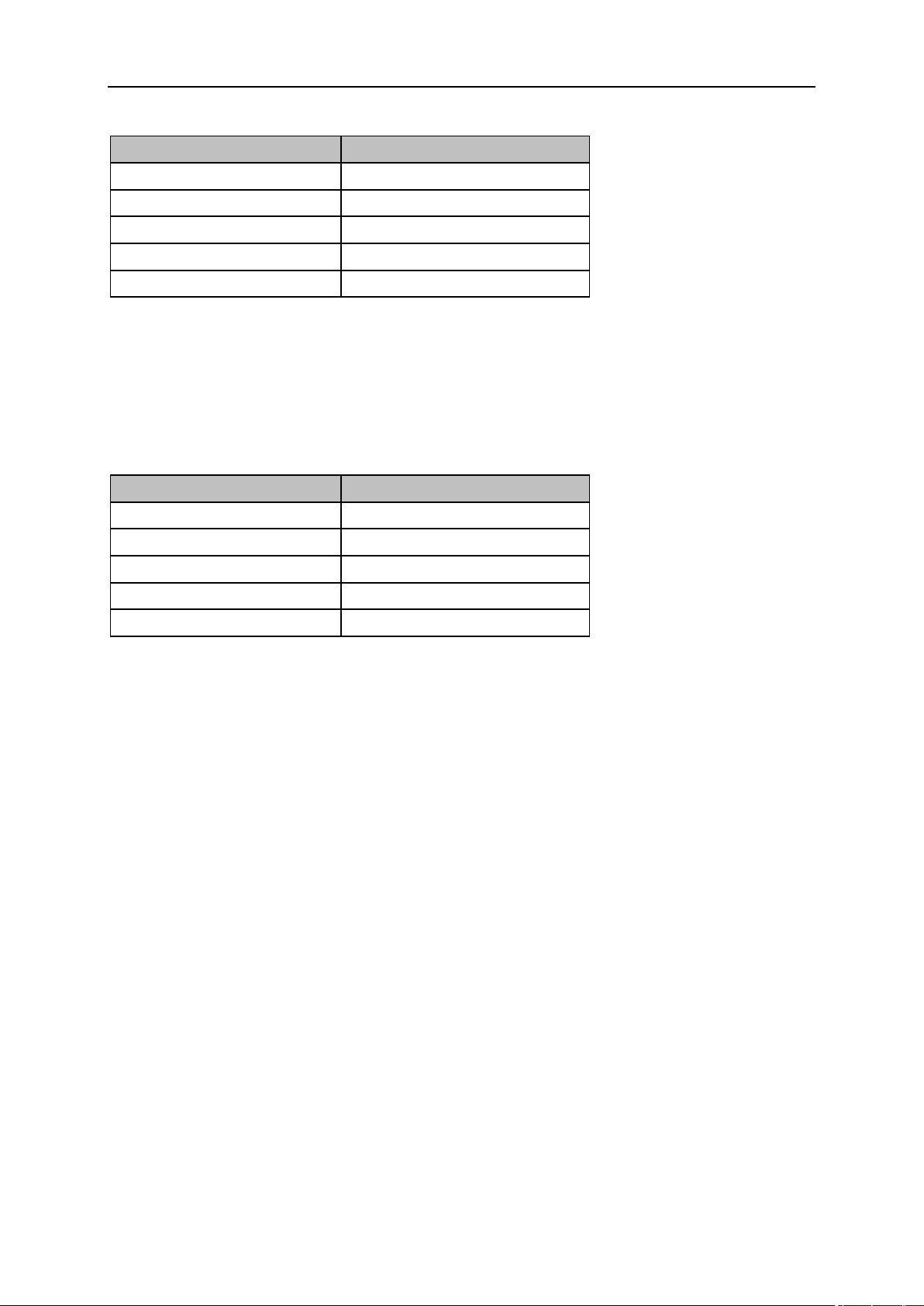
SIGLENT
Table 2-31 Peak Threshold
Parameter
Explanation
Default
-140 dBm
Range
-200 dBm ~ 200 dBm
Unit
dBm
Knob Step
1 dB
Direction Key Step
5 dB
2. Peak Excursion
Set the excursion between the peak and the minimum amplitude on both sides of it. Peaks whose
excursions are beyond the specified excursion are treated as real peaks.
Table 2-32 Peak Excursion
Parameter
Explanation
Default
15 dB
Range
0 dB ~ 200 dB
Unit
dB
Knob Step
1 dB
Direction Key Step
5 dB
3. Peak Type
Set the peak search condition. The available options are Maximum and Minimum.

SIGLENT
50 User Manual
2.4 Measurement
2.4.1 Meas
Provide optional measurement functions. When activated, the screen will be divided into two parts. The
above part is the measure screen which displays traces, and the other part is used to display
measurement results.
2.4.1.1 Reflection
Measure the DUT scalar s parameter. In this time, the spectrum analyzer automatically turns on TG.
After selecting the measurement type as "reflection measurement", press Meas Setup to set the
relevant parameters.
2.4.1.2 Channel Power
Measure the power and power density within the specified channel bandwidth. When this function is
enabled, the span and resolution bandwidth are automatically adjusted to smaller values. Select
Channel Power and press Meas Setup to set the corresponding parameters.
2.4.1.3 ACPR
Measure the power of the main channel and adjacent channels as well as the power difference between
the main channel and each of the adjacent channels. When this function is enabled, the span and
resolution bandwidth of the analyzer are adjusted to smaller values automatically.
Select ACPR and press Meas Setup to set the corresponding parameters.
2.4.1.4 Occupied BW
Integrates the power within the whole span and calculates the bandwidth occupied by this power
according to the specified power ratio. The OBW function also indicates the difference (namely “Transmit
Freq Error”) between the center frequency of the channel under measurement and the center frequency
of the analyzer. Select Occupied BW and press Meas Setup to set the corresponding parameters.
2.4.1.5 T-Power
The system enters Zero span and calculates the power within the time domain. The types of powers
available include Peak, Average and RMS. Select T-Power and press Meas Setup to set the
corresponding parameters.
2.4.1.6 TOI
Automatic measurement of IP3 (Third order Intercept Point), including the power of fundamental wave
and the Third order in the power, and calculate the adjustable Intercept Point.
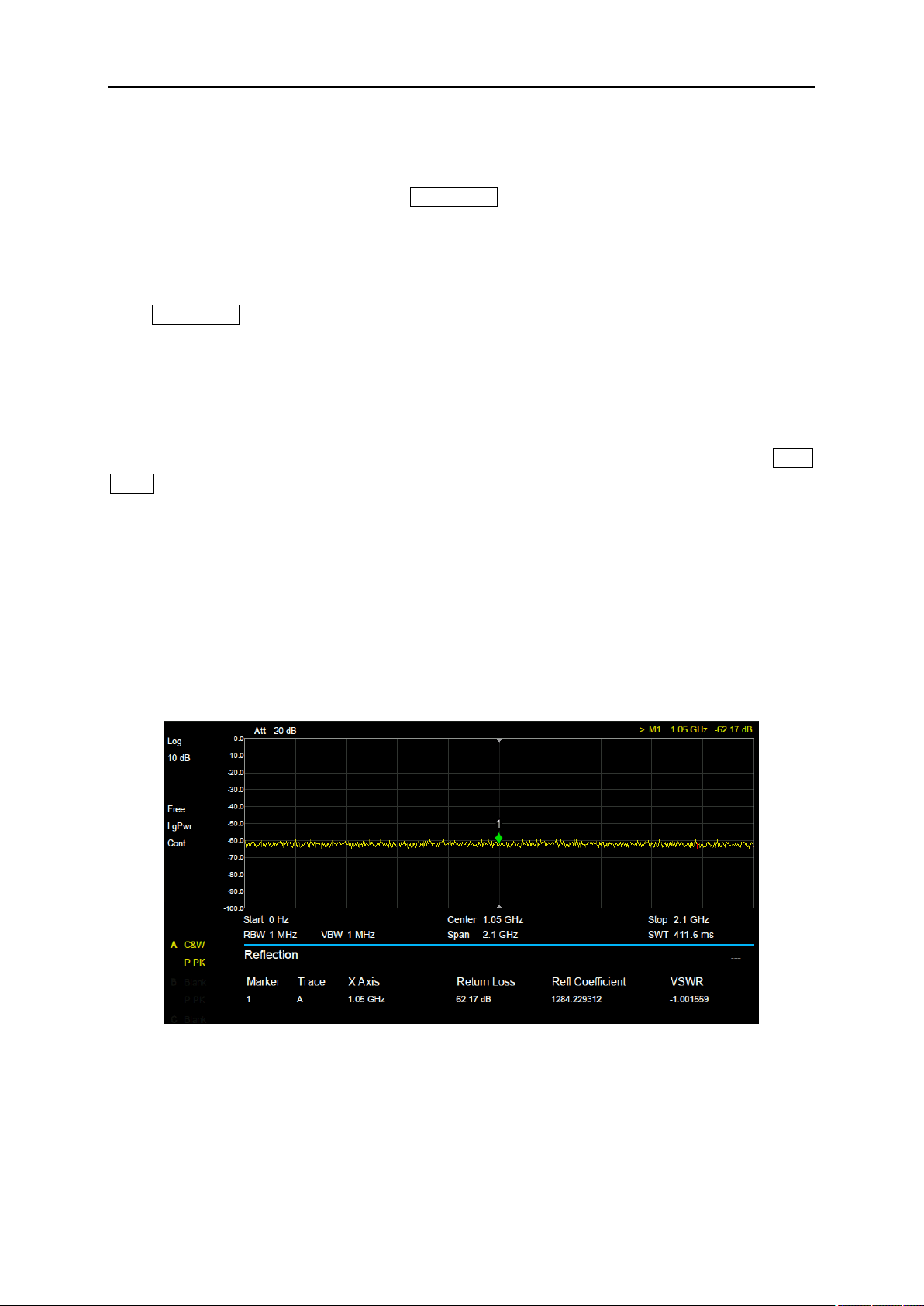
SIGLENT
2.4.1.7 Spectrum Monitor
Display the power of the swept spectrum as an intensity color map commonly referred to as a waterfall
chart. Select Spectrum Monitor and press Meas Setup to set the corresponding parameters.
2.4.1.8 CNR
Measure the power of the carrier and noise of the specified bandwidth and their ratio. Select CNR and
press Meas Setup to set the corresponding parameters.
2.4.1.9 Harmonics
The harmonic power and total harmonic distortion of carrier signal are measured. The maximum
measurable harmonic is 10th harmonic. The fundamental wave amplitude of carrier signal must be
greater than - 50 dBm, otherwise the measurement result is invalid. Select Harmonics and press Meas
Setup to set the corresponding parameters.
2.4.1.10 Meas Off
Turn off all the Meas functions.
2.4.2 Meas setup
2.4.2.1 Reflection
Figure 2-13 Reflection measurement
Return Loss、Refi Coefficient、VSWR:
● Return Loss:Ratio of incident power to reflected power
● Refi Coefficient:Ratio of reflected to incident voltage.
● VSWR:Ratio of standing wave belly voltage to valley voltage amplitude.
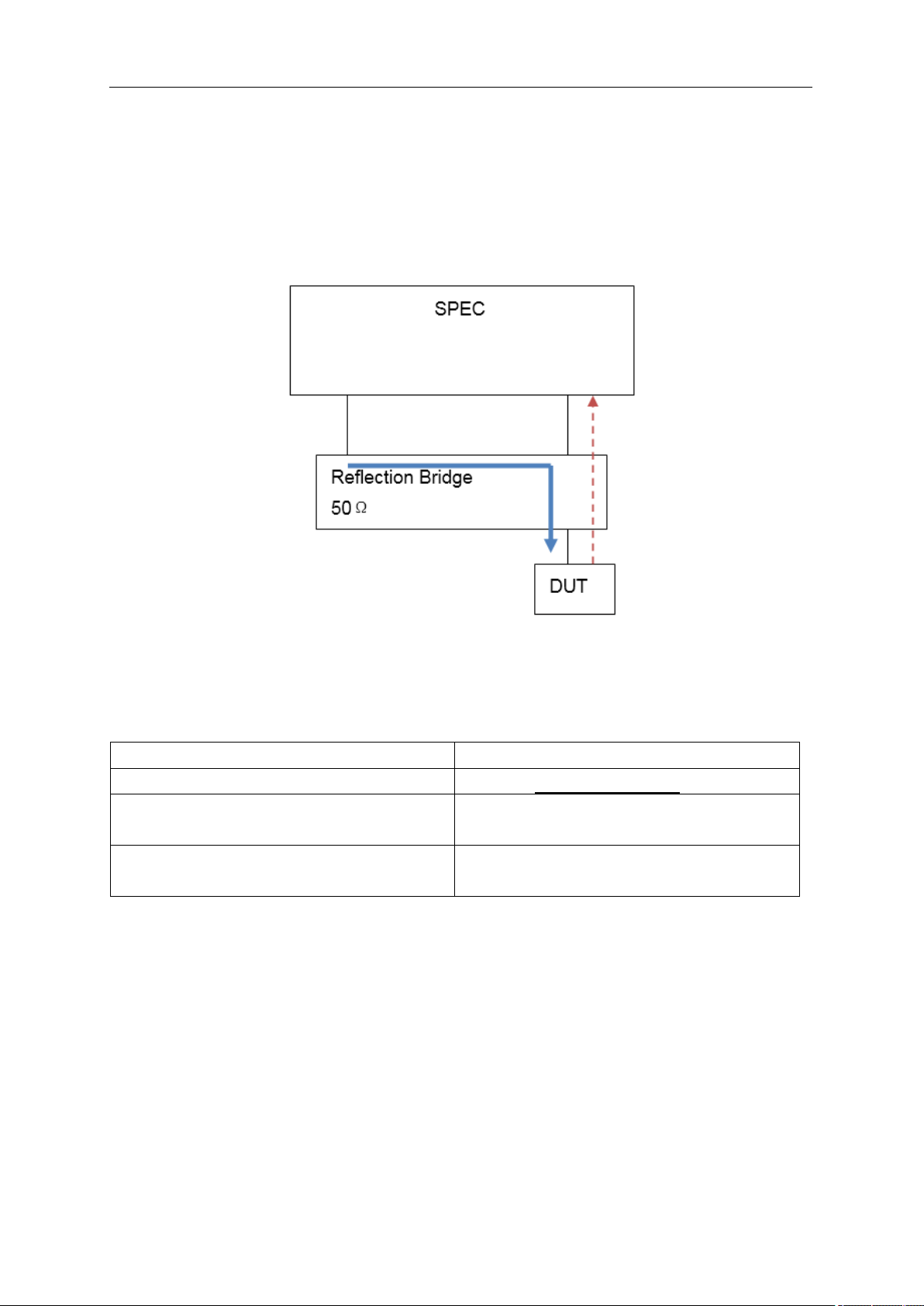
SIGLENT
52 User Manual
1. Reset
Clear calibration data
2. Calibration
In the ssa3000x plus series spectrometer, an external bridge is used for reflection measurement.
The connection between the bridge and the spectrometer is shown in the figure below.
Figure 2-14 external bridge
Dotted arrows indicate the direction of reflected signal
Solid line arrow indicates the direction of incident signal
Table 2-33 Calibration Type
Calibration:
instruction
Cal Open Load
Connect open calibration to DUT port
(Open+Short)/2
Connect open and short calibration to DUT port
respectively
Open+Load
Connect open and load calibration to DUT port
respectively
3. Ref Pos
Set the position of the reference level in Y axis.
4. Average
Turn average measurement on or off
5. Pause/Resume
Pause or resume the current measurement
6. Restart
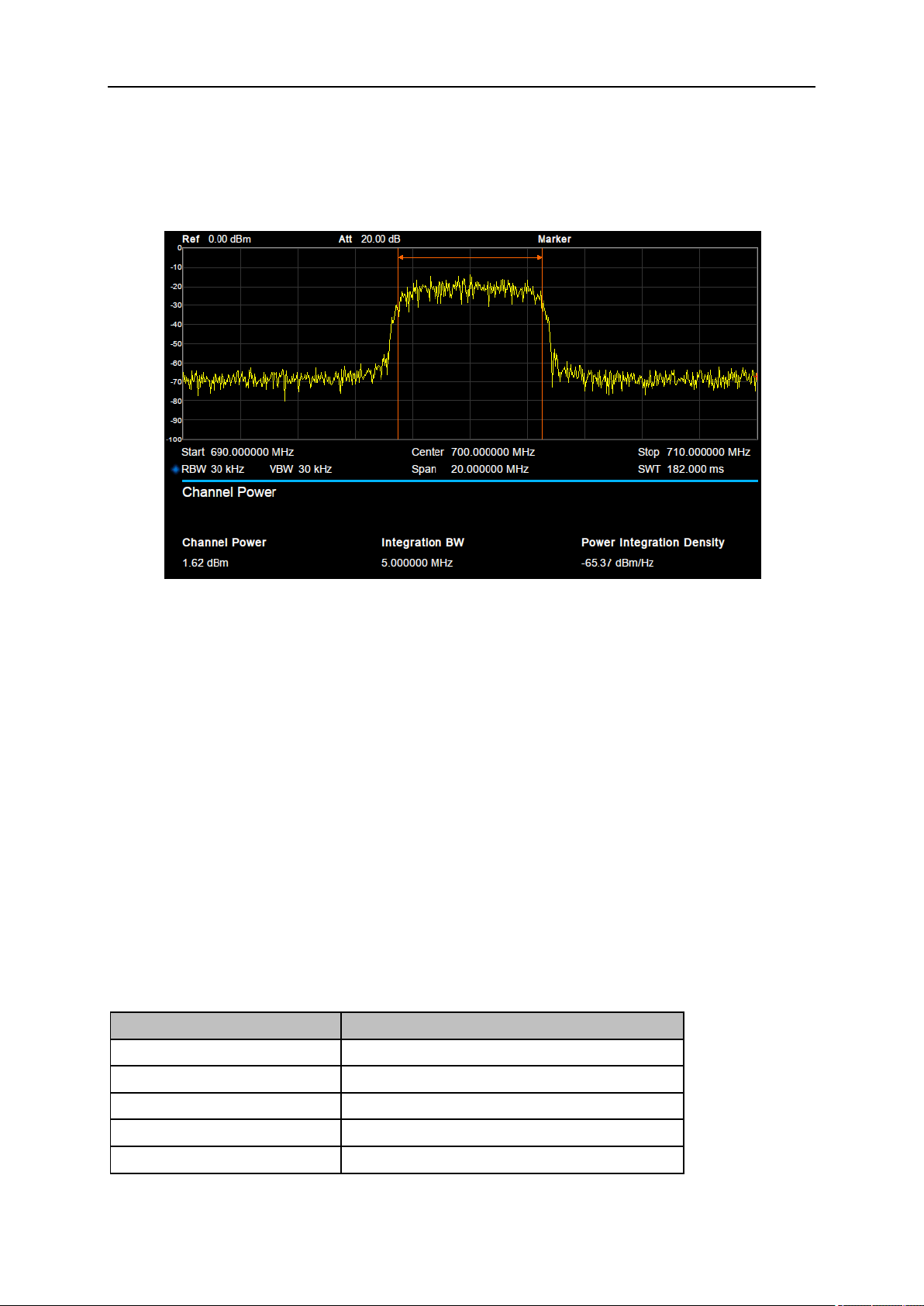
SIGLENT
Restart the measurement
2.4.2.2 Channel Power
Figure 2-15 Channel Power
Measurement Results: Channel power and power spectral density.
● Channel Power: Power within the integration bandwidth.
● Power Spectral Density: Power (in dBm/Hz) normalized to 1Hz within the integration bandwidth.
Measurement Parameters: Center Freq, Integration BW, Span, Span power.
1. Center Freq
Set the center frequency, this center frequency which is the same with the center frequency of the
analyzer. Modifying this parameter will change the center frequency of the analyzer.
2. Integration BW
Set the frequency width of the channel to be tested and the power of the channel is the power integral
within this bandwidth. You can use the numeric keys, knob or direction keys to modify this parameter.
Table 2-34 Integration BW
Parameter
Explanation
Default
2 MHz
Range
100 Hz ~ Span
Unit
GHz, MHz, kHz, Hz
Knob Step
Integration BW/100, the minimum is 1 Hz
Direction Key Step
In 1-1.5-2-3-5-7.5 sequence
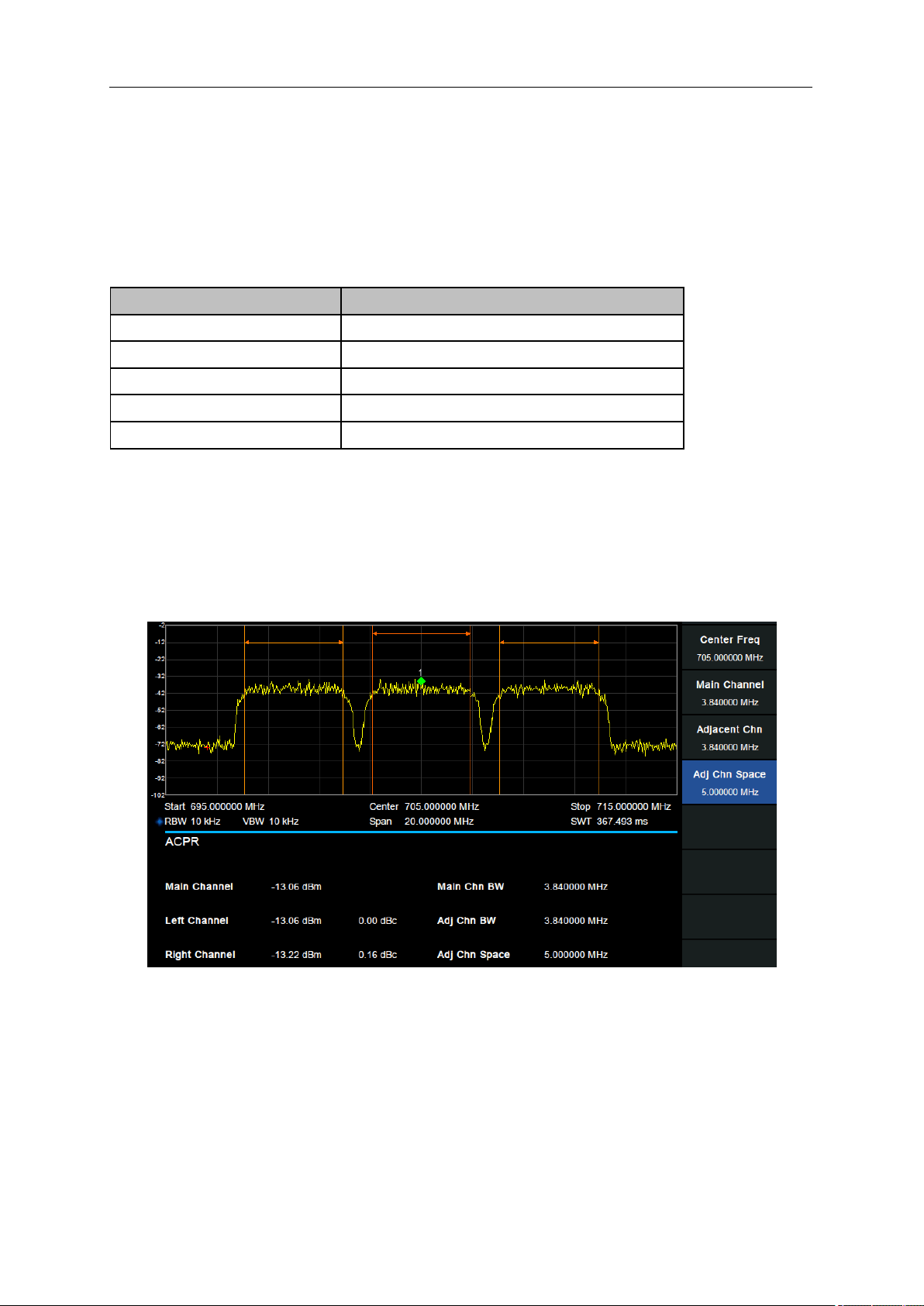
SIGLENT
54 User Manual
3. Span
Set the frequency range of the channel. This span which is the same with the span of the analyzer is
the frequency range of the sweep. Modifying this parameter will change the span of the analyzer.
The channel power span is related to the integration bandwidth.
Table 2-35 Channel Power Span for Chan Power Measurement
Parameter
Explanation
Default
current span
Range
100 Hz ~ Span
Unit
GHz, MHz, kHz, Hz
Knob Step
Channel Power Span/100, the minimum is 1Hz
Direction Key Step
In 1-1.5-2-3-5-7.5 sequence
4. Span Power
Set the integrated bandwidth to the sweep span of display. The channel power and power spectral
density display on the screen simultaneously.
2.4.2.3 ACPR
Figure 2-16 ACPR
Measurement Results: Main CH Power, Left channel power and Right channel power.
● Main CH Power: Displays the power within the bandwidth of the main power
● Left channel power : Displays the power of left channel and the power difference between the left
channel and the main channel (in dBc)
● Right channel power: Display the power of the right channel and the power difference between the
right channel and the main channel(in dBc)
SIGLENT
Measurement parameter: Center frequency, main channel bandwidth, adjacent channel bandwidth and
channel spacing
1. Center Freq
Set the center frequency. The center frequency is the same with the center frequency of the analyzer
display. Modifying this parameter will change the center frequency of the analyzer.
2. Main Channel
Set the bandwidth of the main channel and the power of the main channel is the power integral within
this bandwidth.
Table 2-36 Main Channel
Parameter
Explanation
Default
1 MHz
Range
100 Hz ~ full span
Unit
GHz, MHz, kHz, Hz
Knob Step
Main Channel /10, the minimum is 1 Hz
Direction Key Step
In 1-1.5-2-3-5-7.5 Sequence
3. Adjacent Chn
Set the frequency width of the adjacent channels.
The adjacent channel bandwidth is related to the main channel bandwidth.
Table 2-37 Adjacent channel bandwidth
Parameter
Explanation
Default
1 MHz
Range
100 Hz ~ (full span - 2*100 Hz)
Unit
GHz, MHz, kHz, Hz
Knob Step
Adjacent Chn/10, the minimum is 1 Hz
Direction Key Step
In 1-1.5-2-3-5-7.5 Sequence
4. Adj Chn space
Set the difference between the center frequency of the main channel and the center frequency of the
adjacent channels.
Adjusting this parameter will also adjust the distance between the upper/lower channel and the main
channel.
Table 2-38 adjacent channel space
Parameter
Explanation
Default
3 MHz
Range
100 Hz ~ (full span – 100 Hz) /2
Unit
GHz, MHz, kHz, Hz
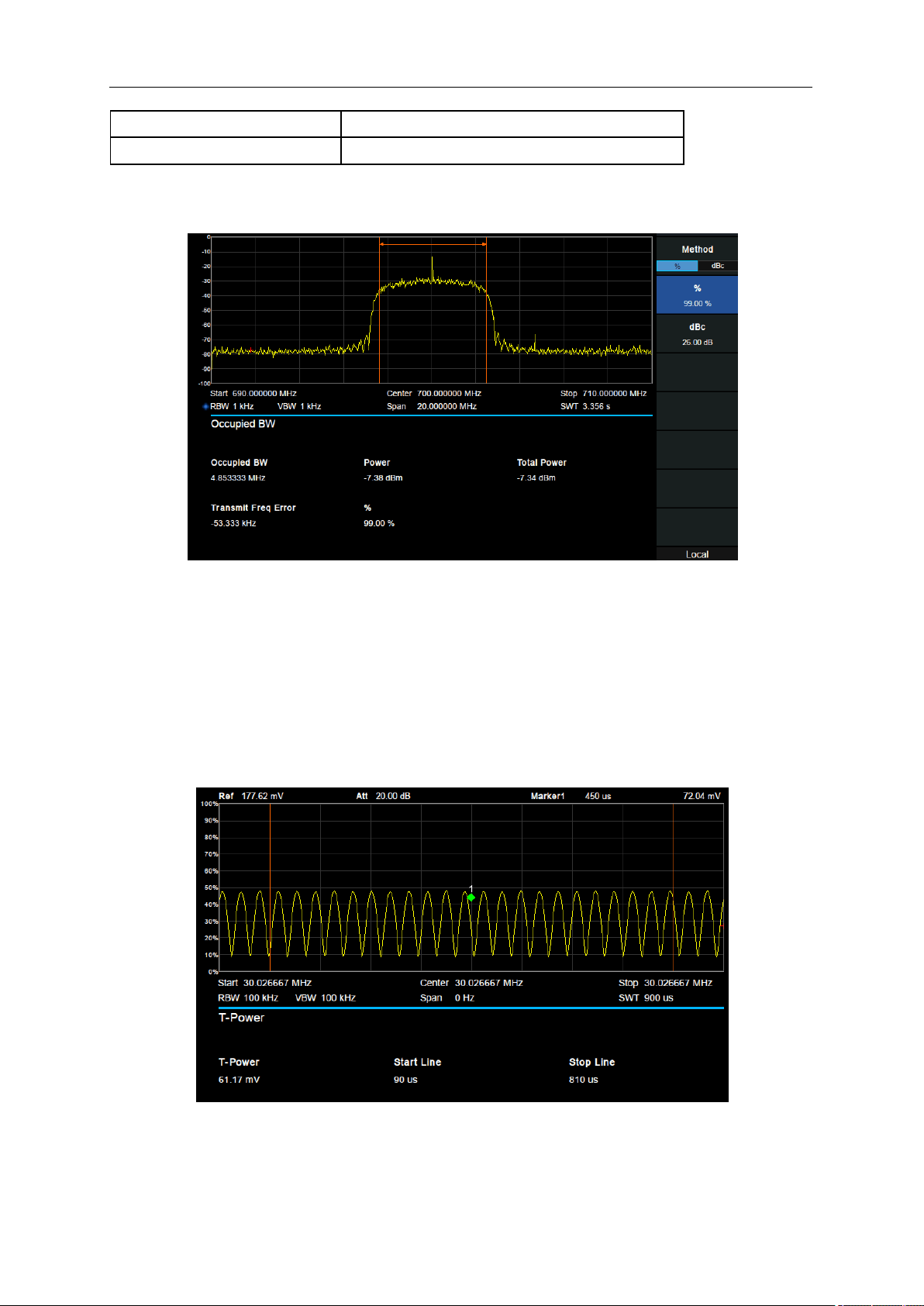
SIGLENT
56 User Manual
Knob Step
Adj Chn space /10, the minimum is 1 Hz
Direction Key Step
In 1-1.5-2-3-5-7.5 Sequence
2.4.2.4 OBW
Figure 2-17 OBW
Measurement Results: occupied bandwidth and transmit frequency error.
● Occupied Bandwidth: Integrates the power within the whole span and then calculates the
bandwidth occupied by the power according to the specified power ratio.
● Transmit Frequency Error: The difference between the center frequency of the channel and the
center frequency of the analyzer.
2.4.2.5 T-Power
Figure 2-18 T-Power
Measurement Results: T-Power
SIGLENT
● T-Power: The power of the signal from the start line to the stop line.
Measurement Parameter: Center frequency, start line, stop line.
1. Center Frequency
Set the center frequency, this center frequency which is the same with the center frequency of the
analyzer. Modifying this parameter will change the center frequency of the analyzer.
2. Start line
Set the left margin (in time unit) of T-Power measurement. The data calculated under this measurement
is between the start line and stop line.
Table 2-39 start line
Parameter
Explanation
Default
0 s
Range
0 s ~ stop line
Unit
ks, s, ms, us, ns
Knob Step
Sweep time/751
Direction Key Step
In 1-1.5-2-3-5-7.5 Sequence
3. Stop line
Set the right margin (in time unit) of T-Power measurement. The data calculated under this measurement
is between the start line and stop line.
Table 2-40 stop line
Parameter
Explanation
Default
900 us
Range
Start line ~ sweep time
Unit
ks, s, ms, us, ns
Knob Step
Sweep time /751
Direction Key Step
In 1-1.5-2-3-5-7.5 Sequence
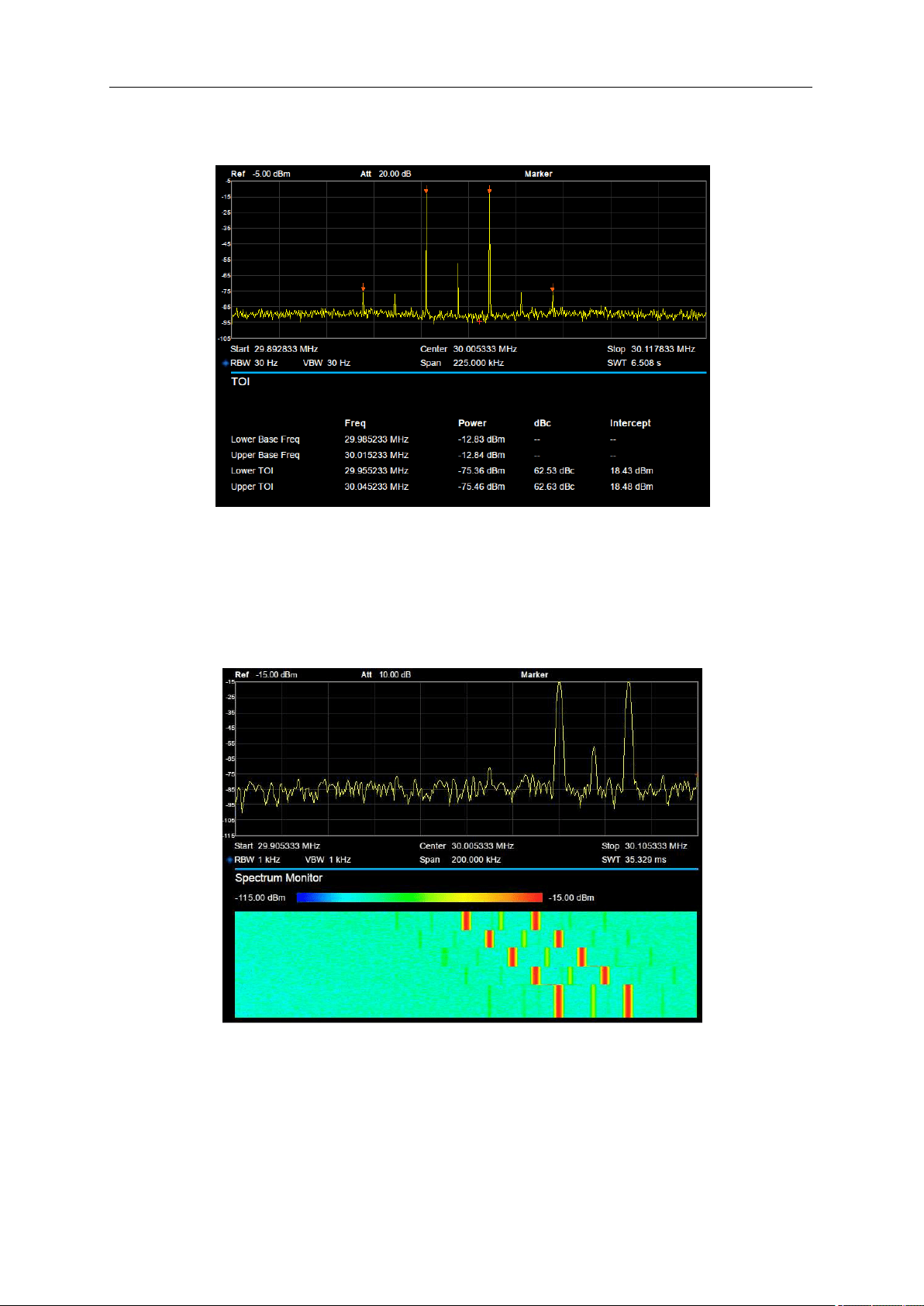
SIGLENT
58 User Manual
2.4.2.6 TOI
Figure 2-19 TOI
TOI is an automatic measurement. There are no user controlled parameters.
2.4.2.7 Spectrum Monitor
Figure 2-20 Spectrum Monitor
Display the power of spectrum of successive scans as a color map. Also call a waterfall chart.
Measurement Parameter: Spectrogram, Restart.
1. Spectrogram: Sets the meas state of spectrum monitor.
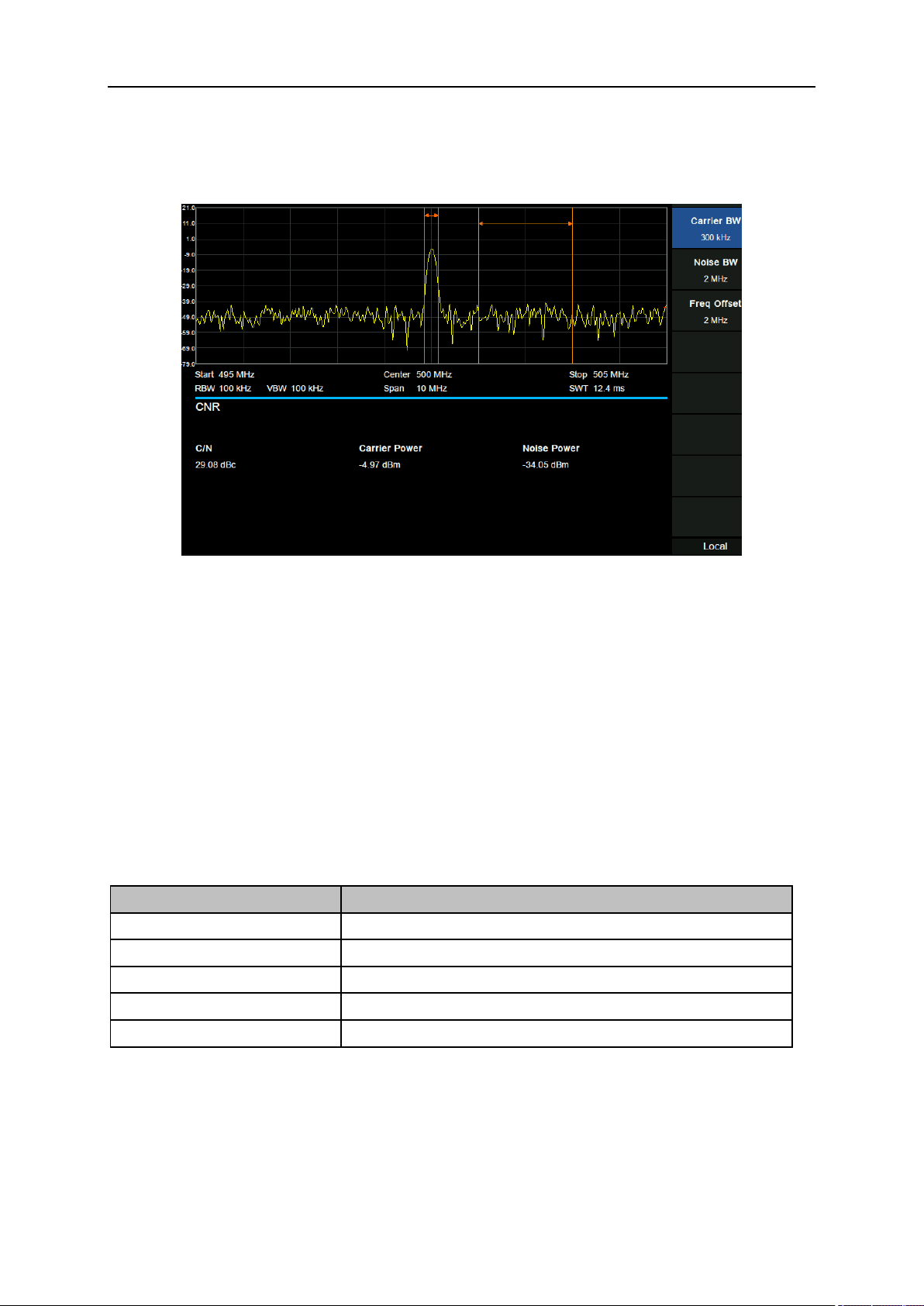
SIGLENT
2. Restart: clear the measurement and then restart it.
2.4.2.8 CNR
Figure 2-21 CNR
Measurement Results: C/N, Carrier Power, Noise Power.
● C/N: the ratio of Carrier Power to Noise Power.
● Carrier Power: the total power of the carrier bandwidth.
● Noise Power: the total power of the selected noise bandwidth.
Measurement Parameter: Carrier BW, Noise BW, Freq Offset.
1. Carrier BW
Set the bandwidth of the carrier to be measured.
Table 2-41 Carrier BW
Parameter
Explanation
Default
3 MHz
Range
100 Hz ~ (2*span - 2*|Freq Offset| - Noise BW)
Unit
GHz, MHz, kHz, Hz
Knob Step
Carrier BW /10, the minimum is 1 Hz
Direction Key Step
In 1-1.5-2-3-5-7.5 Sequence
2. Noise BW
Set the bandwidth of the noise to be measured.
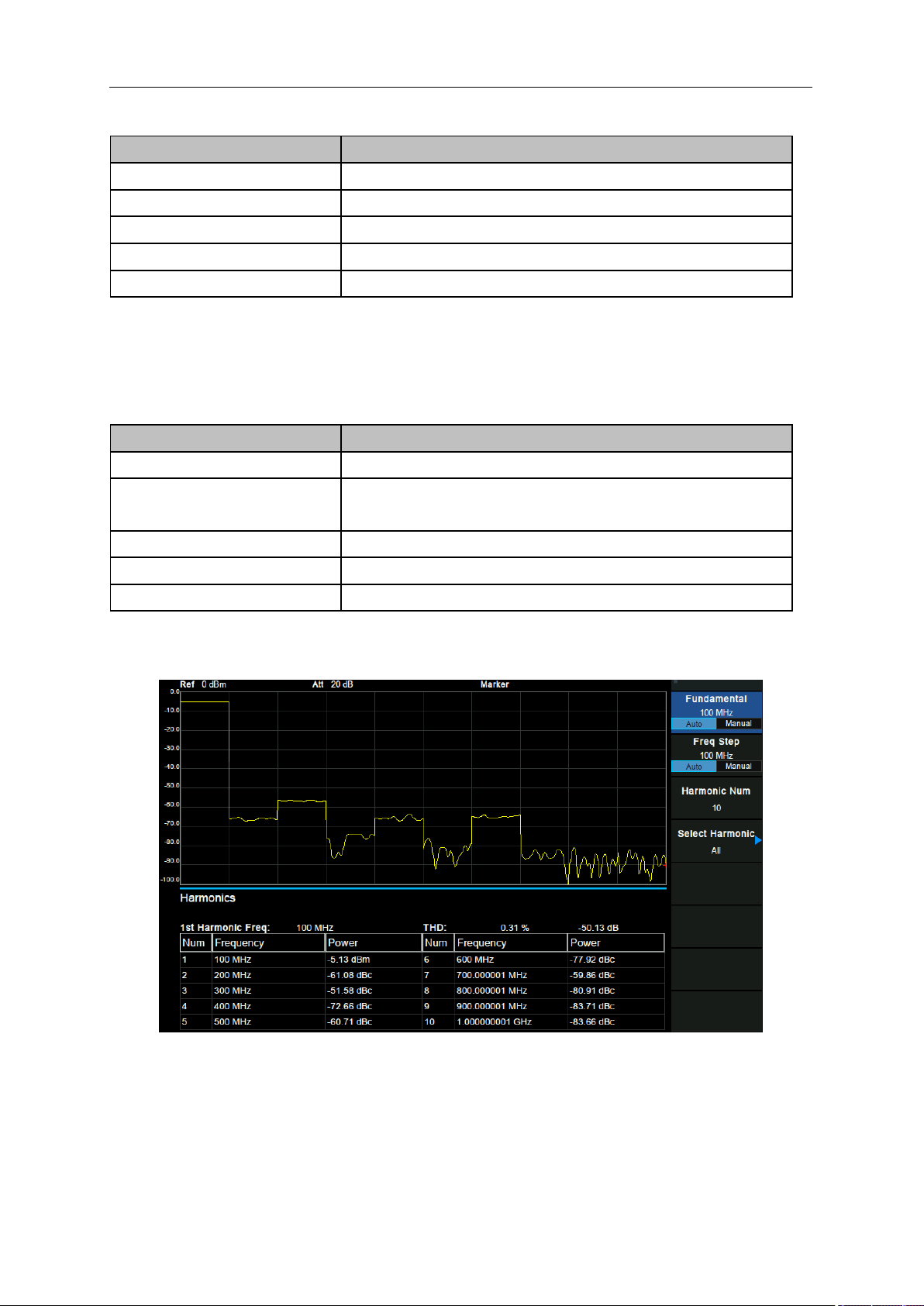
SIGLENT
60 User Manual
Table 2-42 Noise BW
Parameter
Explanation
Default
3 MHz
Range
100 Hz ~ (2*span - 2*|Freq Offset| - Carrier BW)
Unit
GHz, MHz, kHz, Hz
Knob Step
Noise BW /10, the minimum is 1 Hz
Direction Key Step
In 1-1.5-2-3-5-7.5 Sequence
3. Freq Offset
Set the difference between carrier center frequency and noise center frequency.
Table 2-43 Freq Offset
Parameter
Explanation
Default
3 MHz
Range
-(span - (Carrier BW + Noise BW) /2) ~
(span - (Carrier BW + Noise BW) /2)
Unit
GHz, MHz, kHz, Hz
Knob Step
Freq Offset /10, the minimum is 1 Hz
Direction Key Step
In 1-1.5-2-3-5-7.5 Sequence
2.4.2.9 Harmonics
Figure 2-22 Harmonics
Measurement Results: each harmonic amplitude and total harmonic distortion of carrier signal. It can
measure up to 10th harmonic.
Measurement Parameter:
SIGLENT
1. Fundamental
Set the frequency of the fundamental wave.
If the automatic mode is turned on, the fundamental wave will be automatically found from the first scan.
If the automatic mode is turned off, the user can input the fundamental frequency manually.
2. Freq Step
Set the harmonic step. In auto mode, the frequency of a harmonic is a multiple of the fundamental
frequency.
3. Harmonic Num
Set the total number of the harmonics to be measured.
Table 2-44 Harmonic Num
Parameter
Explanation
Default
10
Range
2 ~ 10
Unit
None
Knob Step
1
Direction Key Step
1
4. Select Harmonic
When "All" is selected, the trace shows the fundamental wave and all harmonics in the sweep bandwidth.
When 1-10 is selected, the trace shows a zero span trace corresponding to the fundamental wave or
the measured harmonic.
2.4.2.10 Pause/Resume
1. Pause/resume
Pause or resume the current measurement
2. Restart
Restart measurement
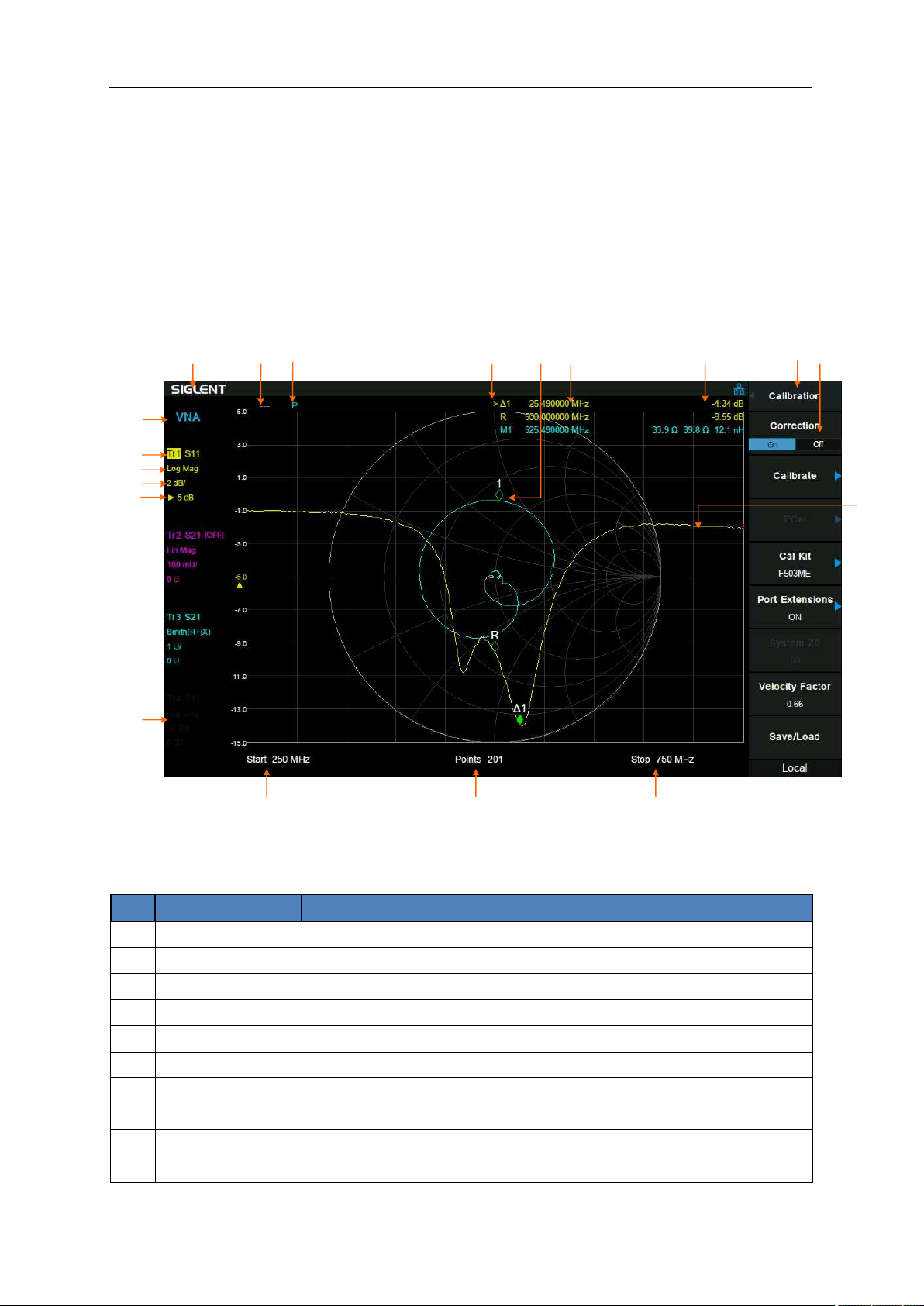
SIGLENT
62 User Manual
Chapter 3 Vector Network Analyzer
This chapter introduces in detail the function keys and menu functions of the front panel under the Vector
Network Analyzer Mode.
3.1 User Interface
1
2
3 4 5 976
10
17
18
19
16
14
13
12 11
8
15
Figure 3–1 Vector Network Analyzer User Interface
Table 3–1 Vector Network Analyzer User Interface
NO.
Name
Description
1
SIGLENT
SIGLENT logo
2
C/C!/C?/---
Calibration status
3
P
Port Extensions indication
4
Marker active
Active Marker indication
5
Marker
Current trace active marker
6
Marker x value
Unit: frequency, frequency delta or time
7
Marker y value
Unit depend on trace format
8
Menu title
Function of the current menu.
9
Menu items
Menu items of the current function
10
Stop frequency
Stop frequency value
SIGLENT
11
Points
Measurement points number
12
Start frequency
The first frequency of a sweep
13
Mode
Mode indication
14
Trace active
Highlight active trace indication
15
Trace format
Unit depend on trace format
16
Trace scale
Unit depend on trace format
17
Trace division
Unit depend on trace format
18
Gray indication
Trace deactive
19
Trace
Active trace
3.2 Basic Settings
3.2.1 Frequency
3.2.1.1 Center Freq
Set the center frequency of the current sweep.
Modifying the center frequency will modify both the start frequency and stop frequency when the span
is constant (except when the start frequency or stop frequency reaches the boundary).
Table 3-2 Center Frequency
Parameter
Explanation
Default
755 MHz
[1]
Range
10.00005 MHz ~ 1.49999995 GHz
[2]
Unit
GHz, MHz, kHz, Hz
Knob Step
Span/200, min 1 Hz
Direction Key Step
Span/10, min 1 Hz
Related to
Start Freq, Stop Freq
3.2.1.2 Start Freq
Set the start frequency of the current sweep. The start and stop frequencies are displayed at the bottom
of the grid respectively.
Table 3-3 Start Freq
Parameter
Explanation
Default
10 MHz
[3]
Range
10 MHz ~ 1.4999999 GHz
[4]
Unit
GHz, MHz, kHz, Hz
SIGLENT
64 User Manual
Knob Step
Span/200, min 1 Hz
Direction Key Step
Span/10, min 1 Hz
Related to
Center Freq, Stop Freq
3.2.1.3 Stop Freq
Set the start frequency of the current sweep. The start and stop frequencies are displayed at the bottom
of the grid respectively.
Table 3-4 Stop Freq
Parameter
Explanation
Default
1.5 GHz
[5]
Range
10.0001 MHz ~ 1.5 GHz
[6]
Unit
GHz, MHz, kHz, Hz
Knob Step
Span/200, min 1 Hz
Direction Key Step
Span/10, min 1 Hz
Related to
Start Freq, Center Freq
Note:
[1] - [6] Different models have different values. Please refer to Data Sheet.
3.2.2 Span
Switch to the Span Settings menu by pressing Span on the front panel. When entering the span menu,
the “Span” is selected by default. Any change of this parameter will affect the frequency parameters and
restart the sweep.
3.2.2.1 Span
Set the frequency range of the current sweep.
● The start and stop frequency vary with the span when the center frequency is constant.
● In vector network analysis mode, the minimum sweep span is 100 Hz, and zero span cannot be
set.
● When the span is set to the maximum, the analyzer enters full sweep mode.
Table 3-5 Span
Parameter
Explanation
Default
Full Span
Range
100 Hz ~ Full Span
Unit
GHz, MHz, kHz, Hz
Knob Step
Span/200, min 1 Hz
Direction Key Step
In 1-2-5 sequence
SIGLENT
Related to
Start Freq, Center Freq, Stop Freq
3.2.2.2 Full Span
Set the span of the analyzer to the maximum available frequency span.
3.2.2.3 Last Span
Set the span to the previous span setting.
3.2.3 Amplitude
Set the amplitude parameters of the analyzer. Through modifying these parameters, signals under
measurement can be displayed in a proper mode for easier observation and minimum error.
3.2.3.1 Auto Scale
Automatically adjust the grid scale and reference level of the currently selected trace to optimize the
trace display.
3.2.3.2 Auto Scale All
Automatically adjust the grid scale and reference level of all display traces to optimize the display of
traces.
● After setting “Auto Scale All”, the grid scale and reference level of different traces may be different.
● In the left status bar of the screen, the grid scale and reference level of each trace are displayed
below the trace mark.
3.2.3.3 Scale
Set the vertical scale of each grid to adjust the range of amplitude that can currently be displayed. This
value is also displayed in the left status bar of the screen.
Table 3-6 Scale/Div
Parameter
Explanation
Default
10 dB
Range
0.1 dB ~ 1000 dB
Unit
dB
Knob Step
0.1 dB ~ 1 dB, step = 0.01 dB
1 dB ~ 10 dB, step = 0.1 dB
10 dB ~ 100 dB, step = 1 dB
100 dB ~ 1000 dB, step = 10 dB
Direction Key Step
In 1-2-5 sequence
SIGLENT
66 User Manual
3.2.3.4 Ref Level
Set the reference level to indicate the minimum value that the current grid can display. This value is also
displayed in the left status bar of the screen.
Table 3-7 Ref Level
Parameter
Explanation
Default
0 dB
Range
-1000 dB ~ 1000 dB
Unit
dB
Knob Step
1 dB
Direction Key Step
10 dB
3.2.3.5 Ref Position
The vertical position of the currently selected trace in the screen can be adjusted by adjusting the
reference position.
When set to 5, the reference level of the trace is in the middle of the screen, 0 is at the bottom of the
screen grid, and 10 is at the top of the screen grid.
Table 3-8 Ref Position
Parameter
Explanation
Default
5 Div
Range
0 Div ~ 10 Div
Unit
Div
Knob Step
1 Div
Direction Key Step
1 Div
3.3 Sweep and Functions
3.3.1 BW
3.3.1.1 IFBW
The VNA converts the received signal from its source to a lower intermediate frequency (IF).Reducing
the IF receiver bandwidth reduces the effect of random noise on a measurement.However, narrower IF
bandwidths cause longer sweep times.
The default value 10 kHz.

SIGLENT
3.3.2 Trace
3.3.2.1 Select Trace
Select the trace in order to set the corresponding trace parameters. You can also select the trace by
clicking on the trace mark displayed in the left status bar of the screen. By default, track 1 is selected
and opened.
When the trace is selected, the background color will appear on the trace mark of the left status bar on
the screen.
● The number of traces that can be selected is affected by the "Num of Traces" parameter. For
example, if you set the "Num of Traces" to 3, traces 1 through 3 can be selected.
3.3.2.2 Num of Traces
Set the upper limit of displayed trace numbers. Up to four traces can be displayed simultaneously in the
screen window.
3.3.2.3 Display
Set the display content of the currently selected trace:
● Data
• Only display the measured data.
● Memory
• Only display the memory trace. A [M] icon is displayed in the left status bar of the screen.
● Data & Mem
• Display both the measured data and the memory trace. A [D&M] icon is displayed in the left
status bar of the screen.
● Trace Off
• Neither the measured data nor the memory trace is displayed.
● “Data -> Mem” operation is needed before trace can display memory data. If “Data -> Mem” is not
performed first, the two options of “Memory” and “Data & Mem” are grey and not optional.
3.3.2.4 Data -> Mem
Store the measured data in memory.
After "Data -> Mem" is executed, the selected trace for which measured data is displayed is provided
with an additional trace, called a memory trace, that temporarily stores measured data.
When selecting the trace to display "Memory" or "Data & Mem", the memory trace is displayed in the
screen. The memory trace is slightly thinner than the data trace.
Memory trace can be used as a reference for the data trace.
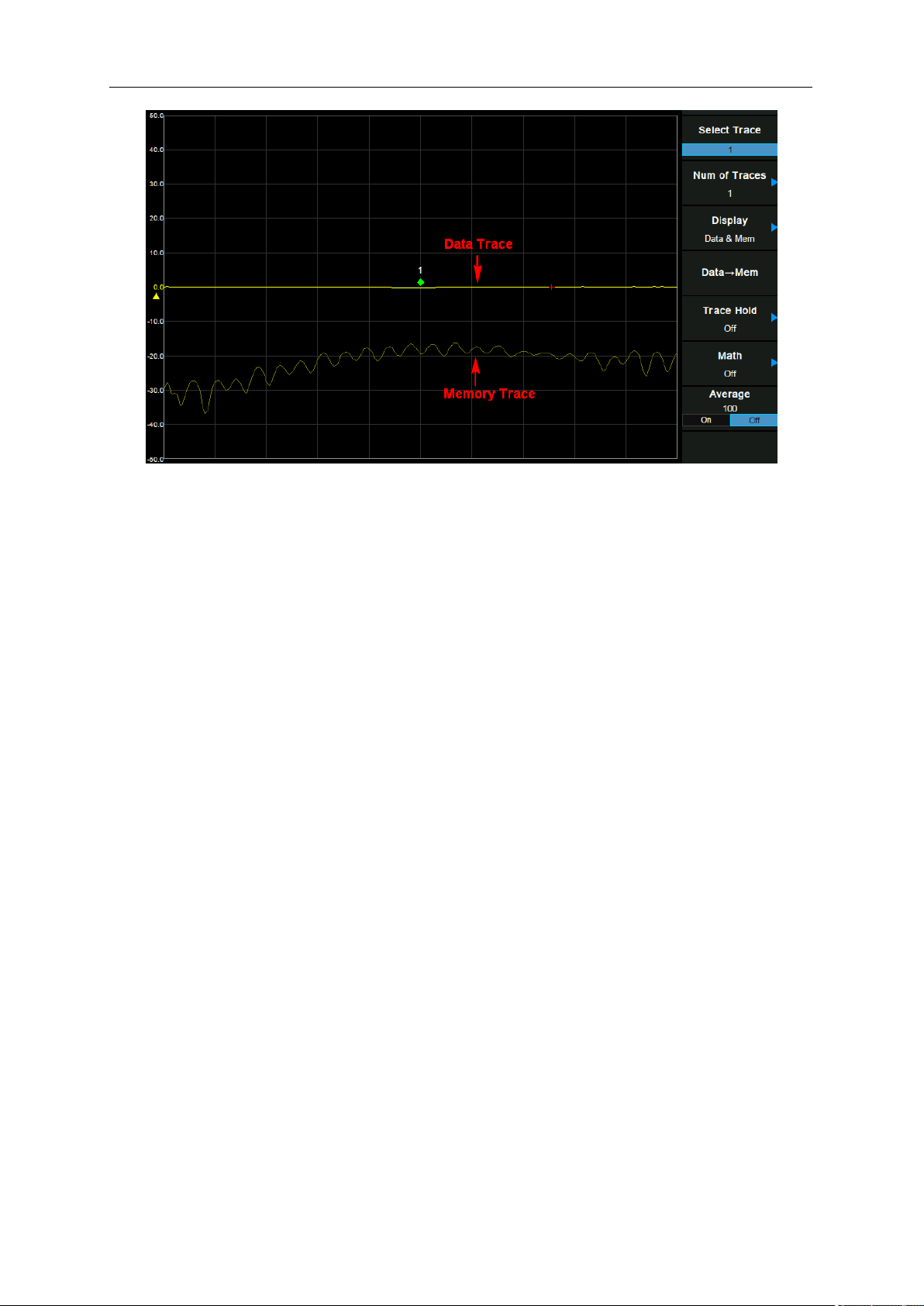
SIGLENT
68 User Manual
Figure 3-2 data trace & memory trace
3.3.2.5 Trace Hold
1. Max
Retain the maximum level for each point of the selected trace. Update the data if a new maximum level
is detected in successive sweeps.
2. Min
Display the minimum value from multiple sweeps for each point of the trace and update the data if a
new minimum is generated in successive sweeps.
3. Off
Erases any data previously stored in the selected trace, and display the data sampled in real-time of
each point on the trace.
4. Restart
When select max or min trace hold, the operation “Restart” can empty the trace data and restart the
max or min trace hold.
3.3.2.6 Math
After "Data -> Mem" is executed, you can perform complex data math between the memory trace and
measured data.
The following data math operations are available:
1. Data/Mem
Divide the measured data by the data in the memory trace. This function can be used to evaluate the
ratio of two traces (e.g., evaluating gain or attenuation).
SIGLENT
2. Data*Mem
Multiply the measured data by a memory trace.
3. Data-Mem
Subtract a memory trace from the measured data. This function can be used, for example, to subtract a
vector error that has been measured and stored (e.g., directivity) from data subsequently measured on
a device.
4. Data+Mem
Add the measured data and the data in the memory trace.
5. Off
Turn off the math operations.
● "Data -> Mem" must be performed first to select math operations.
● Trace math operations are mutually exclusive, that is, when a math function is applied to a trace,
the last selected math function will be turned off.
3.3.2.7 Average
Turn on or off the average function of traces, and set the average times.
More averages can reduce the noise and the influence of other random signals; thus highlighting the
stable signal characteristics. The larger the averages times is, the smoother the trace will be.
Table 3-9 Average Times
Parameter
Explanation
Default
100
Range
1 ~ 999
Unit
N/A
Knob Step
1
Direction Key Step
10
3.3.3 Sweep
3.3.3.1 Points
The number of points is the number of data items collected in one sweep.
● To obtain a higher trace resolution against the stimulus value, choose a larger value for number of
points.
● To obtain higher throughput, keep the number of points to a smaller value within an allowable trace
resolution.
SIGLENT
70 User Manual
● To obtain higher measurement accuracy after calibration, perform calibration using the same
number of points as in actual measurements.
Table 3-10 Points
Parameter
Explanation
Default
201
Range
101 ~ 751
Unit
N/A
Knob Step
1
Direction Key Step
50
3.3.3.2 Sweep
Set the sweep mode in single or continuous, the default is continuous.
1. Single
Set the sweep mode to “Single”. Every time the “Single” key is pressed, a sweep is performed.
2. Continue
Set the sweep mode to “Continue”. In continuous sweep mode, the system will automatically enter into
next sweep directly after each sweep.
3.3.4 TG
Set the signal amplitude of [PORT 1] output.
3.4 Marker
3.4.1 Marker
The marker can be used in the following ways:
● Reading a measured value as numerical data (as an absolute value or a relative value from the
reference point).
● Moving the marker to a specific point on the trace (marker search).
● Analyzing trace data to determine a specific parameter.
The analyzer is capable of displaying up to 4 markers including the reference marker on each trace.
Each marker has a stimulus value (the value on the X-axis in rectangular display format) and one or two
response value (the value on the Y-axis in rectangular display format). The Smith chart and polar formats
each have two marker response values (log amplitude and phase). And the Phase format has two
marker response values (phase and expanded phase) as well.
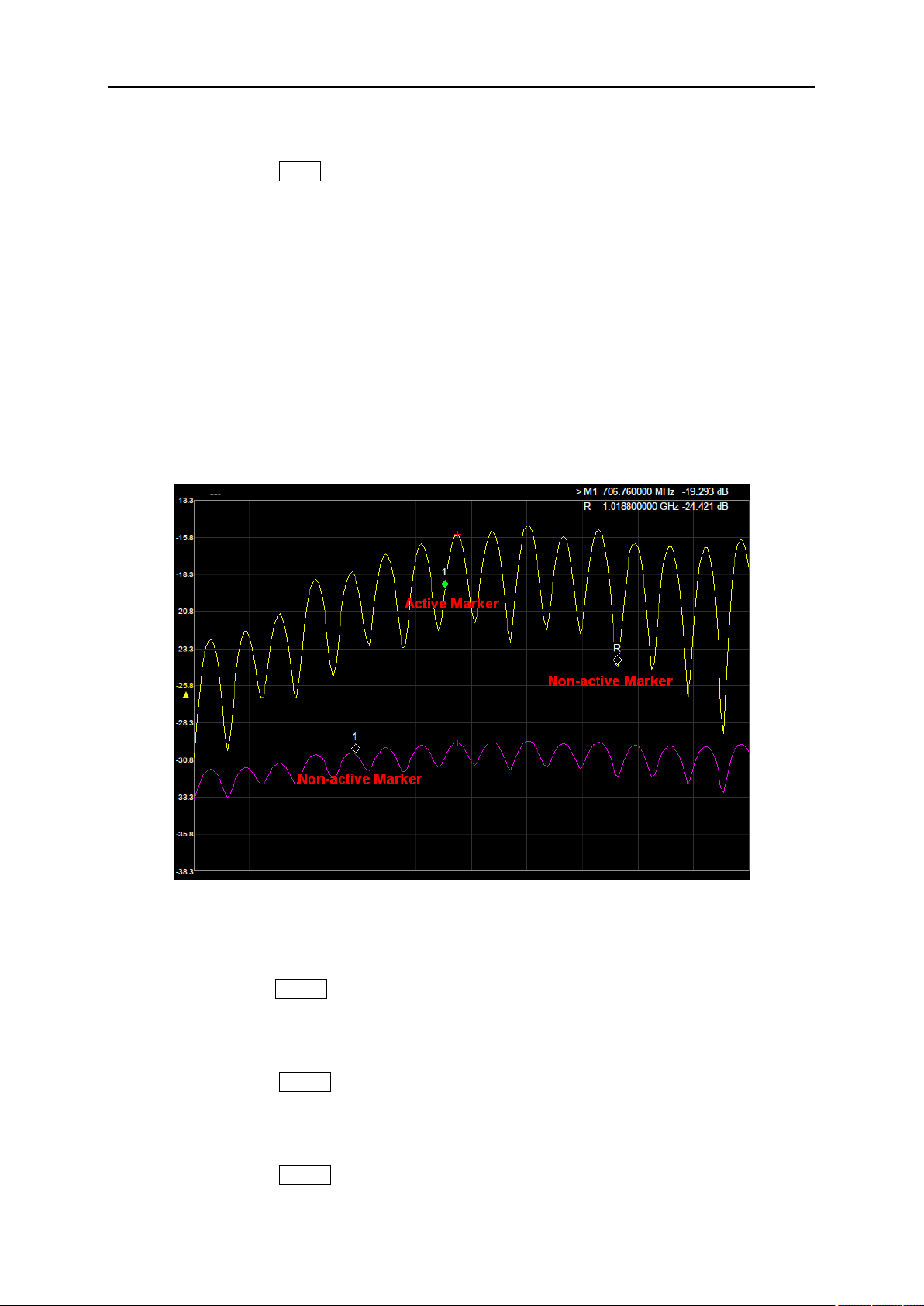
SIGLENT
3.4.1.1 Select Trace
The same function as in Trace -> “Select Trace”, please refer to section 3.3.2.1.
3.4.1.2 Select Marker
Select one of the four markers. The default is Marker1. When a marker is selected, you can set its type,
trace to be marked and other related parameters. The enabled marker will appear on the trace selected
through the Select Trace option and the readouts of this marker are also displayed in the active function
area and at the upper right corner of the screen.
● The current active marker is a filling diamond mark, while the non-active marker is an unfilled
diamond mark. On the left side of the current active marker in the upper right corner of the screen,
the ">" sign appears.
● When marker R is opened, whether it is currently active or not, the upper right corner of the screen
will display its reading.
Figure 3-3 Marker
3.4.1.3 Normal
The same function as in Marker -> “Normal” in Spectrum Analyzer Mode, please refer to section 2.3.1.3.
3.4.1.4 Delta
The same function as in Marker -> “Delta” in Spectrum Analyzer Mode, please refer to section 2.3.1.4.
3.4.1.5 Off
The same function as in Marker -> “Off” in Spectrum Analyzer Mode, please refer to section 2.3.1.6.
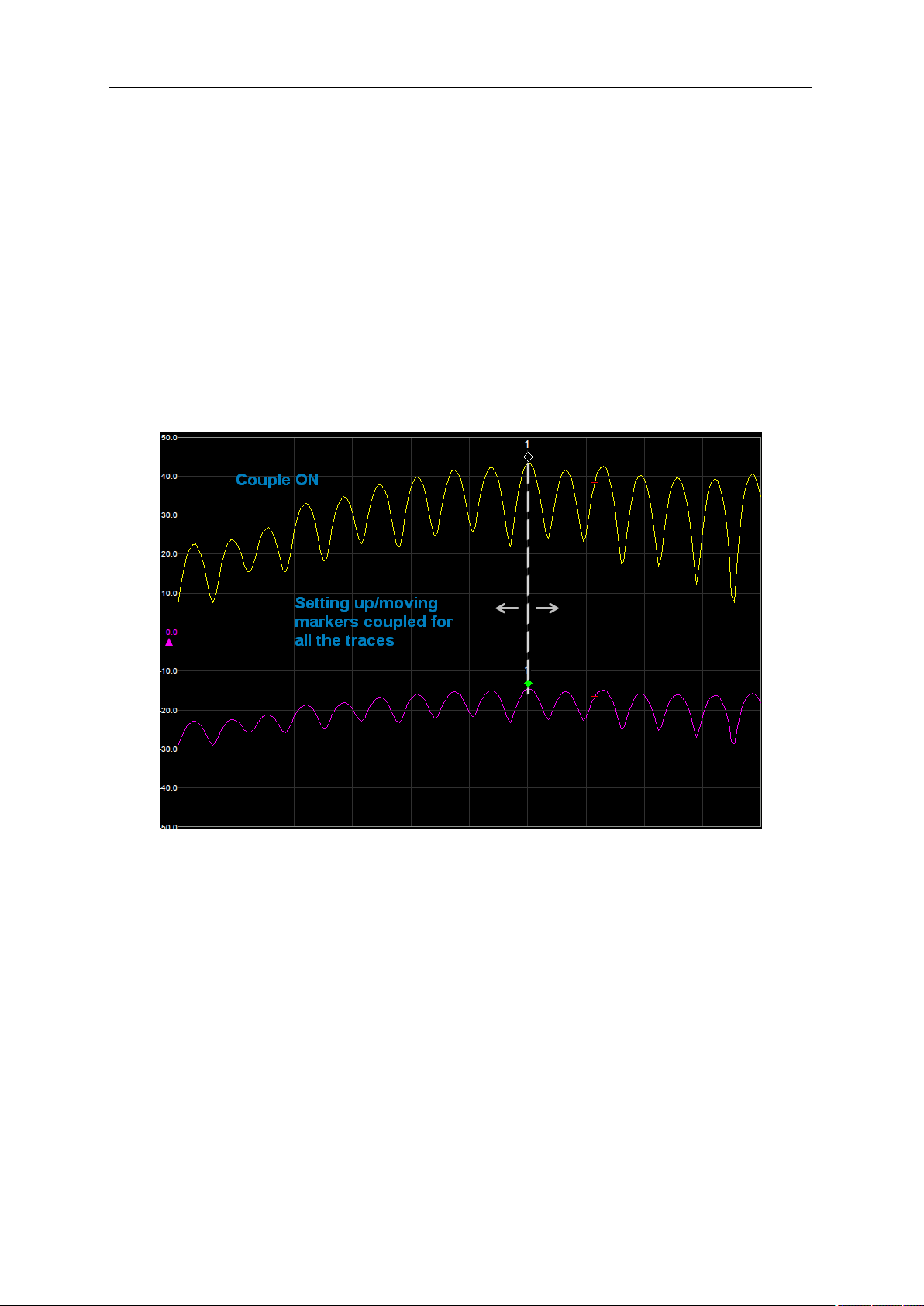
SIGLENT
72 User Manual
3.4.1.6 Discrete
Turning on discrete mode, a marker moves only between actual measurement points. When a specific
marker stimulus value is specified as a numerical value, the marker is placed at the measurement point
closest to the specified value. A marker placed between the interpolated points with the discrete mode
off automatically moves to the nearest measurement point when the discrete mode is turned on.
Turning off discrete mode, the marker can move from one actual measurement point to another.
Because it is interpolated, it can also move in the space between measurement points.
3.4.1.7 Couple
When Marker Couple is on, Markers are set up and moved in coupled operation on all traces.
When Marker Couple is off, Markers are set up and moved independently for each trace.
Figure 3-4 Marker Couple is ON
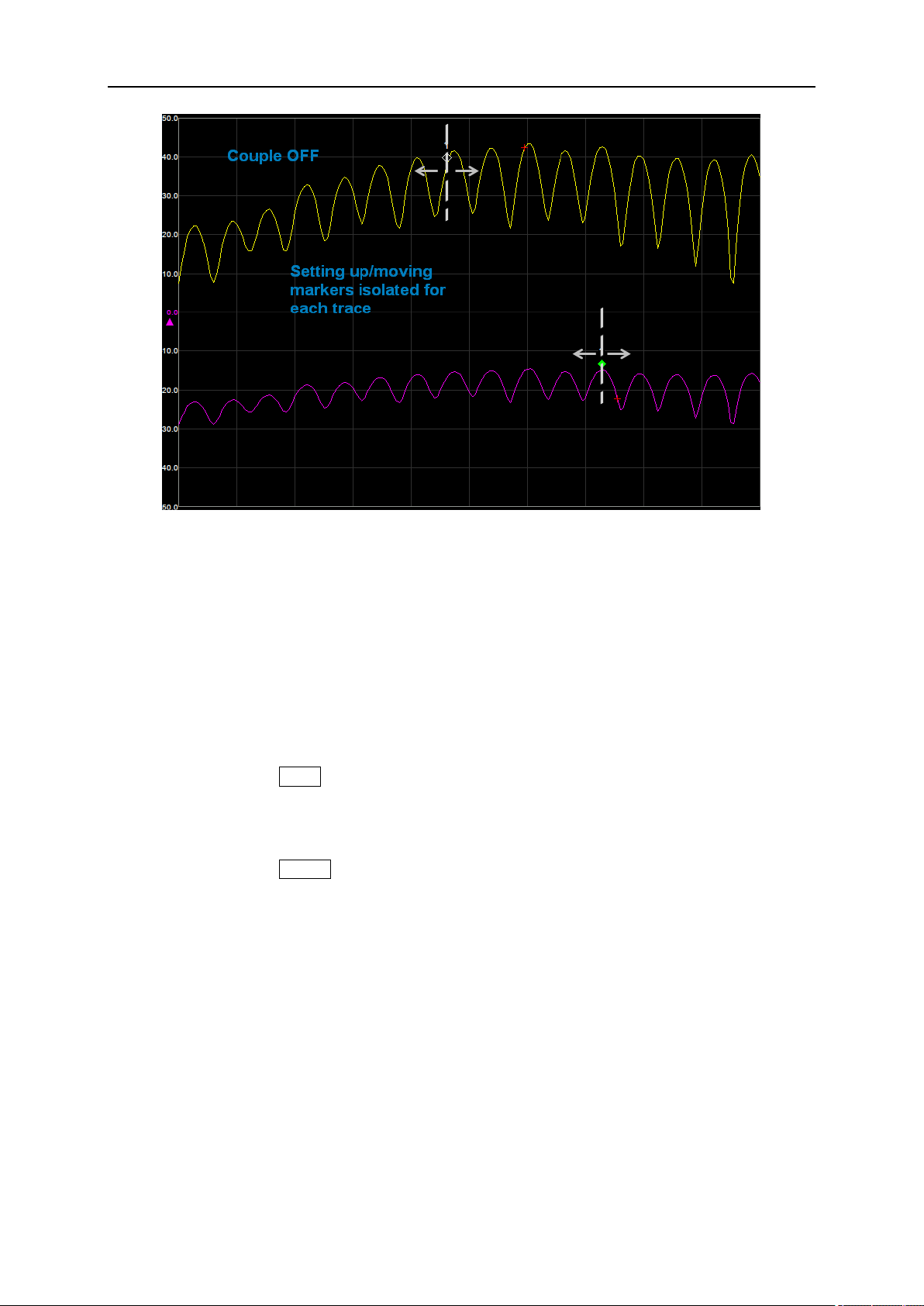
SIGLENT
Figure 3-5 Marker Couple is OFF
3.4.1.8 All Off
Turn off all the markers of all traces.
3.4.2 .Peak
3.4.2.1 Select Trace
The same function as in Trace -> “Select Trace”, please refer to section 3.3.2.1.
3.4.2.2 Select Marker
The same function as in Marker -> “Select Marker”, please refer to section 3.4.1.2.
3.4.2.3 Peak
Search the greatest measured value of the trace.
3.4.2.4 Valley
Search the smallest measured value of the trace.
3.4.2.5 Peak->CF
Execute peak search and set the center frequency of the analyzer to the frequency of the peak.

SIGLENT
74 User Manual
3.4.2.6 Valley->CF
Execute valley search and set the center frequency of the analyzer to the frequency of the valley.
3.4.2.7 Cont Peak
Turn on or off continuous peak search, which is off by default. When continuous valley search is turned
on, the spectrum analyzer performs peak search once after each scan.
3.4.2.8 Cont Valley
Turn on or off continuous valley search, which is off by default. When continuous valley search is turned
on, the spectrum analyzer performs valley search once after each scan.Measurement
3.4.3 Marker Fn
3.4.3.1 Select Trace
The same function as in Trace -> “Select Trace”, please refer to section 3.3.2.1.
3.4.3.2 Select Marker
The same function as in Marker -> “Select Marker”, please refer to section 3.3.2.1.
3.4.3.3 N dB BW
The same function as in Marker Fn -> “N dB BW”, please refer to section 2.3.3.3
3.4.3.4 Close
Close Marker Function
3.5 Meas Setup
3.5.1 Stimulus
Set the stimulus conditions, including the sweep range and the number of points. In Frequency, Span
and Sweep menu, there are corresponding settings parameters.

SIGLENT
3.5.2 Meas
Select S11 or S21 as the current measurement item. This value is also displayed in the status bar on
the left side of the screen.
3.5.3 Format
Set the display type of measurement result, enter “Format” submenu, and select the corresponding
display type. This value is also displayed in the status bar on the left side of the screen.
1. Log Mag
The trace represents the logarithmic magnitude of the measurement result, unit: dB.
2. Phase
The trace represents the phase of the measurement result, displayed in range from -180 ° to +180 °, as
well as the expanded phase, can be displayed above +180 ° and below -180 °. Unit: degrees (°).
3. Group Delay
The trace represents the transmission delay of the signal through the DUT. Unit: seconds (s).
4. Smith
The Smith chart format is used to display impedances based on the reflection measurement data of the
DUT. In this format, traces are plotted at the same spots as in the polar format. The Smith chart format
allows users to select one of the following five data groups for displaying the marker response values.
● Lin/Phase: Linear magnitude(Unit) and phase (°)
● Log/Phase: Log magnitude(dB) and phase (°)
● Real/Imag: Real(Unit) and imaginary(Unit) parts of the complex s parameter
● R+jX: Resistance (ohm), Reactance (ohm), and inductance (H) or capacitance (F)
In the upper semicircle, the impedance is inductive, and the reactance corresponds to the
inductance (H)
that is
In the lower semicircle, the impedance is capacitive, and the reactance corresponds to the
capacitance (F)
that is C
● G+jB: Conductance (S), susceptance (S), and capacitance (F) or inductance (H)
In the upper semicircle, the admittance is inductive, and the susceptance corresponds to the
inductance.
that is
In the lower semicircle, the admittance is capacitive, and the susceptance corresponds to the
capacitance.
that is C
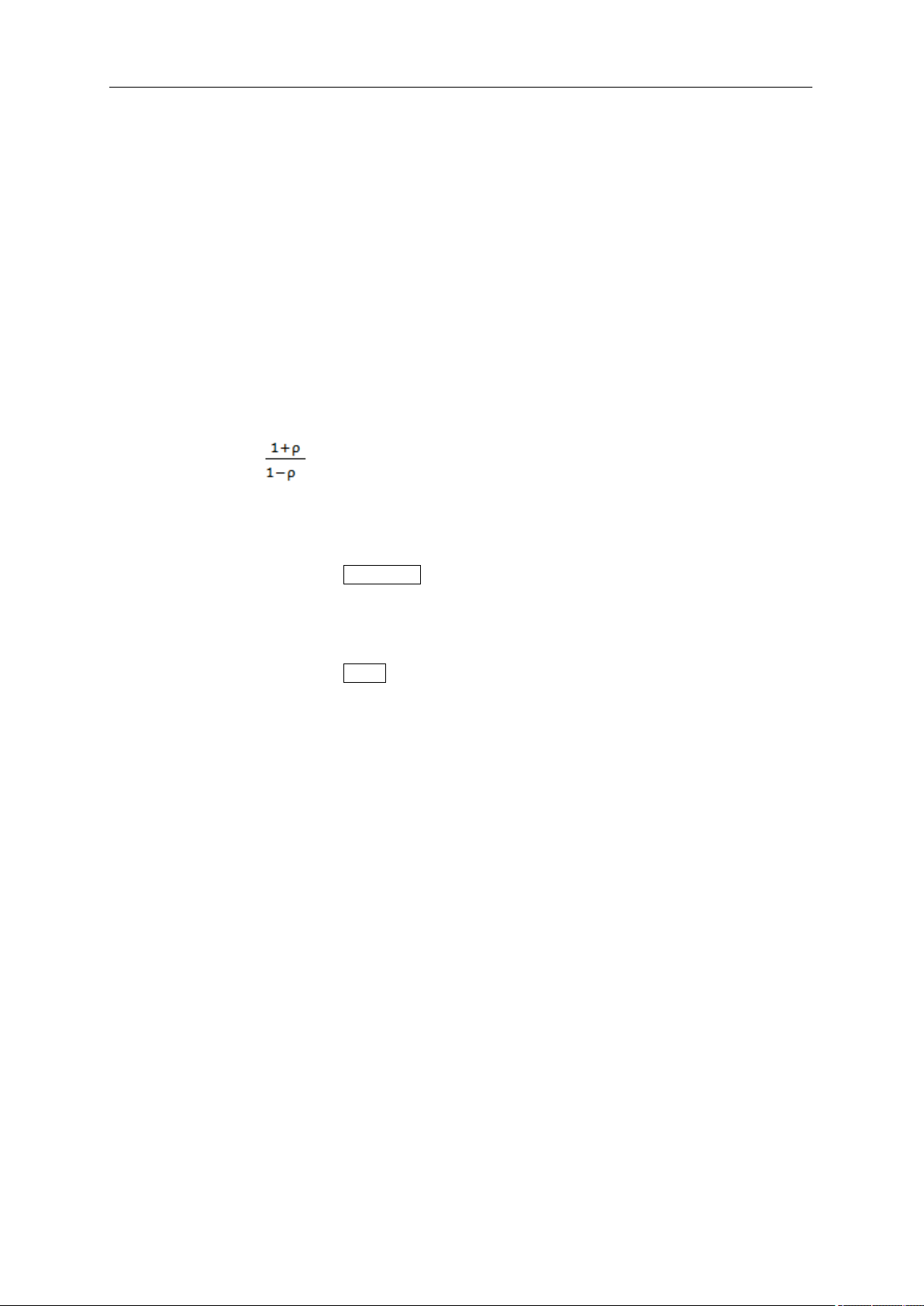
SIGLENT
76 User Manual
5. Polar
In the polar format, traces are drawn by expressing the magnitude as a displacement from the origin
(linear) and phase in an angle counterclockwise from the positive X-axis. This data format does not have
a stimulus axis, so frequencies must be read by using the marker. The polar format allows users to
select one of the following three data groups for displaying the marker response values.
● Lin/Phase: Linear magnitude(Unit) and phase (°)
● Log/Phase: Log magnitude(dB) and phase (°)
● Real/Imag: Real(Unit) and imaginary(Unit) parts of the complex s parameter
6. Lin Mag
The trace represents the linear magnitude of the measurement result, units: 1.
7. SWR
The trace represents , where ρ is the reflection coefficient, units: 1.
3.5.4 Scale
Press the “Scale” key to open the Amplitude menu.
3.5.5 Trace
Press the “Trace” key to open the Trace menu.
3.5.6 Calibration
Set calibration related items. The calibration status is displayed in the upper left corner of the screen.
The calibration status and display are as follows:
No calibration data --- (displayed in gray)
Calibrated Cor (displayed in blue)
Correction Off Off (displayed in gray)
Need to re-calibrate C? (displayed in blue)
Note: The calibration status is shown as “C?” which indicates that the scan frequency range is different
from the time of calibration. Users need to re-calibrate in the current scan frequency range.
When performing calibration, the calibration wizard pops up. Please follow the calibration wizard to
perform calibration. After completing the calibration step, the calibration data is automatically saved as
user calibration data. Turn on the calibration switch and the error correction function will be enabled.
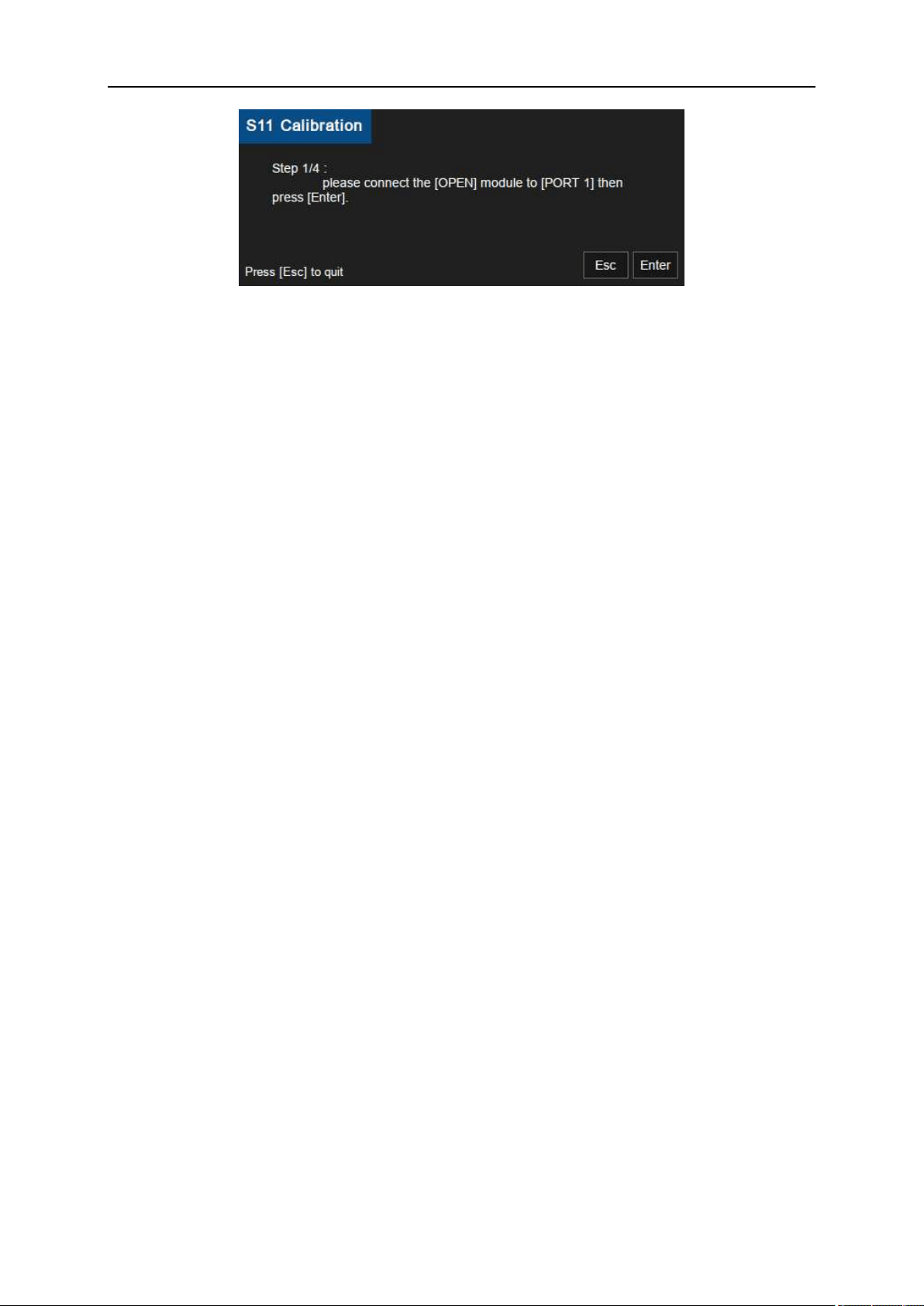
SIGLENT
Figure 3-6 Calibration Wizard
3.5.6.1 Correction
Turn on or off the calibration.
3.5.6.2 Calibrate
1. 1-Port Cal
Calibrate with the specified mechanical calibration kit, and need to connect an OPEN standard, a
SHORT standard, and a LOAD standard to the [Port 1]. This calibration effectively eliminates the
frequency response reflection tracking error, directivity error, and source match error from the test setup
in a reflection test using that port.
This function is only available when the measurement item is S11.
Calibration data is saved as user calibration data.
2. Response Through
When operating, connect the port 1 and port 2 of the analyzer with an optional Through Adapter. The
normalization operation moves the measurement reference plane to both ends of the Through Adapter.
This function is only available when the measurement item is S21. Enter the normalized submenu to
make the appropriate selection.
3.5.6.3 Ecal
Use the optional SIGLENT electronic calibration kit for calibration. Calibration data is saved as user
calibration data.
3.5.6.4 Cal Kit
Specify the calibration kit used for mechanical calibration.
● F503ME:Type-N 50Ω 3 GHz Cal Kit (Siglent)
● 85032F:Type-N 50Ω 9 GHz Cal Kit (KeySight)
● 85032B/E
● User
Before executing calibration, you need to select a calibration kit.
If you use a calibration kit other than a predefined one, you need to define it. If the connector type of the
standard of the calibration kit you use has polarity (the distinction between male and female), you need

SIGLENT
78 User Manual
to change the standard class definition of the calibration kit depending on the standard you actually use.
3.5.6.5 Port Extensions
When extending the calibrated plane to other planes (i.e. port extension) instead of the standard
calibration process, the port extension function can be used to compensate for the delay (phase shift)
caused by fixtures and other possible losses.
1. Extensions
Please set whether to open the port expansion function according to the actual instrument device. Close
by default.
After opening the port extension function, the "P" icon will be displayed on the right side of the calibration
status in the upper left corner of the screen.
2. Delay Port1
Set the delay of Port1 extension.
The relationship between Port Delay and Port Length is as follows:
Port Length = Port Delay * c0 * Velocity Factor, where c0=299792458m/s
3. Length Port1
Set the length of Port1 extension.
4. Delay Port2
Set the delay of Port2 extension.
5. Length Port2
Set the length of Port2 extension.
6. Auto Open Port1
Automatically calculate the delay and length of Port1.
3.5.6.6 System Z0
Set the System characteristic impedance (Z0).
3.5.6.7 Velocity Factor
Set the velocity factor of the cable to be measured relative to the speed of light in vacuum. Make sure
that the velocity factor of the cable to be measured conforms to the reality.
Table 3-11 Velocity Factor
Parameter
Explanation

SIGLENT
Default
0.66
Range
0.1 ~ 1
Unit
N/A
Knob Step
0.01
Direction Key Step
In 1-2-5 sequence
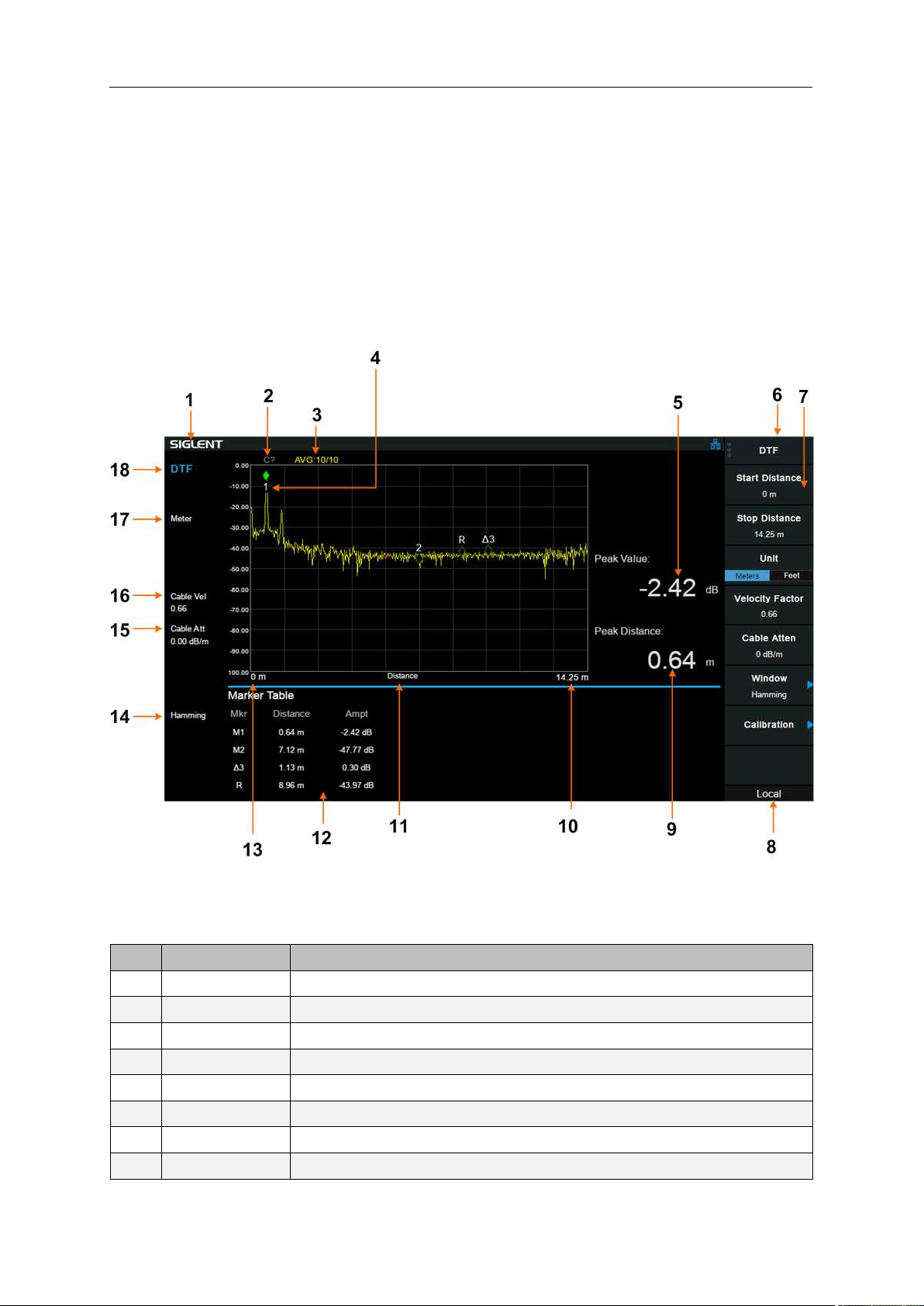
SIGLENT
80 User Manual
Chapter 4 Distance-To-Fault Mode
This chapter introduces in detail the function keys and menu functions of the front panel under the
Distance-To-Fault Mode.
4.1 User Interface
Figure 4–1 Distance-To-Fault Mode User Interface
Table 4–1 Distance-To-Fault Mode User Interface
NO.
Name
Description
1
SIGLENT
SIGLENT logo
2
Cor/C?/--
Calibration status
3
AVG
Average times
4
Marker
Current trace active marker0
5
Peak Value
Show peak value
6
Menu title
Function of the current menu.
7
Menu items
Menu items of the current function
8
Operation
LOCAL or REMOTE mode.When REMOTE, keys would be locked.
SIGLENT
status
9
Peak Distance
The value of the distance corresponding to the peak value
10
Stop Distance
End distance of horizontal axis
11
Distance
Parameters represented by horizontal axis
12
Marker Table
Show marker information
13
Start Distance
Startance of horizontal axis
14
Window
function
Show Windwo function type
15
Cable Atten
Show Cable atten
16
Cable Vel
Show Velocity Factor
17
Meter/Feet
Show distance unit
18
Mode
Mode indication
4.2 Measurement
4.2.1 Start Distance
Set the starting distance for DTF.
The range of this distance is limited by the minimum resolution.
Table 4-2 Start Distance
Parameter
Explanation
Default
0.00 m
Range
0.00 m ~ (Stop Distance – 0.2) m
Unit
m, feet
Knob Step
0.1 m
Direction Key Step
In 1-2-5 sequence(Unit: m)
4.2.2 Stop Distance
Set the stopping distance for DTF.
The range of this distance is limited by the velocity factor and is proportional to the velocity factor. When
the velocity factor is 1, the length that can be measured is the maximum.
Selecting the appropriate frequency span (= start freq – stop freq) is not as obvious as it may seem. The
resolution and maximum distance range are dependent upon the span, the number of frequency data
points and the velocity factor of the cable. Therefore, the frequency span must be chosen carefully.
There is a constraint that limits the frequency range:
SIGLENT
82 User Manual
The wider the span is, the smaller the maximum distance that can be measured. In another words, long
distance measurements require small span settings.
Meanwhile, there is also a relationship between resolution and the span.
The wider the span, the smaller the resolution; wider frequency sweeps improve the resolution of DTF
measurements.
Table 4-3 Stop Distance
Parameter
Explanation
Default
34.00 m
Range
0.2 m ~ 34.00 m
Unit
m, feet
Knob Step
0.1 m
Direction Key Step
In 1-2-5 sequence(Unit: m)
4.2.3 Unit
Set the display units for the fault point distance, including the following two units. This value is also
displayed in the status bar on the left side of the screen.
● Meter
● Feet
The default unit is "Meter".
4.2.4 Velocity Factor
Set the velocity factor of the cable to be measured with respect to the speed of light in a vacuum. Make
sure that the velocity factor of the cable to be measured matches the actual value. Otherwise, the
position of the positioning point obtained from the measurement does not meet the actual requirements.
This value is also displayed in the status bar on the left side of the screen.
Table 4-4 Velocity Factor
Parameter
Explanation
Default
0.66
Range
0.1 ~ 1
Unit
N/A
Knob Step
0.01
Direction Key Step
In 1-2-5 sequence
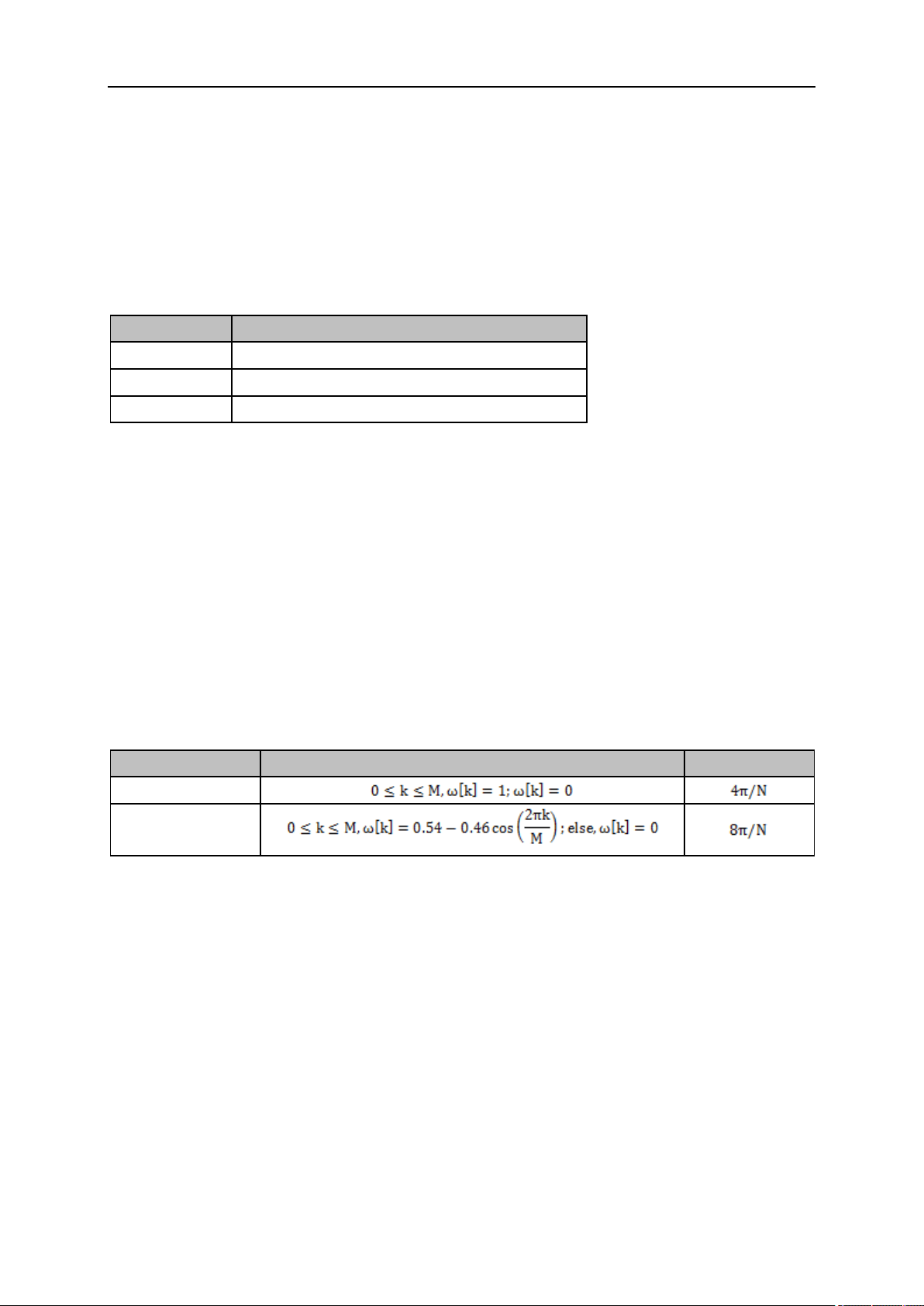
SIGLENT
4.2.5 Cable Atten
Set the attenuation factor of the cable-under-test. It is used to compensate the amplitude of peaks in
different positions. The DTF calculates the peaks by the final receiving data which has been attenuated
by the cable, thus the amplitude of peaks cannot show exactly where the mismatch position is. So the
cable atten is used to compensate by length.
Table 4-5 Cable Atten
Parameter
Explanation
Default
0.00 dB/m
Range
0.00 dB/m ~ 5.00 dB/m
Unit
dB/m
4.2.6 Window
Set the window function used in DTF.
The use of a non-rectangular window function can improve the side lobe effect of the analysis. The
vertical axis is more accurate, but the horizontal axis resolution is reduced.
In the sub-menu, the following three settings can be selected.
● Off
● Rectangular
● Hamming
The default state is "Off"; this value is also displayed in the status bar on the left side of the screen.
Table 4-6 Window function properties
Win-type
Expression
Main lobe width
Rectangular
Hamming
4.2.7 Calibration
Set calibration related items. The calibration status is displayed in the upper left corner of the screen.
The calibration status and display are as follows:
No calibration data --- (displayed in gray)
Calibrated Cor (displayed in blue)
Need to re-calibrate C? (displayed in blue)
Note: The calibration status is shown as “C?” which indicates that the scan frequency range is different
from the time of calibration. Users need to re-calibrate in the current scan frequency range.
1. Correction

SIGLENT
84 User Manual
Turn on or off the calibration.
2. Calibrate
Calibrating with the specified mechanical calibration requires three loads: open, short, and match.
Calibration data is saved as user calibration data.
3. Ecal
Use the optional SIGLENT electronic calibration unit for calibration. Calibration data is saved as user
calibration data.
4. Cal kit
Specify the calibration kit used for mechanical calibration.
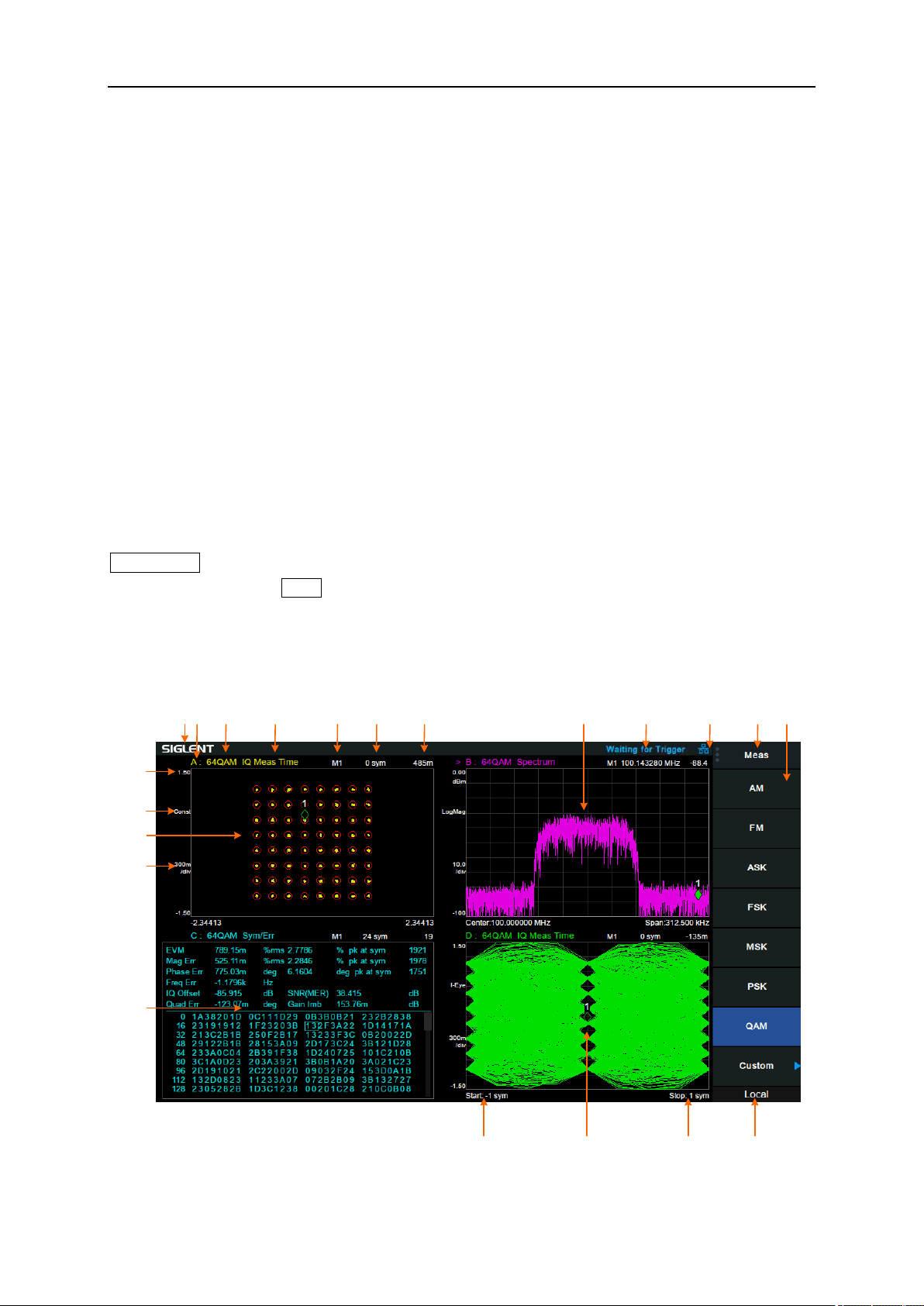
SIGLENT
Chapter 5 Modulation Analyzer
This chapter introduces in detail the function keys and menu functions of the front panel under the
Modulation Analyzer Mode.
This mode enables modulation analysis of incoming signals. Modulation types are as follows:
● AM analog modulation
● FM analog modulation
● ASK digital modulation
● FSK digital modulation
• 2FSK, 4FSK, 8FSK, 16FSK
● MSK digital modulation
● PSK digital modulation
• BPSK, QPSK, 8PSK, DBPSK, DQPSK, D8PSK, Pi/4 DQPSK, Pi/8 D8PSK, OQPSK
● QAM digital modulation
• 16QAM, 32QAM, 64QAM, 128QAM, 256QAM
Meas Setup menu may be different in different modulation types. The modulation type can be re-
selected by pressing the Meas key.
5.1 User Interface
1
2 3
4
5 6
11
12
9 108
20
21
18
19
13141516
7
17
Figure 5–1 Modulation Analyzer User Interface
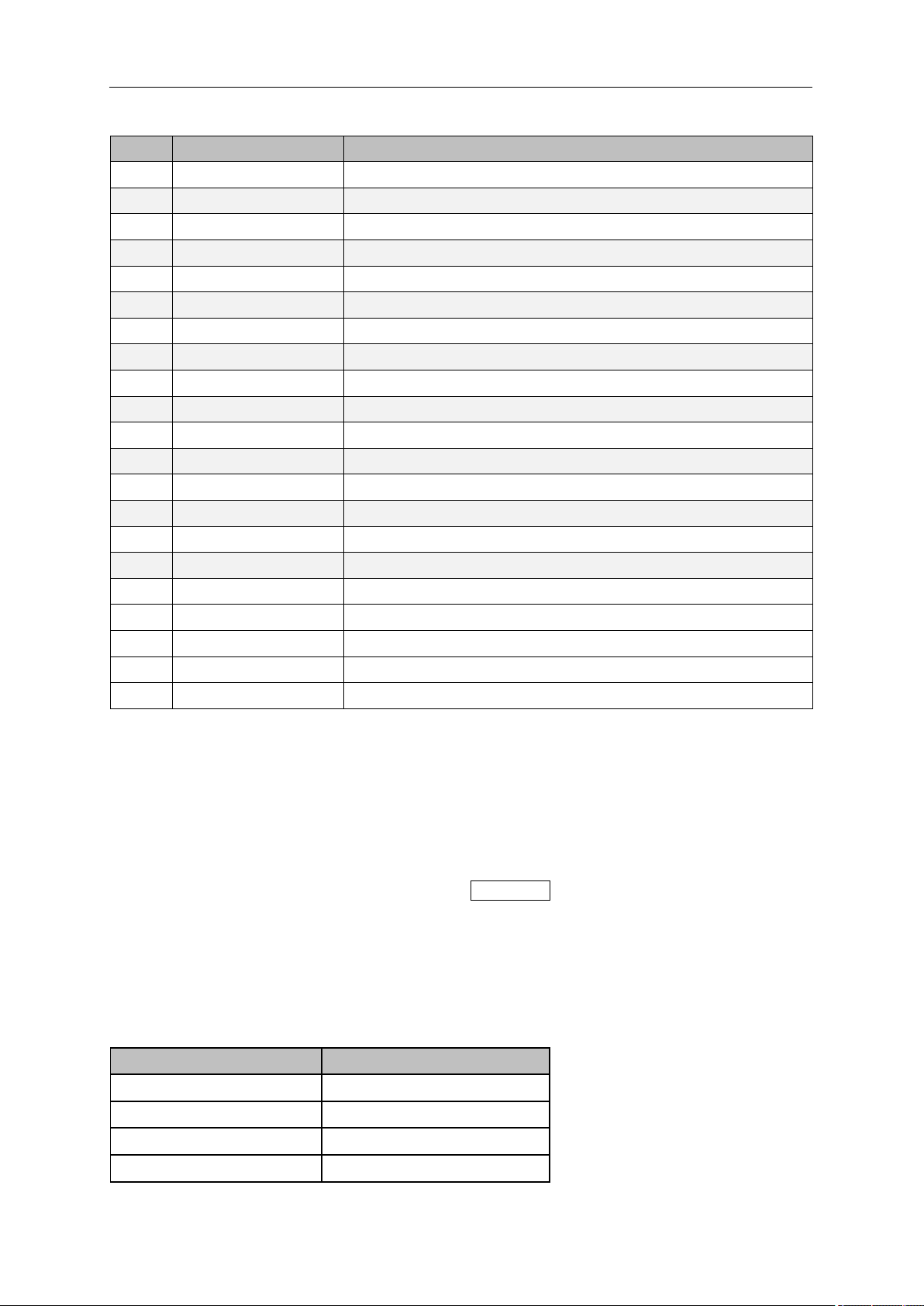
SIGLENT
86 User Manual
Table 5–1 Modulation Analyzer User Interface
NO.
Name
Description
1
SIGLENT
SIGLENT logo
2
Trace
Ative trace indication
3
Demod type
Display the demodulation type of the current view
4
Data type
Display the data type of the current view
5
Marker
Current trace active marker
6
Marker X
Unit depend on trace format
7
Marker Y
Unit depend on trace format
8
View 2
View 2 defaults to spectrum
9
Trigger
Show trigger status
10
Lan
Lan status
11
Menu title
Function of the current menu.
12
Menu items
Menu items of the current function
13
Operation status
LOCAL or REMOTE mode.When REMOTE, keys would be locked.
14
Stop
Show View stop
15
View 4
View 2 defaults to eye chart
16
Start
Show View start
17
View 4
View 2 defaults to Symbol table
18
Scale
Show scale
19
View 3
View 2 defaults to Constellation
20
Format
Display the format of the current view
21
Ref Level
Show reference level
5.2 Basic Settings
5.2.1 Frequency
Switch to the Frequency Settings menu by pressing Frequency on the front panel. When entering the
frequency menu, the “Center Freq” is selected by default.
5.2.1.1 Center Freq
Set the modulated carrier frequency.
Table 5-2 Center Freq
Parameter
Explanation
Default
100 MHz
Range
Full Span
Unit
GHz, MHz, kHz, Hz
Knob Step
Freq Step/10
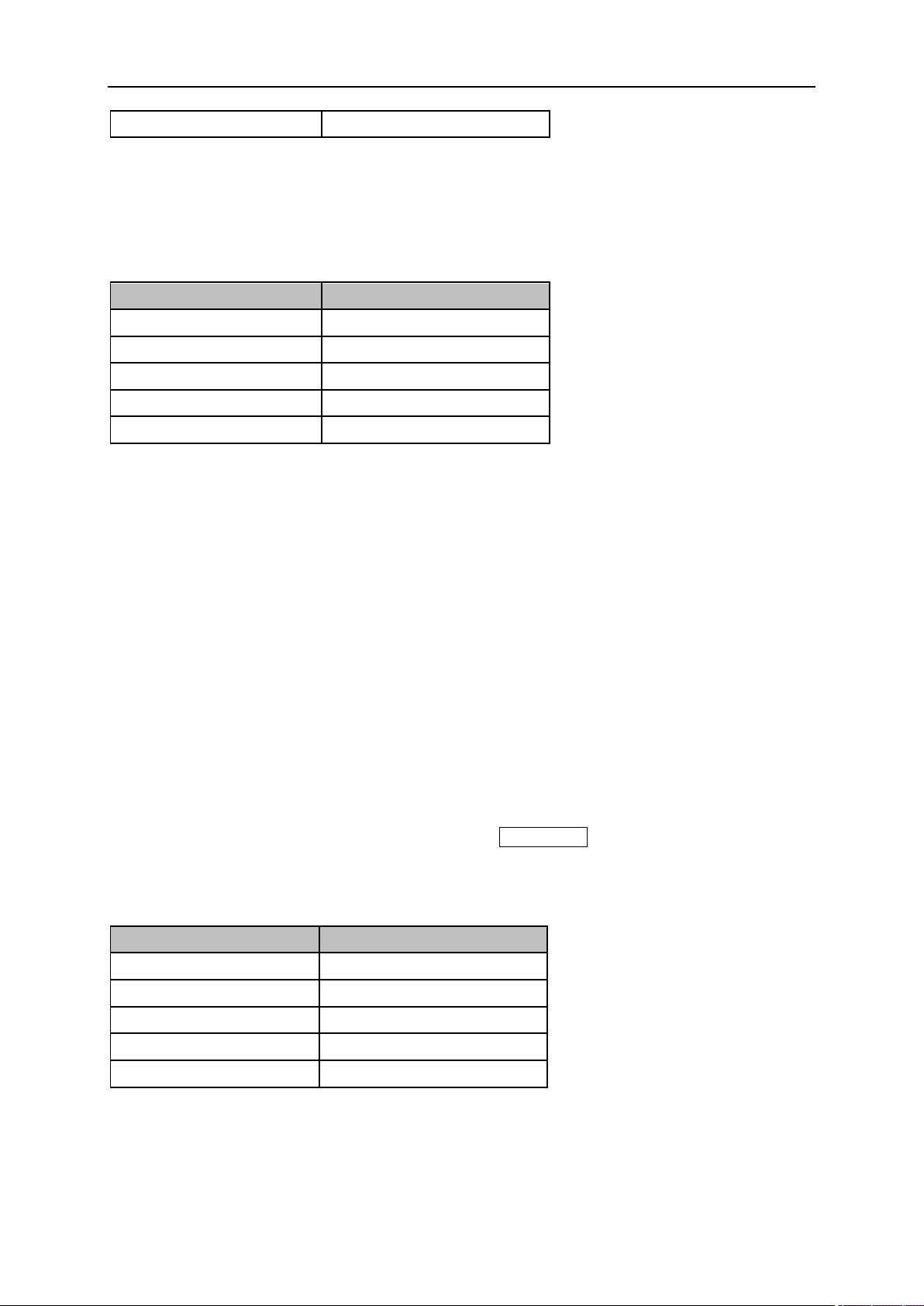
SIGLENT
Direction Key Step
Freq Step
5.2.1.2 Freq Step
Setting the value of Freq Step will change the direction key step and knob step of the center frequency.
Table 5-3 Freq Step
Parameter
Explanation
Default
10 kHz
Range
1 Hz ~ 100 MHz
Unit
GHz, MHz, kHz, Hz
Knob Step
Freq Step/10, min 1 Hz
Direction Key Step
In 1-2-5 sequence
5.3 Measurement
5.3.1 Digital Modulation Analysis
When ASK, FSK, MSK, PSK or QAM modulation type is selected, digital modulation analysis is carried
out.
5.3.1.1 Format
Select the modulation format.
5.3.1.2 Symbol Rate
Set the symbol rate of the signal to be analyzed. Press Meas Setup, then select "Symbol Rate", you
can input the symbol rate and change the symbol rate by the knob.
Table 5-4 Symbol Rate
Parameter
Explanation
Default
10 ksps
Range
1 ksps ~ 2.5 Msps
Unit
Msps, ksps, sps
Knob Step
Symbol Rate/10
Direction Key Step
In 1-2-5 sequence
5.3.1.3 Points/Symbol
Set the points/symbol of the modulated signal.
SIGLENT
88 User Manual
5.3.1.4 Meas Length
Set the number of symbols which will be used in calculating the measurement. As the length is longer,
the range for statistics is bigger, and the measure time is longer.
Table 5-5 Meas Length
Parameter
Explanation
Default
128
Range
16 ~ 4096
Unit
1
Knob Step
1
Direction Key Step
Current value of Meas Length
5.3.1.5 Filter Setup
After entering into the "Filter Setup" sub-menu, you can choose the relative parameters of filters.
1. Measure Filter
● Sqrt Nyquist
● Nyquist
● Gauss
● Half Sine
● Off
2. Reference Filter
● Sqrt Nyquist
● Nyquist
● Gauss
● Half Sine
● Off
Table 5-6 The rule of common filter type selected
Transmitter Filter
Measure Filter
Reference Filter
Sqrt Nyquist
Sqrt Nyquist
Nyquist
Nyquist
Off
Nyquist
Gauss
Off
Gauss
Half Sine
Off
Half Sine
3. Filter Alpha/BT
● For Sqrt Nyquist and Nyquist filter settings, you can set the alpha parameter. It can be set the
same as the transmitter.
● For a Gauss filter, use the BT parameter. It can be set the same as the transmitter.
SIGLENT
Table 5-7 Filter Parameter
Parameter
Explanation
Default
0.35
Range
0 ~ 1
Unit
1
Knob Step
0.01
Direction Key Step
0.1
4. Filter Length
Set the symbols number of the filter selected. It can be set the same as the transmitter.
Table 5-8 Filter Length
Parameter
Explanation
Default
64
Range
2 ~ 128
Unit
1
Knob Step
1
Direction Key Step
5
5.3.1.6 Statistic
1. Statistic
Turn on the statistical function, the measurement result will show the maximum and minimum of statistics.
Turn off the statistical function, the measurement result will only show the real-time measurement value.
Statistical function is turned off by default.
2. Avg
Open and close the average option for the measurement result. It can set the average number. When
the Avg Number is set to off, the column title "Average" in numerical results view will be changed to
"Current". The "Average" measurement result will be stable if the average number is set to larger values.
Table 5-9 Avg Number
Parameter
Explanation
Default
10
Range
1 ~ 1000
Unit
1
Knob Step
1
Direction Key Step
10
3. Restart Meas
After this function is performed, the statistics will be cleared and restarted. If the average function is
turned on, the average calculation of measurement results will be cleared and restarted as well.
SIGLENT
90 User Manual
5.3.1.7 Trace
The displayed data and format in the measurement windows can be set in Trace menu.
1. Select Trace
Select the trace in order to set the corresponding trace parameters. You can also select the trace by
clicking on the trace mark displayed in the left status bar of the screen.
2. Num of Traces
Set the upper limit of displayed trace numbers. Up to four traces can be displayed simultaneously in the
screen window.
3. Layout
Select the layout of the screen windows. The layout types are as follows:
● Single
● Stacked 2
● Grid 1,2
● Grid 2x2
4. Data
Select the displayed data of the trace.
5. Format
Select the displayed format of the trace.
6. Copt to
Copy the currently selected trace to another trace.
7. Properties
● Eye Length Set the length of the Eye diagram.
● Symbol Table Display the demodulation digital symbols (binary or hex).
5.3.1.8 Custom
"Custom" under meas menu provides a variety of standard formats, including PDC, GSM, TETRA, DECT,
PHS, NADC
Table 5-10 Custom parameters
Custom
Demod Type
Symbol Rate
Points/Symbol
Meas Filter
Ref Filter
Alpha/BT
PDC
Pi/4 PSK
21 ksps
4
Sqrt Nyquist
Nyquist
0.5
GSM
MSK
270.833ksps
4
Off
Gauss
0.3
TETRA
Pi/4 PSK
18 ksps
4
Sqrt Nyquist
Nyquist
0.35
DECT
2FSK
1.152 Msps
4
Off
Gauss
0.5
SIGLENT
PHS
Pi/4 PSK
192 ksps
4
Sqrt Nyquist
Nyquist
0.5
NADC
Pi/4 PSK
24.3 ksps
4
Sqrt Nyquist
Nyquist
0.35
5.3.2 Analog Modulation Analysis
When AM or FM modulation type is selected, analog modulation analysis is carried out.
5.3.2.1 IFBW
After entering into the mode AM or FM modulation analysis, set the intermediate frequency bandwidth
(IFBW).
Press Meas Setup, you can set the "IFBW" again.
It specifies the IFBW of the signal to be analyzed. The measurement accuracy will be impacted if this
value isn't set precisely. The IFBW should be as narrow as possible to improve the S/N ratio.
For AM modulation analysis, the IFBW should be larger than twice the modulation frequency. For FM
modulation analysis, the IFBW should be larger than twice the sum of the deviation frequency and the
modulation frequency.
Table 5-10 IFBW
Parameter
Explanation
Default
1.2 MHz
Range
1.2 MHz, 960 kHz, 600 kHz, 480 kHz, 300 kHz,
240 kHz, 120 kHz, 96 kHz, 60 kHz
Unit
MHz, kHz
Knob Step
Change to the next enumeration value
Direction Key Step
Change to the next enumeration value
5.3.2.2 EqLPF
After entering the mode AM modulation analysis or FM modulation analysis, set the equivalent low pass
filter (EqLFP).
Press Meas Setup, you can set the "EqLFP" again.
It specifies the EqLPF bandwidth of the signal to be analyzed. The measurement accuracy will be
impacted if this value isn't set precisely. The EqLPF is an additional low pass filter. It can conveniently
measure the lower modulation frequency signal. The EqLPF bandwidth should be as narrow as possible
to improve the S/N ratio, but also need to be larger than the modulation frequency.
Table 5-11 EqLPF
Parameter
Explanation
Default
IFBW/6
Range
Off, IFBW/6, IFBW/20, IFBW/60, IFBW/200, IFBW/600, IFBW/2000
SIGLENT
92 User Manual
Unit
kHz、Hz
5.3.2.3 Average
Open and close the average option for the measurement result. It can set the average number. When
the Avg Number is set to off, the column title "Average" in numerical results view will be changed to
"Current". The "Average" measurement result will be stable if the average number is set to larger values.
Table 5-12 Avg Number
Parameter
Parameter
Default
10
Range
1 ~ 1000
Unit
1
Knob Step
1
Direction Key Step
10
5.3.2.4 Restart Meas
After this function is performed, the statistics will be cleared and restarted. If the average function is
turned on, the average calculation of measurement results will be cleared and restarted as well.
5.4 Sweep and Functions
5.4.1 Trigger
Press Trigger to open the menu. The analyzer will begin a sweep only with the selected trigger
conditions are met. A trigger event is defined as the point at which your trigger source signal meets the
specified trigger level.
● Free Run: New sweep starts as soon as possible after the current sweep ends.
● RF Trigger: Activates the trigger condition that starts the next sweep if the detected RF envelops
voltage rises to a level set by the RF trigger level.
● External: The trigger even is the rising or falling edge of the external trigger signal.
5.4.2 Sweep
Select "single" or "continue" type for sweep. Press Sweep into the menu. When "single" sweep type is
selected, it will start a new sweep if meets the trigger even, after press the menu button "single".
● Single Sweep
● Continue Sweep
SIGLENT
Chapter 6 Real-Time Spectrum Analyzer
The model supported by real-time spectrum analysis is SSA3000X-R series.
6.1 Basic Settings
6.1.1 Frequency
Set the frequency-related parameters and functions of the analyzer. The sweep will restart when the
frequency parameters are modified.
There are three main parameters related to frequency range: start frequency, center frequency and end
frequency. the coupling relationship among them:
startstopspan
stopstartcenter
fff
)/2f(ff
−=
+=
, Where
span
f
is the span.
6.1.1.1 Center Frequency
Set the center frequency of the current sweep. The center frequency and span values are displayed at
the bottom of the grid respectively.
● Modifying the center frequency will modify both the start frequency and stop frequency when the
span is constant (except when the start frequency or stop frequency reaches the boundary).
Table 6-1 Center Frequency
Parameter
Explanation
Default
20MHz
Range
2.5 kHz ~ (Full Span -2.5kHz)
Unit
GHz, MHz, kHz, Hz
Knob Step
Step=Span/200
Direction Key Step
4Mhz
Related to
Start Freq, Stop Freq
6.1.1.2 Start Frequency
Set the start frequency of the current sweep. The start and stop frequencies are displayed at the bottom
of the grid respectively.
● The span and center frequency vary with the start frequency when the Span does not reach the
minimum. For more details, please refer to “Span”.
SIGLENT
94 User Manual
Table 6-2 Start Frequency
Parameter
Explanation
Default
0 Hz
Range
0 Hz ~ (Full Span -5kHz)
Unit
GHz, MHz, kHz, Hz
Knob Step
Step=Span/200
Direction Key Step
Center Freq Step
Related to
Center Freq, Span
6.1.1.3 Stop Frequency
Set the stop frequency of the current sweep. The start and stop frequencies are displayed at the lower
right sides of the grid respectively.
● The span and center frequency vary with the stop frequency. The change of the span will affect
other system parameters. For more details, please refer to “Span”.
Table 6-3 Stop Frequency
Parameter
Explanation
Default
Full Span
Range
5 kHz ~ Full Span
Unit
GHz, MHz, kHz, Hz
Knob Step
Step=Span/200
Direction Key Step
Center Freq Step
Related to
Center Freq, Span
6.1.1.4 Freq Offset
Set the frequency offset value to illustrate the frequency conversion between the measured device and
the input of the spectrum analyzer.
● This parameter does not affect any hardware settings of the real-time spectrum analyzer, but only
changes the display values of center frequency, start frequency and stop frequency.
● To eliminate the frequency offset value, the frequency offset value can be set to 0 Hz.
Table 6-4 Freq Offset
Parameter
Explanation
Default
0 Hz
Range
-100GHz ~ 100GHz
Unit
GHz, MHz, kHz, Hz
Knob Step
Step = Span/200
Direction Key Step
Center Freq Step
Related to
Center Freq, Start Freq, Stop Freq
SIGLENT
6.1.1.5 Freq Step
Setting the value of Freq Step will change the direction key step of center frequency, start frequency,
stop frequency and frequency offset.
● At a fixed step change the value of the center frequency can reach the purpose of switching
measurement channels rapidly and continuously.
● There are two kinds of frequency step modes:Auto and Manual. In Auto mode, the Freq step is
1/10 of the span. In Manual mode, you can set the step using the numeric keys.
Table 6-5 Freq Step
Parameter
Explanation
Default
Full Span/10
Range
1Hz ~ 40MHz
Unit
GHz, MHz, kHz, Hz
Knob Step
Step = Span/200
Direction Key Step
In 1-2-5 sequence
Related to
RBW, Span and related parameters
6.1.2 Span
Set the span of the analyzer. Any change of this parameter will affect the frequency parameters and
restart the sweep.
6.1.2.1 Span
Set the frequency range of the current sweep. The center frequency and span are displayed at the
bottom of the grid respectively.
● The start and stop frequency vary with the span when the center frequency is constant.
● The span can be set down to 5 kHz and up to 40 MHz described in Specifications. The maximum
span is the maximum real-time analysis bandwidth of the real-time spectrum analyzer.
● Modifying the span may cause an automatic change in both Freq Step and RBW if they are in Auto
mode.
● Variation in the span, RBW would cause a change in the acquisition time.
Table 6-6 Span
Parameter
Explanation
Default
40 MHz
Range
0 Hz ~ 40 MHz
Unit
GHz, MHz, kHz, Hz
Knob Step
Span/200, min 1 Hz
Direction Key Step
In 1-2-5 sequence
Related to
Start Freq, Stop Freq, Freq Step, RBW, Acq time
SIGLENT
96 User Manual
6.1.2.2 Full Span
Set the span of the analyzer to the maximum available frequency span.
6.1.2.3 Zoom In
Set the span to half of its current value. At this point, the signal on the screen will be amplified to observe
signal details.
6.1.2.4 Zoom Out
Set the span to twice the current value. At this point, the signal on the screen will be reduced to gain
more information about the nearby spectrum. This setting is invalid under the maximum real-time
analysis span.
6.1.2.5 Last Span
Set the span to the previous span setting.
6.1.3 Amplitude
Set the amplitude parameters of the analyzer. Through modifying these parameters, signals under
measurement can be displayed in a proper mode for easier observation and minimum error.
6.1.3.1 Ref Level
Set the maximum power or voltage that can be currently displayed in the trace window. The value is
displayed at the upper left corner of the screen grid.
The maximum reference (Ref) level available is affected by the maximum mixing level; input attenuation
is adjusted under a constant maximum mixing level in order to fulfill the following condition:
Ref <= ATT - PA - 20dBm, where ATT = Attenuation value, PA = Preamplifier value
The reference level is an important parameter of the spectrum analyzer, which indicates the upper limit
of the current dynamic range of the spectrum analyzer. When the energy of the signal to be measured
exceeds the reference level, it may produce nonlinear distortion or even overload alarm.
It is necessary to know the nature of the signal to be measured and carefully select the reference level
to obtain the best measurement effect and protect the spectrometer.
Table 6-7 Ref Level
Parameter
Explanation
Default
0 dBm
Range
-200 dBm ~ 20 dBm
SIGLENT
Unit
dBm, dBmV, dBuV, dBuA, V, W
Knob Step
1 dBm
Direction Key Step
10 dBm
Related to
Attenuator, Preamp, Ref Offset
Note: the maximum reference level of different machine models may be different, please refer to the
data manual specifically.
6.1.3.2 Attenuator
Set the value for the internal attenuator of the RF input. So that the large signal can be low distortion
and the small signal can pass through the mixer with low noise.
Ref <= ATT - PA - 20dBm, where ATT = Attenuation value, PA = Preamplifier value
Input attenuation can be set up to auto or manual mode.
● Auto mode: the attenuation value is automatically adjusted according to the state of preamplifier
and the current reference level.
● The maximum input attenuation can be set to 31 dB. When the set parameters do not meet the
above formula, you can adjust the reference level by yourselve.
Table 6-8 Attenuator
Parameter
Explanation
Default
20 dB
Range
0 ~ 31 dB
Unit
dB
Knob Step
1 dB
Direction Key Step
5 dB
Related to
Preamp, Ref level
Note: the maximum attenuator value of different machine models may be different, please refer to the
data manual specifically.
6.1.3.3 RF Preamp
Control the state of the internal preamplifier (PA) located in the RF input signal path. When the signal-
under-measurement is small, turning on the preamplifier can reduce the displayed average noise level
to aid distinguishing small signals from the noise.
The corresponding icon “PA” will appear at the left side of the screen when the preamplifier is turned on.
6.1.3.4 Scale
Set the logarithmic units per vertical grid division on the display. This function is only available when the
scale type is set to “log”.
● By changing the scale, the displayed amplitude range is adjusted.
SIGLENT
98 User Manual
● Current signal amplitude range that can be displayed:
The Minimum range: Reference level –10 × current scale value.
The Maximum range: The reference level.
Table 6-9 Scale/Div
Parameter
Explanation
Default
10 dB
Range
0.1 dB ~ 20 dB
Unit
dB
Knob Step
Step=1 dB
Direction Key Step
1-2-5 sequence
Related to
Scale Type
6.2 Sweep and Functions
6.2.1 BW
Set the RBW (Resolution Bandwidth) and filter type. Resolution Bandwidth
Set the resolution bandwidth in order to distinguish between signals which have frequency components
that are near one another.
● Reducing the RBW will increase the frequency resolution.
● RBW varies with the span (non-zero span) in Auto RBW mode.
● Under under the rectangular window filter, the RBW is fixed at 49.938kHz.
RBW value range is related to filter type, please refer to filter type section for details.
Table 6-10 RBW
Parameter
Explanation
Kaiser
100.431kHz ~3.314MHz
Hanning
74.98kHz ~2.47MHz
Flattop
188.462kHz ~ 6.22MHz
Gaussian
98.797 kHz ~ 3.26MHz
Blackman-Harris
100.19kHz~ 3.31MHz
Rectangular
49.938KHz
6.2.2 Trace
The sweep signal is displayed as a trace on the screen.
SIGLENT
6.2.2.1 Select Trace
The real-time spectrum analyzer allows for up to three traces to be displayed at the same time. Each
trace has its own color (Trace A - Yellow, Trace B - Whtie, Trace C - Red). All traces can be set parameter
independently. As a default, analyzer will choose Trace A and set the type of the trace as Clear Write.
6.2.2.2 Trace Type
Set the type of the current trace or disable it. The system calculates the sampled data using a specific
operation method according to the trace type selected and displays the result. Trace types include Clear
Write, Max Hold, Min Hold, View, Average and Blank.
1. Clear Write
Erases any data previously stored in the selected trace, and display the data sampled in real-time of
each point on the trace.
2. Max Hold
Retain the maximum level for each point of the selected trace. Update the data if a new maximum level
is detected in successive sweeps.
3. Min Hold
Display the minimum value from multiple sweeps for each point of the trace and update the data if a
new minimum is generated in successive sweeps.
4. Blank
Disable the trace display and all measurements of this trace.
5. Average
Set the averages times of the selected trace. and set the average number of traces.
More averages can reduce the noise and the influence of other random signals; thus, highlighting the
stable signal characteristics. The larger the averages times is, the smoother the trace will be.
Table 6-11 RBW Average Times
Parameter
Explanation
Default
10
Range
1 ~ 100
Unit
None
Knob Step
1
Direction Key Step
10
6.2.3 Detect
The analyzer displays the sweep signal on the screen in the form of a trace. For each trace point, the
SIGLENT
100 User Manual
analyzer always captures all the data within a specific time interval and processes (Peak, Average, etc.)
the data using the detector currently selected, then it displays the processed data (a single data point)
on the screen.
Select an appropriate detector type according to the actual application in order to ensure the accuracy
of the measurement.
The available types are Pos Peak, Neg Peak, Sample and Average. The default is Pos peak.
1. Positive Peak
For each trace point, Positive Peak detector displays the maximum value of data sampled within the
corresponding time interval.
2. Negative Peak
For each trace point, Negative Peak detector displays the minimum value of data sampled within the
corresponding time interval.
3. Sample
For each trace point, Sample detector displays the transient level corresponding to the central time point
of the corresponding time interval. This detector type is applicable to noise or noise-like signal.
4. Average
For each trace point, Average detector displays the average value of data sampled within the
corresponding time interval.
6.2.4 Sweep
Sets parameters about the Sweep functions, including acquisition time, sweep mode, sweep times, etc.
6.2.4.1 Acquisition Time
Set the acquisition time of real-time spectrum analyzer within the real-time analysis span. The
acquisition time can be set in “Auto” or “Manual” mode and the default is “Auto”.
Table 6-12 Acquisition Time
Parameter
Explanation
Default
N/A
Range
98.75us ~ 40s
Unit
ks, s, ms, us
Knob Step
Sweep time/100, min =1 ms
Direction Key Step
Increasing multiples
.
SIGLENT
6.2.4.2 Sweep
Set the sweep mode in single or continuous, the default is continuous. The corresponding icon of the
sweep will be displayed in the status bar at the left of the screen.
1. Single
Set the sweep mode to “Single”. You can set the sweep times , and execute the set number of scans
every time you press "single time".
2. Numbers
Set the sweeps times for a single sweep. In single sweep mode, the system executes the specified
sweeps times and the number shown on the icon in the status bar at the left of the screen varies with
the process of the sweep.
3. Continue
Set the sweep mode to “Continue”. The character Cont on the parameter icon denotes the analyzer is
sweeping continuously.
● If the instrument is in single sweep mode and no measurement function is enabled, press this key
and the system will enter continuous sweep mode and sweep continuously if the trigger conditions
are satisfied.
● If the instrument is in single sweep mode and a measurement function is on, press this key and the
system will enter continuous sweep mode and measure continuously if the trigger conditions are
satisfied.
● In continuous sweep mode, the system will send a trigger initialization signal automatically and
enter the trigger condition judgment directly after each sweep.
Table 6-13 Sweep Times
Parameter
Explanation
Default
1
Range
1 ~ 99999
Unit
N/A
Knob Step
1
Direction Key Step
1
6.2.4.3 Pause/Resume
Press the pause key to pause after the sweep of current frame is completed; press the continue key to
continue the sweep of the real-time spectrum analyzer if it is in the continuous sweep mode, and if it is
in the single sweep mode, the number of times the spectrum analyzer continues to sweep if the number
of times the single scanning is not completed. Continue without clearing historical data after pause.
SIGLENT
102 User Manual
6.2.4.4 Restart
Restart will clear all historical data, and restart sweeping to records new data.
6.2.5 Trigger
The trigger type can be PvT, frequency template trigger(FMT), Free Run and External.
6.2.5.1 Free Run
Trigger conditions are met at any time, which means trigger signals are generated continuously.
6.2.5.2 PvT
When the detected video signal voltage exceeds the PvT trigger level, a trigger signal is generated.
1. Trigger Level
Set the trigger level when PVT is triggered. The trigger level line TL and the value of the trigger level
will be displayed on the screen.
Table 6-14 Trigger level
Parameter
Explanation
Default
0 dBm
Range
-300 dBm ~ 50 dBm
Unit
dBm
Knob Step
1 dBm
Direction Key Step
10 dBm
2. Trigger Delay
Set the trigger delay when PVT is triggered
Table 6-15 Trigger Delay
Parameter
Explanation
Default
0 s
Range
0 ~ 25 s
Unit
us,ms,s
Knob Step
10us
Direction Key Step
10ms
6.2.5.3 External
In this mode, an external signal (TTL signal) is input from the [TRIGGER IN] connector at the rear panel
and trigger signals are generated when this signal fulfills the specified trigger edge condition.
SIGLENT
1. Trigger Edge
Set the trigger edge in external trigger to the rising (Pos) or falling (Neg) edge of the pulse.
2. Trigger Delay
Set the trigger delay when external trigger is triggered
Table 6-16 Trigger Setup
Parameter
Explanation
Default
0 s
Range
0 ~ 25 s
Unit
us,ms,s
Knob Step
10us
Direction Key Step
10ms
6.2.6 FMT
Real-time frequency template limiting allows users to limit acquisition based on specific events in the
frequency domain. The user can customize the template shape and select the frequency template mask
type (greater than, less than, within and outside the template) according to the actual needs, or set the
template action (normal, beep and stop), and the defined frequency template can also be saved as LIM
file.
6.2.6.1 Template Editing
1. Mask Type
You can customize the template shape and select the frequency template mask type (greater than, less
than, within and outside the template) according to the actual needs.
2. Build
User can generate a template point table from the selected trace.
3. Point
Set frequency template points, which can be deleted or added.
6.2.6.2 Template Status
Template is effective or invalid.
6.2.6.3 Template FMT Action
1. Normal
Display the fmt area on the screen after Out of fmt mask
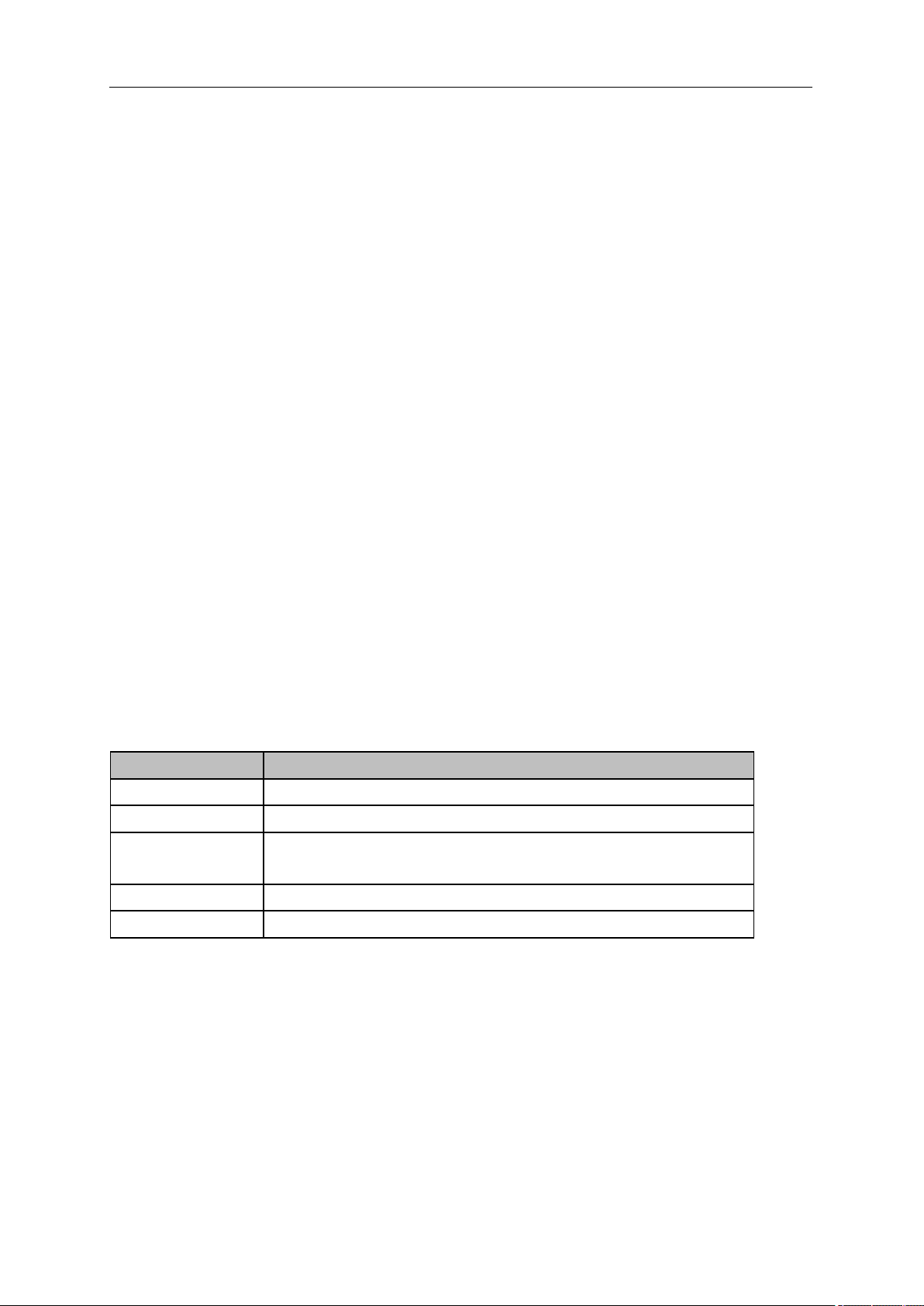
SIGLENT
104 User Manual
2. Beep
A beep is emitted after Out of fmt mask.
3. Stop
The waveform stops refreshing after Out of fmt mask
6.3 Marker
6.3.1 Marker
The marker appears as a rhombic sign (as shown below) for identifying points on a trace. You can easily
read the amplitude, frequency and sweep time of the marked point on the trace.
● The analyzer allows for up to eight/four pairs of markers to be displayed at one time, but only one
pair or a single marker is active every time.
● You can use the numeric keys, knob or direction keys to modify the desired frequency or time as
well as view the readouts of different points on the trace.
6.3.1.1 Select Marker
Select one of the eight markers. The default is Marker1. When a marker is selected, you can set its type,
trace to be marked, readout type and other related parameters. The enabled marker will appear on the
trace selected through the Select Trace option and the readouts of this marker are also displayed in the
active function area and at the upper right corner of the screen.
Table 6-17 Marker parameters
Parameter
Explanation
Default
Center Frequency
Range
0 ~ Full Span
Unit
Readout = Frequency: GHz, MHz, kHz, Hz
Readout = Time or Period: s, ms, us, ns, ps
Knob Step
Step = Span/(Sweep Points - 1)
Direction Key Step
Step = Span/10
6.3.1.2 Select Trace
Select the trace to be marked by the current marker. Valid selections include A, B, C.
6.3.1.3 Normal
One of the marker types. It is used to measure the X (Frequency or Time) and Y (Amplitude) values of
a certain point on the trace. When selected, a marker with the number of the current marker (such as
“1”) appears on the trace.

SIGLENT
● If no active marker exists currently, a marker will be enabled automatically at the center frequency
of the current trace.
● You can use the numeric keys, knob or direction keys to move the marker. The readouts of the
marker will be displayed at the upper right corner of the screen.
6.3.1.4 Delta
One of the marker types. It is used to measure the delta values of X (Frequency or Time) and Y
(Amplitude) between the reference point and a certain point on the trace. When selected, a pair of
markers appears on the trace: Fixed Related Marker (marked by a combination of the marker number
and letter “+”, such as “2+”) and the Delta Marker (marked by the “∆”, such as “1∆2”).
● After the marker selects “Delta”, the original marker will become the delta measurement marker,
and the related marker of the incrementing sequence number will become the reference “fixed”
marker
● The delta marker is in the "relative to" state, and its X-axis position can be changed; the related
marker is in the "fixed" state by default (the X-axis and Y-axis positions are fixed), but the X-axis
can be adjusted by changing to the "normal" state.
● The first row in the upper right corner of the trace area shows the frequency (or time) difference
and amplitude difference between the two markers; the second row in the upper right corner of the
trace area shows the X axis and amplitude value of the related marker.
6.3.1.5 Fixed
One of the marker types. When “Fixed” is selected, the X-axis and Y-axis of the marker will not change
by the trace and can only be changed through the menu. The fixed marker is marked with "+".
After the marker selects “Delta”, the original marker will become the delta measurement marker, and the
related marker of the incrementing sequence number will become the reference “fixed” marker
6.3.1.6 Off
Turn off the marker currently selected. The marker information displayed on the screen and functions
based on the marker will also be turned off.
6.3.1.7 Relative To
“Relative to” is used to measure the delta values of X (Frequency or Time) and Y (Amplitude) between
two markers which can mark on different traces.
After the marker selects “Delta”, the original marker will become the delta measurement marker, and the
related marker of the incrementing sequence number will become the reference “fixed” marker
6.3.2 Peak
Open the peak search setting menu and execute peak search.

SIGLENT
106 User Manual
6.3.2.1 Peak->CF
Set the current peak frequency to the center frequency.
6.3.2.2 Left Peak
Search for and mark the nearest peak which is located at the left side of the current peak and meets the
peak search condition.
6.3.2.3 Right Peak
Search for and mark the nearest peak which is located at the right side of the current peak and meets
the peak search condition.
6.3.2.4 Peak Peak
Execute peak search and minimum search at the same time and mark the results with delta pair markers.
Wherein, the result of peak search is marked with the delta marker and the result of minimum search is
marked with the reference marker.
6.3.2.5 Count Peak
Enable or disable continuous peak search. The default is Off. When enabled, the system will always
execute a peak search automatically after each sweep in order to track the signal under measurement.
6.3.3 Marker->
1. M->CF
Set the center frequency of the analyzer to the frequency of the current marker.
● If the Normal marker is selected, the center frequency will be set to the frequency of the current
marker.
● If the Delta or Delta Pair marker is selected, the center frequency will be set to the frequency of
the Delta Marker.
2. M->Start Freq
Set the start frequency of the analyzer to the frequency of the current marker.
● If the Normal marker is selected, the start frequency will be set to the frequency of the current
marker.
● If the Delta or Delta Pair marker is selected, the start frequency will be set to the frequency of the
Delta Marker.
3. M->Stop Freq
Set the stop frequency of the analyzer to the frequency of the current marker.
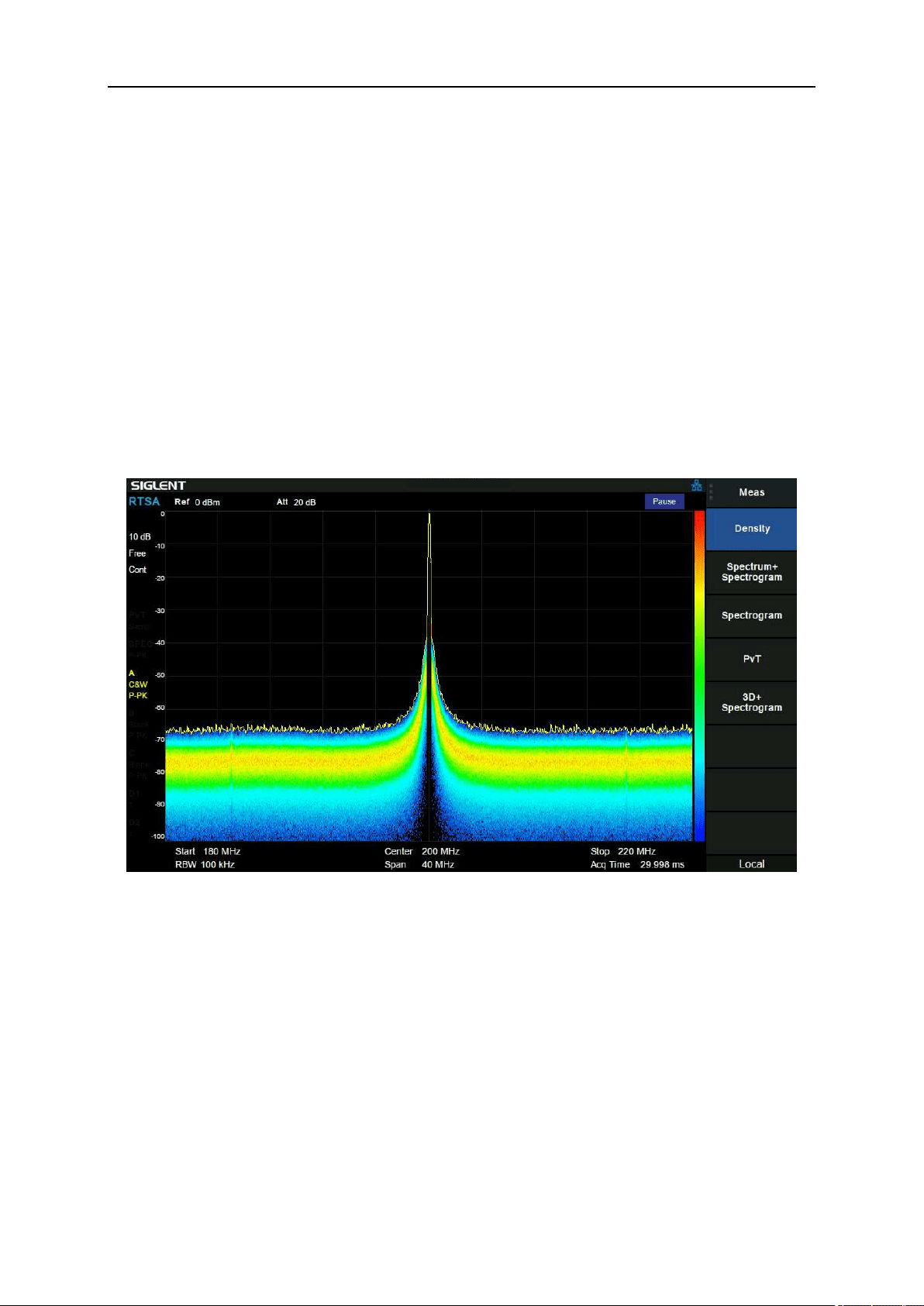
SIGLENT
● If the Normal marker is selected, the stop frequency will be set to the frequency of the current
marker.
● If the Delta or Delta Pair marker is selected, the stop frequency will be set to the frequency of the
Delta Marker.
6.4 Measurement
6.4.1 Meas
The real-time spectrum analyzer Mode provides several observation window combinations, including
Density, spectrum+spectrogram, spectrogram, PvT, 3D+spectrogram.
6.4.1.1 Density
Figure 6-1 Density
The “Density” view provides a good understanding of the frequency band and signals.Since the
measurements are gap free and all signal samples are represented in the display, it is possible to see
most of the signals in the band at a glance or over a short measurement time.Individual display updates
combine thousands of spectra and shows the signal dynamics and unexpected behavior.
The “Density” view uses colour of bitmaps to represent the signal density. Density is defined as the
number of probability that frequency and amplitude points are hit during the capture interval (Acq Time).
In this view, the X axis represents frequency, the Y axis represents amplitude, and the colour represents
signal density.
By controlling the brightness of the historical signal point of the “Density” view, the afterglow effect can
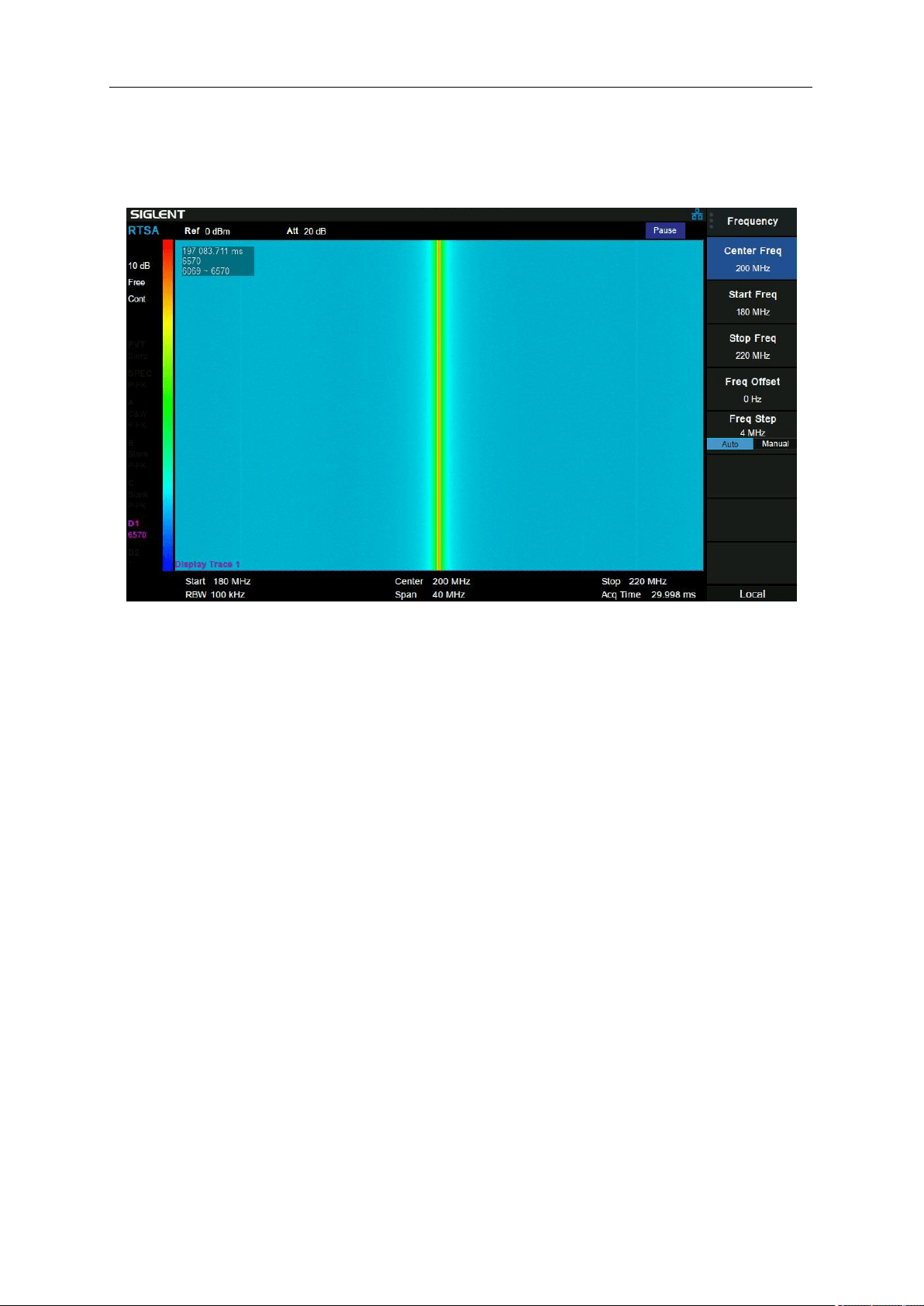
SIGLENT
108 User Manual
be achieved.
6.4.1.2 Spectrogram
Figure 6-2 Spectrogram
In the “Spectrogram” display, the same spectral data is shown with a time dimension added to the
spectrum display. “Spectrogram” records the relationship between the frequency-domain characteristics
of each event and time.
In this view, the X axis represents frequency, the Y axis represents time, and the colour represents signal
amplitude.
The information area in the upper left corner of the “Spectrogram” display shows the real-time of the
latest spectral data (relative to the start measurement), the total number of generated waveform frames,
and the waveform display range.
In the "paused" state, the user can observe the historical trace by moving display trace (D1, D2), or the
historical range of the waveform data displayed in the waveform area by view start and view end. In the
run state, the view interval offset is 0 by default, that is, the latest historical data is displayed, while D1
and D2 are the latest trace by default.
Reading makers on traces D1 and D2, observe the position (time of occurrence) of the corresponding
traces in the historical data, as well as the frequency and amplitude of signals. Compared with the latest
trace, it can trace up to 50000 frames in the future. When the total number of generated waveforms is
more than 50000 frames, the historical data of more than 50000 frames will be discarded.
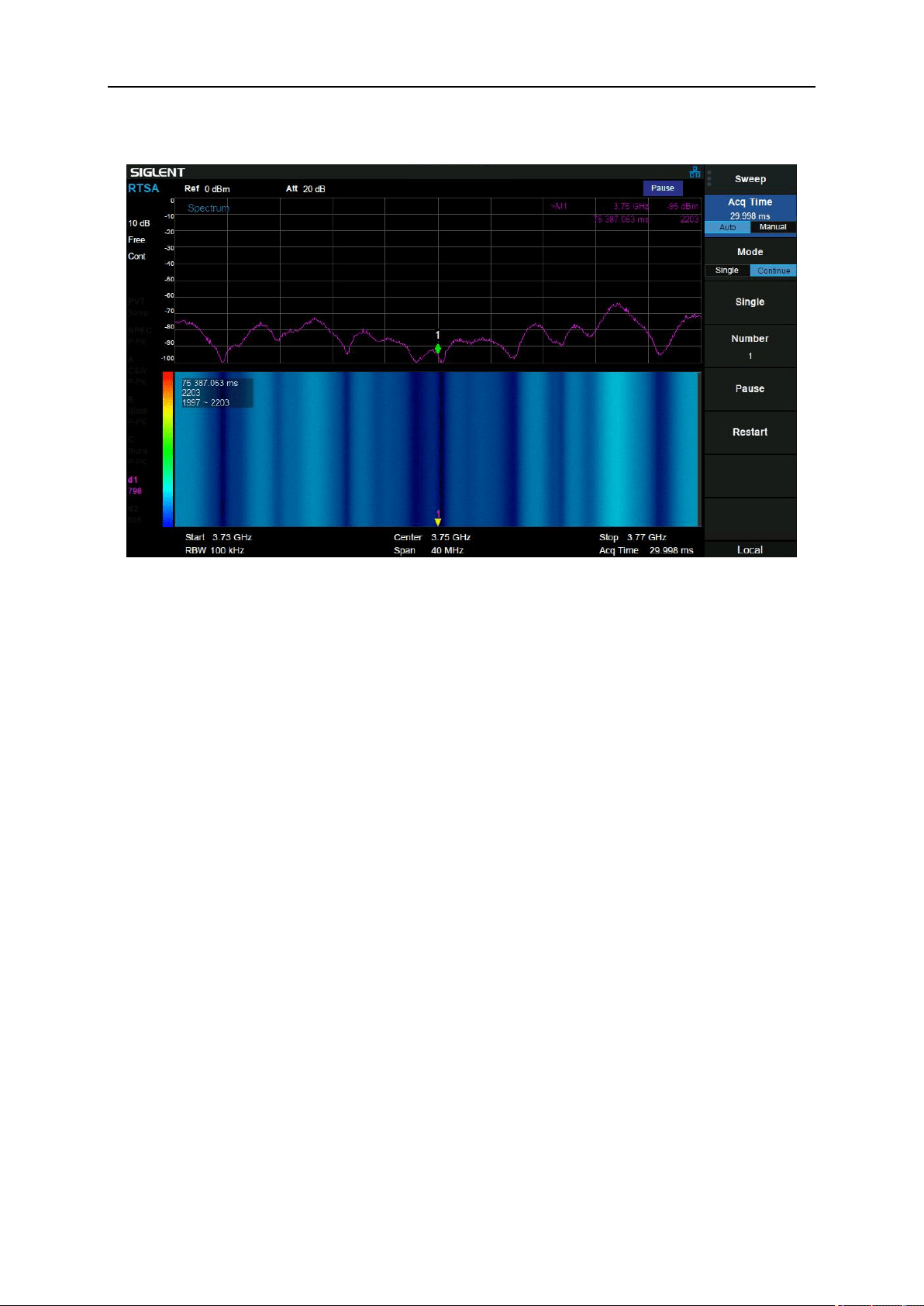
SIGLENT
6.4.1.3 Spectrum + Spectrogram
Figure 6-3 Spectrum
The top view is spectrum which is shown as amplitude vs. frequency, and the bottom view si spectrogram
which is mentioned above.
The display trace (D1, D2) specified in the spectrogram is shown as amplitude vs. frequency in the
spectrum.
The traces in the spectrum view will refresh when modifying the positions on the y-axis of display trace
(D1, D2) in the spectrogram, and when the frequency of the maker in the spectrum view is modified, the
maker in the spectrogram will also move on the x-axis.
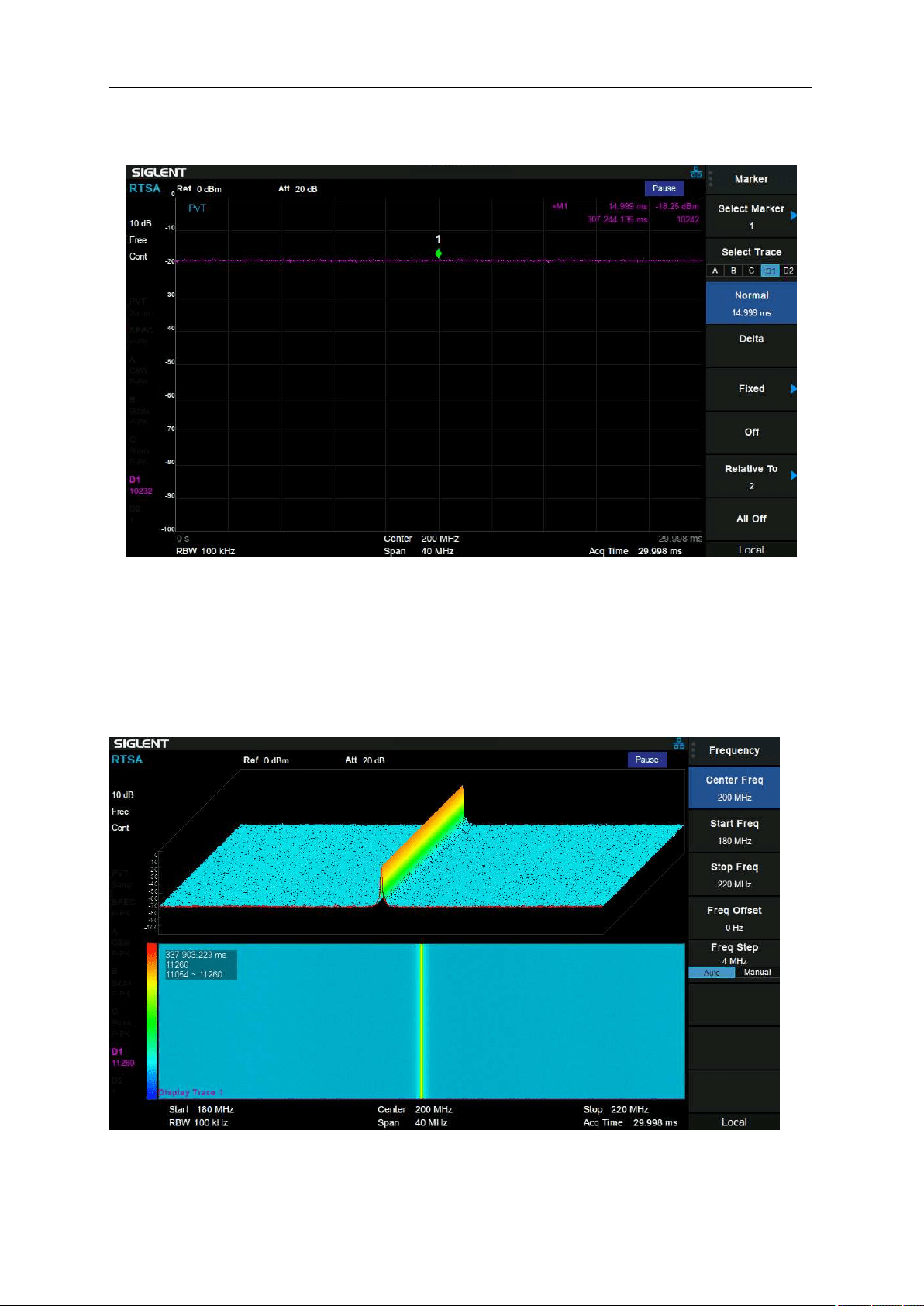
SIGLENT
110 User Manual
6.4.1.4 PvT
Figure 6-4 PVT
In the time domain, after the input data (IQ data) of FFT is detected, the corresponding PvT data can be
obtained. The detection period is also the corresponding acquisition time. The Aladdin RTSA supports
up to 50000 PVT traces for cyclic storage, and each PvT trace corresponds to a spectrogram trace.
6.4.1.5 3D Map
Figure 6-5 3D Map
3D Map is an observation window for real-time display of waveform data with time, frequency and

SIGLENT
amplitude as axes. It can visually observe the relationship between frequency characteristics of events
and time, and the temperature of its color represents the magnitude.
6.4.2 Meas setup
Open the parameter setting menu corresponding to the currently selected measurement window. The
menu of this key only displays the setting items related to the current measurement function. Please
view the relevant menu according to the current measurement window.
6.4.2.1 Persistence
Sets the time when a frequency / amplitude display point's brightness fades in the persistence bitmap.
● In finite mode, you can customize the afterglow duration. And the length of time that the brightness
of a point decays from 100% to 0%.
● In infinite mode, the display brightness of each point is 100% without attenuation, but its probability
will change with the measurement time.
6.4.2.2 Display Trace
Controls the frame number of the spectrum where traces D1 and D2 are displayed.
6.4.2.3 Ogram View Start
Display the frame number of the trace represented by the starting position in the frame in the spectrum.
6.4.2.4 Ogram View Stop
Display the frame number of the trace represented by the ending position in the frame in the spectrum
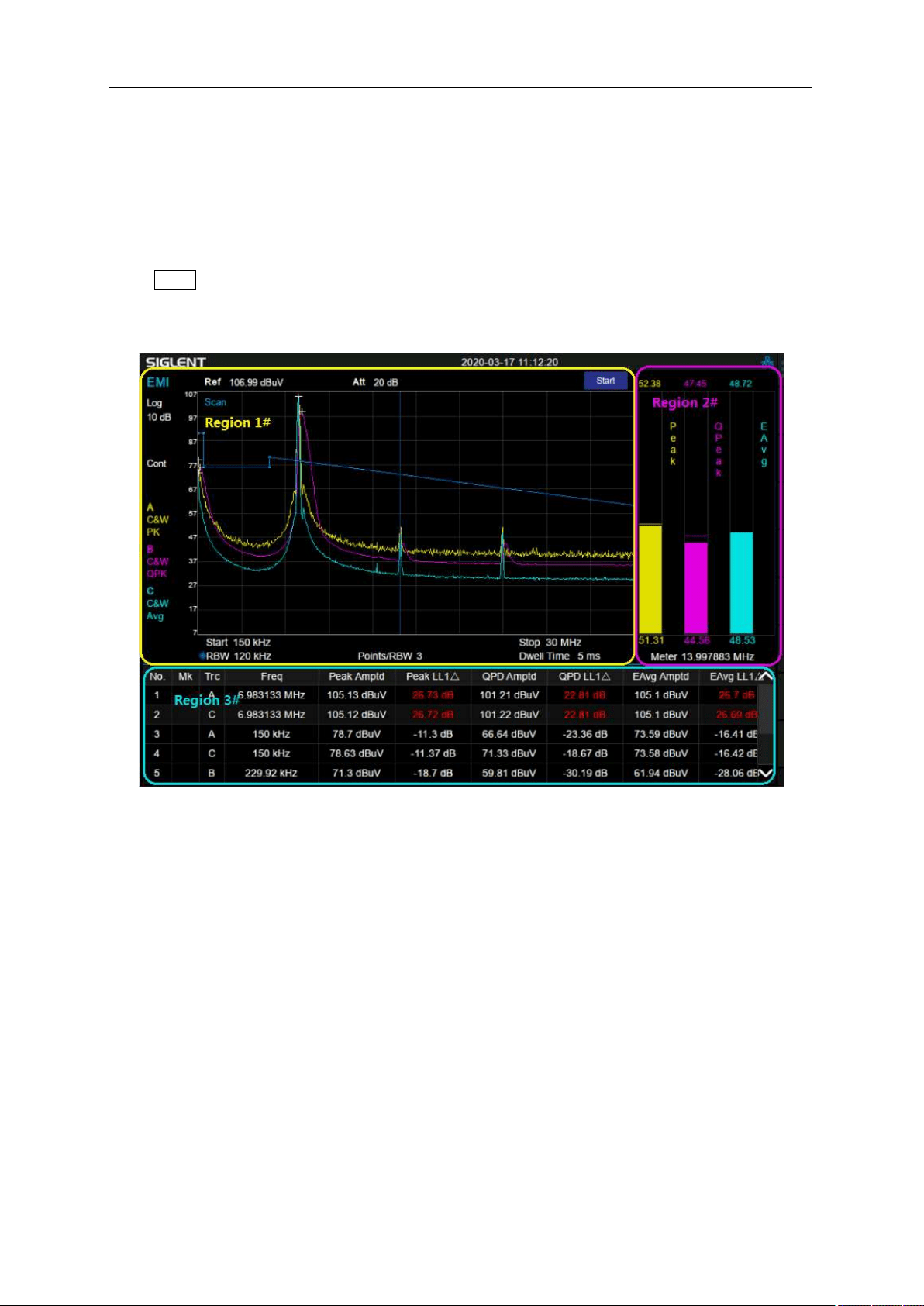
SIGLENT
112 User Manual
Chapter 7 EMI Measurement
7.1 Introduction
Press Mode, select ‘Emi Measurement’ to enter EMI measurement mode.
The user interface for EMI Measurement mode has three display regions showing information regarding
different setting menus as shown in the figure below.
Figure 7-1 EMI Measurement User Interface
● Region 1#: Spectrum and setting information of scanning.
● Region 2#: Meter graphs, metrics and related setting information.
● Region 3#: Signal list with suspect signals populated by searching.
Meas is the default menu of EMI measurement mode as shown in the Figure 7-2. Sequence is very
important for understanding the philosophy of EMI measurement operation because it aligns with the
CISPR test flow. Figure 7–3 shows the EMI test flow recommended by CISPR 16-2-3. A complete routine
measurement consists of a series of routines, i.e. scanning, search and final measurement.
First, the measurement scans the band based on Scan Config settings specified and activated by the
user to capture interference spectrum. You can have up to three traces running with different detectors
and trace types. You can enable limit lines that the spectrums need to meet, and optionally include a
limit margin.
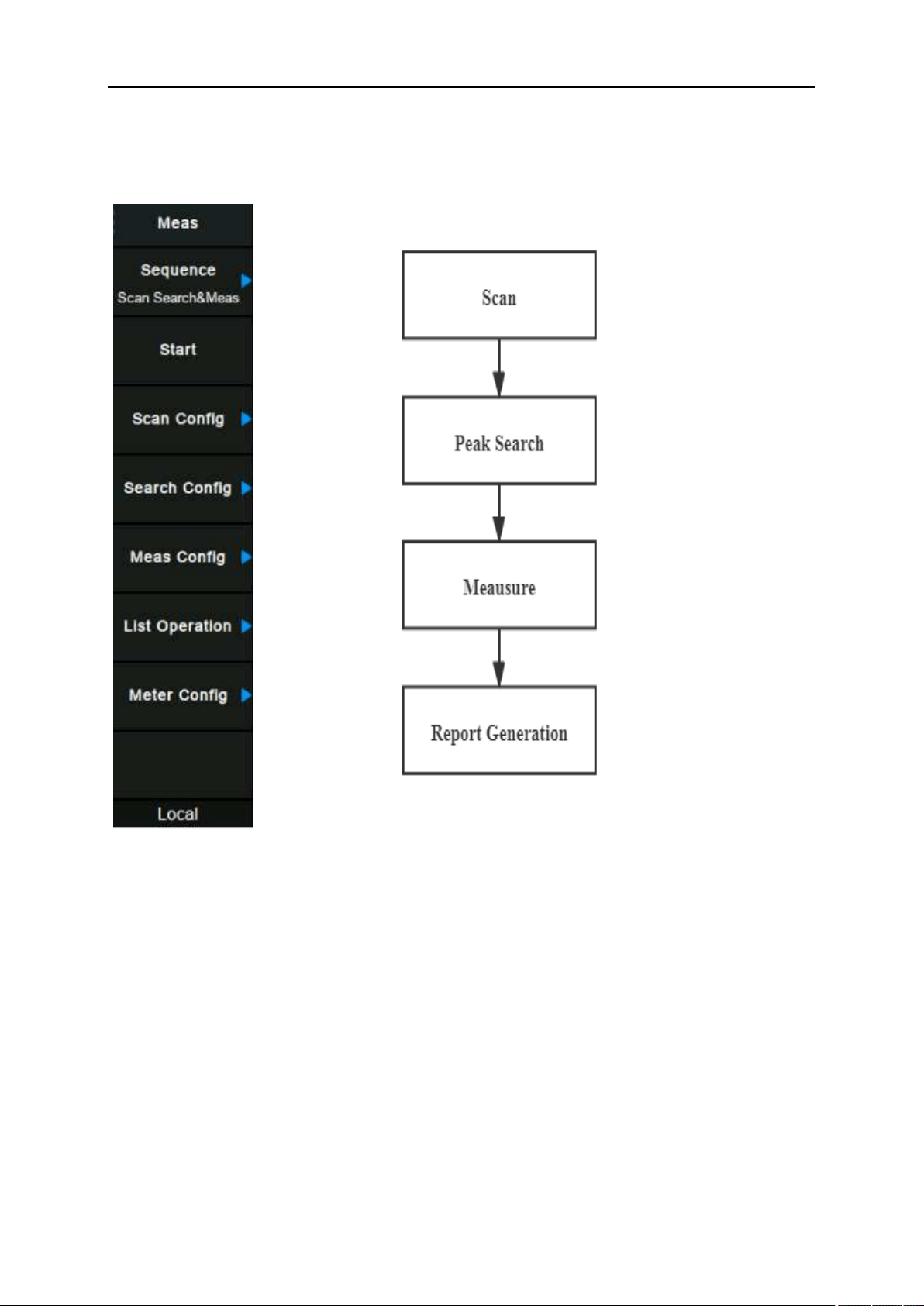
SIGLENT
Next, the measurement searches for the peak signal to build a list of peaks called a “signal list”. The
search is based on the defined peak excursion and peak threshold under menu Search. A cross mark
is added onto the trace for each peak signal found.
For each of the peak signals found, the instrument is tuned to the signal frequency in zero span and
dwells for the specified dwell time under menu Meas. Each signal in the list is updated with the final
detector and delta limit values when the final measurement is completed.
In some cases, you may not want to run the complete measurement, so you have the flexibility to control
the measurement routines. You can choose to just run scan, search, or the final measurement for only
certain specific signals in the signal list under menu Sequence.
The meters window on the right shows the instantaneous amplitude of each of up to three detectors.
Similar to the final measurement, meter consists of making a zero span measurement on the specified
meter frequency using independent detectors and dwell times in menu Meter. Meter measurement is
invalid during scan or a final measurement.
Figure 7-3 Meas Menu
Figure 7-2 CISPR-recommended EMI test flow
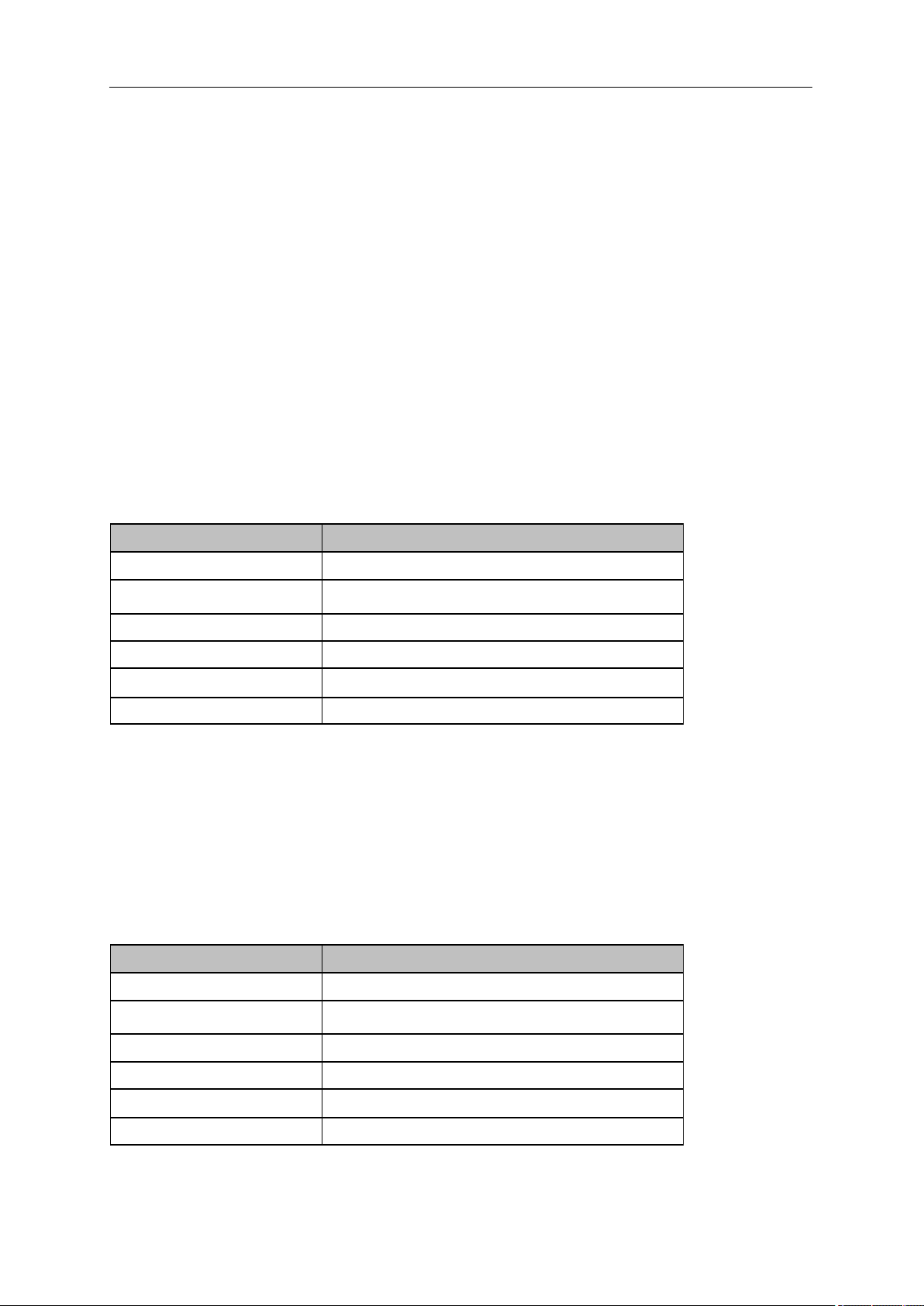
SIGLENT
114 User Manual
7.2 Basic Settings
7.2.1 Frequency
Set the frequency-related parameters and functions of the analyzer. Any change of this parameter will
stop the running sequence.
7.2.1.1 Freq(Meter)
Set the frequency of the meter measurement. The meter frequency value is displayed at the bottom of
the meter window.
● The frequency of the meters can be at any position, even outside the span displayed on the screen.
Table 7-1 Meter Frequency
Parameter
Explanation
Default
165MHz
Range
0 Hz ~ Full Span
Unit
GHz, MHz, kHz, Hz
Knob Step
Span/200, min 1 Hz
Direction Key Step
Span/10
Related to
7.2.1.2 Midspan Frequency
Set the frequency at the midspan of scan.
● Modifying the center frequency will modify both the start frequency and stop frequency when the
span is constant (except when the start frequency or stop frequency reaches the boundary).
Table 7-2 Center Frequency
Parameter
Explanation
Default
165 MHz
Range
50 Hz ~ (Full Span -50Hz)
Unit
GHz, MHz, kHz, Hz
Knob Step
Span/200, min 1 Hz
Direction Key Step
Span/10
Related to
Start Freq, Stop Freq
SIGLENT
7.2.1.3 Start Frequency
Set the start frequency of scan. The start and stop frequencies are displayed at the bottom of the grid
respectively.
● The span and center frequency vary with the start frequency when the Span does not reach the
minimum. For more details, please refer to “Span”.
Table 7-3 Start Frequency
Parameter
Explanation
Default
30 MHz
Range
0 Hz ~ (Full Span-100Hz)
Unit
GHz, MHz, kHz, Hz
Knob Step
Span/200, min 1 Hz
Direction Key Step
Span/10
Related to
Center Freq, Span
7.2.1.4 Stop Frequency
Set the stop frequency of scan. The start and stop frequencies are displayed at the lower right sides of
the grid respectively.
● The span and center frequency vary with the stop frequency. The change of the span will affect
other system parameters. For more details, please refer to “Span”.
Table 7-4 Stop Frequency
Parameter
Explanation
Default
300 MHz
Range
Nonzero Span: 100 Hz ~ Full Span
Unit
GHz, MHz, kHz, Hz
Knob Step
Span/200, min 1 Hz
Direction Key Step
Span/10
Related to
Center Freq, Span
7.2.2 Span
Set the span of scan. Any change of this parameter will stop the running sequence.
● Zero-span is invalid in EMI Measurement mode.
7.2.2.1 Span
Set the frequency range of scan.
● The start and stop frequency vary with the span when the center frequency is constant.
● The span can be set down to 100 Hz and up to the full span described in Specifications. When the
SIGLENT
116 User Manual
span is set to the maximum, the analyzer enters full span mode.
● Modifying the span may cause an automatic change in RBW if they are in Auto mode.
Table 7-5 Span
Parameter
Explanation
Default
270 MHz
Range
30 MHz ~ 270 MHz
Unit
GHz, MHz, kHz, Hz
Knob Step
Span/200, min 1 Hz
Direction Key Step
In 1-2-5 sequence
Related to
Start Freq, Stop Freq, RBW
7.2.2.2 Select Band
Set up the analyzer for CISPR measurements quickly and easily. It contains controls to set the following
presets:
● CISPR Band A: 9kHz – 150kHz
● CISPR Band B: 150kHz – 30MHz
● CISPR Band C: 30MHz – 300MHz
● CISPR Band B&C: 150kHz – 300MHz
● CISPR Band D: 300MHz – 1GHz
This is same as the Meas -> Scan Config -> CISPR Band.
7.2.2.3 X-Scale
Set the scale type of X-axis to Linear (Lin) or Logarithmic (Log) scale.
In Log scale type, the frequency scale of X-axis is displayed in the logarithmic form.
7.2.3 Amplitude
Set the amplitude parameters of the analyzer. Through modifying these parameters, signals under
measurement can be displayed in a proper mode for easier observation and minimum error. Any change
of Ref Level, Attenuator Value, Preamp mode and Ref Offset will stop the running sequence.
7.2.3.1 Ref Level
Set the maximum power or voltage that can be currently displayed in the trace window. The value is
displayed at the upper left corner of the screen grid.
The maximum reference (Ref) level available is affected by the maximum mixing level; input attenuation
is adjusted under a constant maximum mixing level in order to fulfill the following condition:
Ref <= ATT - PA - 20dBm, where ATT = Attenuation value, PA = Preamplifier value
SIGLENT
Table 7-6 Ref Level
Parameter
Explanation
Default
0 dBm
Range
-100 dBm ~ 30 dBm
Unit
dBm, dBmV, dBuV, dBuA, V, W
Knob Step
In Log scale mode, step = Scale/10
In Lin scale mode, step = 0.1 dBm
Direction Key Step
In Log scale mode, step = Scale
In Lin scale mode, step = 1 dBm
Related to
Attenuator, Preamp, Ref Offset
Note: the maximum reference level of different machine models may be different, please refer to the
data manual specifically.
7.2.3.2 Attenuator
Set the value for the internal attenuator of the RF input. So that the large signal can be low distortion
and the small signal can pass through the mixer with low noise.
Ref <= ATT - PA - 20dBm, where ATT = Attenuation value, PA = Preamplifier value
Input attenuation can be set up to auto or manual mode.
● Auto mode: the attenuation value is automatically adjusted according to the state of preamplifier
and the current reference level.
● The maximum input attenuation can be set to 31 dB. When the set parameters do not meet the
above formula, you can adjust the reference level.
Table 7-7 Attenuator
Parameter
Explanation
Default
20 dB
Range
0 ~ 51 dB
Unit
dB
Knob Step
1 dB
Direction Key Step
5 dB
Related to
Preamp, Ref level
Note: the maximum attenuator value of different machine models may be different, please refer to the
data manual specifically.
7.2.3.3 RF Preamp
Control the state of the internal preamplifier (PA) located in the RF input signal path. When the signal-
under-measurement is small, turning on the preamplifier can reduce the displayed noise level and aid
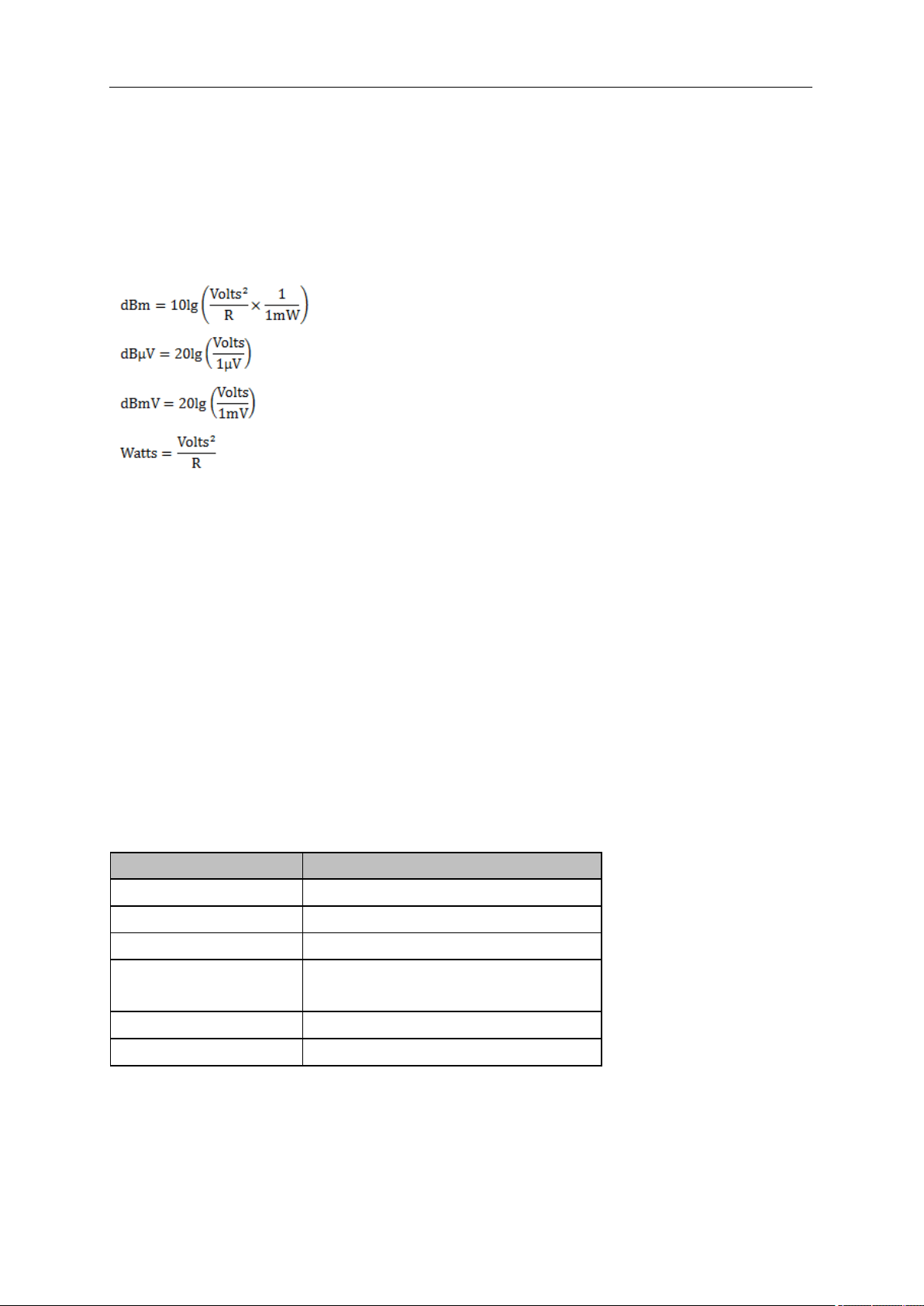
SIGLENT
118 User Manual
distinguishing small signals from the noise.
The corresponding icon “PA” will appear at the left side of the screen when the preamplifier is turned on.
7.2.3.4 Units
Set the unit of the Y-axis to dBm, dBmV, dBuV, dBuA, Volts (RMS) or Watts. Default is dBm.
The conversion relationships between units are as follows.
Where, R denotes the reference impedance. The default value is 50Ω and can be adjusted by pressing
“Correction -> RF input”. The “75 Ω” impedance is just a numeric value, not a real impedance. Setting
the RF input to 75 Ω will not change the actual input impedance. A 75 Ω feed-through adapter is required
to match 75 Ω circuits to the 50 Ω input of the analyzer.
7.2.3.5 Scale
Set the logarithmic units per vertical grid division on the display. This function is only available when the
scale type is set to “log”.
● By changing the scale, the displayed amplitude range is adjusted.
● The Minimum range: Reference level –10 × current scale value.
● The Maximum range: The reference level.
Table 7-8 Scale/Div
Parameter
Explanation
Default
10 dB
Range
0.1 dB ~ 20 dB
Unit
dB
Knob Step
Scale>=1, 1 dB,
Scale<1, 0.1dB
Direction Key Step
1-2-5 sequence
Related to
Scale Type
7.2.3.6 Scale Type
Set the scale type of the Y-axis to Lin or Log. The default is Log.
● In Lin mode, the vertical Scale value cannot be changed. The Display area is set for reference level
SIGLENT
of 0%.
● In Log scale type, the Y-axis denotes the logarithmic coordinate. The value shown at the top of the
grid is the reference level and each grid represent the scale value. The unit of Y-axis will
automatically switch to the default unit (dBm) in Log scale type when the scale type is changed
from Lin to Log.
● In Lin scale type, the Y-axis denotes the liner coordinate; the values shown at the top of the grid
and the bottom of the grid are the reference level and 0 V. The scale setting function is invalid. The
unit of Y-axis will automatically switch to the default unit (Volts) in Lin scale type when the scale
type is charged from Log to Lin.
7.2.3.7 Ref Offset
Assign an offset to the reference level to compensate for gains or losses generated between the device
under measurement and the analyzer.
The change of this value changes both the reference level readout and the amplitude readout of the
marker; but does not impact the position of traces on the screen.
Table 7-9 Ref Offset
Parameter
Explanation
Default
0 dB
Range
-100 dB ~ 100 dB
Unit
dB
Knob Step
Not support
Direction Key Step
Not support
Related to
Ref Level
7.3 Sweep and Functions
7.3.1 BW
Set the Resolution BW of the analyzer. Any change of this parameter will stop the running sequence.
7.3.1.1 RBW(Scan)
Set the RBW of scan.
● RBW can only be set to 200 Hz, 9 kHz, 120 kHz and 1 MHz with a 6dB shape factor.
● Set up RBW will affect sweep points for scanning. For more detail, please refer to Sweep -> Sweep
Points.
Table 7-10 RBW
Parameter
Explanation
Default
120 kHz
SIGLENT
120 User Manual
Range
200 Hz, 9 kHz, 120 kHz, 1 MHz
Unit
Hz, kHz, MHz
Knob Step
Direction Key Step
Relation
Span, Sweep Points
7.3.1.2 RBW(Meter)
Set the RBW of meters measurement.
Table 7-11 Meter RBW
Parameter
Explanation
Default
9 kHz
Range
200 Hz, 9 kHz, 120 kHz , 1 MHz
Unit
Hz, kHz, MHz
Knob Step
Direction Key Step
Relation
7.3.2 Trace
7.3.2.1 Select Trace
The analyzer allows for up to three traces to be displayed at the same time. Each trace has its own color
(Trace A - Yellow, Trace B – Purple and Trace C - Light blue). All traces can be set parameter
independently. As a default, analyzer will choose Trace A and set the type of the trace as Clear Write.
7.3.2.2 Trace Type
1. Clear Write
Erases any data previously stored in the selected trace, and display the data sampled in real-time of
each point on the trace.
2. Max Hold
Retain the maximum level for each point of the selected trace. Update the data if a new maximum level
is detected in successive sweeps. Max Hold is very effective when measuring events that may take
successive scans to measure accurately. Some common applications include FM Deviation, AM NRSC,
and frequency hopping or drift.
3. Min Hold
Display the minimum value from multiple sweeps for each point of the trace and update the data if a
new minimum is generated in successive sweeps.
SIGLENT
4. View
Freezes and holds the amplitude data of the selected trace. The trace data is not updated as the
analyzer sweeps.
5. Blank
Disable the trace display and all measurements of this trace.
6. Average
Set the averages times of the selected trace.
More averages can reduce the noise and the influence of other random signals; thus highlighting the
stable signal characteristics. The larger the averages times is, the smoother the trace will be. Enabling
averaging will take more time to collect the full spectral information because the analyzer needs to
sweep the set average count. The displayed data is averaged in a first-in-first-out fashion.
Table 7-12 Average Times
Parameter
Explanation
Default
100
Range
1 ~ 999
Unit
N/A
Knob Step
1
Direction Key Step
5
7.3.3 Detect
Set the detector for scan.
This will not affect the detector for meters measurement or final measurement. You can set the detector
for meters under Meas -> Meter -> Meter Detector, set the detector for final measurement under Meas
-> Meas -> Det.
The available types are Peak, Quasi Peak and EMI Average. The default detector for trace A is peak,
trace B is Quasi Peak and EMI Average is the default detector for trace C.
7.3.4 Sweep
Sets parameters about the Sweep functions, including sweep times, sweep mode, sweep points, etc.
7.3.4.1 Mode
Set the sweep mode for scan measurement in single or continuous, the default is continuous. The
corresponding icon of the sweep will be displayed in the status bar at the left of the screen.
SIGLENT
122 User Manual
Even if the sweep mode is turned to “Continue”, scan measurement will not start to sweep immediately
until the button Start on the screen or Start Sequence under menu Meas is pressed.
1. Single
Set the sweep mode to “Single”. The number on the parameter icon denotes the current sweep times.
2. Numbers
Set the sweeps times for a single sweep. In single sweep mode, the system executes the specified
sweeps times and the number shown on the icon in the status bar at the left of the screen varies with
the process of the sweep.
3. Continue
Set the sweep mode to “Continue”. The character Cont on the parameter icon denotes the analyzer is
sweeping continuously.
Table 7-13 Sweep Times
Parameter
Explanation
Default
1
Range
1 ~ 99999
Unit
N/A
Knob Step
1
Direction Key Step
1
7.3.4.2 RBW/Step
Set the number of points for each RBW width. The RBW Div Step is used to calculate the sweep step
and sweep points of scan. Sweep Step = RBW / RBWDS. Sweep Points = Span / Sweep Step + 1.
Table 7-14 RBW/Step
Parameter
Explanation
Default
1
Range
0.1, 0.3, 0.5, 1, 2, 3
Unit
N/A
Knob Step
1
Direction Key Step
1
7.3.4.3 Sweep Points
Specify the sweep points of scan. This control is always grayed out. If you want to change the sweep
points, you can adjust RBW/Step under menu Sweep and RBW(Scan) under menu BW. For more
detail, please refer to 1.2.4.2 RBW/Points.
SIGLENT
Table 7-15 Sweep Points
Parameter
Explanation
Default
2116
Range
2 ~ 20001
Unit
N/A
Knob Step
Not supported
Direction Key Step
Not supported
7.3.4.4 Meter Mode
Set the sweep mode for scan measurement in single or continuous, the default is continuous.
7.3.5 Limit
The analyzer supports Pass/Fail test function. In this function, the measured curve will be compared
with the pre-edited curve. If the related rules are met, the result is “Pass”, else the result is “Fail”. You
can also load the preset standard LIM file stored in the instrument.
7.3.5.1 Limit1
Enable or disable limit1.
7.3.5.2 Limit1 Edit
Edit the properties of limit1.
Table 7-16 Limit1 Edit Menu
Function
Explanation
Type
Select upper or lower limit type. The default value is Upper.
Mode
Select limit line or limit point. The default value is Line.
Set the number of the point to be edited if you selected the point type, and
the range is 1 ~ 100.
Add point
Add a new point for editing.
X-axis
Edit the X-axis value (frequency or time) of the current point.
Amplitude
Edit the amplitude of the current point or line.
Del Point
Delete the point whose number is selected in Mode.
Del All
Delete all the points.
Save/Load
Save or load the limit file.
X Offset
Set offsets of X axis.
Y Offset
Set offsets of Y axis
SIGLENT
124 User Manual
7.3.5.3 Margin
Margin value sets a margin for the limit, which will cause a trace to Fail Margin when the trace is between
the limit line and the margin line if the margin switches to on.
Table 7-17 Margin
Parameter
Explanation
Default
-5
Range
-40 ~ 0
Unit
dB
Knob Step
in 1, 3, 10 sequence
Direction Key Step
in 1, 3, 10 sequence
7.3.5.4 Test Trace
Select the trace that you want the limits to test. A limit is applied to one and only one trace.
7.3.5.5 Test
Enable or disable the limit test function.
7.3.5.6 Load Std Lim
Load the preset standard LIM file stored in the instrument.
7.4 Marker
7.4.1 Marker
The marker appears as a rhombic sign (as shown below) for identifying points on a trace. You can easily
read the amplitude, frequency and sweep time of the marked point on the trace.
● You can use the numeric keys, knob or direction keys to modify the desired frequency or time as
well as view the readouts of different points on the trace.
7.4.1.1 Select Marker
Select one of the six markers. The default is Marker1. When a marker is selected, you can set its type,
trace to be marked and other related parameters. The enabled marker will appear on the trace selected
through the Select Trace option and the readouts of this marker are also displayed in the active function
area and at the upper right corner of the screen.

SIGLENT
Table 7-18 Marker parameters
Parameter
Explanation
Default
Center Frequency
Range
0 ~ Full Span
Unit
GHz, MHz, kHz, Hz
Knob Step
Step = Span/(Sweep Points - 1)
Direction Key Step
Step = Span/10
7.4.1.2 Select Trace
Select the trace to be marked by the current marker. Valid selections include A, B, or C.
7.4.1.3 Normal
One of the marker types. It is used to measure the X (Frequency or Time) and Y (Amplitude) values of
a certain point on the trace. When selected, a marker with the number of the current marker (such as
“1”) appears on the trace.
● If no active marker exists currently, a marker will be enabled automatically at the center frequency
of the current trace.
● You can use the numeric keys, knob or direction keys to move the marker. The readouts of the
marker will be displayed at the upper right corner of the screen.
● The readout resolution of the X-axis (frequency or time) is related to the span. For higher readout
resolution, reduce the span.
7.4.1.4 Delta
One of the marker types. It is used to measure the delta values of X (Frequency or Time) and Y
(Amplitude) between the reference point and a certain point on the trace. When selected, a pair of
markers appears on the trace: Fixed Related Marker (marked by a combination of the marker number
and letter “+”, such as “2+”) and the Delta Marker (marked by the “∆”, such as “1∆2”).
● After the marker selects “Delta”, the original marker will become the delta measurement marker,
and the related marker of the incrementing sequence number will become the reference “fixed”
marker
● The delta marker is in the "relative to" state, and its X-axis position can be changed; the related
marker is in the "fixed" state by default (the X-axis and Y-axis positions are fixed), but the X-axis
can be adjusted by changing to the "normal" state.
● The first row in the upper right corner of the trace area shows the frequency (or time) difference
and amplitude difference between the two markers; the second row in the upper right corner of the
trace area shows the X axis and amplitude value of the related marker.
7.4.1.5 Fixed
One of the marker types. When “Fixed” is selected, the X-axis and Y-axis of the marker will not change

SIGLENT
126 User Manual
by the trace and can only be changed through the menu. The fixed marker is marked with "+".
After the marker selects “Delta”, the original marker will become the delta measurement marker, and the
related marker of the incrementing sequence number will become the reference “fixed” marker
7.4.1.6 Off
Turn off the marker currently selected. The marker information displayed on the screen and functions
based on the marker will also be turned off.
7.4.1.7 Relative To
“Relative to” is used to measure the delta values of X (Frequency or Time) and Y (Amplitude) between
two markers which can mark on different traces.
After the marker selects “Delta”, the original marker will become the delta measurement marker, and the
related marker of the incrementing sequence number will become the reference “fixed” marker
7.4.2 Marker->
1. M->List
Append the frequency where the selected marker is at the end of signal list. The signal list provides ten
signals for each trace. If there is no free space in the signal list, it will delete first signal of the trace.
2. M->Meter
Set Frequency (Meters) with the frequency identified by the selected marker.
3. Meter->M
Set the frequency of the selected marker to Frequency (Meters).
7.4.3 Peak
7.4.3.1 Next Left Peak
Search for and mark the nearest peak which is located at the left side of the current peak and meets the
peak search condition.
7.4.3.2 Next Right Peak
Search for and mark the nearest peak which is located at the right side of the current peak and meets
the peak search condition.
7.4.3.3 Search Config
Define the conditions of peak search for various peak searches. A real peak should meet the
requirements of both the “Peak Excursion” and “Peak Threshold”.
SIGLENT
1. Peak Threshold
Assign a minimum for the peak amplitude. Peaks whose amplitudes are greater than the specified peak
threshold are treated as real peaks.
Table 7-19 Peak Threshold
Parameter
Explanation
Default
-140 dBm
Range
-200 dBm ~ 200 dBm
Unit
dBm
Knob Step
1 dB
Direction Key Step
5 dB
2. Peak Excursion
Set the excursion between the peak and the minimum amplitude on both sides of it. Peaks whose
excursions are beyond the specified excursion are treated as real peaks.
Table 7-20 Peak Excursion
Parameter
Explanation
Default
15 dB
Range
0 dB ~ 200 dB
Unit
dB
Knob Step
1 dB
Direction Key Step
5 dB
7.5 Measurement
7.5.1 Sequence
Display the menu controls that enable you to configure the measurement sequence. You need to press
Start Sequence to start the selected measurement sequence. The default is Scan Only.
7.5.1.1 Scan Only
Scan the band based on Scan Config settings.
7.5.1.2 Seach Only
Search for the peak signal on current traces to populate the signal list.

SIGLENT
128 User Manual
7.5.1.3 Scan, Search & Measure
The complete measurement includes scan, peak search and final measurement. After doing peak
search, the signal list will be cleared and populated with the new search result. It will do final
measurement on all signals in the signal list and update the information of the signal list.
7.5.1.4 Scan & Search
A combination of scan and peak search.
7.5.1.5 Search & Meas
A combination of peak search and final measurement.
7.5.1.6 Meas
Do final measurement on the selected signals of the signal list based on Meas settings. You can choose
Current Signal, All Signals or Marked Signals to be selected under menu Meas -> Meas Signal.
7.5.2 Start / Stop Sequence
Start the scan, search or final measurement depending on the sequence selected. When started, the
label on the menu changes to Stop Sequence. The Meters measurement would be invalid during
sequence running. Pressing Stop Sequence will stop the current sequence and meters detector will be
started automatically.
7.5.3 Scan Config
A group of menus let you configure for scan quickly and easily.
7.5.3.1 Start Freq
This is the same as 7.1.1.3 Start Frequency.
7.5.3.2 Stop Freq
This is the same as 7.1.1.4 Stop Frequency
7.5.3.3 CISPR Band
This is the same as 7.1.2.2 Select Band.
7.5.3.4 Dwell Time
Set the dwell time of scan.

SIGLENT
7.5.3.5 Points
This is the same as 7.2.4.3 Sweep Points.
7.5.4 Search
A group of menus let you configure for peak search quickly and easily. This is the same as 7.3.3.3
Search Config.
7.5.5 Meas
7.5.5.1 Meas Signal
Set the remeasure type, either on a current signal, all signals, or the marked signal in the signal list.
● Current Signal: You could set the current signal under menu Meas -> Signal List -> Select Signal.
● All Signals: Do final measurement on all signals in the signal list.
● Marked Signal: You could mark one or more signals to do final measurement under menu Meas ->
Signal List -> Mark Signal.
7.5.5.2 Det
● Switch: Set the selected detector to be used for final measurement or turned to off.
● Dwell Time: Set the dwell time for detectors.
● Limit for: Select the limit used by each detector to get the limit delta value.
7.5.6 Signal List
7.5.6.1 Select Signal
Select one of the signals as current signal in the signal list. When a signal is selected, you can mark,
unmark or delete it from the signal list. It will be relative to 1.4.5.1 Meas Signal.
7.5.6.2 Mark Signal
Mark the current signal.
7.5.6.3 Clear mark
Unmark the current signal.
7.5.6.4 Mark All
Mark all the signals in the signal list.

SIGLENT
130 User Manual
7.5.6.5 Clear All Mark
Unmark all the signals in the signal list
7.5.6.6 Delete Signal
Delete the current signal in the signal list.
7.5.6.7 Delete All
Delete all signals in the signal list.
7.5.6.8 Delete Marked
Delete all marked signals in the signal list.
7.5.6.9 Sort By
Sort all signals in the signal list by the specific order. You can sort based on the frequency, detector
1/2/3, detector vs. limit delta or timestamp in ascending or descending order.
Every new signal will be added at the end of the list until you sort the signal list.
SIGLENT
7.5.1 Meter
A group of menus let you configure for meter measurement quickly and easily
7.5.1.1 Sweep
This is the same as 7.2.4.4 Mete Mode.
7.5.1.2 Dwell Time
Set the dwell time for meter measurement.
7.5.1.3 All Off
Turn off all the meters. It will expand the scan window automatically.
7.5.1.4 Select Meter
Select one of the three meters. When a meter is selected, you can set its detector and limit configure.
7.5.1.5 Meter Limit
Table 7-21 Edit the properties of meter limit
Function
Explanation
Limit
Turn on or off the meter limit.
Value
Set the meter limit value.
Limit1 to Value
Use Limit1 line as meter limit at the current meter’s frequency.
Limit2 to Value
Use Limit2 line as meter limit at the current meter’s frequency.
Limit3 to Value
Use Limit3 line as meter limit at the current meter’s frequency.
Chapter 8 System Settings
8.1 System
8.1.1 Language
The analyzer supports a multi-language menu, Chinese and English built-in help and popup messages.
Press this key to select the desired display language.

SIGLENT
132 User Manual
8.1.2 Power On/Preset
8.1.2.1 Power On
Set the power on setting to Default, Last or User.
● Def: Load the default settings, for more details please refer to Table 8-3.
● Last: When Last is selected, instrument settings before the last power-off are recalled automatically
at power on.
● User: If power on is set to user, the device will recall the specified configuration after power on.
8.1.2.2 Preset
Set the preset type to Default, Last or User.
● Def: When press Preset, load the default settings, for more details please refer to Table 8-3.
● Last: When press Preset, load the last power-off settings.
● User: When press Preset, load the specified configuration type.
8.1.2.3 User Config
Save the current instrument settings as user-defined setting into the internal non-volatile memory.
8.1.2.4 Factory Reset
When Factory Reset is selected, the device will recall the initial config.
8.1.2.5 Reset & Clear
When Reset & Clear is selected, the device will recall the initial config and all user data and settings
will be erased.
8.1.2.6 Power on Line
Set whether the instrument will start automatically after power-on. Default does not automatically start.
8.1.3 Interface
The analyzer supports communications through LAN, USB and the SIGLENT USB-GPIB adapter as
standard remote computer control interfaces.
8.1.3.1 LAN
Configure the related parameters of the LAN connection by “Static” or “DHCP” method. As a default, the
IP config is DHCP.
● Statically setting LAN parameters requires pressing the "Apply" button to make LAN parameters
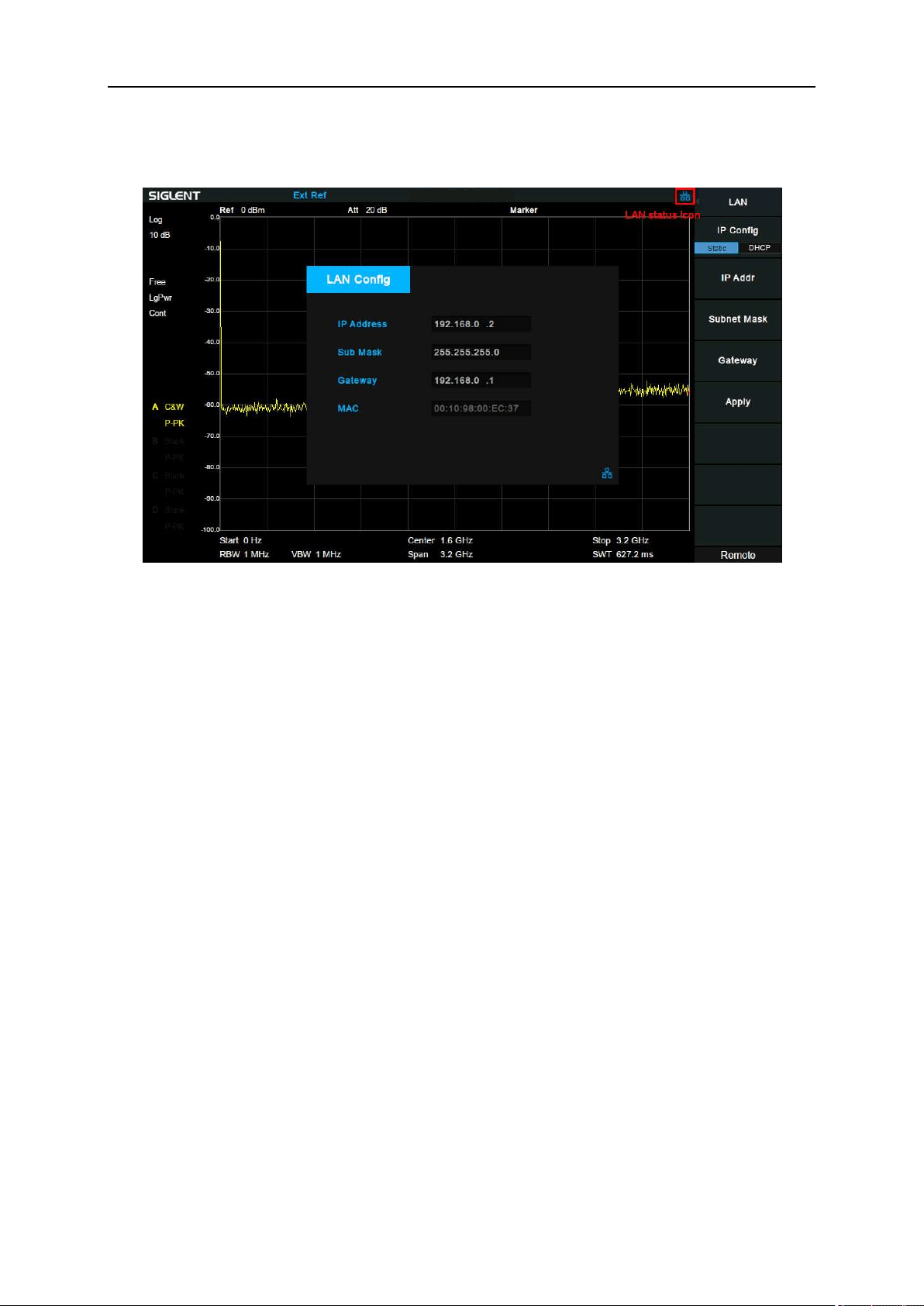
SIGLENT
effective.
● When “DHCP” is pressed, the LAN parameters are dynamically allocated.
The LAN status icon will be displayed in the upper right corner of the screen if the cable is connected.
Figure 8-1 LAN Config
8.1.3.2 GPIB
Configure GPIB port number. The analyzer provides a digital interface for use with an optional
SIGLENT USB-GPIB module through the front USB port.
8.1.3.3 Web Server
Set web page parameters to use VNC.
1. Port
The port number can be set to 5900~5999. When the port number is set beyond the range, a prompt
pops up at the bottom of the screen, and the port number is automatically set to the maximum or
minimum value.
After modifying the port number, VNC needs to be reopened.
2. Password
Set the password for login VNC.
3. View Only
Set whether the analyzer is in view-only mode on VNC.
When the view-only mode is turned on, the analyzer can only be viewed and cannot be operated on
VNC. When the view-only mode is turned off, the analyzer can be viewed and operated simultaneously
on VNC.
After modifying the view-only mode, VNC needs to be reopened.
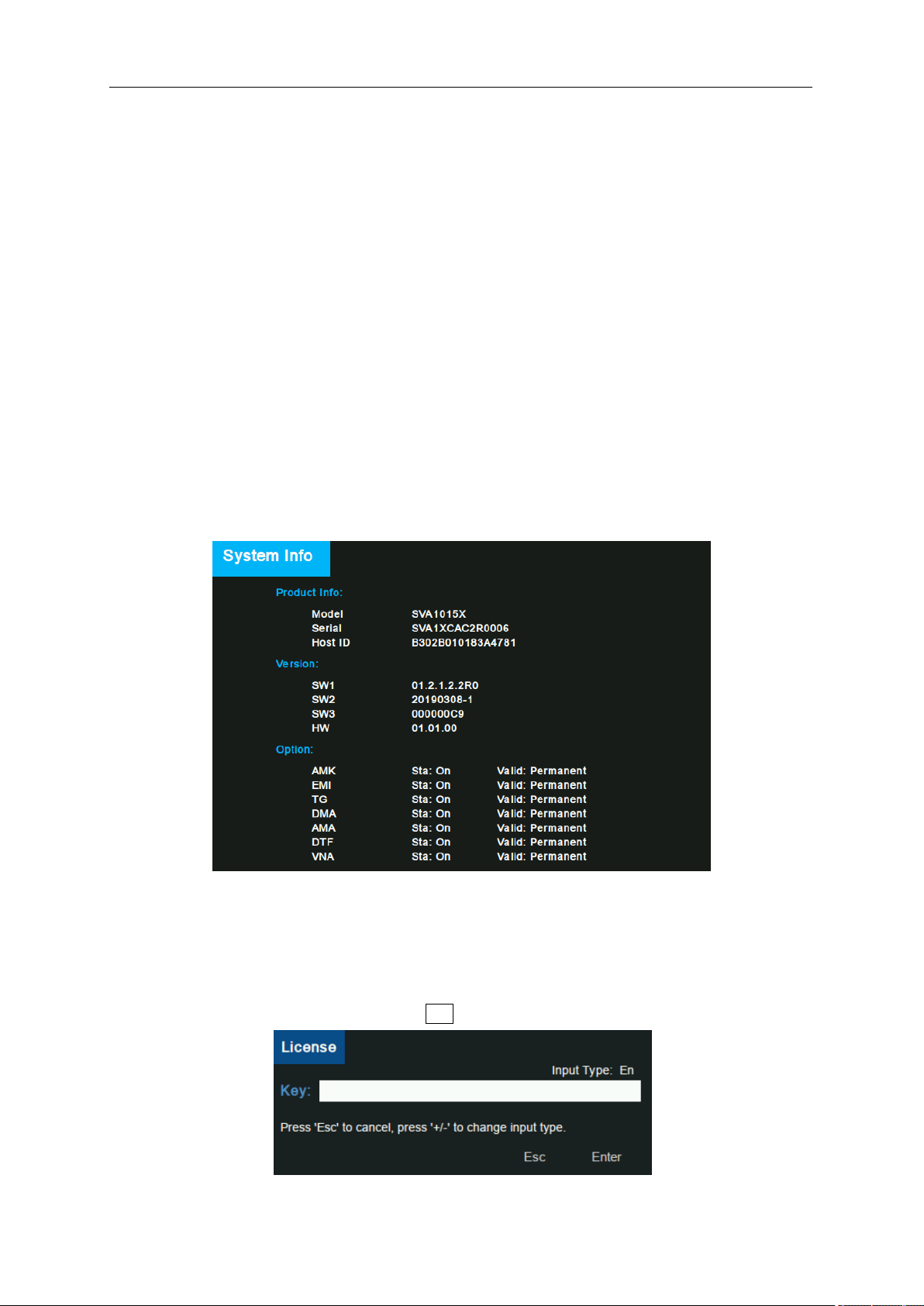
SIGLENT
134 User Manual
8.1.4 Calibration
8.1.4.1 Auto Cal
Set whether to turn on the auto calibration or not and turn off by default. When Auto Cal is turned on,
the analyzer will process self-calibration according to the temperature difference. Half an hour after
startup, the device will query temperature itself every minute. If the temperature difference is greater
than 2°, the device will be self-calibrated.
8.1.5 System Info
8.1.5.1 System Info
● Product Model, Serial and HOST ID
● Software Version and Hardware Version
● Option Information
Figure 8-2 System Info
8.1.5.2 Load Option
Press “Load Option” and then enter the sequence code in the pup-up box to load the options. Options
can also be loaded by loading License files in File ->” Open/Load”.
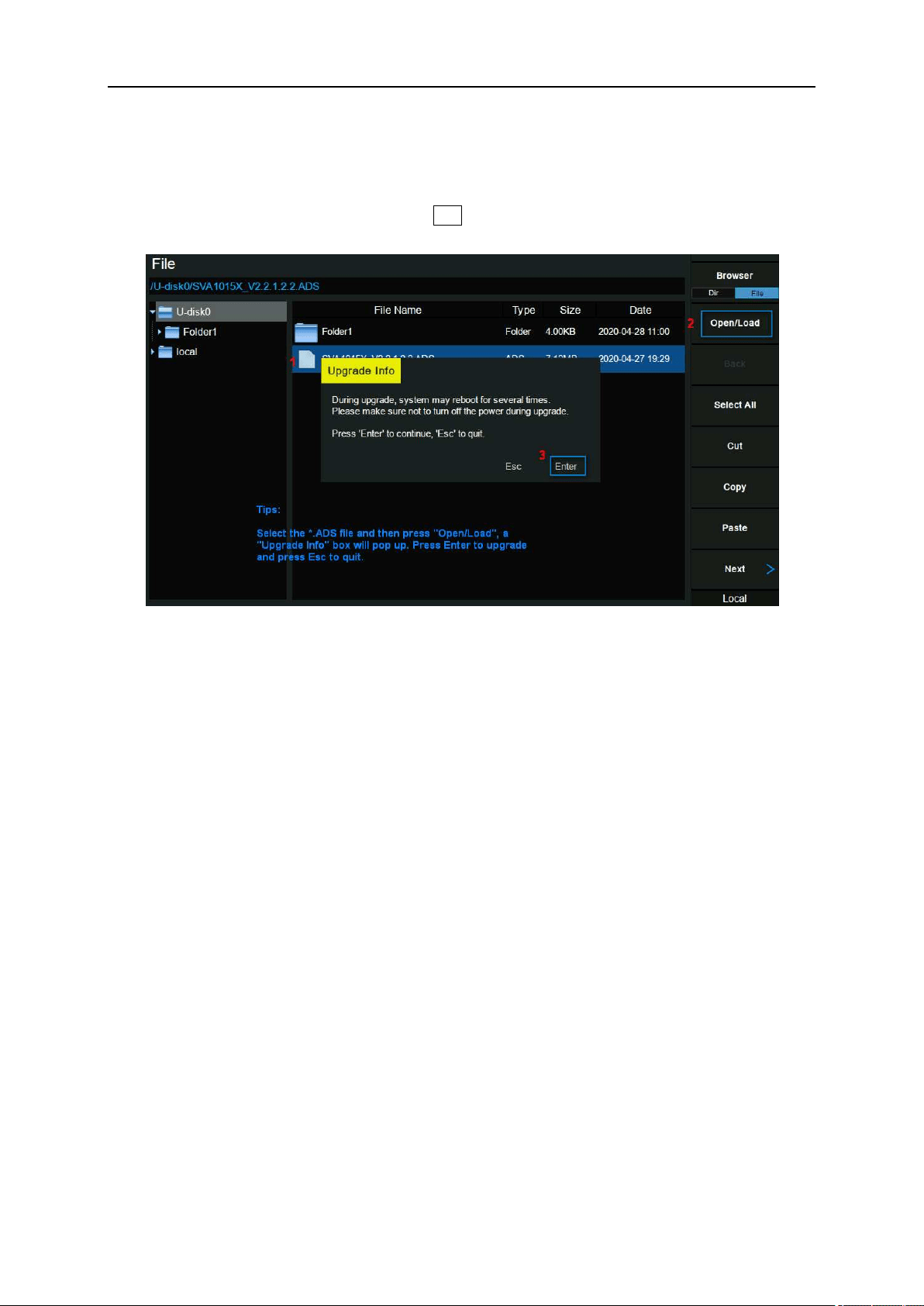
SIGLENT
Figure 8-3 Load Option
8.1.5.3 Firmware Update
Press “Firmware Update” and you will enter the File menu. Then you can select *.ADS file from memory
to upgrade firmware. After firmware upgrade, the machine will restart.
Figure 8-4 Firmware Update
8.1.5.4 System Message
Display system alarms and warnings.
8.1.6 Date and Time
Set system time, and the display status and display format of system time. System time can be set to
"ymd", "mdy" or "dmy" formats.
System time is displayed in "ymd" format in the middle of the status bar by default.
8.1.7 Self Test
1. Screen Test
Test whether the screen has any pixel defects by displaying five colors: White, Red, Green, Blue and
Black. Press ‘Preset’ key to switch the screen color and press ‘←’ key to exit the test.
2. Keyboard Test
Enter the keyboard test interface. Press the function keys at the front panel one-by-one and observe
whether the corresponding key is checked. If not, an error may have occurred in that key. To exit the
test, press ‘←’ four times.
SIGLENT
136 User Manual
3. LCD Test
If the keys at the front panel are transparent, when the key is pressed, the corresponding backlight will
turn on when testing it.
4. Touch Test
Test whether the touch screen has any defects by touching the test button at specific spots on screen.
8.2 Display
Control the display of the screen.
8.2.1 Grid Brightness
Control the display grid brightness.
Table 8-1 Grid brightness
Parameter
Explanation
Default
30%
Range
0 ~ 100%
Unit
None
Knob Step
1%
Direction Key Step
1%
8.2.2 Screenshot
Toggle between normal and inverse color for images of the display saved to storage.
The color of traces is not inversed in inverse mode.
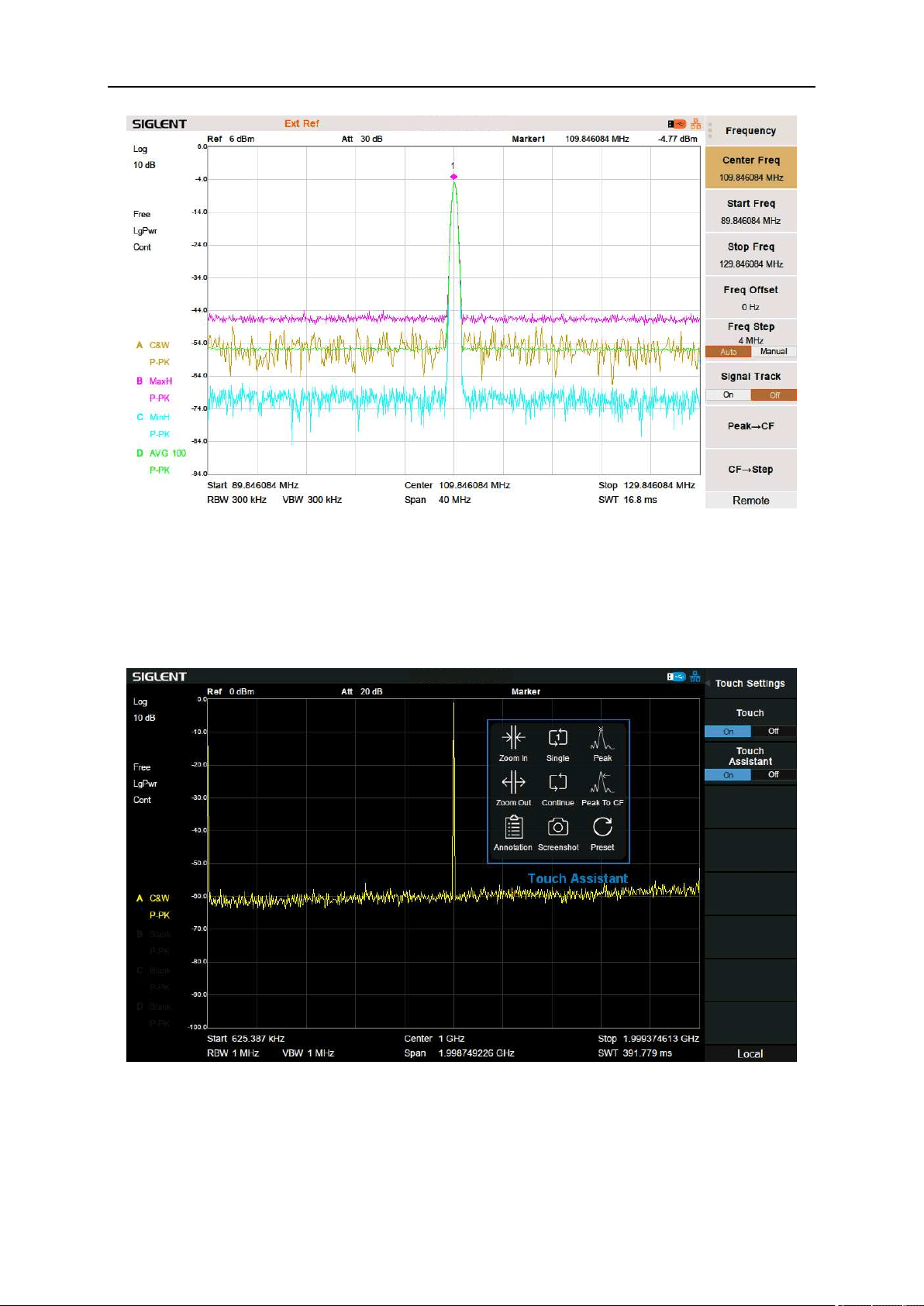
SIGLENT
Figure 8-5 Inverse color Screenshot
8.2.3 Touch Settings
You can turn on or off touch screen settings and touch assistance.
Touch assistance can be moved to any position on the screen after the touch screen settings are opened.
Figure 8-6 Touch assistance
8.2.4 Power Saving
After setting the power saving, the screen backlight can be turned off when there is neither touch screen
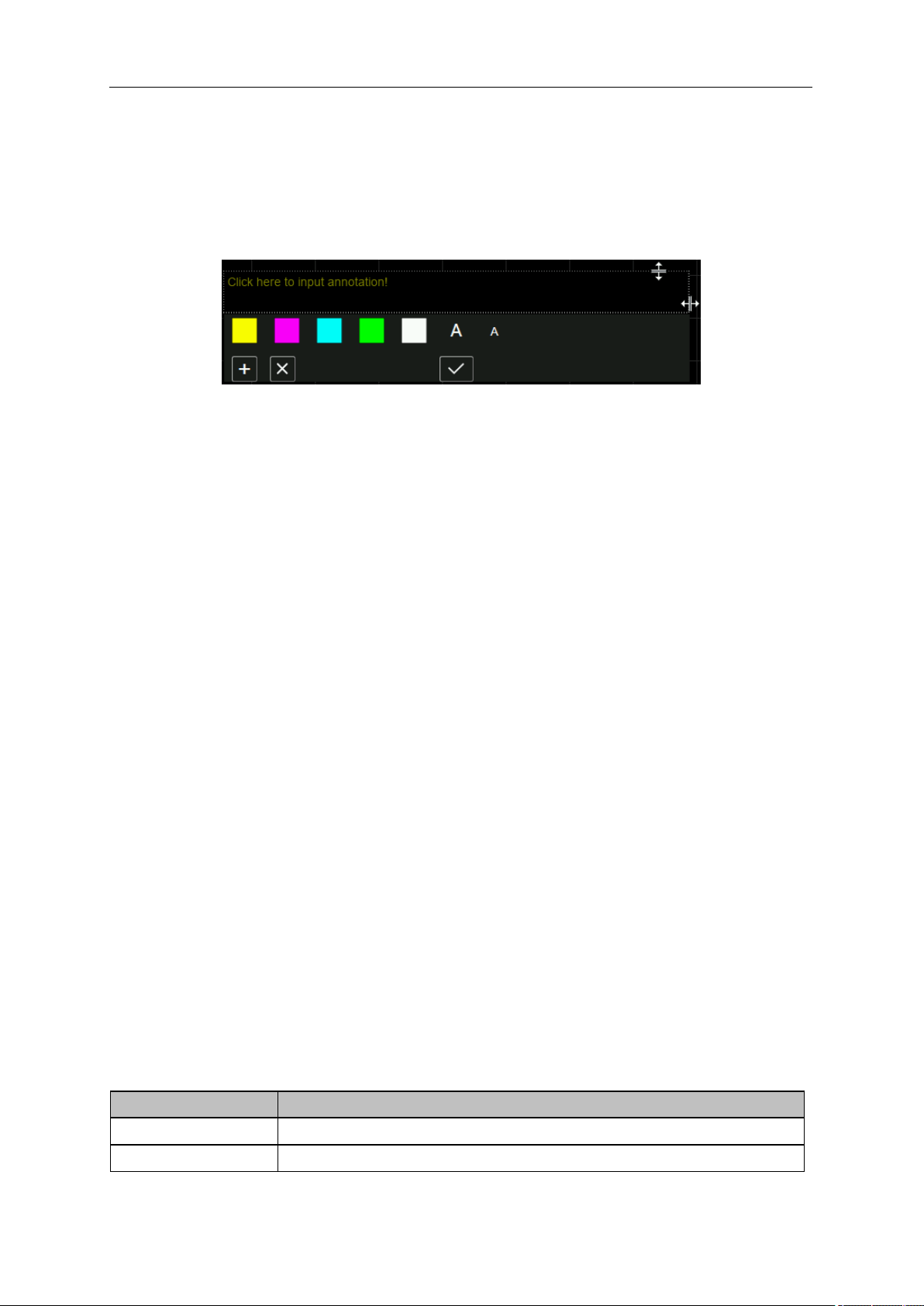
SIGLENT
138 User Manual
operation nor button operation for a certain period. The screen backlight will be turned on after a touch
screen operation or button operation.
8.2.5 Annotation
If turn on the annotation function, you can add annotations on the screen.
Figure 8-7 Annotation
Typical operation sequence is:
● Turn on the annotation function: you could activate the annotation function in the Display menu, or
toggle the status of the function using the touch assistant.
● Edit text: Click the input area to invoke the virtual keyboard. Use the virtual keyboard or the keys in
the Edit area on the front panel to enter text. During the editing, you could change the color and
size of the text using the color label and font size label respectively. Moreover, you could change
the size of the input area by dragging the two-way arrows on the top and right.
● (Optional) Add or delete annotation by clicking the plus sign button and cross sign button. You could
add as many as ten annotations. When you delete the last one, it was not really deleted. In fact,
the annotation function is turned off.
● Finish editing: click Enter or Esc button on the virtual keyboard to close the keyboard. Now you
could click in the blank space of the annotation widget and drag it to any places on the screen. Click
the tick button, only the text would be visible and an annotation is successfully added.
If you want to change one of the annotations, click the text and you could repeat the operation above.
Notice that if you change the mode of the analyzer or shut off the analyzer, all the annotations would be
removed. Toggling the status of the annotation function won’t do that, however.
8.2.6 Display Line
Open or Close Display Line or move the location. The display line can be used as a reference for reading.
Table 8-2 Display Line
Parameter
Explanation
Default
0 dBm
Range
REF Level + REF Offset – 10*Scale/Div ~ REF Level + ref Offset

SIGLENT
Unit
dBm
Knob Step
1
Direction Key Step
Scale/Div
8.3 File
8.3.1 Browser
Browser type including “Dir” and “File”,
Dir: When selected, use the knob or direction keys to change the highlighted directory.
File: When selected, use the knob or direction keys to switch among files or sub-folders under the
current directory.
8.3.2 Open/Load
Open the selected folder or load the selected file.
8.3.3 Back
If there is a previous directory, return to it.
8.3.4 View Type
Select the type of file to be browsed. Include: “All Type”, “STA”, “TRC”, “CAL”, “COR”, “CSV”, “LIM”,
“PIC” (JPG /BMP /PNG).
8.3.5 Save Type
Select the type of file to be saved. The corresponding storage data of various types of files are:
1. STA(Status)
STA files can be used to save and recall the instrument configuration. They are saved in ASCII format,
which can be read by humans.
2. TRC(Trace)
TRC files store the active (visible) trace data and scaling factors that were in place when the data was
saved. They are saved in ASCII format, which can be read by humans.
Note: When you first recall trace files, the instrument will adjust the display parameters (horizontal and
vertical scaling, for example) to match the settings used during data collection. The trace data will not
change, even if you adjust the parameters.
3. COR(Correction)
COR files store the data used to mathematically adjust the displayed input signal based on external

SIGLENT
140 User Manual
factors (Cable loss, Amplifier/Antenna gain, etc.). They are saved in ASCII format, which can be read by
humans.
4. CAL(Calibration)
CAL is the calibration file, which stores the calibration data in VNA mode.
5. CSV (Comma-Separated Variable)
CSV files store instrument configuration (scaling, units, etc.) and raw data (amplitude and frequency
values) in ASCII format, commonly viewed in spreadsheet programs like Microsoft
®
Excel
®
. This file type
can be read by humans
6. LIM (limit)
LIM files store the line or point data used to configure and display lines used for visual indication of a
user-defined limit. They are saved in ASCII format, which can be read by humans.
7. BMP(Bitmap) /JPG(JPEG) /PNG
Picture files capture the display of the instrument (screenshot) as an image file. All of the details of the
display are captured exactly. What you see on the display is in the file. These are readable using image
programs like Microsoft
®
Paint
®.
8.3.6 Save
Save file in current directory, the file type is set in ‘Save Type’.
If there is an external memory, it will be saved to the external memory first.
Also used to set the save type of the Save shortcut, which can be used to quickly save the files.
8.3.7 Create Folder
Create a new folder in current directory.
8.3.8 Operate
1. Browser
Browse files or directories; use the knob or direction keys to select the corresponding item.
2. Open/Load
Open the selected folder or load the selected file.
3. Back
Return to previous directory
4. Select All
Select all the files and folders in the current directory.
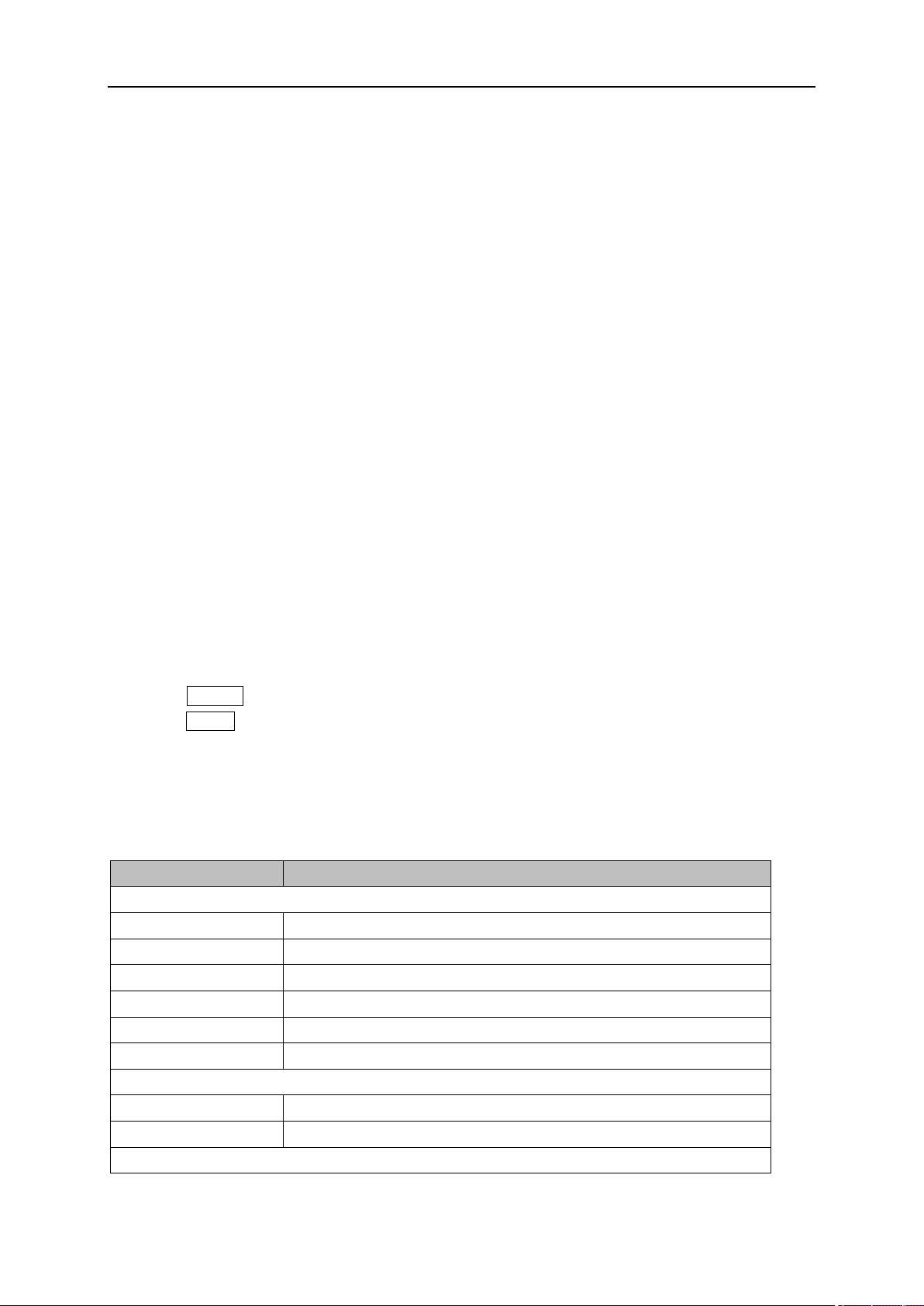
SIGLENT
5. Cut
Cut the Selected file or folder, and delete the primary one after paste.
6. Copy
Copy the Selected file or folder for paste.
7. Paste
Paste the file cut or copied before into the current.
8. Delete
Delete the selected file or directory.
9. Rename
Rename the selected file or folder.
8.4 Shortcut Key
8.4.1 Preset
Recall the preset setting and restore the analyzer to a specified status.
● Press System ->” Pwr On/Preset” ->”Preset” to select “Def”, “Last” or “User”.
● Press Preset to load the factory settings listed in the following table (except items marked with “**”)
or Last settings or User-defined settings.
● Different modes have their own Presets. The following table shows the initial default state of the
Spectrum Analyzer Mode.
Table 8-3 Default Preset of Spectrum Analyzer Mode
Parameter
Default
Frequency
Center Freq
750 MHz
Start Freq
0 Hz
Stop Freq
1.5 GHz
Freq Offset
0 Hz
Freq Step
Auto, Span /10
Signal Track
Off
Span
Span
1.5 GHz
X Scale
Linear
Amplitude

SIGLENT
142 User Manual
Ref Level
0 dBm
Attenuator
Auto, 20 dB
Preamp
Off
Units
dBm
Scale/Div
10 dB
Scale Type
Log
Ref Offset
0 dBm
Corrections
Off
RF Input
50 Ω
Apply Corrections
Off
Correction x
Off
Correction x data
Null
BW
RBW
Auto, 1MHz
VBW
Auto, 1MHz
VBW/RBW
1
Avg Type
Log Pwr
Filter
Gauss
Sweep
Sweep Time
Auto
Sweep Rule
Speed
Sweep
Continue
Sweep Mode
Auto
Numbers
1
QPD Dwell Time
50 ms
Trig
Limit Type
Free Run
Video Limit
0 dBm
External Limit
Rising
TG
TG
Off
TG Level
-20 dBm
TG Lvl Offset
0 dB
Normalize
Off
Norm Ref Lvl
0 dB
Norm Ref Pos
100%
Ref Trace
Blank
Trace
Select Trace
A
Trace Type of Trace A
Clear Write
Avg Times
100

SIGLENT
Output Z
C
Input X
A
Input Y
B
Constant
0 dB
Math Type
Off
Detect
Select Trace
A
Detect Type of Trace A
Pos Peak
Limit
Limit1
Off, Limit Upper, 0 dBm
Limit2
Off, Limit Lower, -100 dBm
Test
Stop
Fail to stop
Off
Buzzer
Off
X Axis
Freq
Demod
Demod Mode
Off
Earphone
Off
Volume
6
Demod Time
5.00 s
Marker
Select Marker
1
Select Trace
A
Marker Type
Normal
Relative To
2
Marker Table
Off
Marker Fn
Select Marker
1
Marker Fn
Off
N dB BW
-3 dB
Read Out
Frequency
Freq Counter
Off
Peak
Cont Peak
Off
Peak Table
Off
Peak Threshold
-140 dBm
Peak Excursion
15 dB
Peak Type
Max
Sort By
Ampt
Mode
Mode
Spec Analyzer

SIGLENT
144 User Manual
Measure
Meas Type
Off
Measure Setup
Channel Power
Center Freq
750 MHz
Integration BW
2 MHz
Span
1.5 GHz
ACPR
Center Freq
750 MHz
Main Channel
1 MHz
Adjacent Chn
1 MHz
Adj Chn Space
3 MHz
Occupied BW
Method
%
dBc
26
%
99
T-Power
Center Freq
750 MHz
Start Line
0 s
Stop Line
60.6 us
Spectrum Monitor
Spectrogram
Run
CNR
Carrier BW
3 MHz
Noise BW
3 MHz
Freq Offset
3 MHz
Harmonics
Fundamental
Auto
Freq Step
Auto
Harmonic Num
10
Select Harmonic
All
System**
Language
English
Power On
Def
Preset
Def
Power on Line
Disable
IP Config
DHCP
Auto Cal
Close
Time Date
On
Set Format
ymd
Display**
SIGLENT
Grid Brightness
30%
Screenshot
Normal
Touch
On
Touch Assistant
On
Power Saving
Always On
Annotation
Off
Display Line
Off, 0 dBm
Table 8-4 Default Preset of Vector Network Analyzer Mode
Parameter
Default
Frequency
Center Freq
750.05 MHz
Start Freq
100 kHz
Stop Freq
1.5 GHz
Span
Span
1.4999 GHz
Amplitude
Scale/Div
10 dB
Ref Level
0 dBm
Ref Position
5 Div
BW
IFBW
10 kHz
Sweep
Points
201
Sweep Time
0 s
Sweep
Continue
Trace
Select Trace
1
Num of Traces
1
Display
Data
Trace Hold
Off
Math
Off
Average
Off
Avg Times
100
Marker
Select Trace
1
Select Marker
1
Marker Type
Normal
Discrete
Off
Couple
On
Peak
SIGLENT
146 User Manual
Select Trace
1
Select Marker
1
Measure
Meas
S11
Format
Log Mag
Calibration
Correction
Off
System Z0
50
Velocity Factor
0.66
Port Extensions
Extensions
Off
Delay Port1
0 ps
Length Port1
0 mm
Delay Port2
0 ps
Length Port2
0 mm
Table 8-5 Default Preset of Distance-To-Fault Mode
Parameter
Default
Frequency
Center Freq
750.05 MHz
Start Freq
100 kHz
Stop Freq
1.5 GHz
Span
Span
1.4999 GHz
Amplitude
Ref Level
0
Scale/Div
10
Sweep
Sweep
Continue
Trace
Display
Data
Average
On
Avg Times
10
Marker
Select Marker
1
Marker Type
Normal
Cont Peak
Off
Cont Valley
Off
Discrete
Off
Peak
Select Marker
1
SIGLENT
Measure
Start Distance
0 m
Stop Distance
30.39 m
Unit
Meters
Velocity Factor
0.66
Cable Atten
0 dBm
Window
Hamming
Calibration
Correction
On
Table 8-6 Default Preset of Modulation Analyzer Mode
Parameter
Default
Measure
Meas Type
QAM
Analog Modulation
Frequency
Center Freq
100 MHz
Freq Step
10 kHz
Span
Span
13.08083 MHz
Amplitude
Attenuator
Auto, 20 dB
Preamp
Off
BW
EQBW
100 kHz
Window
Flat Top
Sweep
Sweep
Continue
Trig
Limit Type
Free Run
Video Limit
0 dBm
External Limit
Rising
Trace
Select Trace
A
Num of Trace
2
Layout
Grid 1,2
Data of Trace A
Time
Data of Trace B
Spec
Marker
Select Trace
A
Select Marker
1

SIGLENT
148 User Manual
Marker Type
Normal
Relative To
2
Couple
Off
Meas Setup
IFBQ
Auto, 1.2 MHz
EqLPF
Auto, 200 kHz
Average
Off
Avg Times
10
Digital Modulation
Frequency
Center Freq
100 MHz
Freq Step
10 kHz
Span
Span
31.25 kHz
Amplitude
Attenuator
Auto, 20 dB
Preamp
Off
Ref Level of Trace A
1.5
Scale/Div of Trace A
0.3
Ref Level of Trace B
0 dBm
Scale/Div of Trace B
10 dB
Ref Level of Trace D
1.5
Scale/Div of Trace D
0.3
BW
EQBW
100 kHz
Window
Flat Top
Sweep
Sweep
Continue
Trig
Limit Type
Free Run
Video Limit
0 dBm
External Limit
Rising
Trace
Select Trace
A
Num of Trace
4
Layout
Grid 2x2
Data of Trace A
IQ Meas Time
Format of Trace A
Constellation
Data of Trace B
Spec
Format of Trace B
Log Mag
Data of Trace C
Syms/Errs
SIGLENT
Format of Trace C
Log Mag
Data of Trace D
IQ Meas Time
Format of Trace D
I-Eye
Properties
Eye Length
2
Symbol Table
Hex
Marker
Select Trace
A
Select Marker
1
Marker Type
Normal
Relative To
2
Couple
Off
Meas Setup
Format
16QAM
Symbol Rate
10 ksps
Points/Symbol
4
Meas Length
128
Filter Setup
Meas Filter
Sqrt Nyquist
Ref Filter
Nyquist
Alpha/BT
0.35
Filter Length
64
Statistic
Statistic
Off
Average
Off
Avg Times
10
Table 8-7 Default Preset of EMI Measurement Mode
Parameter
Default
Frequency
Freq (Meter)
165 MHz
Midspan Freq
165 MHz
Start Freq
30 MHz
Stop Freq
300 MHz
Span
Span
270 MHz
X Scale
Log
Amplitude
Ref Level
106.99 dBuV
Attenuator
Auto, 20 dB
Preamp
Off

SIGLENT
150 User Manual
Units
dBuV
Scale/Div
10 dB
Scale Type
Log
Ref Offset
0 dB
BW
RBW(Scan)
Auto, 120 kHz
RBW(Meter)
Auto, 9 kHz
Sweep
Scan Mode
Continue
Number
1
RBW/Step
Auto, 1
Sweep Points
2251
Meter Mode
Continue
Trace
Select Trace
A
Trace Type of Trace A
Clear Write
Avg Times
100
Detect
Select Trace
A
Detect Type of Trace A
Peak
Detect Type of Trace B
Quasi Peak
Detect Type of Trace C
EMI Average
Limit
Limit 1
Off
Limit 2
Off
Limit 3
Off
Test
Off
Type
Line
Amplitude
0 dBm
Margin
-6 dB
Test Trace
A
Marker
Select Marker
1
Select Trace
A
Marker Type
Normal
Relative to
2
Peak
Select Marker
1
Peak Threshold
6.99 dBuV
Peak Excursion
15 dB
Measure
SIGLENT
Sequence
Scan Only
Scan Dwell Time
1 ms
Meas Signal
Current Signal
Det.1 Switch
On
Det.1 Dwell Time
5 ms
Det.1 Limit for
1
Det.2 Switch
On
Det.2 Dwell Time
5 ms
Det.2 Limit for
1
Det.3 Switch
On
Det.3 Dwell Time
5 ms
Det.3 Limit for
1
Meter Dwell Time
10 ms
Meter 1
On, Peak
Meter 2
On, QPeak
Meter 3
On, EMI Average
8.4.2 Couple
Set related parameters according to the coupling relationship.
Auto all: Set Related parameters automatically according to the coupling relationship.
1. Freq step
Freq step has a coupling relationship with RBW at the zero span, when in none-zero mode, Freq step
have coupling relationship with Span. please refer to the introduction of the "Freq Step".
2. Attenuation
Input attenuation has coupling relationship with Ref Level and the preamp. Please refer to introduction
of "amplitude".
3. RBW
RBW has a coupling relationship with the span. Please refer to the introduction of the "Resolution
Bandwidth".
4. VBW
VBW has a coupling relationship with the span. Please refer to the introduction of "VBW".
5. Sweep time
Sweep time has a coupling relationship with RBW, VBW and span. Please refer to the introduction of
"Sweep Time".
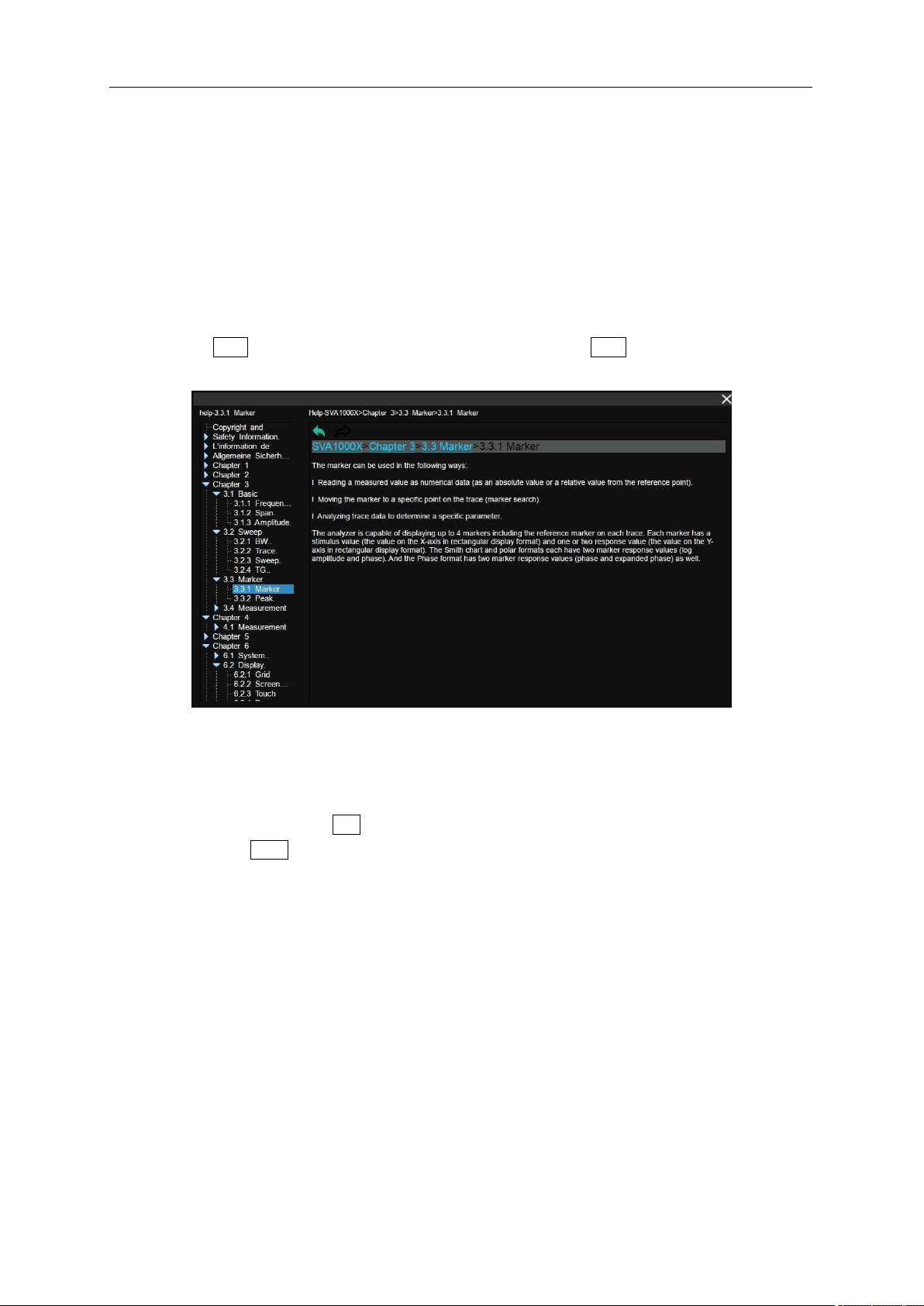
SIGLENT
152 User Manual
6. Mode Couple
Some of the basic parameters are allowed to be set up in coupled operation between different modes.
If the Center Freq is set to on in one mode, it applies to all other modes that support center freq setting
so that you can switch between any of these modes while center freq will be unchanged. When press
All Off, all of the mode couple switches are set to off.
8.4.3 Help
After pressing Help, press any key to show help information. Press Help second time to close help
information.
Figure 8-8 Help
8.4.4 Save
Quickly save a file, according to File->’Save Type’ settings.
By default, pressing Save will save screenshots in .PNG format.
If there is an external memory, it will be saved to the external memory first.
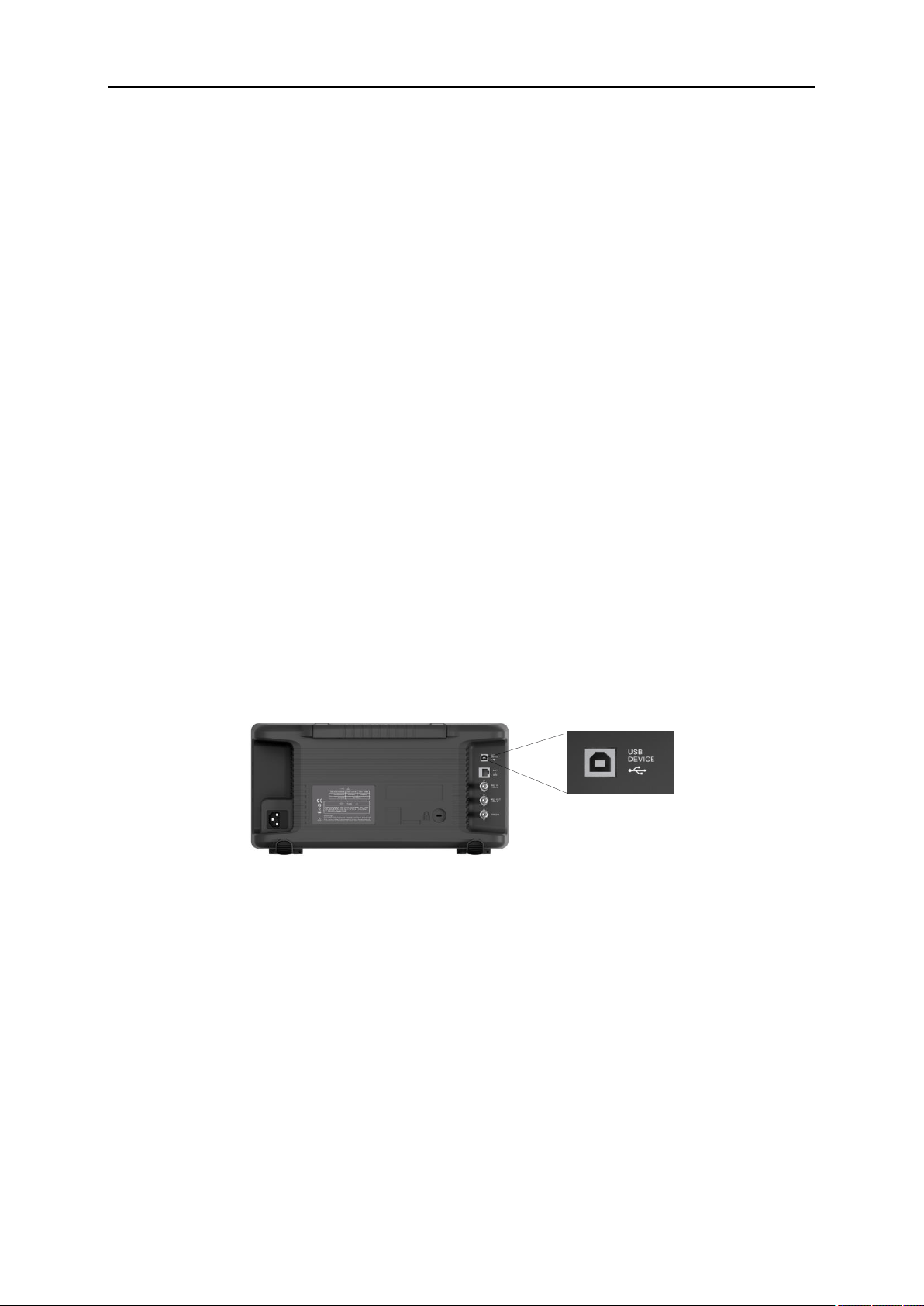
SIGLENT
Chapter 9 Programming Overview
The analyzer features LAN, USB Device, and GPIB_USB module interfaces. By using a computer with
these interfaces, and a suitable programming language (and/or NI-VISA software), users can remotely
control the analyzer based on SCPI (Standard Commands for Programmable Instruments) command
set, LabView and IVI (Interchangeable Virtual Instrument), to interoperate with other programmable
instruments.
This chapter introduces how to build communication between the analyzer and a controller computer
with these interfaces.
9.1 Remotely Operating the Analyzer
The analyzer provides both the USB and LAN connection which allows you to set up a remote operation
environment with a controller computer. A controller computer could be a personal computer (PC) or a
minicomputer. Some intelligent instruments also function as controllers.
9.1.1 USB: Connecting the Analyzer via the USB Device port
Refer to the following steps to finish the connection via USB-Device:
1. Install NI-VISA on your PC for USB-TMC driver.
2. Connect the analyzer USB Device port to a PC with a USB A-B cable.
3. Switch on the analyzer.
Figure 9-1 USB Device
The analyzer will be detected automatically as a new USB hardware.
9.1.2 LAN: Connecting the Analyzer via the LAN port
Refer to the following steps to finish the connection via LAN:
1. Install NI-VISA on your PC for VXI driver. Or without NI-VISA, using socket or telnet in your PC’s
Operating System.
2. Connect the analyzer to PC or the local area network with a LAN cable.
3. Switch on the analyzer.
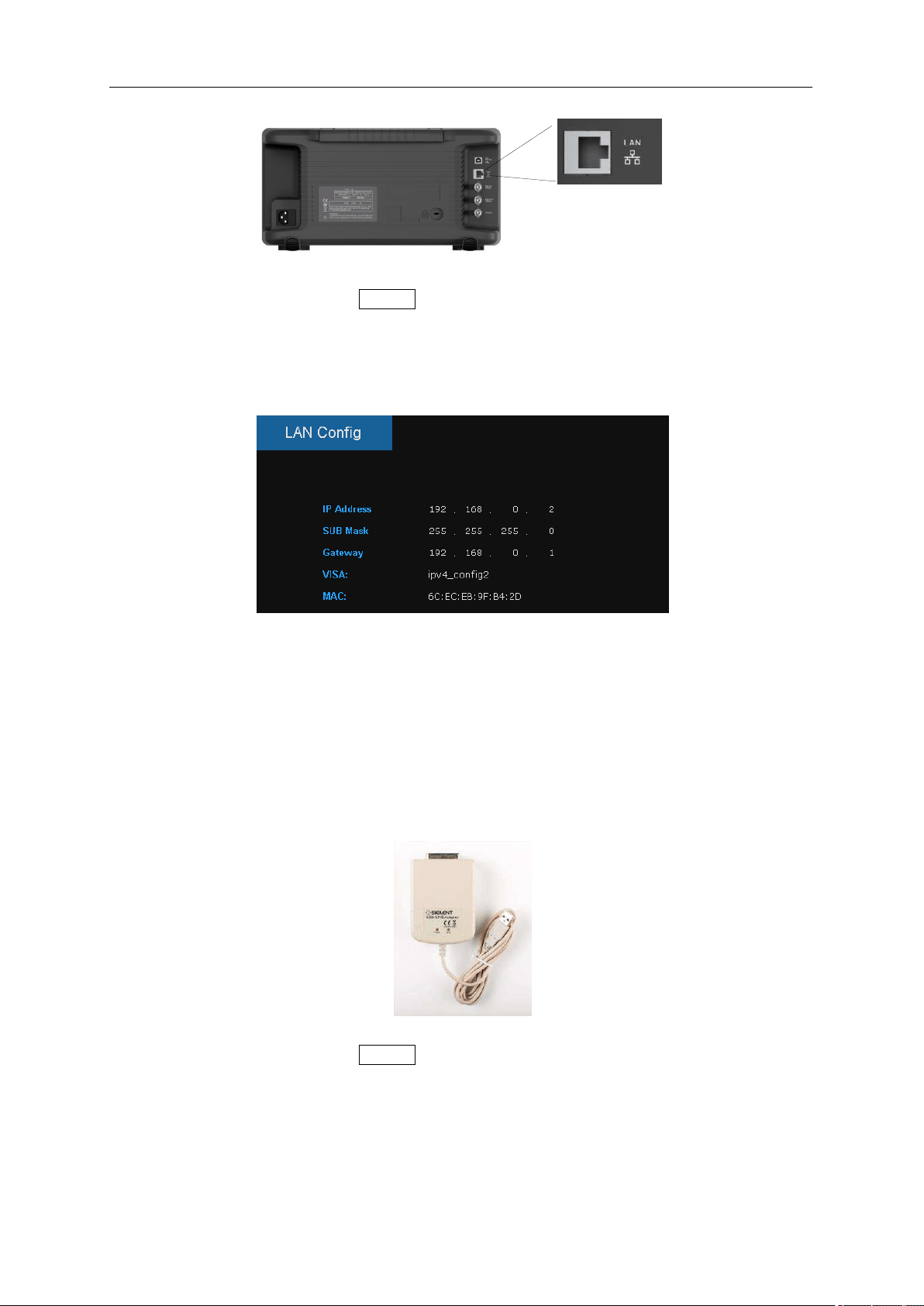
SIGLENT
154 User Manual
Figure 9-2 LAN
4. Press button on the front panel System→Interface→LAN to enter the LAN Config function menu.
5. Select the IP Config between Static and DHCP.
● DHCP: the DHCP server in the current network will assign the network parameters automatically
(IP address, subnet mask, gate way) for the analyzer.
● Static: you can set the IP address, subnet mask, gate way manually. Press Apply.
Figure 9-3 LAN Config
The analyzer will be detected automatically or manually as a new LAN point.
9.1.3 GPIB: Connecting the Analyzer via the USB-Host port
Refer to the following steps to finish the connection via USB:
1. Install NI-VISA on your PC for GPIB driver.
2. Connect the analyzer USB Host port to a PC’s GPIB card port, with SIGLENT USB-GPIB adaptor.
3. Switch on the analyzer
Figure 9-4 SIGLENT USB-GPIB Adaptor
4. Press button on the front panel System→Interface→GPIB to enter the GPIB number.
The analyzer will be detected automatically as a new GPIB point.
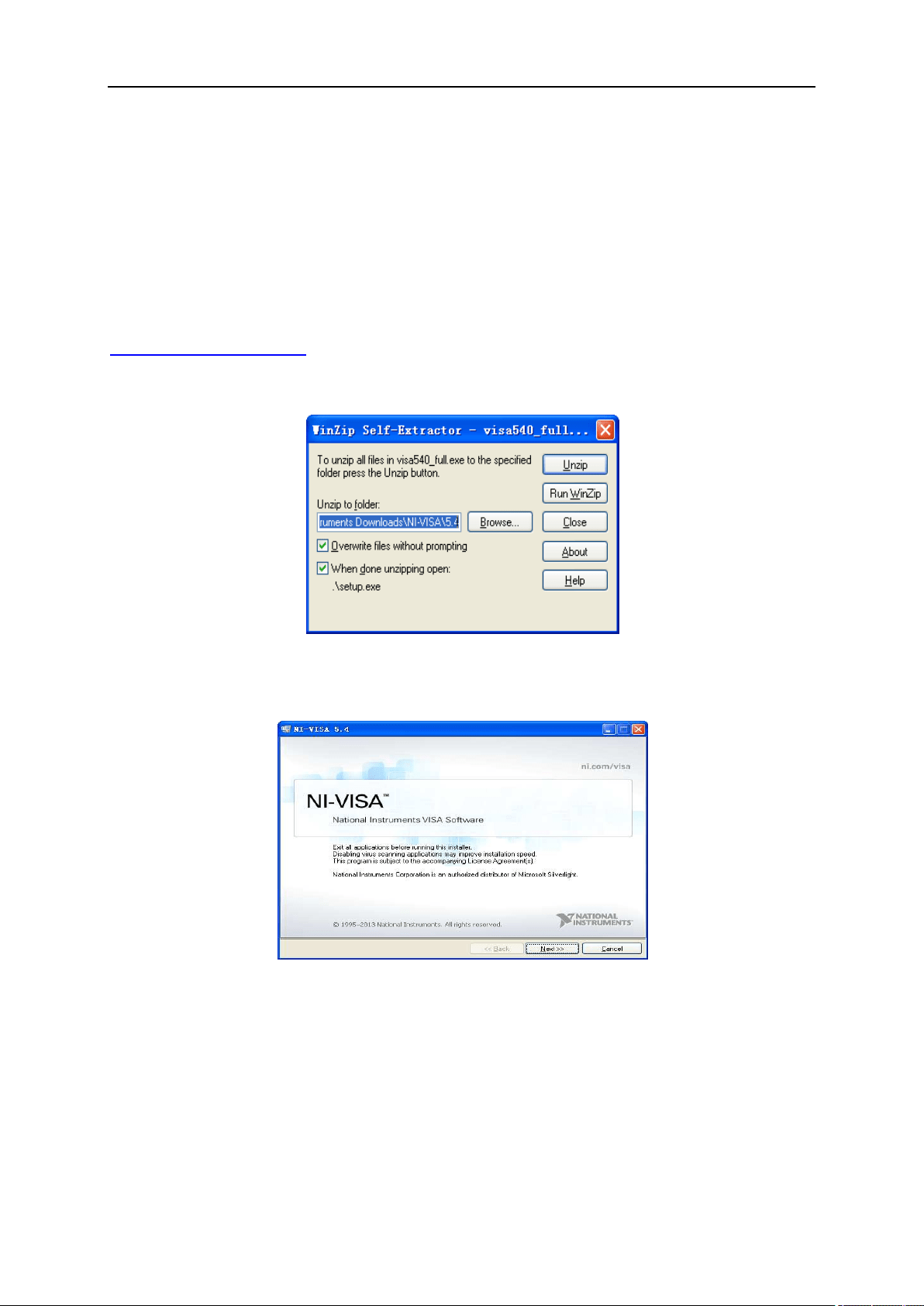
SIGLENT
9.2 Build Communication
9.2.1 Build Communication Using VISA
NI-VISA includes a Run-Time Engine version and a Full version. The Run-Time Engine version provides
NI device drivers such as USB-TMC, VXI, GPIB, etc. The full version includes the Run-Time Engine and
a software tool named NI MAX that provides a user interface to control the device.
You can get NI-VISA full version from:
http://www.ni.com/download/.
After download you can follow the steps below to install it:
1. Double click the visa_full.exe, dialog shown as below:
Figure 9-5
2. Click Unzip, the installation process will automatically launch after unzipping files. If your computer
needs to install .NET Framework 4, its setup process will auto start.
Figure 9-6
3. The NI-VISA installing dialog is shown above. Click Next to start the installation process.
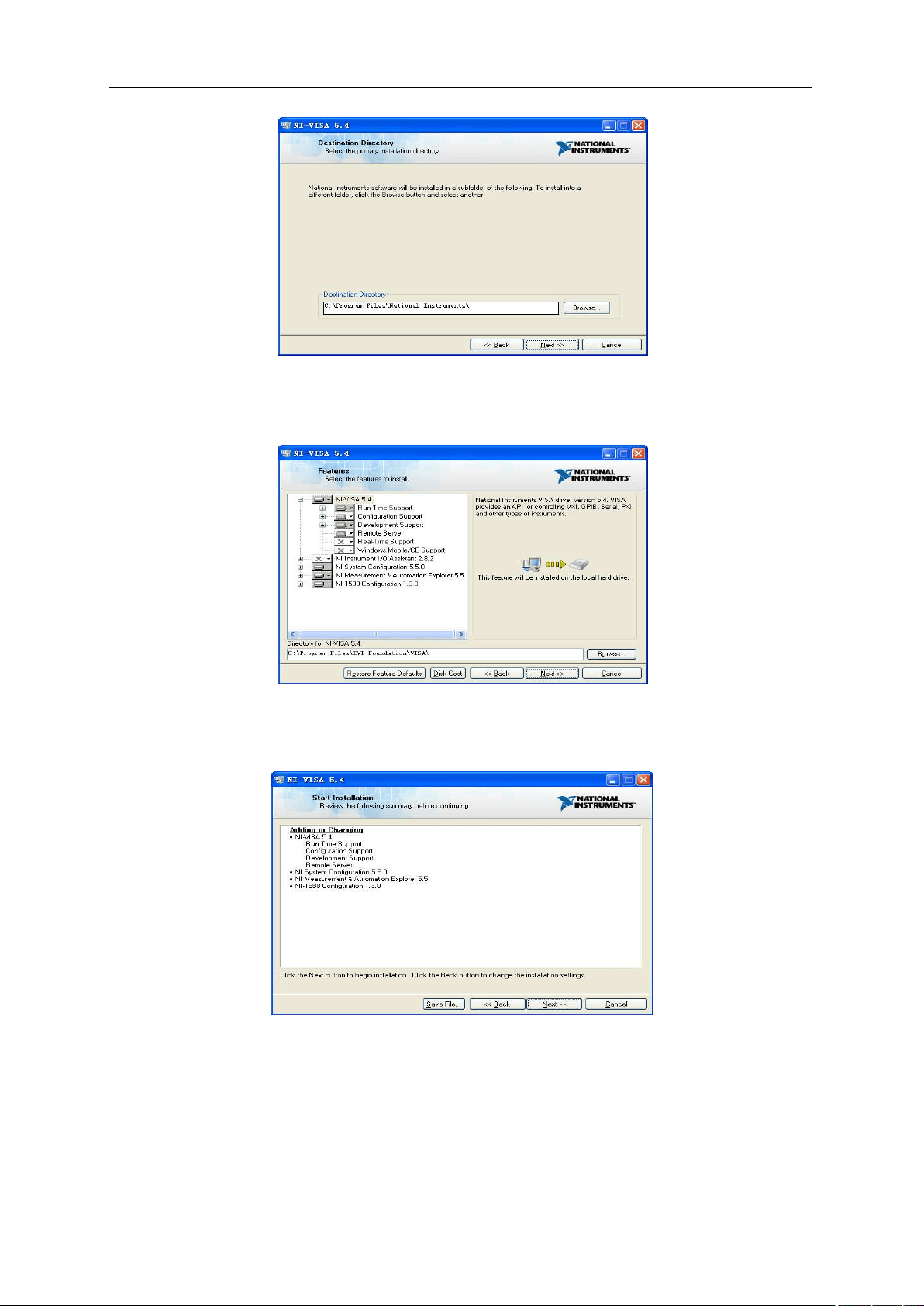
SIGLENT
156 User Manual
Figure 9-7
4. Set the install path, default path is “C:\Program Files\National Instruments\”, you can change it.
Click Next, dialog shown as above.
Figure 9-8
5. Click Next twice, in the License Agreement dialog, select the “I accept the above 2 License
Agreement(s).”, and click Next, dialog shown as below:
Figure 9-9
6. Click Next to run installation.
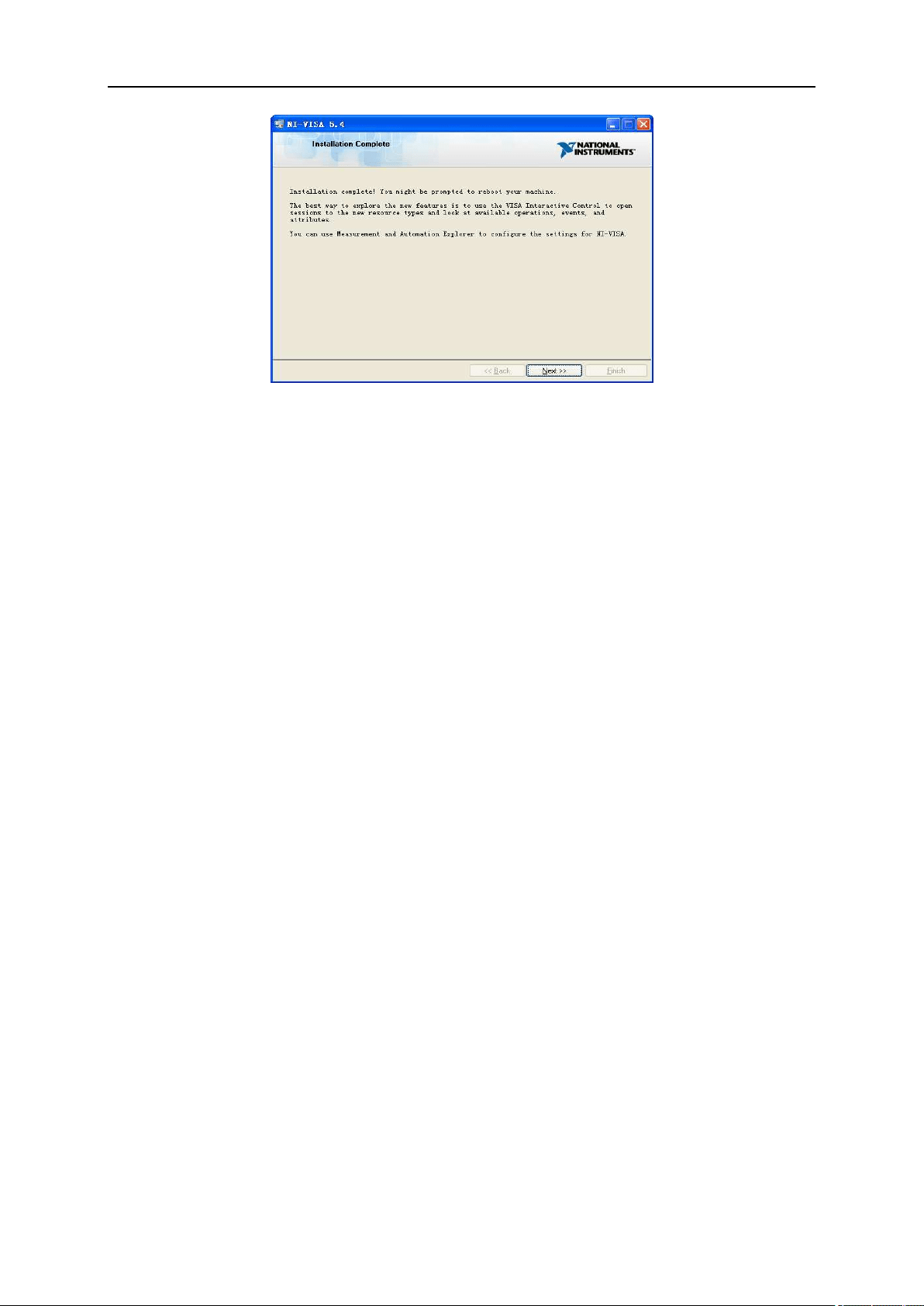
SIGLENT
Figure 9-10
Now the installation is complete, reboot your PC.
9.2.2 Build Communication Using Sockets/Telnet
Through the LAN interface, VXI-11, Sockets and Telnet protocols can be used to communicate with the
analyzer. VXI-11 is provided in NI-VISA, while Sockets and Telnet are commonly included in PC’s OS
initially.
Socket LAN is a method used to communicate with the analyzer over the LAN interface using the
Transmission Control Protocol/Internet Protocol (TCP/IP). A socket is a fundamental technology used
for computer networking and allows applications to communicate using standard mechanisms built into
network hardware and operating systems. The method accesses a port on the analyzer from which
bidirectional communication with a network computer can be established.
Before you can use sockets LAN, you must select the analyzer’s sockets port number to use:
● Standard mode: Available on port 5025. Use this port for programming.
● Telnet mode: The telnet SCPI service is available on port 5024.
9.3 Remote Control Capabilities
9.3.1 User-defined Programming
Users can use SCPI commands to program and control the analyzer. For details, refer to the
introductions in “Programming Examples”.
9.3.2 Send SCPI Commands via NI MAX
Users can control the analyzer remotely by sending SCPI commands via NI-MAX software. NI_MAX is
National Instruments Measurement and Automation Explorer. It is an executable program that enables
easy communication to troubleshoot issues with instrumentation.
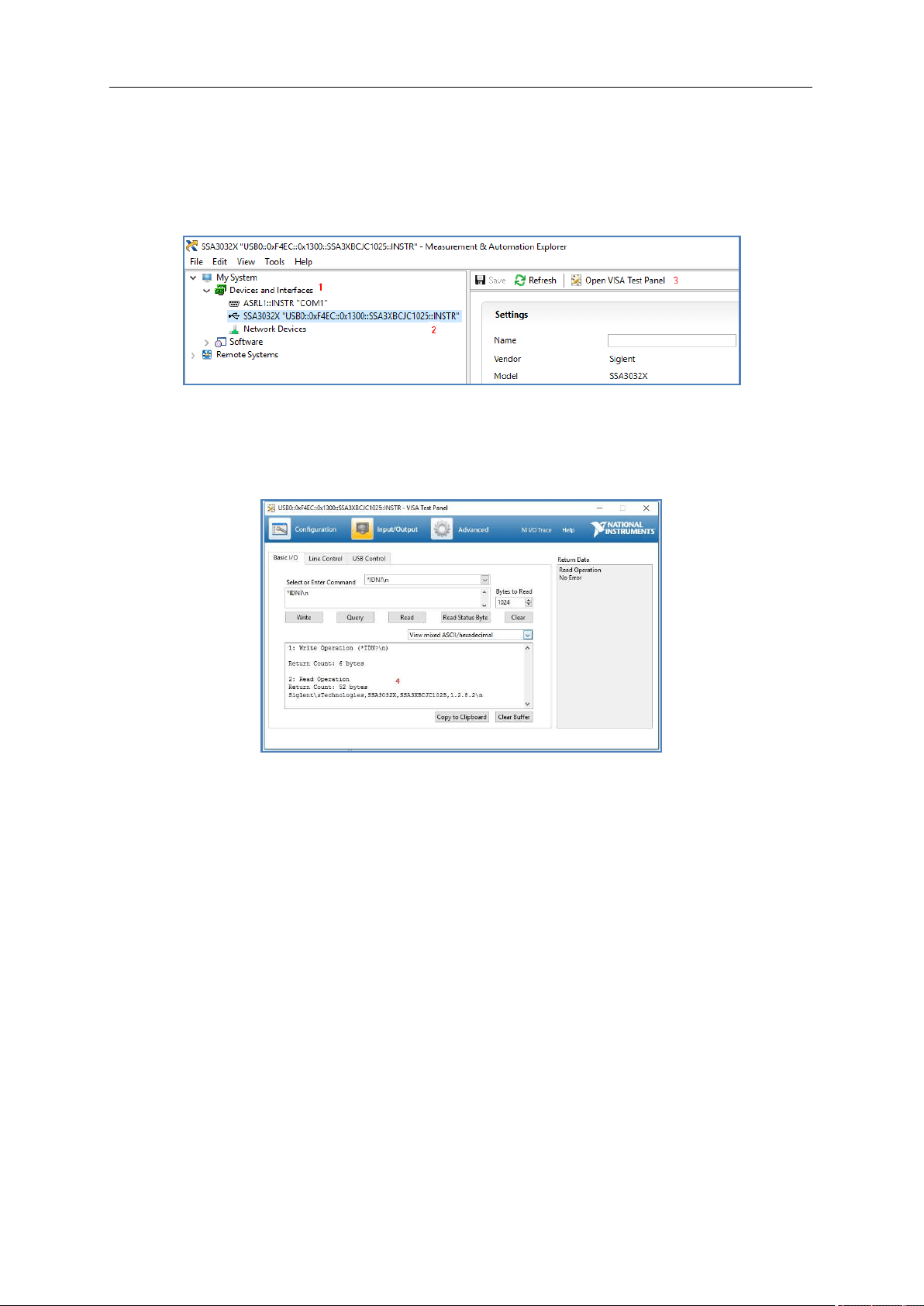
SIGLENT
158 User Manual
9.3.2.1 Using USB
Run NI MAX software.
1. Click “Device and interface” at the upper left corner of the software;
2. Find the “USBTMC” device symbol
Figure 9-11
3. Click “Open VISA Test Panel” option button, then the following interface will appear.
4. Click the “Input/Output” option button and click the “Query” option button in order to view the
operation information.
Figure 9-12
Note: The “*IDN?” command (known as the Identification Query) returns the instrument manufacturer,
instrument model, serial number, and other identification information.
9.3.2.2 Using LAN
Select “Add Network Device”, and select “VISA TCP/IP Resource” as shown:
Run NI MAX software.
1. Click “Device and interface” at the upper left corner of the software;
2. Find the “Network Devices” symbol, click “Add Network Devices”;
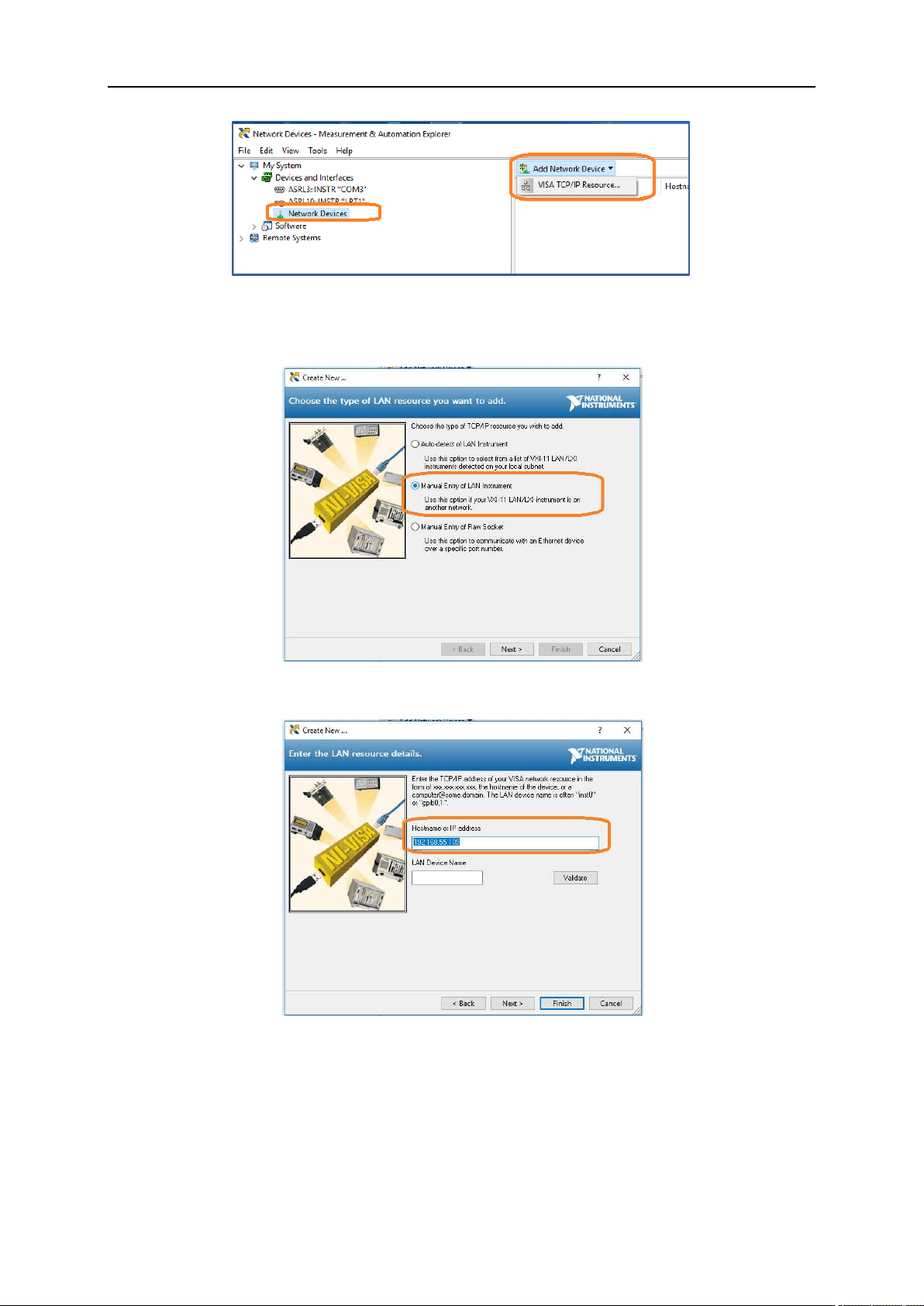
SIGLENT
Figure 9-13
3. Select Manual Entry of LAN instrument, select Next, and enter the IP address as shown. Click
Finish to establish the connection:
Figure 9-14
Note: Leave the LAN Device Name BLANK or the connection will fail.
Figure 9-15
4. After a brief scan, the connection should be shown under Network Devices:
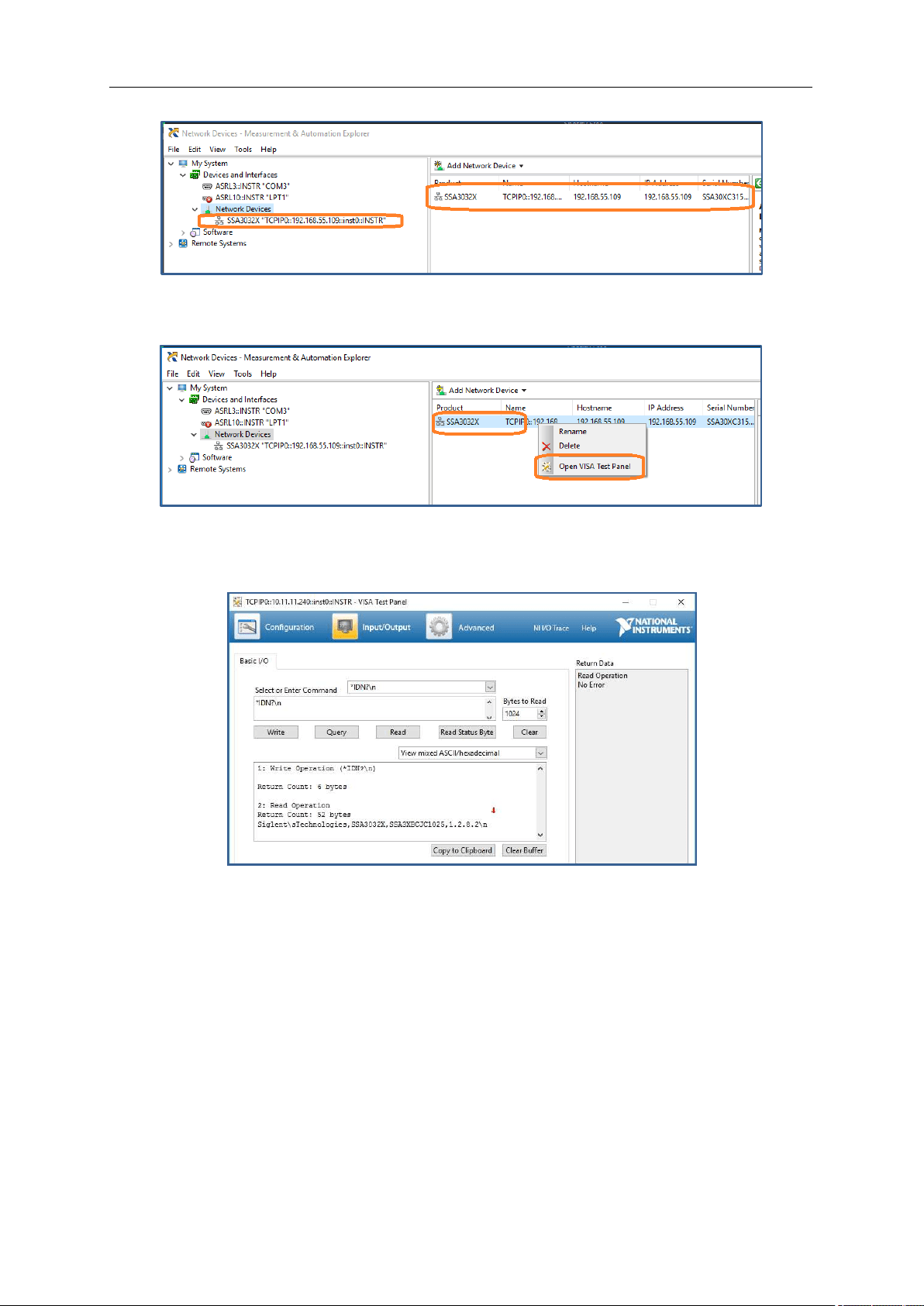
SIGLENT
160 User Manual
Figure 9-16
5. Right-click on the product and select Open NI-VISA Test Panel:
Figure 9-17
6. Click “Input/Output” option button and click “Query” option button. If everything is OK, you will see
the Read operation information returned as shown below.
Figure 9-18
9.3.3 Easy Spectrum Software
Users can control the analyzer remotely by Easy Spectrum. PC software Easy Spectrum is an easy-to-
use, PC-Windows-based remote control tool for Siglent’s analyzer. You can download it from Siglent’s
website. To connect the analyzer via the USB/LAN port to a PC, you need install the NI VISA first.
It is able to be used as:
● A monitor to display and control the trace scans simultaneously with the analyzer;
● A file maker to get user defined Limit/Correction files, and load them to the analyzer;
● An EMI measurement perform EMI Pre-compliance test including pre-scan, peak search, final scan
and report generating.
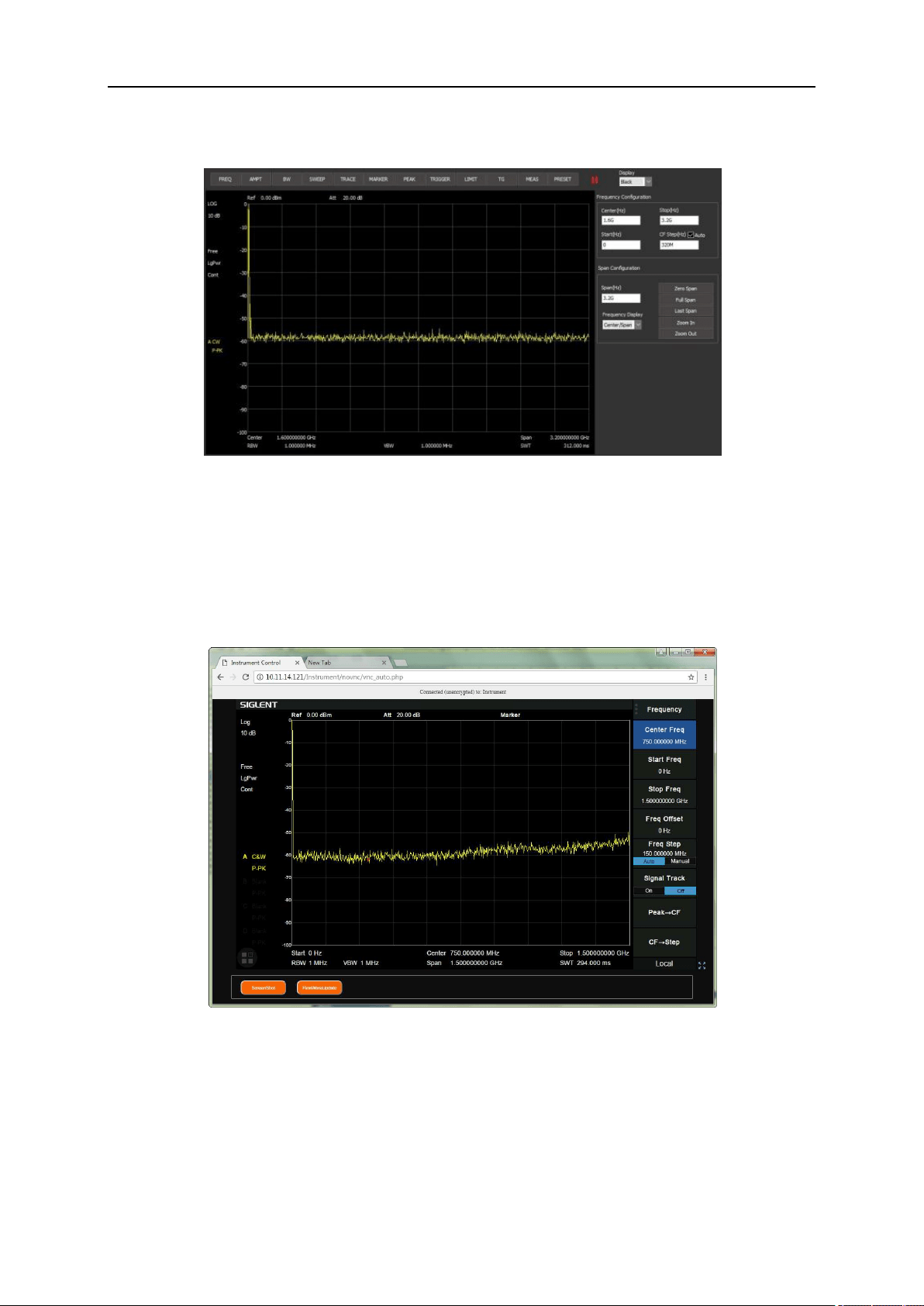
SIGLENT
For the further description of the software, please refer to the online help embedded in this software.
Figure 9-19
9.3.4 Web Control
With the embedded web server, the analyzer can be controlled through LAN from a web browser* on
PC and mobile terminals, without any extra driver be installed. This provides remote controlling and
monitoring capabilities. Screenshot and firmware update are also supported.
Figure 9-20
*Web browser with HTML5 supported like Google Chrome or Firefox are recommended.

SIGLENT
162 User Manual
Chapter 10 Service and Support
10.1 Service Summary
SIGLENT warrants that the products that it manufactures and sells will be free from defects in materials
and workmanship for a period of three years (accessories for a period of one year) from the date of
shipment from an authorized Siglent distributor. If the product proves defective within the respective
period, SIGLENT will provide repair or replacement as described in the complete warranty statement.
To arrange for service or obtain a copy of the complete warranty statement, please contact your nearest
Siglent sales and service office. Except as provided in this summary or the applicable warranty
statement, SIGLENT makes no warranty of any kind, express or implied, including without limitation the
implied warranties of merchantability and fitness for a particular purpose. In no event shall SIGLENT be
liable for indirect, special or consequential damages.
10.2 Troubleshooting
Before calling SIGLENT, or returning an analyzer for service, perform the quick checks listed below.
This check may eliminate the problem.
If the problem remains still, please contact SIGLENT and provide your device information in the back of
the analyzer.
1
. The Power Switch is still dark after power on:
(1) Check that the power is correct / working.
(2) Check the power cord has been connected correctly
(3) Check the power fuse. If a new fuse needs to be installed, please use a specified fuse.
2
. The analyzer’s screen is still dark (no display) after power on:
(1) Check whether the fan is running while the screen is dark, maybe the LCD cable is loose?
(2) Check whether the fan is not running while screen is dark, maybe it has failed to start up?
Do not disassemble the instrument by yourself and contact SIGLENT.
3
. The control panel is unresponsive or gives a wrong response:
(1) Press all the keys at the front panel to check if all of them are normal after power on.
(2) Press System ->Self Test ->Key Test to check if all the keys are working properly.
(3) If all the keys are not working, the numeric keyboard connection might be loose or the numeric
keyboard is broken.
(4) If the touch screen is not working, check if the Touch is ON in Display->Touch Settings menu.
(5) Check whether the analyzer is locked in a remote control; if so, press Esc to unlock it.
Do not disassemble the instrument by yourself and contact SIGLENT.

SIGLENT
4. The traces on the screen do not update for a long period of time:
(1) Check whether the traces are in View or other status; if so, change to Clear&Write to activiate it.
(2) Verify whether all the trigger conditions have been met and whether there is a valid trigger signal
inputting.
(3) Check whether the analyzer is in a Limit test.
(4) Check whether the analyzer is in a single sweep.
(5) Check whether the current sweep time is too long.
(6) Check whether the analyzer is in a Demod listening and the Demod time is too long.
(7) Check whether the analyzer is in an EMI measurement mode, and the Sequance is not in a Scan
status.
5
. Wrong measurement results or poor precision:
To calculate the system errors and check the measurement results and precision, refer to the
introductions in “Specifications”. To reach these specifications, please:
(1) Check whether all the external devices are successfully connected and are working normally.
(2) Get some knowledge of the signal under measurement and set appropriate instrument parameters.
(3) Make measurements under proper conditions, for example:
Warm-up the instrument appropriately and operate the instrument under the specified environment
temperature;
Check if the Correction is ON in SA or VNA mode.
(4) Calibrate the instrument regularly to reduce or avoid errors that might occur over time.
If you need a specific calibration after the stated calibration period, contact SIGLENT or get paid service
from authorized measurement agencies.
6
. System Message:
The instrument may display prompt messages, error messages or state messages according to the
current working status. These messages are displayed to help you to use the instrument correctly and
are not instrument failures.
Table 10-1 System Message
User system message
Message on screen
System message description (1~199)
SWT_OOR (1)
Sweep time out of range
RBW_OOR(2)
RBW out of range
SWT_CCOFM(3)
Can't change the sweep time in FFT mode
MRKT_UNDEF(4)
Undefined marker type
MRKFT_UNDEF (5)
Undefined marker function type
MRKDT_UNDEF (6)
Undefined marker delta pair type
MRKRT_UNDEF (7)
Undefined marker read out type
TRCT_UNDEF (8)
Undefined trace type
DETT_UNDEF (9)
Undefined detect type

SIGLENT
164 User Manual
SCA_CSWL (10)
Can't set the Scale/Div with linear
MRKT_IOFF (11)
The marker type is OFF, please open the current marker
MRK_NDELT (12)
The marker type is not Delta
MRKRT_MBST (13)
The marker read out type must be set time
MATHT_UNDEF (14)
Undefined math type
XML_ANIE (15)
Xml attribute node import error
XSCA_MBSLIZS (16)
X Scale must be set liner in zero span
TG_AXIS_XSCA (17)
The Scale type must be logarithm when normalize
SCALE_TG_AXIS (18)
Scale type cannot be changed to linear while nomalize on
PEAK_UNFOUND (19)
No peak found. Please change the search setting
IMD_FREQ_OOR (20)
Frequency of intermodulation products out of range
AUTO_FAIL (21)
Auto tune process failed
EXT_REF_PLUG_IN (22)
EXT ref plug in
EXT_REF_PLUG_OUT (23)
EXT ref plug out
REF_PLL_UNLOCK (24)
Ref pll unlock
SIG_NOT_STB (25)
Signal is not stable enough to track
QP_RBW_OOR (26)
RBW out of range when do quasi peak scan
LAN_PLUG_IN (150)
Ethernet cable plug in
LAN_PLUG_OUT (151)
Ethernet cable plug out
IP_CONFLICT (152)
IP address conflict
IP_INVALID (153)
IP address invalid
NETM_INVALID (154)
Netmask address invalid
GWAY_INVALID (155)
Gateway address invalid
S21_NORMALIZE_DONE (183)
Normalization of S21 done
VNA_AUTO_CAL_DONE (184)
Auto calibration of VNA done
Execution error (400~599)
LCF_DTFERR (400)
Load configurations failed, due to file error
Device error (600~799)
FUF_DTVERR (600)
Firmware upgrade failed, due to the version error
FUF_DTRERR (601)
Firmware upgrade failed, due to the ram error
FUF_DTFERR (602)
Firmware upgrade failed, due to the file error
FUF_DTFVERR (603)
Firmware upgrade failed, due to verify the file error
FUF_DTUZFERR (604)
Firmware upgrade failed, due to unzip the file error
LIC_INVALID (605)
License is invalid!
ADC_ERROR (606)
Warning, ADC Overload!