MOMENTUM 4 | 1
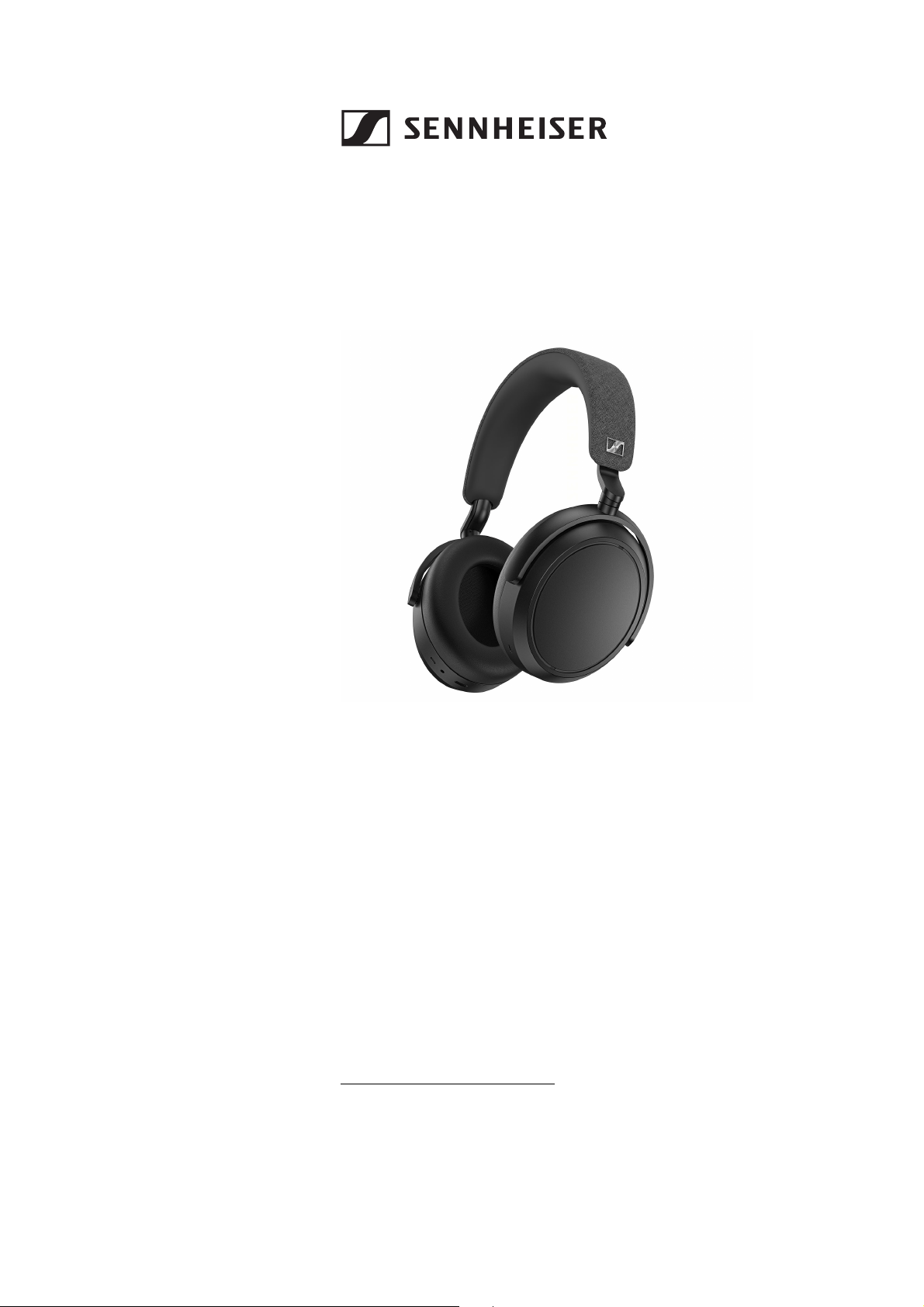
MOMENTUM 4
Wireless around-ear headphones
Model: M4AEBT
Instruction manual
Use the search function, the navigation (left) or the following links:
Start
“Product overview”
“Getting started”
“Using the headphones”
“FAQ/If a problem occurs ...”
“Specifications”
Sonova Consumer Hearing GmbH
Am Labor 1
30900 Wedemark
Germany
www.sennheiser-hearing.com
Version: 12/22 A02
Important safety instructions
2 | MOMENTUM 4
Important safety instructions
▷ Read this instruction manual carefully and completely before
using the product.
▷ Always include this instruction manual when passing the product
on to third parties.
▷ Do not use the product if it is obviously defective or makes loud,
unusual (whistling or beeping) noise.
▷ Only use the product in environments where Bluetooth wireless
transmission is permitted.
Preventing damage to health and accidents
▷ Protect your hearing from high volume levels. Permanent
hearing damage may occur when headphones are used
at high volume levels for long periods of time. Head-
phones of the Sennheiser brand sound exceptionally even good at
low and medium volume levels.
▷ The product generates stronger permanent magnetic
fields that could cause interference with cardiac pace-
makers, implanted defibrillators (ICDs) and other
implants. Always maintain a distance of at least 3.94"/10 cm
between the product component containing the magnet and the
cardiac pacemaker, implanted defibrillator, or other implant.
▷ Keep the product, accessories and packaging parts out of reach
of children and pets to prevent accidents. Swallowing and chok-
ing hazard.
▷ Do not use the product in an environment that requires your spe-
cial attention (e.g. in traffic). Especially the product’s active noise
cancellation can make ambient noise inaudible or drastically
change the perception of acoustic warning signals.
Preventing damage to the product and malfunctions
▷ Always keep the product dry and do not expose it to extreme tem-
peratures (hairdryer, heater, extended exposure to sunlight, etc.)
to avoid corrosion or deformation. The normal operating tempera-
ture is from 0 to 40 °C/32 to 104 °F.
▷ To avoid loud, unusual (whistling or beeping) noise and to ensure
proper noise cancellation, do not cover the microphone openings
of the active noise cancellation circuitry located on the outside of
the ear cups.
▷ Use only attachments/accessories/spare parts supplied or rec-
ommended by Sonova Consumer Hearing.
▷ Clean the product only with a soft, dry cloth.
Safety instructions for Lithium rechargeable batteries
WARNING
If abused or misused, rechargeable batteries may leak. In
extreme cases, they may even present a risk of:
•explosion,
• heat and fire development
• smoke and/or gas development
• damage to health and/or the environment
Important safety instructions
MOMENTUM 4 | 3
Notes on data collection and processing and on firmware updates
This product stores individual settings such as the volume, the
sound profiles and the Bluetooth connection data of paired devices.
This data is required for the operation of the product and is not trans-
ferred to Sonova Consumer Hearing GmbH or companies commis-
sioned by Sonova Consumer Hearing GmbH and is not processed.
Using the “Sennheiser Smart Control” app, you can update the firm-
ware of the product for free via an Internet connection. If the device
on which the app is installed is connected to the Internet, the follow-
ing data is automatically transferred to and processed by Sonova
Consumer Hearing servers in order to provide and transfer suitable
firmware updates: hardware identifier, hardware revision number,
firmware version of the product, operating system type (Android,
iOS) and version, version of the app. The data will only be used as
specified and will not be stored permanently.
If you do not want this data to be transferred and processed, do not
connect to the Internet.
Notes on the use of headphones in damp environments
Headphones are an everyday companion. When using the head-
phones on the go, they may be exposed to moisture. For example,
rain, air humidity or even sweat may come into contact with the
headphones.
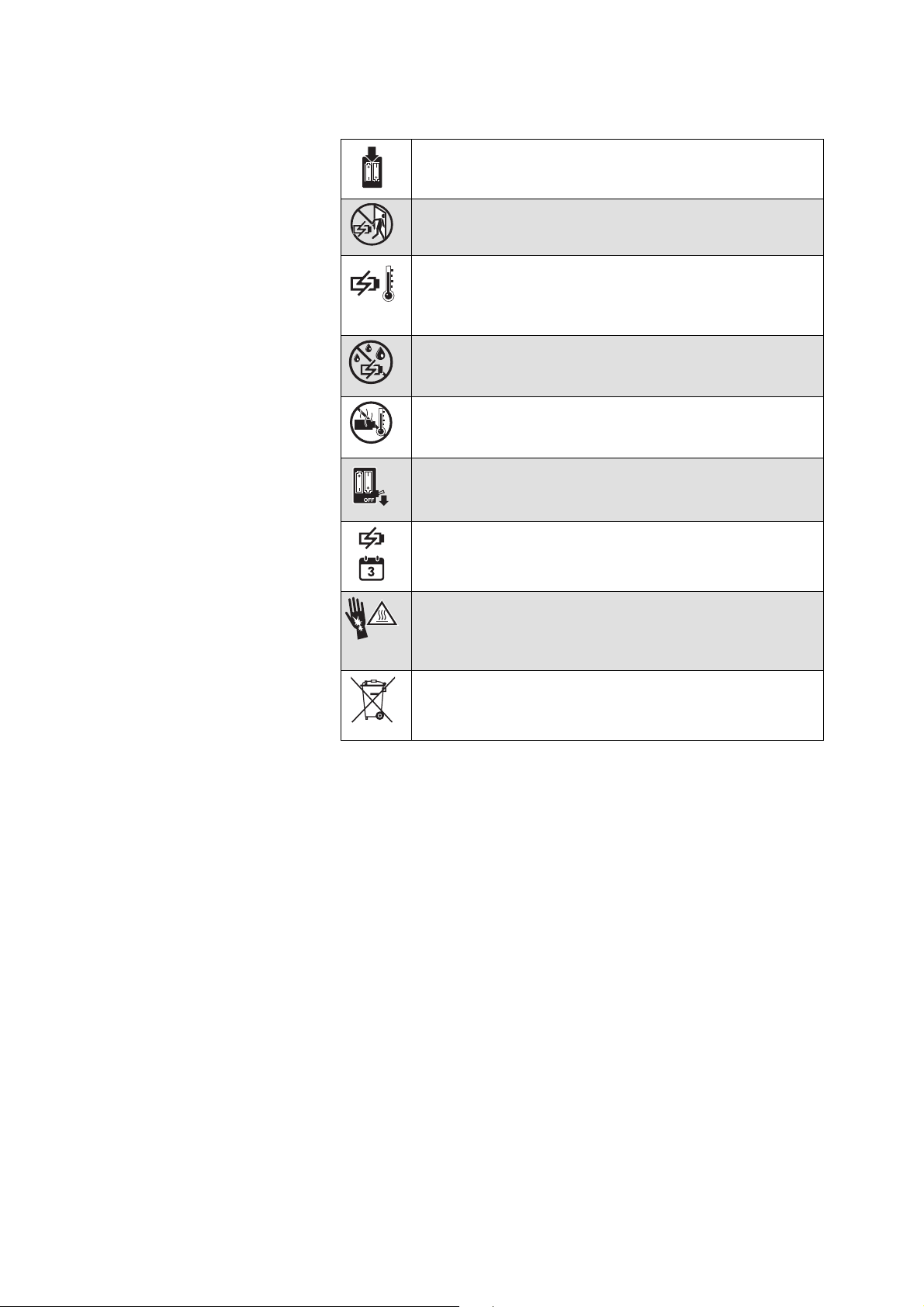
Only use rechargeable batteries and chargers recom-
mended by Sonova Consumer Hearing.
Do not leave the product / rechargeable batteries unat-
tended while charging.
Only charge the product / rechargeable batteries at
ambient temperatures between 10 °C and 40 °C/50 °F
and 104 °F and do not charge them near easily flamma-
ble objects.
Do not charge the product / rechargeable batteries in a
damp environment. Make sure that the charging socket
is free from moisture and contamination.
Do not heat the product / rechargeable batteries above
60 °C/140 °F. Avoid exposure to sunlight and do not
throw the product / rechargeable batteries into fire.
Switch rechargeable battery-powered products off after
use.
When not using the product / rechargeable batteries for
extended periods of time, charge them regularly (about
every three months).
Avoid prolonged skin contact with the product,
rechargeable battery, charger or charging cable when
connected to a power source. These components can
heat up during charging and cause skin irritation.
Dispose of defective products with built-in rechargeable
batteries at special collection points or return them to
your specialist dealer to facilitate recycling.

Important safety instructions
4 | MOMENTUM 4
To ensure proper, safe and long-lasting performance:
▷ Avoid contact with moisture and always keep headphones dry.
▷ Do not use headphones in the rain/snow or in the shower.
▷ Do not use headphones in swimming pool, sauna or during other
activities with water/high air humidity (e.g. washing dishes).
▷ Do not store headphones in airtight containers/bags together
with damp objects (e.g. damp laundry) or objects that can cause
condensation moisture (e.g. cold water bottles).
▷ Never charge damp headphones. Make sure that the charging
socket is free from moisture and contamination.
If your headphones have become damp or wet:
▷ Dry headphones completely with a dry cloth.
▷ Allow headphones to dry at room temperature for at least
24 hours before using and charging them again.
▷ Do not continue to use the product if it is obviously defective.
Intended use/Liability
These headphones have been designed as an accessory for Blue-
tooth compliant devices. They are intended for wireless audio com-
munication such as music playback and phone calls via Bluetooth
wireless technology.
It is considered improper use when the product is used for any appli-
cation not named in the corresponding product documentation.
Sonova Consumer Hearing GmbH does not accept liability for
damage arising from misuse or improper use of this product and its
attachments/accessories.
Sonova Consumer Hearing GmbH is not liable for damages to USB
devices that are not consistent with the USB specifications.
Sonova Consumer Hearing GmbH is not liable for damages resulting
from the loss of connection due to flat or overaged rechargeable bat-
teries or exceeding the Bluetooth transmission range.
Before putting into operation, please observe the respective coun-
try-specific regulations.
Package contents
MOMENTUM 4 | 5
Package contents
Online you can find:
• this detailed instruction manual and additional information
(www.sennheiser-hearing.com/download)
• the Sennheiser Smart Control app for configuring the head-
phones and for additional functions
(www.sennheiser-hearing.com/smartcontrol)
• a list of accessories on the MOMENTUM 4 product page at
www.sennheiser-hearing.com/momentum-4-wireless (to pur-
chase online or contact your local Sonova Consumer Hearing
partner:
www.sennheiser-hearing.com/service-support)
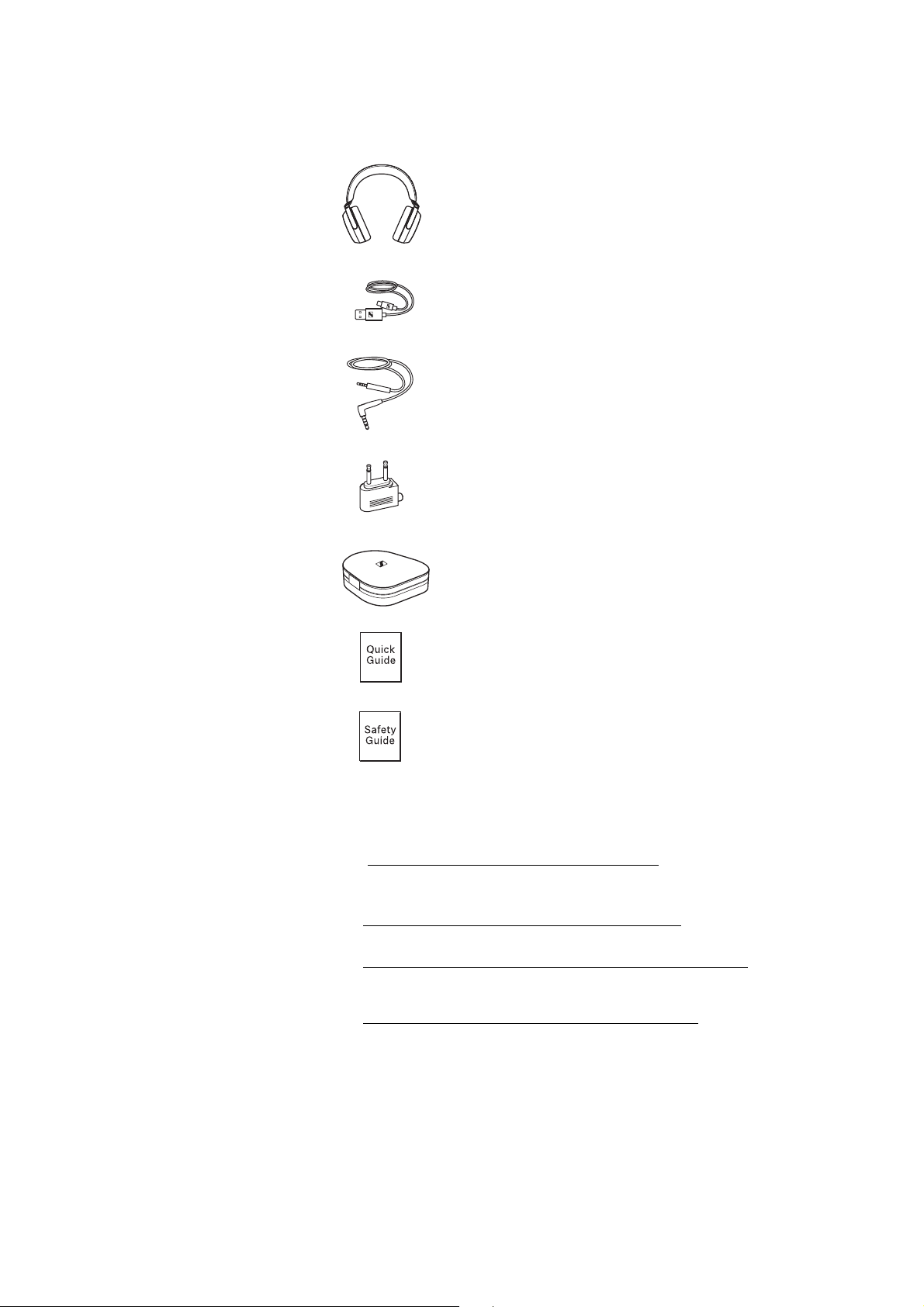
MOMENTUM 4 around-ear headphones
Model: M4AEBT
USB charging cable with USB-C and
USB-A connector, length approx. 1.2 m
Analog audio cable with 3.5 mm jack plug and
2.5 mm jack plug, length approx. 1.2 m
In-flight adapter
Carry case
Quick guide
Safety guide
Product overview
6 | MOMENTUM 4
Product overview
MOMENTUM 4
Model: M4AEBT
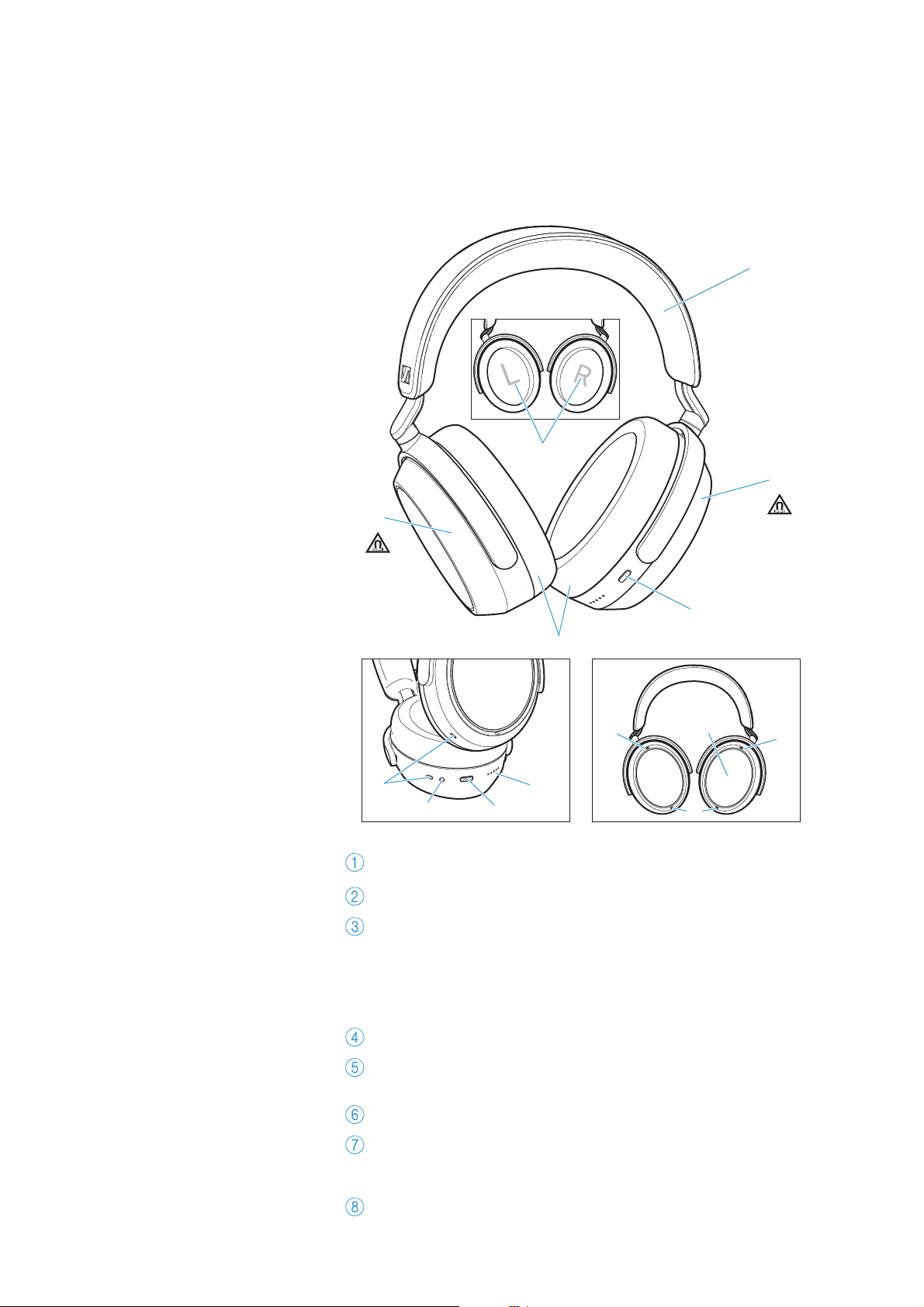
Headband, steplessly adjustable
Ear cups
Multi-function button of the headphones:
• On/off button
• Voice assistant button
• Pairing button: pressing for 5 seconds activates the
Bluetooth pairing mode
Ear pads
Marking for the right ear (R) and for the left ear (L)
(inside the ear cups)
Speech microphones (4 pcs.) for phone calls
Input for analog audio cable, 2.5 mm;
when a cable is connected, flight mode is activated/Blue-
tooth is deactivated
USB-C socket for charging, calling,
streaming via PC/Mac
R
1
3
2
2
8
4
7
0
0
6
6
9
A
R
5
Product overview
MOMENTUM 4 | 7
Overview of the smart control
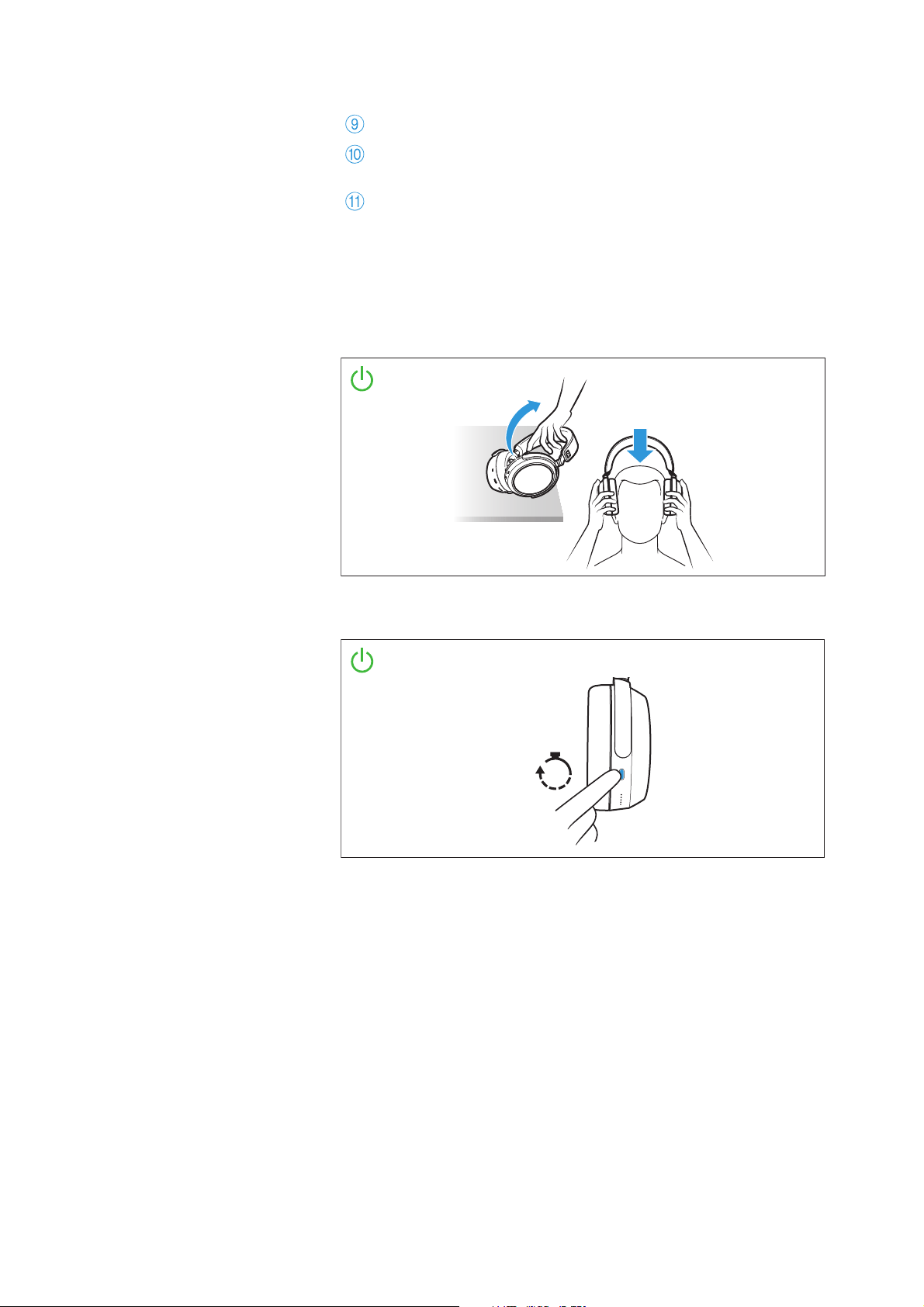
Switch-on of the headphones
• Automatic switch-on: by lifting and putting on
• Manual switch-on: by pressing the multi-function button for
3 seconds
LED display
Microphones for active noise cancellation ANC:
2x directed outward, 2x directed inward (not visible)
Touch pad (outside of the right ear cup)
Auto
Manual
3s
Hold
Product overview
8 | MOMENTUM 4
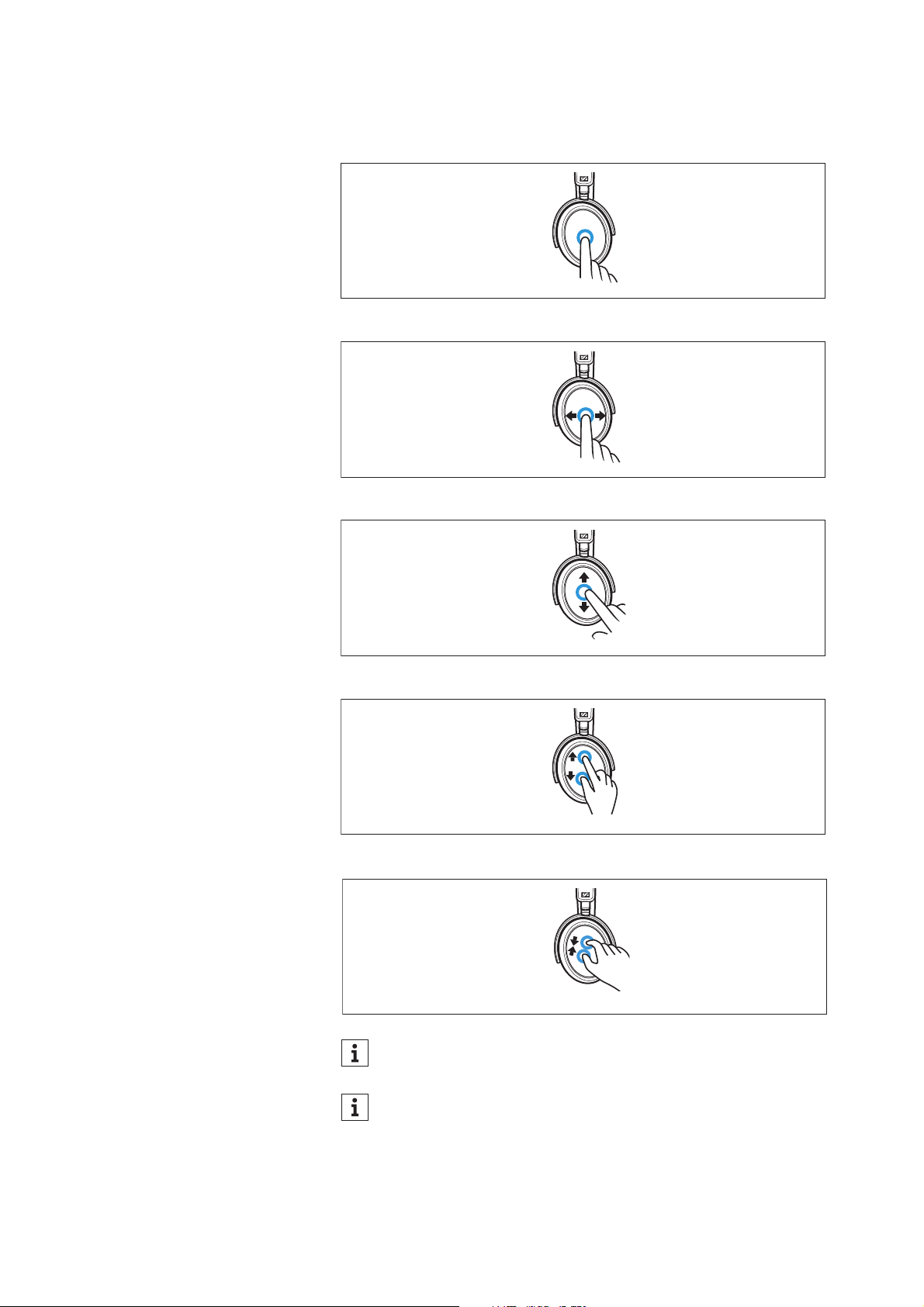
Gesture control via the touch pad
•Tap
•Horizontal swipe
•Vertical swipe
•Stretch
•Pinch
You can also deactivate the touch pad function, see: > 34.
The headphones are equipped with a sensor that automatically
detects whether the headphones are worn or taken off from
your ears (Smart Pause function). You can find more informa-
tion here: > 33.
R
R
Product overview
MOMENTUM 4 | 9
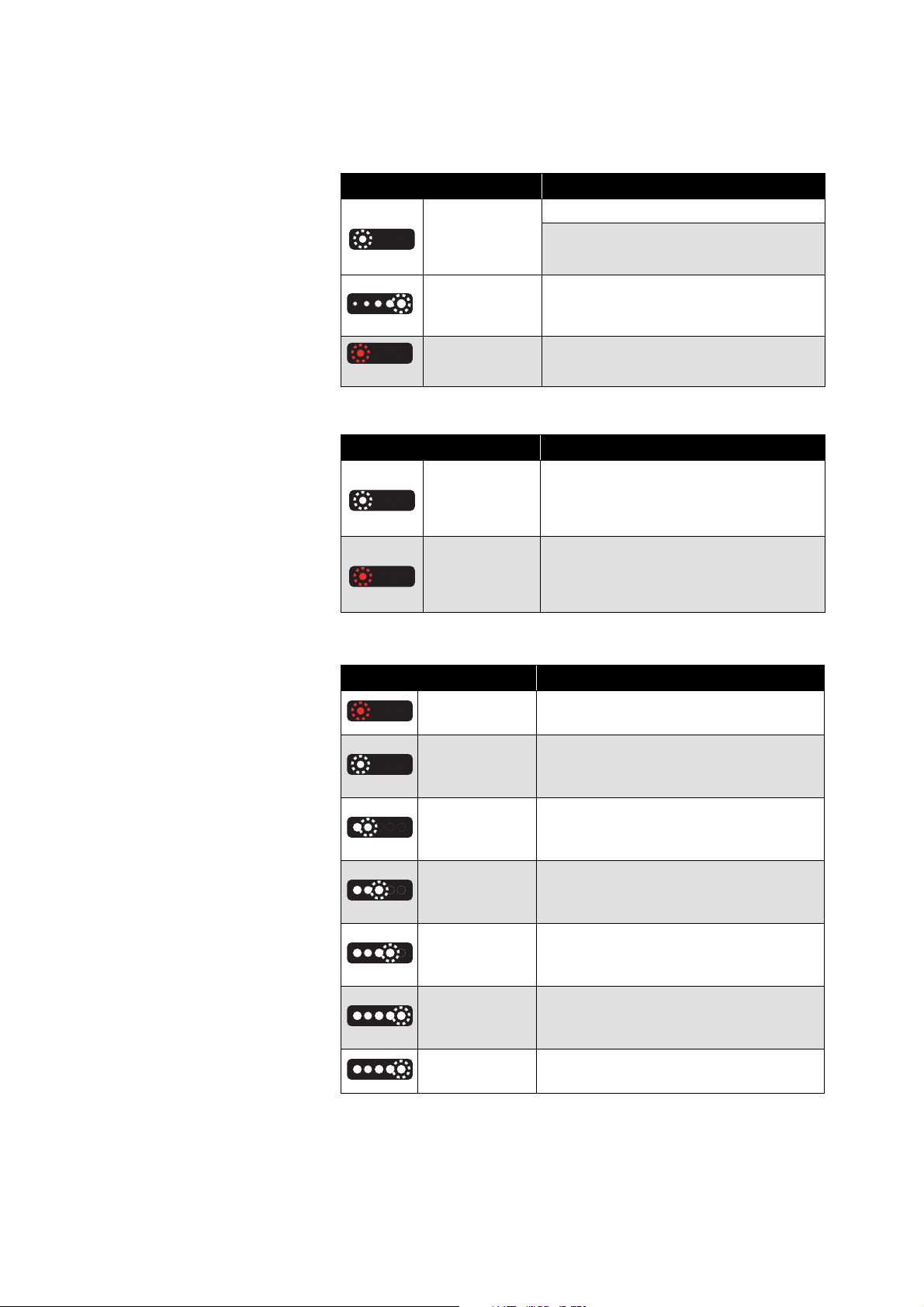
Overview of the LED display
During operation
During phone calls
During charging
LED Meaning/headphones...
white
flashes 3x
... switch on
... are connected to a device via Blue-
tooth
white
continuous
sequence
... are in Bluetooth pairing mode
red
flashes 3x
... switch off
LED Meaning
white
flashes 3x
repeatedly
Incoming call
red
flashes 3x
repeatedly
Incoming call with an almost empty
battery
LED Meaning
1 red
Rechargeable battery is almost empty
(less than 2% charged)
1 white
Rechargeable battery is approx.
2-20% charged
(>1 hour of playback time)
2 white
Rechargeable battery is approx.
20-40% charged
(>12 hours of playback time)
3 white
Rechargeable battery is approx.
40-60% charged
(>24 hours of playback time)
4 white
Rechargeable battery is approx.
60-80% charged
(>36 hours of playback time)
5 white
Rechargeable battery is approx.
80-100% charged
(>48 hours of playback time)
5 white
Rechargeable battery is 100% charged
(up to 60 hours of playback time)
3x
3x
3x
3x

Product overview
10 | MOMENTUM 4
If the LED display does not light up:
• Clean the charging socket (> 38).
• Charge the rechargeable battery until the LED display lights
up again (at least 30 minutes) (> 14). If the rechargeable bat-
tery is completely discharged, it may take several minutes
for the LED display to indicate the charging process.
Product overview
MOMENTUM 4 | 11
Overview of sound signals and voice prompts
The headphones output voice prompts and sound signals in case of
various events.
You hear short sound signals when the headphones
• are switched on or off,
• are put on or taken off,
• are in pairing mode (melody),
• detect devices in the pairing list,
• cancel the pairing process,
• receive a gesture via the touch pad (increasing the volume, start-
ing/pausing music playback, answering/holding/rejecting calls,
adjusting the ANC function or Transparency Mode),
• receive an incoming call (ring tone),
• are connected to a device via the audio cable or USB cable,
• are disconnected from the connection via the audio cable or USB
cable.
Via the Smart Control app, you can adjust settings for the voice
prompts and sound signals (> 34).
Voice prompt Meaning/headphones...
Establishing a Bluetooth connection
“Connected” ...are connected via Bluetooth.
“No connection”
... have lost the Bluetooth connec-
tion to a paired device.
“Pairing successful”
... have successfully completed
Bluetooth pairing.
“Pairing failed” ... have not successfully completed
Bluetooth pairing.
Information on battery status and volume
“Recharge headset”
... has an empty rechargeable bat-
tery. Charge the rechargeable bat-
tery (> 14).
“More than xx % battery left”
... indicates the remaining battery
charge in percent.
“Volume min”
... has reached the minimum volume
setting.
“Volume max”
... has reached the maximum
volume setting.
“Mute on” ... mutes the microphone.
“Mute off” ... activates the microphone again.
Getting started
12 | MOMENTUM 4
Getting started
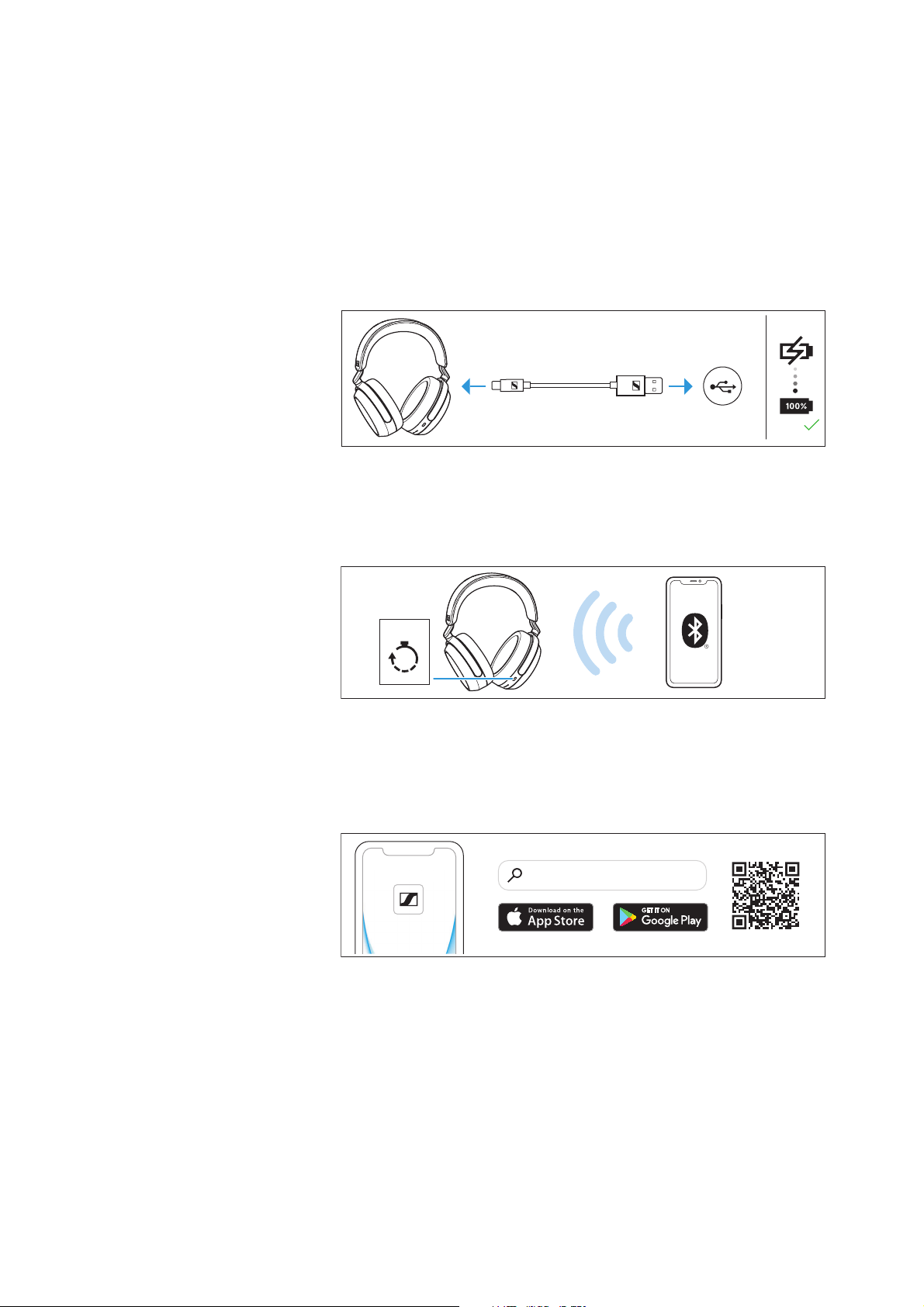
1. Charging the rechargeable battery
The headphones’ rechargeable battery is not fully charged upon
delivery.
▷ Before using the headphones for the first time, charge the
rechargeable battery for a complete charging cycle without inter-
ruption (> 14).
2. Connecting the headphones to a Bluetooth
device
▷ Connect the headphones to your smartphone via Bluetooth (> 15).
3. Smart Control app for your smartphone
The Sennheiser Smart Control app allows you to use all functions
and settings of the headphones and to e.g. adjust the sound to your
liking using the equalizer (> 19).
USB-AUSB-C
5s
Hold
“Sennheiser Smart Control”
Smart Control
Using the headphones
14 | MOMENTUM 4
Using the headphones
Information on the rechargeable battery
and the charging process
The headphones have a built-in rechargeable battery. A complete
charging cycle takes approx. 2 hours. The charging time may vary
depending on the power source used and the ambient temperature.
Before using the headphones for the first time, charge the recharge
-
able battery for a complete charging cycle without interruption.
When the headphones are being charged, the LED display lights up
(>9). Once the headphones are fully charged, the LEDs flash white
for approx. 5 minutes and then go off. When the battery charge drops
to a low level, the voice prompt “Recharge headset” asks you to
recharge the headphones. If the headphones are not charged, the
voice prompt will be repeated every 10 minutes until the headphones
switch off.
Sonova Consumer Hearing recommends using the supplied USB
cable and a compatible standard USB power supply for charging the
headphones.
While the headphones are being charged, you can still listen to
music or make phone calls. In this case, however, the charging time
may be longer.
At the end of its operational lifetime, this product with its built-in
rechargeable battery must be disposed of separately from normal
household waste. You can find more information here: > 43.
Charging the headphones’ rechargeable
battery
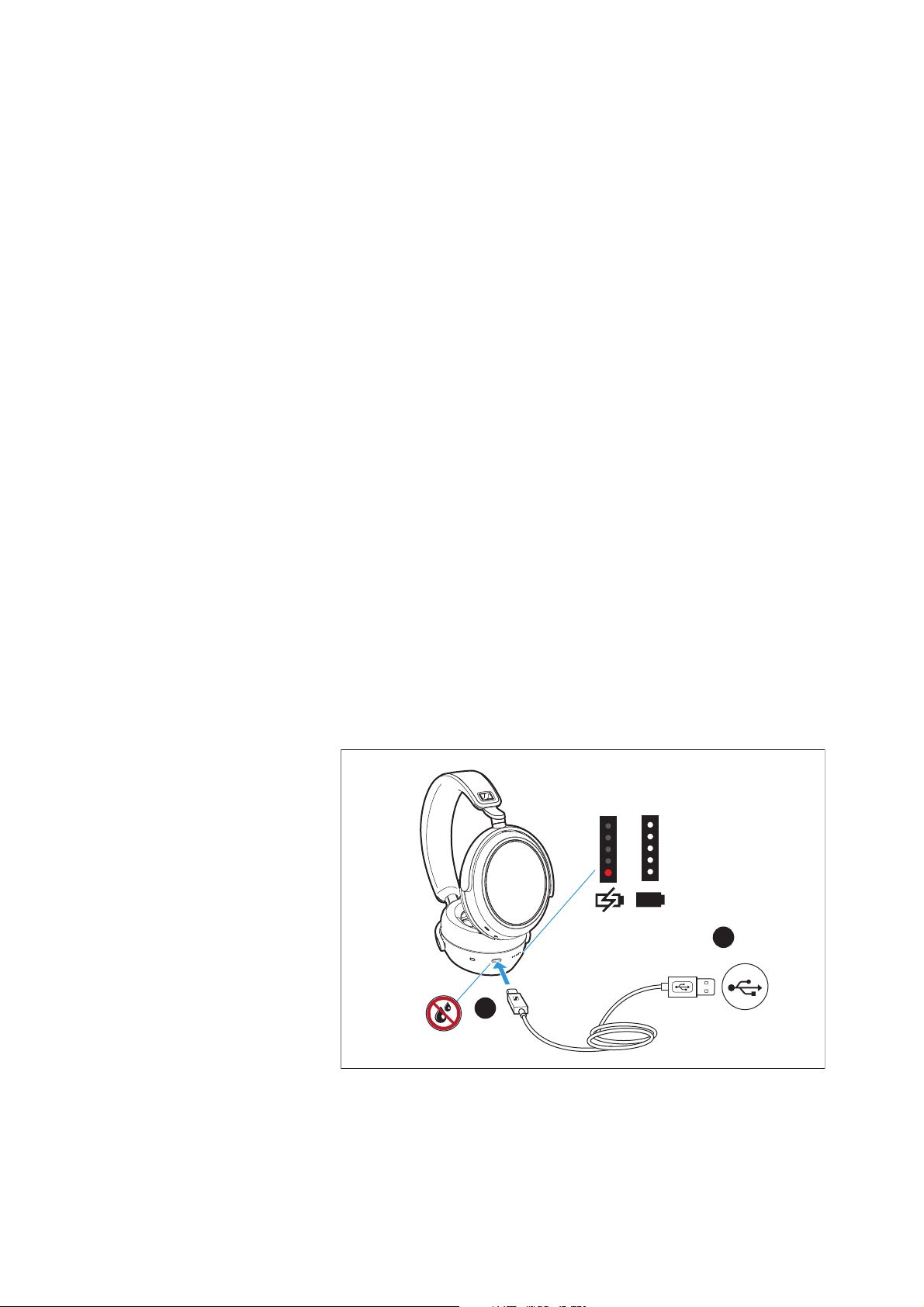
1. Make sure that the charging socket is free from moisture and con-
tamination. Connect the USB-C connector of the charging cable
to the USB socket of the headphones.
R
USB-C
USB-A
1.
2.
Using the headphones
MOMENTUM 4 | 15
2. Connect the USB-A connector to a corresponding socket of a USB
power source (to be ordered separately). Make sure that the USB
power source is connected to the power supply system.
The charging process of the headphones begins. The LED display
indicates the charge status.
If the LED display does not light up:
▷ Clean the charging socket (> 38).
▷ Charge the rechargeable battery until the LED display lights up
again (at least 30 minutes) (> 14). If the rechargeable battery is
completely discharged, it may take several minutes for the LED
display to indicate the charging process.
Connecting the headphones to a
Bluetooth device
To be able to use the Bluetooth connection, you must register both
devices (headphones and e.g. smartphone) once. This process is
called pairing.
If operation differs from the steps mentioned, also refer to the
instruction manual of the Bluetooth device you are using.
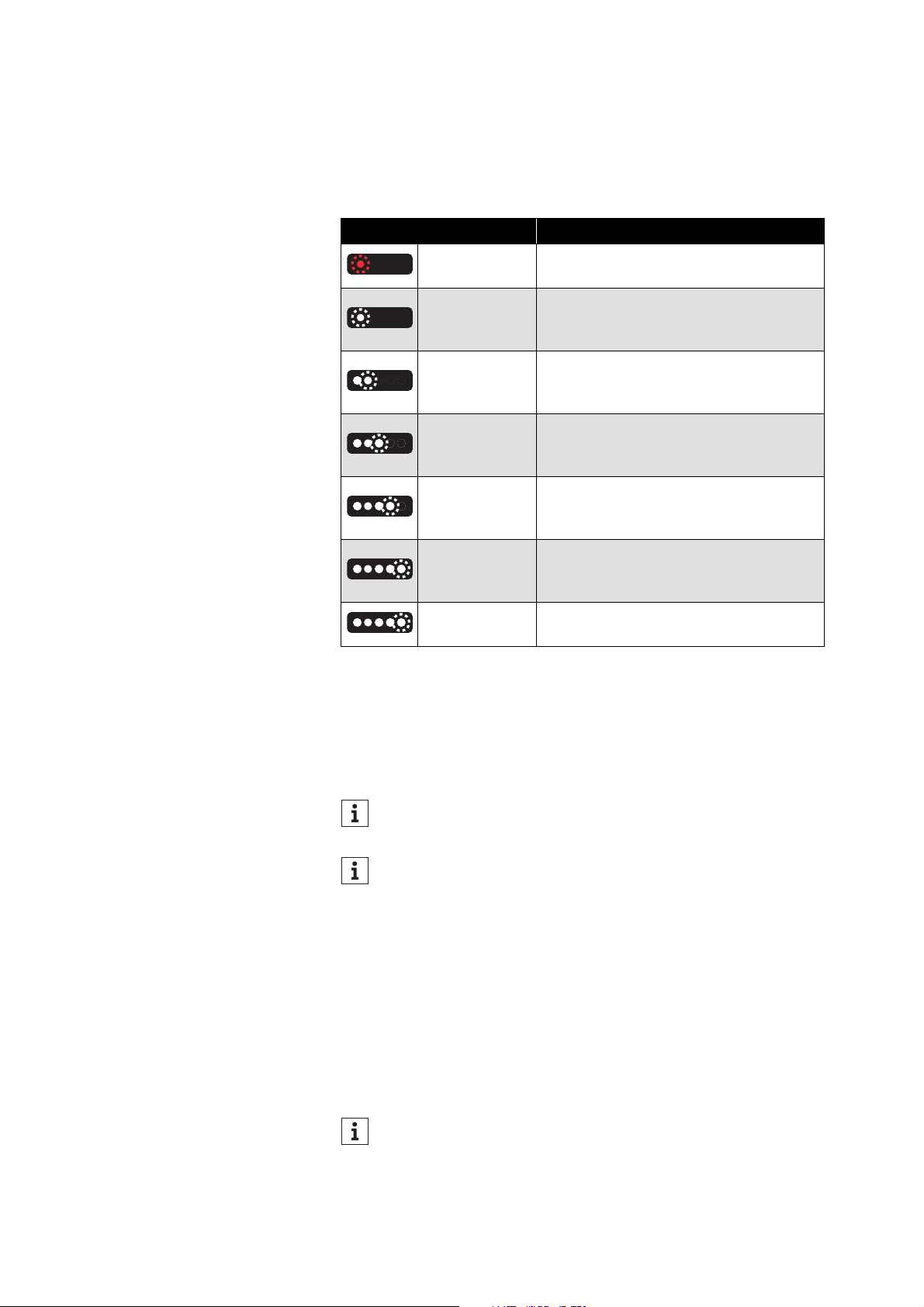
LED Meaning
1 red
Rechargeable battery is almost empty
(less than 2% charged)
1 white
Rechargeable battery is approx.
2-20% charged
(>1 hour of playback time)
2 white
Rechargeable battery is approx.
20-40% charged
(>12 hours of playback time)
3 white
Rechargeable battery is approx.
40-60% charged
(>24 hours of playback time)
4 white
Rechargeable battery is approx.
60-80% charged
(>36 hours of playback time)
5 white
Rechargeable battery is approx.
80-100% charged
(>48 hours of playback time)
5 white
Rechargeable battery is 100% charged
(up to 60 hours of playback time)
You can speed up the charging process by charging the head-
phones when they are switched off.
If you disconnect the USB connection during or after charging,
you will hear a voice prompt informing you of the remaining
battery life.
If you switch on the headphones for the first time (the pairing
list is empty), they automatically switch to pairing mode.
Using the headphones
16 | MOMENTUM 4
Information on the Bluetooth wireless
connection
The headphones are compliant with Bluetooth 5.2.
If your audio source supports one of the following high-resolution
audio encoding methods, music is automatically played in high audio
quality: aptX™ Adaptive (aptX™, aptX™ Low Latency) or AAC. Other-
wise the headphones will play your music in normal audio quality
(SBC).
Paired devices establish the Bluetooth wireless connection immedi-
ately after switch-on and are ready for use.
On switch-on, the headphones automatically try to connect to the
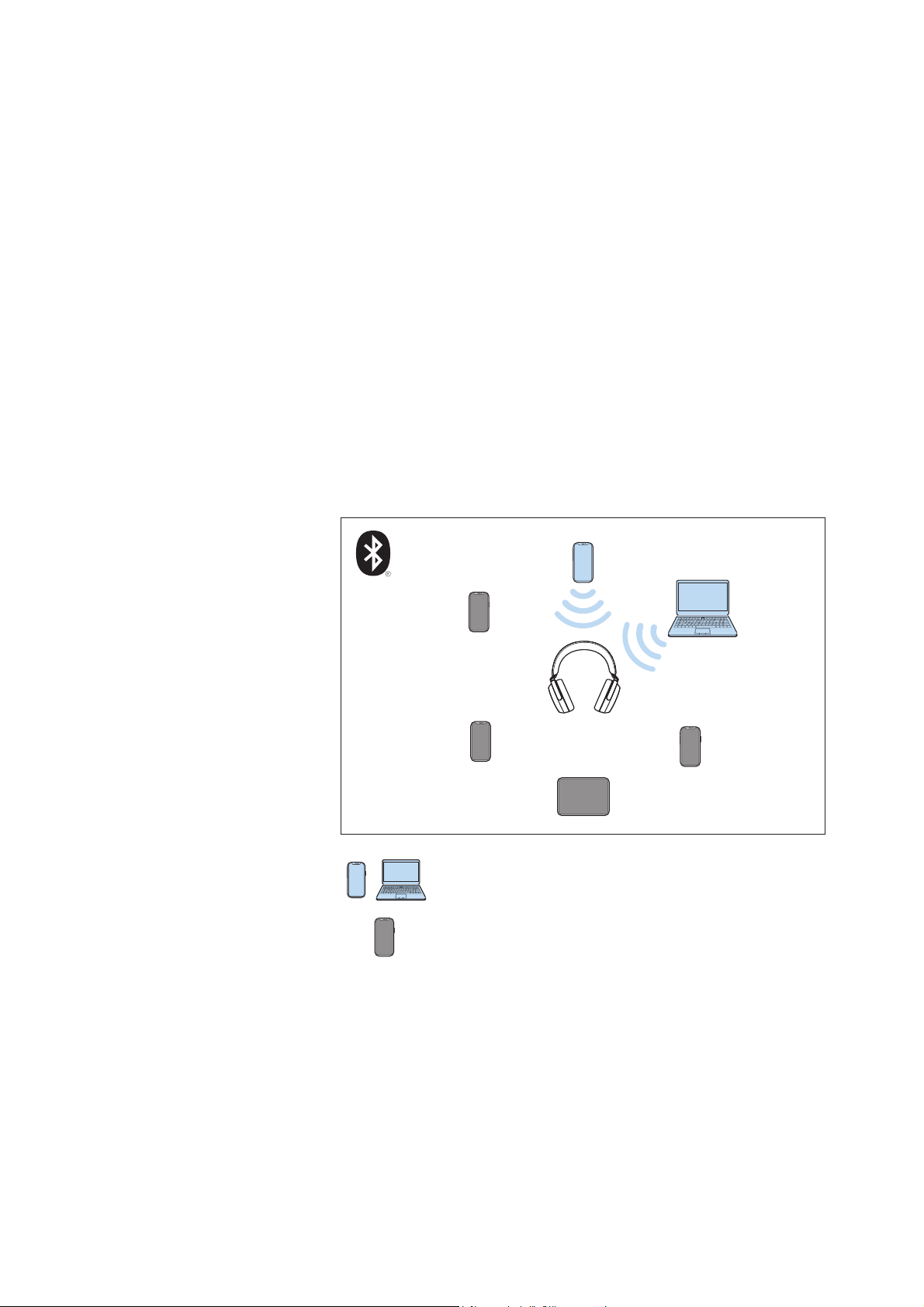
last two connected Bluetooth devices. The headphones can save the
connection profiles of up to six Bluetooth devices with which they
have been paired. Audio playback is only possible from one device at
a time.
If you pair the headphones with the seventh Bluetooth device, the
saved connection profile of the least used Bluetooth device will be
overwritten. If you want to re-establish a connection with the over-
written Bluetooth device, you have to pair the headphones again.
Paired and connected Bluetooth device
Paired Bluetooth device (currently not connected)
1
2
3
4
5
6
Using the headphones
MOMENTUM 4 | 17
Pairing the headphones with a Bluetooth
device
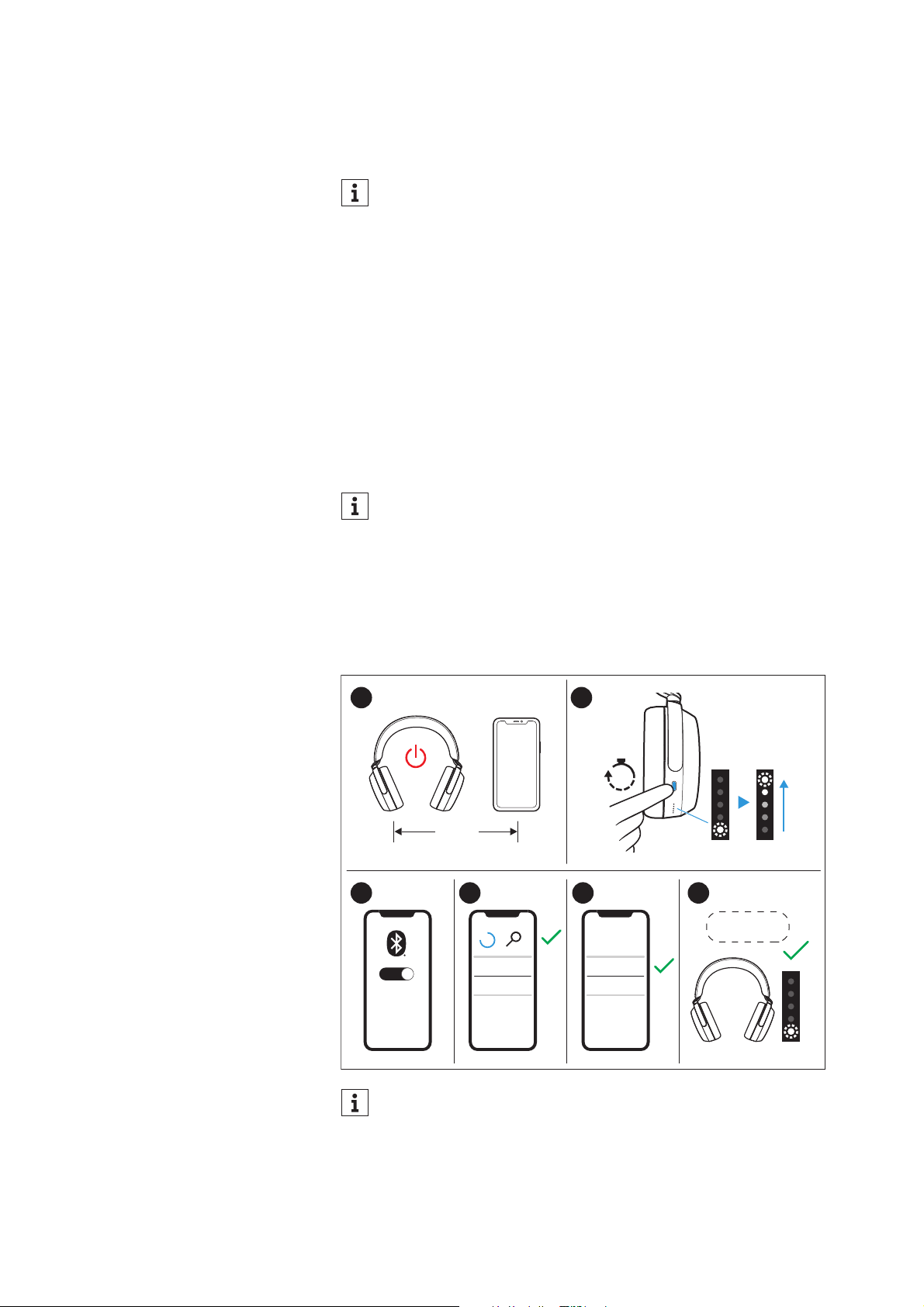
1. Switch the headphones off and place them close to the Bluetooth
device (max. 20 cm).
2. Press the multi-function button for 5 seconds.
The headphones are switched on and you hear a sound signal.
The LEDs light up white 3x.
The headphones switch to pairing mode. The LEDs light up as a
white continuous sequence and a melody can be heard.
3. Activate Bluetooth on your Bluetooth device.
4. Via the menu of your Bluetooth device, start the search for new
Bluetooth devices.
All active Bluetooth devices in the proximity of your Bluetooth
device are displayed.
5. From the list of found Bluetooth devices, select “MOMENTUM 4”.
If necessary, enter the default pin code “0000”.
6. If pairing was successful, you hear the voice prompts “Pairing
successful” and “Connected” one after the other. The LED flashes
white 3x.
If you switch on the headphones for the first time (the pairing
list is empty), they automatically switch to pairing mode.
By default, the name of the headphones is “MOMENTUM 4”.
You can individually adjust the name in the Smart Control
app (> 19).
If no connection is established within 2 minutes, pairing mode
is terminated and the headphones switch to standby mode. If
necessary, repeat the steps described above.
MOMENTUM 4
............
......
ON
5s
3x
3x
1.
3. 4. 5. 6.
2.
20 cm
“Pairing
successful“

Using the headphones
18 | MOMENTUM 4
Switching the connection to paired
Bluetooth devices/“Connections”
To selectively switch the audio connection to paired Bluetooth
devices using the “Connections” function, you require the Smart
Control app (> 19).
▷ In the Smart Control app, tap “Connections”.
The list of Bluetooth devices paired with the headphones
appears.
▷ From the list, select the paired device to which you want to con-
nect the headphones. Make sure that the desired device is
switched on and Bluetooth is activated.
The Bluetooth audio connection between the desired Bluetooth
device and the headphones is established.
The app connection between the device with the Smart Control
app installed and the headphones remains active (only Bluetooth
Low Energy for communication between app and headphones,
the device name is highlighted in bold).
Disconnecting the headphones from a
Bluetooth device
▷ Via the menu of your Bluetooth device, disconnect the connection
to the headphones.
The headphones are disconnected from the Bluetooth device.
You hear the voice prompt “No connection”. The headphones
switch to standby mode.
The “Connections” function also allows you to selectively
delete pairing information of devices without resetting the
headphones to the factory default settings.
To delete the Bluetooth pairing list of the headphones: > 41.
Using the headphones
MOMENTUM 4 | 19
Installing the Smart Control app
To make full use of all the settings and functions of the headphones,
you need to have the free Sennheiser Smart Control app installed on
your smartphone.
Download the app from the Apple App Store or Google Play and
install it on your smartphone. Alternatively, you can use your smart-
phone to scan the following QR code or to call up the following Inter-
net site:
www.sennheiser-hearing.com/smartcontrol
▷ Connect your smartphone to the headphones via Bluetooth (> 15).
▷ Start the Smart Control app.
▷ Follow the instructions in the app.
The Smart Control app recognizes the headphones and activates
all available settings and functions.
Switching the headphones on
Automatic switch-on
▷ When the headphones are in the supplied carry case: Take out the
headphones from the carry case.
One LED flashes white 3x. The headphones automatically switch
on.
▷ Put on the headphones.
You hear a sound signal. If Bluetooth is activated on the head-
phones and a paired device is available, you hear the voice
prompt “Connected”.
If Bluetooth is deactivated on the headphones (> 35), you only
hear a sound signal. The active noise cancellation ANC may be
activated (> 26).
WARNING
Danger of hearing damage due to high volume levels!
Listening at high volume levels can lead to permanent
hearing defects.
▷ Before putting the headphones on, adjust the volume
to a low level (> 22).
▷ Do not continuously expose yourself to high volume
levels.
Using the headphones
20 | MOMENTUM 4
Manual switch-on
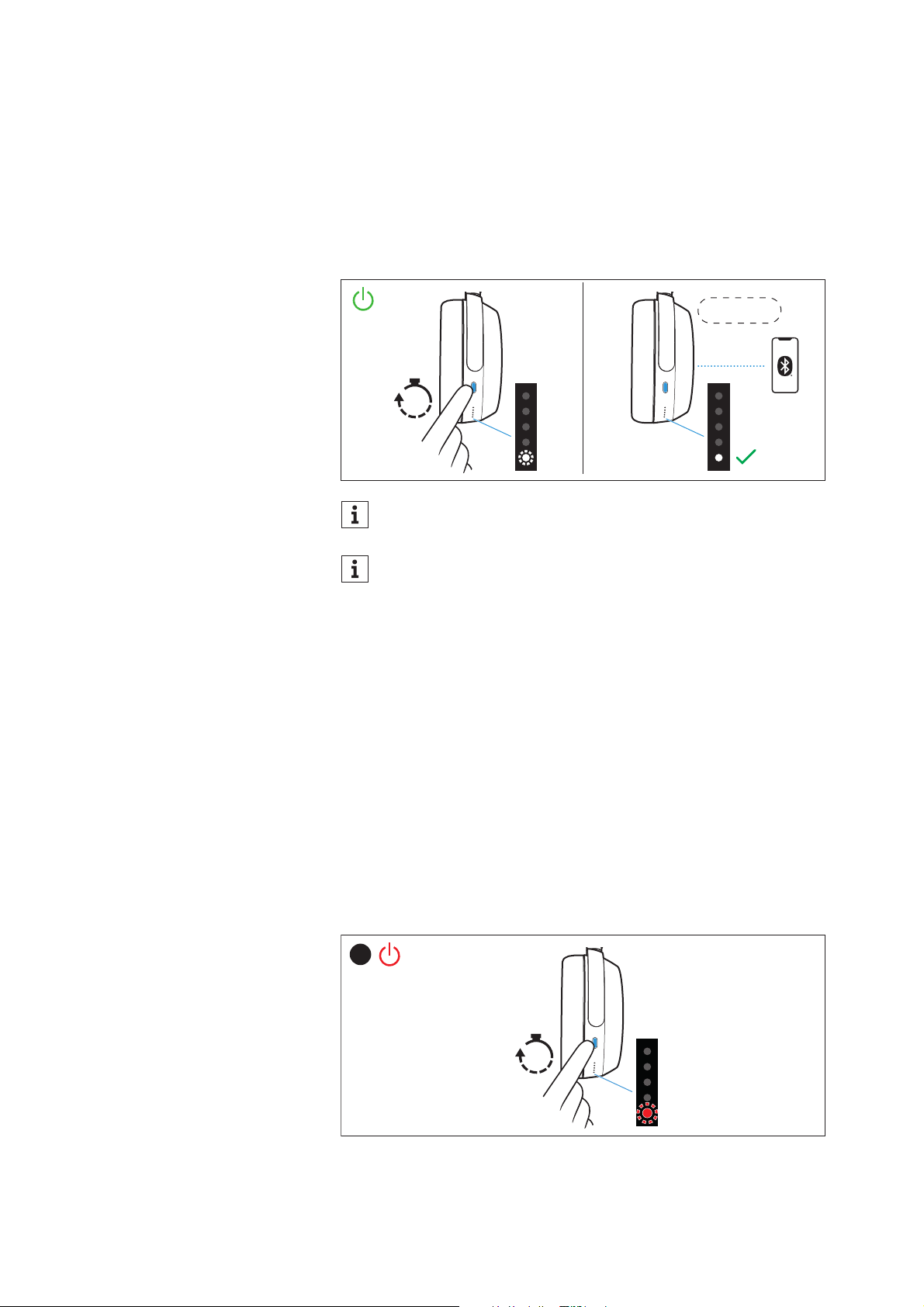
▷ Press the multi-function button for 3 seconds.
One LED flashes white 3x. You hear a sound signal. If Bluetooth is
activated on the headphones and a paired device is available, the
LED lights up white and you hear the voice prompt “Connected”.
If Bluetooth is deactivated on the headphones (> 35), you only
year a sound signal. The active noise cancellation may be acti-
vated
(> 26).
Switching the headphones off
Automatic switch-off
After taking off the headphones, they automatically switch off after
15 minutes. You can adjust the time span using the Smart Control
app (> 19).
After being placed in the supplied carry case, the headphones imme-
diately switch off automatically.
Manual switch-off
▷ Press the multi-function button for 3 seconds.
You hear a sound signal. One LED flashes red 3x. The headphones
switch off.
Make sure that Bluetooth is already activated on your Blue-
tooth device when switching on the headphones.
If Bluetooth is activated and the headphones cannot find a
paired Bluetooth device within a few minutes, you hear the
voice prompt “No connection”. The LED flashes red 3x. The
headphones switch to standby mode.
“Connected“
3s
Hold
1.
3s
Hold
Using the headphones
MOMENTUM 4 | 21
Putting the headphones on and adjusting
the headband
For good sound quality, the best possible noise cancellation and the
best possible wearing comfort, the headband can be adjusted to
properly fit your head.
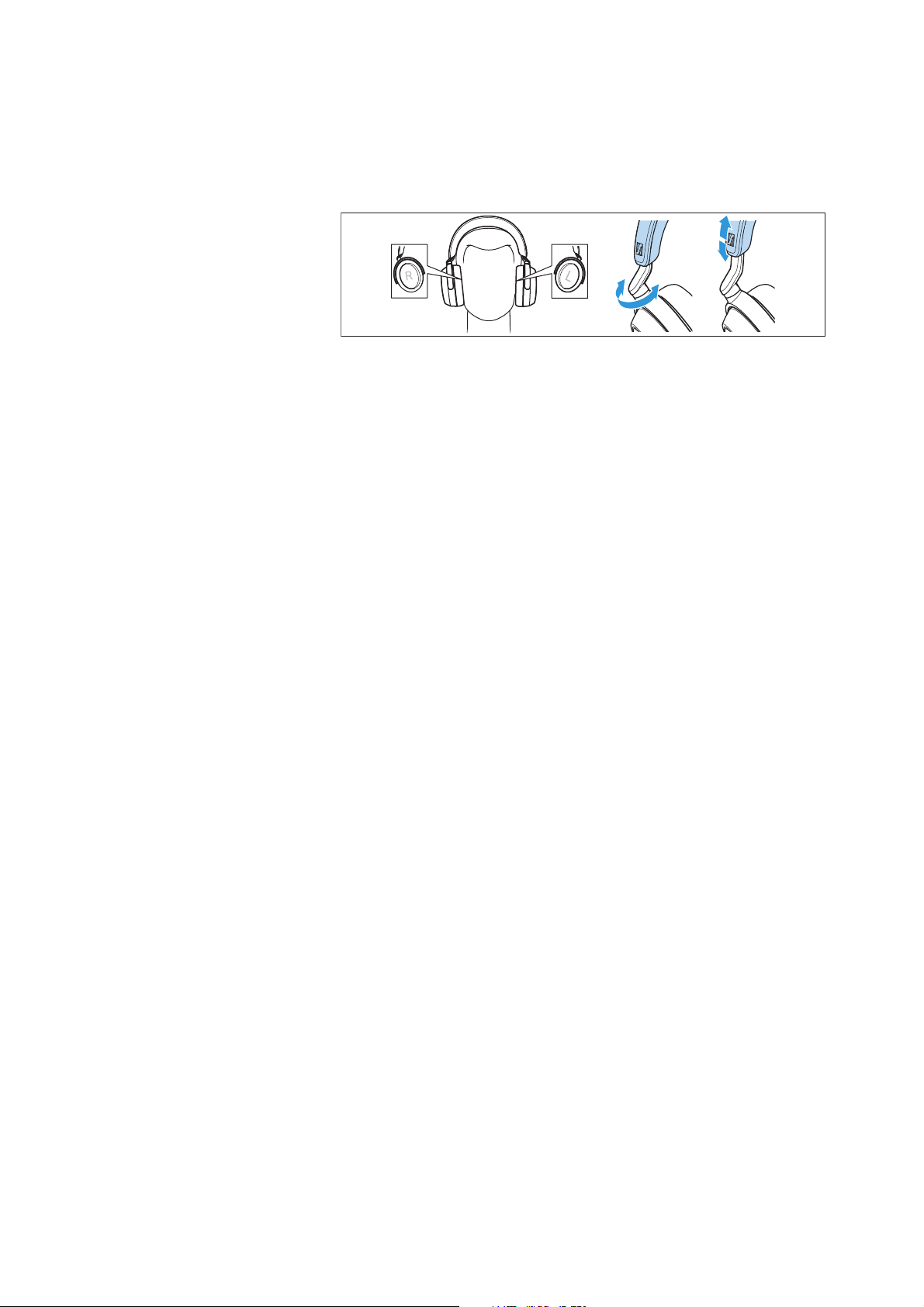
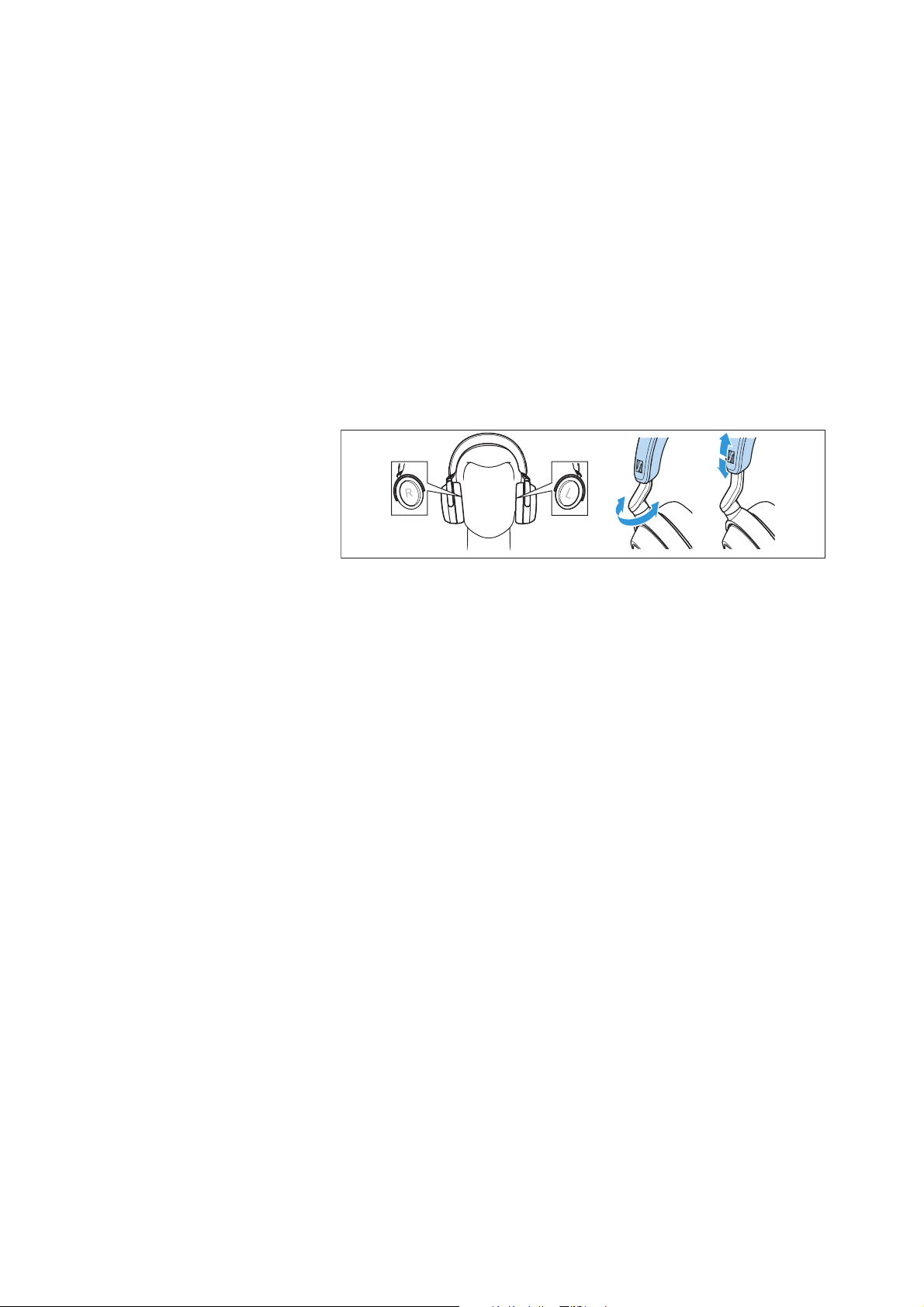
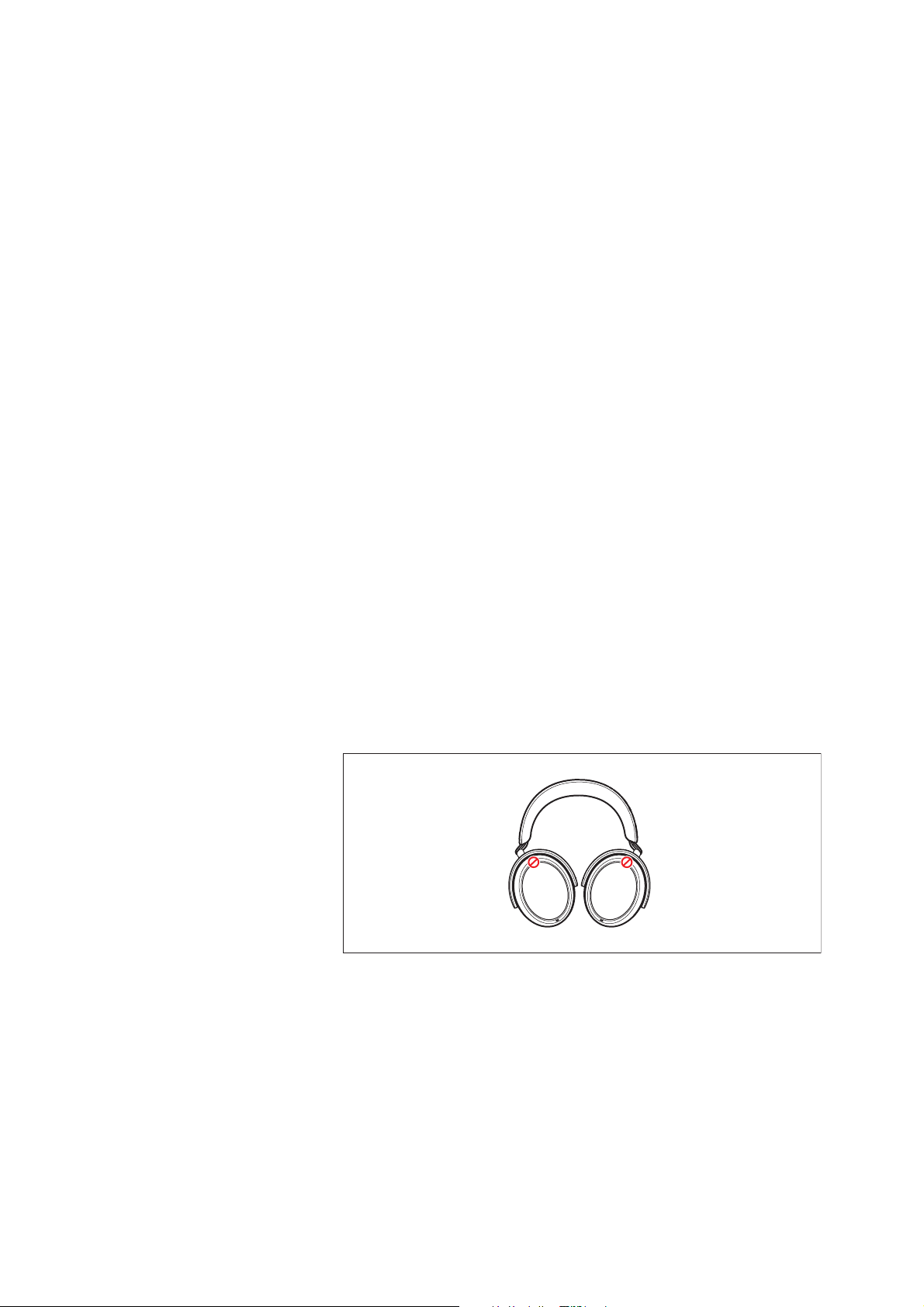
▷ Wear the headphones so that the headband runs over the top of
your head. The markings for the right side (R) and for the left side
(L) can be found on the inside of the ear cups.
▷ Move the ear cups up or down the headband slider until:
– your ears are comfortably covered by the ear pads,
– you feel even, gentle pressure around your ears,
– a snug fit of the headband on the head is ensured.
For optimal sound quality, the ear pads must completely surround
your ears.
Using the headphones
22 | MOMENTUM 4
Retrieving information on the battery
charge status
When the headphones are connected to your Bluetooth device, the
battery charge status can be displayed on the screen of your smart-
phone (depending on the device and operating system used).
The Smart Control app also displays the battery charge status.
On the headphones, you can retrieve information on the battery
charge level via the voice prompts (also possible while listening to
music or talking on the phone, as long as you have the headphones
on):
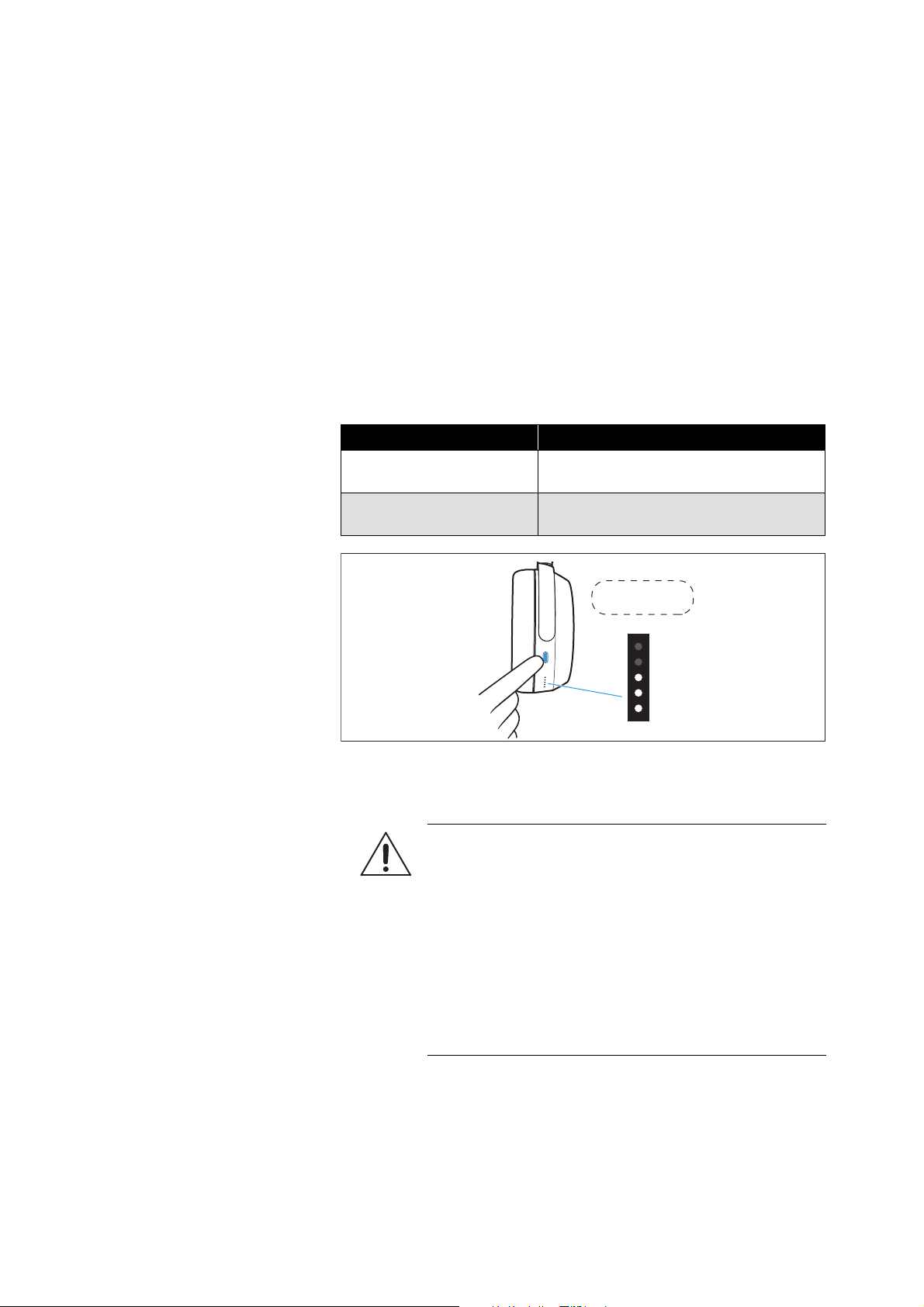
▷ Press the multi-function button 2x.
You hear a voice prompt informing you of the remaining battery life.
Depending on the battery life of the headphones, the LEDs flash or
light up.
Adjusting the volume
You can adjust the playback volume for music and for phone calls.
▷ If you are playing music, are on a call or if the headphones are in
idle mode (i.e. you are neither playing music nor are on a call):
Swipe vertically up or down on the touch pad to increase or
reduce the volume for music, voice prompts and sound signals.
When the maximum or minimum volume is reached, you hear the
voice prompt “Volume max” or “Volume min”.
Voice prompt Meaning
“Recharge headset”
The rechargeable battery is empty.
Charge the rechargeable battery (> 14).
“More than xx % battery
left”
The remaining battery charge is dis-
played as a percentage.
2x
“More than 40%
battery left“
WARNING
Danger of hearing damage due to high volume levels!
Listening at high volume levels can lead to permanent
hearing defects. Toggling between the audio sources
may cause enormous volume jumps that can perma-
nently damage your hearing.
▷ Before putting the headphones on and before tog-
gling between audio sources, adjust the volume to a
low level.
▷ Do not continuously expose yourself to high volume
levels.

Using the headphones
MOMENTUM 4 | 23
Depending on the length of the swipe motion, you adjust the volume
in smaller increments (short swipe motion) or larger increments
(long swipe motion).
When switching the headphones off, very high volume levels are
automatically reset to a moderate level to protect your hearing when
you switch the headphones on again.
You can also adjust the volume using the connected Bluetooth
device.
If you have activated the voice assistant (> 32) and then change
the volume of the headphones, the volume of the voice assis-
tant is adjusted accordingly and saved permanently.
R
R
Using the headphones
24 | MOMENTUM 4
Information on active noise cancellation
ANC
Due to its closed design, the headphones offer effective passive iso-
lation from ambient noise.
In addition, the headphones have an active noise cancellation (ANC)
function, which allows you to reduce ambient noise to a minimum.
Even when ANC is activated, your headphones’ sound quality is
always at its best.
You can activate or deactivate ANC when the headphones are con-
nected to your audio source via Bluetooth or via the audio cable/USB
cable (provided that the battery is sufficiently charged).
If you want to create a quiet space in a noisy environment, you can
simply use the headphones – without connected cables and without
Bluetooth devices – as noise protection by using ANC (> 26).
With the Smart Control app, you can select different ANC modes that
provide the optimal settings for your application/situation.
Notes on active noise cancellation
• Continuous and low-frequency noise, such as motor or fan noise,
is particularly well suppressed.
• Speech or high-frequency noise is significantly reduced, but can
remain perceptible.
• In very quiet environments, slight noise may occur. In this case,
deactivate ANC.
• If unusual (whistling or beeping) noise occurs, take the head-
phones off and put them on again. Make sure that the ear cups
properly fit around your ears.
• To avoid loud, unusual (whistling or beeping) noise and to ensure
proper noise cancellation, do not cover the microphone openings
of the active noise cancellation circuitry located on the outside of
the ear cups.
Information on the Transparency Mode –
Hearing ambient sounds or conversations
With the Transparency Mode activated, you can hear ambient
sounds or communicate without having to remove the headphones.
This allows you to hear e.g. announcements in the train or aircraft or
to have short conversations.
Using the headphones
MOMENTUM 4 | 25
The Transparency Mode optimally complements the active noise
cancellation ANC. Via the adjustable intensity of the Transparency
Mode and the active noise cancellation ANC, you can determine how
much ambient noise reaches your ears or whether you want to listen
exclusively to your music (ANC at full intensity).
If you use the Transparency Mode at full intensity, disturbing sounds,
e.g. low-frequency noise such as aircraft noise, are always sup-
pressed so that you can stay relaxed and in touch with your sur-
roundings.
Switching between the active noise
cancellation ANC and the Transparency
Mode
You can use the gesture control on the touch pad to switch between
the active noise cancellation ANC and the Transparency Mode, e.g.
if you want to transition from ambient awareness to idle mode as
quickly as possible.
This function is not available during an active call, see: > 29.
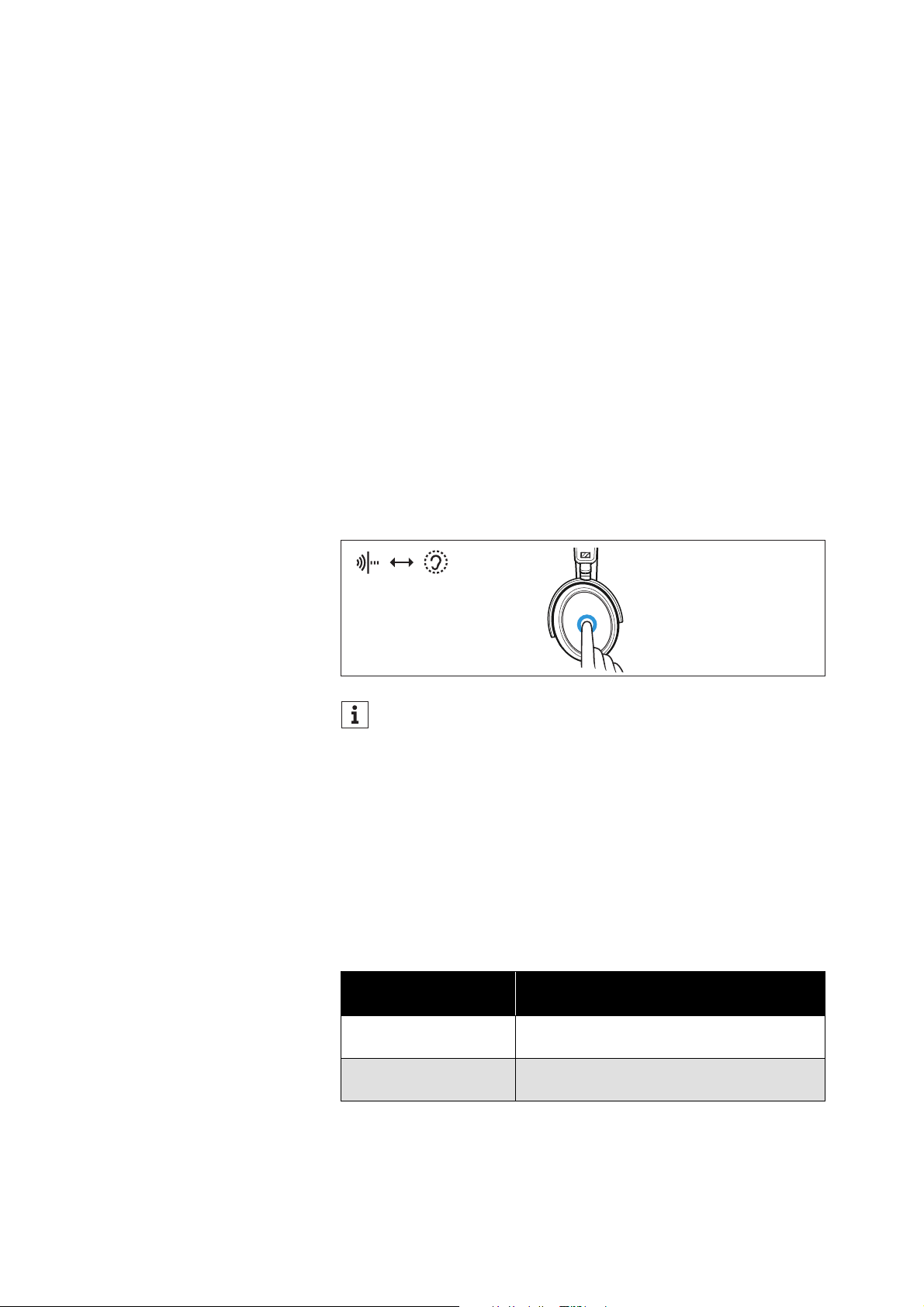
▷ To switch between the modes, tap the touch pad 2x.
Adjusting the playback pause in
Transparency Mode
You can select the behavior of the audio playback, i.e. how it behaves
at maximum intensity of the Transparency Mode (tap the touch pad
2x). To be able to adjust this setting, you require the Smart Control
app (> 19).
▷ In the Smart Control app, select the desired Transparency Mode
function in the “Active Noise Cancellation” section:
*default setting
The intensity of the Transparency Mode and the active noise
cancellation remains incrementally adjustable (> 26).
2x
“Pause on full
transparency”
Description
activated*
Audio playback (e.g. music) is muted and
you hear only ambient sounds.
deactivated
Audio playback (e.g. music) continues and
is mixed with ambient sounds.
Using the headphones
26 | MOMENTUM 4
Increasing/decreasing the active noise
cancellation ANC and the Transparency
Mode
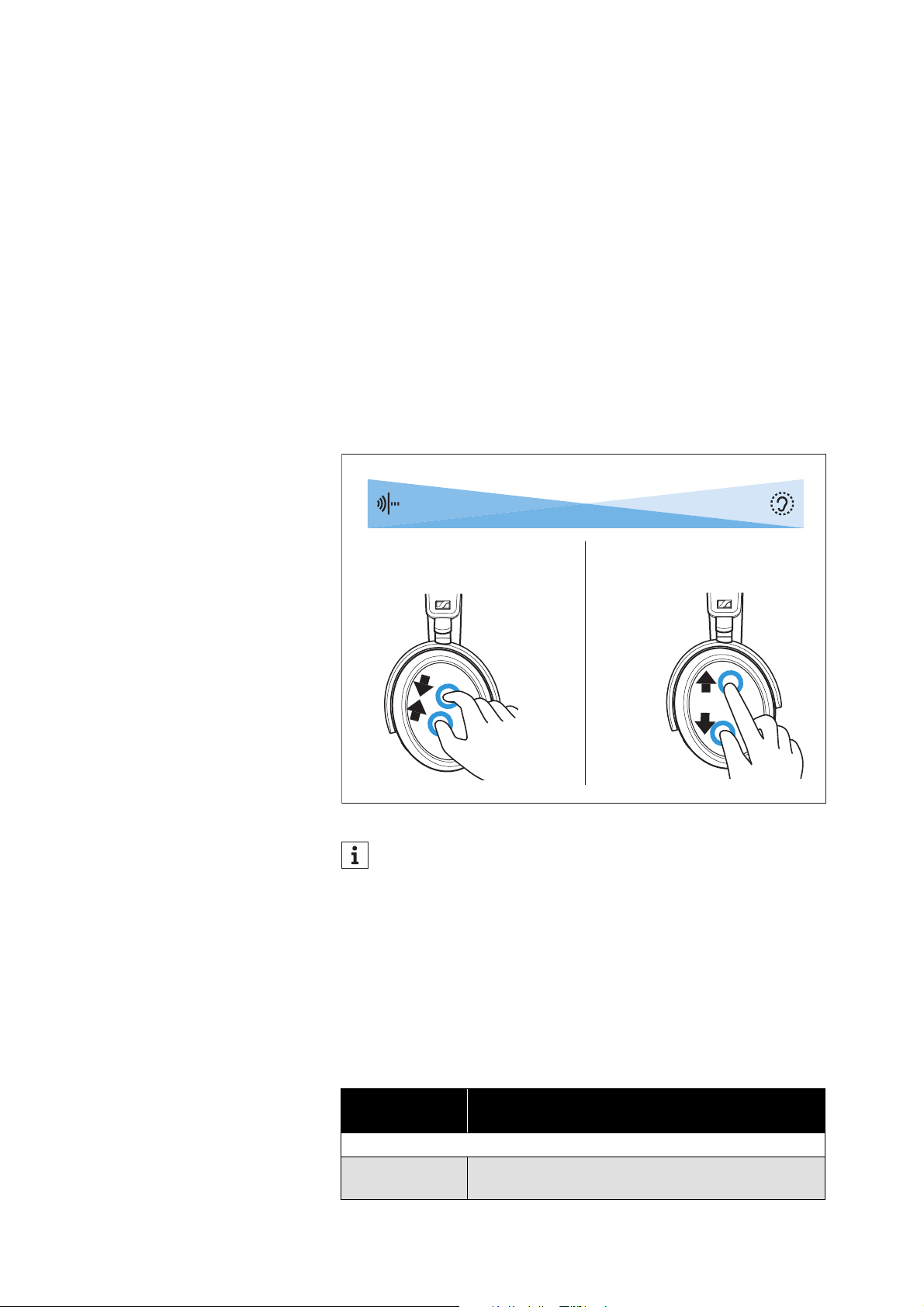
To increase the active noise cancellation ANC and decrease the
Transparency Mode:
▷ On the touch pad, move your thumb and index finger towards
each other.
You hear a sound signal. The intensity of the ANC is increased
and ambient awareness is decreased.
To increase the Transparency Mode and decrease the active noise
cancellation ANC:
▷ On the touch pad, move your thumb and index finger away from
each other.
You hear a sound signal. The intensity of the ambient awareness
is increased and the ANC is decreased.
Adjusting the active noise cancellation
ANC
To be able to adjust settings for the active noise cancellation ANC,
you require the Smart Control app (> 19).
▷ Select the desired setting in the “Active Noise Cancellation” sec-
tion of the Smart Control app:
You can also adjust the intensity of the active noise cancella-
tion ANC and the Transparency Mode via a slider in the Smart
Control app.
R
ANC
100 %
Transparency Mode
100 %
R
ANC setting
Reduction of low-frequency noise and
background noise
“Adaptive”
activated*
automatic reduction depending on the noise
conditions

Using the headphones
MOMENTUM 4 | 27
*default setting
deactivated
No automatic reduction
“Wind Noise Reduction”
Off
Wind noise reduction off
Auto*
Automatically adjusted reduction to minimize
disturbing wind or movement noise
Max
Maximum wind noise reduction
ANC setting
Reduction of low-frequency noise and
background noise
Using the headphones
28 | MOMENTUM 4
Listening to music using the headphones
You can listen to music when the headphones and your audio source
are connected via Bluetooth (> 15), the audio cable (> 36) or via USB
(> 37).
Controlling music playback
The following music functions are only available when the head-
phones and the device are connected via Bluetooth or USB. Some
smartphones or music players may not support all functions.
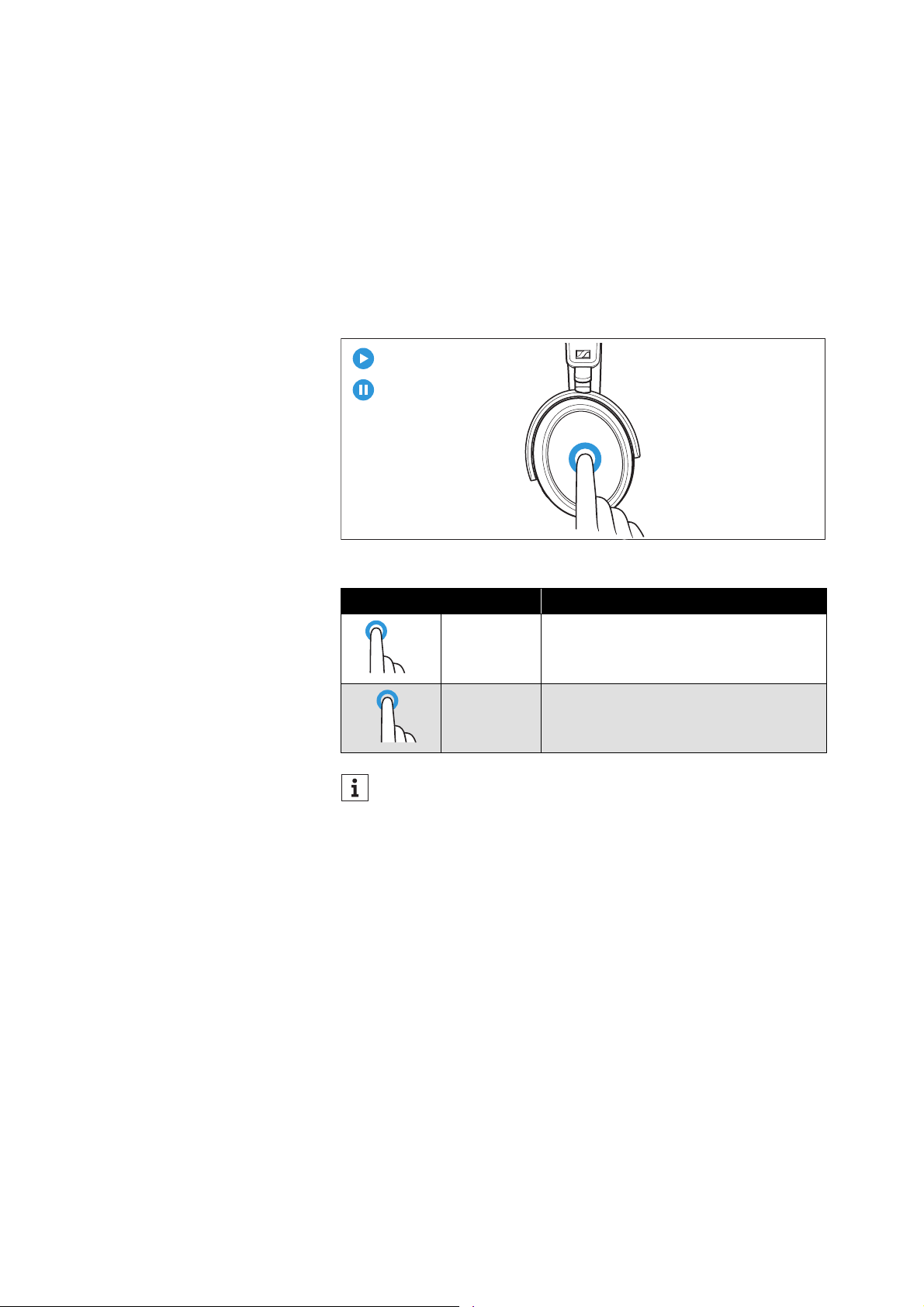
▷ Tap the touch pad.
Touch gesture Function
Tap 1x Plays or pauses music
Tap 2x
Pauses music and switches to idle
mode (intensity of the Transparency
Mode remains adjustable: > 26)
If music playback does not start:
• Check if the playback pause is activated in the Transpar-
ency Mode (> 25) and deactivate the function if necessary.
• Start the music playback app on your Bluetooth device.
R
2x
Using the headphones
MOMENTUM 4 | 29
Playing the next/previous track
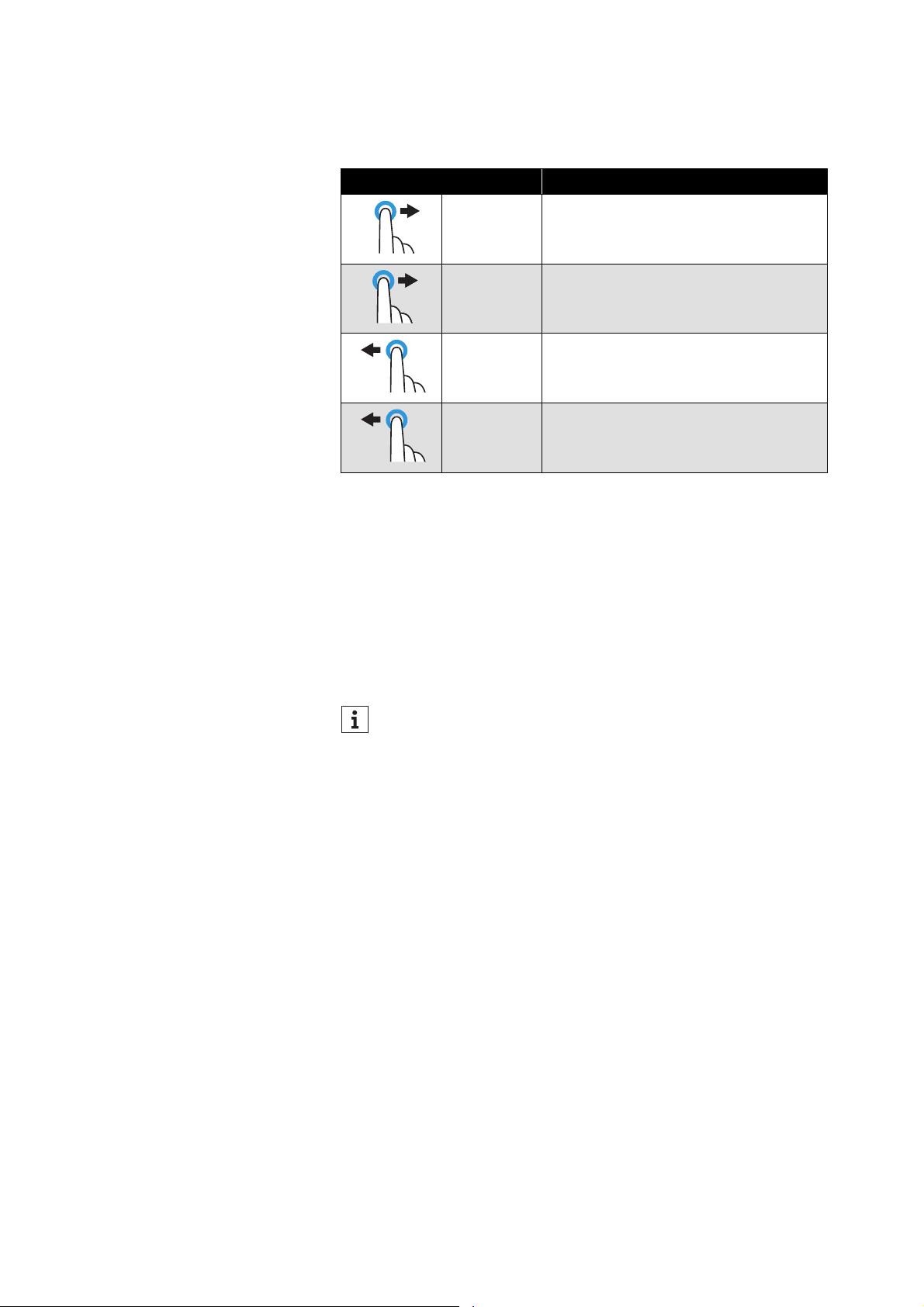
▷ Swipe horizontally on the touch pad.
* only for smartphones or music players that support this function
Making phone calls using the headphones
The following call functions are only available when the headphones,
the smartphone or the PC/Mac are connected via Bluetooth (> 15).
Some smartphones or communication apps may not support all
functions. During a call, the active noise cancellation ANC is always
activated to ensure the best possible speech intelligibility. The
Transparency Mode cannot be used.
Making a call
▷ Dial the desired number on your smartphone.
If your smartphone does not automatically transfer the call to the
headphones, select “MOMENTUM 4” as the output device on your
smartphone (see the instruction manual of your smartphone if
necessary).
Touch gesture Function
Swipe for-
ward
Plays the next track in the playlist
Swipe for-
ward and
hold
*Fast-forwards a track
Swipe back-
ward
Plays the previous track in the playlist
Swipe back-
ward and
hold
*Rewinds a track
+Hold+Hold
+Hold
If the headphones are switched off during an active call or if the
rechargeable battery is empty, the call is put on hold and you
can use your smartphone as an output device as usual.
Using the headphones
30 | MOMENTUM 4
Accepting/rejecting/ending a call
If your headphones are connected to a smartphone and you receive
a call, you hear a ring tone in the headphones.
If you are playing music when you receive a call, the music pauses
until you end the call.
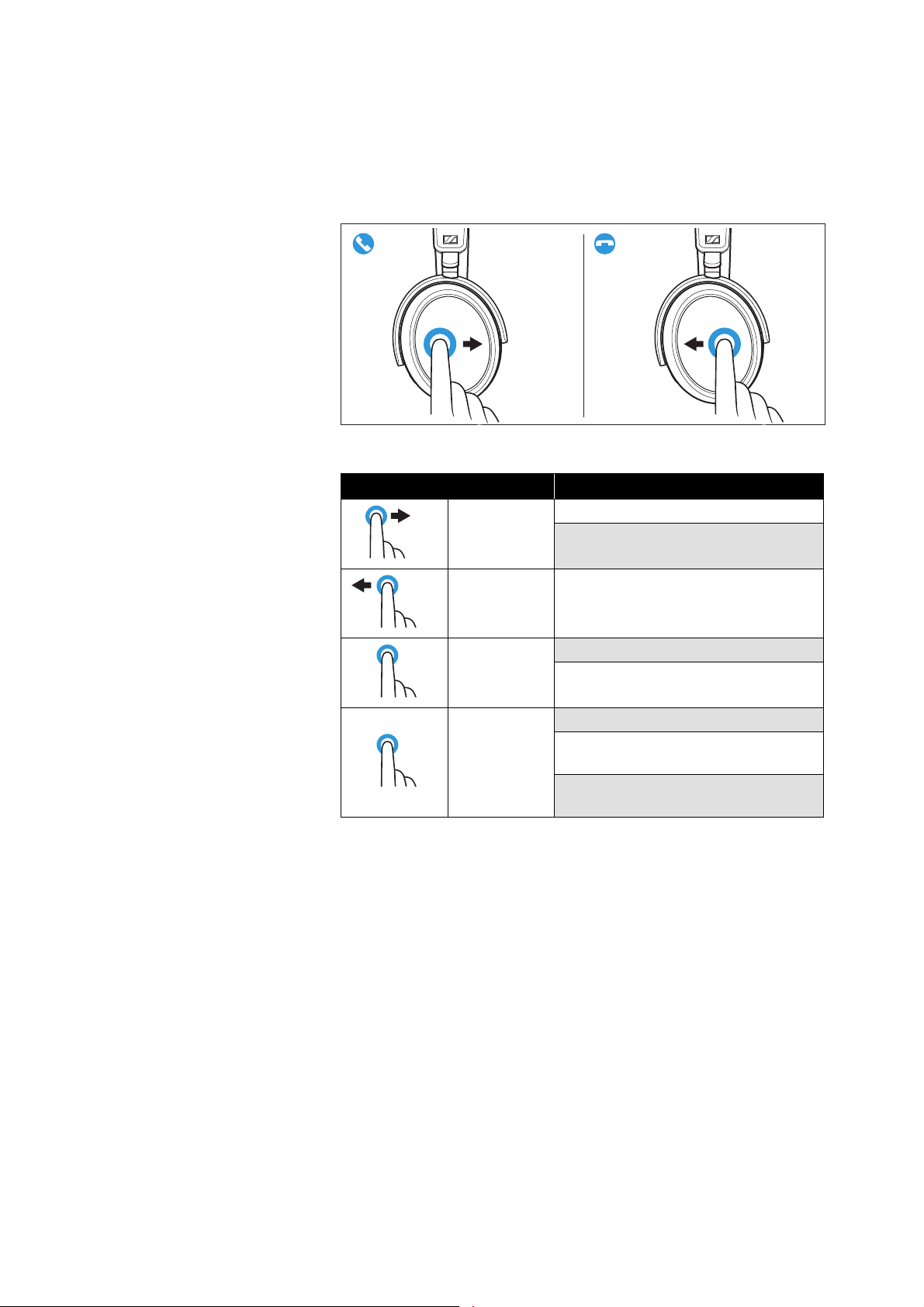
▷ Use the touch pad:
Touch gesture Function
Swipe for-
ward
Accepts a call
Accepts an incoming call and ends
the active call
Swipe back-
ward
Ends a call
Hold for
2 seconds
Rejects a call
Rejects an incoming call and ends
the active call
Tap 2x
Puts an active call on hold
Accepts an incoming call and puts
the active call on hold
Toggles between active call and call
on hold
R R
2sec
2x
Using the headphones
MOMENTUM 4 | 31
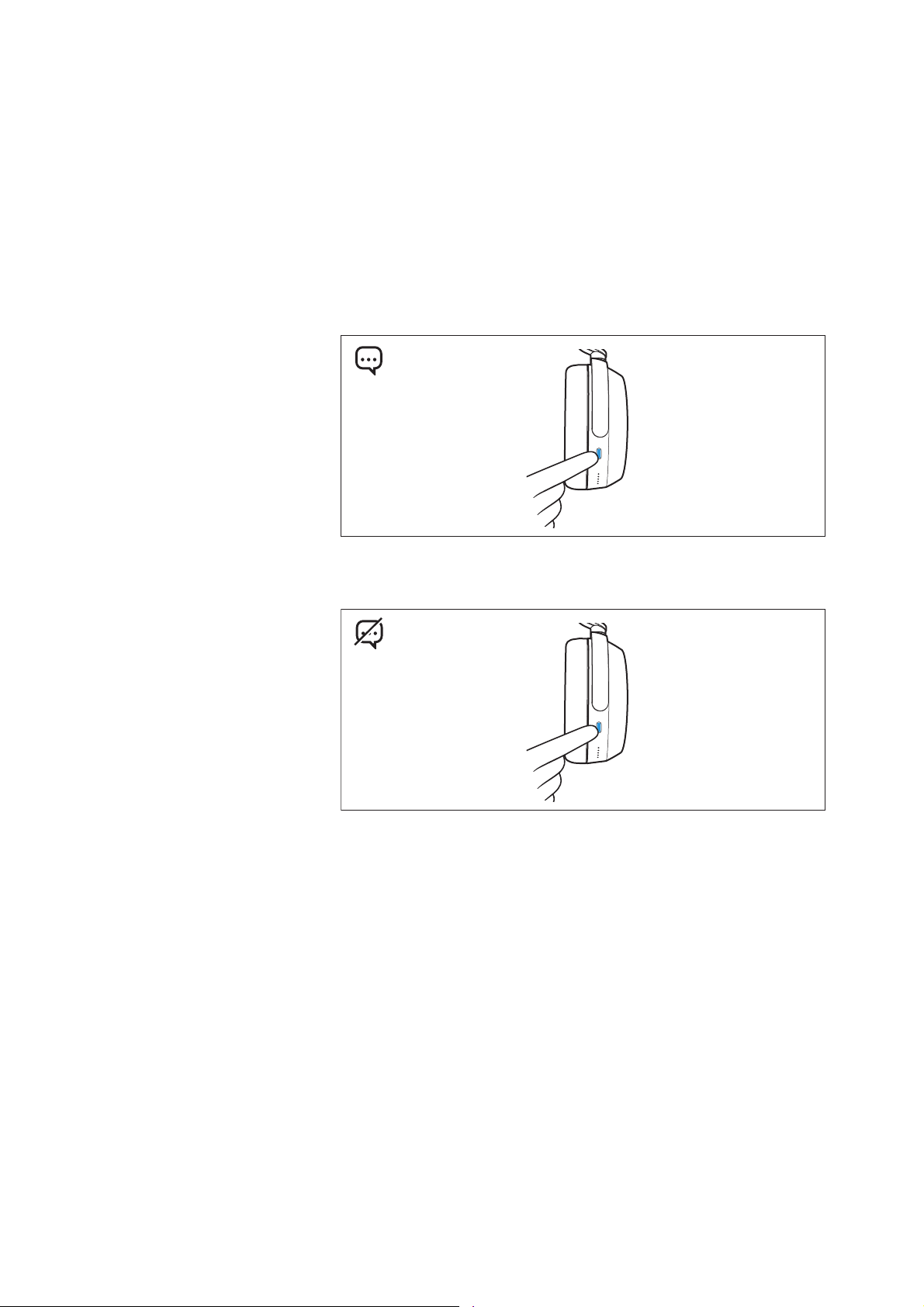
Muting the microphone
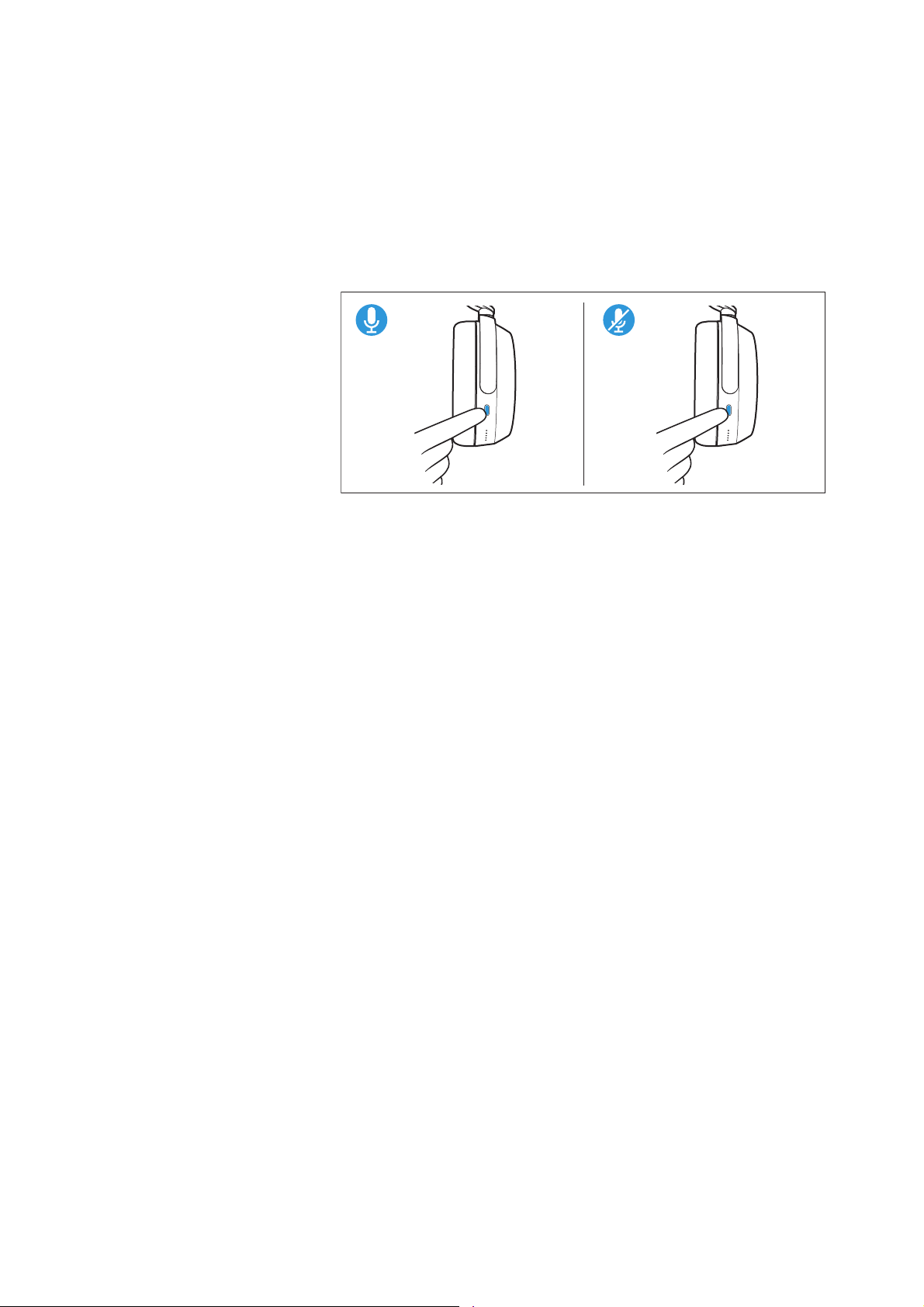
To mute the headphones’ microphone during a call:
▷ Press the multi-function button 1x.
You hear the voice prompt “Mute on”. The microphone is muted.
To activate the microphone again:
▷ Press the multi-function button 1x.
You hear the voice prompt “Mute off”. The microphone is reacti-
vated.
Using the Sidetone function
When using the headphones for phone calls, you may find it more
comfortable if your own voice is audible in the headphones. With the
Sidetone function activated, your own voice is played back through
the headphones during a phone call.
Via the Smart Control app, you can activate the function (default set-
ting) and adjust the intensity via a slider or deactivate the function.
1x
R
1x
R
Using the headphones
32 | MOMENTUM 4
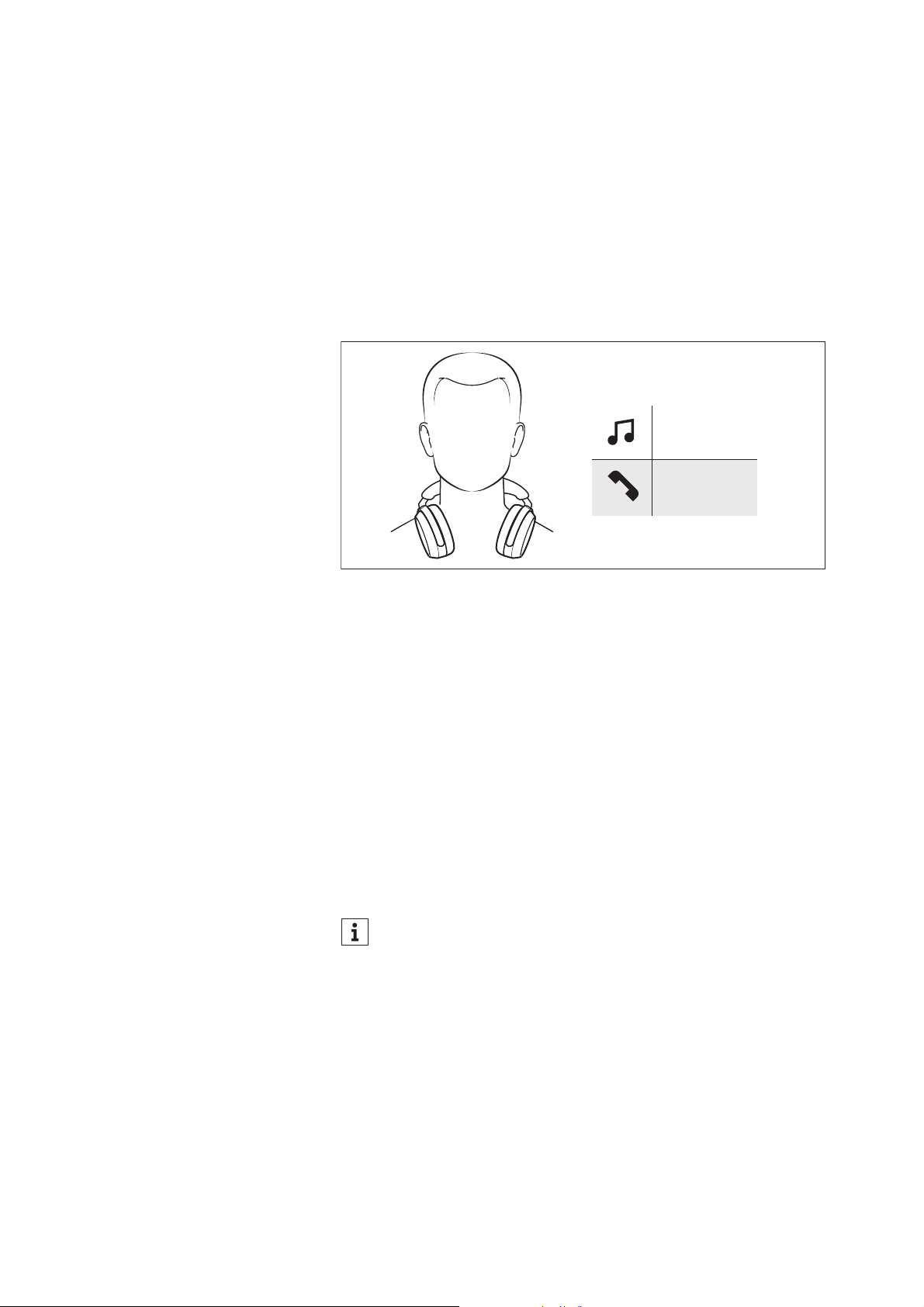
Using the voice assistant/voice dialing
The voice assistant is only available when the headphones and the
mobile device are connected via Bluetooth or USB. Some smart-
phones or music players may not support all functions.
▷ Press the multi-function button 1x.
The available voice assistant of your mobile device is activated
(depending on the system used or app installed on your mobile
device: Siri, Google Assistant or others. If no voice assistant is
available, voice dialing may be activated).
▷ Speak your request.
To cancel the voice assistant or voice dialing:
▷ Press the multi-function button 1x.
1x
R
1x
R
Using the headphones
MOMENTUM 4 | 33
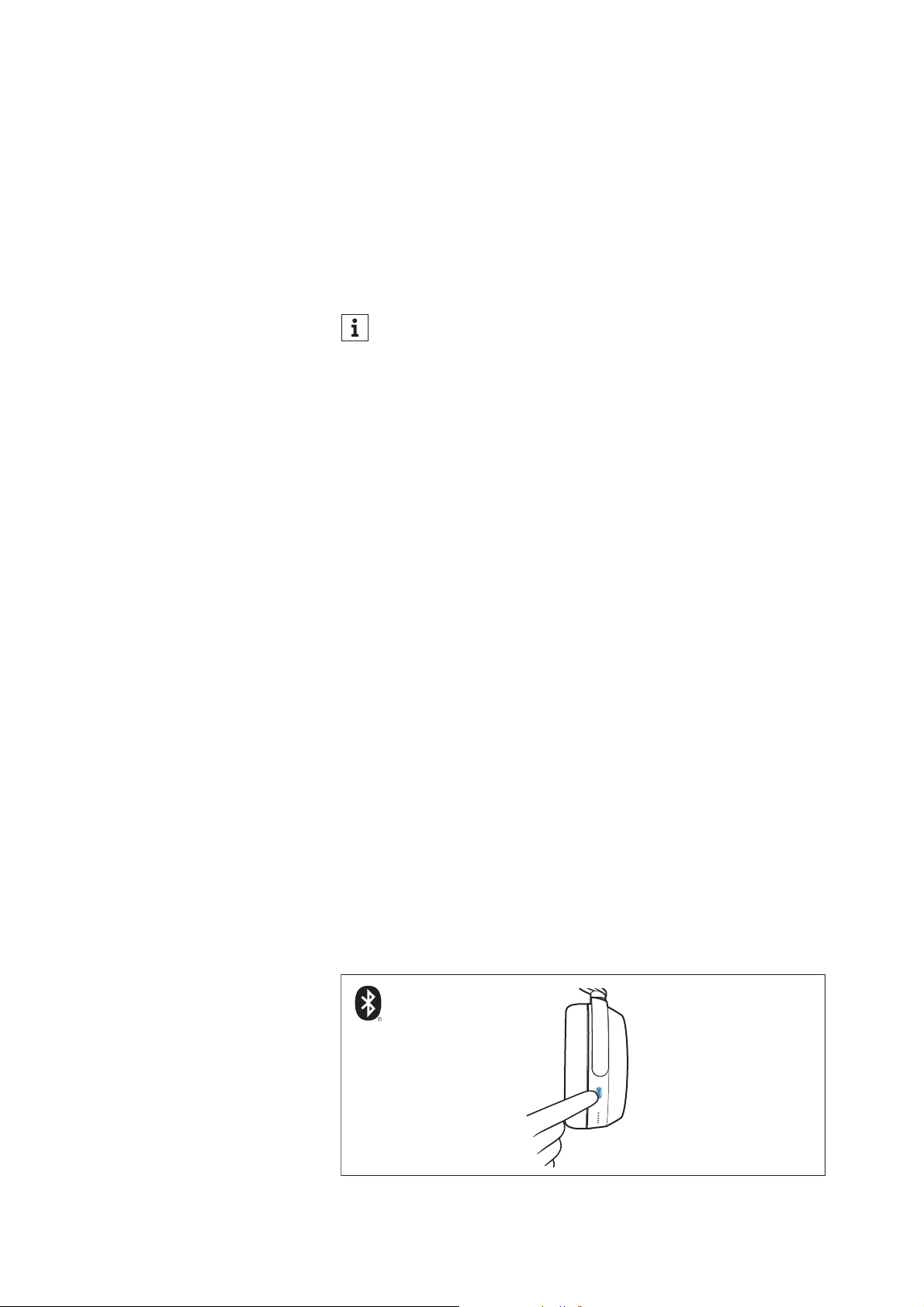
Using the Smart Pause function
The headphones are equipped with a sensor that automatically
detects whether the headphones are worn or taken off from your
ears.
You can use the following functions:
• Music playback pauses when you take off the headphones and
continues when you put them on again.
• A phone call is accepted when you put on the headphones.
• A phone call is muted when you take off the headphones during
the call and resumed when you put the headphones back on.
If you take off the headphones and transport them or put them down
when they are switched on, the sensor will not detect that the head-
phones have already been taken off in certain situations, e.g.:
– If you place the insides of the ear cups facing down on a table.
– If you wear the headphones around your neck and your chin
covers the area inside the ear cups.
– If the insides of the ear cups are covered by objects or by your
hands.
– If you hang the headphones over the edge of a bag or carry them
inside a bag.
– If you wear the headphones over a cap, scarf, or over your hair.
To avoid problems with the sensor:
▷ Store the headphones in the supplied carry case (> 37).
▷ Switch off the headphones manually when you store them outside
the carry case (> 20).
You can deactivate the sensor function via the Smart Control
app. The smart functions such as automatic switch-off of the
headphones when placed in the carry case or muting when the
headphones are taken off are then no longer available.
Pause
Mute
Using the headphones
34 | MOMENTUM 4
Adjusting sound effects/the equalizer
To be able to use the sound effects/the equalizer, you require the
Smart Control app (> 19).
▷ In the Smart Control app, select the desired sound effects via the
equalizer. You can use predefined presets, define sound modes
(e.g. bass boost) or define your own settings.
The sound effects are stored in the headphones. These sound
settings are active even without using the Smart Control app, i.e.
when you are using a different Bluetooth device.
Setting the voice prompts/sound signals
To be able to set the voice prompts and sound signals, you require
the Smart Control app (> 19).
In the app settings, you can activate voice prompts and sound sig-
nals (default setting) or deactivate them completely.
Deactivating the touch pad function
To avoid unintentional entries via the touch pad of the headphones,
e.g. when you have put the headphones on while lying down, you can
deactivate the touch pad function. To do this, use the Smart Control
app (> 19).
Deactivating Bluetooth/activating flight
mode
Deactivate the Bluetooth wireless connection when wireless con-
nections are not allowed, such as on an aircraft during take-off and
landing.
The active noise cancellation ANC can be fully used provided that
the rechargeable battery is charged (> 26).
To deactivate the Bluetooth wireless connection and activate flight
mode:
▷ Press the multi-function button 5x.
You hear the voice prompt “No connection”. The Bluetooth wire-
less connection is deactivated.
To activate the Bluetooth wireless connection again:
The Sound Check function of the Smart Control app allows you
to create customized equalizer presets. Sound Check guides
you step by step to the optimal result.
5x
R
ON/OFF

Using the headphones
MOMENTUM 4 | 35
▷ Press the multi-function button 5x.
You hear the voice prompt “Connected”. The Bluetooth wireless
connection is activated.
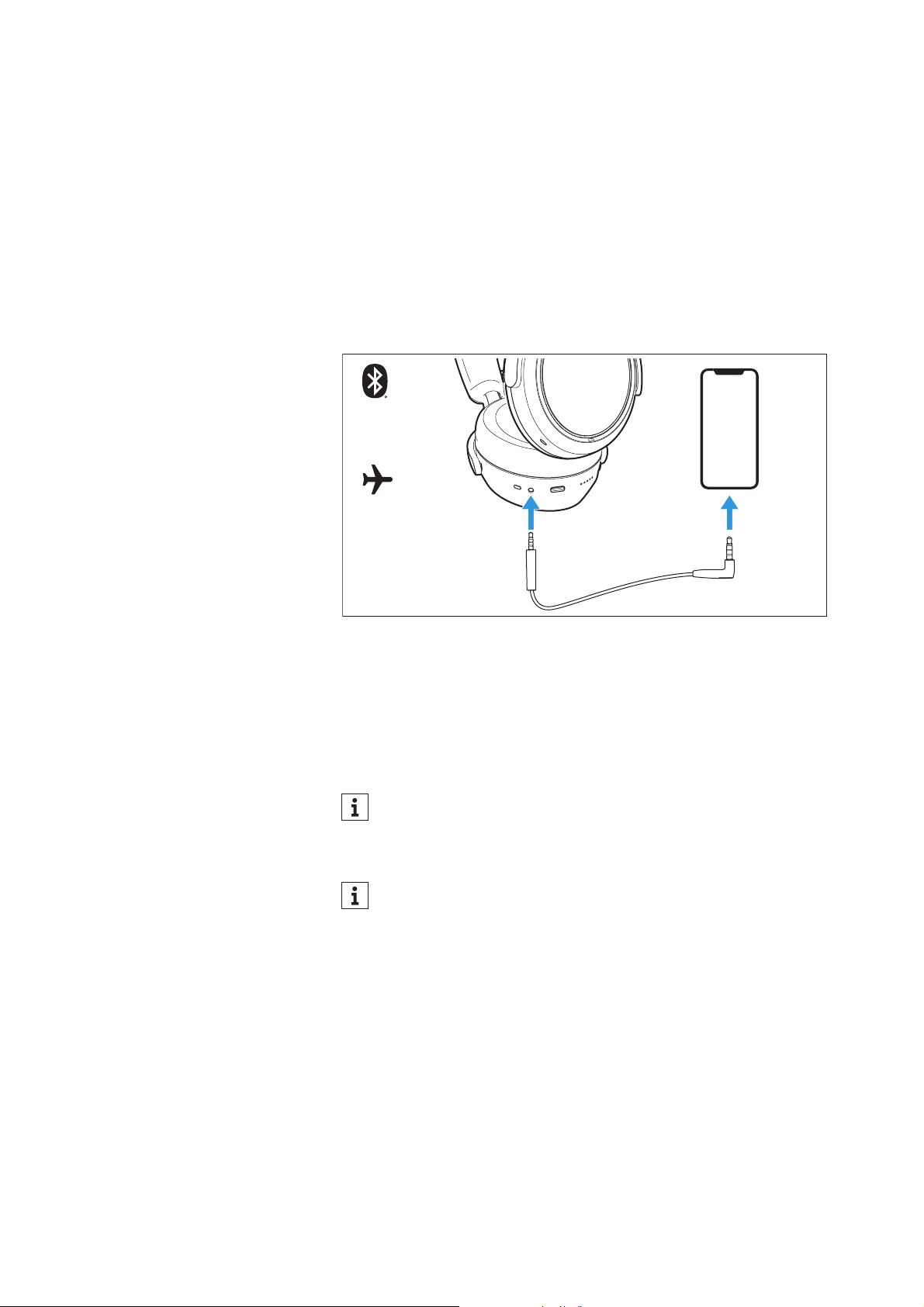
Using the audio cable/activating flight
mode
If you connect the audio cable, flight mode is activated and the Blue-
tooth wireless connection is deactivated.
Use the audio cable when
• wireless transmission is not allowed, e.g. during aircraft take-off
and landing,
• the headphone’s rechargeable battery is empty,
• your audio source doesn’t offer a Bluetooth connection.
The functions for controlling music, phone calls or the voice assis-
tant are not available. The active noise cancellation ANC can be fully
used provided that the rechargeable battery is charged (> 26).
If you connect the audio cable, the Bluetooth wireless connec-
tion is also deactivated (> 35).
If you only want to use the headphones for active noise cancel-
lation ANC during a flight, you can deactivate the touch pad
function to avoid unintentional entries (> 34).
Using the headphones
36 | MOMENTUM 4
Connecting the headphones using the
audio cable
▷ Connect the 2.5 mm jack plug of the audio cable to the head-
phones’ audio socket.
Flight mode is activated and the Bluetooth wireless connection is
deactivated.
▷ Connect the 3.5 mm jack plug to the audio output of your smart-
phone.
To disconnect the audio cable:
▷ Carefully disconnect the jack plug from the headphones.
Using the in-flight adapter
▷ Connect the 3.5 mm jack plug of the audio cable (> 36) to the in-
flight adapter.
▷ Connect the in-flight adapter to the aircraft’s in-flight entertain-
ment system.
R
OFF
ON
2.5 mm
3.5 mm
If the volume of the headphones is too low, first increase the
volume on the in-flight entertainment system.
If you want to increase the volume on the headphones and the
volume cannot be increased as usual, restart the headphones
by switching them off and on again.
Using the headphones
MOMENTUM 4 | 37
Connecting the headphones using the
USB cable
When you connect the headphones to a Mac/PC/mobile device
using the supplied USB cable, you can play audio content from your
Mac/PC/mobile device directly through the headphones.
Setting up the headphones as the default audio output and audio
input device for your Mac/PC/mobile device
▷ Make sure that possible Bluetooth connections are disconnected.
▷ Connect the headphones and the Mac/PC or mobile device via
the USB cable.
The headphones are charged via the USB connection.
▷ From the Systems Preferences or Control Panel of your Mac/PC/
mobile device, select “MOMENTUM 4” as the default audio output
device and/or default audio input device.
▷ Start music playback from the Mac/PC/mobile device.
The music is played through the headphones and the microphone
is used for recording.
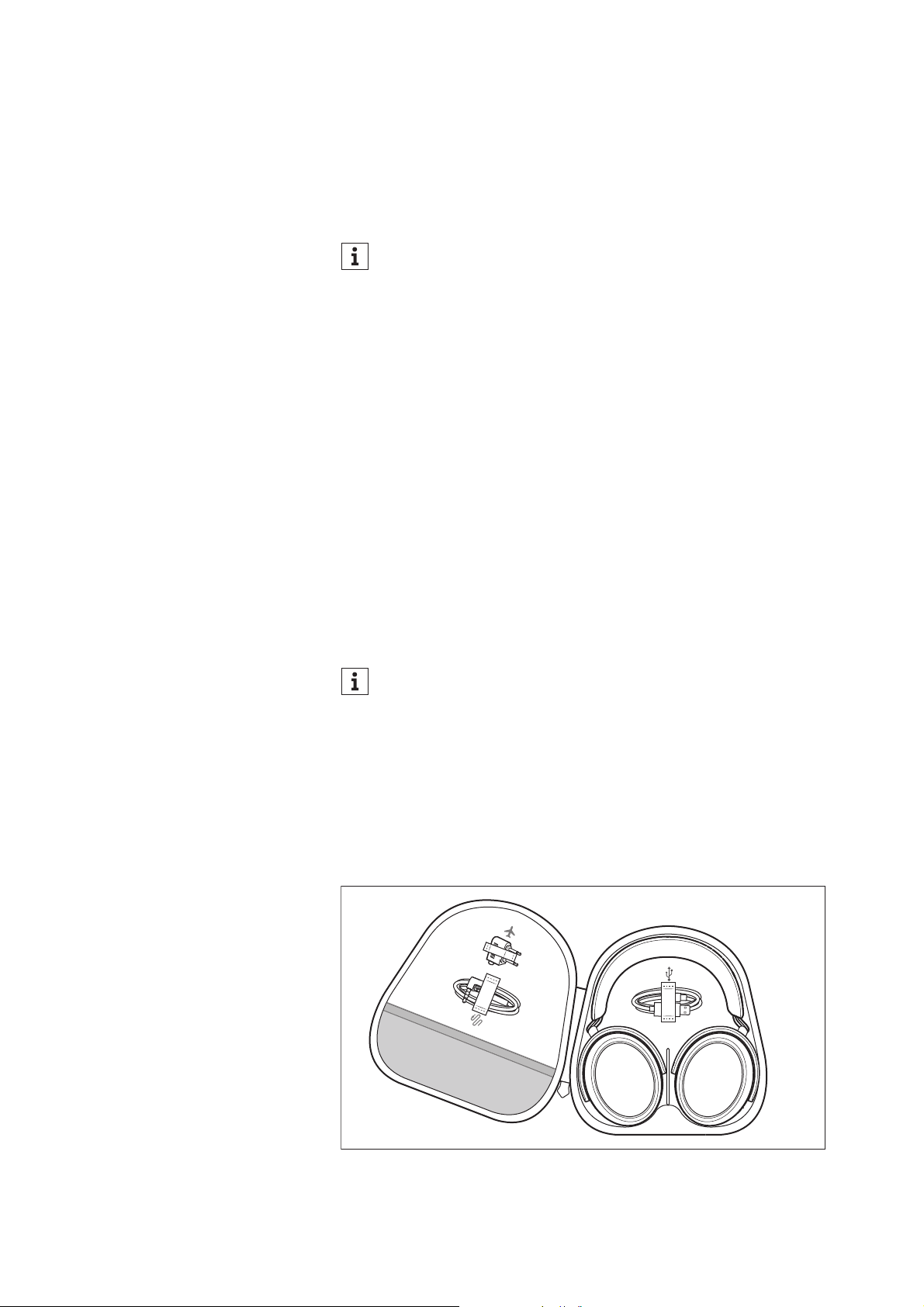
Storing and transporting the headphones
Store the headphones in the carry case to prevent damage to the
headphones when you are not using or transporting them.
▷ Fold up the headphones and place them in the carry case as
shown in the illustration.
The headphones automatically switch off.
The headphones are automatically charged when you connect
them to a Mac/PC/mobile device using the USB cable.
If you store or transport the headphones when they are still
switched on, the sensor will not detect that the headphones
have already been taken off in certain situations, e.g. if you
hang them over the edge of a bag or transport them inside a
bag.
Information on how to avoid problems with the sensor can be
found here: > 33.
Care and maintenance
38 | MOMENTUM 4
Care and maintenance
▷ Clean the parts of the product only with a soft, dry cloth.
To clean the charging socket:
▷ Blow vigorously over the charging socket.
▷ If necessary, carefully remove any stuck dirt from the charging
socket using a dry, soft brush or a dry interdental brush. Only
apply gentle pressure when doing so.
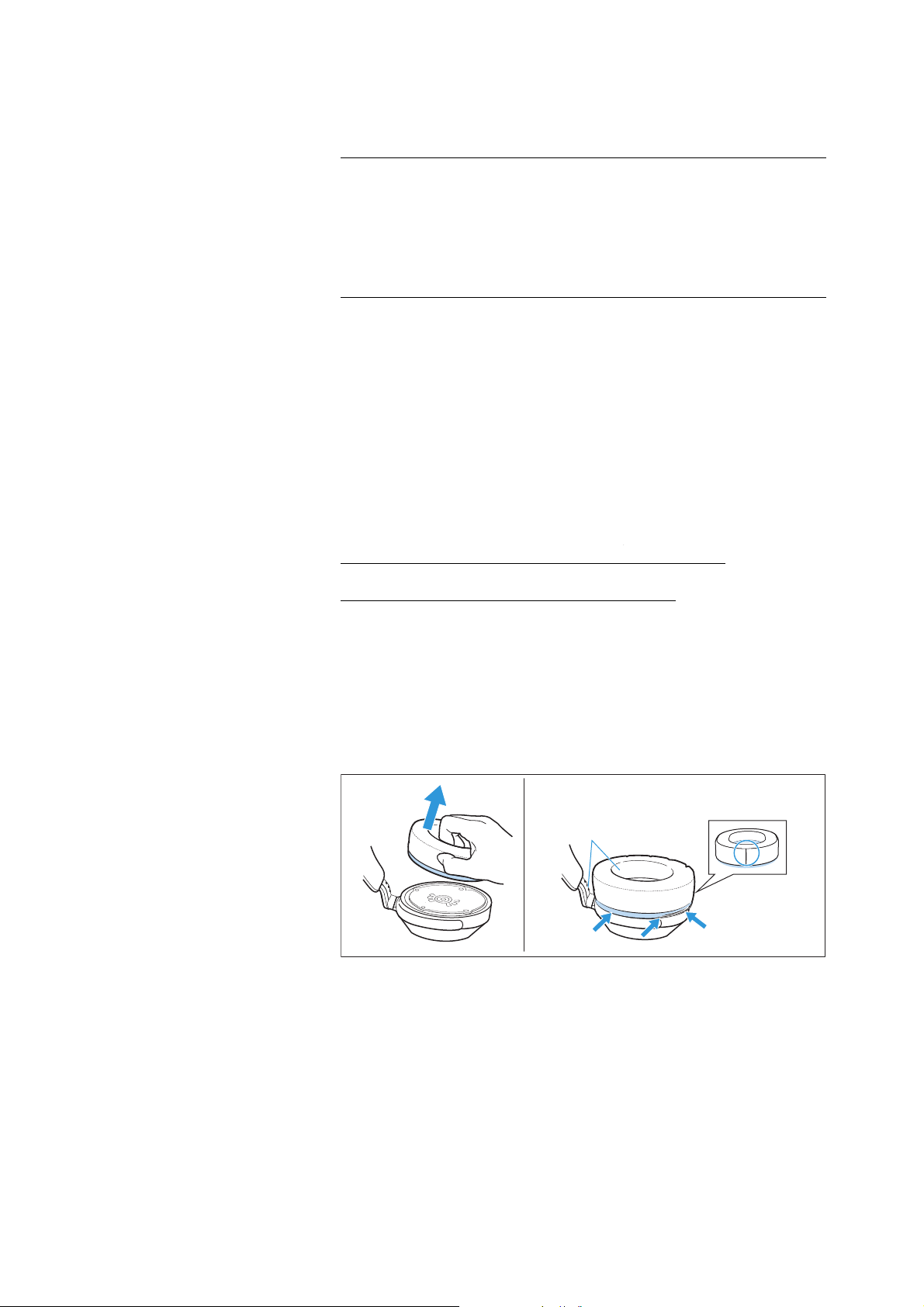
Replacing the ear pads
For reasons of hygiene, you should replace your ear pads from time
to time. Spare ear pads are available at
www.sennheiser-hearing.com/momentum-4-wireless (to purchase
online or contact your local Sonova Consumer Hearing partner:
www.sennheiser-hearing.com/service-support)
▷ Peel the ear pad up and away from the ear cup.
▷ Assign the right ear pad to the right ear cup and the left ear pad
to the left ear cup.
▷ Place the new ear pad onto the ear cup. Make sure that the seam
of the ear pad points downwards.
▷ Place the ear pad around the ear cup so that the ear pad is fixed
in the notch of the ear cup.
CAUTION
Liquids can damage the electronics of the product!
Liquids entering the housing of the product can cause a short-circuit
and damage the electronics.
▷ Keep all liquids far away from the product.
▷ Do not use any solvents or cleansing agents.
Left L

Care and maintenance
MOMENTUM 4 | 39
Information on the built-in rechargeable
battery
Sonova Consumer Hearing GmbH ensures and guarantees that the
rechargeable batteries perform at their optimum upon purchase of
the product. If, upon purchase or within the warranty period, you sus-
pect that a rechargeable battery is obviously defective or if a
charging error/battery error is displayed (> 9), stop using the prod-
uct, disconnect it from the power supply system and contact your
Sonova Consumer Hearing partner. Your Sonova Consumer Hearing
partner will coordinate the repair/replacement with you.
Do not return a product with a defective battery to your dealer or
Sonova Consumer Hearing partner unless requested to do so. To find
a partner in your country, search at
www.sennheiser-hearing.com/service-support
).
At the end of its operational lifetime, this product with its built-in
rechargeable battery must be disposed of separately from normal
household waste. You can find more information here: > 43.
Installing firmware updates
Firmware updates can be downloaded free of charge from the Inter-
net using the Sennheiser Smart Control app. Sonova Consumer
Hearing recommends to always install the latest firmware version to
ensure the best performance of your product.
▷ Connect the headphones to your smartphone and start the Smart
Control app (> 19).
▷ The app provides information on available firmware updates and
guides you through the installation process.

FAQ/If a problem occurs ...
40 | MOMENTUM 4
FAQ/If a problem occurs ...
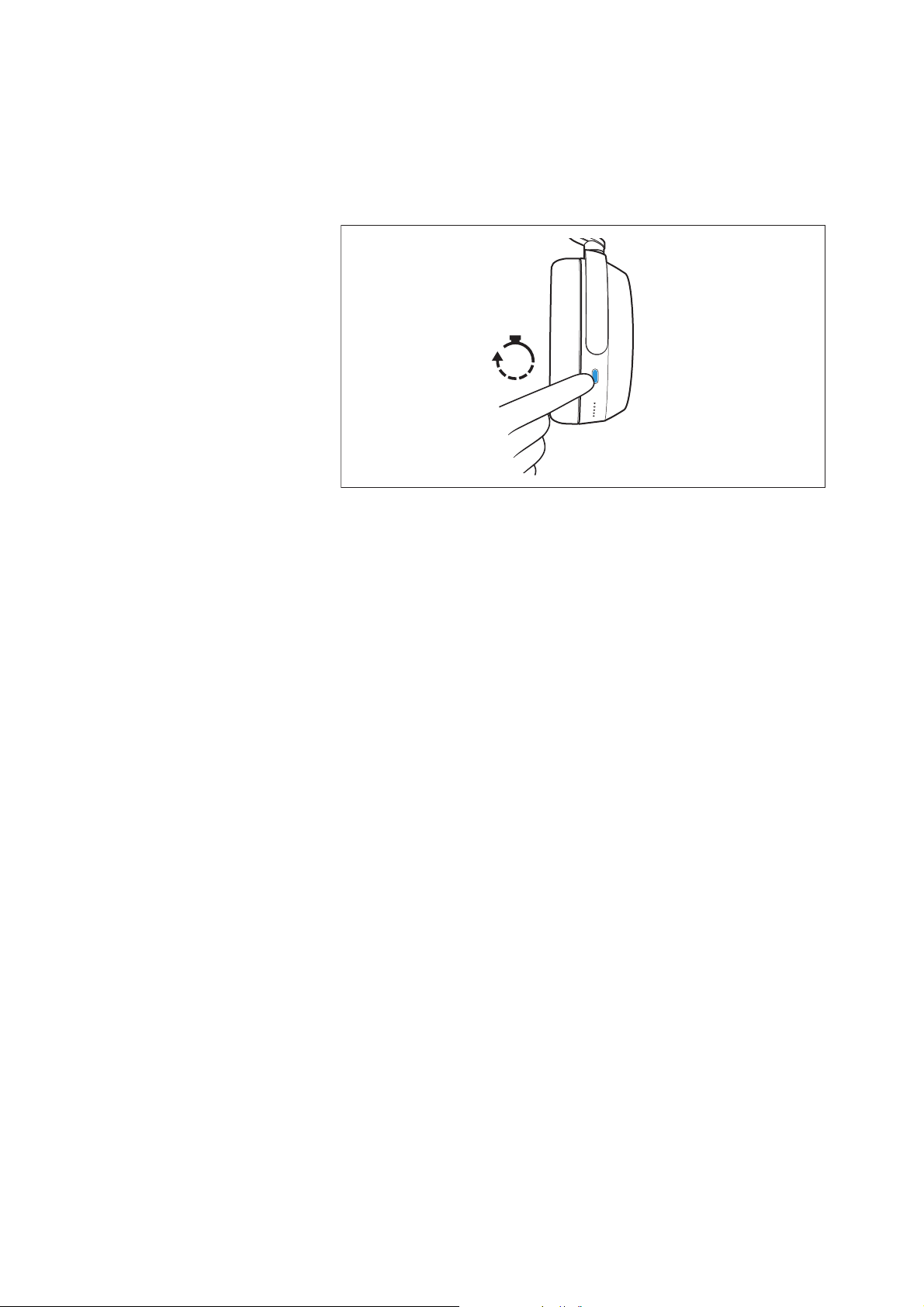
If a problem has occurred, proceed in the following order until the
problem is solved and you can use the headphones again:
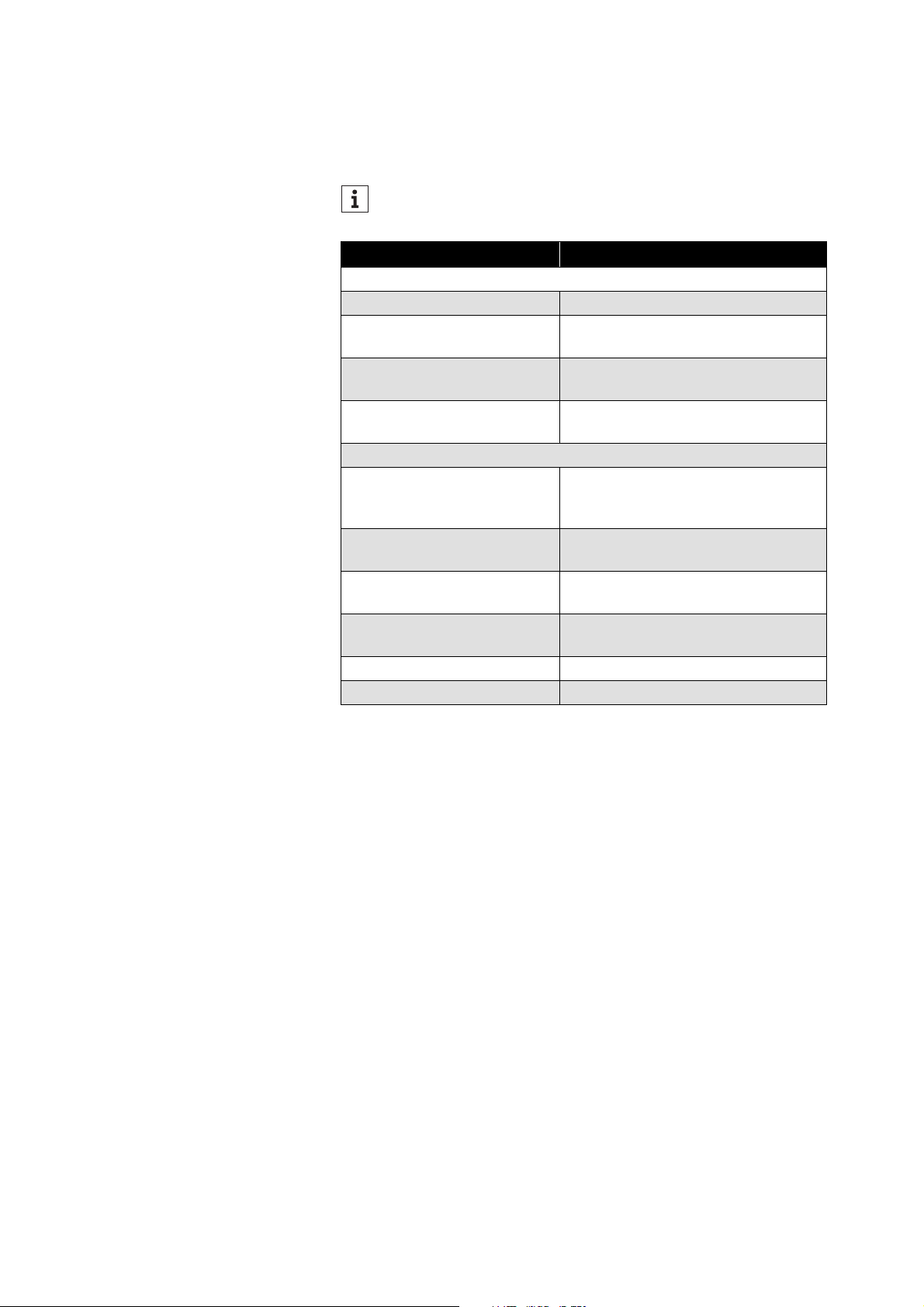
1. Press the multi-function button for 15 seconds (reset). (> 41).
2. Connect the headphones to the Smart Control app to install the
latest firmware (> 39).
3. Reset the headphones to the factory default settings (> 41).
4. Check the list of frequently asked questions to see if there is a
solution to the problem (> 40).
5. Contact your Sonova Consumer Hearing partner to solve the
problem (> 40).
Current list of frequently asked questions (FAQ)
Visit the MOMENTUM 4 product page at
www.sennheiser-hearing.com/download.
There you will find a current list of frequently asked questions (FAQ)
and suggested solutions.
Your question has not been answered or the problem persists?
If a problem occurs that is not listed in the FAQ section or if the prob-
lem cannot be solved with the proposed solutions, please contact
your Sonova Consumer Hearing partner for assistance.
To find a partner in your country, search at
www.sennheiser-hearing.com/service-support).
Leaving the Bluetooth transmission range
Wireless calling and streaming are only possible in the Bluetooth
transmission range of your smartphone. The transmission range
largely depends on environmental conditions such as wall thickness,
wall composition etc. With a free line of sight, the transmission
range of most smartphones and Bluetooth devices is up to 10 meters.
If you, and therefore the headphones, leave the Bluetooth transmis-
sion range of the smartphone, the sound quality deteriorates
increasingly until you hear the voice prompt “Lost connection” and
the connection breaks down completely. If you immediately re-enter
the Bluetooth transmission range, the connection is automatically
re-established.
FAQ/If a problem occurs ...
MOMENTUM 4 | 41
Resetting the headphones
If the function of the headphones is disturbed, perform a reset. Indi-
vidual settings such as the pairing settings are not deleted.
▷ Press the multi-function button for 20 seconds.
You hear a short confirmation sound.
Deleting the Bluetooth pairing list of the headphones
You can delete the Bluetooth pairing list using the Smart Control app.
Follow the instructions in the app.
Resetting the headphones to the factory default settings
To be able to reset the headphones to the factory default settings,
you require the Smart Control app (> 19).
▷ Switch on the headphones (> 19) and connect them to a Bluetooth
device on which the Smart Control app is available.
▷ Select the “Factory default settings” function in the app settings.
▷ Follow the instructions in the app.
R
20s

Specifications
42 | MOMENTUM 4
Specifications
Model: M4AEBT
Bluetooth
Wearing style Bluetooth® around-ear, closed-back
Ear coupling circum-aural
Transducer principle dynamic
Transducer 42 mm
Frequency response 6 Hz to 22,000 Hz (-10 dB)
Sound pressure level (SPL) 106 dB (1 kHz/0 dBFS)
THD (1 kHz, 100 dB SPL) < 0.3 % (1 kHz, 100 dB SPL)
Microphone principle MEMS
Microphone frequency
response
80 Hz to 8,000 Hz (-3 dB)
Microphone pick-up pat-
tern (speech audio)
4 omni-directional microphones
2x2-mic beamforming array
Power supply built-in rechargeable lithium-polymer
battery: 3.7 V ⎓, 700 mAh, 2.7 Wh
USB charging: 5 V ⎓, 750 mA max.
Charging time of recharge-
able battery
approx. 2 hrs
Operating time up to 60 hrs (music playback via Blue-
tooth with ANC activated)
Temperature range operation: 0 °C to +40 °C
charging: +10 °C to +40 °C
storage: -20 °C to +60 °C
Relative humidity
(non condensing)
operation: 10 to 80 %
storage: 10 to 90 %
Weight (headphones) approx. 293 g
Magnetic field strength 6.25 mT
Version Bluetooth 5.2 compliant, class 1
Transmission frequency 2,402 MHz to 2,480 MHz
Modulation GFSK, π/4 DQPSK, 8DPSK
Profiles HFP, AVRCP, A2DP
Output power 10 mW (max)
Codec aptX™ Adaptive, AAC, SBC
Device name MOMENTUM 4 (individually adjust-
able)
LE-MOMENTUM 4 (Bluetooth Low
Energy only)
Number of active connec-
tions
2

Manufacturer Declarations
MOMENTUM 4 | 43
Manufacturer Declarations
Warranty
Sonova Consumer Hearing GmbH gives a warranty of 24 months on
this product.
For the current warranty conditions, please visit our website at
www.sennheiser-hearing.com/warranty or contact your Sonova
Consumer Hearing partner.
In compliance with the following requirements
• General Product Safety Directive (2001/95/EC)
•Compliant to Sound Pressure Limits according to country spe-
cific requirements
EU declaration of conformity
• RoHS Directive (2011/65/EU)
Hereby, Sonova Consumer Hearing GmbH declares that the radio
equipment type M4AEBT is in compliance with the Radio Equipment
Directive (2014/53/EU).
The full text of the EU declaration of conformity is available at the fol-
lowing Internet address:
www.sennheiser-hearing.com/download.
UK declaration of conformity
• RoHS Directive (2012)
•Radio Equipment Regulations (2017)
Notes on disposal
• EU: Battery Directive (2006/66/EC & 2013/56/EU)
• EU: WEEE Directive (2012/19/EU)
• UK: Battery Regulations (2015)
• UK: WEEE Regulations (2013)
The symbol of the crossed-out wheeled bin on the product, the bat-
tery/rechargeable battery (if applicable) and/or the packaging indi-
cates that these products must not be disposed of with normal
household waste, but must be disposed of separately at the end of
their operational lifetime. For packaging disposal, observe the legal
regulations on waste segregation applicable in your country.
Improper disposal of packaging materials can harm your health and
the environment.
The separate collection of waste electrical and electronic equip-
ment, batteries/rechargeable batteries (if applicable) and packag-
ings is used to promote the reuse and recycling and to prevent neg-
ative effects on your health and the environment, e.g. caused by
potentially hazardous substances contained in these products.
Recycle electrical and electronic equipment and batteries/recharge-
able batteries at the end of their operational lifetime in order to make
contained recyclable materials usable and to avoid littering the envi-
ronment.

Manufacturer Declarations
44 | MOMENTUM 4
If batteries/rechargeable batteries can be removed without damag-
ing them, you are obliged to dispose of them separately (for the safe
removal of batteries/rechargeable batteries, see the instruction
manual of the product). Handle lithium-containing batteries/
rechargeable batteries with special care, as they pose particular
risks, such as the risk of fire and/or the risk of ingestion in the case
of coin batteries. Reduce the generation of battery waste as much as
possible by using longer-life batteries or rechargeable batteries.
Further information on the recycling of these products can be
obtained from your municipal administration, from the municipal col-
lection points, or from your Sonova Consumer Hearing partner. You
can also return electrical or electronic equipment to distributors who
have a take-back obligation. Herewith you make an important contri-
bution to the protection of the environment and public health.
Trademarks
Apple, the Apple logo and Siri are trademarks of Apple Inc., regis-
tered in the U.S. and other countries. App Store is a service mark of
Apple Inc.
Android and Google Play are registered trademarks of Google Inc.
The Bluetooth® word mark and logos are registered trademarks
owned by Bluetooth SIG, Inc. and any use of such marks by Sonova
Consumer Hearing GmbH is under license.
Qualcomm aptX™ is a product of Qualcomm Technologies Interna-
tional, Ltd. Qualcomm is a trademark of Qualcomm Incorporated,
registered in the United States and other countries, used with per-
mission.
aptX™ is a trademark of Qualcomm Technologies International, Ltd.,
registered in the United States and other countries, used with per-
mission.
Other product and company names mentioned in the user documen-
tation may be the trademarks or registered trademarks of their
respective holders.