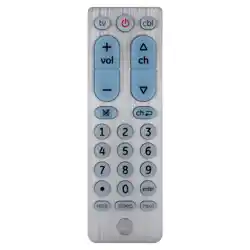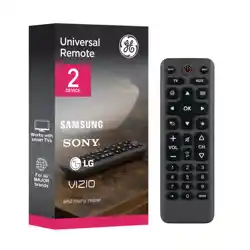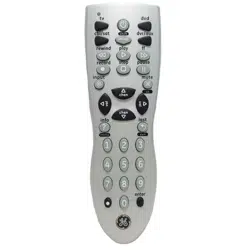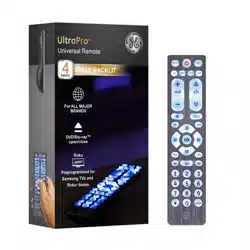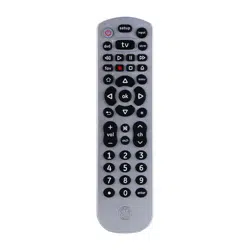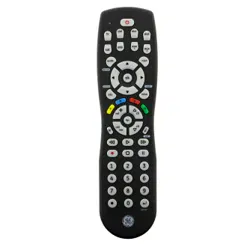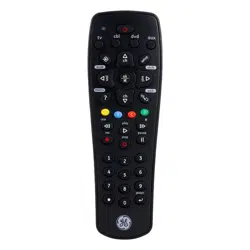
Universal Remote
Instruction Manual
34932 | 25006
7252
V2 | 7/17
2
Table of Contents
Scan this QR code to view
remote setup video.
http://www.byjasco.com/remote
Congratulations on your purchase of this
GE-branded Universal Remote Control. This remote
is capable of operating thousands of audio/video
devices including TVs, Blu-ray
™
/DVD players,
streaming media players, sound bars, cable
receivers and more!
SAVE THIS MANUAL AND CODE LIST
FOR FUTURE REFERENCE
http://www.byjasco.com/remote
Introduction .................................................................................2
Setup ..............................................................................................3
Button Functions ......................................................................4
Programming Your Remote .................................................6
Direct Code Entry ...............................................................6
Auto Code Search ..............................................................8
Controlling Combo Devices ....................................... 10
Using Shift .......................................................................... 10
Using Your Remote ............................................................... 11
Master Volume Feature ............................................... 11
Code Identification ......................................................... 12
Reset to Factory Settings ............................................ 12
Troubleshooting ..................................................................... 13
Warranty ................................................................................... 14
FCC Statement ........................................................................ 15

3
Setup
Your universal remote requires two (2) AAA batteries
(not included). Alkaline batteries are recommended.
Battery Installation
1. On the back of the remote, slide the cover down
to remove.
2. Match the (+) and (-) marks on the batteries
to the (+) and (-) marks inside the battery
compartment, then insert two (2) AAA batteries.
Be sure to use fresh batteries.
3. Slide the battery cover back into place.
NOTE: If your remote stops operating properly,
replace the batteries with new ones.
Battery Precautions
• Do not mix old and new batteries.
• Do not mix alkaline, standard (carbon-zinc), or
rechargeable (Ni-Cd, Ni-MH, etc.) batteries.
• Always remove old, weak or worn-out batteries
promptly and recycle or dispose of them in
accordance with local and national regulations.
Battery Saver
Your remote automatically turns off if the buttons
are depressed more than 8 seconds. This will save
your batteries should your remote get stuck in a
place where the buttons remain depressed (e.g.,
between the sofa cushions).
Code Saver
You have up to 10 minutes to change the batteries
in your remote without losing the codes you
have programmed.
4
Button Functions
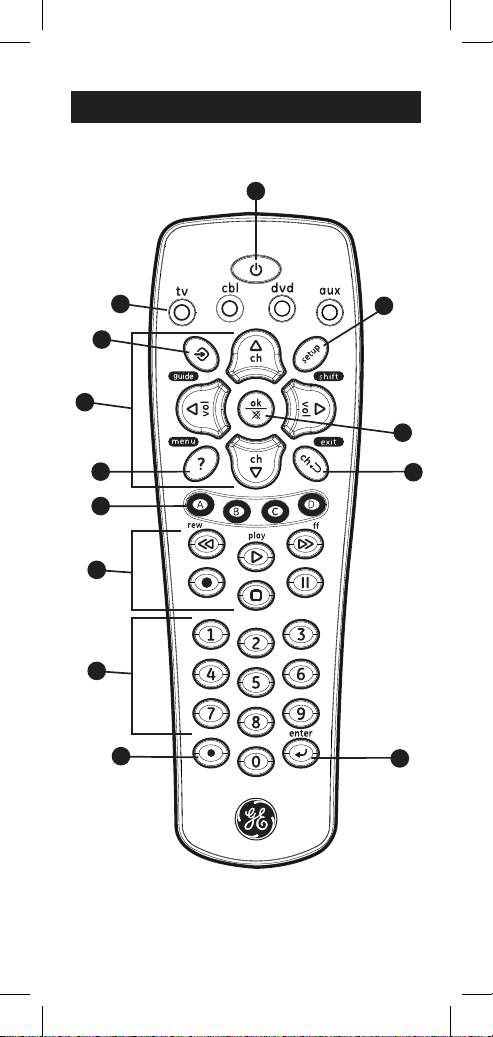
1
5
12
6
9
4
8
13
7
2
3
10
11

5
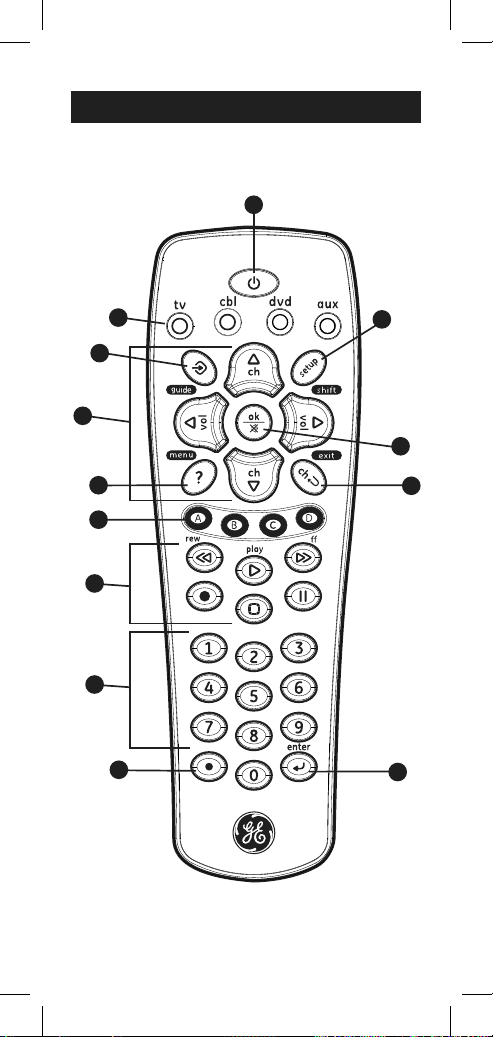
Button Functions
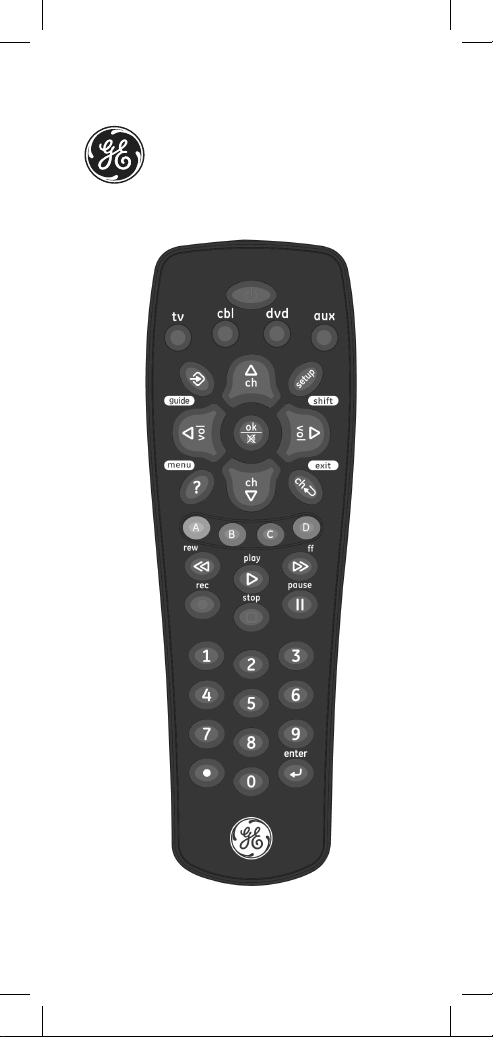
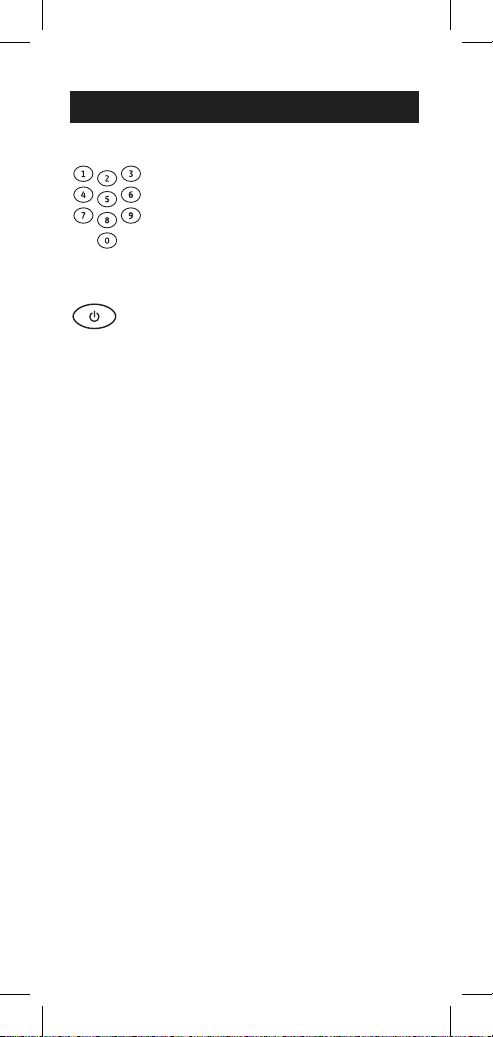
1. Power - Turns devices ON/OFF
2. tv, cbl, dvd, aux - Selects the device to control
3. Volume Up/Down, Channel Up/Down,
Up/Down/Left/Right menu navigation
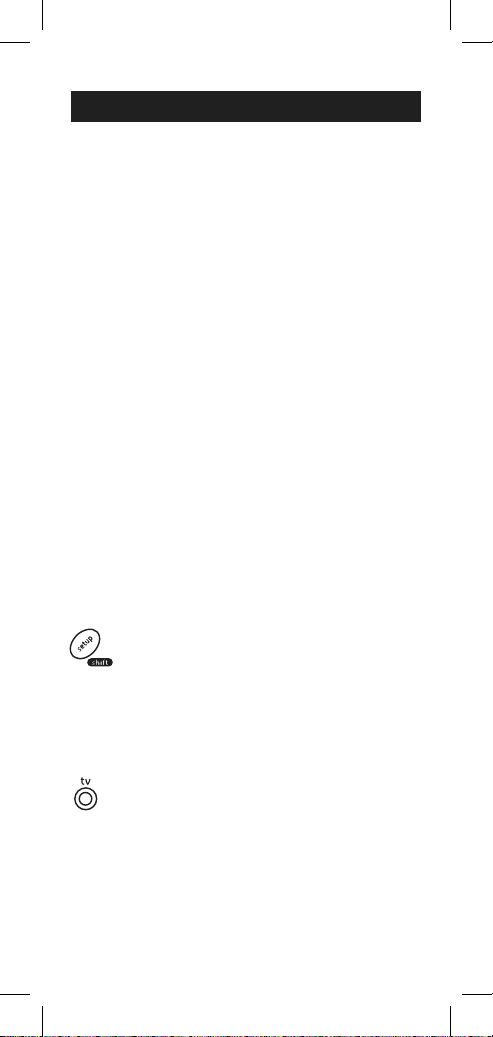
4. Setup - Used to program the remote, Shift is
the alternate function of this button. Press this
button once to enter Shift mode, to exit press
the SHIFT button again.
5. Input - Selects video inputs, Guide (Shift)
to easily access features on today’s
streaming devices
6. Info - Displays on-screen show/content
information, Menu (Shift) Displays the
on-screen menu
7. Ok - Selects menu items for the controlled
device, Mute (Shift) mutes sound
8. Previous Channel - Returns to the
previously selected channel, Exit (Shift) exits
on-screen menus
9. ABCD - Access additional features for DVRs,
cable and satellite receivers
10. Record, play, stop, rewind, fast forward, pause
11. Numbers - Enter numbers for direct
channel selection
12. Dot (•) - Used to select digital channels, e.g., 4.1
13. Enter - Some devices require enter to be
pressed after channel selection
6
Programming Your Remote
Your remote is designed to control multiple audio/video
devices. To use, you will need to program the remote
for your devices. There are two different methods you
can use to program the remote, Direct Code Entry or
Auto Code Search.
• The Direct Code Entry method is the
recommended method as it is the simplest and
quickest method in most cases.
• The Auto Code Search method searches
through all the codes in the remote to find a
code for your device.
Note: This remote comes preprogrammed for
Samsung TVs. Press TV for Samsung TVs.
Direct Code Entry (Recommended)
1. Locate the Code List included with
your remote. Find the section for the
type of device you wish to control, (for
example tv, cbl, dvd, aux). Locate the
brand of your device and circle all the
remote codes for the brand.
2. Press and hold down the SETUP button
on the remote until the red light on the
remote control turns on. Release the
SETUP button. The red light will remain on.
Note: The red light will either be a small light
at the top of the remote or the power ON/
OFF button.
3. Press and release the device button on
the remote for the type of device you
wish to control, (for example tv, cbl, dvd,
aux). The red light will blink once and
remain on.
Note: Any of the device buttons on the
remote can be programmed to control any
of your devices. For example, you can use
the CBL device button on the remote to
control a Satellite Receiver, Digital Converter
Box, Streaming Media Player or any
device category in the Code List.
7
Programming Your Remote
4. Use the number buttons on the remote
to enter the first 4-digit remote code
you circled in the Code List in Step 1.
The red light will turn off after entering
the fourth digit.
5. Point the remote at the device. Test
the buttons on the remote to see if the
device responds as you would expect.
If the buttons do not operate the
device, return to Step 2 above and use
the next code that you circled for that
device.
6. Repeat Steps 1 – 5 for each device you
wish to control.
Programming Notes
• Some codes may operate only a few functions
of your device. There may be another code in the
Code List that controls more functions. Test other
codes in the Code List for more functionality.
• If you do not find a remote code that works your
device or there are no codes in the Code List for
your device, use the Auto Code Search method in
the next section to program your remote.
• For combination devices such as a TV/DVD combo
or TV/ VCR combo, you may have to enter a code
for each device.
• Write down the remote codes used to program the
remote for future reference.
8
Programming Your Remote
Auto Code Search
The Auto Code Search is a process where you can
search through all the codes stored in the remote to
find a code for your device. It is recommended that
you read through all the steps below to familiarize
yourself with the Auto Code Search before starting
the process.
1. Manually turn on the device you wish
to control.
Note: The Auto Code Search process
cannot be used for devices without
power ON/OFF capability. Use the Direct
Code Entry method in these cases.
2. Press and hold down the SETUP button
on the remote until the red light on the
remote control turns on. Release the
SETUP button. The red light will remain on.
Note: The red light will either be a small
light at the top of the remote or the
power ON/OFF button.
3. Press and release the device button on
the remote for the type of device you
wish to control, (for example tv, cbl, dvd,
aux). The red light will blink once and
remain on.
4. With the remote pointed at the device,
press and release the POWER button
on the remote. The remote will send 10
different codes to the device. The red
light will blink once for each code and
remain on after sending the 10 codes.
Did the device turn off?
• If YES, go to Step 5.
• If NO, repeat Step 4 to test the next
10 codes.
5. Manually turn the device back on.
9
Programming Your Remote
6. With the remote pointed at the device,
press and release the VOL button.
The remote will re-send the first code of
the 10 codes from Step 4. The red light
will blink once and remain on.
Did the device turn off?
• If YES, you have found a code for the
device. Press and release the same
device button you pressed in Step 3.
This will store the code in the remote.
Go to Step 7.
• If NO, continue to press and release the
VOL
button until the device turns off
to test the other 9 codes from Step 4.
Be sure to wait approximately 3
seconds after each VOL
button press
to allow the device time to respond to
the code. When the device turns off,
you have found a code for your device.
Press and release the same device
button pressed in Step 3. This will store
the code in the remote. Go to Step 7.
Notes:
• The VOL
button can be used to go backwards
through each batch of 10 codes.
• The red indicator light will flash 2 times after testing
the first or last code in each batch of 10.
7. Use the remote to turn the device back on.
Test the buttons on the remote to see if
the device responds as you would expect.
If the buttons do not operate the device,
return to Step 2 and repeat this process
to search for a better code to operate the
device.
8. Repeat this process for each device you
wish to control.
10
Controlling Combo Devices
Some Combo devices (e.g. TV/VCR, TV/DVD, DVD/
VCR, etc.) will require you to set up two different
Mode buttons to control both parts of the Combo
device. For example, if you have a TV/DVD Combo,
you might need to set up one code under the
TV button to control the TV part AND a separate
code (under any other Mode button) to control the
DVD part.
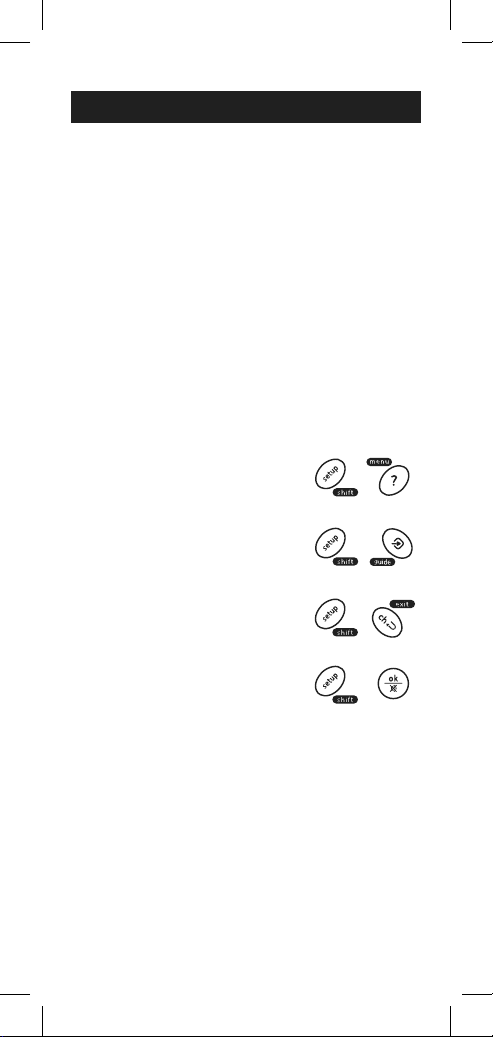
For GUIDE, press and release
SETUP/SHIFT then GUIDE/
INPUT.
For EXIT, press and
release SETUP/SHIFT
then LAST/EXIT.
For MUTE, press and release
SETUP/SHIFT then OK.
NOTE: Remote will stay in shift mode until the SHIFT
button is pressed again, or until 10 seconds of
inactivity. The red indicator light will blink when the
remote is in shift mode.
Using SHIFT
The SETUP/SHIFT button allows access to more
than one function for certain buttons.
For MENU, press and release
SETUP/SHIFT then INFO/MENU.
Programming Your Remote
11
Using Your Remote
Master Volume Feature
The Master Volume Feature allows you to select
a single device that the volume buttons always
control. For example, the remote can be in TV mode
while the volume buttons control the volume on
your audio receiver or sound bar instead of your TV.
Enabling the Master
Volume Feature
1. Press and hold down the SETUP
button on the remote until the red
light on the remote control turns on.
Release the SETUP button. The red
light will remain on.
2. Press and release the device button
(TV, cbl, etc.) on the remote for the
device you wish to control the volume.
3. Press and release the MUTE button.
4. Press and release the VOL
button.
The red light will blink twice and
turn off.
Disabling the Master
Volume Feature
1. Press and hold down the SETUP
button on the remote until the red
light on the remote control turns on.
Release the SETUP button. The red
light will remain on.
2. Press and release the device button
(TV, cbl, etc.) programmed to control
the Master Volume Feature.
3. Press and release the MUTE button.
4. Press and release the VOL
button.
The red light will blink twice and
turn off.
12
Using Your Remote
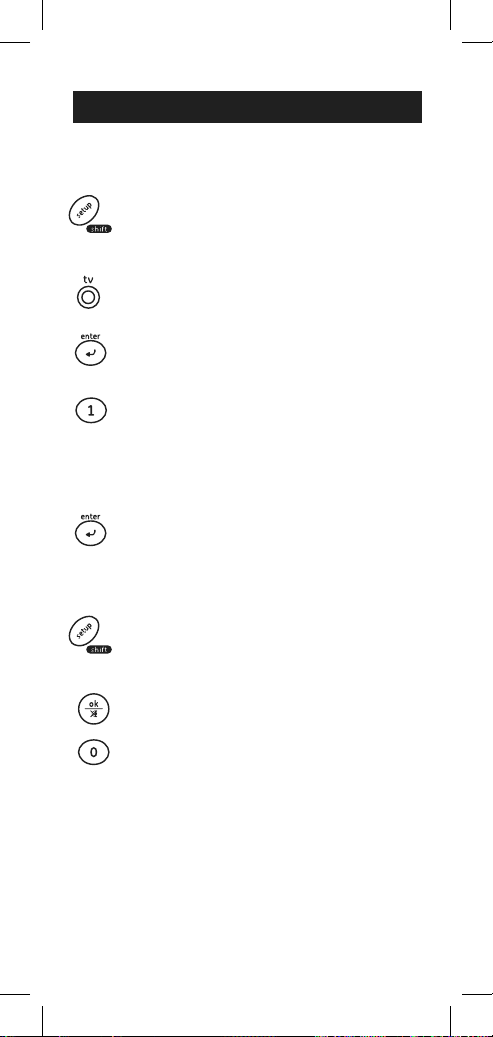
Code Identification
1. Press and hold down the SETUP
button on the remote until the red
light on the remote control turns on.
Release the SETUP button. The red
light will remain on.
2. Press and release the desired device
button (tv, cbl, dvd, aux) you would
like the code for.
3. Press and release the ENTER button.
4. Press and release the #1 button.
Count the number of times the remote
light flashes. This is the number
corresponding to the first digit of the
code. Repeat the process by pressing
the #2, #3 and #4 buttons for the
remaining digits.
5. Press and release the ENTER button
to exit this mode.
Reset to Factory Settings
1. Press and hold down the SETUP
button on the remote until the red
light on the remote control turns on.
Release the SETUP button. The red
light will remain on.
2. Press and release the MUTE button.
3. Press and release the number #0
button. The red indicator light will
flash twice.

13
Troubleshooting
Remote does not operate your device.
• Make sure the batteries are fresh and
installed correctly.
• Aim the remote directly at your device, and make
sure that there are no obstructions between the
remote and device.
• Make sure you select the appropriate device on
the remote you wish to control; TV for TV and
CBL for cable box.
• Try programming the remote with a different
code. See Direct Code Entry section.
• Remote may not be compatible with your device.
Remote does not operate some features
of your device.
• Sometimes a particular code might operate a
few features but not all. Try programming the
remote with a different code from the Code list.
See Direct Code Entry section.
• Remote may not be able to operate all features
of your device or button names may be different
than that of your original remotes.
SAVE THIS MANUAL AND CODE LIST
FOR FUTURE REFERENCE
http://www.byjasco.com/remote
If you have any questions or would like
additional information please, visit our web site
www.byjasco.com, or contact our Technical
Support Group at 1-800-654-8483, Monday-Friday
7:00am-8:00pm CST.

14
90-Day Limited Warranty
Jasco Products Company warrants this product to
be free from manufacturing defects for a period
of ninety days from the original date of consumer
purchase. This warranty is limited to the repair
or replacement of this product only and does not
extend to consequential or incidental damage to
other products that may be used with this unit. This
warranty is in lieu of all other warranties express
or implied. Some states do not allow limitations on
how long an implied warranty lasts or permit the
exclusion or limitation of incidental or consequential
damages, so the above limitations may not apply to
you. This warranty gives you specific rights, and you
may also have other rights which vary from state
to state. If unit should prove defective within the
warranty period, return prepaid with dated proof of
purchase to:
Jasco Products Company
10 East Memorial Road
Oklahoma City, OK 73114
www.byjasco.com
MADE IN CHINA
GE is a trademark of General Electric Company and
is under license by Jasco Products Company LLC,
10 E. Memorial Rd., Oklahoma City, OK 73114.
This Jasco product comes with a 90-day
limited warranty. Visit www.byjasco.com for
warranty details.
Questions? Contact us at 1-800-654-8483 between
7:00AM—8:00PM CST.

15
FCC Statement
This device complies with Part 15 of the FCC rules.
Operation is subject to the following two conditions:
(1) this device may not cause harmful interference,
and (2) this device must accept any interference
received, including interference that may cause
undesired operation.
FCC NOTE: The manufacturer is not responsible for
any radio or TV interference caused by unauthorized
modifications to this equipment. Such modifications
could void the user’s authority to operate the
equipment.
NOTE: This equipment has been tested and found
to comply with the limits for a Class B digital device,
pursuant to Part 15 of the FCC Rules. These limits are
designed to provide reasonable protection against
harmful interference in a residential installation. This
equipment generates, uses and can radiate radio
frequency energy and, if not installed and used in
accordance with the instructions may cause harmful
interference to radio communications. However,
there is no guarantee that interference will not occur
in a particular installation. If this equipment does
cause harmful interference to radio or television
reception, which can be determined by turning the
equipment off and on, the user is encouraged to try
to correct the interference by one or more of the
following measures:
• Reorient or relocate the receiving antenna.
• Increase the separation between the equipment
and receiver.
• Connect the equipment into an outlet on a circuit
different from that to which the receiver is connected.
• Consult the dealer or an experienced radio/TV
technician for help.
ICES-3(B)/NMB-3(B).

16
7252
34932 | 25006
Control Remoto Universal
Manual de Instrucciones
18
Índice
Escanea este código
QR para ver el video
instructivo para
programar su remota.
http://www.byjasco.com/remote
Introducción ............................................................................. 18
Configuración .......................................................................... 19
Funciones de los botones .................................................. 20
Programación del control remoto ................................. 22
Entrada directa de códigos ........................................ 22
Búsqueda automática de códigos ......................... 24
Control de Aparatos Combinados .......................... 26
El uso de SHIFT ................................................................ 27
Uso del control remoto ...................................................... 28
Característica de volumen maestro ..................... 28
Identificación de códigos ............................................ 29
Restablecimiento de la configuración
de fábrica ........................................................................... 29
Resolución de problemas ................................................. 30
Garantía ..................................................................................... 31
Declaración de la Comisión Federal de
Comunicaciones (FCC) ......................................................... 32
Felicitaciones por comprar este control remoto
universal de GE. Este control remoto puede operar
miles de aparatos de audio/video incluso TV,
reproductores de DVD/Blu-ray
™
, reproductores de
multimedia en línea, barras de sonido, receptores
de cable y mucho más.
GUARDE ESTE MANUAL Y LA LISTA DE CÓDIGOS
PARA REFERENCIA FUTURA.
http://www.byjasco.com/remote

19
Configuración
El control remoto universal usa dos (2) baterías AAA
(no incluidas). Se recomienda usar baterías alcalinas.
Instalación de las baterías
1. En la parte posterior del control remoto, presione
hacia abajo sobre la superficie texturada y
deslice la tapa de las baterías para quitarla.
2. Inserte dos (2) baterías AAA de modo tal que las
marcas (+) y (-) de las baterías coincidan con las
marcas (+) y (-) en el interior del compartimento
de las mismas. Asegúrese de usar baterías
nuevas.
3. Coloque la tapa de las baterías levemente por
debajo de la abertura y presione hacia arriba
hasta que quede trabada.
NOTA: Si su control remoto deja de funcionar
correctamente, reemplace las pilas por otras nuevas.
Precauciones respecto de las baterías
• No mezcle baterías usadas y nuevas.
• NO combine el uso de pilas alcalinas, comunes
(de tipo carbono-cinc) o recargables (Ni-Cd,
Ni-MH, etc.).
• Quite siempre de inmediato las baterías viejas,
con poca carga o agotadas y recíclelas o
deséchelas conforme a las regulaciones locales
y nacionales.
Ahorrador de las baterías
En forma automática, el control remoto se apaga
si los botones se mantienen presionados durante
más de ocho (8) segundos. Esto posibilita el ahorro
de las baterías, en el caso de que el control remoto
quede atrapado en un lugar donde los botones
permanezcan presionados (por ej., entre los
almohadones del sofá).
Ahorrador de códigos
Tiene hasta 10 minutos para cambiar las baterías
del control remoto sin perder los códigos que haya
programado.
20
Funciones de los Botones
1
5
12
6
9
4
8
13
7
2
3
10
11

21
Funciones de los Botones
1. Encendido/Apagado - Enciende o apaga los
aparatos
2. tv, cbl, dvd, aux - Selecciona el aparato que
desea controlar
3. Subir/bajar volumen, subir/bajar canales,
arriba, abajo, izquierda y derecha
4. Setup - Utilizado para programar el control
remoto; Shift es la función alternar de este botón.
Para ingresar al modo Shift oprima este botón
una vez. Para salir de él, oprima el botón Shift
otra vez.
5. Input - Selecciona las entradas de video,
Guide (modo Shift) Acceder fácilmente a
funciones sobre dispositivos de transmisión de
contenido web.
6. Info - Muestra en pantalla información del
programa y contenido; Menu (modo Shift) para
mostrar el menú en el televisor
7. Ok - Selecciona los elementos del menú para el
dispositivo que está controlando, Mute (modo
Shift) apaga el sonido
8. Canal anterior - permite volver al canal
seleccionado previamente; Exit (modo Shift) cierra
los menús de pantalla
9. ABCD - Permiten tener acceso a funciones
adicionales de DVR, receptores de cable y satélite
10. Grabar, Poner, Parar, Rebobinar, Adelantar,
Pausa
11. Números - Se usa para seleccionar un canal
directamente
12. Punto (•) - Se usa para seleccionar los canales
digitales, p. ej., 4.1
13. Enter - Entrar (Algunos dispositivos requieren
esta tecla deben apretar después de seleccionar
un canal)
22
Programación de su Control Remoto
Este control remoto universal marca GE está diseñado
para controlar múltiples aparatos de audio/video
mediante el uso de un único control remoto. Para
usar este control remoto, deberá programarlo para
controlar los aparatos. Hay dos formas de programar
el control remoto: Entrada directa de códigos o
Búsqueda automática de códigos.
• La Entrada directa de códigos es el método
recomendado ya que en la mayoría de los
casos es el más sencillo y el más rápido.
• El método Búsqueda automática de códigos
busca por todos los códigos en el control
remoto para encontrar un código para el
aparato.
Nota: Este control remoto está preprogramado
para televisores Samsung. Pulse TV para
televisores Samsung.
Entrada Directa de Códigos
(recomendado)
1. Busque la Lista de códigos incluida con
el control remoto. Encuentre la sección
correspon-diente al tipo de dispositivo
que desea controlar (por ejemplo TV,
cbl, dvd, aux). Localice la marca del
dispositivo y marque con un círculo cada
uno de los códigos de control remoto de
la marca.
2. Presione y mantenga presionado el
botón SETUP (Configuración) hasta
que la luz roja del control remoto se
encienda. Suelte el botón SETUP. La luz
rojapermanecerá encendida.
Nota: la luz roja será una luz pequeña
ubicada en la parte superior del control
remoto o el botón de encendido/
apagado.
3. En el control remoto, presione y suelte el
botón que corresponda al tipo de aparato
que desea controlar, por ejemplo, TV, cbl,
dvd, aux. La luz roja parpadeará una vez
y permanecerá encendida.
23
Programación de su Control Remoto
Nota: cualquiera de los botones de dispositivo
en el control remoto puede ser programado
para controlar cualquiera de los dispositivos.
Por ejemplo, puede usar el botón CBL del control
remoto para controlar un receptor de satélite,
decodificador digital, reproductor multimedia en
línea o cualquier categoría de dispositivos que
aparezca en la lista de códigos.
4. Use los botones de números del control
remoto para introducir el primer código
remoto de 4 dígitos que encerró en un
círculo en la Lista de códigos en el Paso
1. La luz roja se apagará después de
introducir el cuarto dígito.
5. Apunte el control remoto hacia el
dispositivo. Pruebe los botones en
el control para ver si el dispositivo
responde como debería ser. Si los
botones no accionan el dispositivo,
vuelva al Paso 2 y use el siguiente
código que encerró en un círculo para
dicho dispositivo.
6. Repita este proceso para cada
dispositivo que desee controlar.
Notas de programación
• Es posible que algunos códigos solo ejecuten
algunas funciones del dispositivo. Es probable
que haya otro código en la Lista de códigos que
ejecute más funciones. Pruebe otros códigos
de la Lista de códigos para obtener más
funcionalidades.
• Si no encuentra un código que funcione con su
dispositivo o en la Lista de códigos no aparecen
códigos para el dispositivo, use el método
Búsqueda automática de códigos en la siguiente
sección para programar el control remoto.
24
Programación de su Control Remoto
• En el caso de dispositivos integrados, como por
ejemplo, combinación TV/DVD o TV/ VCR, quizá
deba ingresar un código para cada dispositivo.
Consulte la sección relacionada con el Control de
aparatos integrados.
• Escriba los códigos que sirven para programar el
aparato para consultas futuras.
Búsqueda automática de códigos
La Búsqueda automática de códigos es un
proceso mediante el cual puede buscar por todos
los códigos almacenados en el control remoto
para encontrar un código para el dispositivo. Se
recomienda que lea todos los pasos a continuación
para familiarizarse con la Búsqueda automática de
códigos antes de comenzar el proceso.
1. Encienda manualmente el dispositivo
que desea controlar.
Nota: el proceso Búsqueda automática
de códigos no se puede usar para
dispositivos sin la capacidad de
encendido/apagado. En estos casos, use
el método Entrada directa de códigos.
2. Presione y mantenga presionado el botón
SETUP (Configuración) hasta que la luz
roja del control remoto se encienda.
Suelte el botón SETUP. La luz roja
permanecerá encendida.
Nota: la luz roja será una luz pequeña
ubicada en la parte superior del control
remoto o en el botón de
encendido/
apagado.
3. En el control remoto, presione y suelte el
botón que corresponda al tipo de aparato
que desea controlar (por ejemplo TV, cbl,
dvd, aux). La luz roja parpadeará una vez
y permanecerá encendida.
4. Apunte el control remoto hacia el dispositivo
y presione y suelte el botón POWER en
25
Programación de su Control Remoto
el control. El control enviará 10 códigos
diferentes al dispositivo. La luz roja
parpadeará una vez para cada código y
permanecerá encendida después de enviar
los 10 códigos.
¿Se apagó el dispositivo?
• Si la respuesta es Afirmativa, proceda
al Paso 5.
• Si la respuesta es Negativa, repita el
Paso 4 para probar los 10 códigos
siguientes.
5. Vuelva a encender manualmente el
dispositivo.
6. Apunte el control remoto hacia el dispositivo
y presione y suelte el botón VOL
.
El control remoto volverá a enviar el
primero de los 10 códigos del Paso 4. La luz
roja parpadeará una vez y permanecerá
encendida.
¿Se apagó el dispositivo?
• Si la respuesta es AFIRMATIVA, significa
que ha encontrado un código para el
dispositivo. Presione y suelte el mismo
botón que oprimió en el Paso 3. Esta
acción almacenará el código en el control
remoto. Proceda al Paso 7.
• Si la respuesta es NEGATIVA, siga
oprimiendo y soltando el botón VOL
hasta que se apague el dispositivo para
probar los otros 9 códigos del Paso 4.
Asegúrese de esperar aproximadamente
3 segundos después de cada presión
del botón VOL para que el dispositivo
tenga tiempo de responder al código.
Cuando se apague el dispositivo, significa
que ha encontrado un código para el
mismo. Presione y suelte el mismo botón
que oprimió en el Paso 3. Esta acción
almacenará el código en el control remoto.
Proceda al Paso 7.

26
Notas especiales:
• El botón VOL
se puede usar para retroceder
por cada conjunto de 10 códigos.
• La luz roja parpadeará dos veces después de
probar el primero o el último código de cada
conjunto de 10.
7. Use el control remoto para volver a
encender el dispositivo. Pruebe los
botones en el control para ver si el
dispositivo responde como debería ser.
Si los botones no accionan el dispositivo,
vuelva al Paso 2 y repita este proceso
para buscar un código que sea mejor.
8. Repita este proceso para cada dispositivo
que desee controlar.
Control de aparatos combinados
En algunos aparatos integrados (p. ej., TV/VCR, TV/
DVD, DVD/VCR, etc.) deberá programar dos botones
diferentes para controlar ambas partes del aparato.
Por ejemplo, si usted tiene un TV/DVD integrados,
es probable que tenga que programar un código en
el botón de TV para controlar la parte del TV y un
código separado en el botón de dvd para controlar
la parte del DVD.
Programación de su Control Remoto
27
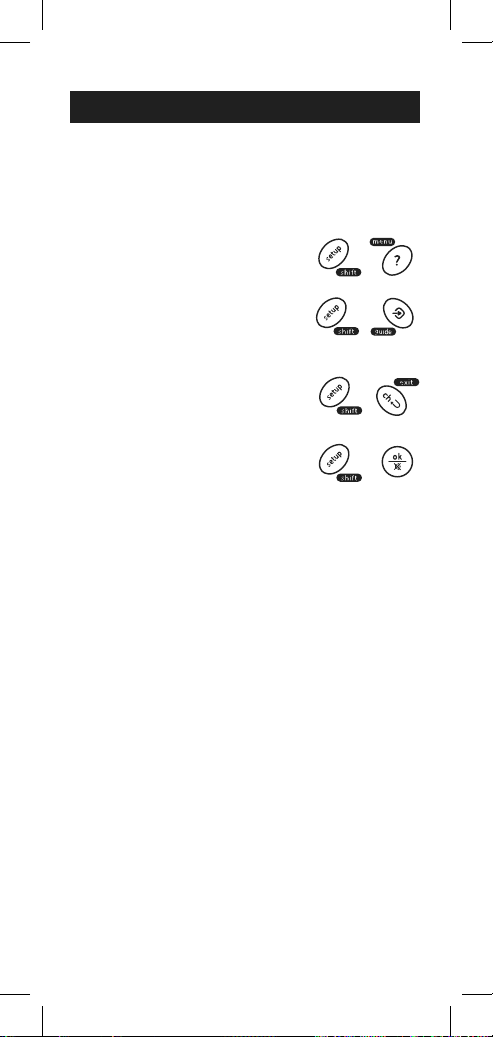
Para GUÍA, presione y suelte
SETUP/SHIFT luego GUIDE/
INPUT.
Para EXIT, presione y suelte
SETUP/SHIFT, luego CANAL
ANTERIOR/EXIT.
Para MUTE, presione y suelte
SETUP/SHIFT luego OK/MUTE.
El uso de SHIFT
El botón Shift/Setup permite el acceso a más de
una función de algunos botones.
Para MENU, presione y suelte
SETUP/SHIFT, luego INFO/MENU.
NOTA: El control remoto permanecerá en el modo de
función dual hasta que se presione nuevamente el
botón SHIFT o hasta que transcurran 10 segundos de
inactividad. La luz roja del indicador parpadeará en el
modo del cambio.
Programación de su Control Remoto
28
Uso de su Control Remoto
Activación de la característica
de volumen maestro
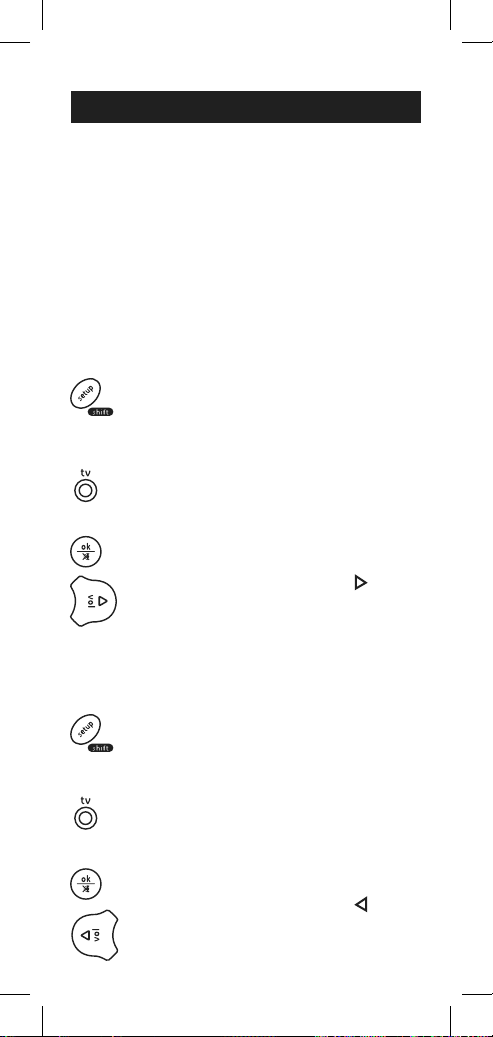
1. Presione y mantenga presionado el
botón SETUP (Configuración) hasta que
la luz roja del control remoto se encienda.
Suelte el botón SETUP. La luz roja
permanecerá encendida.
2. En el control remoto, presione y suelte
el botón (TV, aux, etc.) que corresponda
al tipo de aparato para el que desea
controlar el volumen.
3. Presione y suelte el botón Mute/Silencio.
4. Presione y suelte el botón VOL
.
La luz roja parpadeará dos veces y
se apagará.
Desactivación de la característica
de volumen maestro
1. Presione y mantenga presionado el
botón SETUP (Configuración) hasta
que la luz roja del control remoto se
encienda. Suelte el botón SETUP.
La luz roja permanecerá encendida.
2. Presione y suelte el botón del aparato
(TV, aux, etc.) que se haya programado
para controlar la función de volumen
maestro.
3. Presione y suelte el botón Mute/Silencio.
4. Presione y suelte el botón VOL
.
La luz roja parpadeará dos veces y
se apagará.
Característica de volumen maestro
La característica de volumen maestro le permite
seleccionar un solo dispositivo que siempre es
controlado por los botones de volumen. Por ej., el
control remoto puede estar en el modo de televisor
mientras que los botones de volumen controlan el
volumen del receptor de audio o la barra de sonido
en lugar del televisor.
29
Uso de su Control Remoto
Identificación de Códigos
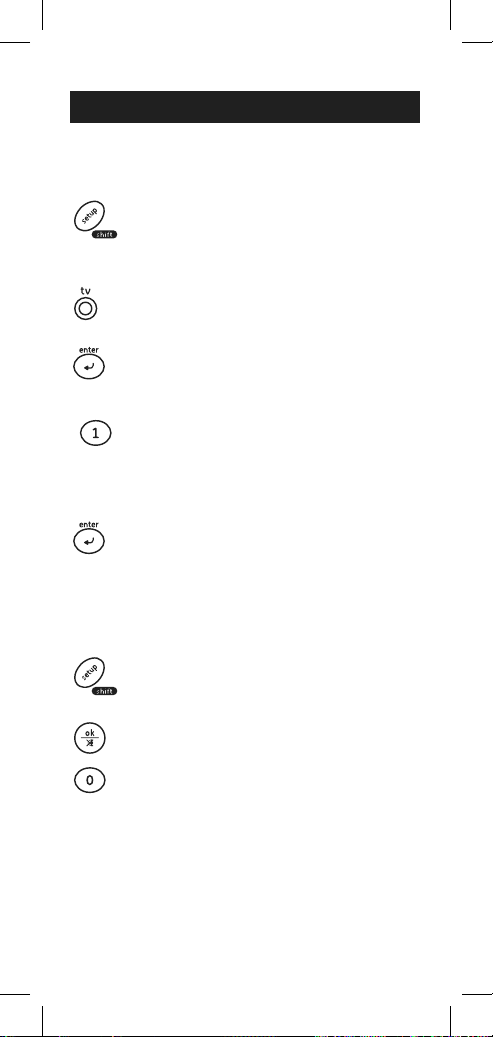
1. Presione y mantenga presionado el
botón Setup (Configuración) hasta
que la luz roja del control remoto se
encienda. Suelte el botón Setup. La luz
roja permanecerá encendida.
2. En el control remoto, presione y suelte
el botón correspondiente al aparato
(TV, cbl, dvd, aux) para el que desee
obtener el código.
3. Presione y suelte el botón Enter.
4. Presione y suelte el botón n.º 1. Cuente
la cantidad de veces que la luz del
control remoto parpadea. Este el
número correspondiente al primer
dígito del código. Repita el proceso al
presionar los botonesn.o 2, n.o º 3 y n.º
4 para los dígitos restantes.
5. Presione y suelte el botón Enter para
salir de este modo.
Restablecimiento de la
configuración de fábrica
1. Presione y mantenga presionado el
botón Setup (Configuración) hasta
que la luz roja del control remoto se
encienda. Suelte el botón Setup. La luz
roja permanecerá encendida.
2. Presione y suelte el botón Ok/Mute.
3. Presione y suelte el botón n.º 0. La luz
indicadora roja parpadeará dos veces.

30
Solución de Problemas
El control remoto no funciona
con su aparato.
• Asegúrese de que las pilas sean nuevas y estén
bien colocadas.
• Apunte a su dispositivo directamente con el
control remoto.
• Asegúrese de seleccionar en el control remoto
el dispositivo correcto que desea controlar,
por ejemplo: TV para el televisor y CBL para el
receptor de cable.
• Intente programar el control remoto usando
un código distinto. Consulte la sección Entrada
directa de códigos.
• Es posible que el control remoto no sea
compatible con su dispositivo.
El remoto no funciona para algunas de
las funciones de su dispositivo.
• A veces un código puede servir para algunas
funciones del aparato pero no todas. Intente
programar el control remoto con un código de
la lista de códigos distinto. Consulte la sección
Entrada directa de códigos.
• Es posible que el control remoto no sirva para
todas las funciones de su dispositivo o bien que
algunos nombres de los botones sean diferentes
de los del control remoto original.
GUARDE ESTE MANUAL Y LA LISTA DE CÓDIGOS
PARA REFERENCIA FUTURA.
http://www.byjasco.com/remote
Si tiene alguna pregunta o le gustaría recibir
información adicional, visite nuestro sitio web
www.byjasco.com, o comuníquese con nuestro
equipo de soporte técnico al 1-800-654-8483, de
lunes a viernes de las 7:00 a. m. a las 8:00 p. m.
CST (hora central estándar).

31
Jasco Products Company garantiza que este producto
está libre de defectos de fabricación durante un periodo
de noventa días a partir de la fecha original de compra
por el consumidor. Esta garantía se limita a la reparación
o sustitución de este producto solamente y no se extiende
a daños incidentales o derivados a otros productos que se
usen con esta unidad. Esta garantía remplaza a todas las
demás garantías expresas o implícitas. Algunos estados no
permiten limitaciones en cuanto a la duración de garantías
implícitas ni la exclusión o limitación de daños incidentales
o derivados; por lo tanto, puede que las anteriores
limitaciones no se apliquen en su caso. Esta garantía le
otorga a usted derechos específicos y otros derechos que
puede tener según el estado en que reside. Si comprueba
que la unidad es defectuosa dentro del periodo de garantía,
devuélvala con porte prepagado y prueba de compra con
fecha a:
Garantía Limitada de 90 Días
HECHO EN CHINA
GE es una marca registrada de la companía General Electric
Company y es utilizada bajo licencia a la companía
Jasco Prodcucts Company LLC, 10 E. Memorial Rd.,
Oklahoma City, OK 73114.
Este producto de Jasco Products tiene una garantía
limitada de 90 días. Visite www.byjasco.com para detalles.
¿Tiene preguntas? Comuníquese al 1-800-654-8483 entre
las 7:00 a. m. y las 8:00 p. m. CST (hora central estándar).

32
Este dispositivo cumple con el artículo 15 de las normas
de la Federal Communications Commission (FCC, comisión
federal de comunicaciones de EE. UU.). Su funcionamiento
está sujeto a las siguientes dos condiciones: (1) este
dispositivo no puede causar interferencias perjudiciales, y
(2) este dispositivo debe aceptar las interferencias recibidas,
incluidas las interferencias que puedan provocar un
funcionamiento no deseado.
NOTA DE LA FCC: El fabricante no es responsable de
las interferencias de radio o televisión ocasionadas
por modificaciones no autorizadas a este equipo. Tales
modificaciones pueden anular la autoridad del usuario para
poner en funcionamiento el equipo.
NOTA: Este equipo ha sido probado y cumple con los límites
para dispositivos digitales de Clase B, de conformidad con
el artículo 15 de las normas de la FCC. Estos límites están
diseñados para proporcionar una protección razonable
contra interferencias perjudiciales en instalaciones
residenciales. Este equipo genera, utiliza y puede irradiar
energía de radiofrecuencia y, si no se instala y utiliza de
acuerdo con las instrucciones, puede causar interferencias
perjudiciales a las radiocomunicaciones. Sin embargo, no
hay garantía de que no se produzcan interferencias en una
instalación en particular. Si este equipo causa interferencias
perjudiciales en la recepción de radio o televisión, lo
cual se puede determinar apagando y encendiendo el
equipo, se le recomienda al usuario que intente corregir
las interferencias mediante una o más de las siguientes
medidas:
• Reoriente o reubique la antena receptora.
• Aumente la distancia entre el equipo y el receptor.
• Conecte el equipo a un tomacorriente de un circuito
diferente al que está conectado el receptor.
• Consulte al distribuidor o a un técnico experto en radio o
televisión para obtener ayuda.
Este aparato digital de clase B cumple con la norma
canadiense ICES-003.
Cet appareil numérique de la classe B est conforme á la
norme la NMB-003 du Canada.
Declaración de la FCC