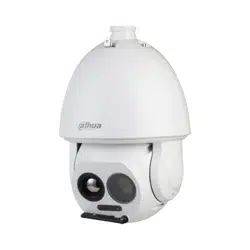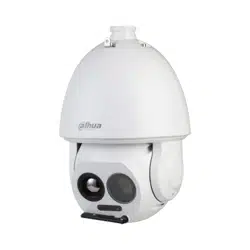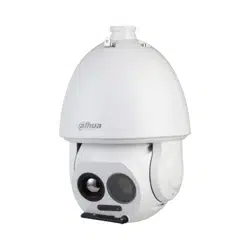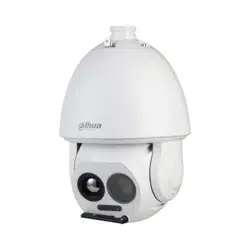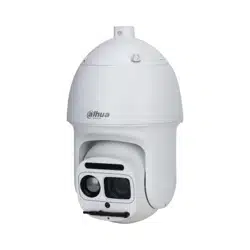
Speed Measuring Device
User's Manual
ZHEJIANG DAHUA VISION TECHNOLOGY CO., LTD. V1.0.0
User's Manual
I
Foreword
General
This manual introduces the basic information, functions, and operations of the speed measuring
device (hereinafter referred to as "the Device"). Read carefully before using the Device, and keep the
manual safe for future reference.
Model
DHI-HWS1600D
Safety Instructions
The following signal words might appear in the manual.
Signal Words Meaning
Indicates a high potential hazard which, if not avoided, will result in
death or serious injury.
Indicates a medium or low potential hazard which, if not avoided,
could result in slight or moderate injury.
Indicates a potential risk which, if not avoided, could result in
property damage, data loss, reductions in performance, or
unpredictable results.
Provides methods to help you solve a problem or save time.
Provides additional information as a supplement to the text.
Revision History
Version Revision Content Release Time
V1.0.0 First release. August 2022
Privacy Protection Notice
As the device user or data controller, you might collect the personal data of others such as their face,
fingerprints, and license plate number. You need to be in compliance with your local privacy
protection laws and regulations to protect the legitimate rights and interests of other people by
implementing measures which include but are not limited: Providing clear and visible identification
to inform people of the existence of the surveillance area and provide required contact information.
About the Manual
●
The manual is for reference only. Slight differences might be found between the manual and the
product.
●
We are not liable for losses incurred due to operating the product in ways that are not in
compliance with the manual.
●
The manual will be updated according to the latest laws and regulations of related jurisdictions.

User's Manual
II
For detailed information, see the paper user’s manual, use our CD-ROM, scan the QR code or visit
our official website. The manual is for reference only. Slight differences might be found between
the electronic version and the paper version.
●
All designs and software are subject to change without prior written notice. Product updates
might result in some differences appearing between the actual product and the manual. Please
contact customer service for the latest program and supplementary documentation.
●
There might be errors in the print or deviations in the description of the functions, operations
and technical data. If there is any doubt or dispute, we reserve the right of final explanation.
●
Upgrade the reader software or try other mainstream reader software if the manual (in PDF
format) cannot be opened.
●
All trademarks, registered trademarks and company names in the manual are properties of their
respective owners.
●
Please visit our website, contact the supplier or customer service if any problems occur while
using the device.
●
If there is any uncertainty or controversy, we reserve the right of final explanation.
User's Manual
III
Important Safeguards and Warnings
This section introduces content covering the proper handling of the Device, hazard prevention, and
prevention of property damage. Read carefully before using the Device, and comply with the
guidelines when using it.
Transportation Requirements
●
Pack the Device with packaging provided by its manufacturer or packaging of the same quality
before transporting it.
●
Transport the Device under allowed humidity and temperature conditions.
Storage Requirements
Store the Device under allowed humidity and temperature conditions.
Installation Requirements
●
Do not connect the power adapter to the Device while the adapter is powered on.
●
Strictly comply with the local electric safety code and standards. Make sure that the ambient
voltage is stable and meets the power supply requirements of the Device.
●
Do not connect the Device to 2 or more kinds of power supplies, to avoid damage to the Device.
●
Use the accessories suggested by the manufacturer. Installation and maintenance must be
performed by qualified professionals.
●
When using a laser beam device, avoid exposing the surface of the Device to laser beam
radiation.
●
Do not install the Device in an environment that has a large amount of metal, advertising boards,
walls or electromagnetic interference. Otherwise, the performance of the Device might be
affected
●
Do not install 2 devices with the same frequency in the same environment. Otherwise, the Device
might not work properly.
●
Personnel working at heights must take all necessary measures to ensure personal safety
including wearing a helmet and a safety belt.
●
Do not place the Device in a place exposed to sunlight or near heat sources.
●
Keep the Device away from dampness, dust, and soot.
●
Put the Device in a well-ventilated place, and do not block its ventilation.
●
Use an adapter or cabinet power supply provided by the manufacturer.
●
The power supply must conform to the requirements of ES1 in IEC 62368-1 standard and be no
higher than PS2. Please note that the power supply requirements are subject to the device label.
●
The Device is a class I electrical appliance. Make sure that the power supply of the Device is

User's Manual
IV
connected to a power socket with protective earthing.
●
An emergency disconnect device must be installed during installation and wiring at a readily
accessible location for emergency power cut-off.
●
Protect the line cord and wires from being walked on or squeezed particularly at plugs, power
sockets, and the point where they exit from the device.
●
Make sure that the Device is installed horizontally, and that there are no items blocking the front
of the Device.
Operation Requirements
●
Check whether the power supply is correct before use.
●
Do not unplug the power cord on the side of the Device while the adapter is powered on.
●
Operate the Device within the rated range of power input and output.
●
Use the Device under allowed humidity and temperature conditions.
●
Do not drop or splash liquid onto the Device, and make sure that there is no object filled with
liquid on the Device to prevent liquid from flowing into it.
●
Do not disassemble the Device without professional instruction.
●
Please do not touch the photosensitive device with your hands. Use an air blower to clean off the
dust and filth on the lens.
●
We recommend you use the Device with a lightning protection device for stronger protection
against lightning. For outdoor scenarios, strictly comply with the lightning protection
regulations.
●
Ground the function earthing portion of the Device to improve its reliability. The Device is a class
I electrical appliance. Make sure that the power supply of the Device is connected to a power
socket with protective earthing.
●
Charge the lithium battery with a standard adapter.
●
We recommend you pull out the battery after use to avoid excessive battery consumption.
Maintenance Requirements
●
Clean the Device with a soft dry cloth or a clean soft cloth dipped in neutral detergent.
●
Use the accessories suggested by the manufacturer. Installation and maintenance must be
performed by qualified professionals.

User's Manual
V
Table of Contents
Foreword
........................................................................................................................................................................................................I
Important Safeguards and Warnings
............................................................................................................................................ III
1 Product Information
........................................................................................................................................................................... 1
1.1 Introduction
................................................................................................................................................................................. 1
1.2 Main Functions
............................................................................................................................................................................ 1
2 Structure
................................................................................................................................................................................................... 3
2.1 Appearance
................................................................................................................................................................................... 3
2.2 Dimensions
................................................................................................................................................................................... 3
2.3 Panels
.............................................................................................................................................................................................. 4
2.3.1 Left Panel
............................................................................................................................................................................ 4
2.3.2 Right Panel
......................................................................................................................................................................... 5
2.3.3 Front Panel
......................................................................................................................................................................... 5
3 GUI Operations
...................................................................................................................................................................................... 7
3.1 Introduction
................................................................................................................................................................................. 7
3.1.1 Login
..................................................................................................................................................................................... 7
3.1.2 Main Interface
................................................................................................................................................................... 7
3.2 Live Snapshot
.............................................................................................................................................................................. 8
3.2.1 Live
......................................................................................................................................................................................... 8
3.2.2 Snapshot
........................................................................................................................................................................... 10
3.3 Image Manager
......................................................................................................................................................................... 11
3.3.1 Search
................................................................................................................................................................................. 11
3.3.2 Backup
................................................................................................................................................................................ 13
3.4 Config
............................................................................................................................................................................................ 13
3.4.1 Intelligent Plan
............................................................................................................................................................... 13
3.4.1.1 ANPR
......................................................................................................................................................................... 13
3.4.1.2 E-police
.................................................................................................................................................................... 14
3.4.2 AI Settings
........................................................................................................................................................................ 15
3.4.2.1 Scene Config
......................................................................................................................................................... 15
3.4.2.2 Recognition
........................................................................................................................................................... 16
3.4.3 Radar Settings
................................................................................................................................................................ 17
3.4.3.1 Parameters
............................................................................................................................................................ 17
3.4.3.2 Radar Visualization
........................................................................................................................................... 18
3.4.3.3 Radar Calibration
............................................................................................................................................... 19
3.4.4 Camera
............................................................................................................................................................................... 19
3.4.4.1 Shutter
..................................................................................................................................................................... 19

User's Manual
VI
3.4.4.2 Flashing Light Config
....................................................................................................................................... 20
3.4.5 OSD Settings
................................................................................................................................................................... 21
3.4.5.1 OSD Road Section
.............................................................................................................................................. 21
3.4.5.2 OSD Setting
........................................................................................................................................................... 22
3.4.5.3 OSD Option
........................................................................................................................................................... 23
3.4.6 Blocklist/Allowlist
......................................................................................................................................................... 23
3.4.6.1 Allowlist
.................................................................................................................................................................. 23
3.4.6.2 Blocklist
.................................................................................................................................................................. 24
3.4.7 Network Settings
.......................................................................................................................................................... 24
3.4.7.1 Network Settings
............................................................................................................................................... 24
3.4.7.2 Auto Register
....................................................................................................................................................... 25
3.4.7.3 3G/4G Settings
.................................................................................................................................................... 26
3.4.8 Time
..................................................................................................................................................................................... 27
3.4.8.1 NTP Setting
........................................................................................................................................................... 27
3.4.8.2 Positioning System Time Setting
............................................................................................................... 28
3.4.9 Storage Settings
............................................................................................................................................................ 29
3.4.9.1 FTP Upload
............................................................................................................................................................ 29
3.4.9.2 Record
...................................................................................................................................................................... 30
3.4.9.3 Storage Info
.......................................................................................................................................................... 31
3.4.10 System Settings
.......................................................................................................................................................... 31
3.4.10.1 General Settings
.............................................................................................................................................. 31
3.4.10.2 Auto Maintain
................................................................................................................................................... 32
3.4.10.3 Safety Settings
.................................................................................................................................................. 33
3.5 Manage Info
................................................................................................................................................................................ 35
3.5.1 System Info
...................................................................................................................................................................... 35
3.5.2 Log Search
........................................................................................................................................................................ 35
3.5.3 User Manager
.................................................................................................................................................................. 36
3.5.4 Traffic Flow Statistics
.................................................................................................................................................. 37
4 Webpage Operations
........................................................................................................................................................................ 39
4.1 Introduction
............................................................................................................................................................................... 39
4.1.1 Initialization
.................................................................................................................................................................... 39
4.1.2 Webpage Functions
..................................................................................................................................................... 42
4.2 Live
.................................................................................................................................................................................................. 43
4.2.1 Video Stream
................................................................................................................................................................... 43
4.2.2 Live View
........................................................................................................................................................................... 44
4.2.3 Plate Number Recognition
....................................................................................................................................... 45
4.2.4 Plate Snapshot
............................................................................................................................................................... 45

User's Manual
VII
4.2.5 Functions on the Live Page
...................................................................................................................................... 45
4.2.6 Vehicle Snapshot
.......................................................................................................................................................... 46
4.2.7 Event List
........................................................................................................................................................................... 46
4.3 Radar
.............................................................................................................................................................................................. 46
4.3.1 Radar Settings
................................................................................................................................................................ 46
4.3.1.1 Calibrating the Radar
....................................................................................................................................... 46
4.3.1.2 Configuring General Information
.............................................................................................................. 47
4.3.2 Radar Visualization
...................................................................................................................................................... 48
4.4 Search
............................................................................................................................................................................................ 49
4.4.1 Searching for Vehicles
................................................................................................................................................ 49
4.4.2 Searching for Recorded Videos
............................................................................................................................. 51
4.5 Setting
........................................................................................................................................................................................... 52
4.5.1 ITC
......................................................................................................................................................................................... 52
4.5.1.1 Smart Plan
............................................................................................................................................................. 52
4.5.1.2 ANPR Snapshot
................................................................................................................................................... 53
4.5.1.2.1 Configuring Violation Snapshot
...................................................................................................... 53
4.5.1.2.2 Configuring Intelligent Analysis
..................................................................................................... 59
4.5.1.2.3 Configuring Original Picture OSD
.................................................................................................. 61
4.5.1.2.4 Configuring Combination Picture OSD
........................................................................................ 62
4.5.1.2.5 Configuring Cutout
................................................................................................................................ 62
4.5.1.3 E Police
.................................................................................................................................................................... 62
4.5.1.3.1 Configuring Violation Snapshot
...................................................................................................... 62
4.5.1.3.2 Configuring Intelligent Analysis
..................................................................................................... 69
4.5.1.3.3 Configuring Original Picture OSD
.................................................................................................. 71
4.5.1.3.4 Configuring Combination Picture OSD
........................................................................................ 72
4.5.1.3.5 Configuring Cutout
................................................................................................................................ 73
4.5.1.4 Composition & OSD
.......................................................................................................................................... 73
4.5.1.4.1 Configuring Picture Synthesis
.......................................................................................................... 73
4.5.1.4.2 Configuring Video OSD
........................................................................................................................ 74
4.5.1.5 Transfer Offline
................................................................................................................................................... 75
4.5.1.6 Vehicle Allowlist/Blocklist
............................................................................................................................. 76
4.5.1.6.1 Setting Allowlist
...................................................................................................................................... 76
4.5.1.6.2 Setting Blocklist
....................................................................................................................................... 77
4.5.1.7 Traffic Flow
............................................................................................................................................................ 77
4.5.1.8 Watermark
............................................................................................................................................................. 78
4.5.1.8.1 Verifying Images
..................................................................................................................................... 78
4.5.1.8.2 Verifying Videos
...................................................................................................................................... 78

User's Manual
VIII
4.5.2 Camera
............................................................................................................................................................................... 79
4.5.2.1 Image
....................................................................................................................................................................... 79
4.5.2.1.1 Configuring General Parameters
.................................................................................................... 79
4.5.2.1.2 Configuring Shutter
............................................................................................................................... 80
4.5.2.1.3 Configuring Metering Zone
............................................................................................................... 82
4.5.2.2 Video
........................................................................................................................................................................ 83
4.5.2.2.1 Configuring Video Parameters
........................................................................................................ 83
4.5.2.2.2 Configuring ROI
....................................................................................................................................... 84
4.5.3 Network Settings
.......................................................................................................................................................... 85
4.5.3.1 Configuring TCP/IP
............................................................................................................................................ 85
4.5.3.2 Port
............................................................................................................................................................................ 87
4.5.3.2.1 Configuring Port
...................................................................................................................................... 87
4.5.3.2.2 Configuring ONVIF
................................................................................................................................. 87
4.5.3.2.3 Configuring Auto Registration
......................................................................................................... 88
4.5.3.2.4 Configuring 802.1x
................................................................................................................................ 88
4.5.4 Event
................................................................................................................................................................................... 89
4.5.4.1 Exception
............................................................................................................................................................... 89
4.5.4.2 Device Location
.................................................................................................................................................. 90
4.5.5 Peripheral
......................................................................................................................................................................... 90
4.5.5.1 Device Status
........................................................................................................................................................ 90
4.5.5.2 External Light
....................................................................................................................................................... 90
4.5.6 Storage
............................................................................................................................................................................... 91
4.5.6.1 Storage Spot Config
......................................................................................................................................... 91
4.5.6.2 Local Storage
....................................................................................................................................................... 92
4.5.6.3 FTP
............................................................................................................................................................................. 92
4.5.6.4 Storage Path
......................................................................................................................................................... 94
4.5.6.5 SMART
..................................................................................................................................................................... 94
4.5.7 Record
................................................................................................................................................................................. 94
4.5.7.1 Record Control
.................................................................................................................................................... 94
4.5.7.2 Schedule
................................................................................................................................................................. 95
4.5.8 System
................................................................................................................................................................................ 96
4.5.8.1 General
.................................................................................................................................................................... 96
4.5.8.1.1 General Settings
...................................................................................................................................... 96
4.5.8.1.2 Date & Time
................................................................................................................................................ 97
4.5.8.2 Account Management
..................................................................................................................................... 98
4.5.8.2.1 Account
........................................................................................................................................................ 98
4.5.8.2.2 ONVIF User
................................................................................................................................................. 99

User's Manual
IX
4.5.8.3 Security
................................................................................................................................................................ 100
4.5.8.3.1 System Service
....................................................................................................................................... 100
4.5.8.3.2 HTTPS
......................................................................................................................................................... 102
4.5.8.3.3 Firewall
...................................................................................................................................................... 104
4.5.8.4 Default
.................................................................................................................................................................. 105
4.5.8.5 Import/Export
................................................................................................................................................... 105
4.5.8.6 Maintainance Configuration
..................................................................................................................... 105
4.5.8.6.1 Maintenance
........................................................................................................................................... 105
4.5.8.6.2 Emergency Maintenance
.................................................................................................................. 106
4.5.8.7 Update
.................................................................................................................................................................. 106
4.5.9 System Information
.................................................................................................................................................. 106
4.5.9.1 Version Information
...................................................................................................................................... 106
4.5.9.2 Log
.......................................................................................................................................................................... 107
4.5.9.2.1 System Log
.............................................................................................................................................. 107
4.5.9.2.2 Remote Log
............................................................................................................................................. 107
4.5.9.3 Online User
......................................................................................................................................................... 108
4.5.9.4 Running Status
................................................................................................................................................. 108
4.5.9.5 Legal Information
........................................................................................................................................... 108
4.6 Alarm
........................................................................................................................................................................................... 108
Appendix 1 Cybersecurity Recommendations
..................................................................................................................... 110

User's Manual
1
1 Product Information
1.1 Introduction
The Device adopts a fully embedded system with functions such as vehicle speed measurement,
image capture, video surveillance, and automatic recognition of license plate number, lane, color,
and vehicle model. Compared with traditional radar systems that separate industrial PC and IP
camera, the Device combines the company’s technical advantages in intelligent traffic field to
provide you with stable performance, powerful functions, and ease of installation.
1.2 Main Functions
Image Composition
Supports the composition of 4 images at most.
OSD Information
Supports various OSD information such as time, location, lane information, license plate information,
vehicle information, speed limit, road direction, capture direction, event information, and GPS
coordinates.
Lane Monitoring
Monitors up to 4 lanes.
GPS/BeiDou Positioning
Supports GPS/BeiDou positioning.
WiFi Connection
Supports connection to a Wi-Fi network.
Time Synchronization
Supports NTP/GPS/BeiDou time synchronization and synchronization with PC time.
Storage
●
Supports local storage and FTP.
●
Supports setting the storage quota of images and videos.
Radar Visualization
●
Supports configuring lane width and the installation parameters of the radar.
●
Supports displaying the tracing effects and real-time videos.

User's Manual
2
Radar Calibration
Supports calibrating the radar based on radar and video data, which realizes the auto configuration
of lane width and the installation parameters of the radar.
GUI Operations
Supports GUI operations.

User's Manual
3
2 Structure
2.1 Appearance
Figure 2-1 Device appearance
2.2 Dimensions
Figure 2-2 Dimensions (mm [inch])
User's Manual
4
2.3 Panels
2.3.1 Left Panel
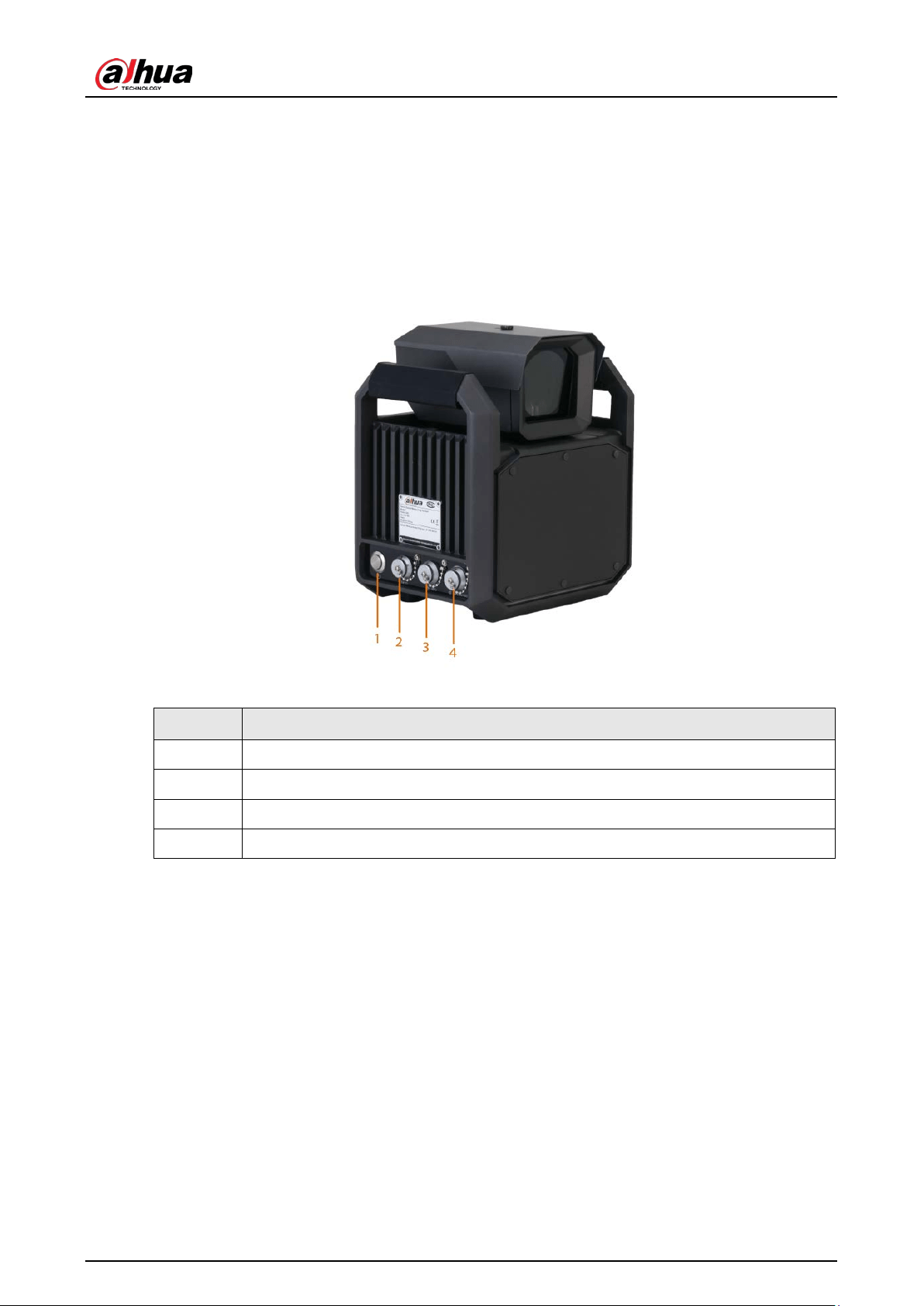
Figure 2-3 Left panel
Table 2-1 Port description
No. Description
1 Power switch
2 24 VDC power input port
3 Ethernet port and USB port
4 RS-232 port and RS-485 port

User's Manual
5
2.3.2 Right Panel
Figure 2-4 Right panel
2.3.3 Front Panel
Figure 2-5 Front panel
User's Manual
6
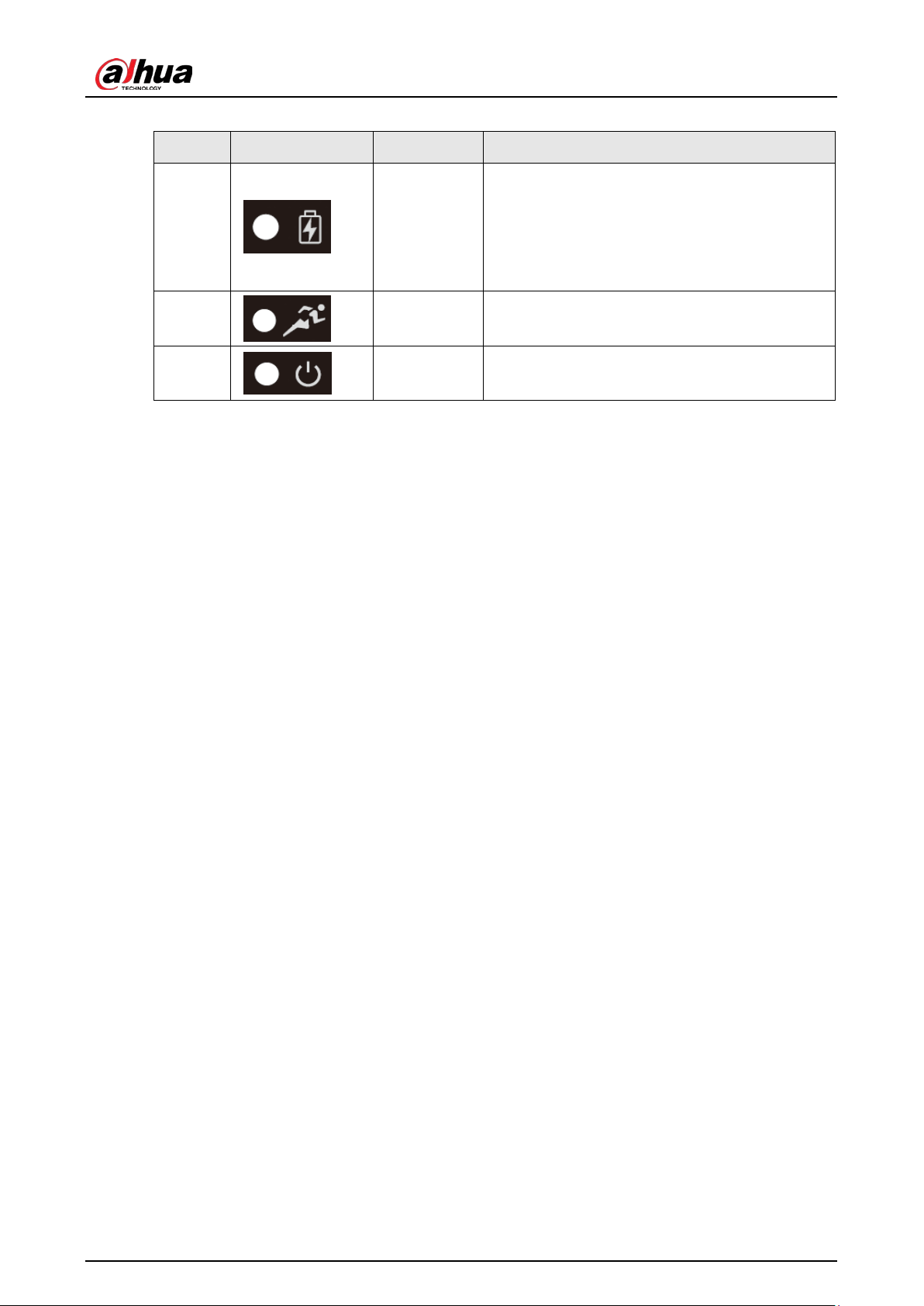
Table 2-2 Indicator light description
No. Icon Color Function
1 Blue
●
Flashing: The lithium battery is being
recharged.
●
On: The recharge is completed.
●
Off: The lithium battery is not being
recharged.
2 Green
●
Flashing: The Device runs normally.
●
Off: The Device stops working.
3 Red
●
On: The Device is on.
●
Off: The Device is off.

User's Manual
7
3 GUI Operations
After you install the Device, you can set parameters on the graphic user interface (GUI) of the Device.
3.1 Introduction
3.1.1 Login
Step 1 Start the Device after it is installed and all wires are connected.
The
Login
dialog box appears.
Step 2 In the
Login
dialog box, enter the username and password, and then tap
Enter
.
Figure 3-1 Login
3.1.2 Main Interface
The main interface of the GUI includes 4 parts:
Live Snapshot
,
Image Manager
,
Config
, and
Manage Info
.

User's Manual
8
Figure 3-2 Main interface
●
Live Snapshot
: You can view real-time video and captured images, rotate the PTZ, and configure
the parameters of zoom & focus and image display.
●
Image Manager
: You can search for and back up captured images.
●
Config
: You can configure various parameters of the Device.
●
Manage Info
: You can view system information, manage users, and search for logs and traffic
flow data.
3.2 Live Snapshot
3.2.1 Live
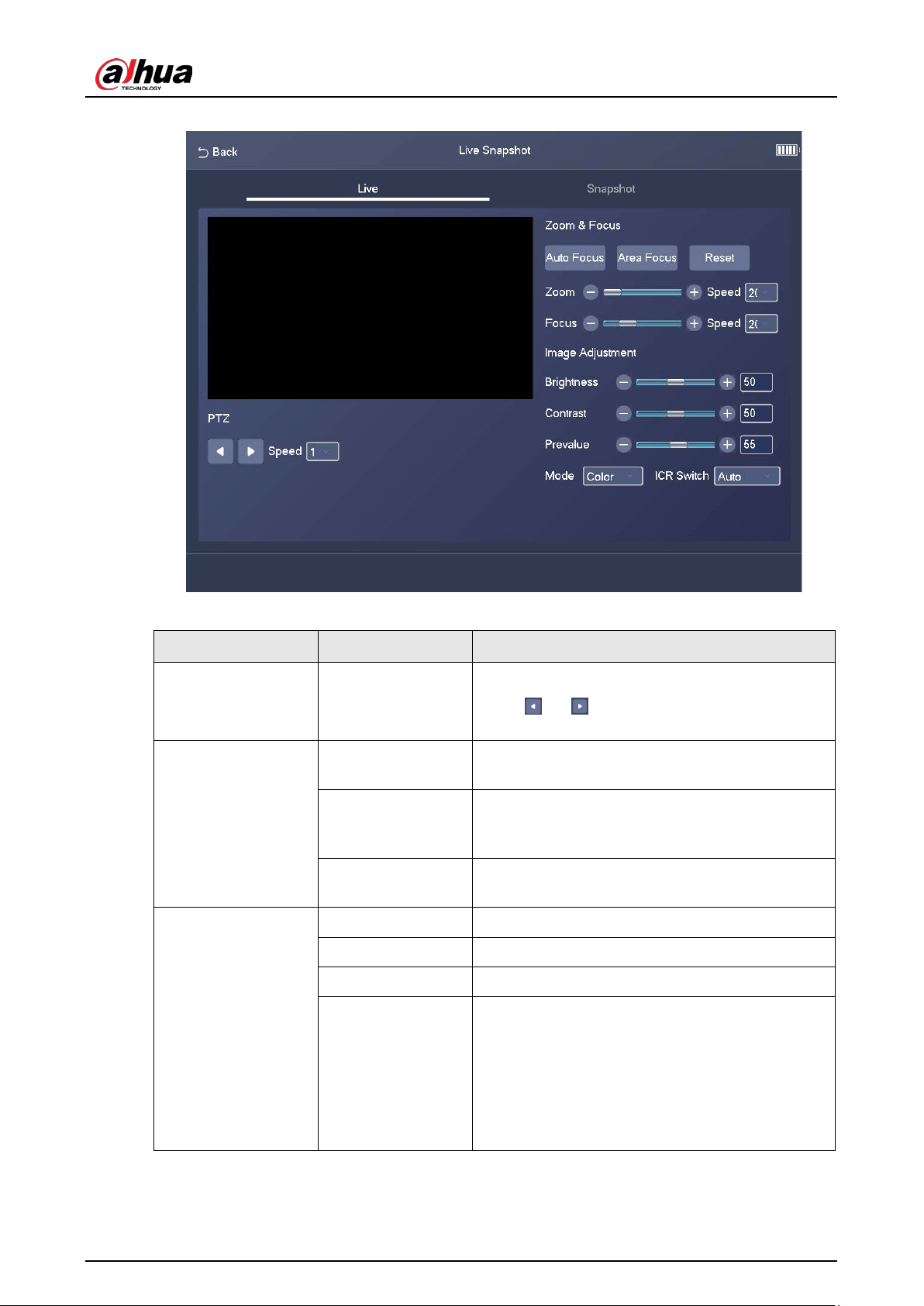
Tap
Live Snapshot
on the main interface, and the
Live
tab appears.
User's Manual
9
Figure 3-3 Live
Table 3-1 Parameters on the Live tab
Module Parameter Description
PTZ Speed
The speed at which the PTZ moves.
Click
or to make the PTZ horizontally
move to the left or right.
Zoom & Focus
Auto Focus
After you tap the icon, the system automatically
focuses the camera.
Area Focus
After you tap the icon and select an area on the
video, the system focuses the camera for the
selected area.
Reset
After you tap the icon, the system resets zoom
and focus parameters.
Image Adjustment
Brightness The brightness of the image.
Contrast The contrast of the image.
Prevalue The preset value of brightness.
Mode
●
Color
: The image is always colored.
●
Auto
: When the brightness is higher than the
preset value, the image automatically
changes to color. When it is below the preset
value, the image changes to black and white.
●
B/W
: The image is always black and white.

User's Manual
10
Module Parameter Description
ICR Switch
●
Auto
: You need to pre-set the brightness in
this mode. When the ambient brightness is
higher than the preset value, the polarizer will
start to work.
●
Polarizer
: The polarizer is always running.
Applicable to scenarios with high brightness.
●
IR Mode
: Applicable to scenarios with low
brightness.
3.2.2 Snapshot
Tap
Live Snapshot
on the main interface, and then tap
Snapshot
. The
Snapshot
tab displays
snapshots and related information including date, plate number, vehicle speed, vehicle type, lane
number, and the number of snapshots on the current day.
Figure 3-4 Snapshot
●
Tap
Previous
to view the previous snapshot.
●
Tap
Next
to view the next snapshot.
●
Tap
Snapshot
to take a snapshot.

User's Manual
11
3.3 Image Manager
3.3.1 Search
Step 1 Tap
Image Manager
on the main interface, and then the
Search
tab appears.
Figure 3-5 Search
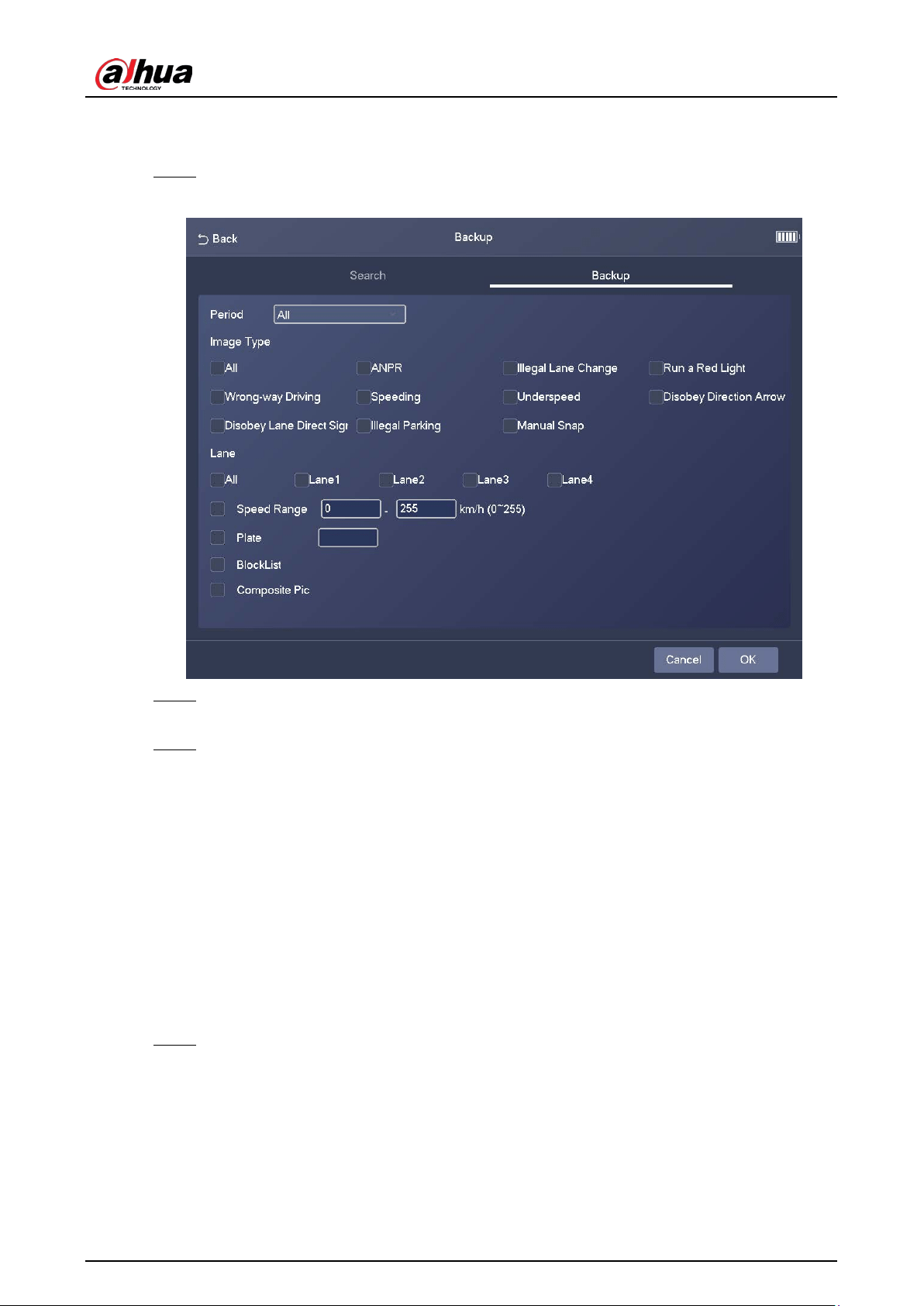
Step 2 Set filter conditions, including period, image type, lane number, speed range, and plate
number.
Step 3 Select
BlockList
and
Composite Pic
as needed, and then tap
OK
.
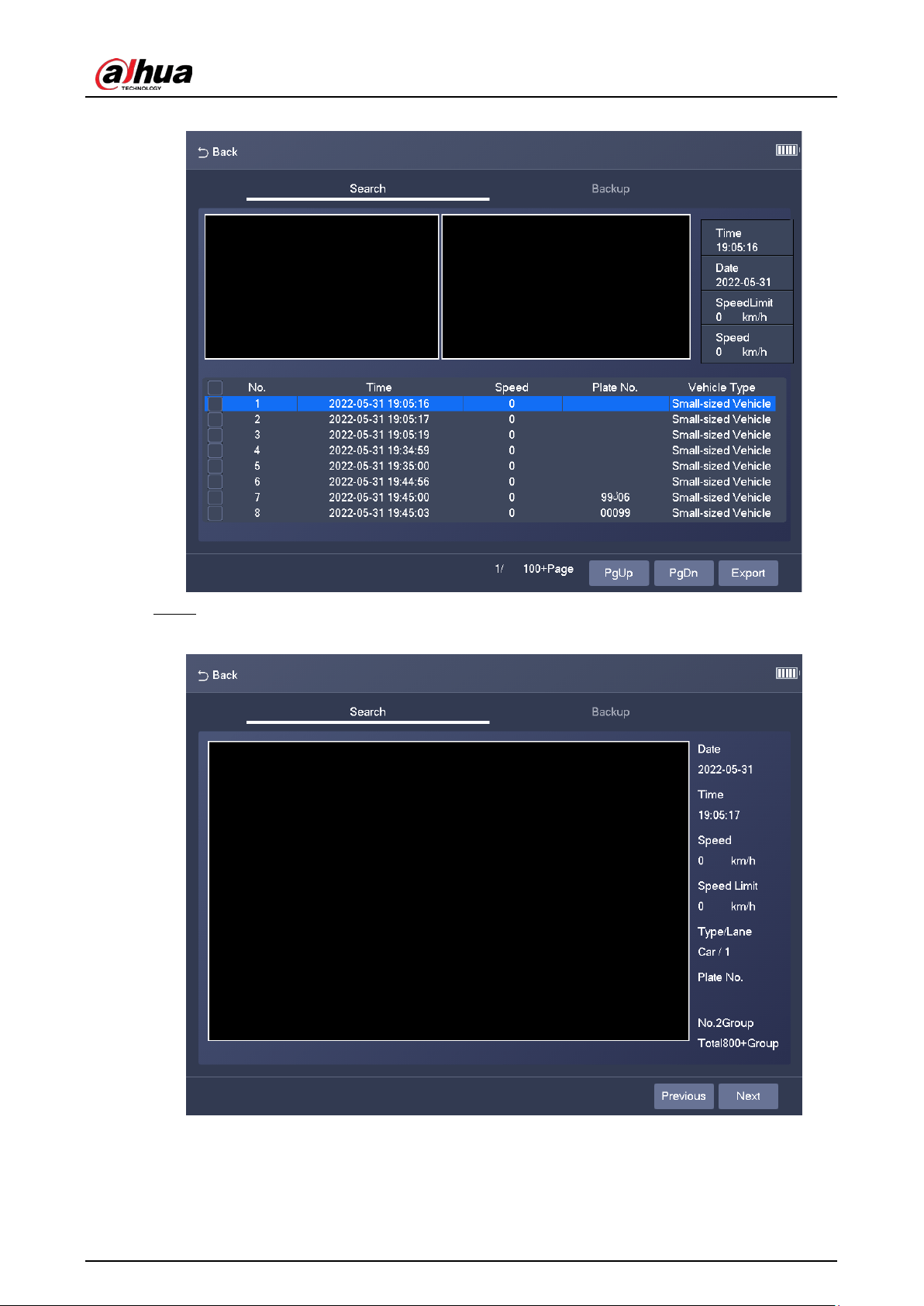
The search results are displayed in a list.
User's Manual
12
Figure 3-6 Search results
Step 4 Tap a search result, and then the related image and its information are displayed.
Figure 3-7 Image details
User's Manual
13
3.3.2 Backup
Step 1 Tap
Image Manager
on the main interface, and then tap
Backup
.
Figure 3-8 Backup
Step 2 Set filter conditions, including period, image type, lane number, speed range, and plate
number.
Step 3 Select
BlockList
and
Composite Pic
as needed, and then tap
OK
.
The images that meet the filter conditions are backed up.
3.4 Config
3.4.1 Intelligent Plan
3.4.1.1 ANPR
Step 1 Select
Config
>
Intelligent Plan
>
ANPR
.

User's Manual
14
Figure 3-9 ANPR
Step 2 Configure the parameters.
Table 3-2 Description of ANPR parameters
Parameter Description
ANPR Enable Specifies whether to enable the ANPR mode.
Snap Mosaic Specifies whether to enable image mosaic.
IFS The frame interval of capturing 2 images.
Step 3 Enable traffic rules for different lanes, and then tap
Save
.
3.4.1.2 E-police
Step 1 Select
Config
>
Intelligent Plan
>
E-police
.

User's Manual
15
Figure 3-10 E-police
Step 2 Configure the parameters.
Table 3-3 Description of E-police parameters
Parameter Description
E-police Enable Specifies whether to enable E-police mode.
Snap Mosaic Specifies whether to enable image mosaic.
Signal Detector
Select
Net Version
to enable the light connected through the
network.
Step 3 Enable rules for different lanes, and then tap
OK
.
3.4.2 AI Settings
3.4.2.1 Scene Config
Step 1 Select
Config
>
AI Settings
>
Scene Config
.
Step 2 Select a lane for which you want to draw lines or regions.

User's Manual
16
Figure 3-11 Scene config
●
Tap
Lane Line
, and then draw a lane line.
●
Tap
Detect Line
, and then draw a detection line.
●
Tap
Region
, and then draw a region.
●
Tap
to delete the lines or regions you have drawn.
Step 3 Tap
Save
.
3.4.2.2 Recognition
Step 1 Select
Config
>
AI Settings
>
Recognition
.
Step 2 Configure the parameters.

User's Manual
17
Figure 3-12 Recognition
Table 3-4 Description of recognition parameters
Parameter Description
Motor Vehicle Supports recognizing vehicle logs and vehicle types.
License Plate Enhancement
Select the checkbox to enhance the effect of license
plate images.
Vehicle Window Enhancement
Select the checkbox to enhance the effect of vehicle
window images.
Track Overlay Select the checkbox to enable
Track Overlay
.
Recognition Mode
●
Only recognize the front plate
: Recognizes and
captures the license plate on the vehicle head.
●
Only recognize the rear plate
: Recognizes and
captures the license plate on the vehicle rear.
●
Front plate priority
: Head plate has the priority.
●
Rear plate priority
: Rear plate has the priority.
3.4.3 Radar Settings
3.4.3.1 Parameters
Step 1 Select
Config
>
Radar Settings
>
Parameters
.

User's Manual
18
Figure 3-13 Parameters
Step 2 Configure the parameters.
Table 3-5 Description of radar parameters
Parameter Description
Width The width of the lane.
Detection Direction The driving direction that triggers detection.
Max Speed The maximum vehicle speed that can be recognized by the radar.
InstallHeight The installation height of the Device.
Working Mode
●
Work Mode
: Use this mode in actual situation.
●
Soak Mode
: Use this mode for product certification.
For Size
After you select the checkbox, the Device can distinguish large
vehicles from small vehicles.
Highest Speed Limit
The allowed highest vehicle speed. If a vehicle runs over the
highest speed, the vehicle is overspeed.
Lowest Speed Limit
The lowest vehicle speed. If a vehicle runs below the lowest speed,
the vehicle is underspeed.
Step 3 Tap
Save
.
3.4.3.2 Radar Visualization
On the
Radar Visualization
tab, you can view the effect of radar detection in real time and modify
some of the radar parameters.
Step 1 Select
Config
>
Radar Settings
>
Radar Visualization
.
Step 2 Adjust the value of angle correction and horizontal offset.

User's Manual
19
Figure 3-14 Radar visualization
Step 3 Tap
Save
.
3.4.3.3 Radar Calibration
Make sure that the camera can capture right targets when the radar sends signals to the camera.
Radar calibration on the GUI is similar to that on the webpage. For details on radar calibration, see
"4.3.1.1 Calibrating the Radar".
Step 1 Select
Config
>
Radar Settings
>
Radar Calibrate
.
Step 2 Set
Area Width
to the width of the actual road.
After you set the width of the calibration area to the width of the actual road, the algorithm
will automatically calibrate the radar.
Step 3 Tap
Save
.
3.4.4 Camera
3.4.4.1 Shutter
You can configure shutter mode, exposure mode, and gain mode.
Step 1 Select
Config
>
Camera
>
Shutter
.

User's Manual
20
Figure 3-15 Shutter
Step 2 Configure the parameters.
Shutter parameters on the GUI are similar to those on the webpage. For details, see Table
4-30.
Step 3 Tap
Save
.
3.4.4.2 Flashing Light Config
You can configure the work mode of the flashing lights and strobes connected to the Device.
Step 1 Select
Config
>
Camera
>
Flashing Light Config
.

User's Manual
21
Figure 3-16 Flashing light config
Step 2 Configure the parameters.
Flashing light parameters on the GUI are similar to those on the webpage. For details on
flashing light parameters, see Table 4-37.
Step 3 Tap
Save
.
3.4.5 OSD Settings
3.4.5.1 OSD Road Section
Select
Config
>
OSD Settings
>
OSD Road Section
. On the
OSD Road Section
tab, you can
configure road information, including road address, road code, road section code, lane number, and
passing direction.

User's Manual
22
Figure 3-17 OSD road section
3.4.5.2 OSD Setting
Select
Config
>
OSD Settings
>
OSD Setting
. On the
OSD Setting
tab, you can configure the font
color and font size of OSD information.
Figure 3-18 OSD setting

User's Manual
23
3.4.5.3 OSD Option
Step 1 Select
Config
>
OSD Settings
>
OSD Option
.
Figure 3-19 OSD information
Step 2 Add OSD options.
●
Tap an OSD option to add it.
●
Select
Select All
to add all OSD information.
Step 3 Tap
Save
.
3.4.6 Blocklist/Allowlist
Set the allowlist and blocklist of vehicles.
●
Allowlist: When vehicles in the allowlist are detected, the Device discards the captured vehicle
violation images without any processing.
●
Blocklist: When vehicles in the blocklist are detected, the Device triggers linked actions.
3.4.6.1 Allowlist
Step 1 Select
Config
>
Blocklist/Allowlist
>
Allowlist
.
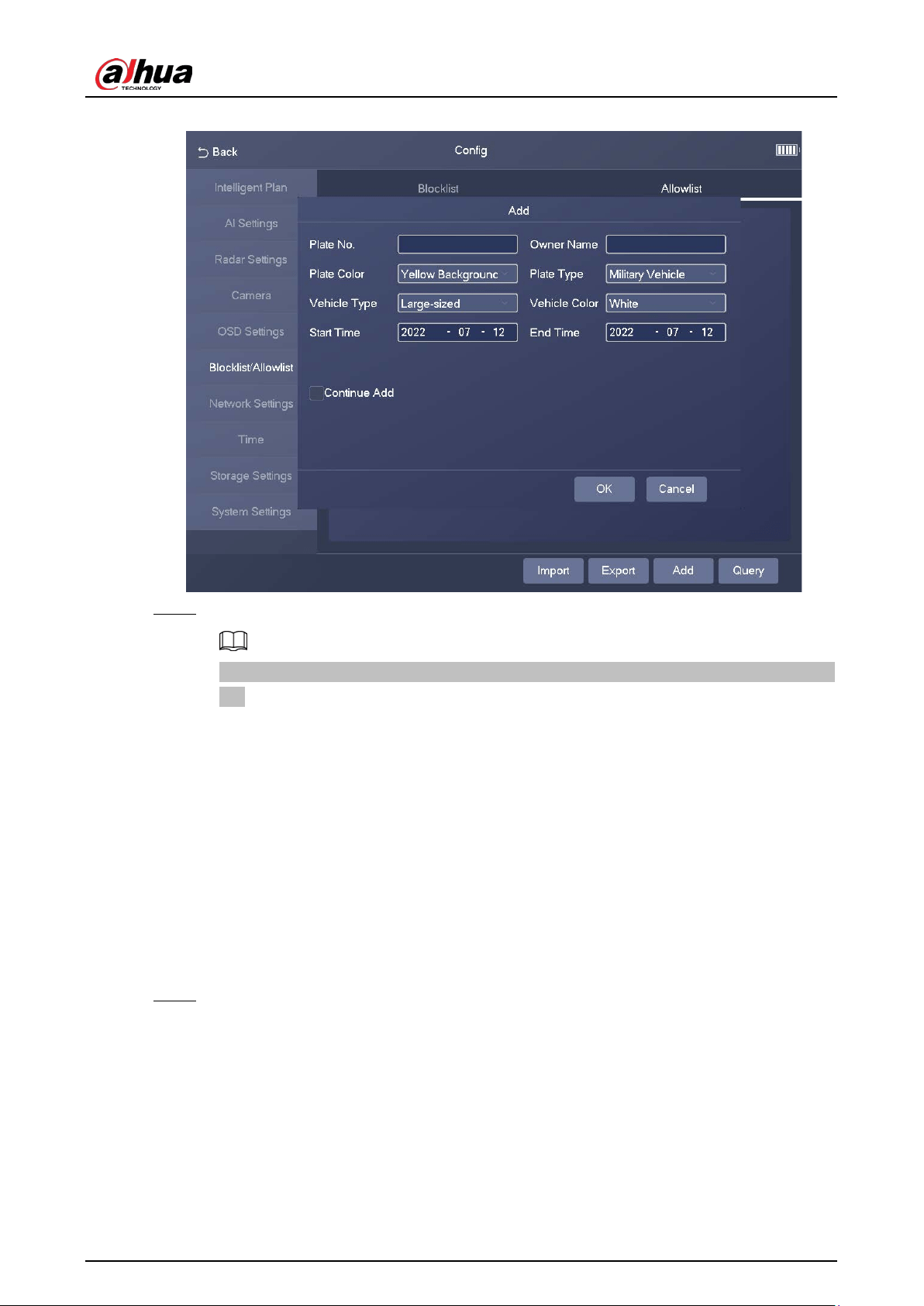
Step 2 Tap
Add
, and then configure the parameters.
User's Manual
24
Figure 3-20 Add
Step 3 Tap
OK
.
Select
Continue Add
, and then you can continue to add more plate numbers after you tap
OK
.
3.4.6.2 Blocklist
Select
Config
>
Blocklist/Allowlist
>
Blocklist
. The setting of a blocklist is similar to that of an
allowlist. For details, see "3.4.6.1 Allowlist".
3.4.7 Network Settings
3.4.7.1 Network Settings
Step 1 Select
Config
>
Network Settings
>
Network Settings
.

User's Manual
25
Figure 3-21 Network settings
Step 2 Tap to enable Wi-Fi.
●
SSID
: the name of the Wi-Fi network.
●
wifi Password
: the password of the Wi-Fi network.
Step 3 Configure the network settings, including host IP address, subnet mask, gateway, and DNS
server.
Step 4 Tap
Save
.
3.4.7.2 Auto Register
Step 1 Select
Config
>
Network Settings
>
AutoRegister
.

User's Manual
26
Figure 3-22 Auto register
Step 2 Tap to enable the auto register function.
Step 3 Enter the IP address of server that needs to be registered, and also the port for auto
registration.
Step 4 Enter the
Sub-Device ID
, which is the device ID assigned by the server for auto registration.
Make sure that there are no repeated device IPs.
Step 5 Tap
Save
.
3.4.7.3 3G/4G Settings
Step 1 Select
Config
>
Network Settings
>
3G/4G Settings
.
User's Manual
27
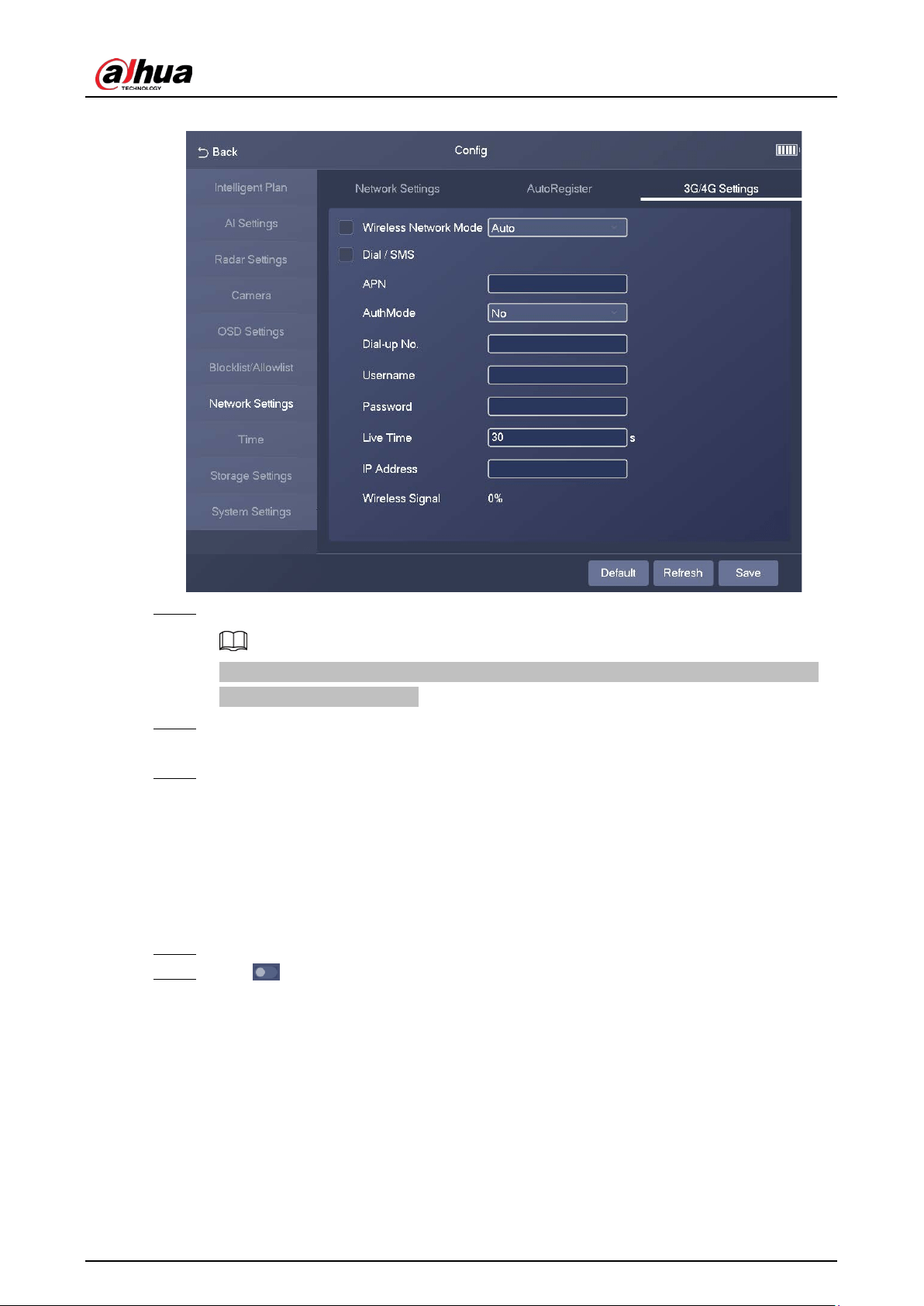
Figure 3-23 3G/4G settings
Step 2 Select
Wireless Network Mode
.
If you set
Wireless Network Mode
to
Auto
, the wireless network automatically changes
based on the actual situation.
Step 3 Select
Dial/SMS
, and then configure APN information, such as APN, dial number,
username, and password.
Step 4 Tap
Save
.
3.4.8 Time
3.4.8.1 NTP Setting
Step 1 Select
Config
>
Time
>
NTP Setting
.
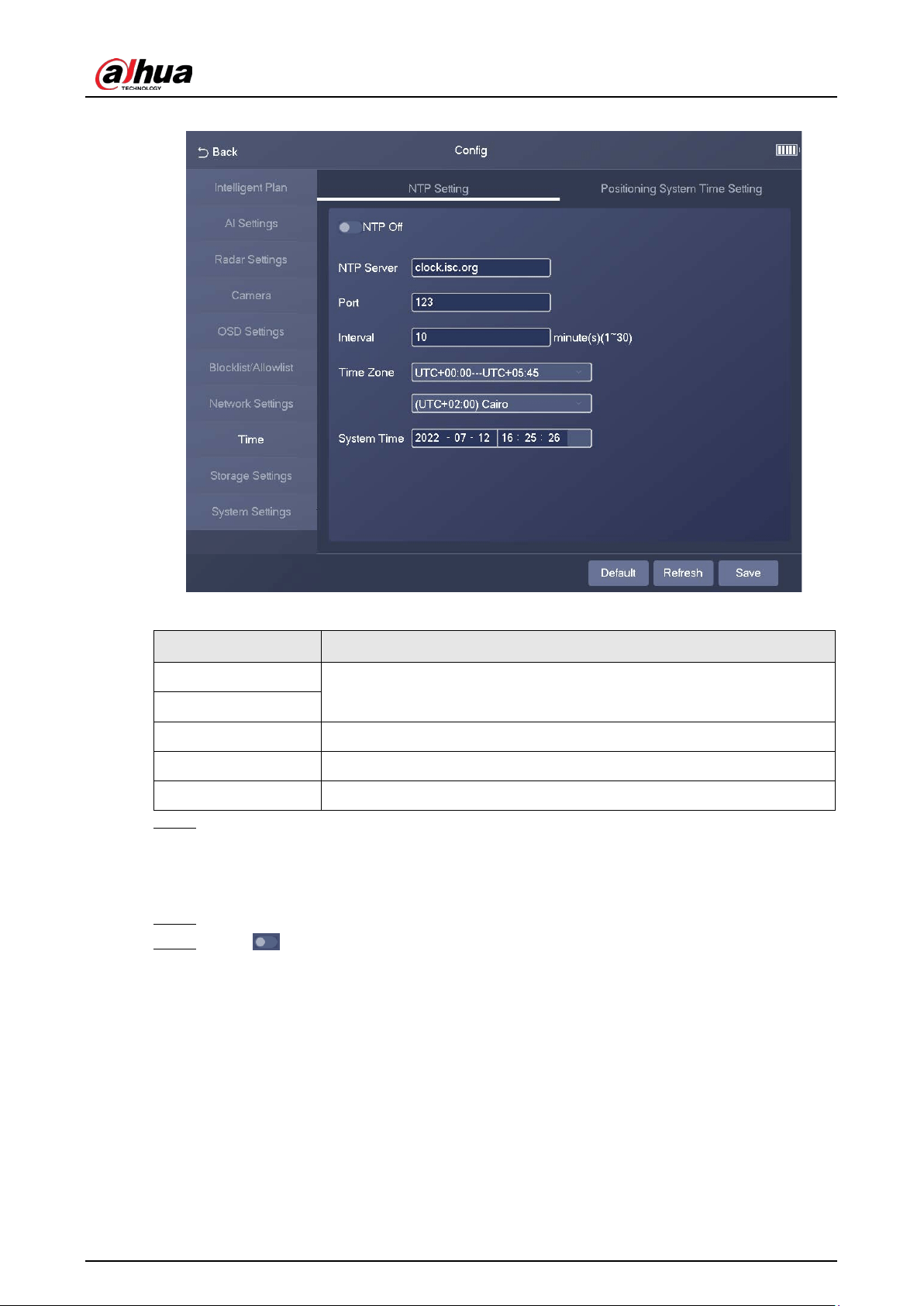
Step 2 Tap , and then configure the parameters.
User's Manual
28
Figure 3-24 NTP setting
Table 3-6 Description of NTP parameters
Parameter Description
NTP Server
The IP address and the port number of NTP server.
Port
Interval The time synchronization interval of the Device and the NTP or satellite.
Time Zone The time zone where the Device is located.
System Time The current time of the Device.
Step 3 Tap
Save
.
3.4.8.2 Positioning System Time Setting
Step 1 Select
Config
>
Time
>
Positioning System Time Setting
.
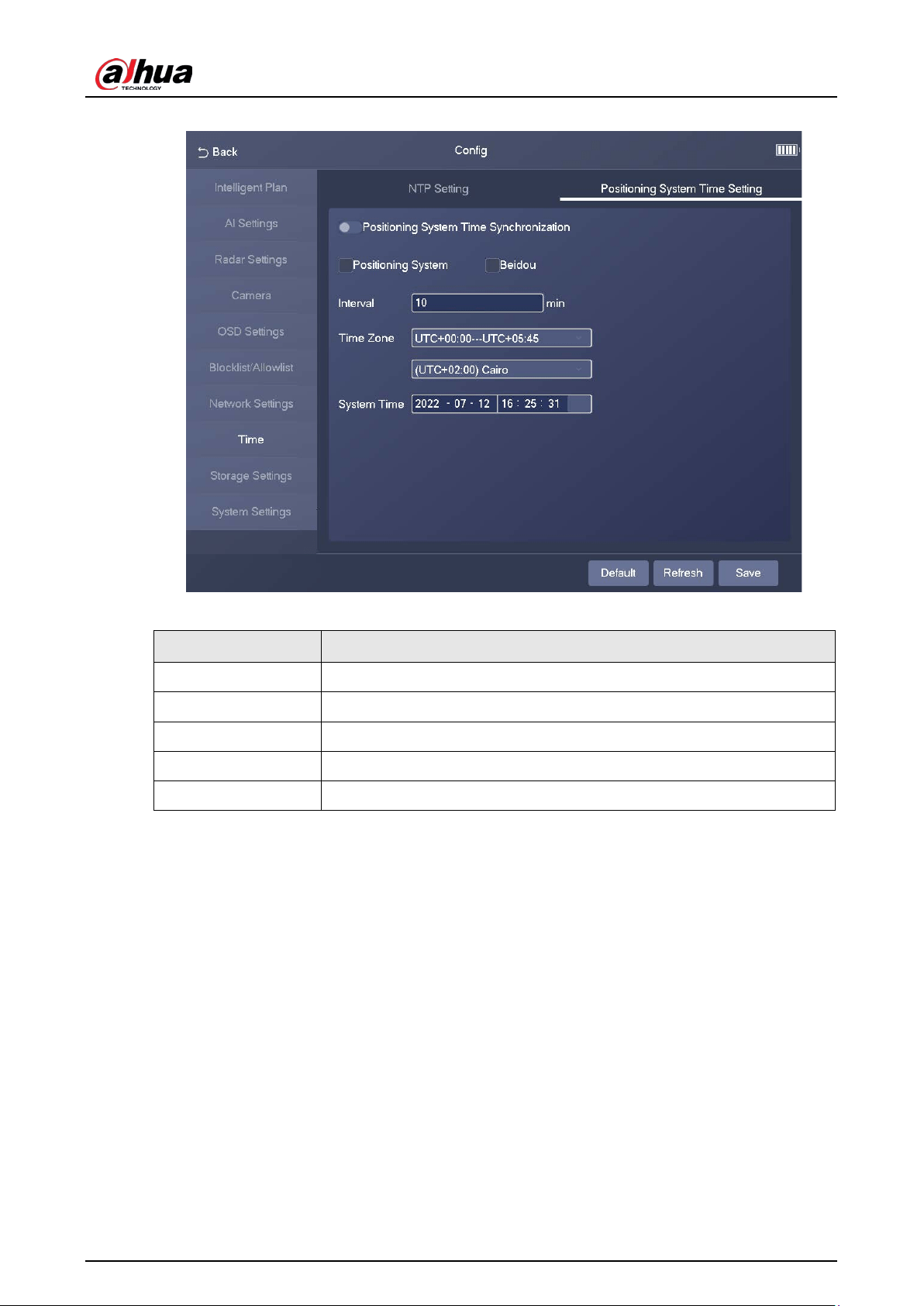
Step 2 Tap , and then configure the parameters.
User's Manual
29
Figure 3-25 Positioning system time setting
Table 3-7 Description of synchronization parameters
Parameter Description
Positioning System Select the checkbox to enable GPS positioning.
Beidou Select the checkbox to enable Beidou positioning.
Interval The time synchronization interval of the Device and the NTP or satellite.
Time Zone The time zone where the Device is located.
System Time The current time of the Device.
3.4.9 Storage Settings
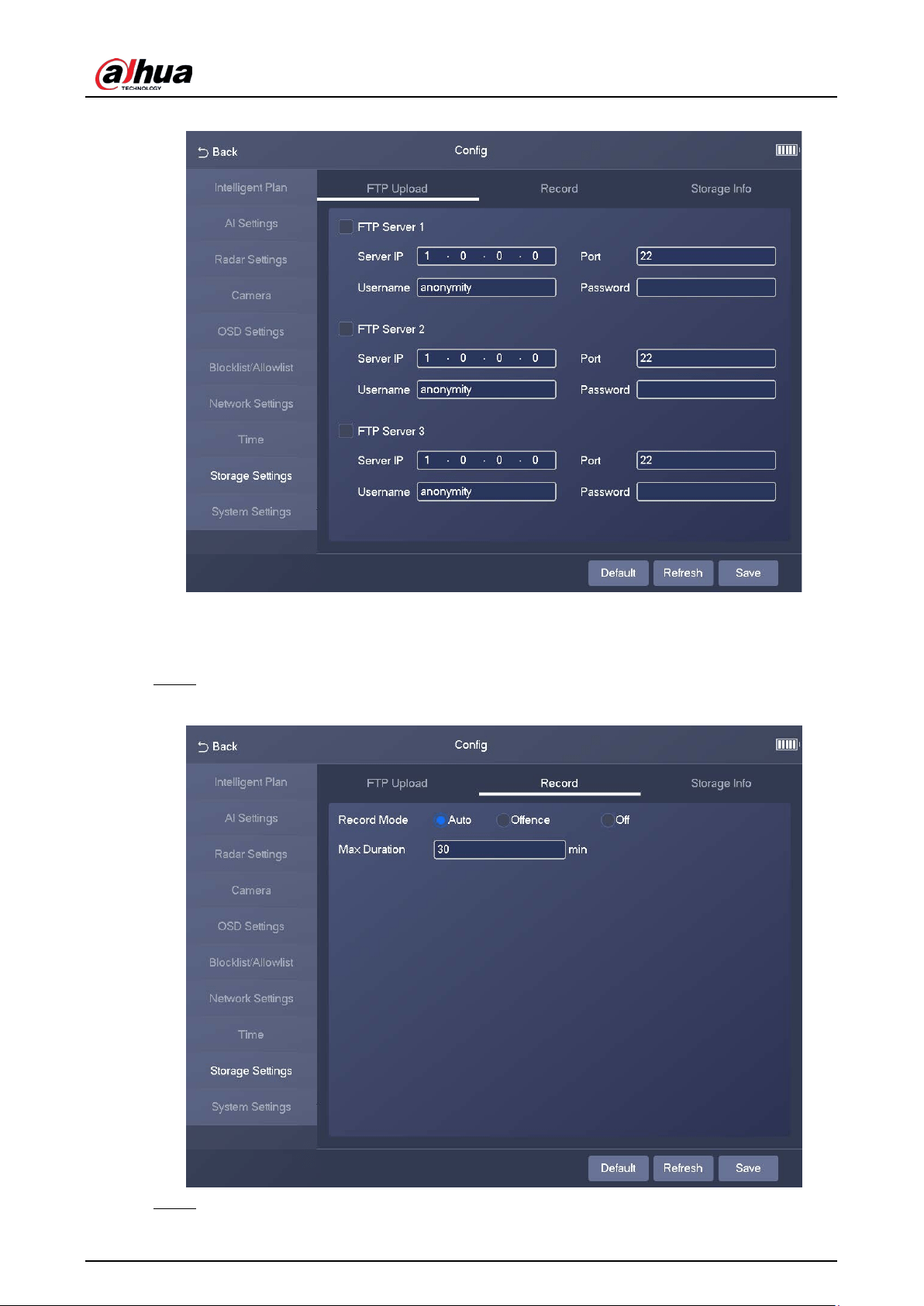
3.4.9.1 FTP Upload
Select
Config
>
Storage Settings
>
FTP Upload
. On the
FTP Upload
tab, you can configure
multiple FTP servers.
User's Manual
30
Figure 3-26 FTP server
3.4.9.2 Record
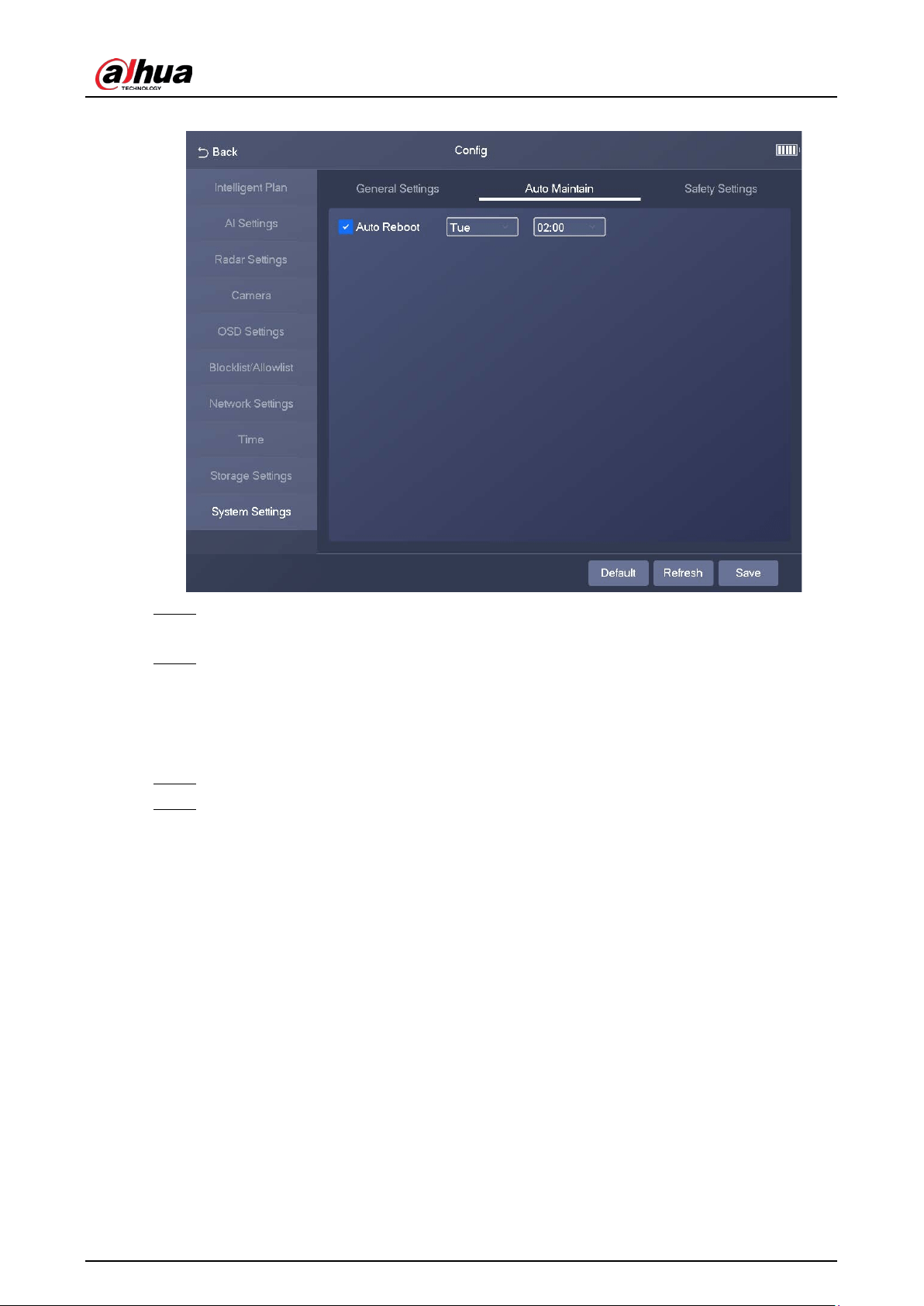
Step 1 Select
Config
>
Storage Settings
>
Record
.
Figure 3-27 Record
Step 2 Select the record mode.

User's Manual
31
●
Auto
: Record videos continuously
●
Offence
: Record videos only when a traffic violation event is detected.
●
Off
: Do not record videos.
Step 3 Set the maximum duration of recorded videos.
Step 4 Tap
Save
.
3.4.9.3 Storage Info
Select
Config
>
Storage Settings
>
Storage Info
. On the
Storage Info
tab, you can view storage
information, including storage medium, storage space, storage status, and the total number of
images.
Figure 3-28 Storage info
3.4.10 System Settings
3.4.10.1 General Settings
Step 1 Select
Config
>
System Settings
>
General Settings
.

User's Manual
32
Figure 3-29 General settings
Step 2 Confgure the parameters.
Select
On
to enable auto login.
Step 3 Tap
Save
.
3.4.10.2 Auto Maintain
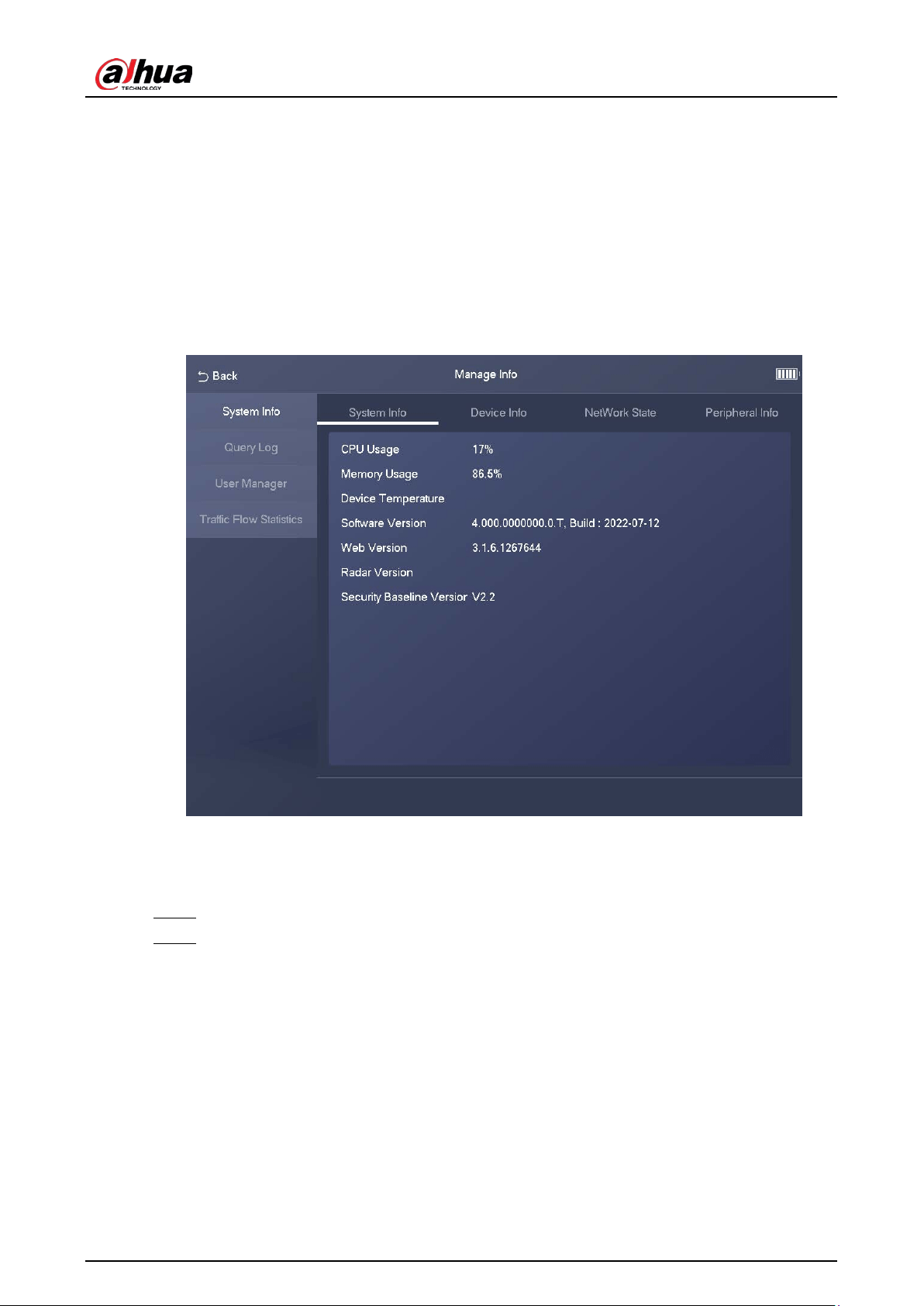
Step 1 Select
Config
>
System Settings
>
Auto Maintain
.
User's Manual
33
Figure 3-30 Auto maintain
Step 2 Select
Auto Reboot
, and then configure the day and time. The system will automatically
restart at the defined day and time.
Step 3 Tap
Save
.
3.4.10.3 Safety Settings
You can enable multiple system services to secure network safety.
Step 1 Select
Config
>
System Settings
>
Safety Settings
.
Step 2 Enable the services.

User's Manual
34
Figure 3-31 System service
Table 3-8 Description of system service parameters
Parameter Description
SSH
Secure Shell (SSH) is a cryptographic network protocol for operating
network services securely over an unsecure network. It is a method
for secure remote login, providing secure access for users.
Multicast/Broadcast
Search
Multicast identifies logical groups of computers group members.
This allows a single message to be sent to the group. Broadcast
allows all devices on the same network segment to see the same
message.
Password Reset Enable it so that you can reset the password.
CGI
Select the
Enable
checkbox to enable Common Gateway Interface
(CGI) service.
Audio/Video Trans
Encryption
Enable this function to encrypt stream transmitted through private
protocol.
●
Make sure that the matched device or software supports the
video decryption function.
●
We recommend enabling the encryption service to avoid data
leak.
Private Protocol Authen
Mode
Security Mode
is recommended.
Step 3 Tap
Save
.
User's Manual
35
3.5 Manage Info
3.5.1 System Info
Tap
Manage Info
, and then the
System Info
page appears. On the
System Info
page, you can view
system information, device information, network status, and peripheral information on different
tabs.
Figure 3-32 System information
3.5.2 Log Search
Step 1 Select
Config
>
Query Log
.
Step 2 Set search conditions, and the tap
Search
.
The search results are displayed in a list.

User's Manual
36
Figure 3-33 Log search
3.5.3 User Manager
Step 1 Select
Config
>
User Manager
.
Step 2 Tap
Add User
, and then configure user information, including username, password, group,
and permissions.

User's Manual
37
Figure 3-34 Add a user
Step 3 Tap
OK
.
3.5.4 Traffic Flow Statistics
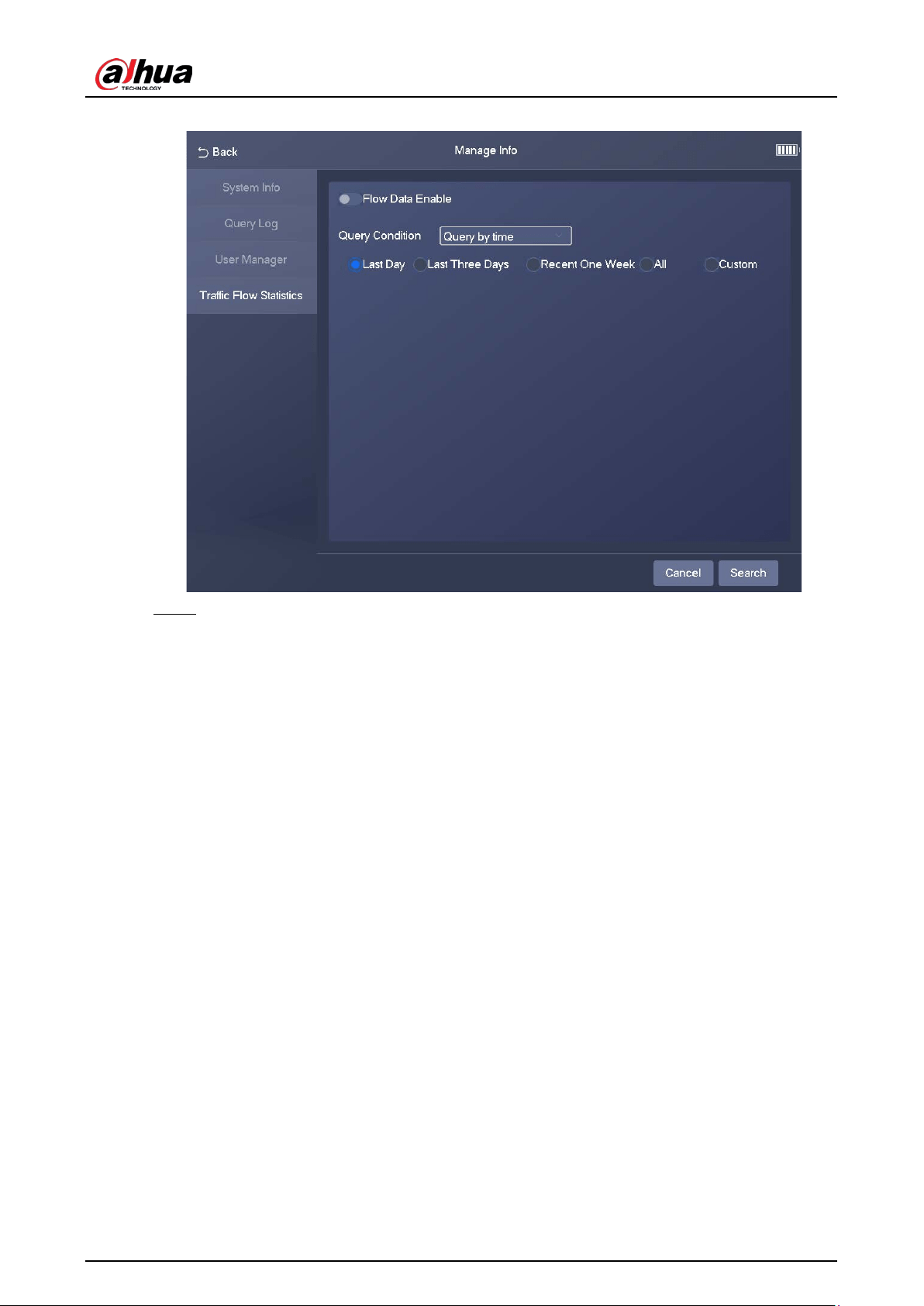
Step 1 Select
Manage Info
>
Traffic Flow Statistics
.
Step 2 Tap to enable flow data collection.
User's Manual
38
Figure 3-35 Traffic flow statistics
Step 3 Set search conditions, and then tap
Search
to search for traffic flow data.

User's Manual
39
4 Webpage Operations
4.1 Introduction
Before you use the webpage of the Device, you must initialize the Device and configure its settings
on the webpage. The following sections introduce the initialization and webpage functions of the
Device.
The actual webpage might vary depending on the model you purchased and the version of software.
The figures in this manual are only for reference.
4.1.1 Initialization
The Device is delivered in the uninitialized state. You must initialize the Device before you can use
the webpage of the Device.
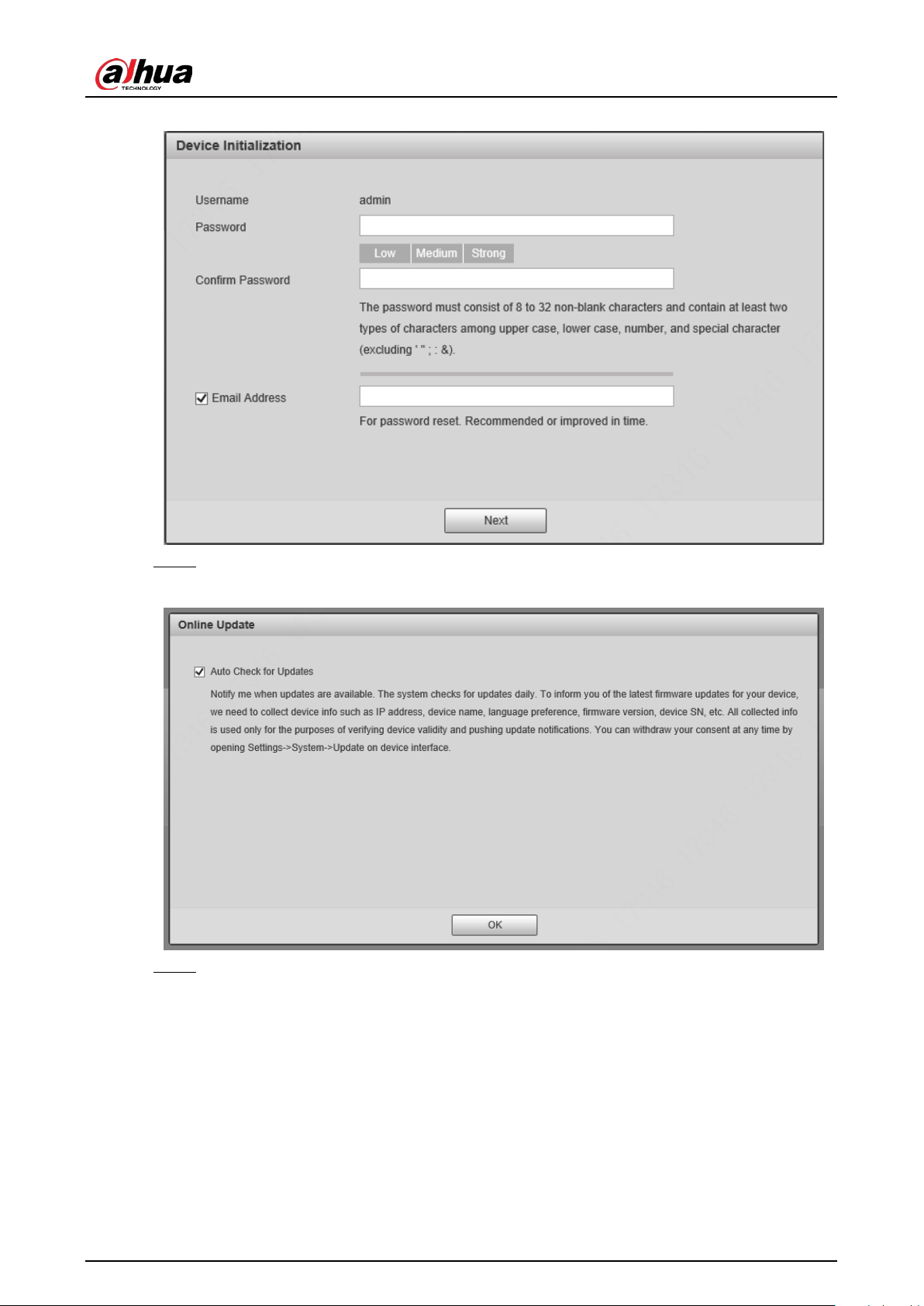
Step 1 Use ping X.X.X.X (IP address of the Device) command to check whether the network is
connected.
Step 2 Open a browser, enter the IP address of the Device in the address bar, and then press the
Enter key.
Make sure that the IP address of the PC and that of the Device are on the same network
segment.
Step 3 In the
Device Initialization
dialog box, enter your new password.
Step 4 Select
Email Address
, and then enter your email address. This helps you reset your
password when you forgot your password.
Step 5 Click
Next
.
User's Manual
40
Figure 4-1 Device initialization
Step 6 In the
Online Upgrade
dialog box, select
Auto-check for updates
and click
Confirm
.
Figure 4-2 Online upgrade
Step 7 In the
Configuration Wizard
dialog box, set the parameters as needed, and then click
Next Frame
.

User's Manual
41
Figure 4-3 Configuration wizard (1)
Step 8 Set
IP Address
,
Subnet Mask
, and
Default Gateway
, and then click
Complete
.
Figure 4-4 Configuration wizard (2)
Step 9 For first-time login, click
Please click here to download and install the plug-in
, and then
install the plug-in.

User's Manual
42
Figure 4-5 Install the plug-in
4.1.2 Webpage Functions
Figure 4-6 Top navigation bar
Table 4-1 Webpage functions
Function Description
Live
You can view real-time video and image, record videos and capture images,
and configure video play and image settings. For details, see "4.2 Live".
Radar
You can configure radar settings and debug detection results in a visualized
manner. For details, see "4.3 Radar".
Search You can search for vehicles and recorded videos. For details, see "4.4 Search".
Setting
You can configure intelligent traffic rules, basic information of the Device,
network settings, event management, storage management, and system
management. For details, see "4.5 Setting".
Alarm
You can configure how the Device responds when alarms occur. For details,
see "4.6 Alarm".
Logout Log out of the webpage.
The following table describes the common buttons on the webpage.
Table 4-2 Common buttons
Button Description
Restores the parameters to default values.
Restores the parameters to the values saved last time.
Saves the current parameter values.

User's Manual
43
4.2 Live
The
Live
page is displayed after you log in to the webpage. On this page, you can view real-time
video and image, captured license plate, and event details. In addition, you can take snapshots and
perform other operations.
Figure 4-7 Live page
Table 4-3 Description of the Live page
No. Description
1 Video stream
2 Live view
3 Plate number recognition
4 Plate snapshot
5 Functions on the Live page
6 Vehicle snapshot
7 Event list
4.2.1 Video Stream
●
Main Stream
: Make sure that the Device can record videos and carry out video surveillance when
the network is normal. You can configure main stream resolution within the supported range of
the Device.
●
Sub Stream
: Replaces the main stream to carry out video surveillance and reduces the network
bandwidth usage when network bandwidth is insufficient.
●
Protocol
: The video surveillance protocol. Currently, the system supports only
TCP
.
●
Smoothness Adjustment
: The fluency of viewing the real-time video. The fluency can be set to
High
,
Middle
,
Low
, or
Default
(recommended).

User's Manual
44
4.2.2 Live View
Displays the real-time video captured by the Device. You can click the icons to change the display
mode of live view.
●
: After you click the icon,
Original
and
Adaptive
appear.
◇
Original
: Displays the video in its original size.
◇
Adaptive
: Displays the video in a self-adaptive window.
●
: After you click the icon, a big window appears. To exit the big window, click the icon again.
●
: After you click the icon, the image adjustment window appears on the right and the icon
becomes . To close the image adjustment window, click .
●
: After you click the icon, the video is stretched to fill the window and the icon becomes .
To switch back to the original size, click .
●
: After you click the icon, smart track detection is enabled. Number plate, vehicle bounding
box, and other smart tracking information will be displayed in the video.
●
: After you click the icon, the video is displayed in full screen. To exit the full screen,
double-click the screen.
Figure 4-8 Image adjustment window
Table 4-4 Image adjustment
Icon Description
Adjust the image brightness. Change the value when the image is too bright or
too dark. The range is from 0 to 128 (64 by default).
Adjust the image contrast. Change the value when the image brightness is
suitable, but contrast is not enough. The range is from 0 to 128 (64 by default).
Adjust the image hue. For example, change red to blue. The default value is
made by the light sensor. Generally, you do not need to adjust the value. The
range is from 0 to 128 (64 by default).
Adjust the vividness of colors, without influencing the overall brightness of the
image. The range is from 0 to 128 (64 by default).
Click the icon to reset brightness, contrast, saturation, and hue to their default
values.
In the image adjustment window, you can only adjust image brightness, contrast, hue, and
saturation of local webpage. To adjust system brightness, contrast, hue and saturation, go to
Setting
>
Camera
>
Image
>
General
.
User's Manual
45
4.2.3 Plate Number Recognition
Displays the plate number recognized by the Device in real-time when a vehicle passes.
4.2.4 Plate Snapshot
Displays the snapshot of a license plate when a vehicle passes.
4.2.5 Functions on the Live Page
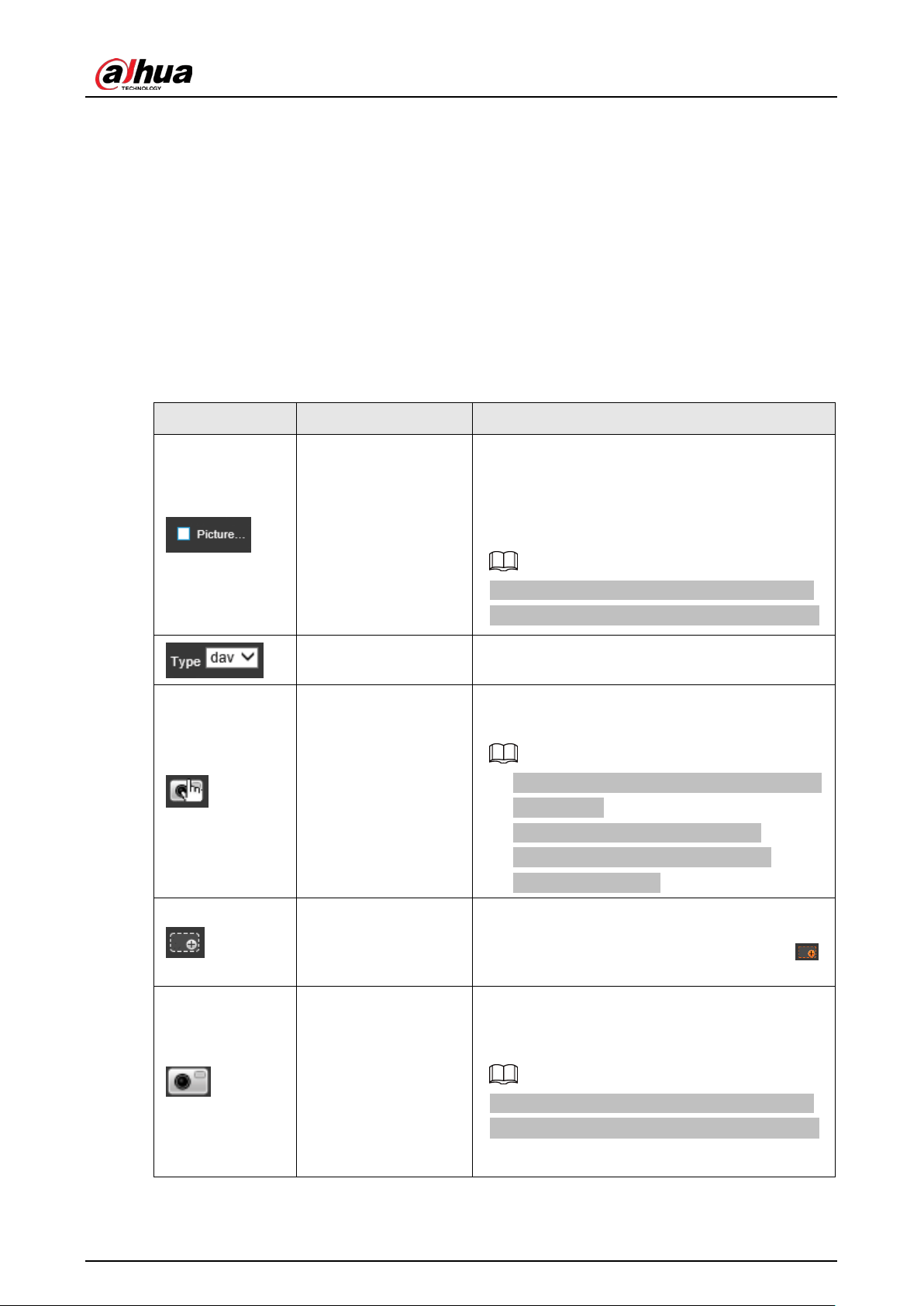
Table 4-5 Description of functions on the Live page
Icon Name Description
Picture Preview
After you select the checkbox, the Device
automatically takes a snapshot when a vehicle
passes. The snapshots are displayed next to the
real-time video, and related information is
displayed at the lower part of the page.
To configure the storage path of the snapshots,
go to
Setting
>
Storage
>
Storage Path
>
Path
.
Type
Set the format of the recorded videos (
dav
by
default).
Manual Snapshot
After you click the icon, the Device takes a
snapshot.
●
To use the function, you must enable
Picture
Preview
first.
●
To configure the storage path of the
snapshots, go to
Setting
>
Storage
>
Storage Path
>
Path
.
Digital Zoom
After you click the icon, select an area in the video
window. Then, the selected area is zoomed into.
You can right-click the video window or click
to disable the function.
Snapshot
After you click the icon, the Device takes a
snapshot and the snapshot is displayed on your
computer.
To configure the storage path of the snapshots,
go to
Setting
>
Storage
>
Storage Path
>
Path
.

User's Manual
46
Icon Name Description
Video
After you click the icon, the Device starts
recording. To stop recording, click
.
●
The Device will keep recording until the
webpage is closed or you log out of the
webpage if the recording is not manually
stopped.
●
To configure the storage path of recorded
videos, go to
Setting
>
Storage
>
Storage
Path
>
Path
.
Zoom & Focus
After you click the icon, you can configure zoom
and focus parameters.
Aux Focus
After you click the icon, you can view
AF Peak
and
AF Max
in the real-time video. The closer the
values of the parameters, the better the focus
effect.
4.2.6 Vehicle Snapshot
Select
Picture Preview
, and then snapshots are displayed when vehicles pass.
4.2.7 Event List
Select
Picture Preview
, and then event information is displayed, including event types, capture time,
lanes, plate numbers, vehicle colors, speeds, vehicle signs, and vehicle types.
4.3 Radar
4.3.1 Radar Settings
4.3.1.1 Calibrating the Radar
Make sure that the camera can capture the right targets when the radar sends signals to the camera.
Step 1 Select
Radar
>
Radar Settings
.
Step 2 In the
Calibration Config
section, click
Calibrate by Radar and Video
.
Step 3 Select
Splicing Calibration
.
You can also manually calibrate the radar without enabling splicing calibration. In this case,
you need to manually measure the distance between the drawn calibration area and the
camera.

User's Manual
47
Figure 4-9 Radar calibration
Step 4 Calibrate the radar.
●
Manual calibration
Manually set the coordinates of the calibration area and the trigger distance.
1. Select
Manual
from the
Calibration Mode
drop-down list, and then adjust the
calibration area on the image based on the on-site measurement.
You can also click
, and then draw a calibration area on the image.
2. Click
Send Coordinates
to set the coordinates of the calibration area.
3. In the
Snapshot Setting
section, click
Snapshot Triggering Line
, and then draw
lines on each lane.
The distance between the trigger line and the camera is displayed at the bottom.
4. Click
Calibrate
, and then click
Save
.
●
Automatic calibration
Set the width of the calibration area to the width of the actual road. Then, the algorithm
will automatically calibrate the radar.
1. Select
Manual Assistance
from the
Calibration Mode
drop-down list.
2. Set
Area Width
to the width of the actual road.
3. Click
Calibrate
, and then click
Save
.
Step 5 Click
Back
.
4.3.1.2 Configuring General Information
Set the parameters of the radar and the lanes.
Step 1 Select
Radar
>
Radar Settings
.
The radar information is displayed on the top of the page, and you can adjust the
sensitivity of the radar.
We recommend you leave the sensitivity as default to avoid false detections.
Step 2 In the
Road Information Config
section, set the lane width and direction based on the
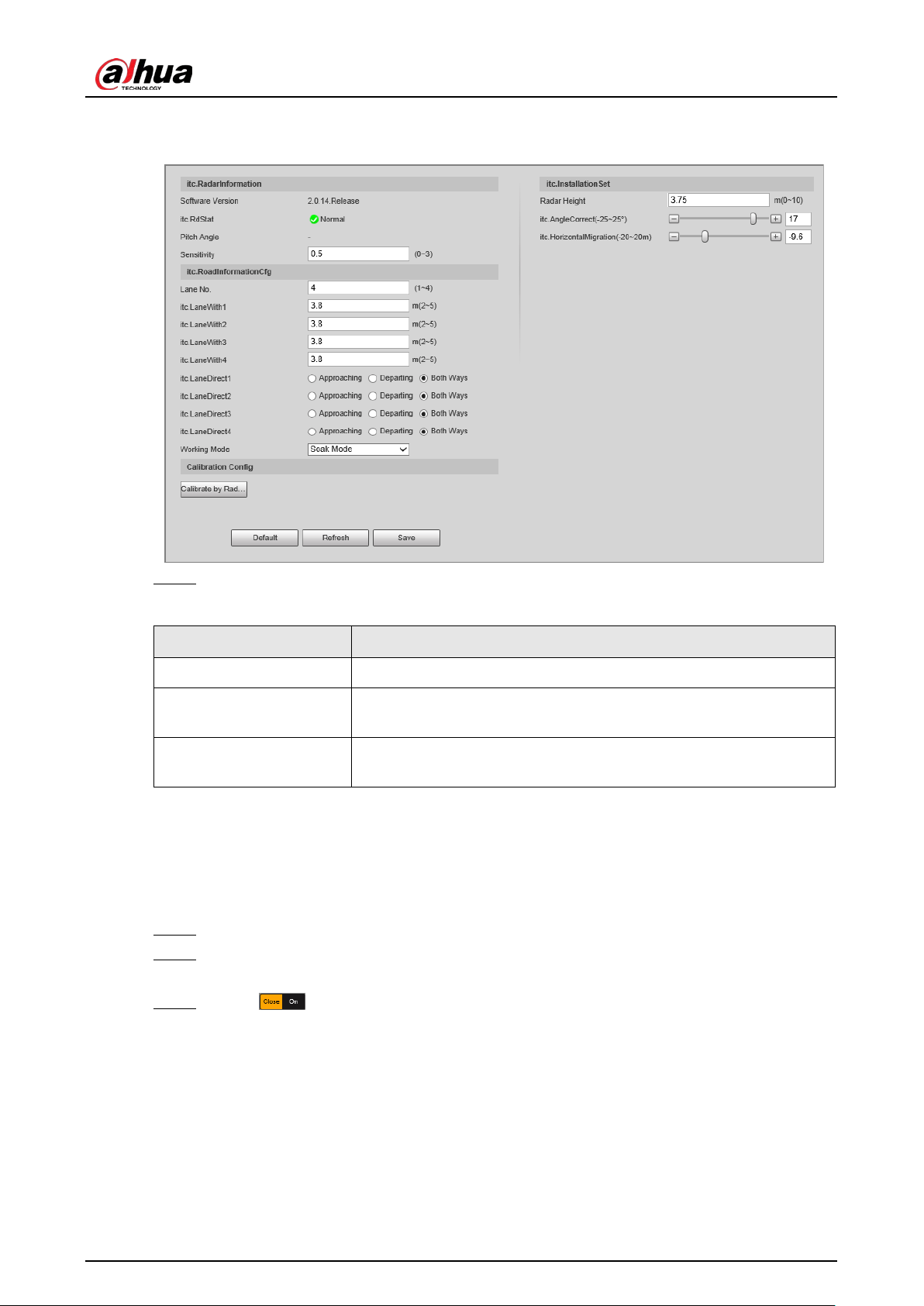
User's Manual
48
actual situation.
Figure 4-10 Radar and lane information
Step 3 In the
Installation Settings
section, set the installation information of the Device.
Table 4-6 Installation information
Parameter Description
Radar Height The installation height of the Device.
Angle Correction
The installation angle of the Device. Make sure that the angle is the
same as that in
Radar Visualization
.
Horizontal Offset
The horizontal offset of the Device. Make sure that the horizontal
offset is the same as that in
Radar Visualization
.
4.3.2 Radar Visualization
On the
Radar Visualization
tab, you can view the effect of radar detection in real time and modify
some of the radar parameters.
Step 1 Select
Radar
>
Radar Visualization
.
Step 2 Adjust the value of angle correction and horizontal offset.
You can click the image at the lower-right corner to check correction standards.
Step 3 Click
to display the trajectory of detected targets.

User's Manual
49
Figure 4-11 Radar visualization
Step 4 Click to view the detection points of the radar on targets.
If a target is large and the detection sensitivity is set high, the radar might recognize it as 2
targets.
4.4 Search
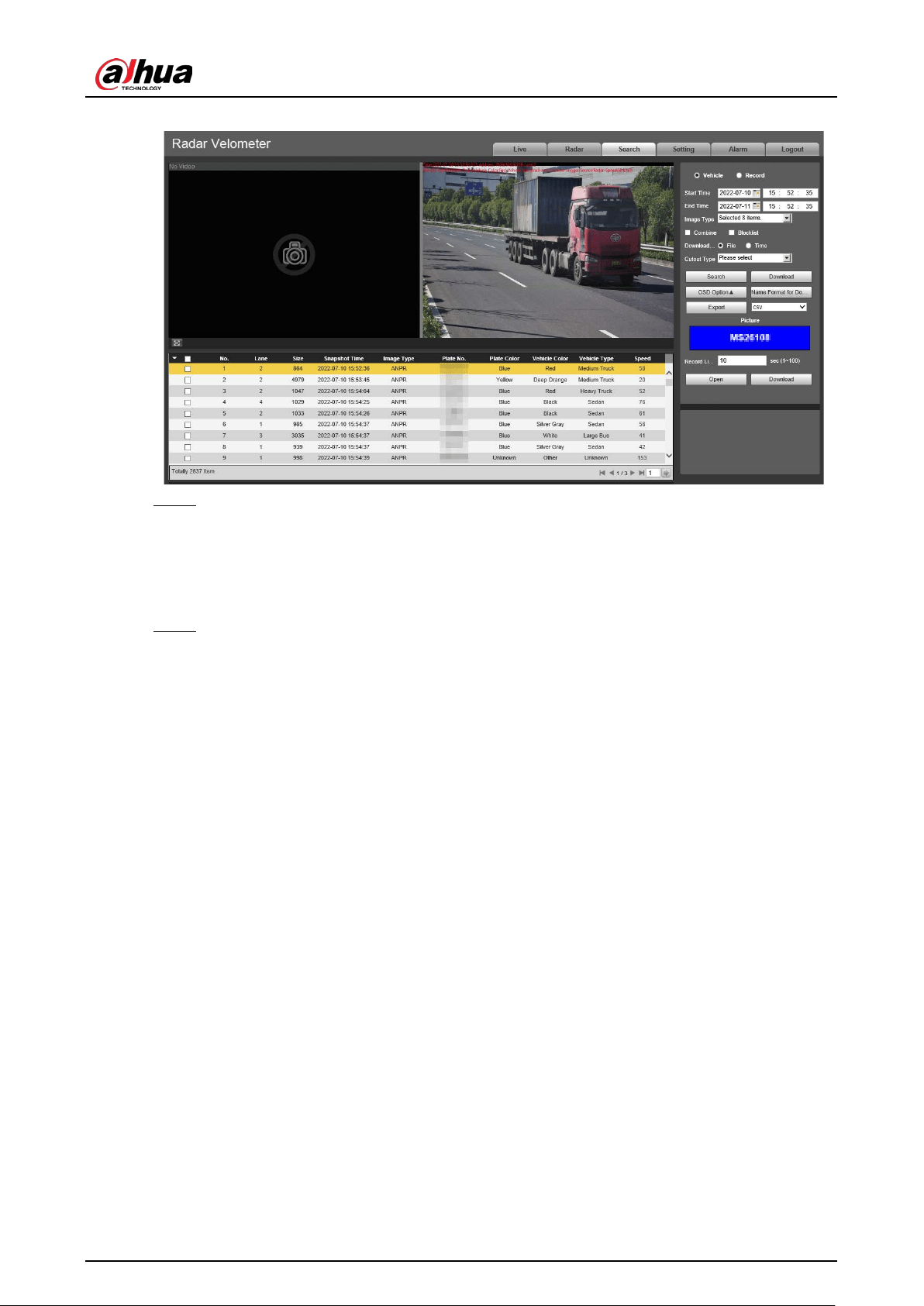
You can set search conditions to search for vehicles or recorded videos, and set file or time as
download type to download related data.
4.4.1 Searching for Vehicles
Step 1 Click
Search
, and then select
Vehicles
.
Step 2 Set search conditions.
●
Set basic parameters such as start time, end time, and image type.
●
Click
OSD Option
, and then select more options as needed.
●
Select whether to only search for composed images and vehicles on the blocklist.
Step 3 Click
Search
.
You can click a record on the list to view the image.
User's Manual
50
Figure 4-12 Search for vehicles
Step 4 Select the download type, and then click
Download
.
●
File
: Select one or more images to download from the search results.
●
Time
: Download all images captured during the defined period.
●
Cutout Type
: Select the cutout type of images to be downloaded. When downloading
images, the related cutout image will be separated and downloaded together.
Step 5 Click
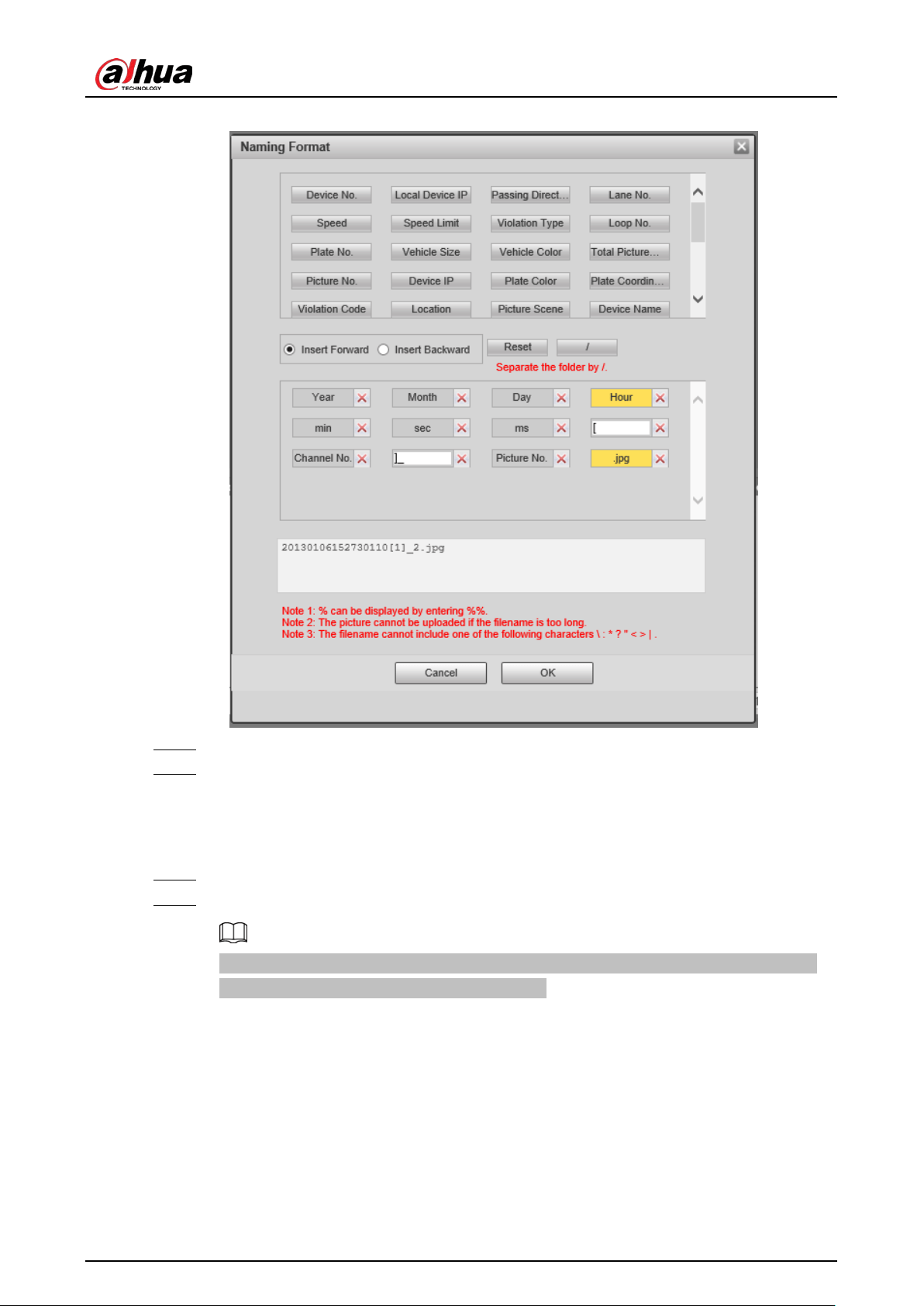
Name Format for Downloaded Images
, click
Help
next to the corresponding image
type, and then customize the naming format in the pop-up window.
User's Manual
51
Figure 4-13 Naming format
Step 6 Click
OK
.
Step 7 Set the duration of
Record Linkage
and then download related videos as needed.
4.4.2 Searching for Recorded Videos
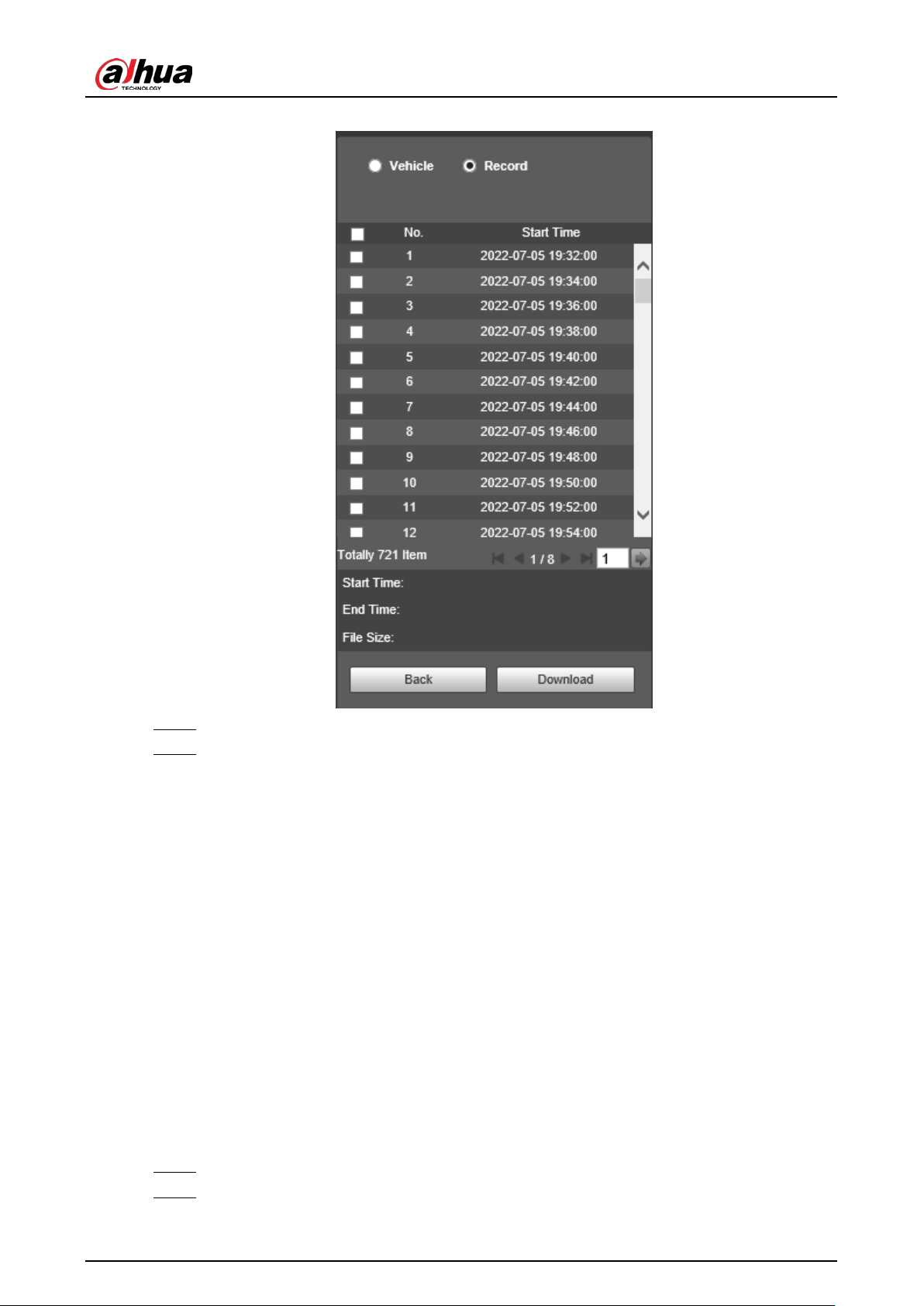
Step 1 Click
Search
, and then select
Record
.
Step 2 Set the search time, and then click
Search
.
After the search time is set, set
Download Format
to
Time
, and then click
Download
to
download all videos recorded within this period.
User's Manual
52
Figure 4-14 Search results
Step 3 Double-click a result to view the video.
Step 4 Select a video, and then click
Download
to download the selected video to your
computer.
4.5 Setting
On the
Setting
page, you can set the parameters of the Device, including intelligent traffic rules,
network settings, remote devices, event management, storage management, system management,
and system information.
4.5.1 ITC
You can configure intelligent traffic parameters to provide functions such as image composition and
OSD configuration.
4.5.1.1 Smart Plan
Step 1 Select
Setting
>
ITC
>
Smart Plan
.
Step 2 Click
E-police
or
ANPR
.

User's Manual
53
●
For details on configuration in
ANPR
, see "
4.5.1.2 ANPR Snapshot".
●
For details on configuration in
E-police
, see "
4.5.1.3 E Police".
Figure 4-15 Select a smart plan
Step 3 Click
Save
.
When you switch between the smart plans, the system instructs you to restart the Device.
Figure 4-16 Notification
Step 4 Click
OK
, and then log in to the webpage after the Device is restarted.
4.5.1.2 ANPR Snapshot
4.5.1.2.1 Configuring Violation Snapshot
Configure the video detection parameters for detecting traffic violations.
Select a lane from the list in the
Lane Config
section, and then all configurations on the
Violation
Snapshot
tab are for this lane.
Lane Parameters
Configure the information of the lanes the Device is monitoring, such as drawing lane lines on the
image, selecting the lane direction, and setting the lane line type according to the actual situation.
Step 1 Select
Setting
>
ITC
>
ANPR Snapshot
>
Violation Snapshot
.
Step 2 In the
Lane Config
section, configure the lane lines.
●
If the default lane lines on the image do not meet the detection requirements, you can
draw new lane lines.
1. Select a lane from the list, and then delete the lane lines by clicking .

User's Manual
54
You can also click the icon next to
Lane Line
or
Detection Line
to delete the
corresponding lines on the image.
2. Click
Lane Line
or
Detection Line
, and then draw lines on the image.
When a vehicle reaches a detection line, the Device takes a snapshot of the vehicle.
●
You can also adjust lane lines to match the actual lane lines.
1. Select
Edit Line
, and then select a lane from the list.
2. Drag to adjust the lane lines and detection lines according to the actual situation.
Figure 4-17 Lane configuration
Step 3 Set
Lane Direction
and
Traffic Flow Direction
for the selected lane.
●
Lane Direction
: The direction of the lane line on the image must be the same as the
travelling direction of vehicles.
●
Traffic Flow Direction
: The direction of traffic flow, which is used for traffic flow
analysis.
Step 4 Click
Auto Drawing
, and then the system automatically draws lane lines. You can adjust
the auto lines as needed.
Install the plug-in before using the
Auto Drawing
function.
Step 5 Double-click the selected lane on the list under
Left Lane Line
,
Right Lane Line
, or
Lane
Type
to change the lane lines and lane type as needed.
●
Click
to display or hide the corresponding lane lines on the image.
●
Click to select a lane for the Device to monitor.
Step 6 Click
Save
.
Lane Properties
Step 1 Select
Setting
>
ITC
>
ANPR Snapshot
>
Violation Snapshot
.
Step 2 Select a lane from the list in the
Lane Config
section.
Step 3 In the
Lane Property
section, configure lane properties.
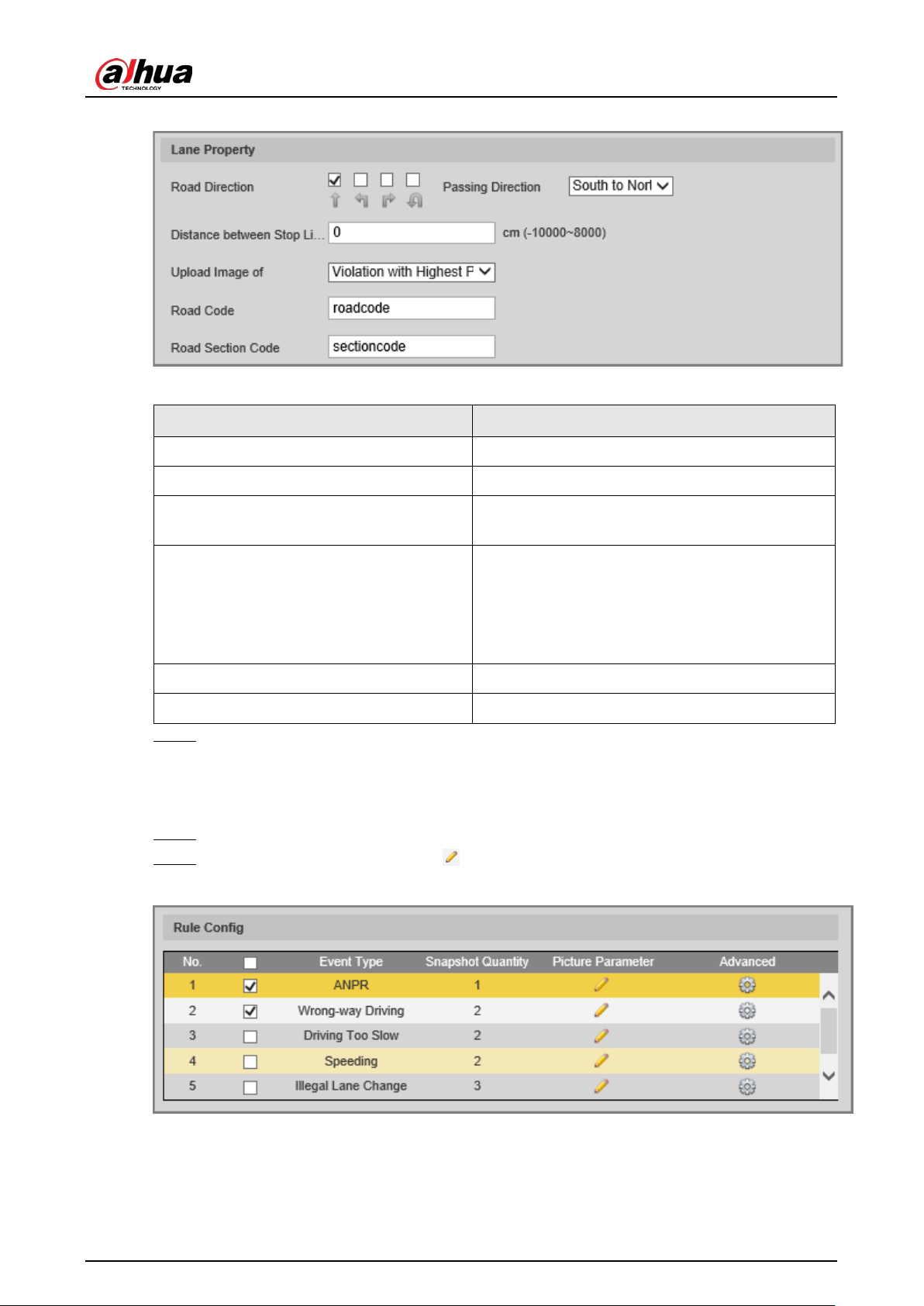
User's Manual
55
Figure 4-18 Lane property
Table 4-7 Lane property description
Parameter Description
Road Direction The direction of the road.
Passing Direction The geographical direction of the lane.
Distance between Stop Line and Image
Bottom
The distance between the stop line and the
bottom of the image.
Upload Image of
●
All Violations
: Captures and reports all
violations of vehicles on the lane.
●
Violation with Highest Priority
: If a vehicle
triggers multiple violations, the Device reports
only the event with the highest priority.
Road Code The code of the road.
Road Section Code The code of the road section.
Step 4 Click
Save
.
Rule Configuration
You can select traffic violation types and configure the parameters of captured vehicle images.
Step 1 Select
Setting
>
ITC
>
ANPR Snapshot
>
Violation Snapshot
.
Step 2 In the
Rule Config
section, click , and then configure image parameters.
Figure 4-19 Rule configuration

User's Manual
56
Figure 4-20 Image parameters
Table 4-8 Description of image parameters
Section Parameter Description
Picture Parameter
Original Image
The original image of the vehicle that
violates traffic rules.
Composite Picture
The composite image consisting of multiple
images of the vehicle that violates traffic
rules.
Resolution The resolution of the image.
Quality The level of the image quality.
Size The maximum size of the image.
Copy to
Copy the current configuration to rules of
the same type or all rules. After selecting an
option from
Copy to
, click
Copy
.
Snapshot and Composite
Picture Settings
I Frame Interval
Set the interval of capturing 2 images to a
fixed number of frames.
Self-adaptive
Set the interval of capturing 2 images to
different number of frames based on the
vehicle speed.
Copy to
Copy the current configuration to rules of
the same type or all rules. After selecting an
option from
Copy to
, click
Copy
.
Step 3 Click
OK
.
Step 4 Click , and then configure advanced parameters.
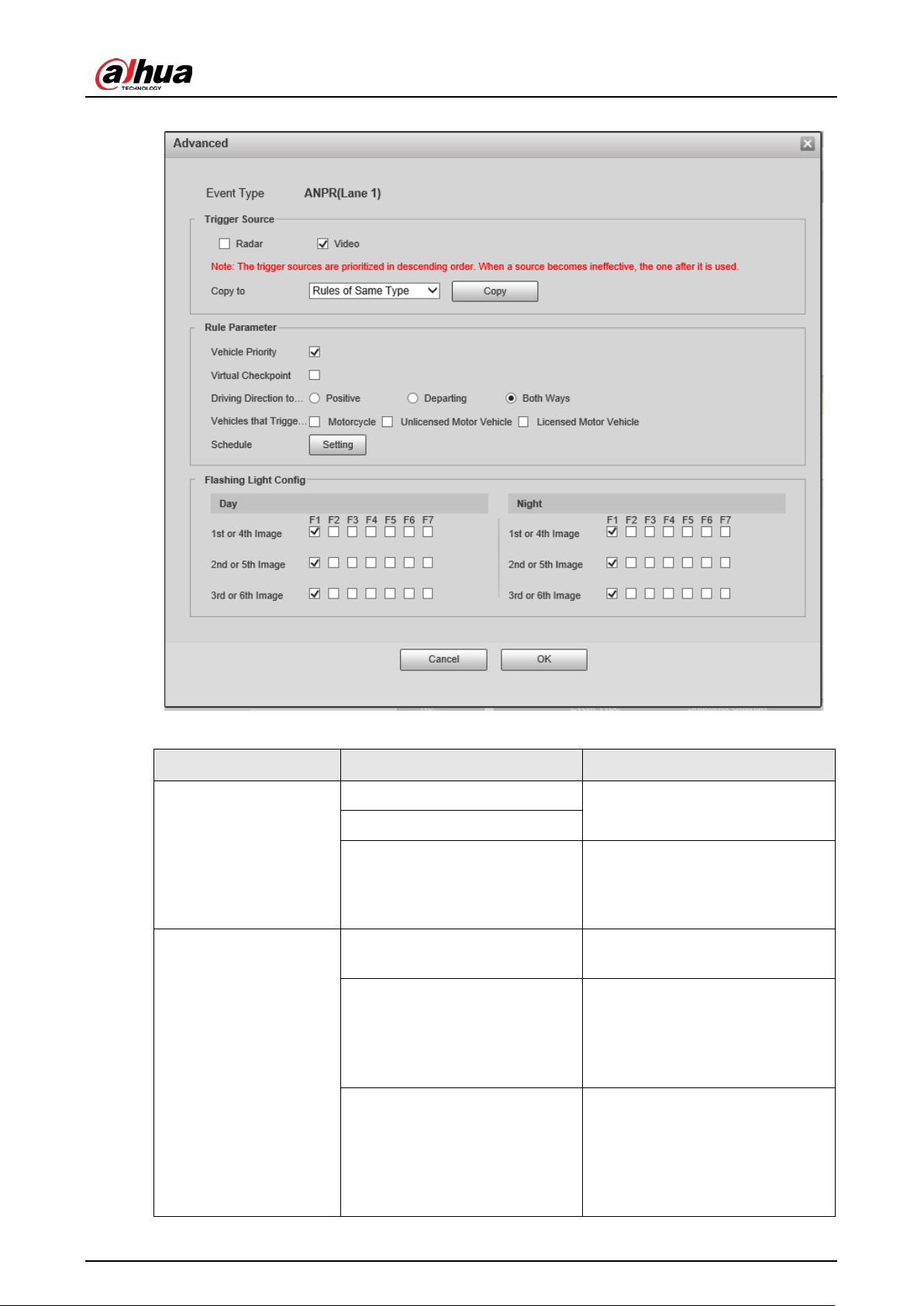
User's Manual
57
Figure 4-21 Advanced parameters
Table 4-9 Description of advanced parameters
Section Parameter Description
Trigger Source
Radar
The method that triggers traffic
violations.
Video
Copy to
Copy the current configuration to
rules of the same type or all rules.
After selecting an option from
Copy to
, click
Copy
.
Rule Parameter
Driving Direction to Trigger
Snapshot
The driving direction of the
vehicles that the Device captures.
Vehicles that Trigger Snapshots
The types of the vehicles that the
Device captures. You can select
from
Mortorcycle
,
Unlicensed
Motor Vehicle
, and
Licensed
Motor Vehicle
.
Schedule
The period during which alarms
can be triggered. To set a period,
click
Setting
, and then drag the
cursor over the time table or
select days and enter hours in the
entry fields.

User's Manual
58
Section Parameter Description
Flashing Light Config Day Select which flashing light flashes
when snapshots are taken during
daytime or night.
A snapshot can be associated
with up to 5 flashing lights.
For example, if you select
F1
from
1st or 4th Image
, the flashing
light F1 flashes when taking the
1st and 4th snapshots.
Night
Step 5 Click
OK
.
Vehicle Detection
Step 1 Select
Setting
>
ITC
>
ANPR Snapshot
>
Violation Snapshot
.
Step 2 In the
Vehicle Detection
section, click a line or region type, and then draw a line or region
on the image.
●
To draw a line, click a line type and then drag the cursor on the image.
●
To draw a region, click a region type, and then draw lines by dragging the cursor on the
image and make them form a closed region.
To clear the lines that you have drawn, click .
Figure 4-22 Vehicle detection
Table 4-10 Description of vehicle detection parameters
Parameter Description
Area Line The region of detection.
Vehicle Area The region for detecting traffic flow.
Calibration Area The region for analyzing traffic flow.
Line Segment Calibration
Used to verify the accuracy of calibration results.
Click
Line Segment Calibration
to draw the calibration
segment in the calibration area, enter the actual length of the
calibration segment in
Length
, and then click
Calibration
Verification
.
Calibration Verification Used to verify the accuracy of calibration results.
Step 3 Click
Save
.
Other Configuration
Step 1 Select
Setting
>
ITC
>
ANPR Snapshot
>
Violation Snapshot
.

User's Manual
59
Step 2 In the
Other Config
section, configure the parameters.
Figure 4-23 Other configuration
Table 4-11 Other configuration
Parameter Description
Measure Speed by Radar
Specifies whether to measure vehicle speed by using
the radar.
Capture and Flash Linkage
●
General Mode
: Recommended for ANPR mode.
●
Snapshot Line Mode
: Recommended for E-police
mode.
Spacing between Vehicles The distance between vehicles when waiting in a line.
Max Speed
If the speed of a vehicle exceeds this value, the system
automatically changes the vehicle speed to a random
value in the normal range.
Pixels
Click
Draw Target
, and then draw a rectangular area
on the image to show the pixel size of the area.
Step 3 Click
Save
.
4.5.1.2.2 Configuring Intelligent Analysis
Recognition
Step 1 Select
Setting
>
ITC
>
ANPR Snapshot
>
Intelligent Analysis
>
Recognition
.
Step 2 Configure the parameters.
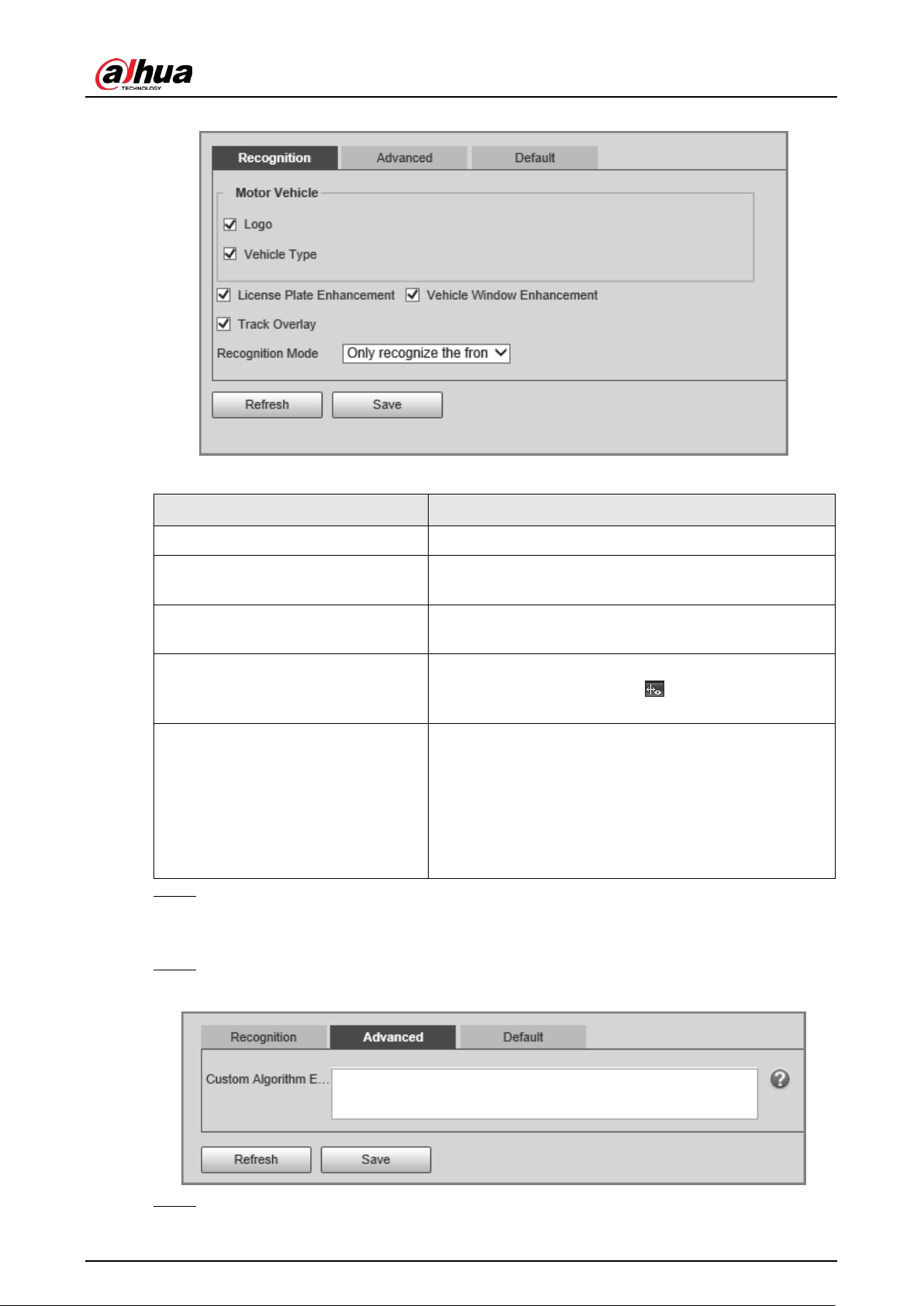
User's Manual
60
Figure 4-24 Recognition
Table 4-12 Description of recognition parameters
Parameter Description
Motor Vehicle Supports recognizing vehicle logs and vehicle types.
License Plate Enhancement
Select the checkbox to enhance the effect of license
plate images.
Vehicle Window Enhancement
Select the checkbox to enhance the effect of vehicle
window images.
Track Overlay
Select the checkbox to enable
Track Overlay
. After you
enable the function and click
on the
Live
page, you
can see that each vehicle is surrounded by a green box.
Recognition Mode
●
Only recognize the front plate
: Recognizes and
captures the license plate on the vehicle head.
●
Only recognize the rear plate
: Recognizes and
captures the license plate on the vehicle rear.
●
Front plate priority
: Head plate has the priority.
●
Rear plate priority
: Rear plate has the priority.
Step 3 Click
Save
.
Advanced
Step 1 Select
Setting
>
ITC
>
ANPR Snapshot
>
Intelligent Analysis
>
Advanced
.
Figure 4-25 Custom algorithm
Step 2 Configure a custom algorithm.

User's Manual
61
Step 3 Click
Save
.
Default
Step 1 Select
Setting
>
ITC
>
ANPR Snapshot
>
Intelligent Analysis
>
Default
.
Step 2 Click
Default
to restore settings including lane property, violation capture, and intelligent
business to default.
4.5.1.2.3 Configuring Original Picture OSD
Configure OSD content, style, and position for captured images.
Step 1 Select
Setting
>
ITC
>
ANPR Snapshot
>
Original Picture OSD
.
Step 2 Configure OSD black edge position, black edge height, OSD separator, and font size.
Figure 4-26 Original picture OSD
Step 3 Configure the OSD parameters.
Table 4-13 Description of OSD parameters
Parameter Description
Insert Forward
Select an OSD option, select
Insert Forward
, and then select another
OSD option. The new OSD option will be inserted before the previous
one.
Insert Backward
Select an OSD option, select
Insert Backward
, and then select
another OSD option. The new OSD option will be inserted after the
previous one.
Modify
Select
Modify
, and then
is displayed next to all the selected OSD
options. To edit an OSD option, click
next to the OSD option.
Delete
Select
Delete
, and then
is displayed next to all the selected OSD
options. To delete an OSD option, click
next to the OSD option.
Clear Delete all the selected OSD options.
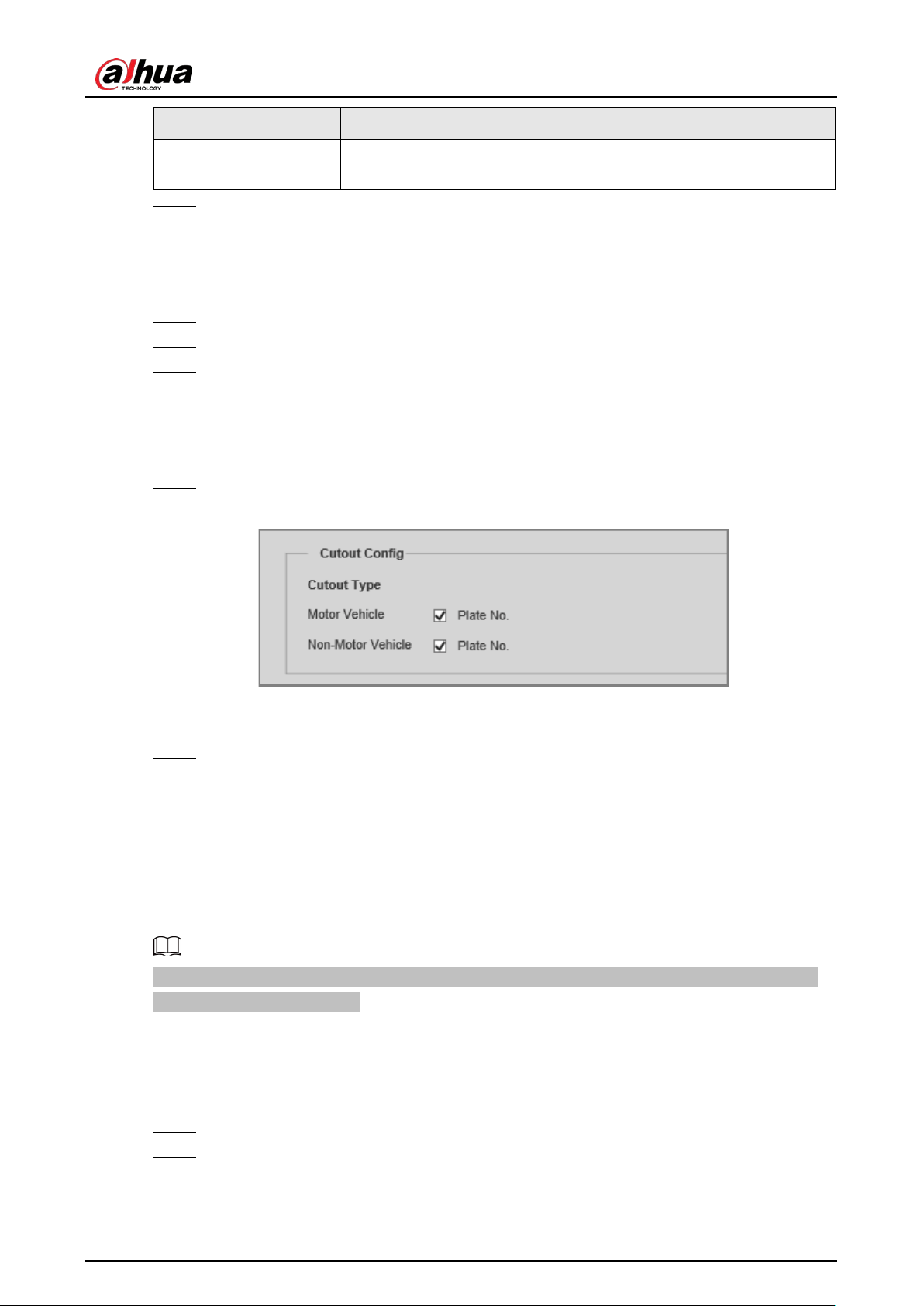
User's Manual
62
Parameter Description
Line Feed
To start a new line after an OSD option, select the OSD option, and
then click
Line Feed
.
Step 4 Click
Save
.
4.5.1.2.4 Configuring Combination Picture OSD
Step 1 Select
Setting
>
ITC
>
ANPR Snapshot
>
Combination Picture OSD
.
Step 2 Configure OSD black edge position, black edge height, OSD separator, and font size.
Step 3 Configure the OSD parameters. For details, see Table 4-13.
Step 4 Click
Save
.
4.5.1.2.5 Configuring Cutout
Step 1 Select
Setting
>
ITC
>
ANPR Snapshot
>
Cutout Config
.
Step 2 Select the cutout type.
Figure 4-27 Cutout config
Step 3 In the
Target Box
section, specify whether to enable the track box for motor vehicles and
non-motor vehicles.
Step 4 Click
Save
.
4.5.1.3 E Police
4.5.1.3.1 Configuring Violation Snapshot
Configure the video detection parameters for detecting traffic violations.
Select a lane from the list in the
Lane Config
section, and then all configurations on the
Violation
Snapshot
tab are for this lane.
Lane Parameters
Configure the information of the lanes the Device is monitoring, such as drawing lane lines on the
image, selecting the lane direction, and setting the lane line type according to the actual situation.
Step 1 Select
Setting
>
ITC
>
E Police
>
Violation Snapshot
.
Step 2 In the
Lane Config
section, configure the lane lines.
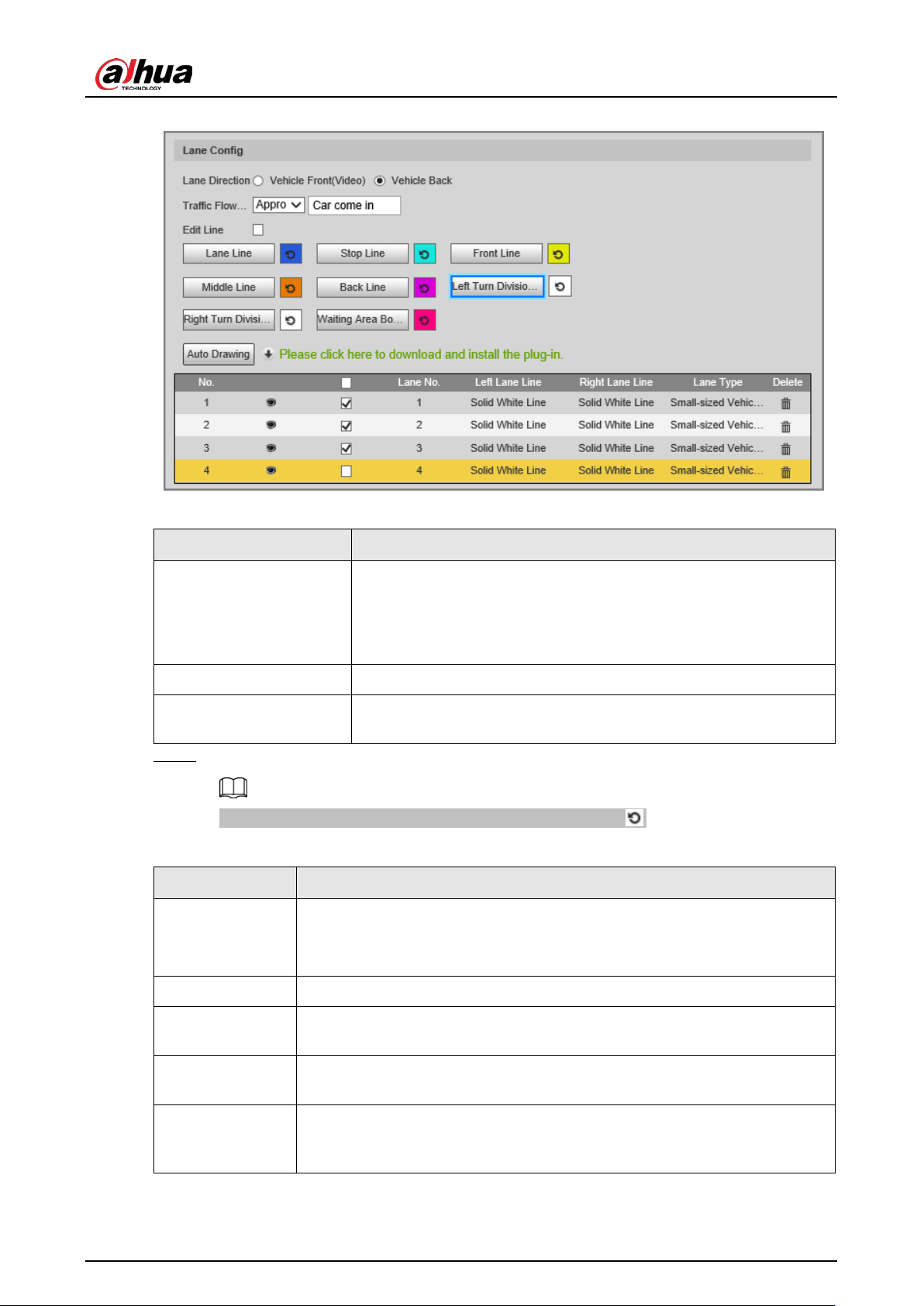
User's Manual
63
Figure 4-28 Lane configuration
Table 4-14 Lane parameters
Parameter Description
Lane Direction
The direction of the lane line must be the same as the travelling
direction of vehicles.
●
Vehicle Back
: The lane line is upward.
●
Vehicle Front(Video)
: The lane line is downward.
Traffic Flow Direction The direction of traffic flow, which is used for traffic flow analysis.
Edit Line
After you select the checkbox, you can adjust the lane lines by
dragging the angles on the image.
Step 3 Click a line type, and then draw the lane lines on the image.
To clear the lane lines or regions that you have drawn, click .
Table 4-15 Lane lines
Line type Description
Lane Line
Each lane must have 2 lane lines, shown as blue lines with arrows. The arrow
indicates the direction in which the vehicles travel.
The drawn lines should go along the actual lane line.
Stop Line The actual stop line on the road.
Front Line
The line that triggers the first capture of the vehicle running the red light or
traveling on the wrong lane.
Middle Line
The line that triggers the second capture of the vehicle running the red light
or traveling on the wrong lane.
Back Line
Used to judge whether a vehicle is going straight. It triggers the third
capture of the vehicle running the red light (straight going) or traveling on
the wrong lane.

User's Manual
64
Line type Description
Left Turn Division
Used to judge whether a vehicle is turning left. It triggers the third capture
of the vehicle running the red light or traveling on the wrong lane.
Right Turn
Division
Used to judge whether a vehicle is turning right. It triggers the third capture
of the vehicle running the red light or traveling on the wrong lane.
Waiting Area
Boundaries
The end line of the waiting area. Going beyond it will be regarded as
running the red light.
Step 4 Click
Auto Drawing
, and then the system automatically draws lane lines. You can adjust
the auto lines as needed.
Install the plug-in before using the
Auto Drawing
function.
Step 5 Double-click the selected lane on the list under
Left Lane Line
,
Right Lane Line
, or
Lane
Type
to change the lane lines and lane type as needed.
●
Click
to display or hide the corresponding lane lines on the image.
●
Click to select a lane for the Device to monitor.
Step 6 Click
Save
.
Lane Properties
Step 1 Select
Setting
>
ITC
>
E Police
>
Violation Snapshot
.
Step 2 Select a lane from the list in the
Lane Config
section.
Step 3 In the
Lane Property
section, configure lane properties.
Figure 4-29 Lane property
Table 4-16 Lane property description
Parameter Description
Road Direction The direction of the road.
Passing Direction The geographical direction of the lane.
Upload Image of
●
All Violations
: Captures and reports all violations of vehicles on the
lane.
●
Violation with Highest Priority
: If a vehicle triggers multiple
violations, the Device reports only the event with the highest priority.
Road Code The code of the road.
Road Section Code The code of the road section.
Step 4 Click
Save
.
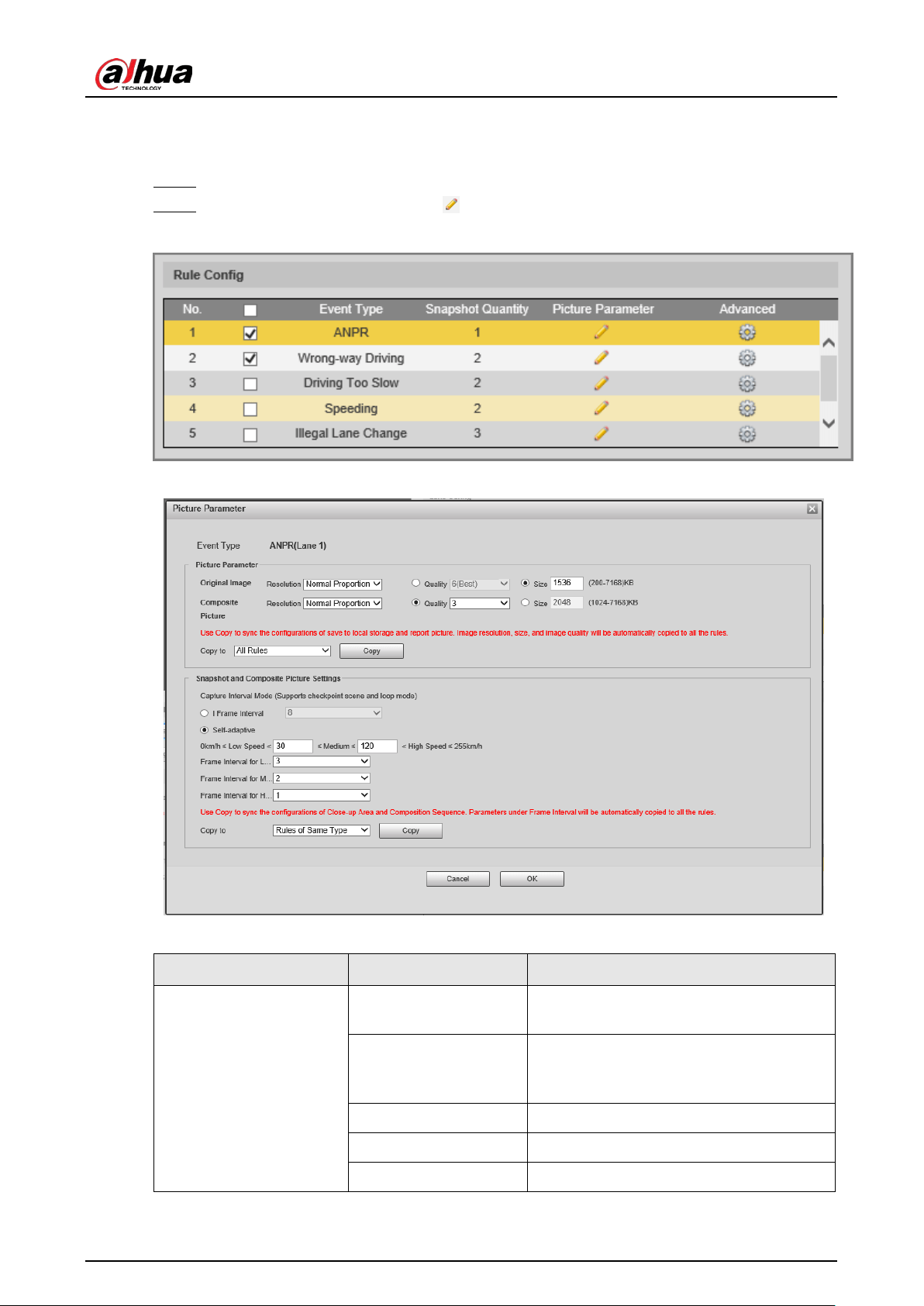
User's Manual
65
Rule Configuration
You can select traffic violation types and configure the parameters of captured vehicle images.
Step 1 Select
Setting
>
ITC
>
E Police
>
Violation Snapshot
.
Step 2 In the
Rule Config
section, click , and then configure image parameters.
Figure 4-30 Rule configuration
Figure 4-31 Image parameters
Table 4-17 Description of image parameters
Section Parameter Description
Picture Parameter
Original Image
The original image of the vehicle that
violates traffic rules.
Composite Picture
The composite image consisting of
multiple images of the vehicle that
violates traffic rules.
Resolution The resolution of the image.
Quality The level of the image quality.
Size The maximum size of the image.

User's Manual
66
Section Parameter Description
Copy to
Copy the current configuration to rules of
the same type or all rules. After selecting
an option from
Copy to
, click
Copy
.
Snapshot and Composite
Picture Settings
I Frame Interval
Set the interval of capturing 2 images to a
fixed number of frames.
Self-adaptive
Set the interval of capturing 2 images to
different number of frames based on the
vehicle speed.
Copy to
Copy the current configuration to rules of
the same type or all rules. After selecting
an option from
Copy to
, click
Copy
.
Step 3 Click
OK
.
Step 4 Click , and then configure advanced parameters.
Figure 4-32 Advanced parameters
Table 4-18 Description of advanced parameters
Section Parameter Description
Trigger Source
Loop Unavailable
Radar
The method that triggers
traffic violations.
Video

User's Manual
67
Section Parameter Description
Copy to
Copy the current
configuration to rules of the
same type or all rules. After
selecting an option from
Copy to
, click
Copy
.
Rule Parameter
Driving Direction to Trigger
Snapshot
The driving direction of the
vehicles that the Device
captures.
Schedule
The period during which
alarms can be triggered. To
set a period, click
Setting
, and
then drag the cursor over the
time table or select days and
enter hours in the entry fields.
Flashing Light Config Day Select which flashing light
flashes when snapshots are
taken during daytime or
night.
A snapshot can be associated
with up to 5 flashing lights.
For example, if you select
F1
from
1st or 4th Image
, the
flashing light F1 flashes when
taking the 1st and 4th
snapshots.
Night
Step 5 Click
OK
.
Vehicle Detection
Step 1 Select
Setting
>
ITC
>
E Police
>
Violation Snapshot
.
Step 2 In the
Vehicle Detection
section, click a line or region type, and then draw a line or region
on the image.
●
To draw a line, click a line type and then drag the cursor on the image.
●
To draw a region, click a region type, and then draw lines by dragging the cursor on the
image and make them form a closed region.
To clear the lines that you have drawn, click .
Figure 4-33 Vehicle detection
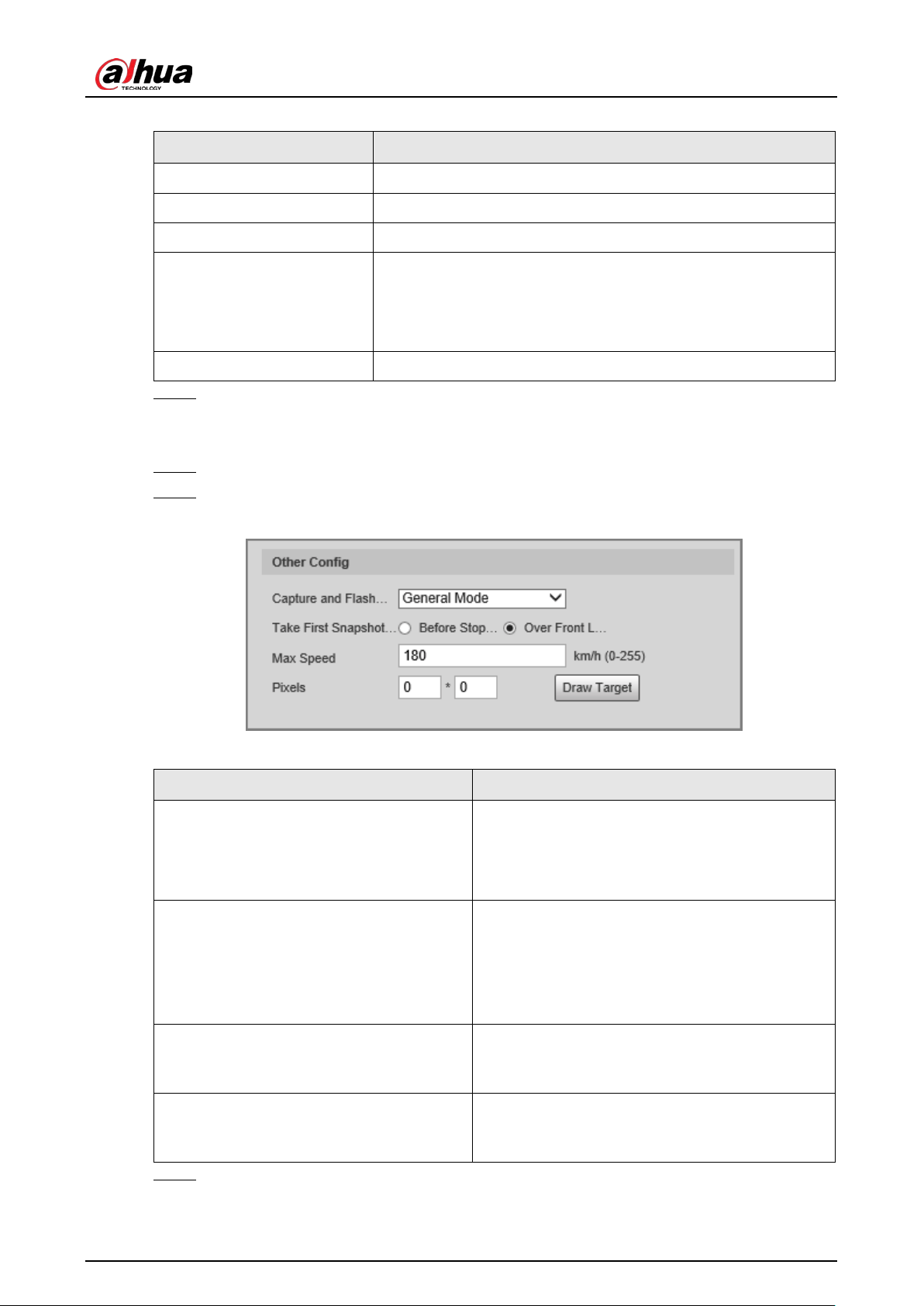
User's Manual
68
Table 4-19 Description of vehicle detection parameters
Parameter Description
Area Line The region of detection.
Vehicle Area The region for detecting traffic flow.
Calibration Area The region for analyzing traffic flow.
Line Segment Calibration
Used to verify the accuracy of calibration results.
Click
Line Segment Calibration
to draw the calibration segment
in the calibration area, enter the actual length of the calibration
segment in
Length
, and then click
Calibration Verification
.
Calibration Verification Used to verify the accuracy of calibration results.
Step 3 Click
Save
.
Other Configuration
Step 1 Select
Setting
>
ITC
>
E Police
>
Violation Snapshot
.
Step 2 In the
Other Config
section, configure the parameters.
Figure 4-34 Other configuration
Table 4-20 Other configuration
Parameter Description
Capture and Flash Linkage
●
General Mode
: Recommended for ANPR
mode.
●
Snapshot Line Mode
: Recommended for
E-police mode.
Take First Snapshot for Running a Red Light
●
Before Stop Line
: The first snapshot of
running a red light is taken before the stop
line.
●
Over Front Line
: The first snapshot of
running a red light is taken over the front line.
Max Speed
If the speed of a vehicle exceeds this value, the
system automatically changes the vehicle speed
to a random value in the normal range.
Pixels
Click
Draw Target
, and then draw a rectangular
area on the image to show the pixel size of the
area.
Step 3 Click
Save
.
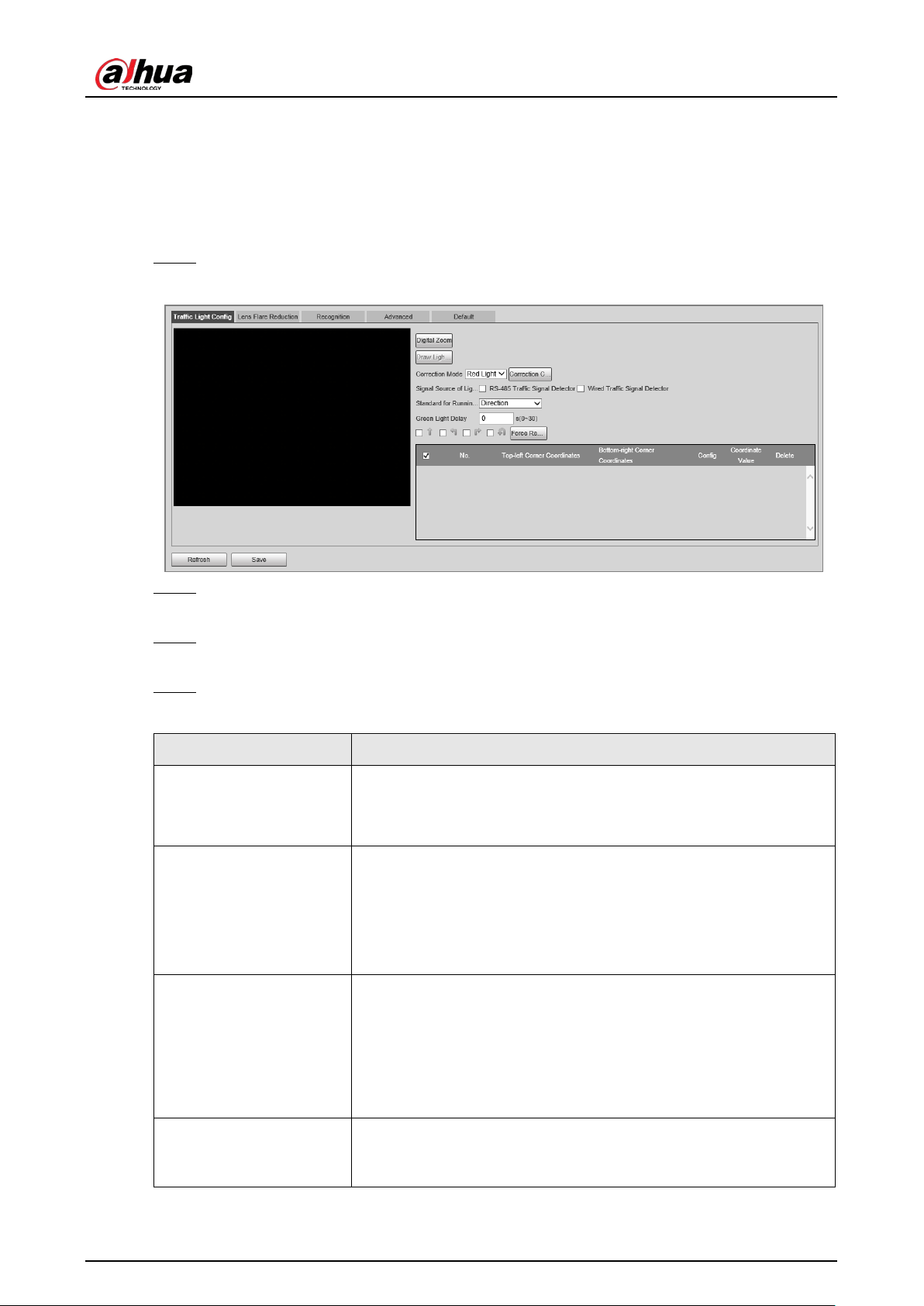
User's Manual
69
4.5.1.3.2 Configuring Intelligent Analysis
Traffic Light Configuration
Adjust the image color according to the color of the traffic light to avoid abnormalities in the
snapshots captured at traffic lights.
Step 1 Select
Setting
>
ITC
>
E Police
>
Intelligent Analysis
>
Traffic Light Config
.
Figure 4-35 Traffic light config
Step 2 Click
Digital Zoom
, and then use the mouse to select an area that includes the traffic lights.
The area is zoomed into.
Step 3 Click
Draw Light Group Area
, and then use the mouse to draw a frame around the traffic
lights.
Step 4 Configure the parameters.
Table 4-21 Description of traffic light parameters
Parameter Description
Correction Mode
●
Red Light Correction
: Correct the image color according to the
red light signal.
●
Force Correction
: Correct the image color directly.
Correction Config
Click
Correction Config
to configure correction parameters.
1. Select
Image Correction
or
Video Correction
to determine
whether you need to correct images or videos.
2. Configure the level of correction for day and night.
3. Click
OK
.
Signal Source of Light
Group
●
RS-485 Traffic Signal Detector
: Synchronize external traffic
light signals such as signal detectors and traffic light detectors
to the current traffic lights.
●
Wired Traffic Signal Detector
: Synchronize the traffic light
scheme of the traffic signal controller to the current traffic
lights.
Standard for
Running-Red-Light
Capture running a red light depending on the lane direction or
travelling direction. At present, three ways are supported: Lane
direction, travelling direction, and lane/travelling direction.

User's Manual
70
Parameter Description
Green Light Delay
Do not capture the illegal act of running a red light within seconds
after the red light turns on.
Force Red Light Force the traffic light of the corresponding direction to red.
Step 5 Click
Save
.
Lens Flare Reduction
To reduce the influence of other light sources and improve the recognition rate, you can reduce the
halo.
Step 1 Select
Setting
>
ITC
>
E Police
>
Intelligent Analysis
>
Lens Flare Reduction
.
Figure 4-36 Lens flare reduction
Step 2 Click
Digital Zoom
, and then select an area for lens flare reduction on the image.
Step 3 Click
Draw Lens Flare Area
, and then click and drag to select the light source with halo on
the image.
Step 4 Configure the parameters.
Table 4-22 Description of lens flare reduction parameters
Parameter Description
DayEnable Enable lens flare reduction for daytime.
NightEnable Enable lens flare reduction for nighttime.
Level
The level of halation control. The smaller the value, the more obvious the
effect.
Global Apply the same halation control level to all the selected areas.
Step 5 Click
Save
.
Recognition
Step 1 Select
Setting
>
ITC
>
E Police
>
Intelligent Analysis
>
Recognition
.
Step 2 Configure the parameters.
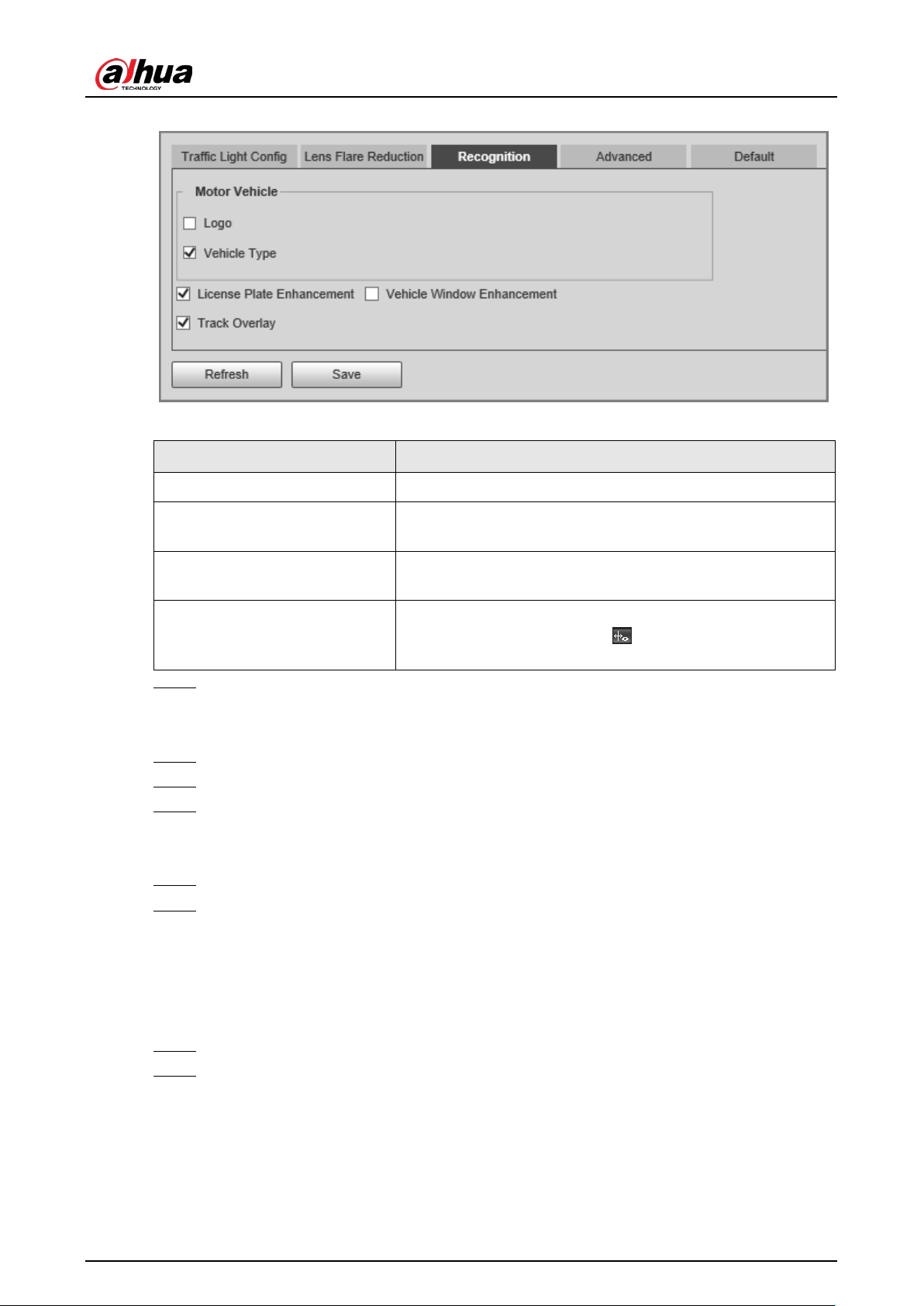
User's Manual
71
Figure 4-37 Recognition
Table 4-23 Description of recognition parameters
Parameter Description
Motor Vehicle Supports recognizing vehicle logs and vehicle types.
License Plate Enhancement
Select the checkbox to enhance the effect of license plate
images.
Vehicle Window Enhancement
Select the checkbox to enhance the effect of vehicle window
images.
Track Overlay
Select the checkbox to enable
Track Overlay
. After you
enable the function and click
on the
Live
page, you can
see that each vehicle is covered by a green box.
Step 3 Click
Save
.
Advanced
Step 1 Select
Setting
>
ITC
>
E Police
>
Intelligent Analysis
>
Advanced
.
Step 2 Configure a custom algorithm.
Step 3 Click
Save
.
Default
Step 1 Select
Setting
>
ITC
>
E Police
>
Intelligent Analysis
>
Default
.
Step 2 Click
Default
to restore settings including lane property, violation capture, and intelligent
business to default.
4.5.1.3.3 Configuring Original Picture OSD
Configure OSD content, style, and position for captured images.
Step 1 Select
Setting
>
ITC
>
E Police
>
Original Picture OSD
.
Step 2 Configure OSD black edge position, black region height, OSD separator, and front size.
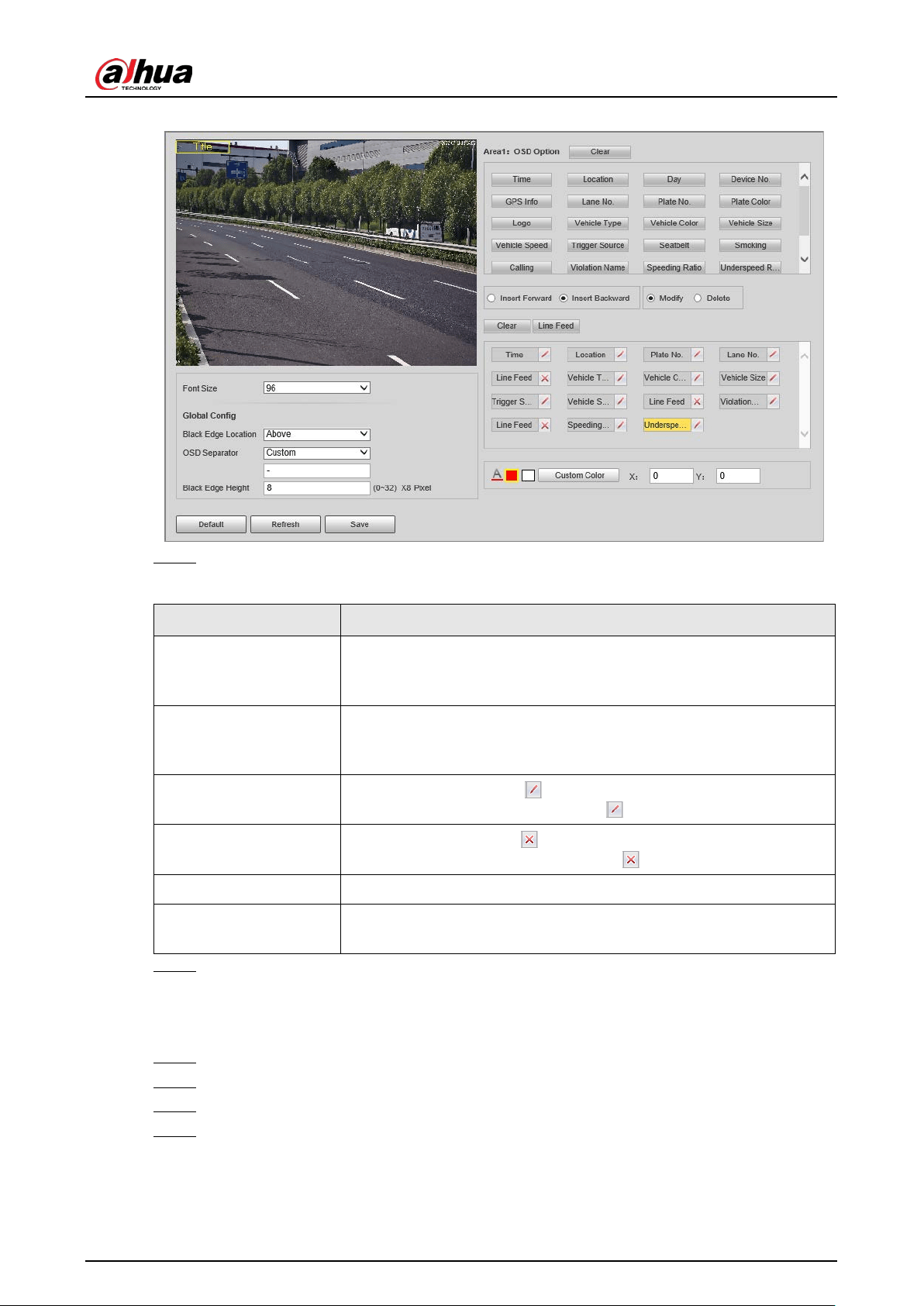
User's Manual
72
Figure 4-38 Original picture OSD
Step 3 Configure the OSD parameters.
Table 4-24 Description of OSD parameters
Parameter Description
Insert Forward
Select an OSD option, select
Insert Forward
, and then select another
OSD option. The new OSD option will be inserted before the original
one.
Insert Backward
Select an OSD option, select
Insert Backward
, and then select
another OSD option. The new OSD option will be inserted after the
original one.
Modify
Select
Modify
, and then
is displayed next to all the selected OSD
options. To edit an OSD option, click
next to the OSD option.
Delete
Select
Delete
, and then
is displayed next to all the selected OSD
options. To delete an OSD option, click
next to the OSD option.
Clear Delete all the selected OSD options.
Line Feed
To start a new line after an OSD option, select the OSD option, and
then click
Line Feed
.
Step 4 Click
Save
.
4.5.1.3.4 Configuring Combination Picture OSD
Step 1 Select
Setting
>
ITC
>
E Police
>
Combination Picture OSD
.
Step 2 Configure OSD black edge position, black region height, OSD separator, and front size.
Step 3 Configure the OSD parameters. For details, see Table 4-24.
Step 4 Click
Save
.
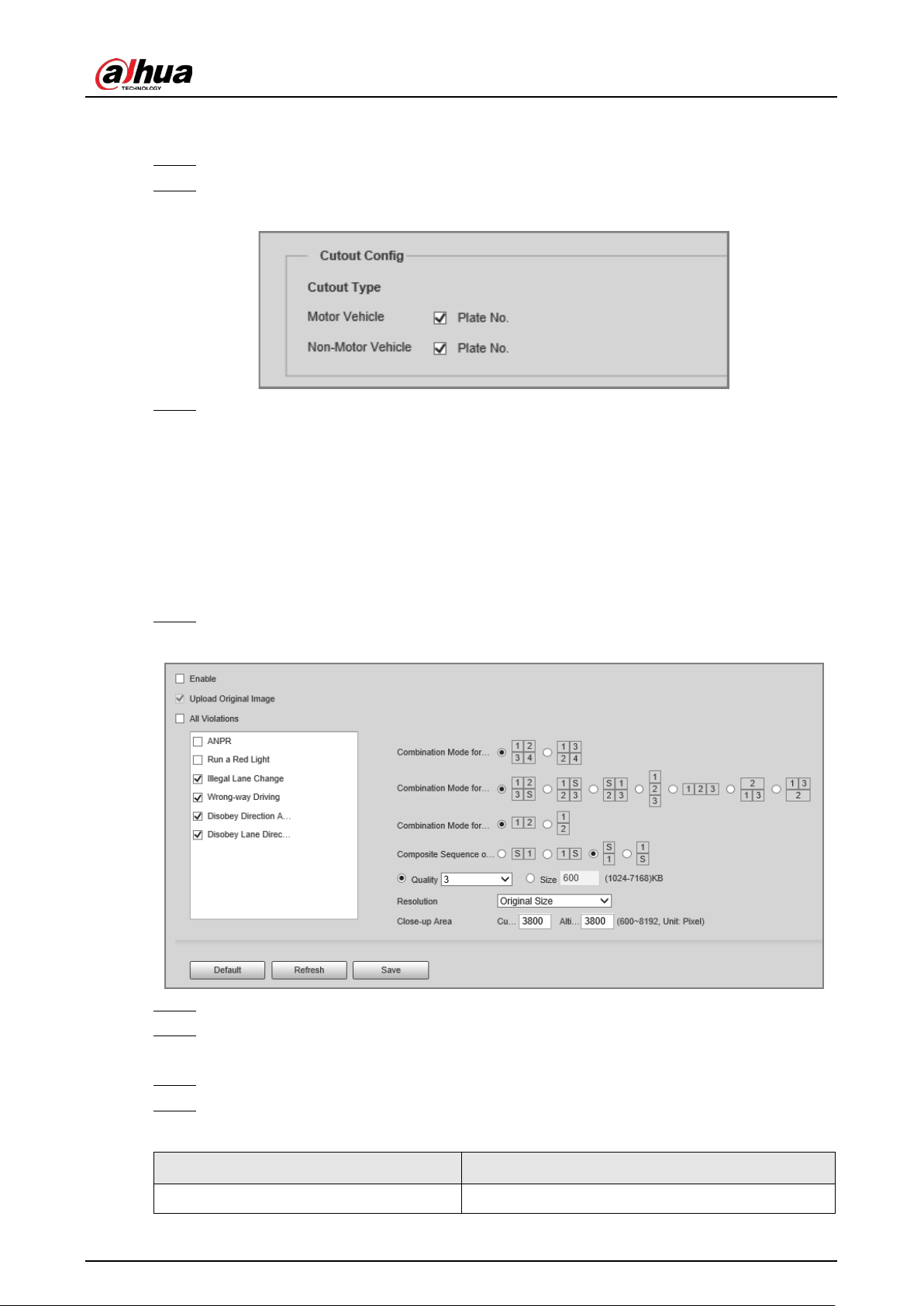
User's Manual
73
4.5.1.3.5 Configuring Cutout
Step 1 Select
Setting
>
ITC
>
E Police
>
Cutout Config
.
Step 2 Select the cutout type.
Figure 4-39 Cutout config
Step 3 Click
Save
.
4.5.1.4 Composition & OSD
4.5.1.4.1 Configuring Picture Synthesis
Select violation types and set the combination sequence, picture size, and other parameters to form
an image combined with the information you set.
Step 1 Select
Setting
>
ITC
>
Composition & OSD
>
Picture Synthesis
.
Figure 4-40 Picture synthesis
Step 2 Select
Enable
to enable image mosaic.
Step 3 Select
Upload Original Image
as needed. If you do not select this checkbox, no original
image is uploaded.
Step 4 Under
All Violations
, select one or more violation types.
Step 5 Configure other parameters.
Table 4-25 Description of combination parameters
Parameter Description
Combination Mode for X Pictures Select the combination mode for 2, 3, or 4 images.

User's Manual
74
Parameter Description
Composite Sequence of One Picture Select the combination mode for 1 image.
Quality
Select
Quality
, and then you can set the quality of
the images.
Size
Select
Size
, and then you can set the maximum size
of the images.
Close-up Area
●
Customized Width
: the width of the close-up
area.
●
Altitude
: the height of the close-up area.
Step 6 Click
Save
.
4.5.1.4.2 Configuring Video OSD
Step 1 Select
Setting
>
ITC
>
Composition & OSD
>
Video OSD
.
Step 2 Click
Channel Title
, and then click
Enable
to enable the OSD type.
Figure 4-41 Video OSD
You can add information including channel, time, GPS, traffic flow, queue information, and
custom content as OSD information. In this section,
Channel Title
is used as an example.
Step 3 Set the channel title, coordinates, font size, and font color.
You can also drag the OSD box on the image to change the position of channel title.
Step 4 (Optional) Click next to
Custom1
to add custom OSD information.
You can add up to 8 pieces of custom OSD information.
Step 5 Click
Save
.

User's Manual
75
4.5.1.5 Transfer Offline
After you enable transfer offline, the Device will continue to upload the images captured during the
offline period to the platform when the Device is reconnected to the platform after disconnection.
Step 1 Select
Setting
>
ITC
>
Transfer Offline
.
Step 2 Select
ANR
to enable the function.
Figure 4-42 ANR
Step 3 Configure the parameters.
Table 4-26 Description of ANR parameters
Parameter Description
Type
●
IP
: The system identifies the platform through IP address.
●
MAC
: The system identifies the platform through MAC address.
Platform
Select a platform to upload images. Click
Browse
to search for current
online platforms.
IP/MAC Address
●
If
IP
is selected, enter the IP address of the platform.
●
If
MAC
is selected, enter the MAC address of the platform.
Step 4 Click
Save
.
Step 5 Click
Manual Upload
, select a platform and enter its IP address or MAC address, select
image types, and then set a time period to upload images captured during the defined
time period to the specified platform.
Figure 4-43 Manual upload
Step 6 Click
Upload
.
During the upload, you can click
End
to stop uploading.

User's Manual
76
4.5.1.6 Vehicle Allowlist/Blocklist
Set the allowlist and blocklist of vehicles.
●
Allowlist: When vehicles on the allowlist are detected, the Device discards the captured vehicle
violation images without any processing.
●
Blocklist: When vehicles on the blocklist are detected, the Device triggers linked actions.
4.5.1.6.1 Setting Allowlist
Step 1 Select
Setting
>
ITC
>
Vehicle Allowlist/Blocklist
>
Allowlist
.
Step 2 Set an allowlist.
●
Add one by one.
1. Click
Add
.
2. Set filter conditions and details.
Figure 4-44 Add a plate number to the allowlist
3. Click
OK
.
Select
Add More
, and then you can continue to add more plate numbers after you
click
OK
.
●
Add in batches.
1. Click
Export
to download an allowlist template.
2. Fill in the allowlist template.

User's Manual
77
Table 4-27 Allowlist template
Start
Time
End
Time
Owner
Name
Plate
Color
Plate
No.
Plate
Type
Vehicle
Color
Vehicle
Type
2022/7/8
00:00
2022/7/8
23:59
Ana 1 A**** 3 A 1
3. Click
Browse
, and then select the allowlist template that you want to import.
4. Click
Import
to import the allowlist template.
4.5.1.6.2 Setting Blocklist
Select
Setting
>
ITC
>
Vehicle Blocklist/Allowlist
>
Blocklist
. The setting of a blocklist is similar to
that of an allowlist. For details, see "4.5.1.6.1 Setting Allowlist".
4.5.1.7 Traffic Flow
You can configure traffic flow parameters, including statistical cycle and flow upper limit.
Step 1 Select
Setting
>
ITC
>
Traffic Flow
>
Flow Statistics
.
Step 2 Configure the parameters.
Figure 4-45 Flow statistics
Table 4-28 Description of traffic flow parameters
Parameter Description
Statistical Cycle The statistical cycle of traffic flow.
Flow Upper Limit
The upper limit of traffic flow. If the actual traffic flow data exceeds
the upper limit, the upper limit is used as the traffic flow data.
Enable
Select a checkbox to enable traffic flow statistics for corresponding
lane.
Step 3 Click
Save
.
Step 4 Click
Flow Data
, and then you can view real-time traffic flow data.
●
Click
to clear traffic flow data.
●
Click to export traffic flow data.

User's Manual
78
Figure 4-46 Flow data
4.5.1.8 Watermark
You can verify whether local images and videos were tampered with by checking the watermark.
4.5.1.8.1 Verifying Images
Step 1 Select
Setting
>
ITC
>
Watermark
>
Picture
.
Step 2 Click
Path
, select a folder where the images to be verified is located, and then click
OK
,
Figure 4-47 Image watermark verification
Step 3 Select one or more images from the list, and then click
Watermark
.
●
If
Normal
is displayed in the
Watermark
column, the image is not tampered.
●
If
Abnormal
is displayed in the
Watermark
column, the image is tampered.
Step 4 (Optional) Click
Open
to open the selected image.
4.5.1.8.2 Verifying Videos
Step 1 Select
Setting
>
ITC
>
Watermark
>
Video
.
Step 2 Click
Select File
, and then select a video to be verified.
Step 3 Click
Watermark
.
●
If the video is not tampered, the watermark is displayed next to
Watermark Info
.
●
If the video is tampered, you can check the details in
Tampered Watermark Info
.

User's Manual
79
Figure 4-48 Video watermark verification
4.5.2 Camera
You can configure camera attributes such as the attributes of videos and images.
4.5.2.1 Image
4.5.2.1.1 Configuring General Parameters
Step 1 Select
Setting
>
Camera
>
Image
>
General
.
Figure 4-49 General
Step 2 Configure the parameters.

User's Manual
80
Table 4-29 Description of general parameters
Parameter Description
Brightness
●
Both the darker areas and the brighter areas will be changed together
when adjusting the brightness.
●
The image might become blurry when the value gets bigger. The
recommended range is 40–60, and the available range is 0–100.
●
It is 50 by default. The larger the value, the brighter the image.
Contrast
●
The larger the value, the darker the dark area, and the more exposed the
bright area.
●
The image might become blurry when the value gets smaller. The
recommended range is 40–60, and the available range is 0–100.
●
It is 50 by default. The larger the value, the stronger the contrast.
Saturation
●
The saturation value does not change the overall image brightness.
●
The larger the value, the more saturated the image. The recommended
range is 40–60, and the available range is 0–100.
●
It is 50 by default.
Mode
●
Color
: The image is always colored.
●
Auto
: When the brightness is higher than the preset value, the image
automatically changes to color. When it is below the preset value, the
image changes to black and white.
●
B/W
: The image is always black and white.
ICR Switch
●
Auto
: You need to pre-set the brightness in this mode. When the ambient
brightness is higher than the preset value, the polarizer will start to work.
●
Polarizer
: The polarizer is always running. Applicable to scenarios with
high brightness.
●
IR Mode
: Applicable to scenarios with low brightness.
Ambient
Brightness
The ambient brightness of ICR switch.
This parameter is available only when you set
ICR Switch
to
Auto
.
4.5.2.1.2 Configuring Shutter
You can configure shutter mode, exposure mode, and gain mode.
Step 1 Select
Setting
>
Camera
>
Image
>
Shutter
.
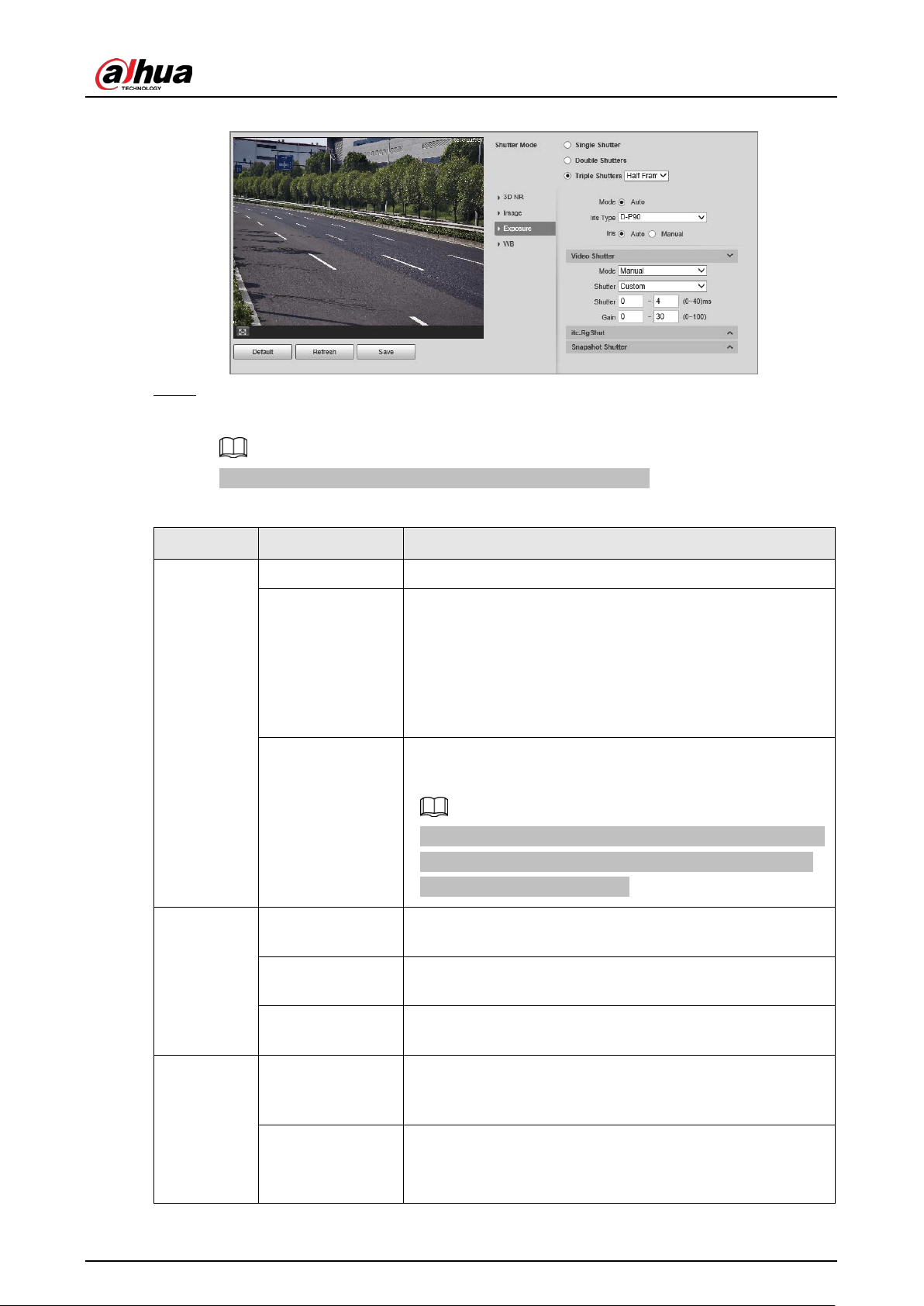
User's Manual
81
Figure 4-50 Shutter
Step 2 Click
Video Shutter
,
Snapshot Shutter
, or
Recognition Shutter
to show the parameters
related to the shutter. To configure the parameters, refer to the table below.
Recognition Shutter
is only available in
Triple Shutters
mode.
Table 4-30 Shutter parameters
Module Parameter Description
Shutter
Mode
Single Shutter Video and snapshot share the same exposure mode.
Double Shutters
●
Video Shutter
and
Snapshot Shutter
can be separately
configured.
●
Half Frame Rate
: Video and snapshot take half of the
frame respectively.
●
Full Frame Rate
: Snapshot takes 1 frame, and video
takes the rest of the frames.
Triple Shutters
Video Shutter
and
Snapshot Shutter
can be separately
configured, and
Recognition Shutter
is added.
Triple Shutter
mode is available only when
General Mode
is selected as
Capture and Flash Linkage
from
Setting
>
ITC
>
E Police
>
Other Config
.
3D NR
Video/Image 3D
NR
When it is
Enable
, 3D NR is enabled to reduce noise of
video/image.
Video/Image
Spatial 3D NR
Spatial video/snapshot denoising. The higher the value, the
less the noise.
Video/Image
Temporal 3D NR
Temporal video/snapshot denoising. The higher the value,
the less the flicker noise.
Image
Scene
You can change the scene and adjust the sharpness of the
corresponding scene. Scenes available:
Morning/Dusk
,
Day
,
and
Night
.
Sharpness
You can set the sharpness of the corresponding scene.
The higher the value, the clearer the image. But there will be
noise if the sharpness is too high.

User's Manual
82
Module Parameter Description
WDR
Select
Enable
to enable WDR (wide dynamic range), which
helps provide clear video images in bright and dark light.
Exposure
Mode Only
Auto
mode is available.
Iris Type Displays the detected iris type.
Mode
Select the way of adjusting exposure mode. You can select
from
Manual
and
Auto
.
Shutter
You can select the shutter value, or select
Custom
, and then
set the shutter range.
You need to configure shutter when
Mode
is set to
Manual
.
Shutter
Set the time range of shutter.
You need to configure shutter when
Shutter
is set to
Custom
.
Gain
Set the value range of gain.
You need to configure gain scope when
Mode
is set to
Manual
.
WB Mode Set scene mode to adjust the image to its best status.
Step 3 Click
Save
.
4.5.2.1.3 Configuring Metering Zone
Set the measure mode of metering zone.
Step 1 Select
Setting
>
Camera
>
Image
>
Metering
.
Figure 4-51 Metering
Step 2 Configure the parameters.
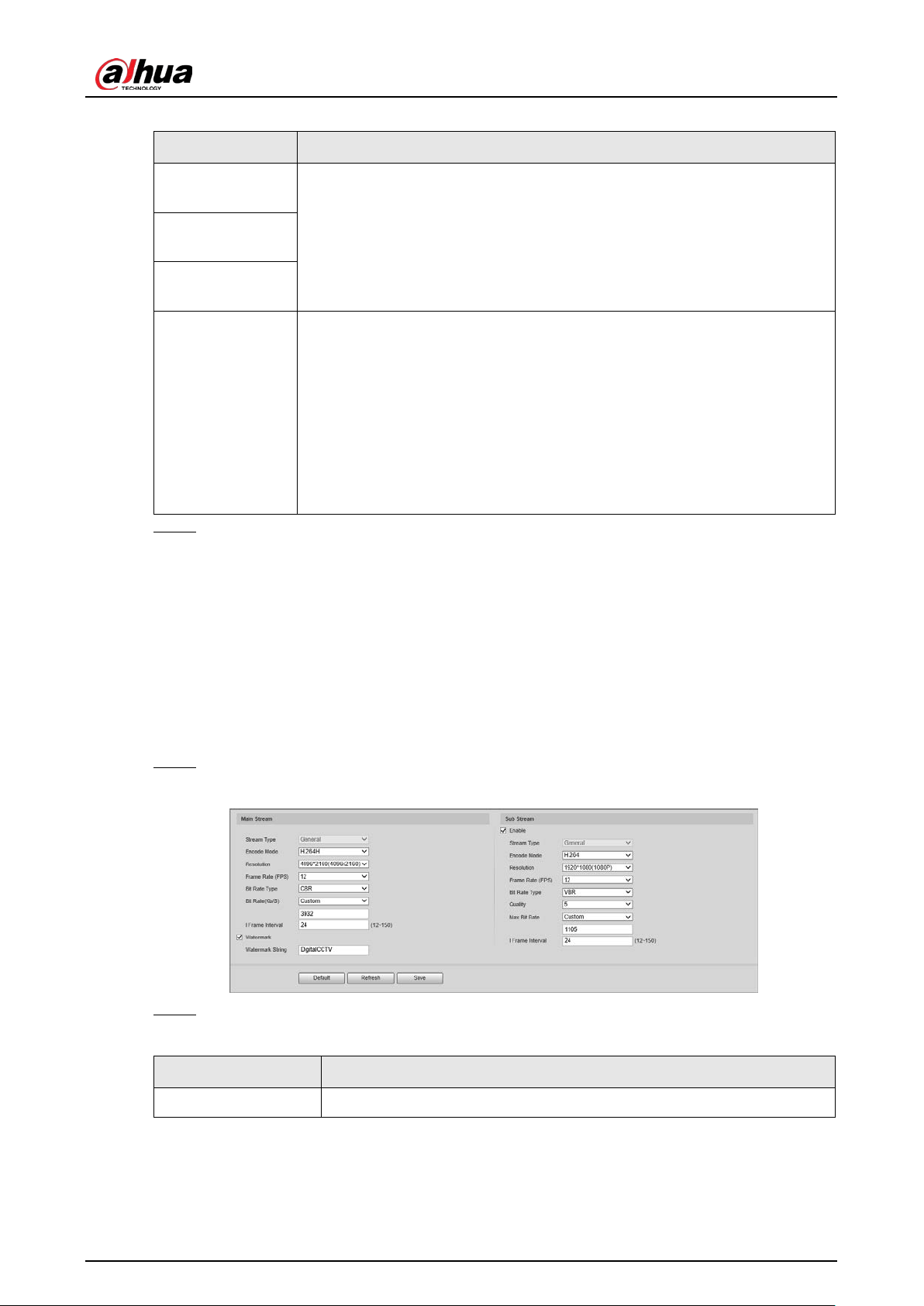
User's Manual
83
Table 4-31 Desription of metering parameters
Parameter Description
Plate Brightness
Compensation
When selecting
Enable
, you can turn
ON
backlight and frontlight according
to scene requirements to improve the backlight and frontlight image
brightness.
Backlight
Compensation
Frontlight
Compensation
Metering Mode
●
Global Metering
: Measure the brightness of the whole image area and
intelligently adjust the overall image brightness.
●
Partial Metering
: Measure the brightness of selected areas and
intelligently adjust the overall image brightness. If the measured area
becomes bright, then the whole area becomes dark, and vice versa.
1. Drag the mouse to select the measured area and a yellow box
displays over the video image.
2. Drag the box to a proper location, and then click
Save
.
Step 3 Click
Save
.
4.5.2.2 Video
After connecting the Device to the network and viewing the real-time video on the webpage, you
can configure encoding parameters when necessary to obtain clear and smooth video.
4.5.2.2.1 Configuring Video Parameters
Configure the parameters of video streams.
Step 1 Select
Setting
>
Camera
>
Video
>
Video Stream
.
Figure 4-52 Video stream
Step 2 Configure the parameters.
Table 4-32 Video stream parameters
Parameter Description
Encode Mode You can select H.264B, H.264, H.264H, MJPEG, or H.265.

User's Manual
84
Parameter Description
Resolution
The higher the value, the clearer the overall image. For each resolution,
the recommended bit stream value is different.
The resolution of sub stream cannot be greater than that of main
stream.
Frame Rate (FPS)
The higher the value, the smoother the video image. The frame rate
might vary due to different resolutions.
Bit Rate Type
You can select from
VBR
(variable bitrate) and
CBR
(constant bitrate).
●
VBR
: Gives the best balance between quality and file size as the
bitrate can be altered depending on the video.
●
CBR
: Keeps the bitrate the same during encoding, and we
recommend you use this bitrate type when the network connection
is limited to performing at, for example, 320 Kbps.
Quality
6 quality levels are available. The higher the value, the better the quality.
You need to configure the image quality when
Bit Rate Type
is set to
VBR
.
Bit Rate(Kb/S)
Higher bit rate signifies greater image or video quality, but also occupies
more storage space.
You need to configure the bit rate when
CBR
is set to
Bit Rate Type
.
Max. Bit Rate It is the upper limit of stream in VBR. In CBR, the value is fixed.
I Frame Interval
The number of P-frame between two I-frames. The number varies
according to the bit rate. The range is 12–150. We recommend you
configure the value to be twice the amount of the bit rate.
Watermark
You can verify the watermark to check whether the video has been
tampered.
Select the
Watermark
checkbox to enable watermark verification. The
watermark character is
DigitalCCTV
by default.
Watermark character consists of up to 85 characters with numbers,
letters and underlines.
Enable
Enable sub stream when your network bandwidth is insufficient or other
conditions influence the video smoothness in main stream.
Step 3 Click
Save
.
4.5.2.2.2 Configuring ROI
Set the region of interest in the image, and then the selected region will be displayed with the
configured quality.
Step 1 Select
Setting
>
Camera
>
Video
>
ROI
.

User's Manual
85
Figure 4-53 ROI
Step 2 Drag anywhere in the image to draw the region of interest. You can draw more than one
region when necessary.
You can click
Clear
to delete all the regions of interest, or click
Delete
or right-click on the
video image to delete the most recently drawn area.
Step 3 Set the image quality of the regions of interest. 6 quality levels are available. The higher the
value, the better the quality.
Step 4 Click
Save
.
4.5.3 Network Settings
You can configure network parameters such as IP address, subnet mask, and default gateway.
4.5.3.1 Configuring TCP/IP
You can configure host name, IP address, and more.
Some models are designed with 2 network ports. Do not configure the ports to be on the same
network segment; otherwise, the network might fail.
Step 1 Select
Setting
>
Network Settings
>
TCP/IP
.
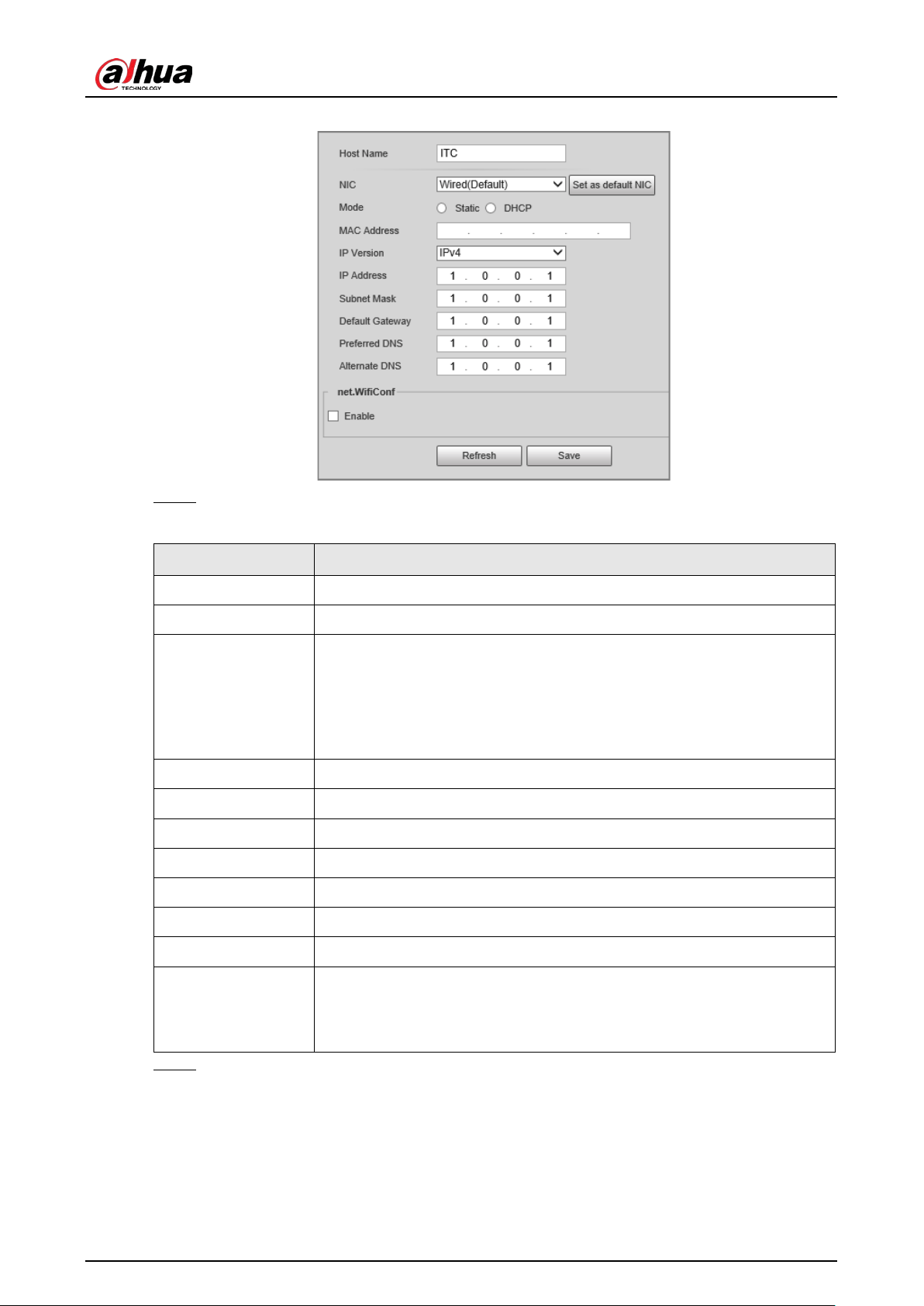
User's Manual
86
Figure 4-54 TCP/IP
Step 2 Configure the parameters.
Table 4-33 Description of TCP/IP parameters
Parameter Description
Host Name Configure the host name (not exceeding 15 characters).
NIC Supports wired network only.
Mode
●
DHCP
: The Device automatically assigns IP addresses. In this case, the
IP Address
,
Subnet Mask
, and
Default Gateway
cannot be
configured.
●
Static
: The
IP Address
,
Subnet Mask
, and
Default Gateway
need to
be manually configured.
MAC Address Displays host MAC address.
IP Version IPv4 and IPv6 are available. Both IP versions can be accessed.
IP Address The IP address of the Device.
Subnet Mask The subnet mask that masks the IP address of the Device.
Default Gateway The default gateway corresponding to IP address of the Device.
Preferred DNS The IP address of preferred DNS.
Alternate DNS The IP address of alternate DNS.
net.Wifi.Conf
Select
Enable
to enable Wi-Fi.
●
SSID
: the name of the Wi-Fi network.
●
Password
: the password of the Wi-Fi network.
Step 3 Click
Save
.

User's Manual
87
4.5.3.2 Port
4.5.3.2.1 Configuring Port
You can set the port information. Then, you can access the Device through different protocols or
configuration tools.
Step 1 Select
Setting
>
Network Settings
>
Port
>
Port
.
Figure 4-55 Port
Step 2 Configure the port number of the Device for each protocol.
Table 4-34 Description of port parameters
Parameter Description
Max Connection
The maximum number of clients (such as web client and platform
client) that are allowed to access the Device simultaneously. It is 10 by
default.
TCP Port TCP protocol communication port. It is 37777 by default.
UDP Port User data packet protocol port. It is 37778 by default.
HTTP Port HTTP communication port. It is 80 by default.
RTSP Port Media streaming control port. It is 554 by default.
HTTPS Port HTTPS communication port. It is 443 by default.
Step 3 Click
Save
.
4.5.3.2.2 Configuring ONVIF
Open Network Video Interface Forum (ONVIF) is an open industry forum with the goal of providing
and promoting standardized pages for interoperability of physical IP-based security products, such
as IP camera, and network recorder, and more.
Select
Setting
>
Network Settings
>
Port
>
ONVIF
. Verification of username and password will be
required for logging in to ONVIF when ONVIF authentication is turned on.
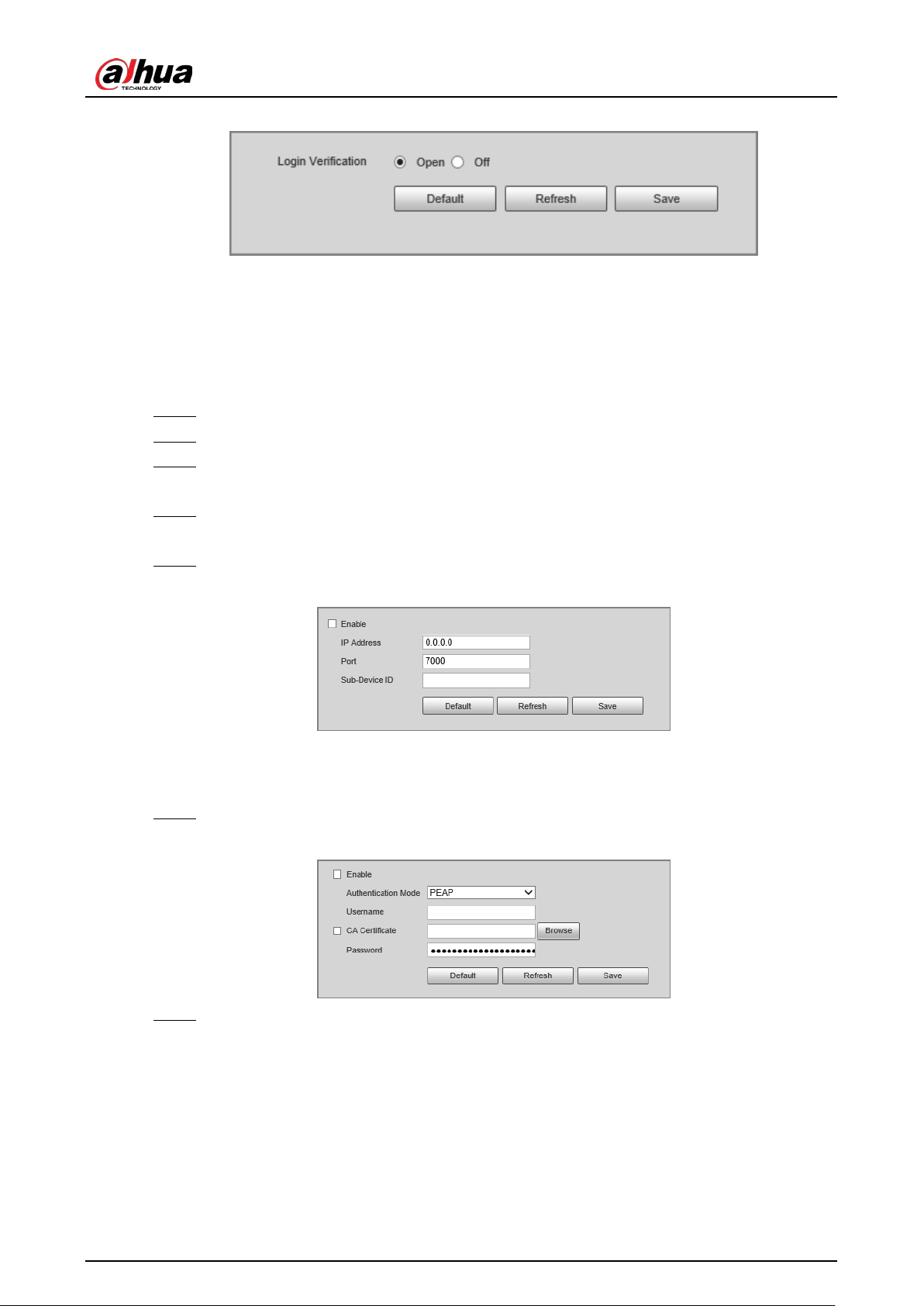
User's Manual
88
Figure 4-56 ONVIF
4.5.3.2.3 Configuring Auto Registration
When the Device is connected to the network, it will automatically report its location to the server
specified by the user. This helps client software to access the Device through the server for viewing
and monitoring the real-time video.
Step 1 Select
Setting
>
Network Settings
>
Register
.
Step 2 Select the
Enable
checkbox to enable auto registration function.
Step 3 Enter the IP address of server that needs to be registered, and also the port for auto
registration.
Step 4 Enter the
Sub-Device ID
, which is the device ID assigned by the server for auto registration.
Make sure that there are no repeated device IPs.
Step 5 Click
Save
.
Figure 4-57 Register
4.5.3.2.4 Configuring 802.1x
Step 1 Select
Setting
>
Network Settings
>
802.1x
.
Figure 4-58 802.1x
Step 2 Select
Enable
to enable 802.1x, and then configure the parameters.

User's Manual
89
Table 4-35 Description of 802.1x parameters
Module Parameter Description
Common
Parameter
Authentication
Mode
●
PEAP
: Ordinarily uses TLS only to authenticate the
server to the client, and only the sever is required to
have a public key certificate.
●
EAP-TLS
: Provides mutual authentication of client to
server, and server to client. Both the client, and the
server must be assigned a digital certificate signed by
a CA (Certificate Authority) that they both trust.
CA Certificate
Click
Browse
to import a CA certificate and then select the
CA Certificate
to verify whether the certificate is valid.
PEAP
Username For PEAP method, user authentication is performed by
using password-based credentials (username, and
password).
Password
EAP-TLS
Client
Certificate
Click
Browse
to import a client certificate and a private key
for authentication.
Private Key
Step 3 Click
Save
.
4.5.4 Event
4.5.4.1 Exception
An alarm will be triggered when an abnormal event occurs. The event types include:
●
Disk Abnormal
: An alarm will be triggered when there is
No SD card
,
SD card error
, or
Memory
insufficient
.
●
Network Exception
: An alarm will be triggered when there is
Offline
(the Device is offline) or
IP
Conflict
.
●
Invalid Access
: An alarm will be triggered when unauthorized access is detected by the system.
●
Security Exception
: An alarm will be triggered when security problem occurs.
Step 1 Select
Setting
>
Event
>
Exception
.
The following figure uses
Disk Abnormal
as an example. For other events, refer to the
actual page.
Step 2 Configure the parameters.
Figure 4-59 Disk Abnormal

User's Manual
90
Refer to the actual page to view the parameters that you need to configure for each
exception.
Table 4-36 Description of exception parameters
Parameter Description
Enable Select it to enable alarm of abnormal events.
Login Attempt
Configure the number of login errors allowed. The range is 3–10
times.
Step 3 Click
Save
.
4.5.4.2 Device Location
You can view the device position information, such as its longitude and latitude.
Select
Setting
>
Event
>
Device Location
.
4.5.5 Peripheral
4.5.5.1 Device Status
Select
Setting
>
Peripheral
>
Peripheral
>
Device Status
, and then you can view the information
of external devices.
4.5.5.2 External Light
You can configure the work mode of the flashing lights and strobes connected to the Device.
Step 1 Select
Setting
>
Peripheral
>
Peripheral
>
External Light
.
Figure 4-60 Light config
Step 2 Configure the parameters.

User's Manual
91
Table 4-37 Description of light parameters
Parameter Description
F1/2/3
Select the light type connected to each port.
The light type must be the same as the actual connected
light type. Otherwise, the light might be damaged.
Flashing Light
Working Mode
●
No Flash
: The light is normally off.
●
Always Flash
: The light is normally on.
●
Auto Flash
: Configure the preset value of brightness.
If the ambient brightness is lower, the light
automatically turns on; if higher, the light
automatically turns off.
Scene Mode
Select the scene mode for the flashing light from
Morning/Dusk
,
Day
and
Night
, indicating different
brightness of the light which suits the environment the
best.
Pulse Width
Configure the pulse width of flashing light. The higher
the value, the brighter the light.
Delay Time
Configure the delay time of the light to keep the
snapshot in sync with the flash.
Trigger Mode
You can select the level that triggers the flashing light.
Currently, only
Low level
is supported.
Strobe
Output Mode Same as
Working Mode
of flashing light.
Frequency Set the frequency of the strobe.
Ambient
Brightness
When setting
Output Mode
to
Auto
, you need to set the
ambient brightness.
Step 3 Click
Save
.
4.5.6 Storage
You can configure the storage path of snapshots and recorded videos.
4.5.6.1 Storage Spot Config
Step 1 Select
Setting
>
Storage
>
Storage
>
Storage Spot Config
.
Figure 4-61 Storage spot config
Step 2 Select storage path as needed.
●
Local Storage
: Store in the TF card, which has a limited capacity but offers continuous
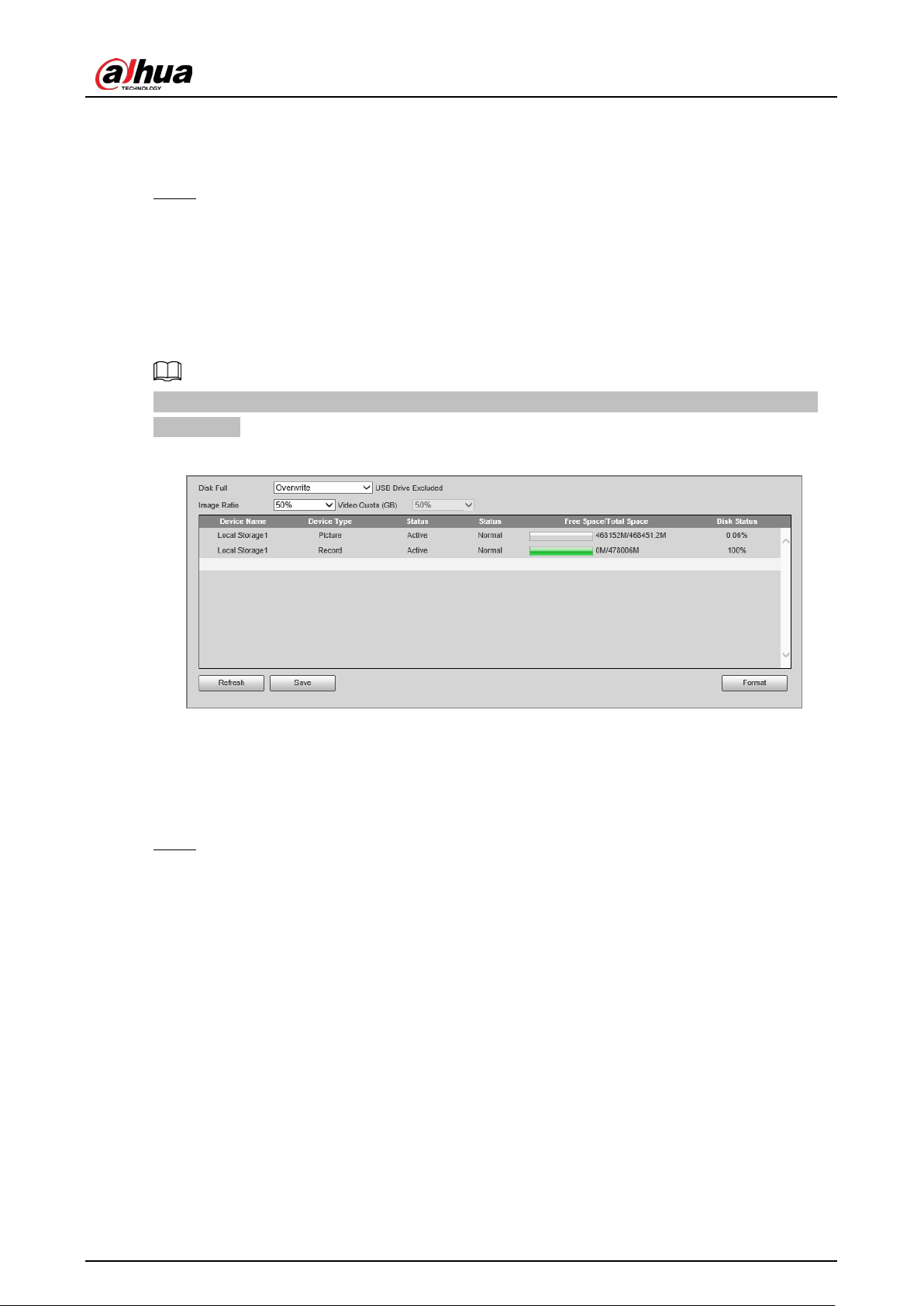
User's Manual
92
access to its storage, even during network failure. Videos can only be stored in TF card.
●
FTP
: Store in the FTP server, which offers a greater capacity but it will stop storing when
the network fails.
Step 3 Click
Save
.
4.5.6.2 Local Storage
Select
Setting
>
Storage
>
Storage
>
Local Storage
You can format the TF card, or select to
Overwrite
or
Stop
storage when the disk is full. Click
Save
after these operations.
Make sure that a TF card is inserted. Otherwise, no card information will be displayed on the
Local
Storage
tab.
Figure 4-62 Local storage
4.5.6.3 FTP
FTP function can be enabled only when TF card is inserted and FTP server is enabled. Only snapshots
can be saved to the FTP server.
Step 1 Select
Setting
>
Storage
>
Storage
>
FTP
.

User's Manual
93
Figure 4-63 FTP
Step 2 Configure the parameters.
Table 4-38 Description of FTP parameters
Parameter Description
ANR
When the network disconnects or fails, snapshots will be stored in TF
card. After the network is restored, the snapshots will be uploaded
from the TF card to FTP or client.
Make sure that TF card is inserted in the Device; otherwise, the offline
transfer function cannot be enabled.
Picture Name Settings
Set the naming rule of snapshots to be saved in FTP server. You can
click
Help
to view the
Image Naming Rules
, or click
Reset
to restore
the default naming rule.
Server1, Server2,
Server3
Supports uploading to multiple servers. You can save different types
of snapshots to different servers. Select the snapshot types from
Upload Picture
.
Enable Enable FTP server storage.
Protocol
●
SFTP
: Secure File Transfer Protocol, a network protocol that
allows file access and transfer over a secure data stream.
●
FTP
: File Transfer Protocol, a network protocol implemented to
exchange files over a TCP/IP network. Anonymous user access is
also available through an FTP server.
Server IP The IP address of FTP server.
Encode Mode
The encode mode of Chinese characters when naming images. Only
UTF-8
is supported. After configuring
Server IP
and
Port
, click
Test
to check whether the FTP server works.
Port The port number of FTP server.

User's Manual
94
Parameter Description
Username, Password The username and password of FTP server.
Upload Picture
Select events and picture types to be uploaded to each FTP server.
Different modes support different events, and might differ from the
actual page.
Step 3 Click
Save
.
4.5.6.4 Storage Path
You can configure the names and storage paths of snapshots and recorded videos.
Step 1 Select
Setting
>
Storage
>
Storage
>
Storage Path
.
Step 2 Name the snapshots in the
Naming Format
section. You can click
Help
to view the
Image
Naming Rules
, or click
Reset
to restore the naming rule to the default.
After setting the naming rule, you can preview an example of the name in the
Name
Preview
section.
Step 3 Click
Browse
to set the storage paths of snapshots and recorded videos respectively.
Step 4 Click
Save
.
Figure 4-64 Storage path
4.5.6.5 SMART
SMART (Self-Monitoring Analysis and Reporting Technology) is used to display automatic disk
detection results, and discover and predict possible disk problems in time.
Step 1 Select
Setting
>
Storage
>
Storage
>
S.M.A.R.T
.
Step 2 Check the information and health state of the disk.
4.5.7 Record
4.5.7.1 Record Control
Step 1 Select
Setting
>
Storage
>
Storage
>
Record Control
.
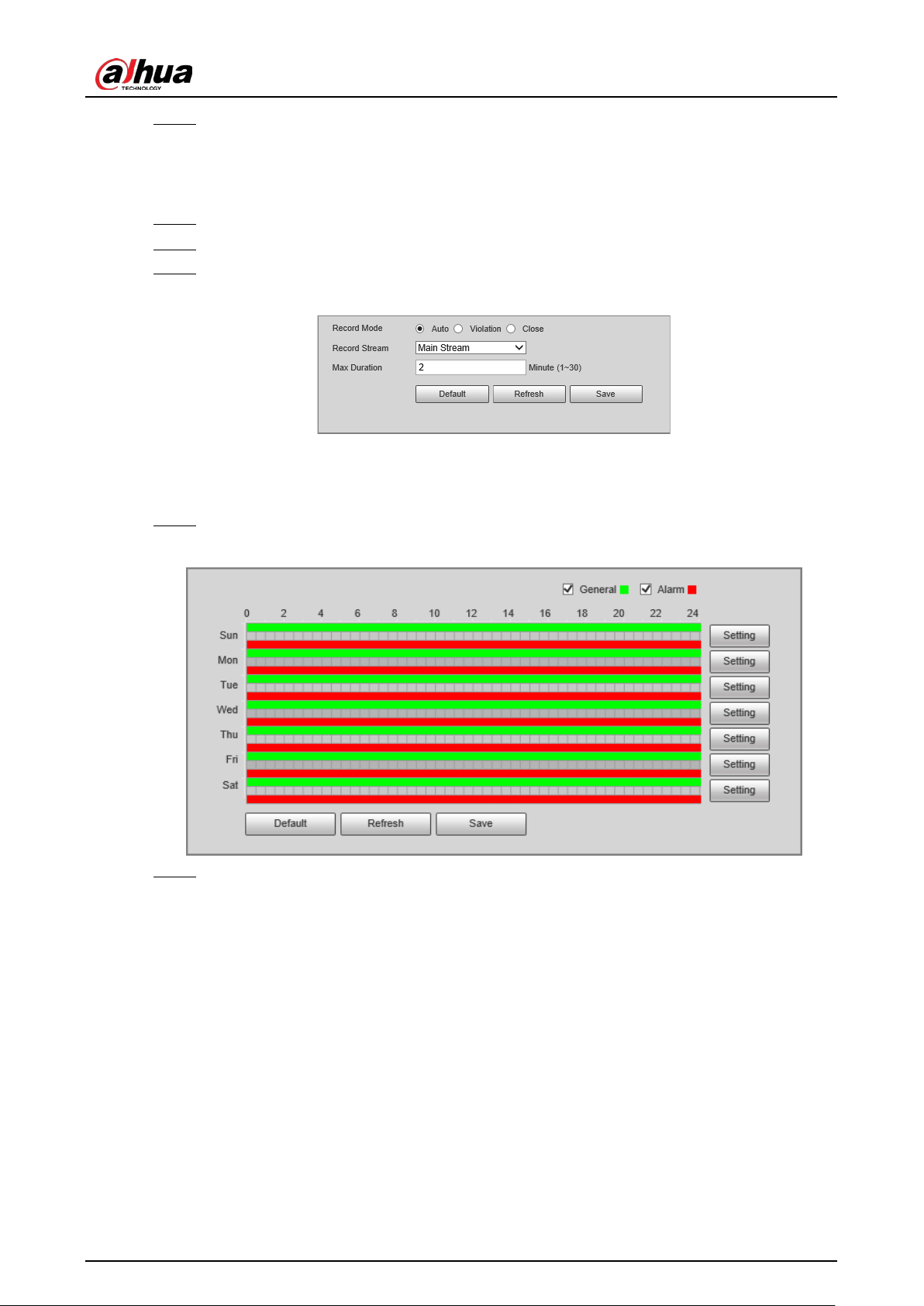
User's Manual
95
Step 2 Select the record mode.
●
Auto
: Record videos continuously
●
Violation
: Record videos only when a traffic violation event is detected.
●
Close
: Do not record videos.
Step 3 Select the record stream. You can select
Main Stream
or
Sub Stream
.
Step 4 Set the maximum duration of recorded videos.
Step 5 Click
Save
.
Figure 4-65 Record control
4.5.7.2 Schedule
Step 1 Select
Setting
>
Storage
>
Record
>
Schedule
.
Figure 4-66 Schedule
Step 2 Set the record plan records.
●
Press and hold the left mouse button, and directly drag to set the period on the
timeline corresponding to Sunday to Saturday.
●
Click
Setting
on the right side of Sunday to Saturday. In the
Setting
dialog box, set
periods and record types, and then click
OK
.
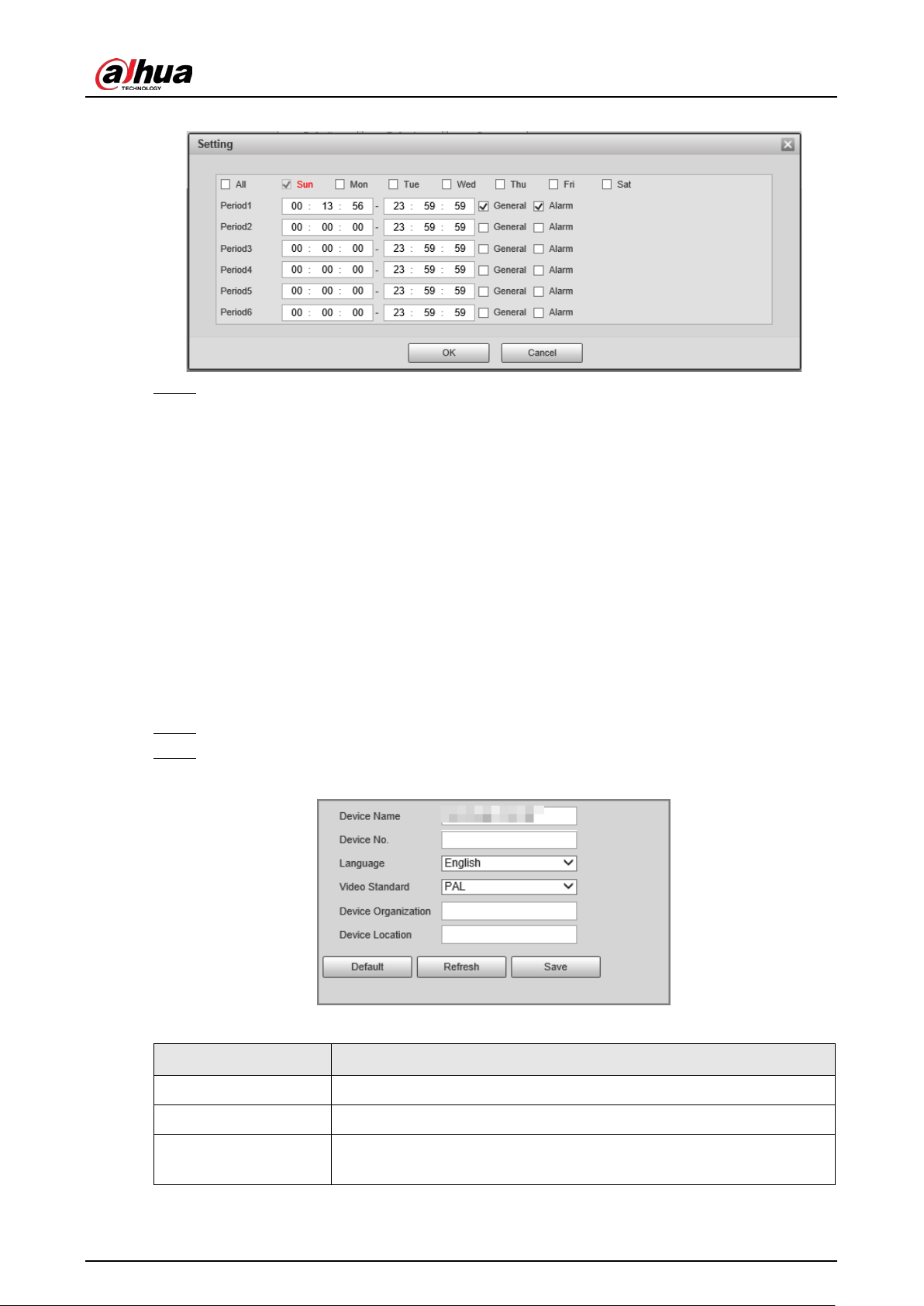
User's Manual
96
Figure 4-67 Setting
Step 3 Click
Save
.
4.5.8 System
You can configure system information, add users, restore settings to factory settings, import and
export system configuration files, and perform more operations.
4.5.8.1 General
You can configure display language, video standard, and the time and time zone of the Device.
4.5.8.1.1 General Settings
You can configure the device code, system, video standard, and other general settings.
Step 1 Select
Setting
>
System
>
General
>
General
.
Step 2 Configure the parameters.
Figure 4-68 General
Table 4-39 Description of general parameters
Parameter Description
Device Name The name of the Device.
Device No. The sequence number of the Device.
Language
The display language of the webpage. You need to log in again when
switching to another language. Currently, only
English
is supported.
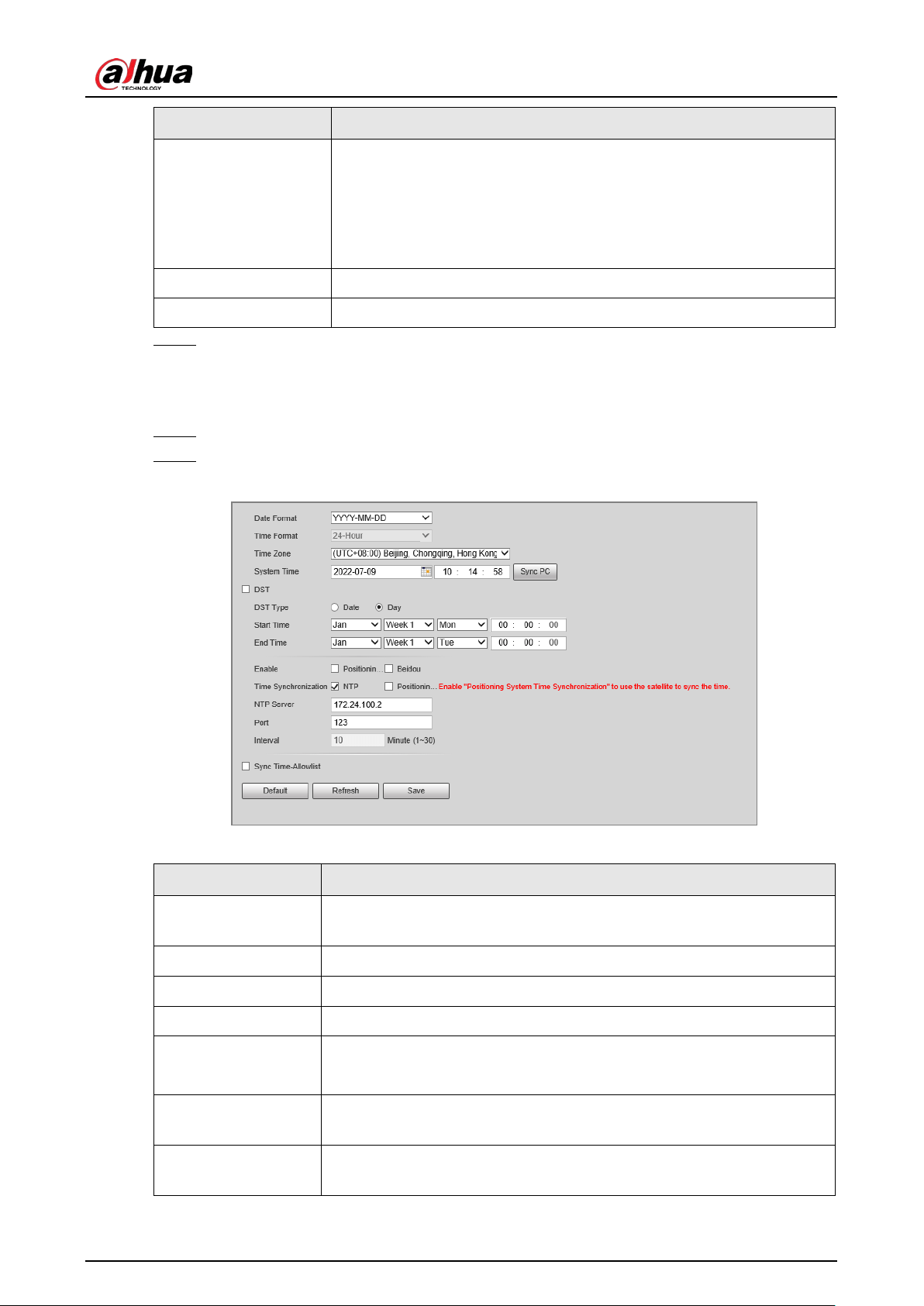
User's Manual
97
Parameter Description
Video Standard
PAL
and
NTSC
are available.
●
PAL
: Much more common around the world, and can be found in
most of Western Europe, Australia, China, and elsewhere.
●
NTSC
: Mostly limited to North America, parts of South America,
Japan, the Philippines and more.
Device Organization The group or entity that uses the Device.
Device Location The location where the Device is installed.
Step 3 Click
Confirm
.
4.5.8.1.2 Date & Time
Step 1 Select
Setting
>
System
>
General
>
Date & Time
.
Step 2 Configure the parameters.
Figure 4-69 Date & time
Table 4-40 Description of date & time parameters
Parameter Description
Date Format
Select the date format. Three formats are available:
YYYY-MM-DD
,
MM-DD-YYYY
and
DD-MM-YYYY
.
Time Format
Select the time format. Only
24-Hour
is available.
Time Zone The time zone where the Device is located.
System Time The current time of the Device.
Sync PC
Synchronize the time of the Device to that of the PC.
Click
Sync PC
, and the settings will immediately take effect.
DST
Select the
DST
checkbox, set the
DST Type
by
Date
or by
Day
, and then
configure the
Start Time
and
End Time
of DST.
Time
Synchronization
Time synchronization mode. You can select
NTP
or
Positioning System
Time Synchronization
.

User's Manual
98
Parameter Description
NTP Server The IP address and the port number of NTP server.
Required when
NTP
is set to
Time Synchronization
.
Port
Interval The time synchronization interval of the Device and the NTP or satellite.
Sync Time-Allowlist
Set the type and IP address that need time synchronization, and then
click
Add
.
Step 3 Click
Save
.
4.5.8.2 Account Management
You can add or delete users and user groups, assign permissions to users and user groups, change
passwords, and manage users and user groups.
4.5.8.2.1 Account
You can view the information of a user or user group, add or delete users or user groups, change
user password, assign user permissions, restrict user login, and perform other operations.
Step 1 Select
Setting
>
System
>
Account
>
Account
>
Username
.
Step 2 Add a user.
1) Click
Add User
.
2) In the
Add User
dialog box, configure user information including username, password,
group name, memo, and operation permissions.
Figure 4-70 Add user
3) Set login restrictions (if necessary), and then the restricted IP address will be unable to
log in to the Camera during the restricted period.

User's Manual
99
Figure 4-71 Set log restriction
4) Click
Save
to save the settings.
Step 3 Select
Setting
>
System
>
Account
>
Account
>
Group
.
Step 4 Add a group.
1) Click
Add Group
.
2) Configure the
Group
and
Permission
of the group.
3) Click
Save
.
Related Operations
●
Delete a user/user group: Click
to delete the corresponding user/user group.
◇
The admin and user groups cannot be deleted.
◇
A group cannot be deleted if there is any user in the group.
●
Modify user/user group information: Click
corresponding to the user. You can modify
information such as username, password, email address, group name, and memo. Click
Save
to
save the settings.
●
Change password: On the
Modify User
page, select the
Change Password
checkbox. Enter the
old and new passwords, and confirm password. Click
Save
after configuration.
The password must consist of 8–32 non-blank characters and contain at least two types of the
following characters: Uppercase, lowercase, numbers, and special characters (excluding ' " ; : &).
Configure the password according to the password strength prompt.
●
Clear all user information: Click
Clear user
under
Setting
>
System
>
Account
>
Account
>
Clear User
.
4.5.8.2.2 ONVIF User
ONVIF users can be separately managed from account users and user groups.
●
The system manages both ONVIF users and user groups. The factory settings cover one group:
admin. You can set up to 18 ONVIF users.

User's Manual
100
●
ONVIF username cannot be repeated. Each ONVIF user must belong to a group, and can only
belong to one group. The username can be 31 characters at most, consisting of letters, numbers,
"_", "@" and ".".
●
The default ONVIF username and password are both admin. There is one admin by default which
has the highest authority.
Procedure
Step 1 Select
Setting
>
System
>
Account
>
ONVIF User
.
Step 2 Click
Add User
.
Step 3 Configure user information such as username, password, and group name.
Figure 4-72 Add user
Step 4 Click
Save
.
Related Operations
●
Modify ONVIF user information: Click
corresponding to the user, and then you can modify
information such as username, password, and group name.
●
Modify password: On the
Modify User
page, select the
Change Password
checkbox. Enter the
old and new passwords, and confirm password.
The password must consist of 8–32 non-blank characters and contain at least two types of the
following characters: Uppercase, lowercase, numbers, and special characters (excluding ' " ; : &).
Configure the password according to the password strength prompt.
4.5.8.3 Security
4.5.8.3.1 System Service
You can enable multiple system services to secure network safety.
Step 1 Select
Setting
>
System
>
Security
>
System Service
.
Step 2 Enable the services.
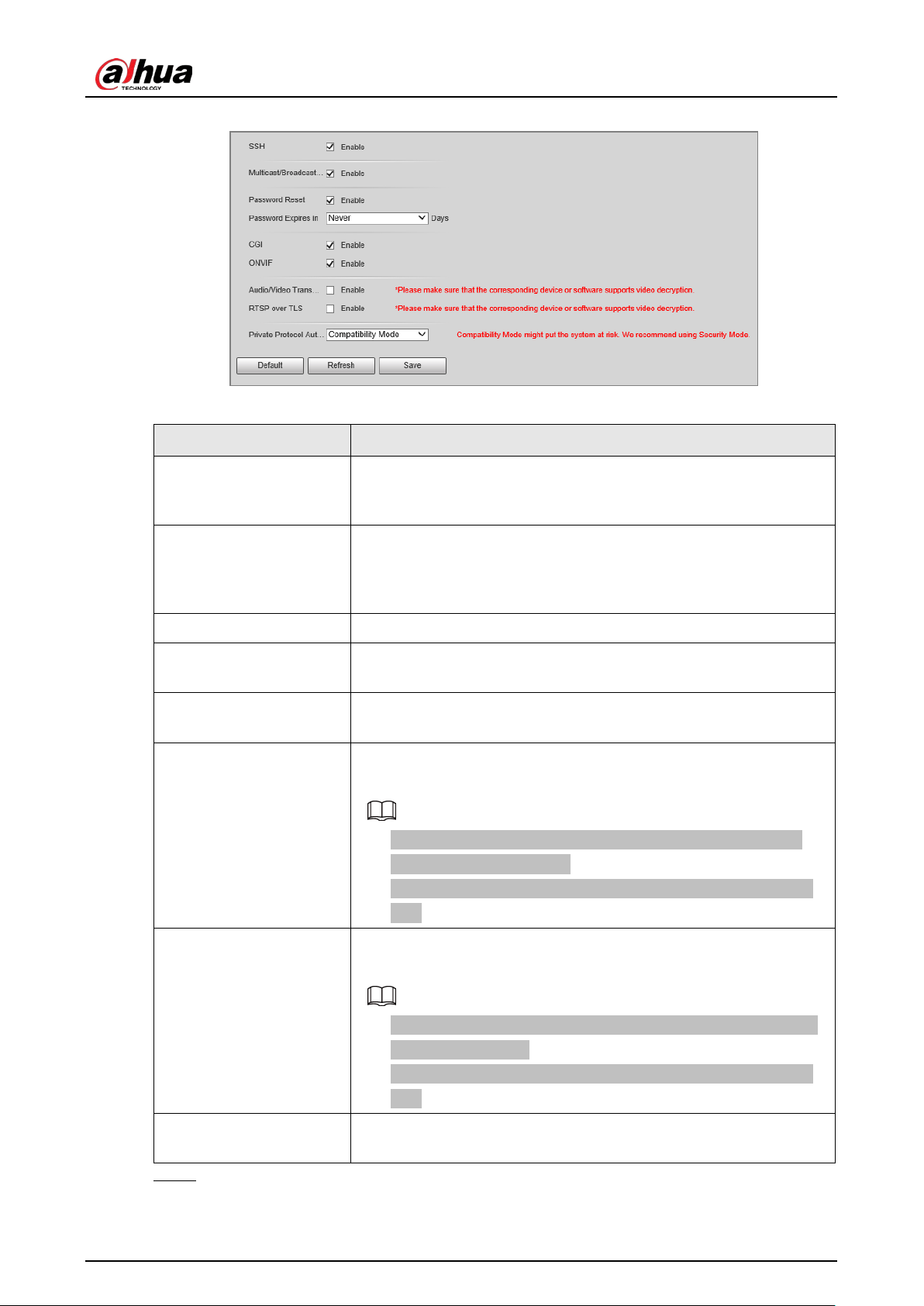
User's Manual
101
Figure 4-73 System service
Table 4-41 Description of system service parameters
Parameter Description
SSH
Secure Shell (SSH) is a cryptographic network protocol for operating
network services securely over an unsecure network. It is a method
for secure remote login, providing secure access for users.
Multicast/Broadcast
Search
Multicast identifies logical groups of computers group members.
This allows a single message to be sent to the group. Broadcast
allows all devices on the same network segment to see the same
message.
Password Reset Enable it so that you can reset the password.
CGI
Select the
Enable
checkbox to enable Common Gateway Interface
(CGI) service.
ONVIF
Select the
Enable
checkbox to enable Open Network Video
Interface Forum (ONVIF) service.
Audio/Video
Transmission Encryption
Enable this function to encrypt stream transmitted through private
protocol.
●
Make sure that the matched device or software supports the
video decryption function.
●
We recommend enabling the encryption service to avoid data
leak.
RTSP over TLS
Enable this function to encrypt stream transmitted through
standard protocol.
●
Make sure that the matched device or software supports video
decryption function.
●
We recommend enabling the encryption service to avoid data
leak.
Private Protocol
Authentication Mode
Security Mode
is recommended.
Step 3 Click
Save
.

User's Manual
102
4.5.8.3.2 HTTPS
Prerequisites
●
For first-time use of HTTPS or after changing device IP address, you need to create server
certificate and install root certificate.
●
After creating server certificate and installing root certificate, if you change a computer to log in
to the webpage, you need to download and install the root certificate again on the new
computer or copy the downloaded root certificate on the new computer, and install it.
On the
HTTPS
tab, you can make PC log in normally through HTTPS by creating certificate or
uploading authenticated certificate. It can ensure security of communication data, and provide
guarantee for user information, and device safety through reliable, and stable technical approach.
Procedure
Step 1 Create a certificate or upload the authenticated certificate.
●
Create Certificate
.
1. Select
Setting
>
System
>
Security
>
HTTPS
.
2. Click
Create
.
Figure 4-74 HTTPS
3. Enter the required information such as region, IP or domain name, and then click
Create
.
The entered
IP/Domain Name
must be the same as the IP or domain name of the
Device.
4. Click
Install
under
Request Created
, and then click
Download
to download root
certificate.
The system pops up
Save As
dialog box, select storage path, and then click
Save
.
5. Double-click the RootCert.cer icon.
6. Click
Install Certificate…

User's Manual
103
Figure 4-75 Install certificate
7. Click
Next
.
Figure 4-76 Certificate store
8. Click
Next
.

User's Manual
104
Figure 4-77 Complete the certificate import wizard
9. Click
Finish
.
10. Click
Yes
, and then click
OK
on the pop-up window.
●
Install Signed Certificate
.
1. Select
Setting
>
System
>
Security
>
HTTPS
.
2. Select
Enable
, and
Compatible with TLSv1.1 and earlier versions
.
3. Click
Browse
to upload the signed certificate, and certificate key, and then click
Upload
.
4. To install the root certificate, see operation steps from 4 to 10 in
Create Certificate
.
Step 2 Select
Enable
, and click
OK
.
The configuration takes effect until the Device restarts.
Step 3 Use HTTPS to log in to the Device.
1. Enter https://IP address in the browser.
IP address is the Device IP address or domain name.
2. Enter the username, and password to log in to the Device.
4.5.8.3.3 Firewall
Set the security rules to protect the safety of your device system.
Step 1 Select
Setting
>
System
>
Security
>
Firewall
.
Figure 4-78 Firewall
Step 2 Select
Type
.
●
Network Access
: Add the IP address to allowlist or blocklist to allow or restrict it from

User's Manual
105
accessing the corresponding ports of the device.
●
PING Prohibited
: IP address of your camera is prohibited from ping. This helps to
prevent unauthorized attempts at accessing your network system.
●
Anti Half Connection
: Prevents half-open SYN attacks.
Step 3 Select
Enable
to enable the rule type that you selected.
Step 4 Click
Save
.
4.5.8.4 Default
Select
Setting
>
System
>
Default
, and then you can:
●
Click
Default
to restore most configurations of the Camera to default settings (except
information such as IP address, account, and log).
●
Click
Factory Defaults
to restore all configurations of the Camera to default settings, including IP
address.
Figure 4-79 Default
4.5.8.5 Import/Export
The system supports exporting the configurations from the webpage to local PC, and importing the
configuration files from local backup.
Step 1 Select
Setting
>
System
>
Import/Export
.
Figure 4-80 Import/Export
Step 2 Click
Config Import
or
Config Export
.
●
Config Import
: Import the configuration files from local backup.
●
Config Export
: Export the configuration from the web page to your local computer.
The imported and exported files should be in the format of .backup.
Step 3 Select a path to import files from or export files to.
4.5.8.6 Maintenance Configuration
4.5.8.6.1 Maintenance
Step 1 Select
Setting
>
System
>
Maintenance
>
Maintenance
.

User's Manual
106
Figure 4-81 Auto maintain
Step 2 Select a restart mode.
●
Auto Restart
: Select the
Auto Restart
checkbox, and then configure the day and time.
The system will automatically restart at the defined day and time.
●
Restart
: Click it to manually restart the Device.
Step 3 Select the
Delete Expired Files
checkbox, and the system will automatically delete the old
files.
Step 4 Click
Save
.
4.5.8.6.2 Emergency Maintenance
Step 1 Select
Setting
>
System
>
Maintenance
>
Emergency Maintenance
.
Step 2 Select
Enable
to enable emergency maintenance.
Step 3 Click
Save
.
4.5.8.7 Update
You need to update the firmware to the latest version to make the Device run properly. Import the
update file in the format of .bin to the system, and then update the system.
Step 1 Select
Setting
>
System
>
Update
.
Step 2 Click
Browse
to select the firmware update file (.bin).
Step 3 Click
Update
to update the firmware.
Figure 4-82 Update
4.5.9 System Information
You can view information such as version, log, online user, and work status.
4.5.9.1 Version Information
●
Select
Setting
>
System Info
>
Version
to view information such as device model, and the
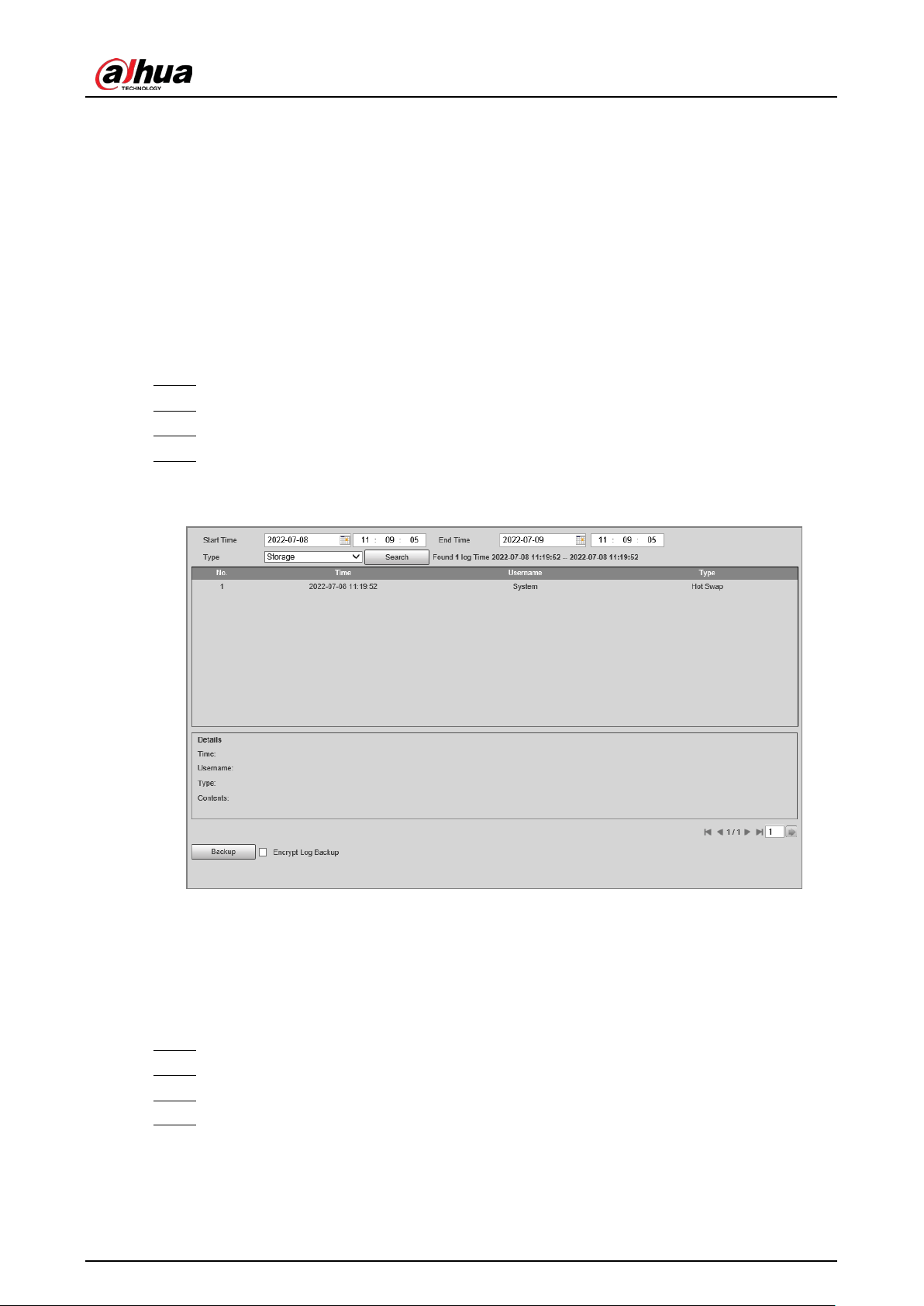
User's Manual
107
version of the hardware, system, and software.
●
Select
Setting
>
System Info
>
Peripheral Version
to view version information of the external
device, such as flashing light.
4.5.9.2 Log
4.5.9.2.1 System Log
You can search for logs by the time and type, and backup the logs. The log type includes
All
,
System
,
Setting
,
Config
,
Storage
,
Event
,
Record Account
, and
Safety
.
Step 1 Select
Setting
>
System Info
>
Log
>
Log
.
Step 2 Set
Start Time
and
End Time
, and then select log type.
Step 3 Click
Search
.
Step 4 View and backup the search results.
You can save the search results to your computer in a .txt file.
Figure 4-83 Log
4.5.9.2.2 Remote Log
Critical logs can be saved to the log server. This helps provide important clues to the source of
security incidents. The log server needs to be deployed in advance by a professional or system
administrator.
Step 1 Select
Setting
>
System Info
>
Log
>
Remote Log
.
Step 2 Select
Enable
to enable
Remote Log
.
Step 3 Configure the IP address, port and device number.
Step 4 Click
Save
.

User's Manual
108
Figure 4-84 Remote log
4.5.9.3 Online User
Select
Setting
>
System Info
>
Online User
, and then you can view online users’ information, such
as username, user local group, IP address, and user login time.
4.5.9.4 Running Status
Select
Setting
>
System Info
>
Running Status
, and then you can view device work status,
including CPU, memory and temperature.
4.5.9.5 Legal Information
Select
Setting
>
System Info
>
Legal Info
to view the legal information.
4.6 Alarm
Select
Alarm
at the upper-right corner of the webpage, and then you can select the event type to
trigger an alarm, and also configure the sound of the alarm.
The alarm type might differ depending on the device model.
Figure 4-85 Alarm
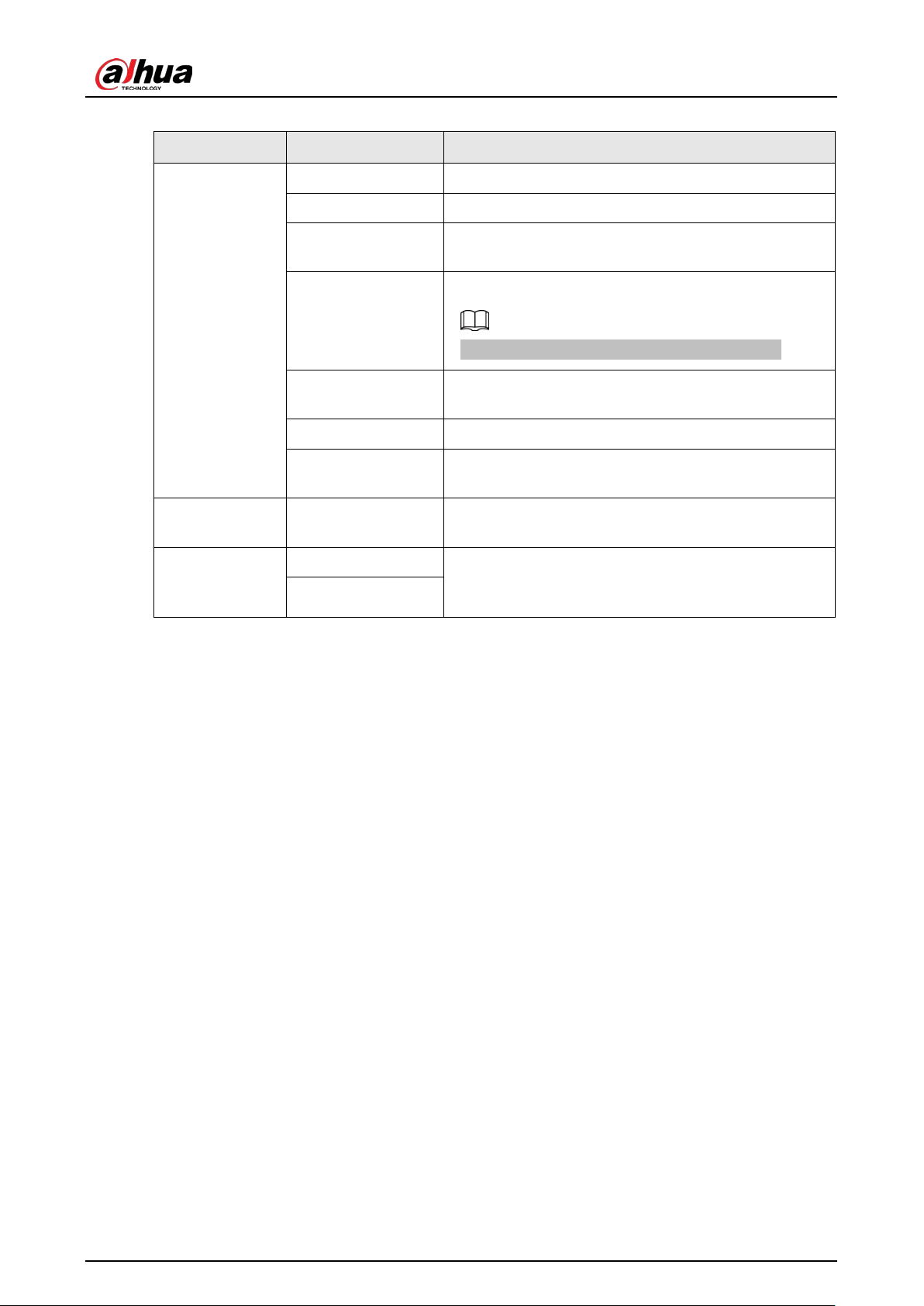
User's Manual
109
Table 4-42 Alarm parameters
Name Parameter Description
Alarm Type
Disk Full An alarm is triggered when storage is full.
Disk Error An alarm is triggered when storage error occurs.
No SD card
An alarm is triggered when there is no storage space
available.
Traffic Light Alarm
An alarm is triggered when a traffic light fails.
This function is only available in
E Police
mode.
Vehicle Blocklist
An alarm is triggered when a license plate in the
blocklist is detected.
Invalid Access An alarm is triggered when illegal access is detected.
Security Exception
An alarm is triggered when a network security
problem is detected, such as session hijacking.
Operation Subscribe Alarm
When an alarm is triggered, the Device will inform you
on the webpage.
Alarm Tone
Play Alarm Tone
Select the
Play Alarm Tone
checkbox, and then click
Select
to select the alarm tone. The system will play
the defined alarm tone when an alarm is triggered.
Tone Path

User's Manual
110
Appendix 1 Cybersecurity Recommendations
Cybersecurity is more than just a buzzword: it’s something that pertains to every device that is
connected to the internet. IP video surveillance is not immune to cyber risks, but taking basic steps
toward protecting and strengthening networks and networked appliances will make them less
susceptible to attacks. Below are some tips and recommendations from Dahua on how to create a
more secured security system.
Mandatory actions to be taken for basic device network security:
1.
Use Strong Passwords
Please refer to the following suggestions to set passwords:
●
The length should not be less than 8 characters.
●
Include at least two types of characters; character types include upper and lower case letters,
numbers and symbols.
●
Do not contain the account name or the account name in reverse order.
●
Do not use continuous characters, such as 123, abc, etc.
●
Do not use overlapped characters, such as 111, aaa, etc.
2.
Update Firmware and Client Software in Time
●
According to the standard procedure in Tech-industry, we recommend to keep your device
(such as NVR, DVR, IP camera, etc.) firmware up-to-date to ensure the system is equipped with
the latest security patches and fixes. When the device is connected to the public network, it is
recommended to enable the "auto-check for updates" function to obtain timely information
of firmware updates released by the manufacturer.
●
We suggest that you download and use the latest version of client software.
"Nice to have" recommendations to improve your device network security:
1.
Physical Protection
We suggest that you perform physical protection to device, especially storage devices. For
example, place the device in a special computer room and cabinet, and implement well-done
access control permission and key management to prevent unauthorized personnel from
carrying out physical contacts such as damaging hardware, unauthorized connection of
removable device (such as USB flash disk, serial port), etc.
2.
Change Passwords Regularly
We suggest that you change passwords regularly to reduce the risk of being guessed or cracked.
3.
Set and Update Passwords Reset Information Timely
The device supports password reset function. Please set up related information for password
reset in time, including the end user’s mailbox and password protection questions. If the
information changes, please modify it in time. When setting password protection questions, it is
suggested not to use those that can be easily guessed.
4.
Enable Account Lock
The account lock feature is enabled by default, and we recommend you to keep it on to
guarantee the account security. If an attacker attempts to log in with the wrong password several
times, the corresponding account and the source IP address will be locked.

User's Manual
111
5.
Change Default HTTP and Other Service Ports
We suggest you to change default HTTP and other service ports into any set of numbers between
1024–65535, reducing the risk of outsiders being able to guess which ports you are using.
6.
Enable HTTPS
We suggest you to enable HTTPS, so that you visit Web service through a secure communication
channel.
7.
MAC Address Binding
We recommend you to bind the IP and MAC address of the gateway to the device, thus reducing
the risk of ARP spoofing.
8.
Assign Accounts and Privileges Reasonably
According to business and management requirements, reasonably add users and assign a
minimum set of permissions to them.
9.
Disable Unnecessary Services and Choose Secure Modes
If not needed, it is recommended to turn off some services such as SNMP, SMTP, UPnP, etc., to
reduce risks.
If necessary, it is highly recommended that you use safe modes, including but not limited to the
following services:
●
SNMP: Choose SNMP v3, and set up strong encryption passwords and authentication
passwords.
●
SMTP: Choose TLS to access mailbox server.
●
FTP: Choose SFTP, and set up strong passwords.
●
AP hotspot: Choose WPA2-PSK encryption mode, and set up strong passwords.
10.
Audio and Video Encrypted Transmission
If your audio and video data contents are very important or sensitive, we recommend that you
use encrypted transmission function, to reduce the risk of audio and video data being stolen
during transmission.
Reminder: encrypted transmission will cause some loss in transmission efficiency.
11.
Secure Auditing
●
Check online users: we suggest that you check online users regularly to see if the device is
logged in without authorization.
●
Check device log: By viewing the logs, you can know the IP addresses that were used to log in
to your devices and their key operations.
12.
Network Log
Due to the limited storage capacity of the device, the stored log is limited. If you need to save the
log for a long time, it is recommended that you enable the network log function to ensure that
the critical logs are synchronized to the network log server for tracing.
13.
Construct a Safe Network Environment
In order to better ensure the safety of device and reduce potential cyber risks, we recommend:
●
Disable the port mapping function of the router to avoid direct access to the intranet devices
from external network.
●
The network should be partitioned and isolated according to the actual network needs. If
there are no communication requirements between two sub networks, it is suggested to use
VLAN, network GAP and other technologies to partition the network, so as to achieve the
network isolation effect.
●
Establish the 802.1x access authentication system to reduce the risk of unauthorized access to

User's Manual
112
private networks.
●
Enable IP/MAC address filtering function to limit the range of hosts allowed to access the
device.
More information
Please visit Dahua official website security emergency response center for security announcements
and the latest security recommendations.

User's Manual