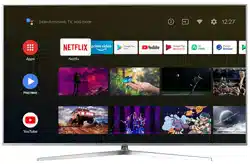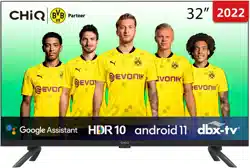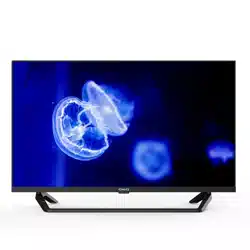
SERIES
U50H10
H
10

Table of contents
Package contents .......................................................................................... 1
Safety instructions ........................................................................................
2
Getting started ..............................................................................................
Controls and connections ..............................................................................
Connecting antennae, Internet and external devices ......................................
Initial Setup ............. ................................................... ..................................
Basic TV instruction .....................................................................................
Accessing Smart TV Homepage
Help function
USB FUNCTION (Media Player)
PVR(Personal Video Recorder)
Bluetooth Function
Google Assistant
Chromecast Built-in
Trouble-shooting
.........................................................................................
Warning
IMPORTANT INFORMATION
If a television is not positioned in a sufficiently stable location, it can be
potentiallyhazardous due to falling. Many injuries, particularly to children,
can be avoided bytaking simple precautions such as:
a. Using cabinets or stands recommended by the manufacturer of the
television.
b. Only using furniture that can safely support the television .
c. Ensuring the television set is not overhanging the edge of the supporting
furniture.
d. Not placing the television set on tall furniture (for example, cupboards or
ookcases) without anchoring both the furniture and the television set to a
suitable support.
e. Not placing the television set on cloth or other materials that may be located
between the television set and supporting furniture.
f. Educating children about the dangers of climbing on furniture or reach the
television set or its controls.
g. The television must to be positioned in a horizontal, stable, un-slippery
plane to avoid sliding.
1
.....................................................................
.....................................................................
.......................................................................
...............................................................................................
......................................................................................
..........................................................................................
.....................................................................................
7
7
9
11
12
13
14
14
15
15
16
16
17
Figures and illustrations in this Operation Manual are provided for
reference only and may differ from actual product appearance.
Product design and specifications may be changed without notice.
Safety instructions
Before you use this device for the first time, please read the following instructions
and heed all warnings, even if you are familiar with handling electronic devices.
Keep this manual safe for future reference. Keep it near the product. If you sell the
device or pass it on, it is essential that you also hand over this manual.
This symbol and the signal word “Danger”, “Warning” or “Caution”
indicate a hazardous situation which will lead to death or serious
injuries if not avoided.
This symbol indicates further information on the topic.
Warning: Children and persons with disabilities
Children and persons with disabilities may not be able to comprehend the
potential risks. Therefore, children and persons with disabilities should never be
allowed to use electrical devices unsupervised. Batteries and small parts
represent potential choking hazards. Therefore, keep the batteries in a safe
place. Seek medical attention immediately if a battery is swallowed. Keep the
packaging away from children and persons with disabilities. There is a risk of
suffocation.
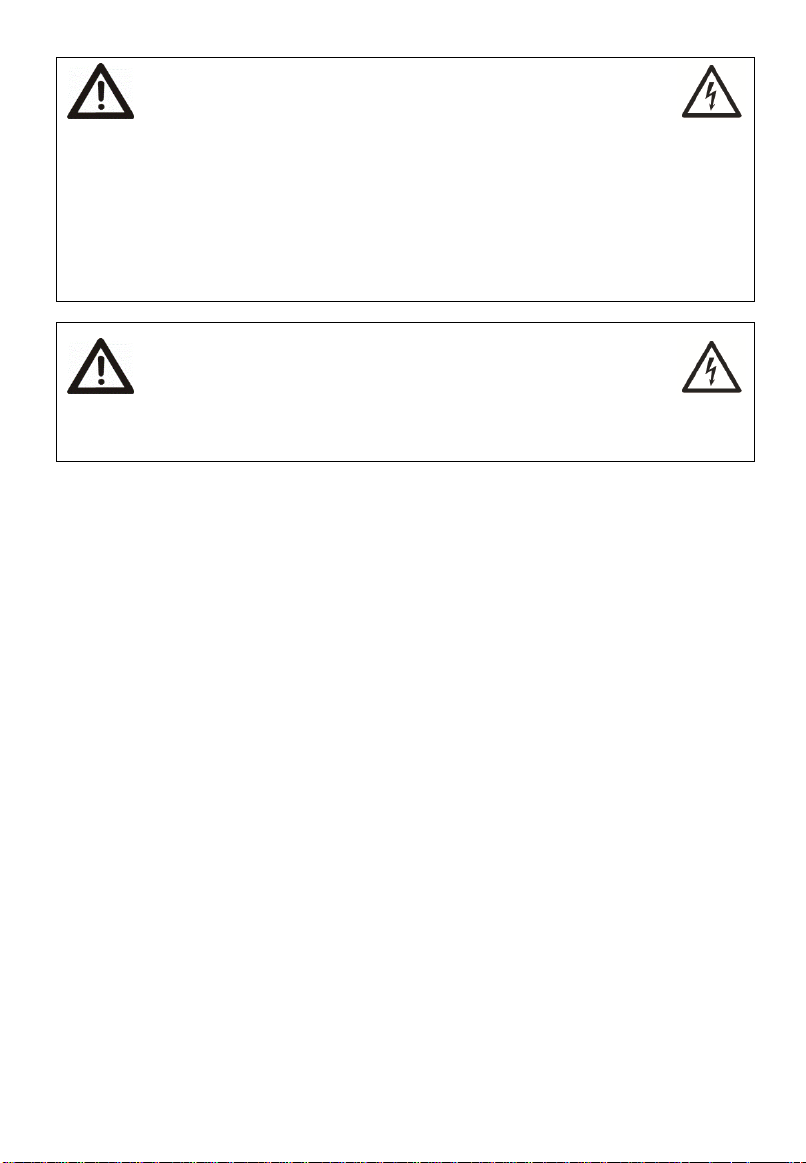
Caution: Risk of hearing damage
Using headphones at extremely high volume levels can cause permanent
damage to the hearing.
Reduce the volume before connecting the earphones and increase it to a
comfortable level when watching the TV.
Caution: Disconnecting from the main power
The device still uses electricity in standby mode. In order to prevent the
device using any electricity, the power plug must be pulled out from the main
socket. In order to be able to pull out the power plug quickly in the event of
an emergency, the device must be positioned to guarantee free access to the
main power switch.
If you do not plan to use the device for an extended period, for example,
when you go on holiday, pull out the power plug from the power point and
disconnect the antenna cable.
2
Warning: Batteries
Risk of death! Store batteries out of the reach of children. If a battery is
swallowed, seek medical attention immediately!
Make sure that batteries are always inserted with the correct polarity.
Do not attempt to recharge the batteries and do not throw the batteries into
a fire.
Do not mix battery types (old and new or carbon and alkaline, etc.).
Keep the batteries away from heat and direct sunlight (even when they are in
the remote control). Otherwise, there could be a risk of explosion or fire!
Do not attempt to open or modify the batteries. Leaking battery acid can
cause injuries. If it comes into contact with the skin or eyes, rinse
immediately with lots of water and seek immediate medical assistance.
Remove any batteries which have leaks immediately. Use suitable gloves to
prevent injuries.
If you do not plan to use the device for an extended period, please remove the
batteries. Improper use could cause explosions or leaks.
Caution: Cables
Always handle the cables by the connector and do not pull on the cables
themselves. Make sure that you never place heavy objects on the cables and do
not place the device itself on a cable. Never tie a knot in a cable or bend it,
especially near the plug and at the connection jack, and never tie it to other
cables. All cables must be laid so that nobody can trip over them or be
obstructed by them. Do not try to repair or modify the cable.
Warning:Screen
Do not apply any pressure to the screen and keep sharp objects away from the
surface of the screen. A broken screen represents a risk of injury. Wear gloves to
collect the broken parts and consult the customer services department where
necessary.
If any liquids escape from the broken display, wipe them carefully with a dry
cloth. Where safety gloves while doing so and note the following:
If the fluid is swallowed, first rinse the mouth and throat out with water and
then drink plenty of water. Contact a doctor immediately!
If the fluid gets into the eye, rinse it out with plenty of clean water. Contact a
doctor immediately or seek medical attention.
If comes into contact with the skin, wipe it off with a clean cloth and rinse
with plenty of clean water. Consult a doctor where applicable!
Dispose of the broken screen according to local environmental regulations.
3
Warning:Repairs
Never open the housing of the device. Failure to do so could
result in potentially fatal electrocution.
Repairs are required if this device has fallen or otherwise been damaged in any
way, for example, if the device housing is damaged, if liquids or objects have
penetrated the device or if it has been exposed to rain or moisture. Repairs are
also required if the device is not working perfectly.
If smoke develops or the device produces unusual noises or smells, power it off
immediately and disconnect it from the power point. If this occurs, the device
should not be used before it has been inspected by authorised service personnel.
All repair work must be carried out by qualified personnel.
Warning:Cleaning
Make sure the device is unplugged from the mains power
before cleaning. Failure to do so could result in potentially
fatal electrocution.
Only use a clean, dry cloth for cleaning and never use any corrosive liquids
(alkalis, assets, thinners, solvents, etc.).
Place of installation and operating environment
The following measures support the proper functioning of the device and extend its
service life:
Operating temperature and humidity: 5 ºC to 45 ºC, max. 80 % RH.
Make sure there is free circulation of air (do not place the device on shelves, on
a thick carpet, on a bed, or anywhere that obstructs the ventilation slots, and
leave at least 10 cm clearance on all sides).
Do not expose the device to direct heat sources (e.g. heaters).
Do not expose the device to direct sunlight or bright artificial light.
Avoid contact with water sprays or drips and aggressive fluids and never
operate the device near water. It is especially important that it is never
immersed (do not place any recipients containing liquids, such as drinks or
vases, on or near the device).
Never place the device in the immediate vicinity of magnetic fields (e.g. loud-
speakers).
CAUTION! Keep candles and open flames away from this product at all times
in order to avoid the risk of fire.
Do not allow foreign bodies to penetrate into the device.
Do not subject the device to major temperature fluctuations, as this can cause
condensation and short-circuits.
Do not subject the device to excessive shocks or vibrations.
Only connect the TV set to a properly installed, easily accessible mains socket
whose mains voltage corresponds to that on the rating plate.
The range of power input for the TV is 100-240V~ 50/60Hz.Do not use the TV
if the power input is out of the above range.
4
Intended use of the product
This is a consumer electronics device. It is used to receive TV via an antennaor
cable TV network and to play back multimedia files from the Internet and USB
mass storage devices. It may only be used for private purposes and not for
industrial or commercial applications. It is not intended for medical, life-saving or
life-preserving applications.
Only use connecting cables and external devices which are compatible with the
product in terms of safety, electromagnetic compatibility and shielding.
Only use accessories recommended by the manufacturer. Do not use this device
for purposes other than those indicated and do not modify it in any way. Always
comply with the regulations and laws of the country in which you are operating
the device.
Explanation of other symbols
The following symbols can be found on the device itself:
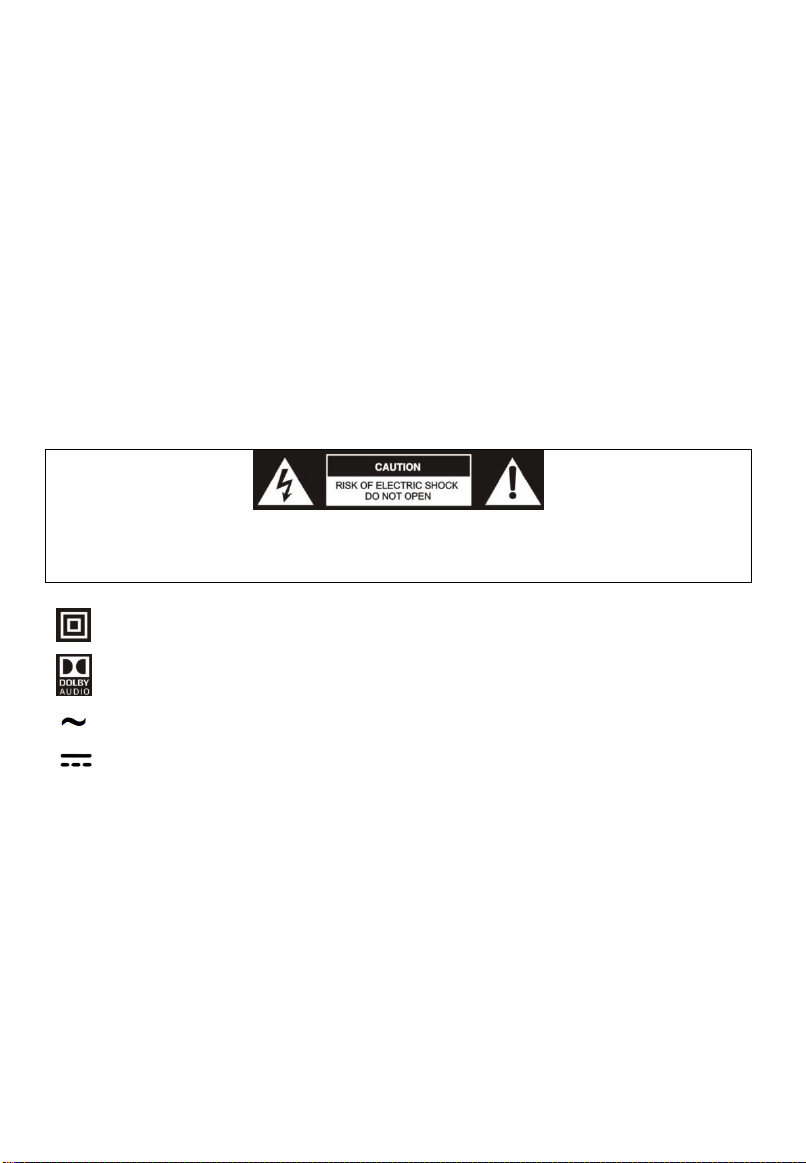
This symbol means there is potentially life-threatening high voltage inside the
device. For this reason, you should never open the housing. There are no user
serviceable parts inside.
Protection Class II: This symbol means that the TV set has double
insulation and is subject to the electrotechnical protection Class II.
This symbol means that the TV set supports Dolby Audio technology for
improved sound output.
This symbol means the TV set must be connected to an alternating current
network.
This symbol means that the remote control is supplied with direct current.
Trademarks
Dolby, Dolby Audio and the Dolby logo are trademarks of Dolby Laboratories.
All other trademarks and registered trademarks are the property of their respective
owners.
5
After use
Cleaning
Warning: Make sure the device is unplugged from the mains power
before cleaning. Otherwise, there is a risk of electrocution!
Never spill or spray any type of liquid into the unit.Only use a clean, dry cloth for
cleaning the casing. Never use aggressive liquids. When very dirty, use a slightly
dampened cloth.
Clean the screen with a special cleaning cloth for screens.
Caution: when you clean the screen, hold the device steady with one
hand and carefully clean the screen with the other. Otherwise, the
device could tip over and get damaged or cause injuries.
Storage when not in use
If you do not plan to use the device for an extended period of time, unplug the power
cord from the socket and remove the batteries from the remote control. Make sure
that the storage temperature is between -15 °C and 45 °C and the relative humidity
does not exceed 90%.
Transport
If you wish to move the device a short distance, proceed as follows to transport the
device:
1. Disconnect the device from the mains.
2. Remove all cables connected to the device.
3. If you wish to move the device outside your building, demount the base and the
optional side supports or the mounted wall bracket by reversing the procedure.
4. Pack the TV set up carefully. Take special care to ensure the corners of the
casing and the screen are well protected.
5. Take the TV set and its accessories to its new location and recommission it.
Disposalelectricalappliances
Old household electrical appliances must not be disposed of in the
normal unsorted municipal waste stream. Old appliances must be
collected separately in order to optimize the recovery and recycling
of the materials they contain, and reduce the impact on human
health and the environment.
The crossed out “wheeled bin” symbol on the product reminds you of
your obligation, that when you dispose of the appliance, it must be
separately collected.
Consumers should contact their local authority or retailer for
information concerning the correct disposal of their old appliance.
6
Getting started
Fitting the stand
Before you can install your TV set, you need to fit the stand. Alternatively, you can
mount it on the wall. A Phillips screwdriver is needed to perform the installation.
Please check stand installation guide in accessory bag.
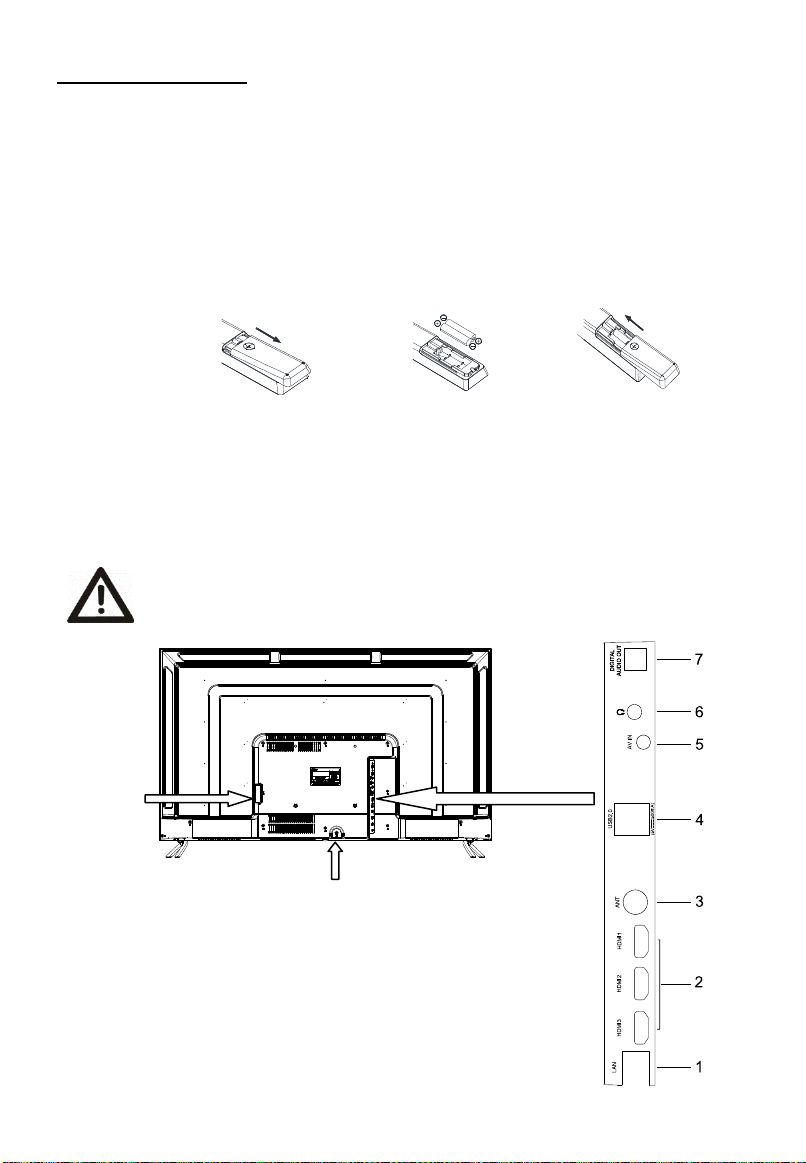
Fitting the batteries into the remote control
1. Turn the remote control over with the back facing upwards, put thumb on the
top of the battery cover where it has a triangle sign. Push down gently and pull
down the cover out of the position.
2. Insert the batteries supplied into the remote control. Make sure that you insert
the batteries correctly with the polarity as shown inside the battery
compartment.
3. Replace the battery compartment cover and push in the opposite direction to
the arrow until it clicks into place.
Controls and connections
Caution: Before connecting or disconnecting any cables, switch off all
related devices (also the TV). Otherwise you could damage the devices.
1. LAN: Network port
2.HDMI ports
3.Antenna socket
4.USB 2.0 port
5. AV IN( require a mini AV cable which is in accessory bag)
6.Headphone out
7.Digital audio out (Coaxial type)
Power button
Power socket
7
Remote control
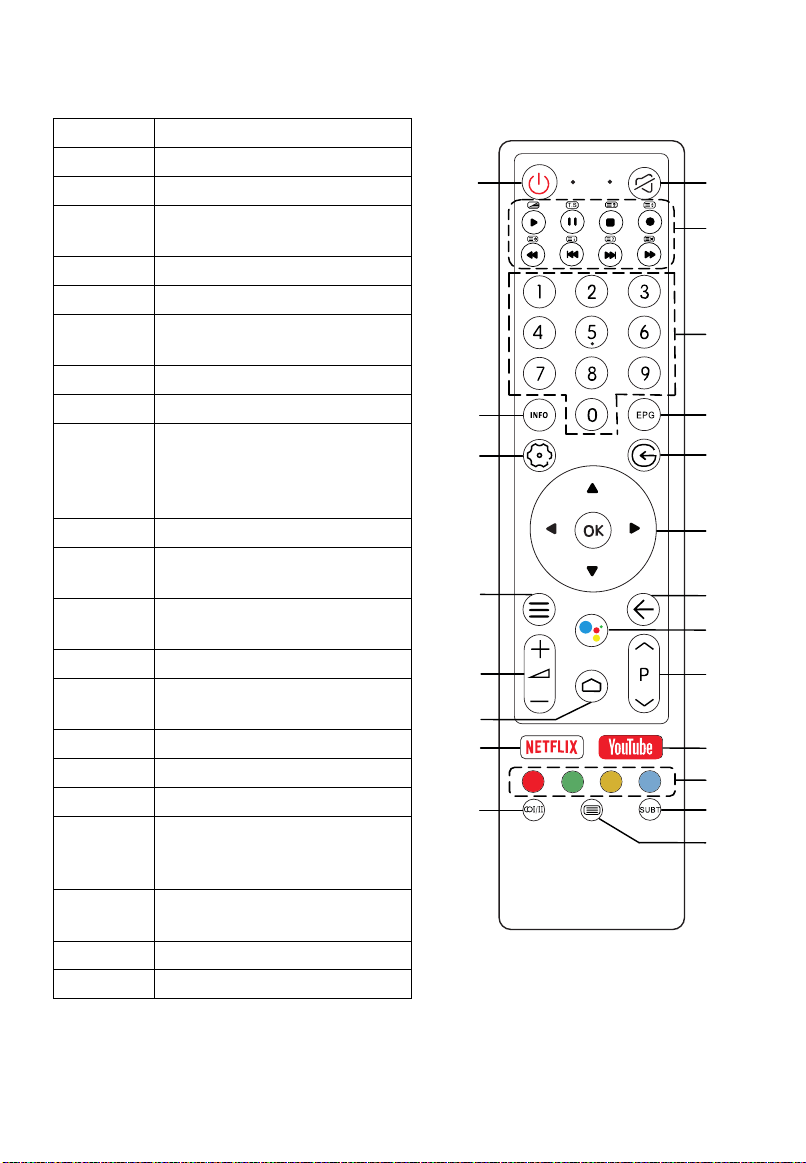
Definition of thebuttons on remote control:
Buttons
Description
Power
Turn on/off
Mute
Mute or restore sound
Media
Control media playback in
Media mode
Number
Number buttons
Info
Display program information
EPG
Launch Electronic Program
Guide
Settings
Display System Settings Menu
Source
Select signal source
Direction/
OK
Press the direction buttons to
select menu options or
settings. Press OK to select or
confirm menu item.
Menu
Display main menu
Back
Return to last viewed
program
Voice
Activate Voice
commandfunction
Volume
Adjust the volume
Program
Select programs in ascending
or descending order
Home
Open Android TV Homepage
NETFLIX
Goes to NETFLIX homepage
YouTube
Open YouTube App
Color
Use in accordance with the
Operation interface
instructions
Audio
Select audio languages and
Audio channels
Subtitle
Select subtitle
TTX
Show or hide Teletext
Power
Mute
Media
Number
Info
EPG
Settings
Source
Direction/
OK
Menu
Back
Voice
Volume
Program
Home
NETFLIX
YouTube
Color
Audio
Subtitle
TTX
8
Connecting antennae, Internet and external devices
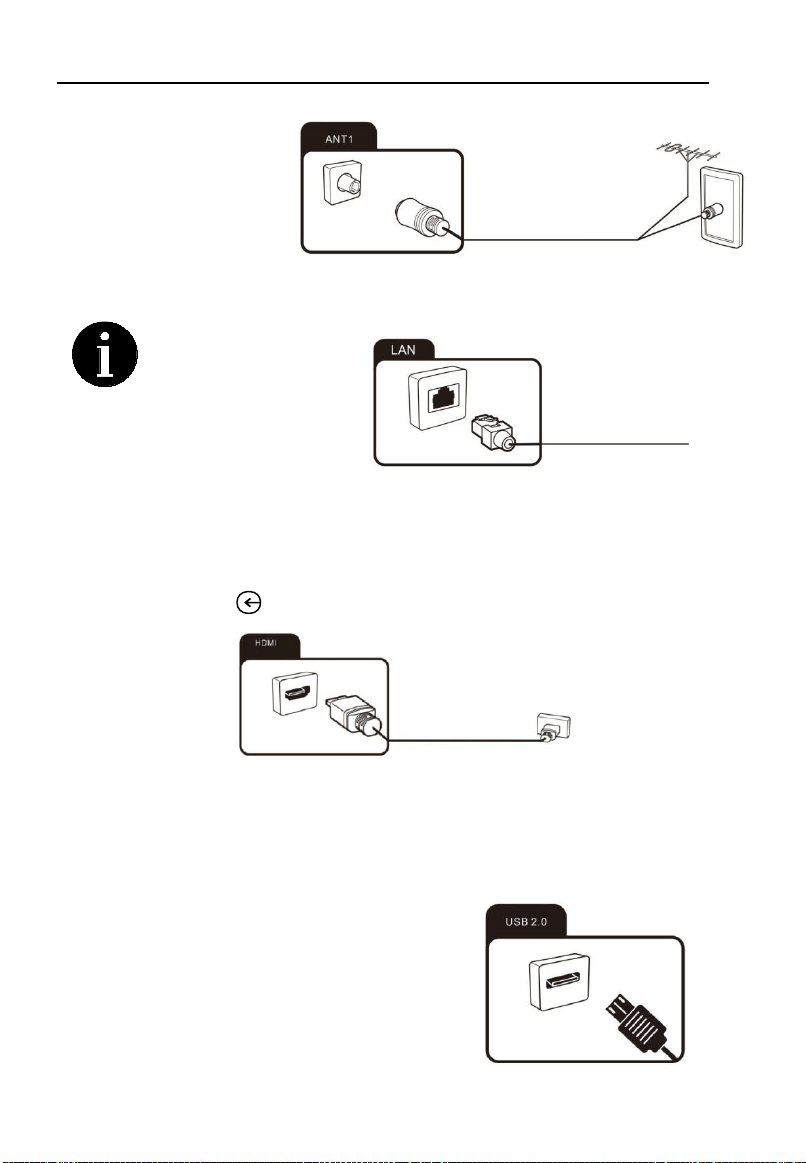
Connecting the TV
antenna or cable TV
You can connect the
cable from your indoor or
outdoor antenna or cable
TV to the antenna socket.
Connecting the network cable (LAN connection)
You can also
establish an internet
connection via WiFi.
Connecting external equipment with HDMI interface
HDMI is the abbreviation for "High Definition Multimedia" and allows the digital
transmission of both audio video signals over the same cable.
Press source button and select the signal source “HDMI1/2/3” accordingly.
Connecting headphones
You can connect headphones or an analogue playback device to the socket marked
with a headphones symbol.
Connecting USB device
The TV has USB 2.0 ports for connection with
appropriate mass storage devices.
9
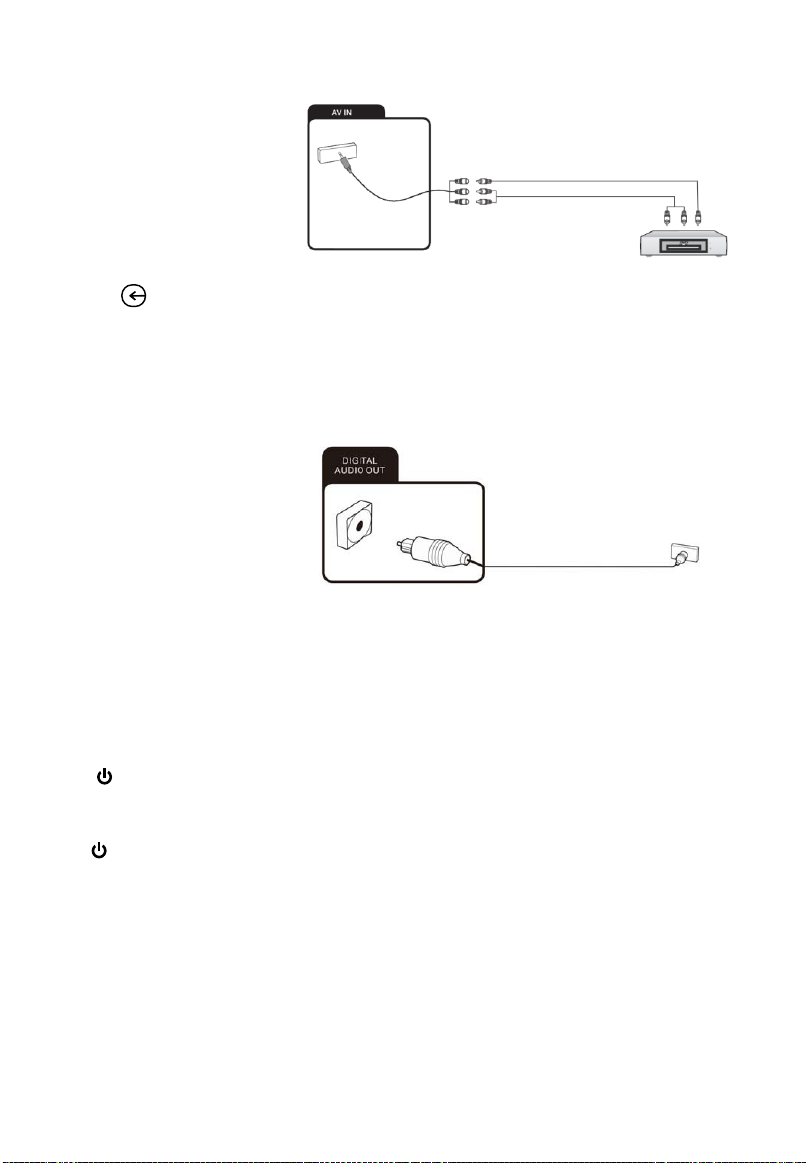
Connecting an external device with AV output
Connect external devices
via the AV IN jack
directly to TV by using a
Mini AV cable.
In order to play the
audioand video signal fed
in from the external device
on the TV, Press source
button and select the signal source “AV”.
Connecting a digital audio system
You can connect your TV set to a digital audio system.
Sending the TV's digital
audio signal to extemal
audio equipment via the
digital audio output port
(Coaxial type).
Powering the TV set on and off
Powering on
Check that the TV is in standby mode. This means the power cable must be
connected to a working power point.Then press the power button on the device or
the button on the remote to turn on the TV.
Powering off
To power the TV off, either pressthe Power button on the back of the TV or press
the button on the remote control.
10

Initial Setup
The first time you switch on the TV, the Welcome screen appears, which guides you
through the initial setupprocess. Follow the on-screen instructions to finish the initial
setup process such as selecting the language,connecting to the network, scanning
channels, and more. During each step, either make a choice or skip the step. Ifyou skip
a step, you can perform the setup later from the settings menu.
Note:
When scan the channels, please set up scan mode to “Antenna”.
If the channel search retrieved no channel or only some channels it could be caused by
poor broadcasting or antenna reception isn’t strong enough. Manufacturers cannot be
held responsible for poor broadcasting in some areas or antenna reception issue.
Please contact your local antenna technician if it is a reception issue.
Network Connection
Your TV will require an internet connection to operate all functions. Data usage charges
may apply. Please refer to your Internet Service Provider (ISP) for additional information.
To access the internet, you must subscribe to high speed broadband internet service
from your internet service provider.
Your TV can be connected to your home network in two ways:
• Wired, using the RJ45 (LAN) connector on the back panel.
• Wireless, using the internal wireless or external wireless USB adapter and your home
wireless network. Please get WIFI password ready if it has one. Please contact ISP or
technician who set up the router.
Watching Connected Devices
Press on the remote control to display the sourcelist. Press ▲/▼ to select TV or
other input sources andpress OK to confirm.
You can also press home page button on the remote control to displaythe homepage,
press ▲/▼ to move to the Sources symbol on the top right hand side, then press
▲/▼ and OK to select the inputsource.
Accessing Channels
Using the numeric buttons: press the corresponding numeric buttons on the remote
control to access the channels.
Using the P / buttons: press the P buttons on the remote control to change
channels.
Press OK button in TV mode to bring up channel LIST, use ▲/▼ and OK to select
channels.
Adjusting Volume
Volume control: press +/- buttons on the remote control to increase or decrease
the volume.
Sound mute: press the button to temporarily mutethe sound. Press this button
again or the + button torestore the sound.
/
11

Basic TV instructions
Installing Channels
This section describes how to search and storechannels automatically. This may be
done in any of the
cases below:
- you have skipped the channel installation step in theinitial setup;
- you are prompted that there are no channels in TVmode;
- you want to update channels list.
1. In TV mode, press Menu buttonon the remote control andselect Settings >Channel.
2. Make sure Channel Installation Mode is set to Antenna.
3. Go into Channels and select Channel Scan, press OK button to start.
4. The channel scan may take a few minutes. Afterthe automatic search, channels are
arranged in apreset order. You can alsoskip, move or editchannels in the Channels
menu.
Using EPG (Electronic Program Guide)
EPG is an on-screen guide that displays scheduleddigital TV program. You can navigate,
select andview programs.
Note: The DTV EPG does not require an internetconnection.
-To use the DTV EPG, Press EPG button on the remote control, the ProgramGuide
menu will appear, which allows you to getinformation about the current or future
program playing on each channel. Navigate through thedifferent programs using the
arrow buttonson the remote control.
-Use the related color buttons shown at the bottom of thescreen to view EPG.
-It might have no information to be displayed. Please change channel first and TV can
get proper EPG information from TV signal when the channel is on.
Using Subtitles
You can enable subtitles for each TV channel. Subtitlesare broadcast via DVB-T digital
broadcasts.With digital broadcast, you have the additional optionof selecting a preferred
subtitle language.
Turning on/off subtitles
In TV mode, press SUBTbuttonon the bottom of remote control, then theEnglish
will display on the screen to indicate subtitle function is on. Press the button again
to close subtitle function and Englishwilldisappear on the screen
Access subtitle menu
In TV mode, press Menu button then select Advance options, select Subtitle and
press OK to enter. You can set up subtitle language,2
nd
subtitle language and
subtitle type via the menu.
12
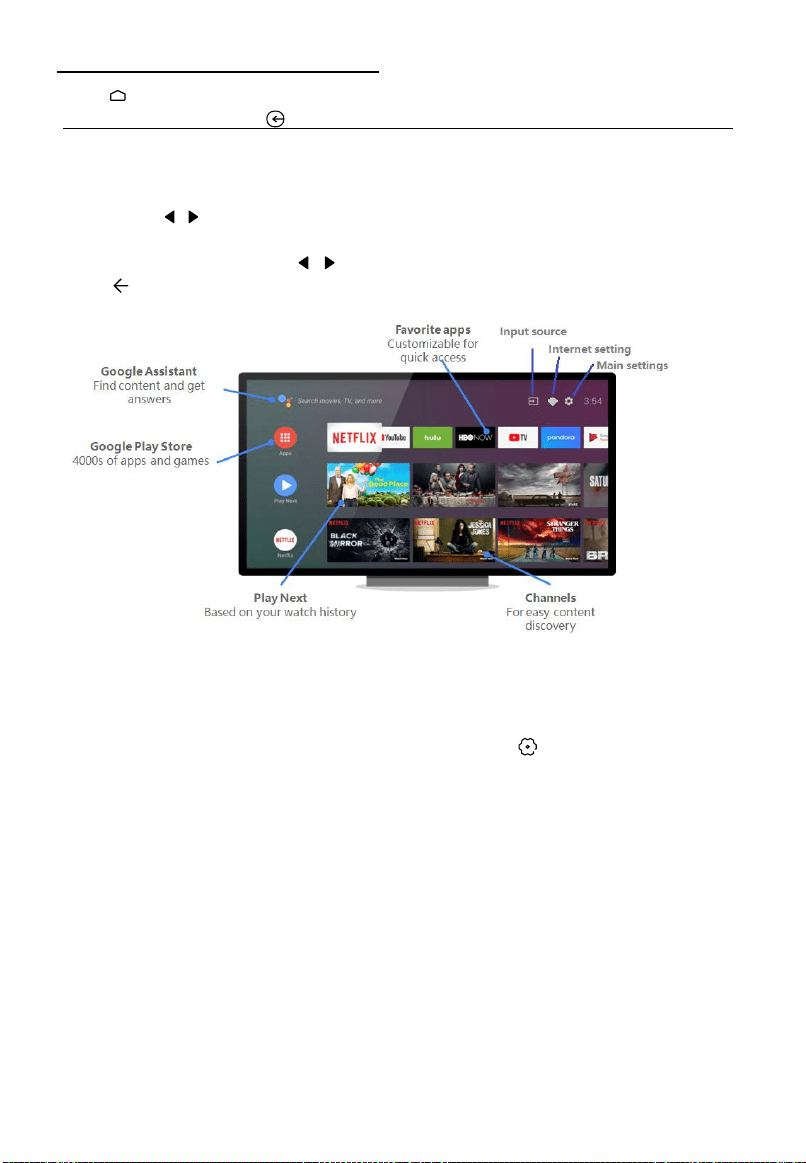
Accessing Smart TV Homepage
-Press home button on the remote control to display the homepage.
-To quit homepage, press input source button to access TV and other input mode.
The homepage allows you to enjoy Internet Applications (Apps) andspecially adapted
Internet websites, and perform systemsettings for your TV. You can make controlling
with theTV remote control.
-Press ▲/
▼
/ / and OK to enter the desired Apps,functions or settings.
-To change the Favorites apps order, select an app, press OK button and hold, a menu
will appear and you can press / to change.
-Press return button to return to the homepage.
-Apps can be downloaded via google play store, google service account is required.
Please sign in or create a new account before starting the service.
Delete an app or game
From the TV Home screen, scroll down and select Settings
-Under "Device," select Apps.
-Under "Downloaded apps," choose the app you want to remove.
-Select Uninstall OK.
According to circumstances of the content provider, anapplication’s updates or the
application itself may bediscontinued.
Changes in application content may be made withoutprior notice byservice provider.
Notes:
• Configure the network settings before using Smart TVapplications.
• Slow responses and/or interruptions may occur,depending on your network
conditions.
• If you experience a problem using an application,please contact the content provider.
Since the connection with Internet takes time,it’s recommended that you wait a few minutesto use the Smart TV
feature after activation ofTV from standby.
13
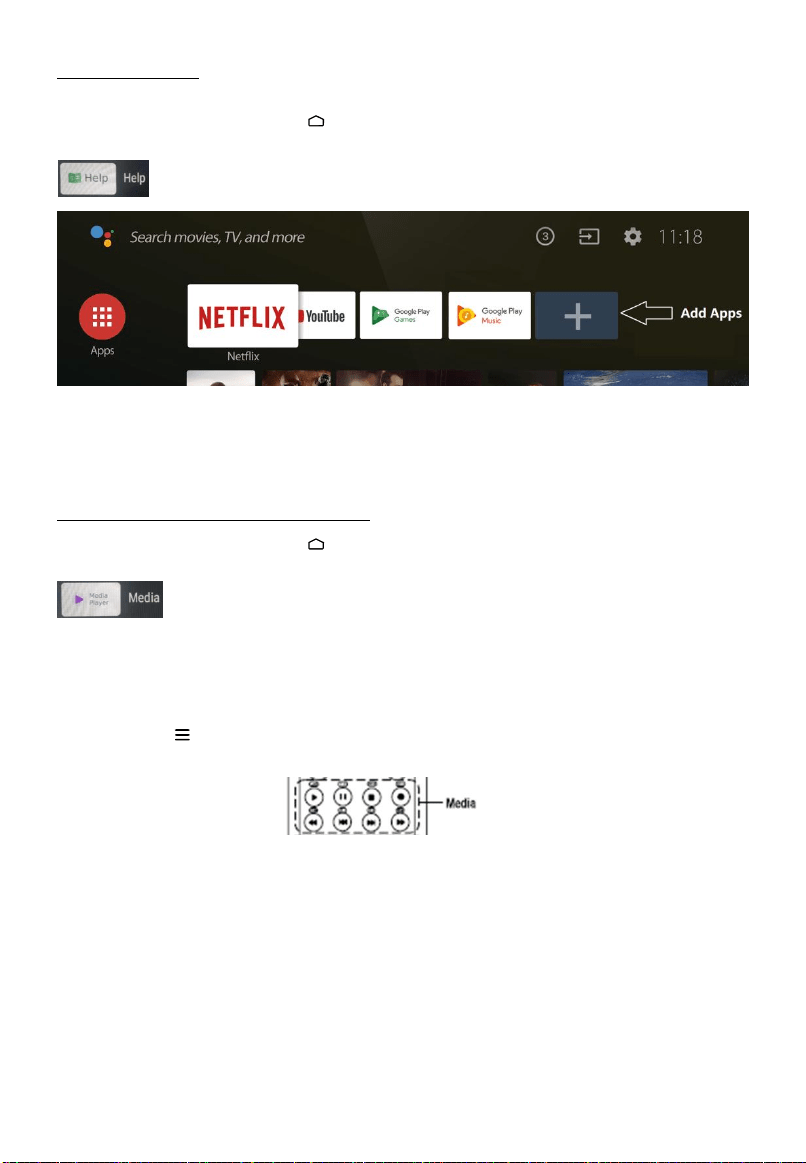
Help function
The Help function offers a lot of information about your TV operation.
To use the Help function, Press home button and then use the arrow and OK buttons
toselect “+” symbol to add help app to favourites bar.
commitment is to ensure we do everything possible to assist our
This Help function explains how to use this TV. Additionally, you can also refer to
the Setup Guide for descriptions about TV installation, and the Reference Guide for
parts descriptions and specifications of this TV.
USB FUNCTION (Media Player)
To use the Help function, Press home button and then use the arrow and OK buttons
toselect “+” symbol to add Media Player to favourites bar.
You can enjoy photos/music/movies stored on a USB device on the TV screen.
Select Device on the media player main menu.
Select folder from the menu that is displayed, browse the files and select the desired
files to playback.
When play the file, press OK button to check the file information and other functions.
You can press menu button to set up play mode and other settings.
The media control buttons can be found on the top of remote.
14
The formats supported
music
.mp3, .wav, .m4a, .ac3, .aac, .wma, .ogg, .flac, .mp2, .rm.
video
.dat, .vod, .mpg, .mpeg, .avi, .ts, .trp, .tp, .mp4, .mov, .3gp, .mkv, .flv, .f4v,
m4v, .webm, .m2t, .m2ts, .mts.
image
.jpg, .jpeg, .bmp, .png, .gif , .webp.
text
.txt, .doc, .docx, .xls, .xlsx , .vsd, .ppt, .pptx, .pdf, .srt, .ass, .ssa, .smi, .idx, .sub, .lrc,
.zip, .rar, .chm, .mht.
PVR(Personal Video Recorder)
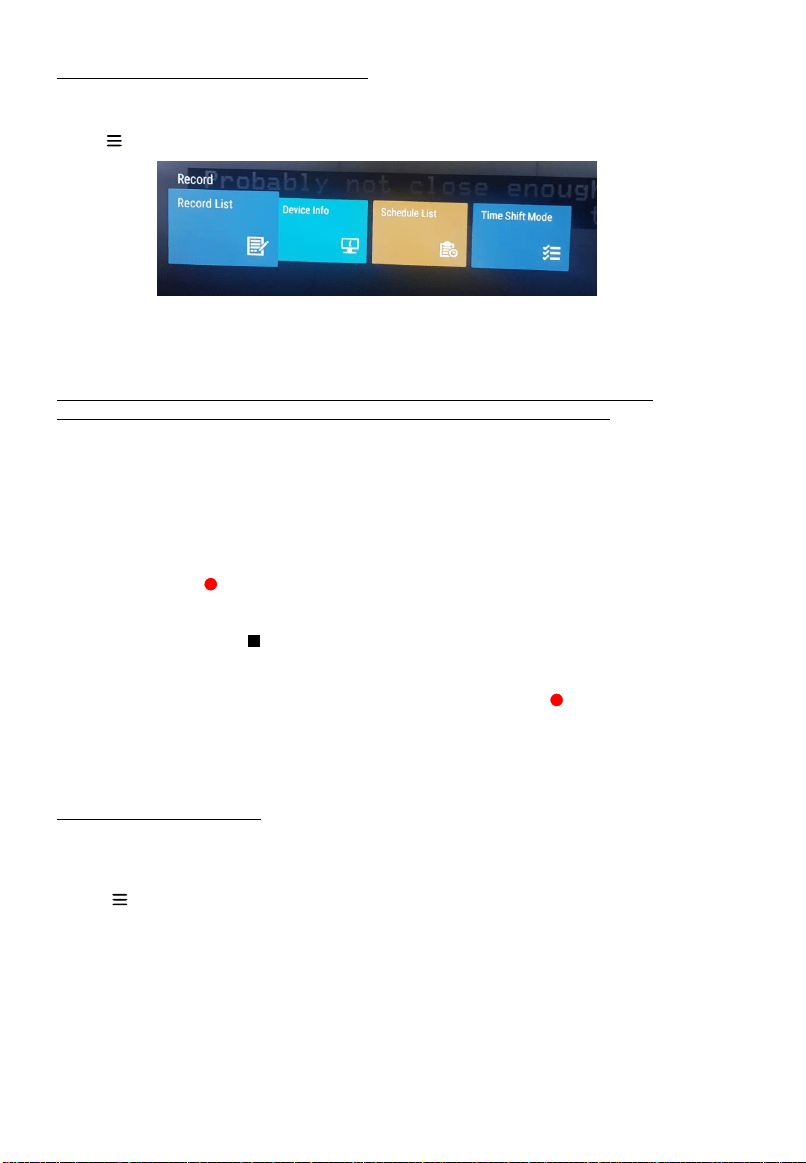
PVR allows you to record your favoriteTV program.Before you use the function, connect
a USB drive to theTV USB socket.
Press menu button on the remote control and press ▼ down arrow to select Record.
-Record List (To watch or delete recorded content)
All recorded programs will show on the list, to playback, select the file and press OK to
play. Press yellow color button to delete a file and press blue color button to show file
information.
All recorded programs can only be played via Record list, they are not
compatible with media player ,computer system or other devices.
-Device Info
Select a USB drive, press ok to format USB device or check USB speed.
-Schedule List
All preset schedule list will show on the list, select a recording program and press OK,
you can edit or delete the schedule recording program.
Instant record
In TV mode, press red dot button on remote and TV will start recording and a
message will appear on screen. After the message disappear, a recording time sign will
appear on the left bottom corner.
To stop recording, press stop button to stop recording.
Schedule record
Press EPG button, then select a program to be recorded, press red dot recording
button to active a recording menu, you can set up start date, start time, stop time
schedule type and repeat time from the menu. Then select Add to save the schedule list
or cancel to quit.
Bluetooth Function
Bluetooth is a wireless technology standard forexchanging data over short distance
between Bluetoothdevices. You can connect Bluetooth audio device, mouseor keyboard
via the TV.
-Press main menu button on the remote control, select Settings >remote &
accessories.
-Add accessory and press OK to enter. The TV willsearch nearby Bluetooth devices
automatically.
-Select an available device, press OK and follow theguides on the screen to connect it.
Note: Bluetooth technology (if available in your TV) uses2.4GHz frequency thus close
proximity to WiFi accesspoints, routers or microwave ovens might interfere with
Bluetooth audio streaming. If you face interruptions inaudio reception, you should
restart your Bluetooth deviceto find frequency with less interferences and if you
continue to face issues you should move closer to TV orincrease space between TV and
source of interferences.
15
Google Assistant
-Quickly find and play your favorite shows, get answers and control your home. Your
Assistant is now ready to help on eligible Android TV devices.
-Press google assistant button on your remote to get started.
-An introduction will appear on your TV screen, follow the steps to get started.
-When Give a command or ask a question, please close the top remote to your mouth to
get better reception.
Note:
The remote has Bluetooth function, please code remote to TV if you skip it on Initial
Setup.
Google sign in is required for the service.
Chromecast Built-in
Chromecast built-in delivers multi-screen TV and audio experiences with speakers.
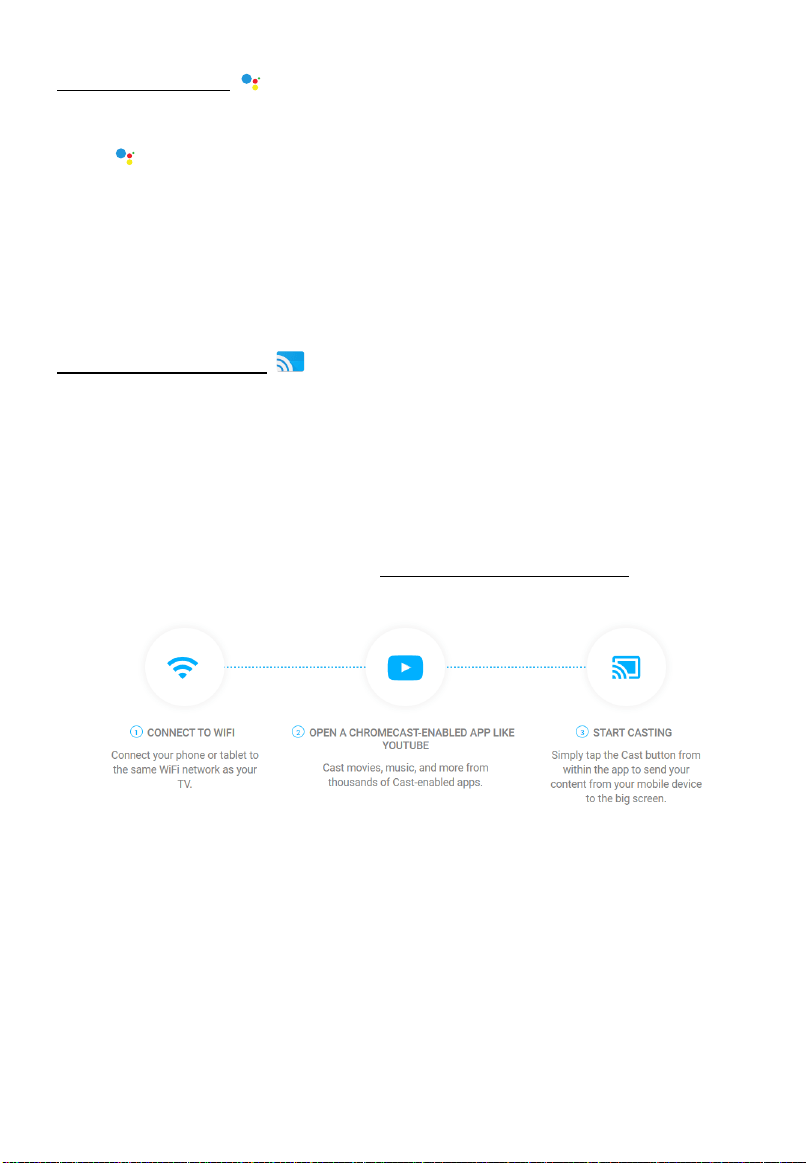
Casting is as simple as pressing a button from your favorite app. Watch your favorites
on the TV while switching to another app.
Listen to your top tunes while taking a phone call or sending a text, all without
interrupting what’s playing on the speakers.
With Chromecast built-in, your phone is your personalized remote control that you can
use to browse, play, pause, and even make playlists.
How to cast
To set up your Chromecast built-in, visit chromecast.com/built-in/setup
16

Trouble-shooting
You can solve most common problems yourself using the solutions below. If the
problem persists after checking the suggested solutions, please contact CHIQ
customer care 1300796688.
General problems
The TV set will not switch on or stop responding.
Plug the power cable of the TV set into a working mains socket.
Replace the batteries in the remote control.
Unplug the plug of the power cable from the mains socket, wait approx. 30
seconds and plug the power cable back in. The device should then work
normally.
The remote control does not work
Is there an obstruction between the remote control and the sensor on the TV?
Replace the batteries.
Make sure that the remote control sensor is not exposed to direct sunlight.
TV reception problems
No picture
Is the antenna plugged in properly?Is the antenna cable damaged?
Is the antenna cable plug firmly connected?
Have you selected the correct signal source on the TV set?
Have you already executed a channel search at your present location?
Are all the connection cables to external signal sources properly connected?
Is the connection cable to the external signal source damaged?
Have you selected the correct signal source on the TV set?
Poor picture
Is the antenna plugged in?Adjust the antenna.
Check that the channel is tuned properly.
Adjust the picture settings, such as brightness, colour, sharpness.
No sound
Is the sound muted? Press the button .
Is the volume turned down? Press the +button .
No colour
Adjust the colour setting.
Check the programme is broadcast in colour.
Check that the channel is tuned properly.
Multimedia playback problems
File is not played back
Check that the USB mass storage device contains compatible files.
17

Problems with playback from external devices
No sound
Check that the audio cable is properly connected or damaged.
Make sure that you have selected the correct signal source on your TV set.
Sound is distorted or humming
Clean the connector plugs.
Replace the connection cable to the external device.
Problems with online services (Smart TV)
If you are using a cable network connection (LAN)
Check that the network cable is properly connected.
Check whether the network cable is damaged.
Check whether you can access the internet from another device on the
network .
It is possible that the server for the selected service is temporarily down.
Check the network settings on the TV set.
If you are using a wireless network
Check whether you can access the internet from another device on the wireless
network.
It is possible that the server for the selected service is temporarily down.
Check the network settings on the TV set.
Keep the base, the stand and the screws in a safe place in case you
need to reassemble the base again. If necessary, you can also
disassemble the base so it takes up less space.
Note:
All the pictures in this user manual are for illustrative purposes only and
may be used for reference. Depending on the model, the actual product
shall prevail.
18