1 / 40
AmazfitCheetah(Round)-
UserManual
Connection and pairing
Use your phone to scan the following QR code, and download and install the Zepp
app. For a better user experience, update the app to the latest version as prompted.
Note: Your mobile phone must run Android 7.0 or iOS 12.0 or later.
Initial pairing:
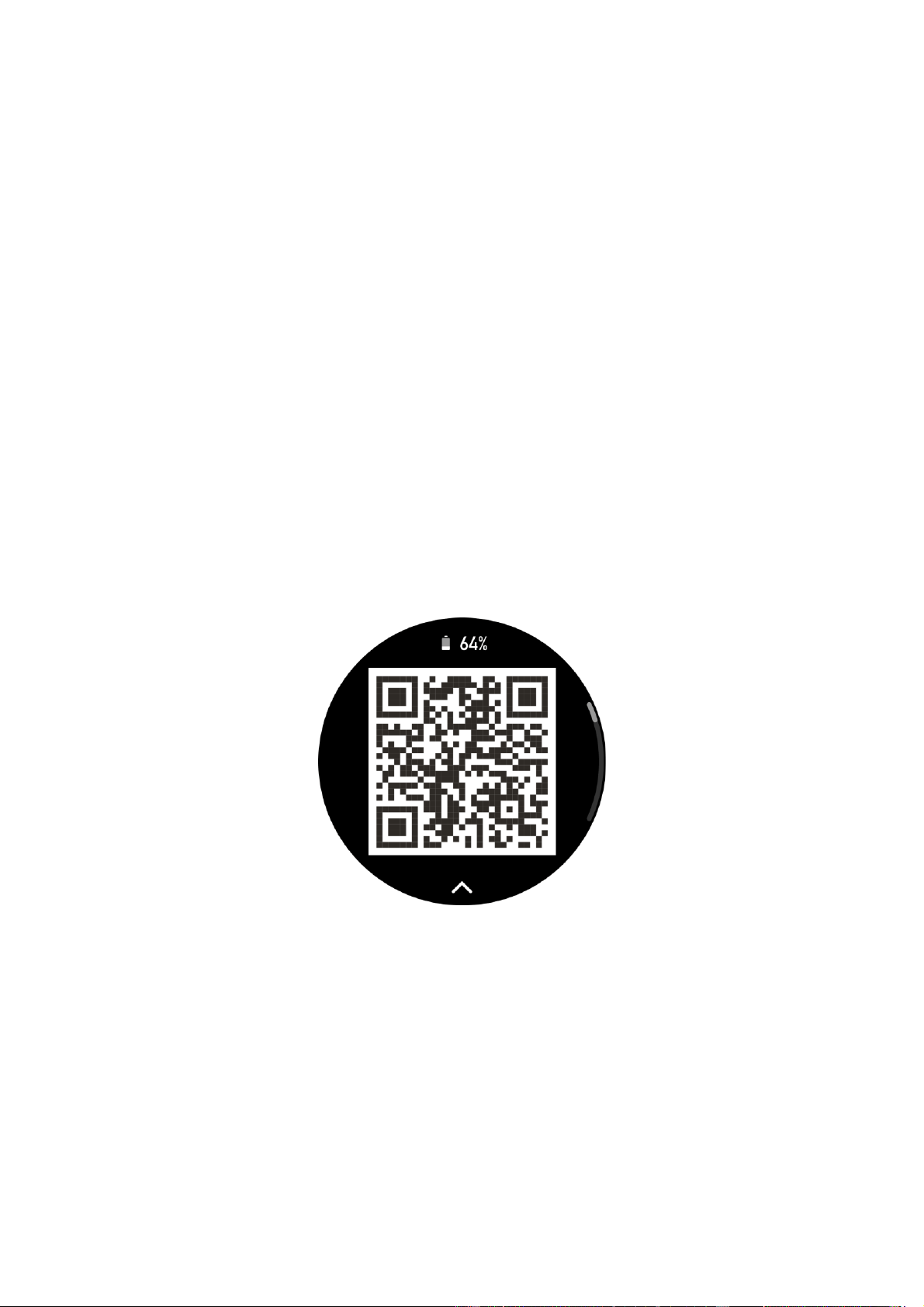
When the watch is started for the first time, the QR code is used for pairing displays
on the screen.
Open the Zepp app on your phone, log in to the app, and scan the QR code on the
watch to pair your phone with the watch.
Pairing with a new phone:
1. Open the app on your old phone and synchronize data with the watch.
2. On your old phone, go to the information page of the watch, tap Unpair at the
bottom of the page, and unpair the old phone from the watch. If it is an iPhone, you
also need to unpair the Bluetooth connection between the phone and the watch.
Please find the Bluetooth name corresponding to the watch in Settings-Bluetooth,
click the icon on the far right of the name, enter and click Forget This Device.
3. Restore the factory settings of the watch, and then pair the watch with your new
phone as described in the initial pairing procedure.
2 / 40
Updating the system of your watch
Keep the watch connected with your phone, start the Zepp App, go to Profile >
Amazfit Cheetah (Round) , and tap System Update to view or update the system of
your watch.
We recommend that you tap Update Immediately when your watch receives a
system update message.
Wearing the watch
1. The strap should be neither too tight nor too loose, allowing the skin to have
room to breathe. Let the sensors do the work while keeping you comfortable.
2. During the process of measuring blood oxygen saturation, wear the watch
correctly, not on the wrist joints, keep your arm flat, make the watch fit comfortably on
the skin of your wrist (tighten the strap properly), and keep your arm still. The
measurement results may be inaccurate or unable to appear, if it is affected by
external factors (sagging arms, shaking arms, hairy arms, tattoos, etc.).
3. It is recommended to tighten the watch strap during exercise, and you can
loosen it after exercise.
Basic operations
Gestures and buttons on watchface page
Operations
Results
Swipe down the screen or rotate
the digital crown button down
Access Control Center
Swipe up the screen or rotate the
digital crown button up
Access Shortcut Cards
Swipe the screen from left to right
Access Notificaitons
Swipe the screen from right to left
or click the upper button
Access App List

3 / 40
Press the lower button
Default: Accesses Workout List
Can be changed in Settings > Preferences >
Press Lower Button
Commonly used gestures and buttons
Operations
Results
Tap the Screen
Use a feature, select the current item, or proceed with
the next step
Press and hold the
watch face
Activate watch face selection and watch face settings
Cover the screen
Turn off the screen
Swipe from left to right
Return to the upper-level page when on most sub-level
pages
Swipe up or down on
the screen
Scroll or switch pages
Press the upper right
button - SELECT
Use a feature, select the current item, or proceed with
the next step
Press the lower right
button - BACK
Return to the upper-level page when on most sub-level
pages
Rotate the digital crown
Scroll or switch pages
Press and hold the
upper right button for 5
sec or longer
Power on, access the restart page, and perform force
restart.
Control center
Swipe down on the watch face page or press UP button to enter the Control Center,
where you can access system features of the watch.
Supported features:
1. Default display: Flashlight, DND, Sleep mode, Theater mode, Always-on mode,
Calendar, Battery, Brightness, Find My Phone, Settings, Bluetooth, Alarm, and Lock

4 / 40
Screen
2. Can be added: Volume, Music, Barometer, Compass, Countdown, Stopwatch
When you need to edit the Control Center, open the Zepp app > Profile > Amazfit
Cheetah (Round) > Watch Settings > Edit Control Center
Find the phone
1. Keep the watch connected to your phone
2. On the watch face page, swipe down to go to the Control Center, find and tap the
Find Phone button , then your phone will vibrate. You can also click the ring
button, and then the phone will ring;
3. Or you can go to the App List, tap More, and then tap Find Phone.
Find the watch
Keep the watch connected to your phone, open the Zepp app, go to Profile > Amazfit
Cheetah (Round) , and tap Find Watch. Then, your watch will vibrate.
Watch faces
Change watch faces
1. Wake up the watch face, and press and hold the watch face to go to the watch
face selection page.
2. Swipe left or right on the screen to preview watch faces available on the watch,
including built-in watch faces and synchronized online watch faces.
3. Tap the desired watch face to replace the current watch face.
Watch face compilations
Some watch faces support compilations. With compilations, you can view steps,
calories, weather, and other information, and edit the information as needed.
Edit watch face compilations:
1. After waking up the watch, press and hold the watch face to enter the watch face
selection page, where you can choose other watch faces or edit the watch face.
2. Swipe left or right on the screen to preview watch faces available. The Edit
button displays at the bottom of a watch face that supports compilations.

5 / 40
You can tap this button to go to the page to edit the compilations of this watch
face.
3. Select the compilation to edit. Tap a compilation, or swipe up or down on the
screen to switch between compilations.
4. After editing, press the upper right button to finish editing and enable the watch
face.
Always On Display
If this feature is enabled, the screen still displays time and some information on the
watch face in standby mode. Notice: This feature may greatly reduce the battery life.
Set Always On Display:
1. After you wake up your watch, swipe left on the watch face or press the upper
button to open the App List, and go to Settings > Display > Always On
2. Select the watch face style and enable status for Always On Display.
Add watch faces
The watch provides several watch faces by default. You can also go to the Store in
the Zepp app to synchronize online watch faces to the watch, or set a picture on the
phone as the watch face picture on the Zepp app.
Add online watch faces:
1. Keep the watch connected to your phone, open the Zepp app, and go to Profile >
Amazfit Cheetah (Round) > Watch Faces.
2. Select one or more watch faces, and then synchronize them to the watch to give
yourself multiple options.
Add customized watch faces:
Keep the watch connected with your phone, open the Zepp app, go to Profile >
Amazfit Cheetah (Round) > Watch Faces > Custom Background, and tap your
preferred style to change background by selecting a photo from your phone’s Albums
or taking a photo with your phone’s camera.
Delete watch faces
When the storage space on the watch is almost full, you will need to delete some of
the watch faces to make room for new ones (retain at least one watch face).
1. Wake up the watch face, and press and hold the watch face to go to the watch
face selection page.
2. Swipe left or right on the screen to preview watch faces available on the watch,
including built-in watch faces, synchronized online watch faces, and customized

6 / 40
watch faces.
3. Swipe up on the screen, you can see the delete button , and tap it to
delete the watch face.
State points
The state point is displayed on the top of the watch face to indicate the functions
currently enabled on the watch, such as the Theater Mode turned on in the watch or
the Countdown app running in the background.
The supported display states are:
• Low battery
• DND Mode
• Sleep Mode
• Theater Mode
• Stopwatch (tap the state point to go to the app)
• Countdown (tap the state point to go to the app)
• Music (tap the state point to go to the app)
• In workouts (tap the state point to go to the app)
• Charging
Notifications and calls
App alerts
Keep the watch connected to your phone to receive the phone app alerts on your
watch. On the watch face page, you can swipe right to view the latest 20 alerts in the
Notification Center.
Setting method:
Keep the watch connected with your phone, open the Zepp app, go to Profile >
Amazfit Cheetah (Round) > Notifications and Reminders > App Alerts to enable
alerts for apps as needed.
Note:
• To enable this feature on an Android phone, you need to add the Zepp app to the
allowlist or auto-run list in the phone's background so that the app always runs in the
background. If the Zepp app is terminated by the phone's background process, the
watch will be disconnected from your phone, and you can not receive app

7 / 40
notifications on the watch.
• For iOS, there are limited apps that can be set in the App alerts list just after the
watch is activated. As the phone receives notification messages from more apps,
more apps will be displayed in the App alerts list in Notification and Reminder of the
Zepp app.
Clear all notifications:
There is a button at the bottom of the notification list , you can click it to clear all
notifications.
After the watch restarts, the notifications will be cleared automatically.
To delete a single notification:
When a notification is pushed, or after entering a notification from the notification list,
the notification can be deleted through the delete button at the bottom of the
notification.
Incoming call alerts
To enable this feature, open the Zepp app, and go to Profile > Amazfit Cheetah
(Round) > Notifications and Reminders > Incoming Call Alerts. Once the feature is
enabled and the watch and phone are connected, the watch will display a prompt
when the phone receives a call, and you can ignore or hang up the call on the watch.
Morning Updates
After enabling the Morning Updates feature, the device will send a short report every
morning when you wake up, so that you can quickly browse information such as
today's weather conditions, sports health status, and personal affairs, and help you
fully prepare to start a new day.
You can disable the Morning Updates function in Device > Settings > Preferences >
Morning Updates; you can also adjust the content and display order of Morning
Updates.
The above settings can also be set by opening the Zepp app > Profile > Amazfit
Cheetah (Round) > Watch Settings > Morning Updates while keeping the watch
connected to the phone.
Shortcuts
Shortcut Cards
Swipe up on the watch face to go to the Shortcut Cards page, where you can easily

8 / 40
use and view various features and information:
You can add frequently used feature cards to this page for more convenient access,
such as your latest event, next alarm, or recent BPM data.
You can also open the Zepp app and go to Profile > Amazfit Cheetah (Round) >
Shortcut Cards, where you can set the displayed content and the display order.
Press buttons for quick start-up
You can go to Watch > Settings > Preferences > Long Press Upper Button/Press
Lower Button > select the app to be quickly launched, and then you can quickly open
the previously set app by operating the corresponding button.
Triggering methods:
• Press and hold the upper button.
• Press the lower button.
Workouts
Workout modes
The watch supports more than 150 workout modes, including running & walking,
cycling, swimming, outdoor workouts, indoor workouts, dance, combat workouts, ball
workouts, water workouts, winter workouts, leisure workouts, board & card games
and others.
Workout list
1. Select Workouts in the watch App list or press the upper right button on the watch
face (if quick start-up is set for workouts) to go to the workout list.
2. Select the workout to start on the workout list.
3. Select More Workouts to view all workout modes and start a workout.
4. Tap the Edit button to edit the workout list, where you can add, delete, and
sort workouts.
Select a workout
In the workout list, swipe up or down on the screen or rotate the digital crown to
select the workout to start.
Start a workout
9 / 40
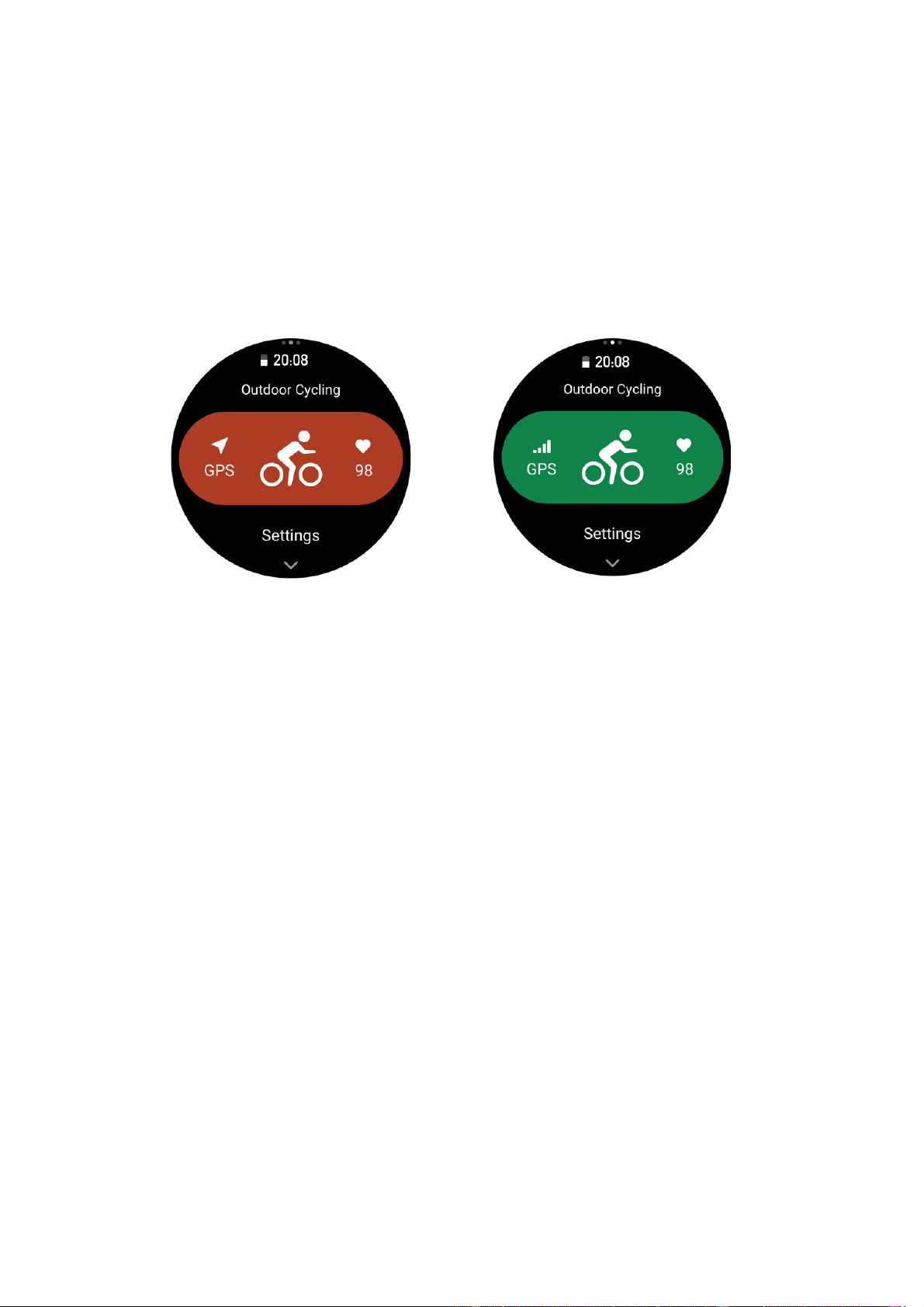
After entering the workout preparation page, for the workouts that require positioning,
the device will automatically search for a GPS signal. The red status bar indicates
that the watch is searching for a signal, and it will turn green once the signal is found.
It is recommended that you tap the green status bar or the upper right button to enter
the workout after the signal is found to improve the accuracy of workout data
calculation.
For workouts that do not require positioning, you can directly tap the green status bar
on the workout preparation page to start the workout.
Workout operations
Turn pages during a workout
During a workout, you can either swipe up or down on the screen or rotate the digital
crown to turn the page. Swipe left or right to turn pages left or right. On the left side of
the workout data page, you can pause or end the workout. On the right side of the
workout data page, you can control music playback on the phone.
Button definitions during workouts
1. Screen Locked
• Rotate the digital crown to unlock.
• Tap the upper button to pause/continue the workout and unlock.
• Tap the lower button during workouts to start a new lap/set and unlock.
• Tap the lower button during pause to toggle the operation page and date page
and unlock.
• Press and hold the lower button to return to the watch face and run in
background.
2. Screen Not Locked
• Rotate the digital crown to turn pages.

10 / 40
• Tap the upper button to pause/continue the workout.
• Tap the lower button during workouts to start a new lap/set.
• Tap the lower button during pause to toggle the operation page and data page.
• Press and hold the lower button to return to the watch face and run in
background.
Workout operations page
On the left side of the workout data page, you can pause or end the workout.
1. Pause/resume
Tap to enter the workout pause/resume page.
2. End
Tap to end the current workout and save the data.
3. Workout Assistant
Tap to modify some of the workout assistant settings (can be modified on the page
when you pause the workout).
4. Resume later
Press to save the current workout and return to the watch face. Enter the workout
app again to return to the workout pause page.
5. More
Press to modify some of the settings.
Screen Lock during workout
After the automatic screen lock is turned on, the touch screen will be locked and an
icon will be displayed at the state point when the screen is turned off during
exercise/in AOD mode/when screen times out.
In this state, the touch screen cannot be operated. You can unlock the screen directly
by rotating the digital crown. In addition, if you choose to press the upper or lower
buttons, the screen will be unlocked while pausing or marking a lap manually during
the workout.
During swimming workouts, the touch screen will be continuously disabled and can
only be used after you press the button to pause swimming.
Workout settings
On the workout preparation page, you can swipe up and tap Settings to set the
current workout mode. The related parameters vary depending on the different

11 / 40
workout modes.
Workout Assistant
The workout assistant provides auxiliary tools for your workout, including workout
goals, workout alerts, auto laps, auto pause, cadence assistant, and virtual pacer.
Auxiliary features provided by the workout assistant vary depending on workouts.
Workout Goals
You can set workout goals, such as the duration, distance, calories, and effect in
Workout Goal. The watch displays the current goal progress in real time during
workouts. A message displays upon you achieve the preset workout goal. Workout
goals vary depending on workouts.
Workout Alerts
In this setting, you can set various reminders according to your needs, such as
distance reminder, heart rate reminder, and more. Workout alerts vary depending on
workouts.
1. Distance reminder
The watch vibrates and displays the duration that you use for each full kilometer/mile
during the workout.
Go to Workout Mode > Workout Assistant > Workout Alerts > Distance, set a target
distance, and enable this feature.
2. Safe heart rate alert
During a workout, if the watch detects that your heart rate exceeds the safe heart
rate value you have set, it will vibrate and display a message on the screen. In this
case, you need to slow down or stop.
Go to Workout Mode > Workout Assistant > Workout Alerts > Safe Heart Rate, set a
safe heart rate value, and enable the feature.
3. Heart rate range alert
During a workout, if the watch detects that your heart rate does not fall within the
configured heart rate zone, it will vibrate and display a message on the screen. In this
case, you need to speed up or slow down to ensure that your heart rate is within the
configured range.
To set the feature, go to Workout Mode > Workout Assistant > Workout Alerts > Heart
Rate Zone, set a heart rate zone, and enable this feature.
4. Pace alert
You can set a maximum/minimum pace value. If your pace exceeds the preset value,
the watch will vibrate and display a message.
Go to Workout Mode > Workout Assistant > Workout Alerts > Fastest Pace, set a

12 / 40
pace, and enable this feature.
Additionally, the watch also supports alerts for the following: Fastest Pace,Slowest
Pace, speed, stroke frequency, cadence, time, calorie, drinking water, energy intake,
return and rest period.
Auto lap
This feature is available for some workouts. You can set the auto lap distance in the
workout settings, and the watch will start an auto lap and remind you each time you
reach the set distance during a workout. Also, during a workout, you can press the
lower right button of the watch to manually start a lap.
The watch also records the workout details of each lap for both manual lap and auto
lap. After the workout ends, you can view details of different laps.
Go to Workout Mode > Workout Assistant > Auto Lap, and set the auto lap distance.
Manual laps do not require any setting.
Auto Pause
Enable or disable Auto pause. After the feature is enabled, the workout will be
automatically paused when the workout speed is too low. When the speed increases
to a certain threshold, the workout can be resumed. You can also resume working
during the pause. The auto pause threshold can be customized for some workouts.
Go to Workout Mode > Settings > Assistant > Auto Pause
Virtual pacer
After you set a pace value of the virtual pacer, you can view the current pace, the
distance that you lead/lag behind the virtual pacer, and your position in relation to the
virtual pacer during workouts.
Go to Outdoor Running/Treadmill > Workout Assistant > Virtual Pacer, set the pace of
the virtual pacer, and enable this feature.
Cadence Assistant
You can set the cadence per minute and the reminder frequency. During a workout,
the watch can buzz or vibrate according to the set cadence, so that you can control
your cadence.
Go to Workout Mode > Workout Assistant > Cadence Assistant, set the cadence per
minute and the reminder frequency, and enable this feature.
Training
Training Template

13 / 40
Some sports can use the training template function in workouts. This function needs
to be edited in "Zepp app > Profile > Amazfit Cheetah (Round) > Training > Training
Template". You can edit the training template of a certain workout mode, and set the
training steps, step types, reminder content, number of cycle groups, etc., and
synchronize to the watch.
After syncing to the training template of a certain sport on the watch, open the watch
side > Workout > Training > Training template, select the training template to be
performed, and click GO to start using the training template immediately.
When using the watch, it will follow the edited template, and the content of this stage
will automatically jump to the next stage.
Interval training
This feature is available for some workouts. On the watch, you can directly edit the
training stage, rest stage and loops of interval training. When you use interval training,
it will be performed according to settings you did. After this stage is completed, the
training automatically goes to the next stage.
You can edit the training stages and rest stages by distance, time, and loops as well
as in a customized way. The items for editing vary according to the workout.
Navigation
Import track to watch
Track files in GPX, TCX, KML and other formats can be uploaded to the Zepp App,
and then sent to the device through the App, and the route can be viewed on the
device and used for navigation.
Setup steps: Track file > open via Zepp app > Save track > Send to watch
Save current location
In workout modes that support navigation, the coordinates of the current location can
be saved and used in navigation.
Setting steps: before/during workout > Navigation > Save current position
Track navigation
You can enter through my route or my location point, select the target track or
location point to start track navigation, and after enabling it, the track page will give
you the correct route guidance. This feature is only available for some outdoor
activities.
Setup steps: Worout mode > Navigation > My Route/My Position > Select Track >
Start Navigation

14 / 40
Return to the starting point
In the workout, you can return to the starting point through navigation. There are two
ways of returning: returning according to straight-line and returning according to the
original route (Backtrack). This feature is only applicable to some outdoor activities
where GPS tracks are generated during workout.
Straight line return
When this feature is enabled, the track page of the device will connect a straight line
based on your current position and the starting point of this workout, and you can
return to the starting point by following the guide.
Setting steps: Workout > Pause > Navigation > Return to starting point > Straight line
return
Note: The straight-line return route is drawn purely based on GPS location points,
and it is impossible to judge impassable landform features such as mountains, rivers,
canyons, and buildings. Please navigate according to the actual situation.
Backtrack
When this function is enabled, the track page of the device will be navigated
according to the route track you have passed, and you can return to the starting point
of this exercise by pressing this track navigation.
Setting steps: Workout > Pause > Navigation > Return to starting point >
Backtracking
More
Edit data items
You can edit data items during workouts, including editing the workout data and
charts, deleting, adding or sorting data pages.
Optional values of the data page format include 1, 2, 3, 4, 5 or 6 data items per page.
More than 150 workout data items are supported (specific supported data items vary
by workouts).
More than 8 types of real-time charts are supported, including pace, elevation, and
more.
Up to 10 pages of data/workout charts can be added.
3D data mode
You can enable or disable the feature for some workouts in workout settings. If the
feature is enabled, the watch calculates distance using 3D data, as shown in the
preceding figure. As shown in the figure, after 3D distance is enabled, the slope
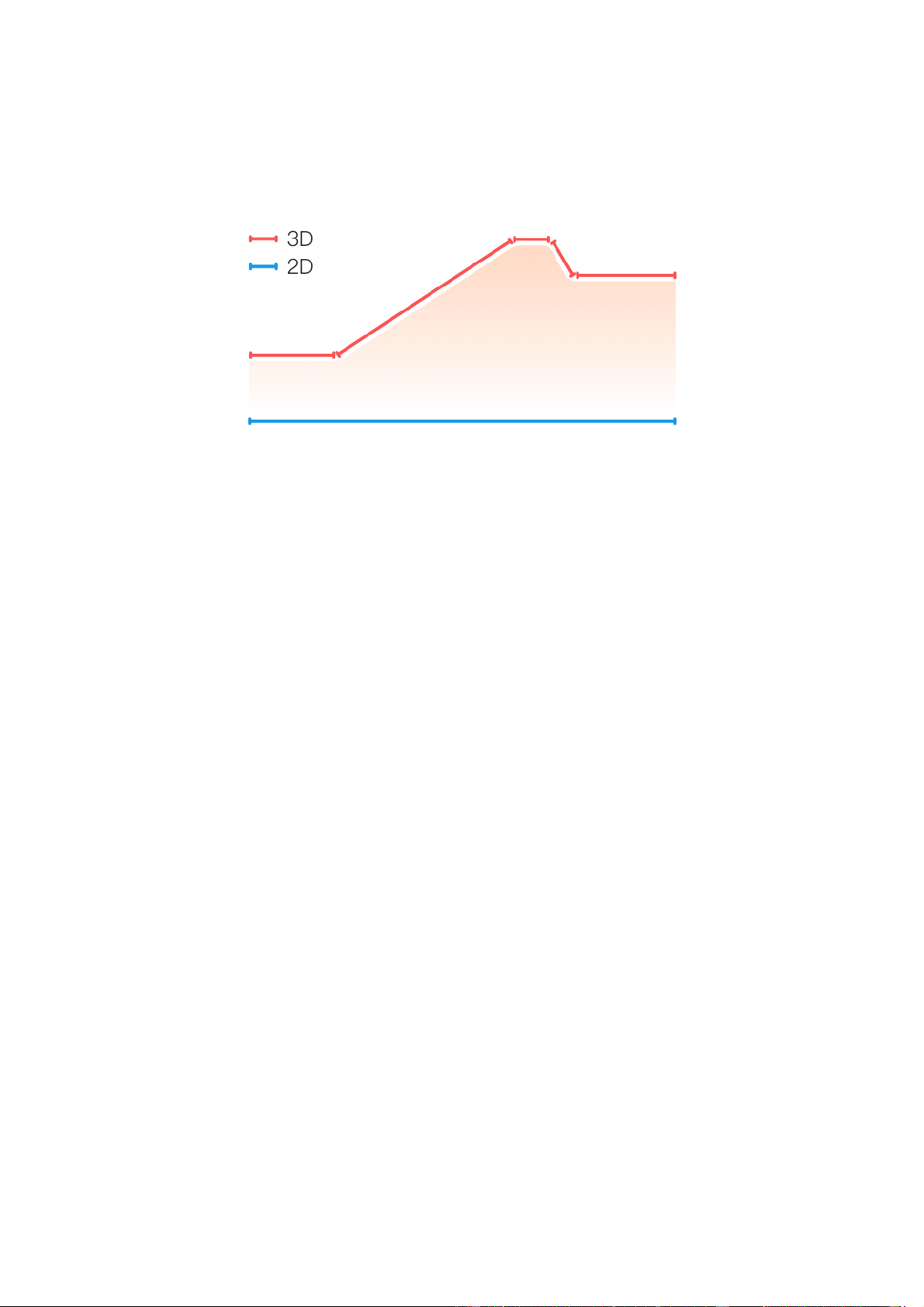
15 / 40
distance of the route is calculated. Factors such as the altitude and slope changes
are considered, so that the calculated distance matches the actual distance of the
route. When 3D distance is not enabled, the projection distance is calculated based
on the route traversed, namely the 2D distance shown in the figure.
Wrist side
For some workouts, for example, tennis, you need to wear the device on the hand
that holds the racket, and workout data is more accurate when you wear the watch
on the preset side.
If the right hand is used to hold the racket, you need to wear the watch on that hand.
Setup steps: Tennis/Rowing machine > Settings > More > Wrist side
Swimming pool length
Refers to the length of lanes in your swimming pool. The watch calculates swimming
data based on the lane length you set.
Set the corresponding lane length for each pool so that the watch can accurately
evaluate your swimming data.
Setting steps: Pool Swimming > Settings > More > Lane Length
Recalibrate
In the treadmill workout mode, you need to calibrate according to the actual distance
after each exercise. Calibration with a distance greater than 0.5 km allows the watch
to learn your running habits. After multiple calibrations, the watch will record the
distance more accurately.
If there is still a significant difference from the actual distance after multiple
calibrations, you can recalibrate it.
Setup steps: Treadmill > Settings > More > Recalibrate
Down Swing Direction

16 / 40
For some workouts, for example, golf, you need to wear the device on the hand the
same as the golf swing direction, so that workout data is more accurate.
If the down swing direction is to the left (i.e. hitting the ball from right to left), the
watch needs to be worn on the left hand.
Setting steps: Golf Swing > Settings > More > Down Swing Direction
Runway distance & Track selection
In the Track Run workout, it is necessary to set the runway distance and track
selection, which can make the workout data more accurate.
Setting steps: Track Run > Settings > More > Track Run Settings > Runway distance
& Track selection
Real-time Performance
Real-time Performance assesses physical condition and performance during
exercise. The larger the value, the better the current state, and vice versa. It takes
effect in Outdoor Running and Track Run modes. The Real-time Performance
reminder will pop up during exercise.
• Reminder timing: The device will send out reminders when the Real-time
Performance data is generated for the first time and when the range changes.
• Reminder condition: Real-time Performance data will only be generated after a
single workout reaches the VO2 Max generation condition.
A Real-time Performance chart will be displayed in the workout record. You can
manually turn off this feature, path: Outdoor running/Track run > Settings > More >
Real-time Performance.
Real-time Performance ranges and their meanings:
Excellent: ≥ +10%
Very good: +5 ~ +9%
Good: -5 ~ +4%
Fatigued: -10 ~ -4%
Exhausted: < -10%
Special workout modes - Swimming
Workout terms
Trip: Refers to the lane length in pool swimming mode.
Stroke: Refers to a complete stroke motion while you are wearing the watch.
Stroke rate: Refers to the number of strokes per minute.

17 / 40
DPS: Refers to the distance of a complete stroke.
SWOLF: It is an important indicator of swimming scores, which comprehensively
evaluates your swimming speed. SWOLF in pool swimming mode = Duration of a
single lap (in seconds) + Number of strokes in a single lap. In open-water swimming
mode, SWOLF is calculated using a lap distance of 100 meters. A smaller SWOLF
score indicates higher swimming efficiency.
Stroke Recognition
The watch recognizes strokes in swimming modes and displays the main stroke you
use.
Stroke Type
Definition
Freestyle
Freestyle stroke
Breaststroke
Breaststroke
Backstroke
Backstroke
Butterfly
Butterfly
Medley
More than one stroke is used when swimming, with each
stroke in a similar proportion
Touch Screen During Swimming
To protect the touch screen from unintentional touches and water interference, the
watch automatically disables the touch screen feature after you start swimming. In
this case, you can control the workout with the watch buttons. After the workout ends,
the watch will re-enable the touch screen function.
Workout GPS positioning
If you select Outdoor workouts, wait until GPS positioning is successful on the
Workout preparation screen. Then, tap the green status bar to begin the workout.
This allows the watch to record complete workout data and prevents data inaccuracy
due to workout tracking loss.
Positioning guide:
• If you receive a prompt to update the AGPS after selecting a workout, start the
Zepp app on your phone and connect it with the watch to update AGPS. Then, select
a workout again. This operation reduces the time spent searching for a signal and
avoids search failure.

18 / 40
• If, during the positioning process, the GPS signal icon continues to flicker, an
open area can offer you faster positioning for a better GPS signal, as nearby
buildings may block and weaken the signal, extending the positioning time and even
causing positioning failure.
• After successful positioning, the red status bar will be changed to green. The
GPS signal shows the current GPS signal strength.
Note: AGPS is a kind of GPS satellite orbit information which helps the watch
accelerate the GPS positioning process.
Automatic workout identification
Workout types that can be identified include indoor walking, indoor walking, outdoor
running, treadmill, outdoor cycling, pool swimming,elliptical, and rowing machine.
Automatic workout identification is a process where the watch automatically
determines the workout type and records a single workout after related workout
characteristics are compiled with and your workout continues for a period.
You can set this in Settings > Workout > Workout Detection.
Type: After you select a workout type, the automatic identification feature is enabled
for the workout.
Reminder: When the feature is enabled, a pop-up dialog box is displayed when a
workout is identified or ends. When the feature is disabled, data is recorded silently
upon workout identification and a dynamic icon is displayed on the watch face screen.
Sensitivity: Higher sensitivity indicates a shorter identification time. Identification
time is prolonged if the sensitivity is low. Set as required.
Note: Continuous workout status monitoring will greatly reduce the battery life. When
no workout is selected, the Workout Detection feature is not enabled. If the watch
detects an ongoing workout, some data can not be synchronized with the app.
Voice Broadcast during Wotkout
The watch supports voice broadcast when exercise reminder, exercise segmentation,
manual operation pause, continue exercise, and end exercise into exercise record
during fitness. The announcement includes exercise data summary and operation
reminder.
Enable: Settings > Sound and vibration > Voice Broadcast > Workout
Need to connect Bluetooth headphones/audio devices to play. Setting path: Watch >
Settings > Bluetooth. For more information, please refer to the Bluetooth Settings
section.

19 / 40
Workout History
When a workout ends, the workout record will automatically be saved to Workout
History. If you end the workout when the workout time is too short, the watch will ask
you whether to save it. Due to the limited storage space, it is recommended that you
synchronize the workout data to the app soon after completing a workout; otherwise,
the workout data may be overwritten.
Workout history on the watch
Workout history includes workout data, workout trace (for workouts which support
GPS), lap/set data, workout goal completion, and other information.
When a workout ends, the screen will immediately jump to the workout history details
page, or you can view recent workout history details in the Workout History app.
The watch can save up to 100 recent workout records.
Personal Best
The best records from certain types of workouts will be saved, including longest
distance, longest workout time, and so on.
Workout history on the app
Workout history on the app shows a wider range of workout data. Dynamic route and
sharing features are also supported.
Path in the app: Zepp app > in the upper right corner of the home page >
Activities
Physical indicators
The watch provides a variety of physical indicators for workouts. You can use
evaluation scores as a reference for your workouts. These indicators can be viewed
in workout records or the Workout Status app, including current training load, total
recovery time, VO2max, and training effect.
You can find a detailed explanation of current training load, full recovery time, and
VO2max in the Workout Status app.
Training Load (TE)
Training Effect (TE) is an indicator for measuring the effect of a workout on improving
the aerobic capacity. When you work out while wearing the watch, the TE score
starts from 0.0 and increases as the workout progresses. The TE score ranges from
0.0 to 5.0, and different score ranges indicate different effects. A higher TE score
indicates a greater workout intensity. It signifies a higher body load, but a better TE.

20 / 40
However, you should consider whether your body load is too high when the TE score
reaches 5.0.
Aerobic TE Score
Effect on Improving Aerobic Capacity
0.0-0.9
This workout has no effect on improving aerobic
capacity.
1.0-1.9
This workout helps improve endurance and is ideal
for post-workout recovery training.
2.0-2.9
This workout helps maintain aerobic capacity.
3.0-3.9
This workout significantly helps improve aerobic
capacity.
4.0-4.9
This workout remarkably improves heart-lung ability
and aerobic capacity.
5.0
Post-workout recovery is required for non-athlete
users.
Anaerobic TE Score
Effect on Improving Anaerobic Capacity
0.0-0.9
This workout has no effect on improving anaerobic
capacity.
1.0-1.9
This workout has a slight effect on improving
anaerobic capacity.
2.0-2.9
This workout helps maintain anaerobic capacity.
3.0-3.9
This workout significantly helps improve anaerobic
capacity.
4.0-4.9
This workout has a significant effect on improving
anaerobic capacity.
5.0
Post-workout recovery is required for non-athlete
users.
The TE score is evaluated based on your profile, as well as your heart rate and
speed during your workout. A low TE score does not indicate a problem during your

21 / 40
workout, but instead signifies that the workout is too easy and has no significant
effect on improving aerobic capacity (for example, a low TE score for 1-hour of
jogging).
How is it obtained?
Once a workout for which heart rate data is monitored ends, the watch displays the
TE score of the workout and provides related comments or suggestions. You can
also review the TE score of each workout record in the future.
Workout status
Workout status includes current training load, full recovery time, and VO2max. These
indicators are determined based on your profile and other data such as heart rate. As
the watch continues to understand and analyze your body and workout data, the
accuracy of evaluation scores gradually improves.
VO₂ Max (Maximum oxygen uptake)
VO₂ Max indicates the amount of oxygen consumed by the body during maximum-
intensity workouts, which is an important indicator of the body's aerobic capacity. As
one of the most important reference indicators for endurance athletes, high-level
VO₂ Max is the prerequisite for high-level aerobic capacity.
VO₂ Max is a relatively personal indicator, which has different reference standards
for users with different genders and in different age groups. The watch evaluates
your athletic capacity based on your profile and the heart rate and speed during your
workouts. Also, VO₂ Max changes with your athletic capacity. However, everyone
has a VO₂ Max value, which varies by individual body conditions.
VO₂ Max values map to seven athletic ability levels: Novice, Elementary, Ordinary,
Medium, Good, Excellent, and Superior.
How is it obtained?
1. Correctly enter your profile in the app.
2. Run outdoors for at least 10 minutes when wearing the watch and ensure that
your heart rate reaches 75% of the maximum heart rate.
3. After the run ends, you can view your current VO₂ Max in the watch's workout
record app or on the See more statuses screen.
4. VO₂ Max values map to seven athletic ability levels, namely Novice, Elementary,
Ordinary, Medium, Good, Excellent, and Superior.
How can I view it?
You can view the current VO₂ Max in the watch's workout status app.
You can also view the VO₂ Max history and variation trends in the app.
Training Load

22 / 40
The training load score is calculated based on excess post-exercise oxygen
consumption (EPOC). A higher score indicates a longer workout time and a greater
workout intensity. The training load score is calculated as your total training load over
the past 7 days, which represents the burden brought to your body from the recent
workouts.
There are three training load ranges: low, moderate, and high.
If the training load is low, it will not help much to improve your athletic ability.
However, if the training load is relatively high or too high, you may feel too tired,
meaning it is not conducive to effectively improving your ability and may also cause
injury risks. If you want to continuously improve your athletic ability within a tolerance
range, it is recommended that you keep the training load score within the moderate
range.
The moderate range of the training load score depends on your recent and long-term
workout data, and will become increasingly accurate as you use it.
How to obtain training load
After the workout mode is enabled on the device, you can obtain the training load of
the current workout once you reach the minimum training load level. The training load
over the past 7 days can be viewed in the workout status application of the watch.
How to view the training load
The training load can be viewed in the workout status application of the watch. You
can view your historical training load and change trends in the app.
Total Recovery Time
Total recovery time is the recommended time for the complete recovery of the body.
After each workout, recovery suggestions will be offered based on the heart rate of
the latest workout to help you better recover and reasonably arrange your workout to
avoid injury.
Full Recovery Period
Workout Suggestions
0-18 hours
You have fully or nearly fully recovered, and you can
do slightly higher-intensity training.
19-35 hours
You can train as usual and you can prepare to
strengthen your regimen again.
36-53 hours
Appropriately reducing the intensity of your training
will allow you to gain workout benefits from your last
training, and you should do recovery workouts to

23 / 40
relieve physical fatigue.
54-96 hours
Proper rest will allow you to get the benefits of the
workout from your last high-intensity training.
Heart Rate After Workout
The device will automatically measure the Heart Rate after Workout within 3 minutes
after the end of the workout. The results will be displayed in the heart rate chart
section of the workout record on the Zepp app, which can be viewed by swiping
horizontally.
If the next workout is started right after the previous one, the measurement of the
Heart Rate after Workout of the previous workout will be terminated. Delayed
termination of the workout after pausing may also affect the accuracy of the Heart
Rate after Workout.
To ensure the timeliness and effectiveness of the Heart Rate after Workout data
measurement, it is recommended to: 1. End the workout in a timely manner, 2. Wear
the watch properly within 3 minutes after the end of the workout, 3. Wait at least 3
minutes after the end of the previous workout before starting the next one.
Find Zepp App > Workout.
Zepp Coach
Zepp Coach can help you improve your cardio and also your running.
1. Start a plan
Find Zepp App > Home > Zepp Coach card, click on Tailor-made Plan and follow the
instructions to fill in the purpose of the exercise, as well as the past 1 to 2 months of
exercise, and select a rest day and start date to start the plan.
2. View the plan
After you have successfully set up your training plan on Zepp app, you can view your
daily schedule in the Zepp Coach app on your device or in Zepp app > Home > Zepp
Coach details page.
3. Set reminders
In the Zepp Coach app on your device, slide to the rightmost page to set a reminder
for your training.
4. Execute the plan
You can start your workout by quickly launching the workout mode on the device >
Zepp Coach app, or by selecting the workout mode on the Workout List. The workout
records will be included in the training statistics of the day. Please wear your device
during exercise so that you can sync your exercise log to Zepp App in time after
exercise.

24 / 40
6. Modify and terminate the plan
In Zepp app > Zepp Coach > Detail page, you can modify the plan or terminate the
plan by clicking the Settings button on the top right corner.
Map
Map download
1. Connect the watch to phone and keep it connected
2. Open Zepp App > Profile > Amazfit Cheetah (Round) > Map
3. Select the download area and click "Add to device download list".
4. Confirm the download on the watch
Using the map
1. Once the download is complete, the switch to using the map during workouts will
be turned on by default
2. Select the type of movement with GPS positioning, the map will be displayed on
the real-time track page of the workout
Trouble Shooting
1. Map download progress is not updated
• It is related to the bluetooth connection. If the download speed is too slow,
please keep the phone connected to the watch and Zepp app running on the screen.
2. The map can not be displayed during the workout
• Check whether the switch of Settings > Map > Use Map during Workout is on.
• Confirm whether the GPS positioning is successful.
• Ensure whether the map resource of the current location is downloaded.
Workout accessory
The watch supports the connection of heart rate band and cycling power meter with
standard Bluetooth protocol.
1. Connection portal: Settings>Bluetooth>Workout accessory, enter and start
searching for available Workout accessory nearby.
2. After the peripheral device is successfully connected, the heart rate and part of
the cycling data will be output by the sports peripheral device.
3. The same type of peripheral can only be connected to one at most. If you
connect a new one, it will be automatically disconnected from the similar peripheral
already connected.
25 / 40
Activities and Health
One-tap measurement
This device supports heart rate, blood oxygen, stress, and breathing rate monitoring.
You can quickly check the status of various health indicators by using the One-tap
measuring feature. The measurement data will be saved under each feature's data
records.
Wake up the watch, press the upper button on the watch face page to go to the app
list, and swipe up or down on the screen to select and open the One-tap Measuring
app, and then tap to start measurement.
Sleep
Sleep quality has an important impact on human health.
When you are wearing the watch while sleeping, it automatically records sleep
information. The watch can record nighttime sleep and naps. Sleep time that
overlaps with 0:00am - 8:00am will be recorded as night sleep, and sleep that is
more than 60 minutes apart from night sleep will be recorded as naps. Sleep less
than 20 minutes will not be recorded.
Wake up the watch, press the upper button on the watch face page to go to the app
list, and swipe up or down on the screen to select and open the Sleep app. In the
Sleep app on the watch, you can view night sleep duration, sleep stages, sleep score,
and other information. Naps and other more information can be viewed after
synchronizing to the app. Setting the Sleep app as a shortcut card allows you to
easily view the previous night's sleep status.
While the phone and watch are connected, the following sleep settings can also be
accessed in the Zepp app under Profile > Amazfit Cheetah (Round) > Health
Monitoring.
Sleep Schedule
In the Sleep Schedule, you can set different bedtimes and wake-up times for each
day in a weekly cycle. The device will turn on sleep mode on time according to the
daily plan, remind you to go to bed and wake up, and monitor your sleep based on
the scheduled time, helping you to develop good sleep habits.
Open the Sleep app, swipe down to the last page, enter sleep settings, and click
Sleep Schedule to set the sleep plan. While keeping the watch connected to your
phone, you can also open the Zepp app, click

26 / 40
in the upper right corner of Home page > tap Sleep > Regularity > Sleep
Schedule to complete settings.
Assisted Sleep Monitoring
Open the Sleep app, swipe down to the last page, and go to sleep settings to enable
assisted sleep monitor. If the system detects that you are wearing the device during
sleep, it will automatically record more sleep data, such as REM sleep stages.
Sleep breathing quality monitoring
Open the Sleep app, swipe down to the last page, and go to sleep settings to enable
sleep breathing quality monitoring. If the system detects that you are wearing the
device during sleep, it will automatically monitor your breathing quality to help you
better understand your sleep status.
While keeping the watch connected to your phone, you can also set it in Zepp app >
Profile > Amazfit Cheetah (Round) > Health monitoring > Sleep > Sleep breathing
quality monitor.
PAI
PAI is used to measure a person's physiological activity and reflect overall physical
condition. It is calculated based on a person's BMP, the intensity of daily activities,
and physiological data.
Wake up the watch, press the upper button on the watch face page to go to the app
list, and swipe up or down on the screen to select and open the PAI app. In the PAI
app on the watch, you can view information such as your PAI score in the past seven
days, today's PAI score, and advice on gaining a higher PAI score. Synchronize the
data to the app to view more information.
By maintaining a certain intensity of daily activities or workouts, you can obtain a PAI
value. According to the results of the HUNT Fitness Study*, maintaining a PAI above
100 helps reduce the risk of cardiovascular death and increase life expectancy.
For more information, open the Zepp app and go to PAI > PAI Q&A.
* The HUNT Fitness Study is a sub-project of the HUNT study, led by Professor Ulrik
Wisloff at the School of Medicine, Norwegian University of Science and Technology. It
has lasted over 35 years and involved more than 230,000 participants.
Heart Rate
27 / 40
Heart rate is an important indicator of physical condition. Highly-frequent heart rate
measurement helps capture more heart rate changes and provide a reference for a
healthy lifestyle. To ensure measurement accuracy, you need to wear the watch
correctly according to the tips, and ensure that the part next to your skin is clean and
free of sunscreen smear.
Wake up the watch, press the upper button on the watch face page to go to the app
list, and swipe up or down on the screen to select and open the Heart Rate app. In
the Heart Rate app on the watch, you can view your most recently measured heart
rate value, all-day heart rate curve, resting heart rate, heart rate interval distribution
and other information. Synchronize the data to the app to view more information.
While the phone and watch are connected, the following heart rate settings can also
be accessed in the Zepp app > Profile > Amazfit Cheetah (Round) > Health
Monitoring.
Manual heart rate measurement
Wake up the watch, go to the app list, swipe up or down on the screen to select and
open the Heart Rate app, and tap to measure heart rate manually. After a
successful measurement, if staying on the Heart Rate screen, the device will keep
measuring and updating the data.
Auto Heart Rate Monitoring
1. Open the Heart Rate app, swipe up to the last page, and go to Settings > Auto
Heart Rate Monitor to adjust the monitoring frequency. The watch automatically
measures your heart rate at the set frequency and records changes in heart rate
throughout the day.
2. Heart rate changes are more intense when you are working out. Enable the
activity detection feature to allow the watch to automatically increase measuring
frequency when it detects an activity so that more heart rate changes can be
recorded.
Heart Rate Alert
In a resting state (except sleep), the device will notify you if your heart rate goes
above or below the limit for 10 minutes.
1. When the Auto Heart Rate Monitor frequency is set to 1 minute, the heart rate
alert feature can be enabled.
2. In the settings for high and low heart rate alerts, the alert value can be adjusted
or alerts can be disabled.
Blood Oxygen
28 / 40
Blood oxygen is an important physiological indicator of respiration and circulation.
Wake up the watch, press the upper button on the watch face page to go to the app
list, and swipe up or down on the screen to select and open the Blood Oxygen app,
where you can view your most recently measured blood oxygen value and all-day
blood oxygen status. Synchronize the data to the app to view more information.
While the phone and watch are connected, the following blood oxygen settings can
also be accessed in the Zepp app under Profile > Amazfit Cheetah (Round) >
Health Monitoring.
Manual blood oxygen measurement
Wake up the watch, press the upper button on the watch face page to go to the app
list, and swipe up or down on the screen to select and open the Blood Oxygen app,
then tap to manually measure your blood oxygen. After a successful
measurement, the device will continue to hold the measurement and update the data
if staying on the blood oxygen screen.
Auto Blood Oxygen Monitoring
Go to the Blood Oxygen app, swipe up and go to the Settings page to enable Auto
Blood Oxygen Monitor. In a resting state, the watch will automatically measure your
blood oxygen and record changes in blood oxygen levels throughout the day.
Low Blood Oxygen Alerts
In a resting state (except sleep), the device will notify you if your blood oxygen falls
below the limit for 10 minutes.
1. After Auto Blood Oxygen Monitor is enabled, enable the Low blood oxygen alerts
feature.
2. In the settings for low blood oxygen alerts, the alert value can be adjusted or
alerts can be disabled.
Precautions for blood oxygen measurement
1. Wear the watch a distance of one finger away from the carpal and remain still.
2. Wear the watch tightly. For best results, there should be a sensation of pressure
from the watch.
3. Place your arm on a stable surface, for example, on a table, while measuring, with
the screen facing up.
4. Remain still during measurement and focus on the measurement.
5. Factors such as hair, tattoo, shaking, low temperature, and incorrect wearing of the
watch may affect measurement results, and even lead to measurement failure.
29 / 40
6. The measurement range of this watch is 80%-100%. This function is for reference
only and should not be used as the basis for medical diagnosis. If you feel unwell,
please seek professional medical advice.
Stress
The stress index is calculated based on changes in heart rate variability. It is a
reference for health status evaluation. You should rest more when the index is high.
Wake up the watch, go to the app list, and swipe up and down to select and open the
Stress app. In the Stress app on the watch, you can view your most recently
measured stress value, all-day stress status, stress interval distribution, and pressure
status over the last seven days. Synchronize the data to the app to view more
information.
While the phone and watch are connected, the following stress settings can also be
accessed in the Zepp app under Profile > Amazfit Cheetah (Round) > Health
Monitoring.
Manual stress measurement
In the Stress app, tap to manually measure your stress. After a successful
measurement, if staying on the Stress screen, the device will keep measuring and
updating the data.
Auto Stress Monitoring
Open the Stress app, swipe up to the last page, and go to stress settings to enable
Auto Stress Monitoring. This will automatically measure stress every five minutes to
show you stress changes throughout the day.
Stress Relief Reminder
In a resting state (except sleep), the device will notify you if your stress level goes
above the limit for 10 minutes.
1. After auto stress monitoring is enabled, enable the Stress Relief Reminder
feature.
2. In stress settings, enable Stress Relief Reminder, and then you can receive
alerts.
Activity
Maintaining a certain amount of daily activity is very important for your physical
health.

30 / 40
Wake up the watch, go to the app list, and swipe up or down to select and open the
Activity app. Your daily activity is composed of three main indicators, which are
activity (which can be set as steps or calories), fat burning, and standing. In Activity
on the watch, you can view the all-day activity distribution chart.
The watch also automatically records other activity data, including resting
consumption, walking time, sitting time, floors climbed, and distance, which can be
viewed in the Activity app.
Goal notifications
The watch displays a notification when any main indicator of daily activity reaches the
set target value.
1. Open the Activity app, swipe up to the last page, and go to activity settings to
enable Goal notifications. While the phone is connected, these settings can also be
accessed in the Zepp app under Profile > Amazfit Cheetah (Round) > Notifications
and Reminders > Goal notifications.
2. In Activity settings, you can also set daily goals for steps and calories. While the
phone is connected, these settings can also be accessed in the Zepp app under
Profile > My Goals.
Standing Reminder
To reduce the harm caused by remaining sedentary, the watch encourages you to
move and be active every hour while you are awake. The daily goal is that you are
active for 12 hours a day.
While you are awake, if no activity is detected for more than one minute during the
first 50 minutes of an hour, the watch will remind you to move around. When you
receive a standing alert, you can still achieve the standing goal of the current hour as
long as you move before the next hour arrives.
Open the Activity app, swipe up to the last page, and go to activity settings to enable
Standing Reminder. While the phone is connected, these settings can also be
accessed in the Zepp app under Profile > Amazfit Cheetah (Round) > Notifications
and Reminders > Standing Reminder.
Cycle Tracking
Tracking the menstrual cycles helps you understand your own physiological rhythms.
Wake up the watch, go to the app list, and swipe up or down on the screen to select
and open the Cycle Tracking app. In the Cycle Tracking app on the watch, you can
view information such as menstrual cycle records and predictions. More information
can be viewed after synchronizing the data to the app.
Before using the Cycle Tracking app, you need to enter the start time of your most
recent period, the duration of the period, and the duration of your menstrual cycle.
31 / 40
You can also enter this data on the Zepp app and synchronize it to the watch.
While the phone and watch are connected, the following settings can also be
accessed in the Zepp app under Cycles > Settings.
Manually record the menstrual cycle
In the Cycle Tracking app, tap to record the menstrual cycle tracking data:
1. If you have not recorded this menstrual cycle, tap to record the start date of the
current period.
2. If you have recorded this menstrual cycle, tap to record the end date of the
current period.
3. If you need to extend your period after the set end time, you can tap the record
again within 30 days, as the last period has not ended, or synchronize the data to the
app, and then modify it.
Menstrual cycle prediction
The Cycle Tracking app will intelligently predict your period, fertile period, and
ovulation day based on your data. This feature is not a substitute for contraception or
medical advice.
Open the Cycle Tracking app, swipe up to the last page, and enter the menstrual
cycle settings to start the menstrual cycle prediction.
Menstrual cycle reminder
Before the start of your period, the watch will send you a notification at 9:00 PM on
the set date.
1. When menstrual cycle prediction is turned on, enable the menstrual cycle
reminder.
2. For the menstrual period reminder and ovulation day reminder that you set in the
Cycle Tracking app, you can adjust the reminder date or disable the reminder feature.
Breath
It helps you relieve stress by guiding you to breathe slowly and deeply.
Wake up the watch, press the upper button on the watch face page to go to the app
list, and swipe up or down on the screen to select and open the Breath app. Tap
to start breathing relaxation。 Setting the Breath app as a shortcut card allows
you to easily start breathing relaxation.

32 / 40
Voice Features
Offline voice
1. Offline voice allows you to control most watch features even though the watch
and phone are disconnected.
Offline voice wake-up mode:
Go to Settings > Preferences > Offline Voice Control > Wake-up Mode.
• Respond in 5 seconds after you turn your wrist.
• Respond in 5 seconds after the screen lights on.
• Respond during screen light-up.
2. Select "Respond in 5 seconds after you turn your wrist" and "Respond in 5
seconds after the screen lights on" to enable offline voice. After turning your wrist or
lighting the screen, the "recognizing offline voice" icon
appears. Then, you can run offline voice commands to use a specific feature.
3. If you select Respond during screen light-up, you can use offline voice
commands directly before the recognizing offline voice icon appears.
4. Offline voice (global version) supports 4 languages: Simplified Chinese, English,
German, and Spanish. Go to Settings > Preferences > Offline Voice Control > Offline
Voice Language to modify the language.
5. Offline voice commands:
Go to Settings > Preferences > Offline Voice Control > View All Voice Commands to
see all offline voice commands the watch supports.
• You can directly say "Open + application name", such as: "Open Heart Rate",
"Open Stress", "Open Blood Oxygen", and "Open Temperature".
• When the watch is playing music, you can say "Start playing", "Pause playing",
"Play previous song, "Play next song", "Repeat song", and more.
• When you want to work out, you can say "Start walking", "Start outdoor running",
"Start outdoor cycling", "Start climbing", and more.
• When you want to set an alarm or timer, you can say "Alarm at 8 o'clock" or
"Timer for 1 minute".

33 / 40
Alexa
1. With your watch connected to your phone, start the Zepp app, choose Profile >
Add accounts > Amazon Alexa, and log in to the Amazon account to authorize Alexa.
After successful authorization, you can start Alexa by pressing and holding the upper
button for one second, or using the shortcut card.
2. Zepp accounts registered in the following countries and regions can use Alexa:
United States, United Kingdom, Ireland, New Zealand, Canada, Germany, Austria,
India, Japan, Australia, France, Italy, Spain, Mexico, Brazil.
3. Alexa supports 14 languages: Canadian French, Canadian English, Indian
English, Mexican Spanish, Brazilian Portuguese, German, Italian, Japanese, French
French, Australian English, American Spanish, American English, British English, and
Spanish Spanish. Go to Settings > Preferences > Alexa Language to modify the
language.
4. Alexa support skills include Smart home commands, Weather, Alarm, Timer,
Reminder, Jokes, Lists, Search, Translation, etc. When "Listening" is displayed,
try saying:
• Ask the time: "What time is it?"
• Check dates: "Alexa, when is [holiday] this year?" or "What is the date?"
• Check the weather: "Alexa, what's the weather like?" or "Alexa, will it rain
today?" or "Alexa, will I need an umbrella today?" or "What is the weather in Seattle
today?"
• Set an alarm: "Alexa, set an alarm for 7 a.m." or "Alexa, wake me up at 7 in the
morning."
• Cancel an alarm: "Alexa, cancel my alarm for 2 p.m."
• Set a timer: "Alexa, timer" or "Alexa, set a timer for 15 minutes." or "Alexa, set a
pizza timer for 20 minutes."
• Create a reminder: "Alexa, reminder" or "Alexa, remind me to check the oven in
5 minutes."
• Ask for a joke: "Alexa, tell me a joke."
• Create a shopping list: "Alexa, add eggs to my shopping list" or "Alexa, I need
to buy laundry detergent."
• Check your shopping list: "What is on my shopping list?"
• Create a to-do list: "Add swimming to my to-do list."
• Check your to-do list: "What's on my to-do list?"
• Check calendar events: "Alexa, what's on my calendar for tomorrow?"
• Ask a general question: "Alexa, how tall is Yao Ming?" or "Alexa who is Steve
Jobs?"

34 / 40
• Translation: "Alexa, how do you say Hello in French?"
• Choose between female- and male-sounding voices: "Alexa, change your
voice"
Multimedia feature
Music player
Support playing local music stored in the watch, you need to connect Bluetooth
headphones/audio to play.
1. Add music: Go to Zepp App > Profile > Amazfit Cheetah (Round) > Music page,
select .mp3 music file from your phone and transfer it to the watch. Once the transfer
is complete, you can play music on the watch.
Note: To transfer files, you need to connect the watch to the phone and keep it
connected.
2. Music home page supports displaying song name, composer, previous song,
play/pause, next song operation, setting play mode, volume adjustment operation,
click "+" to collect songs.
3. Slide up the music home page to the second page to switch music usage mode,
view the playlist, connect Bluetooth audio devices and more.
Music remote controller
Keep the watch connected with your phone. When playing music on your phone, you
can start or pause the music, switch to the previous or next song, and perform other
operations on the music app of your watch.
Modifying settings on an Android phone
Keep your watch connected to your phone. Start the Zepp app, go to Profile >
Amazfit Cheetah (Round) > Notifications and Reminders. On the page that appears,
tap the
"Access to read notifications not enabled" message to go to the Notification Settings
page, and grant notification permission to the Zepp app. If this message is not
displayed, the permission has been granted.
Note:
To enable this feature on an Android phone, you need to add the Zepp app to the
allowlist or auto-run list in the phone's background so that the app always runs in the
background. If the Zepp app is terminated by the phone's background process, the
watch will be disconnected from your phone and you will be unable to control music

35 / 40
playback.
Watch apps
Apps refer to watch features that can be used separately, such as workouts, heart
rate, and weather.
Wake up the watch, go to the app list, swipe up or down on the screen to browse the
app list, and tap an app to start it.
Alarm
You can add alarms in the Zepp app and on the watch. Up to 10 alarms can be
added. Alarm supports repeat wake-up and smart wake-up. When Alarm is enabled,
the watch will calculate the best time to wake you from light sleep within 30 minutes
before the set time.
The watch can vibrate to remind you when the set alarm time arrives, and you can
choose to turn it off or reminder you later. If you choose Remind Me Later, the watch
will remind you after 10 minutes. You can only use this feature 5 times per alarm. If
you have not performed any operation, the watch reminds you later by default.
Calendar
Keep the watch connected to your phone, open the Zepp app, and go to Profile >
Amazfit Cheetah (Round) > Calendar, where you can create or edit an event. You
can also synchronize up to 200 events for today and the next 30 days to the watch.
At the same time, the Zepp app will read events from the system calendar of the
phone and synchronize them to the app's event list, but app events cannot be
synchronized to the system calendar of the phone.
When you tap the calendar on the watch to go to the event list, it will display the
events for today and the next 30 days. When the specified time arrives, an event
reminder will pop up on the watch, which you can choose to turn it off or remind you
later. If you choose Remind Me Later, the watch will remind you after 10 minutes.
To-Do List
While the watch and phone are connected, open the Zepp app, tap Profile > Amazfit
Cheetah (Round) > To-Do List, and you can create or edit to-dos and set a reminder
time or repetition for to-dos. Up to 60 to-dos can be added.

36 / 40
When the specified reminder time arrives, the to-do reminder will pop up on the
watch, after which you can perform operations such as Done, Remind me in 1 hour,
Remind me later, and Ignore.
Pomodoro Tracker
The Pomodoro Tracker app allows you to manage time scientifically and set the
concentration time in a cycle. This allows you to strike a balance between your work
and breaks with minimum interruptions and make time management more intuitive
and effective. By default, each work period lasts 25 minutes and is followed by a 5-
minute break. You can create the custom work time and break time. During the work
time, the watch will automatically enter the DND mode.
World Clock
In Profile > Amazfit Cheetah (Round) > World Clock, you can add clocks of different
cities in the Zepp app, and then synchronize them to the watch to view the time in
those cities in real time. Up to 20 different cities can be added. At the same time, the
watch provides some default cities, so that you can quickly add cities to the world
clock list on the watch.
Stopwatch
The stopwatch can time up to 23 hours, 59 minutes, and 59 seconds with an
accuracy of 0.01 seconds. The watch can count up to 99 times during the timing.
While counting, the time difference between the current and last counts is also
recorded.
Countdown
The Countdown app provides 8 shortcuts for quick setup. Also, you can manually set
a timer with a maximum time of 23 hours, 59 minutes and 59 seconds. The watch will
remind you when the timer ends.
Camera Remote
When the phone's camera is turned on, you can take pictures remotely using the
watch.

37 / 40
You need to pair the watch with the phone's Bluetooth before you can use it.
Note: Only iOS devices are supported. Android devices are not compatible with
Camera Remote.
Weather
In the Weather app, you can view the following:
• Today's weather (including temperature, temperature curve, weather conditions,
wind force, and humidity).
• Daily life index (including outdoor workouts index, UV index, fishing index, and
car wash index).
• Weather forecast for the next 5 days.
The weather data needs to be synchronized through the mobile network. Therefore,
you need to keep the watch connected to your phone to keep weather information up
to date.
• You can add locations (up to 5) and temperature units (Celsius/Fahrenheit) in the
Zepp app.
• You can view the locations that have been added on the watch.
Sun & Moon
In the Sun & Moon app, you can view the following:
• Sunrise and sunset time.
Tap the reminder button on the page to enable/disable the sunrise/sunset reminder.
• Moonrise and moonset time, and moon phase.
• For tides, you can view hourly tidal data in coastal and port areas.
Compass
You need to calibrate the watch depending on surrounding magnetic field
interference. In the Compass app, rotate the ball to complete calibration as prompted.
After the compass calibration is completed, the bearing and angle pointed to by the
current 12 o'clock direction on the watch face will be displayed.
Tap the button on the screen to lock the current 12 o'clock position. Then, when you
change direction, the interface will display the angle between the new 12 o'clock
direction and the previous 12 o'clock direction.

38 / 40
Barometer
In the Barometer app, you can view the following:
• Air Pressure Page
Displays the current barometric pressure of your current location and the pressure
curve over the last 4 hours.
On the air pressure page, you can enable the storm alert feature and set a threshold
value. Once enabled, the system will alert you when a sudden change in air pressure
is detected.
• Altitude Page
Displays the altitude value of your current location and the altitude curve over the last
4 hours.
Support calibration through manual elevation input and positioning.
Membership Card
Membership card added to the watch process.
1. Enter the membership card page, click "Add", enter the sweep page, and scan
the code box against the QR code/barcode of your membership card.
2. Or take a screenshot or photo of your membership card barcode or QR code in
advance and save it in your cell phone album; click on "Album" and select your saved
membership card barcode or QR code image.
3. After successful scanning, enter your membership card name, card number,
choose your favorite card color, click "Save" button, and your membership card will
be added successfully.
Note:
• Due to the limited watch storage, only the same account currently supports
adding up to 20 membership cards.
• We currently only support Code 128, Code 39, QR code, UPC A, EAN 13, EAN 8.
App installation and uninstallation
You can download and install more apps in the app store.
1. Installing an app: With the watch and phone connected, in the Zepp app, go to
Profile > Amazfit Cheetah (Round) > App store, select a target app to download
and install it, or update an installed app to the latest version.
2. Uninstalling an app: With the watch and phone connected, in the Zepp app, go to

39 / 40
Profile > Amazfit Cheetah (Round) > App store > Mine > Installed, tap More to enter
the app management page, and tap “More ”on the upper right conrer>Delete, then
tap the delete button and select apps to uninstall them.
Watch Settings
Units
With the watch connected to your phone, open the Zepp app, and go to Profile >
More > Settings > Units. There, you can set the units for distance, weight and
temperature. During data synchronization, the watch automatically follows the
settings in the app.
Time format
Keep the watch connected to your phone. During data synchronization, the watch
automatically follows the system time and time format of your phone, and displays
the time in a 12-hour or 24-hour format.
If you select the 12-hour or 24-hour format on the watch in Settings > Watch Face &
Time, the time format of the watch will not change with the mobile phone once set.
Date format
The default date format displayed on the watch is "year/month/day". You can change
the date format to "month/day/year" or "day/month/year" in Settings > Watch Face &
Time.
Bluetooth Settings
You can choose to pair with Bluetooth audio devices in Watch > Settings > Bluetooth.
Note: If you can't connect to a Bluetooth device that has been paired, please cancel
the pairing status and then pair the connection again.
Setting a password
You can set the watch password in the watch under App List> Settings > Preferences>
Off-wrist Lock. When the system detects that you are not wearing the watch, it will
automatically lock the watch with a password. You will need to enter the password

40 / 40
before you can continue to use the watch.
Wearing direction
In the watch, go to Settings > Preferences > Wearing Direction to change the
orientation between the buttons and the watch face, so that you can wear the watch
as you like.
Heart rate range setting
Keep the watch connected with your phone, open the Zepp app, and choose Profile >
Avatar > Heart Rate Zone to calculate the heart rate zone according to the maximum
heart rate or the reserved heart rate. During data synchronization, the watch
automatically follows the settings in the app.