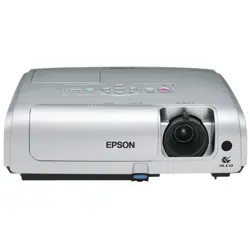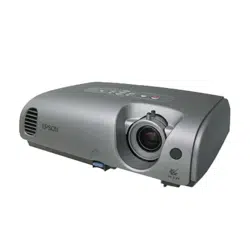
Epson PowerLite 62c/82c Projector
9/05 Epson PowerLite 62c/82c Projector - 1
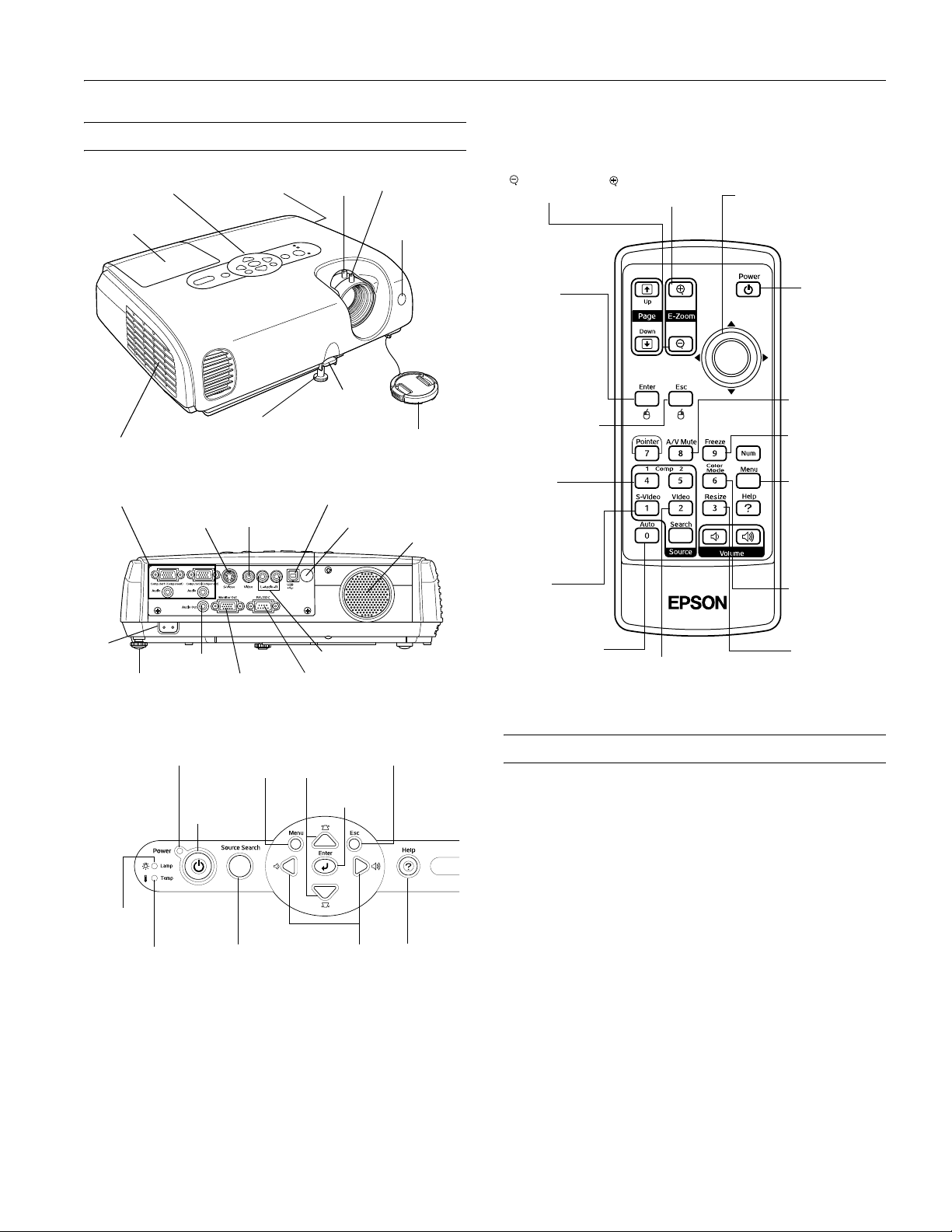
Projector Parts
Remote Control Buttons
Projector Specifications
General
Type of display Poly-silicon Thin Film Transistor (TFT)
active matrix with Micro Lens Array
Lens F=1.6, 18.4 to 22.12 mm
Resolution 82c: 1024 × 768 pixels (XGA)
62c: 800 × 600 pixels (SVGA)
Color reproduction Full color, 16.77 million colors
Brightness (ANSI) 2000 lumens (High brightness mode)
1500 lumens (Low brightness mode)
Contrast ratio 400:1
Image size 30 to 300 inches (0.8 to 7.6 meters)
Projection distance 2.8 to 35.4 feet (0.9 to 10.8 meters)
Projection methods Front, rear, ceiling
Focus adjustment Manual
Lens cap
Focus ring
Remote control
sensor
Control panel
(see below)
Front adjustable foot
Foot release
lever
Air exhaust vent
Lamp cover
Zoom ring
Security lock
Computer/Component Video
ports and related audio ports
S-Video port
Video port
Power
inlet
Speaker
Remote control sensor
USB port for wireless mouse
Rear adjustable foot
Video/S-Video audio ports
Audio Out port
RS-232 portMonitor Out port
Power
button
Source Search
button
Menu
button
Keystone
buttons
Lamp
light
Temperature
light
Power light
Volume
buttons
C
ontrol Panel
Esc button
Help
button
Enter button
Selects a color
mode
Turns
projector
on or off
zooms in on
(enlarges) selected
area
reduces the
zoomed image
Selects
computer or
component
video source
Selects S-Video
source
Turns off audio
and video
Selects menu items and
settings, and scrolls the
image
Cancels current
function or
displays previous
menu or screen
Adjusts computer
images to the
optimum settings
Selects a menu
option or displays
the next screen
or menu
Freezes the
current image
Changes the
aspect ratio
from 4:3 to 16:9
Displays or
hides projector
menus
Selects Video
source

Epson PowerLite 62c/82c Projector
2 - Epson PowerLite 62c/82c Projector 9/05
Zoom adjustment Manual (optical)
Internal sound
system 5 W monaural
Optical aspect ratio 4:3 (horizontal:vertical)
Zoom ratio 1:1.2
Noise level 36 dB (High brightness mode)
30 dB (Low brightness mode)
Keystone correction
angle Automatic
± 30° vertical (maximum)
Projection Lamp
Type UHE (Ultra High Efficiency)
Power
consumption 170 W
Lamp life About 2000 hours (High brightness)
About 3000 hours (Low brightness)
Part number V13H010L34
Remote Control
Range 20 feet (6 meters)
Batteries (2) Alkaline AAA
Mouse Compatibility
Supports USB
Dimensions
Height 3.4 inches (86 mm)
3.9 inches (98 mm) with feet extended
Width 12.9 inches (327 mm)
Depth 9.7 inches (246 mm)
Weight 5.9 lb (2.7 kg)
Electrical
Rated frequency 50/60 Hz
Power supply 100 to 120 VAC, 2.9 A
200 to 240 VAC, 1.2 A
Power Operating: 250 W
consumption Standby: 4 W
Environmental
Temperature Operating: 41 to 95 °F (5 to 35 °C),
(non-condensing) Storage: 14 to 140 °F (–10 to 60 °C)
Humidity Operating: 20 to 80% RH
(non-condensing) Storage: 10 to 90% RH
Altitude Up to 4,921 feet (1,500 m) in standard
operating mode, or up to 7,500 feet
(2,286 m) with high altitude fan mode
enabled
Safety
United States FCC 47CFR Part 15B Class B (DoC)
UL60950 Third Edition
Canada ICES-003 Class B
CSA C22.2 No. 60950 (cUL)
CE Marking Directive 73/23/EEC, 89/336/EEC
IEC 60950 Third Edition
EN 55022, EN 55024
Pixelworks
™
DNX
™
ICs are used in this
projector.
Compatible Video Formats
You can use any of the following video sources: VCR, DVD
player, camcorder, digital camera, gaming console, or laser disc
player. The projector supports composite video, S-Video,
component video, and RGB video, and it automatically senses
the video format (HDTV, SDTV, NTSC, PAL, or SECAM).
The projector supports the following international video
standards.
Mode Refresh rate (Hz)
NTSC
NTSC 4:3
PAL
M-PAL
N-PAL
PAL60
SECAM
60
60
50
60
50
60
50
TV525i
TV625i
SDTV480p
SDTV480p
HDTV720p
HDTV720p
HDTV1080i
HDTV1080i
60
50
60
50
60
50
60
50

Epson PowerLite 62c/82c Projector
9/05 Epson PowerLite 62c/82c Projector - 3
Compatible Computer Display Formats
To project images from a computer, set the computer’s video
card at a refresh rate (vertical frequency) compatible with the
projector; see the following table for compatible formats. Some
images are automatically resized to display in the projector’s
“native” format (XGA). The frequencies of some computers
may not allow images to display correctly; see your computer’s
documentation for details.
Positioning the Projector
Follow these guidelines to get the best results when projecting:
❏ Place the projector on a sturdy, level surface, between
2.8 and 35.4 feet from the screen.
❏ Make sure there is plenty of space for ventilation around
and under the projector.
❏ Make sure the projector is within 6 feet (1.8 meters) of a
grounded electrical outlet or extension cord and within
5 feet (1.5 meters) of the image source.
❏ Face the projector squarely toward the screen.
The projector supports 4 viewing setups, as shown below. If it is
installed in a rear or overhead position, you need to select the
correct projection option from the Extended menu after you
turn it on.
If the projector is tilted in the front or the back, you may need
to adjust the image shape; see page 7.
Mode Refresh r ate (Hz) Resolution
VGA EGA 70 640
× 350
VGA—60
VESA—72
VESA—75
VESA—85
60
72
75
85
640
× 480
640
× 480
640
× 480
SVGA—56
SVGA—60
SVGA—72
SVGA—75
SVGA—85
56
60
72
75
85
800
× 600
800
× 600
800
× 600
800
× 600
800
× 600
XGA—60
XGA—70
XGA—75
XGA—85
60
70
75
85
1024
× 768
1024 × 768
1024 × 768
1024 × 768
SXGA1—70
SXGA1—75
SXGA1—85
70
75
85
1152
× 864
1152
× 864
1152
× 864
SXGA2—60
SXGA2—75
SXGA2—85
60
75
85
1280
× 960
1280
× 960
1280
× 960
SXGA3—60
SXGA3—75
SXGA3—85
60
75
85
1280
×
1024
1280
×
1024
1280
×
1024
SXGA+60
SXGA+75
SXGA+85
60
75
85
1400
×
1050
1400
×
1050
1400
×
1050
UXGA—60 60 1600
×
1200
iMAC VGA
iMAC SVGA
iMAC XGA
MAC13
MAC16
MAC19—60
MAC19
MAC21
117
95
75
67
75
59
75
75
640
× 480
800
× 600
1024
× 768
640
× 480
832
× 624
1024
× 768
1024
× 768
1152
× 870
Table
Convenient for temporary front
projection. Choose Front from the
menu.
Front/Ceiling
Professional installation
recommended. Choose Front/Ceiling
from the menu.
Rear
For permanent installation behind a
translucent screen. Choose Rear
from the menu.
Rear/Ceiling
Professional installation behind a
translucent screen recommended.
Choose Rear/Ceiling from the menu.

Epson PowerLite 62c/82c Projector
4 - Epson PowerLite 62c/82c Projector 9/05
Image Size and Projection Distance
The distance between the projector and the screen determines
the basic size of the projected image, as shown below. The
diagram shows approximately how big your image will be, based
on where you set up the projector. Because other adjustments—
such as those made with the
Resize and keystone buttons—also
affect the size of the image, the numbers shown in the
illustration should be considered as general guidelines, not exact
measurements.
Use the formulas given below to either find out how large your
image will be when you know the distance from the projector to
the screen, or to find out how far from the screen to place the
projector when you want an image of a certain size. Since the
size of the image can be changed by rotating the zoom ring,
formulas are given for both the minimum and maximum sizes.
To determine the diagonal size (inches) of an image when you
know the projection distance (feet):
❏ Wide: Maximum diagonal size (inches) = 10.126246
×
distance (feet) + 1.166113
❏ Tele: Maximum diagonal size (inches) = 8.443213
×
distance (feet) + 0.916898
To determine the projection distance (feet) when you know the
diagonal size (inches) of the screen image:
❏ Wide: Maximum projection distance (feet) = 0.09875
×
diagonal size (inches) - 0.11516
❏ Tele: Maximum projection distance (feet) = 0.11844
×
diagonal size (inches) - 0.1086
Turning On the Projector
Make sure your projector and other equipment are set up and
connected correctly. Then turn on your projector, as described
below.
If you turn on your connected computer or video equipment
before starting the projector, the projector automatically detects
and displays the image source. If you turn on the projector first,
or have multiple pieces of connected equipment, you may have
to select the image source manually. See “Selecting the Image
Source” on page 6.
Follow these steps to plug in and turn on the projector:
1. Remove the lens cap.
Caution:
Do not use the projector with the lens cap in place. The heat
generated by the lamp can damage the cap.
2. Connect one end of the power cord to the projector’s power
inlet. Then connect the other end to an electrical outlet.
The
Power light on top of the projector turns orange.
3. Turn on your computer or video source if they are not on
already.
4. Press the P
Power button on top of the projector or on the
remote control.
Distance from projector to screen (ft.)
29.5(Wide)–35.4(Tele) ft.
(in.)
19.6–23.6
9.8–11.7
7.8–9.4
5.8–7.0
4.8–5.8
2.8–3.4
3.8–4.6
Power button

Epson PowerLite 62c/82c Projector
9/05 Epson PowerLite 62c/82c Projector - 5
The projector beeps once and the
Power light flashes green as
the projector warms up, then an image begins to appear. When
the
Power light stops flashing and remains green, the projector
is ready for use.
Warning:
Never look into the lens when the lamp is on. This can damage your
eyes, and is especially dangerous for children.
❏ If you’ve connected a Windows
®
-based computer to the
projector, you may see a message that your computer has
found a plug-and-play monitor; if so, click
Cancel.
❏ If you don’t see the image you want, press the
Source
Search button on the projector or the Search button on
the remote control until you see the image you want to
project. Then press the
Play button on your DVD player or
other device.
❏ If you are prompted to enter a password, see the
User’s Guide.
Note:
You can also use the Source buttons on the remote control to switch
between devices connected to the ports identified on each button.
If a projected image fails to appear, see “You Can’t Project an
Image” below.
When you’re done projecting, turn off the projector as
described on page 6. Shutting down the projector correctly
prevents premature lamp failure and possible damage from
overheating.
You Can’t Project an Image
If you don’t see the image you are trying to project, try the
following:
❏ Make sure the cables are connected correctly.
❏ Make sure the
Power light is green and not flashing and the
lens cap is off.
❏ If you’ve connected more than one computer and/or video
source, you may need to press the
Source Search button
on the projector’s control panel or the
Search button on
the remote control to select the correct source. (Allow a few
seconds for the projector to sync up after pressing the
button.)
❏ If you’re using a notebook PC, see the next section.
The Projector and Notebook Don’t
Display the Same Image
If you’re projecting from a notebook, and you can’t see your
image on the projection screen and on your notebook at the
same time, follow these guidelines.
If you’re using a notebook PC with Windows:
❏ On most notebooks, there’s a function key that lets you
toggle between the LCD screen and the projector, or display
on both at the same time. It may be labeled
CRT/LCD or
have an icon such as . You may have to hold down
the
Fn key while pressing it. Allow a few seconds for the
projector to sync up after changing the setting.
❏ If the function key doesn’t permit you to display
simultaneously on both screens, you should check your
monitor settings to make sure both the LCD screen and the
external monitor port are enabled.
From the Control Panel, open the
Display utility. In the
Display Properties dialog box, click the
Settings tab, then
click
Advanced. The method for adjusting the settings
varies by brand; you may need to click a
Monitor tab, then
make sure the external Monitor port is set as your primary
display and/or enabled. See your computer’s documentation
or online help for details.
If you’re using a Macintosh
®
with OS X:
You may need to set up your notebook to display on the
projector screen as well as the LCD screen. Follow these steps:
1. From the Apple menu, select
System Preferences, then
click
Displays.
2. Select VGA Display or Color LCD, click Arrange or
Arrangement, and make sure Mirror Displays is checked.
If you’re using a Macintosh with OS 8.6 to 9.x:
You may need to set up your notebook to display on the
projector screen as well as the LCD screen. Follow these steps:
1. From the Apple menu, select
Control Panels, then click
Monitors or Monitors and Sound.
2. Click the Arrange icon.
3. Drag one monitor icon on top of the other.
If the
Arrange option isn’t available, try selecting one of the
Simulscan resolution settings. Click the
Monitor icon, if
necessary, and then select a
Simulscan resolution. (Allow a few
seconds for the projector to sync up after making the selection.)

Epson PowerLite 62c/82c Projector
6 - Epson PowerLite 62c/82c Projector 9/05
Turning Off the Projector
When you’ve finished using the projector, follow the
recommended procedure to shut it down.
Note:
When the projector has not received any input signals for 30
minutes, it automatically turns off the lamp and enters “sleep
mode.” This conserves electricity, cools the projector, and extends the
life of the lamp. If you are done using the projector, unplug the
power cord. If you want to start projecting again, plug it in and
press the P
Power button. You can turn sleep mode on or off using
the Extended menu.
1. If you’re using a computer, shut it down first; otherwise you
may not be able to see your computer’s display to shut it
down properly.
2. To turn off the projector, press the P
Power button on the
projector or remote control.
You see this confirmation message:
(If you don’t want to turn it
off, press any other button
or wait a few seconds until
the message disappears.)
3. Press the P
Power button
again. The projector beeps twice, the lamp is turned off, and
the
Power light turns orange.
Note:
With Epson’s exclusive Instant Off
™
technology there’s no cool-
down period, so you can pack up and go immediately after
turning off the projector.
If you want to turn the projector on again, press the
P
Power button.
4. Press up on the blue foot release lever and lower the
projector to retract the front adjustable foot, as shown.
5. Turn off and disconnect any equipment plugged into the
projector.
Caution:
To avoid damaging the projector or lamp, never unplug the
power cord when the
Power light is green or flashing orange.
6. Replace the lens cap and unplug the power cord.
7. If you won’t be using the projector for a while, store it in the
soft case that came with it or in another protective case.
Selecting the Image Source
You can connect the projector to multiple video sources
simultaneously. Then use these buttons on the projector or
remote control to switch between them:
❏
Comp1
Press this button to move through the following sources:
Computer1 (Auto), Computer1 (RGB), and Computer1
(
Component Video).
❏
Comp2
Press this button to move through the following sources:
Computer2 (Auto), Computer2 (RGB), and Computer2
(
Component Video).
❏
S-Video
Press to select S-Video.
❏
Video
Press to select Video.
You can also press the Source Search button on the remote
control or projector until the correct image is projected.
After you select a source, the screen goes dark for a moment
before the image appears. The name of the source appears
briefly on the screen.
Foot

Epson PowerLite 62c/82c Projector
9/05 Epson PowerLite 62c/82c Projector - 7
Adjusting the Image
The following sections describe how to adjust the displayed
image.
Adjusting the Height of the Image
If the image is too low, you can raise it by extending the
projector’s front foot.
1. Stand behind the projector. Press the foot release button
and lift the front of the projector. This unlocks the foot.
2. Raise the projector until the image is positioned where you
want it, then release the button to lock the foot in place.
3. If you need to straighten the image, rotate the foot in the
back of the projector to raise or lower the side.
If the image is no longer rectangular after raising it, see
“Adjusting the Image Shape” in the next column.
Focusing the Image
Rotate the focus ring to sharpen the image.
Note: If a computer image is still out of focus, you can increase
the clarity by pressing the
Auto button on the remote control.
Rotate the zoom ring to reduce or enlarge the image.
You can also change the image size by moving the projector
closer to or farther away from the screen. You can use the
E-Zoom buttons on the remote control to zoom in on a portion
of the image, as described on page 8.
Correcting Computer Images
If you’ve connected a computer and the image doesn’t look
right, or it doesn’t fit properly on the screen, press the
Auto
button on the remote control. This automatically resets the
projector’s tracking, sync, resolution, and position settings. You
must be projecting a computer image for this button to have
any effect. Additionally, if the
Auto Setup option in the Signal
menu is set to
OFF, the Auto function will not work.
Adjusting the Image Shape
The projector automatically corrects images that are distorted
when the projector is tilted up or down (up to a 30° tilt). The
Keystone window appears on the screen while the projector
makes the correction. If the projected image still isn’t
rectangular or has a “keystone” shape, do one or more of the
following:
❏ If your image looks like or , you’ve placed the
projector off to one side of the screen, at an angle. Move it
directly in front of the center of the screen, facing it
squarely.
❏ If your image looks like or , the Auto Keystone
feature may have been disabled or you may need to
manually adjust the keystone correction value. (Auto
Keystone is not available when you’re using ceiling or rear
projection.) Follow the steps below:
❏ To turn on Auto Keystone, press the
Menu button on
the remote control. Use the pointer button on the
remote control (or the arrow buttons on the projector)
to select the
Settings menu, then press Enter. If Auto
Keystone
is OFF, use the pointer button to
highlight this option and press
Enter. Select ON in the
Auto Keystone window that appears and press
Enter to
save your changes. Exit the menu by pressing
Menu
button.
Focus ring
Zoom ring

Epson PowerLite 62c/82c Projector
8 - Epson PowerLite 62c/82c Projector 9/05
❏ To manually adjust the keystone correction value, press
the or button on the projector to correct the
shape of the image. After correction, your image will be
slightly smaller.
You can also make keystone adjustments using the projector’s
Settings menu.
Zooming Your Image
Follow these steps to zoom in on a portion of the image:
1. Press the
E-Zoom button on the remote control. You see
a crosshair indicating the center of the zoom-in area.
2. Use the
pointer button to position the crosshair in the
area you want to enlarge.
3. Continue pressing the
E-Zoom button to enlarge the
selected area.
4. While the image is enlarged, you can:
❏ Use the
pointer button to move around the screen.
❏ Press the
E-Zoom button to zoom out.
5. When you’re done, press the
Esc button to return the image
to its original size.
Adjusting the Brightness
The brightness of an image depends on the source from which
you are projecting and the amount of light in the room. If the
image is too bright or not bright enough, there are two ways to
adjust it:
❏ Change the
Brightness setting in the Image menu.
❏ Select
Low or High as the Brightness Control setting in
the Settings menu. Low brightness mode extends the life of
the lamp and decreases the fan noise.
Selecting the Color Mode
You may want to adjust the color mode to optimize the color
and brightness for the type of image you’re projecting and the
environment in which you’re projecting it.
If you’re projecting computer or RGB video images, the default
color mode is
Presentation, which is appropriate for
presentations in bright rooms.
The following table lists the color modes available.
To change the color mode, press the
Color Mode button on
the remote control until you see the mode you want. The
currently selected setting appears in the upper right corner of
the screen. You can also use the projector menu system to
change the color mode in the Image menu.
Color mode Description
Photo Best for projecting still images with vivid color
in a bright room (computer input only).
Sports Best for watching TV in a bright room
(component, S-Video, or composite video input
only).
Presentation Use when you’re projecting a presentation in a
bright room.
Theatre Use when projecting movies in a dark room.
Game Best for playing video games in a bright room.
sRGB Use when projecting computer images
conforming to the sRGB color standard.
Blackboard Use when you need to project against a green
blackboard.
Color
Mode
button

Epson PowerLite 62c/82c Projector
9/05 Epson PowerLite 62c/82c Projector - 9
Adjusting the Volume
You can use the buttons on the remote control or projector to
increase or decrease the volume for both the projector’s built-in
speaker and external speakers connected to the projector. Press
the button to increase the volume, or the button to
decrease it. A volume gauge appears on the screen while the
volume is being adjusted.
Note
:
You can also adjust the volume using the projector’s Settings menu.
Selecting the Aspect Ratio
The aspect ratio is the ratio between an image’s width and its
height. Standard images have an aspect ratio of 4:3 and HDTV
images usually have an aspect ratio of 16:9. If your video source
is 16:9, you can change the aspect ratio to view the video in
16:9 wide-screen format.
Note:
You must be projecting component, composite, or S-Video images to
change the aspect ratio. You can also change the aspect ratio using
the projector’s Signal menu. See the User’s Guide for details.
Press the
Resize button
on the remote control to
change the aspect ratio.
Turning Off the Picture and Sound
Press the A/V Mute button on the remote control to darken
your screen and turn off the sound. When you’re ready to
resume, press
A/V Mute again.
If you press the button while projecting from a video source,
and you don’t pause the video, it continues to play even though
you can’t see or hear it. When you press the
A/V Mute button
again to resume, the playback does not resume at the exact
point you paused it.
Note: You can make the blank screen blue, instead of black,
whenever you press the
A/V Mute button by selecting it as the
background color in the Extended > Display menu. You can also
create an image, such as a company logo or a picture, to display on
the screen whenever you press the
A/V Mute button. See the
User’s Guide for more information.
Stopping the Action
Press the Freeze button to stop the action in your video or
computer image and keep the current image on the screen. The
sound will continue, however. Also, because the source
continues to transmit signals, you won’t be able to resume the
action from the point at which you paused it.
Press the
Freeze button or press Esc to restart the action.
Projector Status Lights
If your projector isn’t working correctly, turn it off, wait for it
to cool, and unplug it. Then plug the power cord back in and
turn on the projector. If this doesn’t solve the problem, check
the lights on top of the projector. They alert you to problems
with projector operations.
Volume controls
Resize
button
Power light
Error lights

Epson PowerLite 62c/82c Projector
10 - Epson PowerLite 62c/82c Projector 9/05
Using the Remote Control
The remote control lets you access the projector’s features from
anywhere in the room—up to 20 feet away. (This distance may
be shorter if the remote control batteries are low.)
The projector may not respond to remote control commands in
these conditions:
❏ You are not within 20 feet (6 meters), or not within 30° to
the left or right of the front or rear sensor or 15° above or
below it
❏ The battery is weak or not installed correctly
❏ Ambient light is too bright
❏ A fluorescent light is shining into the infrared receiver
❏ A strong light source (such as direct sunlight) is shining into
the infrared receiver
❏ Other equipment emitting infrared energy is present (such
as a radiant room heater)
Using the Remote Control as a Wireless
Mouse
When you use the remote control as a wireless mouse, you
can control your computer or click through slideshow-style
presentations (such as PowerPoint) from up to 20 feet
(6 meters) away.
To control your computer with the remote, make sure you have
connected your computer to the projector with a USB cable.
❏ To display the mouse
pointer, press the
Pointer
button.
❏ To move the pointer on
the screen, aim the remote
at the screen and use the
pointer button.
❏ To click (or left-click),
press the
Enter button.
❏ To double-click, press the
Enter button twice.
❏ To right-click, press the
Esc button.
❏ To click and drag, press
down and hold the
Enter
button and use the
pointer button to drag the
pointer.
Power
light
Lamp
light
Temp
light Description
Red Flashing
red
Flashing
red
The projector has an internal
error. Turn it off and unplug
it. Contact Epson for help.
Red Off Flashing
red
There is a problem with the
fan or a sensor. Turn off the
projector and unplug it.
Contact Epson for help.
Red Flashing
red
Off The lamp is burned out,
broken, or not installed
correctly, or the lamp cover
is open. Close the cover or
replace or reseat the lamp, if
necessary, as described on
page 12.
— Flashing
orange
Off Replace the lamp with a new
one as soon as possible; see
page 12 for instructions. If
you continue to use the
lamp, it may break.
Red Off Red The projector has overheated
and turned itself off. Let it
cool for about five minutes,
then turn it back on. Make
sure there is plenty of space
around and under the
projector for ventilation. Also
clean the air filter and air
exhaust vents. If it continues
to overheat, you may need to
replace the air filter.
Flashing
red
Off Flashing
orange
The projector is too hot.
Make sure the temperature
surrounding the projector
does not exceed 95
°F
(35
°C) and there is plenty of
space around and under the
projector for ventilation.
Clean the air filter and air
vents, if necessary.
Orange Off Off The projector is in standby or
sleep mode. You can unplug
it or press the
P Power
button to turn it on.
Flashing
green
Off Off The projector is warming up.
Wait for the image to appear.
Green Off Off The projector is operating
normally.
Flashing
orange
Off Off The projector is shutting
down. Wait for the light to
stop flashing and remain
orange before unplugging it.
Left-click or
double-click
Move the
pointer
Right-clickDisplay the
pointer

Epson PowerLite 62c/82c Projector
9/05 Epson PowerLite 62c/82c Projector - 11
❏ To advance slides in a
PowerPoint presentation
in Slide Show mode, press
the
Page Down or Enter
button on the remote
control. Press the
Page Up or Esc button
to go back a slide.
Replacing Remote Control Batteries
When the batteries run out, follow the steps below to replace
them. The remote requires two AAA alkaline batteries.
Caution:
When replacing batteries, take the following precautions:
❏ Replace the batteries as soon as they run out. If a battery leaks,
wipe away battery fluid with a soft cloth. If fluid gets on your
hands, wash them immediately.
❏ Do not expose batteries to heat or flame.
❏ Dispose of used batteries according to local regulations.
❏ Remove the batteries if you won’t be using the remote control for
a long period of time.
1. Press in the tab to remove the battery cover.
2. Remove the old batteries, then insert the new ones as
shown.
3. Replace the battery cover. Make sure it clicks into place.
Cleaning the Projector Case
Before you clean the projector case, turn off the projector and
unplug the power cord.
❏ To remove dirt or dust, wipe the outside with a soft, dry,
lint-free cloth.
❏ To remove stubborn dirt or stains, clean the case using a soft
cloth moistened with water and a neutral detergent. Dry it
using a separate cloth.
Caution:
Do not use alcohol, benzene, thinner, wax, or other chemicals; these
can damage the case.
Cleaning the Lens
Clean the lens whenever you notice dirt or dust on the surface.
❏ Use a canister of compressed air to remove dust.
❏ To remove dirt or smears on the lens, use lens-cleaning
paper. If necessary, moisten a soft cloth with lens cleaner
and gently wipe the lens surface.
Caution:
Do not use glass cleaner to clean the lens and do not spray liquid of
any kind directly on the lens. Spray the lens cleaner on a soft cloth
and then gently wipe the lens with the cloth.
Cleaning and Replacing the Air Filter
Clean the air filter and the air intake and exhaust vents on the
projector after every 100 hours of use. If they are not cleaned
periodically, they can become clogged with dust, preventing
proper ventilation. This can cause overheating and damage the
projector. When the filter and vent are clogged, the projector
displays the message
The projector is overheated.
To clean the air filter, air intake, and air exhaust vents, follow
these steps:
1. Turn off the projector, and unplug the power cord.
Page U pPage Down

Epson PowerLite 62c/82c Projector
12 - Epson PowerLite 62c/82c Projector 9/05
2. Turn the projector upside-down and clean the air filter and
air intake vent. Epson recommends using a small vacuum
cleaner designed for computers and other office equipment.
If you don’t have one, gently clean them using a very soft
brush (such as an artist’s brush).
If dirt is difficult to remove or the filter is torn, replace it.
The air filter set (part number
V13H134A08) contains two
filters. See page 14 for ordering information.
3. If you need to replace the filter, slide it off, as shown.
4. Align the new filter carefully and slide it in until it clicks
into place.
Replacing the Lamp
The projection lamp typically lasts for about 2000 hours of use
(in high brightness mode) or 3000 hours (in low brightness
mode). It is time to replace the lamp when:
❏ The projected image gets darker or starts to deteriorate.
❏ The
Lamp light is flashing orange.
❏ The message
Replace the Lamp appears on the screen
when the lamp comes on. To maintain projector brightness
and image quality, replace the lamp as soon as possible.
See page 14 for ordering information and request part number
V13H010L34.
Note:
You can check to see how many hours the lamp has been used using
the Info menu. See your on-screen User’s Guide for instructions.
Follow these steps to replace the lamp:
1. Press the P
Power button twice to turn off the projector.
When you hear the projector beep twice, unplug the power
cord.
2. If the projector has been on, allow it to cool down for at
least an hour (or until the lamp is cool).
Warning:
Let the lamp cool before replacing it. If the lamp breaks, handle
the shards carefully to avoid injury.
3. Use the screwdriver included with the replacement lamp to
loosen the screw holding the lamp cover on top of the
projector. Then slide the cover out and lift it off.
4. Use the screwdriver to loosen the two screws holding the
lamp in place. (You can’t remove the screws.)
Air filter
Air vent
Loosen these
screws

Epson PowerLite 62c/82c Projector
9/05 Epson PowerLite 62c/82c Projector - 13
5. Hold the lamp as shown and pull it straight out.
Note:
The lamp(s) in this product contain mercury. Please
consult your state and local regulations regarding disposal or
recycling. Do not put in the trash.
6. Gently insert the new lamp. If it doesn’t fit easily, make sure
it’s facing the correct way.
Caution:
Do not touch the glass portion of the lamp assembly. Touching
the glass could result in premature lamp failure.
7. Once the lamp is fully inserted, tighten its screws.
Note:
Be sure to seat the lamp fully and secure the lamp cover. If the
lamp is not properly installed or the cover is loose, the lamp will
not turn on.
8. Lower the lamp cover into place. Then slide the cover closed
and tighten the screw.
9. Reset the lamp timer as described on page 13.
Resetting the Lamp Timer
You must reset the lamp timer after replacing the lamp to clear
the
Replace the Lamp warning message. Follow these steps:
Note:
Do not reset the lamp timer if you have not replaced the lamp. If
you do, the Lamp Hours will not accurately reflect the number of
hours that the lamp has been used.
1. Connect the power cable and turn on the projector.
2. Press the
Menu button on the remote control or projector
and select the
Reset menu. Then press Enter. You see the
following:
3. Select the
Reset Lamp Hours option and press Enter. You
see the following:
4. Select
Yes and press Enter.
5. Press
Esc to return to the main menu or Menu to exit the
menu system.

Epson PowerLite 62c/82c Projector
14 - Epson PowerLite 62c/82c Projector 9/05
Transporting the Projector
The projector contains many glass and precision parts. If you
need to transport it, please follow these packing guidelines to
prevent damage to the projector:
❏ When shipping the projector for repairs, use the original
packaging material if possible. If you do not have the
original packaging, use equivalent materials, placing plenty
of cushioning around the projector.
❏ When transporting the projector as freight or checked
luggage, first put it in the supplied carrying case, then pack
it in a firm box, placing plenty of cushioning around the
case.
❏ When you are hand-carrying the projector, be sure to use
the supplied carrying case or another protective case.
Note:
Epson shall not be liable for any damages incurred during
transportation.
Optional Accessories
You can purchase the following accessories from an Epson
authorized reseller. For product information and to find the
nearest reseller, please call (800) GO-EPSON (800-463-7766).
To purchase online, visit www.epsonstore.com (U.S. sales
only). In Canada, please call 800-463-7766 for reseller referral.
Related Documentation
CPD-20550 Epson PowerLite 62c/82c Quick Setup
poster
CPD-20548 CD-ROM containing the Epson
PowerLite 62c/82c User’s Guide
Product Part number
Replacement lamp V13H010L34
Air filter set (includes 2 filters) V13H134A08
Samsonite
®
wheeled soft case for projector
and notebook PC
ELPKS35-S
Samsonite soft shoulder case with notebook
PC compartment
ELPKS43
Component video cable
S-Video cable
ELPKC19
ELPSV01
Distribution amplifier ELPDA01
50-inch portable screen
60-inch portable pop-up screen
80-inch portable pop-up screen
83.6-inch hanging pull-down screen
ELPSC06
ELPSC07
ELPSC08
ELPSC09
Image presentation camera ELPDC05 V12H162020
Kensington
®
security lock ELPSL01
Ceiling mount (gyro lock with suspension
adapter)
False ceiling plate
Suspension adapter
Security bracket/cabling for gyro lock mounts
Adjustable ceiling channel
ELPMBUNI
ELPMBFCP
ELPMBAPL
ELPMBSEC
ELPMBACC
Product Part number