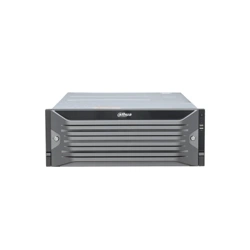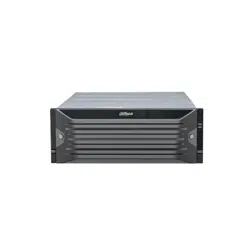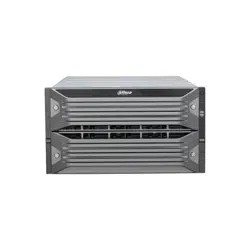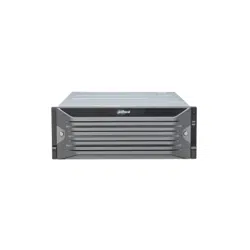

ZHEJIANG DAHUA VISION TECHNOLOGY CO., LTD. V5.2.0
Embedded Video Storage
User's Manual
Foreword
General
This manual introduces the installation, functions and operations of the embedded video storage
server (hereinafter referred to as "the Device" or "EVS"). Read carefully before using the device, and
keep the manual safe for future reference.
Models
Series Models
EVS71 Series EVS7124S; EVS7136S; EVS7148S
EVS72 Series EVS7285S
EVS51 Series EVS5124S; EVS5136S; EVS5148S
EVS50 Series EVS5016S-V2; EVS5016S-R-V2
EVS82 Series EVS8224X, EVS8236X, EVS8248X
In the name EVS71XXS, XX refers to HDD number (24, 36, or 48); S indicates that the Device is
single-controller type.
Safety Instruction
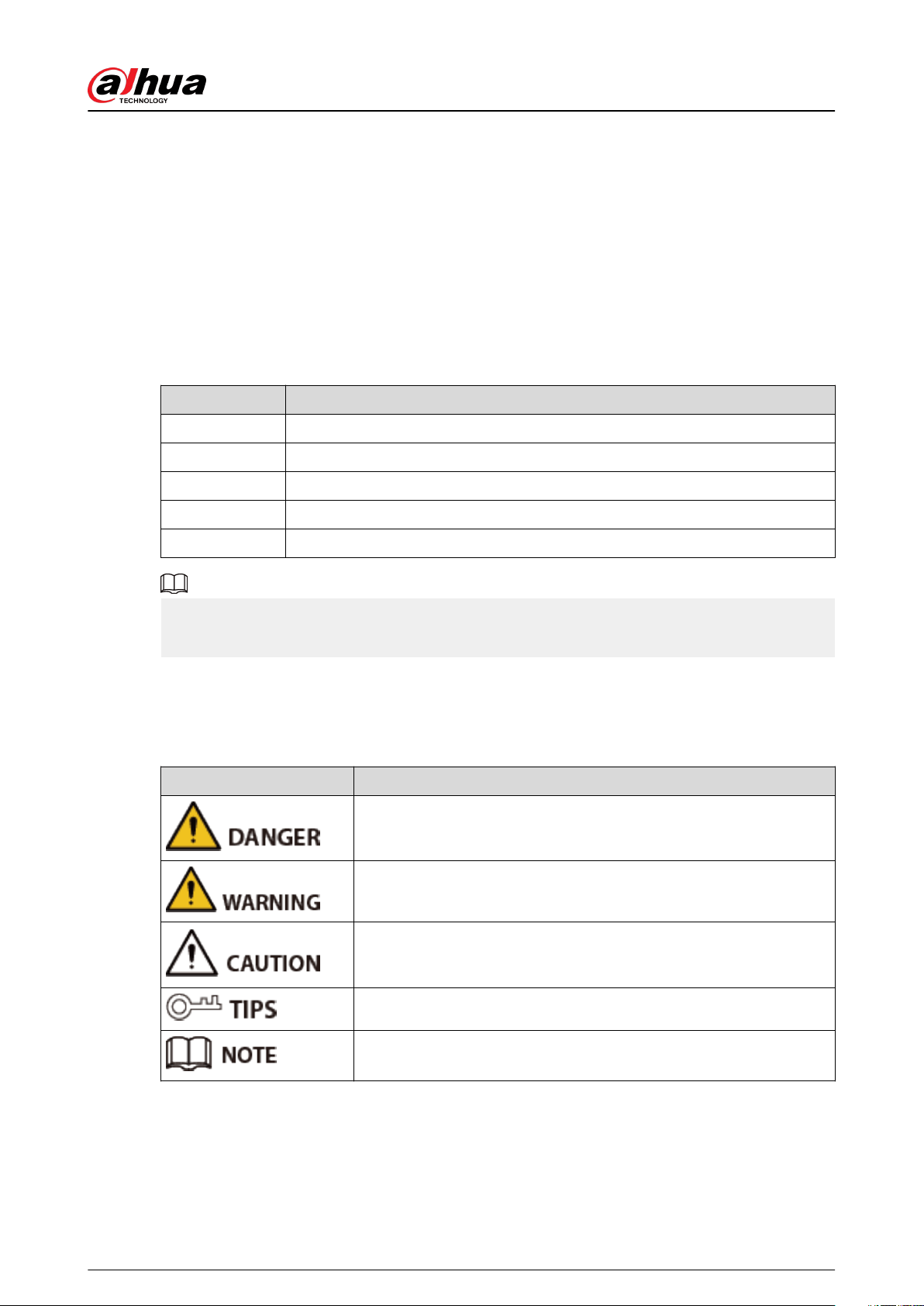
The following signal words might appear in the manual.
Signal Words Meaning
Indicates a high potential hazard which, if not avoided, will result in
death or serious injury.
Indicates a medium or low potential hazard which, if not avoided,
could result in slight or moderate injury.
Indicates a potential risk which, if not avoided, could result in
property damage, data loss, reductions in performance, or
unpredictable results.
Provides methods to help you solve a problem or save time.
Provides additional information as a supplement to the text.
User's Manual
I

Revision History
Version Revision Content Release Time
V5.2.0
●
Updated storage conguration.
●
Updated cluster service.
July 2023
V5.1.0 Added EVS82 series. February 2023
V5.0.0 Updated the interface pictures. November.2022
V4.1.1
Updated Important Safeguards and
Warnings.
June 2022
V4.1.0 Added EVS51 and EVS50 series. April 2022
V4.0.1
Added particulate and gaseous
contamination specications.
February 2022
V4.0.0
●
Added one-click disarming.
●
Added one-click diagnosis.
●
Added the talk function.
●
Added SSD health detection.
December 2021
V3.1.1
Deleted the strategy of shortcut RAID
creation.
August 2021
V3.1.0
●
Added EVS7285S.
●
Updated port description.
June 2021
V3.0.0 Updated some interfaces and functions. April 2021
V2.0.6
●
Optimized storage and recording
conguration
●
Added PTZ settings
●
Added call detection and smoking
detection
September 2020
V2.0.2
Added description of front and rear
panels of the EVS52 Series and EVS72
Series.
April 2020
V2.0.0
●
Added functions such as AI reports,
people counting and smart tracking.
●
Brand-new UI, AI functions, general
settings, and system congurations.
December 2019
V1.0.0 First release. March 2019
Privacy Protection Notice
As the device user or data controller, you might collect the personal data of others such as their
face, ngerprints, and license plate number. You need to be in compliance with your local privacy
protection laws and regulations to protect the legitimate rights and interests of other people by
implementing measures which include but are not limited: Providing clear and visible identication
to inform people of the existence of the surveillance area and provide required contact information.
User's Manual
II
About the Manual
●
The manual is for reference only. Slight dierences might be found between the manual and the
product.
●
We are not liable for losses incurred due to operating the product in ways that are not in
compliance with the manual.
●
The manual will be updated according to the latest laws and regulations of related jurisdictions.
For detailed information, see the paper user’s manual, use our CD-ROM, scan the QR code or
visit our ocial website. The manual is for reference only. Slight dierences might be found
between the electronic version and the paper version.
●
All designs and software are subject to change without prior written notice. Product updates
might result in some dierences appearing between the actual product and the manual. Please
contact customer service for the latest program and supplementary documentation.
●
There might be errors in the print or deviations in the description of the functions, operations
and technical data. If there is any doubt or dispute, we reserve the right of nal explanation.
●
Upgrade the reader software or try other mainstream reader software if the manual (in PDF
format) cannot be opened.
●
All trademarks, registered trademarks and company names in the manual are properties of their
respective owners.
●
Please visit our website, contact the supplier or customer service if any problems occur while
using the device.
●
If there is any uncertainty or controversy, we reserve the right of nal explanation.
Icons and Buttons
Icon/Button Description
After you have entered password, click the icon, you can see the
password is displayed in letters and number. Release mouse or move
pointer to other places, the password is displayed in the form of black
dots.
Add icon. Click the icon, system can display the hidden
APPLICATIONS window. You can view or open the applications.
Help information. Point to the icon, device can display help
information.
/ /
Display or hide icon. Click the icon to display the hidden menu. Now
the icon is shown as
/ / . Click / / again to hide the menu
items.
Check the box. You can select multiple menu items at the same time.
means selected.
Check the box to select one menu item, means selected.
Drop-down box. Click the box to view the drop-down menu.
User's Manual
III
Icon/Button Description
Enable icon.
●
: Disabled.
●
: Enabled
●
: The function cannot be enabled.
●
: The function cannot be disabled.
Click to clear all search criteria settings.
Page switch.
●
/ : Page up/page down.
●
/ : Go to the rst page or the last page.
Filter icon. Click the icon to set lter criteria.
Select icon. Click the icon, the system displays a checkbox, so you can
select multiple objects.
Search column. Enter key words, click to search the corresponding
information.
Text column. Enter number, letter, symbol and so on.
Close button. Click the icon to close the window.
User's Manual
IV

Important Safeguards and Warnings
This section introduces content covering the proper handling of the Device, hazard prevention, and
prevention of property damage. Read carefully before using the Device, and comply with the
guidelines when using it.
Operation Requirements
●
This is a class A product. In a domestic environment this may cause radio interference in which
case you may be required to take adequate measures.
●
The Device is heavy and needs to be carried by several persons together to avoid personal
injuries.
●
Check whether the power supply is correct before use.
●
Do not unplug the power cord on the side of the Device while the adapter is powered on.
●
Operate the Device within the rated range of power input and output.
●
Use the Device under allowed humidity and temperature conditions.
●
Do not drop or splash liquid onto the Device, and make sure that there is no object lled with
liquid on the Device to prevent liquid from owing into it.
●
Do not disassemble the Device without professional instruction.
●
Your congurations will be lost after performing a factory reset. Please be advised.
●
Do not restart, shut down or disconnect the power to the Device during an update.
Make sure the update le is correct because an incorrect le can result in a Device error
occurring.
The system cannot upgrade dierent types of AI modules at the same time.
●
Do not frequently turn on/o the Device. Otherwise, the product life might be shortened.
●
Back up important data on a regular basis when using the Device.
●
Operating temperature: 0 °C to 45 °C (32 °F to 113 °F).
●
Salt pray in the operating environment of the device might corrode its electronic components
and cables. To ensure the normal operation of the device and prolong its service life, use the
device in an indoor environment that is 3 kilometers away from the sea.
Installation Requirements
●
Do not connect the power adapter to the Device while the adapter is powered on.
●
Strictly comply with the local electric safety code and standards. Make sure the ambient voltage
is stable and meets the power supply requirements of the Device.
●
Do not expose the battery to environments with extremely low air pressure, or extremely high
or low temperatures. Also, it is strictly prohibited for the battery to be thrown into a re or
furnace, and to cut or put mechanical pressure on the battery. This is to avoid the risk of re and
explosion.
●
Use the standard power adapter or cabinet power supply. We will assume no responsibility for
any injuries or damages caused by the use of a nonstandard power adapter.
User's Manual
V
●
Do not place the Device in a place exposed to sunlight or near heat sources.
●
Keep the Device away from dampness, dust, and soot.
●
Put the Device in a well-ventilated place, and do not block its ventilation.
●
Install the server on a stable surface to prevent it from falling.
●
The power supply must conform to the requirements of ES1 in IEC 62368-1 standard and be no
higher than PS2. Note that the power supply requirements are subject to the Device label.
●
The Device is a class I electrical appliance. Make sure that the power supply of the Device is
connected to a power socket with protective earthing.
●
Use power cords that conform to your local requirements, and are rated specications.
●
Before connecting the power supply, make sure the input voltage matches the server power
requirement.
●
When installing the Device, make sure that the power plug and appliance coupler can be easily
reached to cut o power.
●
Install the server in an area that only professionals can access.
●
Extra protection is necessary for the Device casing to reduce the transient voltage to the dened
range.
●
If you did not push the HDD box to the bottom, then do not close the handle to avoid damage
to the HDD slot.
●
Install the Device near a power socket for emergency disconnect.
●
It is prohibited for non-professionals and unauthorized personnel to open the Device casing.
●
Ax the Device securely to the building before use.
Maintenance Requirements
●
Make sure to use the same model when replacing the battery to avoid re or explosion. Dispose
the battery strictly according to the instructions on it.
●
Power o the Device before maintenance.
●
AI module does not support hot plug. If you need to install or replace the AI module, unplug the
Device power cord rst. Otherwise, it will lead to le damage on the AI module.
●
The Device casing provides protection for internal components. Use a screwdriver to loosen the
screws before detaching the casing. Make sure to put the casing back on and secure it in its
original place before powering on and using the Device.
●
It is prohibited for non-professionals and unauthorized personnel to open the Device casing.
●
The appliance coupler is a disconnection Device. Keep it at a convenient angle when using it.
Before repairing or performing maintenance on the Device, rst disconnect the appliance
coupler.
●
Keep body parts away from fan blades.
Transportation Requirements
Transport the Device under allowed humidity and temperature conditions.
User's Manual
VI

Storage Requirements
Store the Device under allowed humidity and temperature conditions.
User's Manual
VII

Table of Contents
Foreword.............................................................................................................................................................. I
Important Safeguards and Warnings............................................................................................................... V
1 Overview...........................................................................................................................................................1
1.1 Introduction..................................................................................................................................................................................1
1.2 Front Panel....................................................................................................................................................................................1
1.2.1 EVS7124S/EVS7136S/EVS5124S/EVS5136S/EVS7148S/EVS5148S/EVS8224X/EVS8236X/
EVS8248XEVS7124S/EVS7136S/EVS5124S/EVS5136S/EVS7148S/EVS5148S/EVS8224X/
EVS8236X/EVS8248X24/36/48/60-HDD Single-controllerEVS7124S/EVS7136S/EVS5124S/
EVS5136S/EVS7148S/EVS5148S/EVS8224X/EVS8236X/EVS8248X24/36/48/60-HDD Single-
controller.................................................................................................................................................................................1
1.2.2 EVS7285S...........................................................................................................................................................................3
1.2.3 EVS5016S-V2/EVS5016S-R-V2....................................................................................................................................4
1.3 Rear Panel......................................................................................................................................................................................4
1.3.1 EVS7124S/EVS7136S/EVS7148S ...............................................................................................................................5
1.3.2 EVS7285S...........................................................................................................................................................................7
1.3.3 EVS5124S/EVS5136S/EVS5148S................................................................................................................................8
1.3.4 EVS5016S-V2/EVS5016S-R-V2....................................................................................................................................9
1.3.5 EVS8224X/EVS8236X/EVS8248X............................................................................................................................ 10
2 Installation and Powering Up....................................................................................................................... 12
2.1 Installing HDD............................................................................................................................................................................12
2.1.1 EVS7124S/EVS7136S/EVS7148S/EVS5124S/EVS5136S/EVS5148S/EVS8224X/EVS8236X/
EVS8248X..............................................................................................................................................................................12
2.1.2 EVS7285S........................................................................................................................................................................ 14
2.1.3 EVS5016S-V2/EVS5016S-R-V2................................................................................................................................. 16
2.2 Installing Device to Cabinet................................................................................................................................................. 18
2.3 Powering Up.............................................................................................................................................................................. 19
3 Initial Settings................................................................................................................................................21
3.1 Initializing the Device............................................................................................................................................................. 21
3.2 Conguring IP Address...........................................................................................................................................................24
3.3 Login............................................................................................................................................................................................. 25
3.3.1 Logging in to the PC Client......................................................................................................................................25
3.3.2 Logging in to Local Interface...................................................................................................................................26
3.3.3 Logging in to Web Interface....................................................................................................................................27
3.4 Home Page................................................................................................................................................................................. 28
3.5 Conguring Remote Devices...............................................................................................................................................29
3.5.1 Initializing Remote Devices......................................................................................................................................29
3.5.2 Adding Remote Devices............................................................................................................................................30
4 Storage Conguration...................................................................................................................................39
User's Manual
VIII

4.1 Wizard Conguration..............................................................................................................................................................39
4.1.1 Direct Video Storage...................................................................................................................................................39
4.1.2 IP SAN (network storage)..........................................................................................................................................45
4.2 Device Management...............................................................................................................................................................50
4.2.1 Viewing Remote Devices.......................................................................................................................................... 51
4.2.2 Changing IP Address.................................................................................................................................................. 51
4.2.3 Conguring Remote Devices...................................................................................................................................54
4.2.4 Conguring Channel Name.....................................................................................................................................60
4.2.5 Exporting Remote Devices.......................................................................................................................................60
4.2.6 Importing Remote Devices...................................................................................................................................... 61
4.2.7 Connecting Remote Devices...................................................................................................................................61
4.2.8 Deleting Remote Devices......................................................................................................................................... 62
4.3 Storage Management.............................................................................................................................................................62
4.3.1 Storage Resource.........................................................................................................................................................63
4.3.2 Storage Settings...........................................................................................................................................................68
5 General Operations....................................................................................................................................... 82
5.1 Live and Monitor.......................................................................................................................................................................82
5.1.1 View Management......................................................................................................................................................83
5.1.2 Device Tree.................................................................................................................................................................... 94
5.1.3 PTZ.................................................................................................................................................................................... 96
5.2 Recorded Files.........................................................................................................................................................................101
5.2.1 Playing back Recorded Videos............................................................................................................................. 101
5.2.2 Clipping a Video........................................................................................................................................................ 105
5.2.3 Video Tag..................................................................................................................................................................... 106
5.2.4 Searching for Snapshots.........................................................................................................................................107
5.2.5 Backing up Files......................................................................................................................................................... 107
5.2.6 Locking Files................................................................................................................................................................108
5.2.7 Watermark Verication........................................................................................................................................... 108
5.3 Alarm List.................................................................................................................................................................................. 109
5.4 Display Management........................................................................................................................................................... 109
5.4.1 Multiple-screen Control..........................................................................................................................................109
5.4.2 Locking the Screen................................................................................................................................................... 110
5.5 System Messages...................................................................................................................................................................110
5.6 Background Task....................................................................................................................................................................110
5.7 Buzzer.........................................................................................................................................................................................110
5.8 Audio Management..............................................................................................................................................................111
6 Cluster Service............................................................................................................................................. 112
6.1 Conguring Cluster...............................................................................................................................................................112
6.1.1 Creating a Cluster......................................................................................................................................................112
User's Manual
IX

6.1.2 Viewing Information................................................................................................................................................ 116
6.2 Record Transfer.......................................................................................................................................................................116
6.3 Viewing Cluster Log..............................................................................................................................................................117
7 System Conguration................................................................................................................................. 118
7.1 Network Management.........................................................................................................................................................118
7.1.1 Basic Network.............................................................................................................................................................118
7.1.2 Network Application................................................................................................................................................125
7.2 Security Strategy....................................................................................................................................................................141
7.2.1 Security Status............................................................................................................................................................141
7.2.2 System Service........................................................................................................................................................... 142
7.2.3 Attack Defense...........................................................................................................................................................145
7.2.4 CA Certicate.............................................................................................................................................................. 148
7.2.5 A/V Encryption........................................................................................................................................................... 151
7.2.6 Security Warning.......................................................................................................................................................152
7.3 Account Management......................................................................................................................................................... 152
7.3.1 Adding User Groups.................................................................................................................................................153
7.3.2 Adding Device Users................................................................................................................................................154
7.3.3 Password Maintenance...........................................................................................................................................156
7.3.4 Adding ONVIF User...................................................................................................................................................158
7.4 System Settings......................................................................................................................................................................159
7.4.1 Conguring Basic System Parameters...............................................................................................................159
7.4.2 System Time................................................................................................................................................................161
7.4.3 Schedule.......................................................................................................................................................................163
8 System Maintenance................................................................................................................................... 165
8.1 Overview...................................................................................................................................................................................165
8.2 System Information...............................................................................................................................................................166
8.2.1 Viewing Device Information..................................................................................................................................166
8.2.2 Viewing Legal Information.................................................................................................................................... 166
8.2.3 Viewing Storage Information................................................................................................................................166
8.3 System Resources.................................................................................................................................................................. 167
8.4 Network Maintenance..........................................................................................................................................................167
8.4.1 Online User..................................................................................................................................................................167
8.4.2 Network Test...............................................................................................................................................................168
8.5 Disk Maintenance.................................................................................................................................................................. 169
8.5.1 S.M.A.R.T Detection.................................................................................................................................................. 169
8.5.2 System Disk Health Detection..............................................................................................................................169
8.5.3 Firmware Update.......................................................................................................................................................170
8.6 Logs.............................................................................................................................................................................................170
8.6.1 Log Classication.......................................................................................................................................................170
User's Manual
X

8.6.2 Log Search................................................................................................................................................................... 171
8.7 Intelligent Diagnosis.............................................................................................................................................................171
8.7.1 One-click Export.........................................................................................................................................................171
8.7.2 Run Log.........................................................................................................................................................................172
8.7.3 One-click Diagnosis..................................................................................................................................................172
8.8 Maintenance Manager.........................................................................................................................................................173
8.8.1 Update...........................................................................................................................................................................173
8.8.2 Default...........................................................................................................................................................................174
8.8.3 Automatic Maintenance.........................................................................................................................................175
8.8.4 Backing up Congurations.................................................................................................................................... 175
9 Event Management..................................................................................................................................... 177
9.1 Alarm Actions..........................................................................................................................................................................177
9.1.1 Record........................................................................................................................................................................... 179
9.1.2 Buzzer............................................................................................................................................................................179
9.1.3 Log..................................................................................................................................................................................179
9.1.4 Email...............................................................................................................................................................................180
9.1.5 Preset.............................................................................................................................................................................180
9.1.6 Picture Storage...........................................................................................................................................................180
9.1.7 Remote Device Alarm Output.............................................................................................................................. 180
9.1.8 Access Control............................................................................................................................................................181
9.1.9 Smart Tracking........................................................................................................................................................... 181
9.1.10 Reporting Alarms....................................................................................................................................................182
9.1.11 Remote Warning Light..........................................................................................................................................182
9.2 Local Device.............................................................................................................................................................................182
9.2.1 One-click Disarming.................................................................................................................................................182
9.2.2 Abnormal Events.......................................................................................................................................................183
9.2.3 Oine Alarm...............................................................................................................................................................185
9.2.4 Viewing Smart Plans.................................................................................................................................................186
9.3 Remote Device........................................................................................................................................................................187
9.3.1 Video Detection.........................................................................................................................................................187
9.3.2 Oine Alarm...............................................................................................................................................................190
9.3.3 IPC External Alarm.....................................................................................................................................................191
9.3.4 Thermal Alarm............................................................................................................................................................192
9.4 AI Operations...........................................................................................................................................................................193
9.4.1 Overview...................................................................................................................................................................... 193
9.4.2 Face Detection........................................................................................................................................................... 194
9.4.3 Face Comparison.......................................................................................................................................................199
9.4.4 People Counting........................................................................................................................................................204
9.4.5 Video Metadata..........................................................................................................................................................208
User's Manual
XI

9.4.6 IVS................................................................................................................................................................................... 216
9.4.7 Vehicle Recognition................................................................................................................................................. 222
9.4.8 Crowd Distribution Map......................................................................................................................................... 224
9.4.9 Call Alarm.....................................................................................................................................................................226
9.4.10 Smoking Alarm........................................................................................................................................................228
9.4.11 High Toss................................................................................................................................................................... 229
10 PC Client..................................................................................................................................................... 232
10.1 Page Description................................................................................................................................................................. 232
10.2 History Record...................................................................................................................................................................... 232
10.3 Viewing Downloads........................................................................................................................................................... 232
10.4 Conguring the Client Settings......................................................................................................................................233
10.5 Viewing the Client Version...............................................................................................................................................233
11 Log Out, Restart, Shut Down, Lock.......................................................................................................... 234
Appendix 1 Glossary.....................................................................................................................................236
Appendix 2 Mouse and Keyboard Operations........................................................................................... 238
Appendix 2.1 Mouse Operations................................................................................................................................... 238
Appendix 2.2 Virtual Keyboard.......................................................................................................................................238
Appendix 3 RAID........................................................................................................................................... 241
Appendix 4 HDD Capacity Calculation........................................................................................................243
Appendix 5 Particulate and Gaseous Contamination Specications....................................................... 244
Appendix 5.1 Particulate Contamination Specications.......................................................................................244
Appendix 5.2 Gaseous Contamination Specications...........................................................................................244
Appendix 6 Cybersecurity Recommendations........................................................................................... 246
User's Manual
XII
1 Overview
1.1 Introduction
The Device is designed for the management, storage and application of high-denition video data.
It uses Linux operation system and professional customized hardware platform, and it is congured
with multiple Hard Disk Drive (HDD) management system, front-end HD device management
system, HD video analysis system and large capacity video storage system.
It adopts high-trac data network transmission & forward technology and multi-channel video
decoding & display technology, and realizes intelligent management, secure storage, fast
forwarding and HD decoding of large capacity and multi-channel HD video data.
The Device provides standard network le sharing service and oers integrated network storage
solution. It provides centralized storage solutions with large capacity, high scalability and high
security for all kinds of video monitoring systems.
1.2 Front Panel
1.2.1 EVS7124S/EVS7136S/EVS5124S/EVS5136S/EVS7148S/
EVS5148S/EVS8224X/EVS8236X/EVS8248XEVS7124S/
EVS7136S/EVS5124S/EVS5136S/EVS7148S/EVS5148S/
EVS8224X/EVS8236X/EVS8248X24/36/48/60-HDD Single-
controllerEVS7124S/EVS7136S/EVS5124S/EVS5136S/
EVS7148S/EVS5148S/EVS8224X/EVS8236X/
EVS8248X24/36/48/60-HDD Single-controller
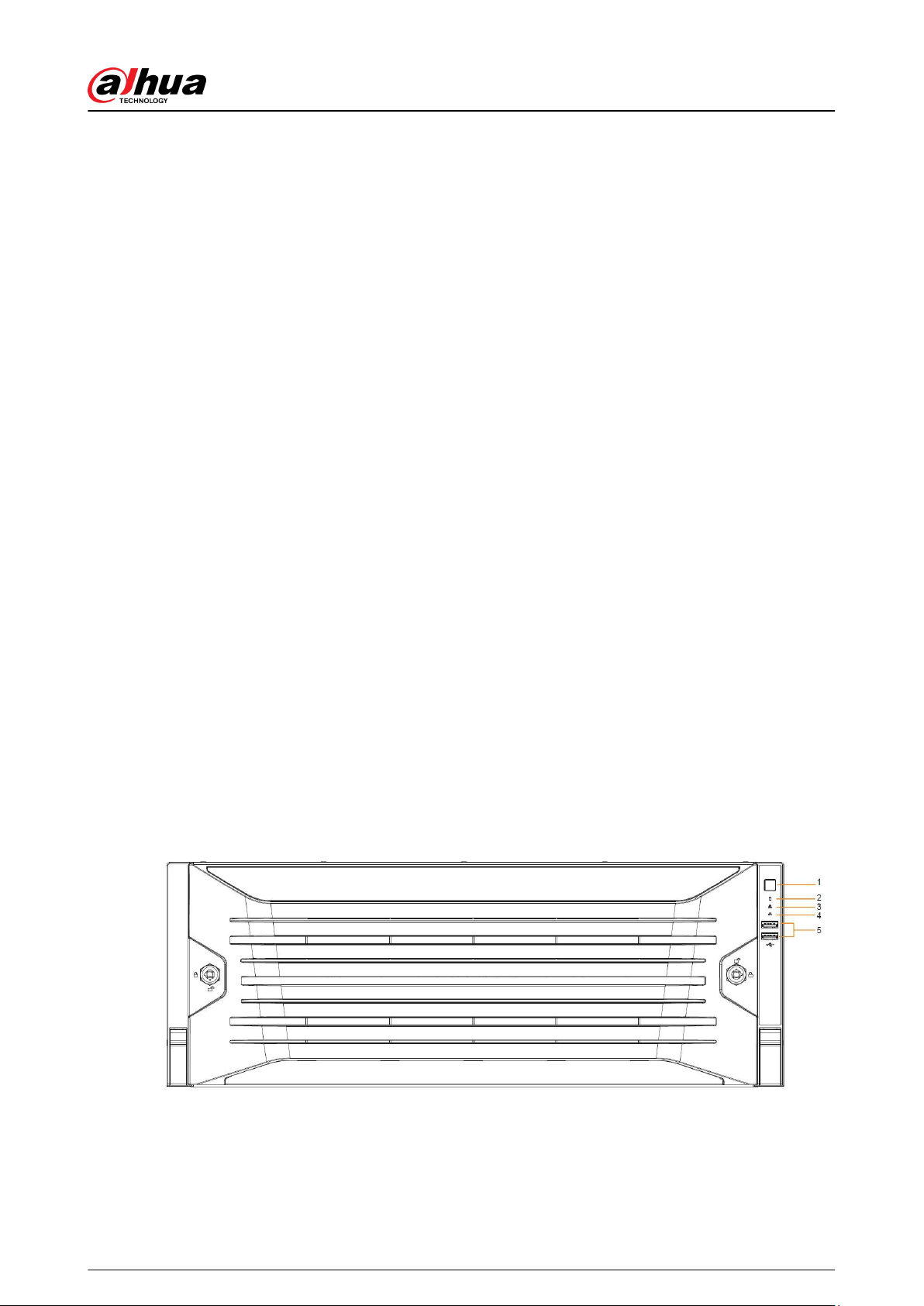
Figure 1-1 EVS7124S/EVS7136S/EVS5124S/EVS5136S/EVS8224X/EVS8236X
User's Manual
1
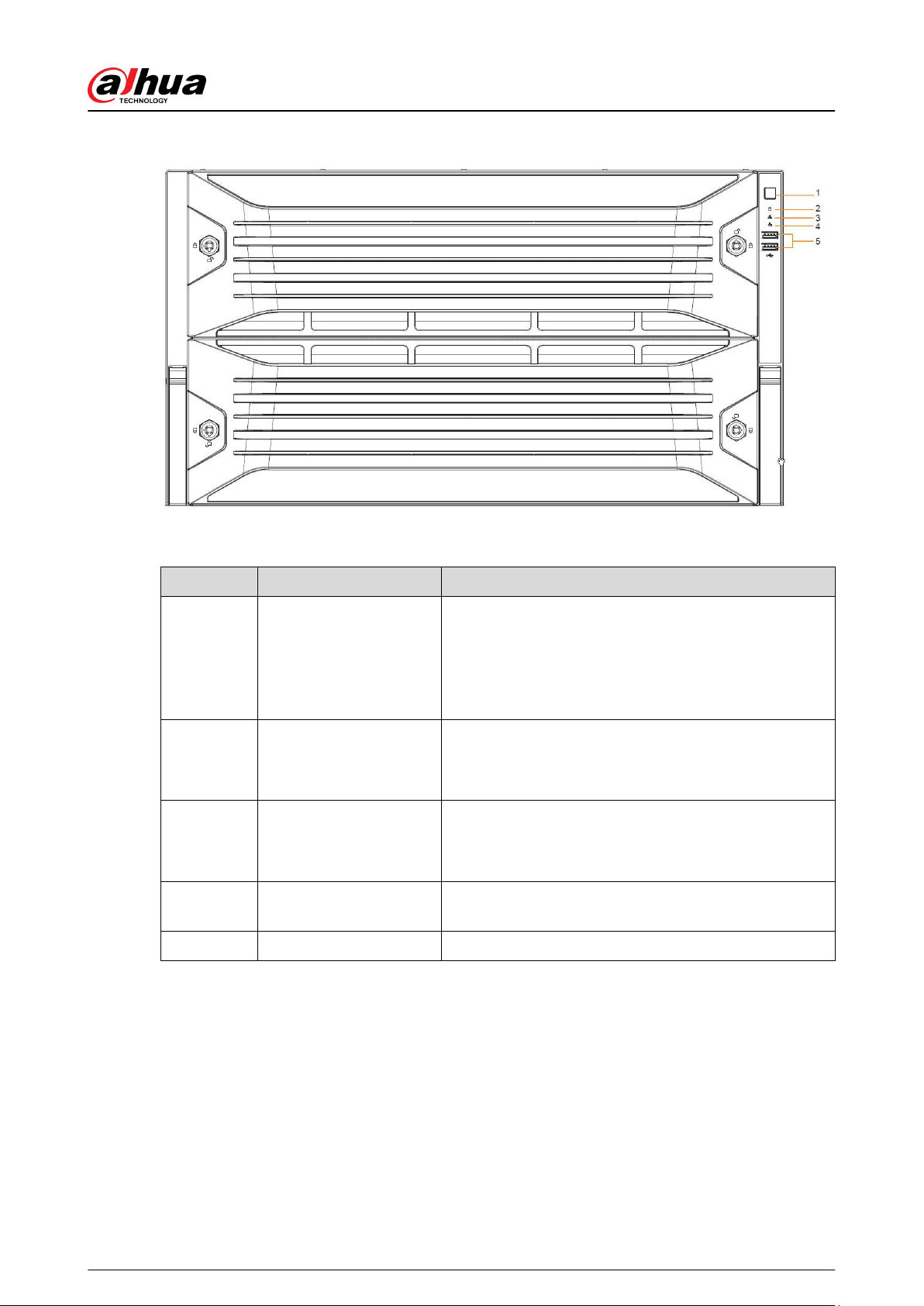
Figure 1-2 EVS7148S/EVS5148S/EVS8248X
Table 1-1 Front panel description
No. Name Description
1 Power button
●
Turns on or o the Device.
●
If the Device is o, press this button to turn the
Device on.
●
To turn o the Device, press and hold this button for
5 seconds.
2 HDD status indicator
●
The light is o when the HDD is in normal operation.
●
The red light keeps on if no HDD, HDD error or
insucient HDD space.
3 Alarm status indicator
●
The light is o when the Device is running properly.
●
The red light keeps on when the power, temperature
or fan is abnormal.
4 Network status indicator
The red light keeps on if there is a network failure, IP
conict or MAC conict.
5 USB ports Connects to external USB devices, such as ash drive.
User's Manual
2
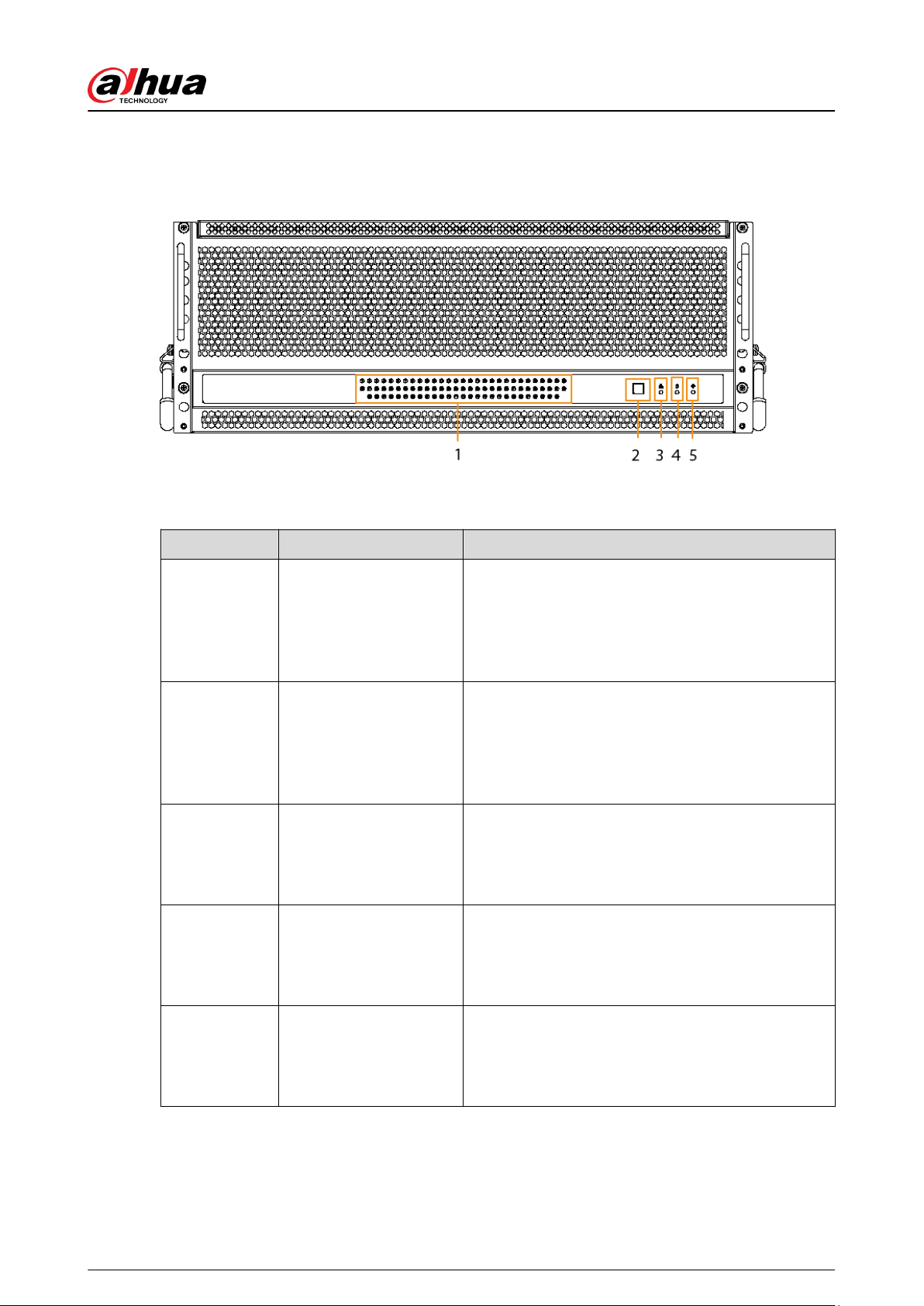
1.2.2 EVS7285S
Figure 1-3 Front panel
Table 1-2 Front panel description
No. Name Description
1 HDD status indicator light
●
The light is o when no HDD is installed.
●
The light glows when there is no read and write
operation on the installed HDD.
●
The light ashes when there is read and write
operation on the installed HDD.
2 Power button
●
Starts or shut down the Device.
●
If the Device is o, press this button to turn the
Device on.
●
To turn o the Device, press and hold this button
for ve seconds.
3
Network status indicator
light
●
The light is out when the Device accesses network
properly.
●
The red light keeps on if there is a network failure,
IP conict or MAC conict.
4 HDD alarm indicator light
●
The light is o when the HDD is in normal
operation.
●
The red light keeps on when there is no HDD,
HDD error or insucient HDD space.
5
Alarm status indicator
light
●
The light is o when the Device is running
properly.
●
The red light keeps on when the power,
temperature or fan is abnormal.
User's Manual
3
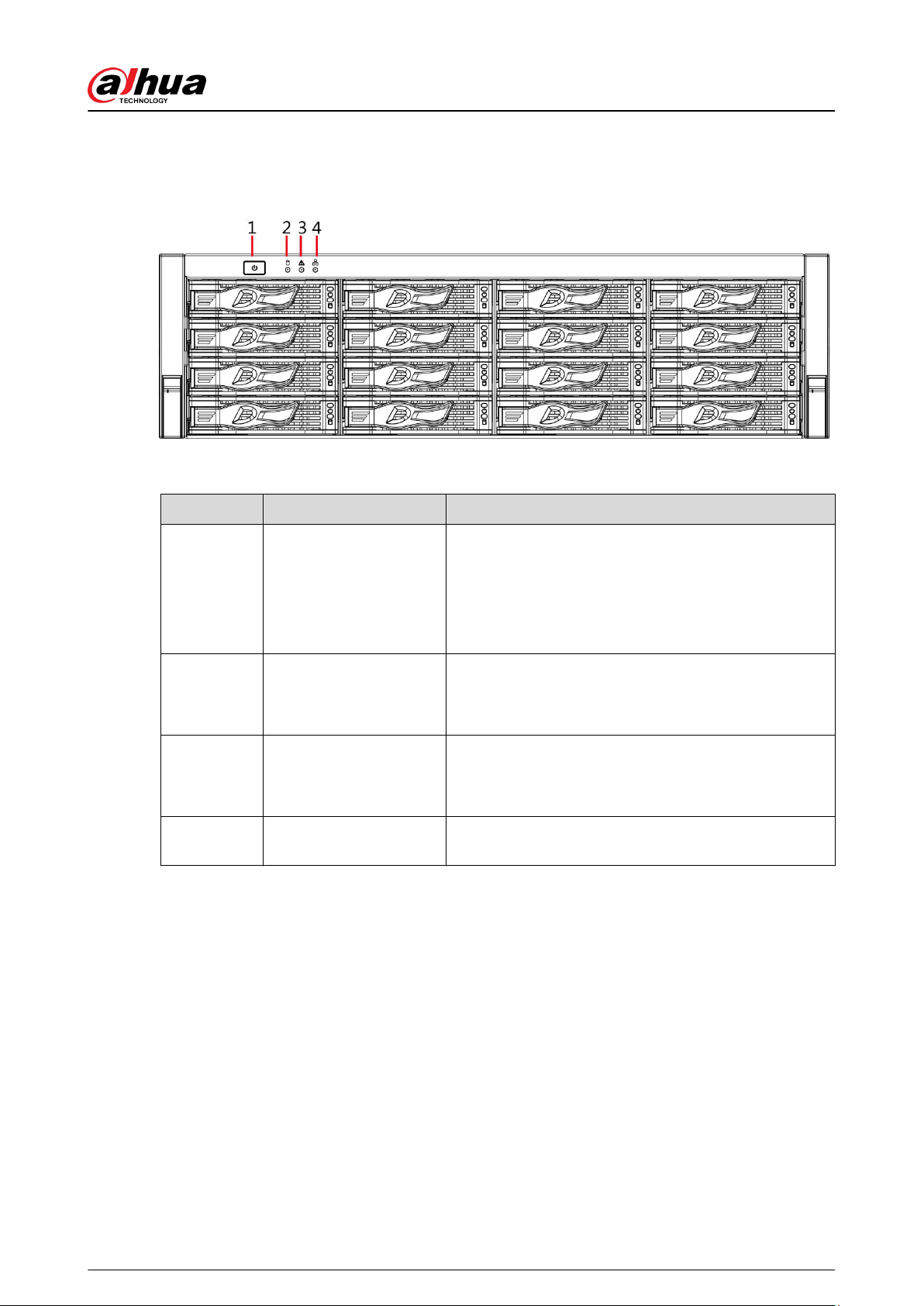
1.2.3 EVS5016S-V2/EVS5016S-R-V2
Figure 1-4 Front panel
Table 1-3 Front panel description
No. Name Description
1 Power button
Turns on or o the device.
●
If the Device is o, press this button to turn the
Device on.
●
To turn o the Device, press and hold this button for
ve seconds.
2 HDD status indicator
●
The light is o when the HDD is in normal operation.
●
The light is solid red in case of no HDD, HDD error or
insucient HDD space.
3 Alarm status indicator
●
The light is o when the Device works normally.
●
The light is solid red when power error, abnormal
temperature and fan error occur.
4 Network status indicator
The light is solid red if there is network failure, IP
conict or MAC conict.
1.3 Rear Panel
User's Manual
4
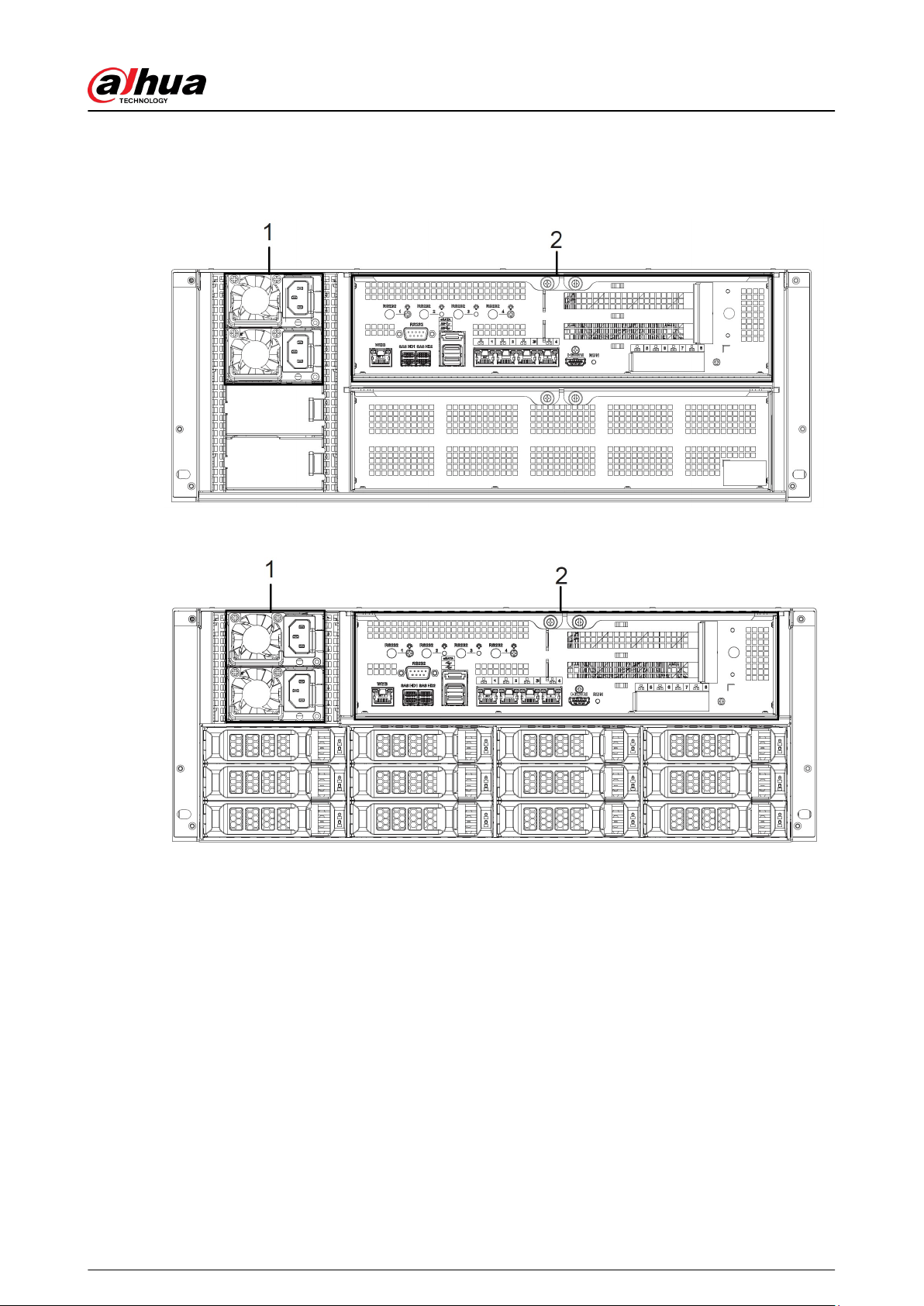
1.3.1 EVS7124S/EVS7136S/EVS7148S
Figure 1-5 EVS7124S
Figure 1-6 EVS7136S
User's Manual
5
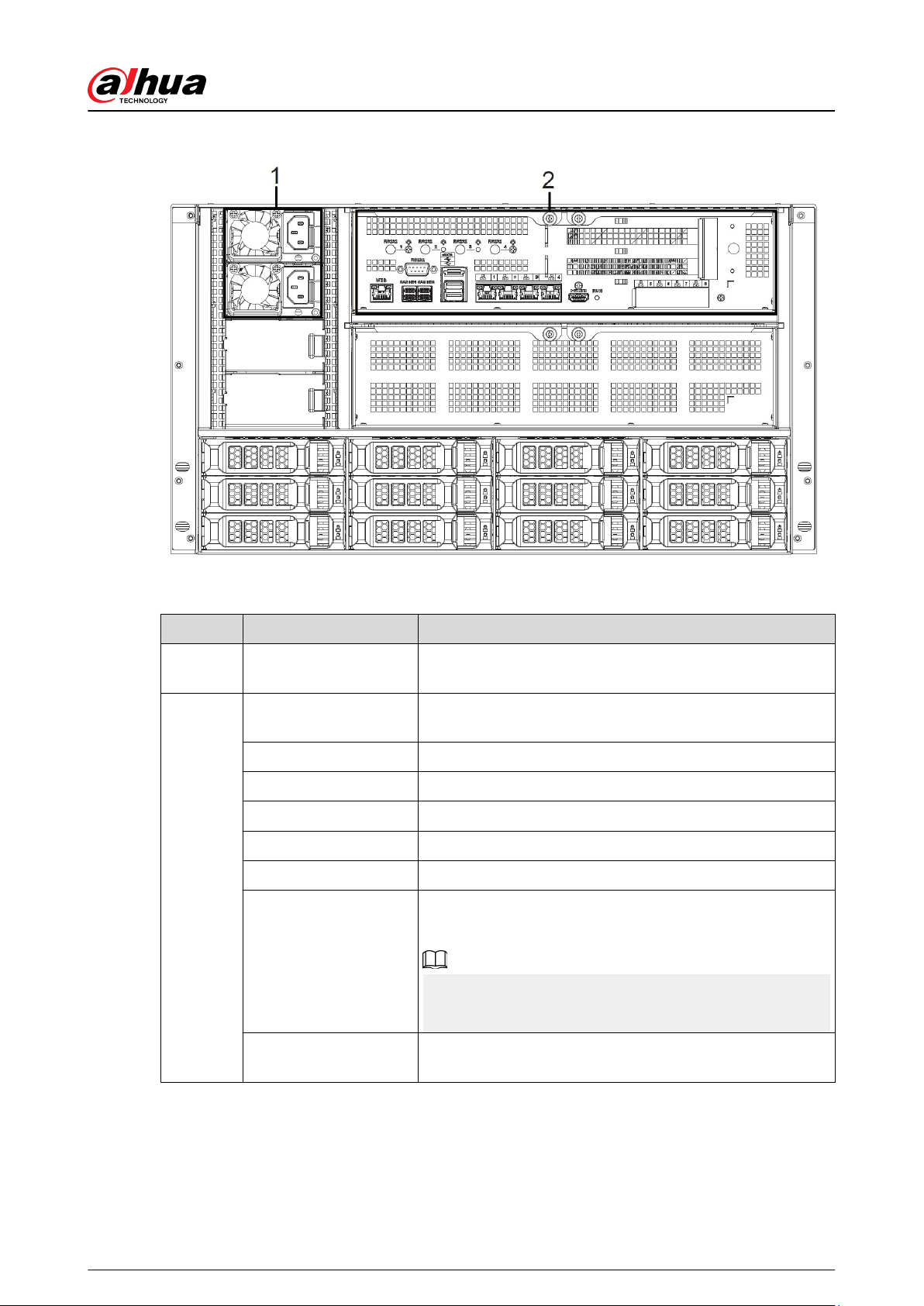
Figure 1-7 EVS7148S
Table 1-4 Rear panel description
No. Port Description
1 Power module
Connects to AC power supply. Contains fans for case
cooling.
2
RS-232
Used to debug general serial ports, congure IP address and
transmit transparent serial data.
WEB Gigabit management port. Can be used as data port.
SAS HD Connects the IN interface of the expansion cabinet.
eSATA Connects to external storage devices.
USB 3.0 Connects the mouse or other USB storage devices.
EX-1–EX-4/1–4 Gigabit Ethernet ports, can be used to transfer data.
HDMI
Outputs high denition video data and multi-channel audio
data to external displays.
The port is for system installation and after-sales
maintenance only.
PCI-E
High-speed expansion port, connects to components with
X4 or X8 plug.
User's Manual
6
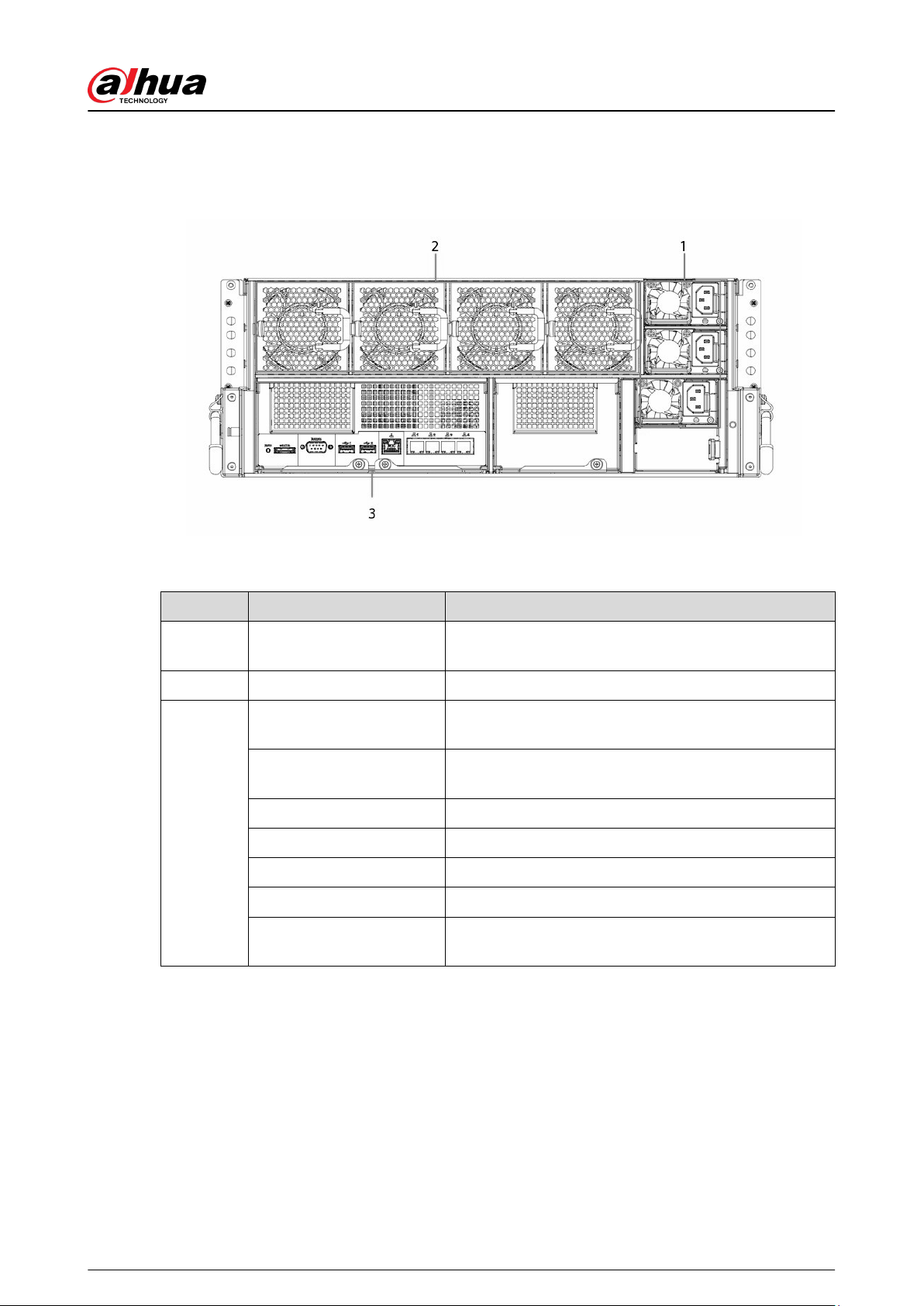
1.3.2 EVS7285S
Figure 1-8 Rear panel
Table 1-5 Rear panel description
No. Port Description
1 Power module
Connects to AC power supply. Contains fans for case
cooling.
2 Fans Used for device cooling.
3
RS-232
Used to debug general serial ports, congure IP address
and transmit transparent serial data.
WEB
Gigabit management port which can be used as data
port.
RUN The indicator keeps on when the Device is running.
eSATA Connects to external storage devices.
USB 3.0 Connects the mouse or other USB storage devices.
EX-1–EX-4/1–4 Gigabit data port for data transmission.
PCI-E
High-speed expansion port, connects to components
with X8 plug.
User's Manual
7
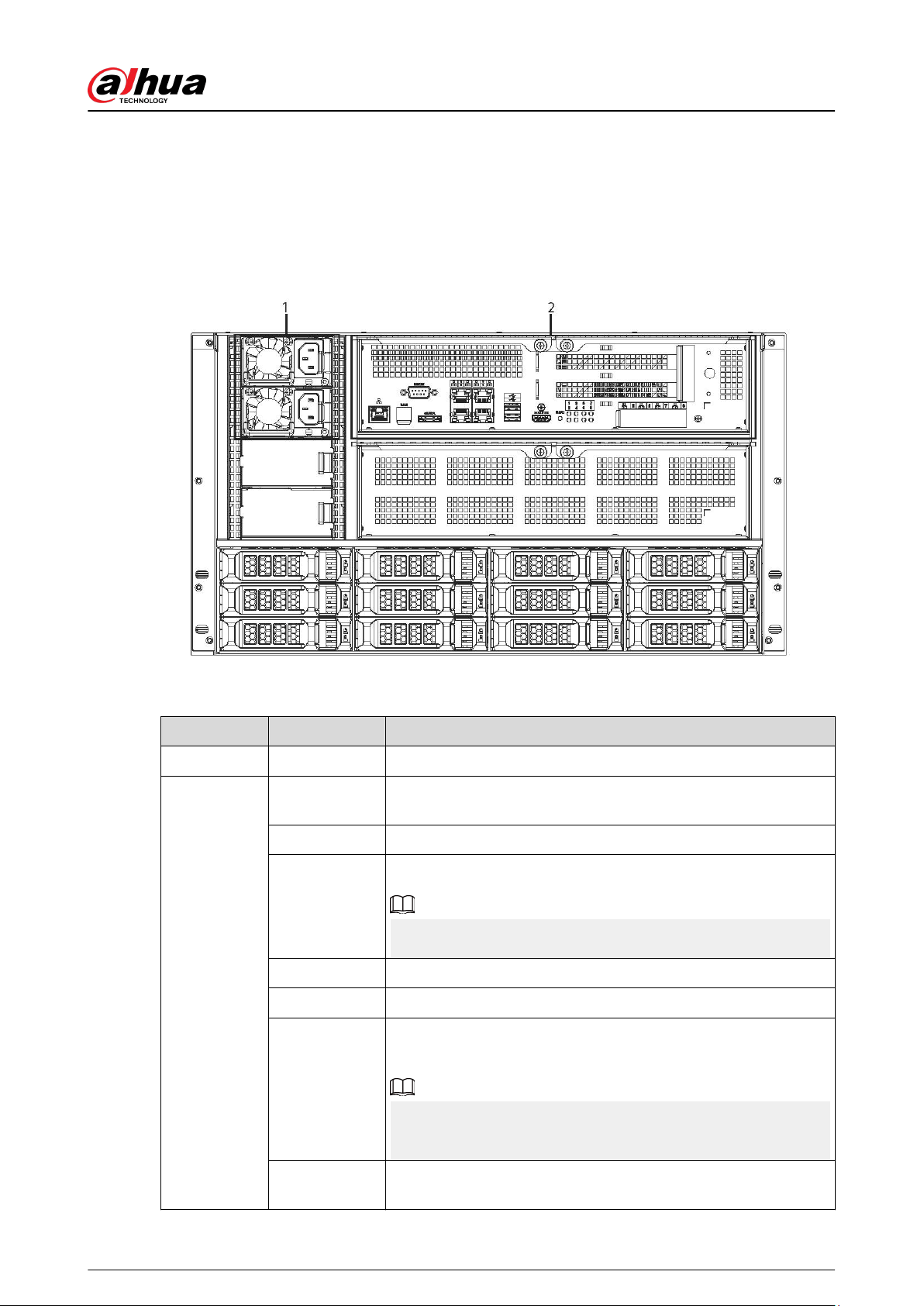
1.3.3 EVS5124S/EVS5136S/EVS5148S
Figure 1-9 EVS5124S
Figure 1-10 EVS5136S
Figure 1-11 EVS5148S
Table 1-6 Rear panel description
No. Port Description
1 Power module Connects to AC power supply. Contains fans for case cooling.
2
RS-232
Used to debug general serial ports, congure IP address and
transmit transparent serial data.
WEB Gigabit management port. Can be used as data port.
SAS HD
Connects the IN interface of the expansion cabinet.
The port is optionally available on select models.
eSATA Connects to external storage devices.
USB 3.0 Connects the mouse or other USB storage devices.
HDMI
Outputs high denition video data and multi-channel audio data
to external displays.
The port is for system installation and after-sales maintenance
only.
PCI-E
High-speed expansion port, connects to components with X2 or
X4 plug.
User's Manual
8
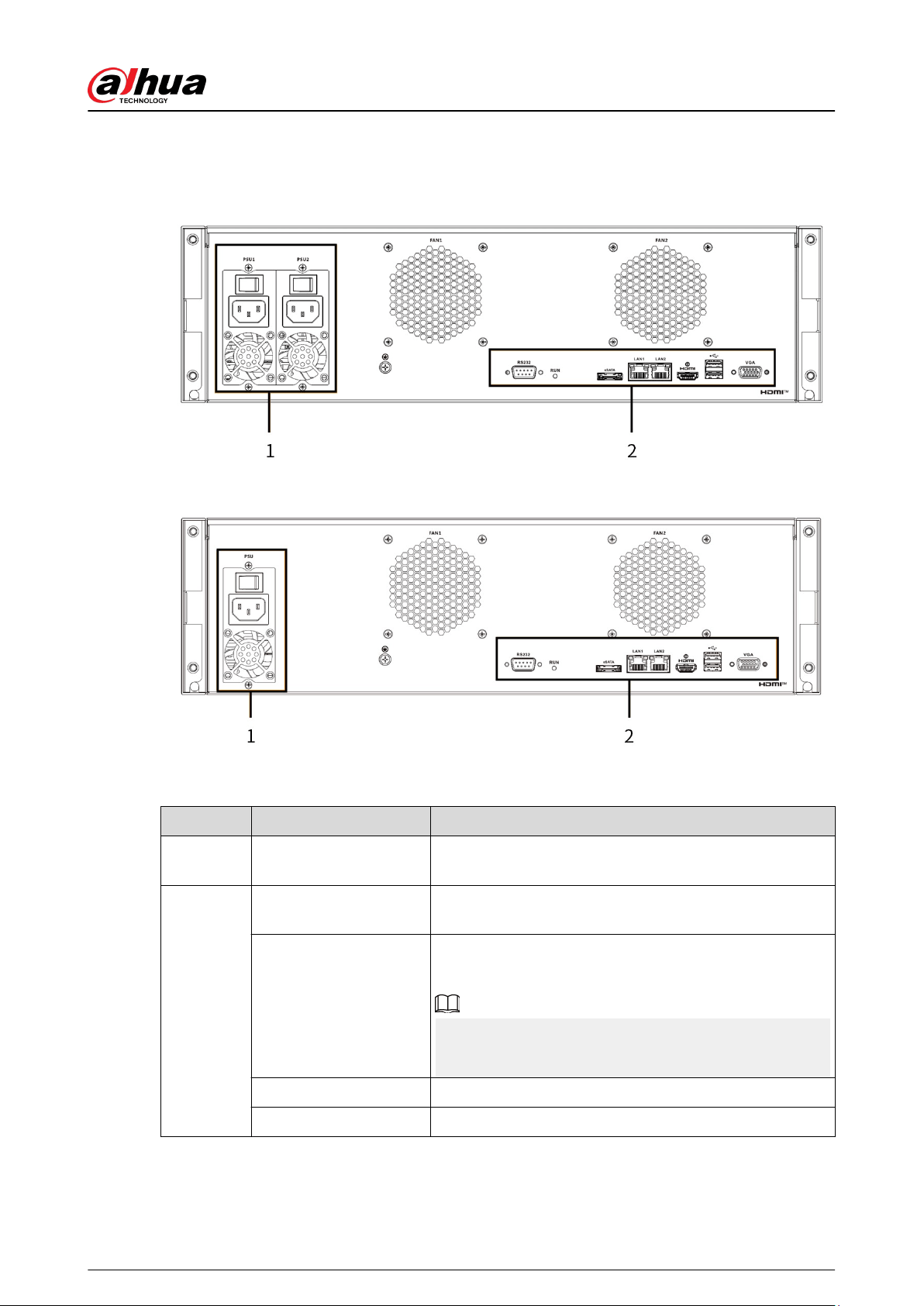
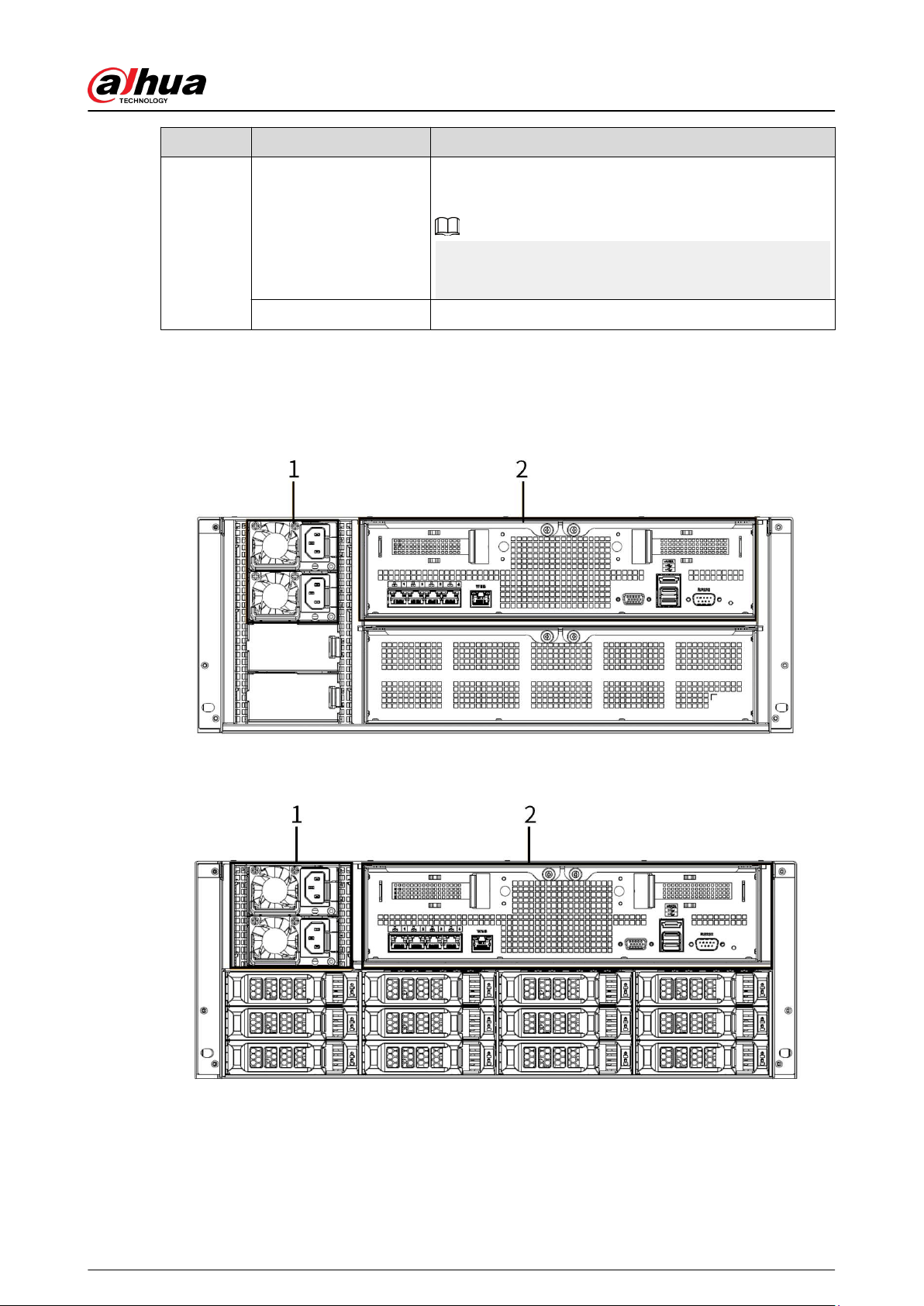
1.3.4 EVS5016S-V2/EVS5016S-R-V2
Figure 1-12 Rear panel (redundant power)
Figure 1-13 Rear panel (single power)
Table 1-7 Rear panel description
No. Port Description
1 Power module
Connects to AC power supply. Contains fans for case
cooling.
2
RS-232
Used to debug general serial ports, congure IP address
and transmit transparent serial data.
VGA
VGA video output port. Outputs analog video signal. It
can connect to the monitor to view analog video.
The port is for system installation and after-sales
maintenance only.
eSATA Connects to external storage devices.
USB 3.0 Connects the mouse or other USB storage devices.
User's Manual
9
No. Port Description
HDMI
Outputs high denition video data and multi-channel
audio data to external displays.
The port is for system installation and after-sales
maintenance only.
LAN1, LAN 2 Gigabit network port for data transmission.
1.3.5 EVS8224X/EVS8236X/EVS8248X
Figure 1-14 EVS8224X
Figure 1-15 EVS8236X
User's Manual
10
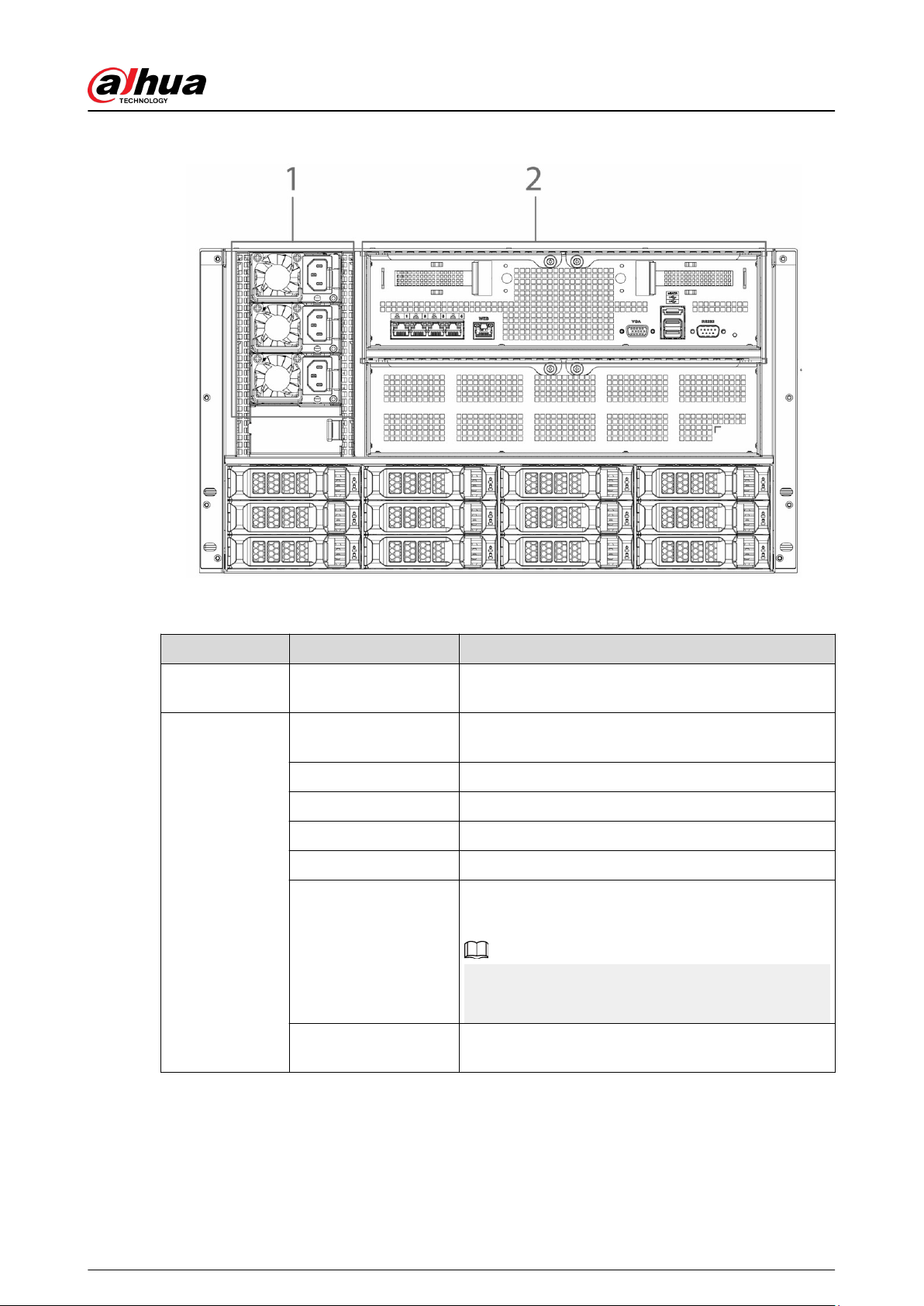
Figure 1-16 EVS8248X
Table 1-8 Rear panel description
No. Port Description
1 Power module
Connects to AC power supply. Contains fans for case
cooling.
2
RS-232
Used to debug general serial ports, congure IP
address and transmit transparent serial data.
WEB Gigabit management port. Can be used as data port.
eSATA Connects to external storage devices.
USB 3.0 Connects the mouse or other USB storage devices.
EX-1–EX-4/1–4 Gigabit Ethernet ports, can be used to transfer data.
VGA
VGA video output port. Outputs analog video signal.
It can connect to the monitor to view analog video.
The port is for system installation and after-sales
maintenance only.
PCI-E
High-speed expansion port which connects to
components with X4 plug.
User's Manual
11
2 Installation and Powering Up
2.1 Installing HDD
2.1.1 EVS7124S/EVS7136S/EVS7148S/EVS5124S/EVS5136S/
EVS5148S/EVS8224X/EVS8236X/EVS8248X
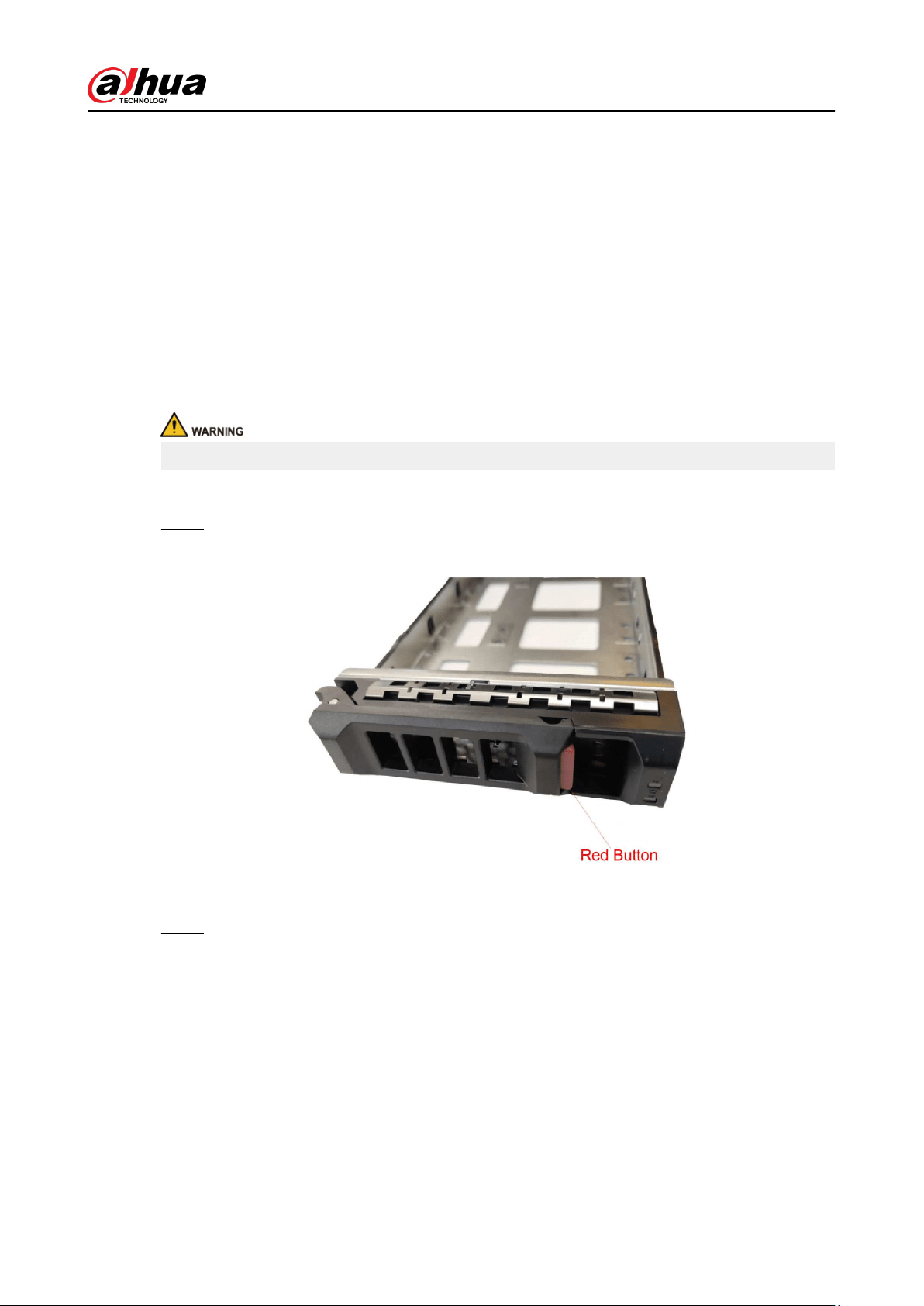
The HDD is not installed by default on factory delivery. You need to install it by yourself.
Some devices are heavy and should be carried jointly by several persons to avoid injury.
Procedure
Step 1 Press the red button on the disk tray to unlock the handle.
Figure 2-1 Open the handle
Step 2 Pull out the empty disk tray.
User's Manual
12
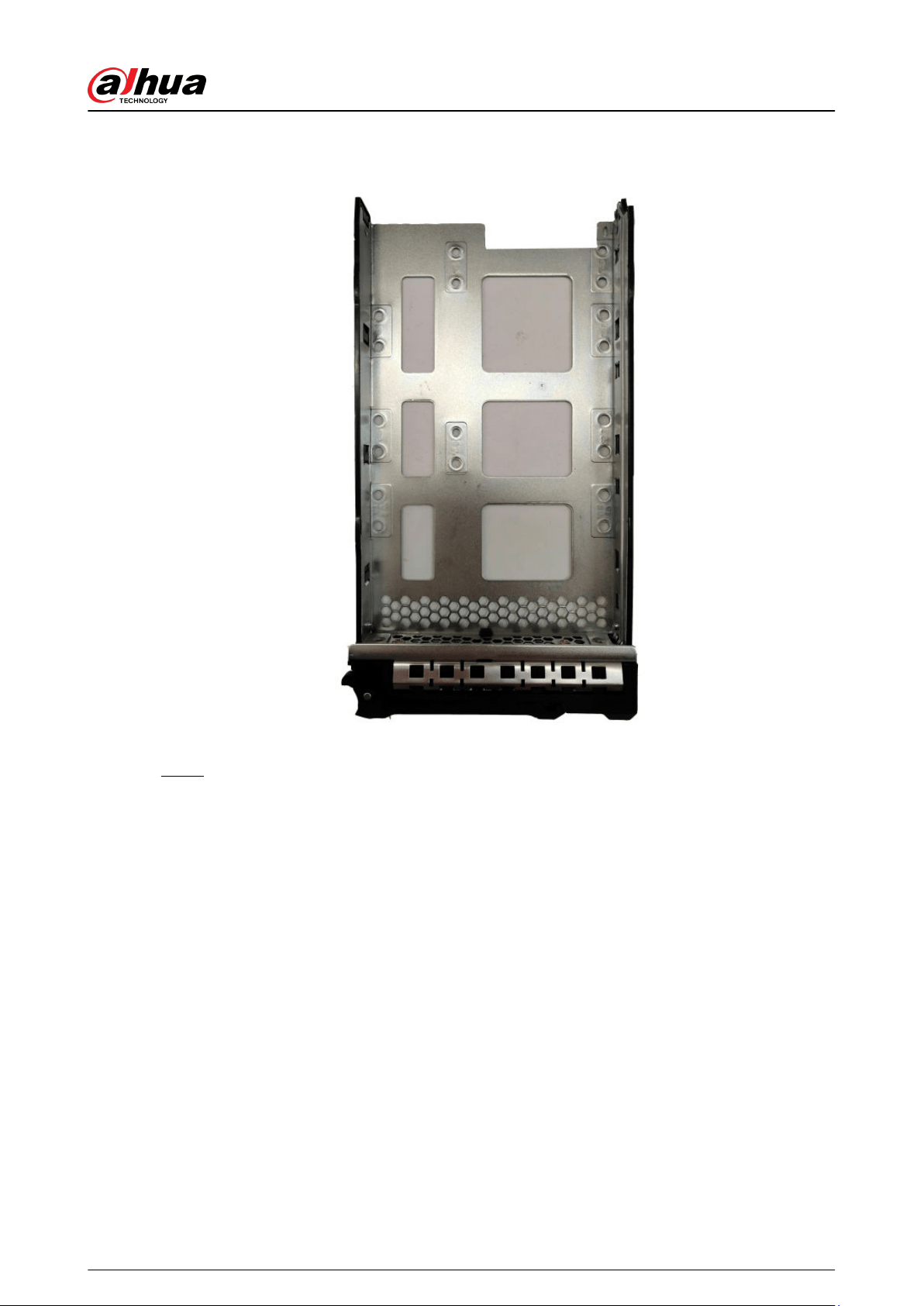
Figure 2-2 Disk tray
Step 3 Put the disk into the disk tray and fasten the screws at the bottom of the tray.
User's Manual
13
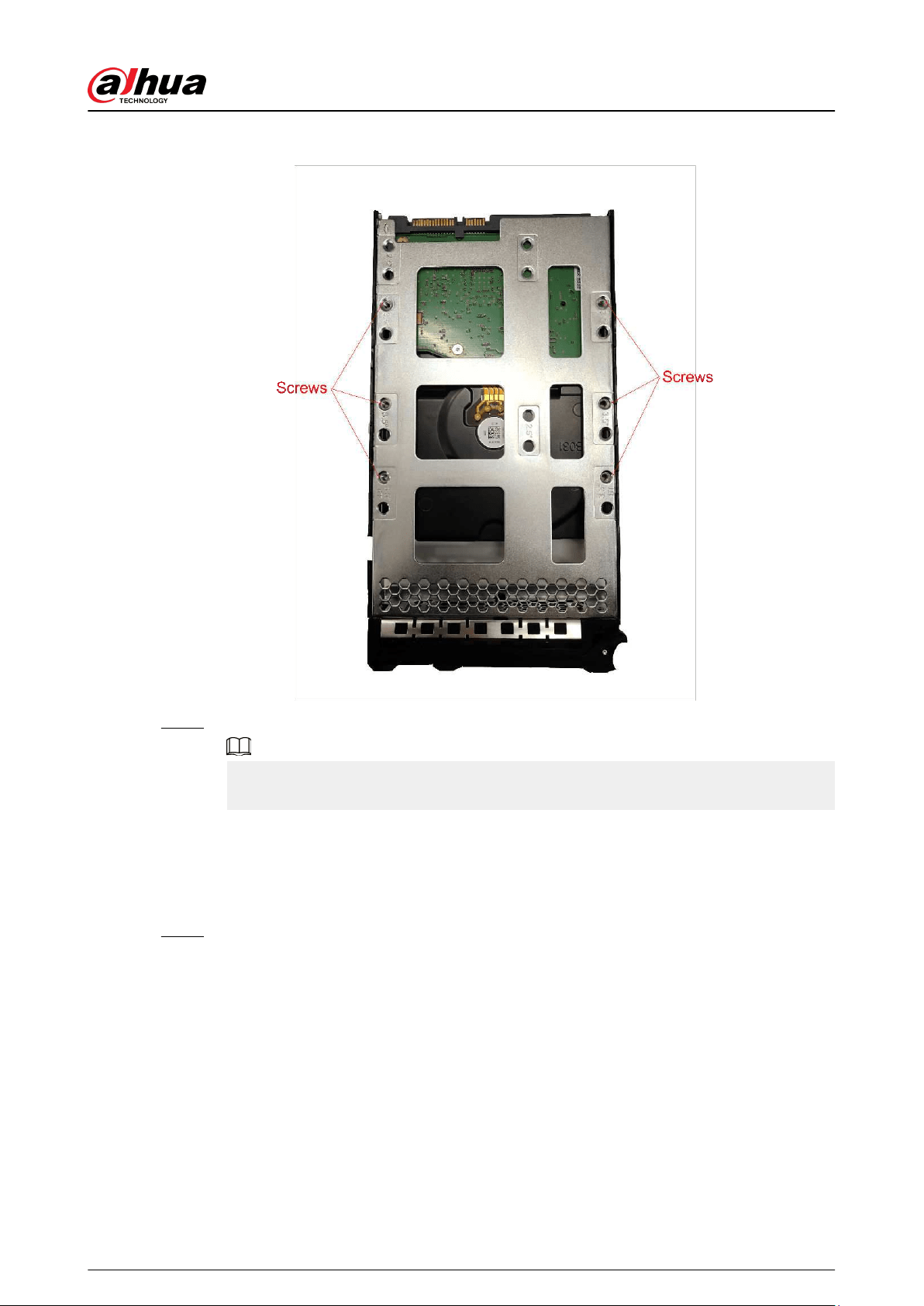
Figure 2-3 Fasten the screws
Step 4 Insert the disk tray into the HDD slot, push it to the bottom and lock the handle.
To avoid any damage to the slot, do not lock the handle until the disk tray has been
pushed to the bottom.
2.1.2 EVS7285S
Procedure
Step 1 Turn the lock on the cover with a screwdriver and then lift the cover open.
User's Manual
14
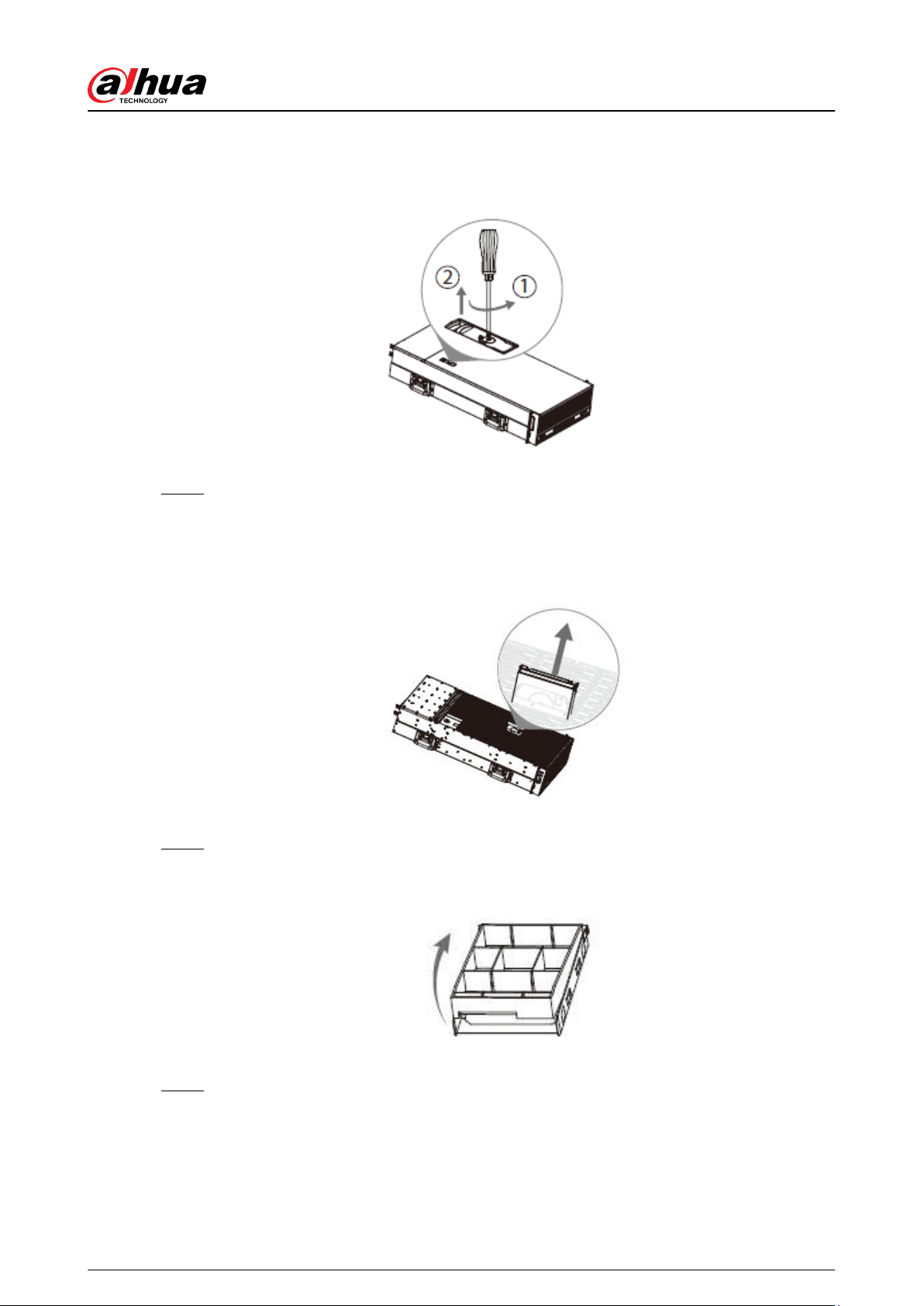
Figure 2-4 Remove the cover
Step 2 Take out the disk tray.
Figure 2-5 Take out disk tray
Step 3 Remove the fake disk.
Figure 2-6 Remove fake disk
Step 4 Put the real disk into the disk tray.
User's Manual
15
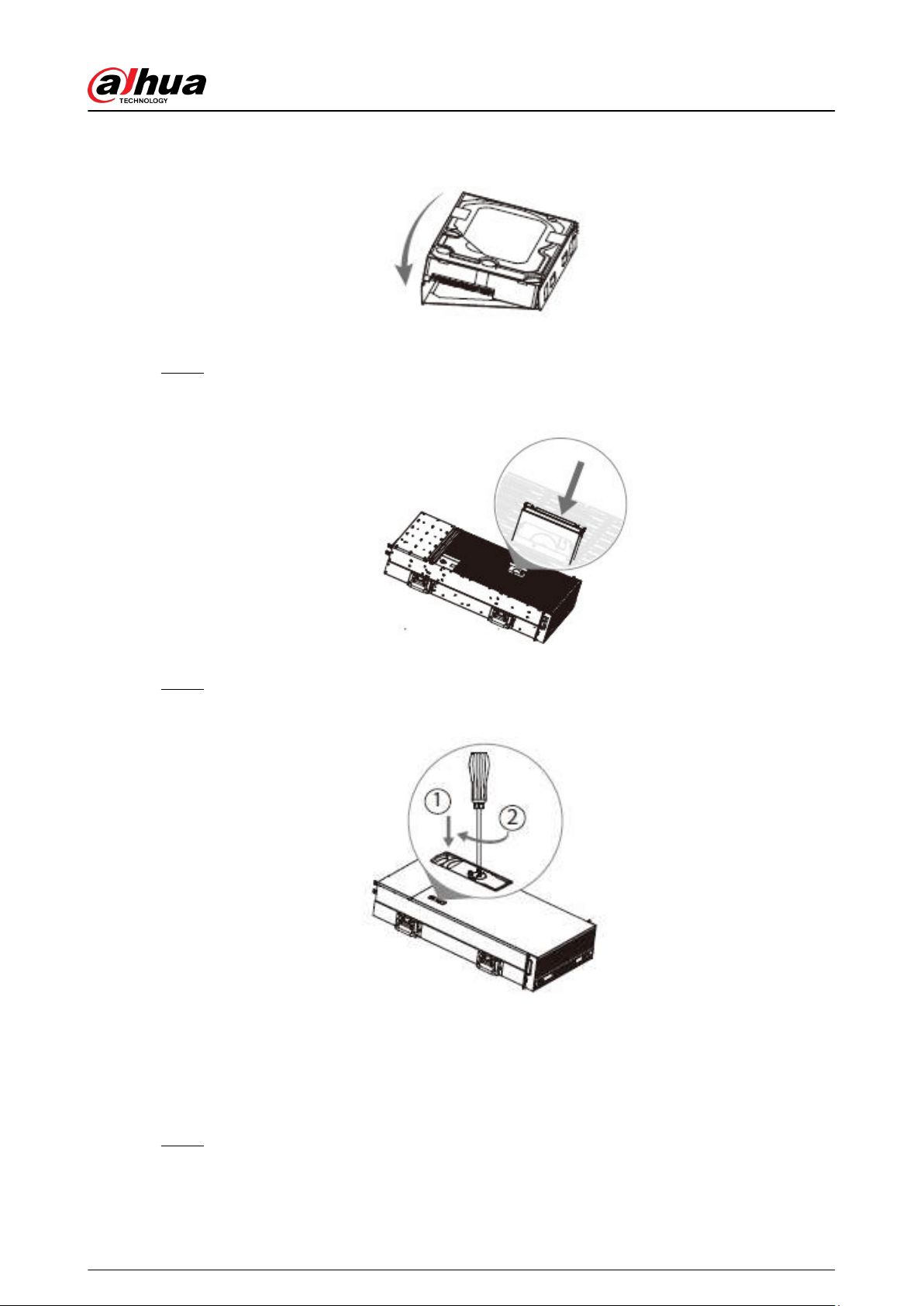
Figure 2-7 Install real disk
Step 5 Re-insert the disk tray into the device.
Figure 2-8 Re-insert disk tray
Step 6 Re-attach the cover, and then turn the lock.
Figure 2-9 Re-attach the cover
2.1.3 EVS5016S-V2/EVS5016S-R-V2
Procedure
Step 1 Press the red button on the HDD box in the front panel and unlock the handle.
User's Manual
16
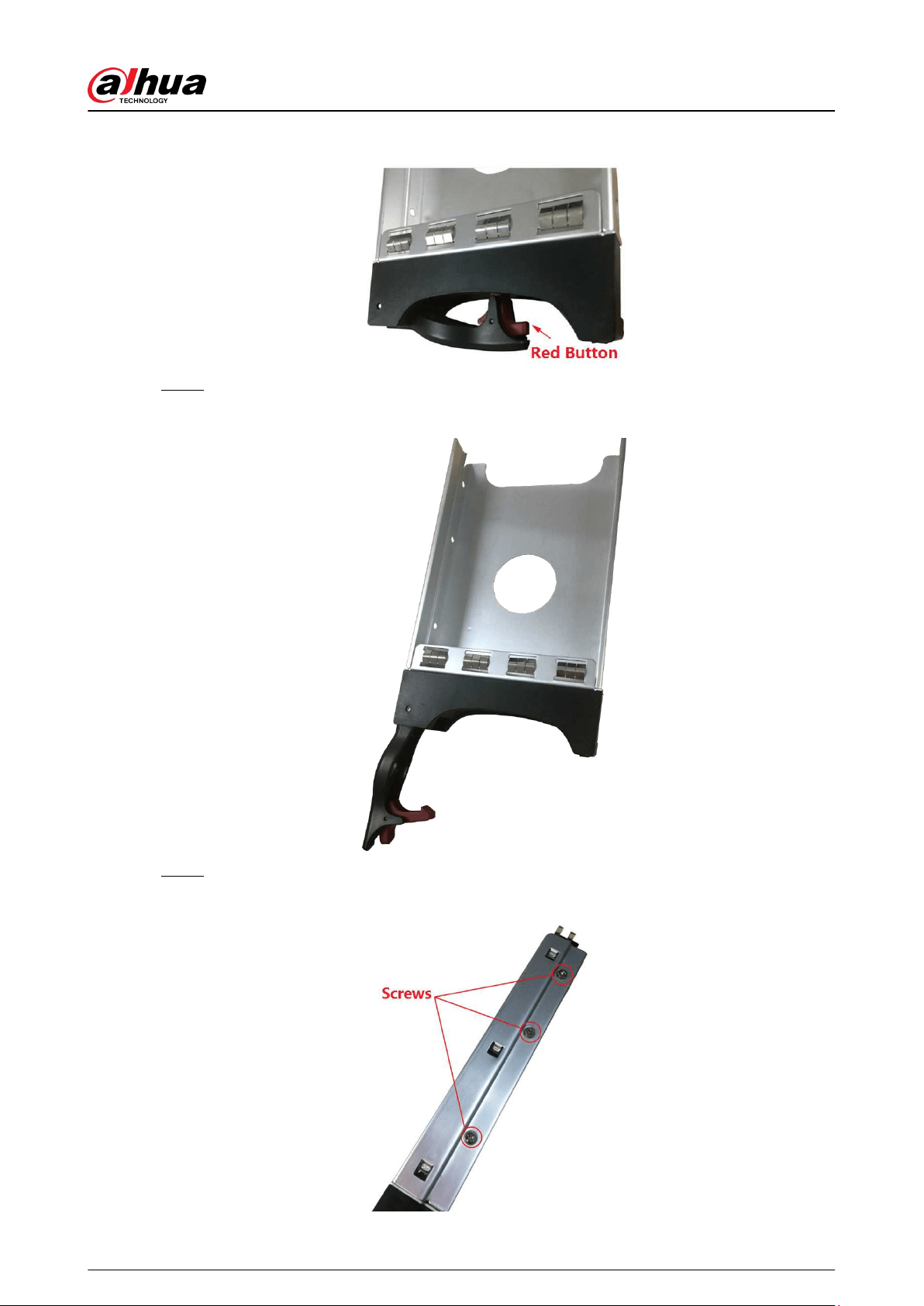
Figure 2-10 Open the handle
Step 2 Pull out to take the empty HDD box.
Figure 2-11 HDD box
Step 3 Put the HDD into the disk box and fasten the screws on both sides of the box.
Figure 2-12 Fasten the screws
User's Manual
17
To avoid any damage to the slot, do not close the handle if the HDD box has not been
pushed to the bottom.
Step 4 Insert the HDD box into the HDD slot, push it to the bottom, and then lock the handle.
2.2 Installing Device to Cabinet
For EVS7285S, the Device should be installed to cabinet.
●
The hangers are used to secure the Device and cannot bear weight. When installing the Device
to cabinet, make sure a bracket is placed to support the Device.
●
The following gures are for reference only and might dier from the actual product.
Procedure
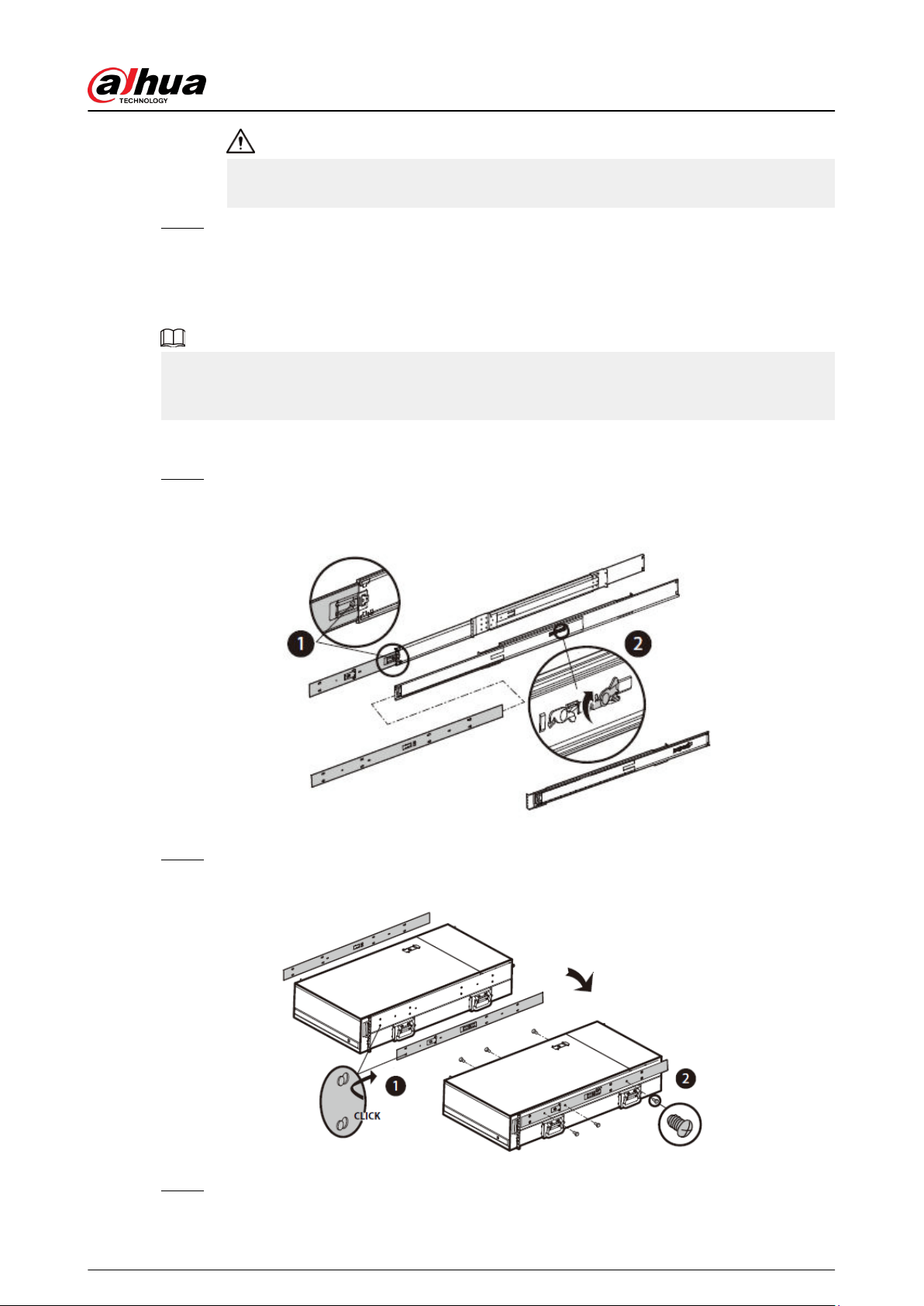
Step 1 Press the tab to take out the inner tracks and then press in the direction indicated by the
arrow to slide the intermediate track back.
Figure 2-13 Take out inner track
Step 2 Install and secure the inner tracks on the sides of the Device.
Figure 2-14 Install inner track
Step 3 Install the slide rail onto the cabinet square hole through screws.
User's Manual
18
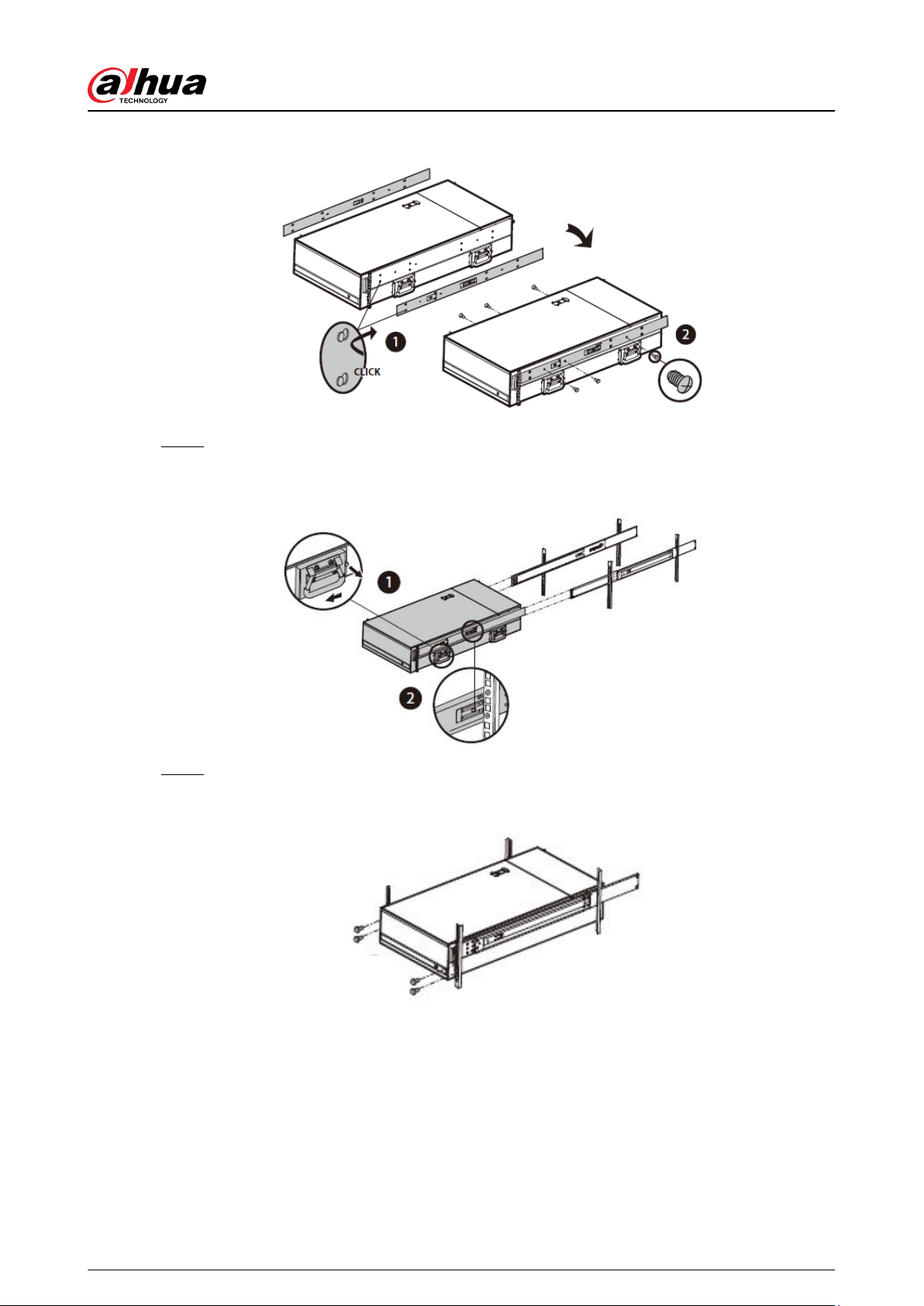
Figure 2-15 Install slide rail
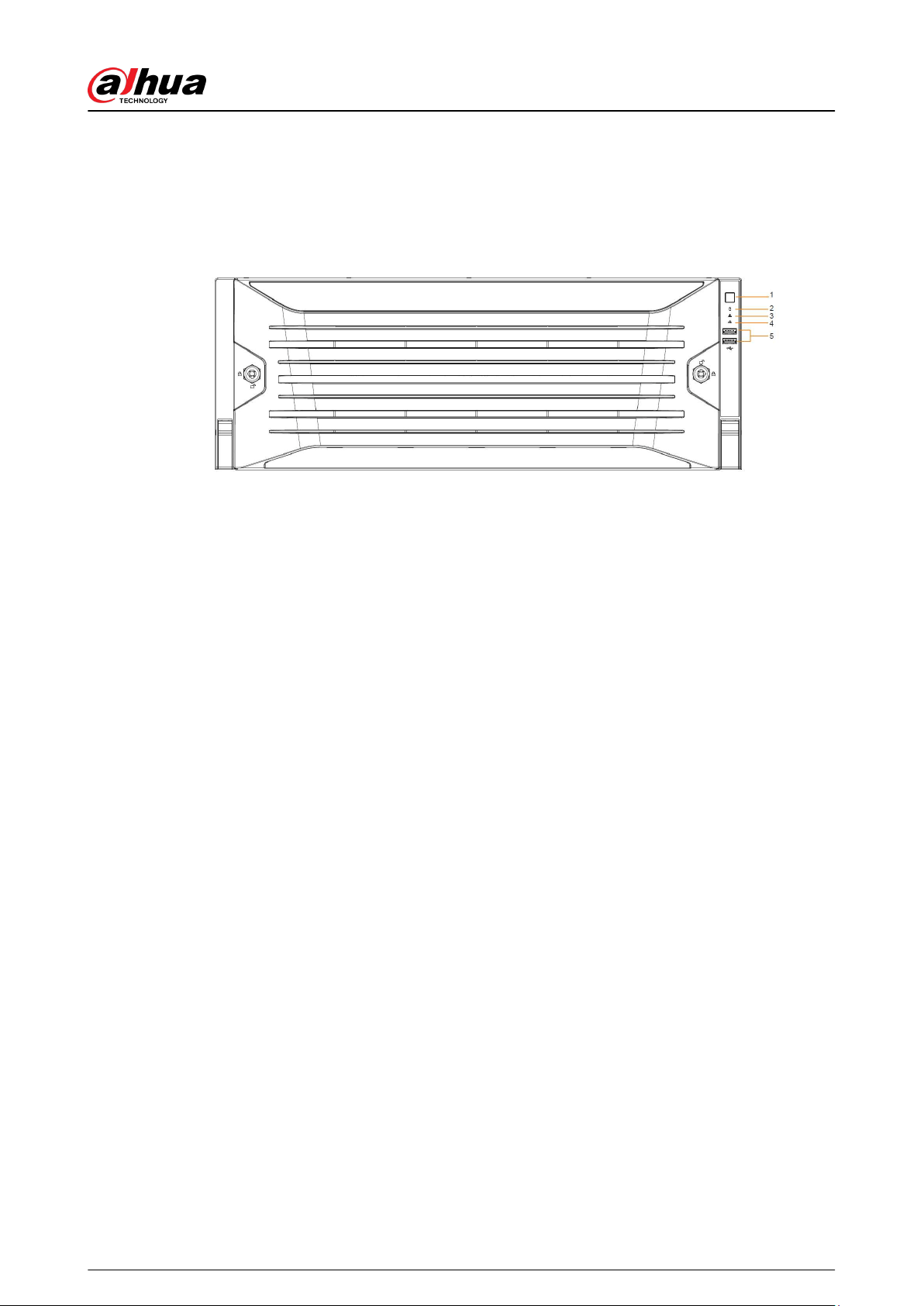
Step 4 When pushing the Device into the cabinet, slide to remove the handle, and then press the
tab.
Figure 2-16 Push device into cabinet
Step 5 Tighten the screws.
Figure 2-17 Tighten the screws
2.3 Powering Up
Prerequisites
Properly connect the cables before powering up the Device and check against the following items:
●
Make sure that all power lines are connected correctly.
●
Check whether the supplied power voltage complies with device requirements.
User's Manual
19
●
Check whether the network cables and SAS cables are connected correctly.
Background Information
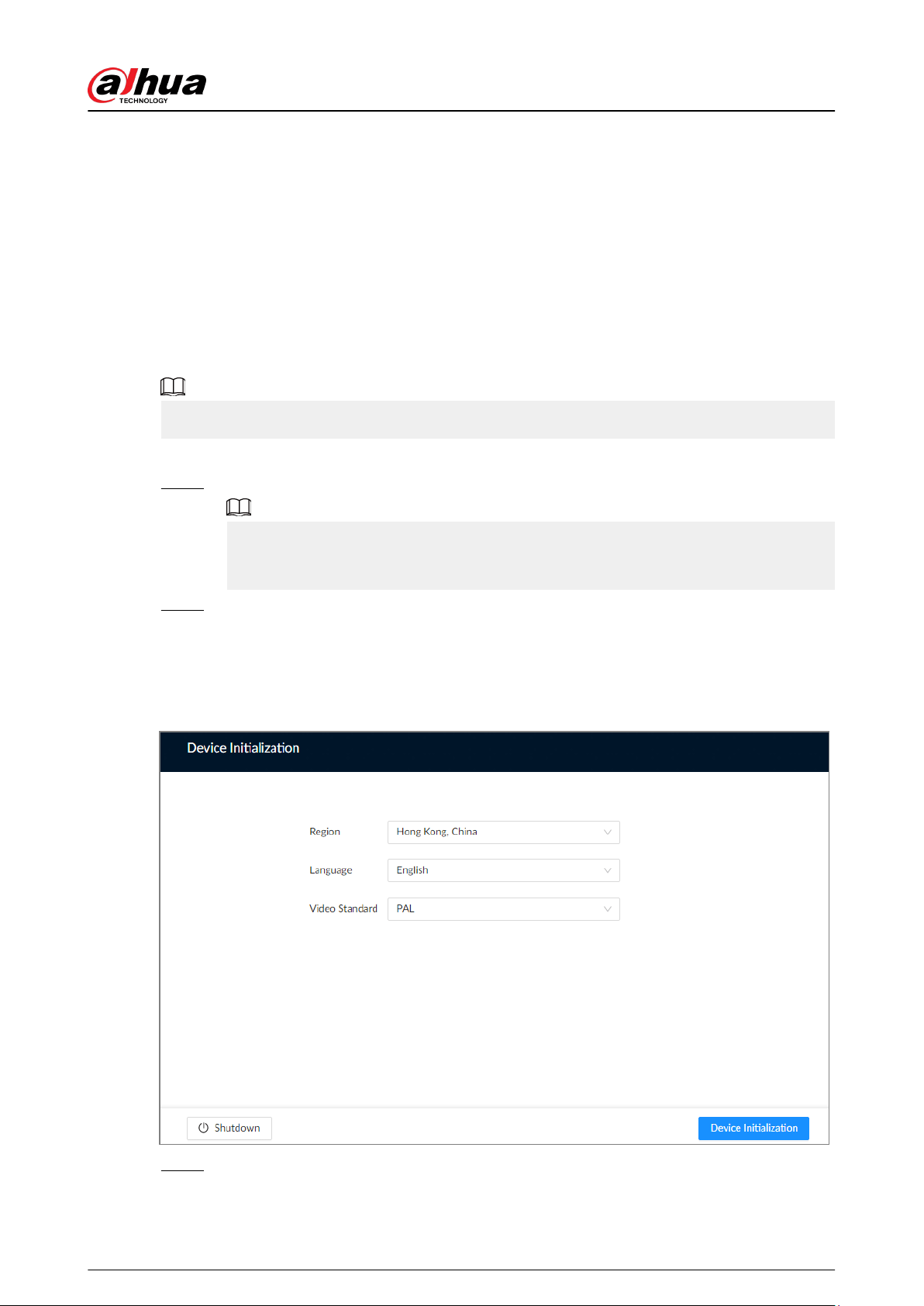
This section uses EVS7124S as an example, and slight dierence might be found in the actual.
Press the power button on the front panel.
Figure 2-18 Front panel
See Table 1-1 to check whether the indicators are normally displayed.
●
When the indicators are normal, the Device is powered up successfully.
●
If the indicators are abnormal, remove the abnormalities according to the corresponding notes
and power up the Device again.
User's Manual
20
3 Initial Settings
When using the Device for the rst time, initialize the device, and set basic information and
functions rst.
3.1 Initializing the Device
If it is your rst time to use the device after purchasing or after restoring factory defaults, set a login
password of admin (system default user). At the same time, you can set a proper password
protection method.
This section uses remote initialization on the web interface as an example.
Procedure
Step 1 Open the browser, enter IP address, and then press the Enter key.
The default IP addresses of network port 1 to network port 4 are 192.168.1.108 to
192.168.4.108. Enter the corresponding IP address of the actually connected network
port.
Step 2 Set the language and region, select the video standard that is used in your region, and
then click Device Initialization.
●
PAL is mainly used in China, Middle East and Europe.
●
NTSC is mainly used in Japan, United States of America, Canada and Mexico.
Figure 3-1 Region
Step 3 Congure the time parameters, and then click Next.
User's Manual
21
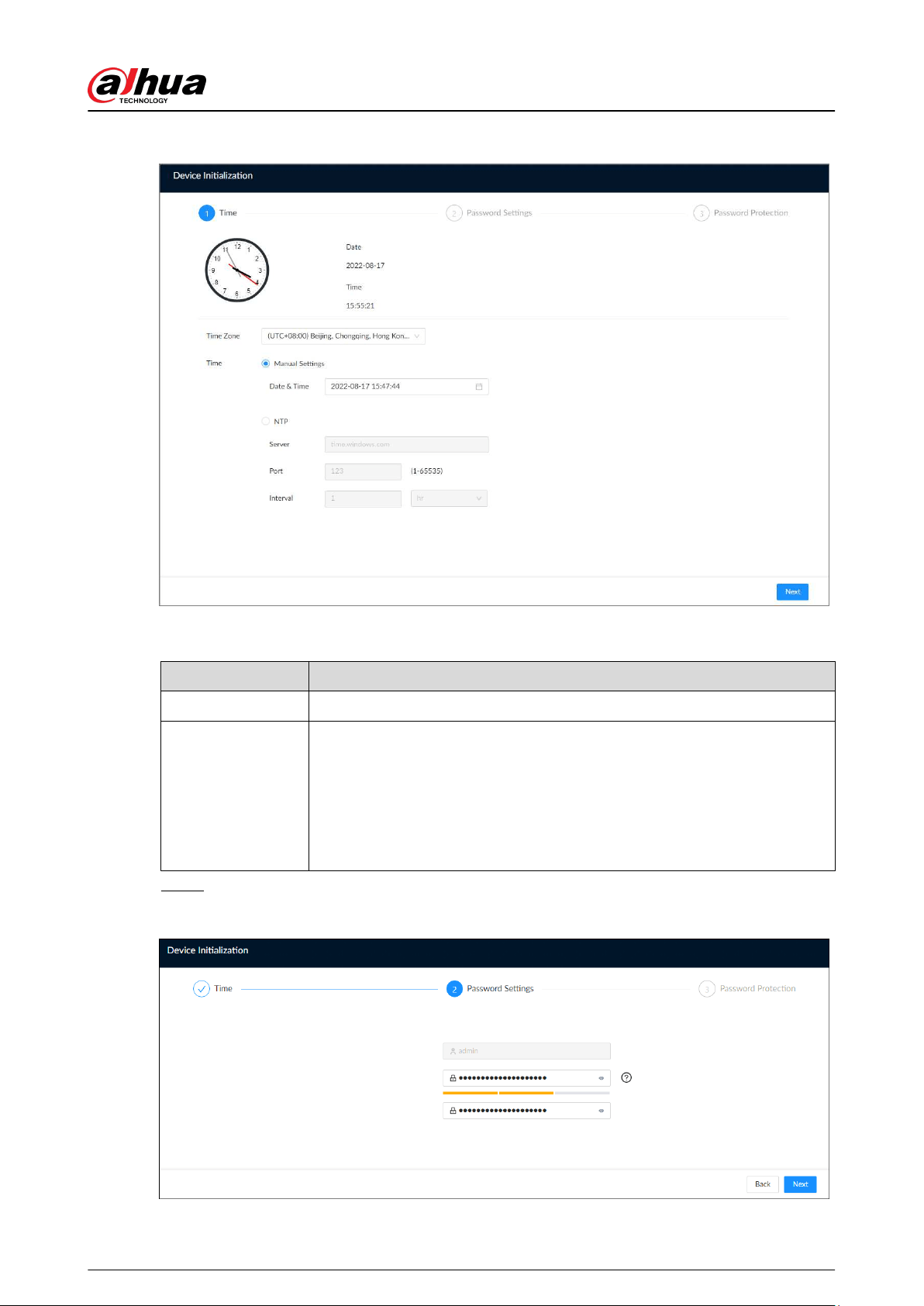
Figure 3-2 Time
Table 3-1 Time parameters description
Parameter Description
Time Zone Select the time zone of the Device.
Time
Set system date and time manually or by synchronizing with NTP server
time.
●
Manual Settings : Select date and time from the calendar.
●
NTP : Select NTP, enter the IP address or domain of the NTP server, and
then set the automatic synchronization interval. The time of the Device
will be automatically synchronized with the server time.
Step 4 Set admin login password, and then click Next.
Figure 3-3 Password
User's Manual
22
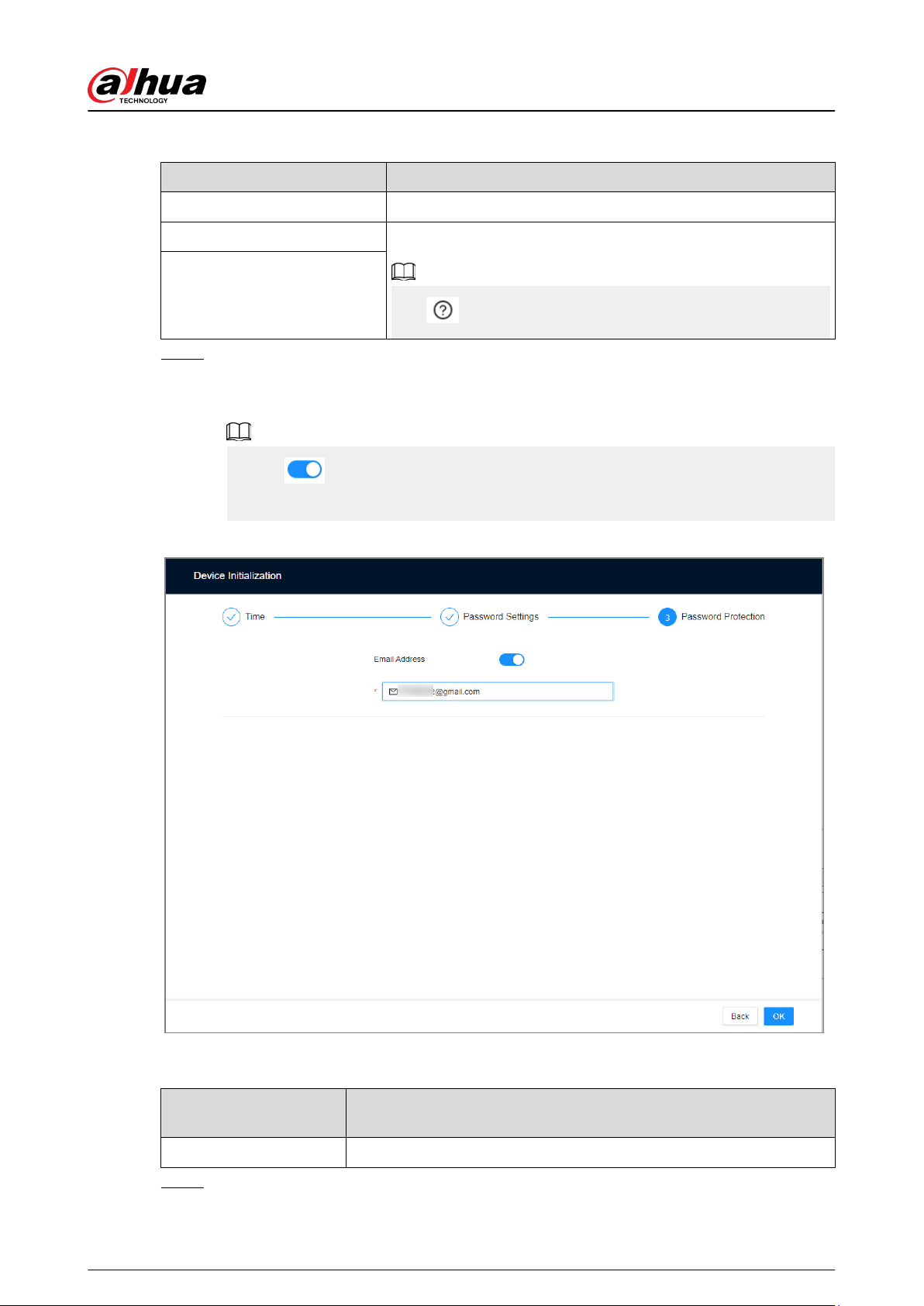
Table 3-2 Description of password parameters
Parameter Description
Username The default username is admin.
Password
Set admin login password, and then conrm the password.
Click to view the password requirement.
Conrm Password
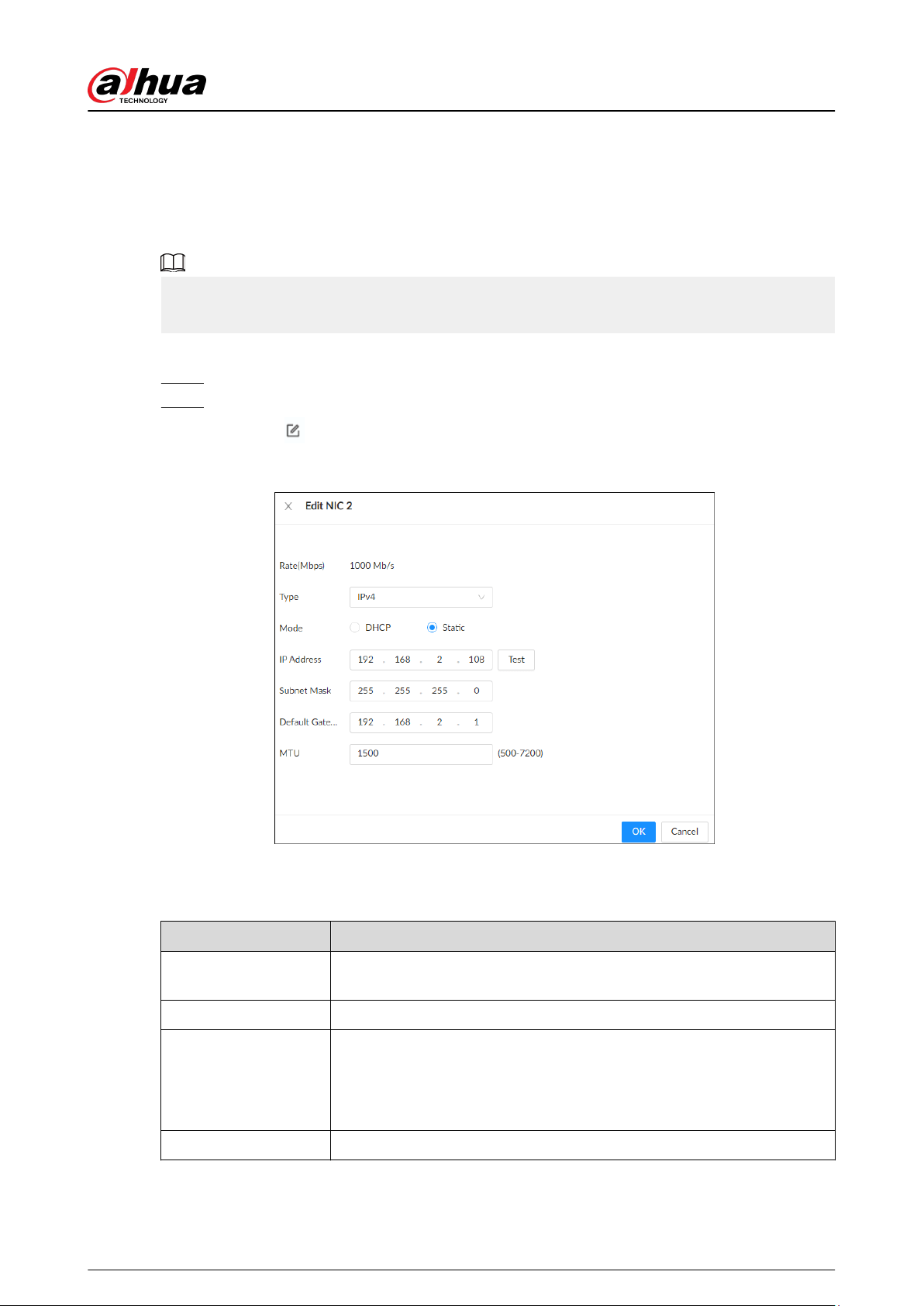
Step 5 Congure password protection settings.
You can use the linked email address or answer the security questions to reset admin
password. See "7.3.3.2 Resetting the Password" for detailed information.
●
Click
to disable the email address or security questions.
●
If the email is not set, you can only reset the password on the local interface.
Figure 3-4 Password protection
Table 3-3 Password protection
Password Protection
Mode
Description
Email Address Leave an email address for resetting password.
Step 6 Click OK.
User's Manual
23
The Device is initialized. You can click Quick Cong to congure quick settings.
3.2 Conguring IP Address
Congure the IP address and DNS server information of the Device according to network planning.
Make sure that at least one Ethernet port has been connected to the network before you set IP
address.
Procedure
Step 1 On the page that prompts initialization succeeded, click Quick Cong.
Step 2 Congure the IP address.
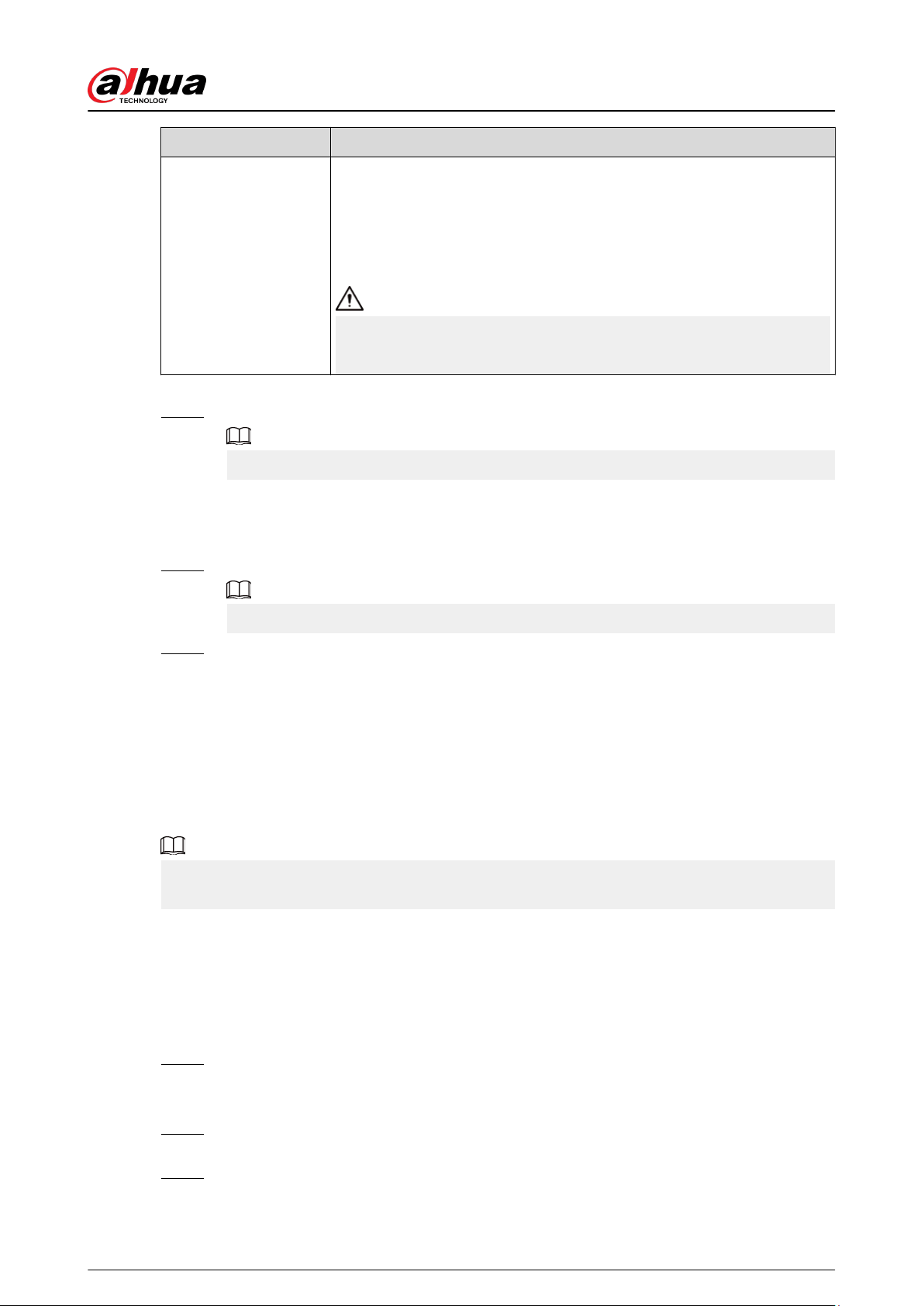
1. Click of the corresponding NIC.
Figure 3-5 Edit Ethernet network
2. Set parameters.
Table 3-4 NIC parameters description
Parameter Description
Rate (Mbps)
The maximum network transmission speed that the current NIC
supports.
Type Select IPv4 or IPv6.
Mode
●
DHCP : When there is a DHCP server on the network, you can enable
DHCP. The system allocates a dynamic IP address to the Device. There
is no need to set IP address manually.
●
Static : You need to enter the IP address, subnet mask and gateway.
Test Test whether the IP address is valid.
User's Manual
24
Parameter Description
MTU
Set NIC MTU value. The default setup is 1500 bytes.
We recommend you check the MTU value of the gateway rst and then
set the MTU value of the Device equal to or smaller than the gateway
value, which helps to reduce the packets slightly and enhance network
transmission eciency.
Please be advised that changing MTU value might result in NIC restart,
network oine and aect current running operation.
3. Click OK.
Step 3 Set DNS server information.
This step is compulsive if you want to use domain service.
●
Select DHCP so that the Device can automatically get the IP address of the DNS server
on the network.
●
Select Static and then enter the preferred and alternate DNS addresses.
Step 4 Set the default NIC.
Make sure that the default NIC is online.
Step 5 Click Next.
3.3 Login
You can operate the device by using the local interface, web interface and PC client.
●
Monitor and mouse are needed for local operation.
●
You can remotely access the Device through the web interface and PC client. We recommend
you use the PC client.
After initializing the Device, you have logged in by default. Now you can congure system settings
and operate.
3.3.1 Logging in to the PC Client
Log in to the PC client for system conguration and operation.
Procedure
Step 1 Download the PC client.
1. Open the browser, enter IP address, and then press the Enter key.
2. Click Download PC Client to download the installation package.
Step 2 Double-click the installation package, and then follow the on-screen instructions to install
the PC client.
Step 3 Open the PC client, enter the IP address of the Device, and then press Enter.
User's Manual
25
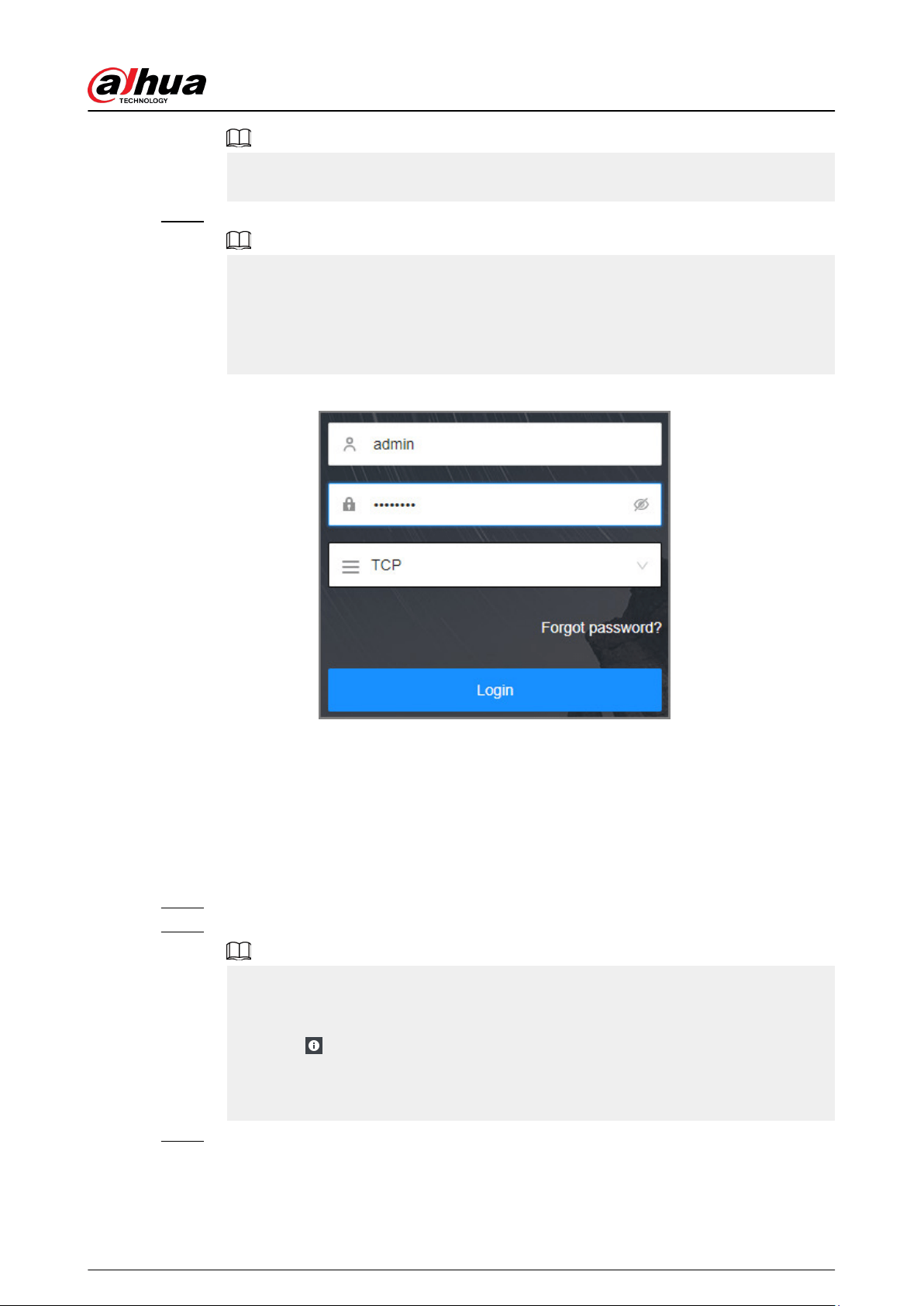
When the theme of your computer is not Aero, the system will prompt you to switch the
theme. To ensure video smoothness, switch your computer to Areo theme.
Step 4 Enter the username and password, select a login type, and then click Login.
●
The default administrator username is admin. The password of the admin account is
what you set during initialization. For your device safety, change the password of the
admin account regularly and keep it safe.
●
If you forget the password of the admin account, click Forgot password to reset. See
"7.3.3.2 Resetting the Password" for detailed information.
Figure 3-6 Login (PC client)
3.3.2 Logging in to Local Interface
Prerequisites
Ensure that the Device is connected with display, mouse and keyboard.
Procedure
Step 1 Turn on the Device.
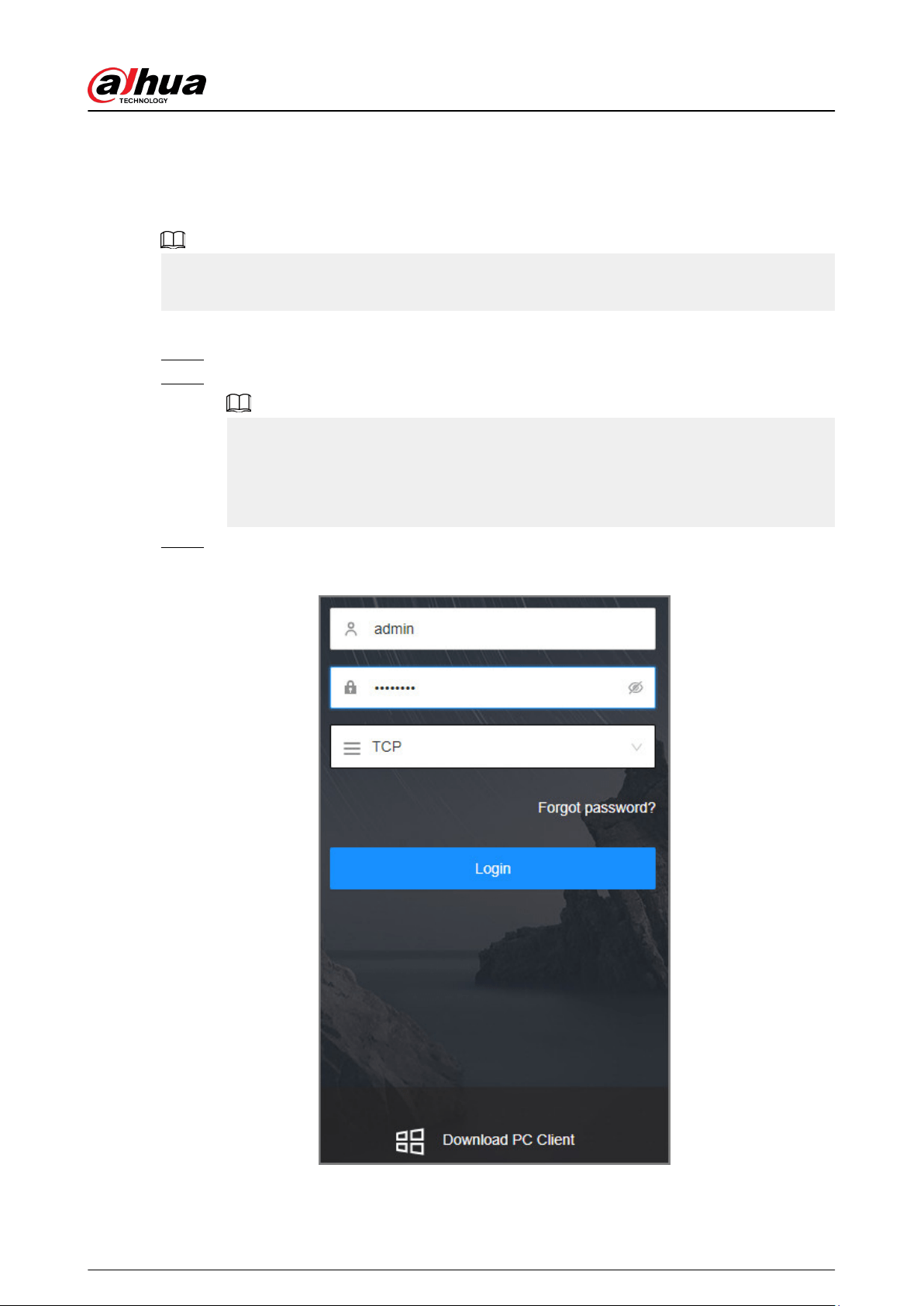
Step 2 Enter username and password.
●
The default administrator username is admin. The password of the admin account is
what you set during initialization. For your device safety, change the password of the
admin account regularly and keep it safe.
●
Point to
to view the password prompt information. It is to help you remember
password.
●
If you forget the password of the admin account, click Forgot password to reset. For
details, see "7.3.3.2 Resetting the Password".
Step 3 Click Login.
User's Manual
26
3.3.3 Logging in to Web Interface
You can use the general browser such as Google Chrome, Firefox to access the web interface to
manage the Device remotely, operate and maintain the system.
When you are using a general browser to access the web interface, some functions might be not
available. We recommend you use the PC client.
Procedure
Step 1 Open the browser, enter IP address, and then press Enter.
Step 2 Enter username and password.
●
The default administrator username is admin. The password of the admin account is
what you set during initialization. For your device safety, change the password of the
admin account regularly and keep it safe.
●
If you forget the password of the admin account, click Forgot password to reset. See
"7.3.3.2 Resetting the Password" for detailed information.
Step 3 Select the login type, and then click Login.
Figure 3-7 Login (web)
User's Manual
27
3.4 Home Page
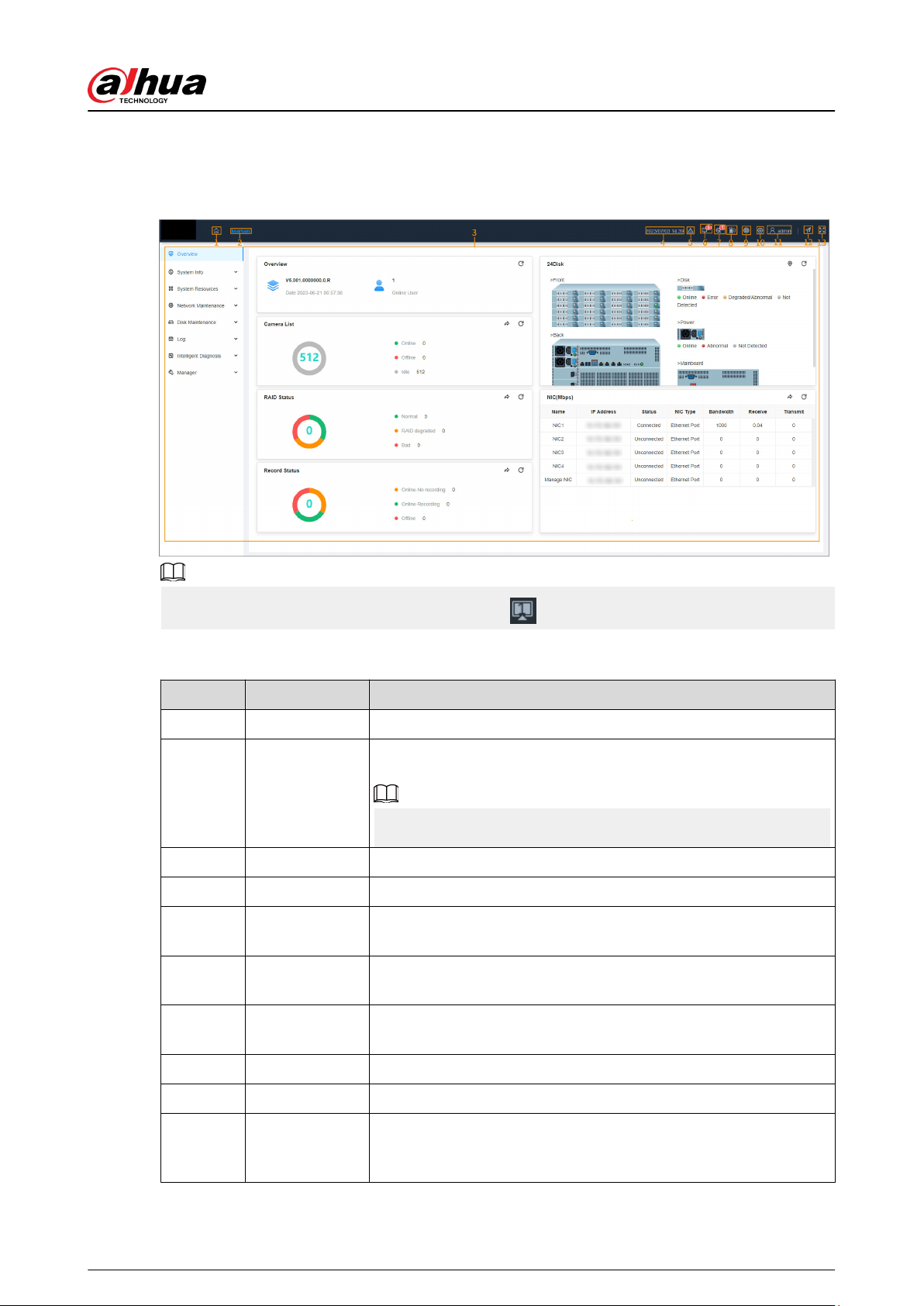
Figure 3-8 Home page
When you log in to the local interface, you can click to control the screens.
Table 3-5 Home page description
No. Name Description
1 Home page Go back to the home page.
2 Task Column
Displays enabled application icon. Point to the app and then click
to close the app.
The maintain function is enabled by default.
3 Function tiles Click each tile to access the corresponding function.
4 Time Displays the current date and time.
5
Event
information
View event information.
6
System
messages
View system error messages, warnings, and notications.
7
One-click
Diagnosis
One-click diagnosis of device conguration and status to help users
use the device better.
8 Buzzer View buzzer messages.
9 Background task View the tasks running in the background.
10
System
conguration
You can access the conguration of accounts, network, events, and
more by clicking the icon or from the conguration list on the
home page.
User's Manual
28
No. Name Description
11 Login user
Change the password, lock the user, log out, restart or shut down
the Device.
12 Quick guide
You can directly select video direct storage and IP SAN to quickly
complete conguration.
13 Full screen Enter full screen mode.
3.5 Conguring Remote Devices
Register remote devices to the system. You can view the live video from the remote device, change
remote device settings, and so on.
3.5.1 Initializing Remote Devices
After you initialize the remote devices, you can change their login passwords and IP addresses.
Remote devices can be connected to the Device only after being initialized.
Procedure
Step 1 Log in to the PC client.
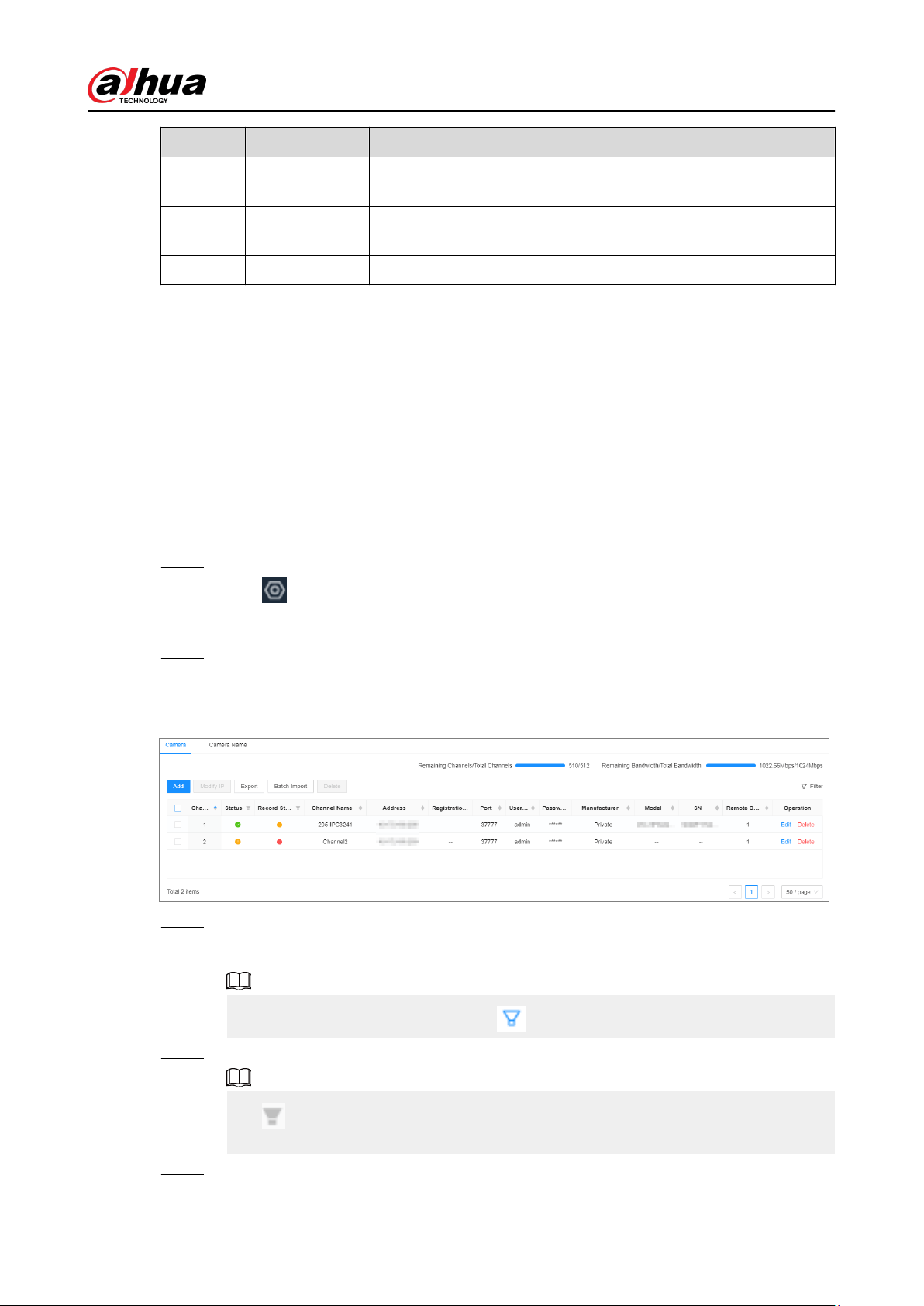
Step 2 Click on the upper-right corner of the page and then click Camera.
You can also click Camera from the conguration list on the home page.
Step 3 Under the Camera tab, click Add.
You can also click Add under the device tree.
Figure 3-9 Camera
Step 4 Under the Quick Add tab, click Start Search.
The search results are displayed.
To lter the search results, you can click .
Step 5 Select an uninitialized remote device and then click Initialize.
Click next to Initialization Status and then select Uninitialized to show uninitialized
remote devices only.
Step 6 Set the password and linked email address for the remote device.
User's Manual
29

You can skip this step if you keep Using current device password and password
protection information enabled as default. The remote device automatically uses the
current admin password and email address of the Device.
1. To manually congure the password, disable Using current device password and
password protection information.
2. Enter and conrm the password, and then click Next.
3. Set an email address, and then click Next.
You can use the email address to reset the password of the remote device if you forget
the password.
Step 7 Set the IP address of the remote device and then click Next.
●
When there is a DHCP server on the network, select DHCP, and the remote device gets
dynamic IP address automatically. You do not need to enter IP address, subnet mask
and gateway.
●
If you select Static, enter static IP address, subnet mask, default gateway and
incremental value.
●
Enter incremental value only when you want to change IP addresses of several devices
at the same time. The system will allocate IP address one by one with the fourth part of
the IP address increasing by the incremental value.
●
If an IP conict occurs when you change the static IP address, the system will notify
you of the issue. When an IP conict happens when you are changing IP addresses in
batches, the system automatically skips the conicted IP and begins the allocation
according to the incremental value.
Step 8 Click Add or OK.
●
Click Add : The system completes initializing the remote device and then adds the
remote device to the Device.
●
Click OK : The system completes initializing remote device without adding the remote
device to the Device.
3.5.2 Adding Remote Devices
You can add remote devices to the Device in any of the following ways.
Table 3-6 Methods of adding remote devices
Method Description
Quick Add
Search for the remote devices on the same network and then lter
the search results to register the remote devices that you need.
We recommend this method if you do not know the exact IP
address of the remote device.
Manual Add
Enter the IP address, username and password of the remote device.
We recommend this method when you want to add only a few
remote devices and you know their IP addresses, usernames, and
passwords.
User's Manual
30
Method Description
RTSP
Add remote devices through RTSP.
We recommend this method when you add stream media devices.
Batch Import
Fill in information on remote devices in the template, and then
import the template to add the remote devices.
We recommend this method when you want to add a lot of remote
devices whose IP addresses, usernames and password vary with
each other.
3.5.2.1 Quick Add
Procedure
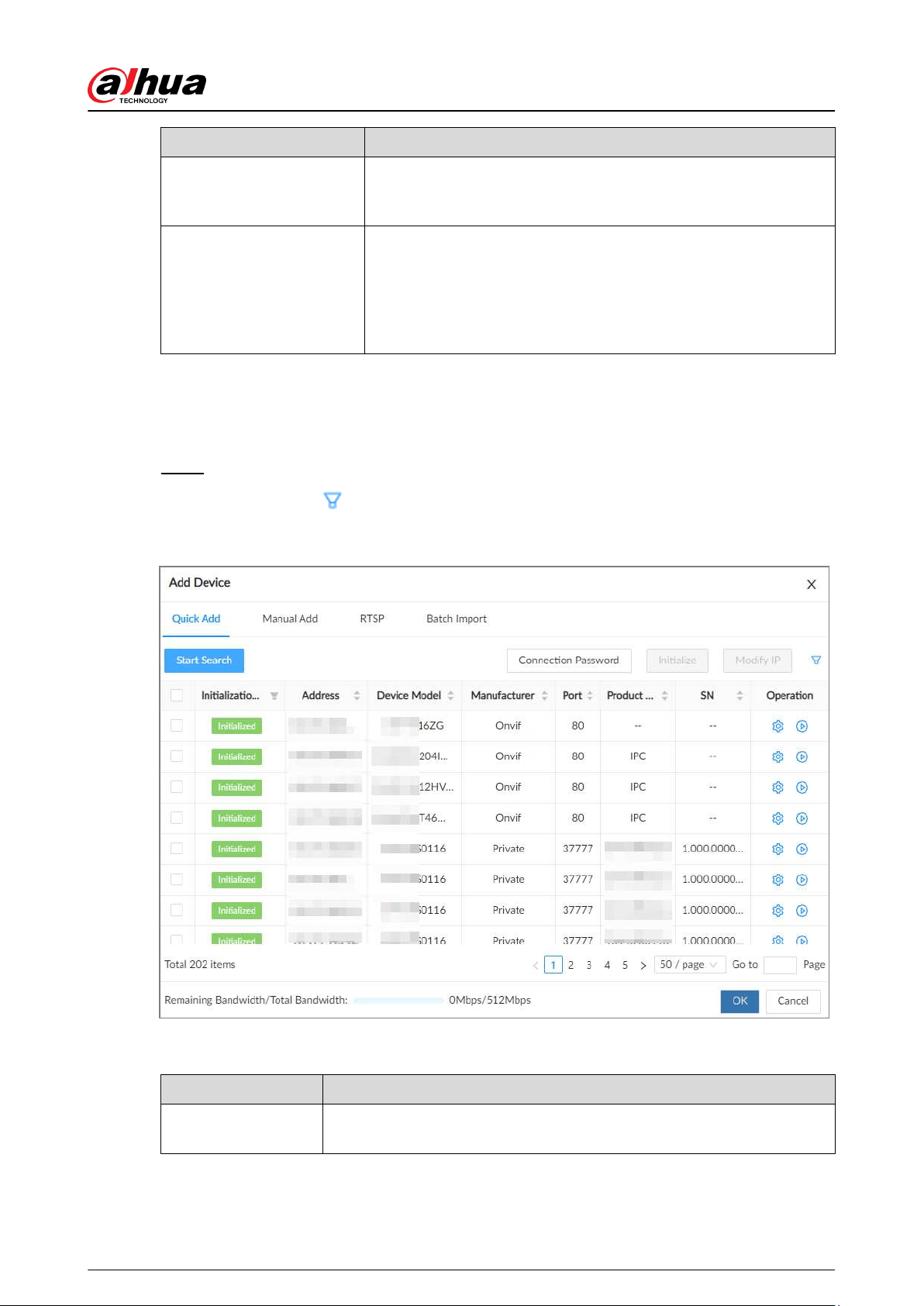
Step 1 Under the Quick Add tab, click Start Search.
You can click to lter the search results.
Figure 3-10 Search results
Table 3-7 Description of search results
Parameter Description
Start Search
Click Start Search to search for remote devices again. Click Stop Search
to stop search.
User's Manual
31
Parameter Description
Connection Password
Click Connection Password to set the username and password for the
remote devices.
If you do not set the username and password for the remote device, the
system will try to add the remote device by using the username and
password of the Device.
Initialize
Select uninitialized remote devices, and then click Initialize to start
initialization.
Modify IP
Select one or more remote devices, and then click Modify IP to change
their IP addresses.
Initialization Status
Click
and then select Initialized or Uninitialized to show initialized
or uninitialized remote devices only.
Operation
●
Click
to congure parameters of the remote device.
●
Click
to view the real-time video from the remote device.
You can view the live video only when the admin password of the
remote device is admin, or the same as the admin password of the
Device.
Bandwidth
Displays the remaining and total bandwidth. You cannot add more
remote devices when the bandwidth runs out.
Step 2 Select one or more remote devices, and then click OK.
●
During the adding process, click Cancel to cancel adding the remote device.
●
If a remote device is in exception due to network disconnection or other reasons, it
can still be added. It comes online after the exception is resolved.
Step 3 Click Add more or Complete.
●
Click Add more , the Device goes back to the Quick Add window and you can add
more remote devices.
●
Click Complete if you do not want to add more remote devices at the moment. The
Device goes back to the Camera tab where you can view the added remote devices.
3.5.2.2 Manual Add
Procedure
Step 1 Log in to the PC client.
Step 2 Click on the upper-right corner of the page and then click Camera.
You can also click Camera from the conguration list on the home page.
Step 3 Under the Camera tab, click Add.
You can also click Add under the device tree.
User's Manual
32
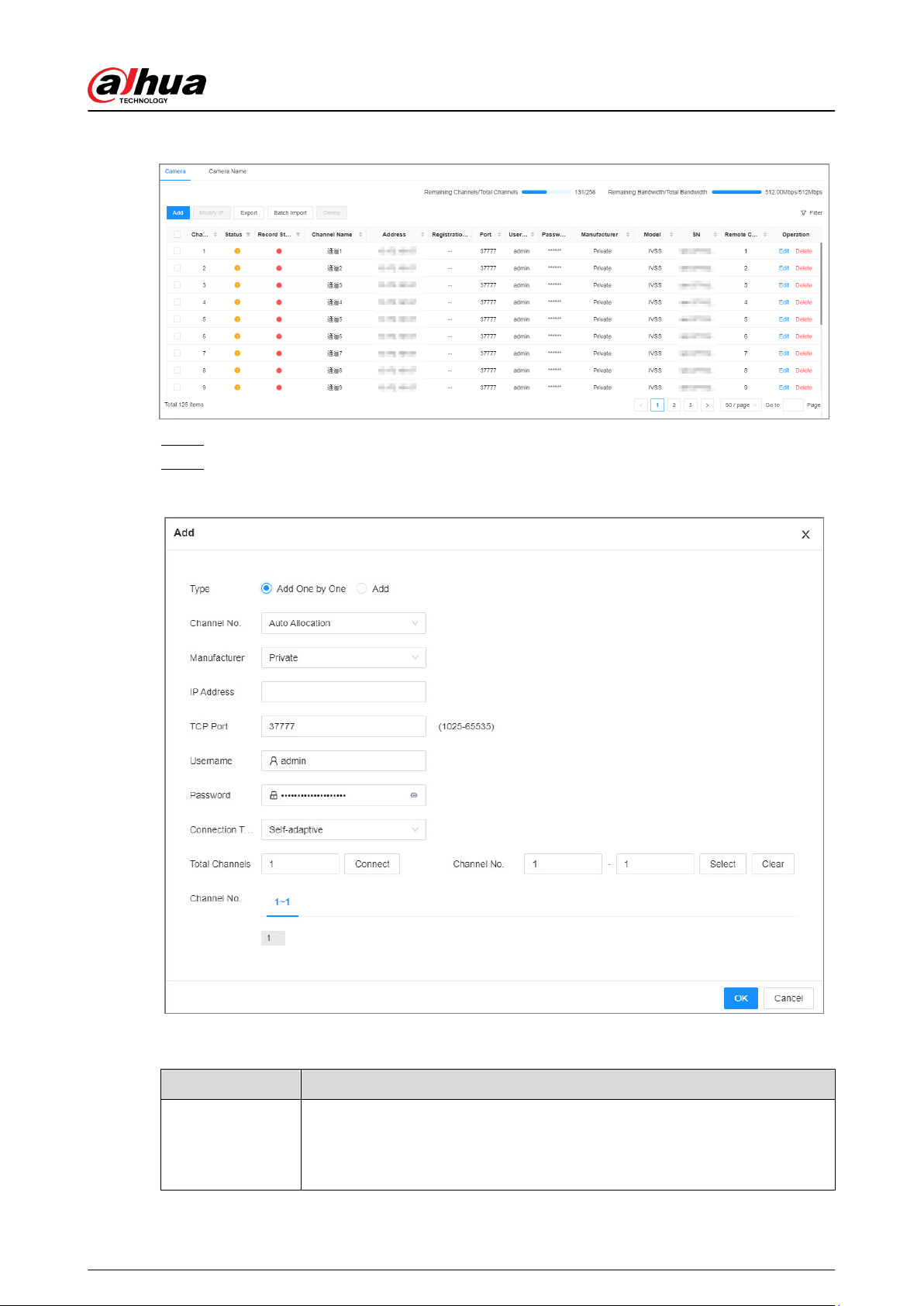
Figure 3-11 Camera
Step 4 Under the Manual Add tab, click Add Device.
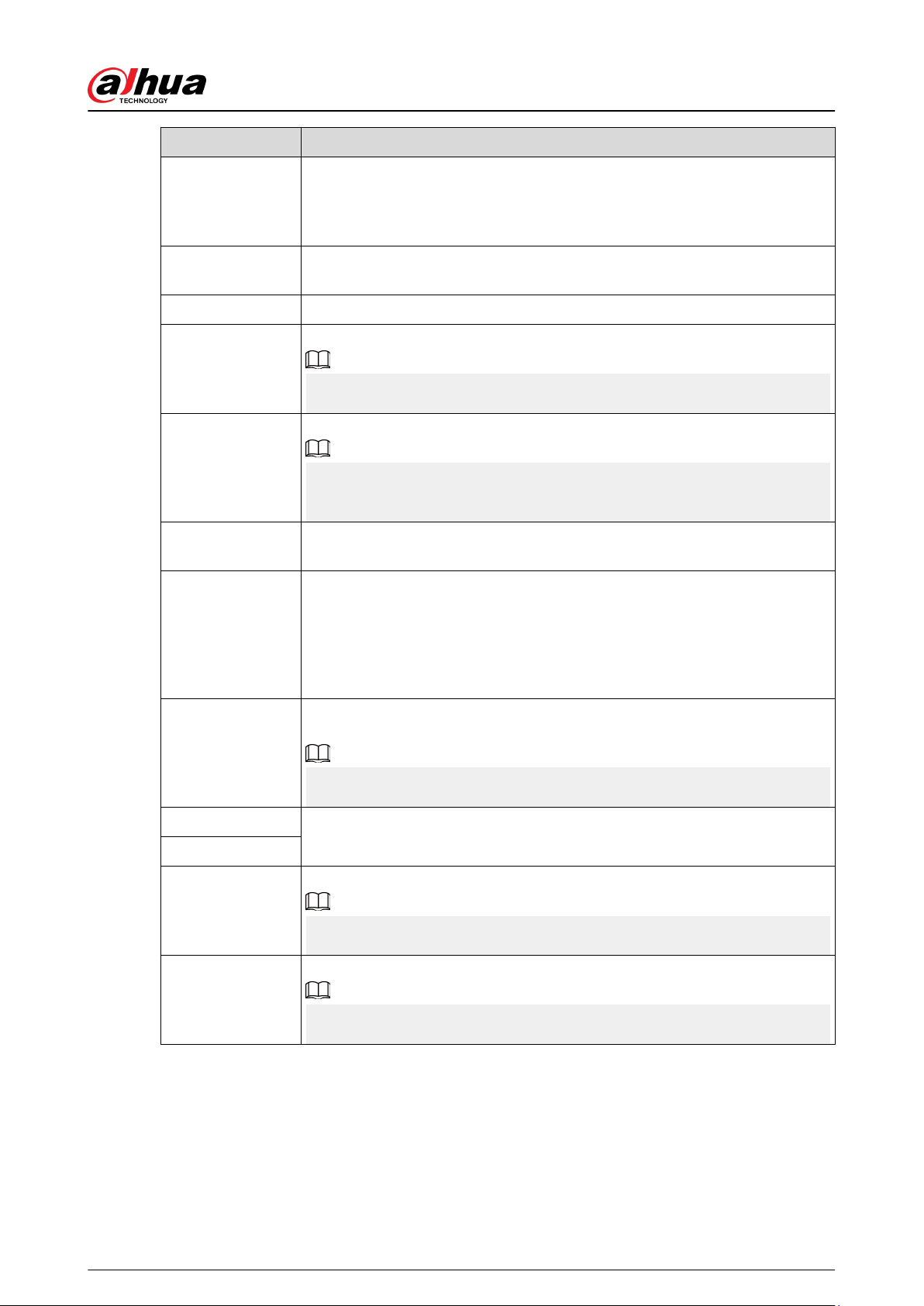
Step 5 Set parameters and then click OK.
Figure 3-12 Remote device setting
Table 3-8 Parameters of adding remote device
Parameters Description
Type
You can select Add One by One or Add to manually add the device.
●
Add One by One : Add one device separately at a time.
●
Add : Add one device according to IP segment.
User's Manual
33
Parameters Description
Channel No.
Select a channel number for the remote device on EVS.
If you select Auto Allocation, EVS will provide a channel number
automatically.
Manufacturer
Select the connection protocol of the remote device. Private is selected by
default.
IP Address Enter the IP address of the remote device.
Device No.
Enter the unique device No. allocated by the server for the remote device.
When Manufacturer is Register, you need to congure this parameter.
RTSP Mode
Select Self-adaptive or Custom.
When Manufacturer is Onvif or Onvifs, you need to congure this
parameter.
RTSP Port
When you select Custom for RTSP Mode, enter the RTSP port number. The
default port number is 554. The value ranges from 1 through 65535.
HTTP Port
Enter the HTTP port number. The default port number is 80. The value ranges
from 1 through 65535.
After changing the HTTP port number, you need to add the HTTP port
number to the IP address in the address bar of the browser so that you can
log in to the web interface of the remote device.
HTTPS Port
Enter the HTTP port number. The default port number is 80. The value ranges
from 1 through 65535.
When Manufacturer is Onvifs, you need to congure this parameter.
Username
Enter the username and password of the remote device.
Password
TCP Port
Enter the TCP port number of the remote device.
When Manufacturer is Private, you need to congure this parameter.
Connection Type
Select a connection type from Self-adaptive , TCP, UDP and Multicast.
The connection types available might dier depending on the manufacturer.
User's Manual
34
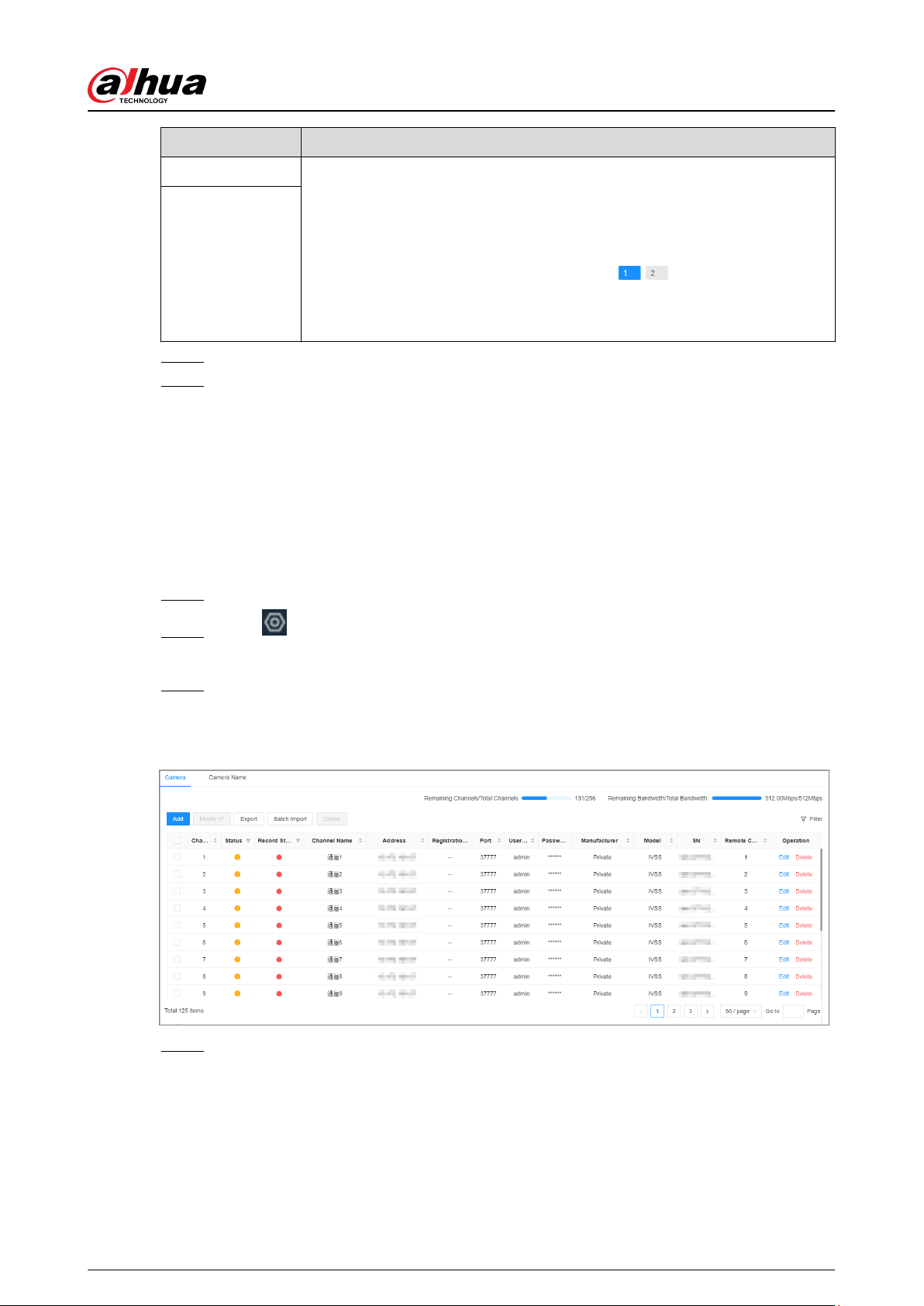
Parameters Description
Remote CH No.
When the remote device has multiple channels, you can select one or more
channels of the remote device that you want to add to the Device.
a. Click Connect to get the total number of channels of the remote channel.
b. Enter the range of channels that you need, and then click Select to select
all the channels in the range. You can click to select or cancel the
selection of specic channels.
c. Click OK.
Channel No.
Step 6 Select the remote device and then click OK.
Step 7 Click Add more or Complete.
●
Click Add more , the Device goes back to the Quick Add window and you can add
more remote devices.
●
Click Complete if you do not want to add more remote devices at the moment. The
Device goes back to the Camera tab where you can view the added remote devices.
3.5.2.3 RTSP
Procedure
Step 1 Log in to the PC client.
Step 2 Click on the upper-right corner of the page and then click Camera.
You can also click Camera from the conguration list on the home page.
Step 3 Under the Camera tab, click Add.
You can also click Add under the device tree.
Figure 3-13 Camera
Step 4 Under the RTSP tab, enter the RTSP address.
The RTSP address format is rtsp://<username>:<password>@<IP address >:<port>/cam/
realmonitor?channel=1&subtype=0. For example, rtsp://
admin:[email protected]:554/cam/realmonitor?channel=1&subtype=0.
●
Username: Username of the remote device.
●
Password: Password of the remote device.
●
IP address: IP address of the remote device.
User's Manual
35
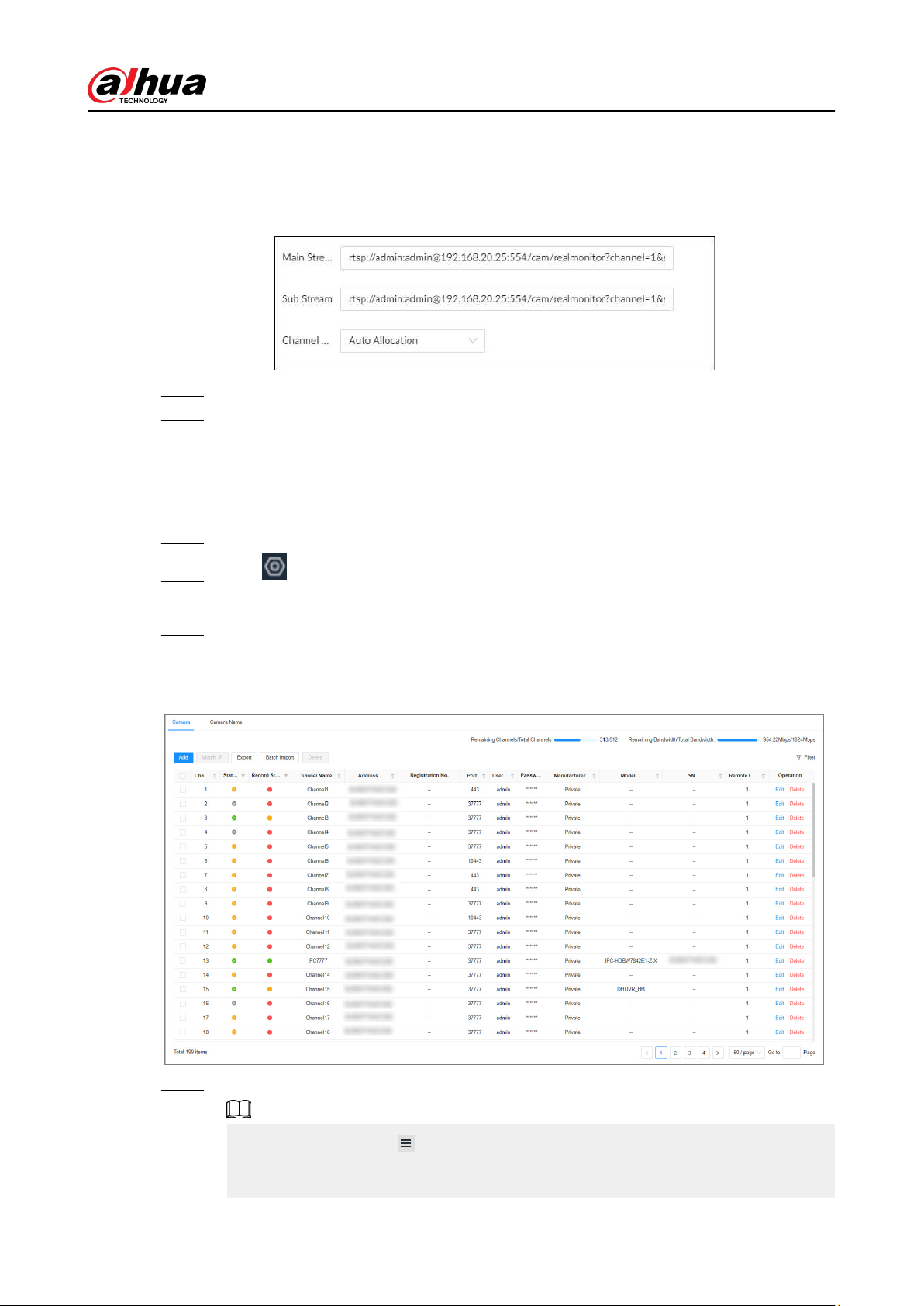
●
Port: 554 by default.
●
Channel: The channel number of the stream media device to be added.
●
Subtype: Stream type. 0 for main stream, and 1 for sub stream.
Figure 3-14 RTSP
Step 5 Select a channel No.
Step 6 Click OK.
3.5.2.4 Batch Add
Procedure
Step 1 Log in to the PC client.
Step 2 Click on the upper-right corner of the page and then click Camera.
You can also click Camera from the conguration list on the home page.
Step 3 Under the Camera tab, click Add.
You can also click Add under the device tree.
Figure 3-15 Camera
Step 4 Under the Batch Import tab, click Download Template to download the template.
●
On the PC client, click
at the top of the client, select Download to view the storage
path.
●
On the local interface, you can select the le storage path.
User's Manual
36
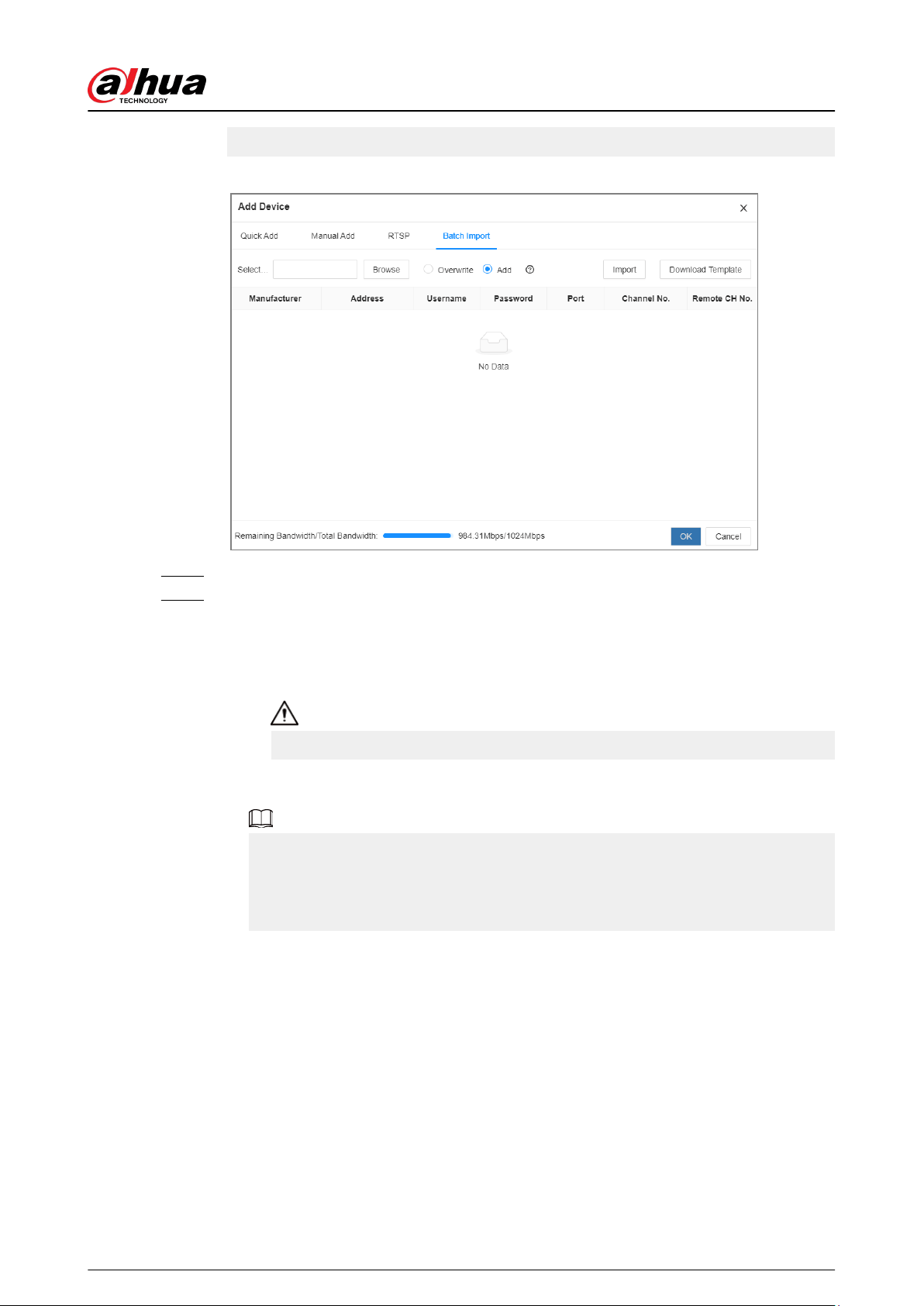
●
On the web interface, les are saved to the default downloading path of the browser.
Figure 3-16 Import CSV le
Step 5 Fill in and save the template le.
Step 6 Import the template.
1. Under the Batch Import tab, click Browse to select the le that you have lled in.
2. Select an import mode.
●
Overwrite : The system removes the added remote devices before importing new
devices.
If you select Overwrite, all the existing devices will be deleted.
●
Add : The system imports remote devices without deleting the existing ones.
3. Click Import. You can view the imported information on the remote devices.
If the information on remote devices is not lled in completely, you can improve it
after importing the template.
When importing, the interface prompts Are you sure you want to import the
channel names.
●
Yes : Synchronize the imported channel name to the front end device. If the
imported channel name is empty, update the local and remote channels according
to actual names.
●
No : Acquire the actual name of the front end channel and update it to the local
channel name.
User's Manual
37
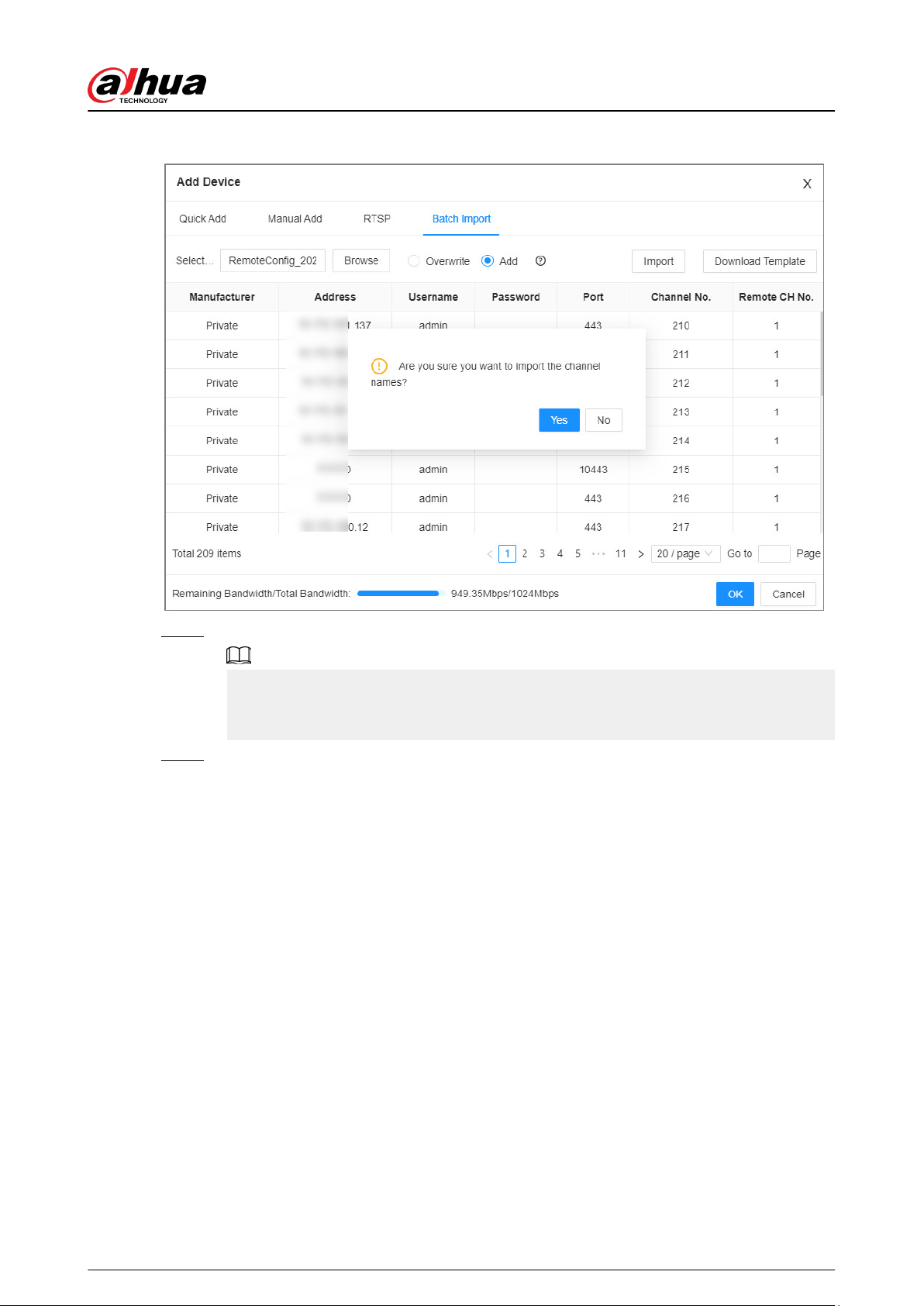
Figure 3-17 Batch add
Step 7 Select one or more remote devices, and then click OK.
●
During the adding process, click Cancel to cancel adding the remote device.
●
If a remote device is in exception due to network disconnection or other reasons, it
can still be added. It comes online after the exception is resolved.
Step 8 Click Add more or Complete.
●
Click Add more , the Device goes back to the Quick Add window and you can add
more remote devices.
●
Click Complete if you do not want to add more remote devices at the moment. The
Device goes back to the Camera tab where you can view the added remote devices.
User's Manual
38
4 Storage Conguration
4.1 Wizard Conguration
Log in to the PC client, click
on the upper-right corner, and select Direct Video Storage or IP
SAN to complete storage conguration.
4.1.1 Direct Video Storage
Video direct storage requires operations such as creating RAID, managing hot spare, adding
cameras, and setting disk groups.
●
Please be advised that creating RAID will clear all data on the member disks.
●
Please be advised that using the enterprise-level hard disk drive will ensure stable operation.
Procedure
Step 1 Log in to the PC client.
Step 2 Click on the upper-right corner, and then click Direct Video Storage.
You can also click
, or on the home page, select Storage > Storage Resources >
RAID.
Step 3 Set RAID and hot standby, and then click Next.
1. Select Storage Resource > RAID > RAID.
Select a RAID level according to actual situation. You can select Manual Create and
One-click Create.
●
Manual Create : The system creates the specied level of RAID using the selected
disks.
User's Manual
39
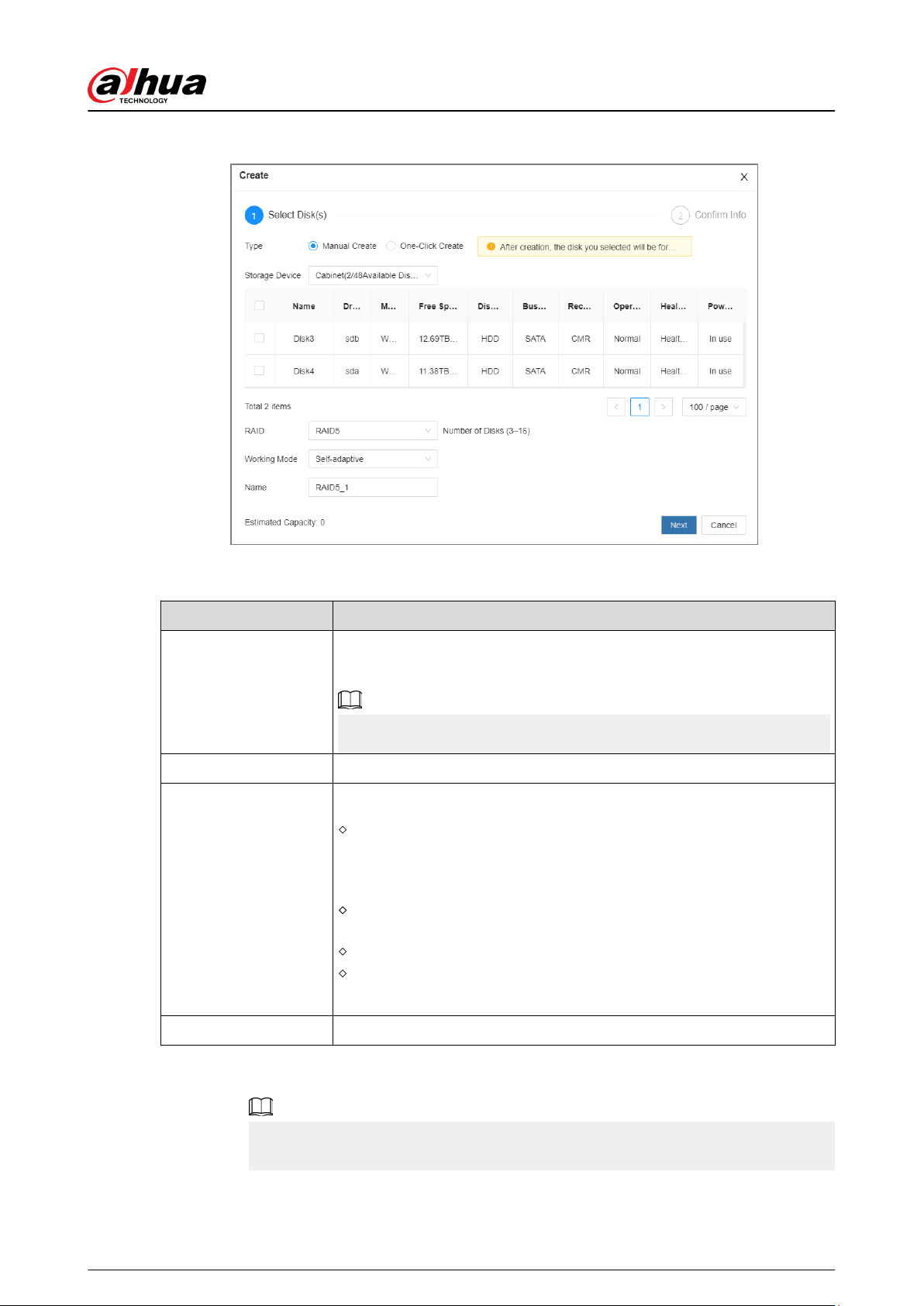
Figure 4-1 Manual create
Table 4-1 Manual creation parameters description
Parameter Description
Storage Device
Select the storage device where the disks are located and select the
disks you want to add to the RAID.
Dierent levels of RAID might need dierent number of disks.
RAID Select the level of RAID that you want to create.
Working mode
Set RAID resources allocation mode. The default mode is self-adaptive.
Self-adaptive : The system automatically adjusts RAID
synchronization speed according to current business load. When
there is no external business, the synchronization speed is high.
When there is external business, the synchronization speed is low.
Sync Priority : The system allocates resources to RAID
synchronization rst.
Operation Priority : The system allocates resources to business rst.
Load Balance : The system allocates resources to business and RAID
synchronization equally.
Name Set RAID name.
●
One-Click Create : The system creates RAID5 or JRAID according to the current
number of disks.
The number of disks required for one-click create and the level of RAID vary for
dierent models. Please refer to the prompt on the interface.
User's Manual
40
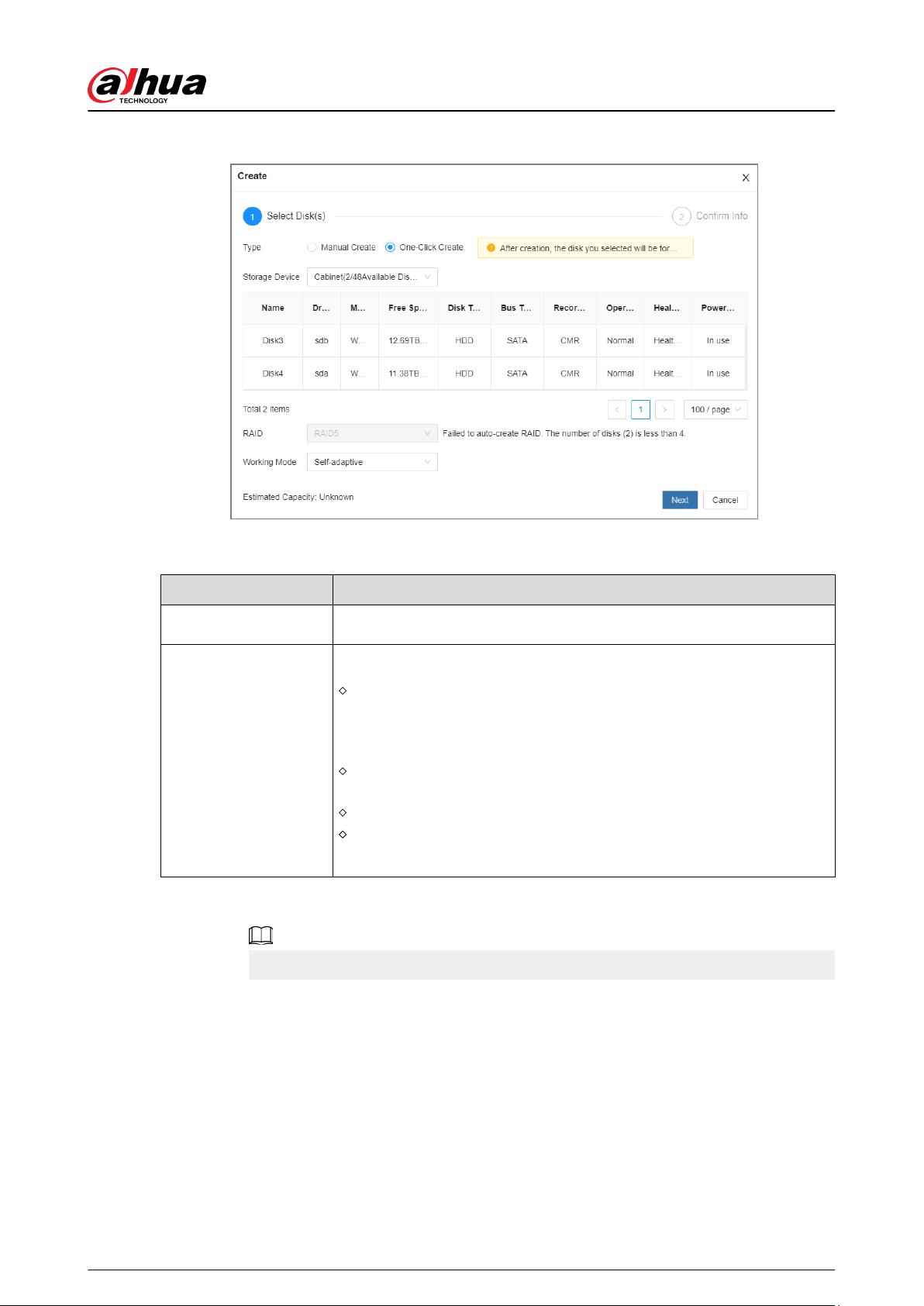
●
Figure 4-2 One-click create
Table 4-2 One-click creation parameters description
Parameter Description
Storage Device Select the storage device where the disks are located.
Working mode
Set RAID resources allocation mode. The default mode is self-adaptive.
Self-adaptive : The system automatically adjusts RAID
synchronization speed according to current business load. When
there is no external business, the synchronization speed is high.
When there is external business, the synchronization speed is low.
Sync Priority : The system allocates resources to RAID
synchronization rst.
Operation Priority : The system allocates resources to business rst.
Load Balance : The system allocates resources to business and RAID
synchronization equally.
2. Select one or more disks, and then click Next.
3. Conrm information, and then click Add.
If the information is wrong, click Back to modify the RAID parameters.
4. Select Storage Resource > RAID > Hot Standby, and then click Add.
Select a hot spare level according to actual situation. You can select Global Hot
Standby and Private Hot Spare.
●
Global Hot Standby : Create a hot standby disk for all RAID groups.
User's Manual
41
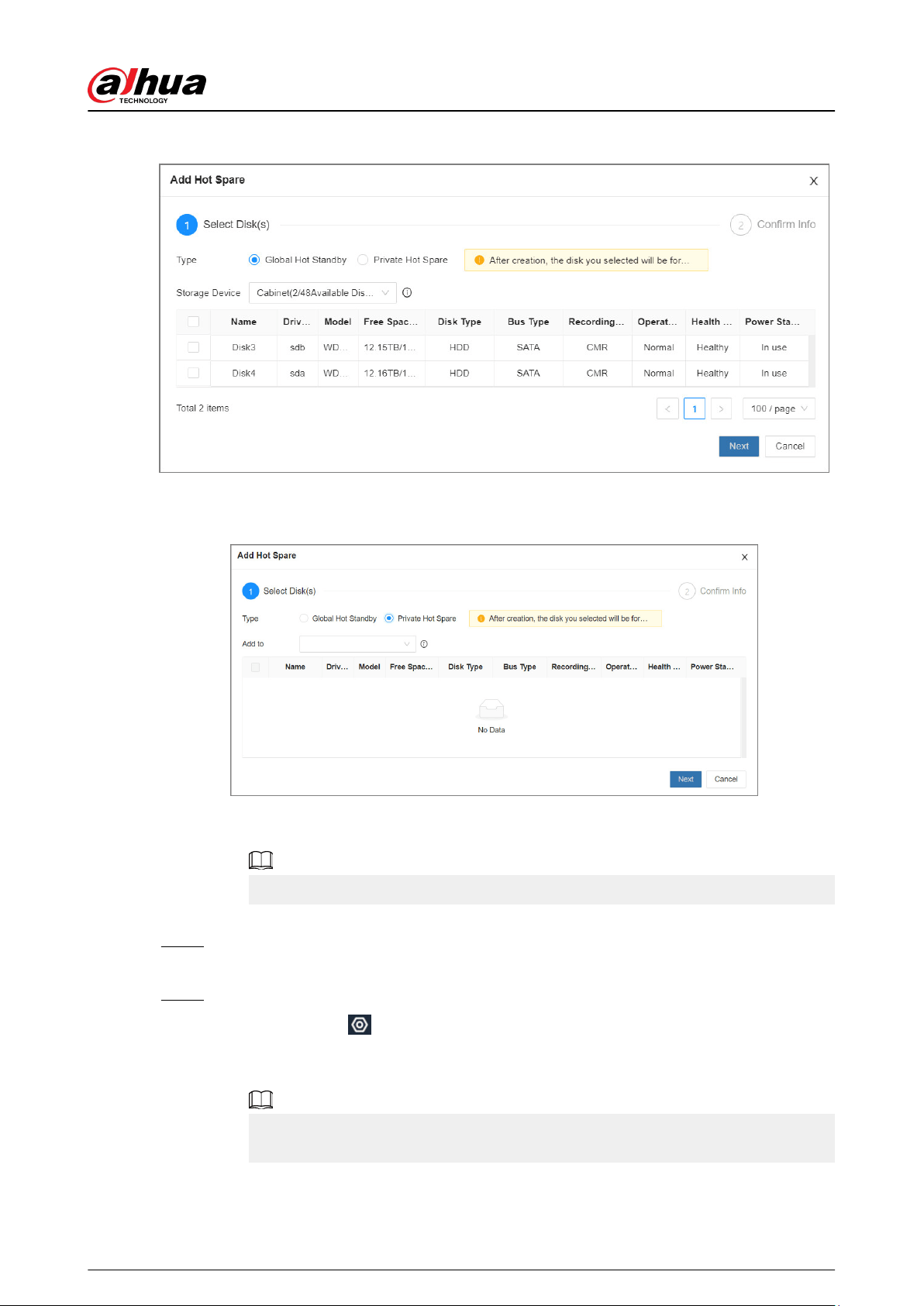
Figure 4-3 Add hot spare (global hot standby)
●
Private Hot Spare : Create a hot standby disk for a specied RAID group.
Figure 4-4 Add hot spare (private hot spare)
5. Select one or more disks, and then click Next
6. Conrm information, and then click Add.
If the information is wrong, click Back to modify the hot spare parameters.
7. Click Next.
Step 4 Add camera, and then click Next.
For details, see "3.5.2 Adding Remote Devices".
Step 5 Set disk group mode and quota mode, and then click Complete.
You can also click
, or on the home page, select Storage > Storage > Storage mode.
●
Disk Group Mode : Allocate disks or RAID groups to dierent disk groups, and support
setting storage disk groups for videos and images in channels.
The default is to allocate the accessed disks and created RAID groups to disk group 1,
you can allocate according to actual situation.
●
Quota Mode : Use storage space according to the allocated quota, and support
allocating quota by time and space.
User's Manual
42
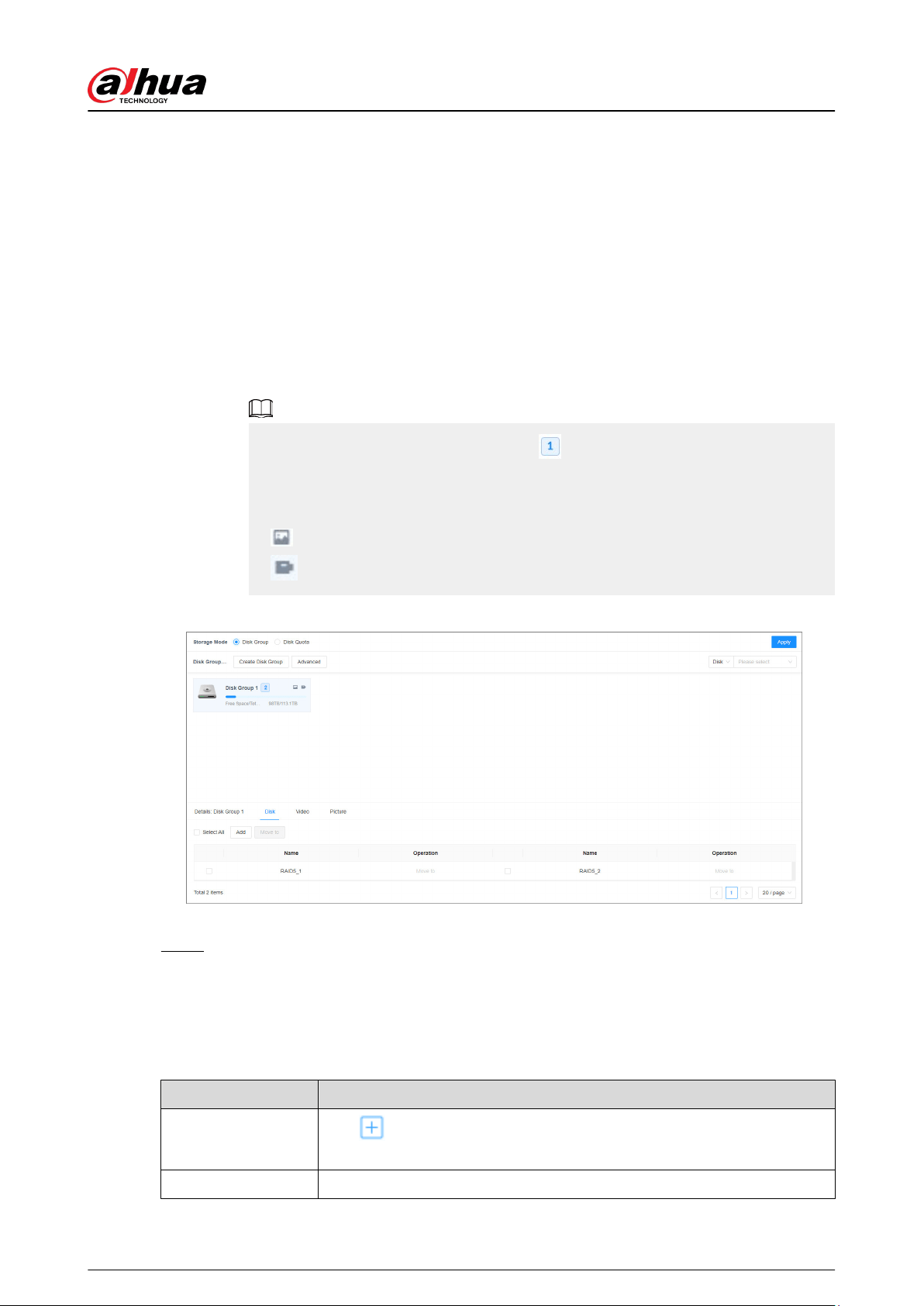
Refer to the following steps to congure disk group mode. When conguring quota
mode, for details, see "4.3.2.4 Quota Settings".
a. Select Disk Group as Storage Mode, click Apply, and then click OK in the pop-up
box.
The modications to the storage mode will take eect when the device restarts.
b. Click Create Disk Group , select Disk Group, and then click Apply.
c. Click Add in the Disk, Video, and Picture tabs, select disk and channel, and then click
OK.
You can add the disk and channel to the desired disk group.
d. Select the added disk and channel, and then click Move to.
You can move the disk and channel to other groups immediately.
●
The number on the group (for example
) indicates that the number of hard disk
drives and RAID groups in the current group.
●
The number of 0 indicates that there are no available hard disk drives or RAID
groups in the current group.
●
indicates that images of the channel is stored in the current group.
●
indicates that videos of the channel is stored in the current group.
Figure 4-5 Storage mode
e. Click Advanced , select Load Balance according to actual needs, and then click OK.
Step 6 Click Complete.
Related Operations
After creating RAID, you can view RAID disk status and details, modify working mode, and repair le
system.
Table 4-3 RAID operations
Name Operation
View the status of
RAID member disks
Click
next to the RAID name to open the RAID disk list. You can view
the space and status of the member disks.
View RAID details Click the icon under Status to view details on the RAID.
User's Manual
43
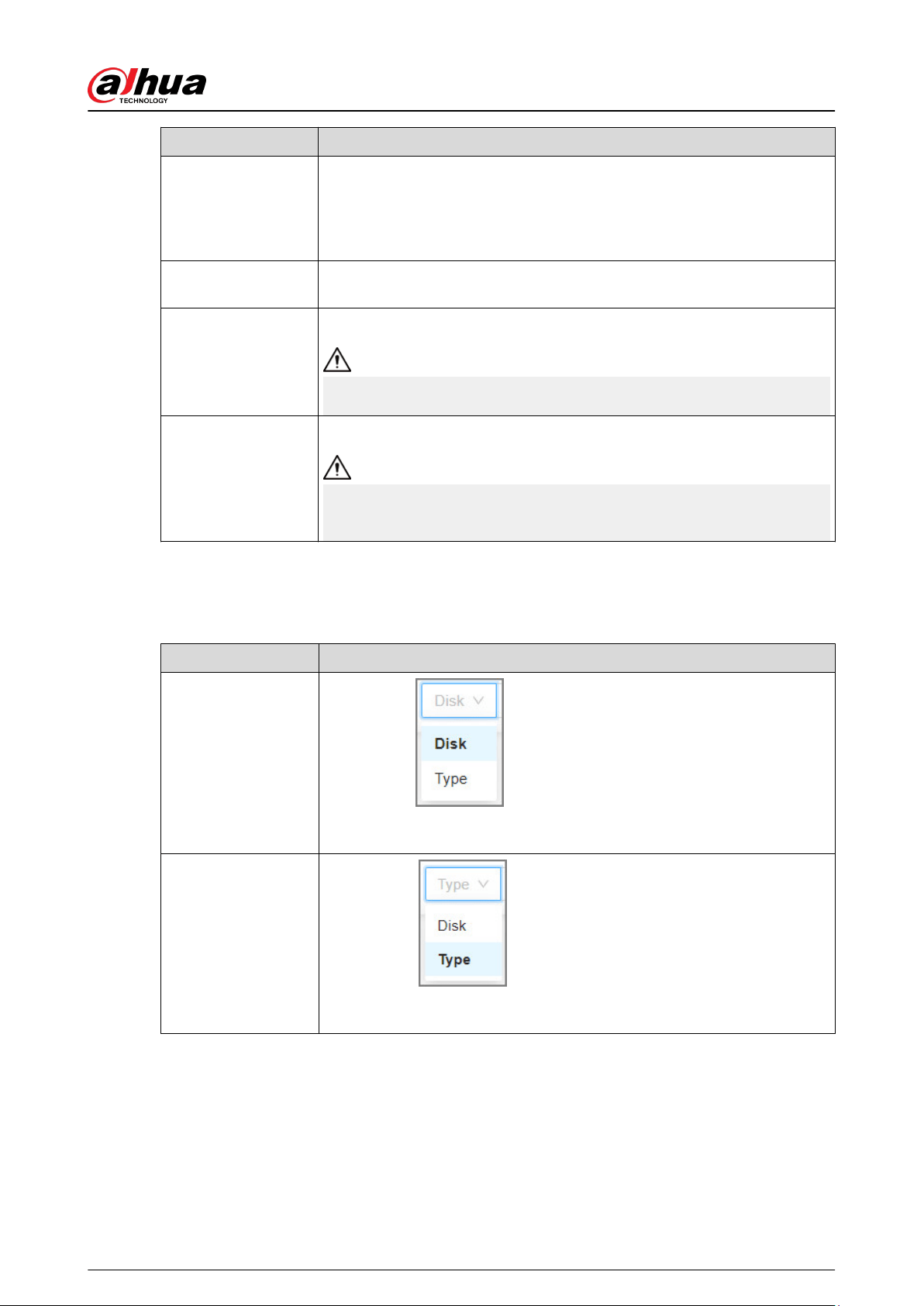
Name Operation
Fix le system
When you cannot mount the RAID or you cannot properly use the RAID,
you can try to x the le system.
Select one or more RAID groups, and then click Fix File System. The
repaired RAID can work properly or be mounted.
Modify working
mode
Select one or more RAID groups, and then click Working Mode to modify
the working mode.
Format RAID
Select one and more RAID groups, and then click Format.
Please be advised that formatting will clear all data on the RAID.
Delete RAID
Select one and more RAID groups, and then click Delete.
Please be advised that deletion will clear all data on the RAID and destroy
the RAID group.
After creating the disk group, you can query disk groups where hard disk drives, videos, and images
are located.
Table 4-4 Disk group functions description
Functions Description
Query disk
Select disk in , and select the specic disk from the drop
down list on the right to query the disk group where the selected hard disk
is located.
Query video or
picture
Select type in
, and select the video or picture from the drop-
down list on the right to query the disk group where the selected video or
picture is located.
User's Manual
44
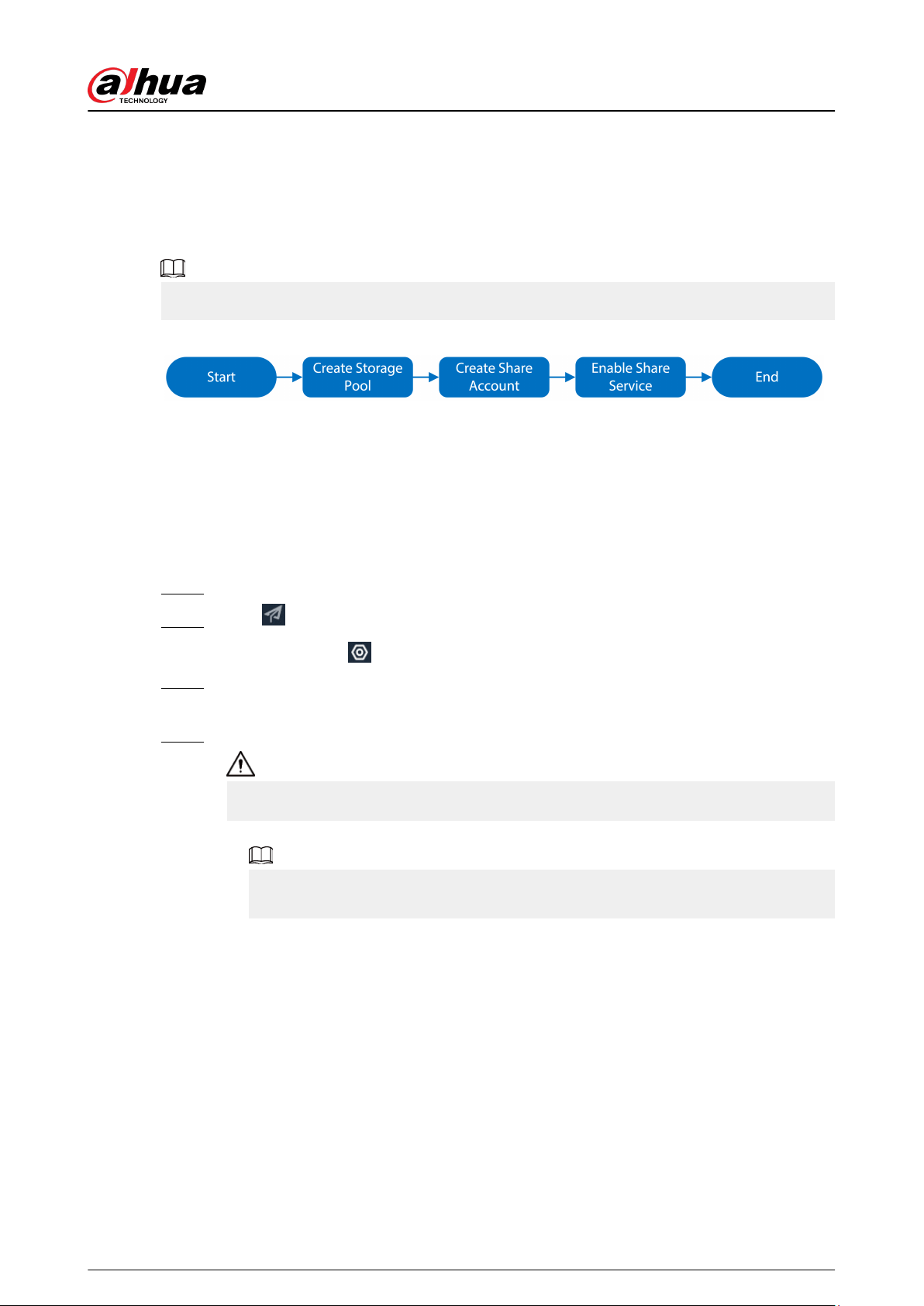
4.1.2 IP SAN (network storage)
Network storage is a storage technology based on IP network. After you created a storage pool, you
can share your storage directory with other devices through iSCSI, FTP, NFS, and SAMBA.
Background Information
In IP SAN mode, preview, AI, and other functions are not supported.
Figure 4-6 Conguring IP SAN (network storage)
●
Storage pool is a logical storage space after the storage device is virtualized. It is managed by
the system, and can be composed of multiple actual disks or RAID. Network storage is one of the
major means to realize storage virtualization.
●
Only a shared user can access and manage a shared folder.
●
After setting the shared folder, the shared user can remotely access on other devices.
●
After enabling a shared service function, the user can remotely access the shared folder.
Procedure
Step 1 Log in to the PC client.
Step 2 Click on the upper-right corner, and then click IP SAN.
You can also click
, or on the home page, select Network Storage.
Step 3 Set RAID and hot standby, and then click Next.
For details, see "4.1.1 Direct Video Storage".
Step 4 Add storage pool, and then click Next.
Creating storage pool will format the disk.
1. Click Add, name the pool, and then select a disk or RAID group.
By default, in the Device Name column, "sdx" (x ranges from a to z) is a disk, such
as /dev/sda, and "mdx" (x is number) is a RAID group, such as /dev/md0.
User's Manual
45
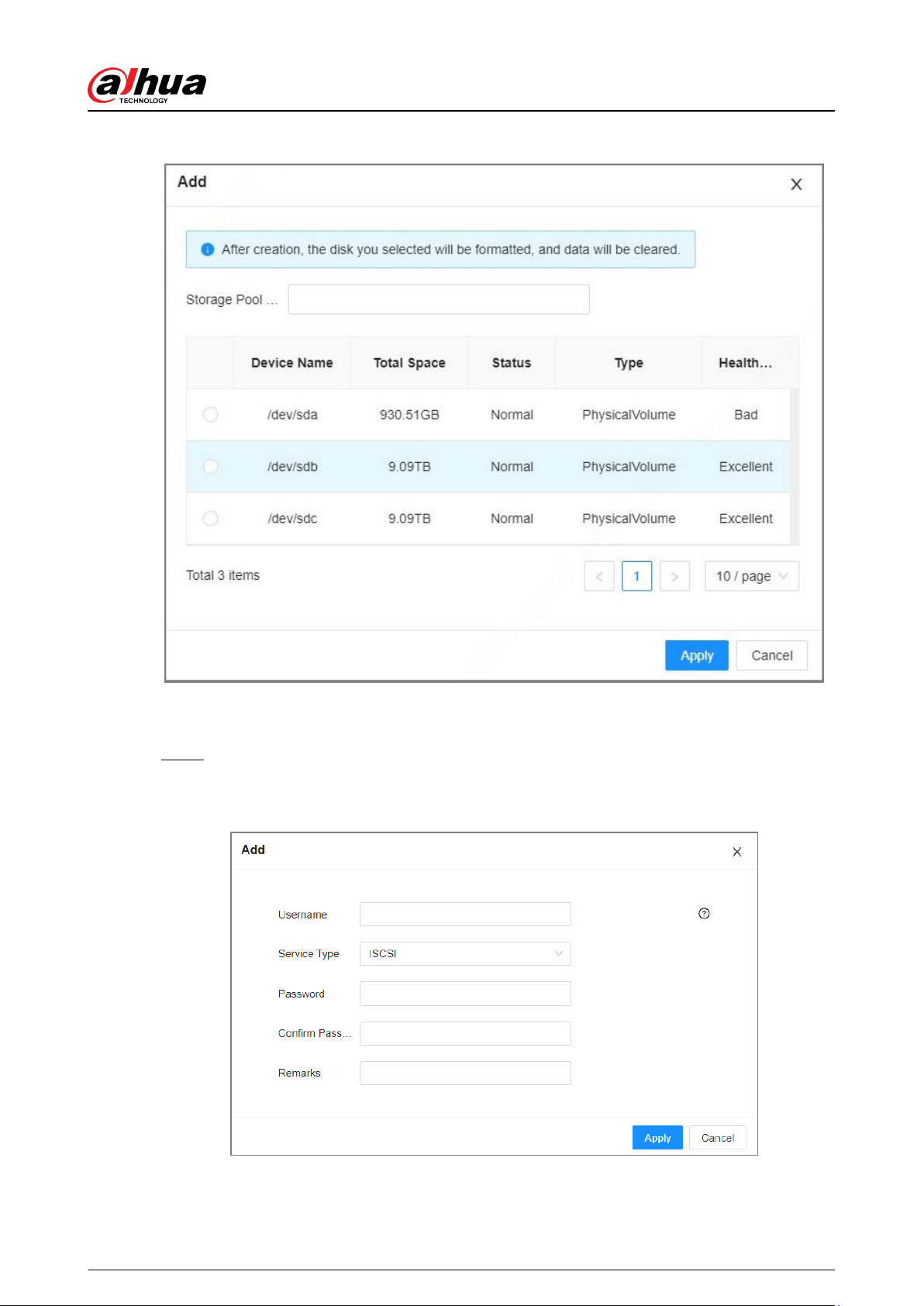
Figure 4-7 Add
2. Click Apply.
After creating the storage pool, you can view newly added storage pool information.
Step 5 Create shared user, and then click Next.
1. Click Add, and then congure parameters.
Figure 4-8 Add user
User's Manual
46

Table 4-5 Add user parameters description
Parameter Description
Username Name the user.
Service Type You can select ISCSI , FTP/SAMBA, ISCSI/FTP/SAMABA.
Password
Set a password for the user.
The password should be 12-digit if the service type is iSCSI.
Conrm Password
Remarks Set the remark information for identifying the user.
2. Click Apply.
Step 6 Set shard folder, and click Next.
1. Click Add, and congure parameters.
User's Manual
47
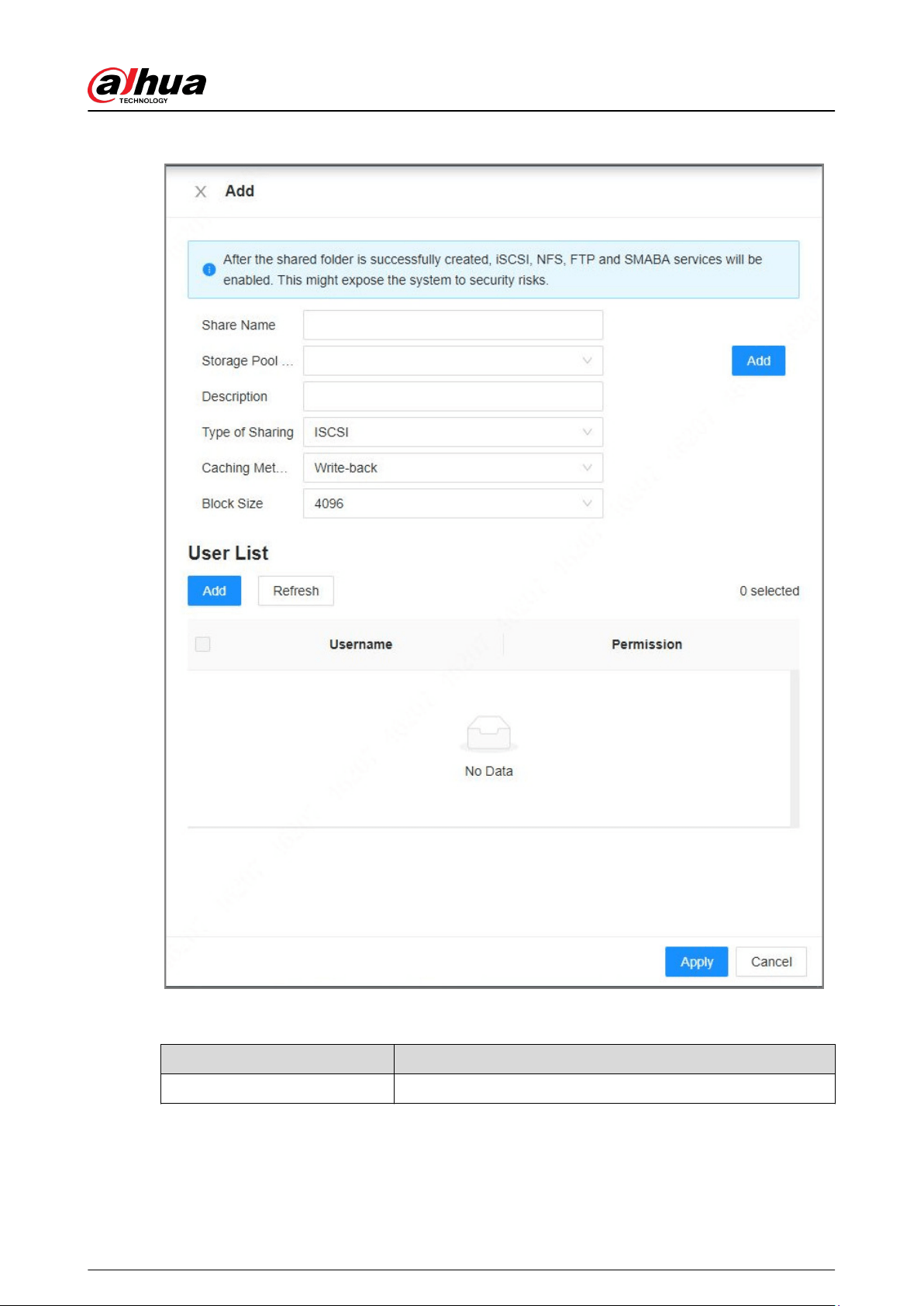
Figure 4-9 Add (iSCSI)
Table 4-6 Shared folder parameters description
Parameter Description
Share Name Name the folder to dierentiate it from others.
User's Manual
48
Parameter Description
Storage Pool Name
Select a pool where you want to create a shared folder.
The available free space of the selected pool is displayed beside
the pool name.
Shared Capacity Set the space of the folder.
Block Size
Set the block size of the folder, such as 512 Byte, 1024 Byte,
2048 Byte and 4096 Byte.
Set block size when the service type is iSCSI.
Description (Optional) Describe the folder for the ease of identifying it.
Type of Sharing
You can select from iSCSI, FTP, SAMBA and NFS.
●
iSCSI: After adding the user, the user using the Linux system
and Windows system accesses the shared folder.
●
NFS: After lling in the IP address and subnet mask, the user
using the Linux system accesses the shared folder.
●
FTP: After adding the user, the user using the Windows
system accesses the shared folder.
●
SAMBA: After adding the user, the user using the Windows
system accesses the shared folder.
Caching Method
Set the cache strategy of the share folder, including Write-back
and Direct-write.
●
Direct-write: Write data directly into be disk and refresh the
cache data. You are recommended to select direct-write
when you have less data to store and have a high
requirement for data integrity.
●
Write-back: Write data into the cache, and then store it into
the disk when the cache is full or system is available. You are
recommended to select write-back when you have much
more data to store and have a low requirement for data
integrity.
Select the cache type when the service type is iSCSI.
User List
Click Add, and set the shared user.
All users have access rights if there is no valid user.
2. Click Apply.
●
The system forces to disable automatic maintenance the rst time you create a
share folder, or when you create a folder when automatic maintenance is enabled
automatically. Once you have congured network storage, you can manually
enable automatic maintenance.
User's Manual
49
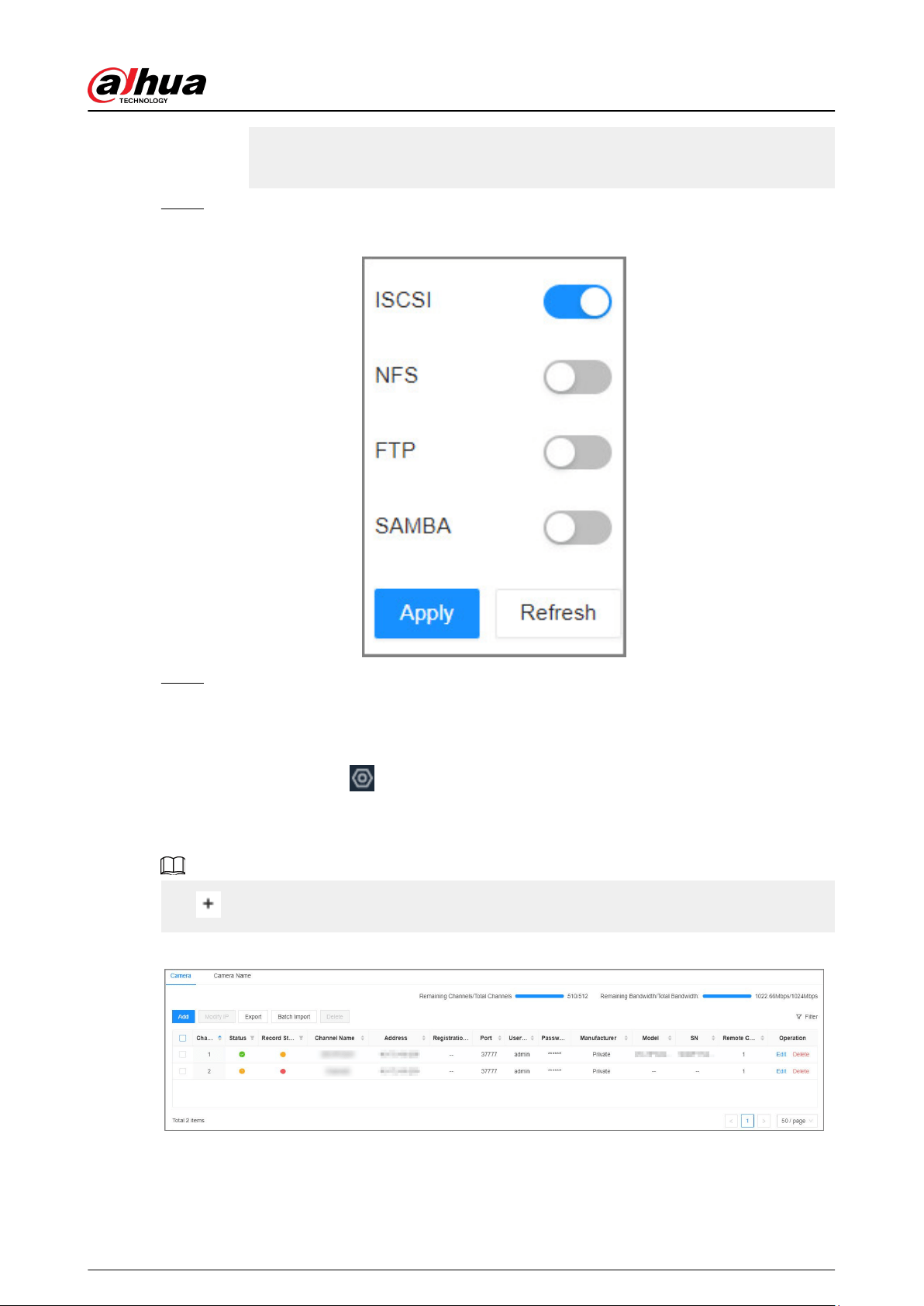
●
Click Delete to delete the shared folder; click Modify to modify the shared folder;
click Refresh to refresh the current conguration.
●
Modifying cache type takes eect after the Device restarts.
Step 7 Enable sharing service, and click Apply.
Figure 4-10 Sharing Settings
Step 8 Click Complete.
4.2 Device Management
Log in to the PC client, click
on the upper-right corner and then click Camera , or click Camera
from the conguration list on the home page. You can add remote devices, modify their IP
addresses and congurations, and export their information. You can view the online status and
recording status of the device.
Click on the lower-left corner or click Add to add remote devices to the Device.
Figure 4-11 Camera
User's Manual
50
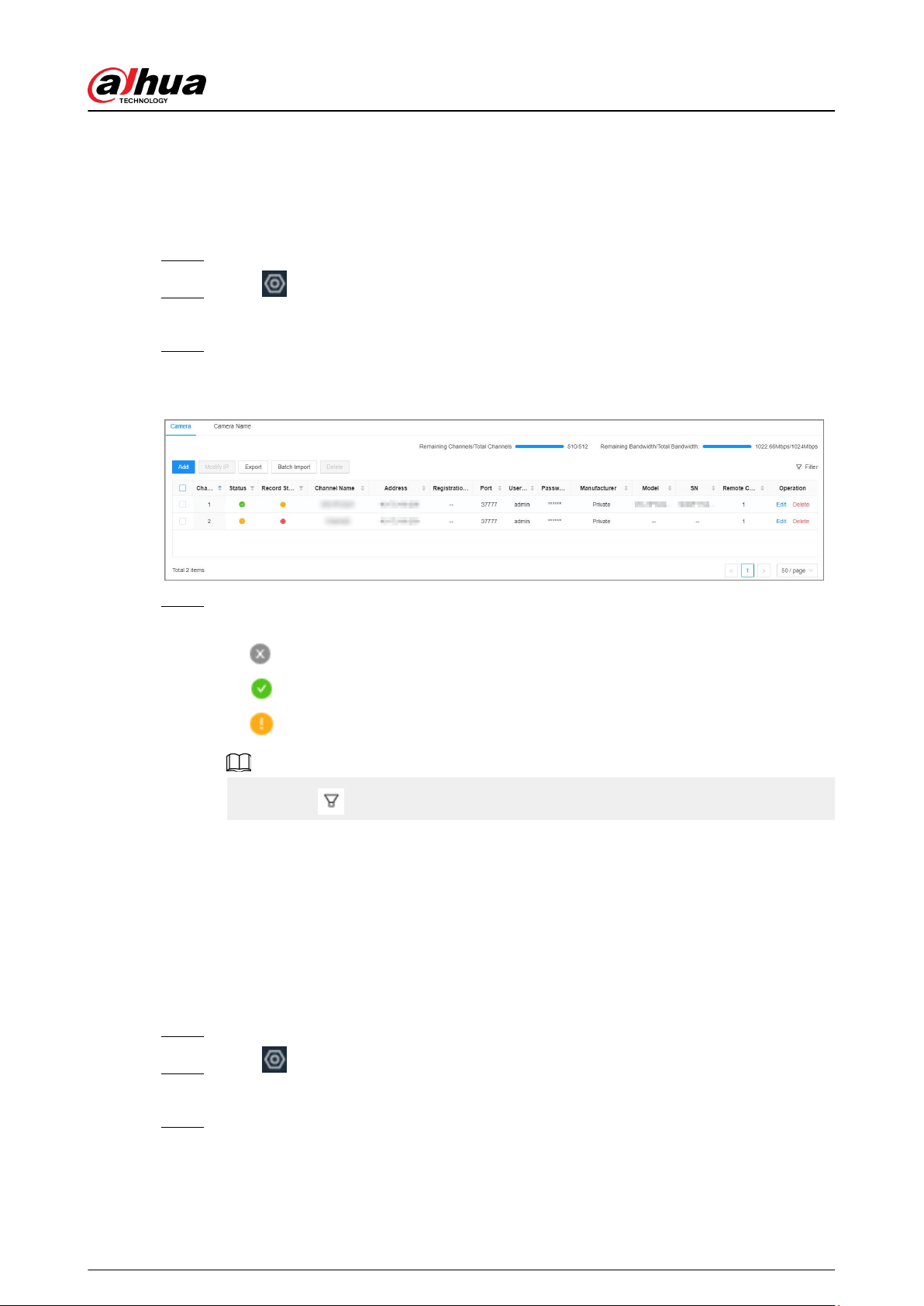
4.2.1 Viewing Remote Devices
View connected remote devices. For details on adding devices, see "3.5.2 Adding Remote Devices".
Procedure
Step 1 Log in to the PC client.
Step 2 Click on the upper-right corner of the page and then click Camera.
You can also click Camera from the conguration list on the home page.
Step 3 Select the root node in the device tree, and then under the Camera tab, you can view the
remote devices added to EVS.
Figure 4-12 Device list
Step 4 View details on the connected devices, including IP address, serial number, connection
status, and more.
●
indicates that the remote device is oine.
●
indicates that the remote device is online.
●
indicates that the connection with the remote device failed.
You can click to lter the remote devices.
4.2.2 Changing IP Address
Modify IP address of the remote devices that are connected or not connected to the Device.
4.2.2.1 Changing IP of Unconnected Devices
Procedure
Step 1 Log in to the PC client.
Step 2 Click on the upper-right corner of the page and then click Camera.
You can also click Camera from the conguration list on the home page.
Step 3 Under the Camera tab, click Add.
You can also click Add under the device tree.
User's Manual
51
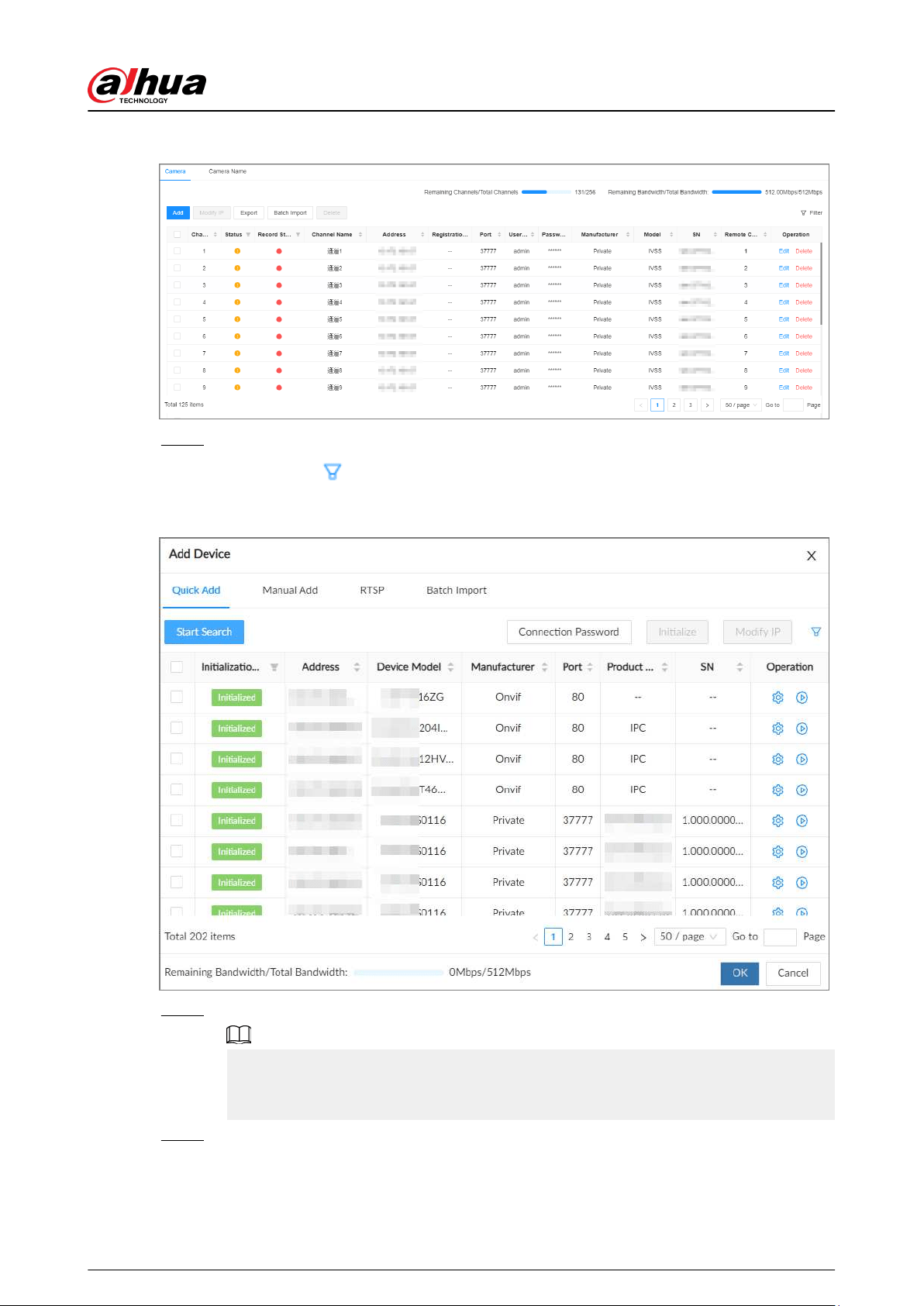
Figure 4-13 Camera
Step 4 Under the Quick Add tab, click Start Search.
You can click to lter the search results.
Figure 4-14 Search results
Step 5 Select one or more remote devices and then click Modify IP.
●
Only the IP address of initialized devices can be changed.
●
Only the IP address of remote devices that are using the private or ONVIF protocol can
be changed.
Step 6 Enter the static IP address, subnet mask, gateway, username and password of the remote
device, and then click Next.
User's Manual
52
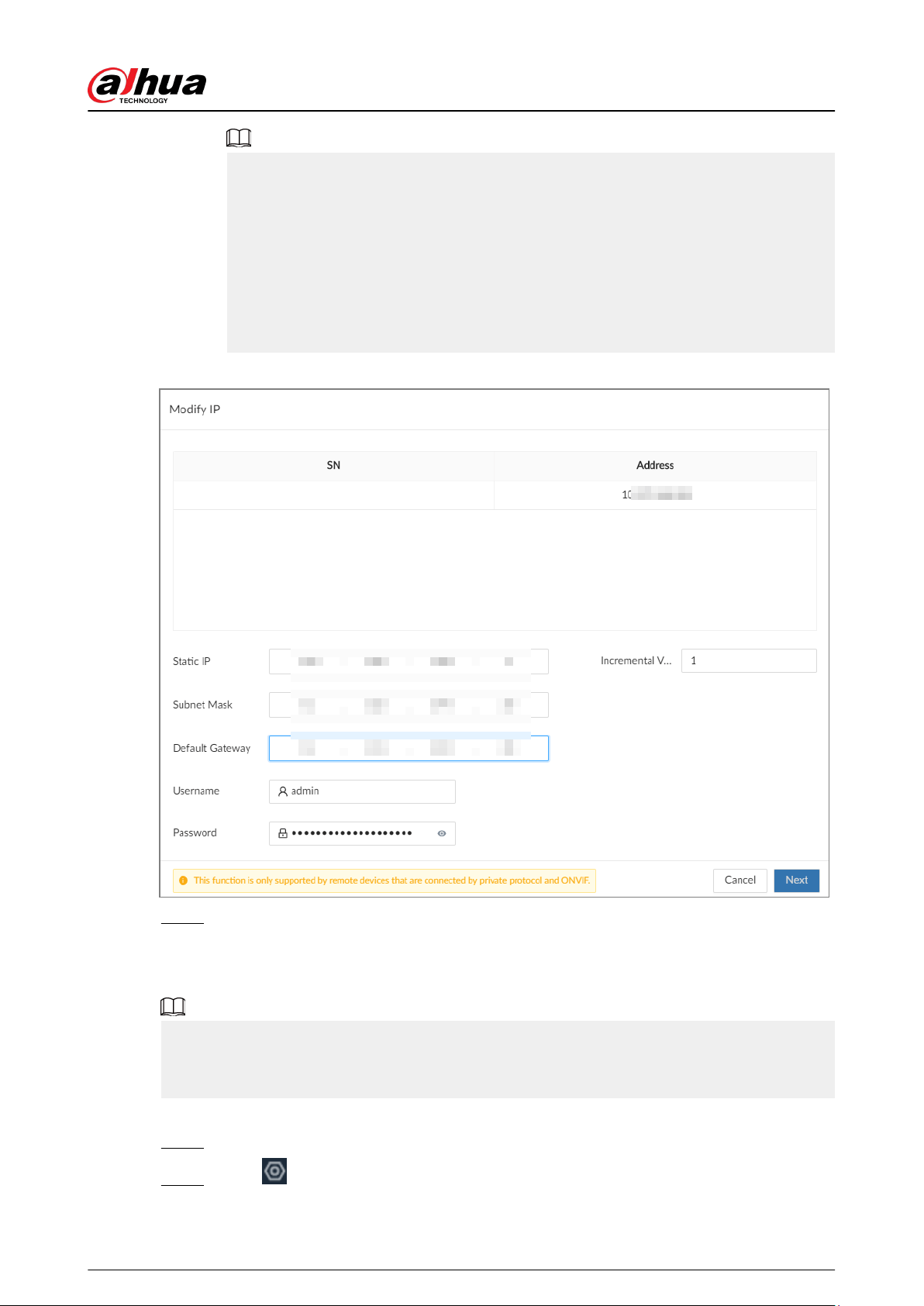
●
Enter incremental value only when you want to change IP addresses of several devices
at the same time. The system will allocate IP address one by one with the fourth part of
the IP address increasing by the incremental value.
●
If an IP conict occurs when you change the static IP address, the system will notify
you of the issue. When an IP conicts happens when you are changing IP addresses in
batches, the system automatically skips the conicted IP and begins the allocation
according to the incremental value.
●
If you want to change IP addresses of multiple remote devices, make sure that they
share the same username and password.
Figure 4-15 Modify IP (1)
Step 7 Click OK.
4.2.2.2 Changing IP of Connected Devices
●
You can only modify the IP address of initialized devices.
●
You can only modify the IP address of remote devices connected through Private , Onvif or
Onvifs protocol.
Procedure
Step 1 Log in to the PC client.
Step 2 Click on the upper-right corner of the page and then click Camera.
User's Manual
53
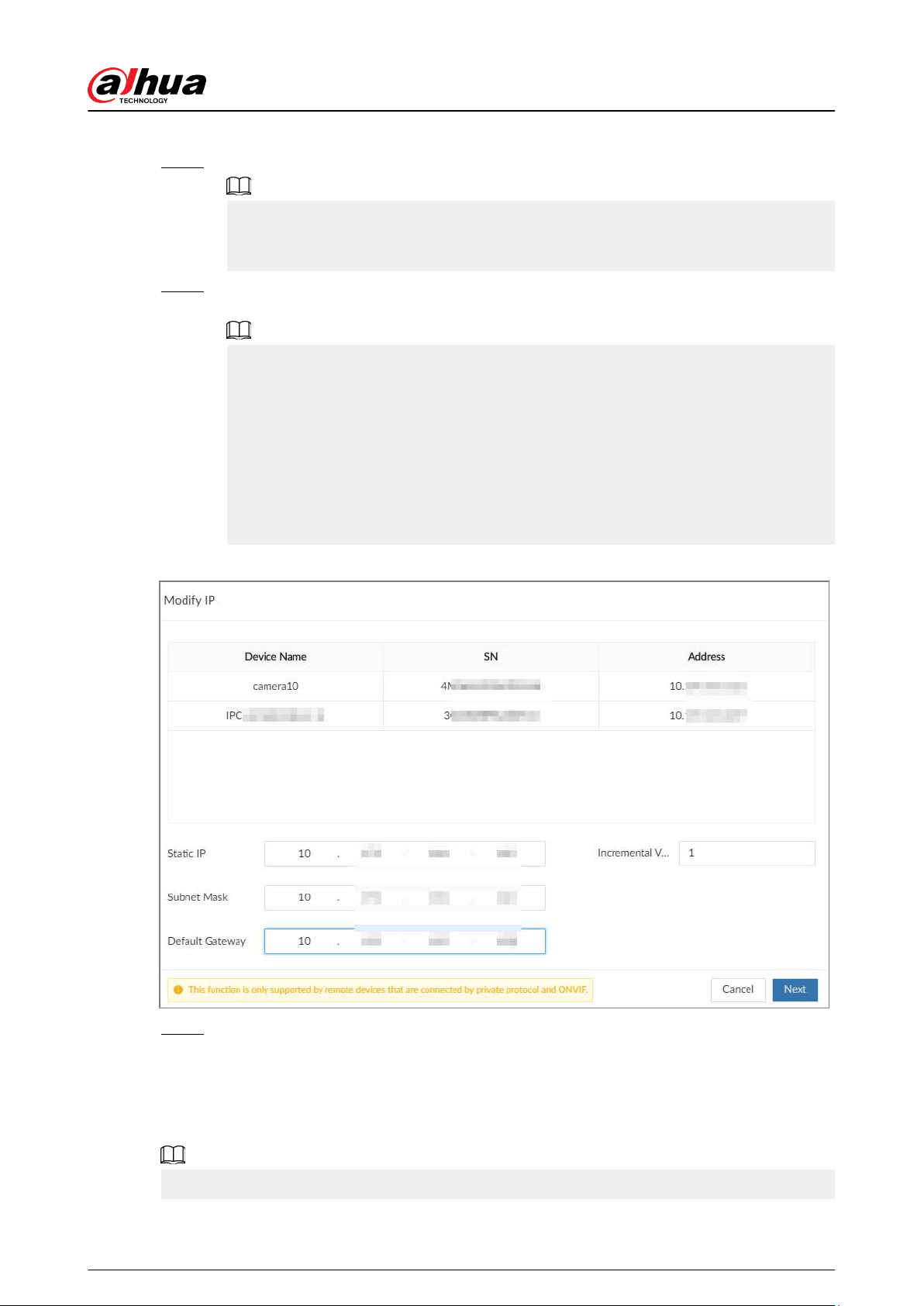
You can also click Camera from the conguration list on the home page.
Step 3 Under the Camera tab, select one or remote devices, and then click Modify IP.
●
Only the IP address of initialized devices can be changed.
●
Only the IP address of remote devices that are using the private or ONVIF protocol can
be changed.
Step 4 Enter the static IP address, subnet mask, gateway, username and password of the remote
device, and then click Next.
●
Enter incremental value only when you want to change IP addresses of several devices
at the same time. The system will allocate IP address one by one with the fourth part of
the IP address increasing by the incremental value.
●
If an IP conict occurs when you change the static IP address, the system will notify
you of the issue. When an IP conicts happens when you are changing IP addresses in
batches, the system automatically skips the conicted IP and begins the allocation
according to the incremental value.
●
If you want to change IP addresses of multiple remote devices, make sure that they
share the same username and password.
Figure 4-16 Modify IP (2)
Step 5 Click OK.
4.2.3 Conguring Remote Devices
Set the attributes, video parameters and other parameters of remote devices connected to EVS.
The pages might vary with remote devices.
User's Manual
54

4.2.3.1 Conguring Attributes of Remote Devices
Set the name of remote devices, and view information of remote devices.
Procedure
Step 1 Log in to the PC client.
Step 2 Click on the upper-right corner of the page, and then click Camera.
You can also click Camera from the conguration list on the home page.
Step 3 Select a remote device from the device tree, and then click the Attribute tab.
You can view information on the remote device, such as its model, MAC address, system
version, and more.
Step 4 (Optional) Change the name of the remote device, enter descriptions for the remote
device, and then click Save.
4.2.3.2 Managing Video Channels of Multichannel Devices
When the connected remote device has multiple video channels, you can add or delete the video
channels connected to the Device.
Procedure
Step 1 Log in to the PC client.
Step 2 Click on the upper-right corner of the page, and then click Camera.
You can also click Camera from the conguration list on the home page.
Step 3 Select a multichannel remote device from the device tree, and then click the Connection
tab.
You can view the video channels under the group.
Step 4 Add or delete the video channels.
●
Add video channels.
Click Add Video Channel to add more video channels to the group.
●
Delete video channels.
Delete one by one: Click Delete under Operation to delete the corresponding
video channel.
Delete in batches: Select one or more video channels, and then click Delete Video
Channel.
4.2.3.3 Conguring Video Parameters
Set dierent video parameters according to dierent bit stream types based on the bandwidth.
Procedure
Step 1 Log in to the PC client.
Step 2 Click on the upper-right corner of the page and then click Camera.
You can also click Camera from the conguration list on the home page.
Step 3 Select a remote device from the device tree and then click the Video tab.
User's Manual
55
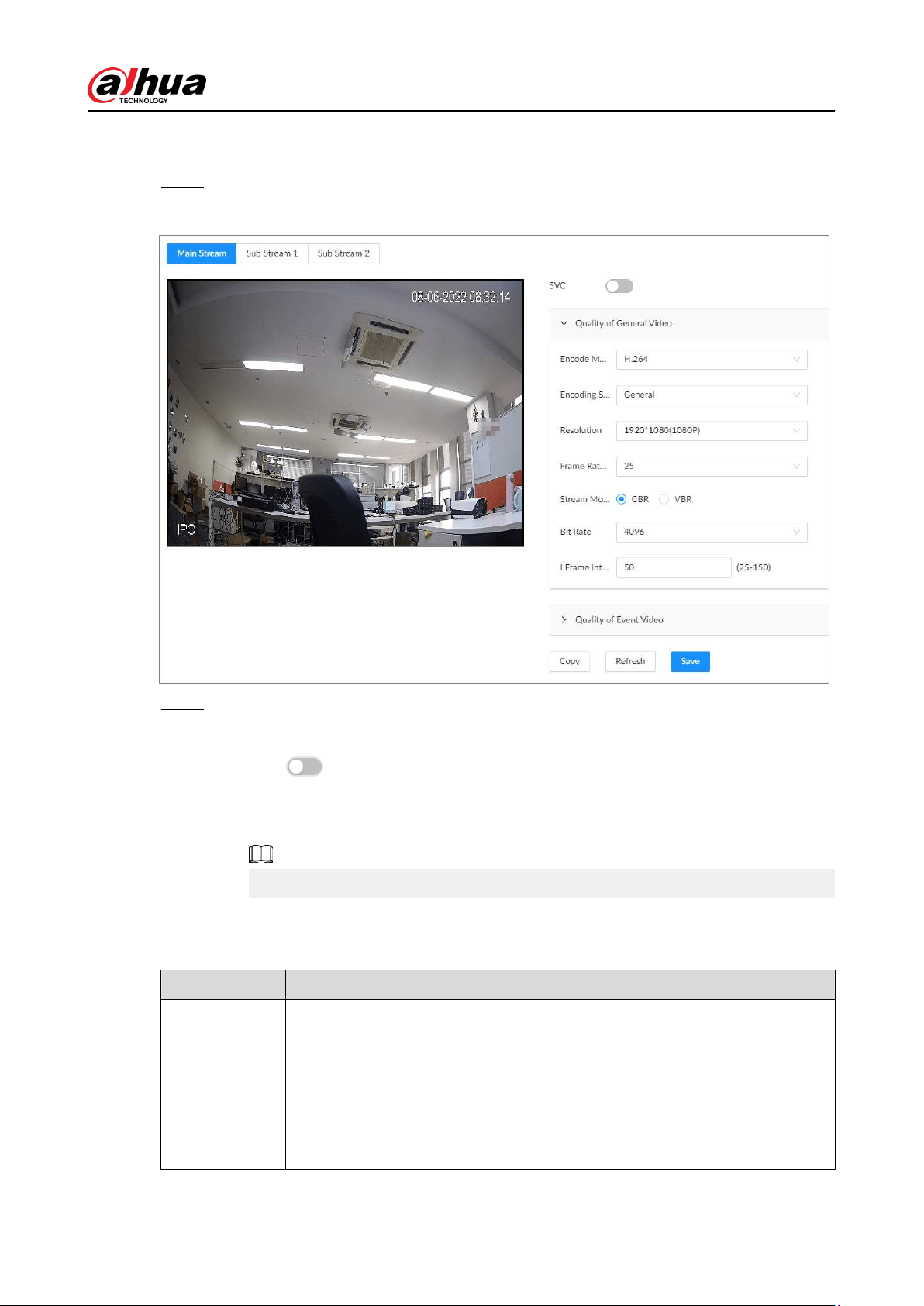
You can view information on the remote device, such as its model, MAC address, system
version, and more.
Step 4 Select a remote device from the device tree and then click the Video tab.
Figure 4-17 Video
Step 5 Set the parameters under the Main Stream , Sub Stream 1 and Sub Stream 2 tab.
This section uses conguration for the main stream as an example.
1. Click
to enable SVC, and then select 1 or 2 from the drop-down list on the right.
SVC refers to the scaled video coding, which can split the video stream to basic stream
and enhanced scale. If you select 1, there is no scaled encoding.
This function is available when the encoding mode is H.264, H.264B or H.264H.
2. Congure the quality parameters of general videos.
Table 4-7 Video parameters description
Parameter Description
Encode mode
Select a video encoding mode.
●
H.264: A highly compressed video encoding standard. It includes H.264B
(baseline prole encode mode), H.264 (main prole encode mode) and H.
264H (high prole encode mode). Under the same image quality, the
bandwidth of the three decreases in turn.
●
H.265: A new video encoding standard coming after H.264. Under the same
image quality, it requires smaller bandwidth than H.264.
User's Manual
56
Parameter Description
Encoding
Strategy
●
General : Use general coding strategy.
●
Smart Codec : Enable this function to enhance performance of video
compression and reduce required storage space.
Resolution
Set video resolution. The higher the resolution, the better the video quality.
Dierent models of remote devices support dierent resolutions. See the actual
page for detailed information.
Frame Rate
Set the number of frames displayed each second. The higher the FPS, the more
vivid and uent the video.
Stream Mode
Select a stream mode.
●
CBR: The bit rate changes slightly around the dened value. We
recommended you select CBR when there might be only small changes in
the monitoring environment.
●
VBR: The bit rate changes with monitoring scenes. Select VBR when there
might be big changes in the monitoring environment.
Quality
Select a video quality level from Low , Medium, and High.
This parameter is available only when the stream mode is VBR.
Bit Rate
Set video bit rate.
●
Main stream: Select a value or enter a customized value for bit rate. The
bigger the value, the better the image quality.
●
Sub stream: In CBR mode, the bit rate changes around the dened value. In
VBR mode, the bit rate changes along with the video image, but its
maximum value stays near the dened value.
I Frame Interval
Set the number of P frames between 2 I frames. The lower the value, the better
the video quality. The recommended value is 2 times of the frame rate.
3. Click Quality of Event Video, and then set frame rate, stream mode, and bit rate for
event videos.
The Quality of Event Video section is only available for main stream.
Step 6 Click Save.
4.2.3.4 Conguring OSD
Set OSD information on the video.
Procedure
Step 1 Log in to the PC client.
Step 2 Click on the upper-right corner of the page and then click Camera.
You can also click Camera from the conguration list on the home page.
User's Manual
57
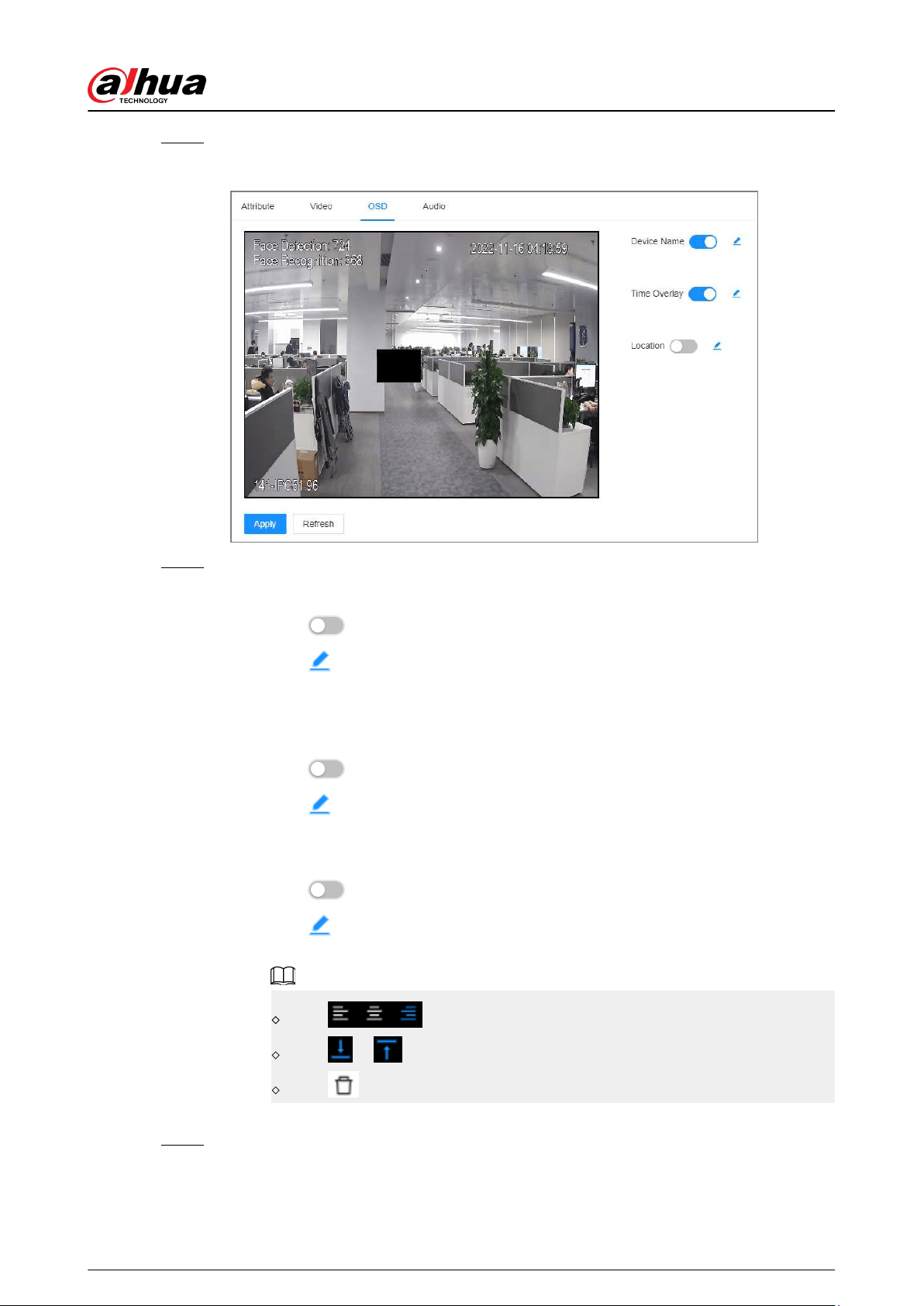
Step 3 Select a remote device from the device tree and then click the OSD tab.
Figure 4-18 OSD
Step 4 Congure OSD information.
●
Device name.
a. Click
to enable OSD of device name.
b. Click .
c. Enter the device name.
d. Drag the text box to the proper position.
●
Time.
a. Click
to enable OSD of time.
b. Click .
c. Drag the text box to the proper position.
●
Geographical position
a. Click
to enable OSD of geographical position.
b. Click
.
c. Enter the geographical position information.
Click to adjust the alignment of text boxes.
Click or to create a text box.
Click to delete a text box.
d. Drag the text box to the proper position.
Step 5 Click Apply.
User's Manual
58
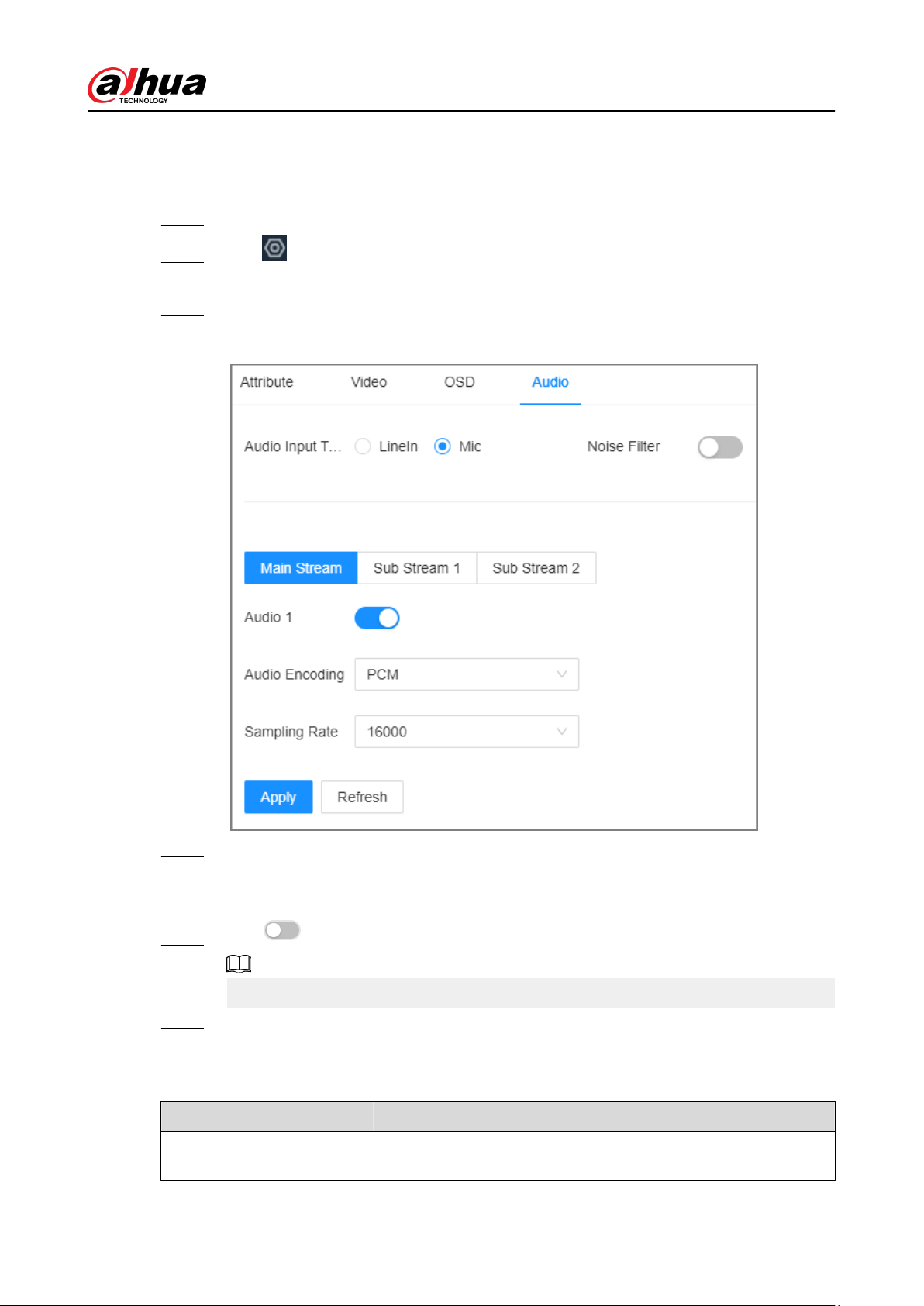
4.2.3.5 Conguring Audio Parameters
Procedure
Step 1 Log in to the PC client.
Step 2 Click on the upper-right corner of the page and then click Camera.
You can also click Camera from the conguration list on the home page.
Step 3 Select a remote device from the device tree and then click the Audio tab.
Figure 4-19 Audio
Step 4 Select an audio output type.
●
LineIn: The Device acquires audio signals through the external audio device.
●
Mic: The Device acquires audio signals through internal microphone.
Step 5 Click to enable Noise Filter.
This function is available with select models of remote devices.
Step 6 Click the Main Stream , Sub Stream 1 or Sub Stream 2 tab, and then congure the
parameters.
Table 4-8 Audio parameters description
Parameter Description
Audio Encoding
The audio encoding mode applies to both audio streams and
voice talks. We recommend leaving it as default.
User's Manual
59
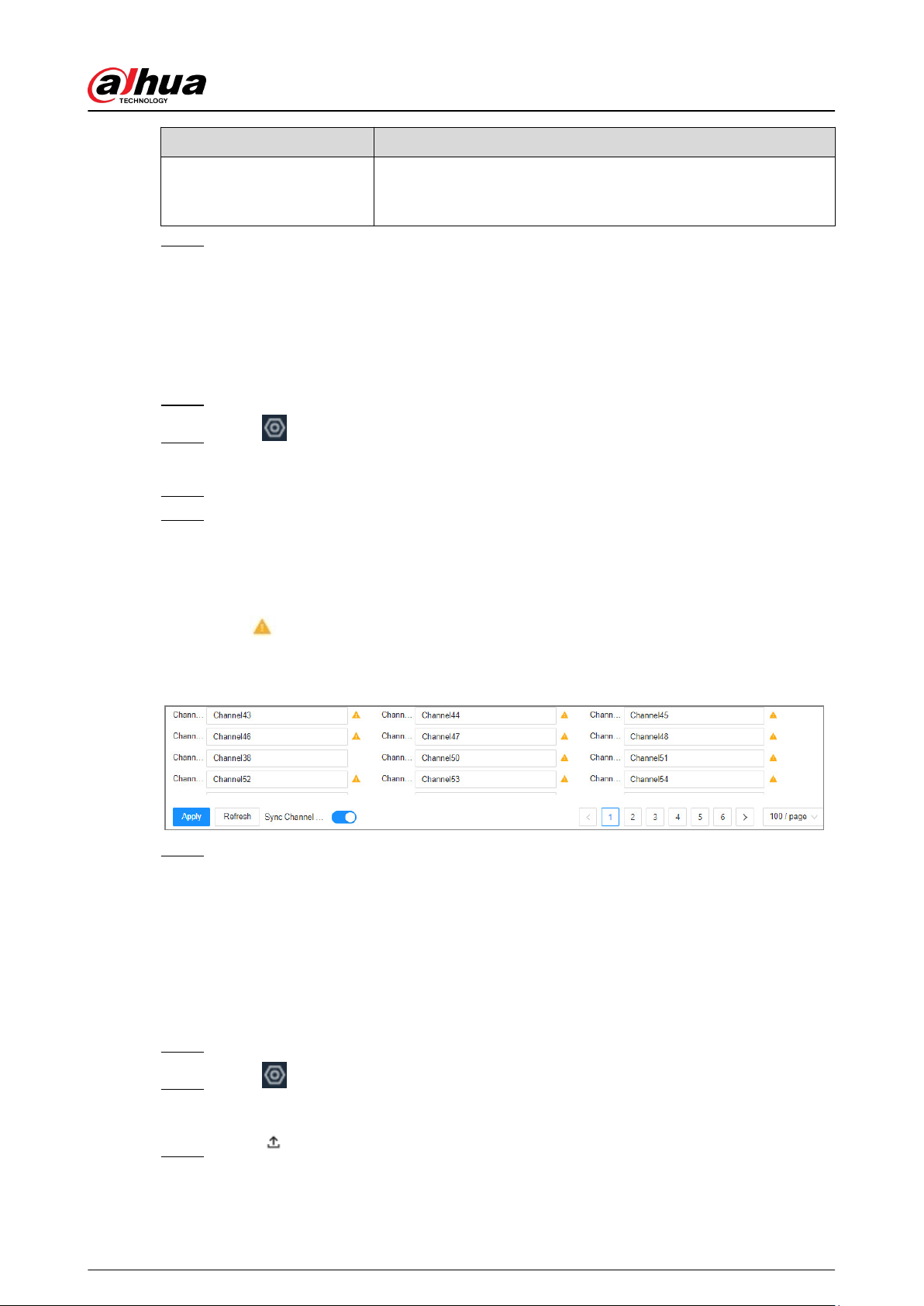
Parameter Description
Sampling Frequency
The number of samples of a sound that are taken per second. The
higher the value, the more accurate the digital representation of
the sound can be.
Step 7 Click Apply.
4.2.4 Conguring Channel Name
Set connection information of remote devices, such as the connection type and IP address.
Procedure
Step 1 Log in to the PC client.
Step 2 Click on the upper-right corner of the page and then click Camera.
You can also click Camera from the conguration list on the home page.
Step 3 Select the root node in the device tree, and then click the Camera Name tab.
Step 4 Enter the channel name in the text box.
●
Sync Channel Name Linked to Front-end Device: When enabled, you can synchronize
the channel name to the remote device or obtain from the remote device. When
disabled, you cannot congure the channel name for the front-end device, nor acquire
from the front-end device.
●
indicates that it cannot obtain the channel name from the remote device, and
displays a local channel name.
Conguring channel name
Step 5 Click Apply.
4.2.5 Exporting Remote Devices
Export the added remote devices. When the Device restores factory default settings or lost
information of remote devices, import the exported information of remote devices to recover
quickly.
Procedure
Step 1 Log in to the PC client.
Step 2 Click on the upper-right corner of the page and then click Camera.
You can also click Camera from the conguration list on the home page.
Step 3 Click under the device tree or Export under the Camera tab.
User's Manual
60
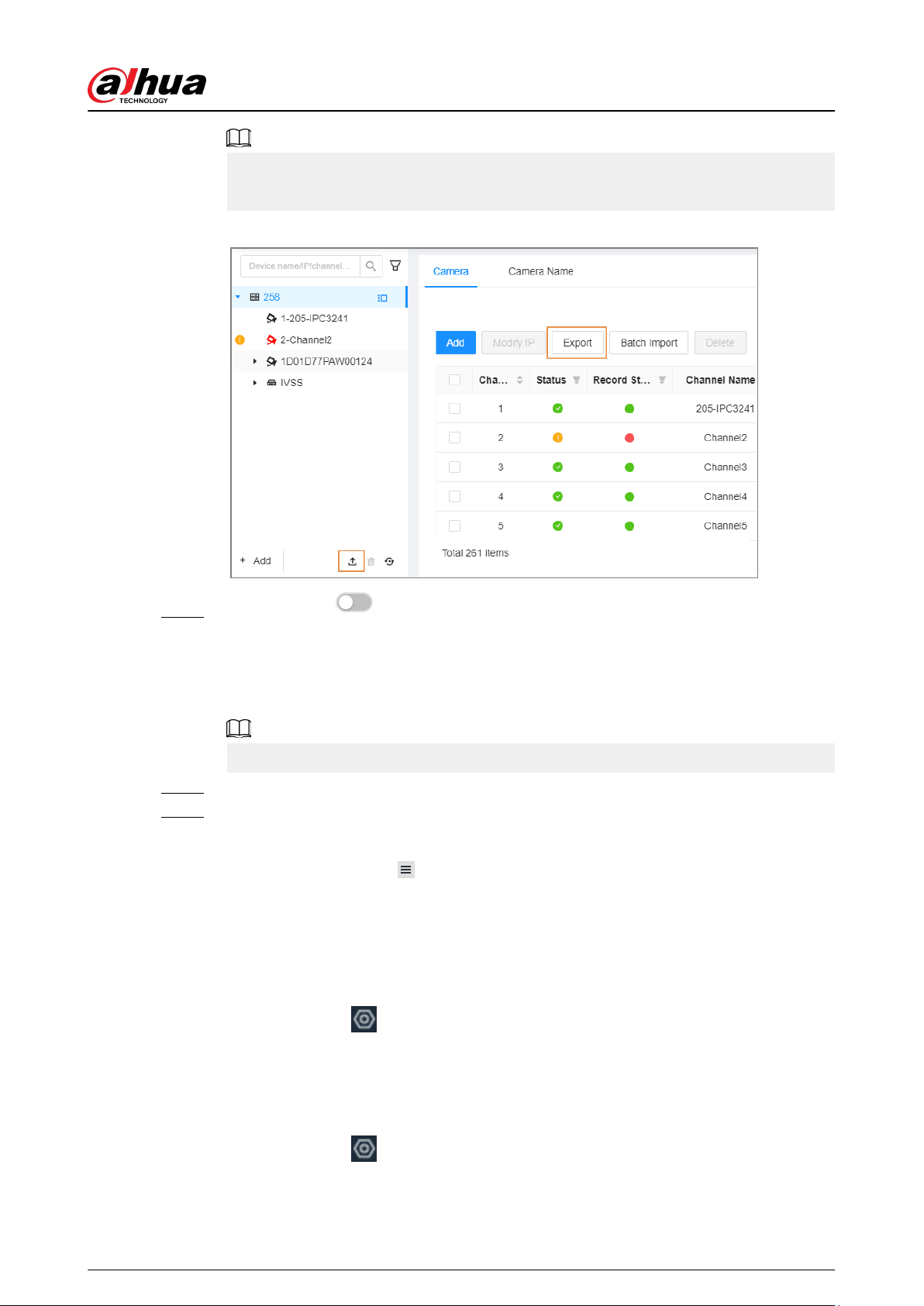
Click Download Template to download the template. You can ll in the template, and
then use the template to import remote devices.
Figure 4-20 Export
Step 4 (Optional) Click to enable export encryption. The function is enabled by default.
The exported .backup le is encrypted and cannot be edited. If do not enable encryption,
the system exports .csv le, which can be opened with Excel. The exported .csv le
contains IP address, port number, channel number, channel name, manufacturer and
username (excluding password) of the remote device.
When unencrypted le is exported, keep the le safe to avoid data leakage.
Step 5 Click OK.
Step 6 Click Save File.
File path might be dierent depending on your operations.
●
On the PC client, click
, select Download to view the le storage path.
●
On the local interface, you can select a le storage path.
●
On the web interface, les are saved to the default downloading path of the browser.
4.2.6 Importing Remote Devices
Log in to the PC client. Click
on the upper-right corner of the page and then click Camera . Click
Batch Import to import remote devices. For details, see "3.5.2.4 Batch Add".
4.2.7 Connecting Remote Devices
Log in to the PC client. Click
on the upper-right corner of the page and then click Camera. You
can view connection status of remote devices on the device list.
User's Manual
61
When the icon of the remote device is black, for example , the remote device is online.
When the icon is red, for example , the remote device is oine.
●
Right-click an oine remote device, and then select Connect to connect the remote device.
●
Right-click an online remote device, and then select Disconnect to disconnect the remote
device.
●
Right-click an online remote device, and then select Delete to delete the remote device.
●
Right-click an online device, and then select Open Device Webpage to go to the web page of
the remote device.
4.2.8 Deleting Remote Devices
Log in to the PC client. Click
on the upper-right corner of the page and then click Camera. You
can delete the added remote devices one by one or in batches.
●
Delete one by one.
Select a remote device from the device tree and then click under the device tree.
Right-click a remote device on the device tree and then select Delete.
Under the Camera tab, click Delete next to Edit to delete the corresponding remote device.
●
Delete in batches.
Click next to the root node on the device tree, select multiple remote devices, and then
click .
On the device list under the Camera tab, select a remote device, press Shift and then select
another remote device. All remote devices between these two are selected. Click Delete next
to Batch Import to delete them.
On the device list under the Camera tab, select multiple remote devices, and then click
Delete next to Batch Import.
4.3 Storage Management
Log in to the PC client. Click
on the upper-right corner and then click Storage. You can manage
storage resources (such as recorded videos) and space to improve the utilization ratio of storage
space.
The system supports pre-check and routine inspection, and you can obtain real-time storage status
of the Device and avoid data loss.
●
Pre-check: During device operation, the system automatically detects disk status in case of
change (restart, insert and pull the disk).
●
Routine inspection: The system executes t routine inspection on the disks continuously. During
device operation, the disk might go wrong due to service life, environment and other factors.
You can nd out problems during routine inspections.
User's Manual
62
4.3.1 Storage Resource
4.3.1.1 Disks
Log in to the PC client. Click on the upper-right corner and then select Storage > Storage
Resource > Disk to view the disk space (free space/total space), temperature (centigrade/
Fahrenheit), disk information and more.
4.3.1.1.1 Sleep Strategy
If no read or write task is performed, the disk will enter into 3 dierent modes and can be woken up
when needed. Congure the 3 dierent modes to increase service life of the disk.
Procedure
Step 1 Log in to the PC client.
Step 2 Click on the upper-right corner and then select Storage > Storage Resource > Disk.
Step 3 Click Sleep Strategy, and then select a mode.
Step 4 Click OK.
4.3.1.1.2 Viewing S.M.A.R.T
S.M.A.R.T is Self-Monitoring Analysis and Reporting Technology. It is a technical standard to check
disk status and report potential problems. The system monitors the disk running status and
compares with the specied safety value. Once the status is higher than the specied value, the
system displays alarm information to guarantee disk data security.
●
You can only view S.M.A.R.T information of a disk at one time.
●
The SAS disk does not support viewing S.M.A.R.T information.
Log in to the PC client. Click
on the upper-right corner and then select Storage > Storage
Resource > Disk. Select a disk, and then click S.M.A.R.T. You can check the disk status. If there is
any problem, x it in time.
User's Manual
63
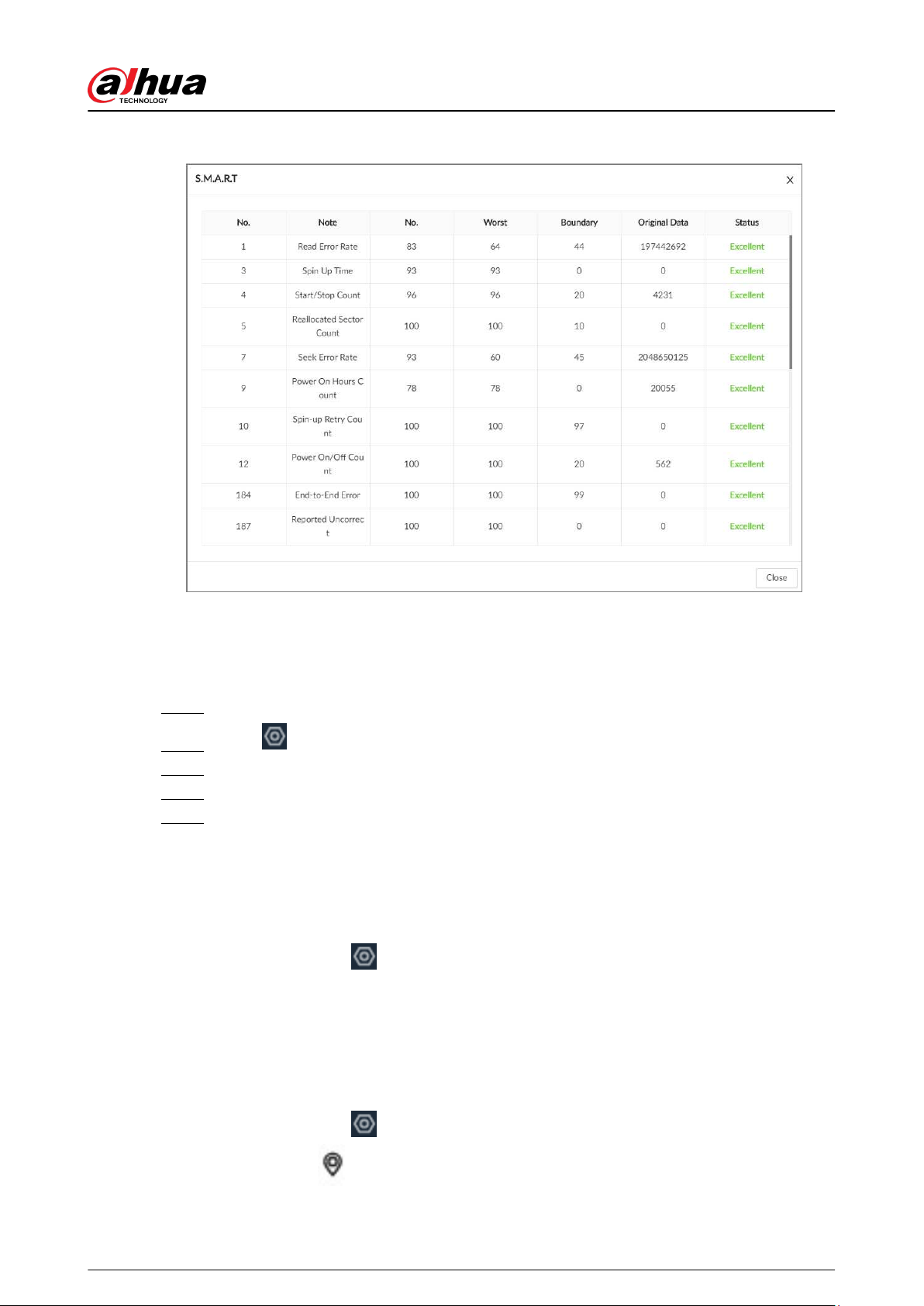
Figure 4-21 S.M.A.R.T
4.3.1.1.3 Formatting
Procedure
Step 1 Log in to the PC client.
Step 2 Click on the upper-right corner, and then select Storage > Storage Resource > Disk.
Step 3 Select one or more disks, and then click Format.
Step 4 Enter the password of the admin user in the pop up window.
Step 5 Click OK.
4.3.1.1.4 Fixing the File System
When you cannot mount the disk or you cannot properly use the disk, you can try to x the le
system.
Log in to the PC client. Click
on the upper-right corner and then select Storage > Storage
Resource > Disk. Select one or more disks, and then click Fix File System. You can repair the le
system of the corresponding disk. The repaired disk can be mounted and work properly.
4.3.1.1.5 Locating Disk
You can locate a disk quickly.
Log in to the PC client. Click on the upper-right corner and then select Storage > Storage
Resource > Disk. Click
, and you can see the location of the disk.
User's Manual
64
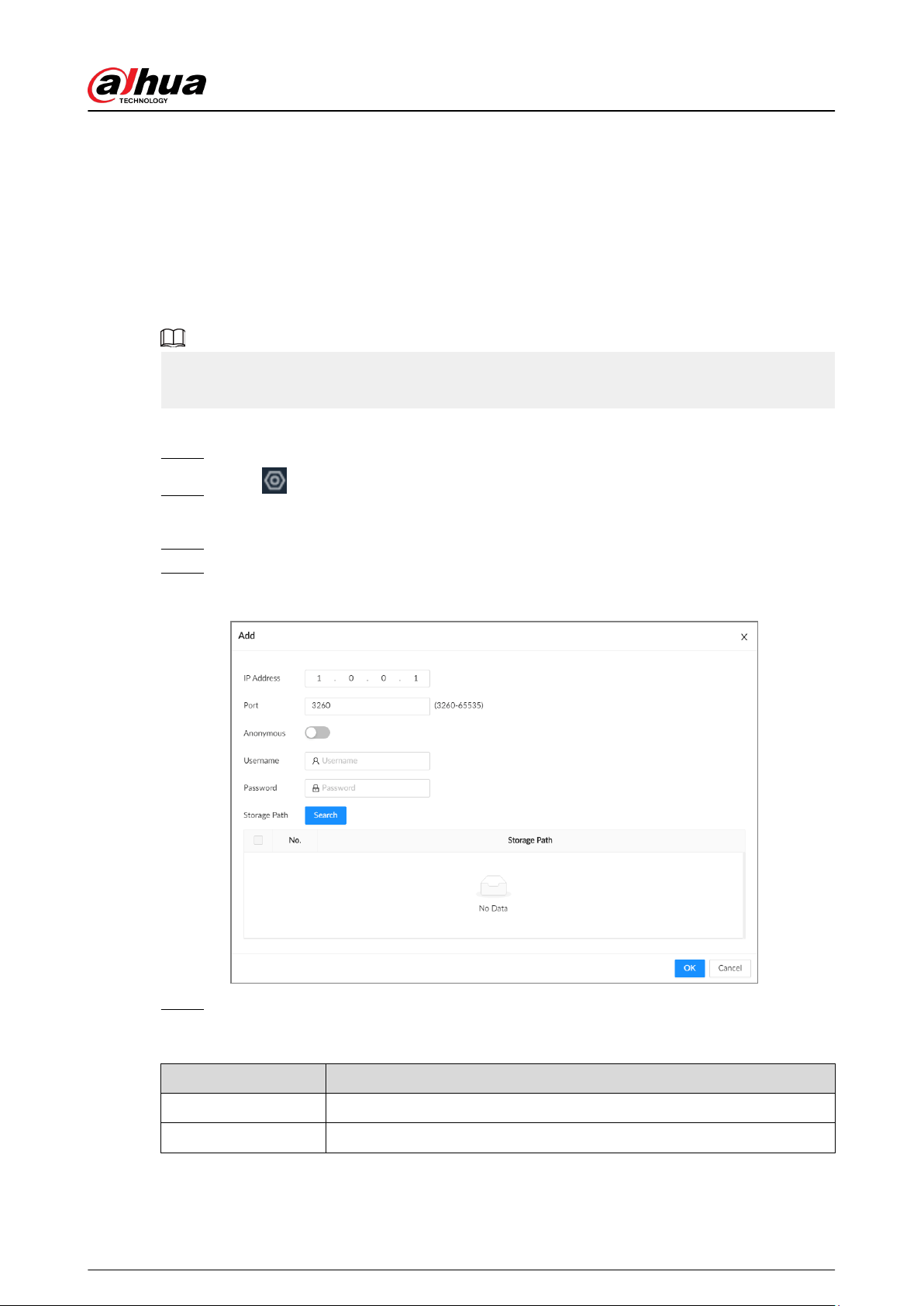
4.3.1.2 Network Disk
Network disk is a network-based online storage service that stores device information on the third-
party network disk through the iSCSI protocol.
4.3.1.2.1 iSCSI Management
Set up the network disk through iSCSI and map the third-party network disk to the device so that
the device can use the third-party network disk for storage.
Make sure that service has been enabled on the iSCSI server and the server has provided the shared
le directory.
Procedure
Step 1 Log in to the PC client.
Step 2 Click on the upper-right corner and then click Storage.
You can also click Storage from the conguration list on the home page.
Step 3 Select Storage Resource > Network Disk > iSCSI Management.
Step 4 Click Add.
Figure 4-22 Add iSCSI
Step 5 Set parameters, and then click OK.
Table 4-9 Network disk parameters
Parameter Description
IP Address Enter the IP address of the iSCSI server.
Port Enter the port number of the iSCSI server. It is 3260 by default.
User's Manual
65
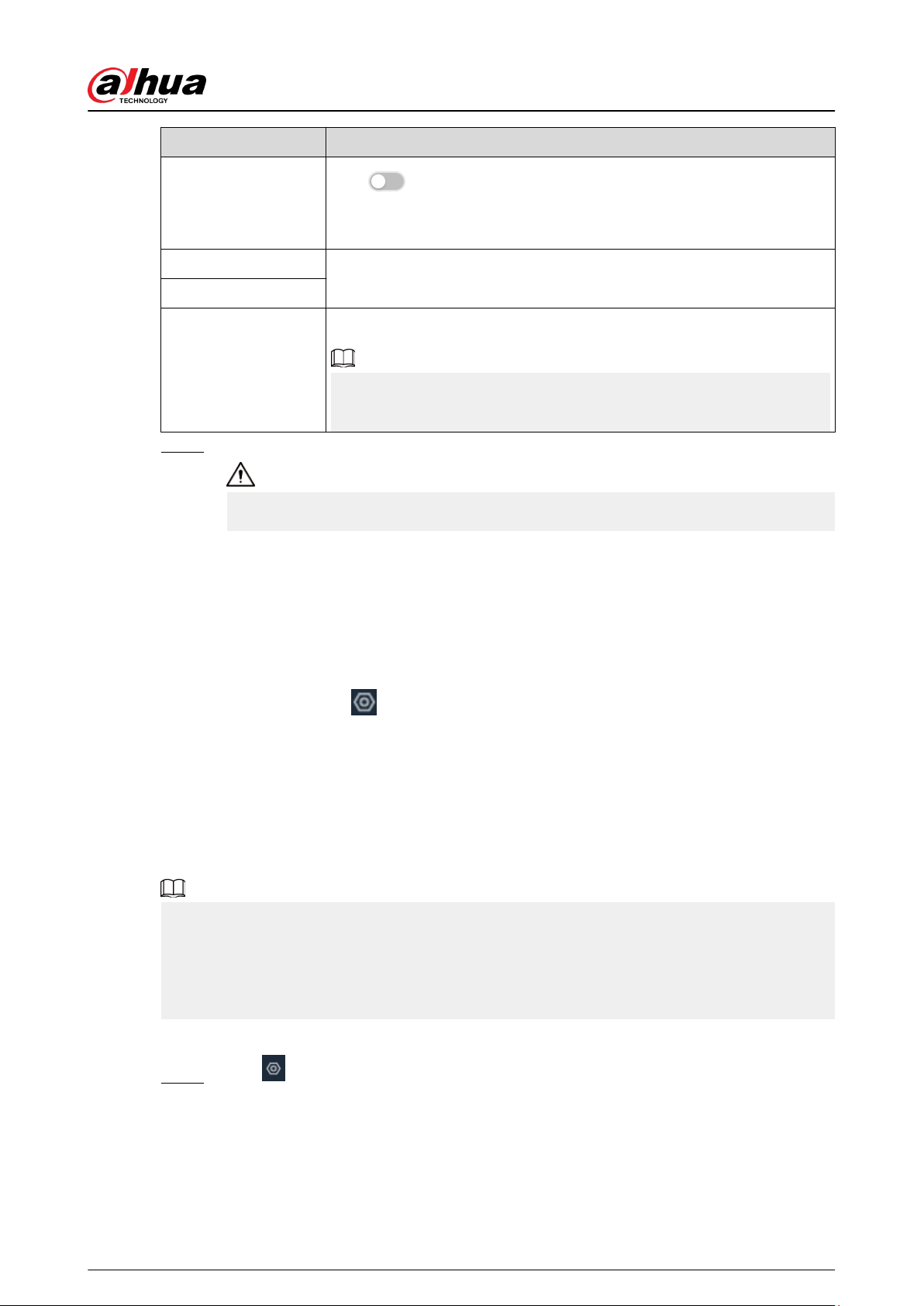
Parameter Description
Anonymous
Click
to enable anonymous login. If iSCSI server has no permission
limitation, you can log in to the server without entering the password and
username.
Username
If permission is required to access the shared le directory on the iSCSI
server, you need to enter username and password.
Password
Storage Path
Click Search to select the storage directory.
The storage directory is generated when the shared le directory is being
created on the iSCSI server. Each directory represents an iSCSI disk.
Step 6 Select a third-party network disk, and then click Format to format the disk.
Please be advised that formatting will erase all data on the disk.
Click the box in the Disk Operation column, and then you can select an operation
permission type.
●
Read/Write: One can read, edit, add, and delete data on this disk.
●
Read Only: One can only read data on this disk.
4.3.1.2.2 iSCSI Application
Log in to the PC client. Click
on the upper-right corner and then select Storage > Storage
Resource > Network Disk > iSCSI Application. You can view usage of the third-party network
disk, including its remaining capacity and status.
4.3.1.3 SFTP
Congure an SFTP server for video and picture storage. This section uses conguring SFTP as an
example.
●
We recommend you use SFTP, because FTP is unencrypted transmission, while SFTP is
encrypted transmission.
●
When creating an SFTP user, you need to congure a write permission of SFTP folder. Otherwise,
you cannot upload les.
●
You need to purchase or download an SFTP tool and install it on your PC.
Procedure
Step 1 Click , or select Storage on the home page, and then select Storage Source > SFTP.
User's Manual
66
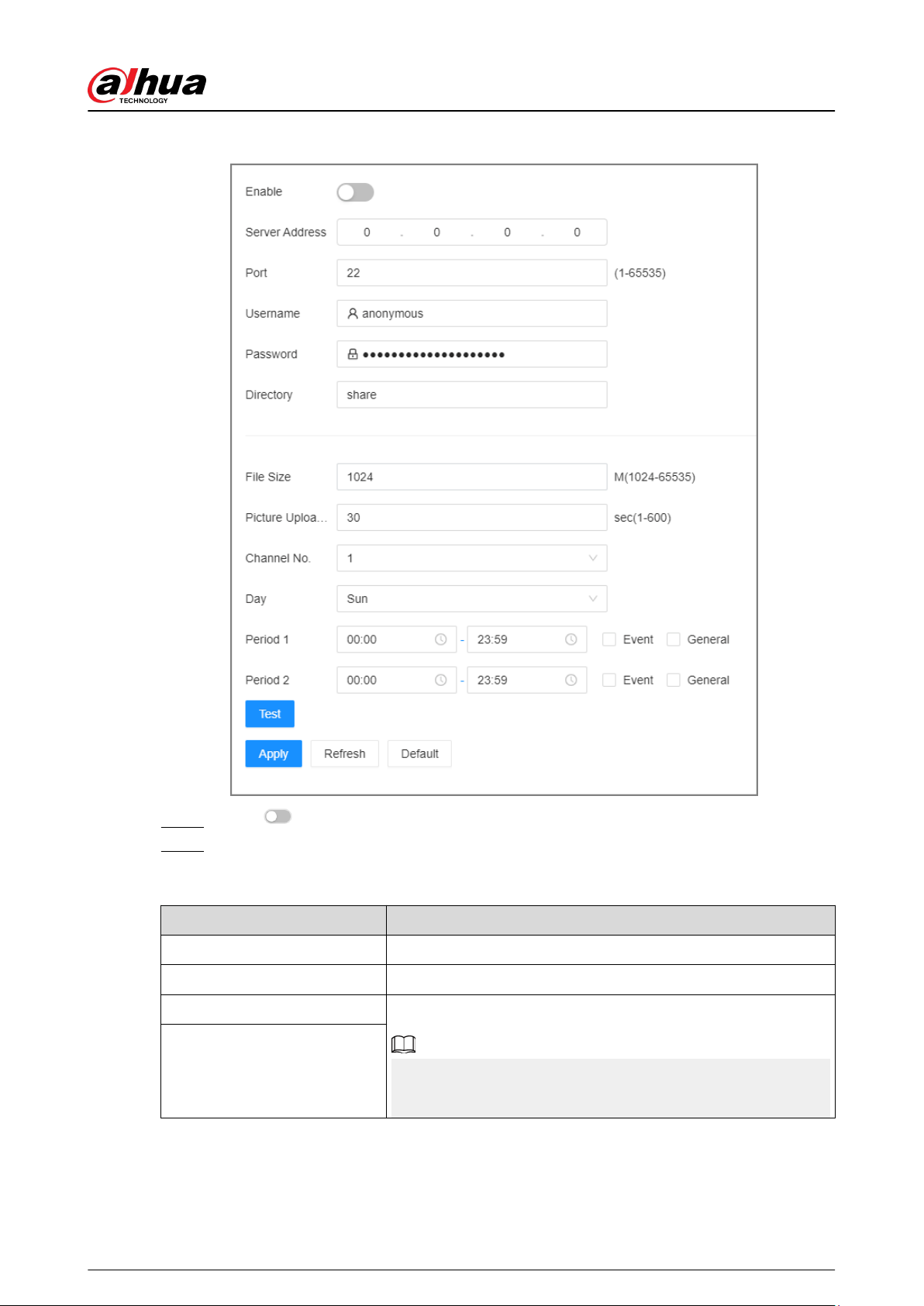
Figure 4-23 SFTP
Step 2 Click to enable SFTP.
Step 3 Set parameters.
Table 4-10 SFTP parameters
Parameter Description
Server Address SFTP server IP address.
Port It is 22 by default.
User Name
The username and password of the SFTP server.
You can keep the username as anonymous, so as to log in
anonymously.
Password
User's Manual
67
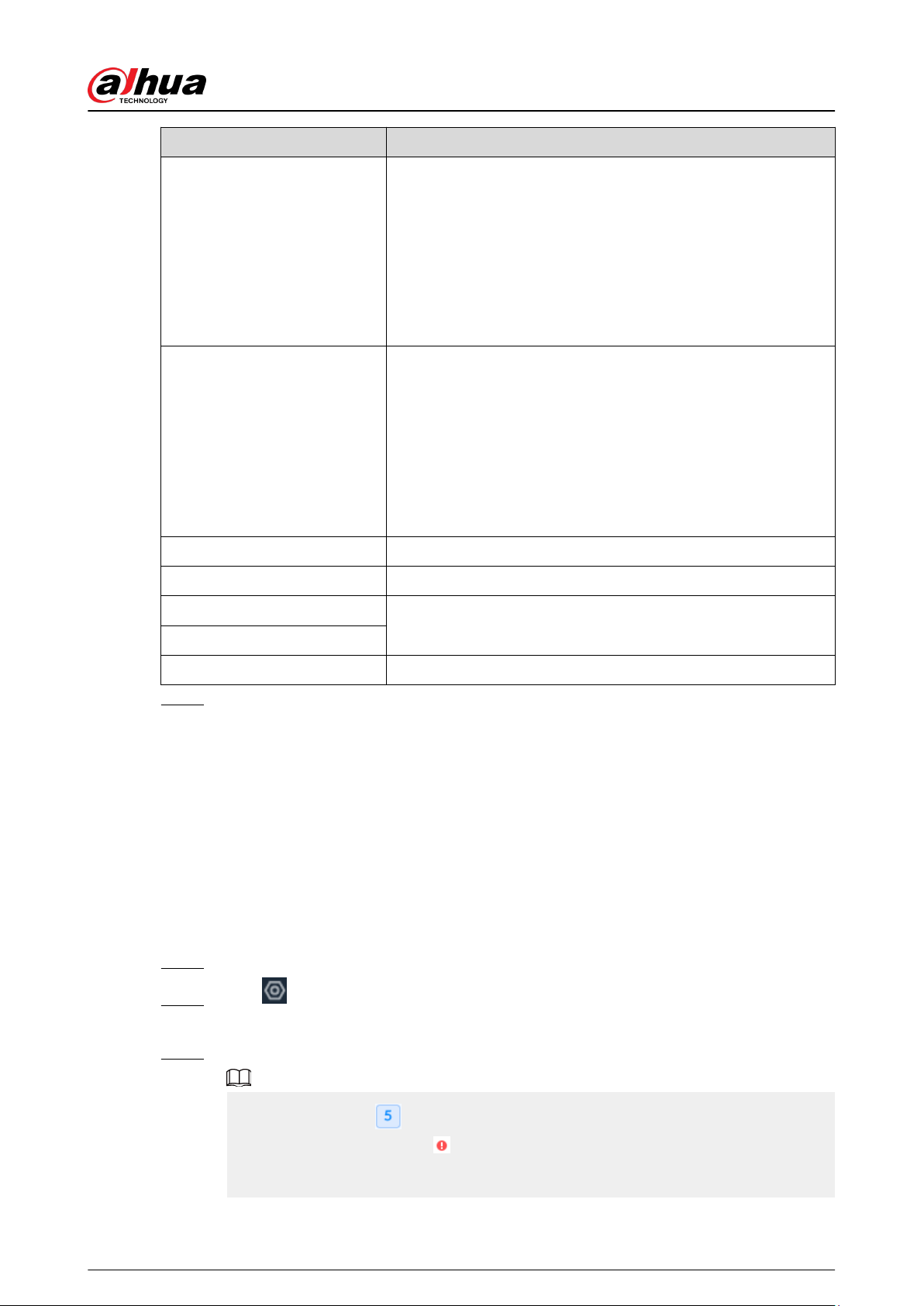
Parameter Description
Directory
Enter the SFTP directory.
●
The system automatically establishes folders according to the
IP, time, and channel information if you leave the directory
empty.
●
Enter the directory name, and then the system creates a
folder accordingly under the root directory of SFTP and
generates dierent folders according to the IP, time, and
channel information.
File Size
Set the size of the le to be uploaded.
●
If the to-be-uploaded le is larger than the threshold, the
system uploads only part of it (the same size with the
threshold).
●
If the to-be-uploaded le is smaller than the threshold, the
system uploads the whole of it.
●
If the threshold you have set is 0, the system uploads the
whole of the le.
Picture Upload Interval Set the upload interval of images.
Channel No. Set the channel number of the video le.
Day
Select the day, the time period, and le type (event le or regular
le). The system uploads les in the time periods as you have set.
Period
Test Click Test to test the SFTP connection.
Step 4 Click Apply.
4.3.2 Storage Settings
4.3.2.1 Setting Disk Group
The installed disks and created RAID groups are allocated to group 1 by default. You can create
more disk groups and allocate disks and RAID groups to other groups. The videos and images of all
channels are stored in disk group 1 by default. You can storage videos and images of dierent
channels to dierent disk groups.
Procedure
Step 1 Log in to the PC client.
Step 2 Click on the upper-right corner and then click Storage.
You can also click Storage from the conguration list on the home page.
Step 3 Select Storage > Disk Group Settings.
●
The value (such as
) next to the group name refers to the number of disks and RAID
groups in the disk group. If
is displayed, it means there were videos or images
stored in the disk group but now there is no available disk or RAID group in the disk
group.
User's Manual
68
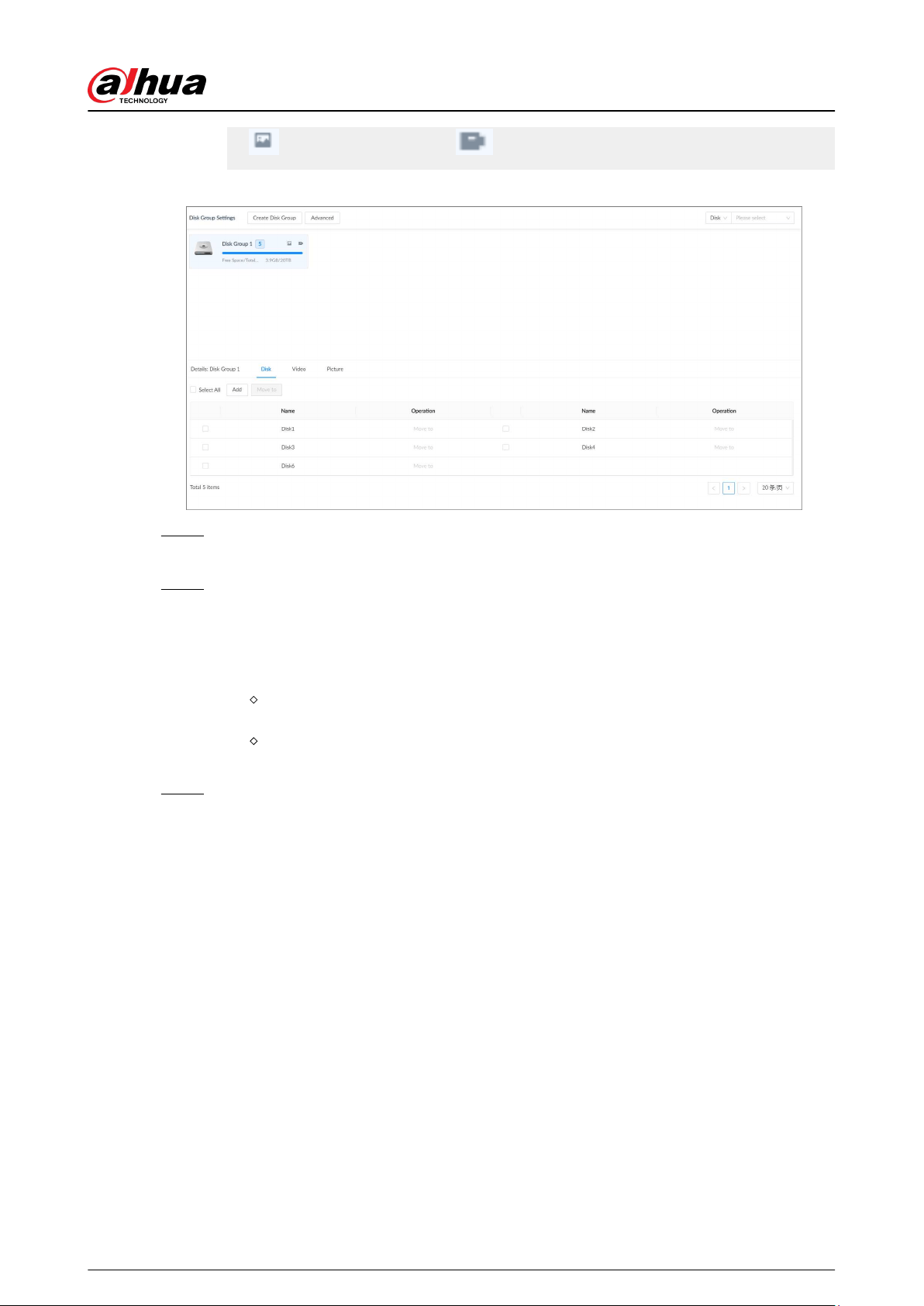
●
indicates picture storage. indicates video storage
Figure 4-24 Disk group
Step 4 Click Add , enter the group name, and then click OK.
A new disk group is created.
Step 5 Click a disk group and then under the Disk tab, you can allocate the disks or RAID groups
for the disk group.
●
Add disks or RAID groups to the current disk group: Click Add , select one or more
disks or RAID groups, and then click OK.
●
Move disks or RAID groups to another disk group.
One by one: Click Move to under Operation, select a disk group, and then click
OK.
In bathes: Select one or more disks or RAID groups and then click Move to next to
Add, select a disk group, and then click OK.
Step 6 Click a disk group and then under the Video or Picture tab, you can allocate the video or
image storage of dierent channels to disk groups.
●
Add channels to the current disk group for video or image storage: Click Add , click
Channel Name or Channel No. to search for channels, select one or more channels,
and then click OK.
User's Manual
69
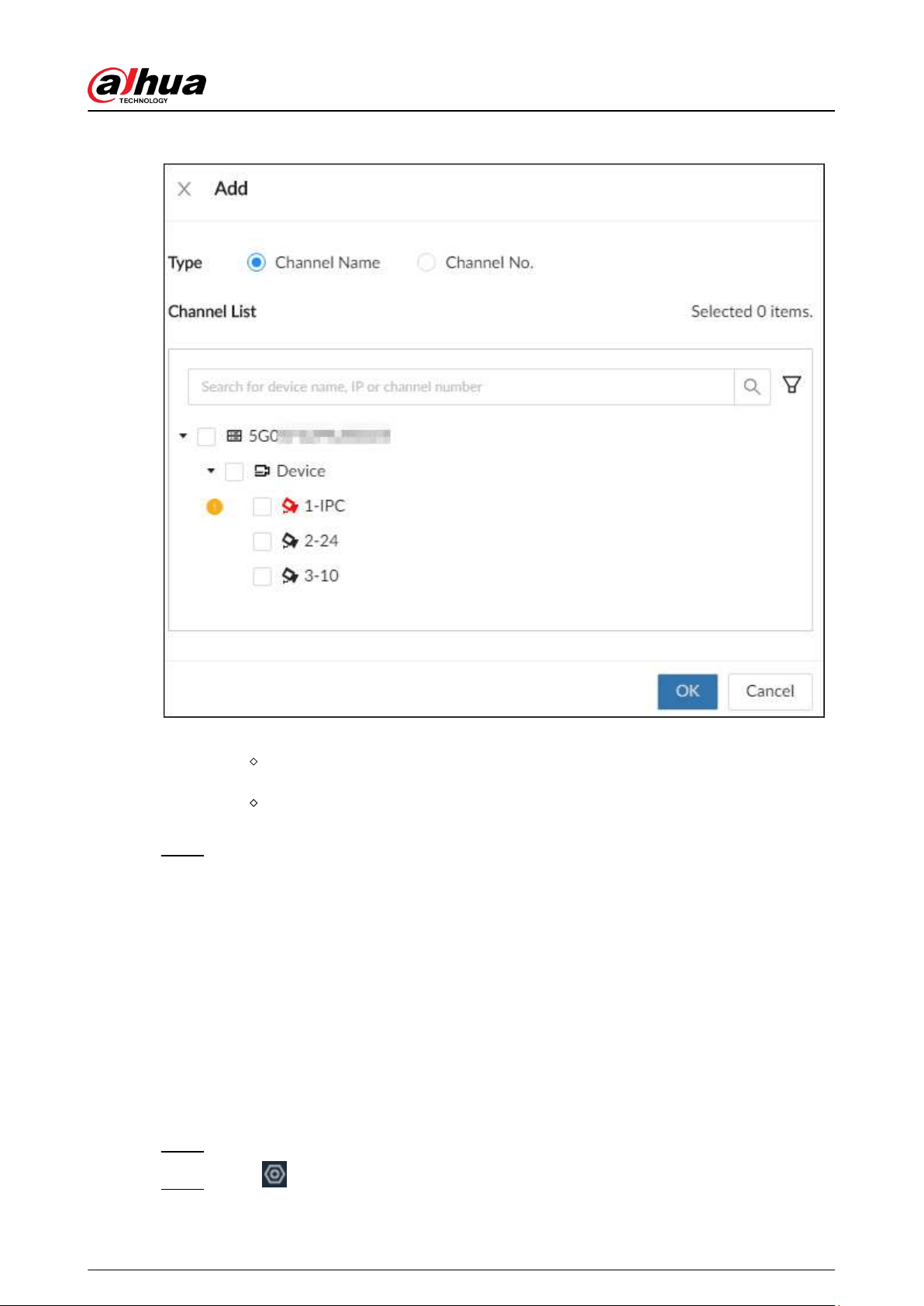
Figure 4-25 Add channels
●
Move channels to another disk group for video or image storage.
One by one: Click Move to under Operation, select a disk group, and then click
OK.
In bathes: Select one or more channels and then click Move to next to Add, select
a disk group, and then click OK.
Step 7 (Optional) Click Advanced and then select the checkbox to enable load balance.
After you enable load balance, the system automatically moves videos from ineective
disk groups and evenly allocates them to functional groups.
4.3.2.2 Recording Control
Congure recording modes and schedules for channels.
4.3.2.2.1 Conguring Recording Mode
Congure recording modes for channels.
Procedure
Step 1 Log in to the PC client.
Step 2 Click on the upper-right corner and then click Storage.
User's Manual
70
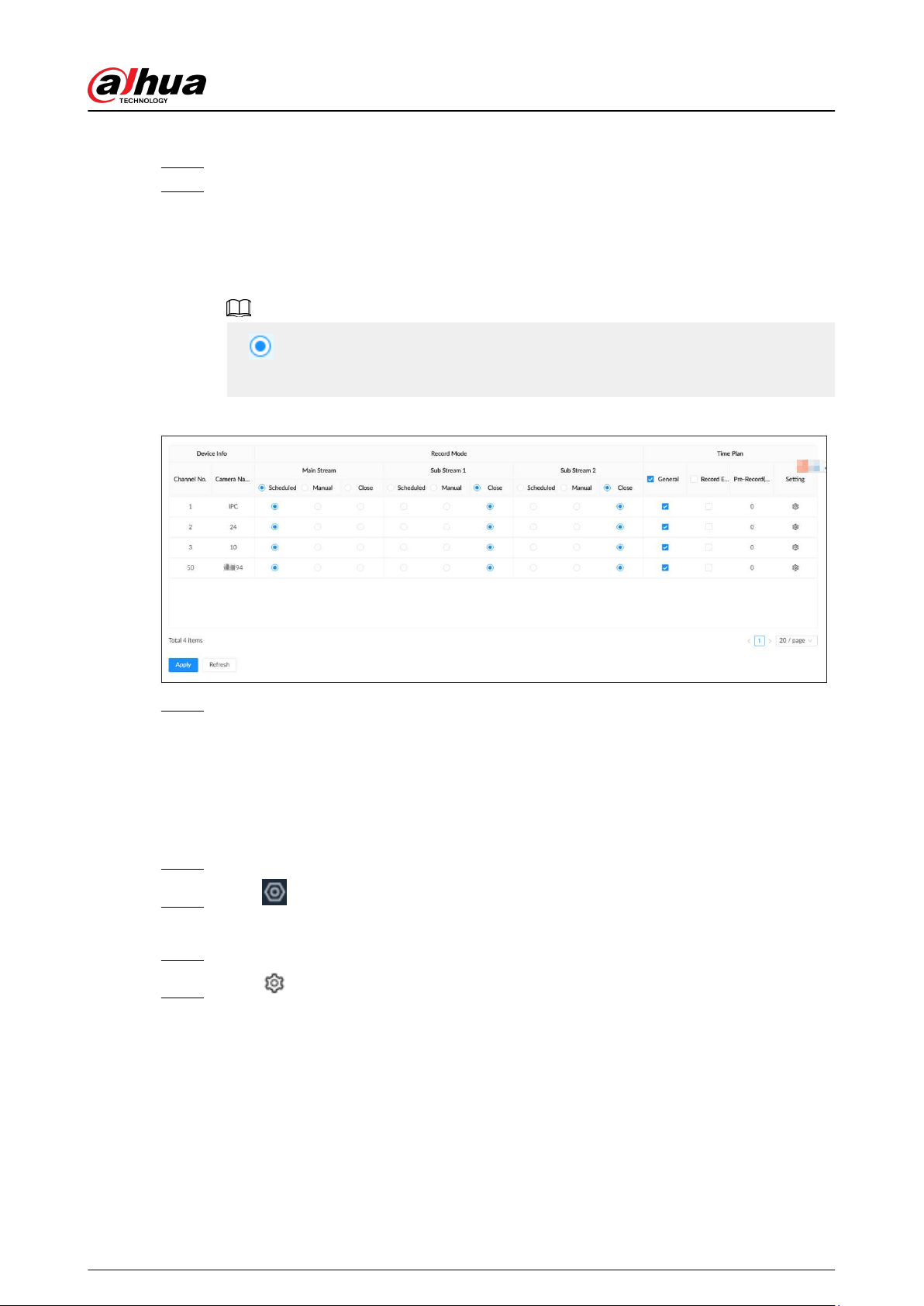
You can also click Storage from the conguration list on the home page.
Step 3 Select Storage > Record Control.
Step 4 Congure the recording mode for each channel.
●
Scheduled : The Device records automatically according to the schedule.
●
Manual : The Device records continuously and does not respond to the recording
schedule.
●
Close : The Device does not record for the channel.
●
means that the type is selected.
●
Sub Stream 1 and Sub Stream 2 cannot be enabled at the same time.
Figure 4-26 Recording Mode
Step 5 Click Apply.
4.3.2.2.2 Conguring Recording Schedule
Congure video and picture recording schedules so the Device records videos and captures
pictures during the specied period.
Procedure
Step 1 Log in to the PC client.
Step 2 Click on the upper-right corner and then click Storage.
You can also click Storage from the conguration list on the home page.
Step 3 Select Storage > Record Control.
Step 4 Click , and then set a recording schedule.
User's Manual
71
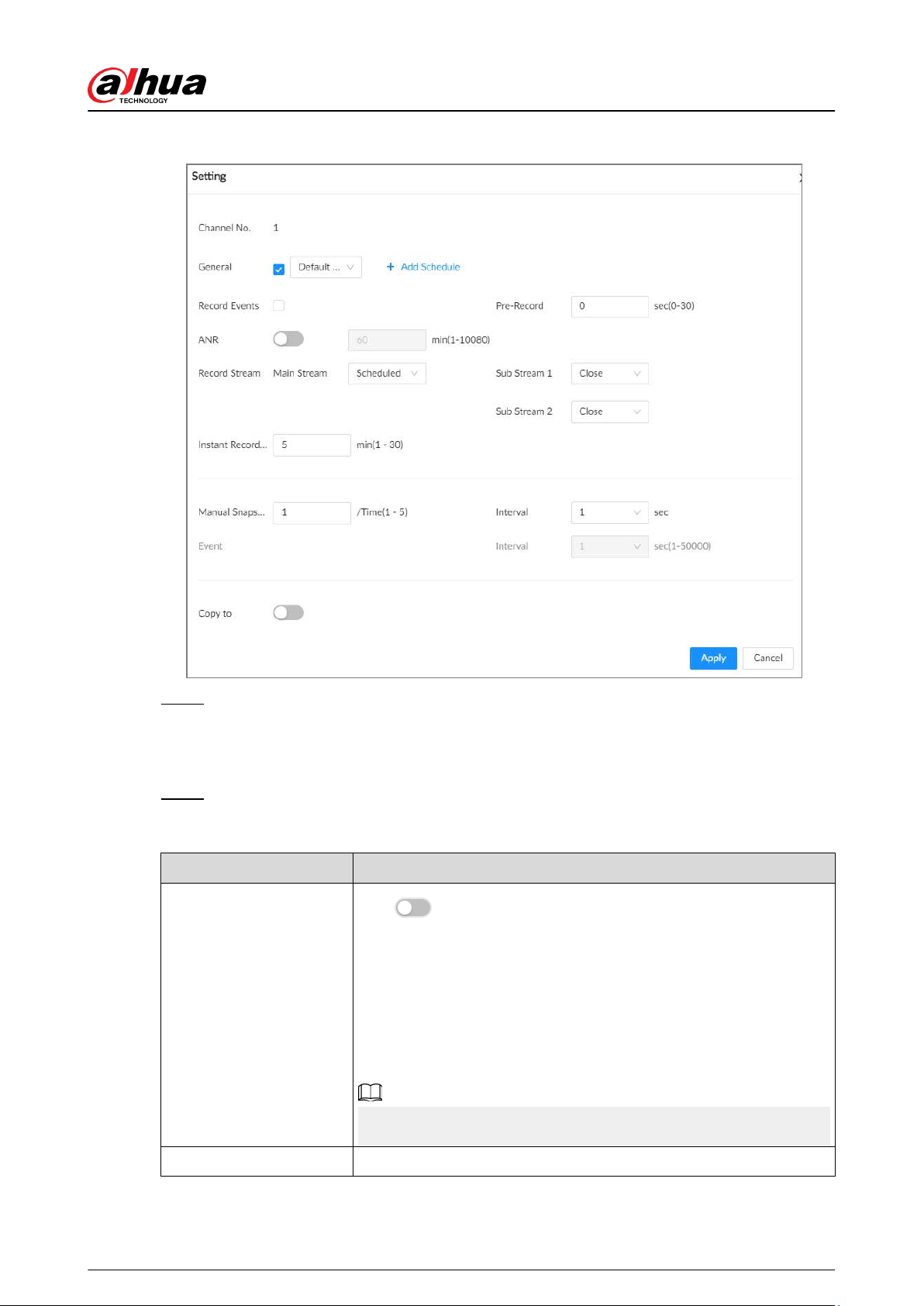
Figure 4-27 Set a recording schedule
Step 5 Select General , Record Events, or both as the recording type.
●
General : Click the box next to General to select a schedule or click Add Schedule to
add a new schedule. The Device records in the congured schedule.
●
Record Events : Set the pre-record time. The Device records before an event occurs.
Step 6 Congure other parameters.
Table 4-11 Time plan parameters description
Parameter Description
ANR
Click to enable ANR (Automatic Network Replenishment).
When the network connection between the Device and IPC fails, the
IPC continues to record videos and store videos on the SD card on the
camera. When network recovers, the Device downloads those videos
from IPC.
Set the maximum recording upload period. If the oine period is
longer than the dened period, IPC will only upload the recording le
during the specied period.
Make sure that the IPC has an SD card and is recording.
Record Stream Select stream types and recording modes.
User's Manual
72
Parameter Description
Instant Record Duration
The duration of instant recording. After starting instant recording
under the Live tab, if you do not stop recording, the system will
automatically stops after the dened duration.
Manual Snapshot
The number of images for each manual capture action. You can also
congure the interval between manual snapshots.
Event Snap Congure the interval between event snapshots.
Copy to Copy the current settings to other channels.
Step 7 Click Apply.
4.3.2.3 Basic Storage Settings
Congure the storage mode when the disk space is used up, automatic deletion of expired les,
and image storage strategy.
4.3.2.3.1 Setting Storage Full
Congure the storage full when there is no more disk space available.
Procedure
Step 1 Log in to the PC client.
Step 2 Click on the upper-right corner and then click Storage.
You can also click Storage from the conguration list on the home page.
Step 3 Select Storage > Basic.
Step 4 Set storage full.
●
Overwrite : When free disk space is less than 100 GB or 2% of the total space (the
larger of the two values prevails), the Device deletes 100 GB of the earliest record les
and continues to record.
Data will be overwritten in the Overwrite mode. Back up in time.
●
Stop : When free disk space is less than the dened free space alarm rate of the total
space, an alarm is triggered and the Device continues recording until free disk space is
used up.
Step 5 Click Apply.
4.3.2.3.2 Setting Automatic File Deletion
You can enable the Device to automatically delete les older than a certain number of days.
Procedure
Step 1 Log in to the PC client.
Step 2 Click on the upper-right corner and then click Storage.
You can also click Storage from the conguration list on the home page.
Step 3 Select Storage > Basic.
User's Manual
73
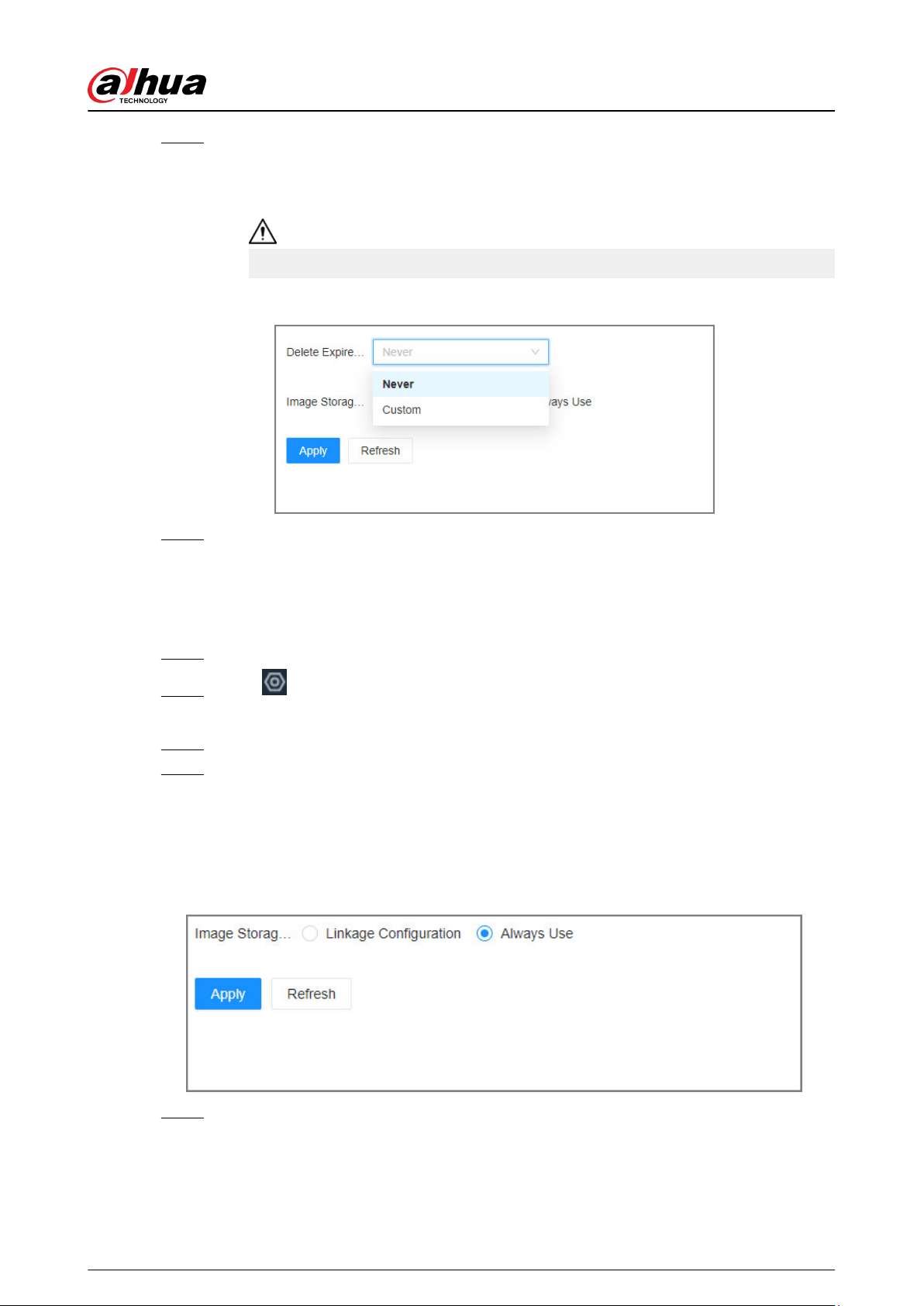
Step 4 Set automatic le deletion.
●
Never : The Device does not delete les automatically.
●
Custom : The Device automatically deletes les older than the congured number of
days.
The deleted les cannot be recovered.
Figure 4-28 Delete expired les
Step 5 Click Apply.
4.3.2.3.3 Setting Image Storage Strategy
Procedure
Step 1 Log in to the PC client.
Step 2 Click on the upper-right corner and then click Storage.
You can also click Storage from the conguration list on the home page.
Step 3 Select Storage > Basic.
Step 4 Select an image storage strategy from Linkage Conguration and Always Use.
●
Linkage Conguration : Congure and store images according to various event
linkage congurations, and this is default.
●
Always Use : When enabled, store event images on the device and can be used in
conjunction with the platform.
Figure 4-29 Image storage strategy
Step 5 Click Apply.
User's Manual
74
4.3.2.3.4 Setting Disk Hybrid Mode
Procedure
Step 1 Log in to the PC client.
Step 2 Click on the upper-right corner and then click Storage.
You can also click Storage from the conguration list on the home page.
Step 3 Select Storage > Basic > Disk Hybrid Mode, and you can select recording technology.
●
CMR: The disk has fast write speed and long lifespan, but low single disk storage
capacity.
●
SMR: The disk has high single disk storage capacity, but slow write speed and short
lifespan.
Step 4 Click Apply.
4.3.2.4 Quota Settings
In quota mode, use storage space according to the allocated quota.
Background Information
Support allocating quota by time and space.
●
Allocate quota by space: Set storage space for each channel (such as 100 GB), and when space
occupied by videos or images of this channel reaches 100 GB, it begins to cover historical videos
or images.
●
Allocate quotas by time: Set storage duration (such as 30 days) for each channel, and this
channel only retains videos and images within 30 days.
Procedure
Step 1 Log in to the PC client.
Step 2 Click on the upper-right corner and then click Storage.
You can also click Storage from the conguration list on the home page.
Step 3 Select Storage > Storage Mode.
Step 4 Select Disk Quota as Storage Mode, select Quota by Time or Quota by Space, click
Apply, and then click OK in the pop-up box.
Enabling quota mode will restart the device.
Step 5 Set quota by time or quota by space.
●
Quota by time
Set quota according to the estimated capacity. When the estimated capacity exceeds the
storage capacity, you cannot save the conguration.
1. Select Video tab, and then click Setting for each channel.
2. Congure record duration and reference bit rate for the video, and then click OK.
When the record duration is set to 0, the videos of the channel are stored in the
remaining unallocated disk. When the storage space is insucient, the videos of the
channel are overwritten rst.
User's Manual
75
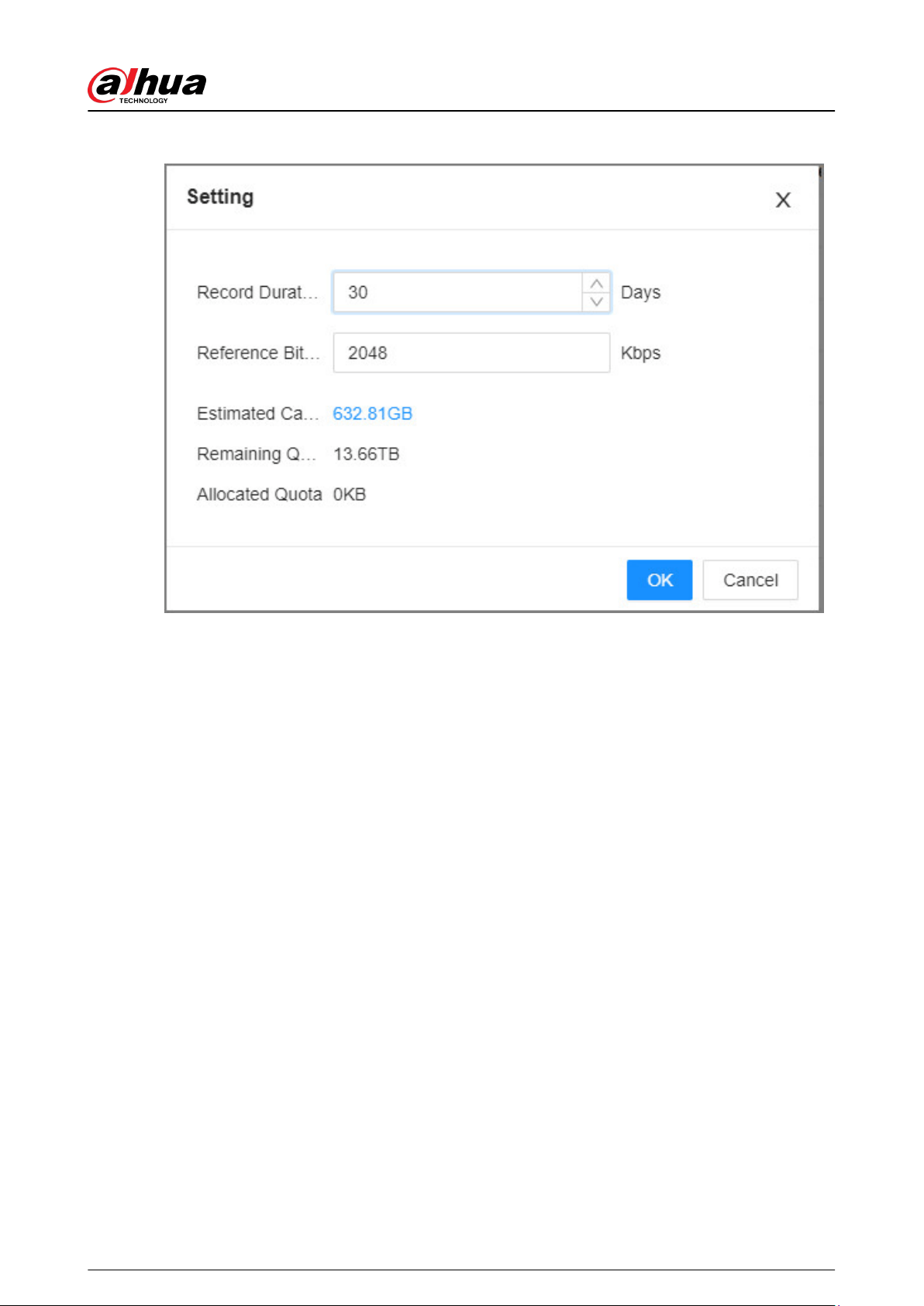
Figure 4-30 Set quota by time (video)
3. Select Picture tab, and then click Setting for each channel.
4. Congure image storage time, size, and images per day for the image, and then click
OK.
User's Manual
76
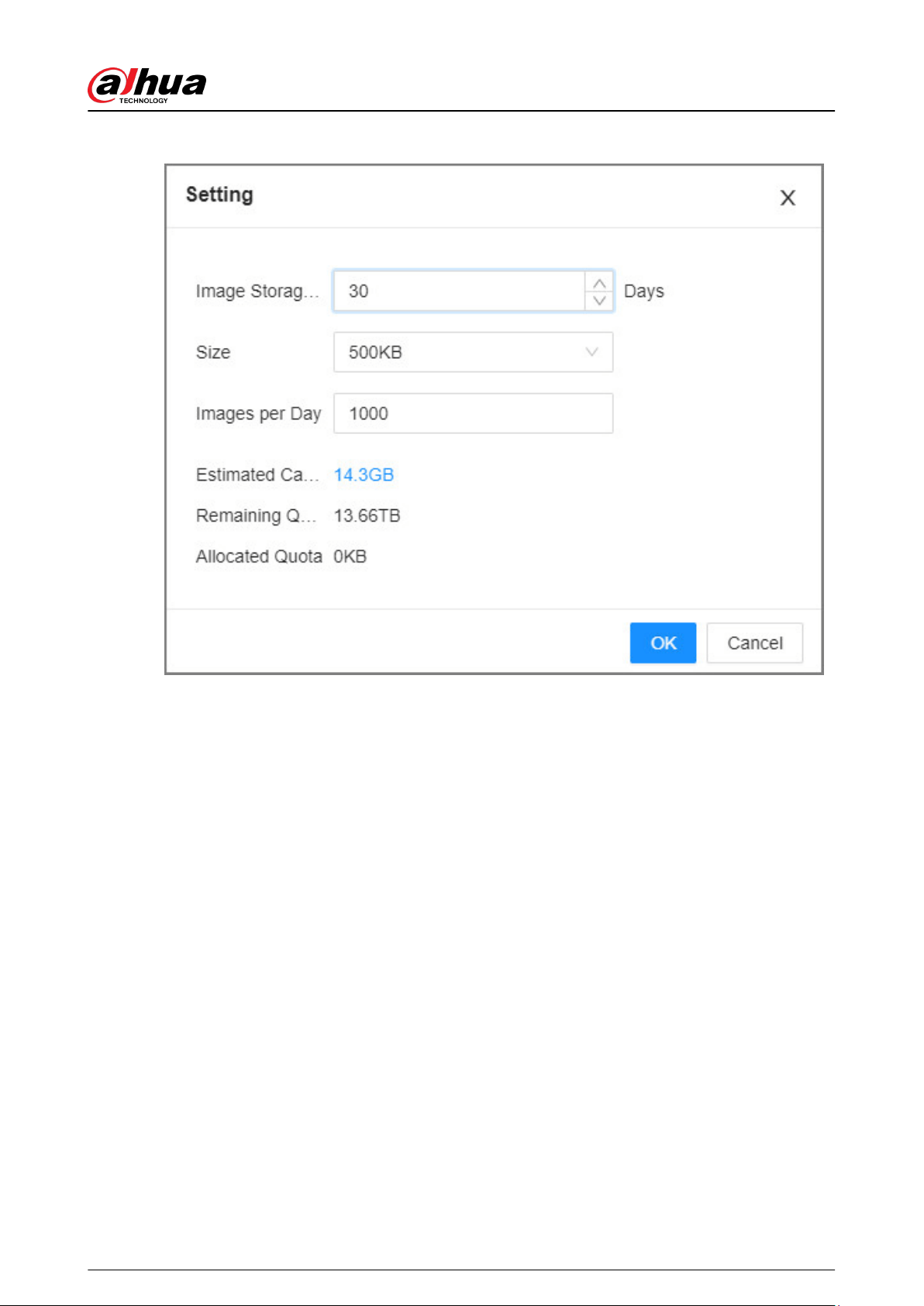
Figure 4-31 Set quota by time (picture)
●
Quota by space
1. Select Video tab, and then click Setting for each channel.
2. Congure estimated capacity and reference bit rate for the video, and then click OK.
User's Manual
77
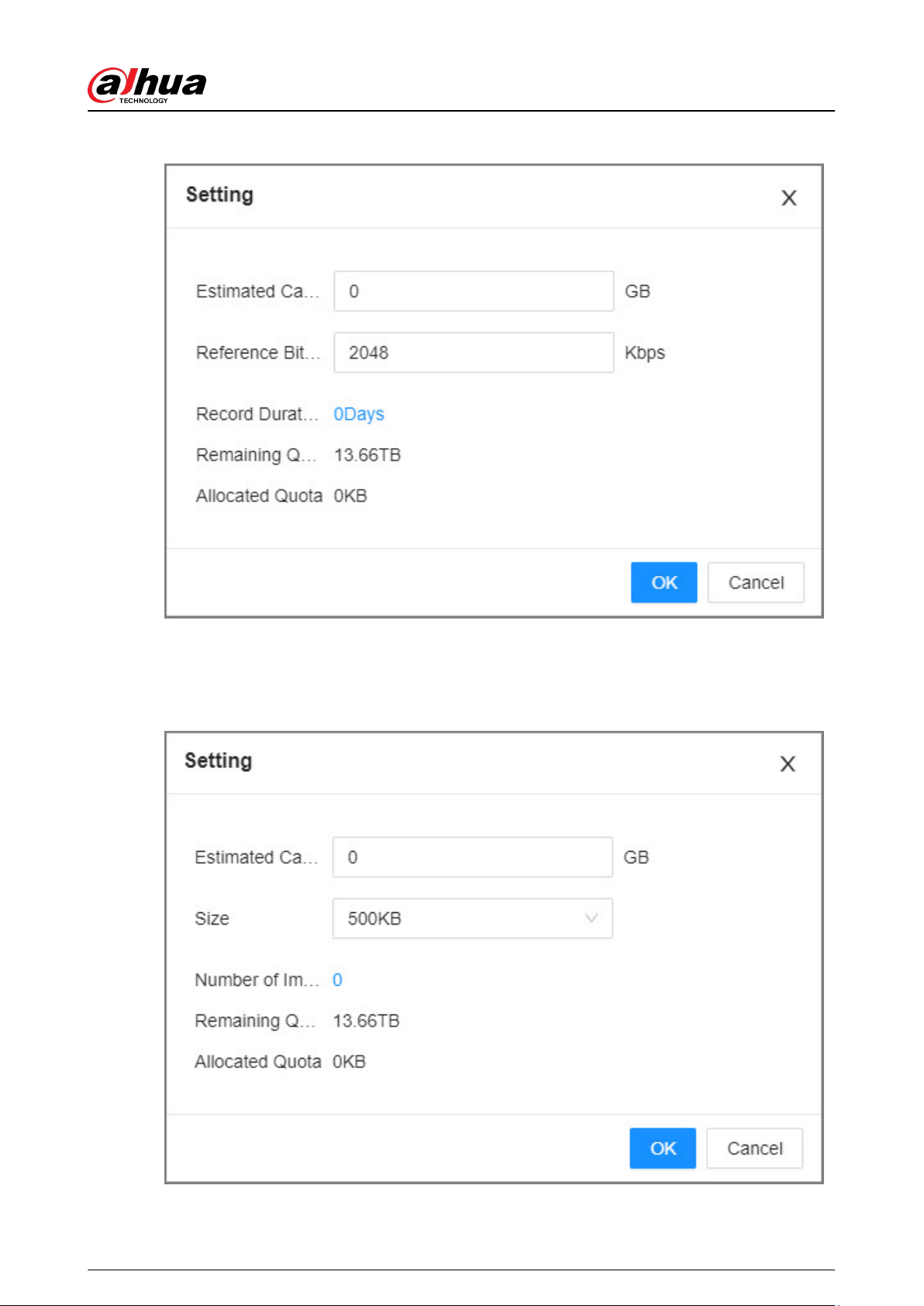
Figure 4-32 Set quota by space (video)
3. Select Picture tab, and then click Setting for each channel.
4. Congure image storage time, size, and images per day for the image, and then click
OK.
Figure 4-33 Set quota by space (picture)
User's Manual
78
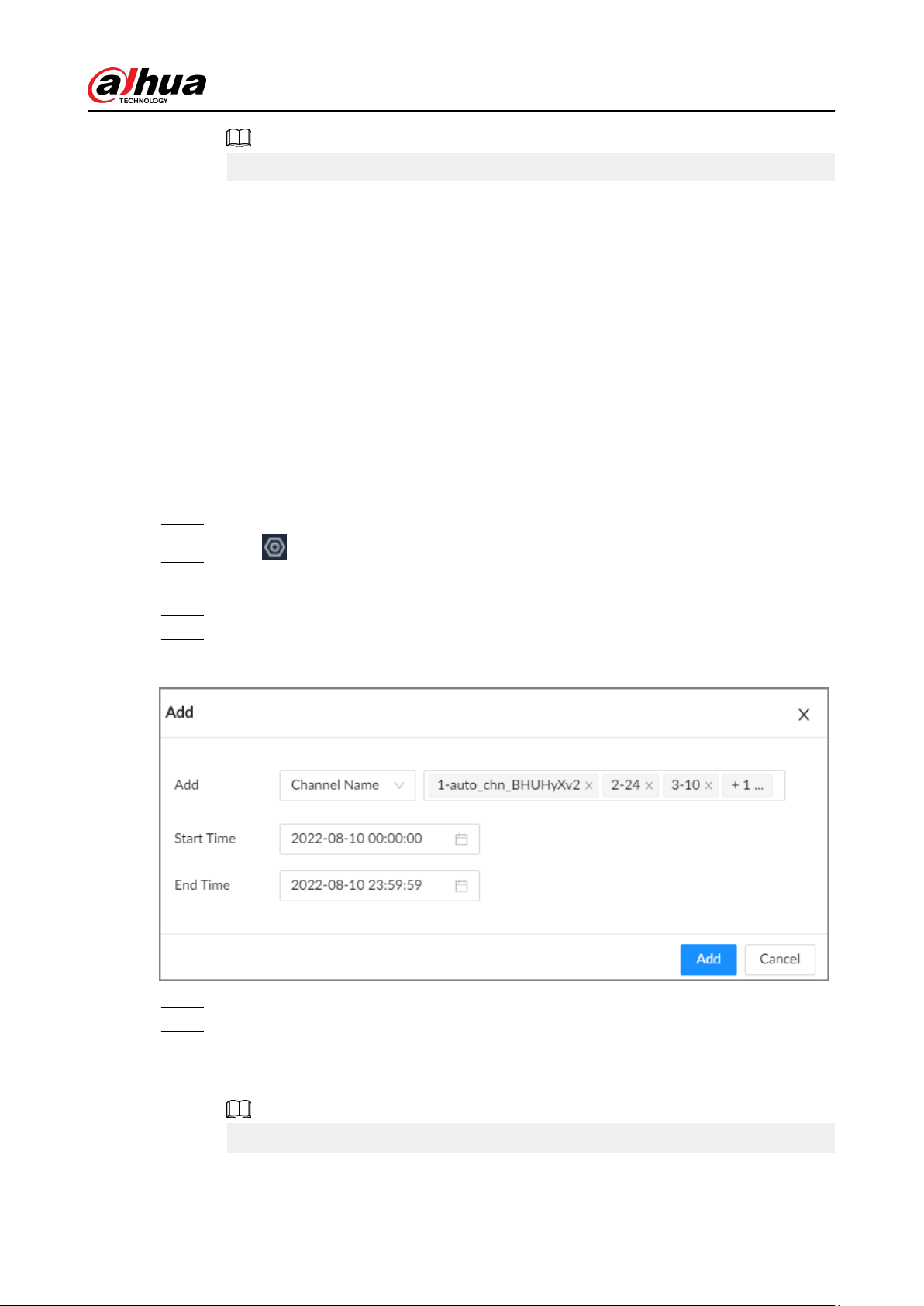
Click Copy to to apply the current setting to other channels.
Step 6 Click Complete.
4.3.2.5 Record Transfer
When the Device and an IPC are disconnected, the IPC continues to record and stores the recording
in the SD card. After the network recovers, the Device will download the recording during the
disconnection from the IPC.
There are 2 ways for record transfer after the network recovers.
●
Automatic download: After the network recovers, the Device automatically downloads the
recording in the dened time period.
●
Manual download: If ANR is not enabled when you set the recording schedule, after the network
recovers, the Device can not automatically download the recording during the disconnection,
but you can manually create a download task.
Procedure
Step 1 Log in to the PC client.
Step 2 Click on the upper-right corner and then click Storage.
You can also click Storage from the conguration list on the home page.
Step 3 Select Storage > Transfer Record.
Step 4 Click Add.
Figure 4-34 Add a task
Step 5 Select Channel Name or Channel No. to search for channels.
Step 6 Select channels and then set the time period.
Step 7 Click Add.
The system downloads les recorded on the selected channels during the dened period.
Select a transfer task, click Delete to delete it. A task in progress cannot be deleted.
User's Manual
79
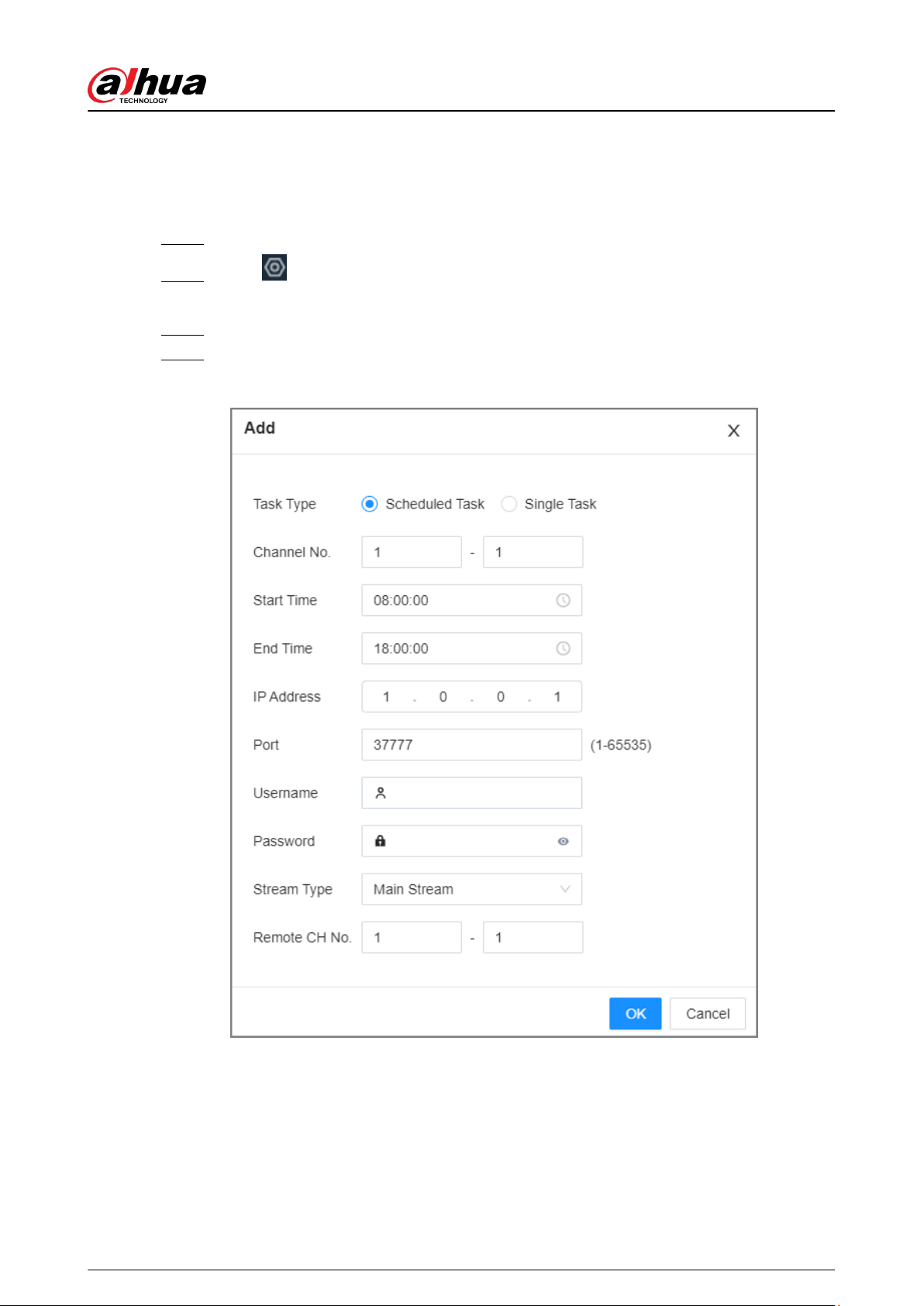
4.3.2.6 Video Retrieval
During the idle period of the device, supports recording the video les of other devices in the EVS.
Procedure
Step 1 Log in to the PC client.
Step 2 Click on the upper-right corner and then click Storage.
You can also click Storage from the conguration list on the home page.
Step 3 Select Storage > Video Retrieval.
Step 4 Click Add to add video retrieval task.
Figure 4-35 Add task
User's Manual
80

Table 4-12 Parameter description
Parameter Description
Task Type
Supports Scheduled Task and Single Task.
●
Scheduled Task : Retrieve the video at the specic period of the
previous day. After adding, you can click View Plan List to view or
delete the task, and the task is created at midnight the next day and
displayed in the task list.
●
Single Task : After adding, the task is created immediately and
displayed in the task list.
Channel No. Enter the channel No. of the device.
Start Time
Set the time period.
End Time
IP Address IP address of remote device.
Port Port of remote device, 37777 by default.
Username
Username and password of remote device.
Password
Stream Type Select the stream type.
Remote CH No. Enter the channel No. of remote device.
Step 5 Click OK.
Related Operations
●
View Plan List: Click View Plan List, you can view the added video supplement plans.
●
Execution Time: Click Execution time, you can set execution time periods.
User's Manual
81
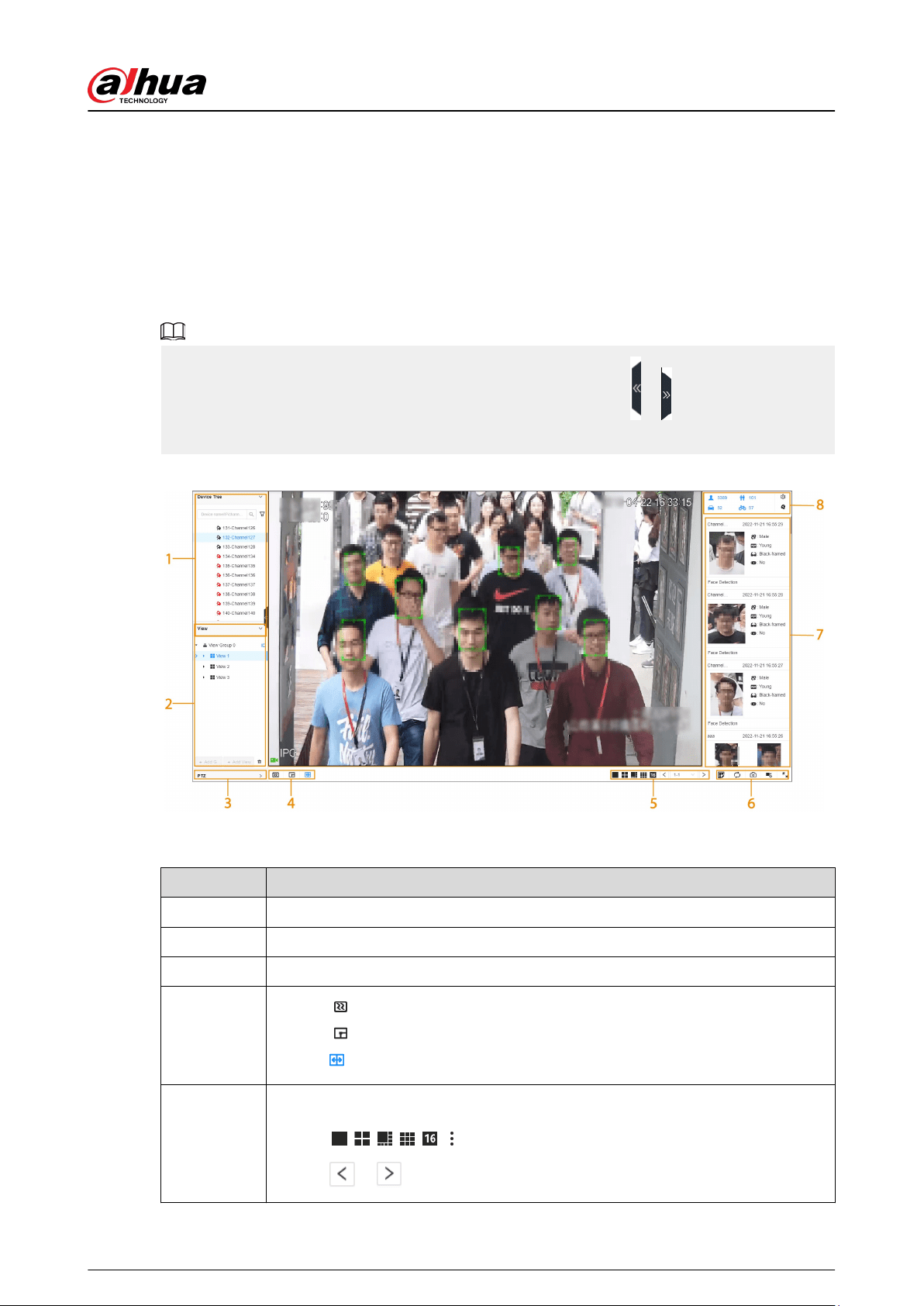
5 General Operations
This chapter introduces general operations such as live view, playback, alarm, and more.
5.1 Live and Monitor
Log in to the PC client, and then under the Live tab, you can view the live videos.
Point to the left and right edges of the video windows, and then click or to hide or display the
left and right columns.
Figure 5-0 Live view
Table 5-1 Live page description
No. Description
1 Device tree. Displays added remote devices.
2 View zone. Displays the created views and view groups.
3 PTZ control zone.
4
●
Click
: You can select Default , Realtime or Fluent.
●
Click
: You can adjust the detection area and excluded area.
●
Click
: Turn rule box display on or o.
5
Layout adjustment.
●
Click
to set the layout.
●
Click
or to switch the channel.
User's Manual
82
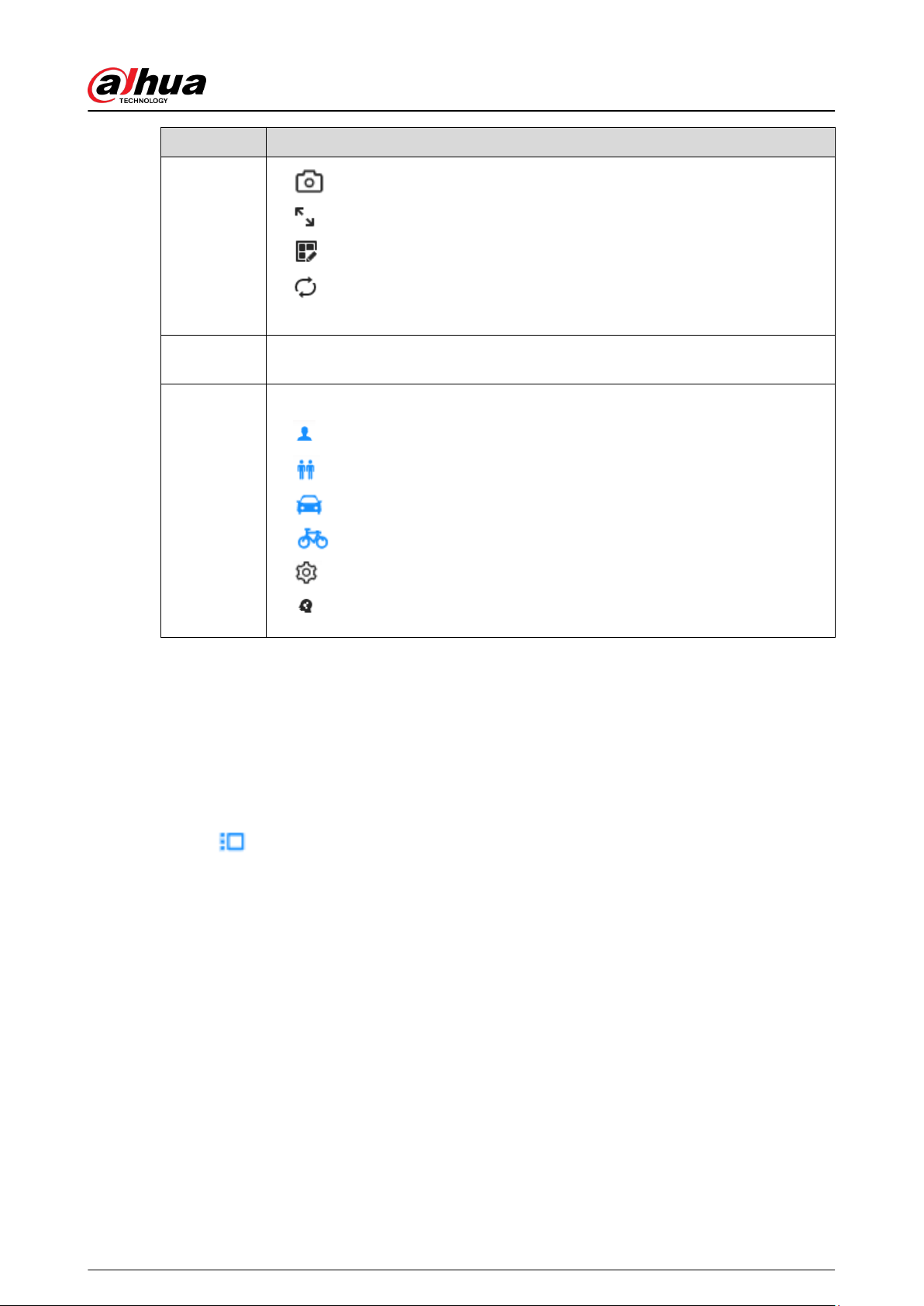
No. Description
6
●
: Take a snapshot of live view.
●
: Display the live view in full screen.
●
: Edit the view window and save as a new view.
●
: Start tour. You need to enable the function rst in System > General >
System Settings.
7
Features panels. A features panel appears when the system detected a target
according to the congured rule.
8
Detection statistics. Displays the number of detected targets.
●
: face.
●
: human.
●
: motor vehicle.
●
: non-motor vehicle.
●
: Set attribute display.
●
: Go to AI Search.
5.1.1 View Management
A view is composed of video images of several remote devices. Go to the view panel at the lower-
left corner of the Live tab to check and open the view.
●
View Group is created by default, under which you can create view groups and views.
●
Double-click a view or drag the view to the play panel in the middle of the Live tab. The Device
begins playing the real-time video from the remote device in the view.
●
Click
to select views, view groups and their sub-nodes.
User's Manual
83
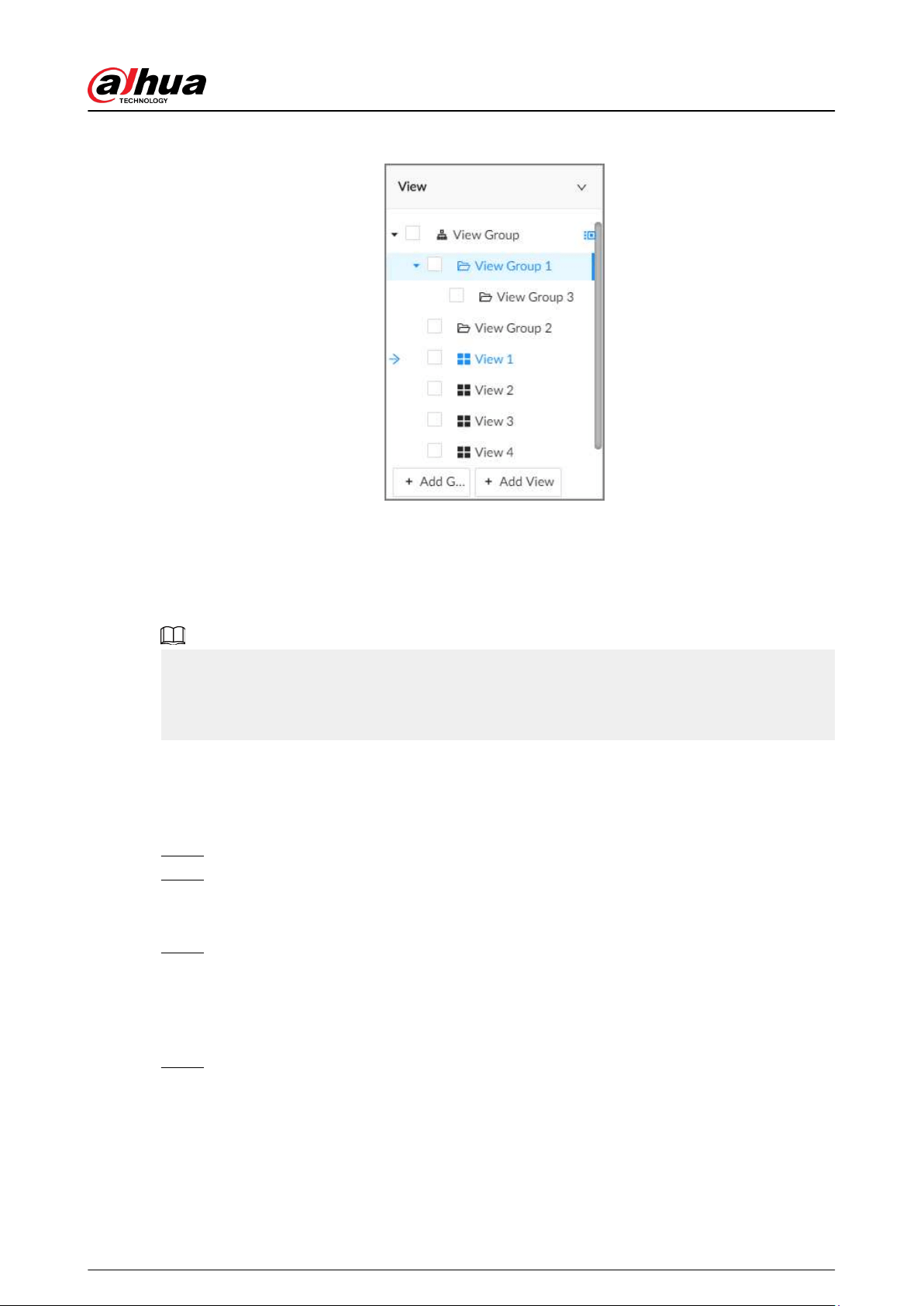
Figure 5-1 View
5.1.1.1 View Group
A view group is a group of views. The view group helps you to categorize, search for and manage
views quickly. Under View Group created by default, you can create view groups.
●
You can create up to 100 view groups.
●
The views hierarchy must not be more than 2. For example, after you create View Group 1 under
View Group, you can create a sub-level View Group 2 under View Group 1. However, you cannot
create a sub-level group under View Group 2.
5.1.1.1.1 Creating a View Group
Procedure
Step 1 Log in to the PC client.
Step 2 Under the Live tab, click View Group or a view group under it, and then click Add
Group.
You can also right-click an existing view group and then click Add Group.
Step 3 Set the view group name.
●
The group name consists of 1 to 64 characters. It can contain English letters, numbers
and special characters.
●
We recommend you set a name that help to distinguish and classify dierent view
groups.
Step 4 Click any blank space on the page.
5.1.1.1.2 Managing View Groups
After creating a view group, you can rename or delete the view group.
User's Manual
84
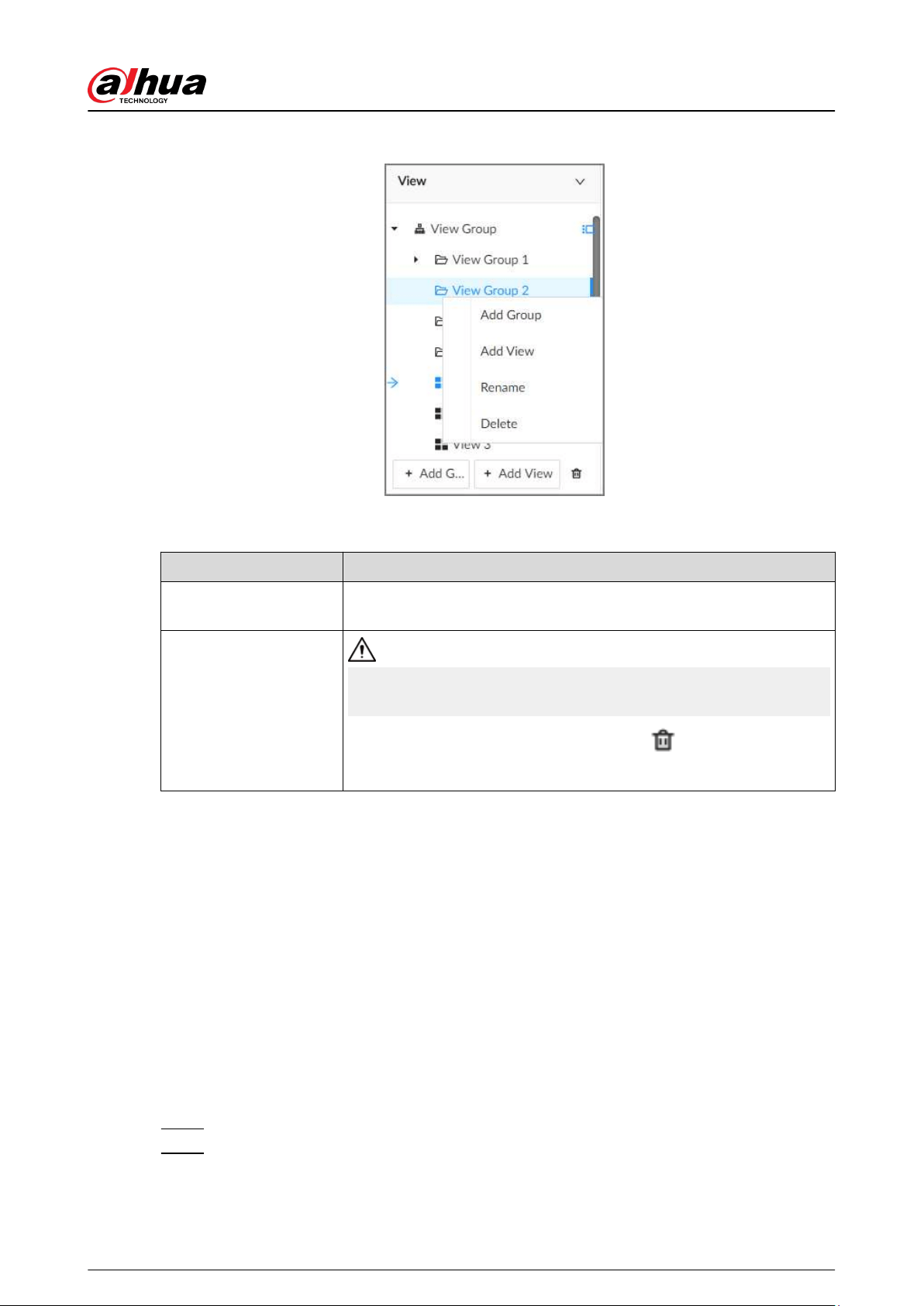
Figure 5-2 Manage view groups
Table 5-2 View group management
Operation Description
Rename
Right-click a view group and select Rename. Set view group name and
click any blank space.
Delete View group
Please be advised that once you delete a view group, all views under
the view group will be deleted at the same time.
●
Select one or more view groups and click
.
●
Right-click a view group and then select Delete.
5.1.1.2 View
A view contains video images from one or more remote devices. You can drag several remote
devices to the same view and when view is enabled, you can view the real-time video from the
remote devices at the same time.
5.1.1.2.1 Creating a View
Create a view and then add several remote devices to the view so that you can view the live videos
from several channels at the same time.
Prerequisites
Remote devices have been added.
Procedure
Step 1 Log in to the PC client.
Step 2 Under the Live tab, click View Group or a view group under it, and then click Add View.
You can also right-click an existing view group and then click Add View.
User's Manual
85
Step 3 Double-click a remote device in resource pool, or drag the remote device to the view
window.
After one remote device is added, the view window is split into several grids.
●
Each grid supports one remote device. If you want to add more remote devices, drag
them to unoccupied layout grids.
●
If the layout grid has been occupied by a remote device, you can drag another remote
device to the current grid to replace the original one.
●
Drag the edges of the view window to adjust its size.
●
The Device automatically creates the view grids according to the number of the
selected remote devices. Device supports maximum 36 view windows.
●
The view window lls in the whole layout grid by default. Right-click to select Original
Scale > ON. The Device automatically adjusts the size of the view window according
to the resolution of the remote device.
●
When adjusting the position of the video window, you can drag the video window to a
layout grid whose background color is green. You cannot drag the video window to
the grid of red background color.
Step 4 Set the view name.
The view name consists of 1 to 64 characters. It can contain English letters, numbers and
special character.
Step 5 Click OK.
Related Operations
Table 5-3 View management
Operation Description
Edit Edit remote devices in the view, window layout and view name.
Open Open a view to watch real-time video of remote devices in the view.
Rename
Right-click a view, click Rename, enter the new name, and then click any
blank space.
Delete
●
Delete one by one: Click a view and then click , or right-click a
view and then select Delete.
●
Delete in batches: Click , select views and then click .
5.1.1.2.2 Editing a View
Procedure
Step 1 Log in to the PC client.
Step 2 Under the Live tab, right-click a view and then select Edit.
Step 3 Edit the view.
●
Add a remote device: Double-click a remote device in the resource pool, or drag the
remote device to an unoccupied layout grid on the view window, and then click OK.
●
Delete a remote device: Point to a video window, and then click
at the upper-right
corner, and then click OK.
User's Manual
86
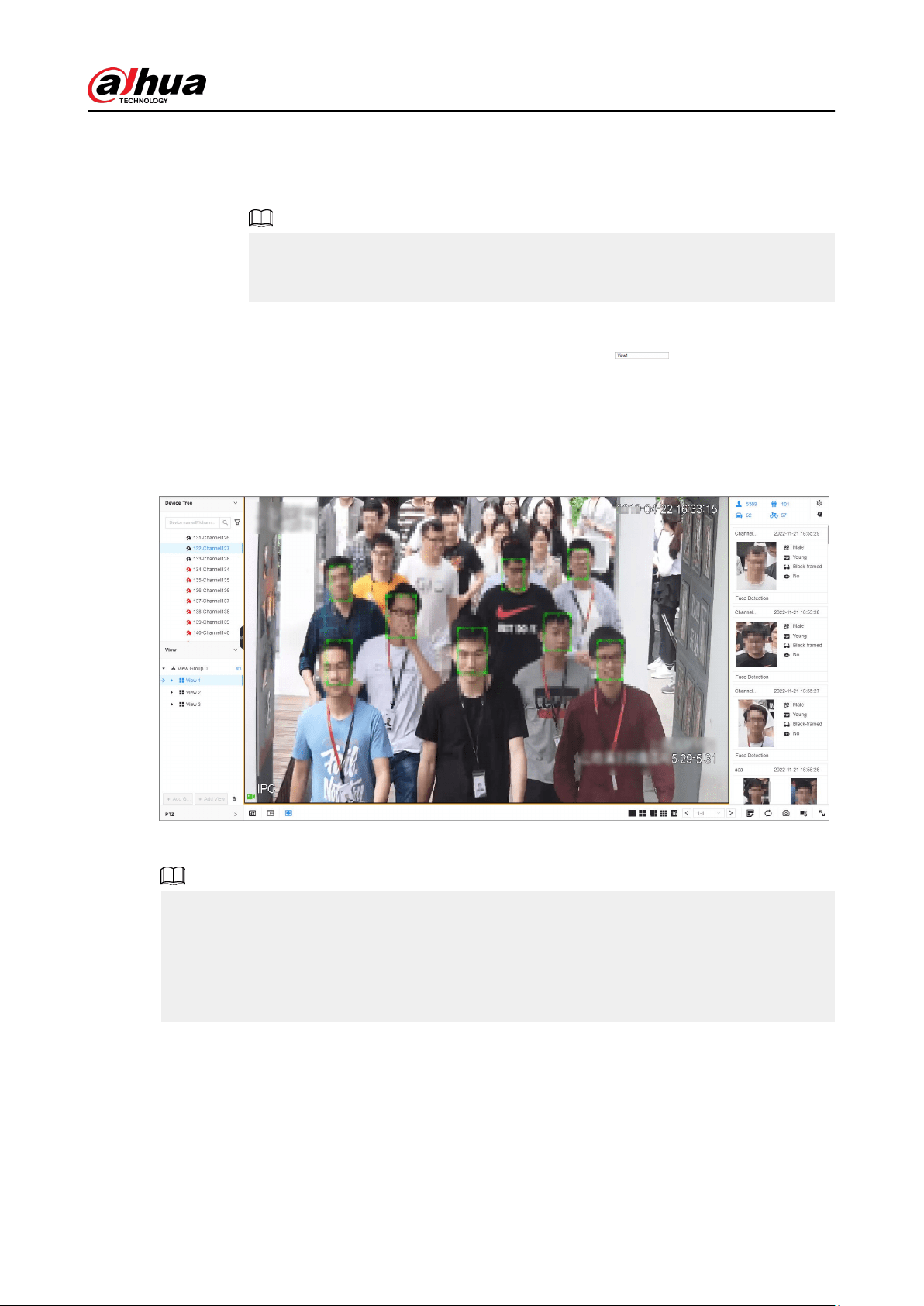
●
Move the video windows: Drag a video window to a proper position and then release
the mouse, and then click OK.
●
Change window positions: Drag a video window to another video window, and then
click OK.
When adjusting the positions of video windows, drag the video window to the layout
grid whose background color is green. You cannot drag the video window to the grid
of red background color.
●
Change the window size: Drag the edges of the video window to adjust its size, and
then click OK.
●
Save the view as a new one: Change the view name in
and then click OK.
5.1.1.2.3 Opening a View
Right-click the view and select Open, or double-click a view to open the view window.
Figure 5-3 View window
When opening the view, you can change video position, zoom video window.
●
When adjusting the positions of video windows, drag the video window to the layout grid
whose background color is green. You cannot drag the video window to the grid of red
background color.
●
Point to the video window. The taskbar is displayed. You can take a snapshot, enable recording
and close the video window.
●
Right-click the video window, you can switch bit streams, set digital zoom and more.
User's Manual
87
Table 5-4 View function
Operation Description
Change window position
Drag a video window to another video window, and then click OK.
The change in the window positions is valid only once. After you
close and then open the view again, the view restores its original
layout. If you want to change view window positions permanently,
go to the view edit mode to set.
Zoom in video window
●
When there are more than 9 video windows, click one video
window to display it at the center of all windows in the zoom in
mode. Click any other blank position to restore the original size.
●
Double-click a view window to display it in one-split mode.
Double-click the view window again to restore the original layout.
Add device to view
window
In the resource pool, double-click a remote device or drag a remote
device to a video window to add a remote device to the current view.
Drag a remote device to an occupied video window to replace the
original remote device.
The modied view layout is valid only once if you do not click OK.
After you close and then open the view again, the view restores its
original layout.
Close view window
Point to one video window, and then click
.
After you close a video window, the system automatically adjusts
window layout according to the rest number of remote devices and
the available display space.
5.1.1.3 View Window
Log in to the PC client, under the Live tab, right-click a view and then select Open, or double-click
view to open the view window.
User's Manual
88
Figure 5-4 View window
5.1.1.3.1 Taskbar
Log in to the PC client, under the Live tab, open a view and then point to a video window. The
taskbar is displayed.
Figure 5-5 View window
User's Manual
89
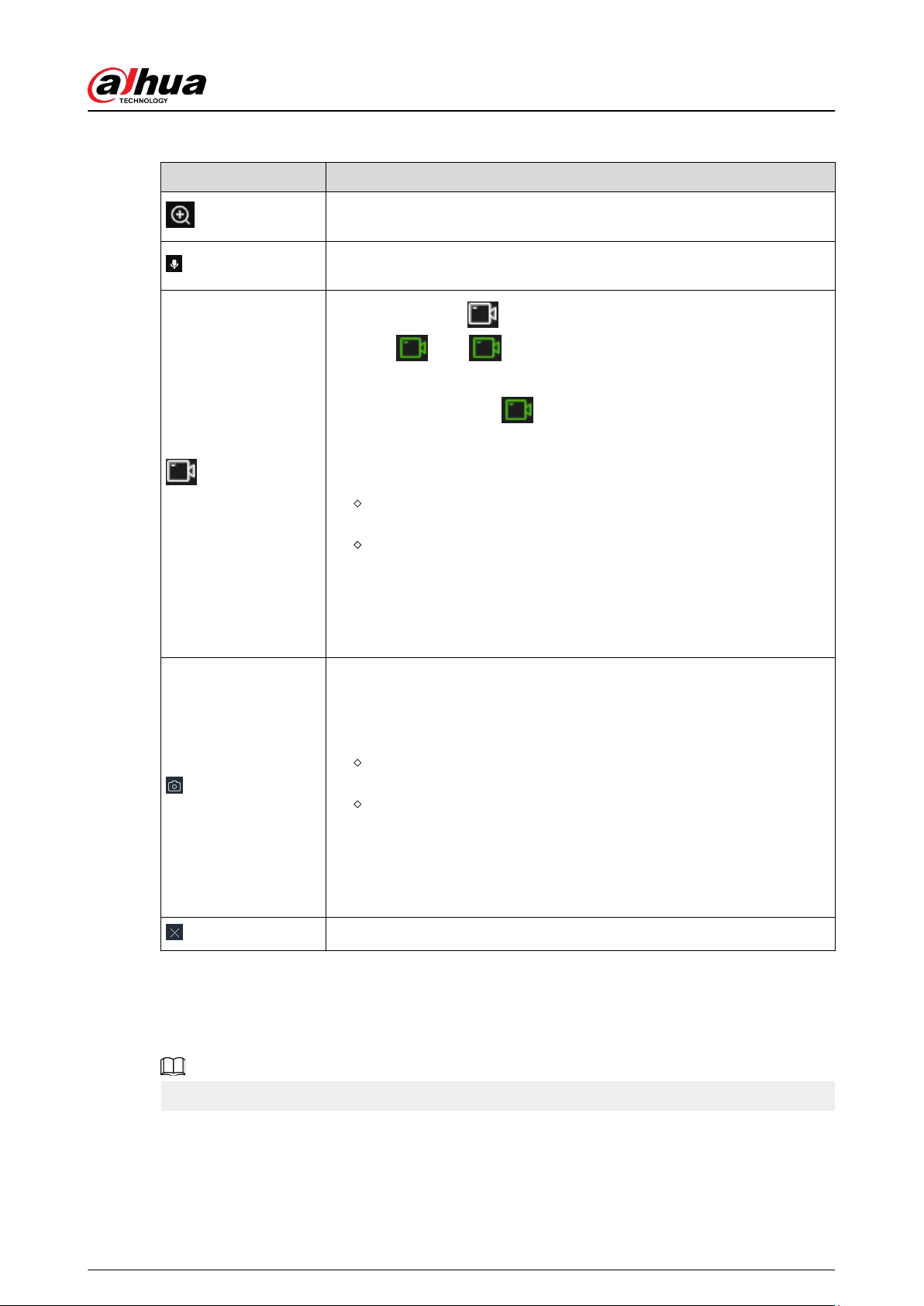
Table 5-5 Window taskbar
Icon Description
Zoom. Click the icon, and then select a zone on the video window to
zoom in.
Talk. The Talk function enables voice interaction between the Device and
remote devices.
Instant record. Click to start recording manually. Then the icon
becomes . Click to stop recording.
The system stops recording according to the congured instant recording
length if you do not click to stop.
The video storage path varies on dierent interfaces.
●
Local interface.
When a USB storage device is connected, the videos are saved to
the USB storage device.
Otherwise, the videos are saved on the Device. You can search for
and export videos under the Search tab.
●
PC client.
The default storage path of videos is C:/Program Files (x86)/PCAPP/
video.
Manual snapshot.
The snapshot storage path varies on dierent interfaces.
●
Local interface.
When a USB storage device is connected, snapshots are saved to
the USB storage device.
Otherwise, the snapshots are saved on the Device. You can search
for and export videos under the Search tab.
●
PC client.
The default storage path of snapshots is C:/Program Files (x86)/
PCAPP/pictures.
Close the window.
5.1.1.3.2 Shortcut Menu
Log in to the PC client, under the Live tab, open a view and then right-click a video window. The
shortcut menu is displayed.
The shortcut menu might vary depending on the remote devices.
User's Manual
90
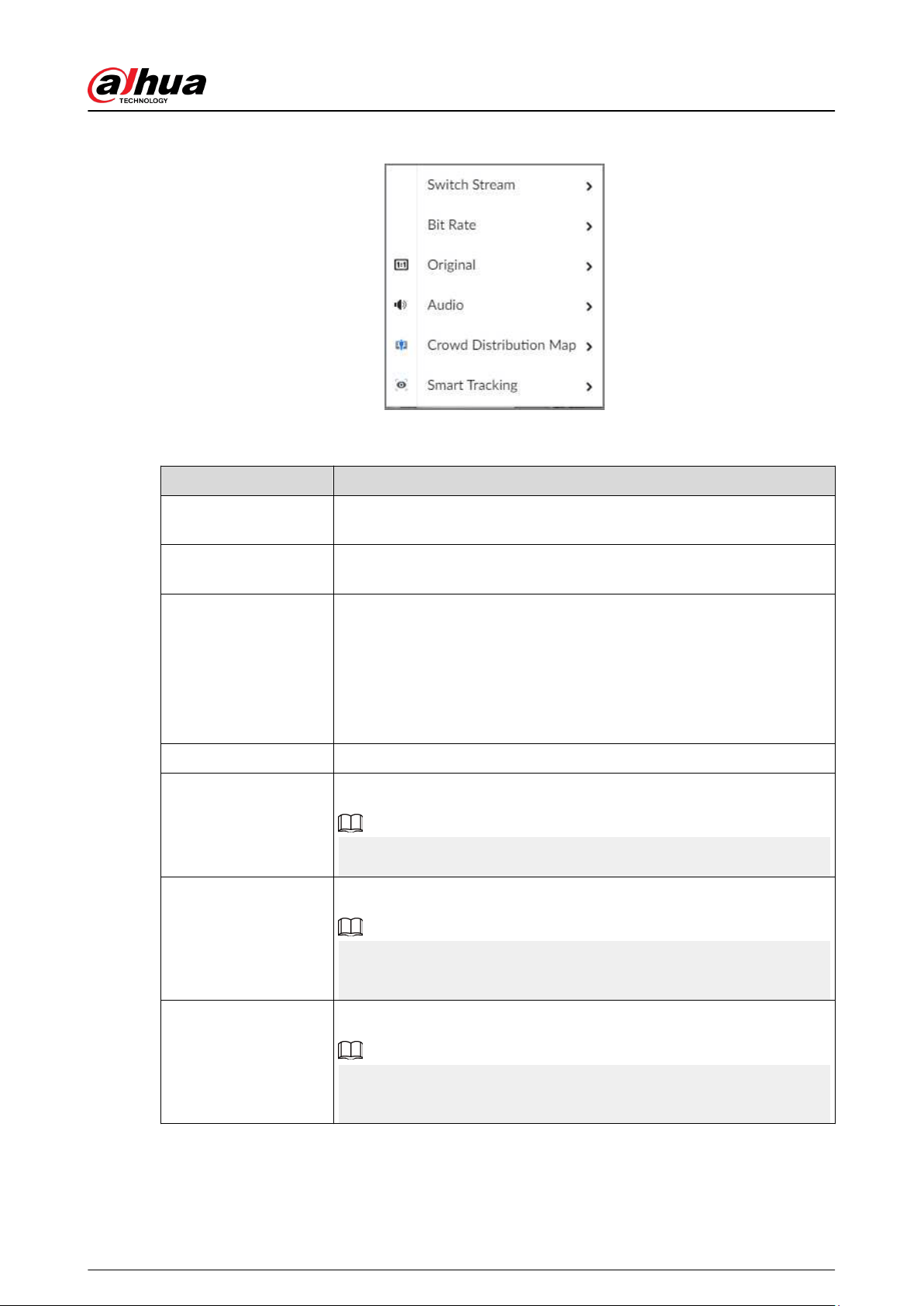
Figure 5-6 Shortcut menu
Table 5-6 Shortcut menu description
Parameter Description
Switch Stream
Select a stream type from Main Stream , Sub Stream 1 and Sub Stream
2.
Bit Rate
Select whether to display the real-time bit rate on the upper-left corner
of the video window.
Original
Set video window scale.
●
ON : The system automatically adjusts video window scale according
to the resolution.
●
OFF : The system automatically adjusts video window scale
according to the number of remote devices and the available display
space.
Audio Set an audio output mode from Audio 1 , Audio 2, Mixing and Close.
Fisheye Dewarp
Set installation methods and display modes of sheye cameras.
This function is only available on sheye camera.
Crowd Distribution
Map
Enable the crowd distribution map to view and monitor crowd density.
This function is only available on the multi-sensor panoramic camera +
PTZ camera.
Smart Tracking
Intelligently track targets.
This function is only available on the multi-sensor panoramic camera +
PTZ camera.
5.1.1.3.3 Digital Zoom
The digital zoom function allows you to zoom in a specied zone to view the video details.
User's Manual
91
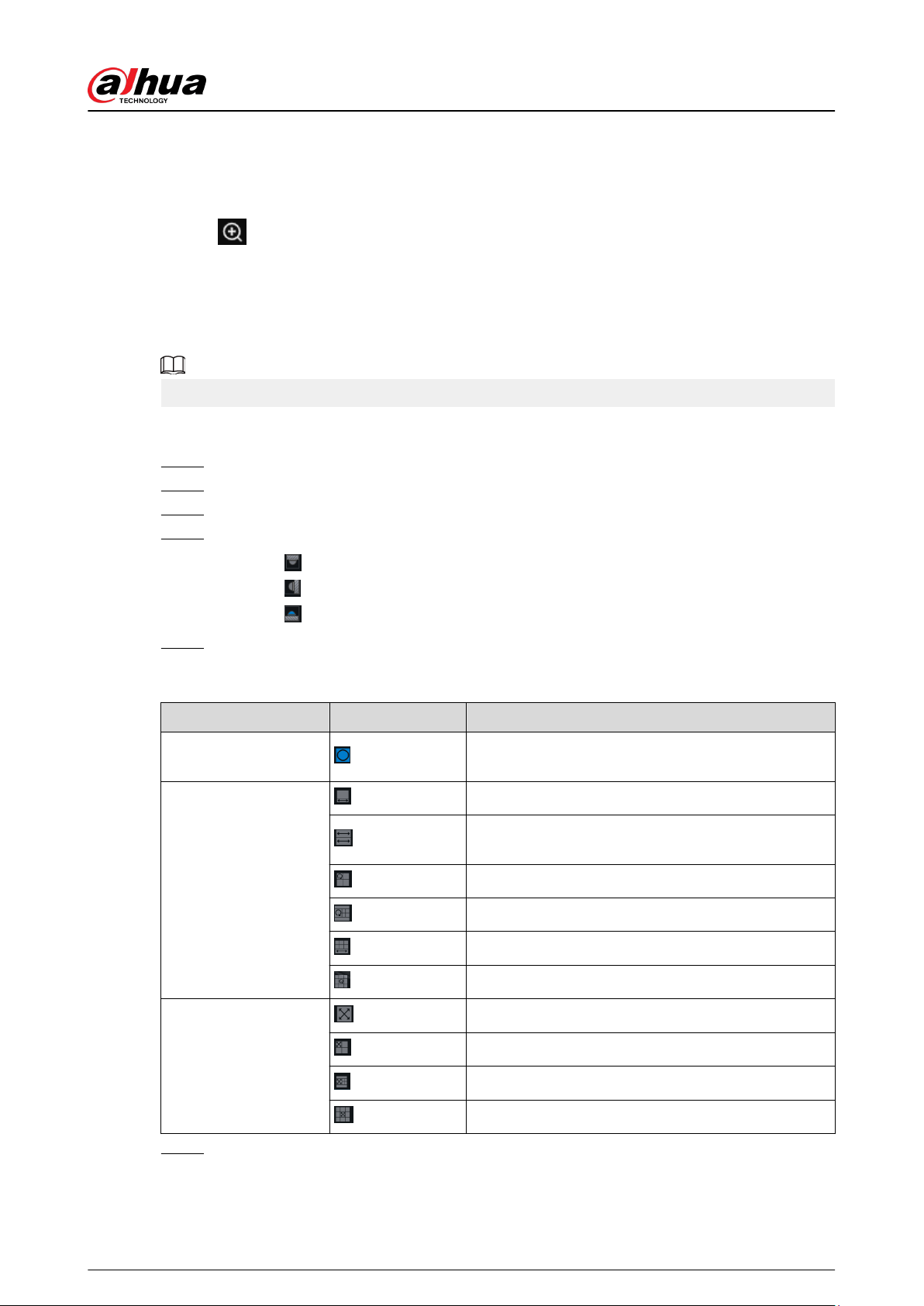
Log in to the PC client, open a view under the Live tab, and then you can zoom in the video
window in either of the following ways.
●
Point to the center of the zone that you want to zoom in or zoom out, and then scroll the mouse
to zoom in or zoom out.
●
Click
, select a zone on the video window. The zone is enlarged. Release the mouse to
restore the original eect.
5.1.1.3.4 Fisheye Dewarp
Set the installation method and display mode of sheye cameras.
This function is available on select models.
Procedure
Step 1 Log in to the PC client.
Step 2 Under the Live tab, open a view.
Step 3 Right-click on the live video, and then select Fisheye Dewarp.
Step 4 Select an installation method.
●
Click
to select ceiling mount.
●
Click
to select wall mount.
●
Click
to select ground mount.
Step 5 Select a display mode.
Table 5-7 Display mode
Installation Method Display Mode Description
Ceiling/wall/ground
mount
The original sheye image.
Ceiling/ ground mount
1P+1
Corrected 360° panoramic image + section images.
2P
2 corrected 180° images that together constitute a
360° panoramic image.
1+3
Original image + 3 section images.
1+4
Original image + 4 section images.
1P+6
Corrected 360° panoramic image + 6 section images.
1+8
Original image + 8 section images.
Wall mount
1P
Corrected 180° image from left to right.
1P+3
Corrected 180° image + 3 section images.
1P+4
Corrected 180° image + 4 section images.
1P+8
Corrected 180° image + 8 section images.
Step 6 Click OK.
User's Manual
92

5.1.1.3.5 Smart Tracking
Track targets manually or automatically. This function is only available on the multi-sensor
panoramic camera + PTZ camera.
Make sure that the linked tracking function has been enabled.
Procedure
Step 1 Log in to the PC client.
Step 2 Under the Live tab, open a view.
Step 3 Right-click the live video, and then select Smart Tracking > ON.
Step 4 Select the tracking method.
●
Manual positioning: Click a spot or select a zone on the bullet camera video, and then
the PTZ camera will automatically rotates there and zoom in.
●
Manual tracking: Click or select a target on the bullet camera video, and then the PTZ
camera automatically rotates and tracks it.
●
Automatic tracking: The tracking action is automatically triggered by tripwire or
intrusion alarms according to the pre-dened rules.
5.1.1.3.6 Thermal
Log in to the PC client. Under the Live tab, a thermal camera has 2 channels by default: visible light
channel and thermal channel.
Select the thermal channel, point to any position on the live video, and then you can view the real-
time temperature of the position.
User's Manual
93
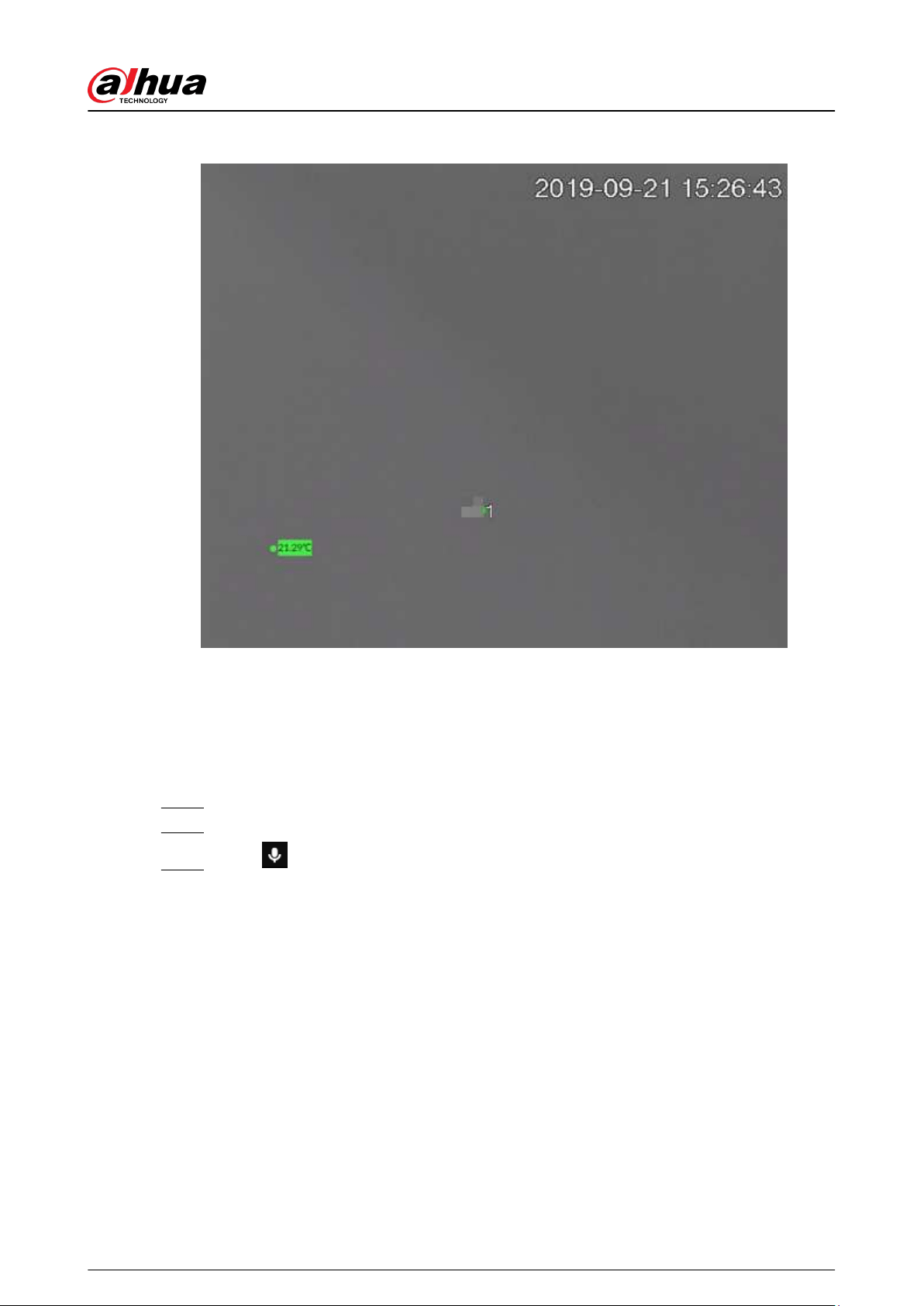
Figure 5-7 Thermal
5.1.1.3.7 Talk
The Talk function enables voice interaction between the Device and remote devices, improving the
eciency in handling emergency events.
Procedure
Step 1 Log in to the PC client.
Step 2 Open a view under the Live client.
Step 3 Click at the upper-right corner of the view window to enable the Talk function. Click
again to disable the function.
5.1.2 Device Tree
Log in to the PC client. The device tree on the upper-left corner of the Live tab displays the added
remote devices, which are grouped automatically according to device type.
User's Manual
94
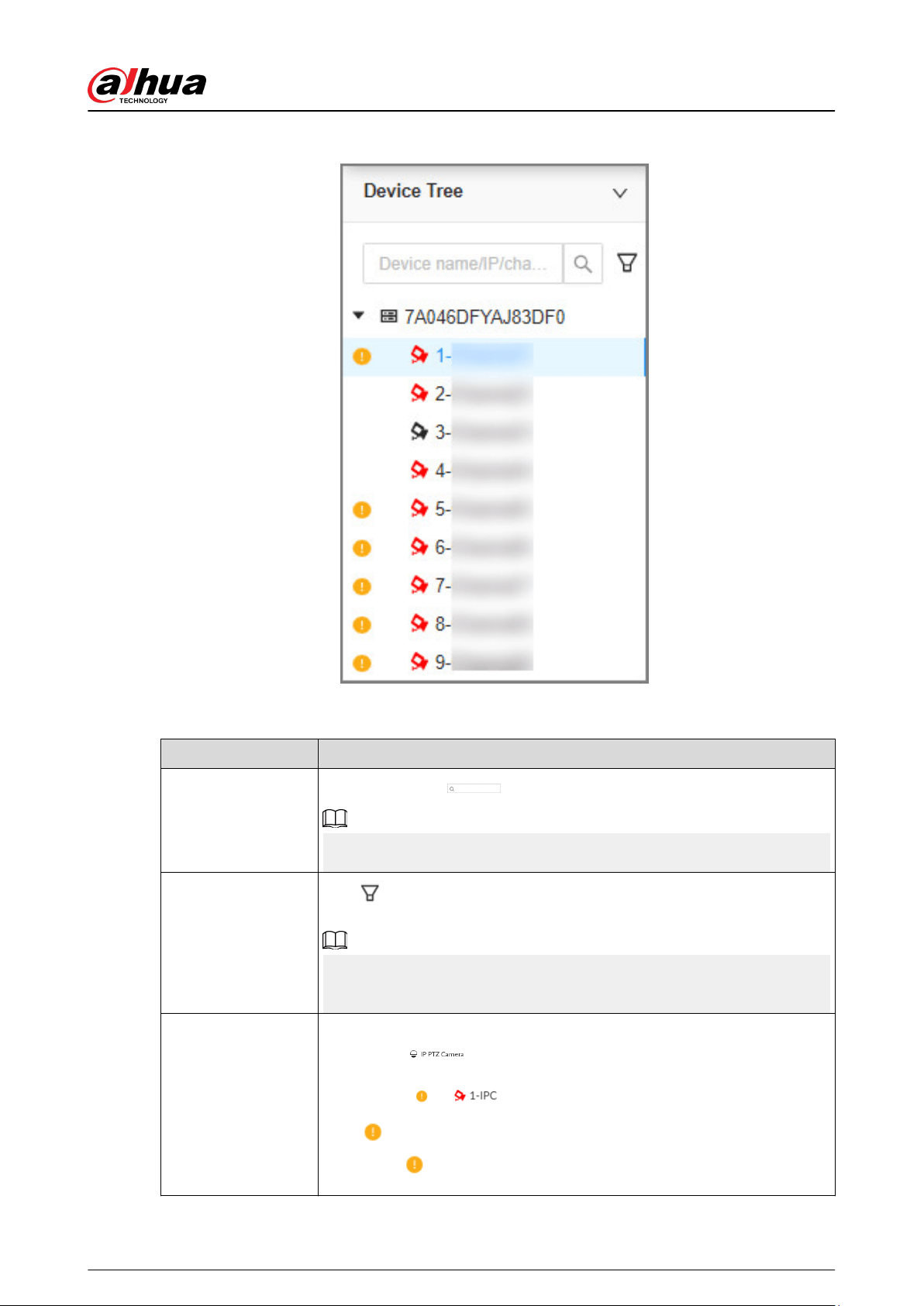
Figure 5-8 Device tree
Table 5-8 Device tree description
Operation Description
Search for devices
Enter keywords in .
Support fuzzy search.
Filter devices
Click and then select All , Online, Oine, Device mismatch and
Incorrect Username or Password to lter the remote devices.
Device mismatch refers to the situation where the remote device is not
compatible with EVS due to inconsistent languages.
View device status
●
If the icon of the remote device is black, the remote device is online. For
example,
.
●
If the icon of the remote device is red, the remote device is oine. For
example,
.
●
If
appears, the remote device is abnormal, alarming, and more.
Point to to view the detailed information.
User's Manual
95
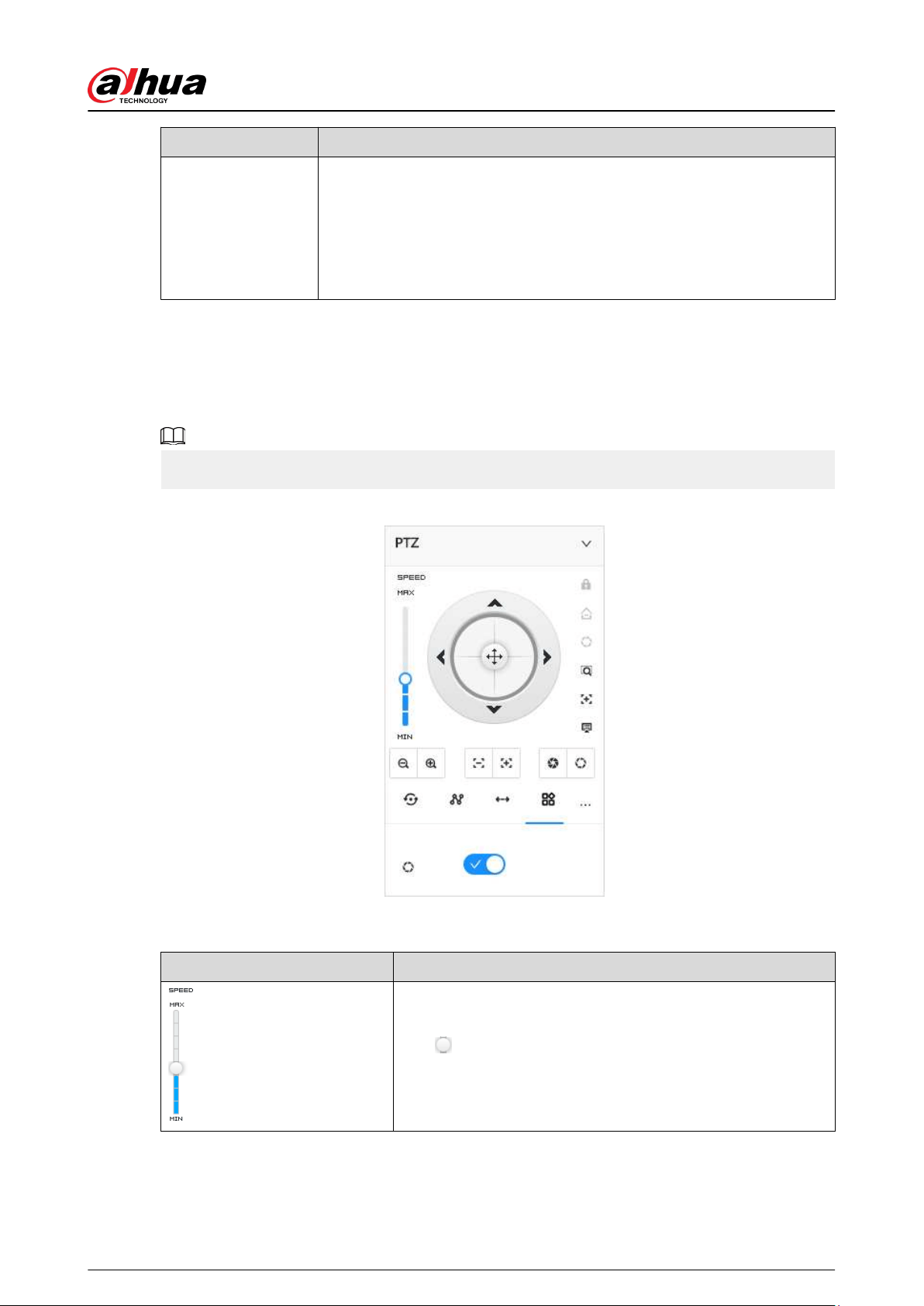
Operation Description
Mouse operations
●
Point to the name of a remote device and then you can view its IP
address and port number.
●
Right-click a remote device to connect, disconnect, and open the
webpage of the remote device.
●
Double-click a remote device or drag the remote device to a video
window, and then you can enter edit the view.
5.1.3 PTZ
Log in to the PC client. Use the PTZ panel at the lower-left corner of the Live tab to perform PTZ
control so that the PTZ camera can rotate accordingly to monitor all directions.
The PTZ functions might vary depending on the device models.
Figure 5-9 PTZ
Table 5-9 PTZ control panel
Icons Description
Drag to set PTZ speed. The higher the value, the faster the
PTZ speed.
User's Manual
96
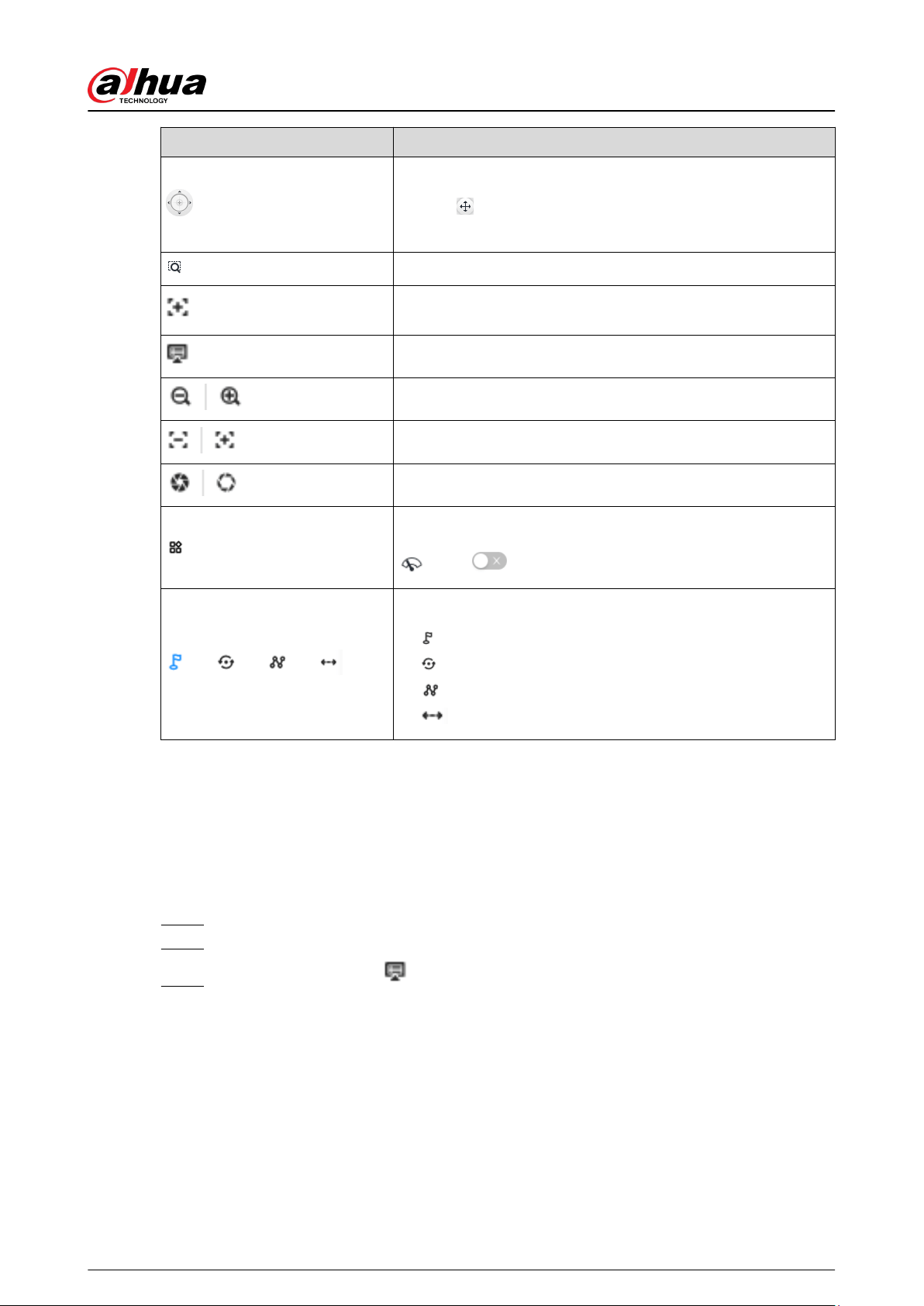
Icons Description
Control PTZ movement in the following ways.
●
Drag
in dierent directions to control the PTZ direction.
●
Click the arrows to control the PTZ direction.
Click to enable 3D positioning function.
Click to enable auto focus, and then the camera image
becomes focused automatically.
Click to enter the PTZ menu mode.
Zoom. Click to adjust lens zoom rate of the remote device.
Focus. Click to adjust lens focus of the remote device.
Iris. Click it to adjust iris size of the remote device.
Click to use windshield wiper.
: Click to enable windshield wiper.
Click to use PTZ functions.
●
: preset.
●
: tour group.
●
: pattern.
●
: scan.
5.1.3.1 PTZ Menu Settings
Device displays PTZ main menu on the view window. The PTZ main menu enables you to perform
camera settings, PTZ settings, system management, and more. You can use the direction and
conrm buttons to set the remote device.
Procedure
Step 1 Log in to the PC client.
Step 2 Under the Live tab, open a view and then select a remote device on the view.
Step 3 On the PTZ panel, click to open the OSD menu.
User's Manual
97
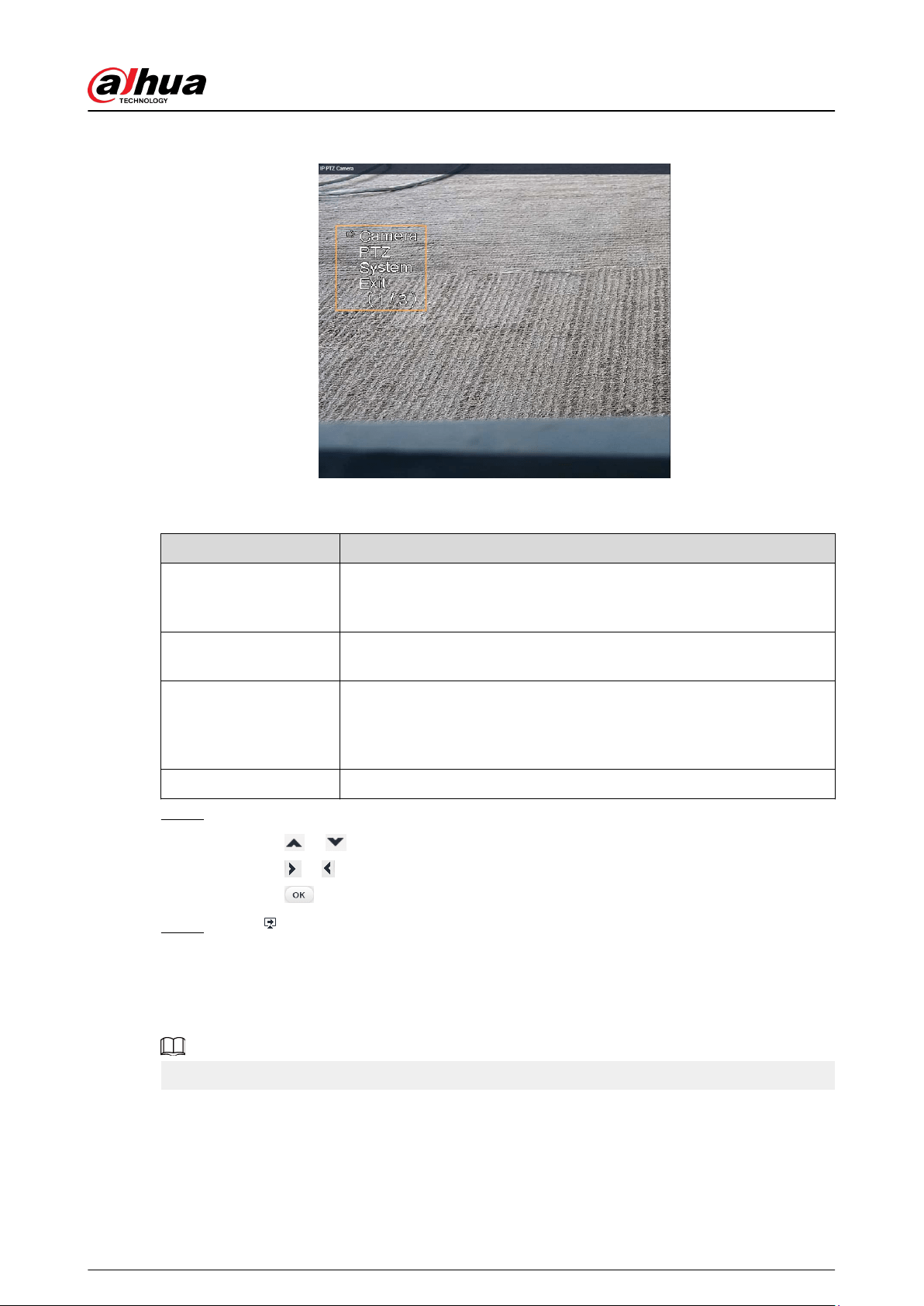
Figure 5-10 PTZ menu
Table 5-10 PTZ menu description
Parameter Description
Camera
Set camera parameters of the remote device including picture,
exposure, backlight, WB, day and night, focus and zoom, defog, and
default.
PTZ
Set PTZ functions of the remote device such as preset, tour group, scan,
pattern, rotation, and PTZ restart.
System
Congure system settings of the remote device. You can set PTZ
simulator, restore default, manage peripheral devices of the remote
device, view the software version and PTZ version of the remote device,
and more.
Exit Exit the PTZ menu.
Step 4 Set PTZ menu parameters.
●
Click
or to select options .
●
Click
or to set values.
●
Click
to conrm.
Step 5 Click to exit PTZ menu mode.
5.1.3.2 Conguring PTZ Functions
Control PTZ device to implement corresponding operations.
The PTZ functions might vary depending on the device models.
5.1.3.2.1 Setting a Preset
A preset is the saved information of a specic position, angle, and focal length of the PTZ camera.
You can set a preset so that you can quickly adjust the PTZ to the desired position when needed.
User's Manual
98
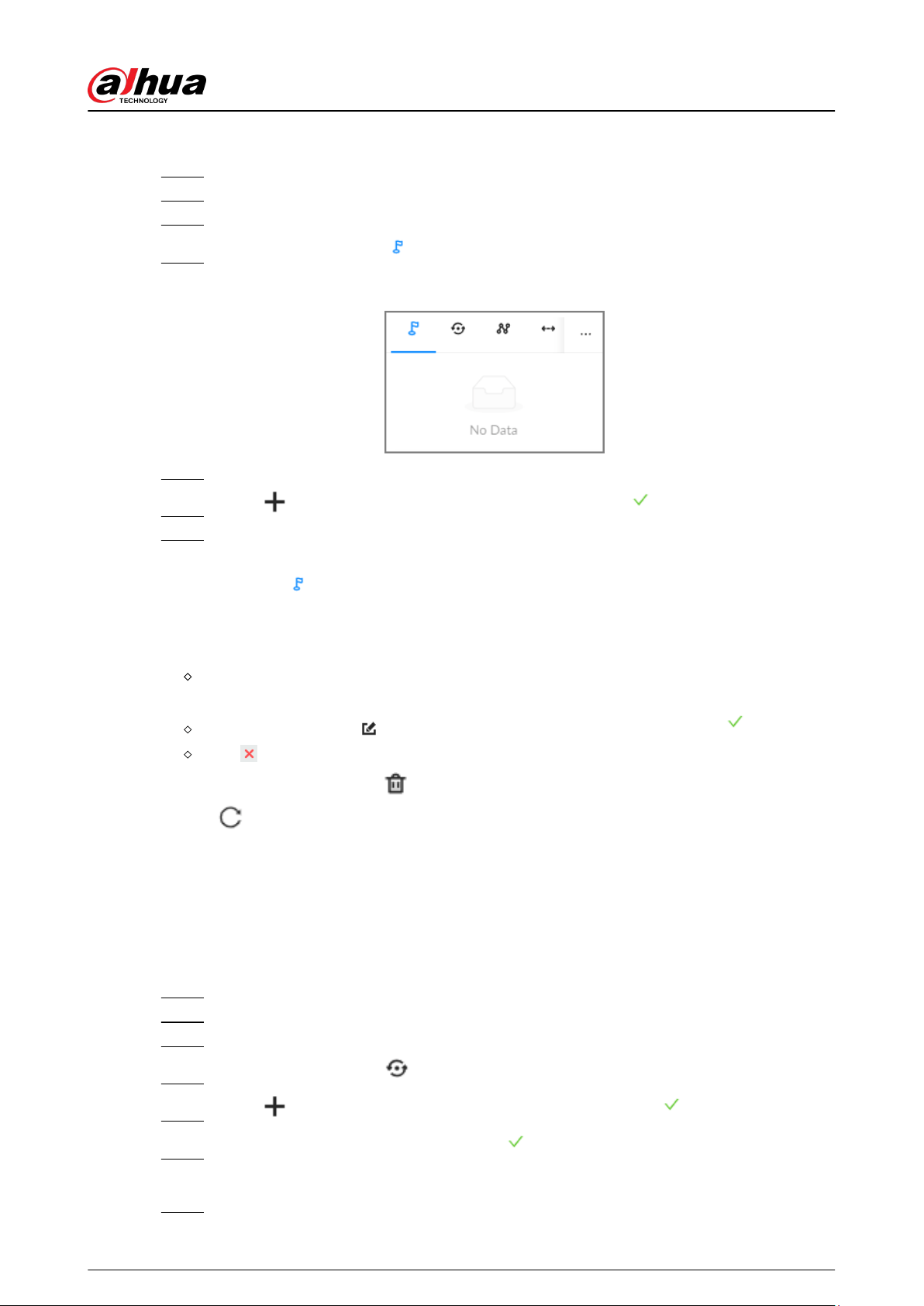
Procedure
Step 1 Log in to the PC client.
Step 2 Under the Live tab, open a view.
Step 3 Select the video window of a PTZ camera.
Step 4 On the PTZ panel, click .
Figure 5-11 Call a preset
Step 5 Click the direction icons to rotate the PTZ camera to a specic position.
Step 6 Click , enter the name of the new preset, and then click to save the preset.
Step 7 Execute the preset.
1. Hover over the preset name.
2. Click
next to the preset name. The PTZ camera rotates to the preset point.
Related Operations
●
Edit a preset:
Double-click the name, and then the camera rotates to the preset after the double-click. You
can change the name,
Select the preset, click to adjust the position of the preset, and then click .
Click to quit.
●
Select a preset and then click to delete it.
●
Click
to refresh the preset list.
5.1.3.2.2 Setting a Tour Group
A tour group is a sequential set of presets. When a tour group is used, the PTZ camera automatically
rotates to the presets one by one at the predened interval.
Procedure
Step 1 Log in to the PC client.
Step 2 Under the Live tab, open a view.
Step 3 Select the video window of a PTZ camera.
Step 4 On the PTZ panel, click .
Step 5 Click , enter the name of the new tour group, and then click to save.
Step 6 Click Add, select a preset, and then click .
Repeat this step to add multiple presets into the tour group.
Step 7 Execute the tour group.
User's Manual
99

1. Hover over the name of the tour group.
2. Click next to the name of the tour group. The PTZ camera rotates to the preset
point in the congured sequence.
3. Click to stop the PTZ tour.
Related Operations
●
Edit a tour group:
Double-click a tour group to rename it.
Select the tour group, click to modify the tour group, and then click .
Click to quit.
●
Select a tour group and then click
to delete it.
●
Click to refresh the list of tour groups.
5.1.3.2.3 Setting a Pattern
A pattern is a recorded series of PTZ operations such as pan, tilt, zoom and focusing. You use a
pattern to let the camera repeat the corresponding operations.
Procedure
Step 1 Log in to the PC client.
Step 2 Under the Live tab, open a view.
Step 3 Select the video window of a PTZ camera.
Step 4 On the PTZ panel, click .
Step 5 Double-click the name of a pattern, click Start Record , perform a series of PTZ actions,
and then click Stop Record.
Step 6 Execute the pattern.
1. Hover over the name of the pattern.
2. Click
next to the name of the tour group. The PTZ camera executes the actions in
the pattern.
3. Click to stop the PTZ actions.
Related Operations
●
Edit a pattern
Select the pattern, and then click
. Click Start Record and record a new pattern, and then
click Stop Record.
●
Select a pattern and then click
to delete it.
●
Click to refresh the list of patterns.
User's Manual
100

5.1.3.2.4 Setting a Scan
In the linear scanning mode, the camera scans repeatedly from side to side within the predened
left and then right limit.
Procedure
Step 1 Log in to the PC client.
Step 2 Under the Live tab, open a view.
Step 3 Select the video window of a PTZ camera.
Step 4 On the PTZ panel, click .
Step 5 Double-click the name of a scan, rotate the PTZ to the desired left and then click to
save; rotate the PTZ to the desired right limit and then click
.
The maximum number of scans depends on the camera capability. If the camera permits,
you can congure up to 5 scans by default.
Step 6 Execute the scan.
1. Hover over the name of the scan.
2. Click next to the name of the scan. The PTZ camera executes the scan.
3. Click
to stop the scan.
Related Operations
Edit the scan.
1. Select a scan, and then click .
2. Rotate the PTZ camera to a new left limit, and then click
.
3. Rotate the PTZ camera to a new right limit, and then click
.
5.1.3.2.5 Enabling Auxiliary Functions
Enable PTZ windshield wiper, light and IR.
Procedure
Step 1 Log in to the PC client.
Step 2 Under the Live tab, open a view.
Step 3 Select the video window of a PTZ camera.
Step 4 On the PTZ panel, click .
Step 5 Click to enable the function.
5.2 Recorded Files
You can search for, play back, export the recorded videos or images, and more.
5.2.1 Playing back Recorded Videos
Search for and play back recorded videos according to remote device, recording type, and
recording time.
User's Manual
101
Procedure
Step 1 Log in to the PC client.
Step 2 Select Search on the home page.
Step 3 Select one or more remote devices, and then click the Record tab.
Click to display only channels. Click to display channels and devices.
Step 4 Select a recording type.
●
All Videos : All videos.
●
Instant Record : Videos of instant record.
●
Video Detection : Videos linked with video detection.
●
External Alarm : Videos linked with internal and external alarms.
●
Thermal : Videos linked with thermal alarms.
Step 5 Select a stream type from Main Stream and Sub Stream.
Step 6 Set the search period.
Step 7 Click Search.
The search results are displayed. You can select Timeline Playback or File Playback to
play back the videos.
●
Timeline playback: Play back videos automatically.
●
Place the mouse on the time axis of Timeline Playback to display the thumbnails of 9
frames before and after the current time node. Click the corresponding thumbnail to
play the video of the node.
●
File playback: The videos les are displayed by channel or by time. Click a le to play
back.
You can click to divide a video into multiple splices that are equally long.
Select Only locked videos on the upper-right corner of the File Playback tab to
display locked videos only.
Click or on the upper-right corner of the File Playback tab to switch the
display mode of the video les.
User's Manual
102
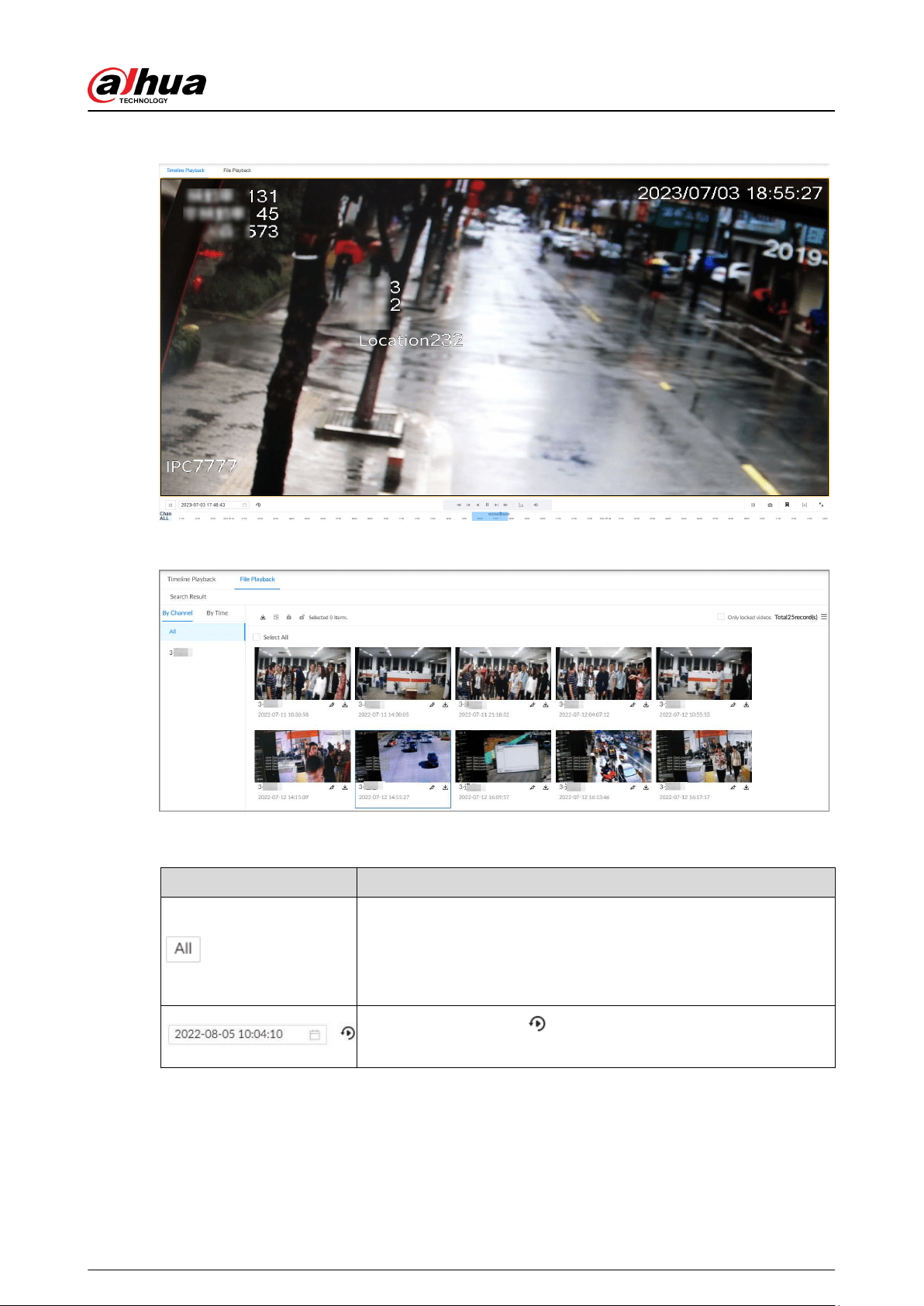
Figure 5-12 Timeline playback
Figure 5-13 File playback
Table 5-11 Search icons description
Signal Words Description
Global control. Click the icon to control several windows
simultaneously, such as fast forward or stop the playback of several
videos at the same time.
Click the icon again to cancel global control.
Set a time period. Click to start playing the videos in the
congured time period.
User's Manual
103
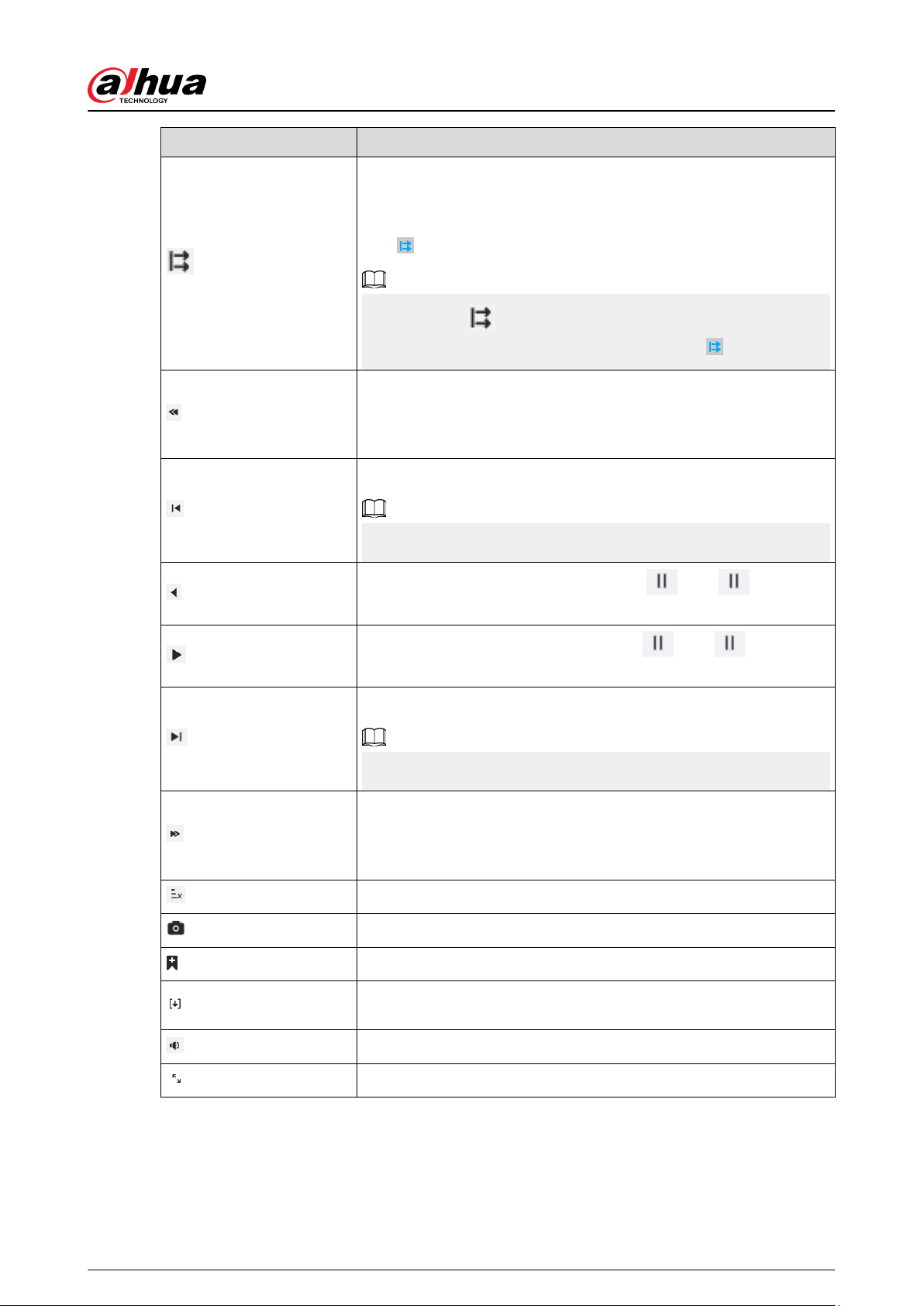
Signal Words Description
When you play back several videos at the same time, click the icon to
switch to time synchronization mode. All other windows play the
video of the same time of current window.
Click
to cancel time synchronization.
When you click , the system enables operation synchronization
as well. If you want to cancel synchronization, click
.
Play back video le at a slow speed.
The slow speed includes1/2,1/4,1/8, and1/16. Click the icon once,
and then the playback speed becomes one level slower.
Play the previous frame.
The function is only available in pause mode.
Click to play backward. The icon becomes . Click to stop
backward play.
Click to start playback. The icon becomes . Click to pause
playback.
Play the next frame.
The function is only available in pause mode.
Play back at a fast speed.
The fast speed includes 1, 2, 4, 8, and 16. Click the icon once, the
playback speed becomes one level faster.
Select a playback speed.
Capture an image.
Add tags to mark important points in time on the video.
Clip one part of the video, and then save it in designated storage
path.
Click the icon and then drag the slider to adjust the volume.
Play back at full screen.
User's Manual
104
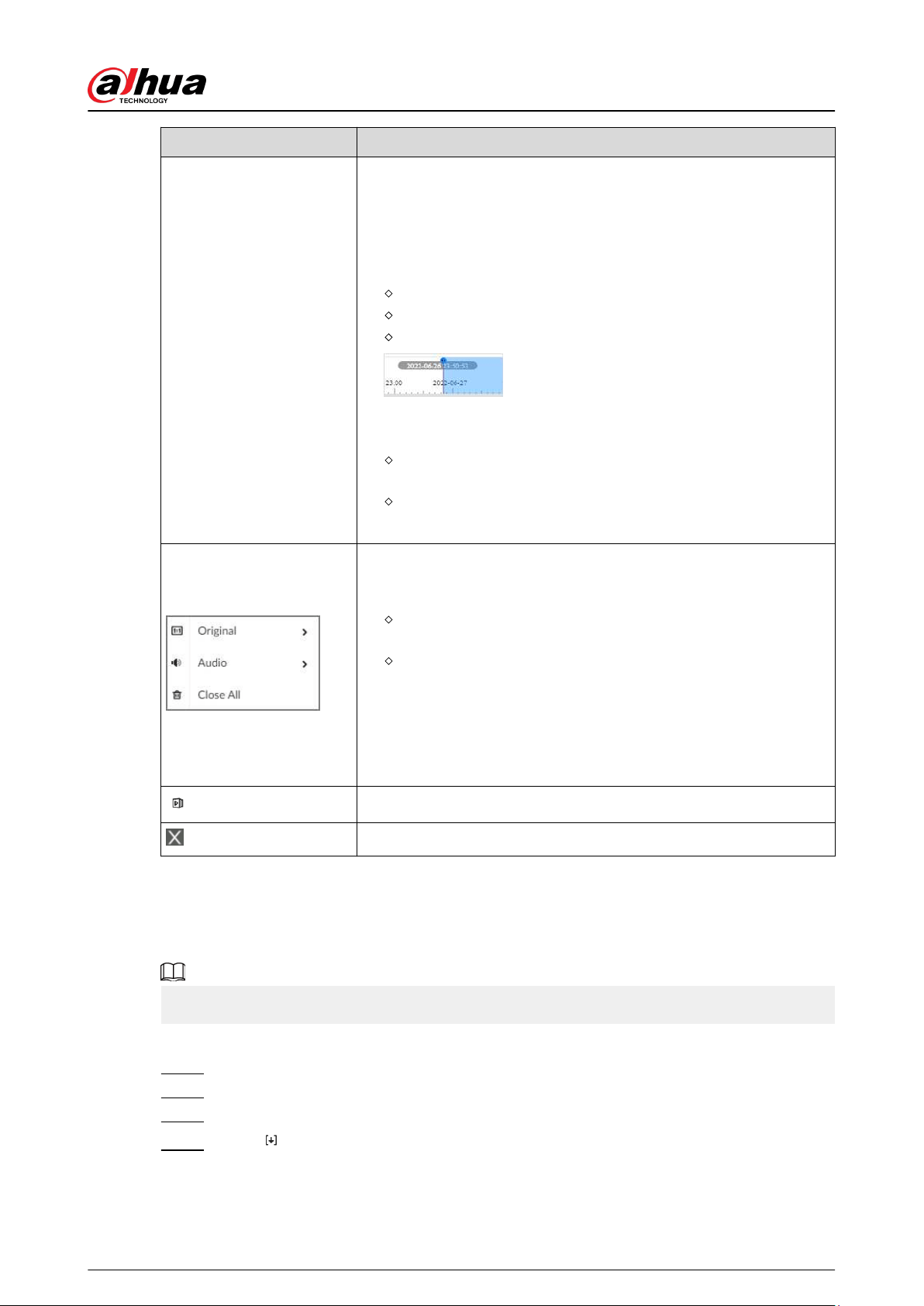
Signal Words Description
—
Time bar. Displays recording type and recording period.
●
There are 2 recording le bars on the time bar. The top bar
displays recording time of selected window. The bottom bar
displays recording time of all selected remote devices.
●
The time bar uses dierent colors to categorize record types.
Green: regular recording.
Red: alarm recording.
Blank: no recording.
●
: The time scale displays recording date and
time, which changes automatically during the playback process.
●
On the time bar, you can:
Click the time bar and scroll your mouse to adjust the time
accuracy.
Drag the time bar to the left or right to view the hidden
recording time.
Right-click the playback window to bring up the shortcut menu.
●
Original: Set video window scale.
On : The system automatically adjusts video window scale
according to the video resolution.
Close : The system automatically adjusts video window scale
according to the number of remote devices and the available
display space.
●
Audio: Set audio output.
●
Fisheye: Set the installation method and display mode of sheye
camera.
Extract the frame when the network playback speed is more than 4x.
Close the playback window.
5.2.2 Clipping a Video
Clip one part of the recorded video, and save it to the designated storage path.
Connect a USB device to the Device if you are operating on the local interface.
Procedure
Step 1 Log in to the PC client.
Step 2 On the home page, select Search.
Step 3 Search for recorded videos and then play back a video.
Step 4 Click .
User's Manual
105
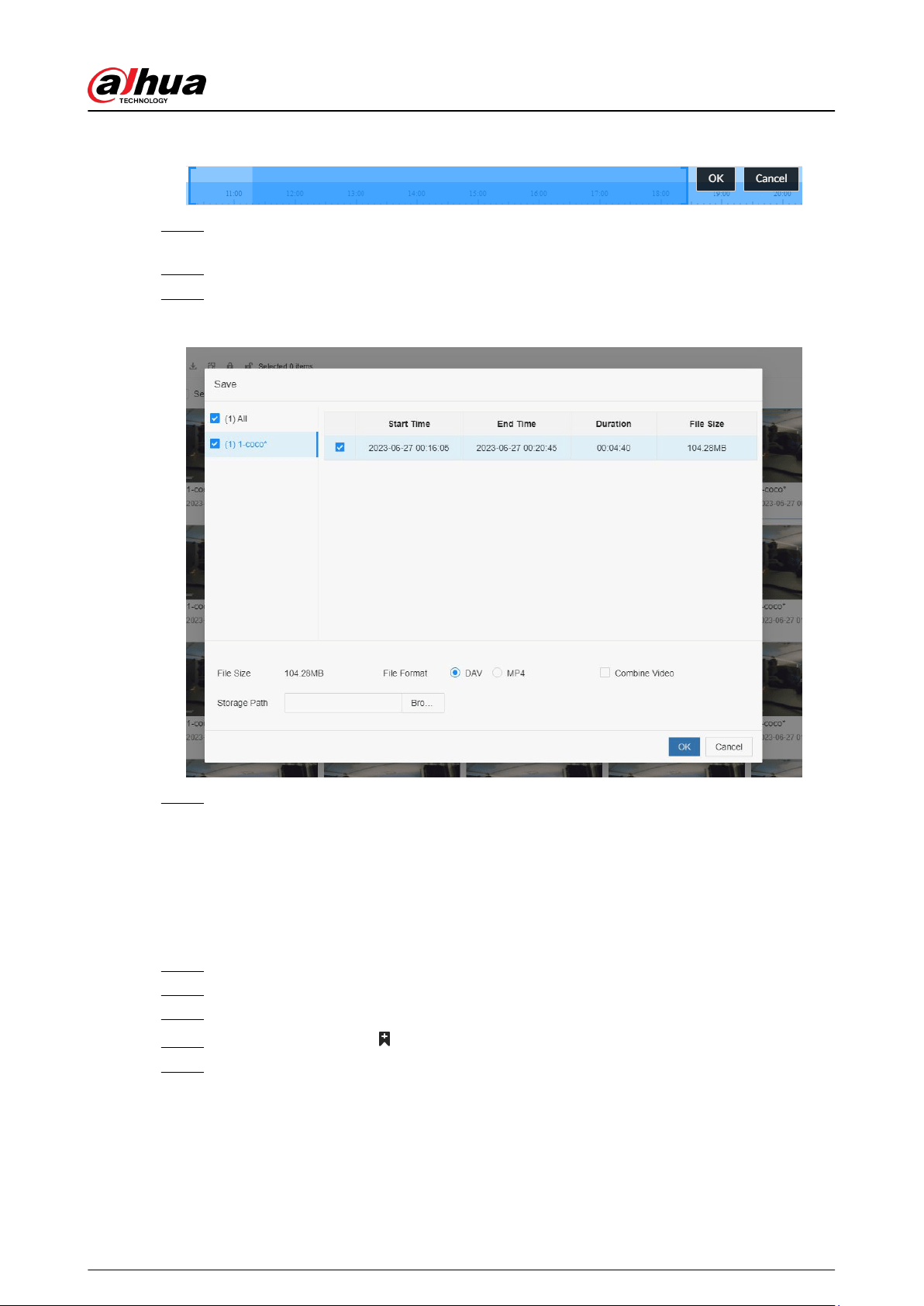
Figure 5-14 Clip a video
Step 5 Drag the left and right edges of the blue frame to select the start time and end time of
clipping.
Step 6 Click OK.
Step 7 Select a le format, and then click Browse to select the storage path.
Figure 5-15 Save the video
Step 8 Click OK.
5.2.3 Video Tag
During playback, you can add a tag to mark an important point in time on the video. After playback,
you can use time or the tag keywords to search for the corresponding video and then play.
Procedure
Step 1 Log in to the PC client.
Step 2 On the home page, select Search.
Step 3 Search for videos and play back a video.
Step 4 During playback, click at the lower-right corner of the playback window.
Step 5 Enter tag name, and then click OK.
Related Operations
You can search for and manage tagged les.
1. Log in to the PC client.
2. On the home page, select Search > Tags.
3. Select one or more channels, enter keywords, and then set the search period.
User's Manual
106
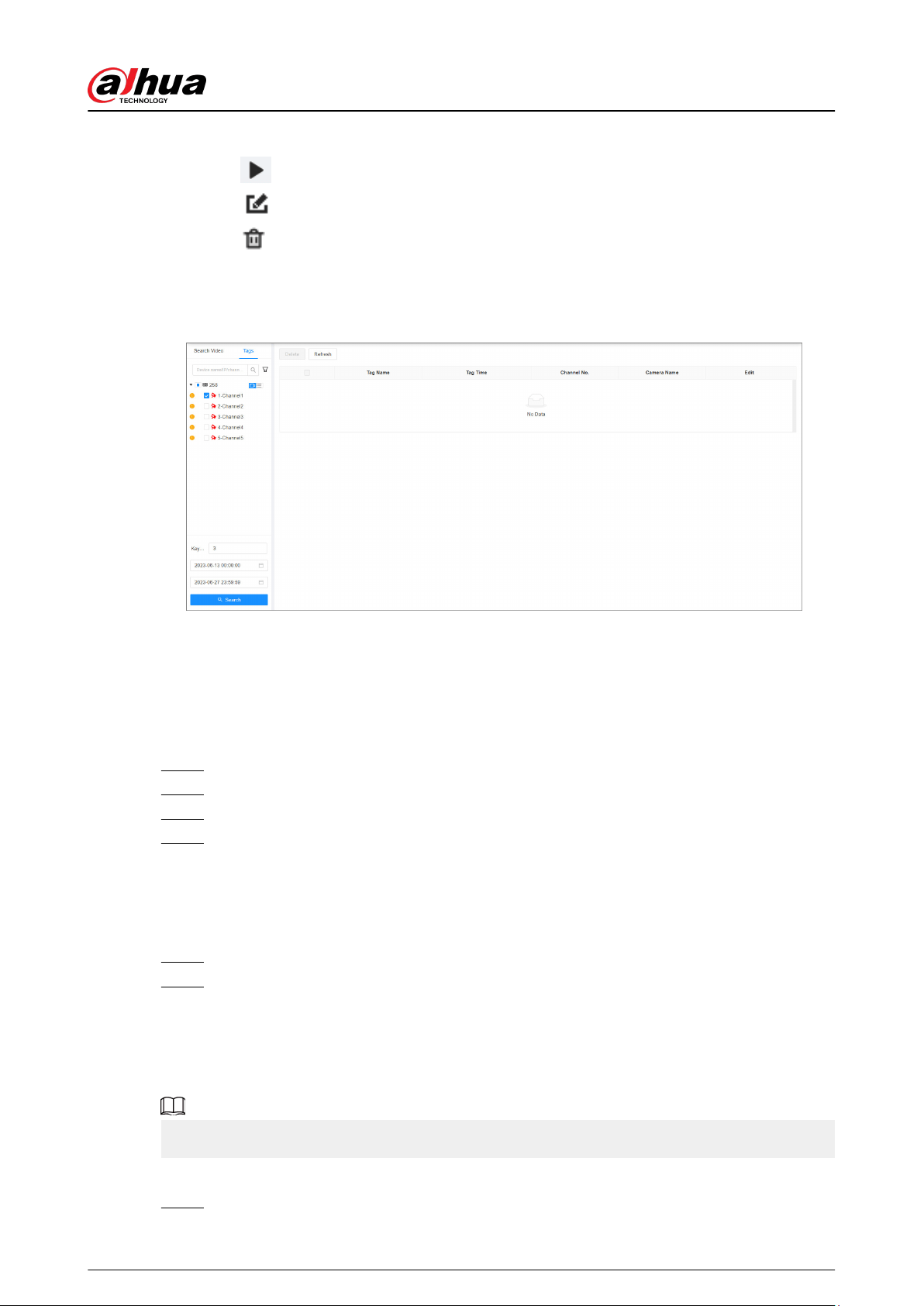
4. Click Search.
●
Click to view the corresponding video.
●
Click to edit the tag.
●
Click to delete the tag.
●
Select multiple tags and click Delete to delete the tags in batches.
●
Click Refresh to refresh the tag list.
Figure 5-16 Tags
5.2.4 Searching for Snapshots
Search for and view snapshots according to remote device, image type, and snapshot time.
Procedure
Step 1 Log in to the PC client.
Step 2 On the home page, select Search.
Step 3 Select a remote device, and then click the Picture tab.
Step 4 Select an image type.
●
Manual Snapshot : Manual snapshots.
●
Video Detection : Snapshots linked with video detection.
●
External Alarm : Snapshots linked with internal and external alarms.
●
Thermal : Snapshots linked with thermal alarms.
Step 5 Set the search period.
Step 6 Click Search.
5.2.5 Backing up Files
Back up videos or images by downloading or remote backup.
Connect a USB device to the Device if you are operating on the local interface.
Procedure
Step 1 Log in to the PC client.
User's Manual
107
Step 2 On the home page, select Search.
Step 3 Search for videos or images.
Step 4 Under the File Playback tab, select one or more les to back up.
●
Download.
a. Click
.
b. Select a le type.
c. Click Browse to select the storage path. You can download les to your computer
or a USB storage device.
d. Click OK.
Select Combined Video to merging and download several video clips.
●
Remote backup.
a. Click
.
b. Click Search to search for connected third-party storage devices.
c. Select a storage device, and then select a le format.
d. Click Format to format the selected storage device.
Please be advised that formatting the storage device will clear all data on it.
e. Click Start.
Make sure that an external HDD or disk array enclosure has been connected to the
eSATA port of the Device.
5.2.6 Locking Files
Lock specic videos or snapshot so they will not be overwritten.
Procedure
Step 1 Log in to the PC client.
Step 2 On the home page, select Search.
Step 3 Search for videos or snapshots
Step 4 Under the File Playback tab, select one or more search results and then click .
The les are locked. Select the locked les and then click
to unlock them.
5.2.7 Watermark Verication
Verify whether a video le is tempered.
Procedure
Step 1 Log in to the PC client.
Step 2 On the home page, select Aux > Watermark.
Step 3 Click Browse to select a video le.
Step 4 After the le is uploaded, click Parity.
User's Manual
108
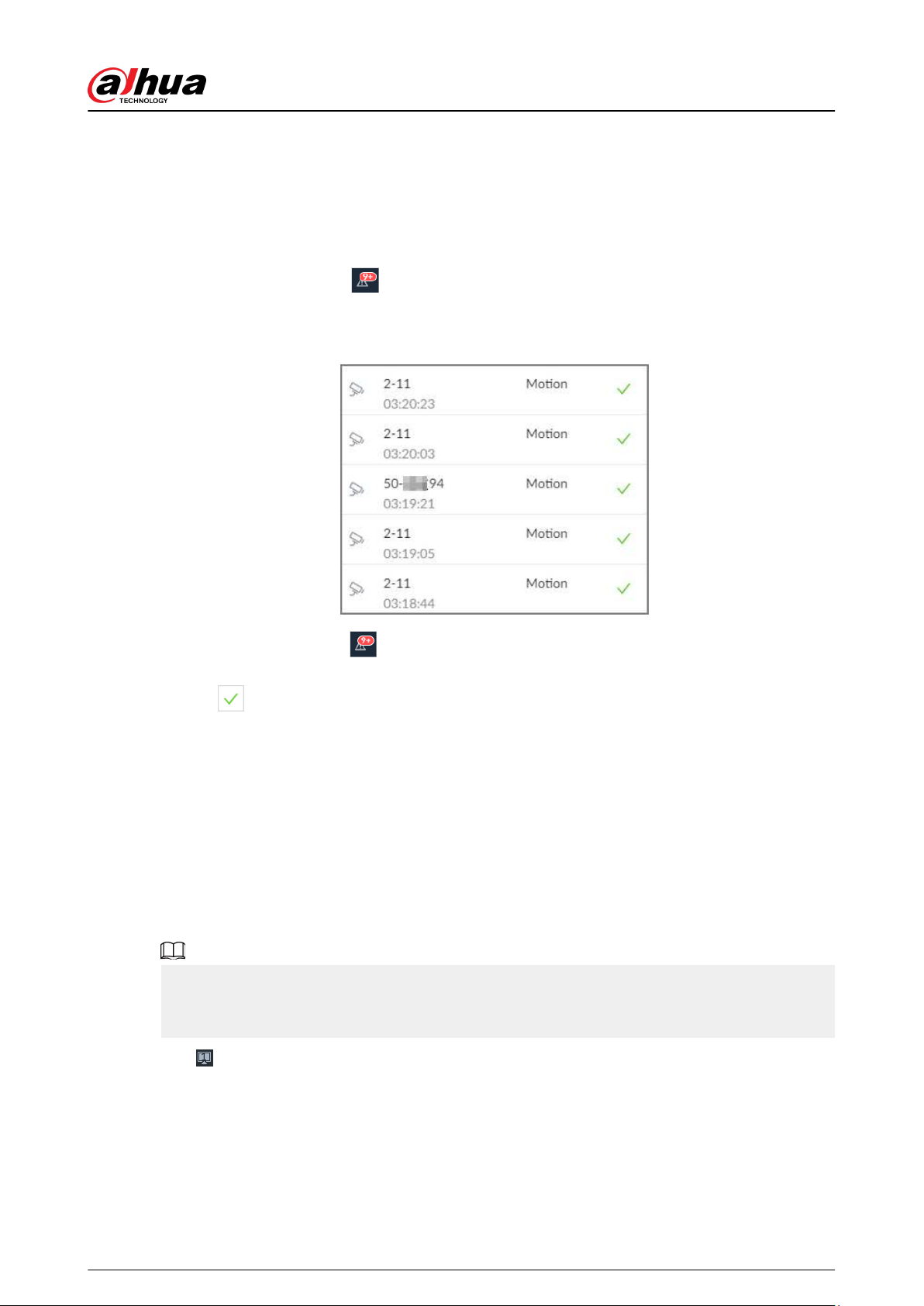
●
Normal: If the verication result is normal, the correct watermark is displayed.
●
Error: If the verication result is abnormal, the abnormal watermark and its type are
displayed.
5.3 Alarm List
Log in to the PC client. Click
on the upper-right corner to display the alarm list. You can view
the name of alarm device, alarm time and alarm type.
Figure 5-17 Alarm list
●
The number on the icon
is the number of unprocessed alarm events. The alarm list displays
up to 200 unprocessed alarm events.
●
Click
to conrm the alarm event. The conrmed event will be removed from the alarm list.
5.4 Display Management
Enable connected monitors or lock the screen.
5.4.1 Multiple-screen Control
The Device can connect to multiple monitors at the same time. You can select a monitor you want
to use.
●
The multiple-screen control function only available on the local interface.
●
Go to System > General > Display to enable a monitor or set its resolution.
●
The page might vary depending on the number of the connected monitors.
Click
on the local interface.
●
The 1–3 monitors represent monitors connected to HDMI 1–HDMI 3. The main screen refers to
the monitor connected to VGA or HDMI 1 port. The monitors connected to the HDMI 2 and
HDMI 3 are the sub screens. The main screen and sub screen display dierent content and
support dierent resolutions and refresh intervals.
●
VGA and HDMI 1 output the same video source. The 3 HDMI ports can output dierent video
sources.
User's Manual
109
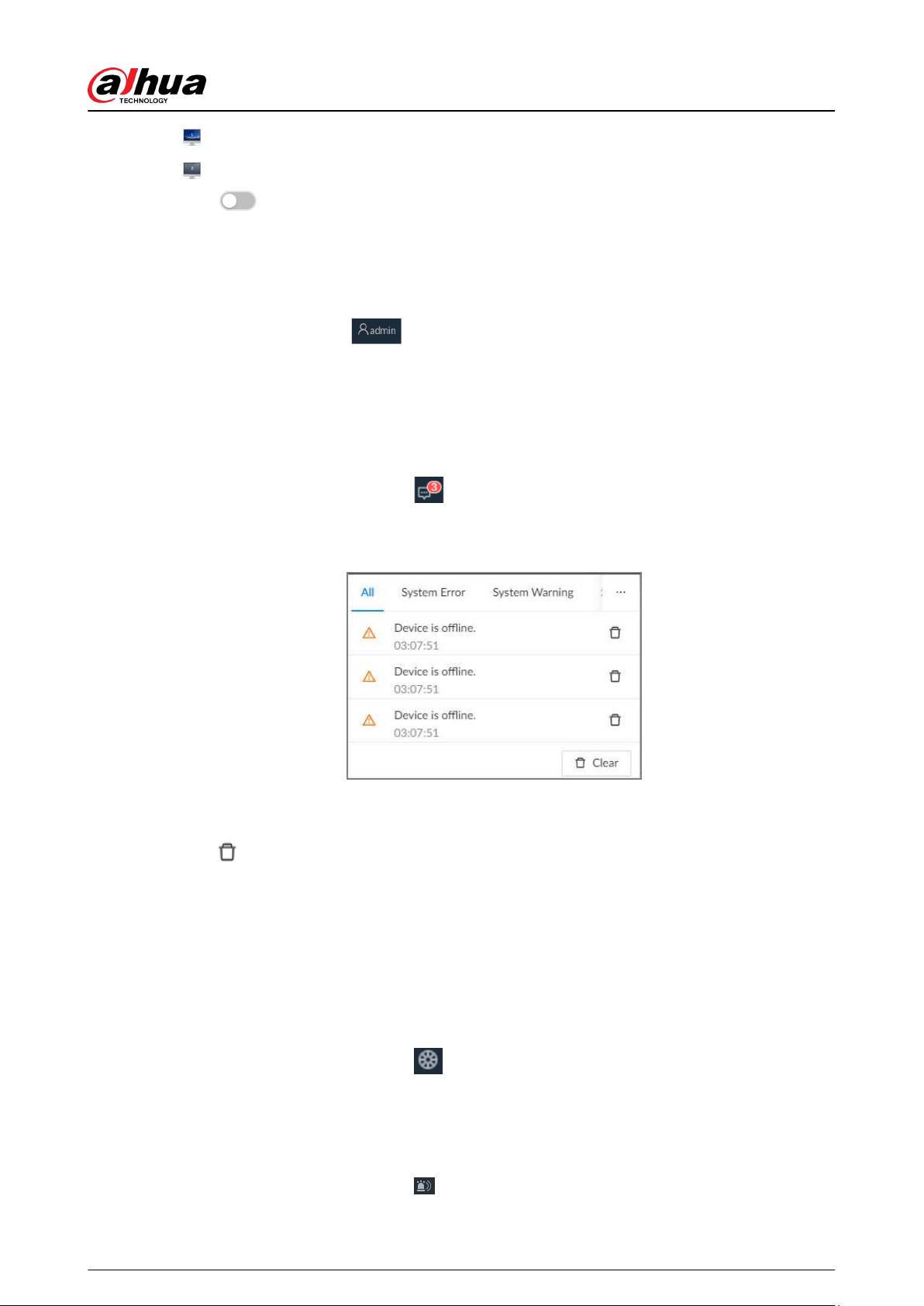
●
means connected and enabled monitor.
means connected but not enabled monitor.
●
Click
to enable the monitor. The main screen is enabled by default and cannot be
disabled.
5.4.2 Locking the Screen
Log in to the PC client. Click
and then select Lock. The screen is locked at the current page.
If you want to unlock the screen for more operations, click any position on the screen, enter the
password of the current account or use another account to log in.
5.5 System Messages
Log in to the PC client, and then click
on the upper-right corner to view system messages
including system errors, system alarms and system notications.
Figure 5-18 System messages
●
Click All , System Error, System Warning, or System Notications to view the corresponding
system messages.
●
Click
to delete the corresponding system message.
●
Click Clear to clear all system messages under current tab.
For example, you can click Clear under the All tab to clear all system messages, or click Clear
under the System Error tab to clear all system error messages.
5.6 Background Task
View the status of the tasks running in the background.
Log in to the PC client, and then click
to display the background tasks. Click All , In progress, or
Waiting to view the background tasks of dierent statuses.
5.7 Buzzer
Log in to the PC client, and then click
to view buzzer alarm messages.
User's Manual
110

Only buzzer alarm messages triggered by ordinary events are displayed.
5.8 Audio Management
Upload and manage audio les that the Device plays when an alarm event occurs.
●
You can upload .pcm, .mp3, .wav, and .aac les.
●
A single audio le must not be less than 2 KB and must not exceed 10 MB.
●
The total size of imported audio les must not exceed 200 MB.
Procedure
Step 1 Log in to the PC client.
Step 2 On the home page, select File Management > Audio.
Step 3 Import audio les to the remote devices.
a. Click Import.
b. Select an audio le and then click Open.
Step 4 Click Import to select the audio les that you want to import.
Step 5 Click OK.
Related Operations
●
Rename the audio le.
Click Edit in the Edit column, enter the new name, and then click OK.
●
Delete the audio le.
Delete one by one: Click Delete next to Edit.
Delete in batches: Select one or more les, and then click Delete next to Import.
User's Manual
111
6 Cluster Service
The cluster function, also known as cluster redundancy, is a kind of deployment method that can
improve the reliability of device. In the cluster system, there are main devices and sub devices (the
N+M mode), and they have a virtual IP address (the cluster IP) for unied login and management.
Under normal circumstances, the main devices are in the working state. When the main device fails,
the corresponding sub device will take over the job automatically. When the main device recovers,
the sub device will transmit the conguration data, cluster IP address and videos and pictures
recorded during the failure to the main device which then takes over the job again.
In the N+M cluster system, there is a management server, the DCS (Dispatching Console) server,
which is responsible for timely and correct scheduling management of the main and sub devices.
When you create a cluster, the current EVS is used as the rst sub device and the DCS server by
default.
Cluster service is only supported within the same network segment.
6.1 Conguring Cluster
Conguring cluster includes creating cluster, viewing cluster information, restoring main device,
and setting arbitrage IP.
6.1.1 Creating a Cluster
Creating a cluster is to add multiple devices into a cluster that requires the addition of main and
sub devices and the conguration of cluster IP.
When you create a cluster, the current device is taken as the rst sub device and the DCS server by
default, and the priority of the other sub devices is determined by the order in which they are
added, with the rst sub device being the highest priority.
Procedure
Step 1 Log in to the PC client.
Step 2 Click on the upper-right corner and then click Cluster.
You can also click Cluster from the conguration list on the home page.
Step 3 Click Cluster Setting > Enable Cluster.
User's Manual
112
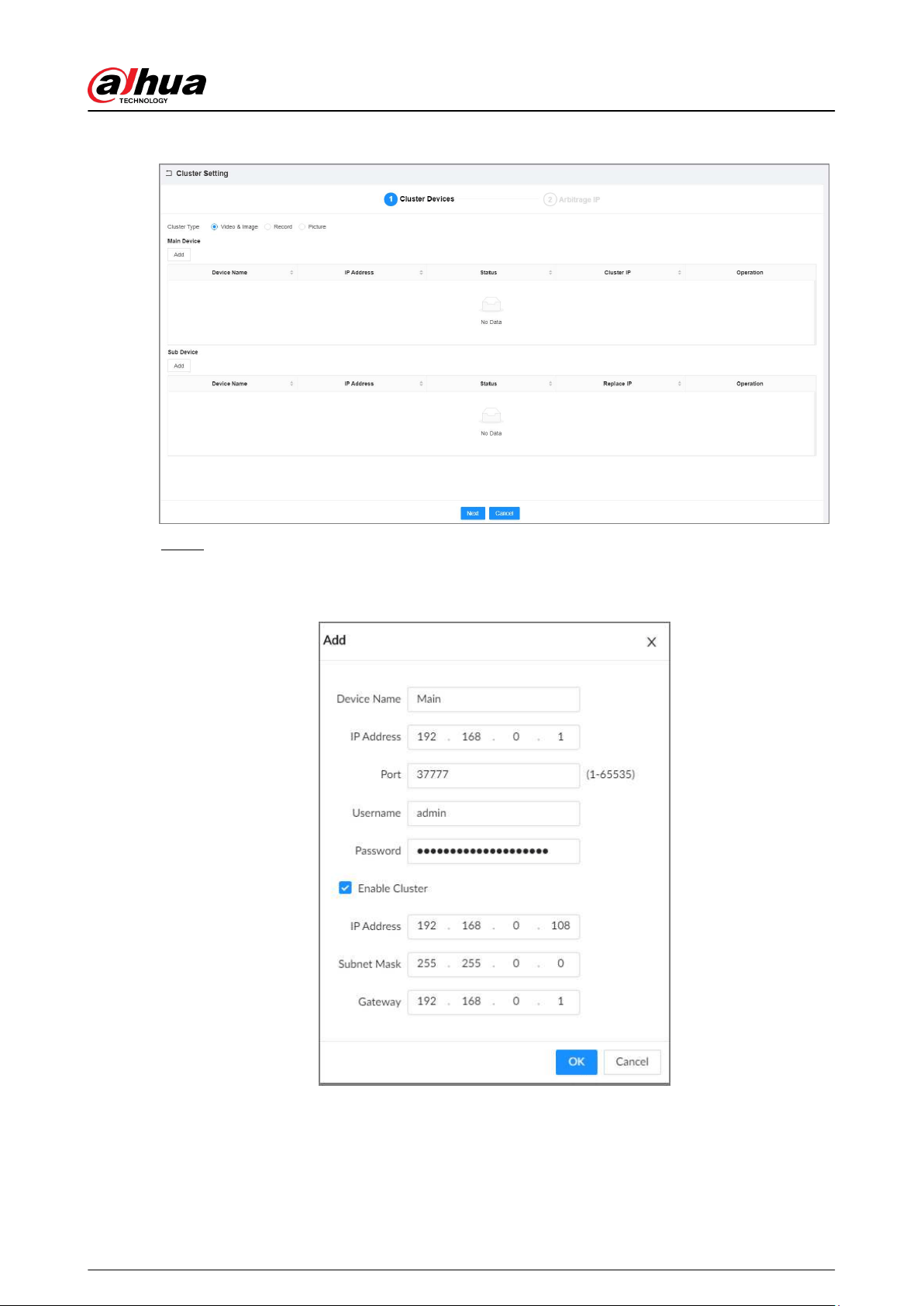
Figure 6-0 Cluster setting
Step 4 Add a main device.
1. Click Add under Main Device.
Figure 6-1 Add a main device
2. Set parameters.
User's Manual
113
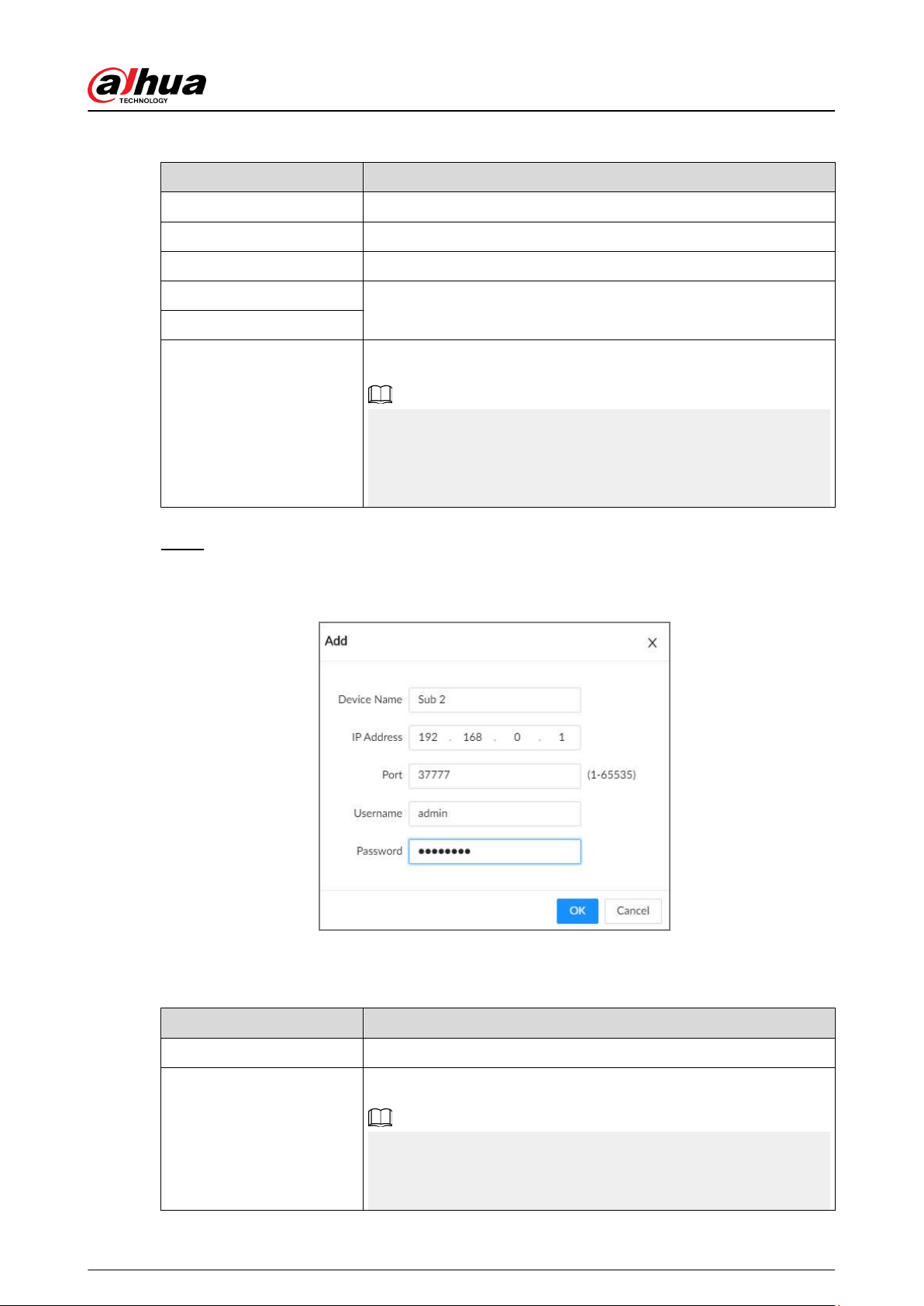
Table 6-1 Parameters description
Parameter Description
Device Name Enter a name for the main device.
IP Address Enter the IP address of the main device.
Port Enter the port number. It is 37777 by default.
Username
Enter the login username and password of the Device.
Password
Enable Cluster
Select the checkbox to enable cluster, and then enter the cluster IP
address, subnet mask and gateway.
Cluster IP is a virtual IP that is used to access and manage the main
devices and sub devices in the cluster. After logging in with the
virtual IP, when the main device fails and the system is switched to
the sub device, you can still view live video.
3. Click OK.
Step 5 Add a sub device.
1. Click Add under Sub Device.
Figure 6-2 Add a sub device
2. Set parameters.
Table 6-2 Parameters description
Parameter Description
Device Name Enter a name for the sub device.
IP Address
Enter the IP address of the sub device.
When adding the rst sub device, you do not need to enter the IP
address, because the rst sub device is the current device by
default.
User's Manual
114
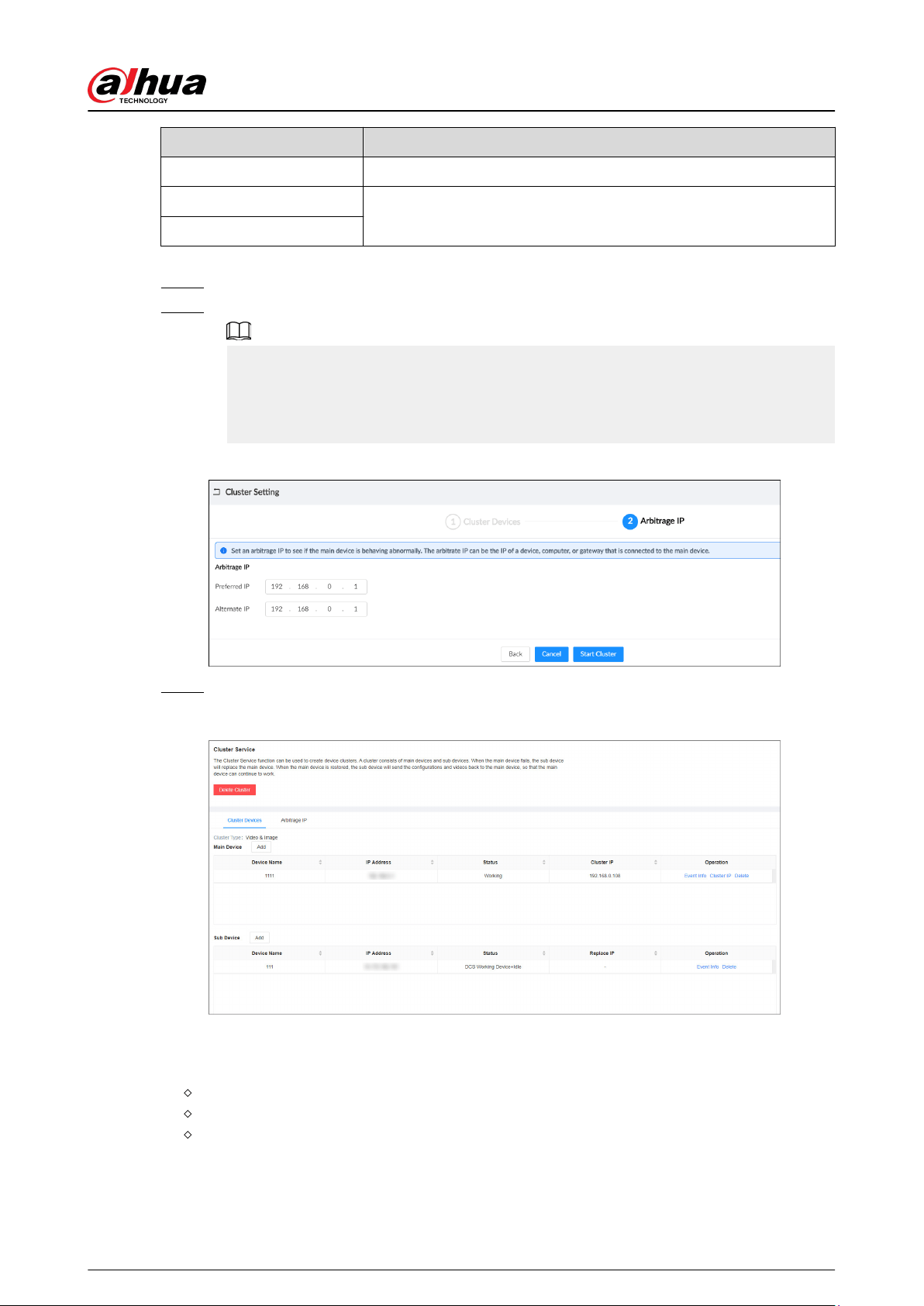
Parameter Description
Port Enter the port number. It is 37777 by default.
Username
Enter the login username and password of the Device.
Password
3. Click OK.
Step 6 Click Next.
Step 7 Set the arbitrage IP.
When there are only 2 devices in the cluster, a third-party device is required to determine
whether the main device is faulty, so arbitration IP must be set for the cluster to perform a
normal replacement operation. The arbitration IP can be the IP address of another device,
computer or gateway that is connected to the Device.
Figure 6-3 Arbitrage IP
Step 8 Click Start Cluster.
Figure 6-4 Successfully created cluster
Related Operations
●
Under the Cluster Services tab, you can:
Click Delete Cluster to delete the cluster.
Click Cluster IP under Operation to change the cluster IP.
Click Delete under Operation to delete the main device or sub device.
●
Under the Arbitrage IP tab, you can change the arbitrage IP.
User's Manual
115
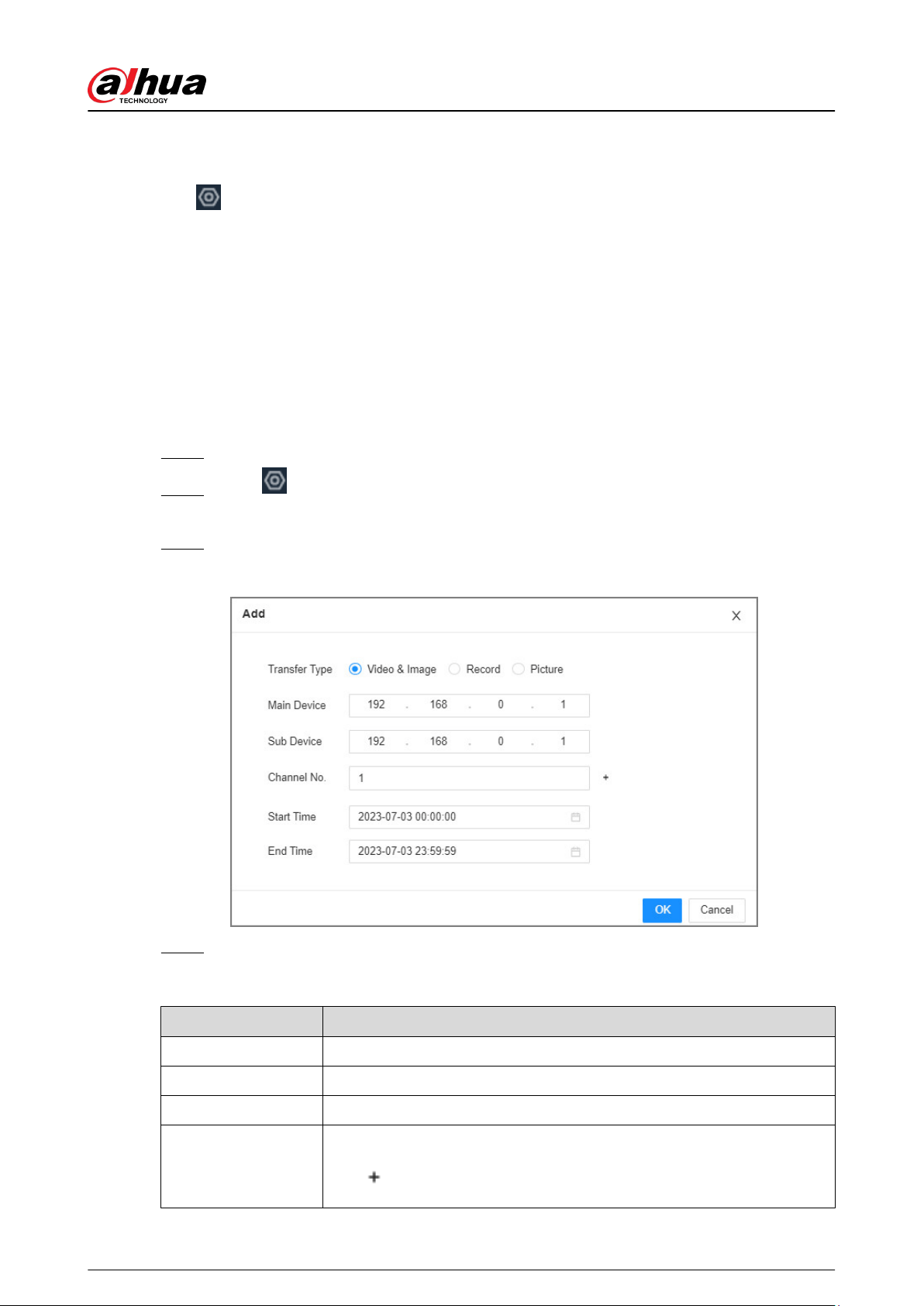
6.1.2 Viewing Information
Click
on the upper-right corner and then click Cluster . You can also click Cluster from the
conguration list on the home page.
Click Even Info under Operation to view the event logs of the main device or sub device,
including event time, name, and event reason.
6.2 Record Transfer
After the main device has recovered, the videos and images recorded on the sub device during the
failure period need to be transferred back to the main device.
Procedure
Step 1 Log in to the PC client.
Step 2 Click on the upper-right corner and then click Cluster.
You can also click Cluster from the conguration list on the home page.
Step 3 Click the Transfer Record tab, and then click Add.
Figure 6-5 Add a transfer task
Step 4 Congure the parameters.
Table 6-3 Parameters of transfer task
Parameters Description
Transfer Type Select Video & Image , Record, or Picture as needed.
Main Device Enter the IP address of the main device.
Sub Device Enter the IP address of the sub device.
Channel No.
Select the channel whose recorded les are to be transferred.
Click
to set the channel range.
User's Manual
116
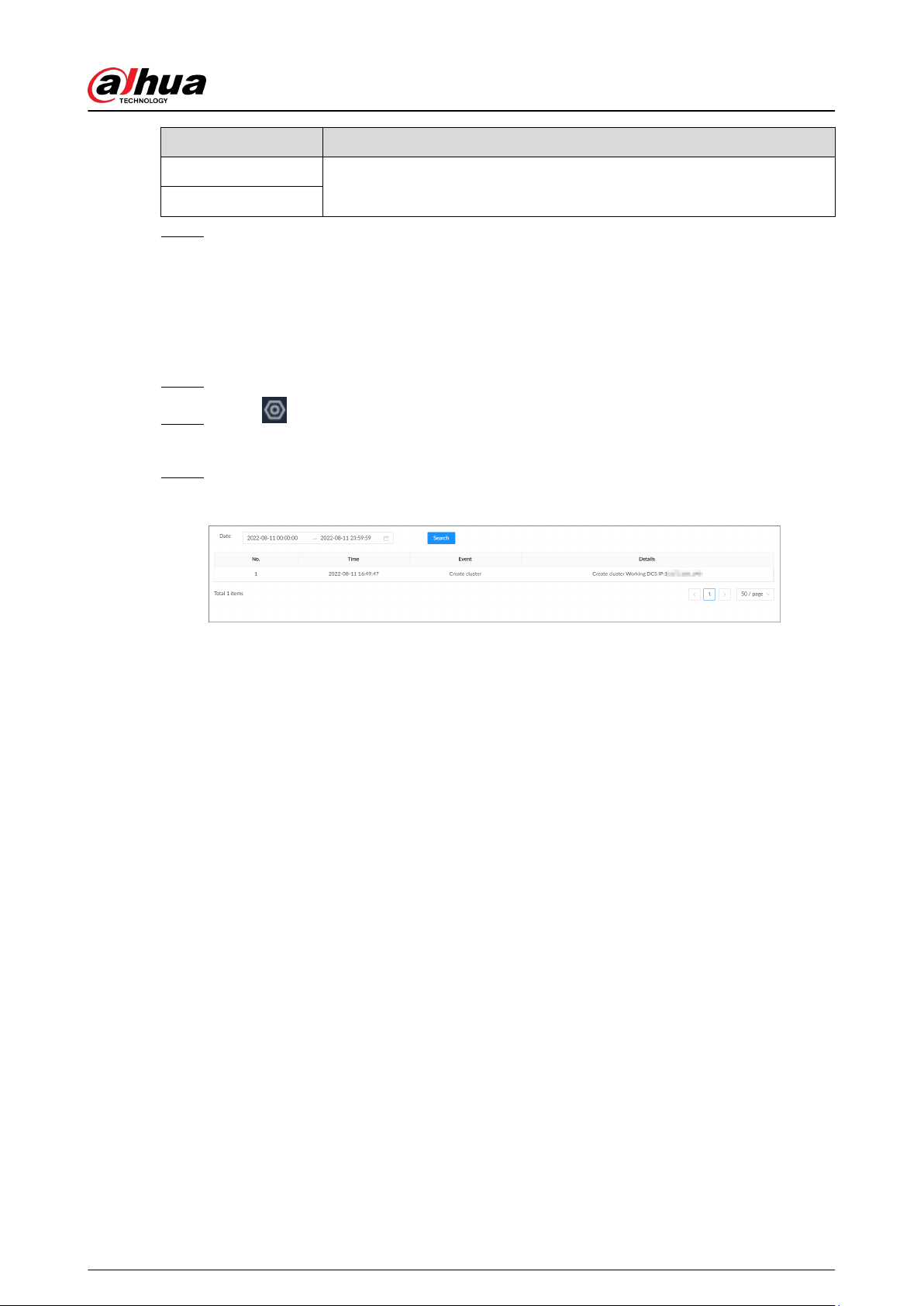
Parameters Description
Start Time
Set the period during which the les you want to transfer were recorded.
End Time
Step 5 Click OK.
6.3 Viewing Cluster Log
The system supports searching and viewing cluster log.
Procedure
Step 1 Log in to the PC client.
Step 2 Click on the upper-right corner and then click Cluster.
You can also click Cluster from the conguration list on the home page.
Step 3 Set the search period, and then click Search.
Figure 6-6 Cluster log
User's Manual
117
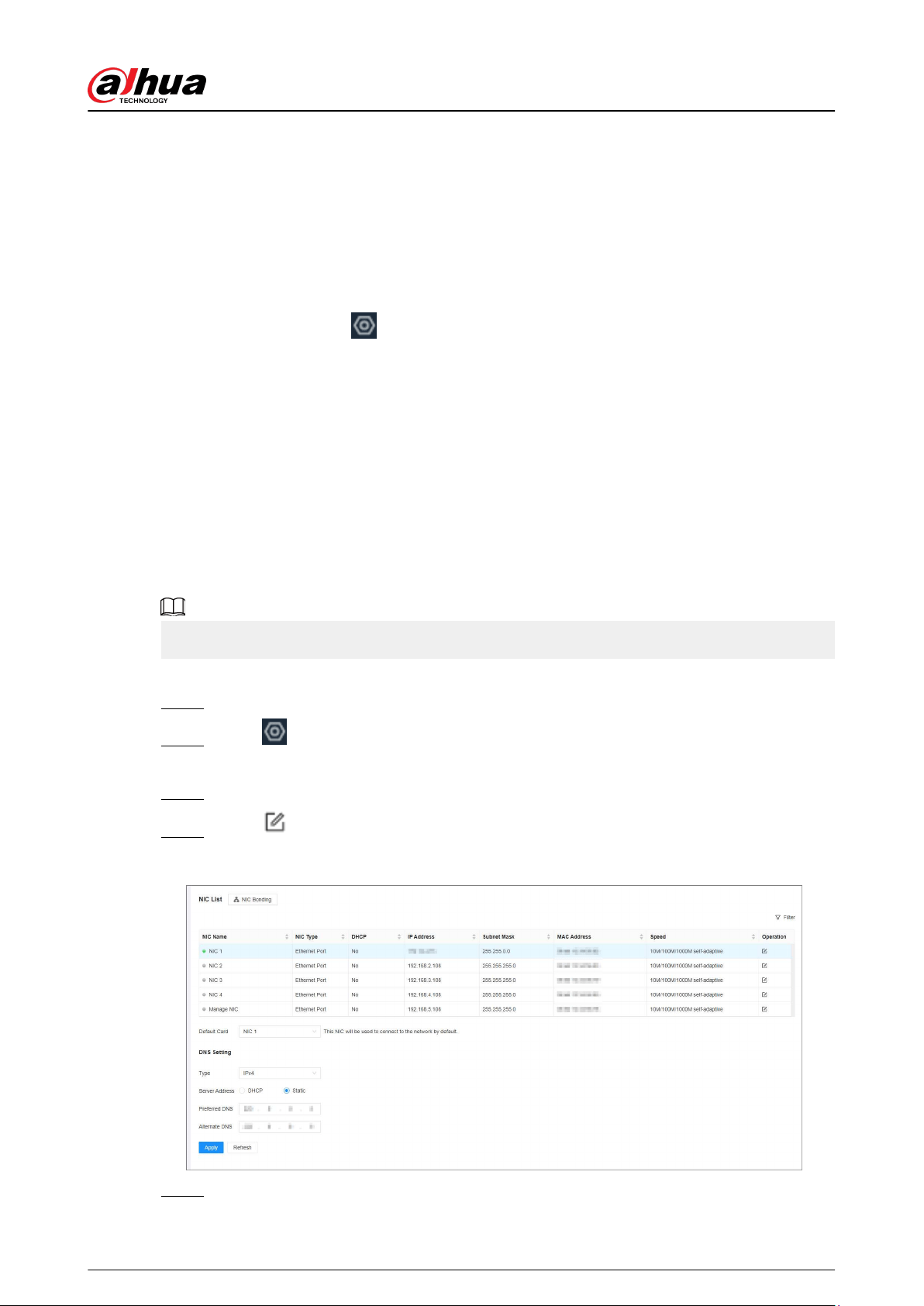
7 System Conguration
This chapter introduces system congurations such as managing remote device, user information,
and HDD storage, and setting network, alarm events, security strategy, and system parameters.
7.1 Network Management
Log in to the PC client. Click
on the upper-right corner of the page and then click Network. You
can set basic network parameters and applications.
7.1.1 Basic Network
Set basic network parameters of the Device, such as IP address, port aggregation and port number,
to make sure the Device can connect with other devices on the network.
7.1.1.1 Conguring IP Address
Set IP address of the Device, DNS server information and other information according to network
planning.
Make sure that at least one Ethernet port has connected to the network before you set IP address.
Procedure
Step 1 Log in to the PC client.
Step 2 Click on the upper-right corner and then click Network.
You can also click Network from the conguration list on the home page.
Step 3 Select Basic Network > TCP/IP.
Step 4 Click to congure the corresponding NIC.
Figure 7-0 TCP/IP
Step 5 Congure the parameters.
User's Manual
118
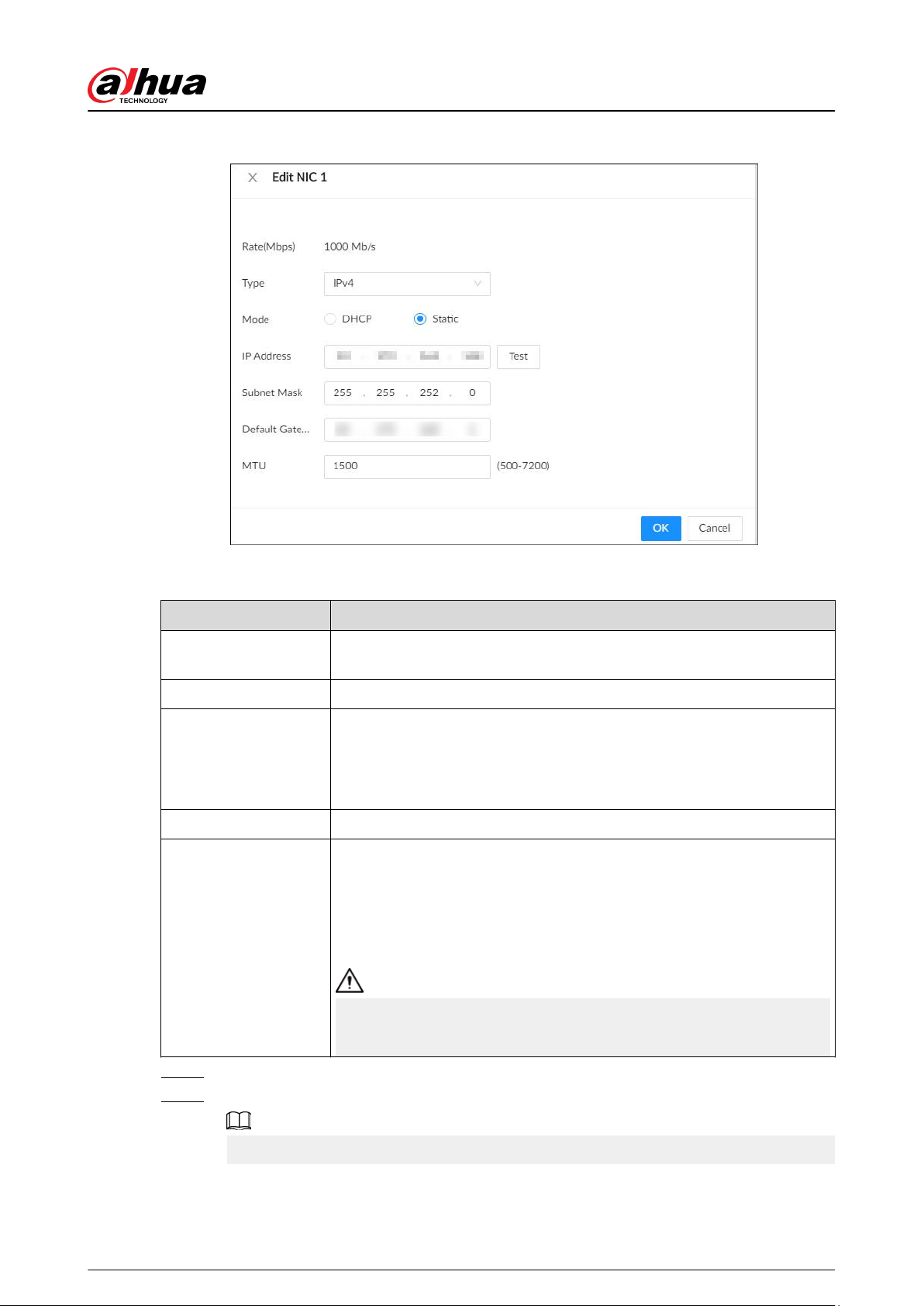
Figure 7-1 Edit Ethernet network
Table 7-1 NIC parameters description
Parameter Description
Rate (Mbps)
The maximum network transmission speed that the current NIC
supports.
Type Select IPv4 or IPv6.
Mode
●
DHCP : When there is a DHCP server on the network, you can enable
DHCP. The system allocates a dynamic IP address to the Device. There
is no need to set IP address manually.
●
Static : You need to enter the IP address, subnet mask and gateway.
Test Test whether the IP address is valid.
MTU
Set NIC MTU value. The default setup is 1500 bytes.
We recommend you check the MTU value of the gateway rst and then
set the MTU value of the Device equal to or smaller than the gateway
value, which helps to reduce the packets slightly and enhance network
transmission eciency.
Please be advised that changing MTU value might result in NIC restart,
network oine and aect current running operation.
Step 6 Click OK.
Step 7 Set DNS server information.
This step is compulsive if you want to use domain service.
●
Select DHCP so that the Device can automatically get the IP address of the DNS server
on the network.
User's Manual
119
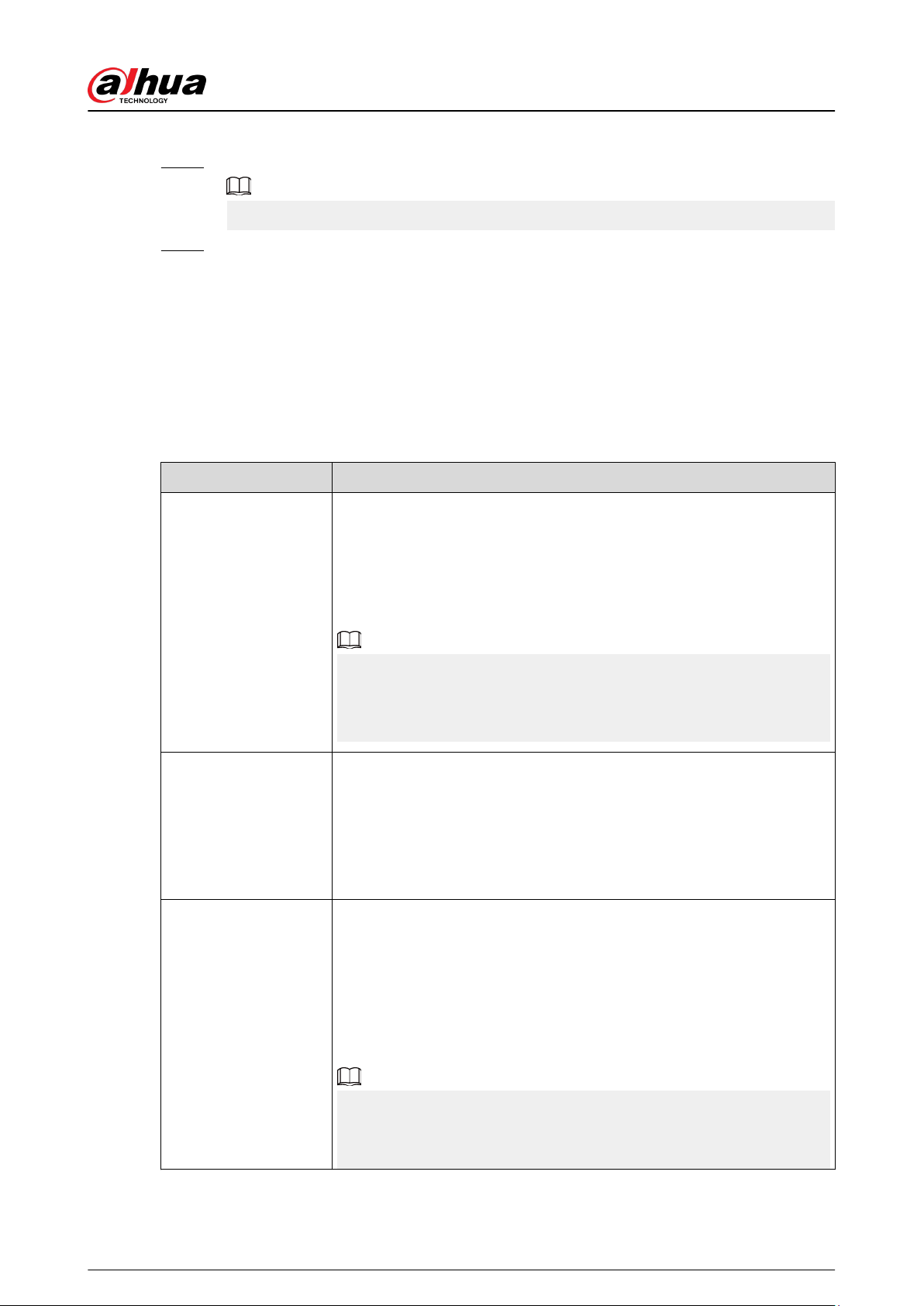
●
Select Static and then enter the preferred and alternate DNS addresses.
Step 8 Set the default NIC.
Make sure that the default NIC is online.
Step 9 Click Apply.
7.1.1.2 Port Aggregation
Bind multiple NICs to create one logic NIC and use one IP address for peripheral devices. The
working mode of bonded NICs work is dependent on the aggregation mode. Port aggregation
enhances network bandwidth and network reliability.
The system supports 3 aggregation modes: load balance, fault tolerance, and link aggregation.
Table 7-2 Aggregation mode description
Aggregation mode Description
Load balance
The Device bonds several NICs at the same time and use one IP address
to communicate with other devices. The bonded NICs are working
together to bear the network load.
The load balance mode adds the network throughput data amount and
enhances network exibility and availability. In this mode, the network is
oine when all NICs break down.
Make sure that the switch supports link aggregation and you have
congured the static aggregation. It will take eect when the forwarding
policy is congured as IP+PORT forwarding and aggregation mode as
load balance.
Fault tolerance
The Device bonds several NICs and use one NIC as the main card and the
rest as standby. Usually, only the main NIC card is working. The other
standby cards automatically take over the job when the main card
breaks down.
This mode enhances NIC reliability. In this mode, the network is oine
when all NICs break down.
Link aggregation
The Device bonds several NICs and all NICs are working together to
share the network load. The system allocates data to each NIC according
to your allocation strategy. Once the system detects that one NIC breaks
down, it stops sending data through this NIC, and transmits the data
among the rest NICs. The system calculates transmission data again after
the malfunctioning NIC resumes work.
In this mode, the network is oine when all bonded NICs break down.
Make sure that the switch supports link aggregation and you have
congured the LCP type dynamic link aggregation, the link aggregation
takes eect when conguring the mode.
User's Manual
120
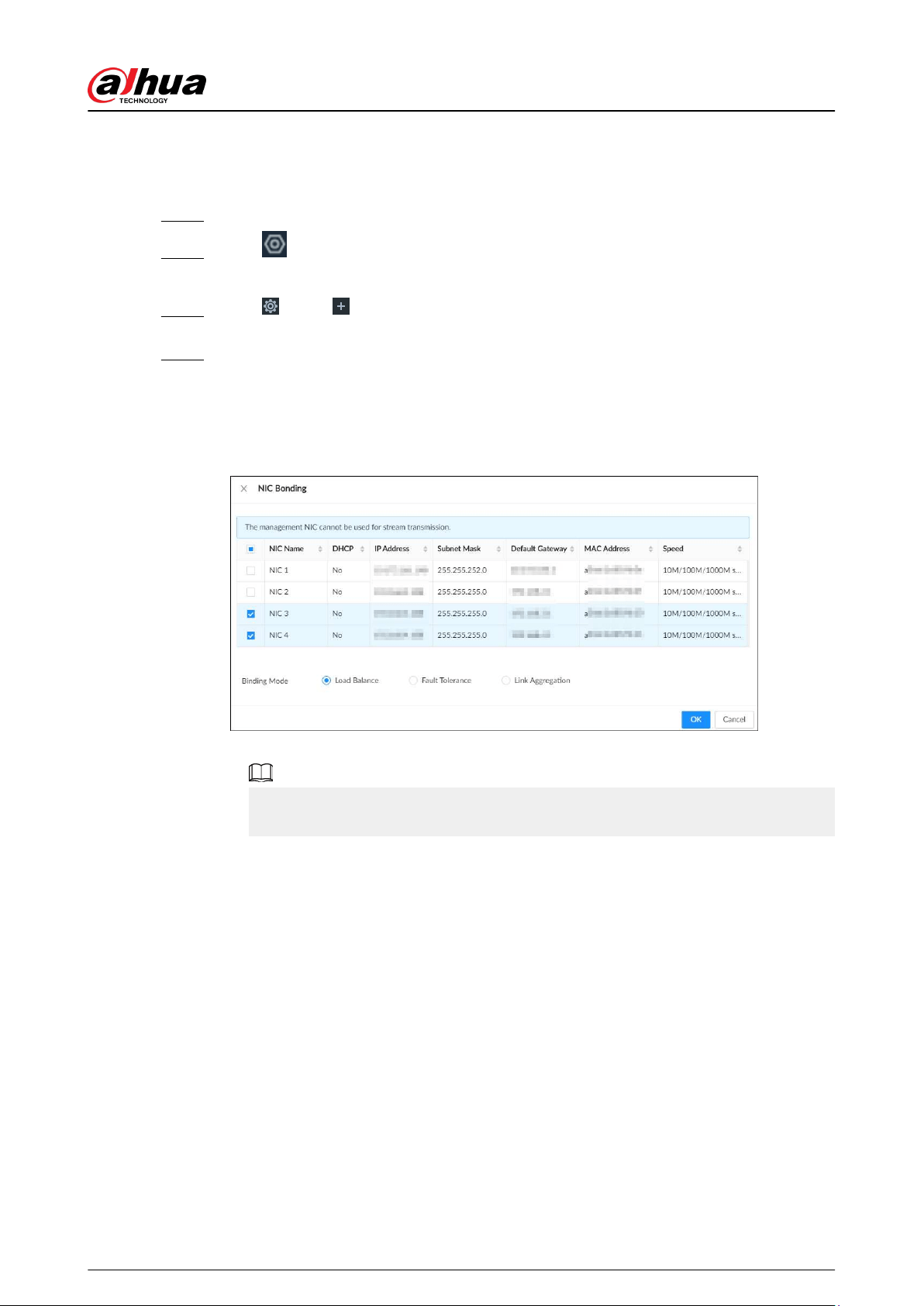
7.1.1.2.1 Binding NICs
Procedure
Step 1 Log in to the PC client.
Step 2 Click on the upper-right corner and then click Network.
You can also click Network from the conguration list on the home page.
Step 3 Click or click on the conguration page, and then select NETWORK > Basic
Network > TCP/IP.
Step 4 Bind NICs.
1. Click NIC Bonding.
2. Select the NICs you want to bind.
3. Select an aggregation mode.
Figure 7-2 NIC bonding
4. Click OK.
The setting page varies depending on the aggregation mode you have selected. The
following gure is the load balance setting page.
User's Manual
121
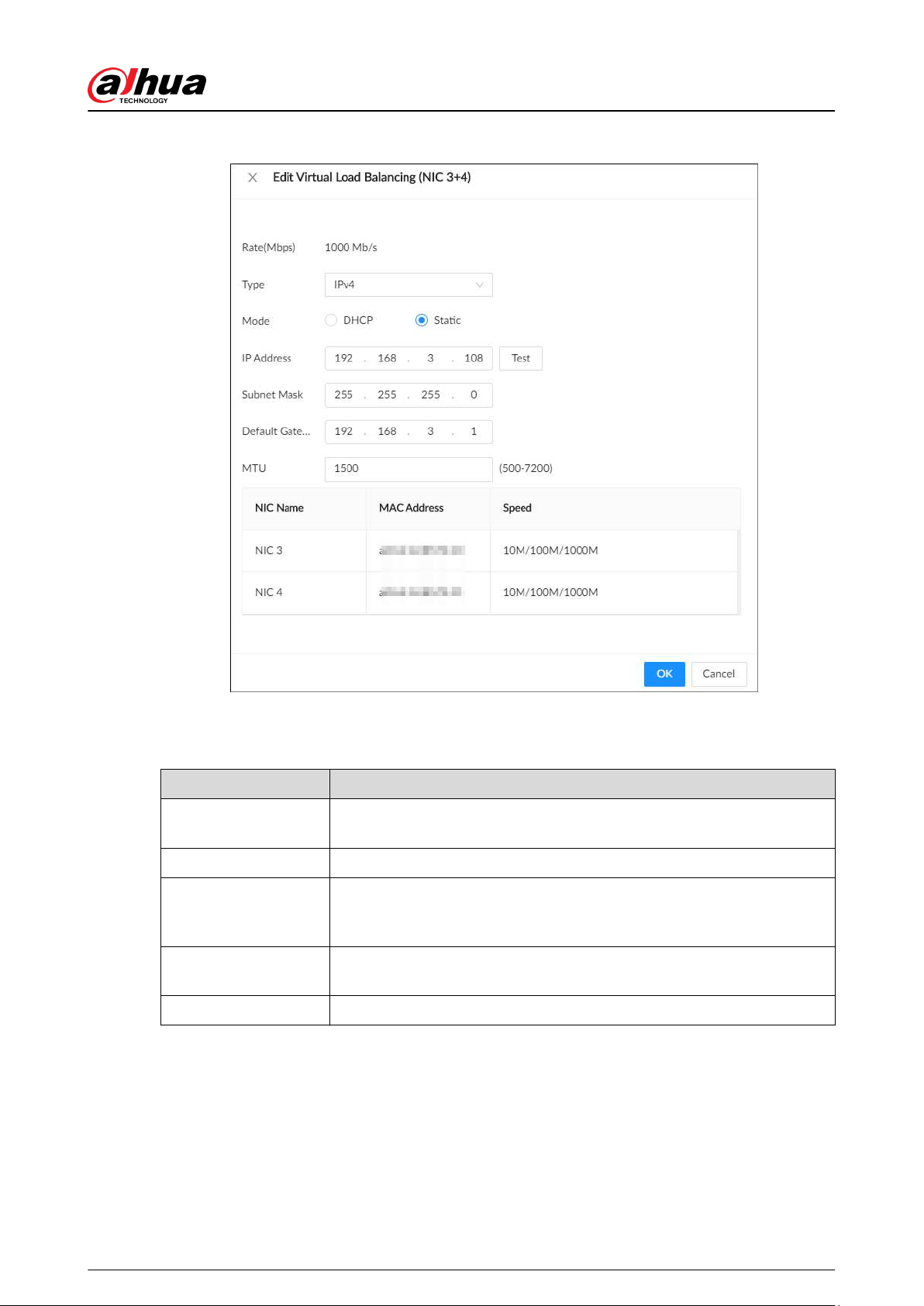
Figure 7-3 Edit load balance
5. Set parameters.
Table 7-3 NIC parameters description
Parameters Description
Rate (Mbps)
The maximum network transmission speed that the bonded NICs
support.
IP Type Select IPv4 or IPv6.
Use Dynamic IP
Address
When there is a DHCP server on the network, you can enable DHCP. The
system allocates a dynamic IP address to the Device. There is no need to
set IP address manually.
Use Static IP Address
Set a static IP address for the Device. You need to enter a static IP
address, subnet mask and gateway.
Test Test whether the IP address is valid.
User's Manual
122
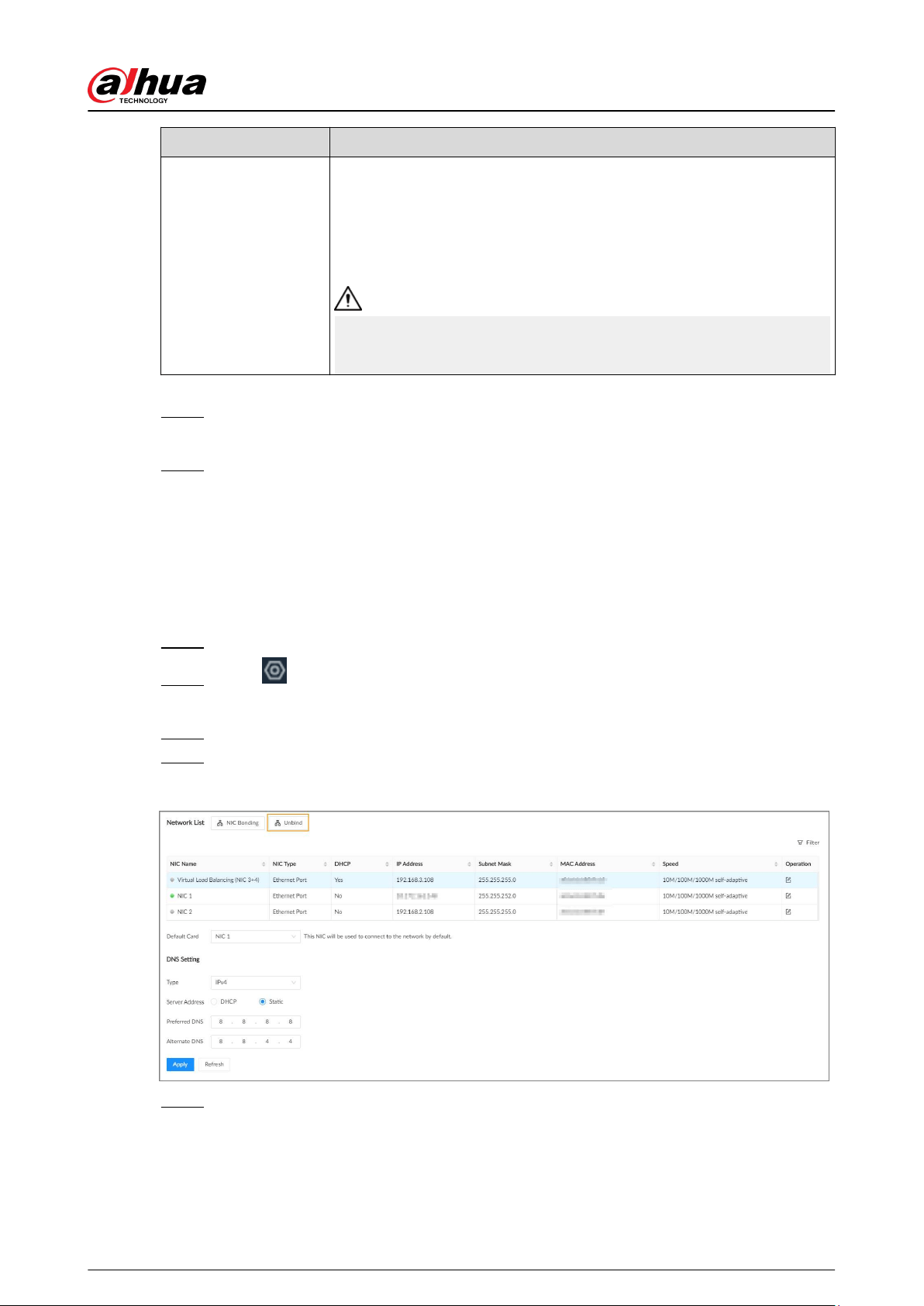
Parameters Description
MTU
Set NIC MTU value. The default setup is 1500 bytes.
We recommend you check the MTU value of the gateway rst and then
set the MTU value of the Device equal to or smaller than the gateway
value, which helps to reduce the packets slightly and enhance network
transmission eciency.
Please be advised that changing MTU value might result in NIC restart,
network oine and aect current running operation.
6. Click OK.
Step 5 Click Apply.
The system pops up a conrmation box.
Step 6 Click OK.
The conguration of binding NICs takes eect after the Device restarts.
7.1.1.2.2 Cancelling Binding NIC
Cancel port aggregation so that the NICs are no longer bonded and work as independent NICs.
Procedure
Step 1 Log in to the PC client.
Step 2 Click on the upper-right corner and then click Network.
You can also click Network from the conguration list on the home page.
Step 3 Select a bonded NIC.
Step 4 Click Unbind.
Figure 7-4 Unbind
Step 5 Click Apply.
The system splits the bonded NICs.
User's Manual
123
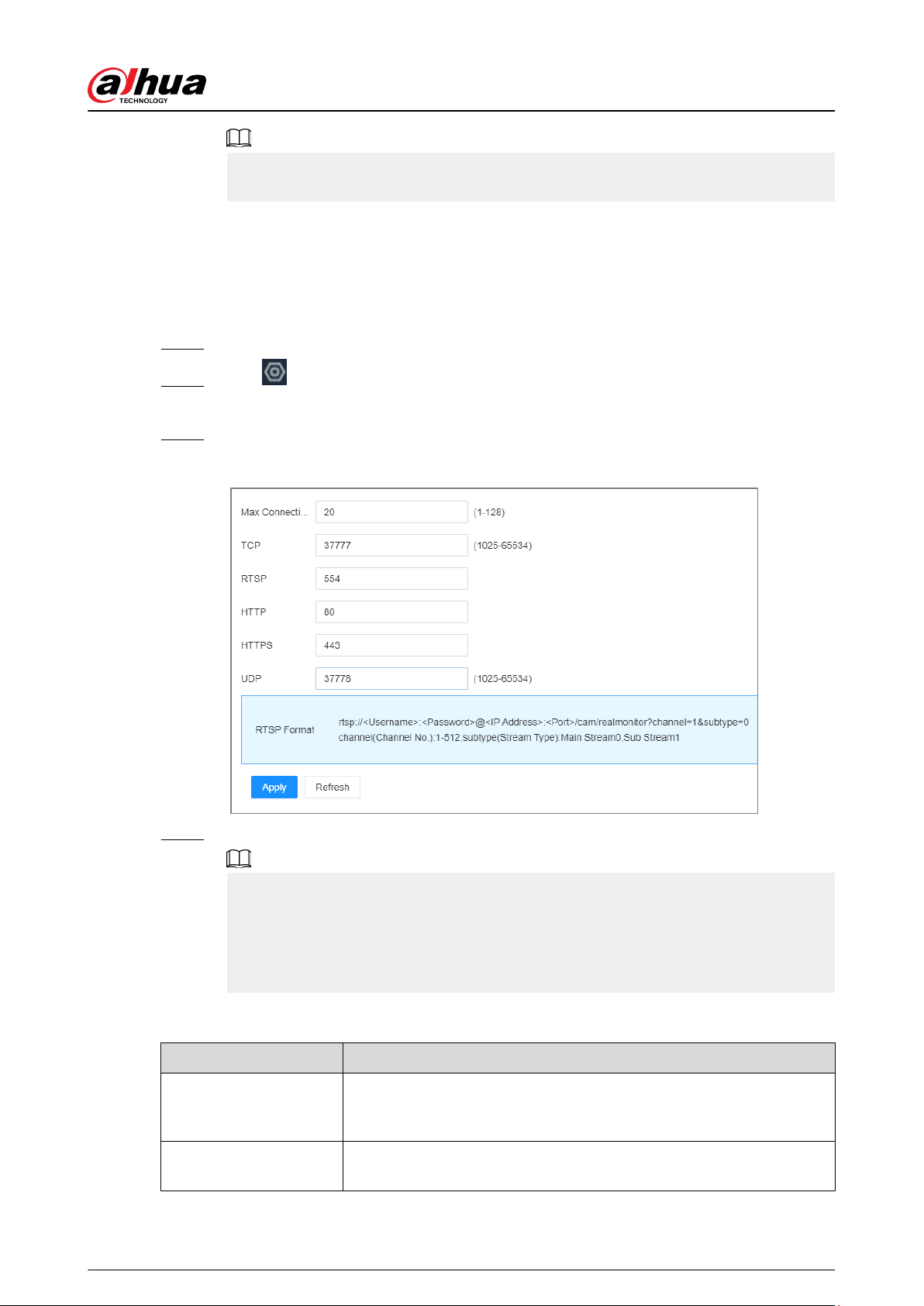
Among the split NICs that were bonded together, the rst NIC reserves the IP address
congured during binding, and the rest NICs restore their default IP addresses.
7.1.1.3 Setting Port Number
Set device port number.
Procedure
Step 1 Log in to the PC client.
Step 2 Click on the upper-right corner and then click Network.
You can also click Network from the conguration list on the home page.
Step 3 Select Basic Network > Port.
Figure 7-5 Port
Step 4 Congure the parameters.
●
When you log in via TCP, you do not need to log in again to make you changes in max
connection, RTSP port, and UDP port become eective.
●
When you log in by other methods, you need to log in again after you modify the port
parameters except max connection.
Log in again after modifying parameters except Max Connection.
Table 7-4 Port parameters description
Parameter Description
Max Connection
The allowable maximum number of clients accessing the Device at the
same time, such as web, PC client, and platform. Select a value
between 1 and 128. The default value setting is 20.
TCP
Set according to the actual requirements. The default value is 37777.
The value ranges from 1025 to 65535.
User's Manual
124
Parameter Description
RTSP
Set according to the actual requirements. The default value is 554. The
value ranges from 1 to 65535.
HTTP
Set according to the actual requirements. The default value is 80. The
value ranges from 1 to 65535.
If the value you set is not 80, remember to add the port number after
the IP address when you are using a browser to log in to the device.
HTTPS
Set according to the actual requirements. The default value is 443. The
value ranges from 1 to 65535.
UDP
Set according to the actual requirements. The default value is 37778.
The value ranges from 1025 to 65535.
Step 5 Click Apply.
The system restarts the corresponding services of the ports.
7.1.2 Network Application
Set the parameters of network applications, so that system can connect to other devices.
7.1.2.1 P2P
P2P is a peer to peer technology. You can scan the QR code to download mobile app without DDNS
service or the port mapping or installing the transmission server. After you register the Device to
the app, you can view the remote videos, play back recorded videos and more.
●
Make sure that the Device has connected to the network.
●
To use the P2P function, we will collect information such as IP address, MAC address, and serial
number. The collected information is only used for remote access.
Procedure
Step 1 Log in to the PC client.
Step 2 Click on the upper-right corner and then click Network.
You can also click Network from the conguration list on the home page.
Step 3 Select Network Application > Access Service.
User's Manual
125
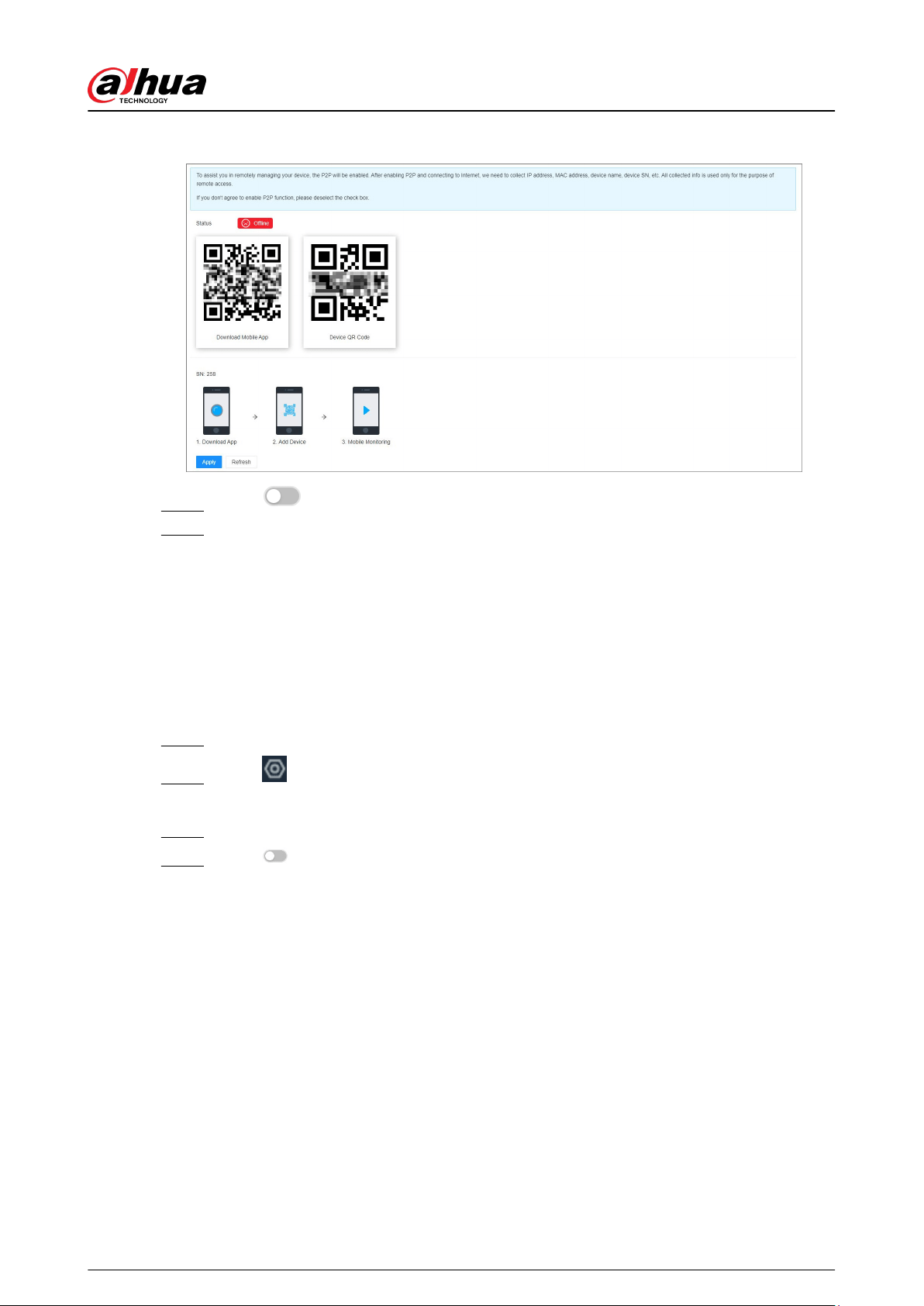
Figure 7-6 P2P
Step 4 Click to enable the P2P function.
Step 5 Click Apply.
You can register the Device to the app for remote monitoring and management. For
details, see the corresponding user's manual of the app.
7.1.2.2 GB Access
You can connect the device to the server through the GB28181 protocol. When an alarm is
triggered, videos and alarm information are uploaded to the server.
Procedure
Step 1 Log in to the PC client.
Step 2 Click on the upper-right corner and then click Network.
You can also click Network from the conguration list on the home page.
Step 3 Select Network Application > Access Service > GB Access.
Step 4 Click to enable GB Access, and then set parameters.
User's Manual
126
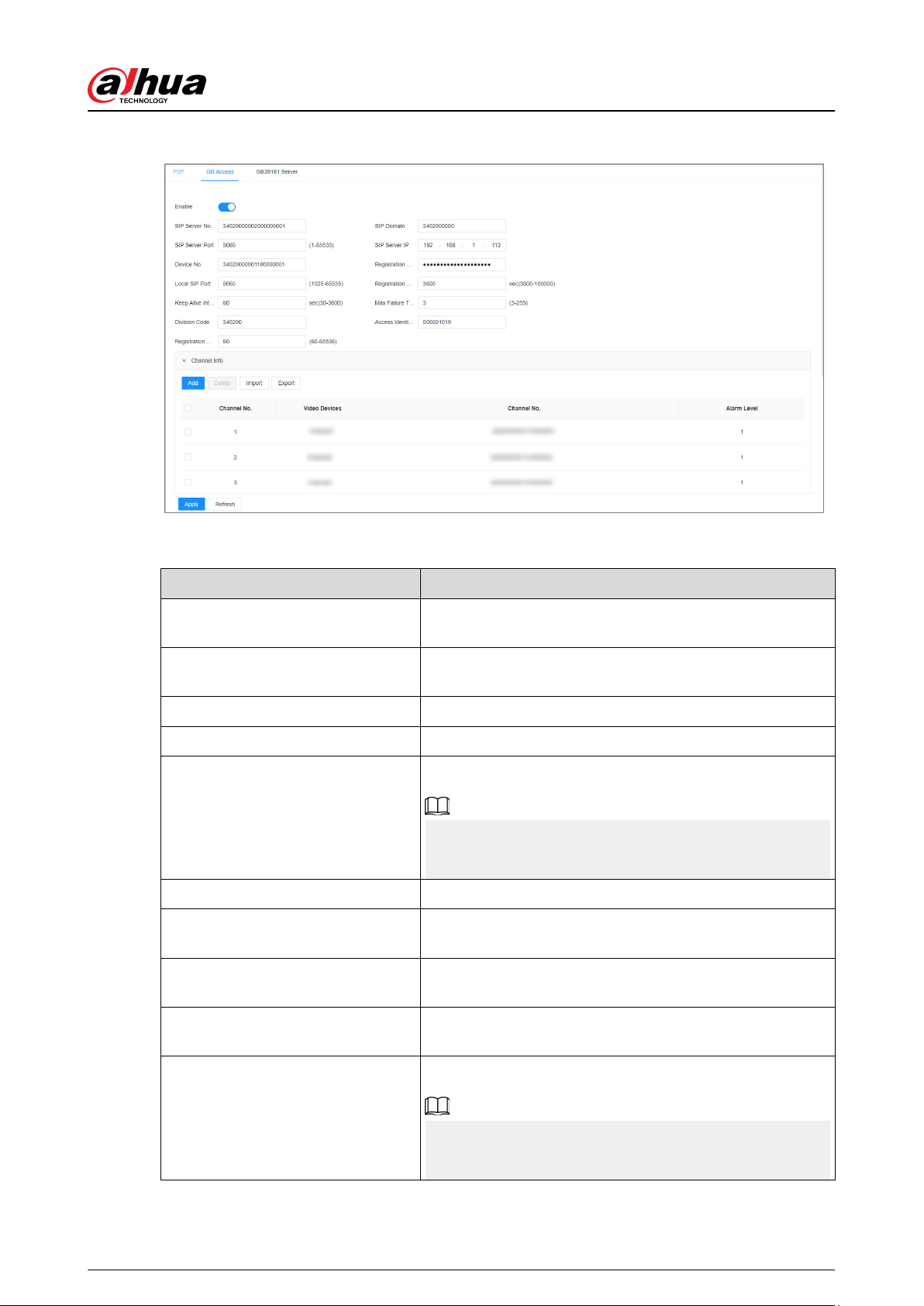
Figure 7-7 GB Access
Table 7-5 GB Access parameters description
Parameters Description
SIP Server No.
Set the number of the server, and the default is
34020000002000000001.
SIP Domain
Set the domain number of the server, and the default is
3402000000.
SIP Server Port Set the port number of the server, and the default is 5060.
SIP Server IP Set the IP address of the server.
Device No.
Enter the device number.
The device number is a number assigned by the server to
the device. Each device has an unique number.
Registration Password Set the password for registering the device to the server.
Local SIP Port
Set the port number for registering the device to the server,
and the default is 5060.
Registration Validity Period
Set the validity period for each registration message sent
by the device to the server, and the default is 3600 seconds.
Keep Alive Interval
Set the alive interval for each registration message sent by
the to the server, and the default is 60 seconds.
Max Failure Times
Set the maximum failure times of keep failure times.
When keep alive interval exceeds the set max failure times,
the device actively disconnects from the server.
User's Manual
127
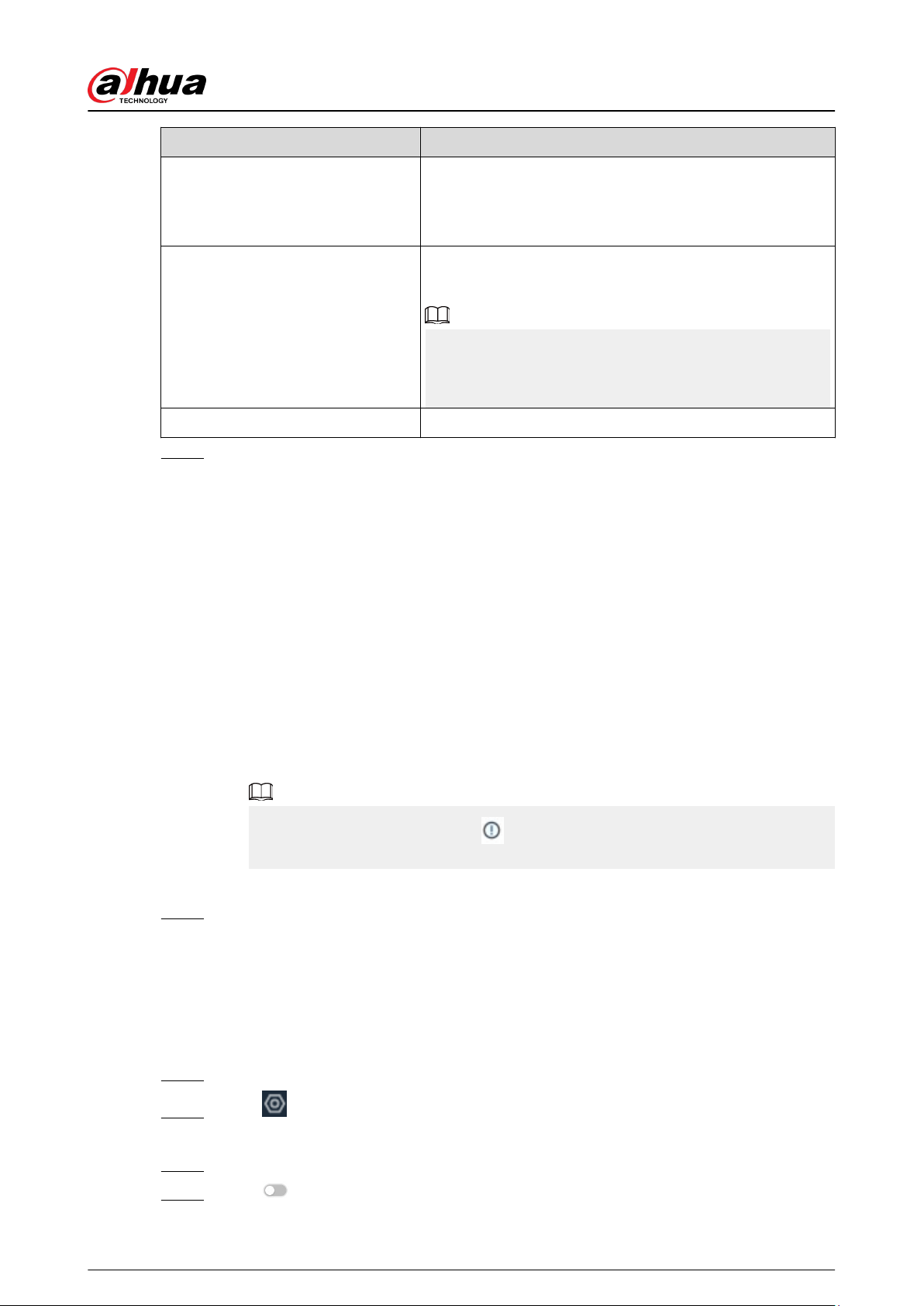
Parameters Description
Division Code
Set the division code of the area where the device is
located.
Please ll in according to actual situation.
Access Identication Code
Set the access identication code, and the default is
000001019.
The code represents a connection method between the
device and the server, and it is generally an agreed upon
value.
Registration Failure Interval Set the interval allowed for re registration after failure.
Step 5 Set channel information.
After adding information, when an alarm is triggered, the system automatically uploads
videos to the server.
1. Click Add.
2. Select a device in the left list.
The system automatically generates the channel number.
3. Set Alarm Level.
You can select alarm level from 1 to 6, and the smaller the value, the higher the alarm
level.
4. Click OK.
Click Add More to continue adding video information of the device.
You can perform the following actions on the information:
●
Double-click Channel No. and Alarm Level to change the channel information.
When the channel number occurs , it indicates that the channel number is
duplicate and needs to be changed.
●
Select the channel, click Delete to delete the channel information.
Step 6 Click Apply.
7.1.2.3 GB28181 Server
Enable the GB28181 Server, you can register the remote device to the present device through the
GB28181 protocol.
Procedure
Step 1 Log in to the PC client.
Step 2 Click on the upper-right corner and then click Network.
You can also click Network from the conguration list on the home page.
Step 3 Select Network Application > Access Service > GB28181 Server.
Step 4 Click to enable GB28181 Server, and then set parameters.
User's Manual
128
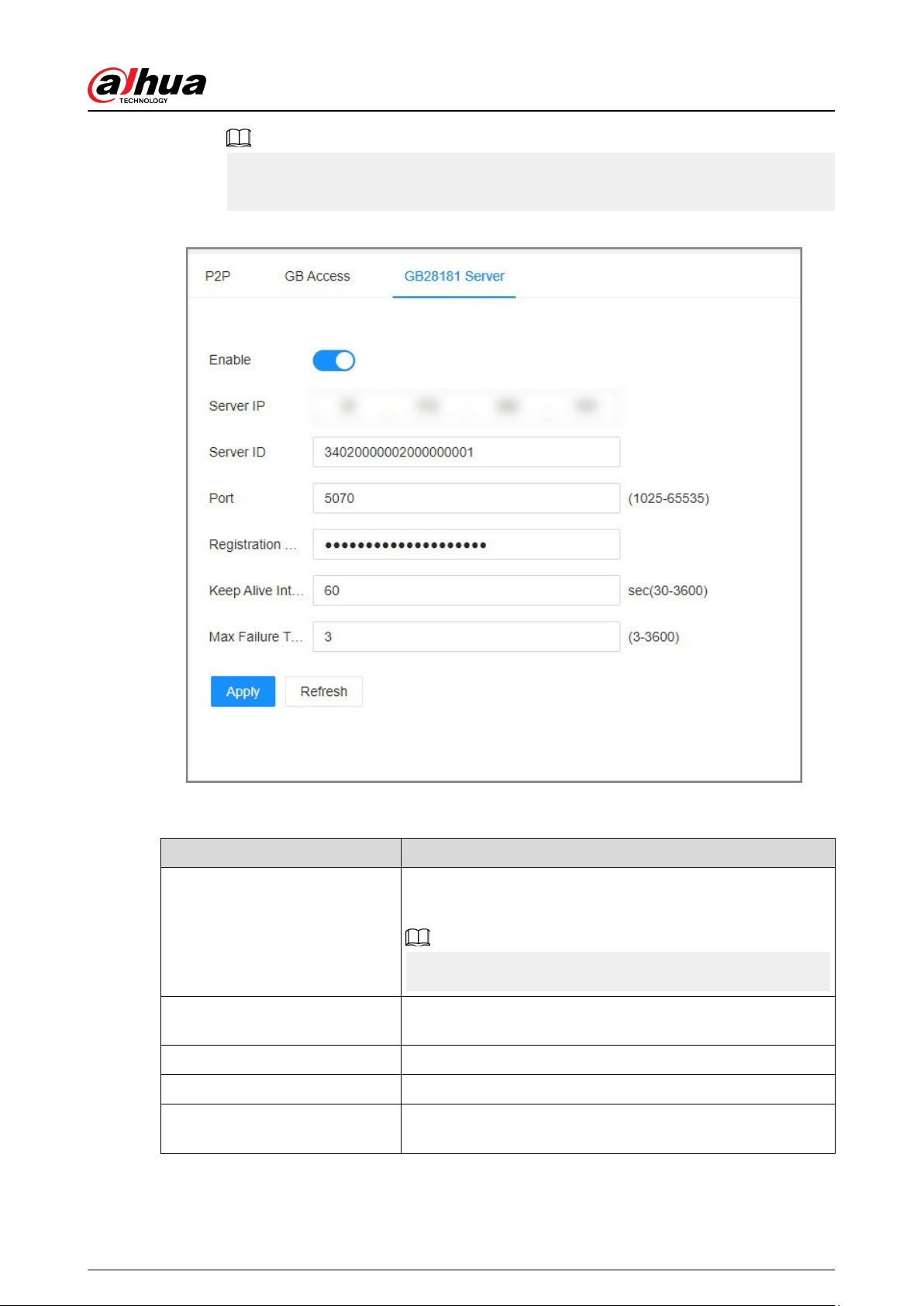
Conguring parameters according to rules on the interface to avoid failure and other
abnormalities.
Figure 7-8 GB28181 Server
Table 7-6 GB28181 Server parameters description
Parameters Description
Server IP
After selecting a network card, Server IP is automatically lled
in as the IP address corresponding to the network card.
When the IP address of the device changes, recongure the
GB28181 server IP.
Server ID
Set the ID of the server, and the default is
34020000002000000001.
Port Set the port of the server, and the default is 5070.
Registration Password Set the registration password of the remote device.
Keep Alive Interval
Set the alive interval for each registration message sent by the
to the server, and the default is 60 seconds.
User's Manual
129
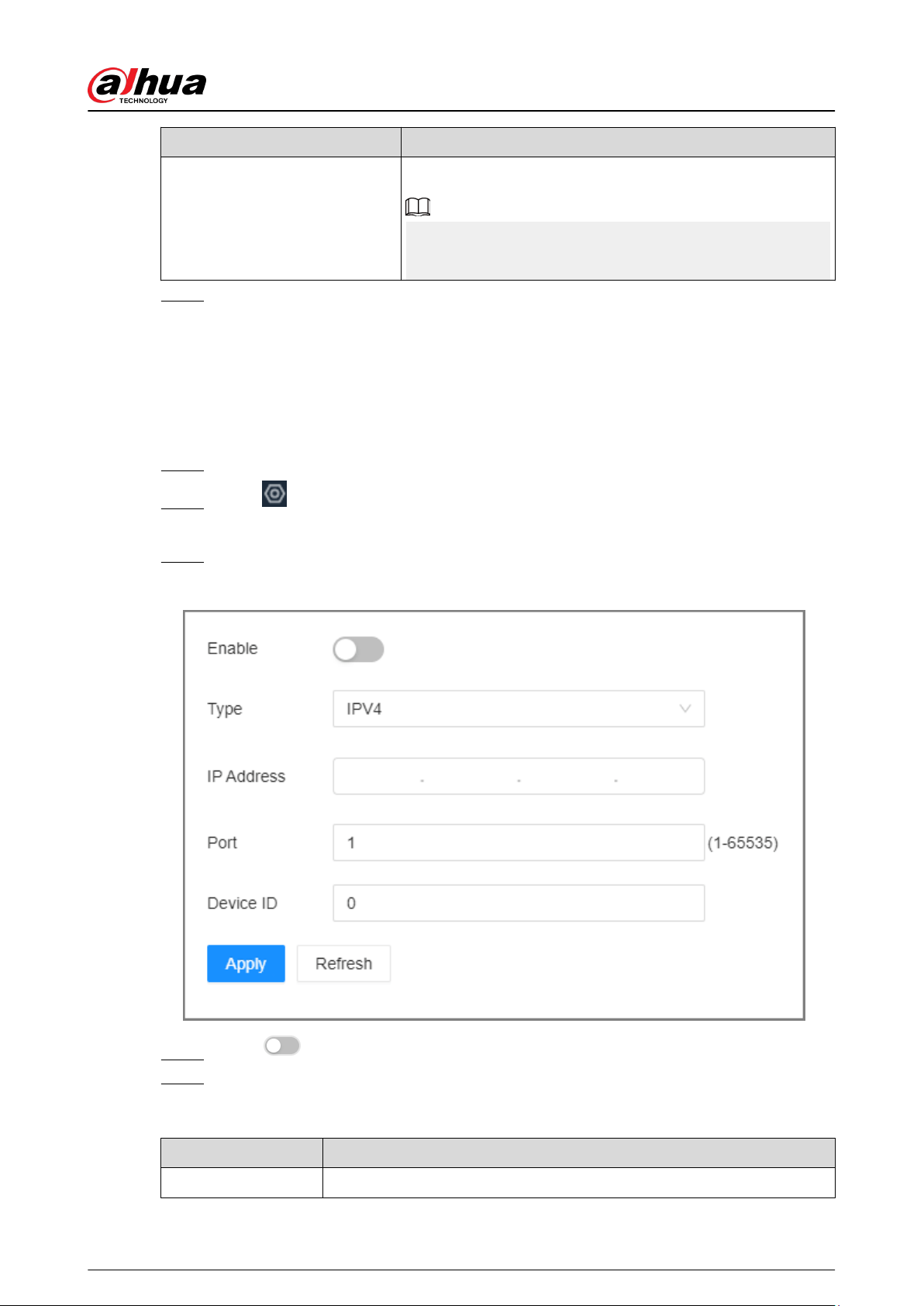
Parameters Description
Max Failure Times
Set the maximum failure times of keep failure times.
When keep alive interval exceeds the set max failure times, the
device actively disconnects from the server.
Step 5 Click Apply.
7.1.2.4 Auto Registration
Register the Device on a designated proxy server so that client software can access the Device
through the proxy server.
Procedure
Step 1 Log in to the PC client.
Step 2 Click on the upper-right corner and then click Network.
You can also click Network from the conguration list on the home page.
Step 3 Select Network Application > Auto Registration.
Figure 7-9 Auto registration
Step 4 Click to enable the function.
Step 5 Set parameters.
Table 7-7 Register
Parameter Description
Type Select an IP type from IPv4 and IPv6.
User's Manual
130
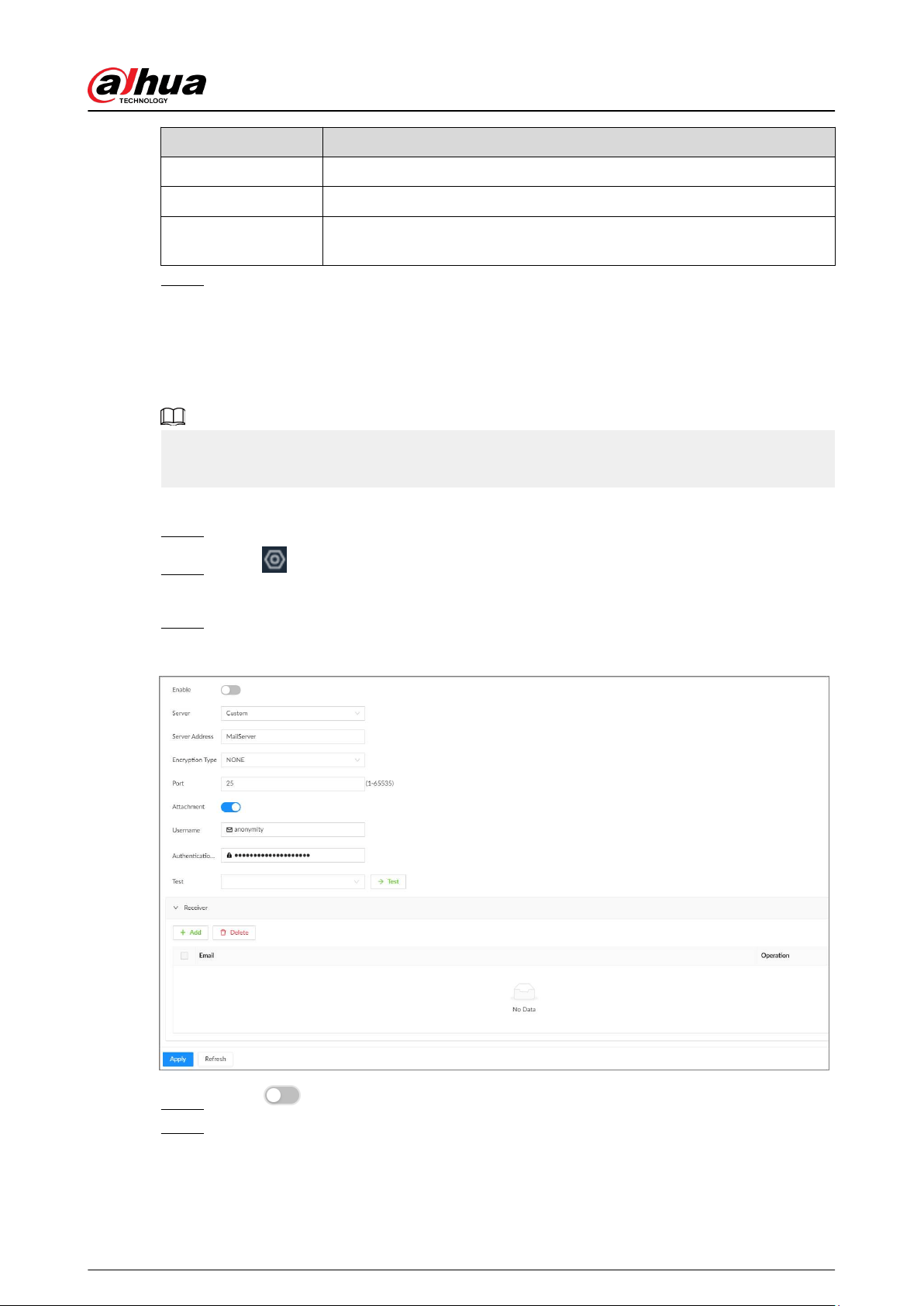
Parameter Description
IP Address Enter the IP address of the server that you are registering the Device to.
Port Enter the port number of the server for registration.
Device ID
The destination address of the trap information from the agent on the
Device.
Step 6 Click Apply.
7.1.2.5 Email
Congure email information. When an alarm event linked with email occurs, the system
automatically sends emails to the user.
Please be advised that device data will be sent to specic servers after the email function is
enabled.
Procedure
Step 1 Log in to PC client.
Step 2 Click on the upper-right corner and then click Network.
You can also click Network from the conguration list on the home page.
Step 3 Select Network Application > Email.
Figure 7-10 Email
Step 4 Click to enable the email function.
Step 5 Set parameters.
User's Manual
131
Table 7-8 Emails parameter description
Parameter Description
Server Select a server type from Custom , Gmail, Hotmail, and Yahoo Mail.
Server Address Enter the address of the email server.
Encryption
Select an encryption type from NONE , SSL, and TLS.
We recommend you select TLS. Other encryption methods might not
be safe.
Port Enter the port number of the email server.
Attachment
Click to allow the system to send emails with attachments.
Username
Enter the congured username and password of the email server.
Authentication
Password
Step 6 Add the information of mail receiver.
1. Click Add.
2. Enter the email address of the receiver.
3. Click Add to add more receiver email addresses.
●
Click
to delete the added receiver.
●
Select a receiver and then click Delete to delete the selected receiver.
Step 7 Click Apply.
Step 8 (Optional) Test the email sending function.
1. In the box next to Test, select or enter a receiver email address.
2. Click Test.
●
If the conguration is correct, the system pops up a message of success, and the
receiver will receive the test mail.
●
Otherwise, the system pops up a message of failure, and the receiver will not
receive the test mail.
7.1.2.6 Alarm Center
Congure the alarm center server. After events linked with alarm upload occur, the system uploads
alarm information to the alarm center.
Make sure that alarm center server is deployed.
Procedure
Step 1 Log in to the PC client.
Step 2 Click on the upper-right corner and then click Network.
You can also click Network from the conguration list on the home page.
Step 3 Select Network Application > Alarm Center.
User's Manual
132
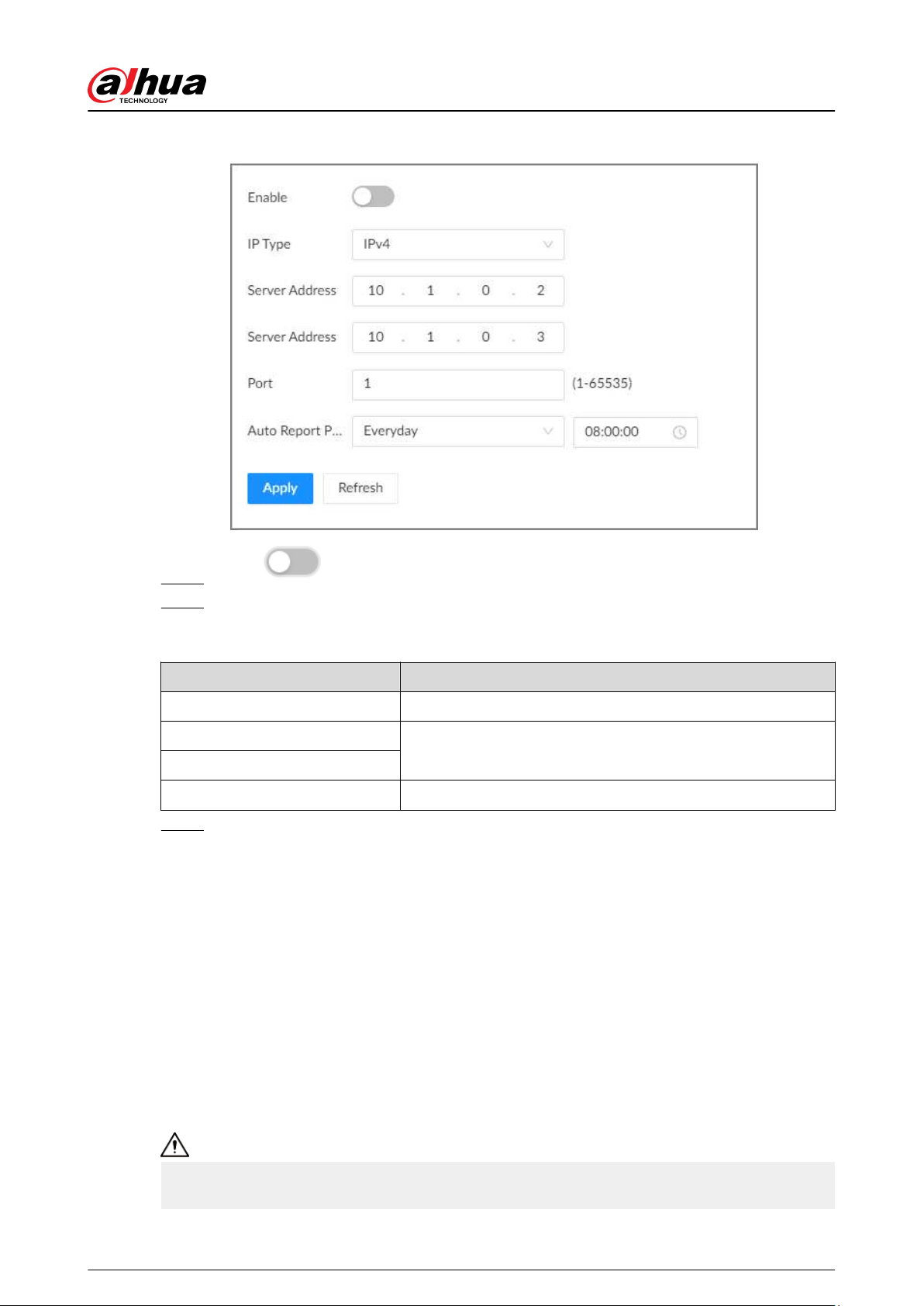
Figure 7-11 Alarm center
Step 4 Click to enable alarm center.
Step 5 Congure the parameters.
Table 7-9 Alarm center parameters
Parameter Description
IP Type Select the IP type of the alarm center server.
Server Address
The IP address and communication port of the alarm center
server.
Port
Auto Report Plan Select time cycle and specic time for uploading alarms.
Step 6 Click Apply.
7.1.2.7 UPnP
Through the UPnP (Universal Plug and Play) protocol, you can establish a mapping relationship
between the LAN and the WAN. The WAN user can use the WAN IP address to directly access the
Device on the LAN.
Prerequisites
●
Make sure that your computer has been installed with UPnP network services.
●
Log in to the router and set the WAN port IP address of router.
●
Enable the UPnP function on the router.
●
Connect the Device to the LAN port of the router.
●
Select Network > Basic Network > TCP/IP, and then set the IP address to the LAN IP of the
router, or select DHCP to automatically obtain the IP address.
Please be advised that services and ports of the Device will be mapped to the public network after
UPnP is enabled.
User's Manual
133
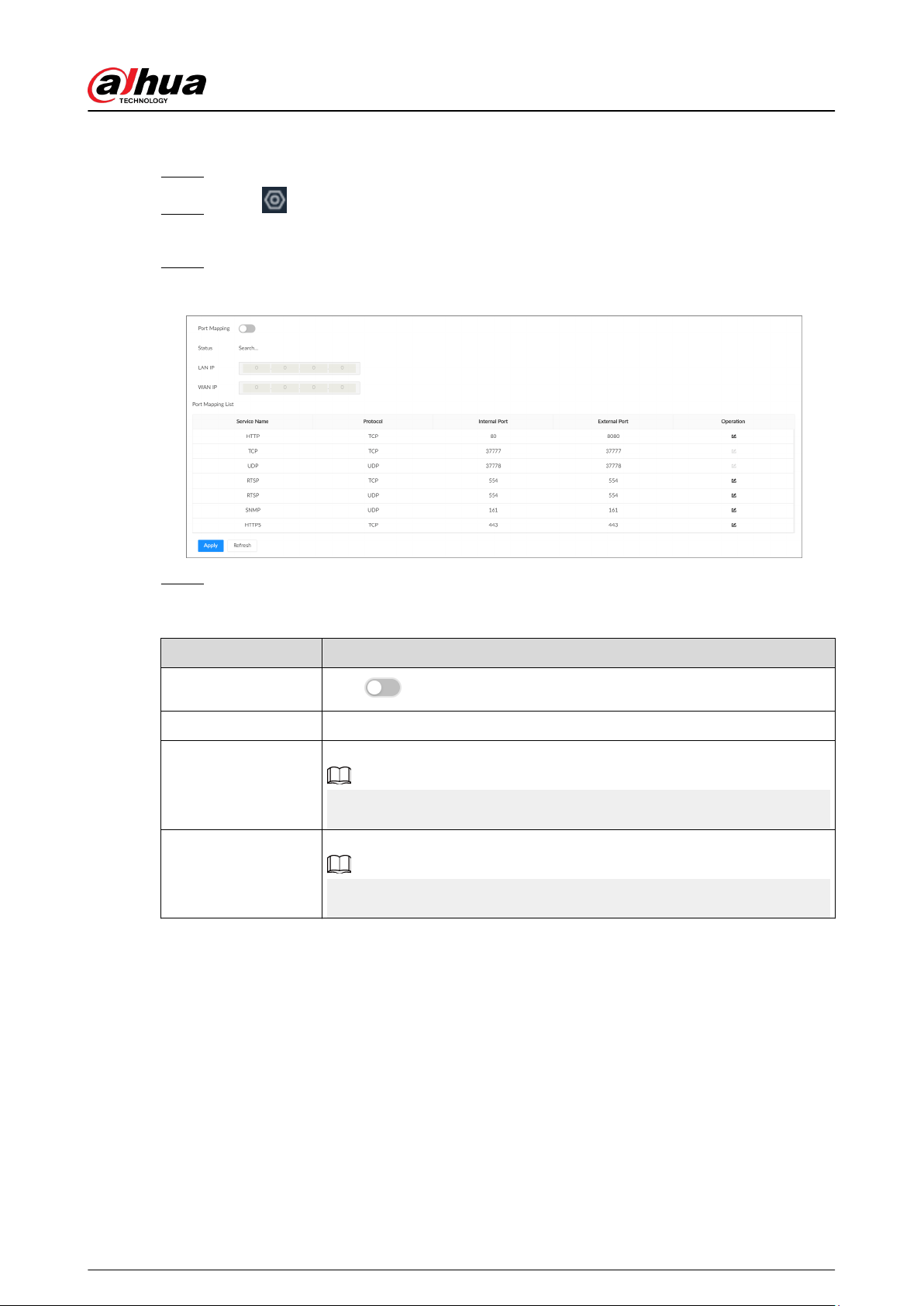
Procedure
Step 1 Log in to the PC client.
Step 2 Click on the upper-right corner and then click Network.
You can also click Network from the conguration list on the home page.
Step 3 Select NETWORK > Network Application > UPnP.
Figure 7-12 UPnP
Step 4 Set parameters.
Table 7-10 UPnP parameters
Parameter Description
Port Mapping
Click
to enable port mapping.
Status The status of port mapping.
LAN IP
The LAN IP address of the router.
The IP address is automatically obtained after the mapping succeeds.
WAN IP
The WAN IP address of router.
The IP address is automatically obtained after the mapping succeeds.
User's Manual
134
Parameter Description
Port Mapping List
The list is consistent with the UPnP port mapping list on the router.
●
Internal Port : The ports of the EVS to be mapped on the router.
●
External Port : The ports mapped on the router. Click
, and then
you can modify the external ports.
●
When setting the external port, use the ports between 1024 and 5000,
and do not use the well-known ports 1 to 255 and the system ports
256 to 1023, otherwise conicts might occur.
●
When there are multiple devices on the LAN, properly plan the port
mapping to avoid conicts in WAN ports.
●
When making a port mapping, make sure that the port you are
mapping is not occupied or restricted.
●
The TCP/UDP WAN and LAN ports must be consistent and cannot be
modied.
Step 5 Click Apply.
Enter http://WAN IP: WAN port number in the browser to access the Device with the
corresponding port number on the router network.
7.1.2.8 SNMP
After setting SNMP (Simple Network Management Protocol) and successfully connecting the
Device through relevant software tools such as MIB Builder, and MG-SOFT MIB Browser, you can
directly manage and monitor the Device on the software tools.
Prerequisites
●
Install SNMP monitoring and management tools, such as MIB Builder and MG-SOFT MIB Browser.
●
Obtain the MIB le corresponding to the current version from technical support.
Procedure
Step 1 Log in to the PC client.
Step 2 Click on the upper-right corner and then click Network.
You can also click Network from the conguration list on the home page.
Step 3 Select Network Application > SNMP.
User's Manual
135
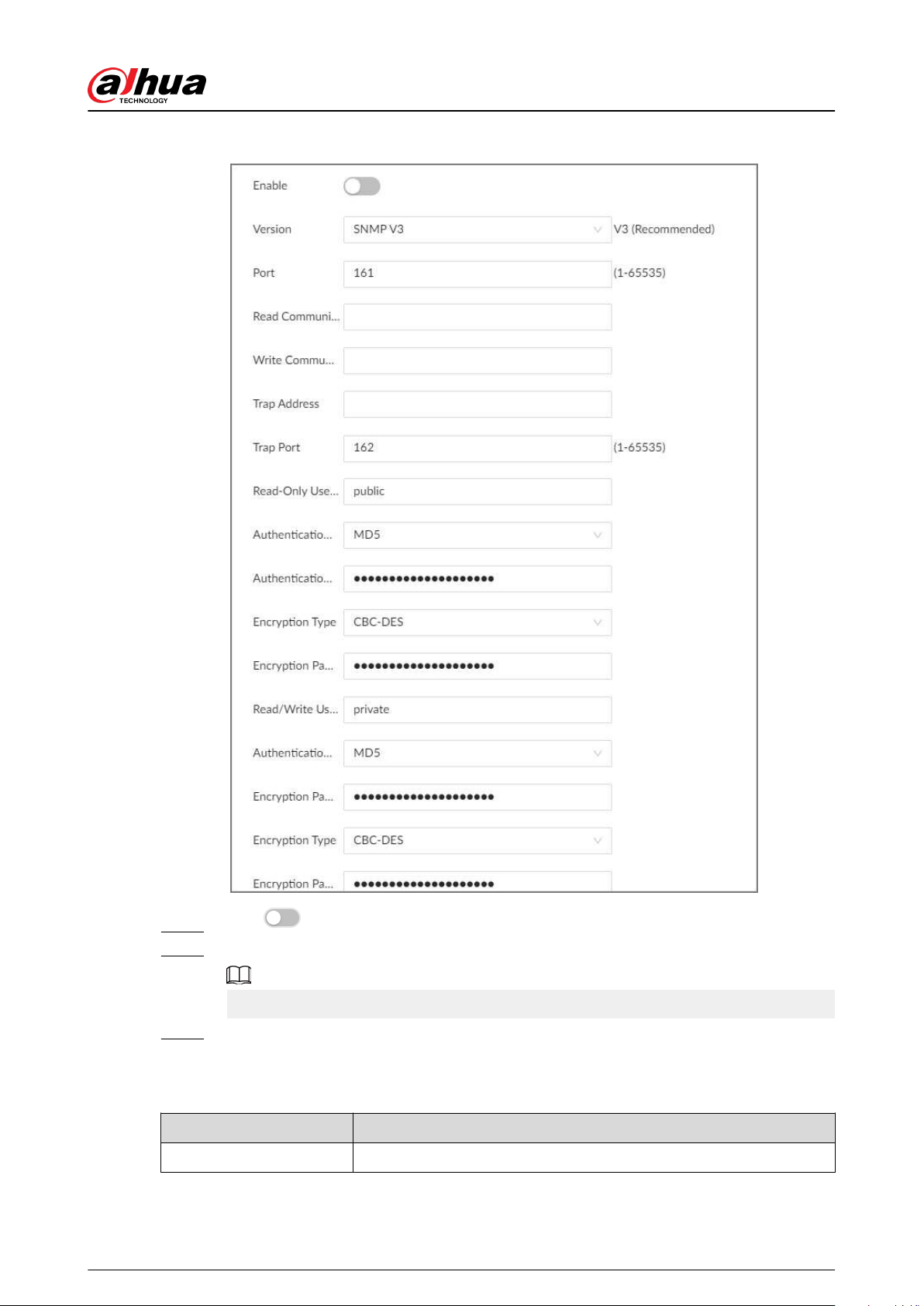
Figure 7-13 SNMP
Step 4 Click to enable the function.
Step 5 Select SNMP version.
For data security, we recommend V3.
Step 6 Set parameters. For Trap Address, enter the IP address of the computer installed with the
MG-SOFT MIB Browser. Leave the other parameters as default.
Table 7-11 SNMP parameters
Parameter Description
Port Listening port of agent programs on the device.
User's Manual
136
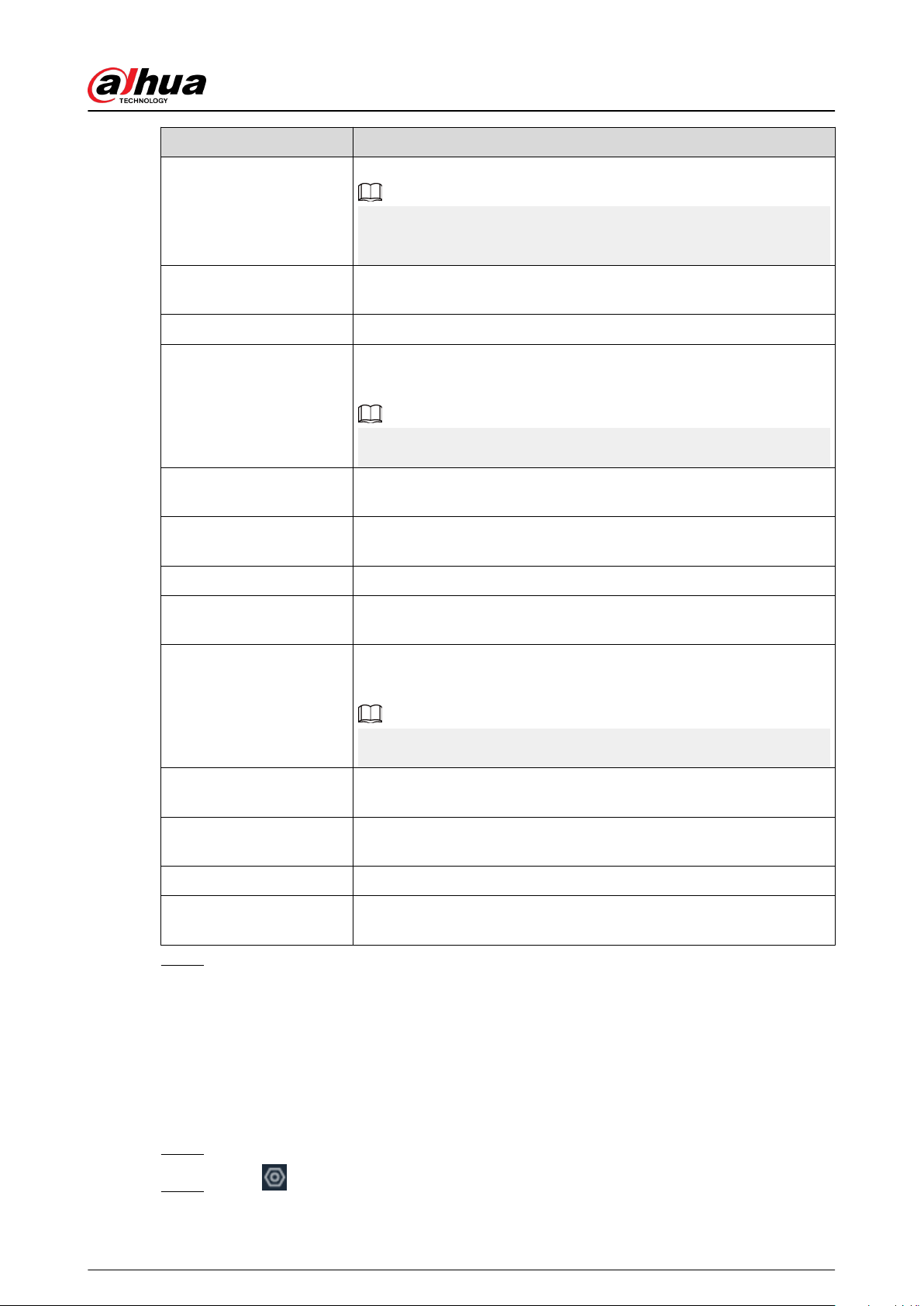
Parameter Description
Read Community, Write
Community
Read or Write Community supported by the agent programs.
The name can only contain numbers, letters, underscores, and middle
lines.
Trap Server
The destination address of Trap information sent by the agent
program.
Trap Port The destination port of Trap information sent by the agent program.
Read-Only User
Set the username the read-only user. The read-only user only has the
read-only permission.
The name can only contain numbers, letters, and underscores.
Authentication Type
You can select the read authentication type between MD5 and SHA. It
is MD5 by default.
Authentication Password
Enter the read authentication password. The password must contain
at least 8 digits.
Encryption Type Set the read encryption type. It is CFB-AES by default.
Encryption Password
Set the read encryption password. The password must contain at
least 8 digits.
Read/Write User
The username is private by default. If you log in using this username,
you have the read-and-write permission.
The name can only contain numbers, letters, and underscores.
Authentication Type
You can select the read-and-write authentication type from MD5 or
SHA. It is MD5 by default.
Authentication Password
Enter the read-and-write authentication password. The password
must contain at least 8 digits.
Encryption Type Select a read-and-write encryption type. Select a CFB-AES by default.
Encryption Password
Enter a read-and-write encryption type. The password must contain
at least 8 digits.
Step 7 Click Apply.
7.1.2.9 Multicast
When multiple users are viewing live video of the same device at the same time, it might cause
failure due to limited bandwidth. To solve this problem, you can set a multicast IP address
(224.100.0.0–239.200.255.255) for the Device.
Procedure
Step 1 Log in to the PC client.
Step 2 Click on the upper-right corner and then click Network.
User's Manual
137
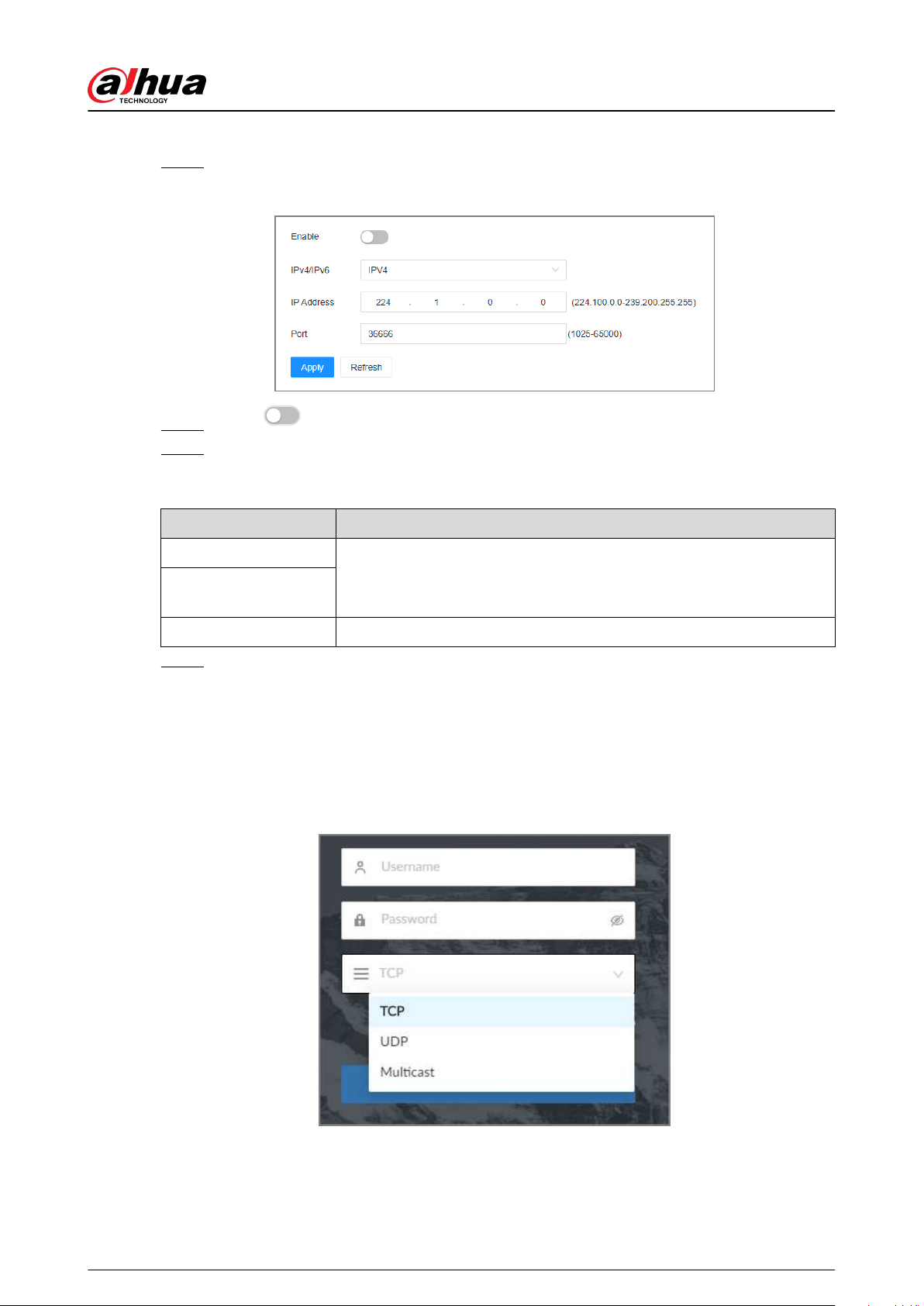
You can also click Network from the conguration list on the home page.
Step 3 Select Network Application > Multicast.
Figure 7-14 Multicast
Step 4 Click to enable multicast.
Step 5 Set parameters.
Table 7-12 Multicast parameter
Parameter Description
IPV4/IPV6
Select an IP type and then enter the IP address Enter the IP address that
you want to use as the multicast IP.
IP Address/Server
Address
Port Set the multicast port.
Step 6 Click Apply.
After conguring the multicast address and port, you can log in to the web interface or
the PC client via multicast.
For example, on the login page of the PC client, select Multicast as the login type. The PC
client will automatically obtain the multicast address and join the multicast group. After
login, you can view live videos through multicast protocol.
Figure 7-15 Log in through multicast
User's Manual
138
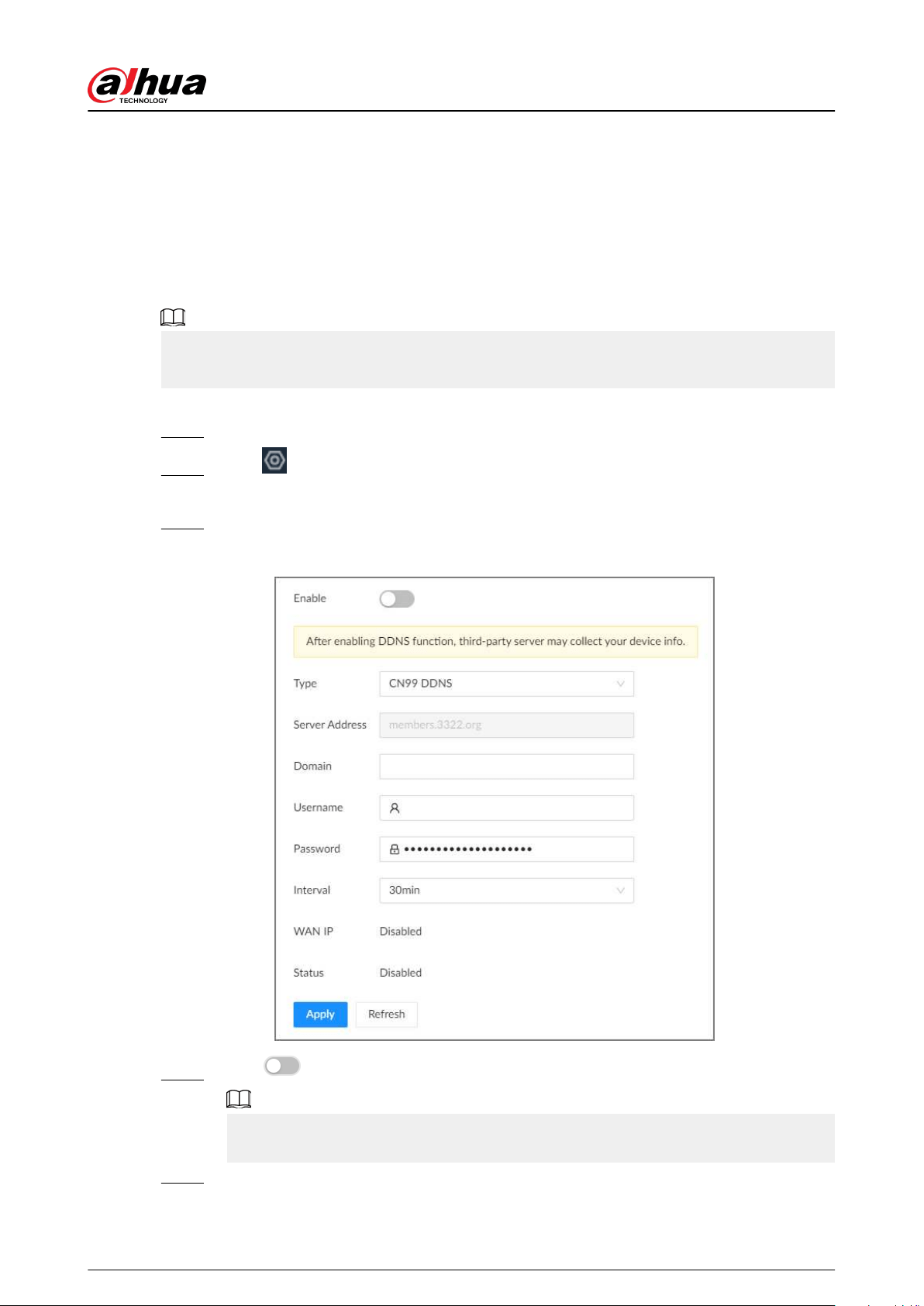
7.1.2.10 DDNS
After setting DDNS parameters, when IP address of the Device changes frequently, the system
dynamically updates the relation between domain name and IP address on the DNS server. You can
use the domain name to remotely access the Device, without need to note down IP address.
Prerequisites
Check the type of DDNS that the Device supports and then log in to the website provided by the
DDNS service provider to register domain and other information.
After registration, you can log in to the DDNS website to view the information of all the connected
devices under the registered account.
Procedure
Step 1 Log in to the PC client.
Step 2 Click on the upper-right corner and then click Network.
You can also click Network from the conguration list on the home page.
Step 3 Select Network Application > DDNS.
Figure 7-16 DDNS
Step 4 Click to enable the DDNS function.
After you enable the DDNS function, the third-party server might collect your device
information. Pay attention to privacy security.
Step 5 Set the parameters.
User's Manual
139
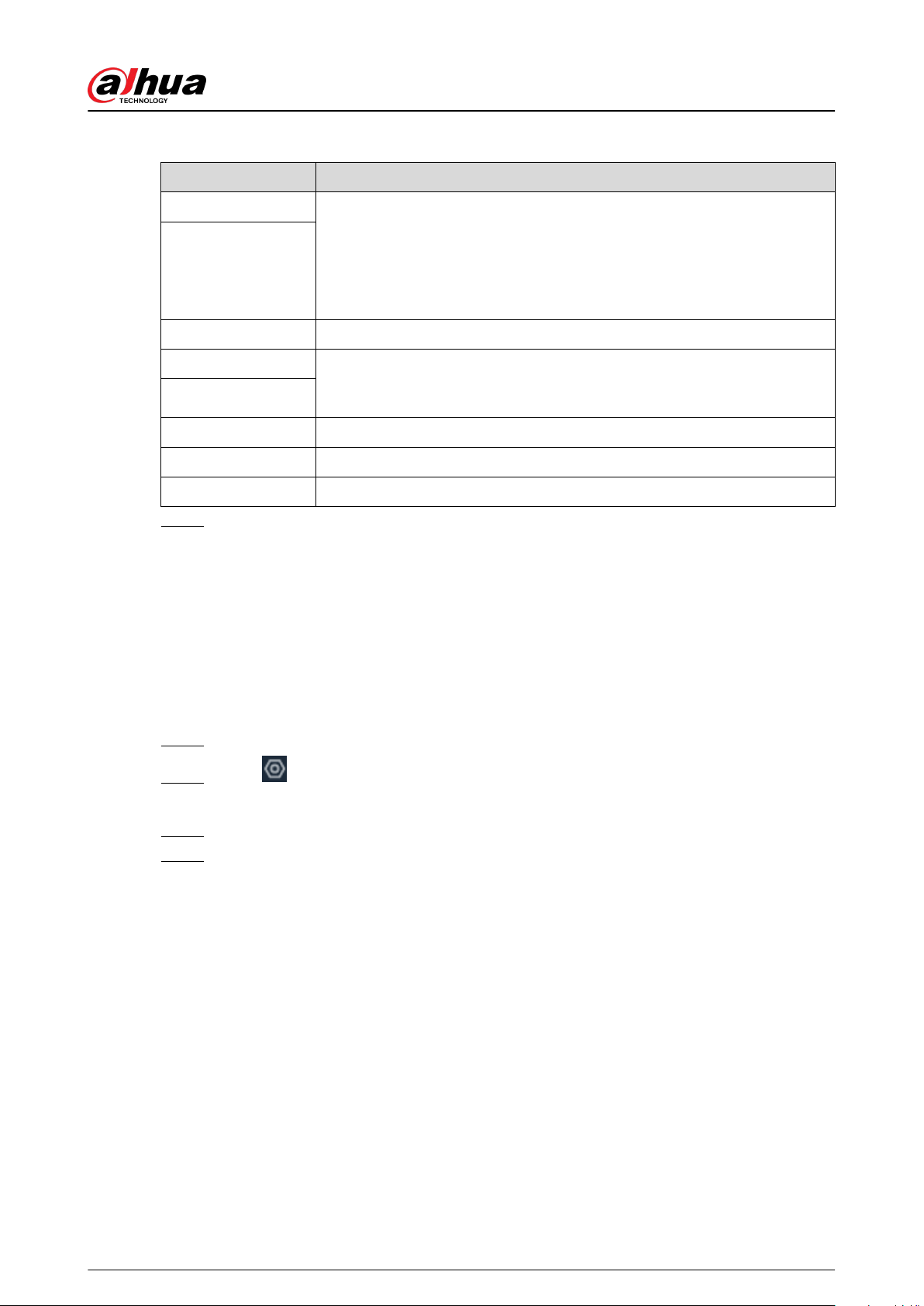
Table 7-13 DDNS parameters
Parameters Description
Type Select the type of the DDNS service provider and then corresponding
address displays.
●
Dyndns DDNS: members.dyndns.org
●
NO-IP DDNS: dynupdate.no-ip.com
●
CN99 DDNS: members.3322.org
Server Address
Domain Enter the domain name that you have registered on the DDNS website.
Username Enter the username and password obtained from DDNS service provider.
You need to register (including username and password) on the website of
DDNS service provider in advance.
Password
Interval Enter the interval at which you want to update the DDNS.
WAN IP Displays the WAN IP address of EVS.
Status Displays DDNS registration result or update status.
Step 6 Click Apply.
After successful conguration, enter domain name in address bar of the browser or PC
client, and press Enter key to access the EVS.
7.1.2.11 Routing Table
Congure the route table so that the system can automatically calculates the best path for data
transmission.
Procedure
Step 1 Log in to the PC client.
Step 2 Click on the upper-right corner and then click Network.
You can also click Network from the conguration list on the home page.
Step 3 Select Network Application > Routing Table.
Step 4 Click Add.
User's Manual
140
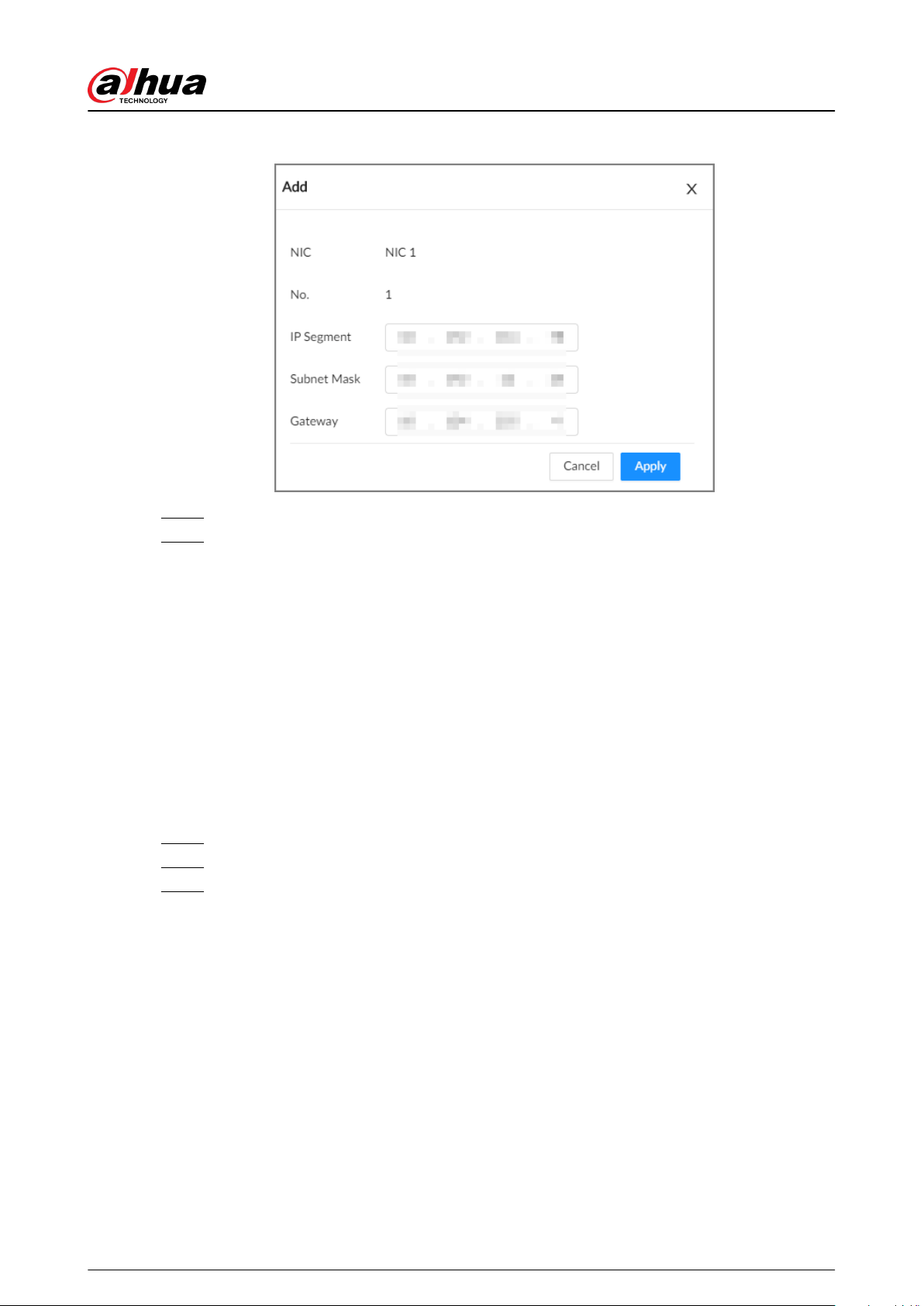
Figure 7-17 Add route table
Step 5 Congure the parameters.
Step 6 Click Apply.
7.2 Security Strategy
7.2.1 Security Status
Security scanning helps get a whole picture of the device security status.
●
User and service detection: Detects whether the current login authentication, user status, and
conguration security conform to recommended settings.
●
Security modules scanning: Scans the running status of the security modules such as attach
defense, log security and session security.
Procedure
Step 1 Log in to the PC client.
Step 2 On the home page, select Security > Security Status.
Step 3 Click Rescan.
User's Manual
141
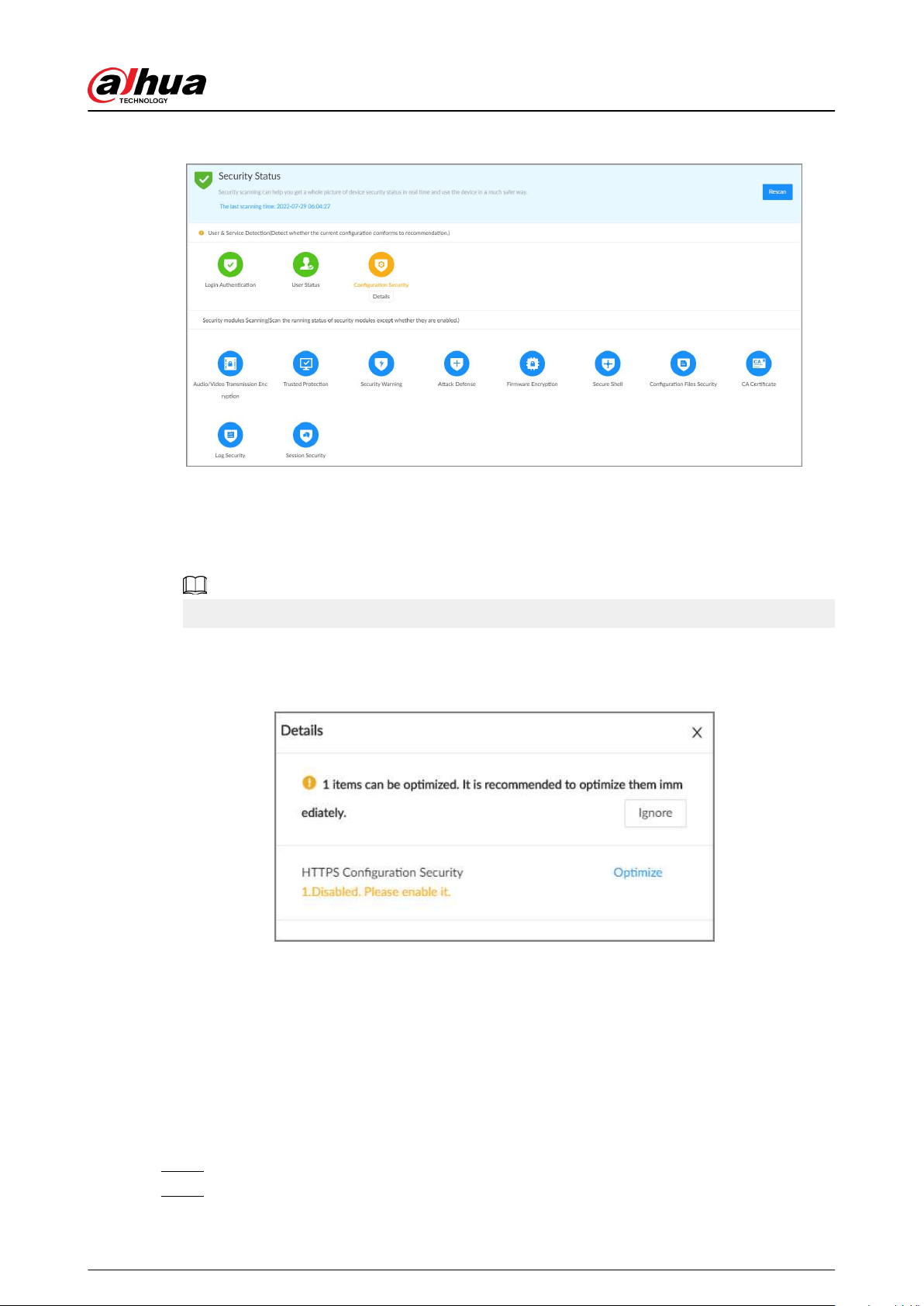
Figure 7-18 Security status
Related Operations
Dierent colors indicate dierent security statuses (green: normal; yellow: abnormal). For abnormal
items, you can click Details to view details.
●
Click Ignore to ignore the abnormal item. The item will not be checked in subsequent scans.
Click Rejoin Detection to include the ignored item into the security scan.
●
Click Optimize to go to the corresponding conguration page where you can optimize the
security settings.
Figure 7-19 Details
7.2.2 System Service
7.2.2.1 Basic Services
Enable basic system services for third-party access.
Procedure
Step 1 Log in to the PC client.
Step 2 On the home page, select Security > System Service > Basic Services.
User's Manual
142
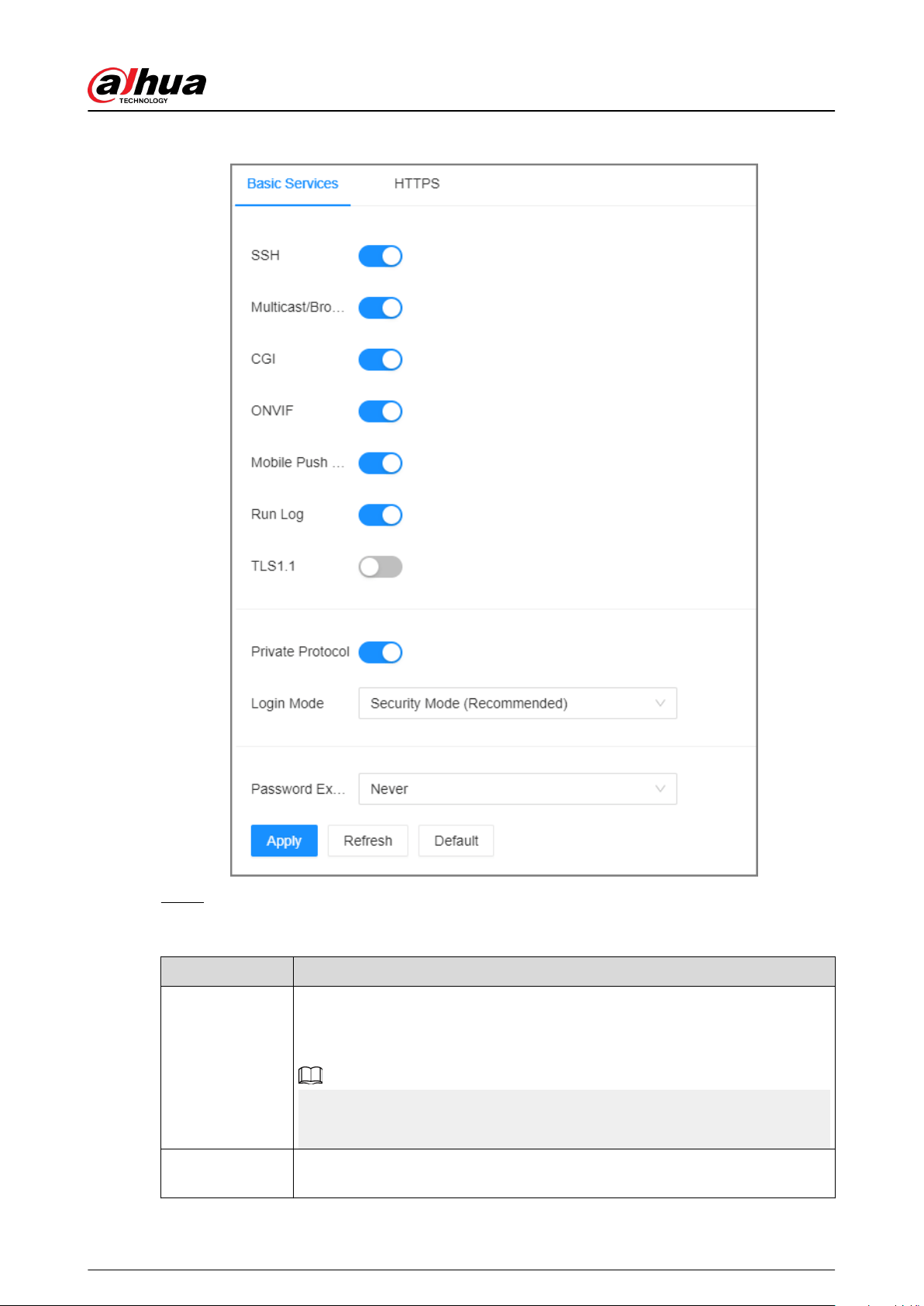
Figure 7-20 Basic services
Step 3 Enable or disable system services.
Table 7-14 System services
Name Description
SSH
After enabling this function, you can access the Device through SSH protocol
to carry out system debugging and IP conguration. This function is disabled
by default.
For data security, we recommend you disable this function when it is not
needed.
Multicast/
Broadcast Search
After enabled, you can multicast or search for broadcast devices.
User's Manual
143
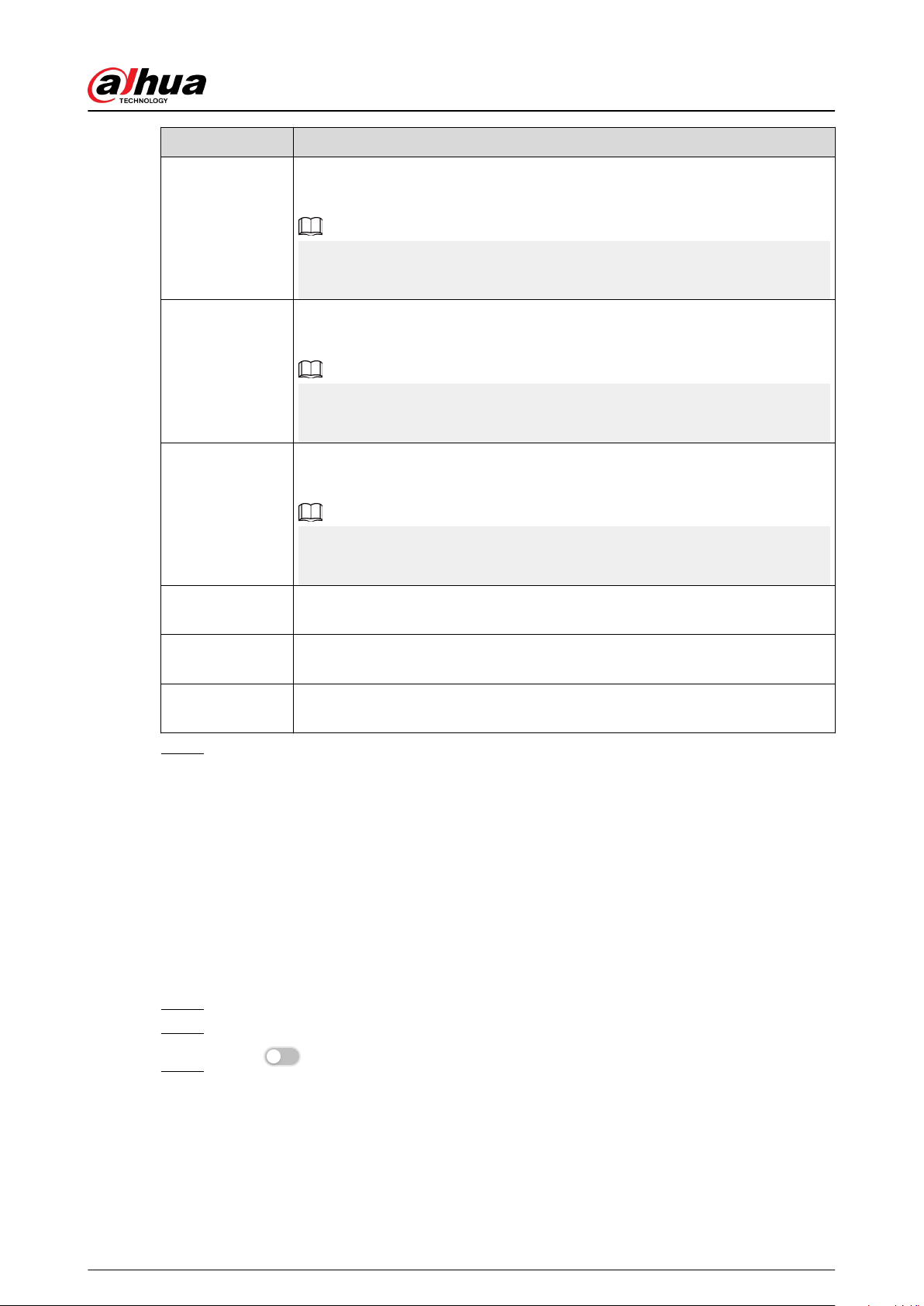
Name Description
CGI
After this function is enabled, a third-party platform can connect the Device
through CGI protocol.
For data security, we recommend you disable this function when it is not
needed.
ONVIF
After this function is enabled, other devices can connect the Device through
ONVIF protocol.
For data security, we recommend you disable this function when it is not
needed.
Mobile Push
Notications
After enabling this function, you can use your mobile phone to receive
notications from the Device.
For data security, we recommend you disable this function when it is not
needed.
Run Log
After enabling it, you can view system running logs in Maintain > Intelligent
Diagnosis > Run Log.
Login Mode
Select an authentication mode between security mode and compatibility
mode. Security mode is recommended.
Password Expires
in
Congure the password expiration interval. The Device prompts you to
change the password when the password expires.
Step 4 Click Apply.
7.2.2.2 Enabling HTTPS
HTTPS can use the reliable and stable technological means to guarantee user information and
device security and communication data security. After you install the certicate and enable HTTPS
function, you can use your computer to access the Device through HTTPS. To reduce the risk of data
leakage, we recommend you enable the HTTPS service.
Prerequisites
Install the certicate. For details, see "7.2.4 CA Certicate".
Procedure
Step 1 Log in to the PC client.
Step 2 On the home page, select Security > System Service > HTTPS.
Step 3 Click to enable HTTPS function.
User's Manual
144
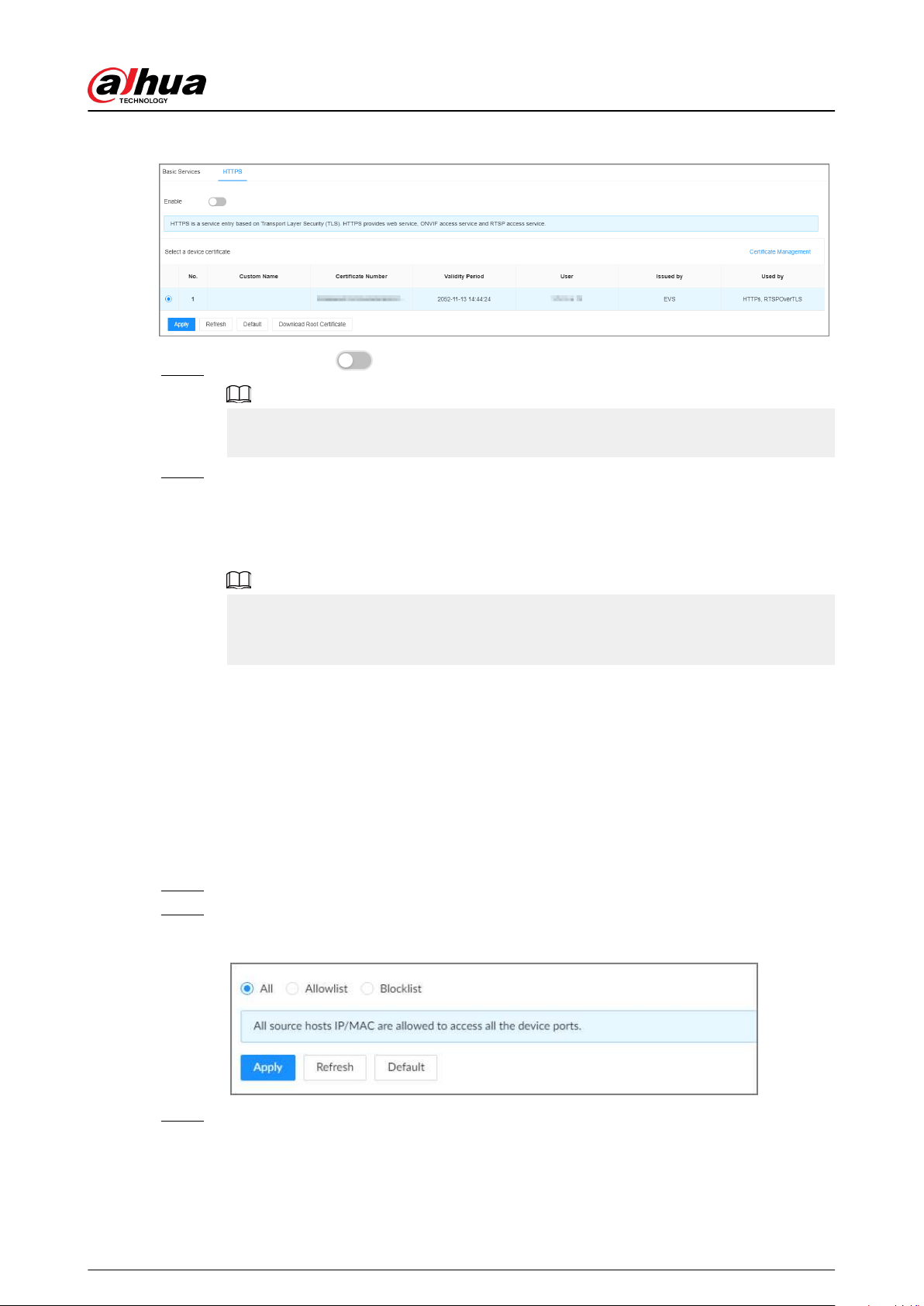
Figure 7-21 HTTPS
Step 4 (Optional) Click to enable Compatible with TLSv1.1 and earlier versions.
TLS (Transport Layer Security) provides privacy and data integrity between two
communications application programs.
Step 5 Click Apply.
You can use HTTPS to access the web interface.
Open the browser, enter https://IP address:port in the address bar, and then press Enter,
and then you can log in to the web interface.
●
IP address is IP address or the domain name of the Device.
●
Port refers to HTTPS port number of the Device. If the HTTPS port is the default value
443, just use https://IP address to access the web interface.
7.2.3 Attack Defense
7.2.3.1 Firewall
You can congure the hosts that are allowed or prohibited to access the Device.
Procedure
Step 1 Log in to the PC client.
Step 2 On the home page, select Security > Attack Defense > Firewall.
Figure 7-22 Firewall
Step 3 Select a rewall mode.
●
All : All hosts can access the Device.
●
Allowlist : The hosts on the allowlist can access the Device.
●
Blocklist : The hosts on the blocklist are prohibited to access the Device.
User's Manual
145
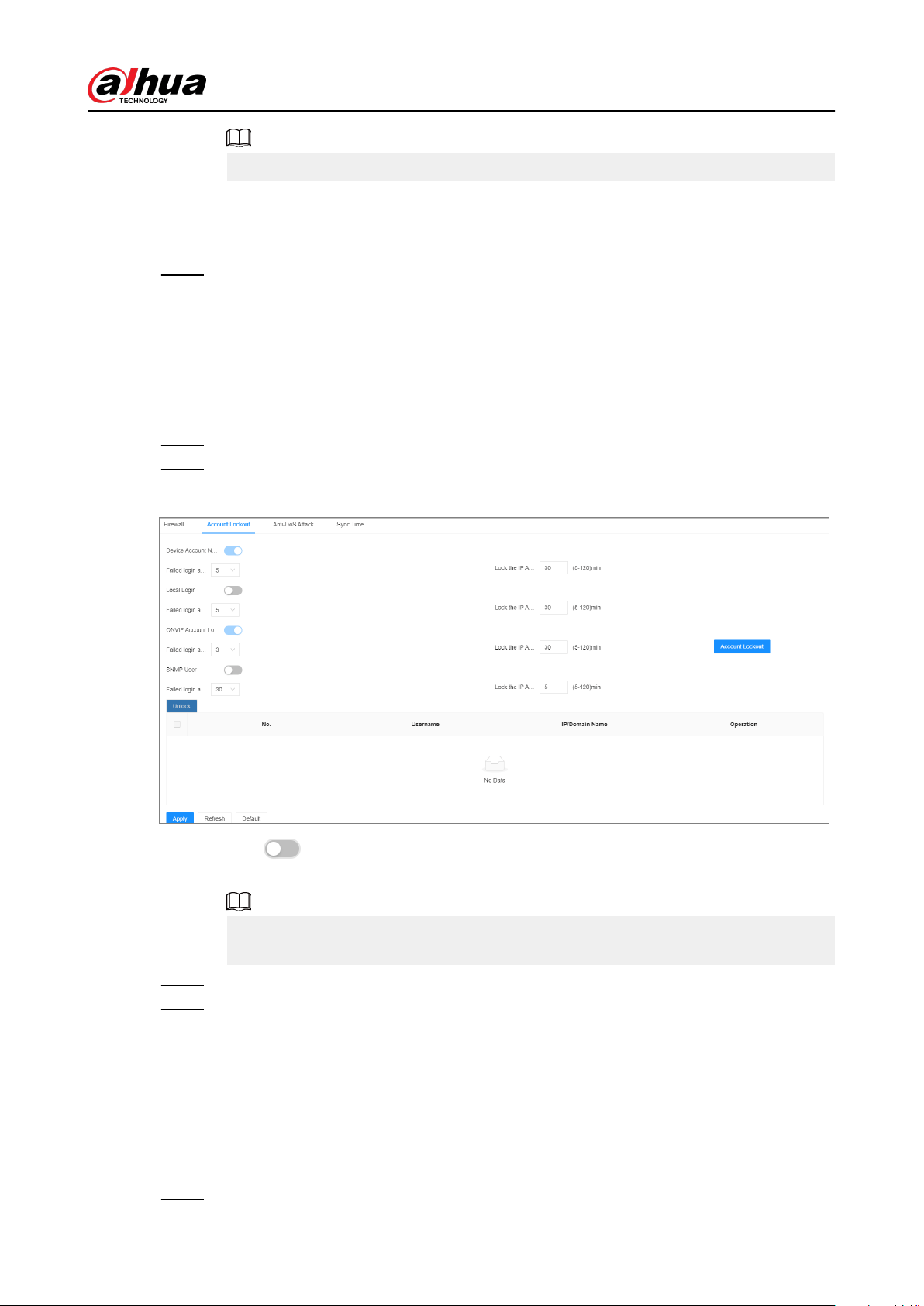
Allowlist and blocklist cannot be used at the same time.
Step 4 If you select Allowlist or Blocklist, click Add to add an allowlist or blocklist.
You can allow or prohibit a specic IP address, IP addresses on a specic network
segment, or a specic MAC address to access the Device.
Step 5 Click Apply.
7.2.3.2 Account Lockout
You can congure the number of allowed failed login attempts. When the number of failed login
attempts reaches the dened threshold, the account will be locked for the dened duration.
Procedure
Step 1 Log in to the PC client.
Step 2 On the home page, select Security > Attack Defense > Account Lockout.
Figure 7-23 Account lockout
Step 3 Click to enable the lockout limitation for dierent types of login accounts, and then
congure the number of allowed login attempts and lock duration.
The lockout limitation for network login of the device account and login of the ONVIF
account is enabled by default and cannot be disabled.
Step 4 Click Apply.
Step 5 (Optional) Click Account Lockout to go to the Event page where you can congure the
lockout alarm event.
7.2.3.3 Anti-Dos Attack
You can enable SYN Flood Attack Defense and ICMP Flood Attack Defense to defend the Device
against Dos attacks.
Procedure
Step 1 Log in to the PC client.
User's Manual
146
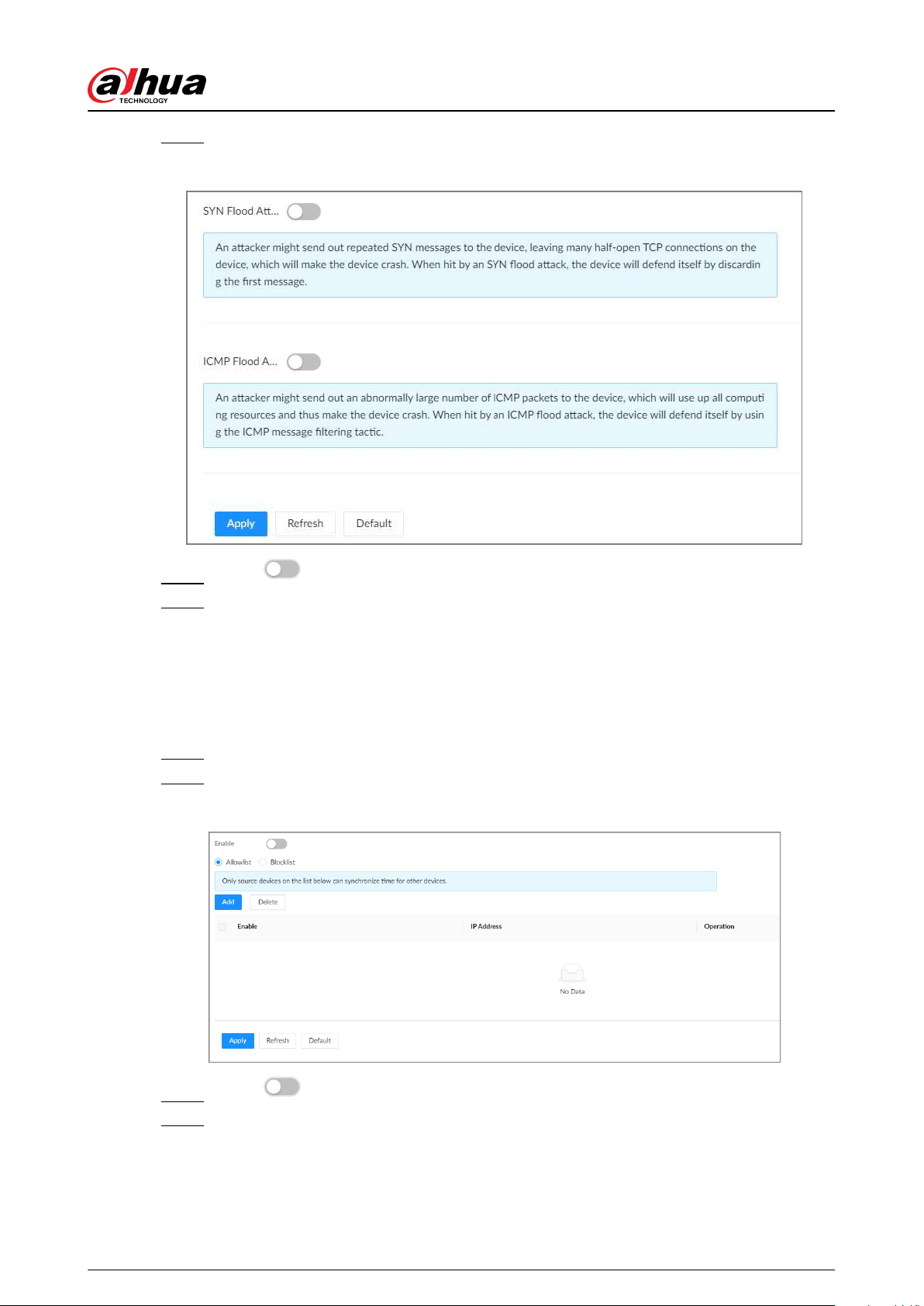
Step 2 On the home page, select Security > Attack Defense > Anti-Dos Attack.
Figure 7-24 Account lockout
Step 3 Click to enable SYN Flood Attack Defense or ICMP Flood Attack Defense.
Step 4 Click Apply.
7.2.3.4 Time Synchronization Permission
Congure permissions of time synchronization actions from other devices or servers.
Procedure
Step 1 Log in to the PC client.
Step 2 On the home page, select Security > Attack Defense > Sync Time.
Figure 7-25 Sync time
Step 3 Click to enable time synchronization restriction.
Step 4 Select Allowlist or Blocklist.
●
Allowlist : Hosts on the allowlist have the permission to synchronize time of the
Device.
●
Blocklist : Hosts on the blocklist cannot synchronize time of the Device.
User's Manual
147
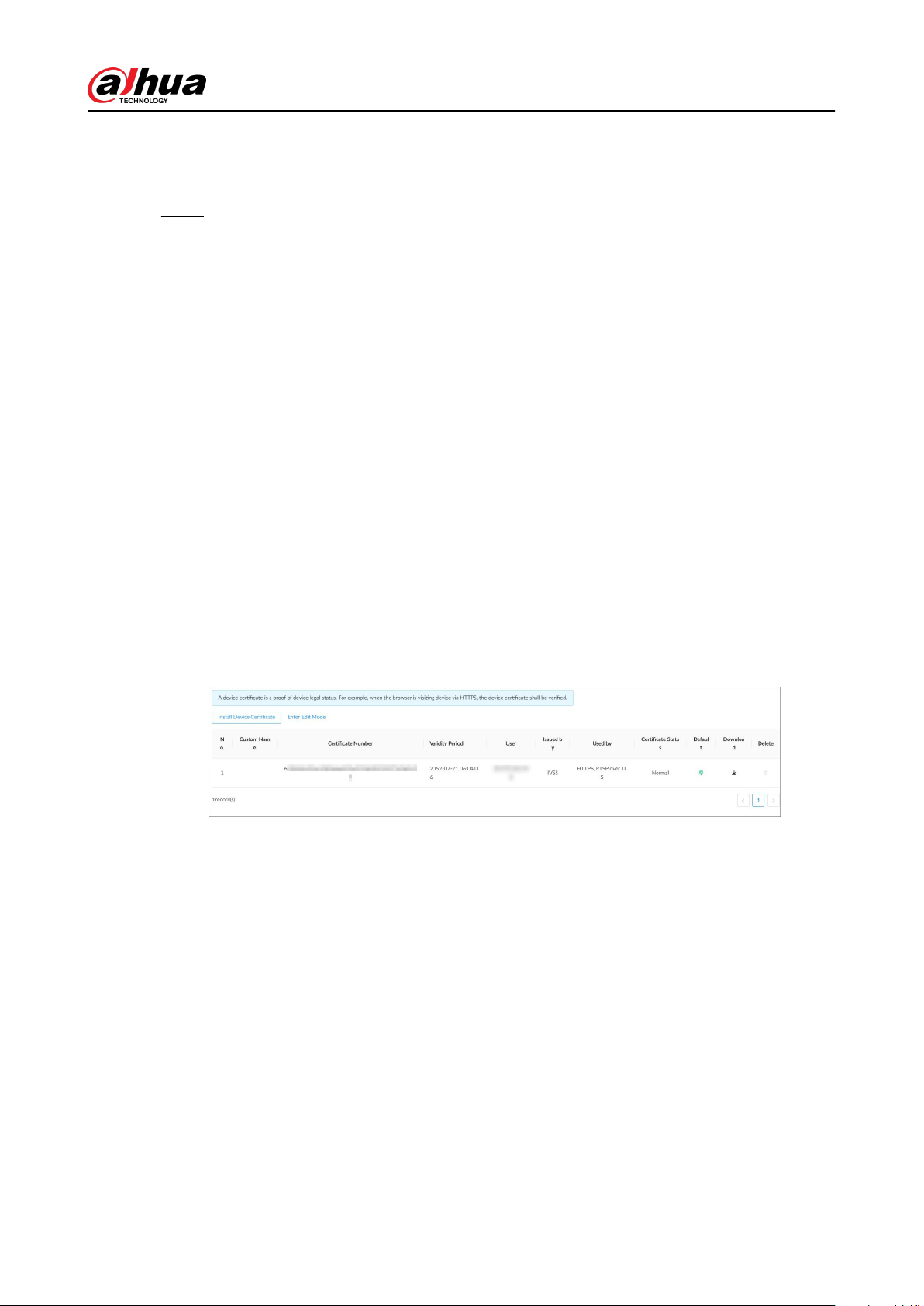
Step 5 Click Add to add an allowlist or blocklist.
You can allow or prohibit a specic IP address, IP addresses on a specic network
segment, or a specic MAC address to synchronize time with the Device.
Step 6 Add IP addresses to the allowlist or blocklist.
1. Click Add.
2. Select an IP version, and then enter an IP address.
3. Click OK.
Step 7 Click Apply.
7.2.4 CA Certicate
A CA certicate is a digital certicate issued by a certicate authority (CA). The CA veries trusted
certicates for trusted roots. Trusted roots are the foundation upon which chains of trust are built in
certicates.
7.2.4.1 Installing the Device Certicate
A device certicate is a proof of device legal status. For example, if you want to access EVS through
a browser, you need to install the root certicate on your computer in advance.
Procedure
Step 1 Log in to the PC client.
Step 2 On the home page, select Security > CA Certicate > Device Certicate.
Figure 7-26 Device certicate
Step 3 Click Install Device Certicate to install a certicate in any of the following ways.
●
Create a certicate.
a. Select Create Certicate and then click Next.
User's Manual
148
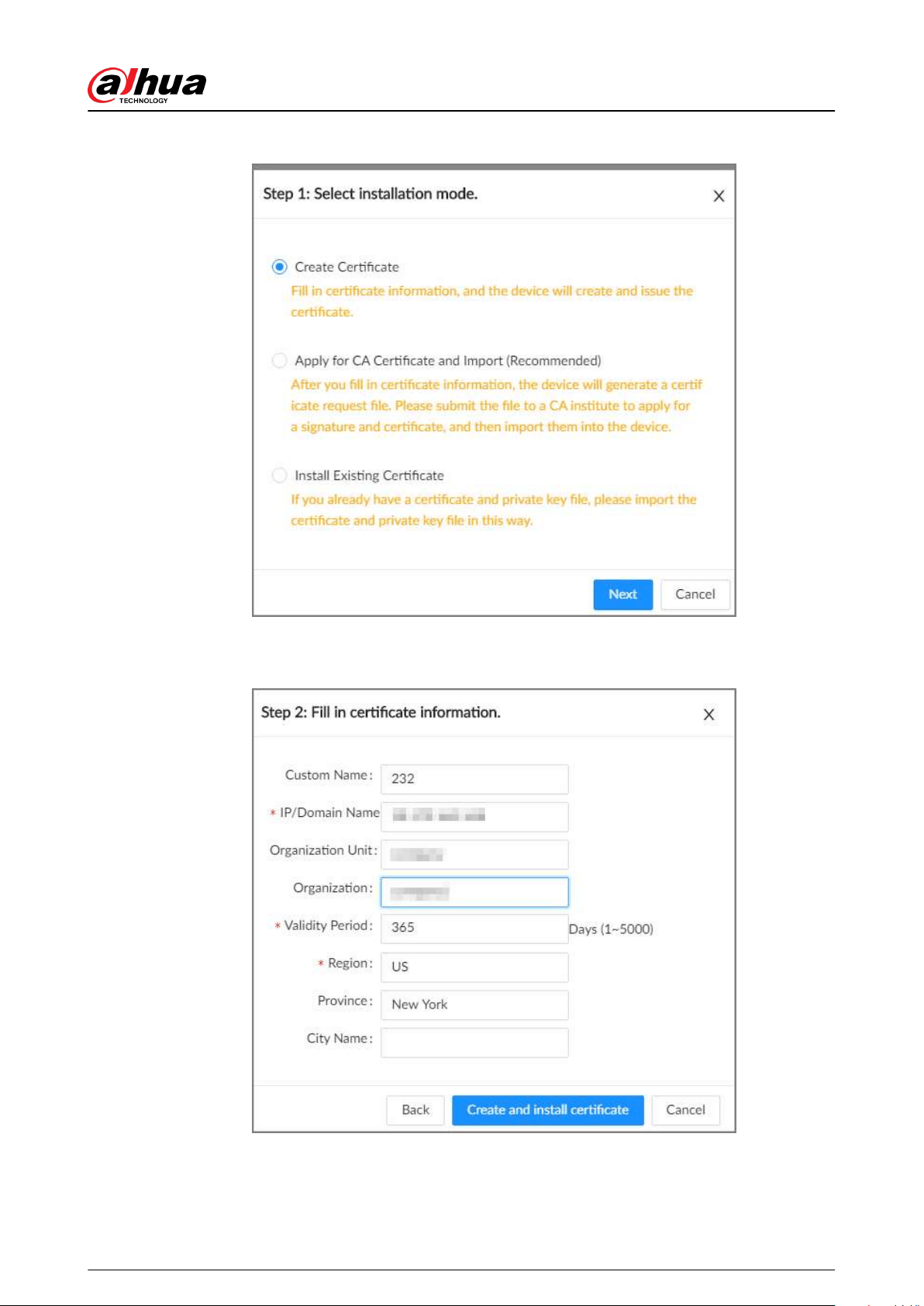
Figure 7-27 Create certicate
b. Enter the information.
Figure 7-28 Certicate information
c. Click Create and install certicate.
●
Apply for and import a certicate.
a. Select Apply for CA Certicate and Import (Recommended) and then click Next.
User's Manual
149
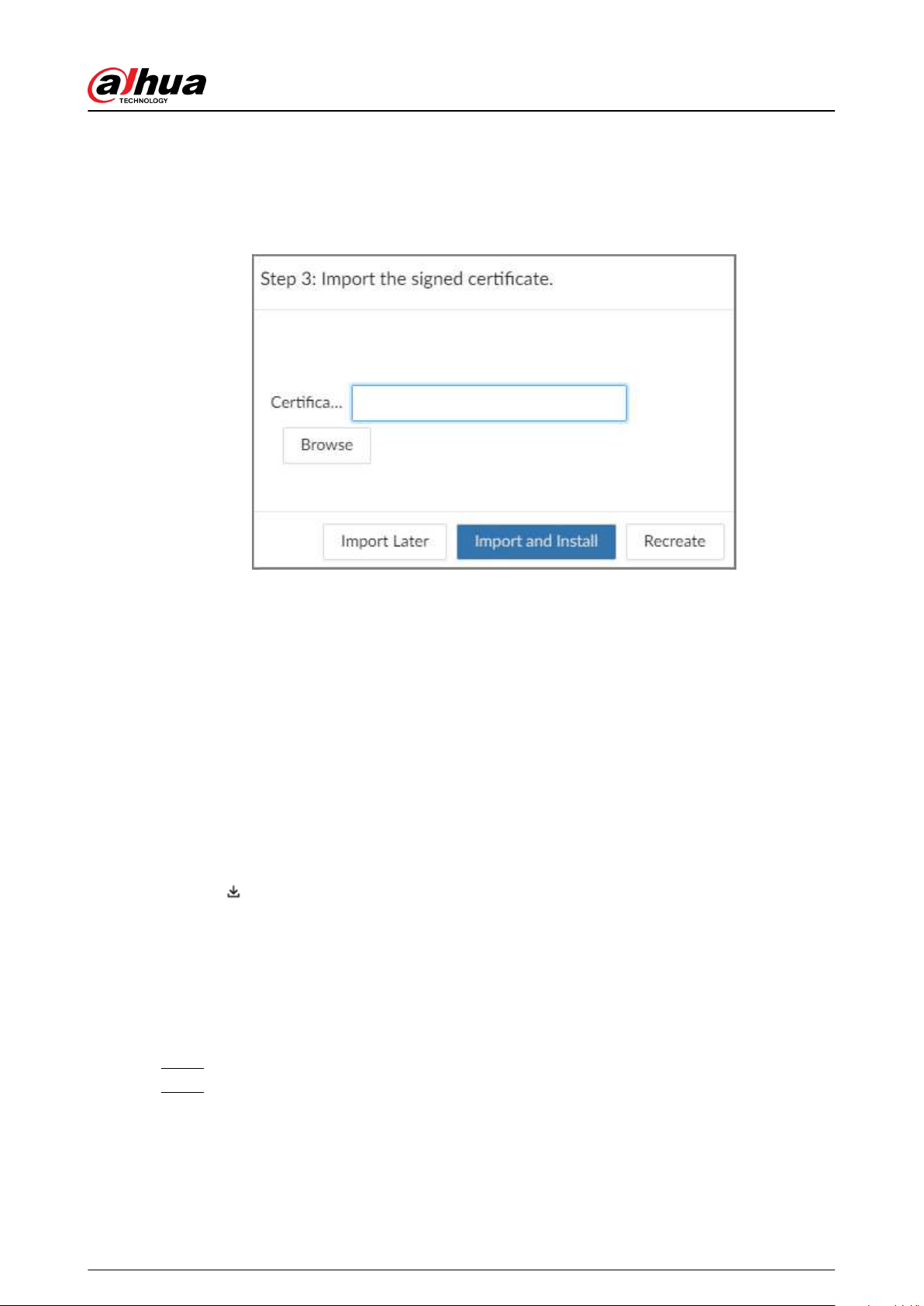
b. Enter the information.
c. Click Create and Download. The Device creates and downloads a certicate
request le. Submit the le to a CA institute to apply for a signed certicate.
d. Click Browse to select the certicate.
Figure 7-29 Import the certicate
e. Click Import and Install.
●
Import an existing certicate.
a. Select Install Existing Certicate and then click Next.
b. Enter the information.
c. Click Browse to select the certicate and private key.
d. Enter the password for the private key.
e. Click Import and Install.
Related Operations
You can edit and download the installed certicate.
●
Edit
Click Enter Edit Mode , enter a custom name for the certicate, and then click Save Cong.
●
Download
Click
to download the certicate.
7.2.4.2 Installing the Trusted Certicate
A trusted CA certicate is used to verify the legal status of a host. For example, a switch CA
certicate must be installed for 802.1x authentication.
Procedure
Step 1 Log in to the PC client.
Step 2 On the home page, select Security > CA Certicate > Trusted Certicate.
User's Manual
150
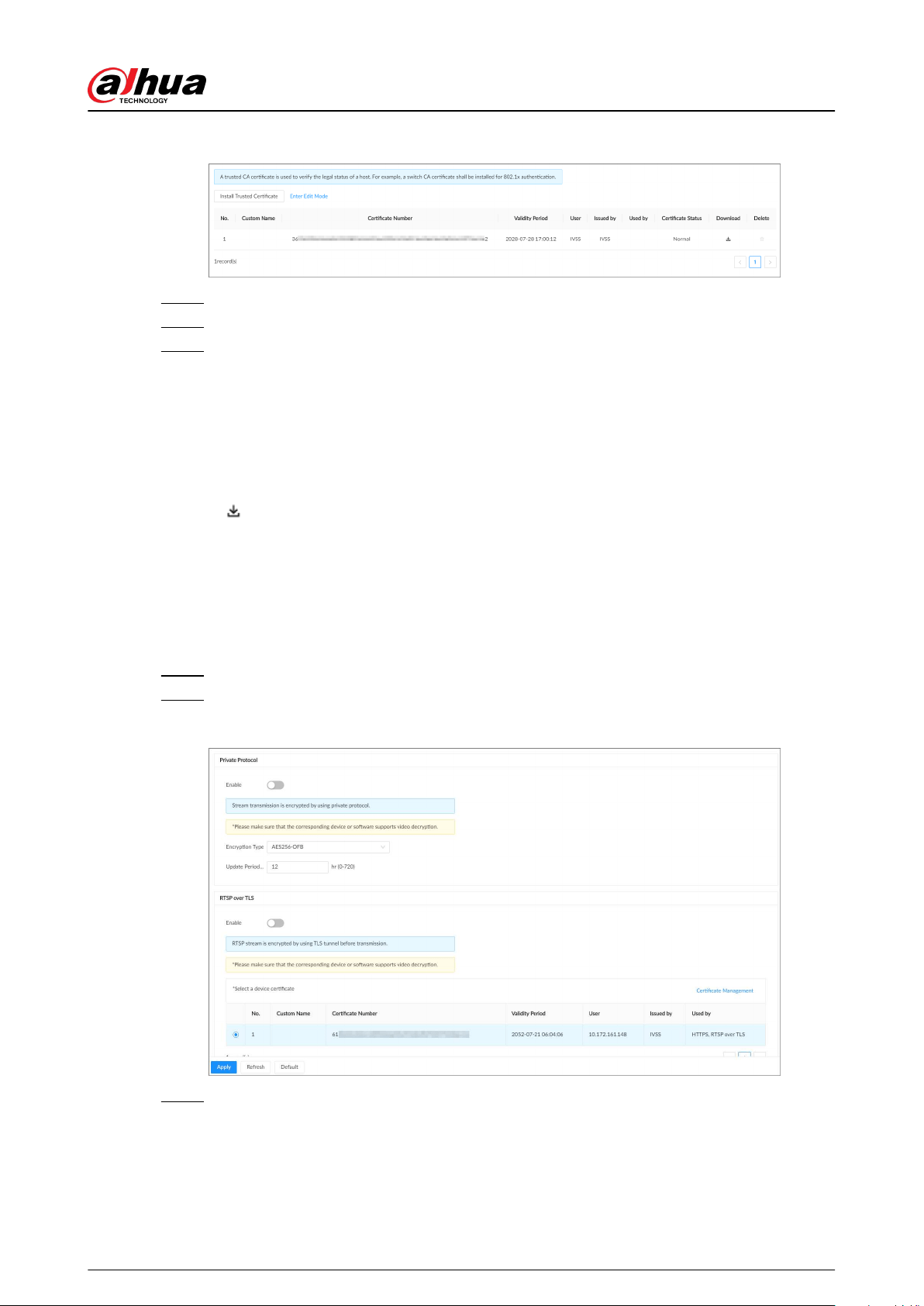
Figure 7-30 Trusted certicate
Step 3 Click Install Trusted Certicate.
Step 4 Click Browse to select a trusted certicate.
Step 5 Click OK.
Related Operations
You can edit and download the installed certicate.
●
Edit
Click Enter Edit Mode , enter a custom name for the certicate, and then click Save Cong.
●
Download
Click to download the certicate.
7.2.5 A/V Encryption
The Device supports audio and video encryption during data transmission.
Procedure
Step 1 Log in to the PC client.
Step 2 On the home page, select Security > A/V Encryption > Encrypted Transmission.
Figure 7-31 Video encryption
Step 3 Congure the parameters.
User's Manual
151
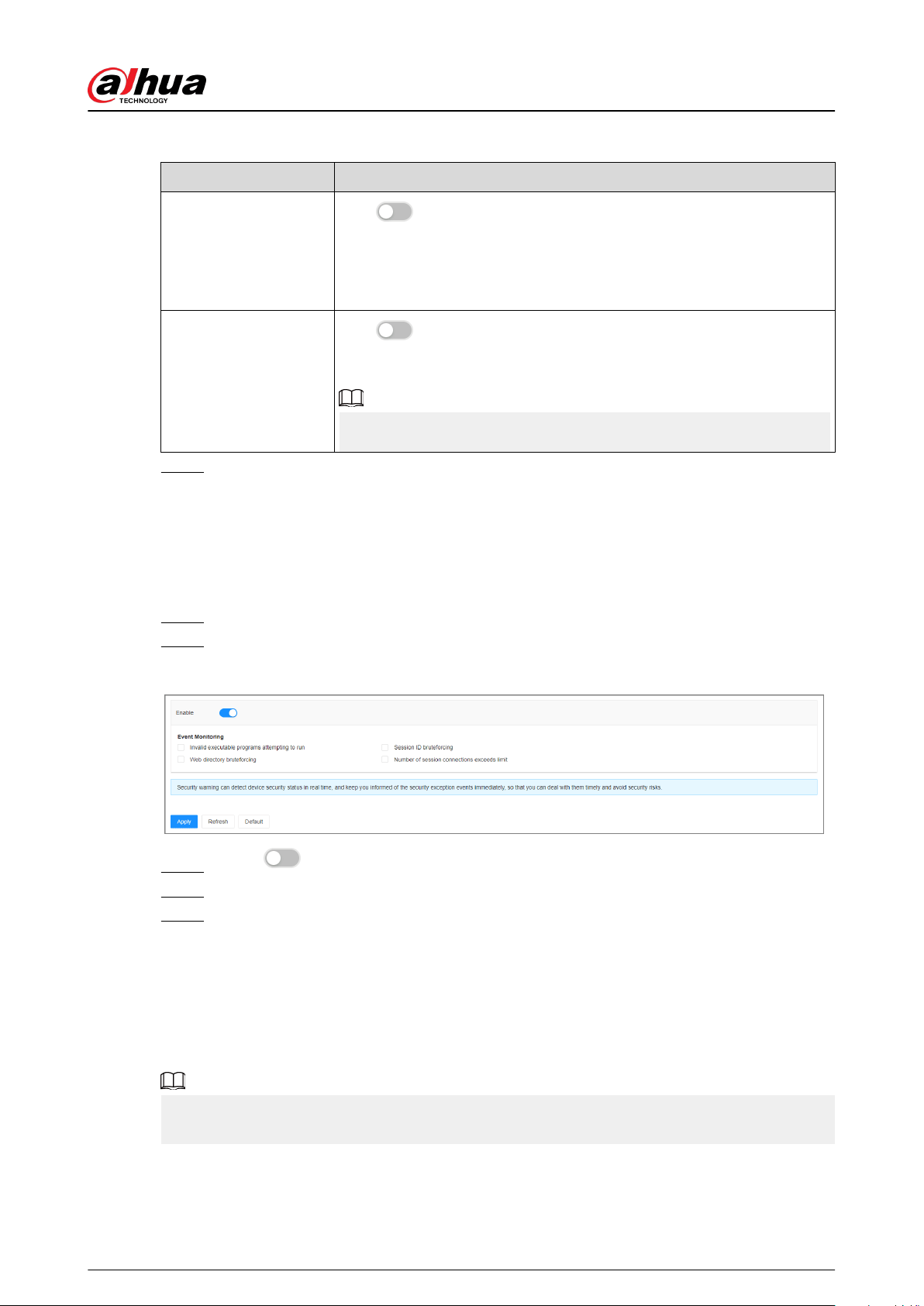
Table 7-15 Encryption parameters
Encryption Method Description
Private Protocol
Click to enable encryption using the private protocol.
●
Encryption Type : Leave it as default.
●
Update Period of Secret Key : The value range from 0 hours
through 720 hours. 0 means never update the secret key.
RTSP over TLS
Click
to enable RTSP encryption using the TLS tunnel, and then
select a device certicate. We recommend you enable this function to
ensure data security.
You can click Certicate Management to install a device certicate.
Step 4 Click Apply.
7.2.6 Security Warning
The Device gives warnings to the user when a security error occurs.
Procedure
Step 1 Log in to the PC client.
Step 2 On the home page, select Security > Security Warning.
Figure 7-32 Security warning
Step 3 Click to enable the function.
Step 4 Select the events to be monitored.
Step 5 Click Apply.
7.3 Account Management
The Device adopts two-level account management mode: user and user group. Every user must
belong to a group, and one user only belongs to one group. To conveniently manage the users, we
recommend the permissions of general users should be lower than those of high-level users.
To ensure device security, you need to enter the correct login password to operate on the
ACCOUNT page (for example, add or delete a user).
User's Manual
152
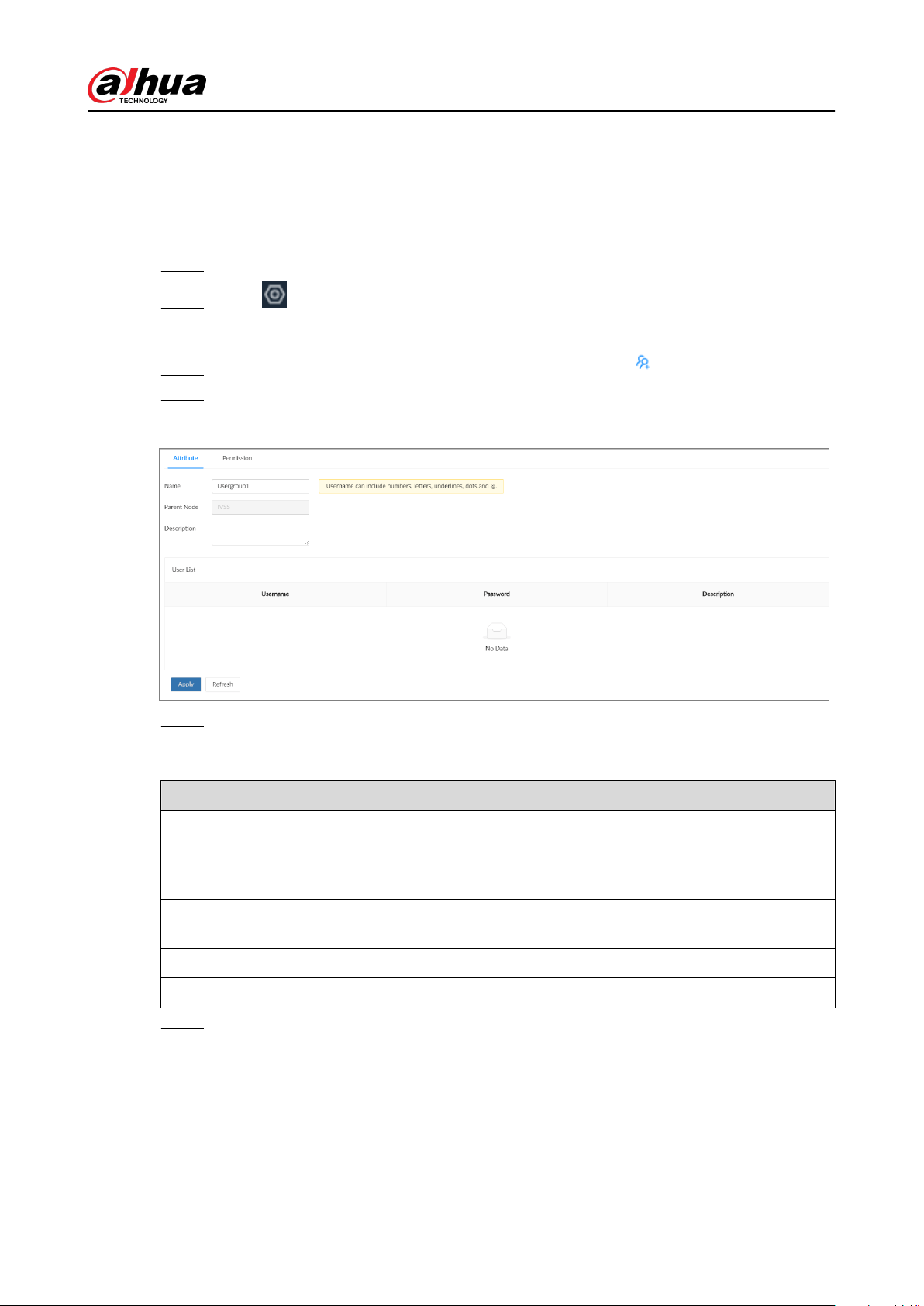
7.3.1 Adding User Groups
The admin and Onvif groups are 2 default user groups. You can create more user groups to
manage users with dierent permissions.
Procedure
Step 1 Log in to the PC client.
Step 2 Click on the upper-right corner and then click Account.
You can also click Account from the conguration list on the home page.
Step 3 Select the root node on the upper-left corner and then click on the lower-left corner.
Step 4 Enter the password of the current account, and then click OK.
Figure 7-33 User group attribute
Step 5 Congure the parameters.
Table 7-16 User group attribute parameters description
Parameter Description
Name
Customize a user group name.
The name ranges from 1 to 64 characters. It can contain English
letters, numbers and special characters ("_", "@", ".").
Parent Node
Displays the organization node that the user group belongs to. The
system automatically recognizes the parent node.
Description Enter descriptions for the user group.
User List Displays users in the group.
Step 6 Assign permissions to users.
1. Click the Permission tab.
User's Manual
153
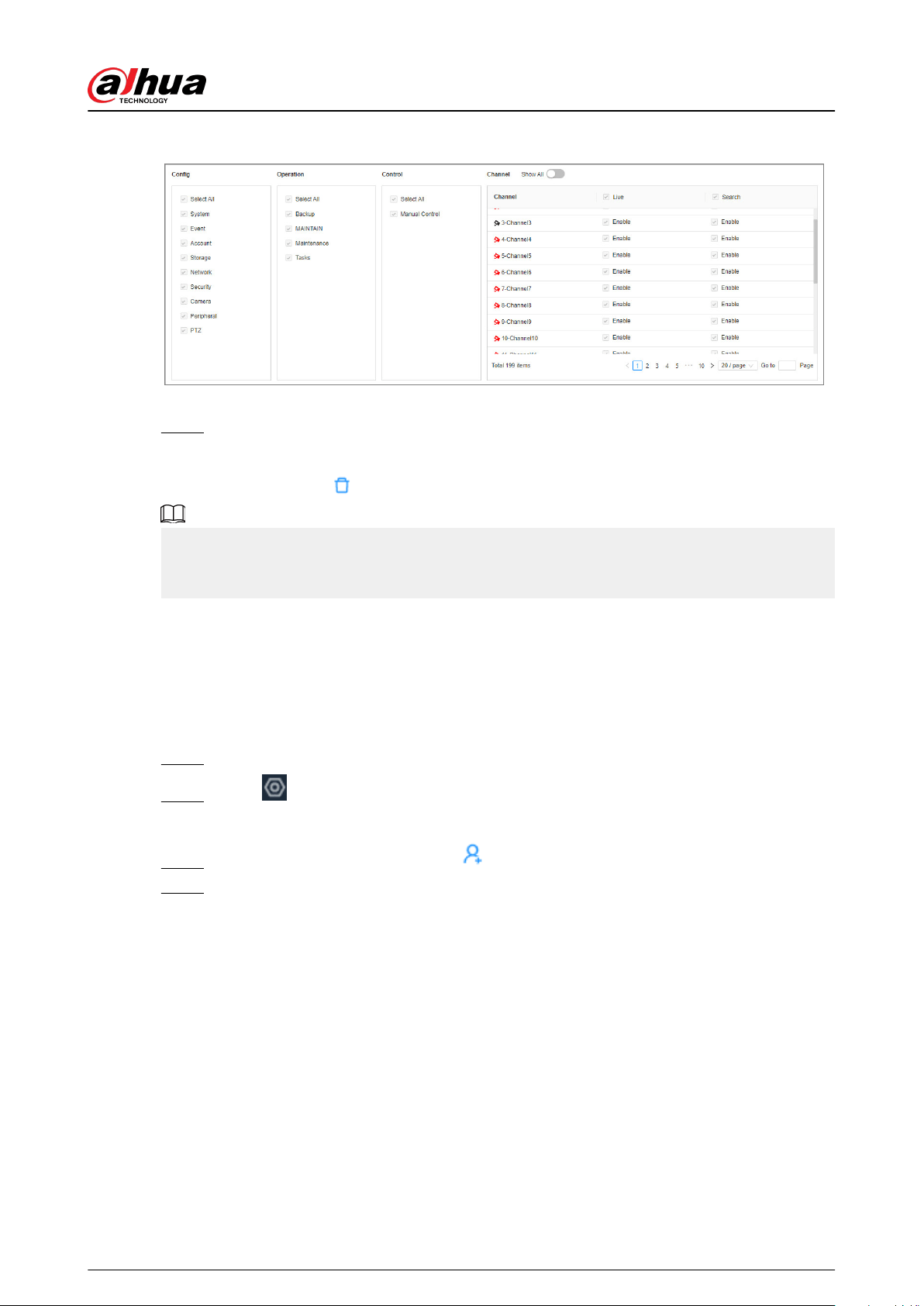
Figure 7-34 Permission
2. Select the permissions for the user group.
Step 7 Click Apply.
Related Operations
Select a user group, click , enter the login password, and then click OK to delete the user group.
●
Before you delete a user group, you need to delete all users in the current group rst.
●
The deleted user group cannot be restored.
●
The admin and Onvif user groups cannot be deleted.
7.3.2 Adding Device Users
A device user can access and manage the Device. The default administrator is admin. You can add
more users with dierent permissions depending on the user groups that the user belongs to.
Procedure
Step 1 Log in to the PC client.
Step 2 Click on the upper-right corner and then click Account.
You can also click Account from the conguration list on the home page.
Step 3 Select a user group, and then click .
Step 4 Enter the login password of the current account, and then click OK.
User's Manual
154
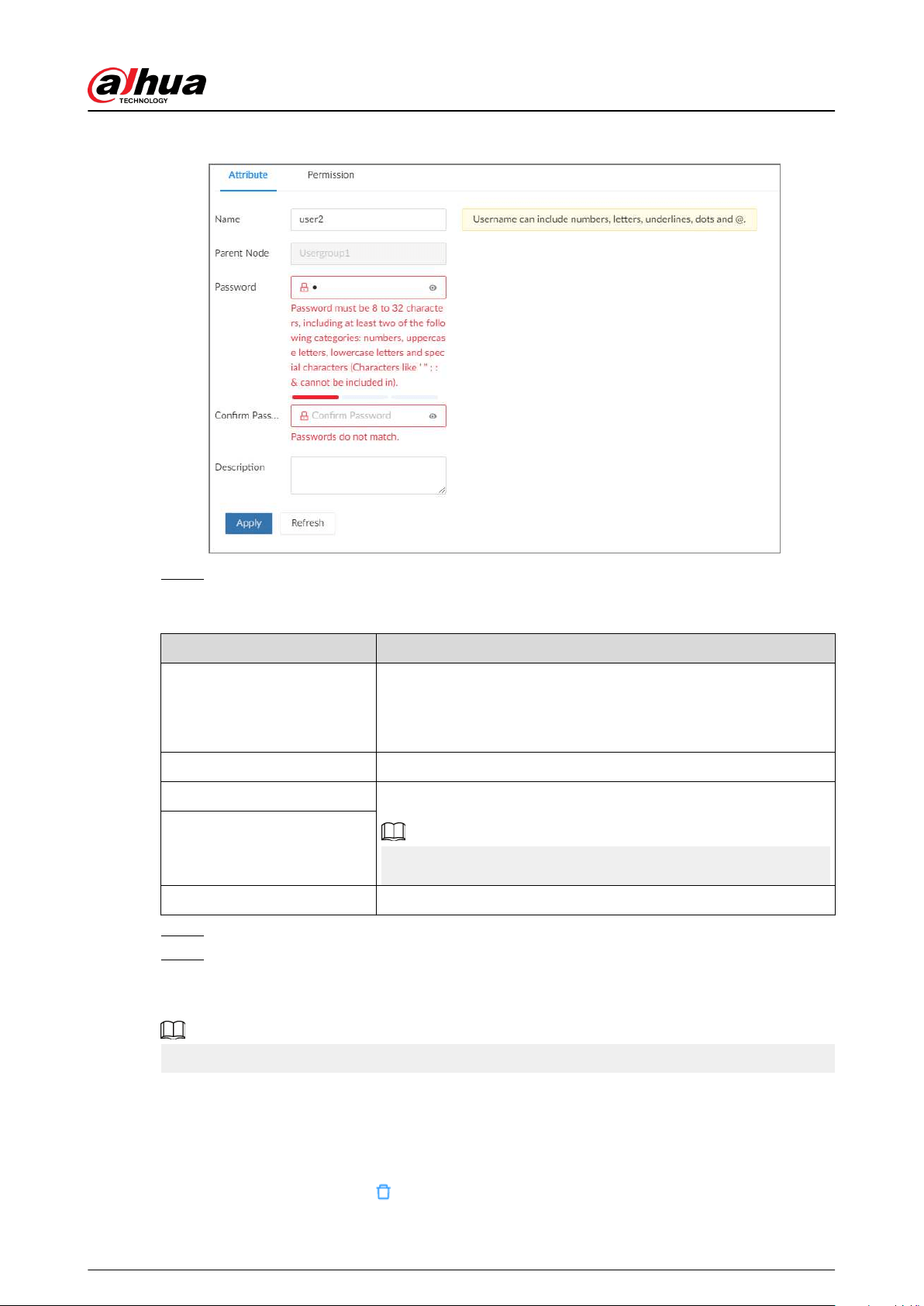
Figure 7-35 User attributes
Step 5 Congure the parameters.
Table 7-17 User attributes parameters
Parameter Description
Name
Set the username.
The name ranges from 1 to 31 characters. It can contain English
letters, number and special character ("_", "@", ".").
Parent Node Displays the user group that the user belongs to.
Password
Enter the password and then conrm it.
Set a strong password according to the on-screen prompt.
Conrm Password
Description Enter descriptions for the user.
Step 6 Click the Permission to view the permissions of the user.
Step 7 Click Apply.
Related Operations
After adding a user, you can modify user information or delete the user.
Only users in the admin group have the permission to manage accounts.
●
Edit user information.
Select a user, and then under the Attribute tab, you can change the password and description
of the user.
●
Delete a user.
Select a user, and then click
.
User's Manual
155
Before deleting an online user, you need to block the user rst. For details, see "8.4.1 Online
User".
The deleted user cannot be restored.
7.3.3 Password Maintenance
Maintain and manage the login passwords of users.
7.3.3.1 Changing Password
Change the login password of the user.
7.3.3.1.1 Changing Password of the Current User
Procedure
Step 1 Log in to the PC client.
Step 2 Select the root node
Step 3 Click on the upper-right corner, and then select Change Password.
Step 4 Enter the old password, the new password and then conrm the new password.
Step 5 Click OK.
7.3.3.1.2 Changing Password of Other Users
Only users in the admin group have the permission to change passwords of other users.
Procedure
Step 1 Log in to the PC client.
Step 2 Click on the upper-right corner and then click Account.
You can also click Account from the conguration list on the home page.
Step 3 Select a user and then click under the Attribute tab.
Step 4 Enter the password of the current account, and then click OK.
Step 5 Enter the new password and then conrm the password.
Step 6 Click OK.
7.3.3.2 Resetting the Password
You can use email address or answer the security questions to reset the password if you forgot it.
7.3.3.2.1 Leaving Email Address and Security Questions
Enable the password reset function, leave an email address and set security questions. You can only
use the local interface to set security questions.
User's Manual
156
Procedure
Step 1 Log in to the PC client.
Step 2 Click on the upper-right corner and then click Account.
You can also click Account from the conguration list on the home page.
Step 3 Select the root node at the upper-left corner.
Step 4 Click to enable the password reset function.
Step 5 Enter an email address for resetting password.
Step 6 Set security questions. You can only set security questions on the local interface of the
Device.
Step 7 Click Apply.
7.3.3.2.2 Resetting Password on Local Interface
Procedure
Step 1 Connect a monitor to the Device, and then go to the Login page of the Device.
Step 2 Click Forgot password?.
Step 3 Click OK.
Step 4 (Optional) If you have not congured the linked email address, enter the email address
and then click Next.
Step 5 Select the reset mode and then reset the password.
●
Email.
Follow the on-screen instructions to get the security code in your linked email address.
After that, enter the security code and then click Next.
●
Security questions.
Answer the security questions and then click Next.
Step 6 Set parameters.
Table 7-18 Description of password parameters
Parameter Description
Username The default username is admin.
Password
Enter the new password and conrm the password.
Conrm Password
Prompt question
After setting the prompt, when you point to
on the login page,
the system pops up a prompt to remind you of the password.
The password prompt is available only on the login page of the local
interface.
Step 7 Click Conrm Modify.
You can log in with the new password.
User's Manual
157
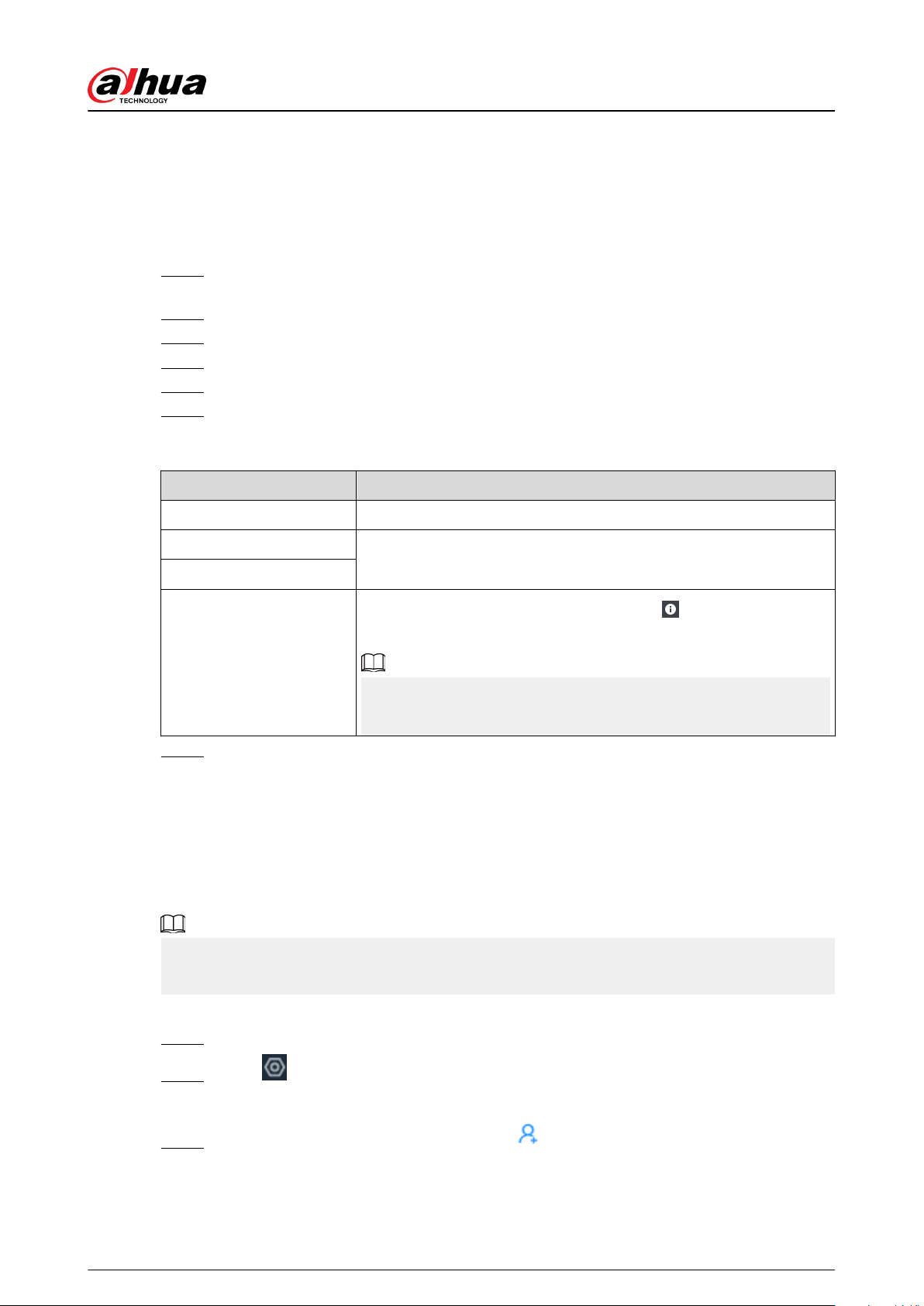
7.3.3.2.3 Resetting Password on the Web Interface or PC Client
Prerequisites
Make sure that you have congured the linked email address.
Procedure
Step 1 Enter the IP address of the Device in the address bar of the browser or PC client, and then
press Enter.
Step 2 Click Forgot password?.
Step 3 Click OK.
Step 4 Follow on-screen instructions to get security code and then enter the security code.
Step 5 Click Next.
Step 6 Set a new password.
Table 7-19 Description of password parameters
Parameter Description
Username The default username is admin.
Password
Enter the new password and conrm the password.
Conrm Password
Prompt question
After setting the prompt, when you point to
on the login page,
the system pops up a prompt to remind you of the password.
The password prompt is available only on the login page of the local
interface.
Step 7 Click Conrm Modify.
You can log in with the new password.
7.3.4 Adding ONVIF User
The remote devices can connect with the Device through ONVIF protocol by using a veried ONVIF
account.
There are 3 ONVIF user groups by default: admin , user, and operator. You can only add users in
the 3 groups. You cannot create other ONVIF user groups.
Procedure
Step 1 Log in to the PC client.
Step 2 Click on the upper-right corner and then click Account.
You can also click Account from the conguration list on the home page.
Step 3 Select an ONVIF user group, and then click .
User's Manual
158
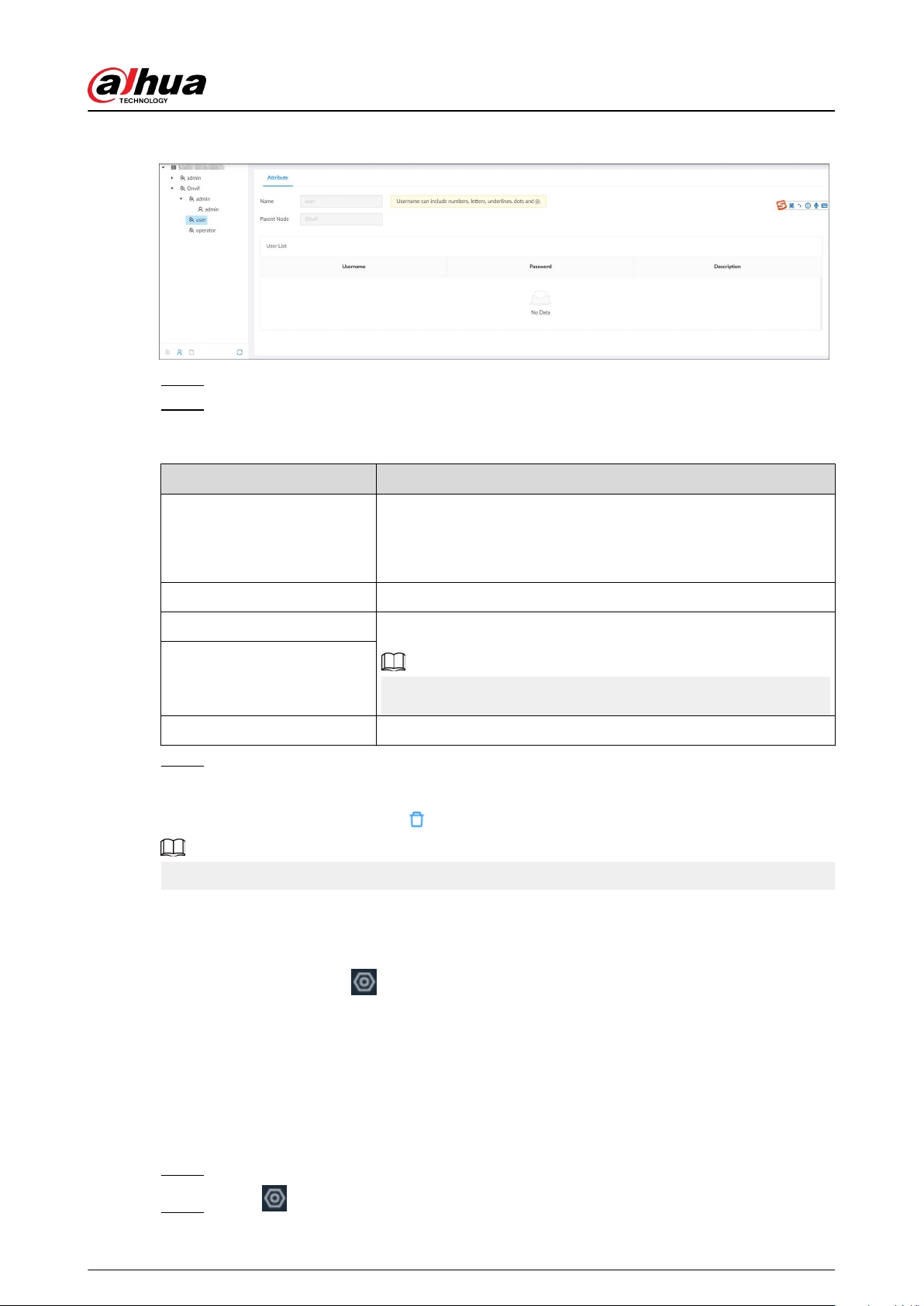
Figure 7-36 ONVIF user group
Step 4 Enter the login password of current user, and then click OK.
Step 5 Set parameters.
Table 7-20 User attributes parameters
Parameter Description
Name
Set the username.
The name ranges from 1 to 31 characters. It can contain English
letters, number and special character ("_", "@", ".").
Parent Node Displays the user group that the user belongs to.
Password
Enter the password and then conrm it.
Set a strong password according to the on-screen prompt.
Conrm Password
Description Enter descriptions for the user.
Step 6 Click Apply.
Related Operations
Select an ONVIF user, and then click to delete it.
The admin ONVIF user cannot be deleted.
7.4 System Settings
Log in to the PC client. Click
on the upper-right corner and then select System. You can
congure system settings, such as general parameters, time, and display parameters.
7.4.1 Conguring Basic System Parameters
Set system language, standard, user logout time, virtual keyboard, and mouse moving speed.
Procedure
Step 1 Log in to the PC client.
Step 2 Click on the upper-right corner and then click System.
User's Manual
159
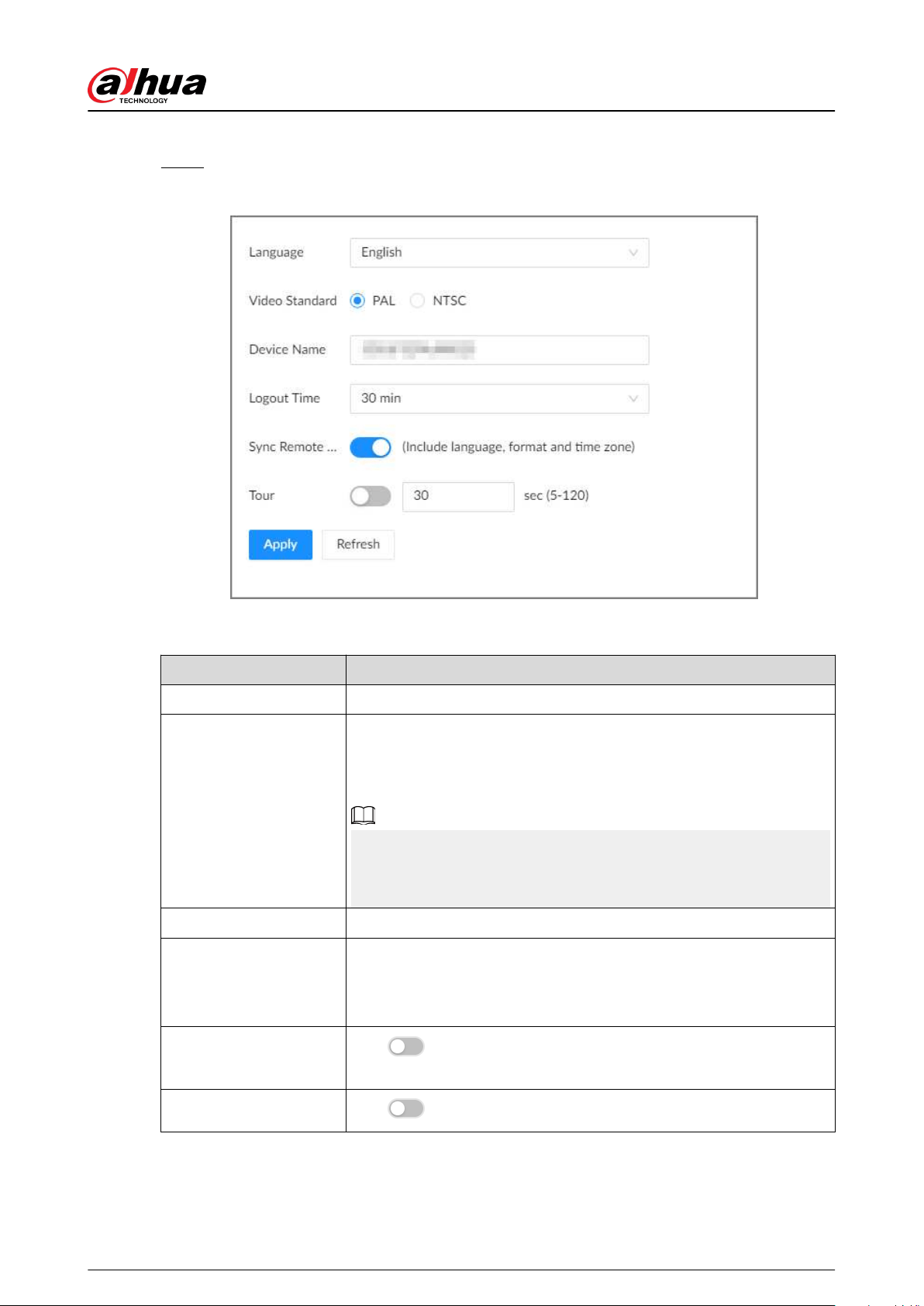
You can also click System from the conguration list on the home page.
Step 3 Congure the parameters.
Figure 7-37 Basic system settings
Table 7-21 System parameters description
Parameter Description
Language Set system language.
Video Standard
Select a video standard.
●
PAL is mainly used in China, Middle East and Europe.
●
NTSC is mainly used in Japan, United States, Canada and Mexico.
As a technical standard of processing video and audio signals, PAL and
NTSC mainly dier in the encoding and decoding modes and eld
scanning frequency.
Device Name Customize a name for the Device.
Logout Time
Enter the time of inactivity before logout. The Device logs out
automatically after the period of inactivity.
If you select None, the Device does not automatically log out.
Sync Remote Device
Click to synchronize the system settings such as language and
time zone with remote devices.
Tour
Click to enable tour and then enter the tour time。
User's Manual
160
Parameter Description
Virtual Keyboard
Enable virtual keyboard on the local interface.
This function is available only on the local interface.
Mouse Moving Speed
Set mouse moving speed on the local interface.
This function is available only on the local interface.
Step 4 Click Apply.
7.4.2 System Time
Set system time, and enable the NTP function according to your need. After you enable the NTP
function, the Device can automatically synchronize time with the NTP server.
Procedure
Step 1 Log in to the PC client.
Step 2 Click on the upper-right corner, and then click System.
You can also click System from the conguration list on the home page.
Step 3 Select General > Time.
User's Manual
161
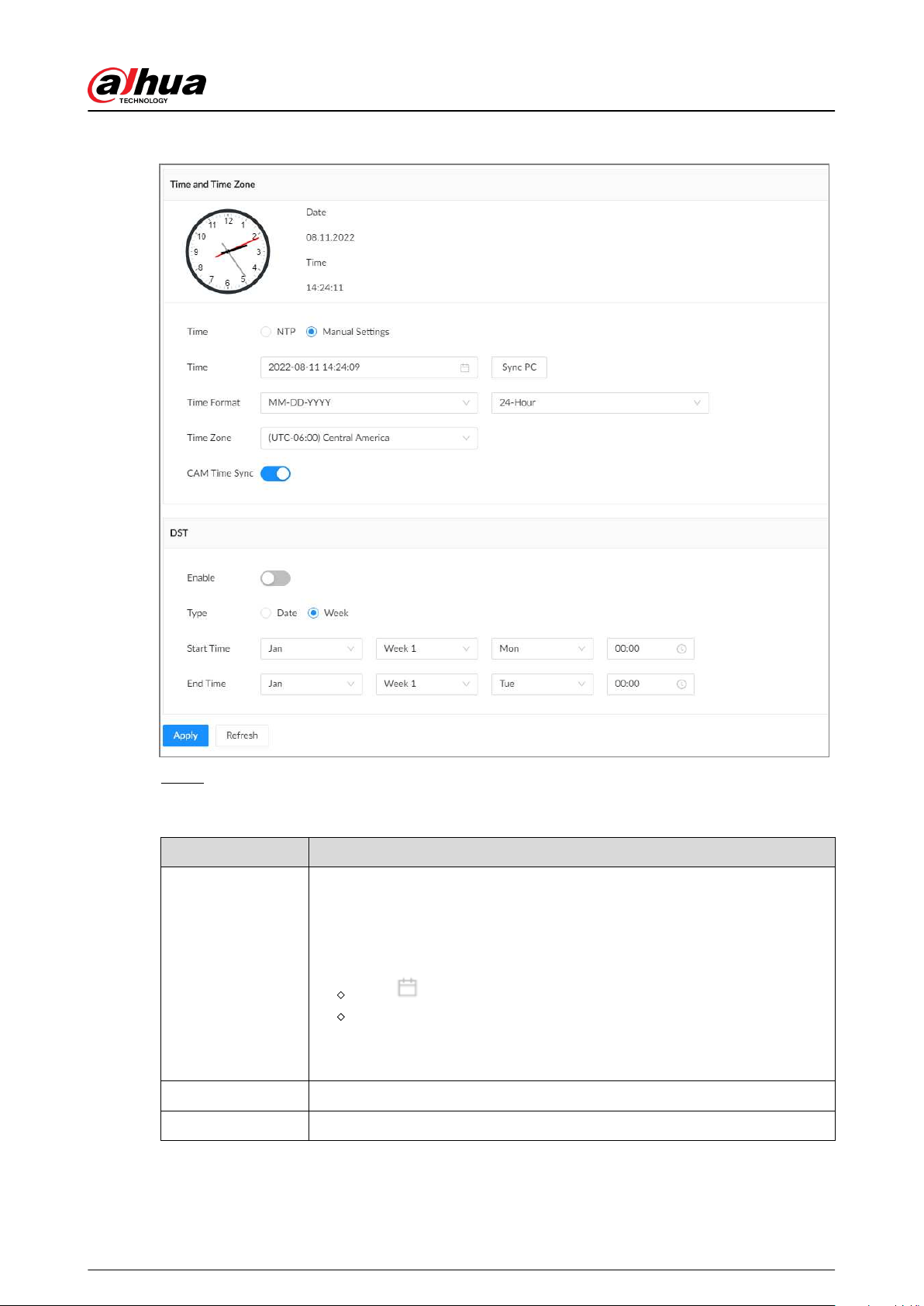
Figure 7-38 Time
Step 4 Congure the parameters.
Table 7-22 Time parameters description
Parameters Description
Time
Set system date and time. You can set the time manually or enable NTP so
that the Device can automatically synchronize time with the NTP server.
●
Manual Settings : Set the actual date and time in either of the following
ways.
Click , and then select the time and date in the calendar.
Click Sync PC to synchronize system time with your computer.
●
NTP : Enter the IP address or domain of the NTP server, and then set the
time synchronization interval.
Time Format Set the time and date format.
Time Zone Select a time zone.
User's Manual
162
Parameters Description
CAM Time Sync
After you enable this function, EVS detects the system time of remote
devices once in every interval. When the time of a remote device is
inconsistent with EVS time, EVS will calibrate the time of the remote device
automatically.
Step 5 (Optional) Set DST.
DST is a system to stipulate local time, in order to save energy. If the country or region
where the Device is located follows DST, you can enable DST to ensure that system time is
correct.
1. Click to enable DST.
2. Select a DST mode from Date and Week.
3. Set DST start time and end time.
Step 6 Click Apply.
7.4.3 Schedule
Congure schedules. When you are conguring alarm, recording and other settings, you can use
the schedule to dene the validity periods. The system only triggers the corresponding operations
during the specied schedule.
Default Schedule has been created by default, which is always eective and cannot be modied
or deleted.
Procedure
Step 1 Log in to the PC client.
Step 2 Click , or click on the conguration page, and then select SYSTEM > Schedule >
Schedule .
User's Manual
163
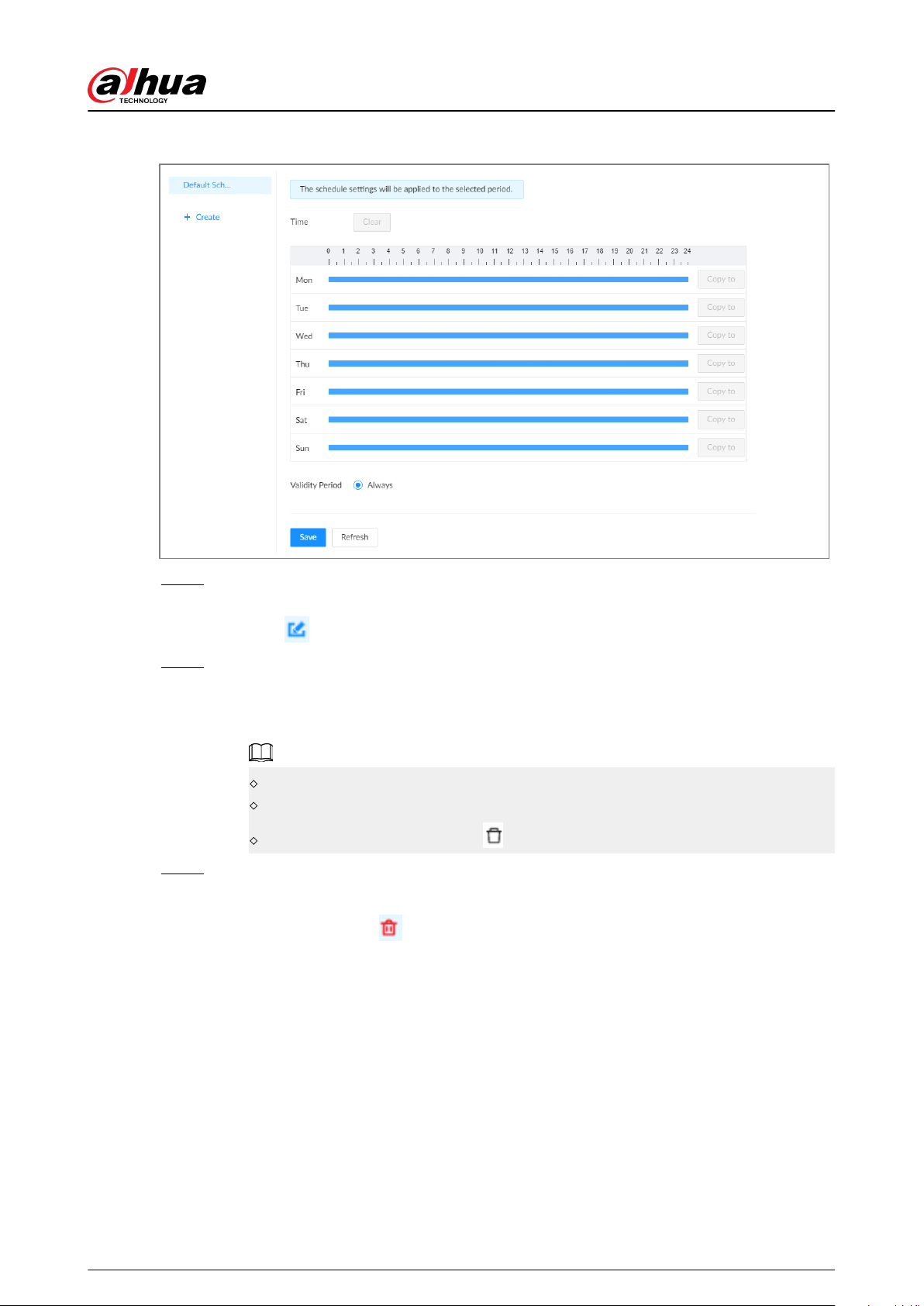
Figure 7-39 Schedule
Step 3 Add a schedule.
1. Click Create.
2. Click
to edit the schedule name.
Step 4 Set the validity periods.
●
Always : The schedule is always eective.
●
Custom : Customize validity periods for the schedule. Click the time bar and then drag
the blue strip to set a period.
You can add up to 50 validity periods for each schedule.
Click Clear to clear all validity periods.
Click a blue strip and then click to delete the corresponding period.
Step 5 Click Save.
Related Operations
Select a schedule and then click to delete it.
User's Manual
164
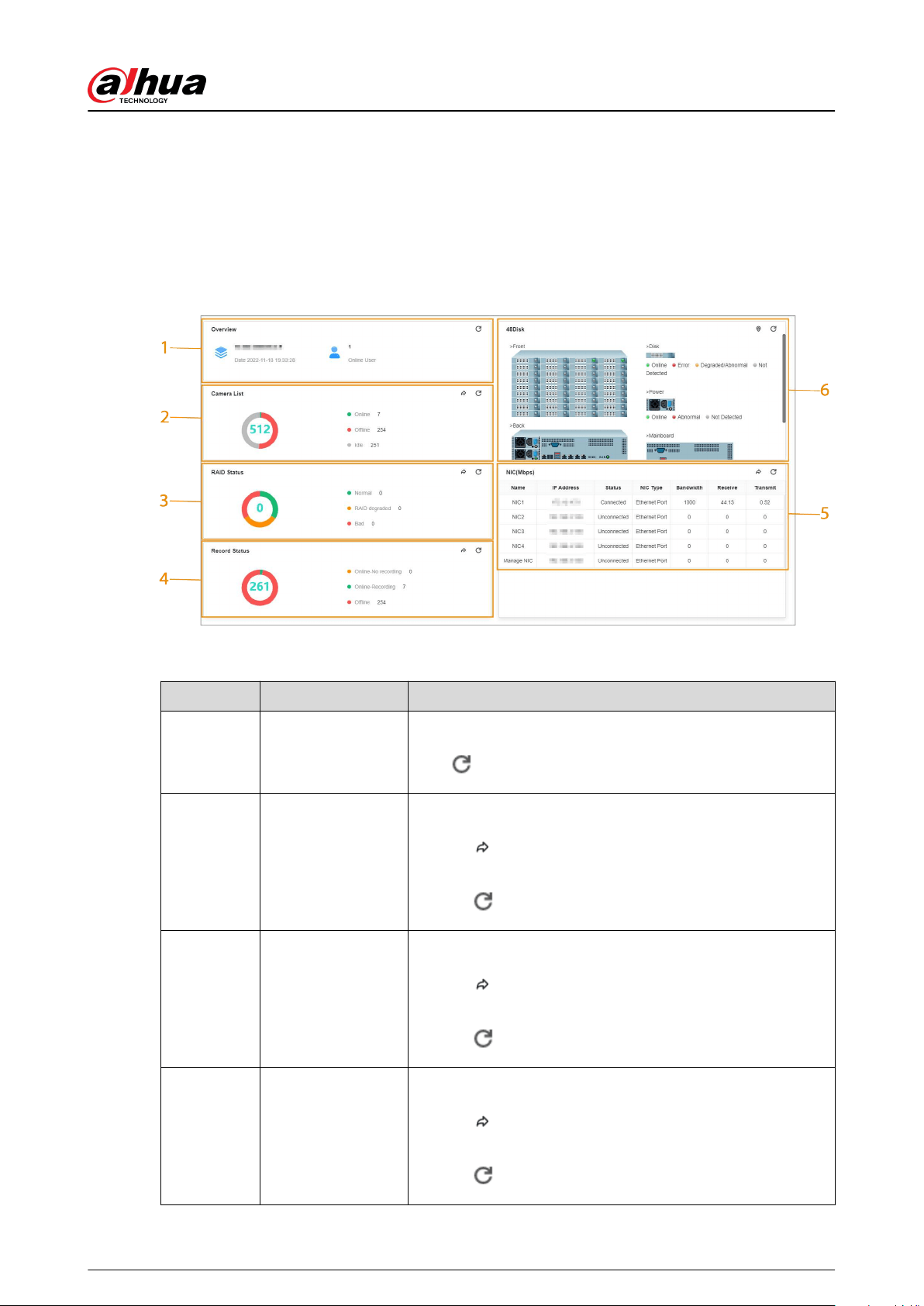
8 System Maintenance
8.1 Overview
Log in to the PC client. On the home page, select Maintain > Overview.
Figure 8-0 Overview
Table 8-1 Overview
No. Function Description
1 Overview
View device version and the number of online users.
Click to refresh the data.
2 Camera List
View the connection and idle status of remote devices
●
Click
to go to the Camera page for detailed
information.
●
Click
to refresh the data.
3 RAID Status
View RAID status.
●
Click
to go to the Storage page for detailed
information.
●
Click
to refresh the data.
4 Record Status
View recording status of remote devices.
●
Click
to go to the Storage page for detailed
information.
●
Click
to refresh the data.
User's Manual
165
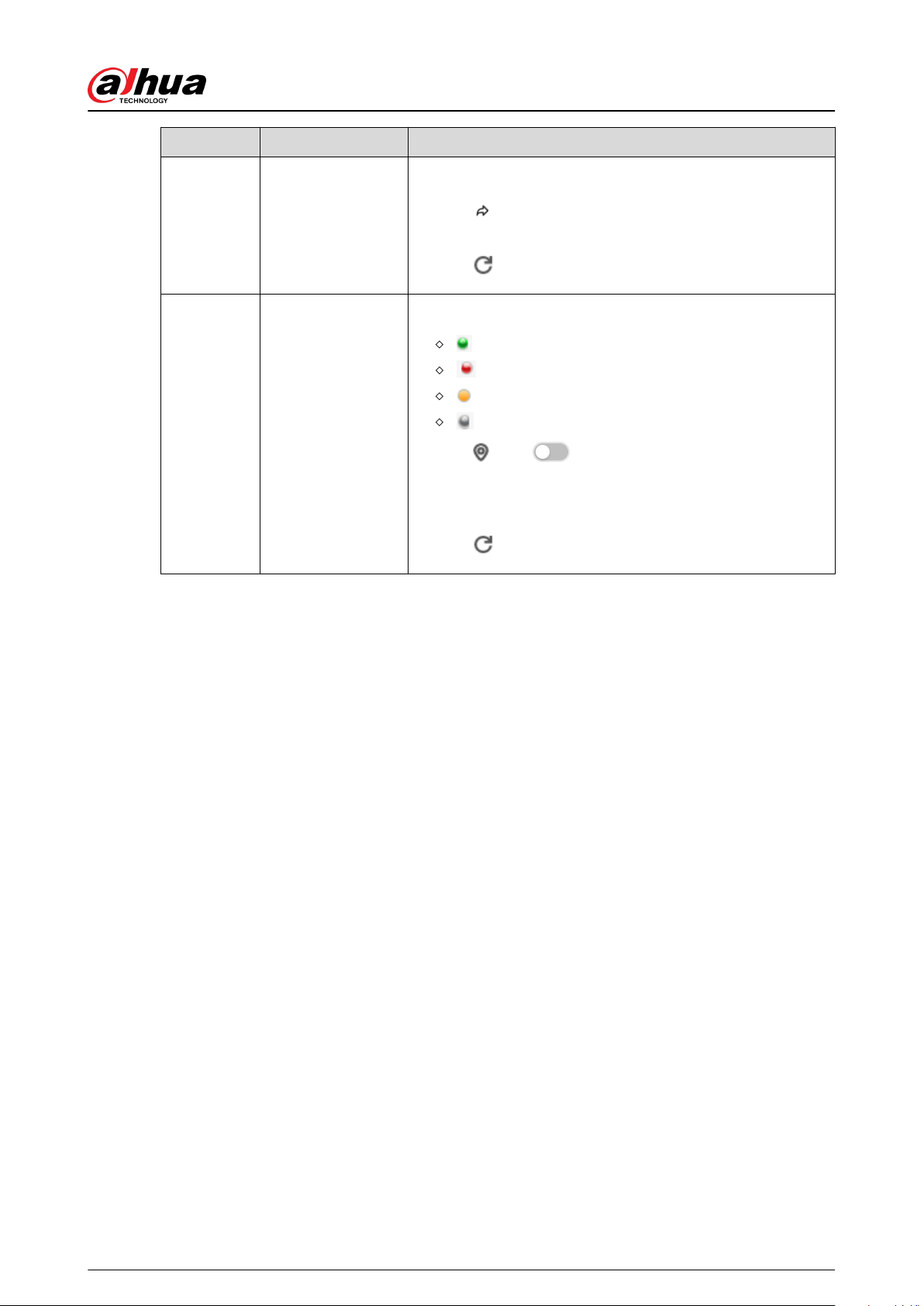
No. Function Description
5 NIC (Mbps)
View NIC status.
●
Click
to go to the TCP/IP page for detailed
information.
●
Click
to refresh the data.
6 Disk
●
View disk status and storage usage.
: disk online.
: disk error.
: disk warning.
: no disk detected.
●
Click
, click to enable device positioning and
then set the interval at which the positioning indicator
light of the Device ashes. The ashing indicator light
helps you quickly nd the Device.
●
Click
to refresh the data.
8.2 System Information
8.2.1 Viewing Device Information
Log in to the PC client. On the home page, select Maintain > System Info > Device Info. You can
view device information such as input bandwidth, system version, and web version.
8.2.2 Viewing Legal Information
Log in to the PC client. On the home page, select Maintain > System Info > Legal Info. You can
view the software license agreement, privacy policy, and open-source software note.
8.2.3 Viewing Storage Information
Log in to the PC client. On the home page, select Maintain > System Info > Storage Info. You can
view the storage information of each channel.
User's Manual
166
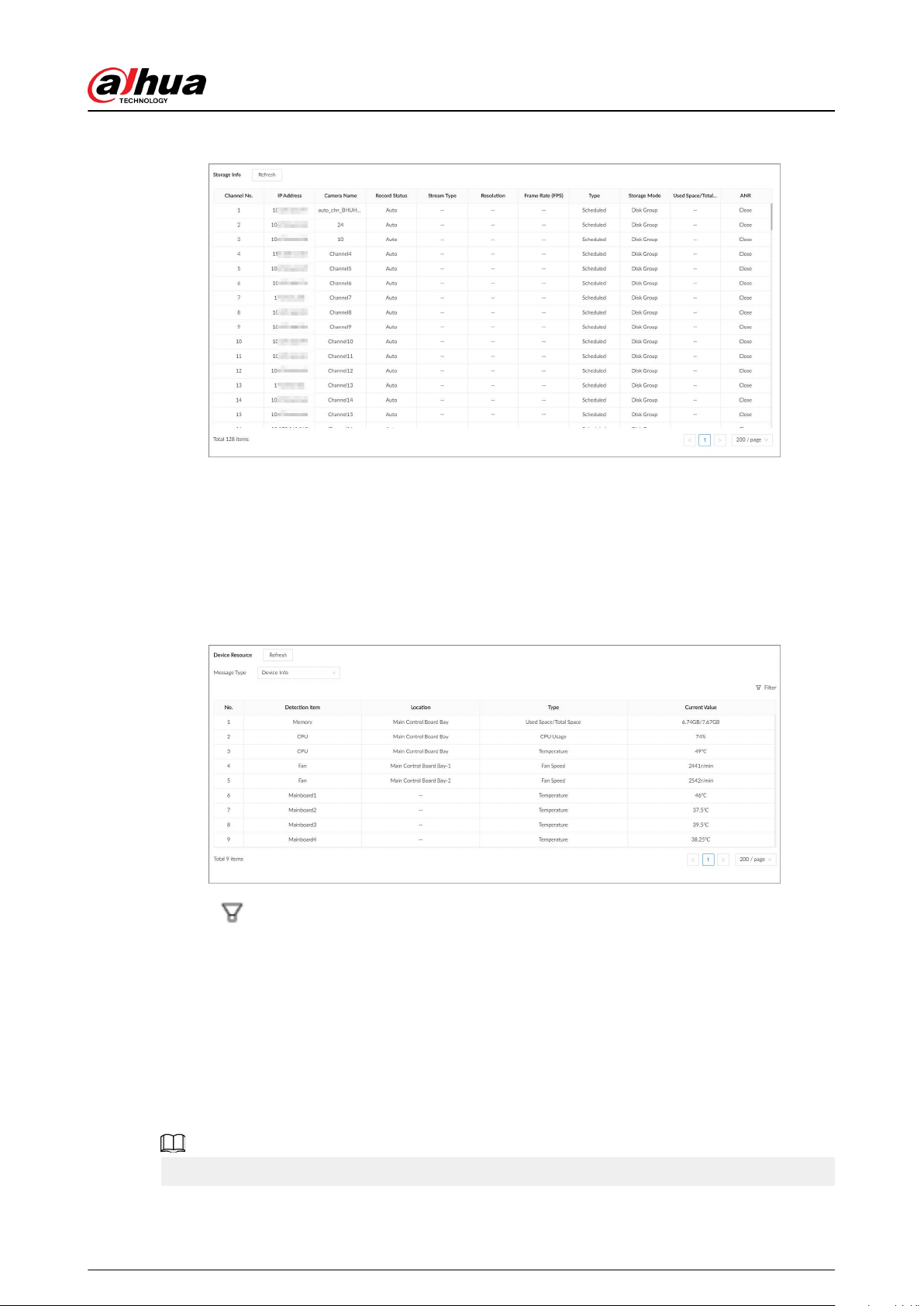
Figure 8-1 Storage information
8.3 System Resources
Log in to the PC client. On the home page, select Maintain > System Resources > Device
Resource. You can view resource status including CPU and memory usage, mainboard temperature
and fan speed.
Figure 8-2 System resources
●
Click
to select the items that you want to view.
●
Click Refresh to refresh the data.
8.4 Network Maintenance
8.4.1 Online User
Manage the online user that can access the Device. You can block a user from access for a period of
time. During the block period, the selected user cannot access the Device.
You cannot block yourself or admin user.
User's Manual
167
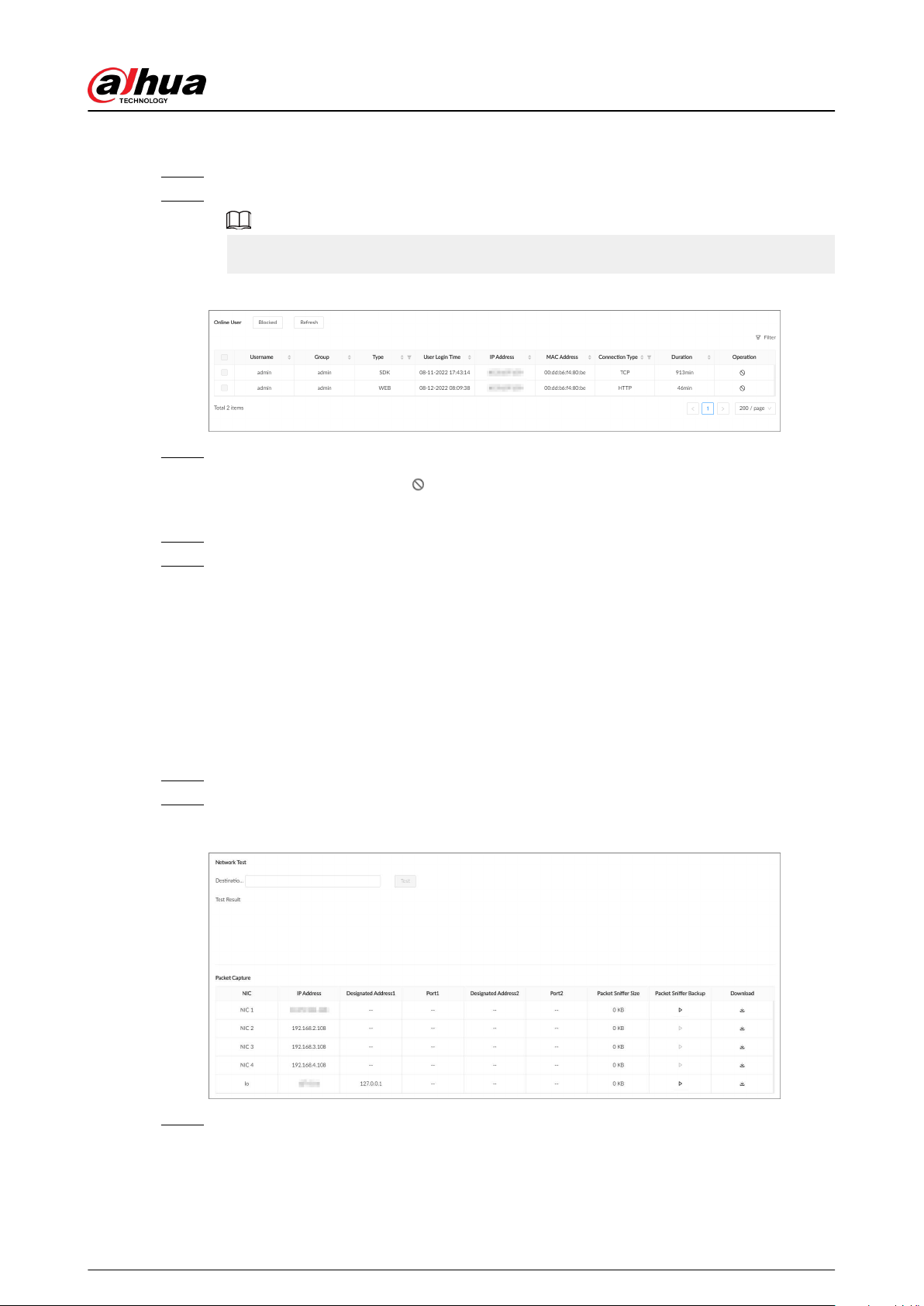
Procedure
Step 1 Log in to the PC client.
Step 2 On the home page, select Maintain > Network Maintenance > Online User.
The list displays currently connected users.
Figure 8-3 Online user
Step 3 Block one or more users.
●
Block one by one: Click
corresponding to the user.
●
Block in batches: Select multiple users and then click Block.
Step 4 Set the block period. The default period is 30 minutes.
Step 5 Click OK.
8.4.2 Network Test
You can test network connection and capture packets. Packet capture is the practice of intercepting
a data packet that is crossing or moving over a specic computer network. The captured packet is
stored temporarily for analysis. The packet is inspected to help diagnose and solve network
problems and determine whether its structure follows network security policies.
Procedure
Step 1 Log in to the PC client.
Step 2 On the home page, select Maintain > Network Maintenance > Network Test.
Figure 8-4 Network test
Step 3 In the Network Test section, enter the target address, and then click Test.
After testing is completed, the test result is displayed. You can check the evaluation for
average delay, packet loss, and network status.
User's Manual
168
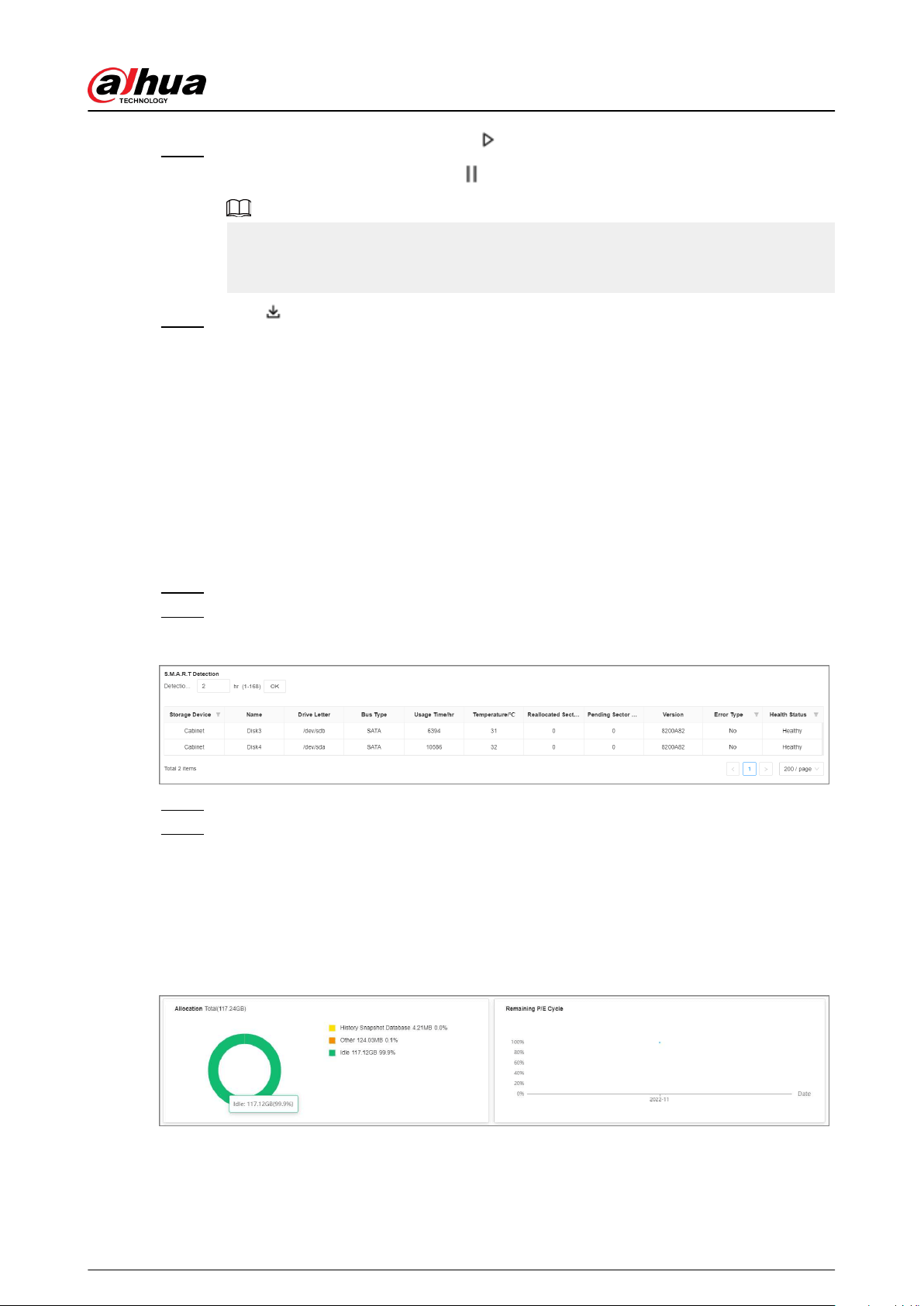
Step 4 In the Packet Capture section, click to start capturing the packets of the
corresponding NIC, and then click to stop.
●
You cannot capture packets of several NICs at the same time.
●
During packet capturing, you can go to other pages for operation and go back to the
Network Test page later to stop packet capturing.
Step 5 Click to download the captured packet.
8.5 Disk Maintenance
Check the disk status to handle disk errors in time.
8.5.1 S.M.A.R.T Detection
Run S.M.A.R.T detection to check HDD status.
Procedure
Step 1 Log in to the PC client.
Step 2 On the home page, select Maintain > Disk Maintenance > S.M.A.R.T Detection.
Figure 8-5 S.M.A.R.T detection
Step 3 Set the detection period.
Step 4 Click OK.
8.5.2 System Disk Health Detection
On the home page, select Maintain > Disk Maintenance > System Disk Health Detection, and
then you can view the storage allocation and remaining P/E cycle of system disk.
Figure 8-6 System Disk health detection
User's Manual
169
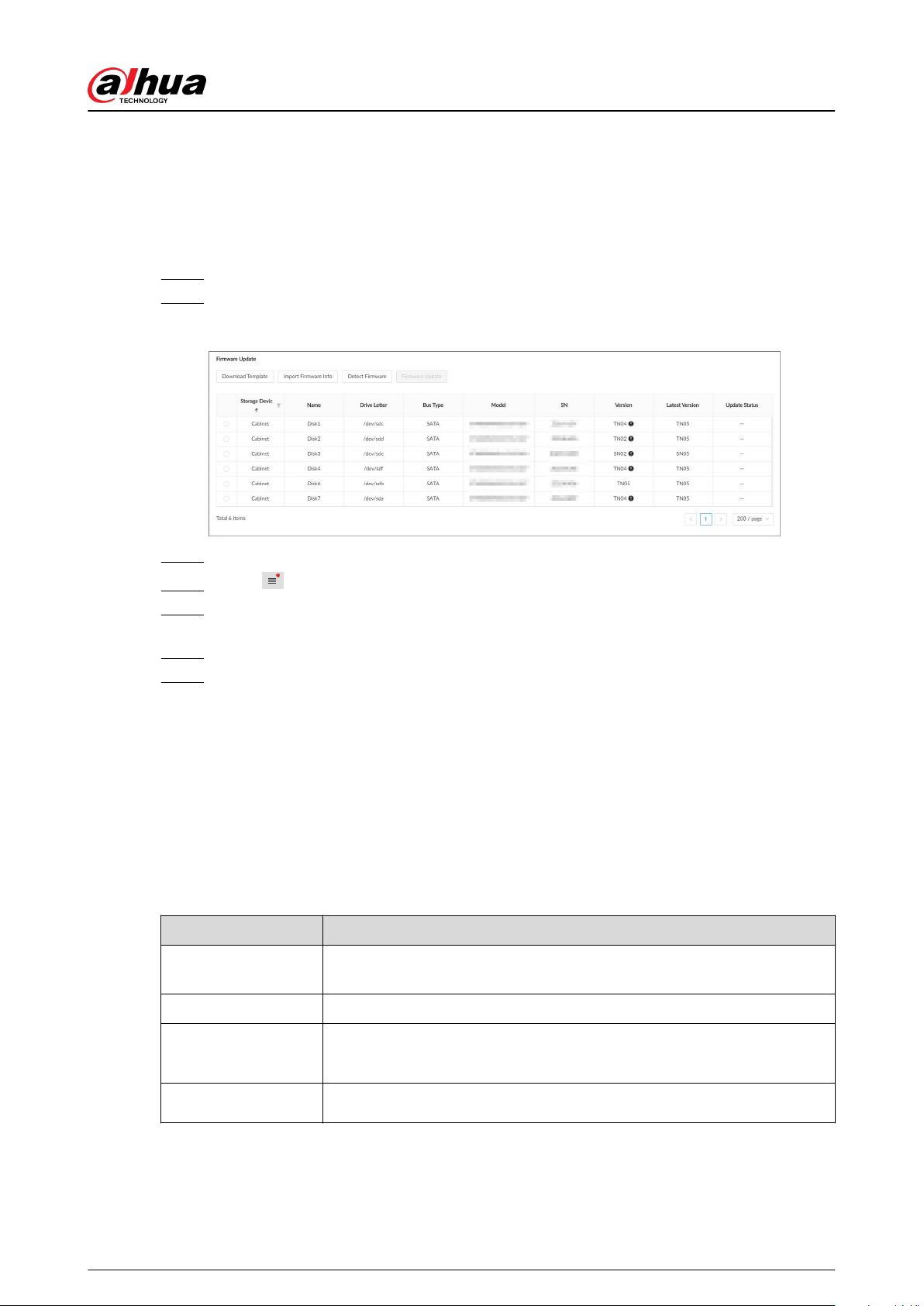
8.5.3 Firmware Update
View disk information, including model, serial number, version. Import update le to update HDD
information.
Procedure
Step 1 Log in to the PC client.
Step 2 On the home page, select Maintain > Disk Maintenance > Firmware Update.
Figure 8-7 Firmware update
Step 3 Click Download Template to download the update template
Step 4 Click , select Download, and then open and ll in the downloaded template.
Step 5 Select a disk, click Import Firmware Info , click Browse to choose the template to be
imported, and then click OK.
Step 6 Click Firmware Update to update the rmware information.
Step 7 Click Detect Firmware to refresh the rmware information on the page.
8.6 Logs
The logs record all kinds of system running information. We recommend you check the logs
periodically and x the problems in time.
8.6.1 Log Classication
Table 8-2 Log categories
Log Type
System log
Logs of system running status, le management, hardware detection and
scheduled task.
User operation log User operation and user conguration logs.
Event log
Logs of dierent events, such as IP conict, MAC conict, login lock, and
stay detection.
Connection log Logs of user login and logout, session hijack, session blast and camera list.
User's Manual
170
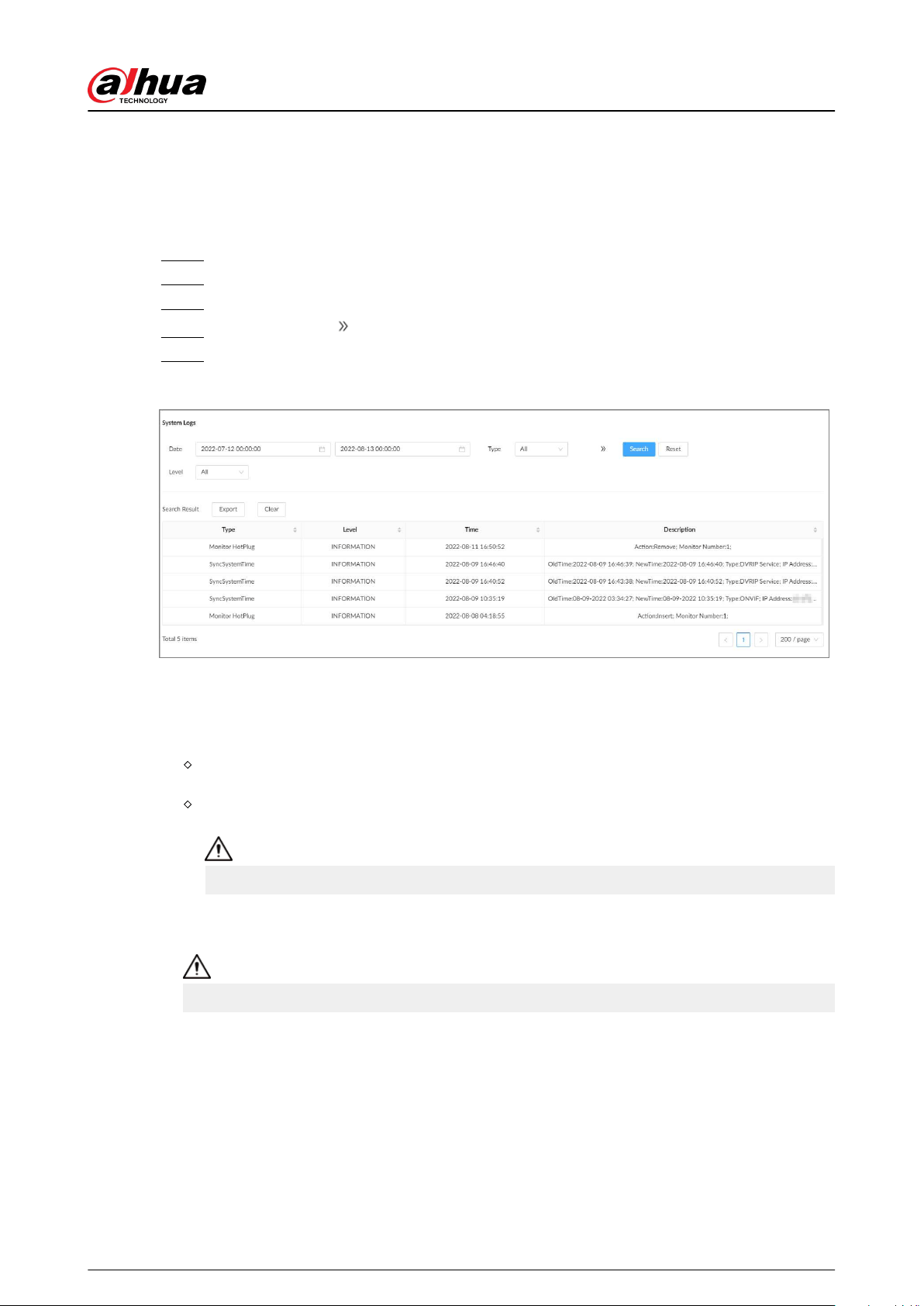
8.6.2 Log Search
You can search for dierent categories of logs. This section uses system logs as an example.
Procedure
Step 1 Log in to the PC client.
Step 2 On the home page, select Maintain > Log > System Logs.
Step 3 Set the search period, and then select the log type.
Step 4 (Optional) Click , and then select a log level.
Step 5 Click Search.
Figure 8-8 System logs
Related Operations
●
Export logs.
Click Export to export the logs. You can select whether to encrypt the exported logs.
Select Yes , set a password, and then click OK. The exported logs will be encrypted. The
password is required to unzip the exported le.
If you select No, the logs will be exported to your computer or USB storage device without
encryption.
Keep the unencrypted logs safe to prevent data leakage.
●
Clear logs.
Click Clear all to clear all the logs.
You might be unable to track the reasons of system errors if you clear logs.
8.7 Intelligent Diagnosis
8.7.1 One-click Export
Export the diagnosis data for troubleshooting when the Device is in exception.
User's Manual
171
Procedure
Step 1 Log in to the PC client.
Step 2 On the home page, select Maintain > Intelligent Diagnosis > Export.
Step 3 Click Generate Diagnosis Data to generate diagnosis data.
Step 4 Click Export to export the diagnosis results.
8.7.2 Run Log
View system run logs for troubleshooting.
Make sure that you have enabled Run Log in Security > System Service. Otherwise there is no
log data.
Log in to the PC client. On the home page, select Maintain > Intelligent Diagnosis > Run Log.
The logs might be overwritten when the storage space runs out. Back up the logs in time.
●
Export logs one by one: Click
to export a log.
●
Export logs in batches: Select multiple logs, and then click Export.
8.7.3 One-click Diagnosis
Procedure
Step 1 Log in to the PC client.
Step 2 On the home page, select Maintain > Intelligent Diagnosis > One-click Diagnosis.
Step 3 Click Diagnose , and then click the Details to view the corresponding diagnosis
information.
●
In disk group mode, storage information displays the diagnosis status of the disk
group.
●
In quota mode, storage information displays the diagnosis status of the quota status.
User's Manual
172
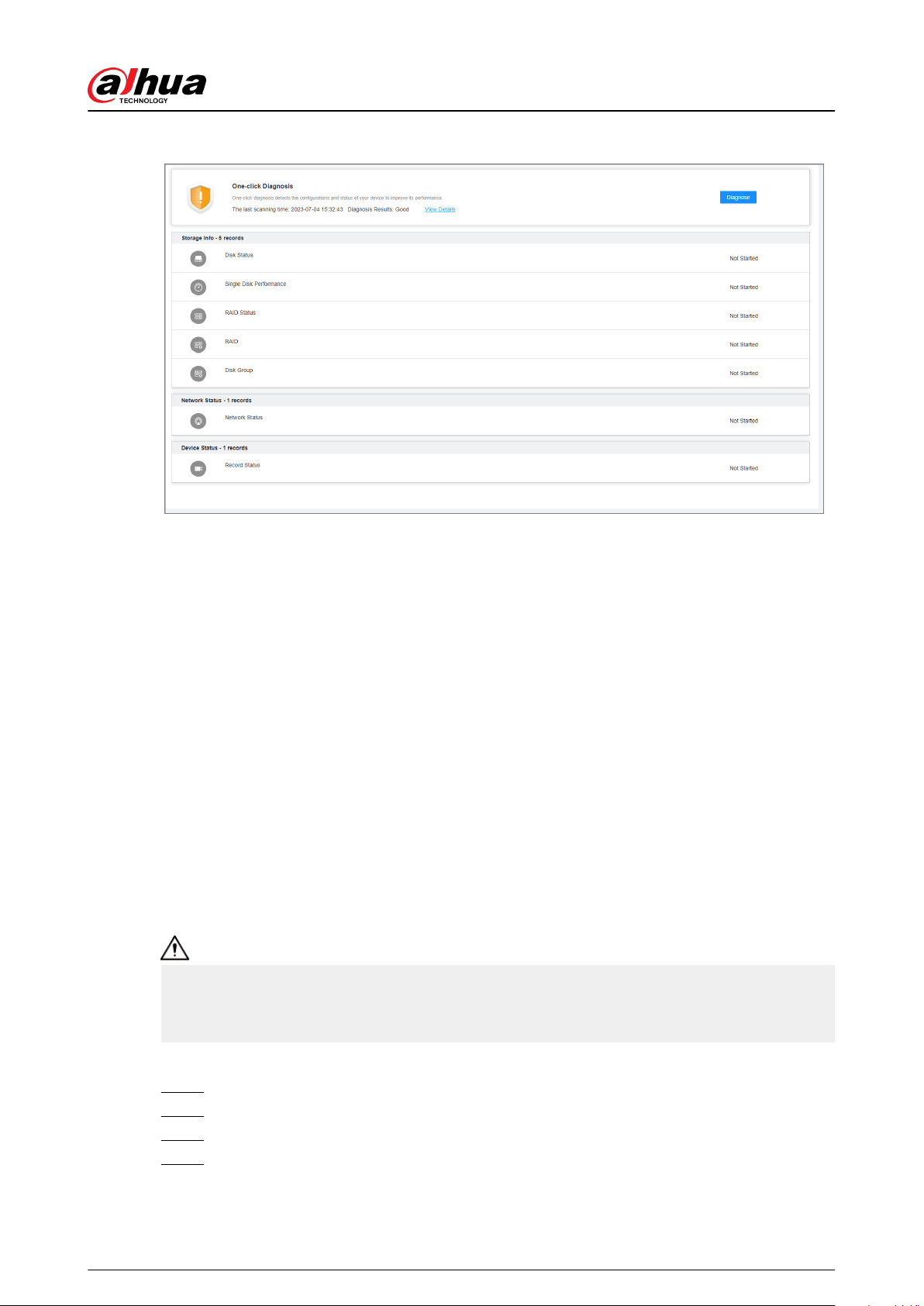
Figure 8-9 One-click diagnosis (disk group mode)
8.8 Maintenance Manager
To clear the malfunction or error during the system operation and enhance operation performance,
you can restart the Device, restore factory default setup, update the system and more.
8.8.1 Update
8.8.1.1 Updating the Device
You can import the update le to update the system version of the Device. The extension name of
the update le is .bin.
Prerequisites
You need to obtain the correct update le and save it in the corresponding path.
●
When operating on the local interface, save the update le in the USB storage device and then
connect the USB storage device to the EVS.
●
When operating on the web interface or PC client, save the update le on your computer.
●
During update, do not disconnect the Device from power and network, or restart or shut down
the Device.
●
Make sure that the update le is correct. Improper update le might result in device error.
Procedure
Step 1 Log in to the PC client.
Step 2 On the home page, select Maintain > Manager > Update > Host Update.
Step 3 Click Import Update File to select an update le.
Step 4 Click OK.
The system starts updating. The Device automatically restarts after successfully updated.
User's Manual
173
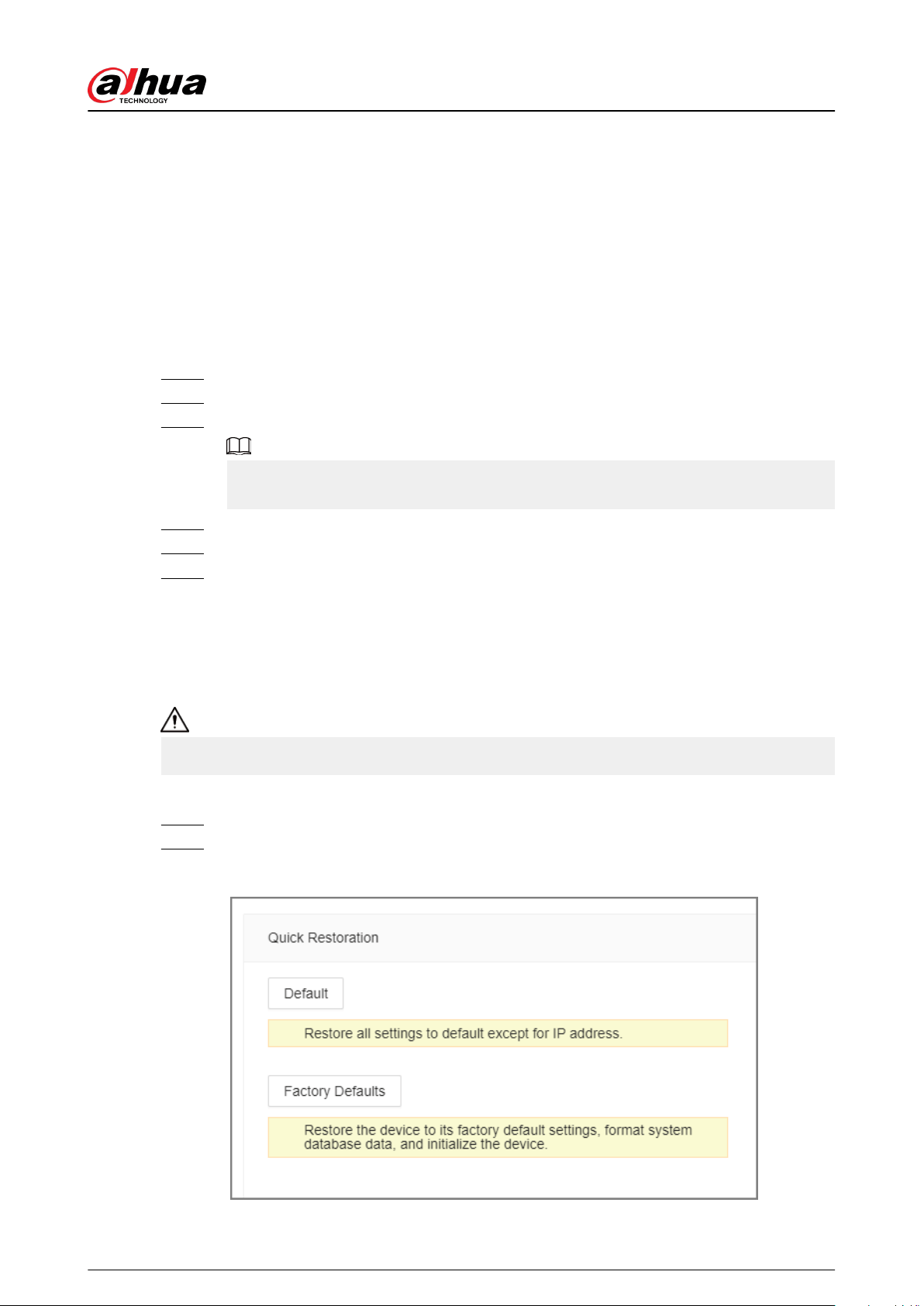
8.8.1.2 Updating Cameras
You can import the update le to update the cameras.
Prerequisites
You need to obtain the correct update le and save it in the corresponding path.
●
When operating on the local interface, save the update le in the USB storage device and then
connect the USB storage device to the EVS.
●
When operating on the web interface or PC client, save the update le on your computer.
Procedure
Step 1 Log in to the PC client.
Step 2 On the home page, select Maintain > Manager > Update > Camera Update.
Step 3 Select one or more cameras and then click File upgrade.
Stop recording before update. If you are updating a camera that is recording, the system
will prompt you to disable recording rst.
Step 4 Click Browse to select an update le.
Step 5 Click Update Now.
Step 6 Click OK.
8.8.2 Default
When the system runs slowly and has conguration errors, try to solve the problems by restoring
the default settings.
All congurations are lost after factory default operation.
Procedure
Step 1 Log in to the PC client.
Step 2 On the home page, select Maintain > Manager > Default.
Figure 8-10 Default
User's Manual
174
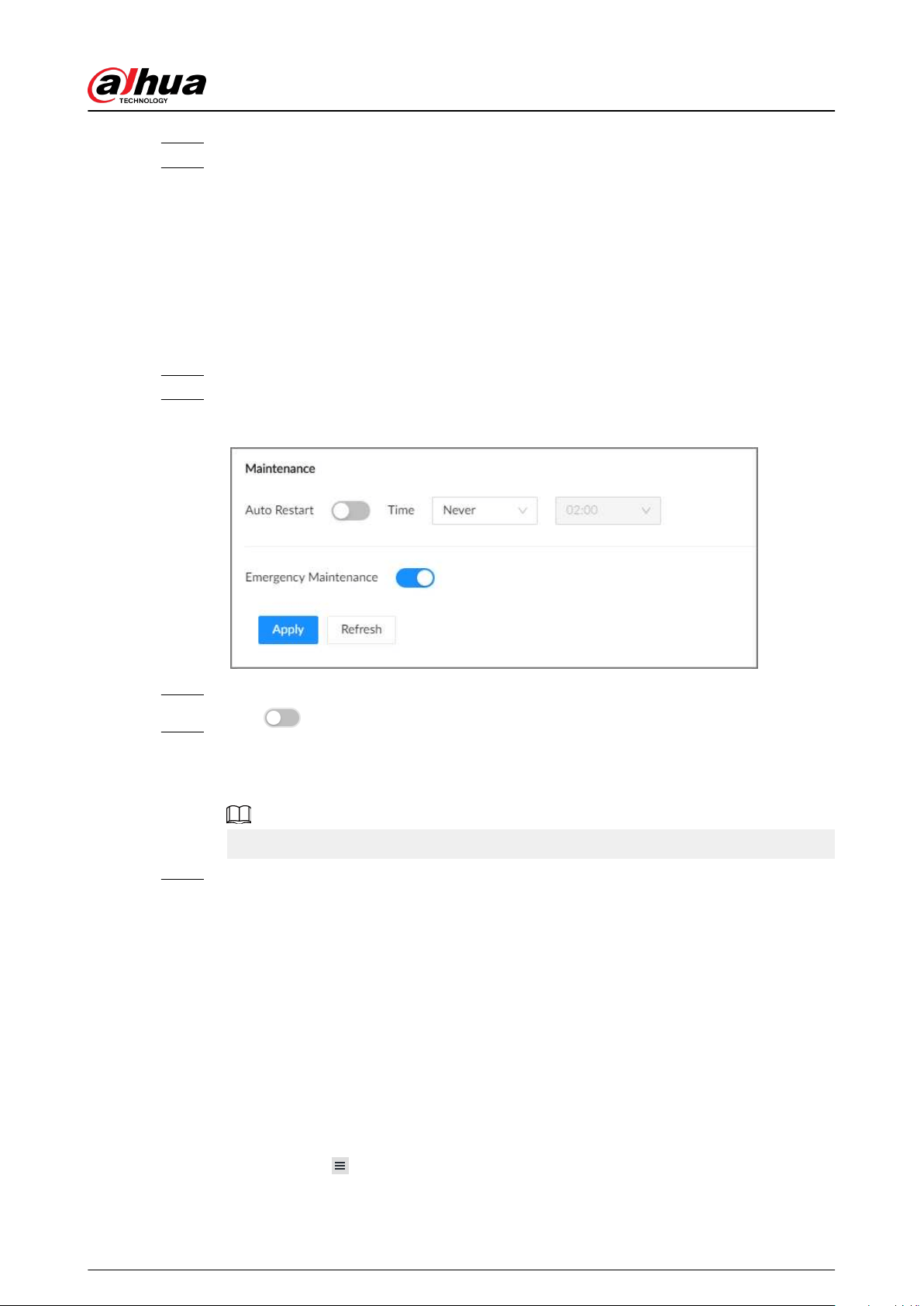
Step 3 Select a method between Quick Restoration and Custom Restoration.
Step 4 Click OK.
The system begins to restore default settings. After that, the system prompts you to
restart the Device.
8.8.3 Automatic Maintenance
If the device has run for a long time, you can set the Device to automatically restart at idle time.
Procedure
Step 1 Log in to thee PC client.
Step 2 On the home page, select Maintain > Manager > Maintenance.
Figure 8-11 Auto Maintain
Step 3 Set the automatic time.
Step 4 Click to enable emergency maintenance.
When an upgrade power outage, running error and other problems occur, and you
cannot log in, you can restart or update the Device, and clear congurations through
emergency maintenance.
To use the function, make sure that you have installed Device Diagnostic Tool.
Step 5 Click Apply.
8.8.4 Backing up Congurations
You can export the conguration le of the Device to your computer or a USB storage device for
backup. When the congurations are lost due to abnormal operation, you can import the backup
conguration le to restore system congurations quickly.
Exporting Conguration File
On the home page, select Maintain > Manager > Cong Backup. Click Export to export the
conguration le. The le storage path varies depending on the interface you are operating.
●
On the PC client, click
, and then select Download to view le saving path.
●
On the local interface, you can select the le storage path.
User's Manual
175

Connect USB device to the Device if you are operating on the local interface.
●
On the web interface, les are saved to the default downloading path of the browser.
Importing Conguration File
Click Browse to select the conguration le, and then click Import. After the conguration le is
imported successfully, the Device will restart automatically.
User's Manual
176
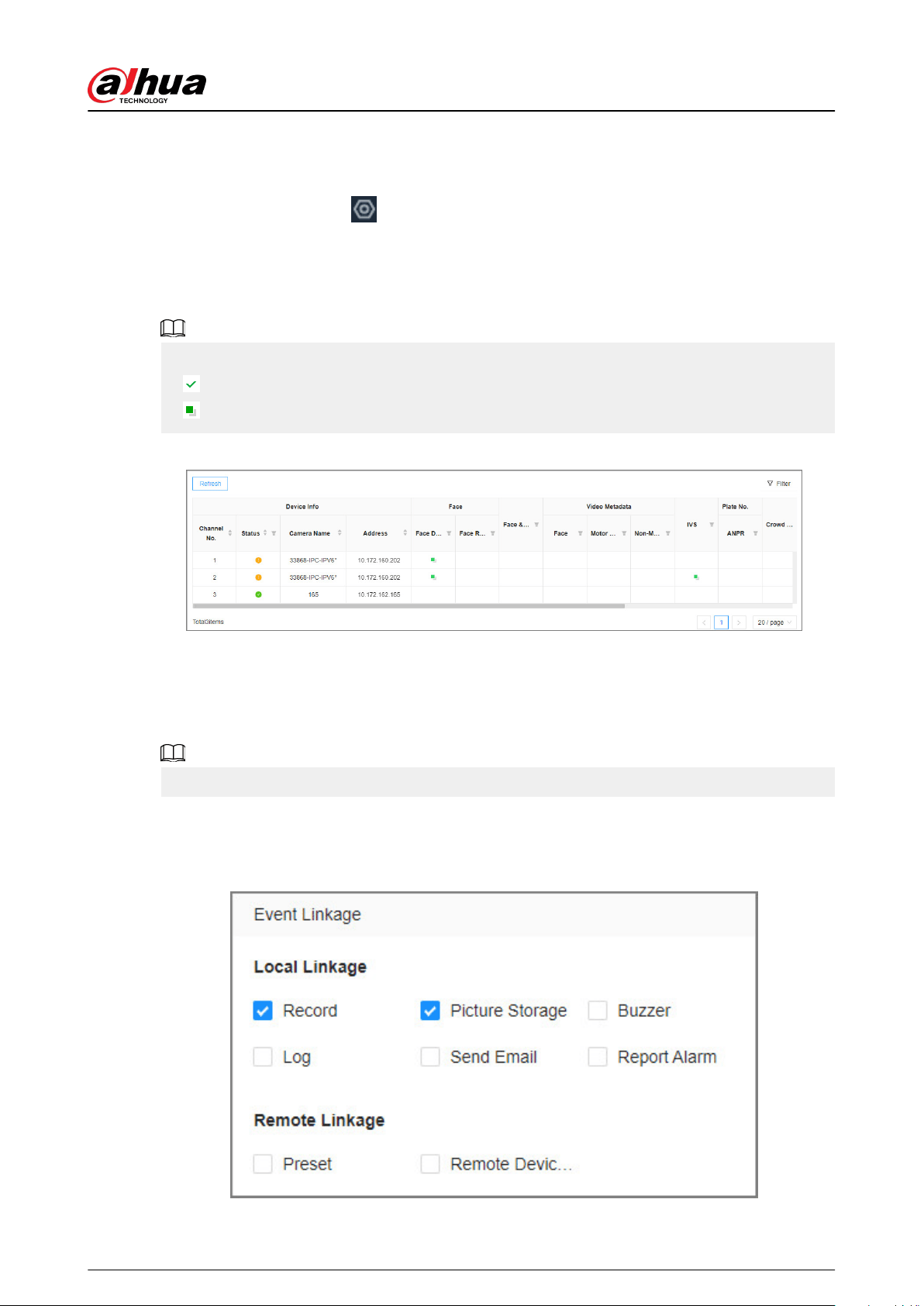
9 Event Management
Log in to the PC client. Click
on the upper-right corner and then click Event.
On the page, congure alarm events for the Device and remote devices.
●
Select the root node on the device tree to set alarm events for the Device.
●
Select a remote device on the device tree to set alarm events for the remote device.
●
The alarm event might be dierent depending on the model you purchased.
●
means that the corresponding alarm event has been enabled.
●
means that AI by Camera has been enabled.
Figure 9-0 Event management
9.1 Alarm Actions
The system triggers the corresponding actions when an alarm occurs.
The supported actions might be dierent depending on the AI function.
On the alarm conguration page, click Select next to Event Linkage to select linkage actions.
Congure actions according to your actual need.
Figure 9-1 Event linkage
User's Manual
177

Table 9-1 Actions description
Action Description Preparation
Record
The system links the selected
remote device to record videos
when a linkage event occurs.
A remote device, such as IPC,
has been added.
Buzzer
The system activates a buzzer
alarm when a linkage event
occurs.
—
Log
The system notes down the
alarm information in the log
when a linkage event occurs.
Send Email
The system sends alarm email
to all added receivers when a
linkage event occurs.
Email conguration has been
completed. See "7.1.2.5 Email"
for detailed information.
Picture Storage
The system takes snapshots of
the linked channel and save
them on the Device when there
is a corresponding event.
—
Preset
The system links the selected
remote device to rotate to the
designated preset point when
a linkage event occurs.
The PTZ device has been
added, and preset point has
been added. See "3.5.2 Adding
Remote Devices" for detailed
information.
Remote Device Alarm Output
When a linkage event occurs,
the system triggers the
corresponding device to
generate alarms.
The remote device has been
added, and the remote device
is connected with an alarm
output device. See "3.5.2
Adding Remote Devices" for
detailed information.
Access Control
When a linkage event occurs,
the system triggers the
corresponding access control
device to open door and close
door.
See "3.5.2 Adding Remote
Devices" for detailed
information.
Smart Tracking
When a tripwire or intrusion
event occurs, the linked PTZ
camera automatically rotates to
the target to track it.
See "5.1.1.3.5 Smart Tracking".
Report Alarm
When a linkage event occurs,
the system reports the alarm to
alarm center.
The alarm center has been
enabled. For details, see
"7.1.2.6 Alarm Center".
Remote Warning Light
When a linkage event occurs,
the system associates with the
remote device to turn on the
warning light.
The remote device that
supports this function has been
connected.
User's Manual
178
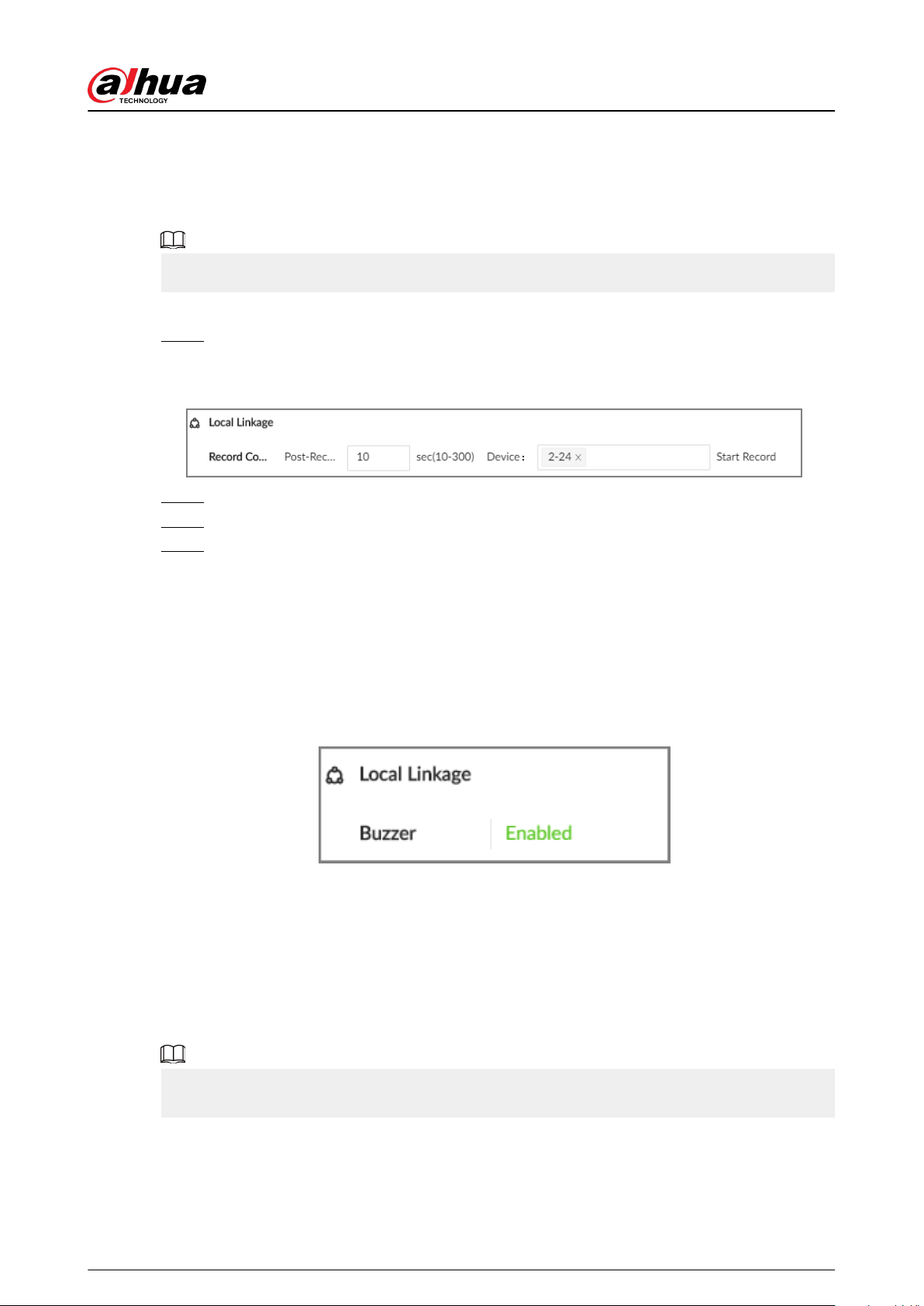
9.1.1 Record
Enable record control function. The system links the selected remote device to record when a
linkage event occurs.
Make sure that a remote device, such as IPC, has been added.
Procedure
Step 1 On the alarm conguration page, click Select next to Event Linkage, and then select
Record.
Figure 9-2 Record
Step 2 Set the time length of recording after the event moment.
Step 3 In the Device box, select one or more remote devices for linkage recording.
Step 4 Click Apply.
9.1.2 Buzzer
The system activates a buzzer alarm when a linkage event occurs.
On the alarm conguration page, click Select next to Event Linkage, select Buzzer, and then click
Apply.
Figure 9-3 Buzzer
9.1.3 Log
Enable the log function. The system notes down the alarm information in the log when a linkage
event occurs.
On the alarm conguration page, click Select next to Event Linkage, select Log, and then click
Apply.
After the log function is enabled, you can select Maintain > Log > Event Logs on the home page
to search for logs.
User's Manual
179
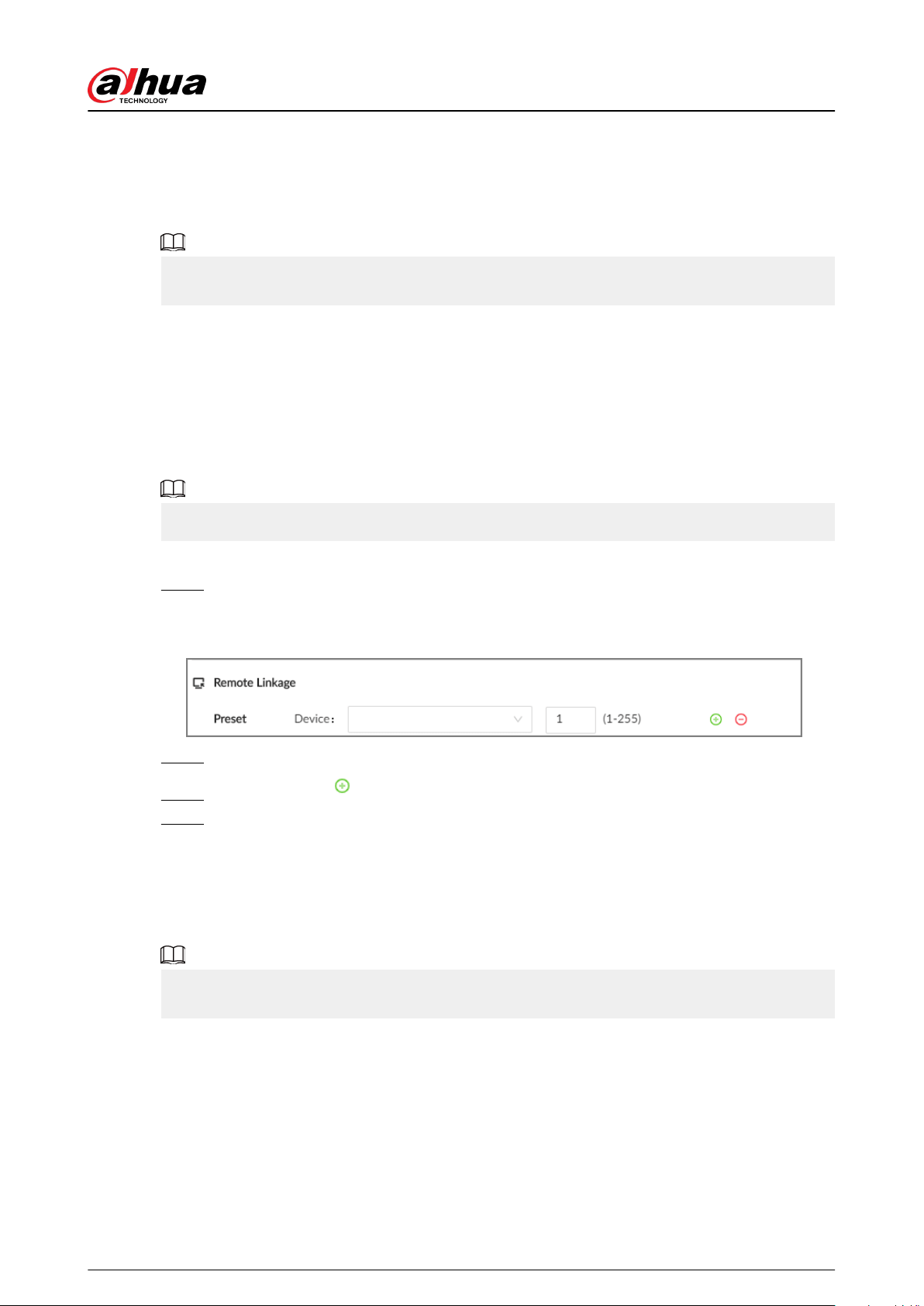
9.1.4 Email
After you enable the email function, the system sends alarm emails to all added receivers when a
linkage event occurs.
Make sure that the email conguration has been completed. See "7.1.2.5 Email" for detailed
information.
On the alarm conguration page, click Select next to Event Linkage, select Send Email, and then
click Apply.
9.1.5 Preset
Set preset function. The system links the selected remote device to rotate to the designated preset
point when a linkage event occurs.
Make sure that the PTZ device has been added, and preset has been added.
Procedure
Step 1 On the alarm conguration page, click Select next to Event Linkage, and then select
Preset.
Figure 9-4 Preset
Step 2 Select a PTZ device, and then enter the preset number.
Step 3 (Optional) Click to link multiple PTZ devices to turn to designated presets.
Step 4 Click Apply.
9.1.6 Picture Storage
Set the picture storage linkage. When a linkage event occurs, a snapshot is taken and saved on the
Device.
When AI by Camera is used, make sure that the remote device has been congured with snapshot
linkage.
On the alarm conguration page, click Select next to Event Linkage, select Picture Storage, and
then click Apply.
9.1.7 Remote Device Alarm Output
Set remote device alarm output. The system links the corresponding remote alarm output device to
generate an alarm when a linkage event occurs.
User's Manual
180
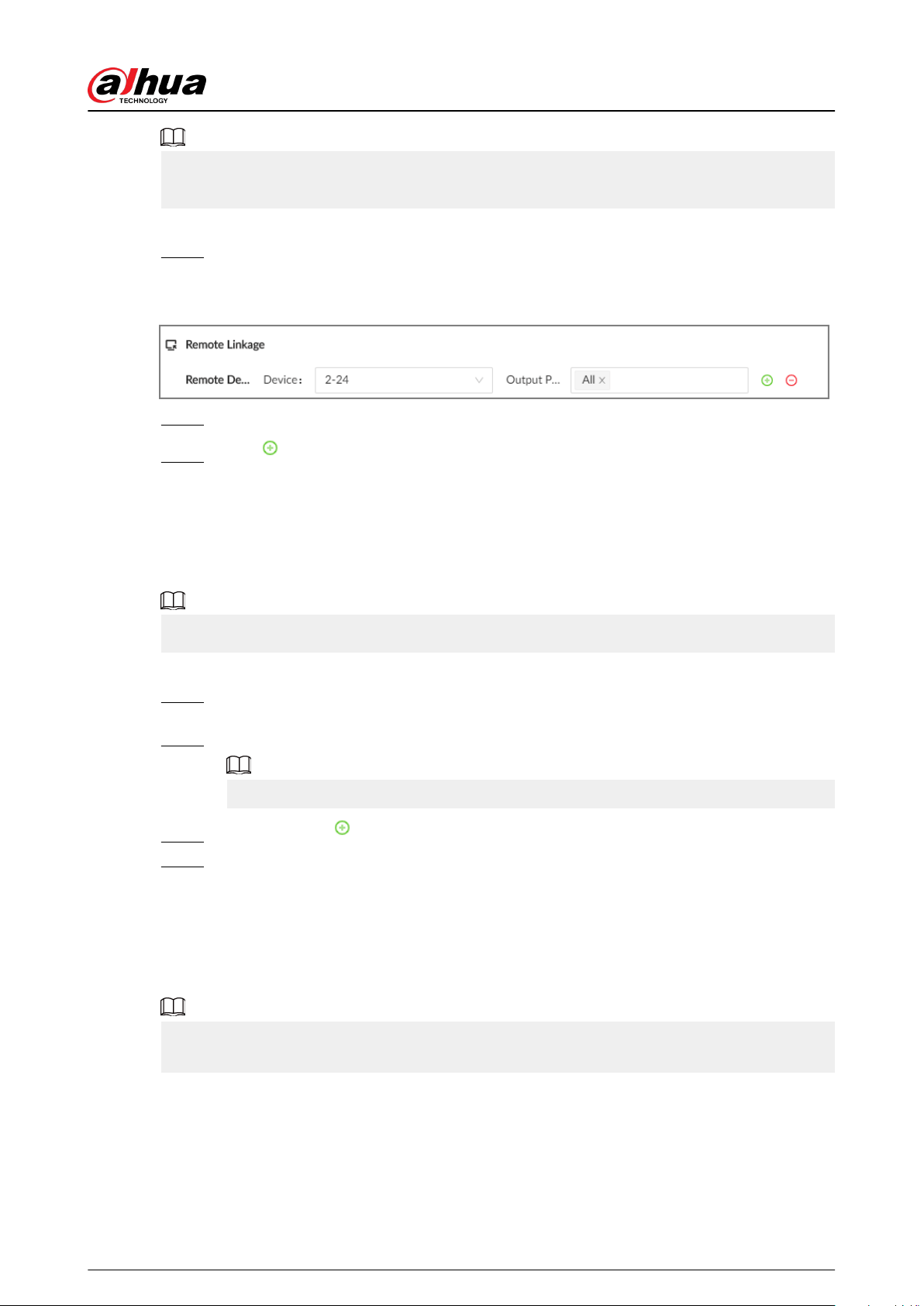
Make sure that the remote device has been added, and the remote device is connected with alarm
output device. See "3.5.2 Adding Remote Devices" for detailed information.
Procedure
Step 1 On the alarm conguration page, click Select next to Event Linkage, and then select
Remote Device Alarm Output.
Figure 9-5 Remote device alarm output
Step 2 Select a remote device and then select one or more alarm output ports.
Step 3 Click to link multiple remote alarm output devices.
9.1.8 Access Control
Set access control function. When a linkage event occurs, the system links the corresponding access
control device to open door and close door.
Make sure that access control device has been added.
Procedure
Step 1 On the alarm conguration page, click Select next to Event Linkage, and then select
Access Control.
Step 2 Select an access control device.
For some access controls devices, you can select channels.
Step 3 (Optional) Click to link multiple access control devices.
Step 4 Click Apply.
9.1.9 Smart Tracking
After you enable smart tracking, when a tripwire or intrusion event occurs, the linked PTZ camera
automatically rotates to the target to track it.
●
Smart tracking is only available for AI by Camera.
●
Smart tracking is only available on the multi-sensor panoramic camera + PTZ camera.
On the alarm conguration page, click Select next to Event Linkage, select Smart Tracking, and
then click Apply.
User's Manual
181
9.1.10 Reporting Alarms
After you enable alarm upload, when a linkage event occurs, the system reports the alarm to alarm
center.
On the alarm conguration page, click Select next to Event Linkage, and then select Report
Alarm.
Make sure that alarm center has been enabled.
9.1.11 Remote Warning Light
After you enable the linkage remote warning light, when a linkage event occurs, the system
associates with the remote device to turn on the warning light.
Remote warning light is available when AI by camera is used for IVS detection and the camera
supports this function.
Procedure
Step 1 On the alarm conguration page, click Select next to Event Linkage, and then select
Remote Warning Light.
Step 2 Select the remote device and then set the duration.
Step 3 Click Apply.
9.2 Local Device
You can set alarms for system errors, system oine, congure smart plans, and more.
9.2.1 One-click Disarming
Disarm alarm linkage actions as needed to avoid interference caused by alarms.
Procedure
Step 1 Log in to the PC client.
Step 2 Click on the upper-right corner, and then click Event.
You can also click Event from the conguration list on the home page.
Step 3 Select the root node on the device tree.
Step 4 Select Overview > Disarming.
User's Manual
182
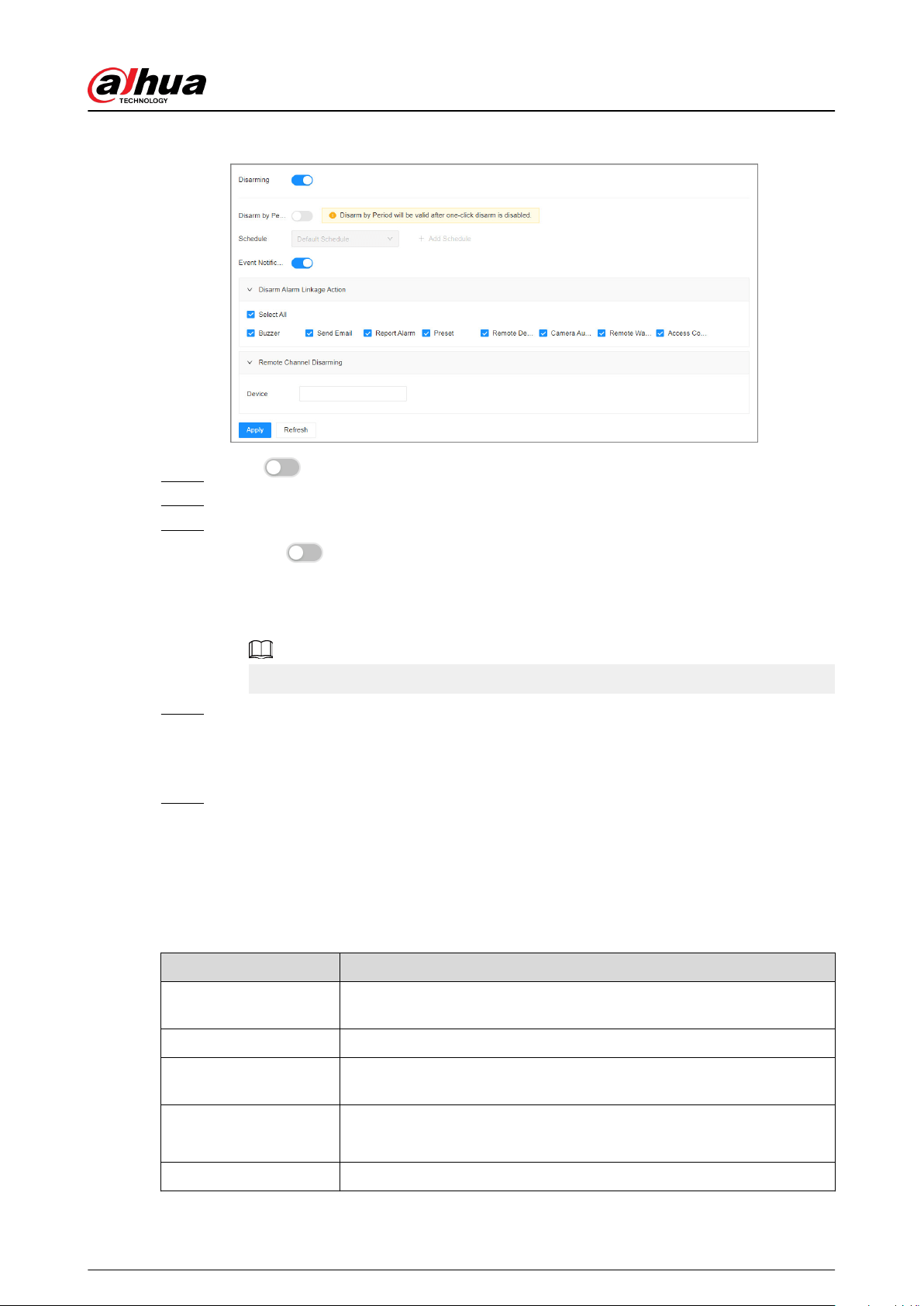
Figure 9-6 Disarming
Step 5 Click to enable disarming.
Step 6 Cancel the selection of alarm linkage actions as needed.
Step 7 (Optional) Congure disarming by period.
1. Click
to enable disarming by period.
2. Click Add Schedule to add a disarming schedule. The alarm linkage actions remain
armed during periods beyond the disarming schedule.
3. Click Apply.
After disarming by period is enabled, one-click disarming is disabled automatically.
Step 8 Congure remote channel disarming.
1. Click the Device Name list in the Remote Channel Disarming section. The remote
devices that support one-click disarming are displayed.
2. Select the device that you want to synchronize the disarming conguration with.
Step 9 Click Apply.
9.2.2 Abnormal Events
Set the alarms for abnormal events such as no disk, storage errors, and IP conict.
Table 9-2 Abnormal events
Name Description
No available disks
The system triggers an alarm when there is no disk. It is enabled by
default.
Disk health exception The system triggers an alarm when SSD health exception occurs.
Storage error
The system triggers an alarm when disk error occurs. It is enabled by
default.
Low space
The system triggers an alarm when the used storage space reaches the
predened threshold. It is disabled by default.
Abnormal storage pool The system triggers an alarm when the storage pool is abnormal.
User's Manual
183
Name Description
RAID exception
The system triggers an alarm in case of RAID degrade, RAID broken or
other RAID exceptions.
Abnormal quota
The system triggers an alarm when quota space is low. It is enabled by
default.
Video frame loss
The recording video of device has dropped frames, triggering an alarm
and it is enabled by default.
IP conict
The system triggers an alarm when its IP address conicts with IP
addresses of other devices on the same LAN. It is enabled by default.
MAC conict
The system triggers an alarm when its MAC address conicts with MAC
addresses of other devices on the same LAN. It is enabled by default.
Abnormal system disk The system triggers an alarm when system disk is abnormal.
Account lockout
The system triggers an alarm when the number of failed login attempts
has reached the threshold. At the same time, the system locks current
account. It is disabled by default.
Go to Security > Attack Defense > Account Lockout to set the
allowed number of failed login attempts.
Security exception
The system triggers an alarm when a security issue occurs. It is enabled
by default.
Fan speed exception
When the fan speed is abnormal, the system triggers an alarm. It is
enabled by default.
Power alarm
When the power supply is abnormal, the system triggers an alarm. It is
disabled by default.
Abnormal shared service
The system triggers an alarm when the network storage is abnormal. It
is disabled by default.
Device temperature
alarm
The system triggers an alarm when the temperature of the device is
higher than 95℃ or lower than 0 ℃. It is disabled by default.
This section uses no disk as an example. For other events, the setting steps are similar.
Procedure
Step 1 Log in to the PC client.
Step 2 Click on the upper-right corner, and then click Event.
You can also click Event from the conguration list on the home page.
Step 3 Select the root node on the device tree.
Step 4 Select Exception > No available disks.
User's Manual
184
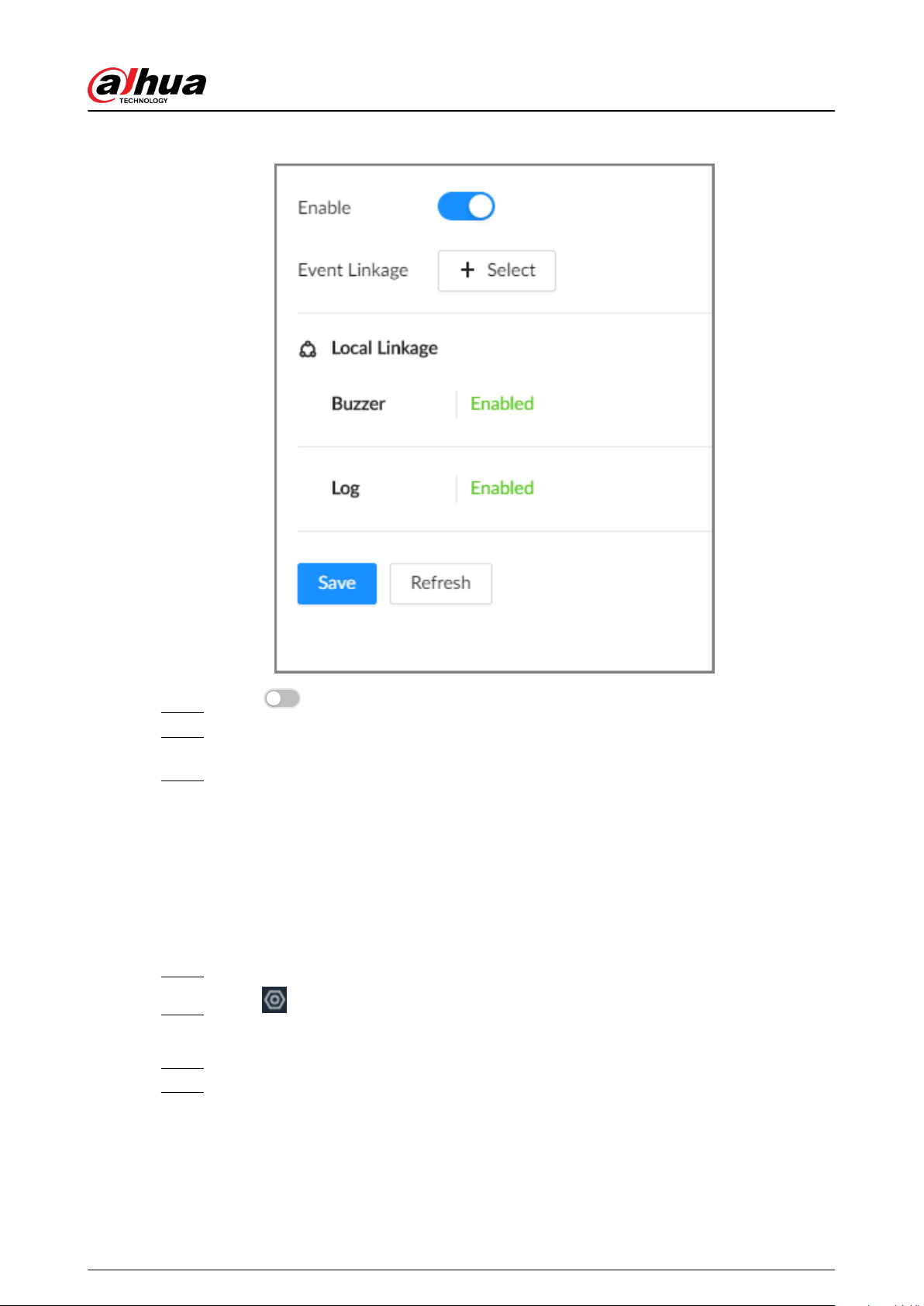
Figure 9-7 No disk
Step 5 Click to enable the alarm against no available disks.
Step 6 Click Select next to Event Linkage to set alarm actions. See "9.1 Alarm Actions" for
detailed information.
Step 7 Click Save.
9.2.3 Oine Alarm
Set the oine alarm for EVS. If you have not set oine alarm for a remote device, once the remote
device is disconnected from the system, the system adopts the alarm strategy for EVS to trigger an
alarm.
Procedure
Step 1 Log in to the PC client.
Step 2 Click on the upper-right corner, and then click Event.
You can also click Event from the conguration list on the home page.
Step 3 Select the root node on the device tree.
Step 4 Select Oine > Oine.
User's Manual
185
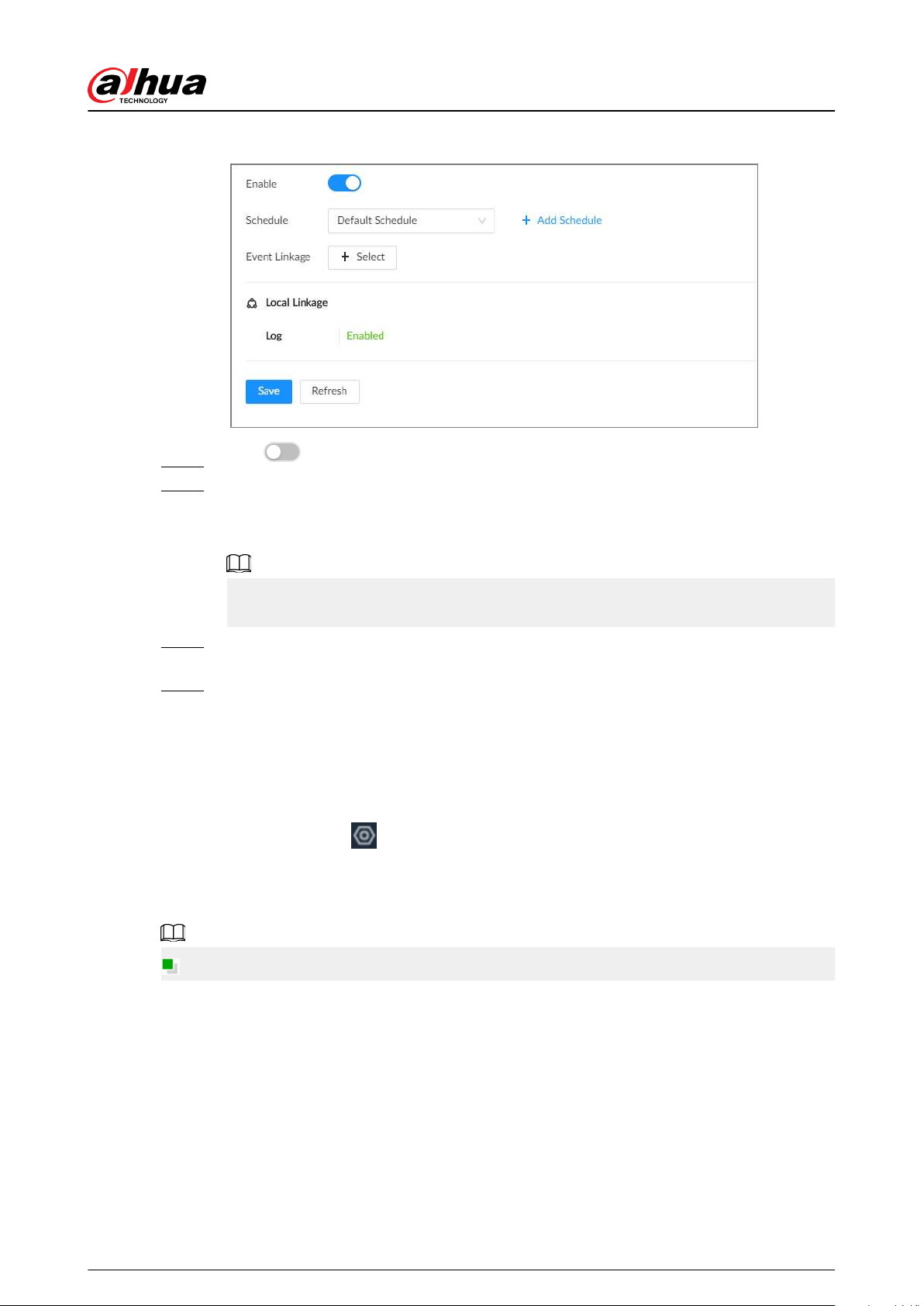
Figure 9-8 Oine alarm
Step 5 Click to enable the oine alarm.
Step 6 Click Schedule to select a schedule from the drop-down list.
The system triggers corresponding alarm actions only during the alarm deployment
period.
You can select an existing schedule from the Schedule drop-down list. You can also add
a new schedule. For details, see "7.4.3 Schedule".
Step 7 Click Select next to Event Linkage to set alarm actions. For details, see "9.1 Alarm
Actions".
Step 8 Click Save.
9.2.4 Viewing Smart Plans
After you add the remote devices to the EVS, the system obtains the smart detection functions of
the remote devices.
Log in to the PC client. Click on the upper-right corner of the page and then click Event. Select
the root node on the device tree on the left, and then select Smart Plan > Smart Plan. You can
view the smart detection functions that EVS supports and the channels on which each smart
function is enabled.
indicates that AI by Camera is enabled.
User's Manual
186
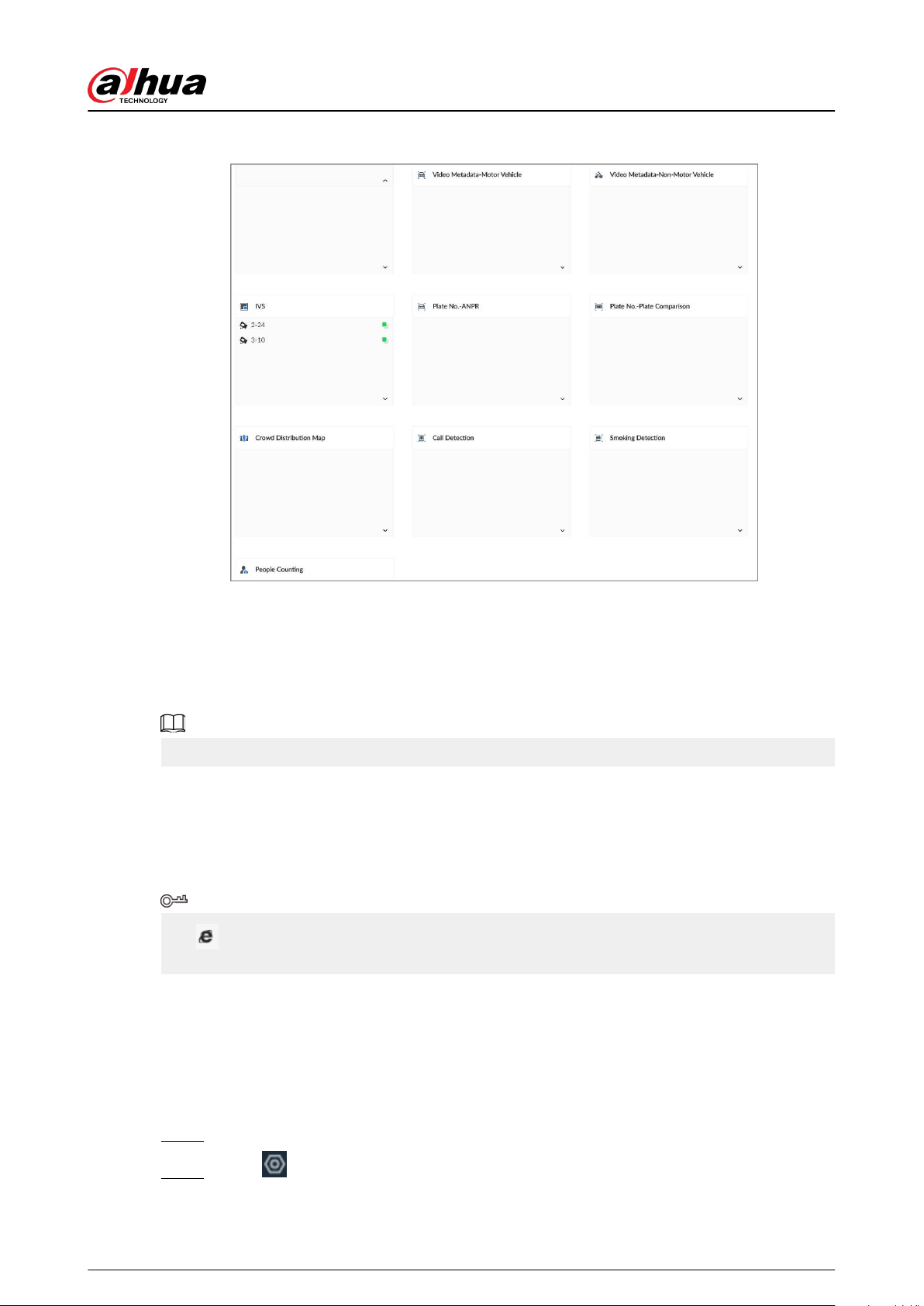
Figure 9-9 Smart plan
9.3 Remote Device
Set alarm actions for remote devices, including video detection alarm, oine alarm and smart
detection alarm.
The parameters might be dierent depending on the model you purchased.
9.3.1 Video Detection
The system monitors and analyzes the video image. When there are considerable changes on the
video, for example, the image becomes blurry, the system triggers an alarm.
Click after Video Detection to go to the conguration page of the corresponding device
quickly.
9.3.1.1 Conguring Video Motion Detection
The system generates a video motion alarm when the detected moving target reaches the
congured sensitivity.
Procedure
Step 1 Log in to the PC client.
Step 2 Click on the upper-right corner, and then click Event.
You can also click Event from the conguration list on the home page.
User's Manual
187
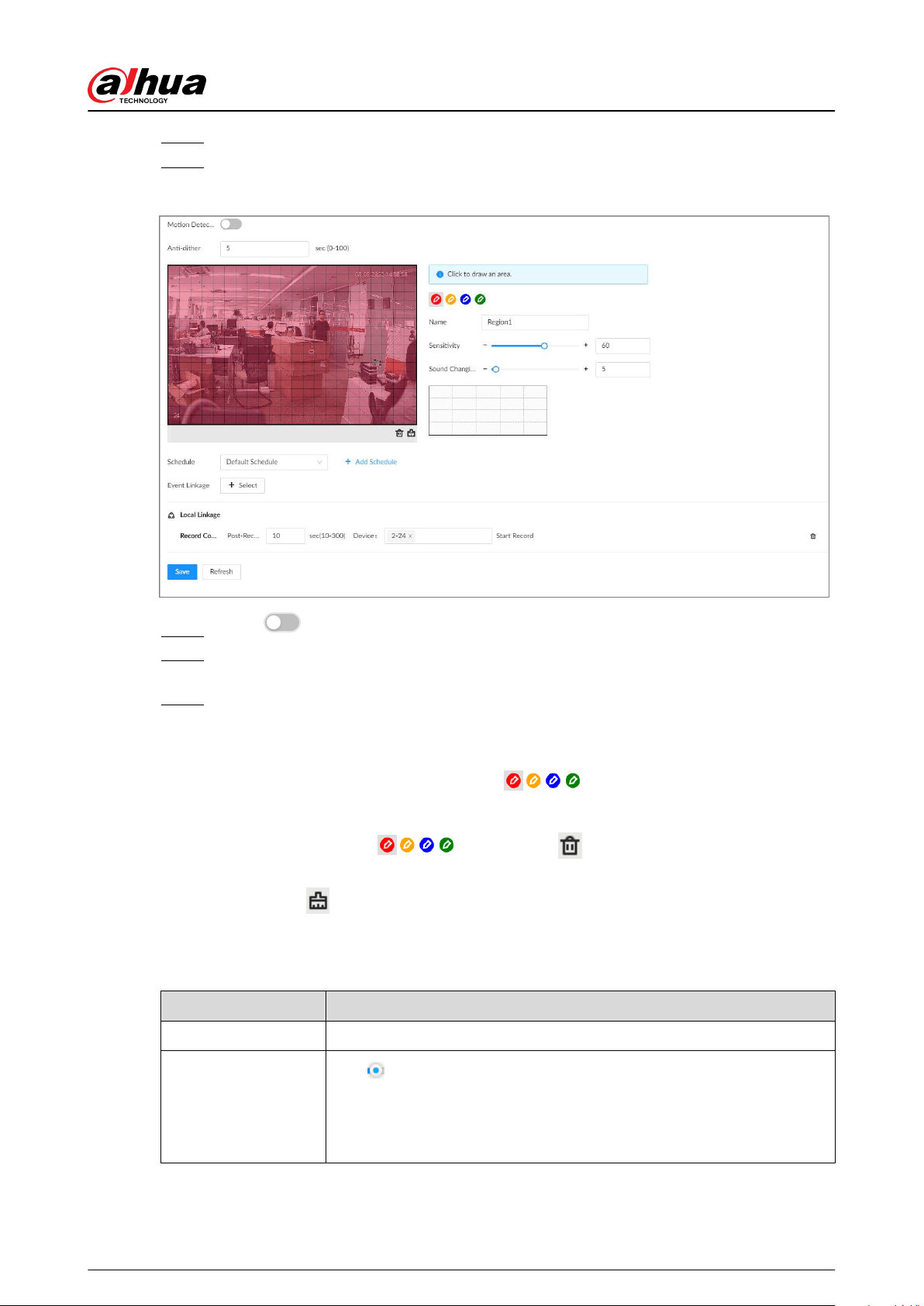
Step 3 Select a remote device from the device tree.
Step 4 Select Video Detection > Motion Detection.
Figure 9-10 Motion detection
Step 5 Click to enable video motion detection.
Step 6 Congure the anti-dither period. The system only records one alarm event during the
anti-dither period.
Step 7 Congure motion detection regions.
You can draw up to 4 detection zones. When motion is detected in any of the 4 regions,
an alarm is triggered.
1. Click the motion detection zone icon .
2. On the video image, drag the mouse to draw a detection zone.
●
Click an icon in
and then click to delete the corresponding
detection zone.
●
Click
to clear all the detection zones.
3. Set parameters.
Table 9-3 Motion detection zone parameters
Parameter Description
Name Set detection zone name to distinguish dierent zones.
Sensitivity
Drag
to set sensitivity.
The higher the sensitivity, the easier it is to trigger an alarm. At the same
time, the false alarm rate increases as well. We recommend the default
value.
User's Manual
188
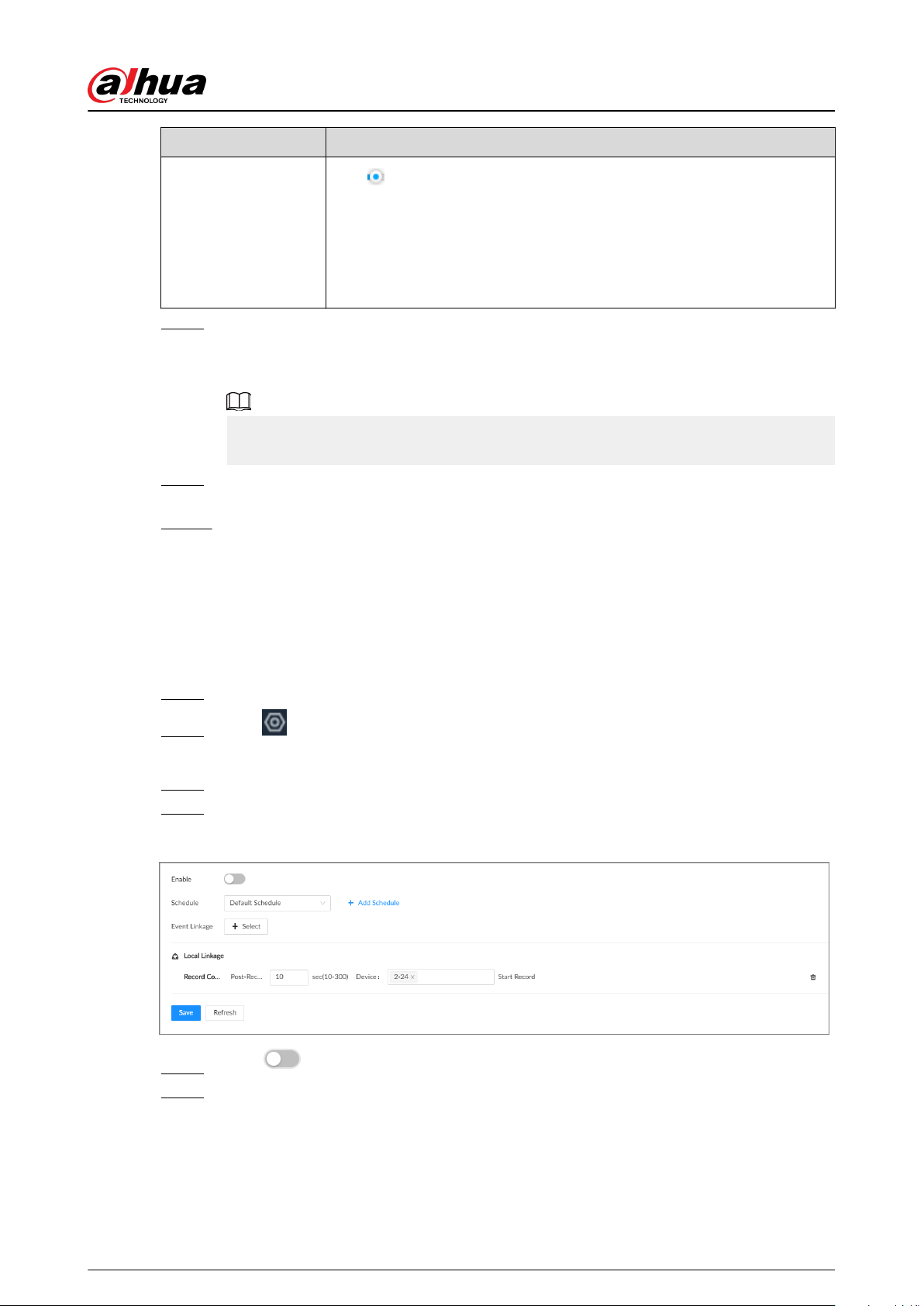
Parameter Description
Threshold
Drag
to adjust the threshold.
Once the detected percentage (the percentage of the moving target to
the detection zone) is equal to or larger than the specied threshold, the
system triggers an alarm. For example, the threshold is 10. Once the
detected target occupies 10% or more of the detection zone, the system
triggers an alarm.
Step 8 Click Schedule to select a schedule from the drop-down list.
The system triggers corresponding alarm actions only during the alarm deployment
period.
You can select an existing schedule from the Schedule drop-down list. You can also add
a new schedule. For details, see "7.4.3 Schedule".
Step 9 Click Select next to Event Linkage to set alarm actions. For details, see "9.1 Alarm
Actions".
Step 10 Click Save.
9.3.1.2 Tampering
When something tampers the surveillance video, and the output video is in one color, the system
triggers an alarm.
Procedure
Step 1 Log in to the PC client.
Step 2 Click on the upper-right corner, and then click Event.
You can also click Event from the conguration list on the home page.
Step 3 Select a remote device from the device tree.
Step 4 Select Video Detection > Video Tampering.
Figure 9-11 Tampering
Step 5 Click to enable tampering alarm.
Step 6 Click Schedule to select a schedule from the drop-down list.
The system triggers corresponding alarm actions only during the alarm deployment
period.
User's Manual
189
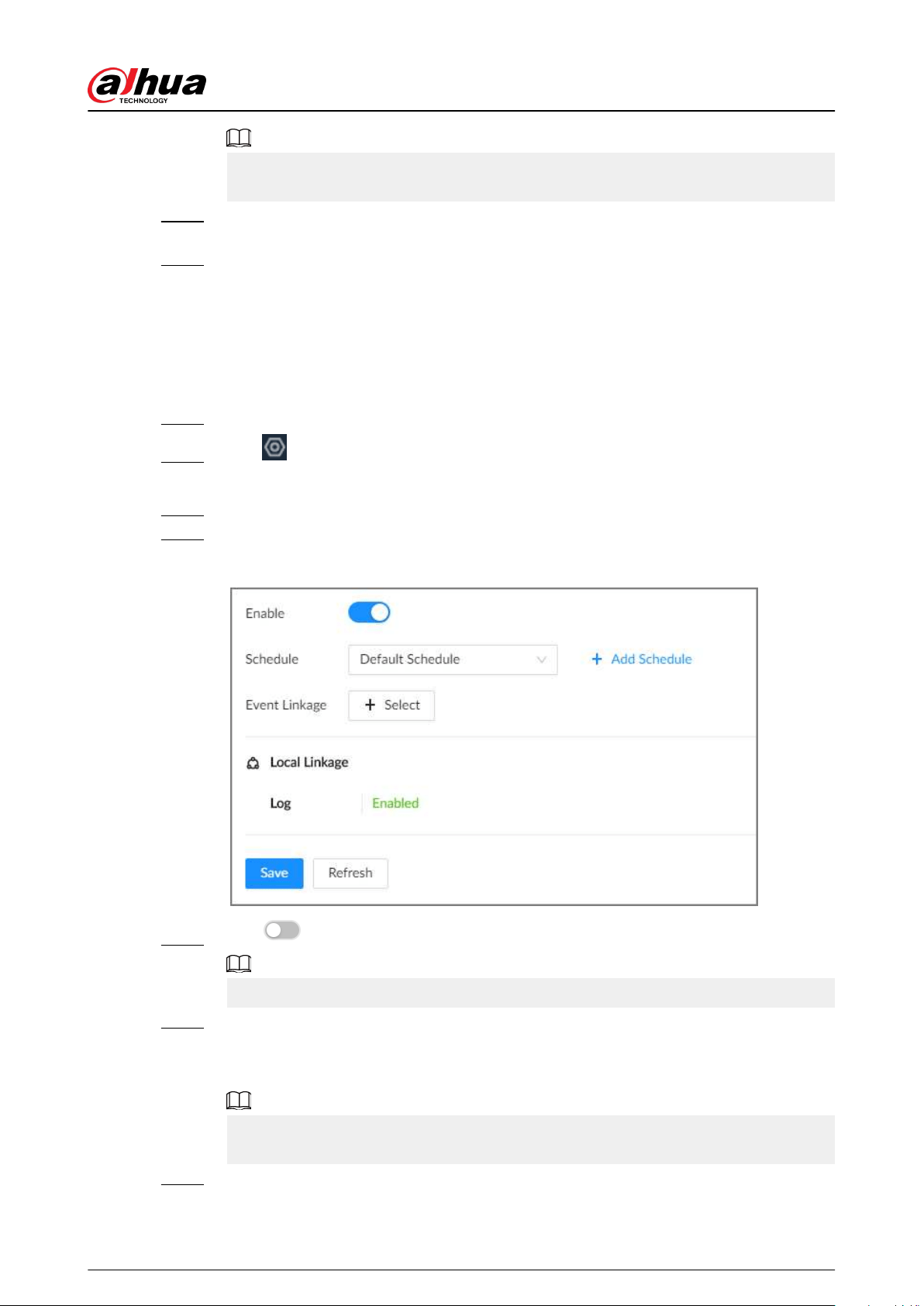
You can select an existing schedule from the Schedule drop-down list. You can also add
a new schedule. For details, see "7.4.3 Schedule".
Step 7 Click Select next to Event Linkage to set alarm actions. For details, see "9.1 Alarm
Actions".
Step 8 Click Save.
9.3.2 Oine Alarm
When the remote device is disconnected from the EVS, the system triggers an alarm.
Procedure
Step 1 Log in to the PC client.
Step 2 Click on the upper-right corner, and then click Event.
You can also click Event from the conguration list on the home page.
Step 3 Select a remote device from the device tree.
Step 4 Select Oine > Oine.
Figure 9-12 Oine alarm
Step 5 Click to enable oine alarm.
The oine alarm is enabled by default. You can skip this step.
Step 6 Click Schedule to select a schedule from the drop-down list.
The system triggers corresponding alarm actions only during the alarm deployment
period.
You can select an existing schedule from the Schedule drop-down list. You can also add
a new schedule. For details, see "7.4.3 Schedule".
Step 7 Click Select next to Event Linkage to set alarm actions. For details, see "9.1 Alarm
Actions".
User's Manual
190
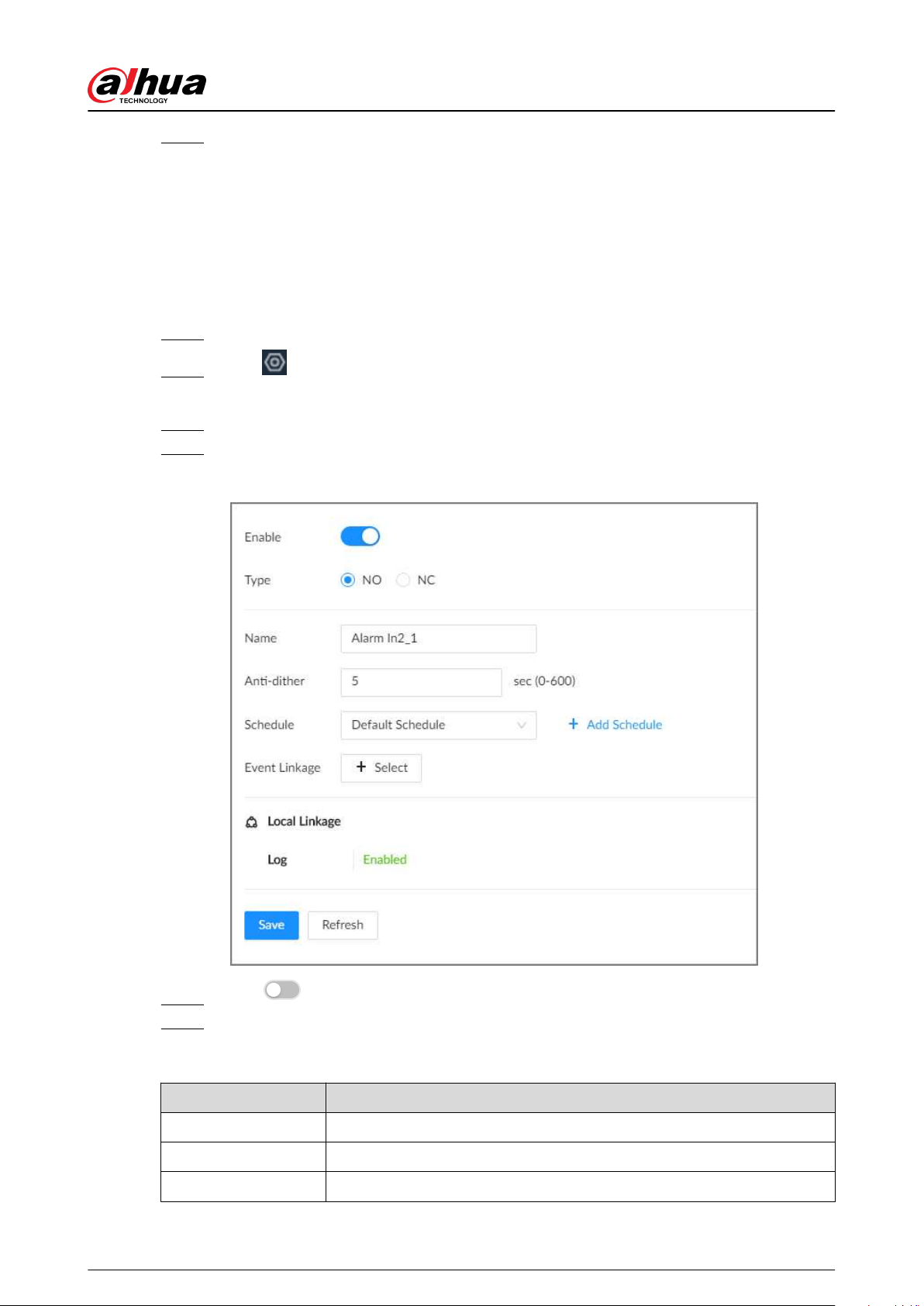
Step 8 Click Save.
9.3.3 IPC External Alarm
Set the external alarm input event, so that when there is an alarm input to the remote device, the
remote device uploads the alarm to the Device. If the remote device has multiple IO ports, you can
set the alarm input event for each port.
Procedure
Step 1 Log in to the PC client.
Step 2 Click on the upper-right corner, and then click Event.
You can also click Event from the conguration list on the home page.
Step 3 Select a remote device from the device tree.
Step 4 Select External Alarm > Alarm-in Port1.
Figure 9-13 Alarm-in port 1
Step 5 Click to enable the alarm.
Step 6 Set parameters.
Table 9-4 External alarm parameters description
Parameter Description
Name Enter a name for the alarm.
Type Select the type of the alarm input device. Both NO and NC are supported.
Anti-dither The system records only one event during this period.
User's Manual
191
Step 7 Click Schedule to select a schedule from the drop-down list.
The system triggers corresponding alarm actions only during the alarm deployment
period.
You can select an existing schedule from the Schedule drop-down list. You can also add
a new schedule. For details, see "7.4.3 Schedule".
Step 8 Click Select next to Event Linkage to set alarm actions. For details, see "9.1 Alarm
Actions".
Step 9 Click Save.
9.3.4 Thermal Alarm
●
Alarm types might vary depending on the models of thermal cameras.
●
Make sure that thermal detections such as heat detection and temperature detection have been
congured on the thermal camera.
Support the following thermal camera alarms.
Table 9-5 Thermal alarms
Function Description
Heat alarm
When the thermal camera detects a heat source, the alarm signal is
transmitted to the Device, and the Device will perform an alarm linkage
action.
Temperature alarm
When the thermal camera detects that the temperature is above or below
the threshold value, the alarm signal is transmitted to the Device, and the
Device will perform an alarm linkage action.
Temperature
dierence alarm
When the thermal camera detects a temperature dierence greater or
smaller than the set value, the alarm signal is transmitted to the Device,
and the Device will perform an alarm linkage action.
Hot spot alarm
When the maximum temperature detected by the thermal camera is
higher than the set value, the alarm signal is transmitted to the Device,
and the Device will perform an alarm linkage action.
Cold spot alarm
When the lowest temperature detected by the thermal camera is below
the set value, the alarm signal is transmitted to the Device, and the
Device will perform an alarm linkage action.
This section uses the conguration of temperature alarm as an example.
Procedure
Step 1 Log in to the PC client
Step 2 Click on the upper-right corner, and then click Event.
You can also click Event from the conguration list on the home page.
Step 3 Select a thermal channel from the device tree.
Step 4 Select Thermal Alarm > Temperature Alarm.
Step 5 Click to enable the alarm.
User's Manual
192
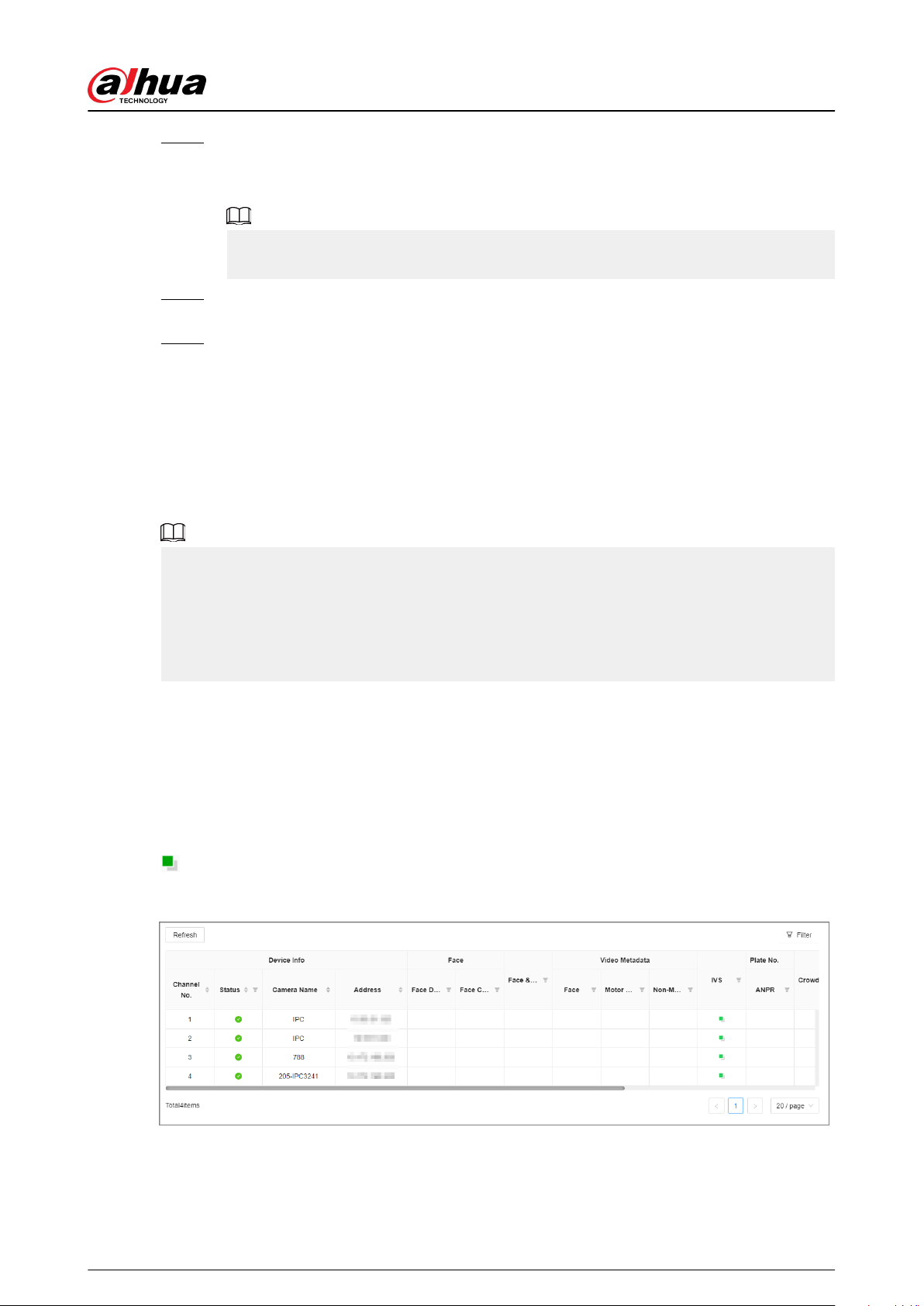
Step 6 Click Schedule to select a schedule from the drop-down list.
The system triggers corresponding alarm actions only during the alarm deployment
period.
You can select an existing schedule from the Schedule drop-down list. You can also add
a new schedule. For details, see "7.4.3 Schedule".
Step 7 Click Select next to Event Linkage to set alarm actions. For details, see "9.1 Alarm
Actions".
Step 8 Click Save.
9.4 AI Operations
The device supports AI by camera. When conguring an intelligent detection, if you select AI by
camera, the intelligent analysis job is completed on the camera, and the device just receives and
processes the results.
This chapter introduces how to congure the AI functions respectively.
●
The AI functions might vary depending on the device function capability.
●
When AI by camera is enabled, complete AI detection conguration at remote device. See
remote device user’s manual.
●
The AI by Camera tab does not appear if the current camera does not support this function.
●
Some AI functions are mutually exclusive, and the unied channel does not allow mutually
exclusive AI functions to be enabled at the same time.
9.4.1 Overview
Viewing Event Enabling Status
Log in to the PC client, select Event from the conguration list on the home page, select the root
node on the device tree, and then click Overview. You can view the events enabled on the Device.
indicates that AI by Camera is enabled.
Figure 9-14 Overview
User's Manual
193
AI Events by Recorder or Camera
Table 9-6 AI Events by Recorder or Camera
AI Event AI by Camera AI by Recorder
Face Detection Yes No
Face Comparison Yes No
People Counting Yes No
Video Metadata Yes No
IVS Yes No
Crowd Distribution Yes No
Call Alarm Yes No
Smoking Alarm Yes No
ANPR Yes No
Click after the video detection device to go the Web page of the corresponding device quickly.
9.4.2 Face Detection
An alarm is triggered when human faces are detected within the detection zone.
9.4.2.1 Enabling the Smart Plan
To use AI by Camera, you need to enable the smart plan rst.
●
The Device automatically shows the smart functions available on the connected remote devices.
●
Smart plan is available on select remote devices.
Procedure
Step 1 Log in to the PC client.
Step 2 Click on the upper-right corner and then click Event.
You can also click Event from the conguration list on the home page.
Step 3 Select a remote device in the device tree on the left.
Step 4 Select Smart Plan > Smart Plan.
●
The smart functions available might dier depending on the remote devices.
●
When the remote device is a PTZ camera, congure presets on the camera system rst,
and then you can set AI functions for each preset of the PTZ camera.
Step 5 Click to enable the smart plan.
Step 6 Click Apply.
User's Manual
194
9.4.2.2 Conguring Face Detection
Congure the alarm rule of face detection.
Procedure
Step 1 Log in to the PC client.
Step 2 Click on the upper-right corner, and then click Event.
You can also click Event from the conguration list on the home page.
Step 3 Select a remote device on the device tree, and then select Smart Plan > Face Detection.
Step 4 Congure face detection.
a. Click AI by Camera, and then click to enable face detection.
b. Click
to enable face enhancement, which enables the system to preferably
guarantee clear faces with low stream.
c. Click or to set the minimum size or maximum size of the face detection zone.
The system triggers an alarm only when the size of detected target is between the
maximum size and the minimum size.
Step 5 Click Schedule to select a schedule from the drop-down list.
The system triggers corresponding alarm actions only during the alarm deployment
period.
You can select an existing schedule from the Schedule drop-down list. You can also add
a new schedule. For details, see "7.4.3 Schedule".
Step 6 Click Select next to Event Linkage to set alarm actions. For details, see "9.1 Alarm
Actions".
Step 7 Click Save.
9.4.2.3 Live View of Face Detection
You can view real-time face detection images and video.
9.4.2.3.1 Setting Attribute Display
You can congure the display rule of face detection results.
Prerequisites
Before using this function, make sure that view has been created.
Procedure
Step 1 Log in to the PC client.
Step 2 Under the Live tab, open a view window.
Step 3 Click and then select the Face tab.
Step 4 Enable Target Box Overlay.
After it is enabled, when the system detects a face, a box will appear on the target.
Step 5 Congure AI attributes settings.
User's Manual
195
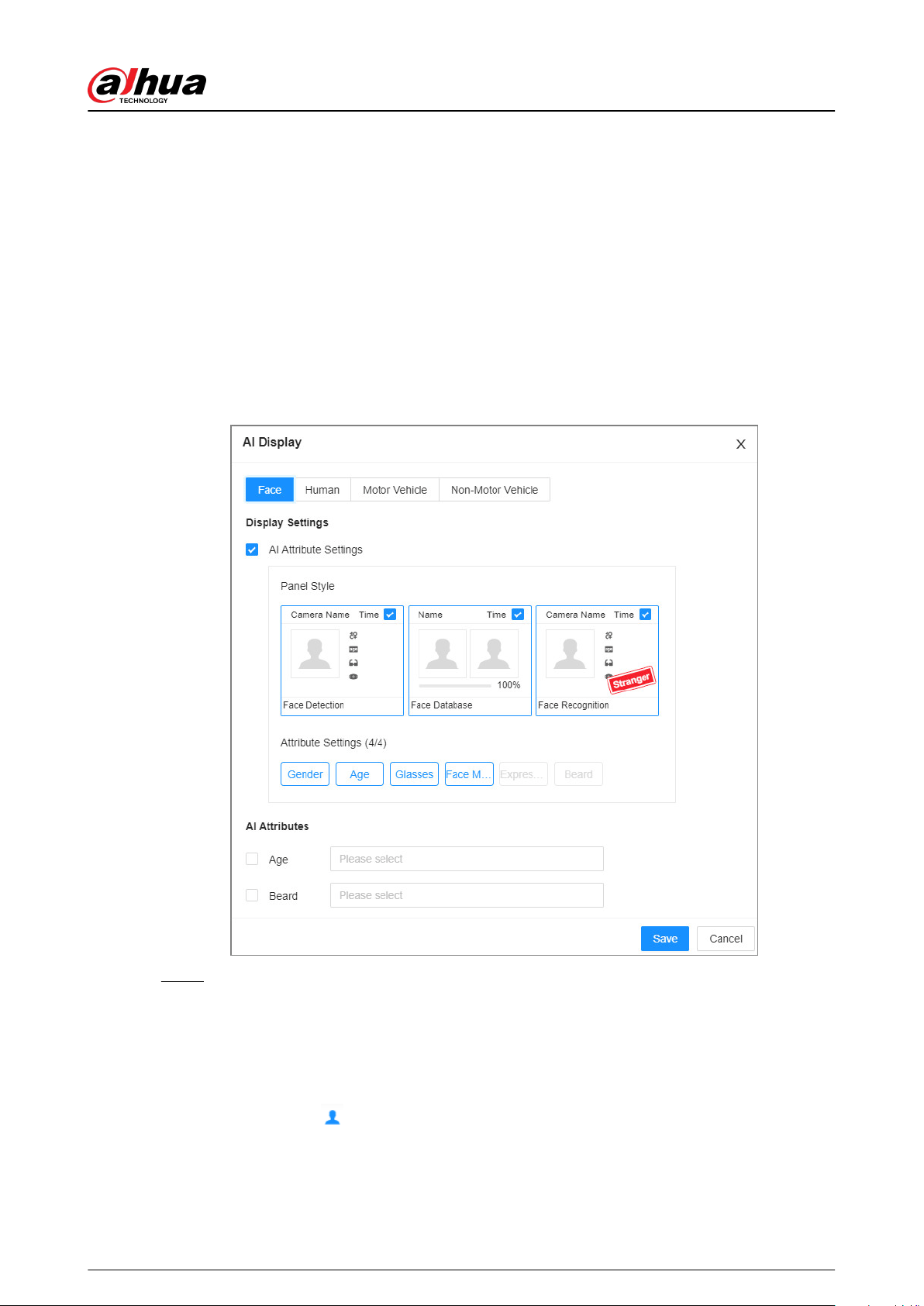
With AI Attributes Settings enabled by default, when the system detects a face, a
features panel appears on the live video. You can congure the style of the features panel
and the attributes that you want to display.
1. Select the Face Detection panel.
2. Select the attributes that you want to display.
●
You can select up to 4 attributes.
●
4 attributes have been selected by default. To select other attributes, cancel the
selected attributes, and then select the ones you need.
3. On the AI Attributes section, select the attribute groups for face detection.
Each face attribute is broken down into more specic groups. For example, you can
select Male , Female or Unknown for Gender.
Figure 9-15 Attribute display
Step 6 Click Save.
9.4.2.3.2 Live View
Log in to the PC client, and then under the Live tab, open a view window.
●
The video window displays the target boxes of currently detected faces.
●
The number next to
at the upper-right corner of the Live page represents the number of
detected faces.
●
You can view the detection time, face snapshot, and face attributes on the features panel on the
right side of the Live page.
User's Manual
196
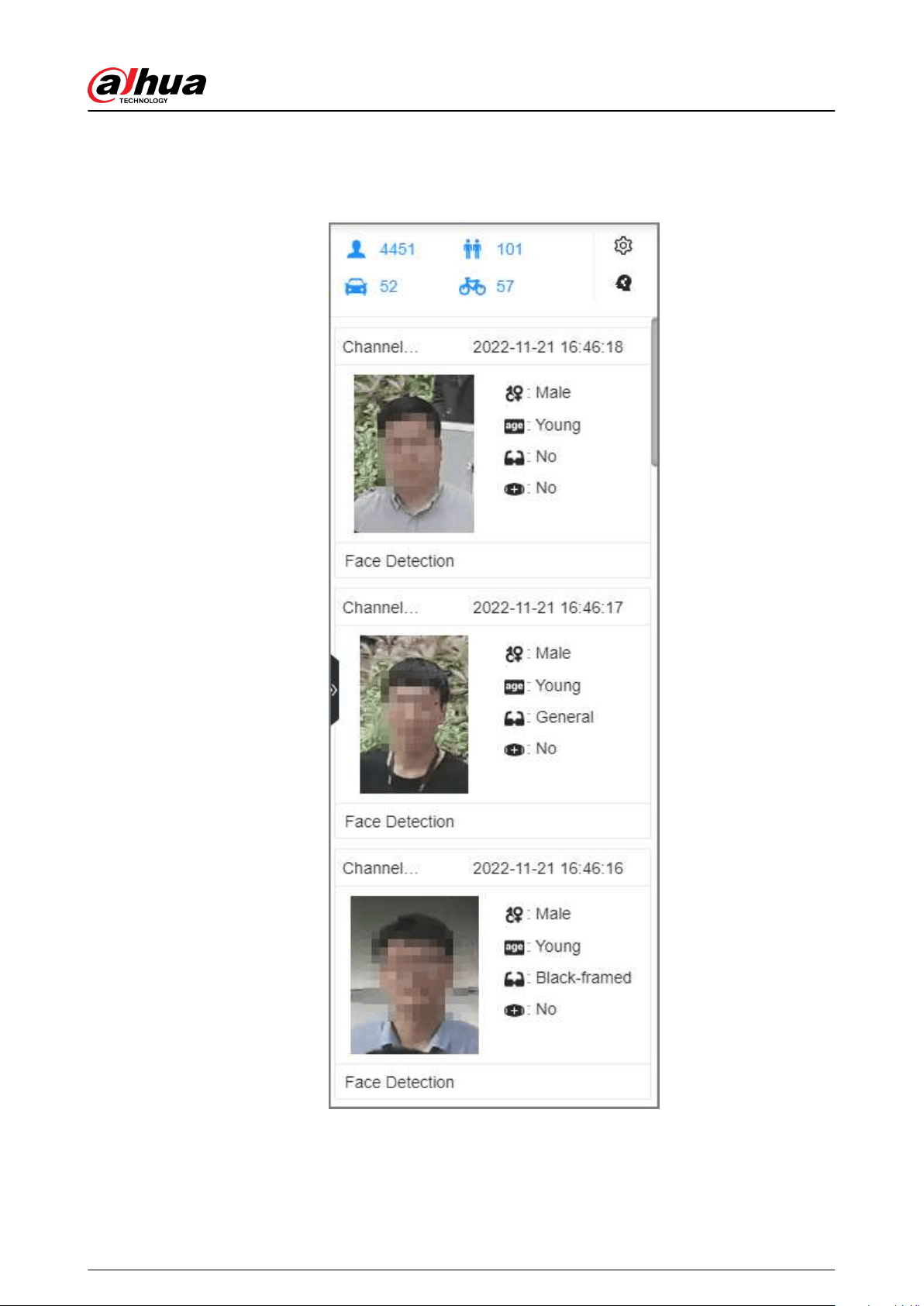
●
Features panels are displayed on the right side of the Live page.
Point to a features panel, and then the icons are displayed.
Figure 9-16 Face records
User's Manual
197
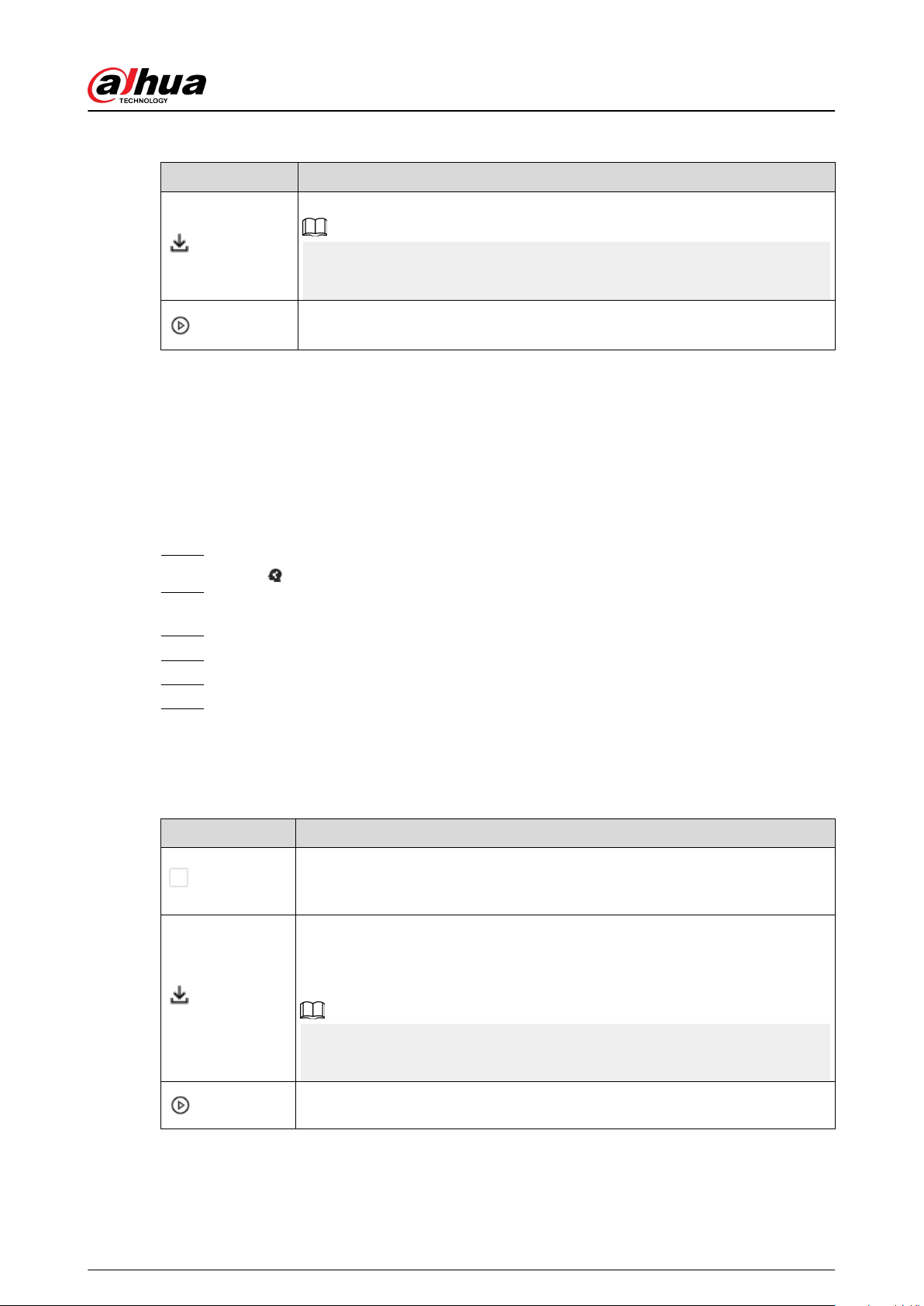
Table 9-7 Management of face records
Icon Operation
Download the face snapshot and related video.
When operating on the local interface, you need to insert a USB storage
device into the Device.
Click the icon or double-click the record to play back the 10 seconds of video
before and after the snapshot.
9.4.2.4 Face Search
Search for face detection information, including face detection image, record and features.
9.4.2.4.1 Searching by Attributes
Procedure
Step 1 Log in to the PC client.
Step 2 Click on the upper-right corner of the Live page, or select AI Search on the home
page.
Step 3 Select Face Search.
Step 4 Select one or more remote devices, and then set Event Type and Face Detection.
Step 5 Set face attributes and search period.
Step 6 Click Search.
Related Operations
Point to a record, and then the operation icons are displayed.
Table 9-8 Management of search results
Icon Operation
Click the icon to select the record.
To select all the records at a time, select the checkbox next to Select All.
Export the face snapshot, video and video player.
To export in batches, select multiple face records, and then click Export to
export snapshots, videos or excel.
After you set alarm linkage snapshot, the system exports detected images and
panoramic images at the time of snapshot.
Click the icon or double-click the record to play back the 10 seconds of video
before and after the snapshot.
9.4.2.4.2 Exporting Face Records
After you search for face images under the AI Search tab, you can export the search results.
User's Manual
198

●
When operating on the local interface, you need to insert a USB storage device into your EVS.
●
If you have congured alarm-linked picture storage, the exported alarm-linked snapshot
contains the face snapshot and the background picture.
●
Export in batches.
Export more than one record. Support specifying le formats.
1. Select one or more face records.
To export all records, select the checkbox next to Select All.
2. Click Export, and then select the format of the information that you want to export. You can
export the images, videos and an excel that contains attributes information.
3. Click Browse to select a storage path.
4. Click OK.
●
Export one by one.
The exported le contains the image, video and video player by default.
1. Point to the panel of a record, and then click .
2. Select a le type for the video, set the storage path, and then click OK.
3. Click OK.
9.4.3 Face Comparison
The system compares captured face with the faces in the database and then works out the
similarity. When the similarity reaches the threshold as you have dened, an alarm will be triggered.
9.4.3.1 Enabling the Smart Plan
To use AI by Camera, you need to enable the corresponding smart plan rst. For details, see "9.4.2.1
Enabling the Smart Plan".
9.4.3.2 Conguring Face Recognition
Congure the alarm rule of face comparison.
Procedure
Step 1 Log in to the PC client.
Step 2 Click on the upper-right corner, and then click Event.
You can also click Event from the conguration list on the home page.
Step 3 Select a remote device on the device tree, and then select Smart Plan > Face
Comparison.
Step 4 Click AI by Camera , and then click to enable face comparison.
Step 5 Click Schedule to select a schedule from the drop-down list.
The system triggers corresponding alarm actions only during the alarm deployment
period.
User's Manual
199
You can select an existing schedule from the Schedule drop-down list. You can also add
a new schedule. For details, see "7.4.3 Schedule".
Step 6 Click Select next to Event Linkage to set alarm actions. For details, see "9.1 Alarm
Actions".
Step 7 Click Save.
9.4.3.3 Live View of Face Comparison
You can view real-time face comparison images under the Live tab.
9.4.3.3.1 Setting Attribute Display
You can congure display rule of AI detection results.
Before using this function, make sure that view has been created.
Procedure
Step 1 Log in to the PC client.
Step 2 Under the Live tab, open a view window.
Step 3 Click and then select the Face tab.
Step 4 Congure AI attributes settings.
With AI Attributes Settings enabled by default, when the system detects a face, a
features panel appears on the live video. You can congure the style of the features panel
and the attributes that you want to display.
1. Select the attributes that you want to display.
●
You can select up to 4 attributes.
●
4 attributes have been selected by default. To select other attributes, cancel the
selected attributes, and then select the ones you need.
2. On the AI Attributes section, select the attribute groups for face detection.
Each face attribute is broken down into more specic groups. For example, you can
select Male , Female or Unknown for Gender.
User's Manual
200
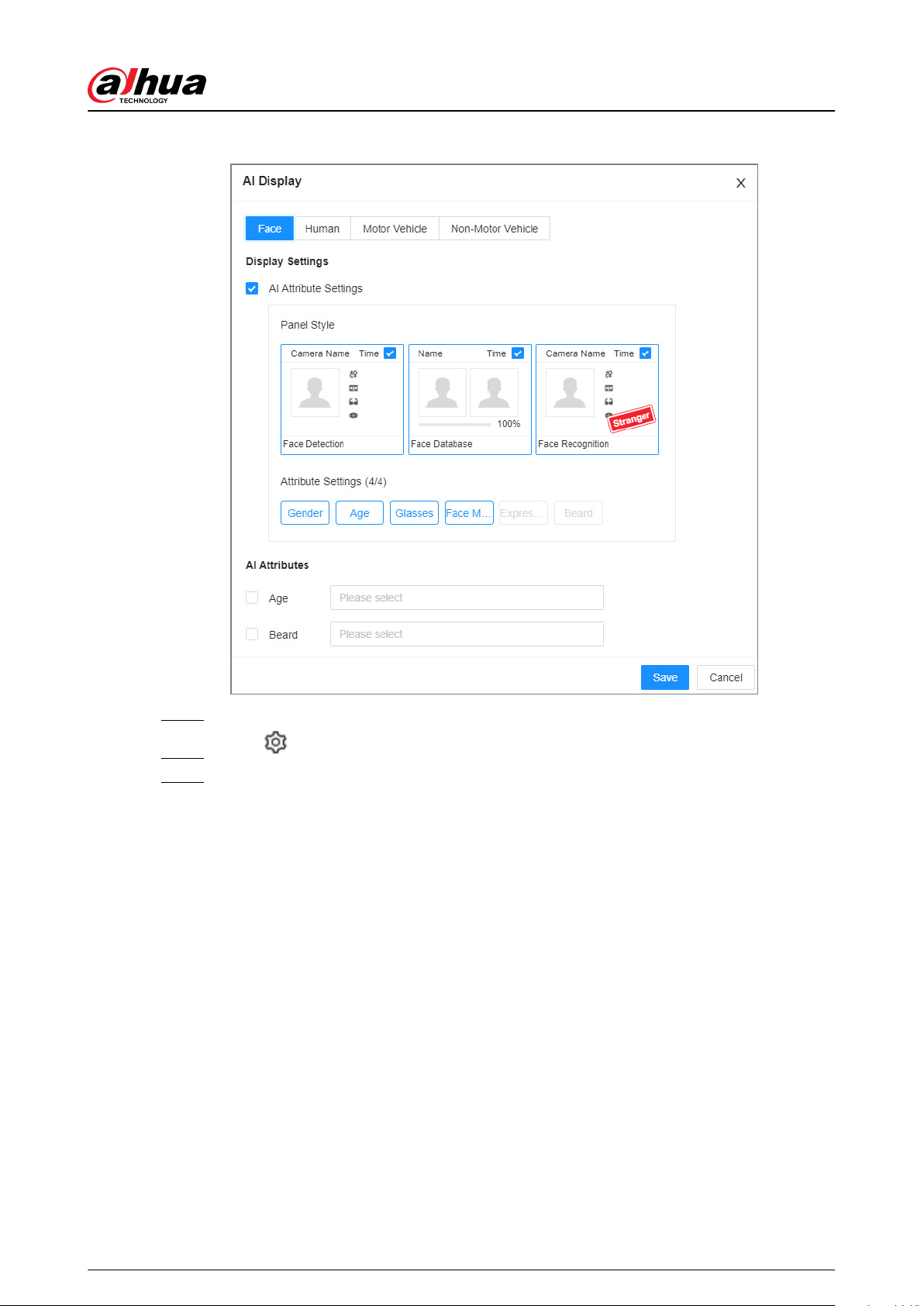
Figure 9-17 Attribute display
Step 5 Click Save.
Step 6 Click and then select the Human tab.
Step 7 Congure AI attributes settings.
With AI Attributes Settings enabled by default. You can congure the style of the
features panel and the attributes that you want to display.
1. Select the attributes that you want to display.
●
You can select up to 4 attributes.
●
4 attributes have been selected by default. To select other attributes, cancel the
selected attributes, and then select the ones you need.
2. On the AI Attributes section, select the attribute groups for body detection.
Each body attribute is broken down into more specic groups. For example, you can
select long sleeves , Short Sleeves or Unknown for Sleeve.
User's Manual
201
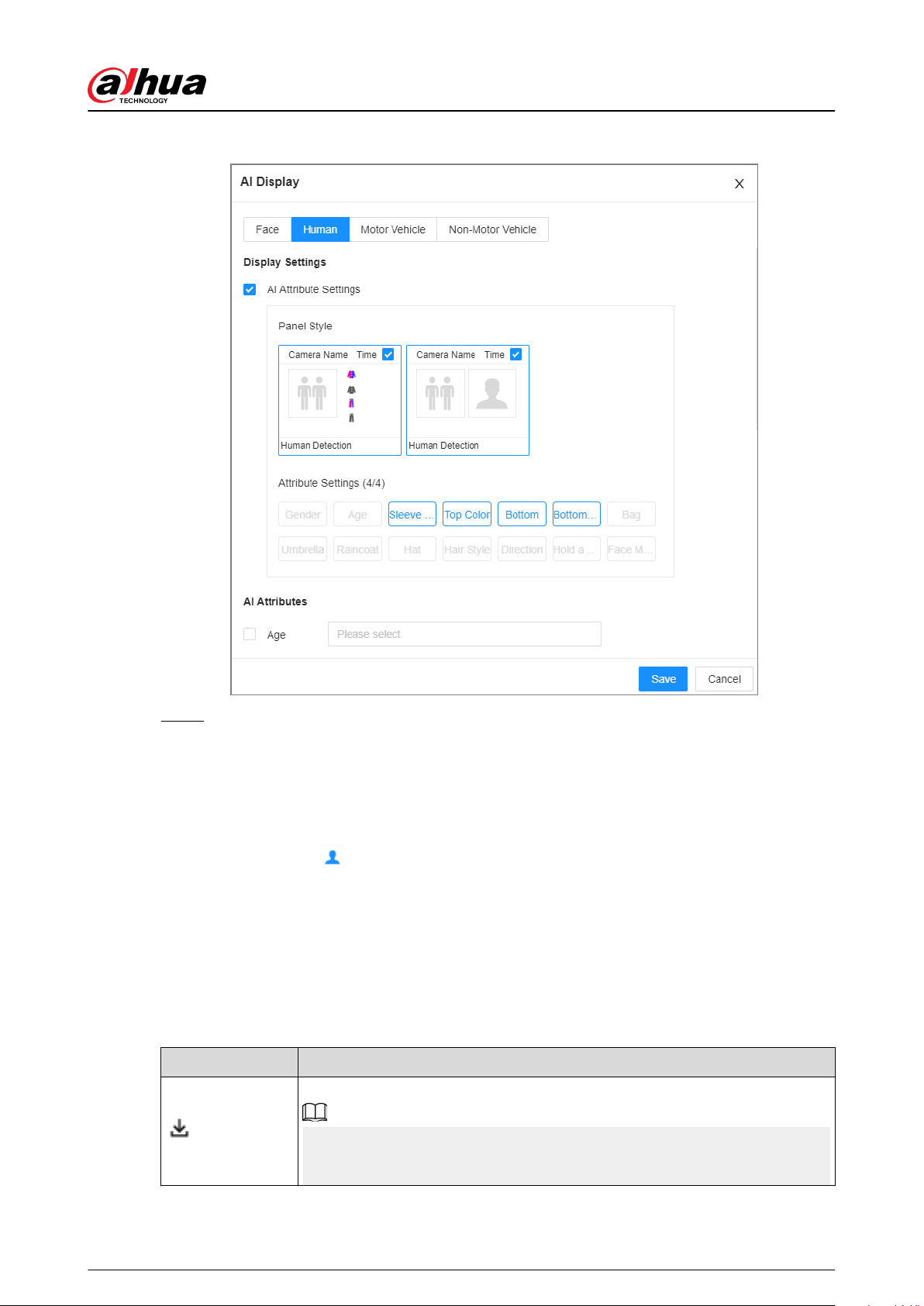
Figure 9-18 Attribute display
Step 8 Click Save.
9.4.3.3.2 Live View
Log in to the PC client, and then under the Live tab, open a view window.
●
The video window displays the target boxes of currently detected faces.
●
The number next to
at the upper-right corner of the Live page represents the number of
detected faces.
●
You can view the detection time, the detected face image, face image in the database,
comparison result and database name on the features panel on the right side of the Live page.
After enabling the stranger mode, when the detected face image has no match in the database,
a Stranger tag appears on the features panel.
●
Point to a features panel and then the operations icons are displayed.
Table 9-9 Management of face records
Icon Operation
Download the face snapshot and related video.
When operating on the local interface, you need to insert a USB storage
device into the Device.
User's Manual
202
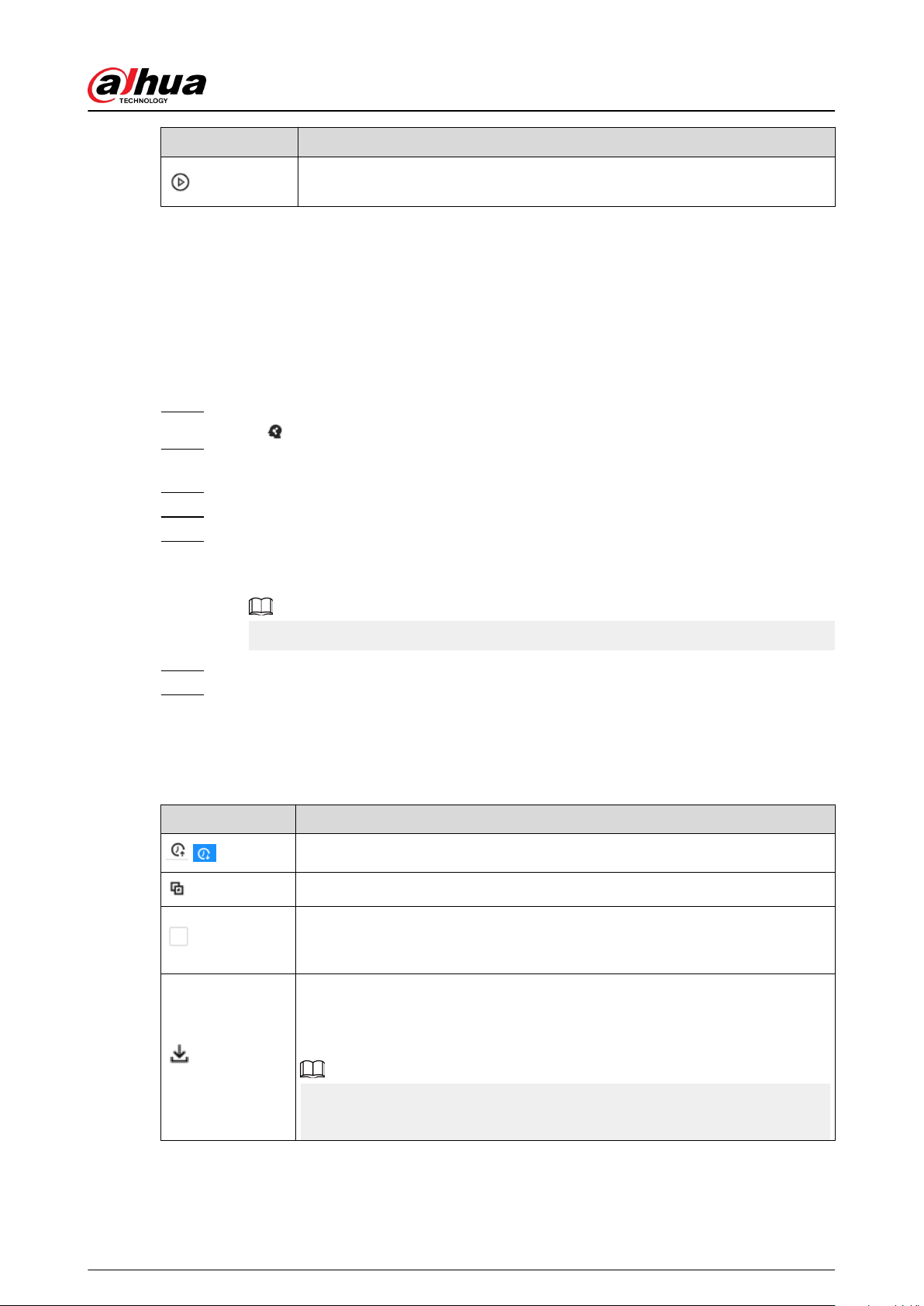
Icon Operation
Click the icon or double-click the record to play back the 10 seconds of video
before and after the snapshot.
9.4.3.4 Face Search
You can search face records by attributes or by image, and then export the search results.
9.4.3.4.1 Searching by Attributes
Procedure
Step 1 Log in to the PC client.
Step 2 Click on the upper-right corner of the Live page, or select AI Search on the home
page.
Step 3 Select Face Search.
Step 4 Select one or more remote devices, and then set Event Type to Face Recognition.
Step 5 Select a face mode.
●
General : Search for faces without the stranger or high frequency tag.
●
Stranger : Search for faces with the stranger tag.
Make sure that stranger mode has been enabled for face comparison.
Step 6 Set face attributes and search period.
Step 7 Click Search.
Related Operations
Point to a record, and then the following icons are displayed.
Table 9-10 Management of search results
Icon Operation
/
Click the icon to congure the display order by time.
Click the icon to congure the display order by similarity.
Click the icon to select the record.
To select all the records at a time, select the checkbox next to Select All.
Export the face snapshot, video and video player.
To export in batches, select multiple face records, and then click Export to
export snapshots, videos or excel.
After you set alarm linkage snapshot, the system exports detected images and
panoramic images at the time of snapshot.
User's Manual
203
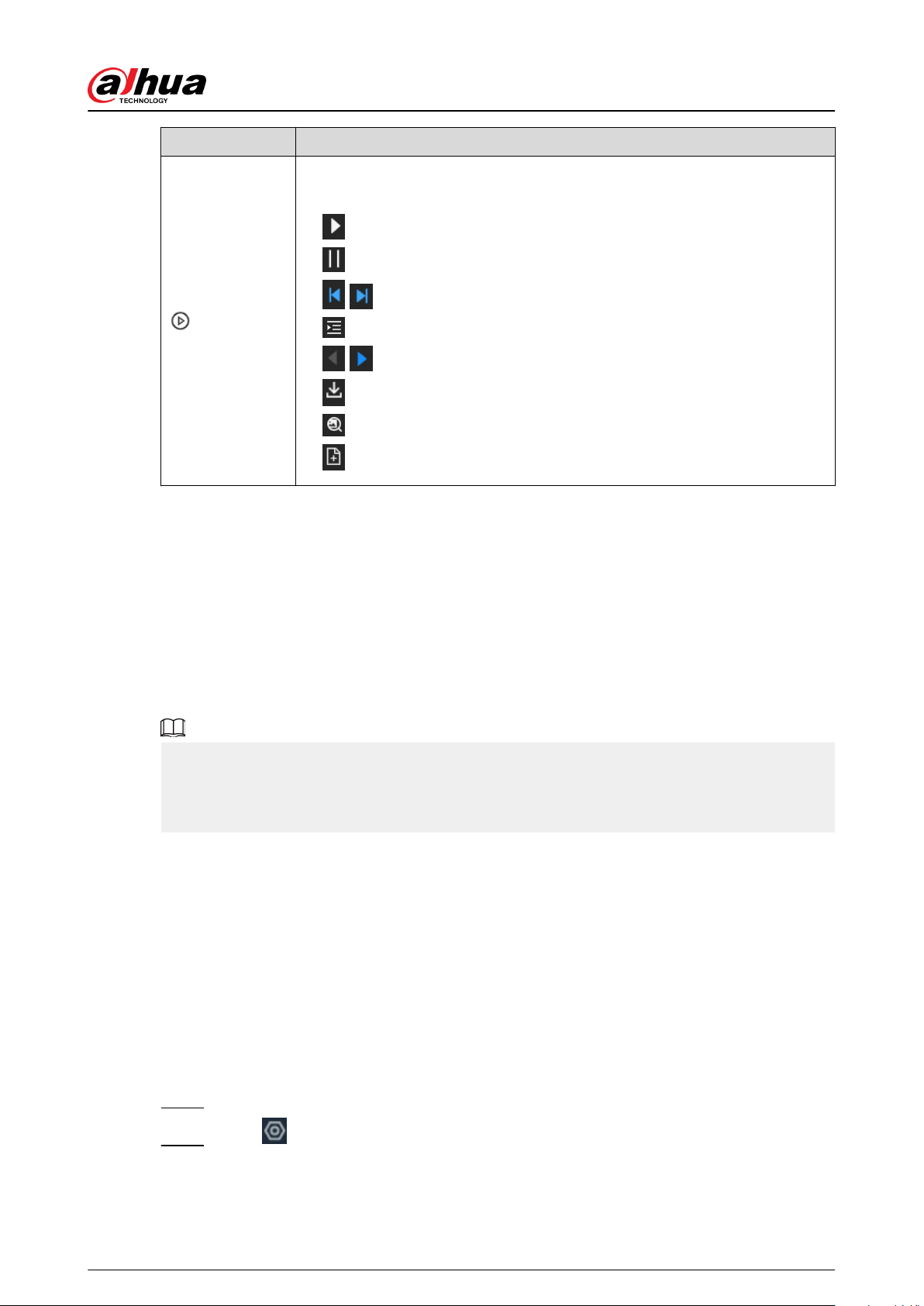
Icon Operation
Click the icon or double-click the record to play back the video 10 seconds
before and after the snapshot.
●
: Stop playing the video.
●
: Starts to play the video.
●
/ : Last/next video.
●
: Auto play the following videos continuously.
●
/ : Switching from audio 1, auduo2 and mix.
●
: Download the video.
●
: Search by image.
●
: Add the detected face to the face database.
9.4.3.4.2 Exporting Face Records
Export the face records, including pictures, videos and detailed information. For details, see
"9.4.2.4.2 Exporting Face Records".
9.4.4 People Counting
This Device can count the people ow, in-area people number, and queuing number in the
detection zone.
●
The people counting function is only available with AI by Camera. Make sure that the camera
has been congured with people counting rules.
●
The old people counting data will be overwritten when the storage space runs out. Remember
to back up the data in time.
9.4.4.1 Enabling the Smart Plan
To use AI by Camera, you need to enable the corresponding smart plan rst. For details, see "9.4.2.1
Enabling the Smart Plan".
9.4.4.2 Conguring People Counting
The system counts the number of people in and out of the detection area. When the number of
entry, exit or stay reaches the threshold, an alarm is triggered.
Procedure
Step 1 Log in to the PC client.
Step 2 Click on the upper-right corner, and then click Event.
You can also click Event from the conguration list on the home page.
User's Manual
204
Step 3 Select a remote device on the device tree, and then select Smart Plan > People
Counting > Rule Cong.
Step 4 Click Add Rule , select People Counting, and then click to enable the function.
Step 5 Draw a people counting zone.
●
Click
to draw the detection zone.
●
Click
to draw the counting line. The line must be perpendicular to direction of the
people ow.
●
Click
to set the whole image as the detection area.
Step 6 Set parameters.
Table 9-11 Parameter description of people counting
Parameter Description
People Counting Alarm Click Reset to reset the numbers of entry and exit.
Enter No. Number of people that entered.
Exit No. Number of people that exited.
Stay No.
The number of stay is the result of entry number minus exit number.
An alarm is triggered when the stay number reaches the threshold.
Step 7 Click Schedule to select a schedule from the drop-down list.
The system triggers corresponding alarm actions only during the alarm deployment
period.
You can select an existing schedule from the Schedule drop-down list. You can also add
a new schedule. For details, see "7.4.3 Schedule".
Step 8 Click Select next to Event Linkage to set alarm actions. For details, see "9.1 Alarm
Actions".
Step 9 Click Save.
9.4.4.3 Conguring In Area No.
The system counts the number of people in and out of the detection area. When the number of
entry or exit is larger or smaller than the threshold or when the dwell time of any person in the area
is greater than the threshold, an alarm is triggered.
Procedure
Step 1 Log in to the PC client.
Step 2 Click on the upper-right corner, and then click Event.
You can also click Event from the conguration list on the home page.
Step 3 Select a remote device on the device tree, and then select Smart Plan > People
Counting > Rule Cong.
Step 4 Click Add Rule , select Area People Counting, and then click to enable the
function.
Step 5 Draw a detection zone.
User's Manual
205
●
Click
to draw the detection zone.
●
Click
to set the whole image as the detection area.
Step 6 Set parameters.
Table 9-12 Parameter description of in-area people counting
Parameter Description
Area People
Counting Alarm
a. Click
to enable the alarm.
b. Set people number threshold.
●
If you select ≥ Threshold and then enter a number, an alarm is
triggered when the detected number is larger or equal to the
number that you entered.
●
If you select ≤ Threshold and then enter a number, an alarm is
triggered when the detected number is smaller or equal to the
number that you entered.
●
If you select = Threshold and then enter a number, an alarm is
triggered when the detected number is equal to the number that
you entered.
●
If you select ≠ Threshold and then enter a number, an alarm is
triggered when the detected number is dierent from the number
that you entered.
Stay Alarm
a. Click
to enable the alarm.
b. Set time threshold for the alarm. When the dwell time of any person in
the area is greater than the threshold, an alarm will be triggered.
Step 7 Click Schedule to select a schedule from the drop-down list.
The system triggers corresponding alarm actions only during the alarm deployment
period.
You can select an existing schedule from the Schedule drop-down list. You can also add
a new schedule. For details, see "7.4.3 Schedule".
Step 8 Click Select next to Event Linkage to set alarm actions. For details, see "9.1 Alarm
Actions".
Step 9 Click Save.
9.4.4.4 Conguring Queuing Detection
The system counts the number of people queuing in the detection area. When the number of
people exceeds the threshold or the queue time is longer than the pre-dened time, an alarm is
triggered.
Procedure
Step 1 Log in to the PC client.
Step 2 Click on the upper-right corner, and then click Event.
You can also click Event from the conguration list on the home page.
User's Manual
206
Step 3 Select a remote device on the device tree, and then select Smart Plan > People
Counting > Queuing.
Step 4 Click Add Rule , select Queuing, and then click to enable the function.
Step 5 Draw a detection zone.
●
Click
to draw the detection zone.
●
Click
to set the whole image as the detection area.
Step 6 Set parameters.
Table 9-13 Parameter description of queuing detection
Parameter Description
Queue People No. Alarm
a. Click
to enable the alarm.
b. Set people number threshold.
●
If you select ≥ Threshold and then enter a number, an alarm
is triggered when the detected number is larger or equal to
the number that you entered.
●
If you select ≤ Threshold and then enter a number, an alarm
is triggered when the detected number is smaller or equal to
the number that you entered.
●
If you select = Threshold and then enter a number, an alarm
is triggered when the detected number is equal to the
number that you entered.
●
If you select ≠ Threshold and then enter a number, an alarm
is triggered when the detected number is dierent from the
number that you entered.
Queuing Time Alarm
a. Click
to enable the alarm.
b. Set time threshold for the alarm. When the queuing time of any
person in the area is longer than the threshold, an alarm will be
triggered.
Step 7 Click Schedule to select a schedule from the drop-down list.
The system triggers corresponding alarm actions only during the alarm deployment
period.
You can select an existing schedule from the Schedule drop-down list. You can also add
a new schedule. For details, see "7.4.3 Schedule".
Step 8 Click Select next to Event Linkage to set alarm actions. For details, see "9.1 Alarm
Actions".
Step 9 Click Save.
9.4.4.5 Live View
Log in to the PC client, and then under the Live tab, open a view window that contains people
counting video. You can view the real-time people number and queuing time on the video. The
User's Manual
207

region frame ashes when there is an alarm. The queue-detection live view also shows head frames
and the dwell time of each person.
9.4.4.6 Viewing AI Report
Procedure
Step 1 Log in to the PC client.
Step 2 On the home page, select AI Report > AI Report > People Counting.
Step 3 Select a device. You can only select an AI sheye camera or people counting camera.
Step 4 Select an event type from People Counting , Area People Counting and Queue People
Counting.
Step 5 Select a statistics type.
●
When the event type is People counting, you cannot select the statistics type.
●
When the event type is Area People counting , you can select the statistics type from
People Counting and Average Stay Time, and then select the stay time (5 s, 30 s, 60
s).
People Counting : Select the stay time. The report shows the number of people
that linger longer or shorter than the dened stay time in dierent colors.
Average Stay Time : The report shows the average stay time during dierent
periods.
●
When the event type is Queue People Counting, select the queue time. The report
shows the number of people queuing longer or shorter than the queue time in
dierent colors.
Step 6 Select a period type from Daily , Monthly, and Yearly, and then set the corresponding
date, month or year.
Step 7 Click OK. The report is displayed.
Related Operations
●
Point to the report, and then the report shows the details at that time point.
●
Drag the gray scroll bar under the ordinate to view the statistics for dierent time periods.
●
Click
to view the line chart.
●
Click
to view the bar chart.
●
Click
to export the report.
9.4.5 Video Metadata
The system analyzes real-time video stream to detect the existence of 4 target types: human,
human face, motor vehicle, non-motor vehicle. Once a target is detected, the system can record
video, take snapshots and trigger alarms.
9.4.5.1 Enabling the Smart Plan
To use AI by Camera, you need to enable the corresponding smart plan rst. For details, see "9.4.2.1
Enabling the Smart Plan".
User's Manual
208

9.4.5.2 Conguring Video Metadata
After enabling video metadata, the Device links the current remote device to record video when an
alarm is triggered. You cannot set other linkage actions for video metadata when AI by Camera is
used.
Procedure
Step 1 Log in to the PC client.
Step 2 Click on the upper-right corner, and then click Event.
You can also click Event from the conguration list on the home page.
Step 3 Select a remote device on the device tree, and then select Smart Plan > Video
Metadata.
Step 4 Congure video metadata.
a. Click AI by Camera, and then click to enable the function.
b. Click
next to On to enable people detection, motor vehicle detection and non-
motor vehicle detection.
Step 5 Click Schedule to select a schedule from the drop-down list.
The system triggers corresponding alarm actions only during the alarm deployment
period.
You can select an existing schedule from the Schedule drop-down list. You can also add
a new schedule. For details, see "7.4.3 Schedule".
Step 6 Click Save.
9.4.5.3 Live View of Video Metadata
View the detection results of face, people, motor vehicle and non-motor vehicle under the Live
tab.
9.4.5.3.1 Setting Attribute Display
Congure the display rule of video metadata detection results.
Prerequisites
Before using this function, make sure that view has been created.
Procedure
Step 1 Log in to the PC client.
Step 2 Under the Live tab, open a view window.
Step 3 Click and then select the Human tab.
Step 4 Congure AI attributes settings.
With AI Attributes Settings enabled by default, when the system detects a target, a
features panel appears on the live video. You can congure the style of the features panel
and the attributes that you want to display.
1. Select the panel styles.
2. Select the attributes that you want to display.
User's Manual
209
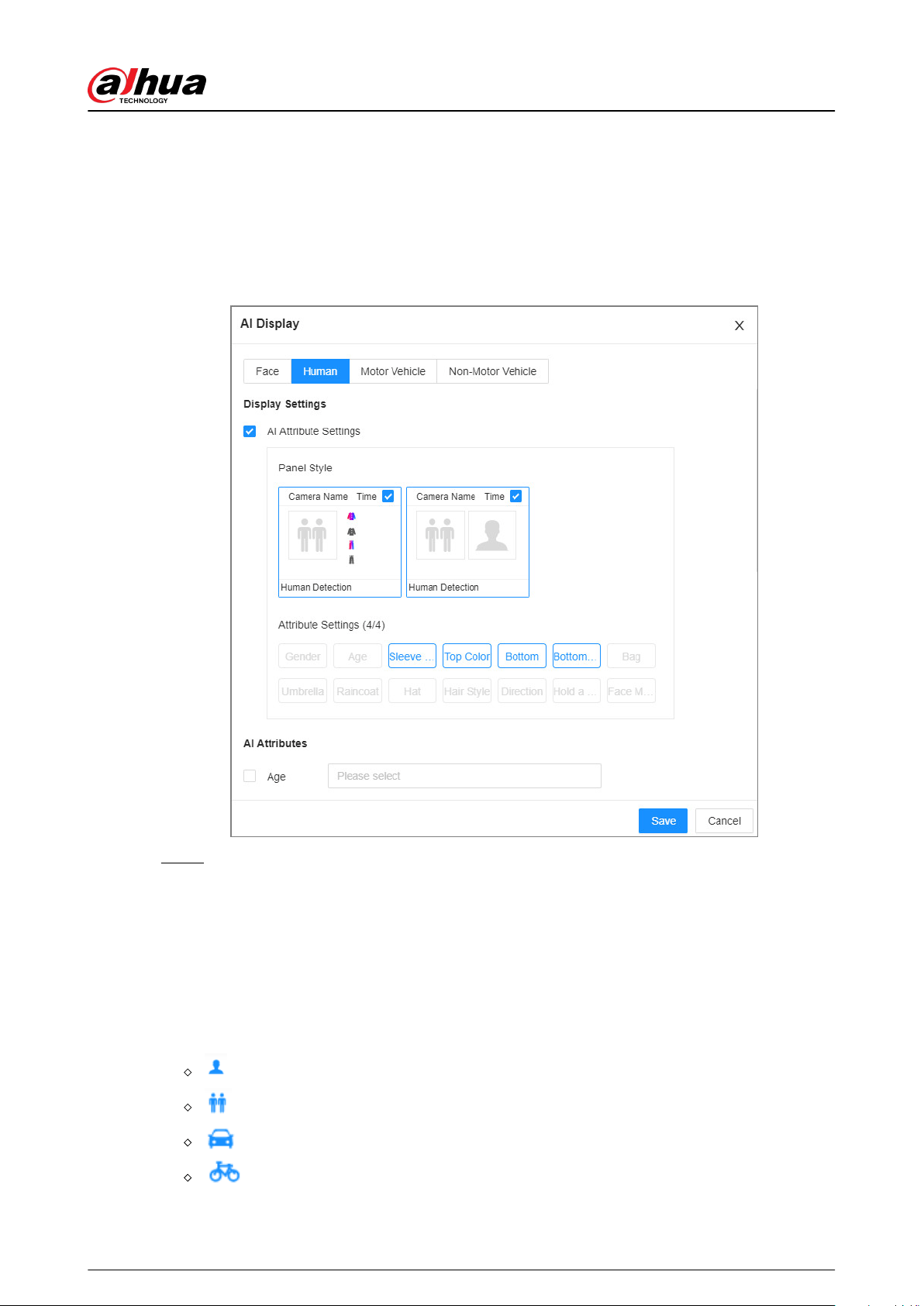
●
You can select up to 4 attributes.
●
4 attributes have been selected by default. To select other attributes, cancel the
selected attributes, and then select the ones you need.
3. On the AI Attributes section, select the attribute groups for video metadata.
Each attribute is broken down into more specic groups. For example, you can select
Male , Female or Unknown for Gender.
Figure 9-19 Attribute display
Step 5 Click Save.
9.4.5.3.2 Live View
Log in to the PC client, and then under the Live tab, open a view window. The video image of the
view is displayed.
●
The target box is displayed in real-time in the video image. Dierent detection targets
correspond to dierent colors of target boxes.
●
You can view the statistics on the detected targets at the upper-right corner of the Live page.
: face.
: human.
: motor vehicle.
: non-motor vehicle.
●
Features panels are displayed on the right side of the Live page.
User's Manual
210
Point to a features panel, and then the icons are displayed.
Table 9-14 Management of detection results
Icon Operation
Download the snapshot and related video.
When operating on the local interface, you need to insert a USB storage
device into the Device.
Click the icon or double-click the record to play back the 10 seconds of video
before and after the snapshot.
9.4.5.4 AI Search
You can search for video metadata detection records.
9.4.5.4.1 Human Search
Search for human detection results.
Procedure
Step 1 Log in to the PC client.
Step 2 Click on the upper-right corner of the Live page, or select AI Search on the home
page.
Step 3 Select Human Search .
Step 4 Select one or more remote devices, and then set Event Type to Human Detection.
Step 5 Set human attributes and search period.
Click
to select a color. indicates all colors.
User's Manual
211
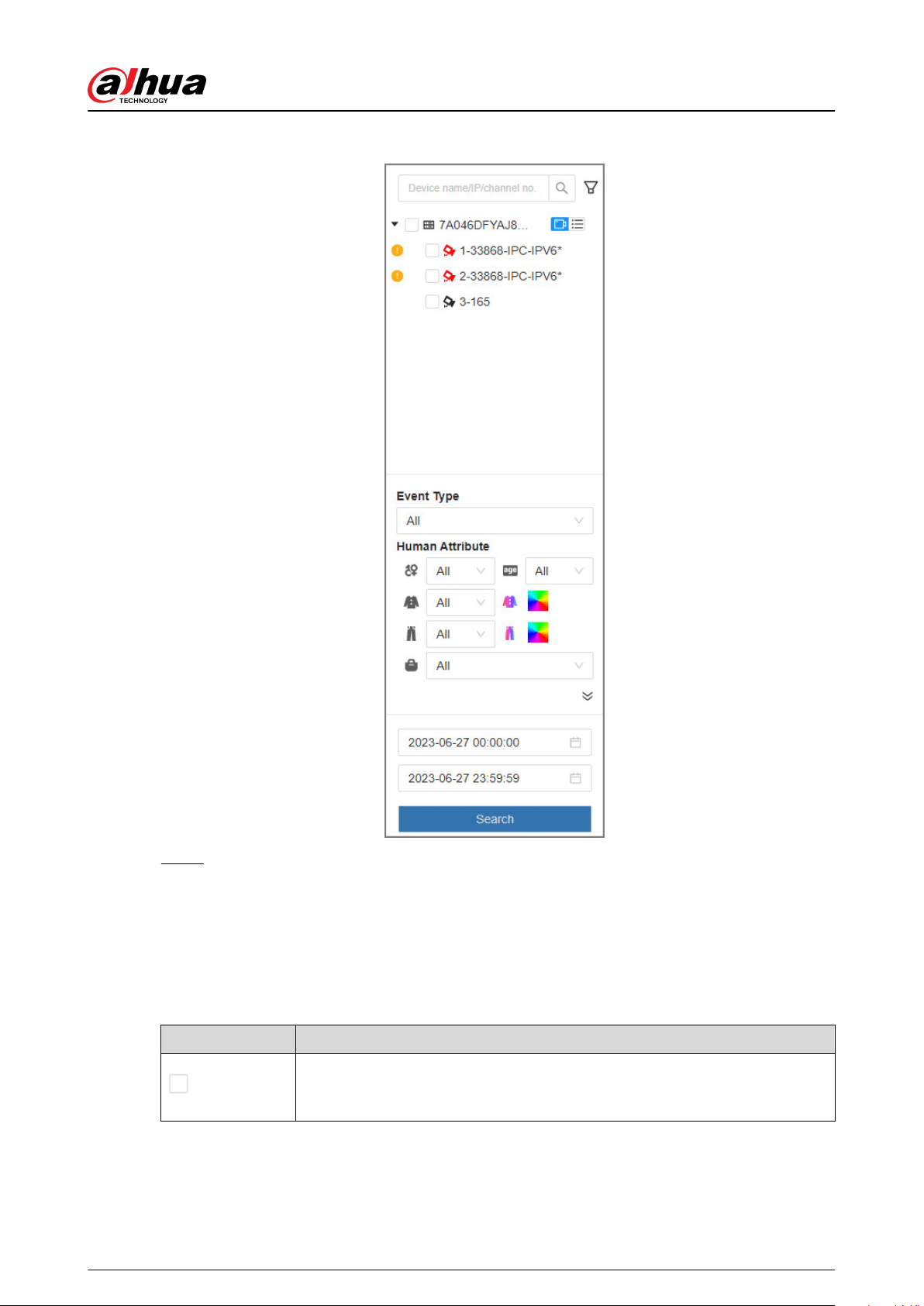
Figure 9-20 Search by human attributes
Step 6 Click Search.
●
If face is captured, the human and face snapshots are displayed.
●
If no face is captured, the human snapshot and human attributes are displayed.
Related Operations
Point to a record, and then the following icons are displayed.
Table 9-15 Management of search results
Icon Operation
Click the icon to select the record.
To select all the records at a time, select the checkbox next to Select All.
User's Manual
212

Icon Operation
Export the snapshot, video and video player.
To export in batches, select multiple records, and then click Export to export
snapshots, videos or excel.
After you set alarm linkage snapshot, the system exports detected images and
panoramic images at the time of snapshot.
Click the icon or double-click the record to play back the 10 seconds of video
before and after the snapshot.
9.4.5.4.2 Vehicle Search
Search for vehicle detection results.
Procedure
Step 1 Log in to the PC client.
Step 2 Click on the upper-right corner of the Live page, or select AI Search on the home
page.
Step 3 Select Motor Vehicle Search, and then select one or more remote devices.
Step 4 Set Event Type to Motor Vehicle Detection.
Step 5 Set vehicle attributes and search period.
Click
to select a color. indicates all colors.
User's Manual
213
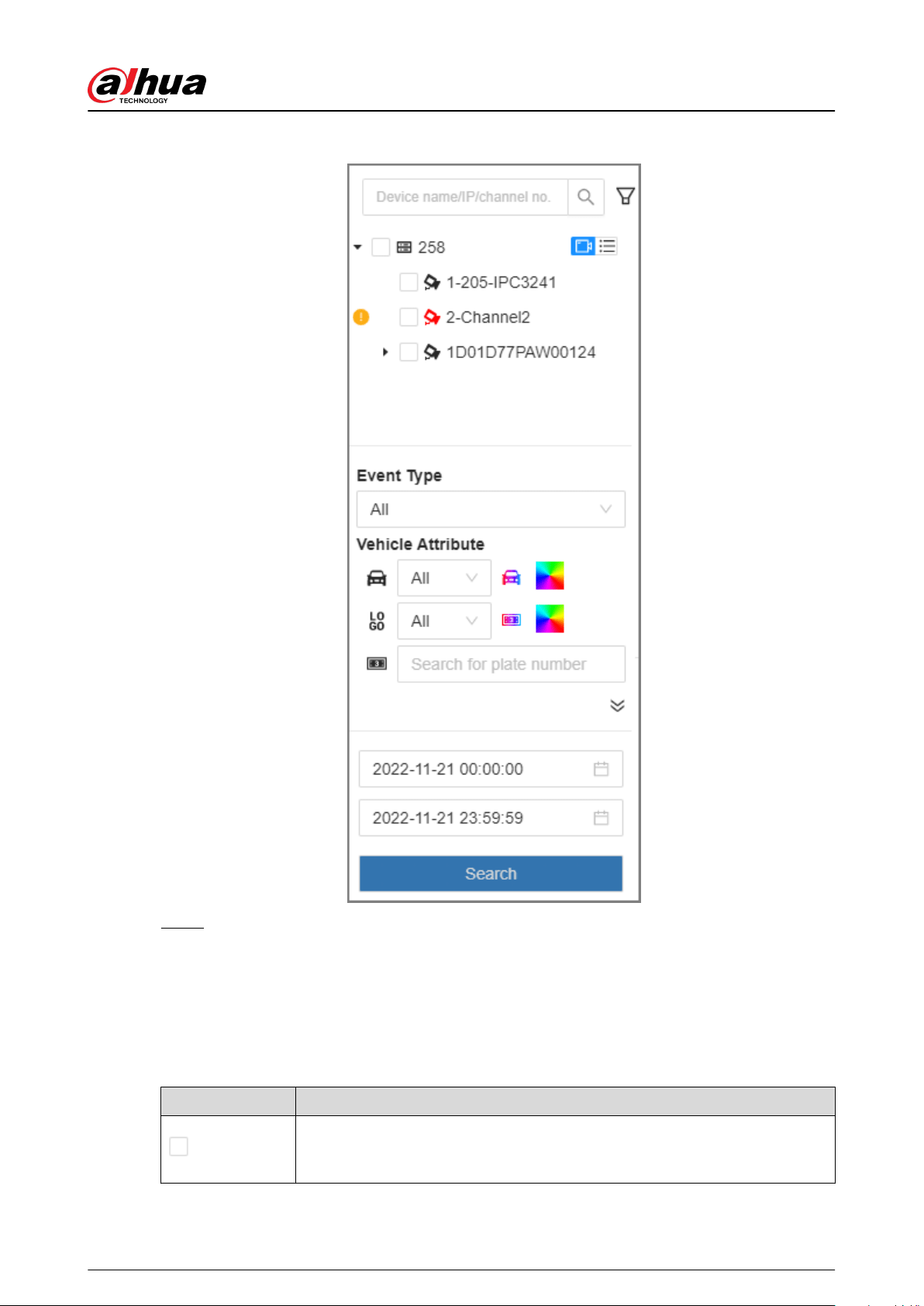
Figure 9-21 Search by vehicle attributes
Step 6 Click Search.
If license plate is detected, both the scene of the vehicle and the license plate will be
displayed.
Related Operations
Point to a record, and then the following icons are displayed.
Table 9-16 Management of search results
Icon Operation
Click the icon to select the record.
To select all the records at a time, select the checkbox next to Select All.
User's Manual
214
Icon Operation
Export the snapshot, video and video player.
To export in batches, select multiple records, and then click Export to export
snapshots, videos or excel.
After you set alarm linkage snapshot, the system exports detected images and
panoramic images at the time of snapshot.
Click the icon or double-click the record to play back the 10 seconds of video
before and after the snapshot.
9.4.5.4.3 Non-motor Vehicle Search
Search for non-motor vehicle detection results.
Procedure
Step 1 Log in to the PC client.
Step 2 Click on the upper-right corner of the Live page, or select AI Search on the home
page.
Step 3 Select Non-Motor Vehicle Search, and then select one or more remote devices.
Step 4 Set Event Type to Non-Motor Vehicle Detection.
Step 5 Set vehicle attributes and search period.
Click
to select a color. indicates all colors.
Step 6 Click Search.
Related Operations
Point to a record, and then the following icons are displayed.
Table 9-17 Management of search results
Icon Operation
Click the icon to select the record.
To select all the records at a time, select the checkbox next to Select All.
Export the snapshot, video and video player.
To export in batches, select multiple records, and then click Export to export
snapshots, videos or excel.
After you set alarm linkage snapshot, the system exports detected images and
panoramic images at the time of snapshot.
Click the icon or double-click the record to play back the 10 seconds of video
before and after the snapshot.
User's Manual
215

9.4.6 IVS
The IVS feature includes a number of behavior detections such as fence-crossing, intrusion, tripwire,
parking, crowd gathering, missing object, abandoned object, and loitering.
9.4.6.1 Enabling the Smart Plan
To use AI by Camera, you need to enable the corresponding smart plan rst. For details, see "9.4.2.1
Enabling the Smart Plan".
9.4.6.2 Conguring IVS
9.4.6.2.1 Global Conguration
Congure global rules of IVS.
Procedure
Step 1 Log in to the PC client.
Step 2 Click on the upper-right corner, and then click Event.
You can also click Event from the conguration list on the home page.
Step 3 Select a remote device on the device tree, and then select Smart Plan > IVS.
Step 4 Select AI By Camera > Global Cong.
Step 5 Drag to adjust sensitivity.
Step 6 Calibrate horizontal and vertical scales.
1. Click to draw an area.
2. Click
to draw three vertical lines, enter the actual length, and then click
Calibration Verication.
3. Click to draw a horizontal line, enter the actual length, and then click Calibration
Verication.
Step 7 Click Save.
9.4.6.2.2 Rule Conguration
Background Information
Congure IVS rules. IVS functions with AI by Camera include crossing fence, tripwire, intrusion,
abandoned object, parking detection, people gathering, object removed, and loitering. Dierent
cameras support dierent functions. Dierent devices support dierent functions, please refer to
the actual interface.
User's Manual
216

Table 9-18 IVS functions description
Functions Description Scene
Tripwire
When the target crosses tripwire
from the dened motion direction,
an alarm is triggered, and then the
system performs congured alarm
linkages.
Scenes with sparse targets and no
occlusion among targets, such as the
perimeter protection of unattended
area.
Intrusion
When the target enters, leaves, or
appears in the detection area, an
alarm is triggered, and the system
performs congured alarm
linkages.
Abandoned
Object
When an object is abandoned in
the detection area over the
congured time, an alarm is
triggered, and then the system
performs congured alarm
linkages.
Scenes with sparse targets and without
obvious and frequent light change.
Simple scene in the detection area is
recommended.
●
Missed alarm might increase in the
scenes with dense targets, frequent
occlusion, and people staying.
●
In scenes with complex foreground
and background, false alarm might
be triggered for abandoned or
missing object.
Missing Object
When an object is taken out of the
detection area for more than the
dened period, an alarm is
triggered, and then the system
performs congured alarm
linkages.
Fast Moving
When the target moves fast in the
detection area, an alarm is
triggered, and then the system
performs congured alarm
linkages.
Scene with sparse targets and less
occlusion. The camera should be
installed right above the monitoring
area. The light direction should be
vertical to the motion direction.
Parking Detection
When the vehicle stays in the
detection area longer than the
congured duration, an alarm is
triggered, and then the system
performs congured alarm
linkages.
Road monitoring and trac
management.
Crowd Gathering
When people gather and stay in
the detection area longer than the
dened duration, an alarm is
triggered, and then the system
performs congured alarm
linkages.
Scenes with medium or long distance,
such as outdoor plaza, government
entrance, station entrance and exit. It is
not suitable for short-distance view
analysis.
Loitering
Detection
When the target loiters over the
shortest alarm period, an alarm is
triggered, and then the system
performs congured alarm
linkages.
Scenes such as park and hall.
Crossing Fence
When the target crosses the
warning line toward the dened
direction, an alarm is triggered and
then the system performs
congured alarm linkages.
Scenes with median strips such as roads,
and airports.
User's Manual
217

This section uses the conguration of tripwire as the example.
Procedure
Step 1 Log in to the PC client.
Step 2 Click on the upper-right corner, and then click Event.
You can also click Event from the conguration list on the home page.
Step 3 Select a remote device on the device tree, and then select Smart Plan > IVS.
Step 4 Set tripwire rules.
a. Select AI By Camera > Rule Cong.
b. Click Add Rule , and then select Tripwire.
c. Click to enable the detection rule.
d. Click to edit the tripwire line.
●
Click the dots on the 2 ends of the line to adjust its length.
●
Drag the line to adjust its position.
●
Select a direction from A to B , B to A, and Both. An alarm will be triggered only
when the target crosses the line in the designated direction.
e. Click
or to set minimum size or maximum size of the detection target.
The system triggers an alarm only when the detected target size is between the
maximum size and the minimum size.
Step 5 Congure target lter and sensitivity.
After setting target lter and the target type, when the system detects a target, a rule box
will appear beside the target on the video.
1. Click to enable the function.
2. Select a recognition type.
●
: Human.
●
: Vehicle.
3. Congure sensitivity.
The higher the sensitivity, the easier to trigger tripwire alarm, but meanwhile the
higher probability of false alarm.
Sensitivity is available when AI by Camera is used and the camera supports this
function.
Step 6 Click Schedule to select a schedule from the drop-down list.
The system triggers corresponding alarm actions only during the alarm deployment
period.
You can select an existing schedule from the Schedule drop-down list. You can also add
a new schedule. For details, see "7.4.3 Schedule".
Step 7 Click Select next to Event Linkage to set alarm actions. For details, see "9.1 Alarm
Actions".
Step 8 Click Save.
User's Manual
218
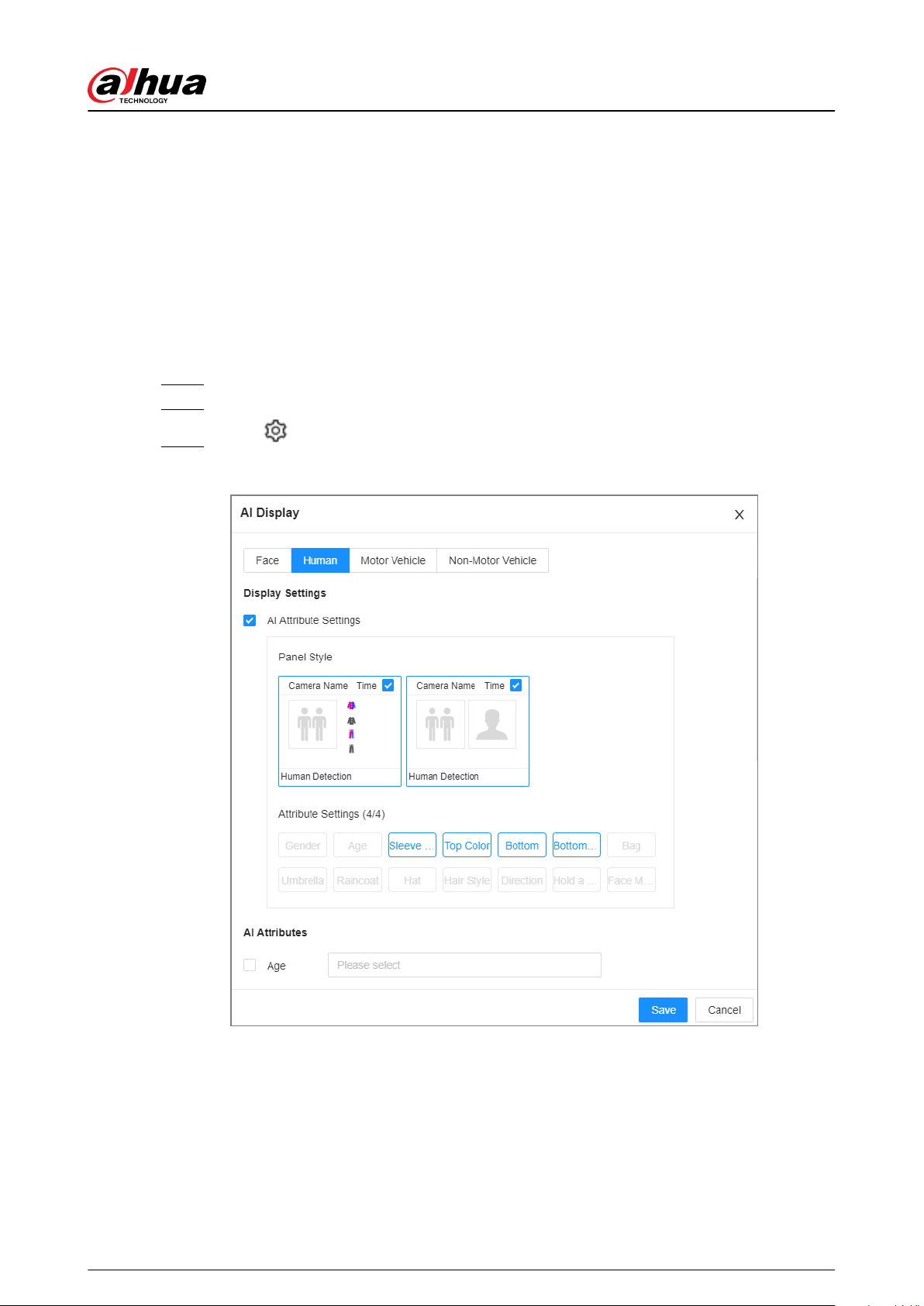
9.4.6.3 Live View of IVS
Under the Live tab, view the real-time IVS results.
9.4.6.3.1 Setting Attribute Display
Congure the display rule of IVS detection results.
Prerequisites
Before using this function, make sure that view has been created.
Procedure
Step 1 Log in to the PC client.
Step 2 Under the Live tab, open a view window.
Step 3 Click and then select the Human , and Motor Vehicle tab.
Figure 9-22 Human
User's Manual
219
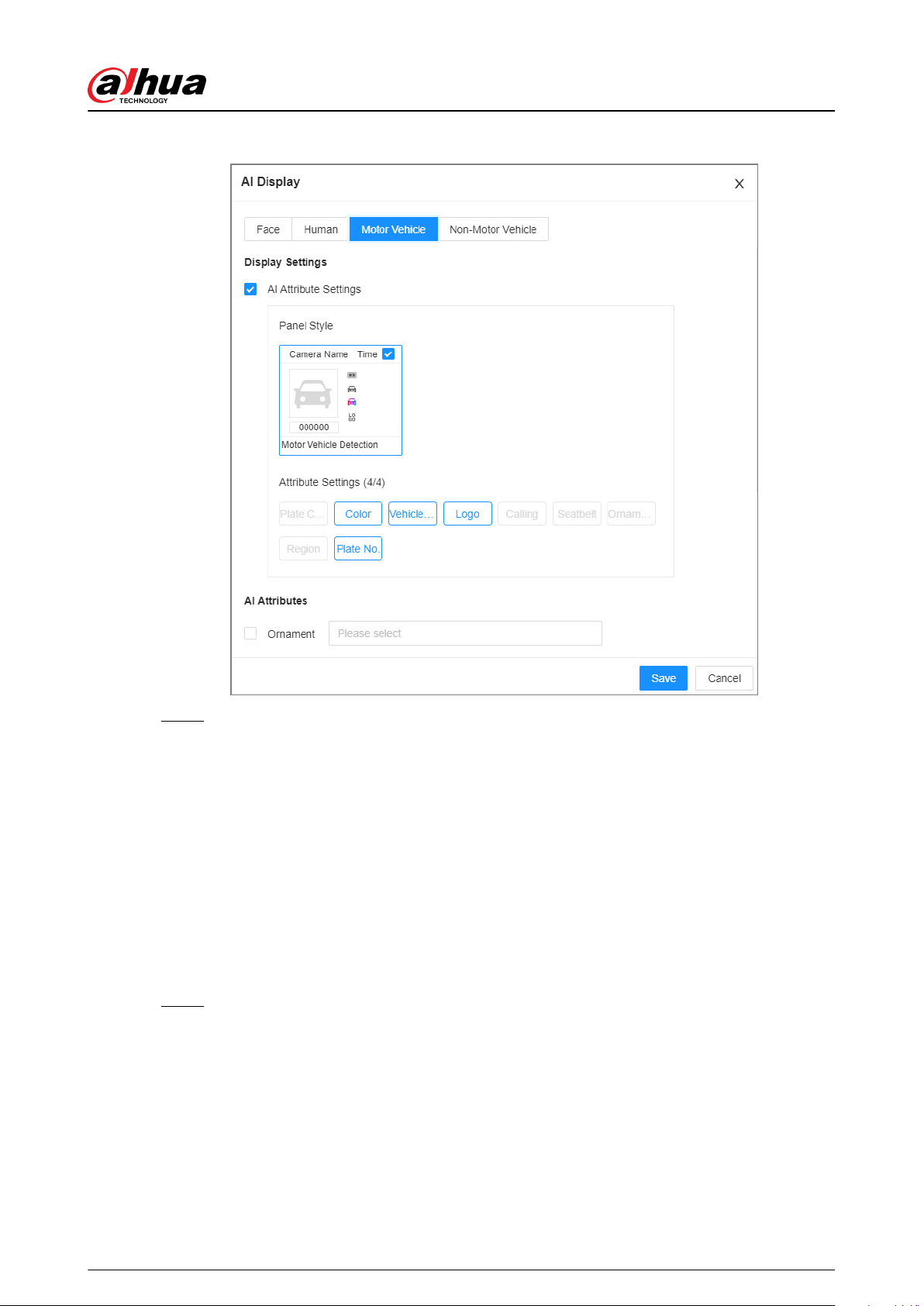
Figure 9-23 Motor vehicle
Step 4 Congure AI attributes settings.
With AI Attributes Settings enabled by default, when the system detects a target, a
features panel appears on the live video. You can congure the style of the features panel
and the attributes that you want to display.
1. Select the panel styles.
2. Select the attributes that you want to display.
●
You can select up to 4 attributes.
●
4 attributes have been selected by default. To select other attributes, cancel the
selected attributes, and then select the ones you need.
3. On the AI Attributes section, select the attribute groups for video metadata.
Each attribute is broken down into more specic groups. For example, you can select
Male , Female or Unknown for Gender.
Step 5 Click Save.
9.4.6.3.2 Live View
Log in to the PC client, and then under the Live tab, open a view window. The video image of the
view is displayed.
●
When a target triggers tripwire or intrusion rule, the line or region frame in the view ickers in
red.
●
After setting target lter, when the system detects a person or vehicle, a rule box will appear
beside the person and vehicle in the view.
User's Manual
220
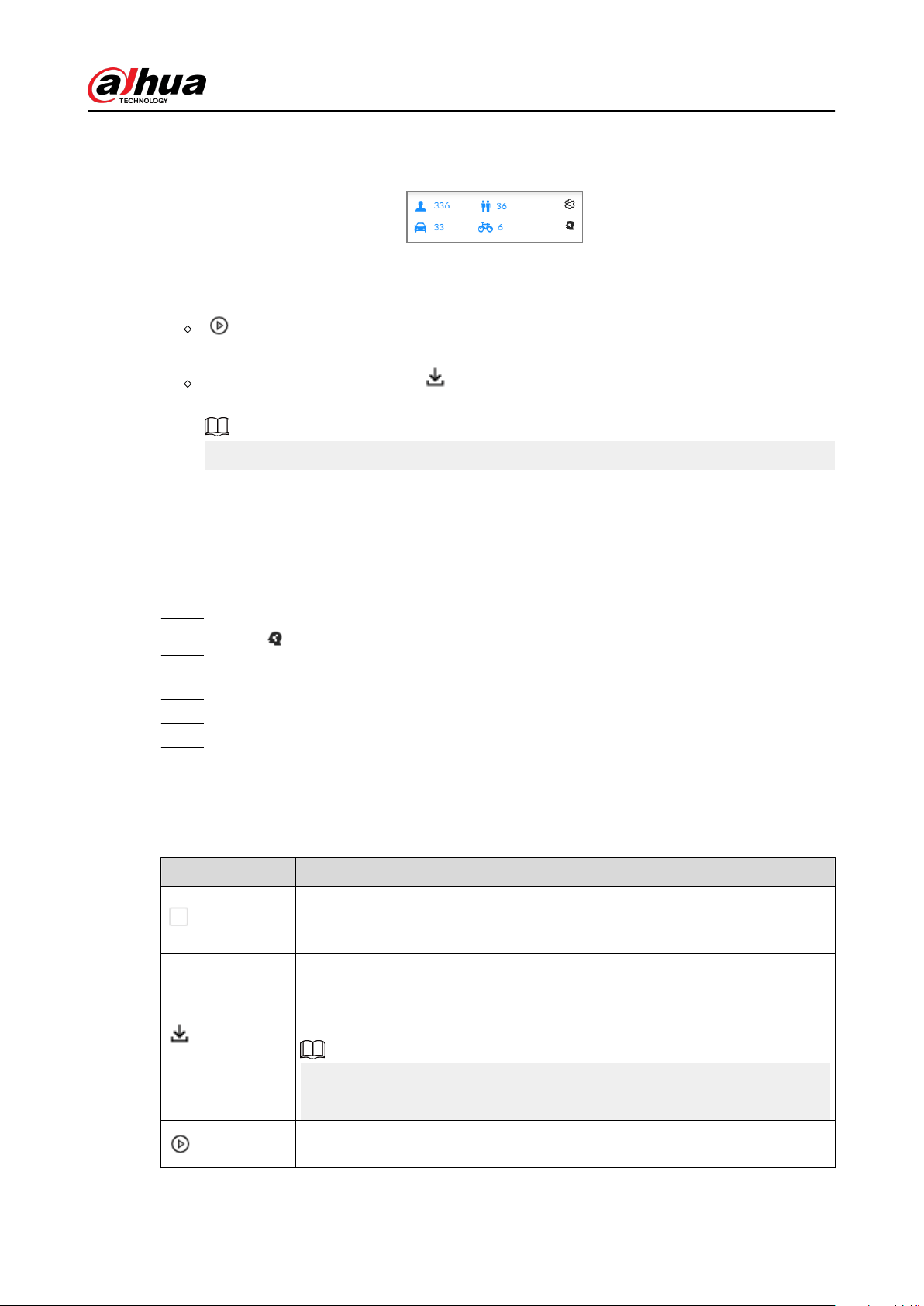
●
You can view the detection statistics on the upper-righter corner of the Live page.
Figure 9-24 Detection statistics
●
Features panels are displayed on the right side of the video image.
Point to the features panel, and the icons are displayed.
: Click the icon or double-click the record to play back the 10 seconds of video before
and after the snapshot.
Point to a record, and then click to export the snapshot and video to the specied
storage path.
Make sure that USB storage device is connected during local operation.
9.4.6.4 IVS Search
Search for IVS records.
Procedure
Step 1 Log in to the PC client.
Step 2 Click on the upper-right corner of the Live page, or select AI Search on the home
page.
Step 3 Select IVS, and then select one or more remote devices.
Step 4 Set the event type, eective target and search period.
Step 5 Click Search.
Related Operations
Point to a record, and then the following icons are displayed.
Table 9-19 Management of search results
Icon Operation
Click the icon to select the record.
To select all the records at a time, select the checkbox next to Select All.
Export the snapshot, video and video player.
To export in batches, select multiple records, and then click Export to export
snapshots, videos or excel.
After you set alarm linkage snapshot, the system exports detected images and
panoramic images at the time of snapshot.
Click the icon or double-click the record to play back the 10 seconds of video
before and after the snapshot.
User's Manual
221
9.4.7 Vehicle Recognition
An alarm is triggered when the detected vehicle meets detection rule.
The Device supports only ANPR through AI by Camera. Make sure that the vehicle recognition
parameters of camera are congured. For details, see the user's manual of the camera.
9.4.7.1 Enabling the Smart Plan
To use AI by Camera, you need to enable the corresponding smart plan rst. For details, see "9.4.2.1
Enabling the Smart Plan".
9.4.7.2 Setting Vehicle Recognition
Set the deployment time and alarm linkage actions for vehicle recognition.
Procedure
Step 1 Log in to the PC client.
Step 2 Click on the upper-right corner, and then click Event.
You can also click Event from the conguration list on the home page.
Step 3 Select a remote device on the device tree, and then select Smart Plan > Vehicle
Recognition.
The function is enabled by default and cannot be disabled.
Step 4 Click Schedule to select a schedule from the drop-down list.
The system triggers corresponding alarm actions only during the alarm deployment
period.
You can select an existing schedule from the Schedule drop-down list. You can also add
a new schedule. For details, see "7.4.3 Schedule".
Step 5 Click Select next to Event Linkage to set alarm actions. For details, see "9.1 Alarm
Actions".
Step 6 Click Save.
9.4.7.3 Live View of Vehicle Recognition
View vehicle recognition results under the Live tab.
9.4.7.3.1 Setting Attribute Display
Congure the display rule of vehicle recognition results.
Prerequisites
Before using this function, make sure that view has been created.
User's Manual
222
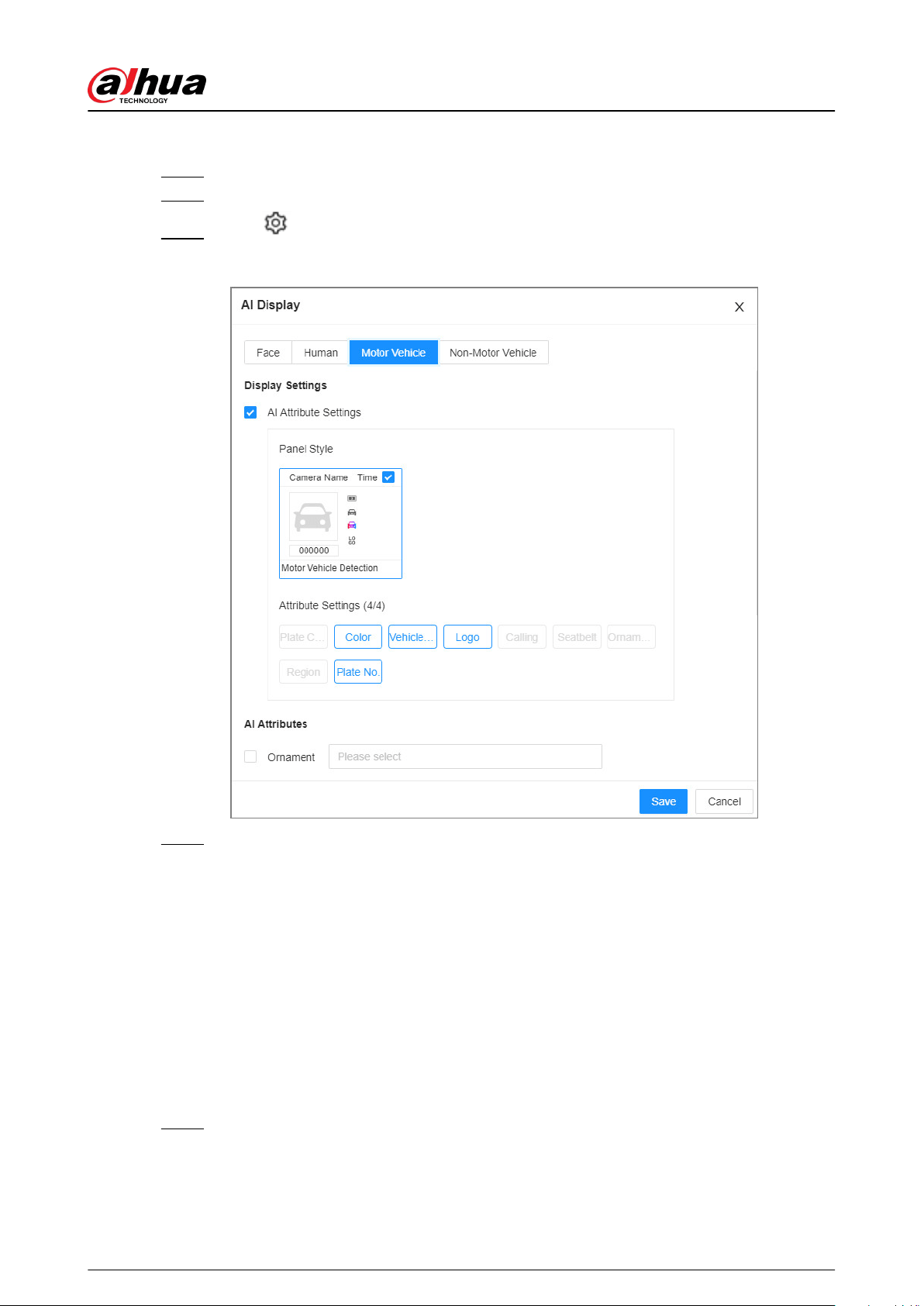
Procedure
Step 1 Log in to the PC client.
Step 2 Under the Live tab, open a view window.
Step 3 Click and then select the Motor Vehicle tab.
Figure 9-25 Motor vehicle
Step 4 Congure AI attributes settings.
With AI Attributes Settings enabled by default, when the system detects a target, a
features panel appears on the live video. You can congure the style of the features panel
and the attributes that you want to display.
1. Select the panel styles.
2. Select the attributes that you want to display.
●
You can select up to 4 attributes.
●
4 attributes have been selected by default. To select other attributes, cancel the
selected attributes, and then select the ones you need.
3. On the AI Attributes section, select the attribute groups for video metadata.
Each attribute is broken down into more specic groups. For example, you can select
Bus , Heavy Truck, Van and more for Vehicle Type.
Step 5 Click Save.
User's Manual
223

9.4.7.3.2 Live View
Log in to the PC client, and then under the Live tab, open a view window. The video image of the
view is displayed.
●
Target box is displayed in the video image.
●
The number next to
at the upper-right corner of the Live page represents the number of
detected motor vehicles.
●
Features panel is displayed at the right side of the Live page.
Point to the features panel, and the operation icons are displayed.
●
Click
or double-click the vehicle image to play back the video image (10 s before and after
the snapshot).
●
Click
to export the snapshot and video to the specied storage path.
9.4.7.4 Searching for Detection Results
Search for vehicle recognition results. For details, see "9.4.5.4.2 Vehicle Search".
9.4.8 Crowd Distribution Map
View and monitor people crowd to avoid crowd incidents, for example, stampede.
This function is only available with AI by Camera.
9.4.8.1 Enabling the Smart Plan
To use AI by Camera, you need to enable the corresponding smart plan rst. For details, see "9.4.2.1
Enabling the Smart Plan".
9.4.8.2 Conguring Crowd Distribution Map
Set crowd distribution alarm rules.
9.4.8.2.1 Global Conguration
Draw lines on the image to determine the geographical scale of the image.
Procedure
Step 1 Log in to the PC client.
Step 2 Click on the upper-right corner, and then click Event.
You can also click Event from the conguration list on the home page.
Step 3 Select a remote device on the device tree, and then select Smart Plan > IVS.
Step 4 Select AI By Camera > Global Cong.
Step 5 Draw 1 horizontal line and 3 vertical lines.
User's Manual
224
●
Click
, draw vertical lines, and then enter their geographical distance values.
●
Click
, draw a horizontal line, and then enter the geographical distance value.
Step 6 Click Save.
9.4.8.2.2 Rule Conguration
Congure the alarm threshold for crowd monitoring.
Procedure
Step 1 Log in to the PC client.
Step 2 Click on the upper-right corner, and then click Event.
You can also click Event from the conguration list on the home page.
Step 3 Select a remote device on the device tree, and then select Smart Plan > IVS.
Step 4 Select AI By Camera > Rule Cong.
Step 5 In the device tree, select a camera.
Step 6 Select AI Application > Crowd Distribution Map > Rule Cong.
Step 7 Set detection rules.
●
Set regional alarm.
An alarm is triggered when the number of detected people exceeds the threshold.
a. Click Add Rule.
b. Click
and then drag the corners to adjust the size of the yellow zone.
c. Drag the corners to adjust the size of the regional detection zone (red). Make sure
that the red zone is smaller than the yellow zone.
d. Congure alarm threshold.
●
Set global alarm.
An alarm is triggered when the detected crow density exceeds the threshold.
a. Click
to enable global detection.
b. Click and then drag the corners to adjust the size of the yellow zone.
c. Set the crow density.
Step 8 Click Schedule to select a schedule from the drop-down list.
The system triggers corresponding alarm actions only during the alarm deployment
period.
You can select an existing schedule from the Schedule drop-down list. You can also add
a new schedule. For details, see "7.4.3 Schedule".
Step 9 Click Select next to Event Linkage to set alarm actions. For details, see "9.1 Alarm
Actions".
Step 10 Click Save.
User's Manual
225
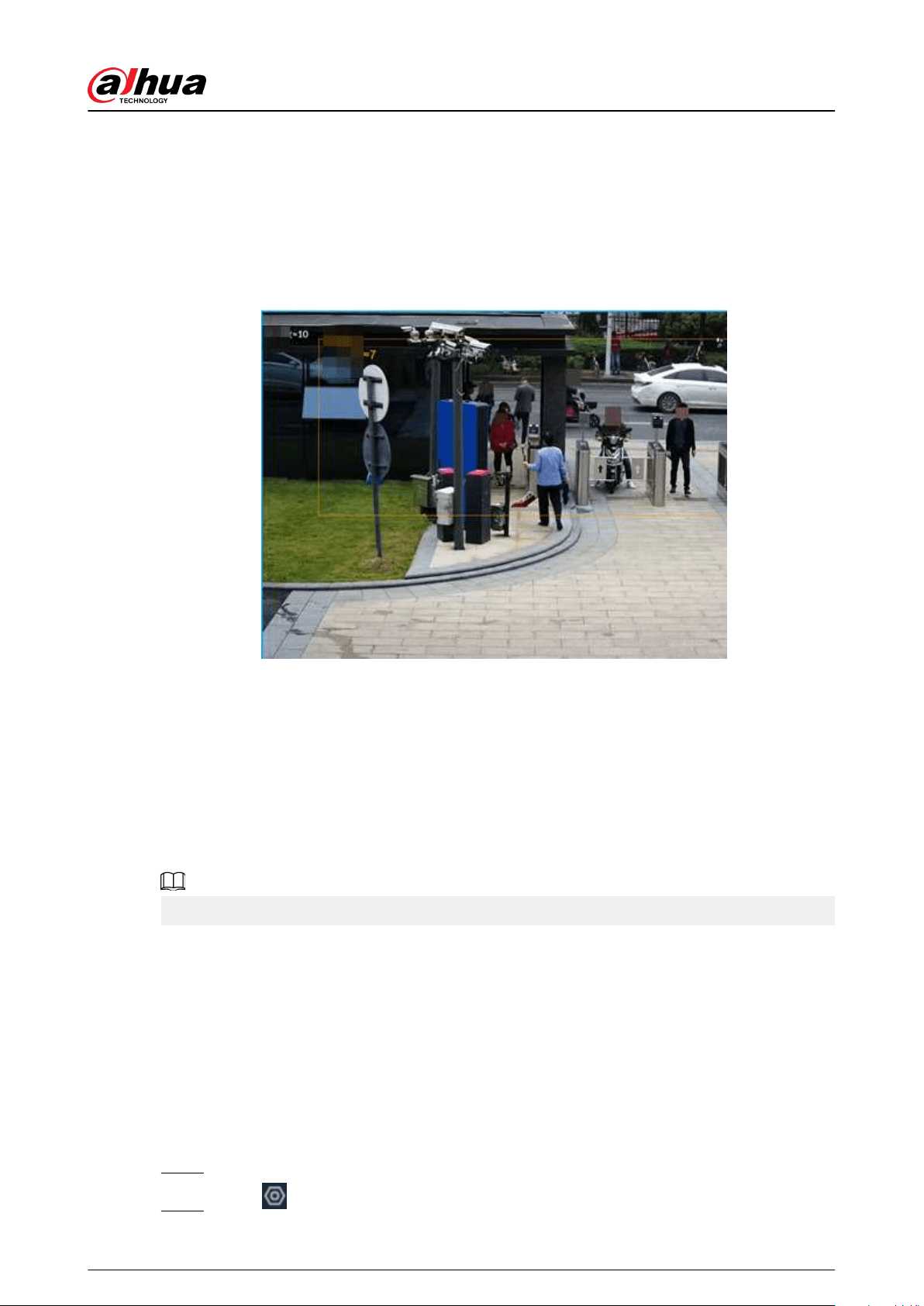
9.4.8.3 Live View of Crowd Distribution
Log in to the PC client, and then under the Live tab, open a view window. The video image of the
view is displayed.
The video shows people numbers and distribution status in the detection zones in real time. The
frame around the detection zone ashes red when there is an alarm in the zone.
Figure 9-26 Live view of crowd distribution
●
Right-click the live video, and then select Crowd Distribution Map > PIP. A blue section is
displayed, and you can view the crowd distribution status inside the current view.
●
Right-click the live video, and then select Crowd Distribution Map > Global to view overall
crowd density and people heads.
9.4.9 Call Alarm
An alarm is triggered when the system detects a person calling. To congure call alarm, set call
detection rules for the visible light channel of a thermal camera.
Call alarm is only available with AI by Camera.
9.4.9.1 Enabling the Smart Plan
To use AI by Camera, you need to enable the corresponding smart plan rst. For details, see "9.4.2.1
Enabling the Smart Plan".
9.4.9.2 Conguring Call Alarm
Congure call alarm rules. The call alarm is only available with thermal cameras.
Procedure
Step 1 Log in to the PC client.
Step 2 Click on the upper-right corner, and then click Event.
User's Manual
226
You can also click Event from the conguration list on the home page.
Step 3 On the device tree, select the visible light channel of a thermal camera.
Step 4 Select Smart Plan > Call Detection.
Step 5 Click to enable the function.
Step 6 Click and then drag the corners to adjust the detection zone.
Step 7 Set the sensitivity and minimum duration.
●
Sensitivity: The higher the sensitivity, the easier the call action is detected but
meanwhile the higher probability of false alarms.
●
Minimum duration: If the call action still lasts longer than the minimum duration, the
system will trigger an alarm.
Step 8 Click Schedule to select a schedule from the drop-down list.
The system triggers corresponding alarm actions only during the alarm deployment
period.
You can select an existing schedule from the Schedule drop-down list. You can also add
a new schedule. For details, see "7.4.3 Schedule".
Step 9 Click Select next to Event Linkage to set alarm actions. For details, see "9.1 Alarm
Actions".
Step 10 Click Save.
9.4.9.3 Live View of Call Alarm
Log in to the PC client, and then under the Live tab, open a view window. The video image of the
view is displayed. When an alarm is triggered, the detection zone ashes red.
9.4.9.4 Call Alarm Search
Search for videos or images of call alarm.
Procedure
Step 1 Log in to the PC client.
Step 2 On the home page, click Search.
Step 3 Select one or more devices.
Step 4 You can search for the videos or images of call detection.
●
Videos
a. Under the Record tab, select Thermal as video type.
b. Select Call Detection as detection type.
c. Select a stream type.
d. Set the search period.
e. Click Search.
●
Images
a. Under the Picture tab, select Thermal as snapshot type.
b. Select Call Detection as detection type.
c. Set the search period.
d. Click Search.
User's Manual
227
9.4.10 Smoking Alarm
An alarm is triggered when the system detects a person smoking.
Smoking alarm is only available with AI by Camera.
9.4.10.1 Enabling the Smart Plan
To use AI by Camera, you need to enable the corresponding smart plan rst. For details, see "9.4.2.1
Enabling the Smart Plan".
9.4.10.2 Conguring Smoking Alarm
Congure smoking alarm rules. Smoking detection in only available with thermal cameras.
Procedure
Step 1 Log in to the PC client.
Step 2 Click on the upper-right corner, and then click Event.
You can also click Event from the conguration list on the home page.
Step 3 On the device tree, select the thermal channel of a thermal camera.
Step 4 Select Smart Plan > Smoking Detection.
Step 5 Click to enable the function.
Step 6 Set the sensitivity and minimum duration.
●
Sensitivity: The higher the sensitivity, the easier the smoking action is detected but
meanwhile the higher probability of false alarms.
●
Minimum duration: If the smoking action still lasts longer than the minimum duration,
the system will trigger an alarm.
Step 7 Click Schedule to select a schedule from the drop-down list.
The system triggers corresponding alarm actions only during the alarm deployment
period.
You can select an existing schedule from the Schedule drop-down list. You can also add
a new schedule. For details, see "7.4.3 Schedule".
Step 8 Click Select next to Event Linkage to set alarm actions. For details, see "9.1 Alarm
Actions".
Step 9 Click Save.
9.4.10.3 Live View of Smoking Alarm
Log in to the PC client, and then under the Live tab, open a view window. The video image of the
view is displayed. When an alarm is triggered, the detection zone ashes red.
9.4.10.4 Smoking Alarm Search
Search for videos or images of smoking alarm.
User's Manual
228
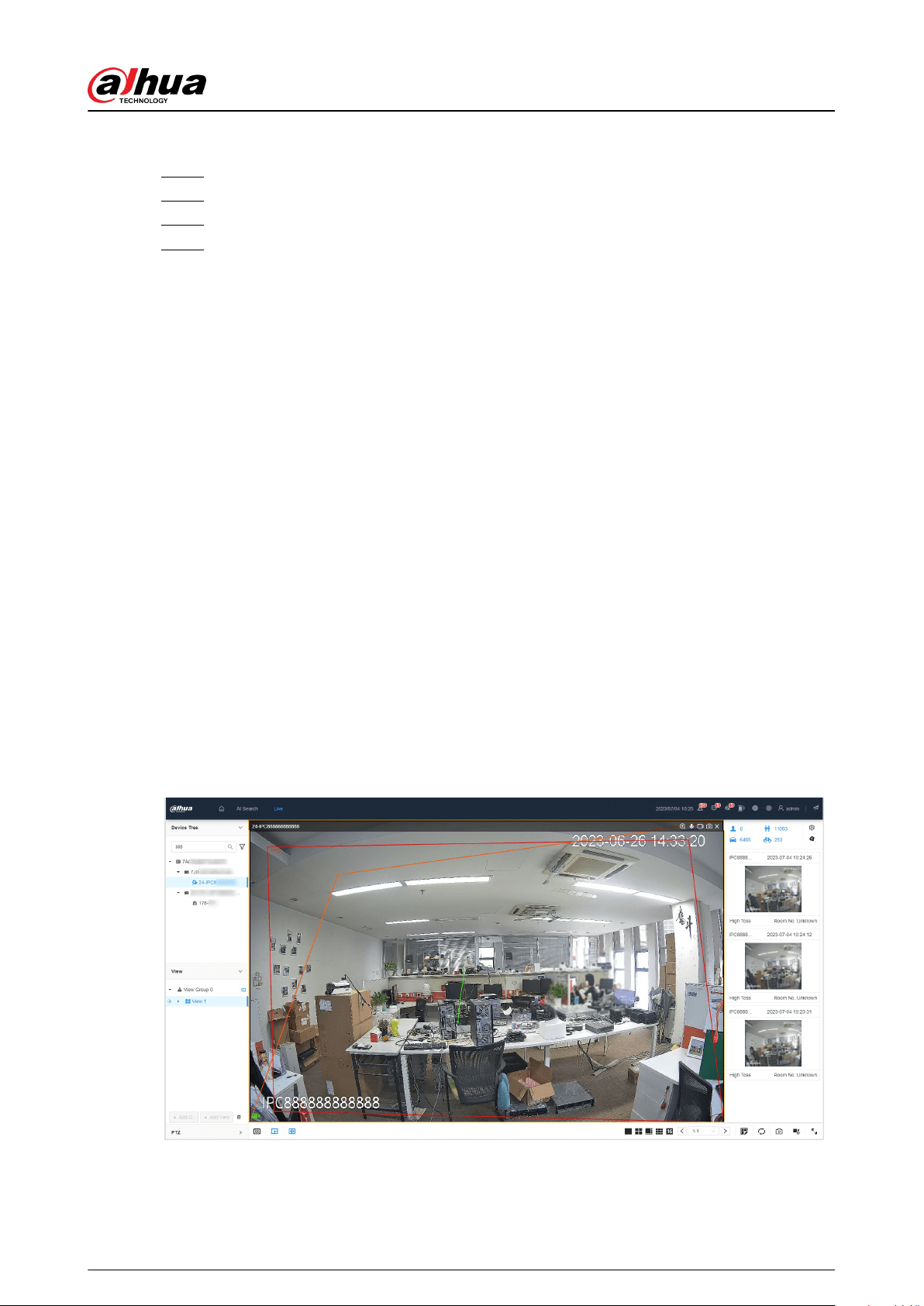
Procedure
Step 1 Log in to the PC client.
Step 2 On the home page, click Search.
Step 3 Select one or more devices.
Step 4 You can search for the videos or images of smoking detection.
●
Videos
a. Under the Record tab, select Thermal as video type.
b. Select Smoking Detection as detection type.
c. Select a stream type.
d. Set the search period.
e. Click Search.
●
Images
a. Under the Picture tab, select Thermal as snapshot type.
b. Select Smoking Detection as detection type.
c. Set the search period.
d. Click Search.
9.4.11 High Toss
When the connected device set high toss, you can view and search events of high toss.
9.4.11.1 Live View
Log in to the PC client, and then under the Live, open a view window.
When an alarm is triggered, the window displays a parabolic trajectory and a screenshot is
displayed in a list on the right.
Figure 9-27 Live view
User's Manual
229
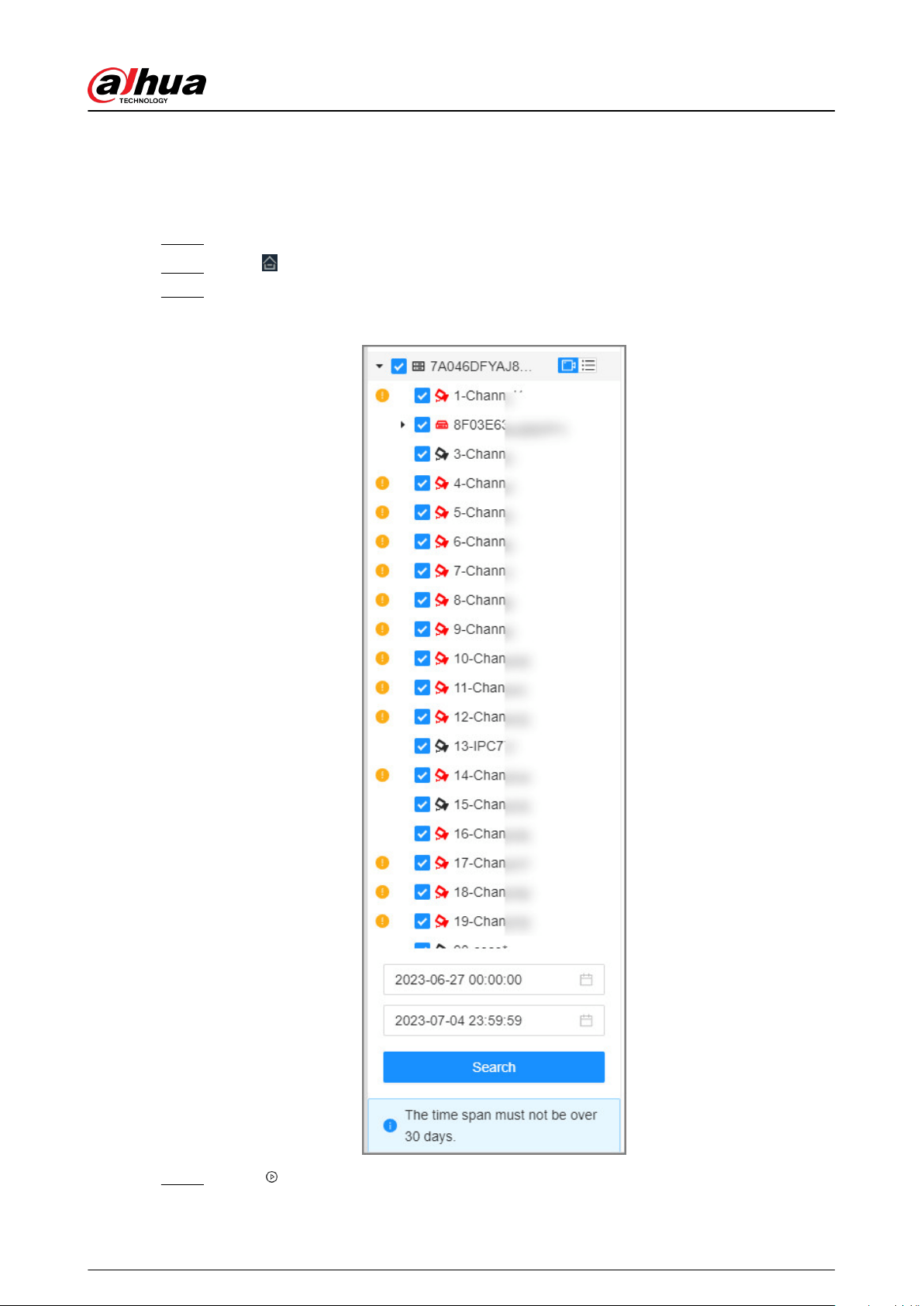
9.4.11.2 High Toss Search
Supports searching for detection information of high toss.
Procedure
Step 1 Log in to the PC client.
Step 2 Click , select AI Search > High Toss.
Step 3 Select the device, set the time, and then click Search.
Figure 9-28 High toss search
Step 4 Click or double-click screen.
User's Manual
230
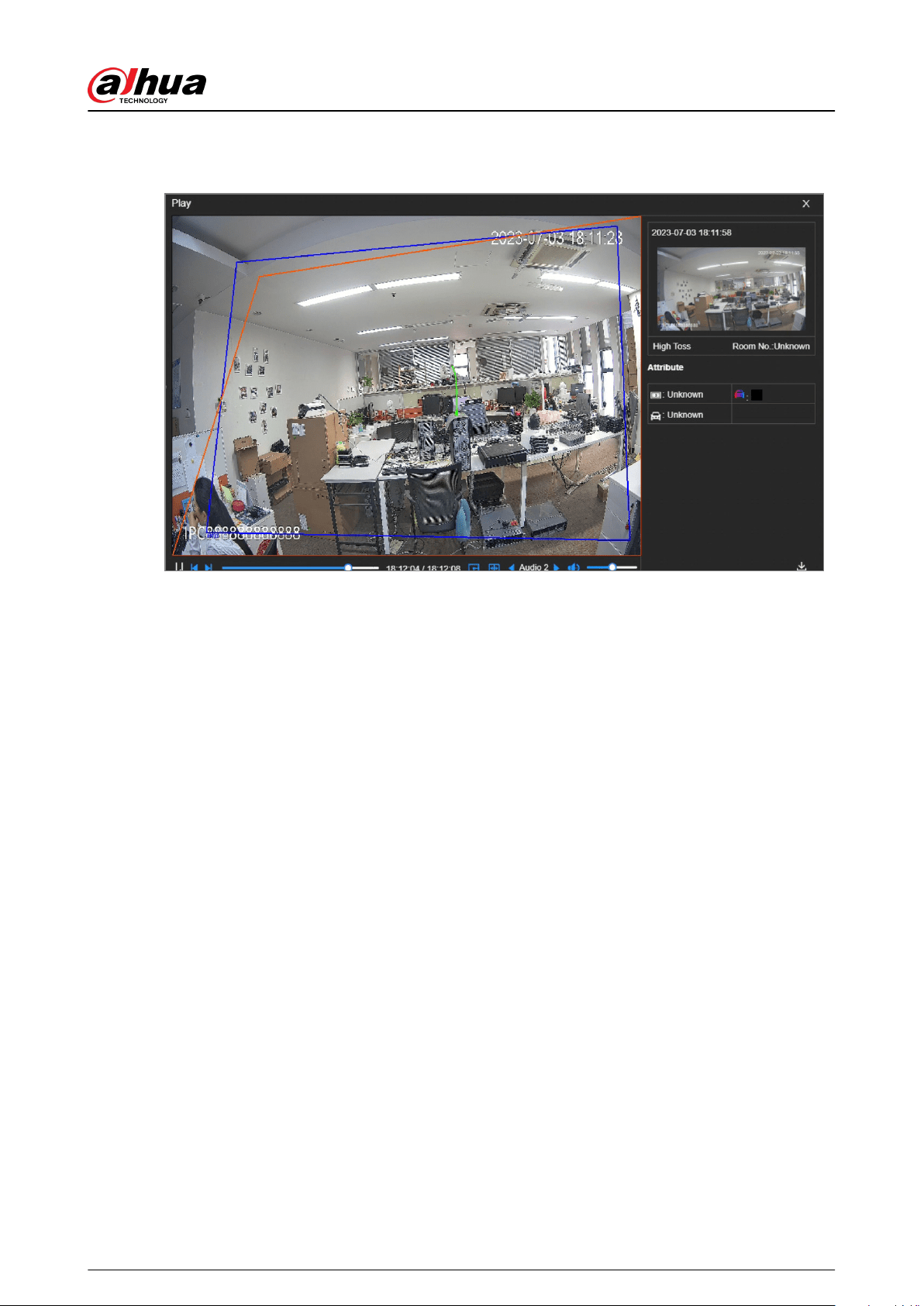
When the system detects high toss, it displays the trajectory.
Figure 9-29 High toss play
User's Manual
231
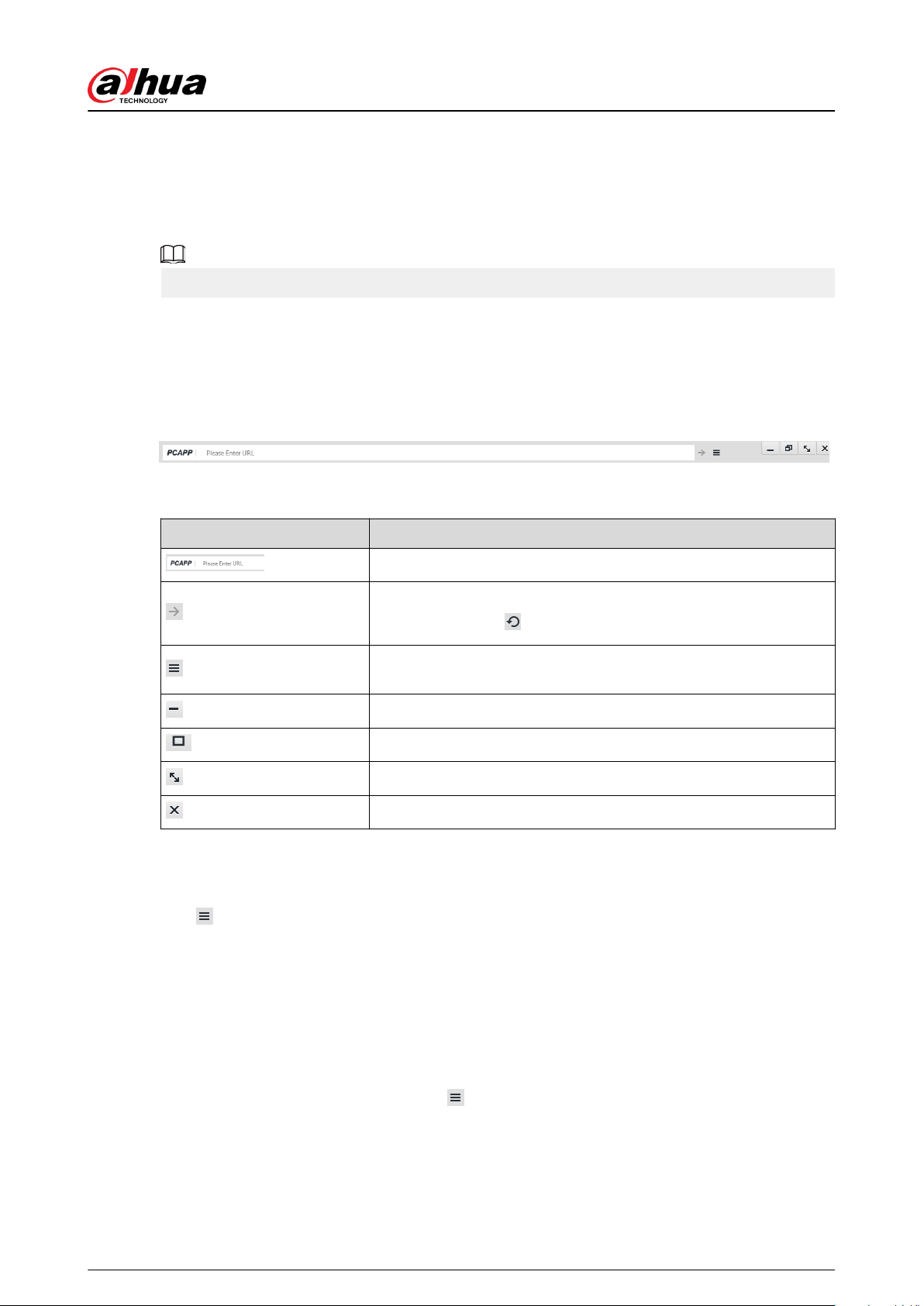
10 PC Client
After installing the PC client, you can access the Device remotely through the PC client to carry out
system conguration, function operations and system maintenance.
For details on installing the PC client, see "3.3.1 Logging in to the PC Client".
10.1 Page Description
Double-click the shortcut icon of the PC client on the desktop of your computer.
Figure 10-0 Taskbar
Table 10-1 Icons
Icon Description
Address bar: Enter the IP address of the Device.
Enter IP address and then click the button to go to the login page.
The icon turns into
. Click to refresh the page.
View history login records, downloads, client settings and client
version.
Minimize the client.
Maximize the client.
Display the client at full screen.
Close the client.
10.2 History Record
Click
, and then select History.
You can view history access records and clear cache.
●
Click Clear History to clear all history records.
●
Click Clear Cache to clear cache data, and restart the PC client.
10.3 Viewing Downloads
To view and clear history downloads, click
, and then select Download . The Downloads window
is displayed.
●
Double-click a le name to open it.
●
Click Displayed in Folder to open the folder where the le is located.
●
Click Clear to clear history download records.
User's Manual
232

10.4 Conguring the Client Settings
When the theme of your computer is not Areo, videos might not be displayed normally on the PC
client. We recommend you switch the computer theme to Areo, or enable the compatibility mode
of the client.
Switching Computer Theme
This section uses Windows 7 as an example.
Right-click any blank position on the computer desktop, select Personalize, and then switch to
Aero theme. Restart the PC client to make the Aero theme take eect.
Setting Video and Picture Storage Path
Click Browse to specify the paths for saving videos and pictures. This function is available only on
the PC client.
Enabling Compatibility Mode
Click
, and select Settings . Select the checkbox to enable Compatibility Mode. Restart the PC
client to make the compatibility mode take eect.
Enabling Hardware Acceleration
Click
, and select Settings . Select the checkbox to enable Enable hardware acceleration (it will
take eect after video is opened again).
The live videos become more uent when this function is enabled.
10.5 Viewing the Client Version
Click
and then select About to view the client version.
User's Manual
233
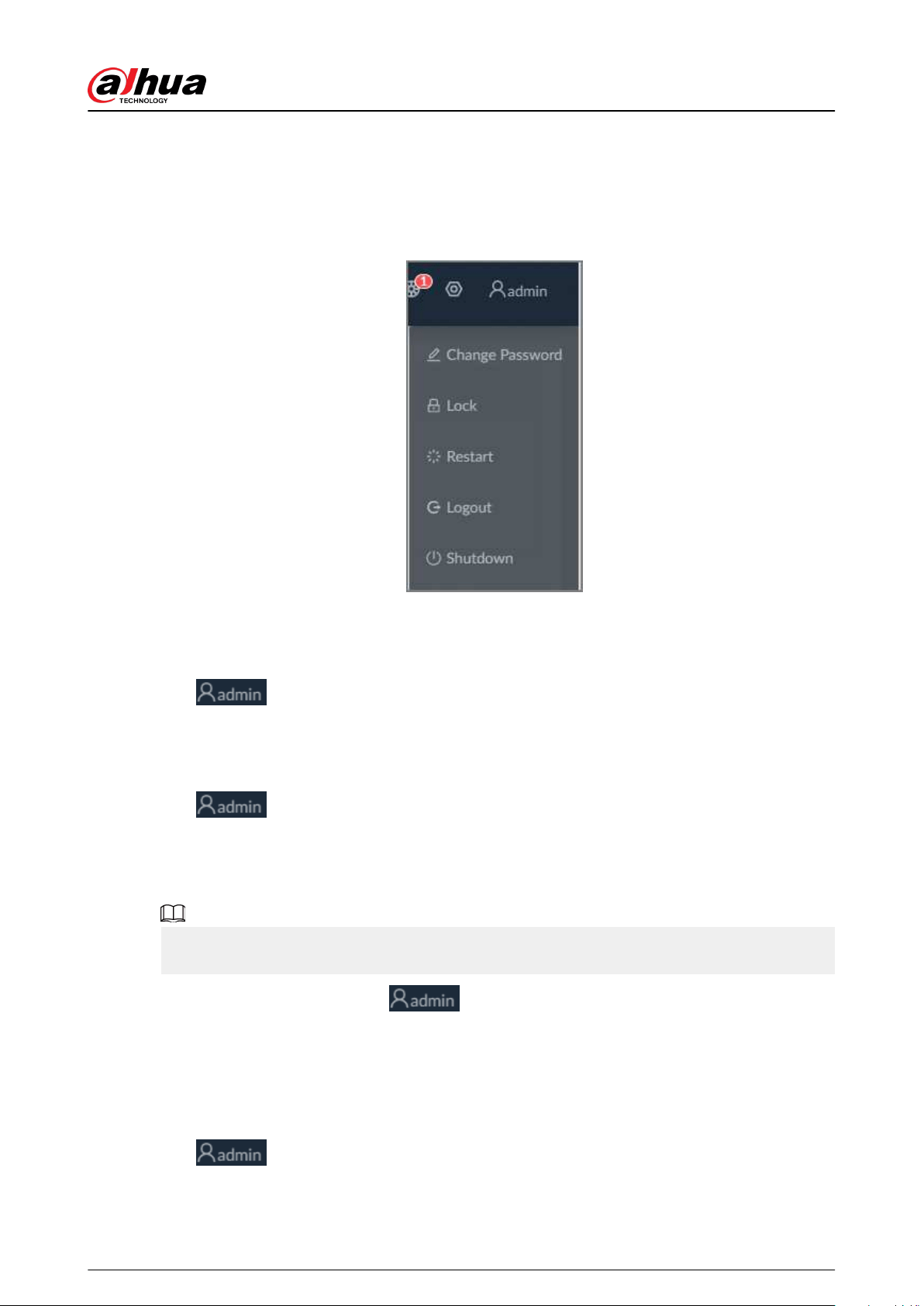
11 Log Out, Restart, Shut Down, Lock
Log out of, restart, shut down and lock out the Device.
Figure 11-0 User operation
Logging Out
Click , and then select Logout.
Restart
Click , select Restart , and then click OK.
Shutting Down
Shutting down the Device by unplug the power cable might cause data loss, and is not
recommended.
●
Mode 1 (recommended): Click , select Shutdown , and then click OK.
●
Mode 2: Press the power button on the Device.
●
Mode 3: Unplug the power cord.
Locking
Click
, and then select Lock to lock the screen. The locked client cannot be operated.
User's Manual
234

To unlock the client, click anywhere on the client, and then the Unlock window appears. Enter the
username and password, and then click OK. You can also click Switch User to switch to another
user account.
User's Manual
235

Appendix 1 Glossary
Appendix Table 1-1Glossary
Name Description
CGI
Common Gateway Interface (CGI) is an important Internet technology. With
CGI, client can ask data from program running on network server. CGI
describes data transmission standard between server and asking processing
program.
DDNS
Dynamic Domain Name System (DDNS) is to map the user dynamic IP
address to a specied domain analysis service. Each time, when the user
connects to the network, the client can transmit the host dynamic address to
the server application on the host of the service provider. The server
applications are to provide the DNS service and realize dynamic domain
analysis. That is to say, the user does not need to remember the changeable
IP address, just uses the domain name to login the device or the address.
DHCP
Dynamic Host Conguration Protocol (DHCP) is a network protocol in the
LAN. It is to automatically allocate IP address for the internal network or the
ISP (Internet service provider).It is to manage the computer IP address by the
unied means of management.
DNS
Domain Name System (DNS) is to save the all host domain name and
corresponding IP address in the network. It has the ability to change the
domain to the IP address.
DVR Digital Video Recorder.
FTP
File Transfer Protocol (FTP) is used to control bilateral transmission of le on
the Internet.
HDMI
High Denition Multimedia Interface (HDMI) is a special digital interface
suitable for audio/video transmission. It can transmit audio signal and video
signal at the same time.
HTTPS
Hyper Text Transfer Protocol over Secure Socket Layer (HTTPS) is a HTTP
channel for security purpose. The HTTPS has dened the browser the world
wide web service safety communication rule. It adopts encryption
technology to guaranty safety access to the webpage.
IP Internet Protocol.
IPC IP Camera.
NTP
Network Time Protocol (NTP) is a protocol to synchronize computer time. It
adopts wireless network protocol UDP, so that the computer time
synchronizes with the server or the time source. It is to provide time
correction of high accuracy.
NTSC
National Television Standards Committee, American national standard
television and broadcast transmission and receiving protocol. This is a
television standard that television scanning beam is 525 beams, 30 frames
per second, interlaced scanning, odd eld rst and then it is followed by
even eld. NTSC is used in the United States of America, Japan, and so on.
NVR Network Video Recorder
MTU
Maximum Transmission Unit (MTU) refers to the maximum data packet
amount (byte) on one layer of the communication protocol.
User's Manual
236

Name Description
ONVIF
Open Network Video Interface Forum (ONVIF) is the dened general protocol
for information exchange among the network video devices. It includes
search device, real-time audio/video, metadata, information control, and so
on.
PAL
Phase Alteration Line, this is a television standard that television scanning
beam is 625 beams, 25 frames per second, phase alteration, odd eld rst
and then it is followed by even eld. PAL color encoding is used. PAL is used
in China, Europe, and so on.
PTZ
Pan Tilt Zoom (PTZ) refers to the PTZ all-direction movement, lens zoom, and
focus control.
S.M.A.R.T
Self-Monitoring Analysis and Reporting Technology (S.M.A.R.T) is a technical
standard to detect HDD drive status and report potential problems.
SSH
Secure Shell (SSH) is a security protocol formulated by IETF network group on
the basis of application layer. SSH protocol can eectively prevent
information leakage problem during remote management.
SVC
Scalable Video Coding (SVC) is a video encoding technology. It can split the
video streams to one basic layer and several enhanced layers according to
the requirements. The basic layer provides the general video quality, frame
rate and resolution, and the enhanced layer is to perfect the video quality.
VGA
Video Graphics Array (VGA) is a video transmission standard. It has high
resolution, high display speed and abundant colors.
WLAN
Wireless Local Area Networks (WLAN) adopts radio frequency to realize data
transmission.
User's Manual
237

Appendix 2 Mouse and Keyboard Operations
This section introduces mouse and keyboard operations.
Appendix 2.1 Mouse Operations
Connect mouse to the USB port, you can use the mouse to control the local menu. For details, see
the following table.
Appendix Table 2-1Mouse operations
Operation Description
Click (click the left
mouse button)
Click to select a function menu, to enter the corresponding menu page.
●
Implement the operation indicated on the control.
●
Change checkbox and option button status.
●
Click the checkbox to display drop-down list.
●
On virtual keyboard, select letter, symbol, English upper letter and
lower letter, and Chinese characters.
Double-click (click the
left mouse button
twice)
●
On the L IVE page, double-click one video window to zoom in the
window. Click any position out of the window, so the video window
restores original size.
●
On the L IVE page, double-click the remote device in the device tree.
Switch to video edit status, and add remote device.
●
Double-click the image or record le thumbnail, to playback record
le or view the image.
Right-click (click the
right mouse button)
●
On the L IVE or SEARCH page, right-click one video window to
display the shortcut menu.
●
On the L IVE page, right-click the view in the list or the remote
device in the device tree, to display the shortcut menu.
Wheel button
●
On the S EARCH page, point to the time bar, and then click the
mouse wheel, to adjust the accurate time on the time bar.
●
Click the control that needs to input number (such as input date or
time). Roll the mouse wheel to adjust the number value.
Drag the mouse
●
Drag the mouse pointer to select the motion detect zone.
●
On the L IVE page, drag the remote device in the device tree to the
play window, switch to the view status. It is to add the remote
device.
●
On the S EARCH page, drag the record le or the image thumbnail
to the playback window. It is to play back the corresponding record
le or image.
Appendix 2.2 Virtual Keyboard
The local menu supports virtual keyboard.
Click the text box to display virtual keyboard. For details, see the following pictures and table.
User's Manual
238
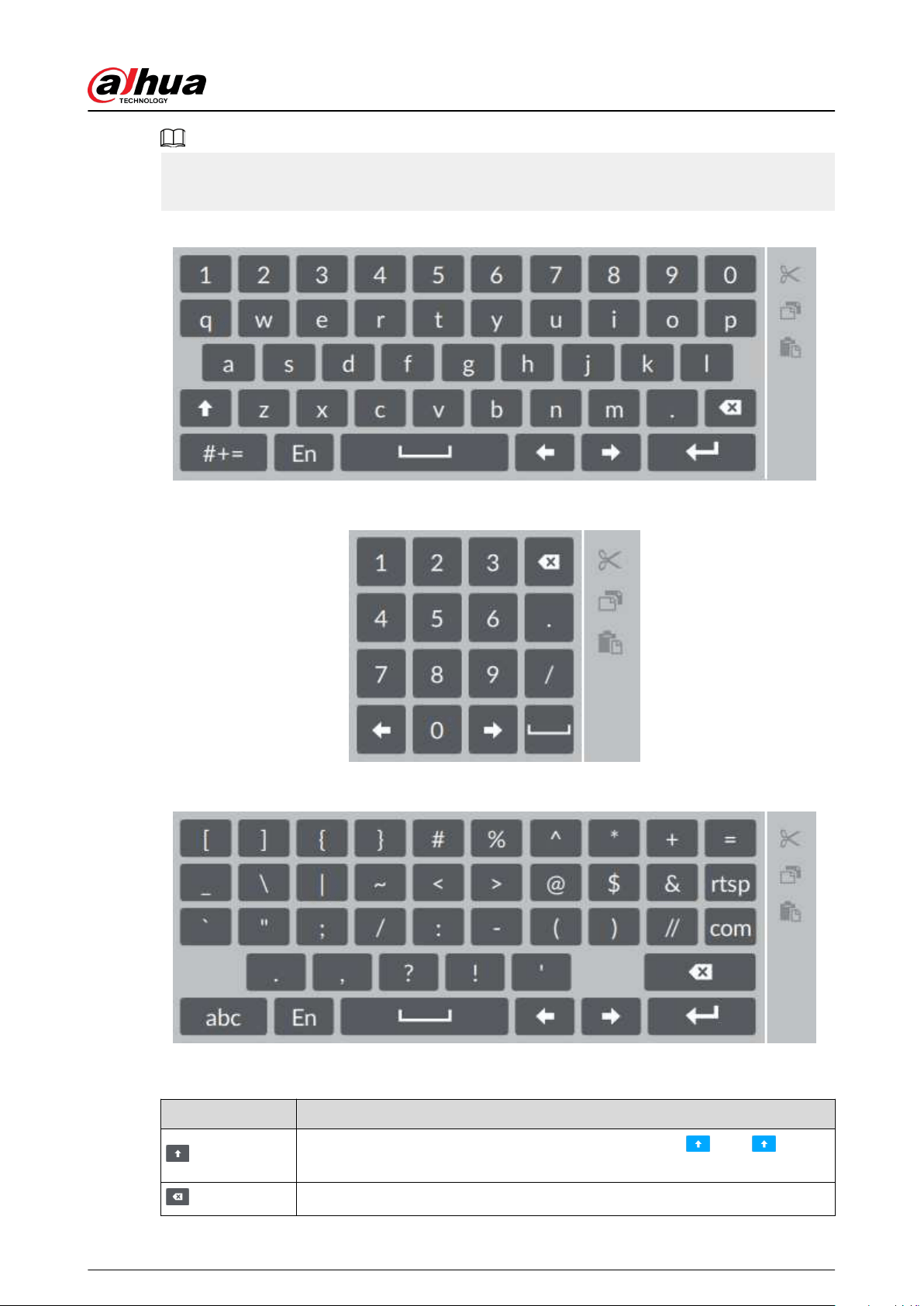
If the device has connected to the peripheral keyboard, click the text column. Virtual keyboard will
disappear.
Appendix Figure 2- 0 Virtual keyboard (global keyboard)
Appendix Figure 2- 1 Virtual keyboard (digital keyboard)
Appendix Figure 2- 2 Virtual keyboard (input letter)
Appendix Table 2-2Virtual keyboard icon
Signal Words Description
Click the icon to switch to upper case. The icon becomes . Click to
switch to lower case.
Click to delete letter.
User's Manual
239
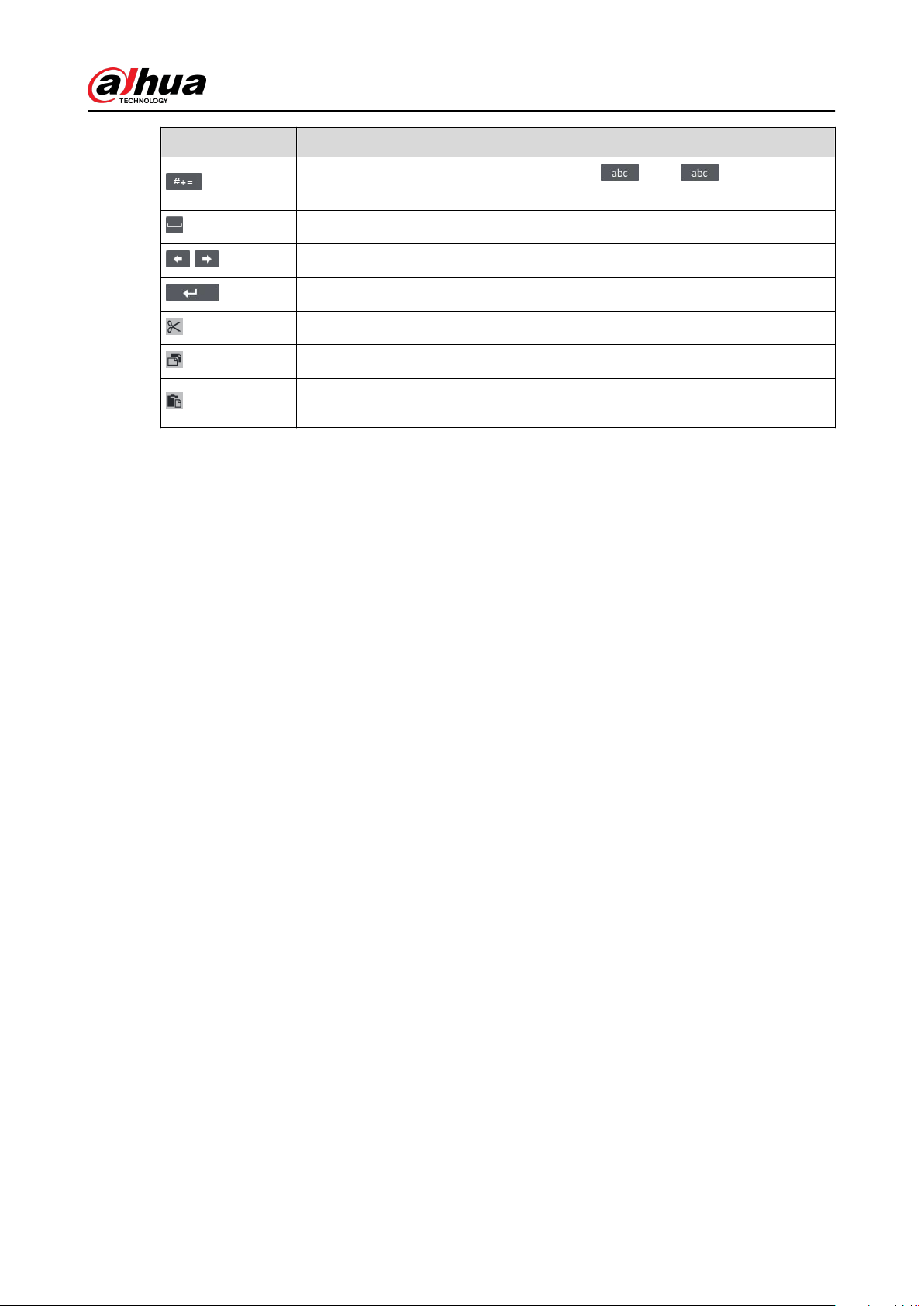
Signal Words Description
Click to input letter. Now the icon turns into . Click to restore
previous input mode.
Click to input space.
/
Click to control cursor position.
Click to switch to the next line.
Select text and click the icon to cut the selected contents.
Select text and click the icon to copy the selected contents.
Cut or copy the contents, click the text box and click the icon to paste the
contents.
User's Manual
240

Appendix 3 RAID
RAID is an abbreviation for Redundant Array of Independent Disks. It is to combine several
independent HDDs (physical HDD) to form a HDD group (logic HDD).
Comparing with one HDD, RAID provides more storage capacity and data redundancy. The
dierent redundant arrays have dierent RAID level. Each RAID level has its own data protection,
data availability and performance degree.
RAID Level
RAID Level Description Min. HDD Needed
RAID0
RAID 0 is called striping.
RAID 0 is to save the continued data
fragmentation on several HDDs. It can process the
read and write at the same time, so its read/write
speed is N (N refers to the HDD amount of the
RAID 0) times as many as one HDD. RAID 0 does
not have data redundant, so one HDD damage
might result in data loss that cannot be restored.
2
RAID1
It is also called mirror or mirroring.
RAID 1 data is written to two HDDs equally, which
guarantee the system reliability and can be
repaired. RAID 1 read speed is almost close to the
total volume of all HDDs. The write speed is
limited by the slowest HDD. At the same time, the
RAID 1 has the lowest HDD usage rate. It is only
50%.
RAID5
RAID5 is to save the data and the corresponding
odd/even verication information to each HDD of
the RAID5 group and save the verication
information and corresponding data to dierent
HDDs. When one HDD of the RAID5 is damaged,
system can use the rest data and corresponding
verication information to restore the damaged
data. It does not aect data integrity.
3
RAID6
Based on the RAID5, RAID6 adds one odd/even
verication HDD. The two independent odd/even
systems adopt dierent algorithm, the data
reliability is very high. Even two HDDs are broken
at the same time, there is no data loss risk.
Comparing to RAID5, the RAID6 needs to allocate
larger HDD space for odd/even verication
information, so its read/write is even worse.
4
RAID10
RAID 10 is a combination of the RAID 1 and RAID 0.
It uses the extra high speed ecient of the RAID 0
and high data protection and restores capability of
the RAID 1. It has high read/write performance and
security. However, the RAID 10 HDD usage
eciency is as low as RAID 1.
User's Manual
241

RAID Level Description Min. HDD Needed
RAID50
RAID50 is a combination of the RAID5 and RAID0.
It has higher fault-tolerance. There is no data loss
even one HDD in the set malfunctions.
6
RAID60
RAID60 is a combination of the RAID6 and RAID0.
It has higher fault-tolerance and read
performance. There is no data loss even two HDDs
in one set malfunctions.
8
RAID Capacity
See the sheet for RAID space information.
Capacity N refers to the mini HDD amount to create the corresponding RAID.
RAID Level Total Space of the N HDD
RAID0 The total amount of current RAID group
RAID1 Min (capacity N)
RAID5 (N-1) ×min (capacity N)
RAID6 (N-2) ×min (capacityN)
RAID10 (N/2)×min (capacityN)
RAID50 (N-2) ×min (capacity N)
RAID60 (N-4) ×min (capacity N)
User's Manual
242
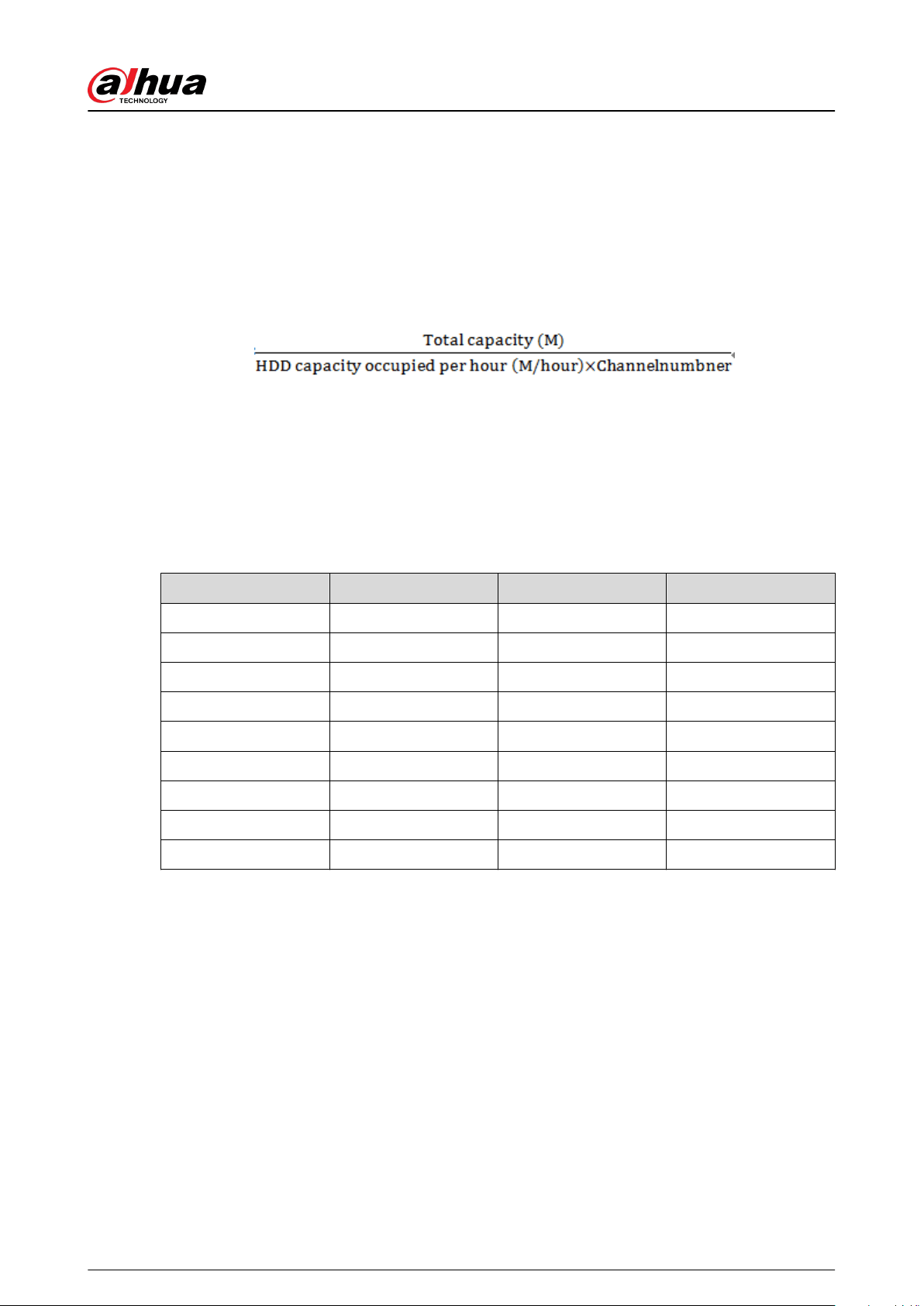
Appendix 4 HDD Capacity Calculation
HDD capacity calculation formula:
Total capacity (M) = Channel number × Demand time length (hour) × HDD capacity occupied per
hour (M/hour)
According to the above formula, get recording time calculation formula.
Recording time (hour) =
For example, for single-channel recording, HDD capacity occupied per hour is 200 M/hour. Use 4-
channel device to make 24-hour continuous recording in every day of one month (30 days), the
required HDD space is: 4 channels × 30 days × 24 hours × 200 M/hour = 576 G. Therefore, ve 120 G
HDD or four 160 G HDD shall be installed.
According to the above formula, at dierent stream values, recording le size of 1 channel in 1 hour
is shown as follows (for your reference):
Appendix Table 4-1HDD capacity calculation
Bit stream Size (max.) File Size Bit Stream Size (max.) File Size
≤ 96 K 42 M 128 K 56 M
160 K 70 M 192 K 84 M
224 K 98 M 256 K 112 M
320 K 140 M 384 K 168 M
448 K 196 M 512 K 225 M
640 K 281 M 768 K 337 M
896 K 393 M 1024 K 450 M
1280 K 562 M 1536 K 675 M
1792 K 787 M 2048 K 900 M
User's Manual
243
Appendix 5 Particulate and Gaseous
Contamination Specications
Appendix 5.1 Particulate Contamination Specications
The following table denes the limitations of the particulate contamination in the operating
environment of the device. If the level of particulate contamination exceeds the specied
limitations and result in device damage or failure, you need to rectify the environmental conditions.
Appendix Table 5-1Particulate contamination specications
Particulate
contamination
Specications
Air ltration Class 8 as dened by ISO 14644-1.
Conductive dust
Air must be free of conductive dust, zinc whiskers, or other conductive
particles.
Corrosive dust
Air must be free of corrosive dust. Residual dust present in the air must
have a deliquescent point less than 60% relative humidity.
Appendix Table 5-2ISO 14644-1 cleanroom classication
Class Maximum particles/m
3
— ≥ 0.1 μm ≥ 0.2 μm ≥ 0.3 μm ≥ 0.5 μm ≥ 1 μm ≥ 5 μm
Class 1 10 2 — — — —
Class 2 100 24 10 4 — —
Class 3 1000 237 102 35 8 –7
Class 4 10000 2370 1020 352 83 —
Class 5 100000 23700 10200 3520 832 29
Class 6 1000000 237000 102000 35200 8320 293
Class 7 — — — 352000 83200 2930
Class 8 — — — 3520000 832000 29300
Class 9 — — — — 8320000 293000
Appendix 5.2 Gaseous Contamination Specications
Usually indoor and outdoor atmospheric environments contain a small amount of common
corrosive gas pollutants. When these mixed or single corrosive gas pollutants react with other
environmental factors such as temperature or relative humidity in the long term, the device might
suer from a risk of corrosion and failure. The following table denes the limitations of the gaseous
contamination in the operating environment of the device.
User's Manual
244
Appendix Table 5-3Gaseous contamination specications
Gaseous contamination Specications
Copper coupon corrosion
rate
< 300 Å/month per Class G1 as dened by ANSI/ISA71.04-2013
Silver coupon corrosion rate < 200 Å/month per Class G1 as dened by ANSI/ISA71.04-2013
Appendix Table 5-4ANSI/ISA-71.04-2013 classication of reactive environments
Class Copper Reactivity Silver Reactivity Description
G1 (mild) < 300 Å/month < 200 Å/month
Corrosion is not a factor in
determining equipment
reliability.
G2 (moderate) < 1000 Å/month < 1000 Å/month
Corrosion eects are
measurable and corrosion
might be a factor.
G3 (harsh) < 2000 Å/month < 2000 Å/month
High probability that corrosive
attack will occur.
GX (severe) ≥ 2000 Å/month ≥ 2000 Å/month
Only specially designed and
packaged devices are
expected to survive.
User's Manual
245

Appendix 6 Cybersecurity Recommendations
Cybersecurity is more than just a buzzword: it’s something that pertains to every device that is
connected to the internet. IP video surveillance is not immune to cyber risks, but taking basic steps
toward protecting and strengthening networks and networked appliances will make them less
susceptible to attacks. Below are some tips and recommendations from Dahua on how to create a
more secured security system.
Mandatory actions to be taken for basic device network security:
1. Use Strong Passwords
Please refer to the following suggestions to set passwords:
●
The length should not be less than 8 characters.
●
Include at least two types of characters; character types include upper and lower case letters,
numbers and symbols.
●
Do not contain the account name or the account name in reverse order.
●
Do not use continuous characters, such as 123, abc, etc.
●
Do not use overlapped characters, such as 111, aaa, etc.
2. Update Firmware and Client Software in Time
●
According to the standard procedure in Tech-industry, we recommend to keep your device
(such as NVR, DVR, IP camera, etc.) rmware up-to-date to ensure the system is equipped
with the latest security patches and xes. When the device is connected to the public
network, it is recommended to enable the “auto-check for updates” function to obtain timely
information of rmware updates released by the manufacturer.
●
We suggest that you download and use the latest version of client software.
"Nice to have" recommendations to improve your device network security:
1. Physical Protection
We suggest that you perform physical protection to device, especially storage devices. For
example, place the device in a special computer room and cabinet, and implement well-done
access control permission and key management to prevent unauthorized personnel from
carrying out physical contacts such as damaging hardware, unauthorized connection of
removable device (such as USB ash disk, serial port), etc.
2. Change Passwords Regularly
We suggest that you change passwords regularly to reduce the risk of being guessed or cracked.
3. Set and Update Passwords Reset Information Timely
The device supports password reset function. Please set up related information for password
reset in time, including the end user’s mailbox and password protection questions. If the
information changes, please modify it in time. When setting password protection questions, it is
suggested not to use those that can be easily guessed.
4. Enable Account Lock
The account lock feature is enabled by default, and we recommend you to keep it on to
guarantee the account security. If an attacker attempts to log in with the wrong password
several times, the corresponding account and the source IP address will be locked.
5. Change Default HTTP and Other Service Ports
We suggest you to change default HTTP and other service ports into any set of numbers
between 1024–65535, reducing the risk of outsiders being able to guess which ports you are
using.
6. Enable HTTPS
We suggest you to enable HTTPS, so that you visit Web service through a secure communication
channel.
User's Manual
246

7. MAC Address Binding
We recommend you to bind the IP and MAC address of the gateway to the device, thus reducing
the risk of ARP spoong.
8. Assign Accounts and Privileges Reasonably
According to business and management requirements, reasonably add users and assign a
minimum set of permissions to them.
9. Disable Unnecessary Services and Choose Secure Modes
If not needed, it is recommended to turn o some services such as SNMP, SMTP, UPnP, etc., to
reduce risks.
If necessary, it is highly recommended that you use safe modes, including but not limited to the
following services:
●
SNMP: Choose SNMP v3, and set up strong encryption passwords and authentication
passwords.
●
SMTP: Choose TLS to access mailbox server.
●
FTP: Choose SFTP, and set up strong passwords.
●
AP hotspot: Choose WPA2-PSK encryption mode, and set up strong passwords.
10.Audio and Video Encrypted Transmission
If your audio and video data contents are very important or sensitive, we recommend that you
use encrypted transmission function, to reduce the risk of audio and video data being stolen
during transmission.
Reminder: encrypted transmission will cause some loss in transmission eciency.
11.Secure Auditing
●
Check online users: we suggest that you check online users regularly to see if the device is
logged in without authorization.
●
Check device log: By viewing the logs, you can know the IP addresses that were used to log
in to your devices and their key operations.
12.Network Log
Due to the limited storage capacity of the device, the stored log is limited. If you need to save
the log for a long time, it is recommended that you enable the network log function to ensure
that the critical logs are synchronized to the network log server for tracing.
13.Construct a Safe Network Environment
In order to better ensure the safety of device and reduce potential cyber risks, we recommend:
●
Disable the port mapping function of the router to avoid direct access to the intranet devices
from external network.
●
The network should be partitioned and isolated according to the actual network needs. If
there are no communication requirements between two sub networks, it is suggested to use
VLAN, network GAP and other technologies to partition the network, so as to achieve the
network isolation eect.
●
Establish the 802.1x access authentication system to reduce the risk of unauthorized access
to private networks.
●
Enable IP/MAC address ltering function to limit the range of hosts allowed to access the
device.
More information
Please visit Dahua ocial website security emergency response center for security announcements
and the latest security recommendations.
User's Manual
247