User manual
v1 05/20
Home power
SRP4319S/27
2
Introduction ....................................................... 2
Setup .................................................................. 3
Button Functions ...............................................4
Programming Your Remote ..............................6
Direct Code Entry .........................................6
Auto Code Search ......................................... 7
Controlling Combo Devices .........................9
Using Your Remote .......................................... 10
Primary Audio Control ............................... 10
Code Identication ...................................... 11
Reset to Factory Settings ........................... 11
Troubleshooting ...............................................12
Warranty ............................................................13
FCC Statement ................................................ 14
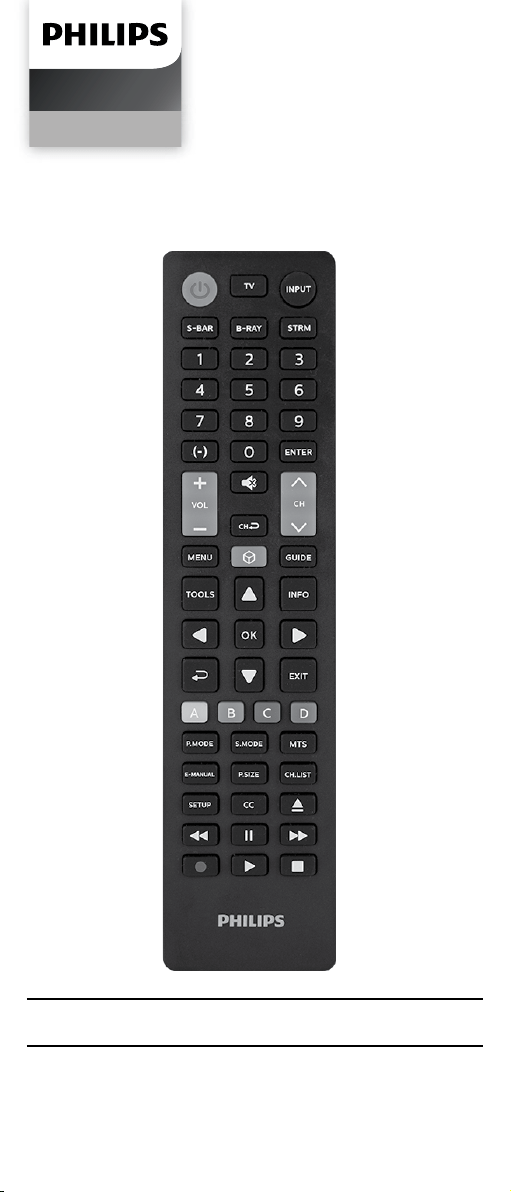
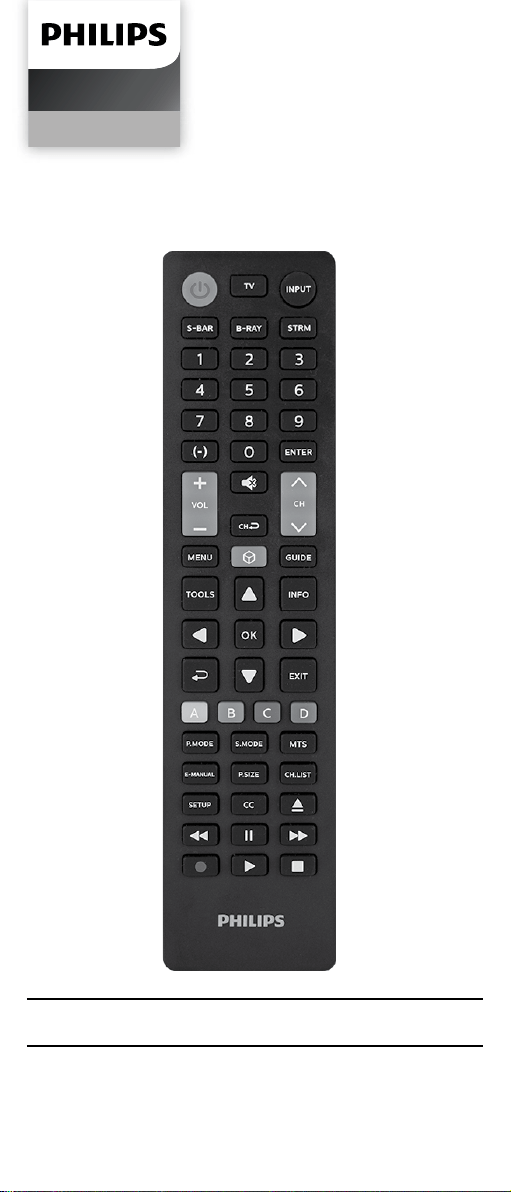
Congratulations on your purchase of this
Philips Universal Replacement Remote
Control. Designed primarily for Samsung
devices, this universal remote includes
preprogrammed buttons that allow you
to immediately control your Samsung
equipment. For example, the device buttons
(TV, S-BAR and B-RAY) are preprogrammed to
control a corresponding Samsung TV, sound
bar or Blu-ray™/DVD player. Samsung-specic
function keys (Samsung hub, e-manual,
s.mode, ch.list, etc.) are preprogrammed
for full functionality and navigation of your
Samsung device. Additionally, this remote
is preprogrammed for Roku boxes, using
the STRM button, compatible with all major
brands and capable of operating thousands
of audio/video devices that complete your
home theater setup.
Table of Contents
For remote control help:
byjasco.com/50231i

3
Your universal remote requires two (2) AAA
batteries (not included). Alkaline batteries
are recommended.
Battery Installation
1. On the back of the remote, pull down on
the textured surface and slide battery
cover downward to remove.
2. Match the (+) and (-) marks on the
batteries to the (+) and (-) marks inside
the battery compartment, then insert two
(2) AAA batteries. Be sure to use fresh
batteries.
3. Position battery cover slightly below
opening and push upward to lock into
place.
NOTE: If your remote stops operating properly,
replace the batteries with new ones.
Battery Precautions
• Do not mix old and new batteries.
• Do not mix alkaline, standard (carbon-
zinc), or rechargeable (Ni-Cd, Ni-MH, etc.)
batteries.
• Always remove old, weak or worn-out
batteries promptly and recycle or dispose
of them in accordance with local and
national regulations.
Battery Saver
Your remote automatically turns o if the
buttons are held down for more than 8
seconds. This will save your batteries should
your remote get stuck in a place where the
buttons remain depressed (e.g., between
sofa cushions).
Code Saver
You have up to 10 minutes to change the
batteries in your remote without losing the
codes you have programmed.
Setup
4
Button Functions
CH
10
20
21
25
27
23
29
19
9
5
3
1
7
11
13
4
2
816
812
814
9 1
8
9 22
9 24
9 28
9 26
8
6
15
30
17

5
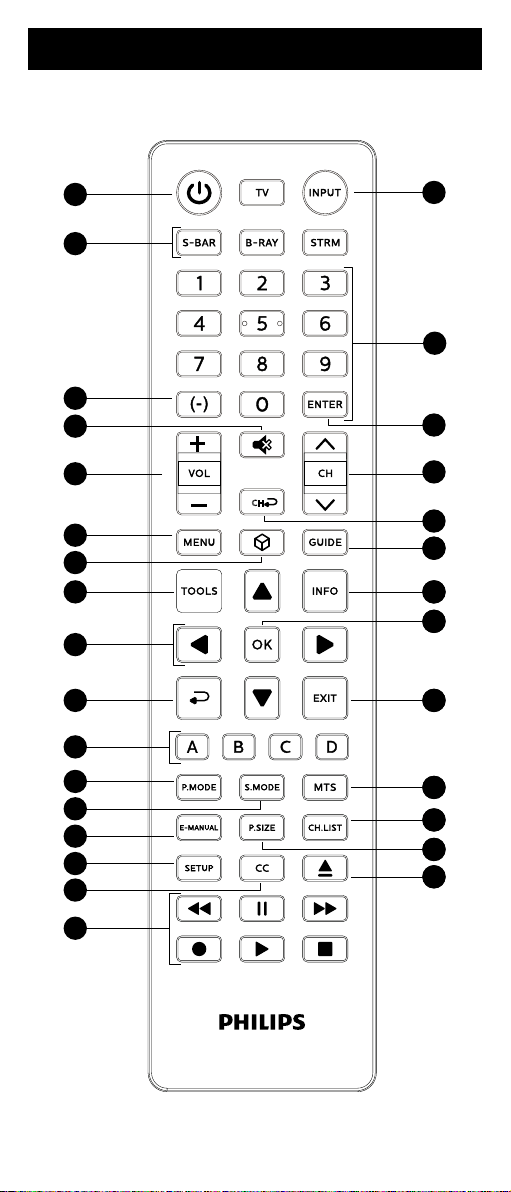
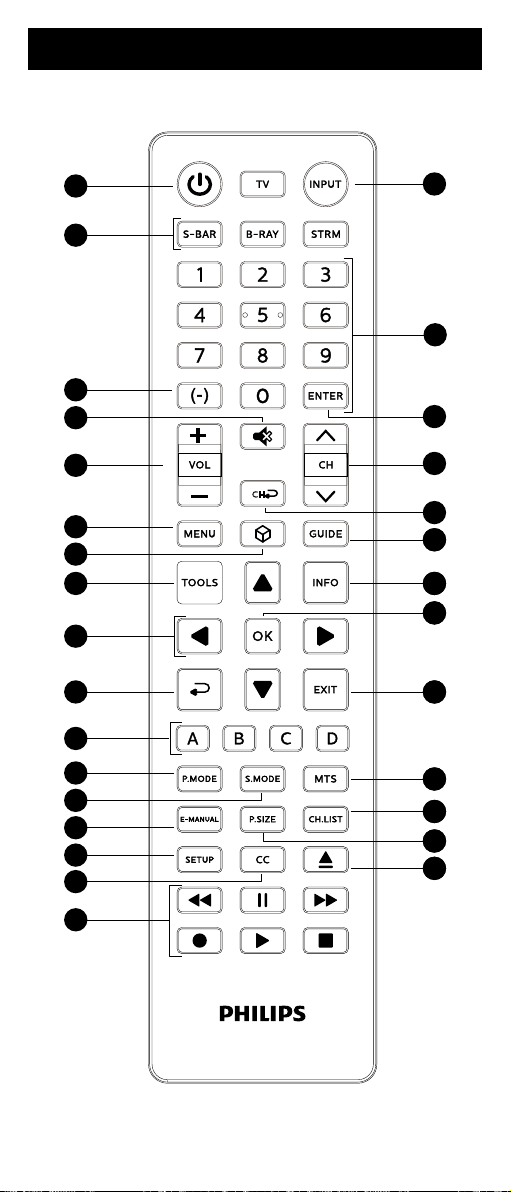
Button Functions
1. Power - Turns devices ON/OFF
2. Input - Select video inputs
3. TV, B-RAY, S-BAR, STRM - Selects the
device to control
4. Numbers - Enter numbers for direct channel
selection
5. Dash (-) - Use to select digital channels, e.g., 4-1
6. Enter - Some devices require enter to be
pressed after channel selection
7. Mute - Mutes sound
8. Channel up/down
9. Volume up/down
10. Previous channel - Returns to the
previously selected channel
11. Menu - Displays the on-screen menu
12. Home - Access features on streaming devices
Guide - For cable/satellite receivers
13. Samsung hub - Activates Samsung menu
14. Info - Displays on-screen show/content information
15. Tools - Displays frequently used functions on the TV
16. Ok - Selects menu items for the controlled device
17. Up/down/left/right menu navigation
18. Exit - Exit on-screen menus
19. Back - Returns to previous screen
20. ABCD - Access additional features for
DVRs, cable and satellite receivers
21. P.mode - Selects picture mode
22. MTS - Selects stereo, mono or
separate audio program (SAP)
23. S.mode - Selects sound eect options
24. Channel list - Displays list on the screen
25. e-manual - Displays e-manual guide
26. Picture size - Selects picture size
27. Setup - Used to program the remote
28. DVD/Blu-ray
™
open/close - Open/close a player, or
List features on cable/satellite receivers
29. Closed caption - Selects closed caption options
30. Record, play, stop, rewind, fast forward, pause
6
Programming Your Remote
Your remote is designed to control multiple
audio/video devices. To use, you will need to
program the remote for your devices. There
are two dierent methods you can use to
program the remote, Direct Code Entry or
Auto Code Search.
• The Direct Code Entry method is the
recommended method, as it is the simplest
and quickest method in most cases.
• The Auto Code Search method searches
through all the codes in the remote to nd
a code for your device.
NOTE: This remote comes preprogrammed for
Roku
®
boxes and Samsung devices. Press TV,
S-BAR and B-RAY for corresponding Samsung
devices, and STRM for Roku boxes.
Direct Code Entry (Recommended)
1. Locate the Code List included
with your remote. Find the
section for the type of device you
wish to control, (e.g., TV, STRM,
DVD, AUD, CBL, AUX). Locate the
brand of your device and circle all
the remote codes for the brand.
2. Press and hold down the SETUP
button on the remote until the
red light on the remote control
turns on. Release the SETUP
button. The red light will
remain on.
NOTE: The red light will either be a
small light at the top of the remote
or the power ON/OFF button.
3. Press and release the device
button on the remote for the type
of device you wish to control,
(e.g., TV, S-BAR, B-RAY, STRM).
The red light will blink once and
remain on.
NOTE: Any of the device buttons
on the remote can be programmed
to control any of your devices. For
example, you can use the AUD
device button on the remote to
7
Programming Your Remote
control a satellite receiver, digital
converter box, streaming media
player or any device category in
the Code List.
4. Use the number buttons on the
remote to enter the rst 4-digit
remote code you circled in the
Code List in Step 1. The red light
will turn o after entering the
fourth digit.
5. Point the remote at the device.
Test the buttons on the remote
to see if the device responds as
you would expect. If the buttons
do not operate the device,
return to Step 2 above and use
the next code that you circled
for that device.
6. Repeat steps 1 – 5 for each
device you wish to control.
Programming Notes
• Some codes may operate only a few
functions of your device. There may
be another code in the Code List that
controls more functions. Test other codes
in the Code List for more functionality.
• If you do not nd a remote code that
works your device or there are no codes
in the Code List for your device, use the
Auto Code Search method in the next
section to program your remote.
• For combination devices such as a TV/
DVD combo or TV/VCR combo, you may
have to enter a code for each device.
• Write down the remote codes used to
program the remote for future reference.
Auto Code Search
Auto Code Search is a process where you can
search through all the codes stored in the
remote to nd a code for your device. It is
recommended that you read through all the
steps below to familiarize yourself with Auto
Code Search before starting the process.
8
Programming Your Remote
1. Manually turn on the device you
wish to control.
NOTE: The Auto Code Search
process cannot be used for devices
without power ON/OFF capability.
Use the Direct Code Entry method in
these cases.
2. Press and hold down the SETUP
button on the remote until the red
light on the remote control turns
on. Release the SETUP button.
The red light will remain on.
NOTE: The red light will either be a
small light at the top of the remote
or the power ON/OFF button.
3. Press and release the device
button on the remote for the type
of device you wish to control, (e.g.,
TV, S-BAR, B-RAY, STRM). The red
light will blink once and remain on.
4. With the remote pointed at the
device, press and release the
POWER button on the remote.
The remote will send 10 dierent
codes to the device. The red light
will blink once for each code and
remain on after sending the 10
codes.
Did the device turn o?
• If YES, go to Step 5.
• If NO, repeat Step 4 to test the
next 10 codes.
5. Manually turn the device back on.
6. With the remote pointed at the
device, press and release the
VOL
button. The remote will re-
send the rst code of the 10 codes
from Step 4. The red light will blink
once and remain on.
Did the device turn o?
• If YES, you have found a code
for the device. Press and
release the same device button
you pressed in Step 3. This will
9
Programming Your Remote
store the code in the remote.
Go to Step 7.
• If NO, continue to press and
release the VOL
button
until the device turns o
to test the other 9 codes
from Step 4. Be sure to wait
approximately 3 seconds after
each VOL
button press
to allow the device time to
respond to the code. When
the device turns o, you have
found a code for your device.
Press and release the same
device button pressed in Step
3. This will store the code in
the remote. Go to Step 7.
NOTE:
• The
VOL button can be used
to go backwards through each
batch of 10 codes.
• The red indicator light will ash
2 times after testing the rst or
last code in each batch of 10.
7. Use the remote to turn the
device back on. Test the buttons
on the remote to see if the
device responds as you would
expect. If the buttons do not
operate the device, return to
Step 2 and repeat this process
to search for a better code to
operate the device.
8. Repeat this process for each
device you wish to control.
Controlling Combo Devices
Some combo devices (e.g. TV/VCR, TV/DVD,
DVD/VCR, etc.) will require you to set up
two dierent device buttons to control both
parts of the combo device. For example, if
you have a TV/DVD combo, you may need
to set up one code under the TV button to
control the TV and a separate code under
the DVD button to control the DVD.
10
Using Your Remote
Primary Audio Control
The Primary Audio Control feature allows
you to select a single device that the volume
buttons always control. For example, the
remote can be in TV mode while the volume
buttons control the volume on your audio
receiver or sound bar instead of your TV.
Enabling Primary Audio Control
1. Press and hold down the SETUP
button on the remote until the
red light on the remote control
turns on. Release the SETUP
button. The red light will
remain on.
2. Press and release the device
button (TV, S-BAR, etc.) on the
remote for the device you wish
to control the volume.
3. Press and release the
MUTE button.
4. Press and release the VOL
button. The red light will blink
twice and turn o.
Disabling Primary Audio Control
1. Press and hold down the SETUP
button on the remote until the
red light on the remote control
turns on. Release the SETUP
button. The red light will
remain on.
2. Press and release the device
button (TV, S-BAR, etc.)
programmed to control the
Primary Audio Control feature.
3. Press and release the
MUTE button.
4. Press and release the VOL
button. The red light will blink
twice and turn o.
11
Using Your Remote
1. Press and hold down the SETUP
button on the remote until the
red light on the remote control
turns on. Release the SETUP
button. The red light will
remain on.
2. Press and release the desired
device button (TV, S-BAR, B-RAY,
STRM) you would like the code for.
3. Press and release the
ENTER button.
4. Press and release the #1 button.
Count the number of times the
remote light ashes. This is the
number corresponding to the
rst digit of the code. Repeat
the process by pressing the
#2, #3 and #4 buttons for the
remaining digits.
5. Press and release the ENTER
button to exit this mode.
Code Identication
Reset to Factory
Settings
1. Press and hold down the SETUP
button on the remote until the
red light on the remote control
turns on. Release the SETUP
button. The red light will
remain on.
2. Press and release the
MUTE button.
3. Press and release the number #0
button. The red indicator light will
ash twice.

12
Remote does not operate your device.
• Make sure the batteries are fresh and
installed correctly.
• Aim the remote directly at your device, and
make sure that there are no obstructions
between the remote and device.
• Make sure you select the appropriate
device on the remote you wish to control;
TV for TV and B-RAY for Blu-ray player..
• Try programming the remote with a
dierent code. See Direct Code Entry
section.
• Remote may not be compatible with your
device.
Remote does not operate some features of
your device.
• Sometimes a particular code might
operate a few features but not all. Try
programming the remote with a dierent
code from the Code List. See Direct Code
Entry section.
• Remote may not be able to operate all
features of your device or button names
may be dierent than that of your original
remotes.
Troubleshooting

13
90-Day Limited Warranty
This warrants this product to be free from
manufacturing defects for a period of 90 days
from the original date of consumer purchase.
This warranty is limited to the repair or
replacement of this product only and does
not extend to consequential or incidental
damage to other products that may be used
with this unit. This warranty is in lieu of all
other warranties express or implied. Some
states do not allow limitations on how long an
implied warranty lasts or permit the exclusion
or limitation of incidental or consequential
damages, so the above limitations may not
apply to you. This warranty gives you specic
rights, and you may also have other rights
which vary from state to state.
Warranty replacement procedure
1. Call our U.S.-based Consumer Care
at 1-844-816-0320 to get a Return
Authorization Number (RA#), shipping
instructions and a prepaid return
address label.
2. Return the remote, freight prepaid, to us.
Remotes returned to us must have an RA#
included in the mailing address to
be accepted.
3. The original purchaser will be asked to
send the remote, a copy of the sales
receipt for the product, your name,
address, phone number and a description
of the problem.
MADE IN CHINA
The Philips trademark and the Philips Shield Emblem
are registered trademarks of Koninklijke Philips
N.V. used under license. This product has been
manufactured and is sold under the responsibility
of Jasco Products Company, and Jasco Products
Company LLC, 10 E. Memorial Rd., Oklahoma City, OK
73114 is the warrantor in relation to this product.
This product comes with a 90-day warranty. Visit
www.philips.com/support for warranty details.
Questions? Contact our U.S.-based Consumer
Care at 1-844-816-0320 between 7AM–8PM,
M–F, Central Time.

14
Suppliers Declaration of Conformity |
Model #: SRP4319S/27 | Jasco Products
Company LLC, | 10 E. Memorial Rd.,
Oklahoma City, OK 73114 | www.byjasco.com
This device complies with Part 15 of the FCC
rules. Operation is subject to the following
two conditions: (1) this device may not cause
harmful interference, and (2) this device must
accept any interference received, including
interference that may cause undesired
operation.
FCC NOTE: The manufacturer is not
responsible for any radio or TV interference
caused by unauthorized modications to this
equipment. Such modications could void the
user’s authority to operate the equipment.
NOTE: This equipment has been tested and
found to comply with the limits for a Class B
digital device, pursuant to Part 15 of the FCC
Rules. These limits are designed to provide
reasonable protection against harmful
interference in a residential installation.
This equipment generates, uses and can
radiate radio frequency energy and, if not
installed and used in accordance with the
instructions, may cause harmful interference
to radio communications. However, there is
no guarantee that interference will not occur
in a particular installation. If this equipment
does cause harmful interference to radio or
television reception, which can be determined
by turning the equipment o and on, the user
is encouraged to try to correct the interference
by one or more of the following measures:
• Reorient or relocate the receiving antenna.
• Increase the separation between the
equipment and receiver.
• Connect the equipment to an outlet on
a circuit dierent from that to which the
receiver is connected.
• Consult the dealer or an experienced
radio/TV technician for help.
FCC Statement

15
16
Manual de usuario
v1 05/20
Home power
SRP4319S/27
17
Introducción ......................................................17
Conguración ................................................... 18
Funciones de los botones .............................. 19
Programación del control remoto ..................21
Entrada directa de códigos ........................21
Búsqueda automática de códigos ............ 23
Control de dispositivos integrados ..........25
Uso del control remoto ...................................26
Control del audio principal .......................26
Identicación de códigos .......................... 27
Restablecimiento de la conguración
de fábrica .................................................... 27
Resolución de problemas ............................... 28
Garantía............................................................29
Declaración de la Comisión Federal
de Comunicaciones (FCC) ..............................30
Felicitaciones por su compra de este Control
remoto universal de reemplazo Philips. Diseñado
principalmente para dispositivos Samsung,
este control remoto universal incluye botones
preprogramados que le permiten controlar de
forma inmediata sus equipos Samsung. Por
ejemplo, los botones de dispositivo (TV, S-BAR
y B-RAY) están preprogramados para controlar
el correspondiente televisor, barra de sonido
o reproductor de Blu-ray™ o DVD Samsung.
Botones de función especícos de Samsung
(Samsung hub, e-manual, s.mode, ch.list, etc.)
están preprogramados para permitirle el pleno
funcionamiento y navegación de su dispositivo
Samsung. Además, este control remoto está
preprogramado para cajas Roku, mediante
el botón STRM, compatible con todas las
principales marcas y capaz de operar miles
de dispositivos de audio/video de sistemas
de cine en casa.
Tabla de contenido
Para obtener ayuda
con su control remoto:
byjasco.com/50231i

18
El control remoto universal usa dos (2) pilas
AAA (no incluidas). Se recomienda usar pilas
alcalinas.
Instalación de las pilas
1. En la parte posterior del control remoto,
presione hacia abajo sobre la supercie
texturada y deslice la tapa de las pilas
para quitarla.
2. Inserte dos (2) pilas AAA de modo tal que
las marcas (+) y (-) de las pilas coincidan
con las marcas (+) y (-) en el interior del
compartimento. Asegúrese de usar pilas
nuevas.
3. Coloque la tapa de las pilas levemente
por debajo de la abertura y presione hacia
arriba hasta que quede trabada.
NOTA: Si el control remoto deja de funcionar
normalmente, coloque pilas nuevas.
Precauciones respecto de las pilas
• No utilice pilas usadas y nuevas al
mismo tiempo.
• No combine el uso de pilas alcalinas
comunes (de tipo carbono-cinc) o
recargables (Ni-Cd, Ni-MH, etc.)
• Siempre quite las pilas gastadas o
agotadas de inmediato y recíclelas o
elimínelas de conformidad con las normas
locales y nacionales.
Ahorrador de pilas
El control remoto se apaga automáticamente
si los botones permanecen presionados por
más de ocho (8) segundos. De esta forma
evitará que se consuma la energía de las pilas
si el control queda atascado en algún lugar
con los botones presionados (p. ej., entre los
cojines del sofá).
Protector de códigos
Tiene hasta 10 minutos para cambiar las pilas
del control remoto sin perder los códigos que
haya programado.
Conguración
19
Funciones de los botones
CH
10
20
21
25
27
23
29
19
9
5
3
1
7
11
13
4
2
816
812
814
9 1
8
9 22
9 24
9 28
9 26
8
6
15
30
17

20
Funciones de los botones
1. Enciende/Apaga - Enciende/apaga los dispositivos
2. Input - Selecciona las entradas de video
3. TV, S-BAR, B-RAY, STRM - Selecciona el dispositivo a
controlar
4. Números - Permiten ingresar números para
seleccionar el canal en forma directa
5. Punto (-) - Se usa para seleccionar canales digitales,
por ej., 4.1
6. Enter - En algunos aparatos deberá presionar
enter después de seleccionar el canal deseado
7. Mute - Desactiva el sonido
8. Canal más/menos
9. Subir/Bajar volumen
10. Canal anterior - Permite volver al
canal previamente seleccionado
11. Menu - Muestra el menú en pantalla
12. Guía - Accede a las funciones en los dispositivos
de transmisión
Inicio - en los receptores de cable/satélite
13. Samsung hub - Activa el menú Samsung
14. Info - Muestra información del
show/contenido en pantalla
15. Herramientas - Las herramientas muestran las
functiones de uso frecuente en el televisor
16. Ok - Selecciona los elementos del menú
para el dispositivo que está controlando
17. Arriba, abajo, izquierda y derecha -
Botones de navegación del menú
18. Exit - Le permite salir de los menús en pantalla
19. Vuelve - Vuelve a la pantalla anterior
20. ABCD - Acceso a funciones adicionales
de DVR, receptores de cable y satélite
21. Modo de P. - Selecciona el modo imagen
22. MTS - Selecciona estéreo, mono o
programa de audio separado (SAP)
23. Modo de S. - Selecciona las
opciones de efectos de sonidos
24. Lista de canales - Muestra la lista en la pantalla
25. E-manual - Muestra la guía e-manual
26. Tamaño de la imagen - Selecciona
el tamaño de la imagen
27. Setup - Se usa para programar el control remoto
28. Botón para abrir y cerrar el reproductor de DVD/Blu-
ray™ - Abre y cierra el reproductor o presenta una lista
de las funciones de los receptores de cable/satélitee
29. Subtítulos - Selecciona las opciones de subtítulos
30. Grabar, Poner, Parar, Rebobinar, Adelantar, Paus
21
Programación del control remoto
El control remoto está diseñado para controlar
varios dispositivos de audio/video. Para
usarlo, deberá programarlo para controlar los
dispositivos. Existen dos formas de programar
el control remoto: Entrada directa de códigos
o Búsqueda automática de códigos.
• La Entrada directa de códigos es el método
recomendado ya que en la mayoría de los
casos es el más sencillo y el más rápido.
• El método Búsqueda automática de
códigos busca por todos los códigos en el
control remoto para encontrar un código
para el dispositivo.
NOTA: Este control remoto está programada
para las cajas Roku
®
y los televisores Samsung.
Presione TV para los televisores Samsung y
STRM para las cajas Roku.
Entrada directa de códigos
(recomendado)
1. Busque la Lista de códigos incluida
con el control remoto. Encuentre la
sección para el tipo de dispositivo
que desea controlar (por ejemplo,
TV, S-BAR, B-RAY, STRM). Ubique
la marca de su dispositivo y
marque los códigos remotos
correspondientes.
2. Presione y mantenga presionado el
botón SETUP (conguración) hasta
que la luz roja del control remoto
se encienda. Suelte el botón
SETUP (conguración). La luz roja
permanecerá encendida.
NOTA: La luz roja será una luz
pequeña ubicada en la parte superior
del control remoto o el botón de
encendido/apagado.
3. Presione y suelte el botón del
dispositivo en el control remoto
del dispositivo que desea controlar
(por ejemplo,
TV, S-BAR, B-RAY,
STRM
). La luz roja parpadeará una
vez y permanecerá encendida.
NOTA: Cualquiera de los botones
de dispositivo en el control

22
Programación del control remoto
remoto puede ser programado
para controlar cualquiera de los
dispositivos. Por ejemplo, puede
usar el botón auxiliar del control
remoto para controlar un receptor
de satélite, decodicador digital,
reproductor multimedia en línea o
cualquier categoría de dispositivos
que aparezca en la lista de códigos.
4. Use los botones de números del
control remoto para introducir
el primer código remoto de 4
dígitos que marcó en la Lista de
códigos en el Paso 1. La luz roja se
apagará después de introducir el
cuarto dígito.
5. Apunte el control remoto
hacia el dispositivo. Pruebe
los botones en el control para
ver si el dispositivo responde
como debería. Si los botones no
accionan el dispositivo, vuelva al
Paso 2 y use el siguiente código
que marcó para dicho dispositivo.
6. Repita estos pasos para cada
dispositivo que desee controlar.
Notas de programación
• Es posible que algunos códigos solo
ejecuten algunas funciones del dispositivo.
Es probable que haya otro código en la
Lista de códigos que ejecute más funciones.
Pruebe otros códigos de la Lista de códigos
para obtener más funcionalidades.
• Si no encuentra un código que funcione con
su dispositivo o en la Lista de códigos no
aparecen códigos para el dispositivo, use el
método Búsqueda automática de códigos
en la siguiente sección para programar el
control remoto.
• En el caso de dispositivos combinados, como
combinación TV/DVD o TV/ VCR, quizá deba
ingresar un código para cada dispositivo.
• Escriba los códigos que sirven para
programar el dispositivo para consultas
futuras.
23
Programación del control remoto
1. Encienda manualmente el
dispositivo que desea controlar.
NOTA: El proceso Búsqueda
automática de códigos no se
puede usar para dispositivos sin la
capacidad de encendido/apagado.
En estos casos, use el método
Entrada directa de códigos.
2. Presione y mantenga presionado
el botón SETUP (conguración)
hasta que la luz roja del control
remoto se encienda. Suelte el
botón SETUP (conguración). La
luz roja permanecerá encendida.
NOTA: La luz roja será una luz
pequeña ubicada en la parte
superior del control remoto o el
botón de encendido/apagado.
3. Presione y suelte el botón
del dispositivo en el control
remoto del dispositivo que
desea controlar (por ejemplo,
TV, S-BAR, B-RAY, STRM). La
luz roja parpadeará una vez y
permanecerá encendida.
4. Apunte el control remoto hacia
el dispositivo y presione y suelte
el botón POWER en el control.
El control enviará 10 códigos
diferentes al dispositivo. La luz
roja parpadeará una vez para cada
código y permanecerá encendida
después de enviar los 10 códigos.
¿Se apagó el dispositivo?
• Si la respuesta es Armativa,
proceda al Paso 5.
Búsqueda automática de códigos
La Búsqueda automática de códigos es un
proceso mediante el cual puede buscar por
todos los códigos almacenados en el control
remoto para encontrar un código para el
dispositivo. Se recomienda que lea todos los
pasos a continuación para familiarizarse con
la Búsqueda automática de códigos antes de
comenzar el proceso.
24
Programación del control remoto
• Si la respuesta es Negativa,
repita el Paso 4 para probar los
10 códigos siguientes.
5. Vuelva a encender manualmente
el dispositivo.
6. Apunte el control remoto hacia el
dispositivo y presione y suelte el
botón VOL
. El control remoto
volverá a enviar el primero de
los 10 códigos del Paso 4. La
luz roja parpadeará una vez y
permanecerá encendida.
¿Se apagó el dispositivo?
• Si la respuesta es Armativa,
signica que ha encontrado
un código para el dispositivo.
Presione y suelte el mismo
botón de dispositivo que
oprimió en el Paso 3. Esta
acción almacenará el código en
el control remoto. Proceda al
Paso 7.
• Si la respuesta es Negativa,
siga oprimiendo y soltando
el botón VOL
hasta que se
apague el dispositivo para
probar los otros 9 códigos del
Paso 4. Asegúrese de esperar
aproximadamente tres (3)
segundos después de cada
presión del botón VOL
para
que el dispositivo tenga tiempo
de responder al código. Cuando
se apague el dispositivo,
signica que ha encontrado
un código. Presione y suelte el
mismo botón que oprimió en el
Paso 3. Esta acción almacenará
el código en el control remoto.
Proceda al Paso 7.
NOTA:
• El botón VOL se puede
usar para retroceder por cada
conjunto de 10 códigos.

25
• La luz roja parpadeará dos
veces después de probar el
primero o el último código de
cada conjunto de 10.
7. Use el control remoto para volver
a encender el dispositivo. Pruebe
los botones en el control para
ver si el dispositivo responde
como debería. Si los botones no
accionan el dispositivo, vuelva al
Paso 2 y repita este proceso para
buscar un código que sea mejor.
8. Repita este proceso para cada
dispositivo que desee controlar.
Control de dispositivos integrados
En algunos dispositivos integrados (p. ej.,
TV/VCR, TV/DVD, DVD/VCR, etc.) deberá
programar dos botones diferentes para
controlar ambas partes del dispositivo. Por
ejemplo, si tiene un TV/DVD integrados, es
probable que tenga que programar un código
en el botón de TV para controlar la parte del
TV Y un código separado en el botón de DVD
para controlar la parte del DVD.
Programación del control remoto
26
Uso del control remoto
Control del audio principal
La característica de control del audio
principal le permite seleccionar un solo
dispositivo que siempre es controlado por
los botones de volumen. Por ej., el control
remoto puede estar en el modo de televisor
mientras que los botones de volumen
controlan el volumen del receptor de audio o
la barra de sonido en lugar del televisor.
Habilitar el control del audio principal
1. Presione y mantenga presionado
el botón SETUP (conguración)
hasta que la luz roja del control
remoto se encienda. Suelte el
botón SETUP (conguración). La
luz roja permanecerá encendida.
2. En el control remoto, presione
y suelte el botón (TV, AUD, etc.)
que corresponda al tipo de
dispositivo para el que desea
controlar el volumen.
3. Presione y suelte el botón MUTE
(silenciar).
4. Presione y suelte el botón
VOL
. La luz roja parpadeará
dos veces y se apagará.
Deshabilitar el control del
audio principal
1. Presione y mantenga presionado
el botón SETUP (conguración)
hasta que la luz roja del control
remoto se encienda. Suelte el
botón SETUP (conguración). La
luz roja permanecerá encendida.
2. Presione y suelte el botón del
dispositivo (TV, S-BAR, etc.) que se
haya programado para controlar la
función de volumen maestro.
3. Presione y suelte el botón MUTE
(silenciar).
4. Presione y suelte el botón
VOL
. La luz roja parpadeará
dos veces y se apagará.
27
Uso del control remoto
1. Presione y mantenga
presionado el botón SETUP
(conguración) hasta que la
luz roja del control remoto
se encienda. Suelte el botón
SETUP (conguración). La luz
roja permanecerá encendida.
2. Presione y suelte el botón
correspondiente al dispositivo
(
TV, S-BAR, B-RAY, STRM) para el
que desee obtener el código.
3. Presione y suelte el botón
ENTER.
4. Presione y suelte botón “1”.
Cuente la cantidad de veces
que la luz del control remoto
parpadea. Este el número
correspondiente al primer dígito
del código. Repita el proceso
presionando los botones “2”, “3”
y “4” para los dígitos restantes.
5. Presione y suelte el botón
ENTER para salir de este modo
Identicación de códigos
Restablecimiento de la conguración
de fábrica
1. Presione y mantenga presionado el
botón SETUP (conguración) hasta
que la luz roja del control remoto
se encienda. Suelte el botón
SETUP (conguración). La luz roja
permanecerá encendida.
2. Presione y suelte el botón MUTE
(silenciar).
3. Presione y suelte el botón #0. La
luz indicadora roja parpadeará dos
veces.

28
El control remoto no funciona con
su dispositivo.
• Asegúrese de que las pilas sean nuevas y
estén bien colocadas.
• Apunte a su dispositivo directamente con
el control remoto y asegúrese de que no
haya ninguna obstrucción entre el control
remoto y el dispositivo.
• Asegúrese de seleccionar en el control
remoto el dispositivo correcto que desea
controlar, por ejemplo: TV para el televisor
y CBL para el receptor de cable.
• Intente programar el control remoto
usando un código distinto. Consulte la
sección Entrada directa de códigos.
• Es posible que el control remoto no sea
compatible con su dispositivo.
Algunas funciones de su dispositivo no
funciona con el control remoto.
• A veces un código puede servir para
algunas funciones del dispositivo, pero
no todas. Intente programar el control
remoto con un código distinto de la lista
de códigos. Consulte la sección Entrada
directa de códigos.
• Es posible que el control remoto no sirva
para todas las funciones de su dispositivo
o bien que algunos nombres de los
botones sean diferentes de los del control
remoto original.
Resolución de problemas

29
Este documento garantiza que este producto
está libre de defectos de fabricación durante un
período de noventa (90) días desde la fecha de
compra original del consumidor. Esta garantía
está limitada a la reparación o el reemplazo
de este producto solamente y no cubre los
daños consecuentes o incidentales a otros
productos que puedan usarse con esta unidad.
Esta garantía prevalecerá sobre cualquier otra
garantía expresa o implícita. Algunos estados no
permiten la aplicación de limitaciones respecto
de la duración de una garantía implícita o no
permiten la exclusión o limitación de la cláusula
sobre daños incidentales o consecuentes, por
lo que las limitaciones mencionadas pueden
no aplicarse en su caso. Esta garantía le otorga
derechos especícos y es posible que tenga
otros derechos que pueden variar según el
estado en el que vive.
Procedimiento de la garantía para la reposición
• Llame al centro de atención al cliente al
1-844-816-0320 para obtener un número
de autorización de devolución (RA#), así
como las instrucciones para el envío y una
etiqueta prepagada con la dirección para la
devolución.
• Envíenos el control remoto, con franqueo
pagado. A n de que se acepten los
controles remotos devueltos, deben incluir el
número RA en la dirección postal.
• Se le solicitará al comprador original que
envíe el control remoto y una copia del
recibo de compra, y que especique su
nombre, dirección, número telefónico y una
descripción del problema.
Garantía limitada de 90 días
HECHO EN CHINA
Philips y el emblema de escudo Philips son marcas
registradas de Koninklijke Philips N.V. y se usan bajo li-
cencia. Este producto ha sido fabricado y se comercia-
liza bajo responsabilidad de Jasco Products Company
y Jasco Products Company LLC, 10 E. Memorial Rd.,
Oklahoma City, OK 73114, es el garante en relación a
este producto.
EEste producto tiene una garantía limitada de por 90
días. Visite www.philips.com/support para conocer los
detalles de la garantía.
¿Tiene preguntas? Comuníquese al 1-844-816-0320
entre las 7:00 a. m. y las 8:00 p. m. CT (tiempo central).

30
Declaración de conformidad del proveedor |
Model #: SRP4319S/27 | Jasco Products Company
LLC, | 10 E. Memorial Rd., Oklahoma City, OK 73114 |
www.byjasco.com
Este dispositivo cumple con el apartado 15 de
la normativa de la FCC. El funcionamiento está
sujeto a las dos condiciones siguientes: (1) este
dispositivo no causa interferencia negativa y (2)
este dispositivo debe aceptar las interferencias
recibidas, incluidas las interferencias que puedan
causar un funcionamiento no deseado.
NOTA DE LA FCC: El fabricante no se hace
responsable de ninguna interferencia de radio o
TV ocasionada por modicaciones no autorizadas
efectuadas a este aparato. Dichas modicaciones
podrían anular la autoridad del usuario para utilizar
este aparato.
NOTA: Este aparato ha sido probado y cumple con
los límites para aparatos digitales de Clase B, de
conformidad con el apartado 15 de la normativa
de la FCC. Estos límites están diseñados para
proveer protección razonable contra interferencias
perjudiciales en instalaciones residenciales. Este
aparato genera, usa y puede irradiar energía de
radiofrecuencias y, si no se instala y usa según
las instrucciones, puede provocar interferencia
perjudicial a las radiocomunicaciones. No obstante,
no hay garantías de que no ocurrirá interferencia
en una instalación en particular. Si este aparato
provoca interferencia perjudicial a la recepción
de radio o televisión, lo que puede determinarse
encendiendo y apagándolo, se recomienda que
el usuario intente corregir la interferencia por
medio de la implementación de una o más de las
siguientes medidas:
• Cambiar la orientación o el lugar de la antena
receptora.
• Incrementar la separación entre el aparato y
el receptor.
• Conectar el aparato a un tomacorriente de
un circuito diferente del circuito al que el
receptor está conectado.
• Consultar al distribuidor o a un técnico con
experiencia en radio/televisión para solicitar
ayuda.
Declaración de la FCC