Advanced User Guide
E
CT2-D288-A
© CANON INC. 2023

Contents
Introduction. . . . . . . . . . . . . . . . . . . . . . . . . . . . . . . . . . . . . . . . . . . . . . . . 8
Package Contents
. . . . . . . . . . . . . . . . . . . . . . . . . . . . . . . . . . . . . . . . . . . . . . . 9
Supplemental Information. . . . . . . . . . . . . . . . . . . . . . . . . . . . . . . . . . . . . . . . 10
Compatible Accessories. . . . . . . . . . . . . . . . . . . . . . . . . . . . . . . . . . . . . . . . . . 11
Instruction Manuals. . . . . . . . . . . . . . . . . . . . . . . . . . . . . . . . . . . . . . . . . . . . . 12
Quick Start Guide. . . . . . . . . . . . . . . . . . . . . . . . . . . . . . . . . . . . . . . . . . . . . . . 13
About This Guide. . . . . . . . . . . . . . . . . . . . . . . . . . . . . . . . . . . . . . . . . . . . . . . 16
Compatible Cards. . . . . . . . . . . . . . . . . . . . . . . . . . . . . . . . . . . . . . . . . . . . . . 18
Safety Instructions. . . . . . . . . . . . . . . . . . . . . . . . . . . . . . . . . . . . . . . . . . . . . . 19
Handling Precautions. . . . . . . . . . . . . . . . . . . . . . . . . . . . . . . . . . . . . . . . . . . . 22
Part Names. . . . . . . . . . . . . . . . . . . . . . . . . . . . . . . . . . . . . . . . . . . . . . . . . . . 26
Software/Apps. . . . . . . . . . . . . . . . . . . . . . . . . . . . . . . . . . . . . . . . . . . . . . . . . 34
Preparation and Basic Operations. . . . . . . . . . . . . . . . . . . . . . . . . . . . . 38
Charging the Battery. . . . . . . . . . . . . . . . . . . . . . . . . . . . . . . . . . . . . . . . . . . . 39
Inserting/Removing the Battery and Card. . . . . . . . . . . . . . . . . . . . . . . . . . . . 42
Turning on the Power. . . . . . . . . . . . . . . . . . . . . . . . . . . . . . . . . . . . . . . . . . . . 48
Attaching and Detaching RF/RF-S Lenses. . . . . . . . . . . . . . . . . . . . . . . . . . . 51
Attaching and Detaching EF/EF-S Lenses. . . . . . . . . . . . . . . . . . . . . . . . . . . . 56
Using the Viewfinder. . . . . . . . . . . . . . . . . . . . . . . . . . . . . . . . . . . . . . . . . . . . 60
Basic Operations. . . . . . . . . . . . . . . . . . . . . . . . . . . . . . . . . . . . . . . . . . . . . . . 61
Setting the Screen Display Level. . . . . . . . . . . . . . . . . . . . . . . . . . . . . . . . . . . 68
Menu Operations and Settings. . . . . . . . . . . . . . . . . . . . . . . . . . . . . . . . . . . . . 75
Quick Control. . . . . . . . . . . . . . . . . . . . . . . . . . . . . . . . . . . . . . . . . . . . . . . . . . 82
Basic Zone. . . . . . . . . . . . . . . . . . . . . . . . . . . . . . . . . . . . . . . . . . . . . . . 85
Scene Intelligent Auto. . . . . . . . . . . . . . . . . . . . . . . . . . . . . . . . . . . . . . . . . 86
Hybrid Auto. . . . . . . . . . . . . . . . . . . . . . . . . . . . . . . . . . . . . . . . . . . . . . . . . 95
Special Scene Mode. . . . . . . . . . . . . . . . . . . . . . . . . . . . . . . . . . . . . . . . . . 99
Portrait Mode. . . . . . . . . . . . . . . . . . . . . . . . . . . . . . . . . . . . . . . . . . . . . . . . . 102
Landscape Mode. . . . . . . . . . . . . . . . . . . . . . . . . . . . . . . . . . . . . . . . . . . . . . 103
Sports Mode. . . . . . . . . . . . . . . . . . . . . . . . . . . . . . . . . . . . . . . . . . . . . . . . . . 104

Panning Mode. . . . . . . . . . . . . . . . . . . . . . . . . . . . . . . . . . . . . . . . . . . . . . . . 105
Close-up Mode. . . . . . . . . . . . . . . . . . . . . . . . . . . . . . . . . . . . . . . . . . . . . . . . 107
Food Mode. . . . . . . . . . . . . . . . . . . . . . . . . . . . . . . . . . . . . . . . . . . . . . . . . . . 108
Night Portrait Mode
. . . . . . . . . . . . . . . . . . . . . . . . . . . . . . . . . . . . . . . . . . . . 109
Handheld Night Scene Mode. . . . . . . . . . . . . . . . . . . . . . . . . . . . . . . . . . . . . 111
HDR Backlight Control Mode. . . . . . . . . . . . . . . . . . . . . . . . . . . . . . . . . . . . . 113
Silent Shutter Mode. . . . . . . . . . . . . . . . . . . . . . . . . . . . . . . . . . . . . . . . . . . . 114
Creative Filters Mode. . . . . . . . . . . . . . . . . . . . . . . . . . . . . . . . . . . . . . . . 115
Creative Zone. . . . . . . . . . . . . . . . . . . . . . . . . . . . . . . . . . . . . . . . . . . . 122
P: Program AE. . . . . . . . . . . . . . . . . . . . . . . . . . . . . . . . . . . . . . . . . . . . . . . . 123
Tv: Shutter-Priority AE. . . . . . . . . . . . . . . . . . . . . . . . . . . . . . . . . . . . . . . . . . 125
Av: Aperture-Priority AE. . . . . . . . . . . . . . . . . . . . . . . . . . . . . . . . . . . . . . . . . 128
M: Manual Exposure. . . . . . . . . . . . . . . . . . . . . . . . . . . . . . . . . . . . . . . . . . . 132
Long (Bulb) Exposures. . . . . . . . . . . . . . . . . . . . . . . . . . . . . . . . . . . . . . . . . . 135
AF, Drive, and Exposure Settings. . . . . . . . . . . . . . . . . . . . . . . . . . . . 137
AF Operation. . . . . . . . . . . . . . . . . . . . . . . . . . . . . . . . . . . . . . . . . . . . . . . . . 138
AF Method. . . . . . . . . . . . . . . . . . . . . . . . . . . . . . . . . . . . . . . . . . . . . . . . . . . 144
Manual Focus. . . . . . . . . . . . . . . . . . . . . . . . . . . . . . . . . . . . . . . . . . . . . . . . . 157
Drive Mode. . . . . . . . . . . . . . . . . . . . . . . . . . . . . . . . . . . . . . . . . . . . . . . . . . . 161
Using the Self-Timer. . . . . . . . . . . . . . . . . . . . . . . . . . . . . . . . . . . . . . . . . . . 162
Remote Control Shooting. . . . . . . . . . . . . . . . . . . . . . . . . . . . . . . . . . . . . . . . 164
Metering Mode. . . . . . . . . . . . . . . . . . . . . . . . . . . . . . . . . . . . . . . . . . . . . . . . 166
Exposure Compensation. . . . . . . . . . . . . . . . . . . . . . . . . . . . . . . . . . . . . . . . 168
Exposure Lock (AE Lock). . . . . . . . . . . . . . . . . . . . . . . . . . . . . . . . . . . . . . . . 170
Flash Photography. . . . . . . . . . . . . . . . . . . . . . . . . . . . . . . . . . . . . . . . 172
Shooting with the Built-in Flash. . . . . . . . . . . . . . . . . . . . . . . . . . . . . . . . . . . 173
Flash Function Settings. . . . . . . . . . . . . . . . . . . . . . . . . . . . . . . . . . . . . . . . . 177
Shooting with Speedlites. . . . . . . . . . . . . . . . . . . . . . . . . . . . . . . . . . . . . . . . 194
Shooting and Recording. . . . . . . . . . . . . . . . . . . . . . . . . . . . . . . . . . . . 196
Still Photo Shooting. . . . . . . . . . . . . . . . . . . . . . . . . . . . . . . . . . . . . . . . . . 197
Tab Menus: Still Photo Shooting. . . . . . . . . . . . . . . . . . . . . . . . . . . . . . . . . . 199
Image Quality. . . . . . . . . . . . . . . . . . . . . . . . . . . . . . . . . . . . . . . . . . . . . . . . . 206

Still Image Aspect Ratio. . . . . . . . . . . . . . . . . . . . . . . . . . . . . . . . . . . . . . . . . 209
Exposure Compensation/AEB Settings. . . . . . . . . . . . . . . . . . . . . . . . . . . . .
211
ISO Speed Settings for Still Photos. . . . . . . . . . . . . . . . . . . . . . . . . . . . . . . . 213
Auto Lighting Optimizer. . . . . . . . . . . . . . . . . . . . . . . . . . . . . . . . . . . . . . . . . 216
Highlight Tone Priority. . . . . . . . . . . . . . . . . . . . . . . . . . . . . . . . . . . . . . . . . . 218
White Balance Settings. . . . . . . . . . . . . . . . . . . . . . . . . . . . . . . . . . . . . . . . . 219
White Balance Correction. . . . . . . . . . . . . . . . . . . . . . . . . . . . . . . . . . . . . . . 227
Color Space. . . . . . . . . . . . . . . . . . . . . . . . . . . . . . . . . . . . . . . . . . . . . . . . . . 230
Picture Style Selection. . . . . . . . . . . . . . . . . . . . . . . . . . . . . . . . . . . . . . . . . . 231
Picture Style Customization. . . . . . . . . . . . . . . . . . . . . . . . . . . . . . . . . . . . . . 235
Picture Style Registration. . . . . . . . . . . . . . . . . . . . . . . . . . . . . . . . . . . . . . . . 240
Lens Aberration Correction. . . . . . . . . . . . . . . . . . . . . . . . . . . . . . . . . . . . . . 243
Noise Reduction Features. . . . . . . . . . . . . . . . . . . . . . . . . . . . . . . . . . . . . . . 250
Appending Dust Delete Data. . . . . . . . . . . . . . . . . . . . . . . . . . . . . . . . . . . . . 254
Continuous AF. . . . . . . . . . . . . . . . . . . . . . . . . . . . . . . . . . . . . . . . . . . . . . . . 258
Focus Mode. . . . . . . . . . . . . . . . . . . . . . . . . . . . . . . . . . . . . . . . . . . . . . . . . . 259
AF-Assist Beam Firing. . . . . . . . . . . . . . . . . . . . . . . . . . . . . . . . . . . . . . . . . . 260
Lens Electronic MF. . . . . . . . . . . . . . . . . . . . . . . . . . . . . . . . . . . . . . . . . . . . 261
Focus/Control Ring. . . . . . . . . . . . . . . . . . . . . . . . . . . . . . . . . . . . . . . . . . . . 262
Image Stabilizer (IS Mode). . . . . . . . . . . . . . . . . . . . . . . . . . . . . . . . . . . . . . . 263
Review Duration. . . . . . . . . . . . . . . . . . . . . . . . . . . . . . . . . . . . . . . . . . . . . . . 265
Metering Timer. . . . . . . . . . . . . . . . . . . . . . . . . . . . . . . . . . . . . . . . . . . . . . . . 266
Exposure Simulation. . . . . . . . . . . . . . . . . . . . . . . . . . . . . . . . . . . . . . . . . . . 267
Shooting Information Display. . . . . . . . . . . . . . . . . . . . . . . . . . . . . . . . . . . . . 268
Viewfinder Display Format. . . . . . . . . . . . . . . . . . . . . . . . . . . . . . . . . . . . . . . 277
Display Performance. . . . . . . . . . . . . . . . . . . . . . . . . . . . . . . . . . . . . . . . . . . 278
General Still Photo Shooting Precautions. . . . . . . . . . . . . . . . . . . . . . . . . . . 279
Movie Recording. . . . . . . . . . . . . . . . . . . . . . . . . . . . . . . . . . . . . . . . . . . . 282
Tab Menus: Movie Recording. . . . . . . . . . . . . . . . . . . . . . . . . . . . . . . . . . . . 283
Movie Recording. . . . . . . . . . . . . . . . . . . . . . . . . . . . . . . . . . . . . . . . . . . . . . 287
Movie Recording Quality. . . . . . . . . . . . . . . . . . . . . . . . . . . . . . . . . . . . . . . . 295
Sound Recording. . . . . . . . . . . . . . . . . . . . . . . . . . . . . . . . . . . . . . . . . . . . . . 302
Time-Lapse Movies. . . . . . . . . . . . . . . . . . . . . . . . . . . . . . . . . . . . . . . . . . . . 305

Movie Servo AF. . . . . . . . . . . . . . . . . . . . . . . . . . . . . . . . . . . . . . . . . . . . . . . 316
Digital Zoom. . . . . . . . . . . . . . . . . . . . . . . . . . . . . . . . . . . . . . . . . . . . . . . . . . 319
Shutter Button Function for Movies. . . . . . . . . . . . . . . . . . . . . . . . . . . . . . . . 321
Movie Self-Timer. . . . . . . . . . . . . . . . . . . . . . . . . . . . . . . . . . . . . . . . . . . . . . 323
Movie Digital IS
. . . . . . . . . . . . . . . . . . . . . . . . . . . . . . . . . . . . . . . . . . . . . . . 324
Miniature Effect Movies. . . . . . . . . . . . . . . . . . . . . . . . . . . . . . . . . . . . . . . . . 326
Other Menu Functions. . . . . . . . . . . . . . . . . . . . . . . . . . . . . . . . . . . . . . . . . . 329
General Movie Recording Precautions. . . . . . . . . . . . . . . . . . . . . . . . . . . . . 335
Playback. . . . . . . . . . . . . . . . . . . . . . . . . . . . . . . . . . . . . . . . . . . . . . . . 338
Tab Menus: Playback. . . . . . . . . . . . . . . . . . . . . . . . . . . . . . . . . . . . . . . . . . . 339
Image Playback. . . . . . . . . . . . . . . . . . . . . . . . . . . . . . . . . . . . . . . . . . . . . . . 342
Index Display (Multiple-Image Display). . . . . . . . . . . . . . . . . . . . . . . . . . . . . 345
Magnified Image Display. . . . . . . . . . . . . . . . . . . . . . . . . . . . . . . . . . . . . . . . 348
Movie Playback. . . . . . . . . . . . . . . . . . . . . . . . . . . . . . . . . . . . . . . . . . . . . . . 350
Editing a Movie’s First and Last Scenes. . . . . . . . . . . . . . . . . . . . . . . . . . . . 354
Frame Extraction from 4K Movies or 4K Time-Lapse Movies. . . . . . . . . . . . 357
Digest Movie Editing. . . . . . . . . . . . . . . . . . . . . . . . . . . . . . . . . . . . . . . . . . . 360
Playback on a TV Set. . . . . . . . . . . . . . . . . . . . . . . . . . . . . . . . . . . . . . . . . . . 363
Protecting Images. . . . . . . . . . . . . . . . . . . . . . . . . . . . . . . . . . . . . . . . . . . . . 365
Erasing Images. . . . . . . . . . . . . . . . . . . . . . . . . . . . . . . . . . . . . . . . . . . . . . . 369
Rotating Still Photos. . . . . . . . . . . . . . . . . . . . . . . . . . . . . . . . . . . . . . . . . . . . 376
Changing Movie Orientation Information. . . . . . . . . . . . . . . . . . . . . . . . . . . . 378
Rating Images. . . . . . . . . . . . . . . . . . . . . . . . . . . . . . . . . . . . . . . . . . . . . . . . 380
Print Ordering (DPOF). . . . . . . . . . . . . . . . . . . . . . . . . . . . . . . . . . . . . . . . . . 386
Photobook Set-up. . . . . . . . . . . . . . . . . . . . . . . . . . . . . . . . . . . . . . . . . . . . . 391
Creative Assist. . . . . . . . . . . . . . . . . . . . . . . . . . . . . . . . . . . . . . . . . . . . . . . . 396
Creative Filters. . . . . . . . . . . . . . . . . . . . . . . . . . . . . . . . . . . . . . . . . . . . . . . . 399
Red-Eye Correction. . . . . . . . . . . . . . . . . . . . . . . . . . . . . . . . . . . . . . . . . . . . 403
Resizing. . . . . . . . . . . . . . . . . . . . . . . . . . . . . . . . . . . . . . . . . . . . . . . . . . . . . 405
Cropping. . . . . . . . . . . . . . . . . . . . . . . . . . . . . . . . . . . . . . . . . . . . . . . . . . . . . 407
Slide Show. . . . . . . . . . . . . . . . . . . . . . . . . . . . . . . . . . . . . . . . . . . . . . . . . . . 410
Setting Image Search Conditions. . . . . . . . . . . . . . . . . . . . . . . . . . . . . . . . . . 415
Resuming from Previous Playback. . . . . . . . . . . . . . . . . . . . . . . . . . . . . . . . 418

Browsing Images with the Dial. . . . . . . . . . . . . . . . . . . . . . . . . . . . . . . . . . . . 419
Playback Information Display. . . . . . . . . . . . . . . . . . . . . . . . . . . . . . . . . . . . . 421
AF Point Display. . . . . . . . . . . . . . . . . . . . . . . . . . . . . . . . . . . . . . . . . . . . . . . 424
HDMI HDR Output. . . . . . . . . . . . . . . . . . . . . . . . . . . . . . . . . . . . . . . . . . . . . 425
Wireless Features. . . . . . . . . . . . . . . . . . . . . . . . . . . . . . . . . . . . . . . . 426
Tab Menus: Wireless Settings. . . . . . . . . . . . . . . . . . . . . . . . . . . . . . . . . . . . 427
Wi-Fi/Bluetooth Connection
. . . . . . . . . . . . . . . . . . . . . . . . . . . . . . . . . . . . . . 428
Connecting to a Smartphone. . . . . . . . . . . . . . . . . . . . . . . . . . . . . . . . . . . . . 430
Connecting to a Computer via Wi-Fi. . . . . . . . . . . . . . . . . . . . . . . . . . . . . . . 470
Connecting to a Printer via Wi-Fi. . . . . . . . . . . . . . . . . . . . . . . . . . . . . . . . . . 477
Sending Images to a Web Service. . . . . . . . . . . . . . . . . . . . . . . . . . . . . . . . . 491
Wi-Fi Connection via Access Points. . . . . . . . . . . . . . . . . . . . . . . . . . . . . . . 507
Connecting to a Wireless Remote Control. . . . . . . . . . . . . . . . . . . . . . . . . . . 515
Reconnecting via Wi-Fi. . . . . . . . . . . . . . . . . . . . . . . . . . . . . . . . . . . . . . . . . 519
Registering Multiple Connection Settings. . . . . . . . . . . . . . . . . . . . . . . . . . . 521
Airplane Mode. . . . . . . . . . . . . . . . . . . . . . . . . . . . . . . . . . . . . . . . . . . . . . . . 522
Wi-Fi Settings. . . . . . . . . . . . . . . . . . . . . . . . . . . . . . . . . . . . . . . . . . . . . . . . . 523
Bluetooth Settings. . . . . . . . . . . . . . . . . . . . . . . . . . . . . . . . . . . . . . . . . . . . . 524
Nickname. . . . . . . . . . . . . . . . . . . . . . . . . . . . . . . . . . . . . . . . . . . . . . . . . . . . 525
GPS Settings. . . . . . . . . . . . . . . . . . . . . . . . . . . . . . . . . . . . . . . . . . . . . . . . . 526
Changing or Deleting Connection Settings. . . . . . . . . . . . . . . . . . . . . . . . . . 530
Resetting Communication Settings. . . . . . . . . . . . . . . . . . . . . . . . . . . . . . . . 532
View Info Screen. . . . . . . . . . . . . . . . . . . . . . . . . . . . . . . . . . . . . . . . . . . . . . 533
Virtual Keyboard Operations. . . . . . . . . . . . . . . . . . . . . . . . . . . . . . . . . . . . . 534
Responding to Error Messages. . . . . . . . . . . . . . . . . . . . . . . . . . . . . . . . . . . 535
Wireless Communication Function Precautions. . . . . . . . . . . . . . . . . . . . . . . 545
Security. . . . . . . . . . . . . . . . . . . . . . . . . . . . . . . . . . . . . . . . . . . . . . . . . . . . . 547
Checking Network Settings. . . . . . . . . . . . . . . . . . . . . . . . . . . . . . . . . . . . . . 548
Wireless Communication Status. . . . . . . . . . . . . . . . . . . . . . . . . . . . . . . . . . 549
Set-up. . . . . . . . . . . . . . . . . . . . . . . . . . . . . . . . . . . . . . . . . . . . . . . . . . 551
Tab Menus: Set-up. . . . . . . . . . . . . . . . . . . . . . . . . . . . . . . . . . . . . . . . . . . . . 552
Folder Settings. . . . . . . . . . . . . . . . . . . . . . . . . . . . . . . . . . . . . . . . . . . . . . . . 555

File Numbering. . . . . . . . . . . . . . . . . . . . . . . . . . . . . . . . . . . . . . . . . . . . . . . . 558
Card Formatting. . . . . . . . . . . . . . . . . . . . . . . . . . . . . . . . . . . . . . . . . . . . . . . 563
Auto Rotate. . . . . . . . . . . . . . . . . . . . . . . . . . . . . . . . . . . . . . . . . . . . . . . . . . 566
Adding Orientation Information to Movies
. . . . . . . . . . . . . . . . . . . . . . . . . . . 568
Date/Time/Zone. . . . . . . . . . . . . . . . . . . . . . . . . . . . . . . . . . . . . . . . . . . . . . . 569
Language. . . . . . . . . . . . . . . . . . . . . . . . . . . . . . . . . . . . . . . . . . . . . . . . . . . . 574
Video System. . . . . . . . . . . . . . . . . . . . . . . . . . . . . . . . . . . . . . . . . . . . . . . . . 575
Beeps. . . . . . . . . . . . . . . . . . . . . . . . . . . . . . . . . . . . . . . . . . . . . . . . . . . . . . . 576
Power Saving. . . . . . . . . . . . . . . . . . . . . . . . . . . . . . . . . . . . . . . . . . . . . . . . . 577
Eco Mode. . . . . . . . . . . . . . . . . . . . . . . . . . . . . . . . . . . . . . . . . . . . . . . . . . . . 578
Display Settings. . . . . . . . . . . . . . . . . . . . . . . . . . . . . . . . . . . . . . . . . . . . . . . 579
Screen Brightness. . . . . . . . . . . . . . . . . . . . . . . . . . . . . . . . . . . . . . . . . . . . . 581
Viewfinder Brightness. . . . . . . . . . . . . . . . . . . . . . . . . . . . . . . . . . . . . . . . . . 582
HDMI Resolution. . . . . . . . . . . . . . . . . . . . . . . . . . . . . . . . . . . . . . . . . . . . . . 583
Resetting the Camera. . . . . . . . . . . . . . . . . . . . . . . . . . . . . . . . . . . . . . . . . . 584
Custom Functions (C.Fn). . . . . . . . . . . . . . . . . . . . . . . . . . . . . . . . . . . . . . . . 585
Copyright Information. . . . . . . . . . . . . . . . . . . . . . . . . . . . . . . . . . . . . . . . . . . 594
Other Information. . . . . . . . . . . . . . . . . . . . . . . . . . . . . . . . . . . . . . . . . . . . . . 597
My Menu. . . . . . . . . . . . . . . . . . . . . . . . . . . . . . . . . . . . . . . . . . . . . . . . 598
Tab Menus: My Menu. . . . . . . . . . . . . . . . . . . . . . . . . . . . . . . . . . . . . . . . . . 599
Registering My Menu. . . . . . . . . . . . . . . . . . . . . . . . . . . . . . . . . . . . . . . . . . . 600
Reference. . . . . . . . . . . . . . . . . . . . . . . . . . . . . . . . . . . . . . . . . . . . . . . 606
Importing Images to a Computer. . . . . . . . . . . . . . . . . . . . . . . . . . . . . . . . . . 607
Troubleshooting Guide. . . . . . . . . . . . . . . . . . . . . . . . . . . . . . . . . . . . . . . . . . 610
Error Codes. . . . . . . . . . . . . . . . . . . . . . . . . . . . . . . . . . . . . . . . . . . . . . . . . . 625
ISO Speed in Movie Recording. . . . . . . . . . . . . . . . . . . . . . . . . . . . . . . . . . . 626
Information Display. . . . . . . . . . . . . . . . . . . . . . . . . . . . . . . . . . . . . . . . . . . . 627
Specifications. . . . . . . . . . . . . . . . . . . . . . . . . . . . . . . . . . . . . . . . . . . . . . . . . 641
Trademarks and Licensing. . . . . . . . . . . . . . . . . . . . . . . . . . . . . . . . . . 661

Introduction
Before starting to shoot, be sure to read the following
To avoid shooting problems and accidents, first read the Safety Instructions and Handling
Precautions. Also read this Advanced User Guide carefully to ensure that you use the
camera correctly.
Take some test shots, and understand about product liability
After shooting, play images back and check whether they have been properly recorded. If
the camera or memory card is faulty and images cannot be recorded or transferred to a
computer, Canon cannot be held liable for any loss or inconvenience caused.
Copyrights
Copyright laws in some countries prohibit the unauthorized use of images recorded with the
camera (or music/images with music transferred to the memory card) for purposes other
than personal enjoyment. Also be aware that certain public performances, exhibitions, etc.
may prohibit photography even for private enjoyment.
• Package Contents
• Supplemental Information
• Compatible Accessories
• Instruction Manuals
• Quick Start Guide
• About This Guide
• Compatible Cards
• Safety Instructions
• Handling Precautions
• Part Names
• Software/Apps
8
Package Contents
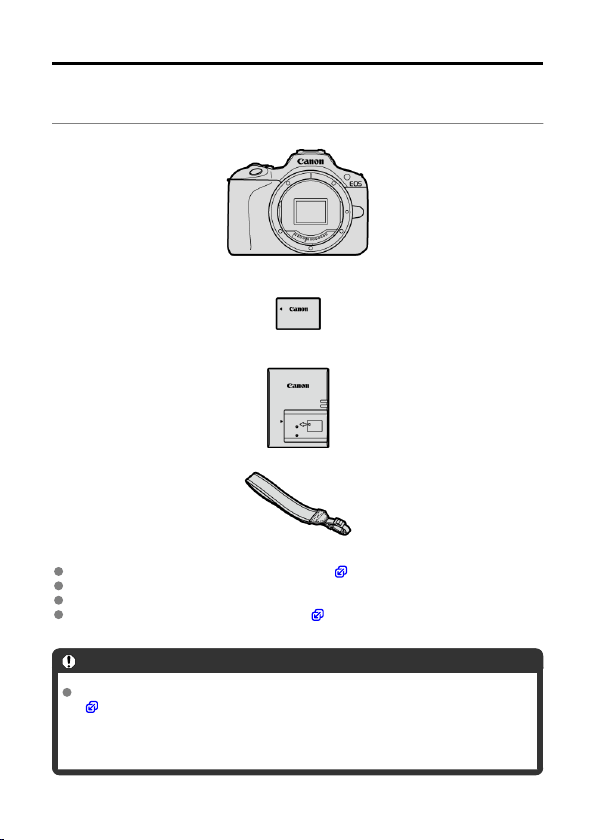
Before use, make sure the following items are included in the package. If anything is
missing, contact your dealer.
Camera
(with body cap (Camera Cover R-F-5))
Battery Pack LP-E17
(with protective cover)
Battery Charger LC-E17
Strap
The camera does not come with a memory card ( ), interface cable, or HDMI cable.
If you purchased a Lens Kit, check that the lenses are included.
Be careful not to lose any of these items.
No software CD-ROM is included. Software ( ) can be downloaded from the Canon
website.
Caution
When you need Lens Instruction Manuals, download them from the Canon website
( ).
Lens Instruction Manuals (PDF files) are for lenses sold separately, and when a
lens kit is purchased, some accessories included with the lens may not match
those listed in the Lens Instruction Manual.
9
Instruction Manuals
Instruction Manual (included with the camera)
Provides basic camera instructions.
Advanced User Guide
Complete instructions are provided in this Advanced User Guide.
For the latest Advanced User Guide, refer to the following website.
https://cam.start.canon/C015/
Lens/Software Instruction Manual
Download from the following website and refer to the supplemental information.
https://cam.start.canon/
Note
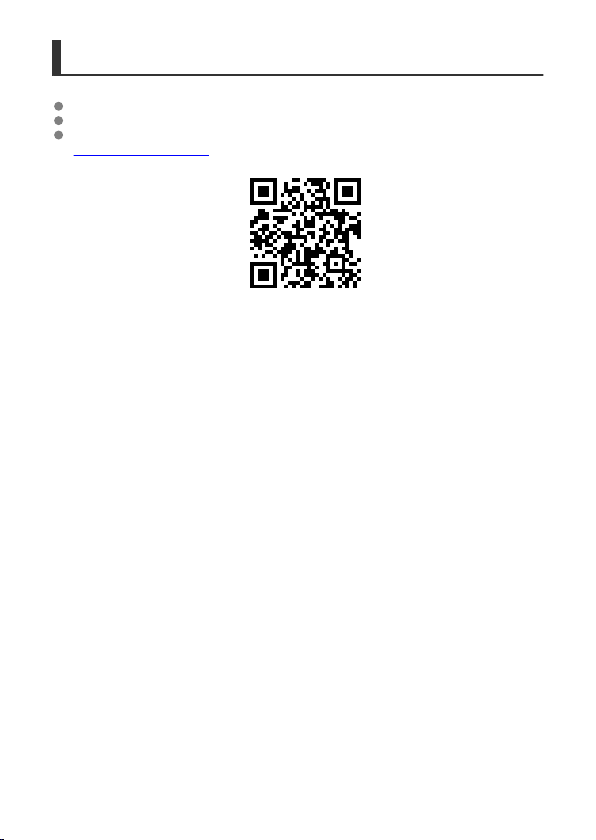
Select [ : Manual/software URL] to display the QR code on the camera screen.
12
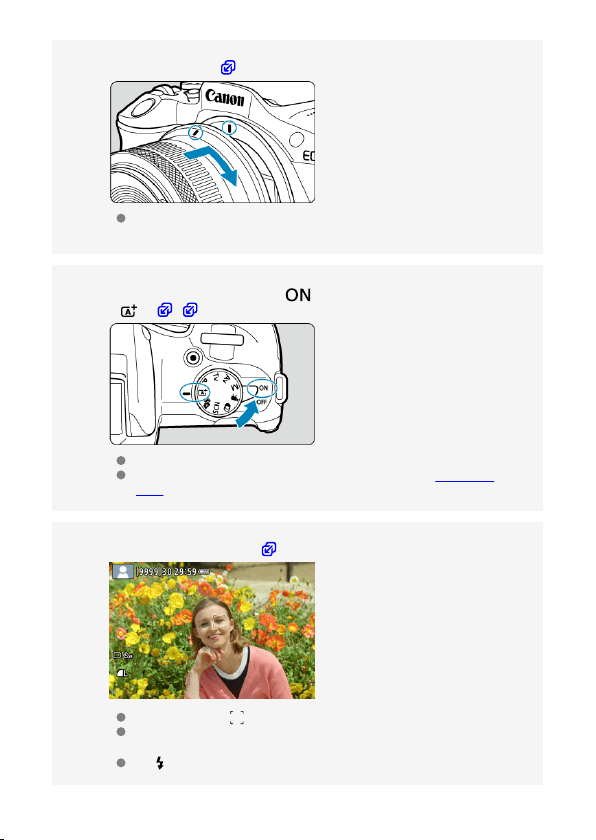
Attach the lens ( ).
Align the red mount index on the lens with the red mount index on the
camera to attach the lens.
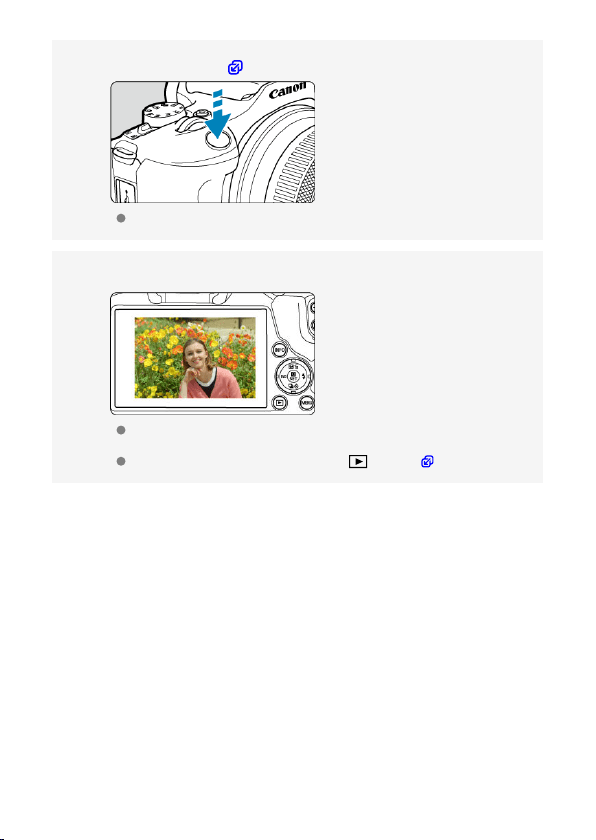
Set the power switch to < >, then set the Mode dial to
< > ( , ).
All the necessary camera settings is set automatically.
If the [Date/Time/Zone] setting screen is displayed, see Date/Time/
Zone.
Focus on the subject ( ).
A tracking frame [ ] for AF appears over any face detected.
Press the shutter button halfway, and the camera will focus on the
subject.
If < > blinks on the screen, manually raise the built-in flash.
14
3.
4.
5.
About This Guide
Icons in This Guide
Basic Assumptions for Operational Instructions and Sample Photos
Icons in This Guide
< >
Indicates the dial.
< >
< >
< >
<
>
Indicates the direction to press the cross keys (<
>).
<
>
Indicates the lens control ring.
< >
Indicates the Quick Control/Set button.
*
Indicates the duration (in * seconds) of the operation for the button you pressed, as
timed after you release the button.
In addition to the above, the icons and symbols used on the camera's buttons and
displayed on the screen are also used in this guide when discussing relevant operations
and functionality.
to the right of titles indicates functions only available in Creative Zone modes (<P>,
<Tv>, <
Av>, or <M>).
Links to pages with related topics.
Warning to prevent shooting problems.
Supplemental information.
Tips or advice for better shooting.
Troubleshooting advice.
16

Basic Assumptions for Operational Instructions and
Sample Photos
Before following any instructions, make sure the power switch is set to < > ( ).
It is assumed that all the menu settings and Custom Functions are set to their defaults.
Illustrations in this guide show the camera with the RF-S18-45mm F4.5-6.3 IS STM lens
attached as an example.
The sample photos displayed on the camera and used in this guide are for instructional
purposes only.
In references to using EF or EF-S lenses, it is assumed that a mount adapter is used.
17
Compatible Cards
The following cards can be used with the camera regardless of capacity. If the card is new
or was previously formatted (initialized) by another camera or computer, format the
card with this camera ( ).
SD/SDHC/SDXC memory cards
UHS-I cards supported.
Cards That Can Record Movies
When recording movies, use a card with ample performance (fast enough writing and
reading speeds) for the movie recording size ( ).
In this guide, “card” refers to SD memory cards, SDHC memory cards,
and SDXC memory cards.
*A card is not included. Please purchase it separately.
18
WARNING:
Safety Instructions
Be sure to read these instructions in order to operate the product safely.
Follow these instructions to prevent injury or harm to the operator of the product or others.
Denotes the risk of serious injury or death.
Keep the product out of the reach of young children.
Keep batteries out of the reach of children.
A strap wrapped around a person's neck may result in strangulation.
The parts or provided items of cameras or accessories are dangerous if swallowed. If
swallowed, seek immediate medical assistance.
The battery is dangerous if swallowed. If swallowed, seek immediate medical assistance.
PRODUCT CONTAINS BUTTON/COIN CELL BATTERY
Button/coin cell batteries are hazardous and must be kept out of reach of children at all
times, whether new or used.
These batteries can cause severe or fatal injuries in 2 hours or less if swallowed or placed
inside any part of the body.
If it is suspected a button/coin cell battery has been swallowed or placed inside any part of
the body, seek medical attention immediately.
Use only power sources specified in this instruction manual for use with the product.
Do not disassemble or modify the product.
Do not expose the product to strong shocks or vibration.
Do not touch any exposed internal parts.
Stop using the product in any case of unusual circumstances such as the presence of
smoke or a strange smell.
Do not use organic solvents such as alcohol, benzine or paint thinner to clean the
product.
Do not get the product wet. Do not insert foreign objects or liquids into the product.
Do not use the product where flammable gases may be present.
This may cause electric shock, explosion or fire.
Do not leave a lens or a camera/camcorder with a lens attached, exposed without the
lens cap attached.
The lens may concentrate the light and cause fire.
Do not touch the product connected to a power outlet during lightning storms.
This may cause electric shock.
19
Observe the following instructions when using commercially available batteries or
provided battery packs.
• Use batteries/battery packs only with their specified product.
• Do not heat batteries/battery packs or expose them to fire.
• Do not charge batteries/battery packs using non-authorized battery chargers.
• Do not expose the terminals to dirt or let them come into contact with metallic pins
or other metal objects.
• Do not use leaking batteries/battery packs.
• When disposing of batteries/battery packs, insulate the terminals with tape or other
means.
This may cause electric shock, explosion or fire.
If a battery/battery pack leaks and the material contacts your skin or clothing, flush the
exposed area thoroughly with running water. In case of eye contact, flush thoroughly with
copious amounts of clean running water and seek immediate medical assistance.
Observe the following instructions when using a battery charger or AC adapter.
• Periodically remove any dust buildup from the power plug and power outlet using a
dry cloth.
• Do not plug in or unplug the product with wet hands.
• Do not use the product if the power plug is not fully inserted into the power outlet.
• Do not expose the power plug and terminals to dirt or let them come into contact
with metallic pins or other metal objects.
• Do not touch the battery charger or AC adapter connected to a power outlet during
lightning storms.
Do not place heavy objects on the power cord. Do not damage, break or modify the
power cord.
Do not wrap the product in cloth or other materials when in use or shortly after use when
the product is still warm in temperature.
Do not unplug the product by pulling the power cord.
Do not leave the product connected to a power source for long periods of time.
Do not charge batteries/battery packs at temperatures outside the range of 5 - 40 °C (41
- 104 °F).
This may cause electric shock, explosion or fire.
Do not allow the product to maintain contact with the same area of skin for extended
periods of time during use.
This may result in low-temperature contact burns, including skin redness and blistering,
even if the product does not feel hot. The use of a tripod or similar equipment is
recommended when using the product in hot places and for people with circulation problems
or less sensitive skin.
Follow any indications to turn off the product in places where its use is forbidden.
Not doing so may cause other equipment to malfunction due to the effect of electromagnetic
waves and even result in accidents.
Do not leave batteries near pets.
Pets biting a battery could cause leakage, overheating, or explosion, resulting in product
damage or fire.
20
CAUTION:
Follow the cautions below. Otherwise physical
injury or property damage may result.
Do not fire the flash near the eyes.
It may hurt the eyes.
Do not look at the screen or through the viewfinder for prolonged periods of time.
This may induce symptoms similar to motion sickness. In such a case, stop using the
product immediately and rest for a while before resuming use.
Flash emits high temperatures when fired. Keep fingers, any other part of your body,
and objects away from the flash unit while taking pictures.
This may cause burns or malfunction of the flash.
Do not leave the product in places exposed to extremely high or low temperatures.
The product may become extremely hot/cold and cause burns or injury when touched.
Strap is intended for use on the body only. Hanging the strap with any product attached
on a hook or other object may damage the product. Also, do not shake the product or
expose the product to strong impacts.
Do not apply strong pressure on the lens or allow an object to hit it.
This may cause injury or damage to the product.
Only mount the product on a tripod that is sufficiently sturdy.
Do not carry the product when it is mounted on a tripod.
This may cause injury or may result in an accident.
Do not touch any parts inside the product.
This may cause injury.
If any abnormal skin reaction or irritation occurs during or following the use of this
product, refrain from further use and get medical advice/attention.
21

Handling Precautions
Camera care
This camera is a precision instrument. Do not drop it or subject it to physical shock.
The camera is not waterproof and cannot be used underwater. If the camera gets wet,
contact a Canon Service Center immediately. Wipe off any water droplets with a dry and
clean cloth. If the camera has been exposed to salty air, wipe it with a clean, well-wrung
wet cloth.
Never leave the camera near anything having a strong magnetic field such as a magnet
or electric motor. Also, avoid using or leaving the camera near anything emitting strong
radio waves, such as a large antenna. Strong magnetic fields can cause camera
malfunction or destroy image data.
Do not leave the camera in excessive heat, such as in a car in direct sunlight. High
temperatures can cause the camera to malfunction.
The camera contains precision electronic circuitry. Never attempt to disassemble the
camera yourself.
Do not block shutter curtain operation with your finger or other objects. Doing so may
cause a malfunction.
Only use a commercially available blower to blow away dust on the lens, viewfinder, or
other parts. Do not use cleaners that contain organic solvents to clean the camera body
or lens. For stubborn dirt, take the camera to the nearest Canon Service Center.
Do not touch the camera's electrical contacts with your fingers. This is to prevent the
contacts from corroding. Corroded contacts can cause camera malfunction.
If the camera is suddenly brought in from the cold into a warm room, condensation may
form on the camera and internal parts. To prevent condensation, first put the camera in
a sealed plastic bag and let it adjust to the warmer temperature before taking it out of
the bag.
If condensation forms on the camera, to avoid damage, do not use the camera or
remove the lens, card, or battery. Turn the camera off and wait until the moisture has
fully evaporated before resuming use. Even after the camera is completely dry, if it is still
internally cold, do not remove the lens, card, or battery until the camera has adjusted to
the ambient temperature.
If the camera will not be used for an extended period, remove the battery and store the
camera in a cool, dry, well-ventilated location. Even while the camera is in storage,
press the shutter button a few times once in a while to check that the camera is still
working.
Avoid storing the camera where there are chemicals that result in rust and corrosion
such as in a chemical lab.
If the camera has not been used for an extended period, test all its functions before
using it. If you have not used the camera for some time or if there is an important shoot
such as a foreign trip coming up, have the camera checked by your nearest Canon
Service Center or check the camera yourself and make sure it is working properly.
The camera may become hot after repeated continuous shooting or still photo/movie
shooting over an extended period. This is not a malfunction.
If there is a bright light source inside or outside the image area, ghosting may occur.
When shooting with backlighting, keep the sun sufficiently away from the angle of view.
Always keep intense light sources such as the sun, lasers, and other intense artificial
light sources out of the image area and not near it. Concentrated intense light may
cause smoke or damage the image sensor or other internal components.
22

Attach the lens cap to prevent direct sunlight and other light from entering the lens when
you are not shooting.
23
Screen and viewfinder
The following does not affect images captured by the camera.
Although the screen and viewfinder are manufactured with very high precision
technology with over 99.99% effective pixels, 0.01% or fewer of the pixels may be dead,
and there may also be spots of black, red, or other colors. This is not a malfunction.
If the screen is left on for a prolonged period, screen burn-in may occur where you see
remnants of what was displayed. However, this is only temporary and will disappear
when the camera is left unused for a few days.
The screen display may seem slightly slow in low temperatures or may look black in
high temperatures, but it will return to normal at room temperature.
Cards
To protect the card and its recorded data, note the following:
Do not drop, bend, or wet the card. Do not subject it to excessive force, physical shock,
or vibration.
Do not touch the card's electronic contacts with your fingers or anything metallic.
Do not affix any stickers, etc. on the card.
Do not store or use the card near anything that has a strong magnetic field, such as a
television, speakers, or magnets. Also avoid places prone to having static electricity.
Do not leave the card in direct sunlight or near a heat source.
Store the card in a case.
Do not store the card in hot, dusty, or humid locations.
Cards may become hot after long sessions of repeated continuous shooting or still photo
shooting/movie recording. This is not a malfunction.
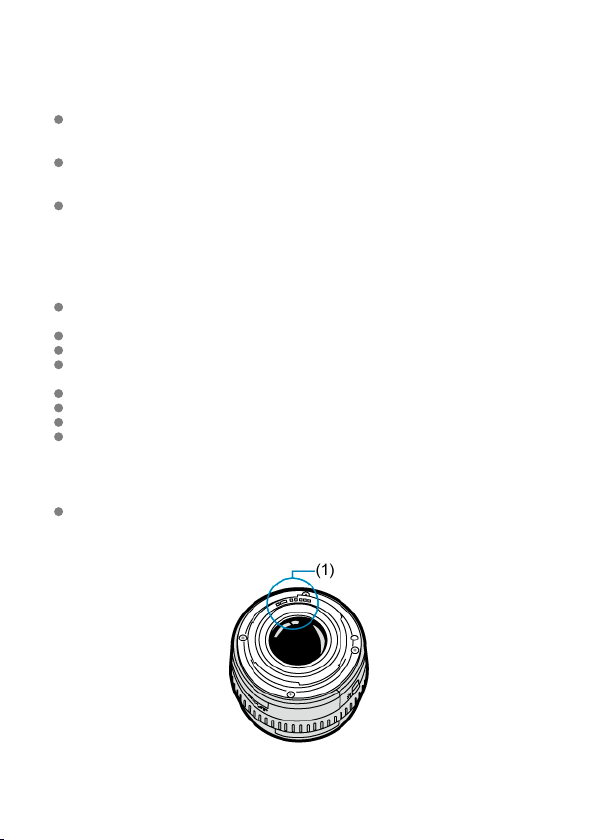
Lens
After detaching the lens from the camera, put down the lens with the rear end up and
attach the rear lens cap to avoid scratching the lens surface and electrical contacts
(1).
24

Smudges on the image sensor
You can use a commercially available blower to remove dust or debris on the image
sensor that appears in images.
Besides dust entering the camera from outside, in rare cases, lubricant from the
camera's internal parts may adhere to the front of the sensor.
If smudges are visible on images, have the sensor cleaned by a nearest Canon Service
Center.
25
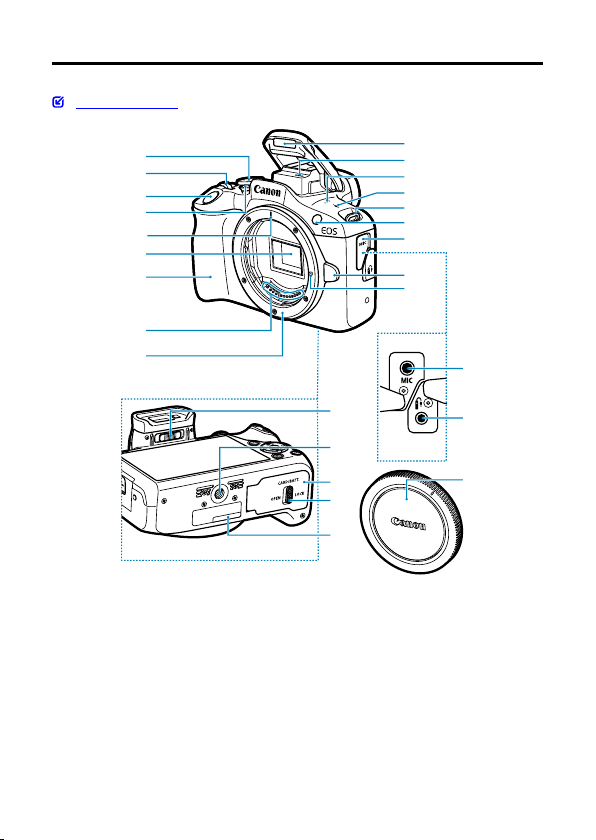
(1) Mode dial
(2) <
> Dial
(3) Shutter button
(4) Movie shooting button
(5) RF lens mount index
(6) Image sensor
(7) Grip
(8) Contacts
(9) Lens mount
(10) Built-in flash
(11) Microphone (monaural)
(12) Speaker
(13) < > Focal plane mark
(14) Strap mount
(15) AF-assist beam/red-eye reduction/self-timer/remote control lamp
(16) Terminal cover
(17) Lens release button
(18) Lens lock pin
(19) < > External microphone IN terminal
(20) Remote control terminal
(21) Dioptric adjustment slider
(22) Tripod socket
(23) Card/battery compartment cover
(24) Card/battery compartment cover lock
(25) Serial number (body number)
(26) Body cap
27
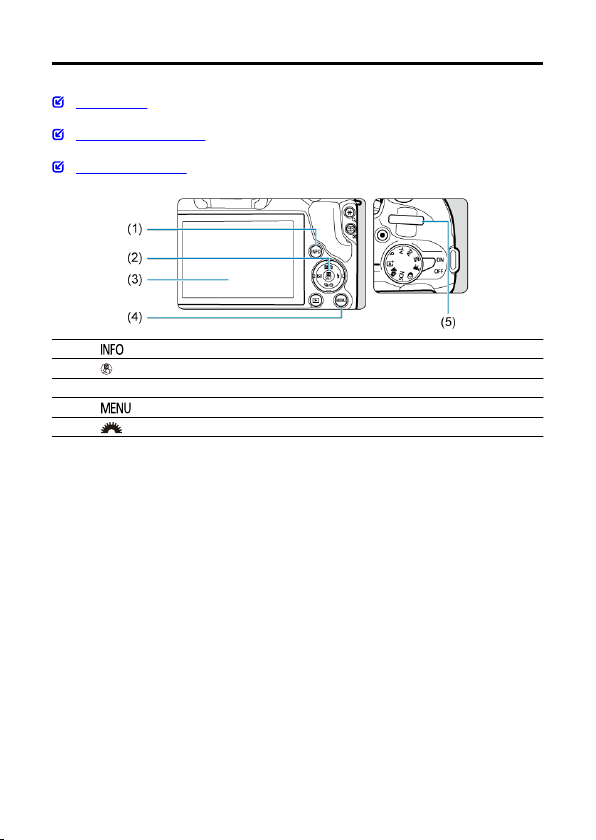
(1)
(4)
(6)
(13)
(12)
(11)
(10)
(9)
(19)
(17)
(18)
(16)
(5)
(22)
(21)
(20)
(7)
(8)
(2)
(3)
(14)
(15)
28
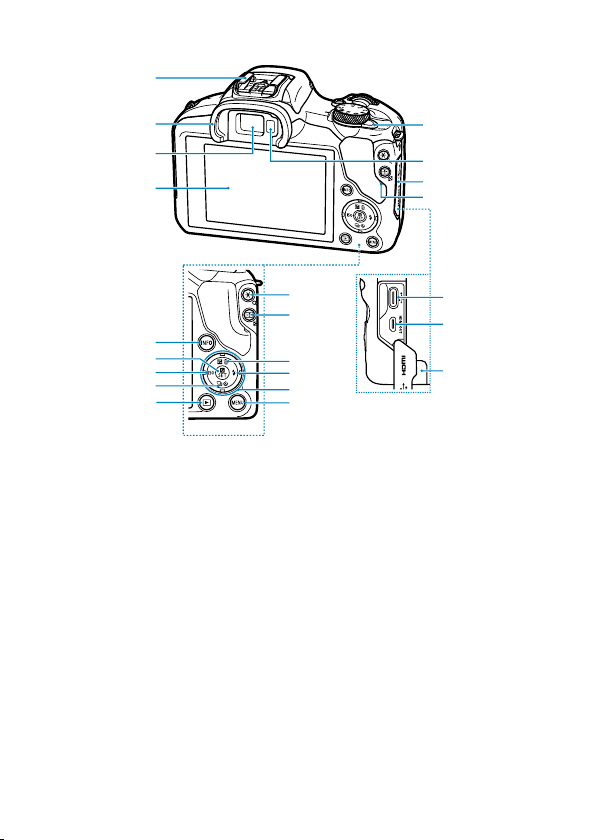
(1) Hot shoe
(2) Eyecup
(3) Viewfinder eyepiece
(4) Screen
(5) <
/ > Power switch
(6) Viewfinder sensor
(7) Terminal cover
(8) Access lamp
(9) < > Info button
(10) < > Quick Control/Set button
(11) < / > Left/ISO speed setting button
(12) < / / > Down/self-timer/drive mode selection button
(13) <
> Playback button
(14) < / > AE lock/FE lock/magnify button
(15) < / > AF point selection/index/reduce button
(16) < / / > Up/exposure compensation/erase button
(17) < / > Right/Flash button
(18) <
> Cross keys
(19) < > Menu button
(20) < > Digital terminal
(21) < > HDMI micro OUT terminal
(22) DC cord hole
29

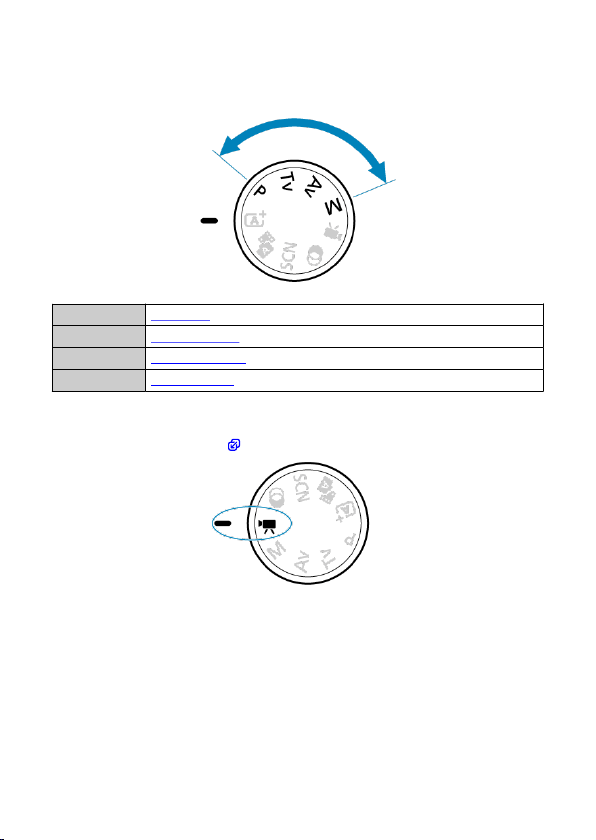
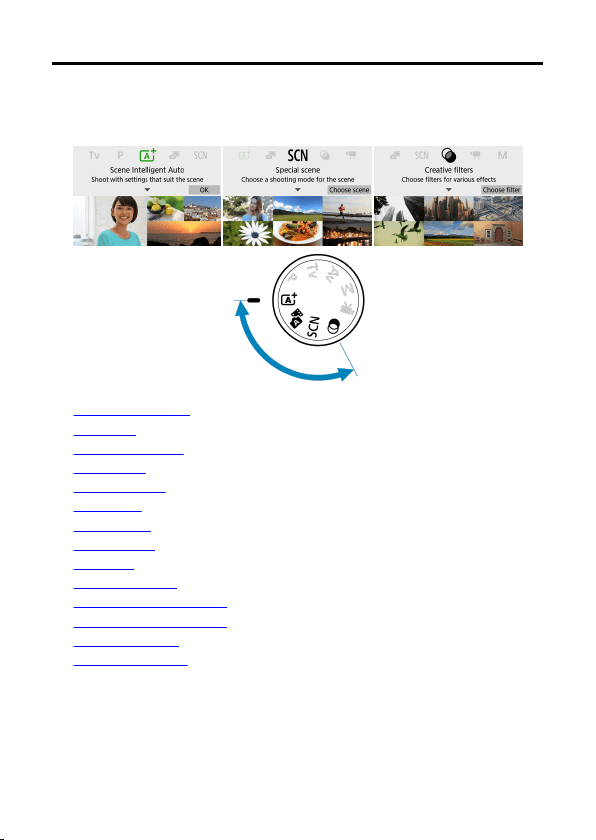
Mode dial
Features on the Mode dial are grouped into Basic Zone, Creative Zone, and movie recording
modes.
(1) Basic Zone
All you do is press the shutter button. The camera sets everything to suit the subject or
scene for shooting.
: Scene Intelligent Auto ( )
: Hybrid Auto ( )
: Special scene ( )
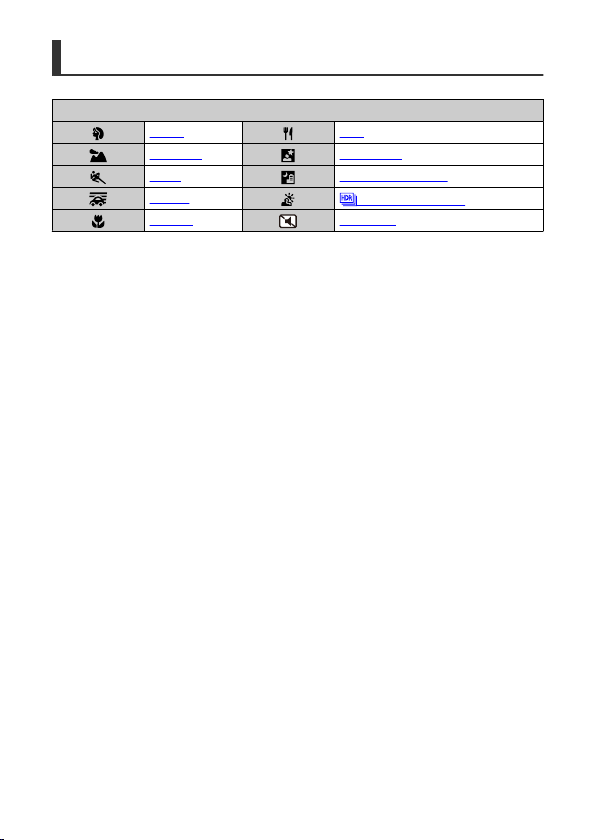
Portrait Food
Landscape Night Portrait
Sports Handheld Night Scene
Panning
HDR Backlight Control
Close-up Silent Mode
: Creative filters ( )
Grainy B/W Miniature effect
Soft focus
HDR art standard
Fish-eye effect
HDR art vivid
Water painting effect
HDR art bold
Toy camera effect
HDR art embossed
30

Attaching the Strap
Pass the end of the strap through the strap mount from the bottom, then pass it through the
strap buckle as shown. Pull the strap to take up any slack and make sure the strap will not
loosen from the buckle.
33
Software/Apps
Software/App Overview
Installing Computer Software
Installing Smartphone Apps
Software Instruction Manuals
Software/App Overview
This section summarizes software used with EOS cameras. Note that installing the software
requires an internet connection. The software cannot be installed in environments without an
internet connection.
Computer software
EOS Utility
Enables you to transfer captured images from the camera to a connected computer, set
various camera settings from the computer, and shoot remotely from the computer.
Digital Photo Professional
Software recommended for users who shoot RAW images. Enables image viewing,
editing, printing, and more.
Picture Style Editor
Enables you to edit existing Picture Styles or create and save original Picture Style files.
This software is for users who are familiar with image processing.
Smartphone apps
Camera Connect
Enables you to transfer captured images from the camera to a smartphone over a wired
or wireless connection, set various camera settings from the smartphone, and shoot
remotely from the smartphone.
Digital Photo Professional Express
App for RAW image processing and image editing on a smartphone or tablet. Requires
a paid subscription.
34

Installing Computer Software
Always install the latest version of the software. In this case, previous versions are
overwritten.
Caution
Do not install software while the camera is connected to the computer. The
software will not be installed correctly.
Installation is not possible without an internet connection.
Older versions of the software do not support RAW image processing or correct
display for images from this camera.
1.
Download the software.
Connect to the internet from a computer and access the following
Canon website.
https://cam.start.canon/
Depending on the software, you may need to enter the camera's serial
number. The serial number is on the bottom of the camera.
2.
Extract the installer on the computer.
For Windows
Click the displayed installer file to start the installer.
For macOS
Double-click the dmg file to open the installation window.
Double-click the icon in this window to start the installer.
3.
Follow the on-screen instructions to install the software.
35

Preparation and Basic Operations
This chapter describes preparatory steps before you start shooting and the basic camera
operations.
• Charging the Battery
• Inserting/Removing the Battery and Card
• Turning on the Power
• Attaching and Detaching RF/RF-S Lenses
• Attaching and Detaching EF/EF-S Lenses
• Using the Viewfinder
• Basic Operations
• Setting the Screen Display Level
• Menu Operations and Settings
• Quick Control
38
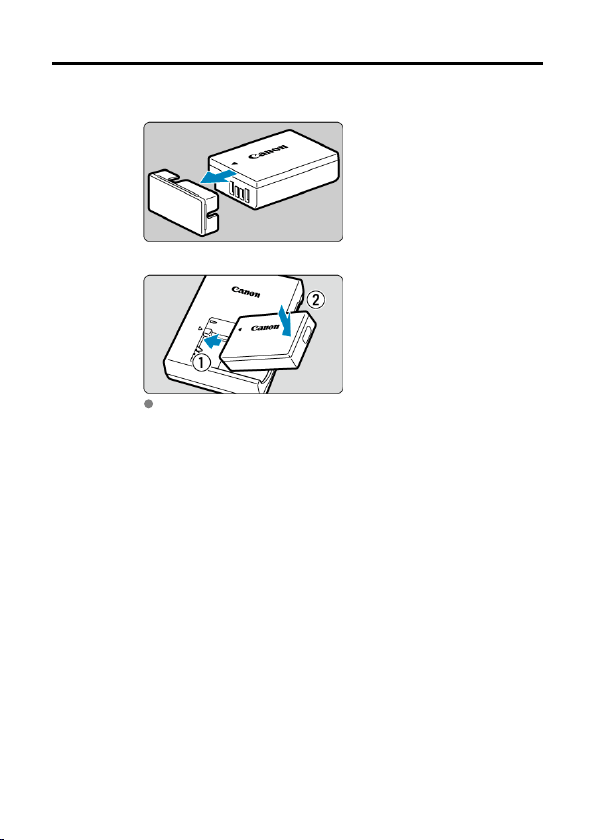
Charging the Battery
1.
Detach the protective cover provided with the battery.
2.
Fully insert the battery into the charger.
Do the opposite to remove the battery.
39
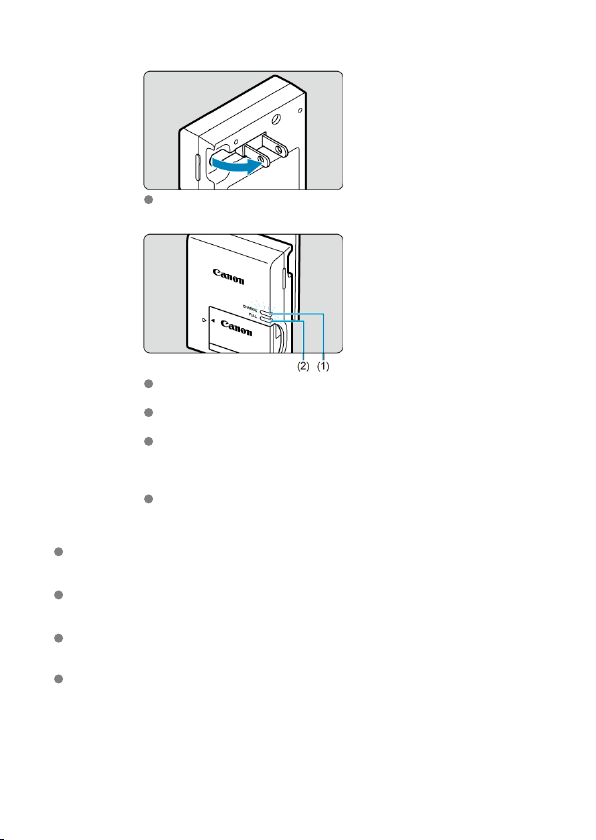
3.
Charge the battery.
Flip out the charger prongs as shown and plug the charger into a power
outlet.
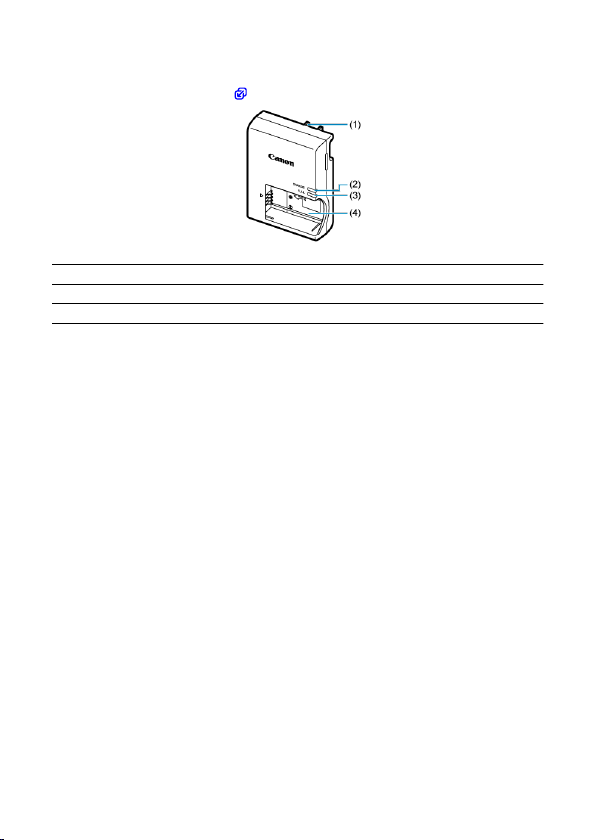
Charging starts automatically and the charge lamp (1) lights up in
orange.
When the battery is fully charged, the full-charge lamp (2) will light up in
green.
Charging a depleted battery takes approx. 2 hr. at room
temperature (23°C/73°F).
The time required to charge the battery will vary greatly depending on
the ambient temperature and the battery's remaining capacity.
For safety, charging in low temperatures (5–10°C/41–50°F) takes
longer (up to approx. 4 hr.).
Upon purchase, the battery is not fully charged.
Charge the battery before use.
Charge the battery on the day before or on the day it is to be used.
Charged batteries gradually lose their charge, even when they are not used.
After charging the battery, remove it and disconnect the charger from the power
outlet.
When not using the camera, remove the battery.
If the battery is left in the camera for a prolonged period, a small amount of power
current will keep being released, resulting in excess discharge and shorter battery life.
Store the battery with the protective cover attached. Storing the battery when it is fully
charged may lower the battery performance.
40
The battery charger can also be used in foreign countries.
The battery charger is compatible with a 100 V AC to 240 V AC 50/60 Hz power source.
If necessary, attach a commercially available plug adapter for the respective country or
region. Do not attach any portable voltage transformer to the battery charger. Doing so
may damage the battery charger.
If the battery becomes exhausted quickly even after having been fully charged,
the battery has reached the end of its service life.
Purchase a new battery.
Caution
After disconnecting the charger's power plug, do not touch the prongs for approx. 5
sec.
The provided charger cannot charge any battery other than Battery Pack LP-E17.
41
Inserting/Removing the Battery and Card
Insertion
Formatting the Card
Removal
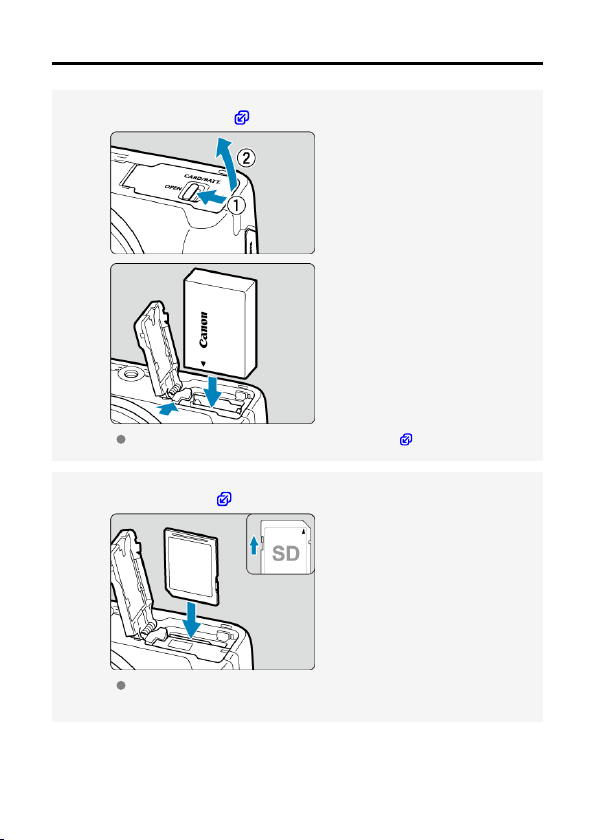
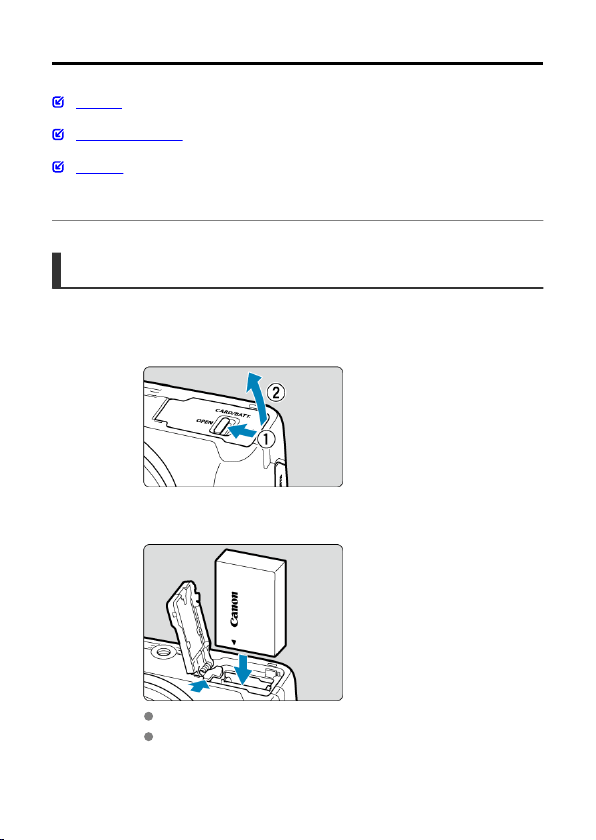
Insert a fully charged Battery Pack LP-E17 and card in the camera. The captured images
are recorded onto the card.
Insertion
1.
Slide the card/battery compartment cover lock and open the cover.
2.
Insert the battery.
Insert the end with the electrical contacts.
Insert the battery until it locks in place.
42
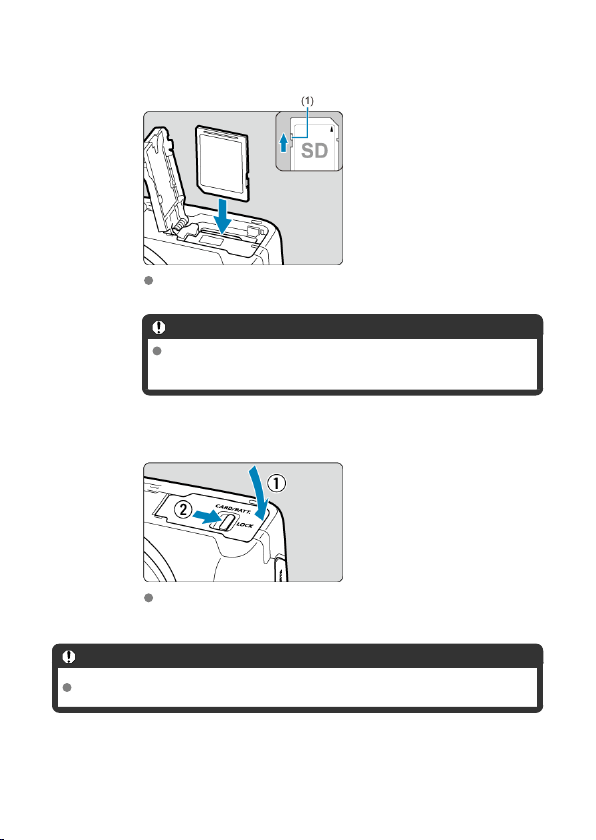
3.
Insert the card.
Insert the card with the label facing the front of the camera until it clicks
into place.
Caution
Make sure the card's write-protect switch (1) is set upward to
enable writing and erasing.
4.
Close the cover.
Press the cover closed, then slide the card/battery compartment cover
lock to lock it.
Caution
You cannot use batteries other than the Battery Pack LP-E17.
43

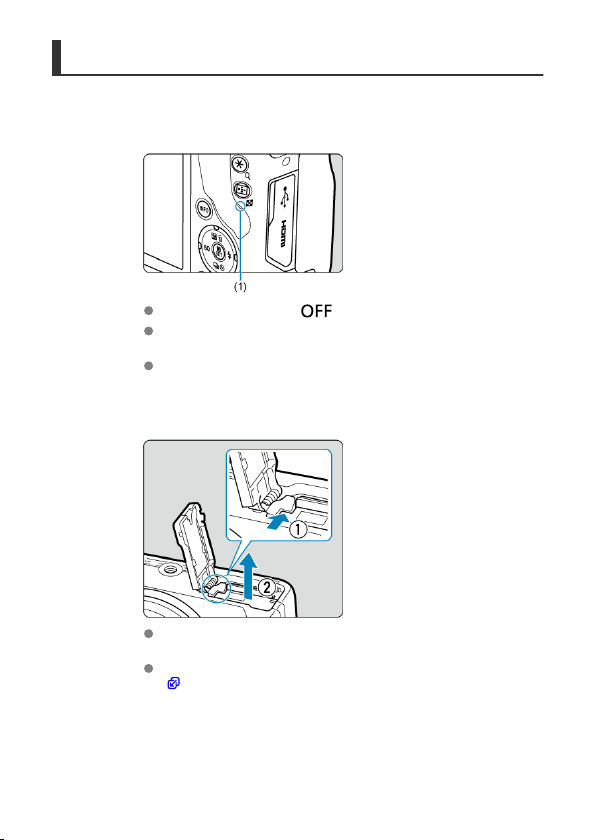
Removal
1.
Slide the card/battery compartment cover lock and open the cover.
Set the power switch to < >.
Make sure the access lamp (1) is off before opening the card/
battery compartment cover.
If [Saving...] is displayed on the screen, close the cover.
2.
Removing the battery.
Press the battery lock lever as shown by the arrow and remove the
battery.
To prevent short-circuits, always attach the included protective cover
( ) to the battery.
45
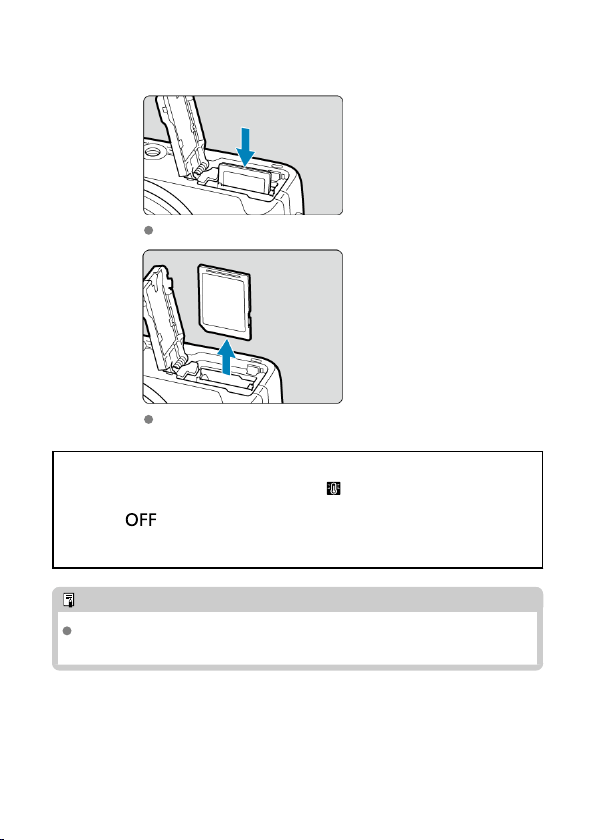
3.
Remove the card.
Gently push in the card, then let it go to eject.
Pull the card straight out, then close the cover.
Caution
Do not remove cards immediately after a red [ ] icon is displayed as you are
shooting. Cards may be hot, due to high internal camera temperature. Set the power
switch to < > and stop shooting for a while before removing cards. Removing hot
cards immediately after shooting may cause you to drop and damage them. Be careful
when removing cards.
Note
The number of shots available varies depending on remaining card capacity and
settings such as image quality and ISO speed.
46

Caution
When the access lamp is lit or blinking, it indicates that images are being
written to, read from, or erased from the card, or data is being transferred. Do
not open the card/battery compartment cover. To avoid corrupting image
data or damaging cards or the camera, never do any of the following while
the access lamp is lit or blinking.
• Removing the card.
• Removing the battery.
• Shaking or striking the camera.
• Unplugging or plugging in a power cord
(when using optional household power outlet accessories).
If the card already contains recorded images, the image number may not start from
0001 ( ).
If a card-related error message is displayed on the screen, remove and reinsert the
card. If the error persists, use a different card.
If you can transfer images on the card to a computer, transfer all the images and
then format the card with the camera ( ). The card may then return to normal.
Do not touch the card's contacts with your fingers or metal objects. Do not expose
the contacts to dust or water. If smudges adhere to the contacts, contact failure
may result.
Multimedia cards (MMC) cannot be used. (Card error will be displayed.)
47
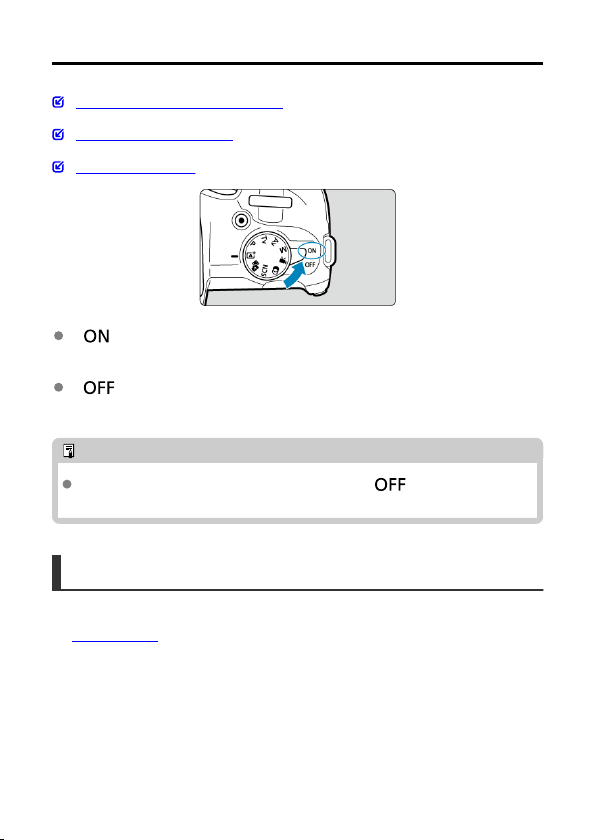
Turning on the Power
Setting the Date, Time, and Time Zone
Setting the Display Language
Battery Level Indicator
< >
The camera turns on. You can now shoot still photos and record movies.
< >
The camera is turned off and does not function. Set the power switch to this position
when not using the camera.
Note
[Saving...] is displayed if you set the power switch to < > during image
recording to the card, and the camera will turn off after recording is finished.
Setting the Date, Time, and Time Zone
If the [Date/Time/Zone] setting screen is displayed after you turn on the camera, complete
the Date/Time/Zone settings.
48

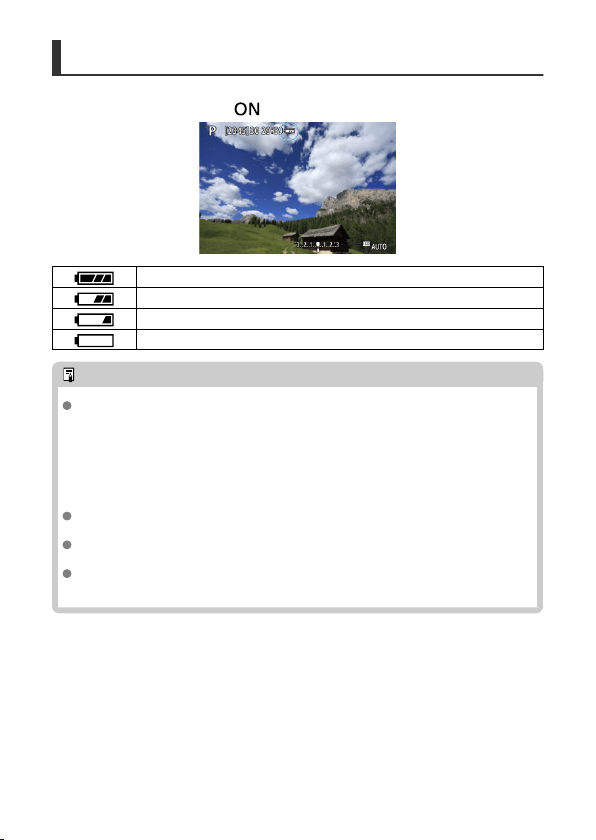
Battery Level Indicator
When the power switch is set to < >, the battery level will be indicated.
Battery level is sufficient.
Battery level is low, but the camera can still be used.
Battery will be exhausted soon (blinks).
Charge the battery.
Note
Doing any of the following will exhaust the battery faster:
• Pressing the shutter button halfway for a prolonged period.
• Activating the AF frequently without taking a picture.
• Using Image Stabilizer.
• Using the Wi-Fi function or Bluetooth function.
• Using the screen frequently.
The number of available shots may decrease depending on the actual shooting
conditions.
Lens operations are powered by the camera's battery. Certain lenses may exhaust
the battery faster than others.
In low ambient temperatures, shooting may not be possible even with a sufficient
battery level.
50
Attaching and Detaching RF/RF-S Lenses
Attaching a Lens
Detaching a Lens
Caution
Do not look at the sun directly through any lens. Doing so may cause loss of vision.
When attaching or detaching a lens, set the camera's power switch to < >.
If the front part (focusing ring) of the lens rotates during autofocusing, do not touch
the rotating part.
Tips for avoiding smudges and dust
When changing lenses, do it quickly in a place with minimal dust.
When storing the camera without a lens attached, be sure to attach the body cap to
the camera.
Remove smudges and dust on the body cap before attaching it.
51
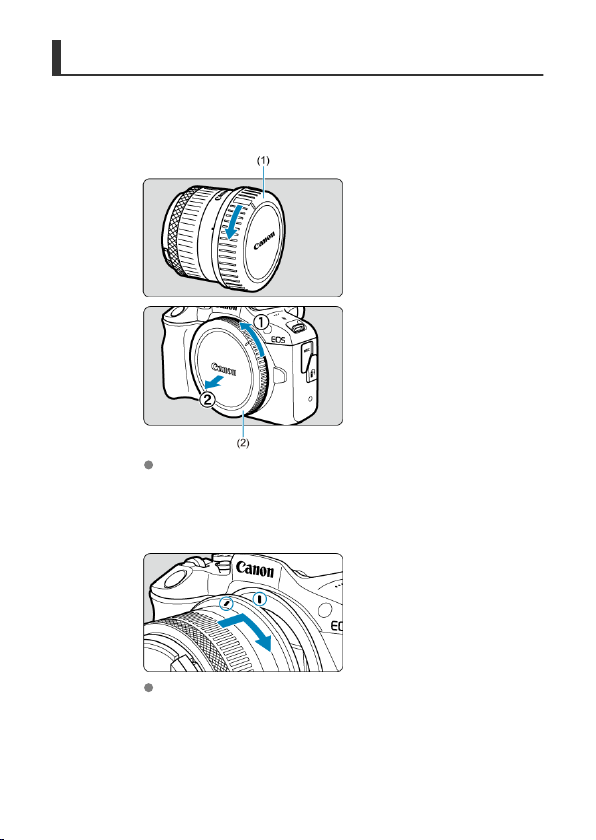
Attaching a Lens
1.
Remove the caps.
Remove the rear lens cap (1) and body cap (2) by turning them as
shown by the arrows.
2.
Attach the lens.
Align the red mount index on the lens with the red mount index on the
camera and turn the lens as shown by the arrow until it clicks in place.
52
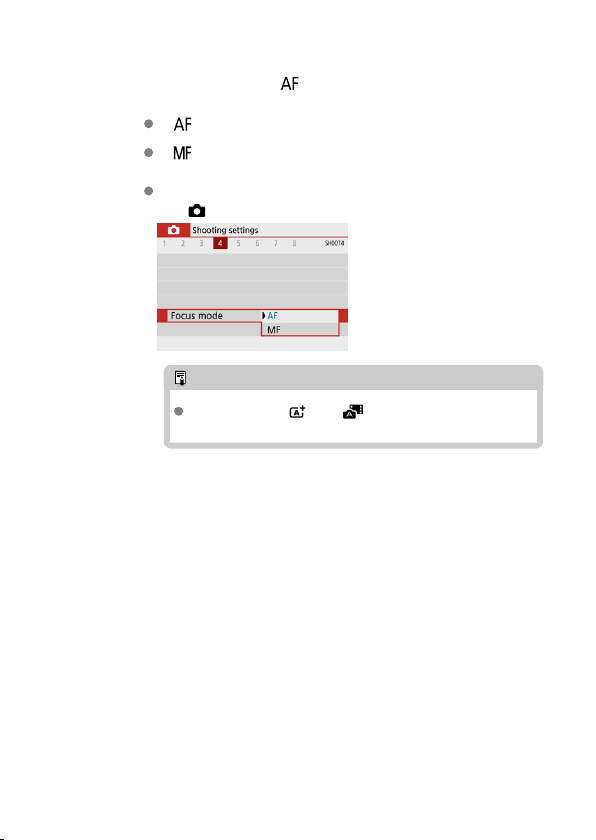
3.
Set the focus mode to < >.
< > stands for autofocus.
< > stands for manual focus. Autofocus is disabled.
For RF lenses without a focus mode switch
Set [ : Focus mode] to [AF].
Note
Not available in < > or < > mode.
53
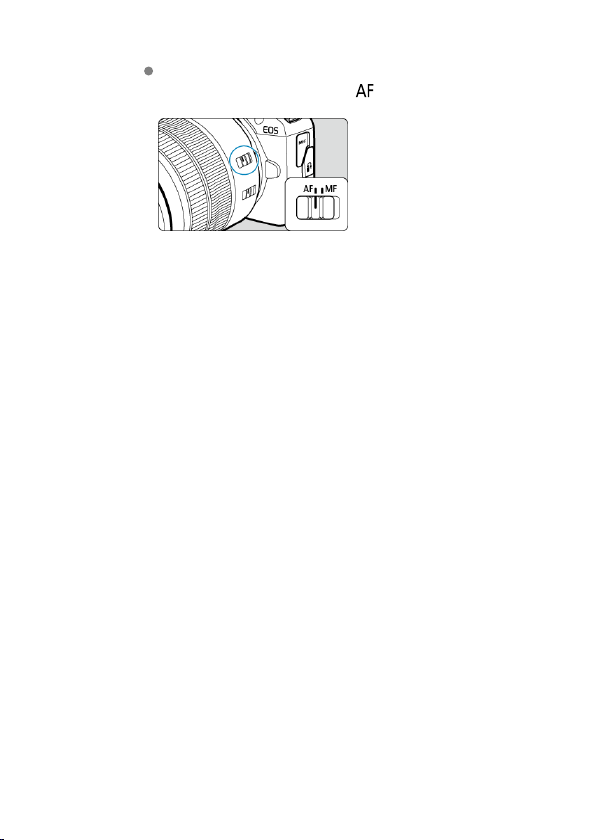
For RF lenses with a focus mode switch
Set the lens focus mode switch to < >. Because the setting on the
lens takes precedence, the camera setting has no effect.
4.
Remove the front lens cap.
54
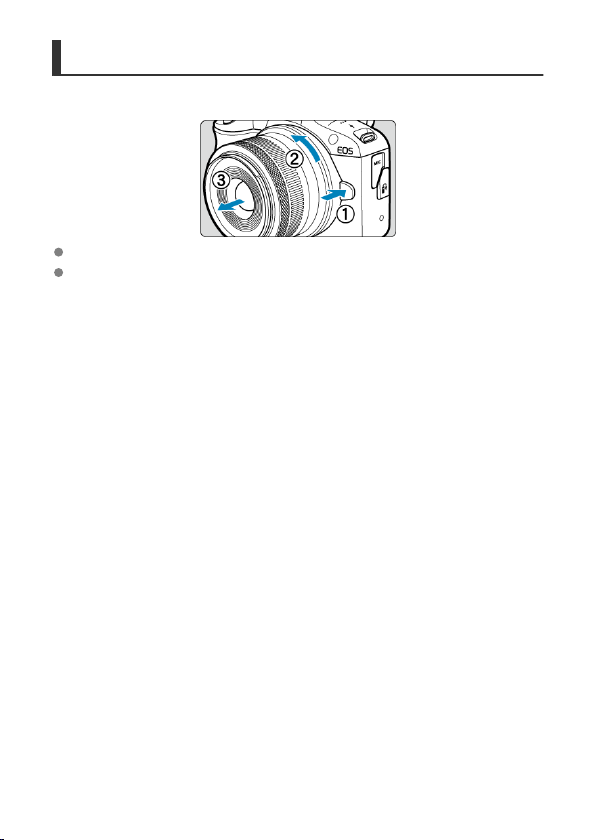
Detaching a Lens
While pressing the lens release button, turn the lens as shown by the arrow.
Turn the lens until it stops, then detach it.
Attach the rear lens cap to the lens you removed.
55

Attaching and Detaching EF/EF-S Lenses
Attaching a Lens
Detaching a Lens
All EF and EF-S lenses can be used by attaching an optional Mount Adapter EF-EOS R
.
The camera cannot be used with EF-M lenses.
Attaching a Lens
1.
Remove the caps.
Remove the rear lens cap (1) and body cap (2) by turning them as
shown by the arrows.
56
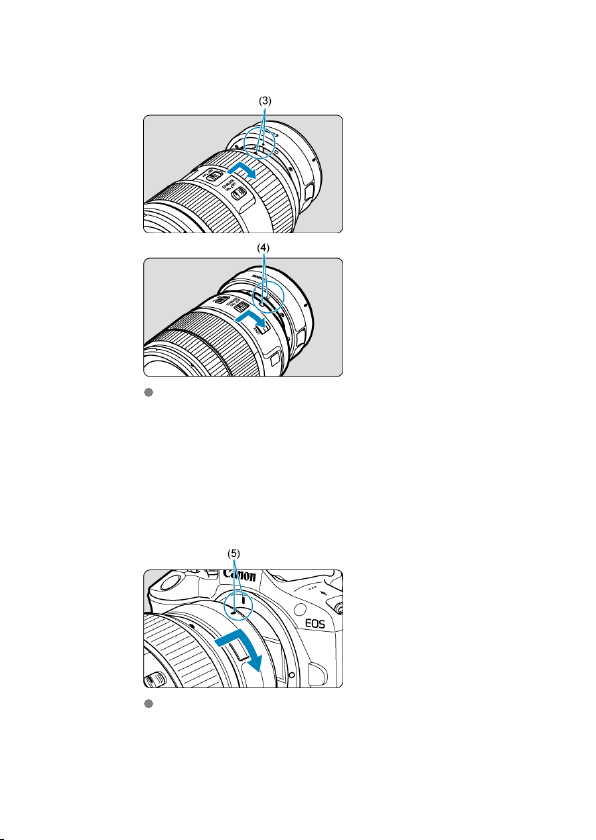
2.
Attach the lens to the adapter.
Align the red or white mount index on the lens with the corresponding
mount index on the adapter and turn the lens as shown by the arrow
until it clicks into place.
(3) Red index
(4) White index
3.
Attach the adapter to the camera.
Align the red mount indexes (5) on the adapter and camera and turn
the lens as shown by the arrow until it clicks into place.
57
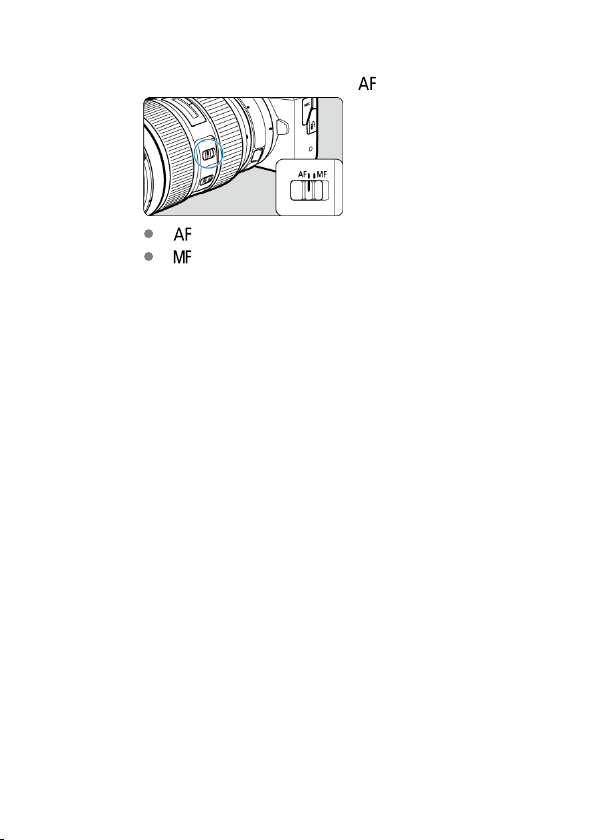
4.
Set the lens's focus mode switch to < >.
< > stands for autofocus.
< > stands for manual focus. Autofocus is disabled.
5.
Remove the front lens cap.
58
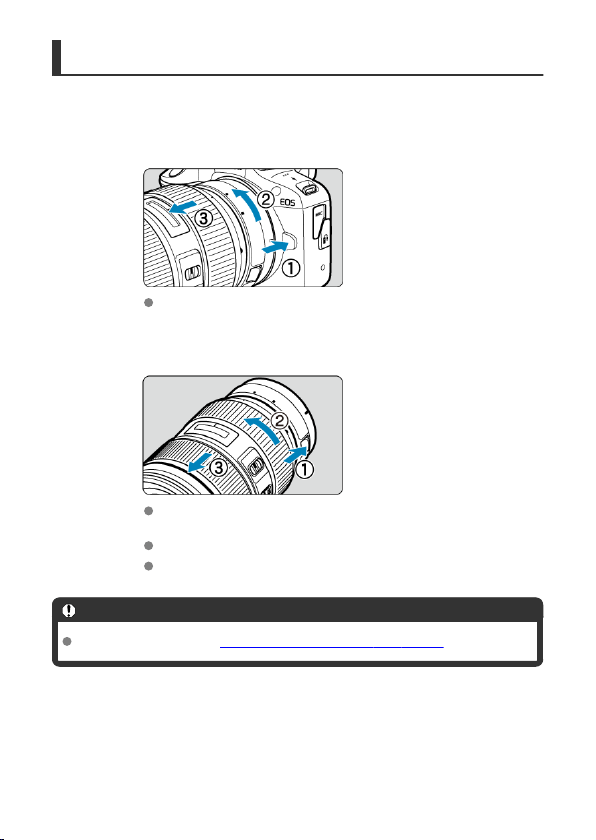
Detaching a Lens
1.
While pressing the lens release button, turn the adapter as shown by
the arrow.
Turn the lens until it stops, then detach it.
2.
Detach the lens from the adapter.
Hold down the lens release lever on the adapter and turn the lens
counterclockwise.
Turn the lens until it stops, then detach it.
Attach the rear lens cap to the lens you removed.
Caution
For lens precautions, see Attaching and Detaching RF/RF-S Lenses.
59
Using the Viewfinder
Dioptric Adjustment
Look through the viewfinder to activate it. You can also restrict display to either the screen or
viewfinder ( ).
Dioptric Adjustment
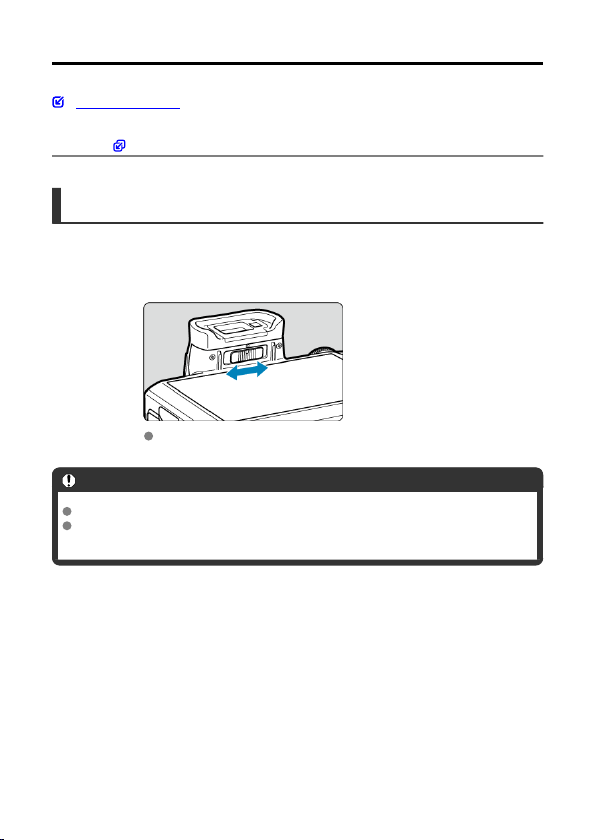
1.
Slide the dioptric adjustment slider.
Slide the slider left or right to make the viewfinder display look sharp.
Caution
The viewfinder and screen cannot be activated at the same time.
At some aspect ratios, black bars are displayed on the top and bottom or left and
right edges of the screen. These areas are not recorded.
60
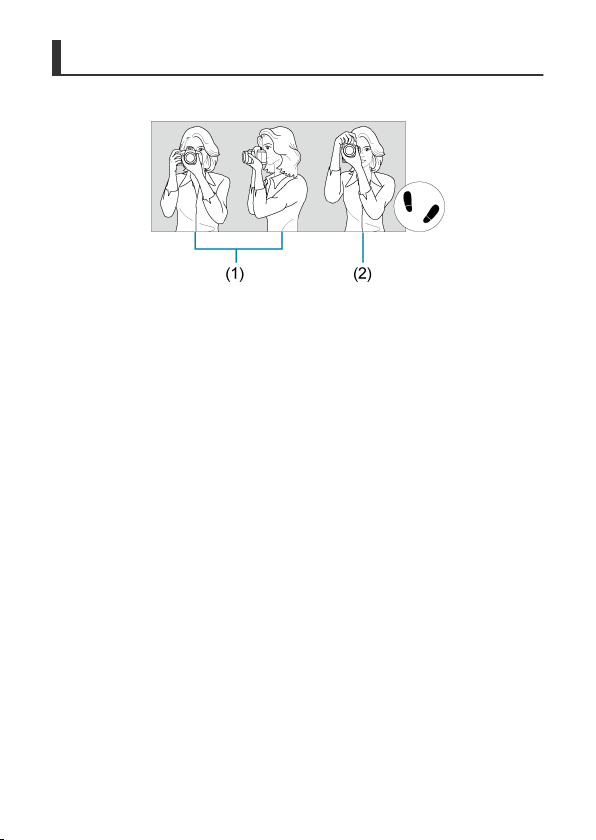
Holding the Camera
To obtain sharp images, hold the camera still to minimize camera shake.
(1) Horizontal shooting
(2) Vertical shooting
1. With your right hand, hold the camera firmly by the camera grip.
2. With your left hand, support the lens from below.
3. Rest your right index finger lightly on the shutter button.
4. Rest your arms and elbows lightly against the front of your body.
5. To maintain a stable stance, place one foot slightly ahead of the other.
6. Hold the camera near your face and look through the viewfinder.
62
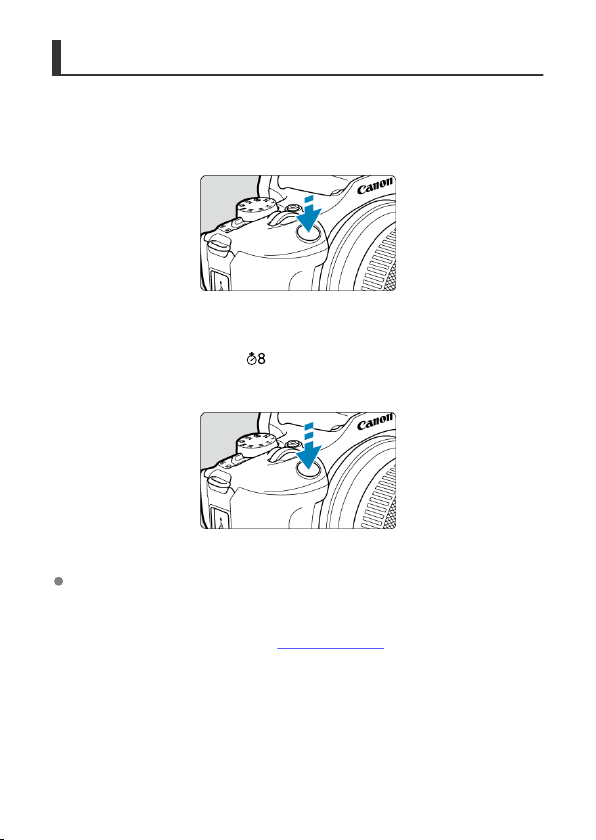
Shutter Button
The shutter button has two steps. You can press the shutter button halfway. Then you can
further press the shutter button completely.
Pressing halfway
This activates autofocusing and the automatic exposure system that sets the shutter speed
and aperture value.
The exposure value (shutter speed and aperture value) is displayed on the screen or in the
viewfinder for 8 sec. (metering timer/
).
Pressing completely
This releases the shutter and takes the picture.
Preventing camera shake
Hand-held camera movement during the moment of exposure is called camera shake. It
can cause blurred pictures. To prevent camera shake, note the following:
• Hold the camera still, as shown in Holding the Camera.
• Press the shutter button halfway to autofocus, then slowly press the shutter button
completely.
63
Note
The camera will still pause before taking a picture if you press the shutter button
completely without pressing it halfway first, or if you press the shutter button
halfway and immediately press it completely.
Even during menu display or image playback, you can return to shooting standby
by pressing the shutter button halfway.
64
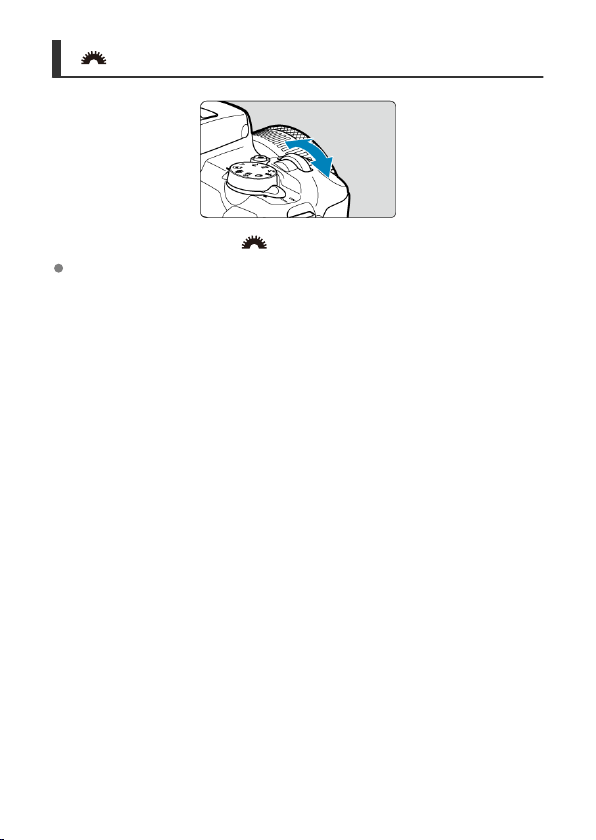
< > Dial
Watch the screen as you turn the < > dial.
Use this dial to set the shutter speed, aperture value, etc.
65
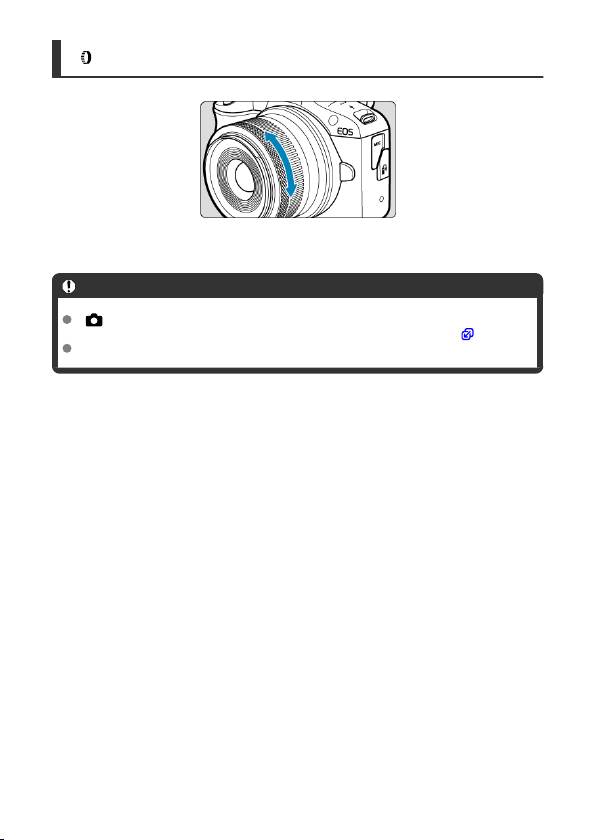
< > Control Ring
Exposure compensation can be set by turning an RF lens control ring while pressing the
shutter button halfway in <
P>, <Tv>, <Av>, or <M> mode.
Caution
[ : Focus/control ring] must be set when using lenses that have a combination
focus/control ring but have no switch to switch between these features ( ).
The control ring of Control Ring Mount Adapter EF-EOS R has no effect.
66

< > Info Button
Each press of the < > button changes the information shown.
The following sample screens are for still photos.
* In Basic Zone modes, the screen by (5) is not displayed.
67
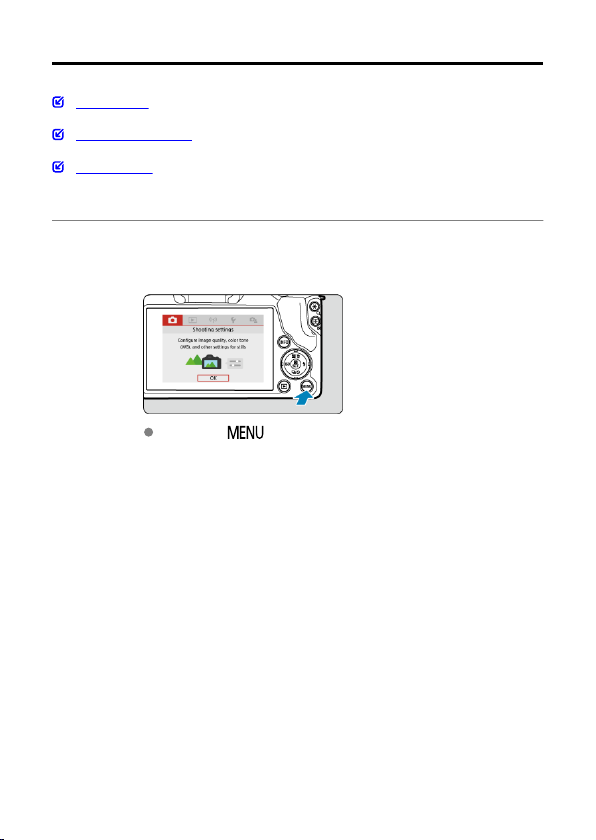
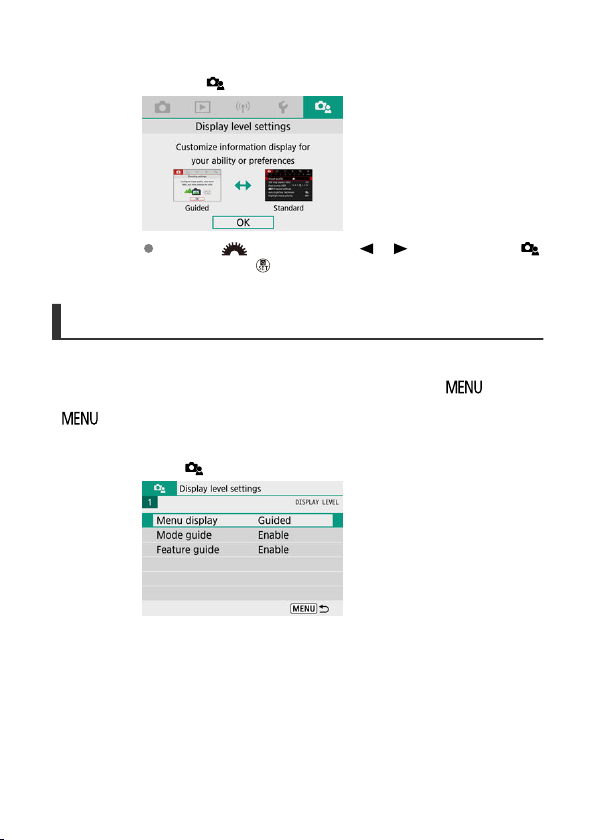
2.
Select the [ ] tab.
Turn the < > dial or press the < >< > keys to select the [ ]
tab, then press < >.
Menu Display
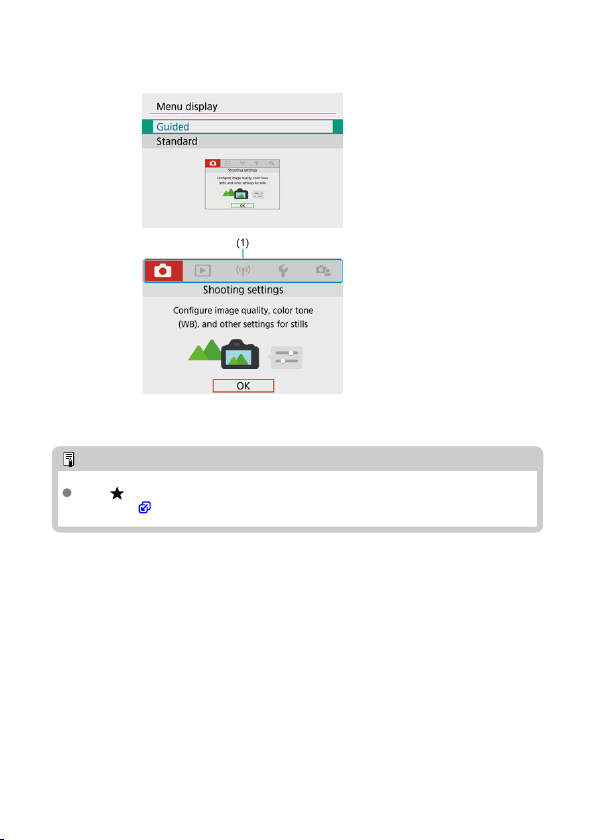
You can choose from [Standard] or [Guided] as the type of menu display. When set to
[Guided], the camera displays main tab descriptions after you press the < > button.
When set to [Standard], the camera only displays the menu screen after you press the
<
> button. The default setting is [Guided].
1.
Select [ : Menu display].
69
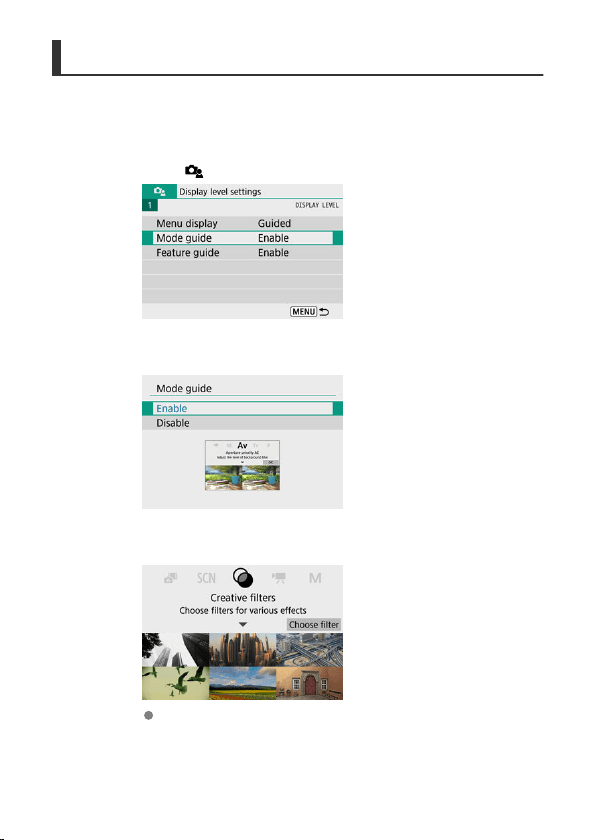
Shooting Mode Guide
A brief description of the shooting mode can be displayed when you switch shooting modes.
The default setting is [Enable].
1.
Select [ : Mode guide].
2.
Select [Enable].
3.
Turn the Mode dial.
A description of the selected shooting mode will appear.
71
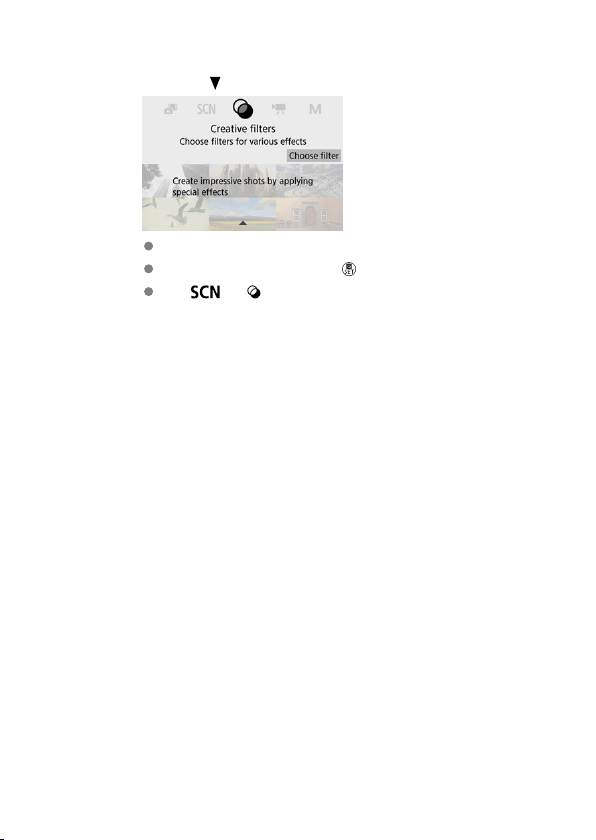
4.
Press the < > key.
The rest of the description will appear.
To clear the mode guide, press < >.
In < >/< > mode, you can display the shooting mode
selection screen.
72
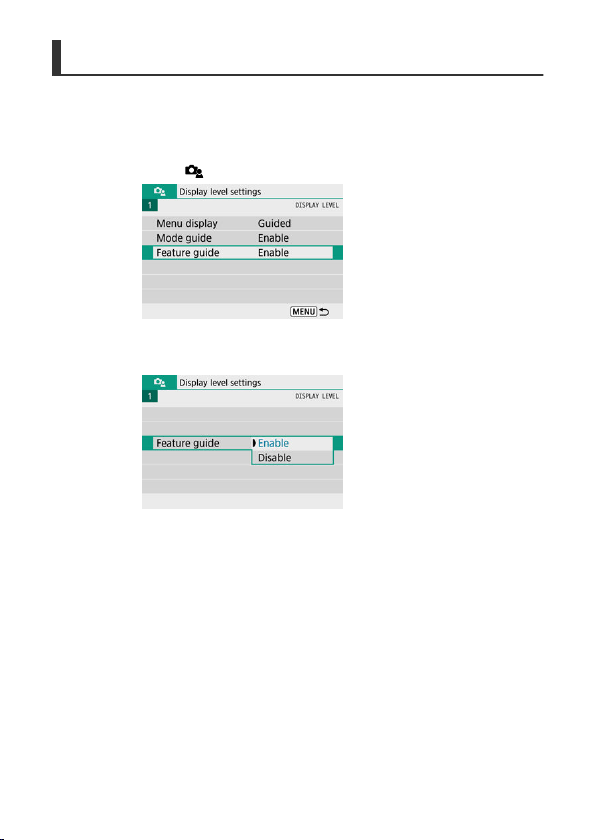
Feature Guide
A brief description of functions and items can be displayed when you use Quick Control or
menu settings. The default setting is [Enable].
1.
Select [ : Feature guide].
2.
Select [Enable].
73
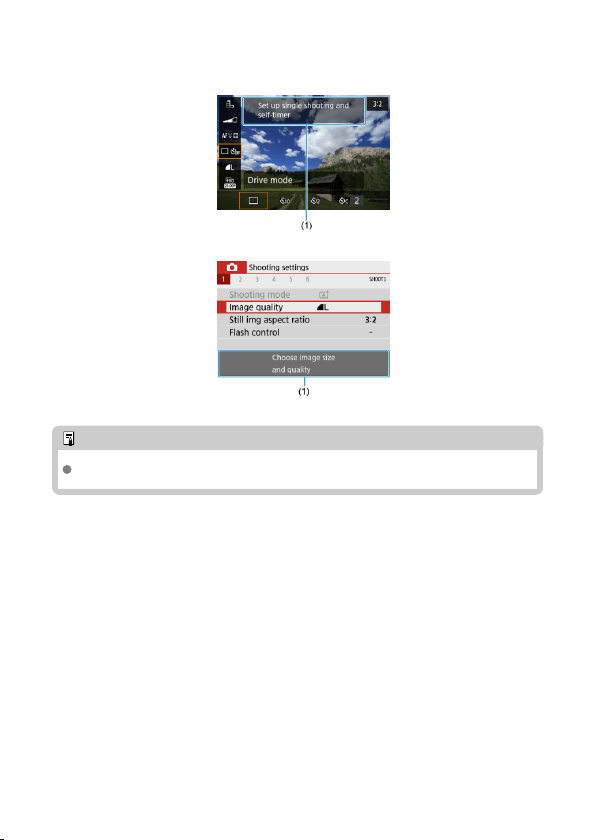
Sample screens
Quick Control screen
Menu Screen
(1) Feature guide
Note
To clear a description, continue performing operations.
74
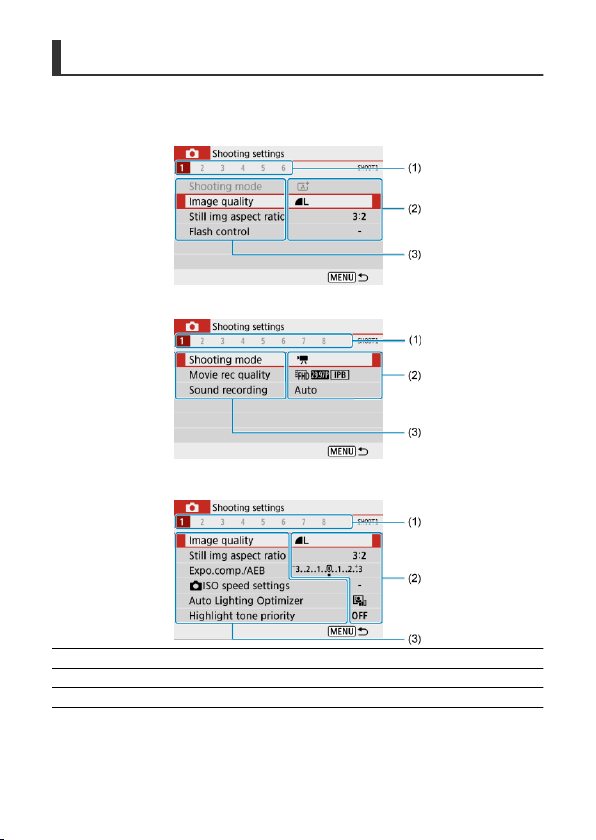
Menu Screen
The menu tabs and items displayed vary depending on the shooting mode.
Basic Zone
Movie recording
Creative Zone
(1) Secondary tabs
(2) Menu settings
(3) Menu items
76
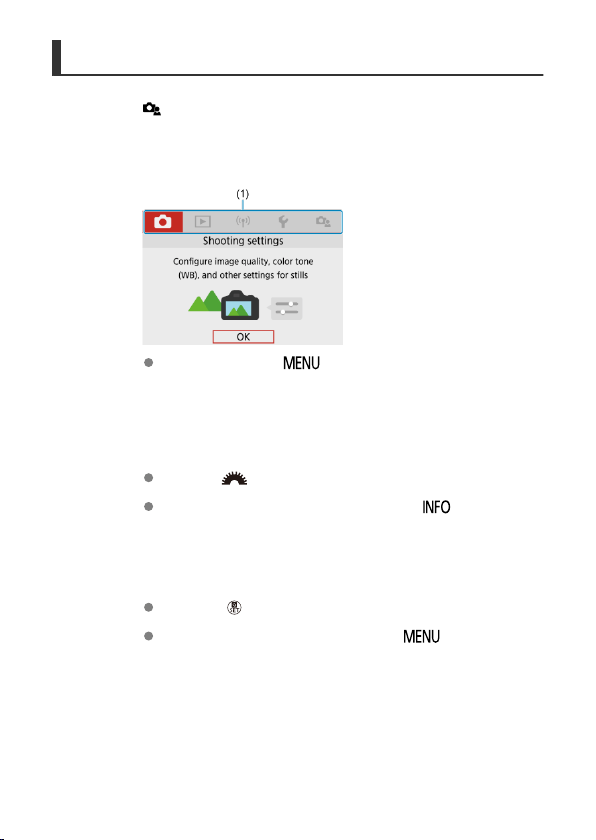
Menu Setting Procedure
When set to [ : Menu display: Guided]
1.
Display the main tabs.
When you press the < > button, the main tabs (1) and a
description of the selected tab will appear.
2.
Select a main tab.
Turn the < > dial to switch between main tabs.
You can also switch main tabs by pressing the < > button.
3.
Display the menu screen.
Press the < > button to display the menu screen.
To return to the main tab screen, press the < > button.
77
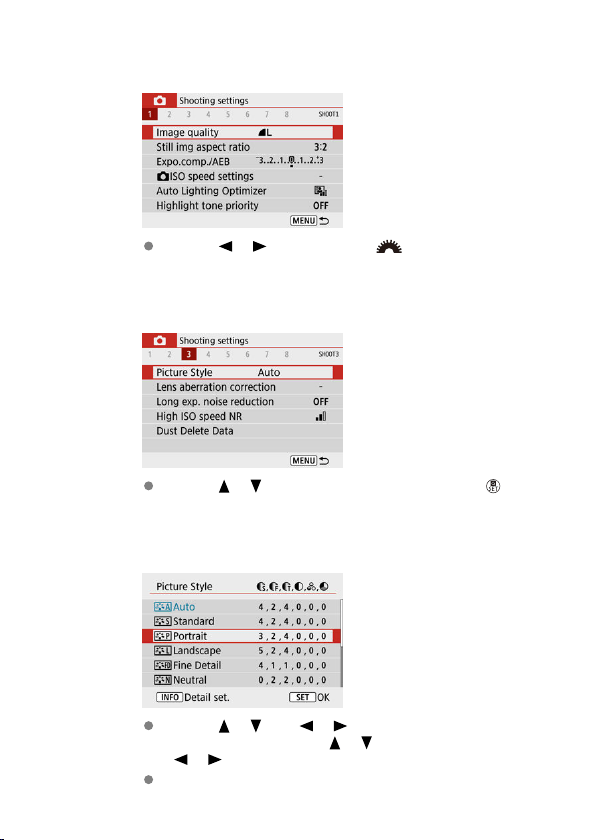
4.
Select a secondary tab.
Use the < >< > keys or turn the < > dial to select a
secondary tab.
5.
Select an item.
Use the < >< > keys to select an item, then press the < >
button.
6.
Select an option.
Use the < >< > or < >< > keys to select an option. (Some
options are selected with the <
>< > keys and others with the
< >< > keys.)
The current setting is indicated in blue.
78
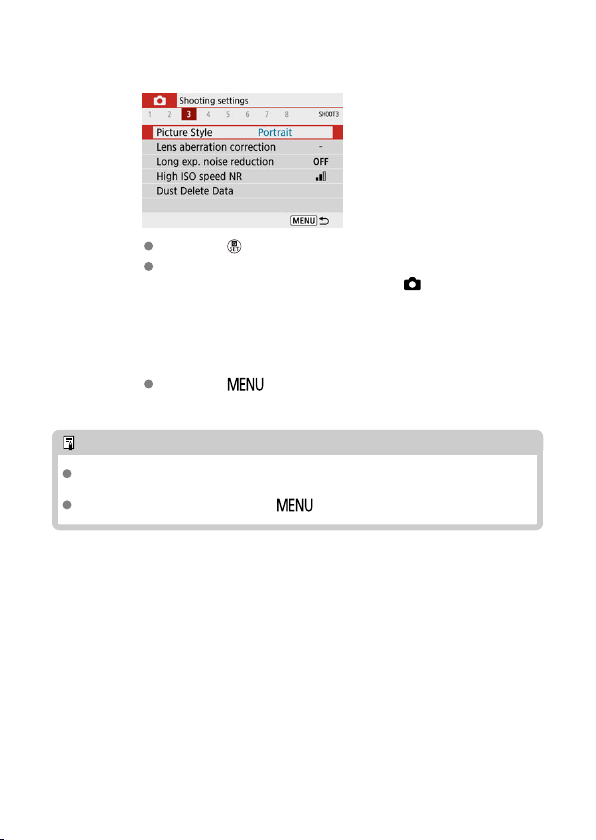
7.
Set an option.
Press the < > button to set it.
If you change the setting from the default, it will be indicated in blue
(available only for the menu items under the [ ] tab).
8.
Exit the setting.
Press the < > button twice to exit the menu and return to
shooting standby.
Note
The description of menu functions hereafter assumes that the menu screen is
displayed.
To cancel the operation, press the < > button.
79
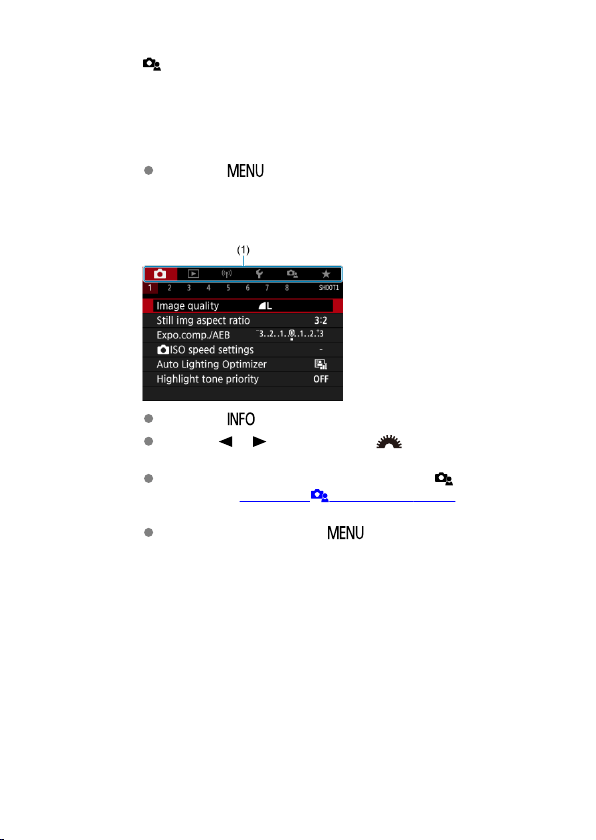
When set to [ : Menu display: Standard]
1.
Display the menu screen.
Press the < > button to display the menu screen.
2.
Select a tab.
Press the < > button to switch between main tabs (1).
Use the < >< > keys or turn the < > dial to select a
secondary tab.
After this, operations are the same as when set to [ : Menu display:
Guided]. See When set to [ : Menu display: Guided], starting with
step 5.
To exit the setting, press the < > button once.
80
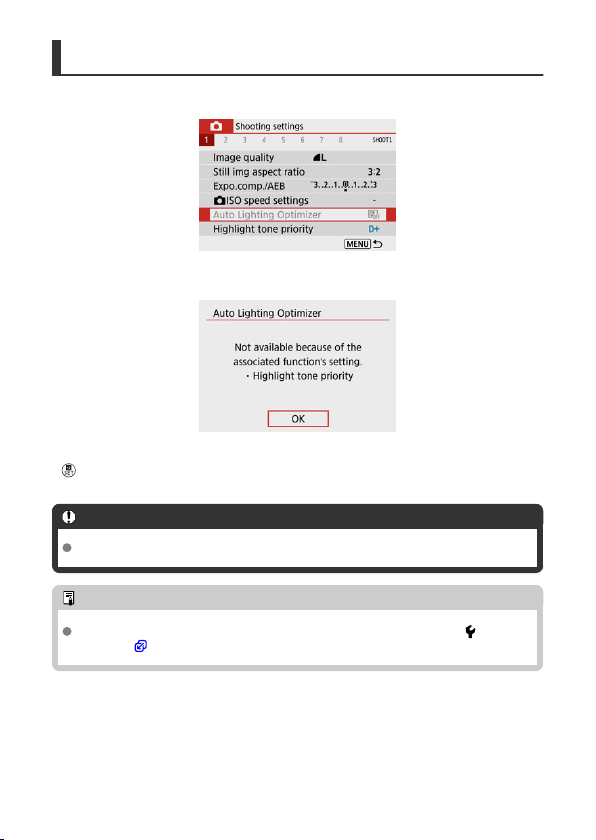
Dimmed Menu Items
Example: When set to [Highlight tone priority]
Dimmed menu items cannot be set. The menu item is dimmed if another function setting is
overriding it.
You can see the overriding function by selecting the dimmed menu item and pressing the
< > button.
If you cancel the overriding function's setting, the dimmed menu item will become settable.
Caution
You may not be able to see the overriding function for certain dimmed menu items.
Note
You can reset menu functions to default settings in [Basic settings], in [ : Reset
camera] ( ).
81
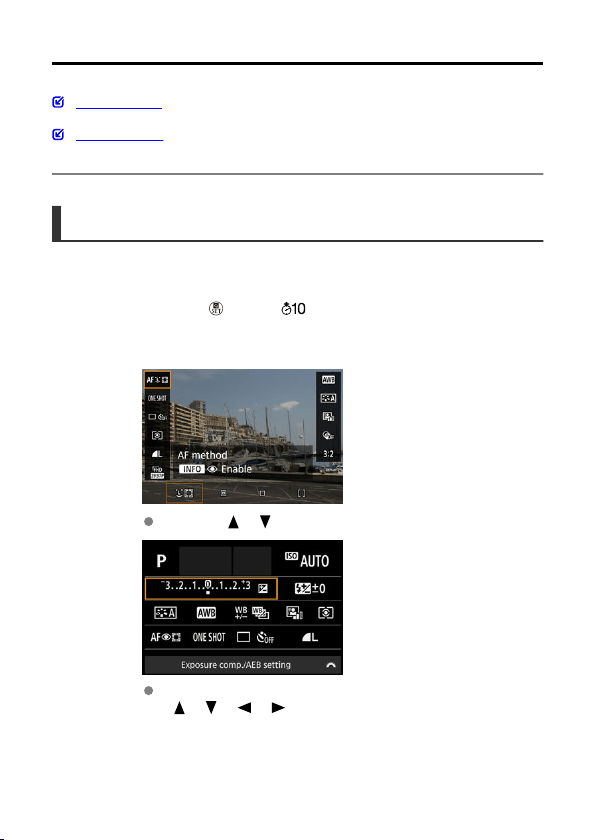

3.
Select an option.
Turn the < > dial or press the < >< > keys to adjust the
setting. Some items are set by pressing a button after this.
Press the < > button to return to the original screen.
83
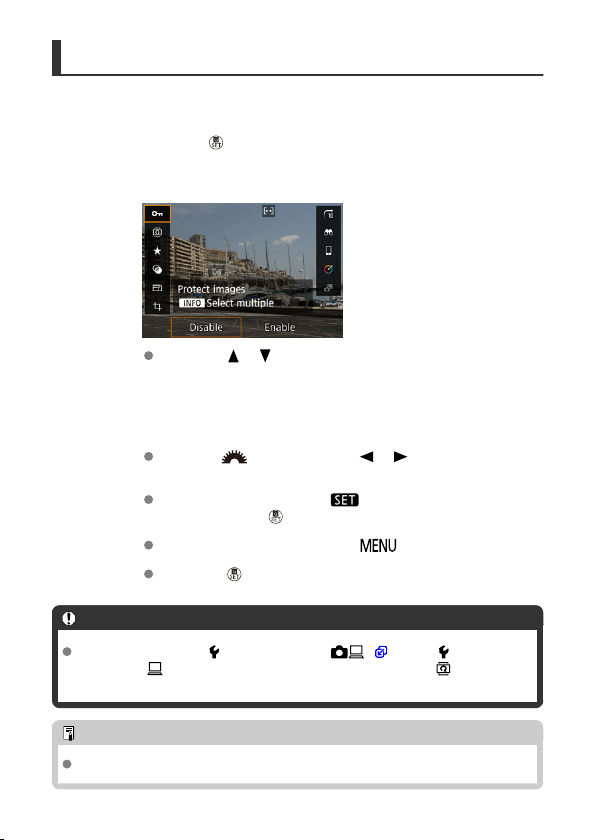
During Playback
1.
Press the < > button.
2.
Select an item.
Press the < >< > keys for selection.
3.
Select an option.
Turn the < > dial or press the < >< > keys to adjust the
setting. Some items are set by pressing a button after this.
To configure items for which a [ ] icon appears at the bottom of the
screen, press the
< > button.
To cancel this operation, press the < > button.
Press the < > button to return to the original screen.
Caution
For image rotation, set [ : Auto rotate] to [On ] ( ). When [ : Auto rotate]
is set to [On ] or [Off], images will be tagged with your selected [ Rotate stills]
option but not rotated on the camera.
Note
For images from other cameras, available options may be restricted.
84
Basic Zone
This chapter describes how to use the Basic Zone modes on the Mode dial for best results.
With Basic Zone modes, all you do is point and shoot, and the camera sets everything
automatically.
• Scene Intelligent Auto
• Hybrid Auto
• Special Scene Mode
• Portrait Mode
• Landscape Mode
• Sports Mode
• Panning Mode
• Close-up Mode
• Food Mode
• Night Portrait Mode
• Handheld Night Scene Mode
• HDR Backlight Control Mode
• Silent Shutter Mode
• Creative Filters Mode
85
Scene Intelligent Auto
Shooting Moving Subjects
Scene Icons
Shooting with Effects Applied (Creative Assist)
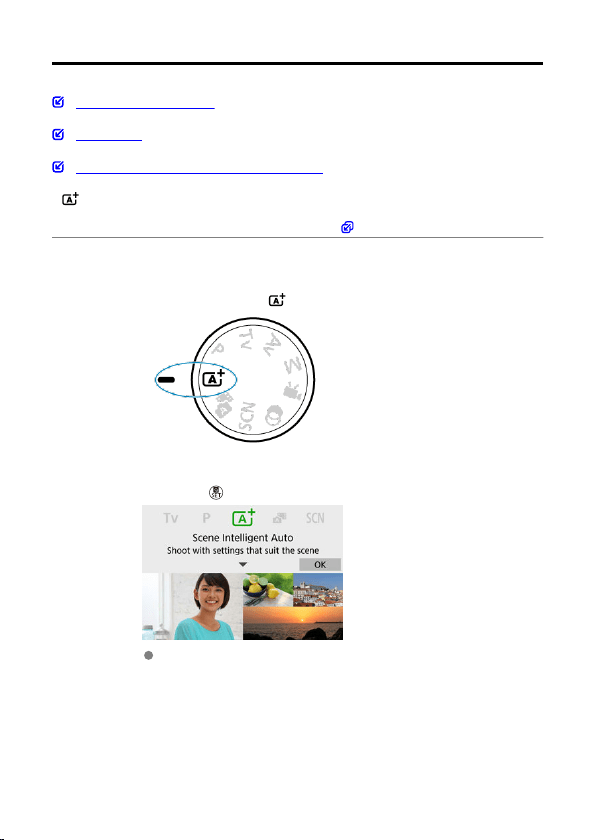
< > is a fully automatic mode. The camera analyzes the scene and sets the
optimum settings automatically. It can also adjust focus automatically on either the still or
moving subject by detecting the motion of the subject ( ).
1.
Set the Mode dial to < >.
2.
Press the < > button.
Read the message and select [OK].
86
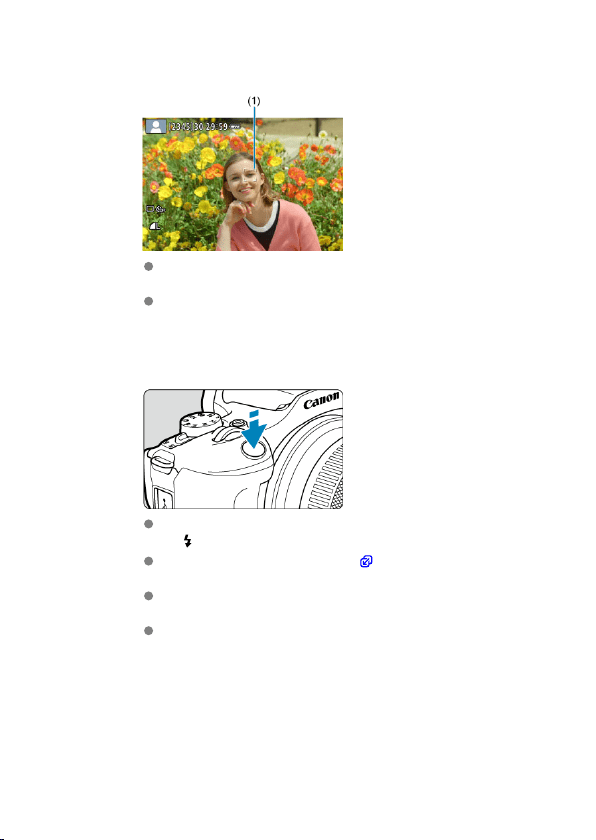
3.
Aim the camera at what you will shoot (the subject).
Essentially, the camera focuses on the closest subject.
AF points (1) are displayed over any faces or eyes detected.
When a frame (AF point) appears on the screen, aim it over the
subject.
4.
Focus on the subject.
Press the shutter button halfway to focus.
If
< > blinks, manually raise the built-in flash.
Under low light, the AF-assist beam ( ) is automatically activated if
needed.
Once the subject is in focus, that AF point turns green and the camera
beeps (One-Shot AF).
An AF point in focus on a moving subject turns blue and tracks subject
movement (Servo AF).
87
5.
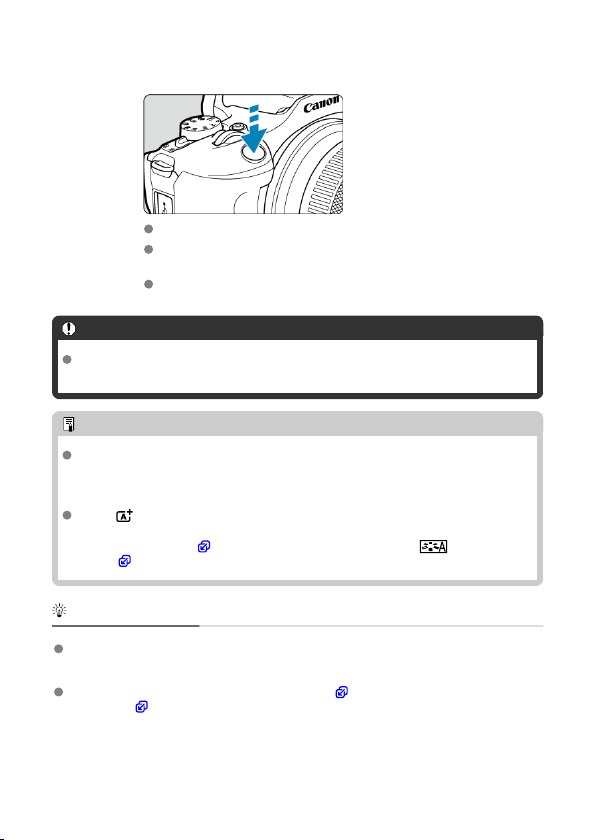
Take the picture.
Press the shutter button completely to take the picture.
The image just captured will be displayed for approx. 2 sec. on the
screen.
To retract the built-in flash, push it down with your fingers.
Caution
Subject movement (whether subjects are still or moving) may not be detected
correctly for some subject or shooting conditions.
Note
AF operation (One-Shot AF or Servo AF) is set automatically when you press the
shutter button halfway. Even when automatically set to One-Shot AF, the camera
will switch to Servo AF if subject motion is detected while you are pressing the
shutter button halfway.
The < > mode makes the colors look more impressive in nature, outdoor, and
sunset scenes. If you do not obtain the desired color tones, change the mode to a
Creative Zone mode ( ) and select a Picture Style other than [ ], then shoot
again ( ).
Minimizing blurred photos
Be careful about camera shake in handheld shots. To avoid camera shake, consider
using a tripod. Use a sturdy tripod that can bear the weight of the shooting equipment.
Attach the camera securely to the tripod.
Consider using a remote switch (sold separately, ) or wireless remote control (sold
separately, ).
88
FAQ
Focusing is not possible (indicated by an orange AF point).
Aim the AF point over an area with good contrast, then press the shutter button halfway
( ). If you are too close to the subject, move away and shoot again.
Multiple AF points are displayed simultaneously.
Focus has been achieved at all those points.
The shutter speed display is blinking.
Since it is too dark, taking the picture may result in a blurred subject due to camera
shake. Using a tripod, the built-in flash, or an external flash ( ) is recommended.
Pictures are too dark.
Raise the built-in flash in advance to enable automatic flash firing, in case subjects in
daytime shots are backlit, or when shooting under low light.
Pictures taken with flash are too bright.
Pictures may be bright (overexposed) if you shoot subjects at close range in flash
photography. Move away from the subject and shoot again.
The bottom part of pictures taken with flash is unnaturally dark.
Shooting subjects that are too close may make the shadow of the lens visible in your
shots. Move away from the subject and shoot again. If you are using a lens hood, try
removing it before shooting.
Note
Note the following if you are not using the built-in flash.
Under low light, when camera shake tends to occur, hold the camera steady or use
a tripod. When using a zoom lens, you can reduce the blur caused by camera
shake by setting the lens to the wide-angle end.
When shooting portraits under low light, tell subjects to stay still until you have
finished shooting. Any movement as you shoot will make the person look blurry in
the picture.
89
Shooting Moving Subjects
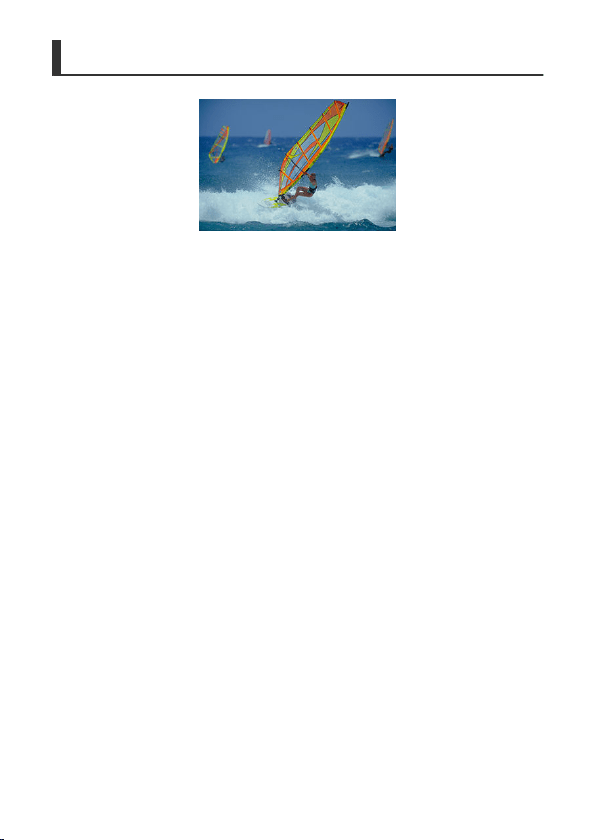
Pressing the shutter button halfway tracks moving subjects to keep them in focus.
Keep the subject on the screen as you hold down the shutter button halfway, and at the
decisive moment, press the shutter button completely.
90

Shooting with Effects Applied (Creative Assist)
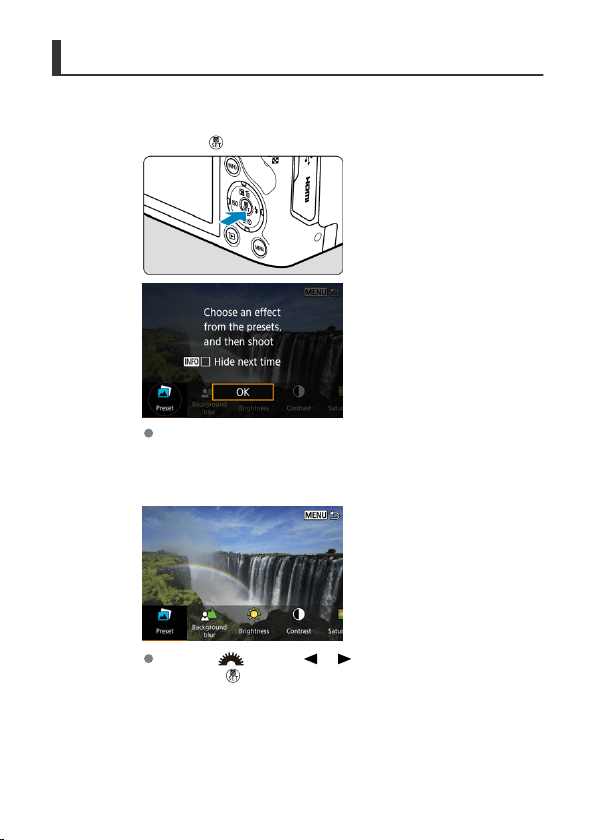
1.
Press the < > button.
Read the message and select [OK].
2.
Select an effect.
Use the < > dial or < >< > keys to select an effect, then
press the <
> button.
92
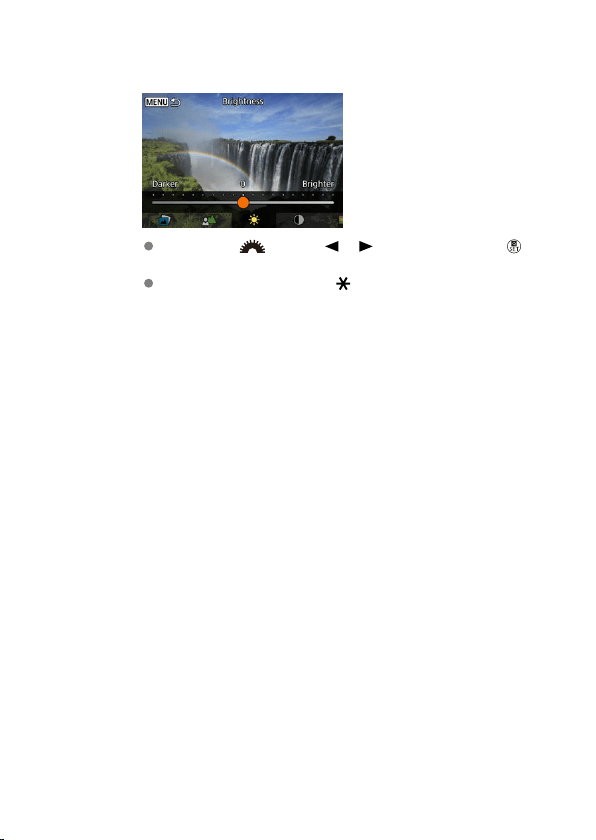
3.
Select the effect level and other details.
Set with the < > dial or < >< > keys, then press the < >
button.
To reset the setting, press the < > button, then select [OK].
93
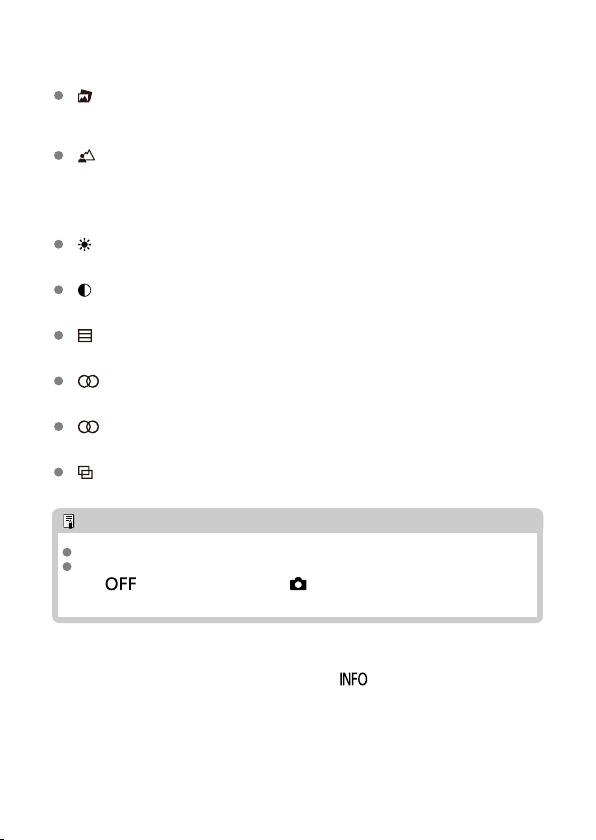
Creative Assist effects
[ ] Preset
Select one of the preset effects.
Note that [Saturation], [Color tone 1], and [Color tone 2] are not available with [B&W].
[ ] Background blur
Adjust background blur. Choose higher values to make backgrounds sharper. To blur
the background, choose lower values. [Auto] adjusts background blurring to match the
brightness. Depending on lens brightness (f/number), some positions may not be
available.
[ ] Brightness
Adjust image brightness.
[ ] Contrast
Adjust contrast.
[ ] Saturation
Adjust the vividness of colors.
[ ] Color tone 1
Adjust amber/blue color tone.
[ ] Color tone 2
Adjust green/magenta color tone.
[ ] Monochrome
Set the toning effect for monochrome shooting.
Note
[Background blur] is not available in flash photography.
These settings are reset when you switch shooting modes or set the power switch
to < >. To save the settings, set [ : Retain Creative Assist data] to
[Enable].
Saving effects
To save the current setting to the camera, press the <
> button on the [Creative
Assist] setting screen, then select [OK]. Up to three presets can be saved as [USER*]. After
three have been saved, an existing [USER*] preset must be overwritten to save a new one.
94
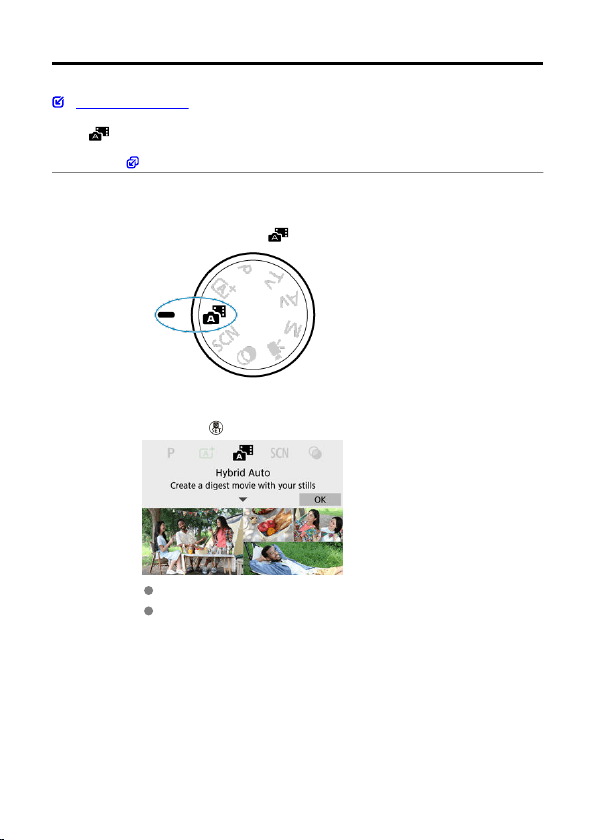
Hybrid Auto
Type of Digest Movie
With < > mode, you can make a short movie of the day just by shooting still photos. The
camera records 2–4-second clips of scenes before each shot, which are later combined in a
digest movie ( ).
1.
Set the Mode dial to < >.
2.
Press the < > button.
Read the message and select [OK].
Compose your shots and shoot.
95
Note
For more impressive digest movies, keep the camera aimed at subjects for about 4
sec. before shooting still photos.
Battery life is shorter in this mode than in < > mode, because digest movies are
recorded for each shot.
A digest movie may not be recorded if you shoot a still photo immediately after
turning the camera on, selecting < > mode, or operating the camera in other
ways.
Any sounds and vibrations from your camera or lens operations will be recorded in
digest movies.
Digest movie image quality is for NTSC or for PAL.
This varies depending on the video system setting.
The camera does not beep in response to operations such as pressing the shutter
button halfway or using the self-timer.
Digest movies are saved as separate movie files in the following cases even if they
were recorded on the same day in < > mode.
• Digest movie recording time reaches approx. 29 min. and 59 sec. (and may
also be saved separately if size exceeds approx. 4 GB).
• Digest movie is protected.
• Daylight saving time, video system, or time zone settings are changed.
Recorded shutter sounds cannot be modified or erased.
When using EOS Utility to shoot, set [Image saving location] in EOS Utility to
[Computer and camera memory card] or [Camera memory card only].
96
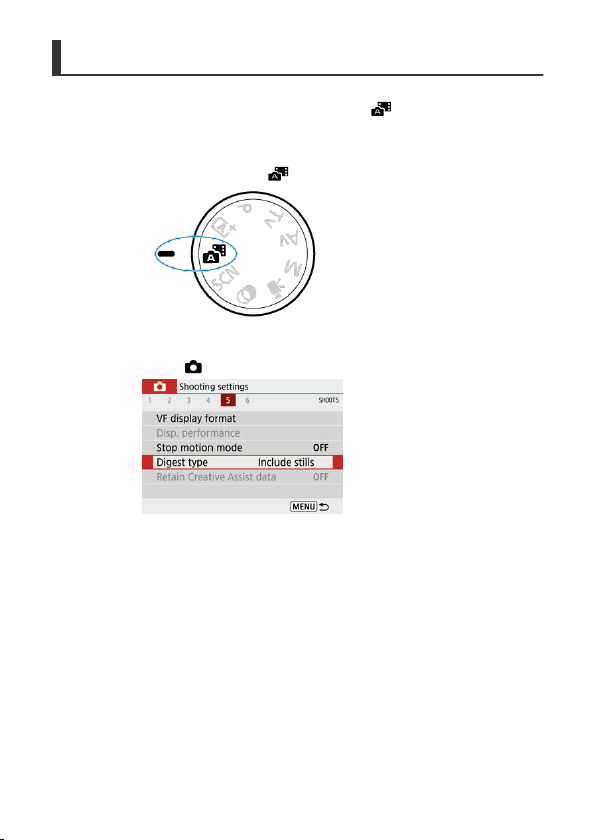
Type of Digest Movie
Both still photos and clips are captured when you shoot in < > mode, but you can
specify whether to include the still photos in the resulting digest movie.
1.
Set the Mode dial to < >.
2.
Select [ : Digest type].
97
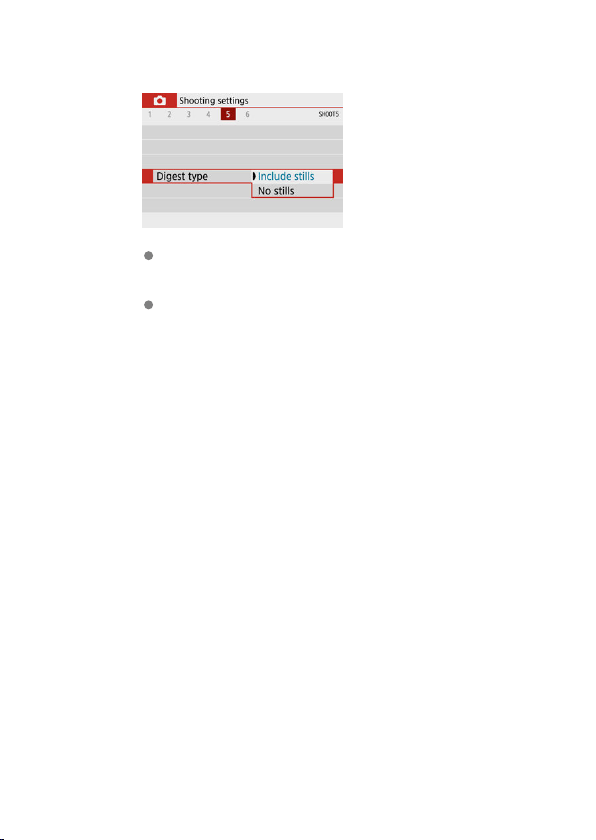
3.
Select an option.
Include stills
Digest movies include still photos.
No stills
Digest movies do not include still photos.
98
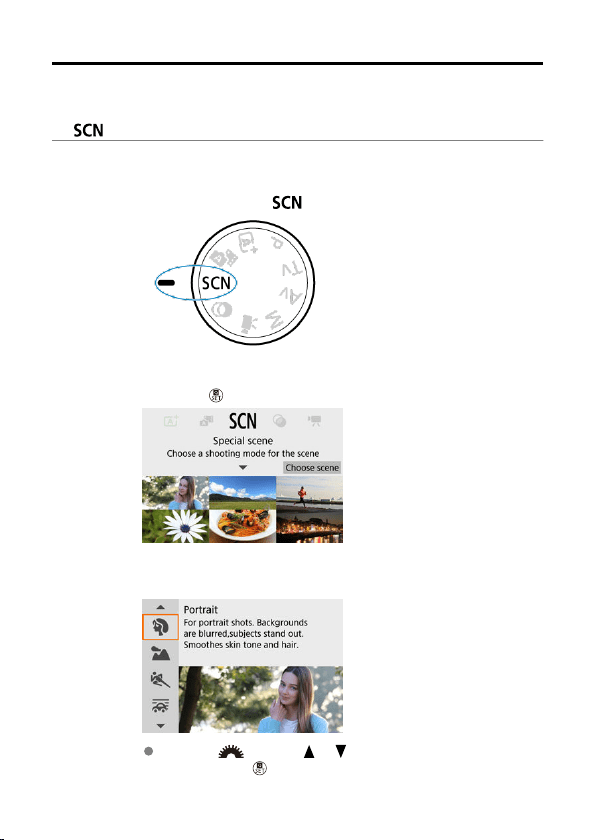
Special Scene Mode
The camera will automatically choose the appropriate settings when you select a shooting
mode for your subject or scene.
* < > stands for Special Scene.
1.
Set the Mode dial to < >.
2.
Press the < > button.
3.
Select a shooting mode.
Use the < > dial or < >< > keys to select a shooting mode,
then press the < > button.
99
Note
You can also set the shooting mode in [ : Shooting mode].
When [ : Mode guide] is set to [Disable], after step 1, press the < > button to
access the Quick Control screen, use the < > dial or < >< > keys to
select a shooting mode, then press the < > button.
100
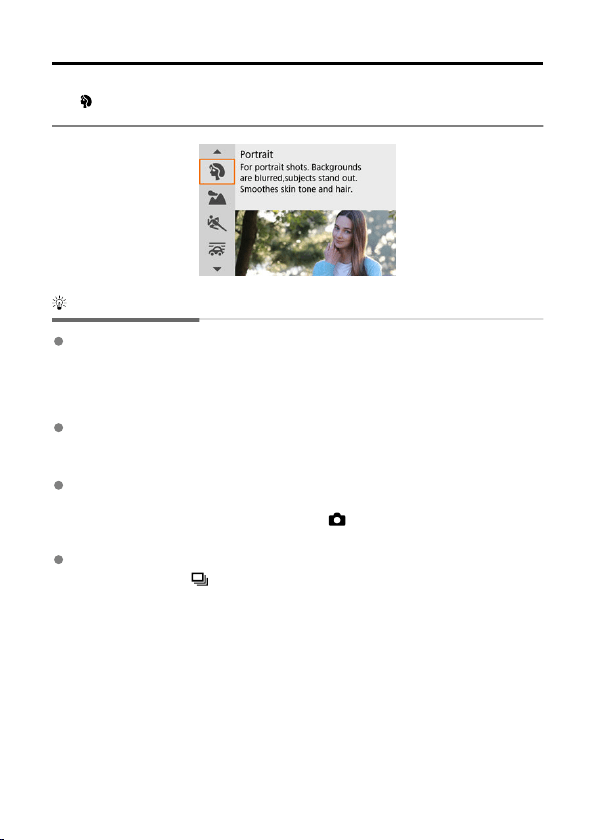
Portrait Mode
Use [ ] (Portrait) mode to blur the background and make the person you shoot stand out. It
also makes skin tones and hair look softer.
Shooting tips
Select the location where the distance between the subject and the background is
the farthest.
The further the distance between the subject and background, the more blurred the
background will look. The subject will also stand out better against an uncluttered dark
background.
Use a telephoto lens.
If you have a zoom lens, use the telephoto end to fill the frame with the subject from the
waist up.
Focus on the face.
As you focus before shooting, make sure the AF point on the subject's face is green.
When shooting close-ups of faces, you can set [ : Eye detection] to [Enable] to shoot
with the subject's eyes in focus.
Shoot continuously.
The default setting is [ ] (Continuous shooting). If you keep holding down the shutter
button, you can shoot continuously to capture changes in the subject's facial expression
and pose.
102
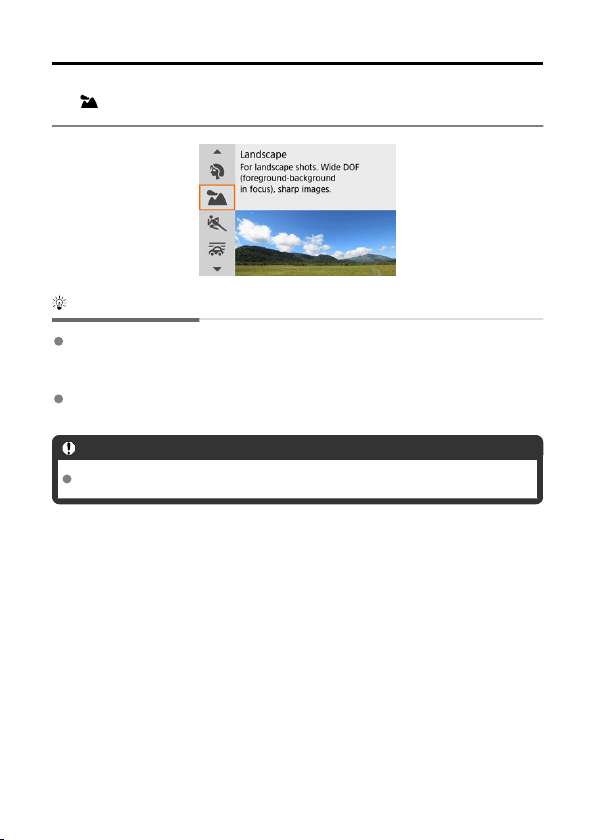
Landscape Mode
Use [ ] (Landscape) mode for expansive scenery, to keep everything in focus from near to
far. For vivid blues and greens, and sharp and crisp images.
Shooting tips
With a zoom lens, use the wide-angle end.
When using a zoom lens, set the lens to the wide-angle end to make the objects near
and far in focus. It also adds breadth to landscapes.
Keep the camera steady when shooting night scenes.
Using a tripod is recommended.
Caution
Flash photography is not available.
103
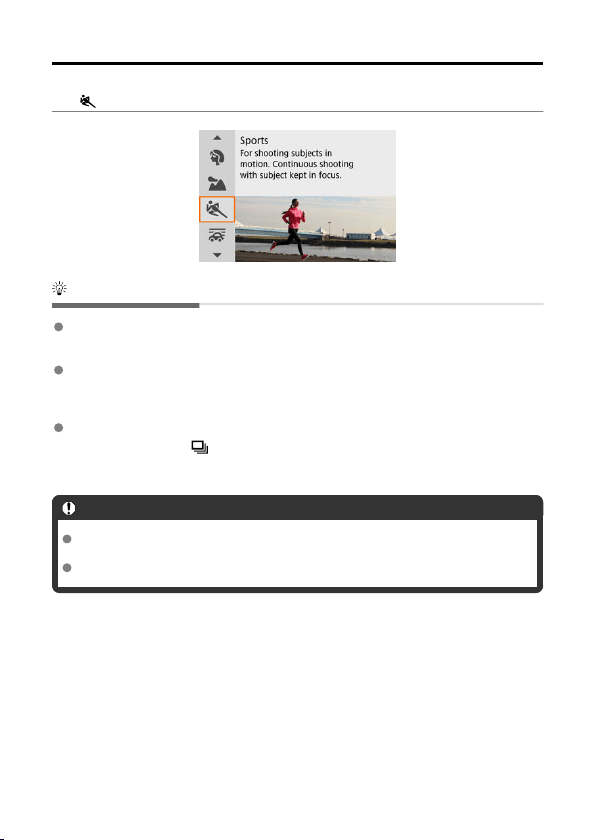
Sports Mode
Use [ ] (Sports) mode to shoot subjects in motion, such as runners or moving vehicles.
Shooting tips
Use a telephoto lens.
Use of a telephoto lens is recommended to enable shooting from a distance.
Track the subject with the Area AF frame.
An Area AF frame appears after you press the shutter button halfway. Once the subject
is in focus, the AF point turns blue.
Shoot continuously.
The default setting is [ ] (Continuous shooting). At the decisive moment, press the
shutter button completely to take the picture. To track the subject and capture changes
as it moves, keep holding down the shutter button to shoot continuously.
Caution
Under low light where camera shake tends to occur, the shutter speed value in the
lower left will blink. Hold the camera steady and shoot.
Flash photography is not available.
104

Panning Mode
By panning, you can blur the background to convey a sense of speed.
Attach a lens compatible with [ ] (Panning) mode to reduce subject blurring and keep
subjects clear and sharp.
Shooting tips
Turn the camera to follow the moving subject.
As you shoot, turn the camera smoothly while tracking the moving subject. With the AF
point over the part of the moving subject to focus on, press the shutter button halfway,
start turning the camera to keep up with the subject, then press the shutter button
completely to shoot. Continue tracking the subject with the camera after this.
Set the level of background motion blur.
In [Effect], you can set the level of background motion blur. Set to [Effect: max] for a
slower shutter speed and more background motion blur around subjects. If subject blur
is excessive, reduce it by setting [Effect] to [Effect: med] or [Effect: min].
105
Caution
Dust may be more noticeable in images, because it is easier to stop down the
aperture. Consider acquiring Dust Delete Data before shooting. ( )
For details on lenses compatible with [ ] mode, visit the Canon website.
Shutter speeds are slower. For this reason, Panning mode is not suitable unless
you pan as you shoot.
The default setting is [ ].
Flash photography is not available.
Although lens IS is applied to images captured with lenses supporting [ ] mode,
the effect is not shown on the screen as you shoot. (IS and subject blur correction
are activated when you shoot, regardless of the lens IS setting.)
With lenses that do not support [ ] mode, subject blur is not reduced, but shutter
speed is automatically adjusted to match the [Effect] setting.
Your specified panning effect level may not be applied when shooting under bright
light (such as on sunny summer days), or when shooting slow subjects.
The following subjects or shooting conditions may prevent suitable subject blur
correction with lenses supporting [
] mode.
• Subjects with very low contrast.
• Subjects in low light.
• Strongly backlit or reflective subjects.
• Subjects with repetitive patterns.
• Subjects with few patterns, or with monotone patterns.
• Subjects with reflections (such as images reflected in glass).
• Subjects smaller than the Zone AF frame.
• Multiple subjects moving within a Zone AF frame.
• Subjects moving in irregular directions or at irregular speeds.
• Subjects who sometimes move erratically (such as runners who move up and
down as they run).
• Subjects whose speed changes greatly (such as immediately after initial
movement, or when moving along a curve).
• When the camera moves too quickly or slowly.
• When camera movement does not match subject movement.
• With long lens focal lengths.
106
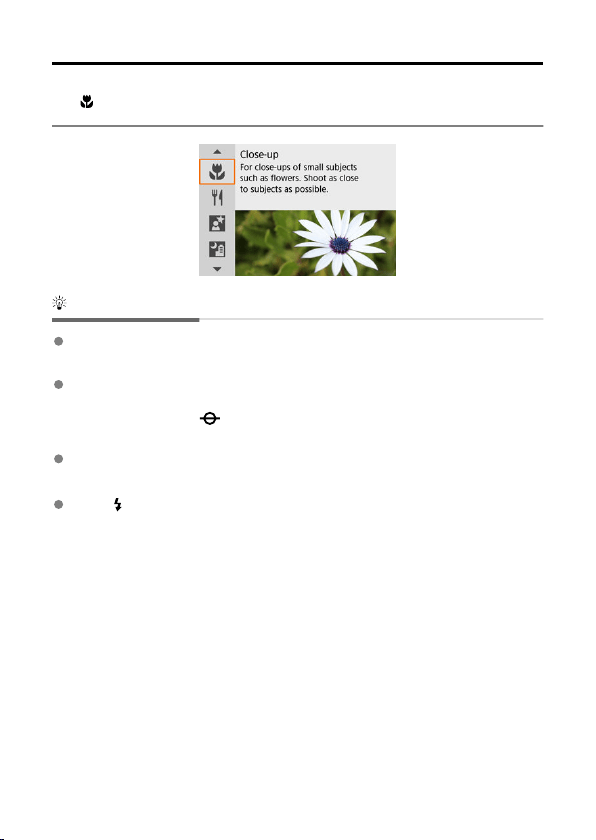
Close-up Mode
Use [ ] (Close-up) mode for close-ups of small subjects such as flowers. To make small
things appear much larger, use a macro lens (sold separately).
Shooting tips
Use a simple background.
A simple background makes small objects such as flowers stand out better.
Move in as close as possible to the subject.
Check the lens for its minimum focusing distance. The lens minimum focusing distance
is measured from the < > (focal plane) mark on the top of the camera to the subject.
Focusing is not possible if you are too close.
With a zoom lens, use the telephoto end.
If you have a zoom lens, using the telephoto end will make the subject look larger.
When [ ] blinks
Manually raise the built-in flash.
107
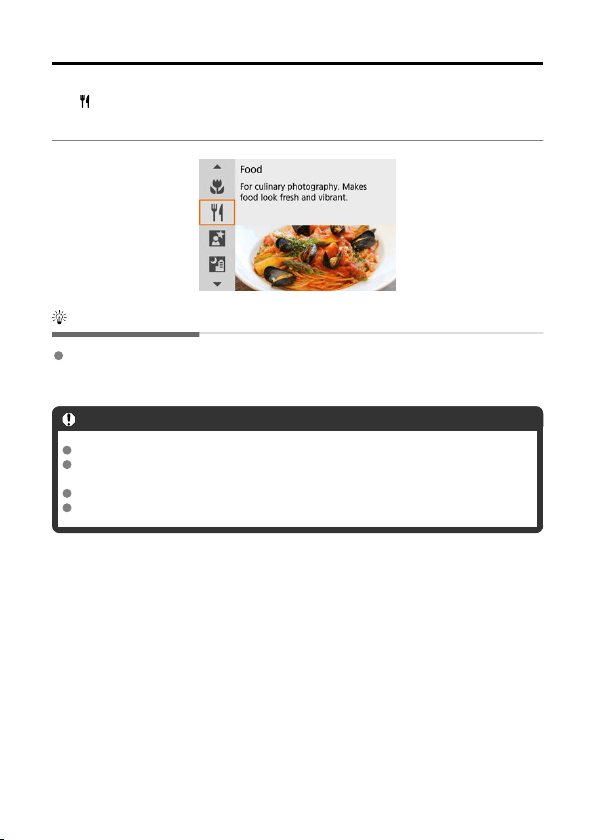
Food Mode
Use [ ] (Food) mode for culinary photography. The photo will look bright and appetizing.
Also, the reddish tinge due to the light source will be suppressed in the pictures taken under
tungsten lights, etc.
Shooting tips
Change the color tone.
[Color tone] can be adjusted. To increase the reddish tinge of food, set toward [Warm
tone] (red), or set toward [Cool tone] (blue) if it looks too red.
Caution
The warm color cast of subjects may appear faded.
When multiple light sources are included in the scene, the warm color cast of the
picture may not be reduced.
In flash photography, [Color tone] switches to the standard setting.
If there are people in the picture, the skin tone may not be reproduced properly.
108
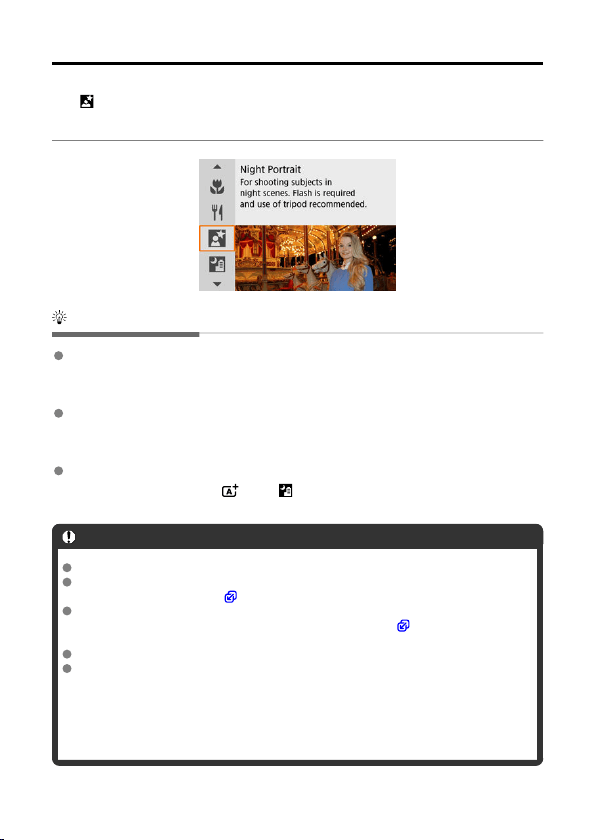
Night Portrait Mode
Use [ ] (Night Portrait) mode for bright, beautiful shots of people with night scenes in the
background. Note that shooting in this mode requires the built-in flash or a Speedlite.
Using a tripod is recommended.
Shooting tips
Use a wide-angle lens and a tripod.
When using a zoom lens, use the wide-angle end to obtain a wide night view. Because
camera shake occurs in handheld shooting, using a tripod is also recommended.
Check the image brightness.
It is recommended to play back the captured image on location to check the image
brightness. If the subject looks dark, move nearer and shoot again.
Also shoot in other shooting modes.
Consider also shooting in < > and [ ] mode, because shots are more likely to be
blurry.
Caution
Tell subjects to remain still for a moment after the flash fires.
Focusing may be difficult if subject faces look dark when you shoot. In this case,
set the focus mode to MF ( ) and focus manually.
Autofocusing at night or in dark scenes may be difficult when points of light lie
within the AF point. In this case, set the focus mode to MF ( ) and focus
manually.
Shots will look slightly different from the preview image shown on the screen.
When there is a risk of overexposure in flash photography, shutter speed or ISO
speed is automatically adjusted to reduce loss of detail in highlights and shoot at
standard exposure. In flash shots with certain lenses, the shutter speeds and ISO
speeds displayed when you press the shutter button halfway may not match the
actual settings used. This may alter the brightness of backgrounds that are out of
flash range.
109
Note
The self-timer lamp fires briefly after shots in this mode if the self-timer is used.
110
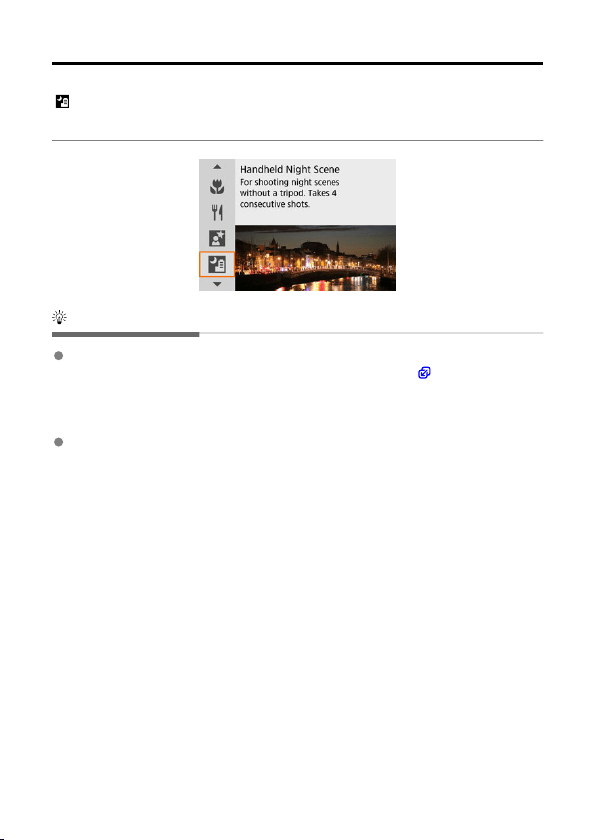
Handheld Night Scene Mode
[ ] (Handheld Night Scene) mode enables handheld shooting for night scenes. In this
shooting mode, four shots are taken consecutively for each picture, and the resulting image
with reduced camera shake is recorded.
Shooting tips
Hold the camera steady.
Keep your elbows close to your body to hold the camera steady ( ). In this mode, four
shots are aligned and merged into a single image, but if there is significant misalignment
in any of the four shots due to camera shake, they may not align properly in the final
image.
For portraits, use an external flash unit.
If your shots will include people, use an external flash unit. For nicer portraits, flash is
used for the first shot. Tell the subject not to move until all four consecutive shots are
taken.
111
Caution
Compared to other shooting modes, the image area will be smaller.
RAW image quality cannot be set.
Autofocusing at night or in dark scenes may be difficult when points of light lie
within the AF point. In this case, set the focus mode to MF ( ) and focus
manually.
Flash photography is available only with an external flash unit attached.
Shooting subjects at close range with an external flash unit may cause
overexposure.
Using an external flash unit in night scenes with limited lighting may result in blurry
pictures from misaligned images.
Using an external flash unit that illuminates both people and a nearby background
may result in blurry pictures from misaligned images. Unnatural shadows and
unsuitable colors may also appear.
Flash coverage angle with a Speedlite:
• When using a Speedlite with automatic flash coverage setting, the zoom
position will be fixed to the wide (wide-angle) end regardless of the lens's zoom
position.
• When using a Speedlite requiring manual flash coverage setting, set the flash
head to the normal position.
If you shoot a moving subject, the subject's movement may leave afterimages or
the surrounding area of the subject may become dark.
The image alignment may not function properly with repetitive patterns (lattice,
stripes, etc.), flat or single-tone images, or images significantly misaligned due to
camera shake.
It takes some time to record images to the card since they are merged after
shooting. “BUSY” appears on the screen as images are processed, and shooting is
not possible until processing is finished.
Shots will look slightly different from the preview image shown on the screen.
112
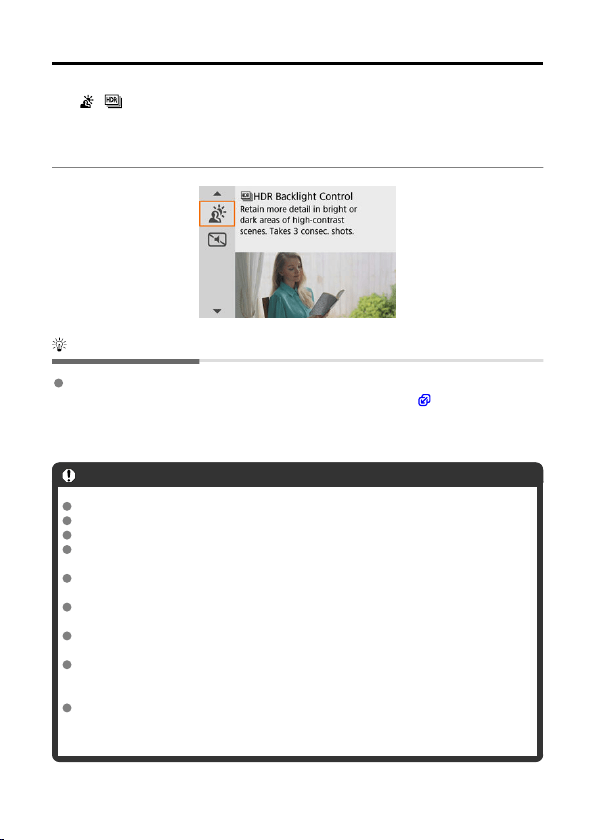
HDR Backlight Control Mode
Use [ ] ( HDR Backlight Control) mode for backlit scenes with both bright and dark
areas. Shooting once in this mode captures three consecutive images at different
exposures, which are combined to create a single HDR image that retains detail in shadows
that might otherwise be lost from backlighting.
* HDR stands for High Dynamic Range.
Shooting tips
Hold the camera steady.
Keep your elbows close to your body to hold the camera steady ( ). In this mode, three
shots are aligned and merged into a single image. However, if there is significant
misalignment in any of the three shots due to camera shake, they may not align properly
in the final image.
Caution
Compared to other shooting modes, the image area will be smaller.
RAW image quality cannot be set.
Flash photography is not available.
Note that the image may not be rendered with a smooth gradation and may look
irregular or have significant noise.
HDR Backlight Control may not be effective for excessively backlit scenes or
extremely high-contrast scenes.
When shooting subjects that are sufficiently bright as they are, for example for
normally lit scenes, the image may look unnatural due to the HDR effect.
Shooting moving subjects may result in afterimages from the movement, or
darkness around the subject.
The image alignment may not function properly with repetitive patterns (lattice,
stripes, etc.), flat or single-tone images, or images significantly misaligned due to
camera shake.
It takes some time to record images to the card since they are merged after
shooting. “BUSY” appears on the screen as images are processed, and shooting is
not possible until processing is finished.
113
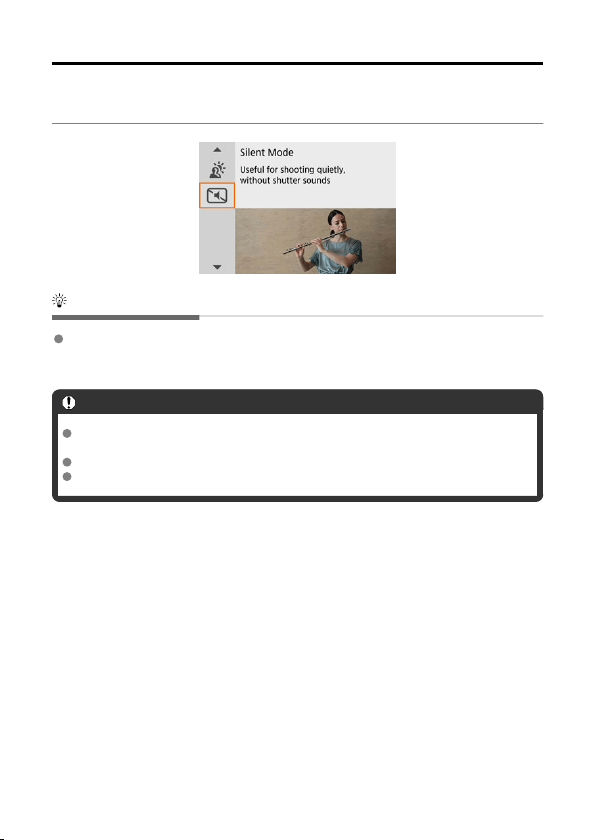
Silent Shutter Mode
Where silence is needed, you can shoot without beeps or shutter release sounds. As you
shoot, a white frame is momentarily displayed around the screen.
Shooting tips
Take some test shots.
Consider taking some test shots in advance, because lens aperture and focusing
adjustment may be audible under some shooting conditions.
Caution
Be responsible when using silent shooting, and respect subject privacy and portrait
rights.
Images of fast-moving subjects may look distorted.
Continuous shooting and flash photography are not available.
114
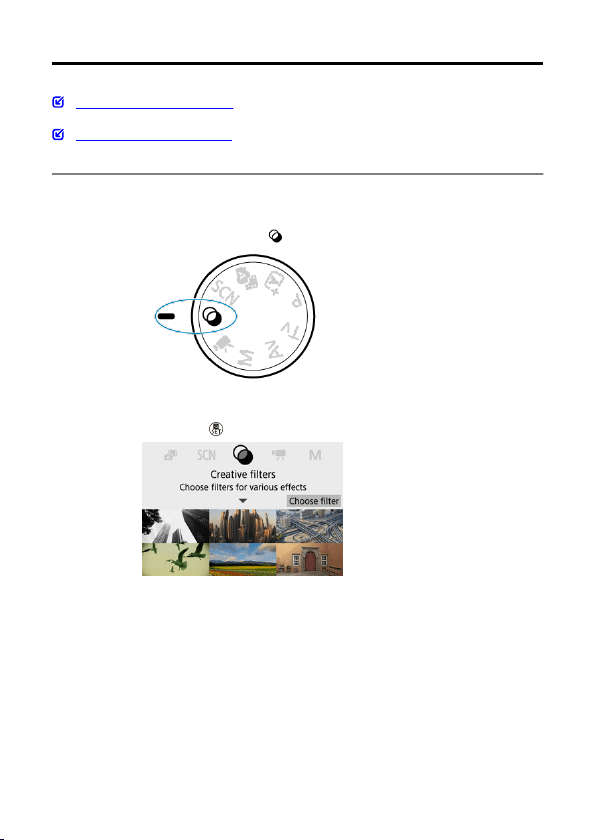
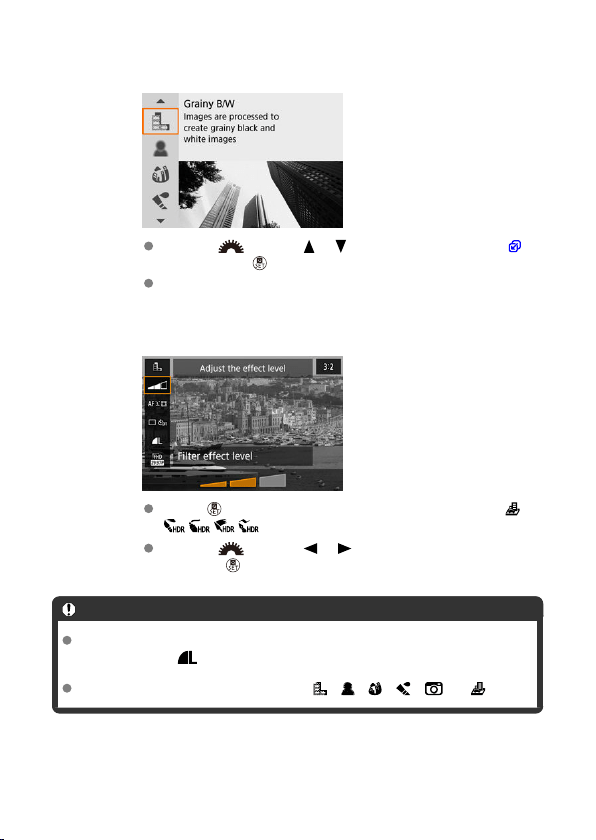
3.
Select a filter effect.
Use the < > dial or < >< > keys to select a filter effect ( ),
then press the < > button.
The image is shown with the filter effect applied.
4.
Adjust the effect and shoot.
Press < > and select an icon below [Creative filters] (except /
/ / / ).
Use the < > dial or < >< > keys to adjust the effect, then
press the < > button.
Caution
RAW and RAW+JPEG are not available. When RAW image quality is set, images
are captured with image quality. When RAW+JPEG image quality is set,
images are captured with the specified JPEG image quality.
Continuous shooting is not available when [ ], [ ], [ ], [ ], [ ], or [ ] is set.
116
Note
With [Grainy B/W], the grainy preview will differ somewhat from the appearance of
your shots.
With [Soft focus] or [Miniature effect] options, the blurred effect preview may
differ somewhat from the appearance of your shots.
No histogram is displayed.
A magnified view is not available.
In Creative Zone modes, some Creative filter settings are available from the Quick
Control screen.
117

Creative Filter Characteristics
Grainy B/W
Makes the image grainy and black and white. By adjusting the contrast, you can change
the black-and-white effect.
Soft focus
Gives the image a soft look. By adjusting the blur, you can change the degree of
softness.
Fish-eye effect
Gives the effect of a fish-eye lens. The image will have barrel distortion.
Depending on the level of this filter effect, the area trimmed along the periphery of the
image changes. Also, because this filter effect magnifies the center of the image, the
apparent resolution at the center may degrade depending on the number of recorded
pixels, so set the filter effect while checking the resulting image. One AF point is used,
fixed at the center.
Water painting effect
Makes the photo look like a watercolor painting with soft colors. By adjusting the effect,
you can change the color density. Note that night scenes or dark scenes may not be
rendered with a smooth gradation and may look irregular or have significant noise.
Toy camera effect
Shifts colors to those typical of toy cameras and darkens the four corners of the image.
Color tone options can be used to change the color cast.
Miniature effect
Creates a diorama effect.
Shooting under the default setting will keep the center looking sharp.
To move the area that looks sharp (the scene frame), see Adjusting the Miniature Effect.
[1-point AF] is used as the AF method. Shooting with the AF point and scene frame
aligned is recommended.
HDR art standard
Photos retain more detail in highlights and shadows. With reduced contrast and flatter
gradation, the finish resembles a painting. The subject outlines will have bright (or dark)
edges.
HDR art vivid
Colors are more saturated than with [ HDR art standard], and the low contrast and
flat gradation resemble graphic art.
HDR art bold
The colors are the most saturated, making the subject pop out, and the picture looks like
an oil painting.
118
HDR art embossed
The color saturation, brightness, contrast and gradation are decreased to make the
picture look flat, so that the picture looks faded and old. The subject outlines will have
intensely bright (or dark) edges.
Caution
[ ], [ ], [ ], and [ ] precautions
Compared to other shooting modes, the image area will be smaller.
Shots will look slightly different from the filter effect previews shown on the screen.
Shooting moving subjects may result in afterimages from the movement, or
darkness around the subject.
The image alignment may not function properly with repetitive patterns (lattice,
stripes, etc.), flat or single-tone images, or images significantly misaligned due to
camera shake.
Be careful about camera shake in handheld shots.
Subjects such as the sky or white walls may not be rendered with smooth gradation
and may have noise or irregular exposure or colors.
Shooting under fluorescent or LED lighting may result in unnatural color
reproduction of the illuminated areas.
It takes some time to record images to the card since they are merged after
shooting. “BUSY” appears on the screen as images are processed, and shooting is
not possible until processing is finished.
Flash photography is not available.
Note
With [ ], [ ], [ ], and [ ], you can shoot high dynamic range photos that
retain detail in highlights and shadows of high-contrast scenes. Three consecutive
images are captured at different brightnesses each time you shoot and used to
create a single image. See the precautions for [ ], [ ], [ ], and [ ].
119
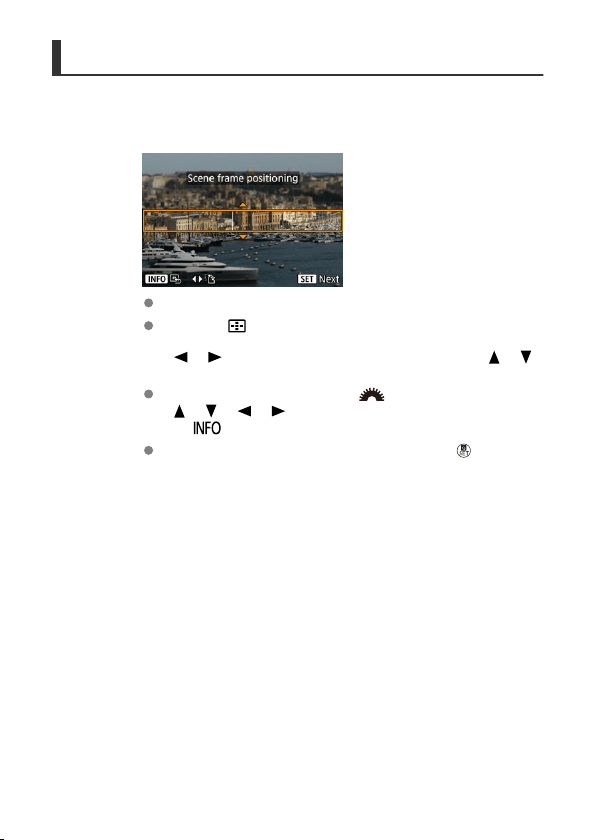
Adjusting the Miniature Effect
1.
Move the scene frame.
Use the scene frame to set an area that will look sharp.
Press the < > button to enable movement of the scene frame,
which turns orange. To switch the scene frame orientation, use the
< >< > keys when it is in horizontal orientation or the < >< >
keys when it is in vertical orientation.
To move the scene frame, use the < > dial or
<
>< >< >< > keys. To center the scene frame again, press
the < > button.
To confirm the position of the scene frame, press the < > button.
Next, set the AF point.
120
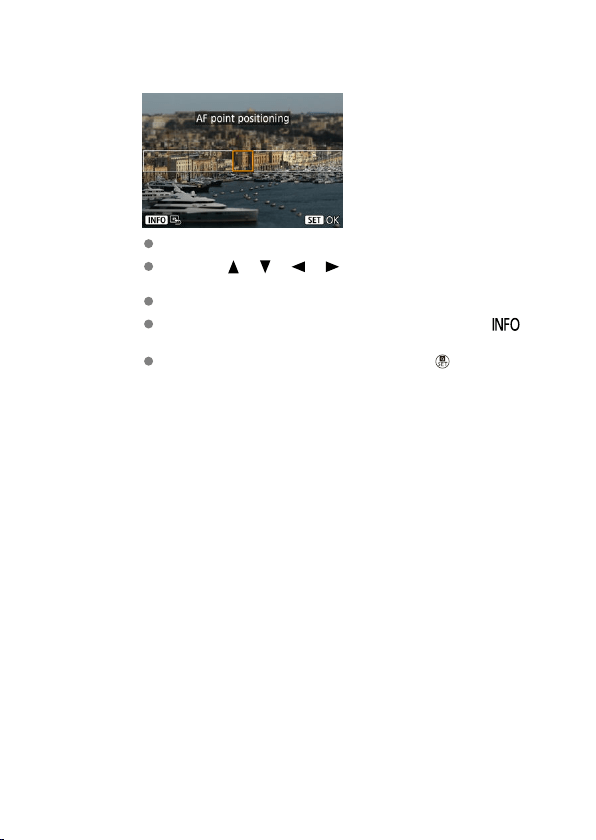
2.
Move the AF point as needed and shoot.
The AF point turns orange and can be moved.
Press the < >< >< >< > keys to move the AF point to the
position to focus on.
Aligning the AF point and scene frame is recommended.
To return the AF point to the center of the screen, press the < >
button.
To confirm the position of the AF point, press the < > button.
121
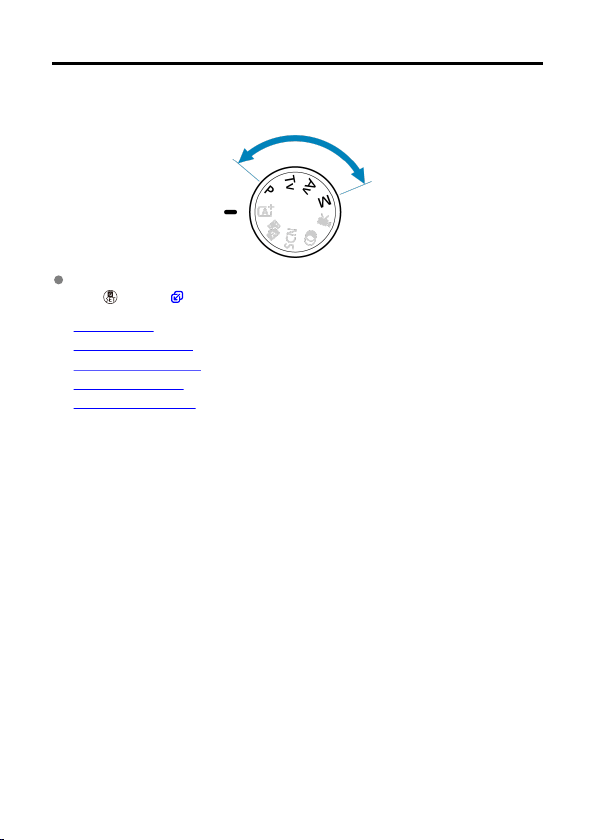
Creative Zone
Creative Zone modes give you the freedom to shoot in a variety of ways by setting your
preferred shutter speed, aperture value, exposure, and more.
To clear the shooting mode description displayed when you turn the Mode dial, press
the < > button ( ).
• P: Program AE
• Tv: Shutter-Priority AE
• Av: Aperture-Priority AE
• M: Manual Exposure
• Long (Bulb) Exposures
122
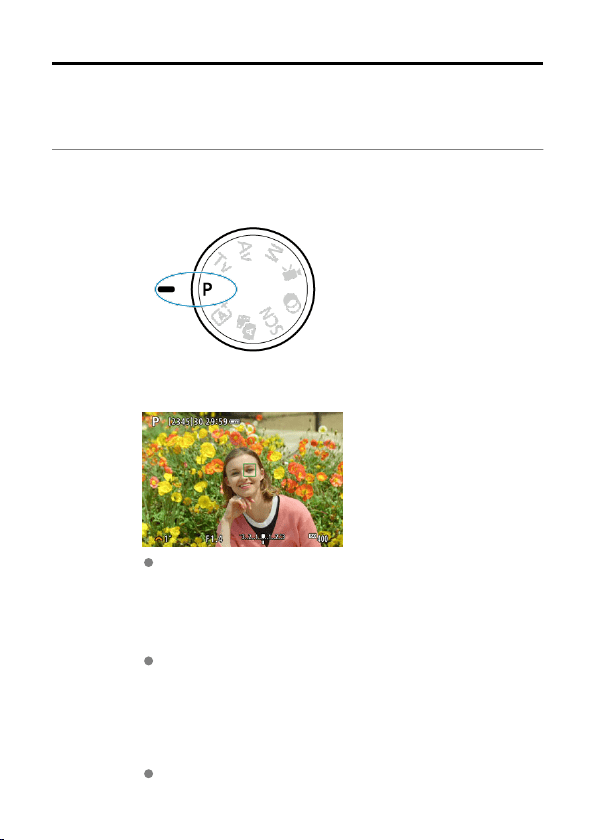
P: Program AE
The camera automatically sets the shutter speed and aperture value to suit the subject's
brightness.
* <
P> stands for Program.
* AE stands for Auto Exposure.
1.
Set the Mode dial to <P>.
2.
Focus on the subject.
Aim the AF point over the subject and press the shutter button halfway.
3.
Check the display.
Standard exposure is available unless the shutter speed and aperture
value are blinking.
4.
Take the picture.
Compose the shot and press the shutter button completely.
123
Caution
If the “30"” shutter speed and the lowest aperture value blink, it indicates
underexposure.
Increase the ISO speed or use flash.
If the “1/4000” shutter speed and the highest aperture value blink, it indicates
overexposure.
Lower the ISO speed or use an ND filter (sold separately) to reduce the amount of
light entering the lens.
Note
Differences between <P> and < > modes
In < > mode, many functions, such as the AF method and metering mode, are
set automatically to prevent spoiled shots. The functions you can set are limited. In
contrast, <P> mode only sets the shutter speed and aperture value automatically,
and you can freely set the AF method, metering mode, and other functions.
Program shift
With Program AE, you can freely change the combination (program) of shutter
speed and aperture value set by the camera while maintaining the same exposure.
This is called Program shift.
With Program shift, you can press the shutter button halfway, then turn the
< > dial until the desired shutter speed or aperture value is displayed.
Program shift will be canceled automatically when the metering timer ends
(exposure setting display turns off).
Program shift cannot be used with flash.
124
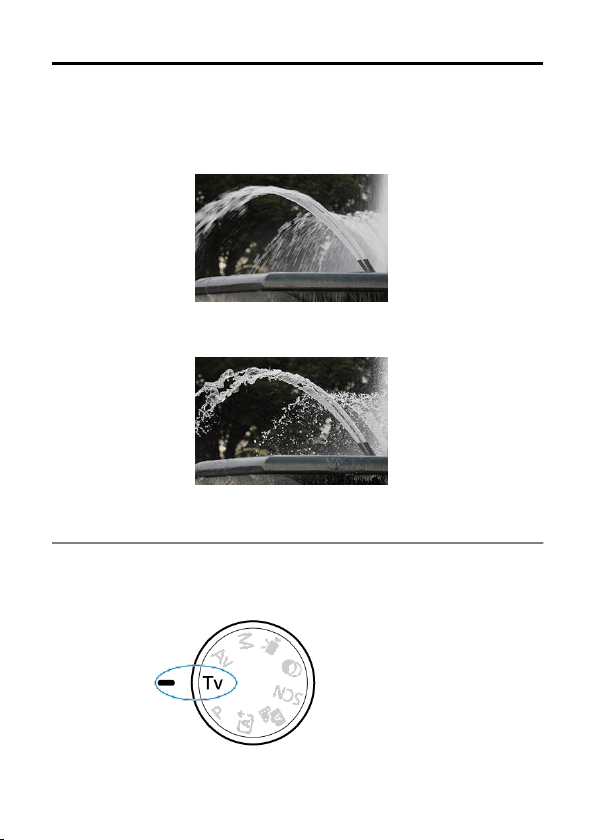
Tv: Shutter-Priority AE
In this mode, you set the shutter speed and the camera automatically sets the aperture
value to obtain the standard exposure matching the brightness of the subject. A faster
shutter speed can freeze the action of a moving subject. A slower shutter speed can create
a blurred effect, giving the impression of motion.
* <
Tv> stands for Time value.
Blurred motion
(Slow shutter speed: 1/30 sec.)
Frozen motion
(Fast shutter speed: 1/2000 sec.)
1.
Set the Mode dial to <Tv>.
125
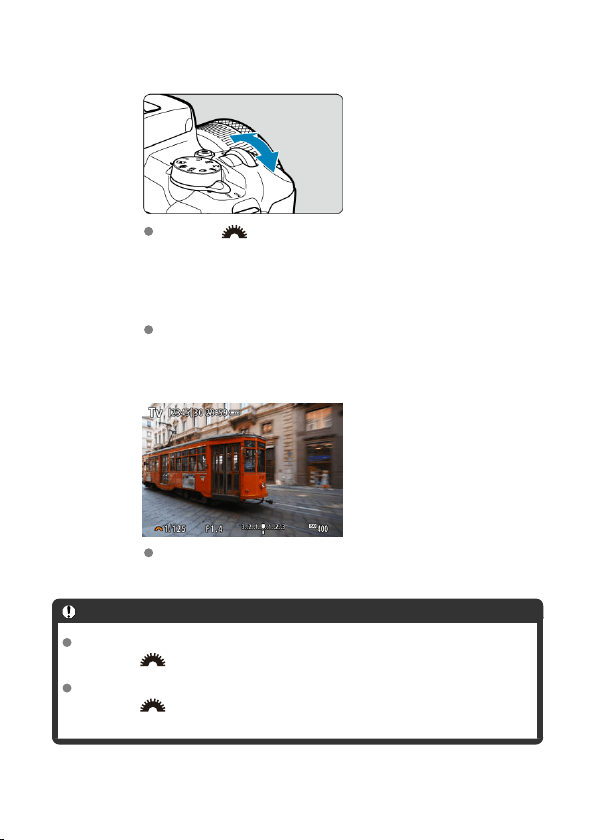
2.
Set the desired shutter speed.
Turn the < > dial to set it.
3.
Focus on the subject.
Press the shutter button halfway.
4.
Check the display and shoot.
As long as the aperture value is not blinking, the standard exposure will
be obtained.
Caution
If the lowest aperture value blinks, it indicates underexposure.
Turn the < > dial to set a slower shutter speed until the aperture value stops
blinking or set a higher ISO speed.
If the highest aperture value blinks, it indicates overexposure.
Turn the <
> dial to set a faster shutter speed until the aperture value stops
blinking, or set a lower ISO speed.
126
Note
Shutter speed display
For shutter speeds slower than 1/4 sec., display changes from the denominator
format to ". For example, 0"5 indicates 0.5 sec. and 15", 15 sec.
127
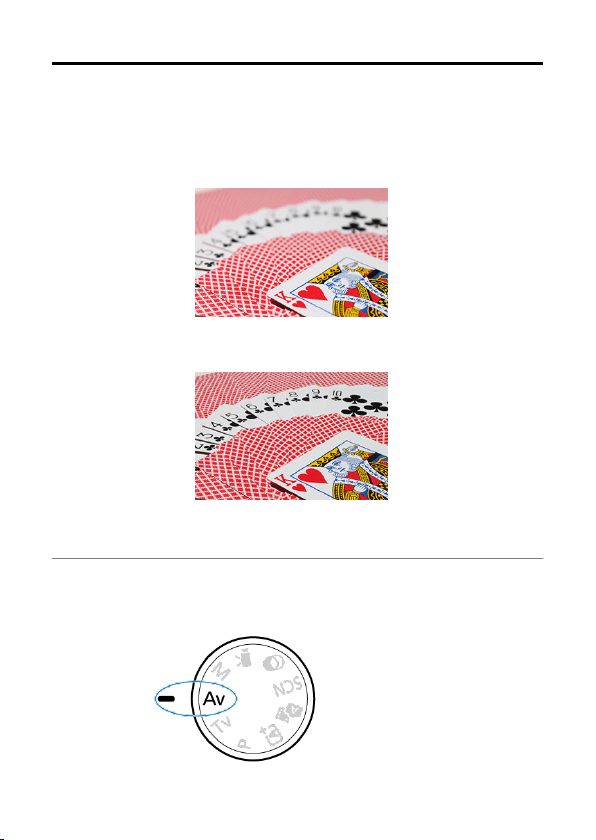
Av: Aperture-Priority AE
In this mode, you set the desired aperture value and the camera sets the shutter speed
automatically to obtain the standard exposure matching the subject brightness. A higher f/
number (smaller aperture hole) will make more of the foreground and background fall within
acceptable focus. On the other hand, a lower f/number (larger aperture hole) will make less
of the foreground and background fall within acceptable focus.
* <
Av> stands for Aperture value (aperture opening).
Blurred background
(With a low aperture value: f/5.6)
Sharp foreground and background
(With a high aperture value: f/32)
1.
Set the Mode dial to <Av>.
128
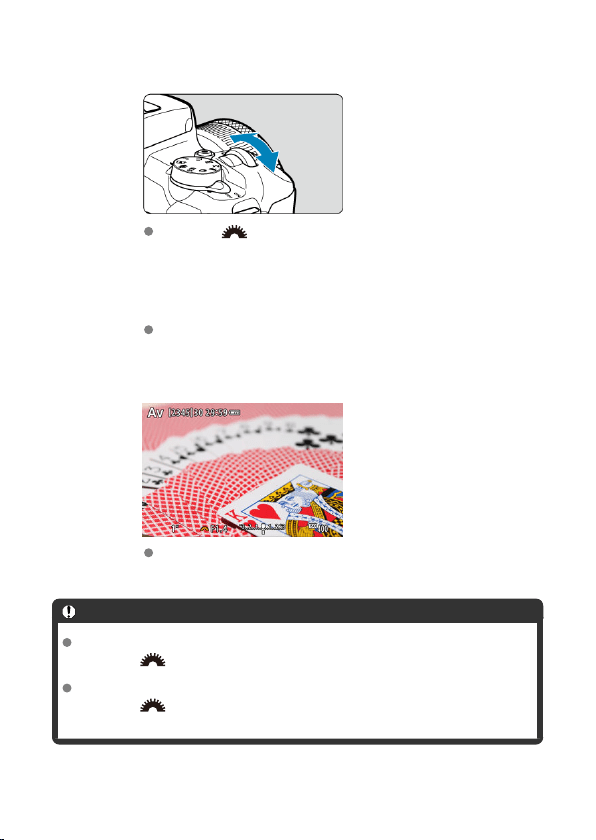
2.
Set the desired aperture value.
Turn the < > dial to set it.
3.
Focus on the subject.
Press the shutter button halfway.
4.
Check the display and shoot.
As long as the shutter speed is not blinking, the standard exposure will
be obtained.
Caution
If the “30"” shutter speed blinks, it indicates underexposure.
Turn the < > dial to decrease the aperture value (open the aperture) until the
shutter speed blinking stops or set a higher ISO speed.
If the “1/4000” shutter speed blinks, it indicates overexposure.
Turn the <
> dial to increase aperture value (close the aperture) until the
shutter speed blinking stops or set a lower ISO speed.
129
Note
Aperture value display
The higher the value, the smaller the aperture opening will be. The aperture value
displayed varies depending on the lens. If no lens is attached to the camera, “
F00”
will be displayed for the aperture.
130
Depth-of-Field Preview
The aperture changes only at the moment you shoot, and it remains open at other times. For
this reason, the depth of field shown on the screen looks narrow, or shallow. To check the
area in focus, assign [ ] (depth-of-field preview) to a button and press it.
Note
The larger the aperture value, the wider the area in focus, from the foreground to
the background.
The depth-of-field effect is readily apparent on the screen as you change the
aperture value and press the button assigned to depth-of-field preview.
Exposure is locked (AE lock) as you hold down the button assigned to depth-of-
field preview.
131
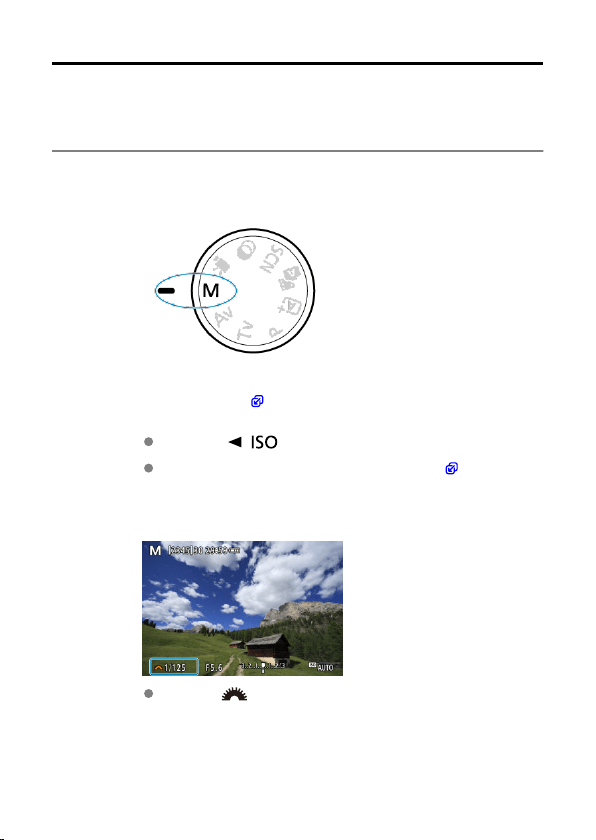
M: Manual Exposure
In this mode, you set both the shutter speed and aperture value as desired. To determine
the exposure, refer to the exposure level indicator or use a commercially available exposure
meter.
* <
M> stands for Manual.
1.
Set the Mode dial to <M>.
2.
Set the ISO speed ( ).
Press the < / > button to set it.
With ISO Auto, you can set exposure compensation ( ).
3.
Set the desired shutter speed.
Turn the < > dial to set it.
132
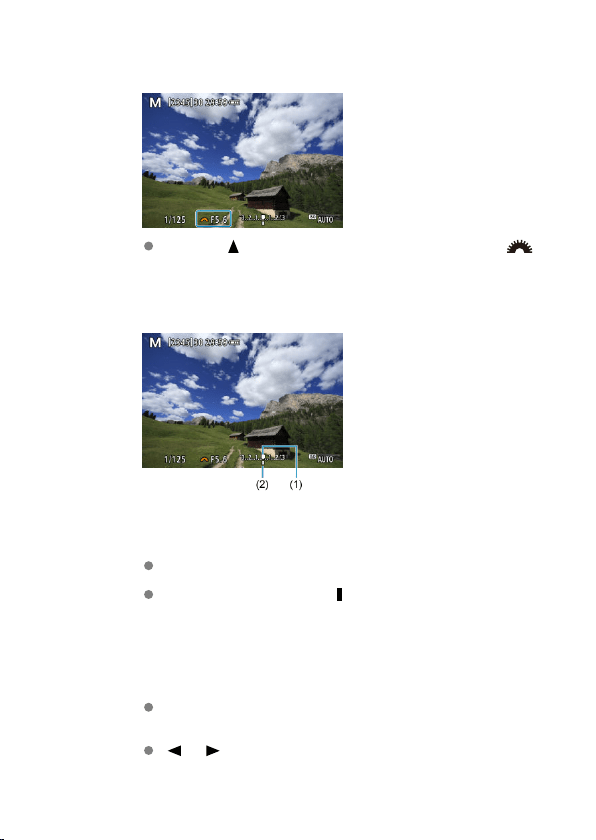
4.
Set the desired aperture value.
Press the < > key to select the aperture value, then turn the < >
dial to set a value.
5.
Focus on the subject.
(1) Standard exposure index
(2) Exposure level mark
Press the shutter button halfway.
Check the exposure level mark [ ] to see how far the current exposure
level is from the standard exposure level.
6.
Set the exposure and take the picture.
Check the exposure level indicator and set the desired shutter speed
and aperture value.
[ ] or [ ] appears at the ends of the exposure level indicator if the
level exceeds ±3 stops from standard exposure.
133
Exposure Compensation with ISO Auto
If the ISO speed is set to [AUTO] for manual exposure shooting, you can set exposure
compensation ( ) as follows:
[ : Expo.comp./AEB]
Turn the control ring while pressing the shutter button halfway ( )
Caution
Exposure may not be as expected when ISO Auto is set, because the ISO speed is
adjusted to ensure standard exposure for your specified shutter speed and
aperture value. In this case, set the exposure compensation.
Exposure compensation is not applied in flash photography with ISO Auto, even if
you have set an exposure compensation amount.
Note
To enable Auto Lighting Optimizer to be specified in <M> mode as well, clear the
[ ] mark for [Disable during man expo] in [ : Auto Lighting Optimizer] ( ).
When ISO Auto is set, you can press the < > button to lock the ISO speed.
If you press the < > button and recompose the shot, you can see the exposure
level difference on the exposure level indicator compared to when the
< >
button was pressed.
134
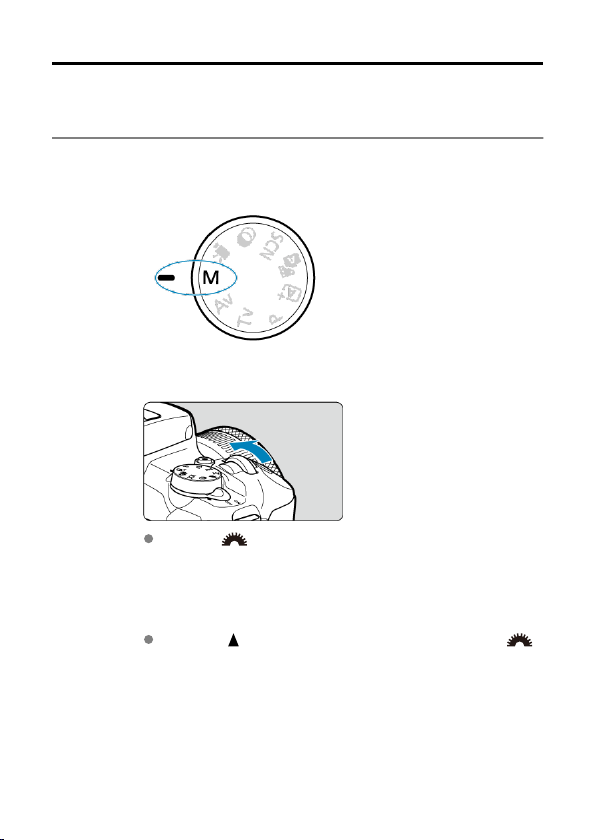
Long (Bulb) Exposures
In this mode, the shutter stays open as long as you hold down the shutter button completely,
and closes when you let go of the shutter button. Use bulb exposures for night scenes,
fireworks, astrophotography, and other subjects requiring long exposures.
1.
Set the Mode dial to <M>.
2.
Set the shutter speed to [BULB].
Turn the < > dial to the left to set [BULB].
3.
Set the desired aperture value.
Press the < > key to select the aperture value, then turn the < >
dial to set a value.
135
4.
Take the picture.
The exposure will continue for as long as you keep the shutter button
pressed completely.
Elapsed exposure time is shown on the screen.
Caution
Do not point the camera toward an intense light source, such as the sun or an
intense artificial light source. Doing so may damage the image sensor or the
camera's internal components.
Long bulb exposures produce more noise in the image than usual.
If ISO Auto is set, ISO 400 will be set ( ).
Note
You can reduce the noise generated during long exposures by using [ : Long
exp. noise reduction] ( ).
Using a tripod is recommended for bulb exposures.
You can also shoot bulb exposures with Remote Switch RS-60E3 (sold
separately, ).
You can also shoot bulb exposures by using Wireless Remote Control BR-E1 (sold
separately, ). When you press the remote controller's release (transmit) button,
the bulb exposure will start immediately or 2 sec. later. Press the button again to
stop the bulb exposure.
136
AF, Drive, and Exposure Settings
This chapter describes how to configure AF, drive mode, metering mode, and related
settings.
Caution
< > stands for autofocus. < > stands for manual focus.
• AF Operation
• AF Method
• Manual Focus
• Drive Mode
• Using the Self-Timer
• Remote Control Shooting
•
Metering Mode
• Exposure Compensation
• Exposure Lock (AE Lock)
137
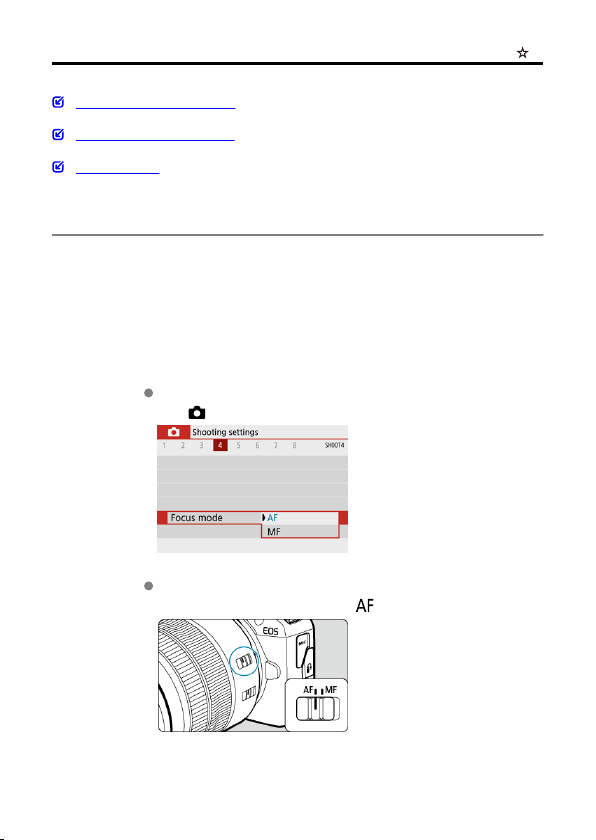
AF Operation
One-Shot AF for Still Subjects
Servo AF for Moving Subjects
AF-assist beam
You can select the AF operation characteristics to suit the shooting conditions or subject. In
Basic Zone modes, the optimum AF operation is set automatically for the respective
shooting mode.
1.
Turn the Mode dial to a Creative Zone.
2.
Set the focus mode to AF.
For RF lenses without a focus mode switch
Set [ : Focus mode] to [AF].
For RF lenses with a focus mode switch
Set the lens focus mode switch to < >.
138
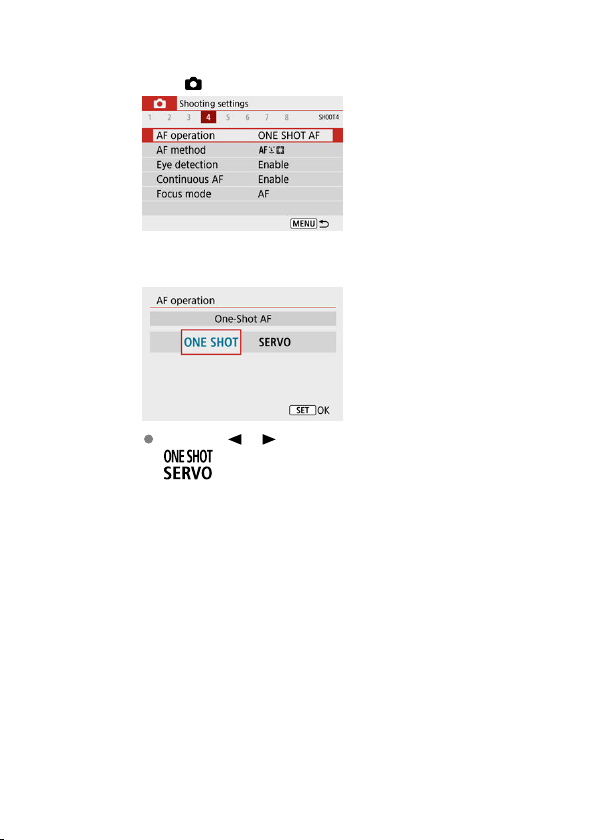
3.
Select [ : AF operation].
4.
Select an option.
Press the < >< > keys.
: One-Shot AF
: Servo AF
139
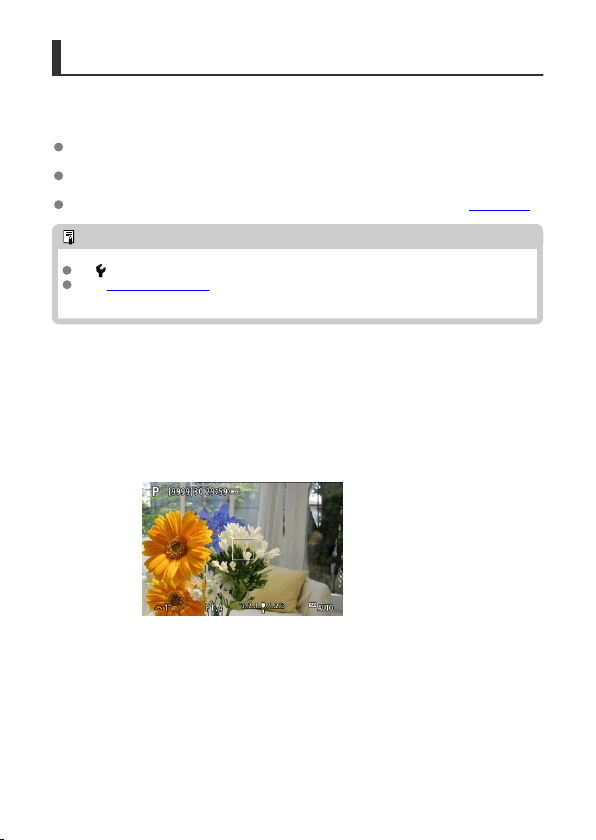
One-Shot AF for Still Subjects
This AF operation is suited for still subjects. When you press the shutter button halfway, the
camera will focus only once.
Once a subject is in focus, the focusing AF point turns green and the camera beeps. If
focus is not achieved, the AF point will turn orange.
The focus remains locked while you hold down the shutter button halfway, allowing you
to recompose the image before taking the picture.
For details on the continuous shooting speed for continuous shooting, see Drive Mode.
Note
If [ : Beep] is set to [Disable], the beeper will not sound when focus is achieved.
See Lens Electronic MF when using a lens that supports electronic manual
focusing.
Shooting with the focus locked
In focus lock shooting, you will use One-Shot AF with a fixed AF point, then recompose the
shot before shooting. The steps are as follows when you will press the shutter button
halfway to focus.
1.
Aim the fixed AF point over the subject to focus on, then press the
shutter button halfway.
140
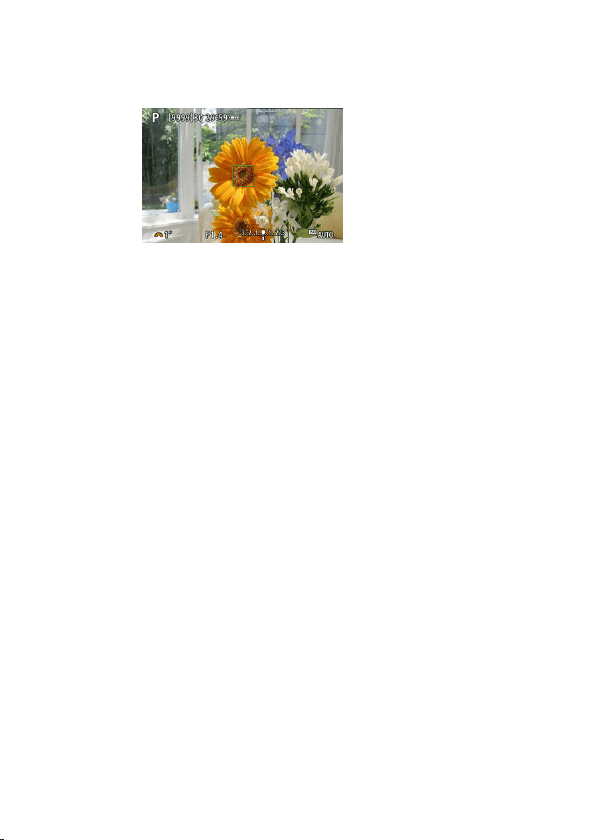
2.
After the AF point in focus turns green, keep the shutter button
pressed halfway and recompose the shot.
3.
Press the shutter button completely to take the picture.
141
Servo AF for Moving Subjects
This AF operation is suited for moving subjects. While you hold down the shutter button
halfway, the camera will keep focusing on the subject continuously.
Once a subject is in focus, the focusing AF point turns blue. The beeper will not sound
even when focus is achieved.
The exposure is set at the moment the picture is taken.
For details on the continuous shooting speed for continuous shooting, see Drive Mode.
Caution
Depending on the lens used, the distance to the subject and the subject's speed,
the camera may not be able to achieve correct focus.
Zooming during continuous shooting may throw off the focus. Zoom first, then
recompose and shoot.
142

AF-assist beam
The AF-assist beam ( , ) may fire when you press the shutter button halfway under low
light or in similar conditions, to make autofocusing easier.
With a Speedlite, configure the setting on the Speedlite as needed.
Caution
The flash does not emit an AF-assist beam when AF operation is set to [Servo AF].
Note
To disable AF-assist beam firing, set [ : AF-assist beam firing] to [Disable].
143
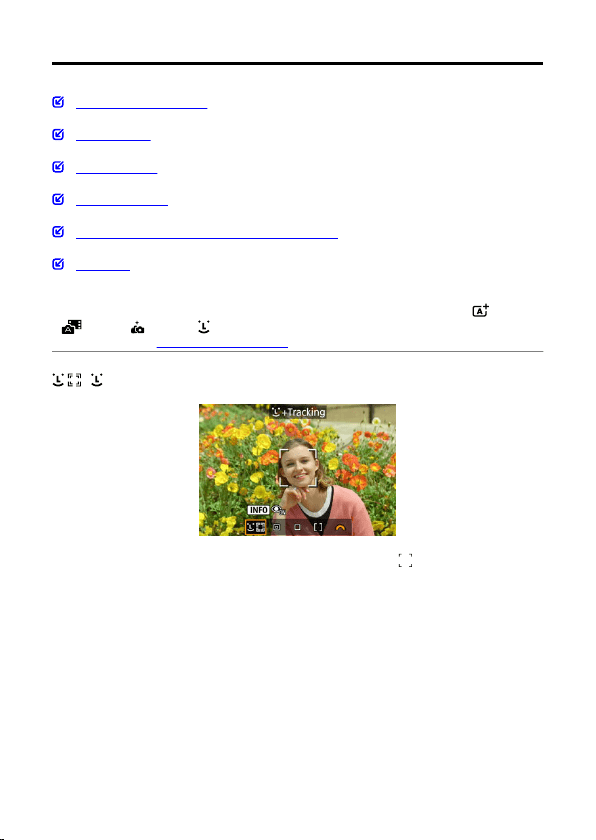
AF Method
Selecting the AF Method
Eye Detection
Magnified View
AF Shooting Tips
Shooting Conditions That Make Focusing Difficult
AF Range
You can select the AF method to suit the shooting conditions or subject. The camera
attempts to focus on faces of any people in an AF point or Zone AF frame. In < >,
< >, and < > mode, [ +Tracking] is set automatically. For instructions on selecting
an AF method, see Selecting the AF Method.
: +Tracking
The camera detects and focuses on people's faces. An AF point [ ] appears over any face
detected, which is then tracked.
If no face is detected, the entire AF area is used for focusing.
144
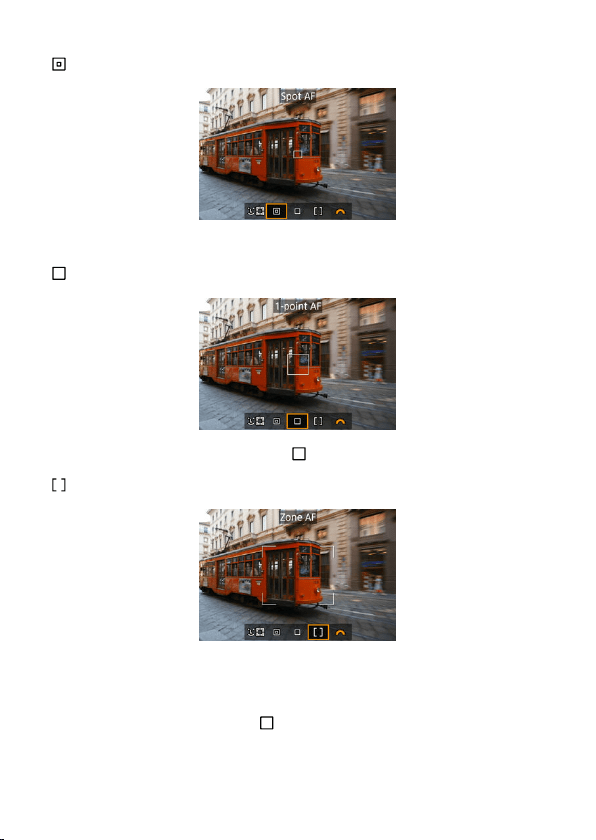
: Spot AF
The camera focuses in a narrower area than [1-point AF].
: 1-point AF
The camera focuses using a single AF point [ ].
: Zone AF
Focuses in a wide Zone AF frame, which makes it easier to acquire subjects than with [1-
point AF].
Prioritizes focusing on the nearest subject. Faces of any people in the Zone AF frame are
also given priority in focusing.
AF points in focus are displayed with < >.
145
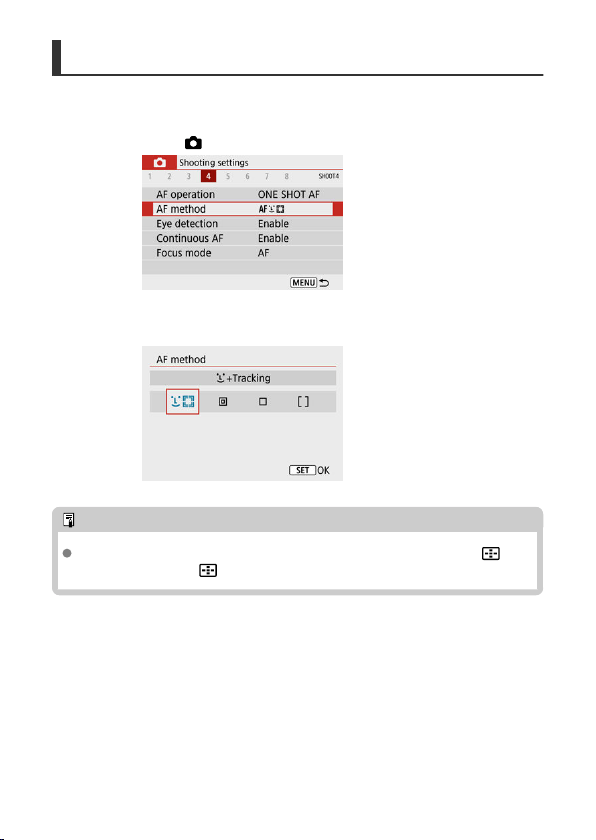
Selecting the AF Method
1.
Select [ : AF method].
2.
Select an option.
Note
Without using the menu, you can also set the AF method by pressing the < >
button and then the < > button again.
146
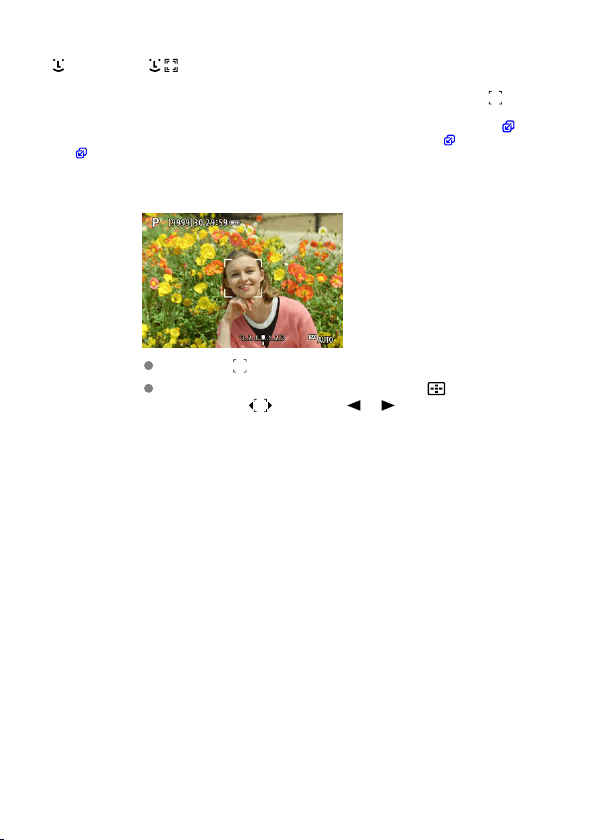
+Tracking:
The camera detects and focuses on people's faces. If a face moves, the AF point [ ] also
moves to track the face.
With [Eye detection] set to [Enable], you can shoot with the subject's eyes in focus ( ).
* These instructions apply to the camera with AF operation set to [One-Shot AF] ( ). With [Servo
AF] ( ) set, the AF point will turn blue when focus is achieved.
1.
Check the AF point.
An AF point [ ] appears over any face detected.
When multiple faces are detected, pressing the < > button changes
the AF point to [ ]. Press the < >< > keys to select the face to
focus on.
147
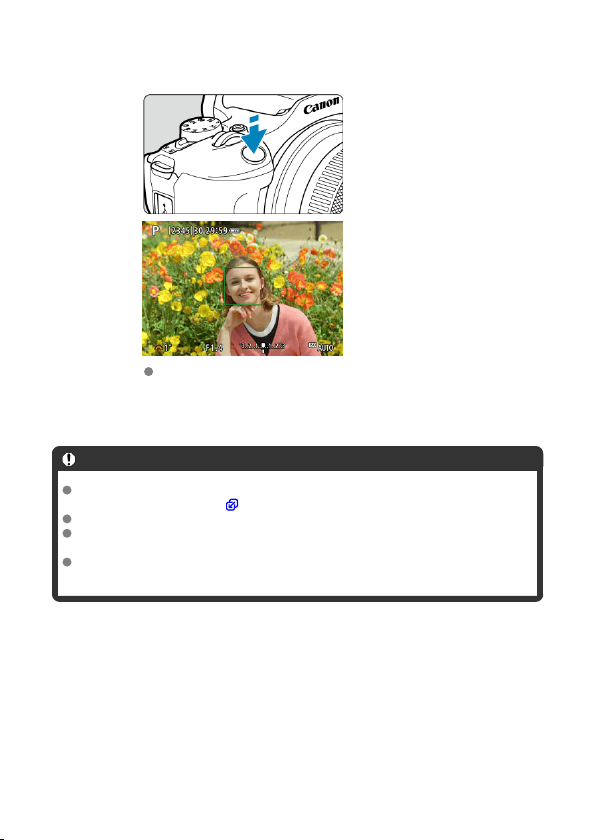
2.
Focus and take the picture.
Once you press the shutter button halfway and the subject is in focus,
the AF point turns green and the camera beeps.
An orange AF point indicates that the camera could not focus on
subjects.
Caution
If the subject's face is significantly out of focus, face detection will not be possible.
Adjust the focus manually ( ) so that the face can be detected, then perform AF.
An object other than a human face may be detected as a face.
Face detection will not work if the face is very small or large in the picture, too
bright or too dark, or partially hidden.
AF cannot detect subjects or people's faces at the edges of the screen.
Recompose the shot to center the subject or bring the subject closer to the center.
148

Note
The active [ ] may cover only a part of the face, not the whole face.
The size of the AF point changes depending on the subject.
An AF point tracks faces or eyes in focus if you have configured the [Subject to
track selection] setting in Custom Controls in Custom Functions (C.Fn) ( ).
To activate focusing after an AF point [ ] appears over detected faces or eyes,
press the button assigned to [Subject to track selection], which will change the
AF point to [ ]. Even if faces or eyes move on the screen, the AF point [ ] moves
to track them.
After an AF point [ ] appears over detected faces or eyes, each press of the
button assigned to [Subject to track selection] switches from one face or eye
detected by [
] to the next until you have cycled through all detected faces or
eyes, after which the AF point changes to [ ].
149
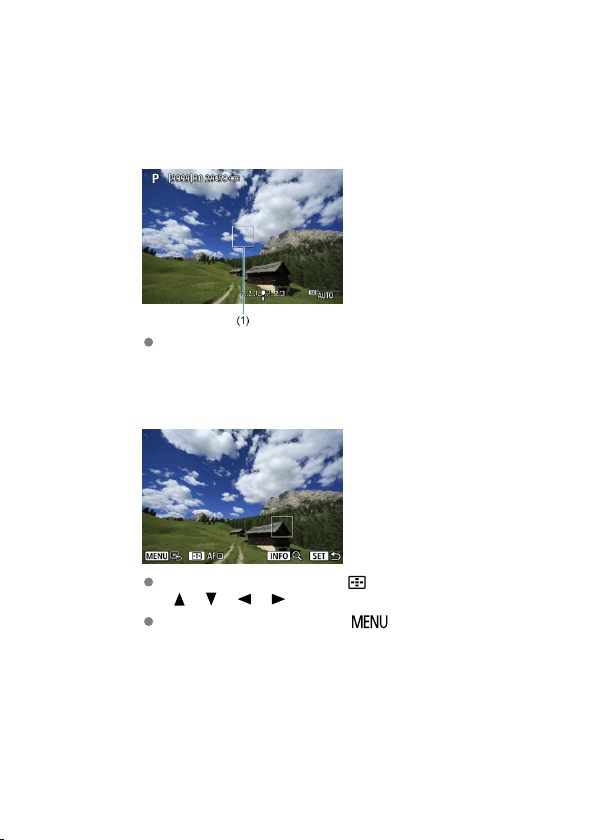
Spot AF / 1-point AF / Zone AF
You can manually set the AF point or Zone AF frame. Here, 1-point AF screens are used as
an example.
1.
Check the AF point.
The AF point (1) will appear. With Zone AF, the Zone AF frame is
displayed.
2.
Move the AF point.
To move the AF point, press the < > button, then press the
< >< >< >< > keys.
To center the AF point, press the < > button.
150
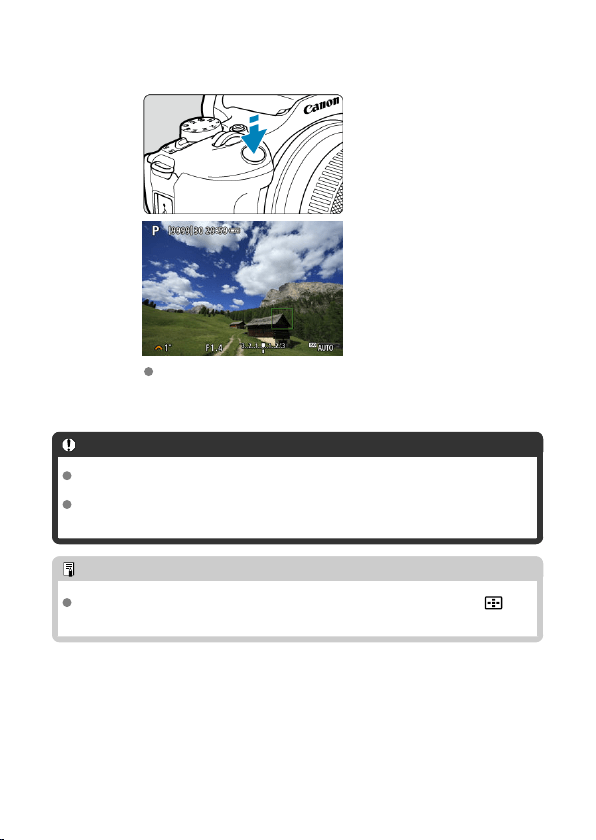
3.
Focus and take the picture.
Aim the AF point over the subject and press the shutter button halfway.
When focus is achieved, the AF point will turn green and the beeper
will sound. If focus is not achieved, the AF point will turn orange.
Caution
AF points may not track subjects under some shooting conditions when [Servo AF]
is used with Zone AF.
Focusing with an AF-assist beam may be difficult with AF points near the edge of
the screen. In this case, move to an AF point in the center of the screen.
Note
To return the AF point to the center of the image area, press and hold the < >
button.
151
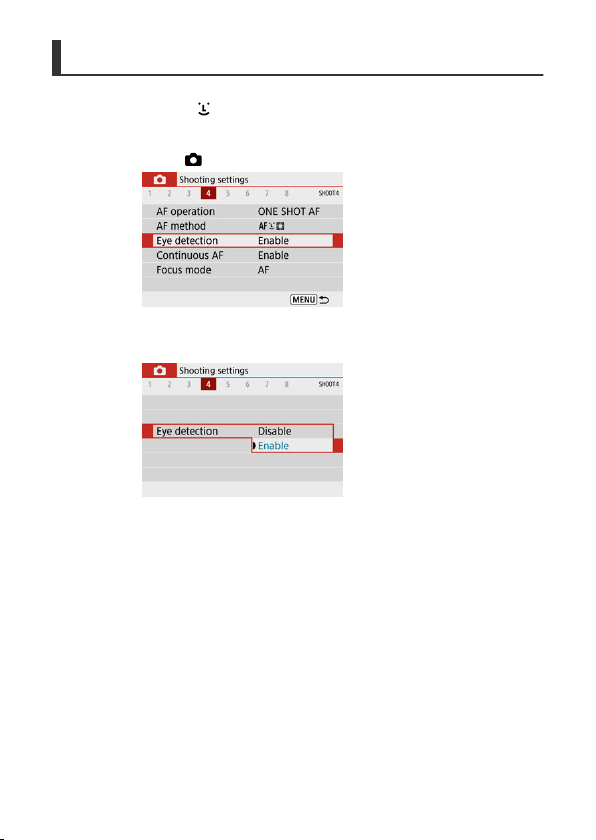
Eye Detection
With the AF method set to [ +Tracking], you can shoot with the subject's eyes in focus.
1.
Select [ : Eye detection].
2.
Select [Enable].
152
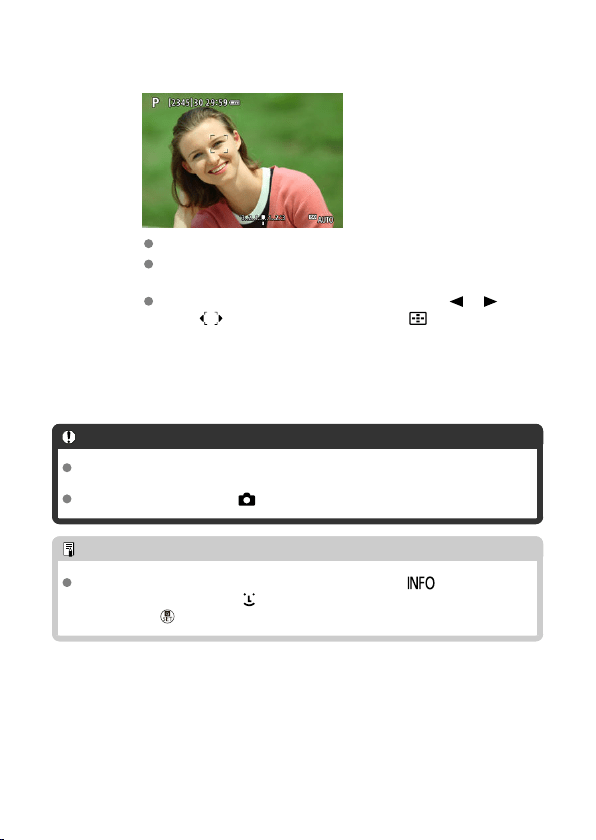
3.
Aim the camera at the subject.
An AF point is displayed around their eye.
If your selected eye is not detected, an eye to focus on is selected
automatically.
You can choose an eye or face to focus on with the < >< > keys
when [ ] is displayed after you press the < > button, depending
on the [Eye detection] setting.
4.
Take the picture.
Caution
Subject eyes may not be detected correctly, depending on the subject and shooting
conditions.
To cancel eye detection, set [ : Eye detection] to [Disable].
Note
You can switch the [Eye detection] setting by pressing the
<
> button when
you have set [AF method] to [
+Tracking] on the Quick Control screen after
pressing the < > button.
153
Magnified View
To check the focus when the AF method is other than [ +Tracking], magnify display by
approx. 5× or 10× by pressing the < > button and then the < > button.
Magnification is centered on the AF point for [Spot AF] or [1-point AF] and on the Zone
AF frame for [Zone AF].
Autofocusing is performed with magnified display if you press the shutter button halfway
when set to [Spot AF], and [1-point AF]. When set to [Zone AF], autofocusing is
performed after restoring normal display.
With Servo AF, if you press the shutter button halfway in the magnified view, the camera
will return to the normal view for focusing.
Caution
If focusing is difficult in the magnified view, return to the normal view and perform
AF.
If you perform AF in the normal view and then use the magnified view, accurate
focus may not be achieved.
AF speed differs between the normal view and magnified view.
Continuous AF and Movie Servo AF are not available when display is magnified.
With the magnified view, achieving focus becomes more difficult due to camera
shake. Using a tripod is recommended.
154

AF Shooting Tips
Even when focus is achieved, pressing the shutter button halfway will focus again.
Image brightness may change before and after autofocusing.
Depending on the subject and shooting conditions, it may take longer to focus, or the
continuous shooting speed may decrease.
If the light source changes as you shoot, the screen may flicker, and focusing may be
difficult. In this case, restart the camera and resume shooting with AF under the light
source you will use.
If focusing is not possible with AF, focus manually ( ).
For subjects at the edge of the screen that are slightly out of focus, try centering the
subject (or AF point, or Zone AF frame) to bring them into focus, then recompose the
shot before shooting.
With certain lenses, it may take more time to achieve focus with autofocus, or accurate
focusing may not be achieved.
155
Shooting Conditions That Make Focusing Difficult
Subject with low-contrast such as the blue sky, solid-color flat surfaces or when highlight
or shadow details are clipped.
Subjects in low light.
Stripes and other patterns where there is contrast only in the horizontal direction.
Subjects with repetitive patterns (Example: Skyscraper windows, computer keyboards,
etc.).
Fine lines and subject outlines.
Under light sources with constantly changing brightness, colors, or patterns.
Night scenes or points of light.
The image flickers under fluorescent or LED lighting.
Extremely small subjects.
Subjects at the edge of the screen.
Strongly backlit or reflective subjects (Example: Car with a highly reflective surfaces,
etc.).
Near and distant subjects covered by an AF point (Example: Animal in a cage, etc.).
Subjects that keep moving within the AF point and will not stay still due to camera shake
or subject blur.
Performing AF when the subject is very far out of focus.
Soft focus effect is applied with a soft focus lens.
A special effect filter is used.
Noise (dots of light, banding, etc.) appears on the screen during AF.
AF Range
The available autofocus range varies depending on the lens used and aspect ratio and
whether you are using features such as Movie digital IS.
156
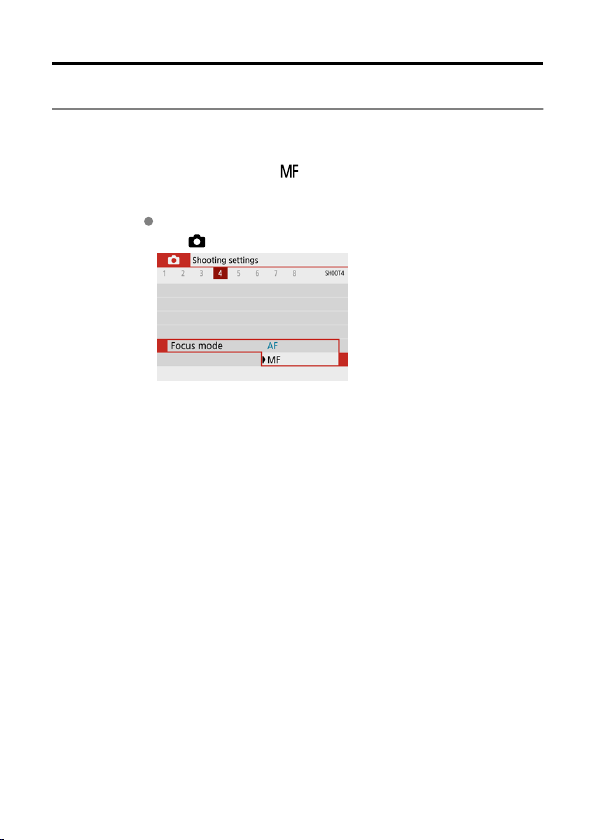
Manual Focus
If focus cannot be achieved with autofocus, follow the procedure below to focus manually.
1.
Set the focus mode to < >.
For RF lenses without a focus mode switch
Set [ : Focus mode] to [MF].
157
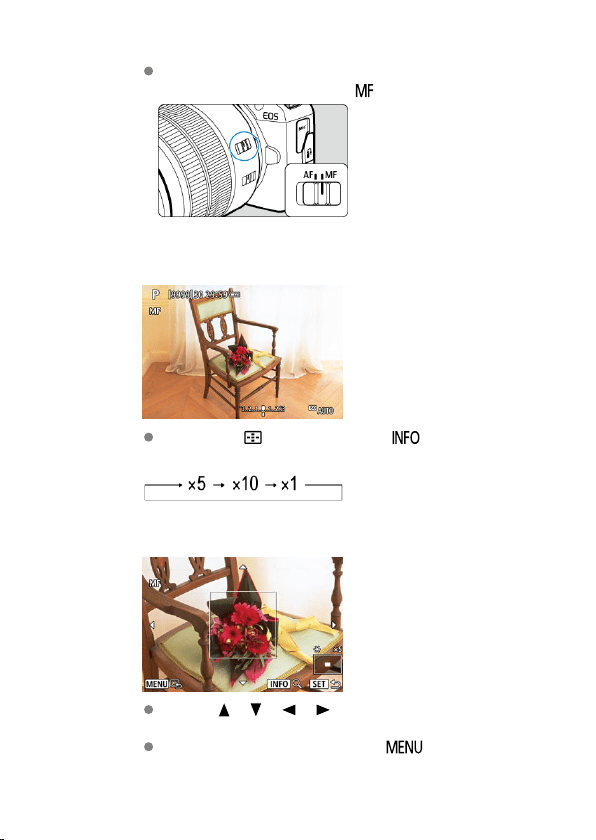
For RF lenses with a focus mode switch
Set the lens focus mode switch to < >.
2.
Magnify the image.
Pressing the < > button and then the < > button changes the
magnification ratio, as follows.
3.
Move the magnified area.
Use the < >< >< >< > keys to move the magnified area into
position for focusing.
To center the magnified area, press the < > button.
158
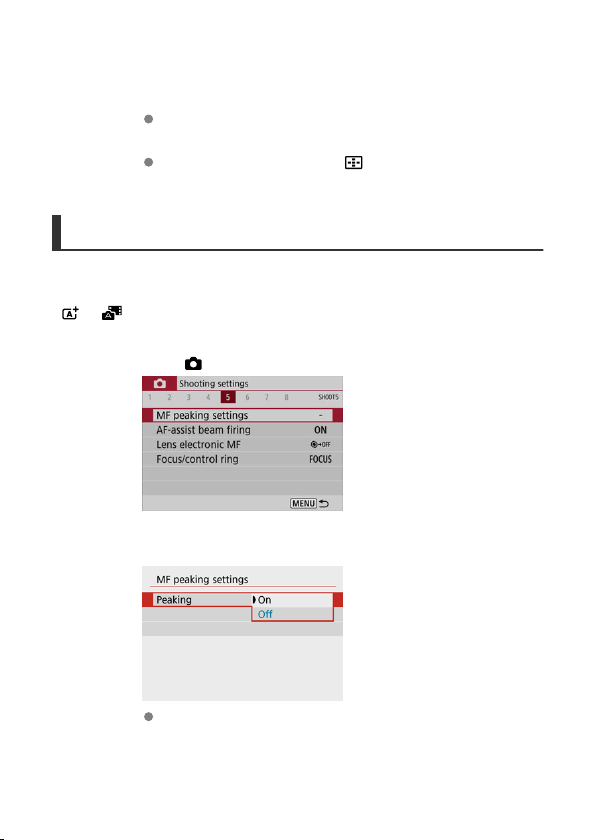
4.
Focus manually.
While looking at the magnified image, turn the lens focusing ring to
focus.
After achieving focus, press the < > button to return to the normal
view.
MF Peaking Settings (Outline Emphasis)
As you shoot, edges of subjects in focus can be displayed in color to make focusing easier.
You can set the outline color and adjust the sensitivity (level) of edge detection (except in
< >/< > modes).
1.
Select [ : MF peaking settings].
2.
Select [Peaking].
Select [On].
159
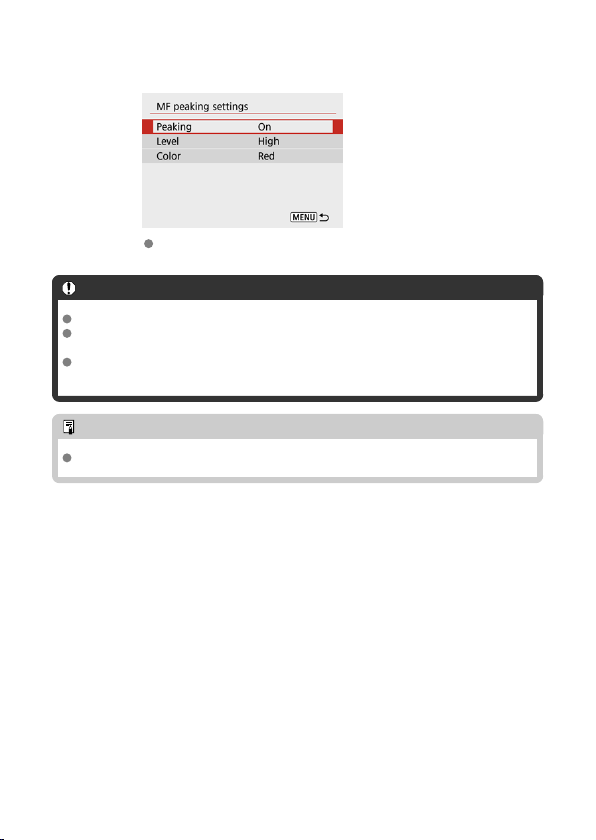
3.
Set the level and color.
Set it as necessary.
Caution
In magnified view, peaking display is not shown.
During HDMI output, peaking display is not shown on equipment connected via
HDMI.
MF peaking may be hard to discern at high ISO speeds, especially when ISO
expansion is set. If necessary, lower the ISO speed or set [Peaking] to [Off].
Note
Peaking display shown on the screen is not recorded in images.
160
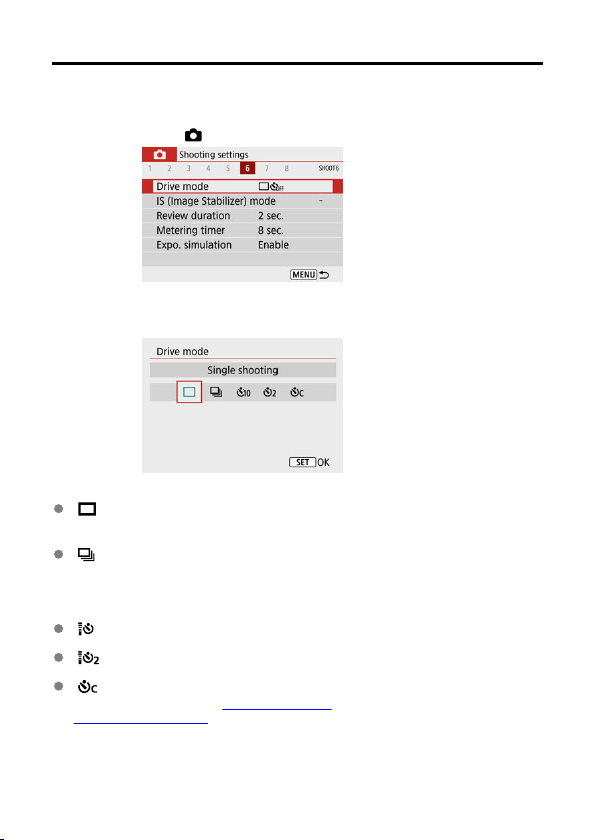
Drive Mode
1.
Select [ : Drive mode].
2.
Select an option.
[ ] Single shooting
When you hold down the shutter button completely, only one shot will be taken.
[ ] Continuous shooting
When you hold down the shutter button completely, you can shoot continuously at max.
approx. 6.5 shots/sec. while you keep holding it down. With AF operation set to [Servo
AF], the continuous shooting speed will be max. approx. 3.5 shots/sec.
[ ] Self-timer:10 sec/Remote control
[ ] Self-timer:2 sec/Remote control
[ ] Self-timer:Continuous
For self-timer shooting, see Using the Self-Timer. For remote control shooting, see
Remote Control Shooting.
161
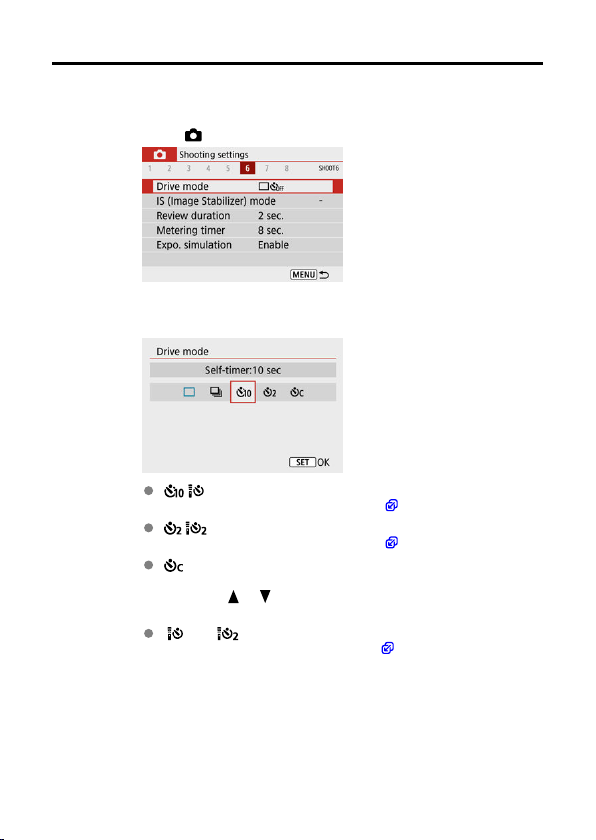
Using the Self-Timer
1.
Select [ : Drive mode].
2.
Select an option.
/ : Shoot in 10 sec.
Remote control shooting is also possible ( ).
/ : Shoot in 2 sec.
Remote control shooting is also possible ( ).
: Shoot continuously in 10 sec. for the specified number of
shots
Press the < >< > keys to set the number of shots to take (2–10).
Remote control shooting is not possible.
[ ] and [ ] icons are displayed when the camera is paired with a
wireless remote control (sold separately, ).
162
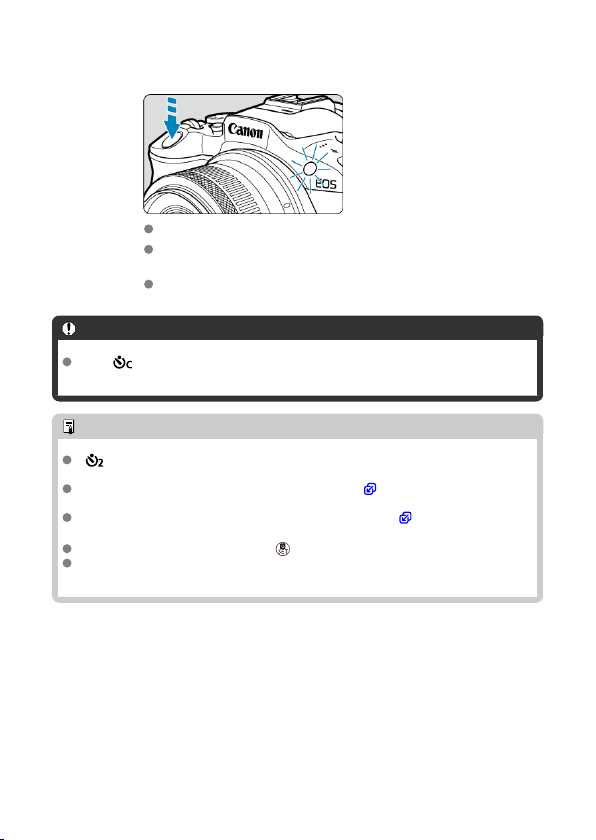
3.
Take the picture.
Focus on the subject, then press the shutter button completely.
To check operation, look at the self-timer lamp, listen for beeps, or
watch the countdown in seconds on the screen.
The self-timer lamp blinks faster approx. 2 sec. before the shot.
Caution
With [ ], the shooting interval may become longer under some shooting
conditions, depending on image quality, use of flash, and other factors.
Note
[ ] can be used to start shooting without touching the camera and avoid camera
shake when it is mounted on a tripod for still-life or long exposure shots.
After taking self-timer shots, playing back the image ( ) to check focus and
exposure is recommended.
When using the self-timer to shoot yourself, use focus lock ( ) on an object at the
same distance as where you will stand.
To cancel the self-timer, press the < > button.
Auto power off time may be extended when the camera is set for remote control
shooting.
163
Remote Control Shooting
Wireless Remote Control BR-E1
Remote Switch RS-60E3
Remote shooting is supported with Wireless Remote Control BR-E1 or Remote Switch
RS-60E3
(Bluetooth and wired connections, respectively; sold separately).
Wireless Remote Control BR-E1
You can shoot remotely up to approx. 5 meters/16.4 feet from the camera. After pairing the
camera and BR-E1 (
), set the drive mode to [ ] ( ).
For operating instructions, refer to the BR-E1 instruction manual.
Note
Auto power off time may be extended when the camera is set for remote control
shooting.
BR-E1 can also be used for movie recording ( ).
164
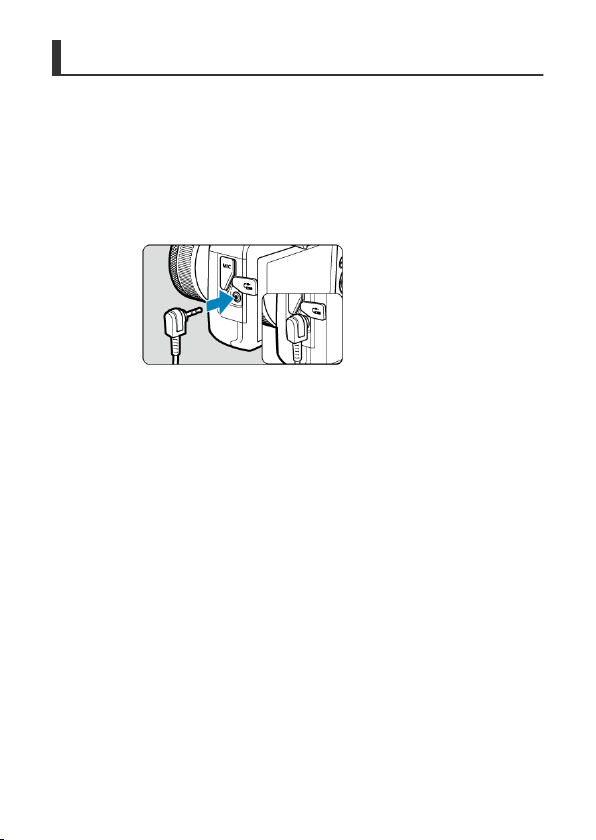
Remote Switch RS-60E3
Once connected to the camera, the switch enables you to shoot remotely over a wired
connection.
For operating instructions, refer to the RS-60E3
instruction manual.
1.
Open the terminal cover.
2.
Connect the plug to the remote control terminal.
165
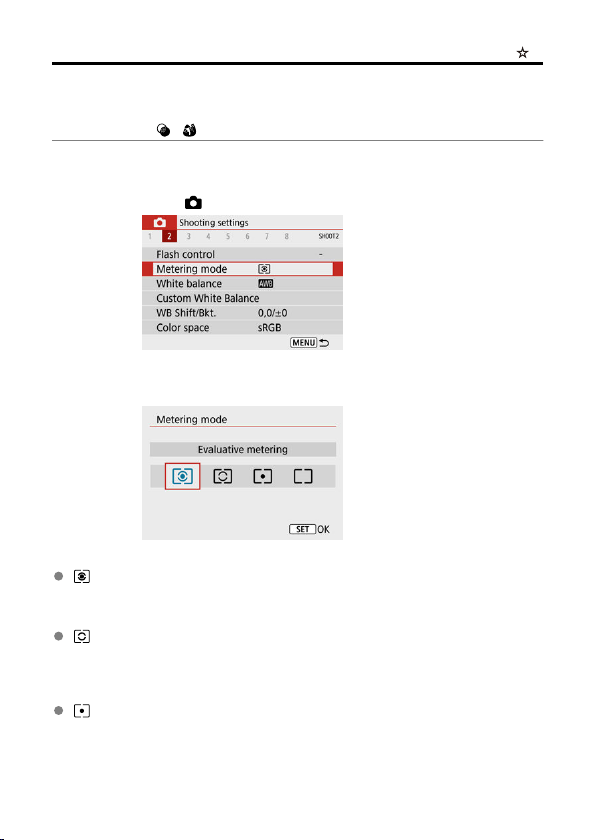
Metering Mode
Four methods (metering modes) to measure the subject's brightness are provided. Normally,
evaluative metering is recommended. Evaluative metering is set automatically in Basic Zone
modes (except in < : > mode, which uses center-weighted average metering).
1.
Select [ : Metering mode].
2.
Select an option.
: Evaluative metering
General-purpose metering mode suited even for backlit subjects. The camera adjusts
the exposure automatically to suit the scene.
: Partial metering
Effective where there are much brighter lights around the subject due to backlight, etc.
Covers approx. 5.8% of the area at the center of the screen. The partial metering area is
indicated on the screen.
: Spot metering
Effective when metering a specific part of the subject. Covers approx. 2.9% of the area
at the center of the screen. The spot metering area is indicated on the screen.
166
: Center-weighted average
The metering across the screen is averaged, with the center of the screen weighted
more heavily.
Caution
With (evaluative metering), holding down the shutter button halfway when
shooting with [One-Shot AF] locks the exposure value (AE lock). With (partial
metering), (spot metering), or (center-weighted average metering),
exposure is set at the moment the picture is taken (without locking the exposure
value when the shutter button is pressed halfway).
167
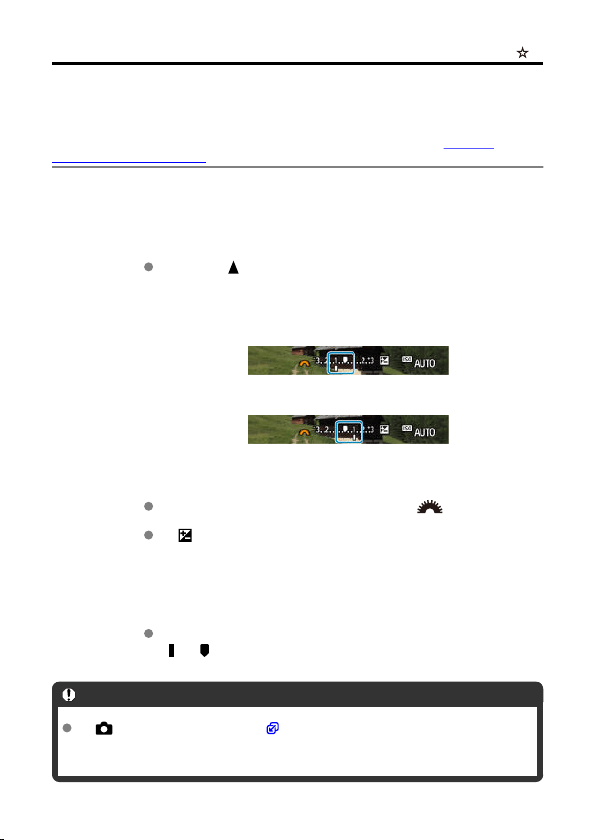
Exposure Compensation
Exposure compensation can brighten (increased exposure) or darken (decreased exposure)
the standard exposure set by the camera.
Exposure compensation is available in <
P>, <Tv>, <Av>, and <M> modes. For details on
exposure compensation when <M> mode and ISO Auto are both set, see
Exposure
Compensation with ISO Auto.
1.
Select the exposure level indicator.
Press the < > key to display the indicator.
2.
Set the compensation amount.
Decreased exposure, to darken images
Increased exposure, to brighten images
Set it by looking at the screen as you turn the < > dial.
A [ ] icon is displayed to indicate exposure compensation.
3.
Take the picture.
To cancel exposure compensation, return the exposure level indicator
[ ] to [ ], the standard exposure index.
Caution
If [ : Auto Lighting Optimizer] ( ) is set to any setting other than [Disable], the
image may still look bright even if decreased exposure compensation is set to
darken images.
168

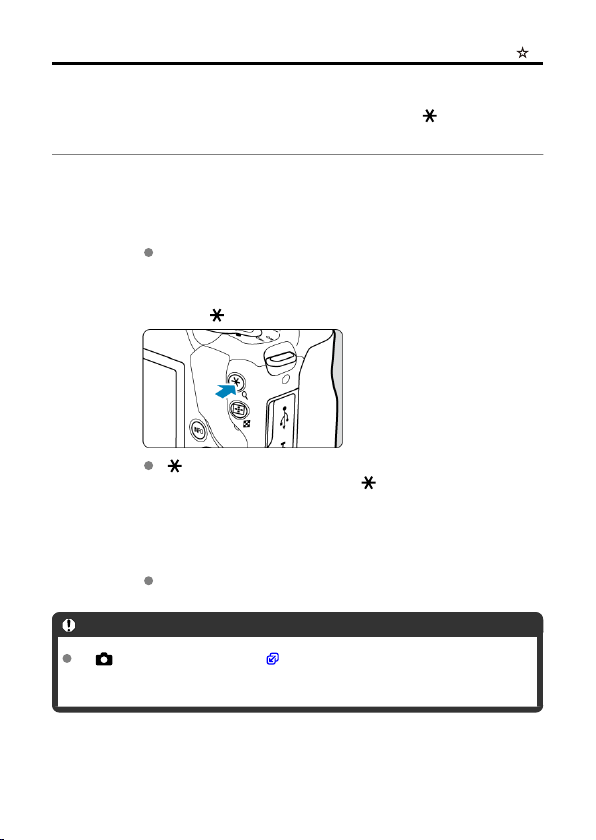
Exposure Lock (AE Lock)
You can lock the exposure when you want to set the focus and exposure separately or when
you will take multiple shots at the same exposure setting. Press the < > button to lock the
exposure, then recompose and take the picture. It is effective for shooting backlit subjects,
etc.
1.
Focus on the subject.
Press the shutter button halfway.
2.
Press the < > button.
[ ] is displayed on the screen to indicate that exposure is locked (AE
lock). To cancel AE lock, press the < > button again.
3.
Recompose and take the picture.
Press the shutter button.
Caution
If [ : Auto Lighting Optimizer] ( ) is set to any setting other than [Disable], the
image may still look bright even if decreased exposure compensation is set to
darken images.
170
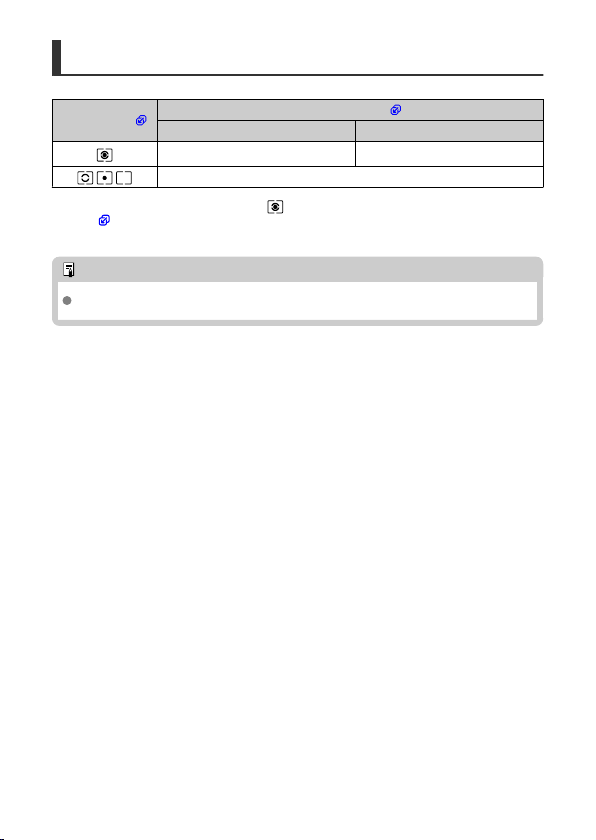
AE Lock Effects
Metering Mode ( )
AF Point Selection ( )
Automatic Selection Manual Selection
Exposure centered on the AF point in
focus is locked.
Exposure centered on the selected AF
point is locked.
AE lock is applied at the center AF point.
* Center-weighted exposure is locked when [ ] is set with the camera configured for manual
focusing ( ).
Note
AE lock is not possible with bulb exposures.
171
Flash Photography
This chapter describes how to shoot with the built-in flash or an external flash (EL/EX series
Speedlites).
to the right of page titles indicates functions only available in Creative Zone modes
(<P>, <Tv>, <
Av>, or <M>).
Caution
Flash cannot be used while you are recording movies.
AEB is not available in flash photography.
• Shooting with the Built-in Flash
• Flash Function Settings
• Shooting with Speedlites
172
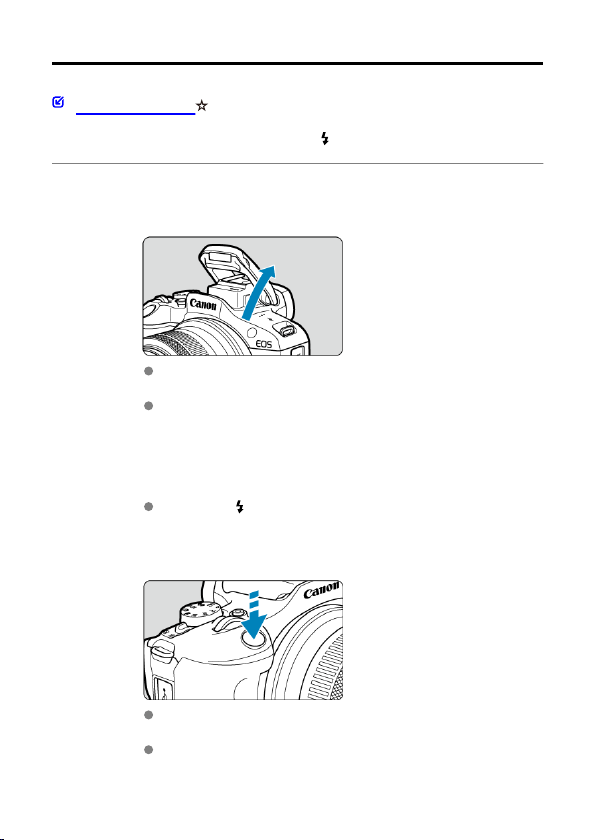
Shooting with the Built-in Flash
Shooting with FE Lock
Using the built-in flash is recommended when the [ ] icon appears in the viewfinder or on
the screen, when subjects in daytime shots are backlit, or when shooting under low light.
1.
Manually raise the flash.
In Creative Zone modes, shooting with flash is possible whenever the
flash is raised.
[BUSY] is displayed on the screen while the flash is charging.
2.
Press the shutter button halfway.
Confirm that [ ] appears on the screen.
3.
Take the picture.
When focus is achieved and you press the shutter button completely,
the flash will fire at all times.
To retract the built-in flash after shooting, push it down with your fingers
until it clicks into place.
173
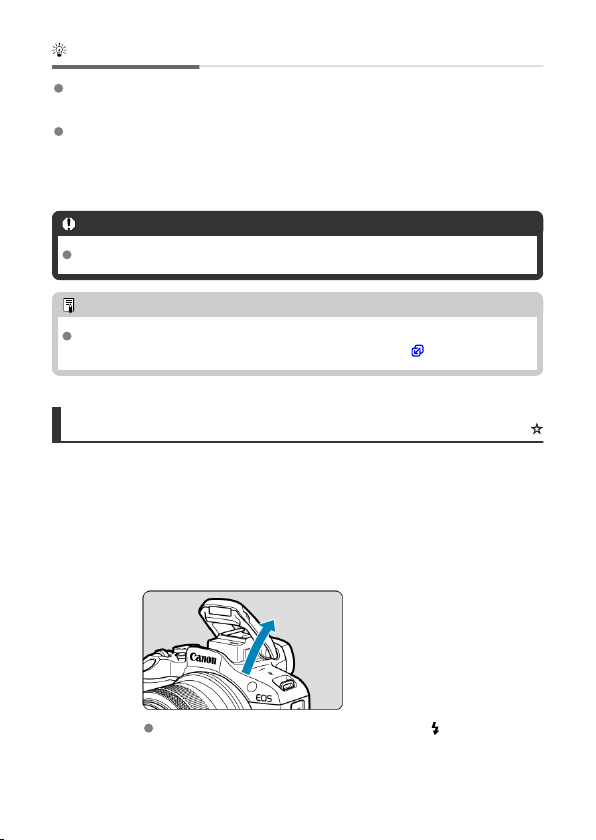
Shooting tips
In bright light, decrease the ISO speed.
If the exposure setting in the viewfinder blinks, decrease the ISO speed.
Detach the lens hood. Do not get too close to the subject.
If the lens has a hood attached or you are too close to the subject, the bottom of the
picture may look dark due to the obstructed flash light. For important shots, play back
the image and check to make sure the picture does not look unnaturally dark at the
bottom part.
Caution
Do not use the built-in flash unless it is fully raised.
Note
If the bottom of images is dark when you use super telephoto or large-diameter
lenses, consider using an external Speedlite (sold separately, ).
Shooting with FE Lock
The background or other factors may make subjects brighter or darker in flash photography
with subjects near the edge of the screen. In this case, use FE lock. After setting the flash
output for the appropriate subject brightness, you can recompose (put the subject toward the
side) and shoot. This feature can also be used with a Canon EL/EX series Speedlite.
*
FE stands for Flash Exposure.
1.
Manually raise the flash.
Press the shutter button halfway and confirm that [ ] appears on the
screen.
174
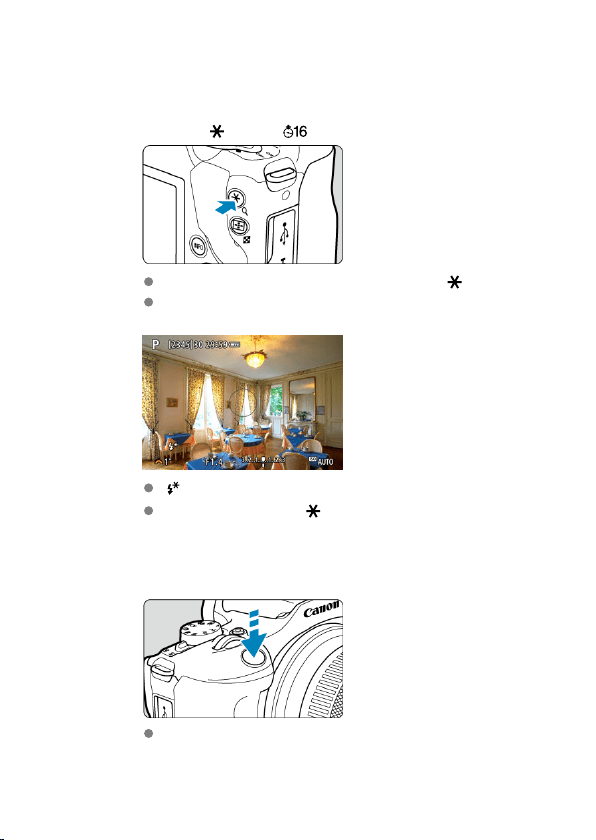
2.
Focus on the subject.
3.
Press the < > button ( ).
Center the subject in the viewfinder, then press the < > button.
A preflash is fired by the flash, and the flash output required for
shooting is retained.
[ ] appears on the screen.
Each time you press the < > button, a preflash is fired, and the flash
output required for shooting is retained.
4.
Take the picture.
Compose the shot and press the shutter button completely.
175
Caution
The [ ] icon blinks when subjects are too far away and your shots would be dark.
Approach the subject and repeat steps 2–4.
176
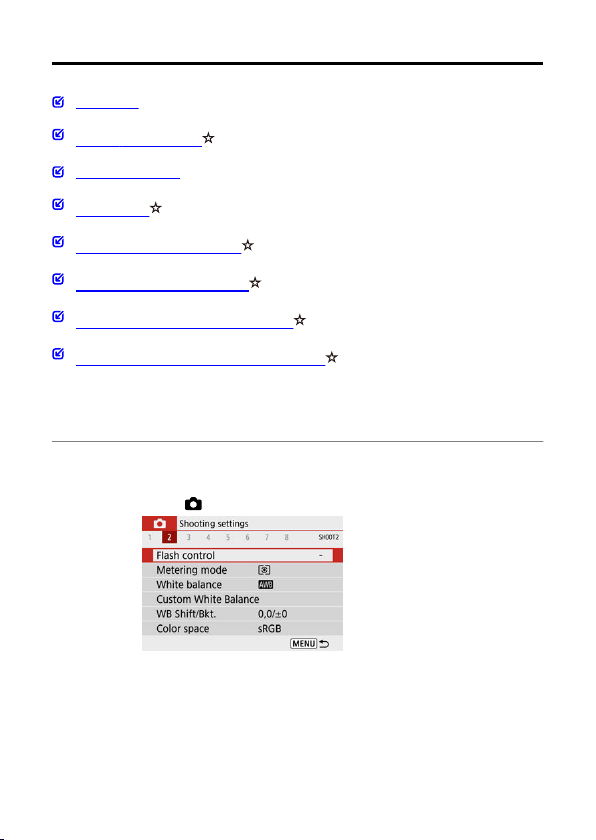
Flash Function Settings
Flash Firing
E-TTL II Flash Metering
Red-Eye Reduction
Slow Synchro
Built-in Flash Function Settings
External Flash Function Settings
External Flash Custom Function Settings
Clearing Flash Function Settings/C.Fn Settings
Functions of the built-in flash or external EL/EX series Speedlites can be set from menu
screens on the camera.
Before setting functions of external Speedlites, attach the Speedlite and turn it on.
For details on external Speedlite functions, refer to the Speedlite's instruction manual.
1.
Select [ : Flash control].
177
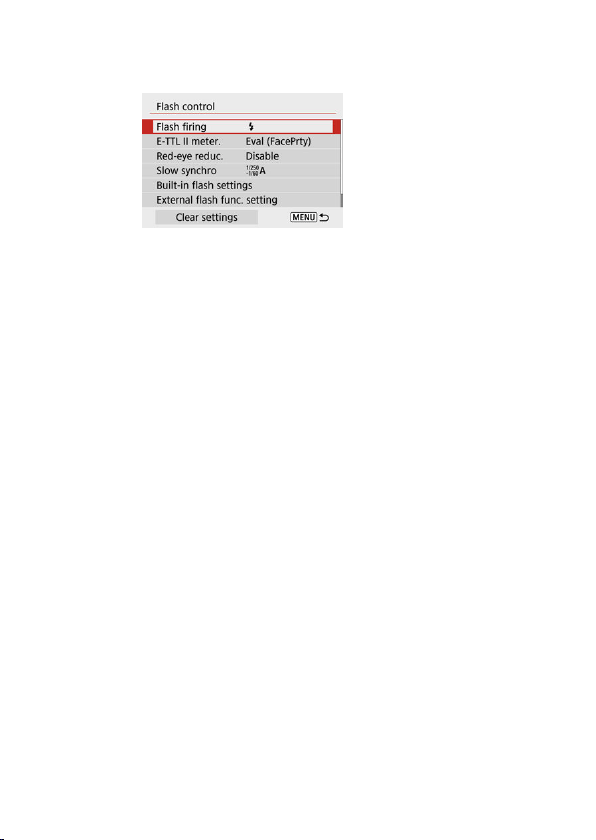
2.
Select an option.
178
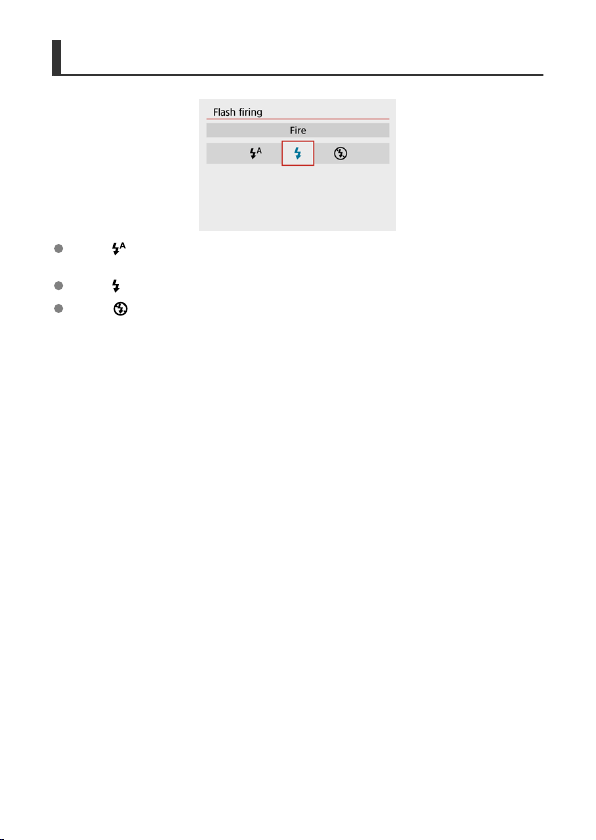
Flash Firing
Set to [ ] (in Basic Zone or <P> modes) to have the flash fire automatically, based on
shooting conditions.
Set to [ ] to have the flash always fire when you shoot.
Select [ ] (in Creative Zone modes) to keep the flash off, or if you will use the AF-assist
beam.
179
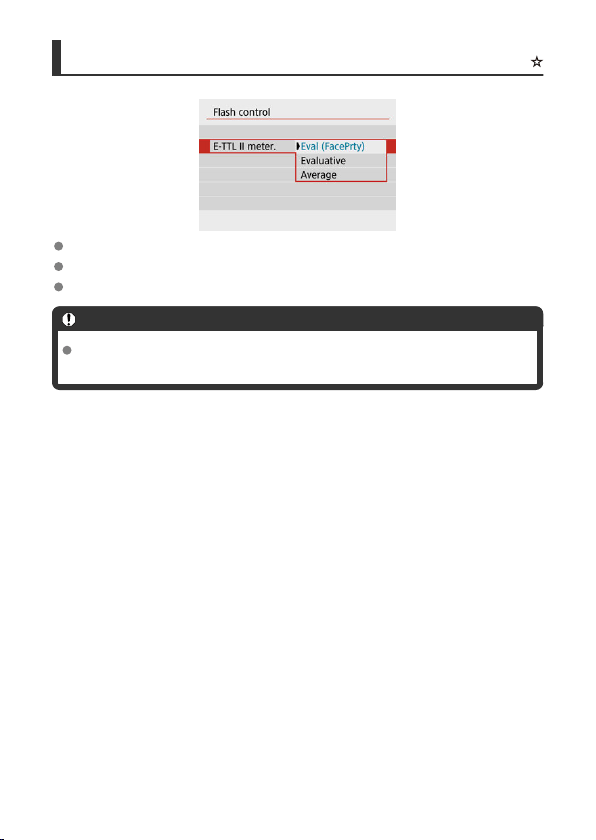
E-TTL II Flash Metering
Set to [Eval (FacePrty)] for flash metering suitable for shots of people.
Set to [Evaluative] for flash metering that emphasizes firing in continuous shooting.
If [Average] is set, the flash exposure will be averaged for the entire metered scene.
Caution
Even when [Eval (FacePrty)] is set, some subjects and shooting conditions may
prevent you from obtaining the expected result.
180
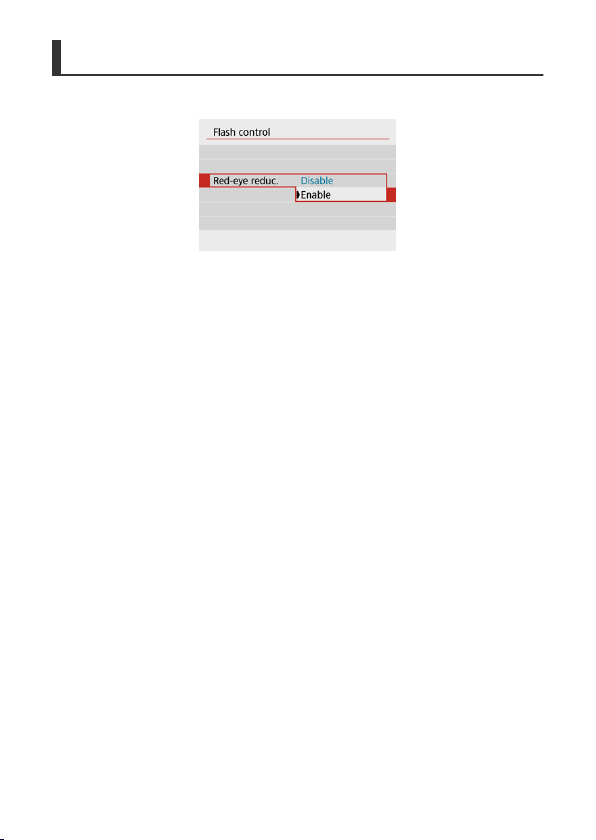
Red-Eye Reduction
Set to [Enable] to reduce red-eye by firing the red-eye reduction lamp before firing the flash.
181
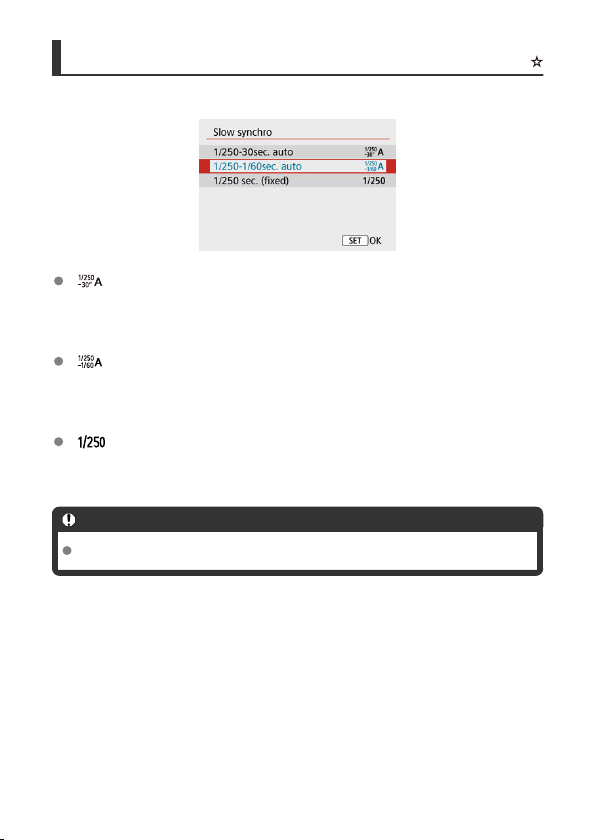
Slow Synchro
You can set the flash-sync speed for flash photography in <
Av> and <P> modes.
[ ] 1/250-30sec. auto
The flash sync speed is set automatically within a range of 1/250 sec. to 30 sec. to suit
the scene's brightness. Slow-sync shooting is used in low-light locations (under some
shooting conditions), and shutter speed is automatically lowered.
[ ] 1/250-1/60sec. auto
Prevents a slow shutter speed from being set automatically in low-light conditions. It is
effective for preventing subject blur and camera shake. Light from the flash provides
standard exposure for subjects, but note that backgrounds may be dark.
[ ] 1/250 sec. (fixed)
The shutter speed is fixed at 1/250 sec., which is more effective in preventing subject
blur and camera shake than with [1/250-1/60sec. auto]. However, in low light, the
subject's background will come out darker than with [1/250-1/60sec. auto].
Caution
To use slow-sync shooting in <Av>/<P> mode, set to [
1/250-30sec. auto].
182
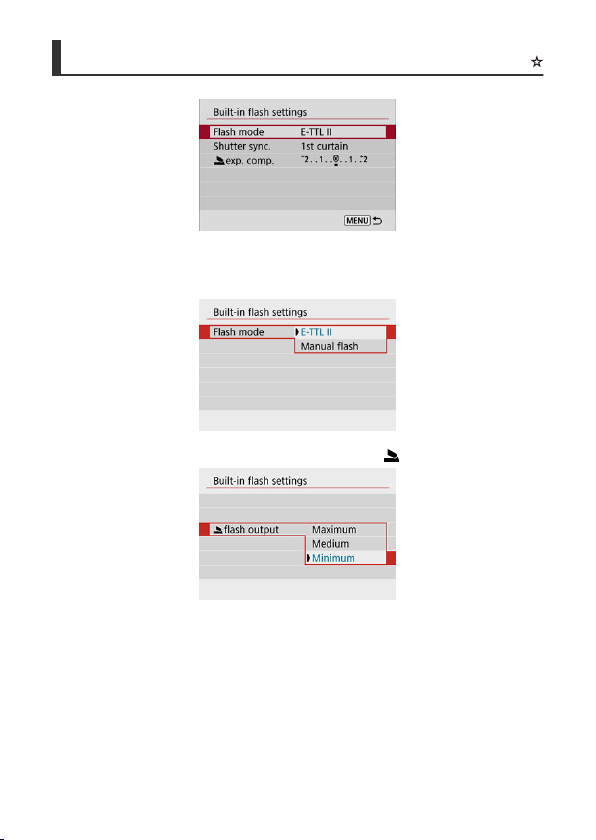
Built-in Flash Function Settings
Flash mode
Set to [E-TTL II] to shoot in E-TTL II/E-TTL
fully automatic flash mode.
Set to [Manual flash] to specify your preferred flash output in [ flash output].
• Only available in <Tv>/<Av>/<
M> mode.
183
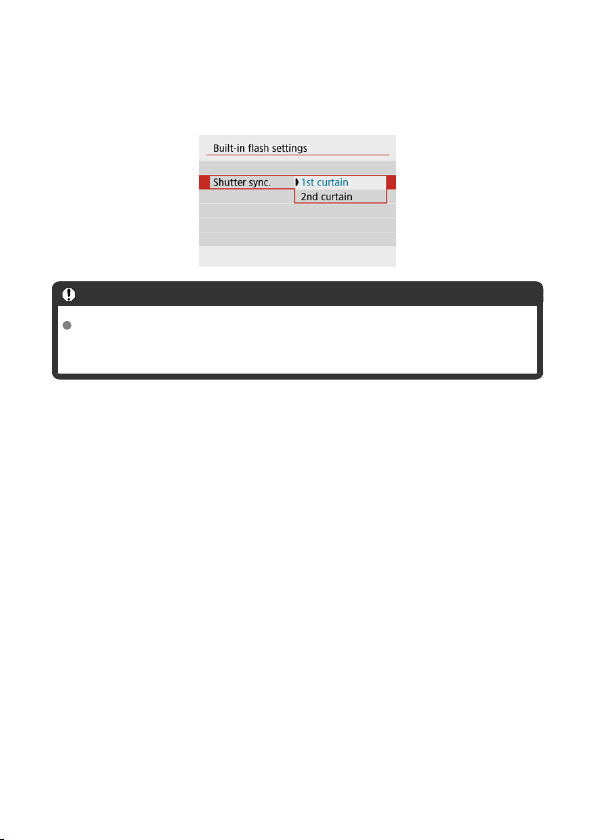
Shutter sync.
Normally, set to [1st curtain] so that the flash fires immediately after shooting starts.
Set to [2nd curtain] and use low shutter speeds for natural-looking shots of subject motion
trails, such as car headlights.
Caution
When shooting with [2nd curtain], set a shutter speed of 1/60 sec. or slower. For
shutter speeds exceeding 1/60 sec., first-curtain synchronization is used
automatically even if [2nd curtain] is set.
184
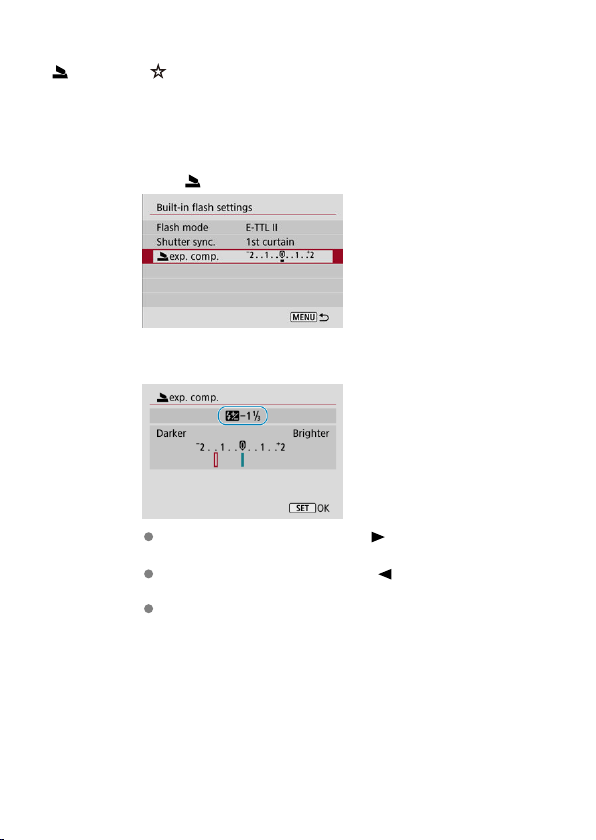
exp. comp.
Set the flash exposure compensation if the brightness of the subject does not come out as
desired (so you want to adjust the flash output) in flash photography. You can set the flash
exposure compensation up to ±2 stops in 1/3-stop increments.
1.
Select [ exp. comp.].
2.
Set the compensation amount.
If the exposure is too dark, press the < > key (for increased
exposure).
If the exposure is too bright, press the < > key (for decreased
exposure).
After taking the picture, cancel the flash exposure compensation by
setting it back to 0.
185
Caution
Setting [ : Auto Lighting Optimizer] ( ) to an option other than [Disable] may
still cause images to look bright even if you set negative flash exposure
compensation for darker exposure.
If flash exposure compensation is set with a Speedlite (sold separately, ), you
cannot set the flash exposure compensation with the camera (Quick Control or
external flash function setting). Note that the Speedlite's setting overrides the
camera's if both are set at the same time.
Note
The exposure compensation amount will remain in effect even after you set the
power switch to < >.
186
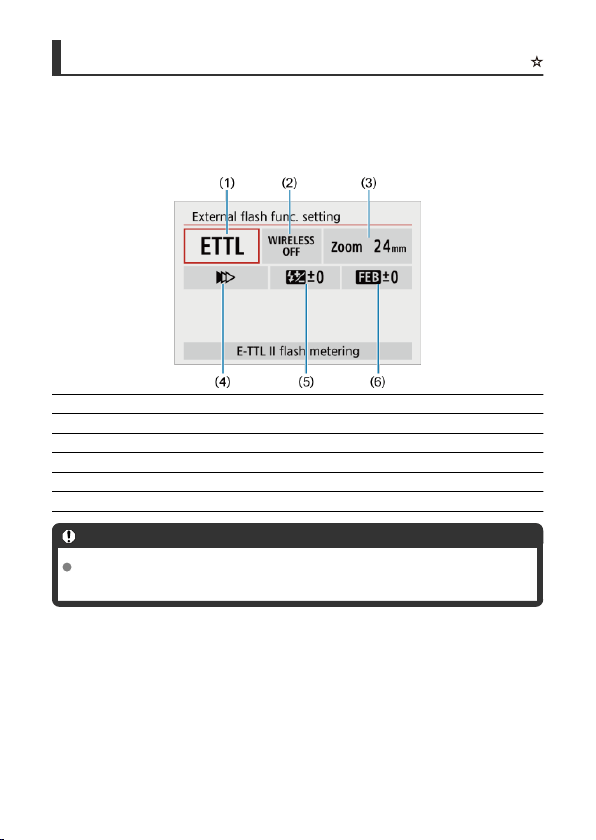
External Flash Function Settings
The information displayed on the screen, position of display, and available options vary
depending on the Speedlite model, its Custom Function settings, the flash mode, and other
factors. Refer to the instruction manual of your flash unit for details on its functions.
Sample display
(1) Flash mode
(2) Wireless functions/Firing ratio control
(3) Flash zoom (flash coverage)
(4) Shutter synchronization
(5) Flash exposure compensation
(6) Flash exposure bracketing
Caution
Functions are limited when using EX series Speedlites that are not compatible with
flash function settings.
187
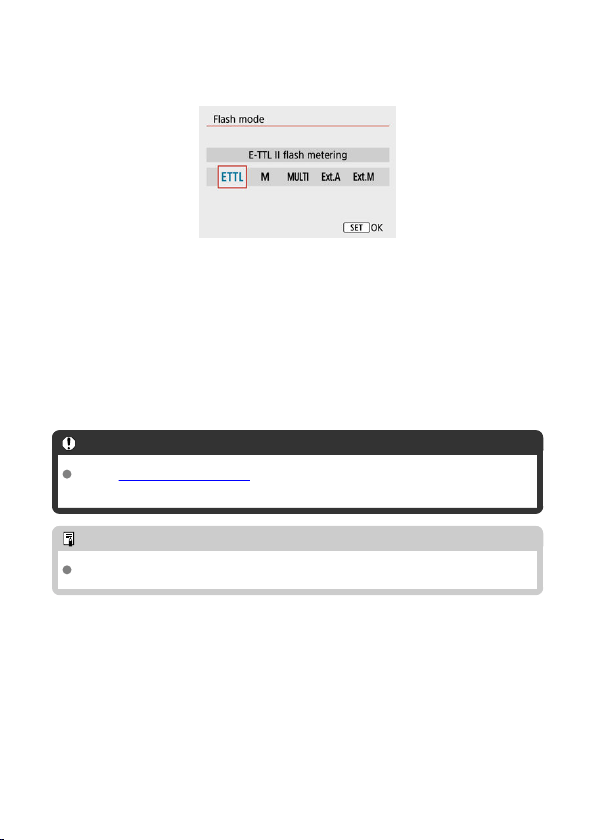
Flash mode
You can select the flash mode to suit your desired flash photography.
• [E-TTL II] is the standard mode of EL/EX-series Speedlites that support autoexposure
flash photography.
• [Manual flash] is a mode for manually configuring the Speedlite's [Flash output]
setting.
• [CSP] (Continuous shooting priority mode) is available when using a compatible
Speedlite. This mode automatically reduces flash output by one stop and increases ISO
speed by one stop. Useful in continuous shooting, and helps conserve flash battery
power.
• Regarding other flash modes, refer to the Instruction Manual of a Speedlite compatible
with the respective flash mode.
Caution
Adjust Exposure Compensation as needed in case of overexposure from flash
photography with [CSP] in <Tv> or <M> mode.
Note
With [CSP], ISO speed is automatically set to [Auto].
188
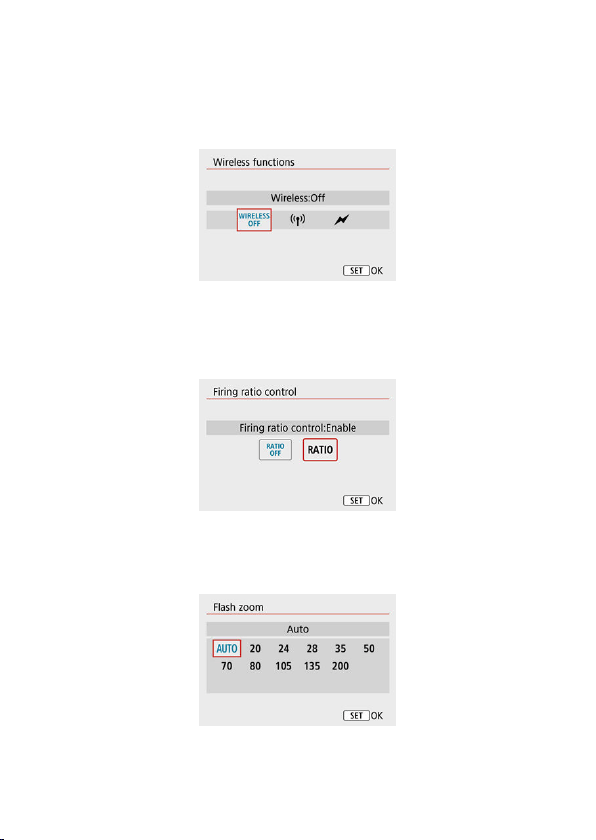
Wireless functions
You can use radio or optical wireless transmission to shoot with wireless multiple-flash
lighting.
For details on wireless flash, refer to the Instruction Manual of a Speedlite compatible with
wireless flash photography.
Firing ratio control
With a macro flash, you can set the firing ratio control.
For details on firing ratio control, refer to the Instruction Manual of the macro flash.
Flash zoom (flash coverage)
With Speedlites having a zooming flash head, you can set the flash coverage.
189
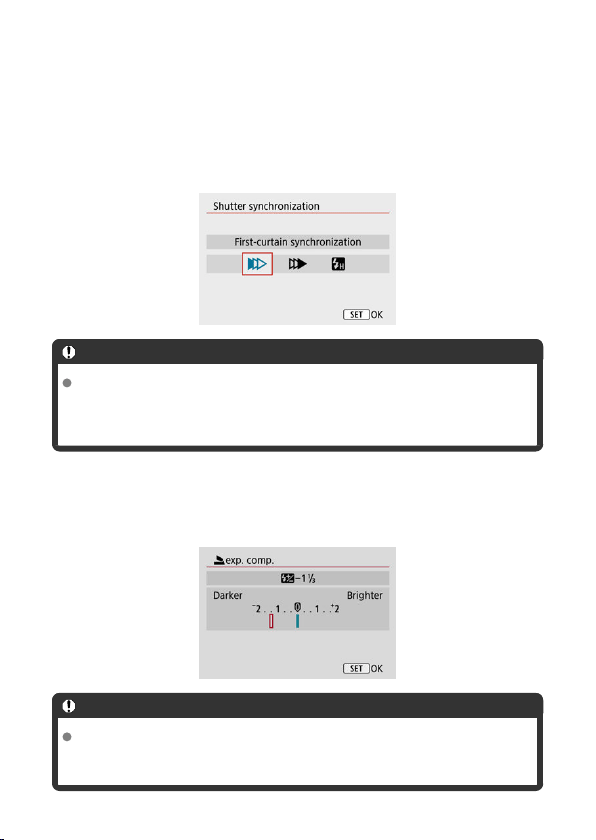
Shutter synchronization
Normally, set this to [First-curtain synchronization] so that the flash fires immediately after
the shooting starts. Set to [Second-curtain synchronization] and use low shutter speeds
for natural-looking shots of subject motion trails, such as car headlights.
Set to [High-speed synchronization] for flash photography at higher shutter speeds than
the maximum flash sync shutter speed. This is effective when shooting with an open
aperture in <
Av> mode to blur the background behind subjects outdoors in daylight, for
example.
Caution
When shooting with [Second-curtain synchronization], set a shutter speed of
1/60 sec. or slower. For shutter speeds exceeding 1/60 sec., first-curtain
synchronization is applied automatically even if [Second-curtain synchronization]
is set.
Flash exposure compensation
Just as exposure compensation is adjustable, you can also adjust flash output of external
Speedlites.
Caution
If flash exposure compensation is set with the Speedlite, you cannot set the flash
exposure compensation with the camera. Note that the Speedlite's setting
overrides the camera's if both are set at the same time.
190

Flash exposure bracketing
Speedlites equipped with flash exposure bracketing (FEB) can change the external flash
output automatically as three shots are taken at once.
191
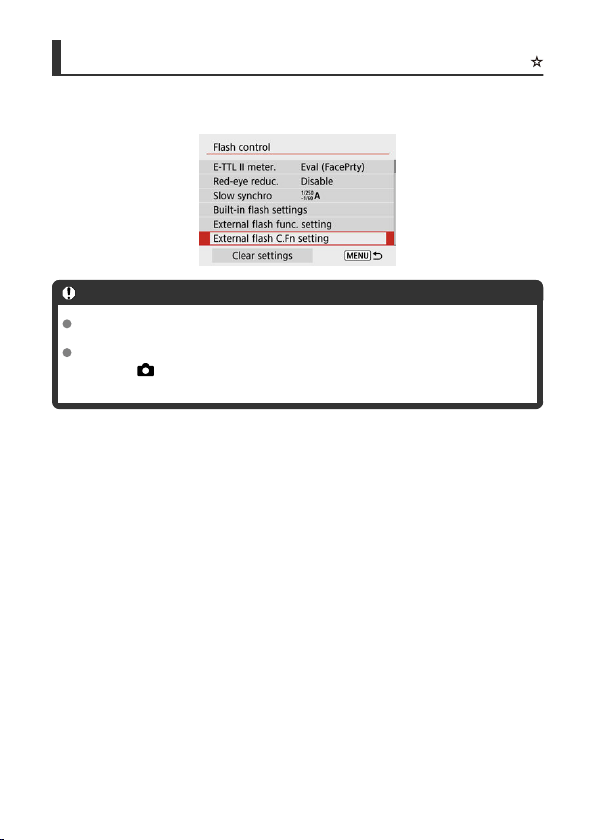
External Flash Custom Function Settings
For details on the external Speedlite's Custom Functions, refer to the Speedlite's Instruction
Manual.
Caution
With an EL/EX series Speedlite, the Speedlite will always fire at full output if the
[Flash metering mode] Custom Function is set to [1:TTL] (autoflash).
Setting or clearing Speedlite Personal Functions (P.Fn) is not possible from the
camera's [ : External flash func. setting] screen. Set them directly from the
Speedlite.
192
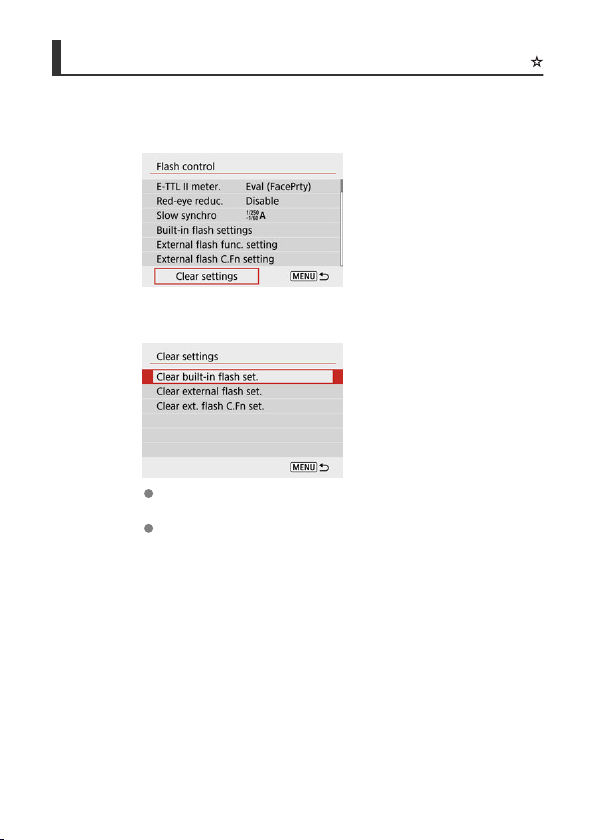
Clearing Flash Function Settings/C.Fn Settings
1.
Select [Clear settings].
2.
Select the settings to be cleared.
Select [Clear built-in flash set.], [Clear external flash set.], or [Clear
ext. flash C.Fn set.].
Select [OK] on the confirmation screen to clear all flash settings or
Custom Function settings.
193
Shooting with Speedlites
EL/EX Series Speedlites for EOS Cameras
Canon Speedlites Other Than the EL/EX Series
Non-Canon Flash Units
EL/EX Series Speedlites for EOS Cameras
The camera supports flash photography using all functions of EL/EX series Speedlites (sold
separately).
For instructions, refer to the EL/EX series Speedlite's Instruction Manual.
Caution
Speedlites will not fire intermittently to provide an AF-assist beam.
Canon Speedlites Other Than the EL/EX Series
With an EZ/E/EG/ML/TL series Speedlite set to A-TTL or TTL autoflash mode, the flash
can be fired at full output only.
Set the camera's shooting mode to <
M> or <Av> and adjust the aperture value before
shooting.
When using a Speedlite that has manual flash mode, shoot in the manual flash mode.
194
Non-Canon Flash Units
Sync speed
The camera can synchronize with non-Canon compact flash units at up to 1/250 sec. With
large studio flash units, the flash duration is longer than that of a compact flash unit and
varies depending on the model. Before shooting, confirm that flash sync is performed
correctly by taking some test shots at a sync speed of approx. 1/60 sec. to 1/30 sec.
Caution
Manually lower the built-in flash before attaching an external flash unit.
Using the camera with a dedicated flash unit or flash accessory for cameras of
other manufacturers poses a risk of malfunction and even damage.
Do not attach a high-voltage flash unit to the camera's hot shoe. It may not fire.
195

Still Photo Shooting
to the right of page titles indicates functions only available in Creative Zone modes.
• Tab Menus: Still Photo Shooting
• Image Quality
• Still Image Aspect Ratio
• Exposure Compensation/AEB Settings
• ISO Speed Settings for Still Photos
• Auto Lighting Optimizer
• Highlight Tone Priority
• White Balance Settings
• White Balance Correction
• Color Space
• Picture Style Selection
• Picture Style Customization
• Picture Style Registration
• Lens Aberration Correction
• Noise Reduction Features
• Appending Dust Delete Data
• Continuous AF
• Focus Mode
• AF-Assist Beam Firing
• Lens Electronic MF
• Focus/Control Ring
• Image Stabilizer (IS Mode)
• Review Duration
•
Metering Timer
• Exposure Simulation
• Shooting Information Display
• Viewfinder Display Format
197

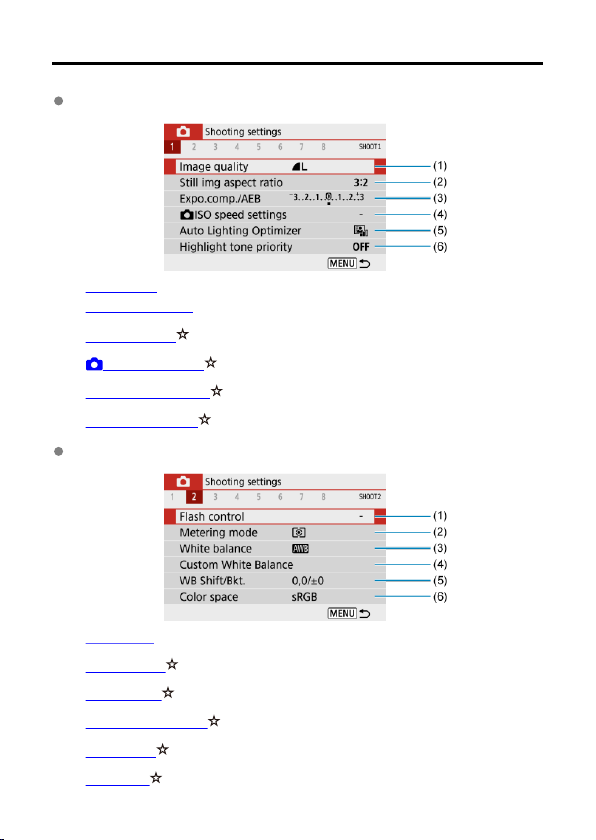
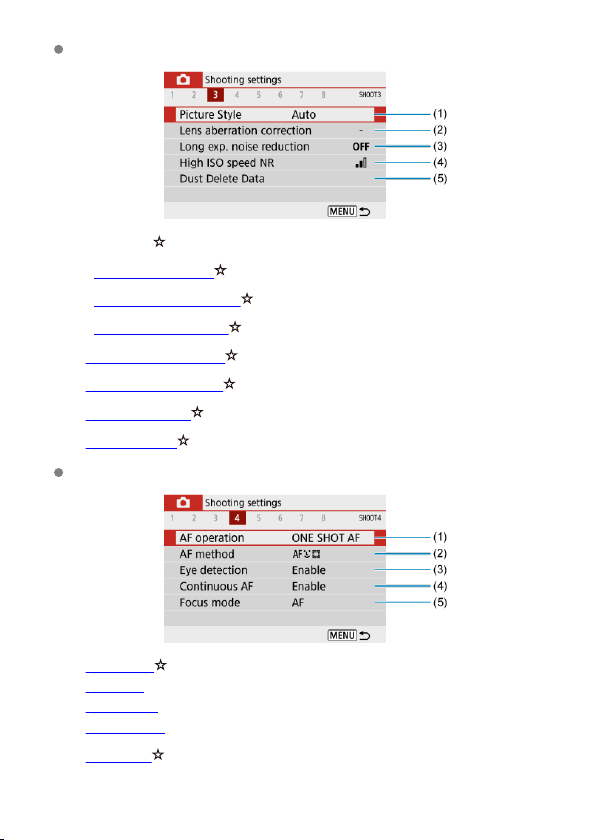
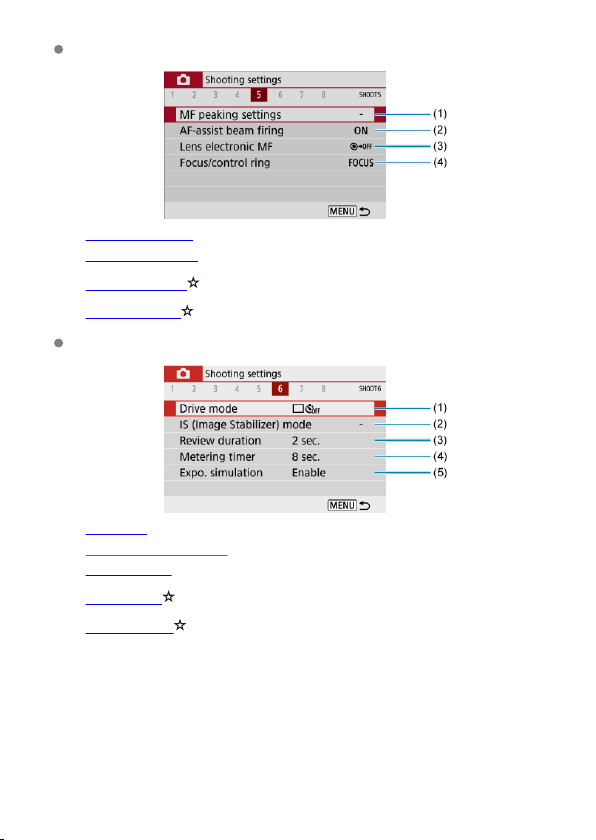
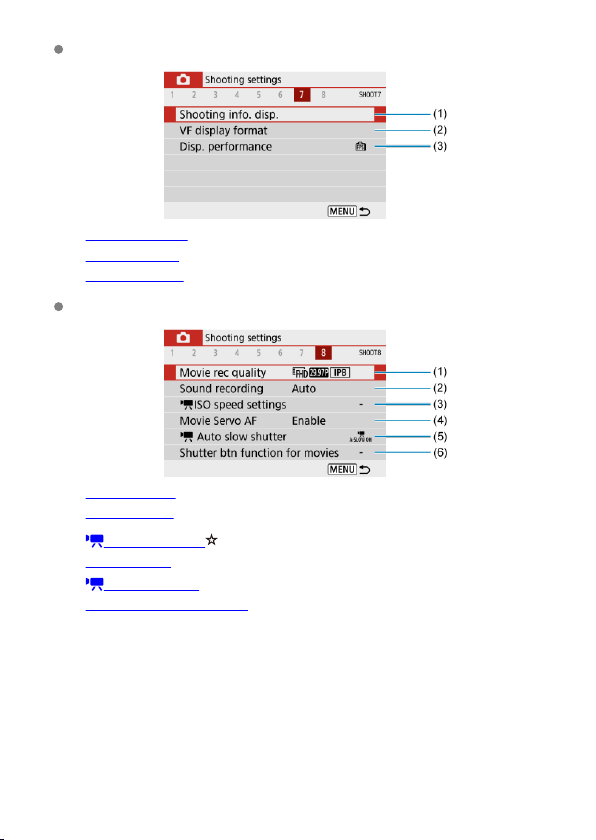
Shooting 7
(1) Shooting info. disp.
(2) VF display format
(3) Disp. performance
Shooting 8
(1) Movie rec quality
(2) Sound recording
(3) ISO speed settings
(4) Movie Servo AF
(5) Auto slow shutter
(6) Shutter btn function for movies
In Basic Zone modes, the following screens are displayed. Note that
available setting items vary by shooting mode.
202
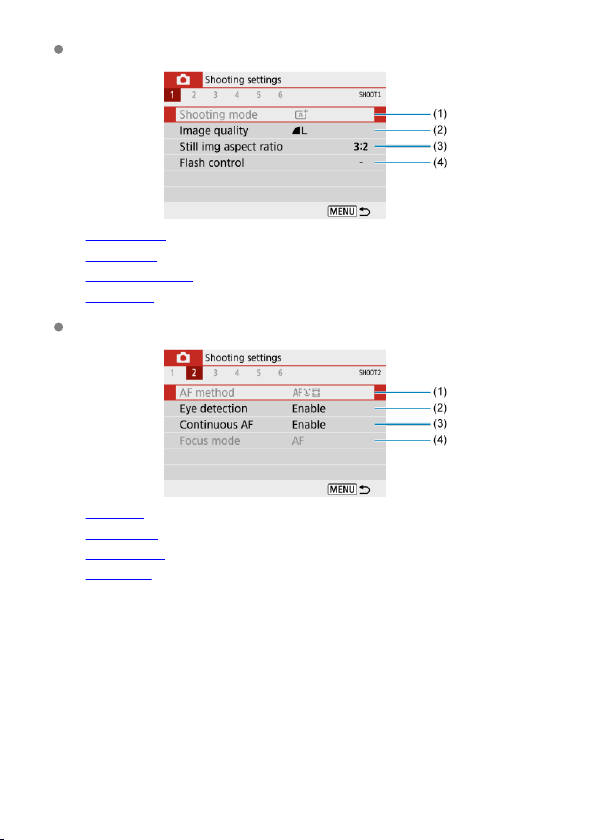
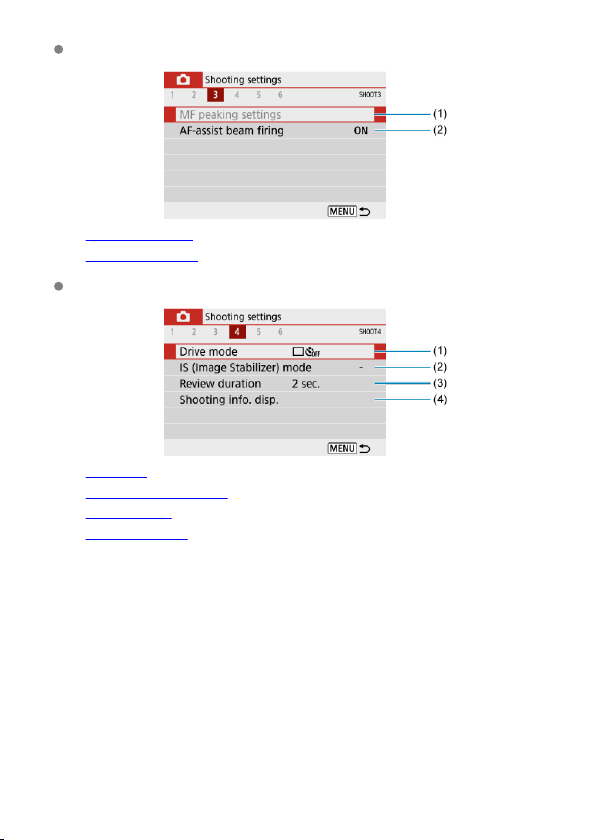
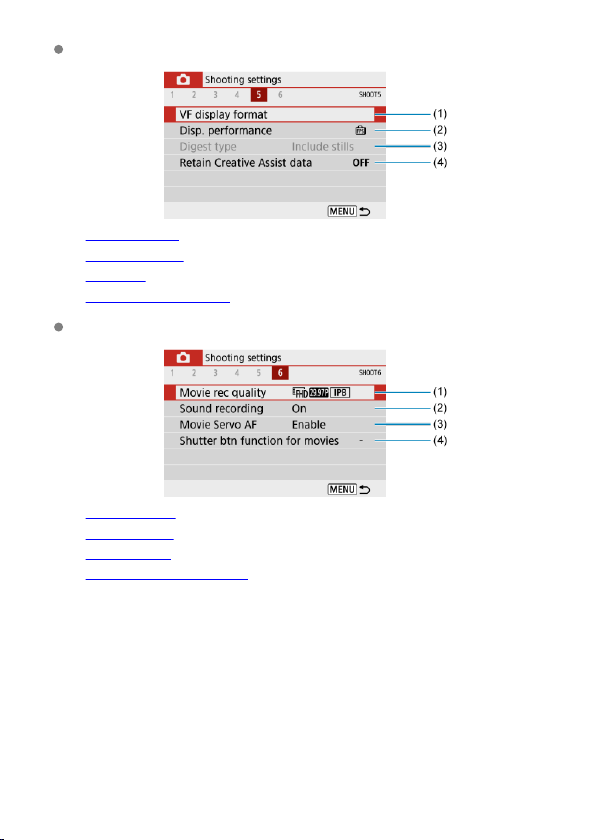
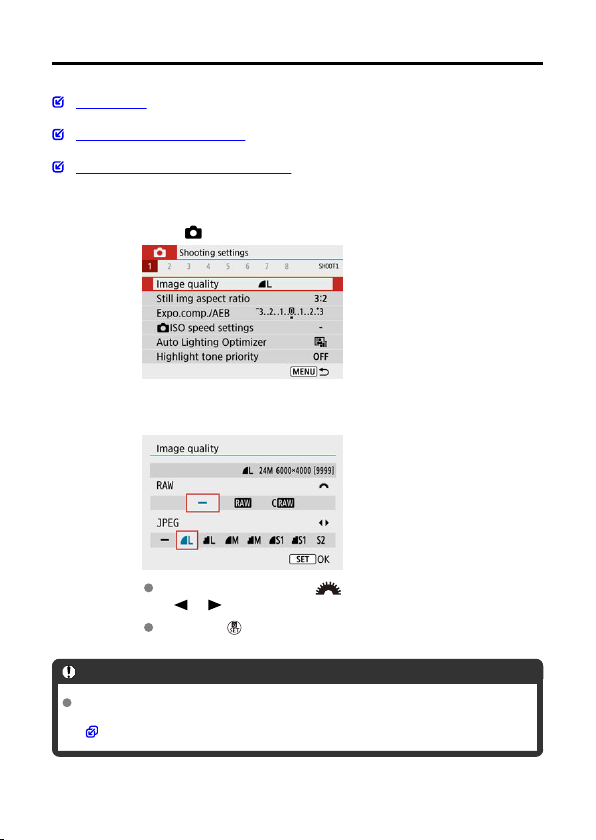
Image Quality
RAW Images
Guide to Image Quality Settings
Maximum Burst for Continuous Shooting
1.
Select [ : Image quality].
2.
Set the image quality.
For RAW images, turn the < > dial, and for JPEGs, press the
< >< > keys.
Press the < > button to set it.
Caution
Number of shots available as indicated by [****] on the image quality setting screen
always applies to a setting of [3:2], regardless of the actual aspect ratio setting
( ).
206
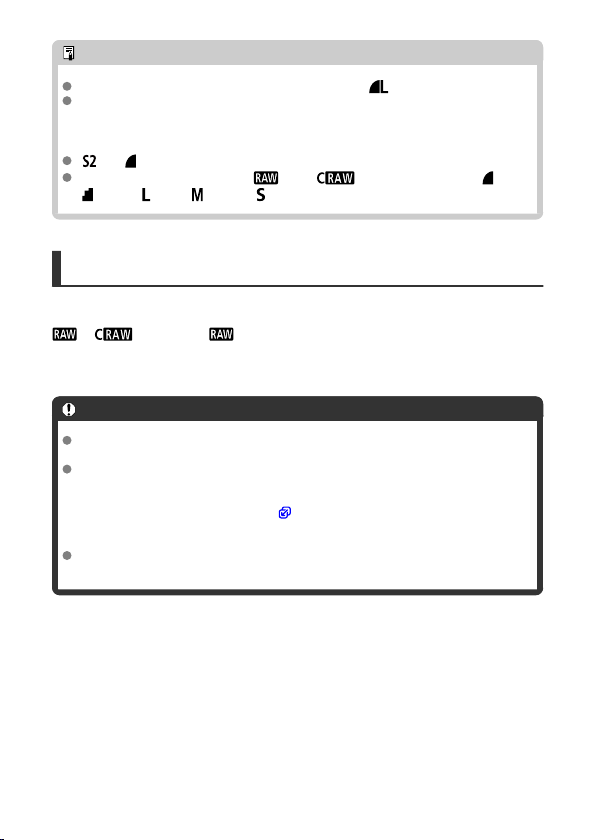
Note
If [–] is set for both the RAW image and JPEG image, will be set.
If you select both RAW and JPEG, each time you shoot, the image will be recorded
simultaneously to the card as both a RAW and JPEG image at your specified
image qualities. The two images will be recorded with the same file numbers (file
extension: .JPG for JPEG and .CR3 for RAW).
is in (Fine) quality.
Meaning of image quality icons: RAW, Compact RAW, JPEG, Fine,
Normal, Large, Medium, Small.
RAW Images
RAW images are raw data from the image sensor that are recorded to the card digitally as
or (smaller than ) files, depending on your selection.
You can use Digital Photo Professional (EOS software) to process RAW images. You can
make various adjustments to images depending upon how they will be used and can
generate JPEG or other types of images reflecting the effects of those adjustments.
Caution
To display RAW images on a computer, using Digital Photo Professional (EOS
software, hereafter DPP) is recommended.
Older versions of DPP Ver. 4.x do not support display, processing, editing, or other
operations with RAW images captured by this camera. If a previous version of DPP
Ver. 4.x is installed on your computer, obtain and install the latest version of DPP
from the Canon website to update it ( ), which will overwrite the previous version.
Similarly, DPP Ver. 3.x or earlier does not support display, processing, editing, or
other operations with RAW images captured by this camera.
Commercially available software may not be able to display RAW images captured
by this camera. For compatibility information, contact the software manufacturer.
207
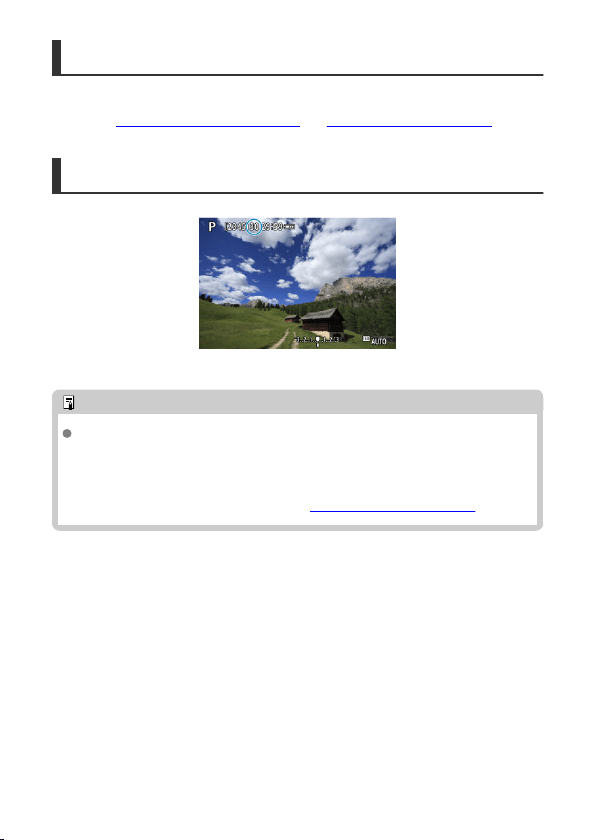
Guide to Image Quality Settings
For details on file size, number of shots available, maximum burst, and other estimated
values, see File size/number of shots available and Maximum burst (approx. shots).
Maximum Burst for Continuous Shooting
The estimated maximum burst is shown on the top of the shooting screen.
Note
When the maximum burst in still photo shooting is indicated as “99,” you can shoot
99 shots or more continuously. Fewer shots are available for a value of 98 or lower,
and when [BUSY] is displayed on the shooting screen, internal memory is full and
shooting will stop temporarily. If you stop continuous shooting, the maximum burst
will increase. After all captured images have been written to a card, you can once
again shoot at the maximum burst listed in Maximum burst (approx. shots).
208
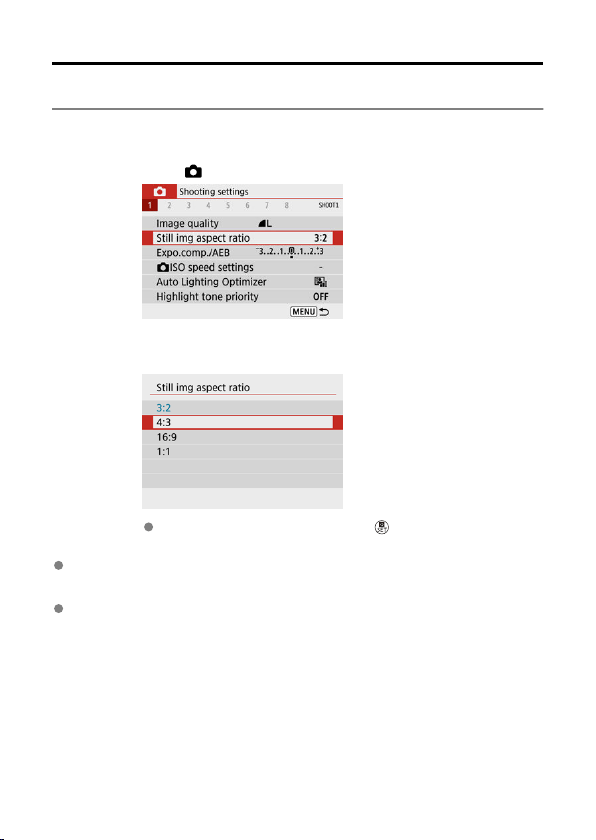
Still Image Aspect Ratio
You can change the image's aspect ratio.
1.
Select [ : Still img aspect ratio].
2.
Set the aspect ratio.
Select an aspect ratio, then press the < > button.
JPEG images
The images will be recorded with the set aspect ratio.
RAW Images
The images will always be recorded in the [3:2] aspect ratio. The selected aspect ratio
information is added to the RAW image file, which enables Digital Photo Professional
(EOS software) to generate an image with the same aspect ratio as set at the time of
shooting when you process RAW images with this software.
209
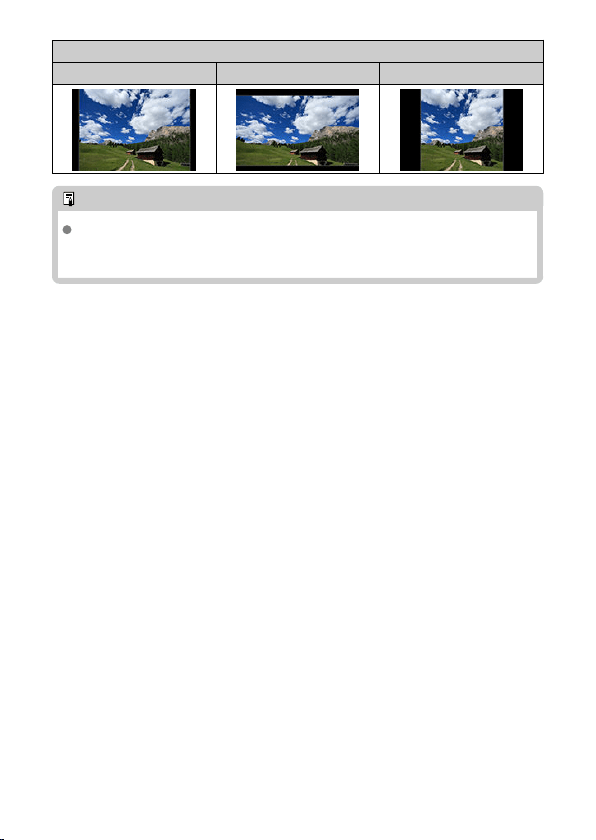
Aspect Ratio
4:3 16:9 1:1
Note
RAW images shot at an aspect ratio of [4:3], [16:9], or [1:1] are displayed during
playback with lines indicating the respective aspect ratio, but these lines are not
recorded in the image.
210
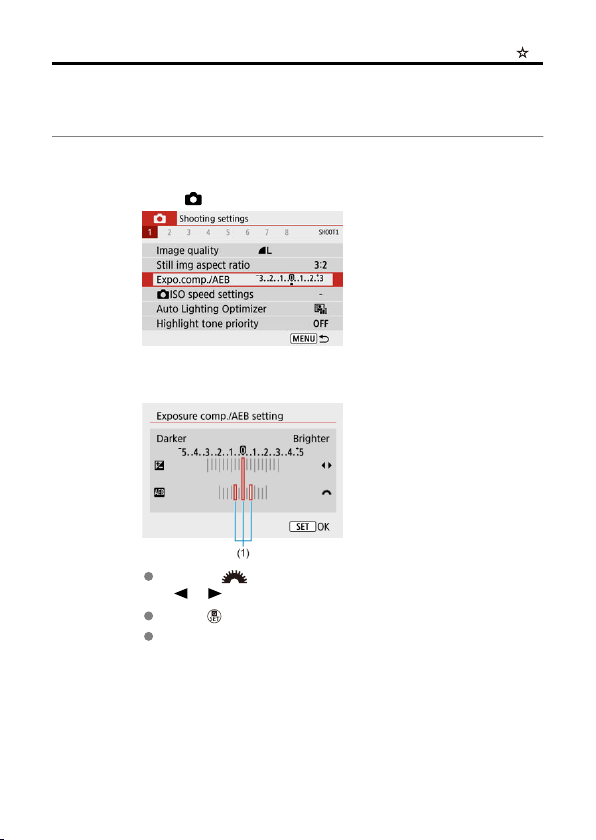
Exposure Compensation/AEB Settings
You can capture three images at different shutter speeds, aperture values, and ISO speeds,
as adjusted by the camera. This is called AEB.
* AEB stands for Auto Exposure Bracketing.
1.
Select [ : Expo.comp./AEB].
2.
Set the AEB range.
Turn the < > dial to set the AEB range (1). By using the
< >< > keys, you can set the amount of exposure compensation.
Press < > to set it.
Once an AEB range is set, it is shown on the screen on the exposure
level indicator.
211
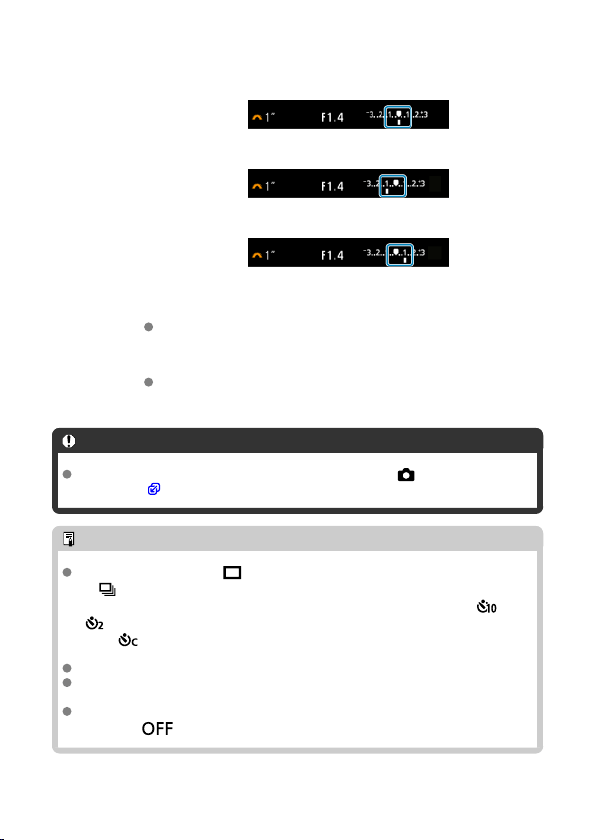
3.
Take the picture.
Standard exposure
Decreased exposure
Increased exposure
Three bracketed shots are taken, according to the specified drive
mode, in this sequence: Standard exposure, decreased exposure, and
increased exposure.
AEB will not be automatically canceled. To cancel AEB, follow step 2 to
turn off the AEB range display.
Caution
Exposure compensation in AEB may be less effective with [ : Auto Lighting
Optimizer] ( ) set to an option other than [Disable].
Note
If the drive mode is set to [ ], press the shutter button three times for each shot.
In [ ] mode, holding down the shutter button completely captures three images,
one after another, before the camera automatically stops shooting. When [ ] or
[ ] is set, three consecutive shots are captured after a delay of 10 or 2 sec. When
set to [
], three times the specified number of shots are taken in continuous
shooting.
You can set AEB in combination with exposure compensation.
AEB is not available with flash, Multi Shot Noise Reduction, Creative filter, or bulb
shooting.
AEB will be canceled automatically if you do any of the following: Setting the power
switch to < > or when the flash is fully charged.
212
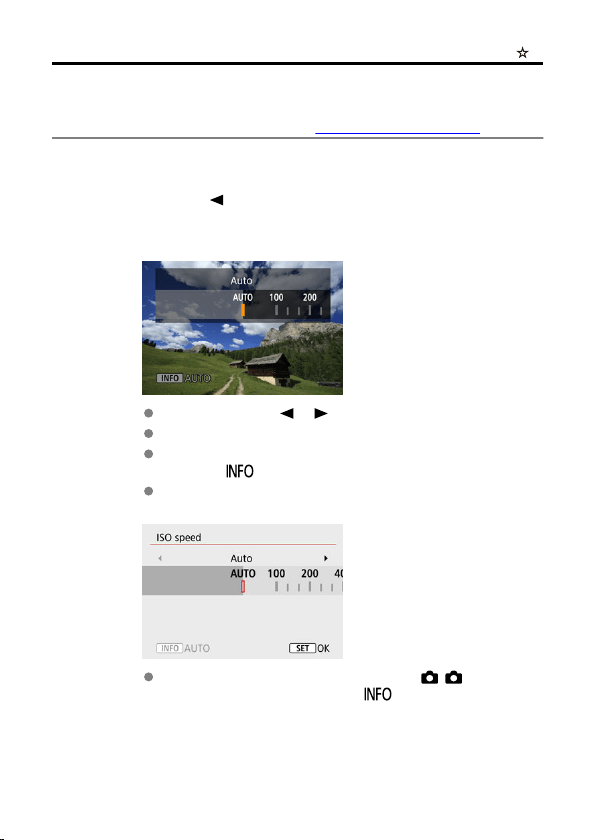
ISO Speed Settings for Still Photos
Set the ISO speed (image sensor's sensitivity to light) to suit the ambient light level.
In Basic Zone modes, ISO speed is set automatically.
For details on ISO speed in movie recording, see ISO Speed in Movie Recording.
1.
Press the < > key.
2.
Set the ISO speed.
Set by pressing the < >< > keys.
ISO speed can be set within ISO 100–12800 in 1/3-stop increments.
With [AUTO] selected, ISO speed is set automatically. You can also
press the < > button to set the speed to [AUTO].
When [AUTO] is selected, pressing the shutter button halfway will
display the ISO speed actually set.
To specify [AUTO] when setting [ISO speed] in [ : ISO speed
settings] (shown above), press the < > button.
213
ISO speed guide
Low ISO speeds reduce image noise but may increase the risk of camera/subject shake
or reduce the area in focus (shallower depth of field), in some shooting conditions.
High ISO speeds enable low-light shooting, a larger area in focus (deeper depth of field),
and longer flash range but may increase image noise.
Note
Can also be set on the [ISO speed] screen in [ : ISO speed settings].
To add [H] (equivalent to ISO 25600) as an available option, set [ISO expansion]
to [1:Enable] in [ : Custom Functions(C.Fn)] ( ).
Caution
Setting [ : Highlight tone priority] to [Enable] or [Enhanced] will prevent you
from selecting ISO 100/125/160 or [H] (equivalent to ISO 25600) ( ).
Shooting in high temperatures may result in images that look grainier. Long
exposures may also cause irregular colors in the image.
Image noise (such as dots of light or banding) or irregular colors may be noticeable
at high ISO speeds.
Overexposure may occur with subjects captured at close range at high ISO
speeds.
When shooting in conditions that produce an extreme amount of noise, such as a
combination of high ISO speed, high temperature, and long exposure, images may
not be recorded properly.
Image noise (such as dots of light or banding) and irregular colors may increase
and apparent resolution may decrease at H (equivalent to ISO 25600), which is an
expanded ISO speed.
214
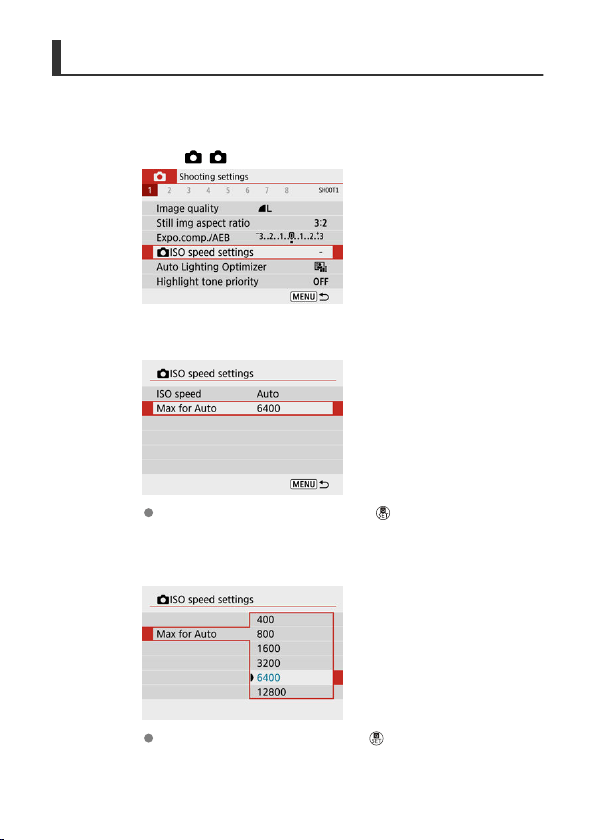
Maximum [AUTO] ISO Speed
For ISO Auto, you can set the maximum ISO speed limit within ISO 400–12800.
1.
Select [ : ISO speed settings].
2.
Select [Max for Auto].
Select [Max for Auto], then press the < > button.
3.
Select the ISO speed.
Select an ISO speed, then press the < > button.
215
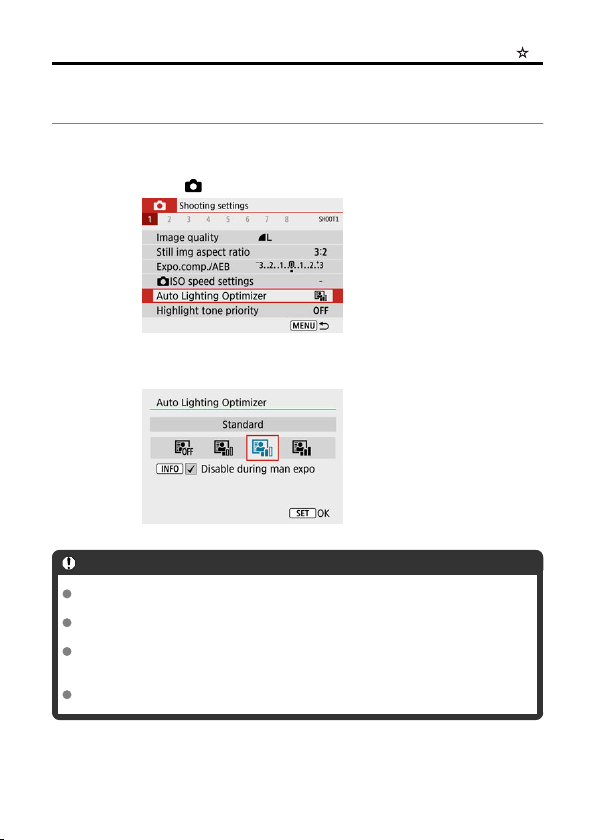
Auto Lighting Optimizer
Brightness and contrast can be corrected automatically if shots look dark or contrast is too
low or high.
1.
Select [ : Auto Lighting Optimizer].
2.
Set a correction option.
Caution
Noise may increase and apparent resolution may change, under some shooting
conditions.
If the effect of Auto Lighting Optimizer is too strong and results are not at your
preferred brightness, set to [Low] or [Disable].
If a setting other than [Disable] is set and you use exposure compensation or flash
exposure compensation to darken the exposure, the image may still come out
bright. If you want a darker exposure, set this function to [Disable].
Maximum burst is lower with [High]. Image recording to the card also takes longer.
216
Note
To enable [ : Auto Lighting Optimizer] to be set even in <M> mode, press the
< > button in step 2 to clear the checkmark [ ] for [Disable during man
expo].
217
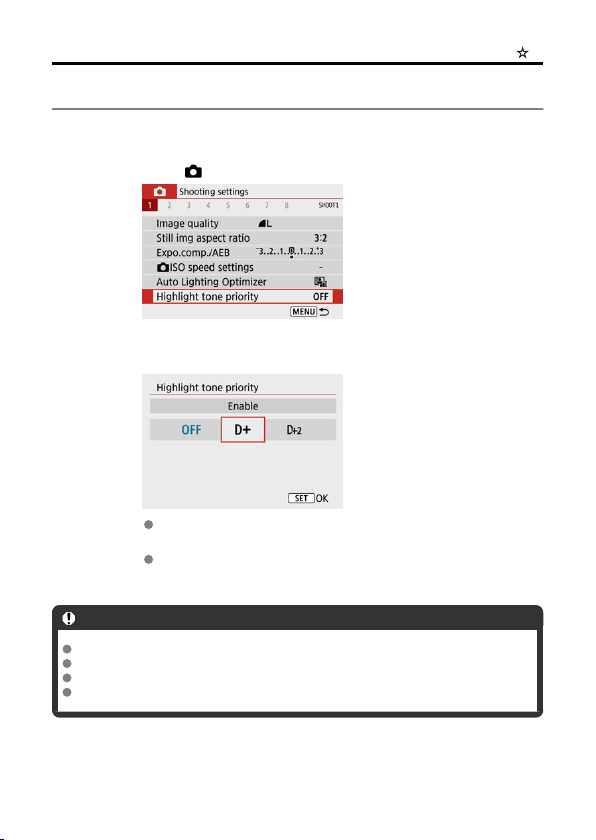
Highlight Tone Priority
You can reduce overexposed, clipped highlights.
1.
Select [ : Highlight tone priority].
2.
Set an option.
[Enable]: Improves gradation in highlights. The gradation between the
grays and highlights becomes smoother.
[Enhanced]: Reduces overexposed highlights even more than
[Enable], under some shooting conditions.
Caution
Noise may increase slightly.
The available ISO range starts at ISO 200. Expanded ISO speeds cannot be set.
[Enhanced] is not available when recording movies.
With [Enhanced], results in some scenes may not look as expected.
218
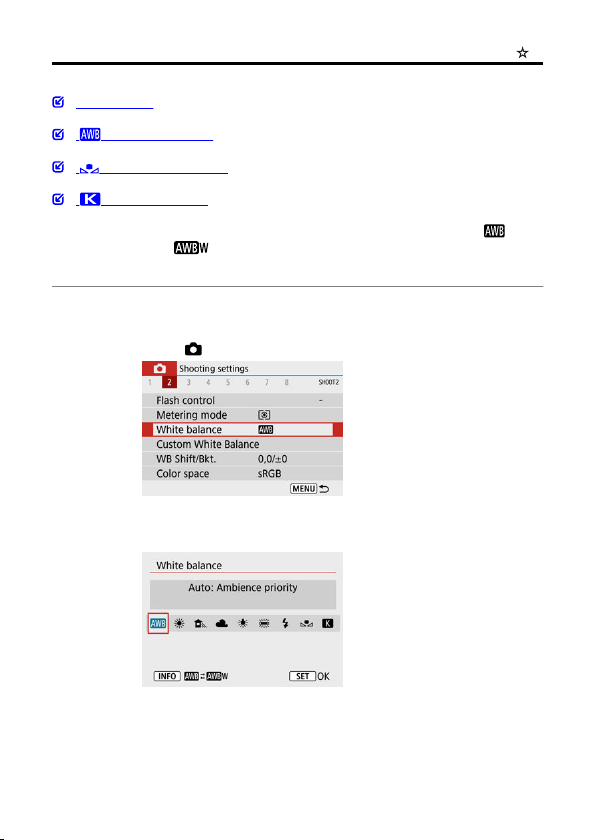
White Balance Settings
White Balance
[ ] Auto White Balance
[ ] Custom White Balance
[ ] Color Temperature
White balance (WB) is for making the white areas look white. Normally, the Auto [ ]
(Ambience priority) or [ ] (White priority) setting will obtain the correct white balance. If
natural-looking colors cannot be obtained with Auto, you can select the white balance to
match the light source or set it manually by shooting a white object.
1.
Select [ : White balance].
2.
Select an option.
219
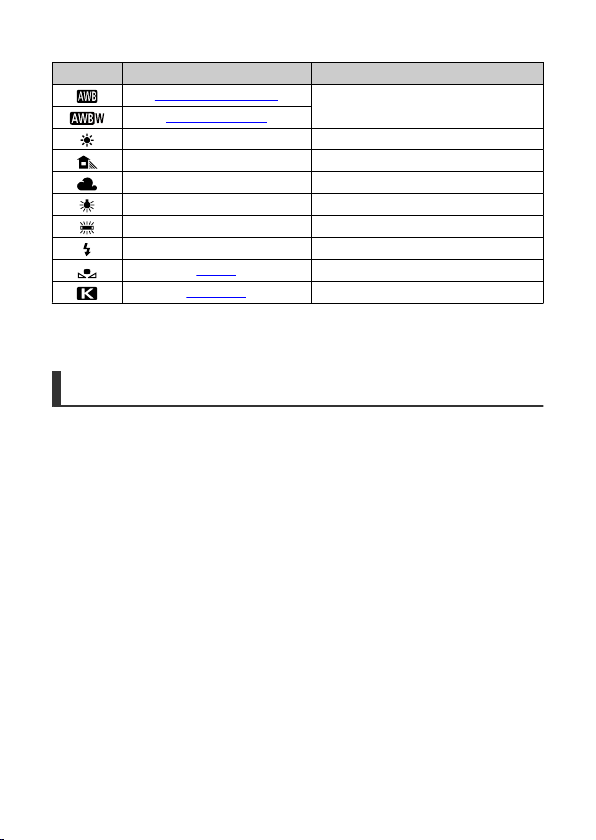
(Approx.)
Display Mode Color Temperature (K: Kelvin)
Auto: Ambience priority
3000–7000
Auto: White priority
Daylight 5200
Shade 7000
Cloudy, twilight, sunset 6000
Tungsten light 3200
White fluorescent light 4000
Flash Automatically set*
Custom 2000–10000
Color temp. 2500–10000
* Applicable with Speedlites having a color temperature transmission function. Otherwise, it will be
fixed to approx. 6000K.
White Balance
The human eye adapts to changes in lighting so that white objects look white under all kinds
of lighting. Digital cameras determine white from the color temperature of lighting and, based
on this, apply image processing to make color tones look natural in your shots.
220

[ ] Auto White Balance
With [ ], you can slightly increase the intensity of the image's warm color cast when
shooting a tungsten-light scene.
If you select [ ], you can reduce the intensity of the image's warm color cast.
1.
Select [ : White balance].
2.
Select [ ].
With [ ] selected, press the < > button.
3.
Select an option.
221
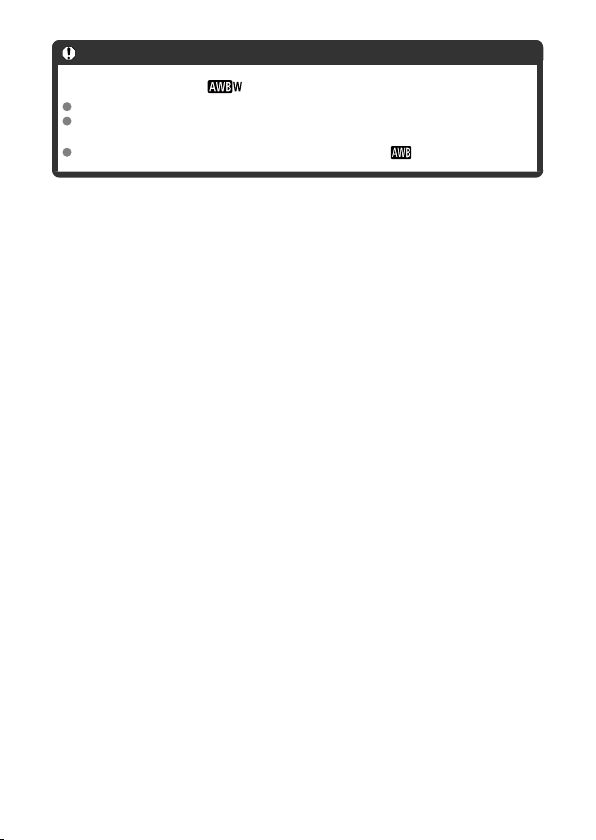
Caution
Precautions when set to [ ]
The warm color cast of subjects may appear faded.
When multiple light sources are included in the scene, the warm color cast of the
picture may not be reduced.
When using flash, the color tone will be the same as with [ ].
222
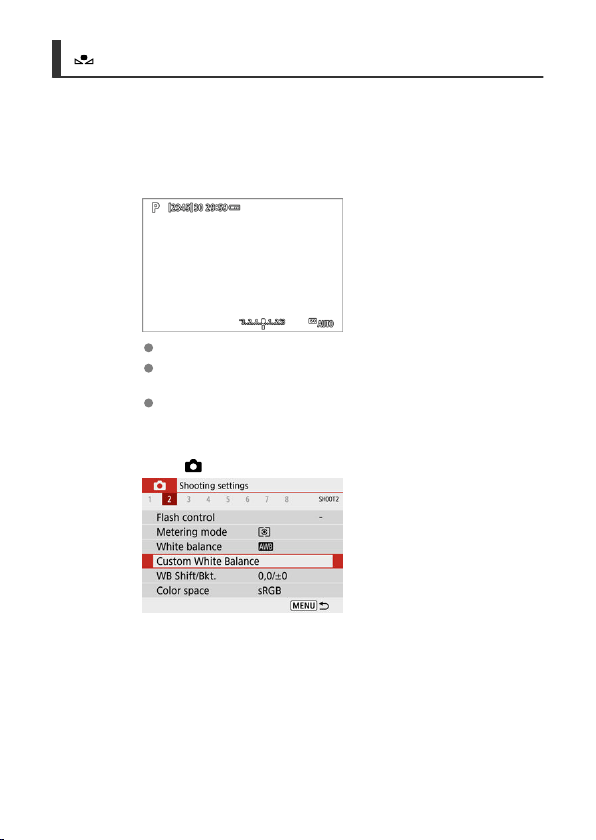
[ ] Custom White Balance
With custom white balance, you can manually set the white balance for the specific light
source of the shooting location. Make sure to perform this procedure under the light source
at the actual location of the shoot.
1.
Shoot a white object.
Aim the camera at a plain white object, so that white fills the screen.
Focus manually and shoot with the standard exposure set for the white
object.
You can use any of the white balance settings.
2.
Select [ : Custom White Balance].
223
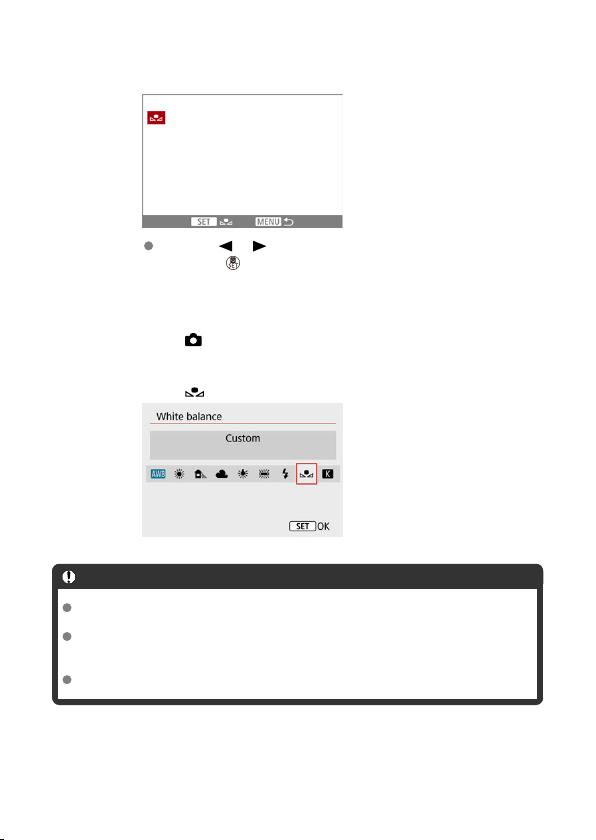
3.
Import the white balance data.
Use the < >< > keys to select the image captured in step 1, then
press the < > button.
Select [OK] to import the data.
4.
Select [
: White balance].
5.
Select [ ].
Caution
If the exposure obtained in step 1 differs greatly from the standard exposure, a
correct white balance may not be obtained.
These images cannot be selected: Images captured with Picture Style set to
[Monochrome], images with a Creative filter applied before or after shooting,
cropped images, or images shot with another camera.
Images that cannot be used in the setting may be displayed.
224
Note
Instead of shooting a white object, you can also shoot a gray card or standard 18%
gray reflector (commercially available).
225
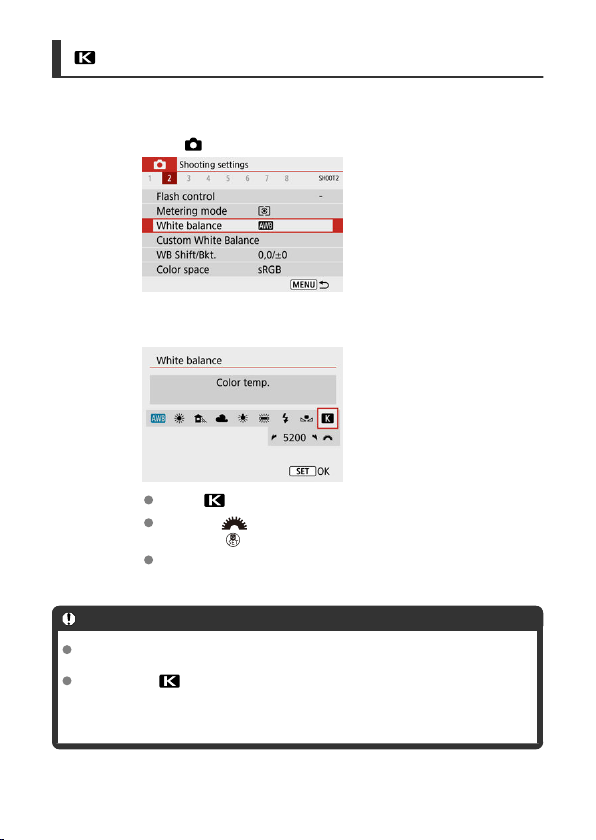
[ ] Color Temperature
1.
Select [ : White balance].
2.
Set the color temperature.
Select [ ].
Turn the < > dial to set your preferred color temperature, then
press the < > button.
The color temperature can be set from approx. 2500K to 10000K in
100K increments.
Caution
When setting the color temperature for an artificial light source, set the white
balance correction (magenta or green bias) as necessary.
When setting [ ] to a value measured with a commercially available color
temperature meter, take some test shots in advance and adjust the setting as
needed to compensate for any difference between the color temperature meter and
the camera.
226
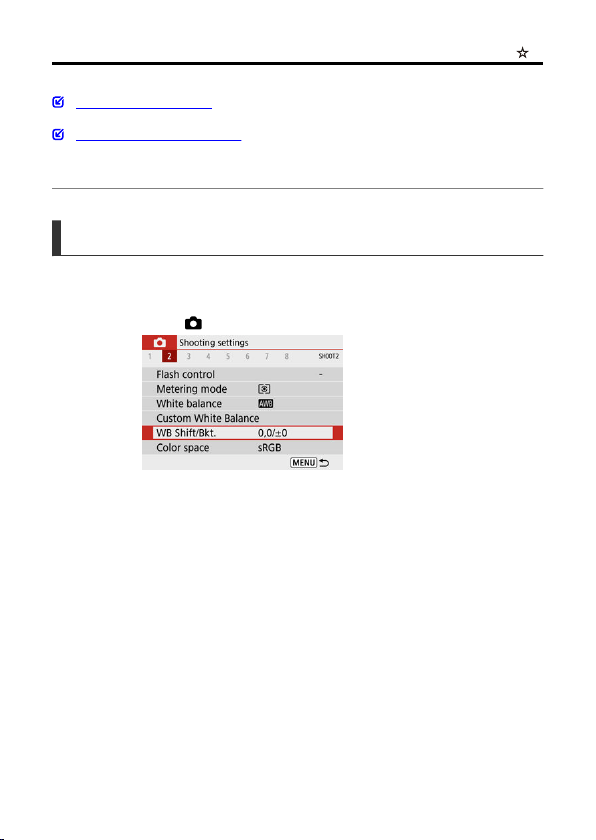
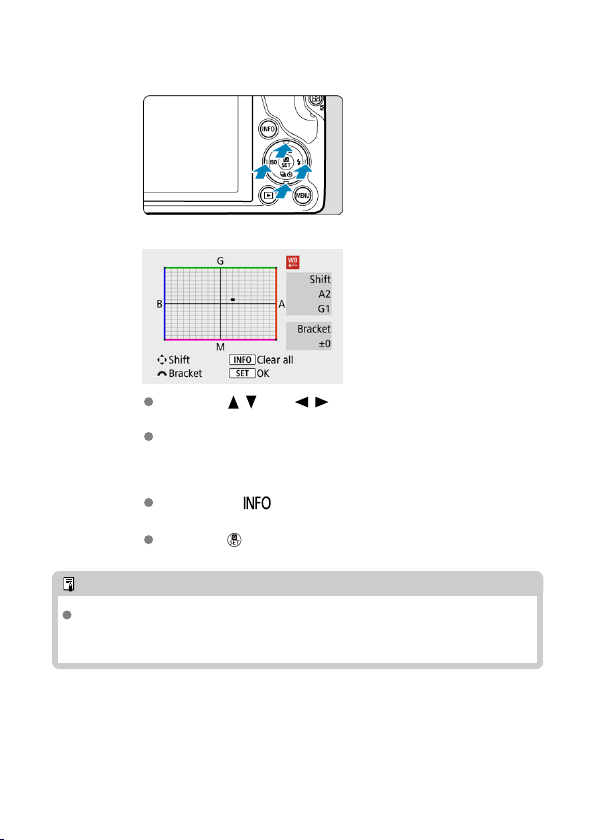
2.
Set the white balance correction.
Sample setting: A2, G1
Press the < > or < > keys to move the “■” mark to your
preferred position.
B is for blue, A for amber, M for magenta, and G for green. White
balance is corrected in the direction you move the mark.
On the right of the screen, [Shift] indicates the direction and correction
amount, respectively.
Pressing the < > button will cancel all the [WB Shift/Bkt.]
settings.
Press the < > button to exit setup.
Note
One level of the blue/amber correction is equivalent to approx. 5 mireds of a color
temperature conversion filter. (Mired: Unit of measure for color temperature used to
indicate values such as the density of a color temperature conversion filter.)
228
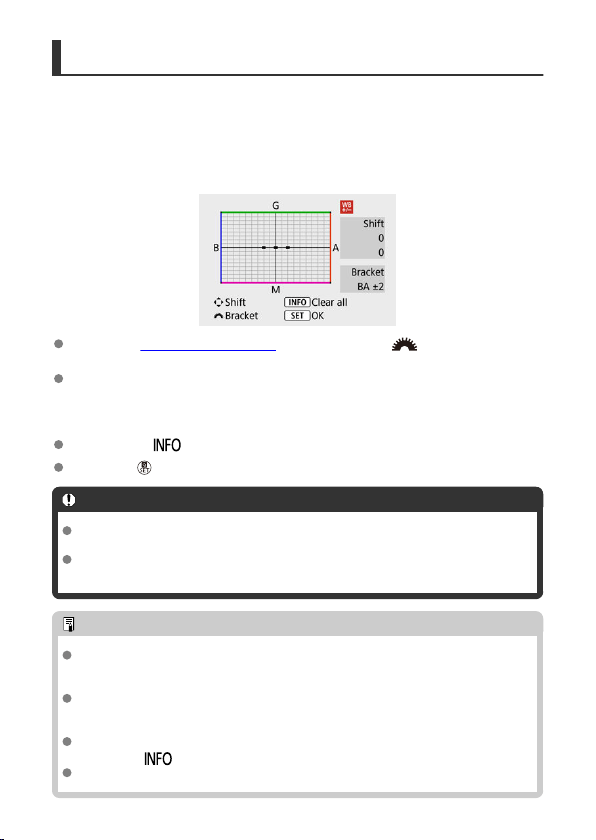
White Balance Auto Bracketing
White balance bracketing enables you to capture three images at once with different color
tones.
Setting the white balance bracketing amount
B/A bias ±3 levels
In step 2 for White Balance Correction, when you turn the < > dial, the “■” mark on
the screen will change to “■ ■ ■” (3 points).
Turning the dial clockwise sets the B/A bracketing, and turning it counterclockwise sets
the M/G bracketing.
On the right of the screen, [Bracket] indicates the bracketing direction and correction
amount.
Pressing the < > button will cancel all the [WB Shift/Bkt.] settings.
Press the < > button to exit setup.
Caution
During white balance bracketing, the maximum burst for continuous shooting will
be lower.
Since three images are recorded for one shot, it takes longer to record the image to
the card.
Note
The images will be bracketed in the following sequence: 1. Standard white balance,
2. Blue (B) bias, and 3. Amber (A) bias, or 1. Standard white balance, 2. Magenta
(M) bias, and 3. Green (G) bias.
You can also set white balance correction and AEB together with white balance
bracketing. If you set AEB in combination with white balance bracketing, a total of
nine images will be recorded for a single shot.
The white balance icon blinks when WB bracketing is set. (If the icon is not shown,
press the < > button repeatedly to switch the display.)
Bracket stands for bracketing.
229
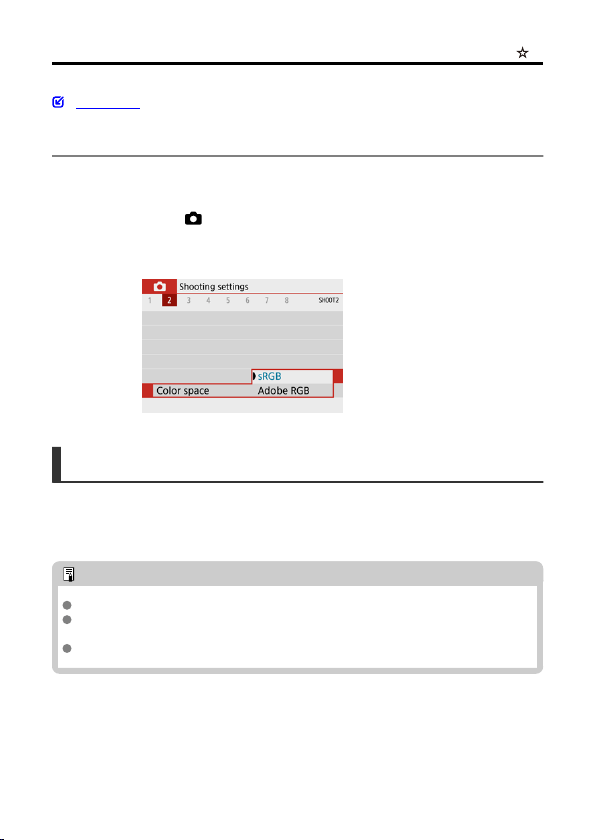
Color Space
Adobe RGB
The range of reproducible colors is called the “color space.
” For normal shooting, sRGB is
recommended.
1.
Select [
: Color space].
2.
Set a color space option.
Adobe RGB
This color space is mainly used for commercial printing and other professional applications.
Recommended when using equipment such as Adobe RGB-compatible monitors or DCF 2.0
(Exif 2.21 or later) compatible printers.
Note
File names of still photos shot in the Adobe RGB color space begin with “_”.
The ICC profile is not appended. For the descriptions about the ICC profile, refer to
the Digital Photo Professional Instruction Manual (EOS software).
In Basic Zone, [sRGB] is set automatically.
230
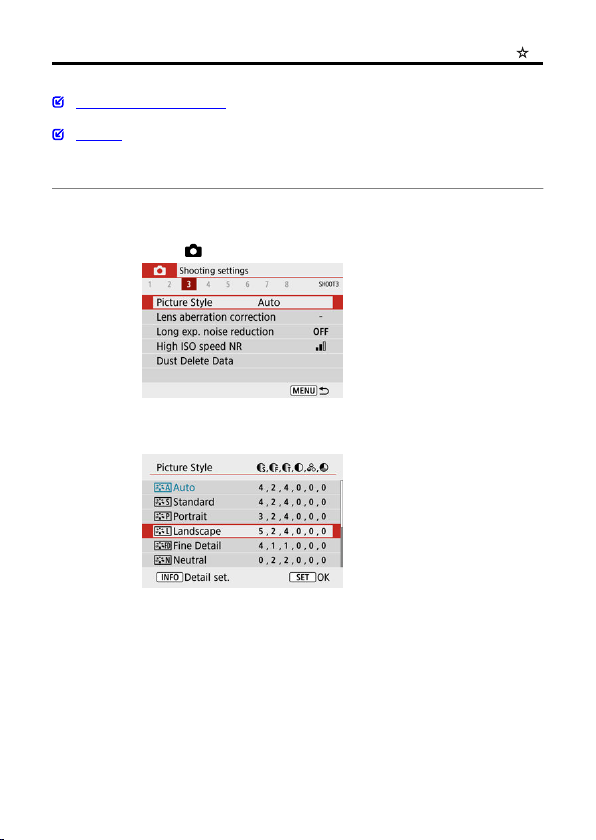
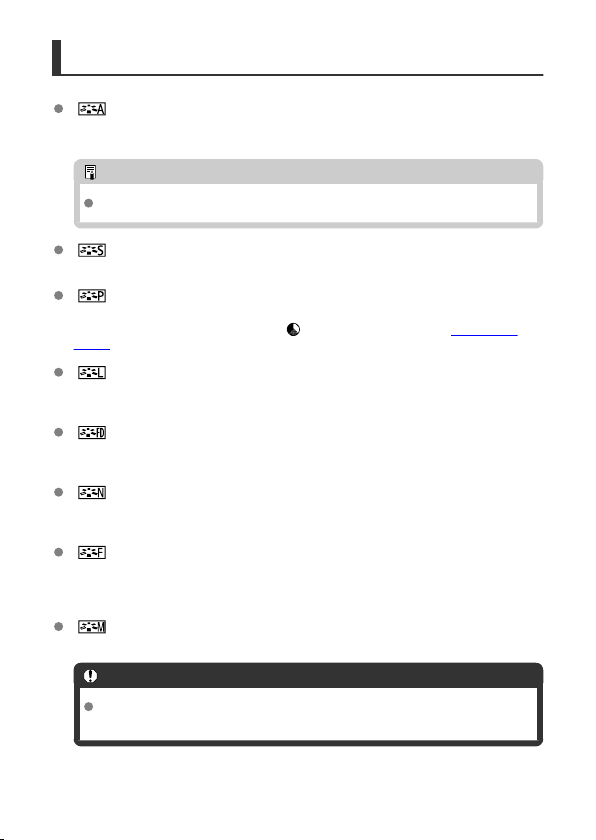
Picture Style Characteristics
[ ] Auto
The color tone will be adjusted automatically to suit the scene. The colors will look vivid
for blue skies, greenery and sunsets, particularly in nature, outdoor, and sunset scenes.
Note
If the desired color tone is not obtained with [Auto], use another Picture Style.
[ ] Standard
The image looks vivid, sharp, and crisp. Suitable for most scenes.
[ ] Portrait
For smooth skin tones, with slightly less sharpness. Suited for close-up portraits.
Skin tone can be adjusted by changing [ Color tone] as described in Settings and
Effects.
[ ] Landscape
For vivid blues and greens, and very sharp and crisp images. Effective for impressive
landscapes.
[ ] Fine Detail
For detailed rendering of fine subject contours and subtle textures. The colors will be
slightly vivid.
[ ] Neutral
For retouching later on a computer. Makes images subdued, with lower contrast and
natural color tones.
[ ] Faithful
For retouching later on a computer. Faithfully reproduces the actual colors of subjects as
measured in daylight with a color temperature of 5200K. Makes images subdued, with
lower contrast.
[ ] Monochrome
Creates black-and-white images.
Caution
Color images cannot be recovered from JPEG images shot with the
[Monochrome] Picture Style.
232

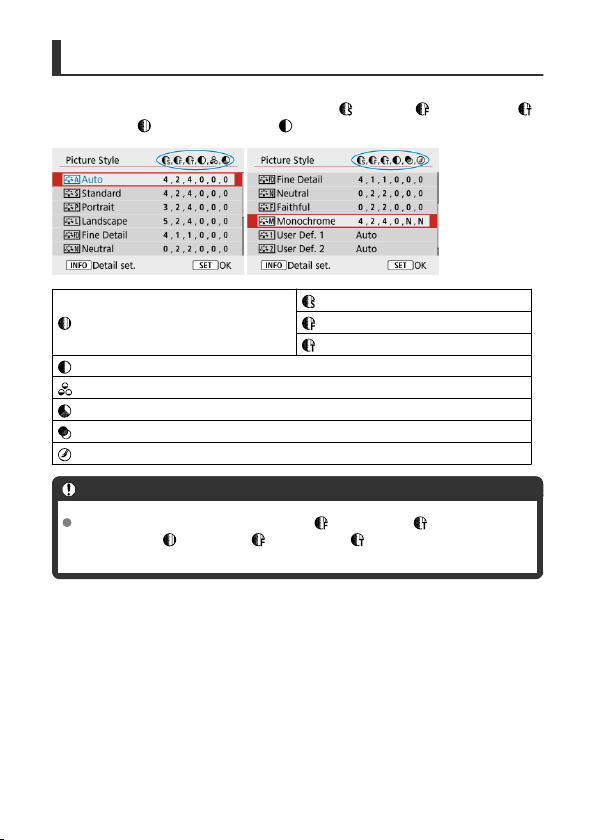
Symbols
Icons on the Picture Style selection screen represent [ Strength], [ Fineness], and [
Threshold] for [ Sharpness] as well as [ Contrast] and other parameters. The numbers
indicate the values for these settings specified for the respective Picture Style.
Sharpness
Strength
Fineness
Threshold
Contrast
Saturation
Color tone
Filter effect (Monochrome)
Toning effect (Monochrome)
Caution
For movie recording, * is indicated for both [ Fineness] and [ Threshold]
parameters of [
Sharpness]. [ Fineness] and [ Threshold] are not applied to
movies.
234
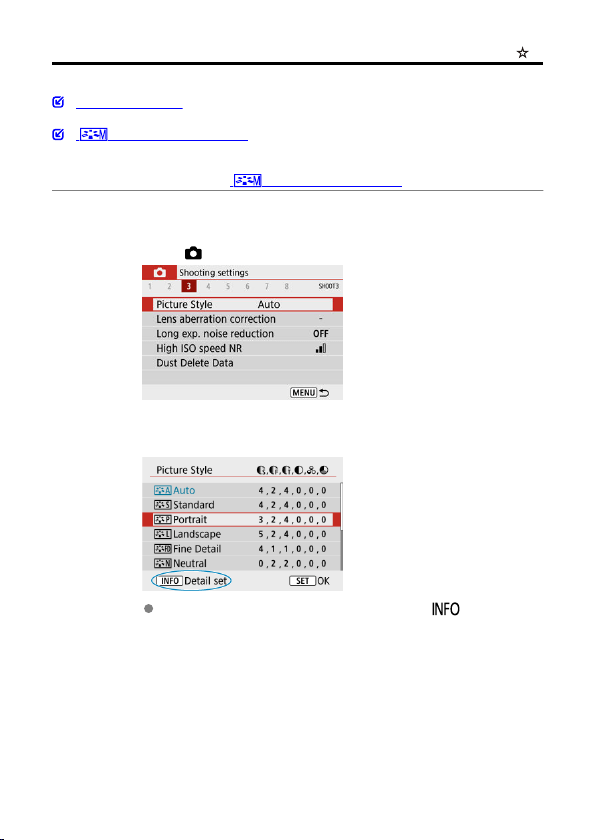
Picture Style Customization
Settings and Effects
[ ] Monochrome Adjustment
You can customize any Picture Style by changing it from the default settings. For details on
customizing [Monochrome], see [ ] Monochrome Adjustment.
1.
Select [ : Picture Style].
2.
Select a Picture Style.
Select the Picture Style to adjust, then press the < > button.
235
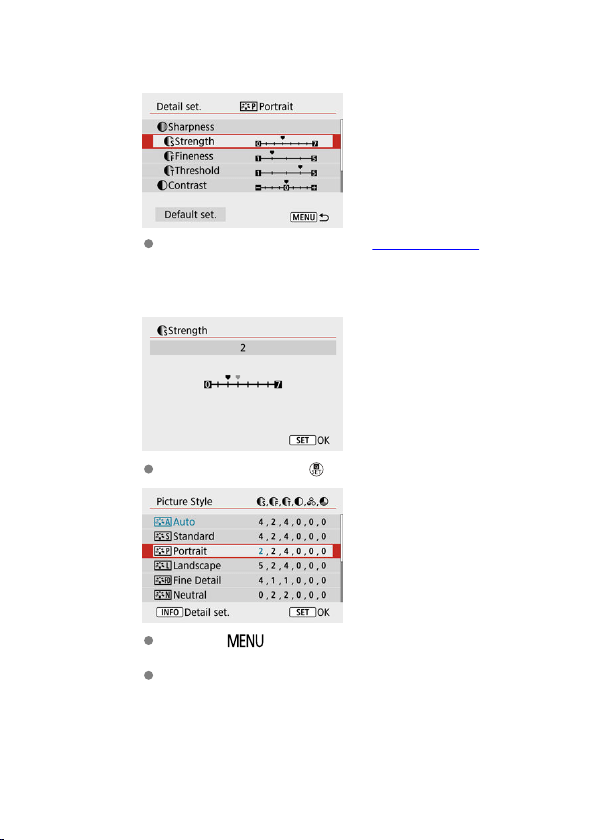
3.
Select an option.
For details on settings and effects, see Settings and Effects.
4.
Set the effect level.
Set the value, then press < >.
Press the < > button to save the adjusted setting and return to
the Picture Style selection screen.
Any settings you change from default values are displayed in blue.
236
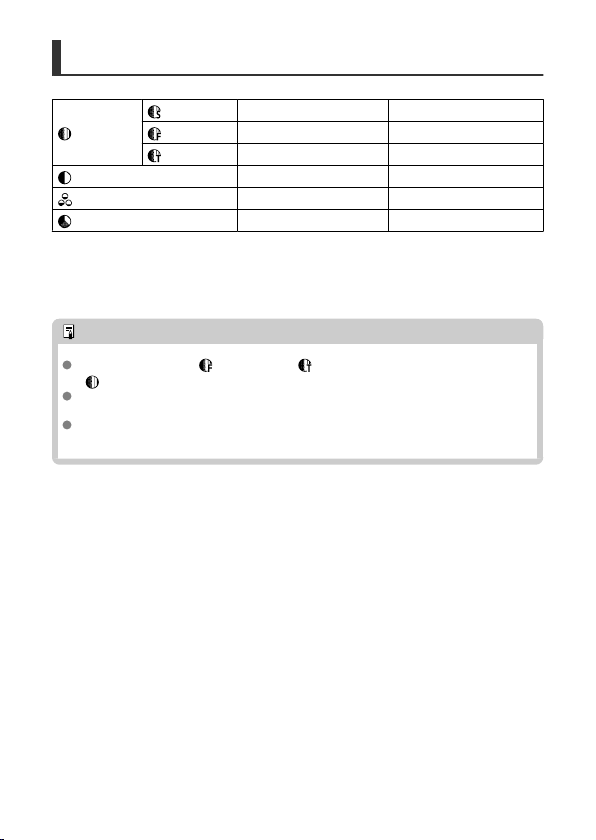
Settings and Effects
Sharpness
Strength
0: Weak outline emphasis 7: Strong outline emphasis
Fineness*
1
1: Fine 5: Grainy
Threshold*
2
1: Low 5: High
Contrast
–4: Low contrast +4: High contrast
Saturation
–4: Low saturation +4: High saturation
Color tone
–4: Reddish skin tone +4: Yellowish skin tone
* 1: Indicates the edge thinness that enhancement applies to. The smaller the number, the finer the
outlines that can be emphasized.
* 2: Contrast threshold between edges and surrounding image areas, which determines edge
enhancement. The smaller the number, the more the outline will be emphasized when the contrast
difference is low. However, noise tends to be more noticeable when the number is smaller.
Note
For movie recording, [ Fineness] and [ Threshold] settings are not shown in
[ Sharpness] and cannot be set.
By selecting [Default set.] in step 3, you can restore the parameter settings of the
respective Picture Style to the defaults.
To shoot with the Picture Style you adjusted, first select the adjusted Picture Style,
then shoot.
237

[ ] Monochrome Adjustment
[ Filter effect]
With a filter effect applied to a monochrome image, you can make white clouds or green
trees stand out more.
Filter Sample Effects
N:None Normal black-and-white image with no filter effects.
Ye:Yellow Blue sky will look more natural, and white clouds will look crisper.
Or:Orange The blue sky will look slightly darker. The sunset will look more brilliant.
R:Red The blue sky will look quite dark. Fall leaves will look crisper and brighter.
G:Green Skin tones and lips will appear muted. Green tree leaves will look crisper and brighter.
Note
Increasing [ Contrast] intensifies the filter effect.
238

[ Toning effect]
By applying a toning effect, you can create a monochrome image in the selected color.
Effective when you want to create memorable images.
239
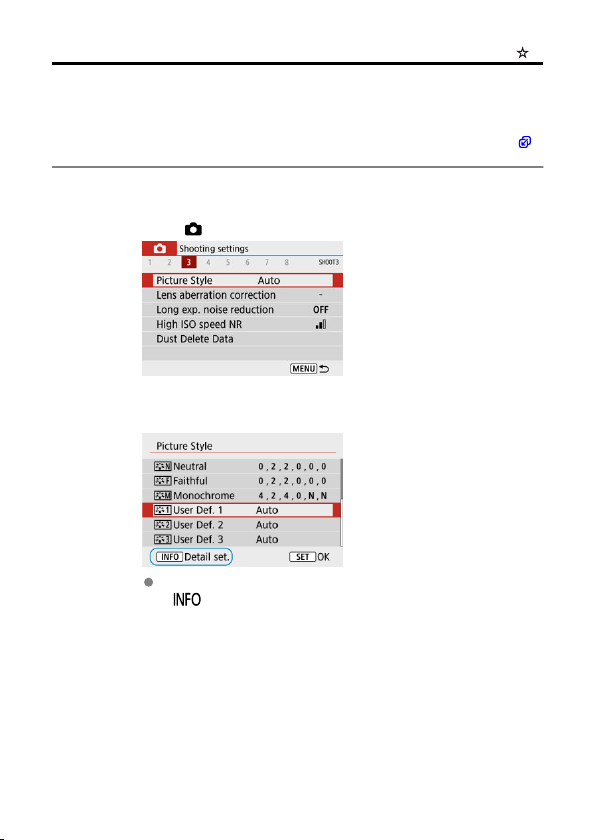
Picture Style Registration
You can select a base Picture Style such as [Portrait] or [Landscape], adjust it as desired,
and register it under [User Def. 1] –
[User Def. 3]. Useful when creating several Picture
Styles with different settings.
Picture Styles that you have registered on the camera using EOS Utility (EOS software,
)
can also be modified here.
1.
Select [ : Picture Style].
2.
Select a user-defined style number.
Select a number from [User Def. 1] to [User Def. 3], then press the
< > button.
240
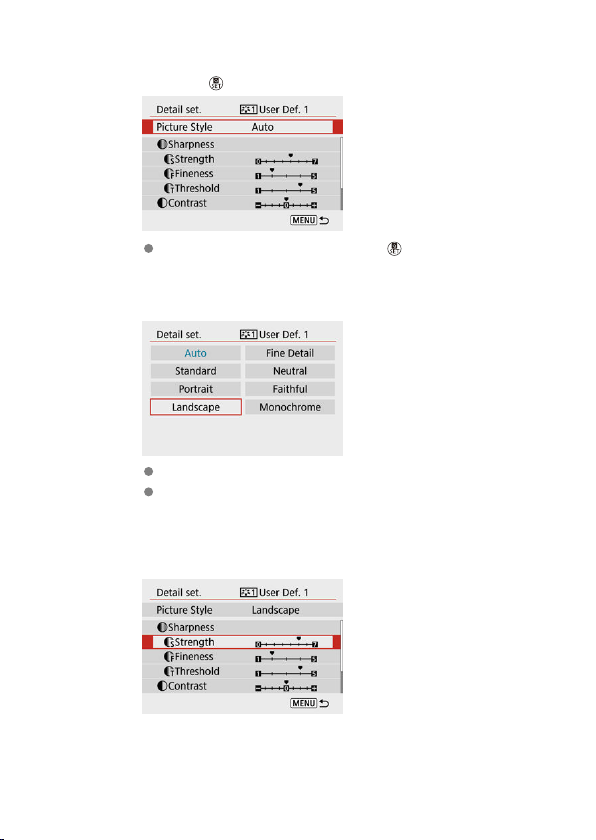
3.
Press the < > button.
With [Picture Style] selected, press the < > button.
4.
Select a base Picture Style.
Select the base Picture Style.
Also select styles this way when adjusting styles registered to the
camera with EOS Utility (EOS software).
5.
Select an option.
241
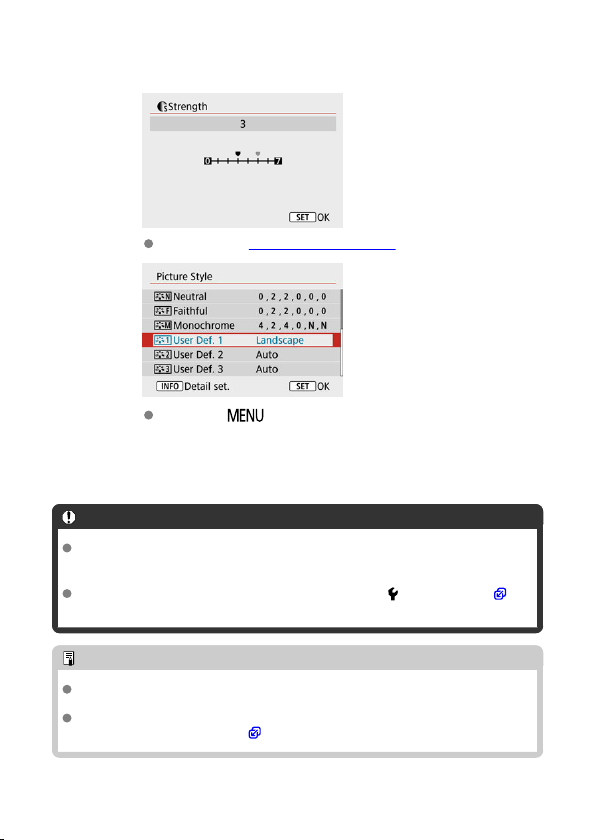
6.
Set the effect level.
For details, see Picture Style Customization.
Press the < > button to save the adjusted setting and return to
the Picture Style selection screen.
The base Picture Style will be indicated on the right of [User Def. *].
Blue style names indicate that you have changed the settings from
default values.
Caution
If a Picture Style is already registered under [User Def. *], changing the base
Picture Style will clear the parameter settings of the previously registered User
Defined Picture Style.
[User Def. *] settings are reset when [Basic settings] in [ : Reset camera] ( ) is
performed.
Note
To shoot with a registered Picture Style, select the registered [User Def. *], then
shoot.
Regarding the procedure to register a Picture Style file to the camera, refer to the
EOS Utility Instruction Manual ( ).
242
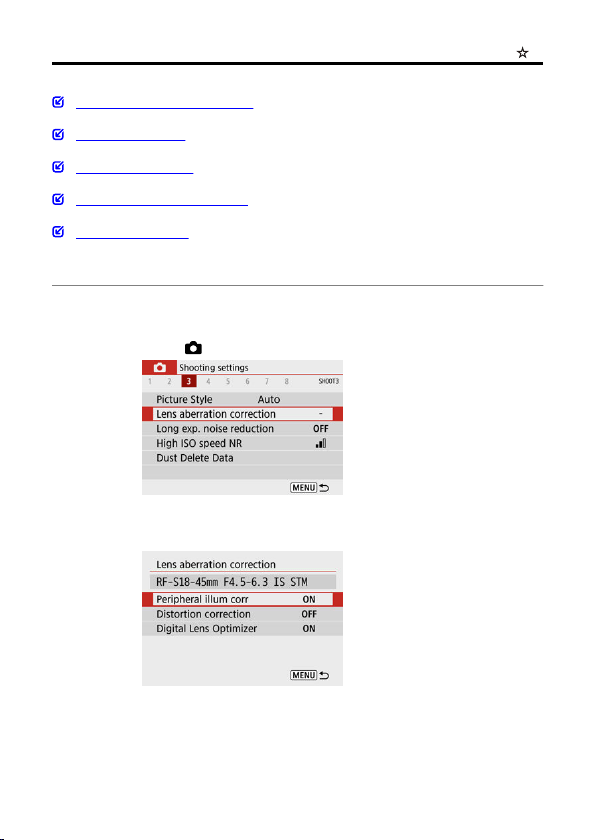
Lens Aberration Correction
Peripheral Illumination Correction
Distortion Correction
Digital Lens Optimizer
Chromatic Aberration Correction
Diffraction Correction
Vignetting, image distortion, and other issues may be caused by lens optical characteristics.
The camera can compensate for these phenomena by using [Lens aberration correction].
1.
Select [ : Lens aberration correction].
2.
Select an option.
243
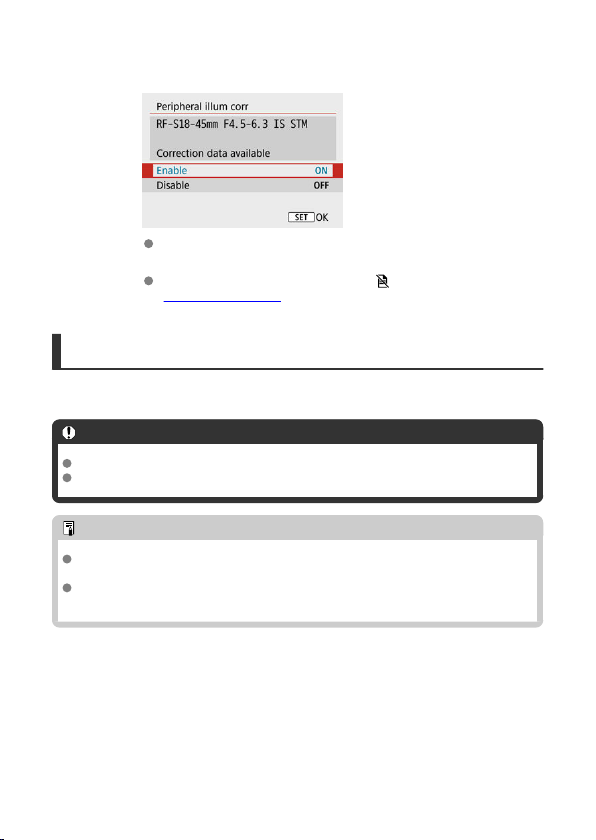
3.
Select [Enable].
Confirm that the name of the attached lens and [Correction data
available] are displayed (except when [Diffraction correction] is set).
If [Correction data not available] or a [ ] icon is displayed, see
Digital Lens Optimizer.
Peripheral Illumination Correction
Vignetting (dark image corners) can be corrected.
Caution
Depending on shooting conditions, noise may appear on the image periphery.
The higher the ISO speed, the lower the amount of correction will be.
Note
The amount of correction applied will be lower than the maximum correction
amount applied with Digital Photo Professional (EOS software).
Peripheral illumination is corrected automatically in Basic Zone modes when
correction data is registered on the camera.
244
Distortion Correction
Distortion (image warping) can be corrected.
Caution
Specifying distortion correction may subtly change the angle of view, resulting in
images that are cropped a little and seem slightly less sharp.
The amount of image cropped may vary between still photos and movies.
Note
With RF lenses, distortion correction during movie recording is supported.
245
Digital Lens Optimizer
Various aberrations from lens optical characteristics can be corrected, along with diffraction
and loss of resolution.
If [Correction data not available] or [ ] is displayed by [Digital Lens Optimizer], you can
use EOS Utility to add the lens correction data to the camera. For details, refer to the EOS
Utility Instruction Manual.
Caution
Depending on shooting conditions, noise may be intensified together with the
effects of correction. Image edges may also be emphasized. Adjust Picture Style
sharpness or set [Digital Lens Optimizer] to [Disable] as needed before shooting.
The higher the ISO speed, the lower the amount of correction will be.
For movie recording, [Digital Lens Optimizer] will not appear. (Correction is not
possible.)
Note
Enabling [Digital Lens Optimizer] will correct both chromatic aberration and
diffraction when you shoot, although these options are not displayed.
246
Chromatic Aberration Correction
Chromatic aberration (color fringing around subjects) can be corrected.
Note
[Chromatic aberr corr] is not displayed when [Digital Lens Optimizer] is set to
[Enable].
247
Diffraction Correction
Diffraction (loss of sharpness caused by the aperture) can be corrected.
Caution
Depending on shooting conditions, noise may be intensified together with the
effects of correction.
The higher the ISO speed, the lower the amount of correction will be.
For movie recording, [Diffraction correction] will not appear. (Correction is not
possible.)
The effect of diffraction correction cannot be checked on the screen at the time of
shooting.
Note
[Diffraction correction] is not displayed when [Digital Lens Optimizer] is set to
[Enable].
Caution
General precautions for lens aberration correction
Lens aberration correction cannot be applied to existing JPEG images.
When using a non-Canon lens, setting the corrections to [Disable] is
recommended even if [Correction data available] is displayed.
Magnifying the periphery of the image may display parts of the image that will not
be recorded.
The amount of correction (except diffraction correction) is less for lenses that do
not provide distance information.
248
Note
General notes for lens aberration correction
Effects of lens aberration correction vary by lens and shooting conditions. Also, the
effect may be difficult to discern depending on the lens used, shooting conditions,
etc.
If the correction is difficult to discern, magnifying and checking the image after
shooting is recommended.
Corrections are applied even when a life-size converter is attached.
If the correction data for the attached lens is not registered to the camera, the result
will be the same as when the correction is set to [Disable] (except for diffraction
correction).
If necessary, refer to the EOS Utility Instruction Manual as well.
249
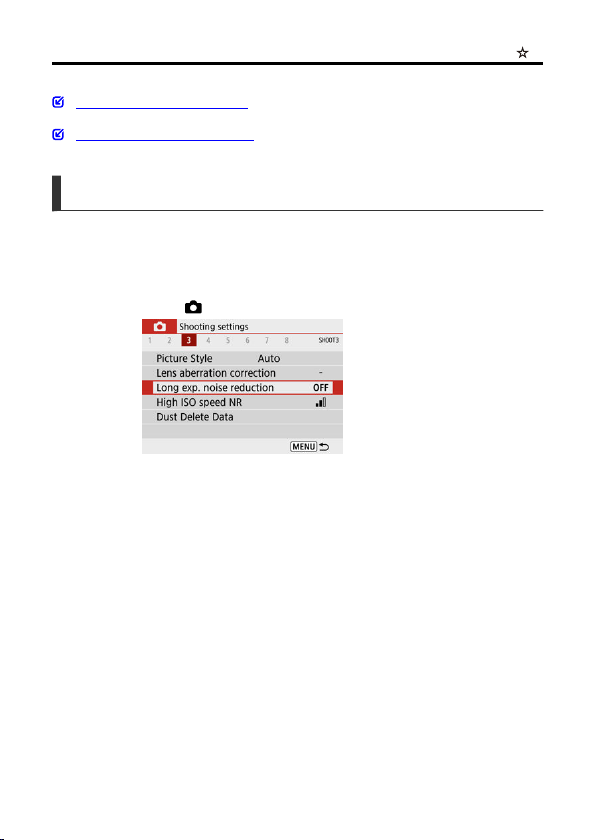
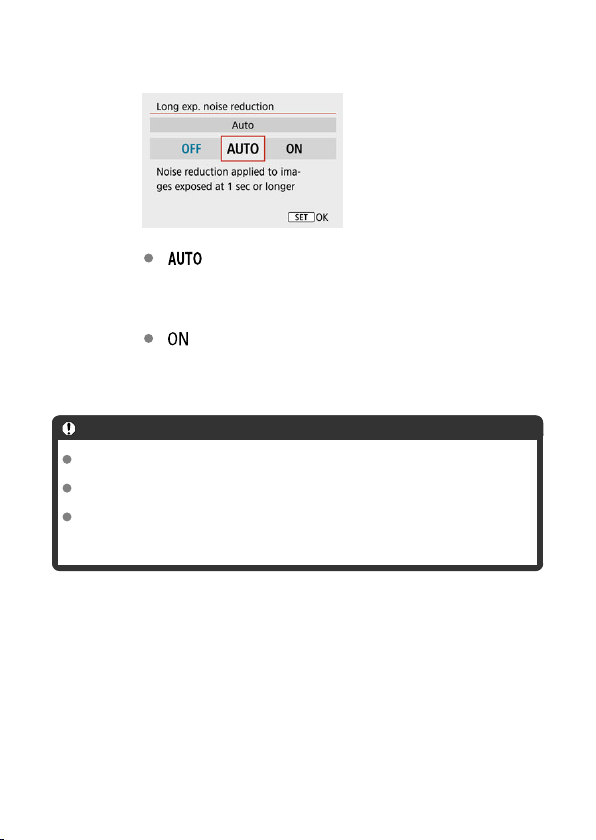
2.
Set a reduction option.
[ ] Auto
For images exposed for 1 sec. or longer, noise reduction is performed
automatically if noise typical of long exposures is detected. This setting
is effective enough in most cases.
[ ] Enable
Noise reduction is performed for all images exposed for 1 sec. or
longer. The [Enable] setting may reduce noise that cannot be detected
with the [Auto] setting.
Caution
With [Auto] or [Enable] set, noise reduction after you shoot may take as long as
exposure for the shot.
Images may look grainier with the [Enable] setting than with the [Disable] or [Auto]
setting.
After you shoot a long exposure with [Enable] set, the shooting screen is not
displayed during noise reduction processing (indicated by [BUSY] display), and you
cannot shoot again until processing is finished.
251
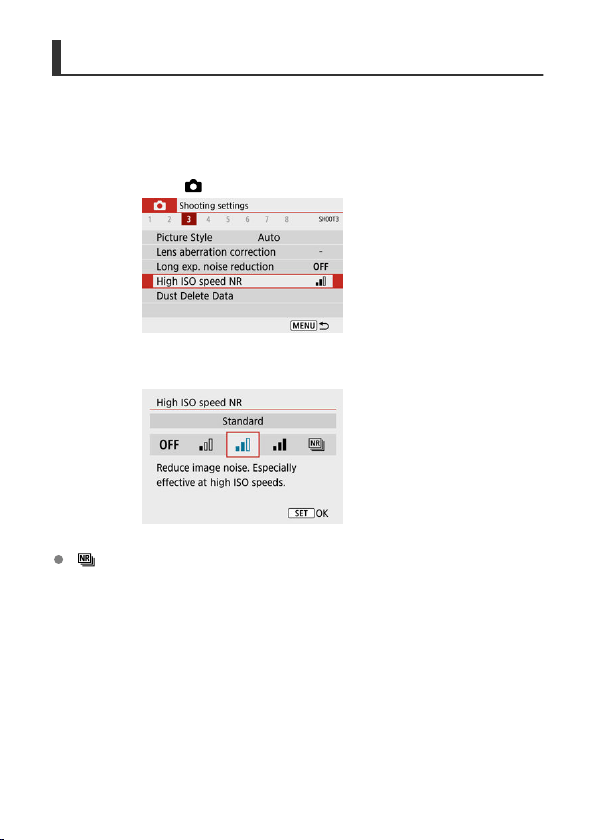
High ISO Speed Noise Reduction
You can reduce the image noise generated. This function is especially effective when
shooting at high ISO speeds. When shooting at low ISO speeds, the noise in the darker
parts of the image (shadow areas) can further be reduced.
1.
Select [ : High ISO speed NR].
2.
Set the level.
[ ] Multi Shot Noise Reduction
Applies noise reduction with higher image quality than [High]. For a single photo, four
shots are taken continuously and aligned and merged automatically into a single JPEG
image.
Note that [Multi Shot Noise Reduction] is not available with image quality set to RAW
or RAW+JPEG.
252
Caution
Precautions when set to [Multi Shot Noise Reduction
]
If there is significant misalignment in the image due to camera shake, the noise
reduction effect may become smaller.
Be careful about camera shake in handheld shots. Using a tripod is recommended.
If you shoot a moving subject, the moving subject may leave afterimages.
Auto image alignment may not function properly with repetitive patterns (lattice,
stripes, etc.) or flat, single-tone images.
If the subject's brightness changes as the four consecutive shots are taken,
irregular exposure in the image may result.
After shooting, it may take some time to record an image to the card after
performing noise reduction and merging the images. [BUSY] is displayed on the
shooting screen during image processing. Shooting is not possible until processing
is finished.
[Multi Shot Noise Reduction] is not available when features such as these are
set: bulb exposures, AEB or WB bracketing, RAW or RAW+JPEG shooting, long
exposure noise reduction, or Creative filters.
Flash photography is not available. Note that the AF-assist beam may be fired,
depending on the [ : AF-assist beam firing] setting.
[Multi Shot Noise Reduction] is not available (not displayed) when recording
movies.
Automatically switches to [Standard] if you set the power switch to < >,
replace the battery or card, or switch to Basic Zone modes, bulb exposure, or
movie recording.
253
Appending Dust Delete Data
Preparation
Dust Delete Data Acquisition
Dust Delete Data Appending
Dust Delete Data used to erase dust spots can be appended to images. The Dust Delete
Data is used by Digital Photo Professional (EOS software) to erase the dust spots
automatically.
Preparation
Use an RF or EF lens.
Prepare a solid white object such as a sheet of paper.
Set the lens focal length to 50 mm or longer.
Set the focus mode to MF ( ), then set the focus to infinity (∞) by turning the focusing
ring clockwise, as viewed from the front of the camera.
254
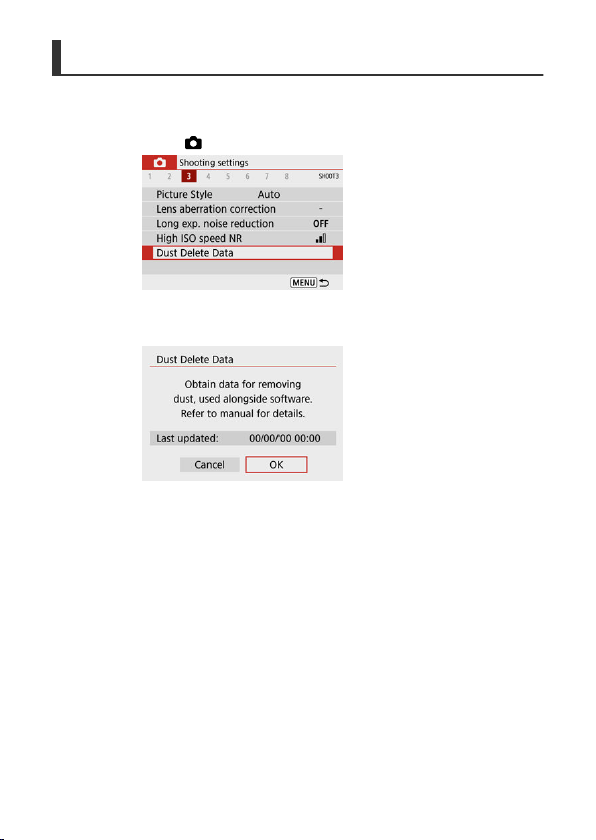
Dust Delete Data Acquisition
1.
Select [ : Dust Delete Data].
2.
Select [OK].
255
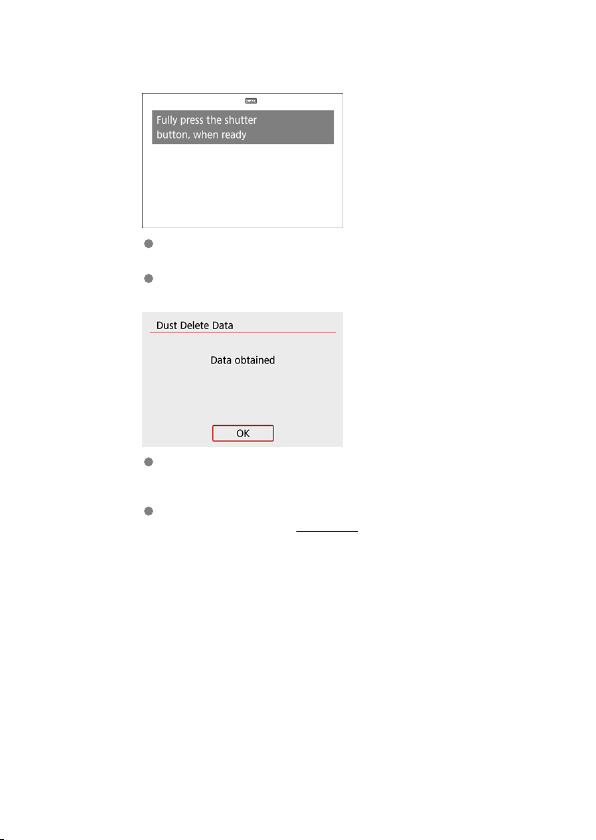
3.
Shoot a plain white object.
Shoot with a plain white object (such as a new sheet of white paper)
filling the screen, at a distance of 20–30 cm (0.7–
1.0 ft.).
Since the image will not be saved, the data can still be obtained even if
there is no card in the camera.
When the picture is taken, the camera will start collecting the Dust
Delete Data. When the Dust Delete Data is obtained, a message will
appear.
If the data is not obtained successfully, an error message will appear.
Check the information in Preparation, select [OK], and shoot again.
256
Dust Delete Data Appending
Once acquired, Dust Delete Data is appended to still photos captured after that point.
Acquiring Dust Delete Data before shooting is recommended.
For details about using Digital Photo Professional (EOS software) to erase dust spots
automatically, refer to the Digital Photo Professional Instruction Manual.
File size is essentially unaffected by Dust Delete Data appended to images.
Caution
If the object has any pattern or design, it may be recognized as dust data and affect
the accuracy of the dust deletion with the Digital Photo Professional (EOS
software).
Dust Delete Data is not added to shots taken under the following conditions.
• In [ ] or [ ] (< > mode) shooting
• In [ ] (< > mode) shooting
• When multi-shot noise reduction is set
• When [Distortion correction] in [ : Lens aberration correction] is set to
[Enable]
257
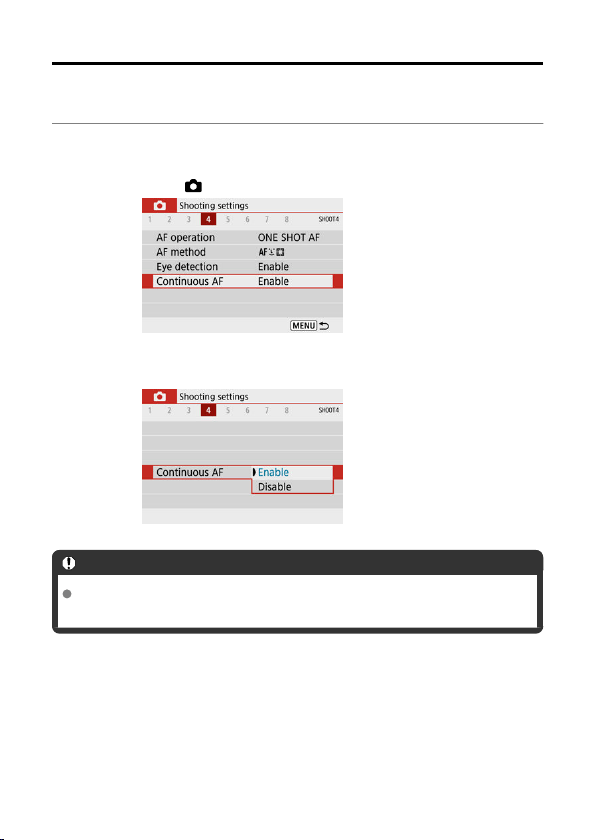
Continuous AF
This function keeps subjects generally in focus. The camera is ready to focus immediately
when you press the shutter button halfway.
1.
Select [ : Continuous AF].
2.
Select [Enable].
Caution
Fewer shots are available when set to [Enable], because the lens is driven
continuously and battery power is consumed.
258
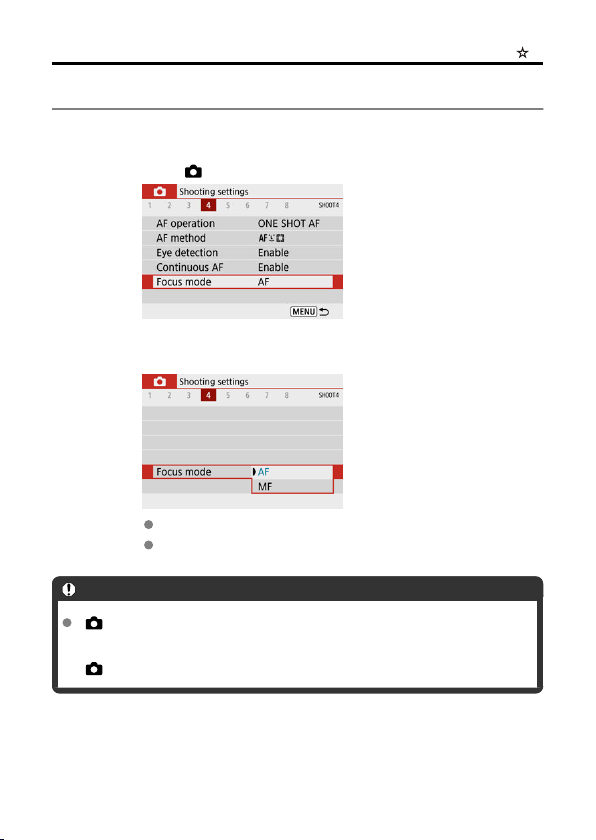
Focus Mode
You can specify the method of focusing (focus mode).
1.
Select [ : Focus mode].
2.
Select an option.
[AF]: Autofocus
[MF]: Manual focus
Caution
[ : Focus mode] is not displayed when the focal position is in the effective range
exclusively for manual focusing (MF). Turn the focusing ring toward infinity
(clockwise, as viewed from the front of the camera) to move the focal position until
[ : Focus mode] appears.
259
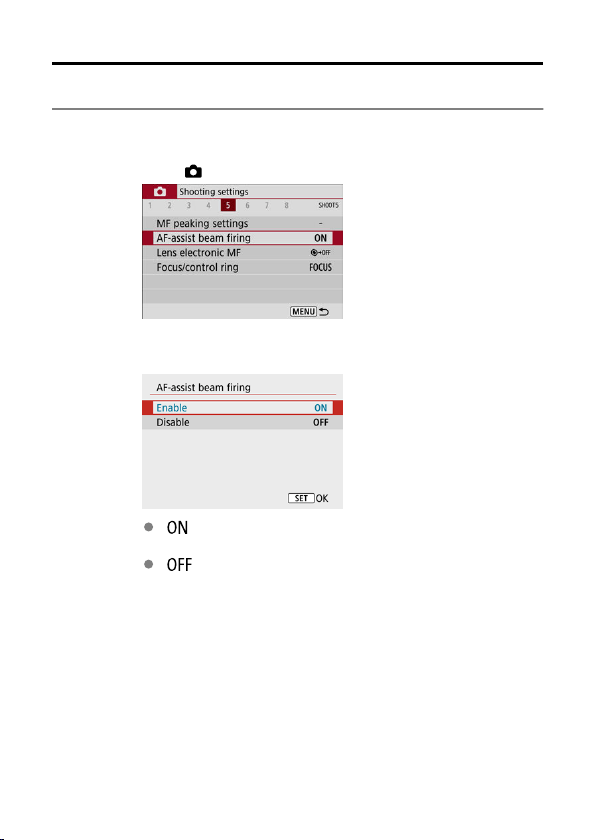
AF-Assist Beam Firing
You can enable firing of the camera's AF-assist beam.
1.
Select [ : AF-assist beam firing].
2.
Select an option.
[ ] Enable
Enables firing of the AF-assist beam, when needed.
[ ] Disable
Disables firing of the AF-assist beam. Set if you prefer not to fire the
AF-assist beam.
260
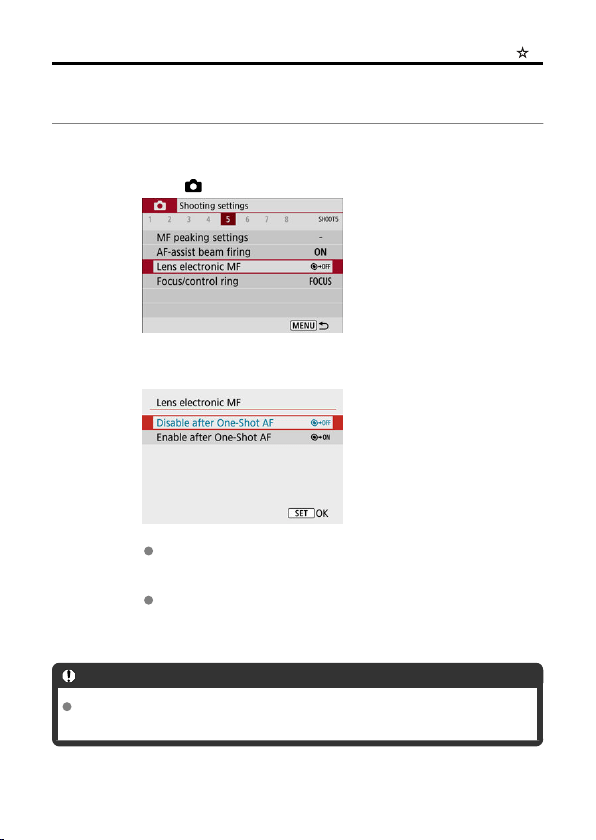
Lens Electronic MF
For lenses equipped with electronic manual focusing, you can specify how manual focus
adjustment is used with One-Shot AF.
1.
Select [ : Lens electronic MF].
2.
Select an item.
Disable after One-Shot AF
After the AF operation, manual focusing adjustment is disabled.
Enable after One-Shot AF
You can manually adjust the focus after the AF operation if you keep
holding down the shutter button halfway.
Caution
For details on your lens's manual focus specifications, refer to the Lens Instruction
Manual.
261
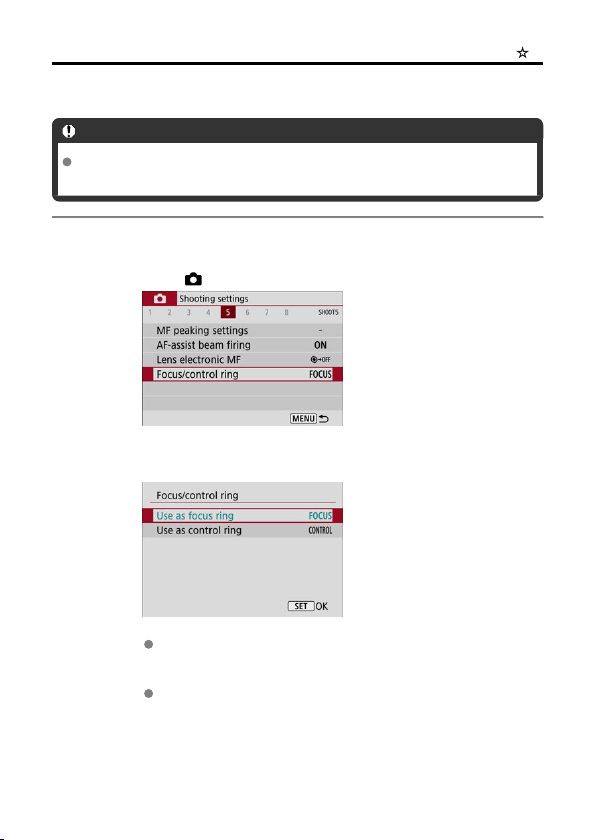
Focus/Control Ring
Menu-based switching of lens focus/control ring functionality.
Caution
Available when using lenses that have a combination focusing ring/control ring but
have no switch to switch between these features.
1.
Select [ : Focus/control ring].
2.
Select the functionality to use.
[Use as focus ring]
The ring works as a focusing ring.
[Use as control ring]
The ring works as a control ring.
262
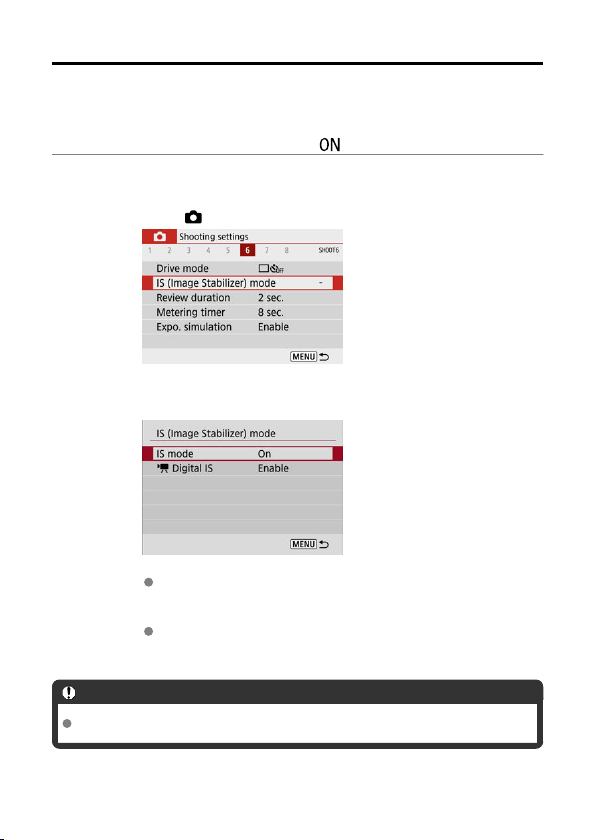
Image Stabilizer (IS Mode)
Image stabilization by the lens reduces camera shake at the time of shooting. To activate
lens IS when using IS lenses without an IS switch, set [IS mode] to [On] as follows. Note
that the [IS mode] setting is not displayed when you are using IS lenses that have an IS
switch. In that case, setting the lens IS switch to < > activates stabilization by the lens.
1.
Select [ : IS (Image Stabilizer) mode].
2.
Select an [IS mode] option.
[Off]
Deactivates image stabilization.
[On]
Camera shake will be corrected.
Caution
In some cases, this may not provide sufficient stabilization for certain lenses.
263
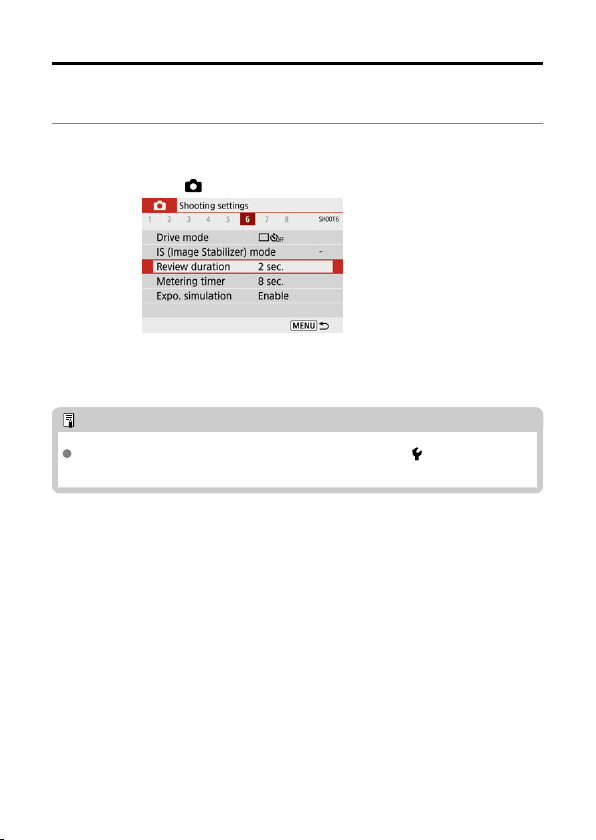
Review Duration
Set to [Hold] to keep the captured image displayed after you shoot, or set to [Off] if you
prefer not to have shots displayed.
1.
Select [ : Review duration].
2.
Set a time option.
Note
When [Hold] is set, images are displayed until the time set in [ : Power saving]
elapses.
265
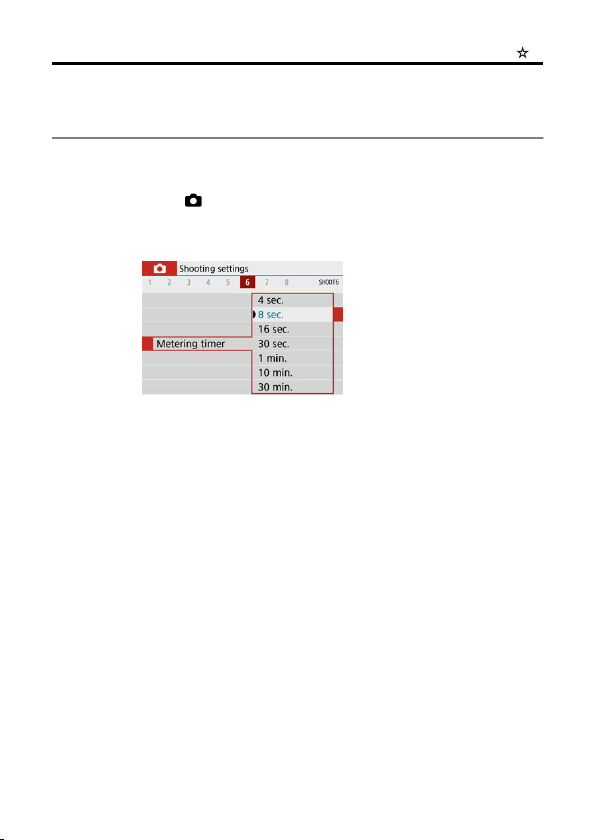
Metering Timer
You can set how long the metering timer runs (which determines the duration of exposure
value display) after it is triggered automatically by an action such as pressing the shutter
button halfway.
1.
Select [ : Metering timer].
2.
Set a time option.
266
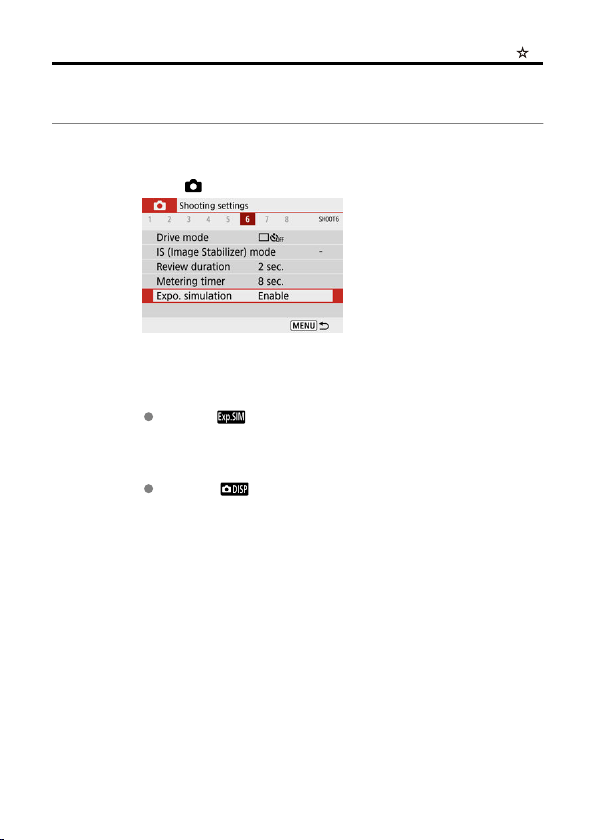
Exposure Simulation
With exposure simulation, image brightness more closely matches the actual brightness
(exposure) of your shots.
1.
Select [ : Expo. simulation].
2.
Select an option.
[Enable] ( )
The displayed image brightness will be close to the actual brightness
(exposure) of the resulting image. If you set exposure compensation,
the image brightness will change accordingly.
[Disable] ( )
The image is displayed at standard brightness, so it is easy to see.
Even if you set exposure compensation, the image is displayed at the
standard brightness.
267
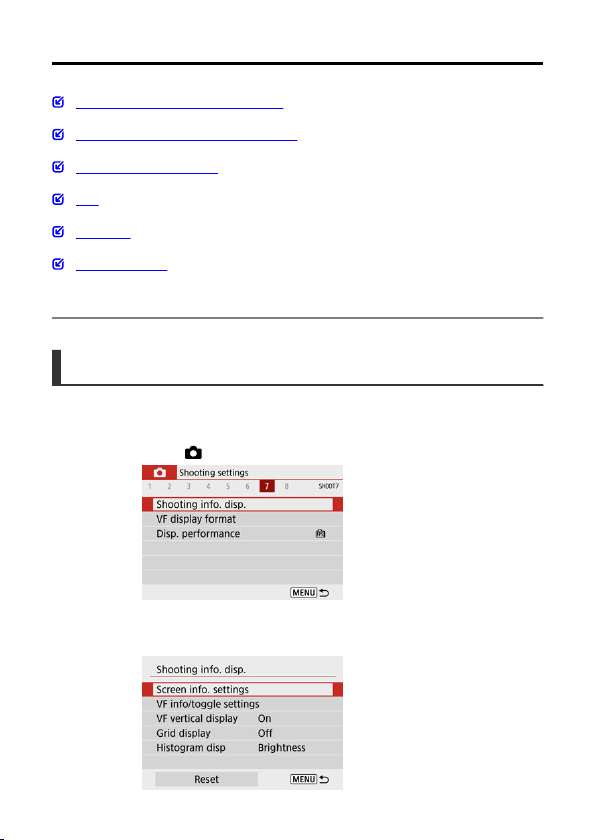
Shooting Information Display
Customizing Information on the Screen
Customizing Information in the Viewfinder
Viewfinder Vertical Display
Grid
Histogram
Clearing Settings
You can customize the details and screens of information shown on the screen or in the
viewfinder when you shoot.
Customizing Information on the Screen
1.
Select [ : Shooting info. disp.].
2.
Select [Screen info. settings].
268
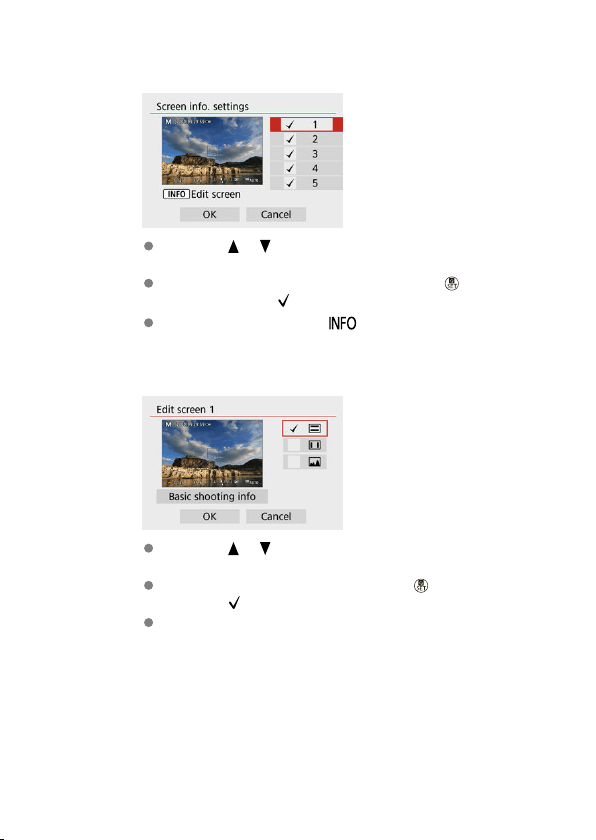
3.
Select screens.
Press the < >< > keys to select screens of information to show on
the camera.
For information you prefer not to display, press the < > button to
clear the checkmark [ ].
To edit the screen, press the < > button.
4.
Edit the screen.
Press the < >< > keys to select options to show on the information
screen.
For items you prefer not to display, press the < > button to clear the
checkmark [ ].
Select [OK] to register the setting.
269
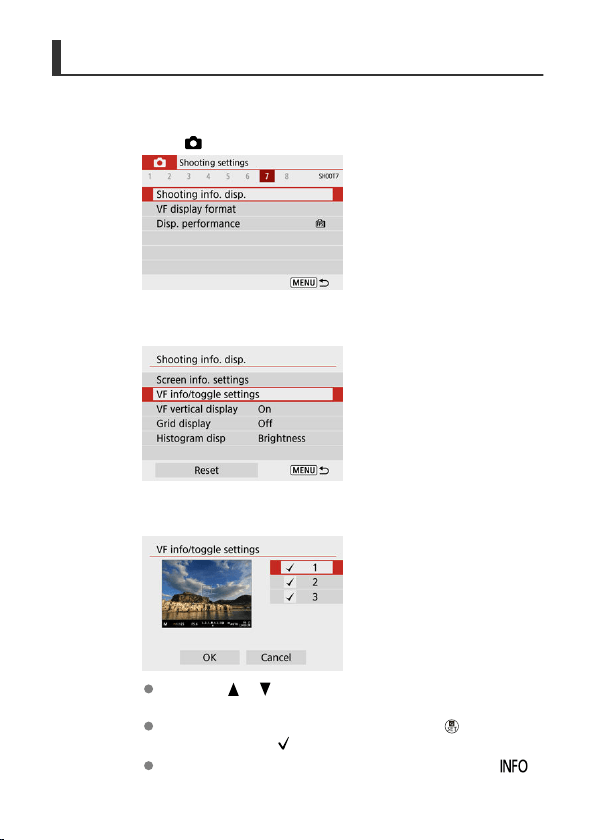
Customizing Information in the Viewfinder
1.
Select [ : Shooting info. disp.].
2.
Select [VF info/toggle settings].
3.
Select screens.
Press the < >< > keys to select information screens to show in the
viewfinder.
For information you prefer not to display, press the < > button to
clear the checkmark [
].
To edit the screens when screen 2 or 3 is selected, press the < >
button.
270

4.
Edit the screen.
Press the < >< > keys to select options to show on the information
screen in the viewfinder.
For items you prefer not to display, press the < > button to clear the
checkmark [ ].
Select [OK] to register the setting.
271
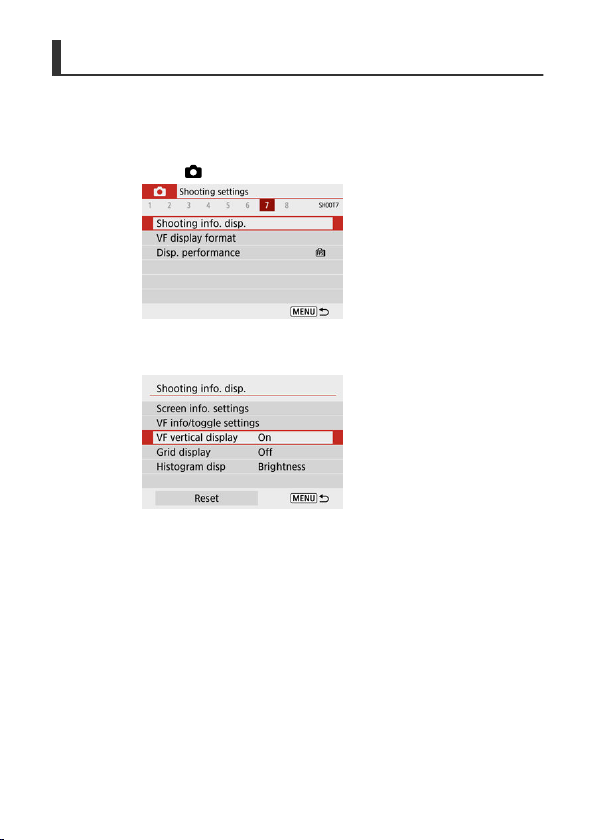
Viewfinder Vertical Display
You can select how viewfinder information is displayed when you are shooting still photos
vertically.
1.
Select [ : Shooting info. disp.].
2.
Select [VF vertical display].
272
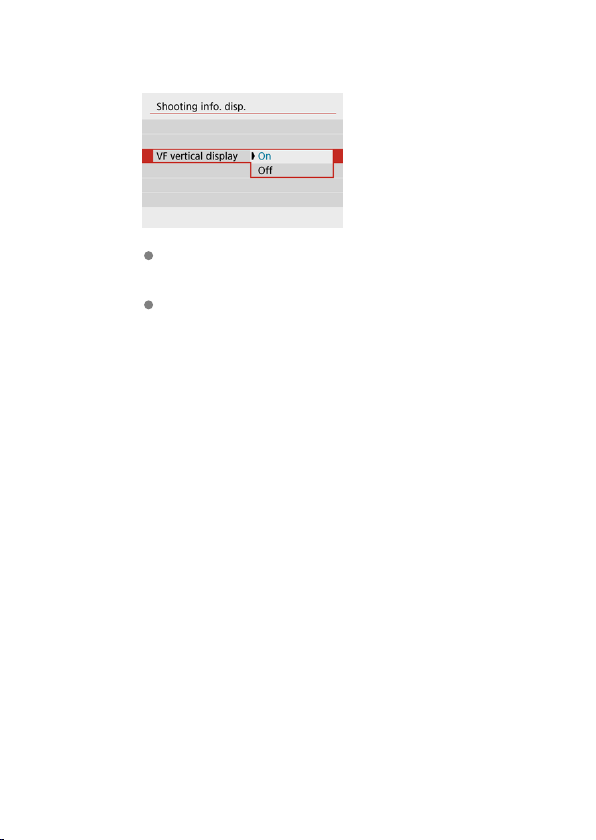
3.
Select an option.
On
Information is automatically rotated, making it easier to read.
Off
Information is not automatically rotated.
273
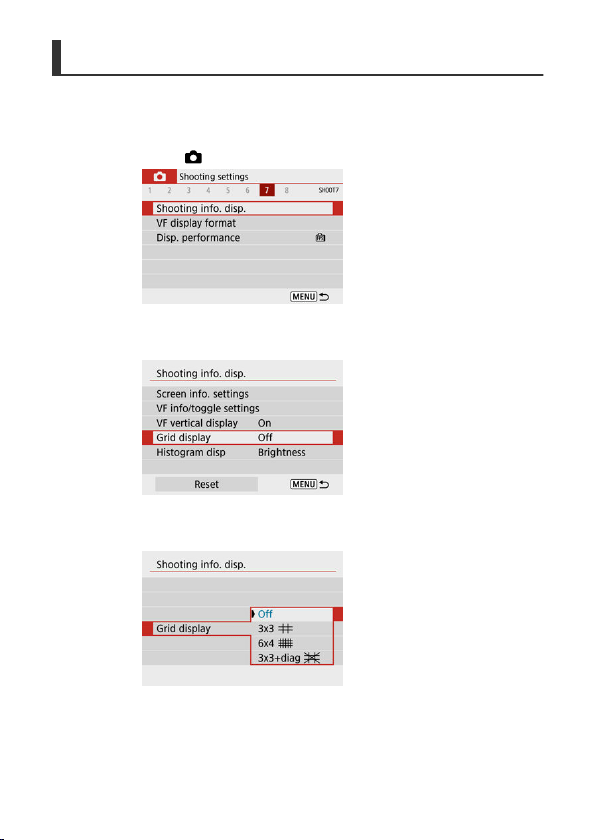
Grid
A grid can be displayed on the screen and viewfinder.
1.
Select [ : Shooting info. disp.].
2.
Select [Grid display].
3.
Select an option.
274
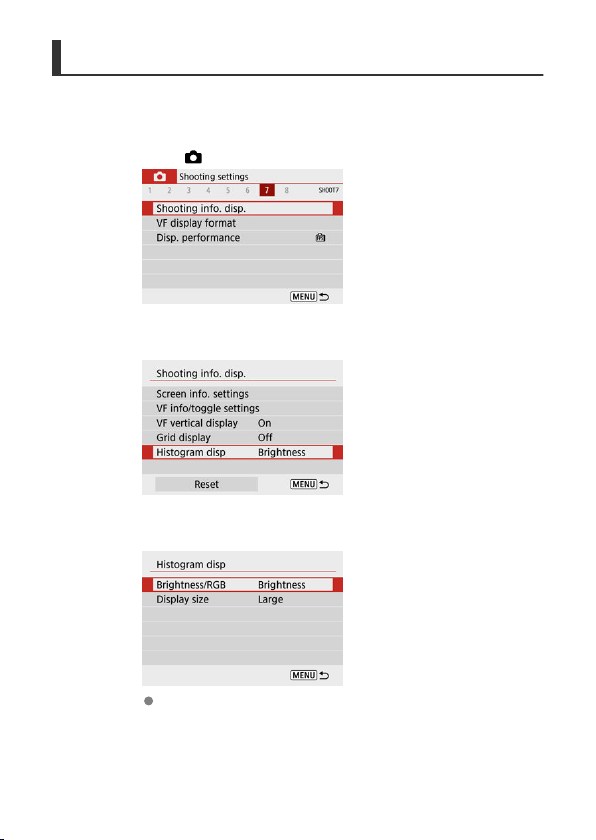
Histogram
You can select the content and display size of the histogram.
1.
Select [ : Shooting info. disp.].
2.
Select [Histogram disp].
3.
Select an option.
Select the content ([Brightness] or [RGB]) and display size ([Large] or
[Small]).
275

Clearing Settings
1.
Select [ : Shooting info. disp.].
2.
Select [Reset].
3.
Select [OK].
276
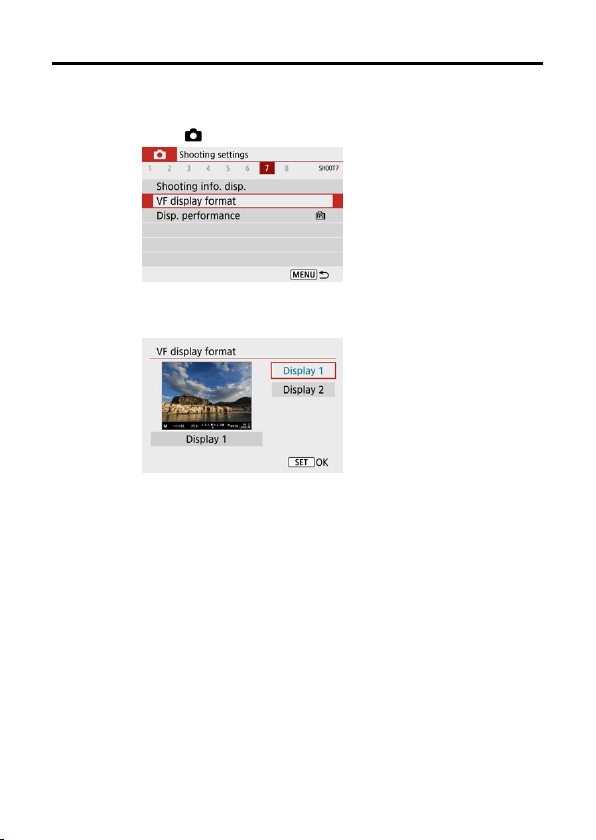
Viewfinder Display Format
1.
Select [ : VF display format].
2.
Select an option.
277
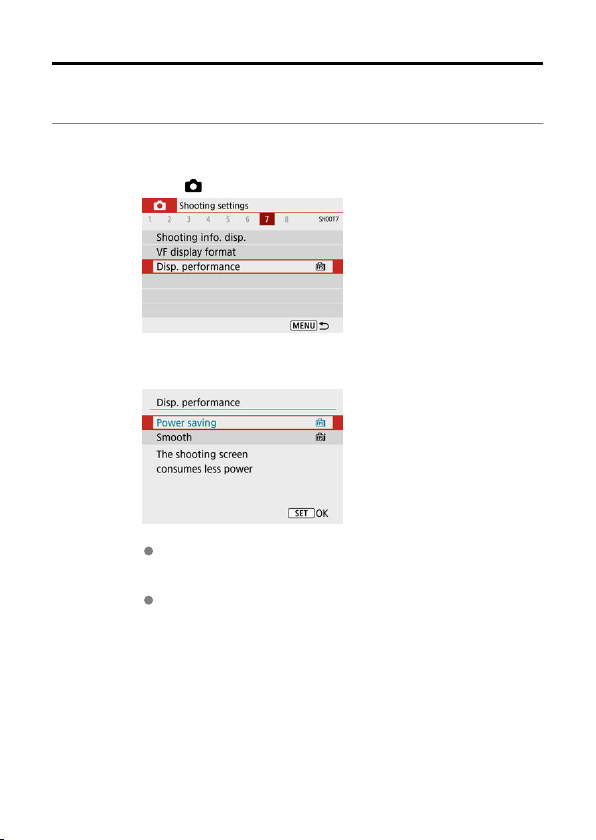
Display Performance
You can select the performance parameter to prioritize in shooting screen display for still
photos.
1.
Select [ : Disp. performance].
2.
Select an option.
Power saving
Screen display consumes less power.
Smooth
Even quick-moving subjects are displayed smoothly.
278
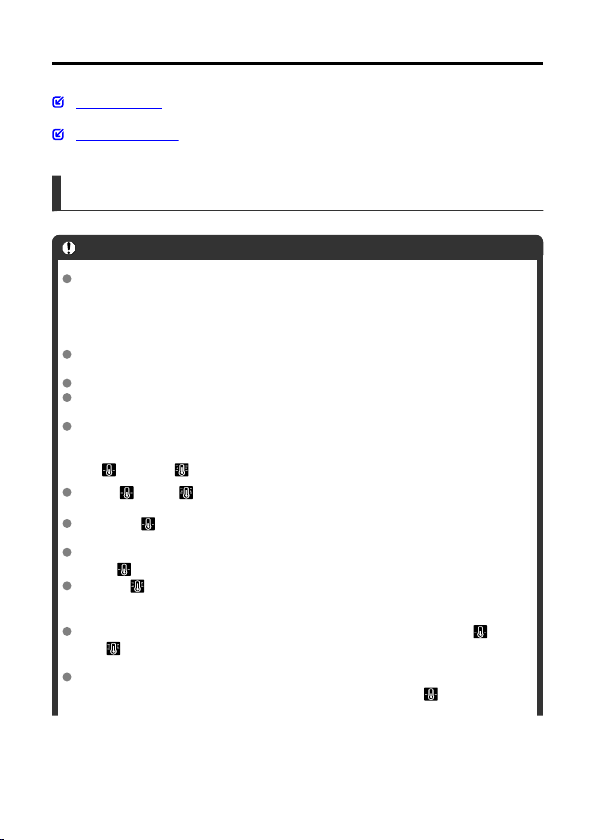
General Still Photo Shooting Precautions
During Shooting
Information Display
During Shooting
Caution
Do not point the camera toward an intense light source, such as the sun or an
intense artificial light source. Doing so may damage the image sensor or the
camera's internal components.
Image quality
Image noise (such as dots of light or banding) or irregular colors may be noticeable
at high ISO speeds.
Shooting in high temperatures may cause noise and irregular colors in the image.
Frequent shooting over an extended period may cause high internal temperatures
and affect image quality. When you are not shooting, always turn off the camera.
If you shoot a long exposure while the camera's internal temperature is high, image
quality may decline. Stop shooting and wait a few minutes before shooting again.
White [ ] and red [ ] icons
White [ ] or red [ ] icons indicate high internal camera temperature, caused by
factors such as extended shooting or use in hot environments.
The white [ ] icon indicates that the image quality of still photos will decline. Stop
shooting for a while and allow the camera to cool down.
Shooting at low ISO speeds instead of high speeds is recommended when the
white [ ] icon is displayed.
The red [ ] icon indicates that shooting will soon be terminated automatically.
Shooting will not be possible again until the camera cools down internally, so stop
shooting temporarily or turn off the camera and let it cool down a while.
Shooting in hot environments over extended periods will cause the white [ ] or
red [ ] icon to appear sooner. When you are not shooting, always turn off the
camera.
If the camera's internal temperature is high, the quality of images shot with a high
ISO speed or long exposure may decline even before the white [ ] icon is
displayed.
279
Shooting results
In magnified view, the shutter speed and aperture value will be displayed in orange.
If you take the picture in magnified view, the exposure may not come out as
desired. Return to the normal view before taking the picture.
Even if you take the picture in magnified view, the image will be captured with the
image area of the normal view.
Images and display
Under low- or bright-light conditions, the displayed image may not reflect the
brightness of the captured image.
Although noise may be noticeable in images under low light (even at low ISO
speeds), there will be less noise in your shots, due to differences in image quality
between displayed and captured images.
The screen or exposure value may flicker if the light source (lighting) changes. In
this case, stop shooting temporarily and resume under the light source you will use.
Pointing the camera at different direction may momentarily prevent correct display
of brightness. Wait until the brightness level stabilizes before shooting.
If there is a very bright light source in the image, the bright area may appear black
on the screen. However, the actual captured image will correctly show the bright
area.
Under low light, bright [ : Screen brightness] or [ : Viewfinder brightness]
settings may cause noise or irregular colors in images. However, the noise or
irregular colors will not be recorded in the captured image.
When you magnify the image, the image sharpness may look more pronounced
than in the actual image.
Custom Functions
Some Custom Functions are not available (some settings have no effect).
Lens
Image Stabilizer is active all times, even without the shutter button pressed
halfway, when you use IS-equipped lenses with the IS switch set to < > and [IS
mode] in [ : IS (Image Stabilizer) mode] is set to [On].
The Image Stabilizer consumes battery power and may decrease the number of
available shots depending on the shooting conditions. When the Image Stabilizer is
not necessary, such as when using a tripod, it is recommended that you set the
Image Stabilizer switch to < >.
With EF lenses, focus preset during shooting is only available when using (super)
telephoto lenses equipped with this function released in and after the second half of
2011.
Note
Using a commercially available HDMI cable, you can display images on a television
( ). Note that no sound will be output.
280
Information Display
For details on the icons displayed for still photo shooting, see Still Photo Shooting Screen.
Note
White display of the [ ] icon indicates that your shots will be about as bright as
the image displayed.
If the [ ] icon is blinking, it indicates that the image is displayed at a brightness
that differs from the actual shooting result because of low- or bright-light conditions.
However, the actual image recorded will reflect the exposure setting. Note that the
noise may be more noticeable than the actual image recorded.
Exposure simulation may not be performed under some shooting settings. The
[ ] icon and histogram will be displayed in gray. The image will be displayed on
the screen at the standard brightness. The histogram may not be properly
displayed in low- or bright-light conditions.
Histogram display is available when [ : Expo. simulation] is set to [Enable] ( ).
281
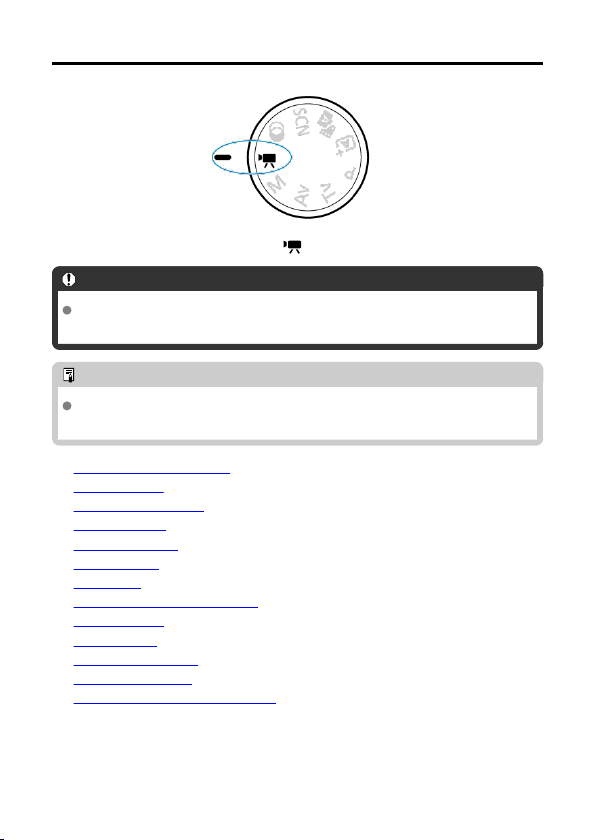
Movie Recording
For movie recording, set the Mode dial to < >.
Caution
When switching from still photo shooting to movie recording, check the camera
settings again before recording movies.
Note
You can record movies by pressing the movie shooting button during still photo
shooting.
• Tab Menus: Movie Recording
• Movie Recording
• Movie Recording Quality
• Sound Recording
• Time-Lapse Movies
• Movie Servo AF
• Digital Zoom
• Shutter Button Function for Movies
• Movie Self-Timer
• Movie Digital IS
• Miniature Effect Movies
• Other Menu Functions
• General Movie Recording Precautions
282
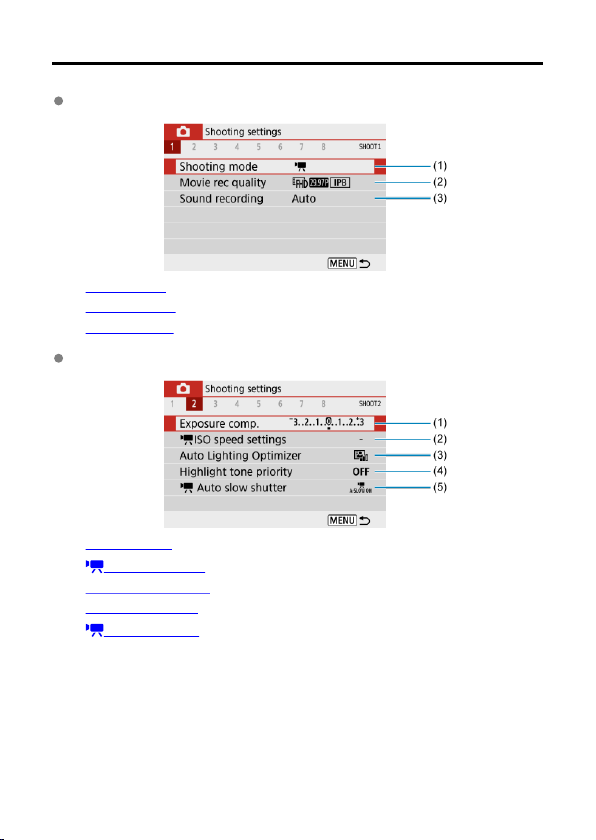
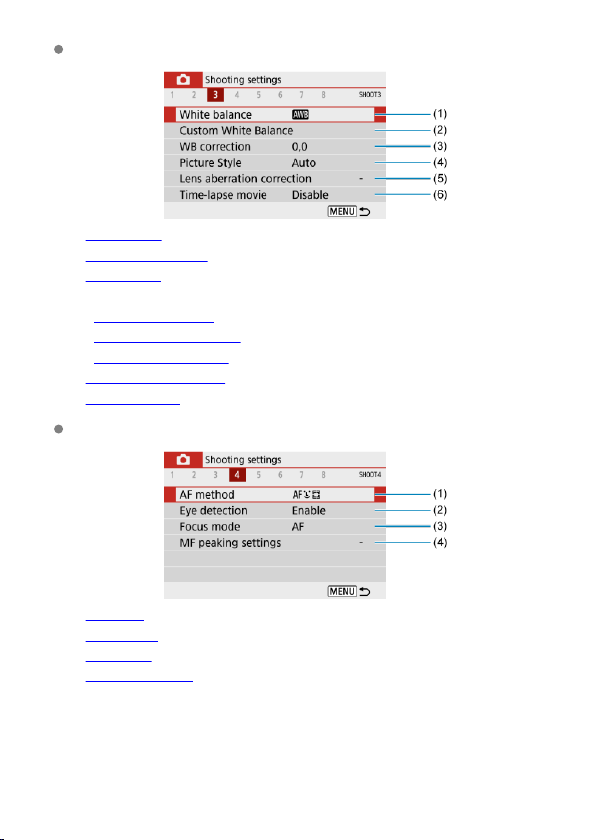
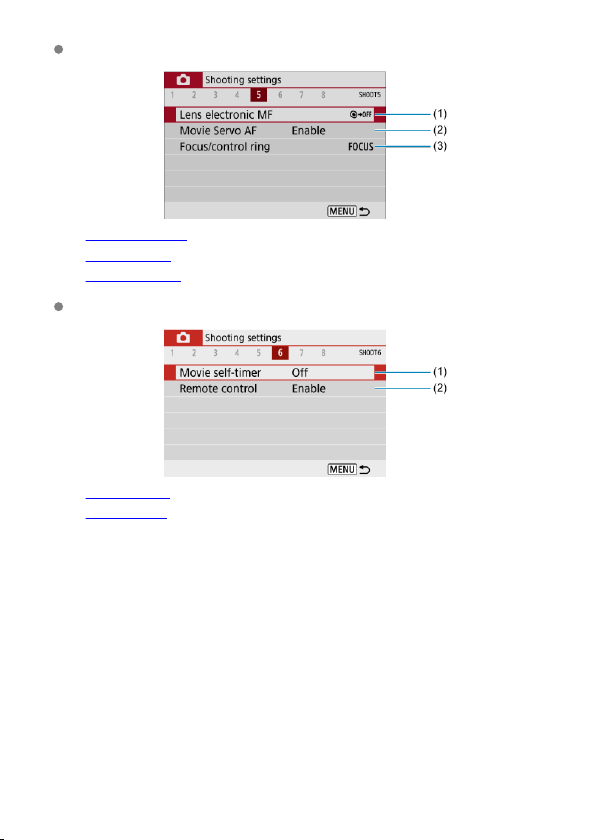
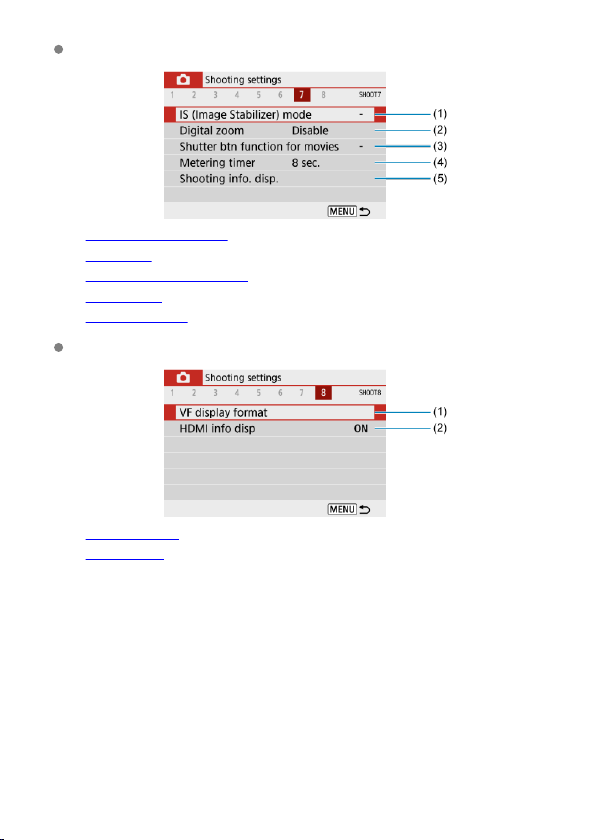
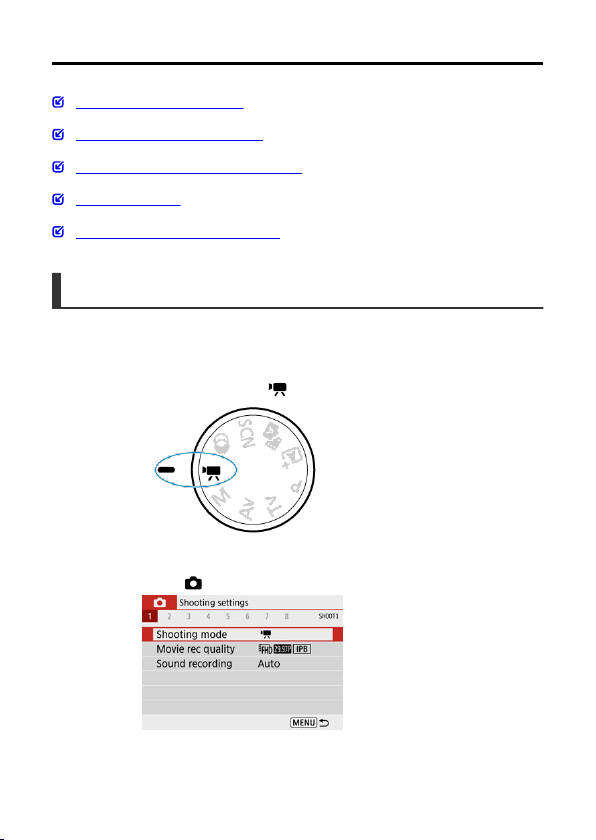
Movie Recording
Autoexposure Movie Recording
Manual Exposure Movie Recording
ISO Speed in Manual Exposure Recording
Still Photo Shooting
Information Display (Movie Recording)
Autoexposure Movie Recording
Exposure is controlled automatically to suit the brightness.
1.
Set the Mode dial to < >.
2.
Select [ : Shooting mode].
287
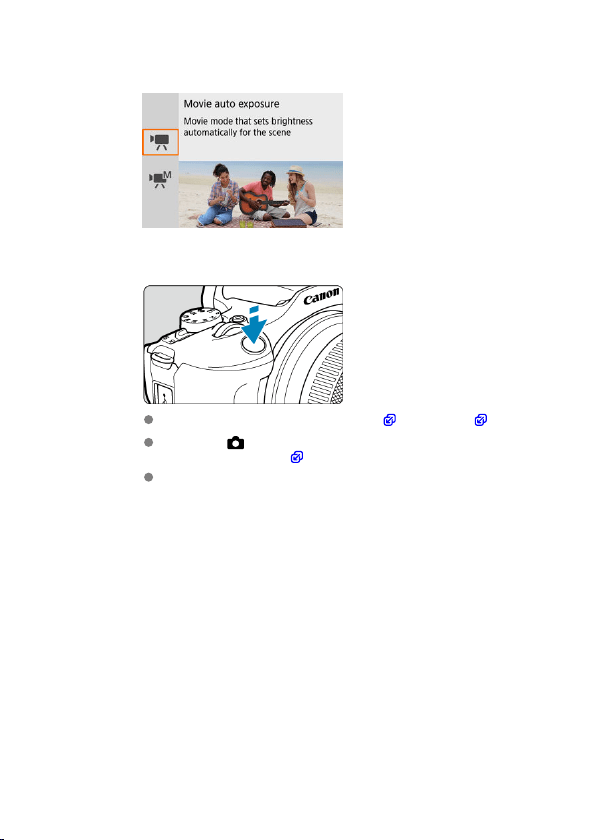
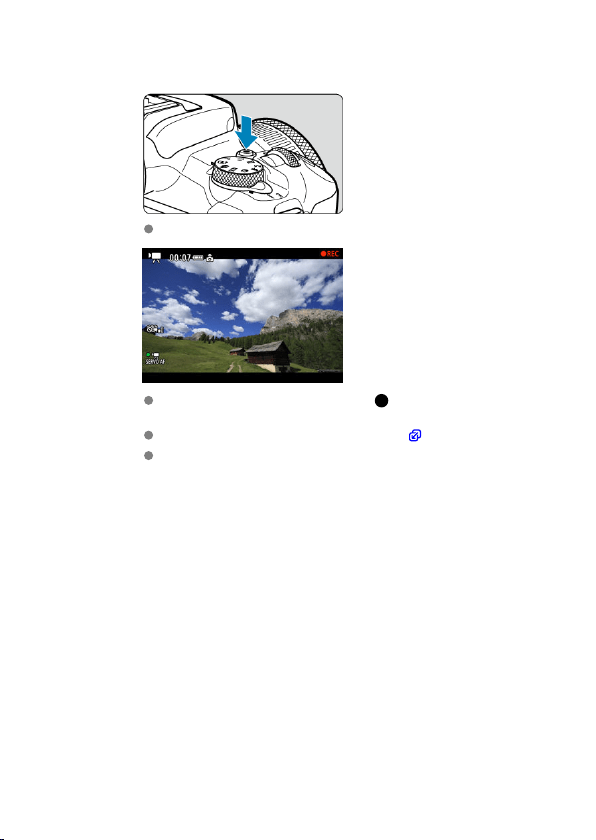
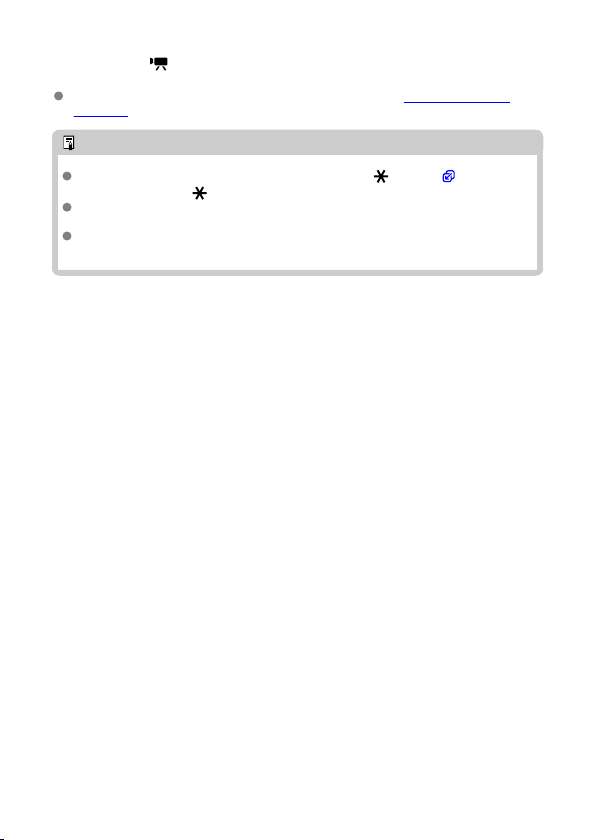
ISO Speed in [ ] Mode
ISO speed is set automatically. For details on ISO speed, see ISO Speed in Movie
Recording.
Note
You can lock the exposure (AE lock) by pressing the < > button ( ). To cancel
AE lock, press the < > button again.
Exposure compensation in manual exposure movie recording can be set in a range
of up to ±3 stops.
ISO speed, shutter speed, and aperture value are not recorded in movie Exif
information.
290
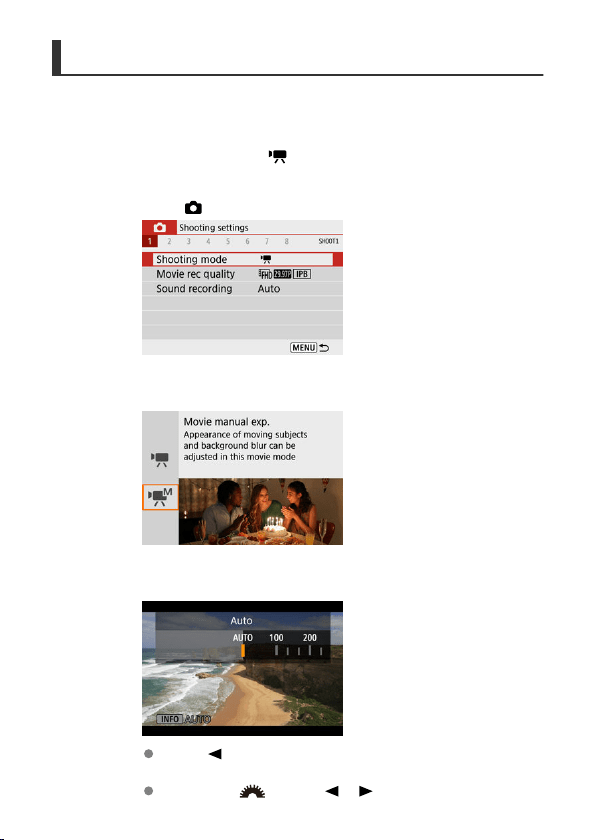
Manual Exposure Movie Recording
You can manually set the shutter speed, aperture value, and ISO speed for movie recording.
1.
Set the Mode dial to < >.
2.
Select [ : Shooting mode].
3.
Select [Movie manual exp.].
4.
Set the ISO speed.
Press < >.
The ISO speed setting screen is displayed.
Set with the < > dial or < >< > keys.
291
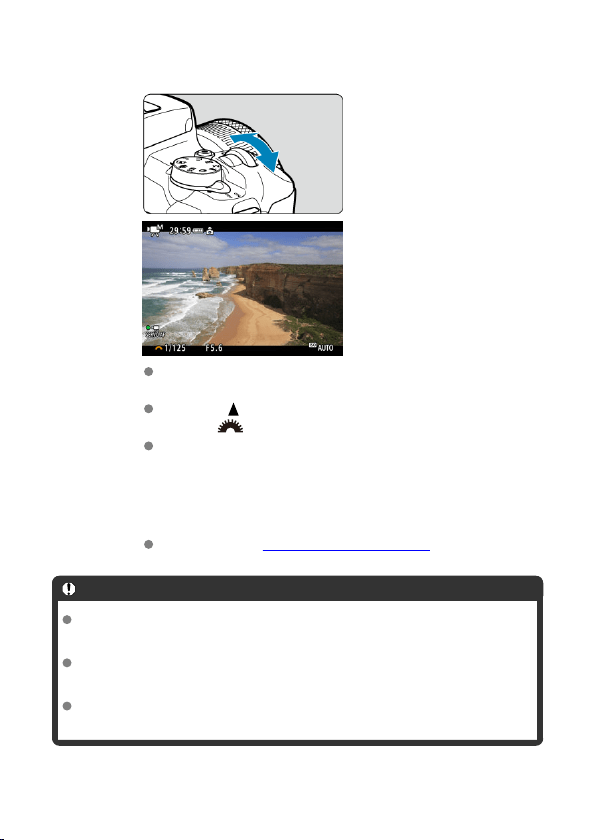
5.
Set the shutter speed and aperture value.
Press the shutter button halfway and check the exposure level
indicator.
Press the < > key to select the shutter speed or aperture value, then
turn the < > dial to set a value.
Shutter speed can be set in a range of 1/4000–1/8 sec.
6.
Focus and record the movie.
Same as step 4 in Autoexposure Movie Recording.
Caution
During movie recording, avoid changing the shutter speed, aperture value, or ISO
speed, which may record changes in the exposure or create more noise at high
ISO speeds.
When recording a movie of a moving subject, a shutter speed of approx. 1/25 sec.
to 1/125 sec. is recommended. The faster the shutter speed, the less smooth the
subject's movement will look.
Flickering shown on the screen when recording under fluorescent or LED lighting
may be recorded if you change the shutter speed.
292
Note
With ISO Auto, exposure compensation can be set in a range of ±3 stops ( ).
To lock the ISO speed when ISO Auto is set, press the < > button. Press the
< > button again to cancel ISO speed locking.
If you press the < > button and recompose the shot, you can see the exposure
level difference on the exposure level indicator compared to when the < >
button was pressed.
293
ISO Speed in Manual Exposure Recording
You can set the ISO speed manually or select [ ]. For details on ISO speed, see ISO
Speed in Movie Recording.
Still Photo Shooting
Still photos cannot be taken during movie recording. To shoot still photos, turn the
Mode dial to switch to another shooting mode.
Information Display (Movie Recording)
For details on the icons on the movie recording screen, see Movie Recording Screen.
294
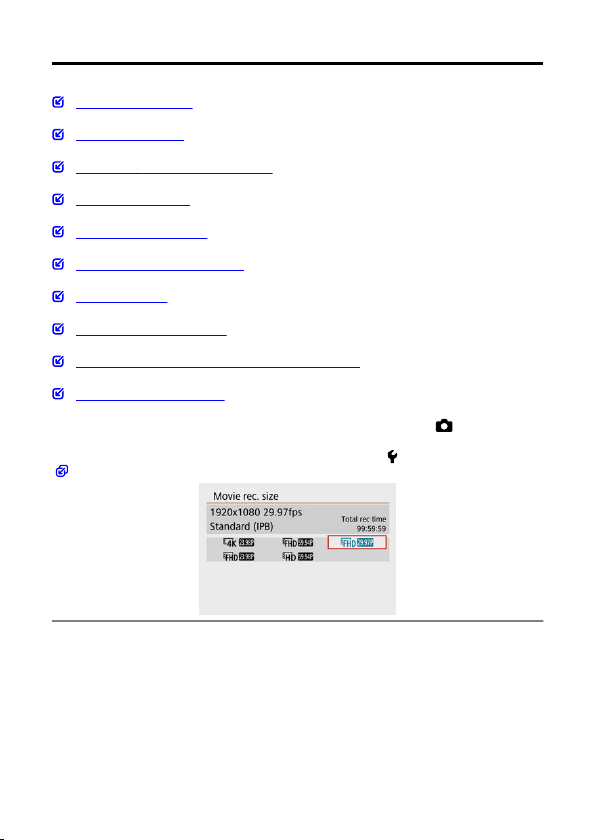
Movie Recording Quality
Movie Recording Size
4K Movie Recording
Frame Rate (fps: frames per second)
Compression Method
Movie Recording Format
Cards That Can Record Movies
High Frame Rate
Movie Files Exceeding 4 GB
Total Movie Recording Time and File Size Per Minute
Movie Recording Time Limit
You can set the recording size, frame rate, and compression method in [ : Movie rec
quality]. The movie will be recorded as an MP4 file.
Note that the frame rate is updated automatically to match the [ : Video system] setting
( ).
295

Movie Recording Size
[ ] 3840×2160
The movie is recorded in 4K quality. The aspect ratio is 16:9.
[ ] 1920×1080
The movie will be recorded in Full High-Definition (Full HD) quality. The aspect ratio is
16:9.
[ ] 1280×720
The movie is recorded in High-Definition (HD) quality. The aspect ratio is 16:9.
Caution
If you change the [ : Video system] setting, also set [Movie rec. size] again.
Normal playback of 4K and / movies may not be possible on other
devices, because playback is processing-intensive.
Apparent resolution and noise vary depending on movie recording quality and
settings for the lens used.
Note
Movies cannot be recorded in VGA quality.
4K Movie Recording
Recording 4K movies requires a stable card with a fast writing speed. For details, see
Cards That Can Record Movies.
4K movie recording greatly increases the processing load, which may increase the
internal camera temperature faster or higher than for regular movies. If a red [ ] icon
appears during movie recording, the card may be hot, so stop recording the
movie and let the camera cool down before removing the card. (Do not remove the
card immediately.)
From a 4K movie, you can select any frame to save to the card as a JPEG still image
( ).
Caution
Contrast detection is used to focus when recording 4K movies. Focusing may take
longer than when recording HD or Full HD movies.
296
Frame Rate (fps: frames per second)
[ ] 59.94 fps/[ ] 29.97 fps/[ ] 23.98 fps
Set for areas using the NTSC TV system, such as North America, Japan, South Korea,
and Mexico.
[ ] 50.00 fps/[ ] 25.00 fps
Set for areas using the PAL TV system, such as Europe, Russia, China, and Australia.
Compression Method
[ ] IPB (Standard)
Compresses multiple frames at a time efficiently for recording.
[ ] ALL-I (For editing/
I-only)
Uses ALL-I compression for time-lapse movie recording (
). Compresses each frame,
one at a time, for recording. Although file sizes are larger than with IPB (Standard),
movies are more suitable for editing.
Movie Recording Format
[ ] MP4
All movies you record with the camera are recorded as movie files in MP4 format (file
extension “.MP4”).
297
Cards That Can Record Movies
See Card performance requirements (movie recording) [write/read speed] for details on
cards that can record at each level of movie recording quality.
Test cards by recording a few movies to make sure they can record correctly at your
specified size ( ).
Caution
Format cards before recording 4K movies ( ).
If you use a slow-writing card when recording movies, the movie may not be
recorded properly. Also, if you play back a movie on a card with a slow reading
speed, the movie may not be played back properly.
When recording movies, use high-performance cards with a writing speed
sufficiently higher than the bit rate.
When movies cannot be recorded properly, format the card and try again. If
formatting the card does not resolve the problem, refer to the card manufacturer's
website, etc.
Note
To obtain better performance with the card, formatting the card with the camera
before recording movies is recommended ( ).
To check the card's writing/reading speed, refer to the card manufacturer's website,
etc.
298
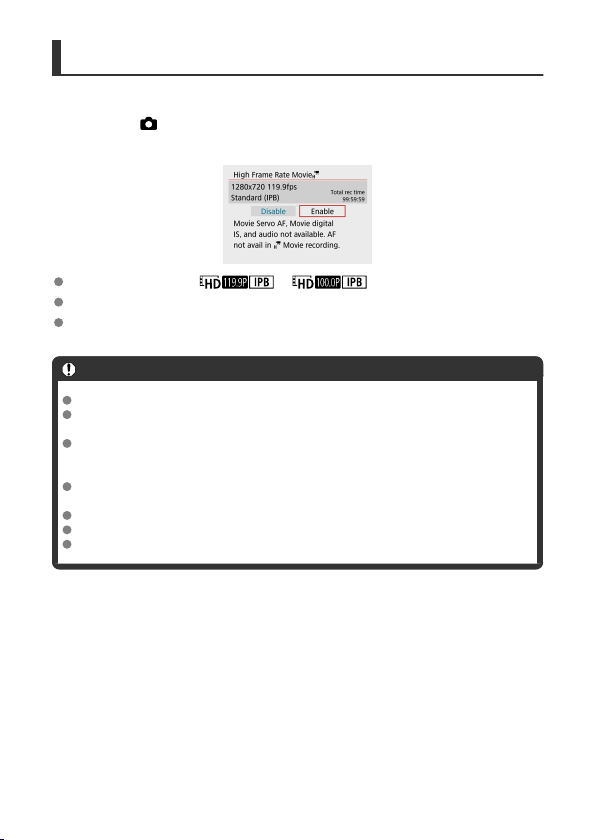
High Frame Rate
You can record HD movies at a high frame rate of 119.88 fps or 100.00 fps by setting [High
Frame Rate] in [ : Movie rec quality] to [Enable]. This is ideal for recording movies that
will be played back in slow motion.
The maximum recording time per movie is 7 min. 29 sec.
Movies are recorded in or quality.
Sound is not recorded in High Frame Rate movies.
Because High Frame Rate movies are recorded as 29.97 fps/25.00 fps movie files, they
are played back in slow motion at 1/4 speed.
Caution
Check the [Movie rec. size] setting if you return this setting to [Disable].
The screen may flicker if you record High Frame Rate movies under fluorescent or
LED lighting.
For a moment when you start or stop recording High Frame Rate movies, the
movie is not updated, and the frame stops momentarily. Be aware of this when
recording movies to external devices via HDMI.
Movie frame rates shown on the screen as you record High Frame Rate movies do
not correspond to the frame rate of the movie recorded.
Sound is not recorded.
Movie Servo AF and Movie digital IS are disabled.
AF is not performed during High Frame Rate movie recording.
299
Movie Files Exceeding 4 GB
Even if you record a movie exceeding 4 GB, you can keep recording without interruption.
Using SD/SDHC cards formatted with the camera
FAT32 formatting is applied when the camera is used to format SD/SDHC cards.
With a FAT32-formatted card, if you record a movie and the file size exceeds 4 GB, a
new movie file will be created automatically.
When you play back the movie, you will have to play back each movie file individually.
Movie files cannot be played back automatically in consecutive order. After the movie
playback ends, select the next movie and play it back.
Using SDXC cards formatted with the camera
exFAT formatting is applied when the camera is used to format SDXC cards.
When using an exFAT-formatted card, even if the file size exceeds 4 GB during movie
recording, the movie will be saved as a single file (rather than being split into multiple
files).
Caution
When importing movie files exceeding 4 GB to a computer, use either EOS Utility
or a card reader ( ). It may not be possible to save movie files exceeding 4 GB if
you attempt this using standard features of the computer's operating system.
300

Total Movie Recording Time and File Size Per Minute
For details on file sizes and the recording time available at each movie recording size, see
Estimated recording time and movie bit rate/file size.
Movie Recording Time Limit
When recording 4K/Full HD/HD movies
The maximum recording time per movie is 29 min. 59 sec. Once 29 min. 59 sec. is
reached, recording automatically stops. You can start recording a movie again by
pressing the movie shooting button (which records the movie as a new file).
When recording High Frame Rate movies
The maximum recording time per movie is 7 min. 29 sec. Once 7 min. 29 sec. is
reached, recording automatically stops. You can start recording a High Frame Rate
movie again by pressing the movie shooting button (which records the movie as a new
file).
301
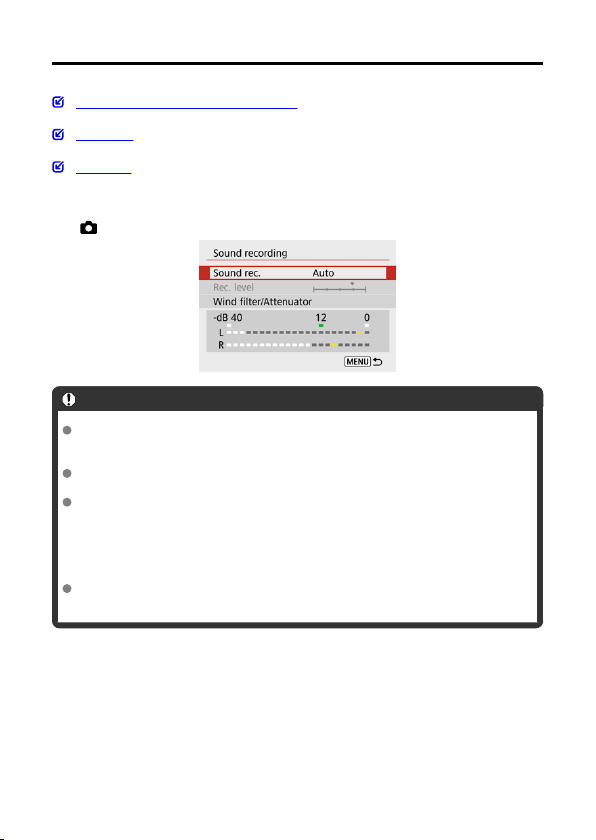
Sound Recording
Sound Recording/Sound-Recording Level
Wind Filter
Attenuator
You can record movies while recording sound with either the built-in microphone or an
external one. You can also freely adjust the sound-recording level.
Use [ : Sound rec.] to set sound recording functions.
Caution
Sounds from Wi-Fi operations may be captured with built-in or external
microphones. During sound recording, using the wireless communication function
is not recommended.
When connecting an external microphone to the camera, make sure the plug is
fully inserted.
The camera's built-in microphone will also record mechanical sounds of the lens or
sounds of camera/lens operations if AF operations are performed or the camera is
operated during movie recording. In this case, using an external microphone may
reduce these sounds. If the sounds are still distracting with an external microphone,
it may be more effective to remove the external microphone from the camera and
position it away from the camera and lens.
Do not connect anything other than an external microphone to the camera's
external microphone IN terminal.
302
Note
In Basic Zone modes, the settings available for [Sound recording] are [On] and
[Off]. Set to [On] for automatic adjustment of the recording level.
Audio is also output when the camera is connected to televisions via HDMI, unless
[Sound rec.] is set to [Disable].
Sound is recorded at a 48 kHz/16-bit sampling rate.
Sound Recording/Sound-Recording Level
Auto
The sound-recording level is adjusted automatically. Auto level control will take effect
automatically in response to the sound level.
Manual
You can adjust the sound-recording level as needed.
Select [Rec. level] and press the < >< > keys while looking at the level meter to
adjust the sound-recording level. Look at the peak hold indicator, and adjust so that the
level meter sometimes lights up on the right of the “12” (–12 dB) mark for the loudest
sounds. If it exceeds
“0,” the sound will be distorted.
Disable
Sound will not be recorded.
303

Wind Filter
Set to [Enable] for automatic reduction of audio distortion in windy outdoor scenes. Only
activated when the camera's built-in microphone is used. When the wind filter function takes
effect, part of the low bass sounds will also be reduced.
Attenuator
This feature suppresses sound distortion caused by loud noises. Set to [Enable] if sound is
distorted with [Sound rec.] set to [Auto] or [Manual].
304
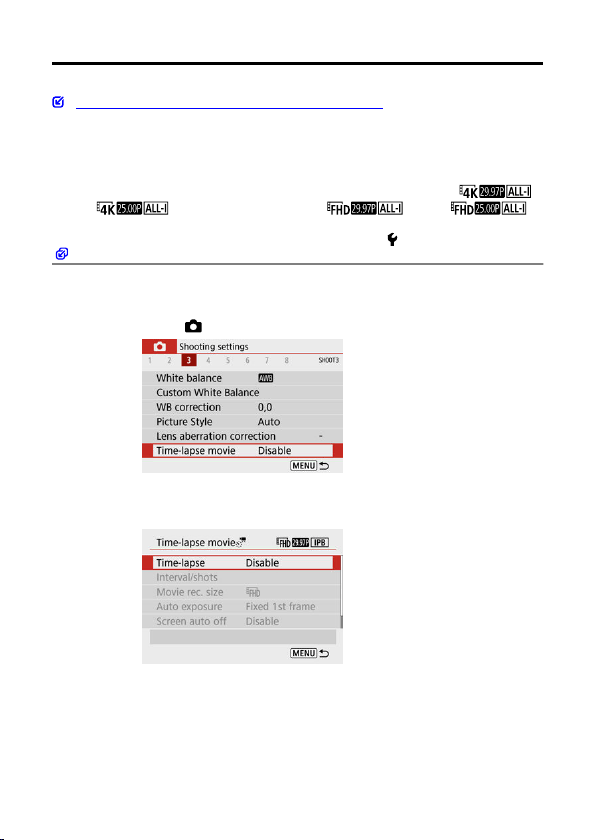
Time-Lapse Movies
Approx. Time Available for Recording Time-Lapse Movies
Still photos shot at a set interval can be stitched together automatically to create a 4K or Full
HD time-lapse movie. A time-lapse movie shows how a subject changes in a much shorter
period of time than the actual time it took. It is effective for a fixed-point observation of
changing scenery, growing plants, celestial motion, etc.
Time-lapse movies are recorded in MP4 format at the following quality:
(NTSC)/ (PAL) in 4K recording, and (NTSC)/
(PAL) in Full HD recording.
Note that the frame rate is updated automatically to match the [ : Video system] setting
( ).
1.
Select [ : Time-lapse movie].
2.
Select [Time-lapse].
305
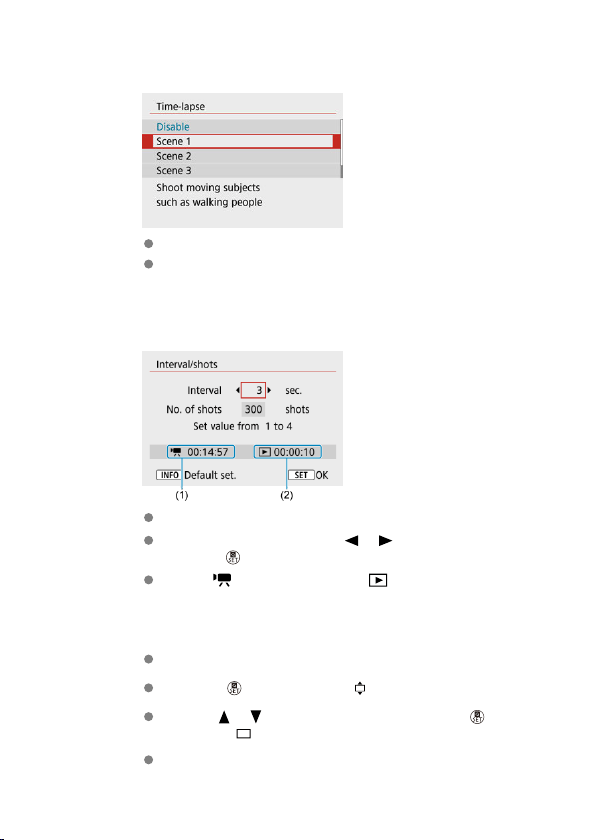
3.
Select a scene.
Select a scene to suit the shooting situation.
For greater freedom when setting the shooting interval and number of
shots manually, select [Custom].
4.
Set the shooting interval.
Select [Interval/shots].
Select [Interval] (sec.). Use the < >< > keys to set a value, then
press the <
> button.
Refer to [ : Time required] (1) and [ : Playback time] (2) as you
set it.
When [Custom] is set
Select [Interval] (min.:sec.).
Press the < > button to display < >.
Use the < >< > keys to set a value, then press the < > button.
(Returns to < >.)
Select [OK] to register the setting.
306
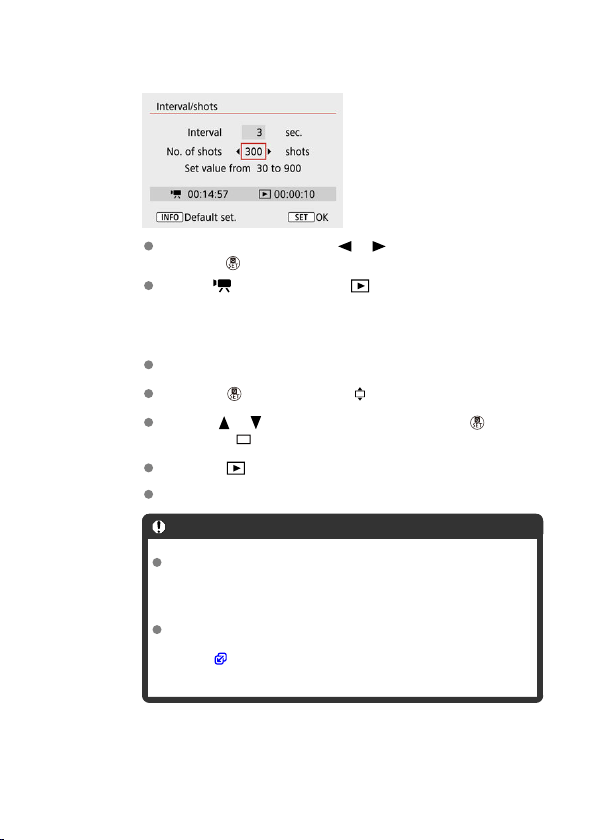
5.
Set the number of shots.
Select [No. of shots]. Use the < >< > keys to set a value, then
press the < > button.
Refer to [ : Time required] and [ : Playback time] as you set the
number.
When [Custom] is set
Select the digit.
Press the < > button to display < >.
Use the < >< > keys to set a value, then press the < > button.
(Returns to < >.)
Make sure [ : Playback time] is not displayed in red.
Select [OK] to register the setting.
Caution
[Playback time] is displayed in red if the card does not have
enough free space for your specified number of shots. Although
the camera can continue recording, the recording will stop when
the card becomes full.
[Playback time] is displayed in red if the [No. of shots] setting
results in a file size exceeding 4 GB for a card not formatted in
exFAT ( ). If you keep recording in this condition and the movie
file size reaches 4 GB, the time-lapse movie recording will stop.
307
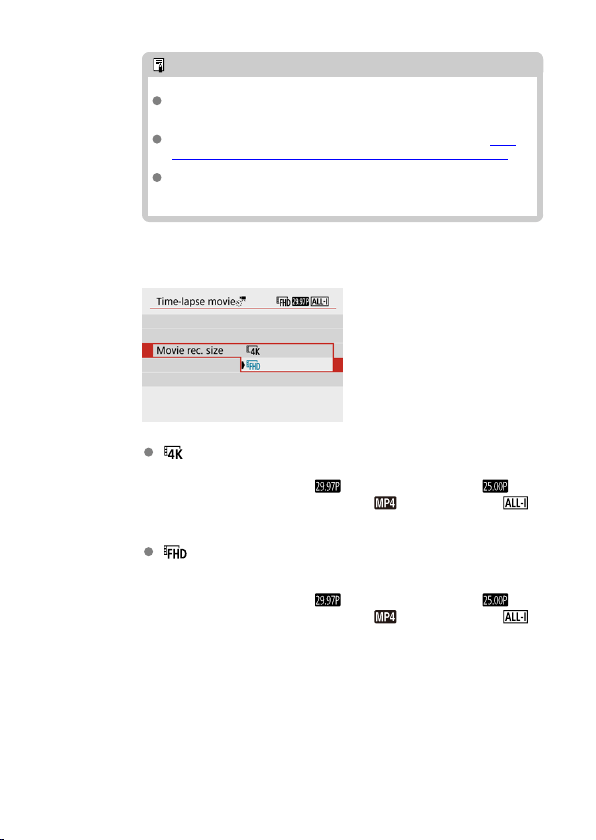
Note
With [Scene *], available intervals and numbers of shots are
restricted, to suit the type of scene.
For details on cards that can record time-lapse movies, see Card
performance requirements (movie recording) [write/read speed].
If the number of shots is set to 3600, the time-lapse movie will be
approx. 2 min. in NTSC and approx. 2 min. 24 sec. in PAL.
6.
Select the desired movie recording size.
(3840 × 2160)
The movie is recorded in 4K quality. The aspect ratio is 16:9.
The frame rate is 29.97 fps ( ) for NTSC and 25.00 fps ( ) for
PAL, and movies are recorded in MP4 ( ) format with ALL-I ( )
compression.
(1920 × 1080)
The movie will be recorded in Full High-Definition (Full HD) quality. The
aspect ratio is 16:9.
The frame rate is 29.97 fps ( ) for NTSC and 25.00 fps ( ) for
PAL, and movies are recorded in MP4 ( ) format with ALL-I ( )
compression.
308
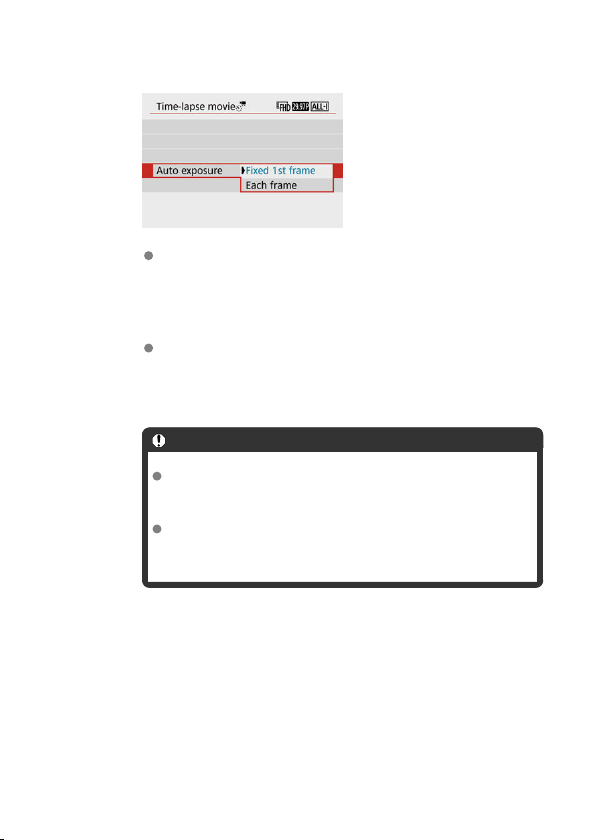
7.
Set [Auto exposure].
Fixed 1st frame
When taking the first shot, metering is performed to set the exposure
automatically to match the brightness. The exposure setting for the first
shot will be applied to subsequent shots. Other shooting-related
settings for the first shot will also be applied for subsequent shots.
Each frame
Metering is also performed for each subsequent shot to set the
exposure automatically to match the brightness. Note that any
functions such as Picture Style and white balance that are set to [Auto]
will be set automatically for each subsequent shot.
Caution
Significant changes in brightness between shots may prevent the
camera from shooting at the specified interval when [Interval] is
set to 3 sec. or less and [Auto exposure] is set to [Each frame].
With [Auto exposure] set to [Each frame], the ISO speed, shutter
speed, and aperture value may not be recorded in the time-lapse
movie Exif information in some shooting modes.
309
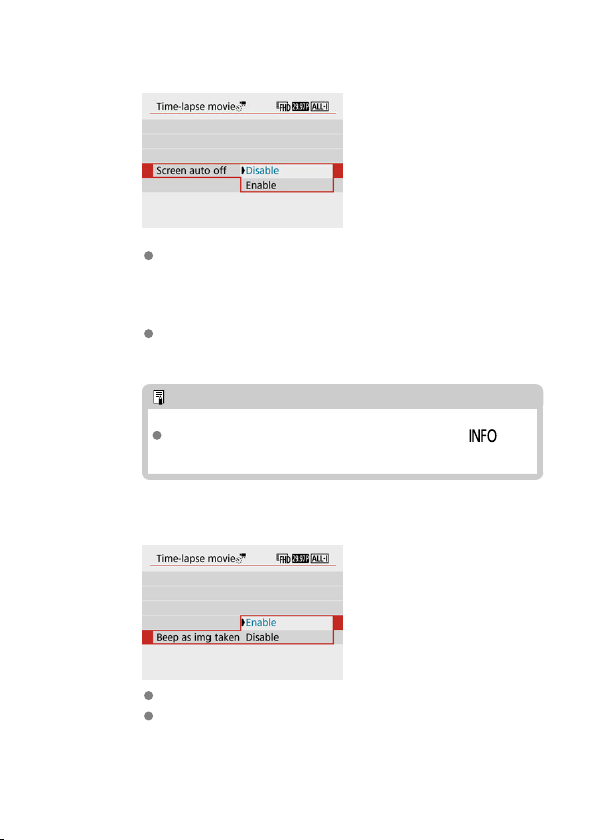
8.
Set [Screen auto off].
Disable
Even during time-lapse movie recording, the image will be displayed.
(The screen turns off only at the time of shooting.) Note that the screen
will turn off when approx. 30 min. elapse after the shooting started.
Enable
Note that the screen will turn off when approx. 10 sec. elapse after the
shooting started.
Note
During time-lapse movie recording, you can press the < >
button to turn on/off the screen.
9.
Set the beeper.
Select [Beep as img taken].
Set to [Disable] to prevent the camera from beeping for each shot.
310
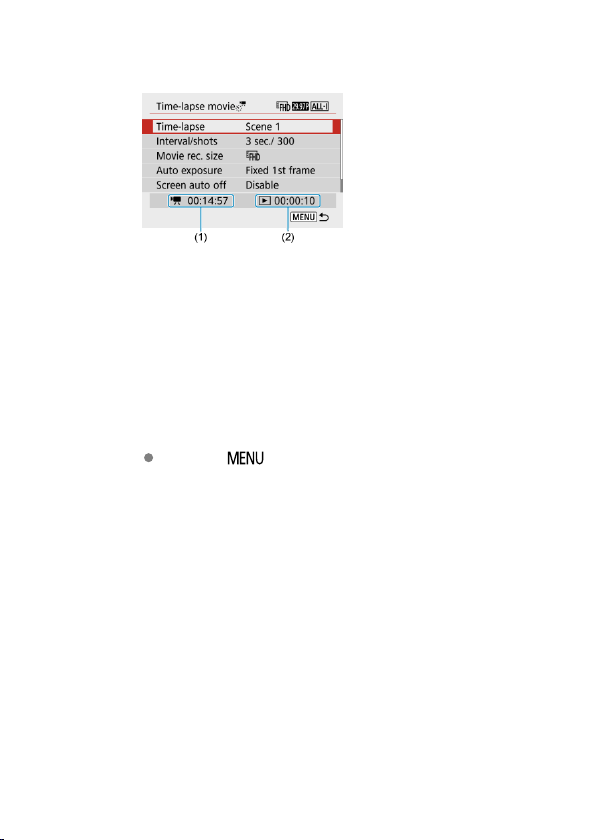
10.
Check the settings.
(1) Time required
Indicates the time required to shoot the set number of shots with the set
interval. If it exceeds 24 hours, “*** days” will be displayed.
(2) Playback time
Indicates the movie recording time (time required to play back the movie)
when creating the time-lapse movie in 4K movie or Full HD movie from the
still photos taken with the set intervals.
11
.
Close the menu.
Press the < > button to turn off the menu screen.
311
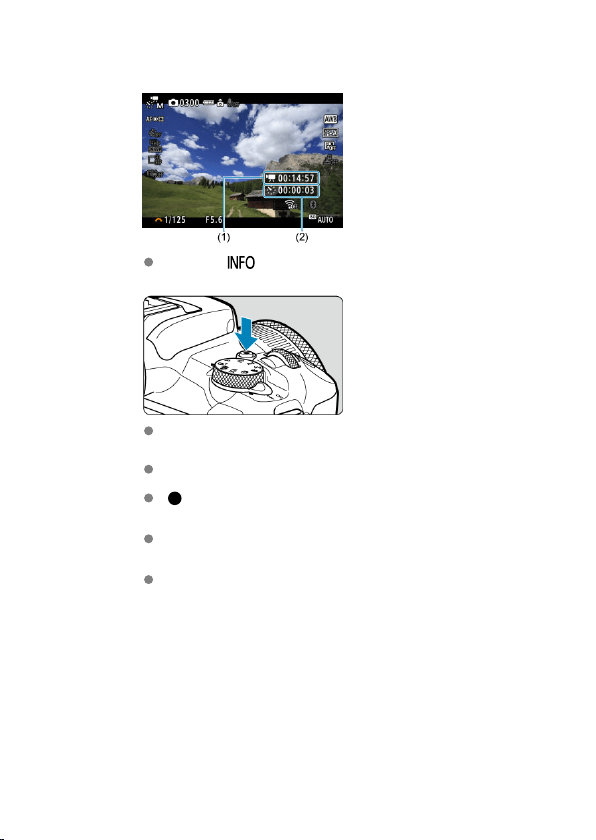
12.
Record the time-lapse movie.
Press the < > button and check again the “Time required (1)” and
“Interval (2)” displayed on the screen.
Press the movie shooting button to start time-lapse movie recording.
AF will not work during time-lapse movie recording.
“ REC” is displayed in the upper right of the screen as the time-lapse
movie is recorded.
When the set number of shots are taken, the time-lapse movie
recording ends.
To cancel recording time-lapse movies, set [Time-lapse] to [Disable].
312
Caution
Do not point the camera toward an intense light source, such as the sun or an
intense artificial light source. Doing so may damage the image sensor or the
camera's internal components.
[ : Time-lapse movie] cannot be set to an option other than [Disable] when the
camera is connected to a computer with the interface cable, or when an HDMI
cable is connected.
Movie Servo AF will not function.
If the shutter speed is 1/30 sec. or slower, the exposure of the movie may not be
displayed properly (may differ from that of the resulting movie).
Do not zoom the lens during time-lapse movie recording. Zooming the lens may
cause the image to be out of focus, the exposure to change, or the lens aberration
correction not to function properly.
Recording time-lapse movies under flickering light may cause noticeable screen
flickering, and images may be captured with horizontal stripes (noise) or irregular
exposure.
Images displayed as time-lapse movies are recorded may look different from the
resulting movie (in details such as inconsistent brightness from flickering light
sources, or noise from a high ISO speed).
When recording a time-lapse movie under low light, the image displayed during
shooting may look different from what is actually recorded in the movie.
If you move the camera from left to right (panning) or shoot a moving subject during
time-lapse movie recording, the image may look extremely distorted.
During time-lapse movie recording, auto power off will not take effect. Also, you
cannot adjust the shooting function and menu function settings, play back images,
etc.
Sound is not recorded for time-lapse movies.
The camera may not shoot if the shutter speed nearly coincides with the shooting
interval.
If the next scheduled shot is not possible, it will be skipped. This may shorten the
recording time of the created time-lapse movie.
If the time it takes to record to the card exceeds the shooting interval due to the
shooting functions set or card performance, some of the shots may not be taken
with the set intervals.
The captured images are not recorded as still photos. Even if you cancel the time-
lapse movie recording after only one shot is taken, it will be recorded as a movie
file.
Set [ : Time-lapse movie] to [Disable] if you will connect the camera to a
computer with the interface cable and use EOS Utility (EOS software). Options
other than [Disable] will prevent the camera from communicating with the
computer.
313

During time-lapse movie recording, the lens's Image Stabilizer will not operate.
Time-lapse movie recording ends if the power switch is set to < >, and the
setting changes to [Disable].
Even if a flash is used, it will not fire.
The following operations cancel standby for time-lapse movie recording and switch
the setting to [Disable].
• Selecting [Basic settings] in [ : Reset camera]
• Using the Mode dial
If you start time-lapse movie recording while the white [ ] ( ) icon is displayed,
the image quality of the time-lapse movie may deteriorate. It is recommended that
you start time-lapse movie recording after the white [ ] icon disappears (camera's
internal temperature decreases).
Note
Using a tripod is recommended.
Taking test shots in advance is recommended.
The movie's field of view coverage for both the 4K and Full HD time-lapse movie
recording is approx. 100%.
To cancel time-lapse movie recording in progress, press the movie shooting button.
The time-lapse movie shot so far will be recorded on the card.
If the time required for recording is more than 24 hours but not more than 48 hours,
“2 days” will be indicated. If three or more days are required, the number of days
will be indicated in 24-hour increments.
Even if the time-lapse movie's playback time is less than 1 sec., a movie file will still
be created. In this case, “00'00"” is indicated in [Playback time].
If the recording time is long, using the household power outlet accessories (sold
separately) is recommended.
YCbCr 4:2:0 (8-bit) color sampling and the BT.709 color space are used for 4K/Full
HD time-lapse movies.
314

Note
You can use Wireless Remote Control BR-E1
(sold separately) to start and stop the
time-lapse movie recording. Prepare by setting [
: Remote control] to [Enable].
With Wireless Remote Control BR-E1
• First, pair the BR-E1 with the camera ( ).
Camera Status/
Remote Control
Setting
< > (Immediate Release)
<2> (2-sec. Delay)
< > (Movie
Recording)
Recording standby
As set in the Shutter Button Function for
Movies setting
Starts recording
During time-lapse
movie recording
Ends recording
Approx. Time Available for Recording Time-Lapse Movies
For guidelines on how long you can record time-lapse movies (until the battery runs out),
see Available operating time.
315
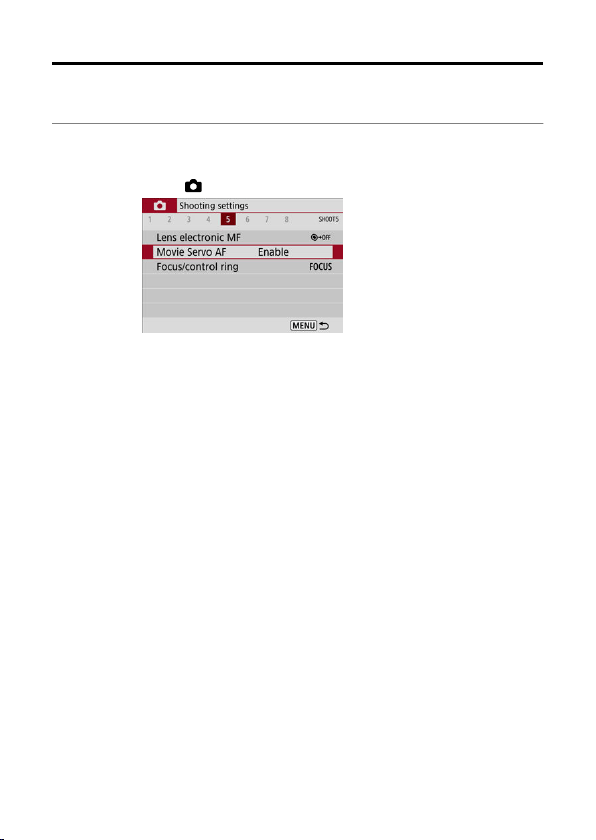
Movie Servo AF
With this function enabled, the camera focuses on the subject continuously during movie
recording.
1.
Select [ : Movie Servo AF].
316
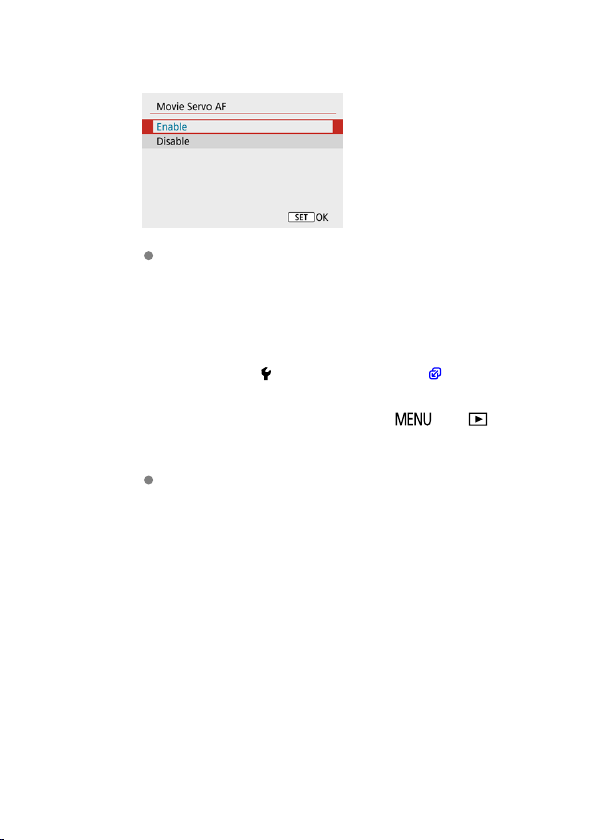
2.
Select [Enable].
With [Enable] set
• The camera focuses on the subject continuously even when you
are not pressing the shutter button halfway.
• To keep the focus at a specific position, or if you prefer not to
record mechanical sounds from the lens, you can temporarily stop
Movie Servo AF by pressing the button assigned to [Pause Movie
Servo AF] in [ : Custom Functions(C.Fn)] ( ).
• When Movie Servo AF is paused, if you return to movie recording
after operations such as pressing the < > or < > button
or changing the AF method, Movie Servo AF will resume.
With [Disable] set
• Press the shutter button halfway to focus.
317
Caution
Precautions when set to [Movie Servo AF: Enable]
Shooting conditions that make focusing difficult
• A fast-moving subject approaching or moving away from the camera.
• A subject moving at a close distance to the camera.
• When recording with a higher aperture value.
• Also see Shooting Conditions That Make Focusing Difficult.
Since the lens is driven continuously and the battery power is consumed, the
possible movie recording time ( ) will be shortened.
The camera's built-in microphone will also record mechanical sounds of the lens or
sounds of camera/lens operations if AF operations are performed or the camera is
operated during movie recording. In this case, using an external microphone may
reduce these sounds. If the sounds are still distracting with an external microphone,
it may be more effective to remove the external microphone from the camera and
position it away from the camera and lens.
Movie Servo AF will pause during zooming or magnified view.
During movie recording, if a subject approaches or moves away or if the camera is
moved vertically or horizontally (panning), the recorded movie image may
momentarily expand or contract (change in image magnification).
318
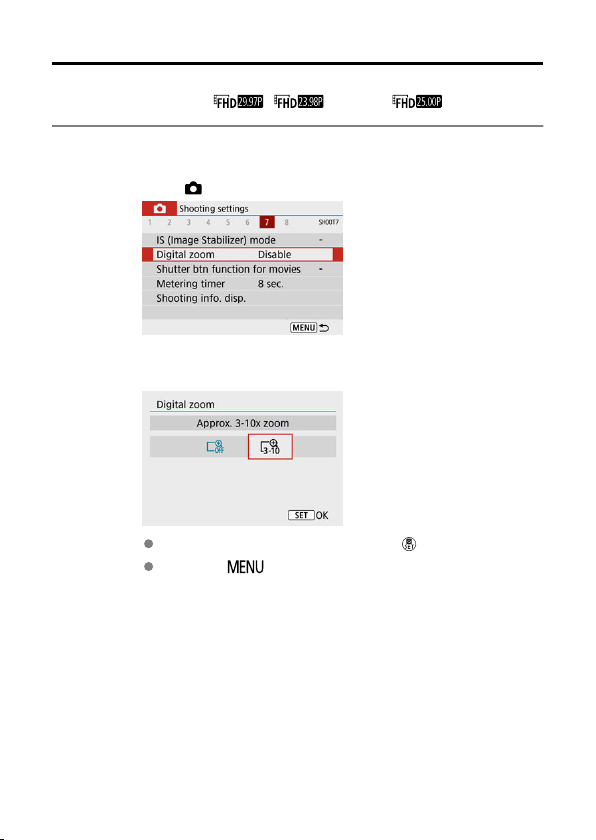
Digital Zoom
With the recording size set to [ ]/[ ] (NTSC) or [ ] (PAL), you can
shoot with approx. 3–10× digital zoom.
1.
Select [ : Digital zoom].
2.
Select an option.
Select the amount to zoom, then press the < > button.
Press the < > button to close the menu.
319
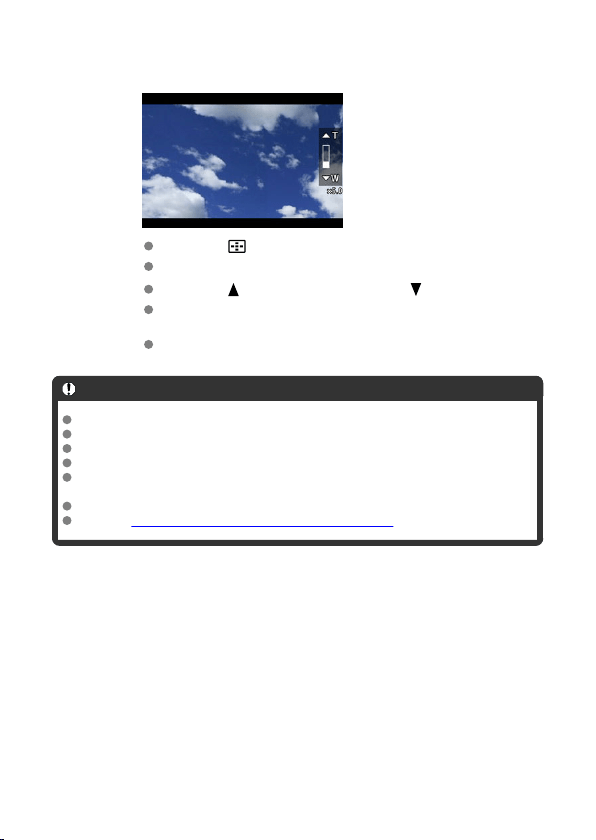
3.
Use digital zoom.
Press the < > button.
The digital zoom bar will appear.
Press the < > key to zoom in or press the < > key to zoom out.
Pressing the shutter button halfway focuses with [1-point AF] (fixed at
center).
To cancel digital zoom, select [Disable] in step 2.
Caution
Using a tripod to prevent camera shake is recommended.
Time-lapse movies, miniature effect movies, and Movie digital IS are not available.
The maximum ISO speed will be ISO 6400.
A magnified view is not available.
Since Movie digital zoom processes the image digitally, the image will look grainier
at higher magnifications. Noise, dots of light, etc. may also become noticeable.
The scene icon will not be displayed.
Also see Shooting Conditions That Make Focusing Difficult.
320
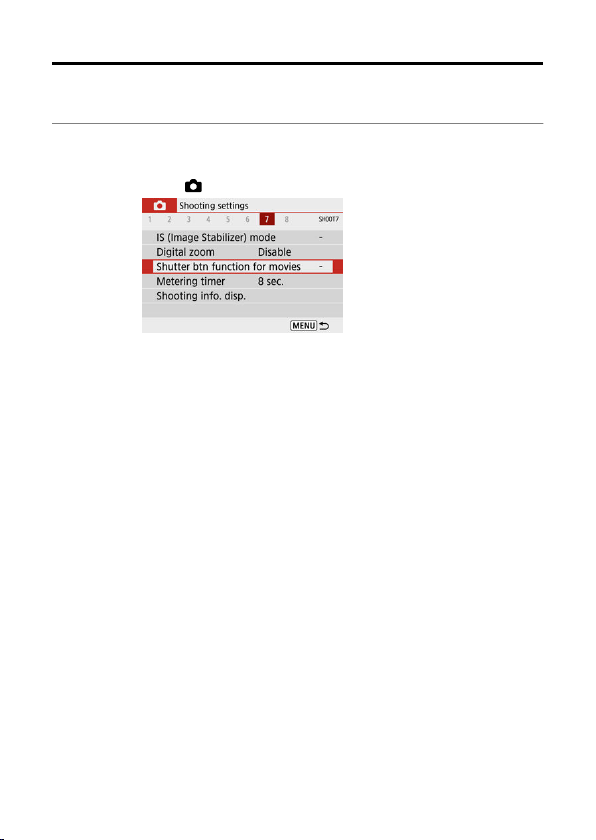
Shutter Button Function for Movies
You can set the functions performed by pressing the shutter button halfway or completely
during movie recording.
1.
Select [ : Shutter btn function for movies].
321
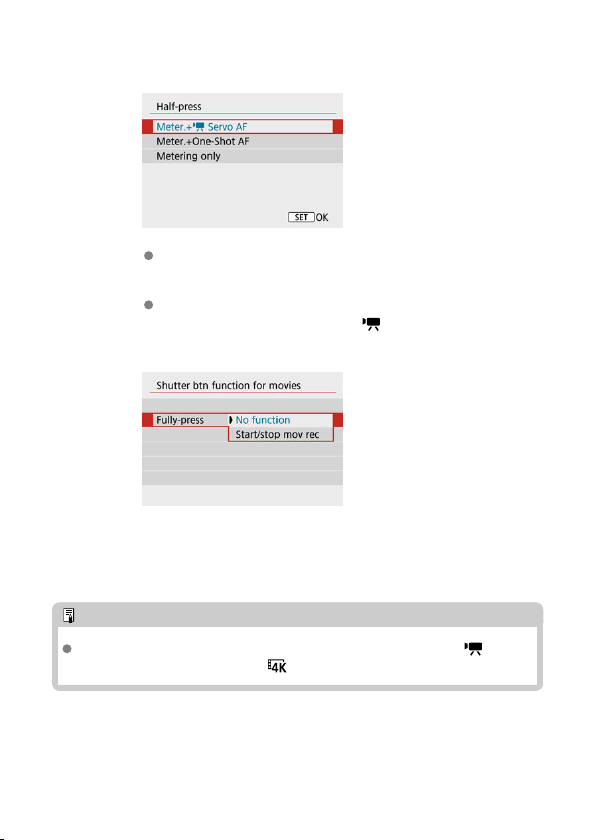
2.
Select an option.
Half-press
Specify the function performed by pressing the shutter button halfway.
Fully-press
Displayed with the Mode dial set to < >.
Specify the function performed by pressing the shutter button
completely.
With [Fully-press] set to [Start/stop mov rec], you can start/stop movie
recording by pressing the movie shooting button, by pressing the shutter
button completely, or by using Wireless Remote Control BR-E1 or Remote
Switch RS-60E3
(both sold separately).
Note
If [Half-press] is set to [Meter.+One-Shot AF], it is changed to [Meter.+ Servo
AF] if you set [Movie rec. size] to [ ].
322
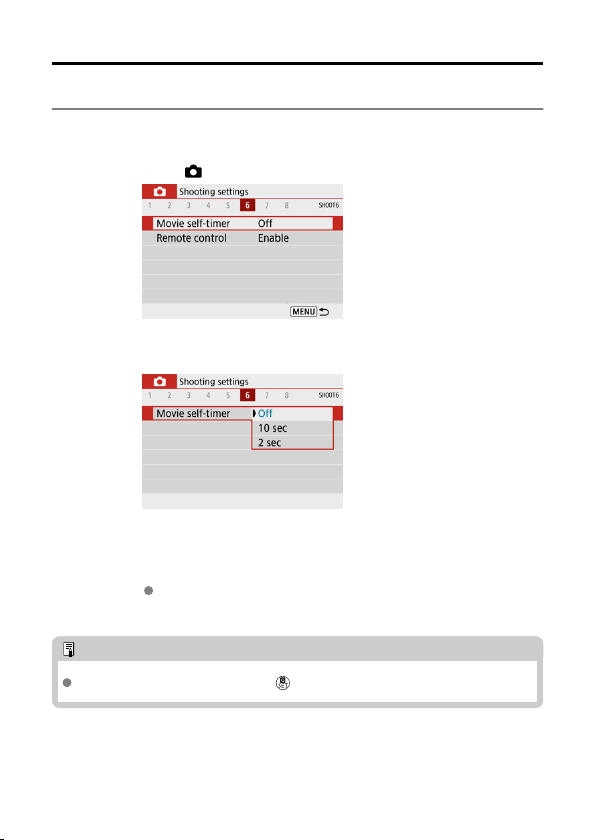
Movie Self-Timer
Movie recording can be started by the self-timer.
1.
Select [ : Movie self-timer].
2.
Select an option.
3.
Record the movie.
After you press the movie shooting button, the camera beeps and
displays the number of seconds left before recording.
Note
To cancel the self-timer, press the < > button.
323
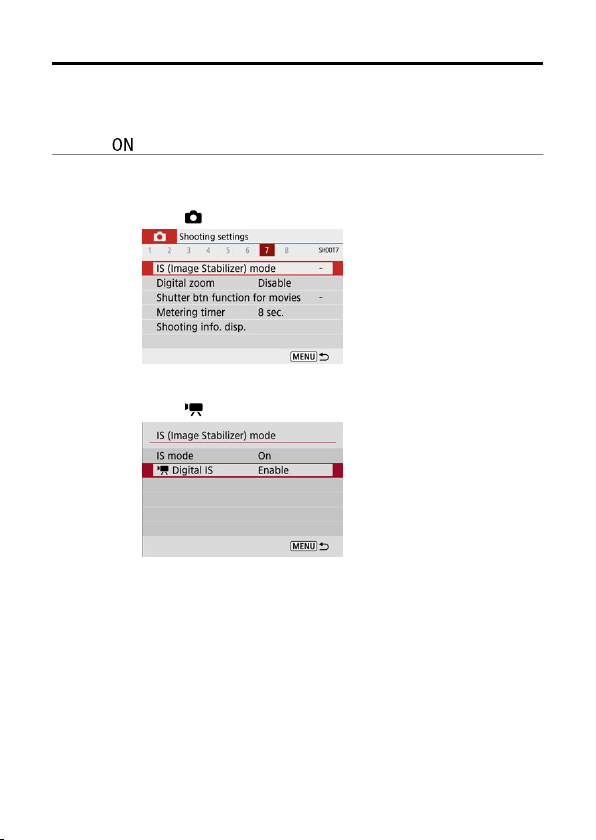
Movie Digital IS
The camera's Movie digital IS feature reduces camera shake as movies are recorded. Movie
digital IS can provide effective stabilization even when your lens is not equipped with Image
Stabilizer. When using a lens equipped with Image Stabilizer, set the lens's Image Stabilizer
switch to < >.
1.
Select [ : IS (Image Stabilizer) mode].
2.
Select [ Digital IS].
324
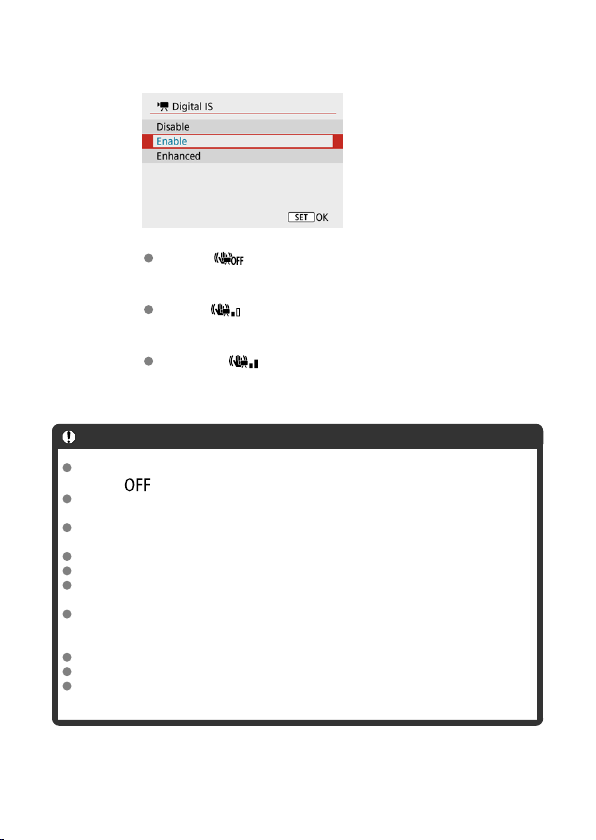
3.
Select an option.
Disable ( )
Image stabilization with Movie digital IS is disabled.
Enable ( )
Camera shake will be corrected. The image will be slightly magnified.
Enhanced ( )
Compared to when [Enable] is set, stronger camera shake can be
corrected. The image will be more magnified.
Caution
Movie digital IS will not function when the lens's optical Image Stabilizer switch is
set to < >.
Movie digital IS is not available when the camera is set to use Movie digital zoom
or record time-lapse movies.
The wider the angle of view, the more effective the image stabilization will be. The
narrower the angle of view, the less effective the image stabilization will be.
Consider setting to [Disable] when using TS-E or fish-eye lenses.
Effects of Movie digital IS are not applied to images during magnified display.
Since Movie digital IS magnifies the image, the image looks more grainy. Noise,
dots of light, etc. may also become noticeable.
Depending on the subject and shooting conditions, the subject may blur noticeably
(the subject momentarily looks out of focus) due to the effects of the Movie digital
IS.
When Movie digital IS is set, the size of AF points will also change.
When using a tripod, setting Movie digital IS to [Disable] is recommended.
This feature is not compatible with certain lenses. For details, refer to the Canon
website.
325
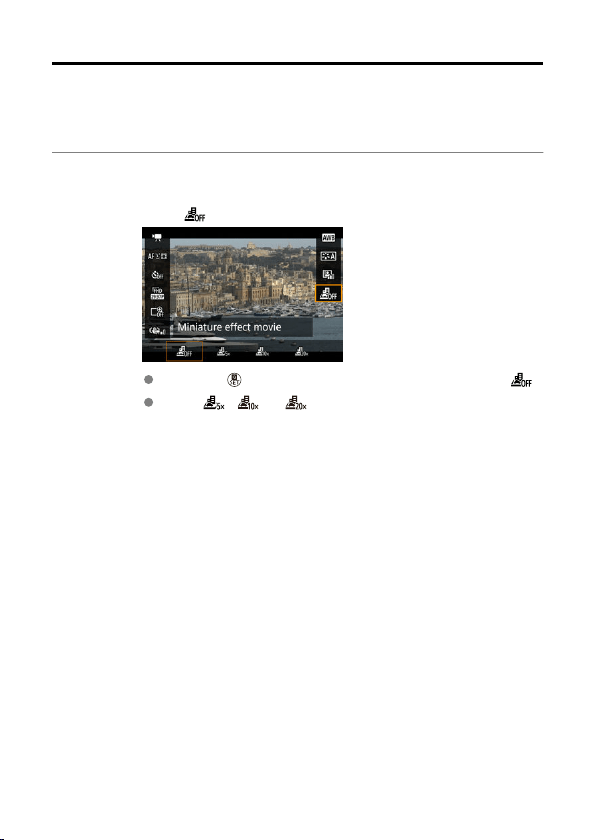
Miniature Effect Movies
By blurring image areas outside a selected area, you can record movies with a miniature
model effect applied. You can also choose a playback speed before recording to create
movies that resemble miniature scenes with people and objects moving in fast motion. Note
that sound is not recorded.
1.
Select [ ].
Press the < > button, and on the Quick Control screen, select [ ].
Select [ ], [ ], or [ ] as the playback speed.
326
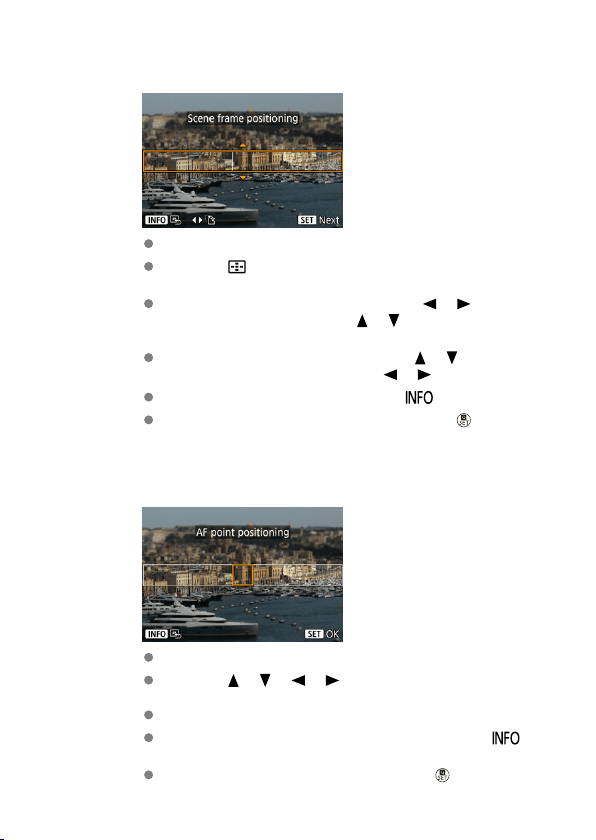
2.
Move the scene frame.
Use the scene frame to set an area that will look sharp.
Press the < > button to enable movement of the scene frame,
which turns orange.
To switch the scene frame orientation, use the < >< > keys when
it is in horizontal orientation or the < >< > keys when it is in
vertical orientation.
To move a horizontal scene frame, press the < >< > keys, and to
move a vertical scene frame, press the
<
>< > keys.
To center the scene frame again, press the < > button.
To confirm the position of the scene frame, press the < > button.
Next, set the AF point.
3.
Move the AF point.
The AF point turns orange and can be moved.
Press the < >< >< >< > keys to move the AF point to the
position to focus on.
Aligning the AF point and scene frame is recommended.
To return the AF point to the center of the screen, press the < >
button.
To confirm the position of the AF point, press the < > button.
327
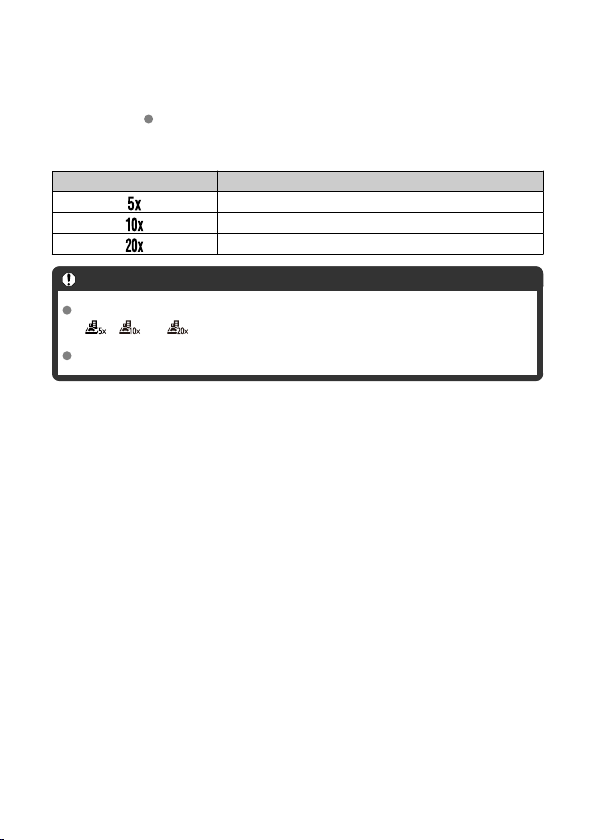
4.
Record the movie.
Press the movie shooting button.
Speed and playback time (for a 1-minute movie)
Speed Playback Time
Approx. 12 sec.
Approx. 6 sec.
Approx. 3 sec.
Caution
To make people and objects in the scene move quickly during playback, select
[ ], [ ], or [ ] before recording the movie. Movies will resemble scenes in a
miniature model.
Sound is not recorded.
328

[ 1]
Shooting mode
Available options include autoexposure and manual exposure movie recording.
[ 2]
Exposure comp.
Exposure compensation can be adjusted in a range of ±3 stops, in 1/3-stop increments.
For details on exposure compensation, see Exposure Compensation.
ISO speed settings
• ISO speed
In [ ] mode, you can set the ISO speed manually. You can also select ISO Auto.
• Max for Auto
You can set the maximum limit for ISO Auto in movie recording in [
] mode or in
[ ] mode with ISO Auto.
[H(25600)] is added as an option in [Max for Auto] when [1: ISO expansion] in [ :
Custom Functions(C.Fn)] is set to [1:Enable].
Auto Lighting Optimizer
Brightness and contrast can be corrected automatically. For details on Auto Lighting
Optimizer, see Auto Lighting Optimizer.
Highlight tone priority
You can reduce overexposed, clipped highlights as you record movies. For details on
Highlight tone priority, see Highlight Tone Priority.
Caution
[Enhanced] is not available (not displayed) when recording movies with [ :
Highlight tone priority] set.
330
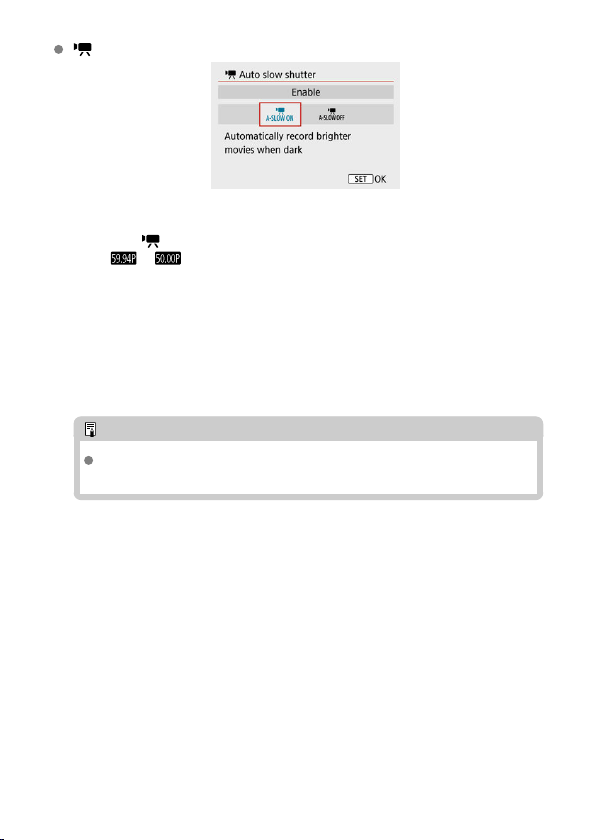
Auto slow shutter
You can choose whether to record movies that are brighter than when set to [Disable]
by automatically slowing the shutter speed under low light.
Available in [ ] recording mode. Applies when the frame rate of the movie recording
size is or .
• Disable
Enables you to record movies with smoother, more natural movement, less affected
by subject shake than when set to [Enable]. Note that under low light, movies may
be darker than when set to [Enable].
• Enable
Enables you to record brighter movies than when set to [Disable] by automatically
reducing the shutter speed to 1/30 sec. (NTSC) or 1/25 sec. (PAL) under low light.
Note
Setting to [Disable] is recommended when recording moving subjects under
low light, or when afterimages such as trails may occur.
331
[ 3]
White balance
For details on white balance, see White Balance Settings.
Custom White Balance
For details on custom white balance, see [ ] Custom White Balance.
WB correction
For details on white balance correction, see White Balance Correction.
Picture Style
For details on Picture Styles, see Picture Style Selection.
Lens aberration correction
For details on lens aberration correction, see Lens Aberration Correction.
[ 4]
AF method
For details on AF methods, see AF Method.
Eye detection
For details on eye detection, see Eye Detection.
Focus mode
For details on focus modes, see Focus Mode.
MF peaking settings
For details on MF peaking settings, see MF Peaking Settings (Outline Emphasis).
332
[ 5]
Lens electronic MF
For details on lens electronic MF, see Lens Electronic MF.
[ 6]
Remote control
By setting to [Enable], you can start or stop movie recording using Wireless Remote
Control BR-E1
(sold separately). First, pair the BR-E1 with the camera (
).
With Wireless Remote Control BR-E1
For normal movie recording, set the release timing/movie shooting switch to
<
>,
then press the release button.
For time-lapse movie recording, see Time-Lapse Movies.
[ 7]
IS (Image Stabilizer) mode
For details on configuring image stabilization, see Image Stabilizer (IS Mode).
Metering timer
For details on the metering timer, see Metering Timer.
Shooting info. disp.
For details on configuring shooting information display, see Shooting Information
Display.
333
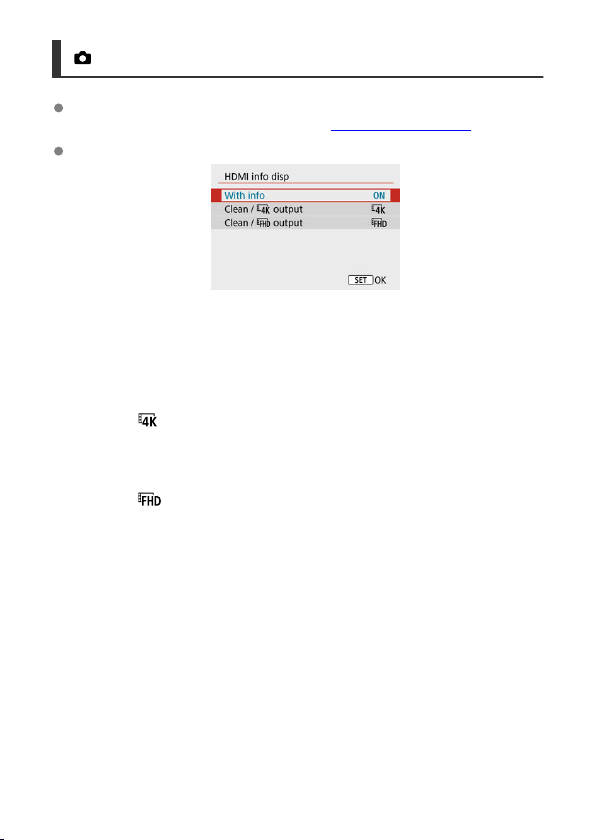
[ 8]
VF display format
For details on the viewfinder display format, see Viewfinder Display Format.
HDMI info disp
You can configure information display for image output via an HDMI cable.
• With info
The image, shooting information, AF points, and other information is shown on the
other device via HDMI. Note that the camera screen goes off. Recorded movies are
saved to the card.
• Clean / output
HDMI output consists solely of 4K movies. Shooting information and AF points are
also displayed on the camera, but no image is recorded to the card. Note that Wi-Fi
communication is not available.
• Clean / output
HDMI output consists solely of Full HD movies. Shooting information and AF points
are also displayed on the camera, but no image is recorded to the card. Note that
Wi-Fi communication is not available.
334
General Movie Recording Precautions
Caution
Precautions for movie recording
Do not point the camera toward an intense light source, such as the sun or an
intense artificial light source. Doing so may damage the image sensor or the
camera's internal components.
If you record something that has fine detail, moire or false colors may result.
White balance may change if the ISO speed or aperture value changes during
movie recording when [ ] or [ ] is set.
Recording movies under fluorescent or LED lighting may cause the screen to
flicker.
Autofocusing with a USM lens during movie recording under low light may cause
horizontal banding to be recorded in movies. The same type of noise may occur if
you focus manually ( ) with certain lenses equipped with an electronic focusing
ring.
Recording a few test movies is recommended if you intend to perform zooming
during movie recording. Zooming as you record movies may cause exposure
changes or lens sounds to be recorded, an uneven audio level, or loss of focus.
Large aperture values may delay or prevent accurate focusing.
Performing AF during movie recording may cause the following kinds of issues:
significant temporary loss of focus, recording of changes in movie brightness,
temporary stopping of movie recording, or recording of mechanical lens sounds.
Avoid covering the built-in microphones ( ) with your fingers or other objects.
Also see General Still Photo Shooting Precautions, as needed.
The camera may become hot in movie recording while connected via Wi-Fi. Use a
tripod or take other measures to avoid handheld recording.
Red [ ] internal temperature warning icon
If the camera's internal temperature increases due to prolonged movie recording or
under a high ambient temperature, a red [ ] icon will appear.
The red [ ] icon indicates that movie recording will soon end automatically. If this
happens, you will not be able to record again until the camera's internal
temperature decreases, so turn off the power and let the camera cool down a
while. Note that the time until movie recording stops automatically when the red
[ ] icon is displayed varies depending on shooting conditions.
Recording a movie at a high temperature for a prolonged period will cause the red
[ ] icon to appear earlier. When you are not recording, always turn off the camera.
335
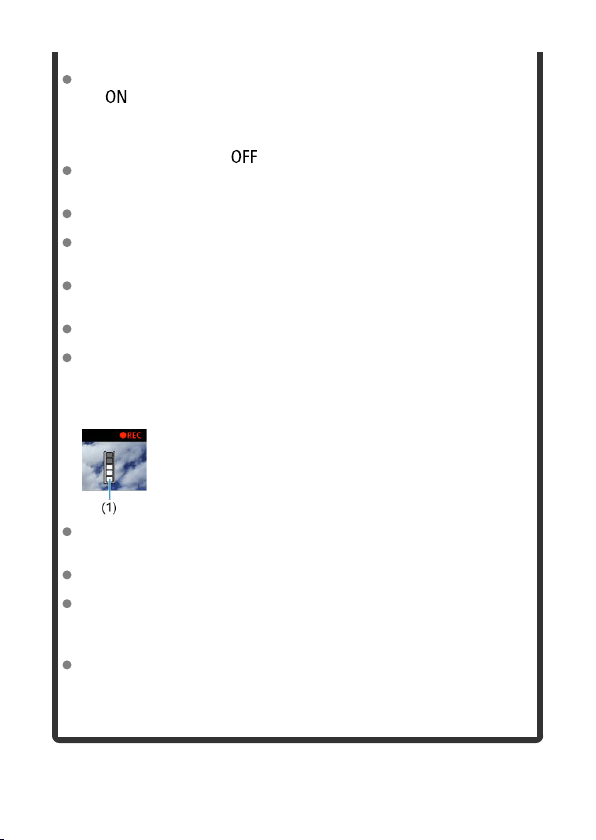
Recording and image quality
If the attached lens has an Image Stabilizer and you set the Image Stabilizer switch
to < >, the Image Stabilizer will operate at all times even if you do not press the
shutter button halfway. This will consume battery power, and it may reduce the total
movie recording time under some shooting conditions. When the Image Stabilizer
is not necessary, such as when using a tripod, it is recommended that you set the
Image Stabilizer switch to < >.
If the brightness changes as you record a movie with auto exposure, the movie
may appear to stop momentarily. In this case, record movies with manual
exposure.
If there is a very bright light source in the image, the bright area may appear black
on the screen. Movies are recorded almost exactly as they appear on the screen.
Image quality may be lower when recording movies under a combination of
conditions such as high ISO speeds, high temperatures, low shutter speeds, and
low light.
Recording movies over an extended period may cause the camera's internal
temperature to rise and affect image quality. Turn off the camera when possible if
you are not recording movies.
Video and audio quality of recorded movies may be worse on other devices, and
playback may not be possible, even if the devices support MP4 formats.
If you use a card with a slow writing speed, an indicator may appear on the right
of the screen during movie recording. The indicator shows how much data has
not yet been written to the card (remaining capacity of the internal buffer
memory), and with slower cards, it increases more quickly. If the indicator (1)
becomes full, movie recording will stop automatically.
With cards that have fast writing speeds, the indicator will not appear, or the level
(if displayed) will not increase much. First, record a few test movies to see if the
card can write fast enough.
If the indicator shows that the card is full, and movie recording stops automatically,
sound near the end of the movie may not be recorded properly.
If the card's writing speed is slow (due to fragmentation) and the indicator appears,
formatting the card may make the writing speed faster.
Audio restrictions
Note that the following restrictions apply to audio in movie recording.
• Sound will not be recorded for approx. the last two frames.
• When you play back movies in Windows, movie images and sound may
become slightly out of synchronization.
336
Note
Notes for movie recording
Each time you record a movie, a new movie file is created on the card.
The movie's field of view coverage for recording 4K, Full HD, and HD movies is
approx. 100%.
To enable starting/stopping movie recording by pressing the shutter button
completely, set [Fully-press] for [ : Shutter btn function for movies] to [Start/
stop mov rec].
The built-in microphone ( ) records in mono.
Any connected external microphone is used instead of the built-in microphone.
Most external microphones compatible with 3.5 mm mini-jacks can be used.
Focus preset during movie recording is available when using (super) telephoto
lenses equipped with this function released in and after the second half of 2011.
YCbCr 4:2:0 (8-bit) color sampling and the BT.709 color space are used for 4K, Full
HD, and HD movies.
337
Playback
This chapter covers topics related to playback—playing back captured still photos and
movies
—and introduces menu settings on the playback ([
]) tab.
Caution
Normal display or selection on this camera may not be possible for images
captured on other cameras, or images from this camera that have been edited or
renamed on a computer.
Images that cannot be used with playback functions may be displayed.
• Tab Menus: Playback
• Image Playback
• Index Display (Multiple-Image Display)
• Magnified Image Display
• Movie Playback
• Editing a Movie's First and Last Scenes
• Frame Extraction from 4K Movies or 4K Time-Lapse Movies
• Digest Movie Editing
• Playback on a TV Set
• Protecting Images
• Erasing Images
• Rotating Still Photos
• Changing Movie Orientation Information
• Rating Images
• Print Ordering (DPOF)
• Photobook Set-up
• Creative Assist
• Creative Filters
• Red-Eye Correction
• Resizing
• Cropping
• Slide Show
• Setting Image Search Conditions
• Resuming from Previous Playback
• Browsing Images with the Dial
• Playback Information Display
• AF Point Display
• HDMI HDR Output
338
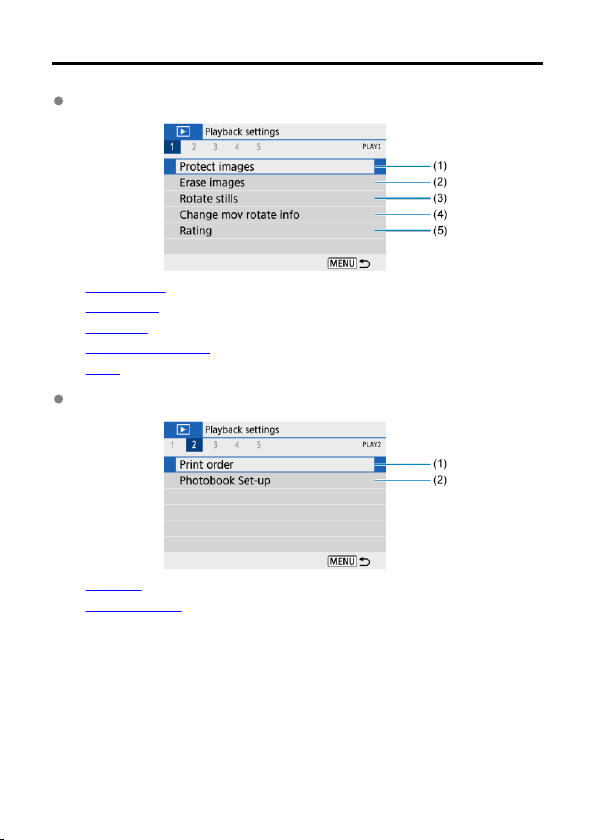
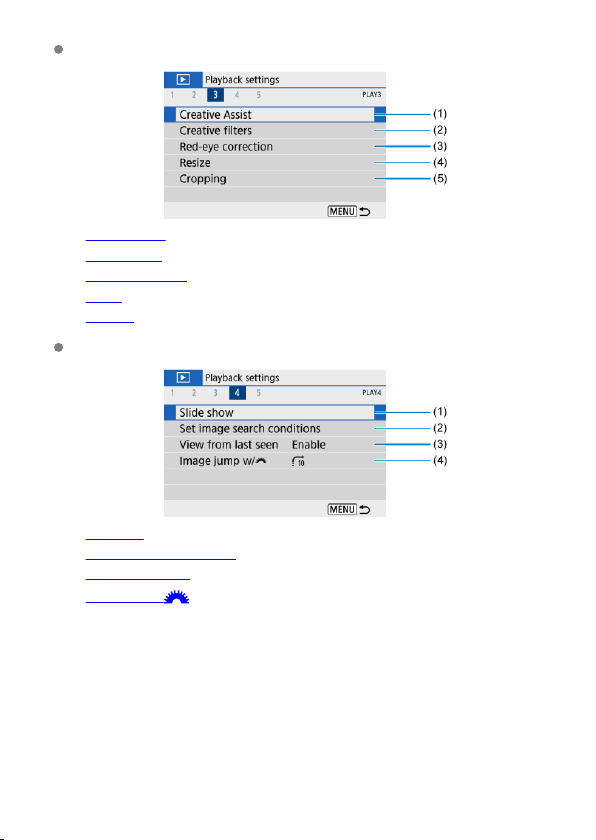
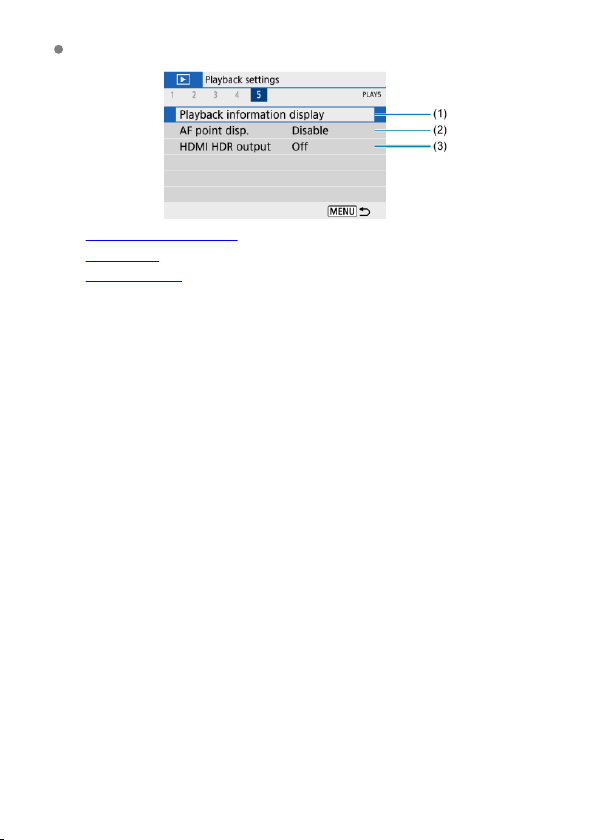
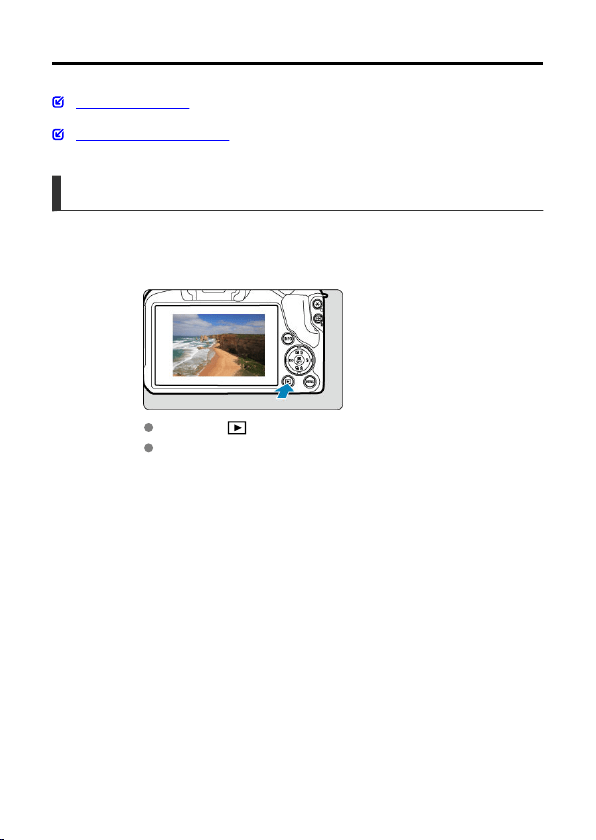
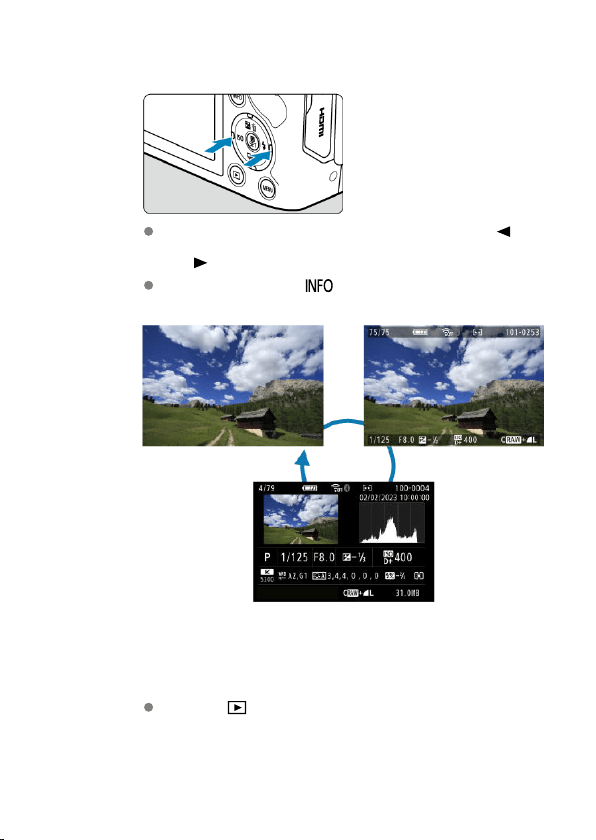
No information Basic information display
Shooting information display
2.
Browse images.
To play back images starting with the most recent, press the < >
key. To play back images starting with the first captured image, press
the < > key.
Each time you press the < > button, the display will change.
3.
Exit image playback.
Press the < > button to exit image playback and return to shooting
standby.
343
Note
Lines indicating the image area are shown on RAW images captured with [ : Still
img aspect ratio] set to an option other than [3:2] ( ).
If the search conditions are set with [ : Set image search conditions] ( ), only
the filtered images will be displayed.
Shooting Information Display
With the shooting information screen displayed ( ), you can press the < > button to
change the information displayed at the bottom of the screen. You can also customize the
information displayed, in [ : Playback information display] ( ).
344
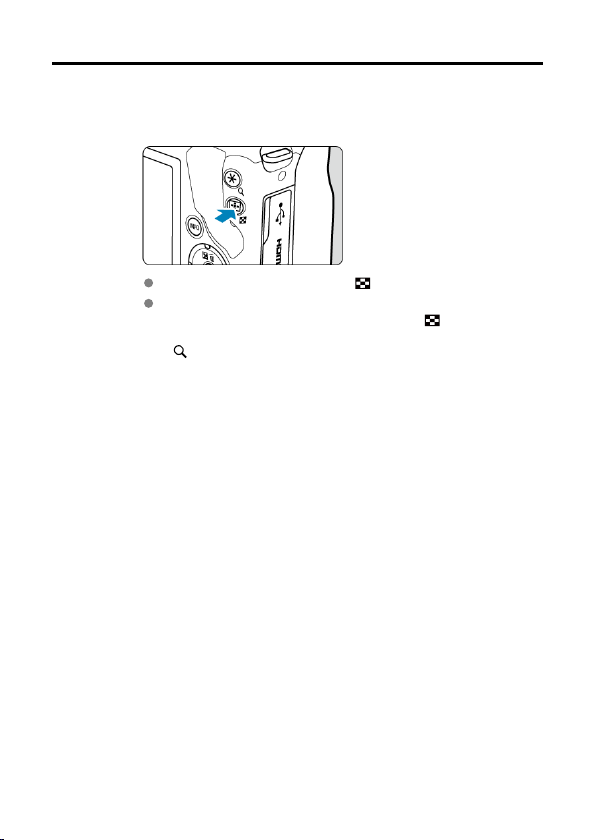
Index Display (Multiple-Image Display)
1.
Switch to the index display.
During image playback, press the < > button.
The 4-image index display will appear. The selected image is
highlighted with an orange frame. Pressing the < > button again
switches display from 9 images to 36, and then to 100. Pressing the
<
> button switches display from 100 images to 36, 9, 4, and then
single-image display.
345
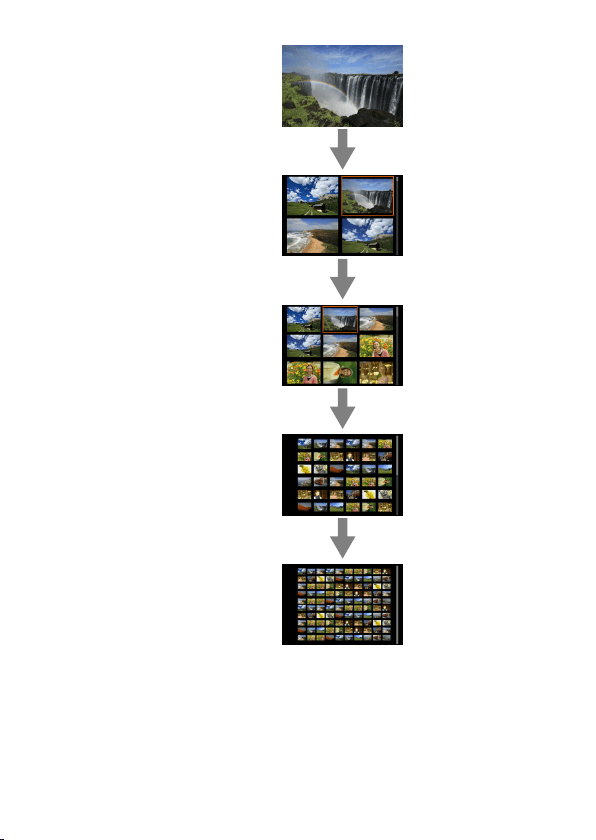
346
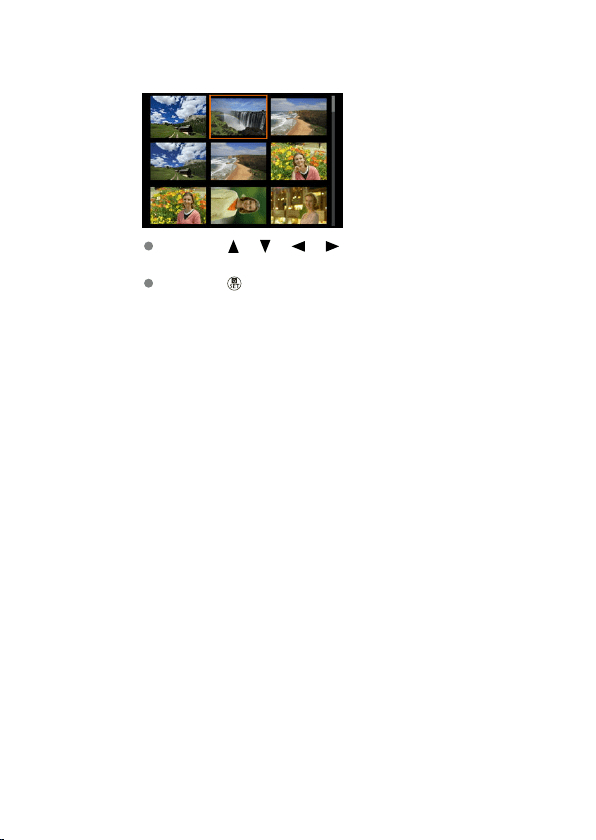
2.
Browse images.
Press the < >< >< >< > keys to move the orange frame for
image selection.
Press the < > button in index display to show the selected image in
single-image display.
347
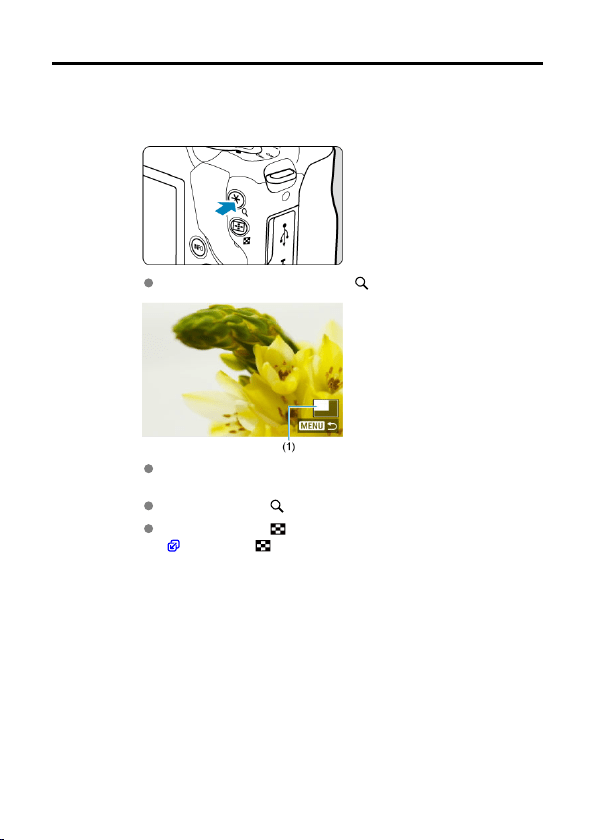
Magnified Image Display
1.
Magnify the image.
During image playback, press the < > button.
The magnified view will appear. The magnified area position (1) will be
displayed in the lower right of the screen.
Each press of the < > button magnifies display.
Each press of the < > button reduces display. For index display
(
), press the < > button again after the final reduction.
348
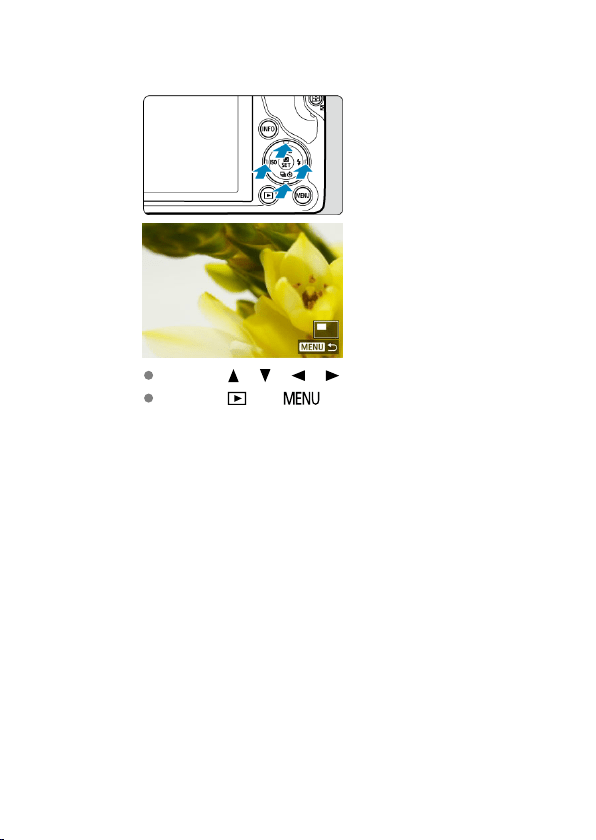
2.
Scroll the image.
Press the < >< >< >< > keys to scroll around the image.
Press the < > or < > button to exit magnified view.
349
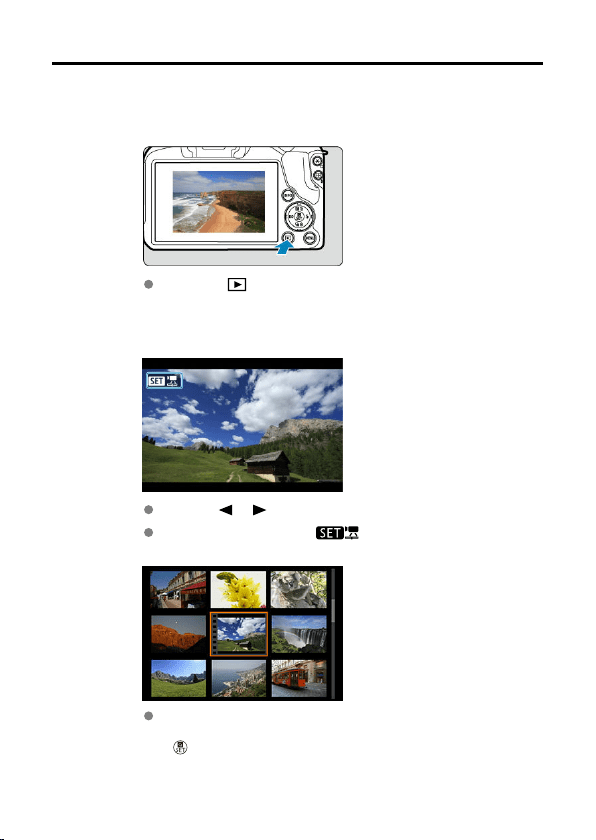
Movie Playback
1.
Switch to playback.
Press the < > button.
2.
Select a movie.
Use the < >< > keys to select a movie to play.
In single-image display, the [ ] icon displayed in the upper left of
the screen indicates a movie.
In index display, perforations at the left edge of a thumbnail indicate a
movie. Movies cannot be played from index display, so press the
<
> button to switch to single-image display.
350
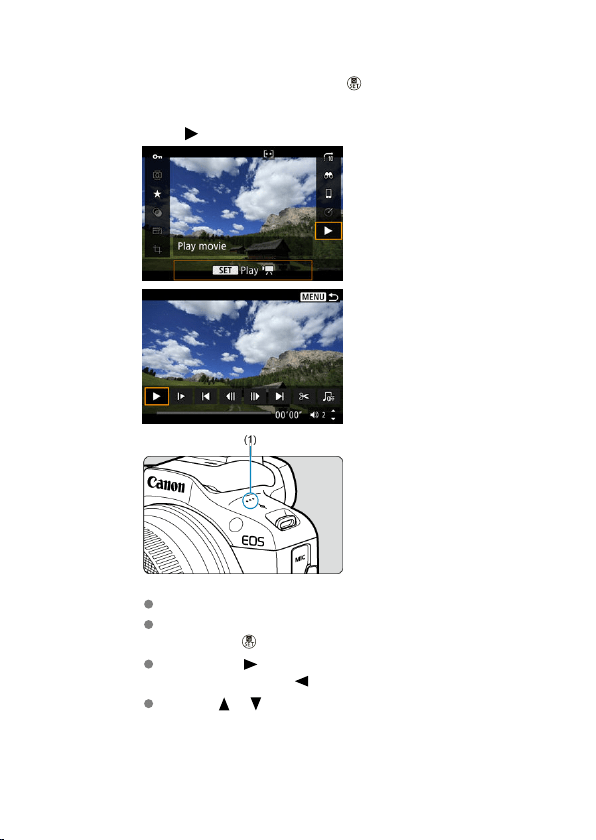
3.
In single-image display, press the < > button.
4.
Select [ ].
(1) Speaker
The movie will start playing back.
You can pause playback and access the movie playback panel by
pressing the < > button. Press it again to resume the playback.
Pressing the < > key skips forward approx. 4 sec. during playback.
Similarly, pressing the <
> key skips back approx. 4 sec.
Use the < >< > keys to adjust the volume (even during playback).
351
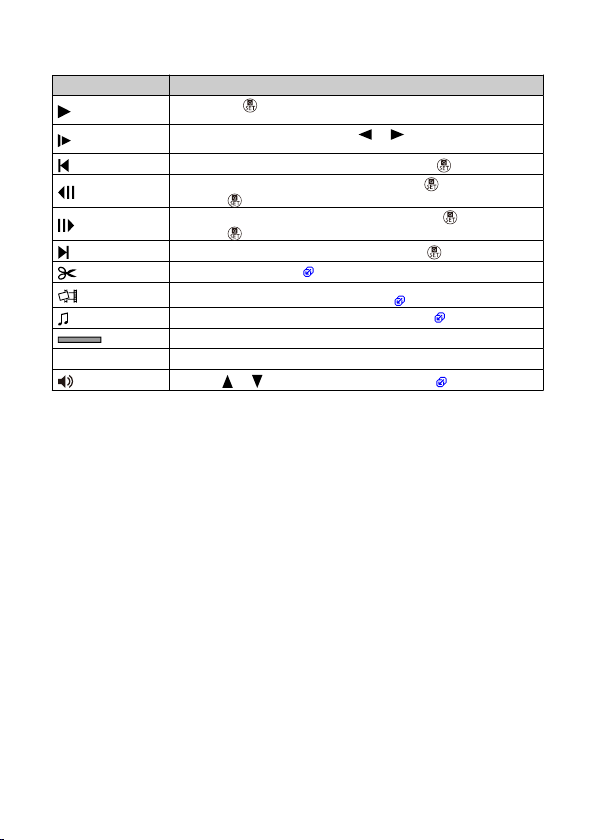
Movie playback panel
Item Playback Operations
Play
Pressing the < > button toggles between playing movies and stopping
playback.
Slow motion
Adjust the slow motion speed with the < >< > keys. The slow motion
speed is indicated in the upper right of the screen.
Skip backward Skips backward approx. 4 sec. each time you press the < > button.
Previous frame
Displays the previous frame each time you press the < > button. Holding
down the <
> button rewinds the movie.
Next frame
Plays the movie frame-by-frame each time you press the <
> button. Holding
down the < > button fast-forwards the movie.
Skip forward Skips forward approx. 4 sec. each time you press the < > button.
Edit
Displays the editing screen (
).
Frame Grab
Available when you play 4K or 4K time-lapse movies. Enables you to extract the
current frame and save it as a JPEG still image (
).
Background music
Plays back a movie with the selected background music (
).
Playback position
mm' ss" Playback time (minutes:seconds)
Volume Use the < >< > keys to adjust the speaker volume ( ).
352
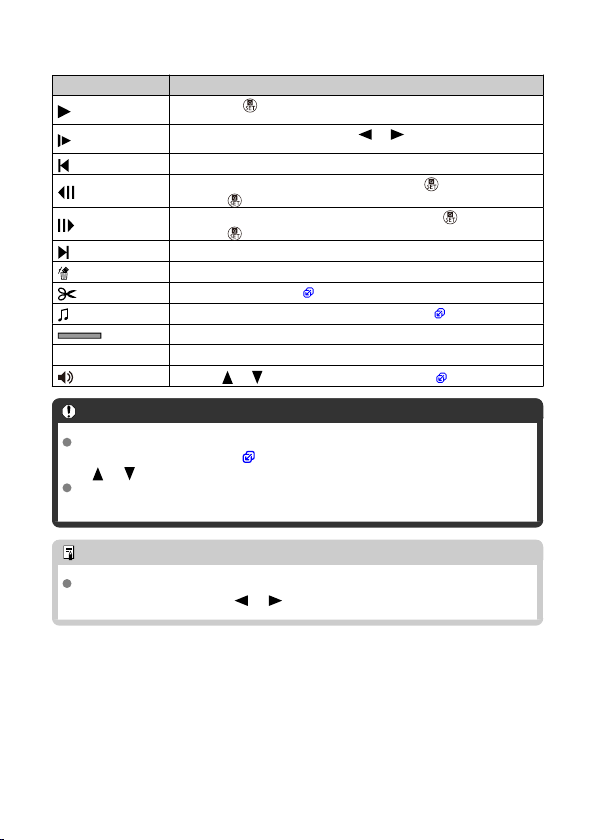
Digest movie playback panel
Item Playback Operations
Play
Pressing the < > button toggles between playing movies and stopping
playback.
Slow motion
Adjust the slow motion speed with the < >< > keys. The slow motion
speed is indicated in the upper right of the screen.
Previous clip
Displays the first frame of the previous clip.
Previous frame
Displays the previous frame each time you press the < > button. Holding
down the <
> button rewinds the movie.
Next frame
Plays the movie frame-by-frame each time you press the <
> button. Holding
down the < > button fast-forwards the movie.
Next clip
Displays the first frame of the next clip.
Erase clip
Erases the current clip.
Edit
Displays the editing screen (
).
Background music
Plays back a movie with the selected background music (
).
Playback position
mm' ss" Playback time (minutes:seconds)
Volume Use the < >< > keys to adjust the speaker volume ( ).
Caution
Adjust the volume using television controls when the camera is connected to a
television for movie playback ( ), because volume cannot be adjusted with the
< >< > keys.
Movie playback may stop if the card's read speed is too slow or movie files have
corrupted frames.
Note
To skip back or forward to the beginning of the previous or next clip during digest
movie playback, press the < >< > keys.
353
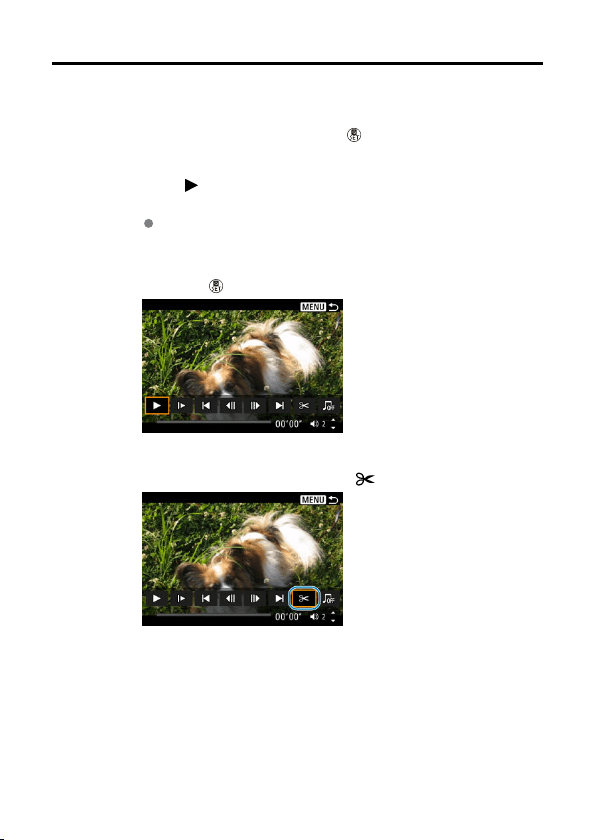
Editing a Movie's First and Last Scenes
1.
In single-image display, press the < > button.
2.
Select [ ].
Movie playback begins.
3.
Press the < > button to pause the movie.
4.
On the movie playback panel, select [
].
354
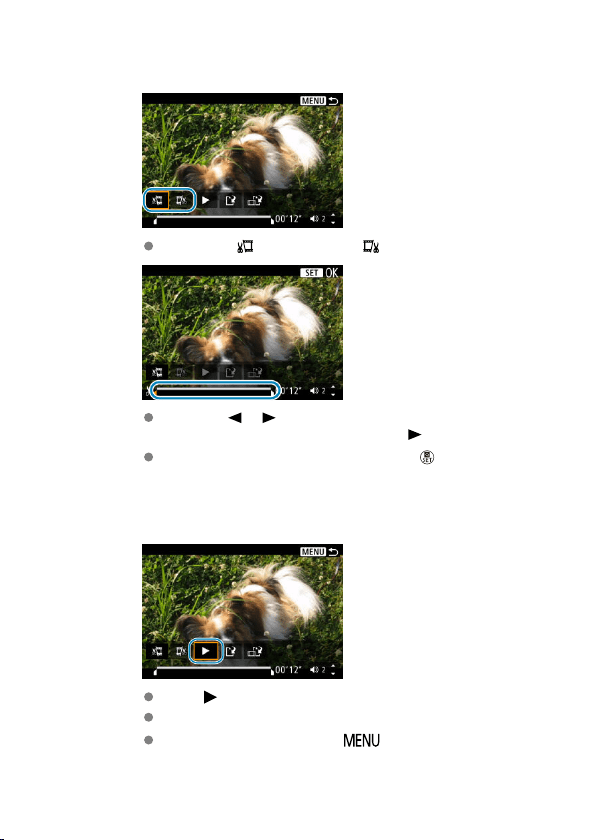
5.
Specify the part to be edited out.
Select either [ ] (Cut beginning) or [ ] (Cut end).
Press the < >< > keys to go back or forward one frame (or video
snapshot) at a time. Keep holding down the < > key to fast forward.
After deciding which part to edit out, press the < > button. The
portion indicated by a line at the bottom of the screen will remain.
6.
Check the edited movie.
Select [ ] to play back the edited movie.
To change the edited part, go back to step 5.
To cancel the editing, press the < > button.
355
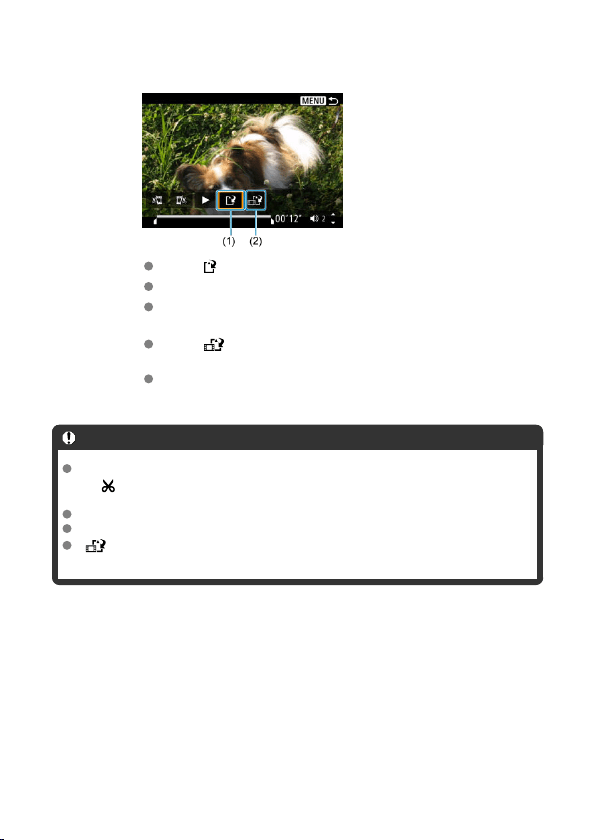
7.
Save.
Select [ ] (1).
The save screen will appear.
To save it as a new file, select [New file], or to save it and overwrite the
original movie file, select [Overwrite].
Select [ ] (2) to save a compressed version of the file. 4K movies
are converted to Full HD movies before compression.
On the confirmation screen, select [OK] to save the edited movie and
return to the movie playback screen.
Caution
Because editing is performed in approx. 1 sec. increments (at the position indicated
by [ ] at the bottom of the screen), the actual position where movies are trimmed
may differ from your specified position.
Movies shot with another camera cannot be edited with this camera.
You cannot edit a movie when the camera is connected to a computer.
[ ] is not available for movies created with [Save compressed version],
because further compression and saving is not possible.
356
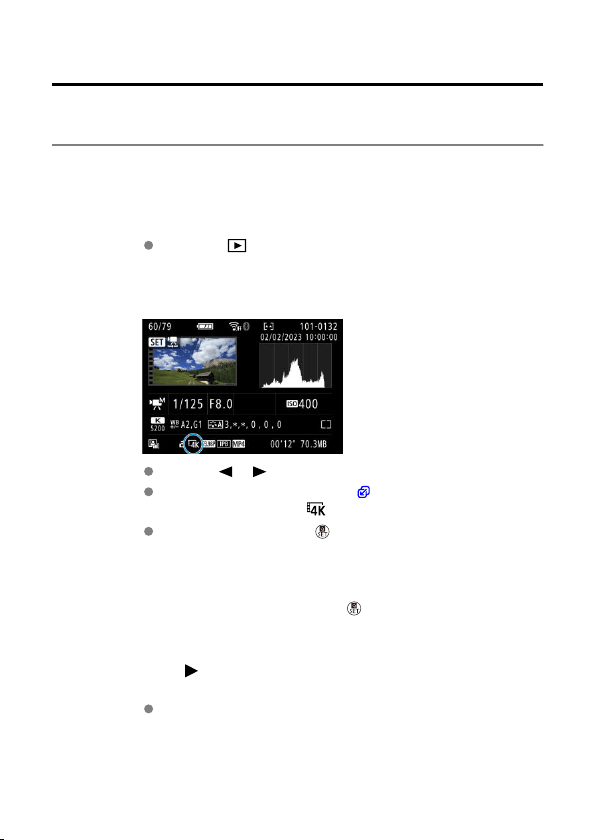
Frame Extraction from 4K Movies or 4K Time-Lapse
Movies
From 4K or 4K time-lapse movies, you can select individual frames to save as JPEG still
images. This is referred to as “frame grabbing.
”
1.
Switch to playback.
Press the < > button.
2.
Select a 4K movie or 4K time-lapse movie.
Use the < >< > keys for selection.
On the shooting information screen ( ), 4K movies and 4K time-lapse
movies are indicated by a [ ] icon.
In index display, press the < > button to switch to single-image
display.
3.
In single-image display, press the < > button.
4.
Select [ ].
The movie will start playing back.
357
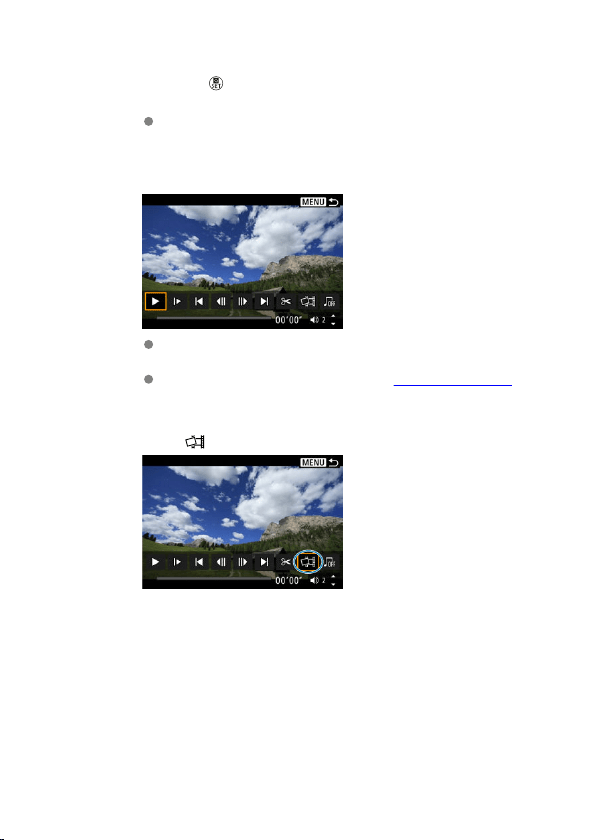
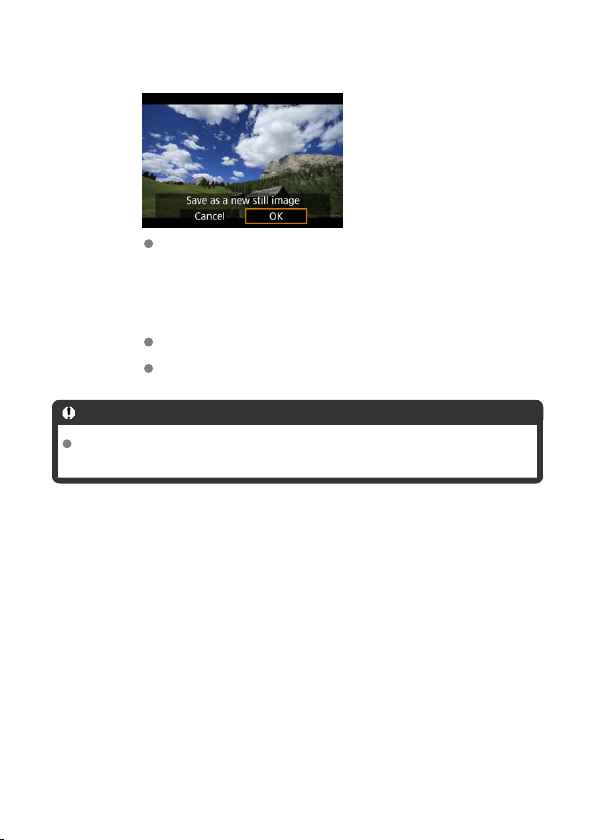
8.
Save.
Select [OK] to save the current frame as a JPEG still image.
9.
Select the image to display.
Check the destination folder and image file number.
Select [View original movie] or [View extracted still image].
Caution
Frame grabbing is not possible with Full HD movies, Full HD time-lapse movies,
HD movies, or with 4K movies or 4K time-lapse movies from a different camera.
359
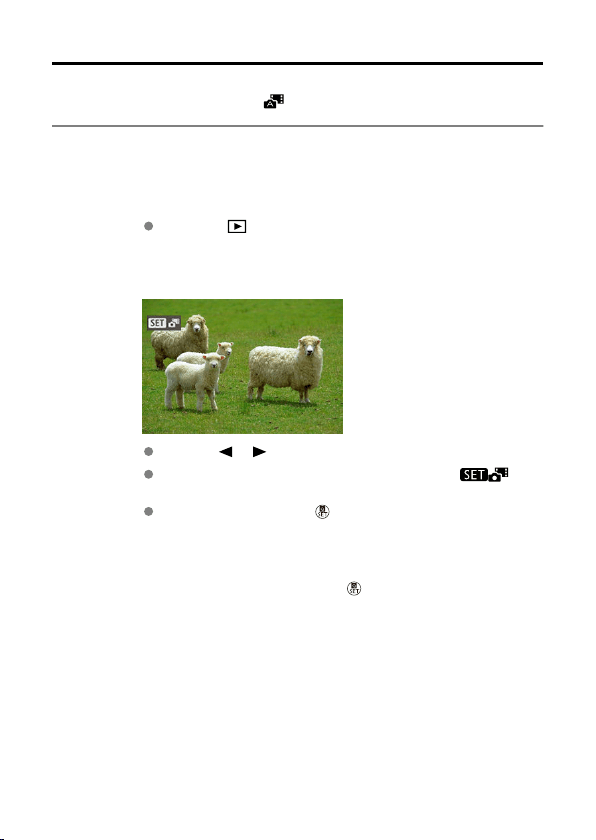
Digest Movie Editing
Individual chapters (clips) recorded in < > mode can be erased. Be careful when erasing
clips, because they cannot be recovered.
1.
Switch to playback.
Press the < > button.
2.
Select a digest movie.
Use the < >< > keys to select a digest movie.
In single-image display, digest movies are labeled with [ ] in
the upper left.
In index display, press the < > button to switch to single-image
display.
3.
In single-image display, press the < > button.
360
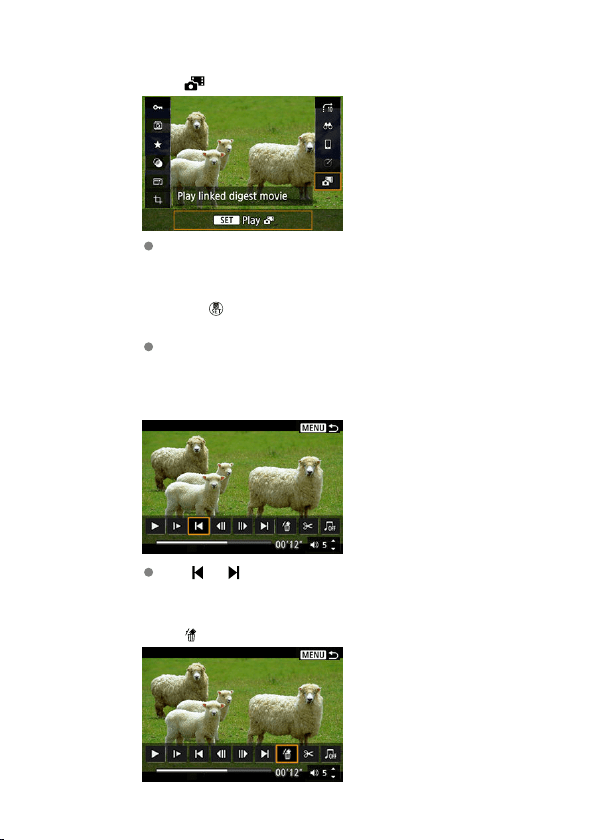
4.
Select [ ].
Digest movie playback begins.
5.
Press the < > button to pause the digest movie.
The movie playback panel will appear.
6.
Select a clip.
Use [ ] or [ ] to select a clip.
7.
Select [ ].
361
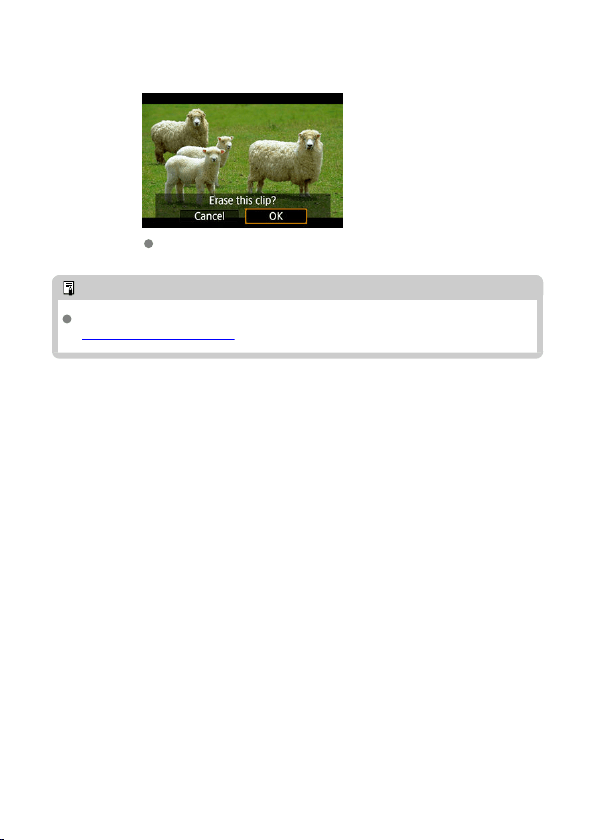
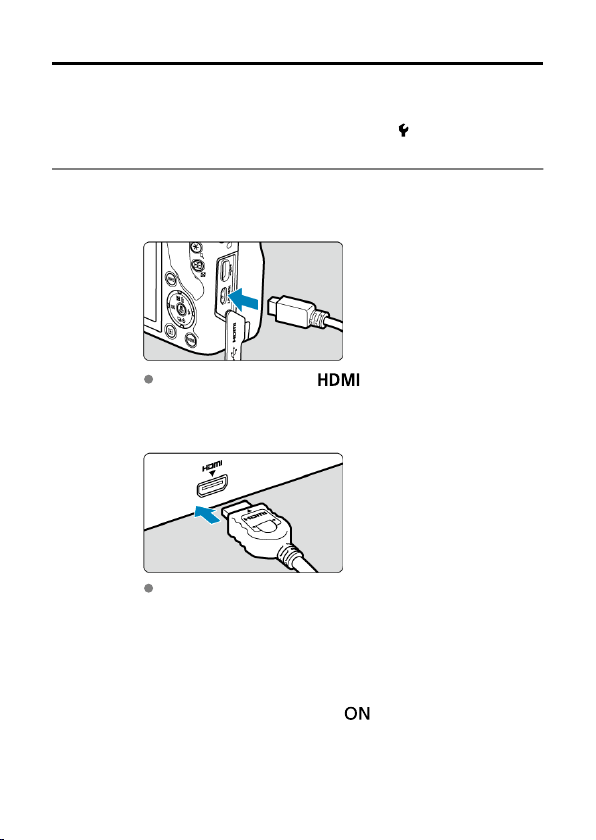
Playback on a TV Set
You can view your shots and movies on a TV by connecting the camera to a TV with a
commercially available HDMI cable.
If the image does not appear on the TV screen, confirm that [ : Video system] is
correctly set to [For NTSC] or [
For PAL] (depending on the video system of your
television).
1.
Connect the HDMI cable to the camera.
Insert the cable plug in the < > terminal.
2.
Connect the HDMI cable to the television.
Connect the HDMI cable to the television's HDMI IN port.
3.
Turn on the television and switch the television's video input to select
the connected port.
4.
Set the camera's power switch to < >.
363
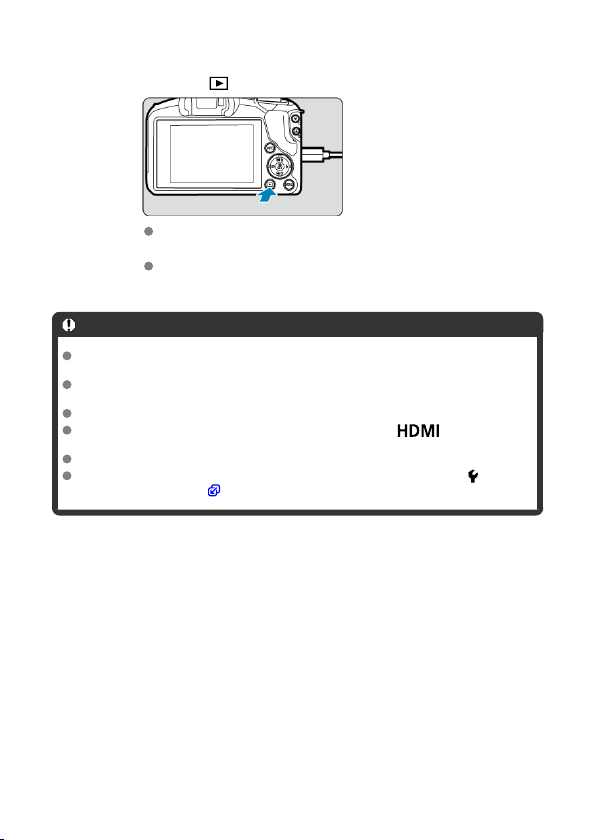
5.
Press the < > button.
Images are now displayed on the television, with nothing displayed on
the camera screen.
The images will automatically be displayed at the optimum resolution
matching the connected television.
Caution
Adjust movie sound volume with the television. The sound volume cannot be
adjusted with the camera.
Before connecting or disconnecting the cable between the camera and television,
turn off the camera and television.
Depending on the television, part of the image displayed may be cut off.
Do not connect any other device's output to the camera's < > terminal.
Doing so may cause a malfunction.
Certain televisions may not display the images due to incompatibility.
It may take some time before images are displayed. To avoid delay, set [ : HDMI
resolution] to [1080p] ( ).
364
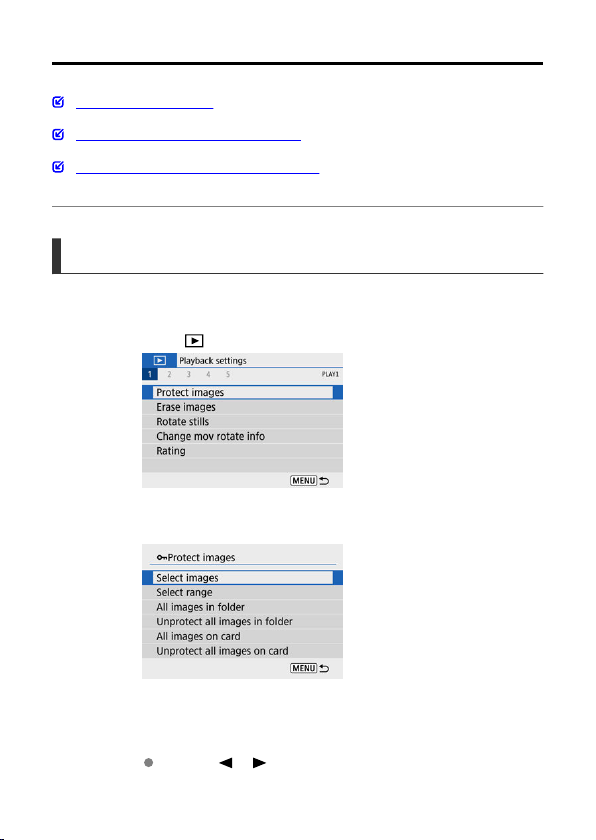
Protecting Images
Protecting a Single Image
Specifying the Range of Images to Protect
Protecting All Images in a Folder or on a Card
You can protect important images from being accidentally erased.
Protecting a Single Image
1.
Select [ : Protect images].
2.
Select [Select images].
3.
Select an image.
Use the < >< > keys to select an image to protect.
365
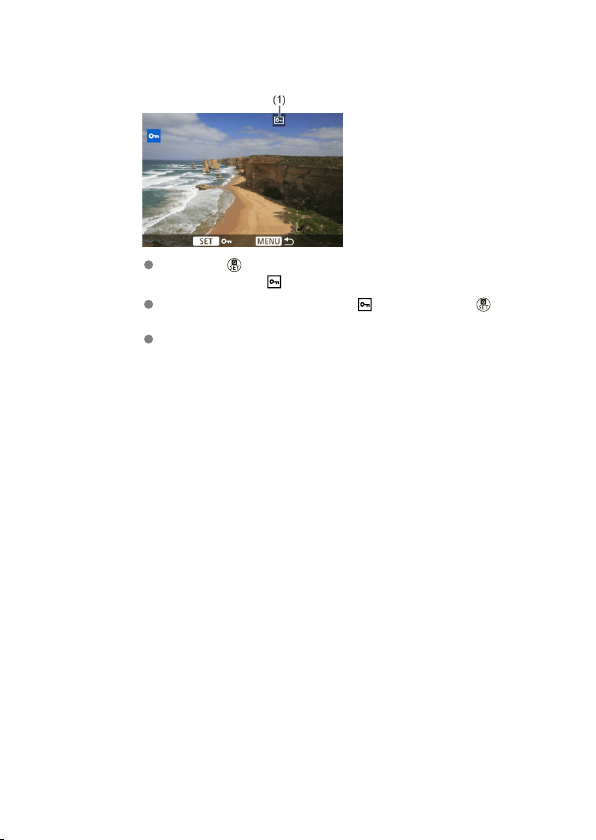
4.
Protect the image.
Press the < > button to protect the selected image, after which it will
be labeled with a < > icon (1) at the top of the screen.
To cancel protection and clear the < > icon, press the < > button
again.
To protect another image, repeat steps 3 and 4.
366
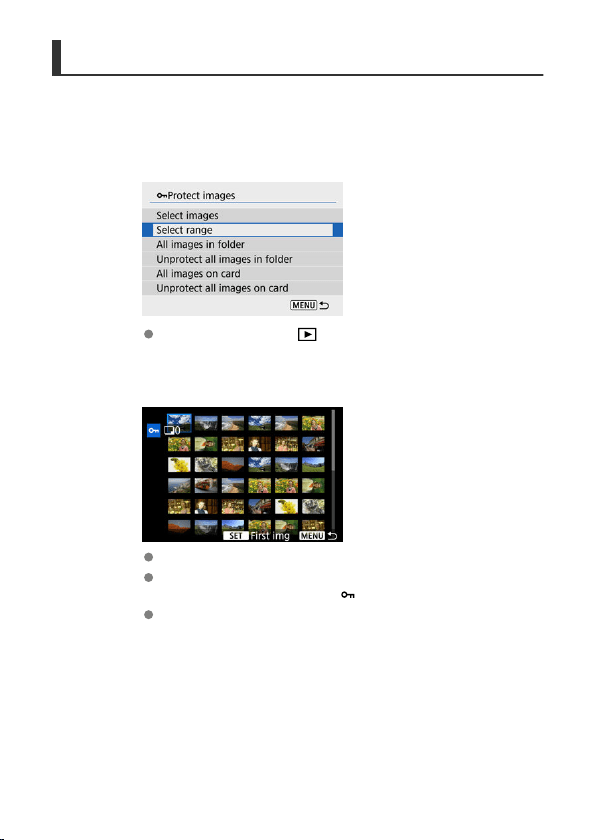
Specifying the Range of Images to Protect
While looking at the images in the index display, you can specify the first and last images for
a range to protect all the specified images at once.
1.
Select [Select range].
Select [Select range] in [ : Protect images].
2.
Specify the range of images.
Select the first image (start point).
Next, select the last image (end point). The images in the specified
range will be protected and the < > icon will appear.
To select another image to protect, repeat step 2.
367
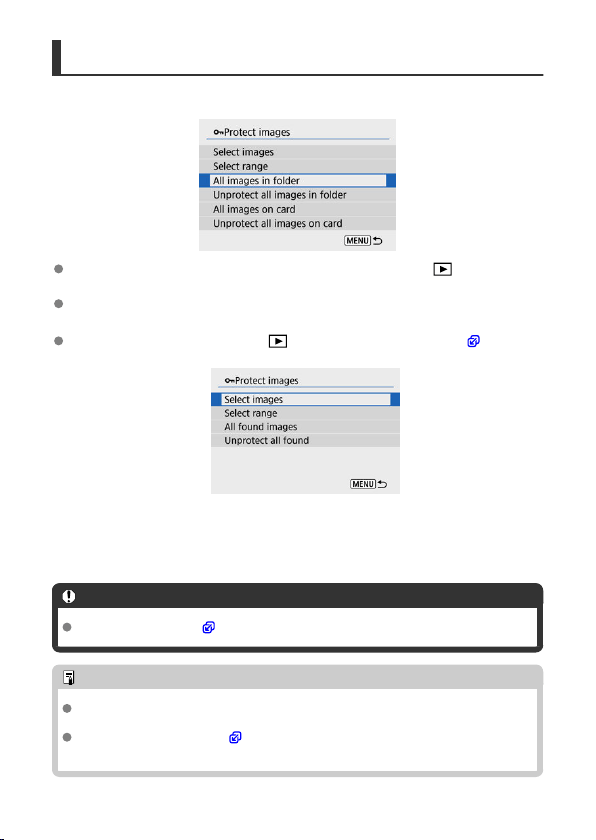
Protecting All Images in a Folder or on a Card
You can protect all the images in a folder or on a card at once.
When you select [All images in folder] or [All images on card] in [ : Protect
images], all the images in the folder or on the card will be protected.
To cancel protection, select [Unprotect all images in folder] or [Unprotect all images
on card].
If the search conditions are set with [ : Set image search conditions] ( ), the
display will change to [All found images] and [Unprotect all found].
• If you select [All found images], all the images filtered by the search conditions will
be protected.
• If you select [Unprotect all found], the protection of all the filtered images will be
canceled.
Caution
If you format the card ( ), the protected images will also be erased.
Note
Once an image is protected, it cannot be erased by the camera's erase function. To
erase a protected image, you must first cancel the protection.
If you erase all the images ( ), only the protected images will remain. This is
convenient when you want to erase all unneeded images at once.
368
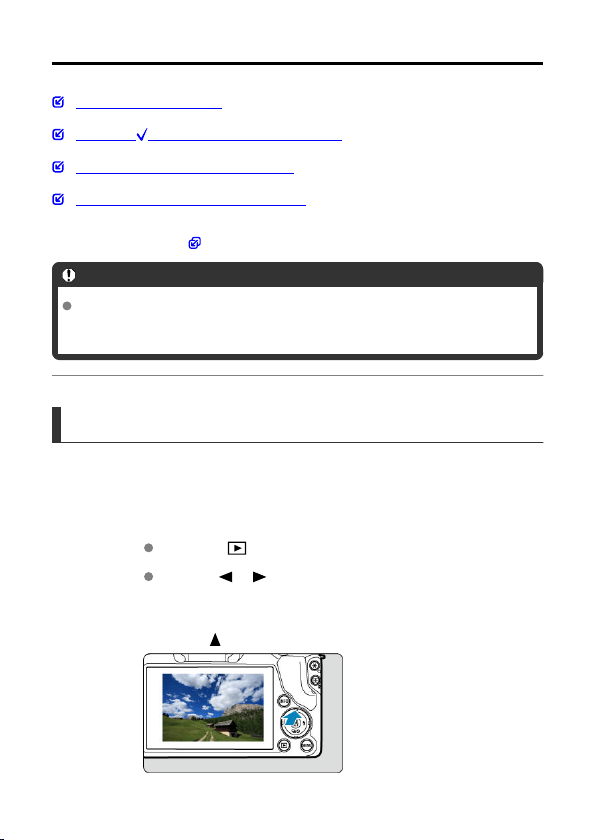
Erasing Images
Erasing Images Individually
Selecting ([ ]) Multiple Images to Erase Together
Specifying the Range of Images to Erase
Erasing All Images in a Folder or on a Card
You can either select and erase unnecessary images individually or erase them in one
batch. Protected images ( ) will not be erased.
Caution
Once an image is erased, it cannot be recovered. Make sure you no longer
need the image before erasing it. To prevent important images from being
erased accidentally, protect them.
Erasing Images Individually
1.
Select the image to be erased.
Press the < > button.
Use the < >< > keys for selection.
2.
Press the < > key.
369
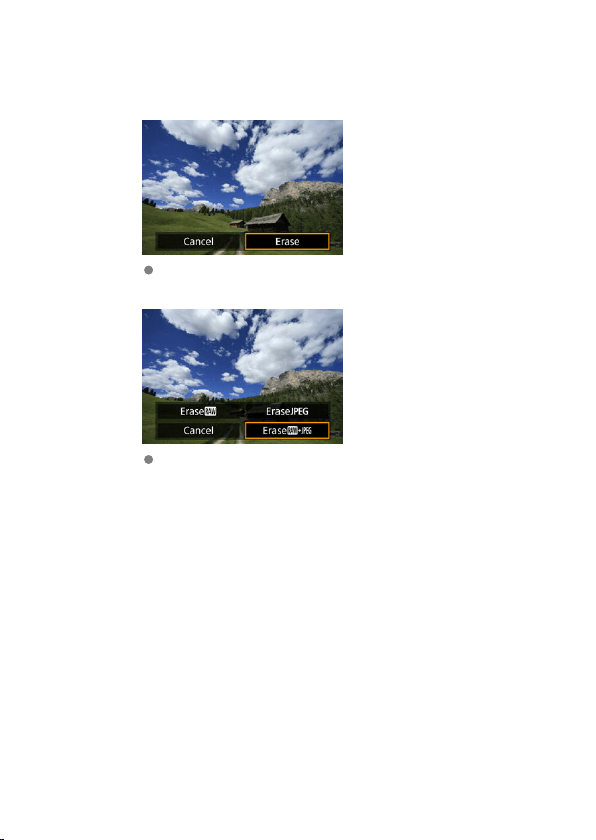
3.
Erase the images.
JPEG or RAW images or movies
Select [Erase].
RAW+JPEG images
Select an option.
370
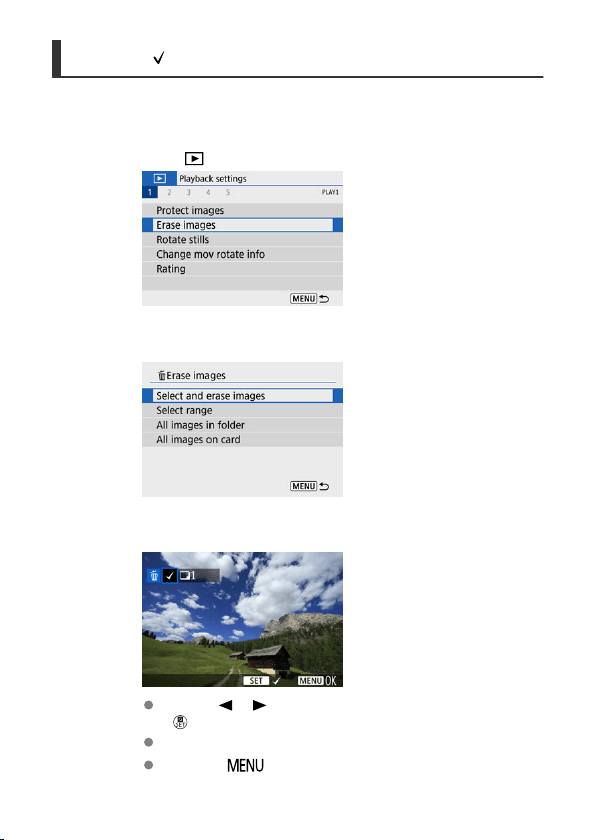
Selecting ([ ]) Multiple Images to Erase Together
By adding checkmarks to the images to be erased, you can erase all those images at once.
1.
Select [ : Erase images].
2.
Select [Select and erase images].
3.
Select an image.
Use the < >< > keys to select an image to erase, then press the
<
> button.
To select another image to be erased, repeat step 3.
Press the < > button, then press [OK].
371
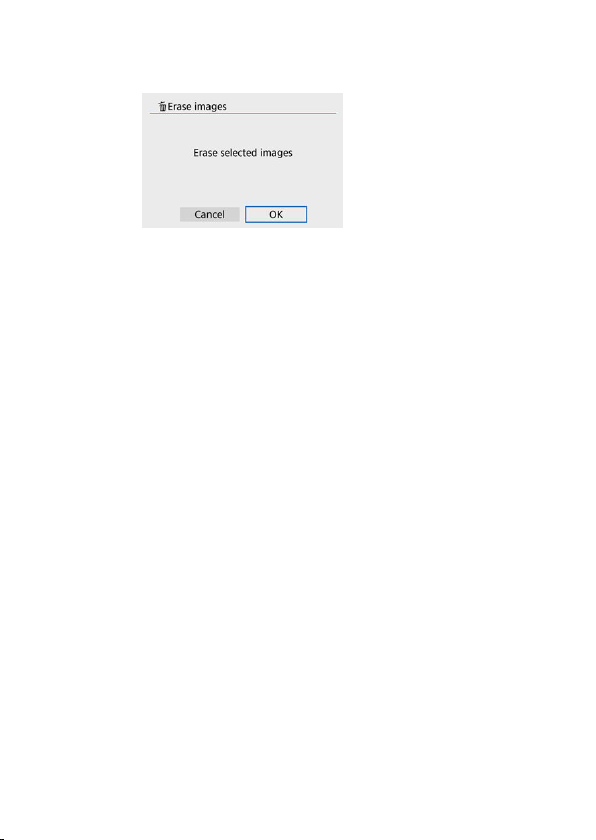
4.
Erase the images.
372

Specifying the Range of Images to Erase
While looking at the images in the index display, you can specify the first and last images for
a range to erase all the specified images at once.
1.
Select [Select range].
2.
Specify the range of images.
Select the first image (start point).
Next, select the last image (end point).
3.
Press the < > button.
373
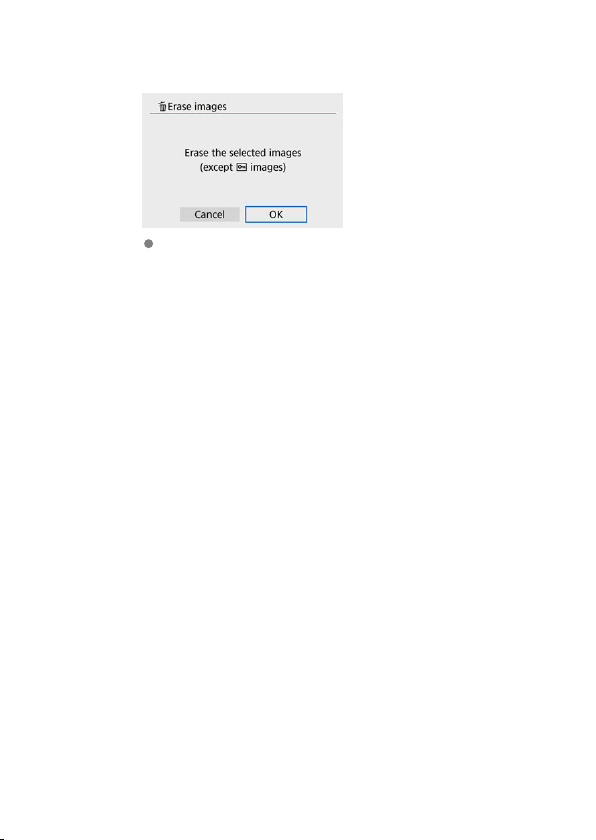
4.
Erase the images.
Select [OK].
374
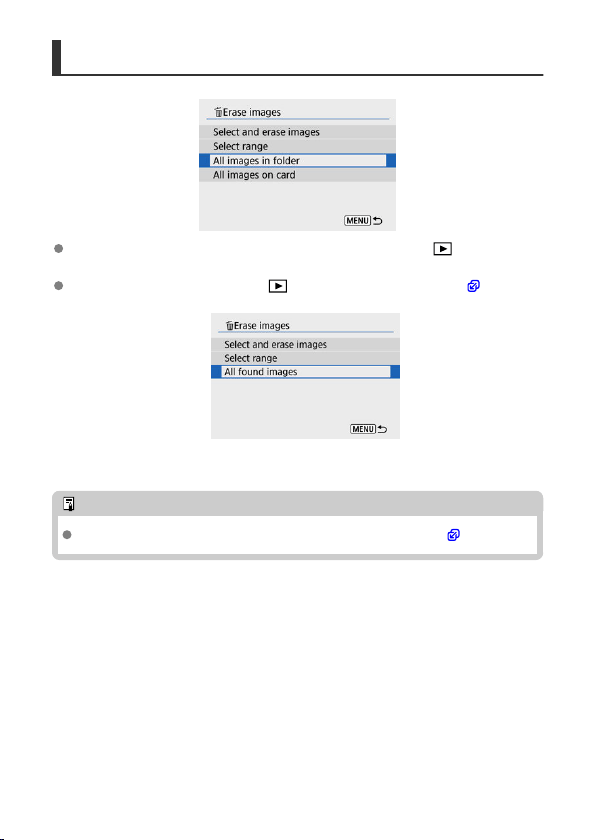
Erasing All Images in a Folder or on a Card
When you select [All images in folder] or [All images on card] in [ : Erase images],
all the images in the folder or on the card will be erased.
If the search conditions are set with [ : Set image search conditions] ( ), the
display will change to [All found images].
• If you select [All found images], all the images filtered by the search conditions will
be erased.
Note
To erase all the images including protected images, format the card ( ).
375
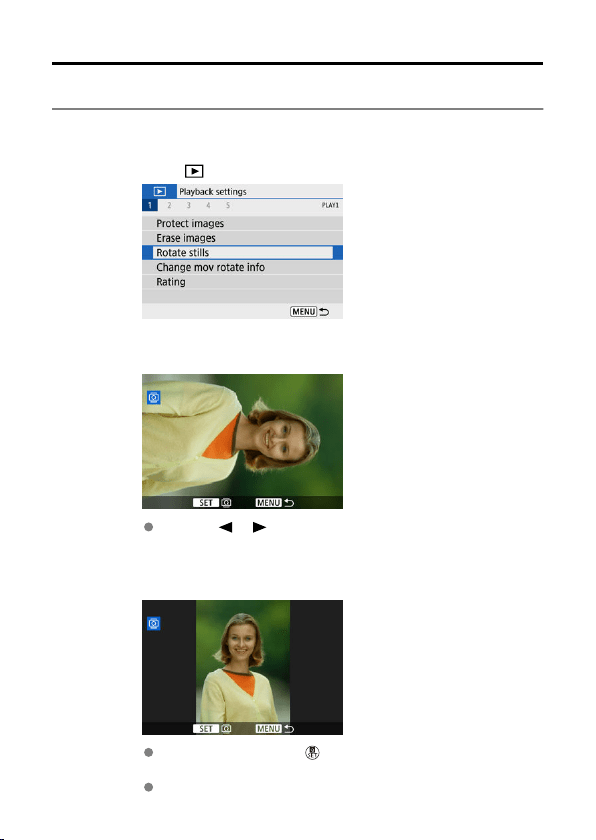
Rotating Still Photos
You can use this feature to rotate the displayed image to the desired orientation.
1.
Select [ : Rotate stills].
2.
Select an image.
Use the < >< > keys to select an image to rotate.
3.
Rotate the image.
Each time you press the < > button, the image is rotated clockwise
as follows: 90° → 270° → 0°.
To rotate another image, repeat steps 2 and 3.
376
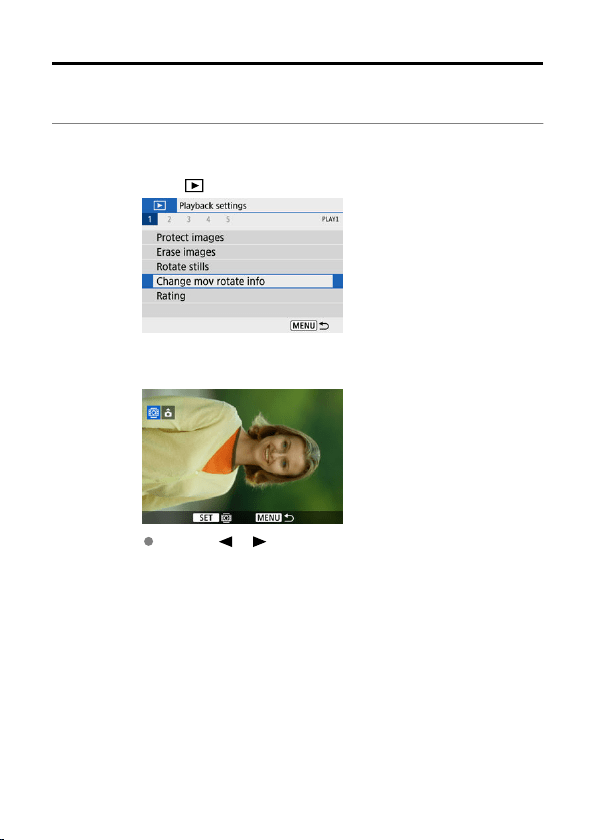
Changing Movie Orientation Information
You can manually change movie orientation information (which determines which side is
up).
1.
Select [ : Change mov rotate info].
2.
Select a movie.
Use the < >< > keys to select a movie with orientation
information to change.
378
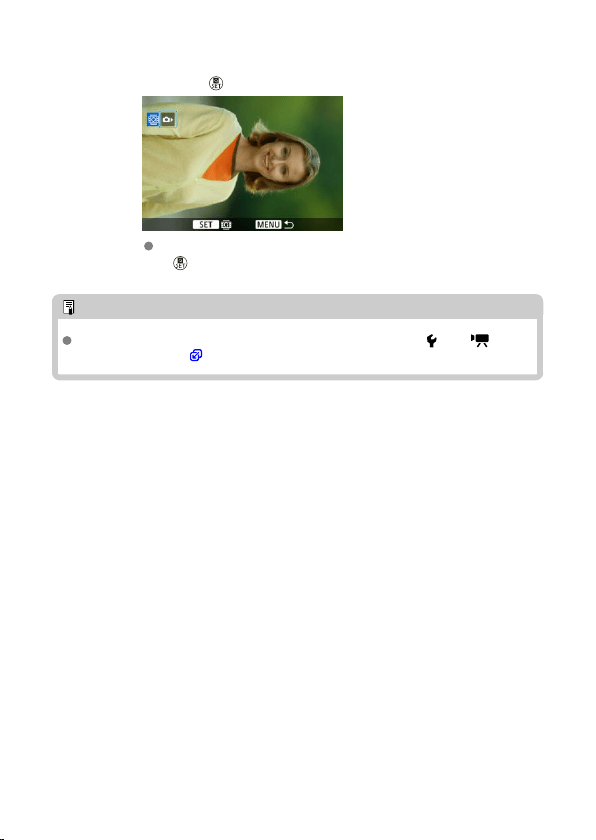
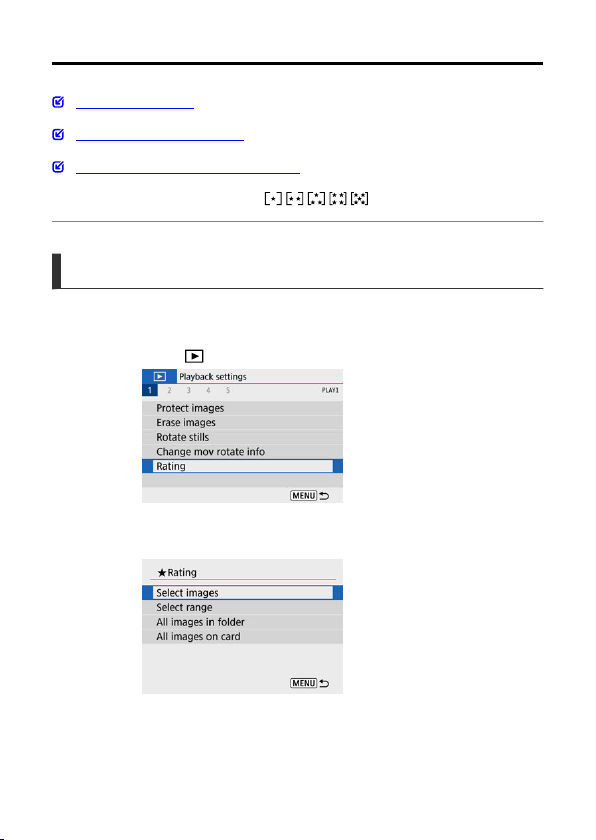
Rating Images
Rating a Single Image
Rating by Specifying the Range
Rating All Images in a Folder or on a Card
You can rate images on a scale of 1–5 ( / / / / ). This function is called rating.
* Rating images can help you organize them.
Rating a Single Image
1.
Select [ : Rating].
2.
Select [Select images].
380
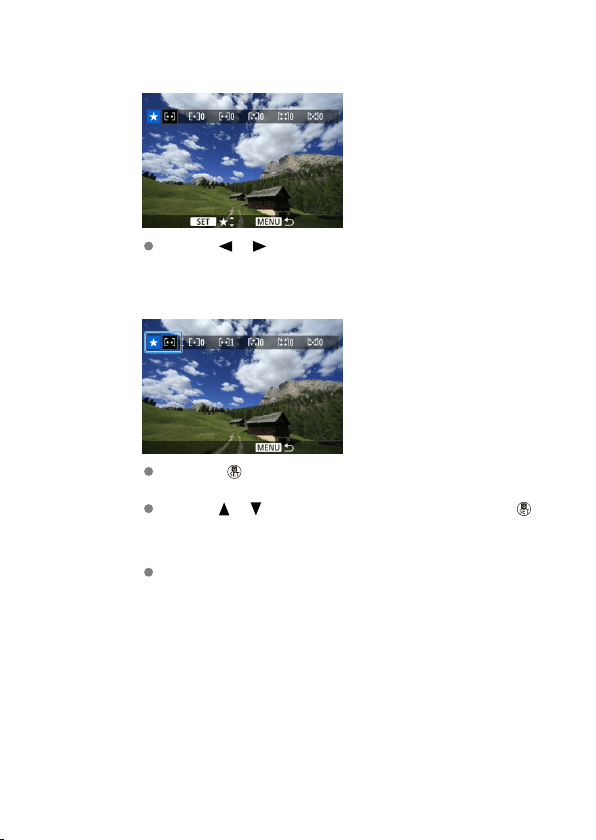
3.
Select the image to be rated.
Use the < >< > keys to select an image to rate.
4.
Rate the image.
Press the < > button so that the current rating is outlined in blue, as
shown.
Use the < >< > keys to select a rating mark, then press the < >
button.
When you append a rating mark to the image, the number beside the
set rating will increase by one.
To rate another image, repeat steps 3 and 4.
381
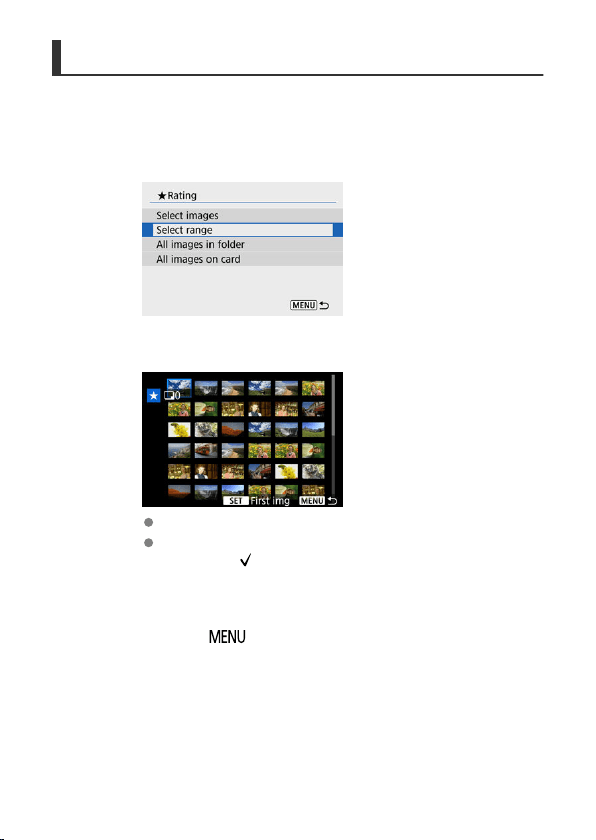
Rating by Specifying the Range
While looking at the images in the index display, you can specify the first and last images for
a range to rate all the specified images at once.
1.
Select [Select range].
2.
Specify the range of images.
Select the first image (start point).
Next, select the last image (end point).
A checkmark [ ] will be appended to all the images within the range
between first and last images.
3.
Press the < > button.
382
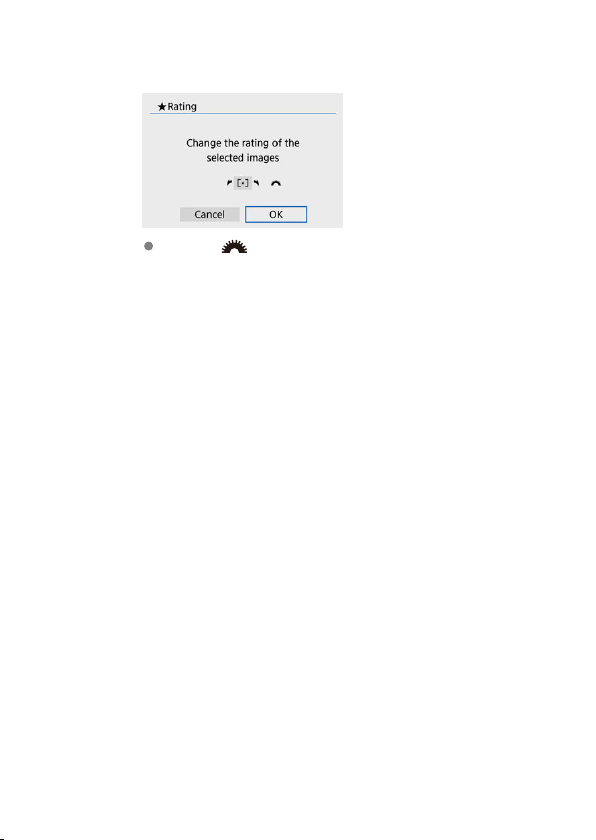
4.
Rate the image.
Turn the < > dial to select a rating mark, then select [OK].
All the images in the specified range will be rated (same rating) at
once.
383
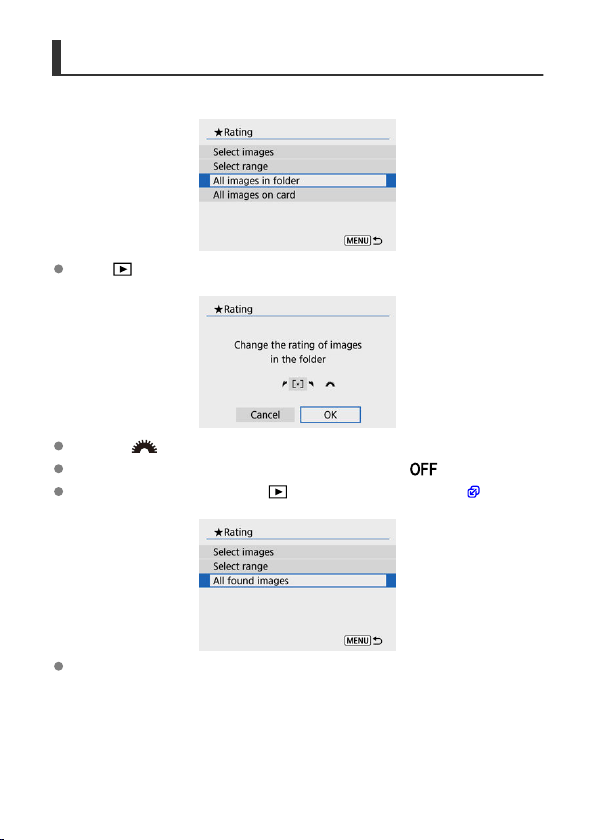
Rating All Images in a Folder or on a Card
You can rate all the images in a folder or on a card at once.
Under [ : Rating], when you select [All images in folder] or [All images on card], all
the images in the folder or on the card will be rated.
Turn the < > dial to select a rating mark, then select [OK].
When you are not rating images or canceling the rating, select [ ].
If the search conditions are set with [ : Set image search conditions] ( ), the
display will change to [All found images].
If you select [All found images], all the images filtered by the search conditions will be
rated as specified.
384
Note
Values next to ratings are displayed as [###] if more than 1,000 images have that
rating.
With [ : Set image search conditions] and [ : Image jump w/ ], you can
display only the images given a specific rating.
385
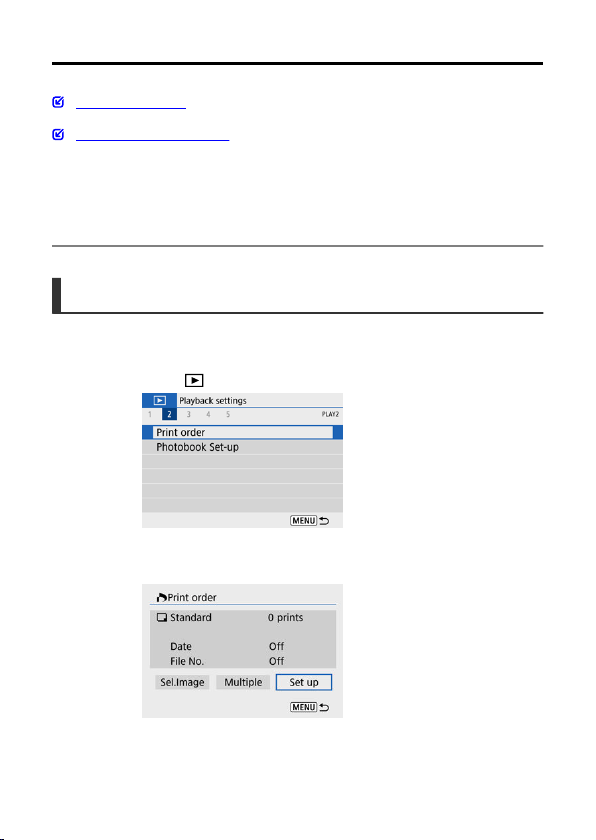
Print Ordering (DPOF)
Setting Print Options
Selecting Images for Printing
DPOF (Digital Print Order Format) enables you to print images recorded on the card
according to your printing instructions such as the image selection, quantity to print, etc. You
can print multiple images in one batch or create a print order for a photofinisher.
You can set the print settings such as print type, date imprinting, file number imprinting, etc.
The print settings will be applied to all the images specified for printing. (They cannot be set
individually for each image.)
Setting Print Options
1.
Select [ : Print order].
2.
Select [Set up].
386
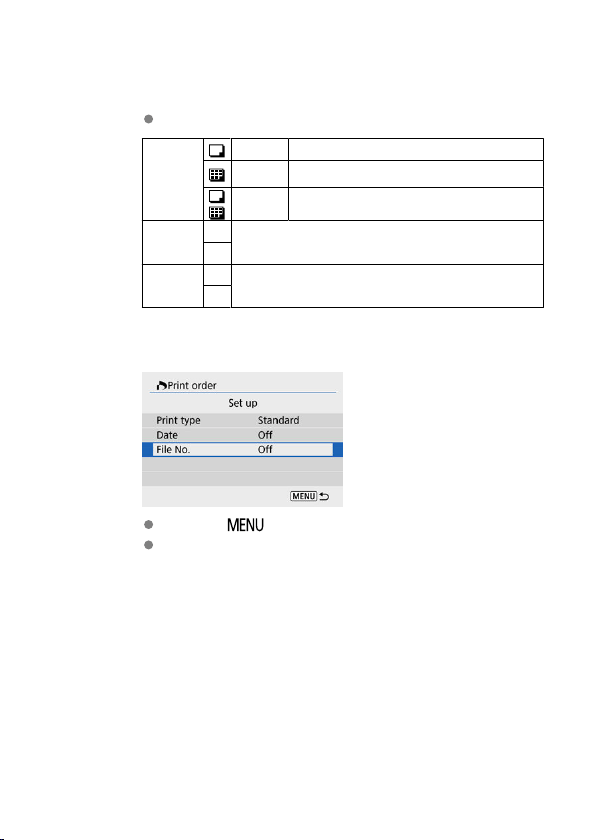
3.
Set the options as desired.
Set [Print type], [Date], and [File No.] options.
Print type
Standard Prints one image on one sheet.
Index
Multiple thumbnail images are printed on one
sheet.
Both Prints both the standard and index prints.
Date
On
[On] imprints the recorded date of the captured image.
Off
File No.
On
[On] imprints the file number.
Off
4.
Exit the setting.
Press the < > button.
Next, select [Sel.Image] or [Multiple] to specify the images to be
printed.
387
Caution
If you print an image with a large image size using the [Index] or [Both] setting
( ), the index print may not be printed with certain printers. In this case, resize the
image ( ), then print the index print.
Even if [Date] and [File No.] are set to [On], the date or file number may not be
printed, depending on the print type setting and printer.
With [Index] prints, the [Date] and [File No.] cannot both be set to [On] at the same
time.
When printing with DPOF, use the card for which print order specifications are set.
You cannot print in the specified print order if you extract just the images from the
card for printing.
Certain DPOF-compliant printers and photofinishers may not be able to print the
images as you specified. When using a printer, refer to the printer's instruction
manual. When requesting service from a photofinisher, ask in advance.
Do not use this camera to configure print settings for images with DPOF settings
set up on another camera. All the print orders may be overwritten inadvertently.
Also, the print order may not be possible, depending on the image type.
388
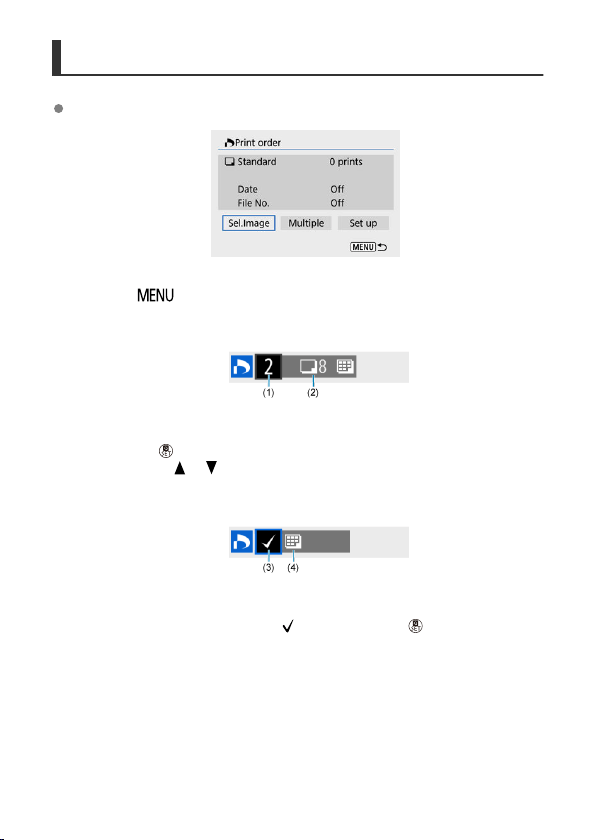
Selecting Images for Printing
Sel.Image
Select and specify the images individually.
Press the < > button to save the print order to the card.
• Standard/Both
(1) Quantity
(2) Total images selected
Press the < > button to set the print quantity for the current image to 1. By
pressing the <
>< > keys, you can set a print quantity of up to 99 copies.
• Index
(3) Checkmark
(4) Index icon
Images that you add a checkmark [ ] to by pressing the < > button are included
in index printing.
389
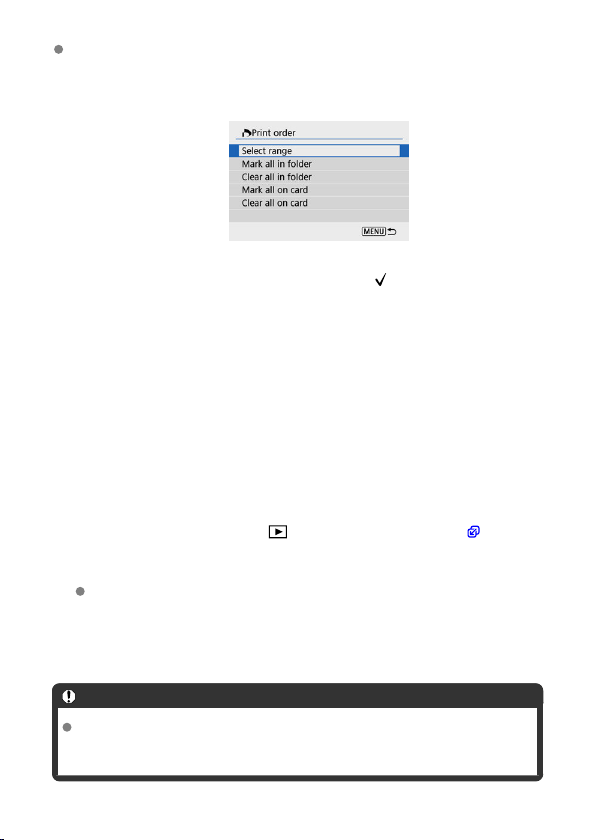
Multiple
• Select range
Select [Select range] in [Multiple]. Selecting the first and last images of the range
marks all the images in the range with a checkmark [ ], and one copy of each
image will be specified for printing.
• All images in a folder
Select [Mark all in folder] and select the folder. A print order for one copy of all the
images in the folder will be specified.
If you select [Clear all in folder] and select the folder, the print order for all the
images in the folder will be canceled.
• All images on a card
If you select [Mark all on card], one copy of all the images on the card will be
specified for printing.
If you select [Clear all on card], the print order will be cleared for all the images on
the card.
If the search conditions are set with [
: Set image search conditions] ( ) and you
select [Multiple], the display will change to [Mark all found images] and [Clear all
found images].
All found images
If you select [Mark all found images], one copy of all the images filtered by the
search conditions will be specified for printing.
If you select [Clear all found images], all the print order of the filtered images will
be cleared.
Caution
RAW images or movies cannot be specified for printing. Note that RAW images or
movies will not be specified for printing even if you specify all images with
[Multiple].
390

Photobook Set-up
Specifying Images Individually
Specifying the Image Range for a Photobook
Specifying All Images in a Folder or Card
You can specify up to 998 images for printing in a photobook. When you use EOS Utility
(EOS software) to import images to a computer, the specified images for a photobook will be
copied to a dedicated folder. This function is useful for ordering photobooks online.
Specifying Images Individually
1.
Select [ : Photobook Set-up].
2.
Select [Select images].
391
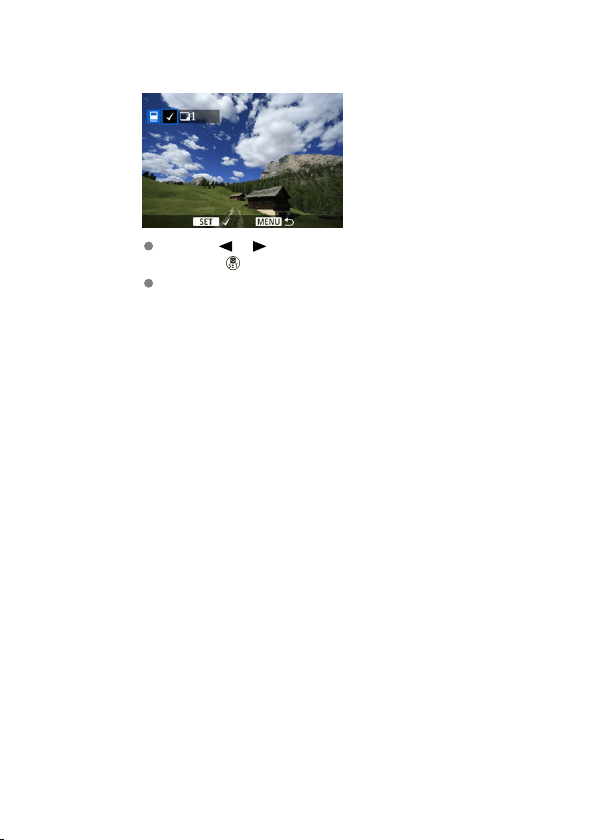
3.
Select the image to be specified.
Use the < >< > keys to select an image for the photobook, then
press the < > button.
To select other images to be specified for a photobook, repeat step 3.
392
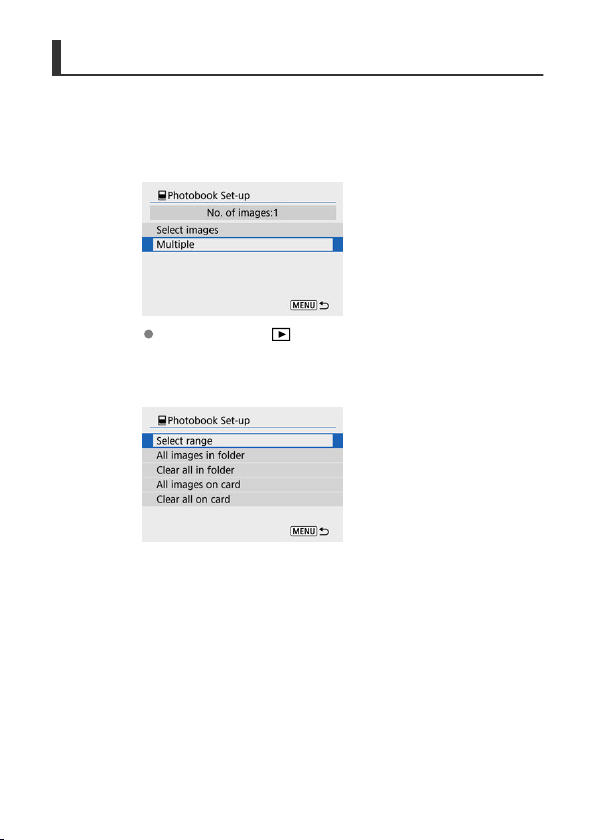
Specifying the Image Range for a Photobook
While looking at the images in the index display, you can specify the range (start point to
end point) of images to be specified for a photobook at once.
1.
Select [Multiple].
Select [Multiple] in [ : Photobook Set-up].
2.
Select [Select range].
393
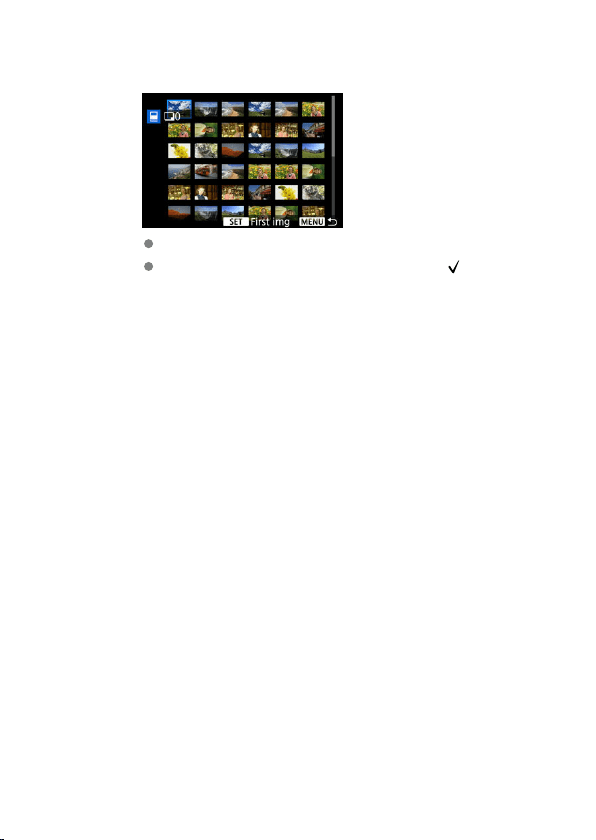
3.
Specify the range of images.
Select the first image (start point).
Next, select the last image (end point). A checkmark [ ] will be
appended to all the images within the range between first and last
images.
394
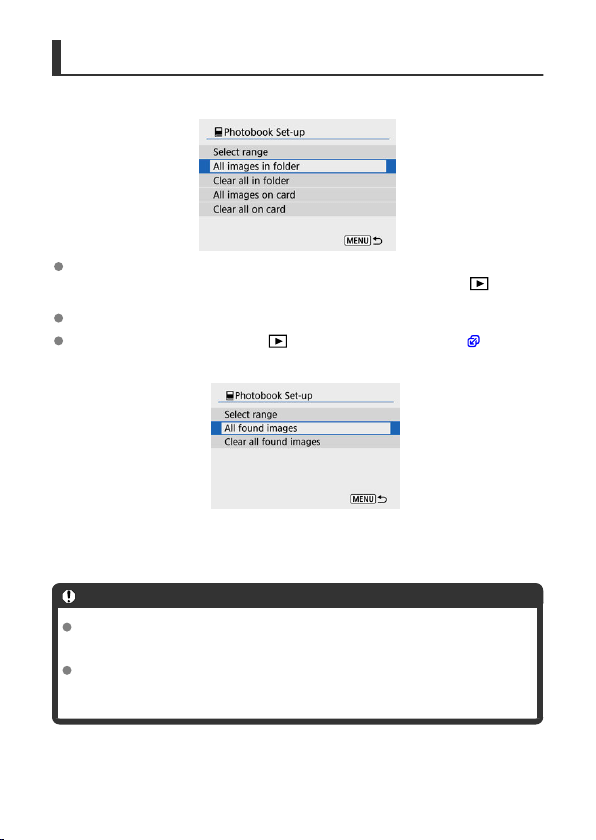
Specifying All Images in a Folder or Card
You can specify all the images in a folder or on a card at once for a photobook.
All images in the folder or on the card are specified for the photobook when you select
[All images in folder] or [All images on card] in the [Multiple] option for [ :
Photobook Set-up].
To cancel the selection, select [Clear all in folder] or [Clear all on card].
If the search conditions are set with [ : Set image search conditions] ( ) and you
select [Multiple], the display will change to [All found images] and [Clear all found
images].
• [All found images]: All images filtered by the search conditions are specified for the
photobook.
• [Clear all found images]: Clears photobook designation of all filtered images.
Caution
RAW images or movies cannot be specified for the photobook. Note that RAW
images or movies will not be specified for the photobook even if you specify all
images with [Multiple].
Do not use this camera to configure photobook settings for images with photobook
settings set up on another camera. All the photobook settings may be overwritten
inadvertently.
395
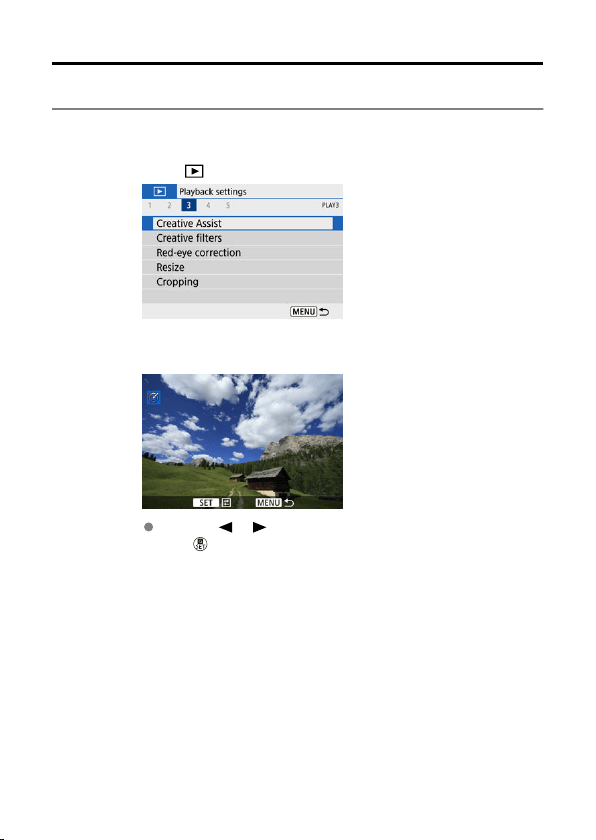
Creative Assist
You can process RAW images by applying your preferred effects and saving as JPEGs.
1.
Select [ : Creative Assist].
2.
Select an image.
Use the < >< > keys to select an image to process, then press
the < > button.
396

3.
Select an effect.
Use the < >< > keys to select the effect.
By selecting [Preset] and pressing the < > button, you can choose
[VIVID], [SOFT], or other preset effects. [AUTO1], [AUTO2], and
[AUTO3] are effects recommended by the camera based on image
conditions.
You can select effects such as [Brightness] or [Contrast] by pressing
the < > button and then using the < >< > keys.
Press the < > button when adjustment is finished.
397
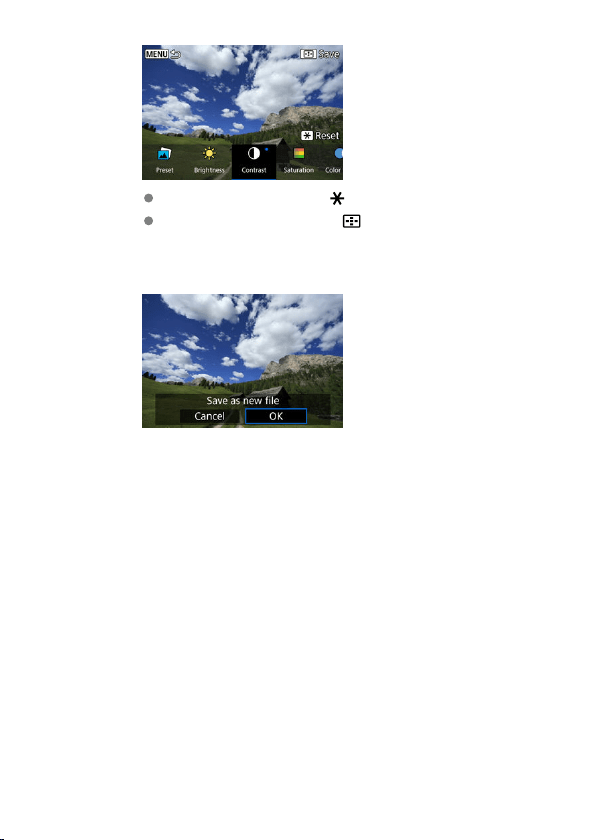
To reset the effect, press the < > button.
To confirm the effect, press the < > button.
4.
Select [OK] to save the image.
398
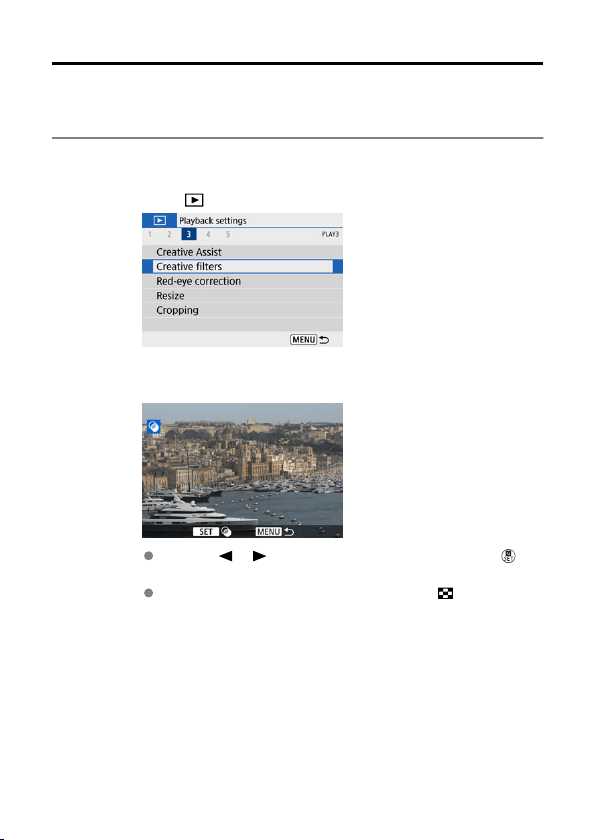
Creative Filters
You can apply the following filter processing to an image and save it as a separate image:
Grainy B/W, Soft focus, Fish-eye effect, Art bold effect,
Water painting effect, Toy camera
effect, and Miniature effect.
1.
Select [
: Creative filters].
2.
Select an image.
Use the < >< > keys to select an image, then press the < >
button.
To select the image from index display, press the < > button.
399
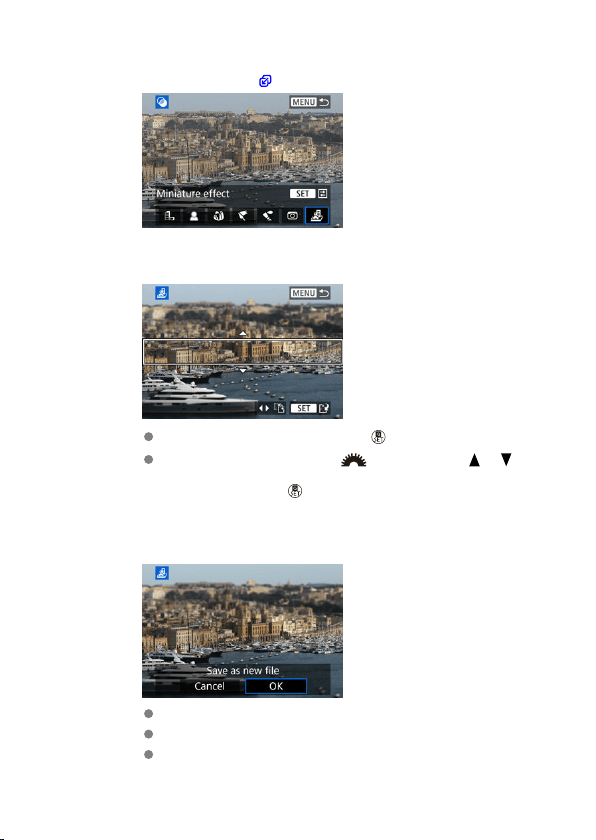
3.
Select a filter effect ( ).
4.
Adjust the filter effect.
Adjust the filter effect, then press the < > button.
For [Miniature effect], turn the < > dial or use the < >< >
keys to move the white frame enclosing the area to keep in sharper
focus, then press the < > button.
5.
Save.
Select [OK].
Check the destination folder and image file number, then select [OK].
To apply filter processing to other images, repeat steps 2–5.
400
Note
For images captured in RAW+JPEG shooting, filter processing is applied to the
RAW image, and the results are saved as a JPEG.
For RAW images captured at a specific aspect ratio, the resulting image is saved at
that aspect ratio after filter processing.
Images processed using the fish-eye effect filter will not have Dust Delete Data
( ) appended.
401
Creative Filter Characteristics
Grainy B/W
Makes the image grainy and black and white. By adjusting the contrast, you can change
the black-and-white effect.
Soft focus
Gives the image a soft look. By adjusting the blur, you can change the degree of
softness.
Fish-eye effect
Gives the effect of a fish-eye lens. The image will have barrel distortion.
Depending on the level of this filter effect, the area trimmed along the periphery of the
image changes. Also, because this filter effect magnifies the center of the image, the
apparent resolution at the center may degrade depending on the number of recorded
pixels, so set the filter effect in step 4 while checking the resulting image.
Art bold effect
Makes the photo look like an oil painting and the subject look more three-dimensional.
By adjusting the effect, you can change the contrast and saturation. Note that subjects
such as the sky or white walls may not be rendered with a smooth gradation and may
look irregular or have significant noise.
Water painting effect
Makes the photo look like a watercolor painting with soft colors. By adjusting the effect,
you can change the color density. Note that night scenes or dark scenes may not be
rendered with a smooth gradation and may look irregular or have significant noise.
Toy camera effect
Shifts colors to those typical of toy cameras and darkens the four corners of the image.
Color tone options can be used to change the color cast.
Miniature effect
Creates a diorama effect. You can change where the image looks sharp. To switch
between vertical and horizontal orientation of the sharp area (white frame), press the
< >< > keys in step 4.
402
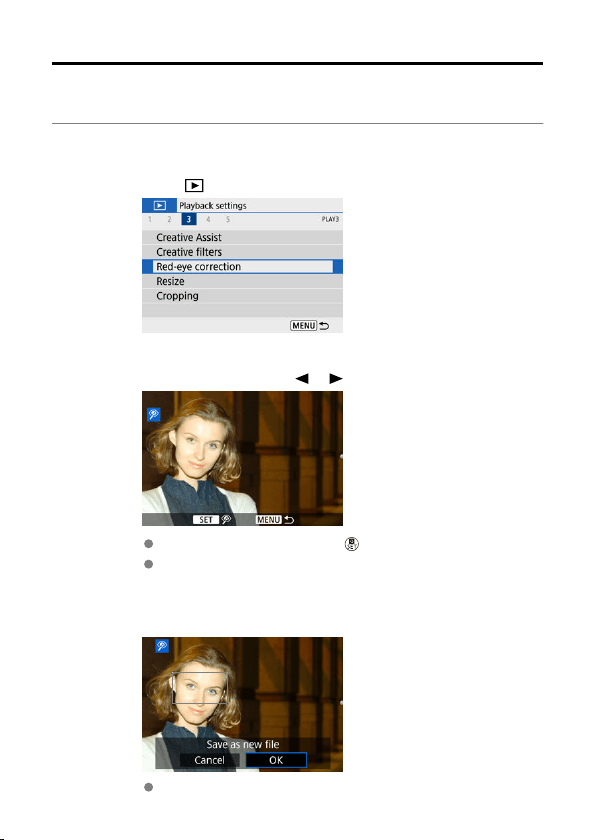
Red-Eye Correction
Automatically corrects relevant portions of images affected by red-eye. The image can be
saved as a separate file.
1.
Select [ : Red-eye correction].
2.
Select an image with the < >< > keys.
After image selection, press the < > button.
White frames are displayed around corrected image areas.
3.
Select [OK].
The image is saved as a separate file.
403
Caution
Some images may not be corrected accurately.
404
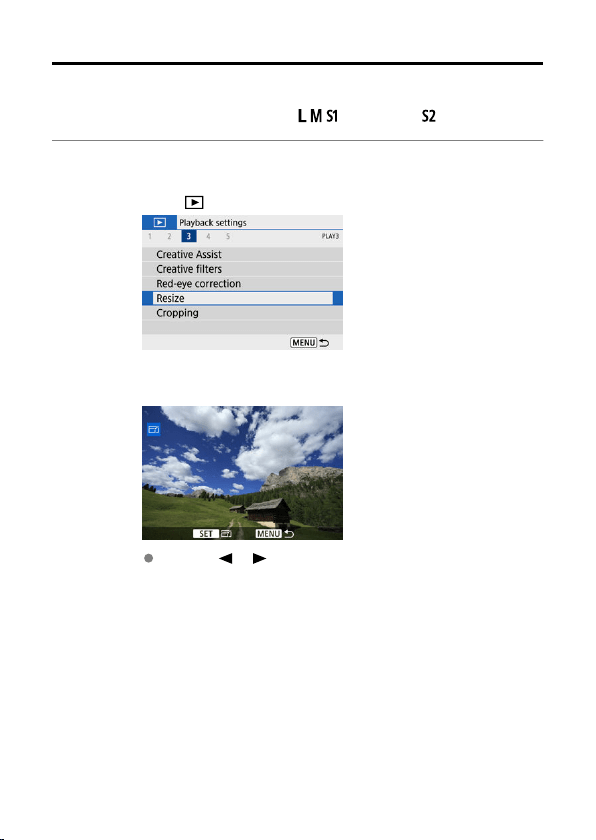
Resizing
You can resize a JPEG image to make the pixel count lower and save it as a new image.
Resizing an image is possible only with JPEG / / images. JPEG and RAW images
cannot be resized.
1.
Select [ : Resize].
2.
Select an image.
Use the < >< > keys to select an image to resize.
405

3.
Select the desired image size.
Press the < > button to display the image size.
Select the desired image size (1).
4.
Save.
Select [OK] to save the resized image.
Check the destination folder and image file number, then select [OK].
To resize another image, repeat steps 2 to 4.
406
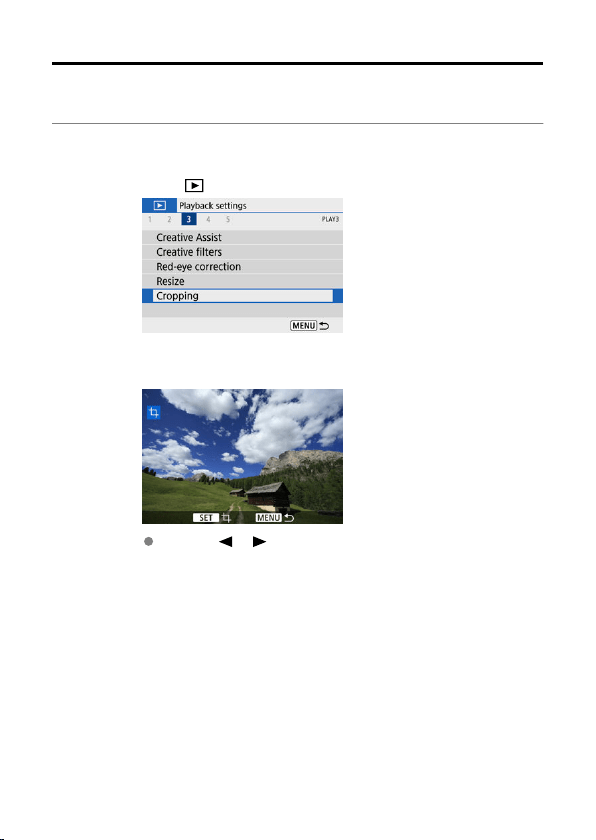
Cropping
You can crop a captured JPEG image and save it as another image. Cropping an image is
possible only with JPEG images. Images shot in RAW cannot be cropped.
1.
Select [ : Cropping].
2.
Select an image.
Use the < >< > keys to select an image to crop.
407
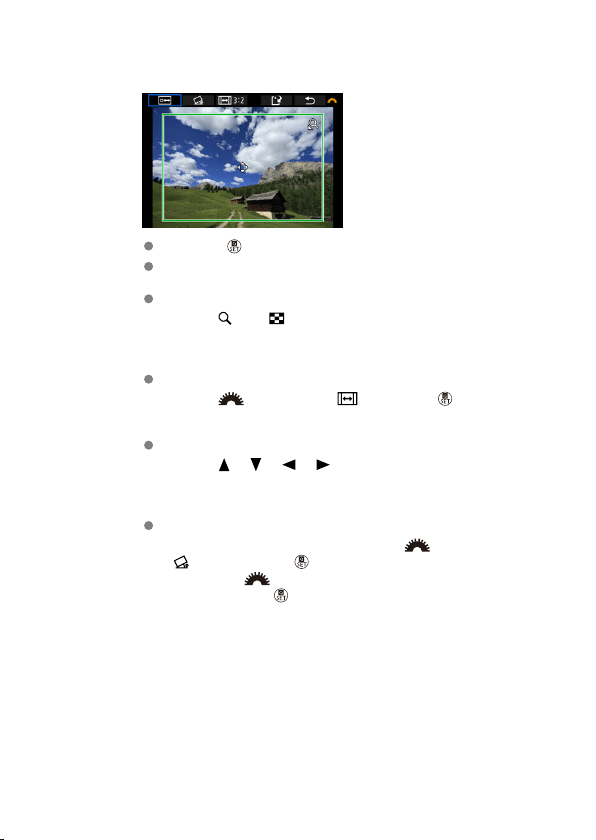
3.
Set the cropping frame.
Press the < > button to display the cropping frame.
The image area within the cropping frame will be cropped.
Resizing the cropping frame size
Use the < > or < > button to resize the cropping frame. The
smaller the cropping frame, the more magnified the cropped image will
look.
Changing the cropping frame aspect ratio and orientation
Use the < > dial to select < >. Press the < > button to
change the cropping frame aspect ratio.
Moving the cropping frame
Use the < >< >< >< > keys to move the frame vertically or
horizontally. Move the cropping frame until it covers the desired image
area.
Correcting tilt
You can correct image tilt by ±10°. Use the <
> dial to select
< >, then press the < > button. While checking tilt relative to the
grid, turn the < > dial to straighten the image. After correction is
finished, press the < > button.
408
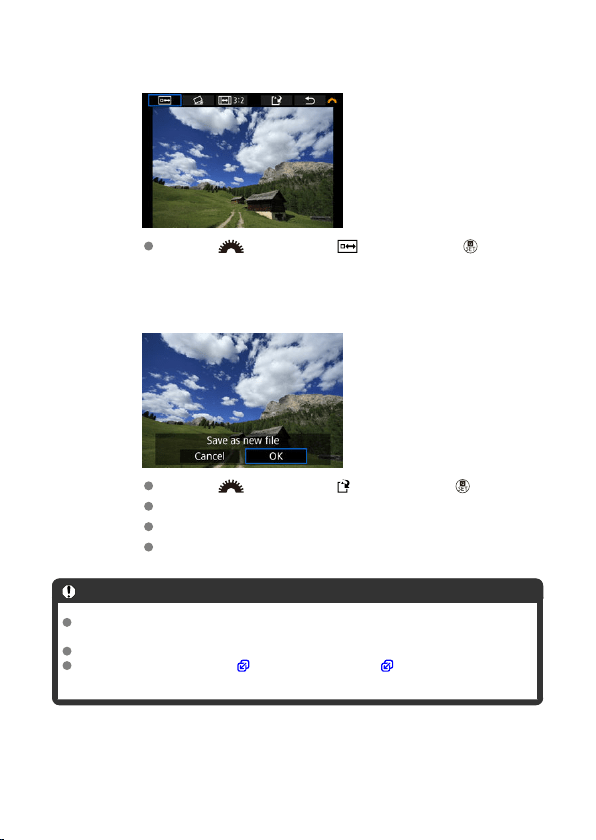
4.
Check the image area to be cropped.
Use the < > dial to select < >, then press the < > button.
The image area to crop is displayed.
5.
Save.
Use the < > dial to select < >, then press the < > button.
Select [OK] to save the cropped image.
Check the destination folder and image file number, then select [OK].
To crop another image, repeat steps 2 to 5.
Caution
The position and size of the cropping frame may change depending on the angle
set for tilt correction.
Once a cropped image is saved, it cannot be cropped again or resized.
AF point display information ( ) and Dust Delete Data ( ) will not be appended
to the cropped images.
409
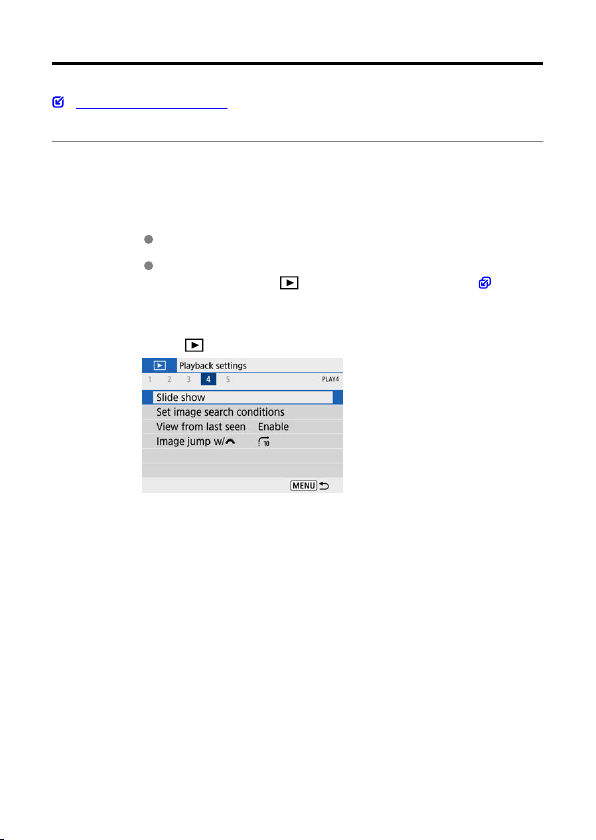
Slide Show
Selecting Background Music
You can play back the images on the card as an automatic slideshow.
1.
Specify the images to be played back.
To play back all the images on the card, go to step 2.
If you want to specify the images to be played back in the slideshow,
filter the images with [ : Set image search conditions] ( ).
2.
Select [ : Slide show].
410
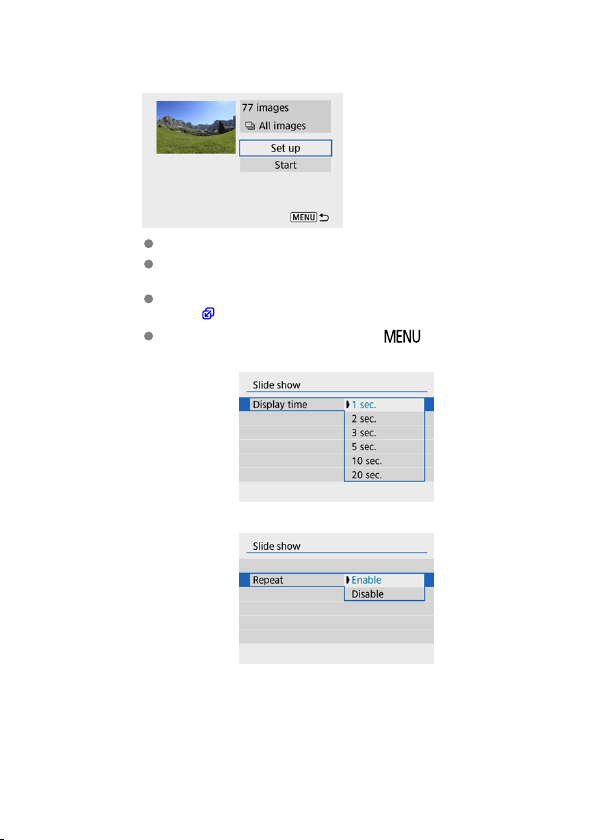
3.
Set the playback as desired.
Select [Set up].
Set the [Display time], [Repeat] (repeated playback), and [Transition
effect] (effect when changing images) settings for the still photos.
To play background music, use [Background music] to select the
music ( ).
After completing the settings, press the < > button.
Display time
Repeat
411
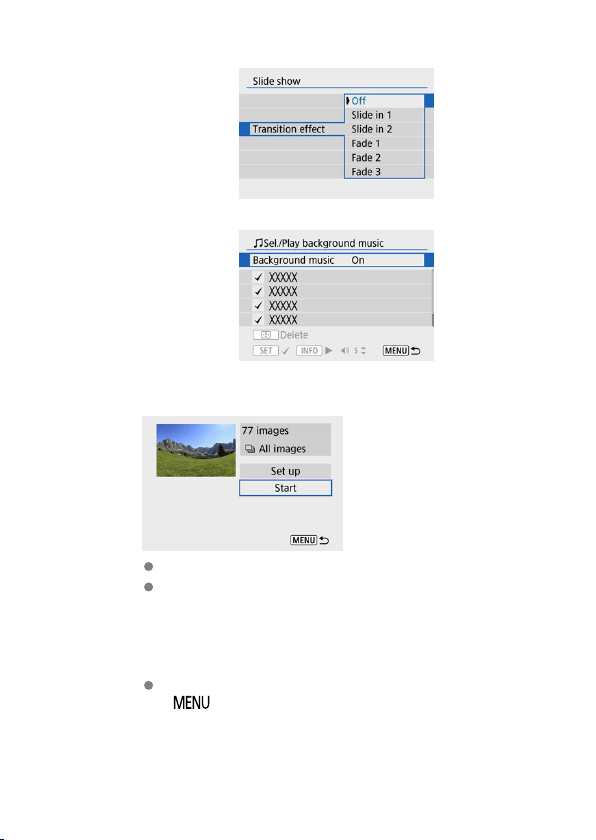
Transition effect
Background music
4.
Start the slideshow.
Select [Start].
After [Loading image...] is displayed, the slideshow will start.
5.
Exit the slideshow.
To exit the slideshow and return to the setting screen, press the
< > button.
412
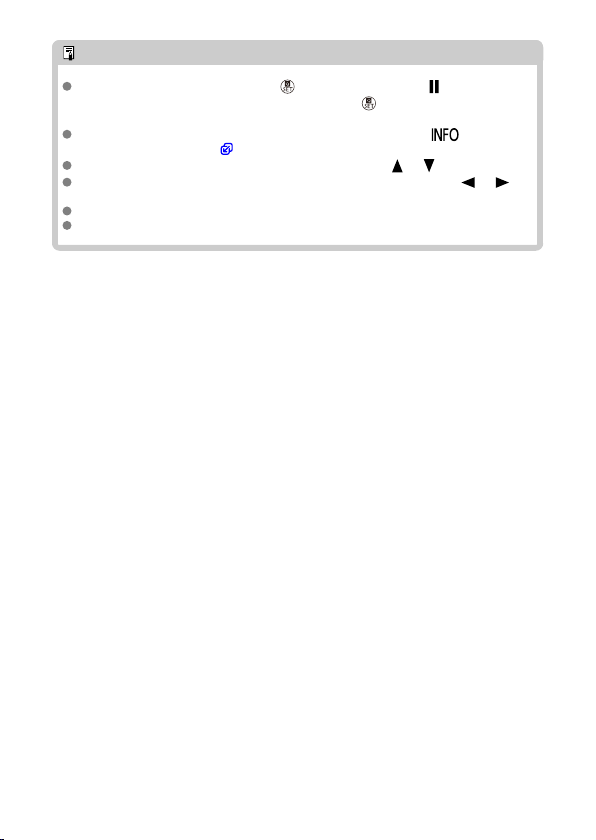
Note
To pause the slide show, press the < > button. During pause, [ ] will be
displayed in the upper left of the screen. Press the < > button again to resume
the slide show.
During the automatic playback of still photos, you can press the < > button to
switch the display format ( ).
Volume during movie playback can be adjusted with the < >< > keys.
During auto playback or when playback is paused, you can press the < >< >
keys to view other images.
During auto playback, auto power off will not take effect.
The display time may differ depending on the image.
413
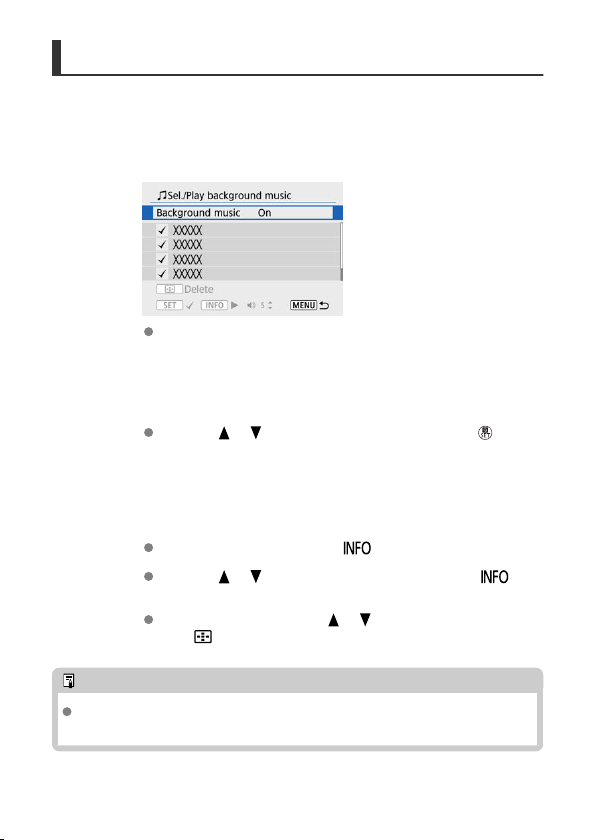
Selecting Background Music
Slideshows can be played with background music once you copy the music to the card,
using EOS Utility (EOS software).
1.
Select [Background music].
Set [Background music] to [On].
2.
Select the background music.
Use the < >< > keys to select the music, then press < >. For
[Slide show], you can select multiple tracks.
3.
Listen to a sample.
To listen to a sample, press the < > button.
Use the < >< > keys to adjust the volume. Press the < >
button again to stop playback.
To delete the music, use the < >< > keys to select it, then press
the < > button.
Note
For instructions on copying background music to cards, refer to the EOS Utility
Instruction Manual.
414
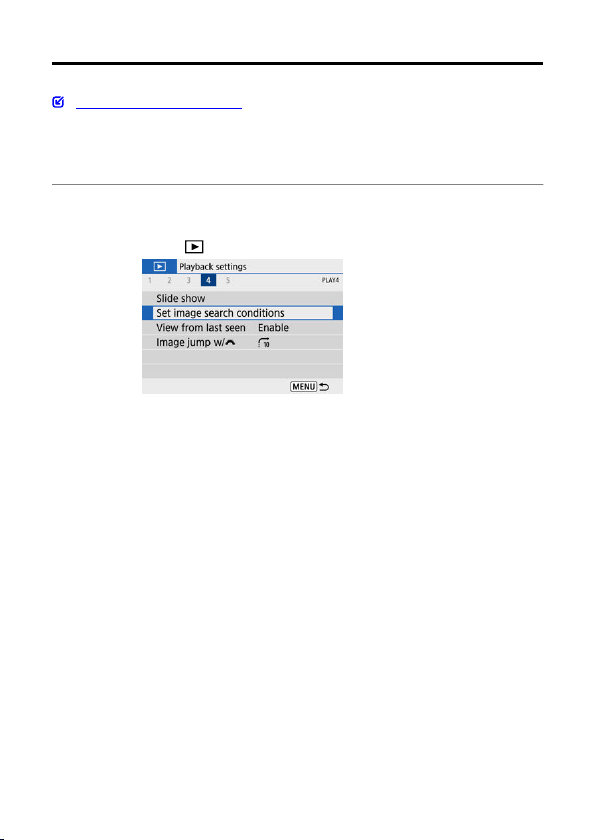
Setting Image Search Conditions
Clearing the Search Conditions
You can filter image display according to your search conditions. After setting the image
search conditions, you can play back and display only the found images.
You can also protect, rate, play a slideshow, erase, and apply other operations to filtered
images.
1.
Select [ : Set image search conditions].
415
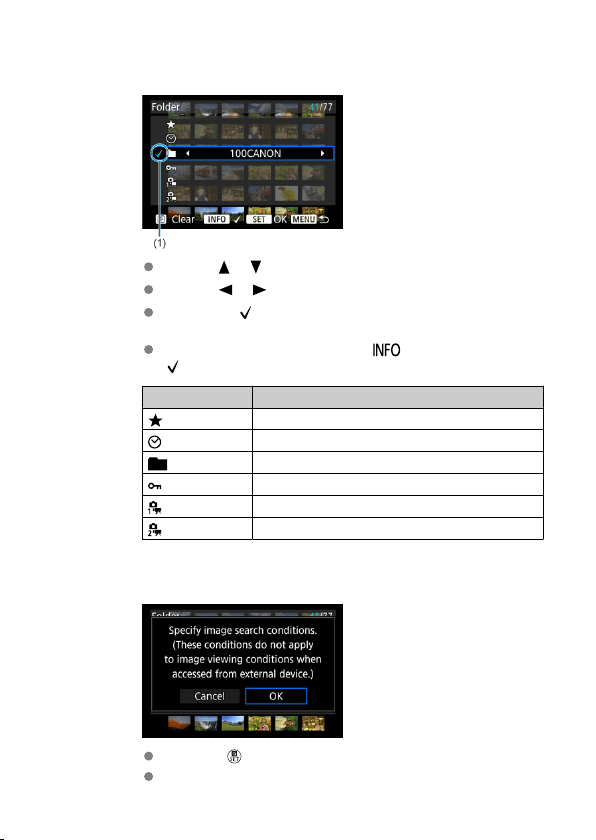
2.
Set the search conditions.
Use the < >< > keys to select an option.
Use the < >< > keys to set the option.
A checkmark [ ] (1) is appended to the left of the option. (Specified as
the search condition.)
If you select the option and press the < > button, the checkmark
[ ] will be removed (which cancels the search condition).
Option Description
Rating
Displays images with the selected (rating) condition.
Date
Displays images taken on the selected shooting date.
Folder
Displays images in the selected folder.
Protect
Displays images with the selected (protect) condition.
Type of file (1)
Displays images of the selected file type.
Type of file (2)
Displays digest movies.
3.
Apply the search conditions.
Press the < > button and read the message displayed.
Select [OK].
The search condition is applied.
416
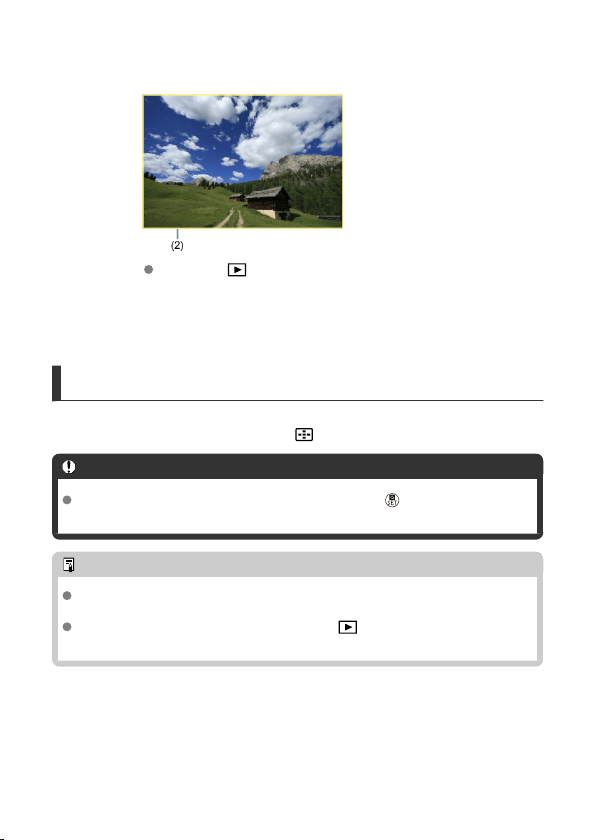
4.
Display the found images.
Press the < > button.
Only the images that match the set conditions (filtered) will be played
back.
When the images are filtered for display, the screen will have an outer
yellow frame (2).
Clearing the Search Conditions
Access the screen in step 2, then press the < > button to clear all the search conditions.
Caution
If no images match the search conditions, pressing the < > button in step 3 has
no effect.
Note
Search conditions may be cleared if you perform power, card, or image editing
operations.
Auto power off time may be extended while the [ : Set image search
conditions] screen is displayed.
417
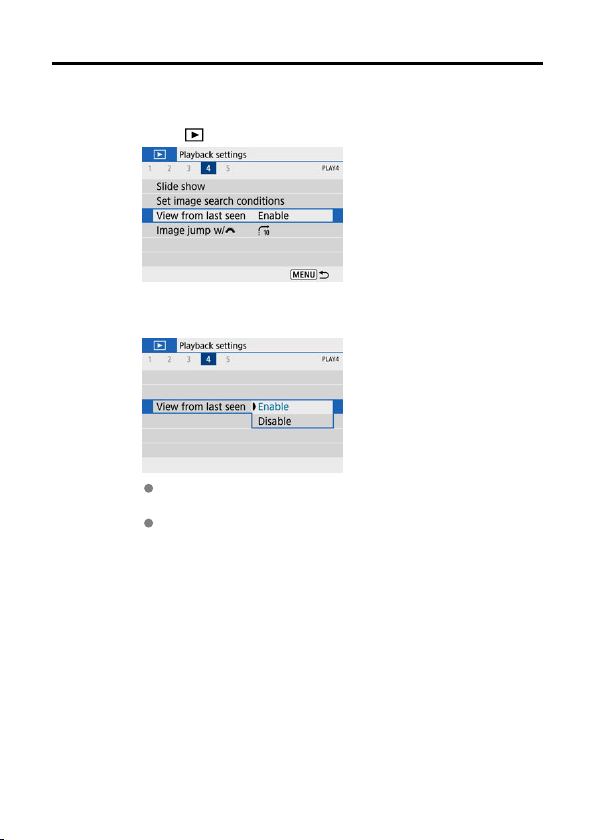
Resuming from Previous Playback
1.
Select [ : View from last seen].
2.
Select an option.
[Enable]: Playback resumes from the last image displayed (unless you
have just finished shooting).
[Disable]: Playback resumes from your most recent shot whenever the
camera is restarted.
418
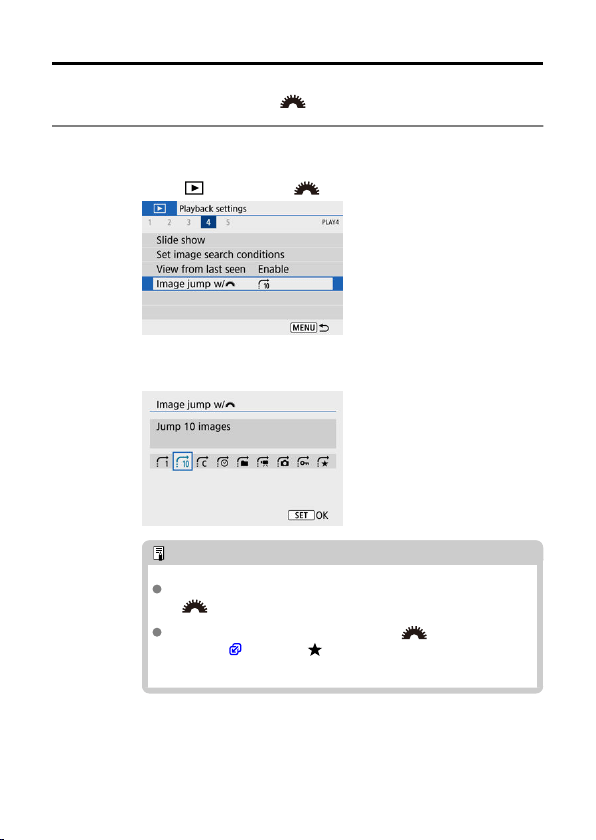
Browsing Images with the Dial
In single-image display, you can turn the < > dial to jump through the images forward
or backward according to the jump method set.
1.
Select [ : Image jump w/ ].
2.
Select the jump method.
Note
With [Jump images by the specified number], you can turn the
< > dial to select the number of images to jump by.
With [Display by image rating], turn the
<
> dial to select
the rating ( ). Selecting will show all rated images as you
browse.
419
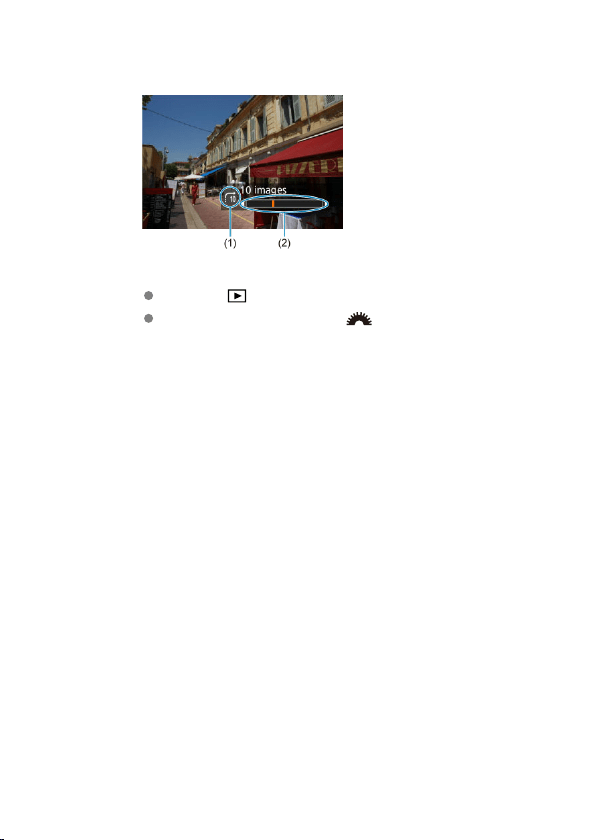
3.
Browse by jumping.
(1) Jump method
(2) Playback position
Press the < > button.
In single-image display, turn the < > dial.
You can browse by the jump method set.
420
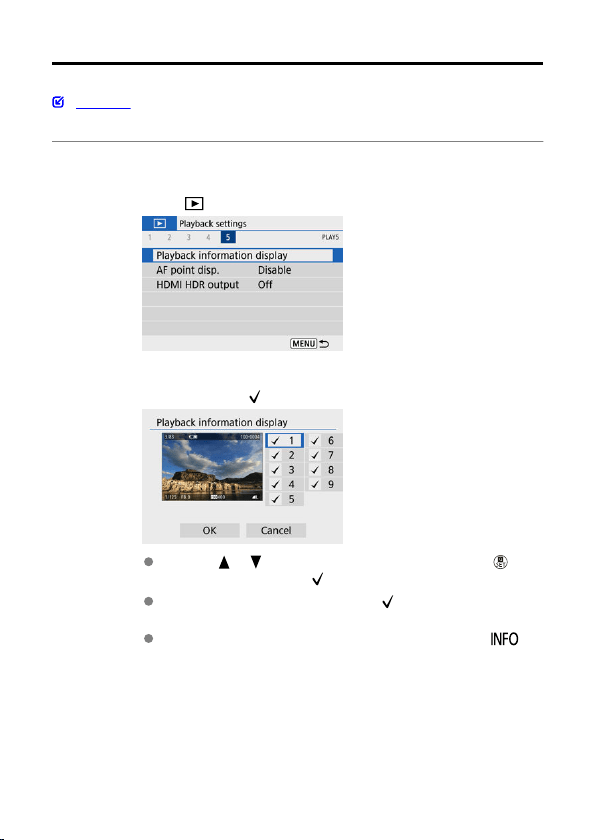
Playback Information Display
Histogram
You can specify screens and accompanying information displayed during image playback.
1.
Select [ : Playback information display].
2.
Add a checkmark [ ] next to the number of screens to display.
Use the < >< > keys to select numbers, then press the < >
button to add a checkmark [
].
Repeat these steps to add a checkmark [ ] to the number of each
screen to display, then select [OK].
Your selected information can be accessed by pressing the < >
button during playback.
421
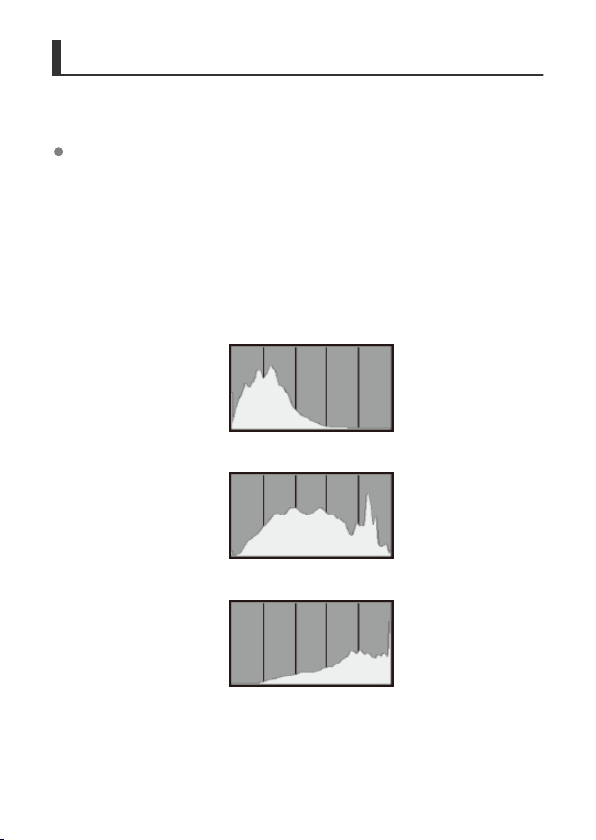
Histogram
The brightness histogram shows the exposure level distribution and overall brightness. The
RGB histogram is for checking the color saturation and gradation.
[Brightness] display
This histogram is a graph showing the distribution of the image's brightness level, with
the horizontal axis indicating the brightness level (darker on the left and brighter on the
right) and the vertical axis indicating the pixel count at each brightness level. The more
pixels there are toward the left, the darker the image, and the more pixels there are
toward the right, the brighter the image. If there are too many pixels on the left, detail in
shadows will be lost, and if there are too many pixels on the right, detail in highlights will
be lost. The gradation in-between will be reproduced. By checking the image and its
brightness histogram, you can see the exposure level inclination and the overall
gradation.
Sample histograms
Dark image
Normal brightness
Bright image
422

[RGB] display
This histogram is a graph showing the distribution of each primary color's brightness
level in the image (RGB or red, green, and blue), with the horizontal axis indicating the
color's brightness level (darker on the left and brighter on the right) and the vertical axis
indicating the pixel count at each color brightness level. The more pixels there are
toward the left, the darker and less prominent the color, and the more pixels there are
toward the right, the brighter and denser the color. If there are too many pixels on the
left, the corresponding color information will be lacking, and if there are too many pixels
on the right, the color will be too saturated, without gradation. By checking the image's
RGB histogram, you can see the color's saturation and gradation conditions, as well as
the white balance bias.
423
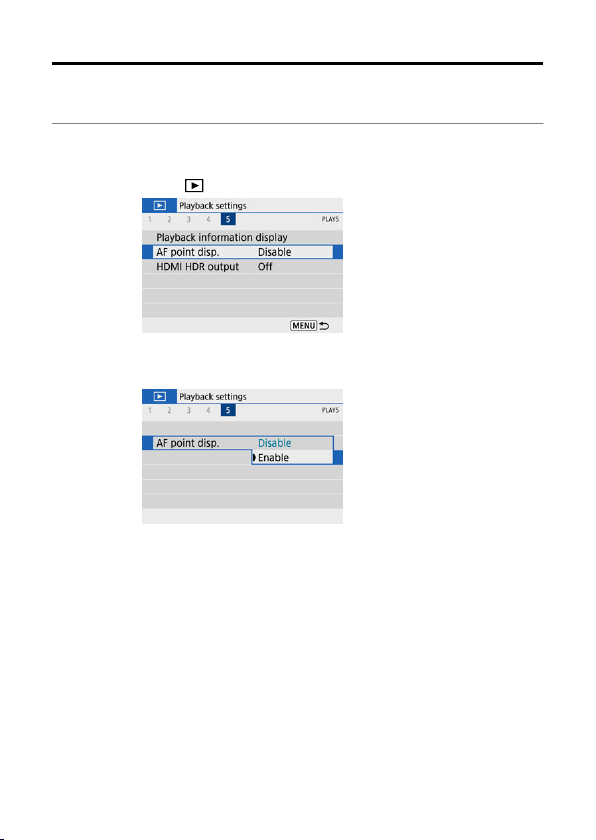
AF Point Display
You can display the AF points that were used to focus, which will be outlined in red on the
playback screen. If automatic AF point selection is set, multiple AF points may be displayed.
1.
Select [ : AF point disp.].
2.
Select [Enable].
424
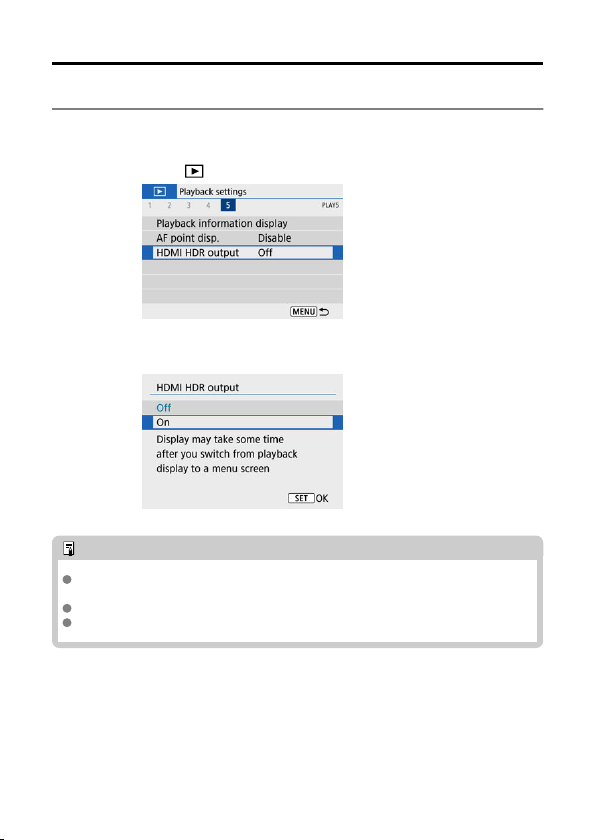
HDMI HDR Output
You can view RAW images in HDR by connecting the camera to an HDR TV.
1.
Select [ : HDMI HDR output].
2.
Select [On].
Note
Make sure the HDR TV is set up for HDR input. For details on how to switch inputs
on the TV, refer to the TV manual.
Depending on the TV used, images may not look as expected.
Some image effects and information may not be displayed on an HDR TV.
425
Wireless Features
This chapter describes how to connect the camera to a smartphone wirelessly via
Bluetooth
®
or Wi-Fi
®
and send images to devices or Web services, how to control the
camera from a computer or wireless remote control, and other operations.
Caution
Important
Note that Canon cannot be held liable for any loss or damage caused by erroneous
wireless communication settings when using the camera. In addition, Canon cannot
be held liable for any other loss or damage caused by use of the camera.
When using wireless communication functions, establish appropriate security at
your own risk and discretion. Canon cannot be held liable for any loss or damage
caused by unauthorized access or other security breaches.
• Tab Menus: Wireless Settings
• Wi-Fi/Bluetooth Connection
• Connecting to a Smartphone
• Connecting to a Computer via Wi-Fi
• Connecting to a Printer via Wi-Fi
• Sending Images to a Web Service
• Wi-Fi Connection via Access Points
• Connecting to a Wireless Remote Control
• Reconnecting via Wi-Fi
• Registering Multiple Connection Settings
• Airplane Mode
• Wi-Fi Settings
• Bluetooth Settings
• Nickname
• GPS Settings
• Changing or Deleting Connection Settings
• Resetting Communication Settings
• View Info Screen
• Virtual Keyboard Operations
• Responding to Error Messages
• Wireless Communication Function Precautions
• Security
• Checking Network Settings
• Wireless Communication Status
426
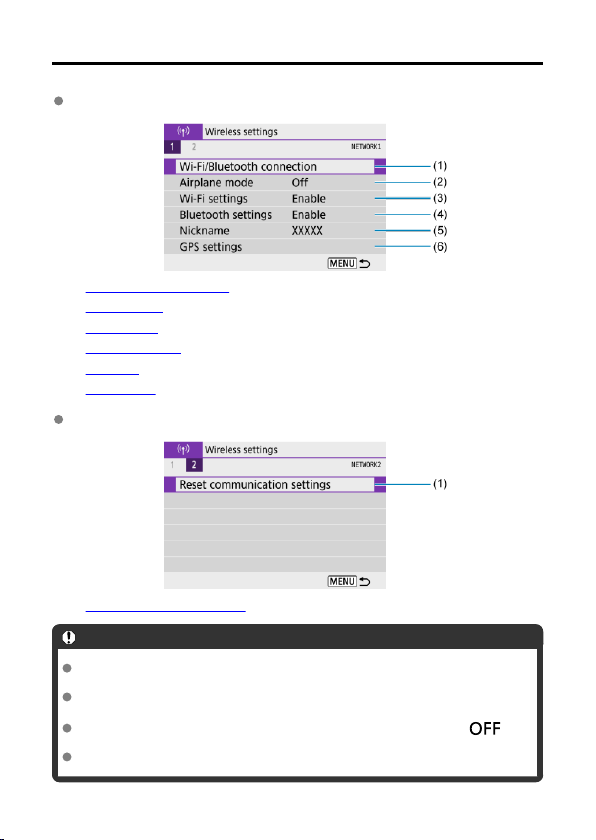
Tab Menus: Wireless Settings
Wireless Settings 1
(1) Wi-Fi/Bluetooth connection
(2) Airplane mode
(3) Wi-Fi settings
(4) Bluetooth settings
(5) Nickname
(6) GPS settings
Wireless Settings 2
(1) Reset communication settings
Caution
Wireless communication is not available while the camera is connected via an
interface cable to a computer or other device.
Other devices, such as computers, cannot be used with the camera by connecting
them with an interface cable while the camera is connected to devices via Wi-Fi.
The Wi-Fi connection will be terminated if you set the camera power to < > or
open the card/battery compartment cover.
With a Wi-Fi connection established, the camera's auto power off does not function.
427
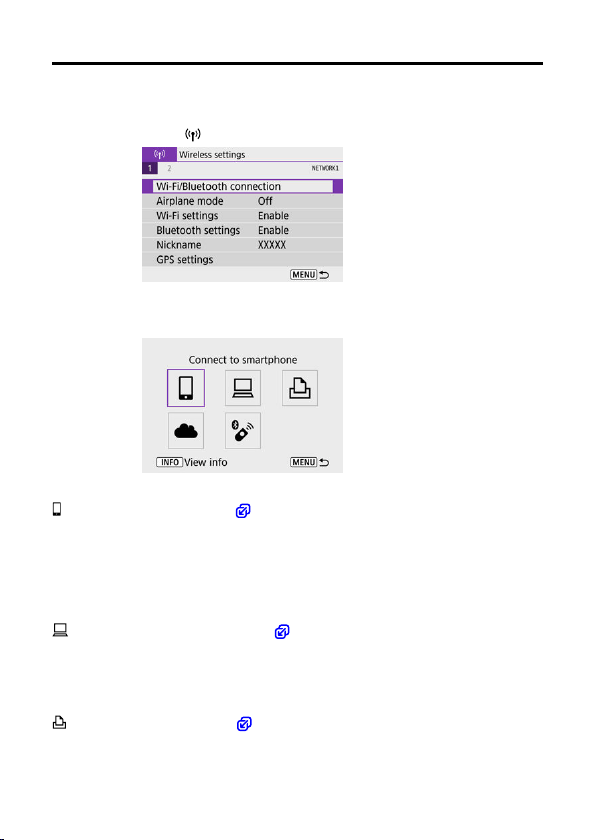
Wi-Fi/Bluetooth Connection
1.
Select [ : Wi-Fi/Bluetooth connection].
2.
Select an option for the camera to connect to.
Connect to smartphone ( )
Control the camera remotely and browse images on the camera over a Wi-Fi connection by
using the dedicated Camera Connect app on smartphones or tablets (collectively referred to
as “smartphones” in this manual).
After pairing the camera with a smartphone supporting Bluetooth low energy technology
(hereafter, “Bluetooth”), you only need to use the smartphone to connect via Wi-Fi.
Remote control (EOS Utility) ( )
Connect the camera to a computer via Wi-Fi and operate the camera remotely using EOS
Utility (EOS software). Images on the camera can also be sent to the computer
automatically.
Print from Wi-Fi printer ( )
Connect the camera to a printer via Wi-Fi to print images.
428

Upload to Web service ( )
Images can be sent directly from the camera to the image.canon cloud service for Canon
customers after you complete member registration (free of charge). Original files of images
sent to image.canon are retained for 30 days, without storage limitations, and can be
downloaded to computers or transferred to other Web services.
Connect to Wireless Remote ( )
This camera can also be connected to Wireless Remote Control BR-E1 (sold separately) via
Bluetooth for remote control shooting.
429
Connecting to a Smartphone
Turning on Bluetooth and Wi-Fi on a Smartphone
Installing Camera Connect on a Smartphone
Connecting to a Bluetooth-Compatible Smartphone via Wi-Fi
Main Functions of Camera Connect
Maintaining a Wi-Fi Connection When the Camera Is Off
Canceling the Pairing
Wi-Fi Connection without Using Bluetooth
Automatic Image Transfer as You Shoot
Sending Images to a Smartphone from the Camera
Terminating Wi-Fi Connections
Settings to Make Images Viewable from Smartphones
You can do the following after pairing the camera with a Bluetooth-compatible smartphone.
Establish a Wi-Fi connection using only the smartphone ( ).
Establish a Wi-Fi connection with the camera even when it is off ( ).
Geotag images with GPS information acquired by the smartphone ( ).
Control the camera remotely from a smartphone ( ).
You can also do the following after connecting the camera to a smartphone via Wi-Fi.
Browse and save images on the camera from a smartphone ( ).
Control the camera remotely from a smartphone ( ).
Send images to a smartphone from the camera ( ).
430
Turning on Bluetooth and Wi-Fi on a Smartphone
Turn on Bluetooth and Wi-Fi from the smartphone settings screen. Note that pairing with the
camera is not possible from the smartphone's Bluetooth settings screen.
Note
To establish a Wi-Fi connection via an access point, see Wi-Fi Connection via
Access Points.
431

Installing Camera Connect on a Smartphone
The dedicated app Camera Connect (free of charge) must be installed on the smartphone
on which Android or iOS is installed.
Use the latest version of the smartphone OS.
Camera Connect can be installed from Google Play or App Store. Google Play or App
Store can also be accessed using the QR codes that appear when the camera is paired
or connected via Wi-Fi to a smartphone.
Note
For the operating system versions supported by Camera Connect, refer to the
download site of Camera Connect.
Sample screens and other details in this guide may not match the actual user
interface elements after camera firmware updates or updates to Camera Connect,
Android, or iOS.
432
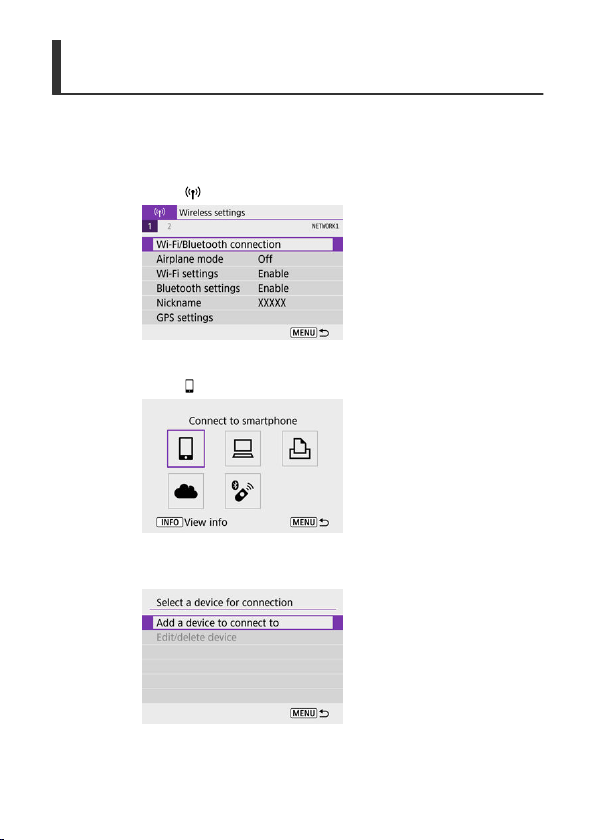
Connecting to a Bluetooth-Compatible Smartphone via
Wi-Fi
Steps on the camera (1)
1.
Select [ : Wi-Fi/Bluetooth connection].
2.
Select [ Connect to smartphone].
3.
Select [Add a device to connect to].
433
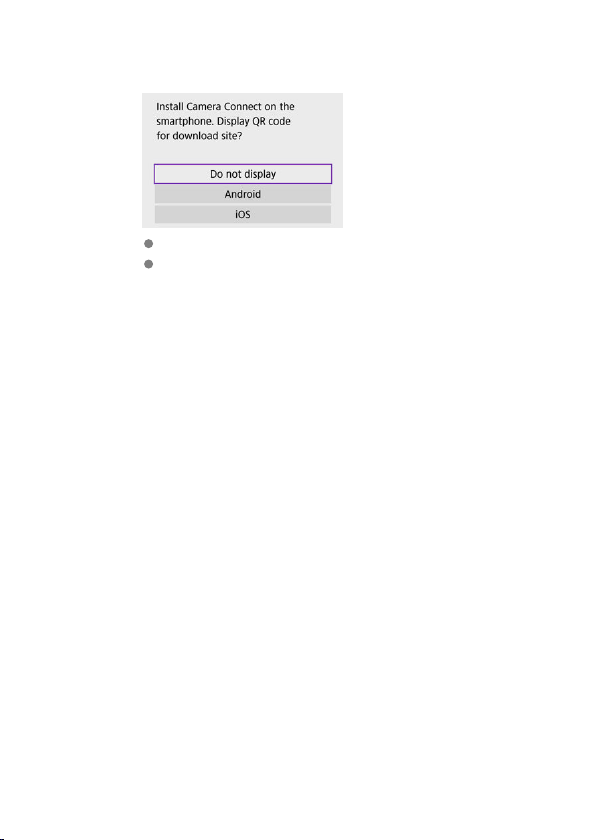
4.
Select an option.
If Camera Connect is already installed, select [Do not display].
If Camera Connect is not installed, select [Android] or [iOS], scan the
displayed QR code with the smartphone to access Google Play or App
Store and install Camera Connect.
434
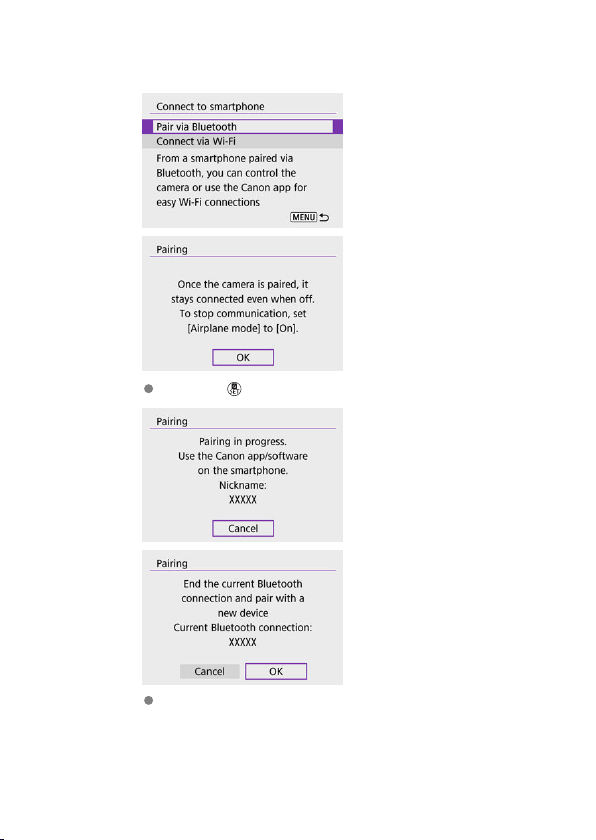
5.
Select [Pair via Bluetooth].
Press the < > button to start pairing.
To pair with a different smartphone after pairing with one initially, select
[OK] on the screen shown above.
435

Steps on the smartphone (1)
6.
Start Camera Connect.
Following the instructions in the app, select the camera for pairing.
436
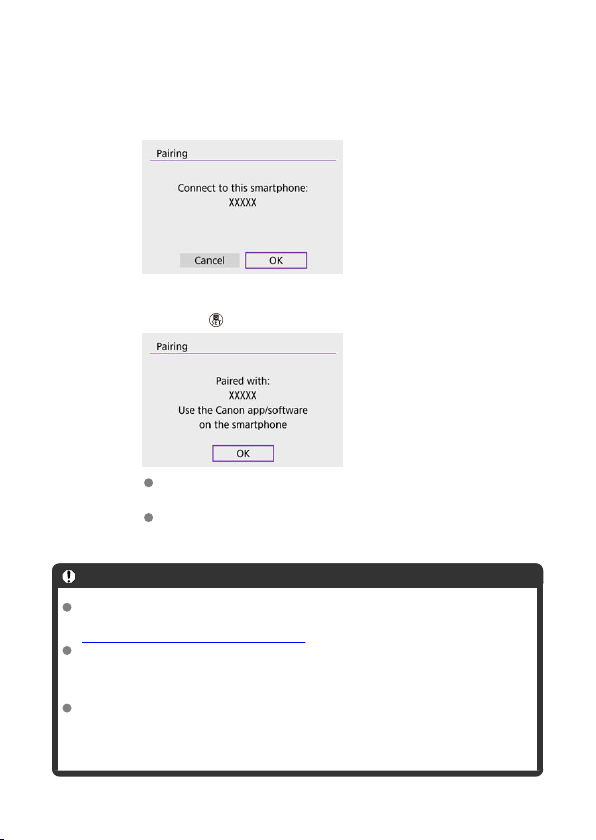
Steps on the camera (2)
7.
Select [OK].
8.
Press the < > button.
Pairing is now complete, and the camera is connected to the
smartphone via Bluetooth.
When a message appears on the smartphone, use the smartphone as
indicated.
Caution
The camera cannot be connected to two or more devices at the same time via
Bluetooth. To switch to a different smartphone for the Bluetooth connection, see
Changing or Deleting Connection Settings.
Bluetooth connection consumes battery power even after the camera's auto power
off is activated. Therefore, the battery level may be low when you use the camera.
Troubleshooting pairing
Keeping pairing records for previously paired cameras on your smartphone will
prevent it from pairing with this camera. Before you try pairing again, remove
pairing records for previously paired cameras from your smartphone's Bluetooth
settings screen.
437
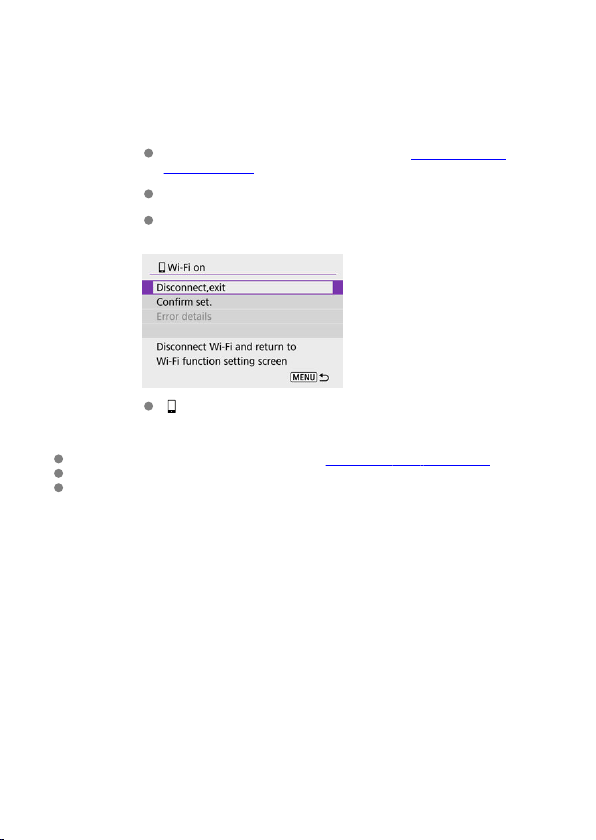
Steps on the smartphone (2)
9.
Tap a Camera Connect function.
For details on Camera Connect functions, see Main Functions of
Camera Connect.
Tap a Camera Connect function to initiate a Wi-Fi connection.
When a Wi-Fi connection is established, the screen for the selected
function will appear.
[ Wi-Fi on] is displayed on the camera screen.
The Wi-Fi connection to a Bluetooth-compatible smartphone is now complete.
For how to terminate the Wi-Fi connection, see Terminating Wi-Fi Connections.
Terminating the Wi-Fi connection will switch the camera to the Bluetooth connection.
To reconnect via Wi-Fi, start Camera Connect and tap the function you will use.
439

[ Wi-Fi on] screen
Disconnect,exit
Terminates the Wi-Fi connection.
Confirm set.
You can check the settings.
Error details
When a Wi-Fi connection error occurs, you can check the details of the error.
440

Main Functions of Camera Connect
Images on camera
Images can be browsed, deleted, or rated.
Images can be saved on a smartphone.
Effects can be applied to RAW images from a smartphone (Creative Assist).
Remote live view shooting
Enables remote shooting as you view a live image on the smartphone.
Auto transfer
Enables camera and app setting adjustment for automatic transfer of your shots ( ).
Bluetooth remote controller
Enables remote control of the camera from a smartphone paired via Bluetooth. (Not
available when connected via Wi-Fi.)
Auto power off is disabled while you are using the Bluetooth remote controller feature.
Camera settings
Camera settings can be changed.
You can check other functions from the main Camera Connect screen.
441
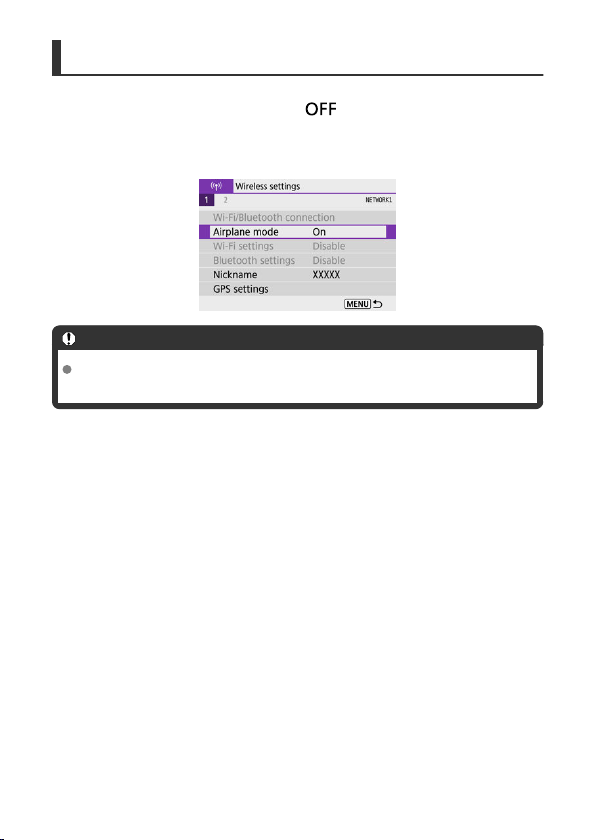
Maintaining a Wi-Fi Connection When the Camera Is Off
Even when the camera power switch is set to < >, as long as it is paired to a
smartphone via Bluetooth, you can use the smartphone to connect via Wi-Fi
and browse
images on the camera or perform other operations.
If you prefer not to connect via Wi-Fi to the camera when it is off, either set [Airplane mode]
to [On] or set [Bluetooth settings] to [Disable].
Caution
This function can no longer be used if the wireless settings are reset or the
smartphone connection information is erased.
442
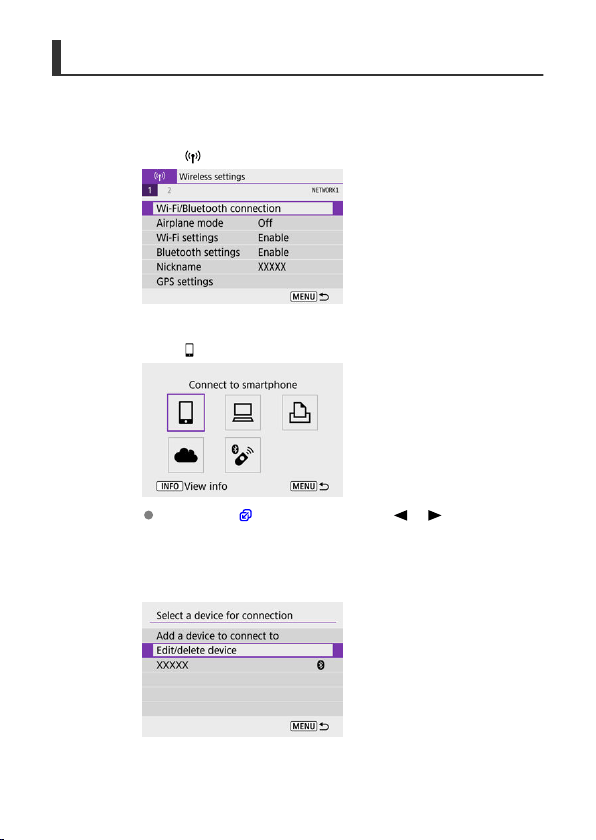
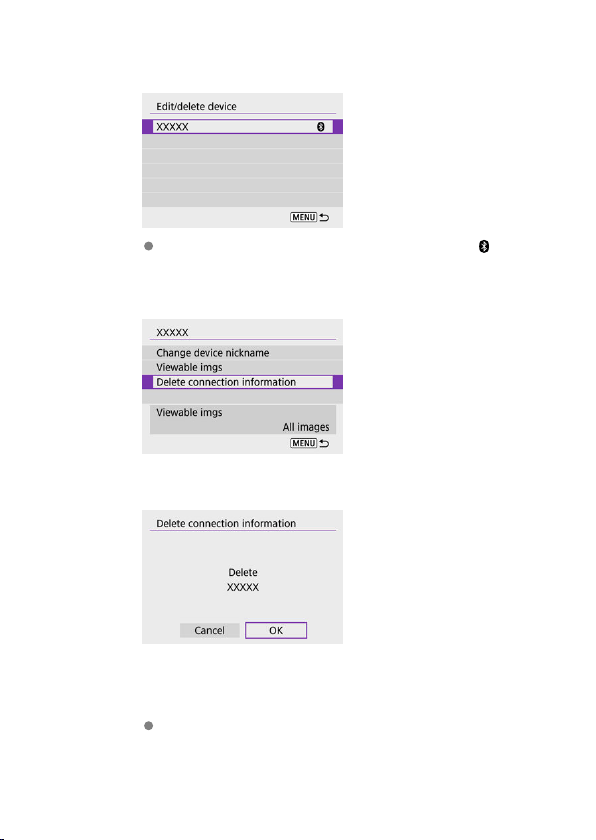
4.
Select the smartphone to cancel pairing with.
Smartphones currently paired with the camera are labeled [ ].
5.
Select [Delete connection information].
6.
Select [OK].
7.
Clear the camera information on the smartphone.
In the smartphone's Bluetooth setting menu, clear the camera
information registered on the smartphone.
444
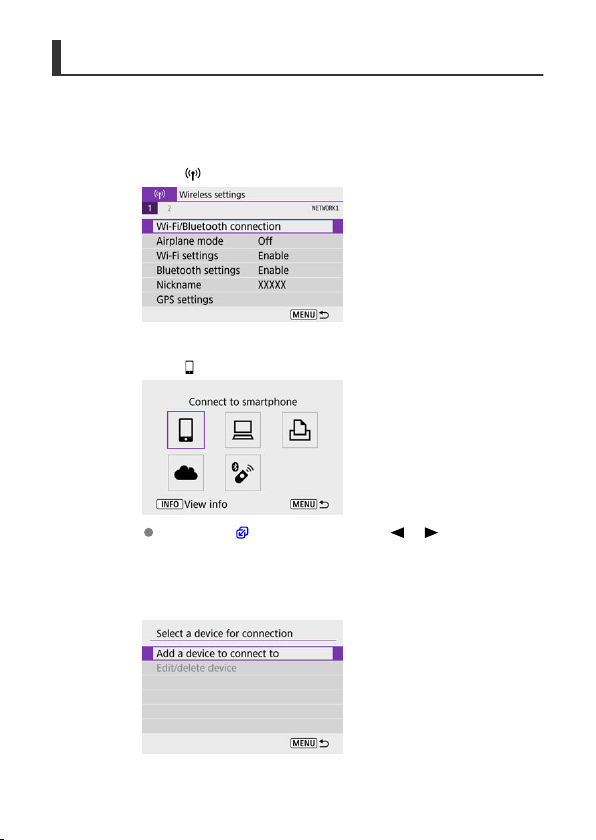
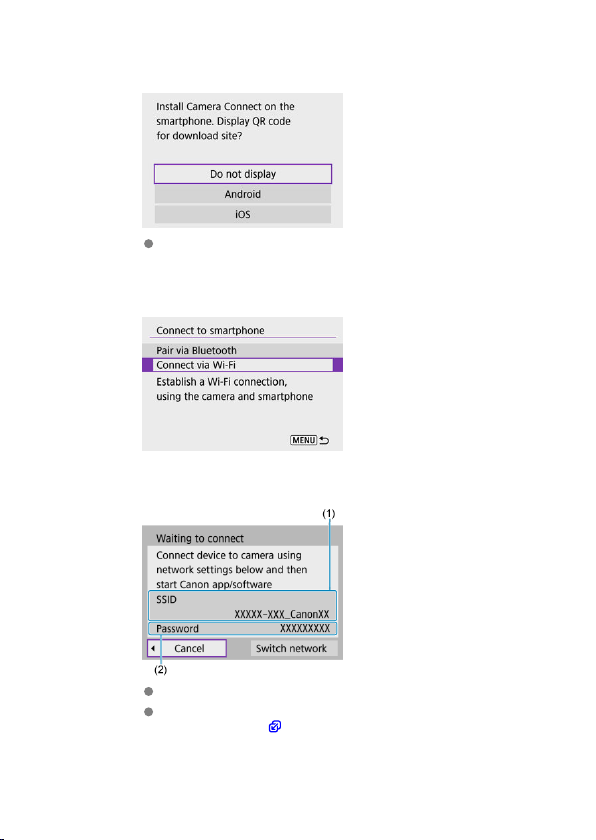
4.
Select an option.
If Camera Connect is already installed, select [Do not display].
5.
Select [Connect via Wi-Fi].
6.
Check the SSID (network name) and password.
Check the SSID (1) and Password (2) displayed on the camera screen.
No password is displayed or required if you set [Password] to [None]
in [Wi-Fi settings] ( ).
446
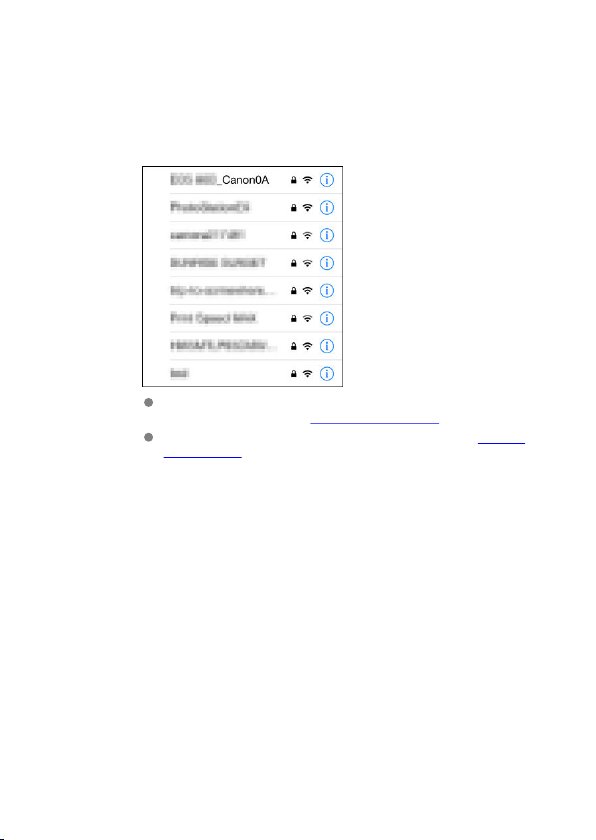
Steps on the smartphone
7.
Operate the smartphone to establish a Wi-Fi connection.
Smartphone's screen (sample)
Activate the smartphone's Wi-Fi function, then tap the SSID (network
name) checked in step 6 in Steps on the camera (1).
For the password, enter the password checked in step 6 in Steps on
the camera (1).
8.
Start Camera Connect and pair with the camera.
448
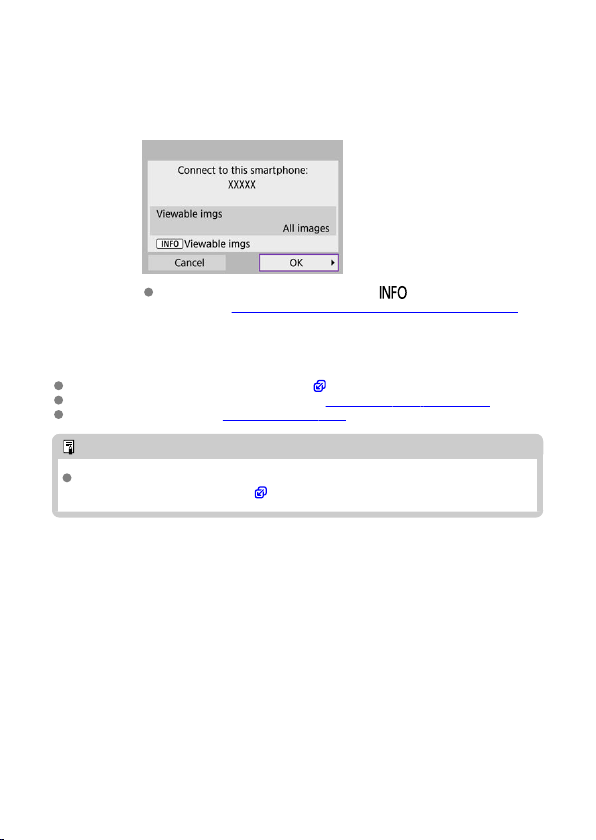
Steps on the camera (2)
9.
Select [OK].
To specify viewable images, press the < > button. Configure as
described in Settings to Make Images Viewable from Smartphones,
starting in step 5.
The Wi-Fi connection to a smartphone is now complete.
Operate the camera using Camera Connect ( ).
For how to terminate the Wi-Fi connection, see Terminating Wi-Fi Connections.
To reconnect via Wi-Fi, see Reconnecting via Wi-Fi.
Note
When connected via Wi-Fi, you can send images to a smartphone from the Quick
Control screen during playback ( ).
449
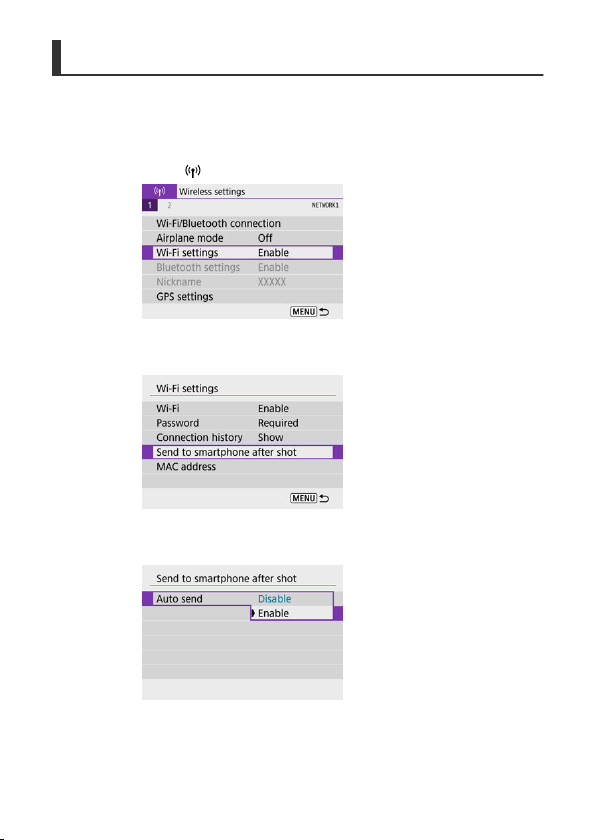
Automatic Image Transfer as You Shoot
Your shots can be automatically sent to a smartphone. Before following these steps, make
sure the camera and smartphone are connected via Wi-Fi.
1.
Select [ : Wi-Fi settings].
2.
Select [Send to smartphone after shot].
3.
Set [Auto send] to [Enable].
450
4.
Set [Size to send].
5.
Take the picture.
451
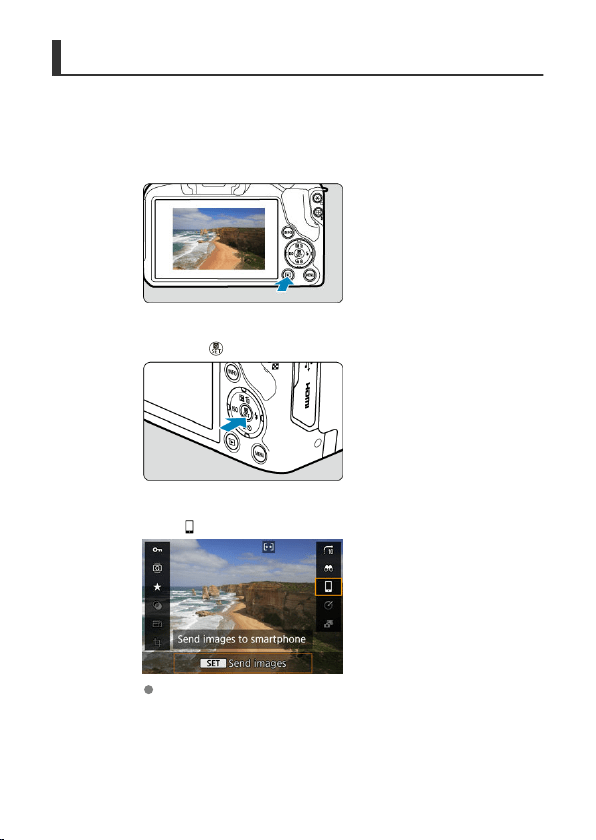
Sending Images to a Smartphone from the Camera
You can use the camera to send images to a smartphone paired via Bluetooth (Android
devices only) or connected via Wi-Fi.
1
.
Switch to playback.
2.
Press the < > button.
3.
Select [
Send images to smartphone].
If you perform this step while connected via Bluetooth, a message is
displayed, and the connection switches to a
Wi-Fi connection.
4.
Select sending options and send the images.
452
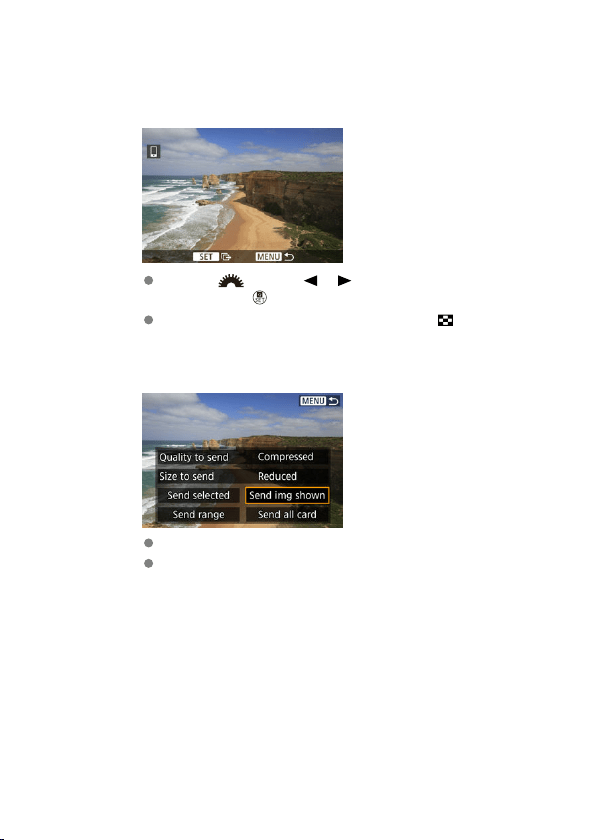
(1) Sending images individually
1.
Select an image to send.
Use the < > dial or < >< > keys to select an image to send,
then press the < > button.
To select the image from index display, press the < > button.
2.
Select [Send img shown].
In [Size to send], you can select the image sending size.
When sending movies, you can select the image quality of movies to
send in [Quality to send].
453
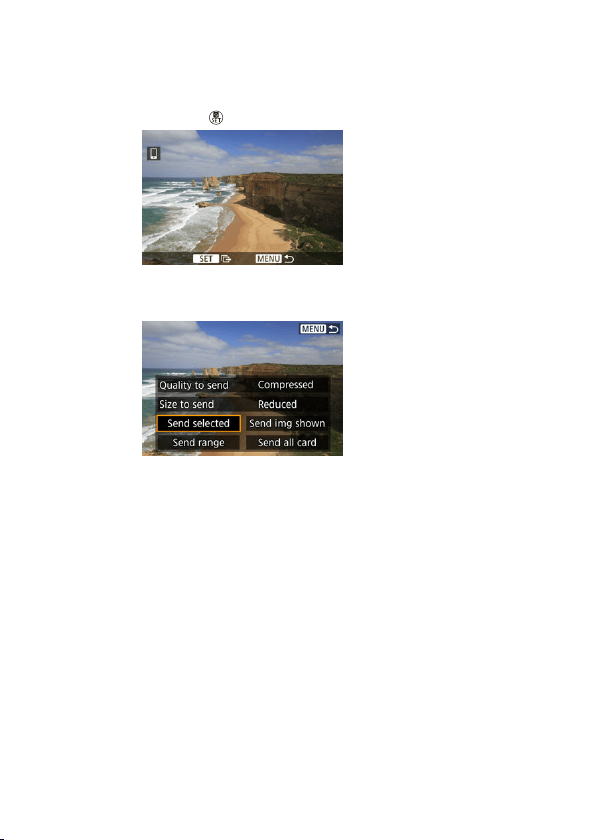
(2) Sending multiple selected images
1.
Press the < > button.
2.
Select [Send selected].
454
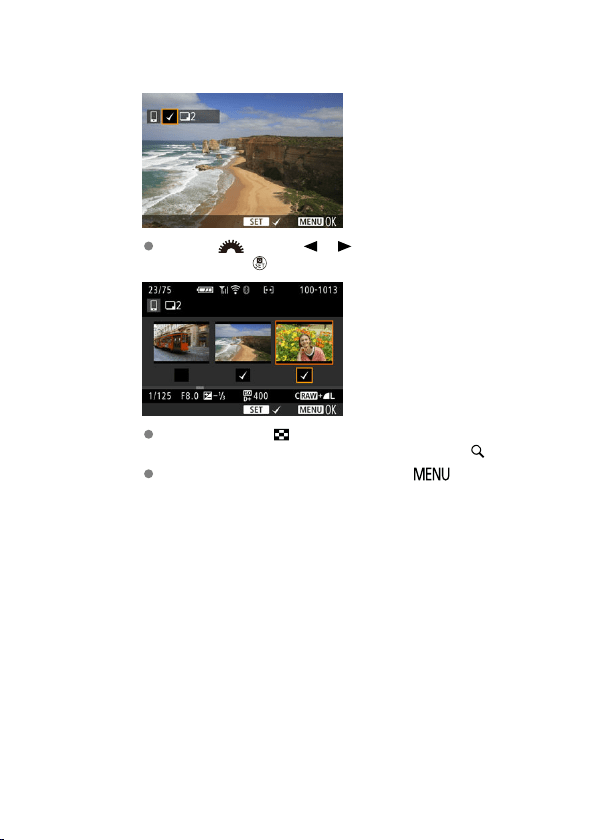
3.
Select images to send.
Use the < > dial or < >< > keys to select an image to send,
then press the < > button.
You can press the < > button to select the images from 3-image
display. To return to the single-image display, press the <
> button.
After selecting the images to send, press the < > button.
Select [OK] when a message is displayed.
455
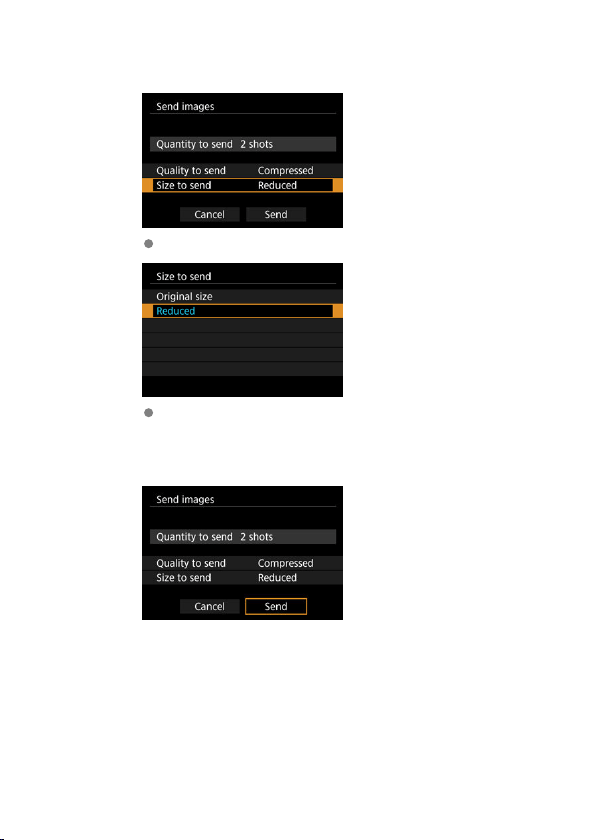
4.
Select [Size to send].
On the displayed screen, select an image size.
When sending movies, select the image quality in [Quality to send].
5.
Select [Send].
456
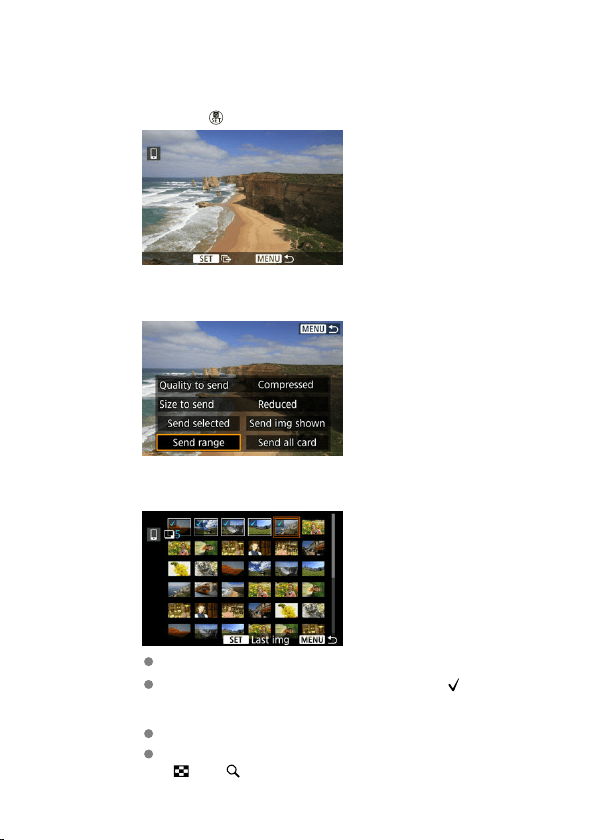
(3) Sending a specified range of images
1.
Press the < > button.
2.
Select [Send range].
3.
Specify the range of images.
Select the first image (start point).
Next, select the last image (end point). A checkmark [ ] will be
appended to all the images within the range between first and last
images.
To cancel the selection, repeat this step.
To change the number of images shown in index display, press the
< > or < > button.
457
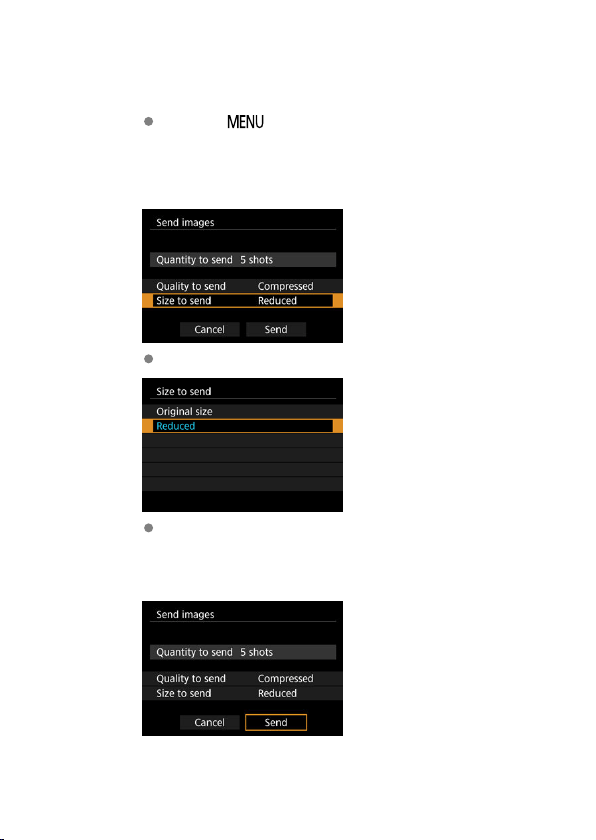
4.
Confirm the range.
Press the < > button.
Select [OK] when a message is displayed.
5.
Select [Size to send].
On the displayed screen, select an image size.
When sending movies, select the image quality in [Quality to send].
6.
Select [Send].
458
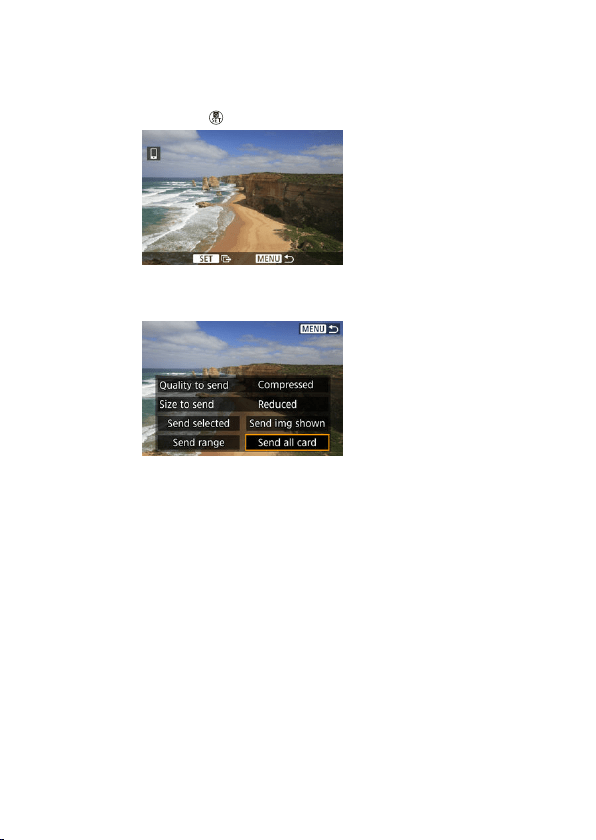
(4) Sending all images on the card
1.
Press the < > button.
2.
Select [Send all card].
459
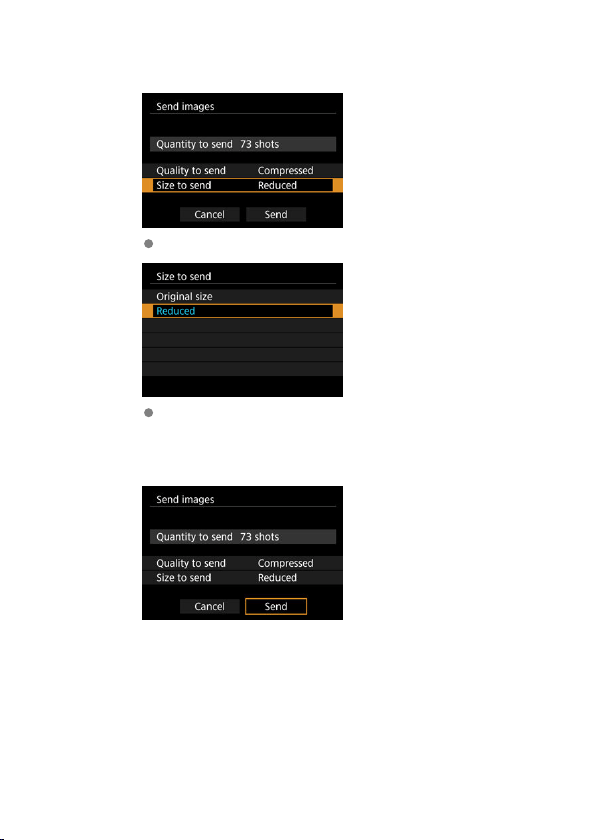
3.
Select [Size to send].
On the displayed screen, select an image size.
When sending movies, select the image quality in [Quality to send].
4.
Select [Send].
460
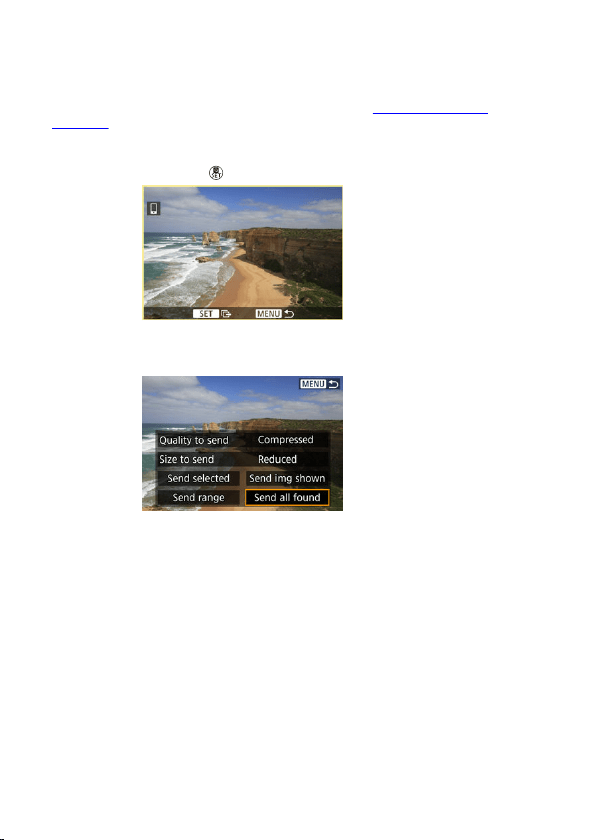
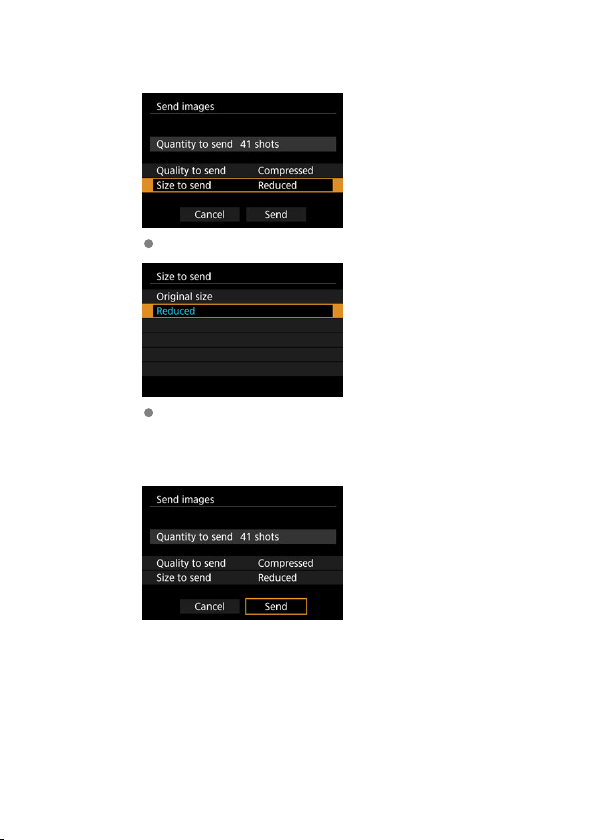
3.
Select [Size to send].
On the displayed screen, select an image size.
When sending movies, select the image quality in [Quality to send].
4.
Select [Send].
462
Ending image transfer
Press the < > button on the image transfer screen.
To terminate the Wi-Fi connection, see Terminating Wi-Fi Connections.
Caution
During the image transfer operation, a picture cannot be taken even if the camera's
shutter button is pressed.
Note
You can cancel the image transfer by selecting [Cancel] during the transfer.
You can select up to 999 files at a time.
With a Wi-Fi connection established, disabling the smartphone's power saving
function is recommended.
Selecting the reduced size for still photos applies to all still photos sent at that time.
Note that size still photos are not reduced.
Selecting compression for movies applies to all movies sent at that time.
When you use a battery to power the camera, make sure it is fully charged.
463
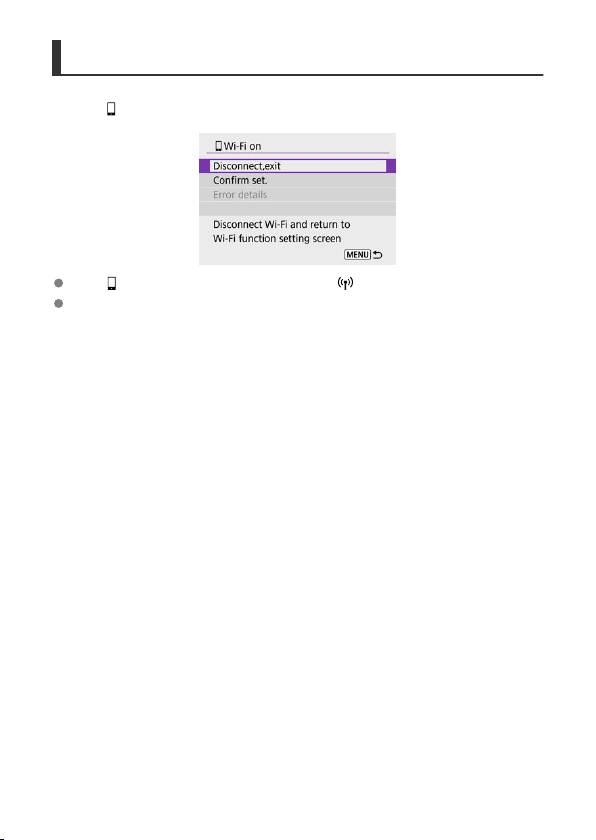
Terminating Wi-Fi Connections
On the [ Wi-Fi on] screen, select [Disconnect,exit].
If the [ Wi-Fi on] screen is not displayed, select [ : Wi-Fi/Bluetooth connection].
Select [Disconnect,exit], then select [OK] on the confirmation screen.
464
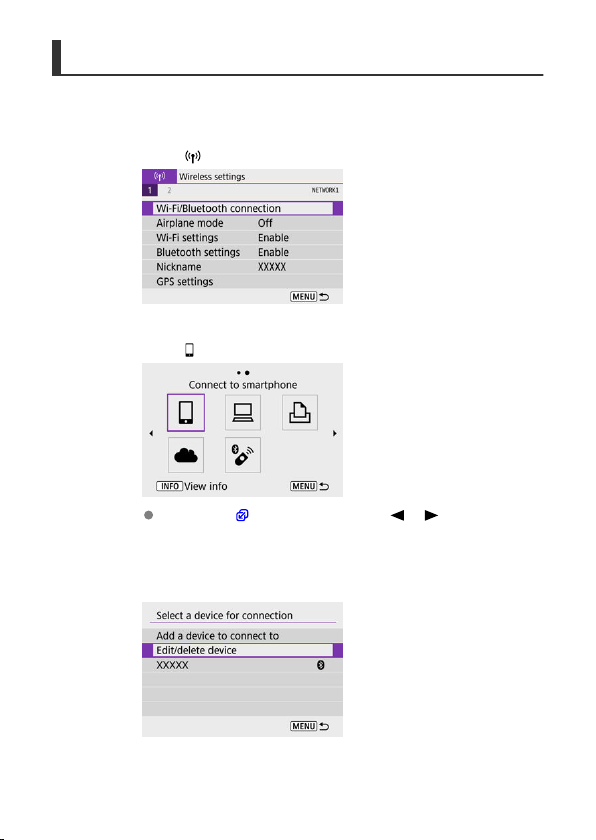
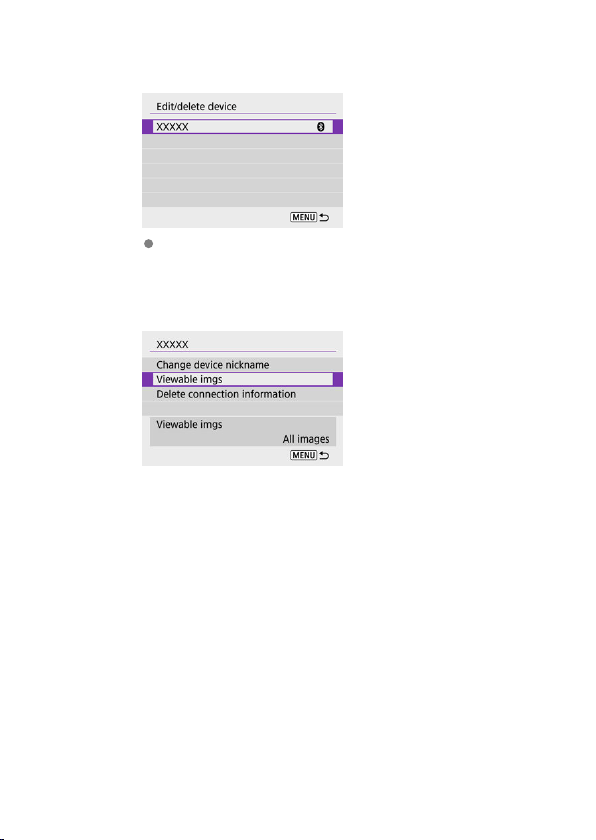
4.
Select a smartphone.
Select the name of the smartphone on which you want to make the
images viewable.
5.
Select [Viewable imgs].
466
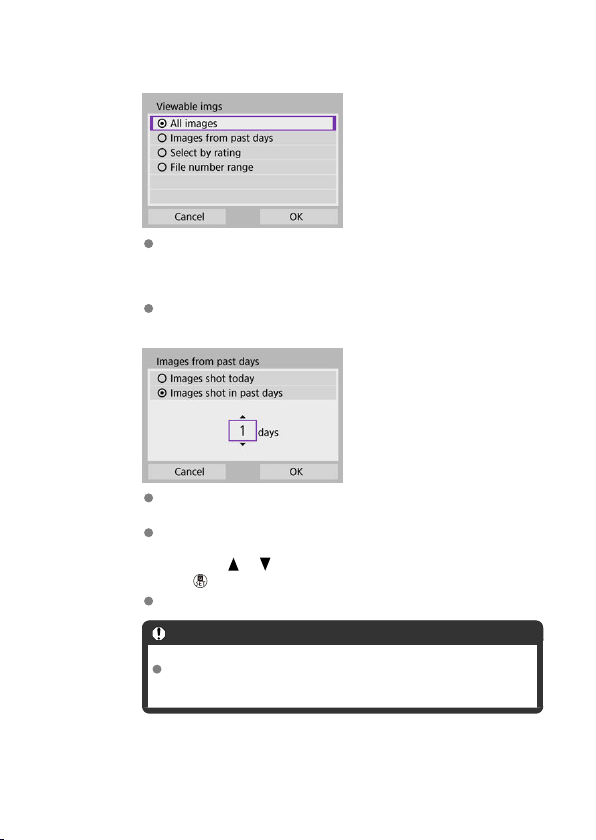
6.
Select an option.
Select [OK] to access the setting screen.
[All images]
All images stored on the card become viewable.
[Images from past days]
Specify viewable images on the shooting-date basis. Images shot up to
nine days ago can be specified.
When [Images shot in past days] is selected, images shot up to the
specified number of days before the current date become viewable.
Press the < >< > keys to specify the number of days, then press
the < > button to confirm the selection.
Once you select [OK], the viewable images are set.
Caution
If [Viewable imgs] is set to any setting other than [All images],
remote shooting is not possible.
467
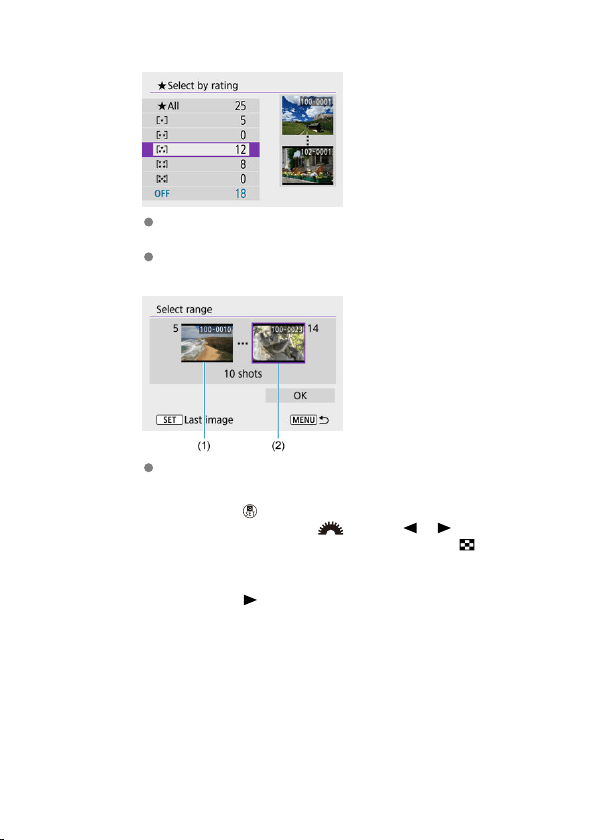
[Select by rating]
Specify viewable images depending on whether a rating is appended
(or not appended) or by the type of rating.
Once you select the type of rating, the viewable images are set.
[File number range] (Select range)
Select the first and last images from images arranged by the file
number to specify the viewable images.
1.Press the <
> button to display the image selection screen. To
select images, use the < > dial or < >< > keys.
To select the image from index display, press the < > button.
2.Select an image as the starting point (1).
3.Press the < > key and select an image as the ending point (2).
4.Select [OK].
468
Caution
If the Wi-Fi connection is terminated while recording a movie with remote shooting,
the following will occur.
• Any movie recording in progress in movie recording mode will continue.
• Any movie recording in progress in still photo shooting mode will end.
With a Wi-Fi connection to a smartphone established, certain functions are
unavailable.
In remote shooting, the AF speed may become slower.
Depending on the communication status, image display or shutter release timing
may be delayed.
When saving images to a smartphone, you cannot take a picture even if you press
the camera's shutter button. Also, the camera screen may turn off.
Note
With a Wi-Fi connection established, disabling the smartphone's power saving
function is recommended.
469
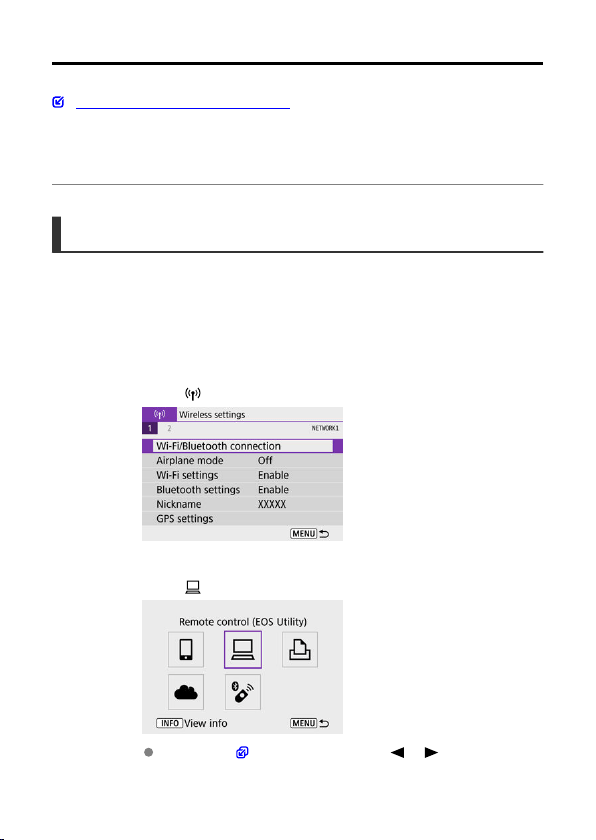
Connecting to a Computer via Wi-Fi
Operating the Camera Using EOS Utility
This section describes how to connect the camera to a computer via Wi-Fi and perform
camera operations using EOS software or other dedicated software. Install the latest version
of software on the computer before setting up a
Wi-Fi connection.
For computer operating instructions, refer to the computer user manual.
Operating the Camera Using EOS Utility
Using EOS Utility (EOS software), you can import images from the camera, control the
camera, and perform other operations.
Steps on the camera (1)
1.
Select [
: Wi-Fi/Bluetooth connection].
2.
Select [ Remote control (EOS Utility)].
If the history ( ) is displayed, press the < >< > keys to switch
screens.
470
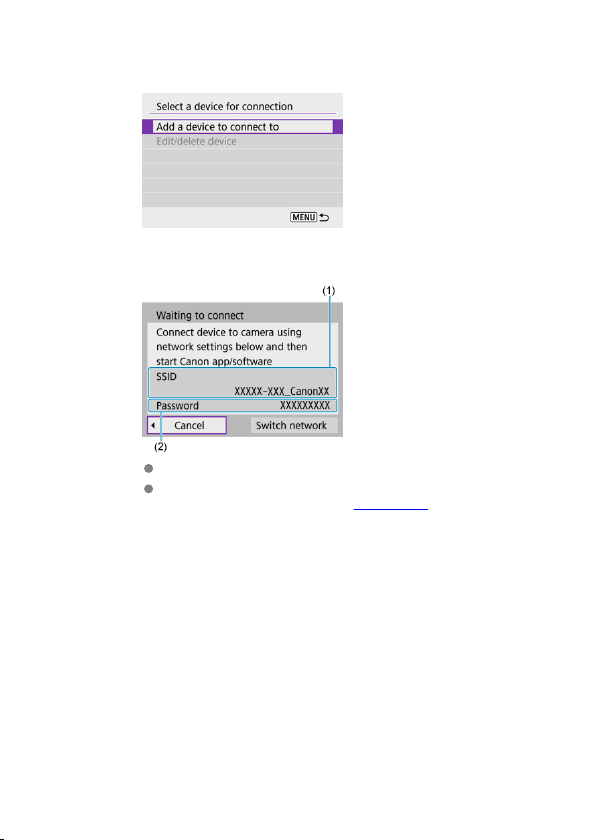
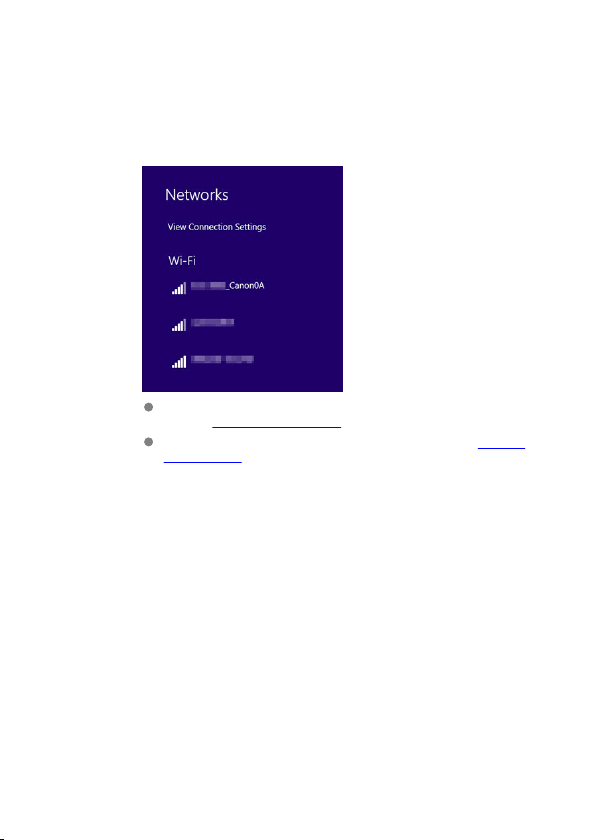
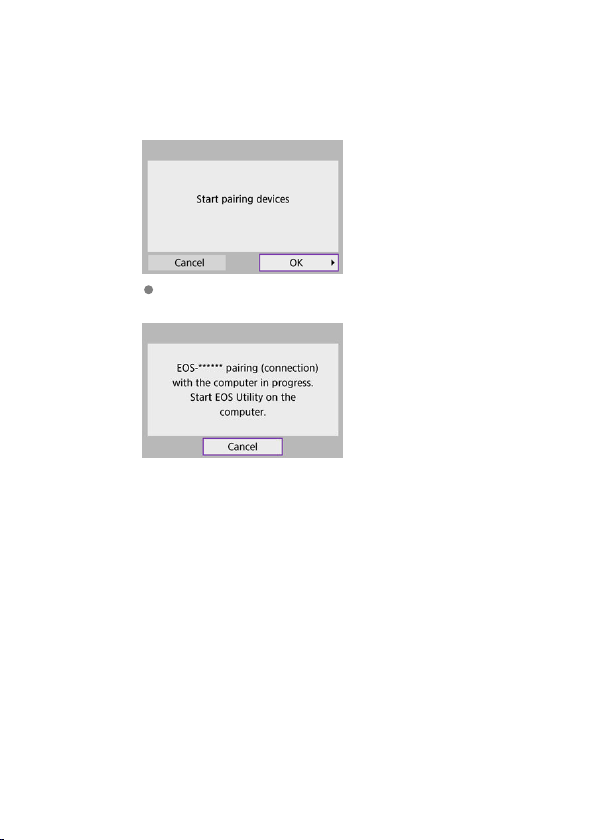
Steps on the camera (2)
6.
Select [OK].
The following message is displayed. “******” represents the last six
digits of the MAC address of the camera to be connected.
473
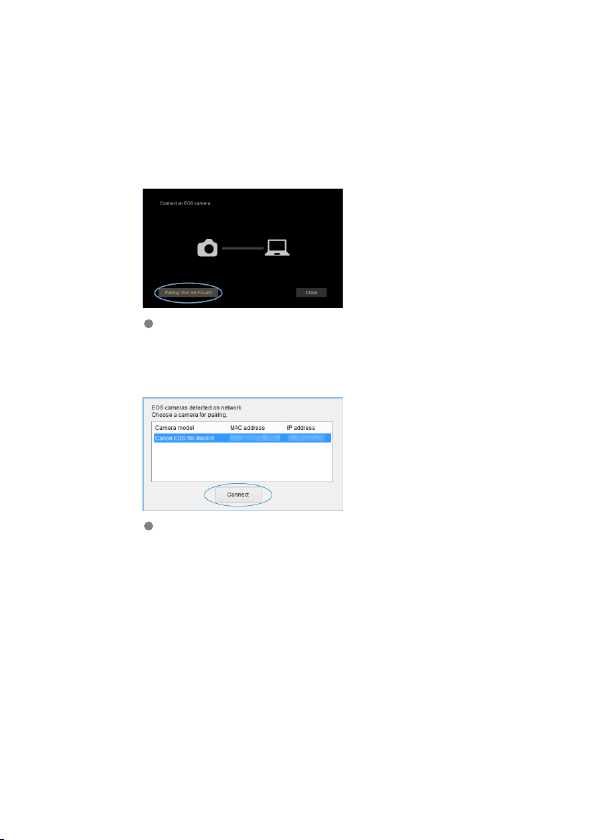
Steps on the computer (2)
7.
Start EOS Utility.
8.
In EOS Utility, click [Pairing over Wi-Fi/LAN].
If a firewall-related message is displayed, select [Yes].
9.
Click [Connect].
Select the camera to connect to, then click [Connect].
474
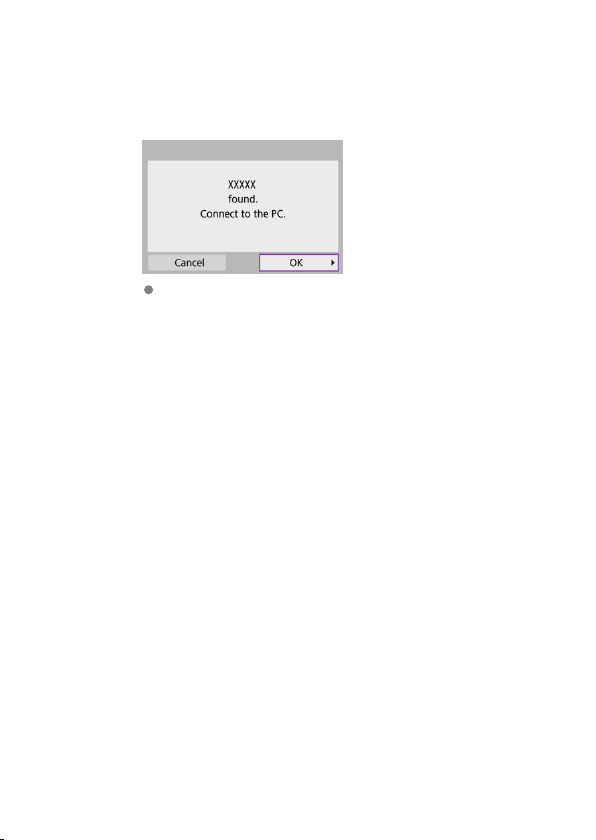
Steps on the camera (3)
10.
Establish a Wi-Fi connection.
Select [OK].
475
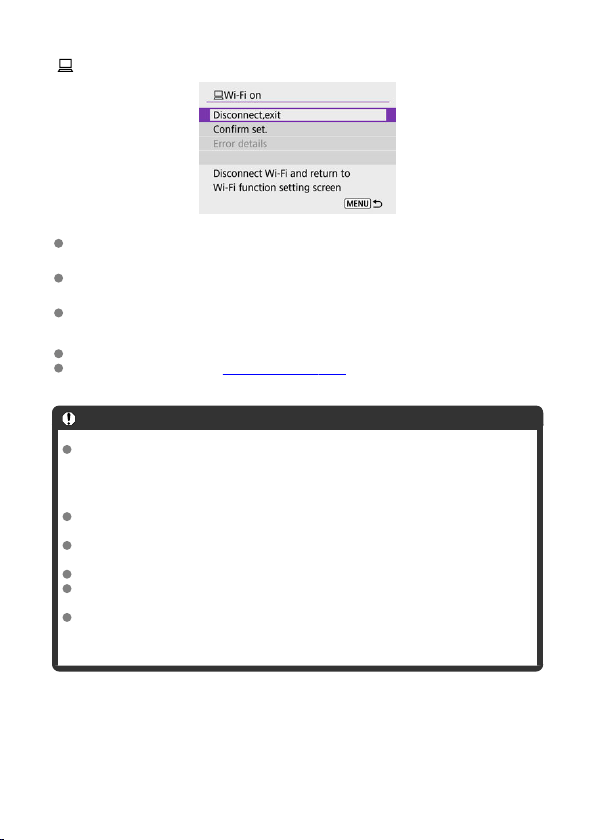
[ Wi-Fi on] screen
Disconnect,exit
Terminates the Wi-Fi connection.
Confirm set.
You can check the settings.
Error details
When a Wi-Fi connection error occurs, you can check the details of the error.
The Wi-Fi connection to a computer is now complete.
Operate the camera using EOS Utility on the computer.
To reconnect via Wi-Fi, see Reconnecting via Wi-Fi.
Caution
If the Wi-Fi connection is terminated while recording a movie with remote shooting,
the following will occur.
• Any movie recording in progress in movie recording mode will continue.
• Any movie recording in progress in still photo shooting mode will end.
You cannot use the camera to shoot in still photo shooting mode when it is set to
movie recording mode in EOS Utility.
With a Wi-Fi connection to EOS Utility established, certain functions are
unavailable.
In remote shooting, the AF speed may become slower.
Depending on the communication status, image display or shutter release timing
may be delayed.
In Remote Live View shooting, the rate of image transmission is slower compared
to a connection via an interface cable. Therefore, moving subjects cannot be
displayed smoothly.
476

Connecting to a Printer via Wi-Fi
Image Printing
Print Settings
This section describes how to print images by directly connecting the camera to a printer via
Wi-Fi. For printer operating instructions, refer to the printer user manual.
1.
Select [ : Wi-Fi/Bluetooth connection].
2.
Select [ Print from Wi-Fi printer].
If the history ( ) is displayed, press the < >< > keys to switch
screens.
477
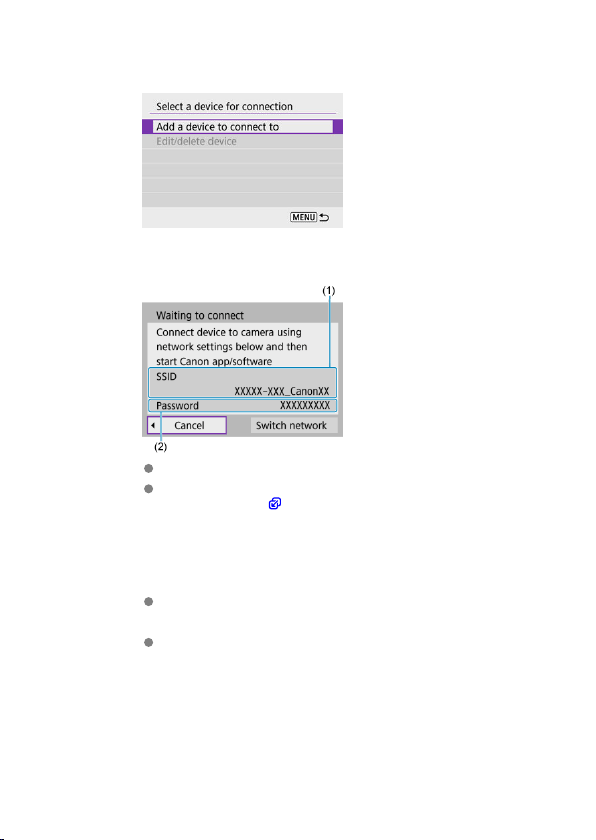
3.
Select [Add a device to connect to].
4.
Check the SSID (network name) and password.
Check the SSID (1) and Password (2) displayed on the camera screen.
No password is displayed or required if you set [Password] to [None]
in [Wi-Fi settings] ( ).
5.
Set up the printer.
In the Wi-Fi settings menu of the printer to be used, select the SSID
you have checked.
For the password, enter the password checked in step 4.
478
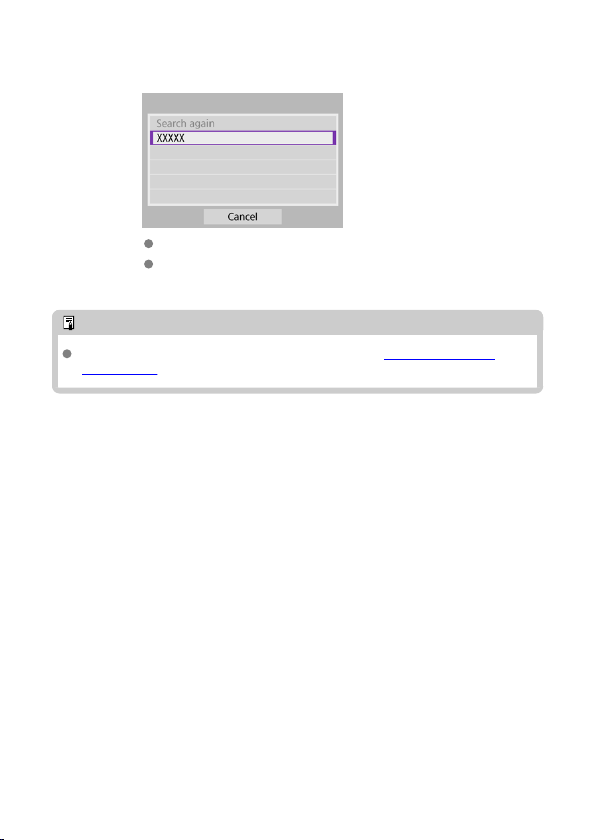
6.
Select the printer.
In the list of detected printers, select the printer to connect to via Wi-Fi.
If your preferred printer is not listed, selecting [Search again] may
enable the camera to find and display it.
Note
To establish a Wi-Fi connection via an access point, see Wi-Fi Connection via
Access Points.
479
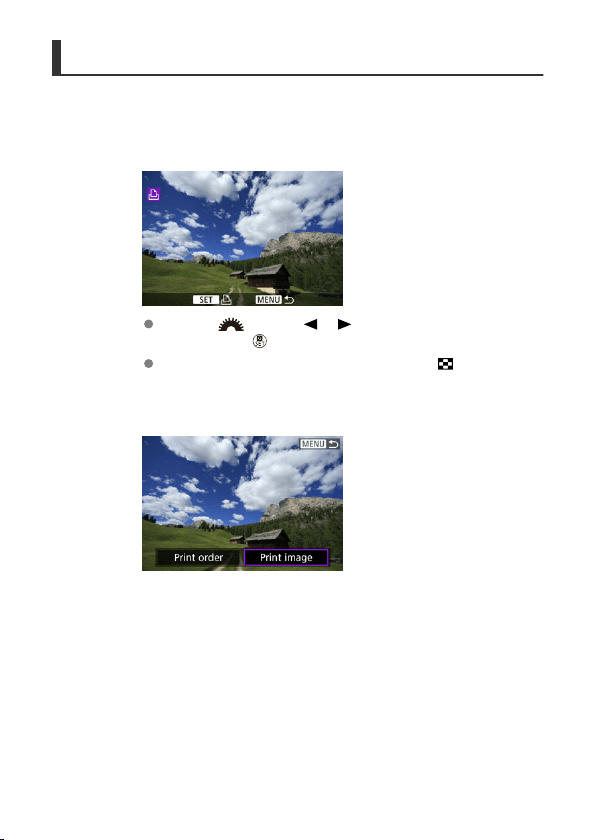
Image Printing
Printing images individually
1.
Select the image to be printed.
Use the < > dial or < >< > keys to select an image to print,
then press the < > button.
To select the image from index display, press the < > button.
2.
Select [Print image].
480
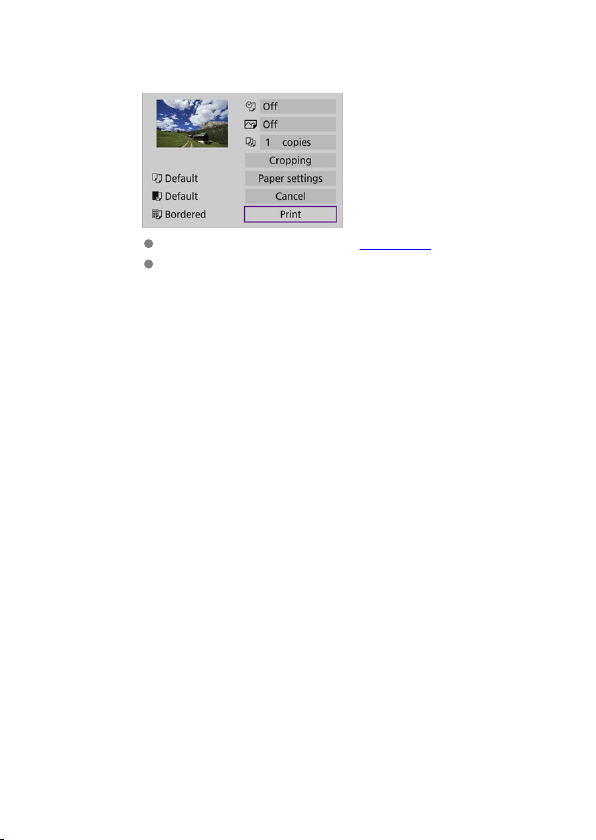
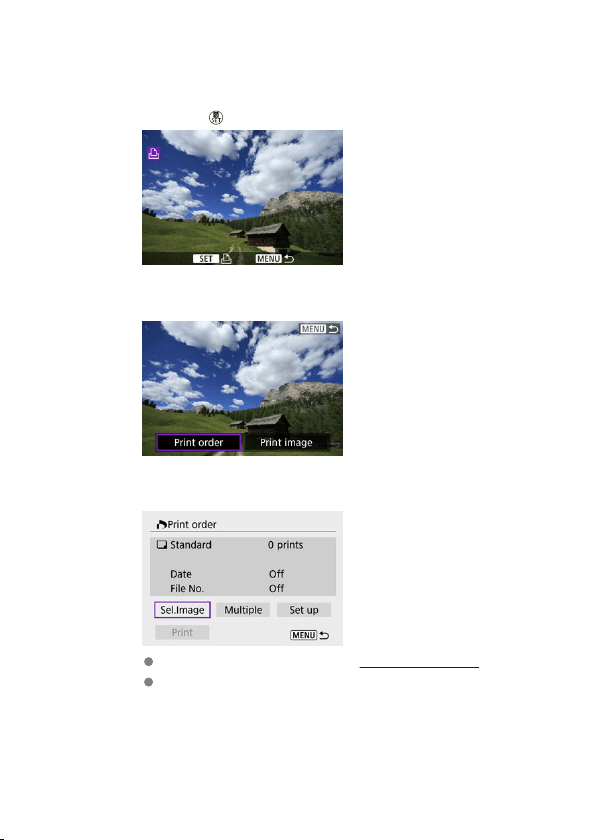
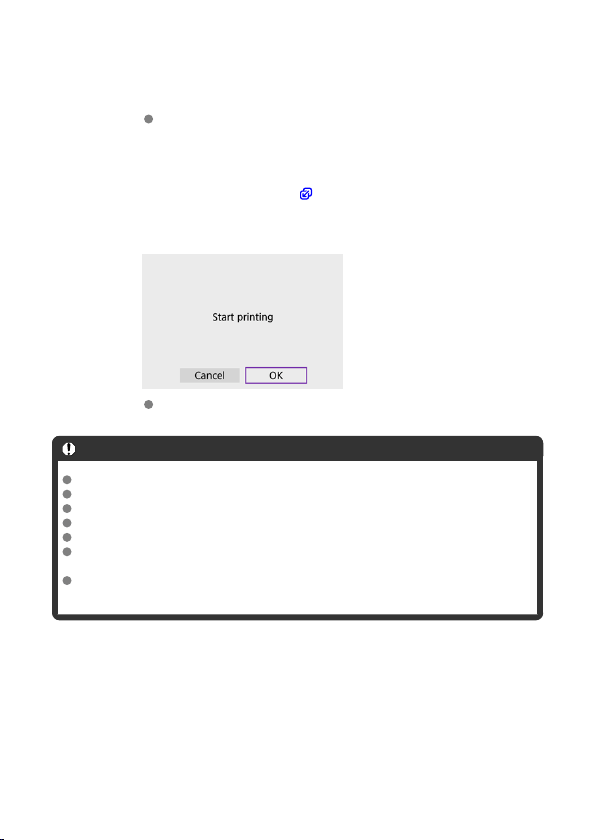
4.
Select [Print].
[Print] can be selected only when an image is selected and the printer
is ready to print.
5.
Configure [Paper settings] ( ).
6.
Print the image.
When [OK] is selected, printing starts.
Caution
Shooting is not possible while connected to a printer via Wi-Fi.
Movies cannot be printed.
Before printing, be sure to set the paper size.
File number printing may not be supported by certain printers.
Dates may be printed on the border by certain printers when [Bordered] is set.
Depending on the printer, the date may appear faint if it is printed on a bright
background or on the border.
RAW images cannot be printed by selecting [Print order]. Print by selecting [Print
image].
483

Note
When you use a battery to power the camera, make sure it is fully charged.
It may take some time until printing starts after you select [Print], depending on file
size and image quality.
To stop printing, press the < > button while [Cancel] is displayed, then select
[OK].
When printing with [Print order], you can select [Resume] to continue printing the
remaining images if you have stopped printing in progress. Note that printing will
not resume if any of the following occurs.
• You change the print order or delete any of the specified images before
resuming printing.
• When index is set and you change the paper setting before resuming printing.
If a problem occurs during printing, see Notes.
484
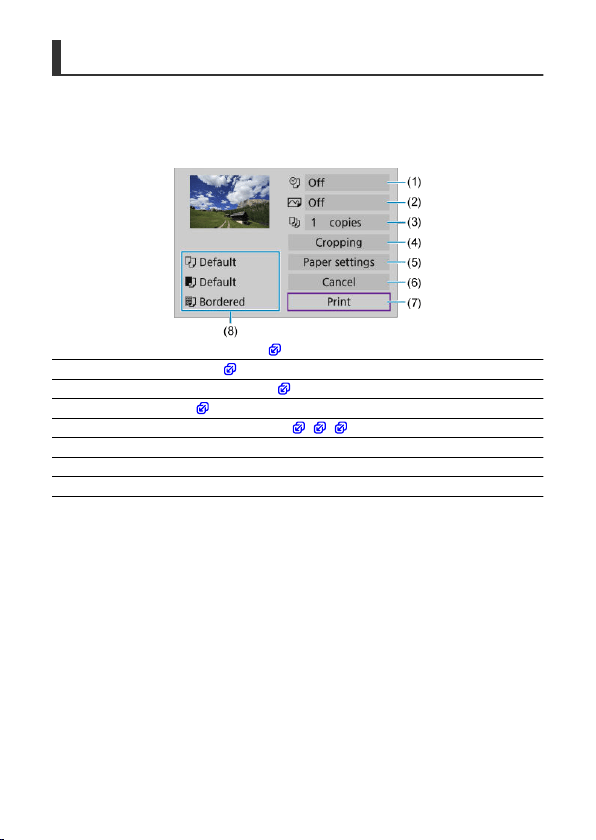
Print Settings
The screen display and setting options vary depending on the printer. Also, certain
settings may not be available. For details, refer to the printer's instruction manual.
Print settings screen
(1) Sets date or file number printing ( ).
(2) Sets the printing effects ( ).
(3) Sets the number of copies to print ( ).
(4) Sets the print area ( ).
(5) Sets the paper size, type, and layout ( , , ).
(6) Returns to the image selection screen.
(7) Starts the printing.
(8) The paper size, type, and layout you have set are displayed.
* Depending on the printer, certain settings may not be selectable.
485
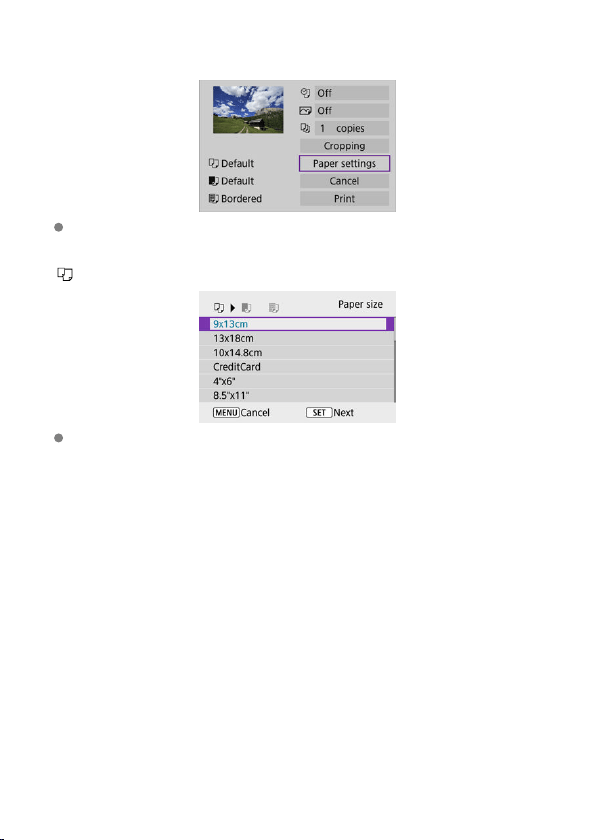
Paper settings
Select [Paper settings].
[ ] Setting the paper size
Select the size of the paper in the printer.
486

[ ] Setting the paper type
Select the type of the paper in the printer.
[ ] Setting the page layout
Select the page layout.
Caution
If the image's aspect ratio is different from the printing paper's aspect ratio, the
image may be cropped significantly when you print it as a borderless print. Images
may also be printed at lower resolution.
[
] Setting printing of the date/file number
Select [ ].
Select what to print.
487
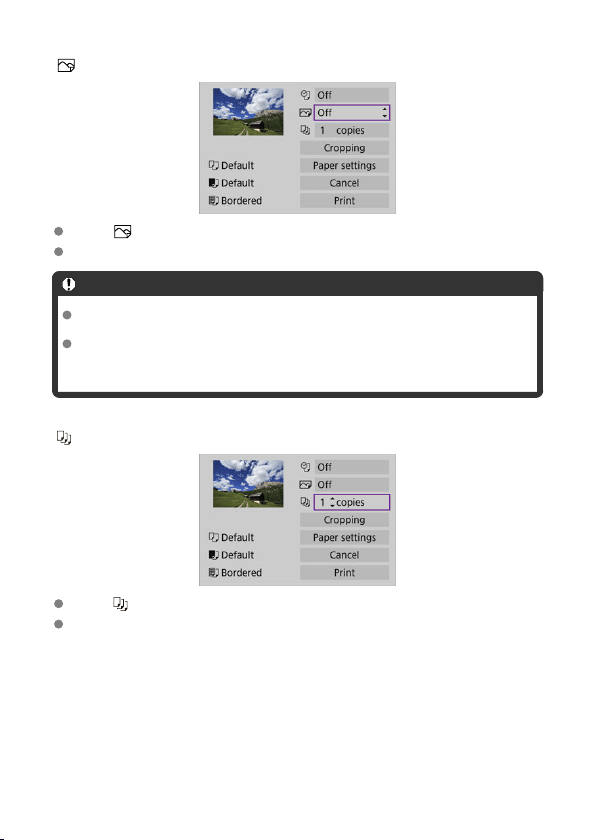
[ ] Setting printing effects (image optimization)
Select [ ].
Select printing effects.
Caution
ISO speeds may be misidentified in shooting information printed for images shot at
an expanded ISO speed (H).
[Default] in printing effects and other options refers to default settings determined
by the printer manufacturer. For [Default] details, refer to the printer instruction
manual.
[ ] Setting the number of copies
Select [ ].
Select the number of copies to print.
488
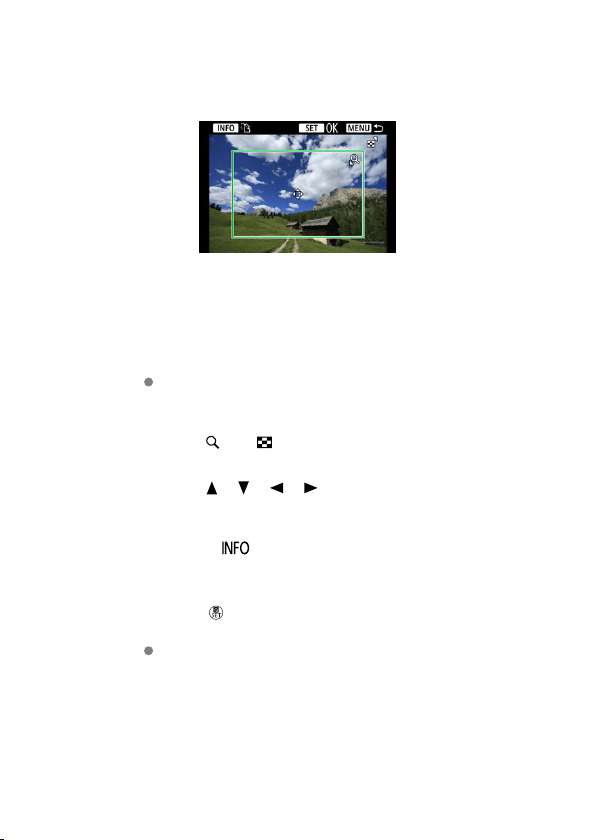
Cropping the image
Set cropping immediately before printing. Changing other print settings after you crop
images may require you to crop the images again.
1.
Select [Cropping] on the print setting screen.
2.
Set the cropping frame size, position, and aspect ratio.
The image area within the cropping frame will be printed. The shape of
the frame (aspect ratio) can be changed in [Paper settings].
Resizing the cropping frame size
Press the < > or < > button to resize the cropping frame.
Moving the cropping frame
Press the < >< >< >< > keys to move the frame vertically or
horizontally.
Switching the orientation of the cropping frame
Pressing the < > button will toggle the cropping frame between the
vertical and horizontal orientations.
3.
Press the <
> button to exit cropping.
You can check the cropped image area in the upper left of the print
setting screen.
489
Caution
Depending on the printer, the cropped image area may not be printed as you
specified.
The smaller the cropping frame, the lower the resolution at which images are
printed.
Note
Handling printer errors
If printing does not resume after you resolve a printer error (such as no ink or
paper) and select [Continue], use buttons on the printer. For details on resuming
printing, refer to the printer's instruction manual.
Error messages
If a problem occurs during printing, an error message will appear on the camera
screen. After fixing the problem, resume printing. For details on how to fix a printing
problem, refer to the printer's instruction manual.
Paper error
Confirm that paper is loaded correctly.
Ink error
Check the printer's ink level and the waste ink tank.
Hardware error
Check for any printer problems other than paper and ink problems.
File error
The selected image cannot be printed. Images taken with a different camera or
images edited with a computer may not be printable.
490
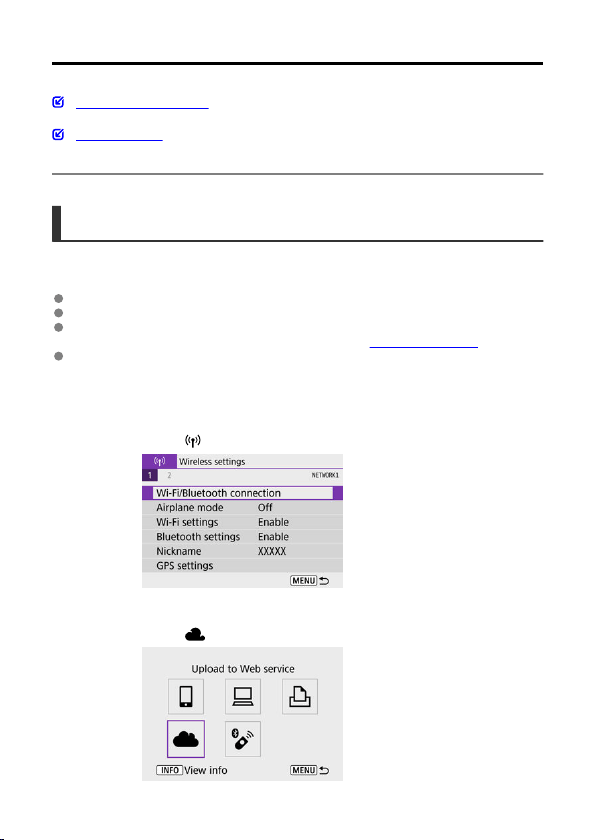
Sending Images to a Web Service
Registering image.canon
Sending Images
This section describes how to send images to image.canon.
Registering image.canon
Link the camera to image.canon to send images directly from the camera.
A computer or smartphone with a browser and internet connection is required.
You will need to enter an email address used on your computer or smartphone.
For instructions on how to use image.canon services and details on countries and
regions where it is available, visit the image.canon site (https://image.canon/).
Separate ISP connection and access point fees may apply.
Steps on the camera (1)
1.
Select [ : Wi-Fi/Bluetooth connection].
2.
Select [ Upload to Web service].
491
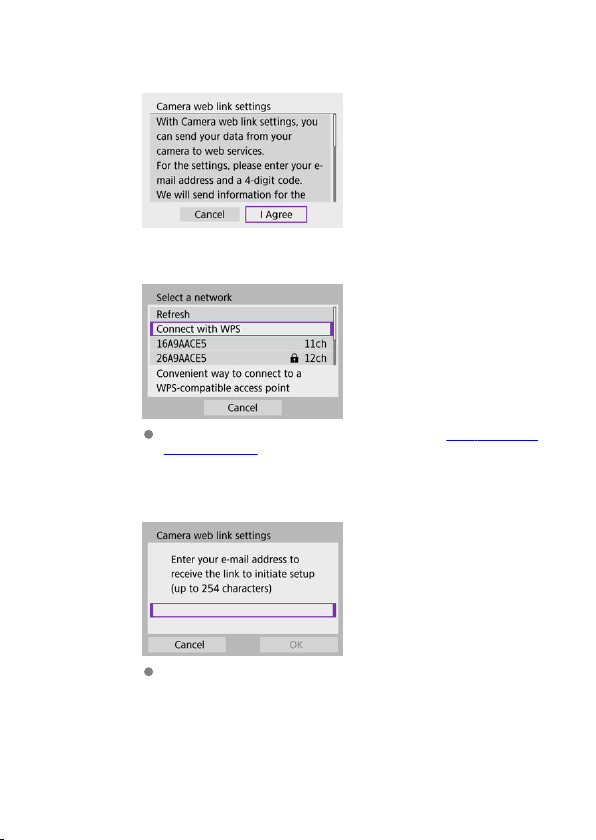
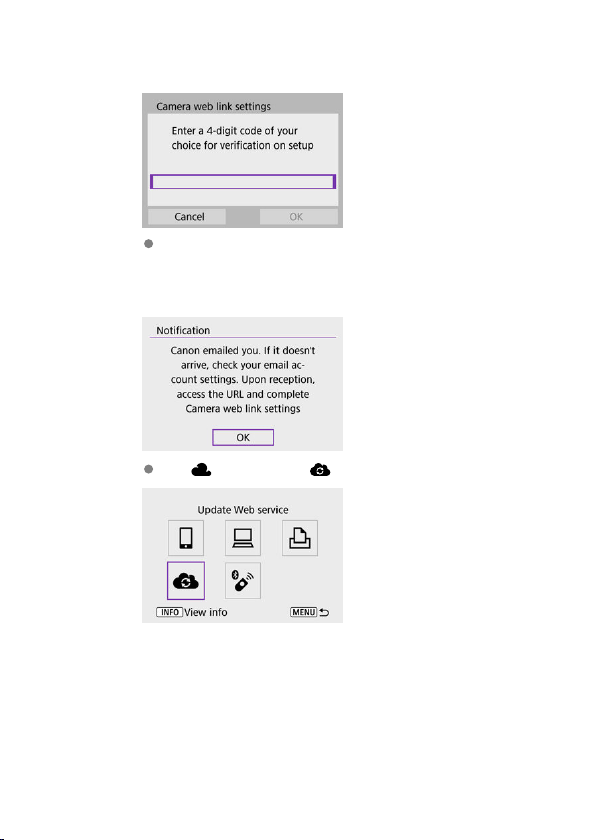
6.
Enter a four-digit number.
Enter a four-digit number of your choice, then select [OK].
7.
Select [OK].
The [ ] icon changes to [ ].
493

Steps on the computer or smartphone
8.
Set up camera web link.
Access the page in the notification message.
Follow the instructions to complete the settings on the camera web link
settings page.
494
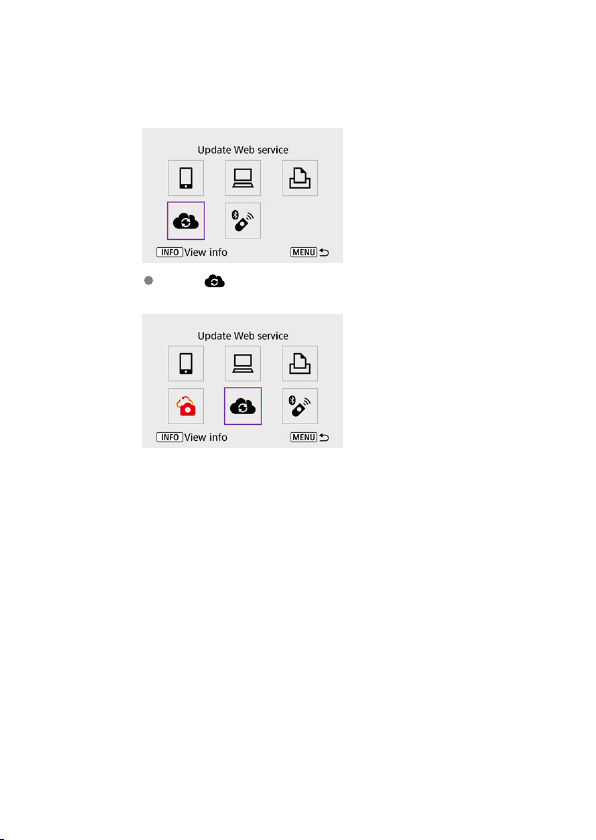
Steps on the camera (2)
9.
Add “image.canon” as a destination.
Select [ ].
image.canon is now added.
495
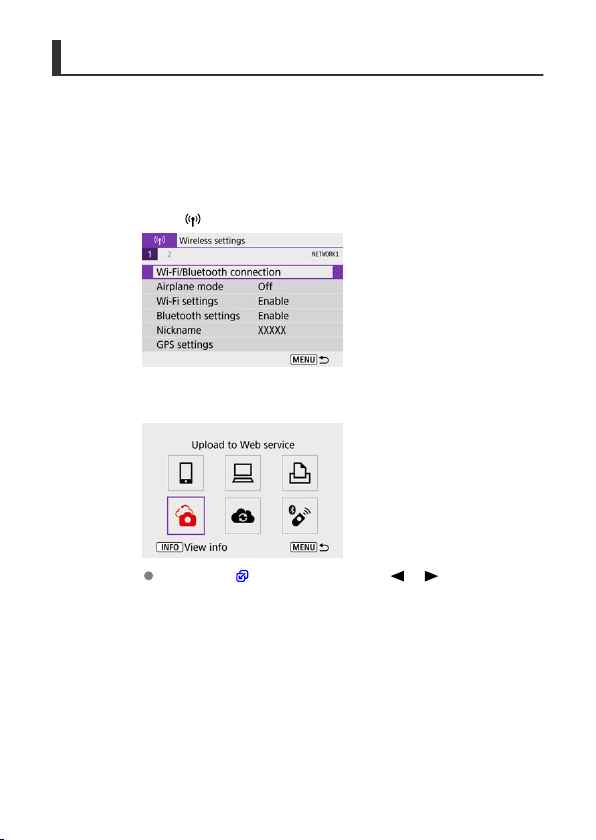
Sending Images
Images can be sent to image.canon. Original files of images sent to image.canon are
retained for 30 days, without storage limitations, and can be downloaded to computers or
transferred to other Web services.
Connecting to image.canon via Wi-Fi
1.
Select [ : Wi-Fi/Bluetooth connection].
2.
Select image.canon.
If the history ( ) is displayed, press the < >< > keys to switch
screens.
496
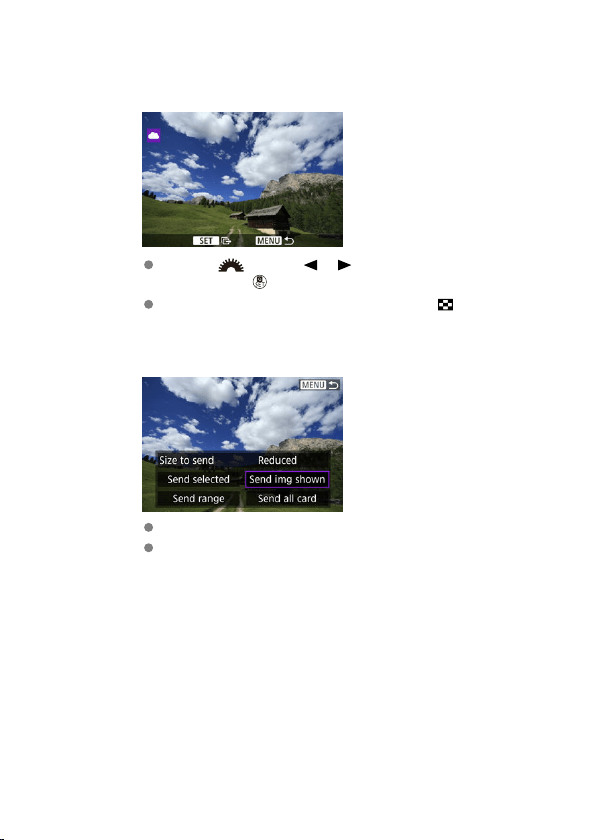
Sending images individually
1.
Select an image to send.
Use the < > dial or < >< > keys to select an image to send,
then press the < > button.
To select the image from index display, press the < > button.
2.
Select [Send img shown].
In [Size to send], you can select the image sending size.
On the screen after images are sent, select [OK] to end the Wi-Fi
connection.
497
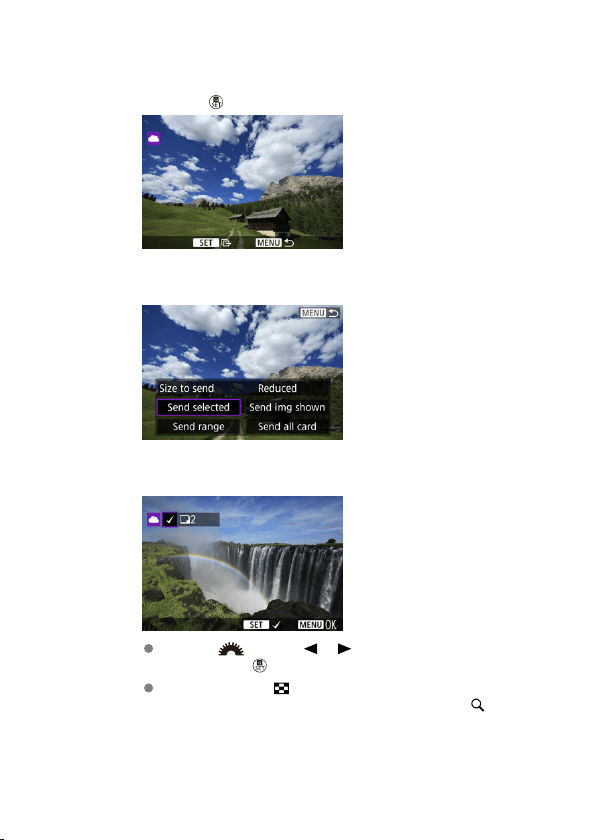
Sending multiple selected images
1.
Press the < > button.
2.
Select [Send selected].
3.
Select images to send.
Use the < > dial or < >< > keys to select an image to send,
then press the < > button.
You can press the < > button to select the image from 3-image
display. To return to the single-image display, press the
<
> button.
498
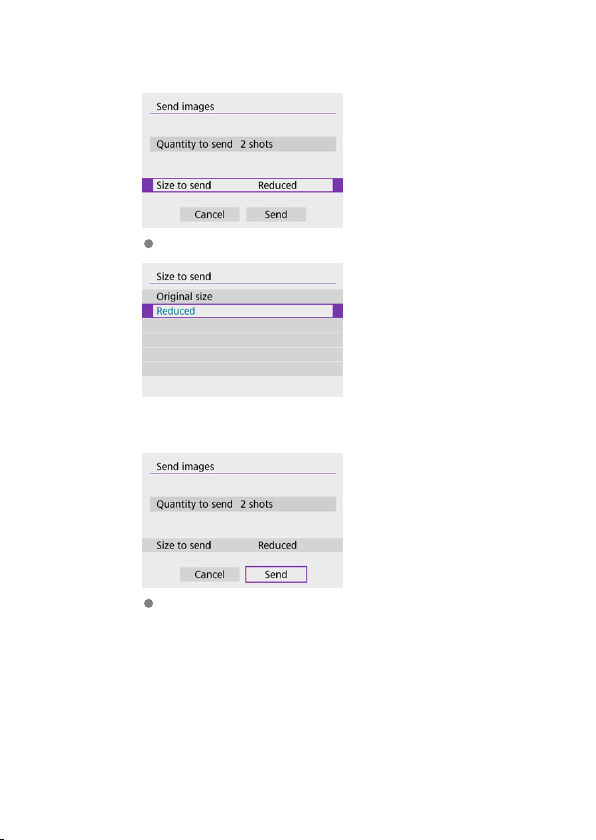
4.
Select [Size to send].
On the displayed screen, select an image size.
5.
Select [Send].
On the screen after images are sent, select [OK] to end the Wi-Fi
connection.
499
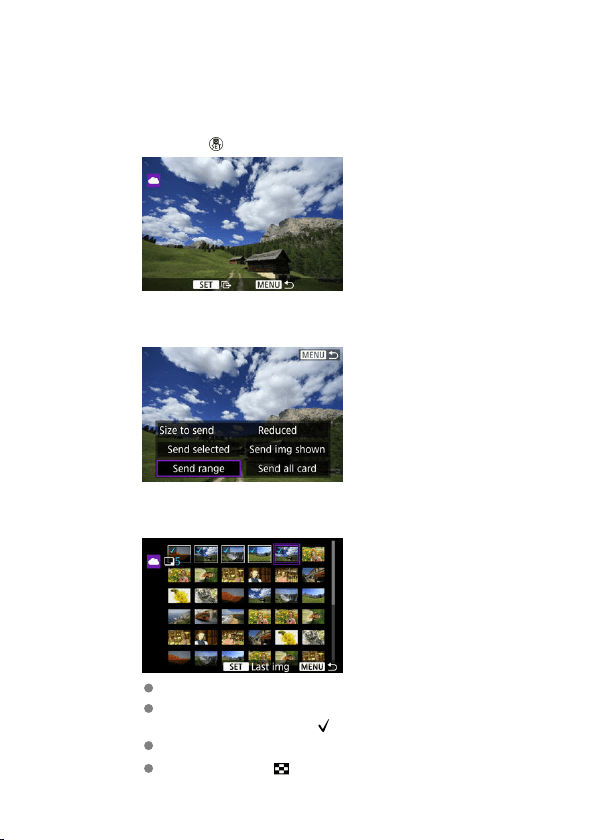
Sending a specified range of images
Specify the range of images to send all the images in the range at once.
1.
Press the < > button.
2.
Select [Send range].
3.
Specify the range of images.
Select the first image (start point).
Select the last image (end point).
Images will be selected and [ ] will appear.
To cancel the selection, repeat this step.
You can press the < > button to change the number of images
shown in the index display.
500
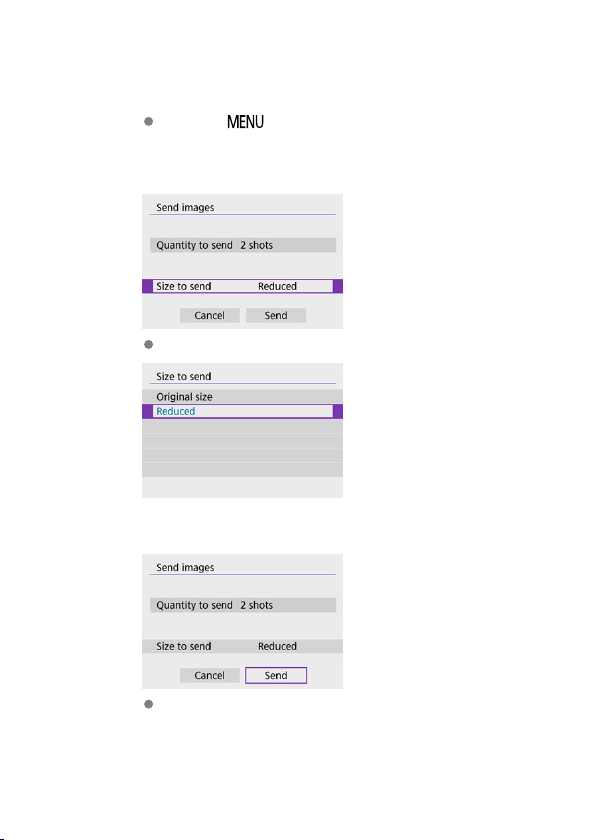
4.
Confirm the range.
Press the < > button.
5.
Select [Size to send].
On the displayed screen, select an image size.
6.
Select [Send].
On the screen after images are sent, select [OK] to end the Wi-Fi
connection.
501
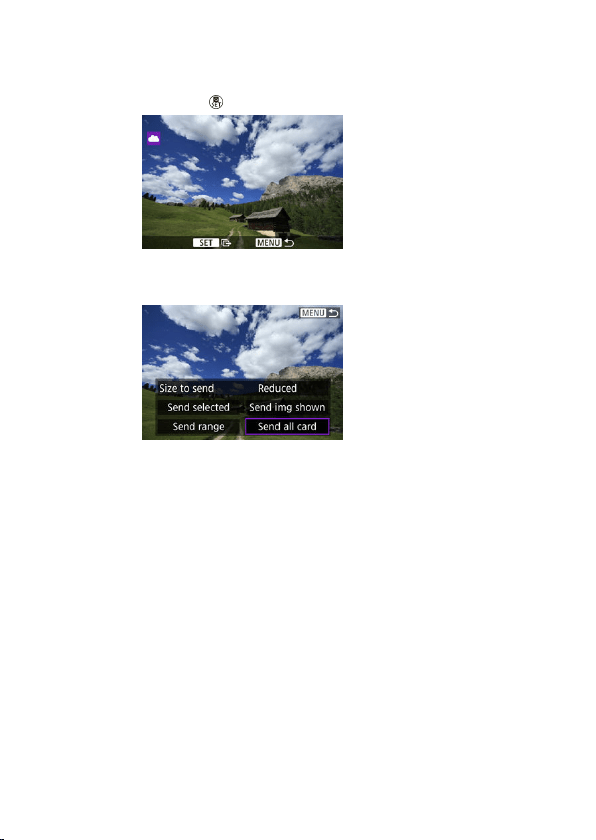
Sending all images on the card
1.
Press the < > button.
2.
Select [Send all card].
502
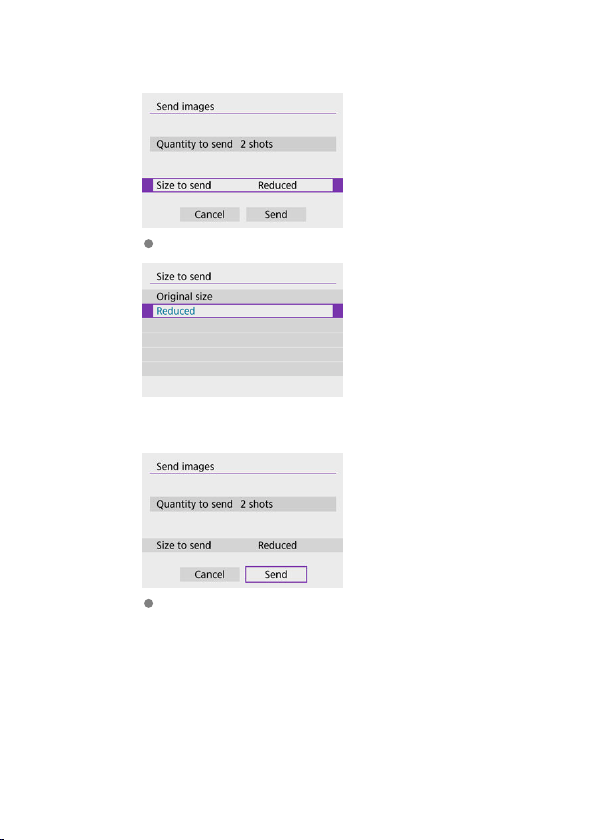
3.
Select [Size to send].
On the displayed screen, select an image size.
4.
Select [Send].
On the screen after images are sent, select [OK] to end the Wi-Fi
connection.
503
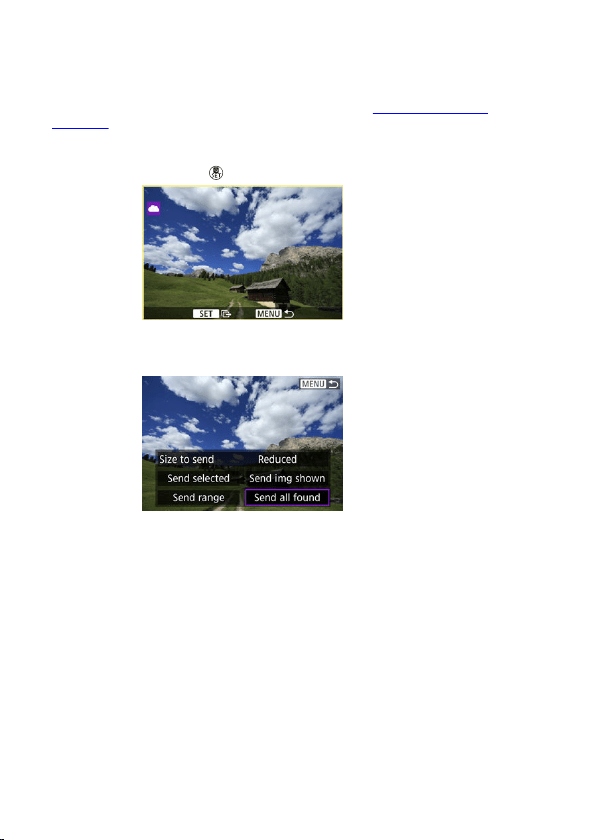
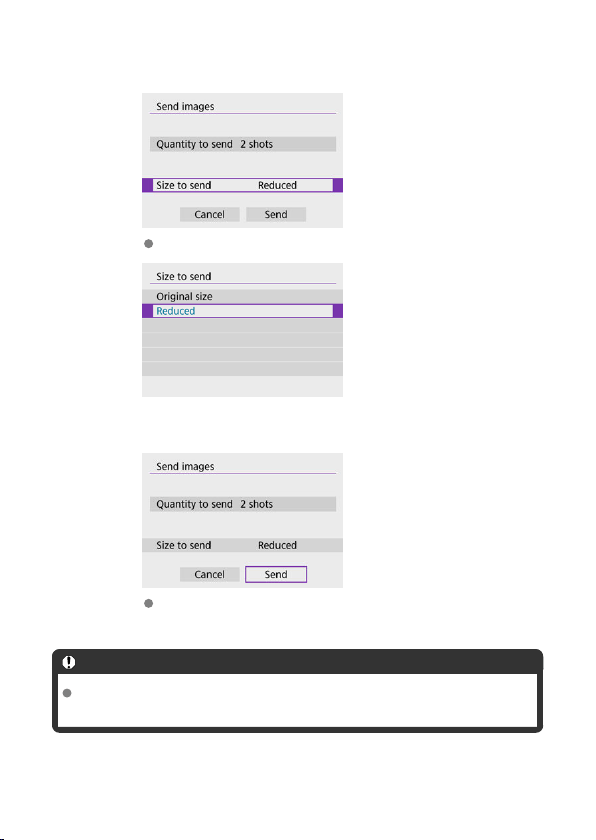
3.
Select [Size to send].
On the displayed screen, select an image size.
4.
Select [Send].
On the screen after images are sent, select [OK] to end the Wi-Fi
connection.
Caution
Shooting is not possible when connected via Wi-Fi to image.canon, even if you
press the camera's shutter button.
505
Note
It may not be possible to send certain images with [Send range], [Send all card],
or [Send all found].
When you reduce the image size, all images to be sent at the same time are
resized. Note that movies or size still photos are not reduced.
[Reduced] only applies to still photos shot with cameras of the same model as this
one. Still photos shot with other models are sent without resizing.
A record of sent images can be checked when you access image.canon.
When you use a battery to power the camera, make sure it is fully charged.
506
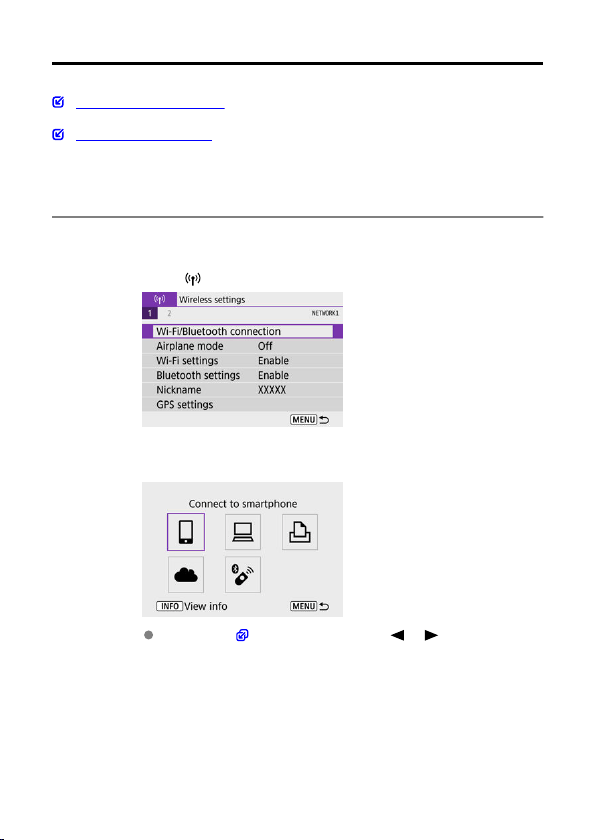
Wi-Fi Connection via Access Points
Camera Access Point Mode
Manual IP Address Setup
This section describes how to join a Wi-Fi
network via an access point compatible with WPS
(PBC mode).
First, check the position of the WPS button and how long to press it. It may take approx. 1
min. to establish a Wi-Fi connection.
1.
Select [
: Wi-Fi/Bluetooth connection].
2.
Select an option.
If the history ( ) is displayed, press the < >< > keys to switch
screens.
507
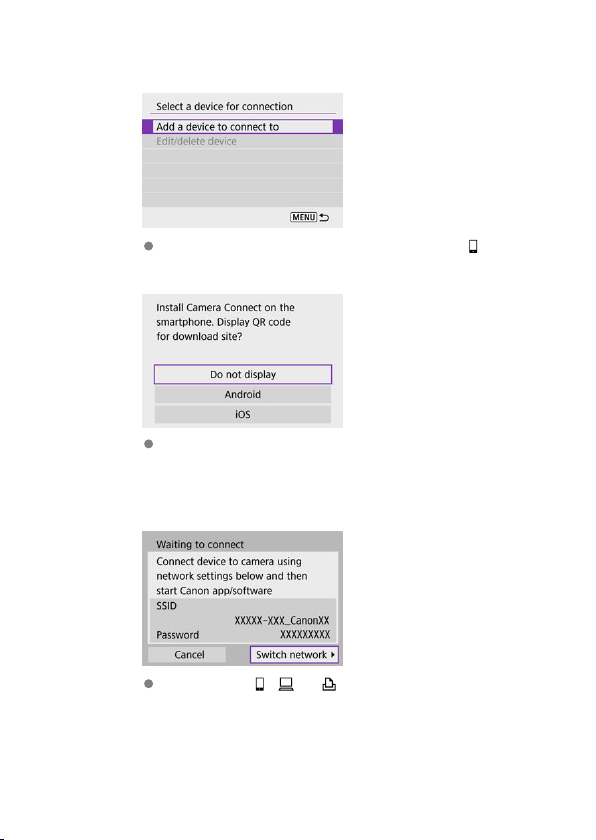
3.
Select [Add a device to connect to].
The following message is displayed if you have selected [ Connect
to smartphone]. If Camera Connect is already installed, select [Do not
display].
On the [Connect to smartphone] screen displayed next, select
[Connect via Wi-Fi].
4.
Select [Switch network].
Displayed when [ ], [ ], or [ ] is selected.
508
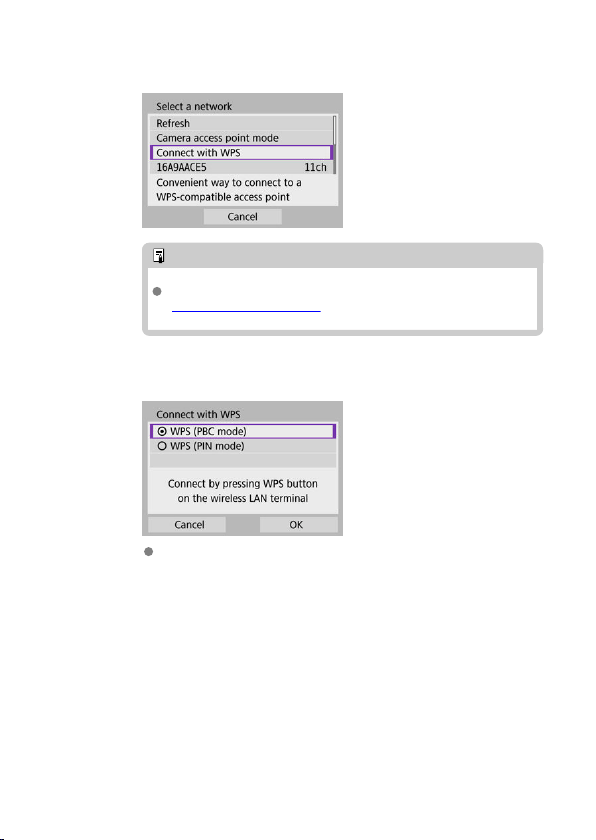
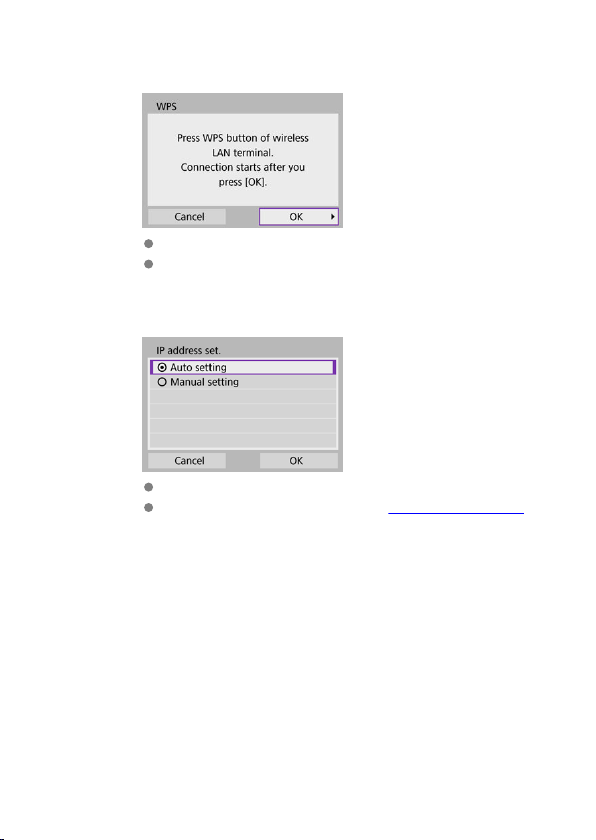
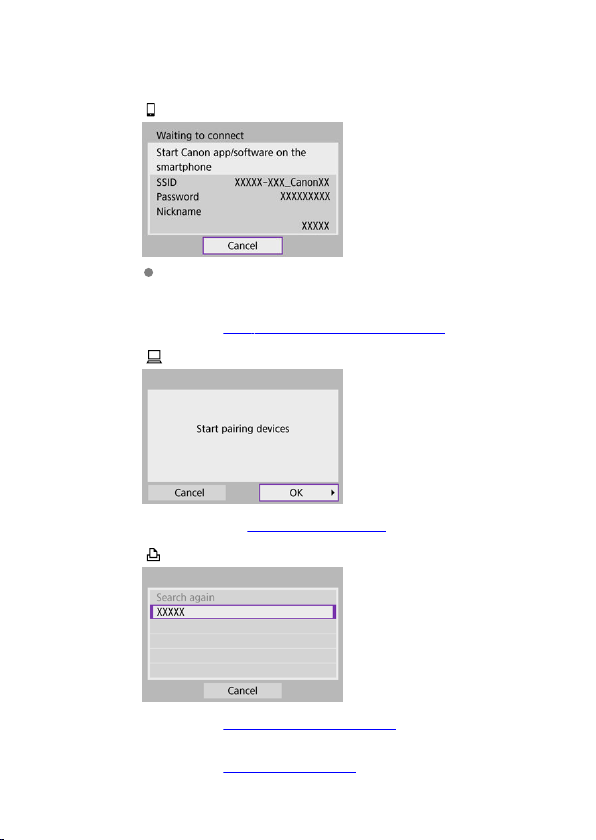
9.
Specify the settings for the Wi-Fi function.
[ Connect to smartphone]
On the smartphone's Wi-Fi setting screen, tap the SSID (network
name) shown on the camera, then enter the password of the access
point for the connection.
Go to step 8 in Wi-Fi Connection without Using Bluetooth.
[ Remote control (EOS Utility)]
Go to step 7 or 8 in Steps on the computer (2).
[ Print from Wi-Fi printer]
Go to step 6 in Connecting to a Printer via Wi-Fi.
Register image.canon.
Go to step 5 in Registering image.canon.
511
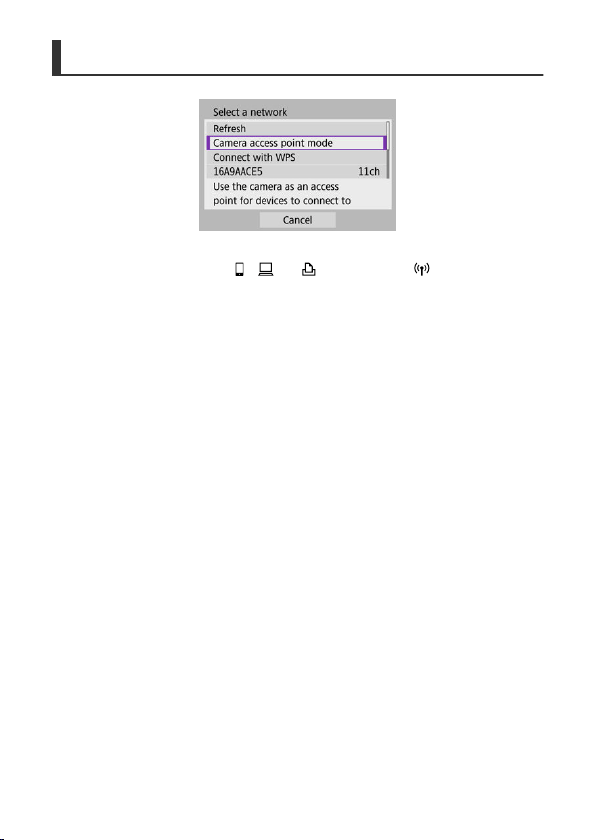
Camera Access Point Mode
Camera access point mode is a connection mode for connecting the camera directly to each
device via Wi-Fi. Displayed when [ ], [ ], or [ ] is selected after [ : Wi-Fi/Bluetooth
connection].
512

Manual IP Address Setup
The options displayed vary depending on the Wi-Fi function.
1.
Select [Manual setting].
Select [OK].
2.
Select an option.
Select an option to access the screen for numerical input.
To use a gateway, select [Enable], then select [Address].
513
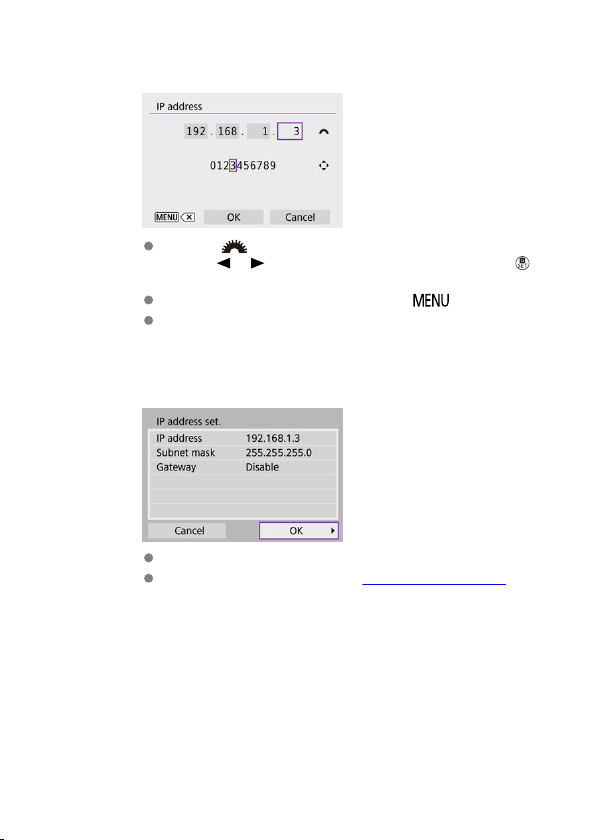
3.
Enter the desired values.
Turn the < > dial to move the input position in the upper area, and
use the < >< > keys to select numbers to enter. Press the < >
button to enter the selected number.
To delete the number just entered, press the < > button.
Select [OK] after the numbers have been entered. Display returns to
the screen in step 2.
4.
Select [OK].
When you have completed setting the necessary items, select [OK].
If you are not sure what to enter, see Checking Network Settings, or
ask the network administrator or another person knowledgeable about
the network.
514
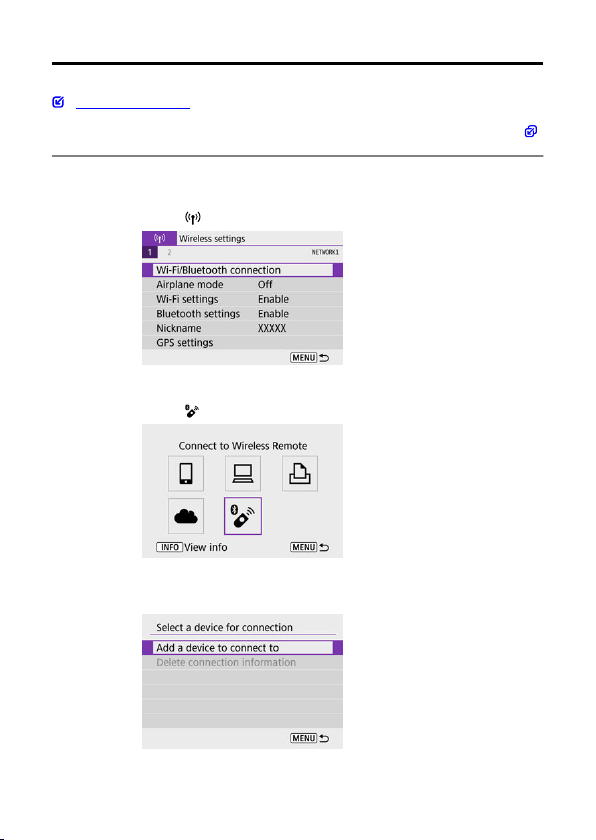
Connecting to a Wireless Remote Control
Canceling the Pairing
This camera can also be connected to Wireless Remote Control BR-E1
(sold separately,
)
via Bluetooth for remote control shooting.
1.
Select [ : Wi-Fi/Bluetooth connection].
2.
Select [ Connect to Wireless Remote].
3.
Select [Add a device to connect to].
515
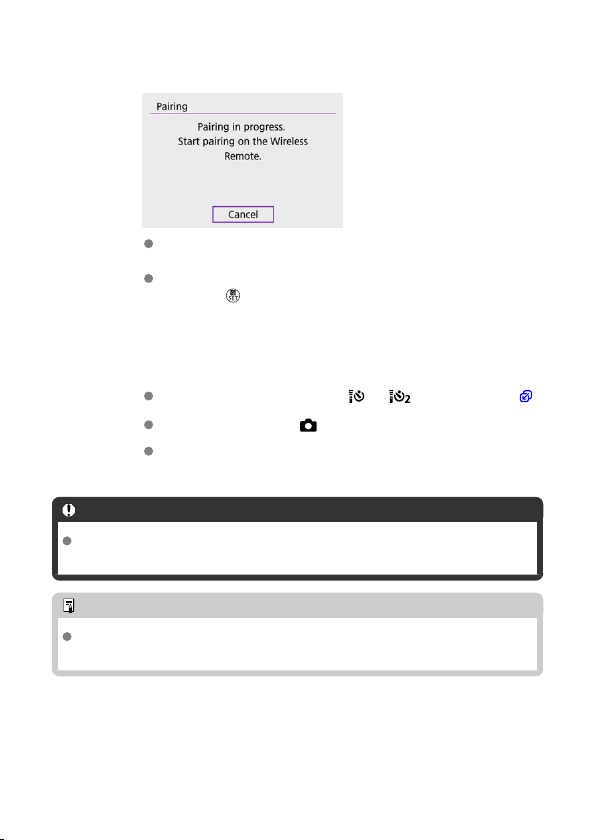
4.
Pair the devices.
When the [Pairing] screen appears, press and hold the <
W> and <T>
buttons on the BR-E1 simultaneously for at least 3 sec.
After a message confirms that the camera is paired with the BR-E1,
press the < > button.
5.
Set up the camera for remote shooting.
When shooting still photos, select [ ] or [ ] as the drive mode ( ).
For movie recording, set [ : Remote control] to [Enable].
For instructions after the pairing is complete, refer to the BR-E1's
Instruction Manual.
Caution
Bluetooth connections consume battery power even after the camera's auto power
off is activated.
Note
When you will not use Bluetooth, setting this function to [Disable] in step 1 is
recommended.
516
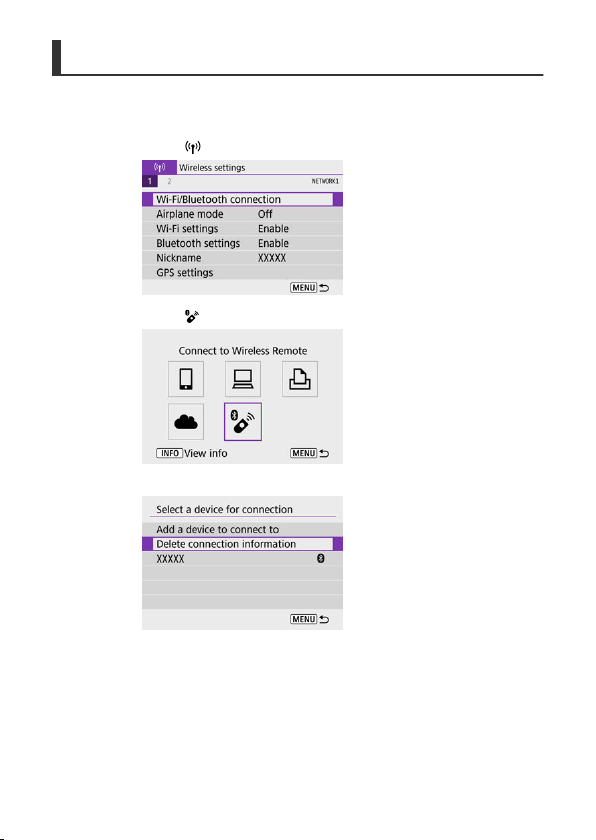
Canceling the Pairing
Before pairing with a different BR-E1, clear the information about the connected remote
control.
1
.
Select [
: Wi-Fi/Bluetooth connection].
2.
Select [ Connect to Wireless Remote].
3.
Select [Delete connection information].
517
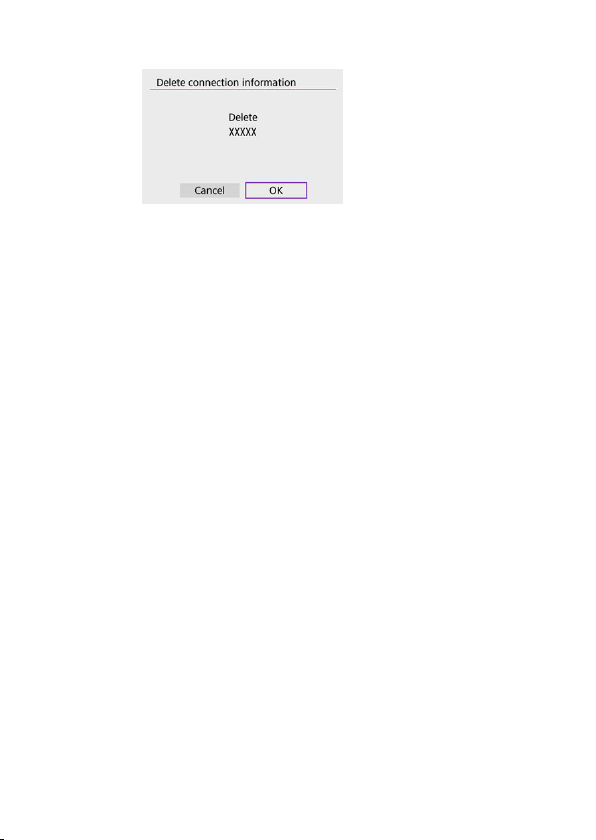
4.
Select [OK].
518

Reconnecting via Wi-Fi
Follow these steps to reconnect to devices or Web services with registered connection
settings.
1.
Select [ : Wi-Fi/Bluetooth connection].
2.
Select an option.
Select an option to connect to via Wi-Fi from the displayed history. If
the option is not shown, press the < >< > keys to switch screens.
The history is not displayed when [Connection history] is set to [Hide]
( ).
519

3.
Operate the connected device.
[ ] Smartphone
Start Camera Connect.
If the smartphone's connection destination has been changed, restore
the setting to connect via Wi-Fi to the camera or the same access point
as the camera.
When directly connecting the camera to a smartphone via Wi-Fi,
“
_Canon0A” is displayed at the end of the SSID.
[
] Computer
On the computer, start the EOS software.
If the computer's connection destination has been changed, restore the
setting to connect via Wi-Fi to the camera or the camera's access
point.
When directly connecting the camera to a computer via Wi-Fi,
“
_Canon0A” is displayed at the end of the SSID.
[
] Printer
If the printer's connection destination has been changed, restore the
setting to connect via Wi-Fi to the camera or the same access point as
the camera.
When directly connecting the camera to a printer via Wi-Fi,
“
_Canon0A” is displayed at the end of the SSID.
520
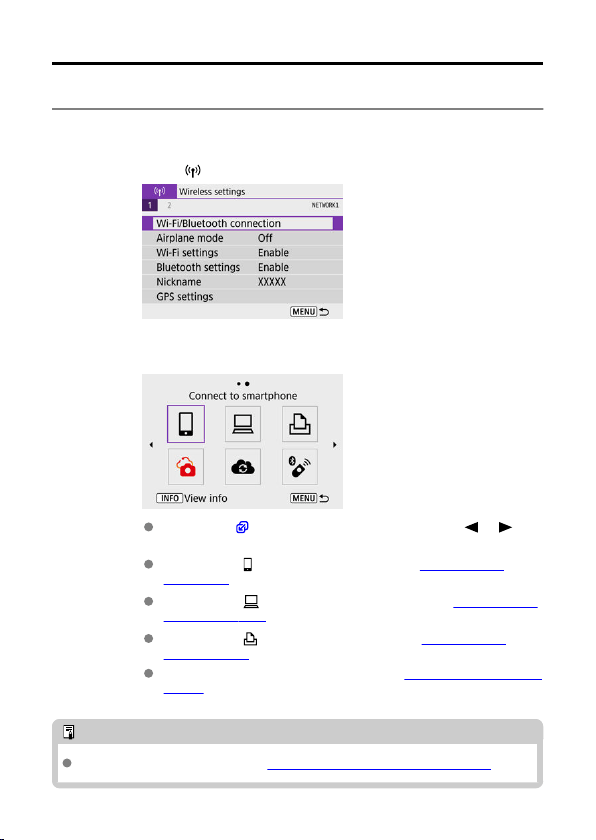
Registering Multiple Connection Settings
You can register up to 10 connection settings for the wireless communication functions.
1.
Select [ : Wi-Fi/Bluetooth connection].
2.
Select an option.
If the history ( ) is displayed, switch screens with the < >< >
keys.
For details on [ Connect to smartphone], see Connecting to a
Smartphone.
For details on [ Remote control (EOS Utility)], see Connecting to a
Computer via Wi-Fi.
For details on [ Print from Wi-Fi printer], see Connecting to a
Printer via Wi-Fi.
When sending images to a Web service, see Sending Images to a Web
Service.
Note
To delete connection settings, see Changing or Deleting Connection Settings.
521
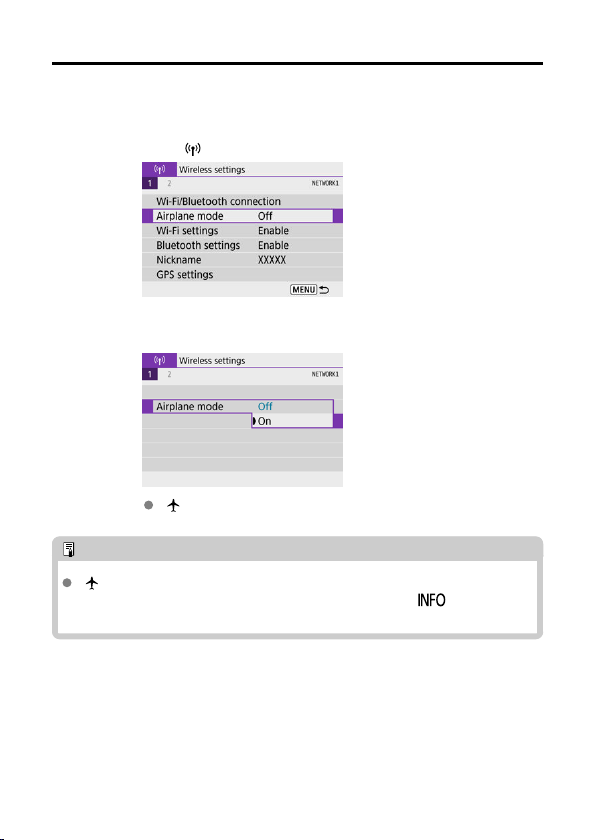
Airplane Mode
You can temporarily disable Wi-Fi and Bluetooth functions.
1.
Select [ : Airplane mode].
2.
Set to [On].
[ ] is displayed on the screen.
Note
[ ] may not be displayed in still photo shooting, movie recording, or playback,
depending on display settings. If it is not displayed, press the <
> button
repeatedly to access detailed information display.
522
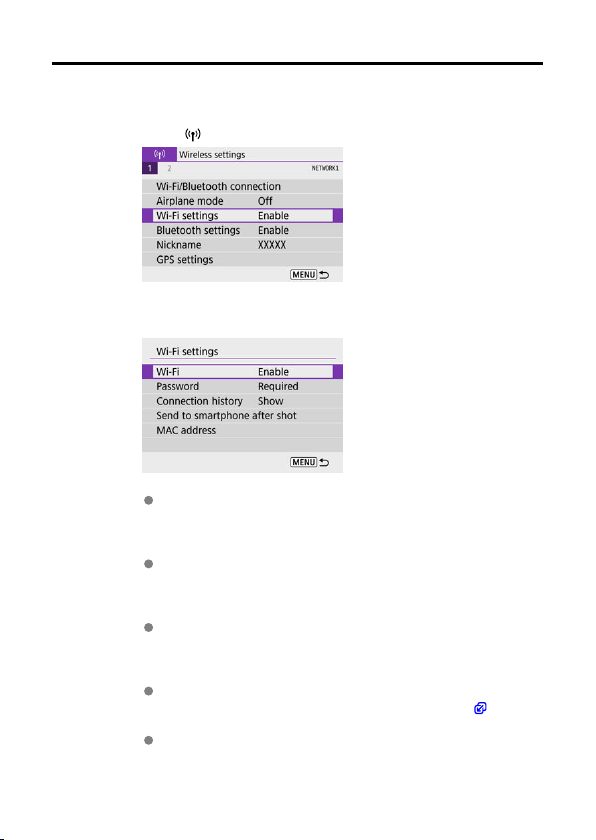
Wi-Fi Settings
1.
Select [ : Wi-Fi settings].
2.
Select an option.
Wi-Fi
When the use of electronic devices and wireless devices is prohibited,
such as on board airplanes or in hospitals, set it to [Disable].
Password
Set to [None] to allow Wi-Fi connections without a password (except
when connecting to an access point via Wi-Fi).
Connection history
You can set the connection history for devices connected via Wi-Fi to
[
Show] or [Hide].
Send to smartphone after shot
Images can be transferred to a smartphone automatically ( ).
MAC address
You can check the MAC address of the camera.
523
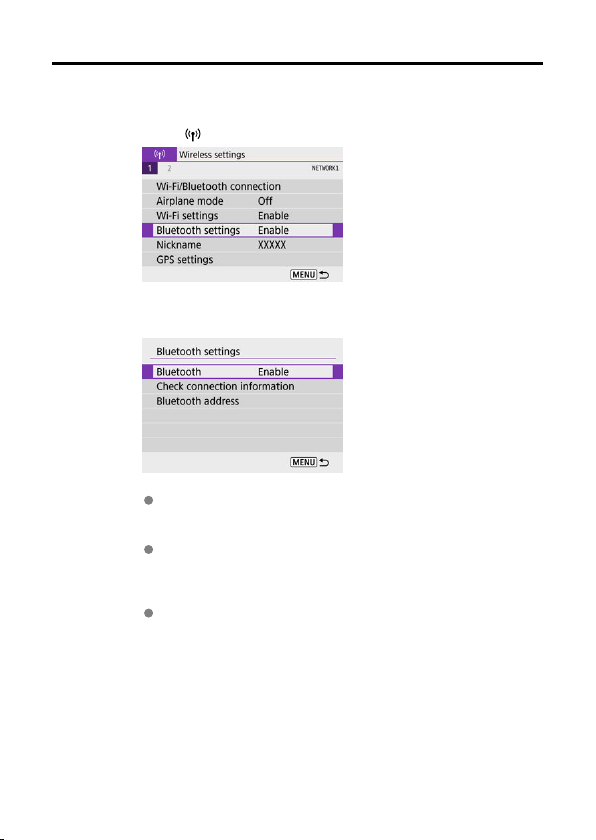
Bluetooth Settings
1.
Select [ : Bluetooth settings].
2.
Select an option.
Bluetooth
If you will not use the Bluetooth function, select [Disable].
Check connection information
You can check the name and communication status of the paired
device.
Bluetooth address
You can check the camera's Bluetooth address.
524
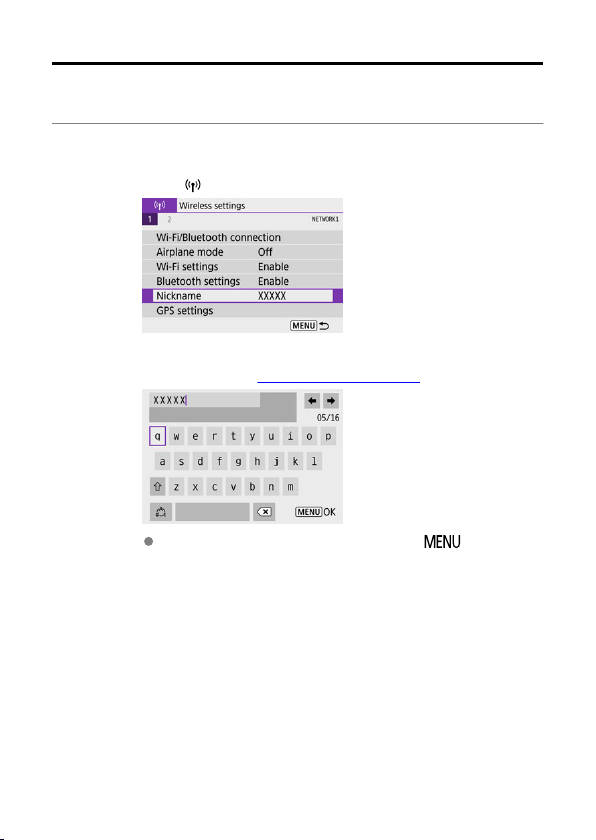
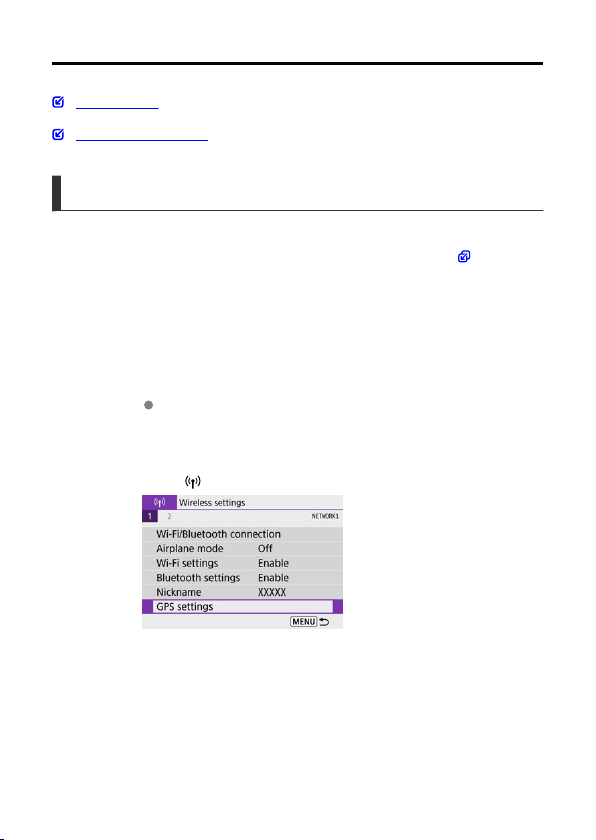
GPS Settings
GPS via Mobile
GPS Connection Display
GPS via Mobile
You can geotag images with a Bluetooth enabled smartphone.
Complete these settings after installing the dedicated Camera Connect app ( ) on the
smartphone.
1.
On the smartphone, activate location services.
2.
Establish a Bluetooth connection.
Start Camera Connect and pair the camera and smartphone via
Bluetooth.
3.
Select [ : GPS settings].
526
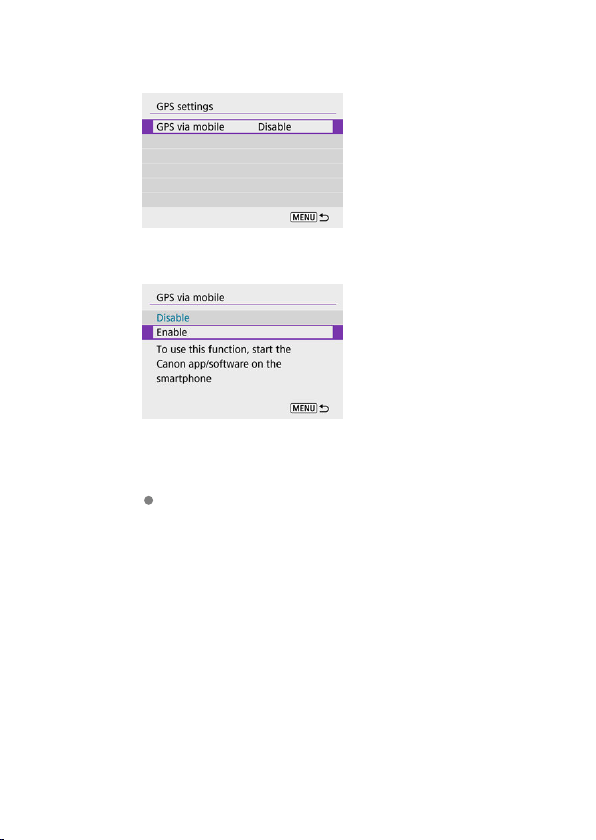
4.
Select [GPS via mobile].
5.
Select [Enable].
6.
Take the picture.
Images are geotagged with the information from the smartphone.
527
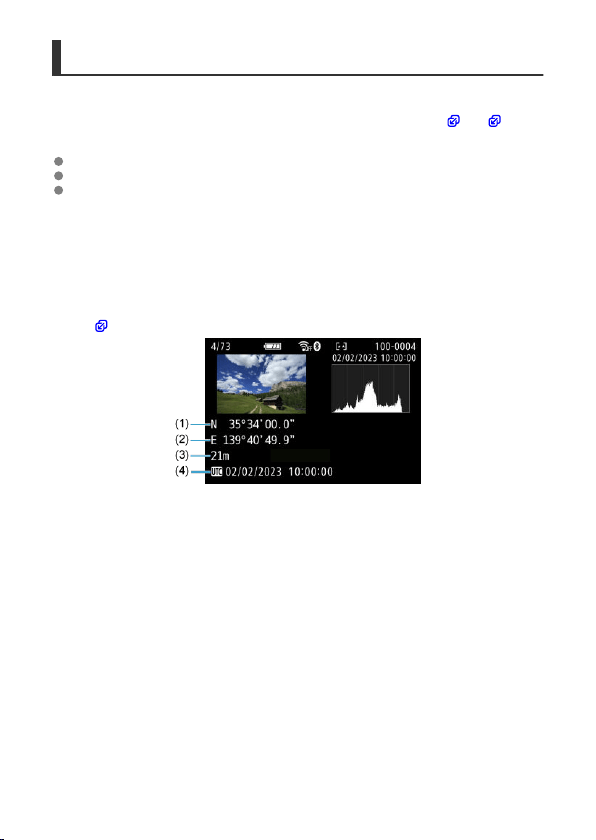
GPS Connection Display
You can check the status of smartphone location information acquisition in the GPS
connection icon on the screens for still photo shooting or movie recording ( and ,
respectively).
Gray: Location services are off
Blinking: Location information cannot be acquired
On: Location information acquired
Geotagging images as you shoot
Images you shoot while the GPS icon is on are geotagged.
Geotagging information
You can check the location information added to your shots on the shooting information
screen ( ).
(1) Latitude
(2) Longitude
(3) Elevation
(4) UTC (Coordinated Universal Time)
528
Caution
The smartphone can acquire location information only while it is paired with the
camera via Bluetooth.
Direction information is not acquired.
Acquired location information may not be accurate, depending on traveling
conditions or smartphone status.
It may take some time to acquire location information from the smartphone after
you turn the camera on.
Location information is no longer acquired after any of the following operations.
• Pairing with a wireless remote control via Bluetooth
• Turning the camera off
• Quitting Camera Connect
• Deactivating location services on the smartphone
Location information is no longer acquired in any of the following situations.
• The camera power turns off
• The Bluetooth connection is ended
• The smartphone's remaining battery level is low
Note
Coordinated Universal Time, abbreviated as UTC, is essentially the same as
Greenwich Mean Time.
For movies, the GPS information initially acquired is added.
529
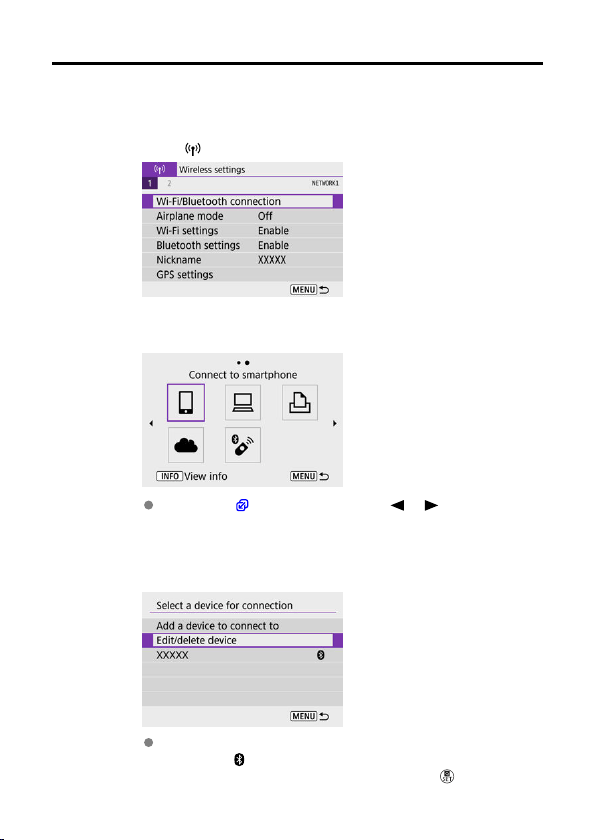
Changing or Deleting Connection Settings
To change or delete the connection settings, terminate the Wi-Fi connection first.
1.
Select [ : Wi-Fi/Bluetooth connection].
2.
Select an option.
If the history ( ) is displayed, press the < >< > keys to switch
screens.
3.
Select [Edit/delete device].
You can change the Bluetooth connection by selecting a smartphone
labeled with [ ] in gray. After the [Connect to smartphone] screen is
displayed, select [Pair via Bluetooth], then press <
> on the next
screen.
530
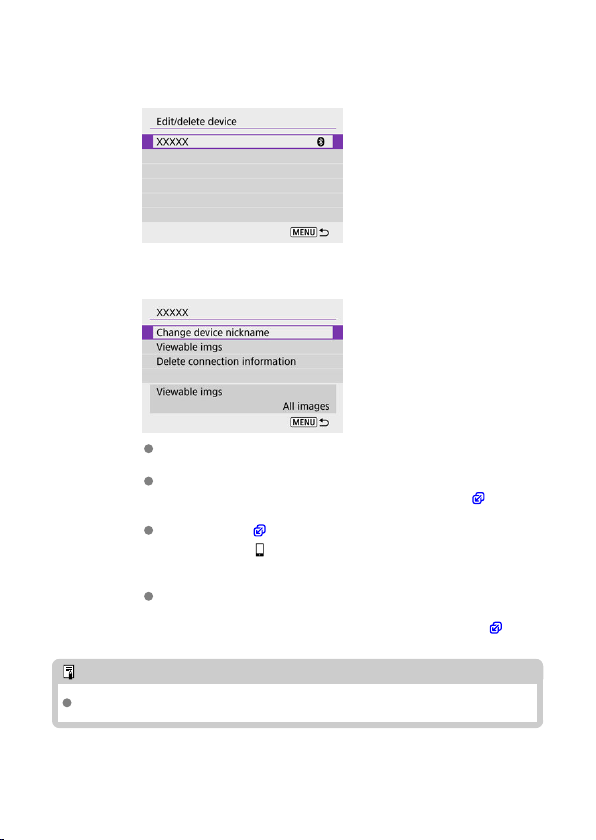
4.
Select the device for which to change or delete the connection
settings.
5.
Select an option.
Change or delete the connection settings on the displayed screen.
Change device nickname
You can change the nickname using the virtual keyboard ( ).
Viewable imgs ( )
Displayed when [ Connect to smartphone] is selected. Settings will
appear at the bottom of the screen.
Delete connection information
When deleting connection information for a paired smartphone, also
delete the camera information registered on the smartphone ( ).
Note
To delete image.canon connection settings, visit the image.canon website.
531
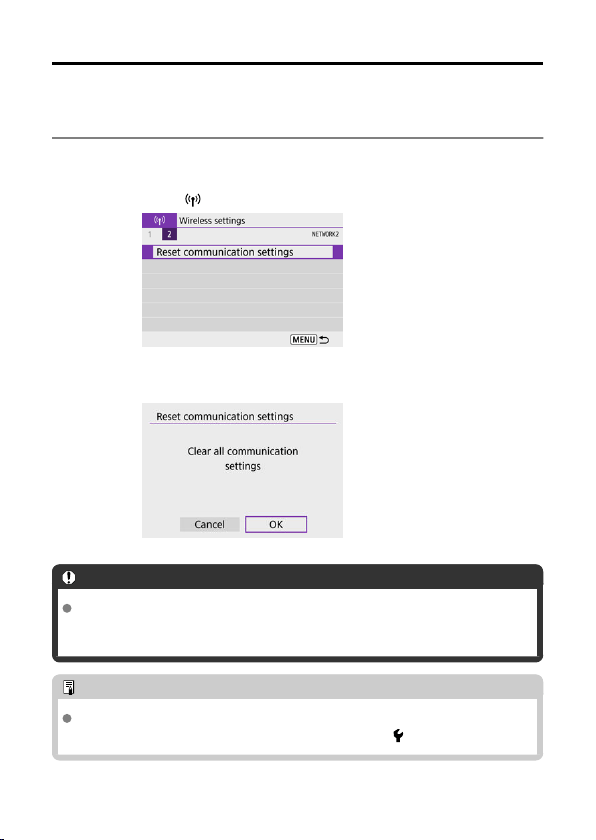
Resetting Communication Settings
All wireless communication settings can be deleted. By deleting the wireless communication
settings, you can prevent their information from being exposed when you lend or give your
camera to other people.
1.
Select [ : Reset communication settings].
2.
Select [OK].
Caution
If you have paired the camera with a smartphone, on the smartphone's Bluetooth
settings screen, delete the connection information of the camera for which you
restored default wireless communication settings.
Note
All wireless communication settings can be cleared by selecting the
[Communication settings] option for [Other settings] in [ : Reset camera].
532
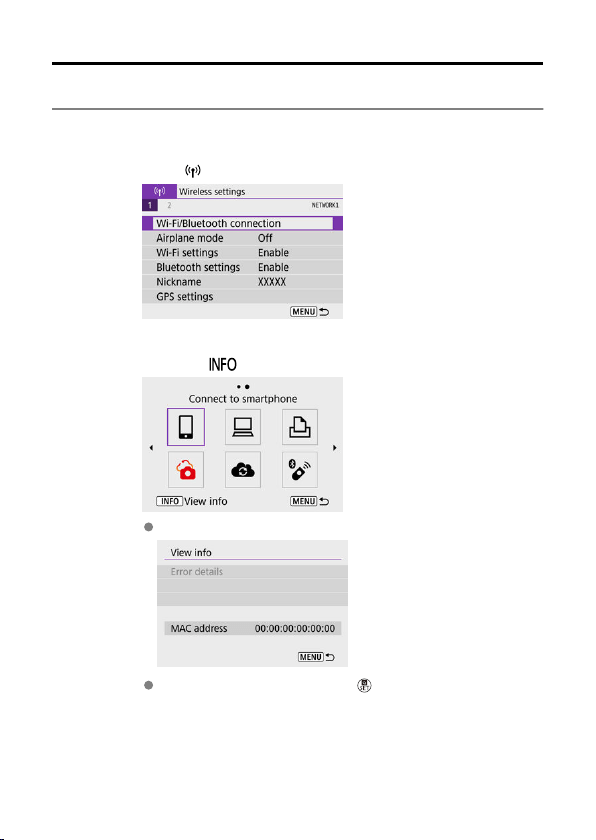
View Info Screen
You can check error details and the camera's MAC address.
1.
Select [ : Wi-Fi/Bluetooth connection].
2.
Press the < > button.
The [View info] screen will appear.
If an error has occurred, press the < > button to display error details.
533
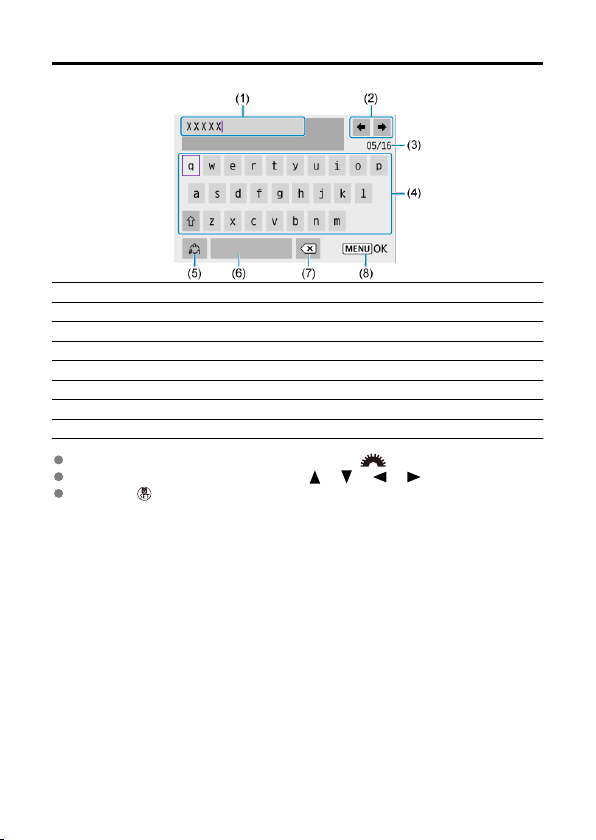
Virtual Keyboard Operations
(1) Input area, for entering text
(2) Cursor keys, for moving in the input area
(3) Current no. of characters/no. available
(4) Keyboard
(5) Switch input modes
(6) Space
(7) Delete a character in the input area
(8) Exit input
To move the cursor within (1), you can also turn the < > dial.
To move between (2) and (4)–(7), use the < >< >< >< > keys.
Press the < > button to confirm input or when switching input modes.
534
Responding to Error Messages
When an error occurs, display the details of the error by following one of the procedures
below. Then, eliminate the cause of the error by referring to the examples shown in this
chapter.
On the [View info] screen, press the < > button.
Select [Error details] on the [Wi-Fi on].
11 12
21 22 23
61 63 64 65 66 67 68 69
91
121 125 126 127
130 131 132 133 134 135
141 142
Note
When an error occurs, [Err**] is displayed in the upper right of the [Wi-Fi/
Bluetooth connection] screen. It disappears when the camera's power is set to
< >.
535
11: Connection target not found
In the case of [ ], is Camera Connect running?
• Establish a connection using Camera Connect ( ).
In the case of [ ], is the EOS software running?
• Start the EOS software and reestablish the connection ( ).
In the case of [ ], is the power of the printer on?
• Turn on the printer.
Are the camera and the access point set to use the same password for
authentication?
• This error occurs if the passwords do not match when the authentication method for
encryption is set to [Open system].
Check upper- and lower-case letters, and make sure the correct password for
authentication is set on the camera ( ).
12: Connection target not found
Is the power of the target device and access point on?
• Turn on the target device and access point, then wait a while. If a connection still
cannot be established, perform the procedures to establish the connection again.
536

21: No address assigned by DHCP server
What to check on the camera
On the camera, IP address is set to [Auto setting]. Is this the correct setting?
• If no DHCP server is used, specify the settings after setting the IP address to
[Manual setting] on the camera ( ).
What to check on the DHCP server
Is the power of the DHCP server on?
• Turn on the DHCP server.
Are there enough addresses for assignment by the DHCP server?
• Increase the number of addresses assigned by the DHCP server.
• Remove devices assigned addresses by the DHCP server from the network to
reduce the number of addresses in use.
Is the DHCP server working correctly?
• Check the DHCP server settings to make sure it is working correctly as a DHCP
server.
• If applicable, ask your network administrator to ensure the DHCP server is available.
537

22: No response from DNS server
What to check on the camera
On the camera, does the DNS server's IP address setting match the server's
actual address?
• Set the IP address to [Manual setting], and on the camera, specify the same IP
address as the DNS server used ( ).
What to check on the DNS server
Is the power of the DNS server on?
• Turn on the DNS server.
Are the DNS server settings for IP addresses and the corresponding names
correct?
• On the DNS server, make sure IP addresses and the corresponding names are
entered correctly.
Is the DNS server working correctly?
• Check the DNS server settings to make sure it is working correctly as a DNS server.
• If applicable, ask your network administrator to ensure the DNS server is available.
What to check on the network as a whole
Does your network include a router or similar device that serves as a gateway?
• If applicable, ask your network administrator for the network gateway address and
set it on the camera ( , ).
• Make sure that the gateway address setting is correctly entered on all network
devices including the camera.
538
23: Device with same IP address exists on selected network
Is another device on the camera network using the same IP address as the
camera?
• Change the camera's IP address to avoid using the same address as another
device on the network. Otherwise, change the IP address of the device that has a
duplicate address.
• If the camera's IP address is set to [Manual setting] in network environments using
a DHCP server, change the setting to [Auto setting] ( ).
Note
Responding to error messages 21–23
Also check the following points when responding to errors numbered 21–23.
Are the camera and the access point set to use the same password for
authentication?
• This error occurs if the passwords do not match when the authentication
method for encryption is set to [Open system]. Check upper- and lower-case
letters, and make sure the correct password for authentication is set on the
camera ( ).
539

61: Selected SSID wireless LAN network not found
Are any obstacles blocking the line of sight between the camera and the antenna
of the access point?
• Move the antenna of the access point to a position clearly visible from the point of
view of the camera ( ).
What to check on the camera
Does the SSID set on the camera match that of the access point?
• Check the SSID at the access point, then set the same SSID on the camera.
What to check at the access point
Is the access point turned on?
• Turn on the power of the access point.
If filtering by MAC address is active, is the MAC address of the camera in use
registered at the access point?
• Register the MAC address of the camera used to the access point. The MAC
address can be checked on the [View info] screen ( ).
63: Wireless LAN authentication failed
Are the camera and the access point set to use the same authentication method?
• The camera supports the following authentication methods: [Open system],
[Shared key], and [WPA/WPA2-PSK].
Are the camera and the access point set to use the same password for
authentication?
• Check upper- and lower-case letters, and make sure the correct password for
authentication is set on the camera.
If filtering by MAC address is active, is the MAC address of the camera in use
registered at the access point?
• Register the MAC address of the camera used to the access point. The MAC
address can be checked on the [View info] screen ( ).
540

64: Cannot connect to wireless LAN terminal
Are the camera and the access point set to use the same encryption method?
• The camera supports the following encryption methods: WEP, TKIP, and AES.
If filtering by MAC address is active, is the MAC address of the camera in use
registered at the access point?
• Register the MAC address of the camera used to the access point. The MAC
address can be checked on the [View info] screen ( ).
65: Wireless LAN connection lost
Are any obstacles blocking the line of sight between the camera and the antenna
of the access point?
• Move the antenna of the access point to a position clearly visible from the point of
view of the camera.
The Wi-Fi connection was lost for some reason, and the connection cannot be
restored.
• The following are possible reasons: excessive access to the access point from
another device, a microwave oven or similar appliance in use nearby (interfering
with IEEE 802.11b/g/n (2.4 GHz band)), or influence of rain or high humidity ( ).
66: Incorrect wireless LAN password
Are the camera and the access point set to use the same password for
authentication?
• Check upper- and lower-case letters, and make sure the correct password for
authentication is set on the camera.
67: Incorrect wireless LAN encryption method
Are the camera and the access point set to use the same encryption method?
• The camera supports the following encryption methods: WEP, TKIP, and AES.
If filtering by MAC address is active, is the MAC address of the camera in use
registered at the access point?
• Register the MAC address of the camera used to the access point. The MAC
address can be checked on the [View info] screen ( ).
541
68: Cannot connect to wireless LAN terminal. Retry from the
beginning.
Did you hold down the access point's WPS (Wi-Fi Protected Setup) button for the
specified period of time?
• Hold down the WPS button for the period of time specified in the access point's
instruction manual.
Are you trying to establish a connection near the access point?
• Try establishing the connection when both devices are within reach of each other.
69: Multiple wireless LAN terminals have been found. Cannot
connect. Retry from the beginning.
Connection is in progress by other access points in Pushbutton Connection
mode (PBC mode) of WPS (Wi-Fi
Protected Setup).
• Wait a while before trying to establish the connection.
91: Other error
A problem other than error code number 11 to 69 occurred.
• Turn the camera's power switch off and on.
121: Not enough free space on server
The target Web server does not have enough free space.
• Delete unnecessary images on the Web server, check the free space on the Web
server, then try sending the data again.
125: Check the network settings
Is the network connected?
• Check the connection status of the network.
126: Could not connect to server
Could not connect to the Web service.
• Try accessing the service again later.
Is the network connected?
• Check the connection status of the network.
542
127: An error has occurred
A problem other than error code number 121 to 126 occurred while the camera is
connected to the Web service.
• Try again to establish the Wi-Fi connection to image.canon.
130: The server is currently busy
Please wait a moment and try again
The image.canon site is busy at the moment.
• Try accessing image.canon over Wi-Fi again later.
131: Try again
An error occurred when connecting to image.canon over Wi-Fi.
• Try again to establish the Wi-Fi connection to image.canon.
132: Error detected on server
Try again later
The image.canon site is currently offline for maintenance.
• Try accessing image.canon over Wi-Fi again later.
133: Cannot log in to Web service
An error occurred when signing in to image.canon.
• Check the image.canon settings.
• Try accessing image.canon over Wi-Fi again later.
134: Set the correct date and time
The date, time, and time zone settings are incorrect.
• Check the [ : Date/Time/Zone] settings.
135: Web service settings have been changed
The settings for image.canon were changed.
• Check the image.canon settings.
543

141: Printer is busy. Try connecting again.
Is the printer performing a printing process?
• Try again to establish the Wi-Fi connection to the printer after the printing process is
finished.
Is another camera connected to the printer via Wi-Fi?
• Try again to establish the Wi-Fi connection to the printer after the Wi-Fi connection
to the other camera has been terminated.
142: Could not acquire printer information. Reconnect to try again.
Is the power of the printer on?
• Try again to establish the Wi-Fi connection after turning on the printer.
544
Wireless Communication Function Precautions
Distance Between the Camera and the Smartphone
Installation Location of Access Point Antenna
Nearby Electronic Devices
Precautions for Using Multiple Cameras
If the transmission rate drops, the connection is lost, or other problems occur when using the
wireless communication functions, try the following corrective actions.
545

Distance Between the Camera and the Smartphone
If the camera is too far from the smartphone, a Wi-Fi connection may not be established
even when Bluetooth connection is possible. In this case, bring the camera and the
smartphone closer together, then establish a
Wi-Fi connection.
Installation Location of Access Point Antenna
When using indoors, install the device in the room where you are using the camera.
Install the device where people or objects do not come between the device and the
camera.
Nearby Electronic Devices
If the Wi-Fi transmission rate drops because of the influence of the following electronic
devices, stop using them or move further away from the devices to transmit communication.
The camera communicates over Wi-Fi via IEEE 802.11b/g/n using radio waves in the
2.4 GHz band. For this reason, the Wi-Fi transmission rate will drop if there are
Bluetooth devices, microwave ovens, cordless telephones, microphones, smartphones,
other cameras, or similar devices operating on the same frequency band nearby.
Precautions for Using Multiple Cameras
When connecting multiple cameras to one access point via Wi-Fi, make sure the
cameras' IP addresses are different.
When multiple cameras are connected to one access point via Wi-Fi, the transmission
rate drops.
When there are multiple IEEE 802.11b/g/n (2.4 GHz band) access points, leave a gap of
five channels between each Wi-Fi
channel to reduce radio wave interference. For
example, use channels 1, 6, and 11, channels 2 and 7, or channels 3 and 8.
546

Security
If security settings have not been properly set, the following problems may occur.
Transmission monitoring
Third parties with malicious intent may monitor wireless LAN transmissions and attempt
to acquire the data you are sending.
Unauthorized network access
Third parties with malicious intent may gain unauthorized access to the network you are
using to steal, modify, or destroy information. Additionally, you could fall victim to other
types of unauthorized access such as impersonation (where someone assumes an
identity to gain access to unauthorized information) or springboard attacks (where
someone gains unauthorized access to your network as a springboard to cover their
tracks when infiltrating other systems).
It is recommended to make use of the systems and functions to thoroughly secure your
network, preventing these types of problems from occurring.
547

Checking Network Settings
Windows
Open the Windows [Command Prompt], then enter ipconfig/all and press the <
Enter> key.
In addition to the IP address assigned to the computer, the subnet mask, gateway, and DNS
server information are also displayed.
macOS
In macOS, open the [Terminal] application, enter ifconfig -a, and press the <Return> key.
The IP address assigned to the computer is indicated in the [enX] item (X: number) next to
[inet], in the format “***.***.***.***”.
For information about the [Terminal] application, refer to the macOS help.
To avoid using the same IP address for the computer and other devices on the network,
change the rightmost number when configuring the IP address assigned to the camera in
the processes described in
Manual IP Address Setup.
Example: 192.168.1.10
548
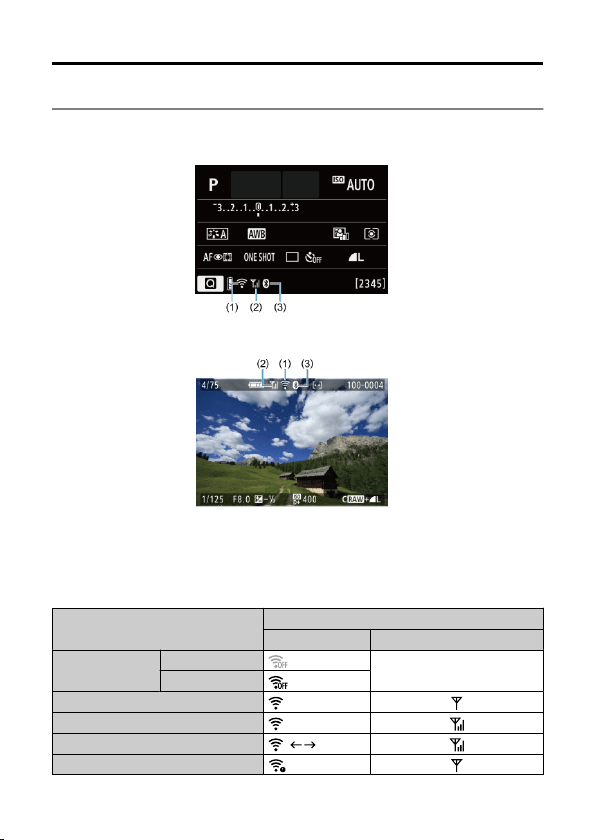
Wireless Communication Status
Wireless communication status can be checked on the screen.
Shooting functions screen
Information display screen during playback
(1) Wi-Fi function
(2) Wireless signal strength
(3) Bluetooth function
Communication Status
Screen
Wi-Fi Function Wireless Signal Strength
Not connected
Wi-Fi: Disable
Off
Wi-Fi: Enable
Connecting
(Blinking)
Connected
Sending data
( )
Connection error
(Blinking)
549
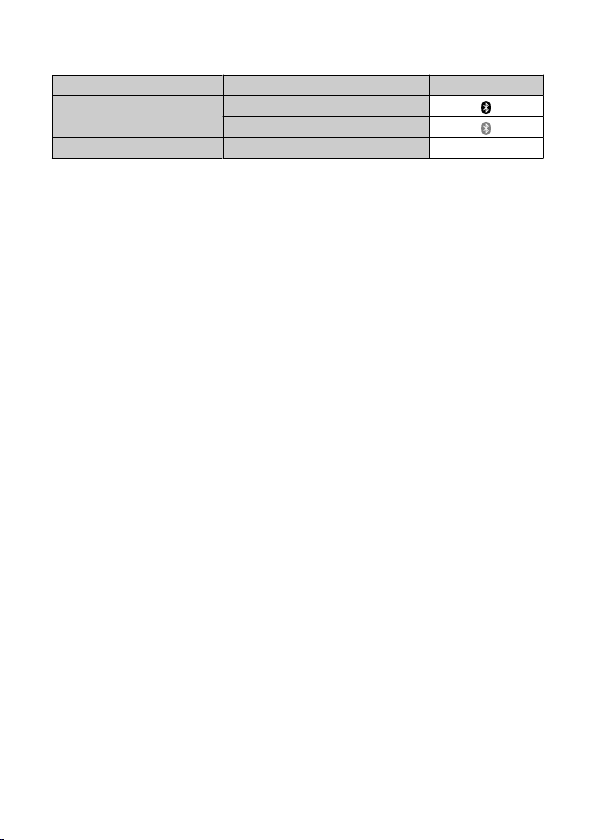
Bluetooth Function Indicator
Bluetooth Function Connection Status Screen
Other than [Disable]
Bluetooth connected
Bluetooth not connected
[Disable] Bluetooth not connected Not displayed
550

Set-up
This chapter describes menu settings on the set-up ([ ]) tab.
to the right of page titles indicates functions only available in Creative Zone modes
(<P>, <Tv>, <
Av>, or <M>).
•
Tab Menus: Set-up
• Folder Settings
• File Numbering
• Card Formatting
• Auto Rotate
• Adding Orientation Information to Movies
• Date/Time/Zone
• Language
• Video System
• Beeps
• Power Saving
• Eco Mode
• Display Settings
• Screen Brightness
• Viewfinder Brightness
• HDMI Resolution
•
Resetting the Camera
• Custom Functions (C.Fn)
• Copyright Information
• Other Information
551
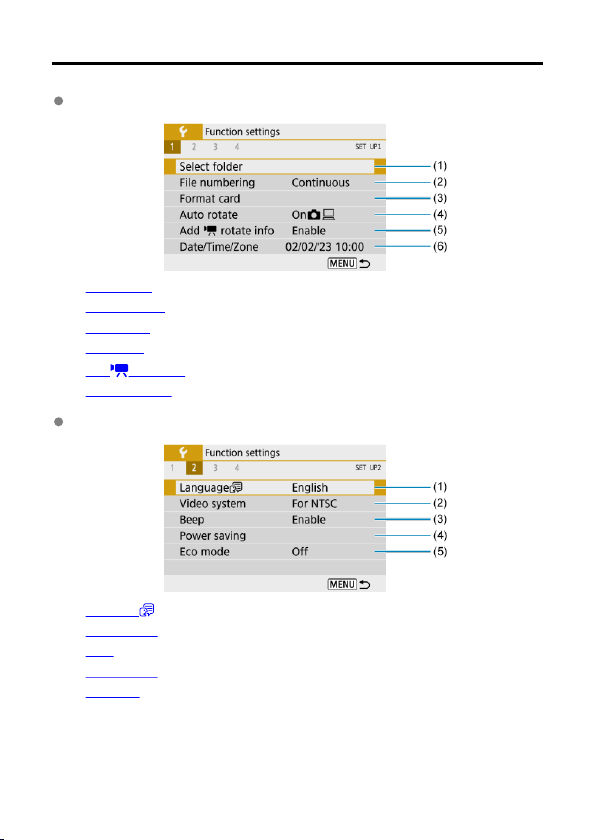
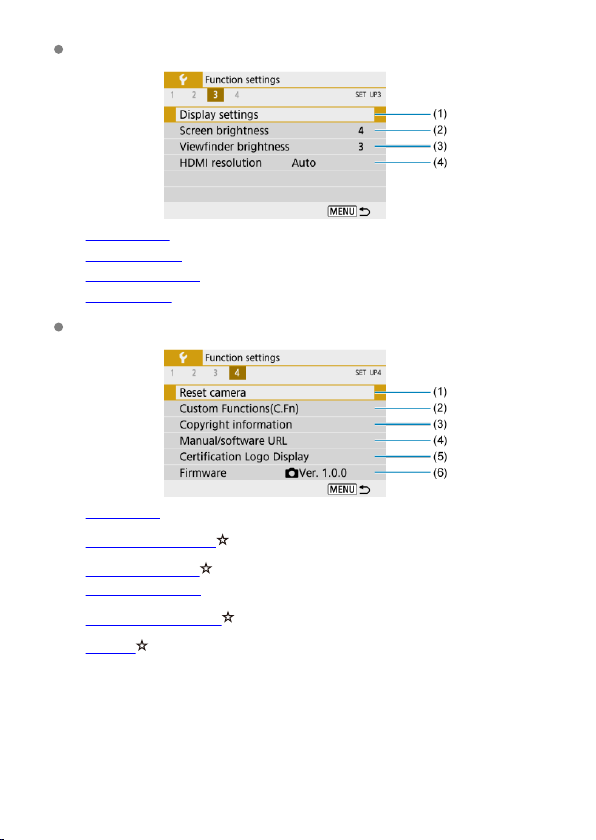
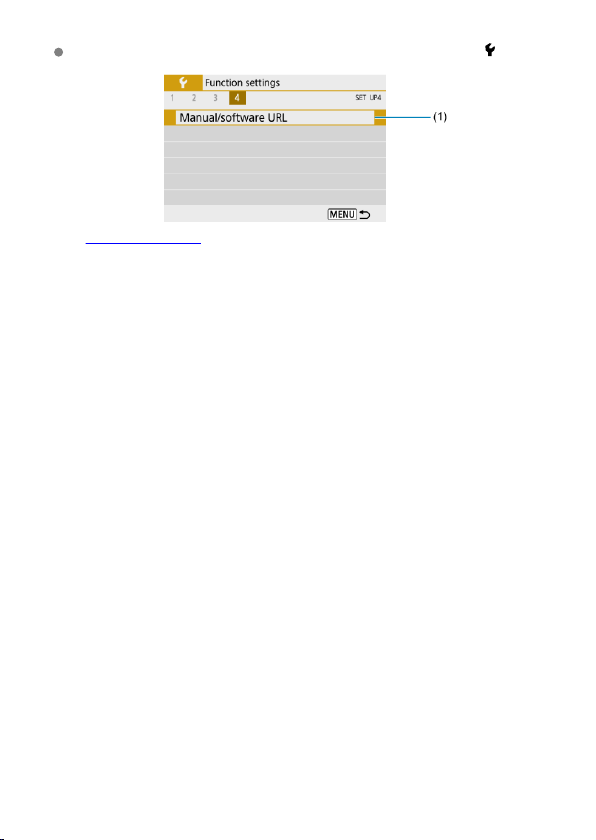
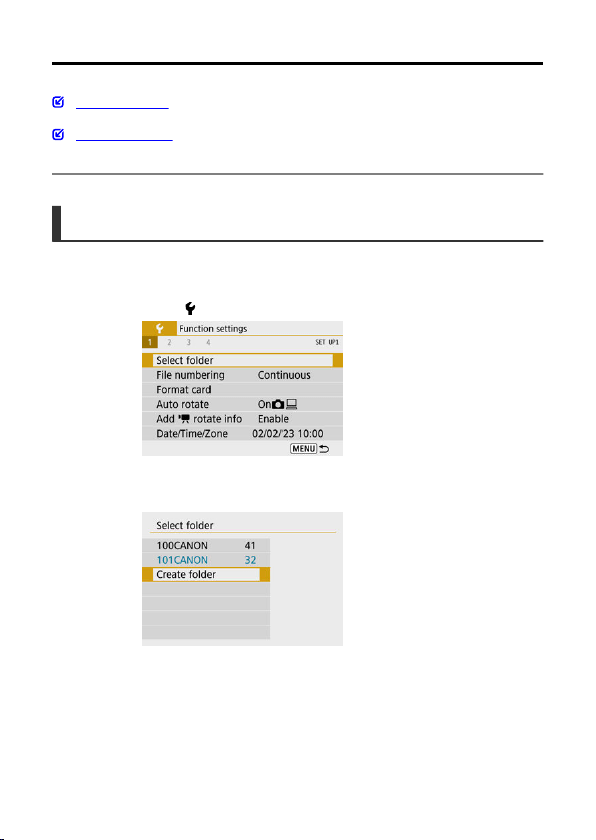
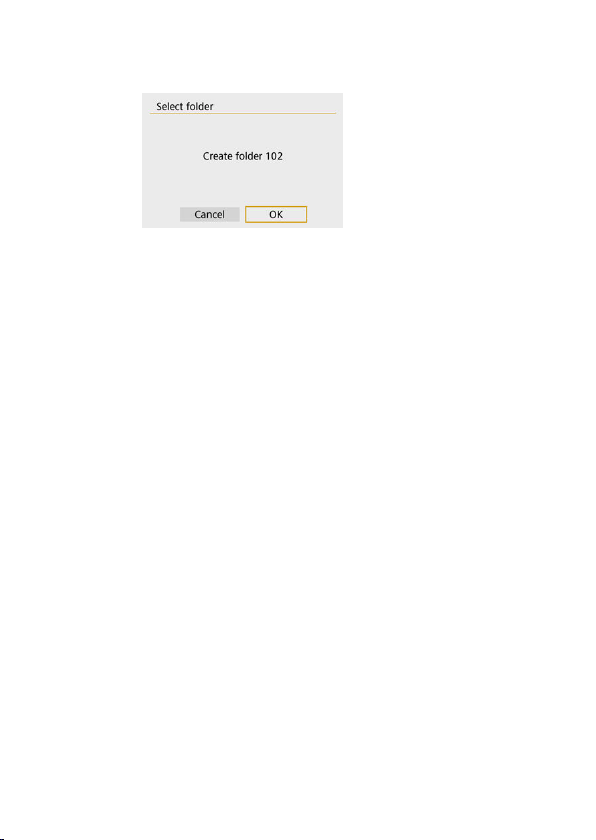
3.
Select [OK].
556
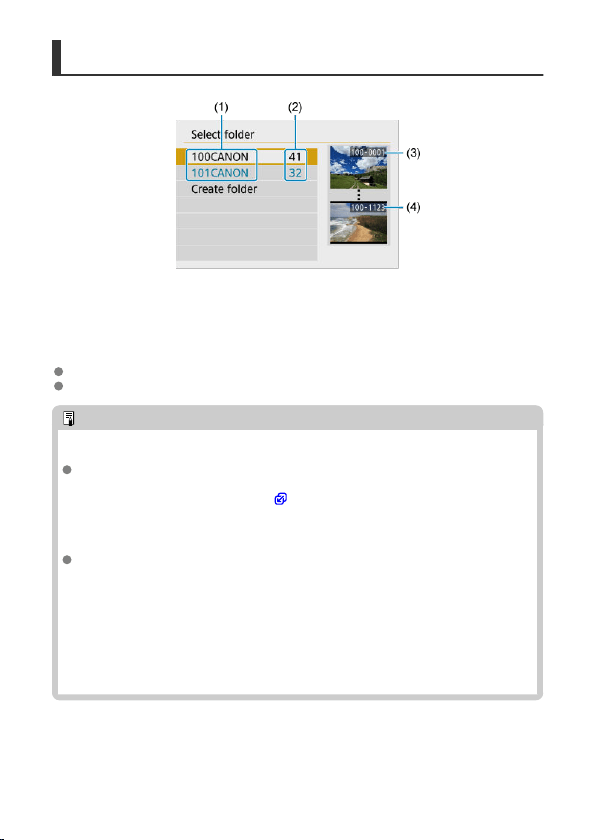
Selecting a Folder
(1) Folder name
(2) Number of images in folder
(3) Lowest file number
(4) Highest file number
Select a folder on the folder selection screen.
Captured images are stored in your selected folder.
Note
Folders
A folder can contain up to 9999 images (file number 0001–9999). When a folder
becomes full, a new folder with the folder number increased by one is created
automatically. Also, if manual reset ( ) is executed, a new folder will be created
automatically. Folders numbered from 100 to 999 can be created.
Creating folders with a computer
With the card open on the screen, create a new folder with “DCIM” as the name.
Open the DCIM folder and create as many folders as necessary to save and
organize your images. “
100ABC_D” is the required format for folder names, and
the first three digits must be a folder number in the range 100–999. The last five
characters can be any combination of upper- and lower-case letters from A to Z,
numerals, and the underscore “_”. The space cannot be used. Also note that two
folder names cannot share the same three-digit folder number (for example,
“100ABC_D” and “100W_XYZ”) even if the remaining five characters in each name
are different.
557
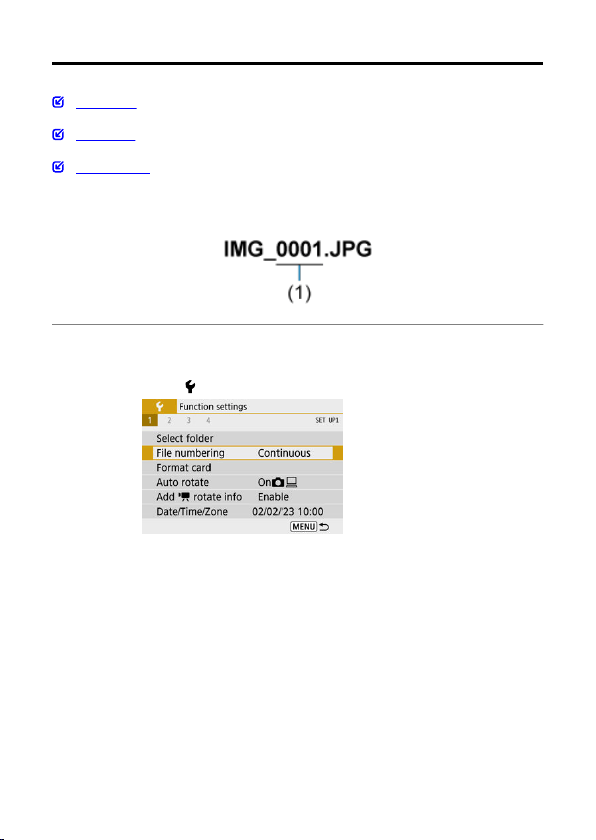
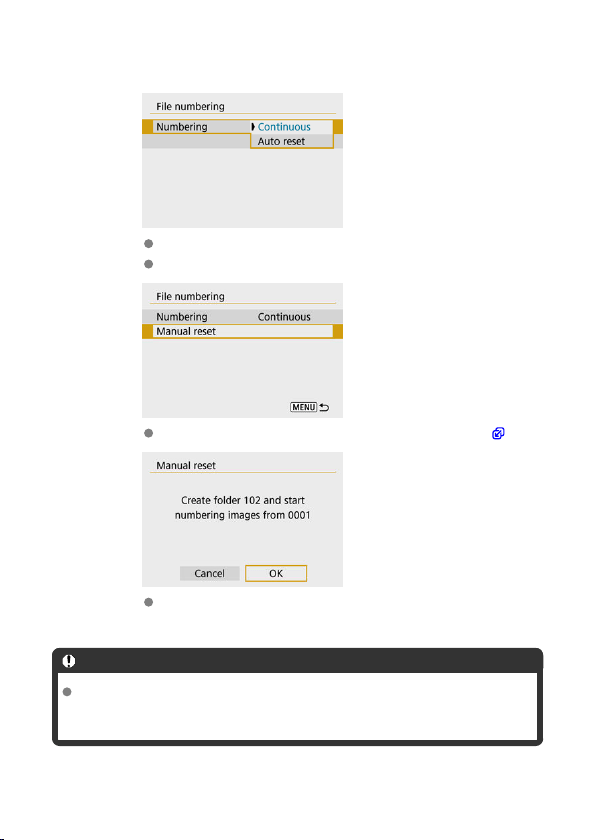
2.
Set the item.
Select [Numbering].
Select [Continuous] or [Auto reset].
If you want to reset the file numbering, select [Manual reset] ( ).
Select [OK] to create a new folder, and the file number will start with
0001.
Caution
If the file number in folder 999 reaches 9999, shooting will not be possible even if
the card still has free space. After a message requesting you to replace the card is
displayed, switch to a new card.
559
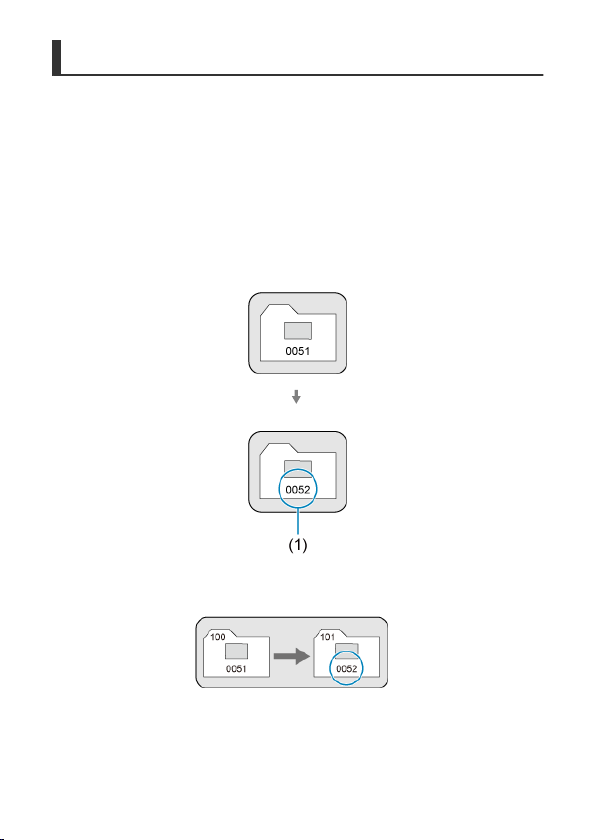
Continuous
For continuous file numbering regardless of switching cards or
creating folders
Even after you replace the card or create a new folder, the file numbering continues in
sequence up to 9999. This is useful when you want to save images numbered anywhere
between 0001 to 9999 on multiple cards or in multiple folders into one folder on a computer.
If the replacement card or existing folder already contains images recorded previously, the
file numbering of the new images may continue from the file numbering of the existing
images on the card or in the folder. If you want to use continuous file numbering, it is
recommended that you use a newly formatted card each time.
File numbering after replacing the card
Card 1
Card 2
(1) Next sequential file number
File numbering after creating a folder
Card 1
560
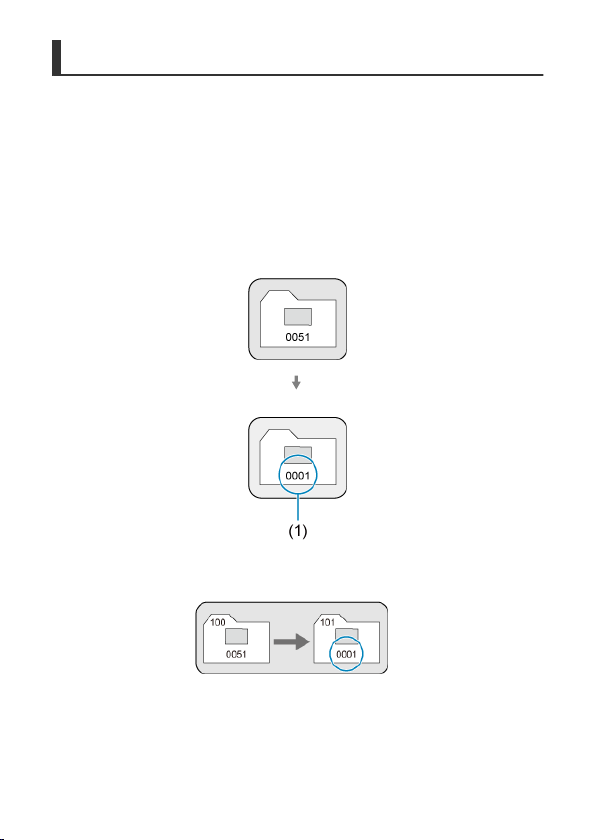
Auto Reset
For restarting file numbering from 0001 after switching cards or
creating folders
When you replace the card or create a folder, the file numbering restarts from 0001 for the
new images saved. This is useful if you want to organize images by cards or folders.
If the replacement card or existing folder already contains images recorded previously, the
file numbering of the new images may continue from the file numbering of the existing
images on the card or in the folder. If you want to save images with the file numbering
starting from 0001, use a newly formatted card each time.
File numbering after replacing the card
Card 1
Card 2
(1) File numbering is reset
File numbering after creating a folder
Card 1
561

Manual Reset
For resetting file numbering to 0001 or starting from 0001 in new
folders
When you reset the file numbering manually, a new folder is created automatically and the
file numbering of images saved to that folder starts from 0001.
This is useful, for example, if you want to use different folders for the images taken
yesterday and the ones taken today.
562
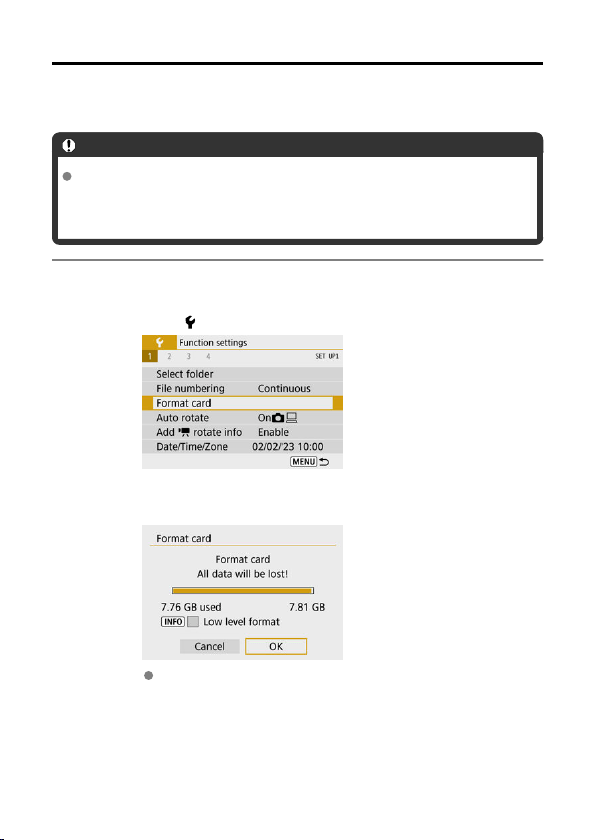
Card Formatting
If the card is new or was previously formatted (initialized) by another camera or computer,
format the card with this camera.
Caution
When the card is formatted, all images and data on the card will be erased.
Even protected images will be erased, so make sure there is nothing you
need to keep. If necessary, transfer the images and data to a computer, etc.
before formatting the card.
1.
Select [ : Format card].
2.
Format the card.
Select [OK].
563
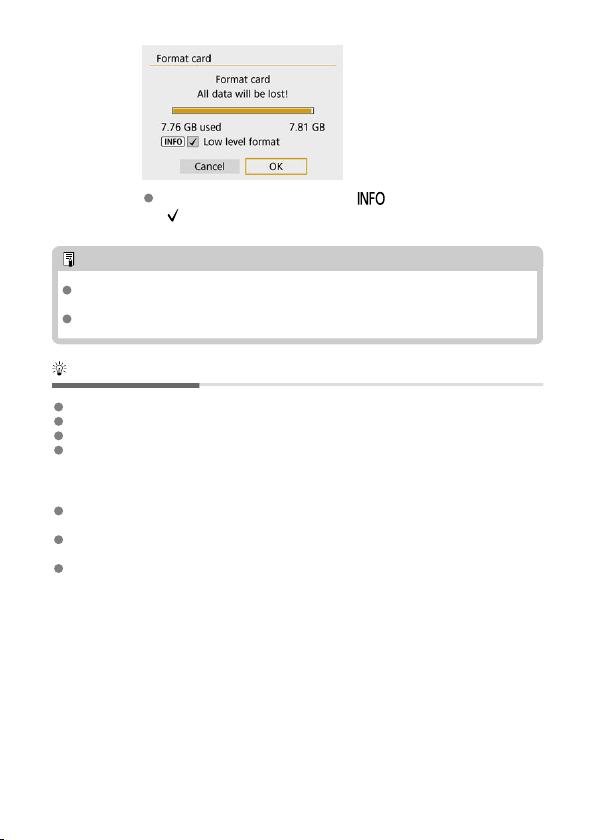
For low-level formatting, press the < > button to add a checkmark
[ ] to [Low level format], then select [OK].
Note
The card capacity displayed on the card format screen may be smaller than the
capacity indicated on the card.
This device incorporates exFAT technology licensed from Microsoft.
Conditions requiring card formatting
The card is new.
The card was formatted by a different camera or a computer.
The card is full of images or data.
A card-related error is displayed.
Low-level formatting
Perform low-level formatting if the card's writing or reading speed seems slow or if you
want to totally erase the data on the card.
Since low-level formatting will format all recordable sectors on the card, the formatting
will take longer than normal formatting.
During low-level formatting, you can cancel formatting by selecting [Cancel]. Even in
this case, normal formatting will already be complete and you can use the card as usual.
564
Card file formats
SD/SDHC cards will be formatted in FAT32. SDXC cards will be formatted in
exFAT.
Individual movies recorded to exFAT cards are recorded as a single file (without splitting
them into multiple files) even if they exceed 4 GB, so the resulting movie file will exceed
4 GB.
Caution
It may not be possible to use SDXC cards formatted with this camera in other
cameras. Also note that exFAT-formatted cards may not be recognized by
some computer operating systems or card readers.
Formatting or erasing data on a card does not completely erase the data. Be
aware of this when selling or discarding the card. When disposing of cards,
take steps to protect personal information if necessary, as by physically
destroying cards.
565
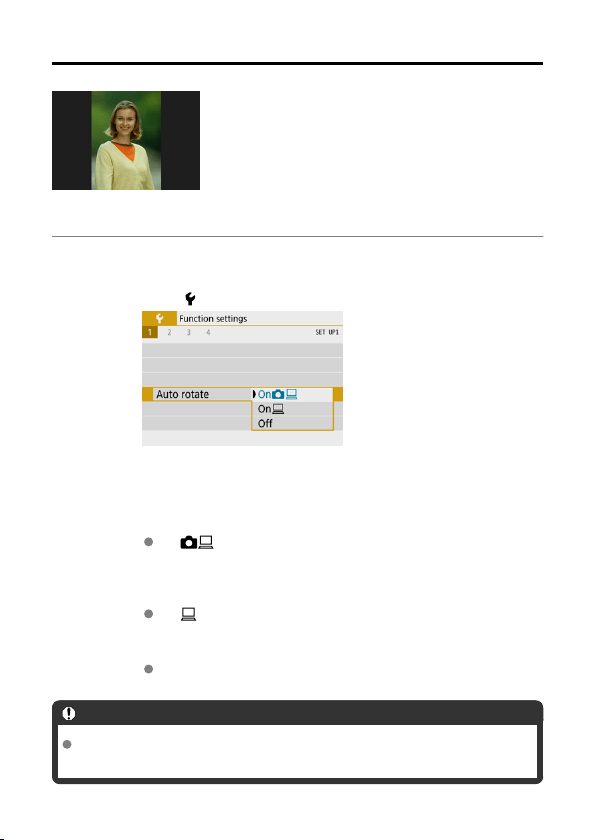
Auto Rotate
You can change the auto rotation setting that straightens images shot in vertical orientation
when they are displayed.
1.
Select [ : Auto rotate].
2.
Select an option.
On
Automatically rotates images for display on both the camera and
computers.
On
Automatically rotates images only for display on computers.
Off
Caution
Images captured with auto rotation set to [Off] will not rotate during playback even
if you later set auto rotation to [On].
566
Note
If a picture is taken while the camera is aimed up or down, automatic rotation to the
proper orientation for viewing may not be performed correctly.
If images are not rotated automatically on a computer, try using EOS software.
567
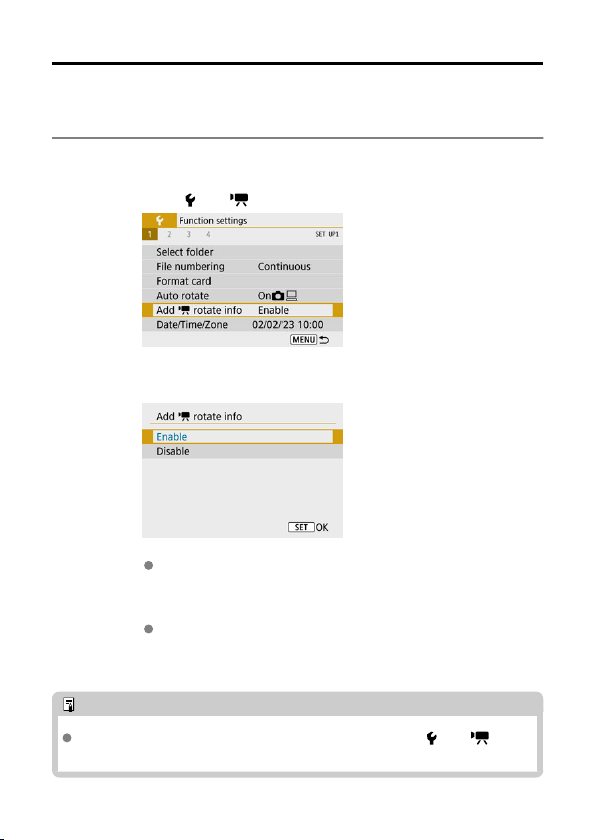
Adding Orientation Information to Movies
For movies recorded with the camera held vertically, orientation information indicating which
side is up can be added automatically to enable playback in the same orientation on
smartphones or other devices.
1.
Select [ : Add rotate info].
2.
Select an option.
Enable
Play movies on smartphones or other devices in the orientation in
which they were recorded.
Disable
Play movies horizontally on smartphones or other devices, regardless
of the recording orientation.
Note
Movies are played horizontally on the camera, regardless of the [ : Add
rotate info] setting.
568
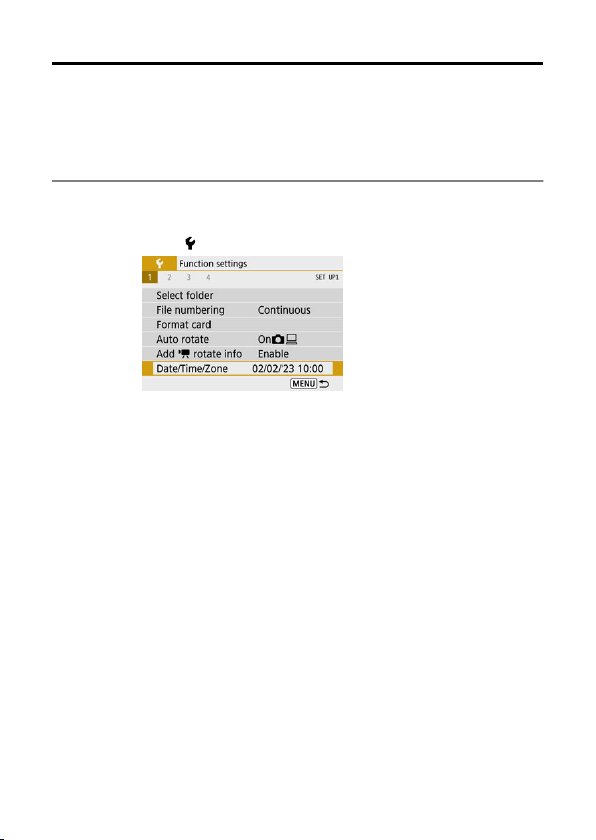
Date/Time/Zone
When you turn on the power for the first time or if the date/time/zone have been reset, follow
these steps to set the time zone first.
By setting the time zone first, you can simply adjust this setting as needed in the future and
the date/time will be updated to match it.
Since the captured images will be appended with the shooting date and time information, be
sure to set your date/time.
1.
Select [ : Date/Time/Zone].
569

2.
Set the time zone.
Use the < >< > keys to select [Time zone].
Press the < > button.
Press the < > button.
Use the < >< > keys to select the time zone, then press the < >
button.
If your time zone is not listed, press the < > button, then set the
difference from UTC in [Time difference].
570
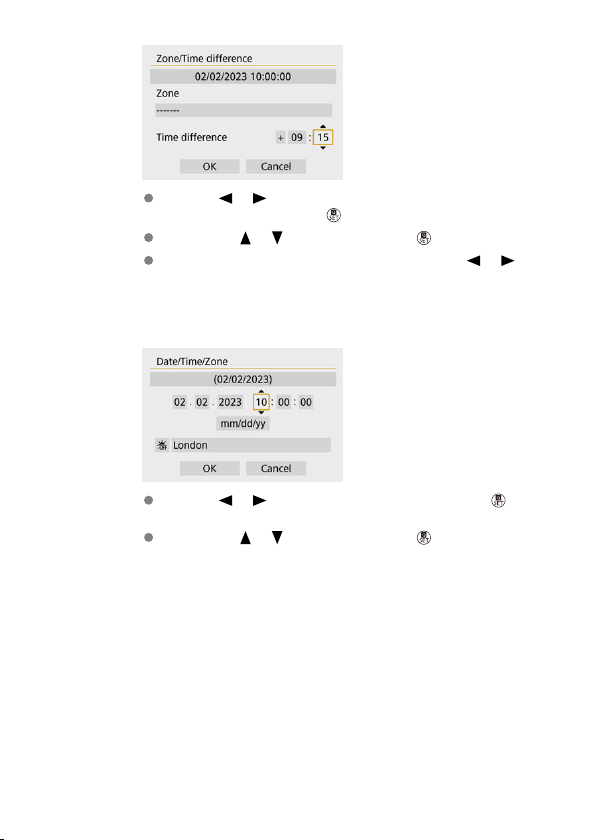
Use the < >< > keys to select a [Time difference] option (+–/
hour/minute), then press the < > button.
Set with the < >< > keys, then press the < > button.
After entering the time zone or time difference, use the < >< >
keys to select [OK].
3.
Set the date and time.
Use the < >< > keys to select an item, then press the < >
button.
Set with the < >< > keys, then press the < > button.
571
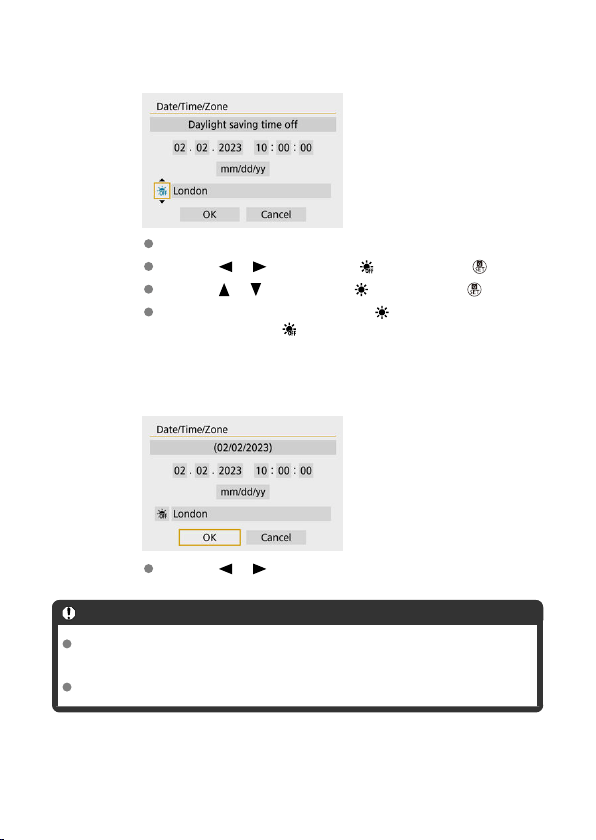
4.
Set daylight saving time.
Set it as necessary.
Use the < >< > keys to select [ ], then press the < > button.
Use the < >< > keys to select [ ], then press the < > button.
When the daylight saving time is set to [ ], the time set in step 3 will
advance by 1 hour. If [ ] is set, the daylight saving time will be
canceled and the time will go back by 1 hour.
5.
Exit the setting.
Use the < >< > keys to select [OK].
Caution
The [Date/Time/Zone] setting may be reset when the camera is stored without the
battery, when the battery is depleted, or when it is exposed to freezing
temperatures for an extended period. If this happens, set them once again.
After changing [Zone/Time difference], check that the correct date/time are set.
572
Note
Auto power off time may be extended while the [ : Date/Time/Zone] screen is
displayed.
573
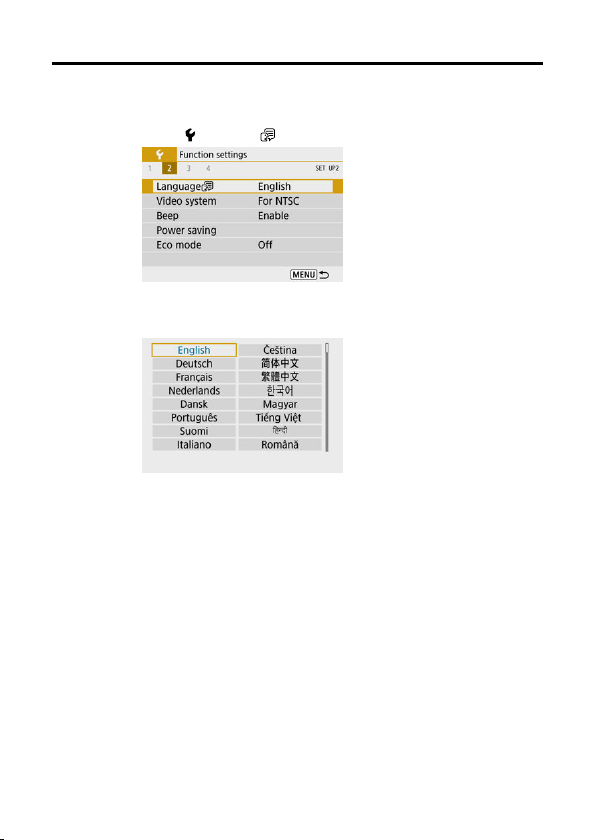
Language
1.
Select [ : Language ].
2.
Set the desired language.
574
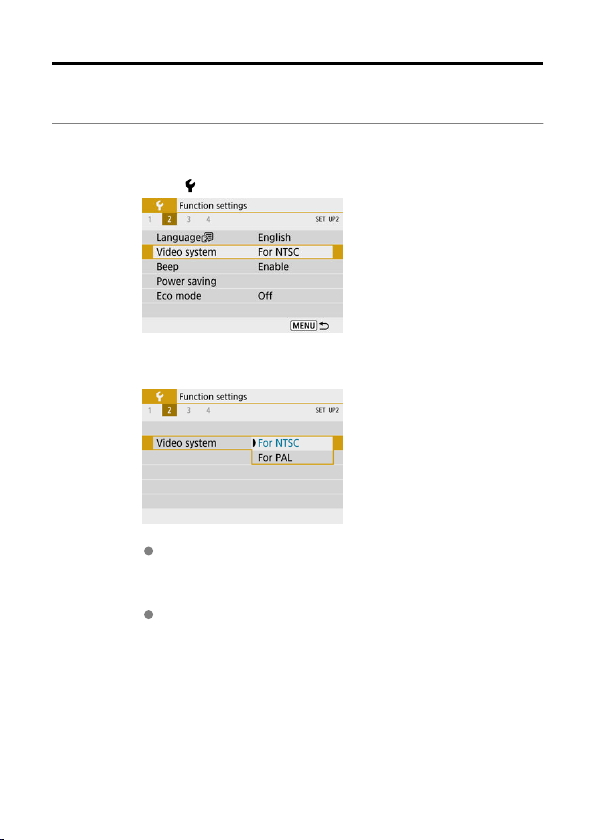
Video System
Set the video system of any television used for display. This setting determines the frame
rates available when you record movies.
1.
Select [ : Video system].
2.
Select an option.
For NTSC
For areas where the TV system is NTSC (North America, Japan, South
Korea, Mexico, etc.).
For PAL
For areas where the TV system is PAL (Europe, Russia, China,
Australia, etc.).
575
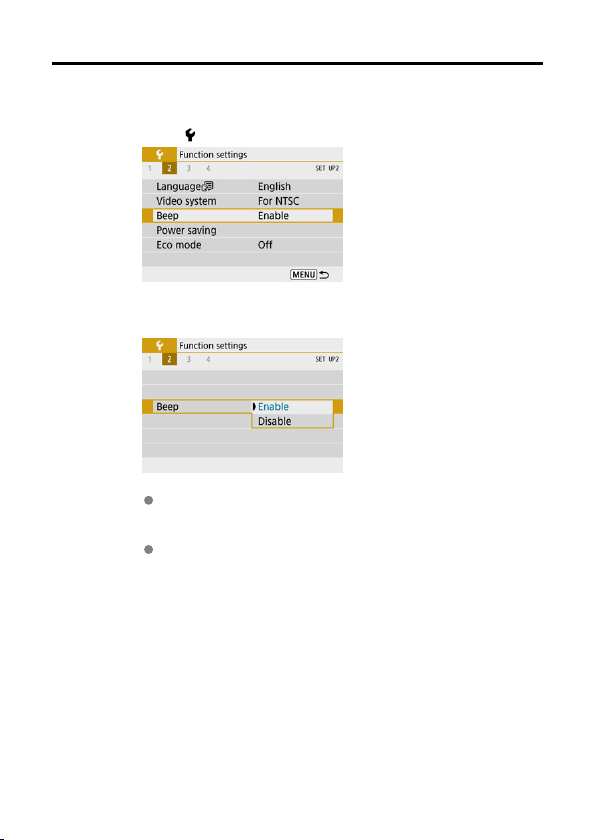
Beeps
1.
Select [ : Beep].
2.
Select an option.
Enable
The camera beeps after focusing and in other situations.
Disable
Disables beeping for focus confirmation, self-timer shooting, and other
situations.
576
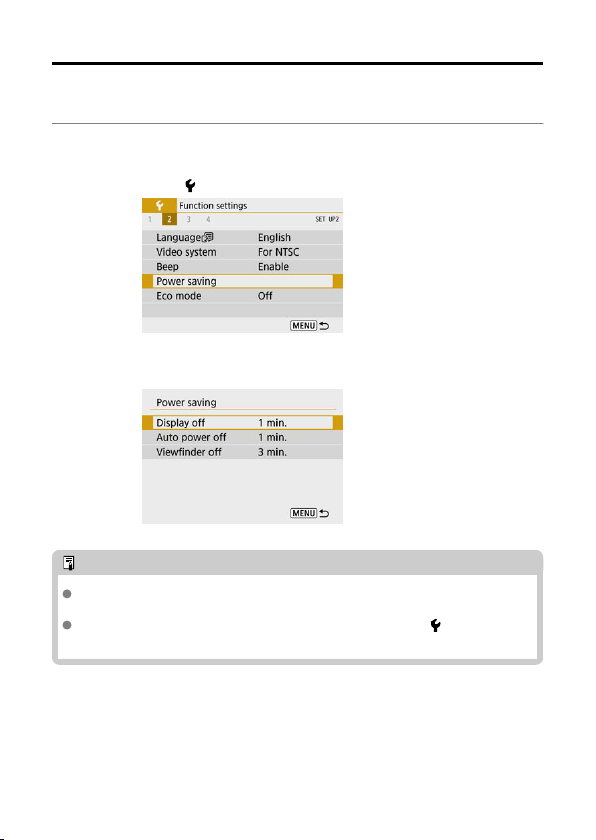
Power Saving
You can adjust the timing of when the screen, camera, and viewfinder turn off automatically
after the camera is left idle (Display off, Auto power off, and Viewfinder off).
1.
Select [ : Power saving].
2.
Select an option.
Note
Even when [Auto power off] is set to [Disable], the screen will turn off after the
time set in [Display off].
[Display off] and [Auto power off] settings have no effect when [ : Eco mode] is
set to [On].
577
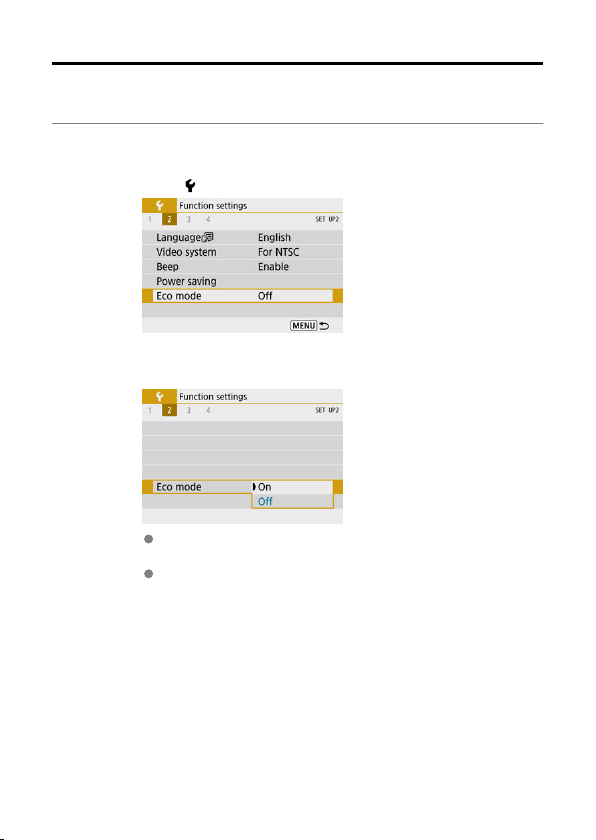
Eco Mode
Enables you to conserve battery power in shooting mode. When the camera is not in use,
the screen darkens to reduce battery consumption.
1.
Select [ : Eco mode].
2.
Select [On].
The screen darkens when the camera is not used for approx. two
seconds. Approx. ten seconds after darkening, the screen turns off.
To activate the screen and prepare for shooting when the screen is off,
press the shutter button halfway.
578
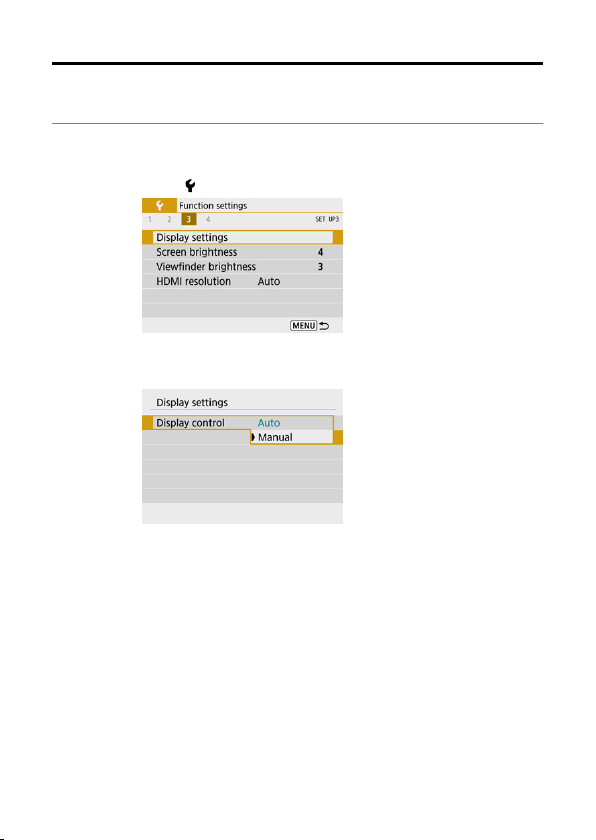
Display Settings
You can specify to use the screen or viewfinder for display, to avoid accidentally activating
the viewfinder sensor.
1.
Select [ : Display settings].
2.
Set [Display control] to [Manual].
579
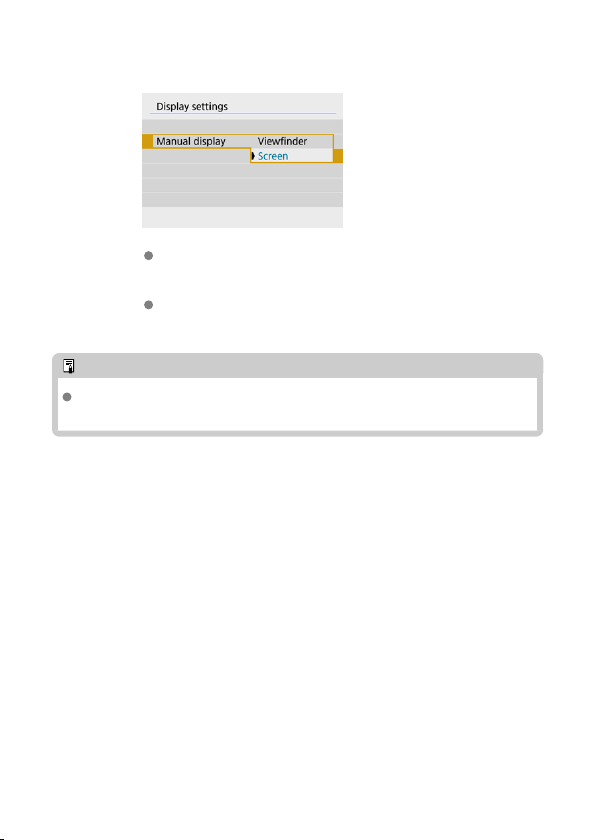
3.
Select [Manual display].
Viewfinder
Always use the viewfinder for display.
Screen
Always use the screen for display.
Note
With [Display control] set to [Auto], the screen is always used for display unless
you hold the viewfinder up to your eye, which switches to viewfinder display.
580
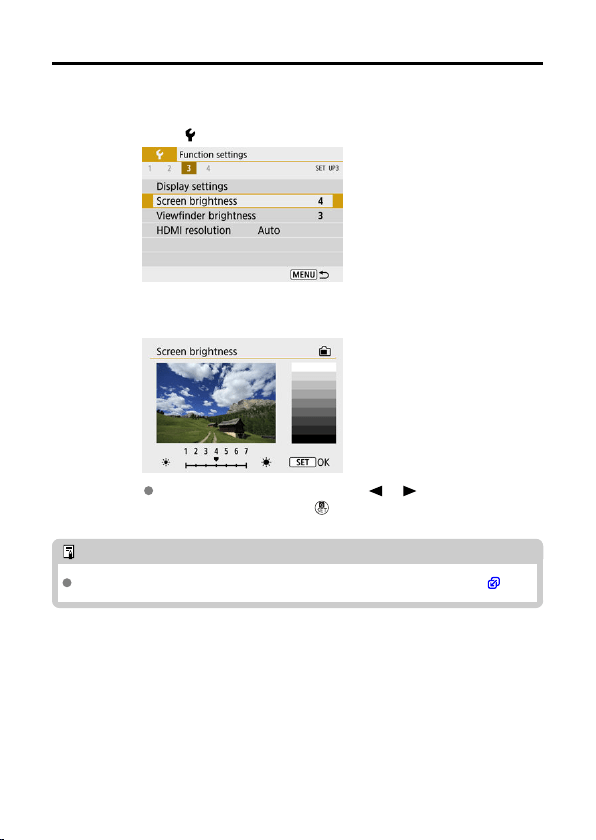
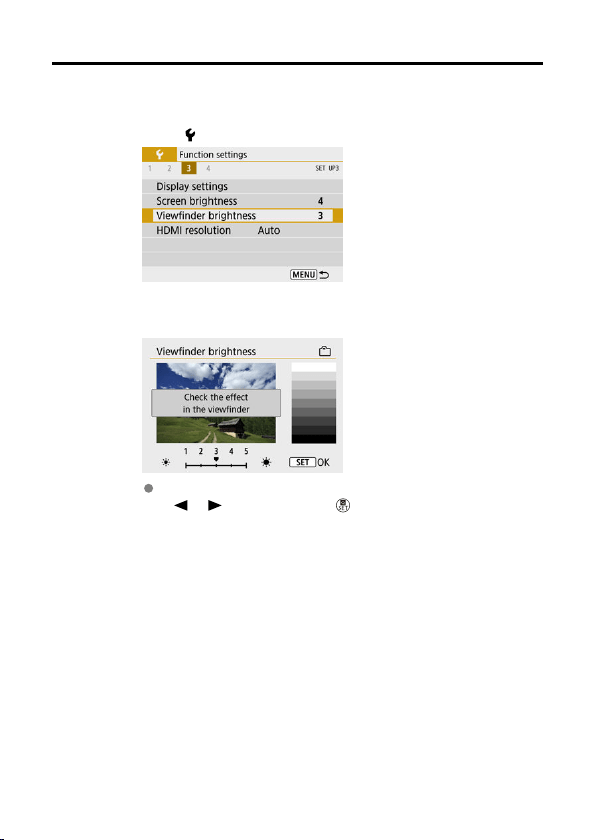
Viewfinder Brightness
1.
Select [ : Viewfinder brightness].
2.
Make the adjustment.
Holding the viewfinder up to your eye, adjust the setting with the
< >< > keys, then press < >.
582
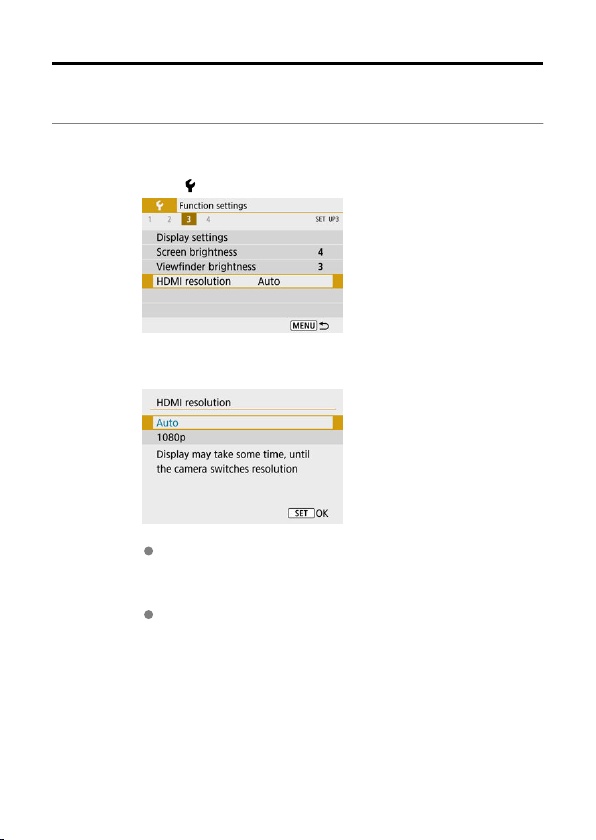
HDMI Resolution
Set the image output resolution used when the camera is connected to a television or
external recording device with an HDMI cable.
1.
Select [ : HDMI resolution].
2.
Select an option.
Auto
The images will automatically be displayed at the optimum resolution
matching the connected television.
1080p
Output at 1080p resolution. Select if you prefer to avoid display or
delay issues when the camera switches resolution.
583
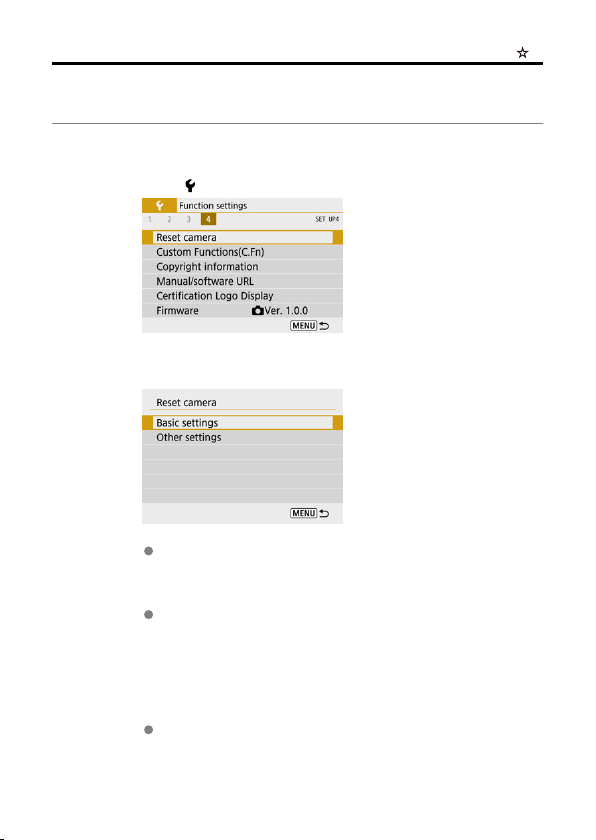
Resetting the Camera
The camera's settings for shooting functions and menu functions can be restored to their
defaults.
1.
Select [ : Reset camera].
2.
Select an option.
Basic settings
Restores default settings for camera shooting functions and menu
settings.
Other settings
Settings for individual selected items can be reset.
3.
Clear the settings.
Select [OK] on the confirmation screen.
584
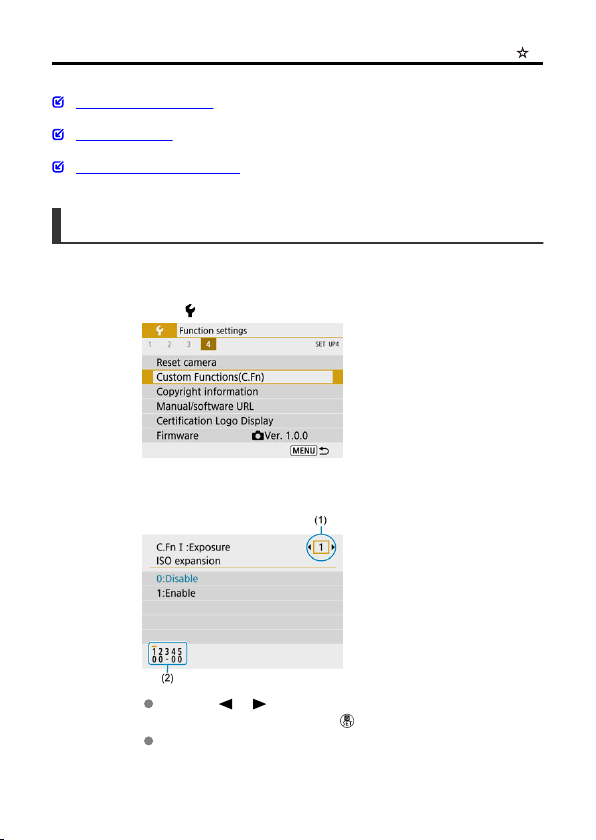
Custom Functions (C.Fn)
Setting Custom Functions
Custom Functions
Custom Function Setting Items
Setting Custom Functions
1.
Select [ : Custom Functions(C.Fn)].
2.
Select a Custom Function number.
Use the < >< > keys to select the number of a Custom Function
to configure (1), then press the <
> button.
Current Custom Function settings are indicated below the respective
function number at the bottom of the screen (2).
585
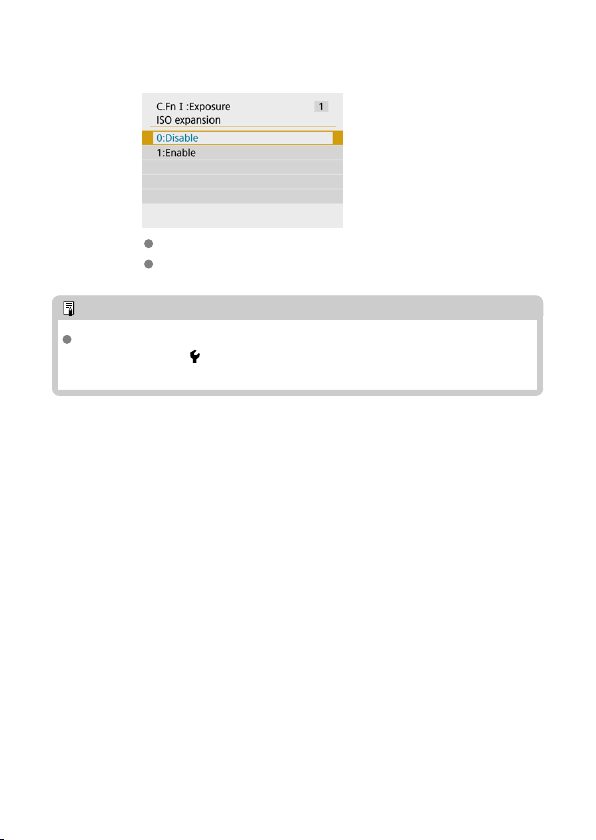
3.
Change the setting as desired.
Select a setting option.
To set up another Custom Function, repeat steps 2–3.
Note
To clear all Custom Function settings you have configured (except [Custom
Controls]), access [ : Reset camera] and select [Custom Functions(C.Fn)] in
[Other settings].
586
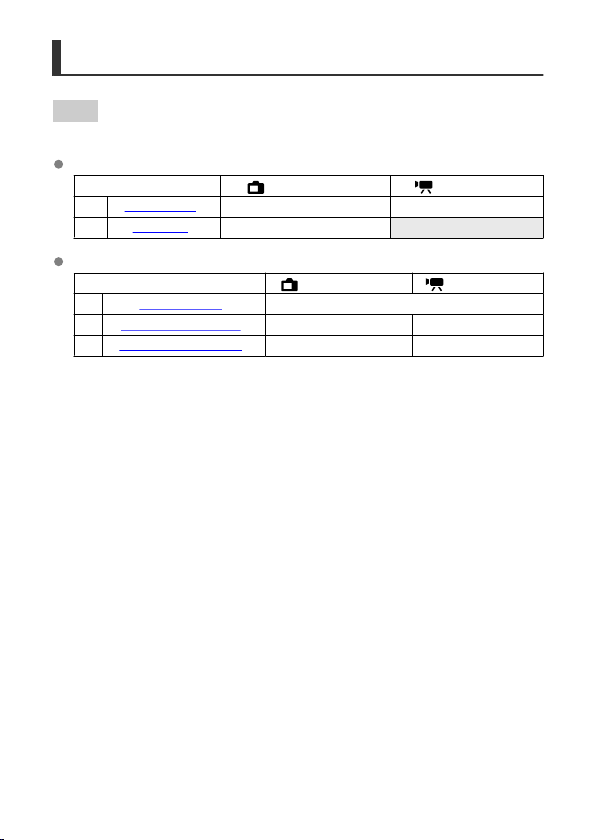
Custom Functions
Shading indicates that the Custom Function does not apply to this still photo
shooting or movie recording. (The settings have no effect.)
C.Fn I: Exposure
Still Photo Shooting Movie Recording
(1) ISO expansion ○ ○
(2) Safety shift ○
C.Fn II: Others
Still Photo Shooting Movie Recording
(3) Custom Controls Varies by settings
(4) Release shutter w/o lens ○ ○
(5) Retract lens on power off ○ ○
587
Custom Function Setting Items
Custom Functions are divided into two groups by function: C.Fn I: Exposure and C.Fn II:
Others.
C.Fn I: Exposure
C.Fn 1: ISO expansion
Makes “
H” (equivalent to ISO 25600) available as an ISO speed you can set. Note that
expanded ISO speeds (H) are not available when [
: Highlight tone priority] is set to
[Enable] or [Enhanced].
0:Disable
1:Enable
C.Fn 2: Safety shift
You can shoot with the shutter speed and aperture value automatically adjusted to enable
standard exposure if standard exposure would not be available under your specified shutter
speed or aperture value in
<Tv> or <Av> mode.
0:Disable
1:Enable
588
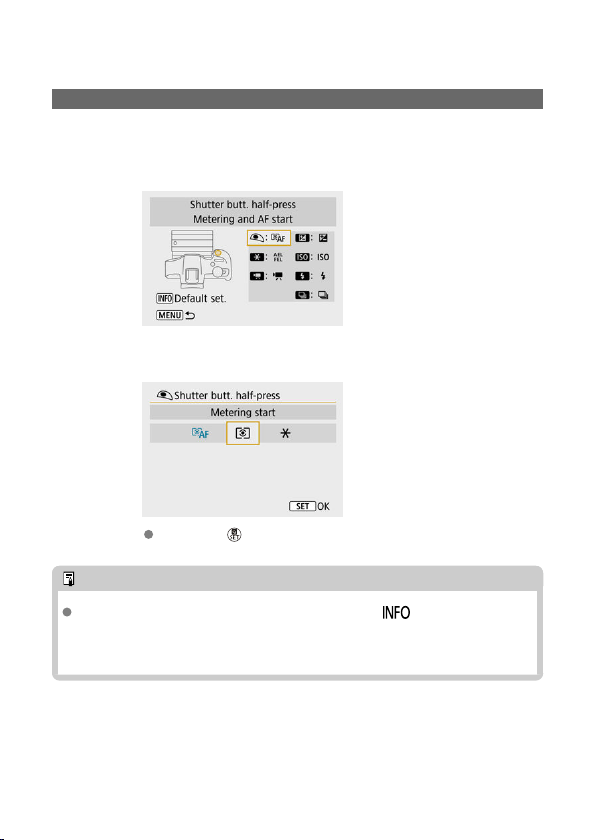
C.Fn II: Others
C.Fn 3: Custom Controls
You can assign frequently used functions to camera buttons that are easy for you to use.
1.
Select a camera control.
2.
Select a function to assign.
Press the < > button to set it.
Note
With the screen in step 1 displayed, you can press the < > button to restore
the Custom Control settings to their defaults. [Custom Controls] are not cleared
even if you access [Reset camera] and select [Custom Functions(C.Fn)] in
[Other settings].
589
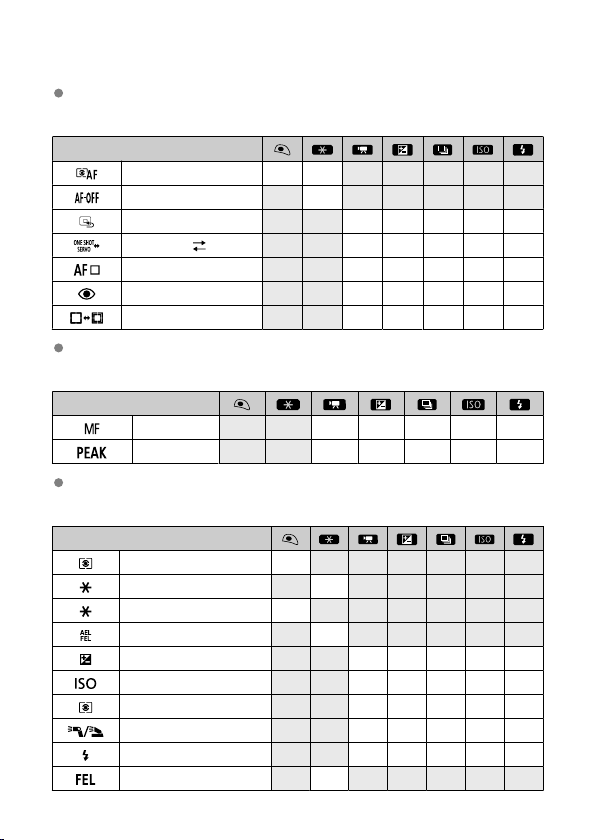
Functions available for camera controls
AF
●: Default ○: Available for customization
Function
Metering and AF start ● ○
AF stop ○
Set AF point to center ○ ○ ○ ○ ○
One-Shot AF Servo AF
○ ○ ○ ○ ○
AF method ○ ○ ○ ○ ○
Eye detection ○ ○ ○ ○ ○
Subject to track selection ○ ○ ○ ○ ○
MF
●: Default ○: Available for customization
Function
Manual focus ○ ○ ○ ○ ○
Peaking ○ ○ ○ ○ ○
Exposure
●: Default ○: Available for customization
Function
Metering start ○
AE lock ○
AE lock (while button pressed) ○
AE lock/FE lock ●
Exposure compensation ○ ● ○ ○ ○
Set ISO speed ○ ○ ○ ● ○
Metering mode ○ ○ ○ ○ ○
Flash function settings ○ ○ ○ ○ ○
Flash firing ○ ○ ○ ○ ●
FE lock ○
590
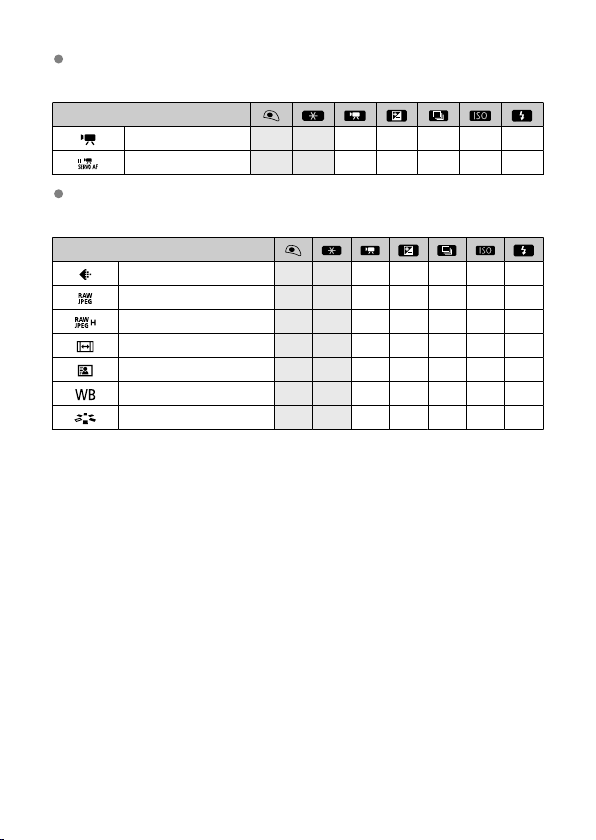
Movies
●: Default ○: Available for customization
Function
Movie recording ● ○ ○ ○ ○
Pause Movie Servo AF ○ ○ ○ ○ ○
Image
●: Default ○: Available for customization
Function
Image quality ○ ○ ○ ○ ○
One-touch image quality setting ○ ○ ○ ○ ○
One-touch image quality (hold) ○ ○ ○ ○ ○
Still img aspect ratio ○ ○ ○ ○ ○
Auto Lighting Optimizer ○ ○ ○ ○ ○
White balance ○ ○ ○ ○ ○
Picture Style ○ ○ ○ ○ ○
591

Operation
●: Default ○: Available for customization
Function
Depth-of-field preview ○ ○ ○ ○ ○
Magnify ○ ○ ○ ○ ○
Image replay ○ ○ ○ ○ ○
Magnify images during playback ○ ○ ○ ○ ○
Menu display ○ ○ ○ ○ ○
Drive mode ○ ○ ● ○ ○
Select folder ○ ○ ○ ○ ○
Create folder ○ ○ ○ ○ ○
Maximize screen brightness (temp) ○ ○ ○ ○ ○
Display off ○ ○ ○ ○ ○
Switch between VF/screen ○ ○ ○ ○ ○
Eco mode ○ ○ ○ ○ ○
Wi-Fi/Bluetooth connection ○ ○ ○ ○ ○
No function (disabled) ○ ○ ○ ○ ○ ○
592

C.Fn 4: Release shutter w/o lens
You can specify whether shooting still photos or movies is possible without a lens attached
to the camera.
0:Disable
1:Enable
C.Fn 5: Retract lens on power off
You can set whether to retract gear-type STM lenses (such as RF35mm F1.8 Macro IS
STM) automatically when the camera's power switch is set to < >.
0:Enable
1:Disable
Caution
With auto power off, the lens will not retract regardless of the setting.
Before detaching the lens, make sure that it is retracted.
Note
When [0:Enable] is set, this function takes effect regardless of the lens's focus
mode switch setting (AF or MF).
593
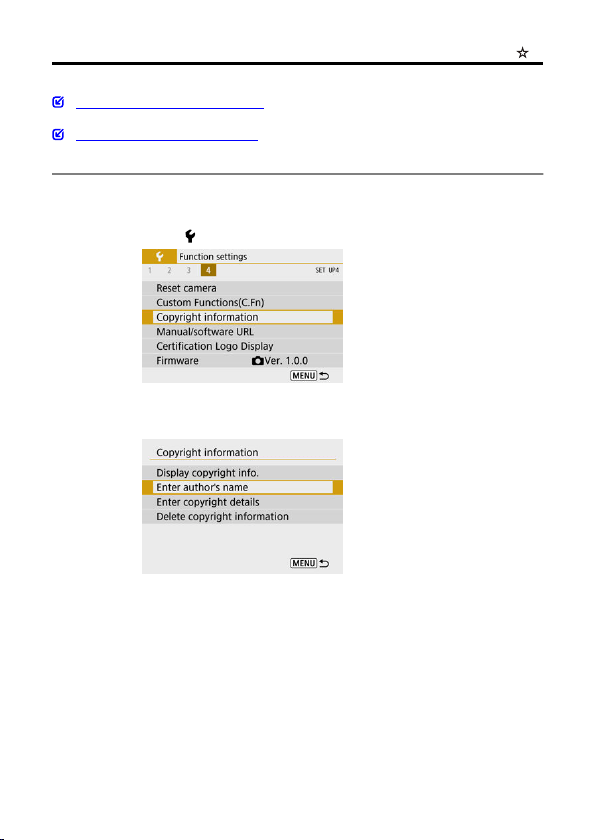
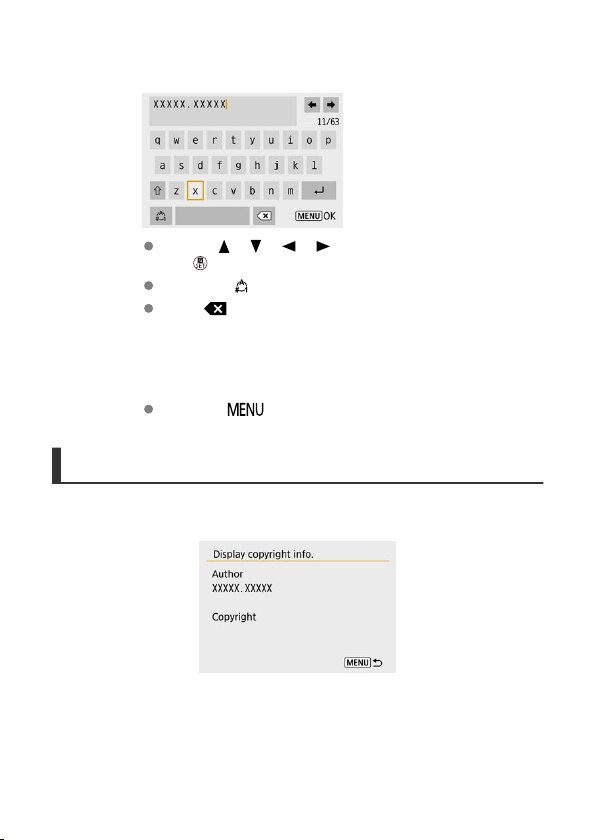
3.
Enter text.
Use the < >< >< >< > keys to select a character, then press
the < > button to enter it.
By selecting [ ], you can change the input mode.
Select [ ] to delete a character.
4.
Exit the setting.
Press the < > button, then press [OK].
Checking the Copyright Information
When you select [Display copyright info.] in step 2, you can check the [Author] and
[Copyright] information that you entered.
595
Deleting the Copyright Information
When you select [Delete copyright information] in step 2, you can delete the [Author] and
[Copyright] information.
Caution
If the entry for “Author” or “Copyright” is long, it may not be displayed entirely when
you select [Display copyright info.].
Note
You can also set or check the copyright information with EOS Utility (EOS
software).
596
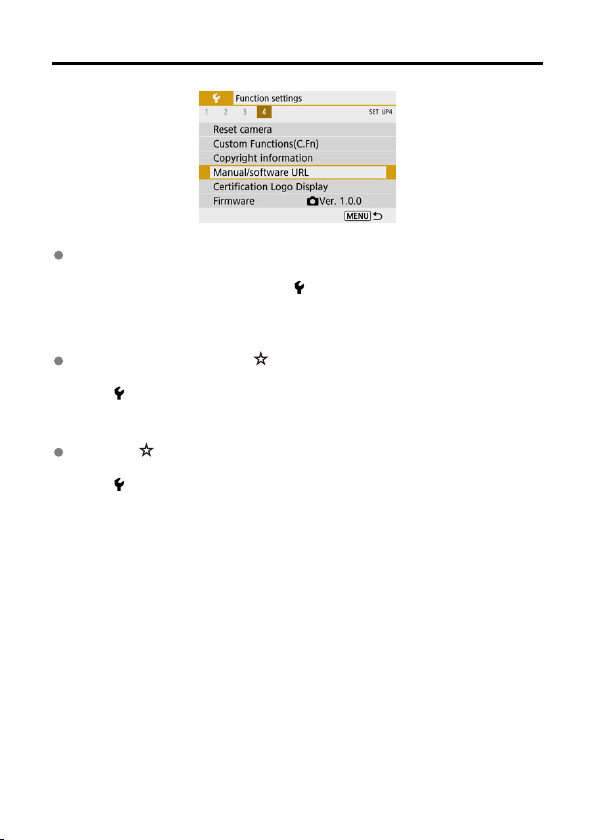
Other Information
Manual/software URL
To download instruction manuals, select [ : Manual/software URL] and scan the
displayed QR code with a smartphone. You can also use a computer to access the
website at the URL displayed and download software.
Certification Logo Display
Select [ : Certification Logo Display] to display some of the logos of the camera's
certifications. Other certification logos can be found on the camera body and packaging.
Firmware
Select [ : Firmware] to update the firmware of the camera, lens, or other compatible
accessories in use.
597
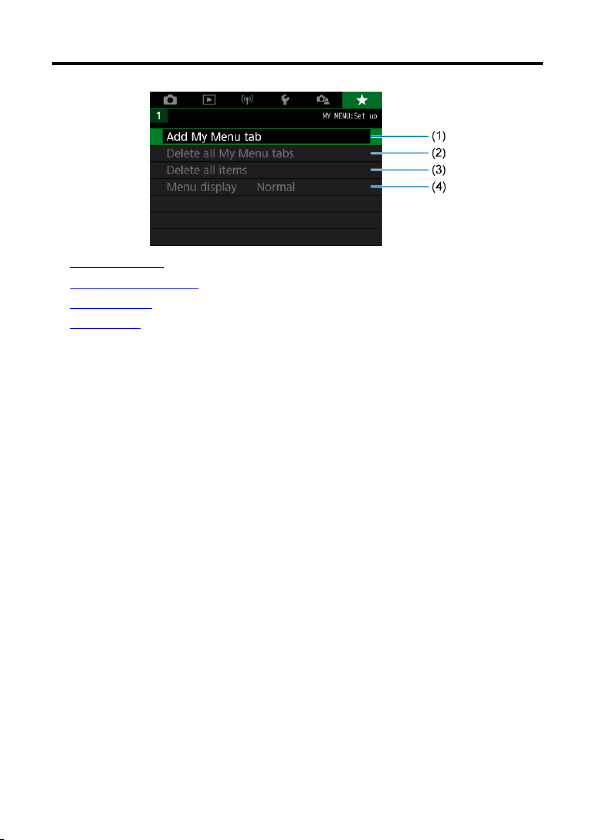

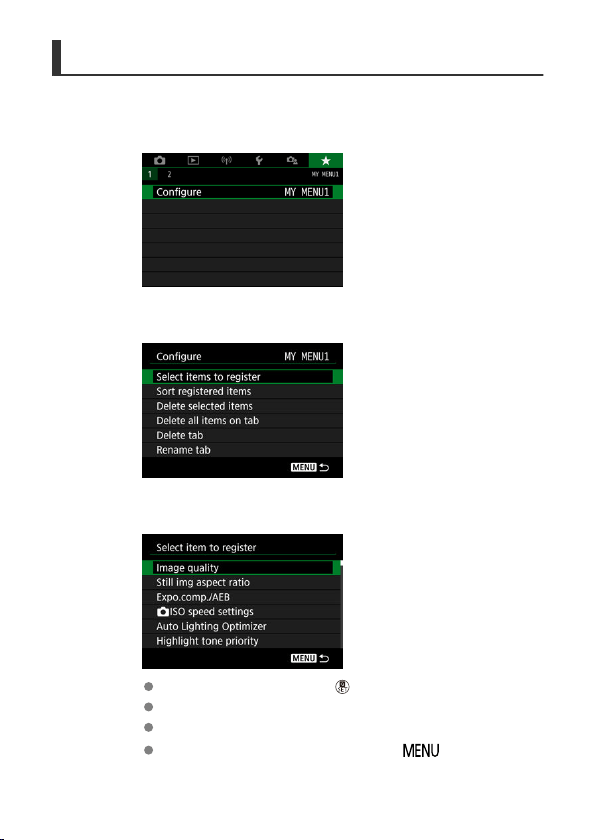
Registering Menu Items on My Menu Tabs
1.
Select [MY MENU*: Configure].
2.
Select [Select items to register].
3.
Register the desired items.
Select an item, then press the < > button.
Select [OK] on the confirmation screen.
You can register up to six items.
To return to the screen in step 2, press the < > button.
601
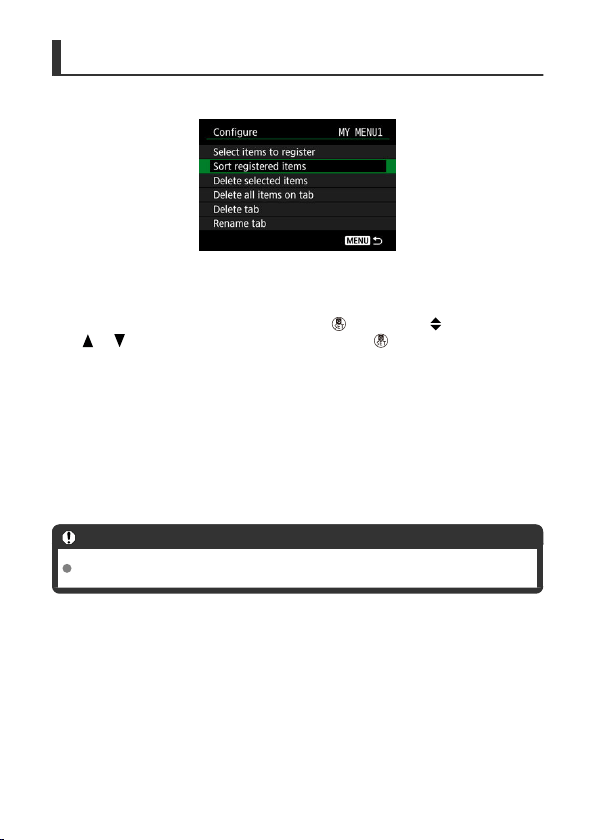
My Menu Tab Settings
You can sort and delete items on the menu tab, and rename or delete the menu tab itself.
Sort registered items
You can change the order of the registered items in My Menu. Select [Sort registered
items], select an item to rearrange, then press the < > button. With [ ] displayed, press
the < >< > keys to rearrange the item, then press the < > button.
Delete selected items/Delete all items on tab
You can delete any of the registered items. [Delete selected items] deletes one item at a
time, and [
Delete all items on tab] deletes all the registered items on the tab.
Delete tab
You can delete the current My Menu tab. Select [Delete tab] to delete the [MY MENU*] tab.
Caution
Performing [Delete tab] also deletes tab names renamed with [Rename tab].
602
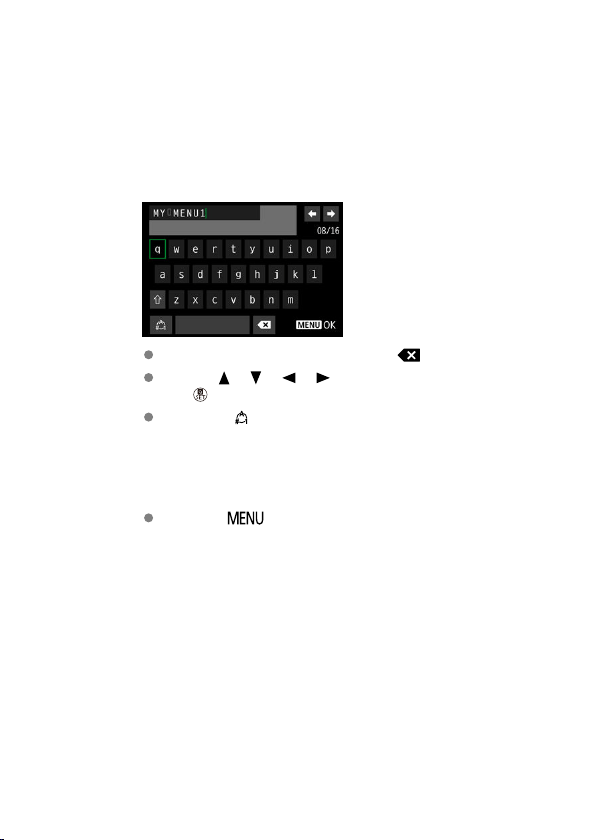
Rename tab
You can rename the My Menu tab from [MY MENU*].
1.
Select [Rename tab].
2.
Enter text.
To delete any unneeded characters, select [ ].
Use the < >< >< >< > keys to select a character, then press
the < > button to enter it.
By selecting [ ], you can change the input mode.
3.
Confirm input.
Press the < > button, then select [OK].
603
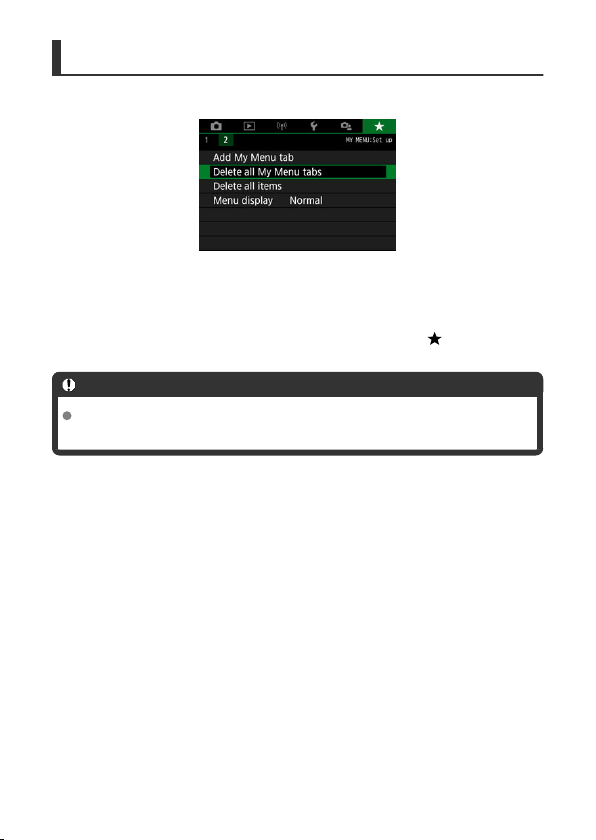
Deleting All My Menu Tabs/Deleting All Items
You can delete all the created My Menu tabs or My Menu items registered on them.
Delete all My Menu tabs
You can delete all My Menu tabs you created. When you select [Delete all My Menu tabs],
all the tabs from [MY MENU1] to [MY MENU5] will be deleted and the [ ] tab will revert to
its default.
Caution
Performing [Delete all My Menu tabs] also deletes tab names renamed with
[Rename tab].
Delete all items
You can delete all the items registered under the [MY MENU1] to [MY MENU5] tabs. The
tabs themselves will remain. When [Delete all items] is selected, all the items registered on
all the created tabs will be deleted.
604
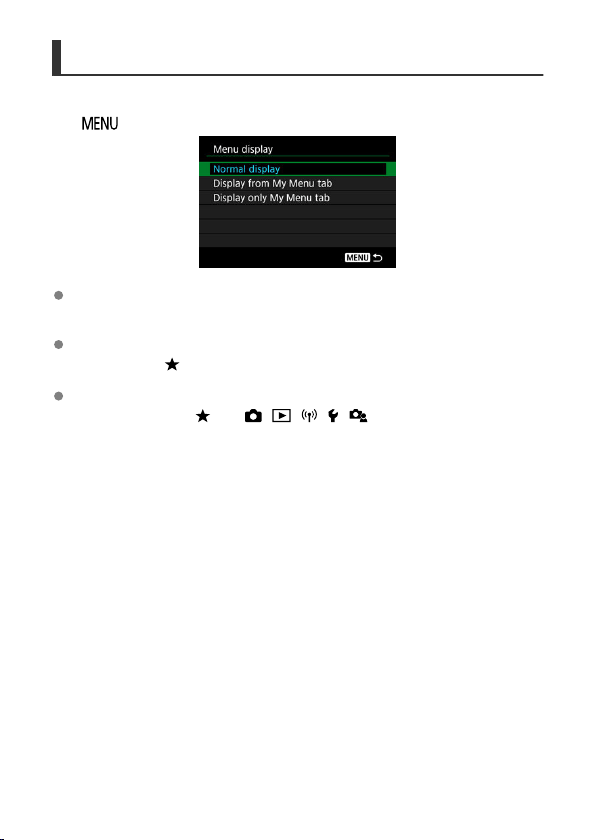
Menu Display
You can select [Menu display] to set the menu screen that is to appear first when you press
the < > button.
Normal display
Displays the last displayed menu screen.
Display from My Menu tab
Displays with the [ ] tab selected.
Display only My Menu tab
Restricts display to the [ ] tab ([ ]/[ ]/[ ]/[ ]/[ ] tabs are not displayed).
605

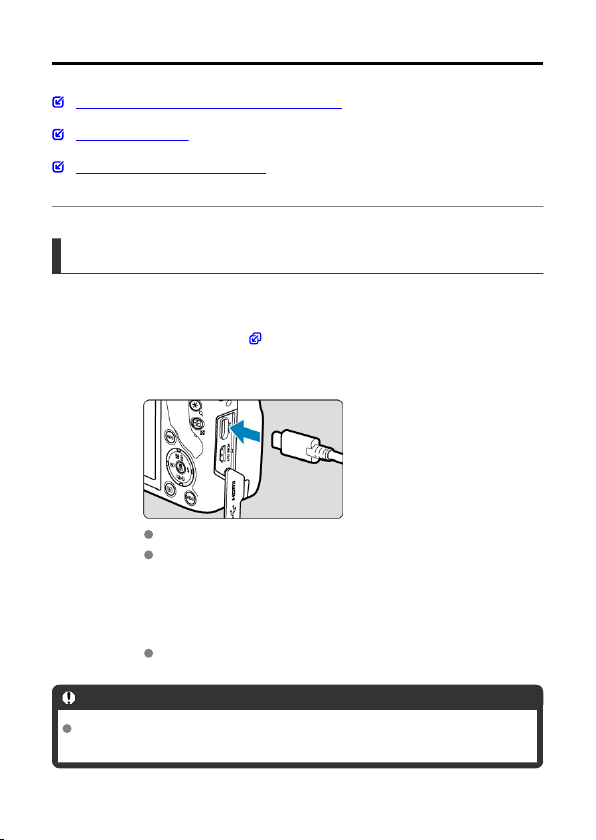
Importing Images to a Computer
Connecting to a Computer with an Interface Cable
Using a Card Reader
Connecting to a Computer via Wi-Fi
You can use EOS software to import images from the camera to a computer.
Connecting to a Computer with an Interface Cable
1.
Install EOS Utility ( ).
2.
Connect the camera to the computer.
Use an interface cable.
Connect the other end to a USB port on the computer.
3.
Use EOS Utility to import the images.
Refer to the EOS Utility Instruction Manual.
Caution
With a Wi-Fi connection established, the camera cannot communicate with the
computer even if they are connected with an interface cable.
607
Using a Card Reader
You can use a card reader to import images to a computer.
1.
Install Digital Photo Professional ( ).
2.
Insert the card into the card reader.
3.
Use Digital Photo Professional to import the images.
Refer to the Digital Photo Professional Instruction Manual.
Note
When downloading images from the camera to a computer with a card reader
without using EOS software, copy the DCIM folder on the card to the computer.
608

Troubleshooting Guide
Power-related problems
Shooting-related problems
Problems with wireless features
Operation problems
Display problems
Playback problems
Computer connection problems
If a problem occurs with the camera, first refer to this Troubleshooting Guide. If this
Troubleshooting Guide does not resolve the problem, take the camera to the nearest Canon
Service Center.
Power-related problems
Batteries cannot be charged with the battery charger.
Do not use any battery packs other than a genuine Canon Battery Pack LP-E17.
In case of charging or charger issues, see Charging the Battery.
The battery charger lamp is blinking.
Orange blinking of the lamp indicates that a protection circuit has prevented charging
because (1) there is a problem with the battery charger or battery, or (2) communication
with a non-Canon battery has failed. In the case of (1), unplug the charger, reinsert the
battery, and wait a few minutes before plugging the charger in again. If the problem
persists, take the camera to the nearest Canon Service Center.
The camera is not activated even when the power switch is set to
< >.
Make sure the battery is inserted properly in the camera ( ).
Make sure the card/battery compartment cover is closed ( ).
Charge the battery ( ).
610
The access lamp still lights or blinks even when the power switch is set
to < >.
If the power is turned off while an image is being recorded to the card, the access lamp
will remain on or continue to blink for a few seconds. When the image recording is
complete, the power will turn off automatically.
[Battery communication error. Does this battery/do these batteries
display the Canon logo?] is displayed.
Do not use any battery packs other than a genuine Canon Battery Pack LP-E17.
Remove and install the battery again ( ).
If the electrical contacts are dirty, use a soft cloth to clean them.
The battery becomes exhausted quickly.
Use a fully charged battery ( ).
The battery performance may have degraded. If the battery performance is poor,
replace the battery with a new one.
The number of available shots will decrease with any of the following operations:
• Pressing the shutter button halfway for a prolonged period
• Activating the AF frequently without taking a picture
• Using the lens's Image Stabilizer
• Using the wireless communication functions
The camera turns off by itself.
Auto power off is in effect. To deactivate auto power off, set [Auto power off] in [ :
Power saving] to [Disable] ( ).
Even if [Auto power off] is set to [Disable], the screen and viewfinder will still turn off
after the camera is left idle for the time set in [Display off] or [Viewfinder off] (although
the camera itself remains on).
Set [ : Eco mode] to [Off].
611
Shooting-related problems
The lens cannot be attached.
To attach EF or EF-S lenses, you will need a mount adapter. The camera cannot be
used with EF-M
lenses (
).
No images can be shot or recorded.
Make sure the card is properly inserted ( ).
Slide the card's write-protect switch to the Write/Erase setting ( ).
If the card is full, replace the card or delete unnecessary images to make space
( , ).
Shooting is not possible if the AF point turns orange when you attempt to focus. Press
the shutter button halfway again to refocus automatically, or focus manually ( , ).
The card cannot be used.
If a card error message is displayed, see Inserting/Removing the Battery and Card and
Error Codes.
An error message is displayed when the card is inserted in another
camera.
Since SDXC cards are formatted in exFAT, if you format a card with this camera and
then insert it into another camera, an error may be displayed and it may not be possible
to use the card.
The image is out of focus or blurred.
Set the focus mode to [AF] ( ).
Press the shutter button gently to prevent camera shake ( ).
With a lens equipped with an Image Stabilizer, set the Image Stabilizer switch to
< >.
In low light, the shutter speed may become slow. Use a faster shutter speed ( ), set a
higher ISO speed ( ), use flash ( ), or use a tripod.
See Minimizing blurred photos.
I cannot lock the focus and recompose the shot.
Set the AF operation to One-Shot AF ( ). Shooting with the focus locked is not
possible with Servo AF ( ).
612

The continuous shooting speed is slow.
Continuous shooting may be slower depending on the battery level, ambient
temperature, flicker reduction, shutter speed, aperture value, subject conditions,
brightness, AF operation, type of lens, use of flash, shooting settings, and other
conditions. For details, see Drive Mode or Maximum burst (approx. shots).
The maximum burst during continuous shooting is lower.
Shooting intricate subjects such as fields of grass may result in larger file sizes, and the
actual maximum burst may be lower than the guidelines in Maximum burst (approx.
shots).
Even after I change the card, the maximum burst displayed for
continuous shooting does not change.
Estimated maximum burst indicated in the viewfinder does not change when you switch
cards, even if you switch to a high-speed card. Maximum burst listed in Maximum burst
(approx. shots) is based on the standard Canon test card, and the actual maximum
burst is higher for cards with faster writing speeds. For this reason, estimated maximum
burst may differ from actual maximum burst.
ISO 100 cannot be set for still photo shooting.
The minimum speed in the ISO speed range is ISO 200 when [ : Highlight tone
priority] is set to [Enable] or [Enhanced].
Expanded ISO speeds cannot be selected for still photo shooting.
Check the [ISO speed] setting in [ : ISO speed settings].
Expanded ISO speeds (H) are not available when [ : Highlight tone priority] is set to
[Enable] or [Enhanced], even with [ISO expansion] set to [1:On] in [ : Custom
Functions(C.Fn)].
Even if I set a decreased exposure compensation, the image comes out
bright.
Set [ : Auto Lighting Optimizer] to [Disable] ( ). When [Low], [Standard], or
[High] is set, even if you set a decreased exposure compensation or flash exposure
compensation, the image may come out bright.
613
I cannot set the exposure compensation when both manual exposure
and ISO Auto are set.
See M: Manual Exposure to set the exposure compensation.
Not all the lens aberration correction options are displayed.
Although [Chromatic aberr corr] and [Diffraction correction] are not displayed when
[Digital Lens Optimizer] is set to [Enable], both functions are applied in shooting, as
when set to [Enable].
During movie recording, [Digital Lens Optimizer] or [Diffraction correction] are not
displayed.
Using flash in <Av> or <P> mode lowers the shutter speed.
Set [Slow synchro] in [ : Flash control] to [1/250-1/60sec. auto] or [1/250 sec.
(fixed)] ( ).
The built-in flash does not fire.
Shooting with the flash may be temporarily disabled to protect the flash head if the built-
in flash is used repeatedly over a short period.
The external Speedlite does not fire.
Make sure any external flash units are securely attached to the camera.
The Speedlite always fires at full output.
Flash units other than EL/EX series Speedlites used in autoflash mode always fire at full
output ( ).
The flash always fires at full output when [Flash metering mode] in external flash
Custom Function settings is set to [1:TTL] (autoflash) ( ).
External flash exposure compensation cannot be set.
If flash exposure compensation is set with the external Speedlite, compensation amount
cannot be set with the camera. When the Speedlite's flash exposure compensation is
canceled (set to 0), flash exposure compensation can be set with the camera.
614
High-speed sync is not available in <Av> mode.
Set [Slow synchro] in [ : Flash control] to an option other than [1/250 sec. (fixed)]
( ).
Remote control shooting is not possible.
When taking still photos, set the drive mode to < > or < > ( ). In movie
recording, set [ : Remote control] to [Enable] ( ).
Check the position of the remote control's release timing switch.
If you are using Wireless Remote Control BR-E1, see Wireless Remote Control BR-E1.
To use a remote control for time-lapse movie recording, see Time-Lapse Movies.
A white [ ] or red [ ] icon is displayed in still photo shooting.
It indicates that the camera's internal temperature is high. Image quality of still photos
may be worse when a white [ ] icon is displayed. Display of a red [ ] icon indicates
that shooting will soon stop automatically ( ).
A red [ ] icon is displayed during movie recording.
It indicates that the camera's internal temperature is high. If the red [ ] icon is
displayed, it indicates that the movie recording will soon stop automatically ( ).
A red [ ] icon is displayed.
If the camera temporarily overheats during extended 4K recording, [ ] is displayed and
recording stops. At this time, movie recording will be unavailable, even if you press the
movie shooting button.
Following the instructions displayed, either set the movie recording size to an option
other than [
] or [ ] or turn off the camera to let it cool down before you
resume recording.
Movie recording stops by itself.
If the card's writing speed is slow, movie recording may stop automatically. For details
on cards that can record movies, see Card performance requirements (movie recording)
[write/read speed]. To find out the card's writing speed, refer to the card manufacturer's
website, etc.
Perform low-level formatting to initialize the card if the card's writing or reading speed
seems slow ( ).
After you start recording a movie, recording will stop automatically after 29 min. 59 sec.
615
The ISO speed cannot be set for movie recording.
ISO speed is set automatically in [ ] recording mode. In [ ] mode, you can manually
set the ISO speed ( ).
The minimum speed in the ISO speed range is ISO 200 when [ : Highlight tone
priority] is set to [Enable] or [Enhanced].
The manually set ISO speed changes when switching to movie
recording.
For still photo shooting, ISO speed is set according to [ISO speed] in [ : ISO
speed settings] ( ), and for movie recording, according to [ISO speed] in [ : ISO
speed settings] ( ).
Expanded ISO speeds cannot be selected for movie recording.
Check the [ISO speed] setting in [ : ISO speed settings].
Expanded ISO speeds are not available when [ : Highlight tone priority] is set to
[Enable] or [Enhanced].
H (expanded ISO speed) is not available (not displayed) in 4K movie recording.
The exposure changes during movie recording.
If you change the shutter speed or aperture value during movie recording, the changes
in the exposure may be recorded.
Recording a few test movies is recommended if you intend to perform zooming during
movie recording. Zooming as you record movies may cause exposure changes or lens
sounds to be recorded, or loss of focus.
The image flickers or horizontal stripes appear during movie recording.
Flickering, horizontal stripes (noise), or irregular exposures can be caused by
fluorescent lighting, LED lighting, or other light sources during movie recording. Also,
changes in the exposure (brightness) or color tone may be recorded. In [ ] mode,
using a slower shutter speed may reduce the problem. The problem may be more
noticeable in time-lapse movie recording.
616

The subject looks distorted during movie recording.
If you move the camera to the left or right (panning) or shoot a moving subject, the
image may look distorted.
I cannot take still photos during movie recording.
Still photos cannot be taken during movie recording. To shoot still photos, stop recording
the movie, then select a shooting mode for still photos.
617
Problems with wireless features
Cannot pair with a smartphone.
Use a smartphone compliant with Bluetooth Specification Version 4.1 or later.
Turn on Bluetooth from the smartphone settings screen.
Pairing with the camera is not possible from the smartphone's Bluetooth settings screen.
Install the dedicated app Camera Connect (free of charge) on the smartphone ( ).
Pairing with a previously paired smartphone is not possible if pairing information
registered for another camera remains on the smartphone. In this case, remove the
camera's registration retained in the Bluetooth settings on the smartphone and try
pairing again ( ).
Wi-Fi functions cannot be set.
If the camera is connected to a computer or another device with an interface cable,
Wi-Fi functions cannot be set. Disconnect the interface cable before setting any
functions ( ).
A device connected with an interface cable cannot be used.
Other devices, such as computers, cannot be used with the camera by connecting them
with an interface cable while the camera is connected to devices via Wi-Fi. Terminate
the Wi-Fi connection before connecting the interface cable.
Operations such as shooting and playback are not possible.
With a Wi-Fi connection established, operations such as shooting and playback may not
be possible. Terminate the Wi-Fi
connection, then perform the operation.
Cannot reconnect to a smartphone.
Even with a combination of the same camera and smartphone, if you have changed the
settings or selected a different setting, reconnection may not be established even after
selecting the same SSID. In this case, delete the camera connection settings from the
Wi-Fi settings on the smartphone and set up a connection again.
A connection may not be established if Camera Connect is running when you
reconfigure connection settings. In this case, quit Camera Connect for a moment and
then restart it.
618
Operation problems
Settings change when I switch from still photo shooting to movie
recording or vice versa.
Separate settings are retained for use when shooting still photos and recording movies.
A camera button or dial does not work as expected.
In movie recording, check the [ : Shutter btn function for movies] setting ( ).
Check [Custom Controls] setting details in [ : Custom Functions(C.Fn)] ( ).
619
Display problems
The menu screen shows fewer tabs and items.
Certain tabs and items are not shown in Basic Zone modes or movie recording.
The display starts with [ ] My Menu, or the [ ] tab alone is displayed.
[Menu display] on the [ ] tab is set to [Display from My Menu tab] or [Display only
My Menu tab]. Set [Normal display] ( ).
The file name's first character is an underscore (“_”).
Set [ : Color space] to [sRGB]. If [Adobe RGB] is set, the first character will be an
underscore ( ).
The file name starts with “MVI_”.
It is a movie file ( ).
The file numbering does not start from 0001.
If the card already contains recorded images, the image number may not start from
0001 ( ).
The shooting date and time displayed are incorrect.
Make sure the correct date and time are set ( ).
Check the time zone and daylight saving time ( ).
The date and time are not in the image.
The shooting date and time do not appear in the image. The date and time are recorded
in the image data as shooting information. When you print photos, this information can
be used to include the date and time ( ).
[###] is displayed.
If the number of images recorded on the card exceeds the number the camera can
display, [###] will be displayed.
620

The screen does not display a clear image.
If the screen is dirty, use a soft cloth to clean it.
The screen display may seem slightly slow in low temperatures or may look black in
high temperatures, but it will return to normal at room temperature.
621
Playback problems
A red box is displayed on the image.
[ : AF point disp.] is set to [Enable] ( ).
During image playback, the AF points are not displayed.
AF points are not displayed when the following types of images are played back:
• Images taken in < : > mode.
• Images taken in < : > mode.
• Images taken with Multi Shot Noise Reduction applied.
• Cropped images.
The image cannot be erased.
If the image is protected, it cannot be erased ( ).
Still photos and movies cannot be played back.
The camera may not be able to play back images taken with another camera.
Movies edited with a computer cannot be played back with the camera.
Only few images can be played back.
The images have been filtered for playback with [ : Set image search conditions]
( ). Clear the image search conditions.
Mechanical sounds or sounds of camera operations can be heard
during movie playback.
The camera's built-in microphone may also record mechanical sounds of the lens or
sounds of camera/lens operations if AF operations are performed or the camera or lens
is operated during movie recording. In this case, using an external microphone may
reduce these sounds. If the sounds are still distracting with an external microphone, it
may be more effective to remove the external microphone from the camera and position
it away from the camera and lens.
622
The movie appears to freeze momentarily.
Significant change in the exposure level during autoexposure movie recording may
cause recording to stop momentarily until the brightness stabilizes. In this case, record
in [ ] mode ( ).
No picture appears on the television.
Make sure [ : Video system] is set to [For NTSC] or [For PAL] correctly for the video
system of your television.
Make sure the HDMI cable's plug is inserted all the way in ( ).
There are multiple movie files for a single movie recording.
If the movie file size reaches 4 GB, another movie file will be created automatically ( ).
However, if you use an SDXC card formatted with the camera, you can record a movie
in a single file even if it exceeds 4 GB.
My card reader does not recognize the card.
Depending on the card reader used and the computer's operating system, SDXC cards
may not be correctly recognized. In this case, connect the camera to the computer with
the interface cable, then import the images to the computer using EOS Utility (EOS
software, ).
Images cannot be resized or cropped.
This camera cannot resize JPEG images, RAW images, or frame-grab images from
4K movies saved as still photos ( ).
This camera cannot crop RAW images or frame-grab images from 4K movies saved as
still photos ( ).
623
Computer connection problems
I cannot import images to a computer.
Install EOS Utility (EOS software) on the computer ( ).
Make sure the main EOS Utility window is displayed.
If the camera is already connected via Wi-Fi, it cannot communicate with any computer
connected with an interface cable.
Check the version of the application.
Communication between the connected camera and computer does not
work.
When using EOS Utility (EOS software), set [ : Time-lapse movie] to [Disable] ( ).
624
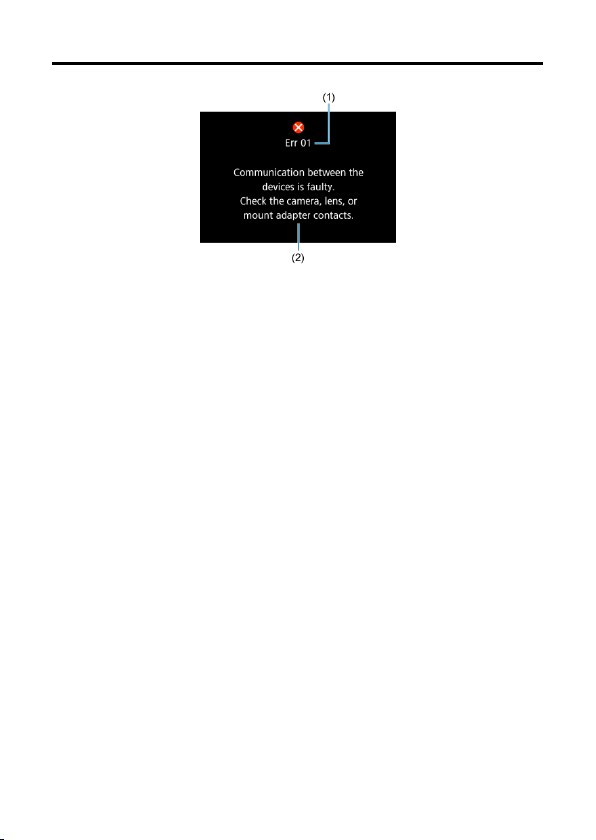
Error Codes
(1) Error number
(2) Cause and countermeasures
If there is a problem with the camera, an error message will appear. Follow the on-screen
instructions.
If the problem persists, write down the error code (Err xx) and request service.
625

ISO Speed in Movie Recording
In [ ]/[ ] mode, when set to ISO Auto
ISO speed is automatically set in a range of ISO 100–12800 for Full HD/HD movies and
ISO 100–6400 for 4K movies.
The maximum value in the automatic setting range is expanded to H (equivalent to ISO
25600) in Full HD/HD movie recording when [ISO expansion] in [ : Custom
Functions(C.Fn)] is set to [1:Enable] ( ) and then [Max for Auto] in [ : ISO
speed settings] is set to [H(25600)] ( ). Note that in 4K movie recording, maximum
ISO speed expansion is not available, even with [ISO expansion] set to [1:Enable].
With [ : Highlight tone priority] set to [Enable] ( ), the minimum value in the
automatic setting range is ISO 200. Maximum ISO speed is not expanded, even with
[Max for Auto] set to [H (25600)].
In [ ] mode with ISO speed set manually
ISO speed can be set manually in a range of ISO 100–12800 for Full HD/HD movies
and ISO 100–6400 for 4K movies.
The maximum value in the manual setting range is expanded to H (equivalent to ISO
25600) in Full HD/HD movie recording when [ISO expansion] in [ : Custom
Functions(C.Fn)] is set to [1:Enable]. Note that in 4K movie recording, maximum ISO
speed expansion is not available ([H] is not displayed), even with [ISO expansion] set to
[1:Enable].
With [ : Highlight tone priority] set to [Enable] ( ), the minimum value in the
manual setting range is ISO 200. Maximum ISO speed is not expanded, even with [ISO
expansion] set to [1:Enable].
626

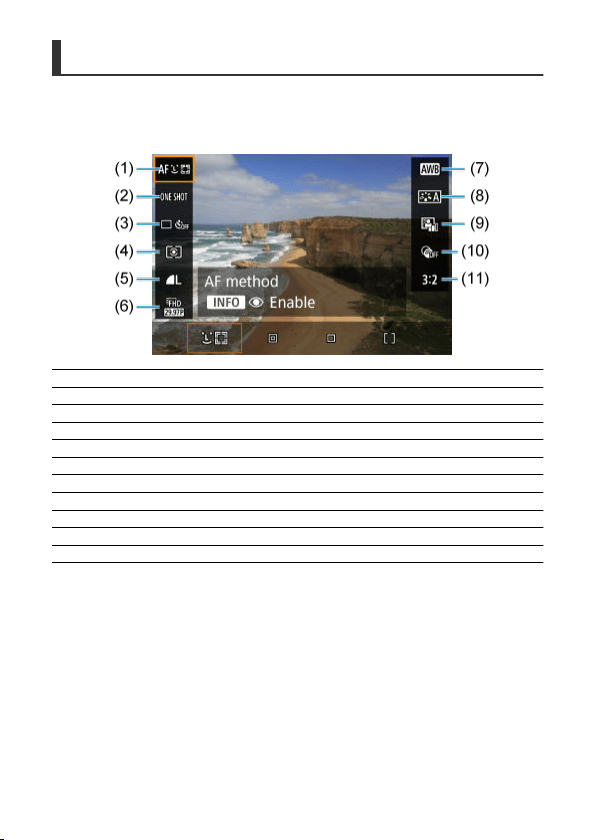
Quick Control Screen
In Creative Zone modes (other than the shooting functions
screen)
(1) AF method
(2) AF operation
(3) Drive mode
(4) Metering mode
(5) Image quality
(6) Movie recording size
(7) White balance
(8) Picture Style
(9) Auto Lighting Optimizer
(10) Creative filters
(11) Still image aspect ratio
628

Shooting functions screen in Creative Zone modes
(1) Shutter speed
(2) Shooting mode*
(3) Exposure compensation/AEB setting
(4) White balance
(5) Picture Style
(6) White balance correction
(7) AF method
(8) AF operation
(9) Drive mode
(10) Aperture value
(11) ISO speed
(12) Flash exposure compensation
(13) Auto Lighting Optimizer
(14) Metering mode
(15) White balance bracketing
(16) Image quality
(17) Self-timer
* These functions cannot be set with Quick Control.
629
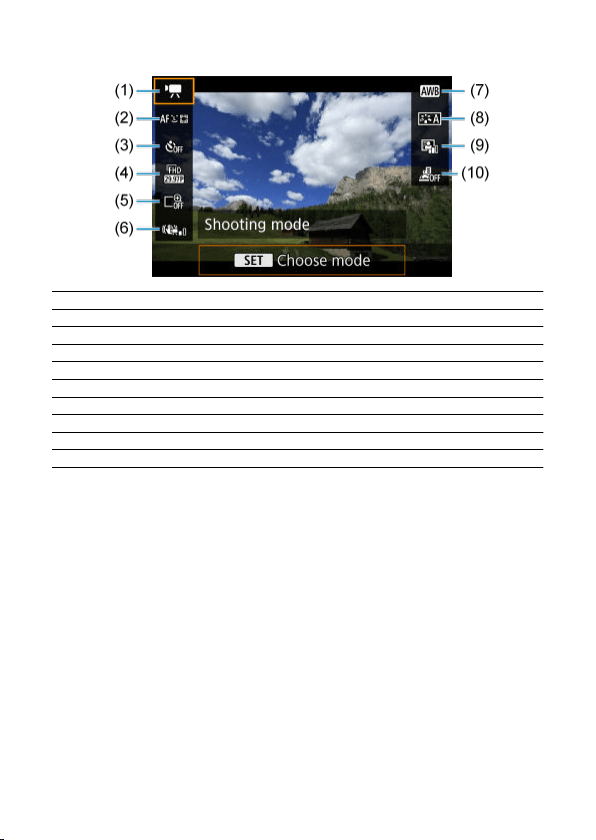
During movie recording
(1) Shooting mode
(2) AF method
(3) Movie self-timer
(4) Movie recording size
(5) Digital zoom
(6) Movie digital IS
(7) White balance
(8) Picture Style
(9) Auto Lighting Optimizer
(10) Miniature effect movie
630
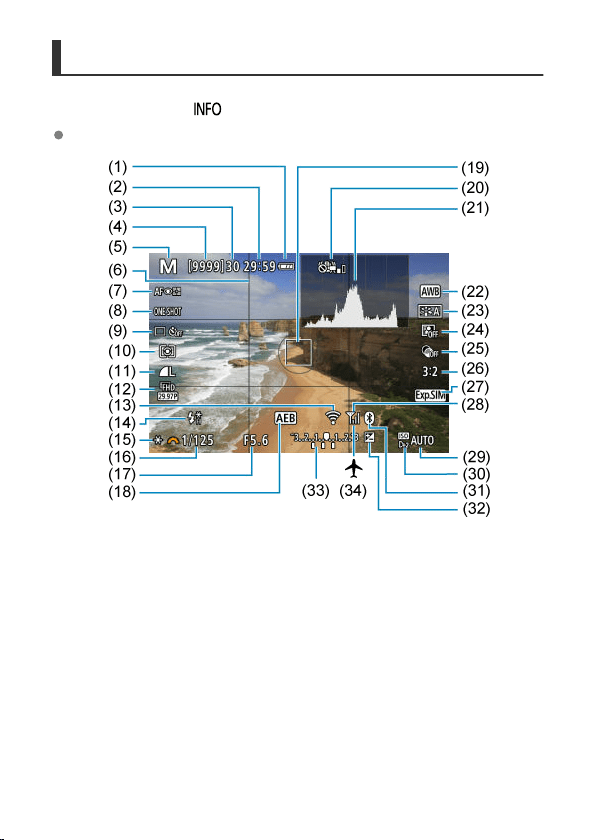
Still Photo Shooting Screen
Each time you press the < > button, the information display will change.
The display will show only the settings currently applied.
631
(1) Battery level
(2) Movie recording time available
(3) Maximum burst
(4) Number of available shots/Sec. until self-timer shoots
(5) Shooting mode/Scene icon
(6) Grid
(7) AF method
(8) AF operation
(9) Drive mode
(10) Metering mode
(11) Image quality
(12) Movie recording size
(13) Wi-Fi function
(14) Warning to use flash (blinking)/Flash ready (on)/FE lock/High-speed sync
(15) AE lock
(16) Shutter speed
(17) Aperture value
(18) AEB
(19) AF point (1-point AF)
(20) Warning: Deactivating Movie digital IS recommended
(21) Histogram (Brightness/RGB)
(22) White balance/White balance correction
(23) Picture Style
(24) Auto Lighting Optimizer
(25) Creative filters
(26) Still image aspect ratio
(27) Exposure simulation
(28) Wi-Fi signal strength
(29) ISO speed
(30) Highlight tone priority
(31) Bluetooth function
(32) Exposure compensation
(33) Exposure level indicator
(34) Airplane mode
Note
You can specify the information displayed in response to pressing the < >
button ( ).
Other icons may be displayed temporarily after setting adjustments.
632
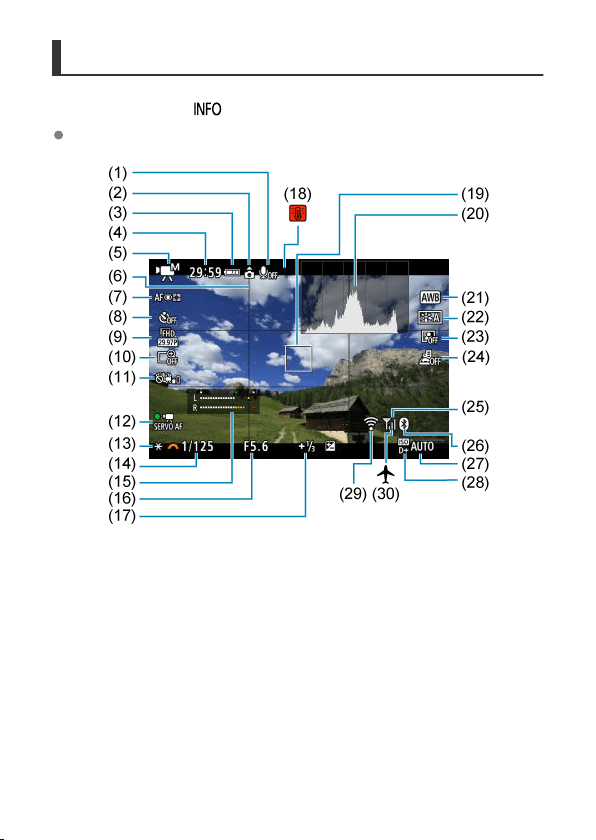
Movie Recording Screen
Each time you press the < > button, the information display will change.
The display will show only the settings currently applied.
633

(1) Sound recording off indicator
(2) Movie orientation information
(3) Battery level
(4) Movie recording time available/Elapsed recording time
(5) Movie recording mode
(6) Grid
(7) AF method
(8) Movie self-timer
(9) Movie recording size
(10) Digital zoom
(11) Movie digital IS
(12) Movie Servo AF
(13) AE lock
(14) Shutter speed
(15) Audio recording level indicator (manual/line input)
(16) Aperture value
(17) Exposure compensation
(18) Temperature warning
(19) AF point (1-point AF)
(20) Histogram
(21) White balance/White balance correction
(22) Picture Style
(23) Auto Lighting Optimizer
(24) Miniature effect movie
(25) Wi-Fi signal strength
(26) Bluetooth function
(27) ISO speed
(28) Highlight tone priority
(29) Wi-Fi function
(30) Airplane mode
Caution
You can specify the information displayed in response to pressing the < >
button ( ).
The grid and histogram cannot be displayed during movie recording (and if they are
currently displayed, recording a movie will clear the display).
When movie recording starts, the movie recording remaining time will change to the
elapsed time.
634
Note
Other icons may be displayed temporarily after setting adjustments.
635
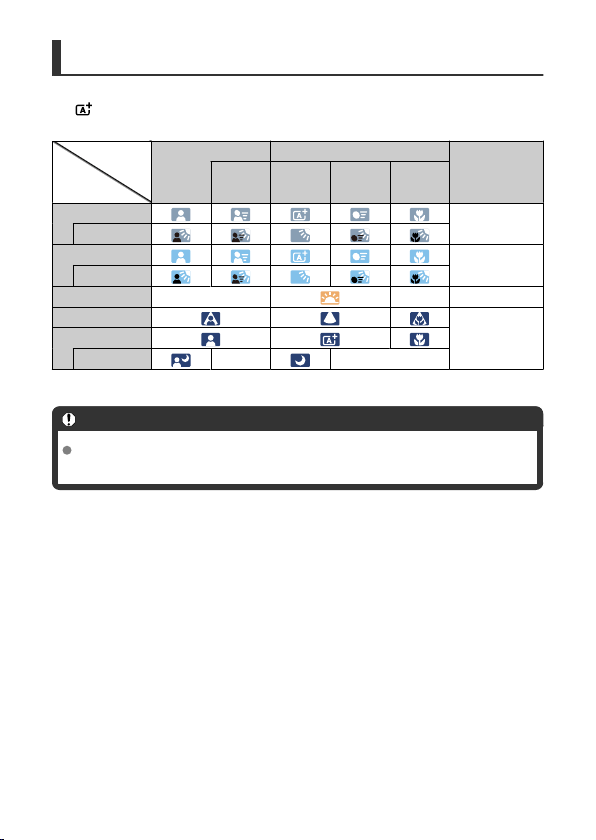
Subject
Background
Scene Icons
In <
> shooting mode, the camera detects the type of scene and sets all settings
accordingly. The detected scene type is indicated in the upper left of the screen.
People Subjects Other Than People
Background
Color
In Motion
Nature/
Outdoor
Scene
In Motion
At Close
Range
Bright
Gray
Backlit
Blue Sky Included
Light blue
Backlit
Sunset
*1 *1
Orange
Spotlight
Dark blueDark
With Tripod
*1 *1
* 1: Icons of scenes selected from those that can be detected are displayed.
Caution
Icons displayed may not match the actual scene, depending on the scene, shooting
conditions, lens used, and other factors.
636
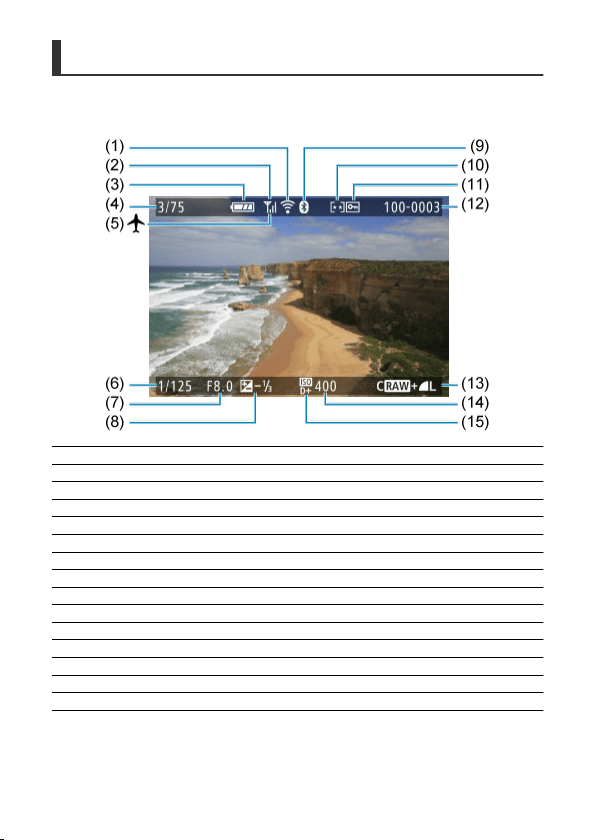
Playback Screen
Basic information display for still photos
(1) Wi-Fi function
(2) Wi-Fi signal strength
(3) Battery level
(4) Current image no./Total images/No. of images found
(5) Airplane mode
(6) Shutter speed
(7) Aperture value
(8) Exposure compensation amount
(9) Bluetooth function
(10) Rating
(11) Image protection
(12) Folder no.-File no.
(13) Image quality/Edited image/Cropping
(14) ISO speed
(15) Highlight tone priority
637
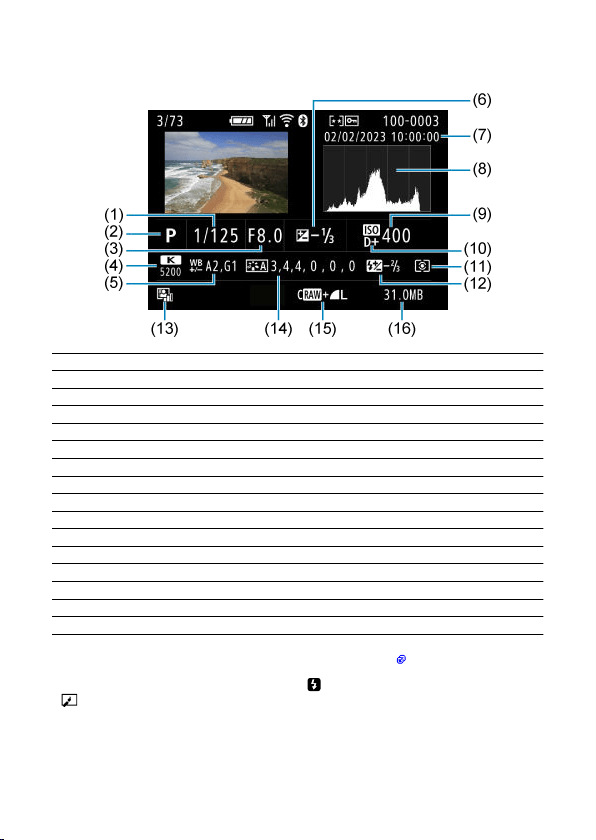
Detailed information display for still photos
(1) Shutter speed
(2) Shooting mode
(3) Aperture value
(4) White balance
(5) White balance correction amount
(6) Exposure compensation amount
(7) Shooting date and time
(8) Histogram (Brightness/RGB)
(9) ISO speed
(10) Highlight tone priority
(11) Metering mode
(12) Flash photography/Flash exposure compensation amount
(13) Auto Lighting Optimizer
(14) Picture Style/Settings
(15) Image quality/Edited image/Cropping
(16) File size
* When you shoot in RAW+JPEG image quality, the RAW image file size will be displayed.
*
Lines indicating the image area are displayed for images taken with the aspect ratio set (
) and with RAW or RAW+JPEG set
for image quality.
* During flash photography without flash exposure compensation, [ ] will be displayed.
* [ ] indicates Creative filter shots, or images saved after resizing, cropping, or frame-grabbing.
639
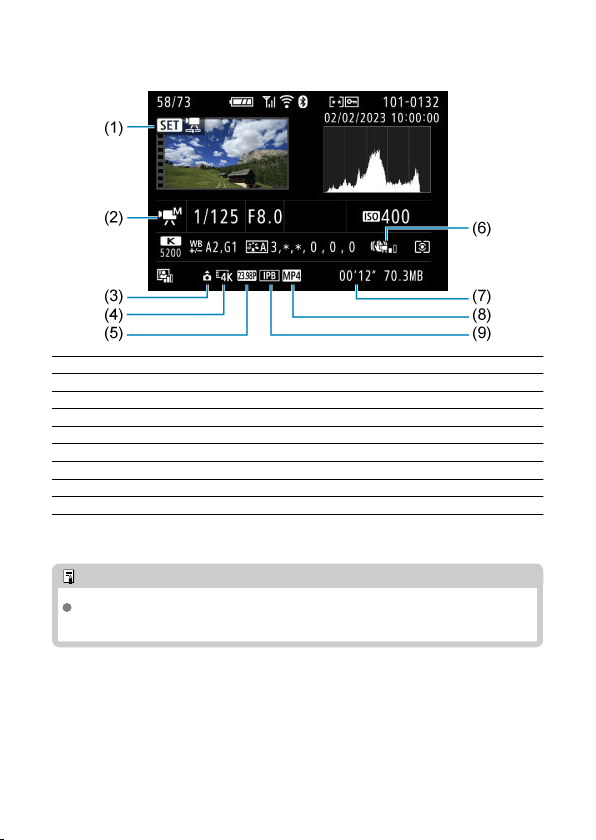
Detailed information display for movies
(1) Movie playback
(2) Movie recording mode/Time-lapse movie
(3) Movie orientation information
(4) Image size
(5) Frame rate
(6) Movie digital IS
(7) Recording time
(8) Movie recording format
(9) Movie compression method
* For simplicity, explanations are omitted for items that are also included in basic/detailed information display for still photos,
which are not shown here.
Note
During movie playback, “*, *” is displayed for the [Fineness] and [Threshold]
parameters of [Sharpness] in [Picture Style].
640
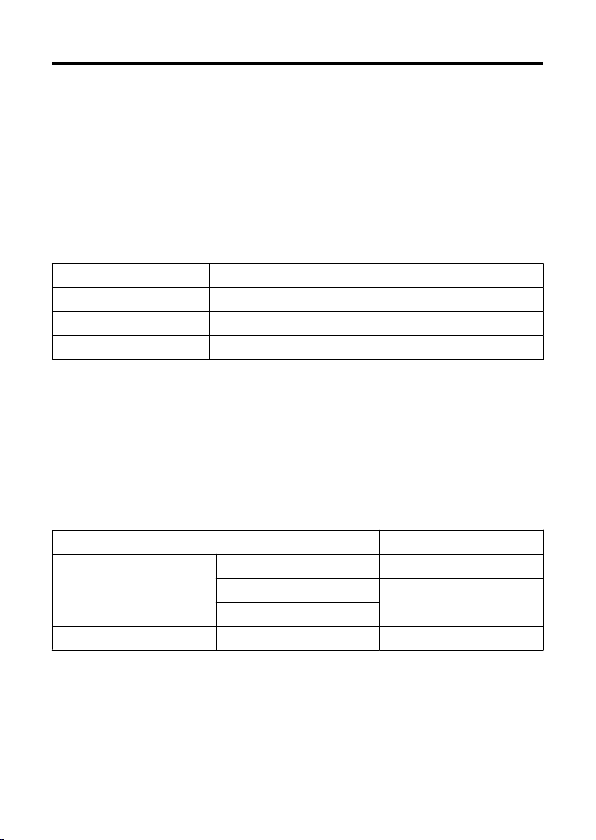
Specifications
Type
Type: Digital single-lens non-reflex AF/AE camera
Lens mount: Canon RF mount
Compatible lenses: Canon RF lens group (including RF-S lenses)
*
Canon EF or EF-S lenses (excluding EF-M lenses) also compatible, using mount adapter EF-EOS R
Lens focal length: Approx. 1.6 times the focal length indicated on the lens
Image sensor
Type: APS-C CMOS sensor
Effective pixels*
1
*
2
Max. approx. 24.1 megapixels
Total pixels*
1
Approx. 25.8 megapixels
Screen size Approx. 22.3×14.9 mm
Dual Pixel CMOS AF Supported
* 1: Rounded to the nearest 100,000.
* 2: Using RF or EF lenses.
The effective pixel count may be lower with certain lenses and image processing.
Recording system
Image recording format:
Compliant with Design rule for Camera File system 2.0 and Exif
2.31*
1
* 1: Supports time offset information
Image type and extension
Image type Extension
Still photos
JPEG .JPG
RAW
.CR3
C-RAW
Movies
ALL-I*
1
, IPB (Standard)
.MP4
* 1: Time-lapse movies only
* Still photos: HEIF not supported
*
Movies: IPB (Light) not supported
641
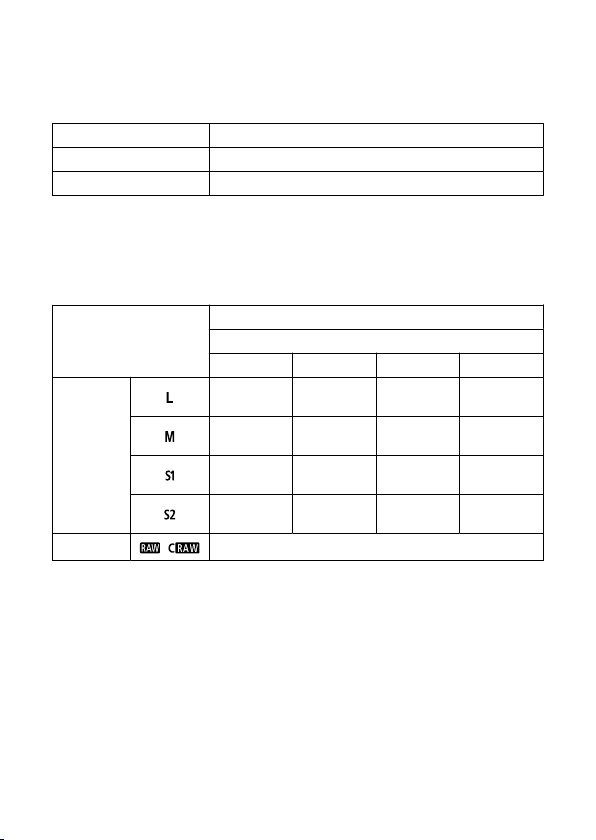
Recording media
Recording media
SD/SDHC/SDXC memory cards
UHS-I Supported
UHS Speed Class Supported
SD Speed Class Supported
Card slot: Equipped with a single slot
*
Supports UHS-I
Still photo recording
Still photo pixel count
Image quality
Recorded pixels
Aspect ratio
3:2 4:3 16:9 1:1
JPEG
24.0 megapixels
(6000×4000)
Approx. 21.3
megapixels*
1
(5328×4000)
Approx. 20.2
megapixels*
1
(6000×3368)
16.0 megapixels
(4000×4000)
Approx. 10.6
megapixels
(3984×2656)
Approx. 9.5
megapixels
(3552×2664)
Approx. 8.9
megapixels*
1
(3984×2240)
Approx. 7.1
megapixels
(2656×2656)
Approx. 5.9
megapixels
(2976×1984)
Approx. 5.3
megapixels
(2656×1992)
Approx. 5.0
megapixels*
1
(2976×1680)
Approx. 3.9
megapixels
(1984×1984)
Approx. 3.8
megapixels
(2400×1600)
Approx. 3.4
megapixels*
1
(2112×1600)
Approx. 3.2
megapixels*
1
(2400×1344)
Approx. 2.6
megapixels
(1600×1600)
RAW
/
24.0 megapixels
(6000×4000)
* Values for recorded pixels are rounded off to the nearest 100,000th.
* RAW/C-RAW images are generated at 3:2 and tagged to indicate the specified aspect ratio.
*
JPEG images are generated at the specified aspect ratio.
* These aspect ratios (M/S1/S2) and pixel counts also apply to resizing.
* 1: Aspect ratios are slightly different for these image sizes.
642
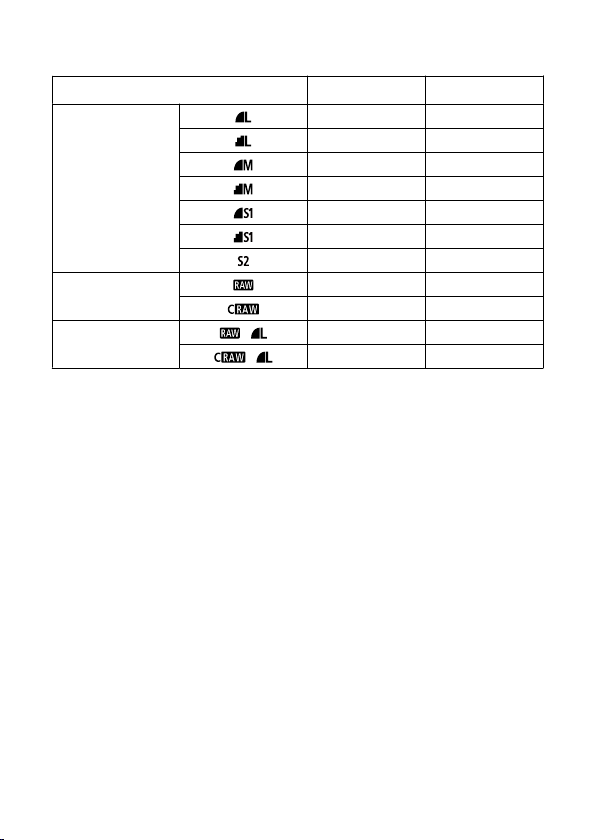
File size/number of shots available
Image quality
File size
[Approx. MB]
Available shots
[Approx.]*
1
JPEG
8.4 3600
4.5 6610
4.6 6480
2.6 11400
3.1 9690
1.8 16010
1.8 16340
RAW
27.2 1120
15.8 1930
RAW+JPEG
+
27.2 + 8.4 850
+
15.8 + 8.4 1250
* 1: Number of shots using a 32 GB card that conforms to Canon testing standards.
* File sizes are determined based on Canon testing standards.
*
File size varies by shooting conditions (such as aspect ratio, subject, ISO speed, Picture Style, and
Custom Functions).
643
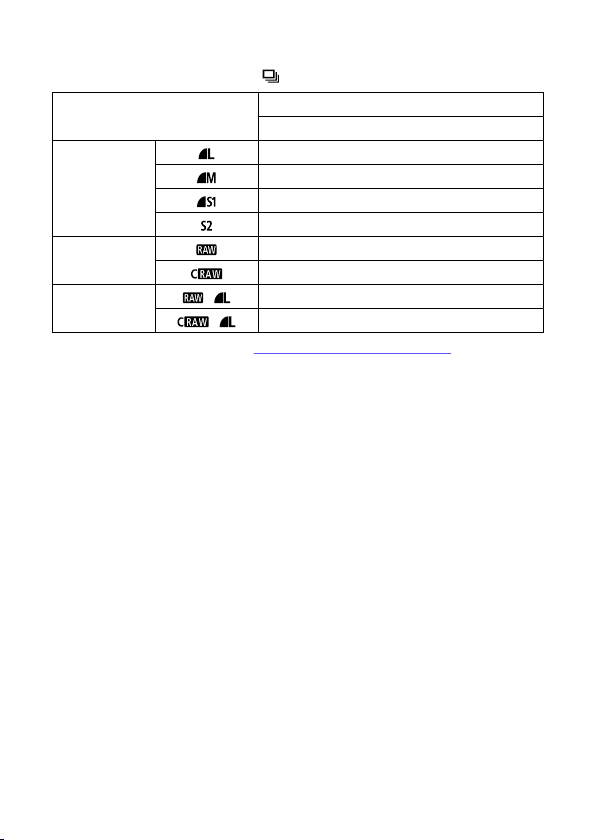
Maximum burst (approx. shots)
Number of shots available when set to [ ], without slower continuous shooting speed
Image quality
Electronic 1st-curtain (approx. 6.5 shots/sec.)*
1
Standard card*
2
JPEG
100
97
97
97
RAW
6
17
RAW+JPEG
+
6
+
13
* 1: For details on shooting conditions, see “Drive mode and continuous shooting speed”.
* 2: Number of shots using a UHS-I compliant 32 GB card that conforms to Canon testing standards.
*
Maximum burst as measured under conditions conforming to Canon testing standards (continuous
shooting in One-Shot AF mode, ISO 100, and Standard Picture Style).
* Maximum burst varies depending on shooting conditions (including aspect ratio, subject, memory card
brand, ISO speed, Picture Style, and Custom Function, etc.).
* Setting Auto Lighting Optimizer to [High] reduces maximum burst.
644
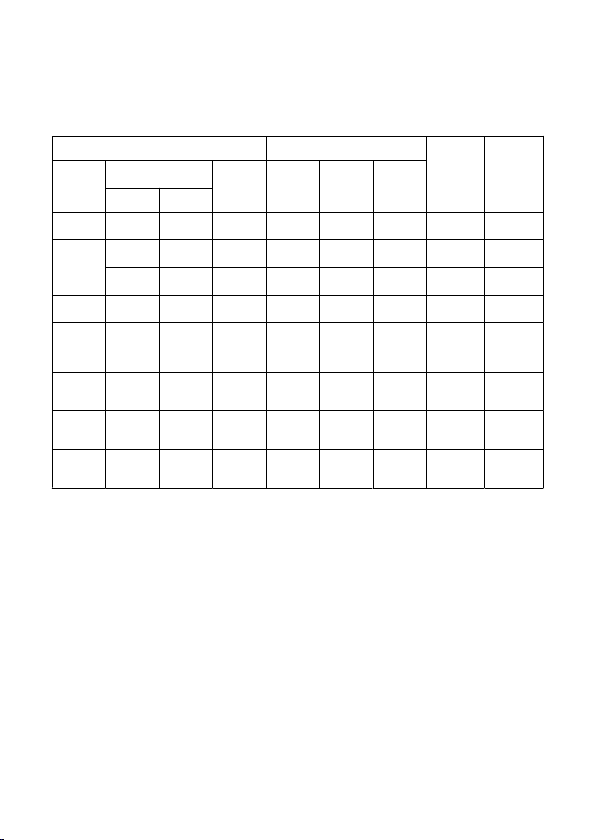
Movie recording
Movie recording format: MP4
Estimated recording time and movie bit rate/file size
Movie recording size Total recording time (approx.)
Movie bit
rate
(approx.
Mbps)
File size
(approx.
MB/min.)
Movie
recording
Frame rate
(fps)
Compression
method
32 GB 128 GB 512 GB
NTSC PAL
4K UHD 23.98 25.00
IPB
(Standard)
35 min.
2 hr. 21
min.
9 hr. 27
min.
120 861
Full HD
59.94 50.00
IPB
(Standard)
1 hr. 10
min.
4 hr. 43
min.
18 hr. 52
min.
60 432
29.97
23.98
25.00
IPB
(Standard)
2 hr. 20
min.
9 hr. 23
min.
37 hr. 35
min.
30 217
HD 59.94 50.00
IPB
(Standard)
2 hr. 42
min.
10 hr. 49
min.
43 hr. 19
min.
26 188
High
Frame
Rate
movies
119.88 100.00
IPB
(Standard)
1 hr. 22
min.
5 hr. 28
min.
21 hr. 52
min.
52 372
4K time-
lapse
movies
29.97 25.00 ALL-I 14 min. 56 min.
3 hr. 47
min.
300 2146
Full HD
time-lapse
movies
29.97 25.00 ALL-I 47 min.
3 hr. 9
min.
12 hr. 38
min.
90 644
Miniature
effect
movie
29.97
23.98
25.00
IPB
(Standard)
2 hr. 20
min.
9 hr. 23
min.
37 hr. 35
min.
30 217
* Bit rate only applies to video output, not audio or metadata.
*
Movie recording stops when the maximum recording time per movie is reached.
* Sound is not recorded for approx. the last two frames when the compression method for movie recording
quality is IPB (Standard). Moreover, the video and sound may be slightly out of sync when movies are
played back in Windows.
645
Card performance requirements (movie recording) [write/read speed]
Movie recording size
SD card
Movie recording
Frame rate
(fps)
Compression method
NTSC PAL
4K UHD 23.98 25.00 IPB (Standard)
UHS Speed Class 3
or higher
Full HD
59.94 50.00 IPB (Standard)
SD Speed Class 10
or higher
29.97
23.98
25.00 IPB (Standard)
SD Speed Class 6 or
higher
HD 59.94 50.00 IPB (Standard)
SD Speed Class 4 or
higher
High Frame Rate
movies
119.88 100.00 IPB (Standard)
SD Speed Class 10
or higher
4K time-lapse movies 29.97 25.00 ALL-I
Read speed of 40
MB/s or higher
Full HD Time-lapse
movies
29.97 25.00 ALL-I
Read speed of 20
MB/s or higher
Miniature effect
movie
29.97
23.98
25.00 IPB (Standard)
SD Speed Class 6 or
higher
* When set to [
Digital IS: Disable].
Built-in microphone: Monaural microphone
External microphone (External microphone IN terminal): Φ3.5 mm diameter stereo mini
jack
646
Autofocus
Focusing method
Still photo shooting, Full HD or HD movie recording: Dual Pixel CMOS AF
4K movie recording: Contrast AF
* With Contrast AF as used when recording 4K movies, focusing may take longer than when recording
Full HD or HD movies, and focusing with certain lenses may be difficult.
Focusing brightness range
Still photo shooting: EV
–4.0 to 20
(With an f/1.2 lens,* center AF point, One-Shot AF at room temperature, and ISO 100)
* Except RF lenses with a Defocus Smoothing (DS) coating
Movie recording: EV –2.0 to 20
(With an f/1.2 lens,* center AF point, One-Shot AF at room temperature, and ISO 100)
* Except RF lenses with a Defocus Smoothing (DS) coating
* During Full HD (29.97/25.00 fps) recording
Focusing operation
Still photo shooting Movie recording
AF operation
• One-Shot AF*
1
• Servo AF*
1
• One-Shot AF
• Movie Servo AF
Manual focus (MF) Supported Supported
* 1: Available in Creative Zone modes. Automatically set in Basic Zone modes to suit the shooting
mode.
*
In <
> mode, the camera automatically switches from One-Shot AF to Servo AF in response to
subject movement.
Focus mode: AF / MF
* Applies when an RF or RF-S lens without a focus mode switch is used.
* When lenses with a focus mode switch are used, the setting on the lens takes precedence.
Lens compatibility based on focusing area: Refer to the Canon website
647
Number of AF area available for automatic selection
Focusing area Horizontal: Approx. 88%, Vertical: Approx. 100%
Number of AF
zones
Still photos Max. 143 zones (13×11)
Movies Max. 117 zones (13×9)
* May vary depending on settings.
Selectable positions for AF point
Focusing area Horizontal: Approx. 88%, Vertical: Approx. 100%
Numbers of
positions
Still photos Max. 3975 positions (75×53)
Movies Max. 3375 positions (75×45)
* When set to [1-point AF] and selected using the cross keys.
*
Values for the selectable positions for AF points do not represent AF performance.
648

Viewfinder
Type: OLED color electronic viewfinder
Screen size: Approx. 1.0 cm (0.39 inch)
Dot count: Approx. 2,360,000 dots
Magnification / Angle of view: Approx. 0.95×/28.0° (3:2 aspect ratio, with 50mm lens at
infinity, –1 m
–
1
)
Coverage: Approx. 100% (at JPEG Large image quality, a 3:2 aspect ratio, and approx. 22
mm eyepoint)
Eyepoint: Approx. 22 mm (at –1 m
–1
from eyepiece lens end)
Dioptric adjustment: Approx. –3.0 to +1.0 m
–1
(dpt)
Screen
Type: TFT color, liquid-crystal monitor
Screen size: Approx. 7.5 cm (3.0 inch) (screen aspect ratio of 3:2)
Dot count: Approx. 1,040,000 dots
Angle of view: Approx. 150° vertically and horizontally
Coverage: Approx. 100% vertically and horizontally (at L image size and an aspect ratio of
3:2)
Screen brightness: Manually adjustable in a range of 1–7
HDMI output
HDMI video / audio output: HDMI micro OUT terminal (Type D)
* HDMI CEC not supported
HDMI resolution: Auto / 1080p
649
Exposure control
Metering functions under various shooting conditions
Item Still photo shooting Movie recording
Metering method 384-zone (24×16) metering using image sensor output signals
Metering mode
Evaluative
metering
Yes
Set automatically when faces are
detected with [
+Tracking]
Partial metering
Yes
*
Approx. 5.8% in the center of the screen
Spot metering*
1
Yes
* Approx. 2.9% in the center of the screen
Center-weighted
average
metering
Yes
Set automatically when faces are not
detected with [
1-point AF], [Zone AF],
or [
+Tracking]
Metering brightness range (at room
temperature, ISO 100)
EV –2 to 20 EV 0 to 20
* 1: Multi-spot metering not available (not supported).
ISO speed (recommended exposure index) in still photo shooting
Manual ISO speed setting for still photos
ISO speed
Normal ISO speed ISO 100–12800 (in 1/3- or 1-stop increments)
Expanded ISO speed H (equivalent to ISO 25600)
* When set to [Highlight tone priority], the available manual setting range is ISO 200–12800.
Manual ISO speed setting range for still photos:
Not supported
ISO Auto maximum limit setting for still photos
Max. for ISO Auto ISO 400 / 800 / 1600 / 3200 / 6400 / 12800
ISO Auto setting range for still photos: Not supported
650
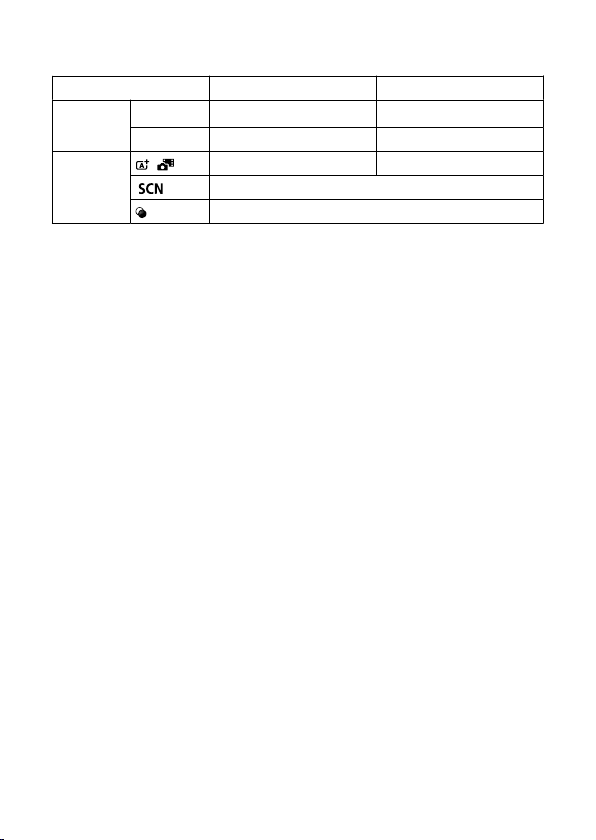
ISO Auto details for still photos
Shooting mode No flash
Using flash*
5
Creative Zone
P / Tv / Av / M
(other than bulb)
ISO 100*
1
*
2
–12800*
2
ISO 100*
1
*
2
–1600*
2
M (bulb)
ISO 400*
3
ISO 400*
3
Basic Zone
/
ISO 100–6400
ISO 100–3200*
4
Varies by shooting mode
Varies by shooting mode
* 1: ISO 200 when set to [Highlight tone priority: Enable/Enhanced].
* 2: Varies depending on the [Max for Auto] settings.
* 3: If outside the setting range, changed to the value closest to ISO 400.
* 4: When using the built-in flash. ISO 1600 when using an external flash unit.
* 5: Can be used with lenses that do and do not support variable control of maximum ISO Auto limit for E-
TTL.
Variable control of maximum ISO Auto limit for E-TTL: Supported
651
ISO speed (recommended exposure index) in movie recording
Manual ISO speed setting for movies
Full HD / HD 4K
Normal ISO speed
ISO 100 to 12800*
1
(in 1/3-stop
increments)
ISO 100 to 6400*
2
(in 1/3-stop
increments)
Expanded ISO speed
H (equivalent to ISO 25600)*
1
* 1: When set to [Highlight tone priority], the setting range is ISO 200–12800.
*
2: When set to [
Highlight tone priority], the setting range is ISO 200–6400.
Automatic ISO speed setting for movies (with ISO Auto)
Full HD / HD 4K
Normal ISO speed
ISO 100 to 12800*
1
(in 1/3-stop
increments)
ISO 100 to 6400*
2
(in 1/3-stop
increments)
Expanded ISO speed
H (equivalent to ISO 25600)*
1
* Maximum ISO speed when set automatically corresponds to the [Max for Auto] setting.
* 1: When set to [
Highlight tone priority], the setting range is ISO 200–12800.
* 2: When set to [Highlight tone priority], the setting range is ISO 200–6400.
Manual ISO speed setting range limit for movies: Not supported
Maximum ISO Auto setting for movies
Max. for ISO Auto ISO 6400 / 12800 / H (equivalent to ISO 25600)
Maximum ISO Auto setting for time-lapse movies: Not supported
652
Shutter
Still photo shooting
Type:
Electronically controlled focal-plane shutter
* Electronic 1st / mechanical 2nd curtain
*
Except in Silent shutter mode
Rolling shutter, using the image sensor
* Electronic shutter
* In Silent shutter mode
Shutter mode
Shutter mode Flash photography
Electronic 1st-curtain Possible
Electronic shutter Disabled
Shutter speed / X-sync speed
Creative Zone: 1/4000
–30 sec.,*
1
Bulb*
2
Basic Zone: 1/4000–
1 sec.*
3
Maximum flash sync speed: 1/250 sec.
* 1: In 1/3-stop increments
* 2: In manual shooting mode only
* 3: Varies by mode.
Movie recording
Type: Rolling shutter, using the image sensor
Shutter speed:
Movie auto exposure: 1/4000–1/25*
1
sec.
Movie manual exposure: 1/4000–1/8 sec.
* 1: Varies by frame rate.
653
Drive
Drive mode and continuous shooting speed
(Max. approx.)
Drive mode AF operation Electronic 1st-curtain Electronic shutter
Single shooting One-Shot AF / Servo AF Yes Yes
Continuous shooting
One-Shot AF 6.5 shots/sec. Not supported
Servo AF 3.5 shots/sec. Not supported
Self-timer: 10 sec./remote control Yes Yes
Self-timer: 2 sec./remote control Yes Yes
Self-timer: Continuous shooting Yes Not supported
654
Built-in flash
Type: Retractable flash
Retraction method: Manual
Guide no.: Guide no. of approx. 6 (ISO 100/m) / 19.7 (ISO 100/feet)
Flash exposure compensation: ±2 stops (in 1/3-stop increments)
Effective flash range (example)
(Approx.)
ISO speed
Lens: RF-S18-45mm F4.5-6.3 IS STM
Wide-angle end f/4.5 Telephoto end f/6.3
m ft. m ft.
100 0.3–1.2 1.0–3.9 0.4–0.9 1.3–3.0
1600 1.2–4.9 3.9–16.1 0.9–3.5 3.0–11.5
12800 3.5–13.8 11.5–45.3 2.5–9.9 8.2–32.5
* Rounded to the first decimal place.
*
Suitable exposure may not be obtained when shooting distant subjects at high ISO speeds, because
preflash metering limits may be exceeded.
External flash
Accessory shoe contacts: 5-pin contact
Flash exposure compensation:
±2 stops (in 1/3-stop increments)
* When set from the camera menu
655
Playback
Item Still photos Movies
AF point display Yes
Magnified view 1.5×–10× (15 levels)
Set image search conditions
Search conditions
Rating / Date / Folder / Protection / Type of file (1) / Type of file (2)
Rating
OFF / ★ to ★★★★★
Select images / Select range / All images in folder / All images on card / All
found images
Protect images
Select images / Select range / All images in folder / Unprotect all images in
folder / All images on card / Unprotect all images on card / All found images /
Unprotect all found images
Frame grab from 4K movies
Individual frames of 4K movies recorded with the camera can be saved as approx. 8.3-
megapixel (3840×2160) still photos (JPEG).
* In-camera resizing or cropping is not supported for extracted still photos, and these images cannot
be edited with Creative filters or Creative Assist.
Print order (DPOF)
Compliant with DPOF Version 1.1
External interface
Digital terminal
Terminal type:
USB Type-C
Transmission: Equivalent to Hi-Speed USB (USB 2.0)
Applications: For PC communication
* Cannot be connected to a printer
* Not for communication with smartphones
* Charging and powering the camera via USB are not supported
HDMI output terminal: HDMI micro OUT terminal (Type D)
External microphone IN terminal: 3.5 mm diameter stereo mini jack
Remote control terminal: Terminal compatible with Remote Switch RS-60E3
656
Power source
Battery
Compatible battery pack LP-E17
Quantity used 1
Battery check: Automatic battery check with 4-level display when the power switch is set to
ON.
Battery information:
Not supported
USB battery charging and camera power supply: Not supported
AC power source
AC adapter AC-E6N
DC coupler DR-E18
Number of shots available
Type of shooting Temperature
Available shots (approx.)
Using 50% flash
AE shooting*
2
Power saving*
1
Smooth*
2
Power saving
Viewfinder shooting
+23°C / 73°F
320 320 340
On-screen shooting 400 320 430
* 1: Based on CIPA standards.
* 2: According to Canon measurement conditions, which are based on CIPA standards.
*
Using a new, fully charged LP-E17
* The number of shots available may vary greatly depending on the shooting environment.
657
Available operating time
Conditions of use Temperature
Available operating
time
Time available for bulb exposure 23°C / 73°F Approx. 3 hr. 20 min.
Time available for Live View shooting
*
Using the screen
23°C / 73°F Approx. 3 hr. 00 min.
Time available for
movie recording
*
Movie Servo AF:
Disable
4K
• IPB (Standard)
• 23.98 fps / 25.00
fps
23°C / 73°F Approx. 1 hr. 50 min.
0°C / 32°F Approx. 1 hr. 50 min.
Full HD
• IPB (Standard)
• 29.97 fps / 25.00
fps
23°C / 73°F Approx. 2 hr. 40 min.
0°C / 32°F Approx. 2 hr. 30 min.
Time available for
continuous playback
(normal playback)
4K
• IPB (Standard)
• 23.98 fps / 25.00
fps
23°C / 73°F Approx. 3 hr. 10 min.
*
With a new, fully charged LP-E17
658
Dimensions and weight
Dimensions
(W) × (H) × (D) Approx. 116.3 × 85.5 × 68.8 mm / Approx. 4.58 × 3.37 × 2.71 in.
* Based on CIPA guidelines.
Weight
Weight
Body
(including battery and card)*
1
Approx. 356 g / Approx. 12.56 oz.
Body only Approx. 309 g / Approx. 10.90 oz.
* Not including body cap.
*
1: Based on CIPA guidelines.
Operating environment
Operating temperature:
0–40°C / 32–104°F
Operating humidity: 85% or less
659
Wi-Fi (wireless LAN)
Supported standards (equivalent to IEEE 802.11b/g/n standards)
Wi-Fi standards Transmission method Maximum link speed
IEEE 802.11b DSSS modulation 11 Mbps
IEEE 802.11g
OFDM modulation
54 Mbps
IEEE 802.11n 72.2 Mbps
* Not compatible with MIMO (Multiple-input and multiple-output).
Transmission frequency (Center frequency)
Frequency 2412 to 2462 MHz
Channels 1 to 11 ch
Authentication and data encryption methods
Connection method Authentication
Encryption
Encryption method
Camera access point
WPA2-PSK AES
Open Disable
Infrastructure
Open
WEP
Disable
Shared key WEP
WPA-PSK
TKIP
AES
WPA2-PSK
Bluetooth
Standards compliance: Bluetooth Specification Version 4.2 compliant (Bluetooth Low
Energy technology)
Transmission method: GFSK modulation
All data above is based on Canon testing standards and CIPA (Camera & Imaging
Products Association) testing standards and guidelines.
Dimensions and weight listed above are based on CIPA Guidelines (except weight for
camera body only).
Product specifications and appearance are subject to change without notice.
If a problem occurs with a non-Canon lens attached to the camera, contact the
respective lens manufacturer.
660
Trademarks and Licensing
Trademarks
About MPEG-4 Licensing
Accessories
Trademarks
Adobe is a trademark of Adobe Systems Incorporated.
Microsoft and Windows are trademarks or registered trademarks of Microsoft
Corporation in the United States and/or other countries.
App Store and macOS are trademarks of Apple Inc., registered in the U.S. and other
countries.
Google Play and Android are trademarks of Google LLC.
IOS is a trademark or registered trademark of Cisco in the U.S. and other countries and
is used under license.
QR Code is a trademark of Denso Wave Inc.
SDXC logo is a trademark of SD-3C, LLC.
HDMI, HDMI logo, and High-Definition Multimedia Interface are trademarks or registered
trademarks of HDMI Licensing LLC.
The Wi-Fi CERTIFIED logo and the Wi-Fi Protected Setup mark are trademarks of the
Wi-Fi Alliance.
The Bluetooth
®
word mark and logos are registered trademarks owned by Bluetooth
SIG, Inc. and any use of such marks by Canon Inc. is under license. Other trademarks
and trade names are those of their respective owners.
USB Type-C™ and USB-C™ are trademarks of USB Implementers Forum.
All other trademarks are the property of their respective owners.
661

About MPEG-4 Licensing
“This product is licensed under AT&T patents for the MPEG-4
standard and may be used for
encoding MPEG-4 compliant video and/or decoding MPEG-4 compliant video that was
encoded only (1) for a personal and non-commercial purpose or (2) by a video provider
licensed under the AT&T patents to provide MPEG-4 compliant video. No license is granted
or implied for any other use for MPEG-4 standard.”
THIS PRODUCT IS LICENSED UNDER THE AVC PATENT PORTFOLIO LICENSE FOR
THE PERSONAL USE OF A CONSUMER OR OTHER USES IN WHICH IT DOES NOT
RECEIVE REMUNERATION TO (i) ENCODE VIDEO IN COMPLIANCE WITH THE AVC
STANDARD (''AVC VIDEO'') AND/OR (ii) DECODE AVC VIDEO THAT WAS ENCODED BY
A CONSUMER ENGAGED IN A PERSONAL ACTIVITY AND/OR WAS OBTAINED FROM
A VIDEO PROVIDER LICENSED TO PROVIDE AVC VIDEO. NO LICENSE IS GRANTED
OR SHALL BE IMPLIED FOR ANY OTHER USE. ADDITIONAL INFORMATION MAY BE
OBTAINED FROM MPEG LA, L.L.C. SEE
HTTP://WWW.MPEGLA.COM
* Notice displayed in English as required.
662
Accessories
Use of genuine Canon accessories is recommended
This product is designed to achieve optimum performance when used with genuine Canon
accessories. Therefore, using this product with genuine accessories is highly recommended.
Canon shall not be liable for any damage to this product and/or accidents such as
malfunction, fire, etc. caused by the failure of non-genuine Canon accessories (e.g., a
leakage and/or explosion of a battery). Please note that repairs arising out of the malfunction
of non-genuine accessories will not be covered by the warranty for repairs, although you
may request such repairs on a chargeable basis.
Caution
Battery Pack LP-E17 is dedicated to Canon products only. Using it with an
incompatible battery charger or product may result in malfunction or accidents for
which Canon cannot be held liable.
Check the following website for details on compatible accessories.
https://cam.start.canon/H002/
663