1
1111 W. 35th Street, Chicago, IL 60609 USA
tripplite.com/support
Owner’s Manual
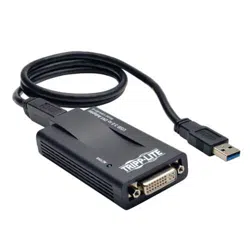
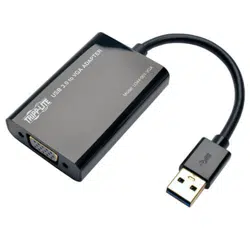
USB 3.2 Gen 1
(5 Gbps) to VGA Adapter
Model: U344-001-VGA
Copyright © 2023 Tripp Lite.
All trademarks are the property of their respective owners.
Este manual está disponible en español en la página
de Tripp Lite: tripplite.com
Ce manuel est disponible en français sur le site
Web de Tripp Lite : tripplite.com
Русскоязычная версия настоящего руководства
представлена на веб-сайте компании
Tripp Lite по адресу: tripplite.com
Este manual está disponible en español en la página
de Tripp Lite: tripplite.com
Ce manuel est disponible en français sur le site
Web de Tripp Lite : tripplite.com
Русскоязычная версия настоящего руководства
представлена на веб-сайте компании
Tripp Lite по адресу: tripplite.com
Dieses Handbuch ist in deutscher Sprache auf der
Tripp Lite-Website verfügbar: tripplite.com/support
Questo manuale è disponibile in italiano sul sito
web di Tripp Lite: tripplite.com/support
WARRANTY REGISTRATION
Register your product today and be
automatically entered to win an ISOBAR
®
surge protector in our monthly drawing!
tripplite.com/warranty

2
1. Introduction 3
1.1 Features 3
1.2 Package Contents 3
1.3 System Requirements 4
2. Installation 5
3. Using the Adapter 7
3.1 Display Properties 7
3.2 Extending Video to the Add-On Display 9
3.3 Mirroring Video on the Add-On Display 10
3.4 Making the Add-On Display the 11
Primary Display
4. Troubleshooting 12
5. Specications 14
6. Warranty and Product Registration 15
Table of Contents

3
1. Introduction
1.1 Features
• Adds an additional monitor, LCD or projector through a
single USB 3.2 Gen 1 (5 Gbps) port
• Portabledesignwithbuilt-incableeasilytsinyourlaptop
bag, making it perfect for travel
• USB 3.2 Gen 1 is 10x faster than USB 2.0, with transfer
rates up to 5 Gbps
• Backward compatible with USB 2.0
• Simultaneously connect up to 6 display adapters on a
Windows
®
PC
• Automatically resumes from hibernation and suspend
modes
• Supports video resolutions up to 2048 x 1152, 1080p @
60 Hz
• Video streaming is supported up to 1080p
• Set additional monitors to extend the primary display,
duplicate the primary display, or set an additional monitor
as the primary display
1.2 Package Contents
Before installation, please check the items in the
package. The package should contain the following
items:
• (1) U344-001-VGA
• (1) Owner's Manual

4
1. Introduction
1.3 System Requirements
• Windows XP (32-bit), Vista (32- and 64-bit), 7 (32- and
64-bit), 8 (32- and 64-bit) and 8.1 (32- and 64-bit)
• Mac OS
®
X
• USB 2.0 or USB 3.2 Gen 1 (5 Gbps) port; USB 3.2 Gen 1
port required for USB 3.2 Gen 1 (5 Gbps) speeds
• VGA monitor
Minimum computer requirements when using
1 – 2 display adapters:
• 1.2 GHz Single Core CPU
• 512 MB of RAM
Minimum computer requirements when using
3 display adapters:
• 1.6 GHz Single Core CPU
• 1 GB of RAM
Minimum computer requirements when using
4 – 6 display adapters:
• 1.8 GHz Core Duo CPU
• 1 GB of RAM
Note: Only 1 added monitor can support DVD playback.
In order to support DVD playback, your computer must
meet the following minimum requirements:
• 2.0 GHz Core Duo CPU
• 1 GB of RAM
• Adapter screen resolution must be set to 800 x 600
with 32-bit color

5
Prior to Installation
DisplayLink drivers are required for both video and audio
functions when using Windows and Mac OS. The drivers
can be downloaded and installed from www.displaylink.
com/downloads. Once the drivers are successfully installed,
restart the host computer
Note: Install the driver on your computer before connecting the
display adapter(s).
1. Download the DisplayLink driver from the link above to
your computer.
Note:
• If you encounter a User Account Control popup,
choose to allow the installation to proceed. This may
require an administrator’s password. If you encounter
a driver signature dialog box, choose to continue the
installation.
• If a message stating “Display Link software for USB
display adapter is already up to date,” then the
necessary software for this unit is already installed, and
you can proceed to step 5.
2. Follow the prompts to complete the process.
3. When this process is complete, you will need to restart
yourcomputertonishtheinstallation.
4. After restarting your computer, connect the built-in USB
3.2 Gen 1 cable to an available USB 2.0 or USB 3.2 Gen
1 port.
5. Connect your display adapter to a monitor using a VGA
cable.
2. Installation

6
2. Installation
6. Once connected, the computer will recognize the display
adapter and complete the installation. The video should
now be displayed on the add-on monitor.
Note: It may take a few moments before the screen
appears on the add-on monitor. Also, it is normal for
the screen to icker on and o a few times when rst
connected. If the add-on monitor remains blank, you may
need to restart your computer one more time.
Using Multiple Display Adapters
When using multiple display adapters, it is only necessary
to install the driver software once. After connecting the
rstdisplayadaptertothecomputer,simplymoveonto
connecting the next display adapter.
Note:
• Later versions of Mac OS X will be limited to a single add-
on monitor. See the driver release notes for details.
• When using Windows Vista XDDM mode, only one display
adapter will be able to be congured to use Extended
mode, and the remaining display adapters will be forced to
use Mirror mode. Windows Vista XDDM mode is a video
card driver mode that provides a Windows XP interface on
a Vista computer.
7
3. Using the Adapter
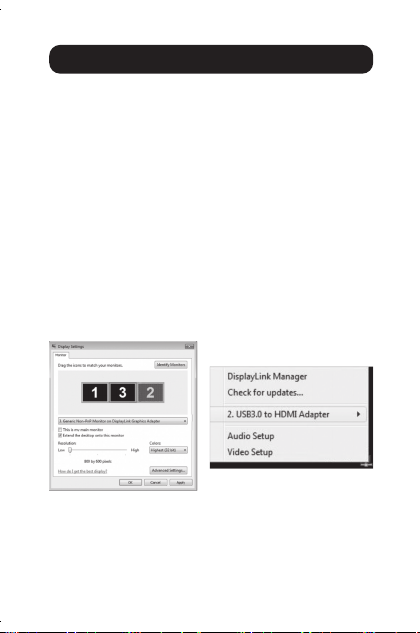
3.1 Display Properties
Once installed, the computer video can be Extended from
the primary display to the add-on display, Mirrored to display
the same thing on both, or changed to use the add-on
display as the primary display. This can be done by opening
the Display Settings page on your computer (see below) and
changing the settings.
To access the display settings, right-click on your computer’s
desktop, and select the Properties or Personalize option,
depending on your Windows operating system. From there,
you will need to access the Settings or Display option to
get to the Display Settings page. A quick way to access this
page is to use the display adapter icon in the lower-right
corner of your computer screen. Right-click on this icon and
select the DisplayLink Manager or Video Setup option to
automatically pull up your computer’s Display Settings page.
On page 8 are additional settings that are available via the
display adapter right-click menu.
Note: The settings available in this right-click menu may vary
depending on your operating system.

8
3. Using the Adapter
Option Description
DisplayLink
Manager
Opens an “About” screen that shows the DisplayLink
driver version installed on your computer.
Check for
Updates
Connects to the Internet checks for newer versions
of the DisplayLink software, and downloads them if
available.
USB 3.0
Adapter
This will display as USB 3.0 to VGA adapter and
provides a list of settings when selected. When multiple
adapters are connected, a separate menu option will be
available for each one.
• Screen Resolution – Click this option to bring up a list
of available screen resolutions for the add-on monitor.
Select the desired resolution from this list.
• Screen Rotation – This setting allows you to rotate
the screen according to your desired orientation.
• Extend To – This setting allows you to select which
direction to extend the add-on monitor: Right, Left, Up,
Down.
• Set as Main Monitor – This setting allows you to
make the add-on monitor the primary display.
• Notebook Monitor O – This setting appears on
laptopcomputersonlyandallowsyoutoturno
the laptop monitor, leaving only the add-on monitor
displayed.
• Mirror – This setting allows you to mirror the video of
the primary display to your add-on monitor, so that the
same thing is displayed on both screens.
• O–Thissettingturnsotheadd-onmonitor.
• Fit to TV – When using your display adapter to connect
a TV to your computer, the desktop may not always
completely appear on the screen. This setting can be
used to adjust the picture to display properly.
Audio Setup Opens your computer's sound settings screen.
Note: This function only works in specic models.
Video Setup Opens your computer’s display settings screen.

9
In addition to the display adapter right-click menu, Windows
Vista and 7 users can press the [Windows Key] and the
[P] key at the same time to pull up the menu below, which
quickly allows you to switch the display settings.
Note: Only Mirror mode is supported under Windows Vista
Display Driver Model (WDDM) mode. In addition, the Aero
Experience (Flip 3D eect) will be disabled under Windows
Vista Display Driver Model (WDDM) mode as long as the
display adapter is connected.
3.2 Extending Video to the Add-On
Display
To extend the video of the primary monitor to the add-on
monitor, follow the steps below:
1. Open your computer’s Display Settings page.
2.
Select the monitor icon that represents the add-on display
you wish to change, or choose the add-on display from the
drop-down menu. The primary display is always icon 1.
3.
Once you have selected the monitor icon for the add-on
display, check the checkbox to extend video onto the monitor,
or select the extension option from the drop-down list.
4.
Drag the monitor icons in the Display Settings page so that
they are positioned to replicate the location of the actual
displays. For example, if display 1 is directly to the left of
display 2, the monitor icons should be positioned that way.
Thisaectswhichsideofthescreenthemouseisallowed
to move to the next display from, and is therefore essential
to ensure smooth mouse movement between displays.
3. Using the Adapter

10
5. Click the Apply button to activate the changes. The
computer video will now be extended from the primary
display to the add-on display.
Note: When playing a DVD, it is recommended that you
play the DVD on a monitor connected to the computer via
standard cabling, and not an add-on monitor connected
via display adapter. If you need to play a DVD on an add-
on monitor, you must have a 2.0 GHz Core Duo CPU with
1 GB of RAM, and the screen resolution must be set to
800 x 600 with 32-bit color. If multiple display adapters
are connected to a computer, only 1 of them can play
DVD content.
3. Using the Adapter
3.3 Mirroring Video on the Add-On
Display
To show the same image on both the primary and add-on
displays, follow the steps below:
1. Open your computer’s Display Settings page.
2. Select the monitor icon that represents the add-on
display you wish to change, or choose the add-on display
from the drop-down menu. The primary display is always
icon 1.
3. Un-check the box next to Extend the desktop onto this
monitor, or select the option from the drop-down menu to
duplicate the display, and then click the apply button.
Note: In Mirror mode, the add-on display settings are
limited by those of the primary display. If the primary
display only supports a resolution of 1280 x 1024, the
add-on monitor will be limited to a resolution of
1280 x 1024 or less.

11
3. Using the Adapter
3.4 Making the Add-On Display
the Primary Display
To make the add-on display the primary display for the
computer, follow the steps below:
1. Open your computer’s Display Settings page.
2. Select the monitor icon that represents the add-on
display you wish to change, or choose the add-on display
from the drop-down menu. The primary display is always
icon 1.
3. Check the box next to This is my main monitor and click
the Apply button to make the add-on display the primary
display for the computer.
Note:
• Some computers require you to rst un-select the original
primary display before setting a new primary display.
• Once set as the primary display, the add-on display
will continue to be the primary display as long as it is
connected to the computer. Once disconnected, the
primary display will default back to the monitor connected
to the computer via standard cable.

12
Q: Why is the display on the add-on monitor blank?
A:
If the monitor power LED is green, wait a moment for the
monitor to display the video, as it may take some time for the
video to be displayed on the add-on monitor. If after a
few minutes the video does not display, restart your computer.
Also, make sure the computer is not in standby or hibernation
mode, which will cause the add-on monitor to be blank.
If the monitor power LED is red, check if the connection is
properlymade.Iftheconnectionisneandtheproblem
still exists, uninstall the driver, unplug the adapter and
reinstall the driver.
Q: Why is the add-on monitor ickering?
A:
This is usually caused by a low refresh rate. When in “Mirror
Mode,” increase the refresh rate of the main monitor. This
will in turn increase the refresh rate of the add-on monitor,
whichshouldstoptheickering.Whenin“ExtendedMode,”
increase the refresh rate of the add-on monitor.
Q:
When I play an MPEG le on Windows Media Player on
the extended monitor, why does the display become
abnormal when I switch it to full screen mode?
A: If your system is Windows XP SP1, upgrading to SP2 will
solve this problem.
Q: Why does the video not display properly when in
“Full-Screen” mode?
A: Try the following tips to improve the smoothness of the
movie playback:
• Reduce the resolution of the display to 640 x 480 or
800 x 600.
• Use the adapter in extended mode.
• Terminate any other CPU intensive applications running
on the computer.
• As some media players require DirectX hardware
supporttocorrectlyoperate,tryadierentmediaplayer
which requires less DirectX support.
4. Troubleshooting

13
4. Troubleshooting
• Drag the media player to the add-on screen and close
the player. Restart the player and it should open on the
add-onmonitor.Nowtryplayingthemedialeagain.
•
Try reducing the hardware acceleration level of the primary
display (NOT the add-on monitor) to level 1, 2 or 3 and
restarting the media player. The hardware acceleration
can be found by right-clicking on your desktop and click
“Properties > Settings > Advanced > Troubleshoot.”
• The video playback may be unusual when the add-on
monitor is mirroring the primary display and there is
another extended screen connected to the computer.
The extended screen must be disabled before the
content will be correctly cloned to the add-on monitor.
Q: In “Extended Mode,” why does the add-on monitor
have a black border around the desktop?
A:
This happens when the resolution used by the add-on
monitor is higher than the resolution used by the primary
monitor.Tosolvethisproblem,conguretheadd-on
monitor to use the same resolution as the primary monitor.
Q: In “Extended” mode, why does the cursor disappear?
A: If you’re in extended mode but have not yet connected
the add-on monitor, the desktop will still pan to the add-
on monitor. It’s possible that your cursor has moved to
the extended desktop and is no longer visible on the
primary display. When this occurs, try the following:
• Connect the add-on monitor to the display adapter.
You should be able to see the mouse cursor once the
computer screen is displayed.
• Move your mouse to try and drag the cursor back onto
the primary monitor.
• Unplug the display adapter from the computer to
restore the cursor.

14
5.Specications
Feature Specication
Source Connector USB-A, Male (via the built-in USB cable)
Display Connector HD15, Female
Maximum Number of
Display Adapters*
6 (Windows)
RAM 512 MB DDR2 SDRAM
Power Bus-powered (340 mA operating power)
Supported Operating
Systems
Windows
®
XP (32-bit), Vista (32- and 64-bit),
7 (32- and 64-bit), 8 (32- and 64-bit), and
8.1 (32- and 64-bit), Mac OS X
Operating Tem-
perature
10° to 40° C (50° to 104° F)
Storage Temperature -10° to 80° C (14° to 176° F)
Relative Humidity Less than 85%, Non-Condensing
Supported Video
Resolutions (Note:
Interlaced and reduced
blanking modes are not
supported)
Resolution
16-Bit
Refresh Rate
32-Bit
Refresh Rate
640 x 480 60, 72, 75, 85 60, 72, 75, 85
800 x 600
56, 60, 72,
75, 85
56, 60, 72,
75, 85
1024 x 768 60, 70, 75, 85 60, 70, 75, 85
1280 x 720
(720p)
60 60
1280 x 768 60, 75, 85 60, 75, 85
1280 x 800 60 60
1280 x 1024 60, 75, 85 60, 75
1366 x 768 60 60
1400 x 1050 60, 75, 85 60, 75, 85
1600 x 1200 60 60
1680 x 1050 60 60
1920 x 1080
(1080p)
60 60
1920 x 1200 60 60
2048 x 1152 60 60
*Note: Later versions of Mac OS X will be limited to a single
add-on monitor. See the driver release notes for details.

15
6. Warranty and
Product Registration
3-Year Limited Warranty
Tripp Lite warrants its products to be free from defects in materials and
workmanship for a three (3) year period from the date of retail purchase by
end user.
Tripp Lite’s obligation under this warranty is limited to repairing or replacing (at its
sole option) any such defective products. To obtain service under this warranty
you must obtain a Returned Material Authorization (RMA) number from Tripp Lite
or an authorized Tripp Lite service center. Products must be returned to Tripp Lite
or an authorized Tripp Lite service center with transportation charges prepaid
and must be accompanied by a brief description of the problem encountered and
proof of date and place of purchase. This warranty does not apply to equipment
which has been damaged by accident, negligence or misapplication or has
beenalteredormodiedinanyway,includingopeningoftheunit’scasingfor
any reason. This warranty applies only to the original purchaser who must have
properly registered the product within 10 days of retail purchase.
EXCEPT AS PROVIDED HEREIN, TRIPP LITE MAKES NO WARRANTIES,
EXPRESS OR IMPLIED, INCLUDING WARRANTIES OF MERCHANTABILITY
AND FITNESS FOR A PARTICULAR PURPOSE. Some states do not permit
limitation or exclusion of implied warranties; therefore, the aforesaid limitation(s)
or exclusion(s) may not apply to the purchaser.
EXCEPT AS PROVIDED ABOVE, IN NO EVENT WILL TRIPP LITE BE LIABLE
FOR DIRECT, INDIRECT, SPECIAL, INCIDENTAL OR CONSEQUENTIAL
DAMAGES ARISING OUT OF THE USE OF THIS PRODUCT, EVEN IF
ADVISEDOFTHEPOSSIBILITYOFSUCHDAMAGE.Specically,TrippLiteis
notliableforanycosts,suchaslostprotsorrevenue,lossofequipment,lossof
use of equipment, loss of software, loss of data, costs of substitutes, claims by
third parties, or otherwise.
Product Registration
Visit tripplite.com/warranty to register your new Tripp Lite product. You’ll be
automatically entered into a drawing for a chance to win a FREE Tripp Lite
product!*
* No purchase necessary. Void where prohibited. Some restrictions apply. See
website for details.
Warning!
Use of this equipment in life support applications where failure of this equipment
can reasonably be expected to cause the failure of the life support equipment
ortosignicantlyaectitssafetyoreectivenessisnotrecommended.Donot
usethisequipmentinthepresenceofaammableanestheticmixturewithair,
oxygen or nitrous oxide.

16
6. Warranty and
Product Registration
FCC Notice, Class B
This device complies with part 15 of the FCC Rules. Operation is subject to the
following two conditions: (1) This device may not cause harmful interference, and
(2) this device must accept any interference received, including interference that
may cause undesired operation.
Note: This equipment has been tested and found to comply with the limits for
a Class B digital device, pursuant to part 15 of the FCC Rules. These limits are
designed to provide reasonable protection against harmful interference in a
residential installation. This equipment generates, uses and can radiate radio
frequency energy and, if not installed and used in accordance with the instructions,
may cause harmful interference to radio communications. However, there is
no guarantee that interference will not occur in a particular installation. If this
equipment does cause harmful interference to radio or television reception, which
canbedeterminedbyturningtheequipmentoandon,theuserisencouragedto
try to correct the interference by one or more of the following measures:
• Reorient or relocate the receiving antenna.
• Increase the separation between the equipment and receiver.
• Connecttheequipmentintoanoutletonacircuitdierentfromthattowhich
the receiver is connected.
• Consult the dealer or an experienced radio/TV technician for help.
AnychangesormodicationstothisequipmentnotexpresslyapprovedbyTripp
Lite could void the user’s authority to operate this equipment.
WEEE Compliance Information for Tripp Lite Customers and Recyclers
(European Union)
Under the Waste Electrical and Electronic Equipment (WEEE)
Directive and implementing regulations, when customers buy new
electrical and electronic equipment from Tripp Lite they are entitled to:
• Send old equipment for recycling on a one-for-one, like-for-like
basis (this varies depending on the country)
• Send the new equipment back for recycling when this ultimately
becomes waste
TrippLitehasapolicyofcontinuousimprovement.Specicationsaresubject
tochangewithoutnotice.Photosandillustrationsmaydierslightlyfromactual
products.
23-03-490 93-3433_RevD
1111 W. 35th Street, Chicago, IL 60609 USA
tripplite.com/support