
OPPO Smartphone ColorOS 3.1 User Guide
Content
1. Welcome Page
..........................................................................................................................
5
2. Safety Information
......................................................................................................................
6
3. Get started
...............................................................................................................................
10
3.1. Quick look
...........................................................................................................................
10
3.1.1. ColorOS 3.1 Features
..............................................................................................
11
3.1.2. Applicable products and specs
...............................................................................
18
3.1.3.Buttons and components
.....................................................................................
24
3.1.4. Sleep/Wake button
.................................................................................................
28
3.1.5. Menu, Home and Return buttons
..........................................................................
31
3.1.6.Volume buttons
....................................................................................................
34
3.1.7. Micro-USB port
.......................................................................................................
35
3.1.8. Headset jack
............................................................................................................
36
3.1.9. SIM and SD cards
....................................................................................................
37
3.1.10. Accessories came with OPPO phone
....................................................................
39
3.1.11. Charging the battery
.............................................................................................
41
3.1.12. Gesture & Motion
.................................................................................................
43
3.1.13. Key combinations
..................................................................................................
49
3.1.14. Status Icons
...........................................................................................................
52
3.2. Configure settings
..............................................................................................................
55
3.2.1. Google account
.......................................................................................................
55
3.2.2. Fingerprint and Passcode
........................................................................................
57
3.2.3. Set up other mail and calendar accounts
...............................................................
62
3.2.4. Transfer data from the old phone to OPPO smartphone
.......................................
63
3.2.5. Date and Time
.........................................................................................................
67
3.2.6. Language and Region
..............................................................................................
68
3.2.7. Connect to the Internet
..........................................................................................
70
3.3. Instructions
........................................................................................................................
71
4. What's new in ColorOS 3.1
...........................................................................................................
72
4.1. OPPO Share
........................................................................................................................
72
4.2. Clone Phone
.......................................................................................................................
74
4.3. System optimization
...........................................................................................................
75
4.4. Multiple modes with easy access
......................................................................................
77
4.5. Nightly Shield
.....................................................................................................................
78
4.6. Security
............................................................................................................................
79
5. Basics
.........................................................................................................................................
85
5.1. Use apps
..........................................................................................................................
85
5.2. Share from apps
..............................................................................................................
87

5.3. One-click cleanup
............................................................................................................
87
5.4. Lock the running background apps
................................................................................
89
5.5. View, zoom in and out
.....................................................................................................
90
5.6. Change the screen orientation
.......................................................................................
92
5.7. Take a screenshot
............................................................................................................
94
5.8. Notification and Status Bar
.............................................................................................
96
5.9. Control Center
.................................................................................................................
99
5.10. Search
............................................................................................................................
104
5.11. Sound, Vibration and System Feedback
.......................................................................
105
5.12. Charge and monitor the battery
...................................................................................
108
5.13. Low Power Mode
..........................................................................................................
110
5.14. Text
................................................................................................................................
111
5.14.1. Add or change keyboard languages
....................................................................
111
5.14.2. Type, edit and delete text
...................................................................................
114
5.14.3. Smart input
.........................................................................................................
117
5.14.3. Voice typing
.........................................................................................................
119
5.14.4. TouchPal for OPPO
..............................................................................................
121
5.15. Location Service
............................................................................................................
123
5.16. Use the phone internationally
......................................................................................
125
6. Personalize your OPPO phone
................................................................................................
125
6.1. ColorOS 3.1 device name
..............................................................................................
125
6.2. Personalize the Home screen
.......................................................................................
126
6.2.1. Organize the Home screen
.................................................................................
126
6.2.2. Home screen widgets & Transition Effects
.........................................................
130
6.3. Change the wallpaper
...................................................................................................
132
6.4. Lock screen magazine
...................................................................................................
134
6.5. Adjust the screen brightness and color temperature
.....................................................
136
6.6. Change auto-lock time
..................................................................................................
138
6.7. Change the text size
......................................................................................................
139
6.8. Keyboard and input method
.........................................................................................
140
6.8.1. Customize the look of the keyboard
...................................................................
140
6.8.2. Split keyboard
.....................................................................................................
142
6.8.3. Trends
..................................................................................................................
143
6.8.4. Keyboard general settings
..................................................................................
144
6.9. Set up Startup Manager
................................................................................................
146
6.10. Clone Apps
....................................................................................................................
147
6.11. Manage Default App
.....................................................................................................
148
6.12. Gesture & Motion
.........................................................................................................
149
7. Application
..............................................................................................................................
154
7.1. Phone
...............................................................................................................................
154
7.1.1. Make and answer phone calls
..............................................................................
154
7.1.2. Conference calls
....................................................................................................
162
7.1.3. Block calls
..............................................................................................................
163
7.1.4. Emergency calls
.....................................................................................................
165

7.1.5. Operator's Call Related Settings
...........................................................................
165
7.2. Messages
..........................................................................................................................
167
7.2.1. Send and receive messages
..................................................................................
167
7.2.2. Customize message settings
.................................................................................
170
7.3. Contacts
............................................................................................................................
172
7.3.1. Add a contact
........................................................................................................
172
7.3.2. Edit and delete a contact
......................................................................................
174
7.3.3. Account
.................................................................................................................
177
7.3.4. Import and export contacts
..................................................................................
178
7.3.5. SIM contacts
..........................................................................................................
180
7.3.6. Manage contacts
...................................................................................................
182
7.3.7. Back up your contacts
...........................................................................................
185
7.4. Phone Manager
................................................................................................................
186
7.4.1. Scan and optimize the phone
...............................................................................
186
7.4.2. Cleanup & Accelerate
...........................................................................................
188
7.4.3. Privacy Permissions
...............................................................................................
189
7.4.4. Virus Scan
..............................................................................................................
190
7.4.5. Payment protection
..............................................................................................
191
7.5. Weather
............................................................................................................................
192
7.6. Camera
.............................................................................................................................
195
7.6.1. Take photos
...........................................................................................................
195
7.6.2. Take a selfie
...........................................................................................................
201
7.6.3.Shoot video
............................................................................................................
206
7.6.4.Camera settings
.....................................................................................................
207
7.7 Photos
...........................................................................................................................
208
7.7.1. Photos overview
...................................................................................................
208
7.7.2. Albums
..................................................................................................................
209
7.7.3. View and use photos and videos
..........................................................................
213
7.8.Music
.................................................................................................................................
217
7.8.1.Music
......................................................................................................................
217
7.8.2 Change sort mode
..................................................................................................
220
7.8.3. Scan local songs
....................................................................................................
221
7.9.Videos
................................................................................................................................
223
7.10. Theme Store
...................................................................................................................
226
7.10.1. Online phone theme
...........................................................................................
226
7.10.2. Online wallpaper
.................................................................................................
227
7.10.3. My profile
............................................................................................................
228
7.10.4. Manage your downloads
....................................................................................
230
7.11. Clock
..............................................................................................................................
231
7.11.1. Set Alarm Clocks
.................................................................................................
231
7.11.2. Add and view clocks for locations around the world
.........................................
234
7.11.3. Use the stopwatch
..............................................................................................
235
7.11.4. Set the timer
.......................................................................................................
236
7.12. Files
...............................................................................................................................
237

7.12.1. Fast file browsing
................................................................................................
237
7.12.2. View and manage files
........................................................................................
238
7.12.3. Fast cleanup
........................................................................................................
240
7.12.4. FTP
.......................................................................................................................
241
7.12.5. File Safe
...............................................................................................................
242
7.13. Calculator
.......................................................................................................................
244
7.14. Sound Recorder
.............................................................................................................
245
7.14.1. Record
.................................................................................................................
245
7.14.2. Manage recordings
.............................................................................................
246
7.15. Compass
........................................................................................................................
248
7.16. Browser
.........................................................................................................................
250
7.16.1. Search the web
...................................................................................................
250
7.16.2. Browse the web
..................................................................................................
251
7.16.3. Quick accesses
....................................................................................................
254
8. Safety & Privacy
.......................................................................................................................
257
8.1. Device security
.................................................................................................................
257
8.1.1. Lock screen password
...........................................................................................
257
8.1.2. Smart Lock
.............................................................................................................
258
8.1.3. Safe keyboard
........................................................................................................
260
8.1.4. Payment protection
..............................................................................................
260
8.1.5. Set up a SIM card lock
...........................................................................................
261
8.1.6. Virus Scan
..............................................................................................................
261
8.2. Device administration
......................................................................................................
262
8.2.1. Allow and install apps from unknown sources
.....................................................
262
8.2.2. App Encryption
.....................................................................................................
263
8.2.3. App permissions
....................................................................................................
264
8.2.4. Kids Space
.............................................................................................................
265
8.2.5. Block unwanted calls and messages
.....................................................................
266
8.2.6. Find my device
......................................................................................................
268
8.4. Advanced
..........................................................................................................................
270
8.4.1. Screen pinning
......................................................................................................
270
9. Share Internet connection and files
............................................................................................
273
9.1. Tether your phone’s Internet connection
........................................................................
273
9.2. Share files
.........................................................................................................................
276
9.2.1. Wireless file sharing
..............................................................................................
276
9.2.2. Wired file sharing
..................................................................................................
280
9.2.3. Share from apps
....................................................................................................
282
10. Restart, update, reset, and restore
...........................................................................................
283
10.1. Restart the phone
..........................................................................................................
283
10.2. Update the software version
.........................................................................................
284
10.3. Backup and restore the phone
......................................................................................
286
10.3.1. Back up your OPPO phone
..................................................................................
286
10.3.2. Restore data on your phone
...............................................................................
287
10.4. Reset the phone
.....................................................................................................
291
11. Accessibility
...............................................................................................................................
293
11.1. Talkback
..........................................................................................................................
293
11.2. Magnification Gestures
..................................................................................................
296
11.3. End Calls with the Power Button
...................................................................................
298
11.4. Speak password
.............................................................................................................
299
12. Safety, handling and support
....................................................................................................
300
12.1. Health and Safety
...........................................................................................................
300
12.1.1. Using Environment
..............................................................................................
300
12.1.2. Battery Safety
......................................................................................................
301
12.1.3. Charger Usage Notes
..........................................................................................
303
12.1.4. Traffic Safety
........................................................................................................
304
12.1.5. Electromagnetic (EM) Radiation
.........................................................................
305
12.1.6. Other Important Safety Information
..................................................................
305
12.2. Maintenance and Repair
................................................................................................
307
12.2.1. Phone Cases
........................................................................................................
307
12.2.2. Screen Protector
.................................................................................................
307
12.2.3. Maximize battery life and lifespan
.....................................................................
307
12.2.4. Keeping Clean
.....................................................................................................
309
12.2.5. Keeping Dry and Solving Water Damage
............................................................
310
12.2.6. Use Connectors, Ports and Buttons
....................................................................
310
12.2.7. Other Maintenance and Repairing Information
.................................................
311
12.3. OPPO Mobile Warranty Information
.............................................................................
312
1. Welcome Page
2. Safety Information
Read through the following information carefully. Failure to follow these
safety precautions could result in danger or illegal activities.
Safe Startup
Do not switch on the device when phone use is prohibited or when it may
cause interference or danger.
Traffic Safety First
Traffic safety is always of first importance. Use of phones and headphones
while driving a vehicle or riding a bicycle is not recommended and is illegal in
some areas. Obey and follow all related local laws.
Switching off at Gas Stations
Turn off your phone when in any area with a potentially explosive atmosphere,
such as gas stations or any other fueling area. Sparks in such areas could
cause an explosion or fire, resulting in serious injury or even death.
Switching off When Taking an Airplane
Wireless devices might be prohibited while in the air in some countries or
regions. Obey all related local laws and turn off your phone or switch to
airplane mode.
Switching off near Medical Equipment
Hospitals or healthcare facilities might use radio-frequency-sensitive
equipment. Obey the relevant rules and regulations.
Switching off at Blasting Areas
To avoid interfering with blasting operations, turn off your phone when in a
“blasting area” or in areas posted “Turn off two-way radio.” Obey all signs and
instructions.
Radiation
Nearly every electronic device gives off radiation. Mobile phone use does not
increase the risk of getting brain cancer or other head tumors. Its effect in
humans is negligible.
Interference
Nearly every electronic device is susceptible to interference for external
sources if inadequately shielded or designed. As a result, your phone may

cause interference with other devices.
Temperature
Operate your phone in a place where the temperature is always between 10℃
to 45℃. Using or storing your phone in a too hot or too cold environment
might damage the battery, or even cause your phone to short-circuit or burn.
Proper Usage
Use your phone appropriately. Do not touch the antenna area unnecessarily
when the phone is turned on. Do not drop, disassemble, crush, bend, deform,
puncture, incinerate, or insert foreign objects into your phone.
Qualified Maintenance and Service
Never attempt to repair or modify the phone yourself. If your phone has any
hardware or software failure, do not use it until you take it to an authorized
service provider. Do not disassemble or root your phone yourself, otherwise
the warranty service will be terminated immediately.
Batteries, Chargers and other Accessories

Do not dismantle the built-in lithium-ion battery of your device. Use only the
batteries, chargers and other accessories authorized by OPPO, for third-party
accessories might cause damage or danger.
Waterproofness
Your device is not waterproof. Do not use your device in rain, or other wet
locations.
Avoiding Hearing Damage
Permanent hearing loss may occur if the receiver, speakerphone, headphones,
or earpieces are used at high volume. You can adapt over time to a higher
volume of sound that may sound normal but can be damaging to your
hearing. Set the volume to a safe level to protect your hearing.
Avoiding Eyestrain
Your device’s screen color and brightness might have a different degree of
stimulation to your eyesight. Long-term viewing of your phone in normal or
darker environments will damage your eyesight. When watching video or
reading text on your phone, avoid prolonged use, take breaks and turn on
eye protection mode to prevent eyestrain.
Glass Parts

The outside cover of your phone’s screen, front/rear camera and flash is made
of glass. This glass could break if your phone is dropped on a hard surface or
receives a substantial impact. Do not attempt to touch or clean the broken
glass. Stop using your phone until the glass is replaced by an authorized
service provider.
Connecting to Other Devices
Before connecting to other devices, carefully read the user manual for more
detailed, accurate and safety instructions. Do not connect to incompatible
products.
Being Aware of Laser Safety
If your phone supports laser focusing, carefully read this user manual before
using it. Failure to follow the instructions might lead to harmful radiation
exposure. To prevent direct exposure to laser beam, do not attempt to open
your phone’s outer shell, or keep close contact with laser light.
3. Get started
3.1. Quick look

3.1.1. ColorOS 3.1 Features
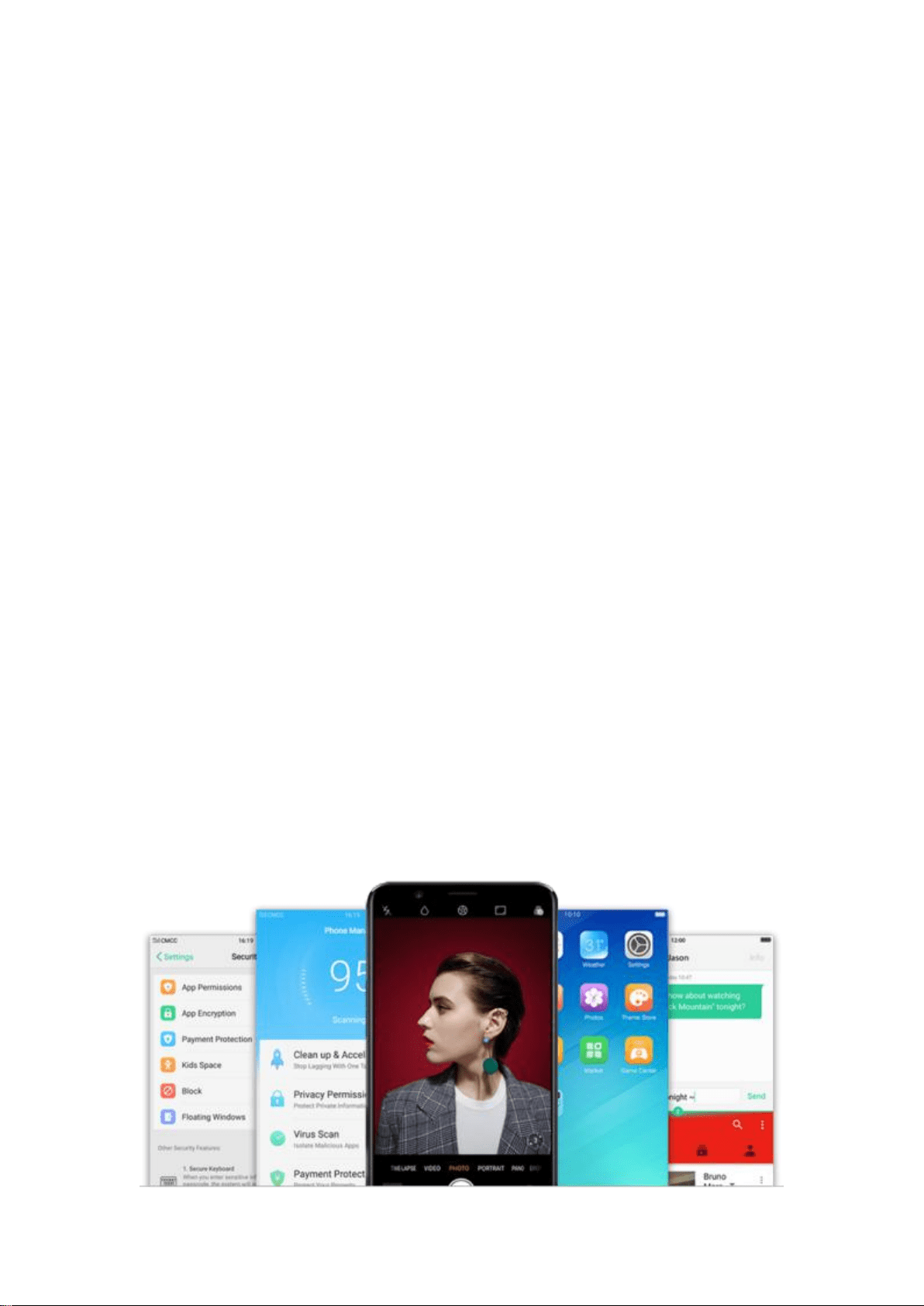
ColorOS 3.1 brings OPPO phones to another level with ultra-fast operating
speed, beautiful and easy-to-use design and innovative security features. It is
more a close assistant than a system. Once you have experience ColorOS 3.1,
you will realize how powerful and intimate it is.
Faster than ever.
The performance is so smooth and responsive that you won’t even notice it.
Whether you’re launching apps, moving from app to app, surfing the web,
processing data or loading the biggest games, you’ll feel incredibly fluid.
At any time, sharing is in a flash.
OPPO provides you a real-time data transmission tool achieves to transmit
nondestructive photos, video and files quickly, without the need for Internet
connections. A speed 100x faster than Bluetooth, see OPPO Share.
Data transfer is hassle free.
Without cables and network connections, your full contact list, extensive
photo gallery and downloaded apps will be copied from phone to phone in
just easy four steps. View more using details in Clone Phone.
Enjoy every smooth and responsive slide.

ColorOS 3.1 brings greater speeds than ever. It not only gives quicker and
smoother reactions to every action, from launching apps to loading the
biggest games, it does so at a phenomenal pace. With the upgraded and
optimized interfaces, you will experience a 23.9% faster speed than ColorOS
3.0, as quick as a blink.
Easy to use.
ColorOS 3.1 brings you many amazing features that not only sound beautiful,
but work beautifully.
Protect your eyes.
You will experience intimate cares when reading. By turning on the night
shield eye protection mode, the screen filters blue light, changing the screen
to a color temperature and automatically adjusting the brightness strength to
ensure you to see the world as clearly and vibrantly as we do. There’s no need
to worry about eye strain any more. See Nightly Shield.
Multiple modes with easy access.
ColorOS 3.1 lets you set multiple modes to fulfil your personal needs. The
split screen mode allows you to work with a second app with the other one
remained active. Now you can watch a movie and chat with friends at the
same time. See Split-screen.

Long screenshot.
Long screenshot allows you to take long screenshots of your conversations
on any messenger or the screenshot of a full web page, or screenshot of
some long app on your phone. Press and hold the Power and Volume Up
buttons for a few seconds to start capturing long screenshots. ColorOS 3.1
supports to take long screenshots up to 40 pages.
Security
ColorOS 3.1 is set to protect each of your actions, your files and even your
children. A series of advanced technologies are coming out to protect your
privacy and security. View more details in What's new in ColorOS 3.1.
Secure Keyboard. When you enter sensitive information such as passcode,
the system will automatically switch to use OPPO Secure Keyboard to protect
your input content from leaking out.
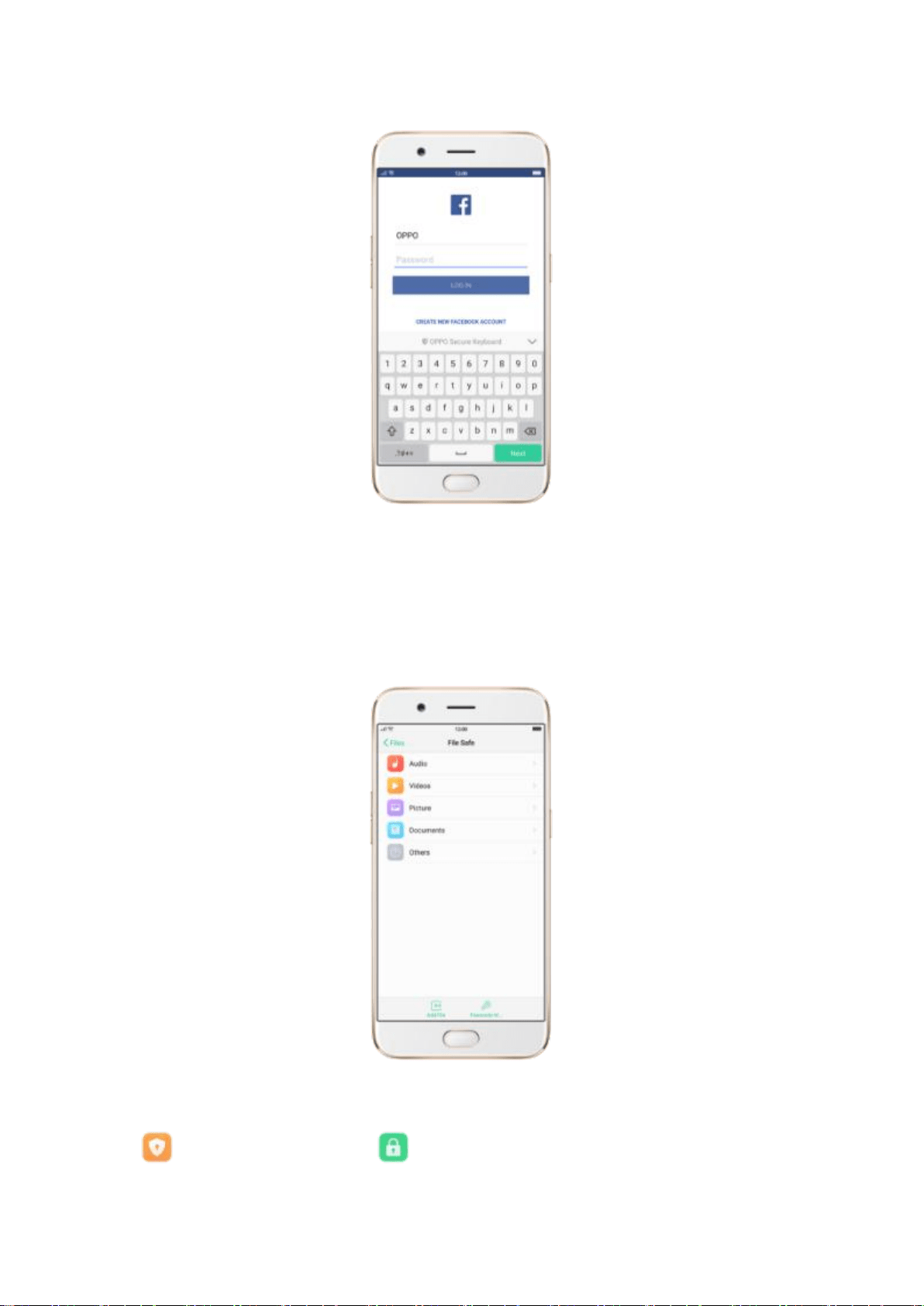
Upgraded File Safe. Add in file categories. At a glance, you will find whatever
you want.
App Permissions & App Encryption. You can monitor apps’
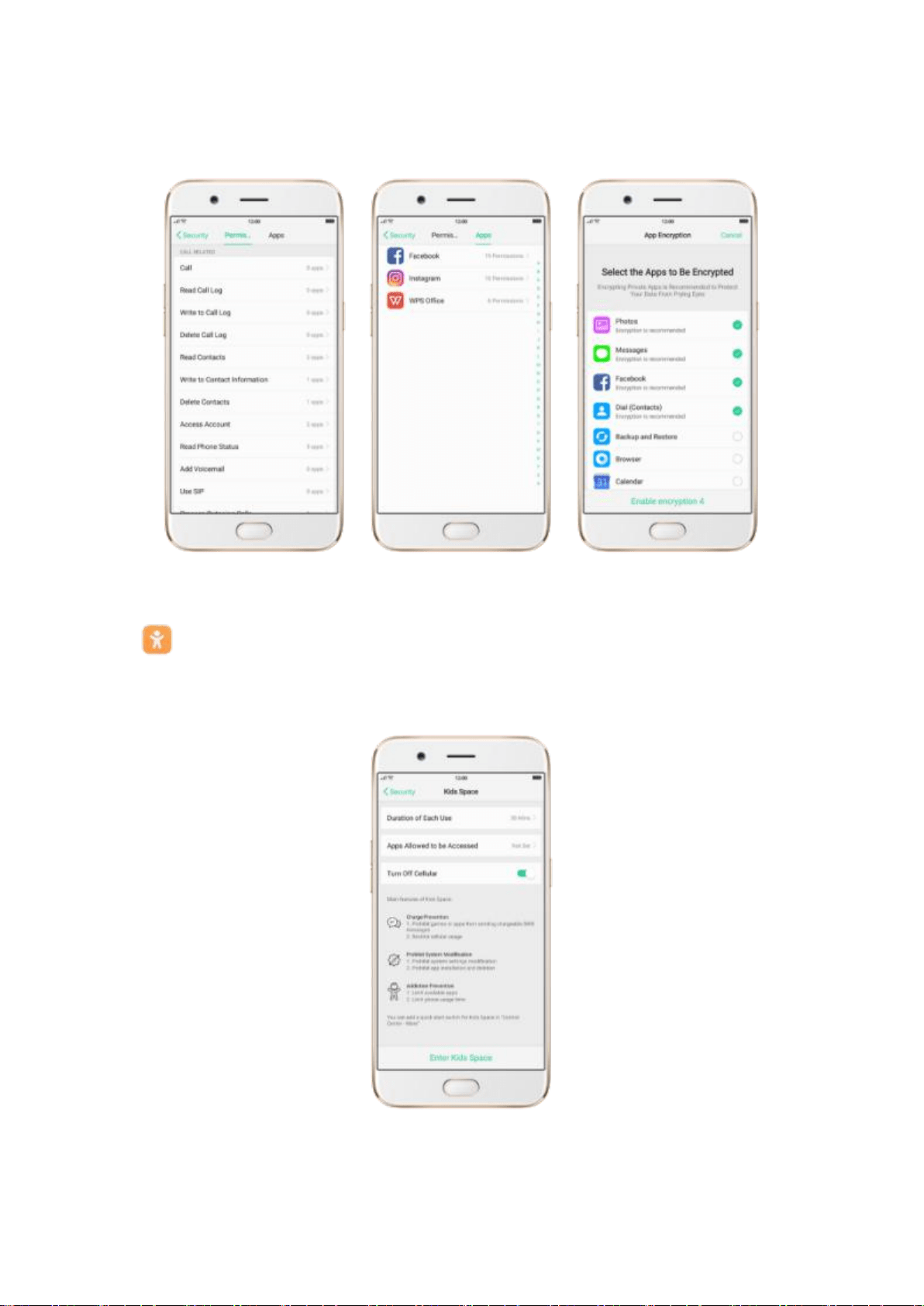
background behaviors, and encrypt apps to protect from prying eyes.
Kids Space. It does a good job in charge preventing, system modification
prohibiting and addiction preventing for kids.
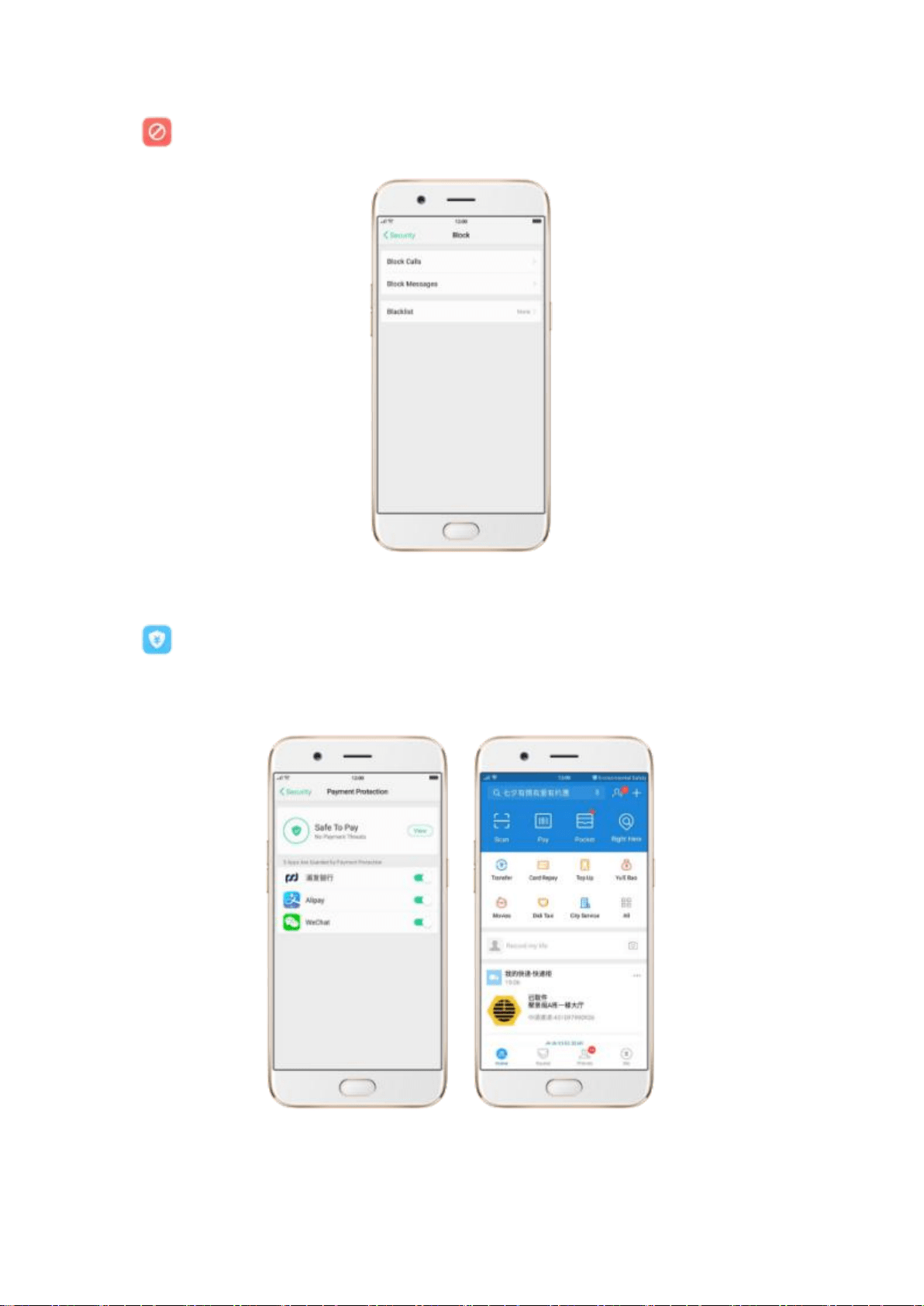
Call blocker. Effectively identify and intercept harassing calls.
Paying safely. As long as you make purchases online, ColorOS 3.1 will
ensure the safety of your mobile transactions.

Changing language. Lock screen passcode is required when switching to
other languages.
Managing notifications. You can choose to display notifications on lock
screen or not, and customize them as you like.
Malicious chargeback. You will get alerts when there is any malicious theft of
your money in the background.
Beautiful, as you are.
Vitality is the beauty's content, while order is its form. Keeping up with the
current trends and mainstream aesthetics, we have redesigned the icons and
interfaces, and now, ColorOS 3.1 is more beautiful, expressive and livelier than
ever. View more designs in What's new in ColorOS 3.1.
Vivid colors, much relaxing, much younger.
System icons have been recolored to become more vivid and lighthearted
with significantly improved color brightness and saturation.
Beauty of order makes clearer.
Fonts have been fine-tuned in sizes, points, and colors, thus everything
presented to you is just perfect. Contents are ordered in clear structures and
affiliations, at a glance, you can get the point.
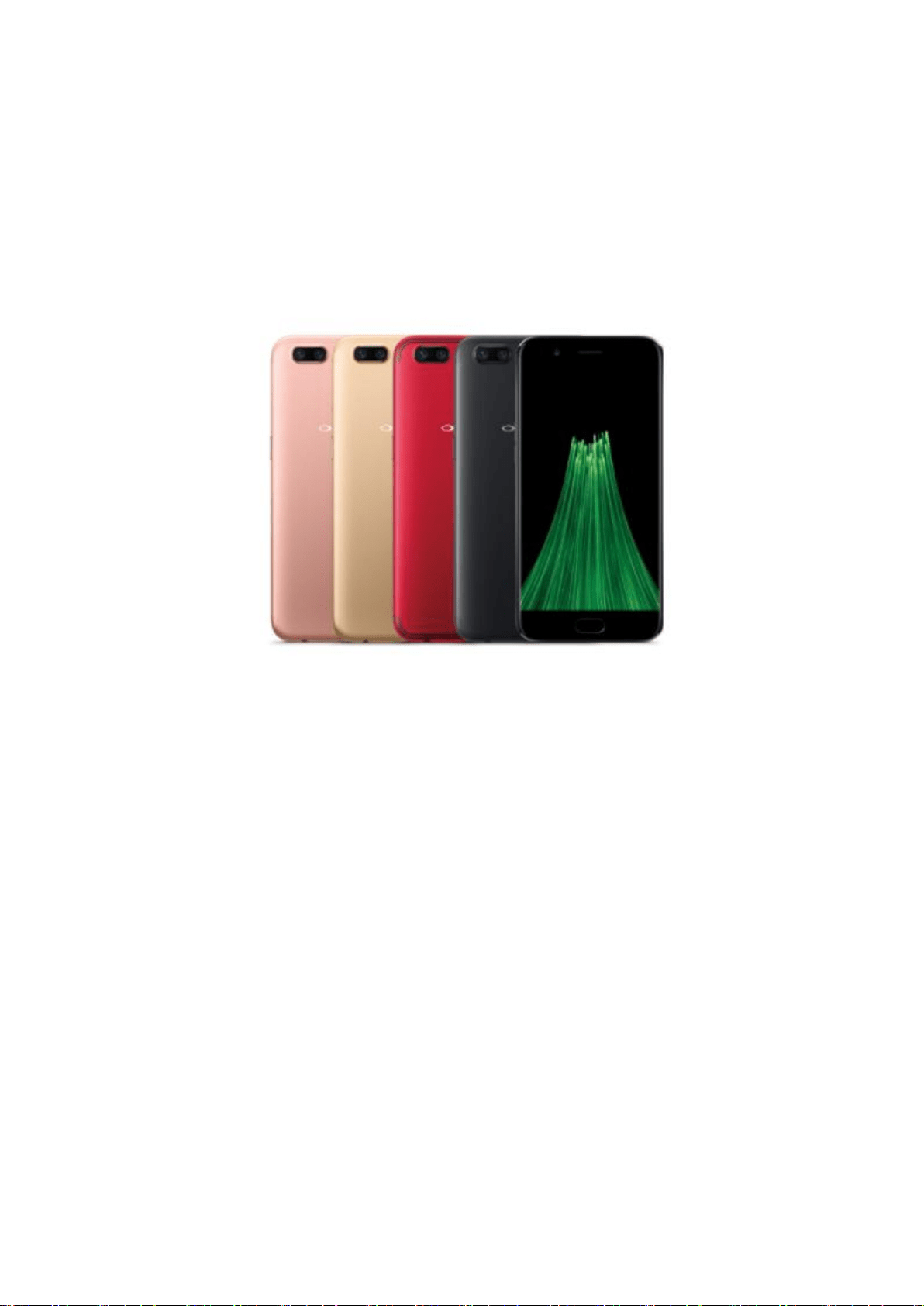
3.1.2. Applicable products and specs
R11
Dimensions/Weight
Height
154.5mm
Width
74.8mm
Thickness
6.8mm
Weight
About 150g(with BATT)
Basic Parameters
Operating System
ColorOS 3.1, based on Android 7.1
GPU
Adreno 512 GPU
RAM
4GB

Storage
64GB (Expandable up to 256GB)
Battery
3000mAh(TYP)
Processor
Qualcomm SDM660
Display
Size
5.5 inches
Type
AMOLED
Colors
16 million colors
Touchscreen
Multi-touch, Capacitive Screen, Gorilla Glass 5
Brightness
430±10% (cd/m²)
Camera
Rear Sensor
20-megapixel,16-megapixel
Front Sensor
20-megapixel
Flash
LED Flash
Aperture
Rear: 20M(f/2.6)+16M(f/1.7) Front: f/2.0
Connectivity
Frequencies
2G:GSM 850/900/1800/1900
3G:WCDMA 850/900/1700/1900/2100 MHz
4G:FDD B1/3/4/5/7/8/20/28
TDD

B38/39/40/41
SIM Card Type
Dual Nano-SIM Cards
GPS
Supported
Bluetooth
4.2
Wi-Fi
2.4/5GHz 802.11 a/b/g/n/ac
OTG
Supported
NFC
No
Sensors
G-sensor
E-compass
Gyro-Sensor
Light and Proximity Sensor
In the Box
OPPO R11
Earphones
Micro USB cable
VOOC Flash Charger mini
SIM Card Tool
Quick Guide
Case

Important Info. Booklet with Warranty
Card
Applications
Built-in applications: Developed by OPPO, these applications can ensure your
phone to function properly, and cannot be removed.
Third-party built-in applications: Developed by third-party companies and
handpicked by OPPO, these applications are safe and with high utilization,
and can be removed.
A71
_
Dimensions/Weight
Height
148.1mm
Width
73.8mm
Thickness
7.6mm

Weight
About 137g(with BATT)
Basic Parameters
Operating System
ColorOS 3.1, based on Android 7.1
GPU
Mali-T860 MP2
RAM
3GB
Storage
16GB (Expandable up to 256GB)
Battery
2900/3000mAh(Min/Typ)
Processor
MT6750,Octa-core
Display
Size
5.2 inches
Type
TFT
Colors
16 million colors
Touchscreen
Multi-touch, Capacitive Screen, Gorilla Glass 5
Resolution
HD (1280 by 720 pixels)
Camera
Rear Sensor
13-megapixel
Front Sensor
5-megapixel
Flash
LED Flash
Aperture
Rear: f/2.2 Front: f/2.4

Connectivity
Frequencies
2G:Band 2/3/5/8
3G: Band 1/5/8
4G: Band 1/3/5/7/8/38/40/41
SIM Card Type
Dual Nano-SIM Cards
GPS
Supported
Bluetooth
4.0
Wi-Fi
2.4/5GHz 802.11 a/b/g/n/ac
OTG
Supported
NFC
No
Sensors
G-sensor
E-compass
Light and Proximity Sensor
In the Box
OPPO A71
Earphones
Micro USB cable
Charger
SIM Card Tool
Quick Guide
Case
Important Info. Booklet with Warranty
Card
Applications
Built-in applications: Developed by OPPO, these applications can ensure your
phone to function properly, and cannot be removed.
Third-party built-in applications: Developed by third-party companies and
handpicked by OPPO, these applications are safe and with high utilization,
and can be removed.
3.1.3
.
Buttons and components

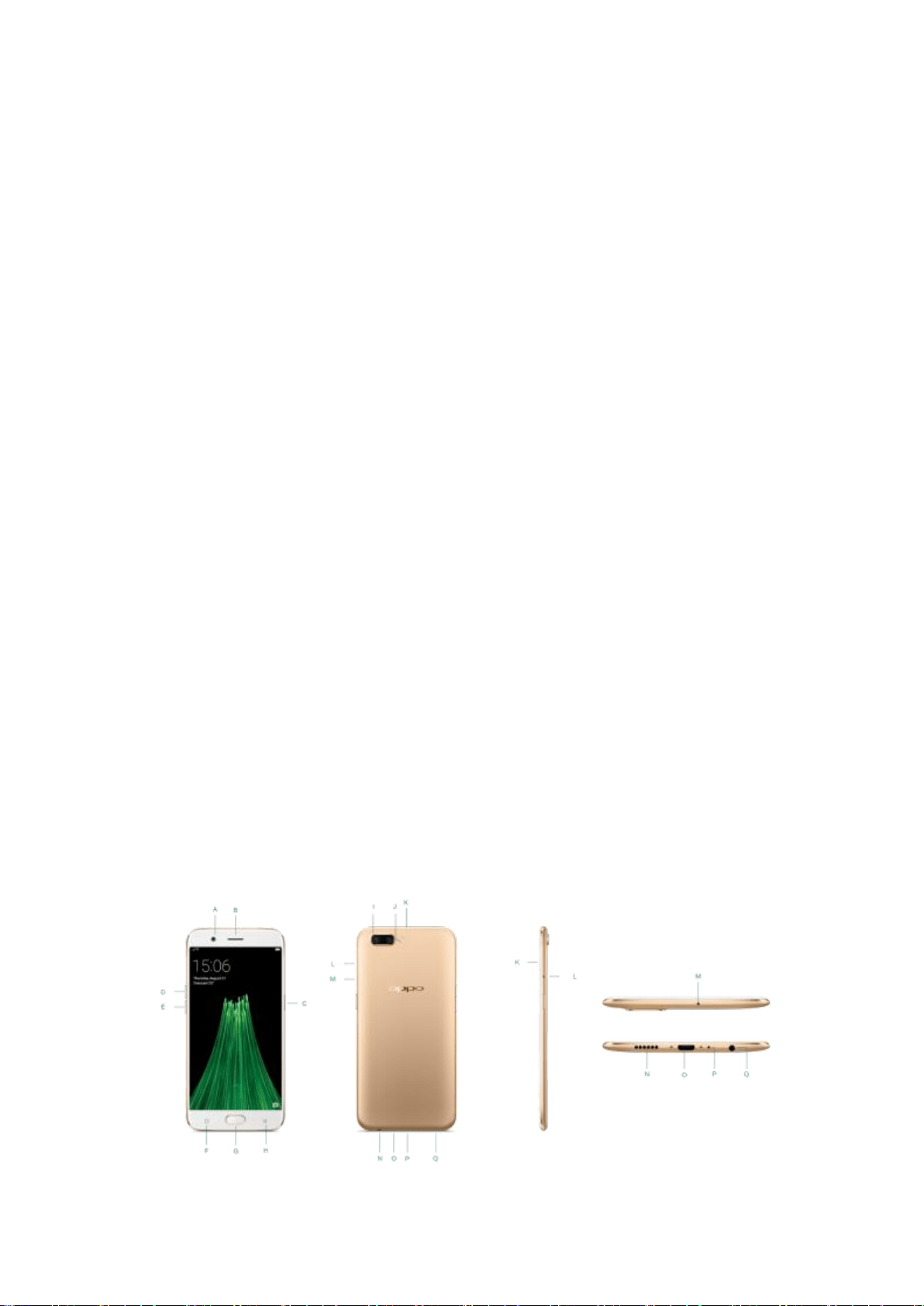
R11 features
A.
Front camera
B.
Receiver
C.
Sleep/Wake button
D.
Volume up button
E.
Volume down button
F.
Menu button
G.
Home button
H.
Return button
I.
Rear cameras
J.
Flash
K.
SIM card tray
L.
SIM tray hole
M.
Noise cancelling microphone

N.
Speaker
O.
Micro-USB port
P.
Microphone
Q.
Headset jack
Functions for buttons and combination keys
To learn more features, see Quick Look at OPPO phone.
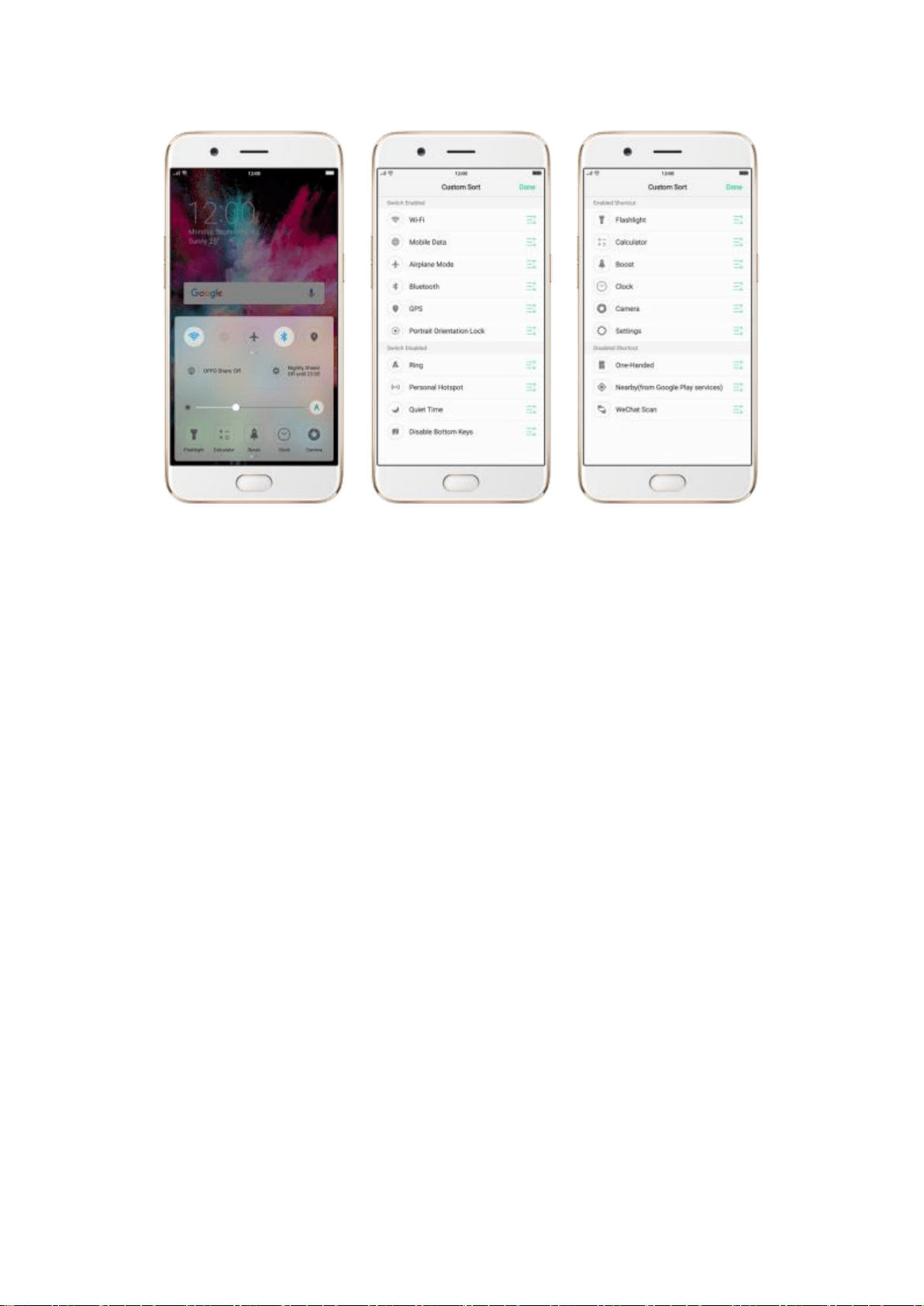
Control Center
Swipe up from the bottom edge of the screen to open control center, which
gives you easy access to Wi-Fi, Mobile data, Bluetooth, GPS, OPPO Share,
Nightly Shield, Flashlight, Calculator, Clock and camera. You can also use it to
adjust the brightness, boost your phone, disable Bottom keys and go to
settings. If you want to change or rearrange the shortcuts, or add other
shortcuts, swipe right and click “More”.
Notification center
Swipe down from the top edge of the screen to open notification center,
which brings all your information into one location, and allows you to
manage all the alerts from different apps. Press a notification to respond to it,
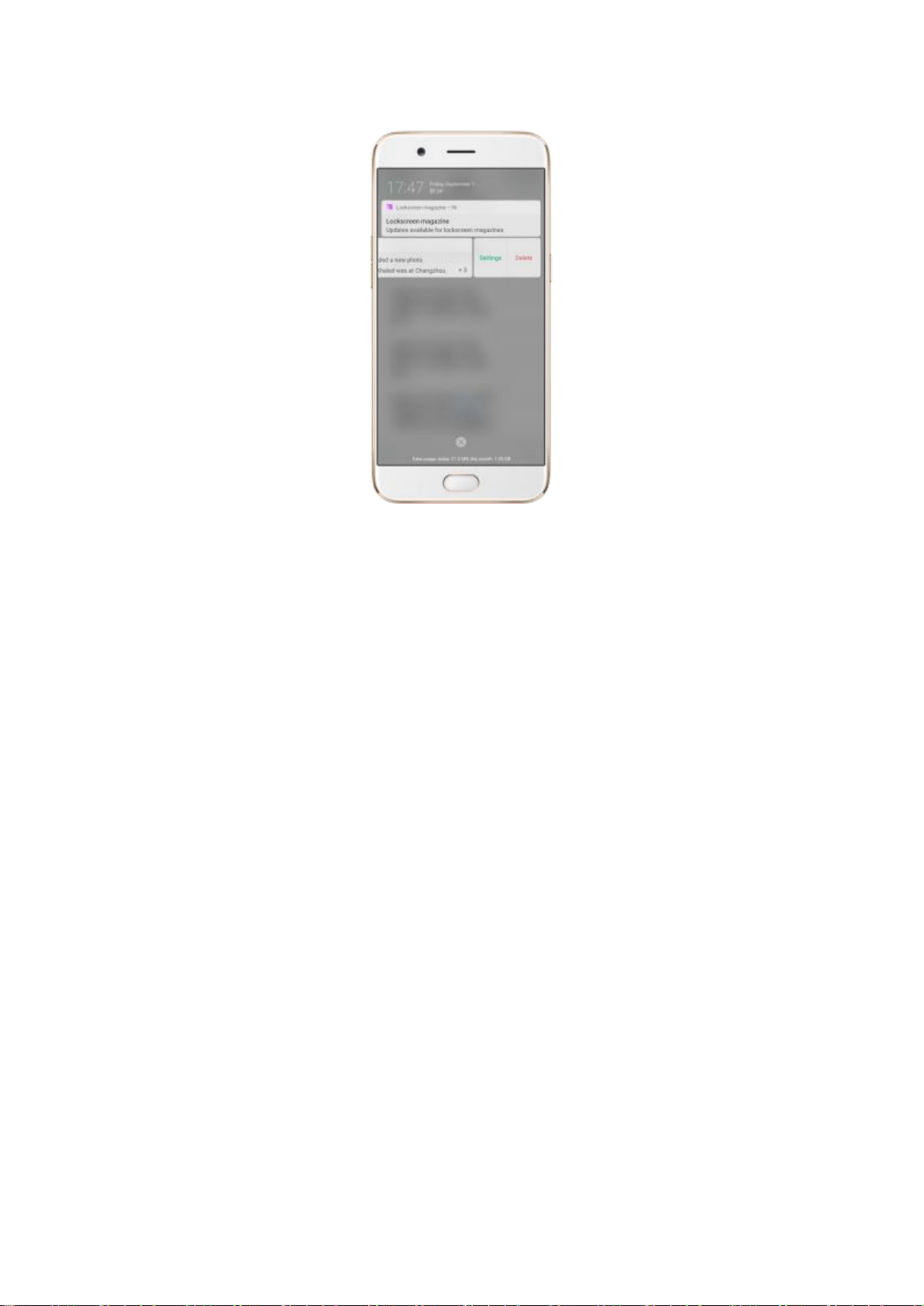
or swipe a notification left for settings or deleting it.
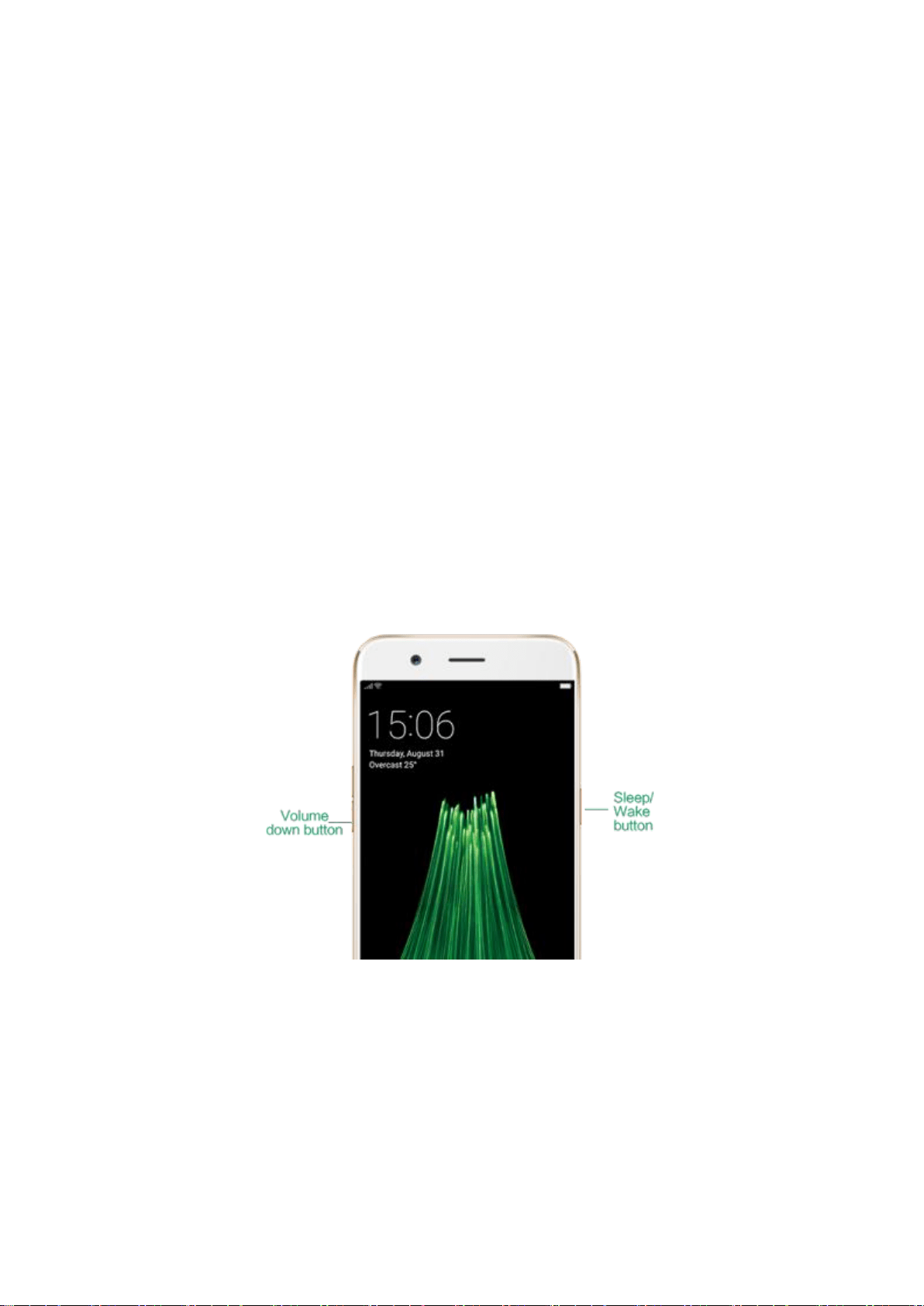
3.1.4. Sleep/Wake button
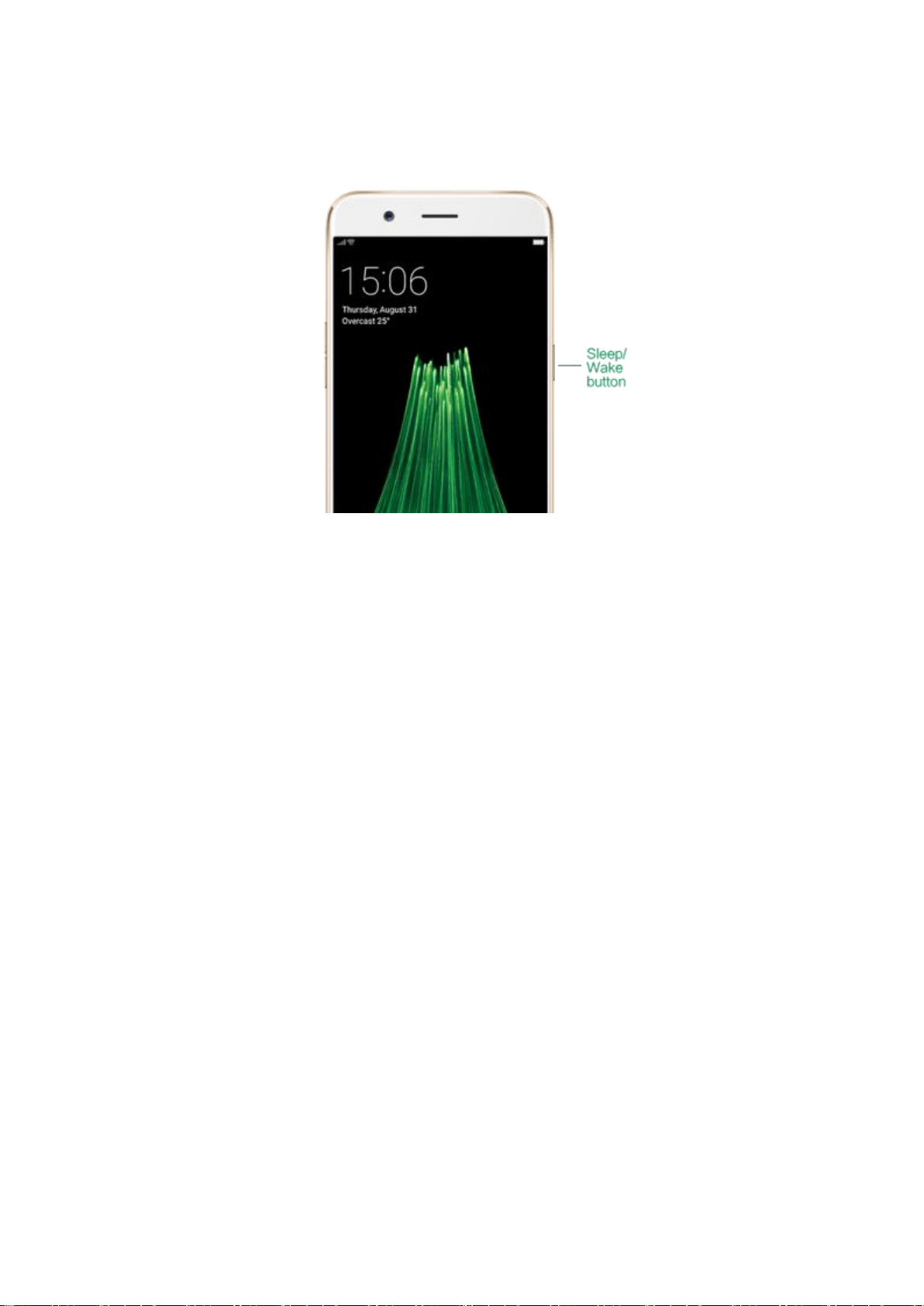
The Wake/Sleep button on the right side of your phone has a number of
different uses.
When R11 is on
Wake or lock the screen: With the phone powered on, press the
Wake/Sleep button once will wake the phone up to the point that you can
see the lock screen, like the clock and any notifications that are setup to
display there.
When the phone screen is wakened, press this button will blacken the screen
and lock the phone.
Take a screenshot: Press and hold the Sleep/Wake and Volume Down
buttons at the same time, your phone will take a picture of whatever was
displayed on the screen. The image is saved in the Photos app.
Take a long screenshot: Press and hold the Sleep/Wake and Volume Up

buttons at the same time, your phone will capture a long screenshot.
End a call: Go to [Settings] > [Additional Settings] > [Accessibility] and
turn on [Power Button Ends Call], then you can press the Sleep/Wake
button to end phone calls.
Turn off the phone: Press and hold the Sleep/Wake button for a few
seconds, whether the phone is on the lock screen or home screen, it will ask
you to slide down to power off the device.
Force restart the phone: Press and hold the Sleep/Wake and Volume Up
buttons for at least 5 seconds until your device is turned on to force restart
your phone.
When R11 is off
Turn on the phone: Press and hold the Sleep/Wake button for a few
seconds, and the phone will turn on.
Force restart the phone: Press and hold the Sleep/Wake and Volume Up
buttons until your device is turned on to force restart your phone.
Enter Recovery Mode: Press and hold the Sleep/Wake and Volume Down
buttons at the same time to enter Recovery Mode.
3.1.5. Menu, Home and Return buttons
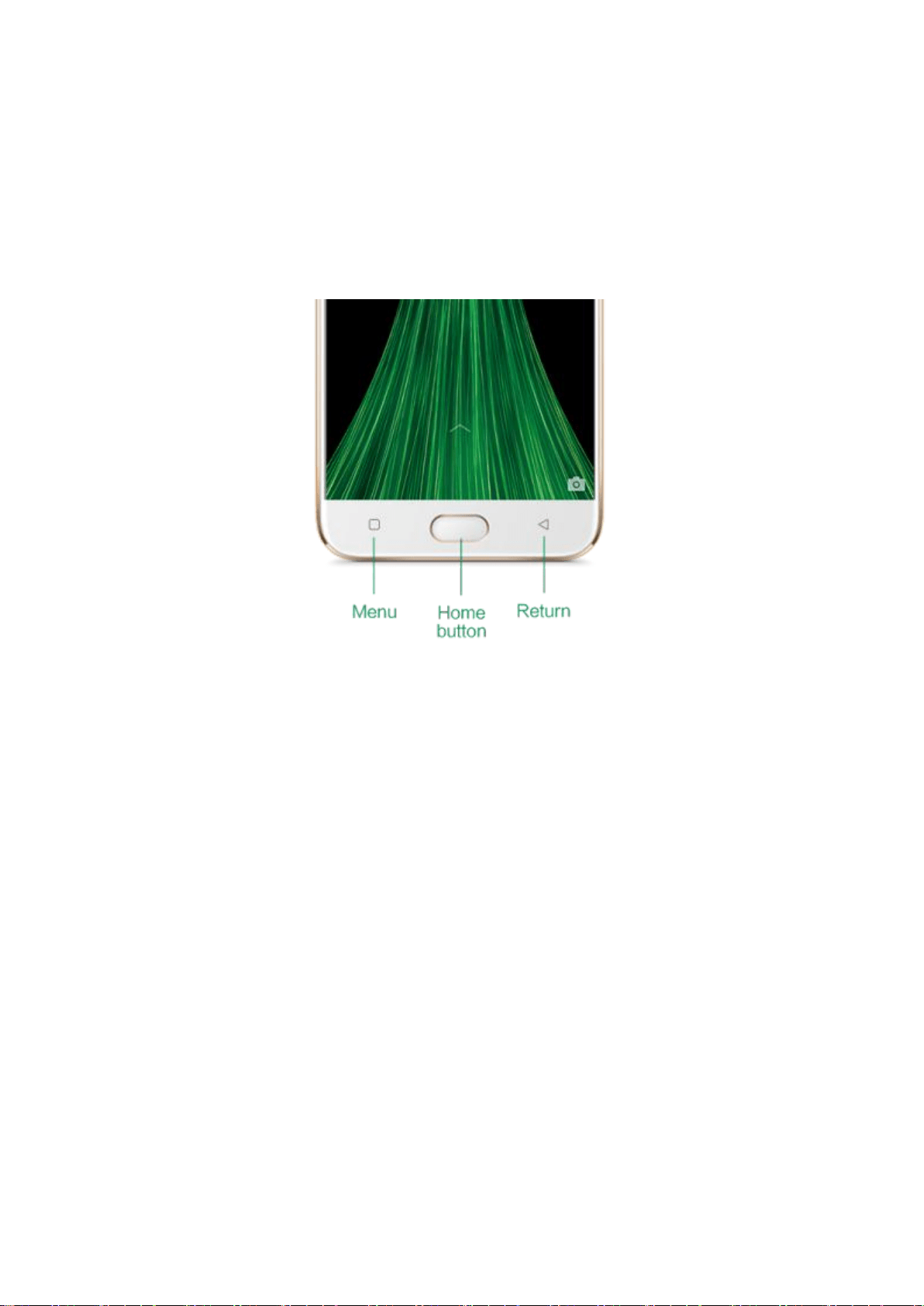
The three buttons at the bottom of your phone make it easy to learn and use
your OPPO R11.
Menu button
The Menu button on the bottom left would bring up a menu for apps that
you were in, and helps to enter Split-screen mode.
See the applications you’ve opened: Click Menu, then swipe left or right.
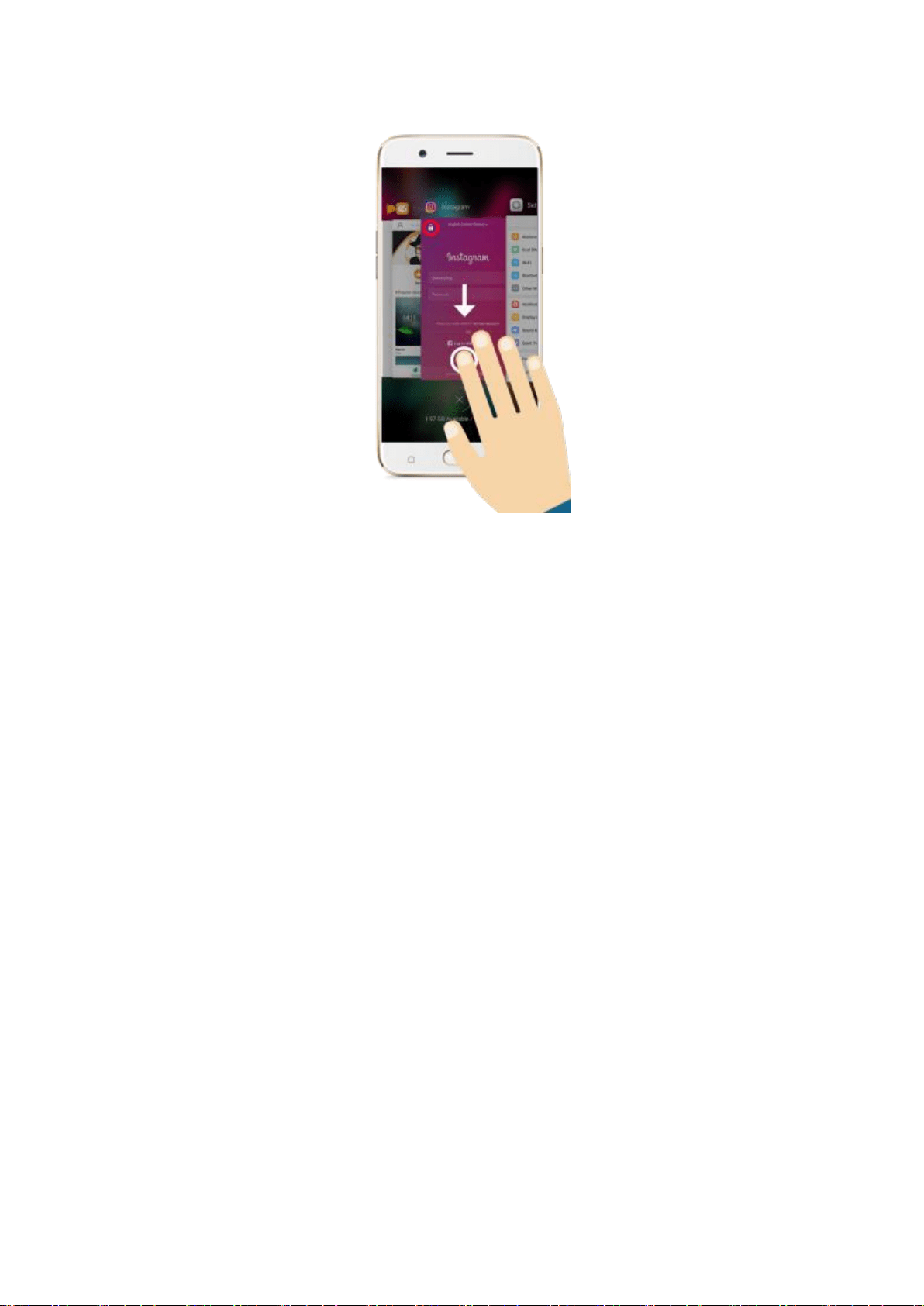
Close and lock the applications: Click Menu, and you can close all the
opened apps with one-click. If you want to close a specific app, swipe it up.
To lock an app, swipe it down. Swipe the app down again to unlock it.
Enter split-screen mode: Go to [Settings] > [Additional Settings] and turn
on Split-screen, then open an app. Under the interface of the app, press and
hold Menu and select the other split-screen app. Now your screen will be
divided into two areas, which each area shows a different scene at the same
time.
* Notice: Both apps need to support Split-screen function. Your phone will alert you
if the app doesn’t support that.
Home button
Use the Home button to control your R11 outside of the onscreen controls.
Unlock the phone: Add a fingerprint to unlock your phone. Before you can

add a fingerprint, you need to create a passcode for your OPPO phone. Go to
[Settings] > [Fingerprint & Passcode] for settings, then you can use the
fingerprint to unlock your phone instead of the lock screen passcode, make
purchases and use it for [App Encryption] and [File Safe], just put your
finger on the Home button for recognition.
Go to the Home screen: Press the Home button at any time to see your
phone applications. Click any application icon to get started. If you are
already on the Home Screen, click the Home button will take you to the very
first page of icons.
Use Google: Press and hold the Home button to use Google for Web
searching.
Wake up screen: Go to [Settings] > [Gesture & Motion] > [Screen-off
Gestures] and turn on [Dbl Tap Fingerprint Button for Screen-on], then
you can wake up your locked screen with a double-click on the Home button.
* Notice: This function is only effective when the fingerprint sensor is turned off.
Return button
Go back to the previous page: Click Return at any time you want to go back
to the previous page. If you are already on the main interface of an app, click
Return will quit this app.
3.1.6
.
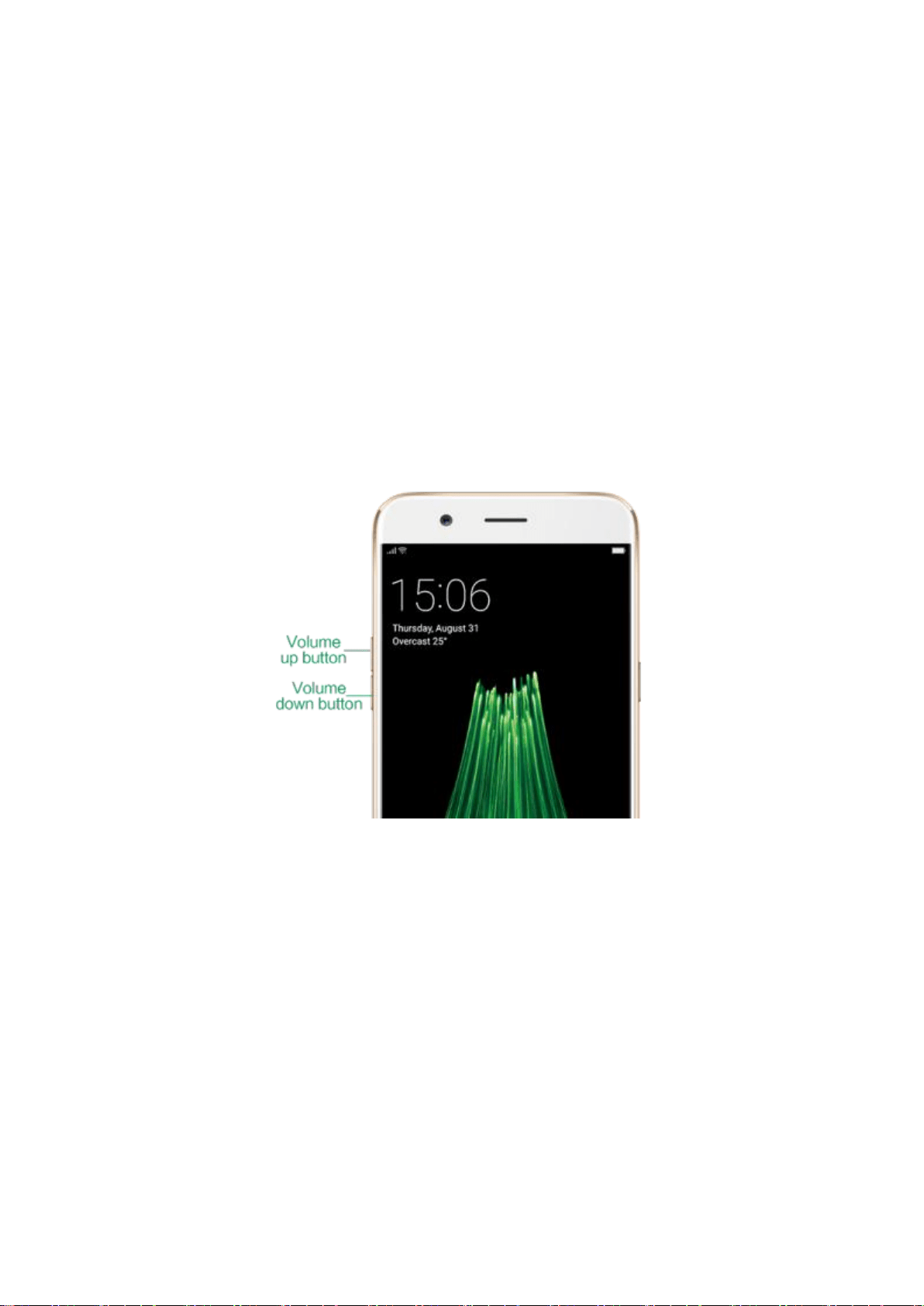
Volume buttons
Volume buttons give you easy access to adapt over time to a proper volume
of sound. It refers not simply ringer or media, R11 also keeps track of the
volume level separately in headphone, microphone and speaker.
Media volume: When listening to music, videos and phone calls, use the
buttons on the side of the phone to adjust the volume. For information about
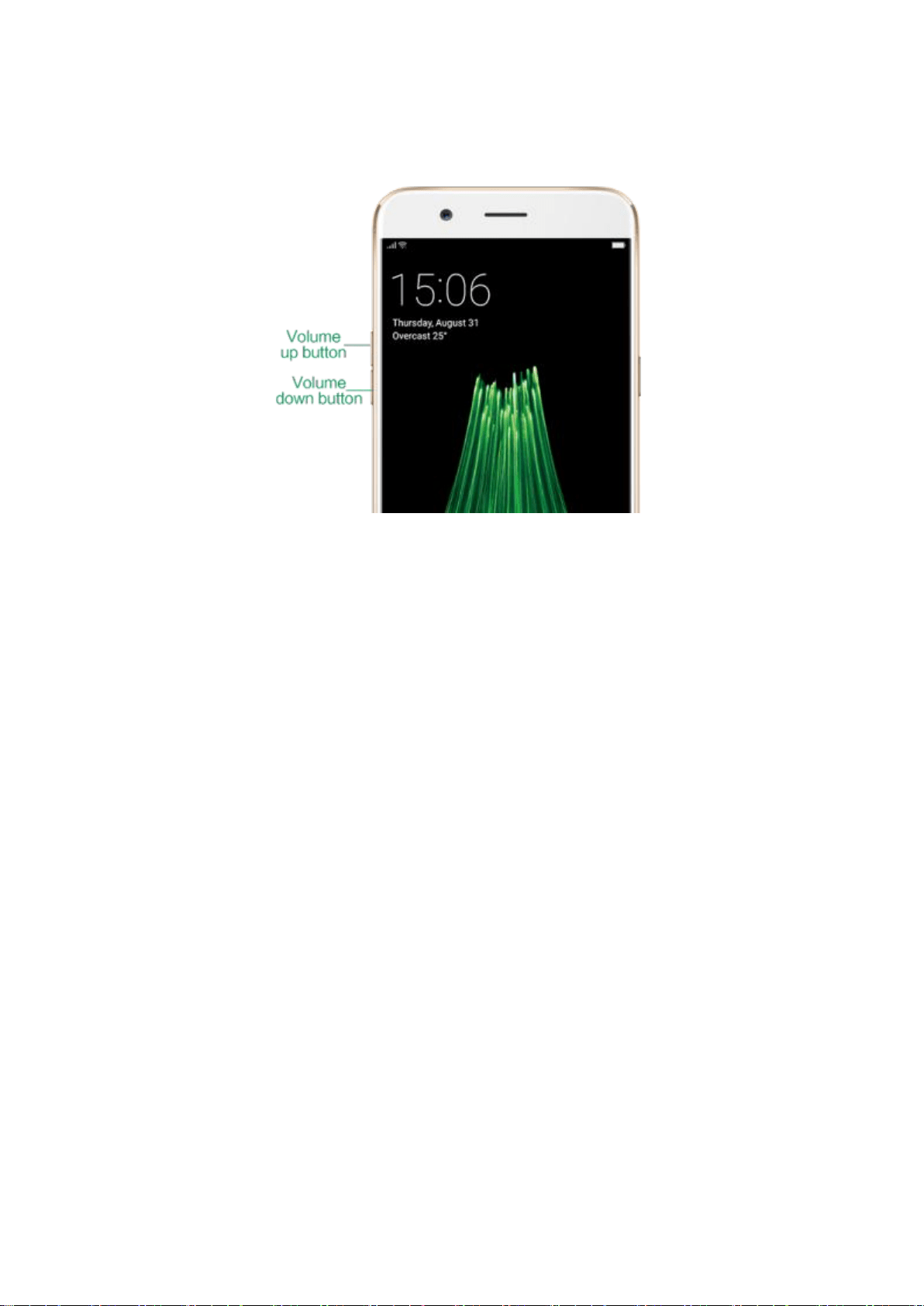
avoiding hearing loss, see Security Information.

Ringer volume: You can also use the volume buttons to control the volume
for the ringer and alerts. When you press and hold the volume down button,
your phone will switch to silent mode.
Call volume: When making or receiving phone calls, use the volume buttons
to adjust the volume of the call.
* You can also adjust the volume (except call volume) in [Settings] > [Sound &
Vibration].
Controlling the camera: Volume buttons can also be used to control your
camera. Go to [Settings] > [Camera] > [Volume Button] and set up the
volume buttons for Shutter or Zoom.
3.1.7. Micro-USB port
R11's Micro-USB port is the connector on the bottom of your device where
your battery charger connects. It also doubles as the data port, which lets you
transfer data to and from a personal computer. Plug the cable in the port to
charge or transfer data.

Notice:
1. Repeated connecting and disconnecting of your cable can cause the port
to wear out, resulting in a poor connection to your cable.
2. Never force a connector into the port, for that might cause damage.
3.1.8. Headset jack
The headset jack is an audio socket that accepts a 3.5mm audio plug. Plug
your headset in the jack to listen to music, videos and phone calls. Do not
force a mismatched headset into the jack for that might cause damage.

3.1.9. SIM and SD cards
SIM card
* Insert the SIM card before turning on your phone. If you hold a new SIM card, you
might need to wait until it is activated by the carrier before you can use it.
A SIM card is provided by your carrier and is used to activate your phone's
mobile network. Because it has a small amount of memory, the SIM card not
only enables communications between two persons, but stores information
such as phone numbers, security data and more. When using the mobile
network, you need to pay charges. To avoid high charges, you can shop data
plans with your carrier, or shop international data roaming plans when
traveling abroad.
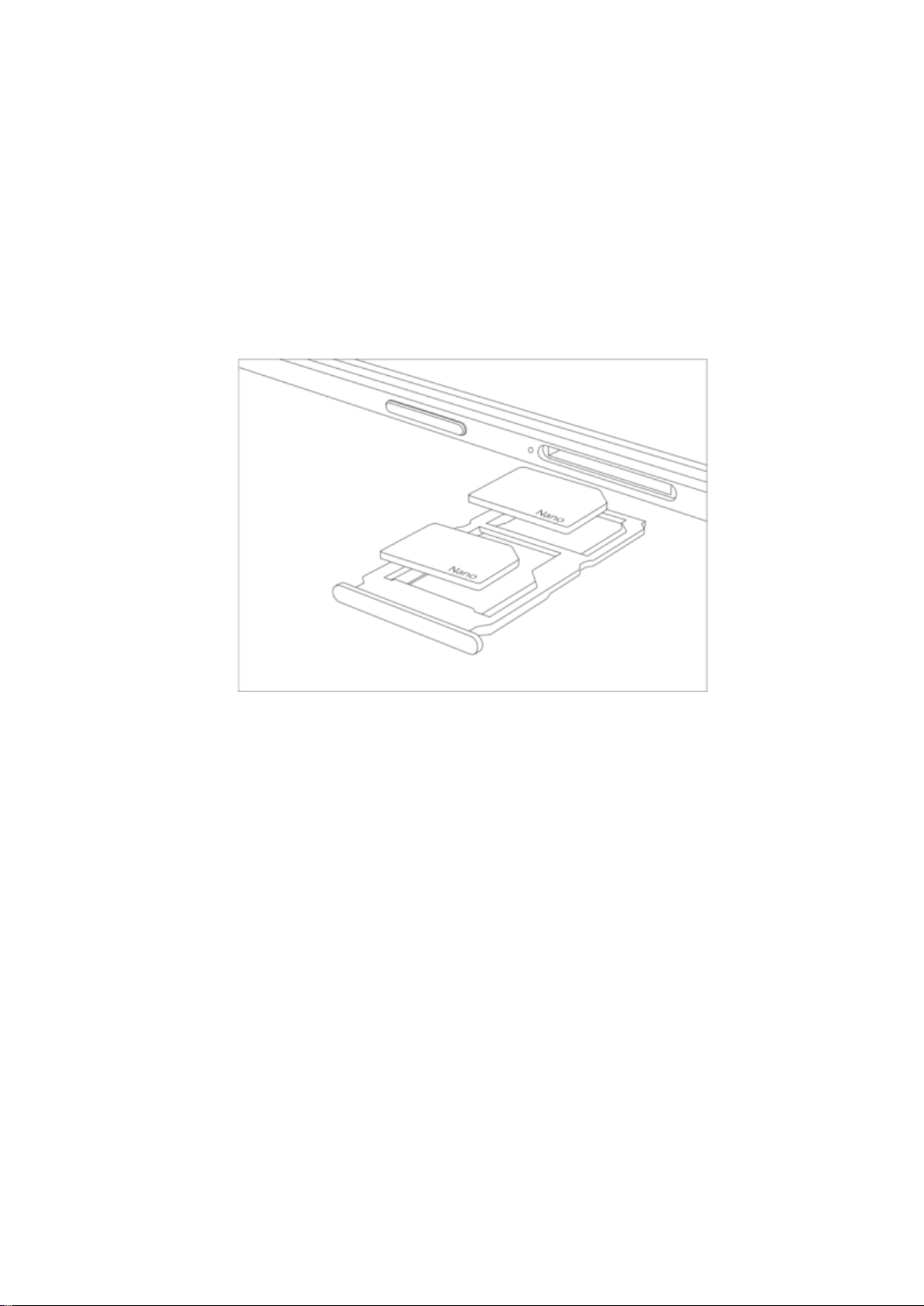
Insert the SIM card: Most OPPO Smartphones support Dual SIM. You can
choose to insert one or two.
1. Insert the card needle into the hole outside the card tray to pop it open.
2. Pull out the card tray and place SIM card(s) on it.
3. Put the card tray back in as the same orientation that you removed it.
Remove the SIM card: Remove the card(s) in the same way that you insert
it(them).
SD card
The SD card is a way to store and transfer images, music, video and other
data. You can insert a SD card in your phone to expand phone’s memory.
SIM1, SIM2 and SD cards share the same card tray. Insert your SD card in the
same way that you insert the SIM card(s).
3.1.10. Accessories came with OPPO phone
Here are accessories came with your OPPO R11.
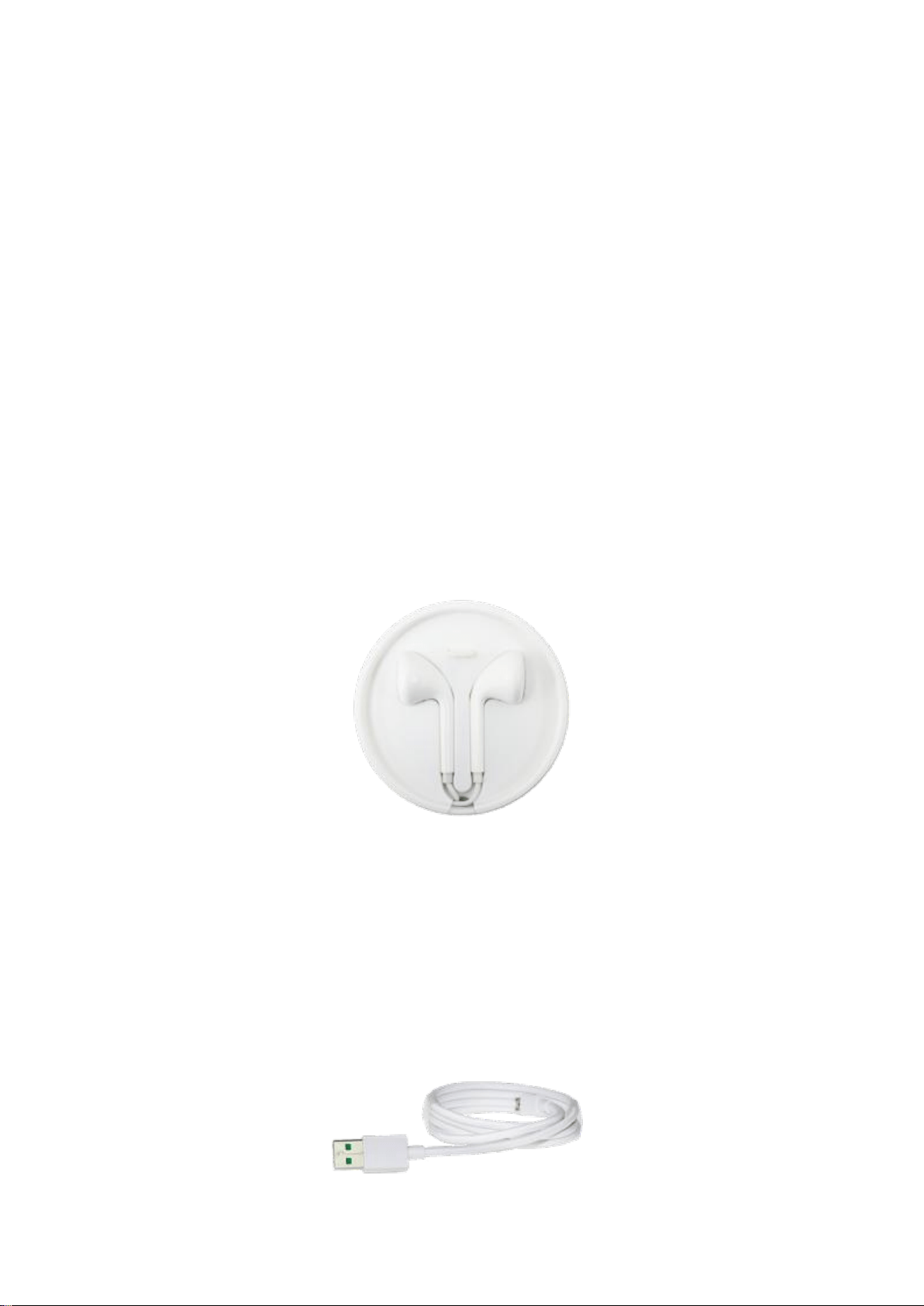
Headset: An American standard headset with 3.5 mm headset plug. Use to
listen to music, videos, and phone calls. Use the built-in microphone to talk.
When playing the music or videos, click the button once to pause or play a
song or video.
VOOC Connecting cable: Use the cable to connect your phone to the
computer to charge and transfer files, or use it with the power adapter to
charge.
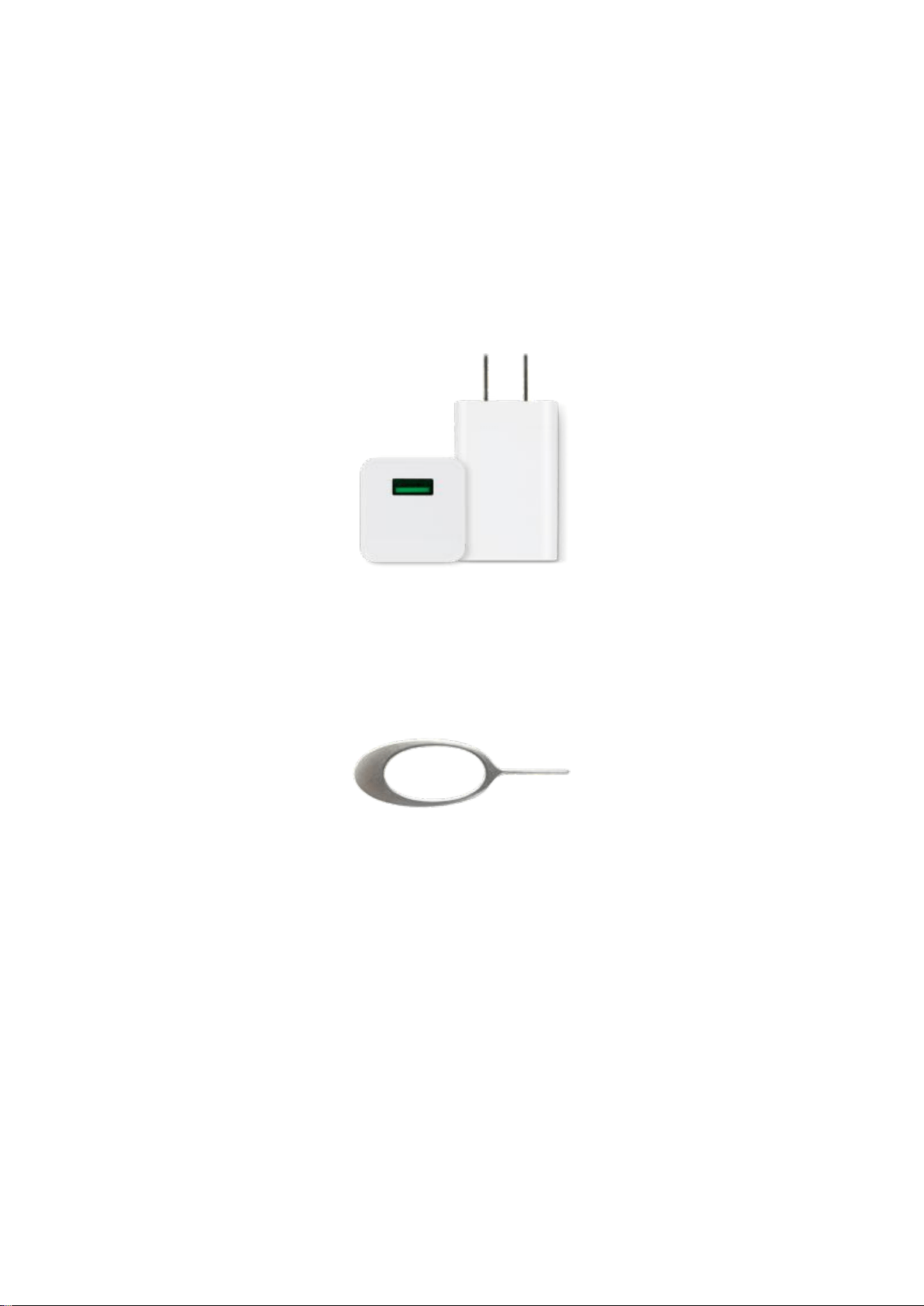
VOOC Power adapter: Connect the power adapter to your phone using the
included cable, then plug it into a standard power outlet to charge the
phone.
SIM card tool: Use to pop out the SIM card tray.
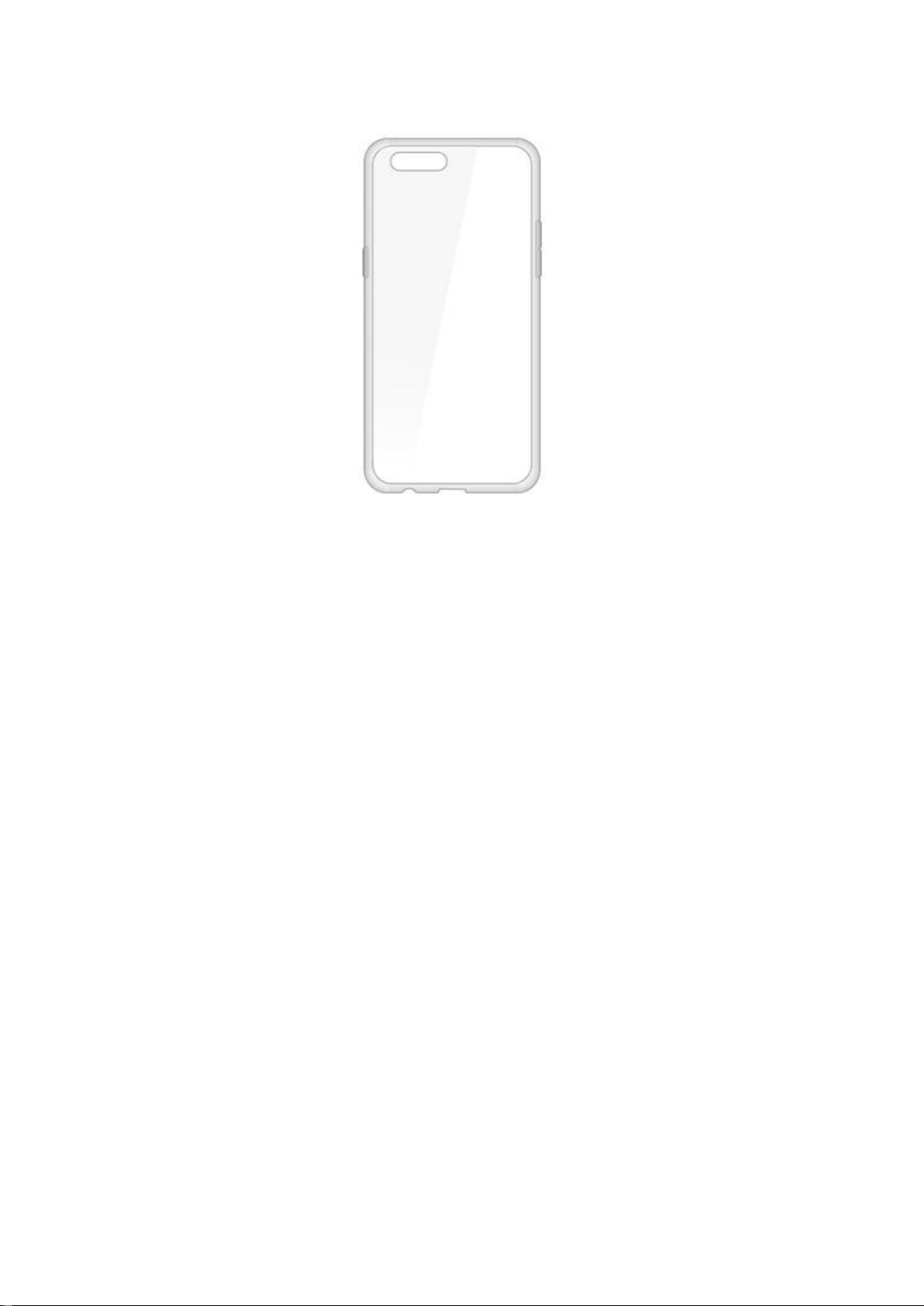
Phone Case: Use to protect against drops and shock damage on the corners
and rear of your phone.
3.1.11. Charging the battery
OPPO R11 comes with the VOOC flash charging technology, offering 4x
faster charging than conventional chargers. A five-minute charge allows R11
to support a two-hour call. A thirty-minute charge gets R11 to 75% of full
battery. VOOC flash charging system will make your phone ready to go when
you are on your way.
How to charge the battery:
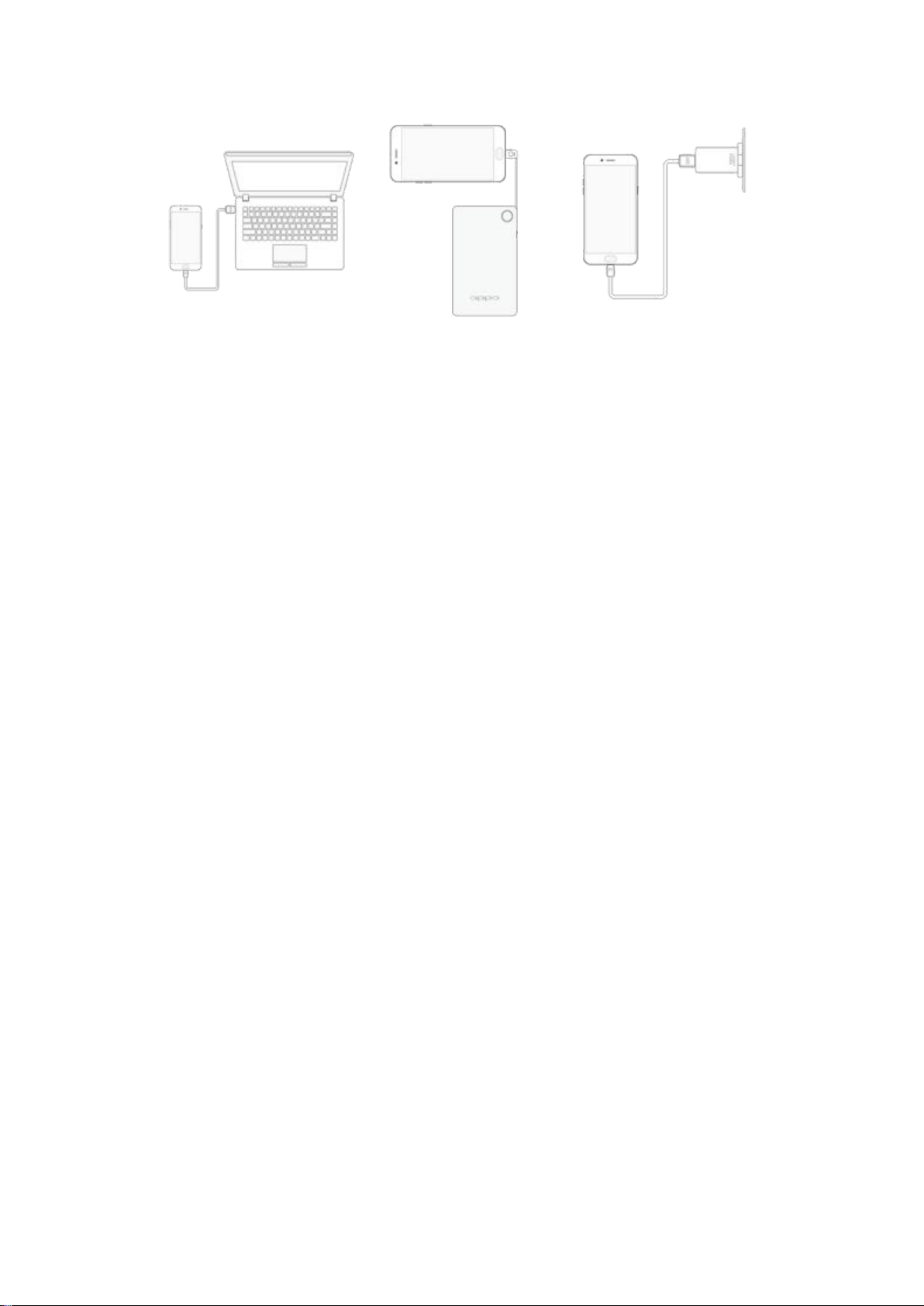
Charge with the jack: Connect the VOOC adapter to your phone using the
VOOC cable, then plug it into a standard power outlet to flash charge the
phone.
Connect to a computer to charge: Use the cable to connect your phone to
the computer to charge. Your phone will charge slowly if you connect it to
the computer, and VOOC flash charge is not available.
Charge with VOOC Power Bank: Connect the VOOC Power Bank to your
phone, and your phone will be flash charged wherever you go. It is an
absolute necessity if you are a frequent traveler.
Charging Notice:

1. Charge the phone with the original VOOC charging accessories (including
VOOC adapter, cable and power bank). Your phone will not be flash charged
if you use a single VOOC accessory or other third-party accessories.
2. Do not use VOOC flash charger on other phones. The charger is able to
detect whether or not the device is VOOC compatible, and will supply the
correct current.
3. Phone won’t be flash charged when the battery level is higher than 85% or
lower than 1%.
4. Charge your phone in a place where the temperature is always between
15 C to 40 C. Extreme ambient temperatures will affect flash charging
system.
3.1.12. Gesture & Motion
Gestures
OPPO smartphone is designed to understand gestures. You can use gestures
such as tap, swipe, drag and spread to operate your phone.
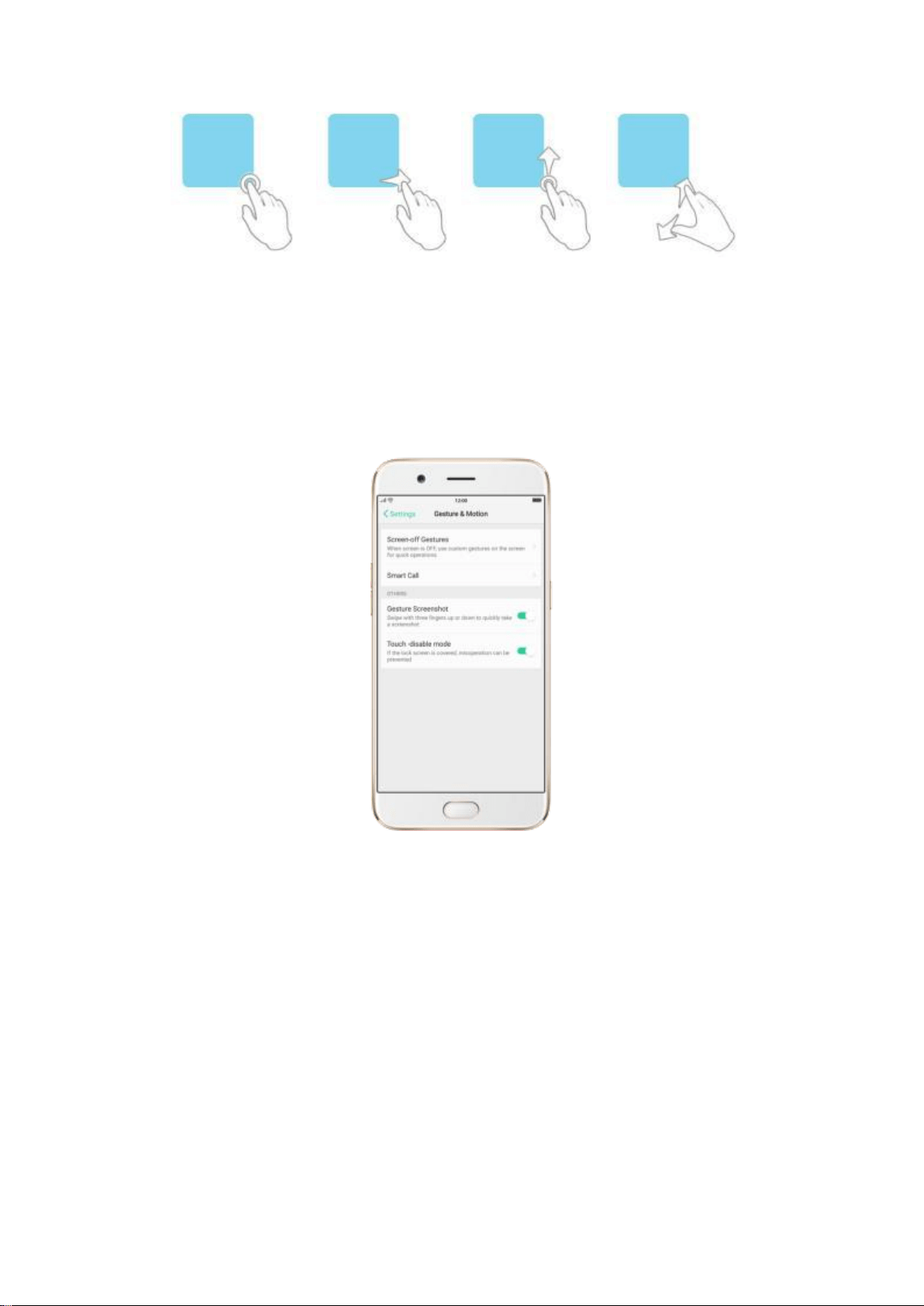
To set up complex gestures for specific functions, go to [Settings] >
[Gesture & Motion].
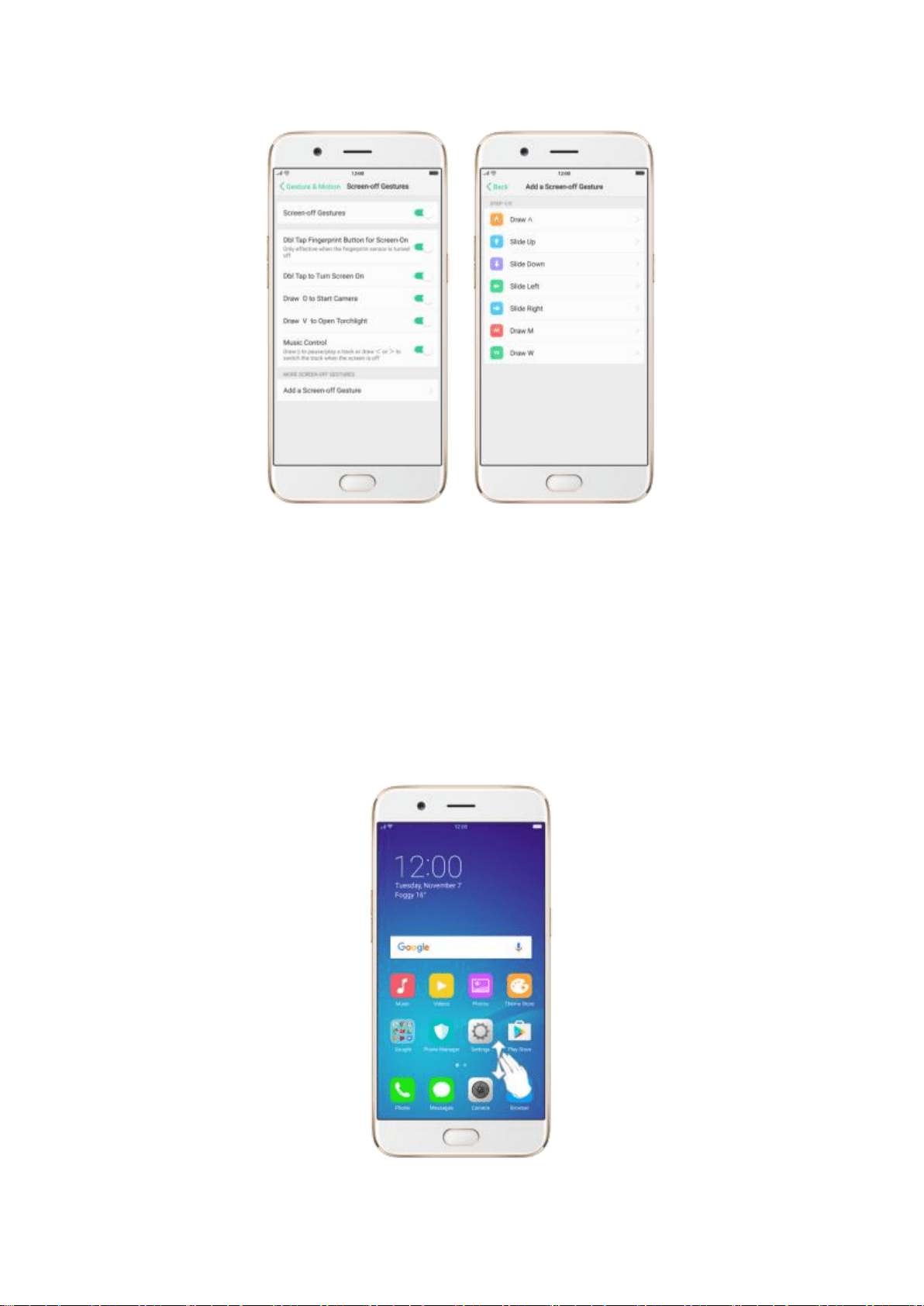
Screen-off Gestures
To set up screen-off gestures, you need to turn it on first.

Double tap fingerprint button for screen-on: Turn it on to wake up your
locked screen with a double-click on the Home button. This function is only
effective when the fingerprint sensor is turned off.
Double tap to turn screen on: Turn it on to wake up your locked screen with
a double-click on the screen.
Draw O to start camera: When turn it on, you can draw O on the locked
screen to open Camera app.
Draw V to open torchlight: When turn it on, you can draw V on the locked
screen to open the torchlight.
Music control: When turn it on, you can draw ‖ to pause/play a track, or
draw < or > to switch the track when the screen is off.
Add more screen-off gestures: OPPO smartphone of ColorOS 3.1 gives you
7 options, which are Draw ^, Slide up, Slide down, Slide left, Slide right,
Draw M and Draw W. Choose one to unlock the phone, call someone or start
an app.
Screenshot Gesture
When turn it on, you can take a screenshot by swiping the screen up or down
with three fingers.

Motion
The motion-sensing technology is used in OPPO smartphone. Use it to let
your phone response to motion.
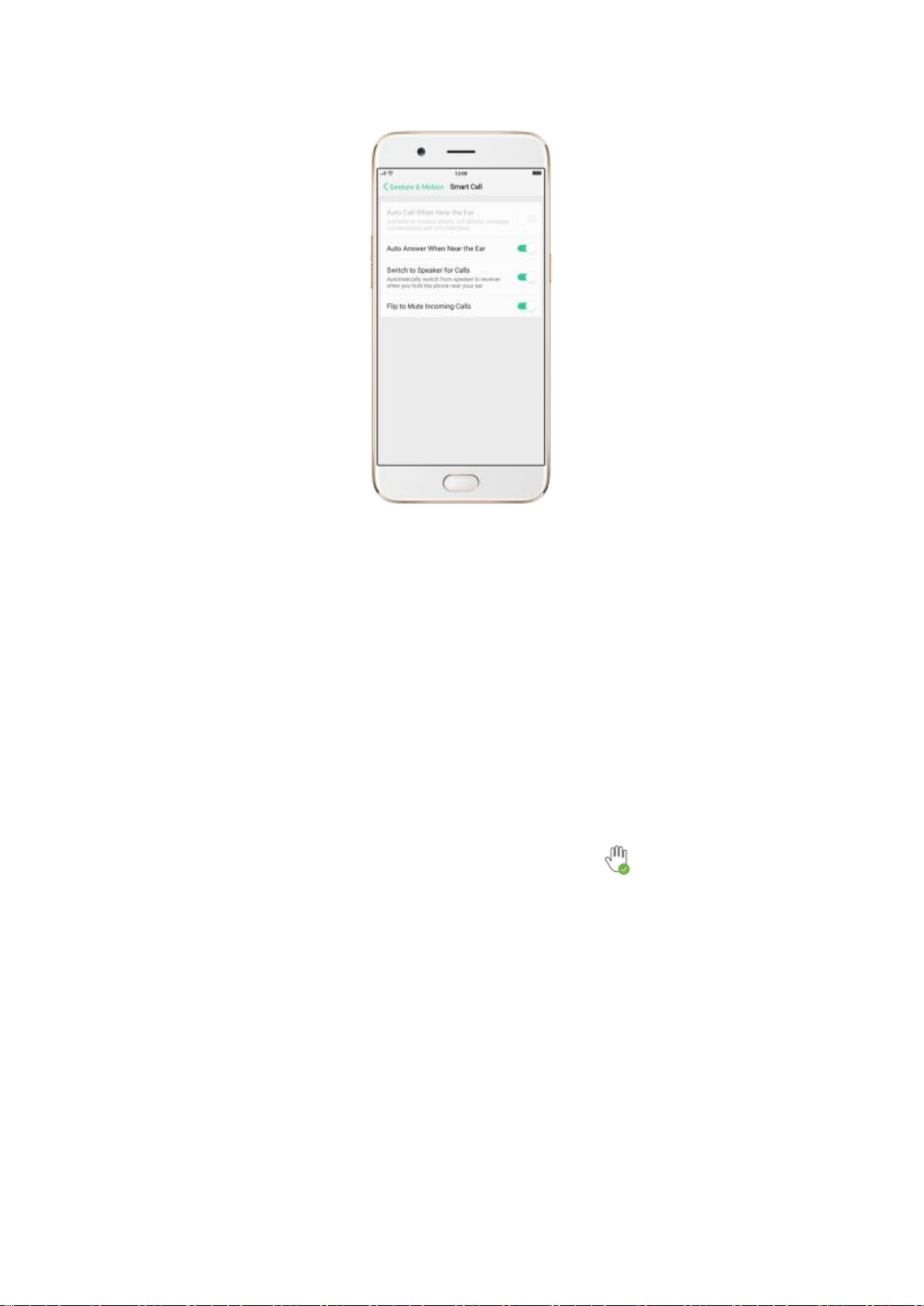
Smart call
Auto call when near the ear: Before you can use auto call, you need to set
the default SIM card for calling. Go to a contact detail, call detail, message
conversation or info interface, put the phone near your ear and your phone
will automatically call that specific person.
Auto answer when near the ear: This function lets your phone to answer any
incoming calls automatically when putting the phone near your ear.
Switch to receiver for calls: Use it to automatically switch from speaker to
receiver when you put the phone near your ear during phone calls.
Flip to mute incoming calls: Use it to silence the ringer by turning the phone
over on a table or other flat surfaces.
Touch-disable mode
Turn it on to prevent incorrect operations if the lock screen is covered.
Take selfies
Open Camera app and switch to the front camera. Click > Palm on the top
of the screen. Pose the same hand gesture towards the camera, once the
camera captures that, it will take a photo automatically after two seconds.
You can change your pose and expression within this two seconds.
3.1.13. Key combinations
Generally, you can use two buttons of your phone to generate a specific
result. The common key combinations include:
When phone is on
Press and hold the Power and Volume Down buttons: Your phone will take
a screenshot for the current page.
Press and hold the Power and Volume Up buttons:
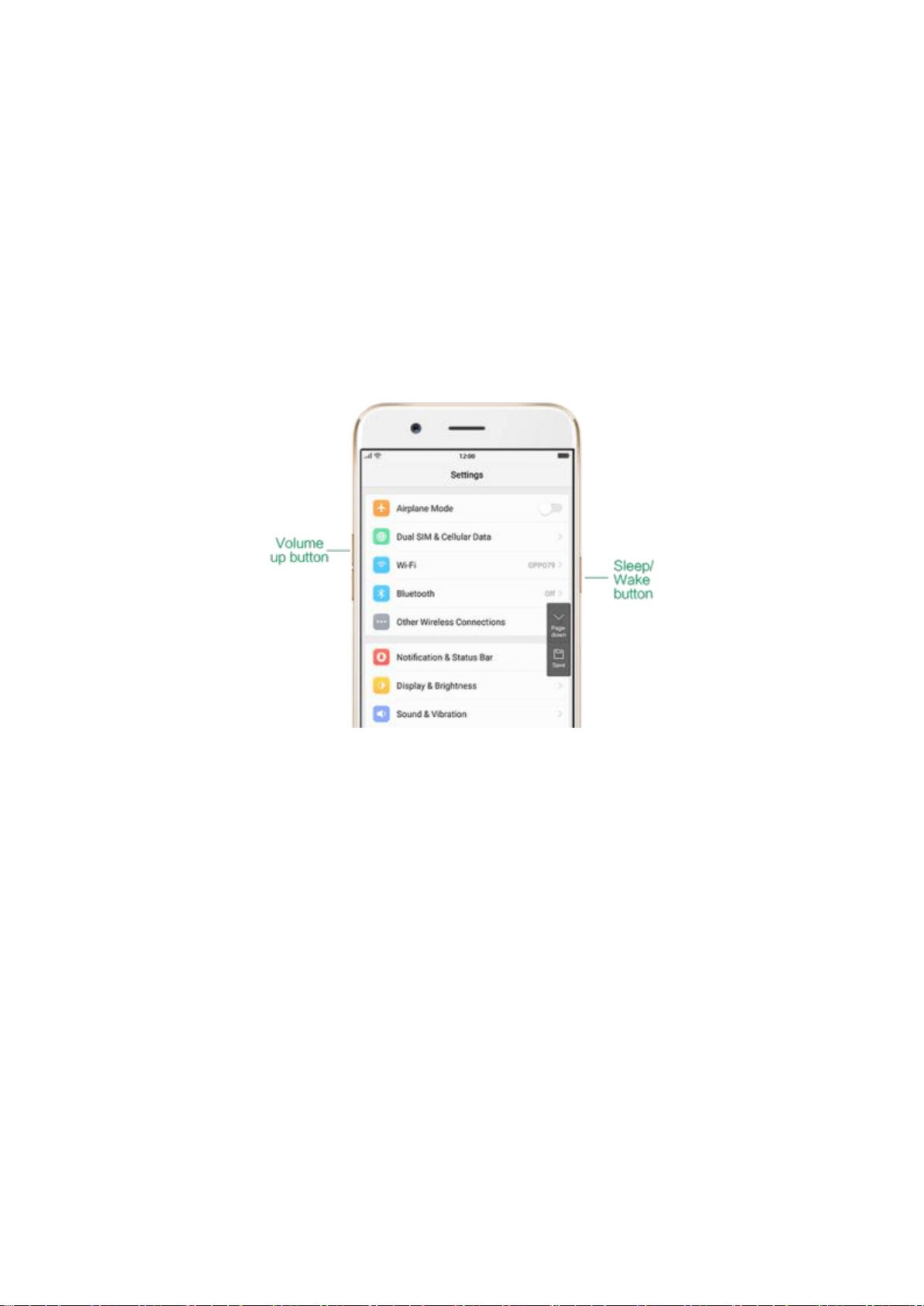
1. Capture long screenshots: About 2 seconds, your phone will be ready to
capture a long screenshot. Click [Page-down] to scroll to the next page,
continue to click Page-down until you want to stop capturing, then click
[Save] to generate a long screenshot.
2. Force restart your phone: Press and hold the two buttons for at least 8
seconds until your smartphone is restarted.
Press and hold the Volume Up and Down buttons: Quit Talkback app
temporarily.
When phone is off
Press and hold the Power and Volume Down buttons: Phone will enter
Recovery Mode, which does help to update the system, wipe data, check disk
and more.
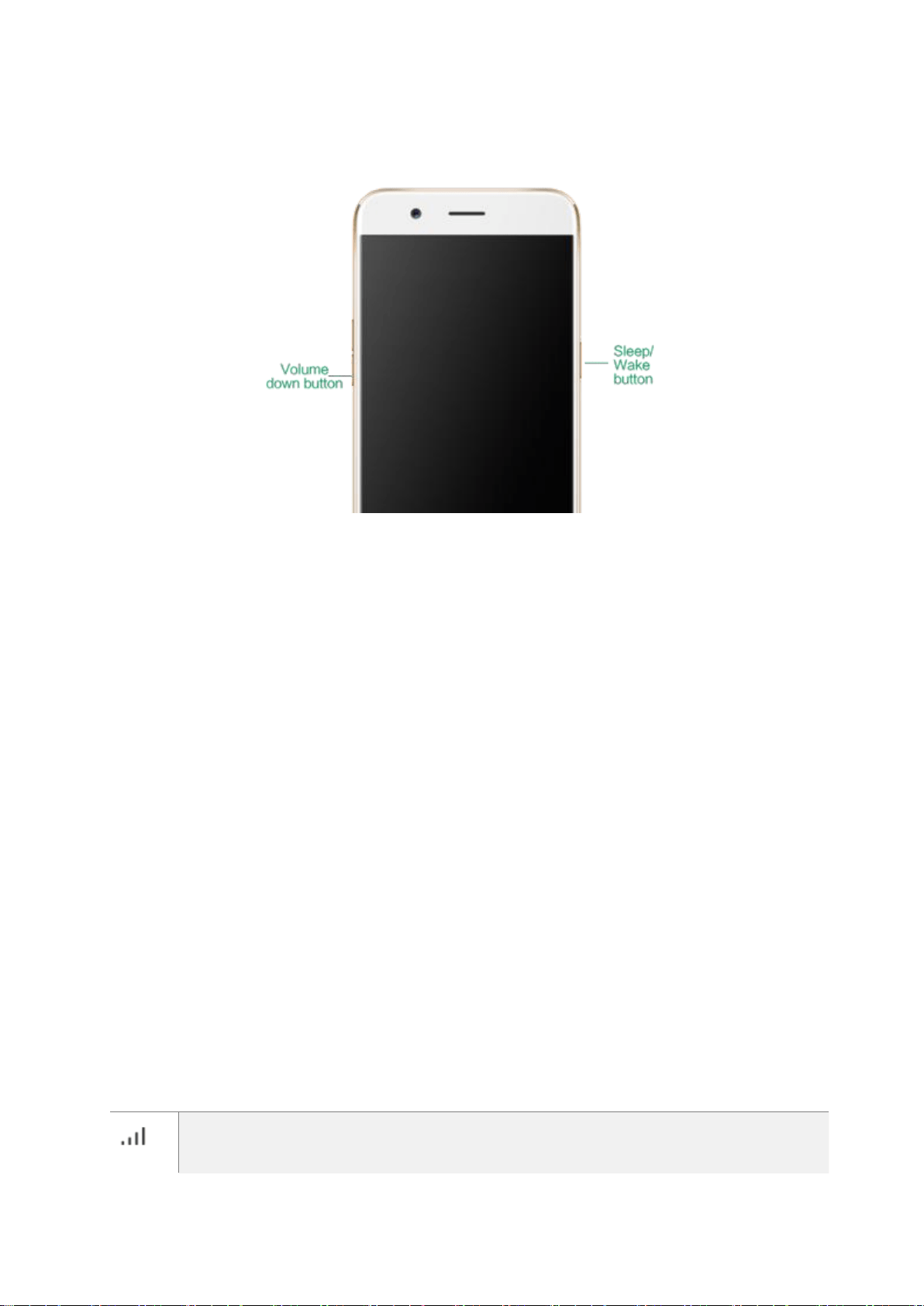
Press and hold the Power and Volume Up buttons: Phone will be force
restarted. Press and hold the two buttons until your phone is turned on.
3.1.14. Status Icons
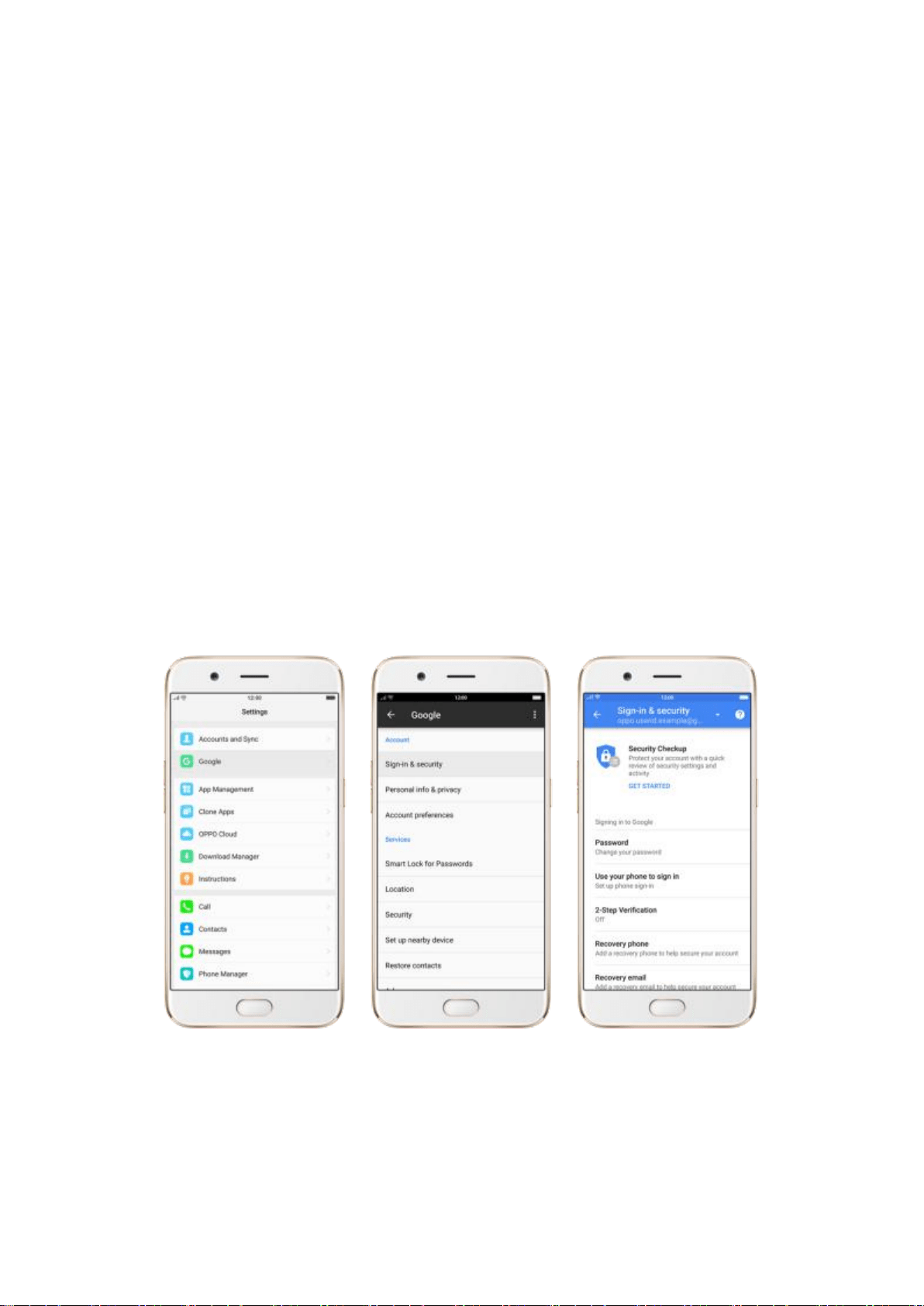
The icons in the status bar at the top of the screen give information about
your OPPO smartphone:
Status icon
What it means
Mobile network signal
Shows whether you’re in range of operator’s
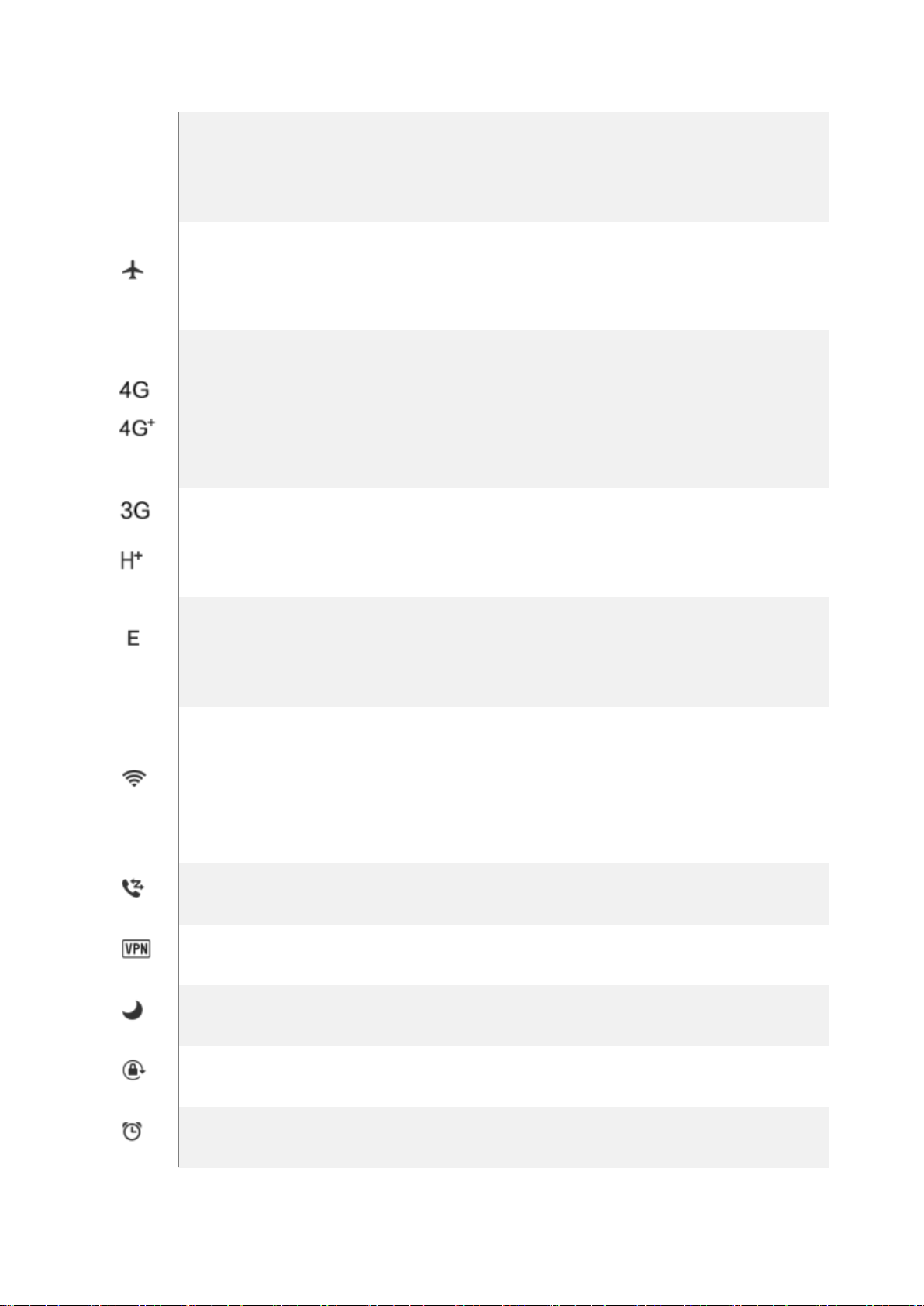
network and can make and receive calls. The
more bars, the stronger the signal.
Airplane Mode
Shows that airplane mode is on. Phone’s
wireless communication abilities are disabled.
/
LTE/ LTE – A
4G network is available, including LTE and
LTE-A. Your phone can connect to the Internet
over that network.
/
UMTS/WCDMA
3G UMTS network is available. Your phone
can connect to the Internet over that network.
EDGE /GSM
EDGE (GSM) network is available. Your phone
can connect to the Internet over that network.
Wi-Fi
Shows that your phone is connected to a
Wi-Fi network. The more bars, the stronger
the signal. See Connect to Wi-Fi.
Call Forwarding
Call forwarding is turned on.
VPN
You’re connected to a network using VPN.
Quiet Time
Quiet Time is turned on.
Portrait orientation lock
Phone screen is locked in portrait orientation.
Alarm
An alarm is set up on your phone.

Bluetooth
Bluetooth is on, or your phone is connected
to a Bluetooth device.
Bluetooth
Bluetooth Tethering is on.
Silent
Silent Mode is on.
HD Voice
Your operator’s VoLTE service is available. HD
Voice works to make your calls.
USB Debugging
USB Debugging is on. You can transfer files
via USB.
Wireless Display
Wireless projector is connected.
Location Service
Location Service is on.
No service
Your phone has no signal.
No SIM card
SIM card is not inserted. See About your SIM
card.
3.2. Configure settings
3.2.1. Google account
A Google account is the key to accessing all of Google’s products and
services, such as Maps, Play Store, Voice Search, YouTube, and more. To sign
in your Google account and get the most out of Google, do the following:
Create and sign in your Google account. The first time you switch your
OPPO phone on, it will prompt you to sign in to Google. You can also create
or sign in your account in [Settings] > [Google] > [Sign-in & security], or in
any of the Google apps on your phone.
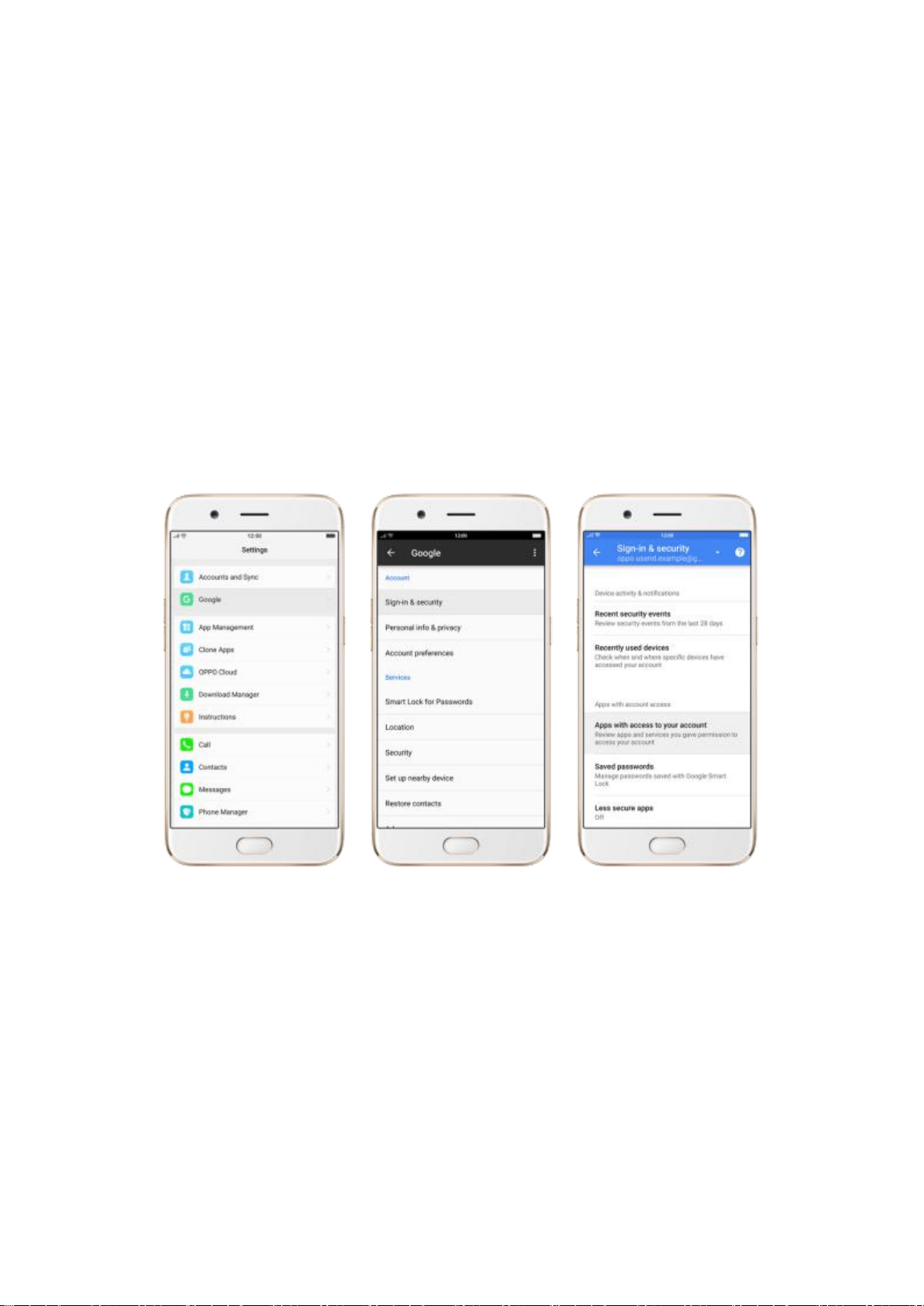
Note: Your Google Account is hooked up with all the Google Services you
use. After you login to a Google app, other Google apps on your phone will
automatically login to the same account.
View apps with access to your account. Go to [Settings] > [Google] >
[Sign-in & security], scroll down and click Apps with access to your
account. If there’s an app or service that shouldn’t have access to your
account, you can revoke its privileges.
Sync the Google account. If you have your Google account configured, go to
[Settings] > [Accounts and Sync], click Google and you will see the sync
options. You can choose which parts of the service you would like to be
synced, then click Sync now to start syncing.
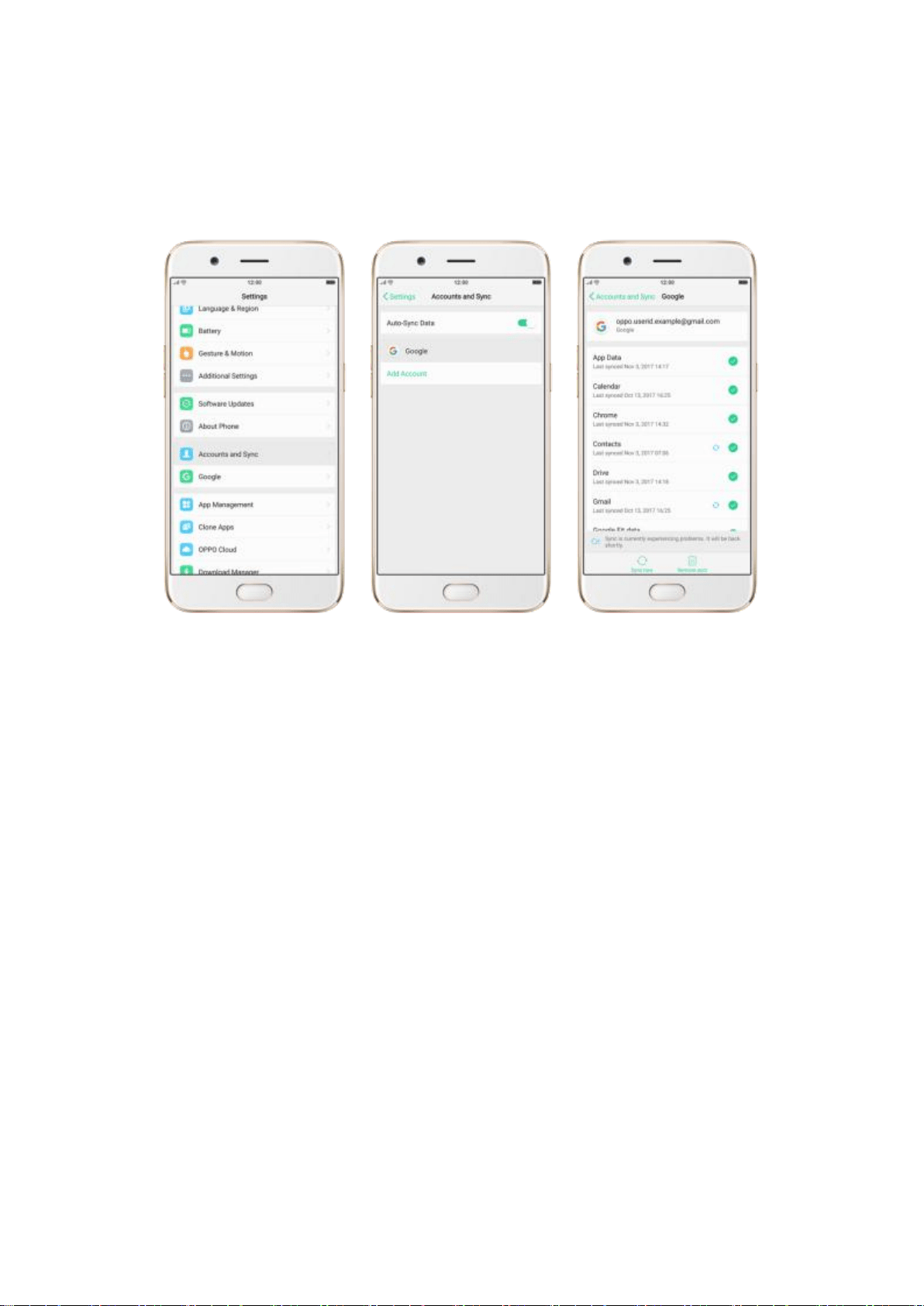
Remove your Google account. Go to [Settings] > [Accounts and Sync],
click Google, then click Remove acct.
3.2.2. Fingerprint and Passcode
Setting a passcode and fingerprint on your OPPO phone are security
measures that all users should take. Follow these steps to set a passcode and
fingerprint that will be needed to unlock your phone and access the
information stored on it.
Use a passcode on your OPPO phone
Set the passcode
1. Go to [Settings] > [Fingerprint & Passcode], click [Turn on Passcode].
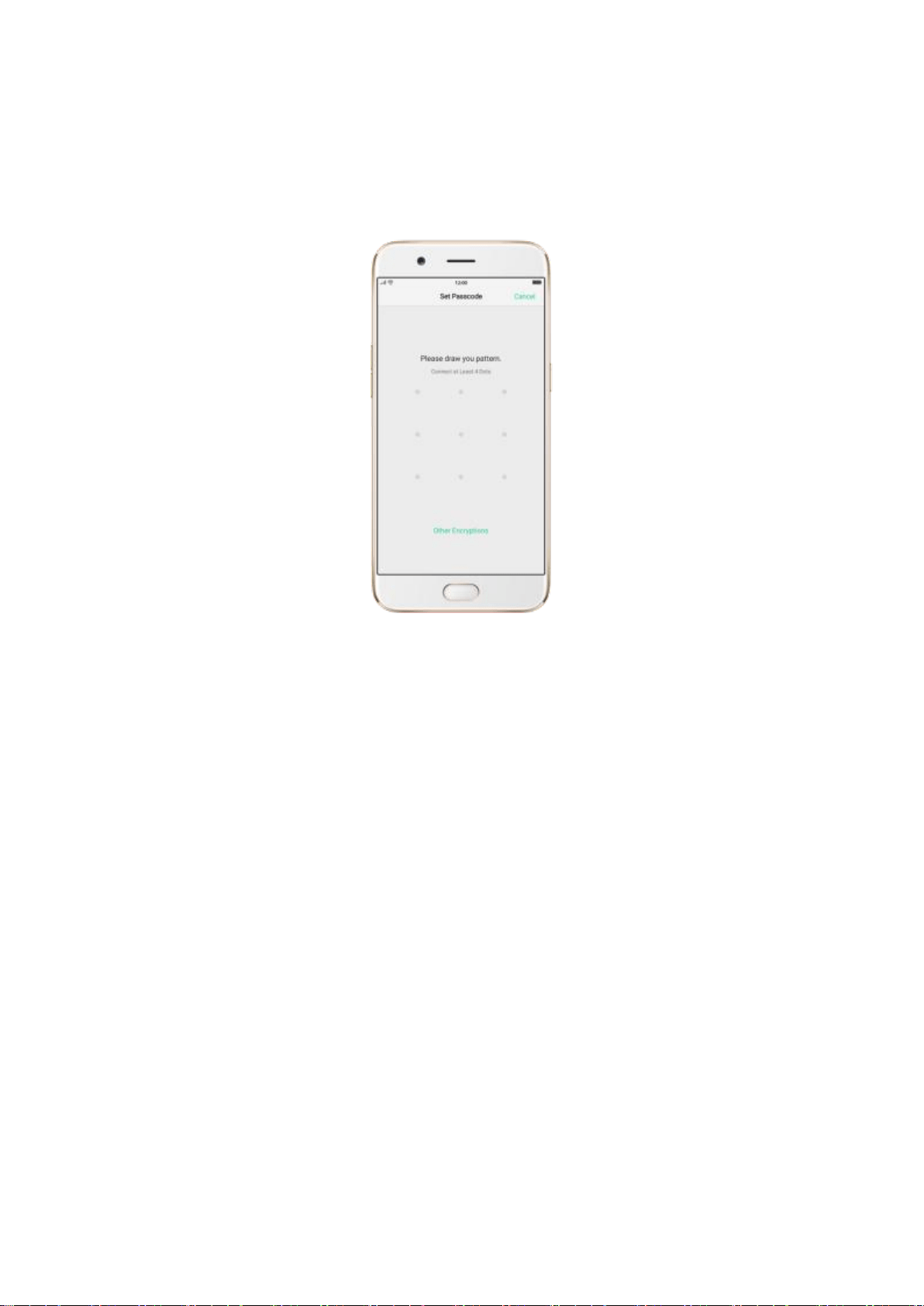
2. You'll be prompted to draw a pattern. If you want to use other passcode
types, see step 3.
3. Click [Other Encryptions]. You can choose from two types of passcodes:
Click Custom Alphanumeric Code to use a passcode that contains
numbers and/or letters as your preference.
Click 4-Digit Numeric Code to use a numbers-only passcode that
contains four characters.
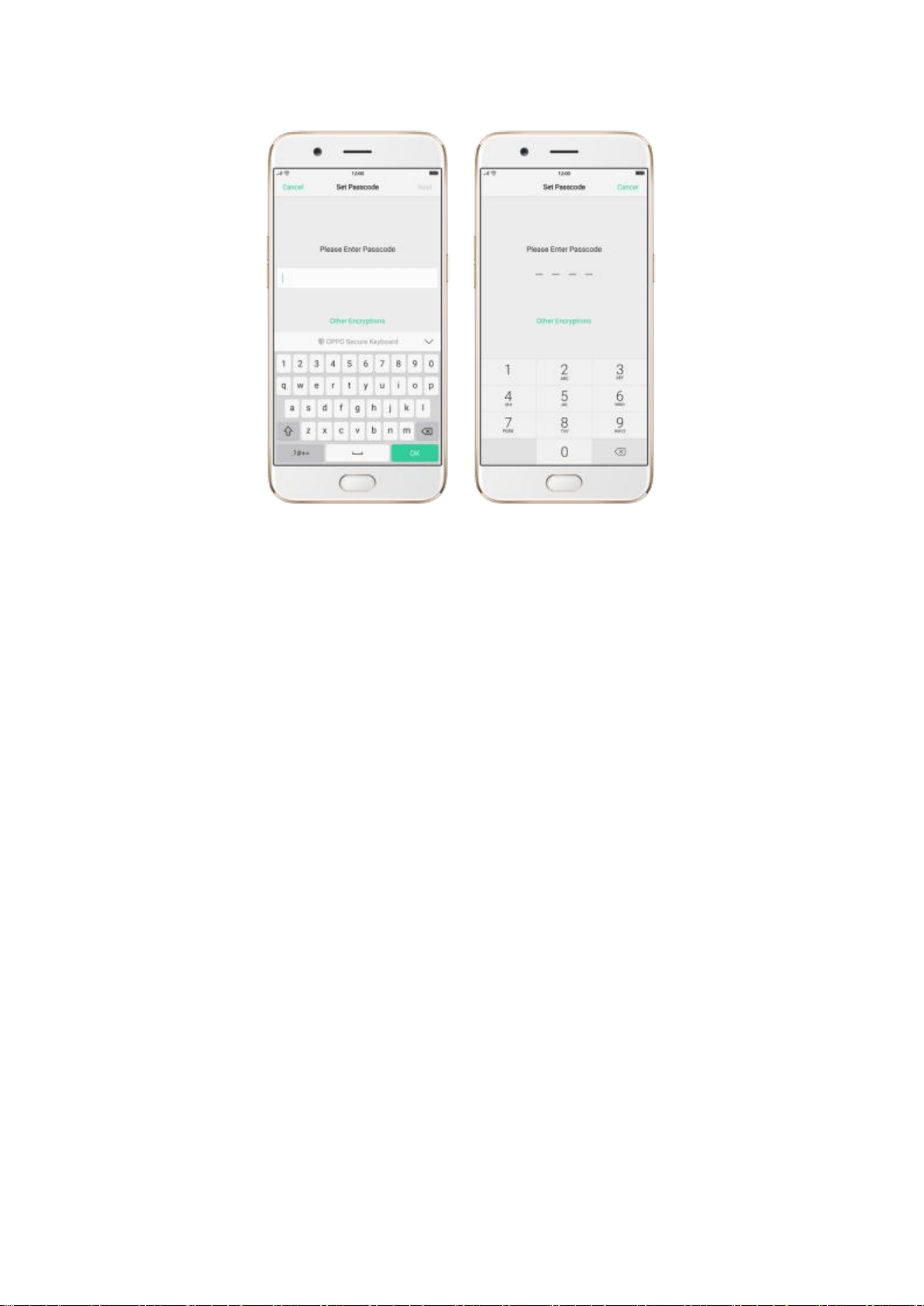
4. Draw your pattern or enter your passcode.
5. Re-draw or re-enter your pattern or passcode to confirm it and activate it.
Change the passcode
1. Go to [Settings] > [Fingerprint & Passcode], click [Modify Passcode].
2. Draw or enter your current pattern or passcode.
3. Draw or enter your new pattern or passcode. If you want to use other
passcode types, click [Other Encryptions] at the bottom of the screen.
4. Re-draw or re-enter your pattern or passcode to confirm it and activate it.

Turn off the passcode
1. Go to [Settings] > [Fingerprint & Passcode], click [Turn off Passcode].
2. Draw or enter your current pattern or passcode to confirm.
View more details in Set and use a passcode with your OPPO smartphone.
Use a fingerprint on your OPPO phone
Before you can add a fingerprint, you need to create a passcode for your
OPPO phone. You can use fingerprints for:
Unlocking the phone from the lock screen.
Making purchases without entering a passcode.
Encrypting apps
Protecting files
Add a fingerprint
1. Go to [Settings] > [Fingerprint & Passcode], click [Add a Fingerprint].
2. Follow the on-screen instructions, placing your finger gently on the Home
button until your fingerprint is recorded.
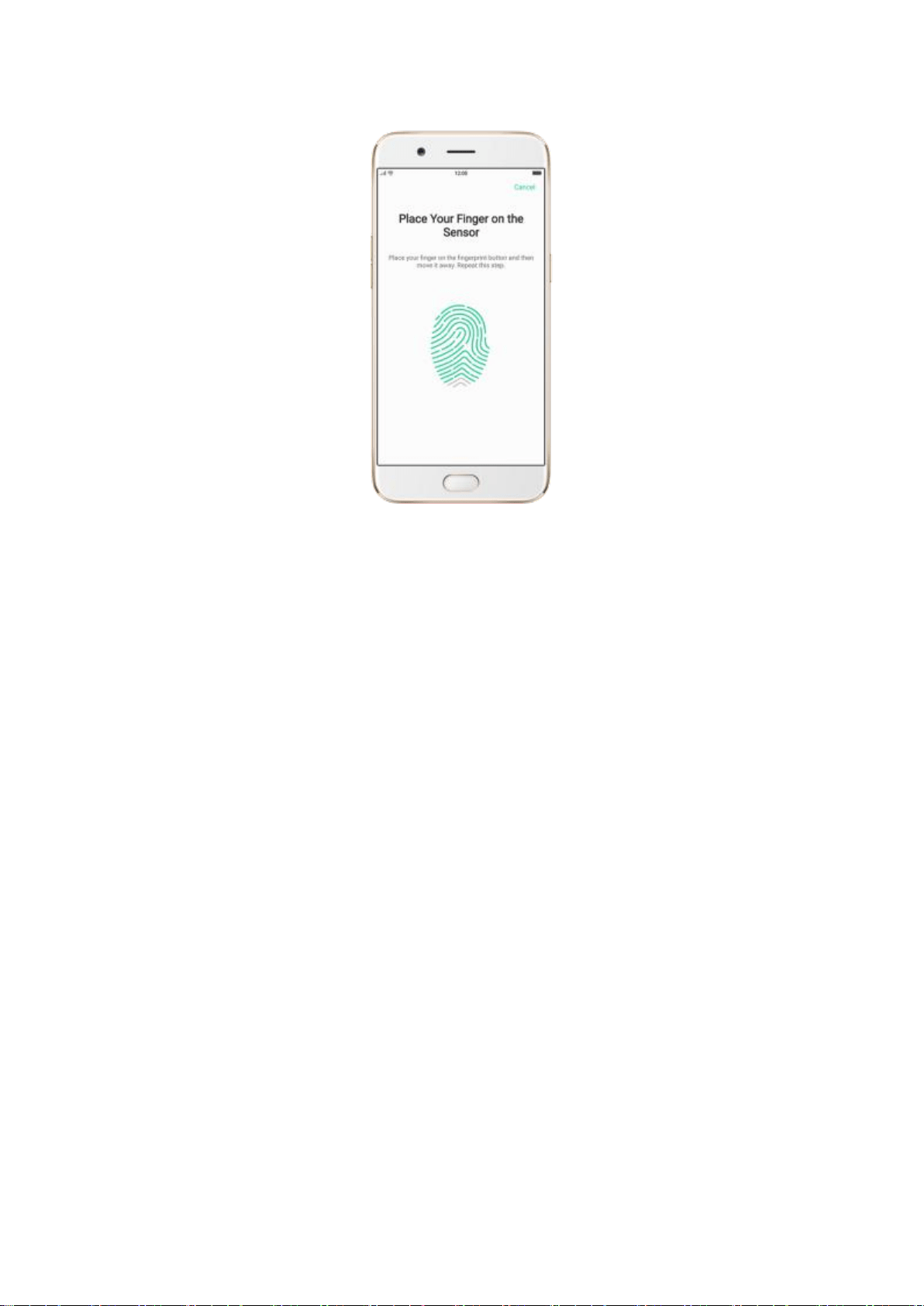
3. Repeat step 1 and 2 for as many fingers as you like.
Delete or Rename a fingerprint
1. Go to [Settings] > [Fingerprint & Passcode], click the fingerprint you’ve
added.
2. Enter a name for your fingerprint, or click [Delete Fingerprint].
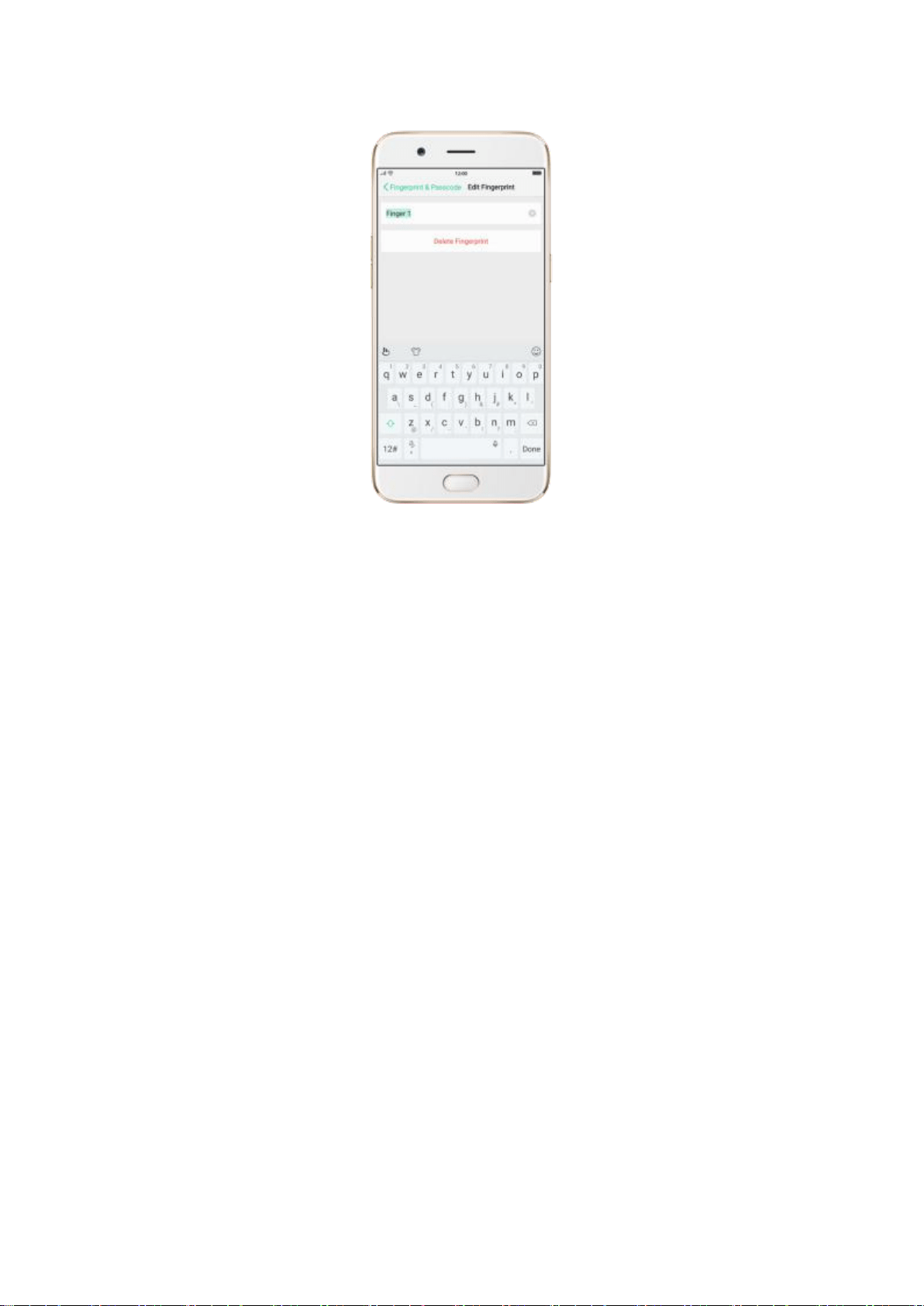
View more details in Add and use a fingerprint on your OPPO Smartphone.
3.2.3. Set up other mail and calendar accounts
In addition to the apps that come with your phone, if you want to use other
mail and calendar apps, add the accounts to your phone to let the apps
associated with those accounts sync with your phone.
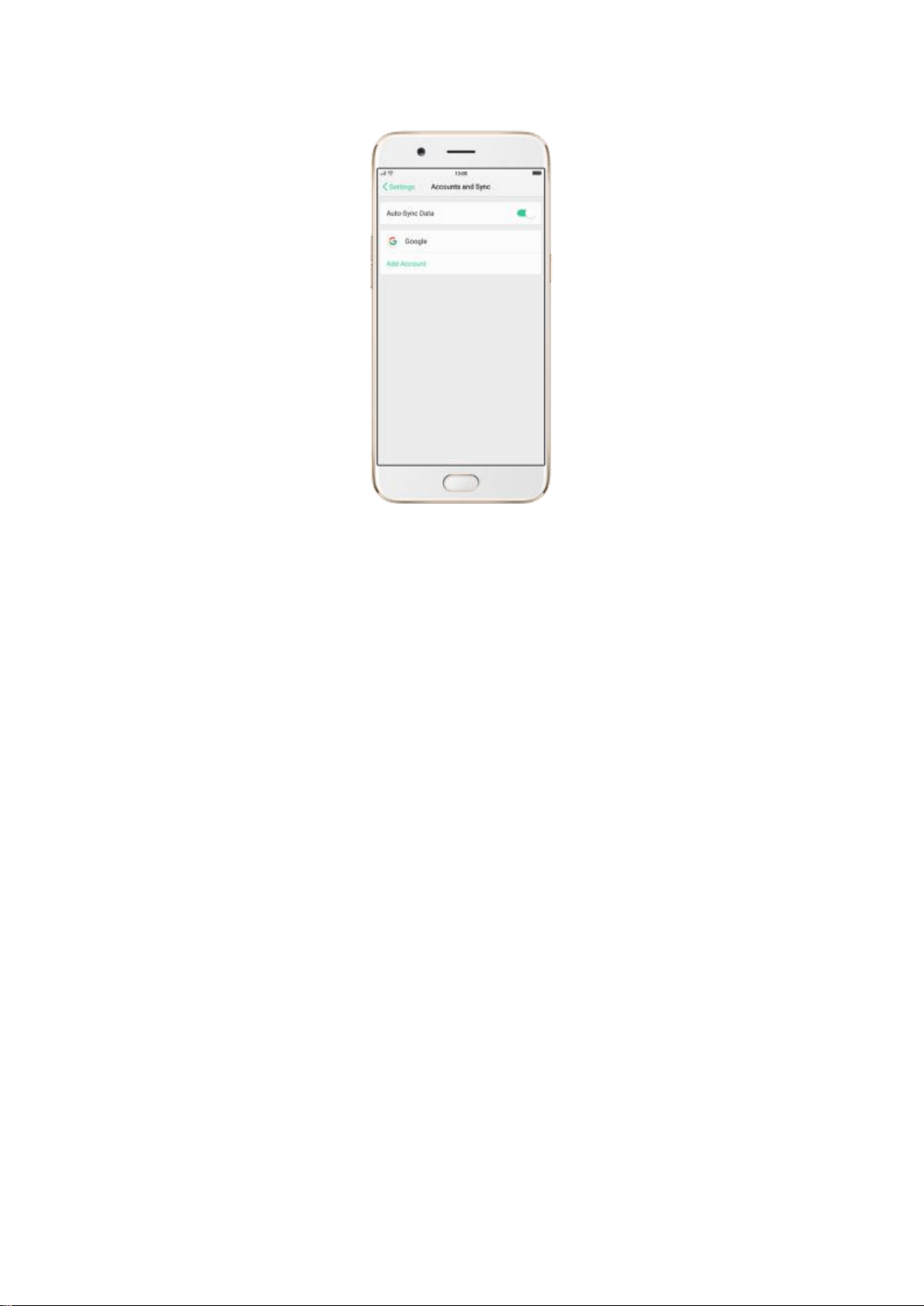
Set up an account. Go to [Settings] > [Accounts and Sync], then click [Add
Account].
Repeat the steps for as many accounts as you like.
3.2.4. Transfer data from the old phone to OPPO
smartphone
Clone Phone can safely and rapidly transfer all the data including Personal
Data
(Contacts, Messages, etc.), System Data (System Settings, Clock, Weather Info,
etc.),
Applications (Applications and Application Data) and Files like Audios,
Videos,
Photos and Documents.
Before Clone Phone
To support the whole backup process to complete, make sure the battery level
of

OPPO smartphone is over 50% and don’t turn off or restart your phone during
the
backup process.
Progress and details will be displayed on your phone during the cloning
process.
Your phone might get hot during the process as the processor is overloaded,
which
generates heat.
Keep your device close to the other to ensure the network connection between
two
Devices.
How to Clone Phone
Follow these steps to transfer your data from the old phone to the new
phone
easily and quickly:
From an Android Phone to an OPPO
Before Clone phone, you have to make sure Clone Phone is available on both
your new phone and old phone.

If Clone Phone is not available in your phone, you can type in
i.clonephone.coloros.com/download in your phone’s web browser to
download and install Clone Phone.
After both of your phones have installed Clone Phone.
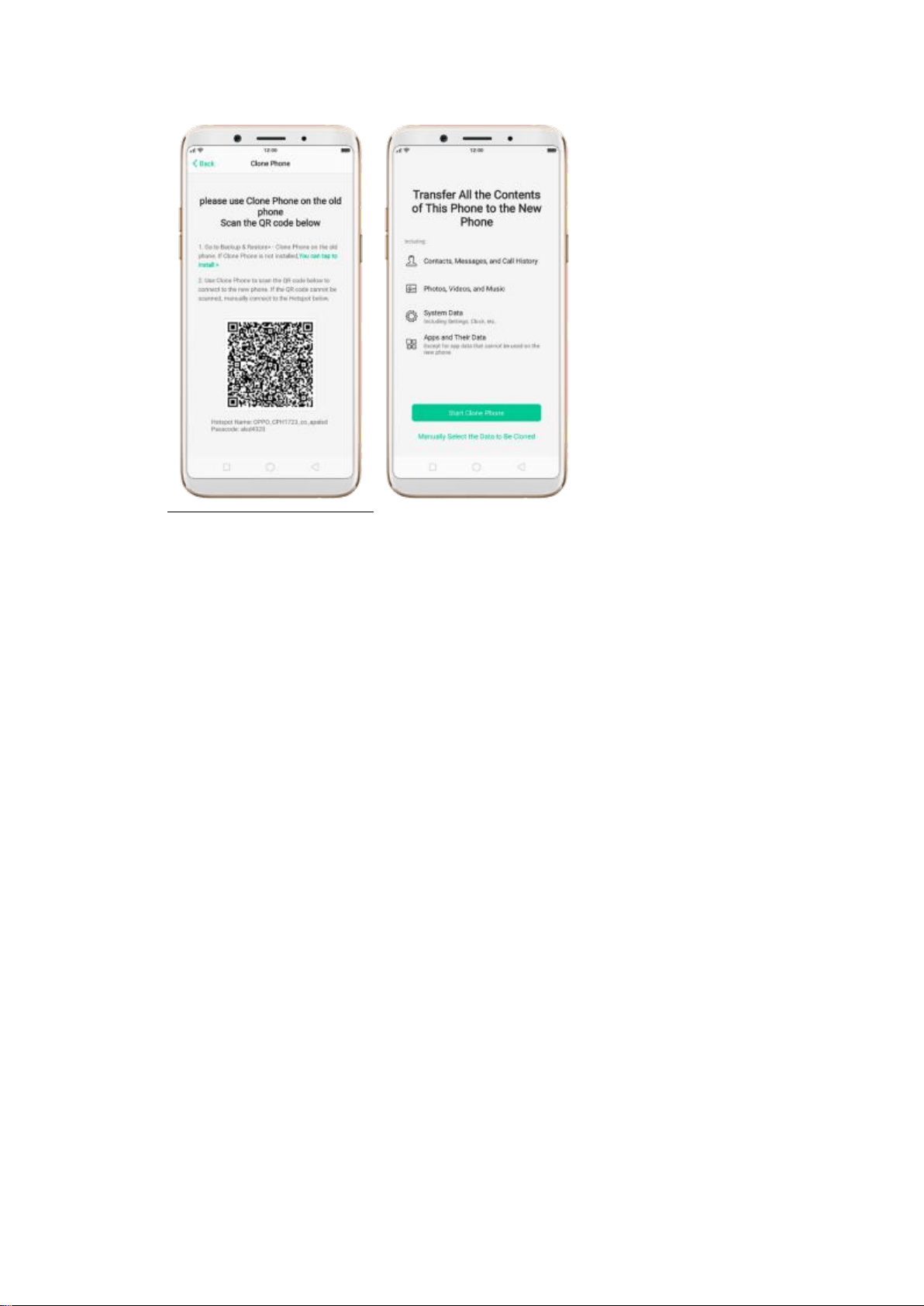
1. On your new phone, go to [Tools] > [Backup and Restore] > [Clone
Phone],
select “This is the new phone”. Wi-Fi and mobile data will be turned off
automatically.
2. On you old phone, go to [Clone Phone] and select “This is the old phone”
and scan the QR Code generated by the new phone to start cloning. If the
QR code cannot be scanned, manually connect to the Hotspot below the
QR code.
You can also select the data (Personal Data, System Data, Applications,
Storage Data) to be cloned by clicking “Manually Select the Data to be
Cloned”.
3. Enter the lockscreen password to continue.
From an iPhone to an OPPO Phone
For the data transfer between OPPO and iPhone, you can download
third-party apps, such as Zapya and Share it to transfer the data between
OPPO and iPhone
* Pictures, settings and paths might differ from those of your phone, but that
do not affect the description in this article.
3.2.5. Date and Time
Knowing the time and date is crucial to keeping on schedule. If you want to
set the date and time display on your OPPO phone, or if you're out of synch
or need a time update, just start with step 1 as below.
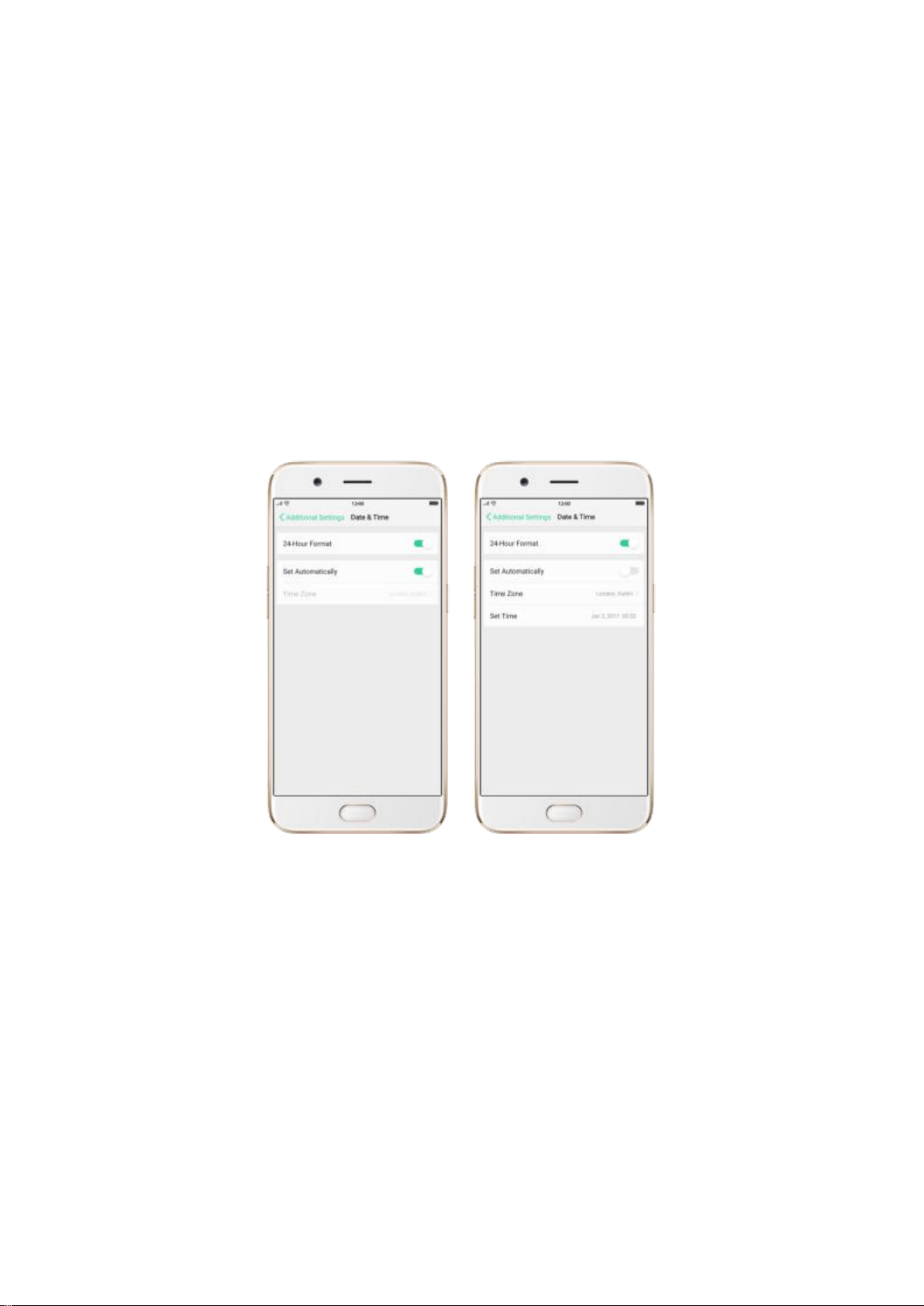
1. Go to [Settings] > [Additional Settings] > [Date & Time], click it.
2. 24- Hour Format. Switch from 12-hour or a 24-hour format optionally.
3. Set Automatically. Enable [Set Automatically] if you want to use the data
given by your network provider or your GPS, or you can set the time yourself
if you prefer. See step 4.
4. Set Manually. You can manually set the time and date. To do so, disable

[Set Automatically], and then:
Select your time zone. Click [Time Zone] and select the location you
would like to adjust your time to.
Change the date and time. You will see the date and time appear under
the current time zone. Drag your finger across each column to change
the date and time. Scroll wheels will appear to allow you to change the
date and time simultaneously.
View more details in Set up date and time on your OPPO smartphone.
3.2.6. Language and Region
OPPO smartphone offers you an easy access to configure it to display
information in another language. If you want to change its language to yours,
or if you’ve relocated to a new country, you can change language and region
by following a few easy steps.
1. Go to [Settings] > [Language & Region], click it.
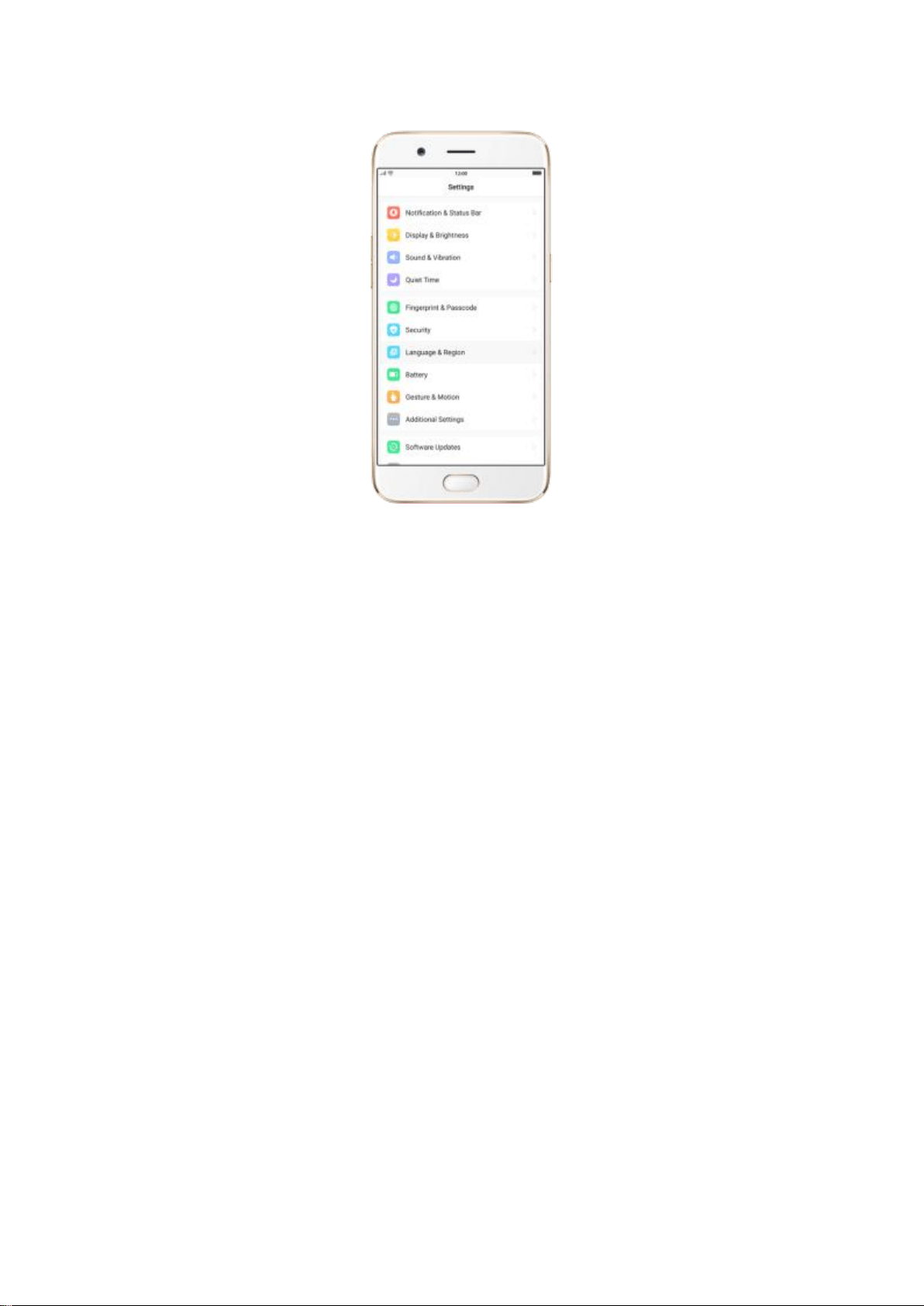
2. Find your desired language.
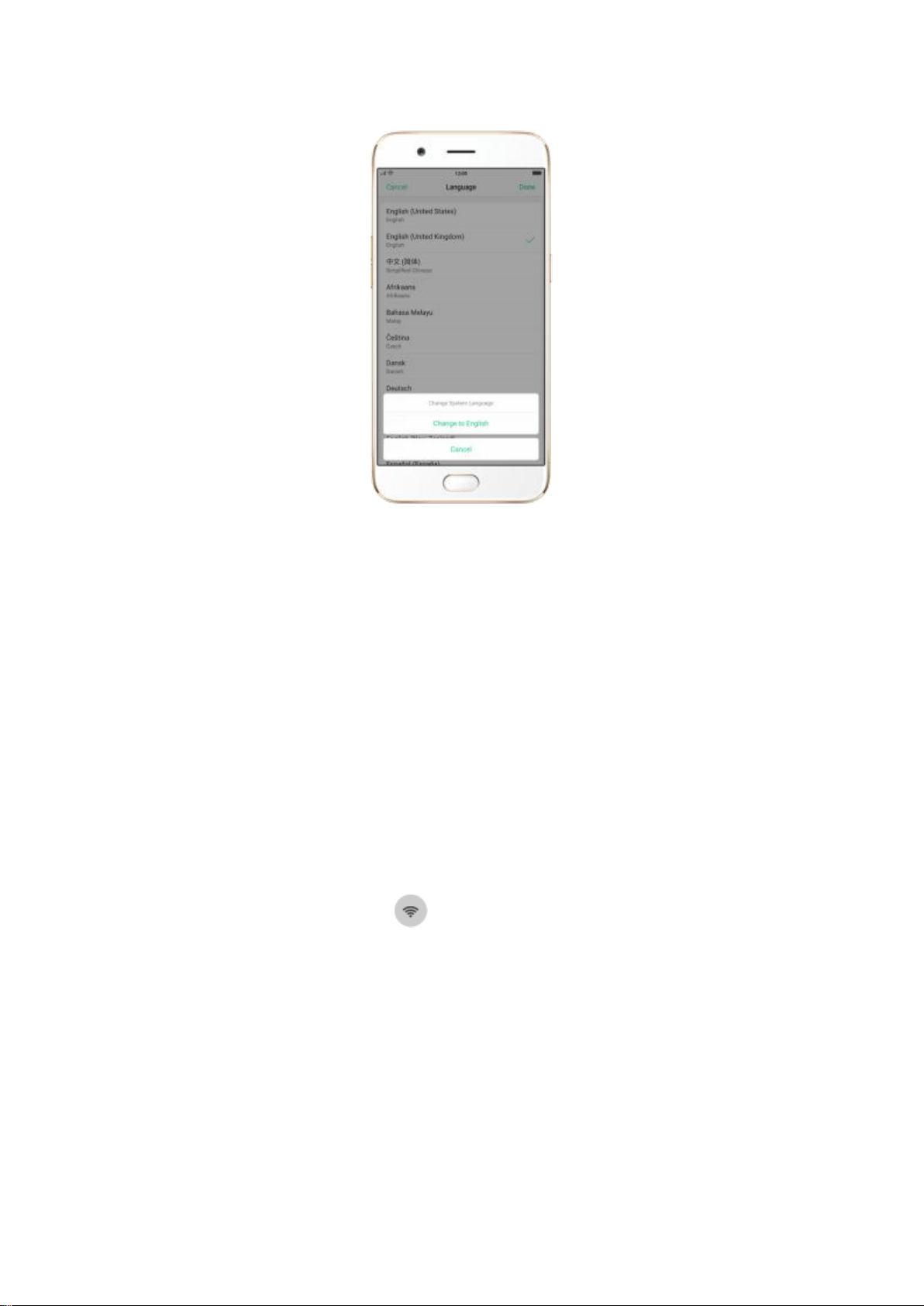
Click [Language], you will see a list of languages. Scroll down to find the
language you wish to use.
Select your desired language and click "Done." A confirmation message
will appear at the bottom of your screen. Confirm the change by clicking
“Change to ____.” Then your OPPO phone will be in the new desired
language.
3. Find your desired region. Refer to step 2 to change the region you want
to use.
3.2.7. Connect to the Internet
OPPO smartphone connects to the Internet whenever necessary, using a
Wi-Fi connection or mobile network.
Wi-Fi connection
1. Go to [Settings] > [Wi-Fi], or swipe up from the bottom of your screen to
open Control Center, then tap . The detected Wi-Fi networks will be
displayed.
2. Tap the Wi-Fi network you want to connect to.
3. Fill in the password if required.

Mobile data connection
Go to [Settings] > [Dual SIM & Cellular Data] and enable [Mobile Data], or
swipe up from the bottom of your screen to open Control Center, then
tap .
Notice: Enabling the mobile networks connection may result in extra cost.
Check with your mobile network service carrier.
3.3. Instructions
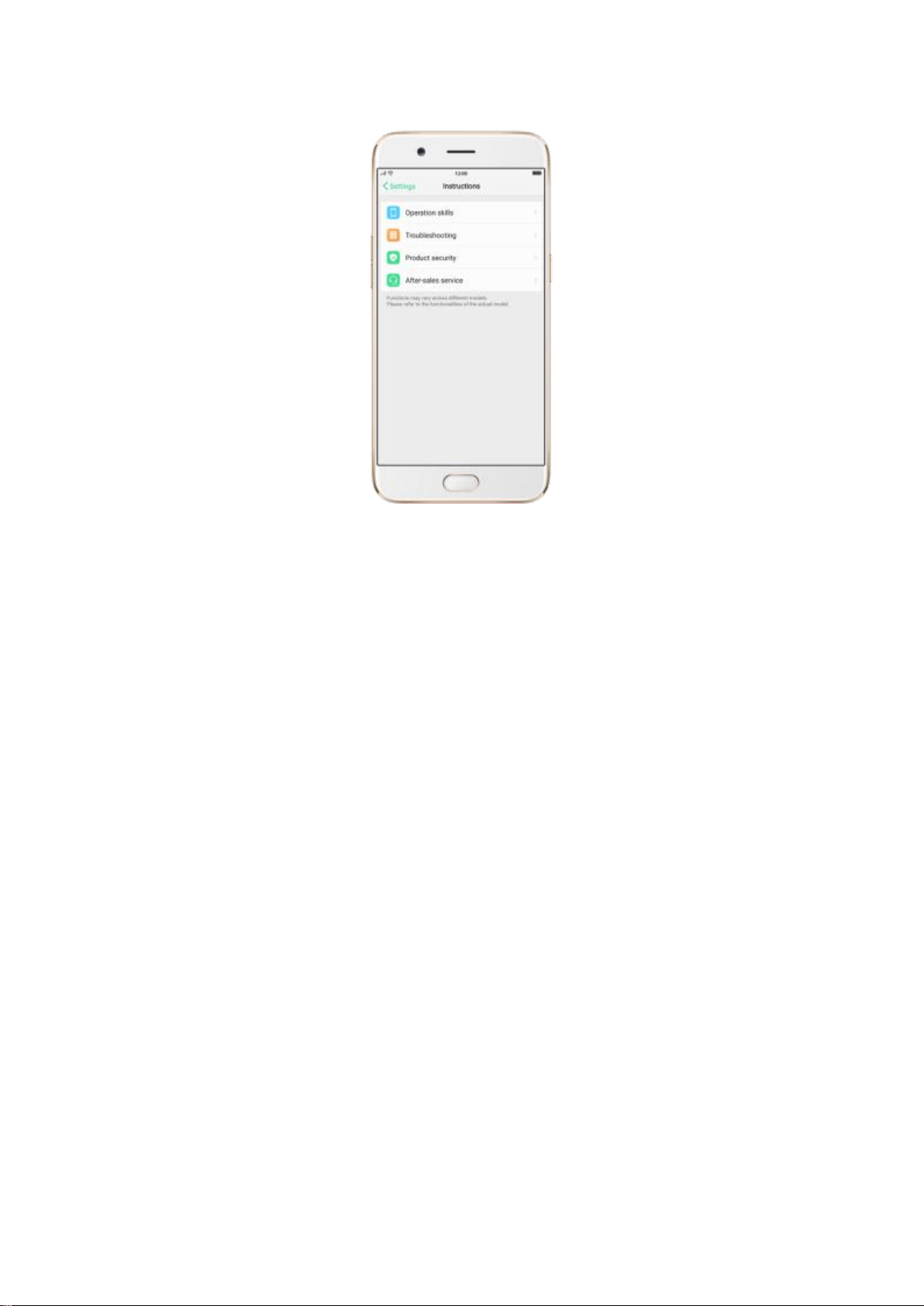
If you want to view Instructions on OPPO smartphone, go to [Settings] >
[Instructions].
Operation skills, including Camera, App permission management, Trash
removal, Lock screen magazine, Screen-off gestures, Screenshot with 3
fingers, Long screenshot, Notification settings, Quick setup, System
application settings, Low power mode and Add widgets.
Troubleshooting: Before requesting after-sales services, you can
troubleshoot the phone by yourself.
Product security, including Statement, Safety precautions and Health and
safety.
After-sales service, including Customer service info, E-Warranty Card and
Help.
4. What's new in ColorOS 3.1
4.1. OPPO Share
OPPO Share is a real-time data transmission tool that achieves to transmit
nondestructive files quickly within OPPO phones, without the need of mobile
data. You can share photos, video, music, contacts, zip files, APKs, URLs
(webpages) and so on with a 100x faster speed than Bluetooth.
Note: You can only share files between OPPO smartphones which both
support this function.
To open and use OPPO Share
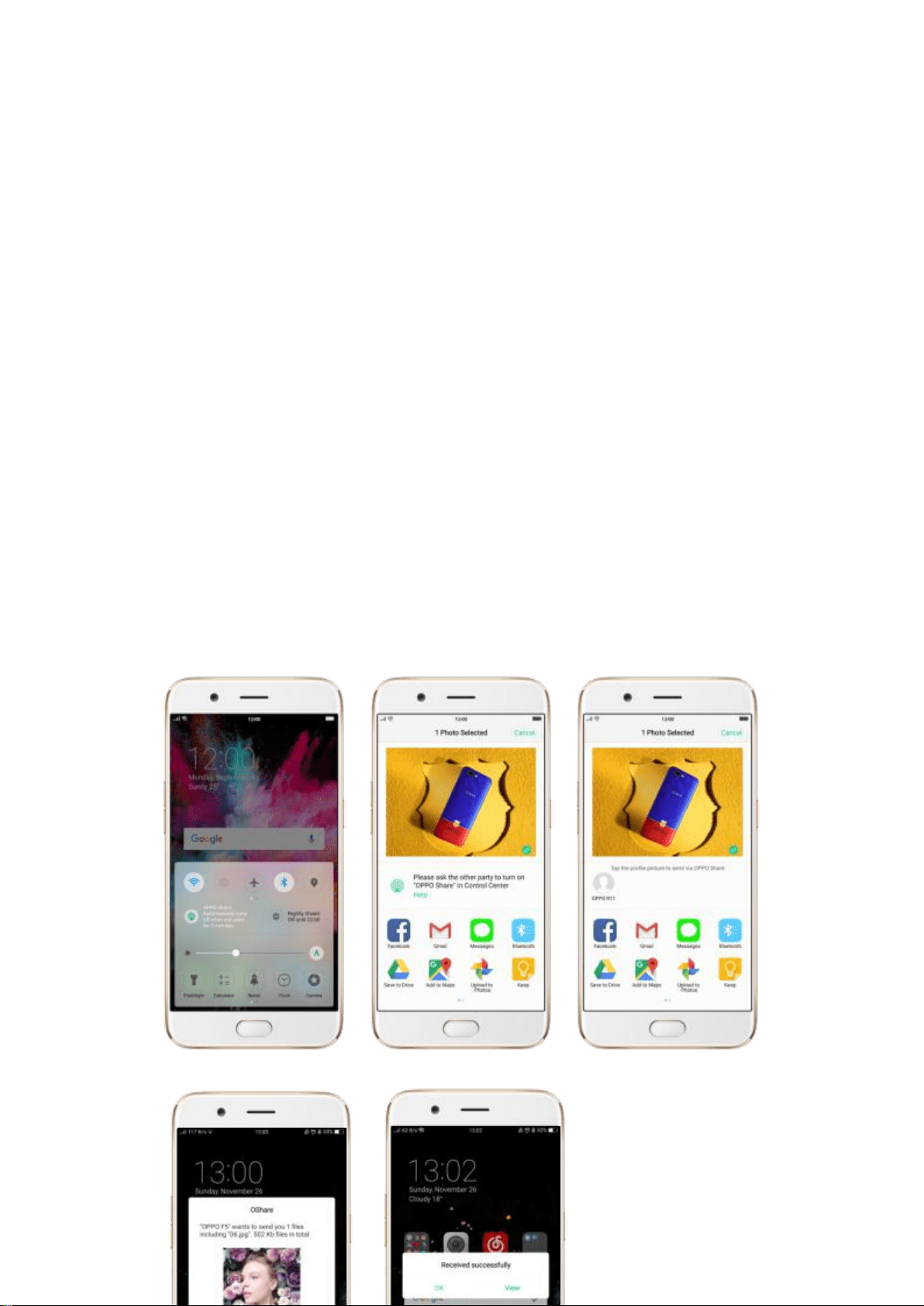
1. Swipe up from the bottom of any screen and turn on OPPO Share.
Bluetooth will be turned on when you enable OPPO Share.
2. When OPPO Share is enabled on both devices, they will be connected to
each other automatically.
3. On your device, select the file to be shared and share it via OPPO Share.
Take Photos as an example, go to Photos, select the target picture, click
sent and Tap the profile picture to send via OPPO Share.
4. On the other device, you will receive a pop-up, click Receive to complete
the transmission.
5. Click View to view the picture received.

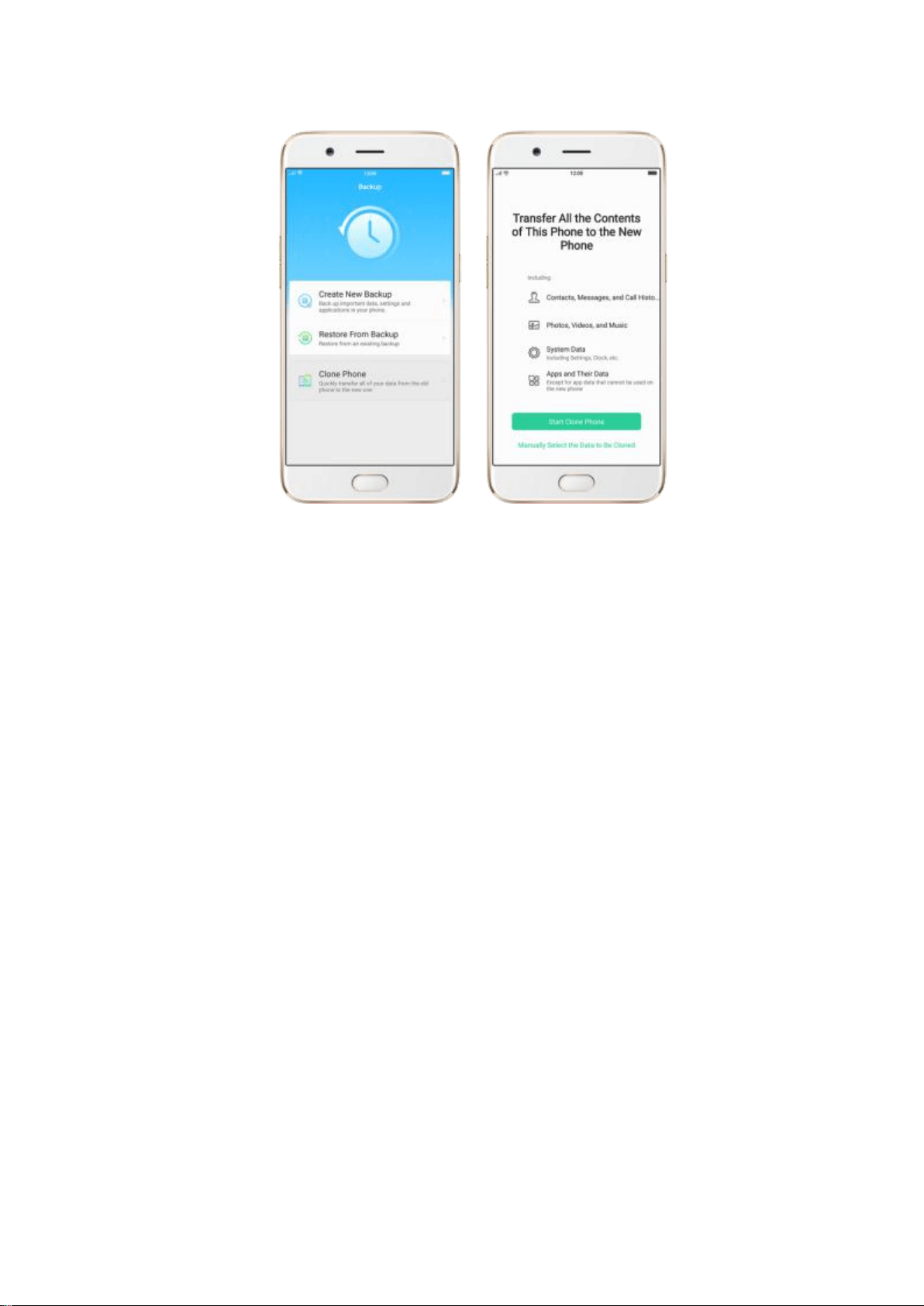
4.2. Clone Phone
With Clone Phone, all the contents in your old phone will be quickly copied
to your new device in several easy steps by creating a Wi-Fi connection,
without using the cable and mobile data. You can also select the data to be
cloned, ignoring those that are no longer needed.
To use Clone Phone, go to [Settings] > [Additional Settings] > [Back up
and reset] > [Local backup] > [Clone phone], or click [Tools] on your Home
screen > [Backup and Restore] > [Clone Phone]. View Transfer data with
Clone Phone for more using details.
4.3. System optimization
Faster then ever
ColorOS 3.1 is designed to offer a fresh, fast platform to help you stay
connected and productive while you're on the go. Meanwhile, common
scenarios have been optimized according to user habit research. By the test,
the applications can launch with a 23.9% faster speed than ever in average.
Better Interaction Design
In ColorOS 3.1, we have optimized interaction to make it easier to use.
Fonts have been fine-tuned in sizes, points, and colors, thus everything
presented to you is just perfect. Interfaces are designed to display
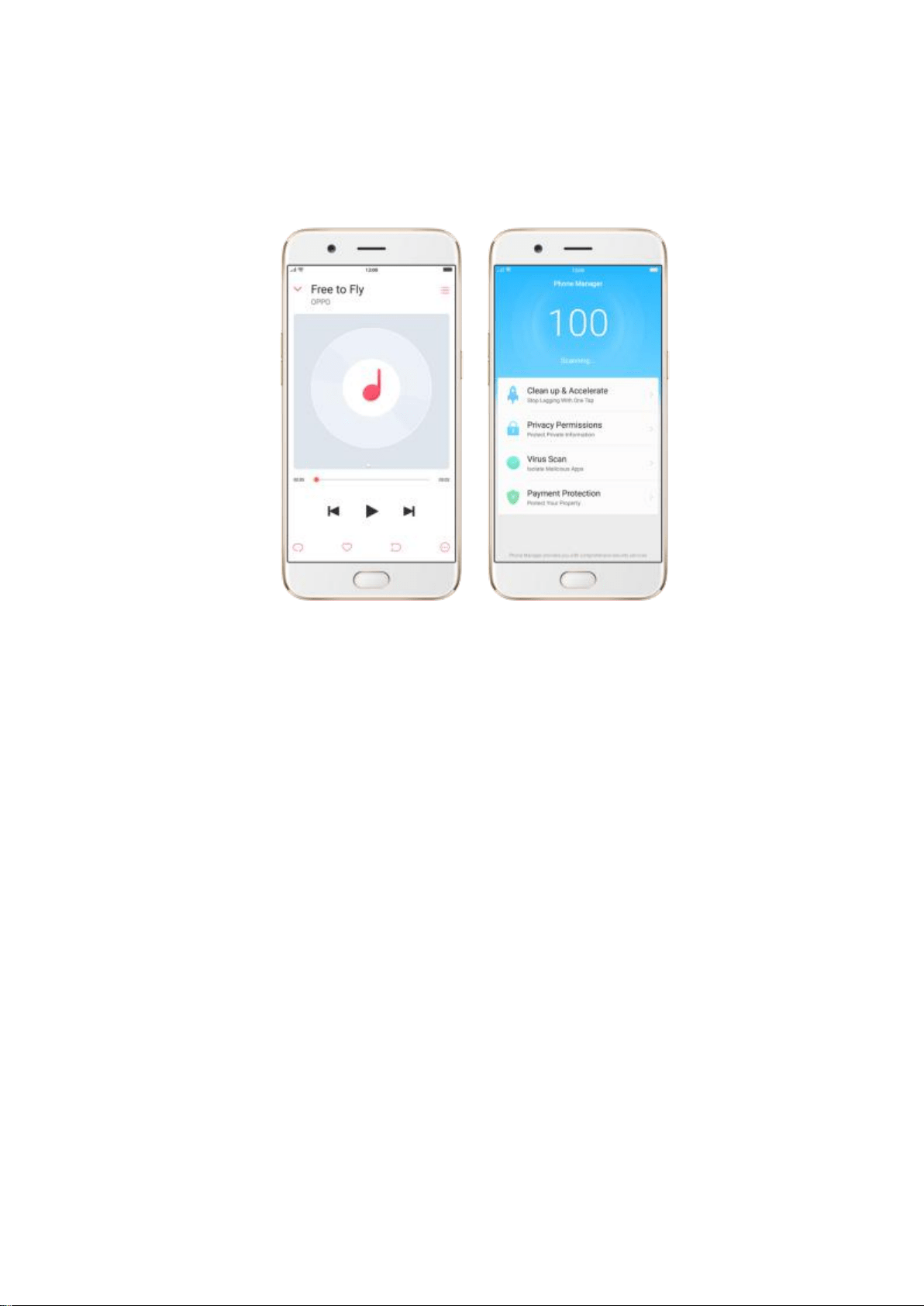
information in dependent pattern or primary and secondary order, at a
glance, you can get the point.
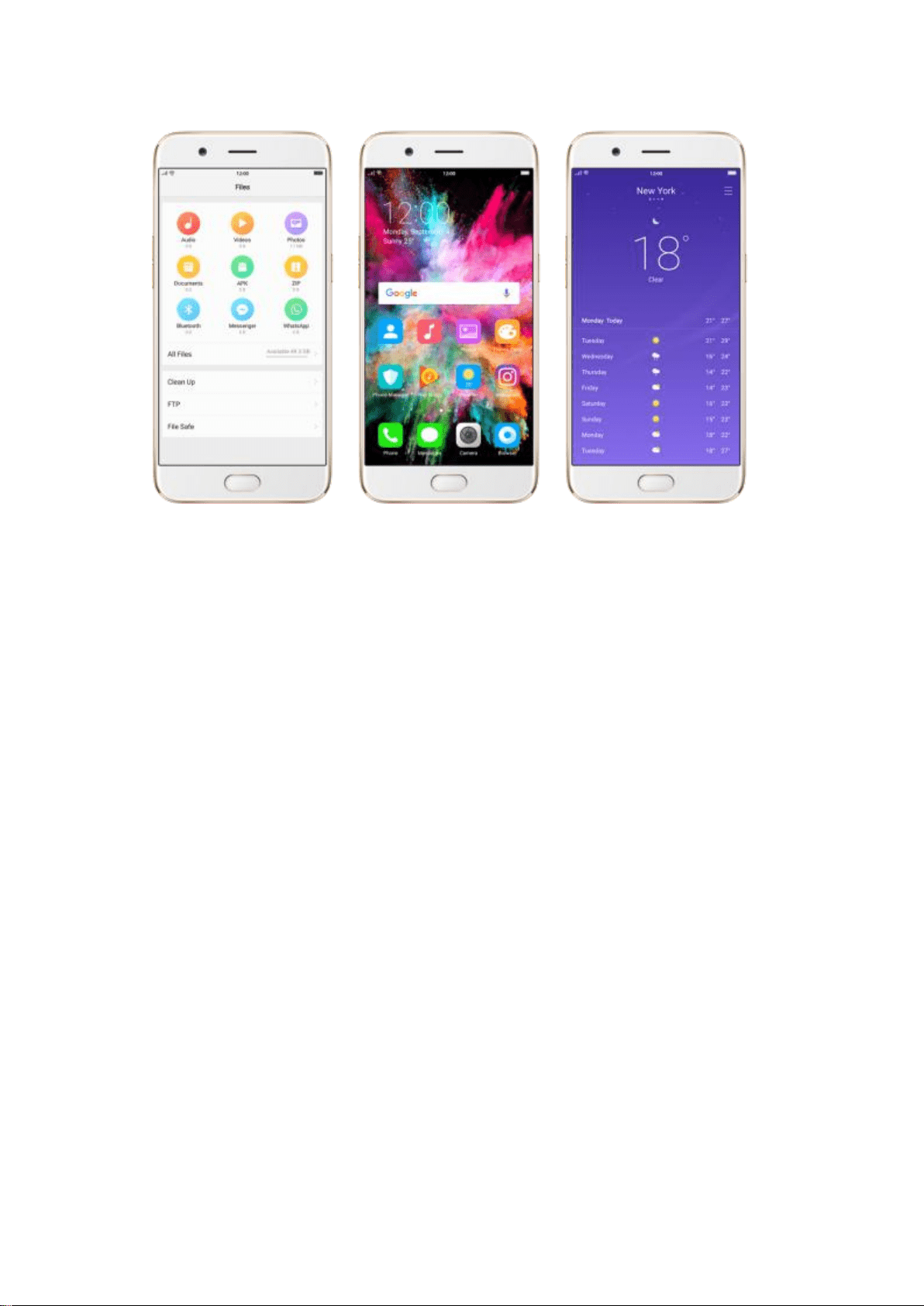
More vivid colors
System icons have been recolored to become more vivid and lighthearted
with significantly improved color brightness and saturation. Gradients and
color blocks are also used in operating interfaces, giving you a more cheerful
and attractive sense of vision.
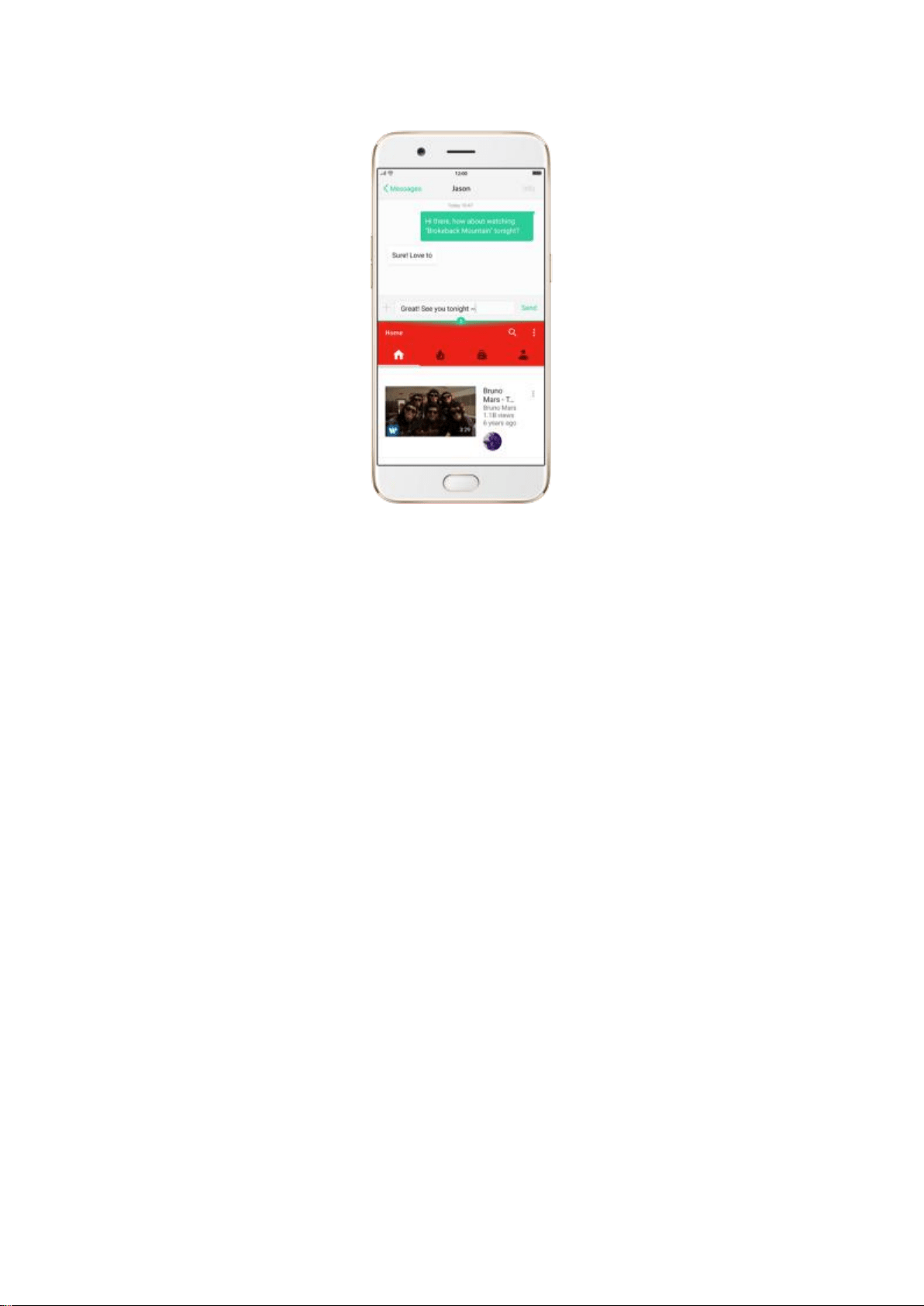
4.4. Multiple modes with easy access
ColorOS 3.1 lets you set multiple modes to fulfil your personal needs. The
split screen mode allows you to work with a second app with the other one
remained active. Now you can watch a movie and chat with friends at the
same time.
To use Split-screen: Go to [Settings] > [Additional Settings] and turn on
Split-screen, then open an app. Under the interface of the app, press and hold
Menu button and select the other split-screen app. Now your screen will be
divided into two areas, which each area shows a different scene at the same
time.
* Notice: Both apps need to support Split-screen function. Your phone will alert you if
the app doesn’t support that.
4.5. Nightly Shield
Nightly Shield is an optimal night mode / night filter, created to provide
warmlight (nightlight) in order to ensure eye protection from blue
wavelength emitted by screens and give you pleasant night reading. Nightly
Shield protects eyes from bluelight flux that can disrupt circadian rhythm,
cause insomnia and restlessness, chronic migraine, chronic headache and
cataract.
To use Nightly Shield: Slide up Control Center to turn it on or go to
[Settings] > [Display & Brightness] > [Nightly Shield] and personalize your
settings:
1. Turn on [Enable Now] to enable it.
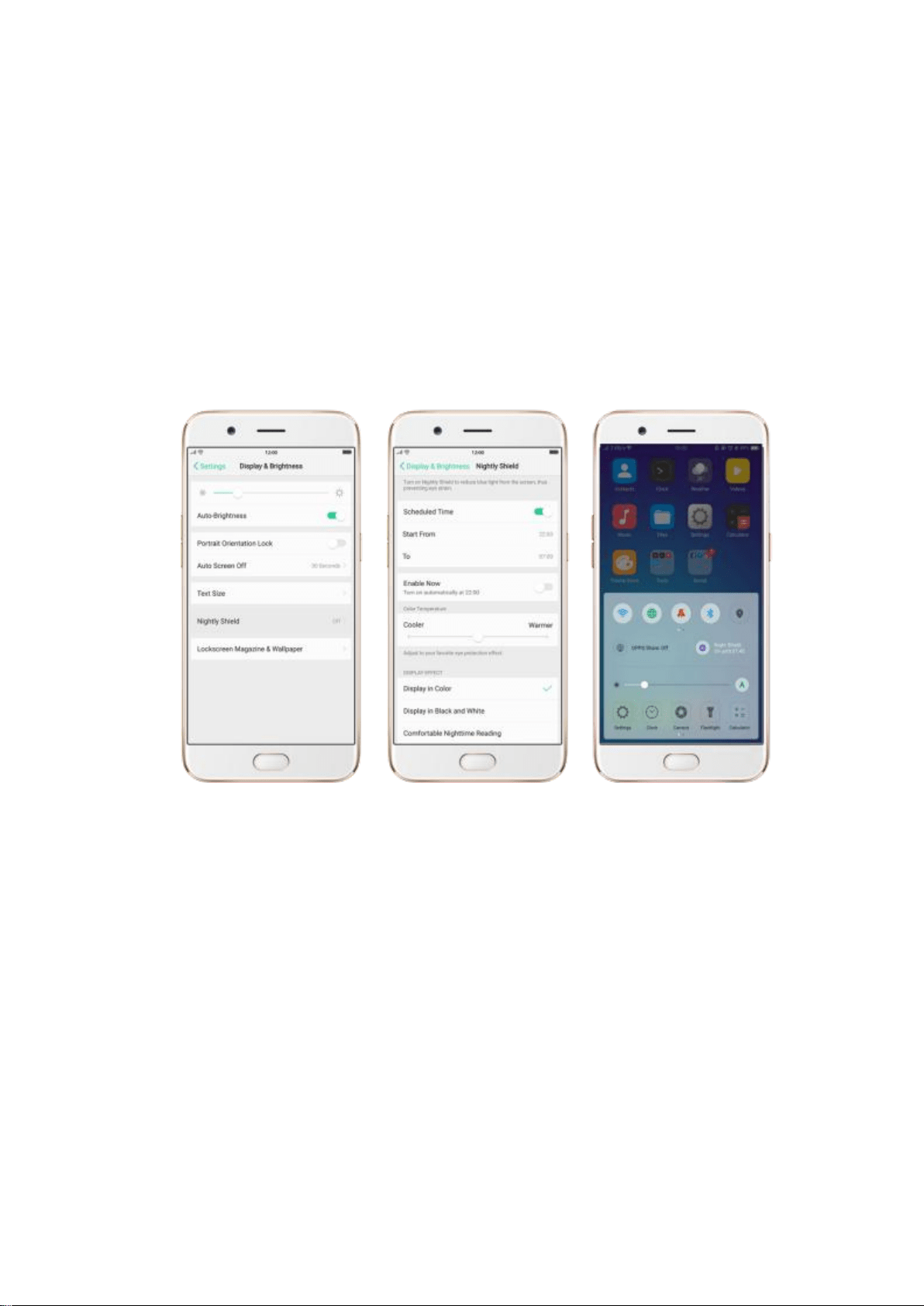
2. Toggle [Scheduled Time] to green to set the working hours.
3. Slide the button to modify the Color Temperature on your preference.
4. Choose the suitable effect as you like from 3 display effects among
[Display in Color], [Display in Black and White] and [Comfortable
Nighttime Reading].
4.6. Security
ColorOS 3.1 is set to protect each of your actions, your files and even your
children. A series of advanced technologies are coming out to protect your
privacy and security:
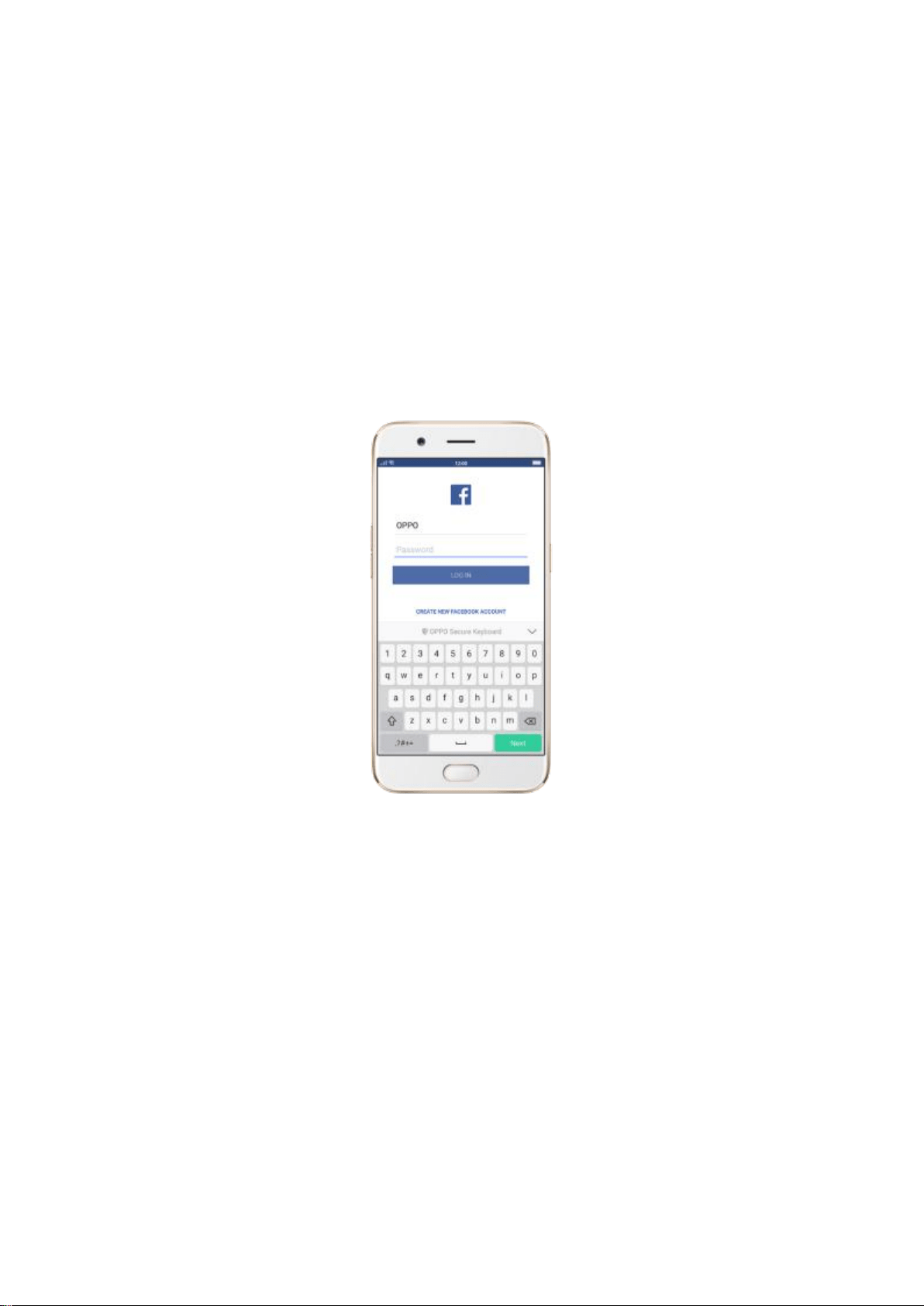
Secure Keyboard. When you enter sensitive information such as passcode,
the system will automatically switch to use OPPO Secure Keyboard to protect
your input content from leaking out.
To use secure keyboard: Go to [Settings] > [Additional Settings] >
[Keyboard & Input Method] and turn on [Enable Safe Keyboard When
Entering Passwords].
Upgraded File Safe. Add in file categories. At a glance, you will find whatever
you want. To see more details, click [Files] on the Home screen > [File Safe].
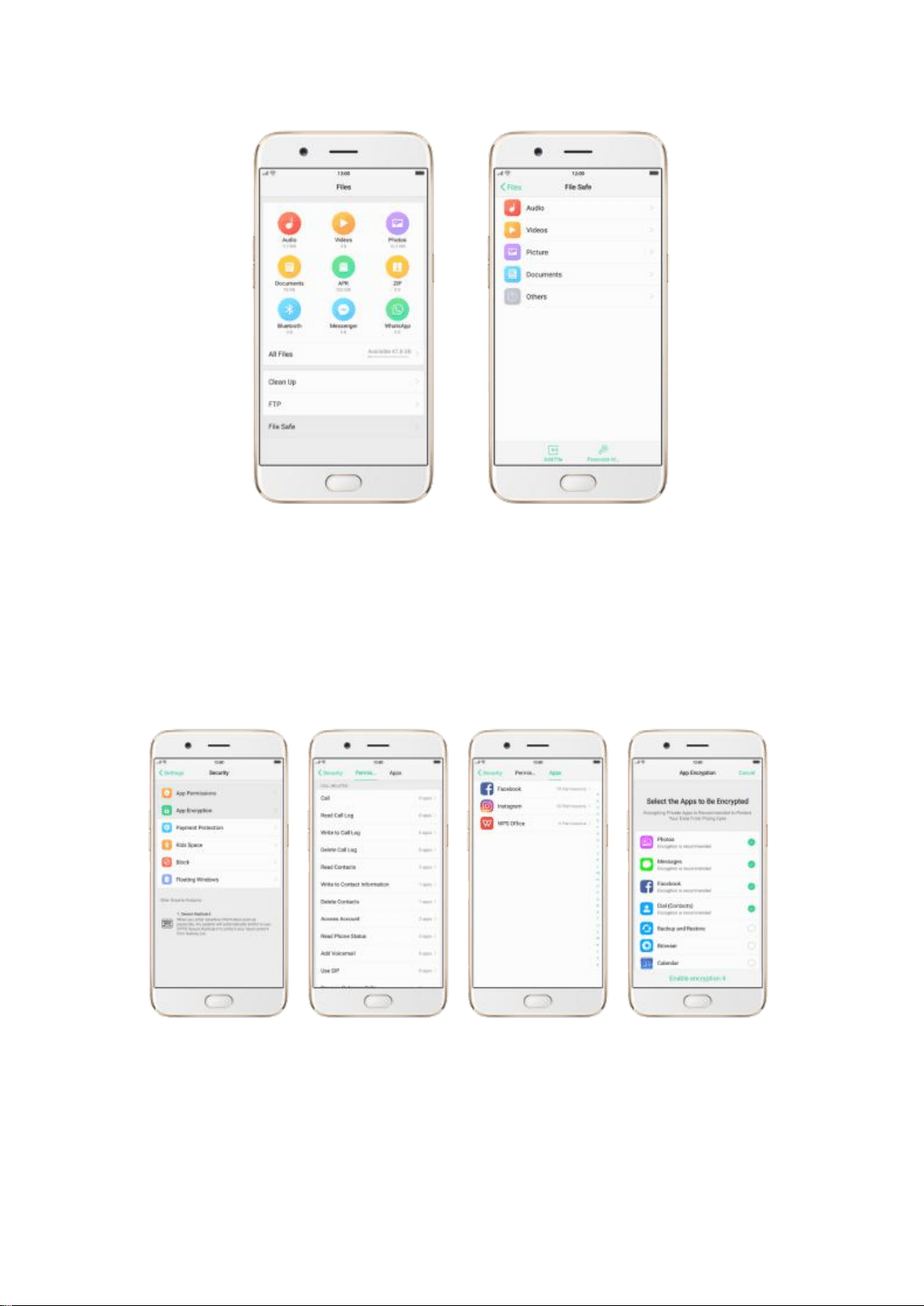
App Permissions & App Encryption. You can monitor apps’ background
behaviors, and encrypt apps to protect from prying eyes. To manage your
apps, go to [Settings] > [Security].
Kids Space. With ColorOS 3.1, parents can set limits specially for children's
use of the phone, such as setting up phone usage time and apps allowed to
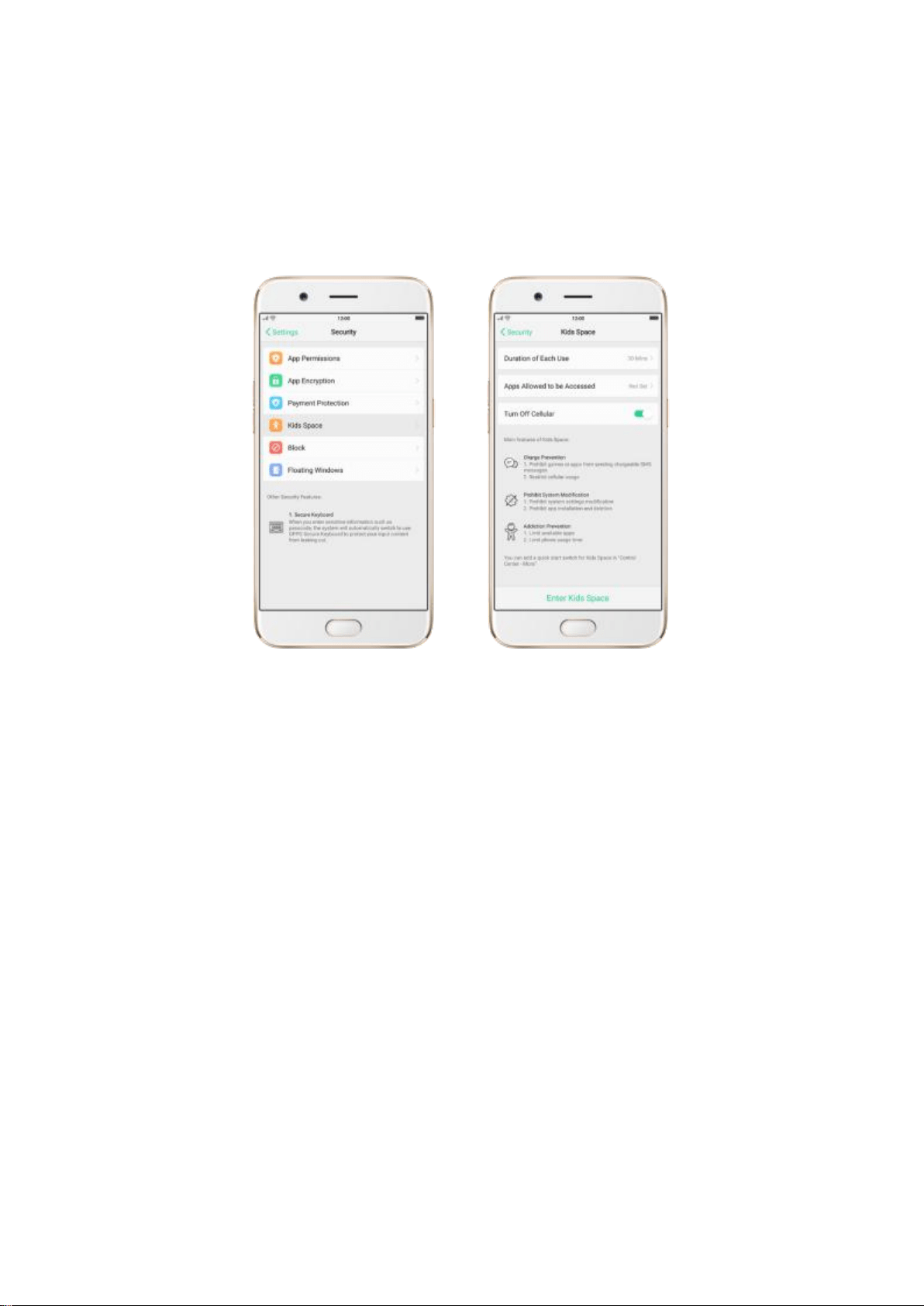
be accessed. It does a good job in charge preventing, system modification
prohibiting and addiction preventing when your kids use the phone. Go to
[Settings] > [Security] > [kids Space] for settings.
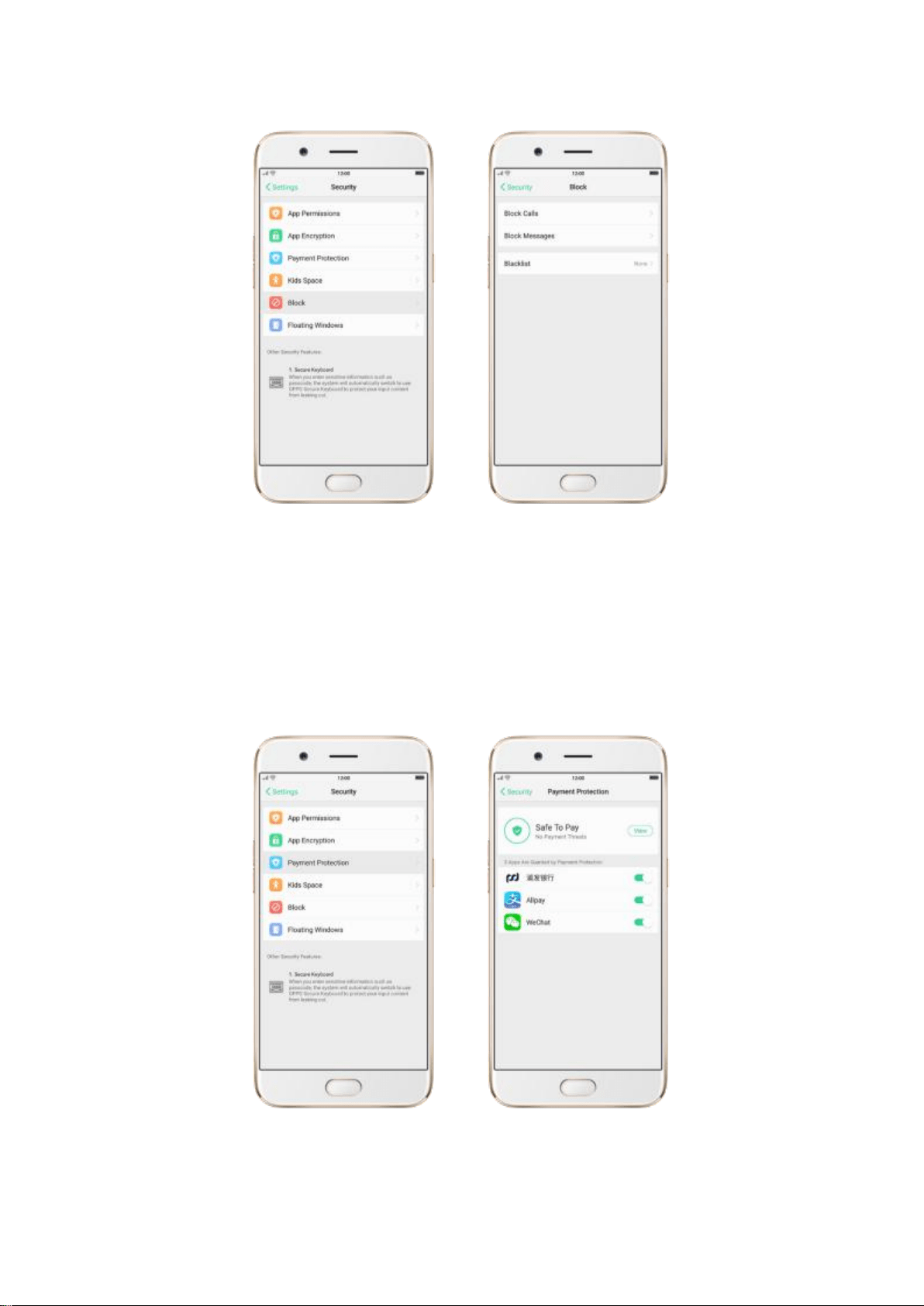
Call blocker. Effectively identify and intercept harassing calls. To block calls,
go to [Settings] > [Security] > [Block], or go to [Settings] > [Call] >
[Block].
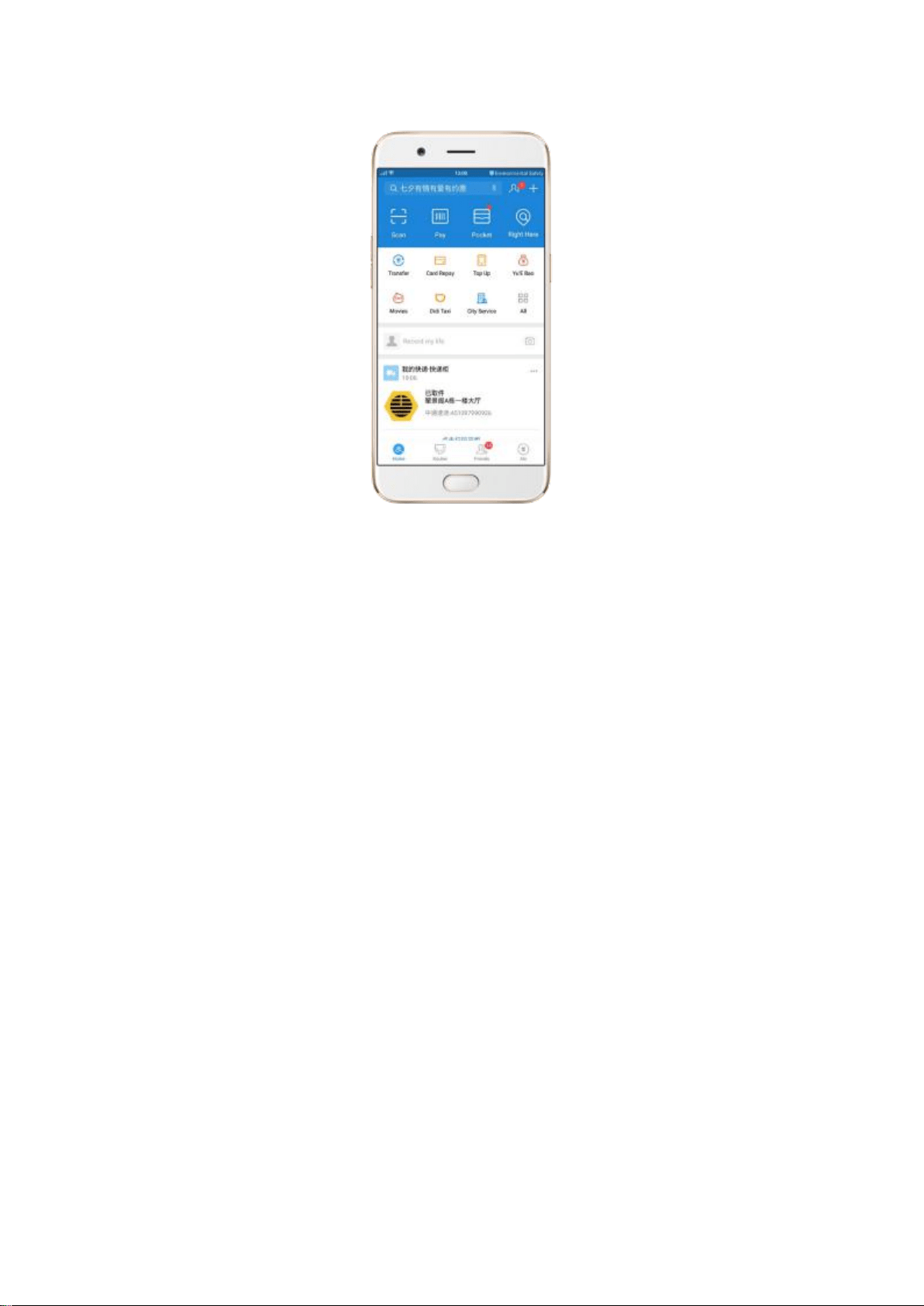
Paying safely. As long as you make purchases online, ColorOS 3.1 will ensure
the safety of your mobile transactions. To set up payment protection for apps,
go to [Settings] > [Security] > [Payment Protection].
Changing language. Lock screen passcode is required when switching to
other languages. This will be effective only when passcode is turned on.
Managing notifications. You can choose to display notifications on lock
screen or not, and customize them as you like. Go to [Settings] > [Notification
& Status Bar] for management.
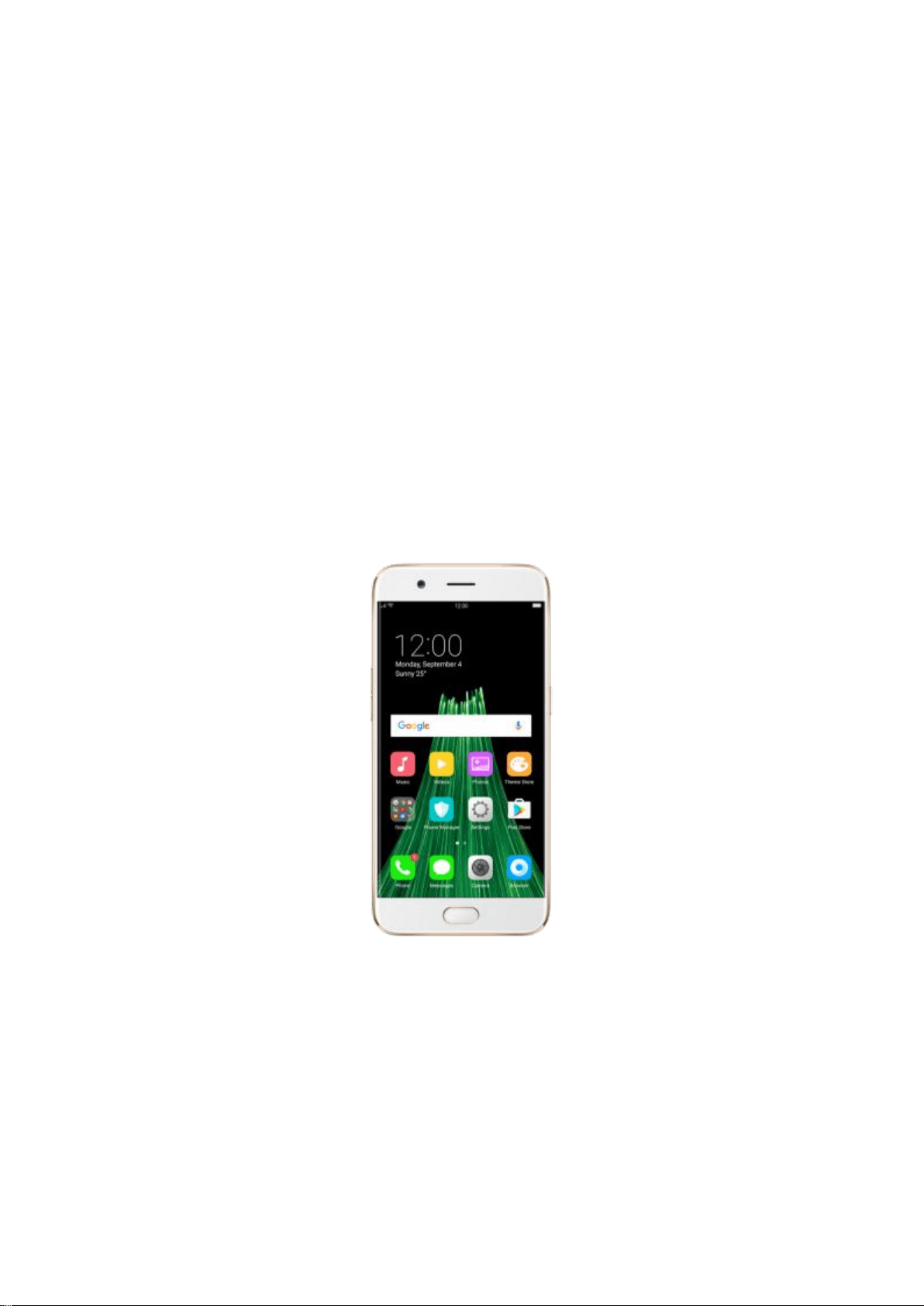
Malicious chargeback. You will get alerts when there is any malicious theft of
your money in the background.
5.Basics
5.1. Use apps
Open apps
Press the Home button at any time to see your phone applications. Click any
application icon to get started.
Apps will show the number of messages pending to be read in red on their
Home screen icon.
Switch between apps
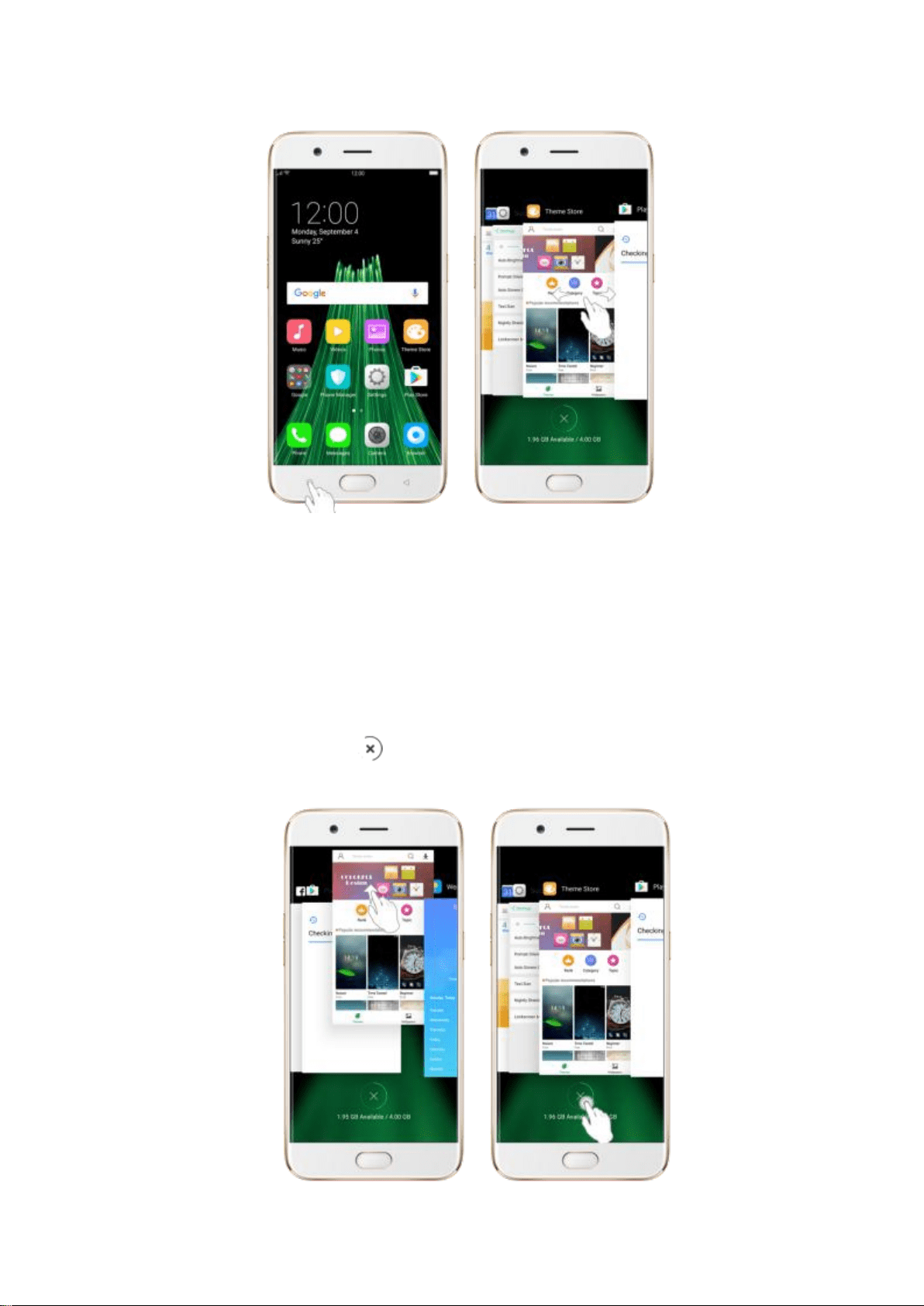
Click Menu button on the bottom left would bring up a menu for apps that
you were in. Swipe left or right to see more. To switch to another app, click it.
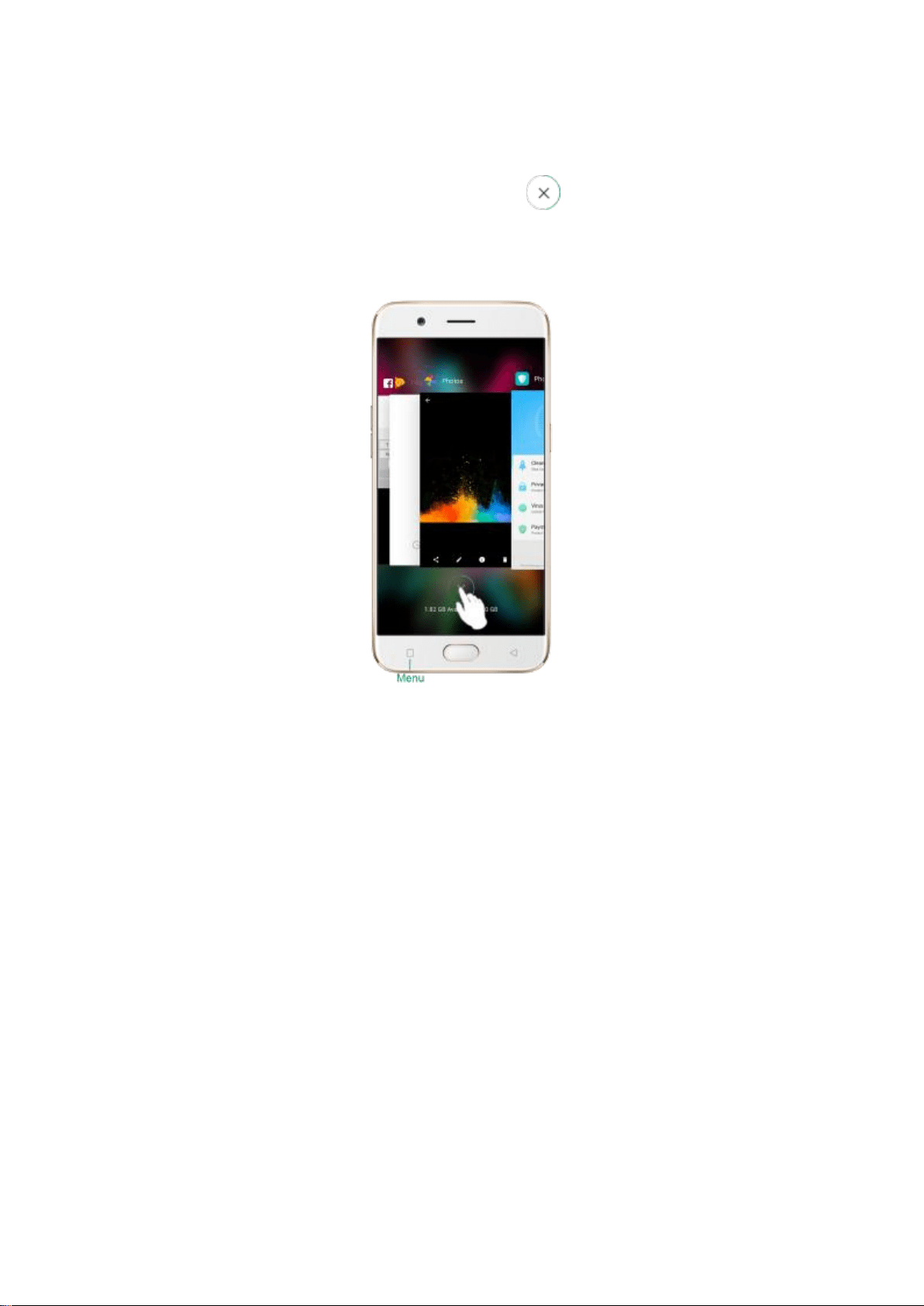
Close apps
Click Menu button on the bottom left, and then:
Close an app: Swipe the app up to the top edge of the screen.
Close all apps: Click to clean up the list.
5.2. Share from apps
In addition to share your information from the Files app, you can also share
from many other apps in your OPPO smartphone.
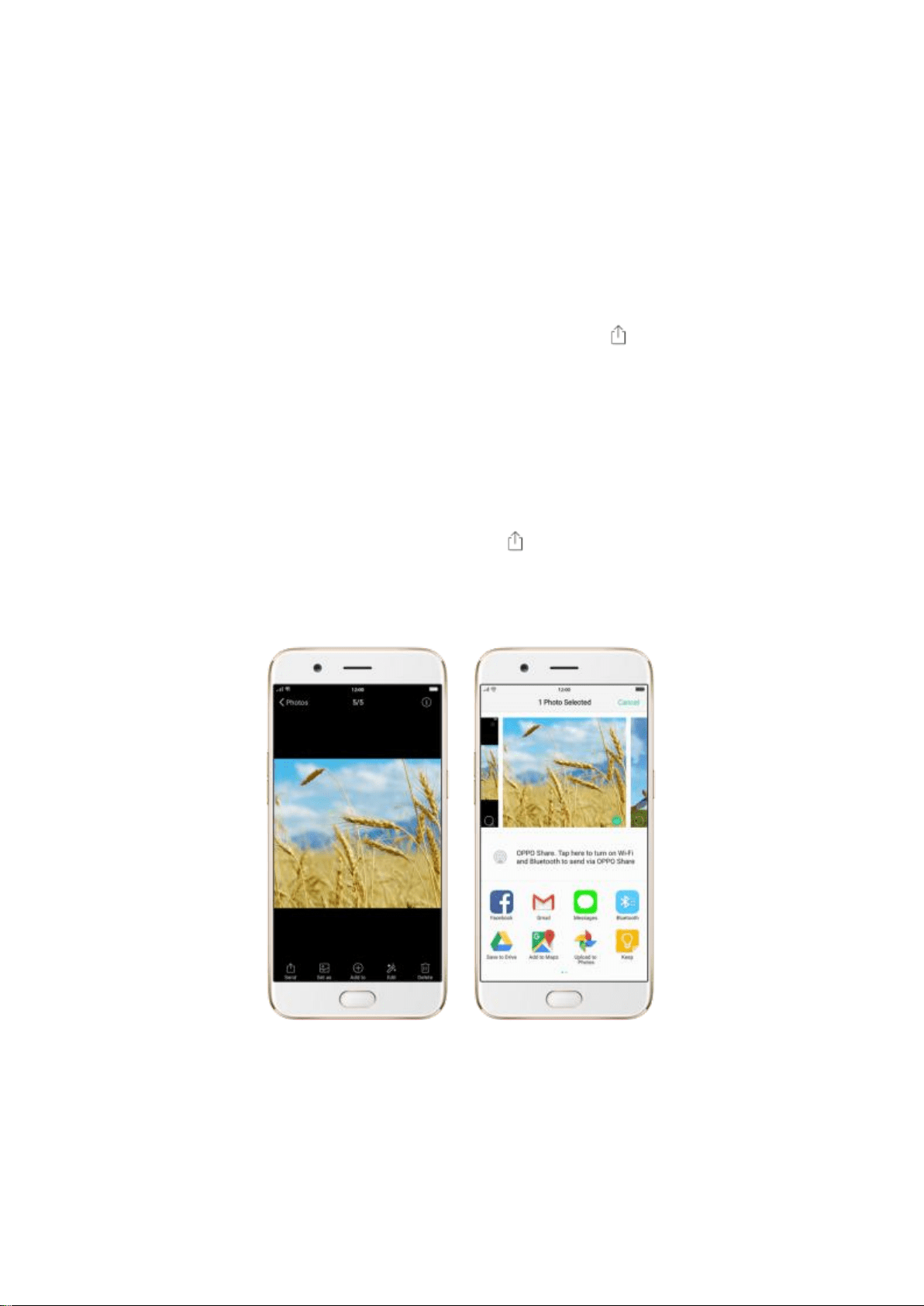
Share from apps. In many apps, you can click Send or to choose how to
share your information. The choices vary depending on the app you’re using.
Additional options may appear if you’ve downloaded apps with multiple
sharing options.
Take the Photos app as an example, click and you’ll see all the sharing
options.
5.3. One-click cleanup
One-click cleanup option helps you to make your phone perform steadily and
faster.
Stop background apps. Click Menu button > to close all active apps. If
you want to close a specific app, swipe it up.
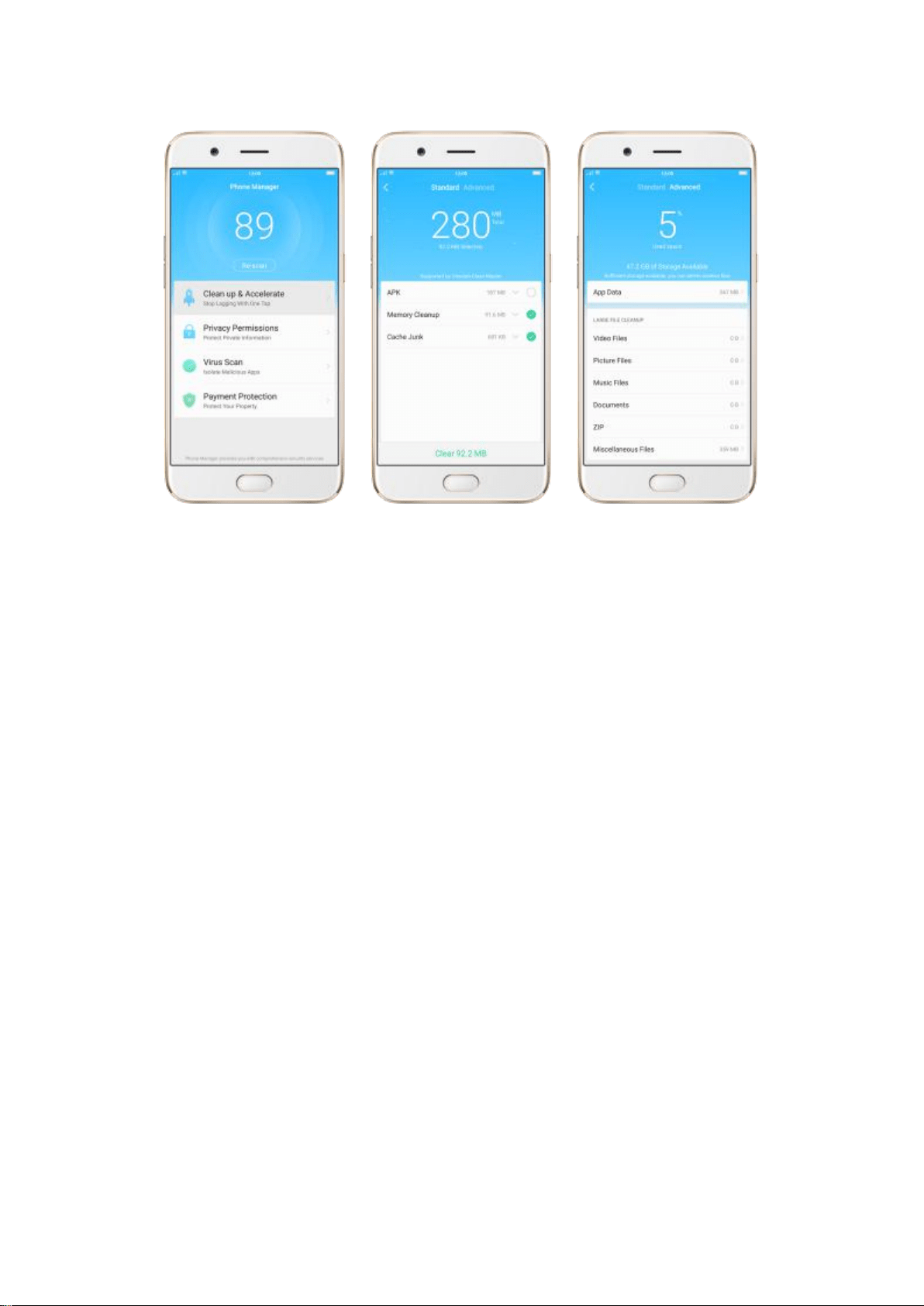
Clean up & Accelerate. Click Phone Manager on the Home screen, then click
[Cleanup & Accelerate]. Scan and delete all kinds of junk files. You can also
delete unnecessary files, such as downloaded APKs, music, pictures, and
more.
5.4. Lock the running background apps
You may close the running background apps frequently to make your phone
perform steadily and faster. If you want some apps to be always connected
and reachable, do the following:
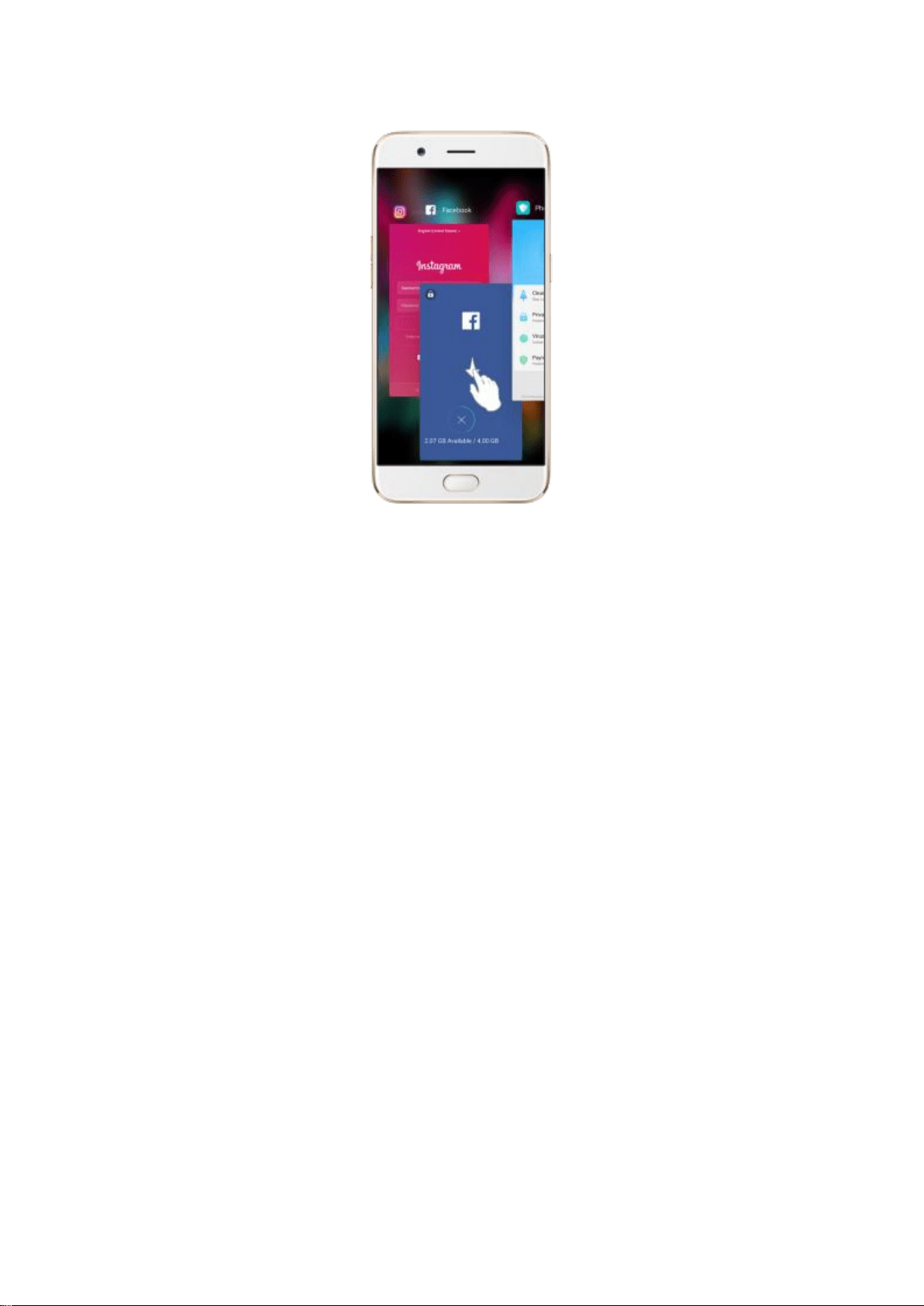
Lock an app. Click Menu button to reveal your open apps, then swipe an app
down to the bottom edge of the screen. Notice that a lock appears in the
upper-left corner of the app.
Repeat the action for more apps.
5.5. View, zoom in and out
Use the touchscreen to interact directly with what is displayed.
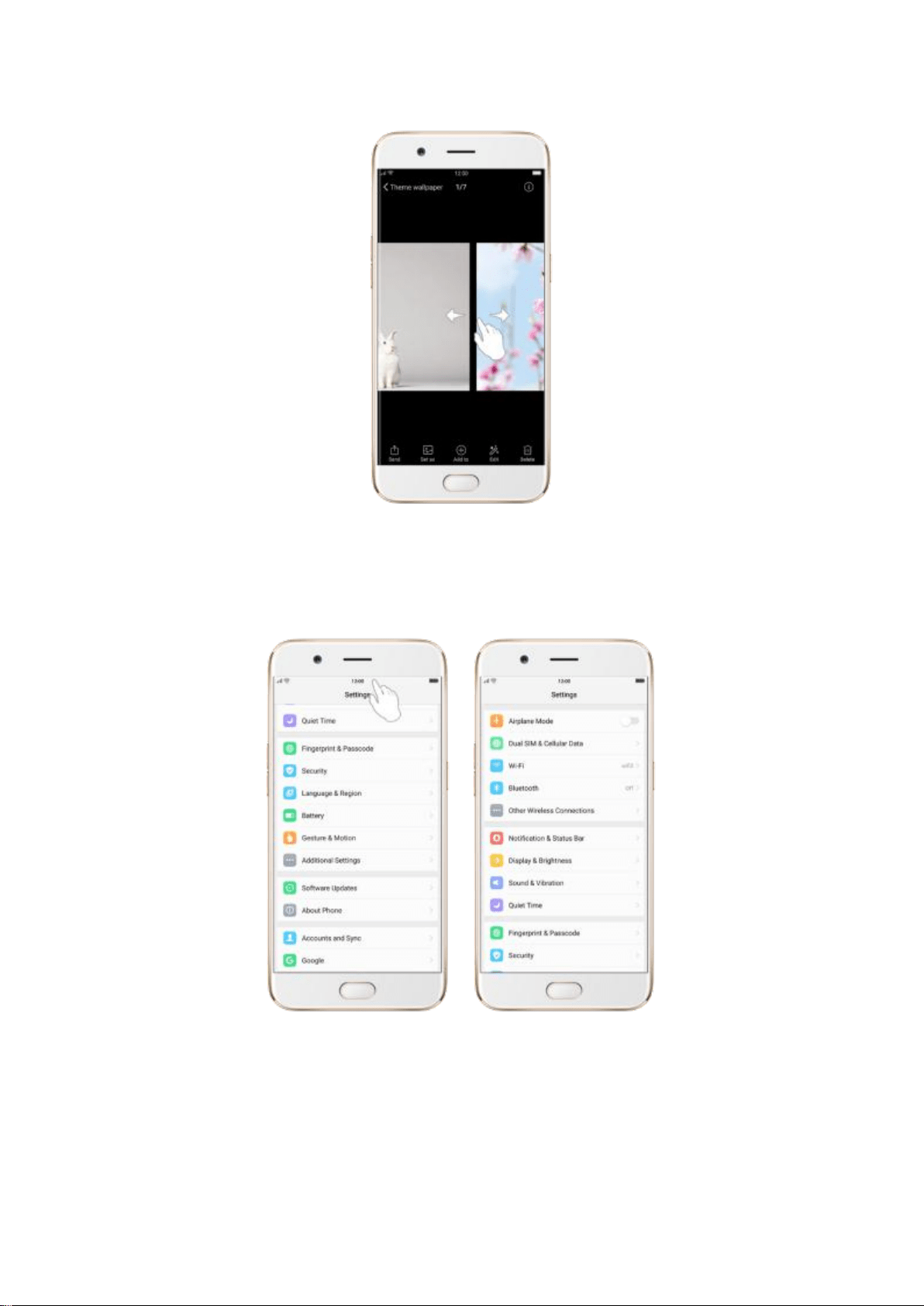
View items. Drag up or down to scroll. You can also drag some screens in any
direction, such as webpages. Flick to scroll quickly. You can wait for the
scrolling to come to a stop, or touch anywhere on the screen to stop it
immediately.
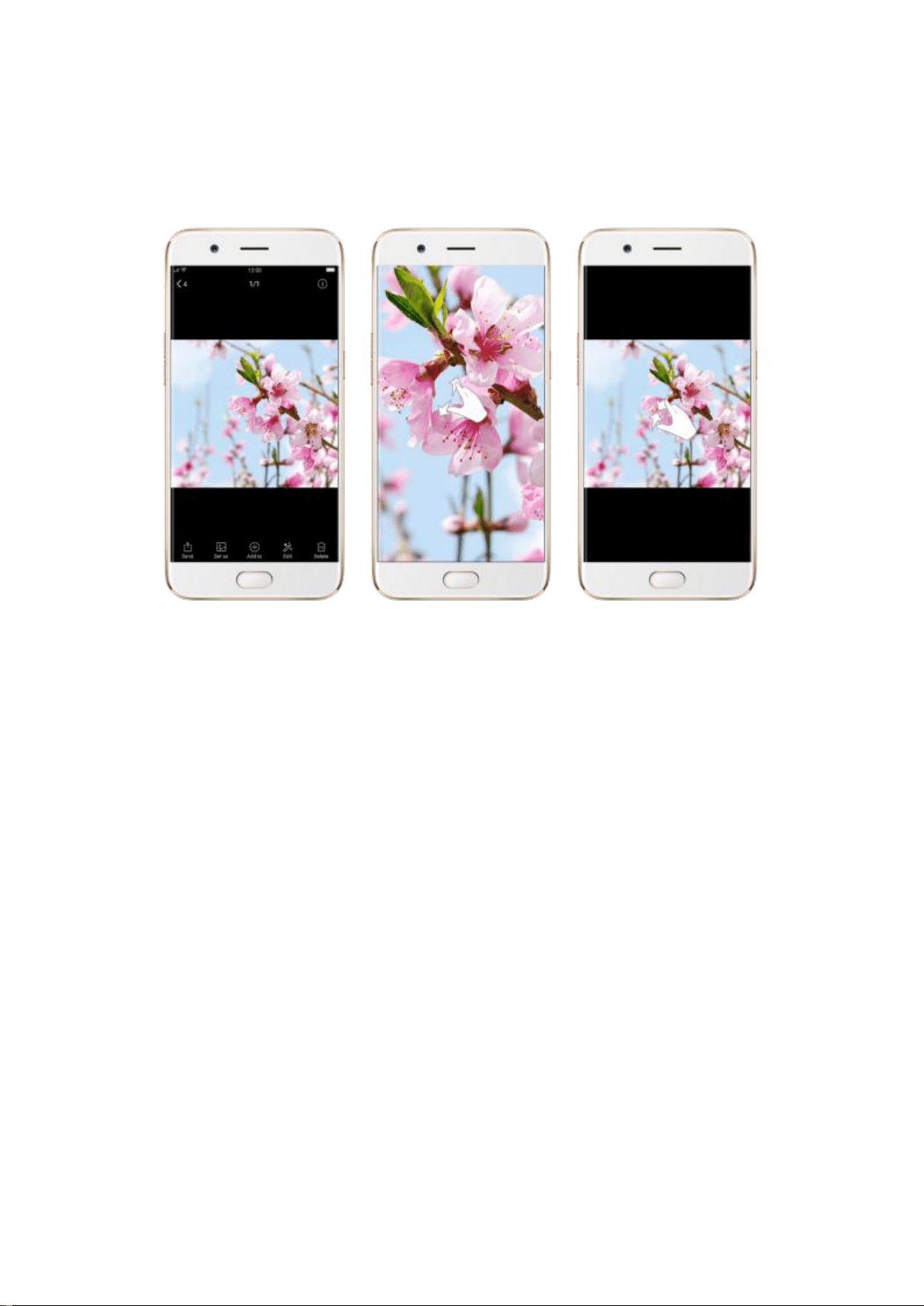
On some screens such as Settings and Contacts page, double-click the status
bar to quickly scroll to top.
Zoom in and out. When viewing photos, maps, or web pages, you can zoom
in and out. Pinch your fingers together or apart. For photos and web pages,
you can double-click to zoom in, then double-click again to zoom out. For
maps, double-click to zoom in and click once with two fingers to zoom out.
5.6. Change the screen orientation
OPPO smartphone supports portrait and landscape screen orientations.
Every time you shift your hands, the screen rotates.
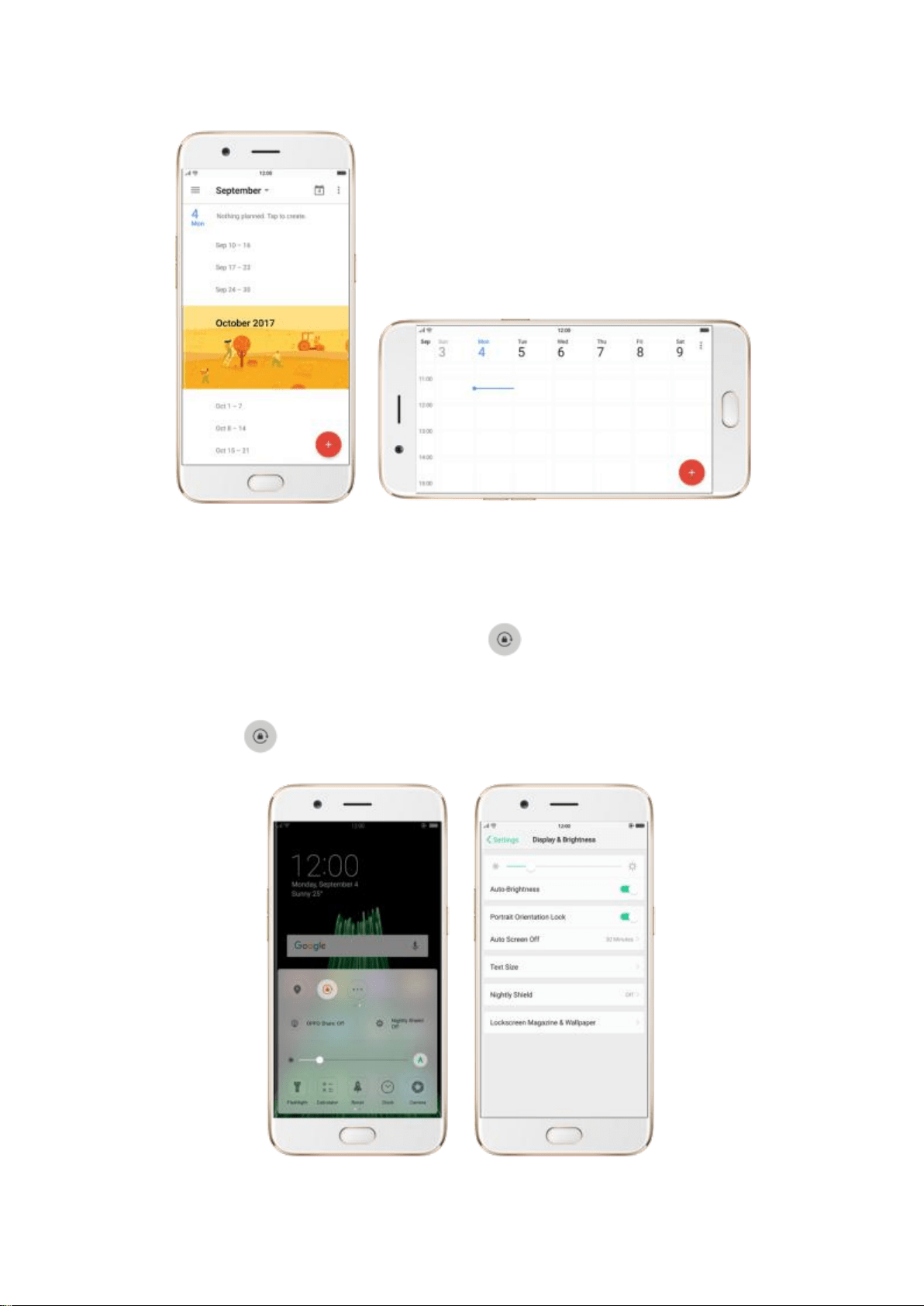
To lock the screen in portrait orientation, swipe up from the bottom of the
screen to open Control Center, then click . Or go to [Settings] > [Display
& Brightness] and toggle the [Portrait Orientation Lock] slider to green.
Notice that appears in the status bar.
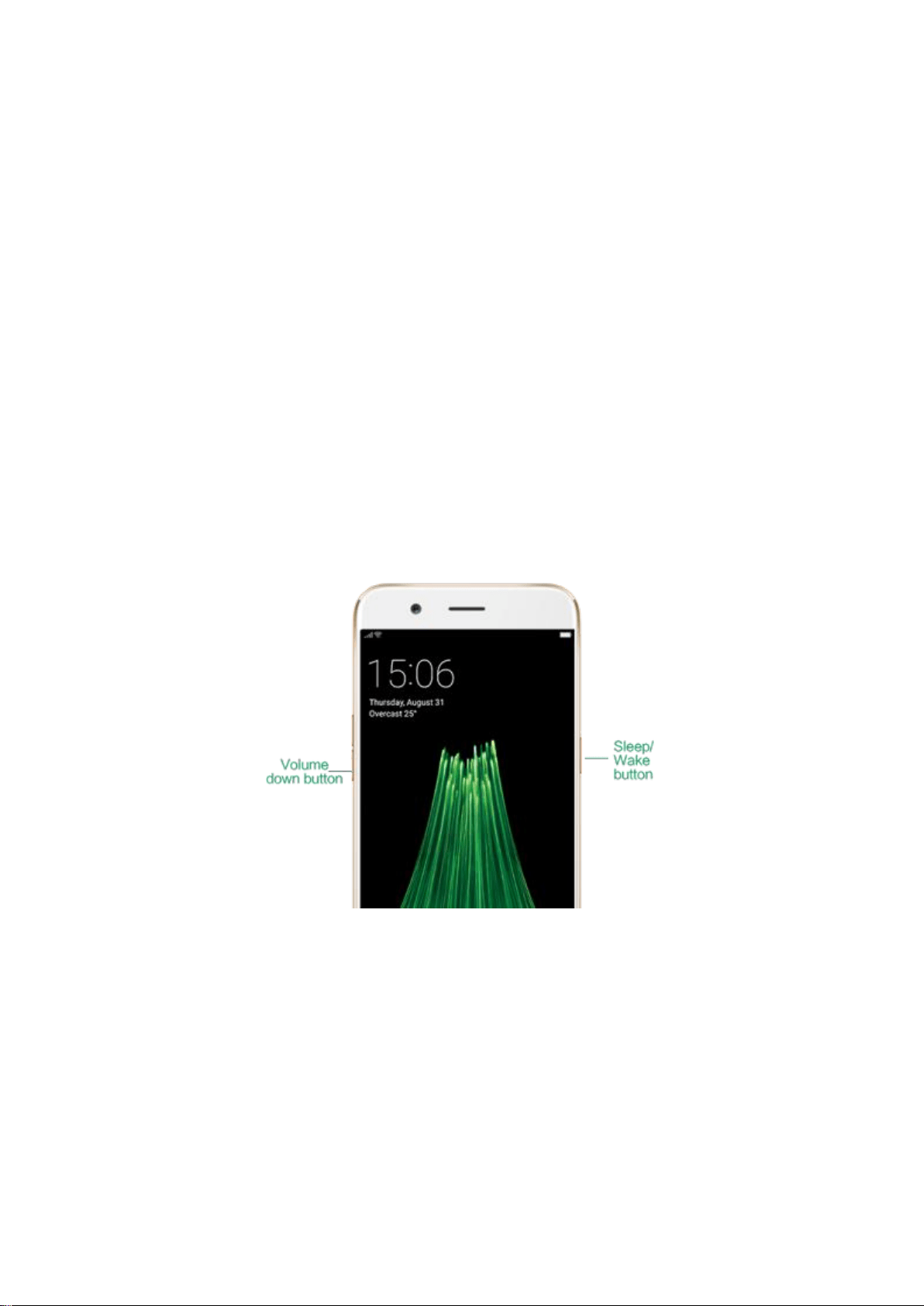
5.7. Take a screenshot
You can capture the screen on your OPPO smartphone using three ways:
Capture the current page
Press and hold the Power and Volume Down buttons for about 2
seconds, the screen will briefly flash white, and you'll hear a shutter
sound if your phone's sound is on.
Gesture Screenshot: Go to [Settings] > [Gesture & Motion] and
turn on [Gesture Screenshot]. Then swipe the screen up or down
with three fingers to take a screenshot.
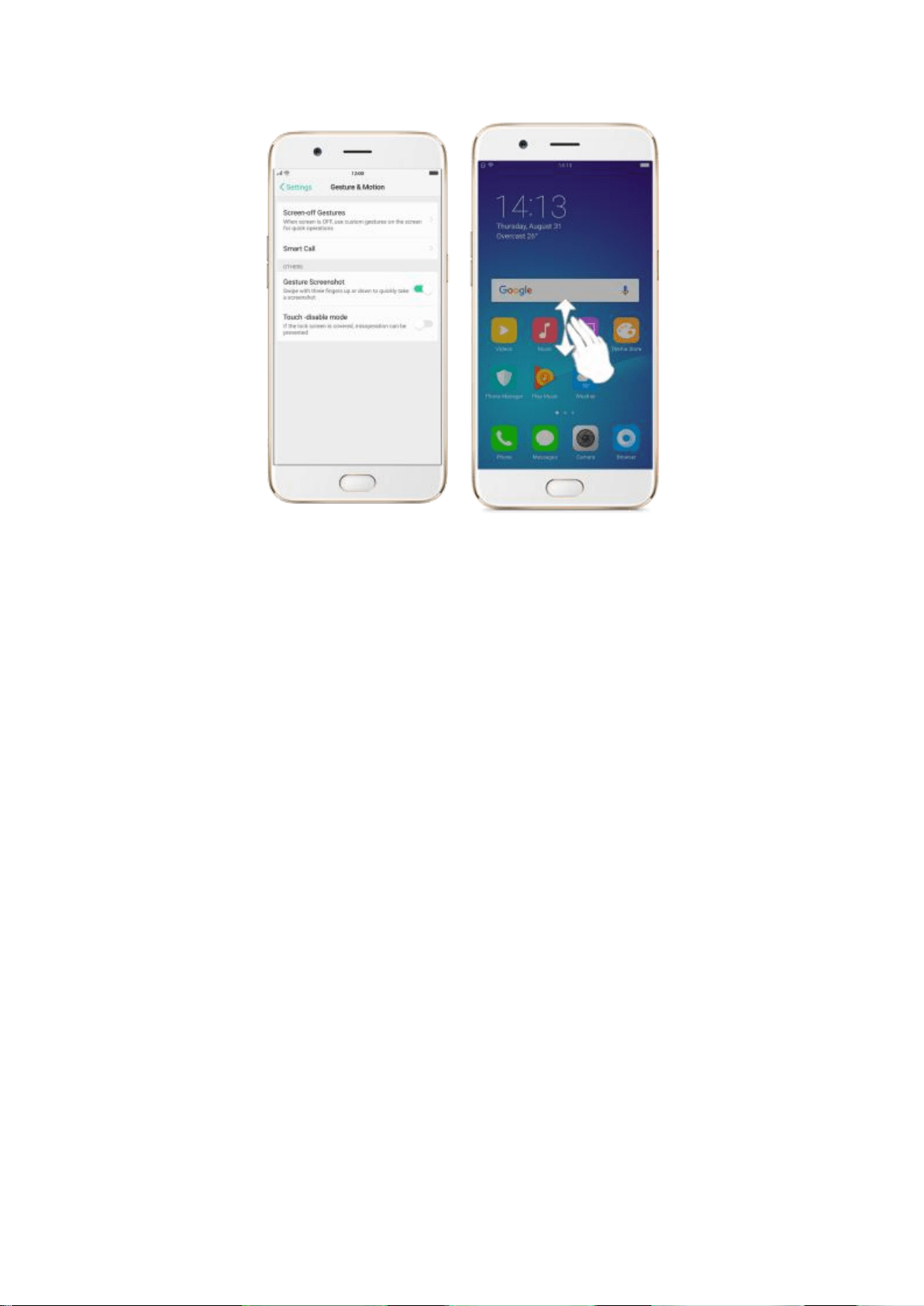
Capture a long screenshot
With OPPO smartphone, you can easily take longer and scrolling screenshot
with simple clicks. Long screenshot allows you to take scrolling screenshot
of your conversations on messaging apps or a full webpage. ColorOS 3.1
devices can take long screenshots up to 40 pages.
Note: Long screenshot cannot work when you are on the home page of your
phone.
To capture long screenshots:
1. Press and hold the Power and Volume Up buttons for about 2
seconds, then your phone will be ready to capture the screen.
2. Click [Page-down] to scroll to the next page, continue to click
[Page-down] until you want to stop capturing.
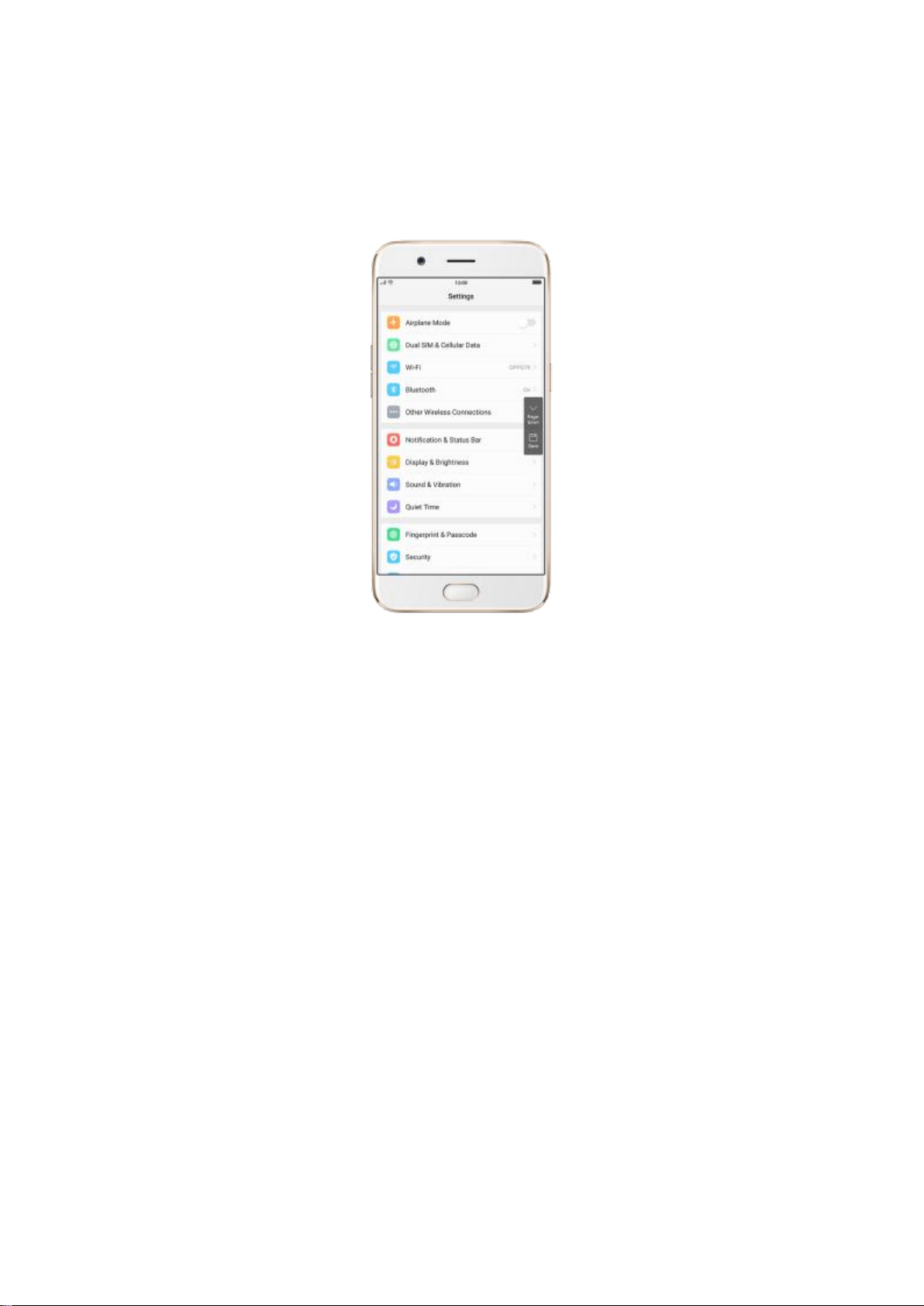
3. Click [Save] to generate a long screenshot. The image is saved in the
Photos app.
5.8. Notification and Status Bar
Notifications
Notifications alert you to the arrival of new messages, incoming calls,
calendar events and so on. When a notification appears, you can click it to
open or swipe it away to dismiss.
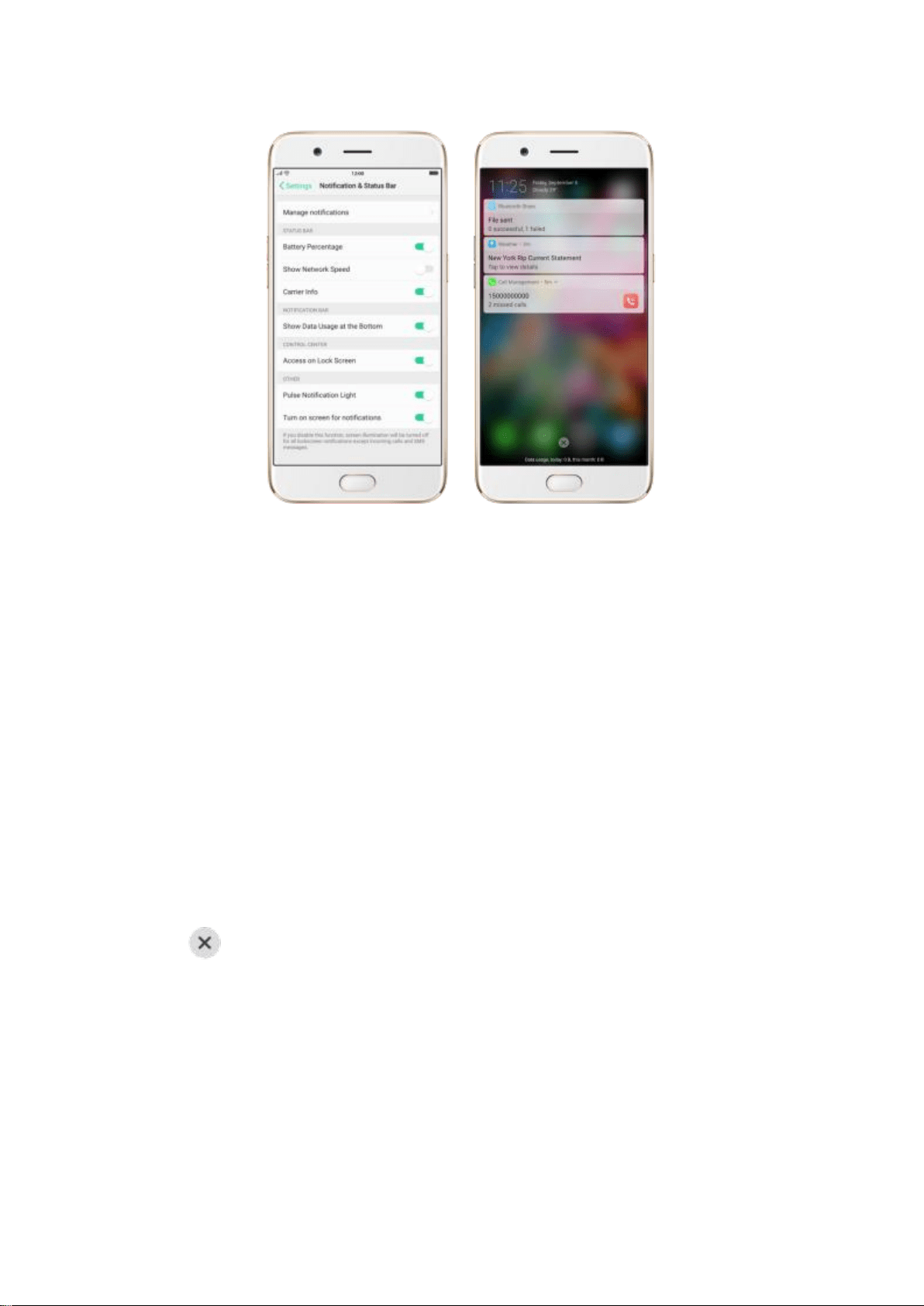
View all notifications. Swipe down from the top of any screen to open
notification center.
Open the app to respond. Click a notification to go to the related app.
When phone screen is locked, swipe the notification right. You may need to
enter your passcode.
Dismiss notifications. Swipe the notification left. To dismiss all notifications,
Click .
Manage your notification settings. Swipe the notification left, click
[Settings], or go to [Settings] > [Notification & Status Bar] > [Manage
notifications].
Select an app from the list to customize whether new notifications from that
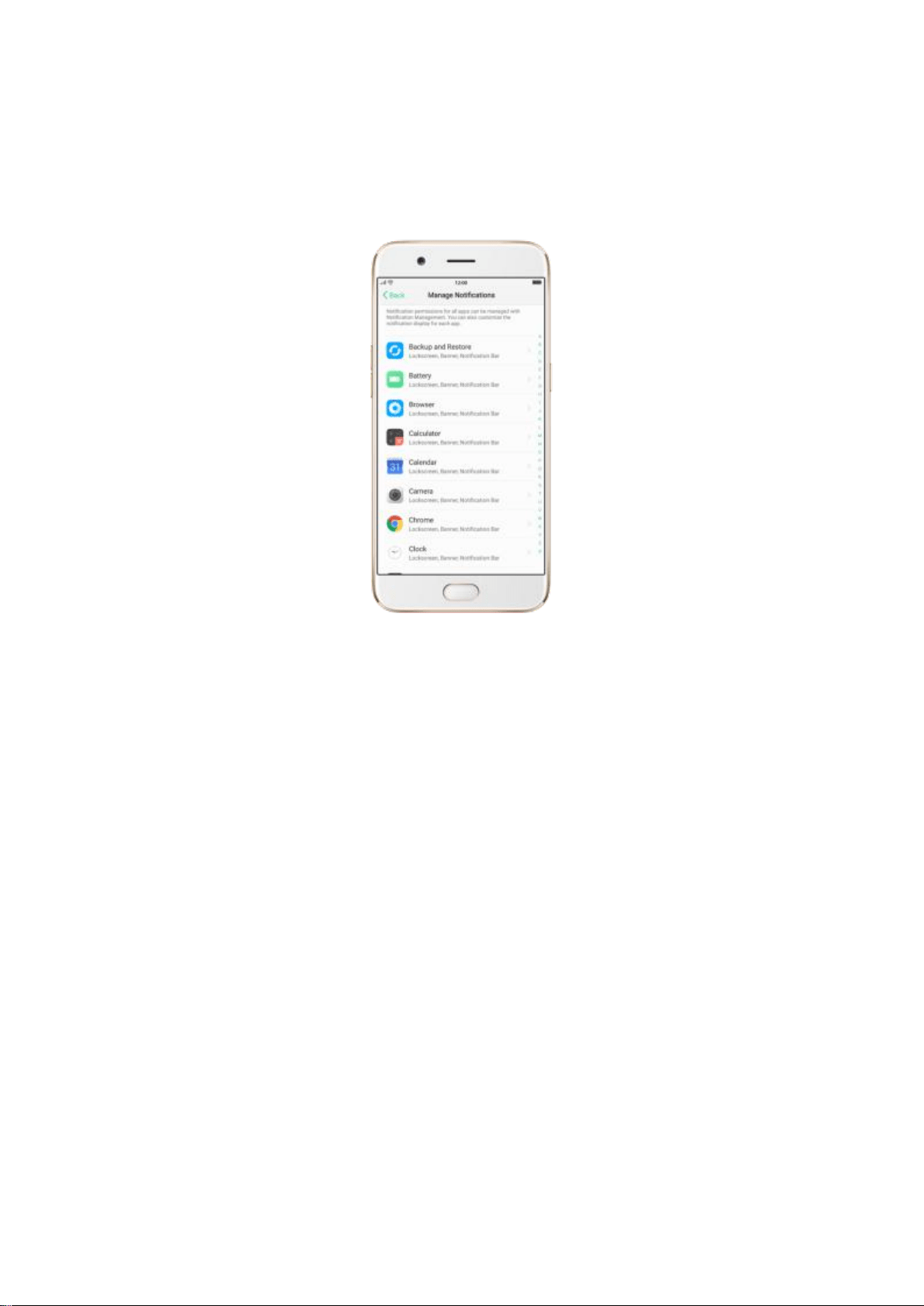
app appear on the lock screen or notification bar, display a banner, play a
sound or vibrate, and more.
You can also let your phone pulse light and turn on screen for new
notifications.
Status Bar
Status icons are displayed on the status bar, indicating for instance wireless
connectivity, the battery status and operator info.
Display or hide status icons. Go to [Settings] > [Notification & Status Bar],
and toggle the slider to green/white.

5.9. Control Center
OPPO smartphone allows you to control many basic features with just a
swipe.
By accessing the Control Center,
1. You can quickly access to frequently used functions such as Wi-Fi, Mobile
Data, GPS, Bluetooth, OPPO Share, Personal Hotspot, Flashlight,
Calculator, Clock, Camera and more.
2. You can also personalize your settings such as Silent Mode, Airplane
Mode, Portrait Orientation Lock, Disable Button keys, Brightness and
more.
Open Control Center
Swipe up from the very bottom of any screen to access it.
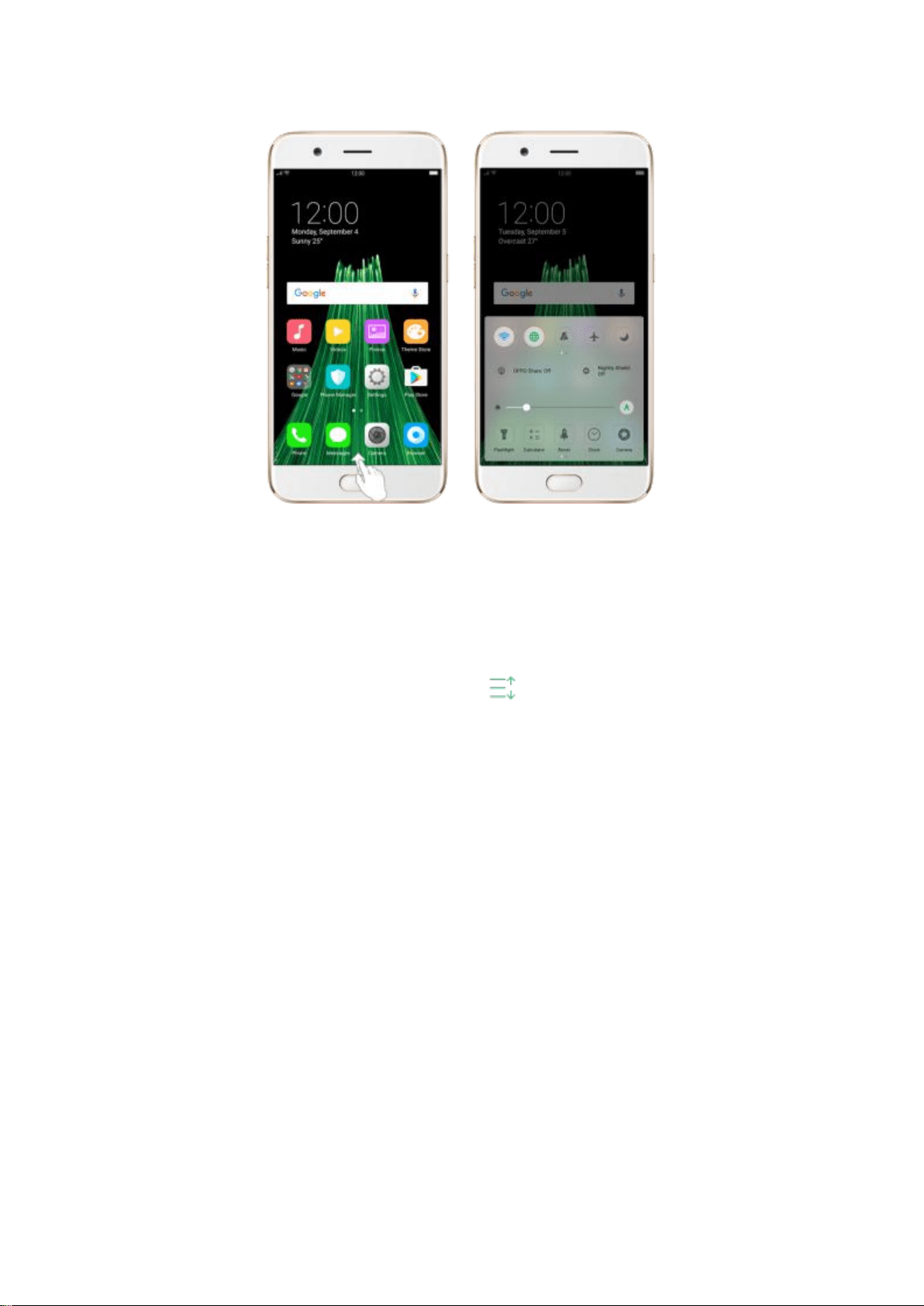
Personalize your Control Center
Swipe the shortcut bar left and click More. You can change or rearrange the
shortcuts according to preference. Drag next to a shortcut name up or
down to enable or disable the shortcut. You can add nine shortcut keys at
most.
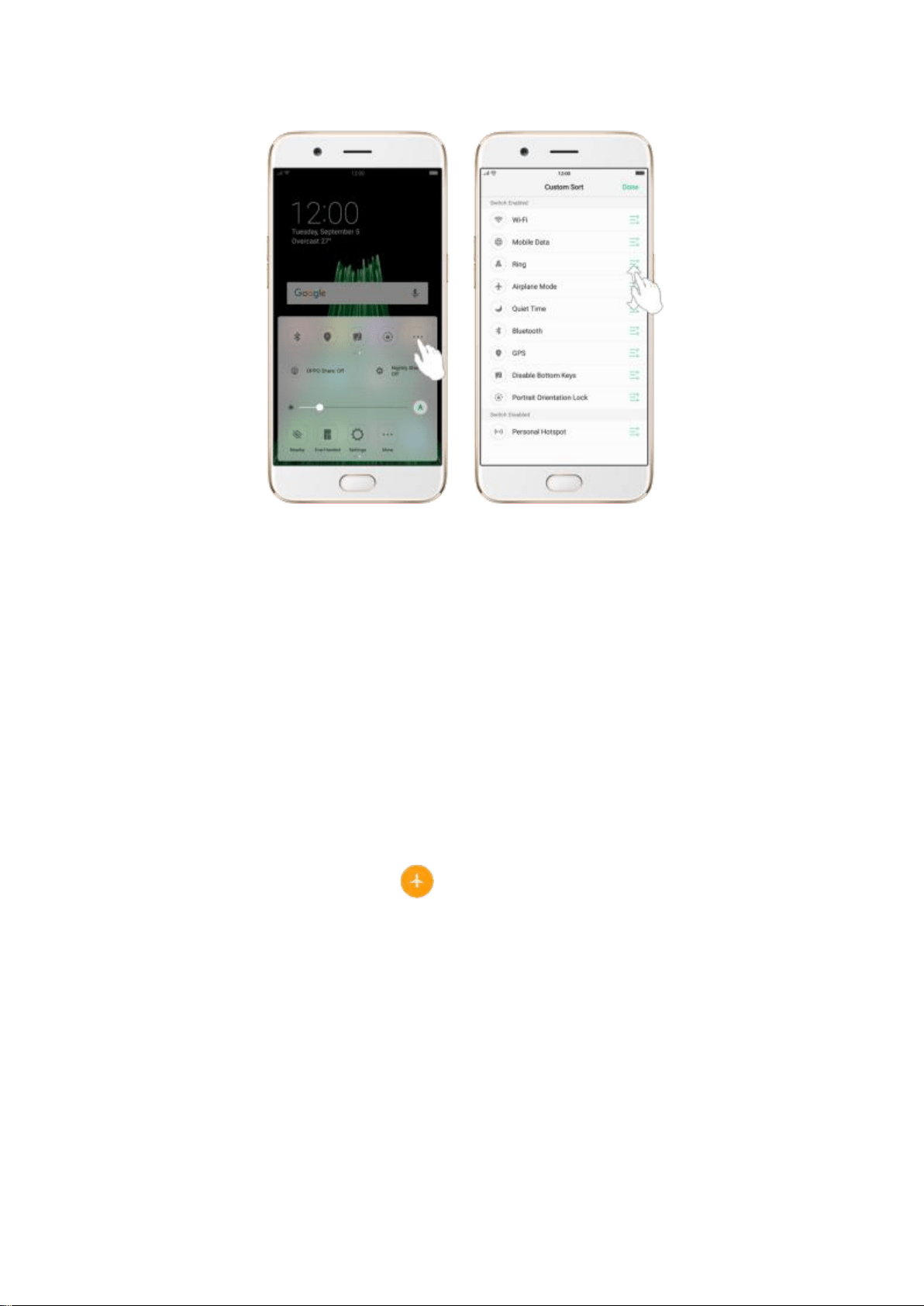
Airplane Mode. Airplane mode disables your phone’s wireless
communication abilities, theoretically making it approved for use on aircraft.
While in airplane mode, your phone cannot send or receive phone calls and
messages.
Turn on Airplane Mode: Go to [Settings] > [Airplane Mode] and tap the
slider to turn it on. You can also swipe up from the bottom of your screen to
open Control Center, then tap . Notice that the carrier information in the
upper-right will be replaced with an airplane icon. Wi-Fi and Mobile Data will
be turned off when Airplane mode is enabled, but you can still turn on Wi-Fi
under Airplane mode.
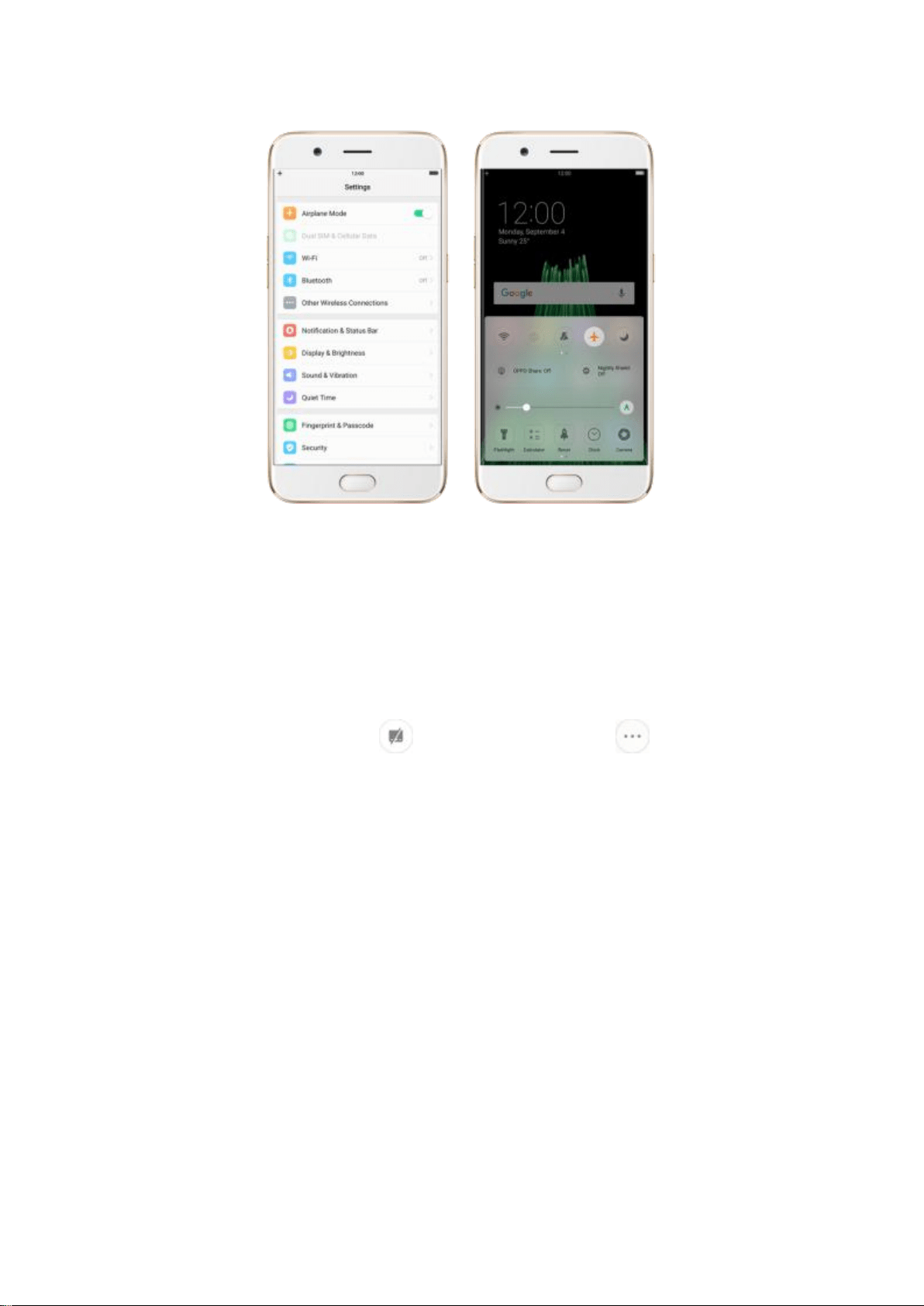
Disable Bottom Keys. When watching videos or playing games on your
OPPO smartphone, you can temporarily block the bottom keys to prevent
from mistakenly touch.
Disable bottom keys. Swipe up from the very bottom of any screen to open
Control Center. Then click . You may need click to enable the
shortcut key first.
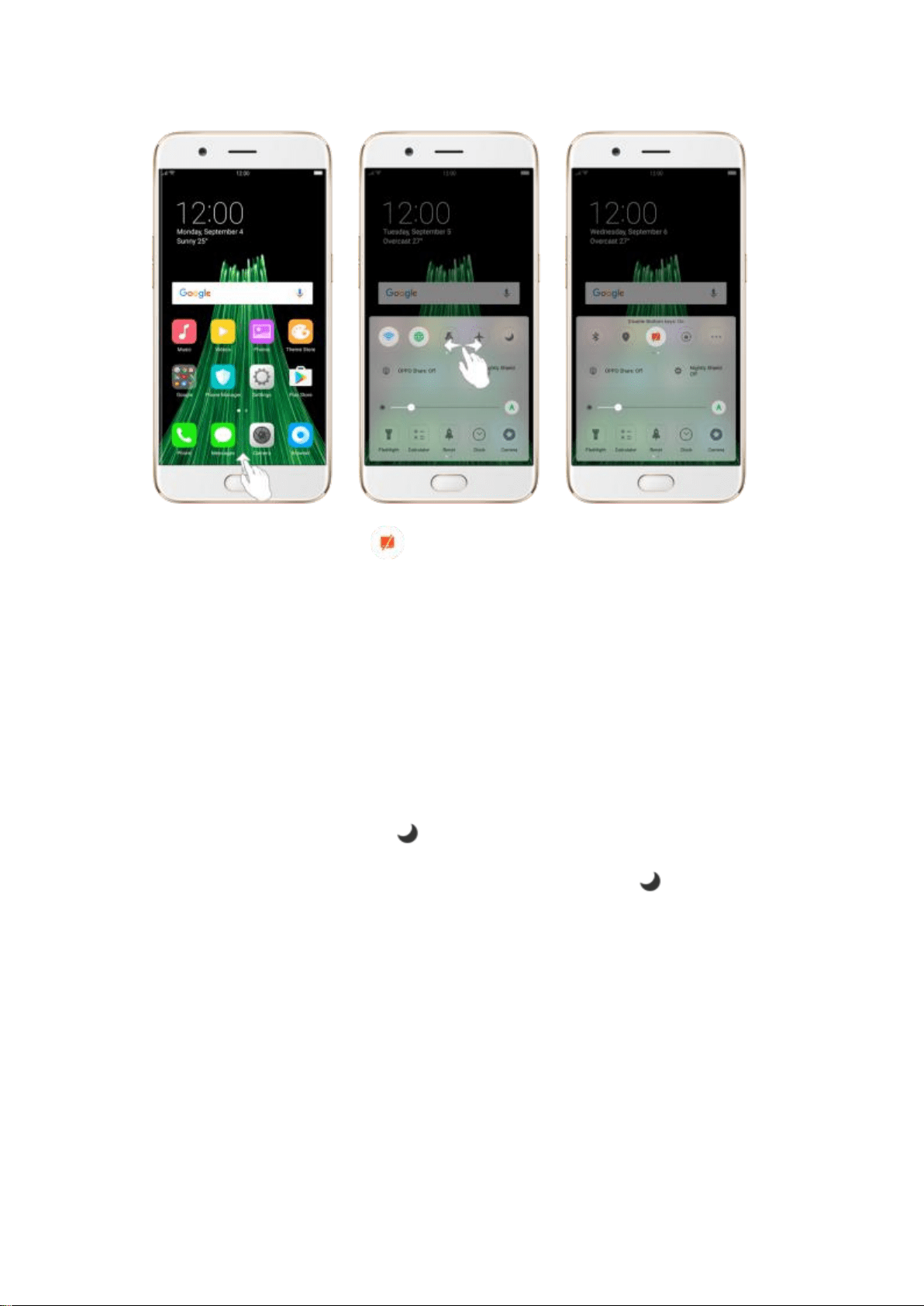
Enable bottom keys. Click , or click the Menu, Home or Return button
three times in a row.
Quiet Time. With OPPO phone’s Quiet Time feature, you can silence your
phone when you need privacy. You can even set it to a schedule, or allow only
specific people to reach you.
Turn on Quiet Time. Swipe up from the bottom of the screen to bring up
the Control Center, then click . Or go to [Settings] > [Quiet Time] and
toggle the [Enable Manually] slider to green. Notice that appears in the
status bar.
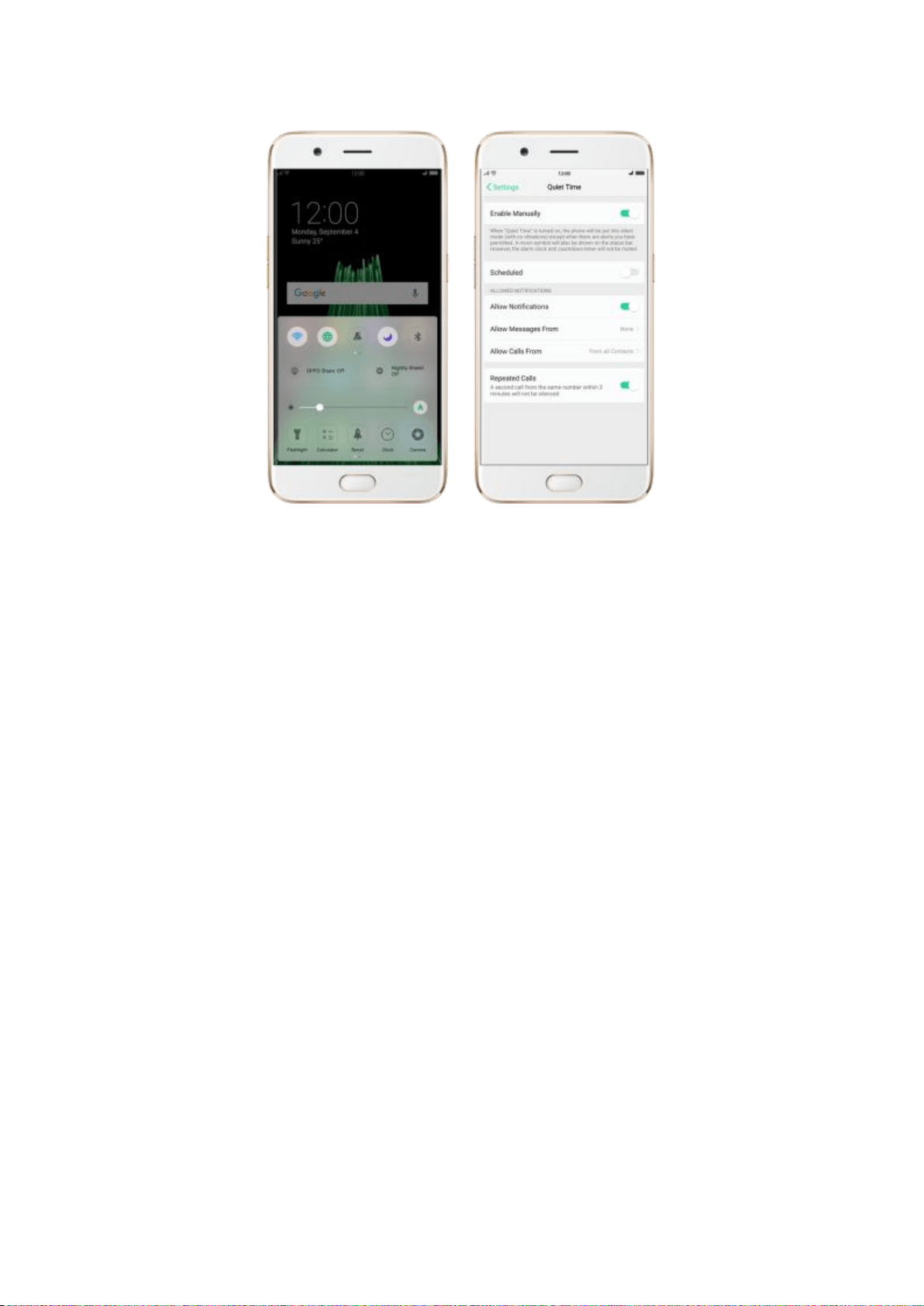
Schedule Quiet Time. If you want to set Quiet Time to automatically turn on
at specific times, you can set a schedule for it. Toggle the Scheduled slider to
green, and change times when you want it to start and stop.
Allow notifications. You can set Quiet Time to allow notifications, and allow
calls and messages to come through from people that you specify.
Allow repeated calls. Toggle the [Repeated Calls] option to allow a call to
come through if it rings for the second time in three minutes or less.
Close Control Center. Swipe down, tap the top of the screen, or press the
Home or Return button.
5.10. Search
Use the OPPO smartphone’s Search feature to find specific apps, contacts,
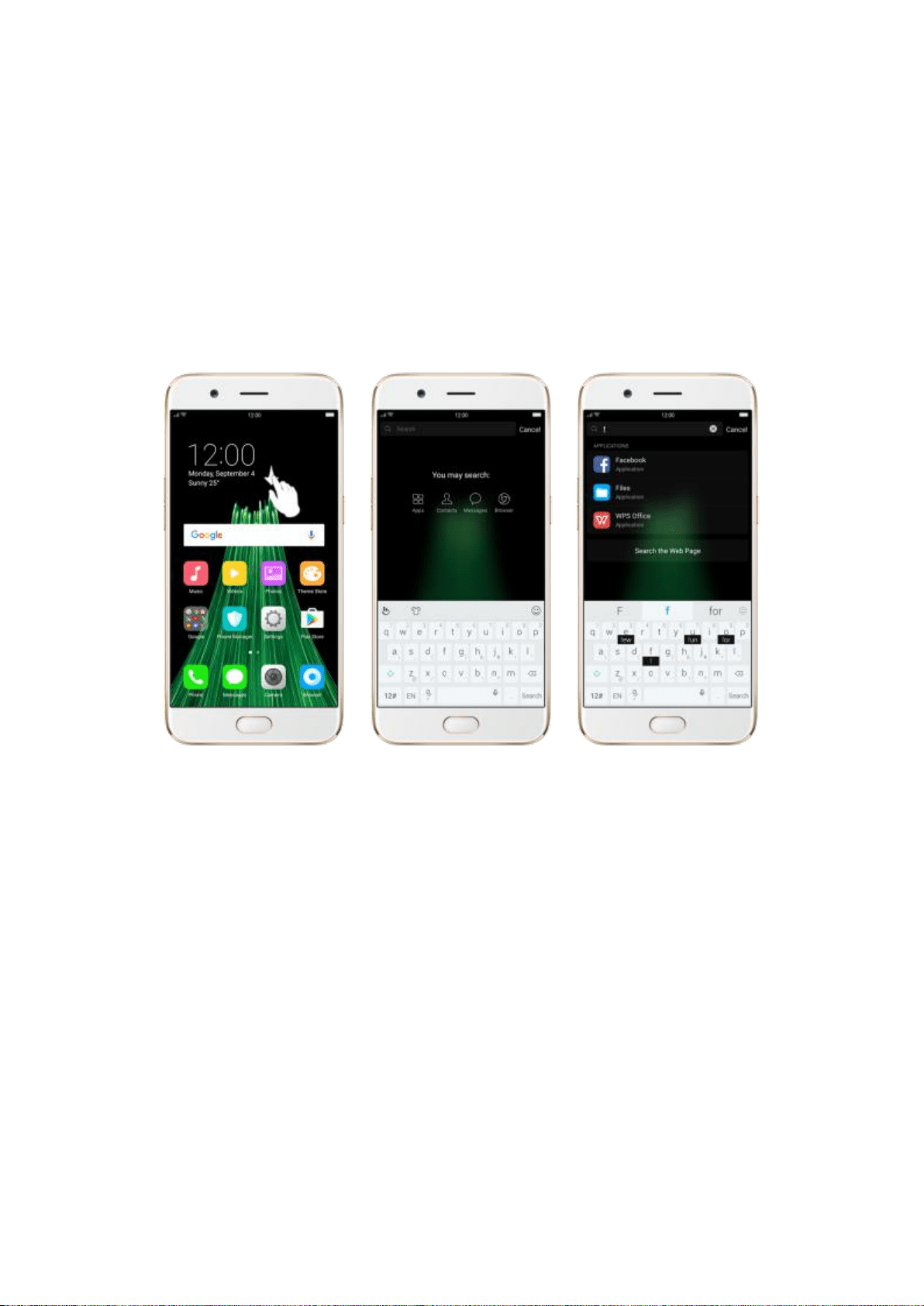
messages, or quickly search the Internet.
Search with OPPO phone. Swipe down on any page of the Home screen. Do
not start swiping at the very top of the screen - that will open the Notification
Center instead. Type in your search query, then click a search result in the list
to open it.
Close Search. Click “Cancel”, the Return button, or the middle of the screen.
5.11. Sound, Vibration and System
Feedback
You can set an OPPO smartphone to sound or vibrate for incoming calls,
messages and other notifications, and let your phone send sound or haptic
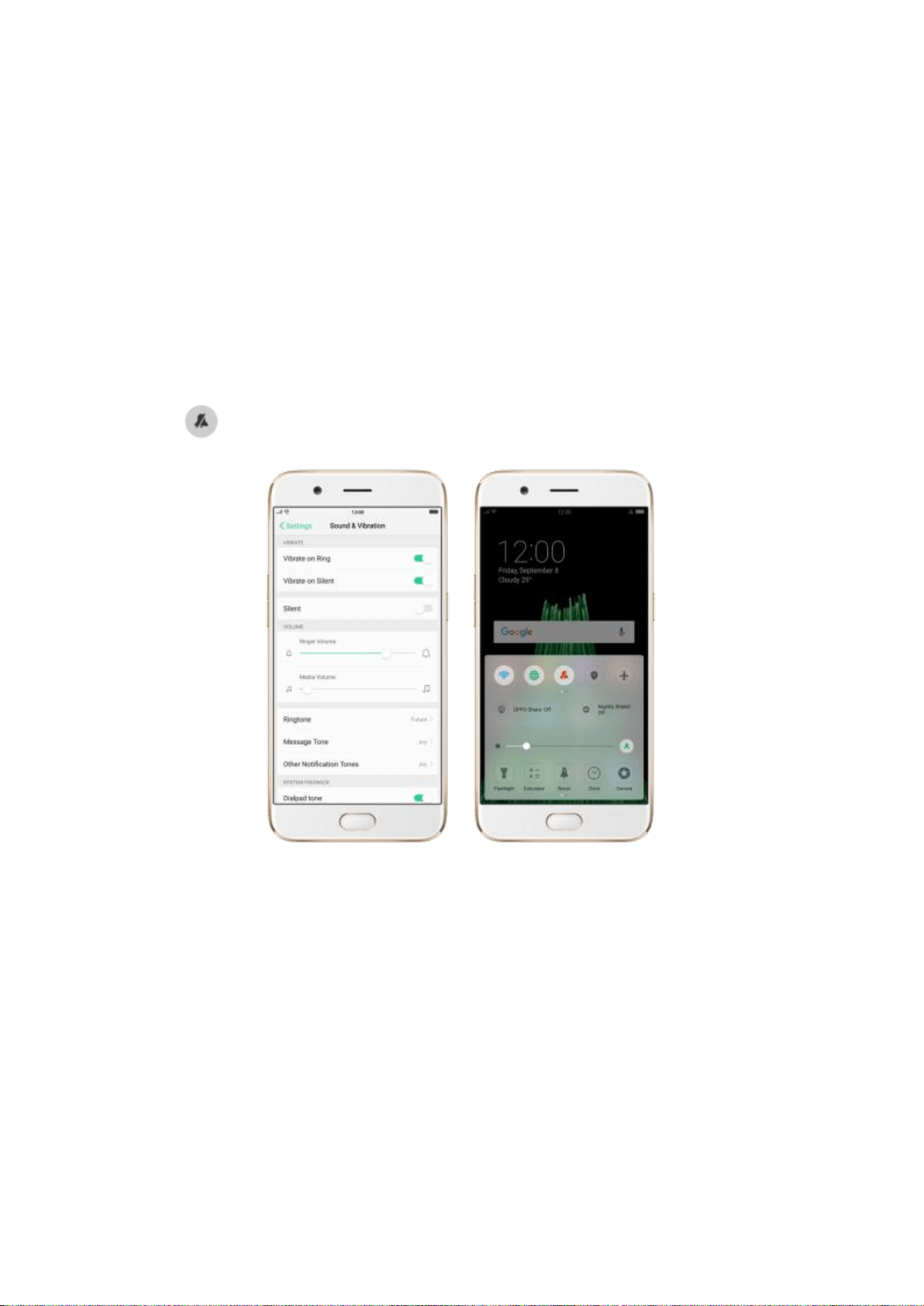
feedbacks on key clicks.
Set your phone to vibrate. Go to [Settings] > [Sound & Vibration].
Separate controls let you set your phone to vibrate in ring mode, silent mode,
or both.
Turn ringing on or off. Toggle the [Silent] slider to green or white. You can
also swipe up from the bottom of the screen to open the Control Center, then
click to turn on Silent mode.
Adjust the ringer and media volume. Drag the control point left or right.
Change ringtones for incoming calls, messages and other notifications. In
addition to the default ringtones, you can create ringtones using your own
audio files.
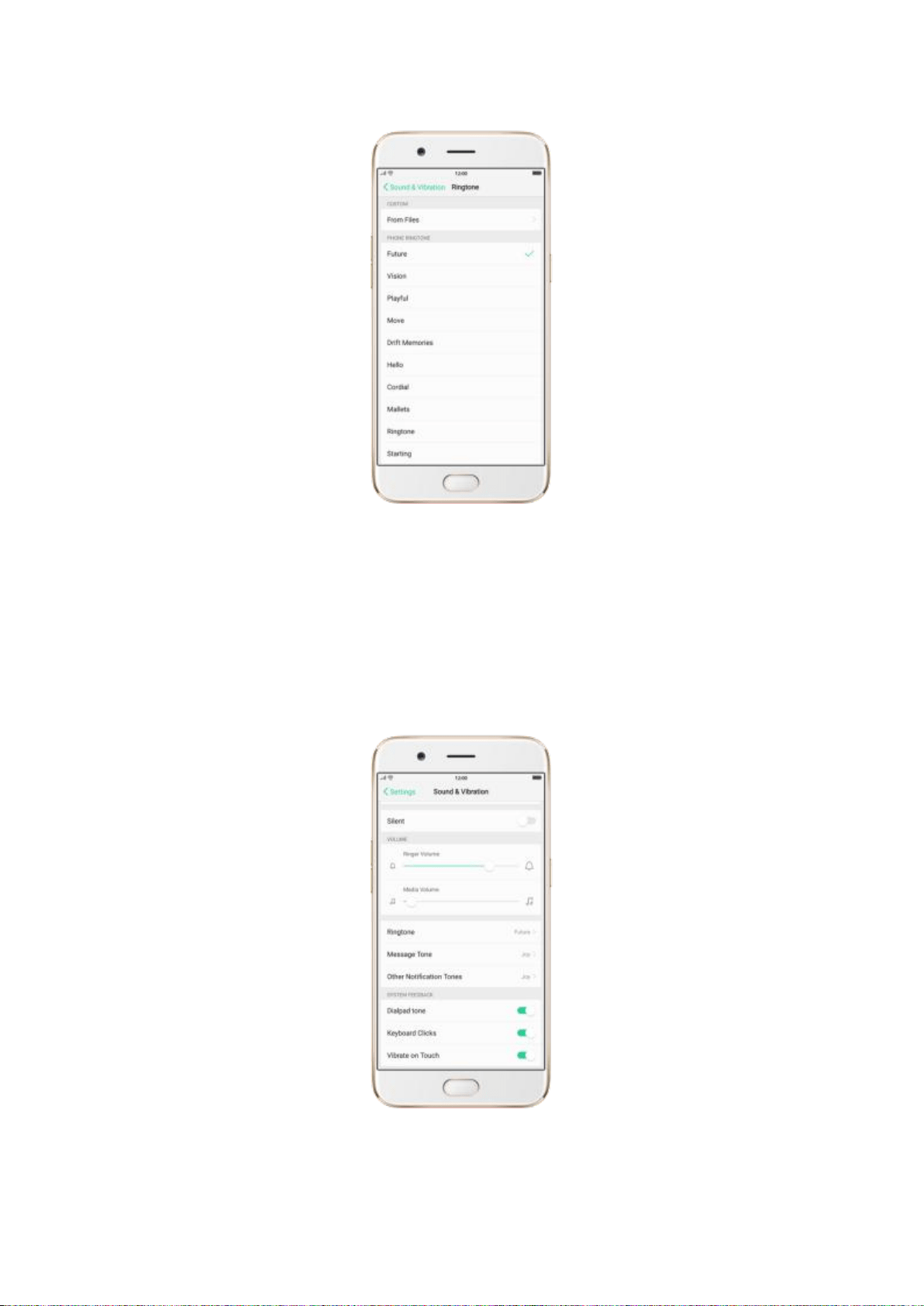
Turn system feedback on or off. Toggle the sliders to green or white. When
turn Vibrate on Touch on, your phone vibrates when you touch the Menu,
Home, and Return buttons.
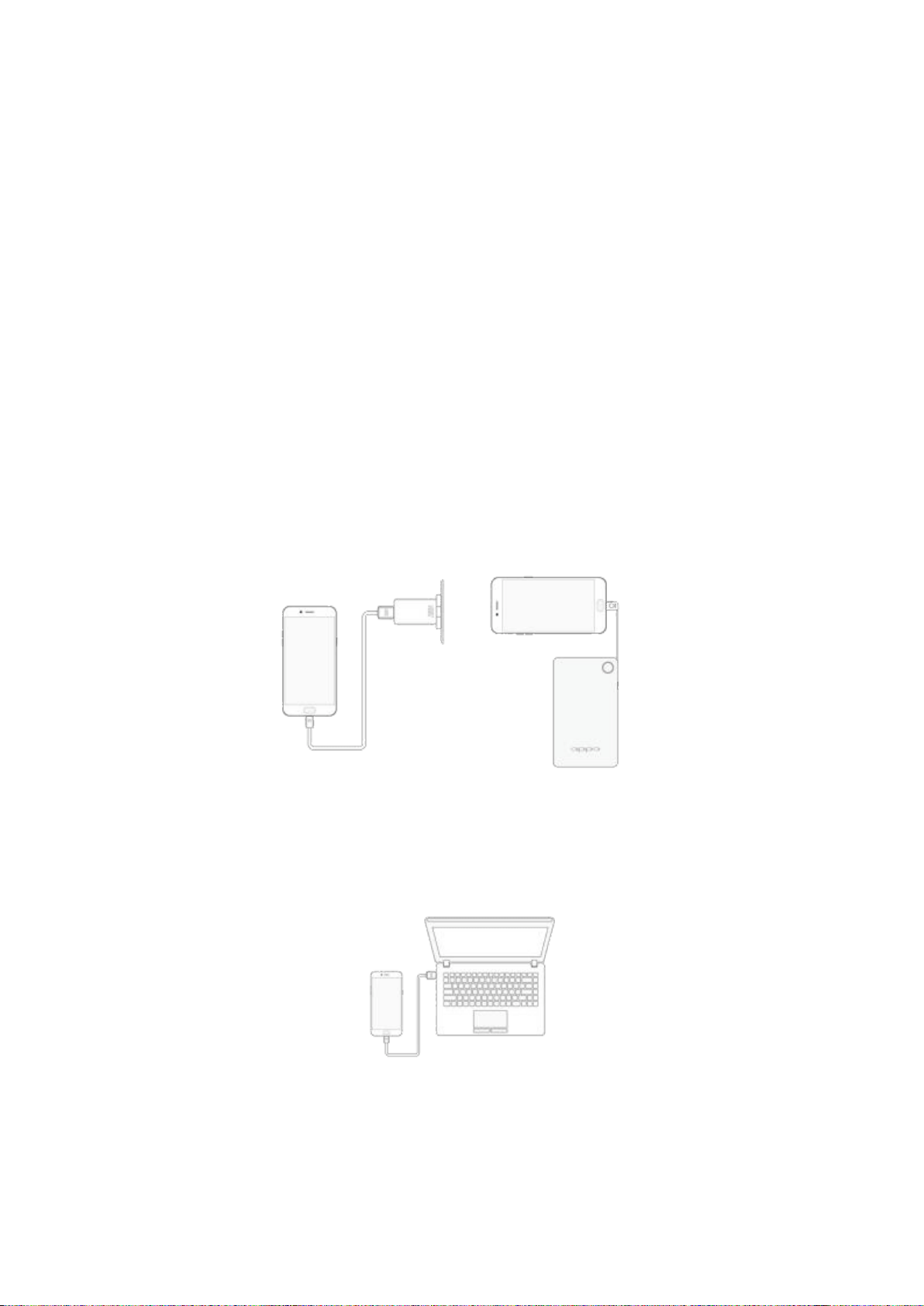
To temporarily silence incoming calls and alerts (without vibrations), see
Quite Time.
5.12. Charge and monitor the battery
OPPO smartphones are equipped with a non-removable, lithium-ion
rechargeable battery. Do not attempt to open your phone. Charge the phone
using the included cable and USB power adapter.
Charge the battery. Connect your phone to a standard power outlet or a
VOOC Power Bank.
Charge the battery and transfer files. Connect your phone to a computer.
An icon in the upper-right corner of the screen shows battery charging status.
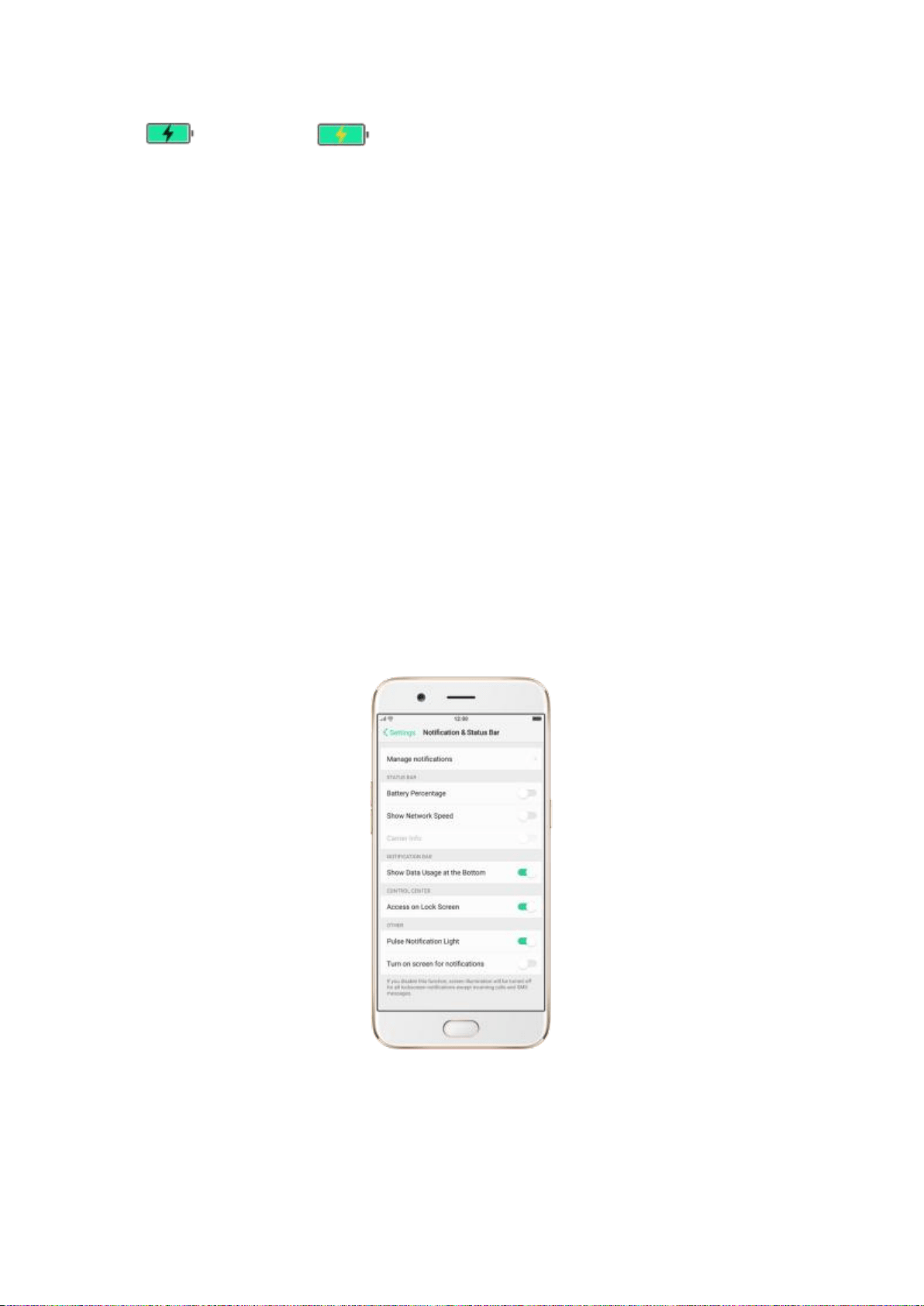
Charging VOOC Flash Charging
Notice: Rechargeable batteries have a limited number of charge cycles and
may eventually need to be replaced. The OPPO smartphone battery is not
user replaceable; it can only be replaced by an authorized service provider.
Removing the battery yourself will void your warranty and might cause
damage to your phone.
Show percentage of battery in the status bar. Go to [Settings] >
[Notification & Status Bar] and turn on [Battery Percentage].
View detailed battery info listed for each app. Go to [Settings] > [Battery].
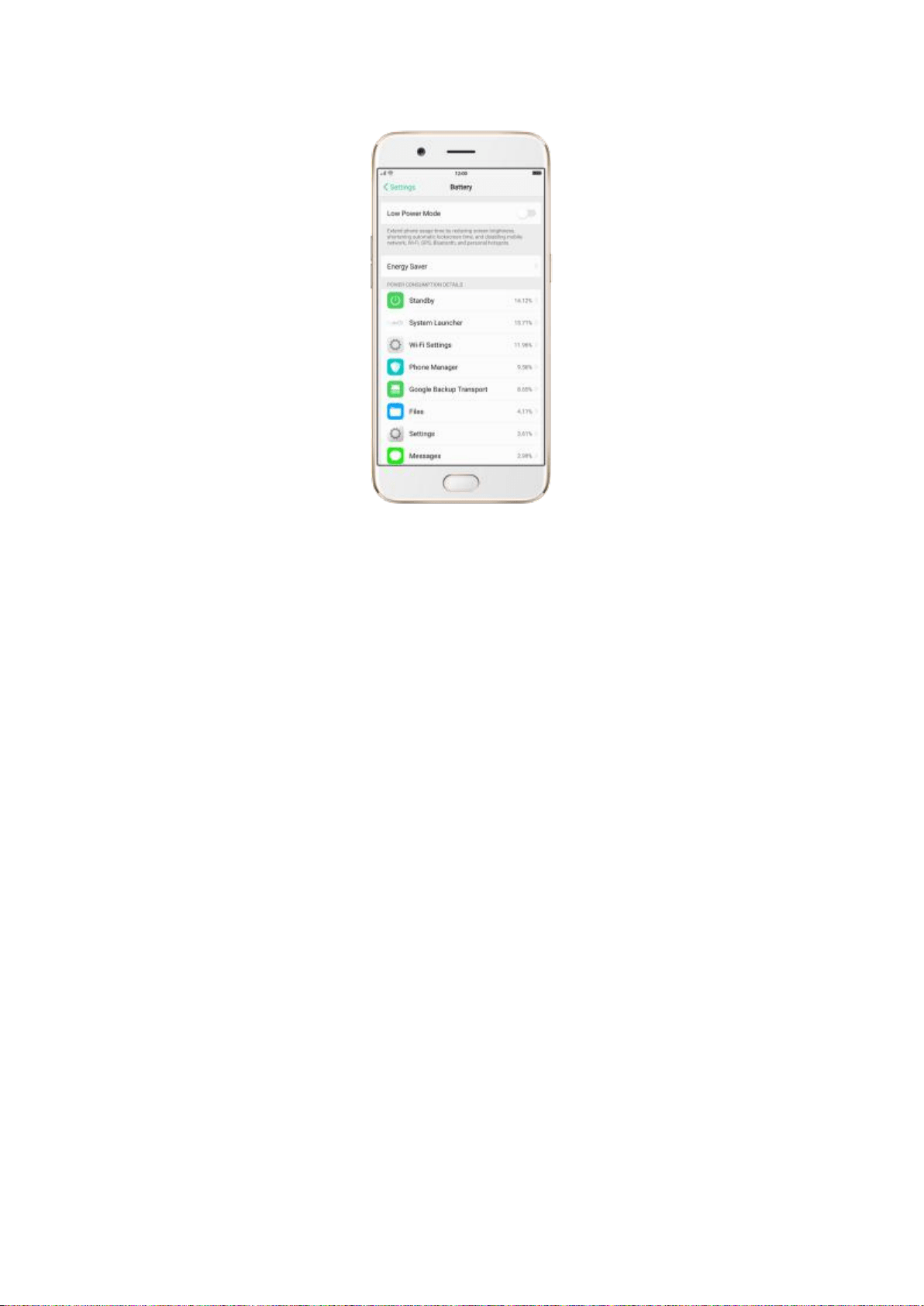
5.13. Low Power Mode
Low Power Mode temporarily reduces power consumption until you can fully
recharge your device. When it is turned on, the system notifications,
background app refresh, automatic downloads and visual effects are reduced
or turned off.
Turn on Low Power Mode: Go to [Settings] > [Battery] and toggle the
slider to green.
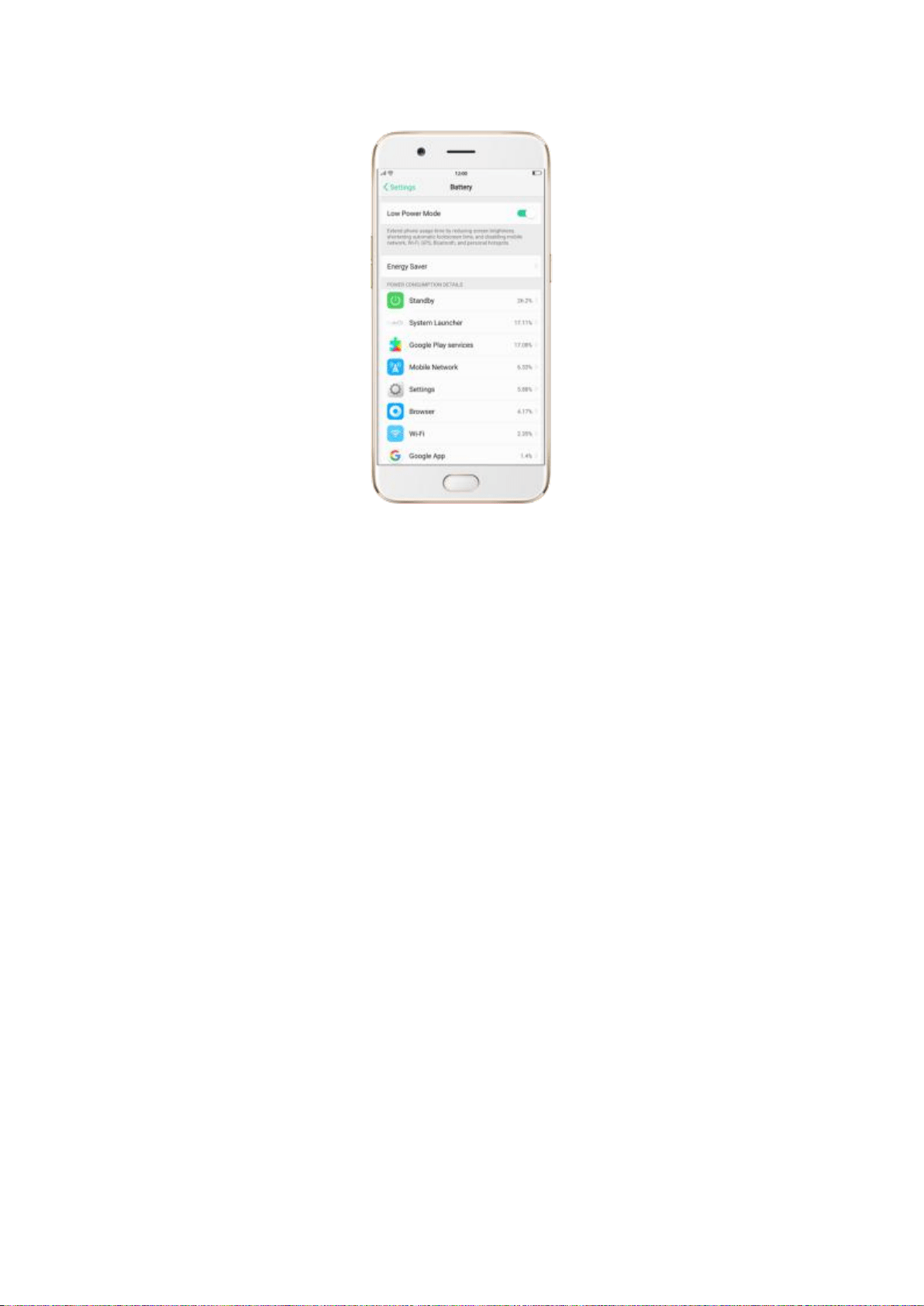
Tip: Your phone will let you know when your battery level goes down to 20%,
and again at 10%, and will ask you to turn on Low Power Mode. After you
charge your phone to 80% or higher, Low Power Mode will automatically turn
off.
5.14. Text
5.14.1. Add or change keyboard languages
If you need to type in a foreign language on your OPPO phone, you can do
so by adding and changing the input language:
Add installed languages. Go to [Settings] > [Additional Settings] >
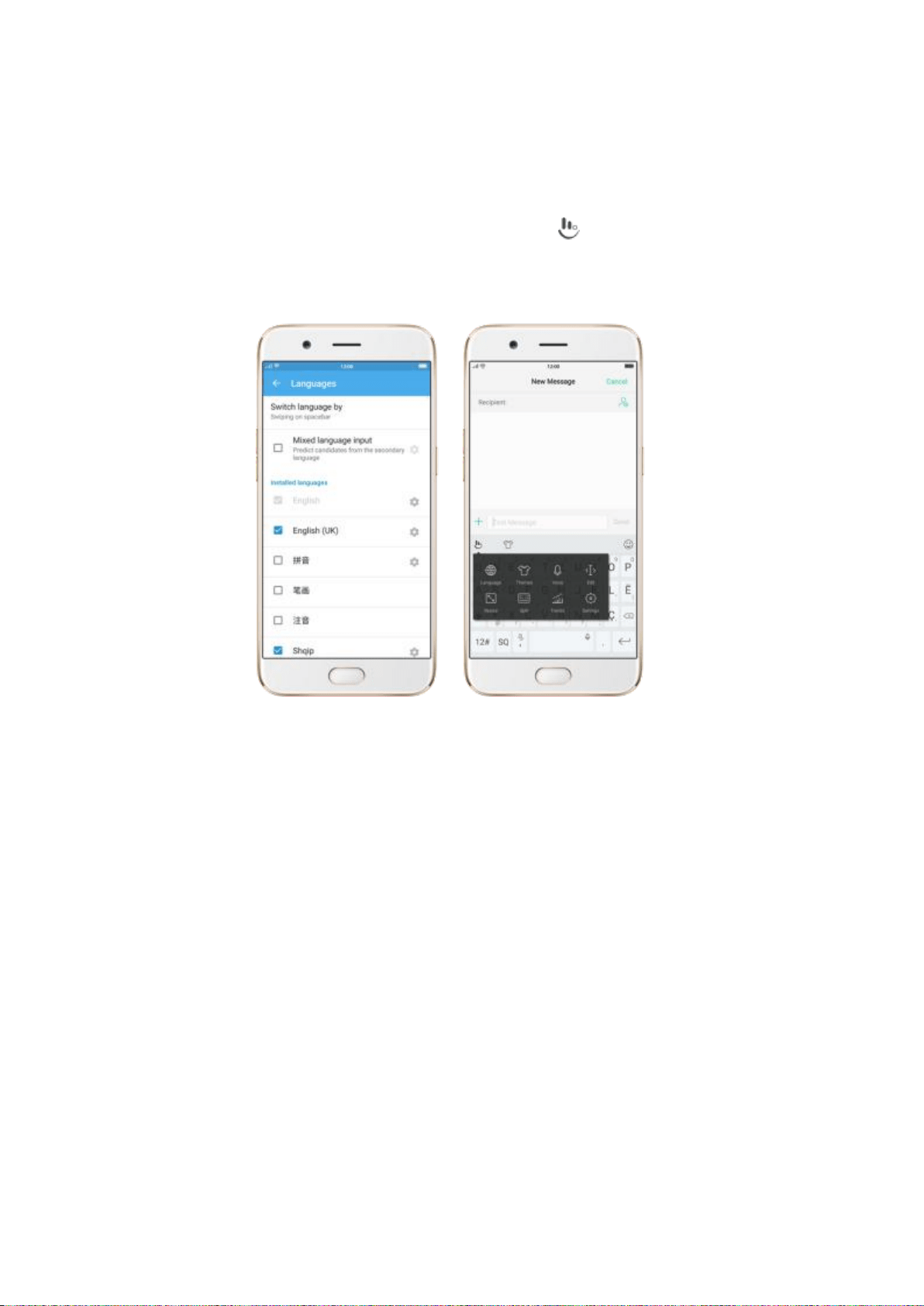
[Keyboard & Input Method] > [TouchPal for OPPO] > [Languages], then
tick the languages to use.
You can also add languages as you type. Click > [Language] > [Add
language].
Download available languages. Click to download the language pack.
You’ll see the language in Installed languages list when the download
completes.
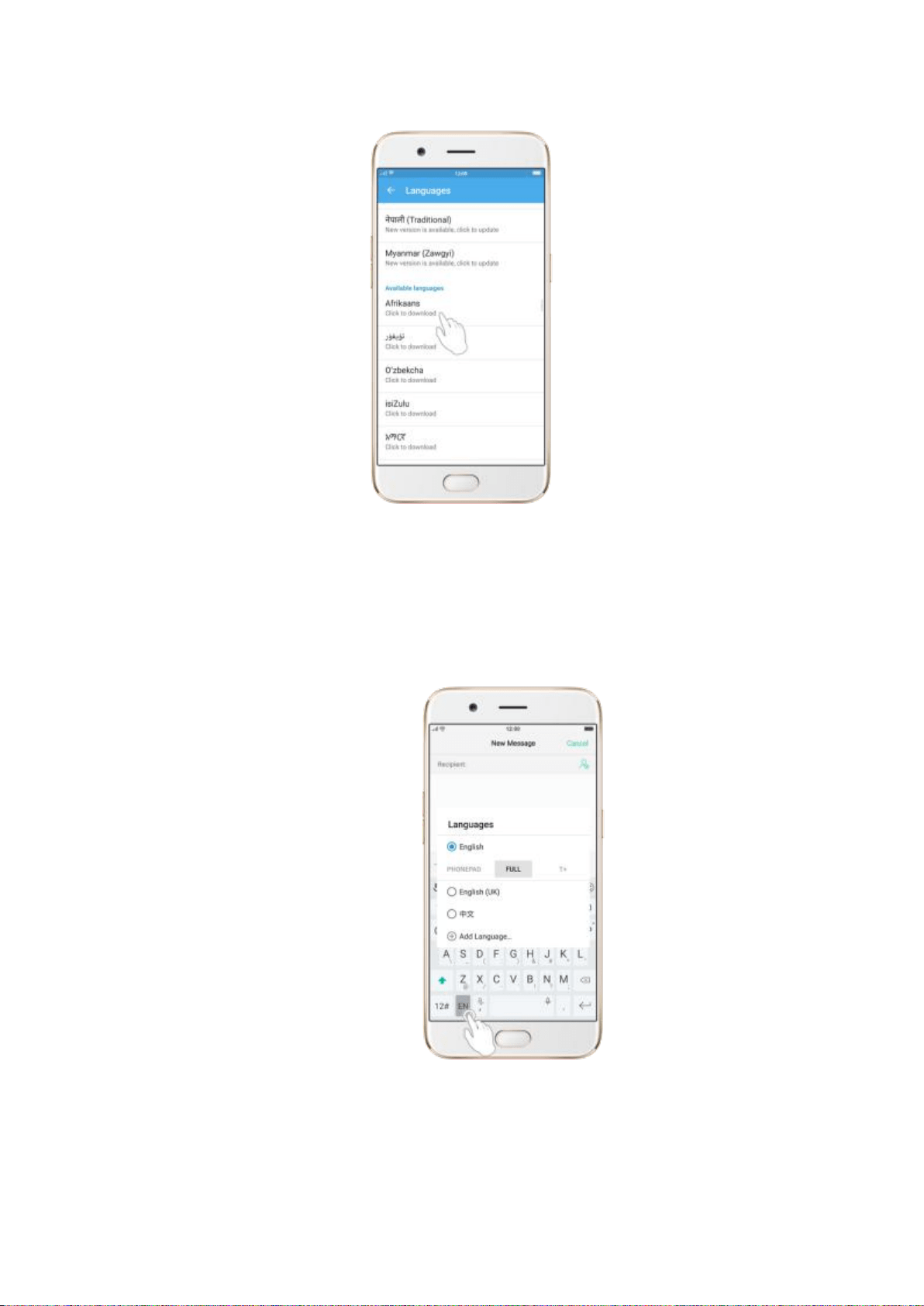
Change Keyboard languages. As you type, switch language by clicking
EN or swiping on spacebar.
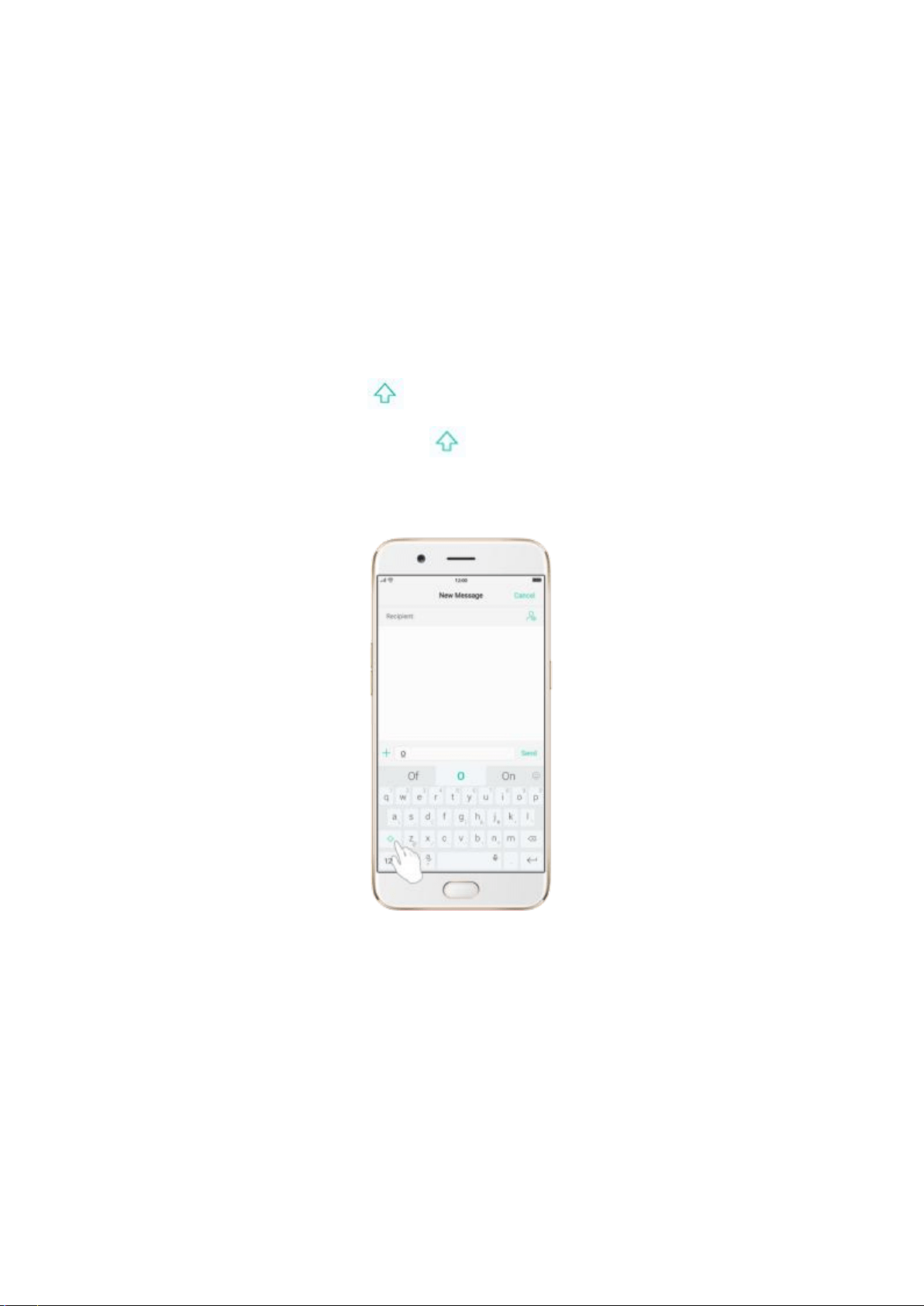
5.14.2. Type, edit and delete text
Type text
Click a text field to pop up the keyboard, and then click the letter to type.
Type capital letters. OPPO smartphone auto-capitalizing the first letter of a
sentence, or you can click to type capital letters.
Turn on Caps Lock. Double-click . A line will appear under the arrow if
you have done this correctly.
Enter numbers, punctuation, or symbols. Click 12#. To type alternate
characters, touch and hold a key, then slide to choose one of the options.
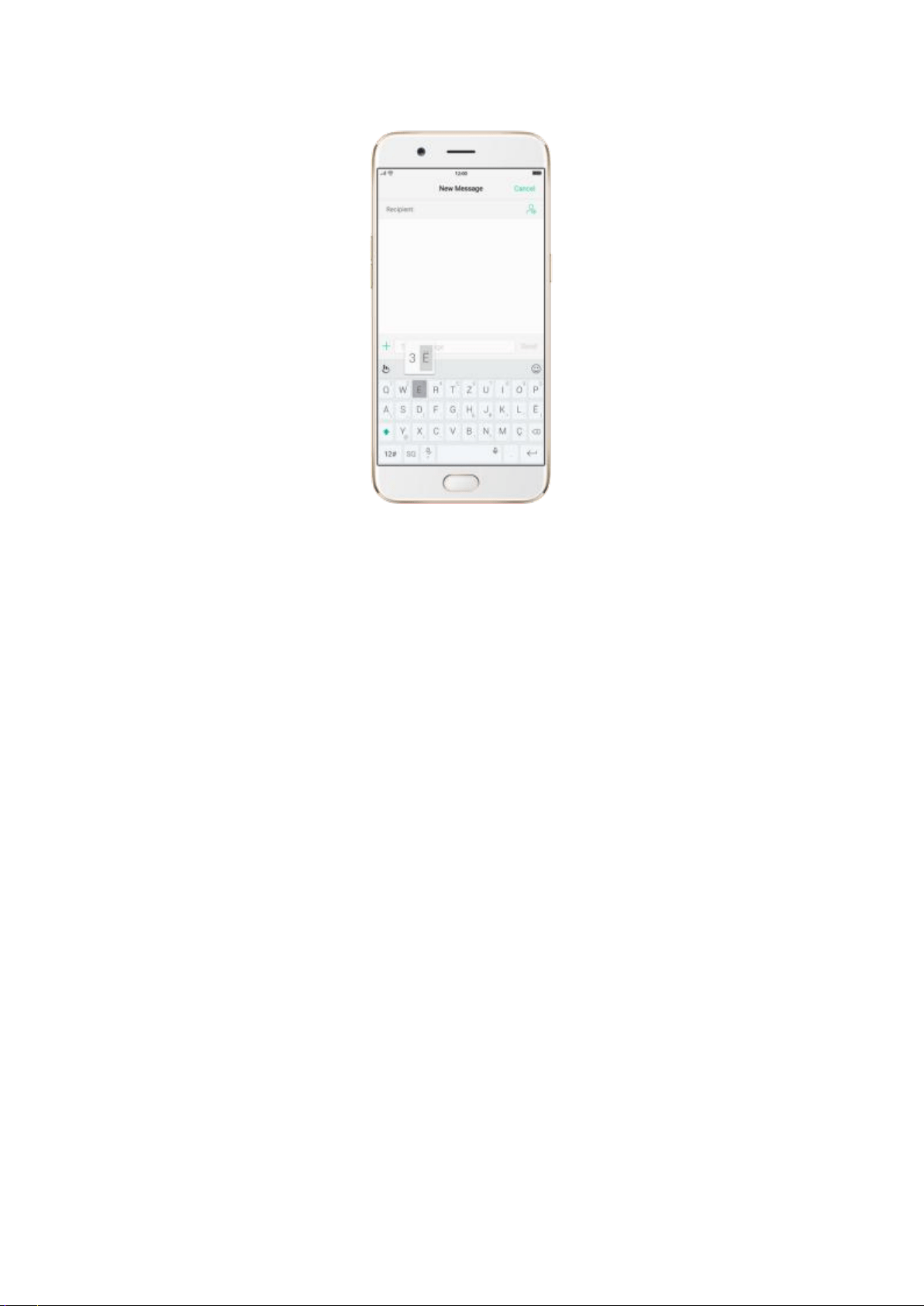
Switch language. Go to [Settings] > [Additional Settings] > [Keyboard &
Input Method] > [TouchPal for OPPO] > [Languages].
Tick the languages to use, then switch language by clicking EN or swiping on
spacebar.
Revise text. Click on your text to move the cursor to the insertion point.
Edit text
Select text. Touch and hold the target text, or double-click the target text to
select. Drag the control points on either side of the highlighted word to select
more or less text, or click [Select all] to highlight all of the text.
You can cut, copy, paste or share your text then.
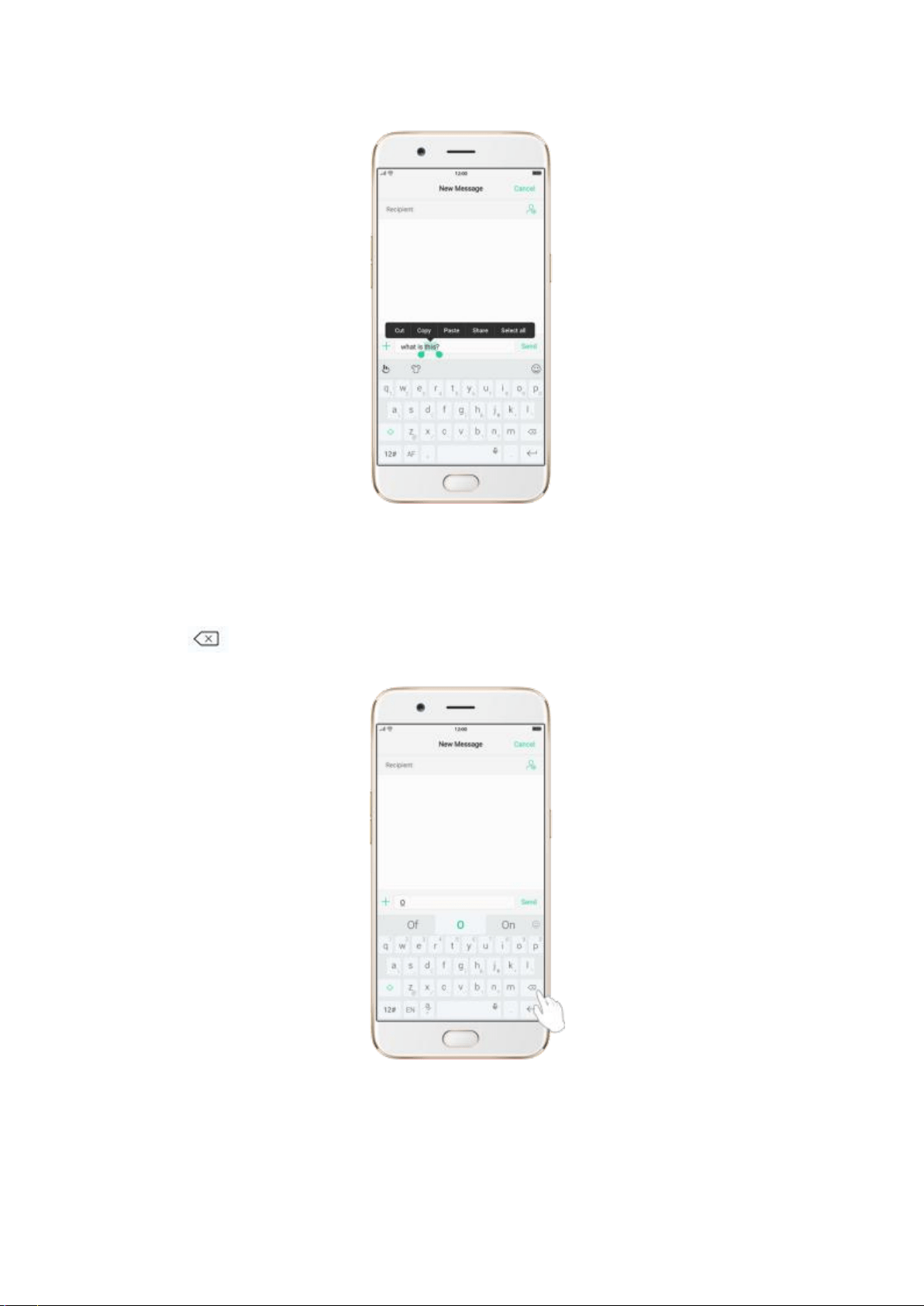
Delete text
Click to delete the selected text or characters before the cursor.
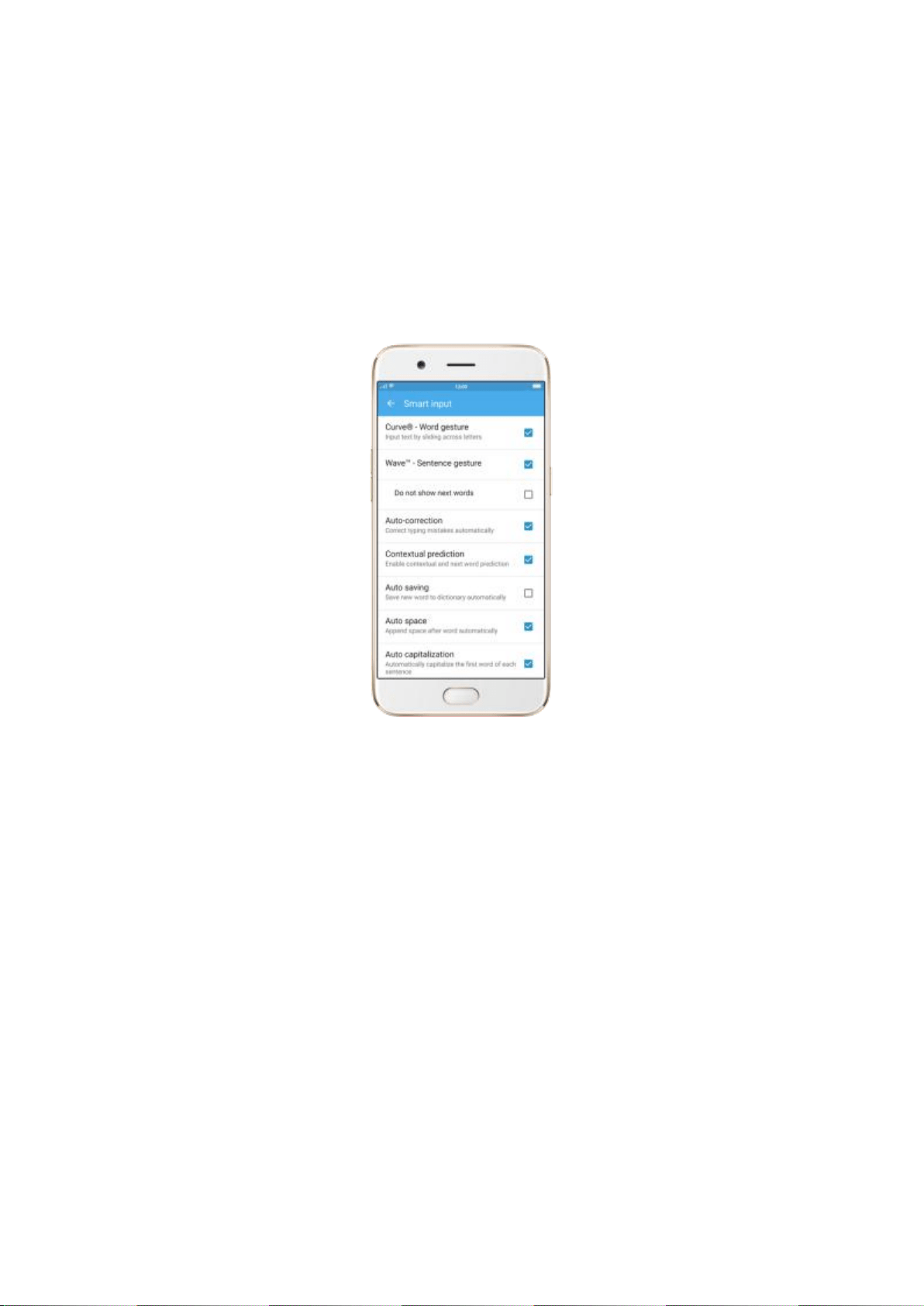
5.14.3. Smart input
Smart input lets you to enter text with ease and without errors.
Go to [Settings] > [Additional Settings] > [Keyboard & Input Method] >
[TouchPal for OPPO] > [Smart input].
Use TouchPal Curve to input text simply by swiping across the keyboard,
from one letter to another.
Use Wave – Sentence gesture to input commonly used phrases/sentences.
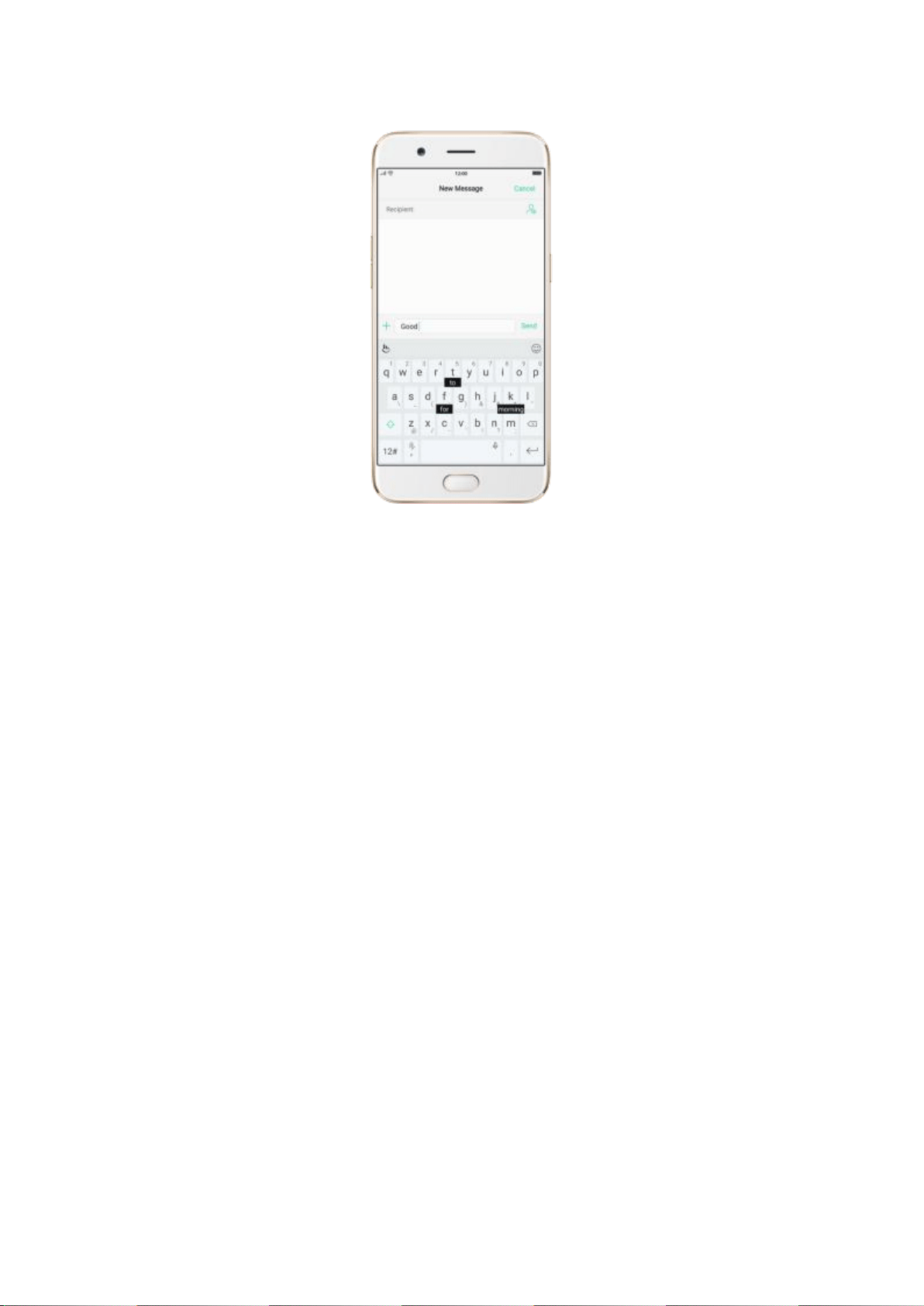
Correct spelling automatically. The keyboard will automatically check and
correct the spelling of the text.
Predictive text. While you type, the keyboard predicts your next word, and
offer suggestions for likely words before you finish typing. Click the word or
the spacebar to select.
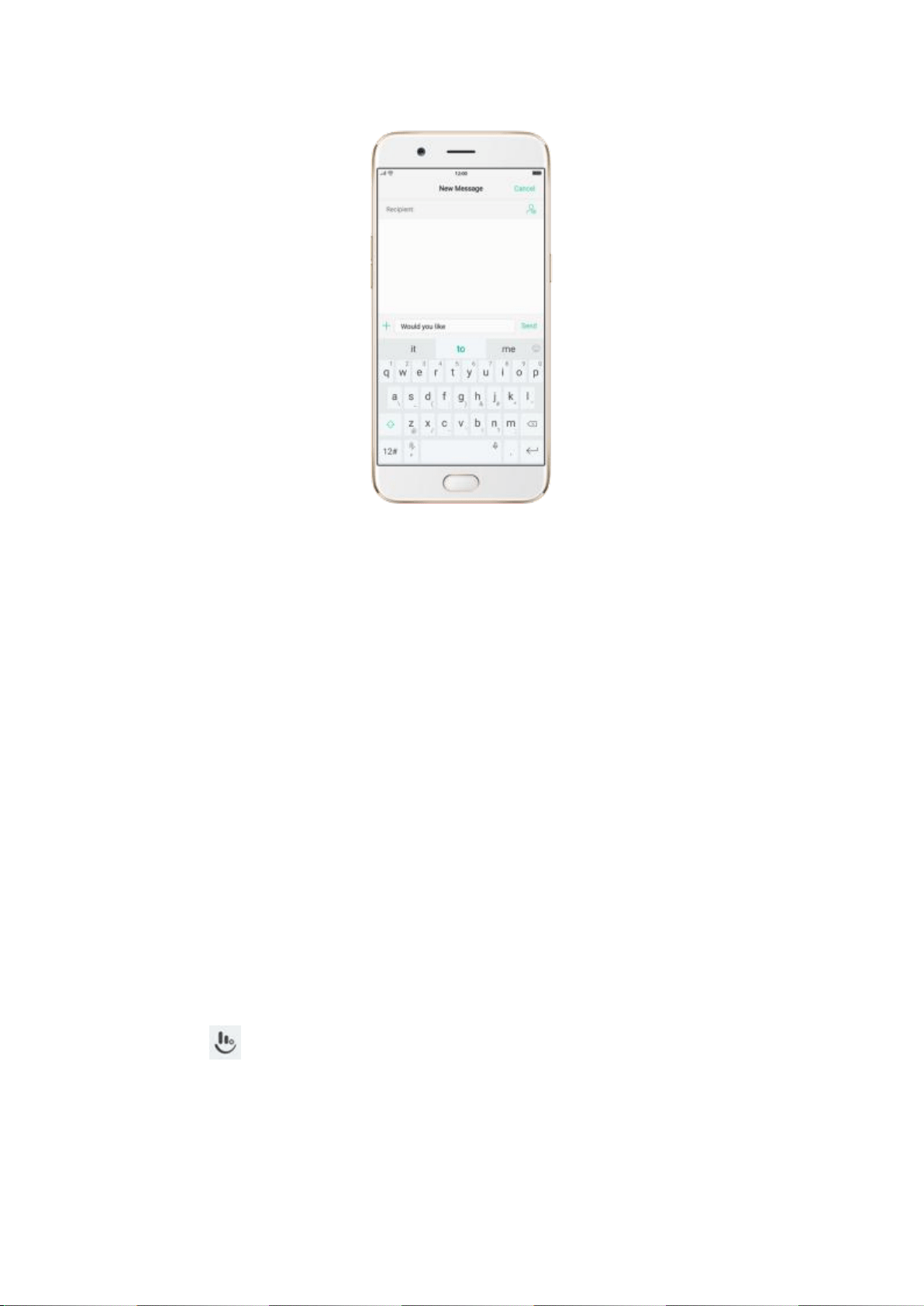
As you type, the keyboard will also automatically save new words to
dictionary, append space after word and capitalize the first word of each
sentence.
5.14.3. Voice typing
When you’re connected to the Internet, you can use the built-in microphone
to speak the text instead of typing it.
Start voice typing. Touch and hold the space bar on the bottom of the screen,
or click > [Voice], then speak.
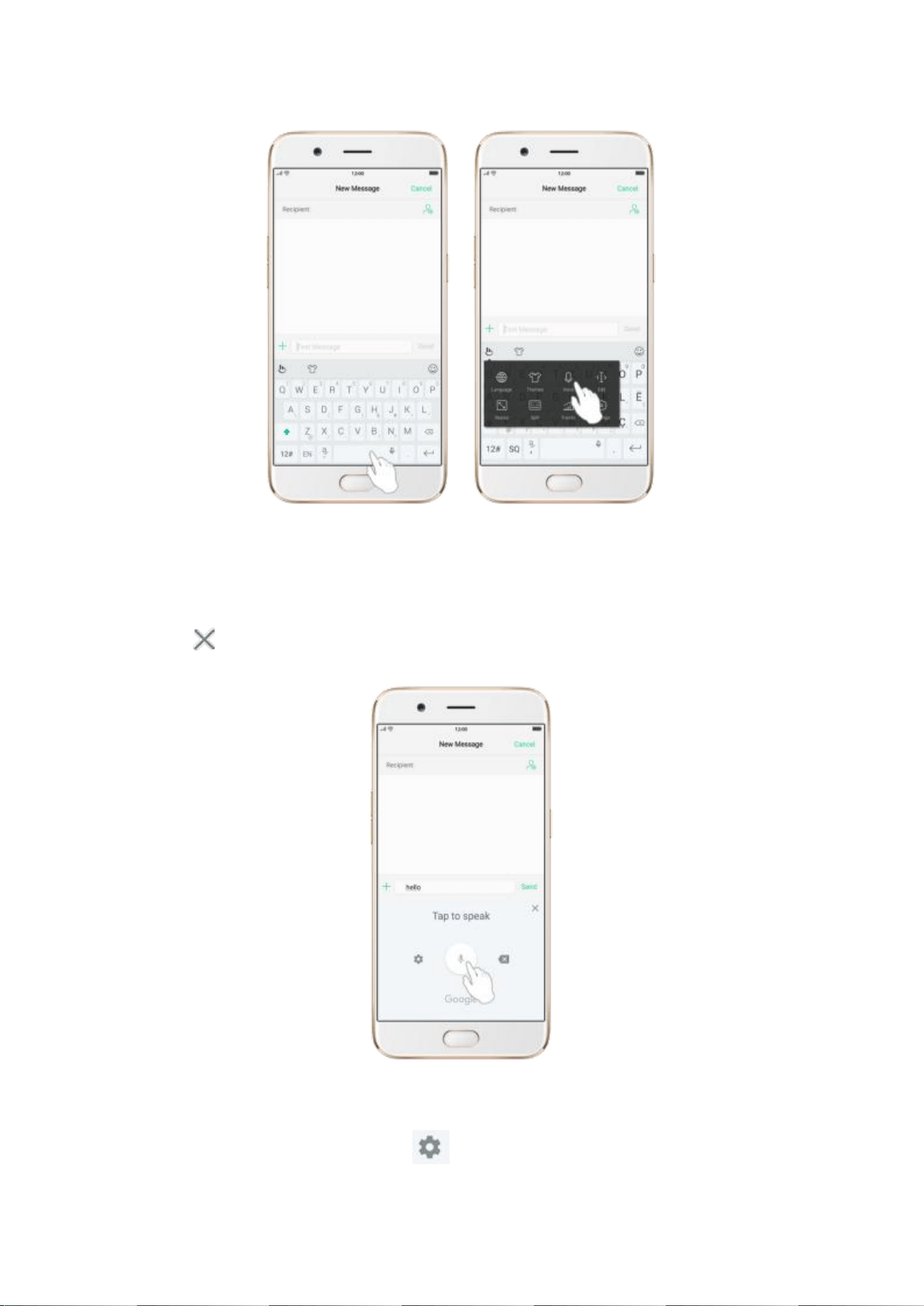
Pause voice typing. Click the microphone icon to pause/continue dictating.
Click to quit voice typing.
Select input languages. Click on the panel, or go to [Settings] >

[Additional Settings] > [Keyboard & Input Method] > [Google voice
typing] > [Languages].
Select your preferred languages. To select a primary language, touch and
hold the language.
Insert and delete text. To insert or delete text, click to place the insertion
point first. Click to the right of the microphone icon to delete text.
To enable voice input while offline
:
Click on the panel to manage
[Offline speech recognition].
5.14.4. TouchPal for OPPO
TouchPal Keyboard is the default keyboard on OPPO smartphones. You can
use it to enter text by tapping on the keys or swiping across the keyboard,
from one letter to another. Besides its basic typing features, TouchPal has
introduced some innovations. Click on the on-screen keyboard to get
more information.
Multiple themes available. You can dress up the keyboard with various
themes or customize the keyboard by yourself.
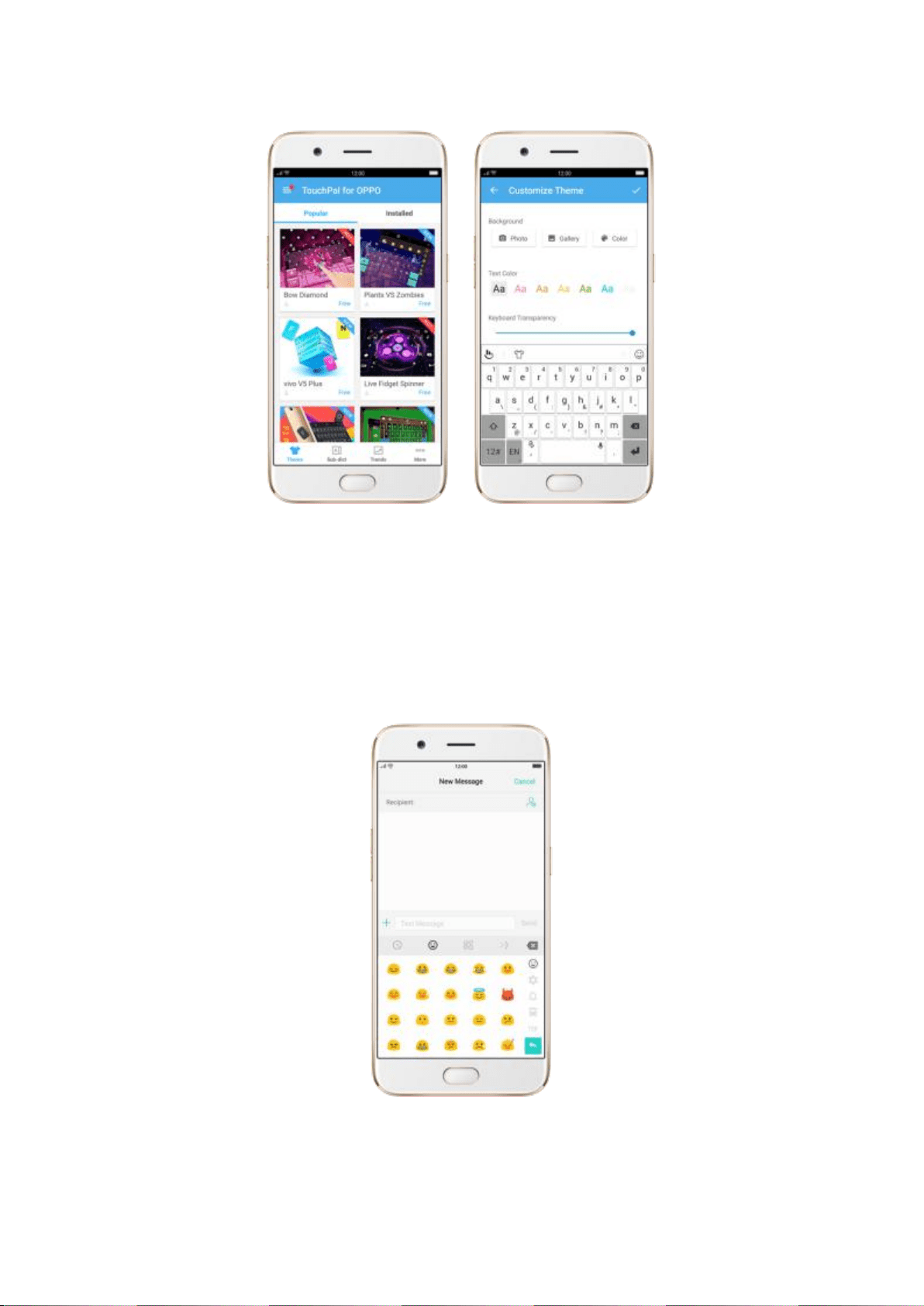
Emojis and stickers. TouchPal has multiple emojis and stickers, and can
predict what emoji comes next.
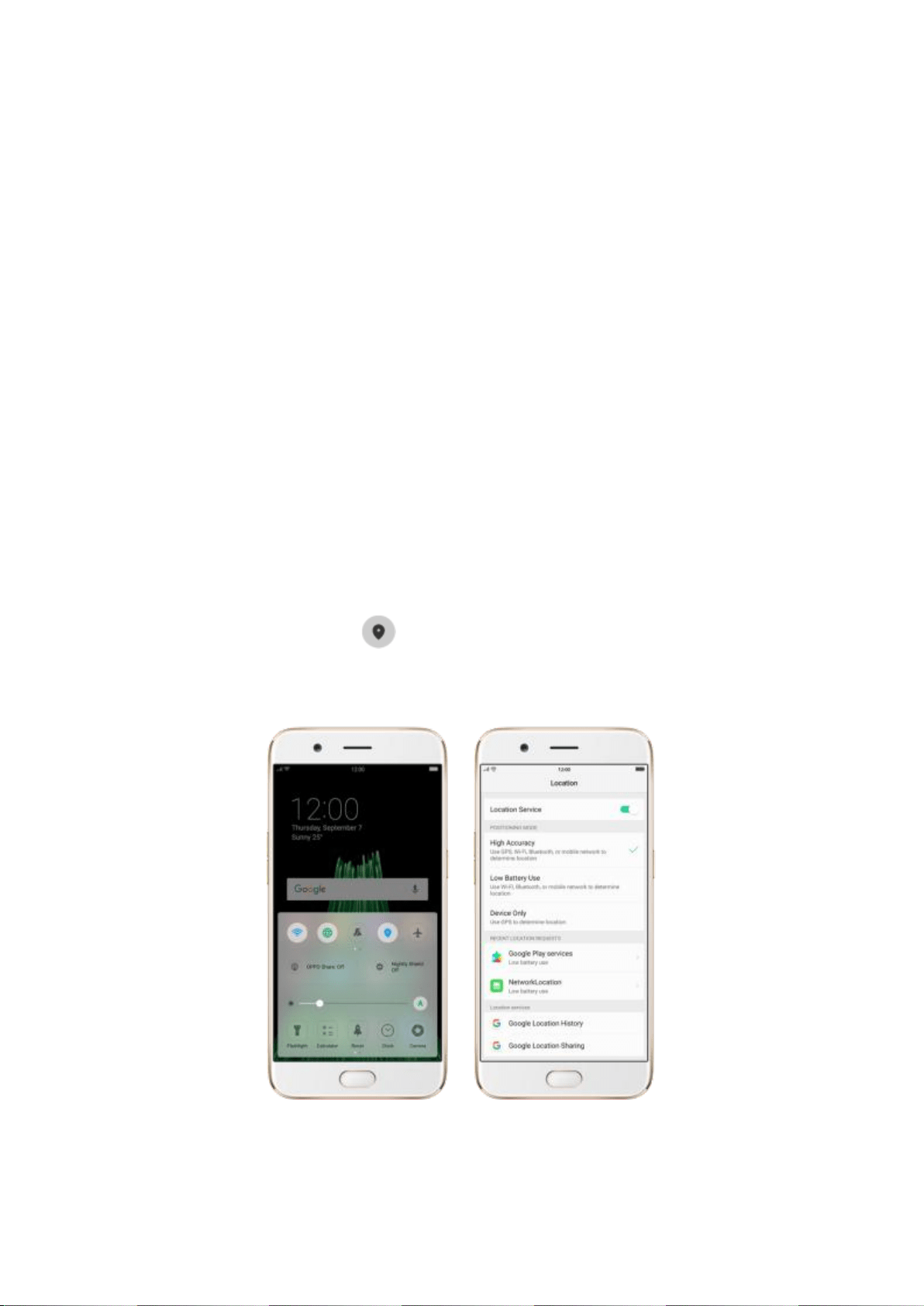
Smart input. With TouchPal Curve, you can type by sliding from letter to
letter instead of tapping. Advanced technologies such as Contextual
Prediction, Autocorrection and Cloud Prediction also make typing faster. See
Smart input.
5.15. Location Service
Apps like Maps, Weather and Compass must know your exact position before
it can provide accurate services and results.
Turn on Location Service. Swipe up from the bottom of the screen to open
Control Center, then click . You can also go to [Settings] > [Google] >
[Location] and toggle the slider to green.

You can choose from three types of positioning modes, which differ in
accuracy and battery drain:
1. High accuracy (GPS, Wi-Fi, Bluetooth and mobile network).
2. Battery saving (Wi-Fi, Bluetooth and mobile network).
3. Device only (GPS).
A history of recent location requests. You’ll see a list of apps that have
requested location. You can turn off each app’s access to each of these
categories of information:
Camera
Location
Microphone
Phone
Storage
Google Location service
Use Google Location History to retrace your steps. Google Location History
will customize search results for location and search history.
Use Google Location Sharing to share your locations with friends and
contacts in real time.

5.16. Use the phone internationally
When you travel overseas to other countries, do the following steps to make
sure you stay connected to friends and family while traveling - without paying
more than you have to.
Unlock your phone. Call your wireless operator and ask if your phone needs
to be unlocked.
Shop international data roaming plans with your operator. Consult your
operator or visit online to shop roaming plans used in the destination country
or region.
Buy or rent local Nano SIM cards. You can buy or rent SIM cards for most of
the countries and regions. Learn more from travel guides and websites
related to the country or region.
Use Wi-Fi. Turn off global roaming on your phone and head to a Wi-Fi
hotspot, such as a hotel lobby, or local cafes.
6.Personalize your OPPO phone
6.1. ColorOS 3.1 device name
If you scan for a Wi-Fi Direct or Bluetooth connection with your OPPO phone,
your device name will display on the target devices.
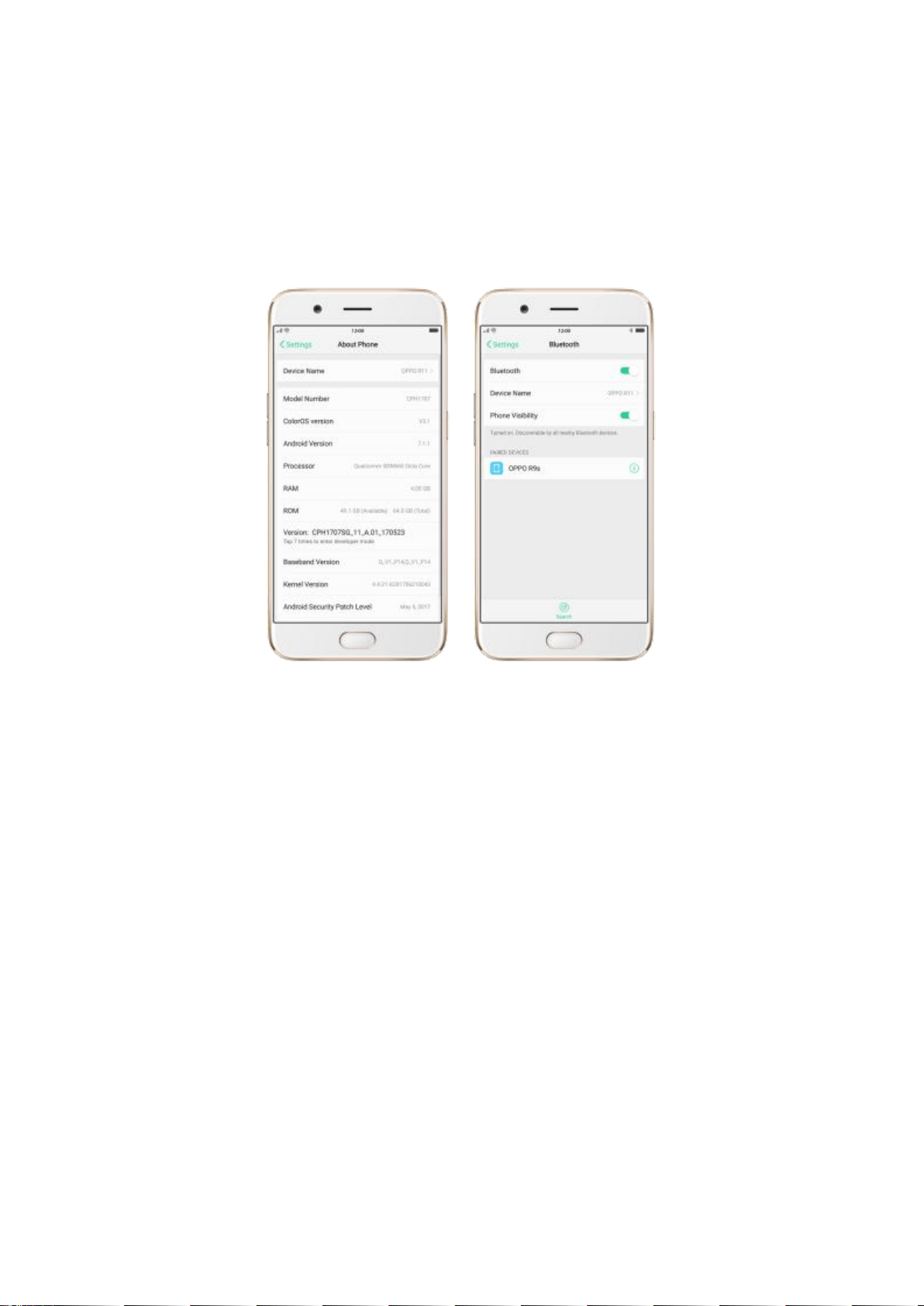
Change device name for Wi-Fi and Bluetooth. Go to [Settings] > [About
Phone]. You can also change the device name when you enable Bluetooth or
Wi-Fi Direct.
6.2. Personalize the Home screen
6.2.1. Organize the Home screen
From the Home screen, you can access all your apps and widgets. To keep
everything in order, you can organize your home screen to make it more
manageable and keep it looking neat.
Add or Remove a Home screen page
Add a Home screen page. Swipe to the rightmost screen and drag an app or
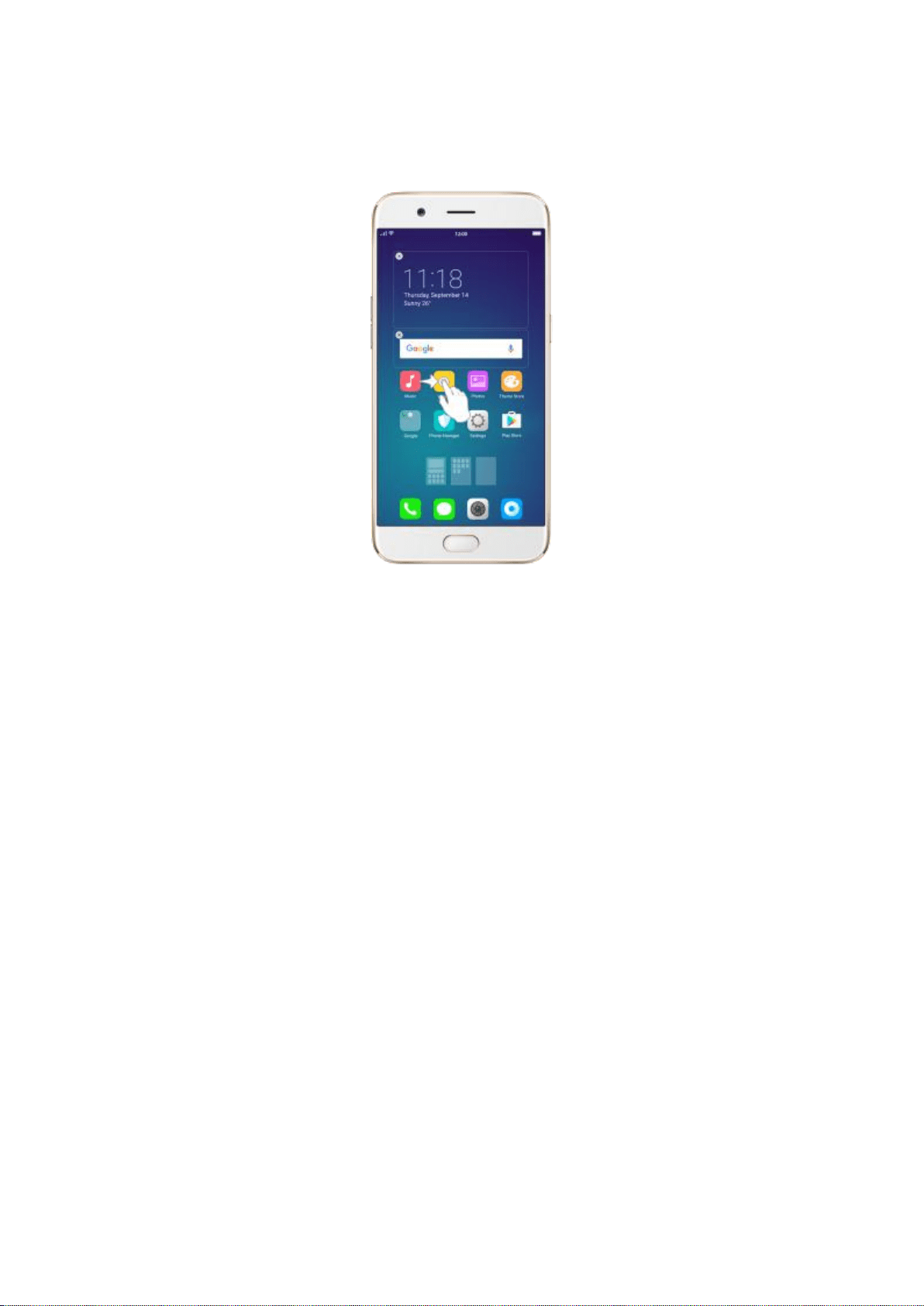
widget off the screen to the right.
Remove a Home screen page. Drag all the apps and widgets on a Home
screen page to another page. The empty Home screen page will be
automatically deleted.
Group Apps
Make folders and group apps. You can put apps in folders, which can keep
your home screen neat or help to organize similar apps.
Create a folder. Tap and hold on an app until the icons start wiggling. Drag
one of the apps onto the other, and lift your finger when the first app seems
to merge into the second one. Add more apps by dragging them in.
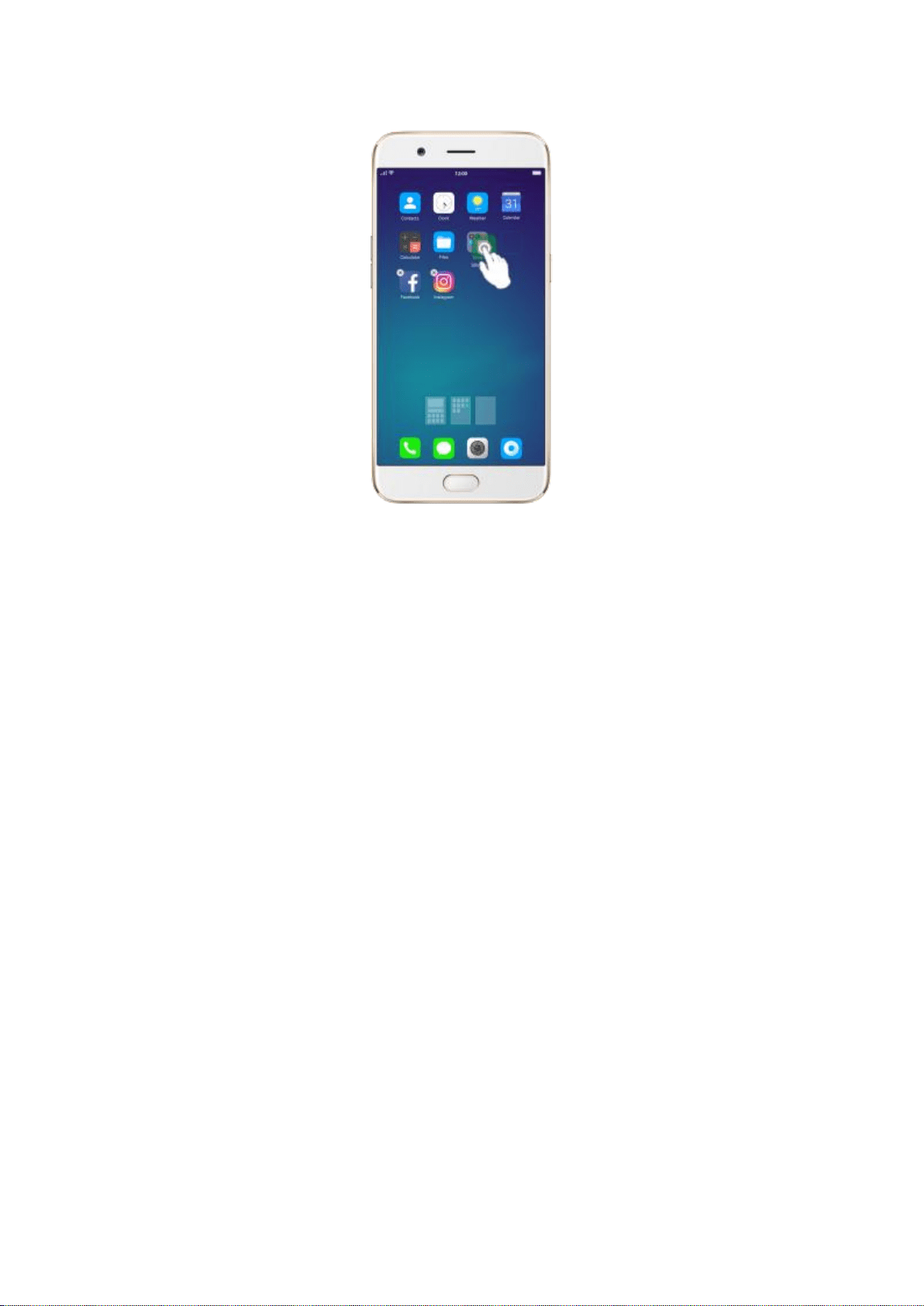
Edit the folder's name. When you first create a folder, your phone assigns a
suggested name to it. To edit the name, tap on the text.
Rearrange apps and folders
Remove apps from a folder. Tap the folder, then tap and hold on an app
until the icons start wiggling. Drag the app out of the folder and onto the
home screen.
Delete a folder. Drag all the apps out of the folder and onto the home screen,
and the folder will disappear.
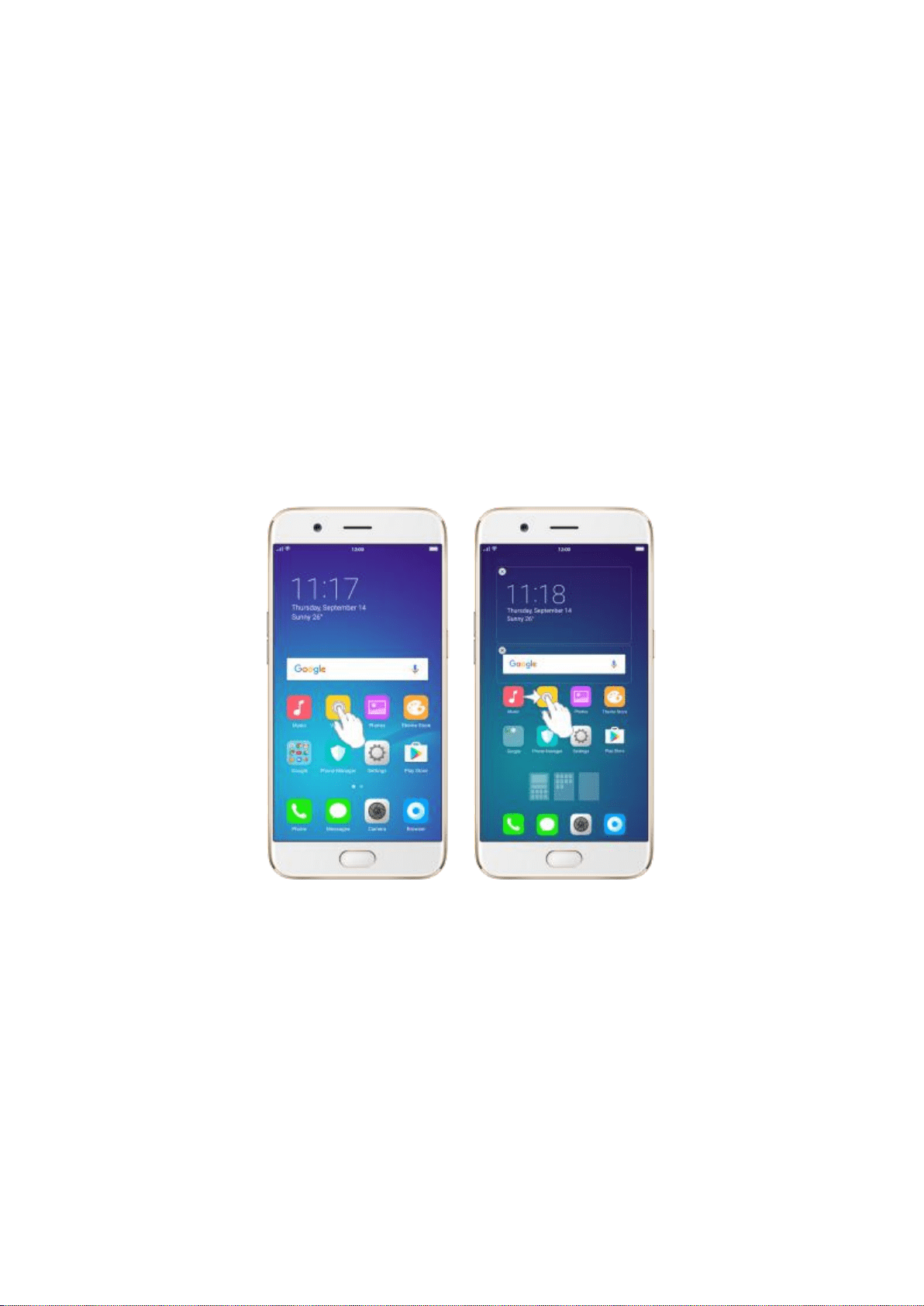
Rearrange apps and folders. OPPO smartphone has set a default
arrangement for users, but you can still rearrange the apps and folders to fit
how you use your phone.
Rearrange apps. Tap and hold on an app until the icons start wiggling. Drag
and drop the app icon to a new location. To save your changes, press the
Home or Return button.
Notice: Icons will be aligned to the left automatically.
Move the icon to a new screen. Drag the icon off the screen to the right and
let it go when the new page appears.
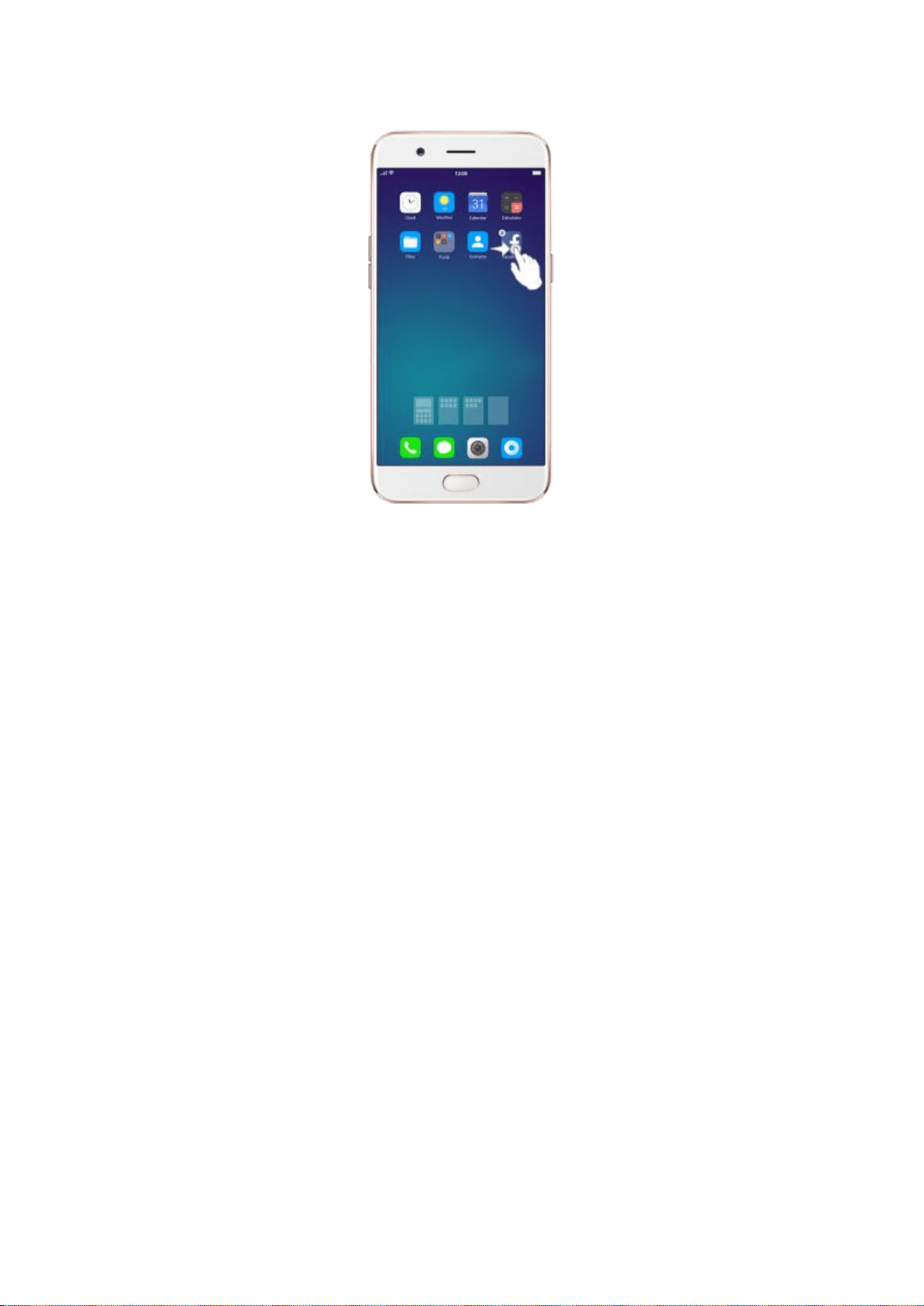
Add or remove Home screen widgets. See Home screen widgets.
6.2.2. Home screen widgets & Transition
Effects
You can give yourself a fancy home screen with a highly-detailed set of
widgets, for example, clock, weather, battery or mail widgets. You can also
use them to tweak notifications, alarms and other options. In other words,
there's considerably more here than just widgets.
Manage widgets
Add a widget. Pinch your fingers together, then click [Widgets]. You’ll see all
available widgets. Touch, hold and drag one widget to the screen. Make sure
there is enough space for that widget.
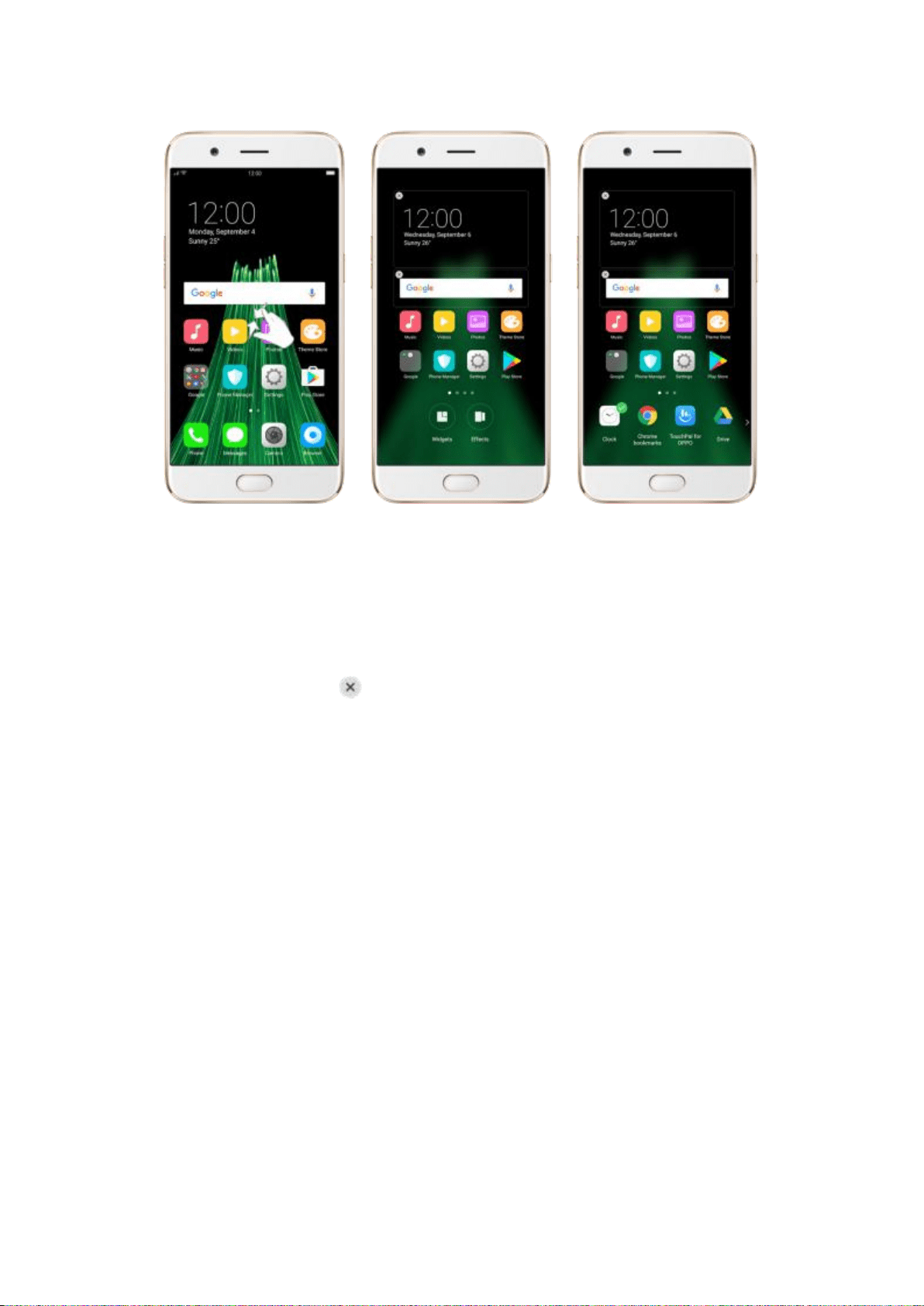
Move a widget. Touch and hold a widget for about 2 seconds, then drag it
around.
Delete a widget. Click in the upper left corner of the widget.
Customize transition effect
You can change the transition effect on your OPPO smartphone, which is the
style in which you slide the home screen right or left.
Set up transition effect. Pinch your fingers together, then click [Effects].
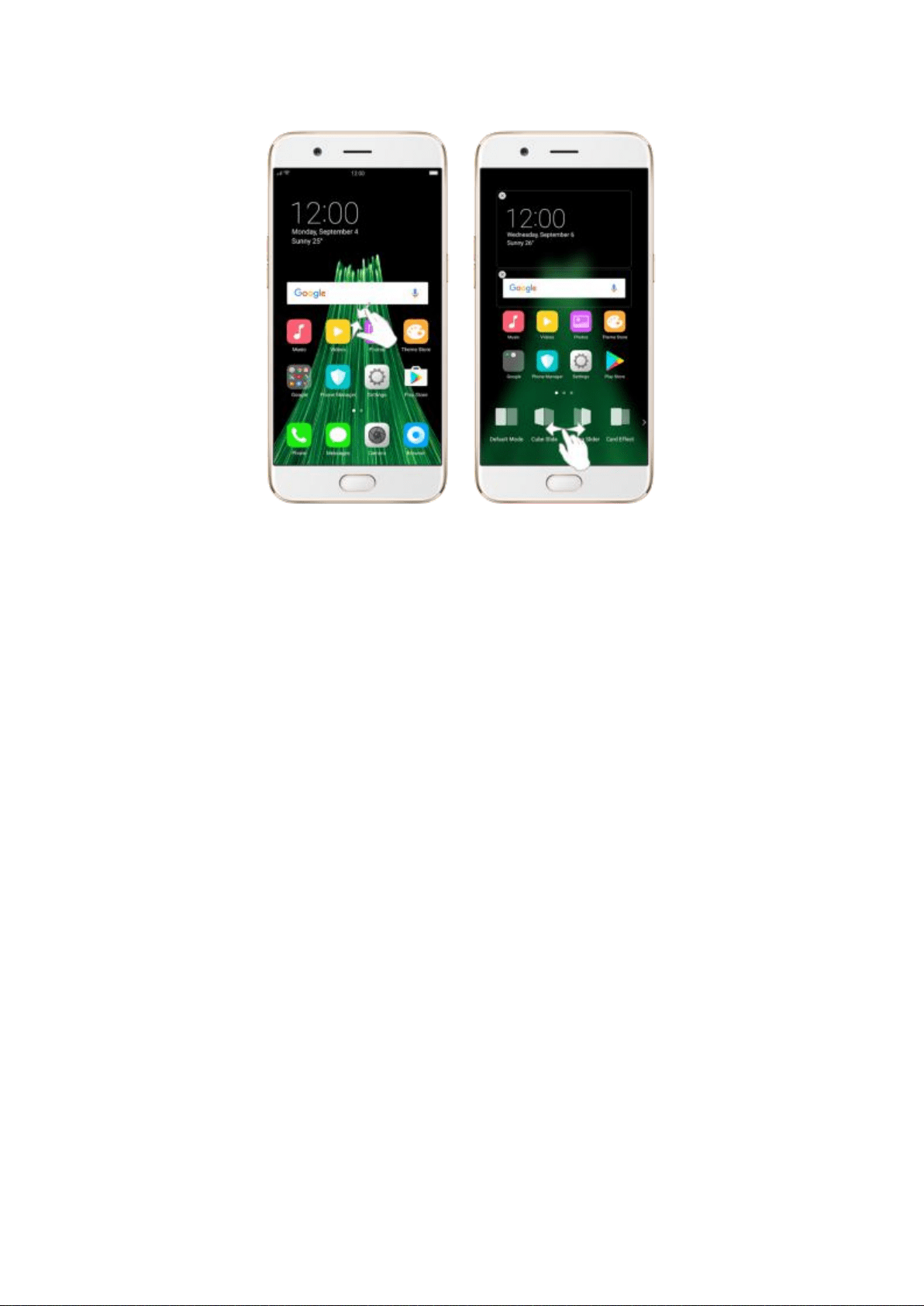
Preview and choose an effect. Click a transition effect and it will show the
preview effect. You can choose one from the five options:
Default Mode
Cube Slide
Flipping Slider
Card Effect
Tilting Mode
6.3. Change the wallpaper
You see a wallpaper background picture when you unlock your OPPO phone.
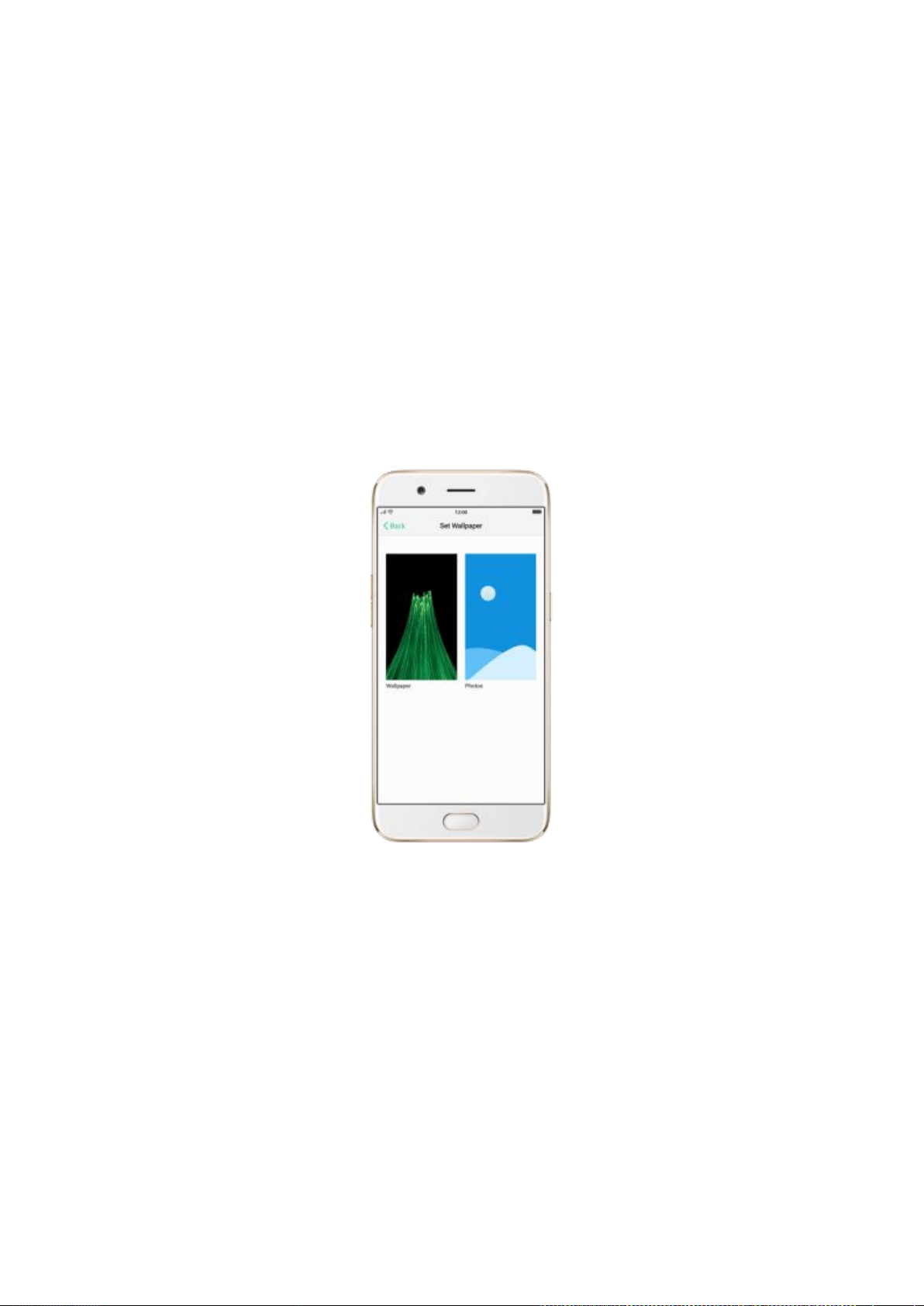
You can select one of the images that came with the phone, or use a photo
from your photo gallery, or get some more wallpaper online.
Change the wallpaper. Go to [Settings] > [Display & Brightness] >
[Lockscreen Magazine & Wallpaper] > [Set wallpaper].
Tip: When setting the wallpaper as your Home screen or Lock screen, you can
drag to move the image, or pinch to zoom in and out, so the image fits the
screen.
Download online wallpapers. Click Wallpaper, then click Download more.
You can also click Theme Store on the Home screen directly to find more.
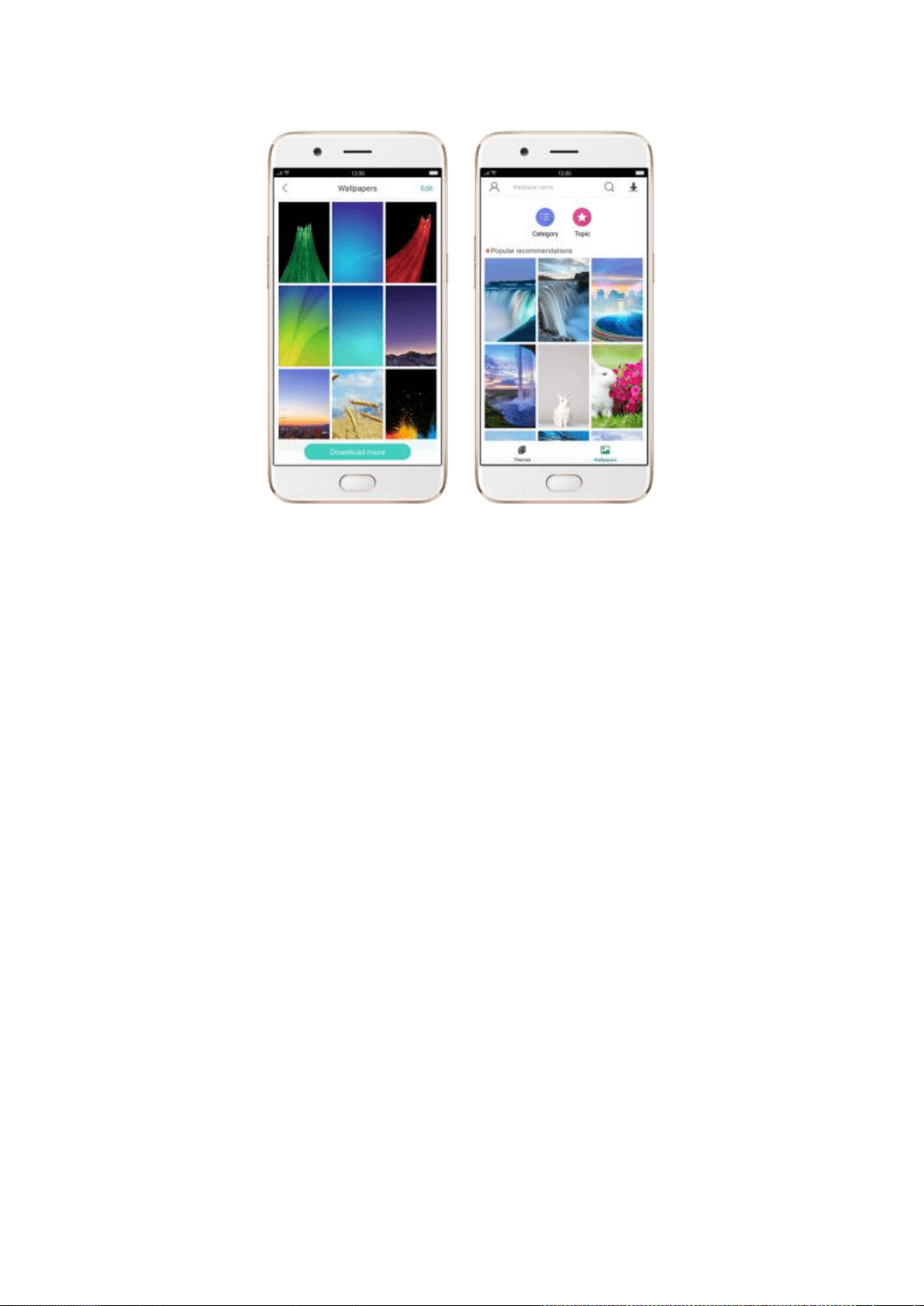
6.4. Lock screen magazine
You can let your lock screen’s wallpaper to switch to a new picture every time
you wake up your phone, lessening the likelihood of you getting bored with
the same look.
Turn on Lock screen magazine. Go to [Settings] > [Display &
Brightness] > [Lock screen Magazine & Wallpaper] and toggle the slider to
green.
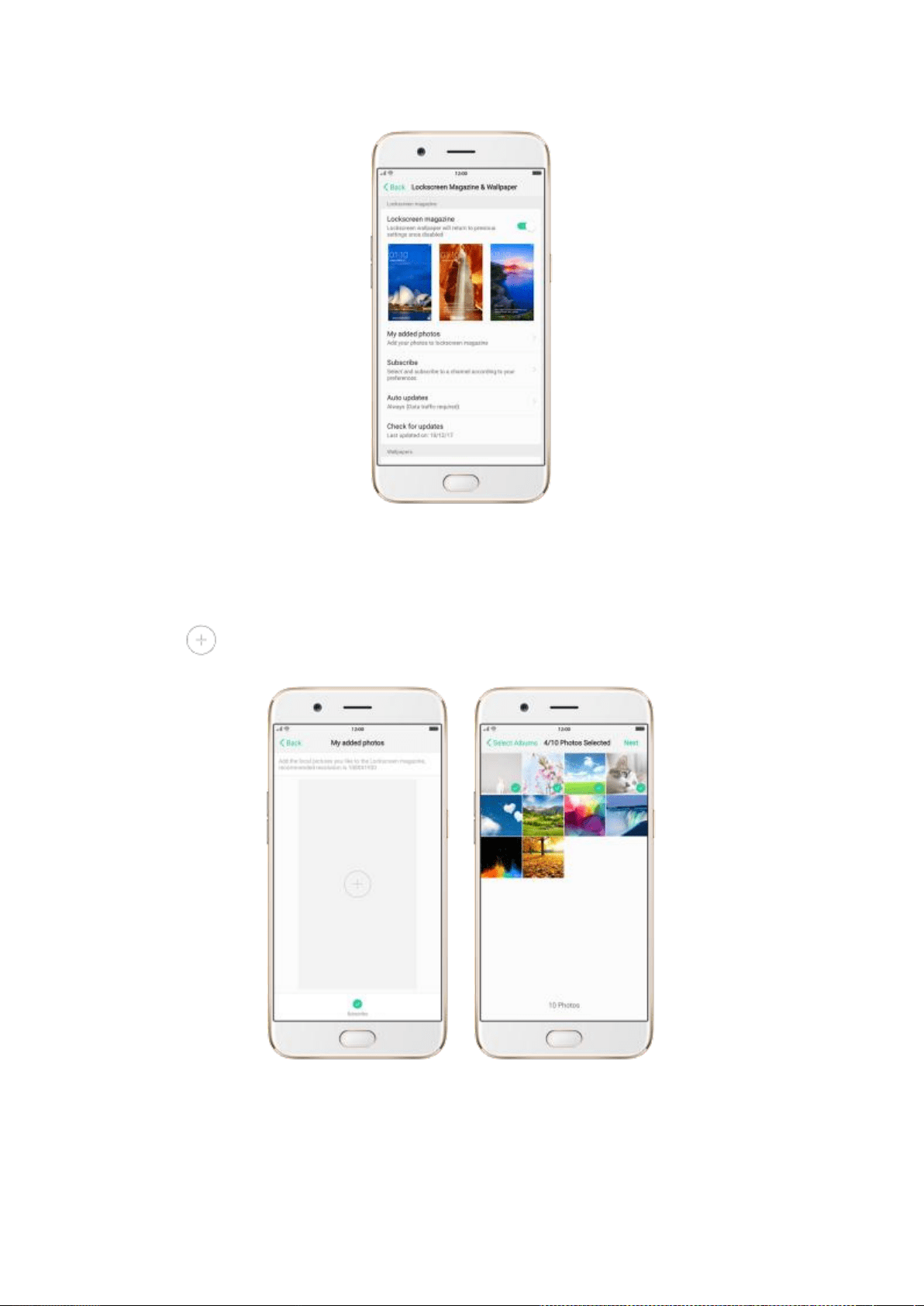
Add your local pictures to Lock screen magazine. Click My added photos,
click , then select your preferred pictures.
Add online pictures to Lock screen magazine. Click Subscribe and select
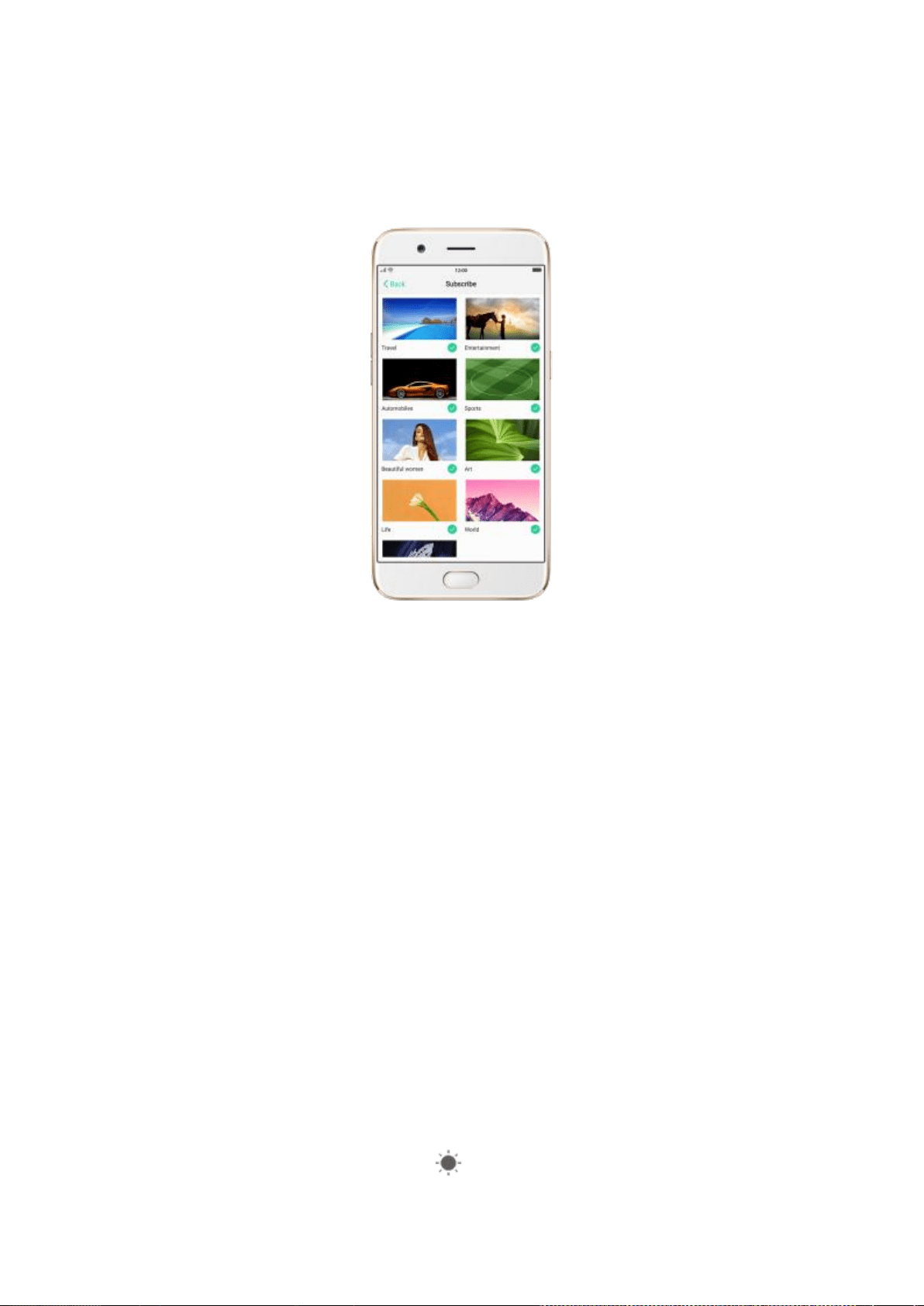
your preferred channels, then go back and click Check for updates. You can
also set the lock screen magazine to update automatically.
6.5. Adjust the screen brightness and
color temperature
Adjusting the brightness on your OPPO phone tailors visibility to suit your
environment. You can manually dim the screen when reading in bed, for
example, or make it brighter when you're in a direct sunlight situation. Or use
Auto-Brightness, which can automatically change screen brightness
depending on the level of ambient light. Reducing screen brightness can also
help to conserve battery life.
Adjust the screen brightness. Swipe up from the bottom of the screen to
open Control Center, then drag . Or go to [Settings] > [Display &
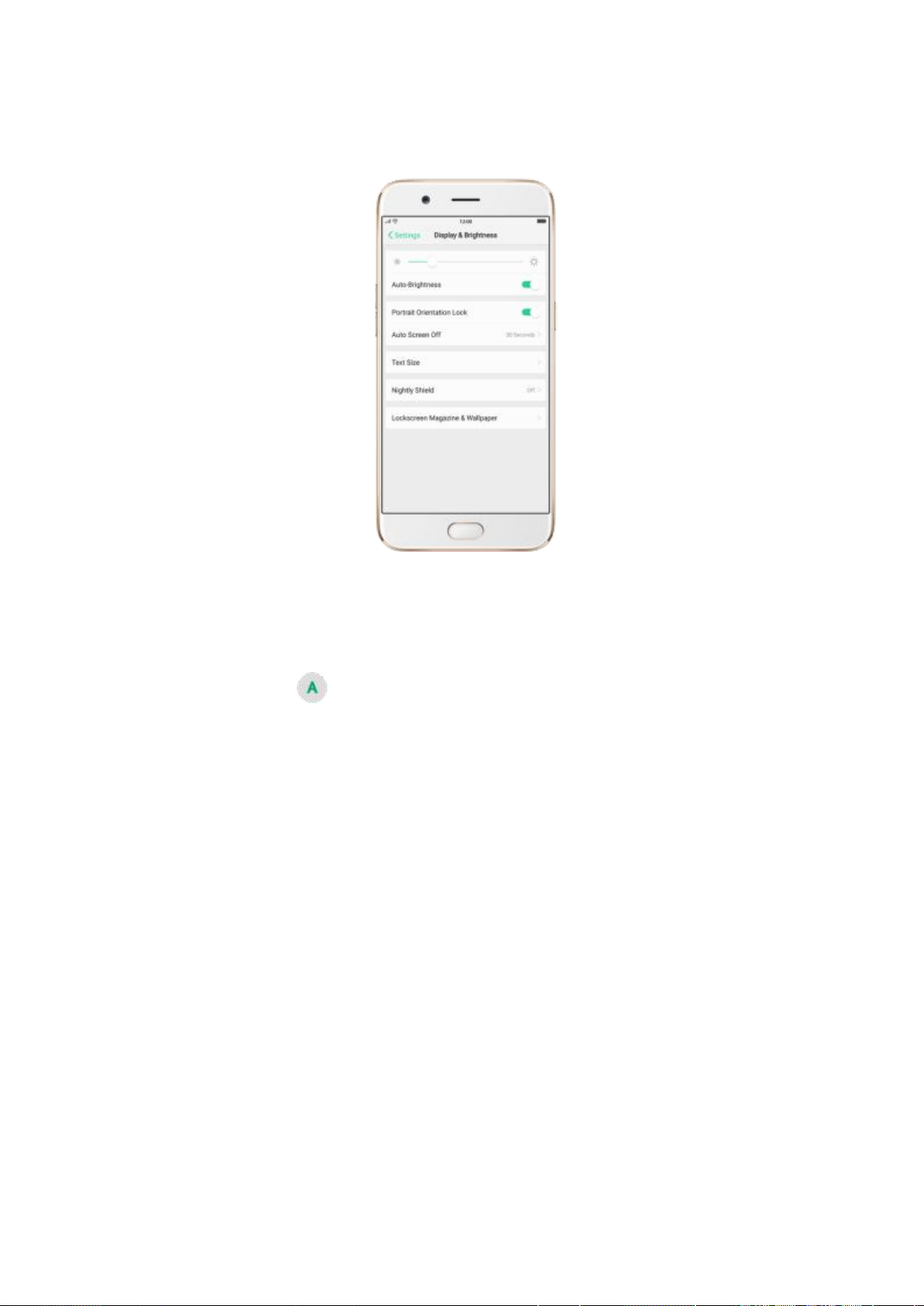
Brightness], then drag the slider.
Set OPPO phone to adjust screen brightness automatically. Open Control
Center, then click . Or go to [Settings] > [Display & Brightness], then
toggle the Auto-Brightness slider to green. If Auto-Brightness is on, your
phone adjusts the screen brightness for current light conditions using the
built-in ambient light sensor.
Use Nightly Shield. Go to [Settings] > [Display & Brightness] > [Nightly
Shield]. Drag the control point to adjust color temperature. The warmer you
set your screen, the less blue light will be emitted from the display. When you
use the OPPO phone at night, you can turn on Nightly Shield to cut down on
eye strain and sleeplessness you might get.
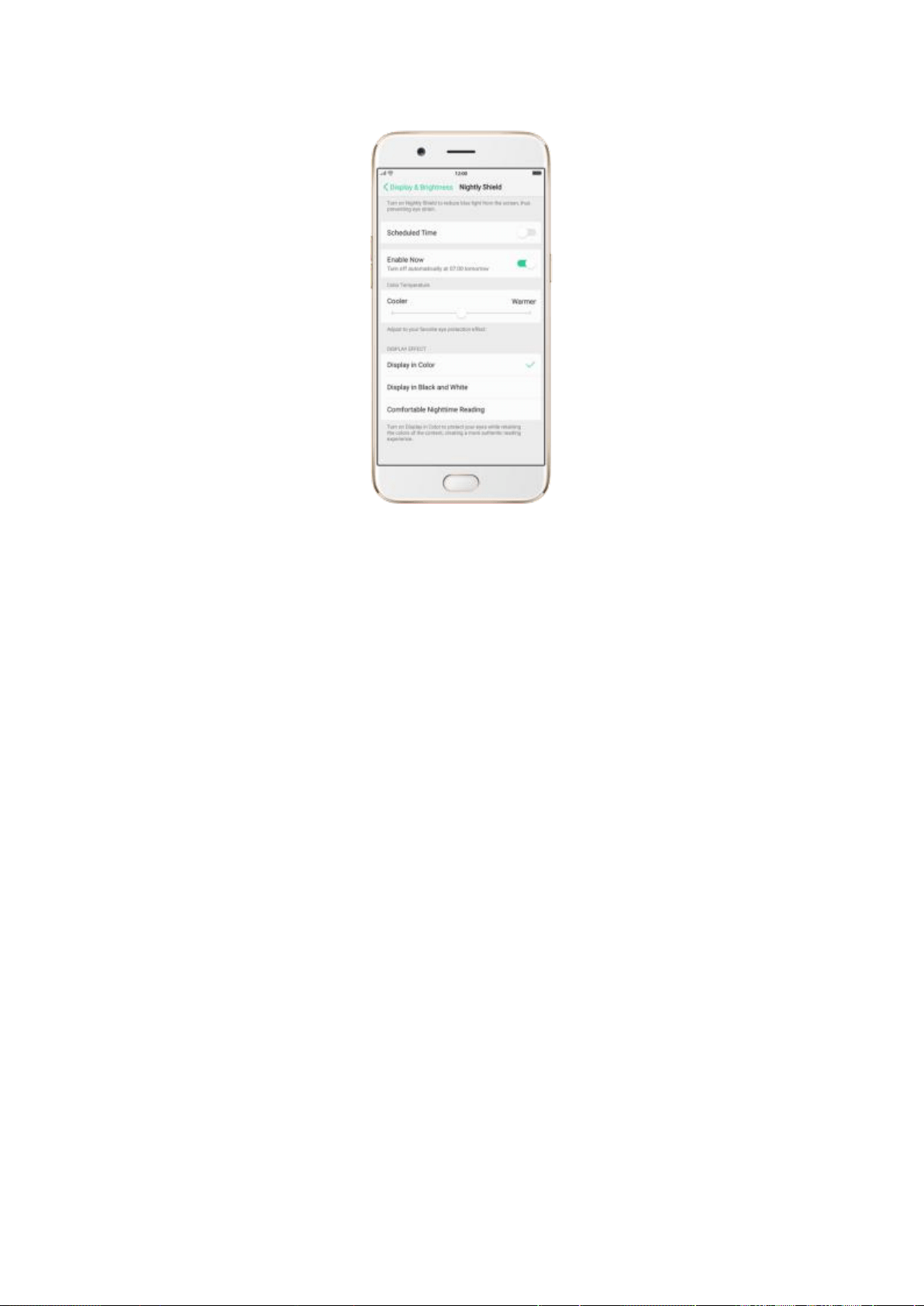
6.6. Change auto-lock time
By default, your OPPO smartphone locks automatically after 30 seconds. To
modify this, alter the amount of time yourself.
Change auto-lock time. Go to [Settings] > [Display & Brightness] > [Auto
Screen off]. Options range from 15 seconds to 30 minutes.
Tip: The longer your display, the more the battery drain.
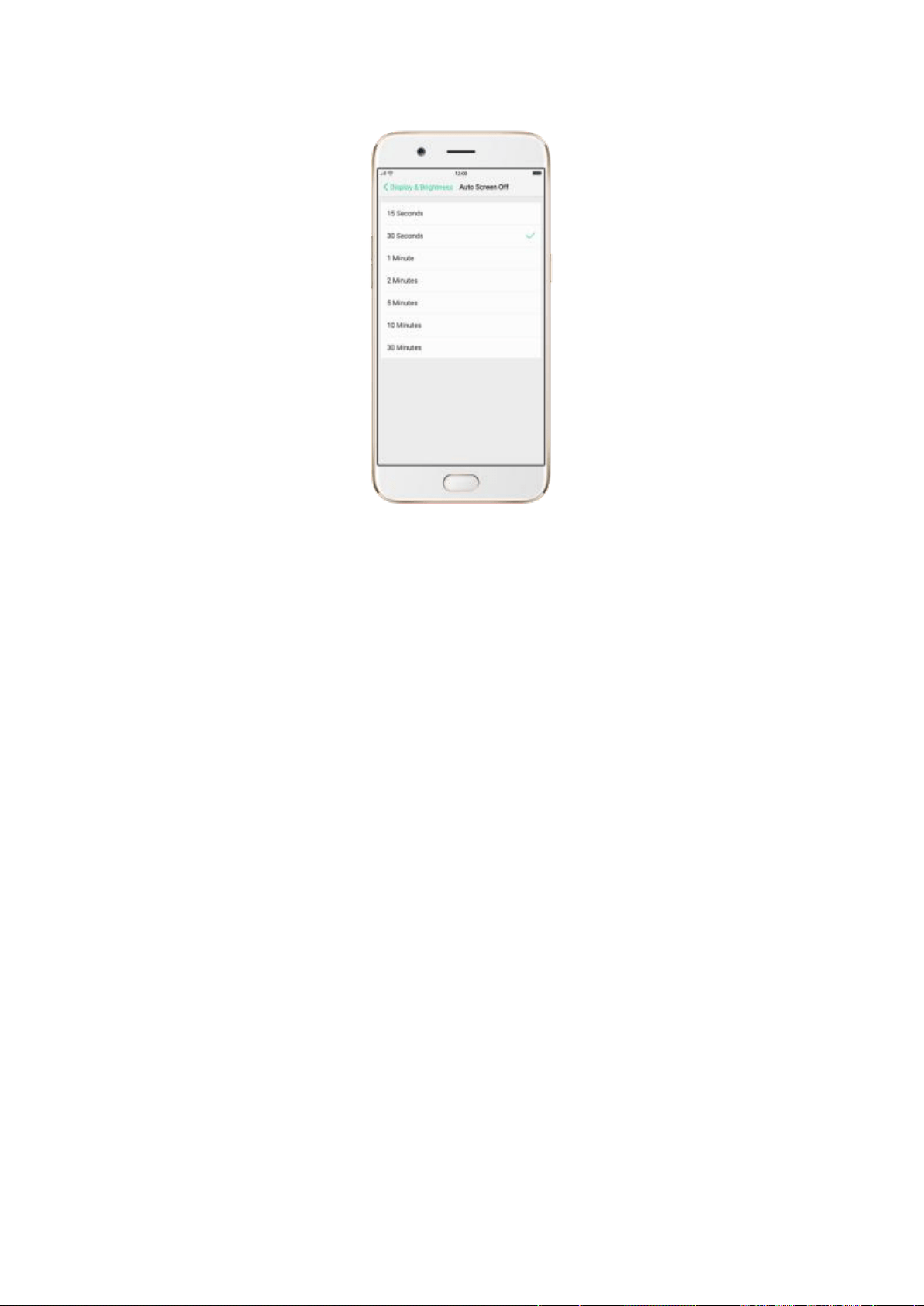
6.7. Change the text size
OPPO smartphone lets you change the text size to fit your eyesight needs.
Change the text size. Go to [Settings] > [Display & Brightness] > [Text
Size]. Drag the slider to the left or right to shrink or enlarge sample text, then
you'll see your new text size immediately applied to the menu text in the
upper-left corner of the screen.
Tip: This will not affect the size of your icon text.
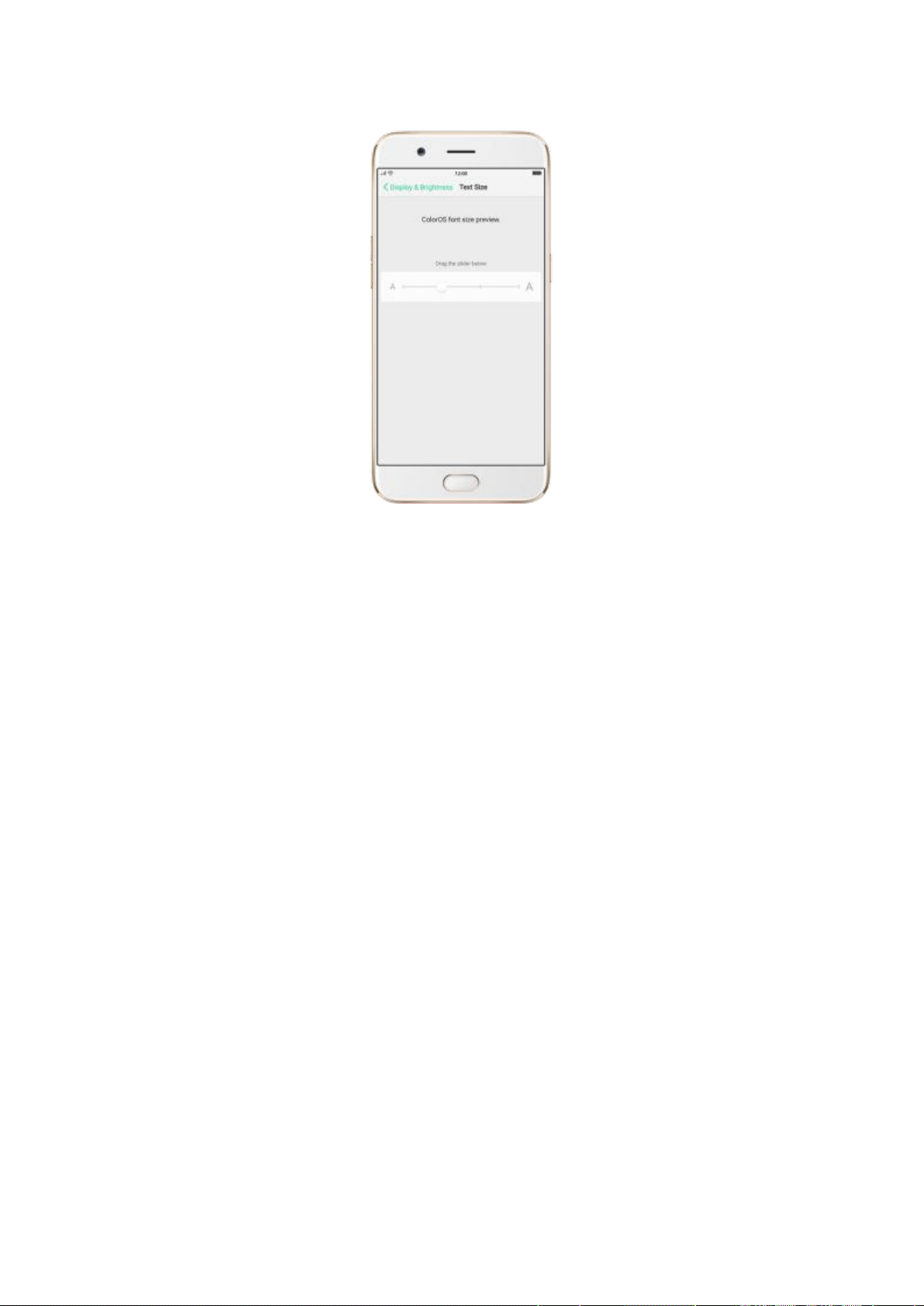
6.8. Keyboard and input method
6.8.1. Customize the look of the keyboard
Make the keyboard your own by customizing the font and appearance.
Go to [Settings] > [Additional Settings] > [Keyboard & Input Method] >
[TouchPal for OPPO] > [General settings].
Change the font type. Click [Keyboard font] and choose one of the two
fonts:
TouchPal font
System default font
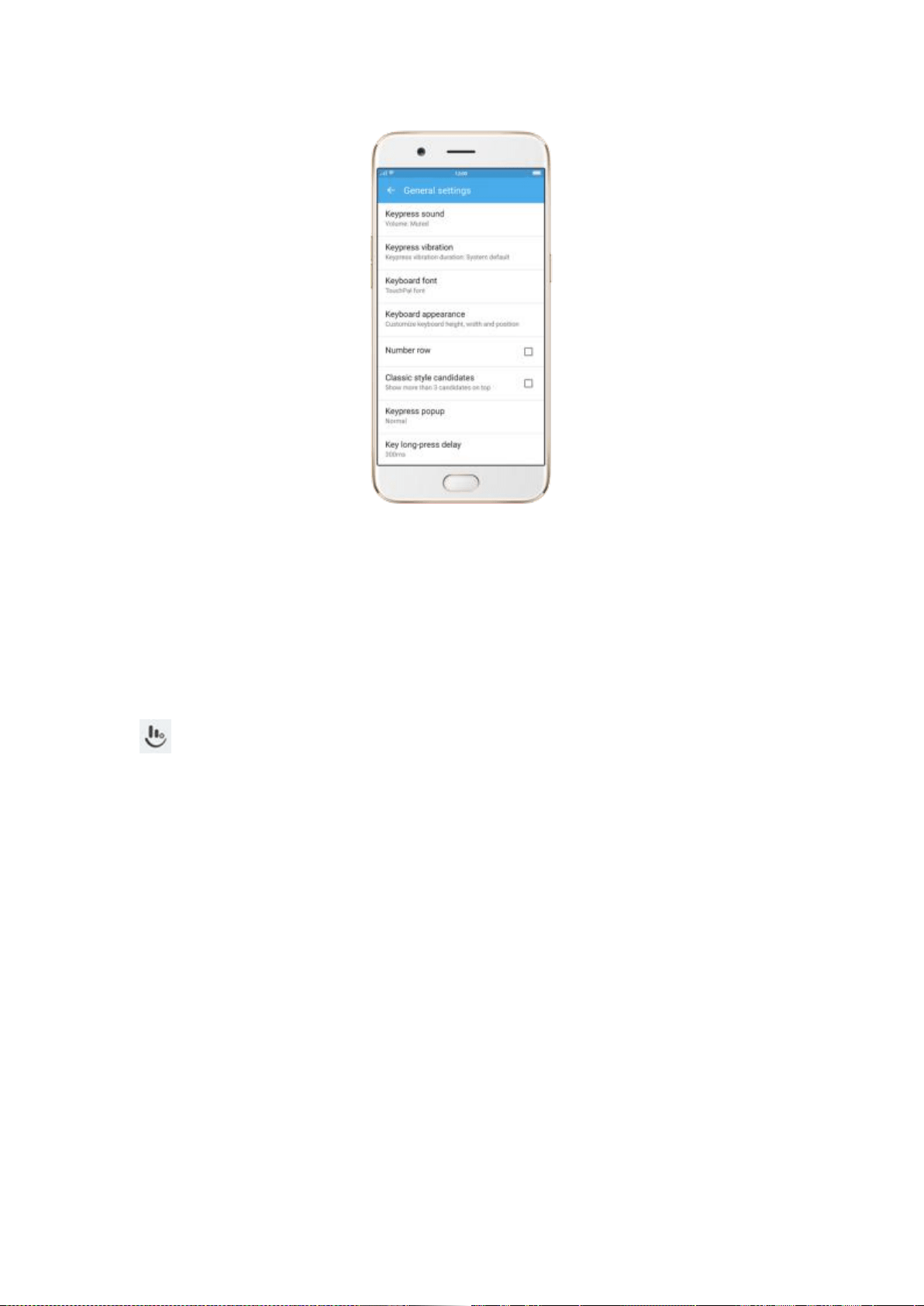
Adjust candidate word size. Click [Keyboard appearance], then drag the
control point to change font size to small, normal or large.
Customize keyboard appearance. Click [Keyboard appearance], or click
on the on-screen keyboard > [Resize], then drag the control arrow to
adjust keyboard height, width and position.
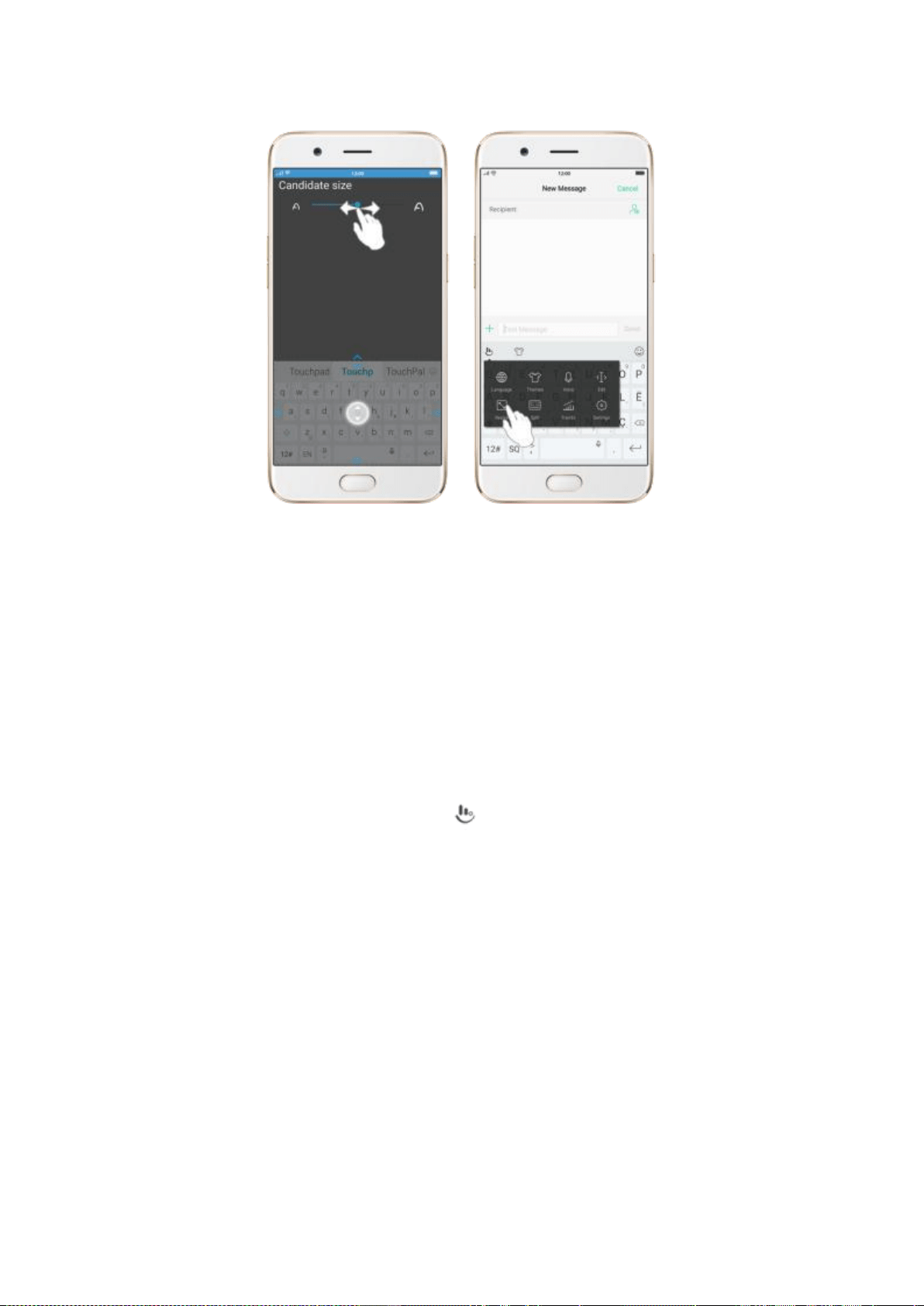
6.8.2. Split keyboard
You can split the phone's on-screen keyboard into two so you can grasp the
phone with two hands and type with your thumbs in landscape orientation.
Split the on-screen keyboard. Click on the on-screen keyboard, then
click Split.
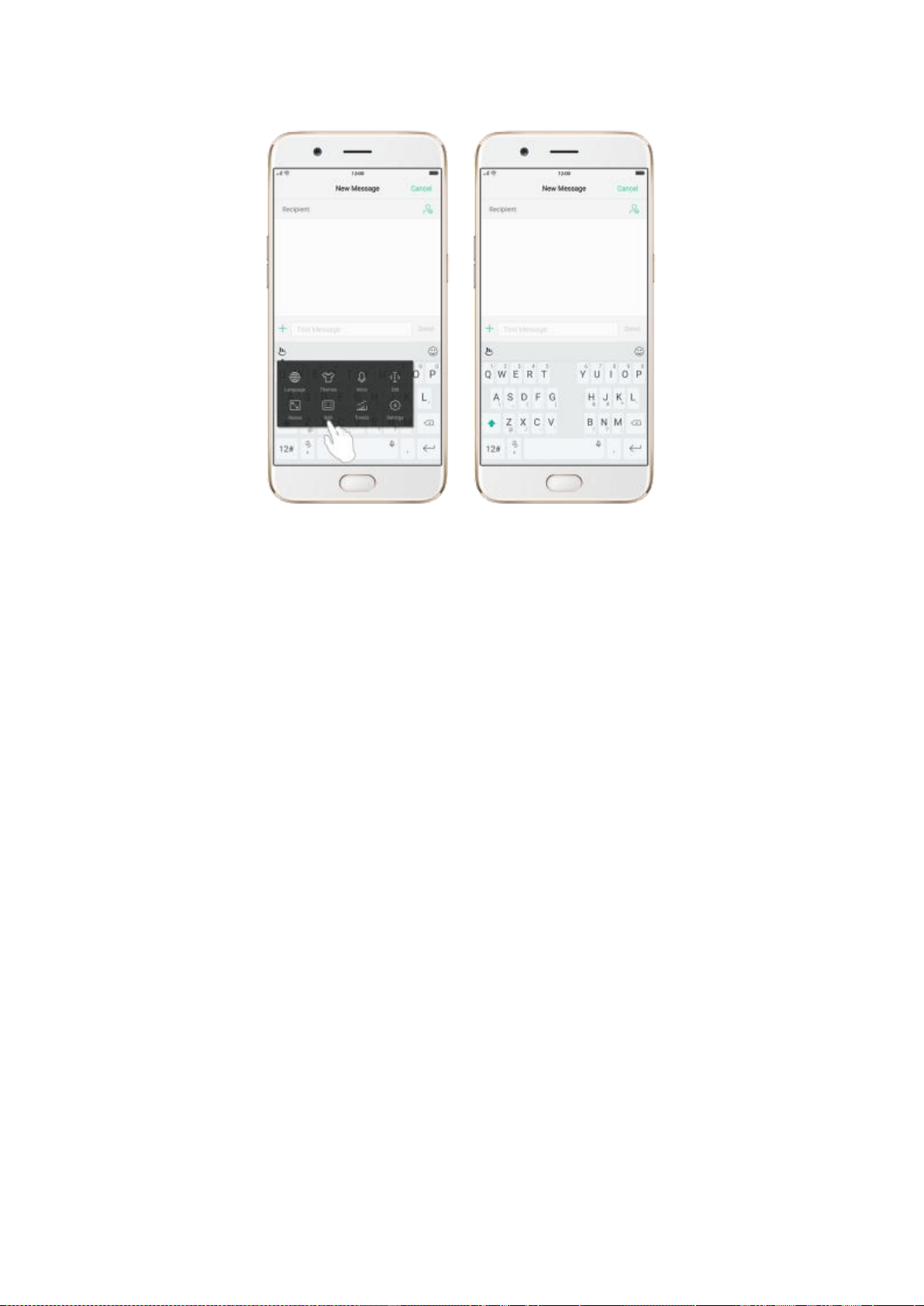
6.8.3. Trends
With TouchPal’s Trends feature, you can download the keyboard themes and
buzzwords, and get the latest news and headlines.
Get the latest trends. Click on the on-screen keyboard, then click Trends.
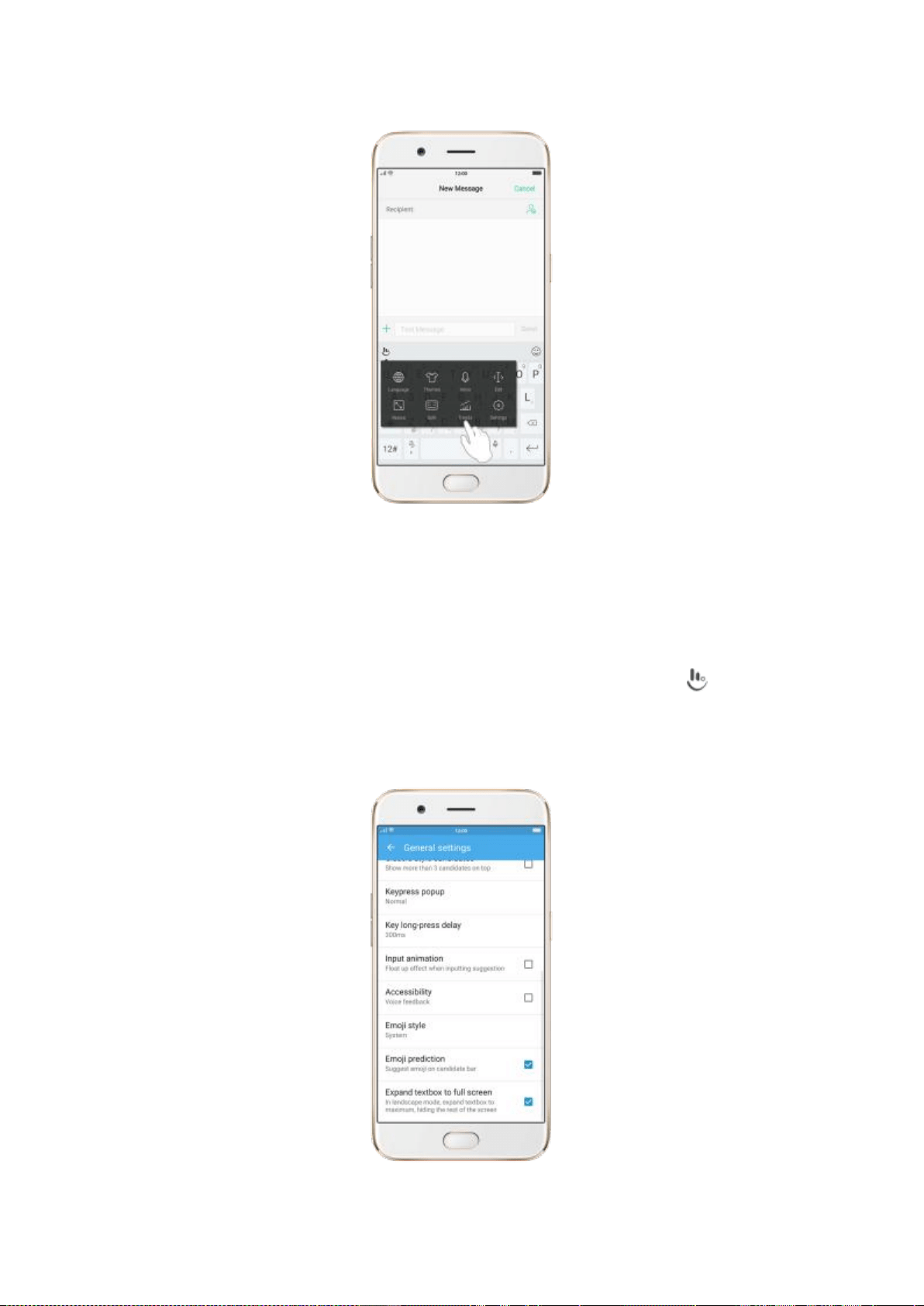
6.8.4. Keyboard general settings
OPPO smartphones come preloaded with TouchPal Keyboard. You can
change the keyboard settings directly on your phone. click on the
on-screen keyboard, then click [Settings] > [General settings].

Setting
Effect
Keypress sound
Adjust the keypress sound, or use the system
volume.
Keypress vibration
Adjust the keypress vibration duration, or use
the system default setting.
Keyboard font
Switch to TouchPal or System default font on
your phone.
Keyboard appearance
Customize keyboard height, width and
position. See Customize the look of the
keyboard.
Number row
Add the number row option in quick menu.
Classic style candidate
Show more than three candidates on top.
Keypress popup
A popup bubble displays when you click a key.
Key long-press delay
Adjust the long-press delay time ranging from
200ms to 1000ms.
Input animation
Float up effect when clicking the candidate
word.
Accessibility
TouchPal reads exactly what you ‘re typing.

Emoji style
Switch to Android or System emoji on your
phone.
Emoji prediction
As you type, TouchPal predicts what emoji
comes next
Expand textbox to full
screen
Keyboard opens as full screen in landscape
mode.
6.9. Set up Startup Manager
Startup Manager helps you to manage system startup entries. You can
choose what apps to be started with your phone boots to meet your using
habits.
* Too many self-starting apps may cause a low startup or operating speed.
Set up Startup Manager. Click Phone Manager on the Home screen, then
click [Privacy Permissions] > [Startup Manager]. Toggle the sliders to white
if you don’t want to start apps when phone boots or in background.
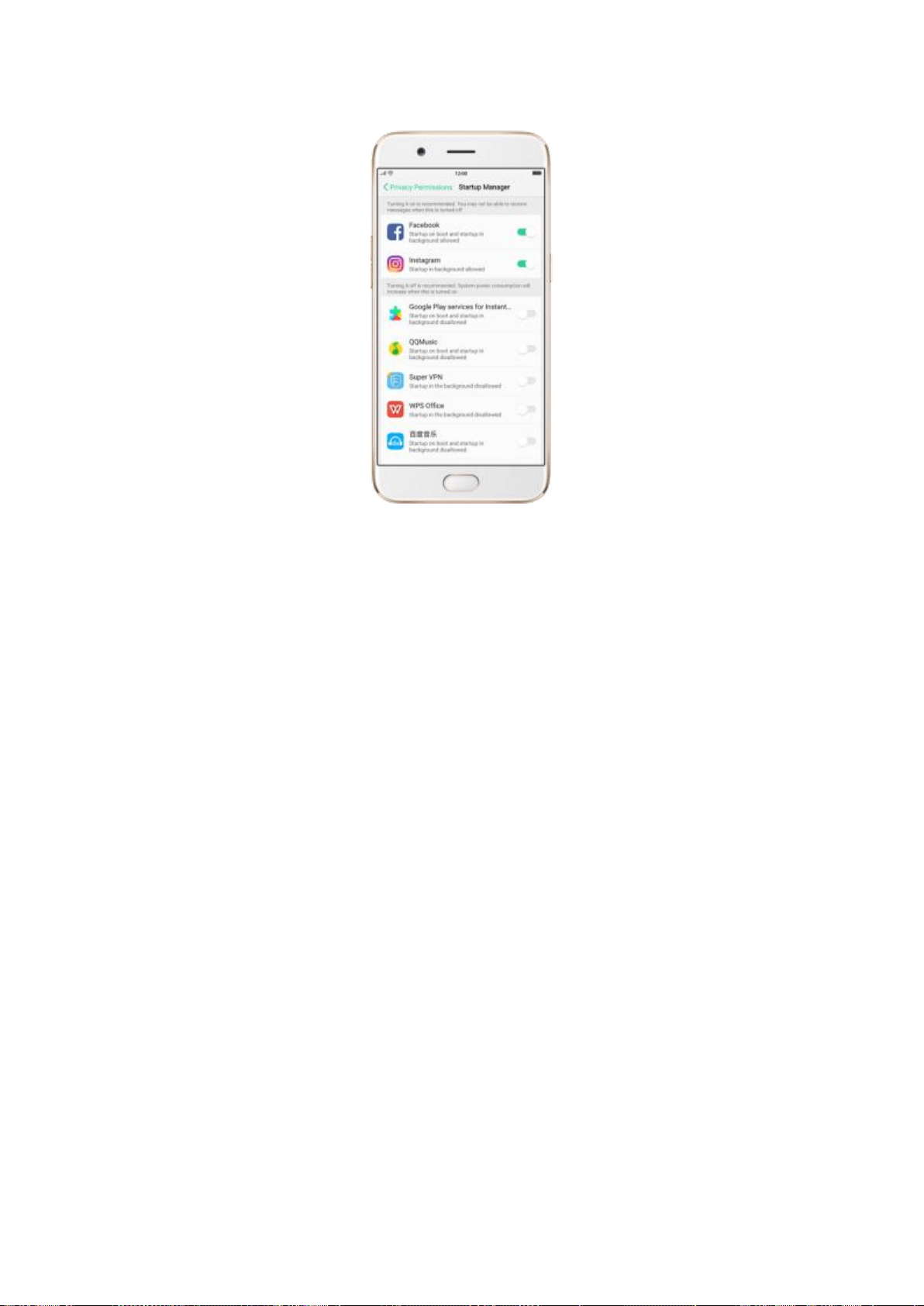
Tip: For apps that receive real-time messages, such as Facebook, WhatsApp
and Twitter, you are suggested to allow them running in the background
without their being suspended.
6.10. Clone Apps
Clone Apps allows an app to run two accounts on a single phone on parallel.
To turn on [Clone Apps], go to [Settings] > [Clone Aps], choose an app and
turn on [Enable App Cloning]. A new copy of this app will be generated on
the homescreen after Clone Apps is enabled. This copy and its original app
can run simultaneously without affecting each other.
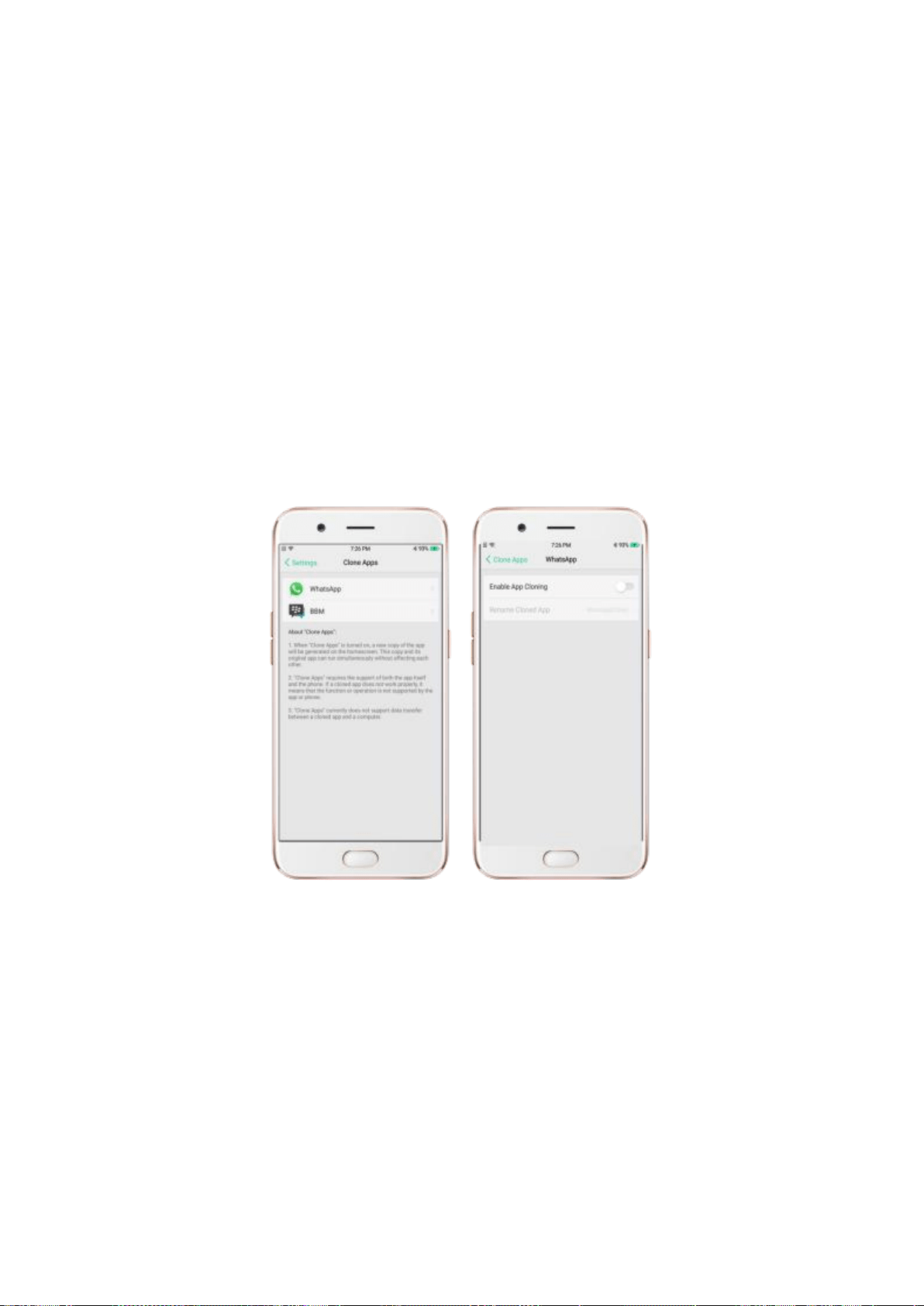
1. “Clone Apps” works only if both the app itself and the phone supports it.
If a cloned app does not work properly, it means that the function or
operation is not supported by the app or phone. Now OPPO smartphone
supports two apps: WhatsApp and BBM.
2. “Clone Apps” currently does not support data transfer between a cloned
app and a computer.
6.11. Manage Default App
What is Default App: If you've ever installed two different applications that
essentially do the same thing (music players, web browsers), you'll likely be
presented with a pop-up menu when trying to play a song or open a web

page, asking you which application you'd like to complete the action with.
You can manage your default app and never be bothered when performing
that action again.
Manage Default App. Go to [Settings] > [App Management] and click
Default App to manage Default App.
Take [Photos] as an example, there are six apps and you can choose one of
them to be the default one. You are suggested to use the original apps to get
a best performance.
6.12. Gesture & Motion
Gestures
OPPO smartphone is designed to understand gestures. You can use gestures
such as tap, swipe, drag and spread to operate your phone.
To set up complex gestures for specific functions, go to [Settings] >
[Gesture & Motion].
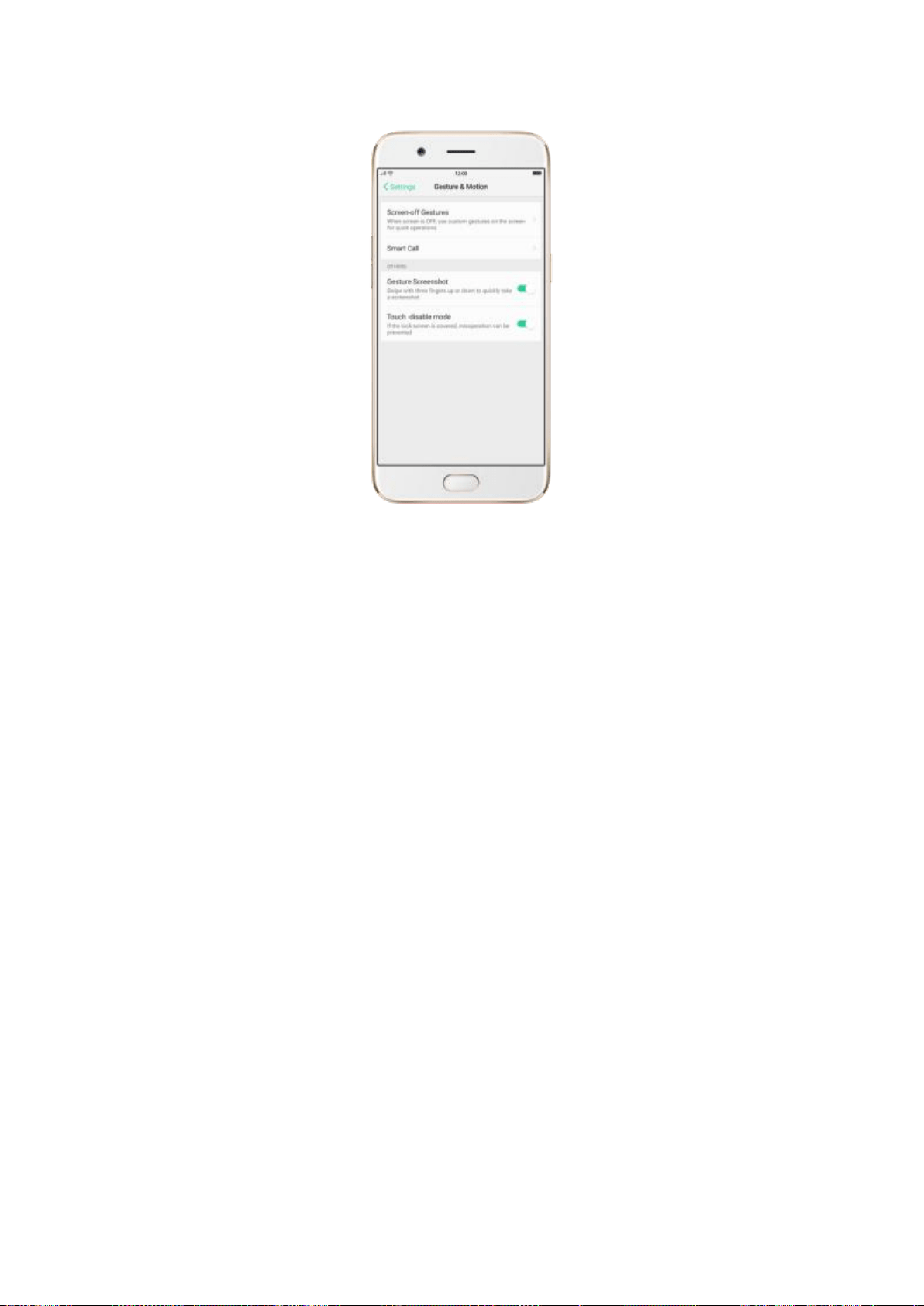
Screen-off Gestures
To set up screen-off gestures, you need to turn it on first.
Double tap fingerprint button for screen-on: Turn it on to wake up your
locked screen with a double-click on the Home button. This function is only
effective when the fingerprint sensor is turned off.
Double tap to turn screen on: Turn it on to wake up your locked screen with
a double-click on the screen.
Draw O to start camera: When turn it on, you can draw O on the locked
screen to open Camera app.
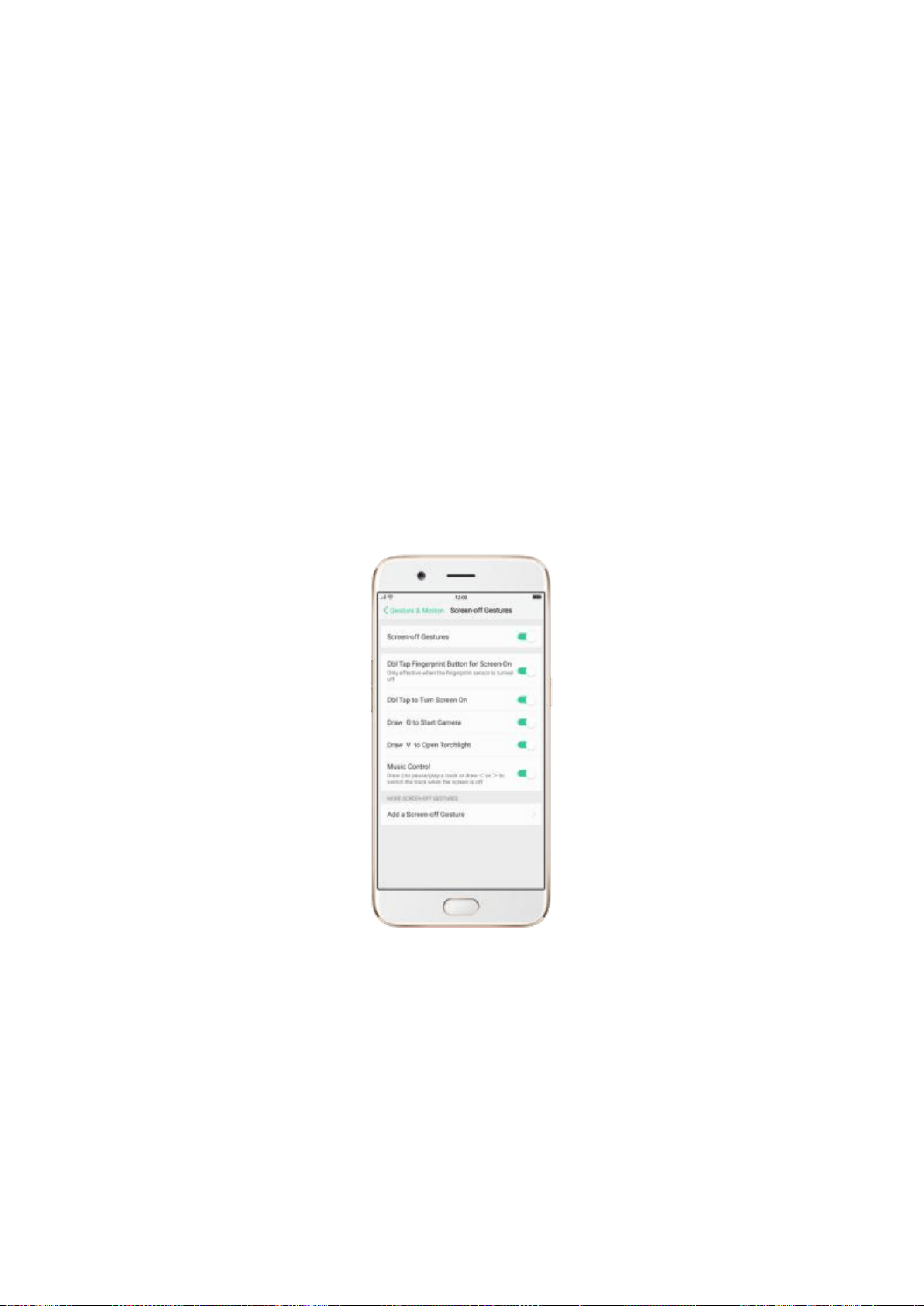
Draw V to open torchlight: When turn it on, you can draw V on the locked
screen to open the torchlight.
Music control: When turn it on, you can draw ‖ to pause/play a track, or
draw < or > to switch the track when the screen is off.
Add more screen-off gestures: OPPO smartphone of ColorOS 3.1 gives you
7 options, which are Draw ^, Slide up, Slide down, Slide left, Slide right,
Draw M and Draw W. Choose one to unlock the phone, call someone or start
an app.
Screenshot Gesture
When turn it on, you can take a screenshot by swiping the screen up or down
with three fingers.
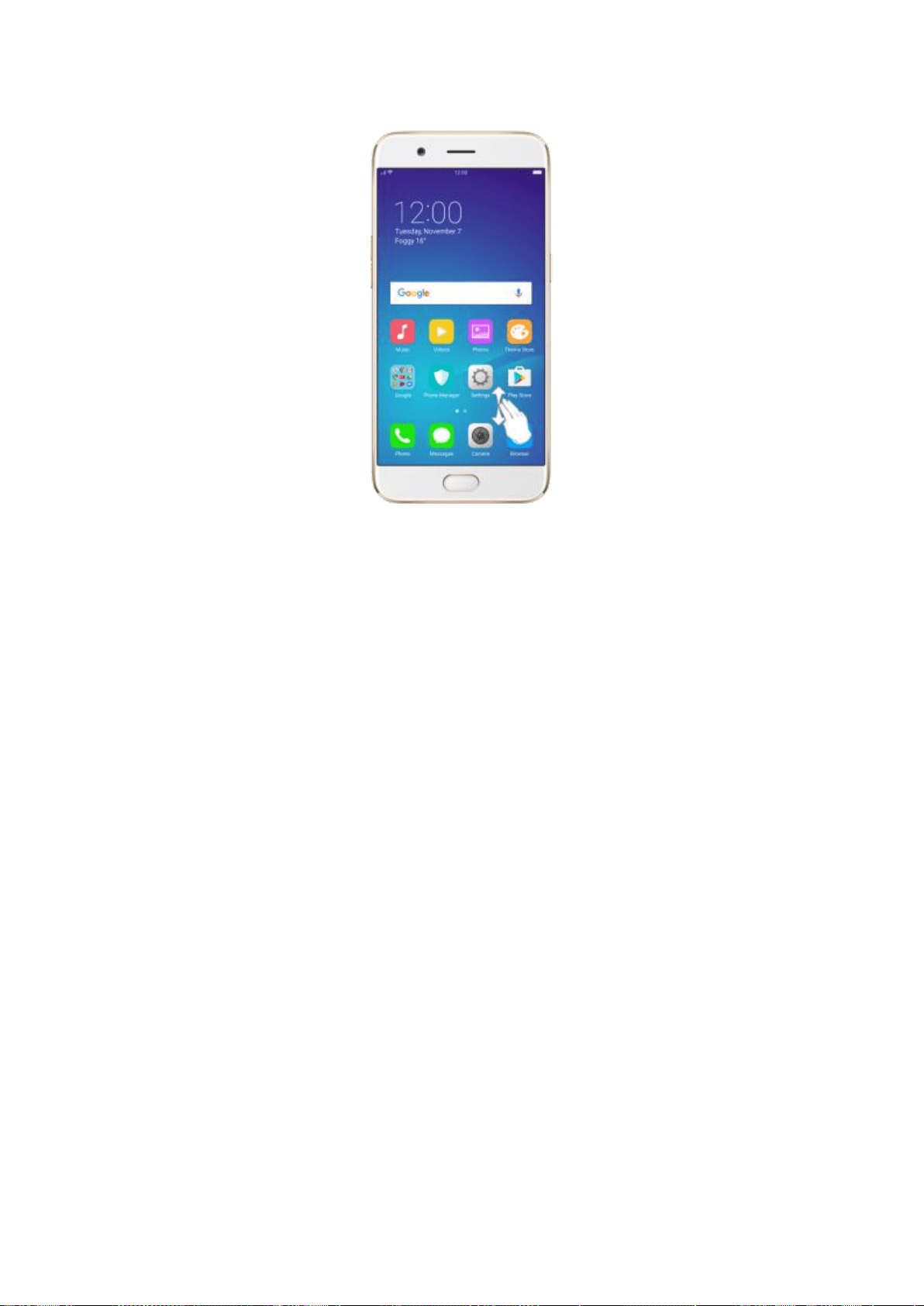
Motion
The motion-sensing technology is used in OPPO smartphone. Use it to let
your phone response to motion.
Smart call
Auto call when near the ear: Before you can use auto call, you need to set
the default SIM card for calling. Go to a contact detail, call detail, message
conversation or info interface, put the phone near your ear and your phone
will automatically call that specific person.
Auto answer when near the ear: This function lets your phone to answer any
incoming calls automatically when putting the phone near your ear.
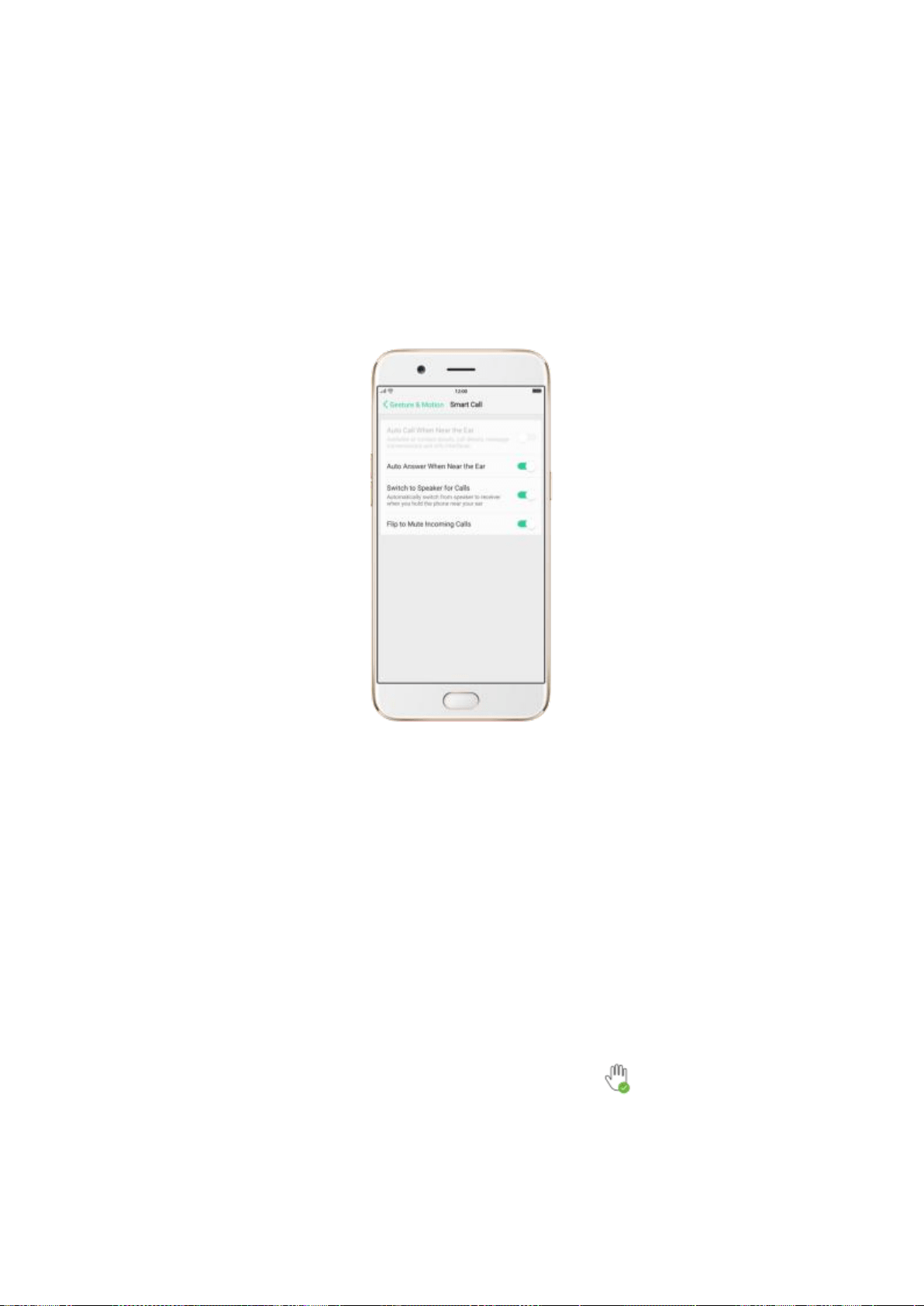
Switch to receiver for calls: Use it to automatically switch from speaker to
receiver when you put the phone near your ear during phone calls.
Flip to mute incoming calls: Use it to silence the ringer by turning the phone
over on a table or other flat surfaces.
Touch-disable mode
Turn it on to prevent incorrect operations if the lock screen is covered.
Take selfies
Open Camera app and switch to the front camera. Click > Palm on the top
of the screen. Pose the same hand gesture towards the camera, once the

camera captures that, it will take a photo automatically after two seconds.
You can change your pose and expression within this two seconds.
7. Application
7.1. Phone
7.1.1. Make and answer phone calls
To make a call and talk to your friends, you can manually enter a phone
number on the dialer, choose a number in your Contacts or Favorites, or click
one of the recent calls.
Note: The signal indicator at the upper-left corner of the screen shows
whether you’re in range of your operator’s network and can make and receive
calls. The more bars, the stronger the signal.
Dial the number you want to call. Click Phone, click the keypad to enter the
number, then click . Click if you make a mistake. You can also
touch and hold the phone number field above the keypad, then click Paste to
paste a number to the keypad.
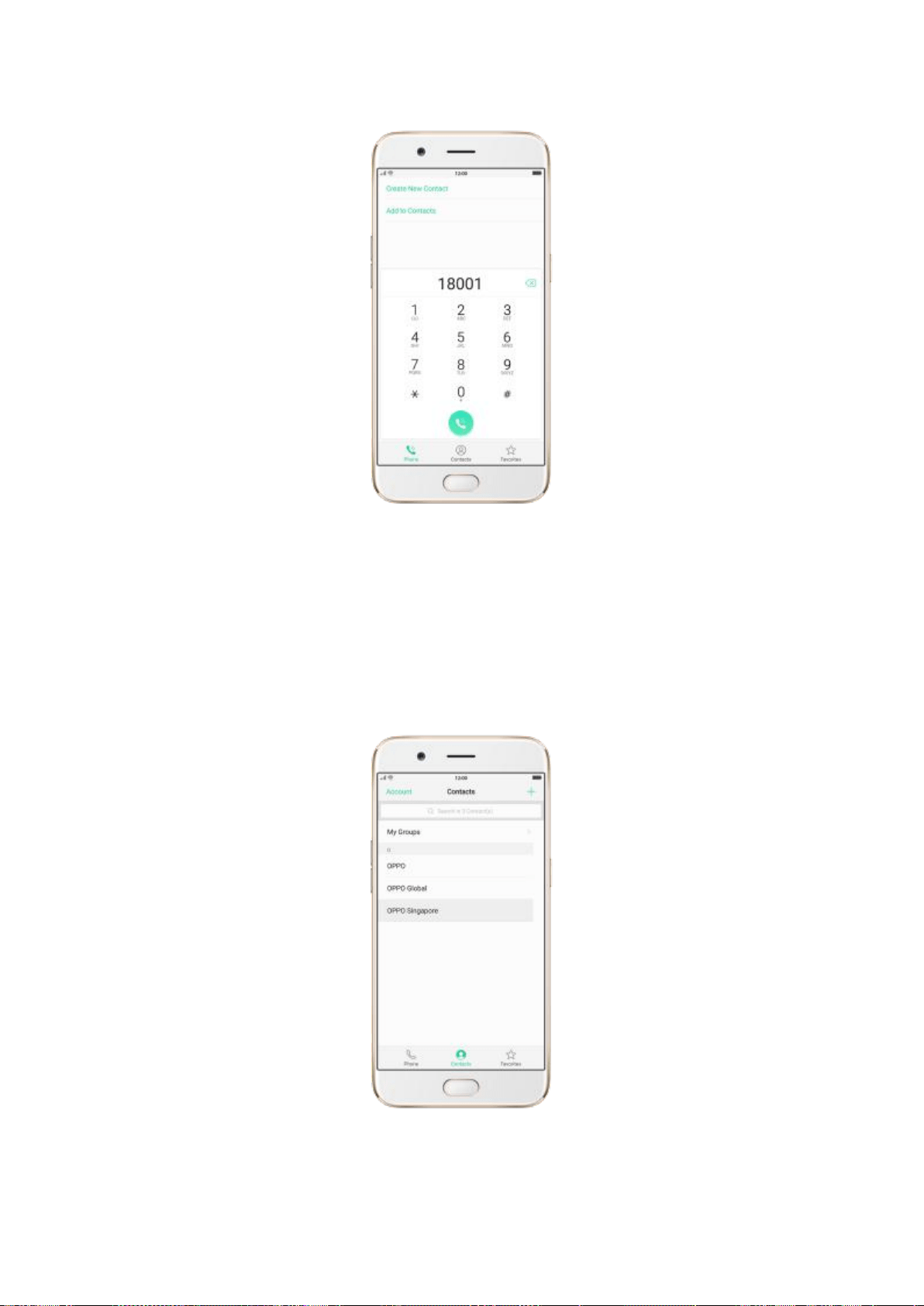
Call someone in your contacts list. Click Contacts and choose a contact,
then click the phone number to make a call. You can also use Search feature
to find a contact, see Search.
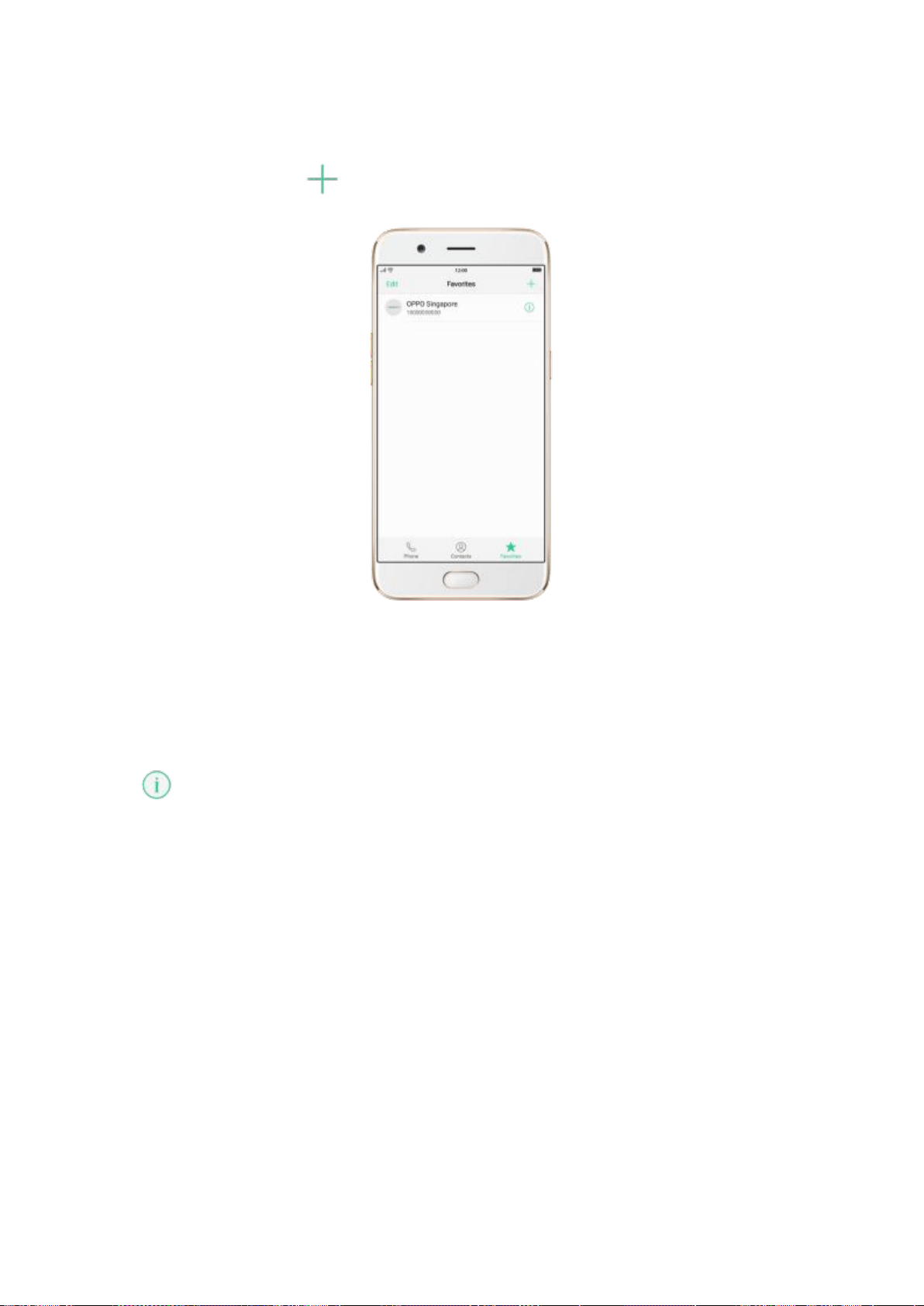
Call someone in your favorites list. Click Favorites and choose a contact. To
add favorites, click .
Call someone you’ve recently called or who has recently called you. Click
Phone, and you’ll see the recent calls. Click a number to make the call. Click
to get more info about the call, or the caller. Click “All” to see all, only
missed, or only blocked calls.
+
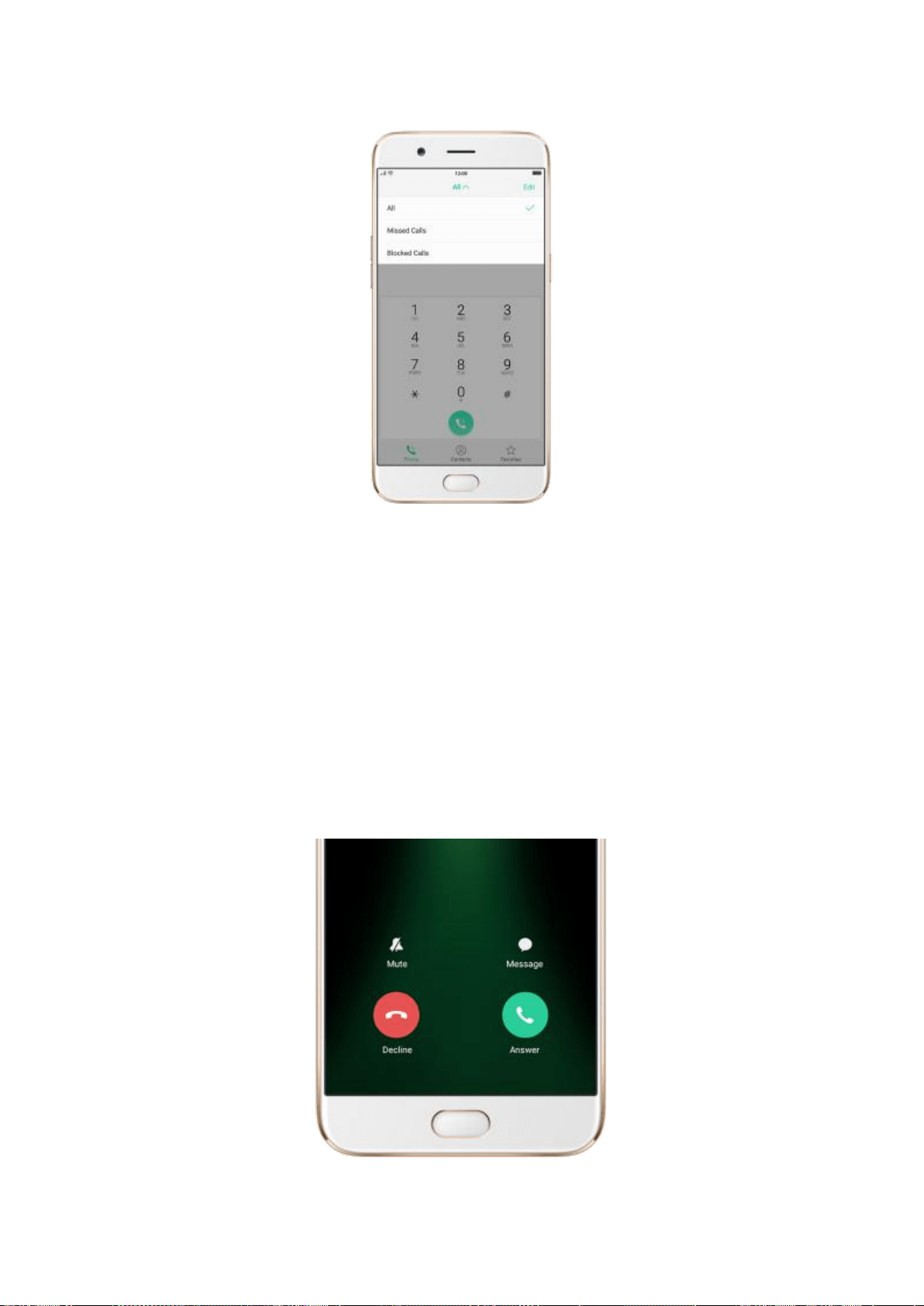
Answer or decline a call
When someone calls you, the OPPO smartphone rings and displays the
caller’s information, if available.
Answer a call. Click Answer. If the phone is locked, click Slide up to answer.
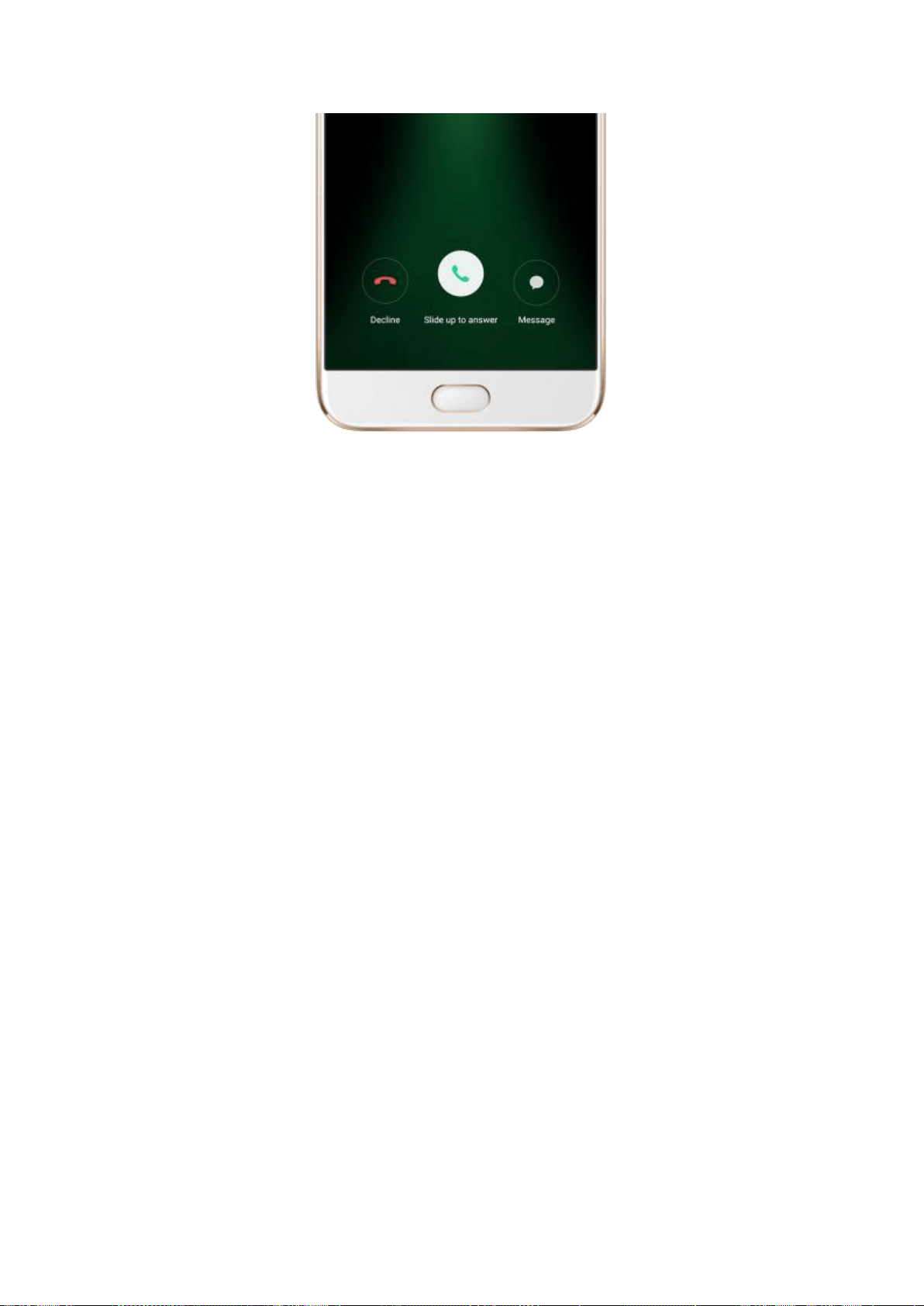
If you’re listening through the headset, you can click the mic button to
answer.
Silence a call. Click Mute, or press the Sleep/Wake button or either of the
volume buttons once to stop the phone from ringing or vibrating.
Decline a call. Click Decline, or press the Sleep/Wake button twice quickly.
Respond with a text message instead of answering. Click “Message”, then
choose a reply or click Customize to reply with your own words. To create
your own default replies, go to [Settings] > [Call] > [Reject with SMS].
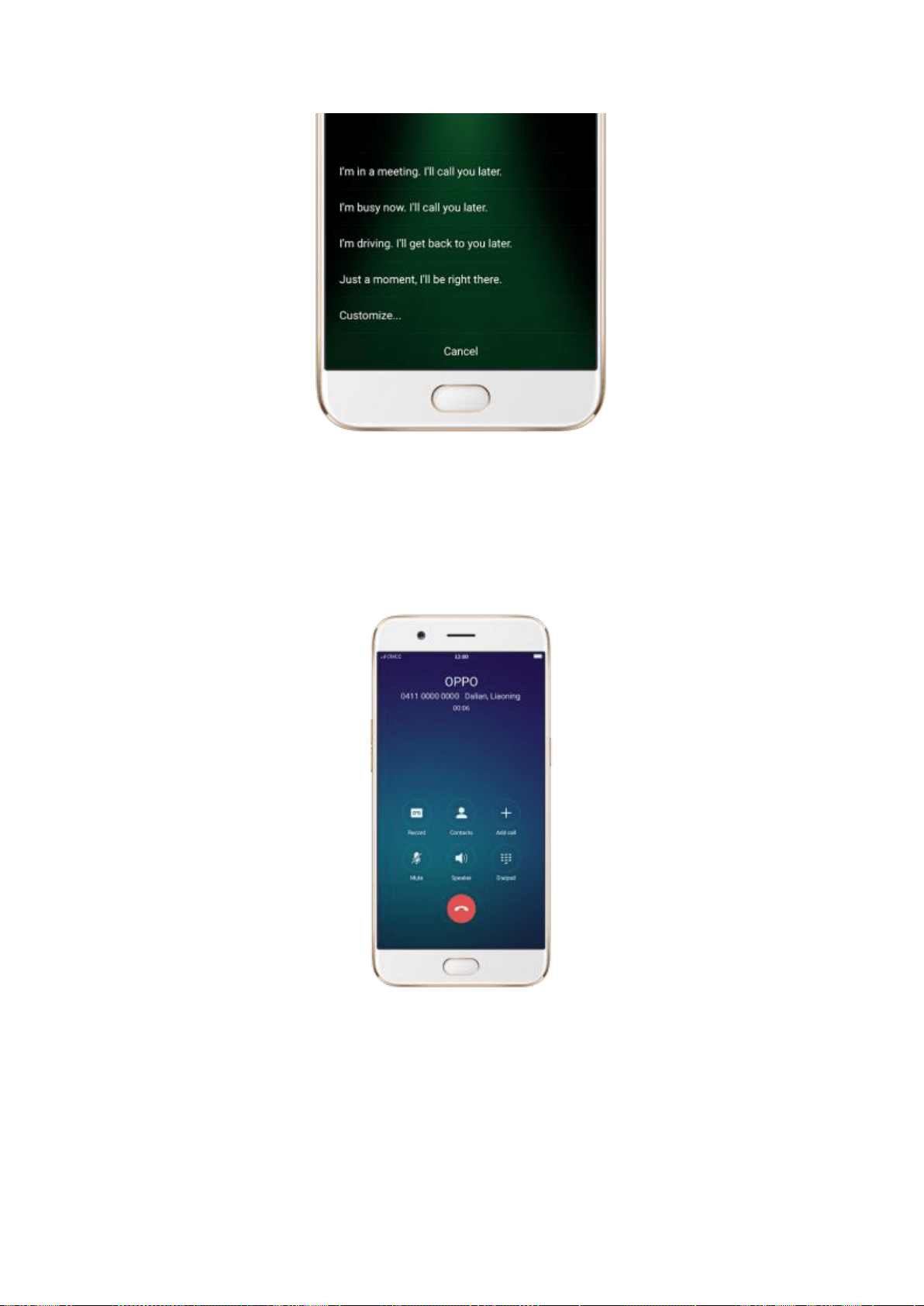
While you’re on a call
While on a call, call options will show up on your screen.
To
Do this
Record a call.
Click Record. The recording will be

saved in [Phone storage] >
[recordings].
Get contact info.
Click Contacts.
Mute the microphone.
Click Mute. The caller can’t hear you
when you are on mute, but you can
still hear the caller. Click Mute again
to cancel it.
Activate speakerphone.
Click Speaker.
Use the dialpad to enter
information.
Click Dialpad.
Make a second call during a call.
Click Add call and make a second
call. The first call will be put on hold.
Click the phone number to switch
back to the first call and put the
second call on hold. Click Merge
calls to merge the two calls, so all
three of you can talk and hear each
other. See Conference calls.
Respond to a second call, do one of the following:
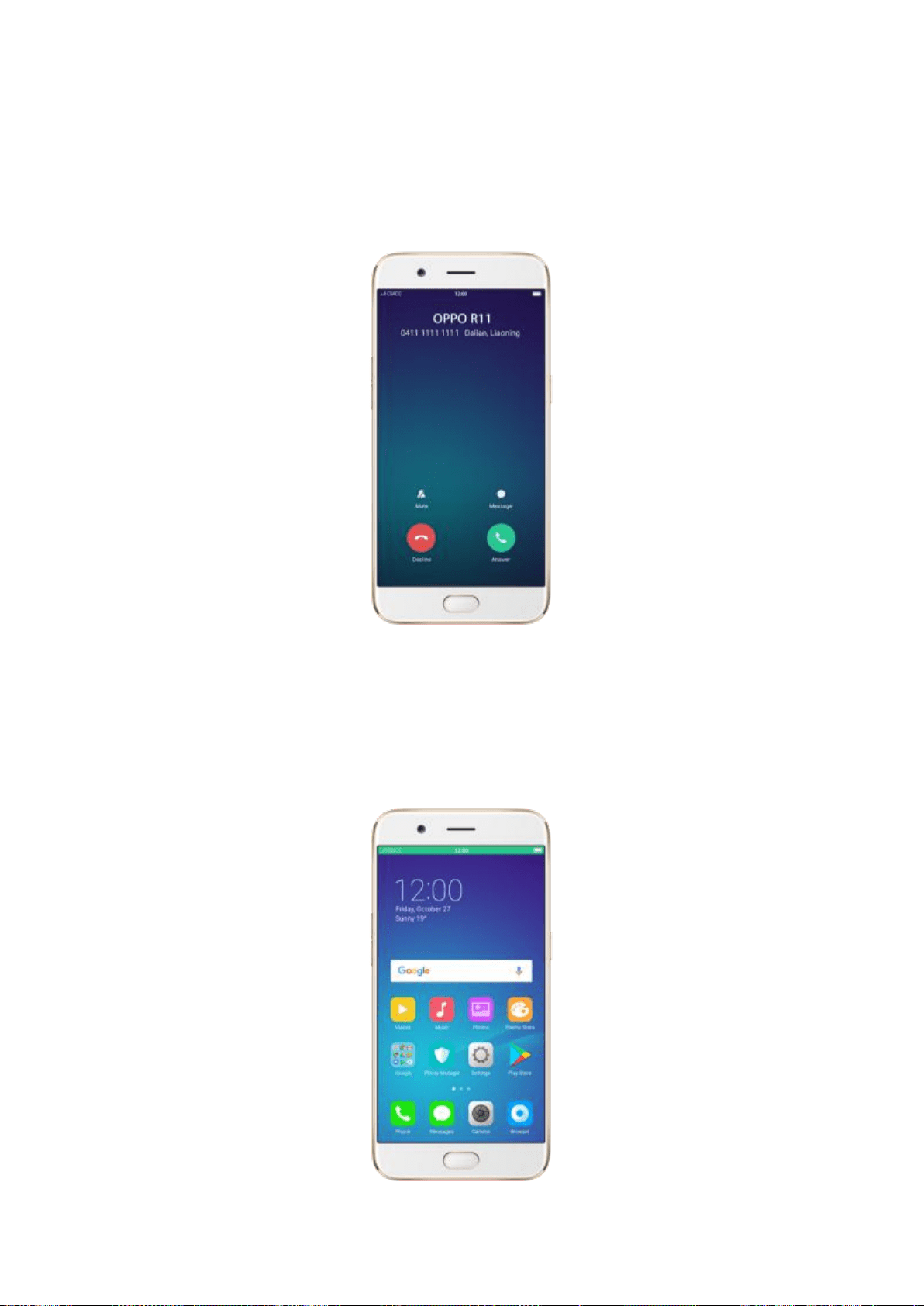
To decline the call, click Decline.
To hold the first call and answer the new call, click Answer.
Use other features while on a call. Click the Home button. Click the green
status bar on the top of the screen to return the call.
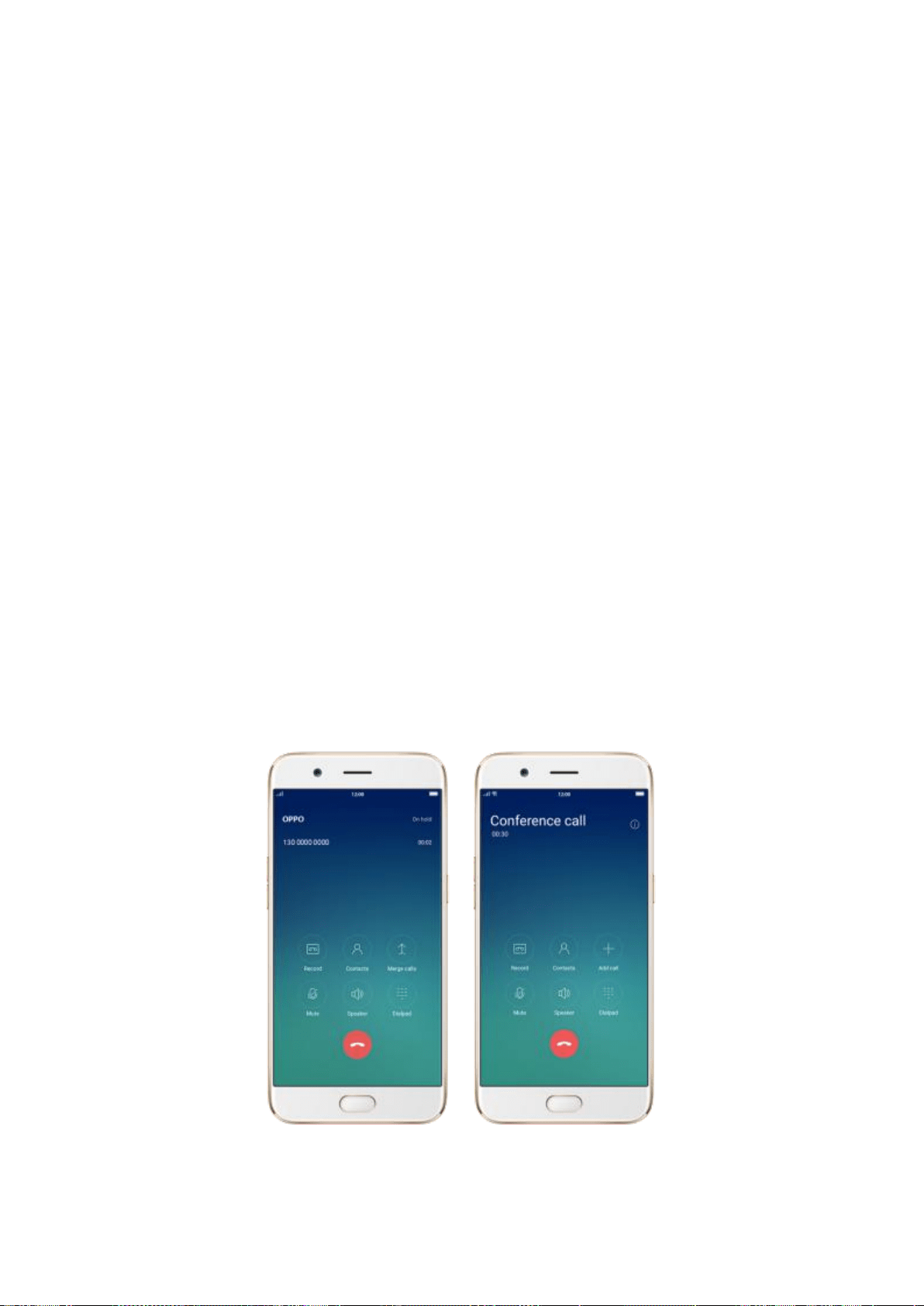
7.1.2. Conference calls
A conference call lets you talk to more than one person at a time. You can
merge up to six calls for a phone conference.
Notice: You might need to contact your network operator to activate
conferencing services first.
Make a conference call. Do the following:
1. Make a call.
2. Tap Add Call and make another call. The first call will be put on hold.
3. Tap Merge calls. The calls are merged onto one line and everyone can hear
each other.
4. Repeat second and third steps to add more calls to the conference.

7.1.3. Block calls
Block feature does help to prevent unwanted phone calls. You can also add
numbers to blacklist to block specific phone numbers from calling.
Block calls. Go to [Settings] > [Call], or go to [Settings] > [Security] >
[Block]. Click [Block Calls], you’ll see several options available for blocking
incoming calls:
Block one-ring incoming calls
Block hidden incoming calls
Block all unknown incoming calls
Do not block repeated incoming calls
Block all incoming calls
Note: The unknown number refers to an unsaved real phone number, and
your phone is able to show its number and location; while the hidden number
means the caller’s number or location is not accessible, which usually is a
harassing call.
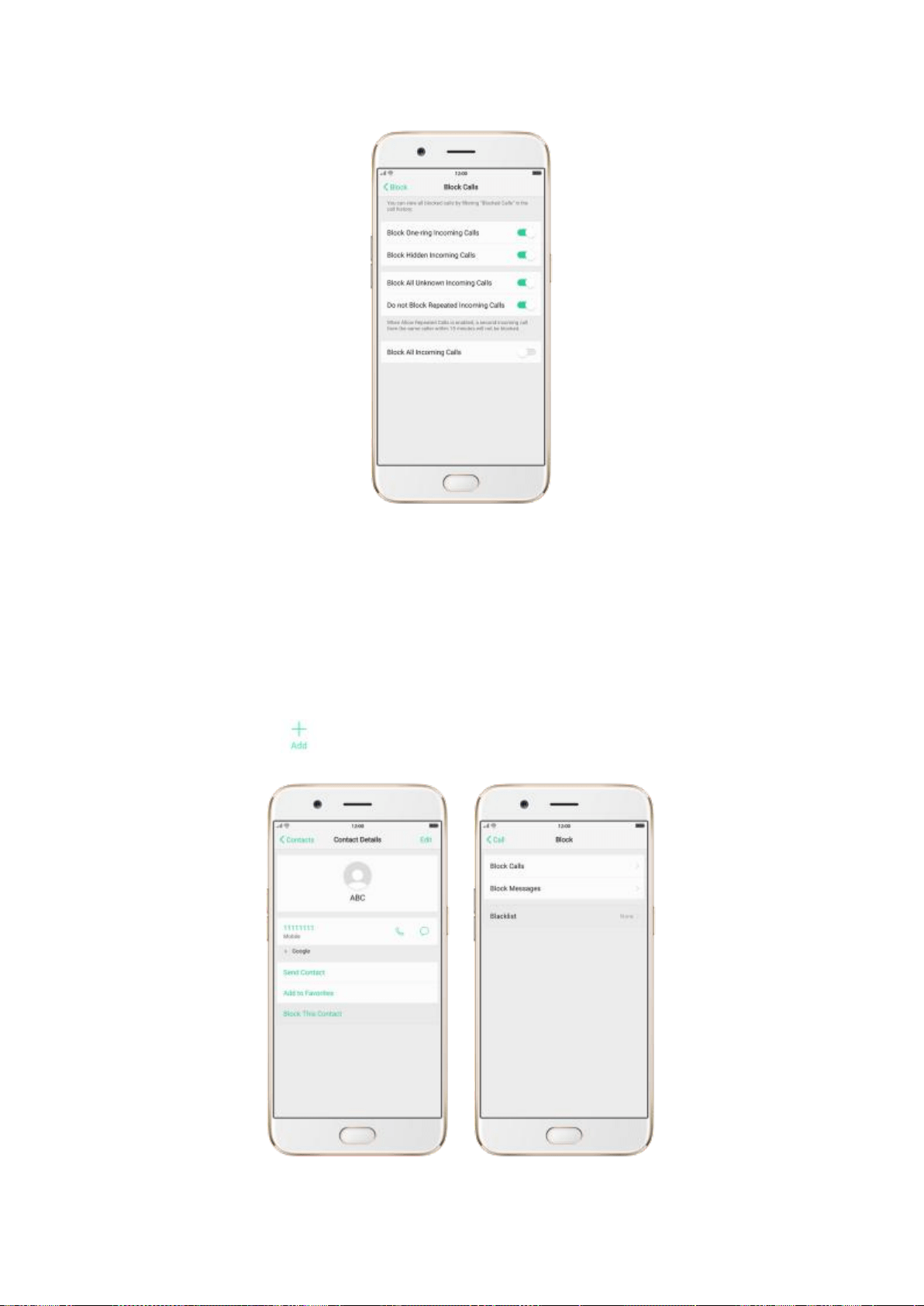
Add a contact or a phone number to the blacklist. Click Phone, then click
Contacts. Choose a contact, then click Block This Contact. You can also go to
[Settings] > [Call] > [Block], or go to [Settings] > [Security] > [Block], click
[Blacklist], click , then enter the number or choose your contacts.
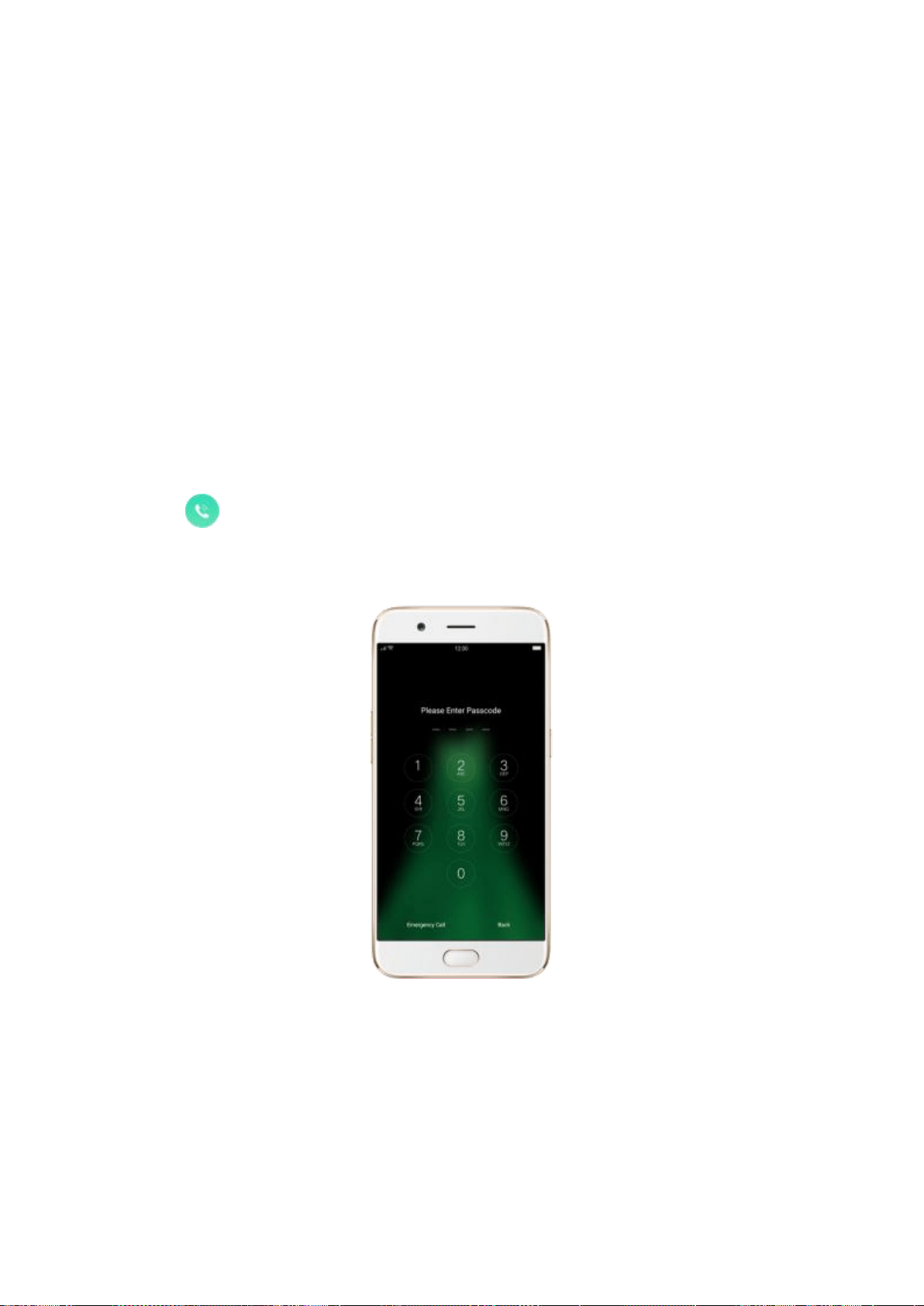
7.1.4. Emergency calls
Call for help in an emergency. You can make an emergency call even if you do
not have a SIM card installed in your OPPO smartphone in some countries.
Make an emergency call. Click Phone, click keypad and dial the number, then
click . Or if your phone is locked with a passcode, click Emergency Call,
then dial the number.
7.1.5. Operator's Call Related Settings
The OPPO smartphone includes several calling features such as Call
Forwarding, Call Waiting, Voicemail and more.

Set up calling features. Go to [Settings] > [Call] > [Operator’s Call Related
Settings].
Voicemail: When you're away or can't get to the phone, your Voicemail
does the answering for you. Callers can leave recorded audio messages
to you, and you can view, listen to, and manage the messages.
Fixed Dialing Numbers: Add numbers to the FDN list, and when
activated, FDN restricts outgoing calls to only those numbers listed, or to
numbers with certain prefixes.
Call Forwarding: An incoming call will be redirected to another
telephone number where the desired called party is able to answer.
Notice that appears in the status bar.
Call Restriction: Certain types of outgoing calls (such as international
calls) and/or incoming calls will be restricted.
Call Waiting: You'll hear short beeps if someone calls you while you’re on
the call.
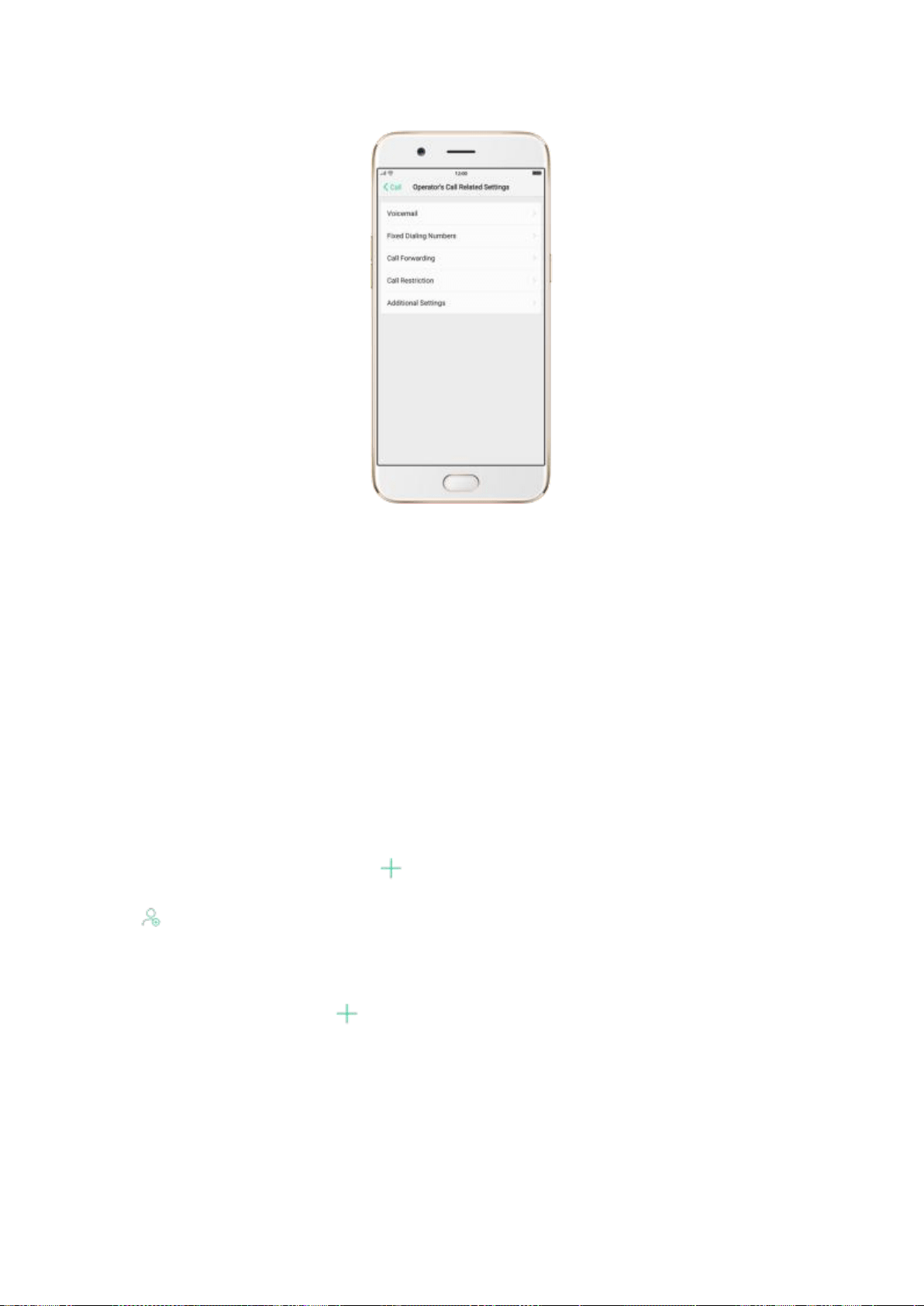
7.2. Messages
7.2.1. Send and receive messages
You can send and receive text messages anytime you’re in range of the cell
network. Depending on your phone plan, you may be charged for messages
you send or receive.
Send a new message. Click , then enter a phone number or name, or click
and choose a contact from your contacts list. Type a message and tap
Send.
Tip: As you type, click next to the text field to add an attachment.
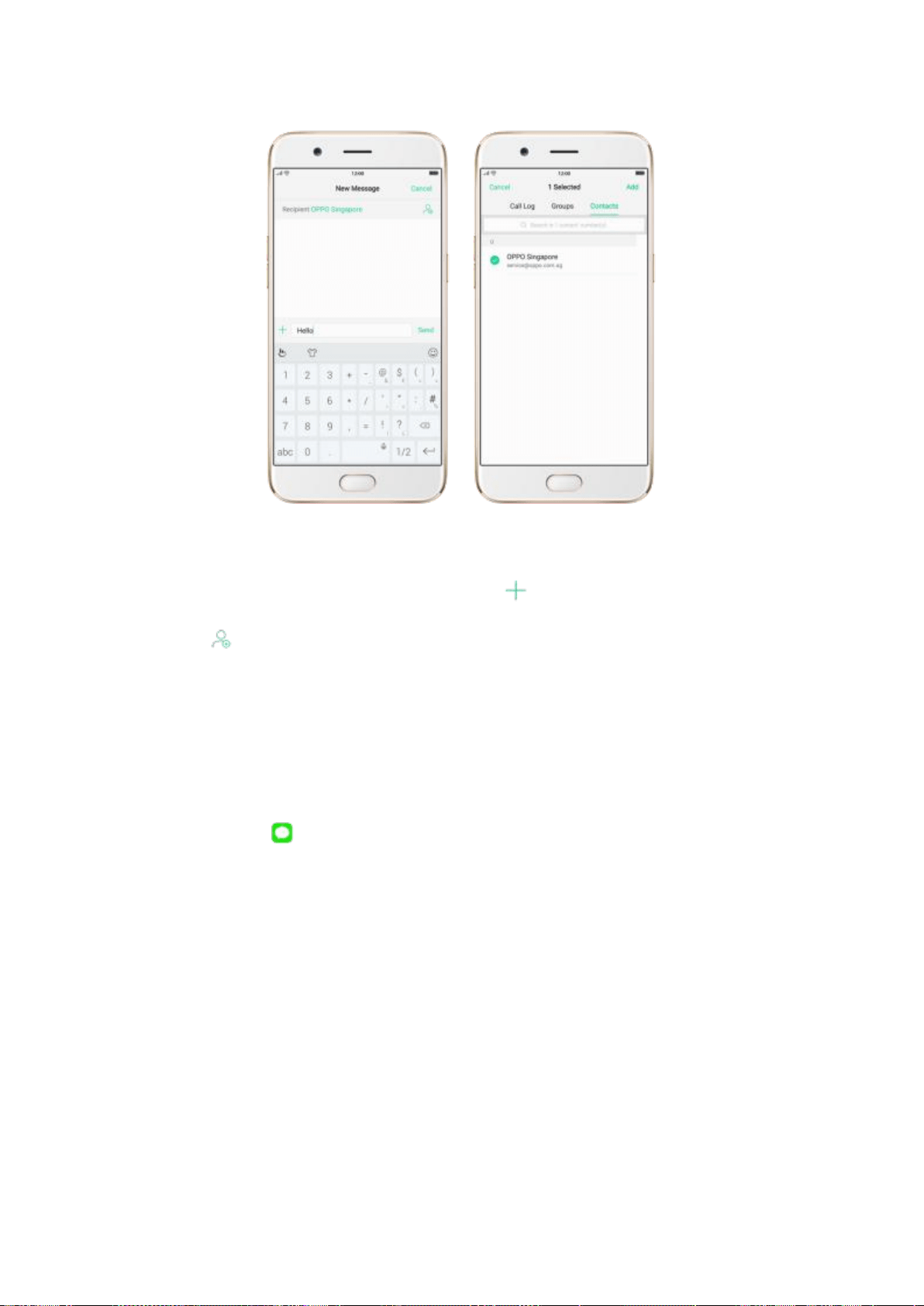
Send a message to multiple people. Click , then enter multiple recipients,
or click and tick all contacts you wish to include in the group message,
then click Add.
Read and reply to a new message. Click the notification on the top of your
screen, or click . When phone screen is locked, swipe the notification right.
Type your message and tap Send.
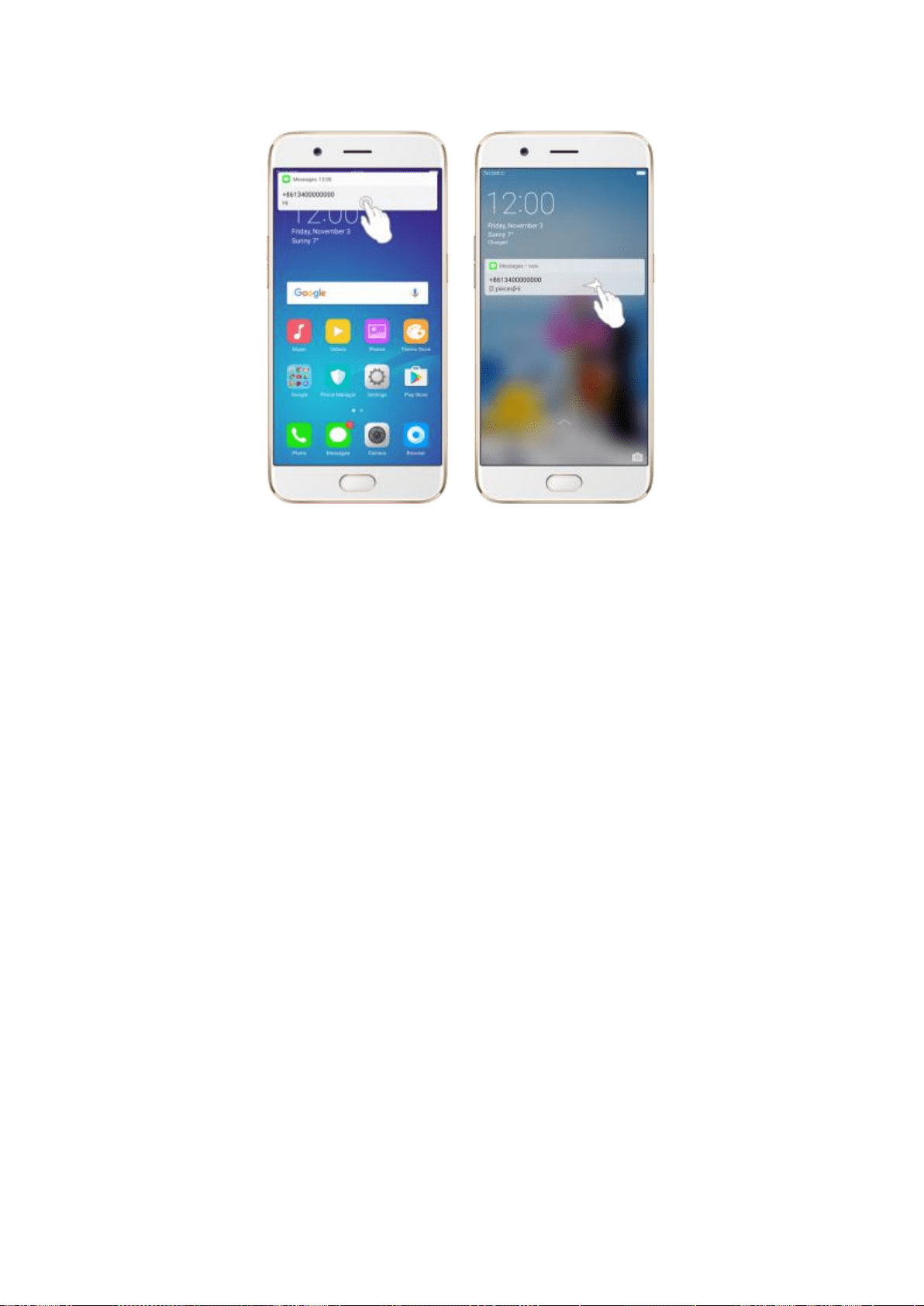
Tip: The Messages icon on the Home screen shows the total number of
unread text messages you have.
Delete conversations from the Messages list. Click Edit, tick the
conversations and click Delete. You can also delete a conversation by swiping
left over a conversation and clicking Delete.
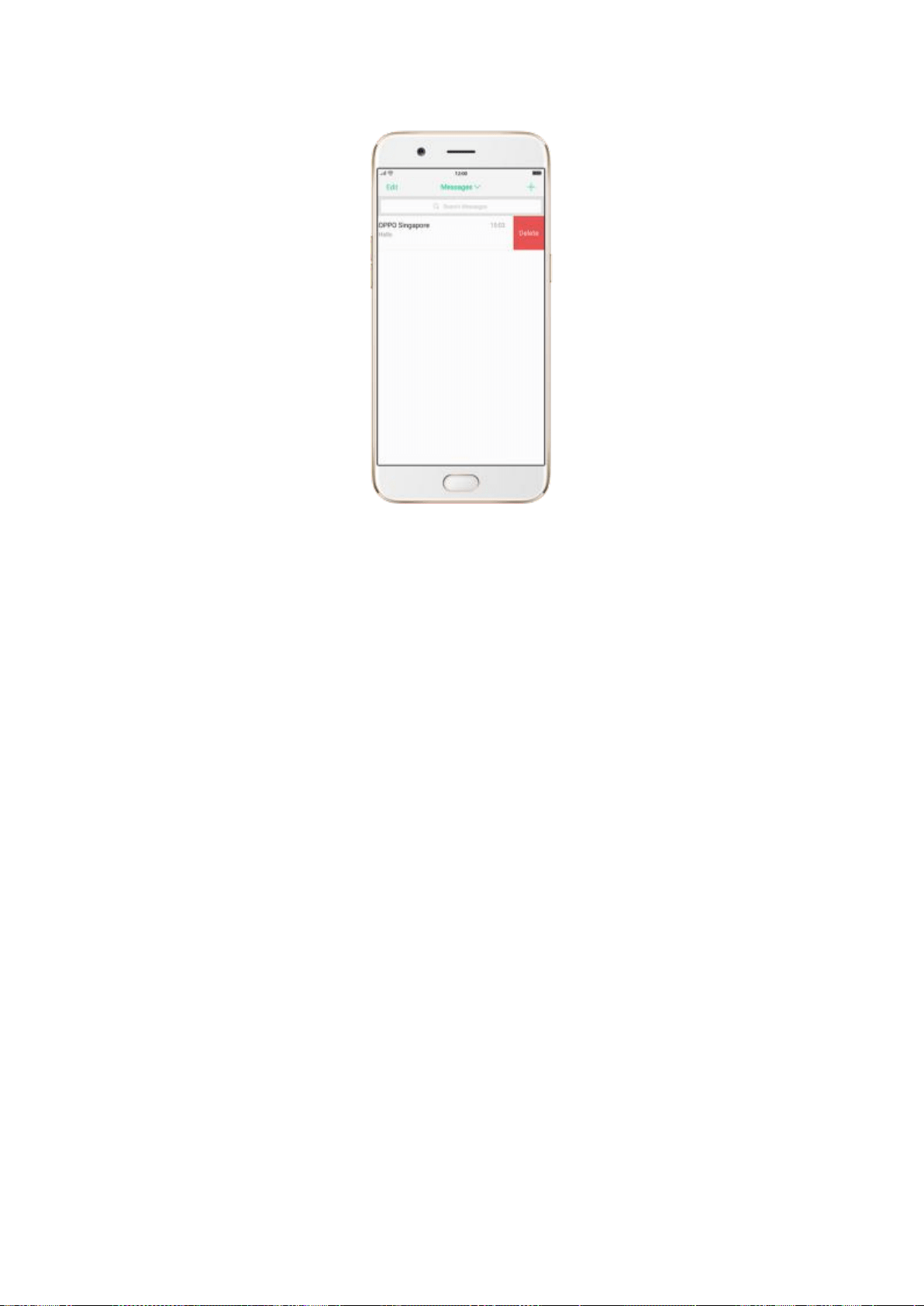
7.2.2. Customize message settings
The Messages settings menu lets you control options for your text and MMS
messages including message limits, displays, notifications, and more. Go to
[Settings] > [Messages].
Block messages. Click [Block] > [Block Messages]. Enter the keywords for
spam messages. To block all unknown messages, toggle the slider to green.
Note: When Block all unknown messages is turned on, you might miss
important verification text messages, as well as messages from people who
you know, but are not in your contact list.
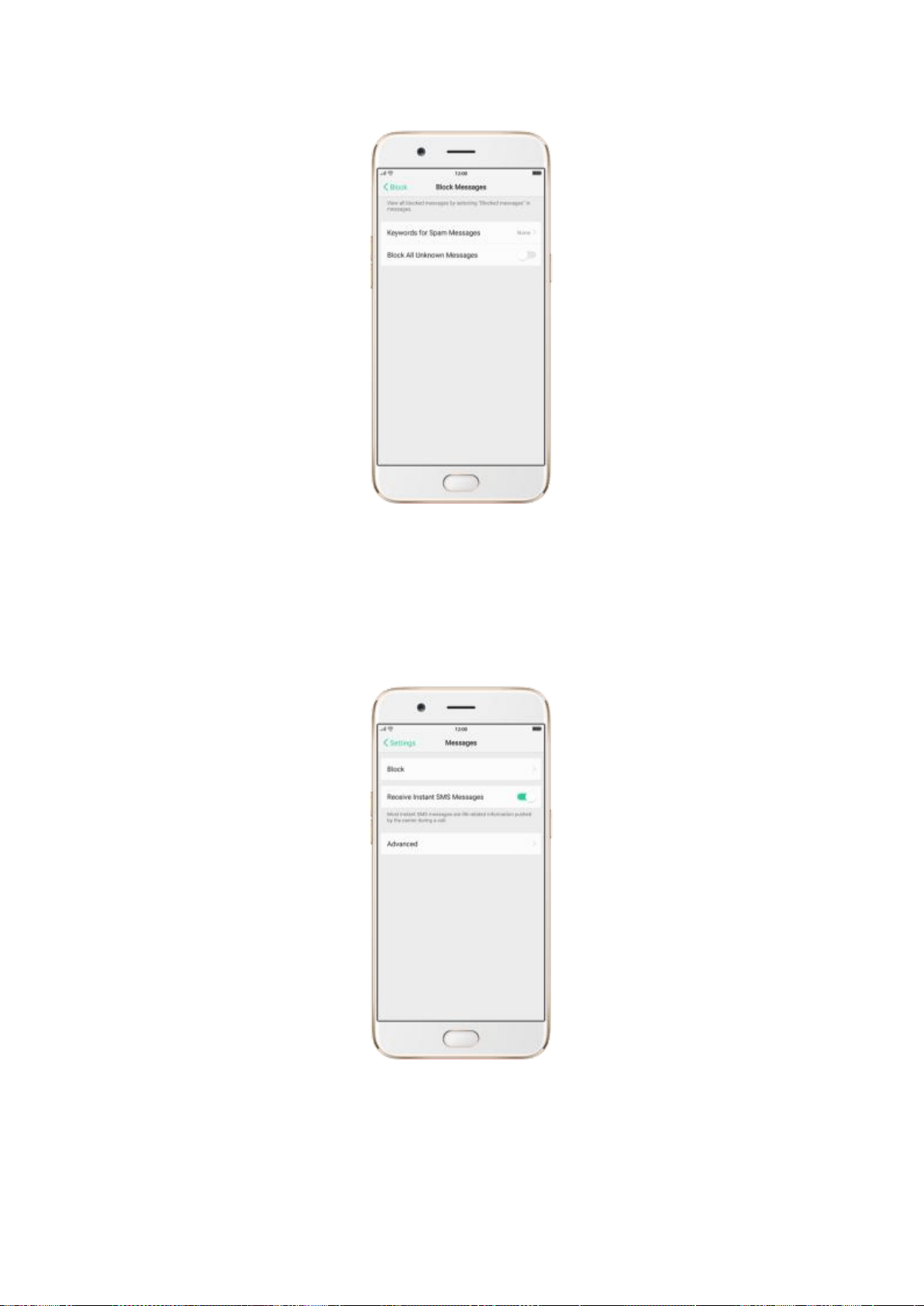
Receive instant SMS messages. Toggle the slider to green if you want to
receive life related messages pushed by your operator during a call.
Customize advanced settings. Click [Advanced], then set up message
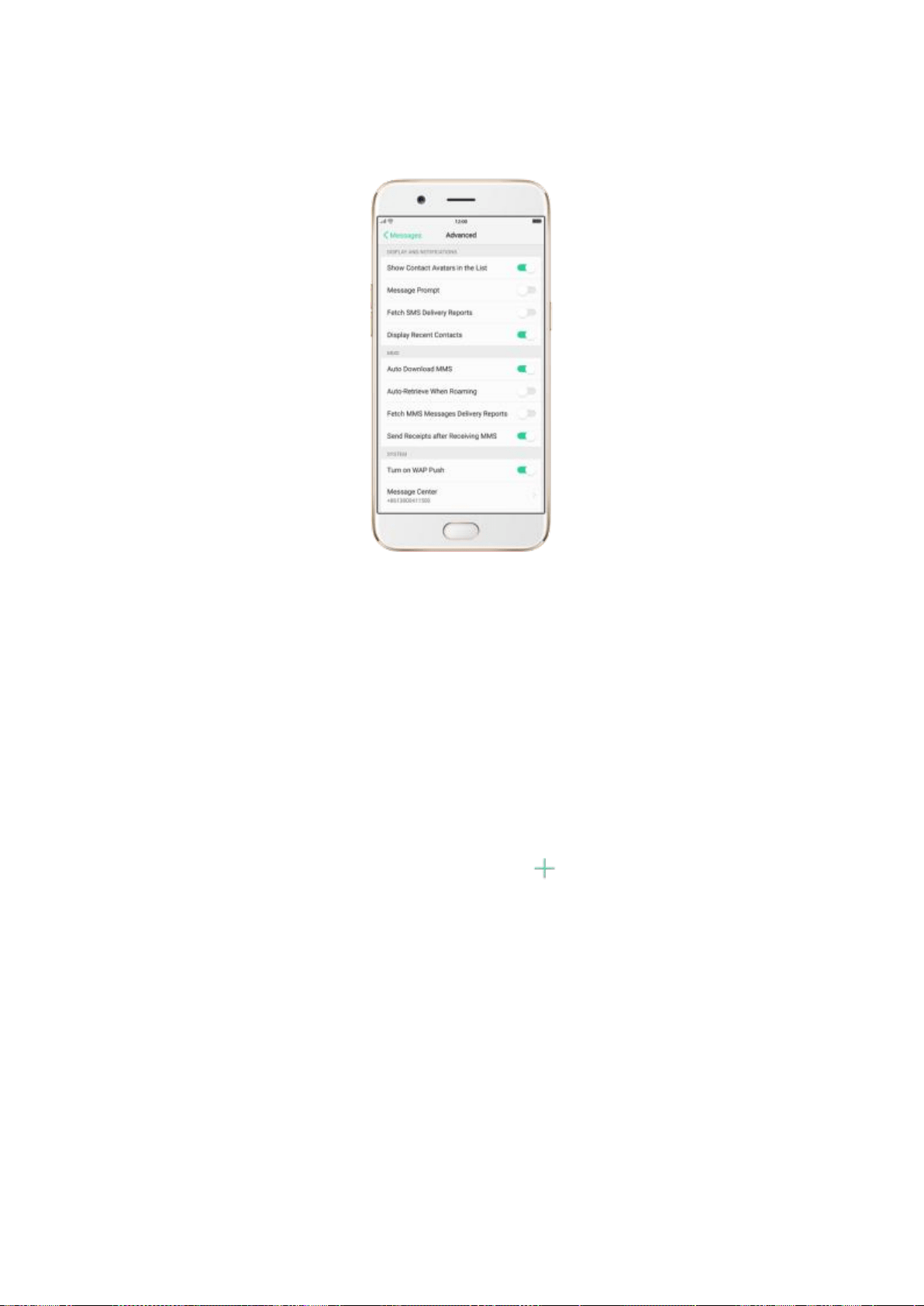
display and notifications, and the MMS and system related settings.
7.3. Contacts
7.3.1. Add a contact
With OPPO smartphone Contacts, it’s easy to have all your contact
information with you.
Add a new contact. Click Contacts, click , then enter the contact
information.
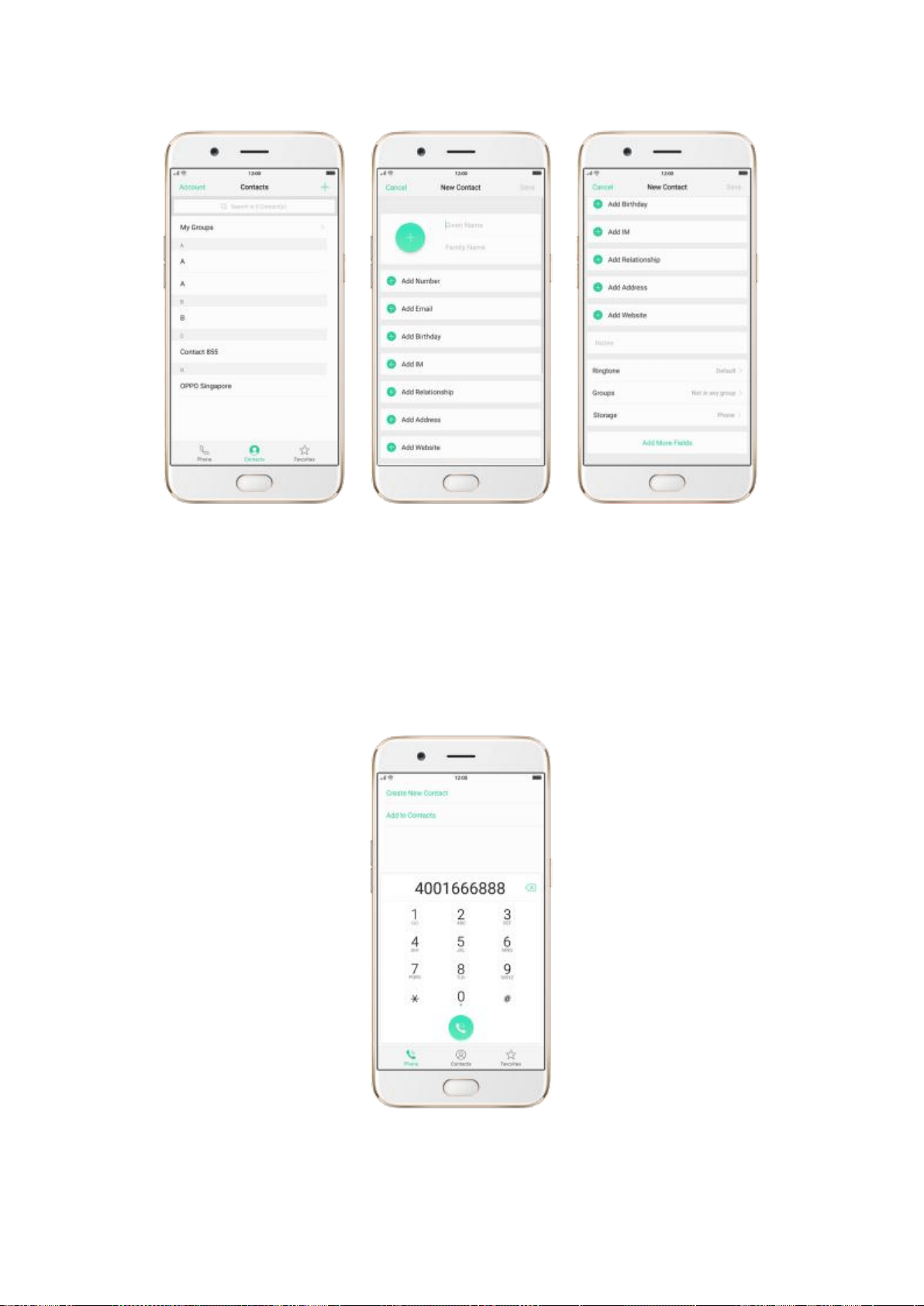
Add a contact from a number entered using the keypad. Click Phone and
enter a number, then click Create New Contact and enter the contact
information, or click Add to Contacts and choose a contact.
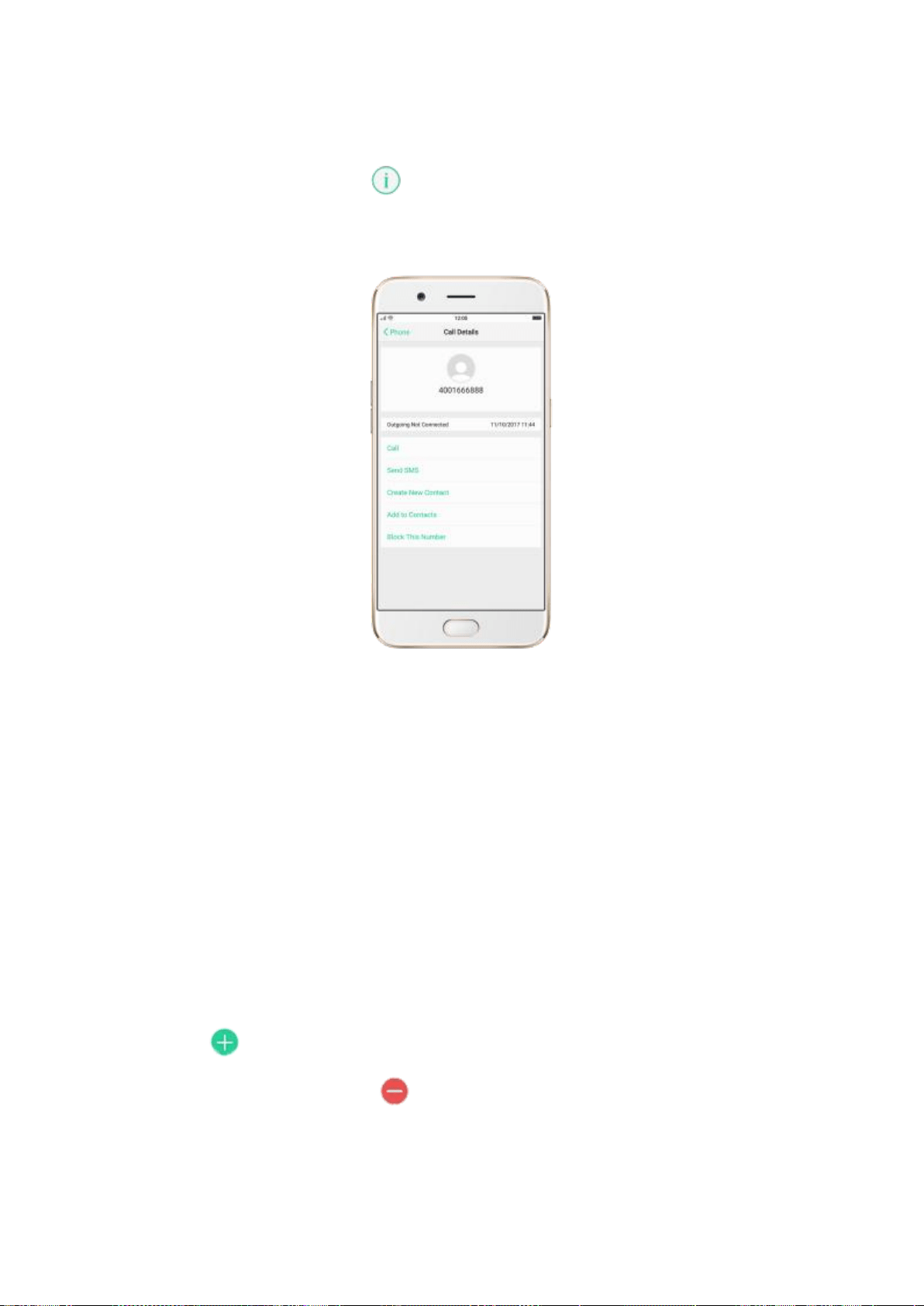
Add a recent caller’s information to your contacts. Click Phone, and you’ll
see the recent calls. Click , then click Create New Contact or Add to
Contacts.
7.3.2. Edit and delete a contact
You can make changes to your contacts directly on your OPPO smartphone.
Edit a contact’s phone number, address, and other information. Click
Contacts and choose a contact, then tap Edit.
To add an item - such as an Email address or phone number,
click next to the item.
To delete an item, click next to it.
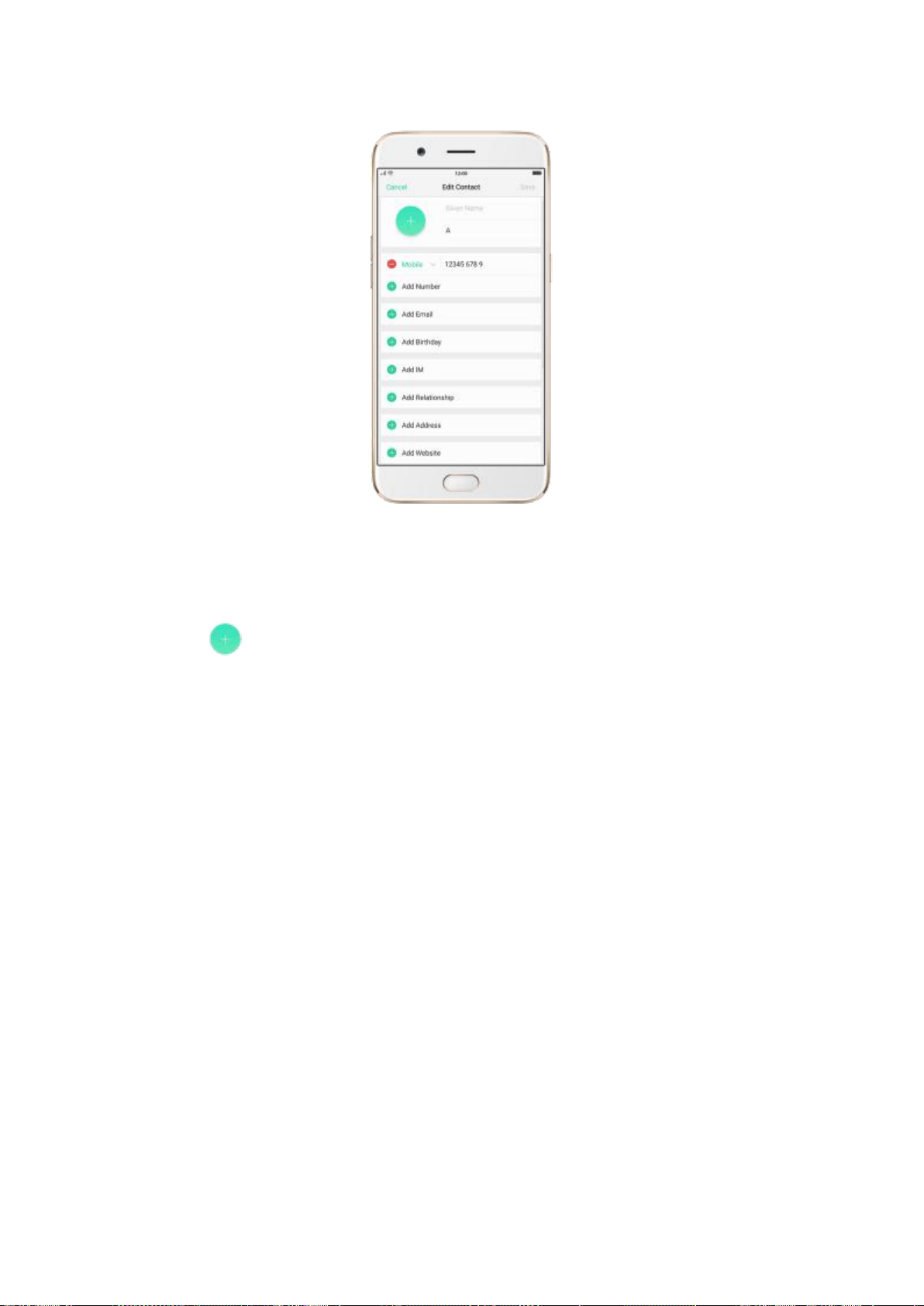
Assign a photo to a contact or change a contact’s photo.
1. Click , or click the existing photo.
2. Click Take Photo to use the camera to take a picture, or click Select a
Photo and select an existing photo, or click Delete Avatar to delete the
photo.
3. Drag to region to crop the photo, then click Done.
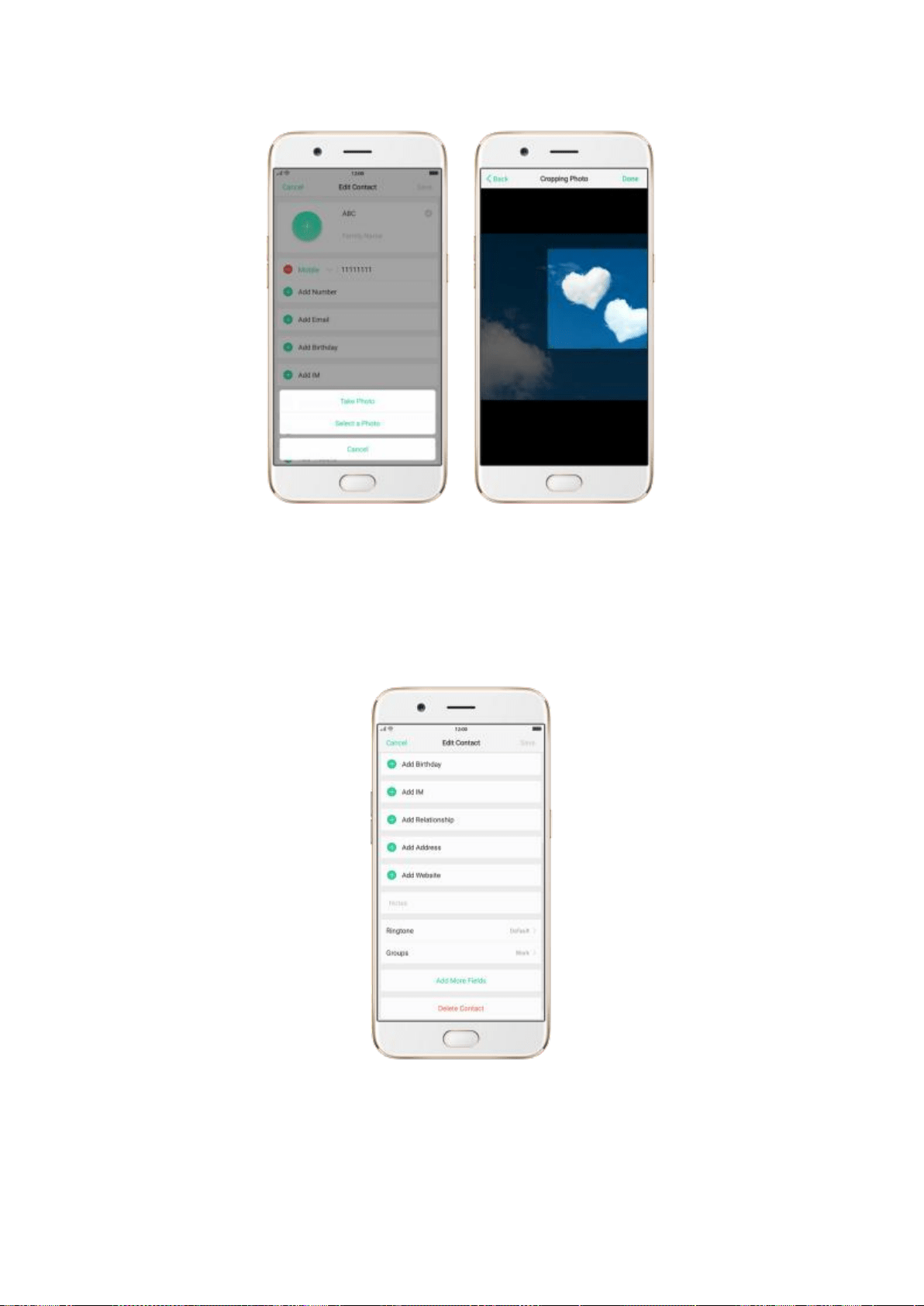
Delete a contact. Scroll to the bottom of the contact information and click
Delete Contact.
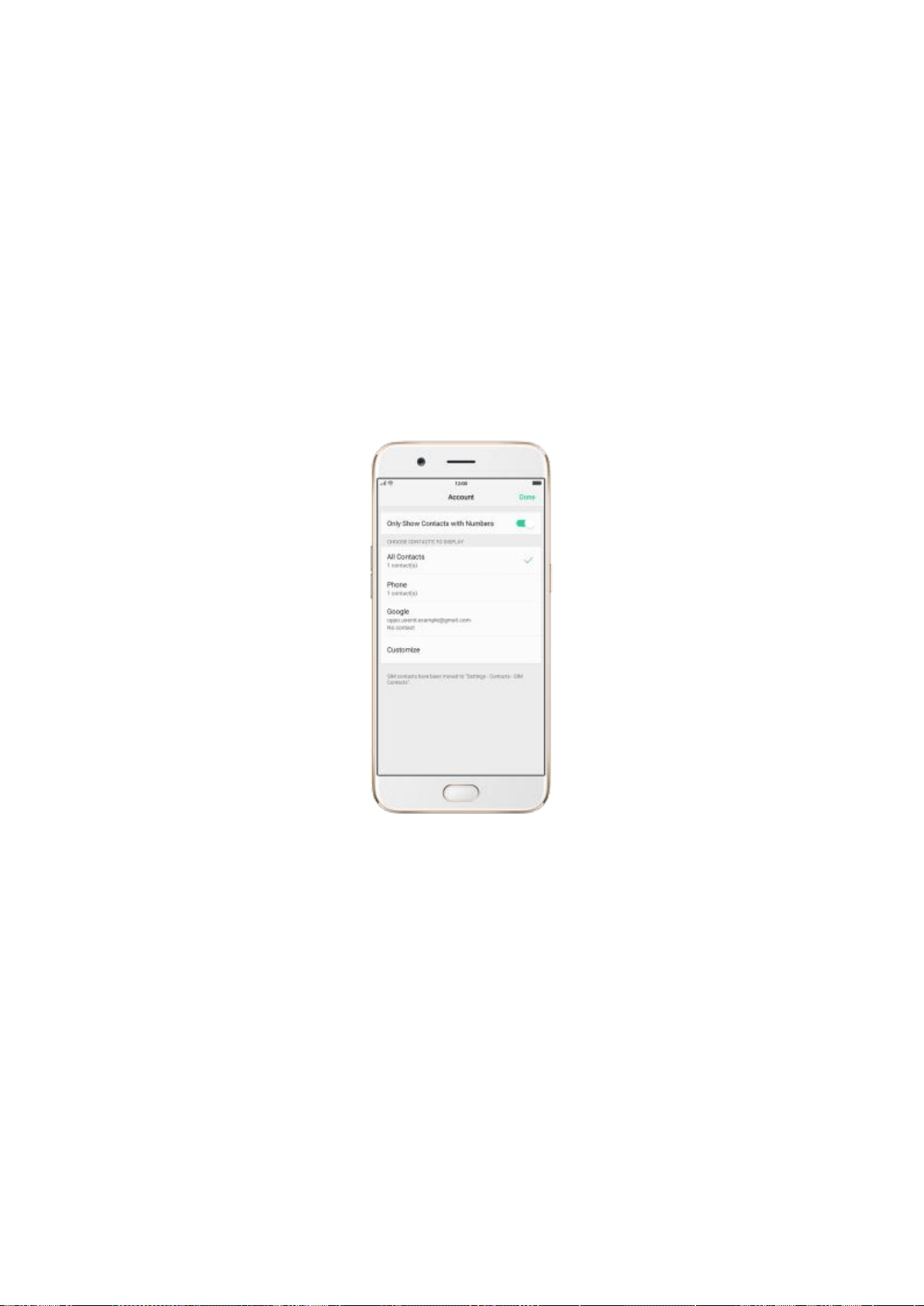
7.3.3. Account
You can configure which groups of contacts, in your phone or for each
account, you want to display in the Contacts list.
Only show contacts with numbers. Click Contacts, click Account on the
upper left corner of the screen, then toggle the slider to green.
Choose contacts to display. Click a category of contacts that you want to
display. Additional option may appear if you have signed into a mail account.
Click Customize to select contacts by group.+
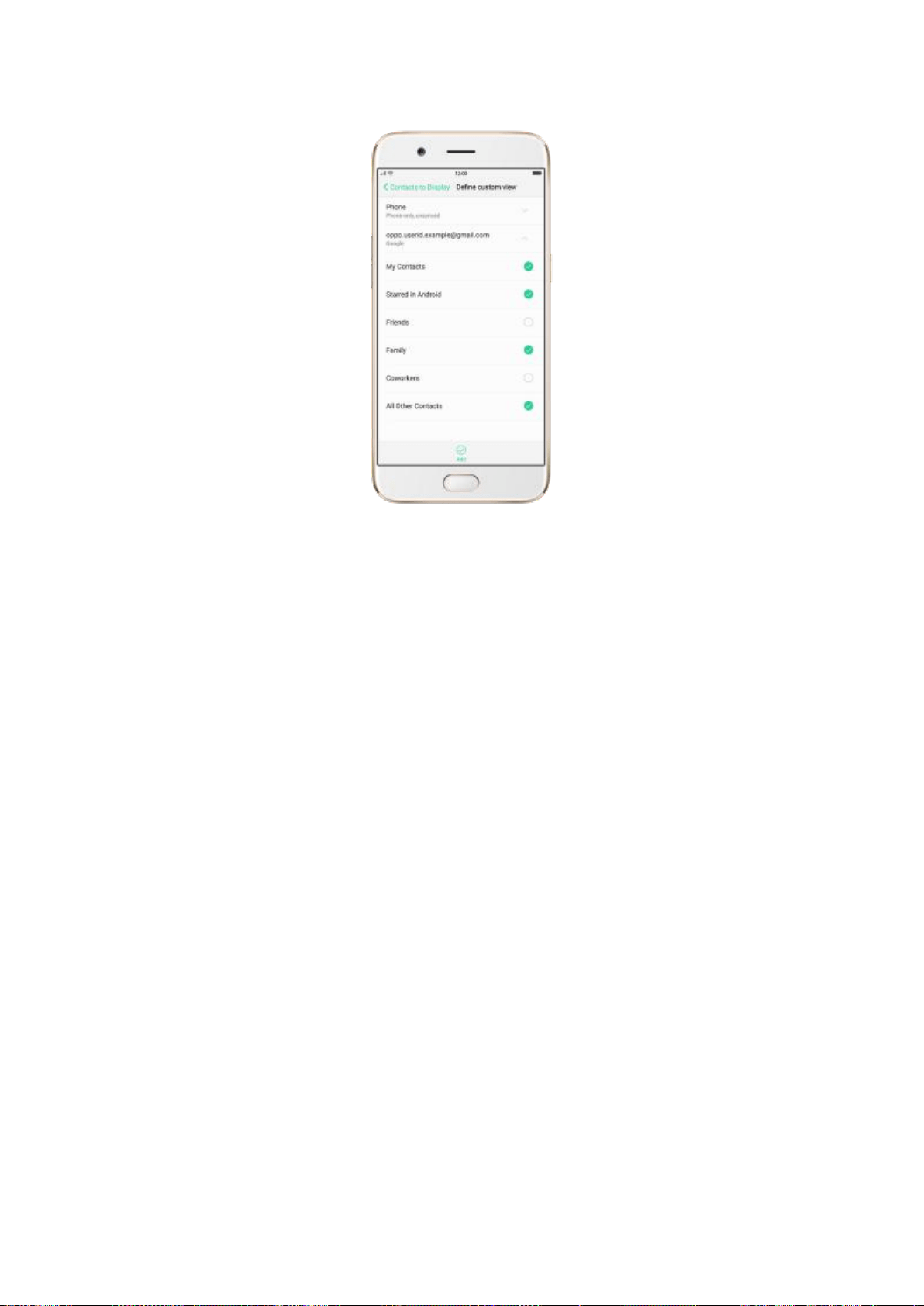
7.3.4. Import and export contacts
You can import/export contacts from/to the phone storage or your SIM card.
If you have contacts stored in your old phone, you can transfer them
through Bluetooth from that phone.
Import contacts. Go to [Settings] > [Contacts] > [Import/Export
Contacts].
Import from device storage. Save the imported contacts to your phone
or mail accounts.
Import from other phones. Import the contacts stored on other phones
to your OPPO phone through Bluetooth.
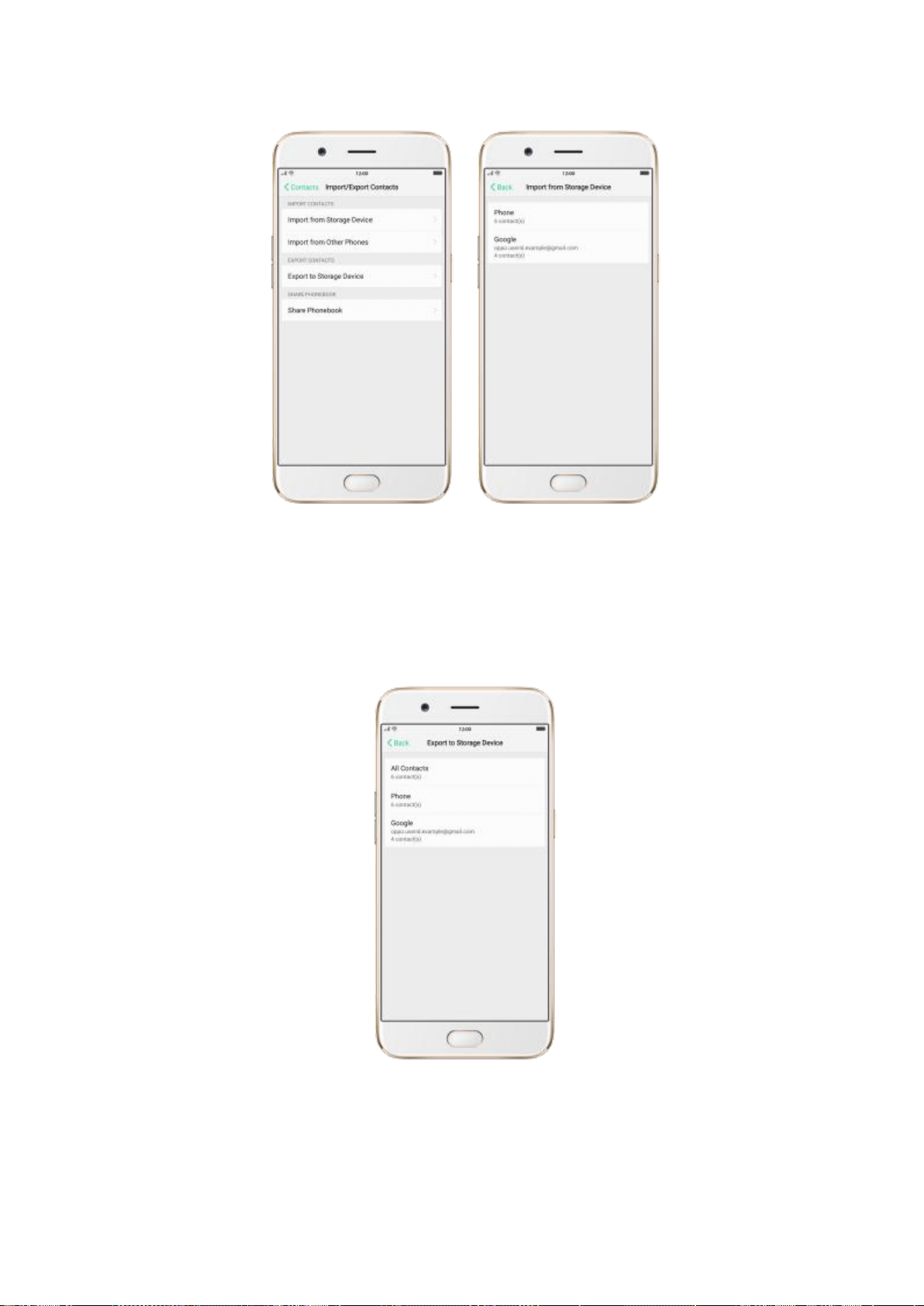
Export Contacts. Export your contacts to the phone storage. Contacts you
export are saved as .vcf file.
Import/export SIM card contacts. Go to [Settings] > [Contacts] > [SIM
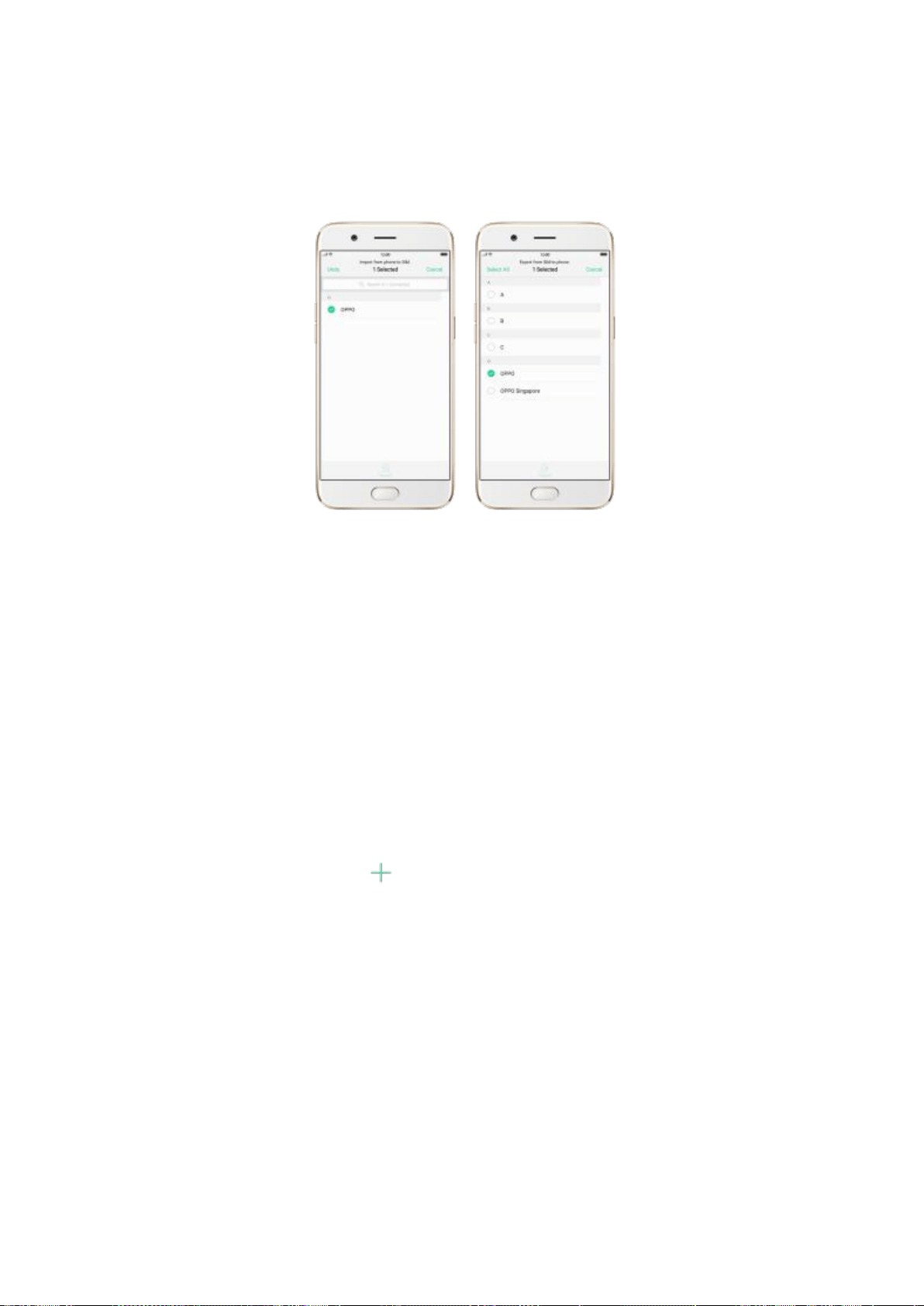
Card Contacts], click Import or Export, then tick the contacts and move
them to either SIM or phone.
View more details in Import and export contacts on your OPPO smartphone.
7.3.5. SIM contacts
You can add, edit, delete, import and export SIM contacts directly on your
OPPO smartphone. Go to [Settings] > [Contacts] > [SIM card Contacts].
Add a SIM contact. Click , then enter the contact information and click
Save.
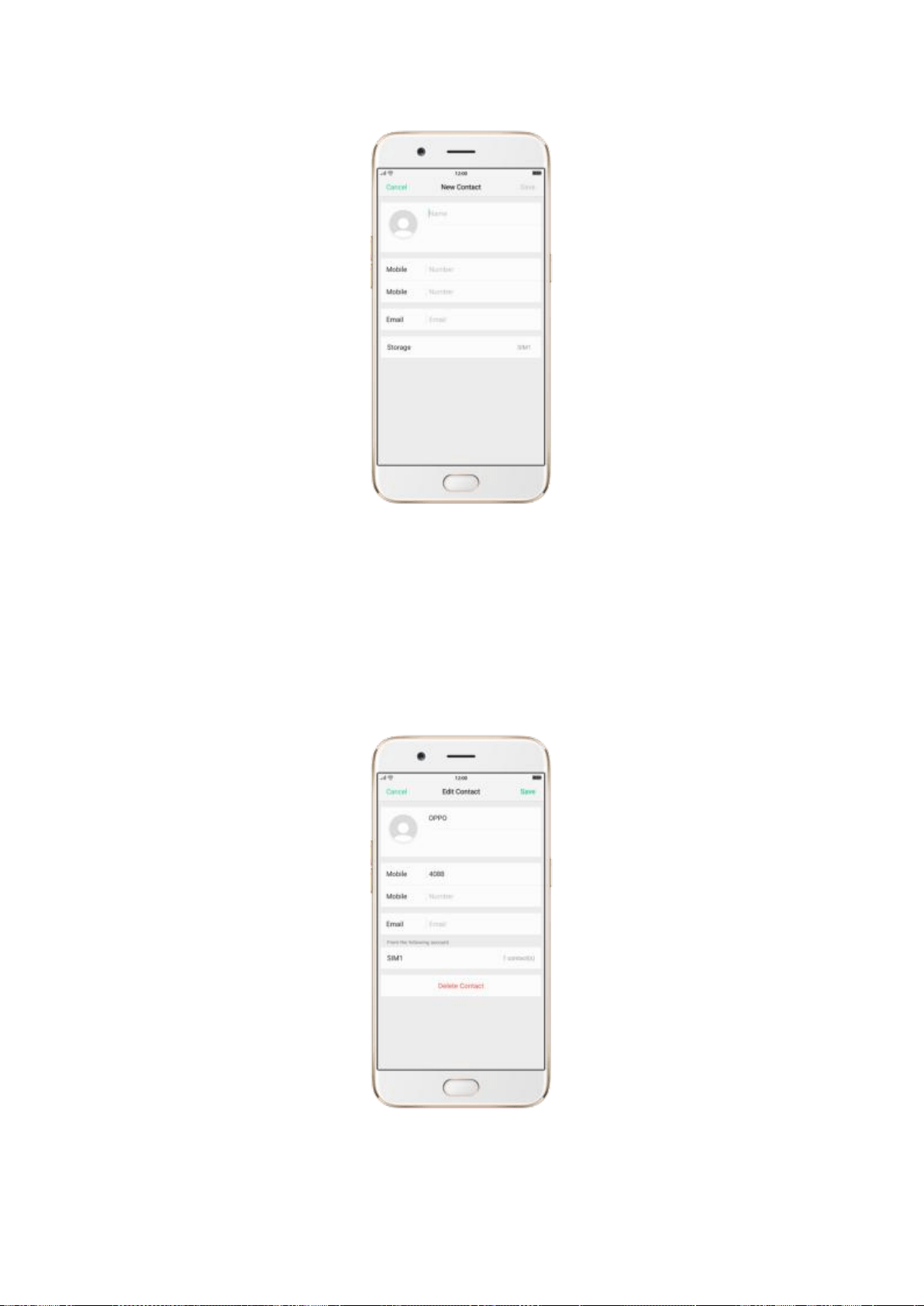
Edit and delete a SIM contact. Click a contact, then click Edit. To delete the
contact, scroll to the bottom of the contact information and click Delete
Contact.
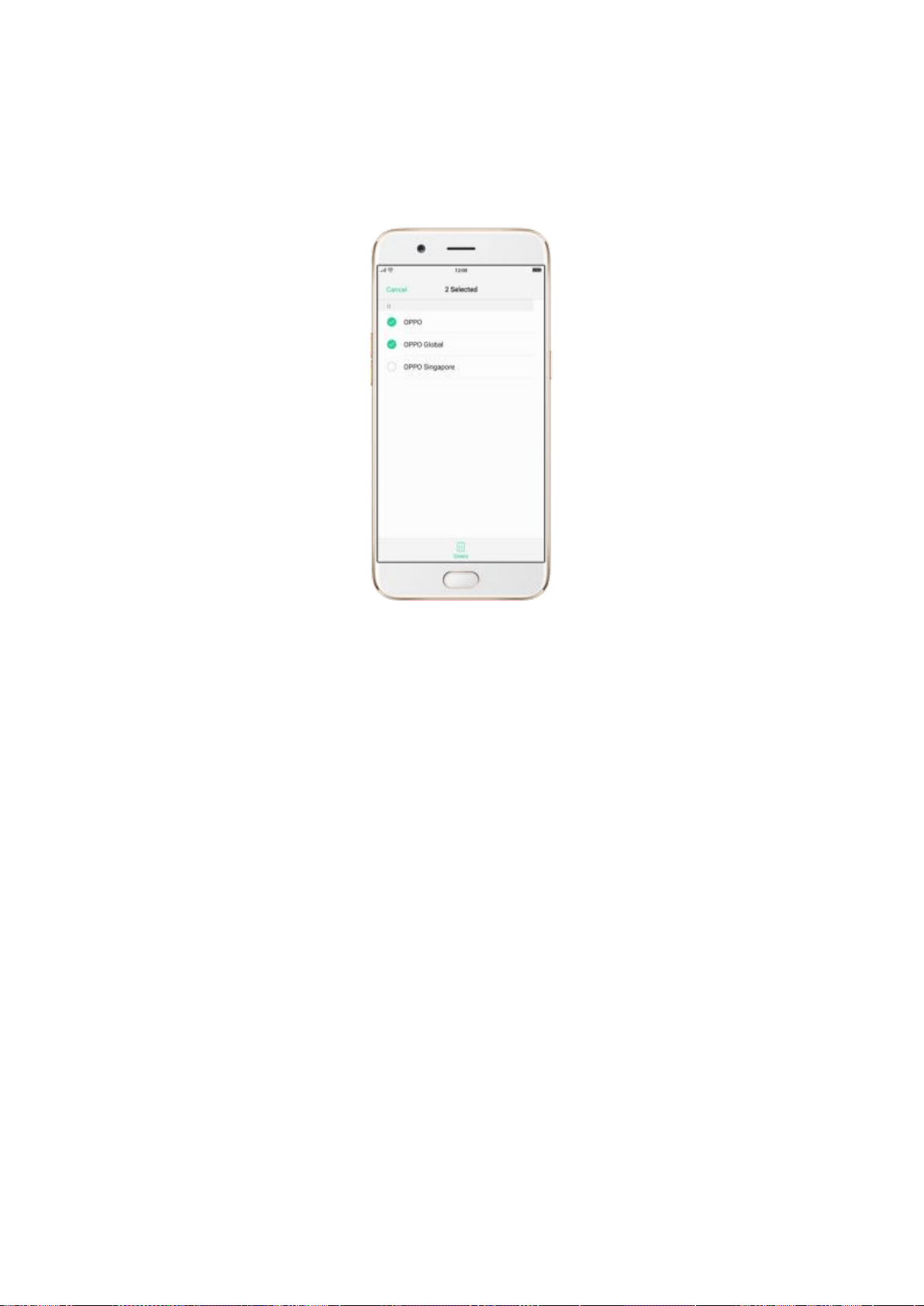
Delete SIM contacts at a time. Click Edit in the upper-left corner, tick the
contacts and click Delete.
Display SIM contacts in the Contacts list. You need to import SIM contacts
to your phone. See Import and export contacts.
7.3.6. Manage contacts
Contacts allows you to easily save and edit contact information, including
names, numbers, addresses, and more. To make your contacts more
organized and available, do the following:
Add a new contact. Click Phone on the Home screen, click Contacts, then
click
+
. The contact will be saved to your phone storage.
Modify existing contacts. If you want to add details to an existing account,
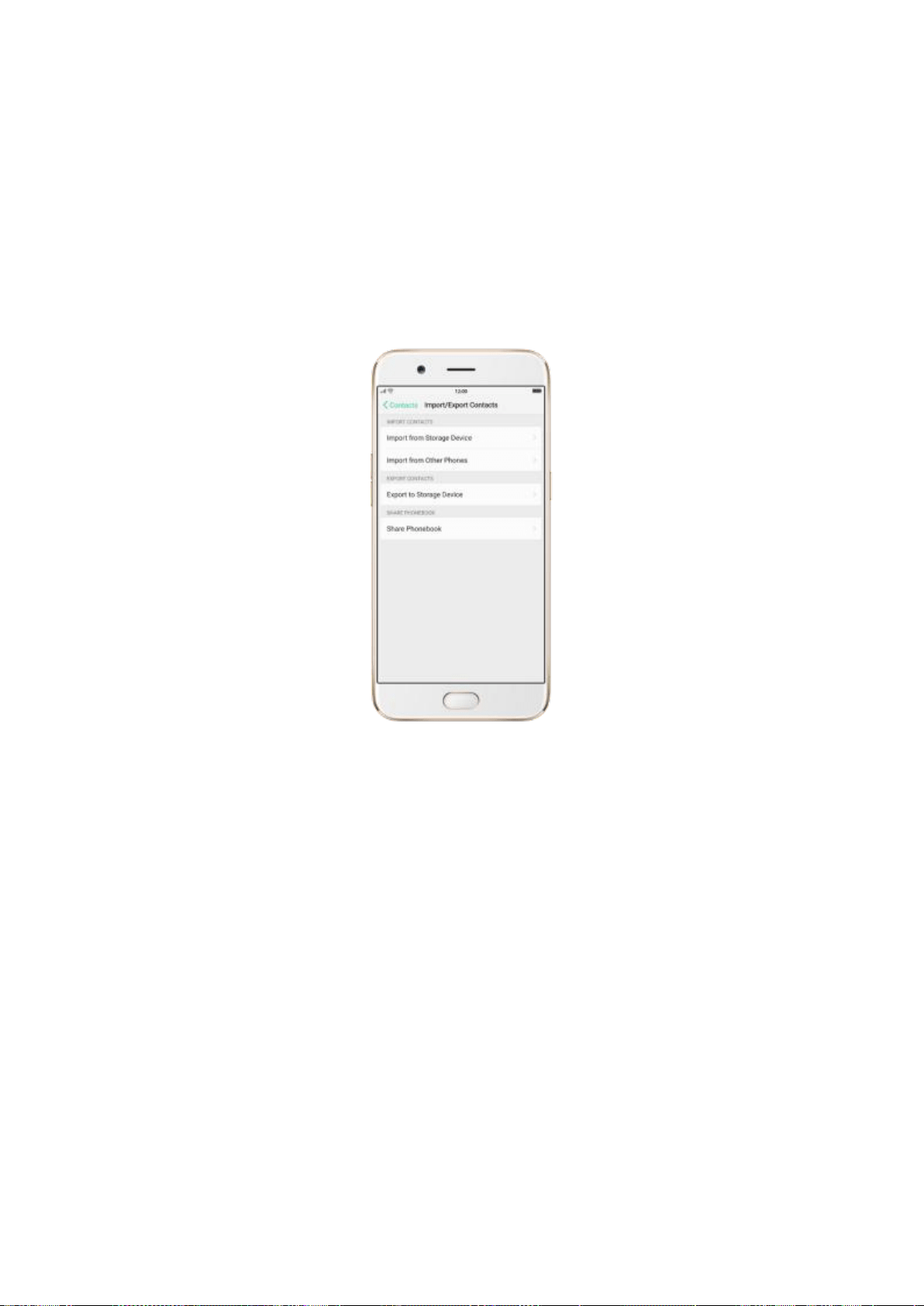
click the account then edit.
Import or export contacts. Go to [Settings] > [Contacts], then select the
import/export path. View Import and export contacts on your OPPO
smartphone.
Merge duplicate contacts. Go to [Settings] > [Contacts], then click Merge
duplicate contacts. The phone automatically merges contacts with the same
name.
Manage contacts. To manage contacts without name or number, or quickly
remove invalid numbers, click [Manage Contacts].
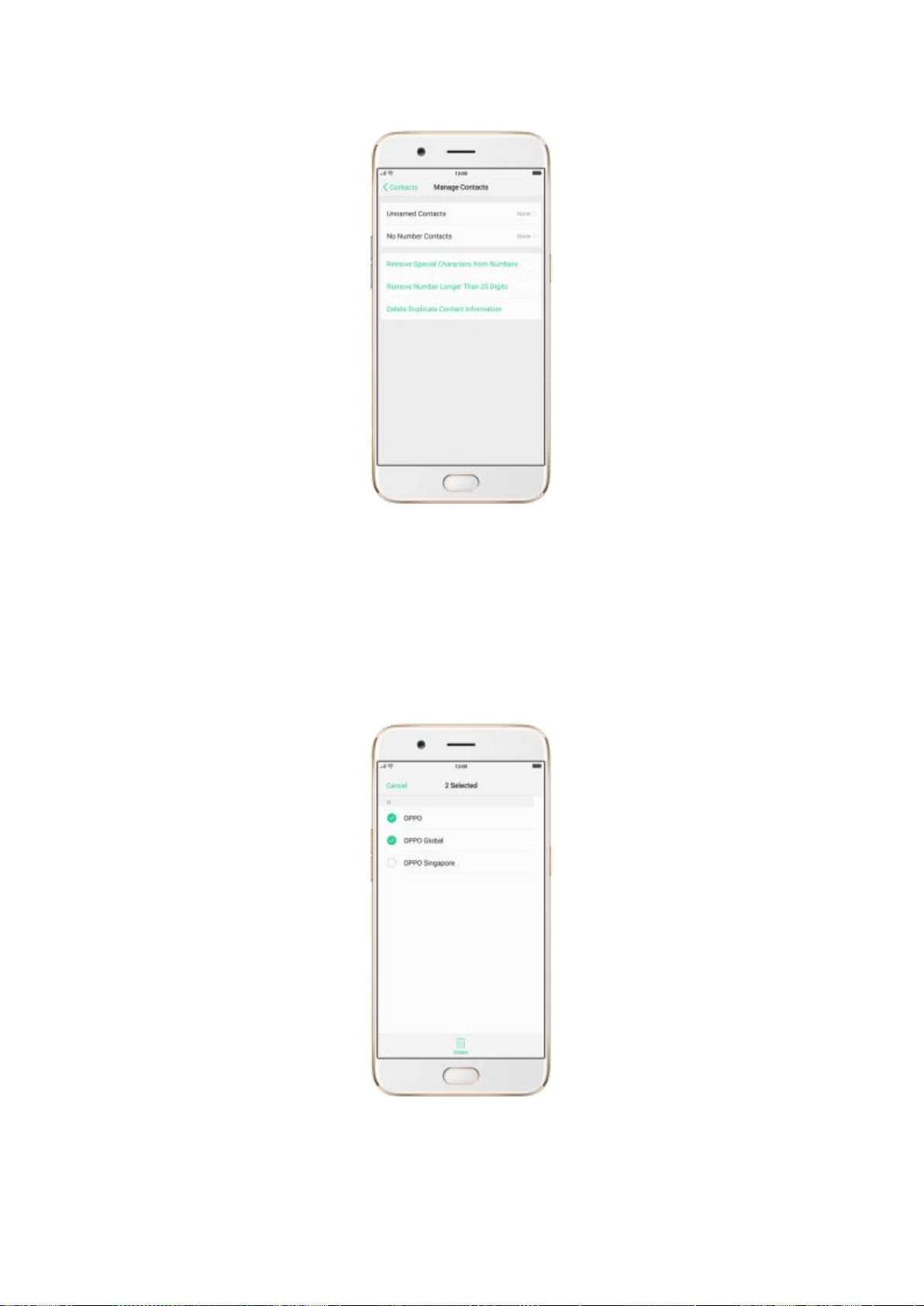
Delete contacts in batches. Tick the contacts to be deleted, then click
Delete.
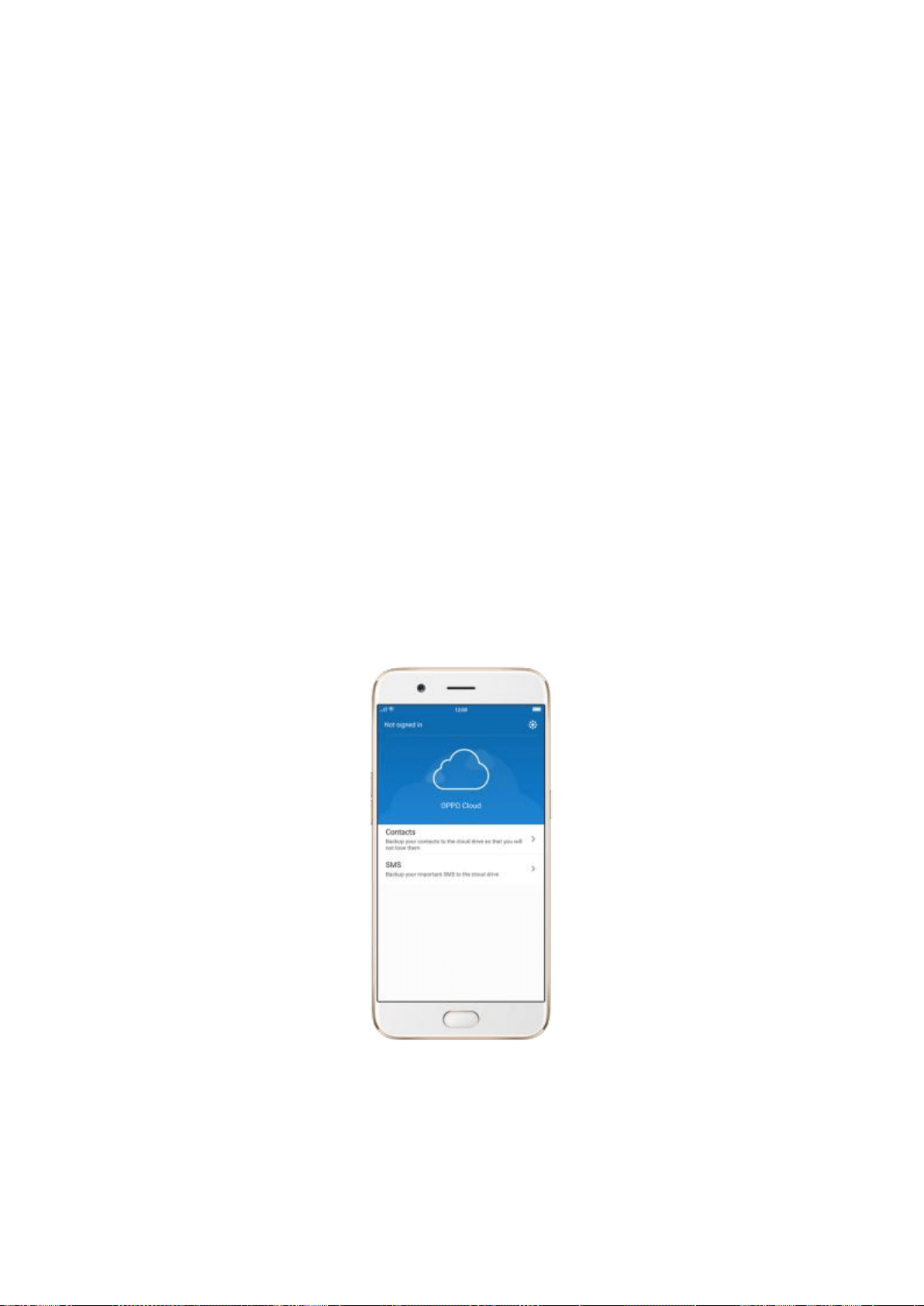
Share Phonebook. Go to [Settings] > [Contacts] > [Import/Export
Contacts]. All contacts stored on your phone will be shared.
Backup your contacts. Click [Backup and Restore] > [Create New Backup].
View Back up your OPPO smartphone.
7.3.7. Back up your contacts
If you use your OPPO smartphone on a regular basis, it is necessary to back
up the contacts so that you can easily restore them or use them on another
device.
Use OPPO Cloud. OPPO Cloud allows you to back up the Contacts and SMS
to the cloud drive. You need to register or sign in OPPO account first.
Use the built-in backup tool. Go to [Settings] > [Additional Settings] >
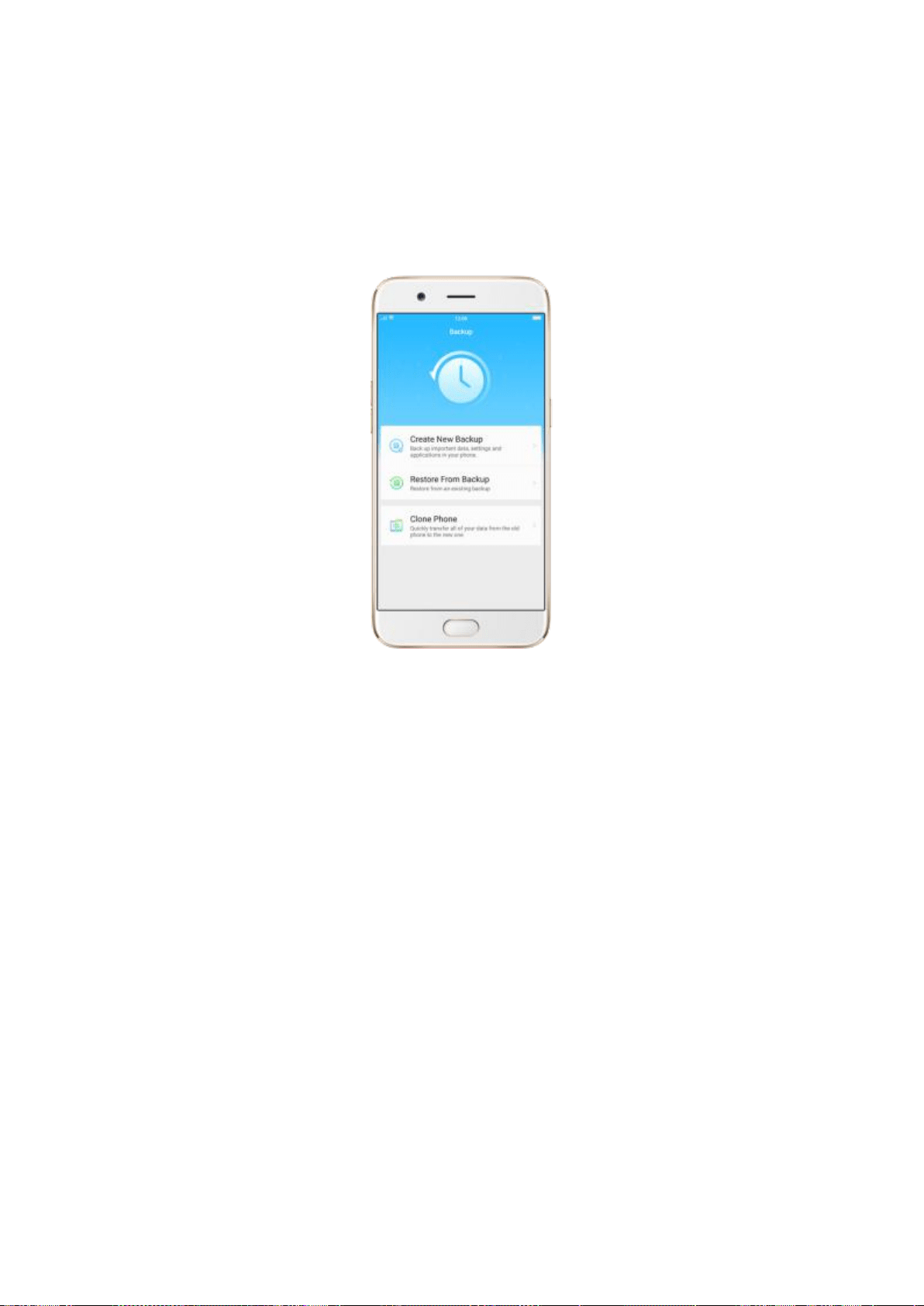
[Back up and reset], or click [Tools] folder on the Home screen, then click
[Backup and Restore]. Back up your contacts. You need to make a copy of
the existing backup file and move it to another storage device.
Export contacts. Export your contacts to your SIM card or a folder on your
phone. See Import and export contacts.
7.4. Phone Manager
7.4.1. Scan and optimize the phone
Regularly optimizing your OPPO smartphone can make it perform steadily and faster.
Automatic optimization items. Go to [Phone Manager], the system will start scanning
your phone automatically. After the scan is over, click [Go to optimize], then click [One
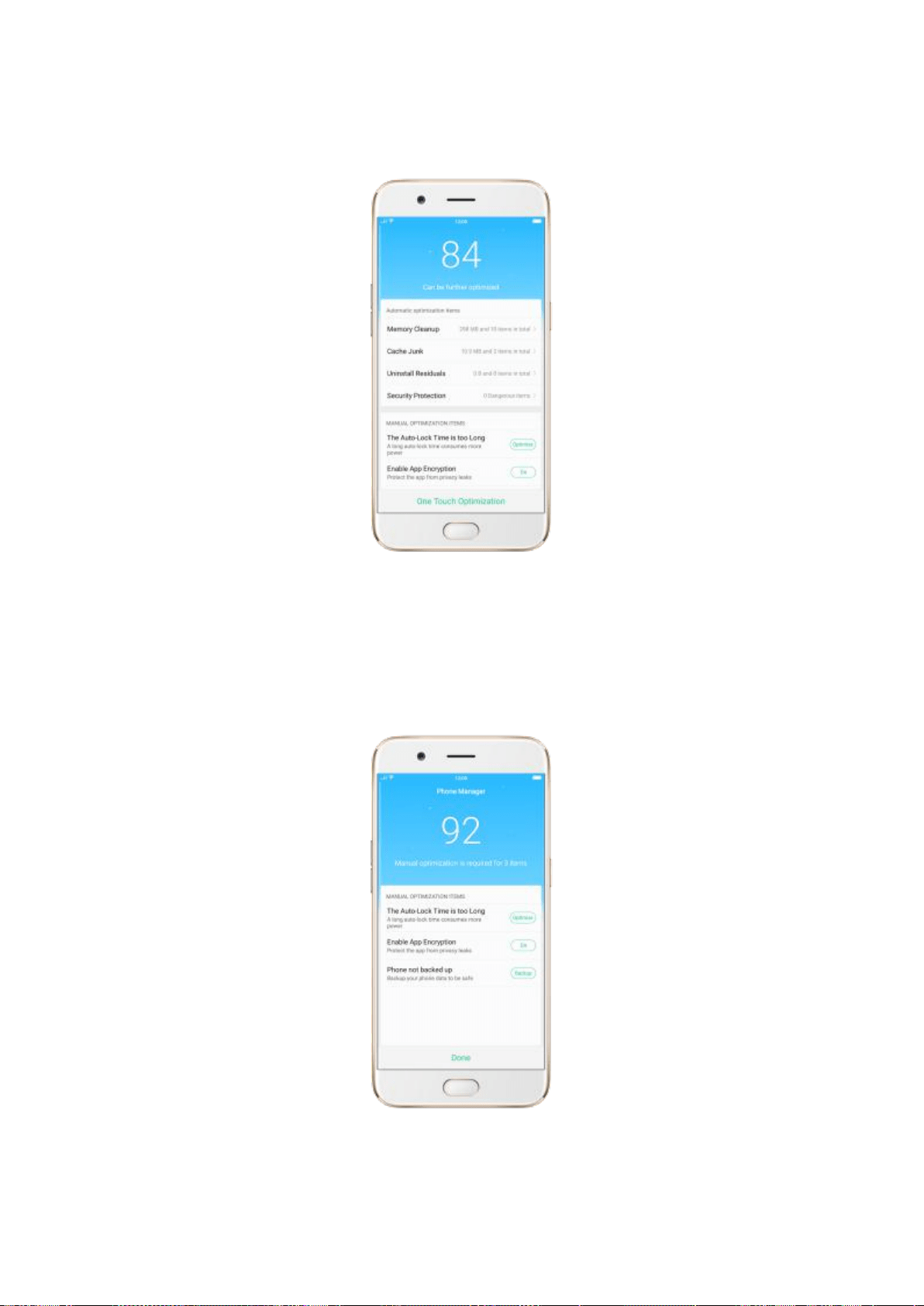
Touch Optimization]. You can also select the items that you want to optimize optionally.
Manual optimization items. Click the green button on the right side of each item,
respectively, then encrypt apps or back up your phone when prompted.
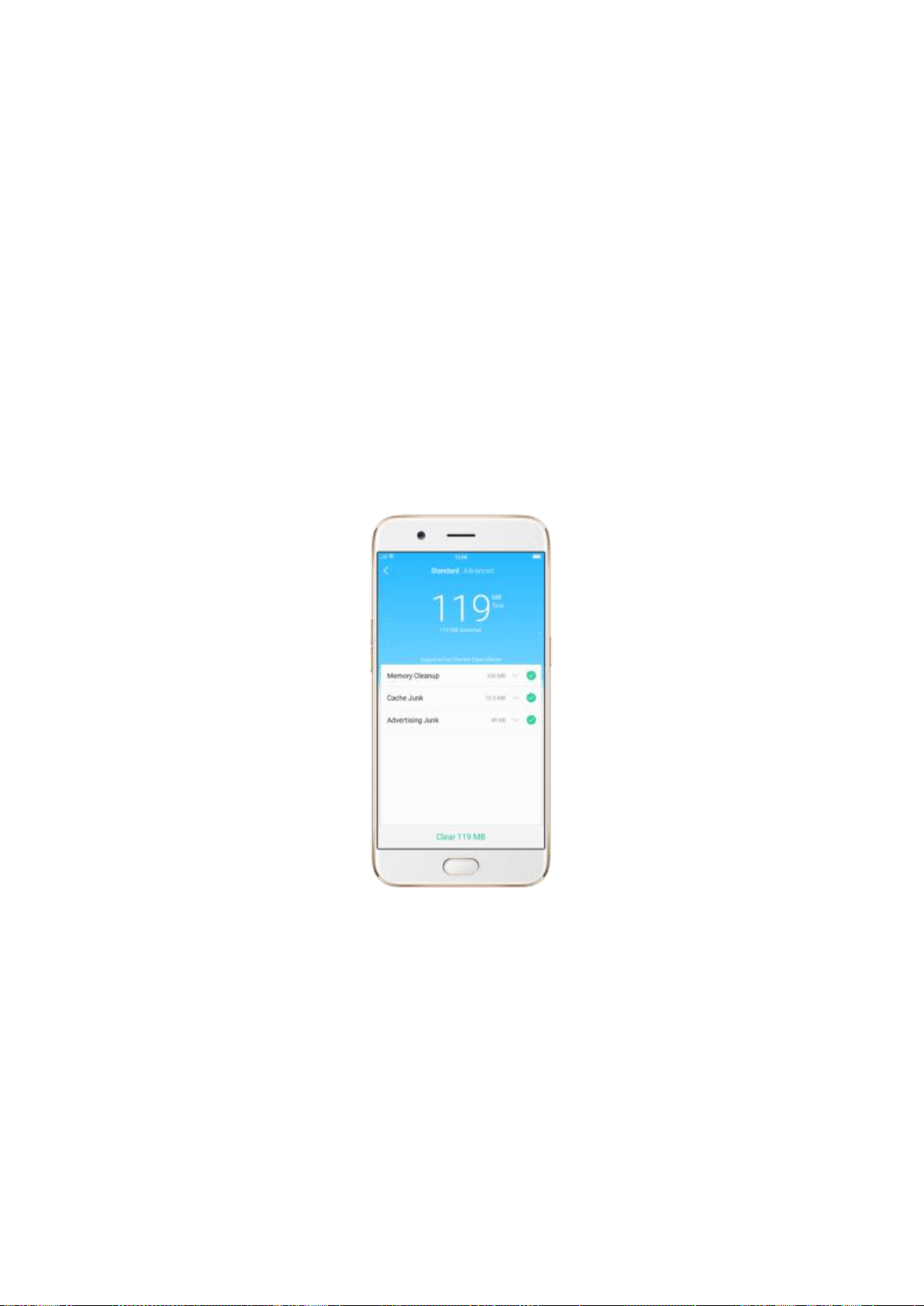
7.4.2. Cleanup & Accelerate
You can use Cleanup & Accelerate to speed up your phone performance with just one
click. It helps you to quickly detect and remove hidden temp, cookie and cache files
generated by inner calculations and data exchanges to free up more storage space.
Stop lagging with one click. Click Phone Manager, then click Cleanup & Accelerate.
Your phone will thoroughly scan for junk files and APKs, and lets you choose files to be
deleted.
Free up more storage space. Click Advanced, then remove your App data and
downloads, or click File Management and go to manage all your data.
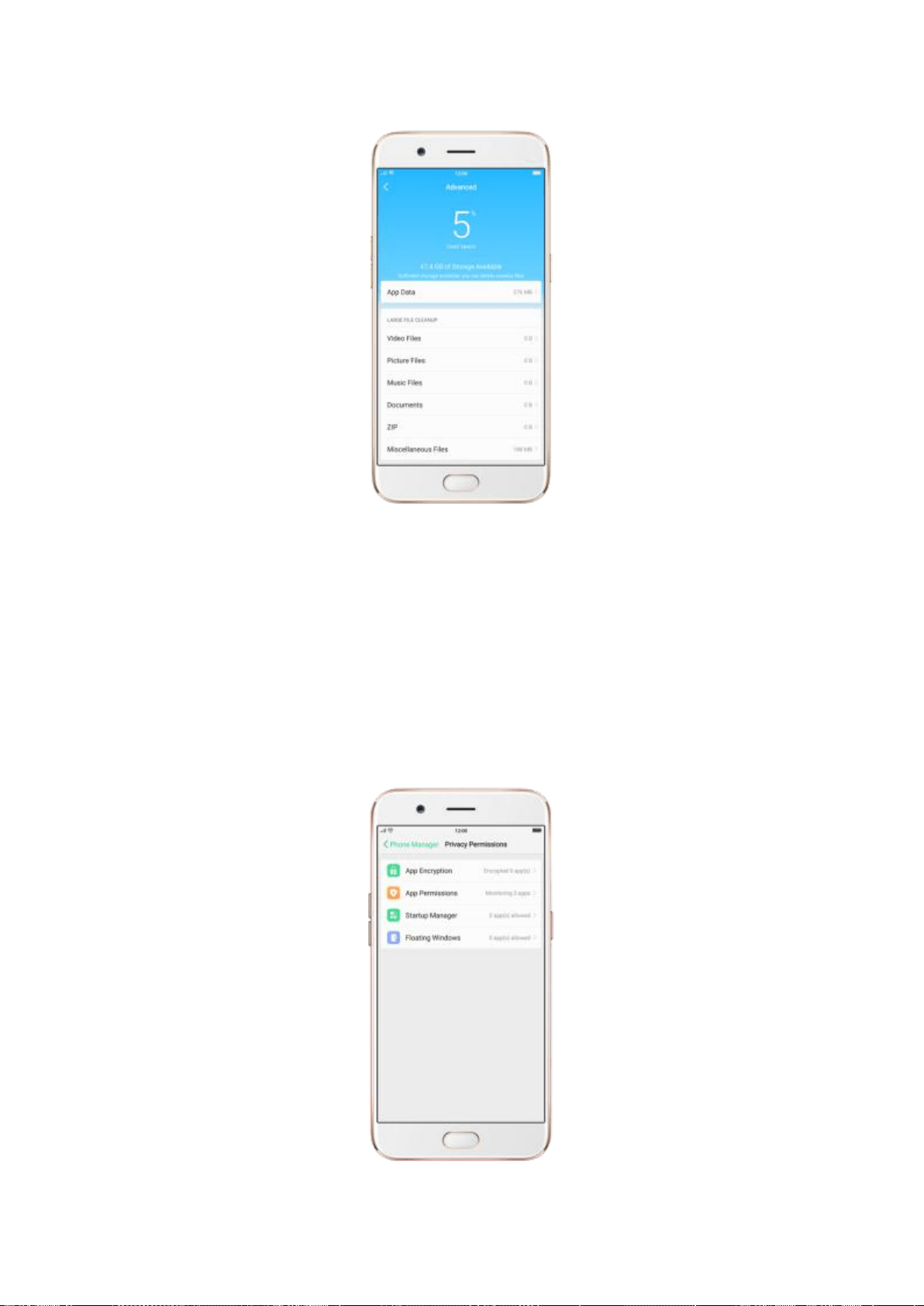
7.4.3. Privacy Permissions
Use Privacy permissions feature to manage app permissions, protect your privacy, and
manage apps that start when phone startup. Click Phone Manager, then click Privacy
Permissions.

Encrypt the apps. Select the apps and click Enable encryption, then set up your
passcode and security question.
Grant the app permissions. Select an app and choose to accept, decline or limit call,
SMS, device and privacy related permissions.
Allow apps to start when phone boots or in background. Toggle the sliders to green.
See Set up Startup Manager.
Enable floating windows. Toggle the app slider to green. Your app message will be
displayed in the floating window for easy viewing and use. (Only for apps which can
support Floating window feature.)
View more details in Use Phone Manager on your OPPO smartphone.
7.4.4. Virus Scan
For better security, you can regularly scan and remove potential and actual threats to
your phone.
Scan for virus. Click Phone Manager, then click Virus Scan. Wait for the scan to complete.
If threats were found, remove them; if not, you will see a message that says your phone
is in a good state.
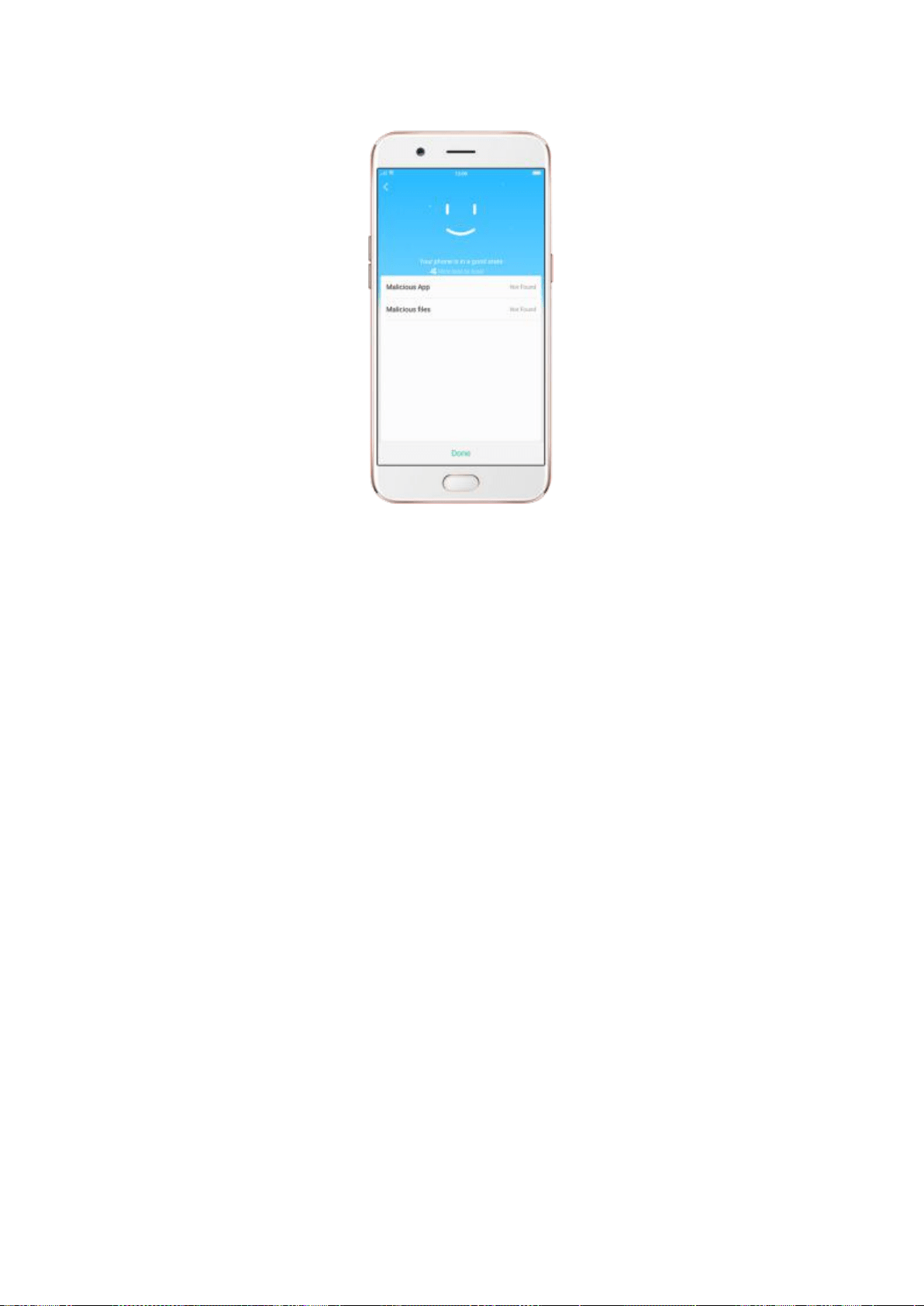
7.4.5. Payment protection
While you shop online, your OPPO phone will provide protection for the
mobile transactions, such as detecting captcha and app security.
Set up payment protection for apps. Go to [Settings] > [Security] >
[Payment Protection].
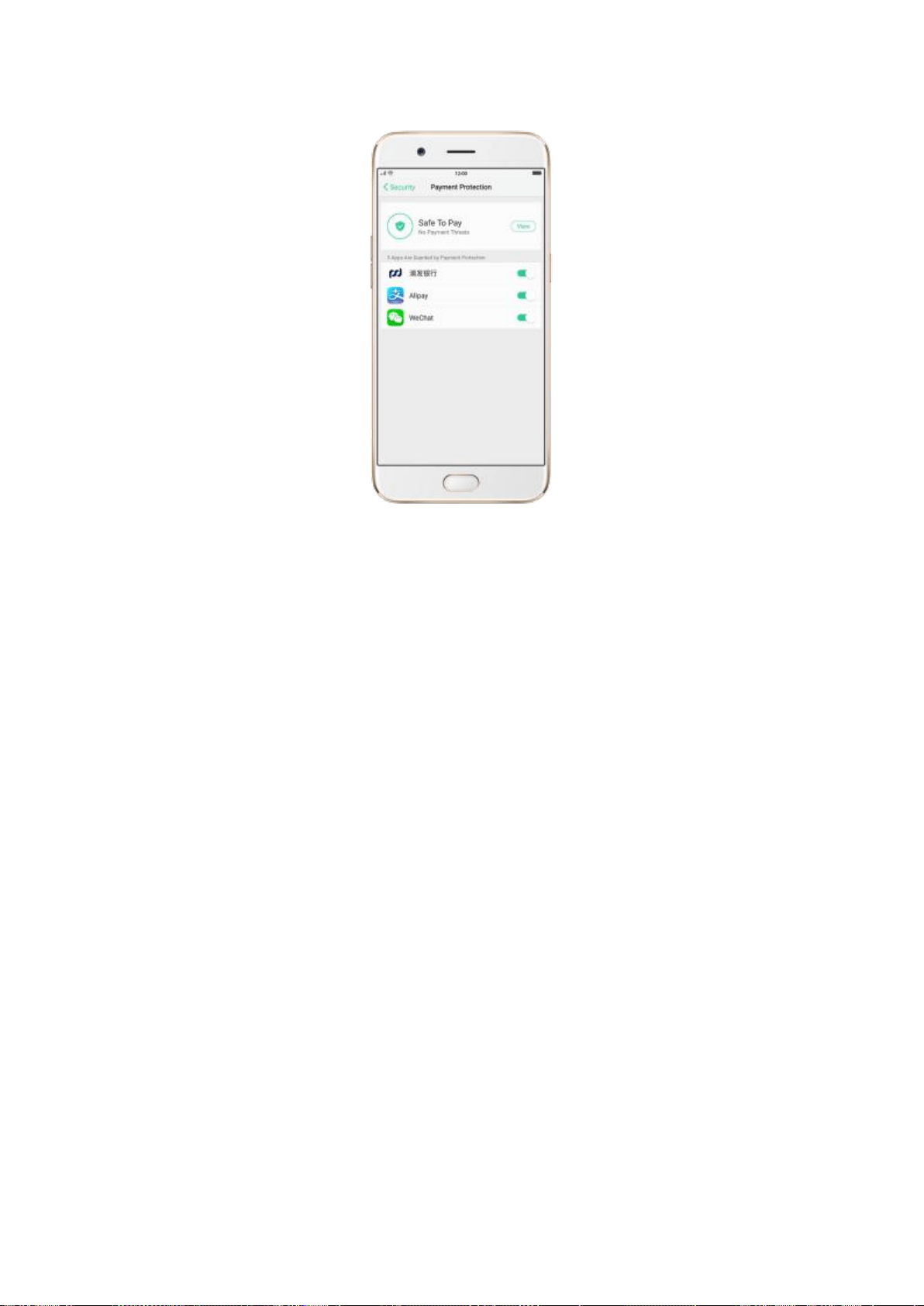
7.5. Weather
Click Weather from the Home screen to see the current temperature and the
upcoming week’s forecast for a city of your choice. You can store multiple
cities for quick access.
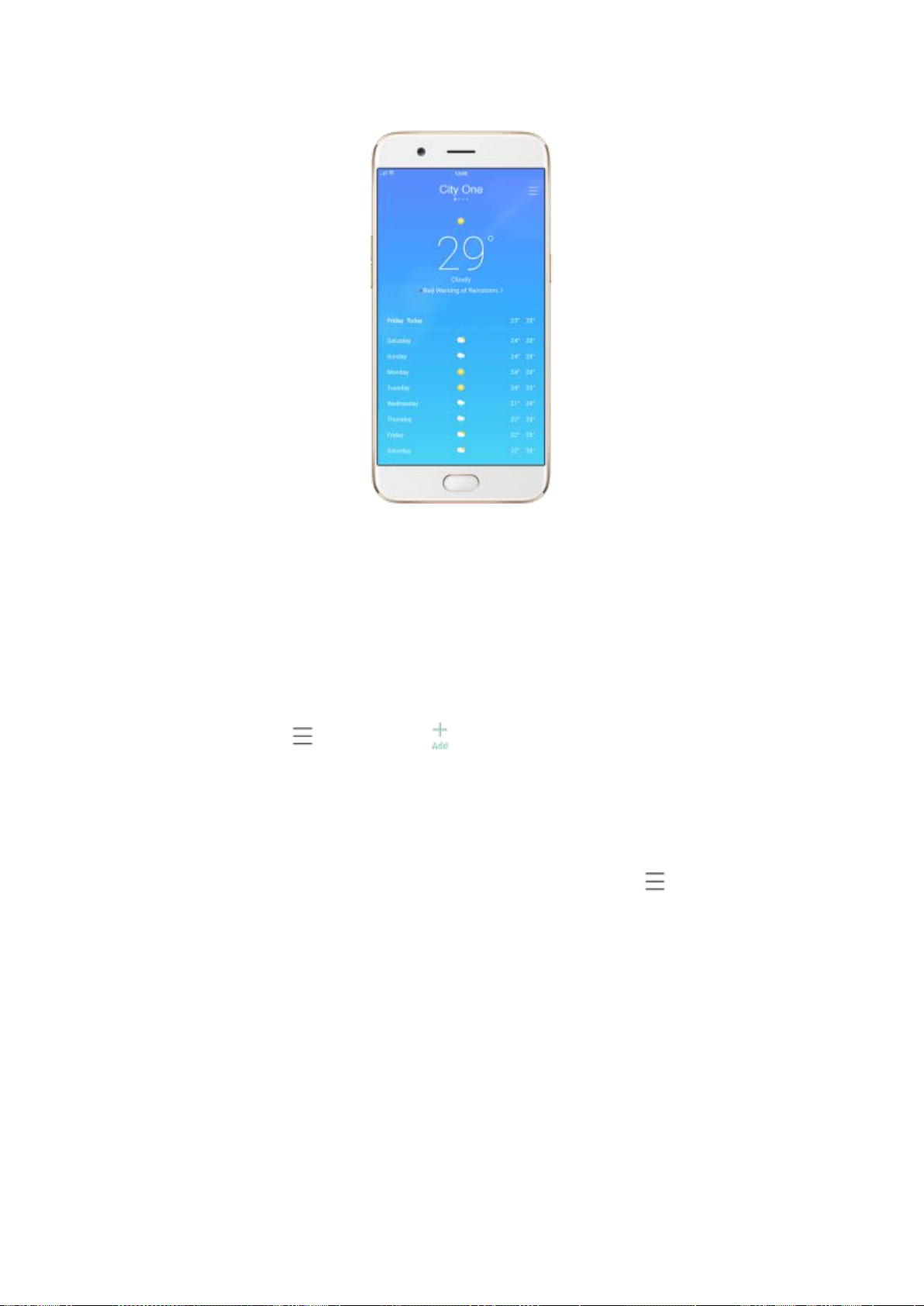
Look at your local weather. Open Weather, and your phone will attempt to
find your current location using the Location Services. Scroll down to see
more details, including surface temperature, humidity, visibility, and more.
Add a city. Click , then click . Enter a city name, then click the city
when you see it.
Switch to another city. Swipe left or right. The number of dots below the city
name shows how many cities are stored. You can also click , then choose
a city from the list.
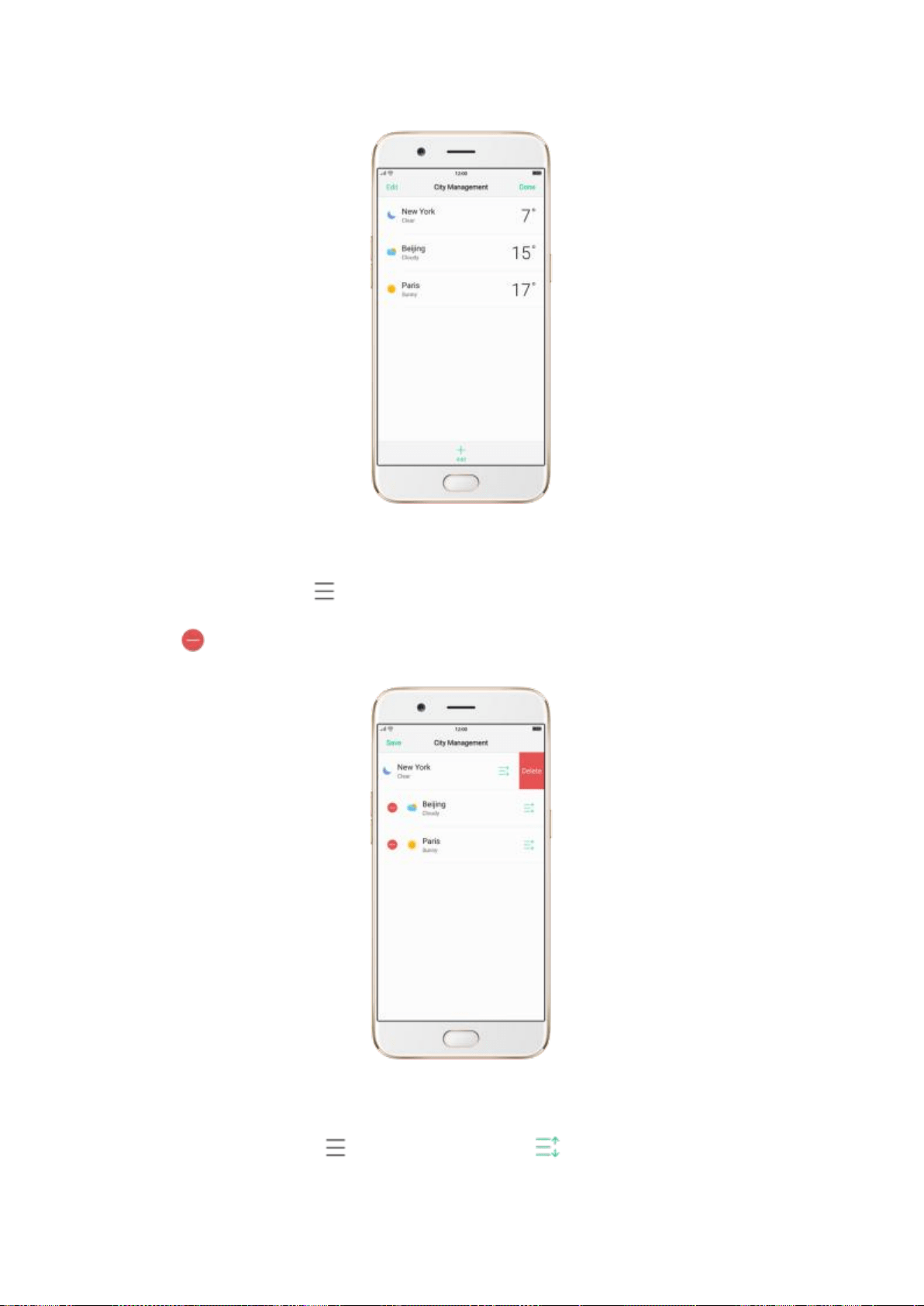
Delete a city. Click , swipe left on the city, then click Delete, or click Edit,
click next to a city, then click Delete.
Reorder cities. Click , click Edit, then drag next to a city up or down
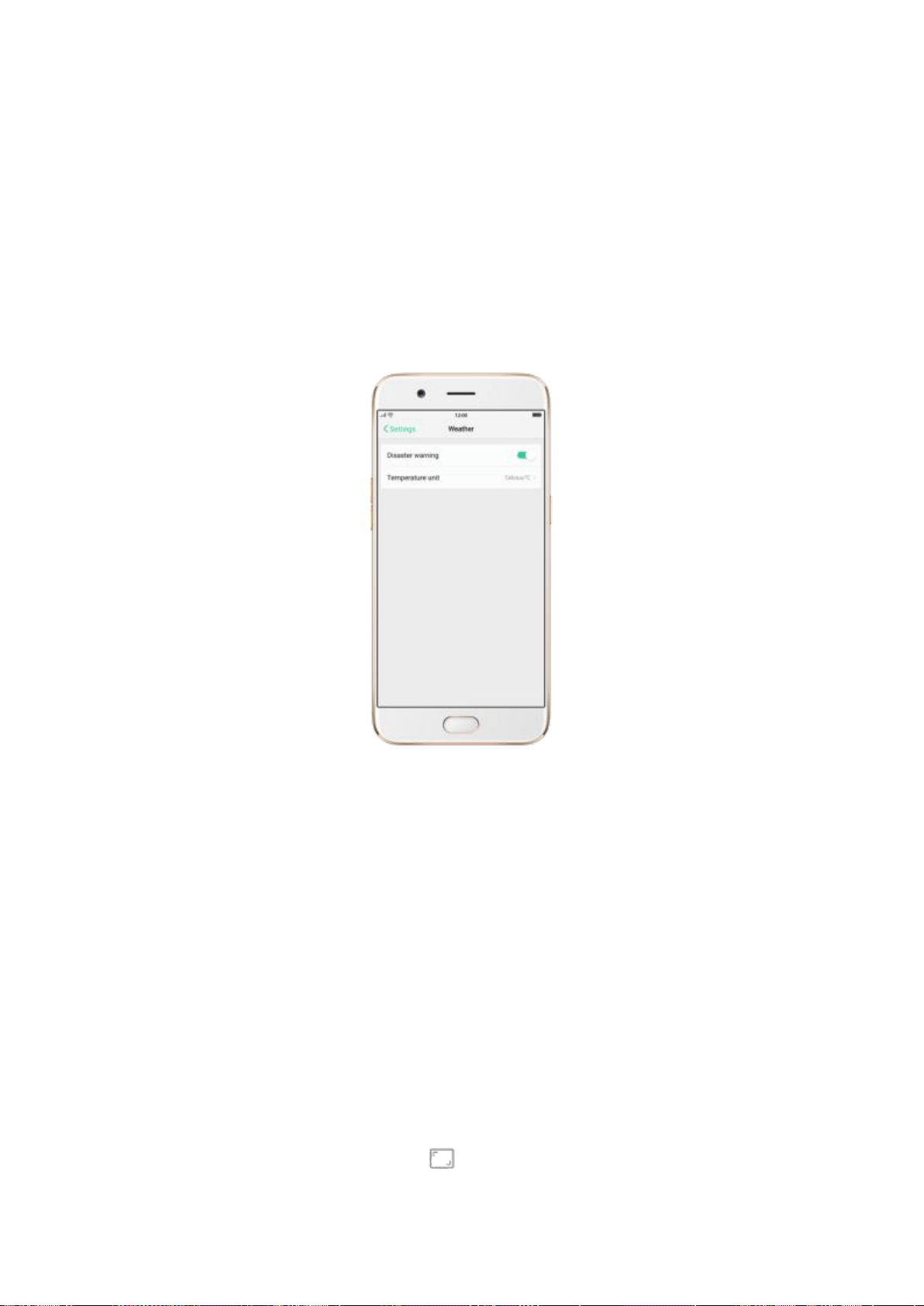
in the list.
Turn on Disaster warning. Go to [Settings] > [Weather] and toggle the
slider to green.
Choose Fahrenheit or Celsius. Go to [Settings] > [Weather] >
[Temperature unit].
7.6. Camera
7.6.1. Take photos
You can use the cameras to take pictures and videos.
Open camera. Click Camera icon. To quickly get to the camera, touch Camera
icon on the Lock screen and swipe up.
Choose a photo mode. Click , then choose to shoot standard,
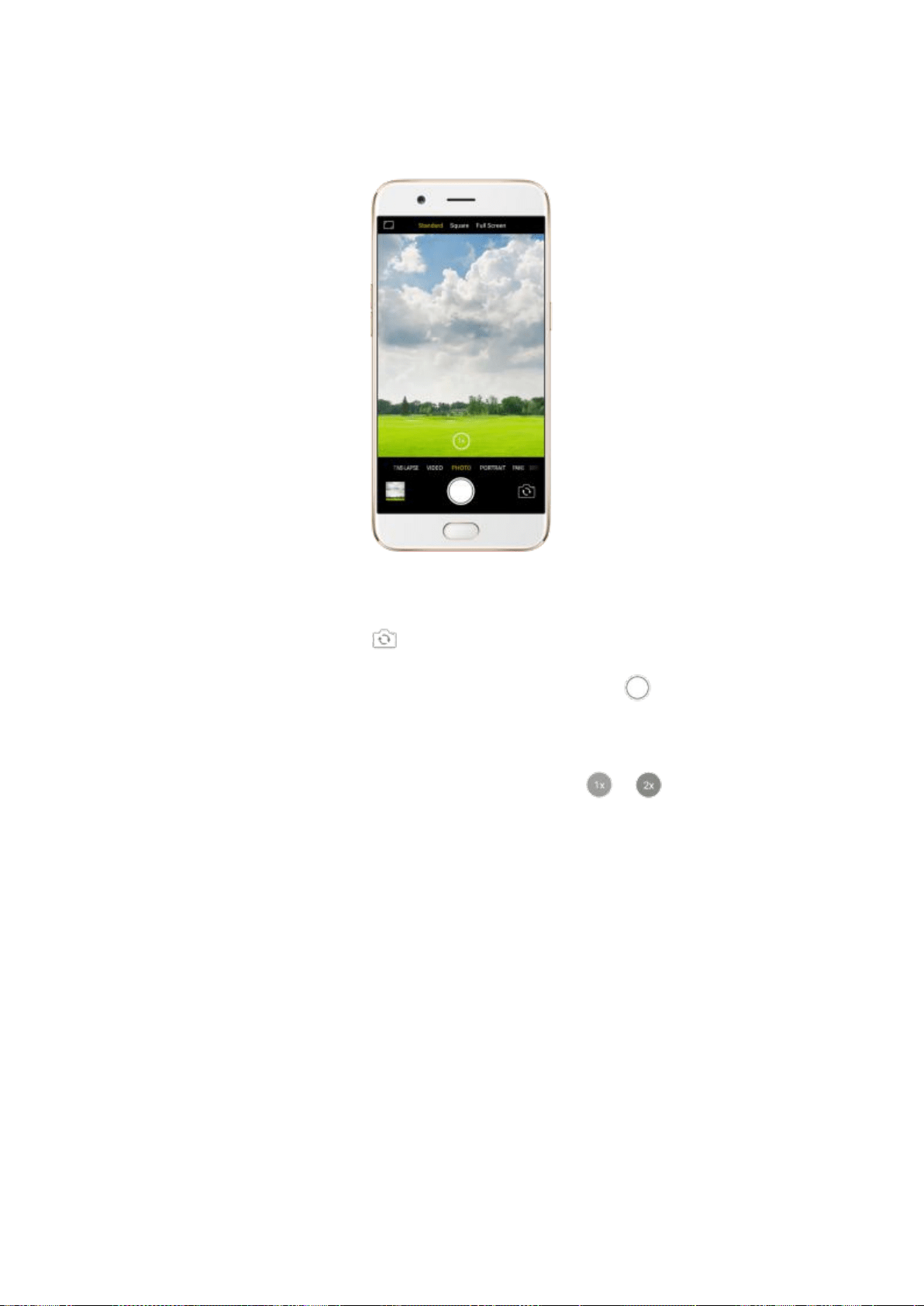
square-format, or full screen photos.
Switch the cameras. Click .
Take a photo. Aim your camera at the subject and click .
Zoom in or out. The dual 20MP cameras capture full-resolution video and
stills at 1x and 2x zoom. To quickly switch, toggle or . You can also
pinch the screen to zoom in and out.
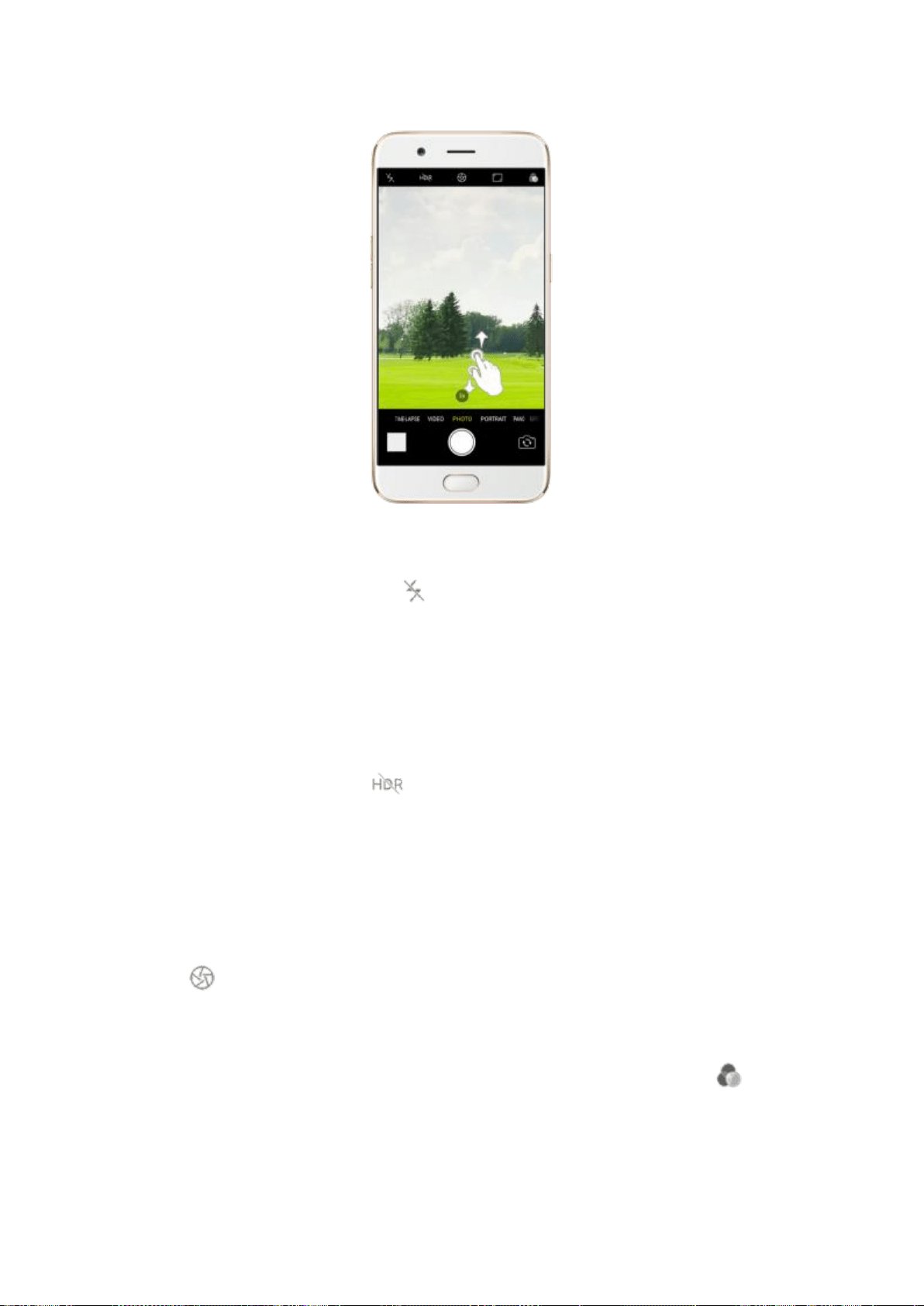
Turn the flash on or off. Click , then click On or Off. When you click Auto,
your phone will automatically detect lighting conditions and determine if
flash is necessary. When you click Fill Light, your phone will use the built-in
flash as the fill light.
Turn HDR on or off. Click , then click On, Off or Auto. When HDR (high
dynamic range) is on, photos take multiple exposures of the same scene and
then combine them to create a better looking, more detailed image.
Use the capture timer. Capture timer gives you time to get in the picture.
Click , then click 3s or 10s. Click Tap if you want to take photos by tapping
on the screen.
Add a filter. You can apply a filter before you take a photo. Click , and
you'll see eight filter options, with each one showing a preview of what it will
look like applied to your photo. Click the filter you want to use. Click None or
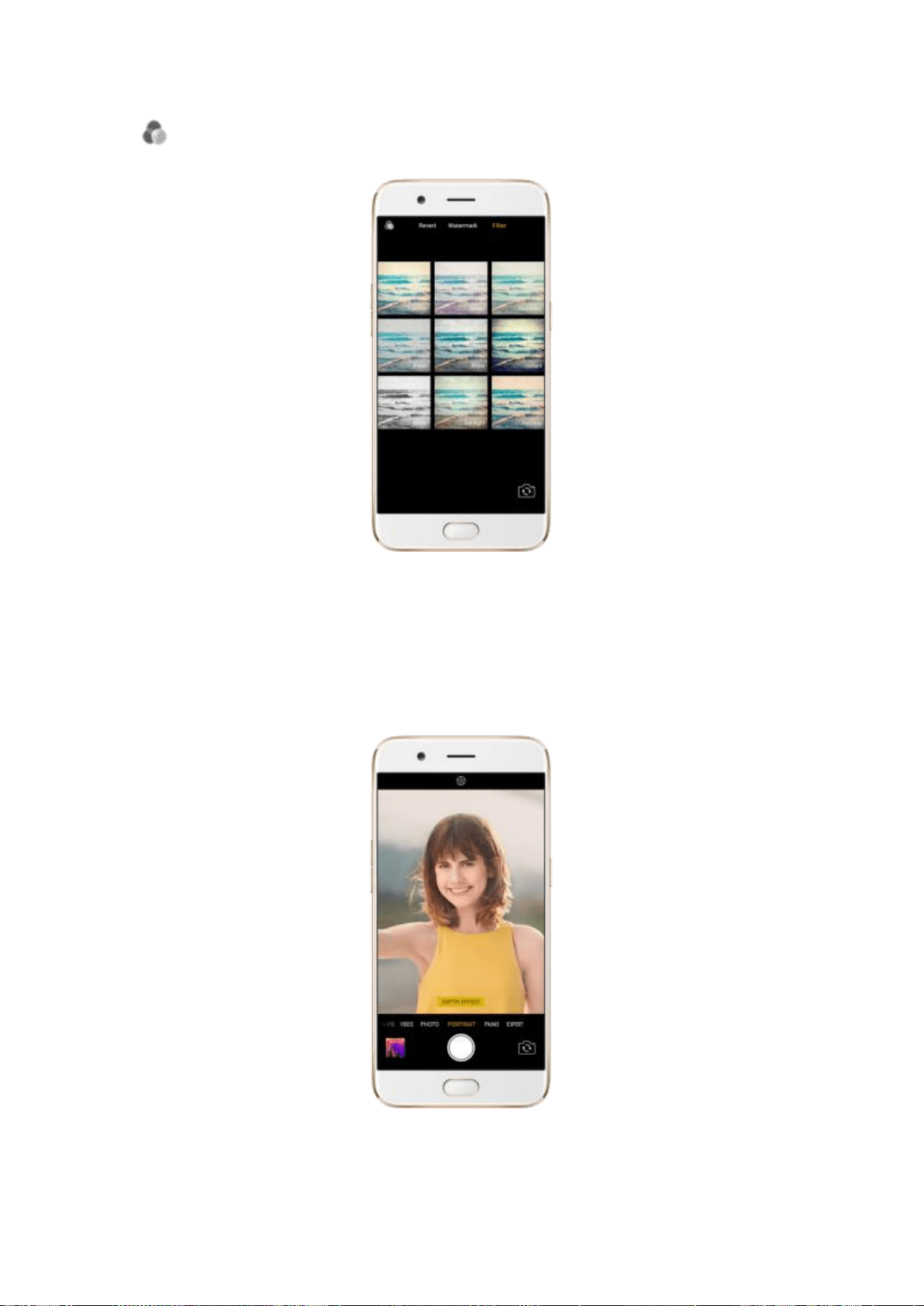
to remove the filter.
Take a portrait. Portrait mode includes a depth effect that blurs the
background while keeps the face in the foreground perfectly focused.
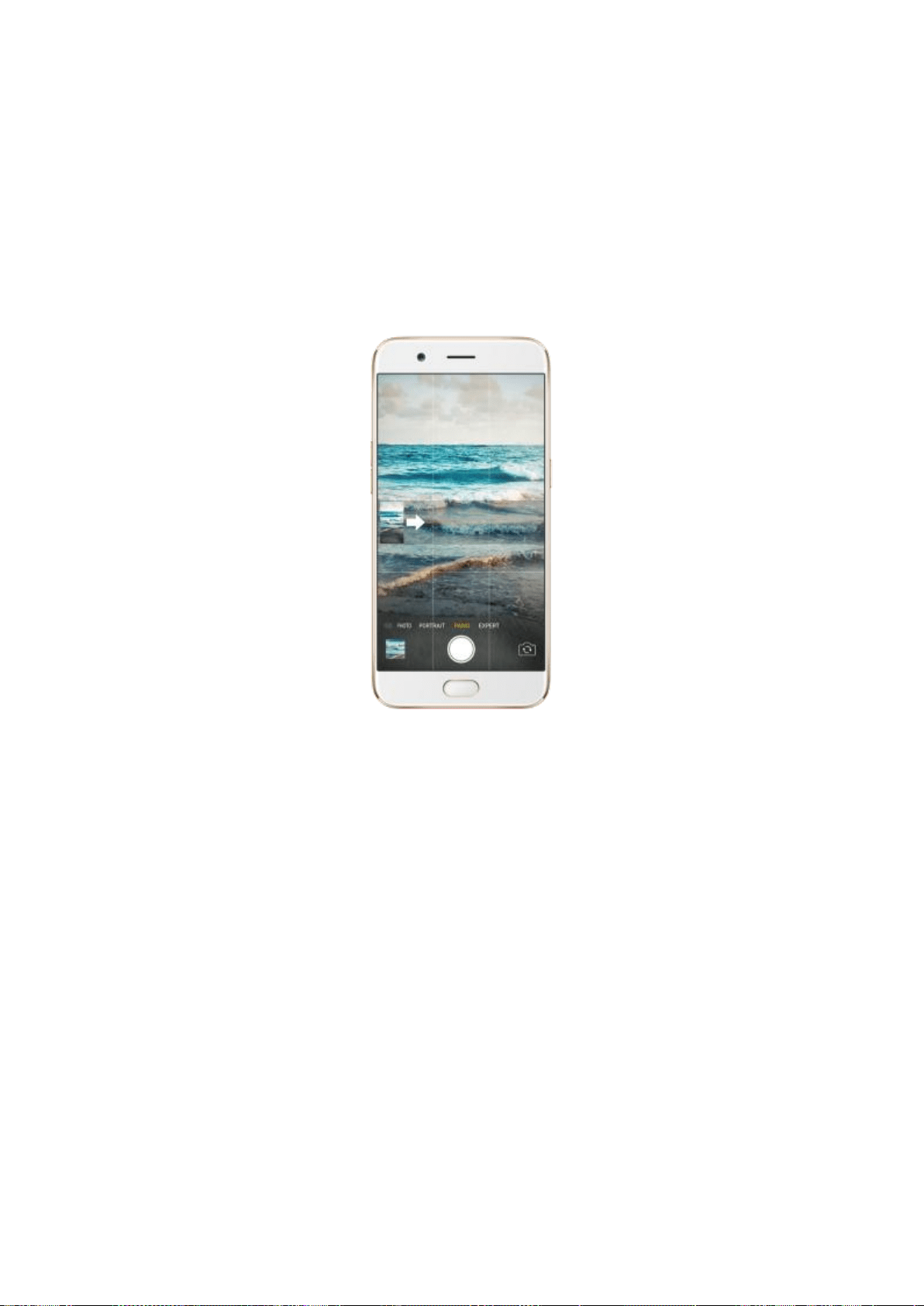
Take a panorama photo. Choose PANO.
With the rear cameras, click the Shutter button, then move the phone
slowly and steadily across the subject you want to capture. Click the
button again when you've got your full photo.
With the front camera, click the Shutter button and you’ll hear a “Ding”
sound. Rotate the phone left or right until the phone sounds again. The
photo will be taken automatically.
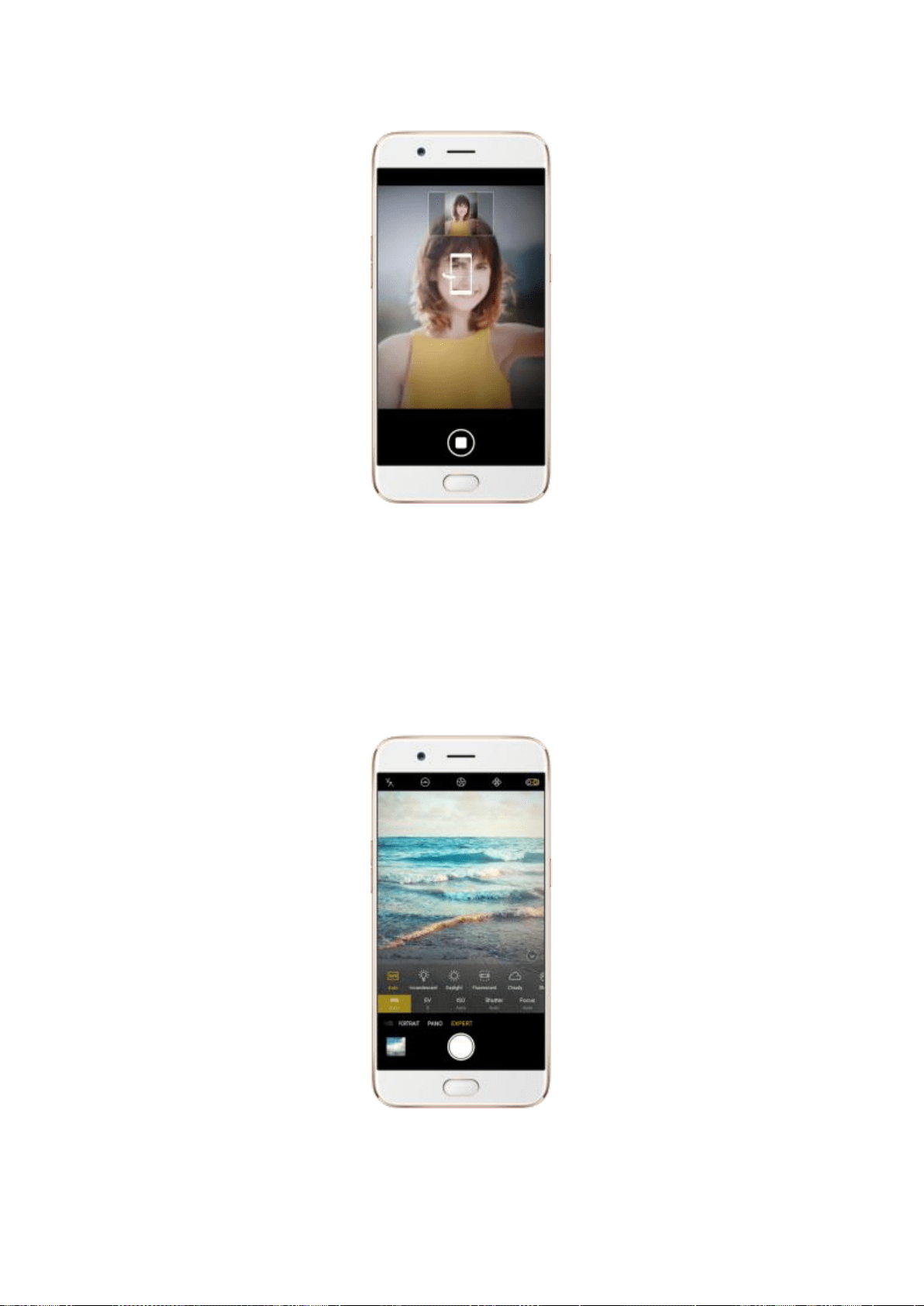
Use Expert mode. Expert Mode allows you to take more professional-looking
photos. Choose EXPERT, then you can adjust camera's white balance,
exposure compensation, ISO, shutter speed, and more.
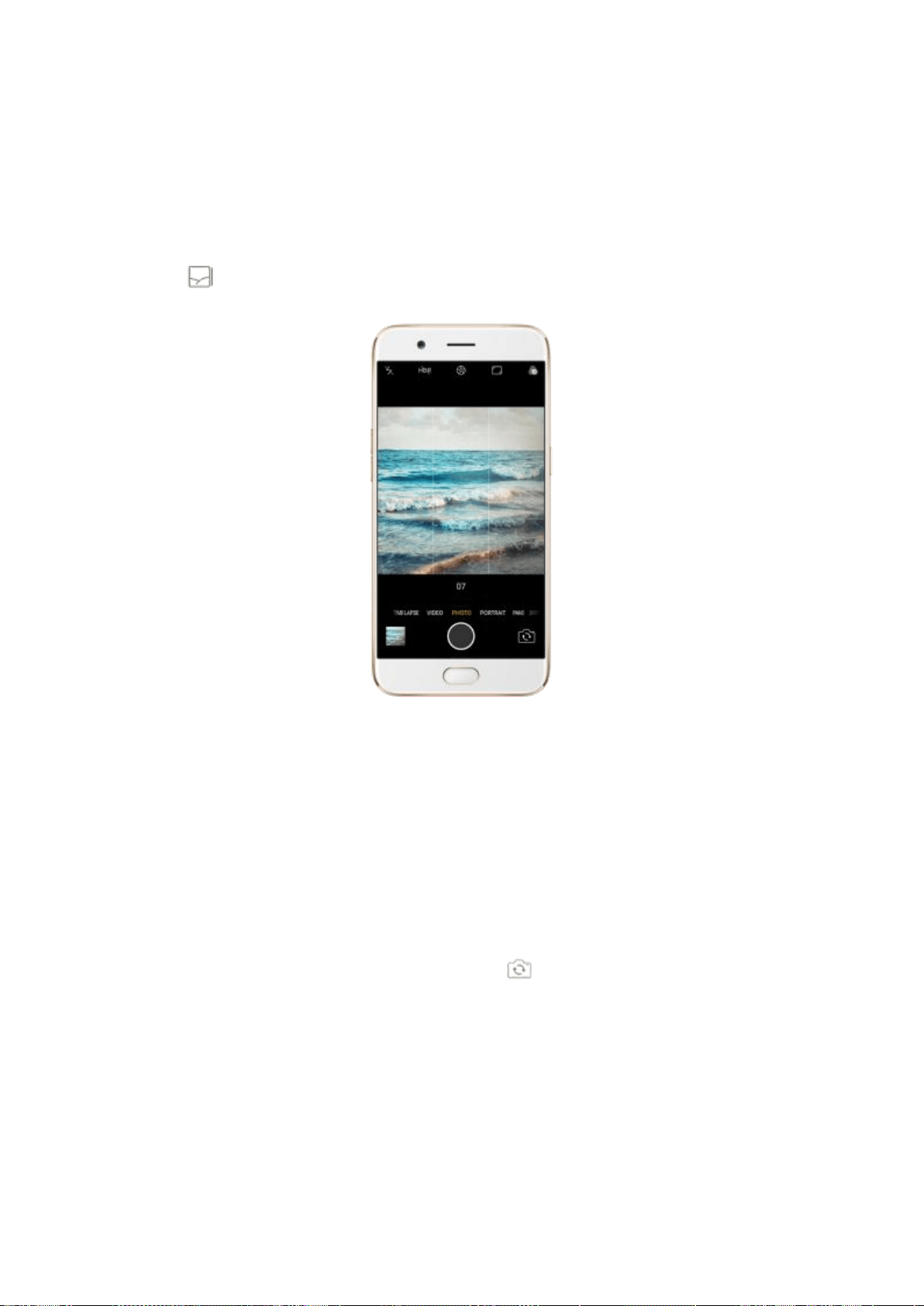
Take Burst shots. Touch and hold the Shutter button, and you’ll see an
onscreen count rapidly rise, which shows the number of photos you're taking.
Lift your finger to stop. To select the photos you want to keep, click Gallery,
click , select the photos, then click Done.
7.6.2. Take a selfie
To switch to the front-facing camera, click in the lower-right corner of
the screen.
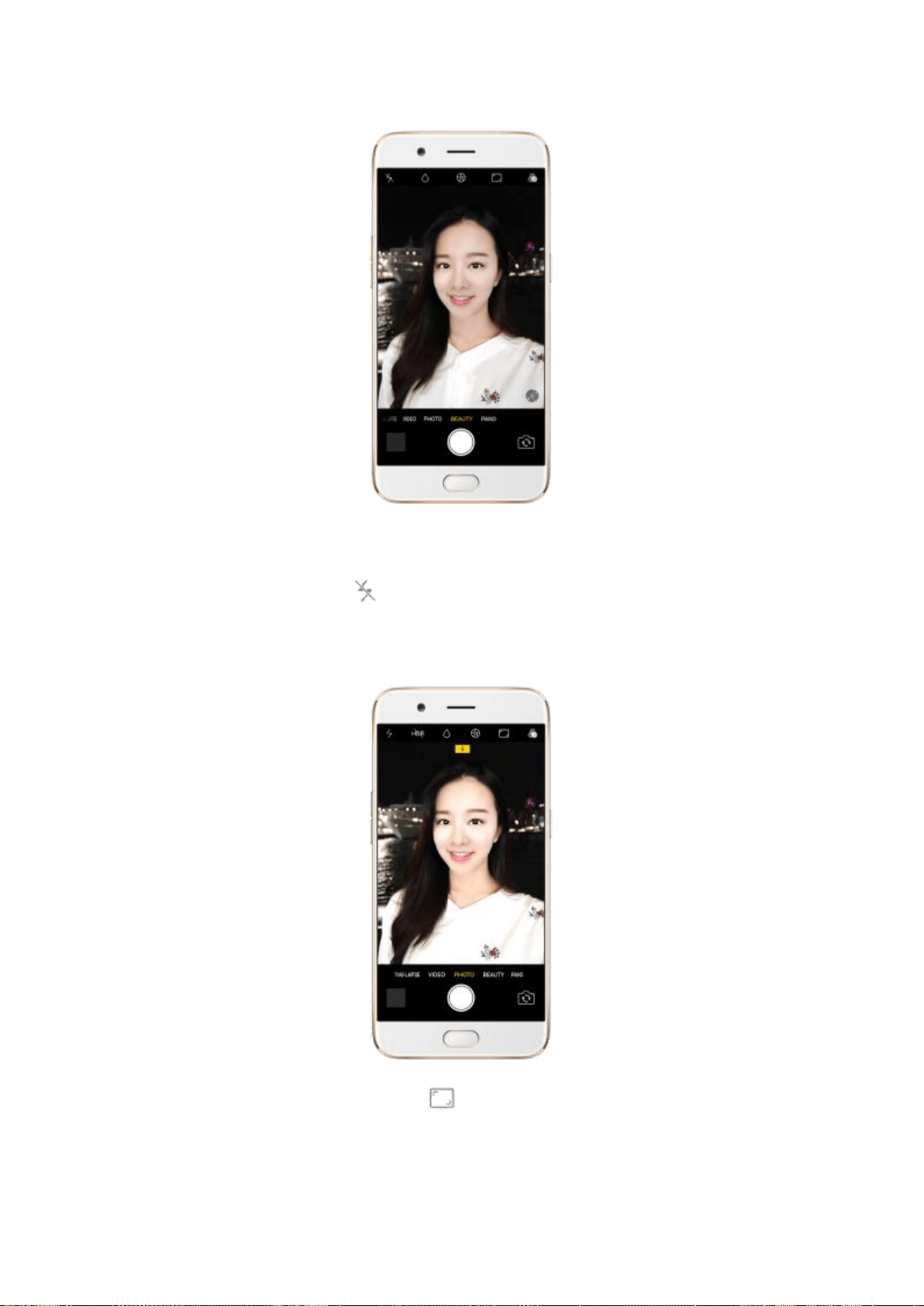
Turn the flash on. Click , then click On. A white screen at full brightness
is used as front-facing flash.
Choose a photo mode. Click , then choose to shoot standard,
square-format, or full screen photos.
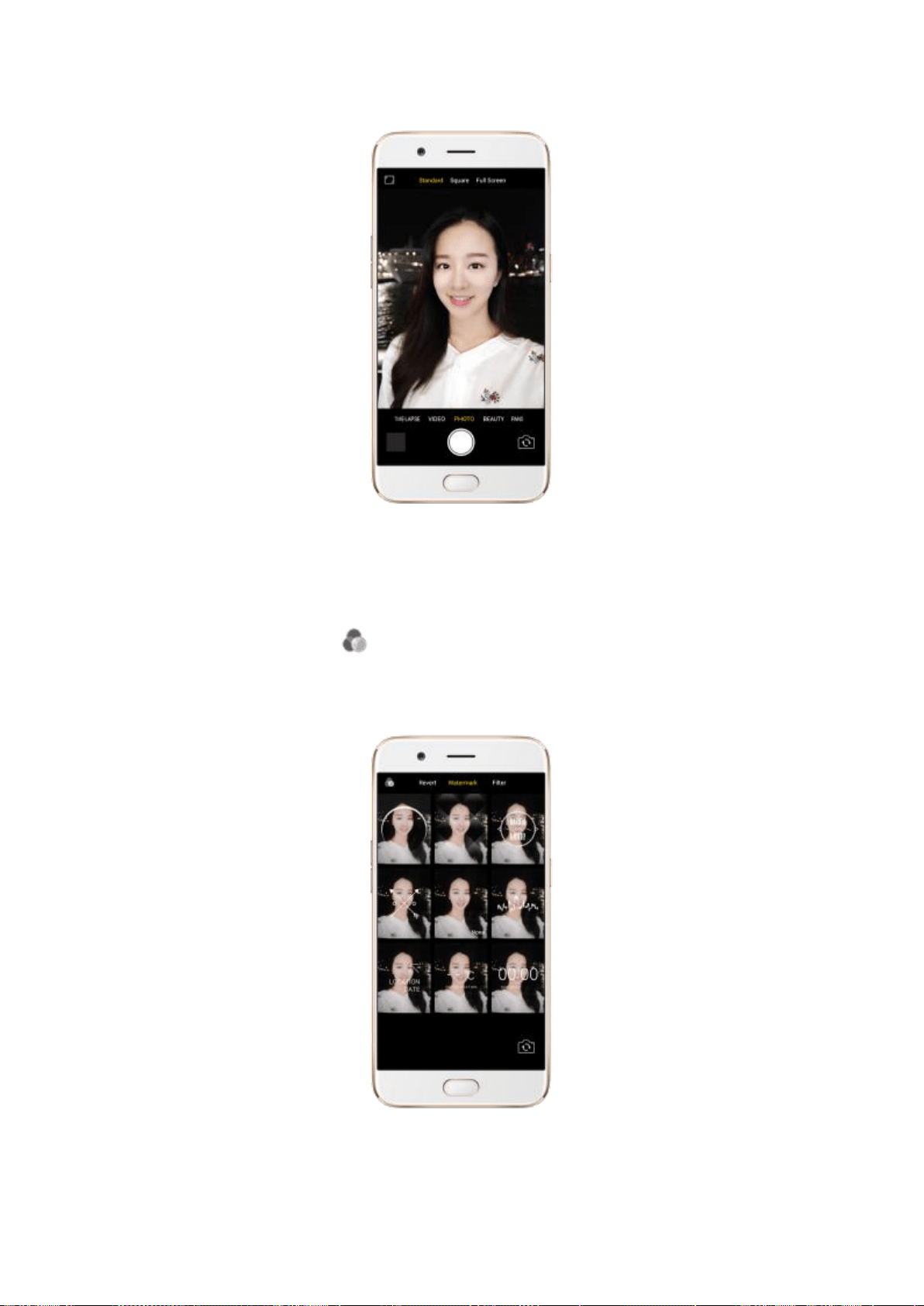
Add a photo watermark or filter. You can apply a watermark or filter before
you take a photo. Click , then choose a watermark or filter, or click Revert
to remove that.
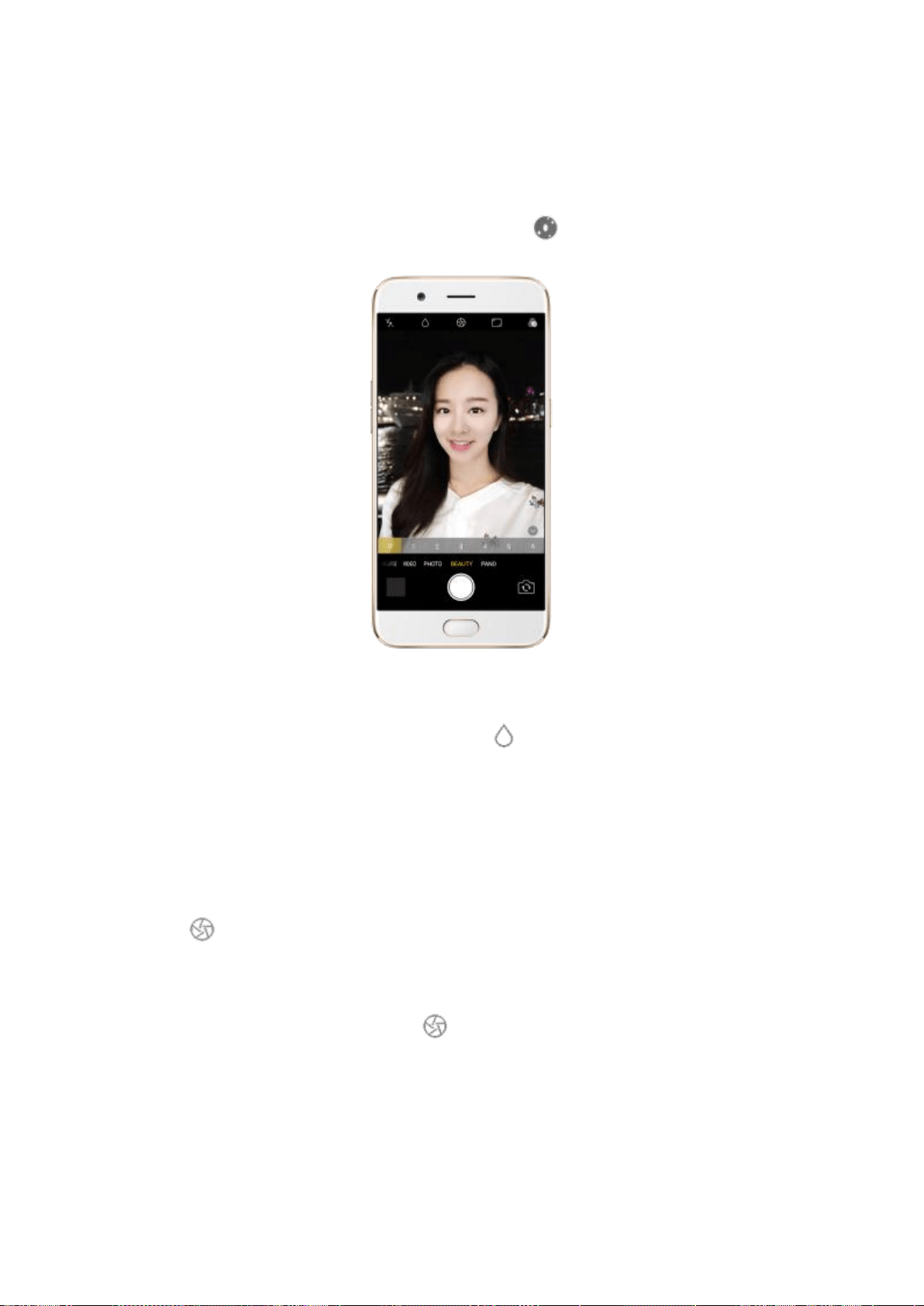
Use Beauty Mode. The built-in beauty filter will automatically adjust the skin
tone, enhance facial features, and make other minor changes to your
appearance. To change the beauty level, click .
Turn Depth Effect on for a photo. Click on the top of the screen. Depth
Effect blurs the background while keeps the face in the foreground perfectly
focused.
Use the capture timer. Capture timer gives you time to get in the picture.
Click , then click 3s or 10s. Click Tap if you want to take photos by tapping
on the screen.
Show palm to take photo. Click , then click Palm. Show your palm to the
front camera. After recognizing your palm, the phone will take a photo after
two seconds.
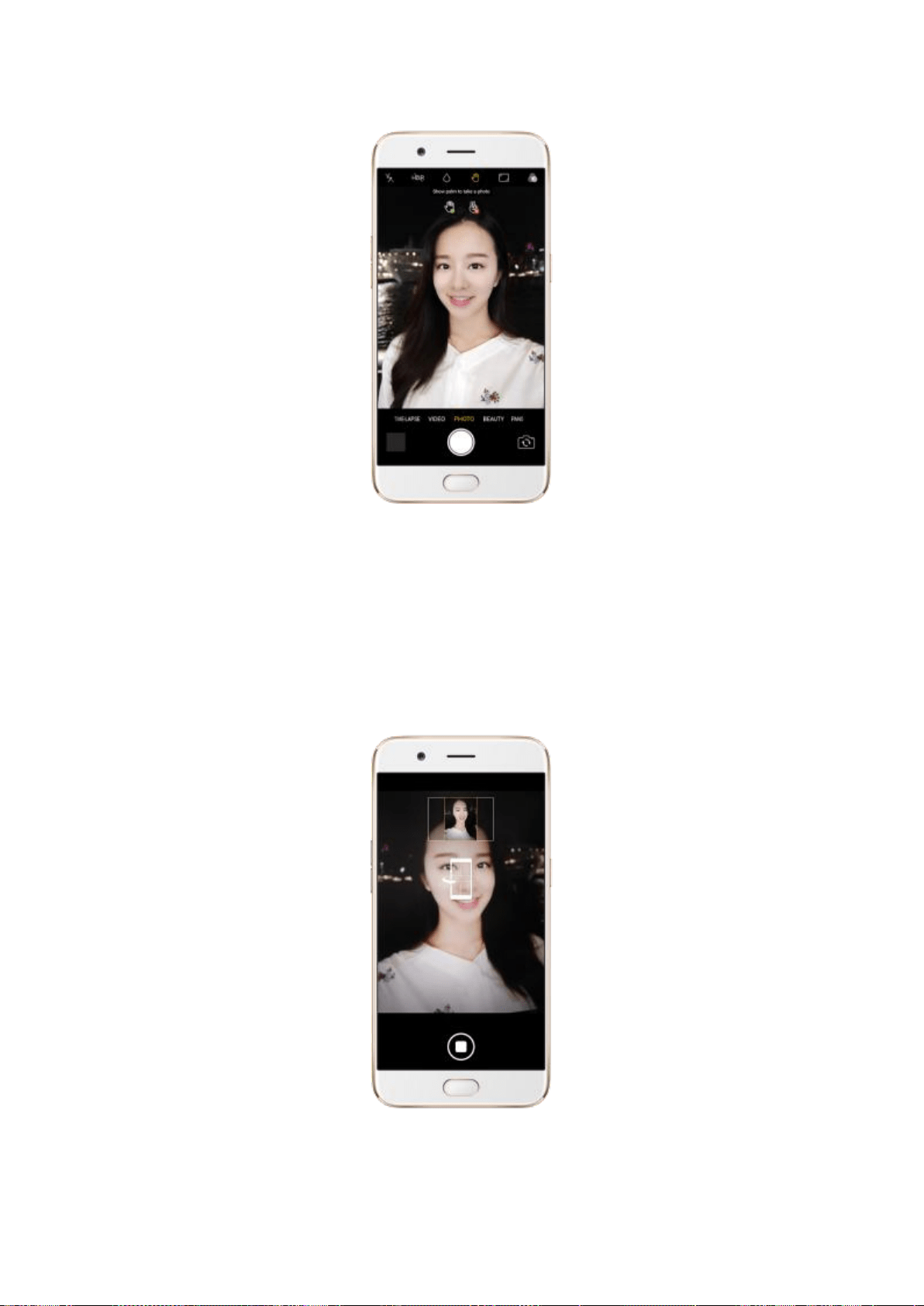
Take a panorama photo. Choose PANO. Click the Shutter button and you’ll
hear a “Ding” sound. Rotate the phone left or right until the phone sounds
again. The photo will be taken automatically.
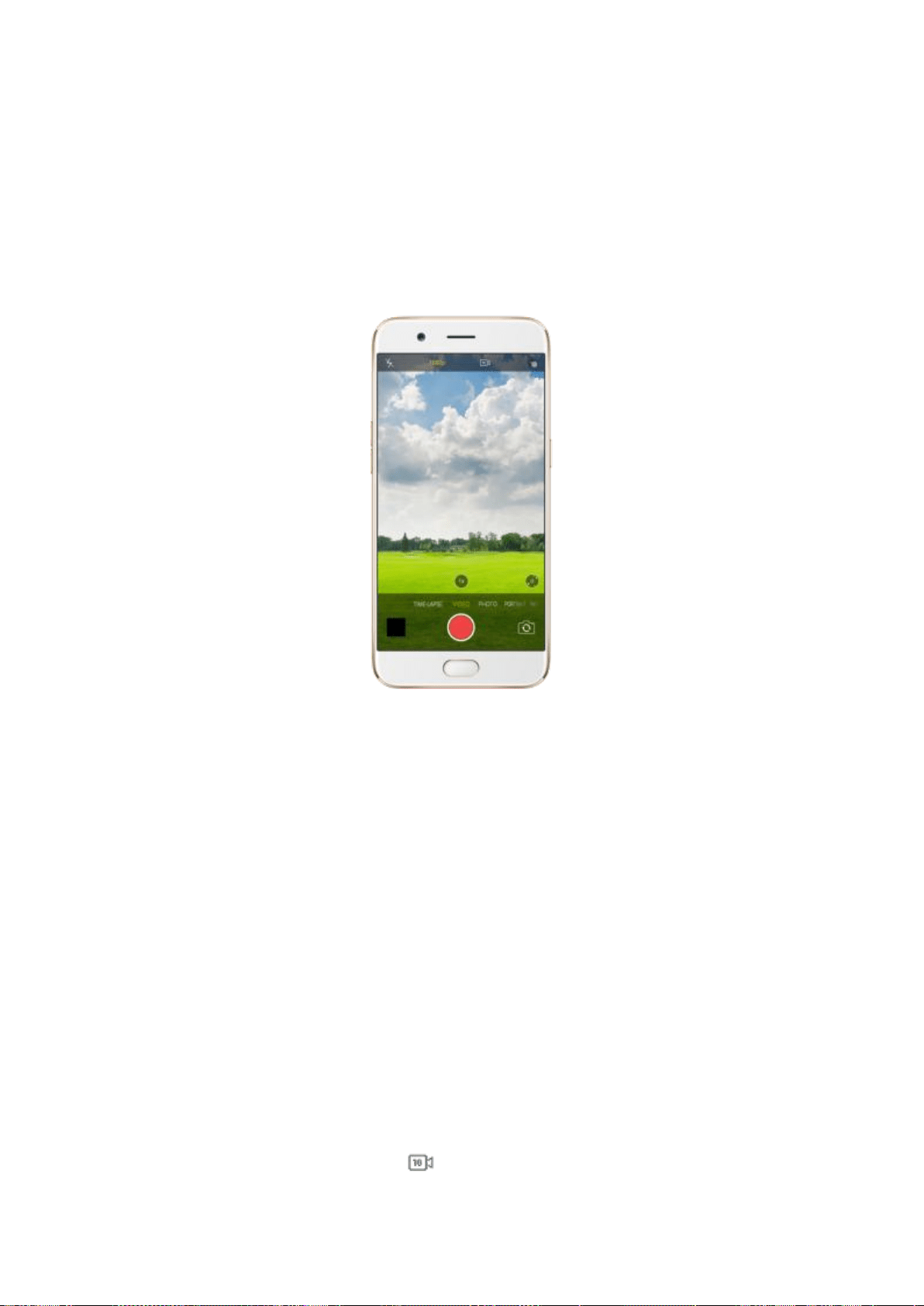
+
7.6.3.Shoot video
With Camera you can shoot video, including time-lapse and 10s short videos.
Record a video. Choose Video, then click the Record button, or press either
volume button, to start and stop recording. You can choose between 720p,
1080P and 4k video.
Note: 4k video is only available on R11, R9s Plus, A57 and F3 Plus.
Capture time-lapse video. Choose Time-Lapse. It records a scene or object
that has a slow state-of-change and turns it into a video that plays back in
high speed.
Capture 10s short video. Click on the top of the screen. You can capture
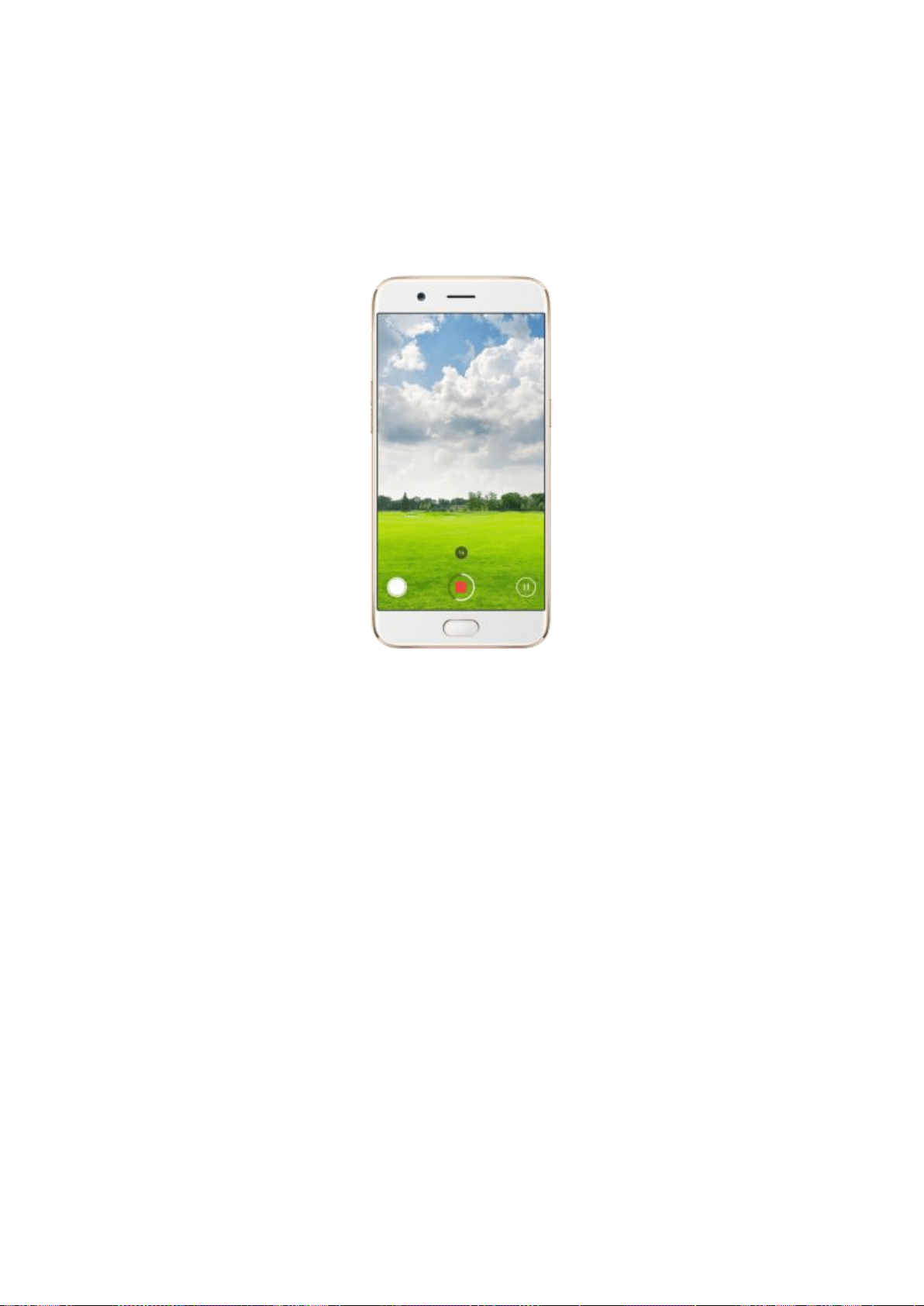
a video up to 10 seconds.
Take photos when shooting a video. Click the Shutter button in the
lower-left corner of the screen.
7.6.4.Camera settings
Camera settings are special options that help you to take pictures or record
videos easier. Go to [Settings] > [Camera].
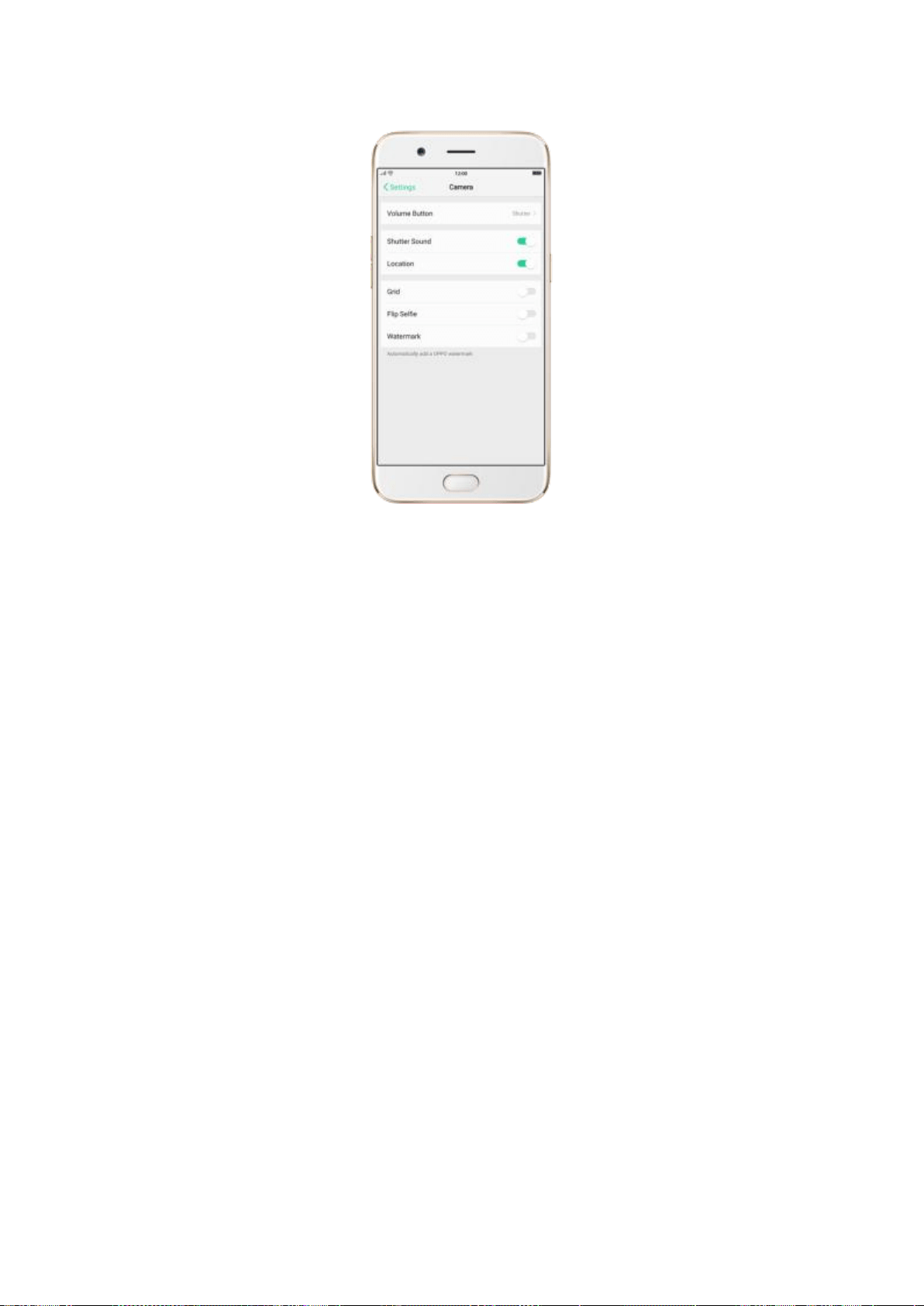
Volume button. Set the Volume buttons to function as the volume or zoom
controls, or the shutter release.
Shutter sound. Make or mute camera shutter sound when capturing photos.
Location. Tag your photos with geo-locations.
Grid. Display grid lines to ensure the camera is leveled.
Flip selfie. Mirror flips your front facing camera photos.
Watermark. Automatically add an OPPO watermark on your photos.
7.7 Photos
7.7.1. Photos overview
The Photos app is where you store your photos and videos, including those you’ve taken
with the built-in camera, saved from an app or a webpage, copied from optional storage
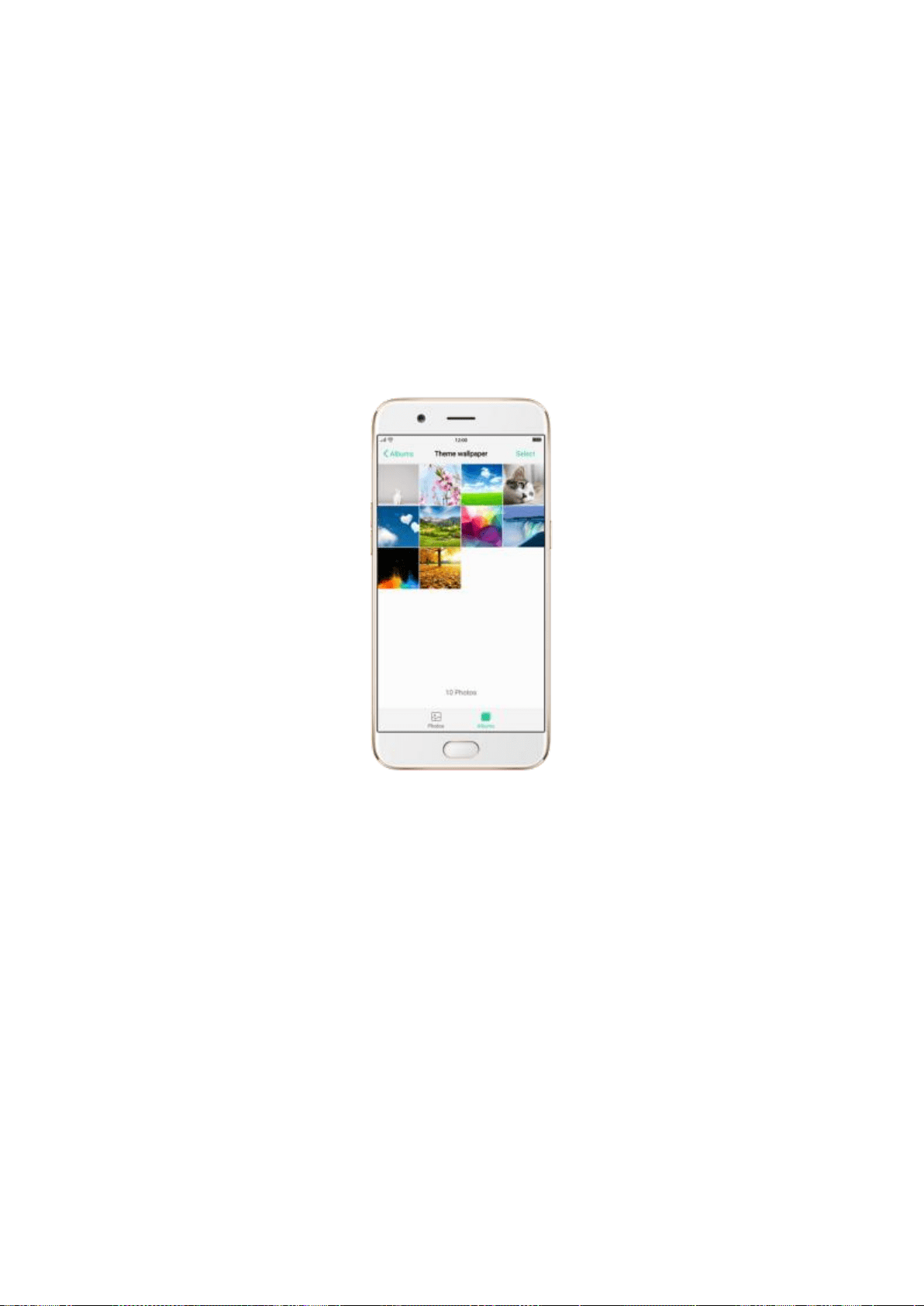
devices, and more. You can view, share, and edit your photos and videos directly on your
phone.
View Photos. You can view the roll of photos in either Camera or Photos. All photos are
sorted by the dates and times they were taken. In Photos, scroll up the screen to view
more photos or albums. Click an album to view the photos or videos in that album.
7.7.2. Albums
Each time you take a new photo, by default, it gets stored in the Photos album. Within
the Photos app, there are a number of default albums into which your photos get
automatically organized. In addition to these, you can also create your own albums into
which you can organize photos further.
You can see your photo albums by clicking Albums at the bottom right of the Photos
app.
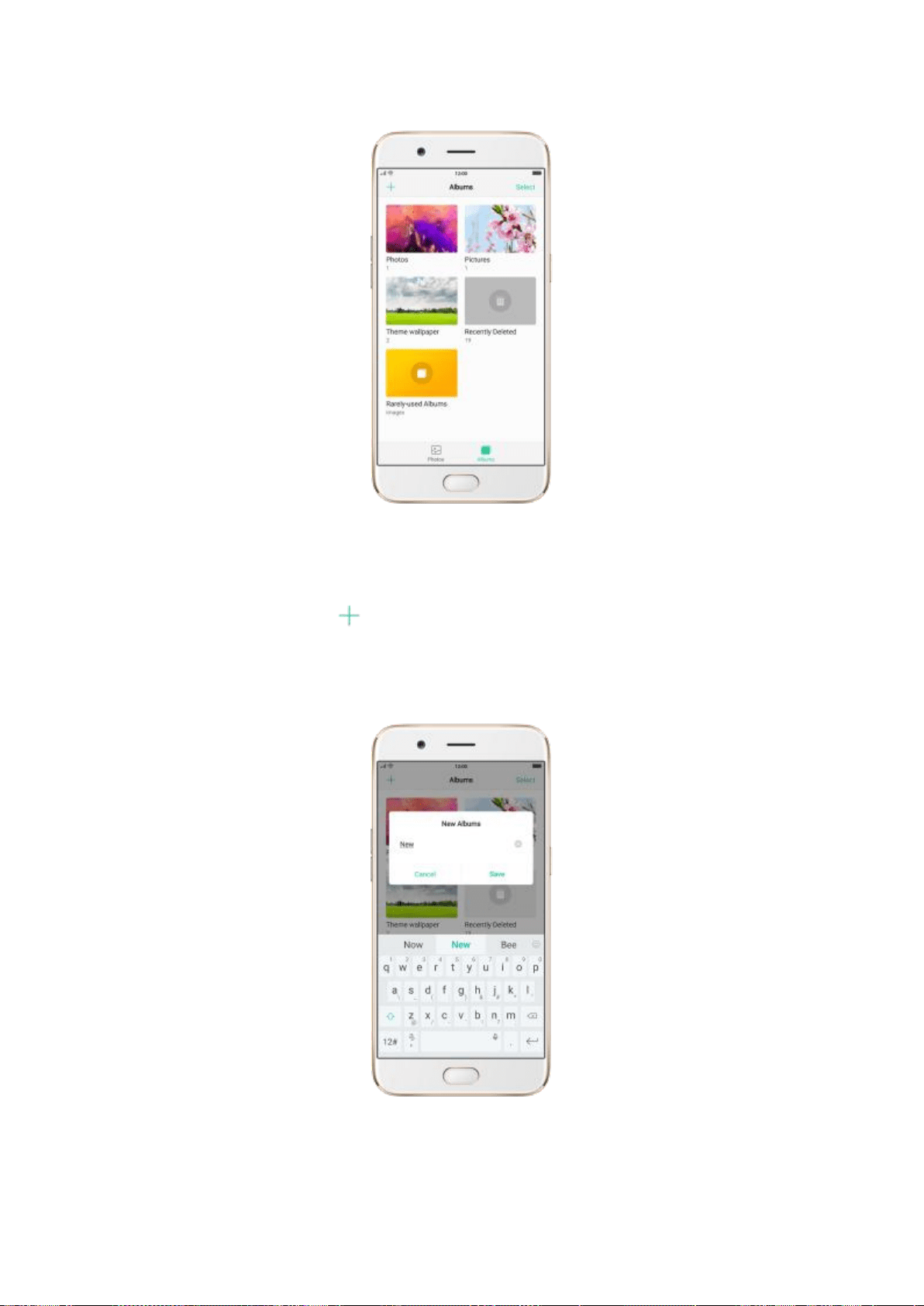
Create a new album. Click , enter a name, then click Save. Select photos and videos,
then click Done.
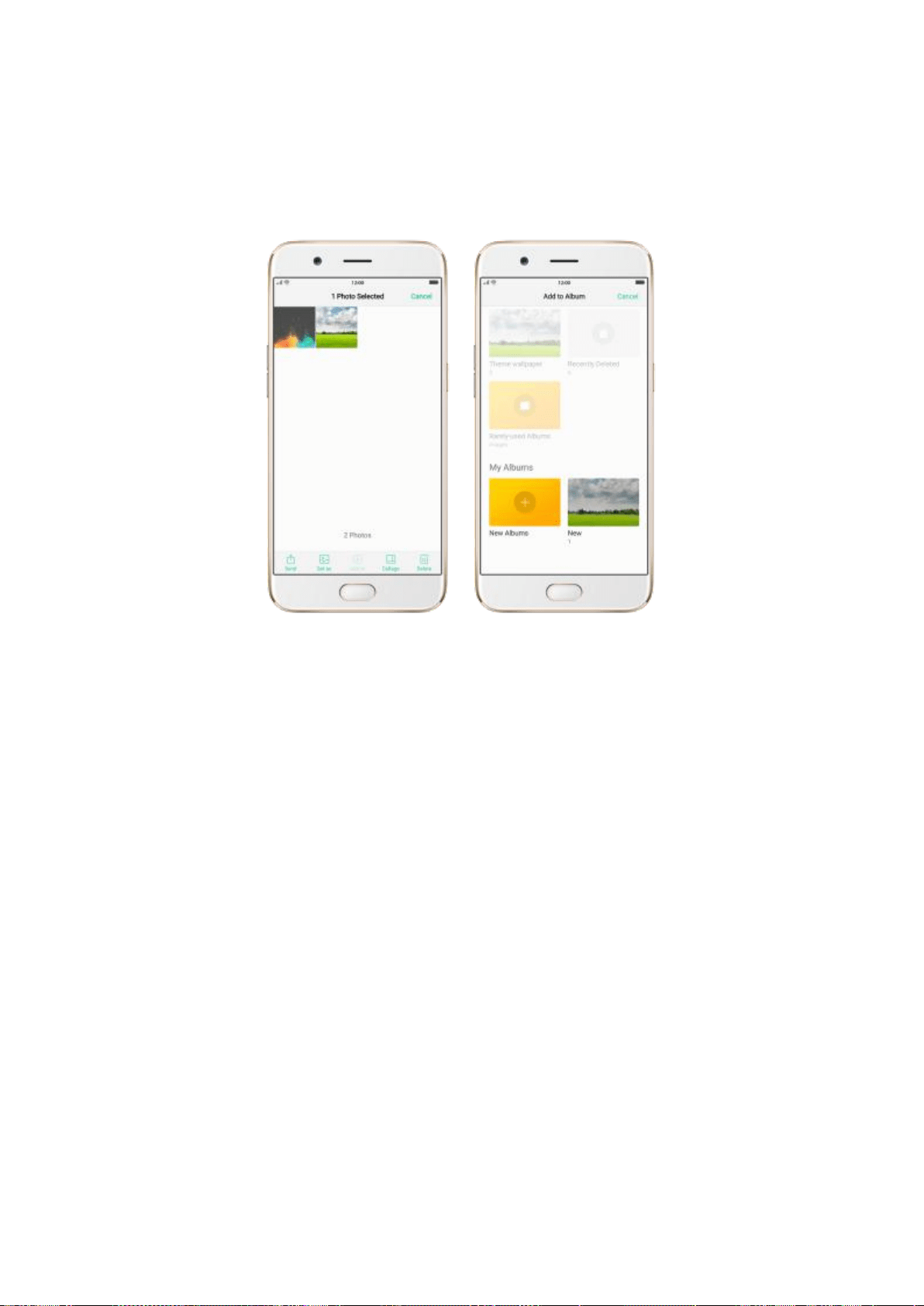
Add items to an existing album. While viewing photos, click Select, select items, click
Add to, then select the album.
Remove items from an album. From the album screen, click Select, select items, click
Delete, then click Remove from album or Delete photo.
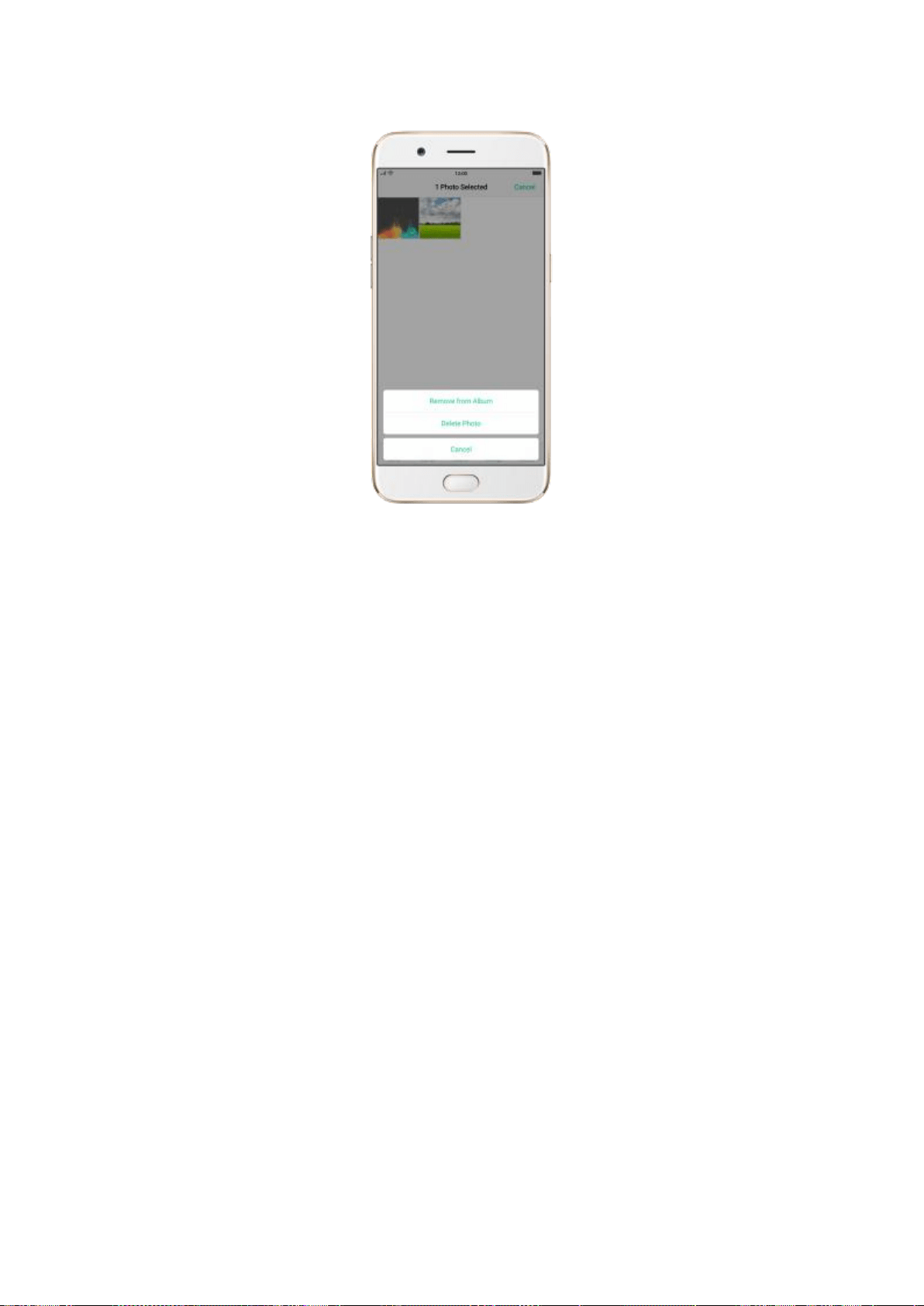
Delete an album. From the Albums screen, click Select, click the album, then click
Delete. Default photo albums cannot be deleted.
Delete a photo or video from Photos. Click a photo or video, then click Delete, or click
Select, select the photos or videos to be deleted, then click Delete. Deleted photos and
videos are kept in the Recently Deleted album for 30 days before theyre permanently
removed.
Restore a deleted photo or video. In the Recently Deleted album, click the photo or
video, click Restore, then click Restore Photo or Restore Video to move the item to the
Photos. Or from the Recently Deleted album, click Select, select the photos and videos
you want to restore, then click Restore.
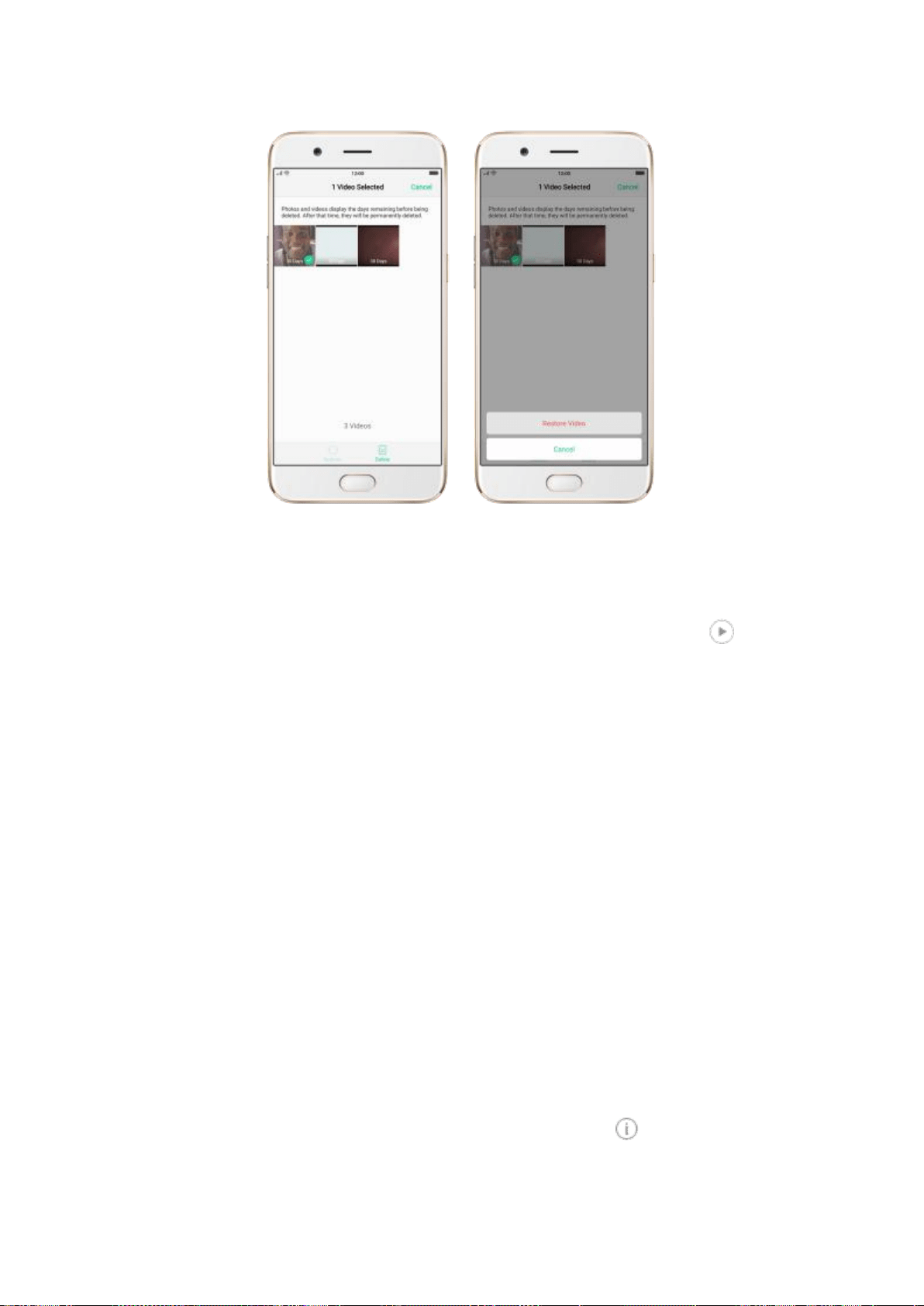
7.7.3. View and use photos and videos
View your photos and videos. Click Photos, then click a photo or video. Click to play
a video. Or click Camera, then click the thumbnail in the lower-left corner of the screen.
View a photo at full screen. Click a photo, then click the screen to hide the controls.
View the next or previous photo. Flick left or right.
View a photo in landscape orientation. On Control center, turn [Portrait Orientation
Lock] off, then rotate your phone sideways. The photo automatically reorients and, if it’s
in landscape format, expands to fit the screen.
Zoom in or out. Double-click or pinch a photo open or closed. Drag to see other parts
of the photo.
See photo and video details. Click a photo or video, then click .
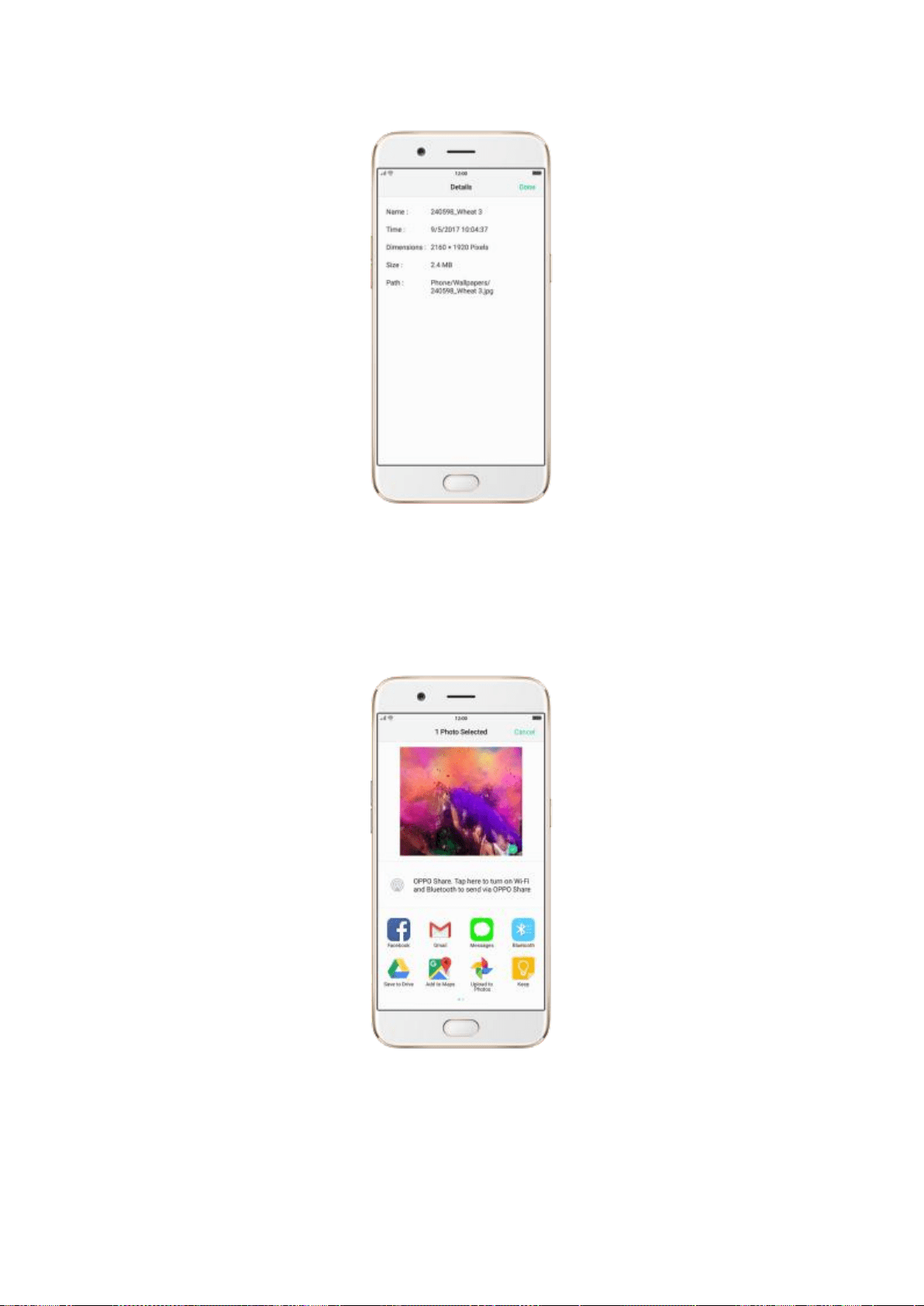
Send a photo or video. Click Send, then choose where to send your photo or video.
Use a photo as wallpaper. Click a photo, click Set as, then click Set as wallpaper. Drag
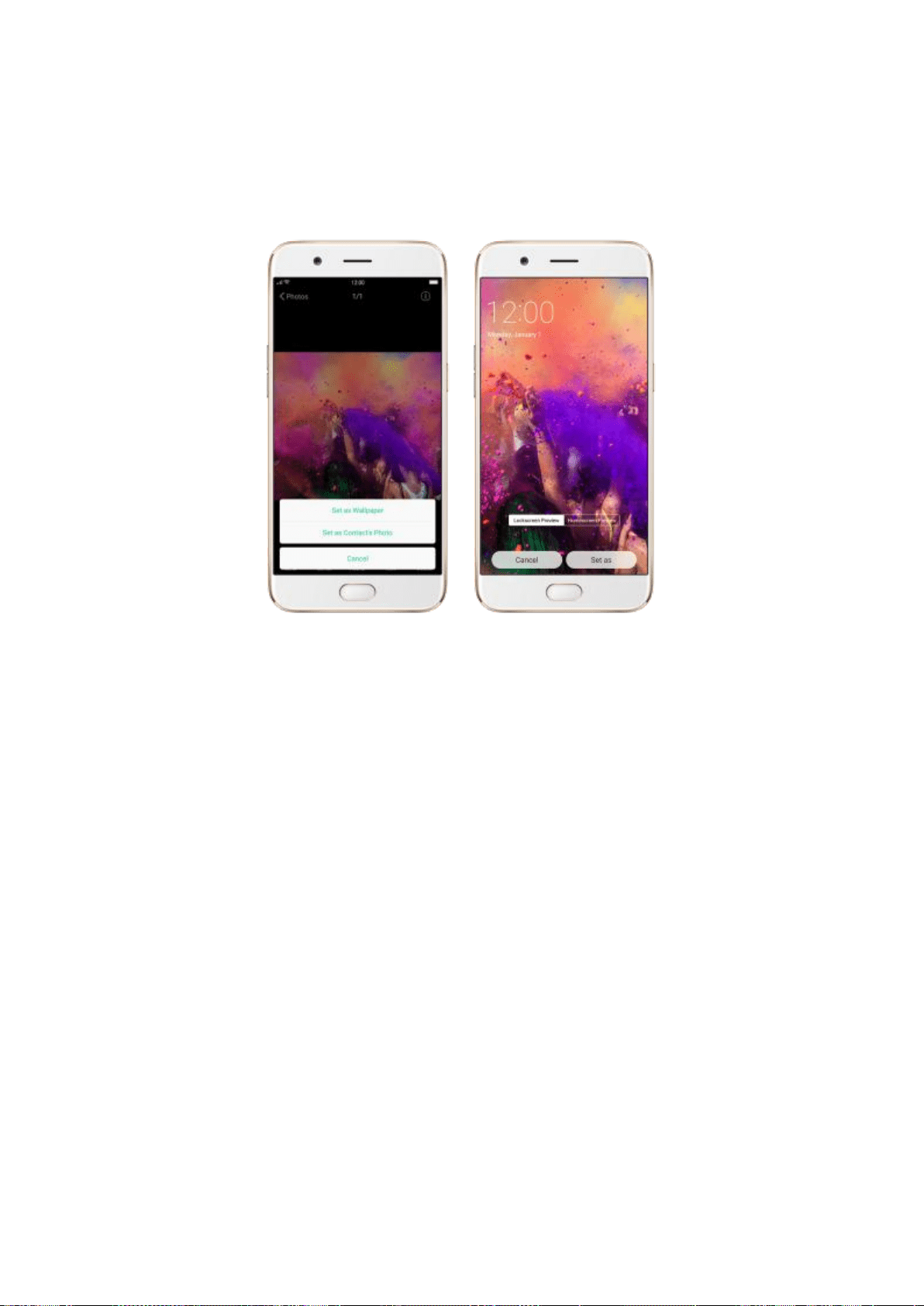
the photo to pan, or pinch the photo to zoom in or out, until it looks the way you want.
Then click Set as to set the wallpaper as your Home screen or Lock screen.
Assign a photo to a contact. Click a photo, click Set as> Set as contact’s photo, select
a contact, crop photo and then click Done.
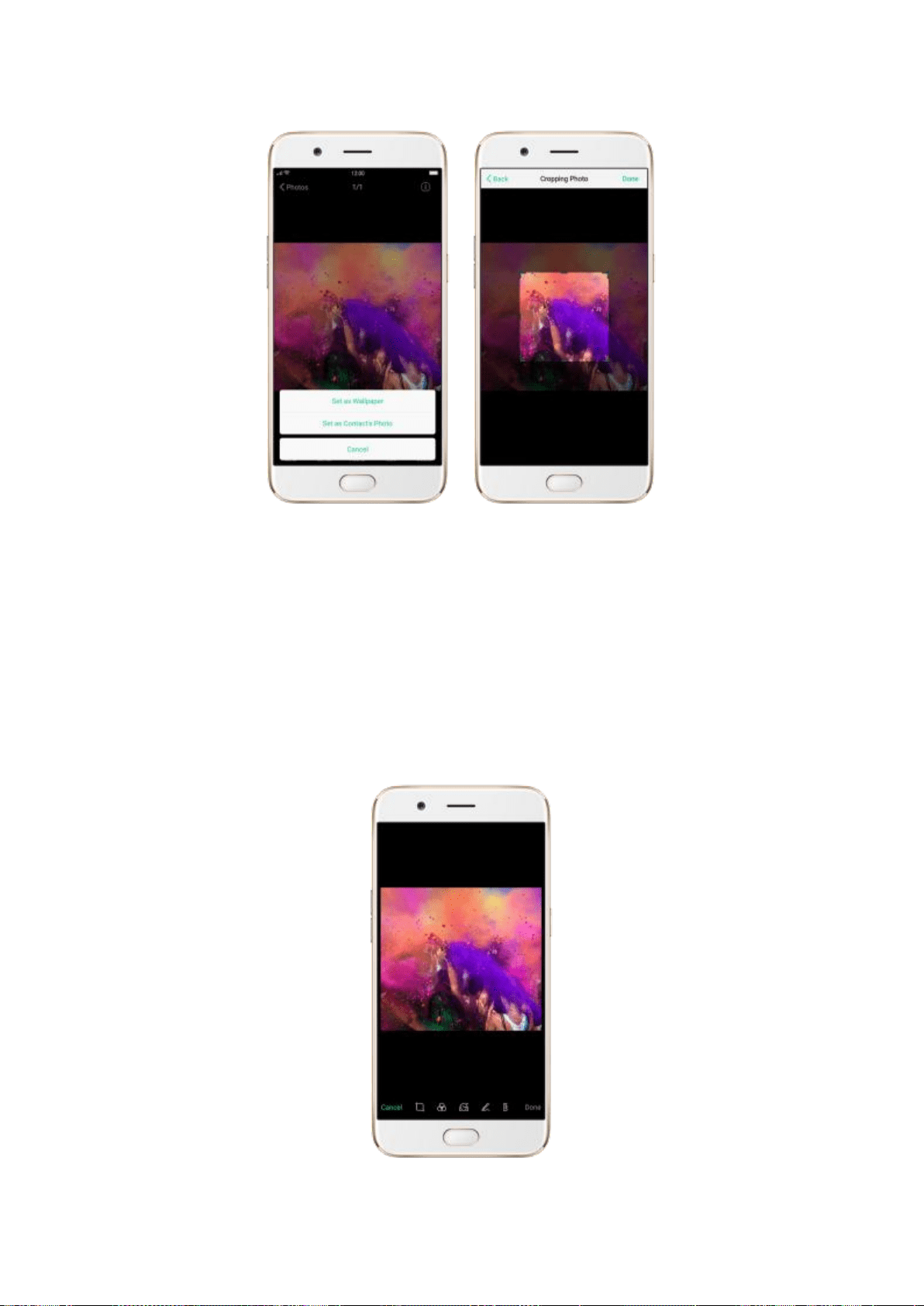
Add a photo or video to an existing album. Click Add to, then select the album.
Edit the photo. Click Edit. You can crop and rotate the photo, add photo effects, and
more.
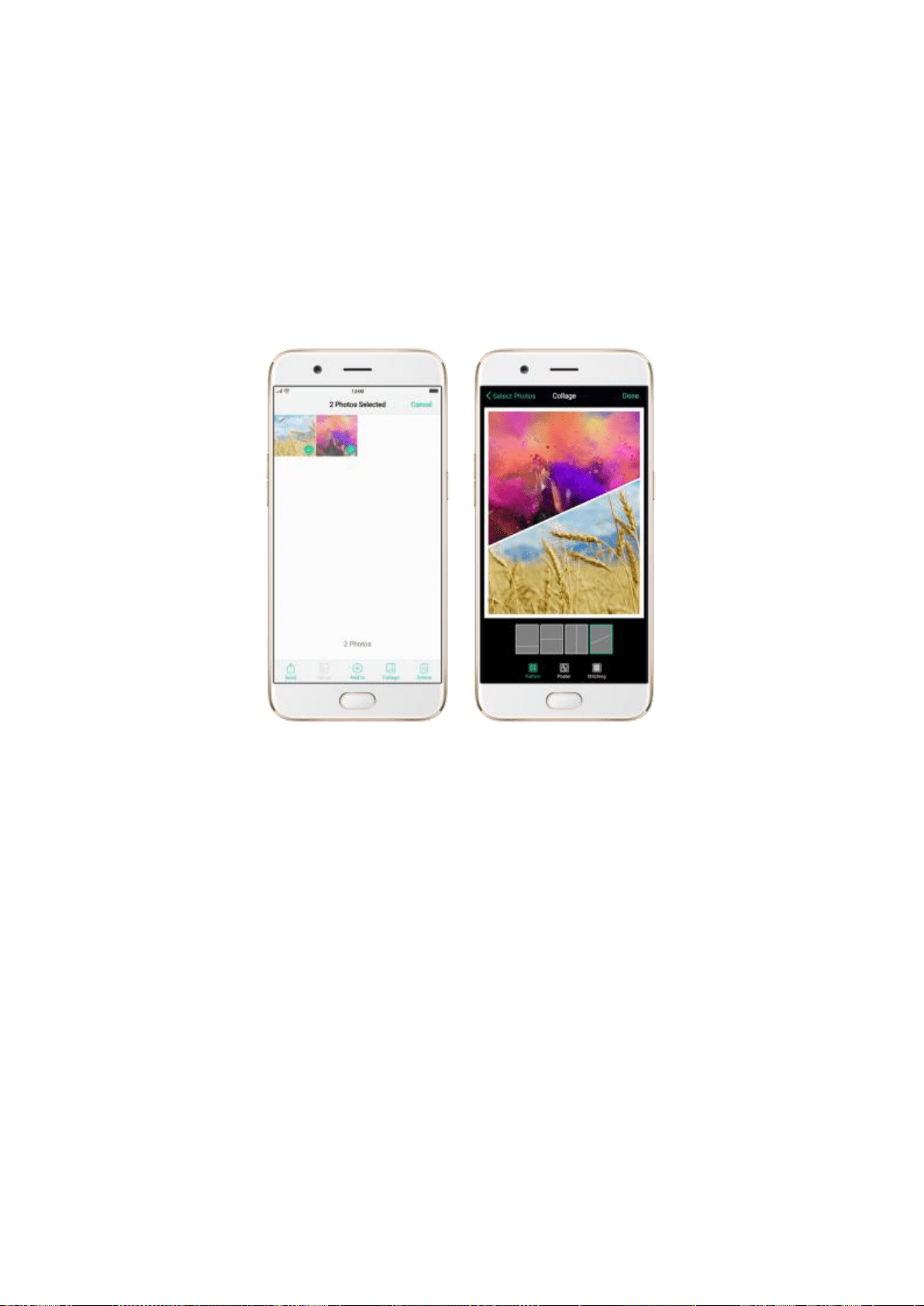
Delete a photo or video. Click Delete.
Combine the photos. From the Photos screen, click Select, select the photos, then click
Collage. Choose a collage template, then click Done.
7.8.Music
7.8.1.Music
Use the Music app to enjoy music stored on your phone. You can also create
playlists, set songs as ringtones for incoming calls, and more.
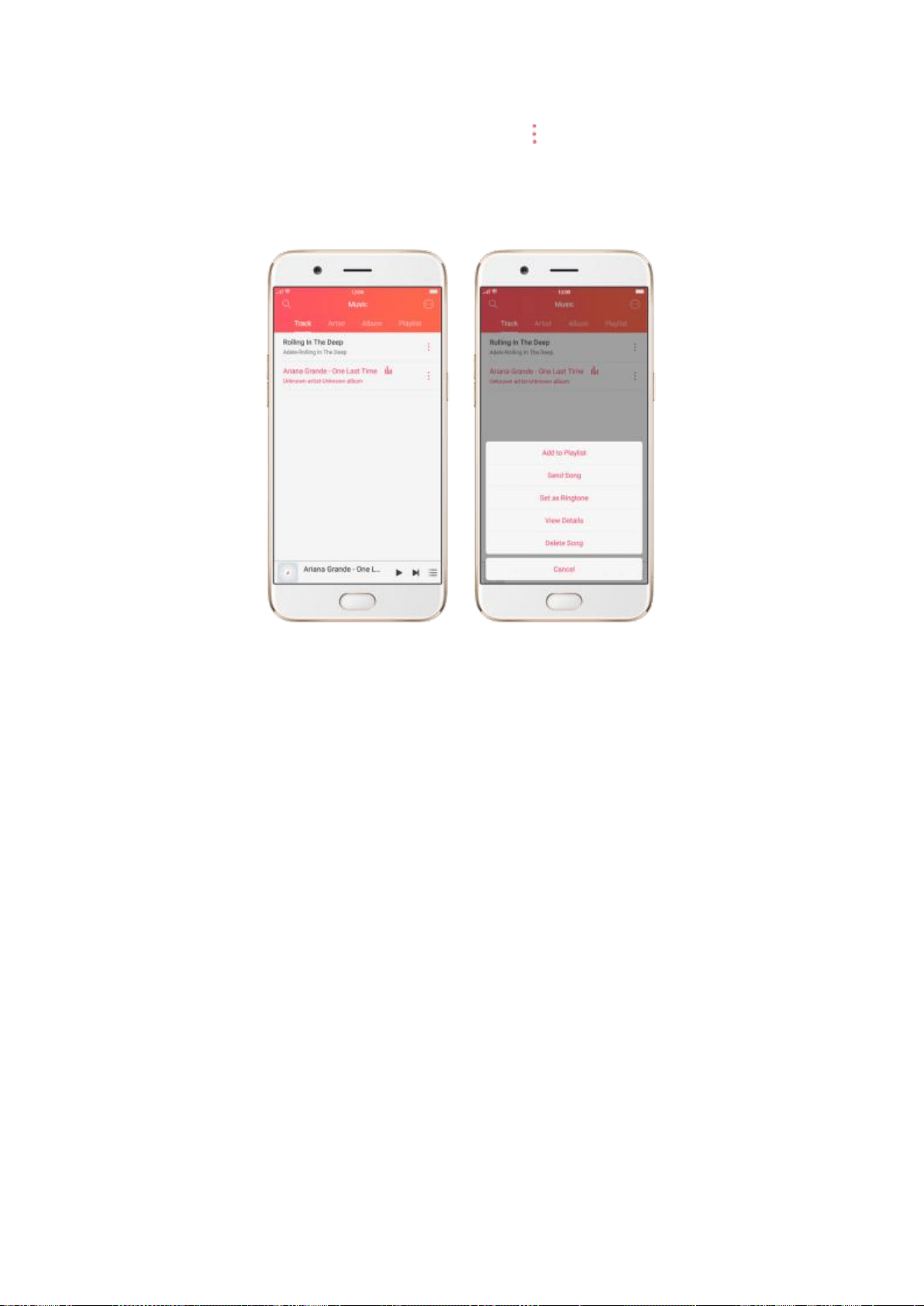
To see what you can do with your music, click to the right side of the song
name.
Add to playlist. Add a song to an existing playlist. You can also create a new
playlist.
Send song. You can share a song with your friends using multiple ways.
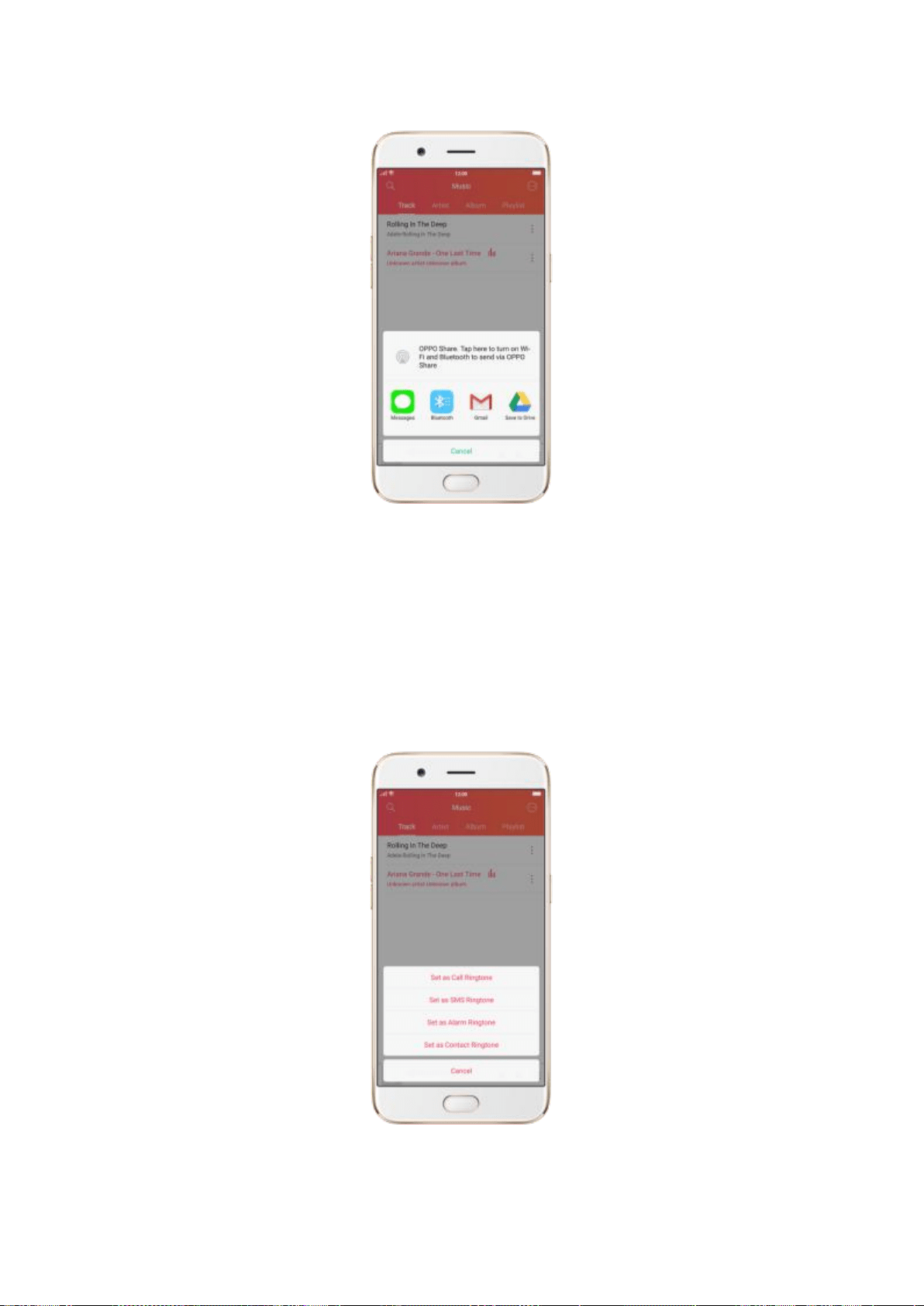
Set as ringtone. You can set a song as a ringtone for all incoming calls and
messages, or for a contact. You can also set a song as an alarm tone.
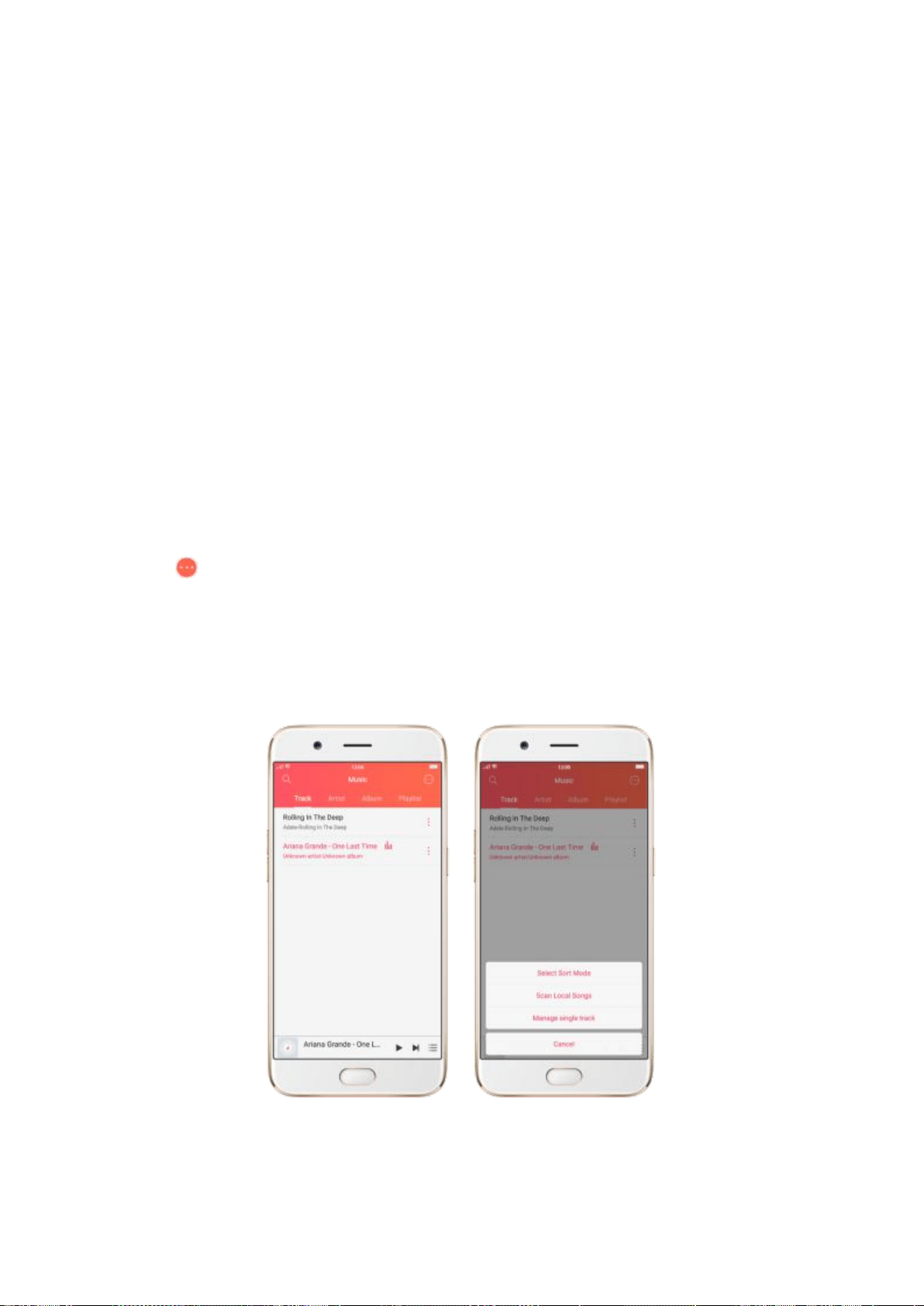
View details. Click to view the name, artist, album, format, size and storage
location of a song.
Delete song. Remove the song from the playlists and your phone storage.
7.8.2 Change sort mode
By sorting your playlist, you can easily order the songs in your phone.
Change the order of your songs. From the Music screen, click Track,
click in the upper-right corner of the screen, then click Select Sort Mode.
Your songs can be sorted alphabetically, by time when the song is added, or
by folders the songs are in.
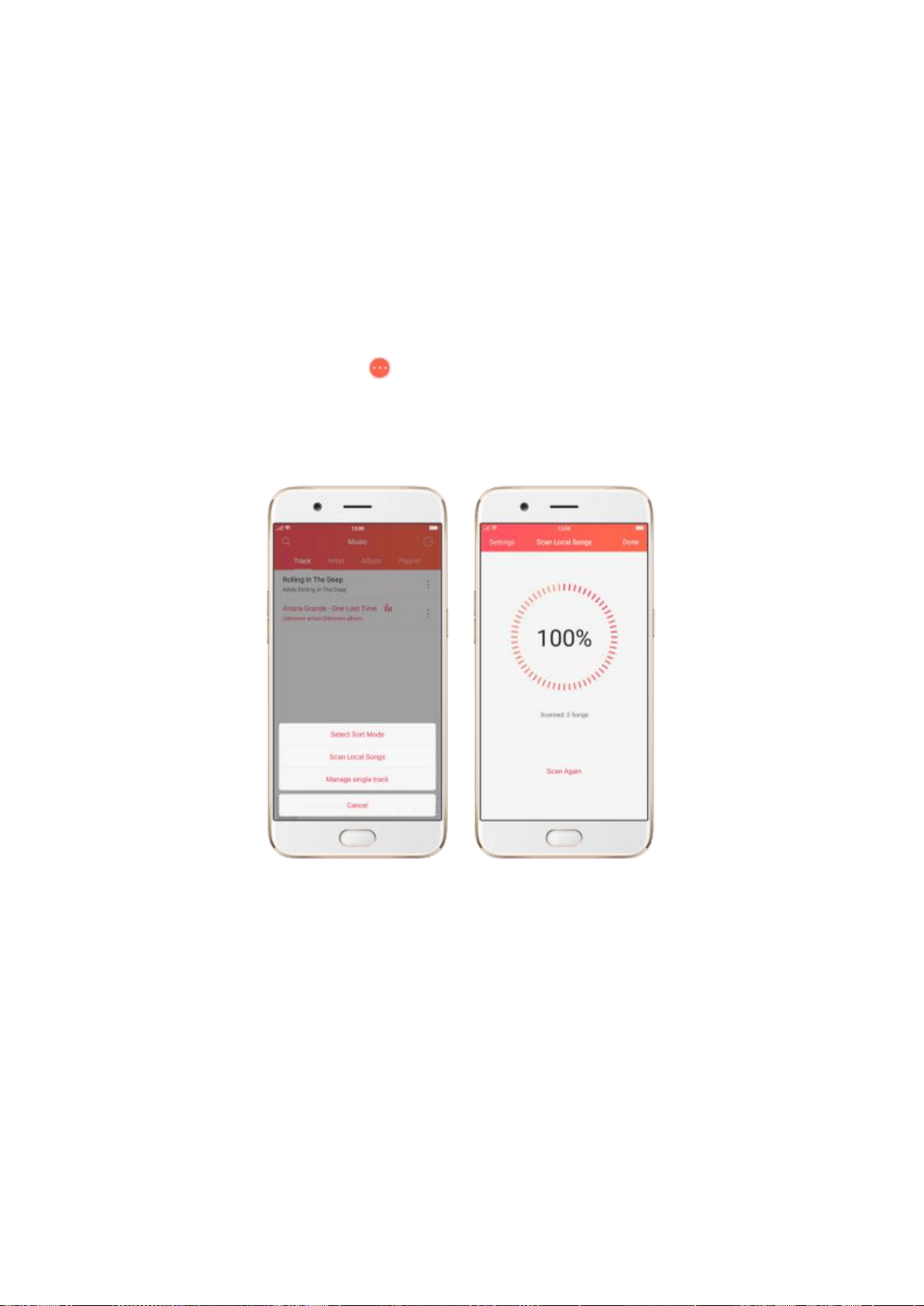
7.8.3. Scan local songs
The Music app contains all music-related materials on your phone storage. To
manually scan for local songs, or choose which songs can be displayed in
your list, do the following:
Scan all local songs. Click in the upper-right corner of the Music screen,
then click Scan Local Songs. Your phone will automatically start scanning.
Scan specific folders. Click Settings, click Scan specific folders, then choose
the folders you want the phone to scan for. Go back to the Scan Local Songs
screen, then click Scan again.
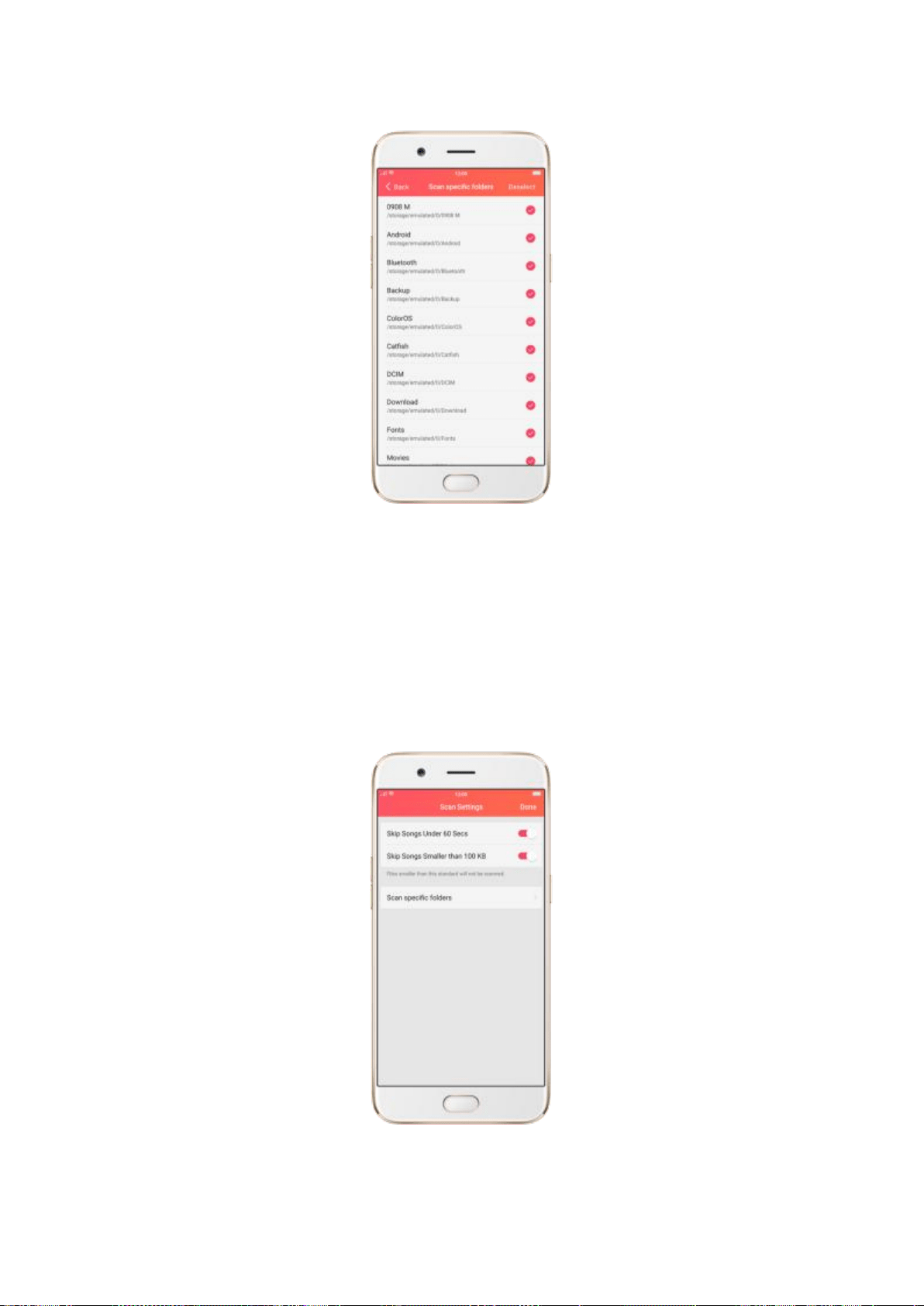
Filter audio files. To filter tracks that are too short (under 60 seconds) and
too small (under 100KB), toggle the sliders to red.
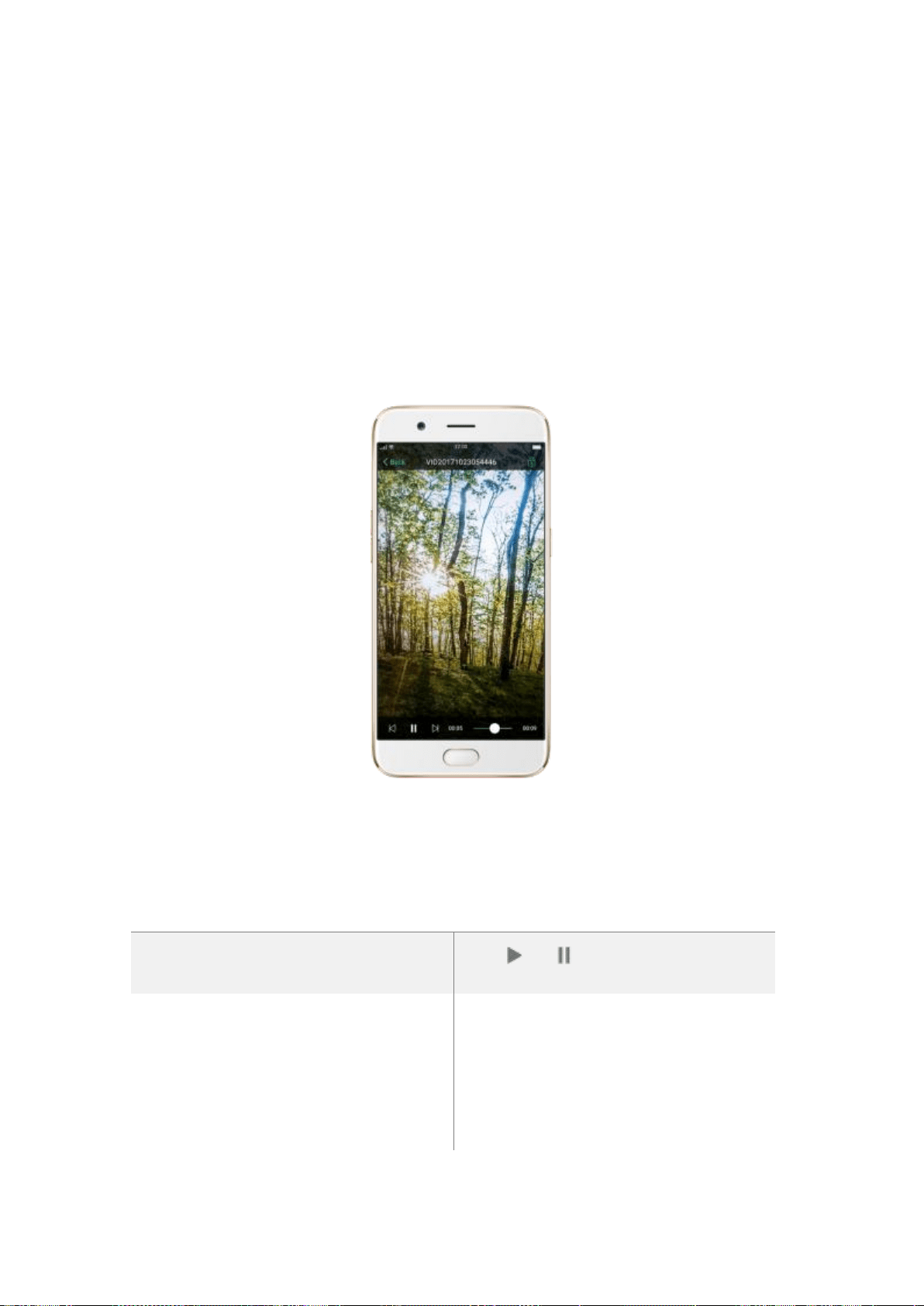
7.9.Videos
Use Videos to watch videos you’ve downloaded or taken with the built-in camera.
Play a video. Click Videos on the Home screen, then click the video.
Control video playback. Click the screen to show or hide the controls.
TO
DO THIS
Play or pause a video
Click or .
Raise or lower the volume
Click the volume buttons on the side of
the phone, or swipe your finger up or
down on the right side of the screen.

Increase or dim the brightness
Swipe your finger up or down on the
left side of the screen.
Skip to the next or previous video
Click or .
Rewind or fast-forward
Swipe your finger left or right on the
screen.
Start a video over
Click twice quickly.
Skip to any point in a video
Drag the playhead left or right.
Lock the screen rotation and disable
bottom keys
Click .
Send videos. From the Videos screen, click Select, choose videos, click Send, then
choose an option for sending the video (for example, Messages, Mail, third-party apps,
and so on).
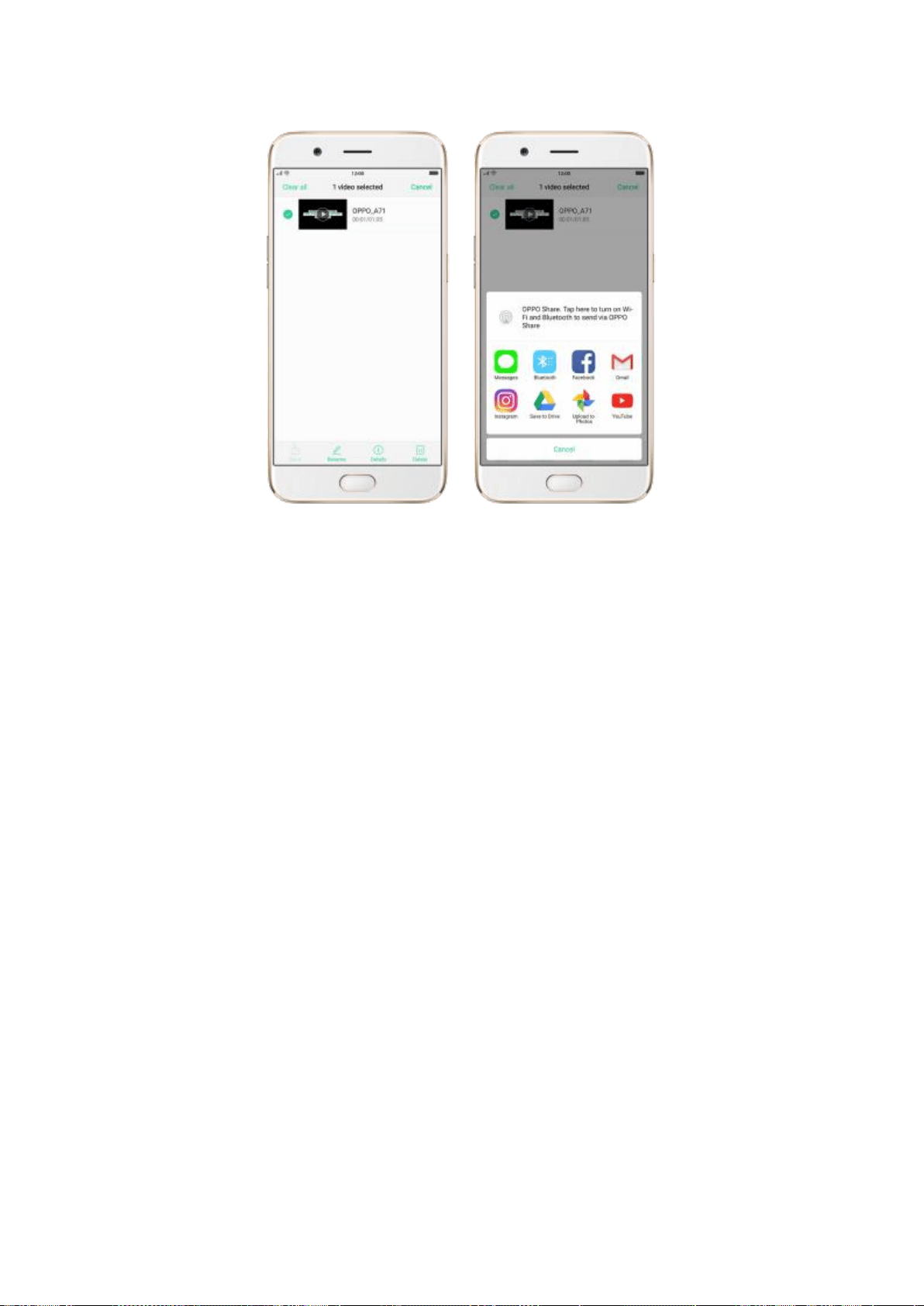
Rename a video. Click Select, choose a video, then click Rename. Enter the name, then
click Save.
See details about a video. Click Select, choose a video, then click Details.
Delete videos. Click Select, choose videos, click Delete, then click Delete videos.
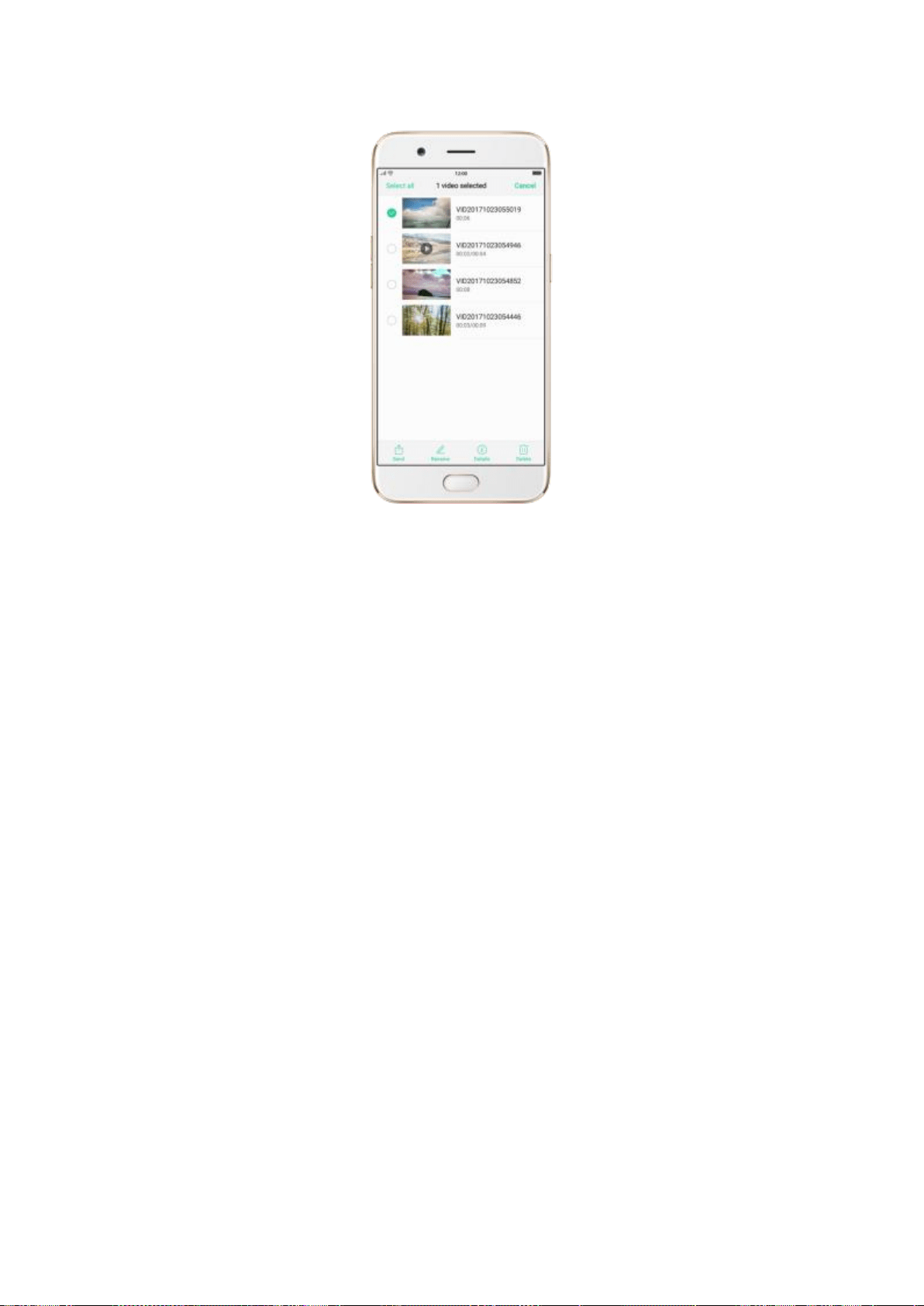
7.10. Theme Store
7.10.1. Online phone theme
A phone theme refers to the general look and feel of the phone’s user interface. It
changes color schemes for background images, icons, and more. The entire phone’s
functions will not be affected.
Change the phone theme. Click Theme Store on the Home screen, then click Themes.
Click your desired theme, click Download, then click Apply and wait a few seconds for
the changes to apply.
Tip: Your phone will suggest similar themes based on the ones you’ve viewed or
downloaded.
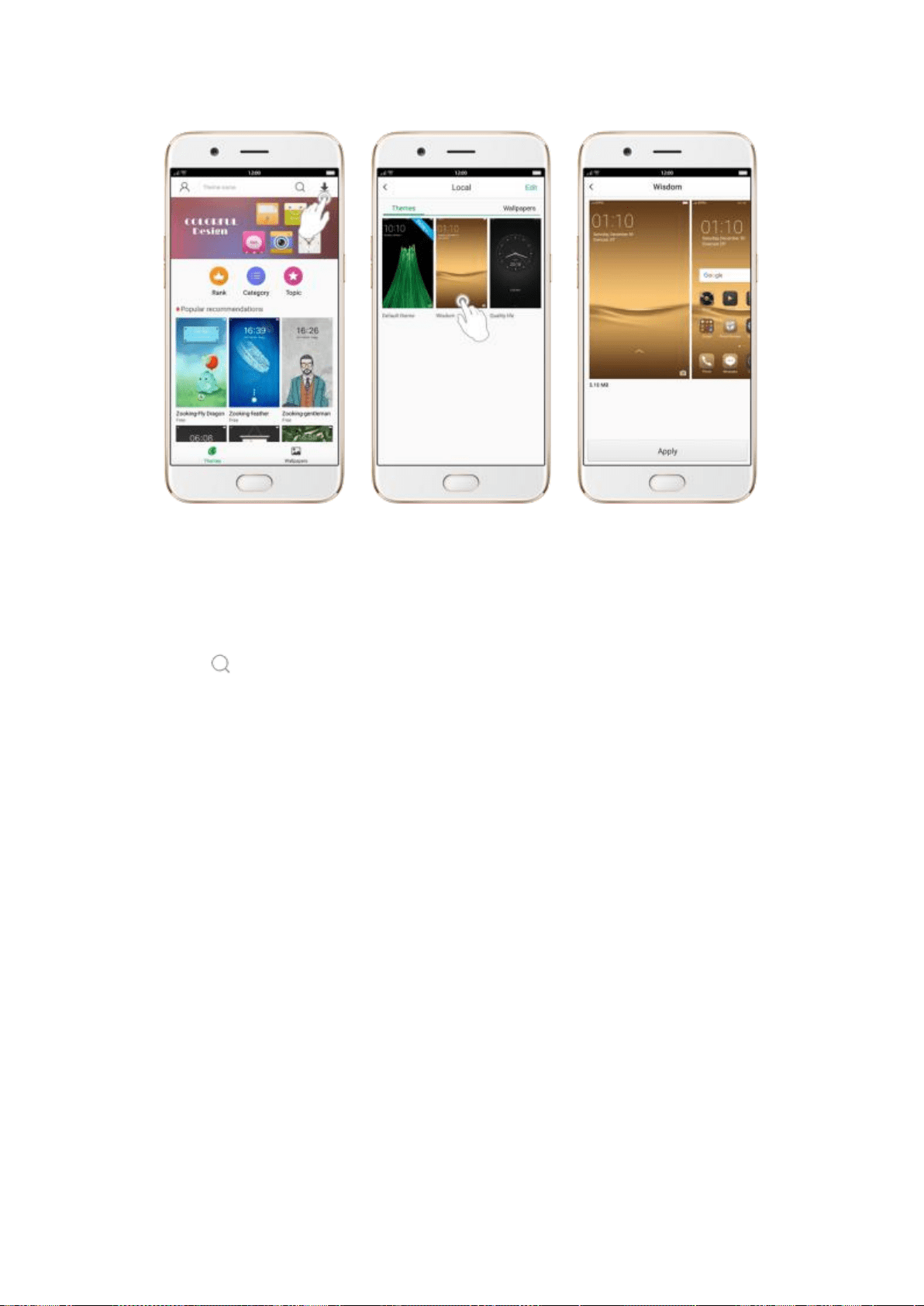
Search a theme. Click the search bar on the top of the screen, enter the theme name,
then click .
7.10.2. Online wallpaper
In addition to use your photos as wallpaper, you can get some more wallpapers online
from Theme Store.
Change the wallpaper. Click Theme Store on the Home screen, then click Wallpapers.
Click your desired wallpaper, click Download, then click Apply.
Drag to move the image. Or pinch to zoom in and out, so the image fits the screen. Click
Set as to set the wallpaper as your Home screen or Lock screen.
Note: Lock screen image can only be changed in this way in phone default theme. If you
use other phone themes, change the lock screen image in [Settings] > [Display &
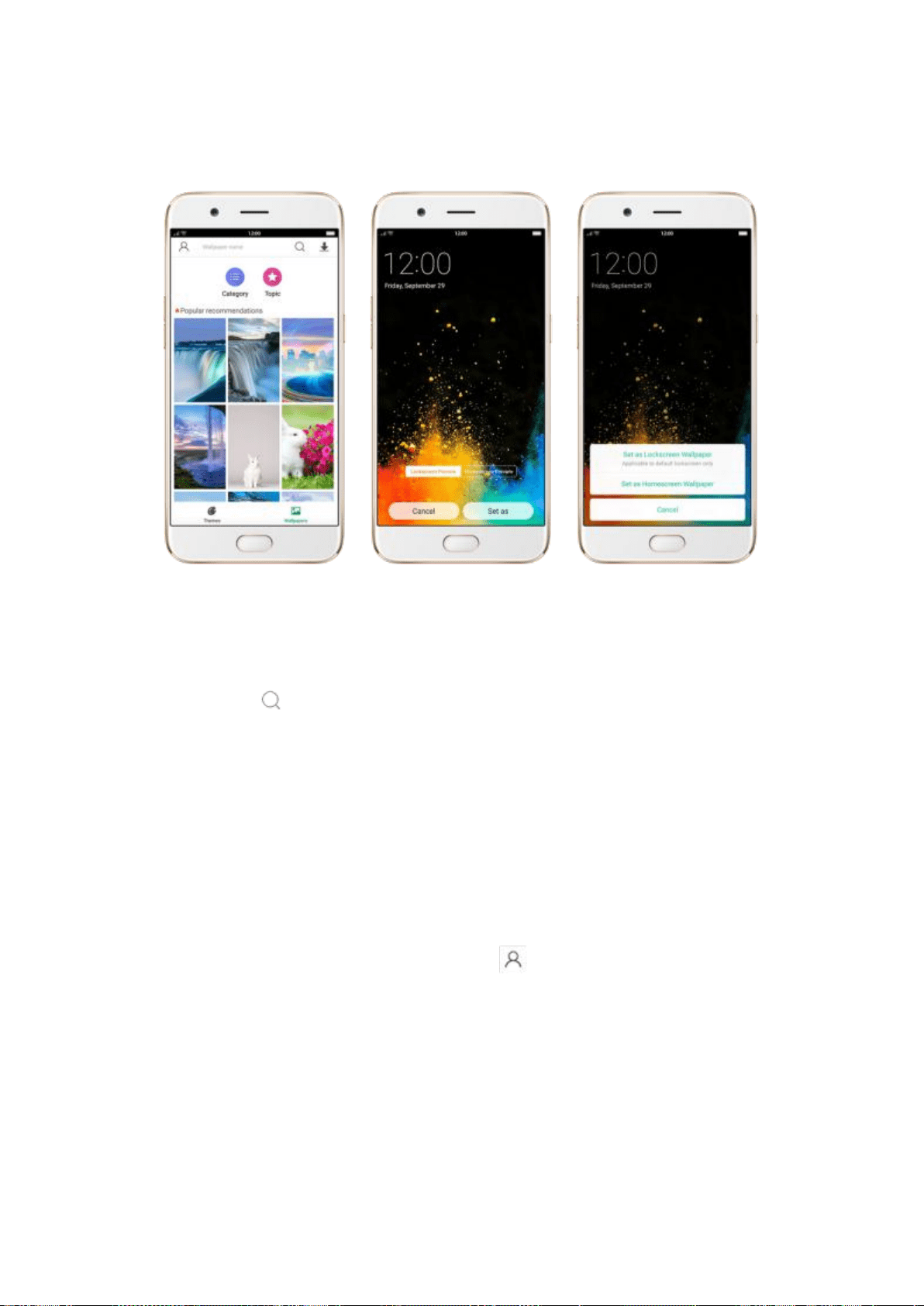
Brightness] > [Lock Screen Magazine & Wallpaper].
Search a wallpaper. Click the search bar on the top of the screen, enter the wallpaper
name, then click .
+
7.10.3. My profile
You can change Theme Store settings in My profile.
Open My profile. Click Theme Store, then click . You need to login to your OPPO
account first.
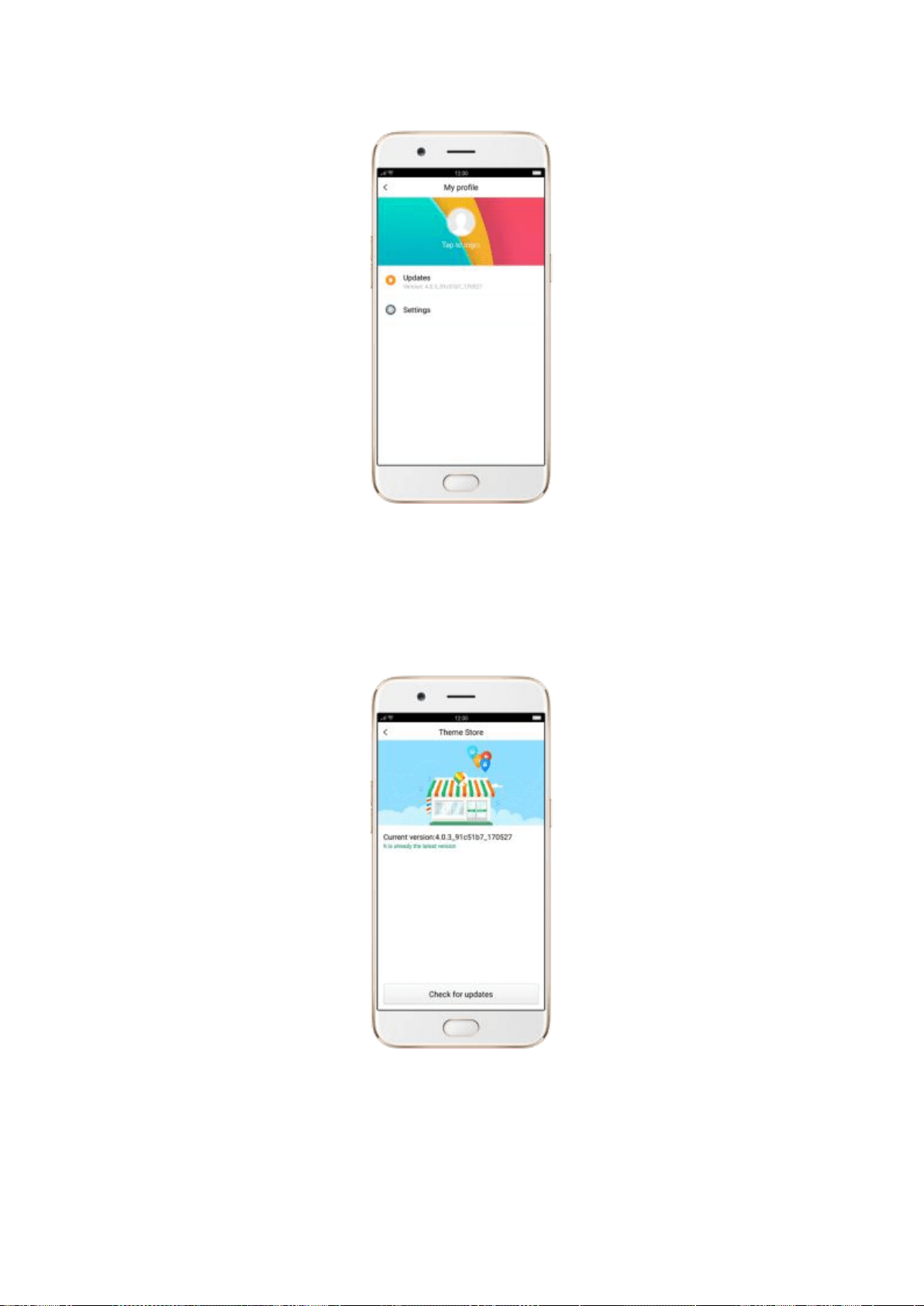
Update the Theme Store app. Click Updates, then click Check for updates.
Download with a mobile data connection. Click Settings, then toggle the 2G/3G/4G
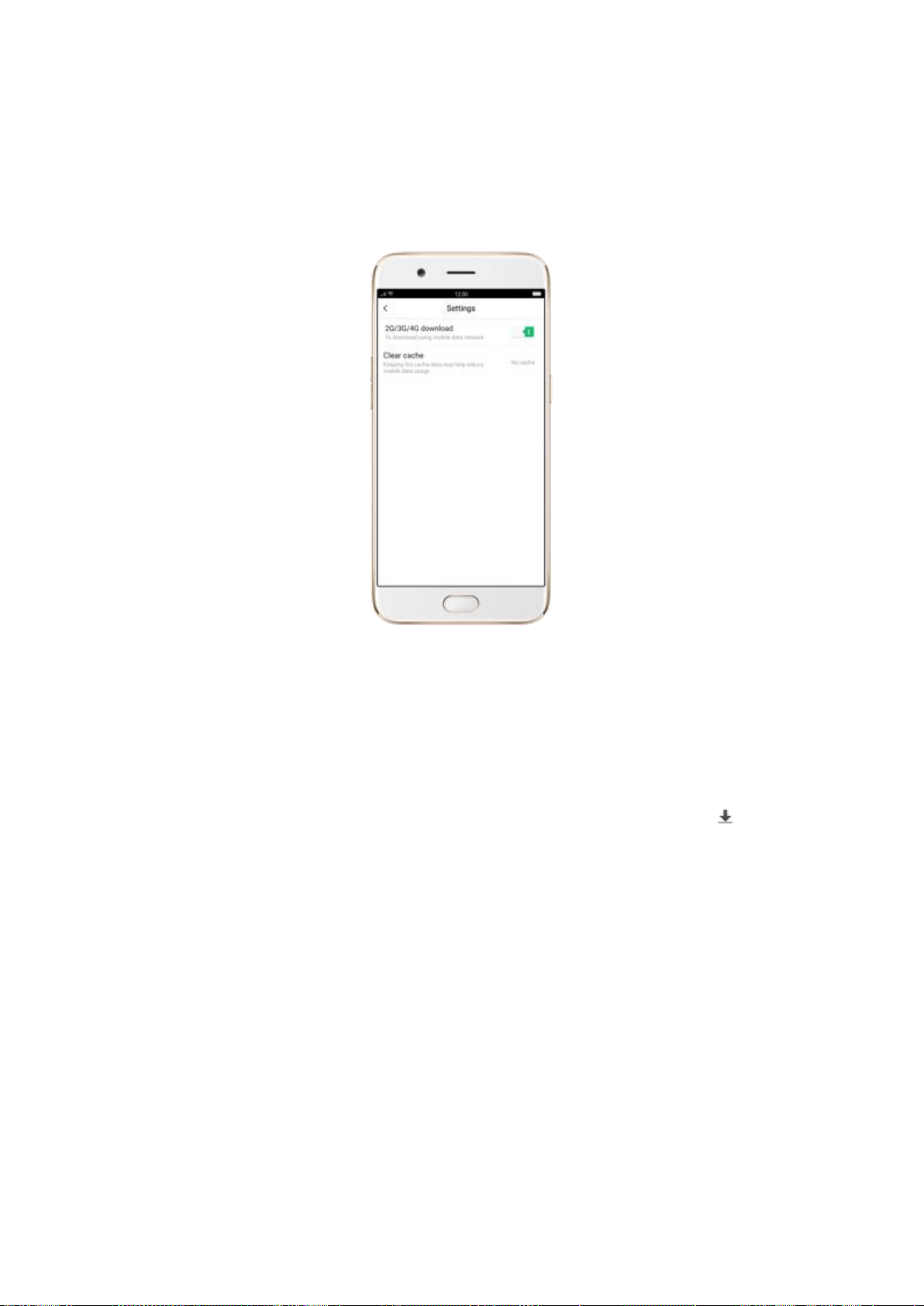
download slider to green.
Clear app cache. Tap on the “Clear cache”.
7.10.4. Manage your downloads
You can view and delete your downloaded themes and wallpapers in Local.
View and change phone theme or wallpaper. Click Theme Store, then click in the
upper-right corner of the screen. Click a theme or wallpaper, then click Apply. See
Change the wallpaper and theme on your OPPO smartphone.
Delete downloaded themes and wallpapers. Click Edit, select the themes and
wallpapers you want to delete, respectively, then click Delete.
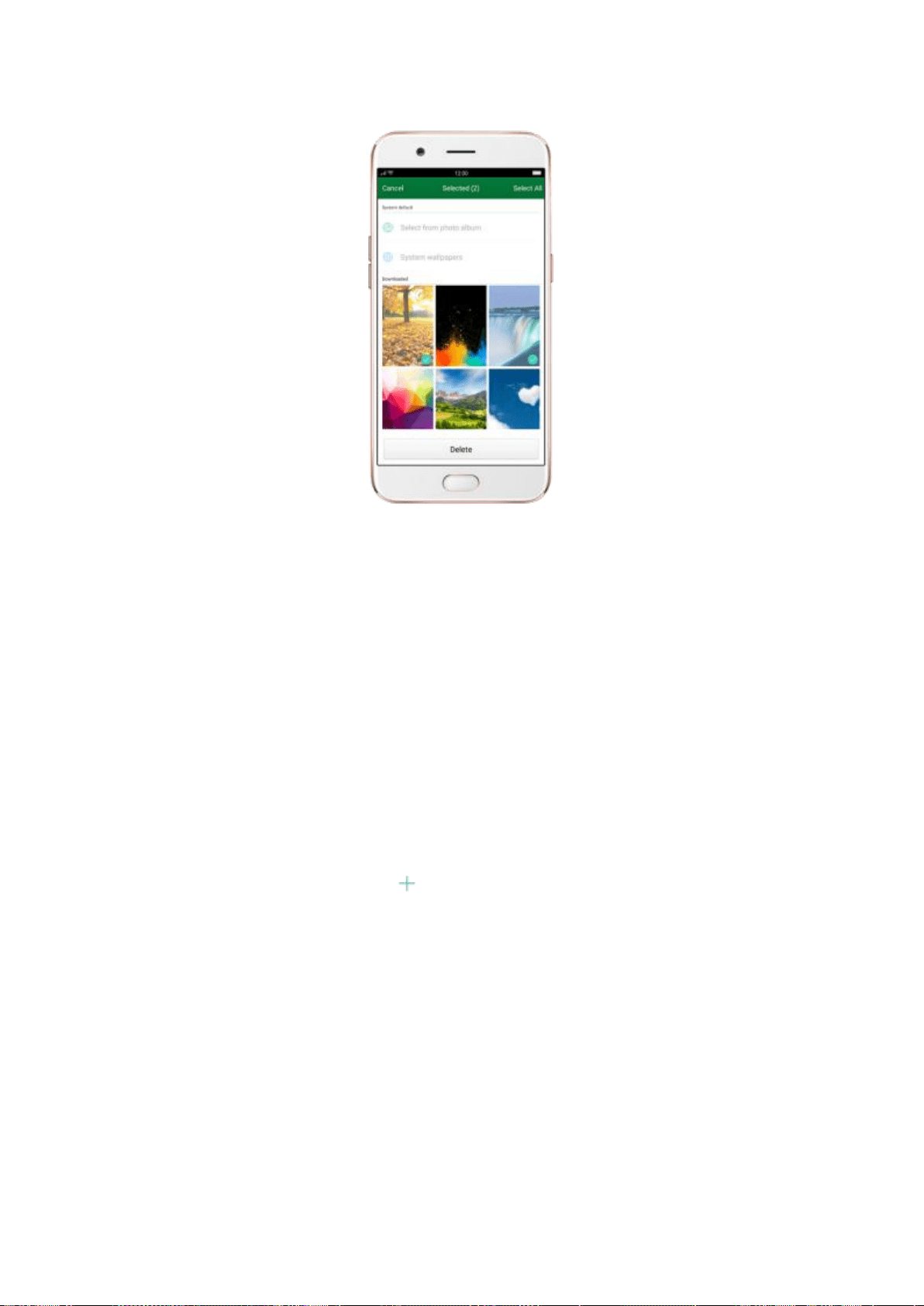
7.11. Clock
7.11.1. Set Alarm Clocks
With the Clock app, you can set an alarm that plays a sound at a specific time, so you will
be reminded to do things in time and your doze won’t go overtime. You can also set
multiple alarms, set each alarm to repeat on days you specify, or to sound only once.
Set an alarm. Click Alarm and click , scroll wheels to change the time, then adjust any
of the following settings:
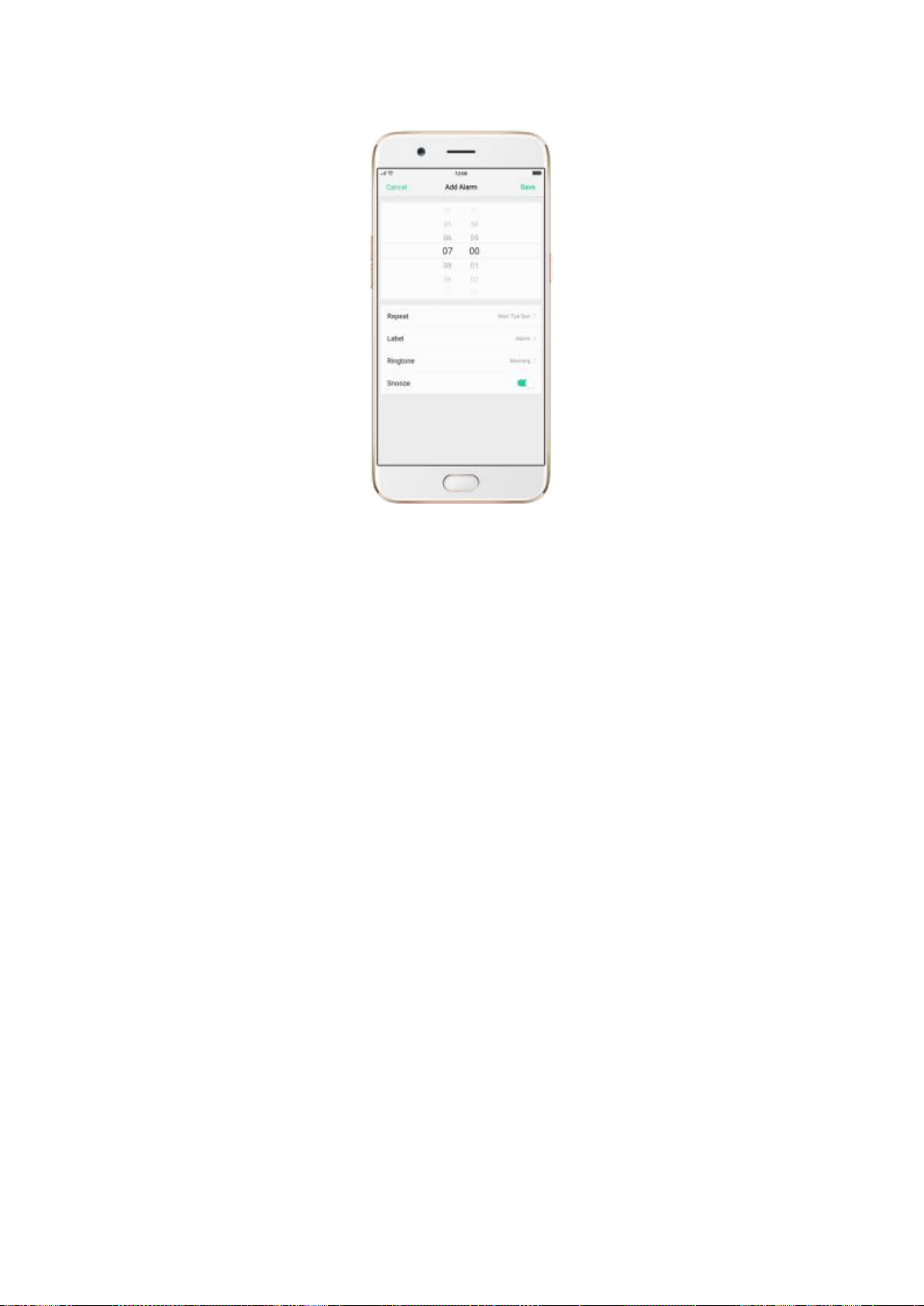
To set the alarm to repeat on certain days, click Repeat and choose the days.
To give the alarm a description, click Label. Your phone displays the label when
the alarm sounds.
To choose the ringtone that sounds when the alarm goes off, click Ringtone.
To set whether the alarm gives you the option to hit snooze, turn Snooze on or
off.
If Snooze is on and you click Snooze when the alarm sounds, the alarm stops
and then sounds again in five minutes.
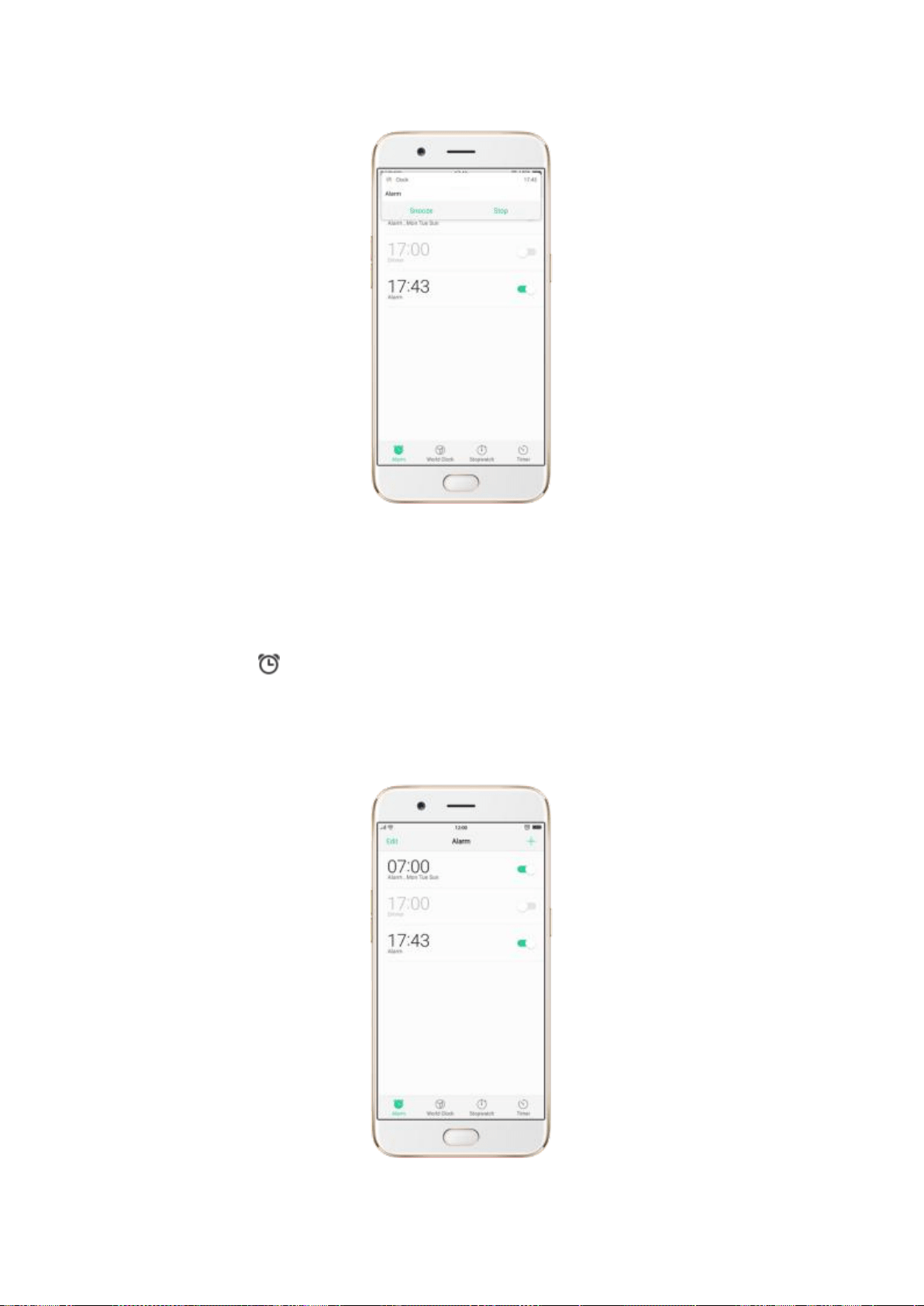
Turn an alarm on or off. Toggle the slider to green or white. If at least one alarm is set
and turned on, appears in the status bar at the top of the screen.
Tip: The alarm still works if your phone is turned off.
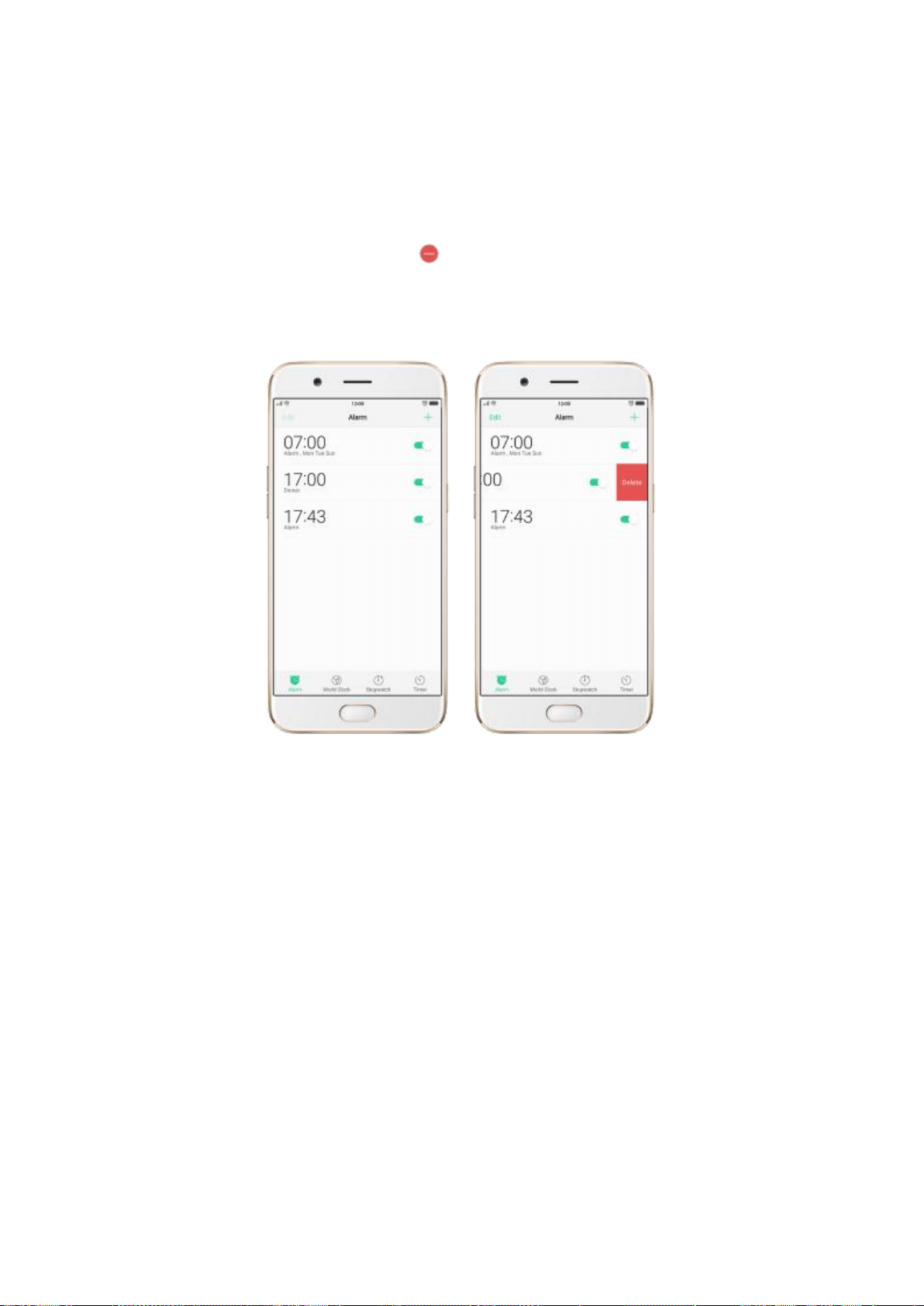
Change settings for an alarm. Click the alarm.
Delete an alarm. Click Edit, then click next to an alarm and click Delete. Or swipe left
on the alarm, then click Delete.
7.11.2. Add and view clocks for locations around
the world
You can add multiple clocks to show the time in major cities around the world.
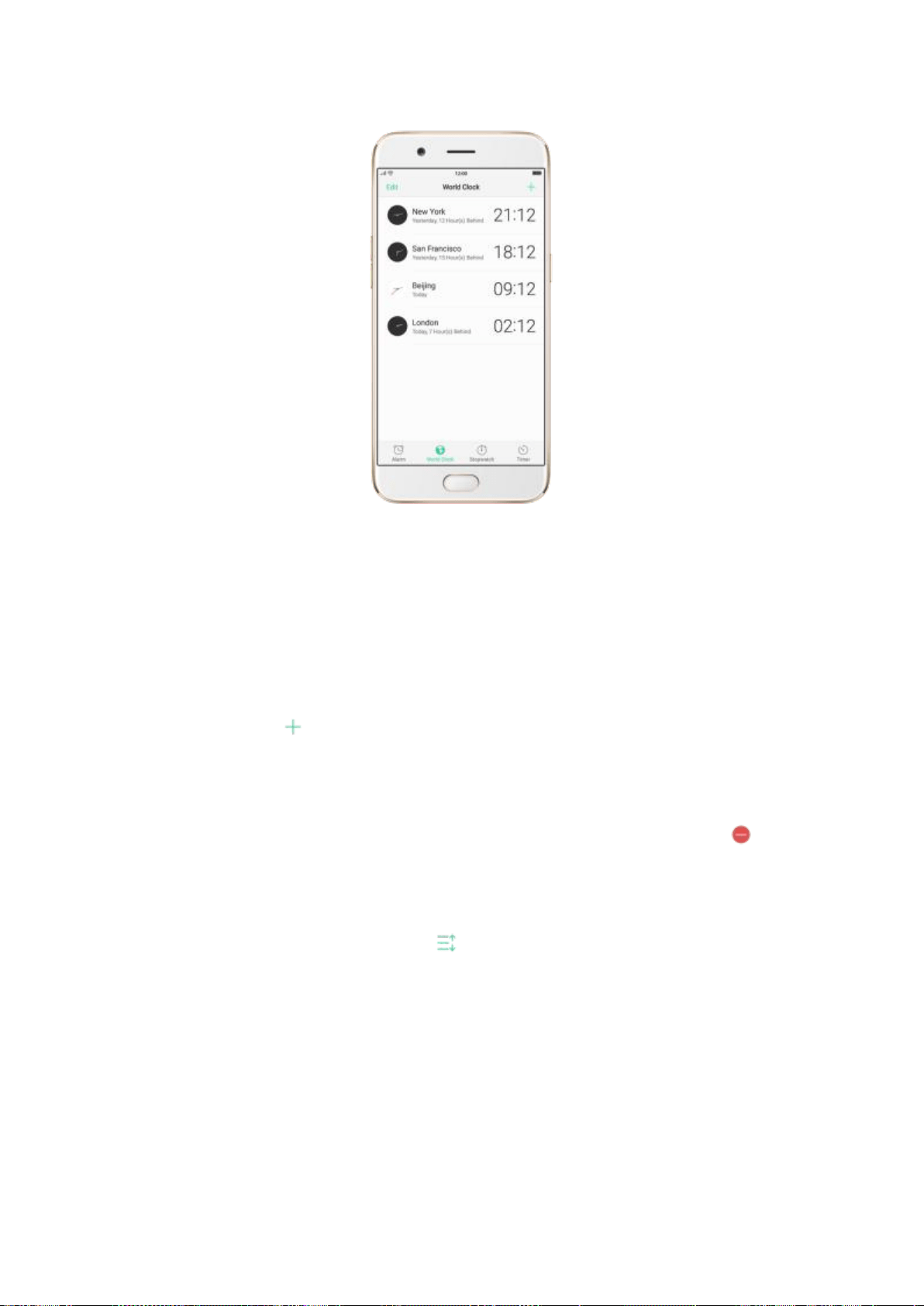
View clocks. Click World Clock. If the clock face is white, it’s daytime in that city. If it’s
black, it’s nighttime.
Add a clock. Click and type the name of a city. Cities matching what youve typed
appear below. Click a city to add a clock for that city.
Delete a clock. Swipe left on the clock, then click Delete. Or click Edit, then click next
to a clock and click Delete.
Rearrange clocks. Click Edit, then drag next to a clock to a new place in the list.
7.11.3. Use the stopwatch
You can measure the duration of an event with the stopwatch.
Use the stopwatch to measure time. Click Stopwatch. Click Start to start the stopwatch.
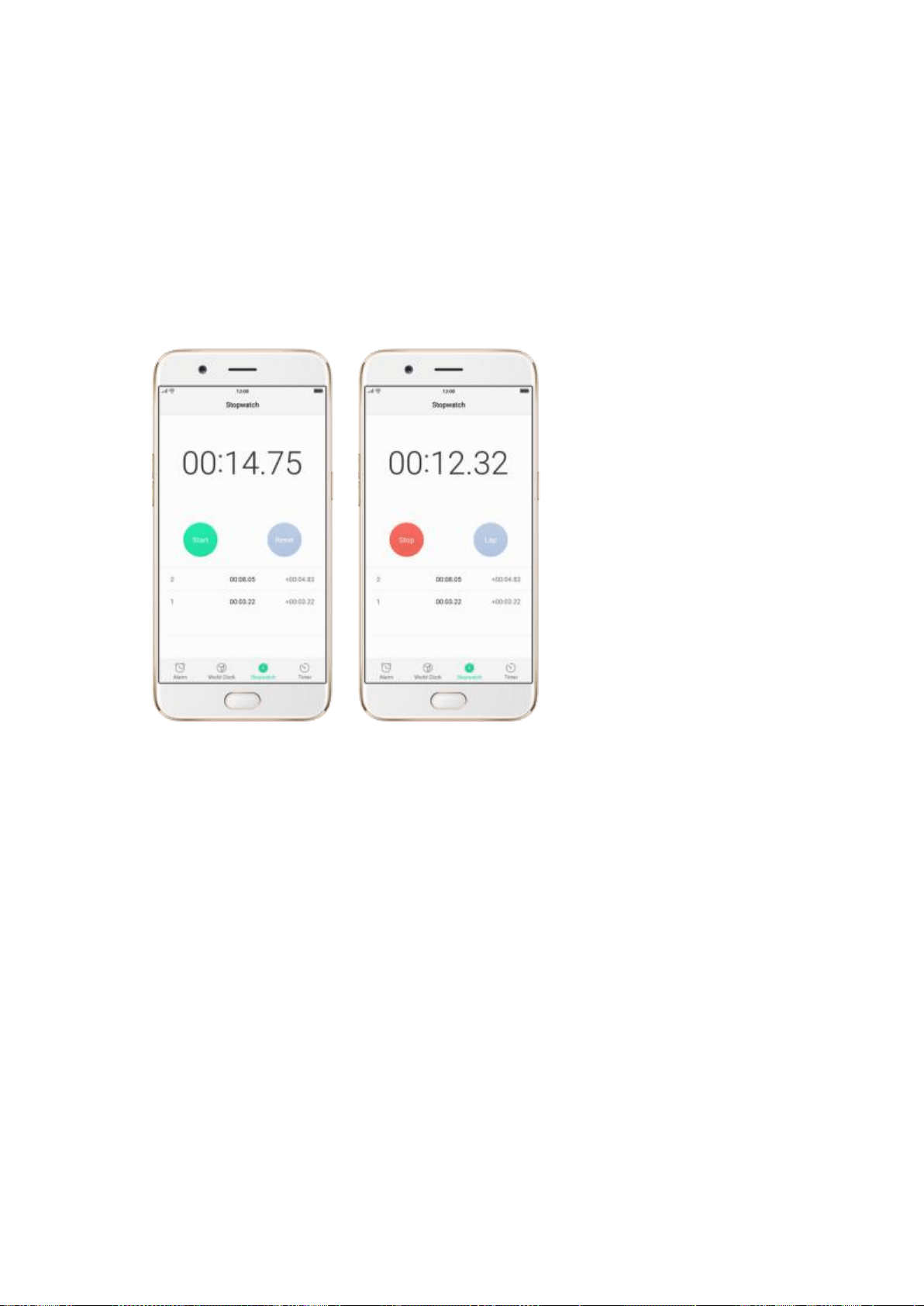
To record lap times, click Lap after each lap. Click Stop to pause the stopwatch. Then
click Start to resume, or click Reset to reset the stopwatch to zero.
If you start the stopwatch and go to another application, the stopwatch continues
running in the background.
7.11.4. Set the timer
In the Clock app, you can count down from a specified time with the timer.
Set the timer. Click Timer, then scroll the wheels to set the duration of time.
If you start the timer and go to another application, the timer continues running in the
background. When the timer ends, your phone sounds and vibrates to prompt you to
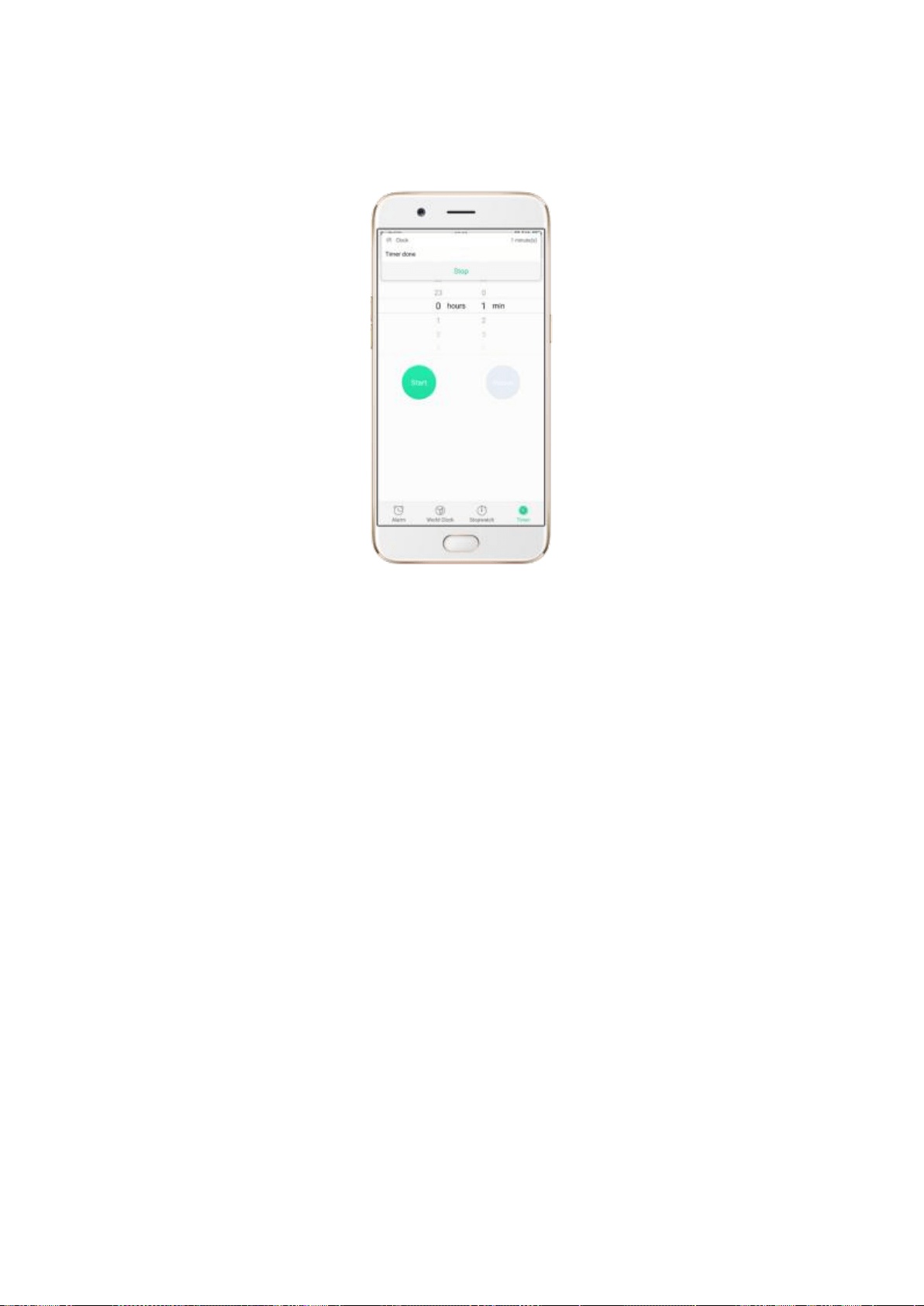
stop the timer.
7.12. Files
7.12.1. Fast file browsing
The Files app automatically categorizes your files based on their extensions so you can
browse them more clearly and conveniently.
Fast file browsing. Click Files, then you’ll see all nine categories, including Audio, Videos,
Photos, Documents, and more. Click a category to browse and manage files.
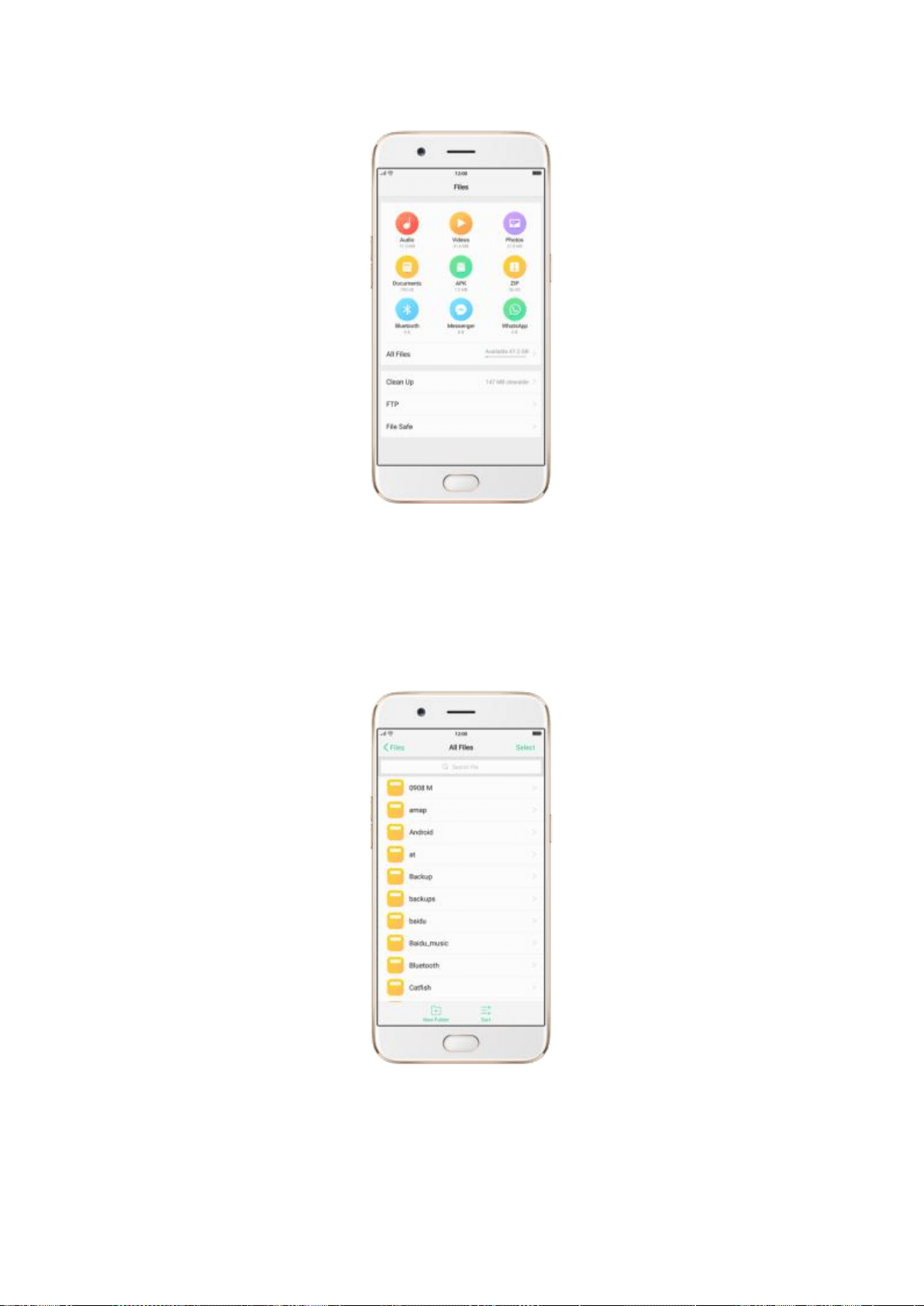
7.12.2. View and manage files
The Files app provides you various ways to manage your files and folders.
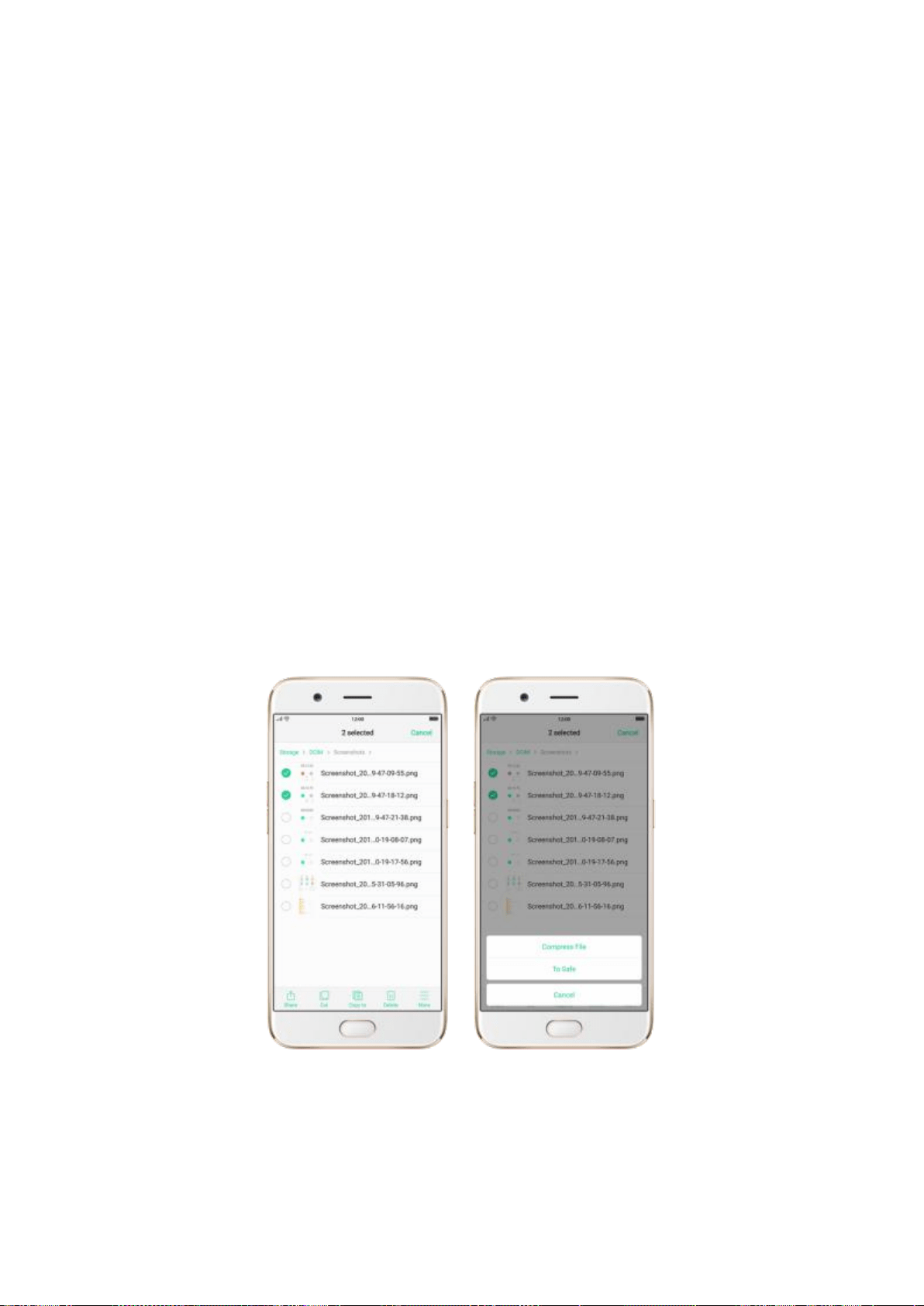
Search a document or folder. Click All Files, click the search bar, then enter the name of
a document or folder.
Create a new folder. Click New Folder. Enter the folder name, then click Save.
Sort files and folders. Click Sort, then choose to sort your files and folders by name, size,
type or the time they were generated.
Share, move, copy, delete, compress, rename a document or a folder. Click Select,
choose the document or folder, then choose an option.
Move documents to Safe and set a password to lock them. Click Select, choose the
documents, click More, then click To Safe. Folders cannot be moved to Safe. See File
Safe.
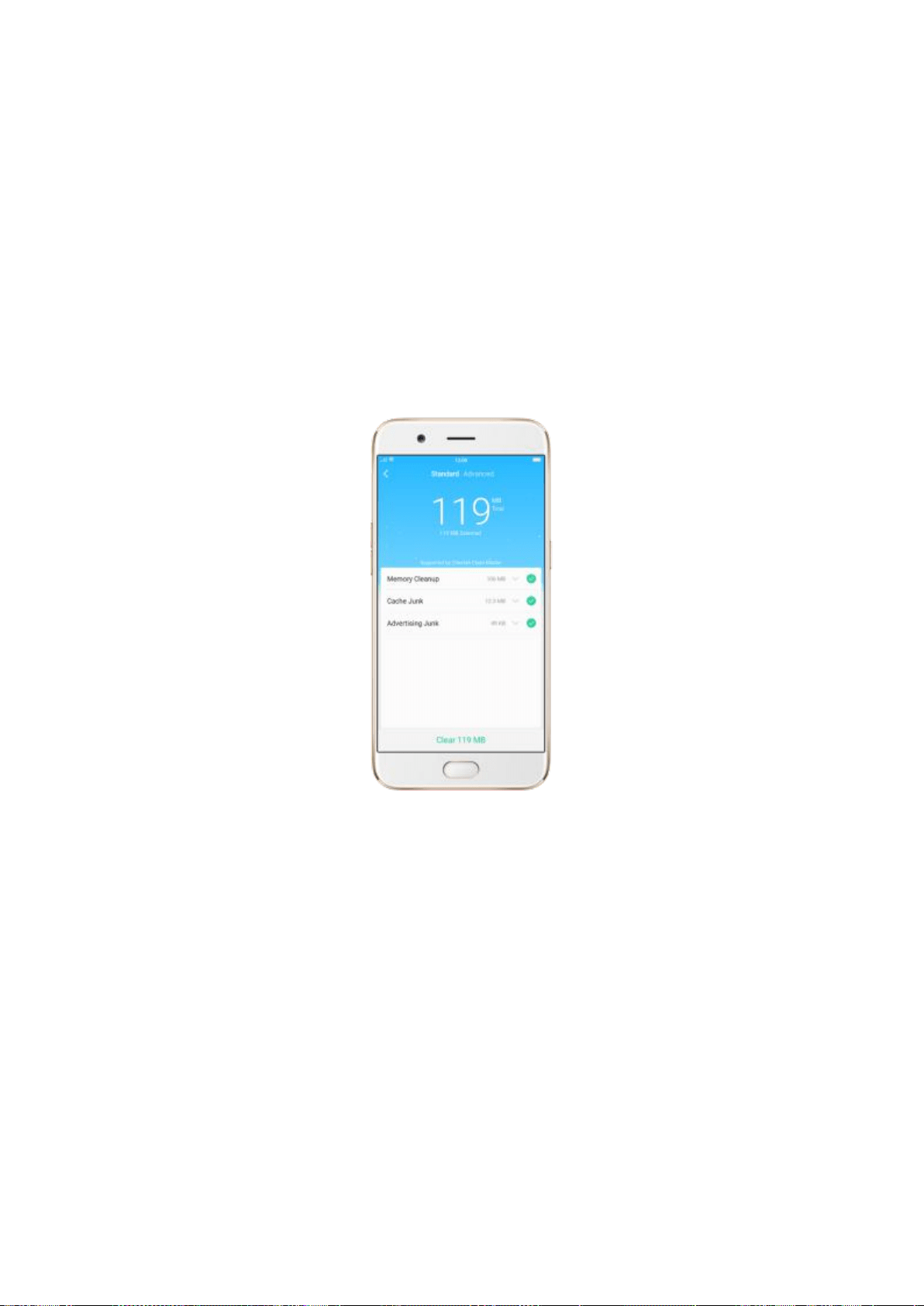
7.12.3. Fast cleanup
Use Clean Up feature to quickly detect and remove hidden temp, cookie and cache files
generated by inner calculations and data exchanges to free up more storage space.
Clean up junk files. Click Files, then click Clean up. Your phone will thoroughly scan for
junk files and APKs, and lets you choose files to be deleted, then click Clear.
Free up more storage space. Click Advanced, then remove your App data and
downloads (including videos, pictures, music, documents, ZIP and miscellaneous files).
To manage all your data, click File Management and go to Files.
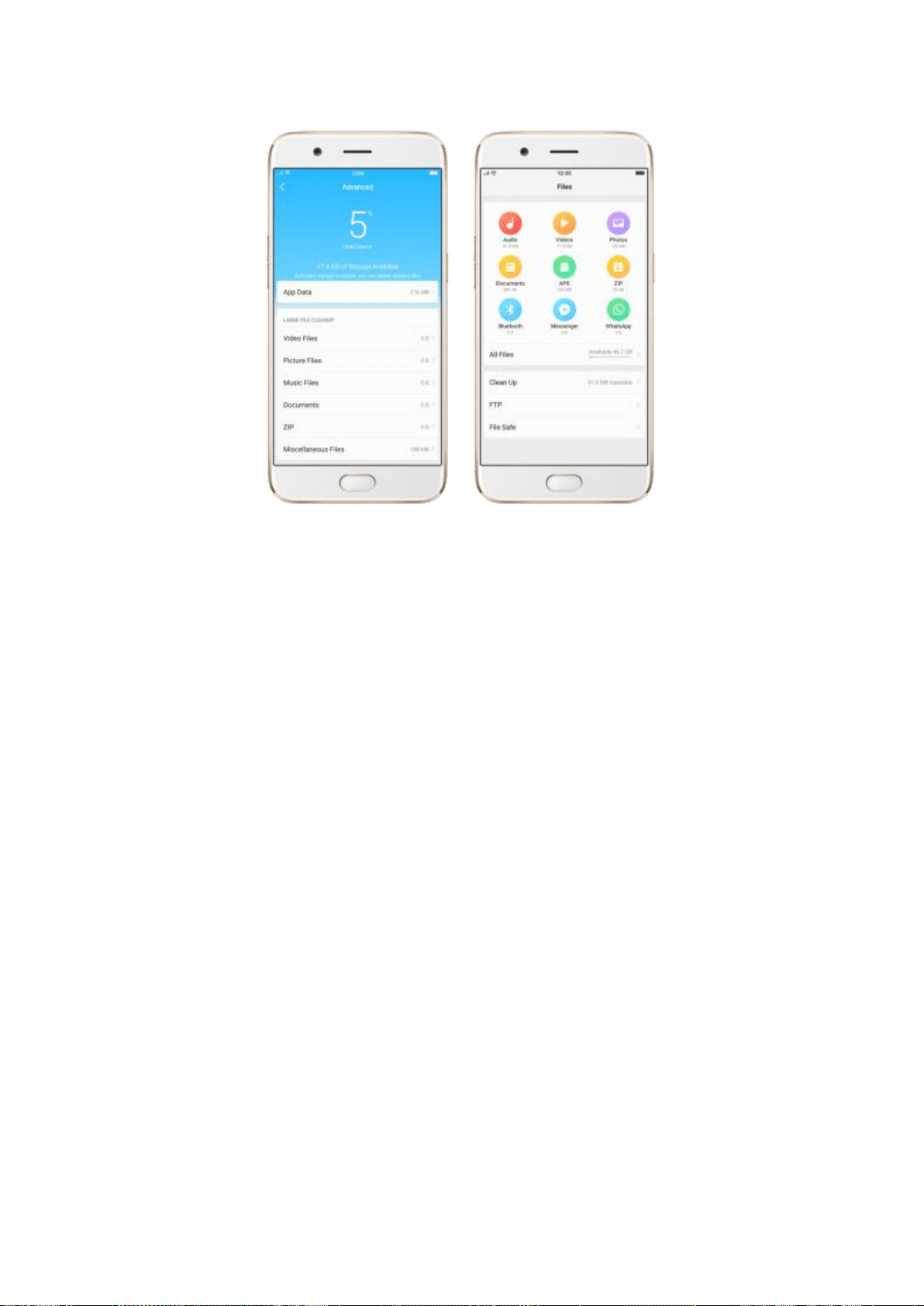
7.12.4. FTP
FTP can turn your phone into a FTP server so you can view and download files on your
phone remotely from your computer.
Use FTP to view and download files. Click Files, then click FTP. Connect to a Wi-Fi
network, then click Start Service. Search the URL displayed on your phone screen with
your computer, then you can view your phone’s file system and download files directly to
your computer.
Note: Make sure that your phone and computer are connected to a same Wi-Fi network.
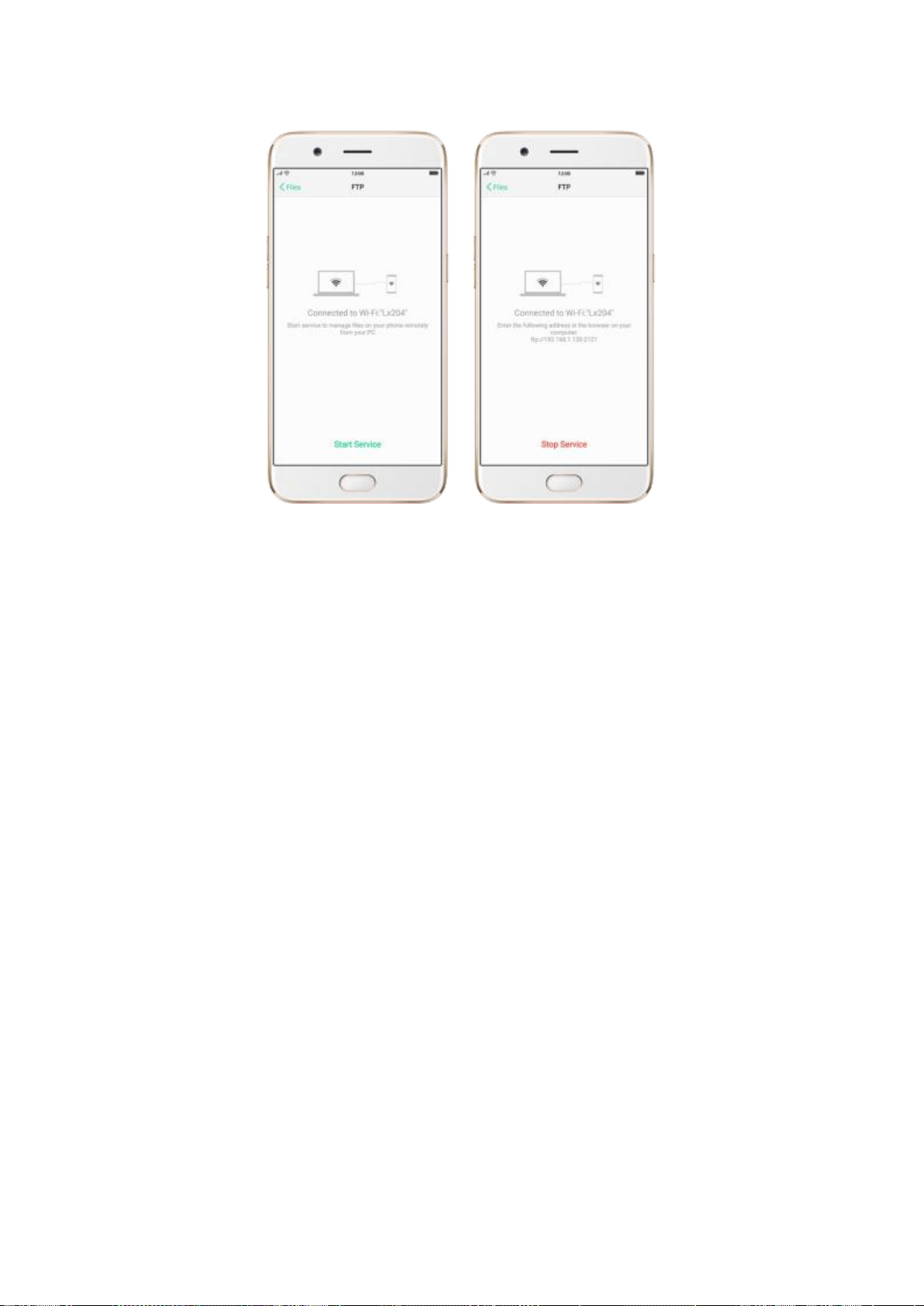
7.12.5. File Safe
To keep your private files strictly confidential, you can move them into File
Safe and set a password to lock them.
Move files to File Safe. Click File Safe, set up the passcode, then click Add
File. You can also click All Files from the Files screen, select files, click More,
then click To Safe.
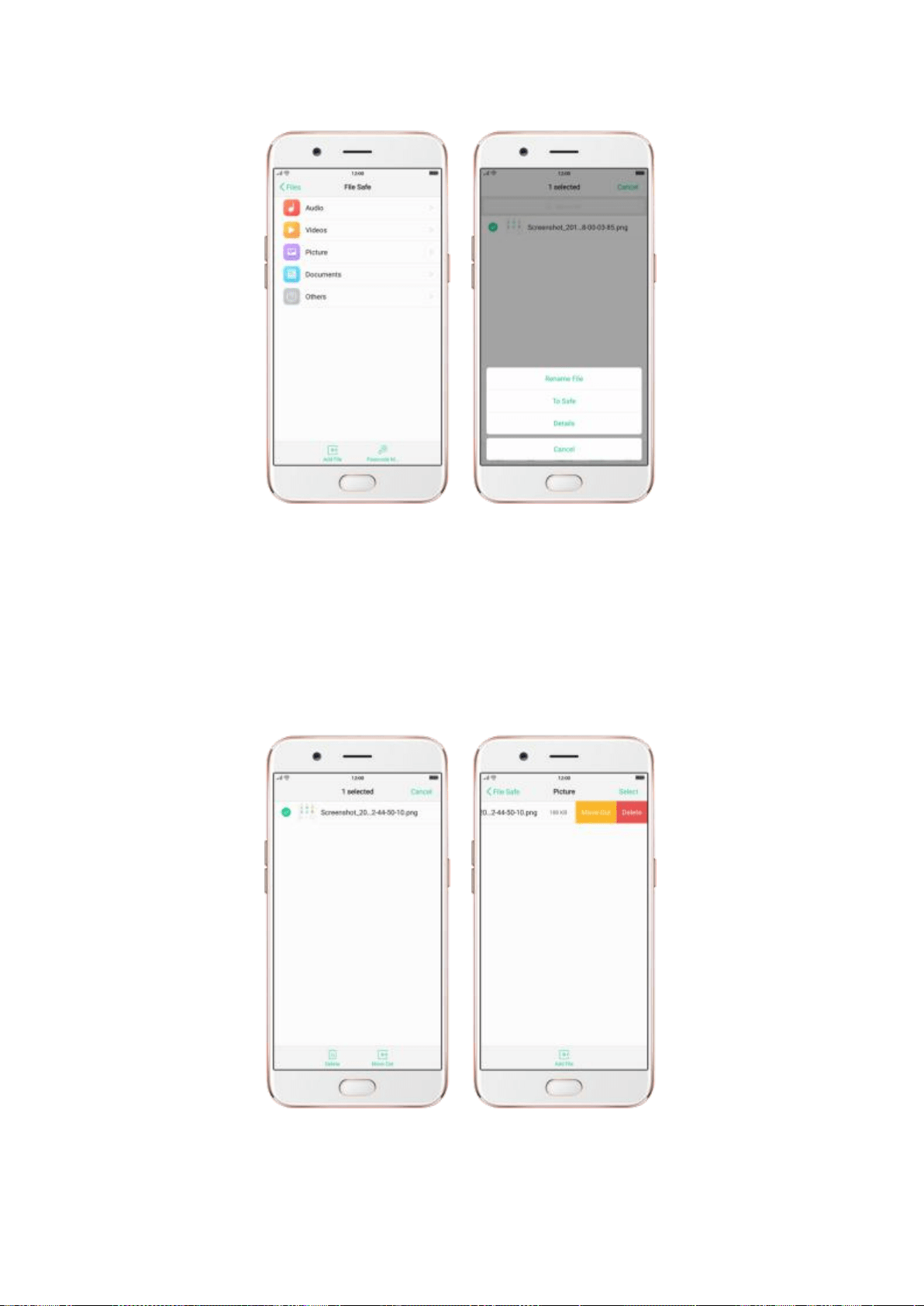
Move out or delete a file from File Safe. Enter File Safe, select the file, then
click Delete or Move Out. You can also swipe left on the file, then click Move
Out or Delete.

Change the passcode for File Safe. Enter File Safe, then click Passcode
Modification. Enter the old passcode, then set a new one.
7.13. Calculator
The Calculator app combines the standard and scientific calculators, which fits all objects
with different demands.
Delete the last digit. Click .
Clear the calculation results. Click .
Hide or show the keypad. Click in the middle of the screen to hide the keypad.
Click Calculate or the calculation formula to resume.
Use the scientific calculator. Rotate your phone to landscape orientation.
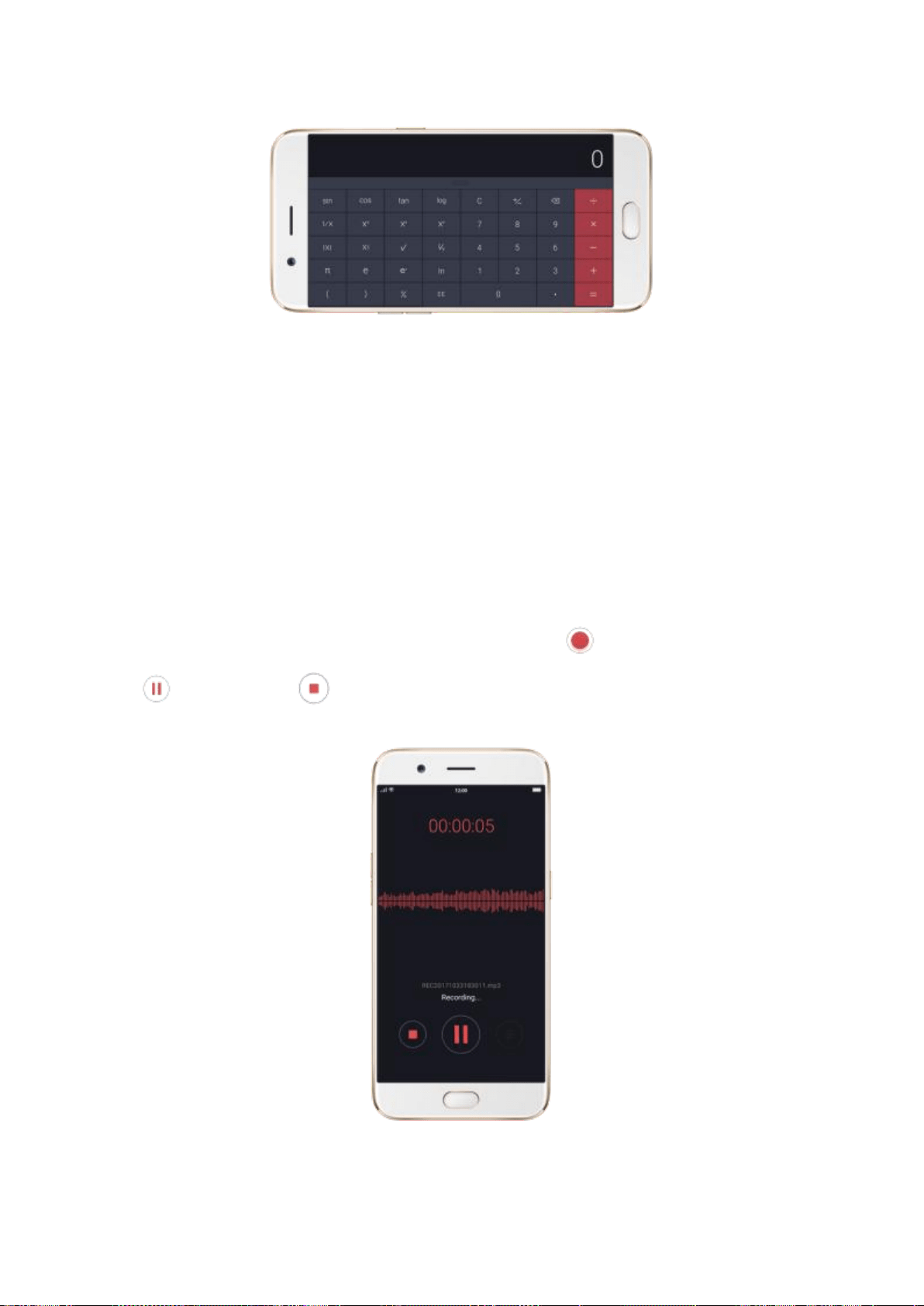
7.14. Sound Recorder
7.14.1. Record
With the Sound Recorder app, you can use your phone’s built-in microphone to record
sounds when you need it.
Make a sound recording. Open Sound Recorder, click to start recording. Click
to pause. Click to stop and save the recording.
If you start the sound recorder and go to another application, the sound recorder
continues running in the background. To return to Sound Recorder, click the red bar at
the top of the screen.
7.14.2. Manage recordings
Play the sound back. Open Sound Recorder, then click . You’ll see all
recordings on your phone. Click a recording to play it back.
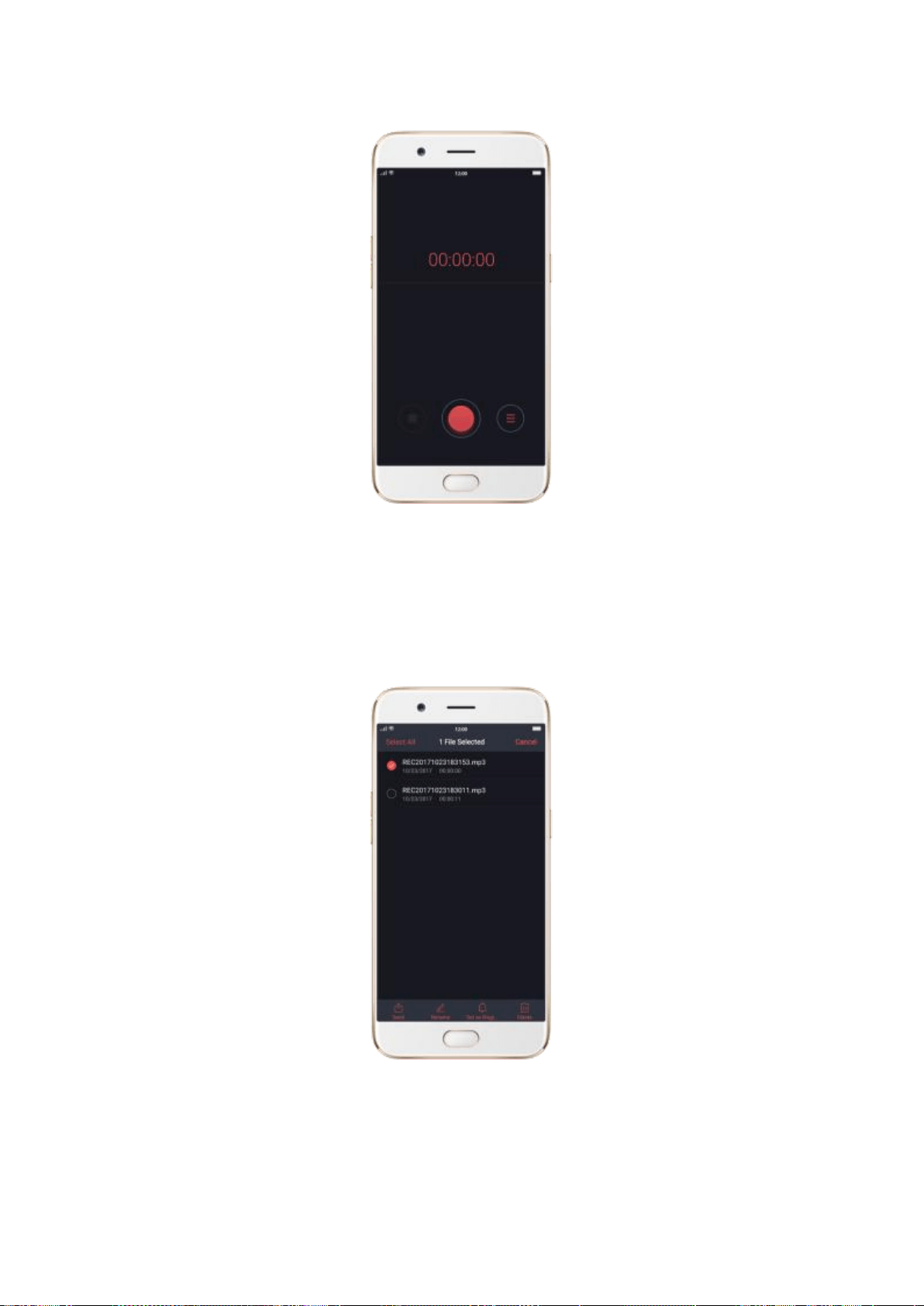
Send, rename or delete a recording. Click Select, choose the recording, then
choose an option.
Set the recording as ringtones. Click Select, choose the recording, click Set
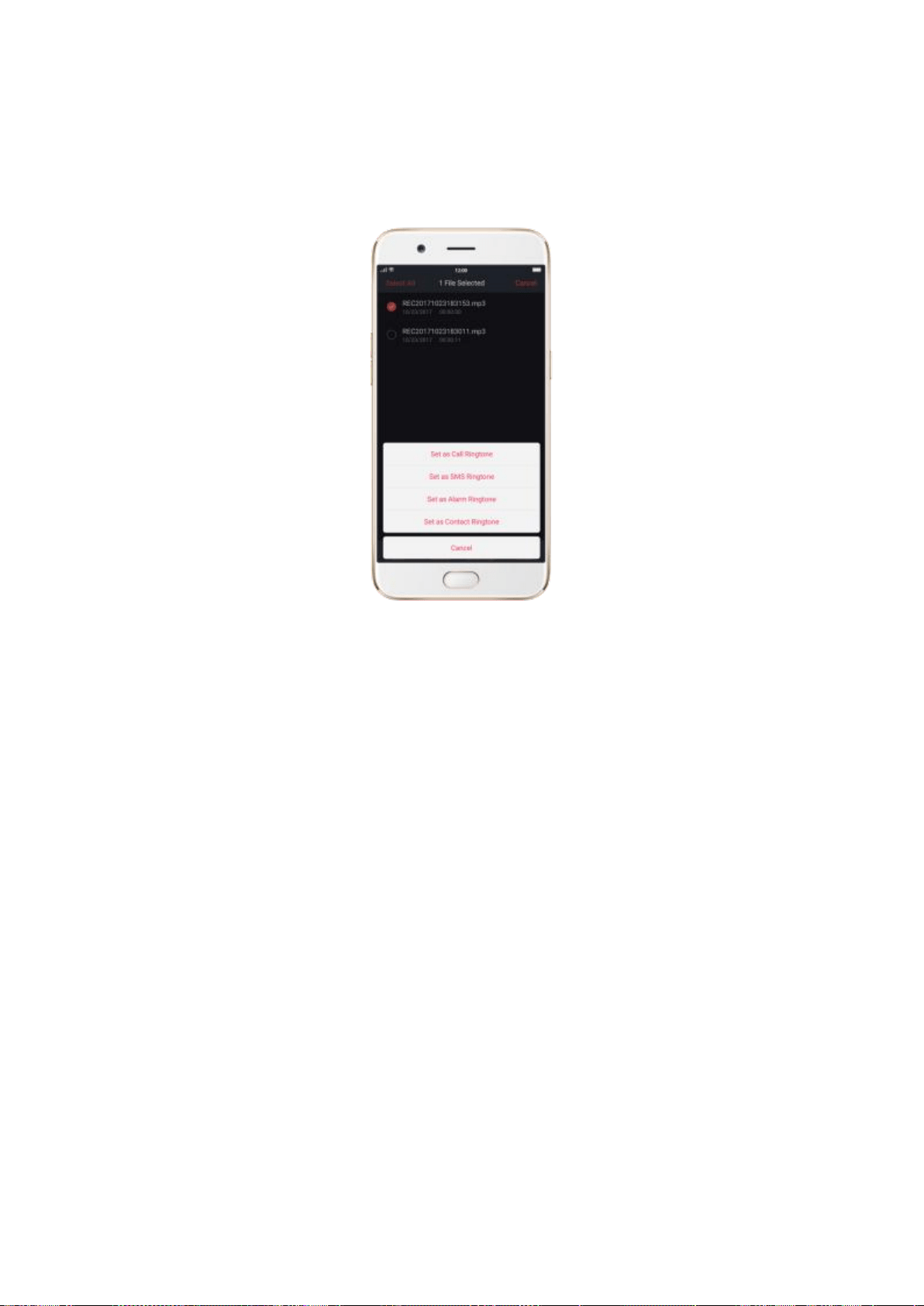
as Ringtone, then set the recording as the call, SMS, alarm or contact
ringtone.
7.15. Compass
You can use the compass app to quickly find the direction you’re facing.
Calibrate the compass when prompted. Move away from the interference and spin
your phone in the pattern of an infinity symbol.
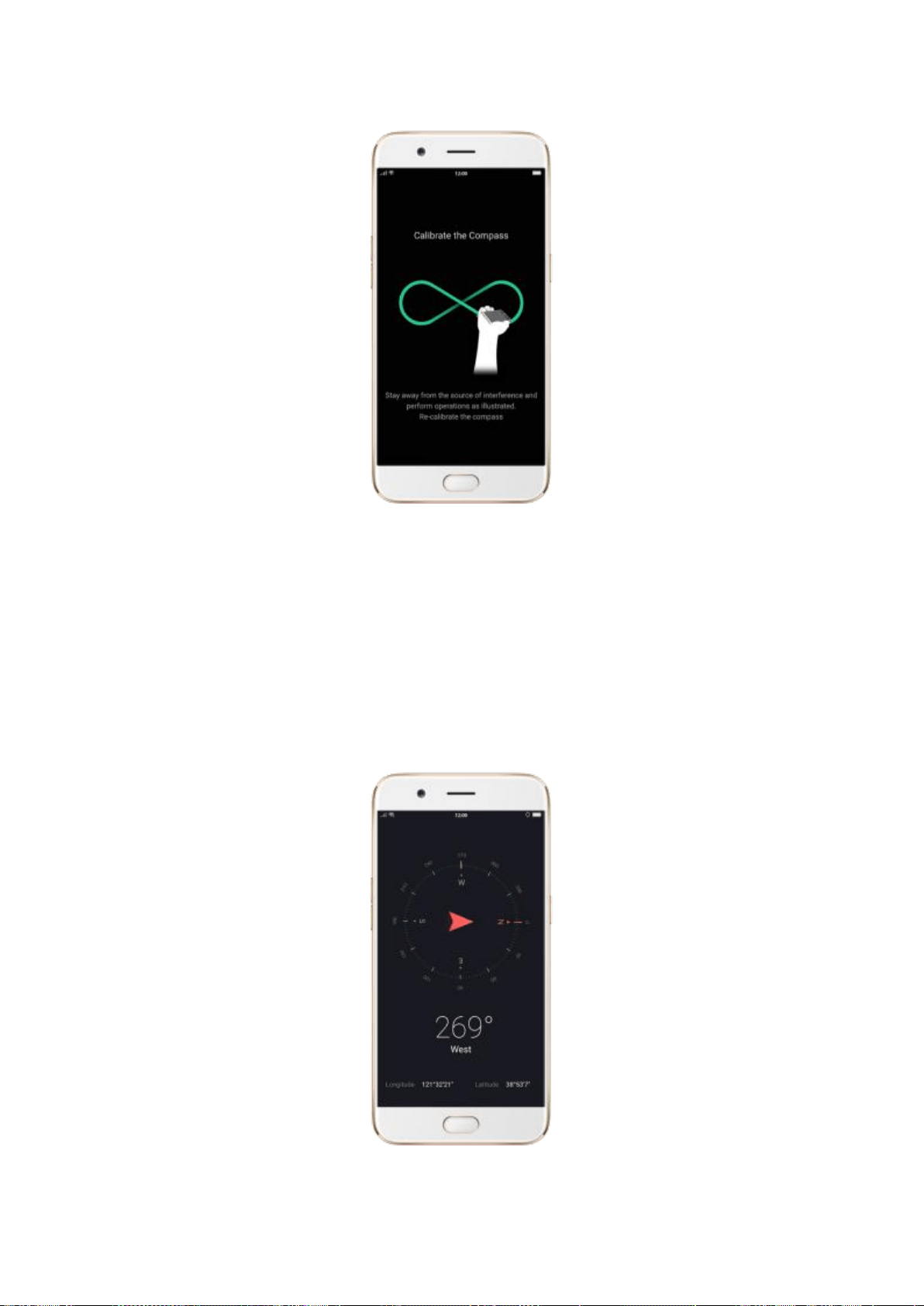
Find your direction. Turn on Location Service first, then click Tools folder on the Home
screen, click Compass, and you can quickly find your direction, see your latitude and
longitude.
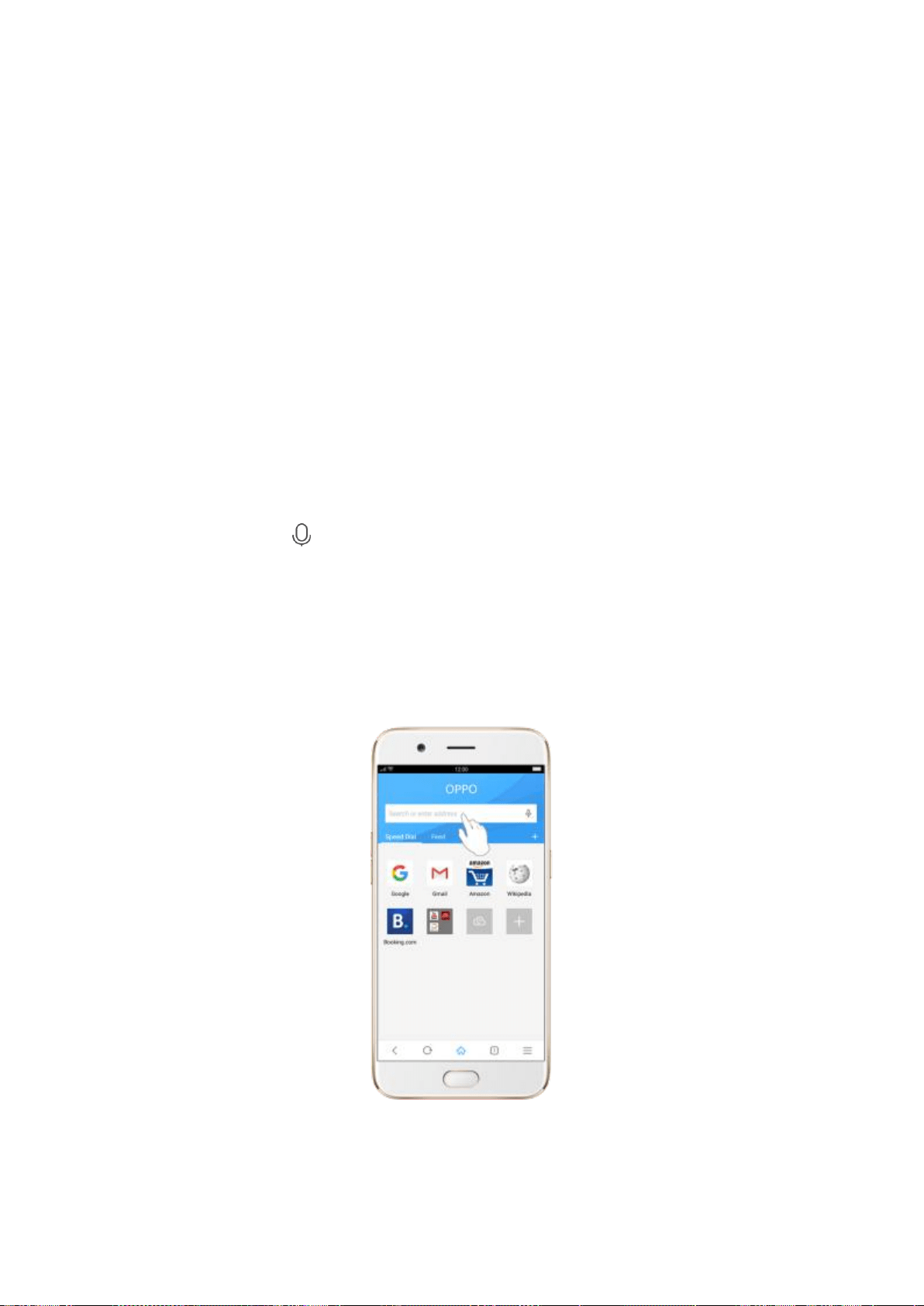
7.16. Browser
7.16.1. Search the web
The Browser lets you see webpages just as they were designed to be seen in
computer-based browsers. Pinch the screen to zoom in and out; rotate the
phone sideways for a wider view. You can also add channels and bookmarks
for quick accesses.
Search the web. Click the address field at the top of the screen, type the web
address, or click and say whatever you want to search for, then click
Search, or click Go in the lower-right corner of the keyboard.
As you type, any web address in your bookmarks or history list that contains
those letters appears below. Click a web address to visit its webpage.
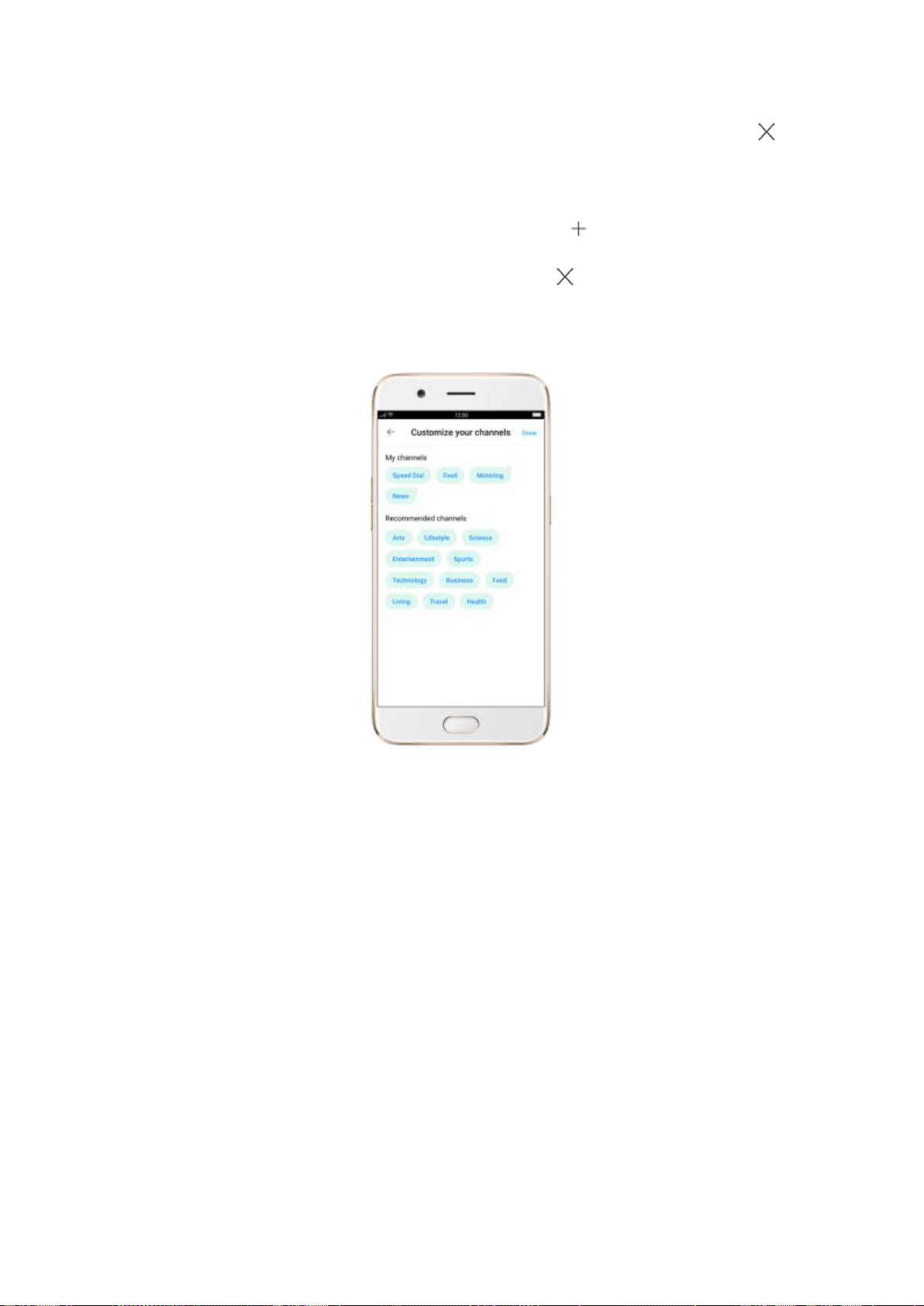
Erase all the text in the address field. Click the address field, then click .
Open a Channel page. Click a channel under the address field, and you'll see
the latest information on that channel. Click , click Edit, click the
recommended channels to add to yours, or click in the top right corner to
delete your channels, then click Done.
7.16.2. Browse the web
View a webpage in widescreen orientation. Rotate the phone sideways. The
Browser automatically reorients and expands the page.
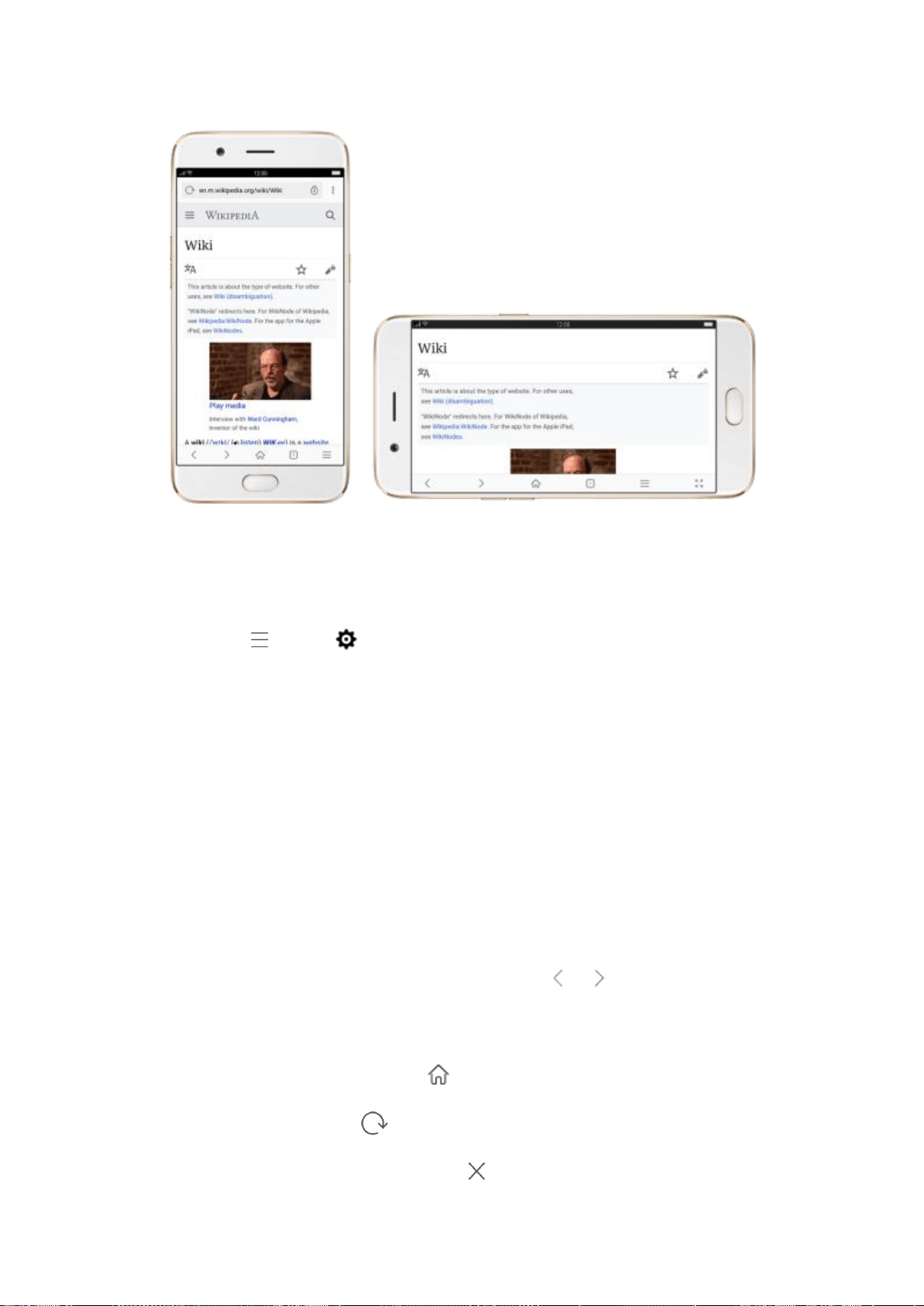
Zoom in or out. Pinch to zoom in or out. If the websites don’t allow you to
zoom, click , click and enable Force Enable Zoom, then you can
override the zoom control request from the websites.
Scroll around the page. Drag up, down, or sideways. When scrolling, you can
touch and drag anywhere on the page without activating any links.
Follow a link on a webpage. Click the link. Many images also have links. A
link can take you to another place on the web, open another app, call a
phone number, and more.
Return to the previous or next webpage. Click or at the bottom of the
screen.
Return to the Home page. Click .
Reload a webpage. Click .
Stop a webpage from loading. Click .
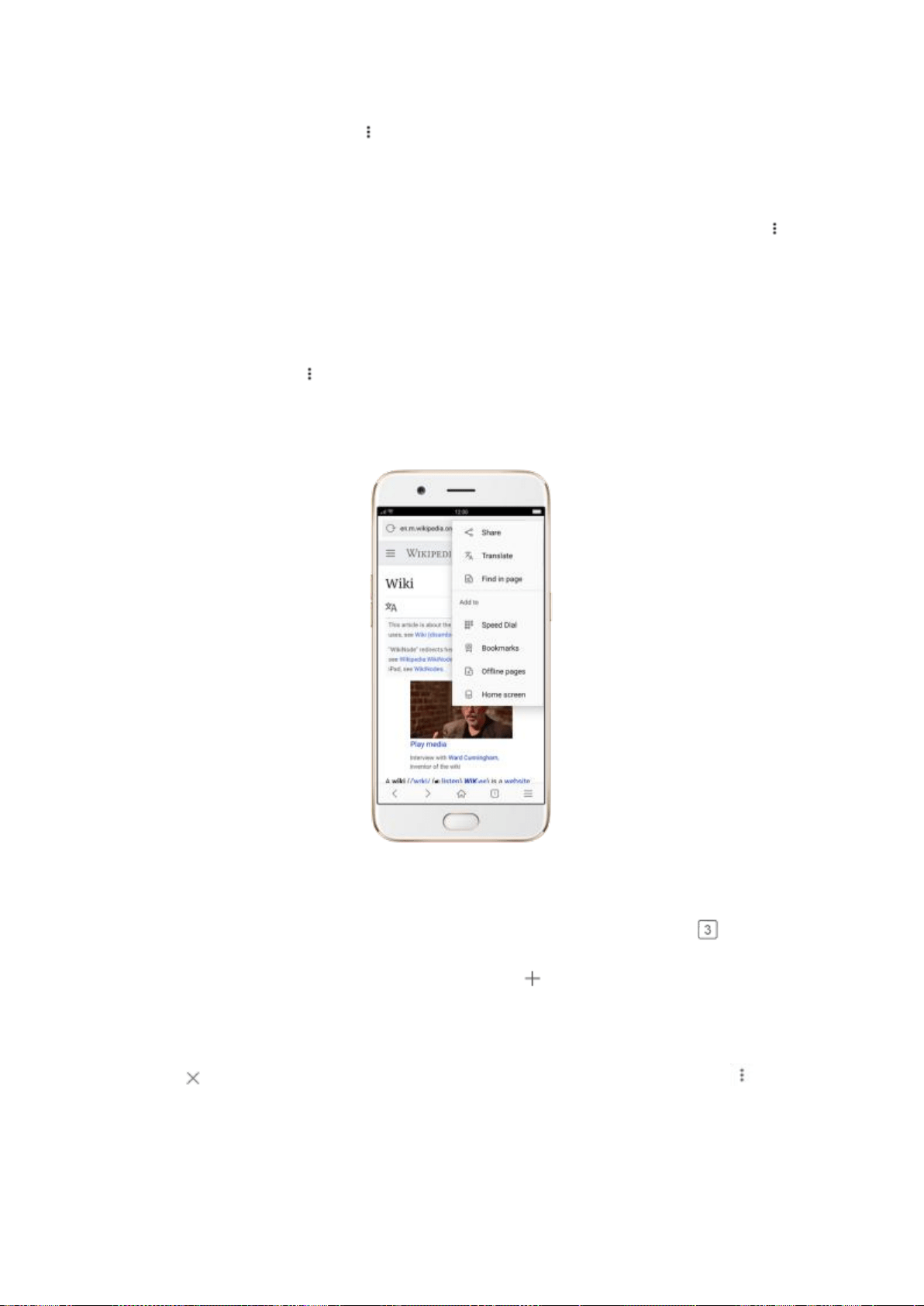
Share a webpage. Click , click Share, then choose how to send your
webpage.
Translate a webpage. While at some of the foreign language website, click ,
click Translate, then the browser automatically translates the language into
your default. Translating the webpage takes time, so be patient.
Find in page. Click , click Find in Page, enter the text, then the browser will
find text matches in the current webpage.
View all open tabs. If you open three tabs, for example, click , then
swipe left or right. To open a new tab, click . To go to another tab that’s
open, swipe to the tab, then click it. To close a tab, swipe up on the tap, or
click . To reopen the last page you’ve visited or close all taps, click and
choose the option.
Tip: The Browser won’t save the browsing history of your private tabs.
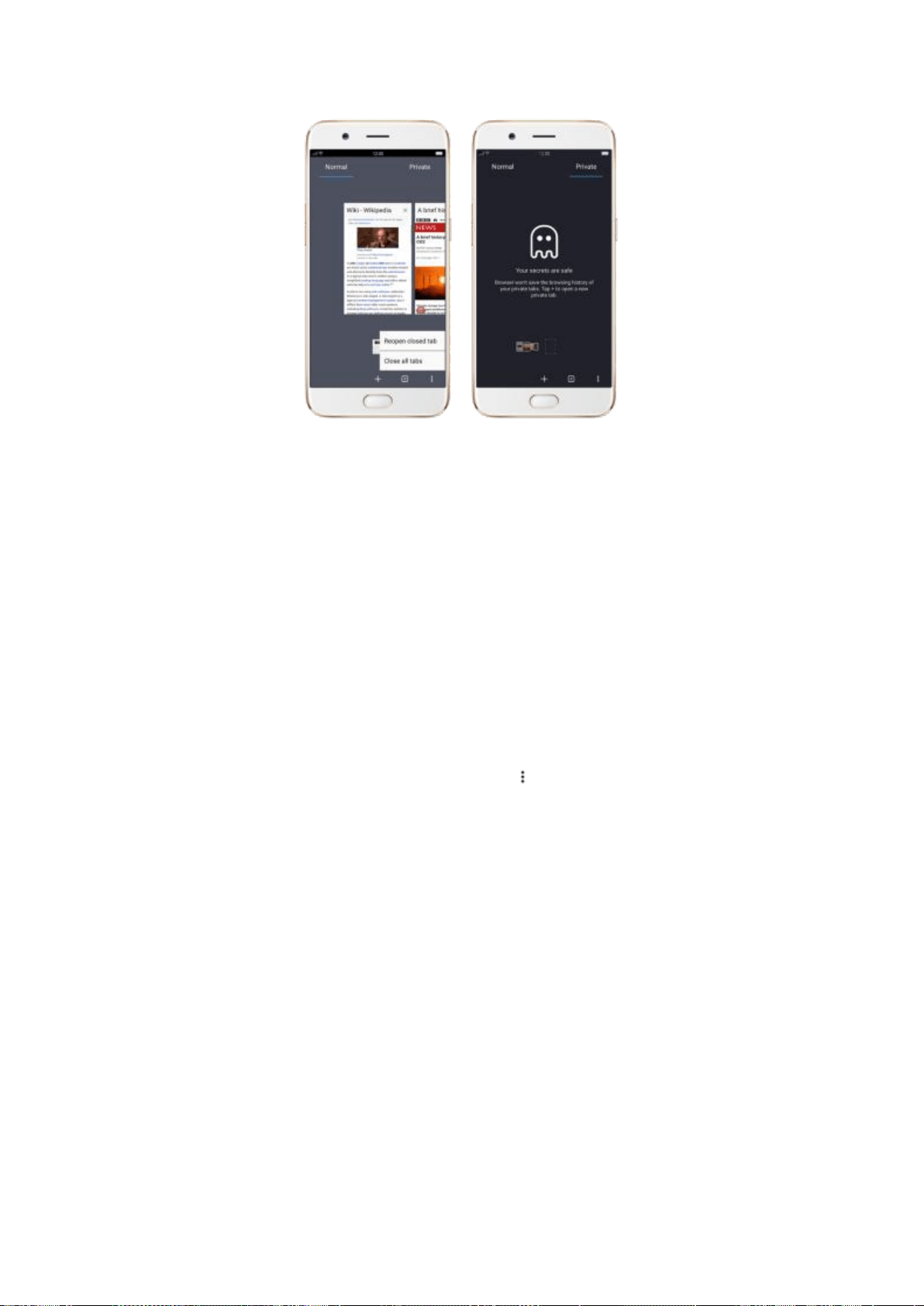
7.16.3. Quick accesses
You can add webpages to Bookmarks, so that you can quickly return to them
at any time without having to type the address. Add page icons to the Home
screen for quick access. Download the webpages so that you can view them
offline without Internet connection.
Bookmark a webpage. Open the page, click , then click Bookmarks, edit its
title or choose where to save it, then click OK.
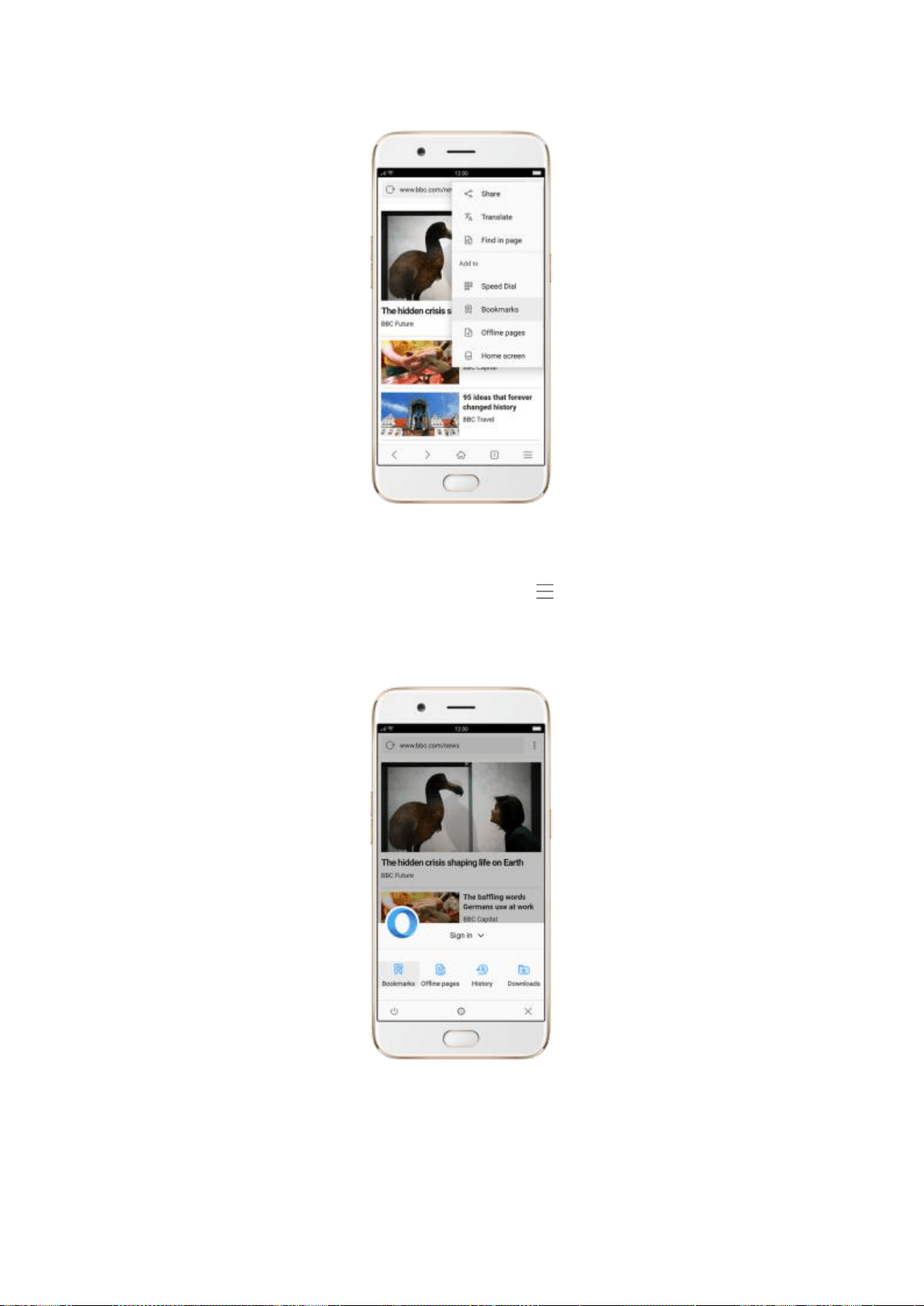
To manage your bookmarks and folders, click from the webpage screen,
then click Bookmarks.
Add a webpage to Speed Dial. Open the Home page of the Browser, click
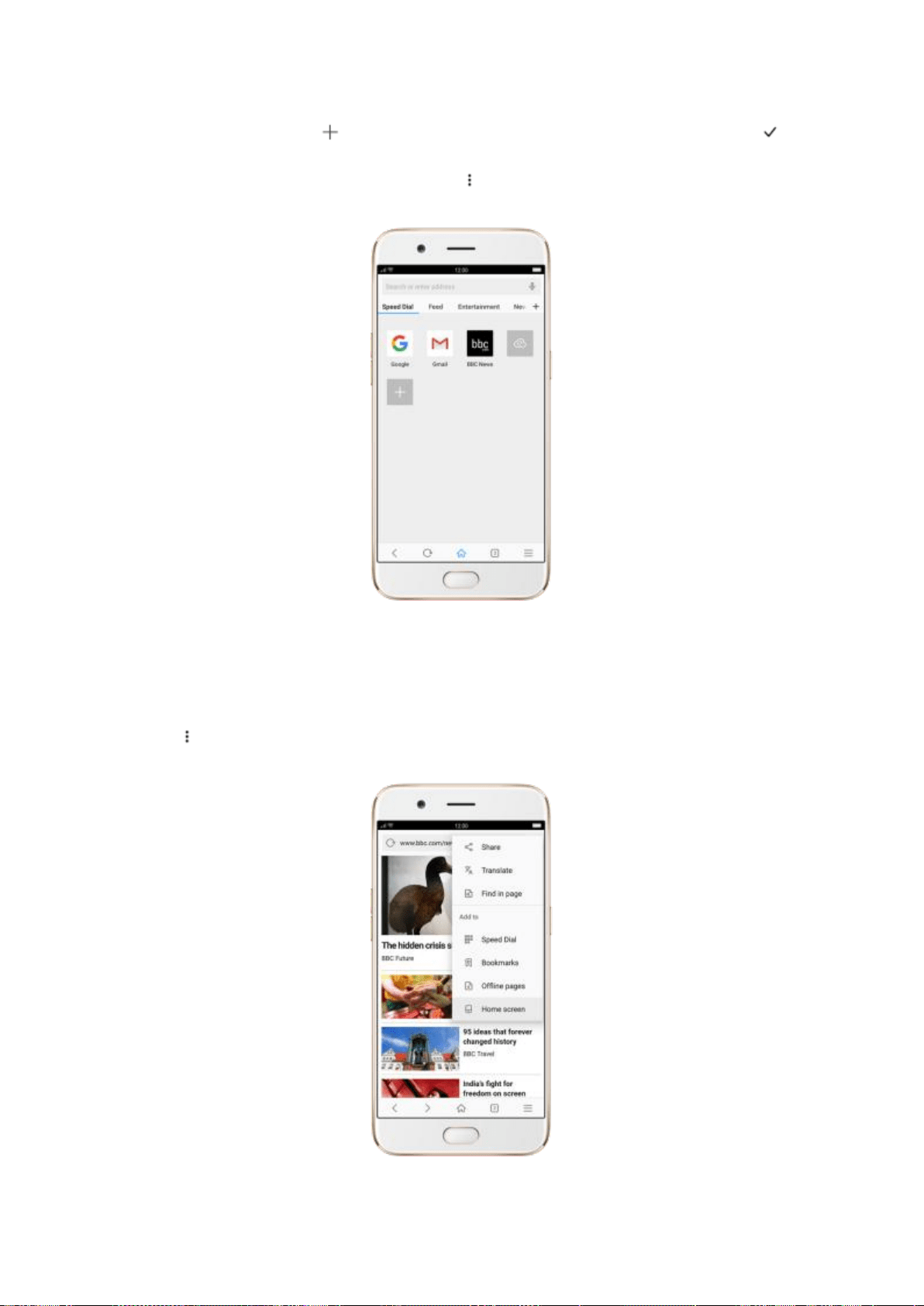
Speed Dial, then click . Enter the webpage name and address, then click .
You can also open the page and click . Then click Speed Dial.
Add an icon for the current page to your Home screen. Open the page,
click , then click Home screen, edit its title, then click Add.
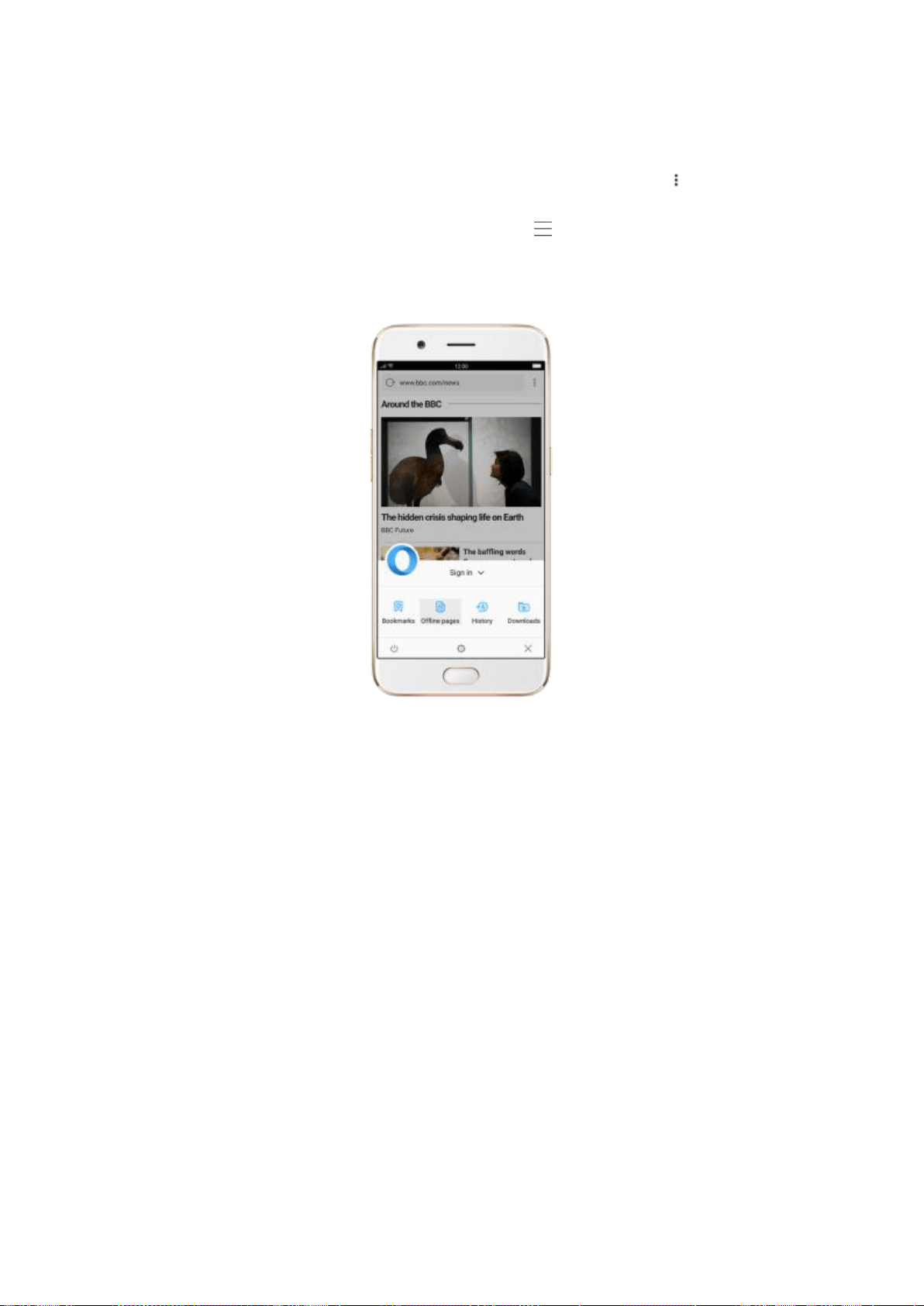
Save a webpage for offline reading. Open the page, click , then click
Offline pages. To open an offline page, click , click Offline pages, then
click a page.
8. Safety & Privacy
8.1. Device security
8.1.1. Lock screen password
Security on your OPPO smartphone begins at the lock screen. You can set a
passcode that will be needed to unlock your phone.
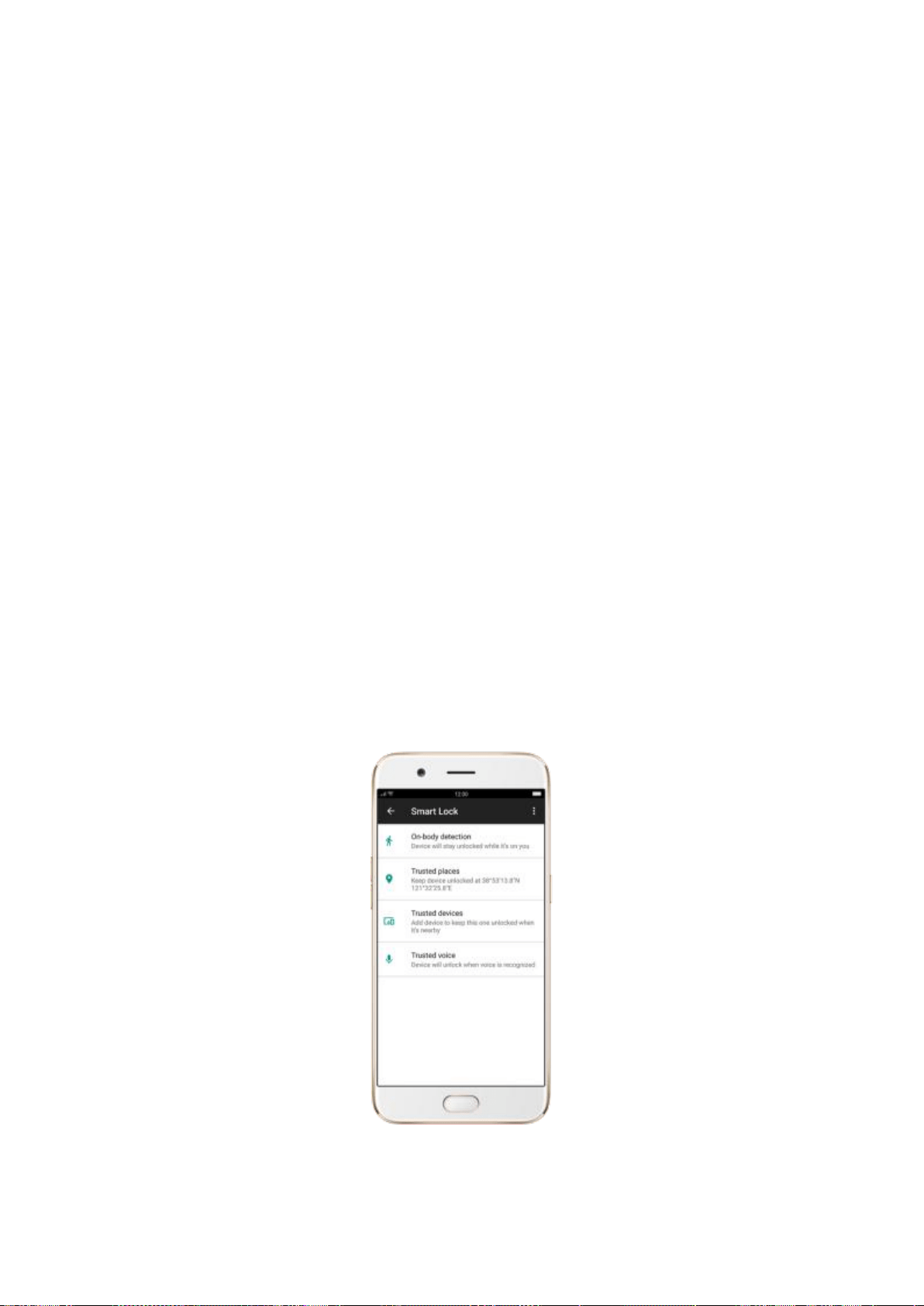
Set, change, or turn off the passcode. Go to [Settings] > [Fingerprint &
Passcode]. You can draw a pattern, use a Custom Alphanumeric Code or
4-Digit Numeric Code.
Add fingerprints. Before you can add a fingerprint, you need to create a
passcode. You can use the fingerprint to unlock the phone.
8.1.2. Smart Lock
Smart lock is a handy way to make gaining access to your phone easier.
Turn on Smart Lock options. Go to [Settings] > [Additional Settings] >
[Safety & Privacy] > [Smart Lock], then enter your phone passcode.

On-body detection. Once enabled, your device will keep unlocked while
it’s on you, like when you are holding it or carrying it. Your device will lock
when it detects that it’s been set down.
Trusted places. If you have added trusted places, your device will keep
unlocked when it’s nearby. For example, if you have added your home as
a trusted place, when you are nearby home within 80m, device keep
unlock.
Trusted devices. If you have added trusted devices, for example, your
Bluetooth watch, your car’s Bluetooth system, when they are connected,
your device phone keeps unlock. (Note: Bluetooth connections have a
range of up to 100 meters.)
Trusted voice. Save your voice or other audio in your Google account
and your device will be unlocked once it recognizes your voice.
Note: When Smart Lock is on, your phone will remain unlocked if you're
carrying the phone, which will quickly drain your phone's battery, also will
lead to incorrect operations if you put the phone in your pocket. Therefore, if
you want to use Smart Lock, use it wisely, and in right conditions.
+
8.1.3. Safe keyboard
When you enter sensitive information such as passcodes, the system will
automatically switch to OPPO Safe Keyboard to protect your input
content from leaking out.
Enable Safe Keyboard. Go to [Settings] > [Additional Settings] >
[Keyboard & Input Method] and toggle the slider to green.
8.1.4. Payment protection
While you shop online, your OPPO phone will provide protection for the
mobile transactions, such as detecting captcha and app security. You can
see the detected information of the current payment environment in the
upper-right corner of the screen.
Set up payment protection for apps. Go to [Settings] > [Security] >
[Payment Protection].

8.1.5. Set up a SIM card lock
For better security, you can set up a SIM card lock. The SIM lock will make
sure that only those who know the password can use the phone.
Set up a SIM card lock. Go to [Settings] > [Additional Settings] > [Safety
& Privacy] > [Set up SIM card lock]. Click the slider next to Lock Sim Card,
type in the PIN code and then click OK.
Note: If the wrong PIN is entered more than three times, both your SIM card
and phone will be locked. You can enter the PUK code to unlock them. See
About SIM card PIN & PUK code.
Change the SIM card PIN code. Click Change SIM PIN, type in the current
PIN code, click OK. Then you can type in the new PIN code, click OK, retype
your new PIN code when prompted, then click OK.
8.1.6. Virus Scan
For better security, you should regularly scan and remove potential and actual threats to
your phone.
Scan for virus. Click Phone Manager, then click Virus Scan. Wait for the scan to complete.
If threats were found, remove them; if not, you will see a message that says your phone
is in a good state.
8.2. Device administration
8.2.1. Allow and install apps from unknown
sources
By default, you are not allowed to install apps outside from the official Play Store on your
OPPO phone - unless you have allowed your phone to do that.
If you run an APK on your phone without first enabling the feature, you will see the
following on your screen.
Install apps from unknown sources. Go to [Settings] > [Additional Settings] >
[Safety & Privacy] and enable [Install Unknown Source Apps].
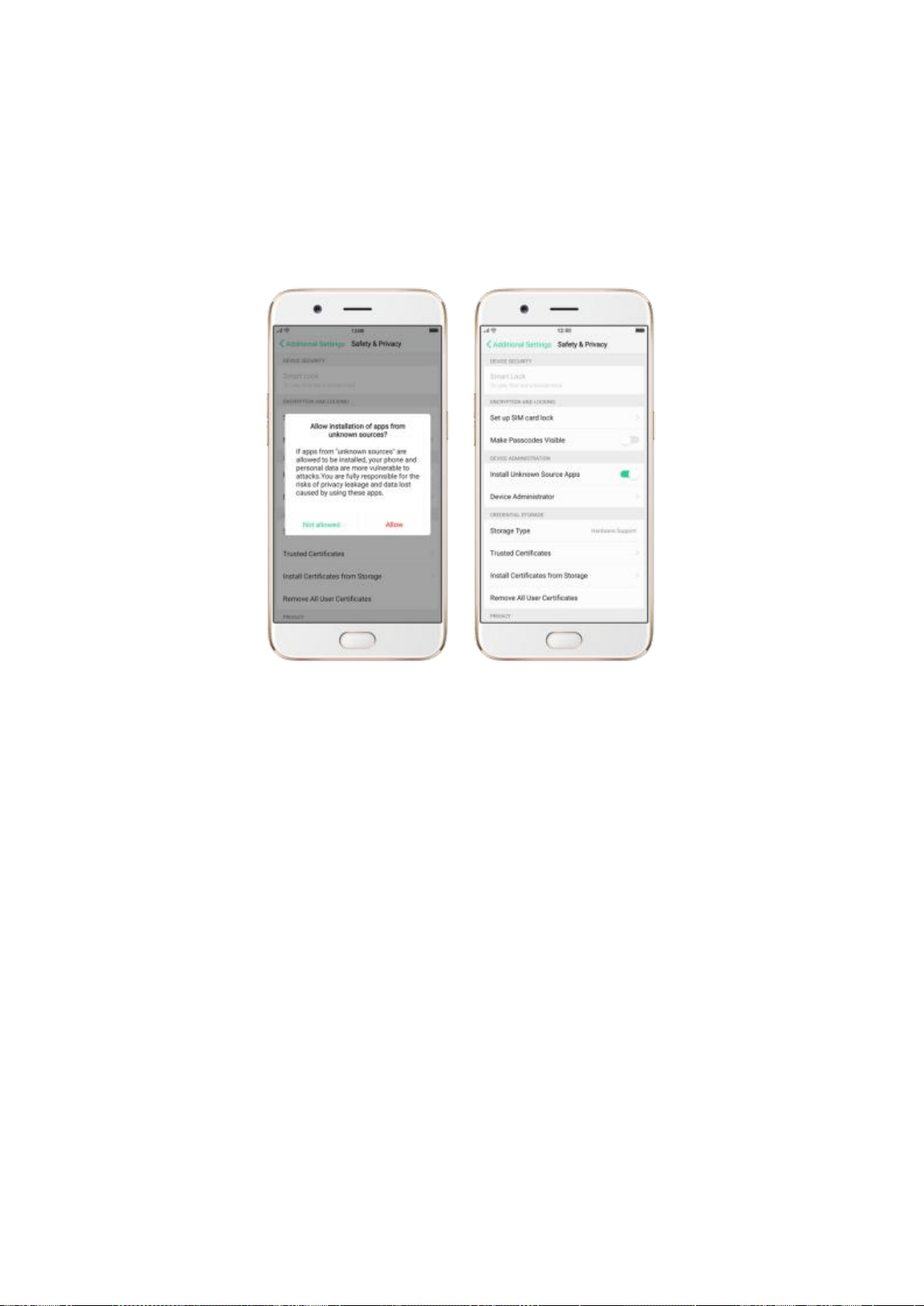
Note: Installing apps from unknown sources means that you are now responsible for
your phone’s safety. Don’t ever install any app unless you are absolutely sure that it is not
malware. Also, don’t download an APK file from unknown sources.
8.2.2. App Encryption
You might login and use phone applications with a wealth of privacy information
including credit cards numbers and passcodes, banking data and home address. Thus,
you need to encrypt apps to protect from prying eyes.
Encrypt your apps. Go to [Settings] > [Security] > [App Encryption]. See Encrypt
applications on your OPPO smartphone.
Access the encrypted app. Every time you want to access the encrypted app on your
phone, you need to enter the passcode. To use your fingerprints to unlock the app, go
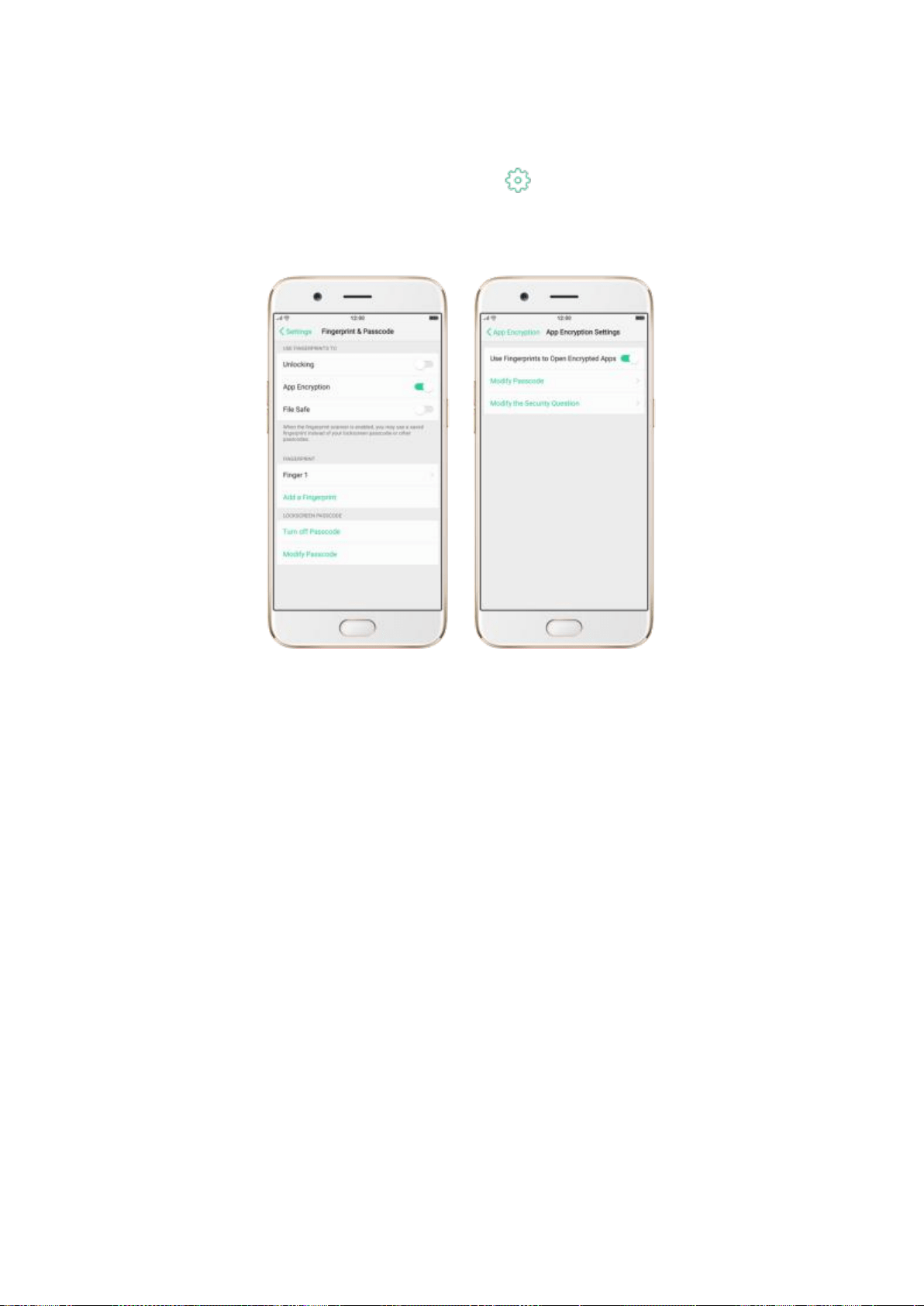
to [Settings] > [Fingerprint & Passcode] and enable [APP Encryption]. Or go to
[Settings] > [Security] > [App Encryption], click , then enable [Use fingerprints to
open encrypted apps].
8.2.3. App permissions
Every application installed in your OPPO smartphone may require certain
data or access to your phone’s other features (mic, camera, etc.). To check and
manage what an app is trying to access, do the following:
Check all permission details. Go to [Settings] > [Security] > [App
Permissions]. You will find all the permission categories on your phone. Click
“Apps” to view apps installed on your phone and the permission groups an
app has.
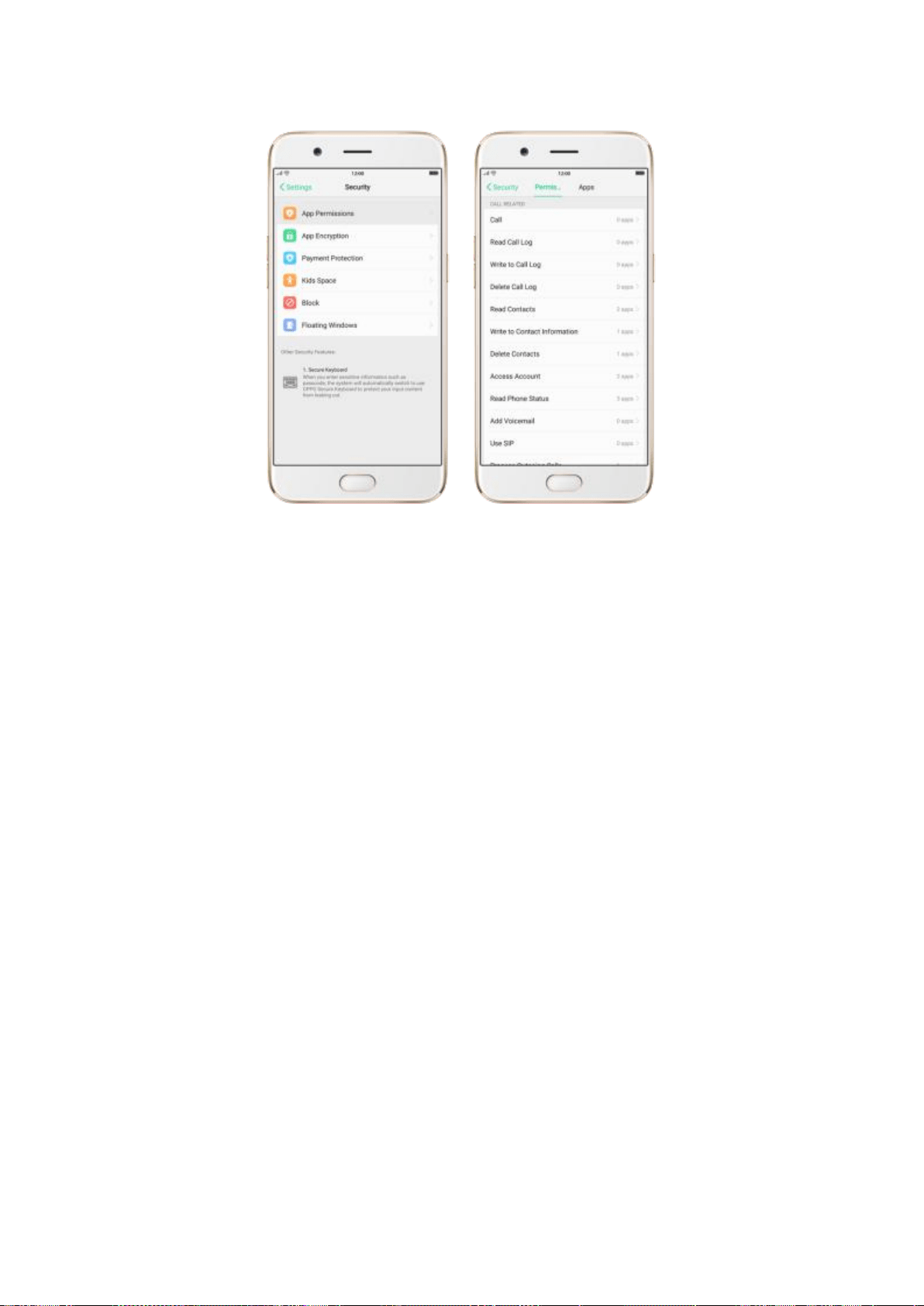
Change the permission. Click a category or an app, then choose Allow,
Forbid or ask.
Allow: Always allow the app to use the required permissions.
Forbid: Disable the required permissions completely for the app.
Ask: Every time you start the app, it asks you to grant the permissions
that are required.
8.2.4. Kids Space
With ColorOS 3.1, parents can set limits specially for children's use of the
phone, such as setting up phone usage time and apps allowed to be
accessed. It does a good job in charge preventing, system modification
prohibiting and addiction preventing when your kids use the phone.
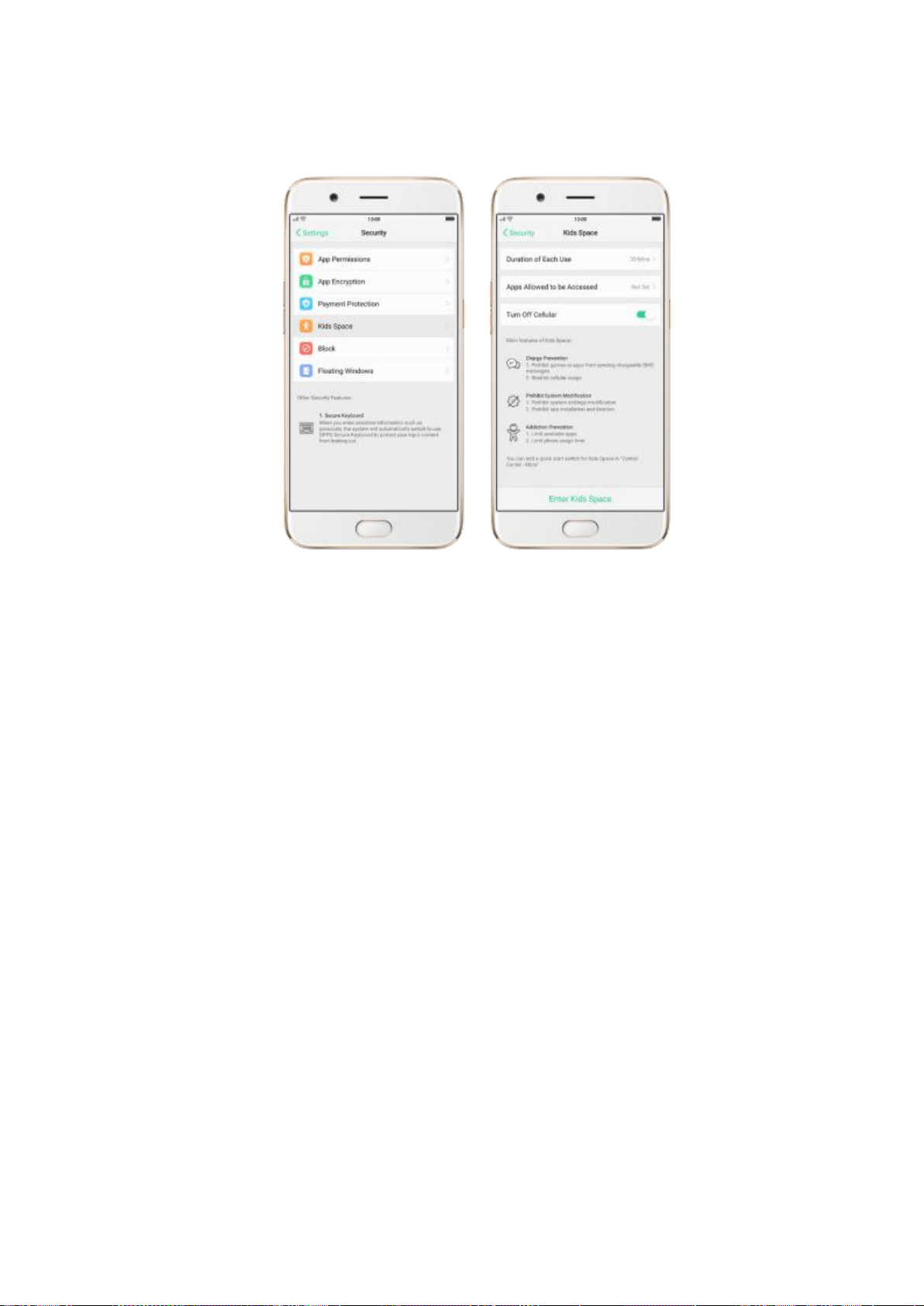
Set up Kids Space. Go to [Settings] > [Security] > [kids Space].
8.2.5. Block unwanted calls and messages
Block feature helps you to prevent unwanted phone calls and messages from
reaching you. You can also add numbers to blacklist to block specific phone
numbers.
Block calls and messages. Go to [Settings] > [Security] > [Block] or
[Settings] > [Call] > [Block]
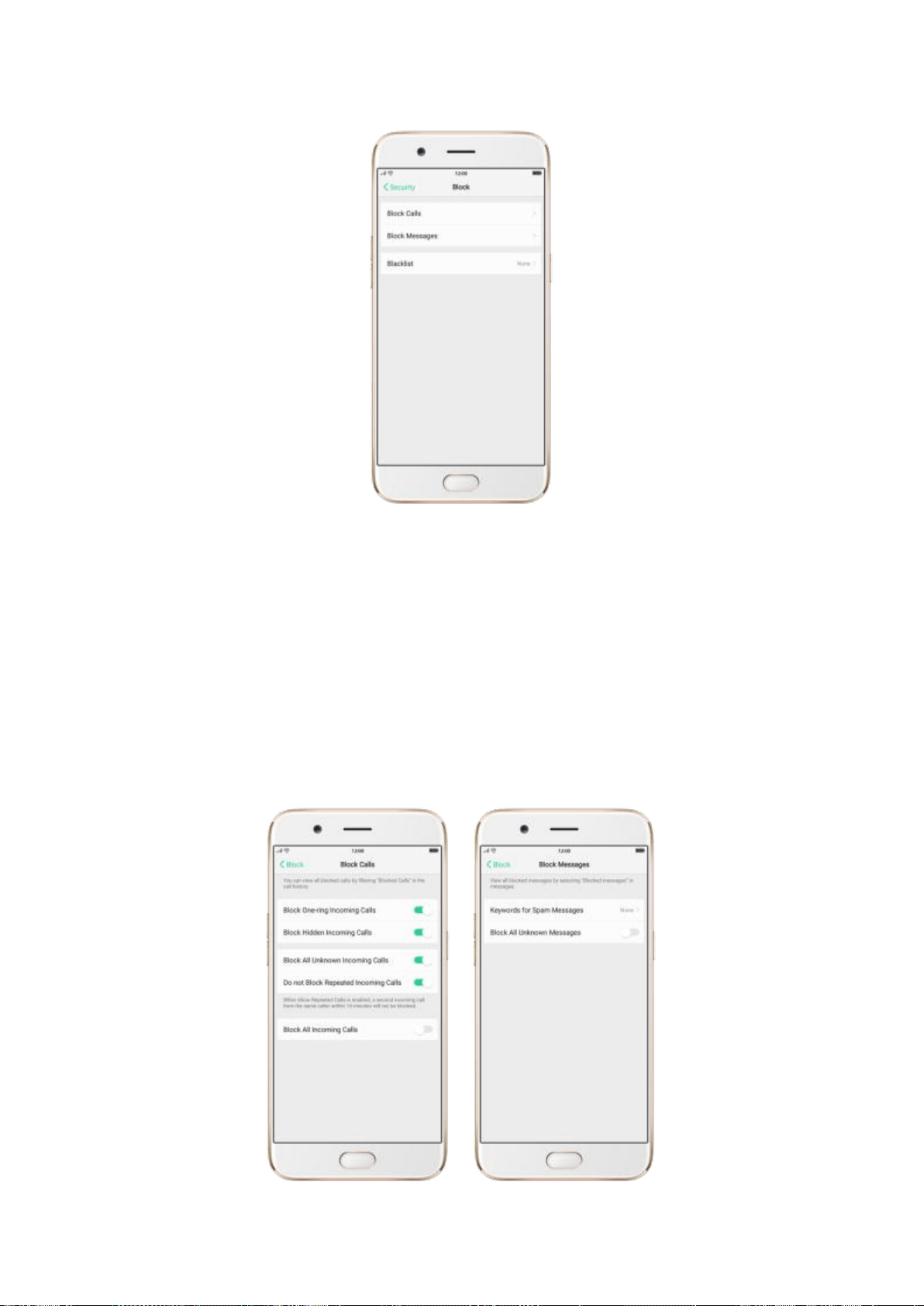
Block Calls: Choose the options available for blocking incoming calls. See
Block calls.
Block Messages: You can block all unknown messages, or block specific
spam messages by entering the keywords.
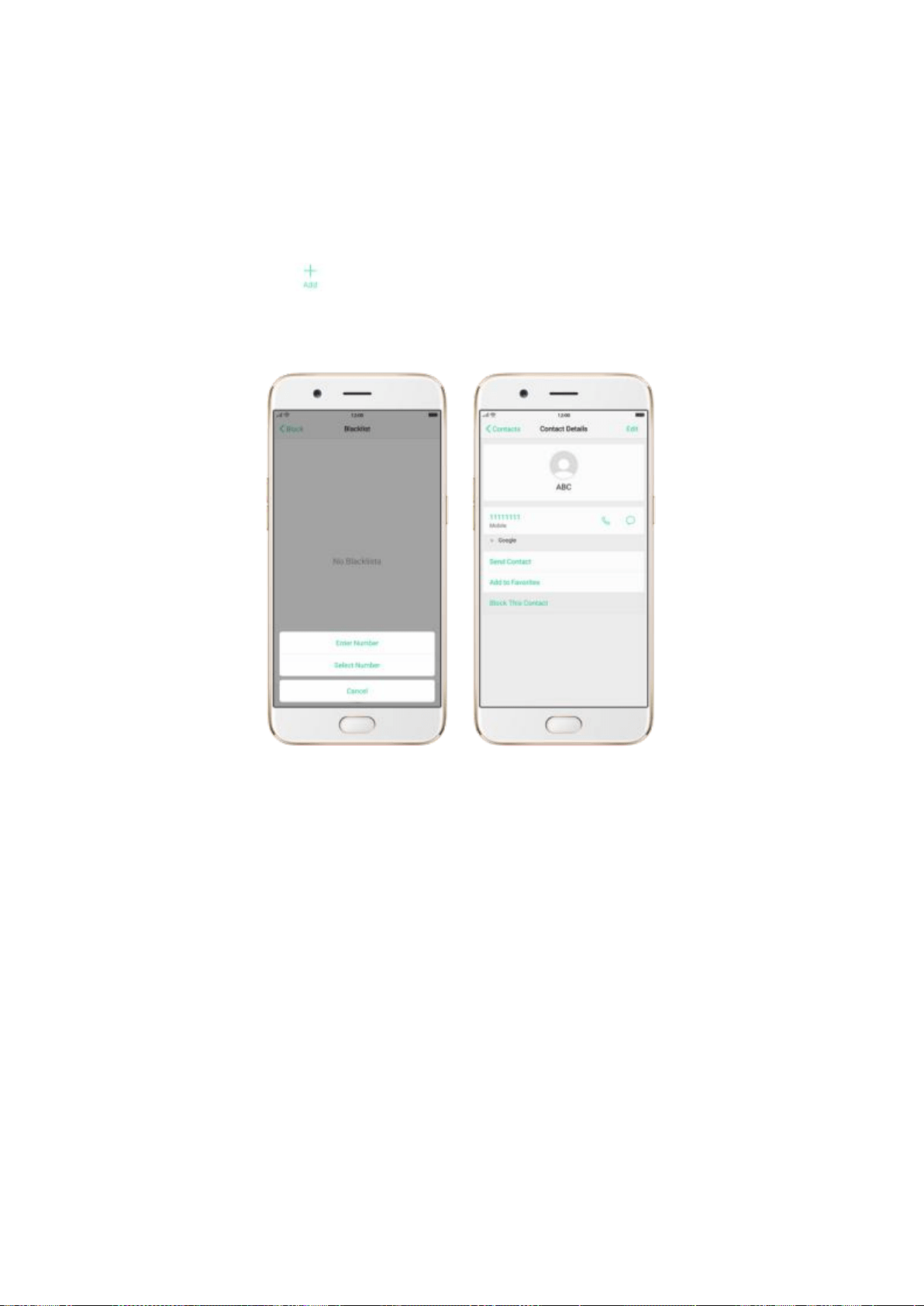
Add a contact or a phone number to the blacklist. Go to [Settings] >
[Call] > [Block]
>[Blacklist], click , then enter the number or choose your contacts. Or
open a caller’s contact card in Contacts, then click Block This Contact.
8.2.6. Find my device
In the event that your phone is lost or stolen, you can use Google’s Find My Device to
locate or factory wipe your phone. You need to sign in your Google account and turn on
Location Service on your phone.
Activate and use Find my Device. Go to [Settings] > [Google] > [Security] and click
Find My Device. Toggle both the sliders to blue. To use Find My Device, head over to
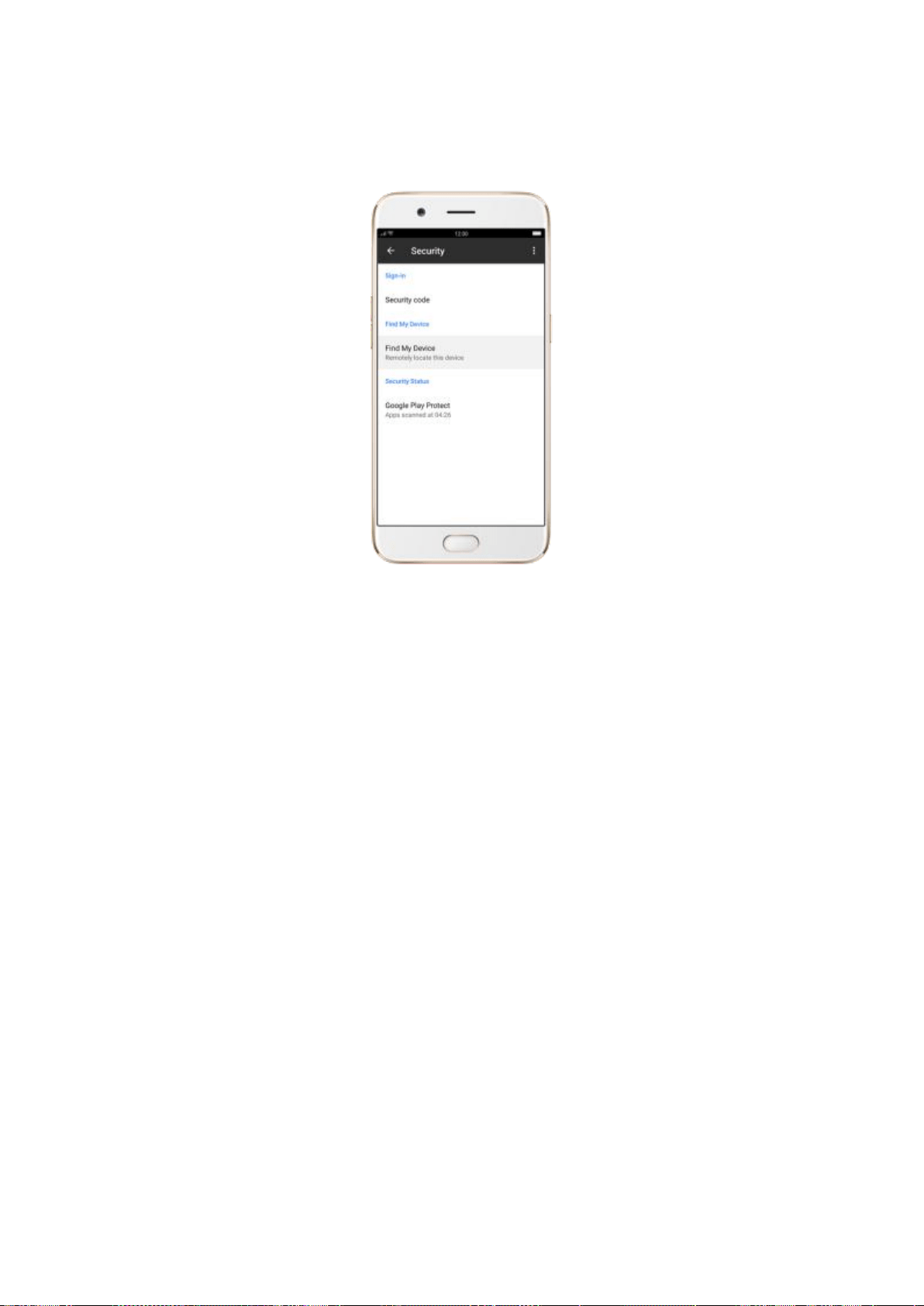
Google and search "Find my phone" on your computer.
Remotely locate this device: The phone's geographic location will appear in
the search results, along with an option to call it to help locate it.
Allow remote lock and erase: If you believe your phone has been stolen, use
this feature to remotely lock your phone and erase the entire data residing on
the phone so that no one can access it.
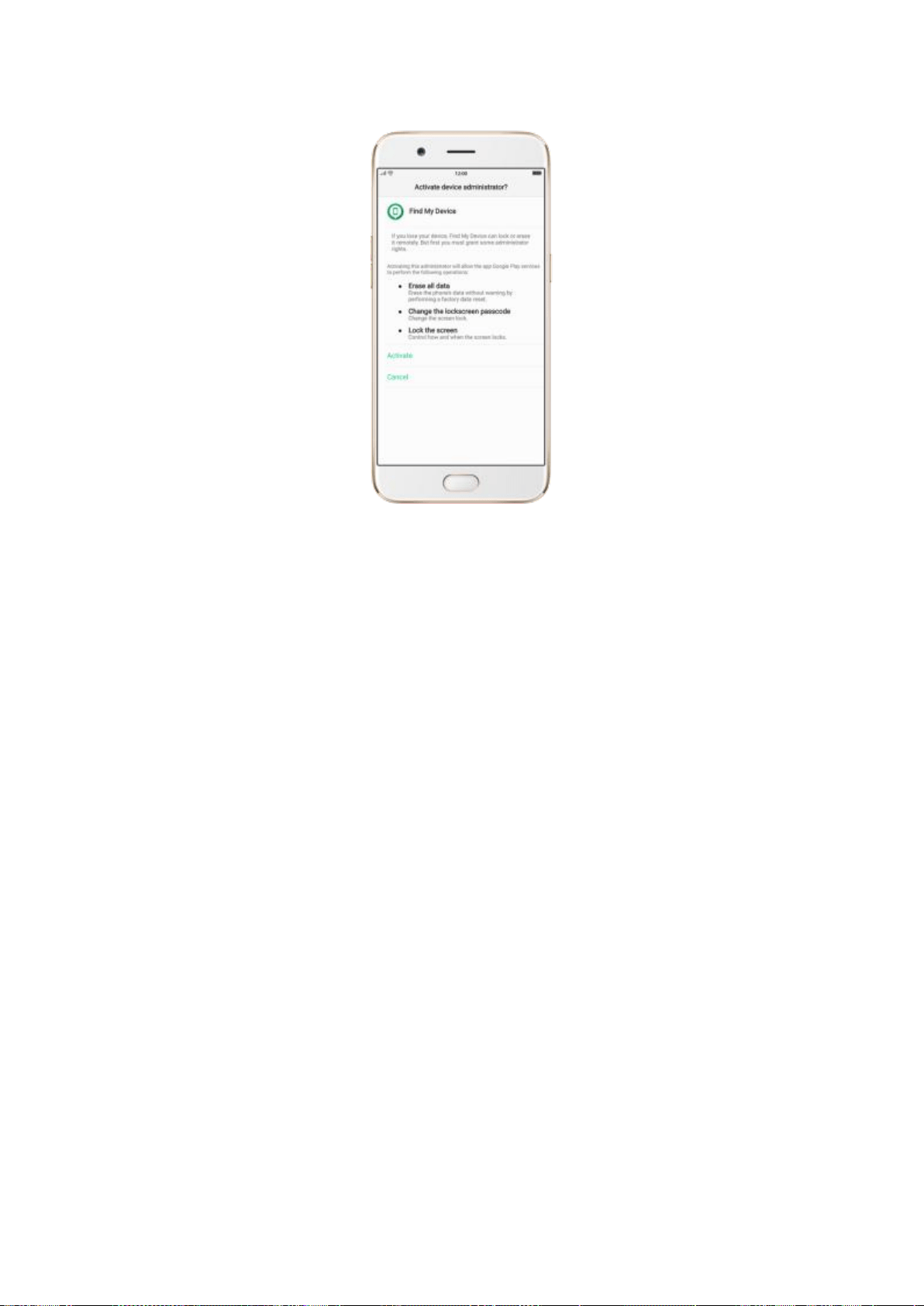
8.4. Advanced
8.4.1. Screen pinning
Screen pinning temporally restricts the user from leaving the task or being interrupted
by notifications. Once your app activates screen pinning, your phone is restricted to only
display interface of this app, you cannot see notifications, access other apps, or return to
the Home screen, until your app exits the mode.
Activate screen pinning
1. Go to [Settings] > [Additional Settings] > [Safety & Privacy], scroll to the
bottom of the screen and turn on [Screen Pinning].
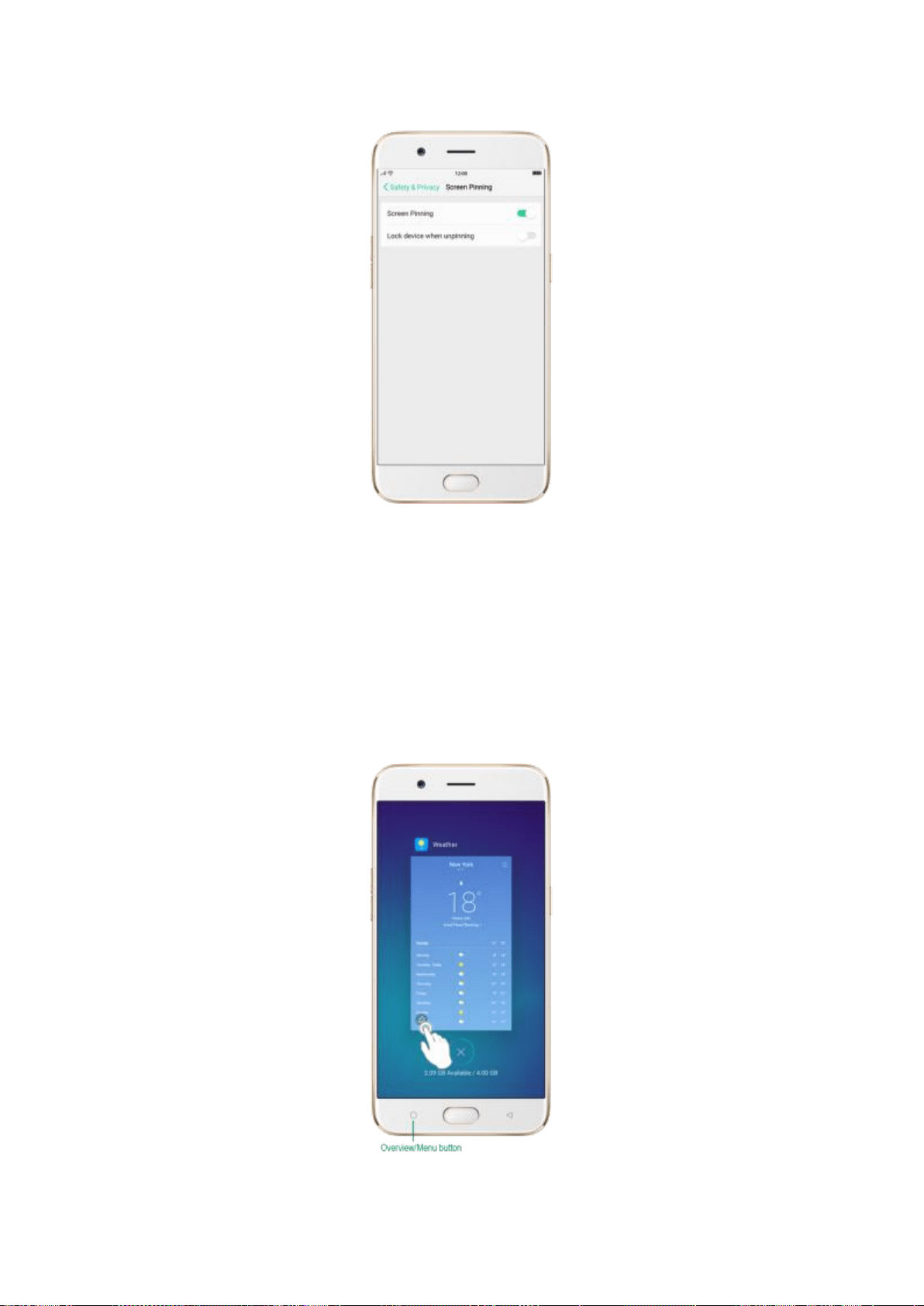
2. Open the app you want to pin and click the Overview/Menu button to access
the multitasking tray. You can find the pushpin icon on the app preview interface.
Click the icon to pin this app to your phone screen.
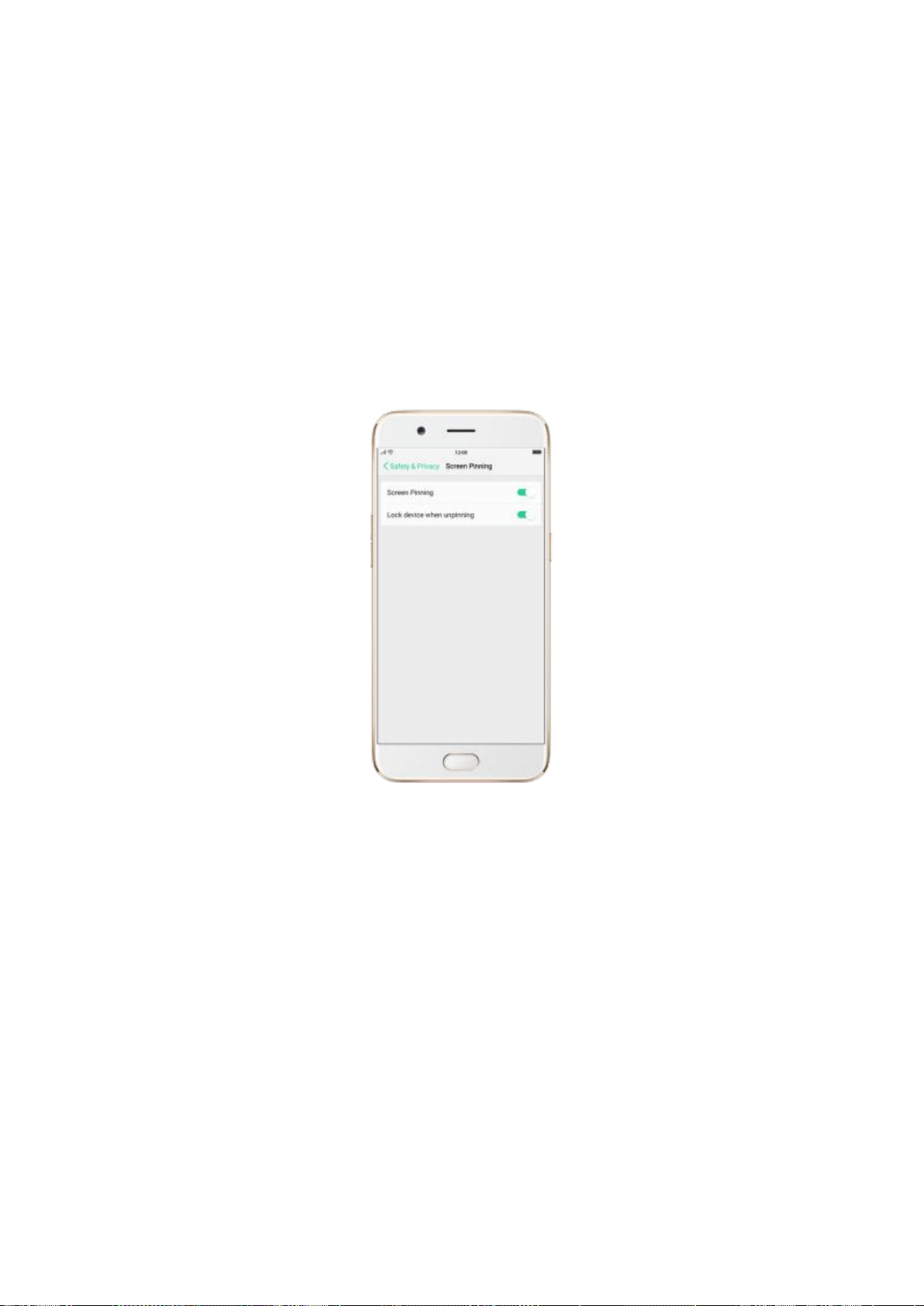
Unpin the screen. Touch and hold the Overview/Menu button until you see “Screen
unpinned”.
If you want to lock the phone screen directly when unpinning the screen, toggle the
[Lock device when unpinning] slider to green.

9. Share Internet connection and
files
9.1. Tether your phone’s Internet
connection
Using tethering you can share your phone’s Internet connection with several devices,
such as your computer, tablet or other gadgets. Tethering works only if your phone is
connected to the Internet over the mobile data network.
Turn your phone into a personal hotspot.
1. Go to [Settings] > [Other Wireless Connections] > [Personal Hotspot], then toggle
the slider to green.
2. Set the hotspot name and password.
3. On another device, choose your hotspot from the list of available Wi-Fi networks.
Note: When a device is connected, a blue band appears at the top of the phone screen.
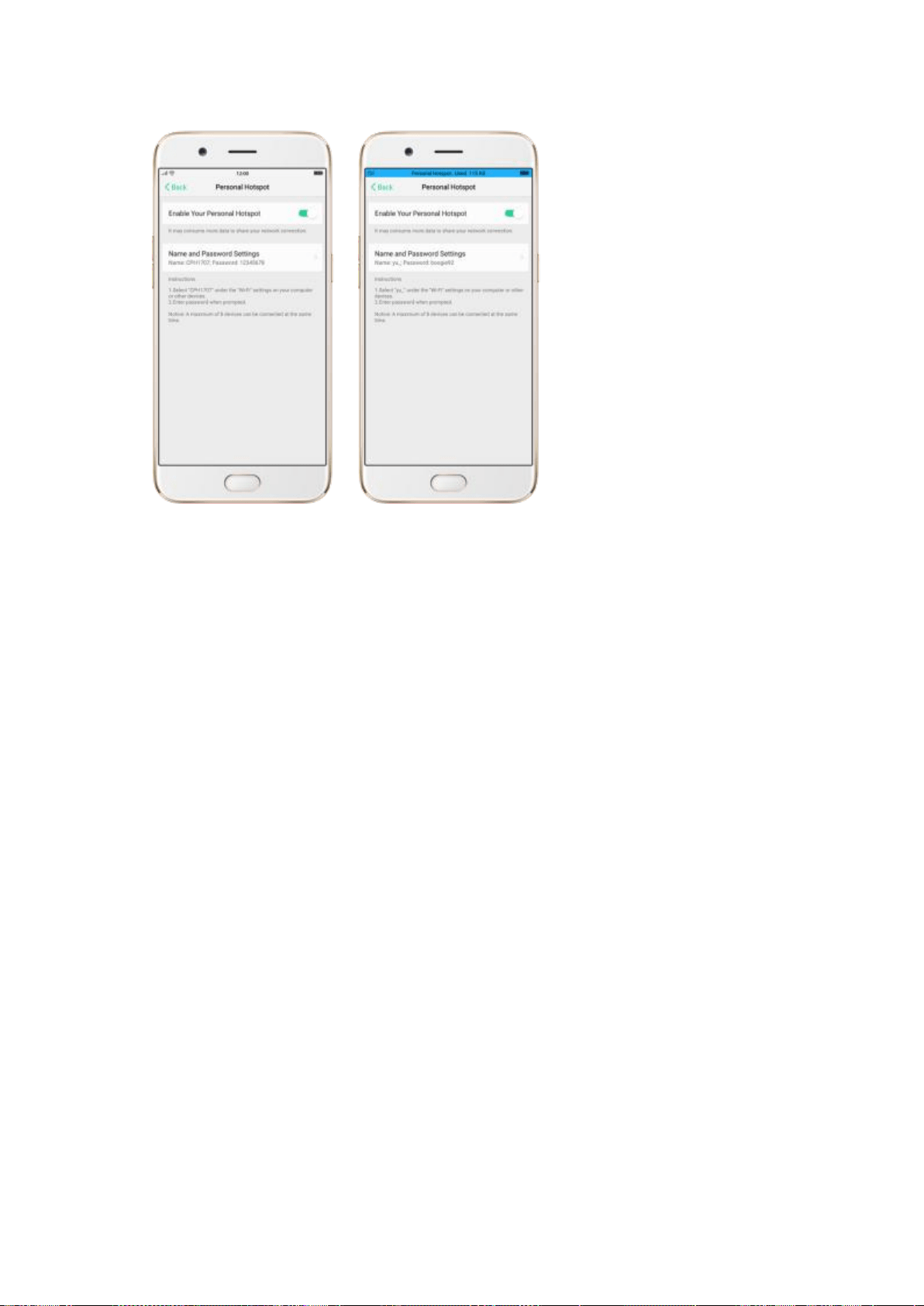
Use USB Tethering.
1. Connect your phone to your computer using the cable that came with it.
2. Go to [Settings] > [Other Wireless Connections] > [USB Tethering], then toggle the
slider to green.
3. In your computer’s Network preferences, choose your OPPO phone, then configure
the network settings.
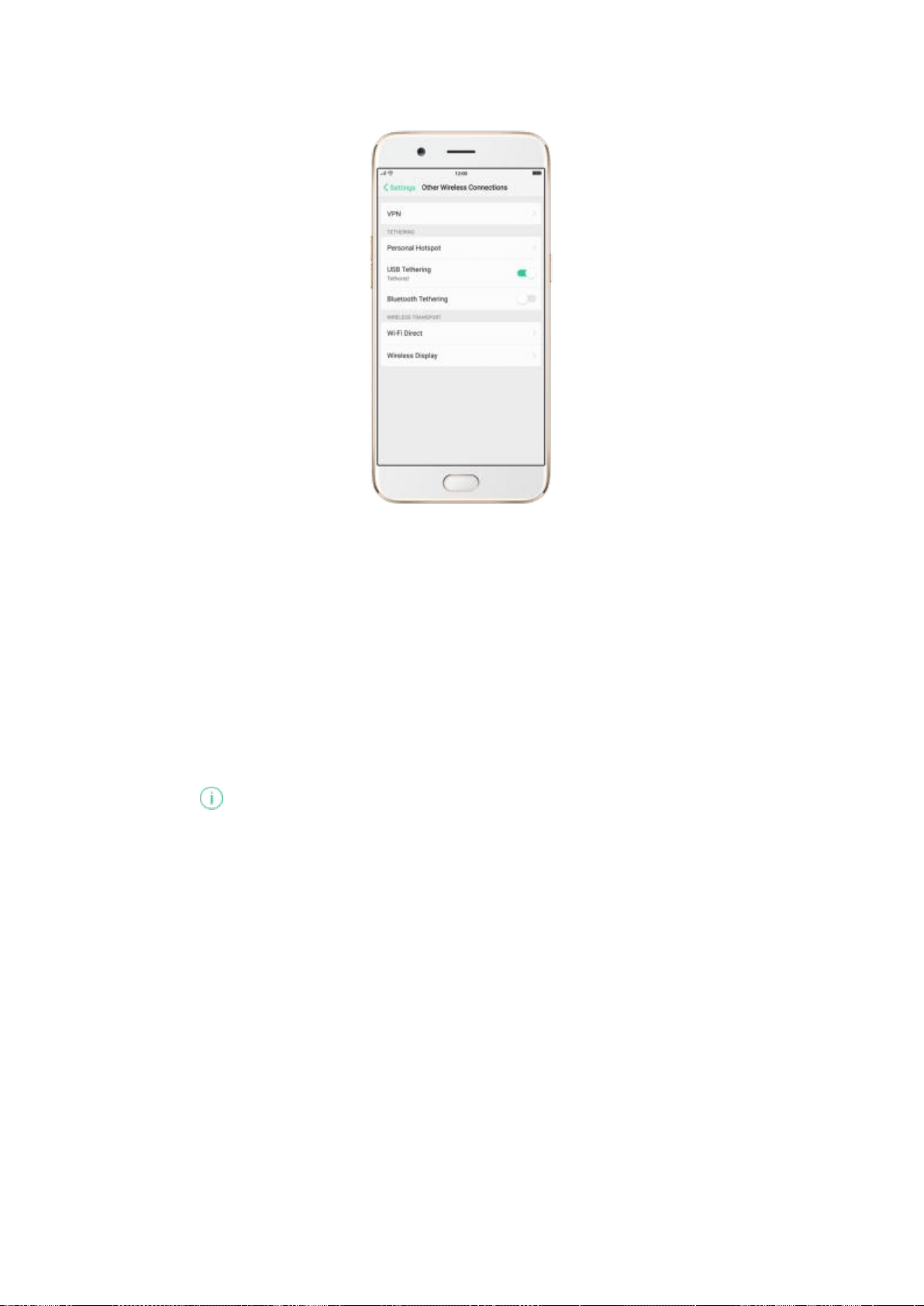
Tether via Bluetooth.
1. Go to [Settings] > [Other Wireless Connections] and enable [Bluetooth Tethering].
2. In [Settings] > [Bluetooth], pair and connect your phone with your Bluetooth device.
3. Click next to the device’s name, then click [Internet Access].
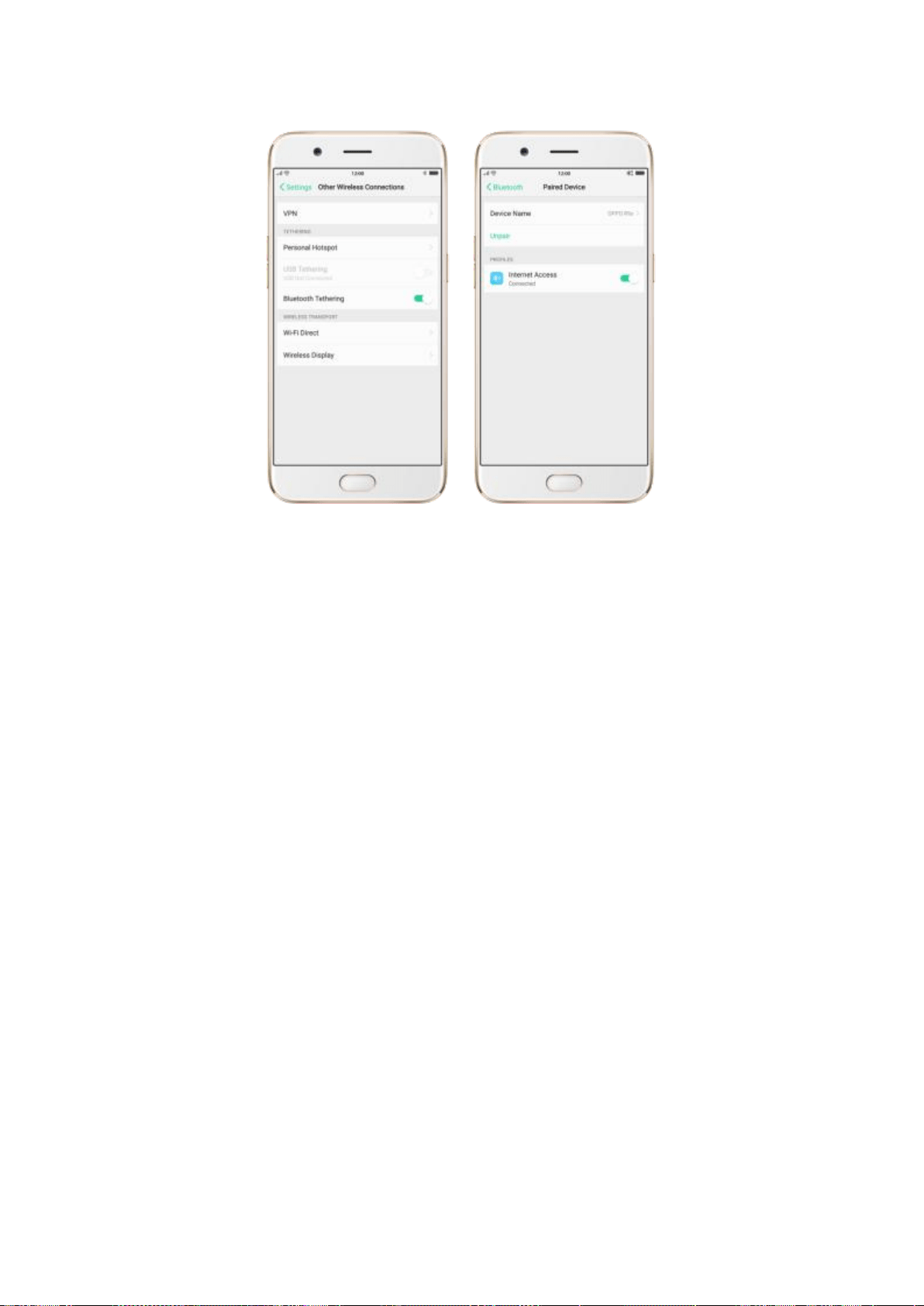
Monitor your mobile data network usage. Go to [Settings] > [Dual SIM & Cellular
Data].
9.2. Share files
9.2.1. Wireless file sharing
You can share files wirelessly between wireless devices.
Use OPPO share. Share files between OPPO smartphones.
1. Open Control Center, then turn on OPPO Share on both OPPO phones.
2. Select the files to be shared and the device to share with, click Send, then click the
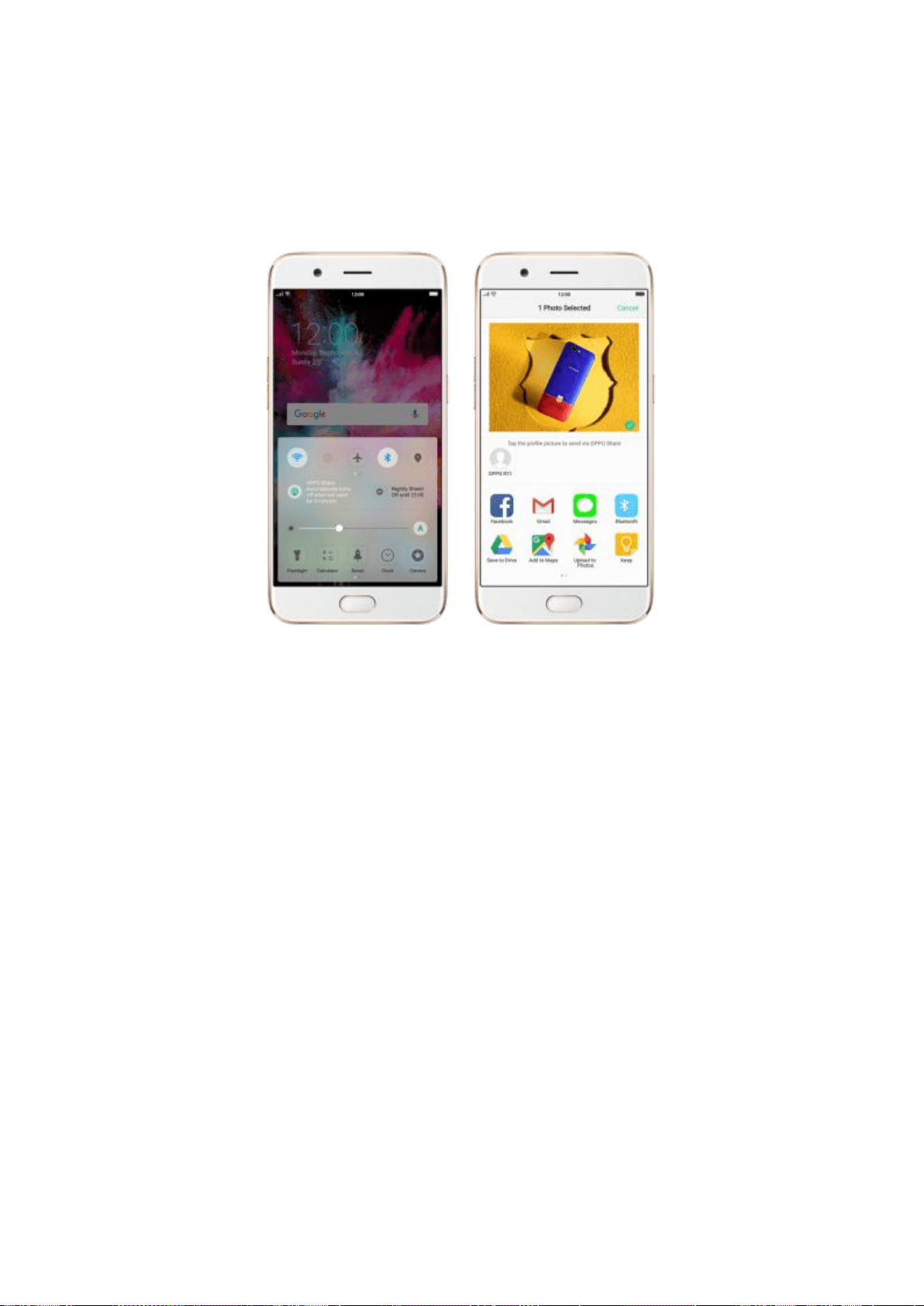
OPPO phone’s profile picture.
3. Click Receive on the other device and start sharing.
Transfer files with Clone Phone. With Clone Phone, you can transfer all the phone data
from a phone to the other. See Clone Phone.
Share via Bluetooth.
1. Go to [Settings] > [Bluetooth] and enable Bluetooth. Then pair and connect your
phone with your Bluetooth device.
2. Select the files to be shared, click Send, then click Bluetooth.
3. Click Accept on your Bluetooth device and start sharing.
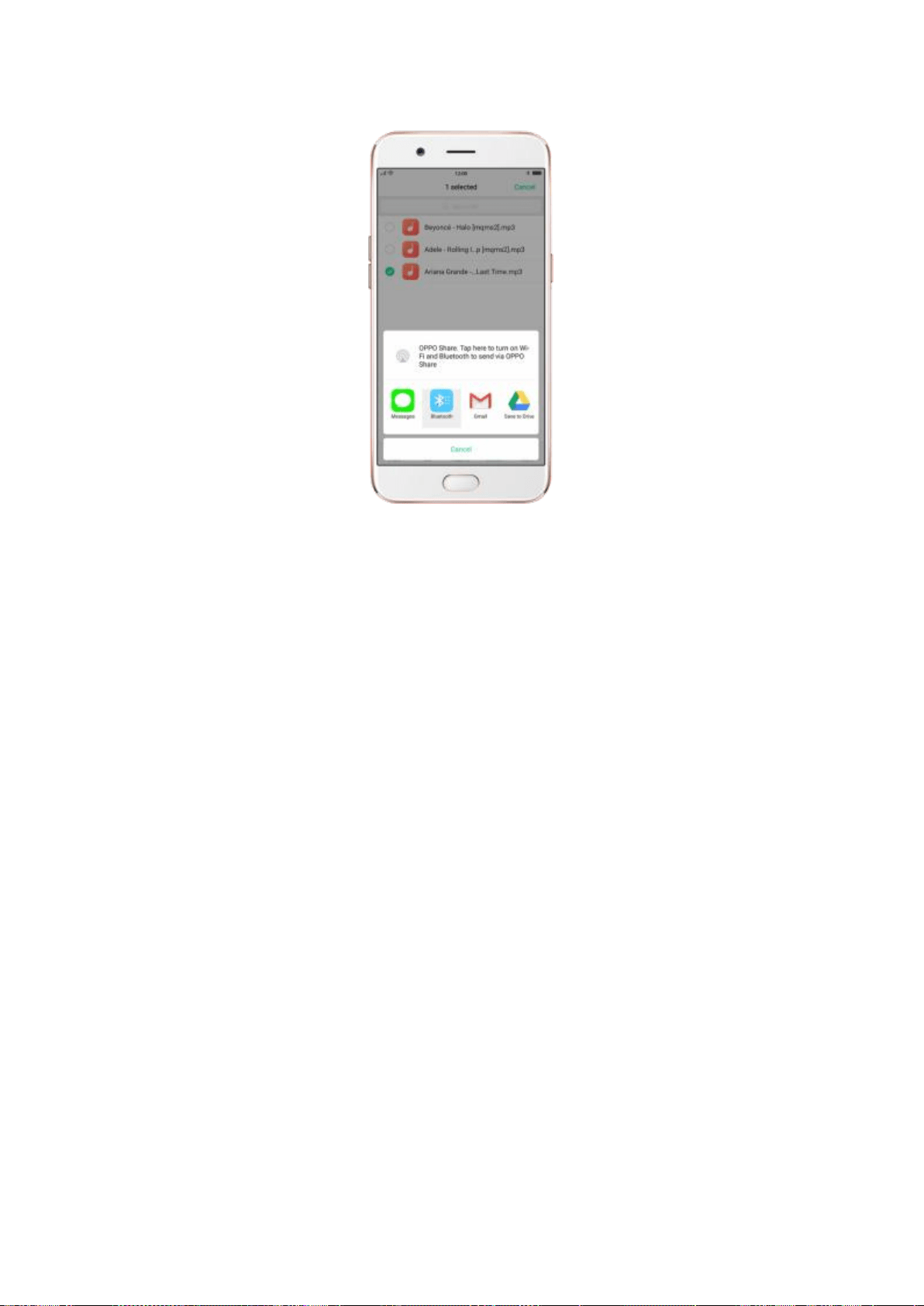
Use FTP to view and download files.
1. Connect your phone and laptop to the same Wi-Fi network.
2. Click Files, click FTP, then click Start Service. Search the URL displayed on your phone
screen with your computer, then you can view your phone’s file system and download
files directly to your computer. See FTP.
Wi-Fi Direct. Wi-Fi Direct allows devices to connect to each other directly through Wi-Fi,
without a Wi-Fi network or hotspot, and without having to set up the connection. You
can also use Wi-Fi Direct to share files with the help of third-party apps, such as ZAPYA.

1. Go to [Settings] > [Wi-Fi] and enable Wi-Fi.
2. Go to [Settings] > [Other Wireless Connections] > [Wi-Fi Direct].
3. Click Search to start scanning for nearby Wi-Fi Direct devices. After the scan, select a
device, and then follow the prompts to pair the devices.
Wireless Display. Using wireless display, you can stream your phone screen to the TV or
computer which is certified with Wi-Fi Miracast technology.
Stream to computer
Notice:
1. Connect your OPPO smartphone and computer to the same Wi-Fi network.
2. The function is only supported by Win 10. For Win 8 system, you can install
additional software and apps like AirServer to support.
Computer Setting
Go to [Settings] > [System] > [Project onto the computer].
Allow projection on all locations and every time when a request comes.
Enable the PIN code and remember your computer name.
OPPO smartphone Setting

Go to [Settings] > [Other Wireless Connections] > [Wireless Display],
toggle [Wireless Display] to green to start searching devices.
Select your computer name from the list and match it to your smartphone.
You will see the shared screen on computer once it’s connected successfully.
Stream to TV
Connect your OPPO smartphone and TV to the same Wi-Fi network.
Select your computer name from the list and match it to your smartphone.
You will see the shared screen on computer once it’s connected successfully.
If you want to stream the video playing on your smartphone to your TV, you
can install additional apps like IQIYI to support.
9.2.2. Wired file sharing
Transfer files between your phone and a computer.
1. Connect your phone to your computer using the cable that came with it.
2. Click phone’s notification, then click File Transfer.
3. On the computer, click your phone name, click Internal shared storage, then you can
copy phone files to the computer.
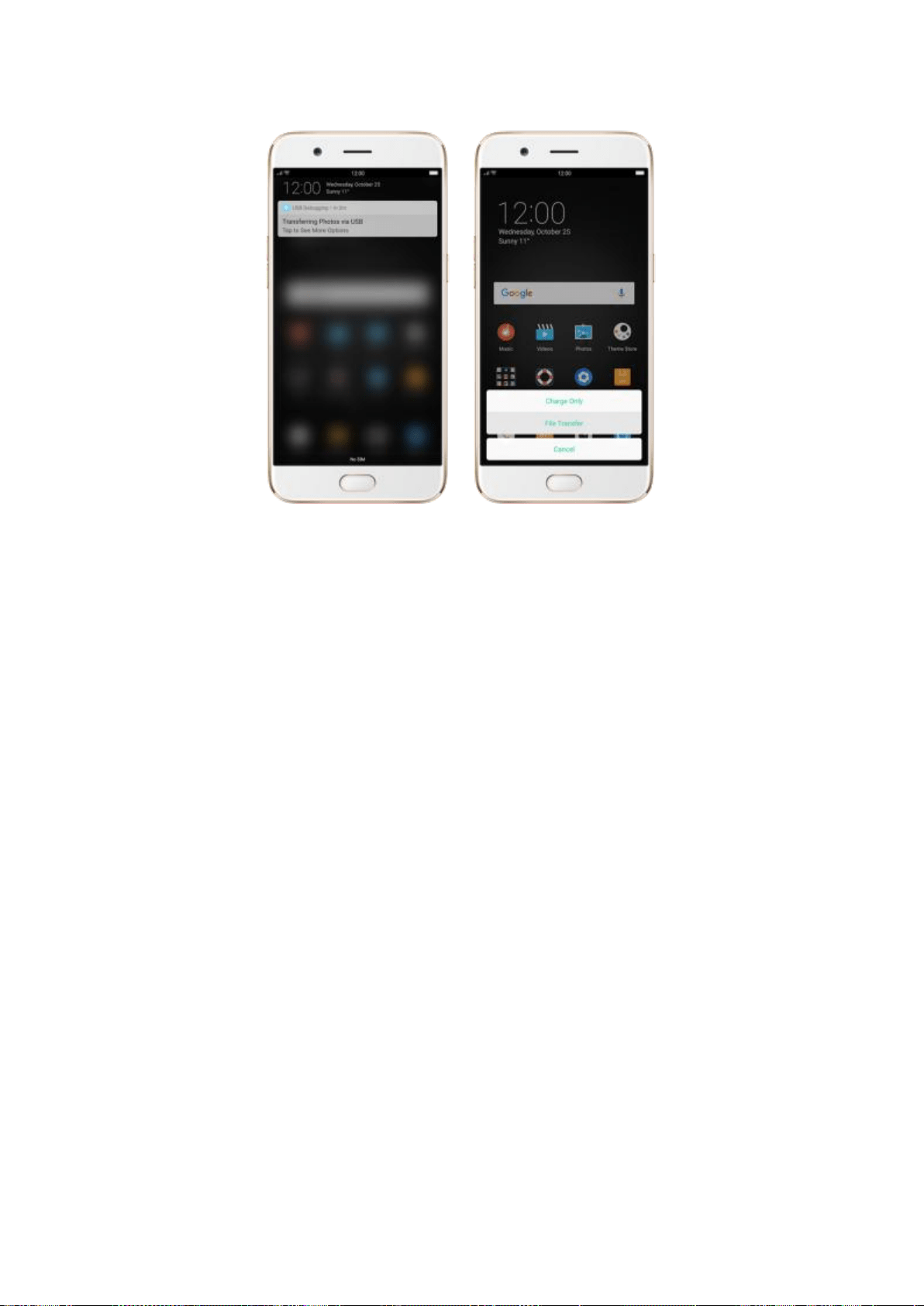
Transfer files with USB OTG. You can connect and add additional storage devices or
USB flash drives directly to your phone using a USB OTG cable.
1. Go to [Settings] > [Additional Settings] and enable [OTG Connection].
2. Connect a storage device to your phone using a USB OTG cable. You can directly
access data on the external storage device and play movies or music without having to
store them on your device.
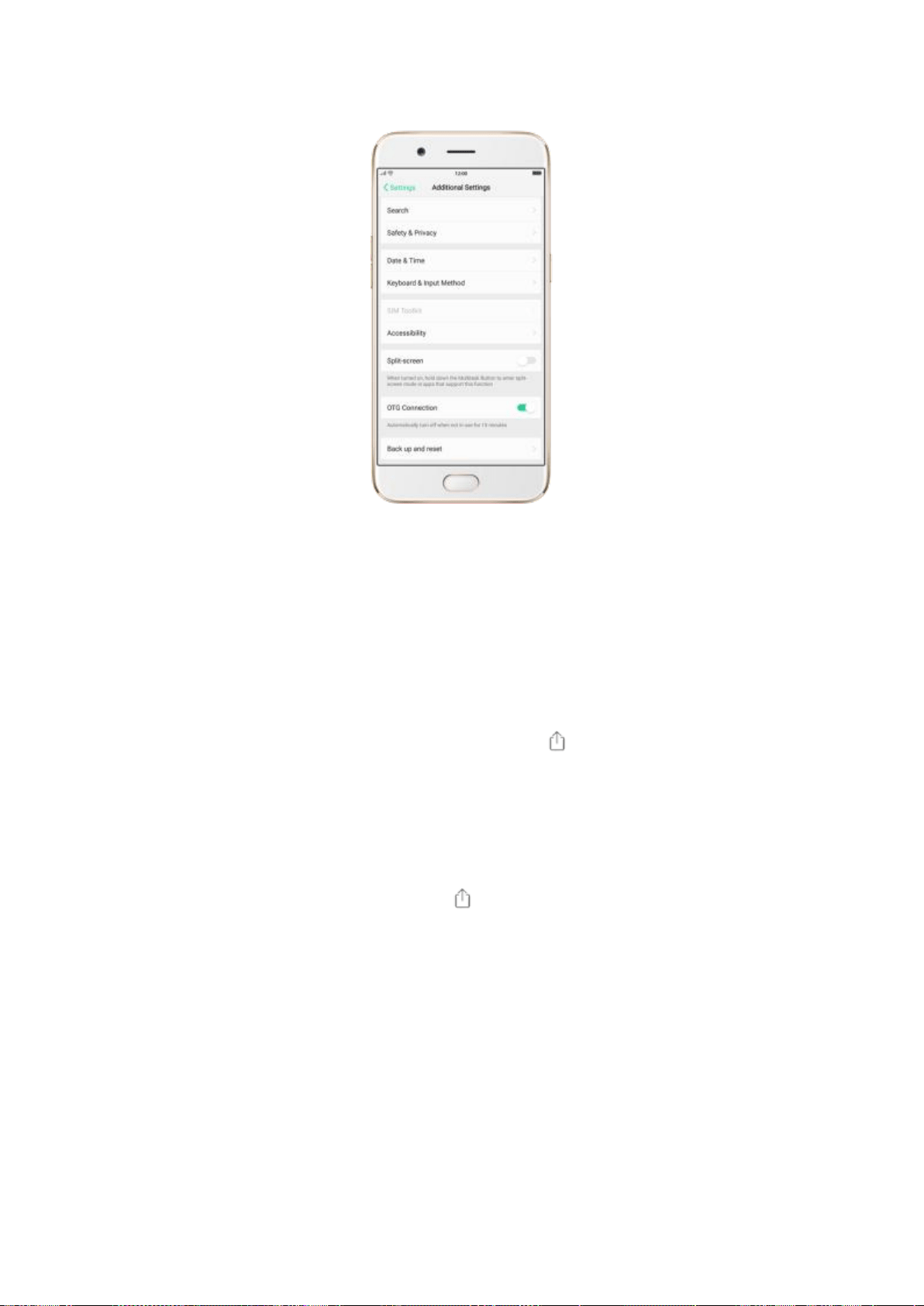
9.2.3. Share from apps
In addition to share your information from the Files app, you can also share from many
other apps in your OPPO smartphone.
Share from apps. In many apps, you can click Send or to choose how to share your
information. The choices vary depending on the app you’re using. Additional options
may appear if you’ve downloaded apps with sharing options.
Take the Photos app as an example, click and you’ll see all the sharing options.
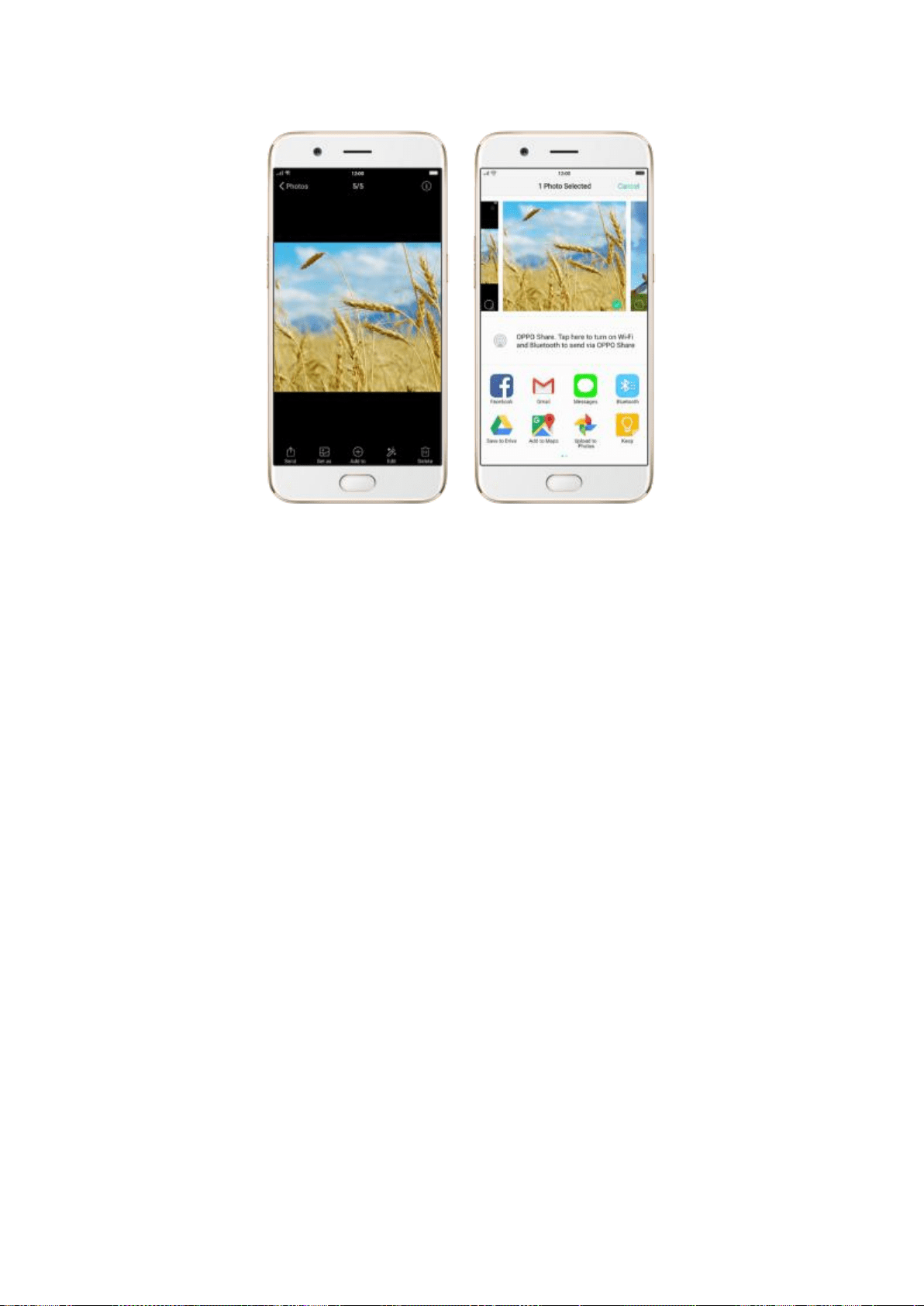
10. Restart, update, reset, and
restore
10.1. Restart the phone
If something isn’t working right, try restarting the phone.
Restart OPPO phone. Press and hold the Sleep/Wake button until the Slide
down to power off message appears. Drag the power icon down to turn off
the phone. To turn the phone back on, press and hold the Sleep/Wake button
until you see the OPPO logo.
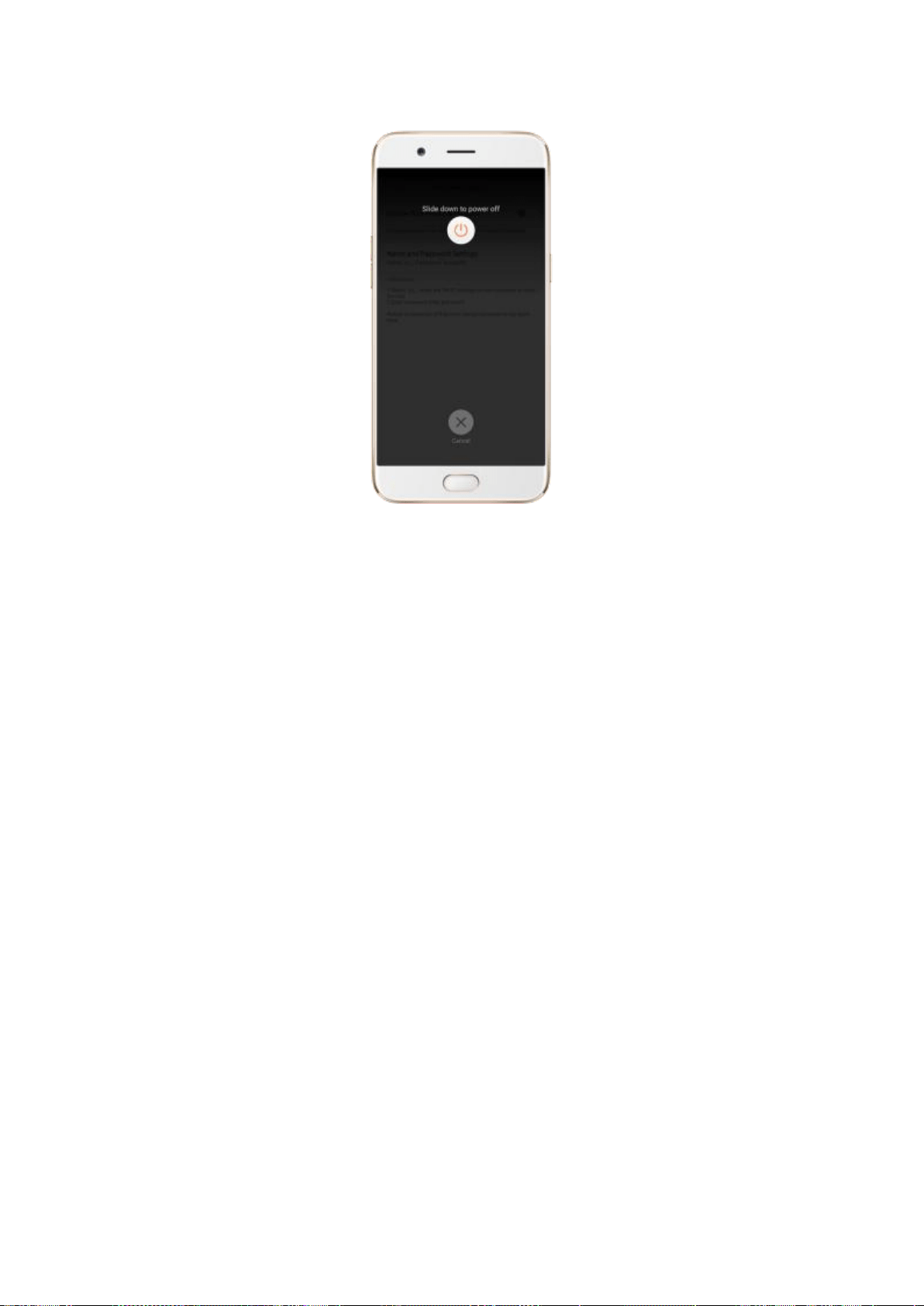
Force restart OPPO phone. If the phone is not responding, press and hold
the Sleep/Wake and Volume Up buttons for at least 8 seconds until you see
the OPPO logo.
10.2. Update the software version
You should always update your phone to the latest software. Your data and
settings will not be affected.
Before you update, back up your data.
Update your OPPO phone wirelessly. Go to [Settings] > [Software
Updates]. If an update is available, you will see
❶
on the right side. Or click
Software Updates to check for available software updates.
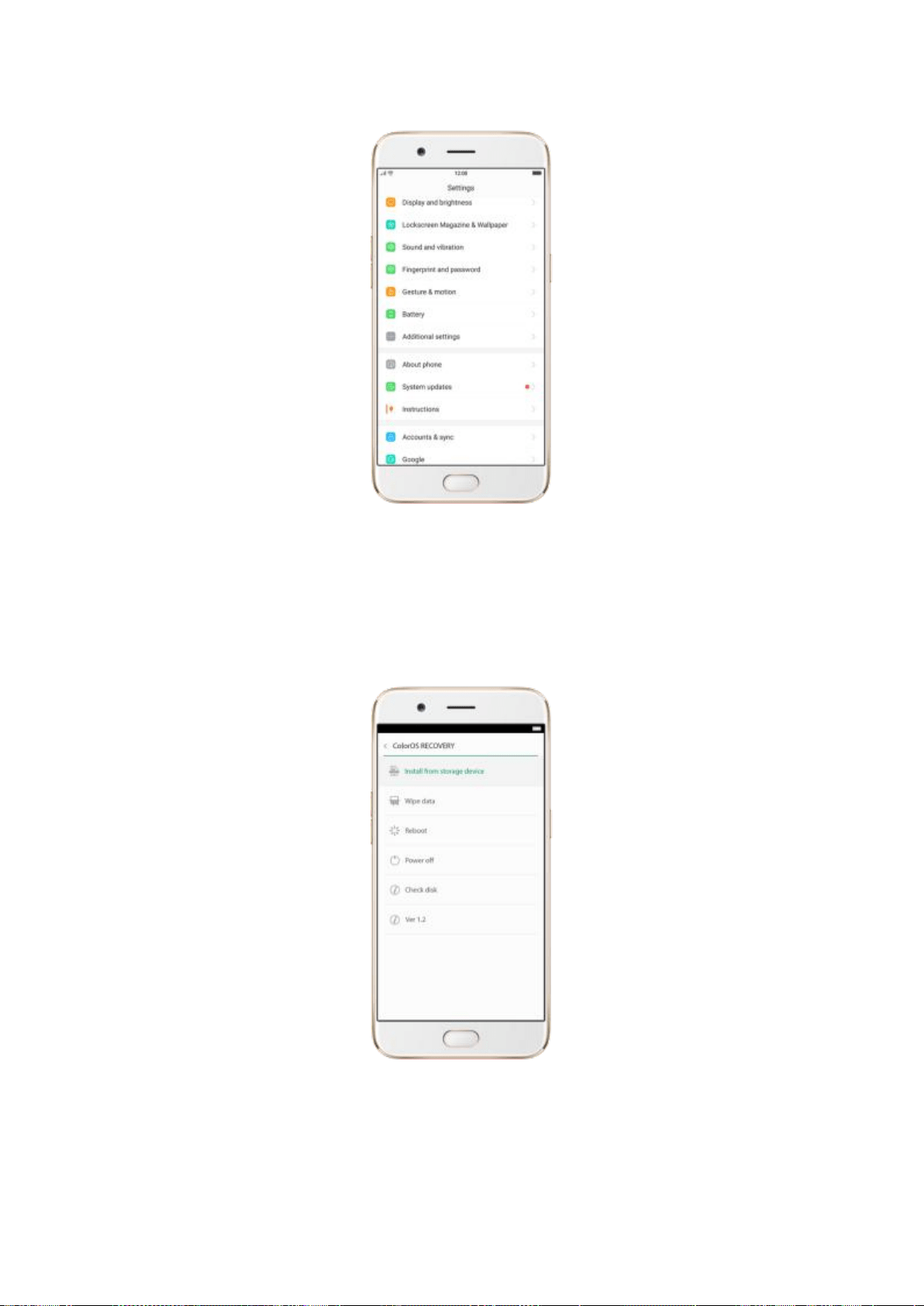
Update with SD Card (Recovery Update). Download the software to the SD
card, then update your phone under the Recovery Mode.
Flash your device to update. Only used by an authorized service provider. If
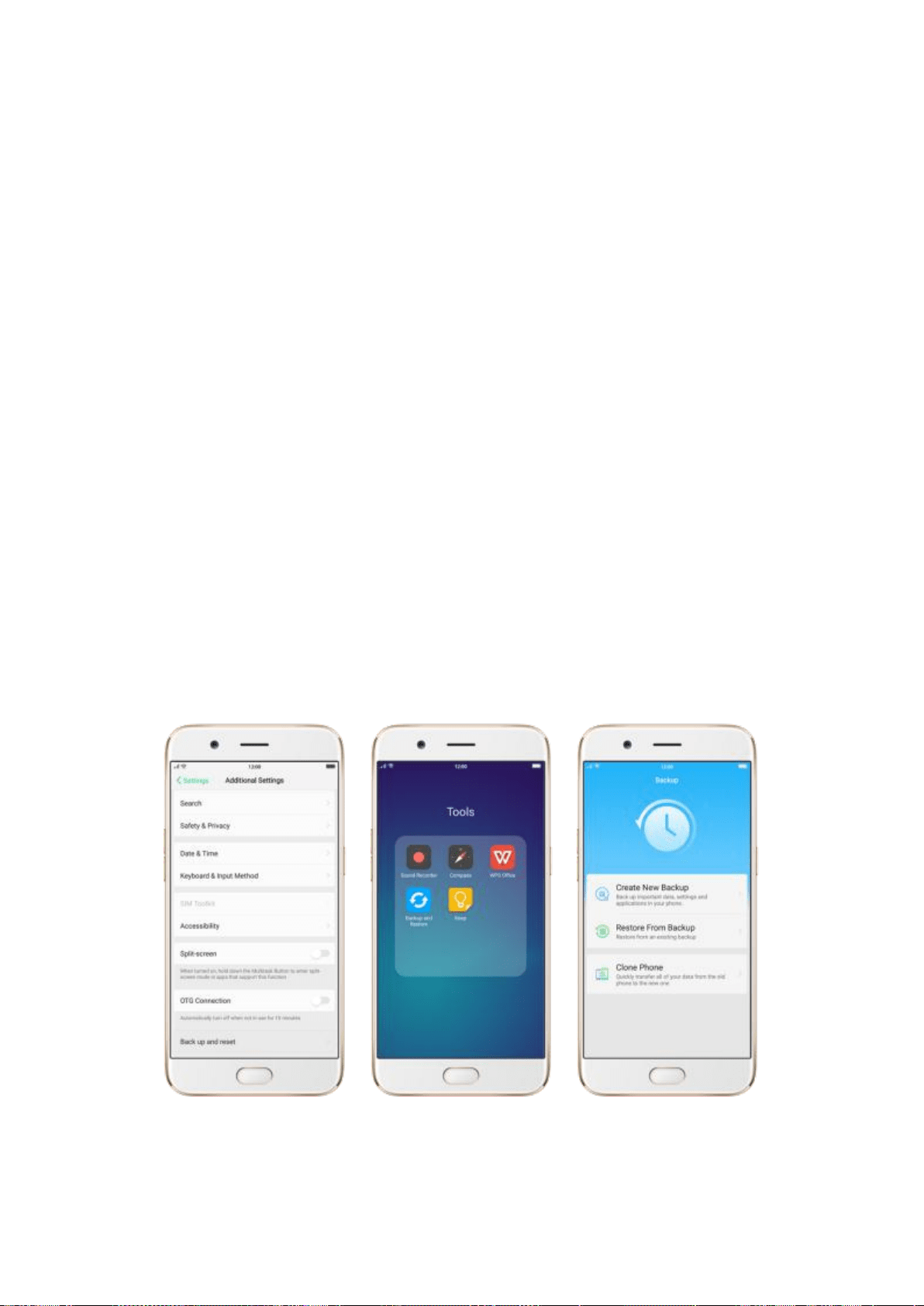
your phone won’t turn on or cannot enter Recovery Mode, or you forgot the
lock screen passcode, go to a nearby OPPO Service Center for help.
10.3. Backup and restore the phone
10.3.1. Back up your OPPO phone
If you use your OPPO phone on a regular basis, having a reliable backup is
essential in case something goes wrong.
Use the built-in backup tool. Go to [Settings] > [Additional Settings] >
[Back up and reset], or click [Tools] > [Backup and Restore]. All your
personal data, system data and applications will be backed up to phone
storage.
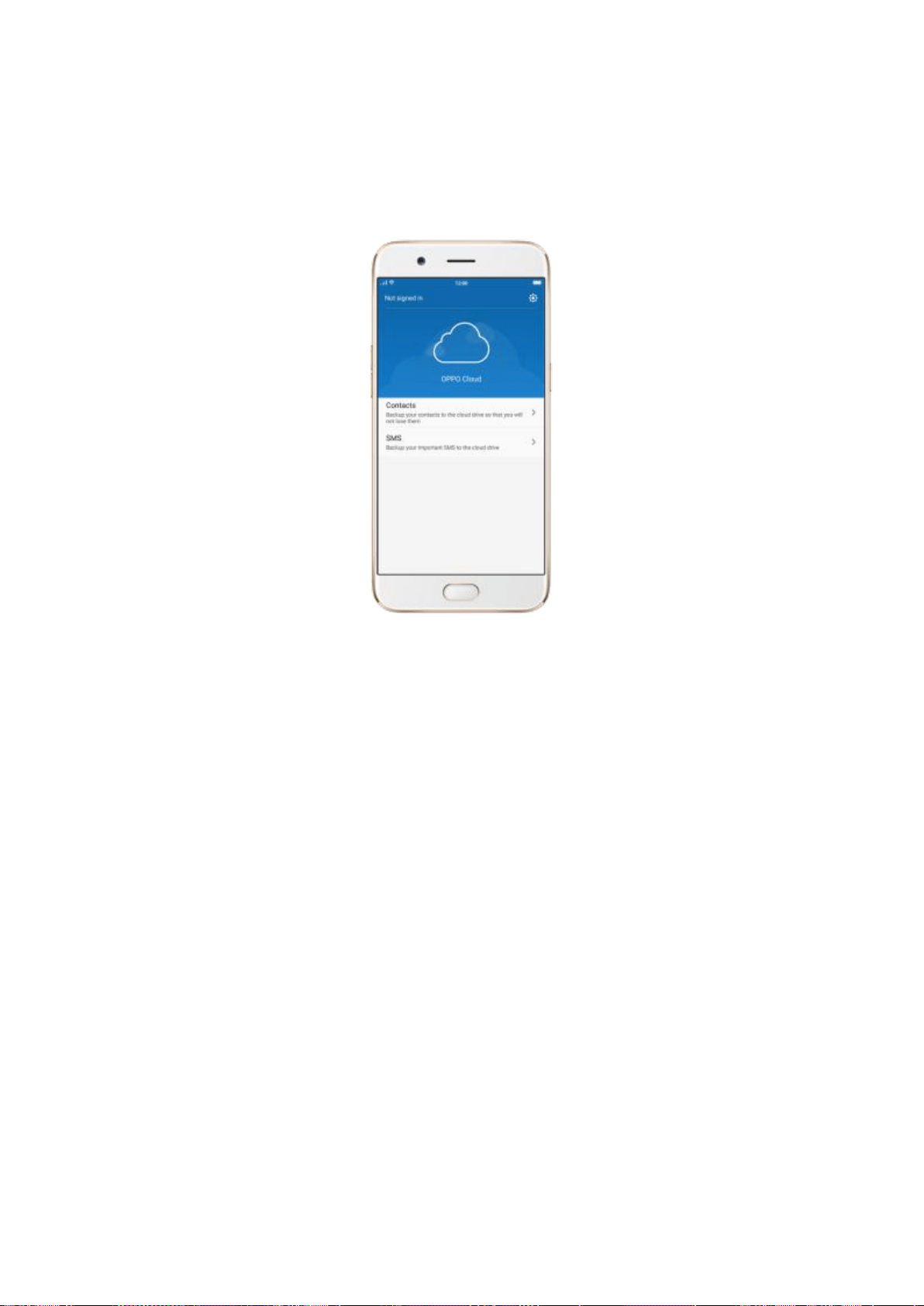
Use OPPO Cloud. OPPO Cloud allows you to back up the Contacts and SMS
to the cloud drive. You need to register or sign in OPPO account first.
Connect your phone to a computer to create a backup on it. A common
way to back up all your data. Don't disconnect your phone during the copy
process.
View Back up your OPPO smartphone for more details.
10.3.2. Restore data on your phone
There are various methods to back up data on OPPO smartphone. Select the
corresponding restoration method according to the way you make backup.
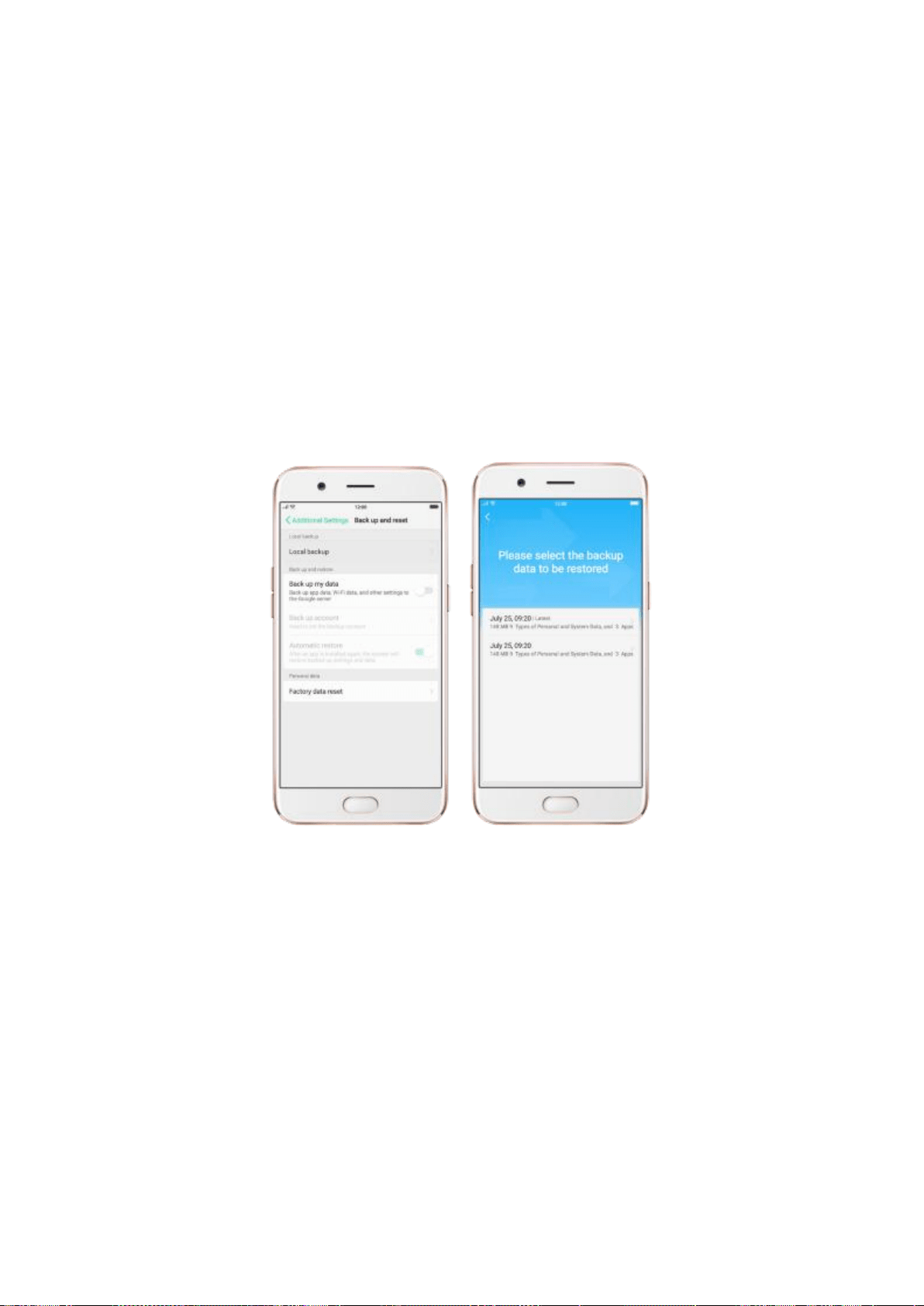
Restore your OPPO smartphone from Local
backup
Before you start, make sure that you have copied and saved the data on
OPPO smartphone via [Local backup].
1. Go to [Settings] > [Additional Settings] > [Back up and reset] > [Local
backup], or go to [Tools] > [Backup and Restore]. You can find the data you
want to restore according to its backup time.
2. Select data to be restored, including Applications (Applications and
Application Data), Personal Data (Contacts, Messages and more) and System
Data (System Settings, Clock and more). Then start the restoration.
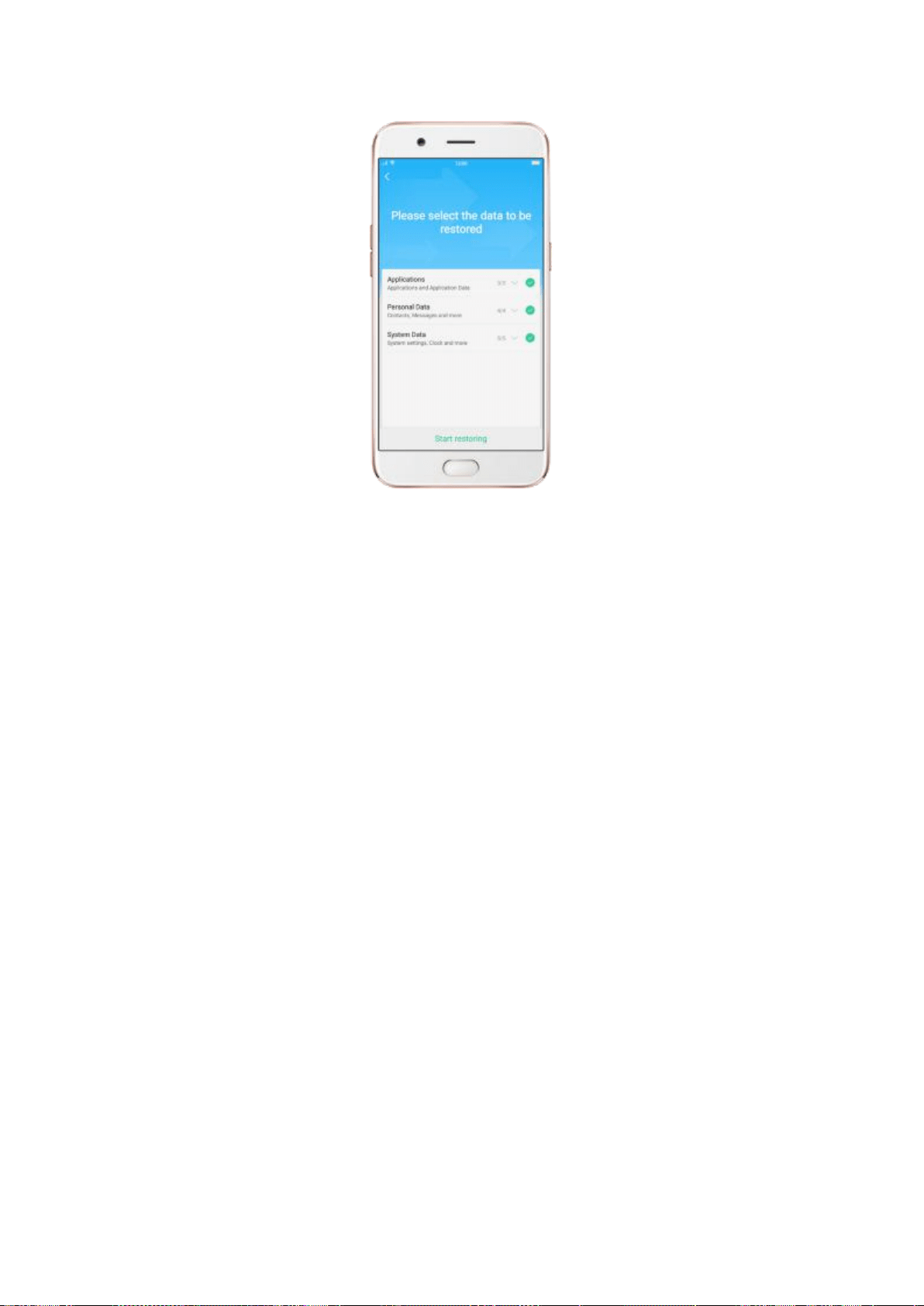
3. OPPO smartphone will display the progress and details till the restoration
is done.
* DO NOT turn off or restart your phone during the restoration process,
otherwise data may be damaged or lost.
* After restoration succeeded, you can delete the backups that are no longer
needed.
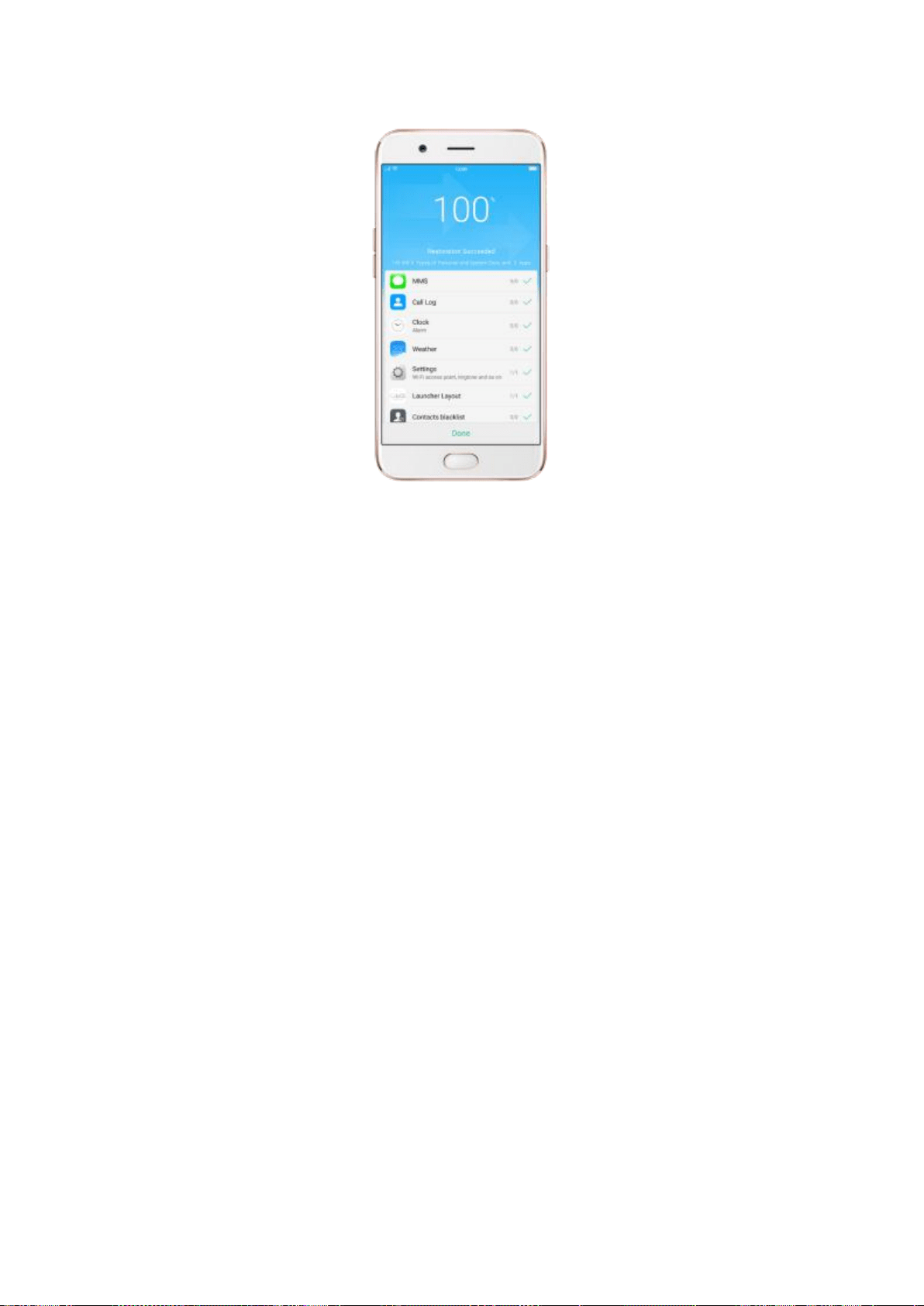
Restore your OPPO smartphone via computer
If your backup files are stored on external storage such as SD card,
removable hard drive, etc., copy these files to your OPPO smartphone to
complete data restoration.
Restore Contacts and SMS on OPPO smartphone
from [OPPO Cloud]
If you have backed up your Contacts and SMS to OPPO Cloud, you can
restore them after signing in to your OPPO account.
* To back up and restore with OPPO Cloud require network connection.
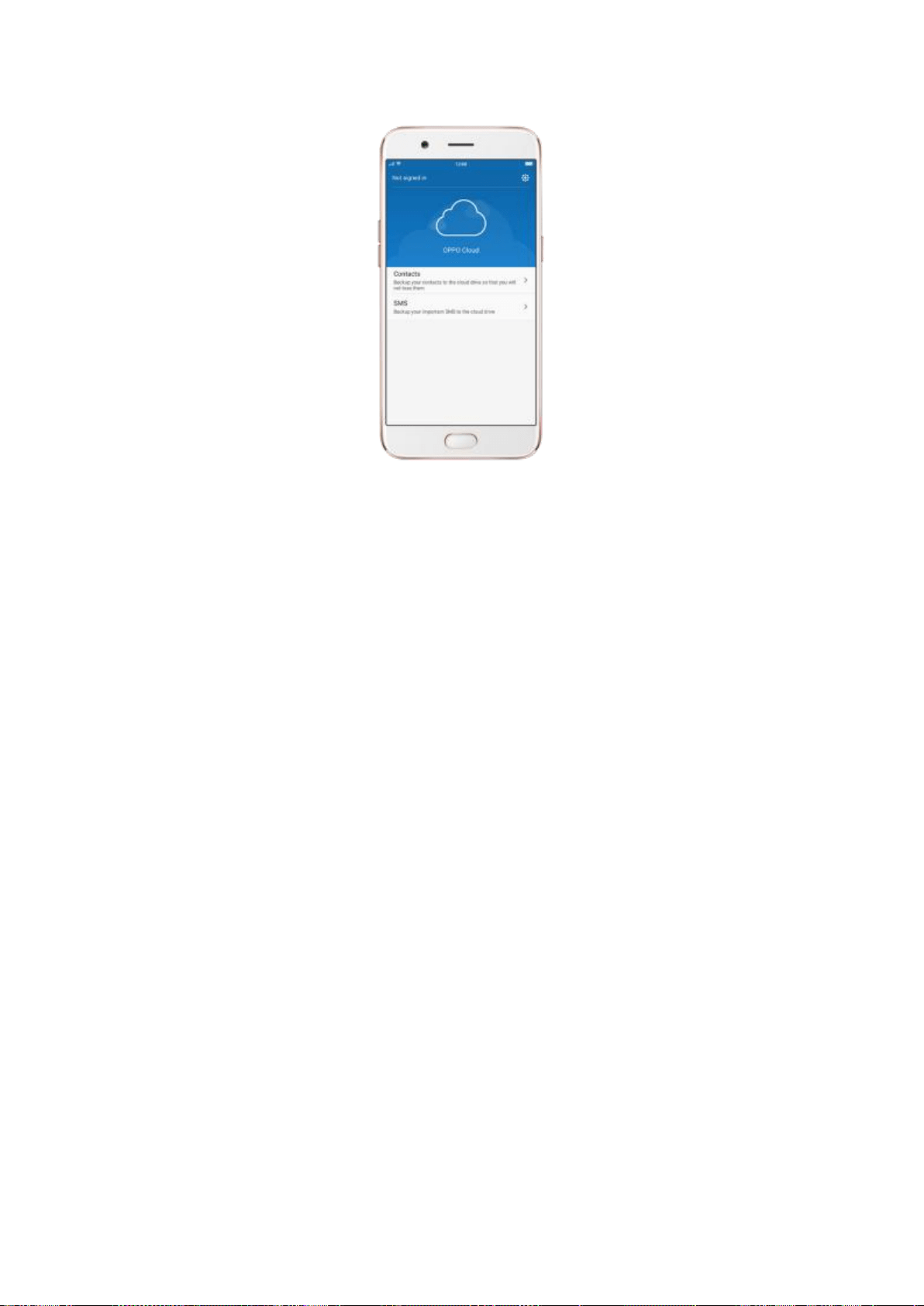
Transfer your data with [Clone Phone]
If you have switched to a new OPPO phone, you can transfer your data from
old phone to your new OPPO phone through [Clone Phone].
Restore your OPPO smartphone data from
third-party APPs
OPPO does not recommend you to back up, transfer or restore data via
third-party APPs, for they may be conflicted with OPPO system, leak personal
information, or cause other safety problems.
10.4. Reset the phone
Resetting your OPPO phone will reset the phone back to its original factory
settings, and permanently erase all your personal data. You can do Factory

data reset if your phone becomes lagging, has too much junk files and caches,
or has issues with system or applications.
Before you do factory reset, back up all the needed data.
Reset your phone to factory settings
Go to [Settings] > [Additional settings] > [Back up and reset] > [Factory
data reset], choose an option available for factory data reset.
* Any reset option cannot be revoked once it is operated.
Reset All System Settings
This option will reset all system settings without deleting any data or media
files.
Erase All Content and Settings
Through this option, all data of OPPO smartphone will be cleared including
contents, settings, photos and music. OPPO smartphone will be reset to
inactivated initial state, which is factory state.
Erase All Contacts and Call History
By choosing this option, all the contacts and call history on the SIM card will
be erased. Only the contacts on the SIM card will be preserved. Other data on
OPPO smartphone will not be affected.
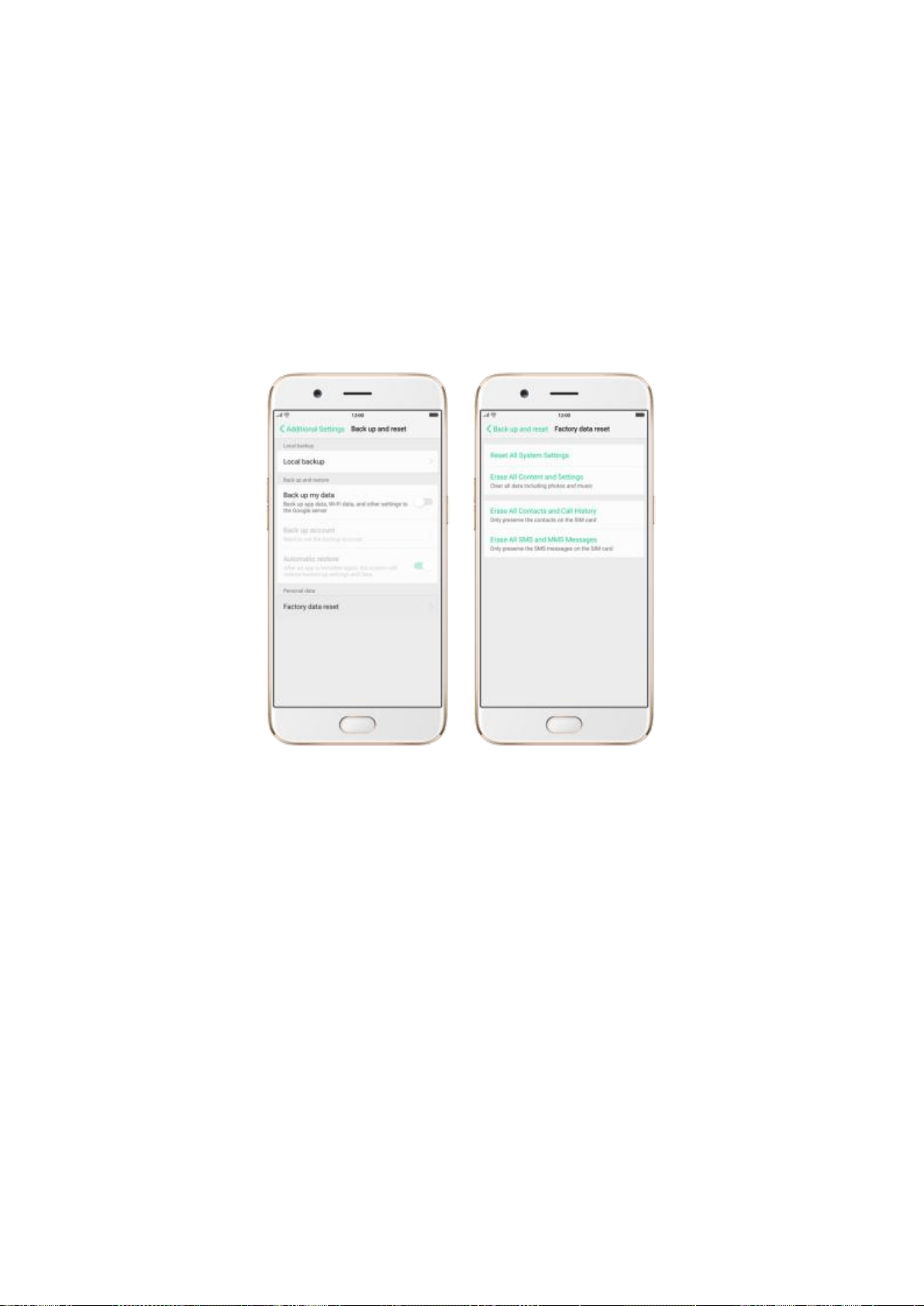
Erase All SMS and MMS Messages
By choosing this option, all the SMS and MMS messages on the SIM card will
be erased. Only the SMS messages on the SIM card will be preserved. Other
data on OPPO smartphone will not be affected.
11. Accessibility
11.1. Talkback
Talkback helps blind and vision-impaired users to interact with the phones
more easily. It uses spoken word, vibration and other audible feedback to let
you know what's on your screen, what you're touching, and what you can do
with it.
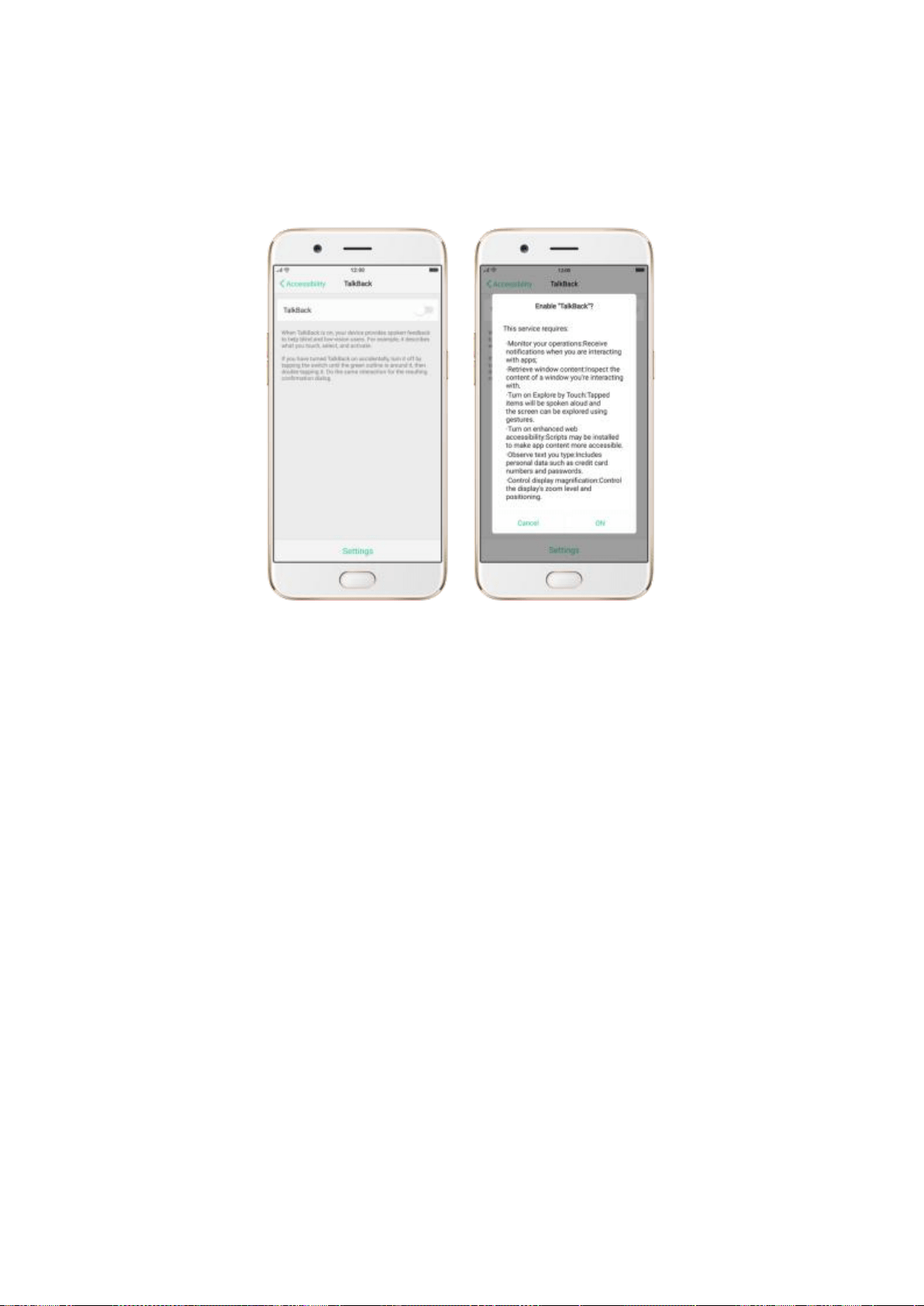
Turn Talkback on. Go to [Settings] > [Additional Settings] > [Accessibility]
and enable TalkBack.
When TalkBack is on:
Your device provides spoken feedback to help blind and low-vision users. For
example, it describes what you touch, select and activate.
You need to:
Tap the screen until you see a green outline and you can enter with double
click.
Swipe upward or downward with two fingers to scroll the screen.
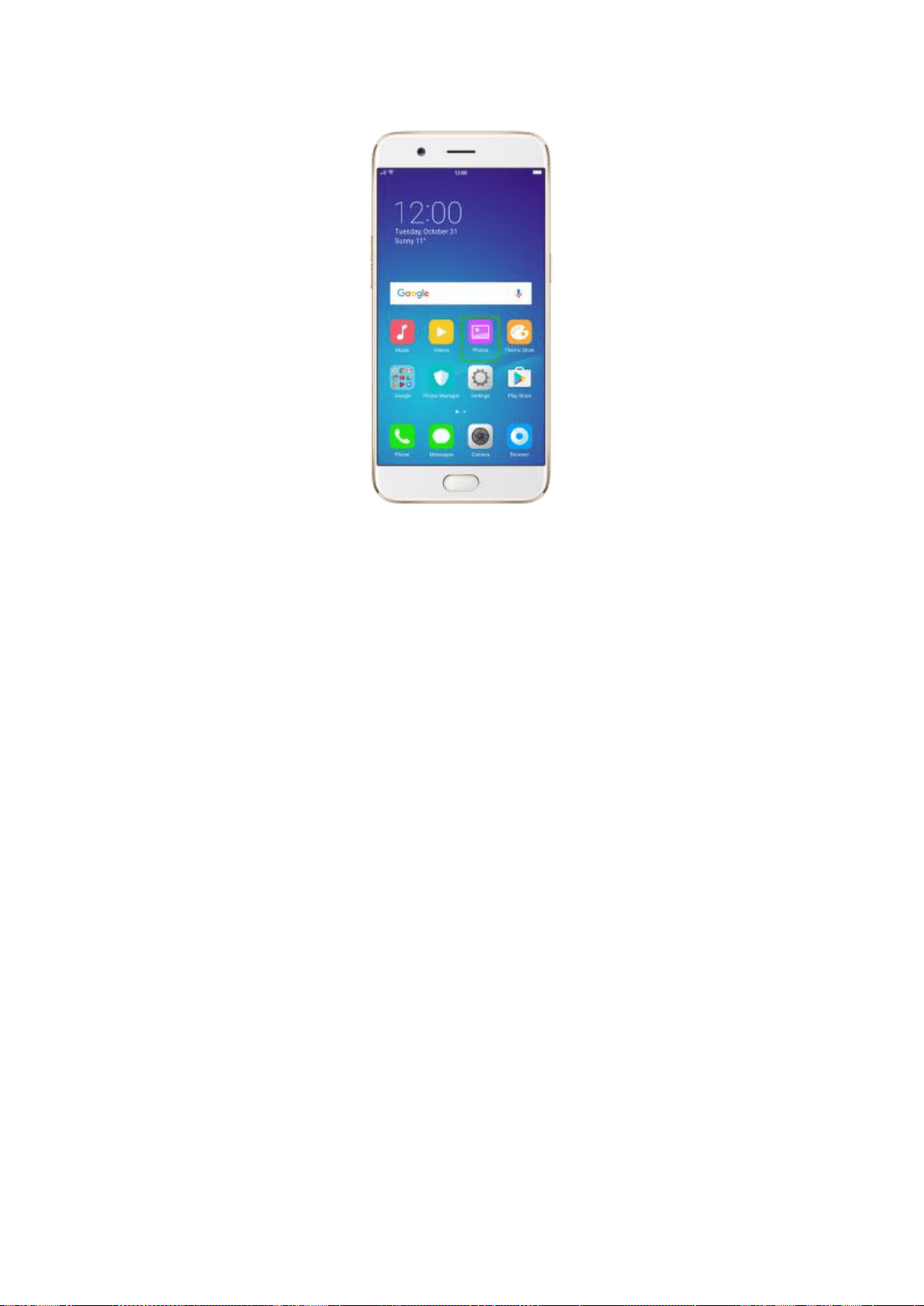
Turn Talkback off.
1. Press the volume up and volume down button simultaneously to
suspend TalkBack functon.
2. Turn it off in [Settings] > [Additional Settings] > [Accessibility].
*You need to enter the code when you use Accessibility Features.
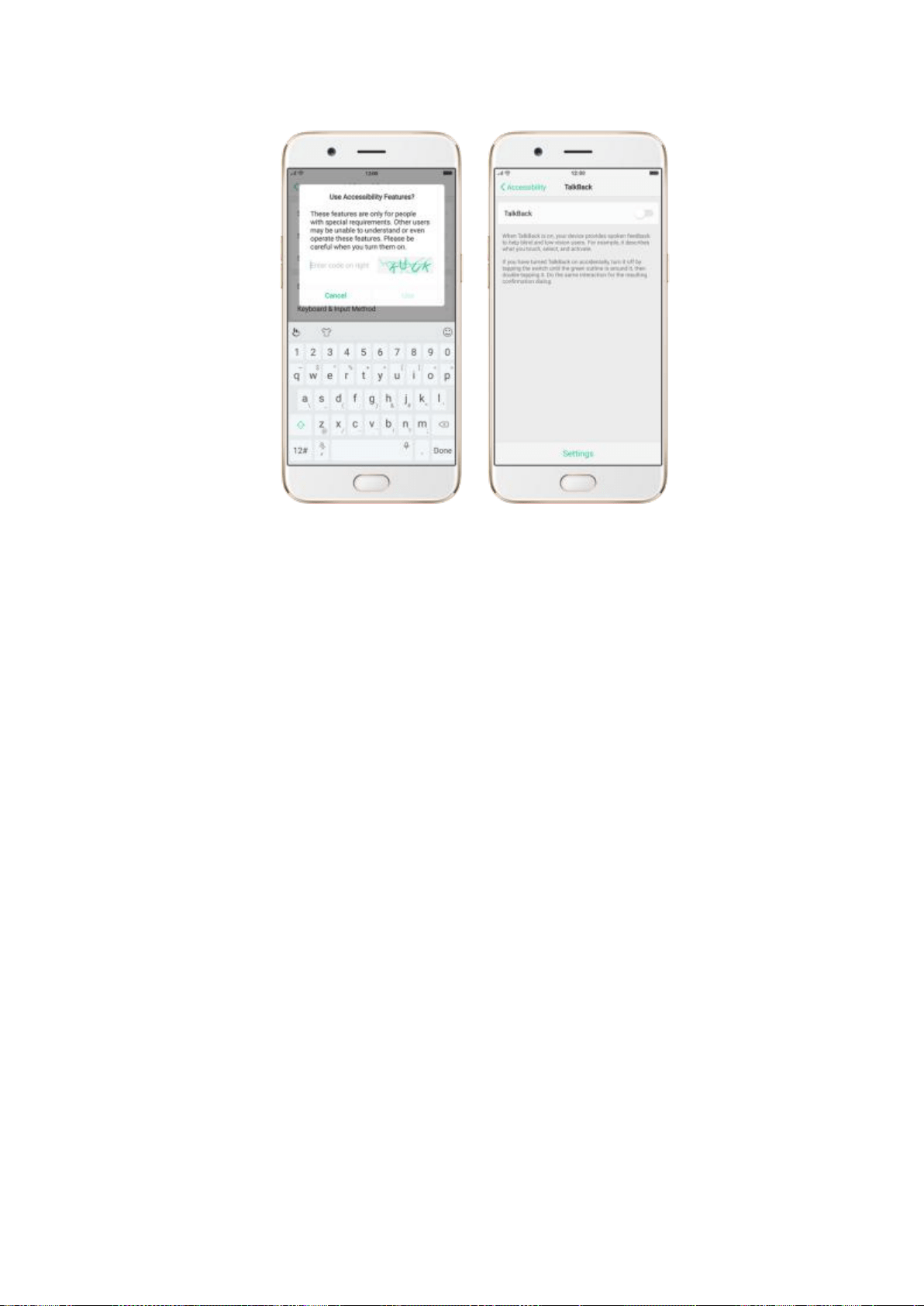
11.2. Magnification Gestures
Magnification gestures work similarly to the full screen magnifiers, which allows users to
zoom in and pan the whole screen to get a closer look at screen content.
Enable magnification gestures. Go to [Settings] > [Additional Settings]>
[Accessibility].
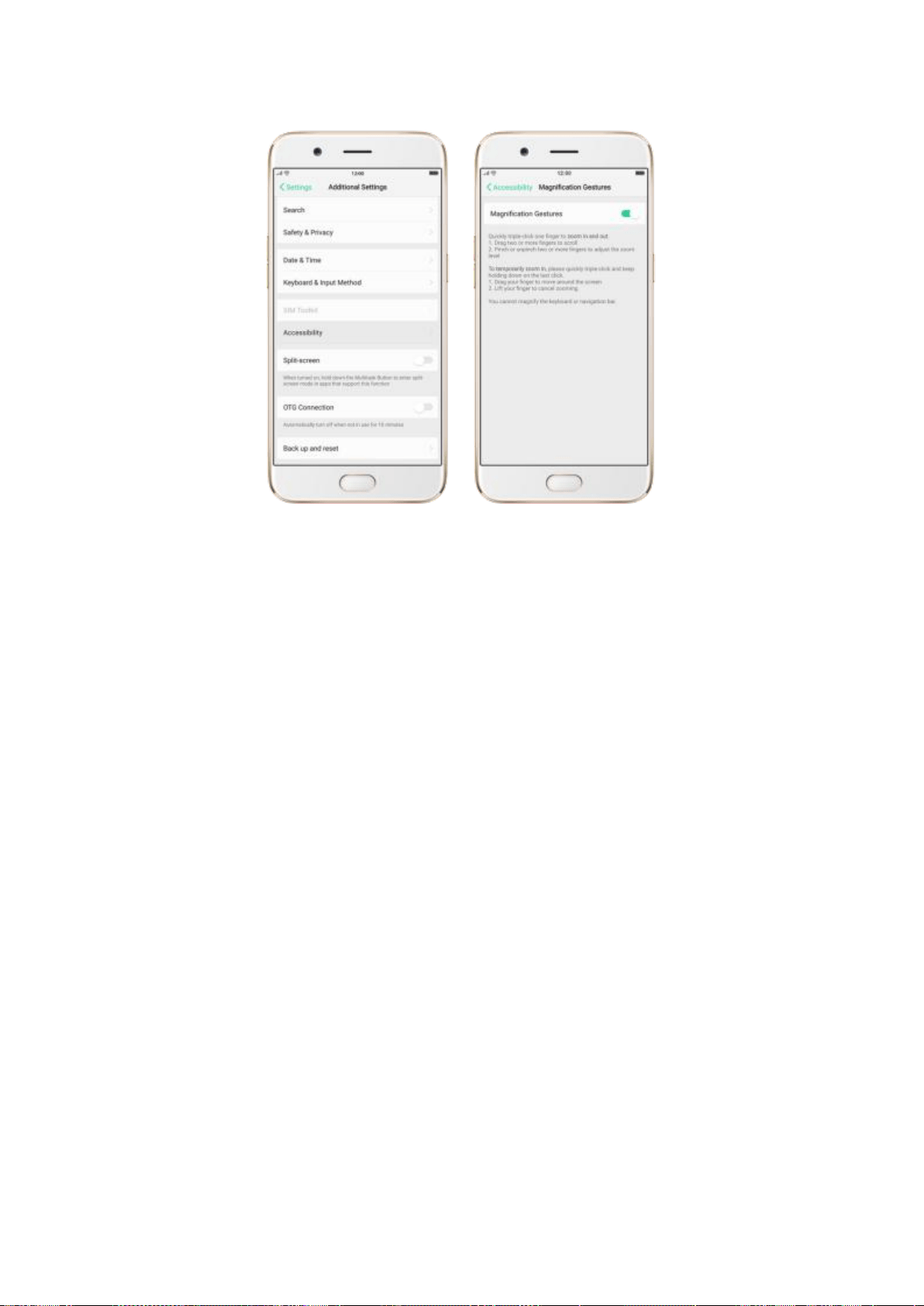
Triple-click the screen to zoom in and out. The triple-clicking does not work well
on the keyboard or on the navigation bar - if you have the magnifier running
while the keyboard is shown, only the area above the keyboard will be
magnified.
Drag two or more fingers across the screen to pan across the screen.
Pinch your fingers together or apart to adjust the zoom level.
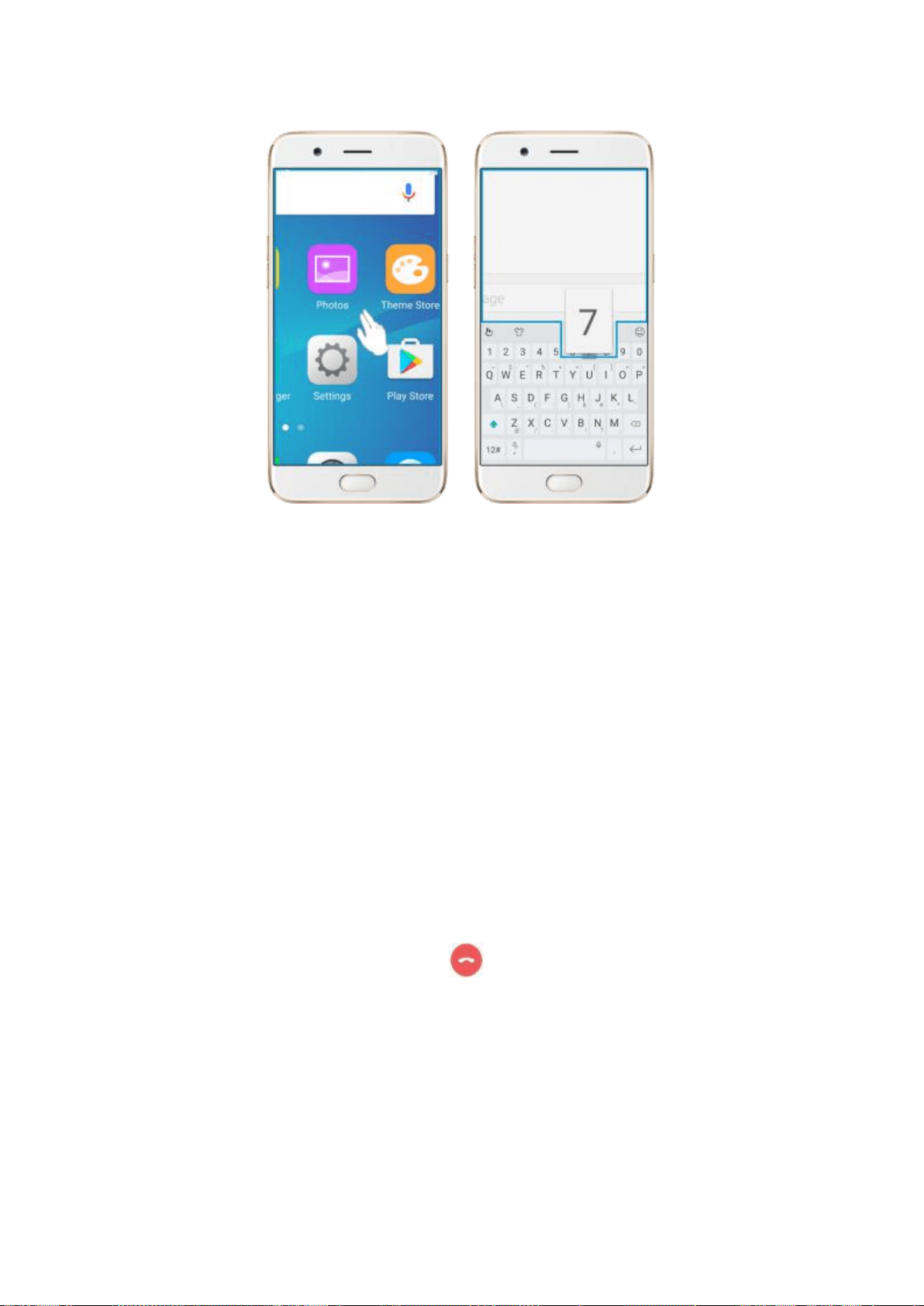
Turn the magnifier on temporarily. Triple-click the screen and hold the third click.
Drag one finger around the screen to move the view.
Lift the finger to cancel zooming.
+
11.3. End Calls with the Power Button
In addition to end calls by clicking , you can make the Power button to
take this function.
End Calls with the Power button. Go to [Settings] > [Additional Settings] >
[Accessibility], toggle the [Power Button Ends Call] slider to green. Then you
can end calls by clicking Decline or pressing the Power button.
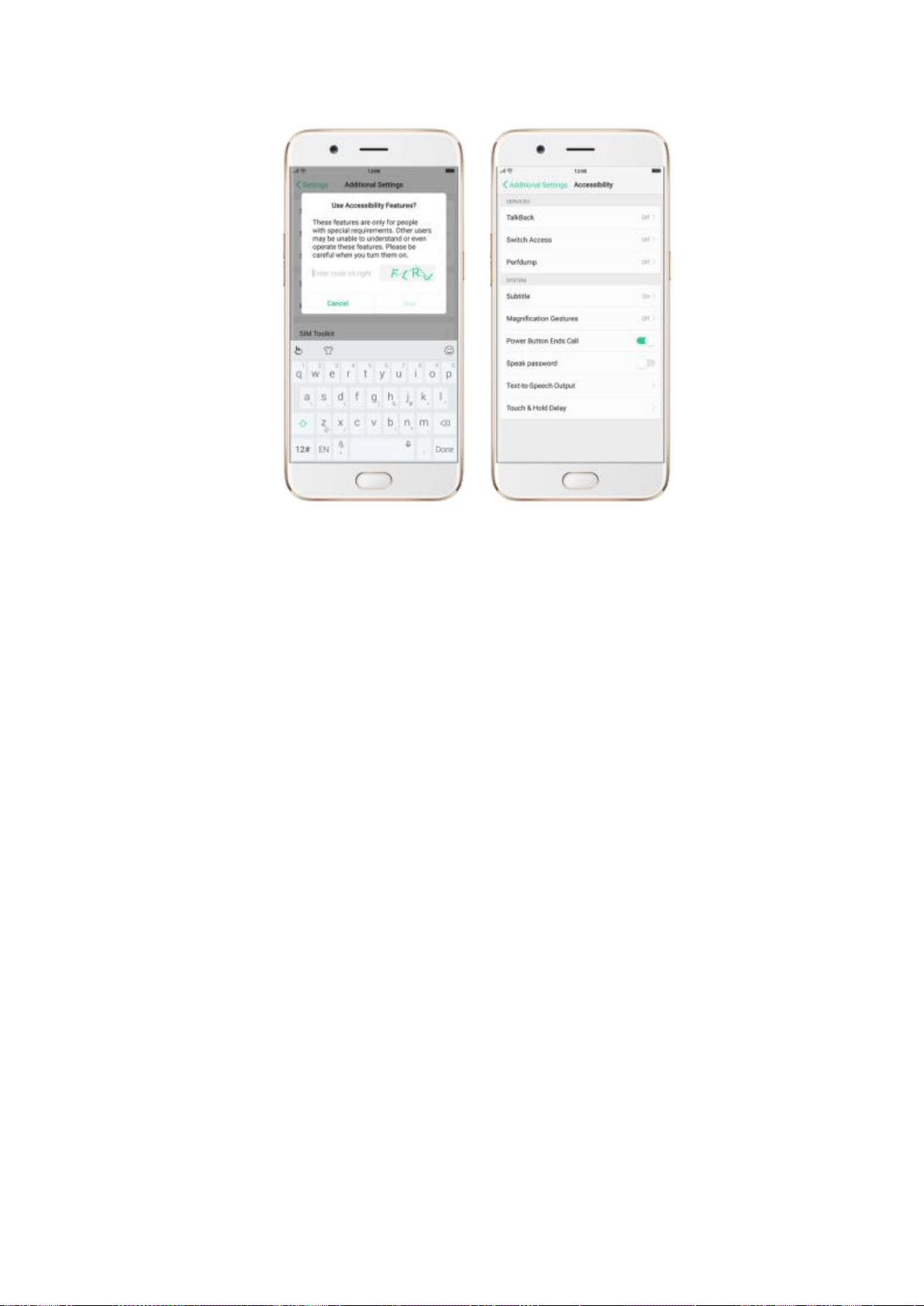
11.4. Speak password
When you turn TalkBack on, the phone reads and tells you exactly what
you are touching and typing on the screen. For your personal information
safety, your password will not be read - unless you have allowed the
phone to do that.
Allow your phone to speak password. Go to [Settings] > [Additional
Settings] > [Accessibility] and enable [Speak password]. When you
turn TalkBack on and type the password, your phone will read it to you.
Note: Allowing the phone to speak password means that you are now
responsible for the safety of your personal information. You can turn
down the speech volume to prevent password disclosure or use a
headphone.
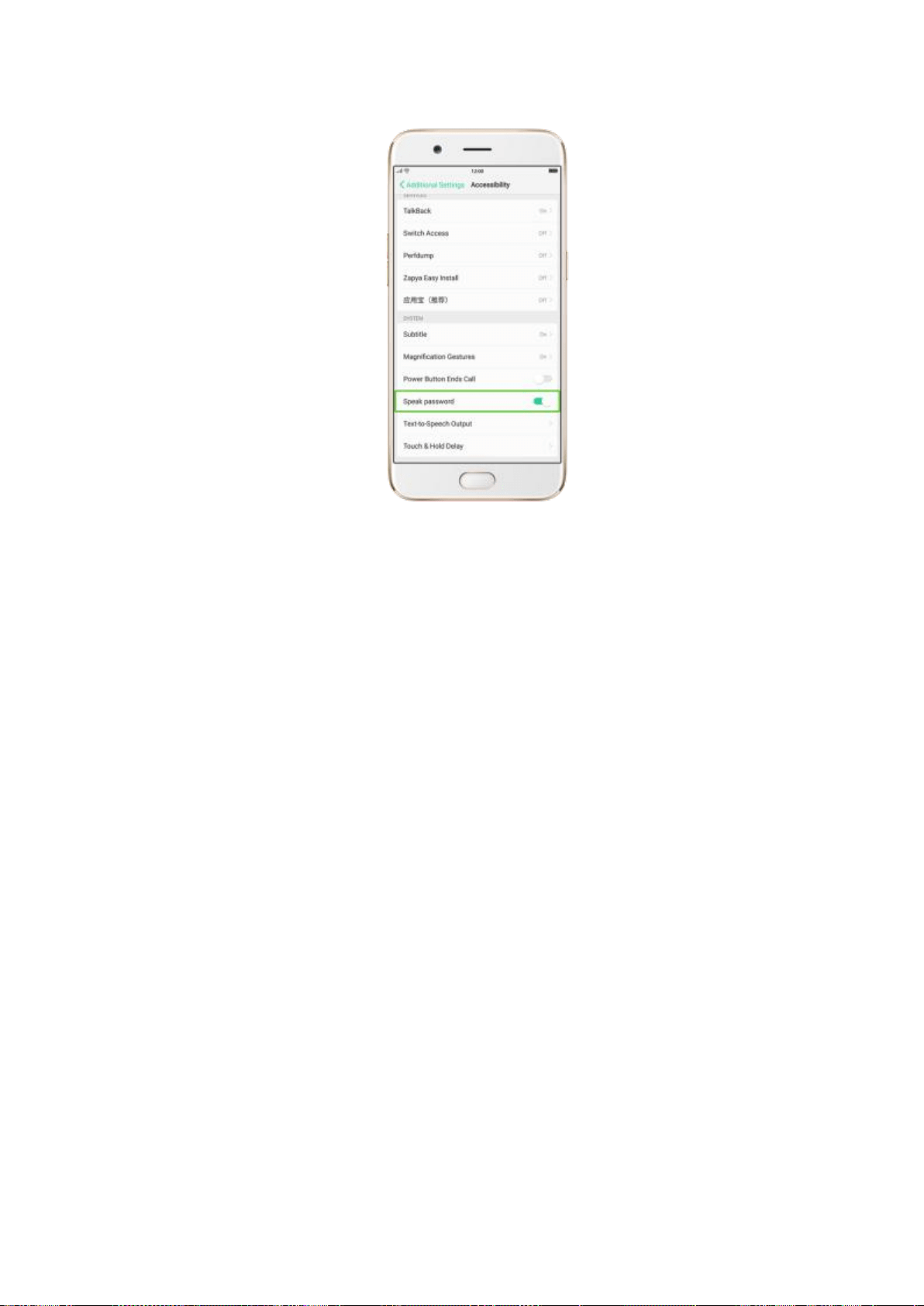
12. Safety, handling and support
12.1. Health and Safety
12.1.1. Using Environment
Keep in mind with the following rules. Switch off your phone when it is
prohibited, or might cause disturbance or danger.
1. Your phone is designed to work with temperatures between 10° C to 45° C
and humidity between 35% to 85%. A too high or too low temperature might
affect the performance or cause damages.
2. Your phone might interfere with electronic and medical equipment. Obey
the related rules and switch off your phone in these places.
3. Try not to use your phone in weak signal areas or near high-precision

electronic devices. Radio interference might lead to malfunction or other
issues in electronic devices, especially pay attention when near the following
devices: hearing aids, pacemakers and other medical devices, fire detectors,
automatic doors and other automatic control devices.
4. In rare cases, the phone might interfere with the electronic systems in
certain cars, such as the ABS anti-lock brakes and the air bag. Consult your
network operator or car manufacturer before connecting the phone.
5. Before connecting to other devices, carefully read the user manual for
more detailed, accurate and safety instructions. Do not connect to
incompatible products.
6. Do not use your phone in rain, or near washbasins or other wet locations.
12.1.2. Battery Safety
Battery Precautions
1. Do not disassemble the built-in lithium-ion battery yourself, otherwise it
might cause battery leakage, overheat, explosion and fire.
2. Do not puncture or pierce the battery with hard objects (e.g., needles and
tacks) to avoid battery leakage.
3. Liquid in the battery is harmful to your skin. If liquid can be seen leaking
from the battery, do not attempt to touch it. If the liquid contacts with the
skin and eyes mucous accidentally, rinse immediately with water and go for a
doctor if needed.

4. Do not expose the battery to extreme ambient temperatures, fire, wet
locations and direct sunlight.
5. If the battery sends out strange smell, turn off your phone immediately,
and send it to an authorized service provider for battery replacement. Do not
attempt to disassemble or replace the battery yourself.
6. Do not charge the battery over 12 hours.
Battery Life Tips
1. Use OPPO original accessories. Use OPPO original charger (power
adapter and USB cable) that matches your phone model. Charging with
third-party or counterfeit charger accessories might impact battery lifespan
or even cause security incidents.
2. Use at a suitable temperature. Operate your phone in a place where the
temperature is always between 16° C to 25° C (61° F to 77° F). Battery life
might temporarily shorten in low-temperature conditions, or irreversibly
damage when temperature is higher than 45°C. The battery should be
charged at a temperature range between 5° C to 40° C to avoid decreased
battery performance and standby time.
3. Do not use when charging. Your phone might quickly get warm or even
cause damage if you operate a lot during charging.
4. Do not fully discharge your phone’s battery. Charge your phone when
your battery level goes down to 10%. If phone’s battery is fully discharged,

the battery could fall into a deep discharge state, which will cause it to be
slightly damaged.
5. Store the phone long term. If you plan to store the phone for a long time,
charge it to 60% or above every month.
6. External environment. Avoid to expose your phone battery to high or low
temperature, humid environment or sun exposure.
12.1.3. Charger Usage Notes
1. Only use the charger specified by OPPO.
2. Charging voltage should be consistent with that specified on the charger.
Using mismatched voltage might cause leakage, fire and damages.
3. Do not use a power socket that is incompatible with the charger. Make sure
the charger is plugged in firmly to avoid any fire hazard.
4. Do not charge your phone with a partially damaged charger, for that could
result in electric shock, fire or other damages.
5. Do not charge your phone near washbasins or other water containers, or in
wet locations such as bathrooms. Take care not to spill any food or liquid on
your phone or charger. Do not touch chargers, cables or power socket with
wet hands. In case the charger gets wet, unplug all cables, allow it to dry
thoroughly before charging again.
6. Do not disassemble or modify the charger or cables yourself.
7. Do not place heavy objects on the charger, for that might cause electric

shock and fire.
8. Before cleaning the charger, unplug all cables (hold and pull the plug
instead of pulling the cable, otherwise the cable will be ripped off).
9. Do not charge your phone when there is lightening or thunderstorm. Do
not make phone calls while charging.
10. Avoid exposing your charger to following conditions, such as direct
sunlight, temperatures lower than 5° C or higher than 40° C, damp and dusty
places or that with excessive vibrations (might cause breakdowns), places
near electrical appliances such as TV and radio sets (might cause interference
to images and sound).
12.1.4. Traffic Safety
Use both hands when driving, and give full attention to driving and to the
road. If you decide to use your phone while driving or riding a bicycle, keep
in mind the following conditions:
▶
Safety should always come first while driving or riding a bicycle. Make sure
to follow the related regulations in the area or country.
▶
Keep your eyes on the road. If you get an incoming call at an inconvenient
time, let your voicemail answer it for you, or answer with a Bluetooth headset.
▶
An air bag in your vehicle inflates with great force. Do not store your phone
or any of its accessories in the area over the air bag or in the air bag
deployment area.

▶ Do not rely solemnly on the map in your phone when searching for
location, buildings, directions and distance. Map routes and compass change
as information provided by the service provider changes, so the map might
be incorrect, incomplete or unsupported.
12.1.5. Electromagnetic (EM) Radiation
1. The Specific Absorption Rate (SAR) of this product is less than or equal to
2.0W/kg.
2. Whether you use the device close to your ears, or 2.2cm (7/8 inch) away
from your body, it meets radio frequency radiation guidelines. If a phone case,
belt clip or bracket is used, make sure there is no metal component, or keep
yourself at the above safe distance from that. To transfer data or files, connect
your device to a stable network first, or the transfer process might delay. Also
keep a safe distance when transferring.
3. Under special circumstances, for example, your phone may interfere with
some pacemakers, hearing rids, or cochlear implants. If persons with such
implants need to use the phone, consult the manufacturer or your physician
for alternatives or remedies.
12.1.6. Other Important Safety Information
1. Do not use the phone if the antenna is broken, otherwise it might cause

physical harm.
2. Keep your phone away from magnetic objects, such as magnetic cards.
Phone radiation might cause damage to floppy disks, credit cards, subway
cards, phonecards, etc.
3. Keep small metal objects such as push pins away from the phone receiver.
The speaker is magnetic when used, thus can attract the small metal objects,
resulting in physical injury or phone damage.
4. Do not use your phone in rain, or near washbasins or other wet locations.
A water damage is not covered in warranty service.
5. Do not puncture your phone, or hit other things with it. If your phone
screen cracks, do not touch or attempt to remove the broken glass. Stop
using your phone until the glass is replaced by an authorized service provider.
If the liquid leaking from the screen contacts with eyes accidentally, flush with
plenty of water and go for the doctor immediately.
6. When you perform repetitive activities such as typing on your phone, you
may experience occasional discomfort in your hands, arms, shoulders, neck,
or other parts of your body. If you continue to have discomfort during or after
such use, stop use and see a physician.

12.2. Maintenance and Repair
12.2.1. Phone Cases
Keeping your phone protected from damage should be pretty important to
you. The phone case that come along with your phone can effectively
mitigate your concerns.
OPPO original phone case is made of TPU material, which is lightweight and
soft, and helps keep the original ‘feel’ of the phone, since the case is a
tight-fitting overlay. It does a good job of protecting against drops and shock
damage on the corners and rear of your phone, also can reduce the damage
caused by extreme temperature, liquid and dust invasion, etc.
12.2.2. Screen Protector
OPPO provides you with an original HD clear screen protector made of PET
material, which is a thin piece of electro-conductive film that self-adheres to
your screen. It protects your screen from cracking, also does offer resistance
to scratches, finger prints and abrasions. Besides, OPPO screen protector
ensures high-definition and sensitiveness of the screen, which will not affect
the screen display quality.
12.2.3. Maximize battery life and lifespan
Note: Rechargeable batteries have a limited number of charge cycles and

may eventually need to be replaced. It is normal for the battery to lose its
capacity over time, but you can do the following to maximize its life and
lifespan.
Use OPPO original accessories. Charge the phone with OPPO original power
adapter and USB cable. Charging with third-party charger accessories might
impact battery lifespan or even cause security incidents.
Use at a suitable temperature. OPPO smartphone battery is designed to
have a good performance in a wide range of ambient temperatures, with 16°
C to 25° C as the ideal comfort zone. When temperature is higher than 45°C,
battery capacity will damage irreversibly, and phone might even short-circuit
and burn.
Do not use when charging. Programs such as long-time calls, games or
online videos will make phone get warm quickly.
Do not fully discharge your phone’s battery. Charge your phone when your
battery level goes down to 10%. If phone’s battery is fully discharged, the
battery could fall into a deep discharge state, which will cause it to be slightly
damaged.
Store the phone long term. If you plan to store the phone for a long term,
charge it to 60% or above every month.
External environment. Avoid exposing your phone battery to humid

environment or sun exposure.
Keep a good using habit. Some tips can help conserve the battery during
daily use, such as regularly close the unneeded active apps, manage
notifications and push messages, dim the screen brightness, and more.
Do not charge with a portable power bank frequently. If a power bank
supplies current which is above your phone battery's capacity, then it will
cause damage to your battery gradually. Make sure the power bank you buy
is of good quality, and has power ratings which are suitable for your phone,
basically match the current to the wall charger you use.
12.2.4. Keeping Clean
Your mobile phone could be a hotspot for bacteria, so clean your phone is of
great importance. Follow these steps:
1. To clean your phone, unplug all cables and turn it off first.
2. Dip the included cleaning cloth or a soft, slightly damp, lint-free cloth in
distilled water or low concentration alcohol, and shake or squeeze to remove
any excess liquid.
3. Slightly wipe across your phone. Avoid getting moisture in openings.
4. Gently wipe the screen with the dry part of the microfiber cloth, but don't
try to pick up all the excess water if it means pressing hard.
Do not attempt to dry your phone with an external heat source, such as a hair
dryer. If impurities cannot be cleaned up, contact OPPO Service Center for

professional assistances.
12.2.5. Keeping Dry and Solving Water Damage
Do not use your phone in rain, or near washbasins or other wet locations.
Take care not to spill any food or liquid on your phone. In case your phone
gets wet, follow these emergency measures:
1. Take your phone out of the liquid immediately, unplug all cables and turn
off your phone.
2. If your phone has a removable battery, remove it.
3. Use a tissue or soft cloth to thoroughly adsorb water stains or liquids on
the surface of your phone, and gently shake the phone in the opposite
direction of liquid inflow.
4. Let your phone dry thoroughly before turning it on again. Avoid to dry
your phone with an external heat source, such as a hot air hair dryer.
If your phone has a serious water damage, take your phone, warranty card
and proof of purchase to a nearby OPPO Customer Center for repairs at once.
12.2.6. Use Connectors, Ports and Buttons
Never forcibly insert a connector into a port for that might cause damage,
which is not covered by warranty service. Check for obstructions on the port.
If the connector and port don’t join with reasonable ease, they probably don’t
match. Make sure that the connector matches the port and that you have

positioned the connector correctly in relation to the port.
12.2.7. Other Maintenance and Repairing
Information
Mobile phones are perishable items, use with care. The following instructions
might help to protect your phone:
1. Do not drop your phone or let it receive a substantial impact.
2. Do not place your phone in a microwave oven or other high voltage
equipment, otherwise it might cause damages, fire or explosion.
3. Your phone contains small parts, which may present a choking hazard to
small children. Keep your phone and its accessories away from small children.
4. Do not paint your phone. Paint will block the sensors and lead to phone
disoperation.
5. Dirty sockets might cause poor contact or electrical leakage. Regularly
clean the power socket.
6. Do not take out the SIM or SD card when transmitting or saving
information, otherwise some important information might be lost.
7. Use only the supplied or approved antenna for replacement. Modified
accessories might damage the phone or violate administer regulations of
radio devices.
Notice

Read all safety information carefully before using the phone to ensure
personal safety and proper use. Consumable parts (such as the battery and
earphone) possess different warranty periods from your phone. Check with
your warranty receipt for details.
12.3. OPPO Mobile Warranty
Information
I.Service Terms
Thank you for using OPPO mobile phone. We will provide you with
comprehensive warranty services in accordance with applicable national laws
and regulations. In case of any conflict between the following policies and the
National Policies, or Commissions, the national policies shall prevail.
1. Within 30 days from the purchasing date, if any performance fault listed in
the Schedule “Performance Failure Table” occurs on your device, you can
claim for replacement or maintenance.
2. Within 12 months from the purchasing date, if any performance fault listed
in the Schedule “Performance Failure Table” occurs on your device, you can
claim for maintenance. The accessories such as charger, data cable, headset
and battery (including internal battery) have a 6-month warranty.
3. Make sure to fill in your phone warranty card in a complete, correct and

truthful manner. Ask the dealer to issue an invoice and keep it in a safe place.
4. Valid purchase invoice: A valid purchase invoice always indicate the serial
number of the mobile phone, factory serial number (batch number) of the
accessories (battery and charger), product model, sales date, seller’s seal,
amount and so on.
5. A valid warranty card and invoice are essential for protecting your warranty
rights (Information filled in the valid warranty card and invoice shall be
complete, true and correct without alteration). If you lose the valid warranty
card and invoice and are unable to provide us with a photocopy of them, we
will provide your phone with a 12-month warranty service beginning from
the 90th day after the manufacturing date of your phone.
6. Our warranty does not cover the other accessories for the product, such as
the user manual and warranty card.
Note: The above warranty is only valid for the products sold in your
country. OPPO preserves the rights of final review and interpretation for the
warranty policy.
II.Warranty Instructions and Conditions
1. Your warranty (refer to the Warranty Information Card) is only valid
under normal use of your device. All man-made damages and any of
the following conditions are out of free warranty, but a repair can be
still implemented at your own cost:

A. The warranty period has expired.
B. Damage caused by human factors, including damages caused by
operations under improper environment and the failure to the user
manual.
C. The user disassembles, repairs or modifies the device without
OPPO’s authorization, or has it repaired at a repair shop which is not
included in OPPO’s approved repair network.
D. Damage caused by a force majeure (such as floods, fires,
earthquakes and lighting).
E. The user is unable to provide the warranty card and valid proof of
purchase, or the product model and barcode do not match or are
altered.
F. Natural wear and tear parts of the product, such as casing, keypad,
display screen, antenna and other accessories.
G. Faults, damages or defects not caused by OPPO.
H. Barcode and warranty labels are damaged or unrecognizable.
I. Phone hardware damages caused by rooting.
2. Others
A. External damages (including wear, tear and scratches)
B. Faults caused by the Internet and wireless information service providers
(operators) are not covered in warranty service.

C. The warranty service does not cover services verbally promised by the
dealer with violate principles set forth on the warranty card. For products that
can be replaced, you can go to a nearby approved warranty service center for
replacement. Upon replacement, if the device fails, you will get another
device of the same specification and model; if any accessory fails, you will
also get a new one. Both replacements are free of charge.
3. If any of our products need to be repaired, you can take it to any warranty
shop in our national warranty network.
4. If the product has water damage, or is damaged by human factors, the
customer needs to sign the repair agreement form with OPPO Customer
Service Center first.
5. All components, parts and accessories replaced during the warranty period
shall become the property of OPPO.
III. Considerations for Sending the Device for Collection and
Repair
1. When completing OPPO Mobile Phone Repair Form, the customer
must fill in valid information with clear handwriting as required (name,
address, phone number and fault symptoms).
2. Before sending your device for repair, back up all information and
data stored on your phone (such as phone numbers, text message and

pictures) to prevent data loss. In any circumstances, OPPO Customer
Service Center and its staff will not be responsible or obligated to back
up or recover your information or data, or accept responsibility for any
consequence arising from the loss, damage or leakage of your
information and data. Ensure the legality of the information and data
you have saved. To respect your privacy, we will not transmit, backup
or examine your information and data (unless they are necessary for us
to provide you with services), and we reserve the right to refuse to
provide services for illegal contents.
3. The phone will be collected when the customer presents OPPO
Mobile Phone Repair Form. In case the customer copy is lost, the
customer should go through the loss reporting procedures with
his/her personal ID or valid proof of identity before collecting the
phone.
Note: Do not disassemble or root your phone yourself, otherwise
the warranty service will be terminated immediately.