To download the latest version of Quick Start
Guide, multilingual user manual, software, or
driver, etc., please visit Lumens
https://www.MyLumens.com/support
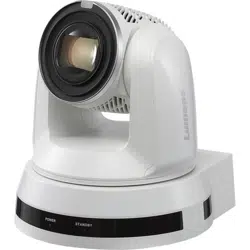
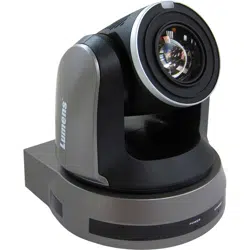
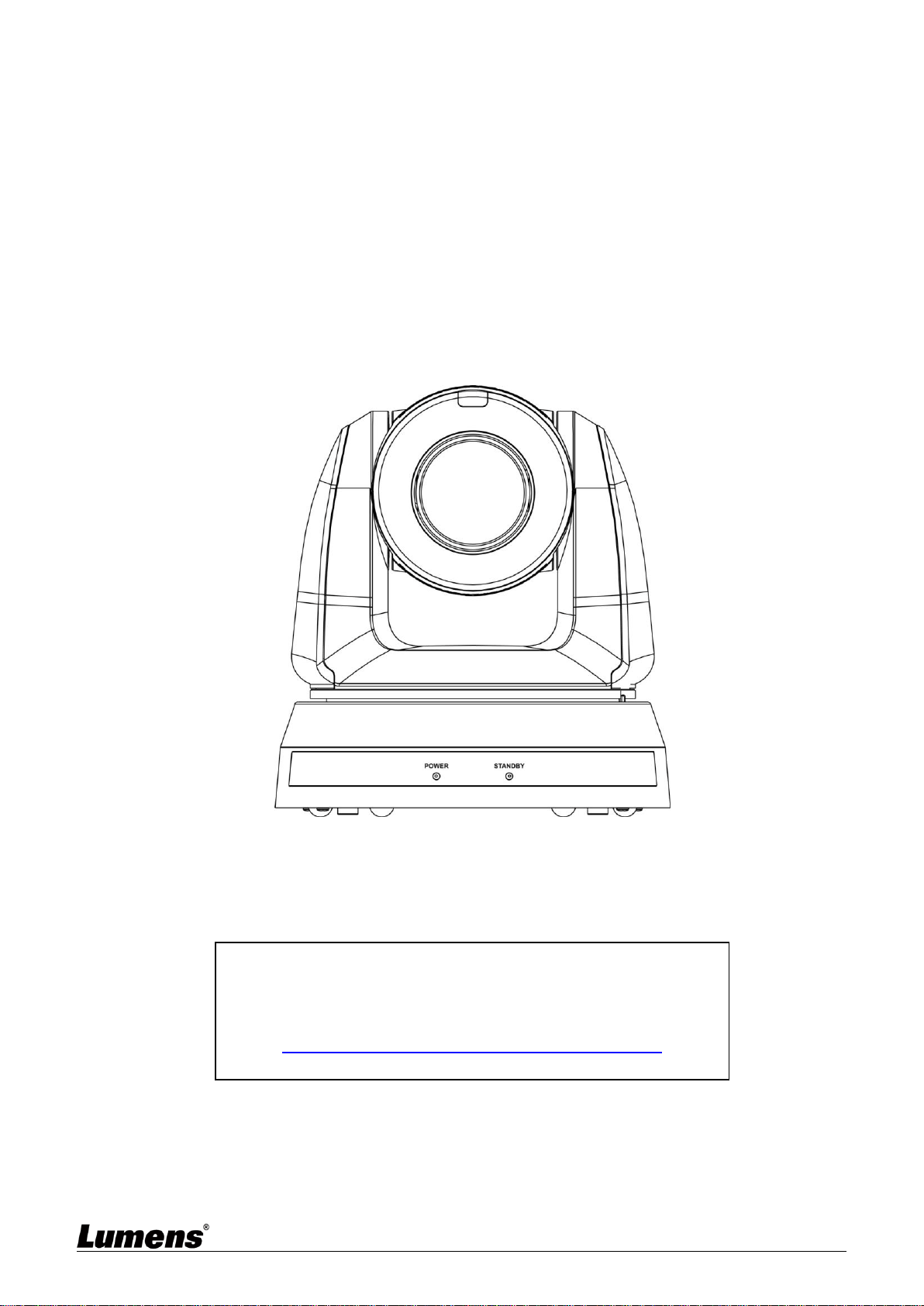
VC-A61P / VC-A61PN
HD camera
(PTZ Video Camera)
User Manual - English
[Important]

English - 1
Table of Contents
Copyright Information ...................................................................................... 2
Chapter 1 Safety Instructions ......................................................................... 3
Chapter 2 Package Contents ........................................................................... 4
Chapter 3 Function Introduction ..................................................................... 5
3.1 I/O functions Introduction .................................................................................... 5
3.2 Description of LED indicator ................................................................................ 7
3.3 Tally Indicator Light Function Description ......................................................... 7
Chapter 4 Instruction for installation ............................................................. 8
4.1 Preparation before installation ............................................................................ 8
4.2 Instruction for installation .................................................................................... 8
4.3 Connecting devices ............................................................................................ 14
Chapter 5 Remote Control and Setting Menu .............................................. 20
5.1 Functions of remote control .............................................................................. 20
5.2 Setting Menu ....................................................................................................... 21
Chapter 6 Network Function Settings Description ..................................... 30
6.1 Connecting Camera to Network ......................................................................... 30
6.2 Web Page Function Description ......................................................................... 33
Chapter 7 DIP Switch Setting ........................................................................ 45
7.1 DIP SWITCH ......................................................................................................... 45
Chapter 8 Troubleshooting ........................................................................... 46
Supplier's Declaration of Conformity 47 CFR § 2.1077 Compliance Information ........ 47

English - 2
Copyright Information
Copyrights © Lumens Digital Optics Inc. All rights reserved.
Lumens is a trademark that is currently being registered by Lumens Digital Optics Inc.
Copying, reproducing or transmitting this file is not allowed if a license is not provided by
Lumens Digital Optics Inc. unless copying this file is for the purpose of backup after
purchasing this product.
In order to keep improving the product, Lumens Digital Optics Inc. hereby reserves the right to
make changes to product specifications without prior notice. The information in this file is
subject to change without prior notice.
To fully explain or describe how this product should be used, this manual may refer to names
of other products or companies without any intention of infringement.
Disclaimer of warranties: Lumens Digital Optics Inc. is neither responsible for any possible
technological, editorial errors or omissions, nor responsible for any incidental or related
damages arising from providing this file, using, or operating this product.
English - 3
Chapter 1 Safety Instructions
Always follow these safety instructions when using the product:
1 Operation
1.1 Please use the product in the recommended operating environment, away from water or source of heat.
1.2 Do not place the product in tilted position or unstable trolley, stand or table.
1.3 Please clean the dust on the power plug prior to usage. Do not insert the product’s power plug into a multiplug to
prevent sparks or a fire.
1.4 Do not block the slots and openings in the case of the product. They provide ventilation and prevent the product
from overheating.
1.5 Do not open or remove covers, otherwise it may expose you to dangerous voltages and other hazards. Refer all
servicing to licensed service personnel.
1.6 Unplug the product from the wall outlet and refer servicing to licensed service personnel when the following
situations happen:
If the power cords are damaged or frayed.
If liquid is spilled into the product or the product has been exposed to rain or water.
2 Installation
2.1 For security considerations, please make sure the standard hanging rack you bought is in line with UL or CE safety
approbations and installed by technician personnel approved by agents.
3 Storage
3.1 Do not place the product where the cord can be stepped on as this may result in fraying or damage to the lead or
the plug.
3.2 Unplug the product during thunderstorms or if it is not going to be used for an extended period.
3.3 Do not place the product or accessories on top of vibrating equipment or heated objects.
4 Cleaning
4.1 Disconnect all the cables prior to cleaning and wipe the surface with a dry cloth. Do not use alcohol or volatile
solvents for cleaning.
5 Batteries (for products or accessories with batteries)
5.1 When replacing batteries, please only use similar or the same type of batteries.
5.2 When disposing of batteries or products, please adhere to the relevant instructions in your country or region for
disposing of batteries or products.
Precautions
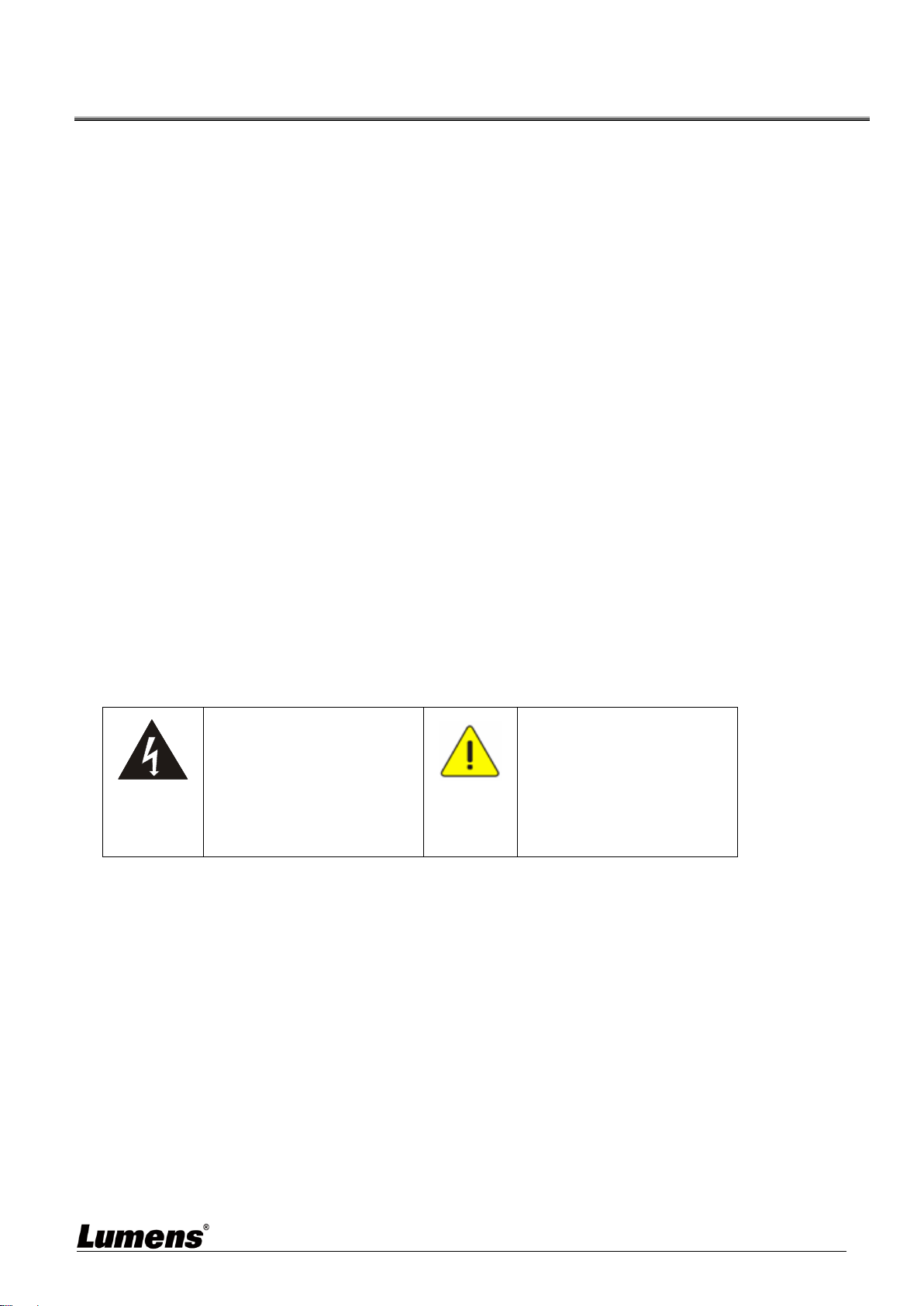
This symbol indicates that this
equipment may contain
dangerous voltage which could
cause electric shock. Do not
remove the cover (or back). No
user-serviceable parts inside.
Refer servicing to licensed service
personnel.
This symbol indicates that there
are important operating and
maintenance instructions in this
User Manual with this unit.
FCC Warning
This equipment has been tested and found to comply with the limits for a Class A digital device, pursuant to part 15 of the
FCC Rules. These limits are designed to provide reasonable protection against harmful interference when the equipment is
operated in a commercial environment.
Notice :
The changes or modifications not expressly approved by the party responsible for compliance could void the user’s authority
to operate the equipment.
IC Warning
This digital apparatus does not exceed the Class A limits for radio noise emissions from digital apparatus as set out in the
interference-causing equipment standard entitled "Digital Apparatus," ICES-003 of Industry Canada.
Cet appareil numerique respecte les limites de bruits radioelectriques applicables aux appareils numeriques de Classe A
prescrites dans la norme sur le material brouilleur: "Appareils Numeriques," NMB-003 edictee par l'Industrie.
EN55032 CE Warning
Operation of this equipment in a residential environment could cause radio interference.
KC Warning
This equipment is Industrial (Class A) electromagnetic wave suitability equipment and seller or user should take notice of it,
and this equipment is to be used in the places except for home.
English - 4
Chapter 2 Package Contents
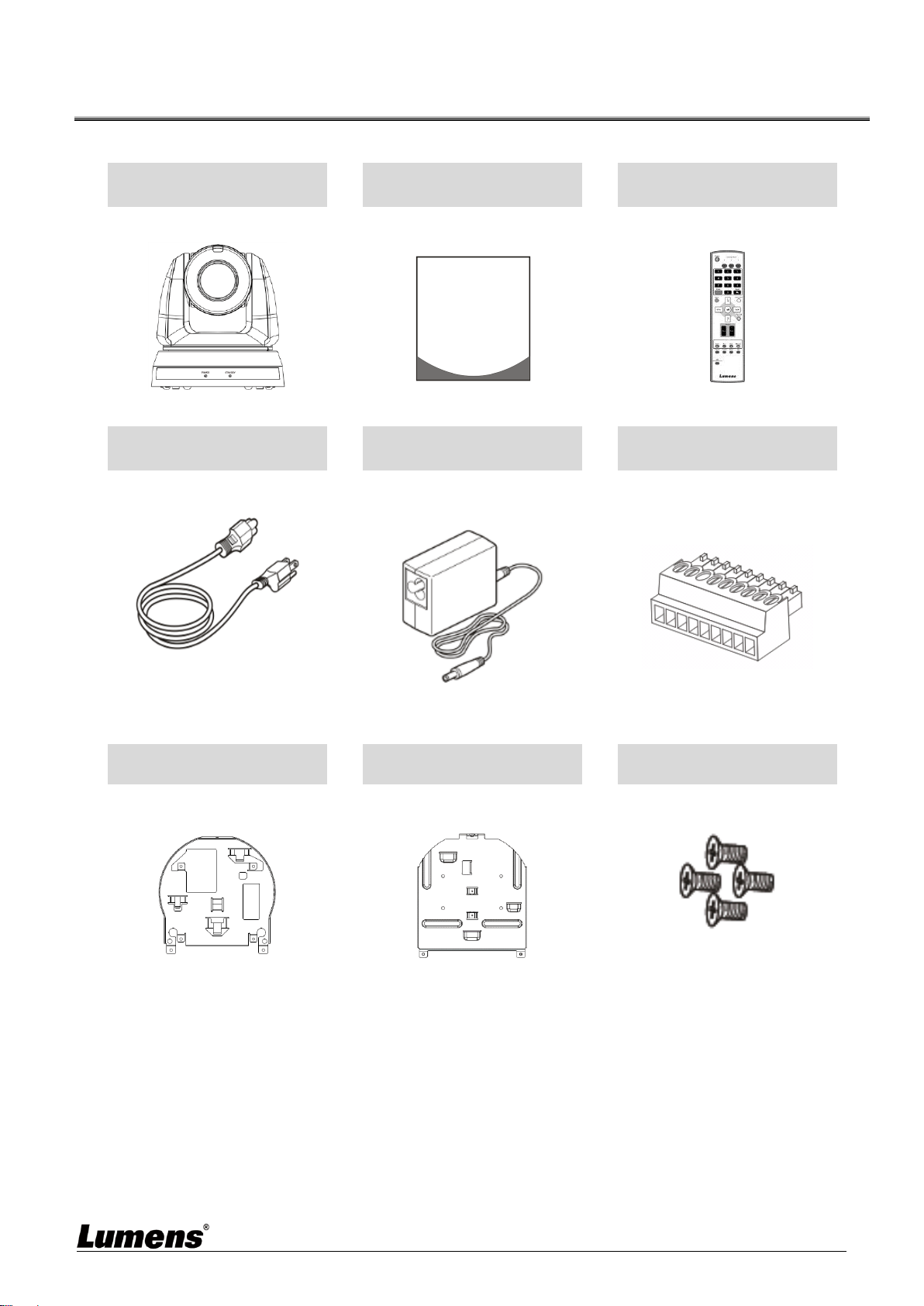
VC-A61P / VC-A61PN
Instruction for
installation
Remote Control
Power Cord
Power Adapter
RS-422 Connector
Appearance may vary
depending on
country/region
Metal Plate A
Metal Plate B
M3 Screws
Silver x8 / Black x2
Quick Installation Guide
English - 5
Chapter 3 Function Introduction
3.1 I/O functions Introduction
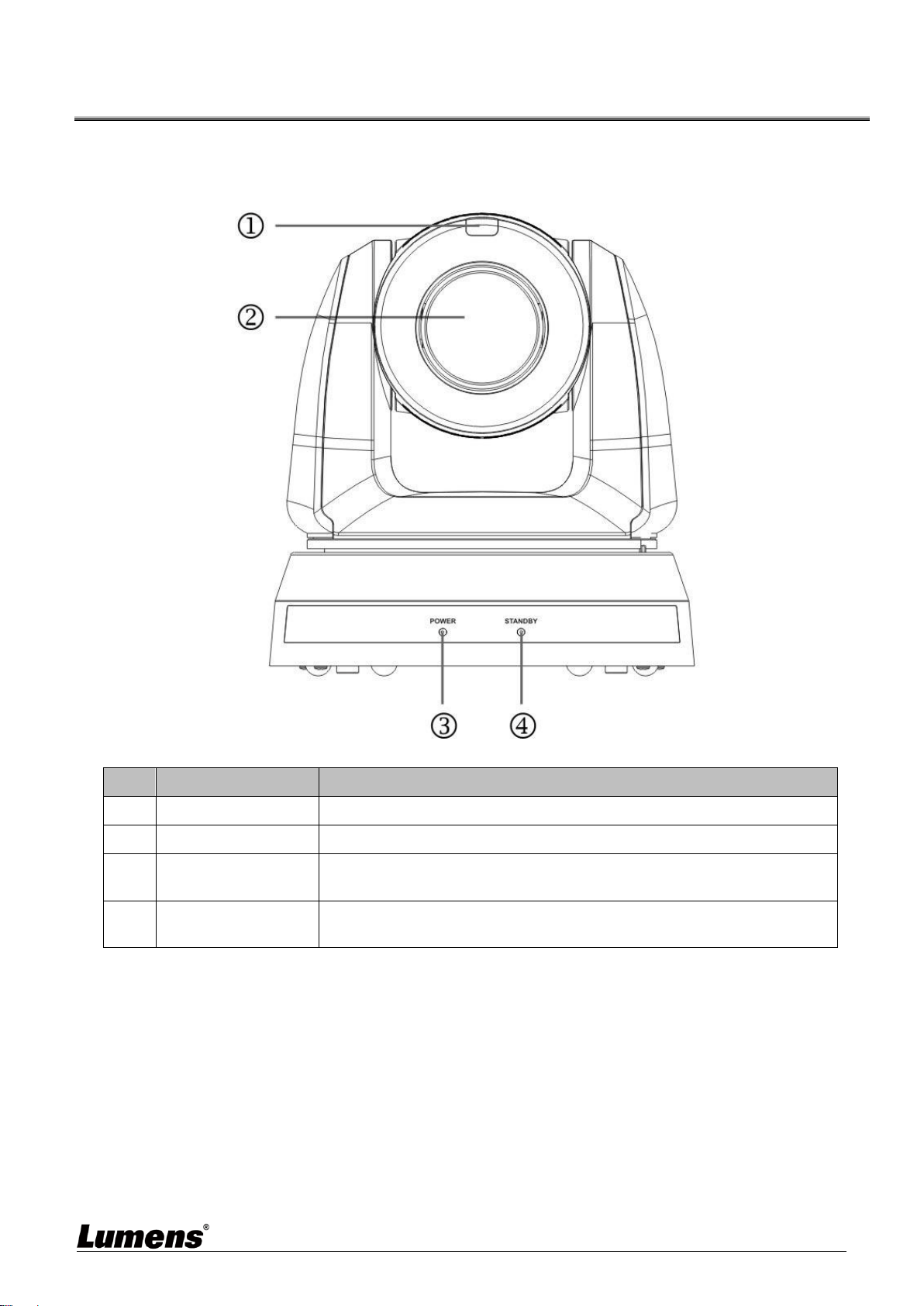
3.1.1 Front View
NO.
Item
Function Descriptions
1.
Tally indicator light
Display the tally light status of the camera
2.
Camera lens
30x HD camera lens
3.
Power LED
indicator
Display the status of the camera
4.
Standby LED
indicator
Display the status of the camera
English - 6
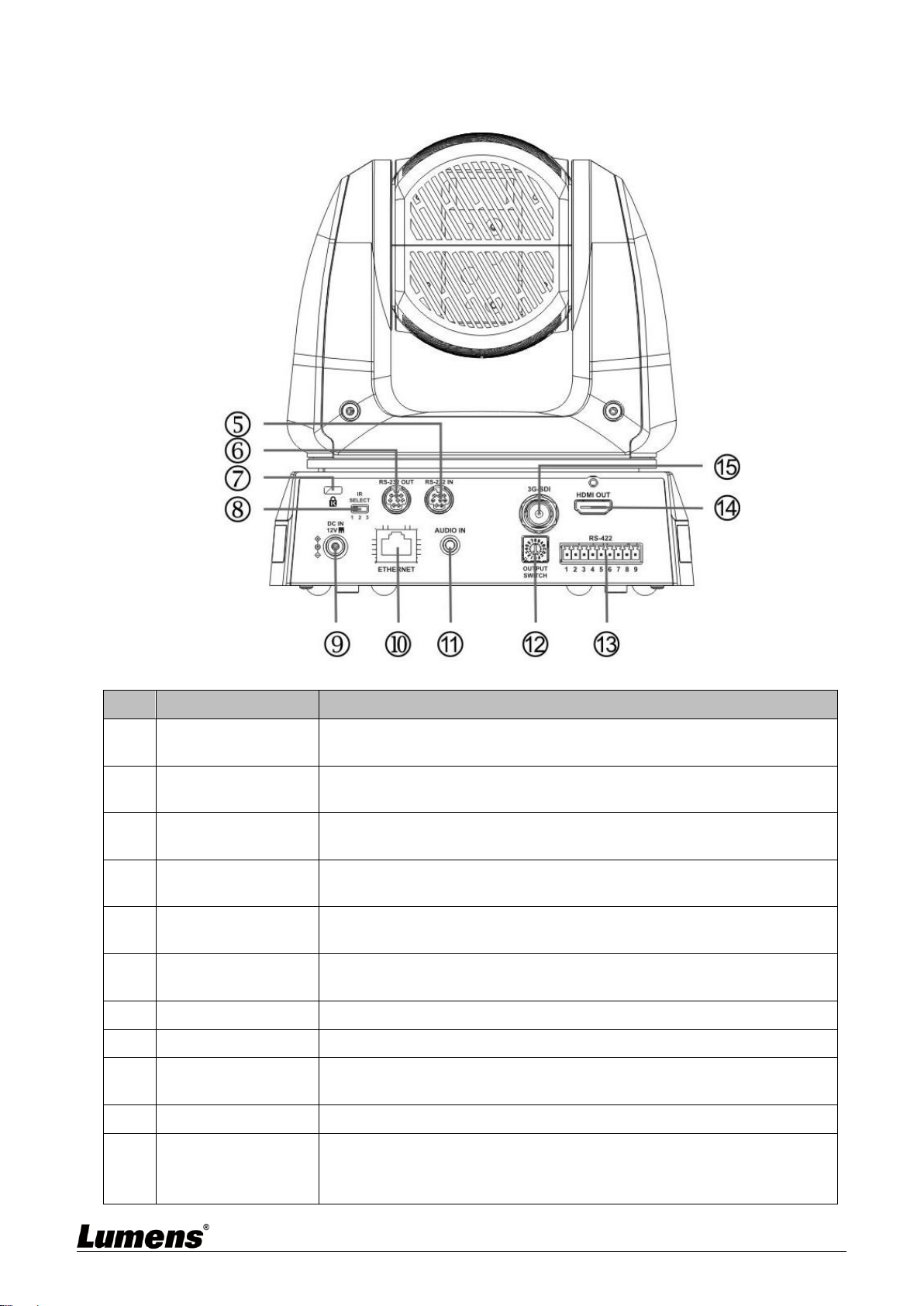
3.1.2 Back View
NO.
Item
Function Descriptions
5.
RS-232 input
RS-232 input port, at most 7 cameras can be connected in a serial
connection
6.
RS-232 output
RS-232 output port, at most 7 cameras can be connected in a
serial connection
7.
Kensington lock
hole
Lock hole of safety lock
8.
IR SELECT
The remote control ID setting is only controlled after corresponding
to the Camera Select on the remote control
9.
DC 12 V power
Port
DC power supply connecting port
10.
Ethernet port
Network cable port supports routers or hubs of PoE+ (IEEE
802.3at) with power supply
11.
Audio input
Support Line In/Mic In
12.
OUTPUT Switch
Adjust the resolution setting. The default is 1080p/59.94
13.
RS-422 Port
RS-422 connecting port, at most 7 cameras can be connected in a
serial connection
14.
HDMI output
HDMI output (Audio output supported)
15.
3G-SDI output
3G-SDI output(Audio output supported)
*Support the audio output of 48 KHz only/resolutions up to 1080p
59.94/50
English - 7
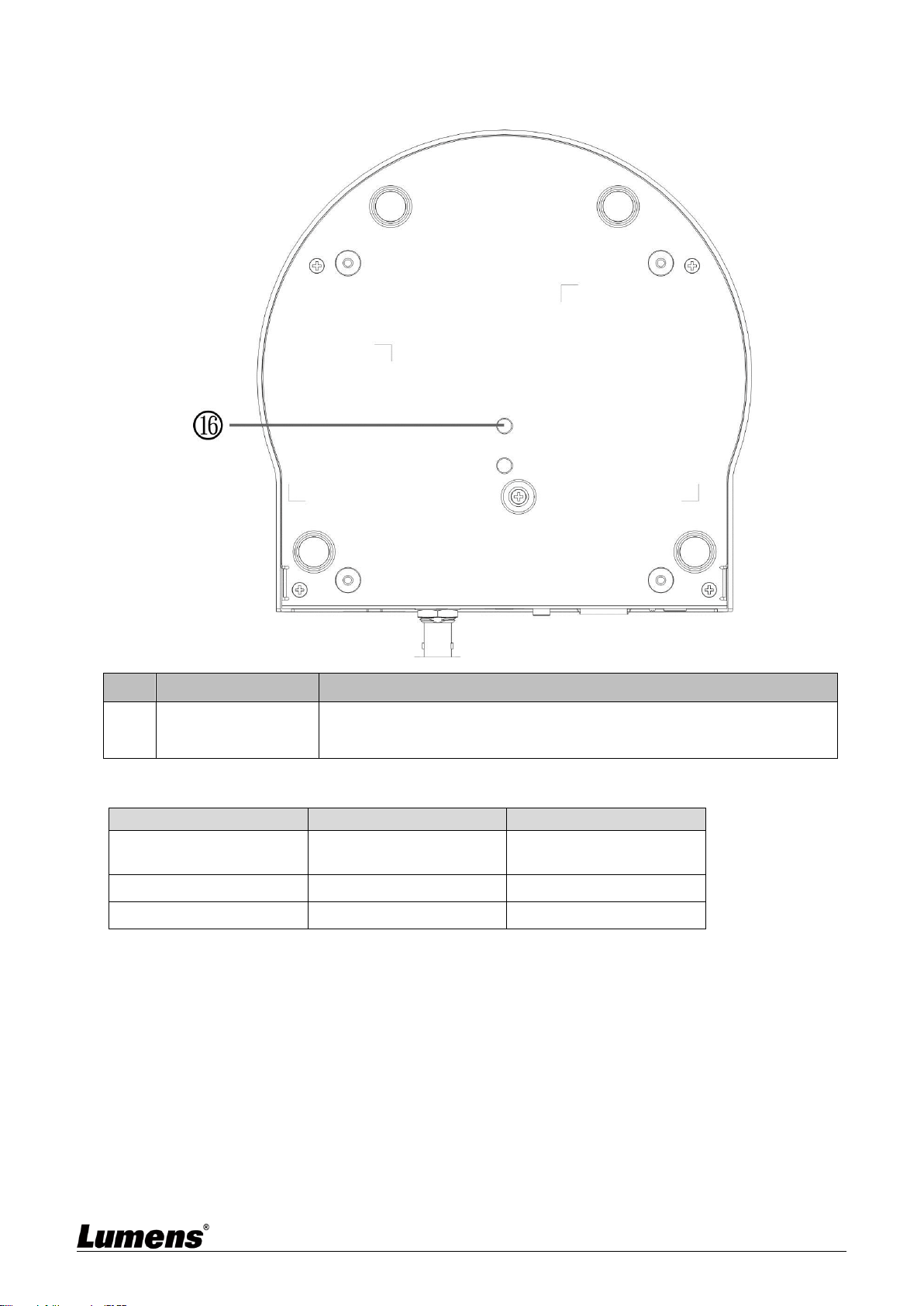
3.1.3 Bottom
NO.
Item
Function Descriptions
16.
Tripod lock hole
The camera is mounted on a (specification) 1/4” - 20 UNC
tripod
3.2 Description of LED indicator
Status
Power
Standby
Startup in progress
(initialization)
Green light
Orange light
In use
Green light
No indicator
In standby mode
No indicator
Orange light
3.3 Tally Indicator Light Function Description
3.3.1 The tally indicator light function may be enabled through the control of RS-232
command. The setting method is as follows:
Tally Mode: 8x 01 7E 01 0A 01 0p FF
p = 0: OFF
p = 4: Red light (half-brightness)
p = 5: Red light (full-brightness)
p = 6: Green light (full-brightness)
p = 7: Orange light (full-brightness)

English - 8
Chapter 4 Instruction for installation
4.1 Preparation before installation
Installation and connection of the HD camera requires special skills. To install by yourself,
please follow necessary steps, ensure steady and tight installation of the device, and pay
attention to your safety to avoid any accident.
4.1.1 Ensure the safety of the installation environment. Please do not install the device on
unstable ceiling or in a place where the device is in danger of falling to avoid any accident.
4.1.2 Please check whether accessories in the box are complete or not. Please contact the
supplier for any shortage, and make sure to keep the accessories in the box intact.
4.1.3 Please choose a proper place for installation of camera in advance. Please determine
an installation place according to the following requirements
4.1.1.1 Confirm the position for the object to be captured.
4.1.1.2 Confirm whether the camera is set at a proper distance from other light sources.
4.2 Instruction for installation
4.2.1 I would like to install camera on the desk
4.2.1.1 Precautions for installation
Please install the machine on a flat desk
Do not grab the camera head by hand when handling the device
Do not rotate the camera head by hand, improper rotation may result in breakdown
of the camera
4.2.1.2 Installation steps
1. Please adjust DIP switch at first prior to installation
<Remark> Please refer to Chapter 7 DIP Switch Setting for the relevant descriptions
on DIP switch.
2. Place the camera on a flat desk directly to ensure the normal vertical and
horizontal operation of the machine
English - 9
4.2.2 I would like to install the camera on the ceiling
4.2.2.1 Prepare for the parts and equipment required during the installation
1. Accessories in the box (metal plates A, B, M3 screw silver x 8, black x 2)
2. Screw for locking on ceiling mounted hanger x 4
3. Drilling machine, screw driver, ladder
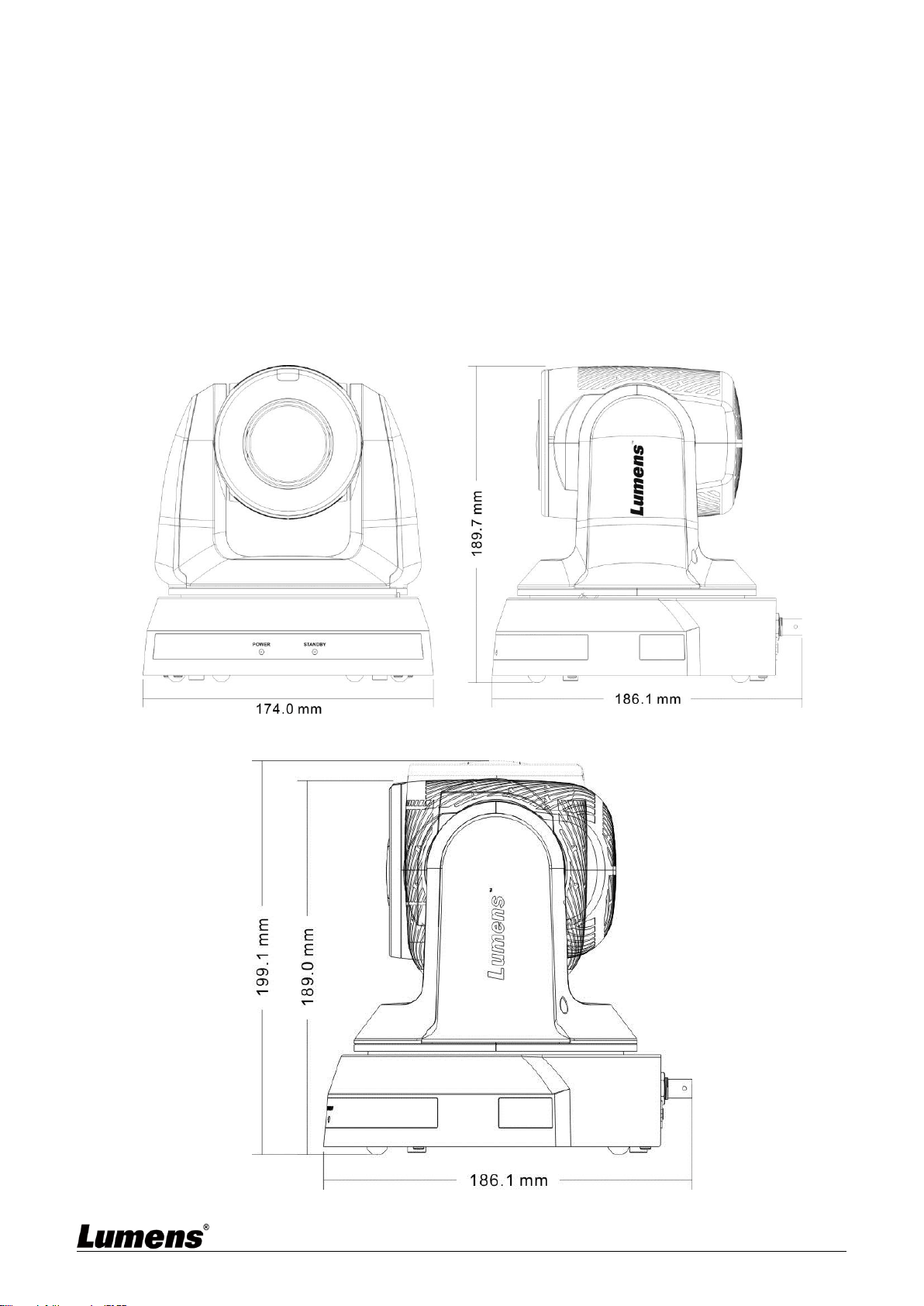
4.2.2.2 Camera Size
L x W x H : 174 x 187 x 190 mm
Weight: 2.0 Kg
4.2.2.3 Max. rotation dimension of camera
English - 10
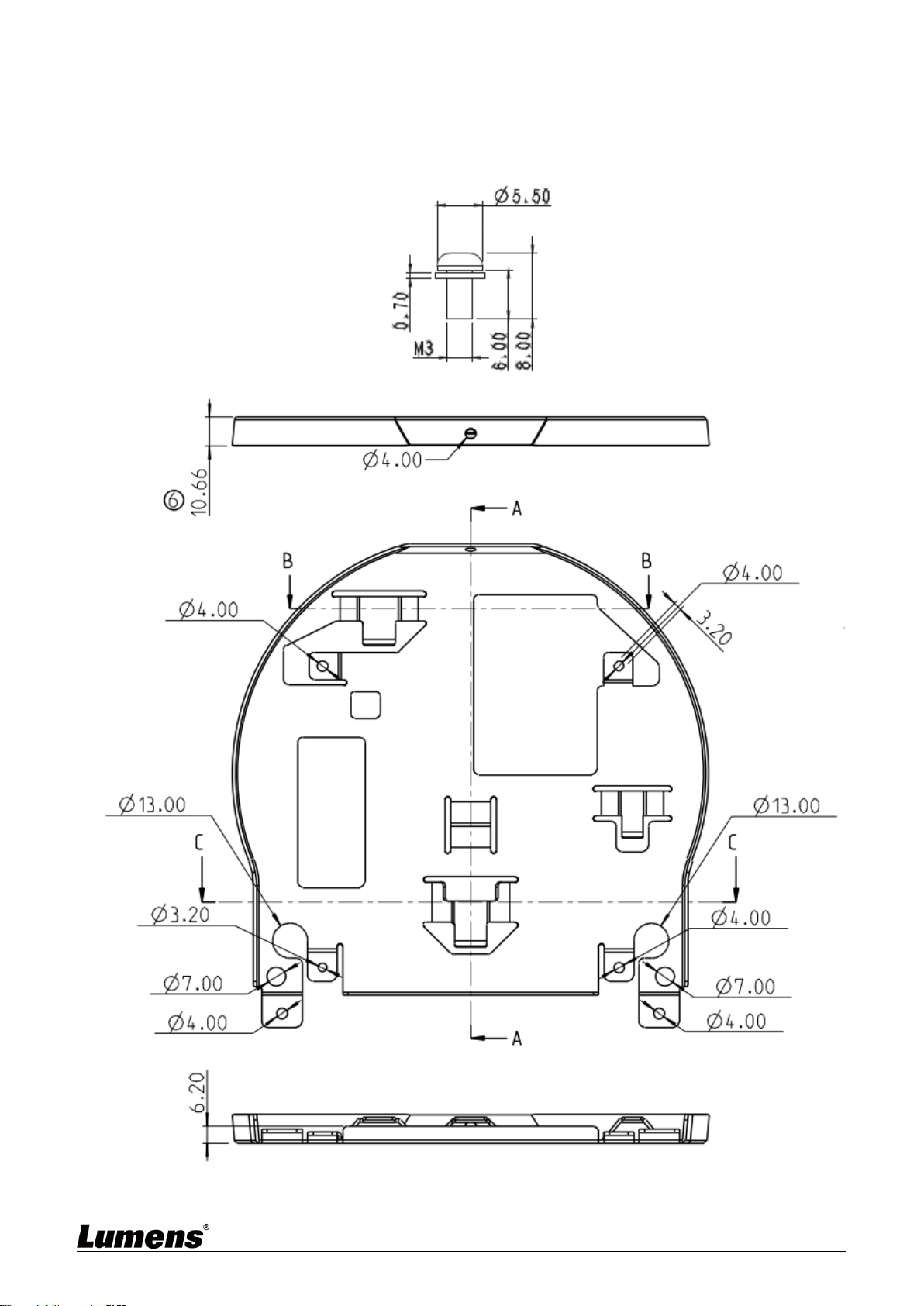
4.2.2.4 Size Diagram
1. Bottom of machine
The camera can be mounted on a 1/4”, -20 UNC PTZ tripod deck by using the lock
holes on the bottom for the tripod
English - 11
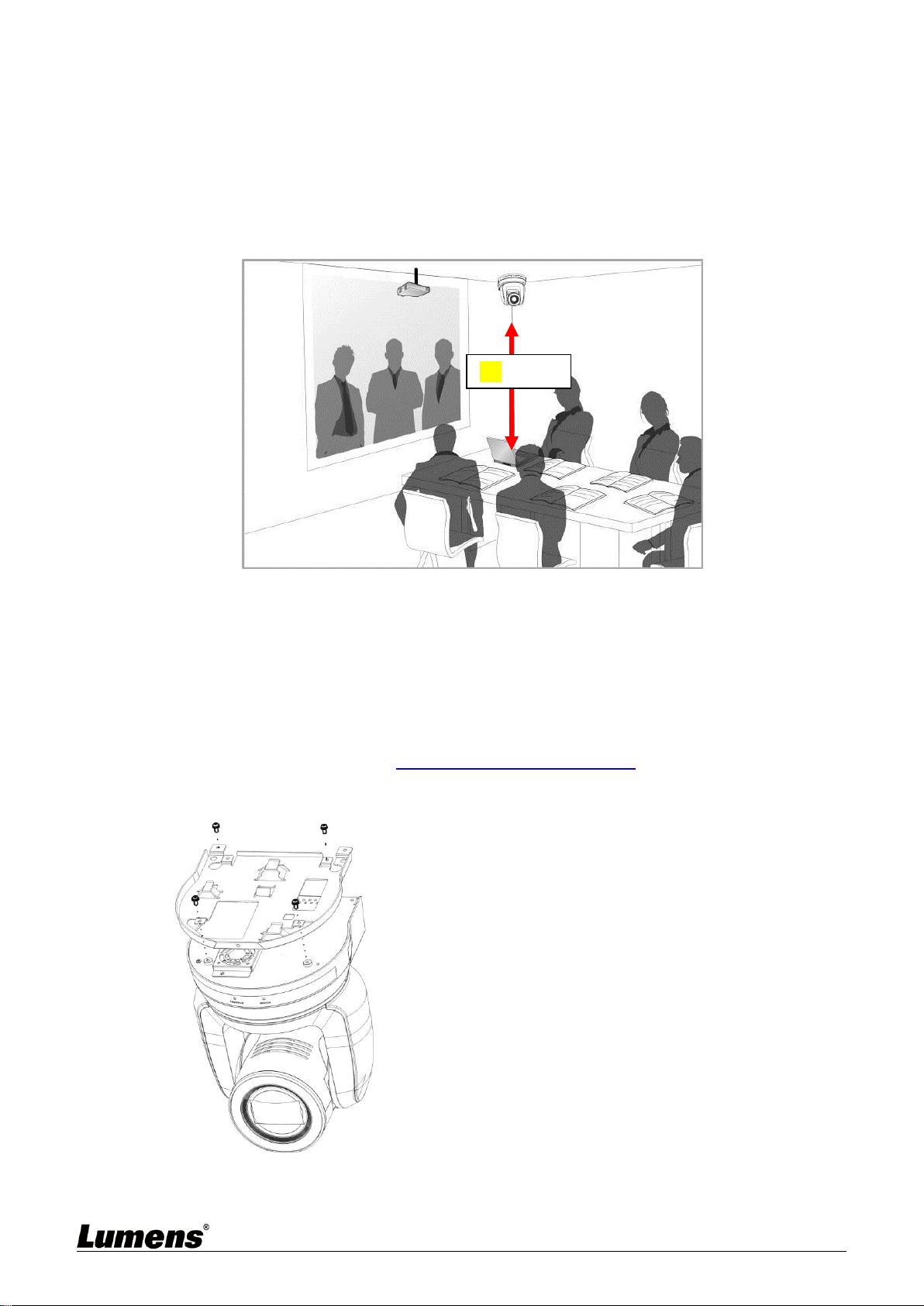
2. Metal Plate size diagram
Metal plate A - machine side
Metal plate A - machine side
Metal plate A locking screw

English - 12
Metal plate B - ceiling side
Metal plate B - ceiling side
M3 threaded hole
M3 threaded hole
M3 threaded hole
Metal plate B locking screw
Metal plate B locking bolt
English - 13
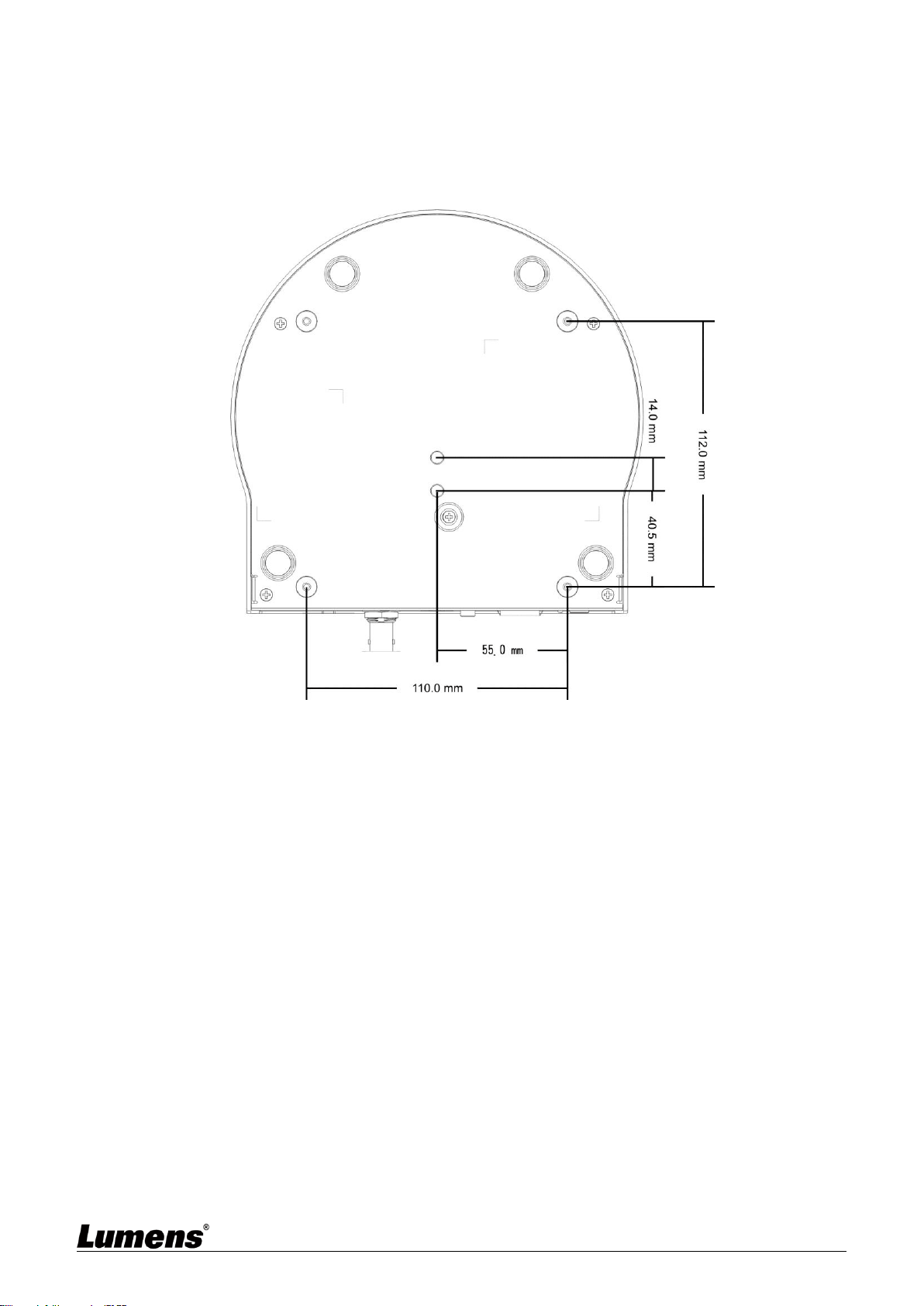
4.2.2.5 Precautions for installation
1. Before installation, please confirm the orientation of the machine relative to the
object to be captured
2. It is recommended that the machine should be set at a distance of more than 1.5
meter away from the object to be captured. Please adjust for a best distance
according to the magnification of the lens
3. The machine (including metal plates) is weighed at about 2.5 kg. If it is to be
installed on the ceiling, please use the hanger that has obtained UL security
approval to prevent the machine from falling down.
4. Please check whether the camera is installed securely on a regular basis
4.2.2.6 Installation steps
1. Please adjust resolution on DIP switch at first
<Remark> Please refer to Chapter 7 DIP Switch Setting for the relevant descriptions
on DIP switch
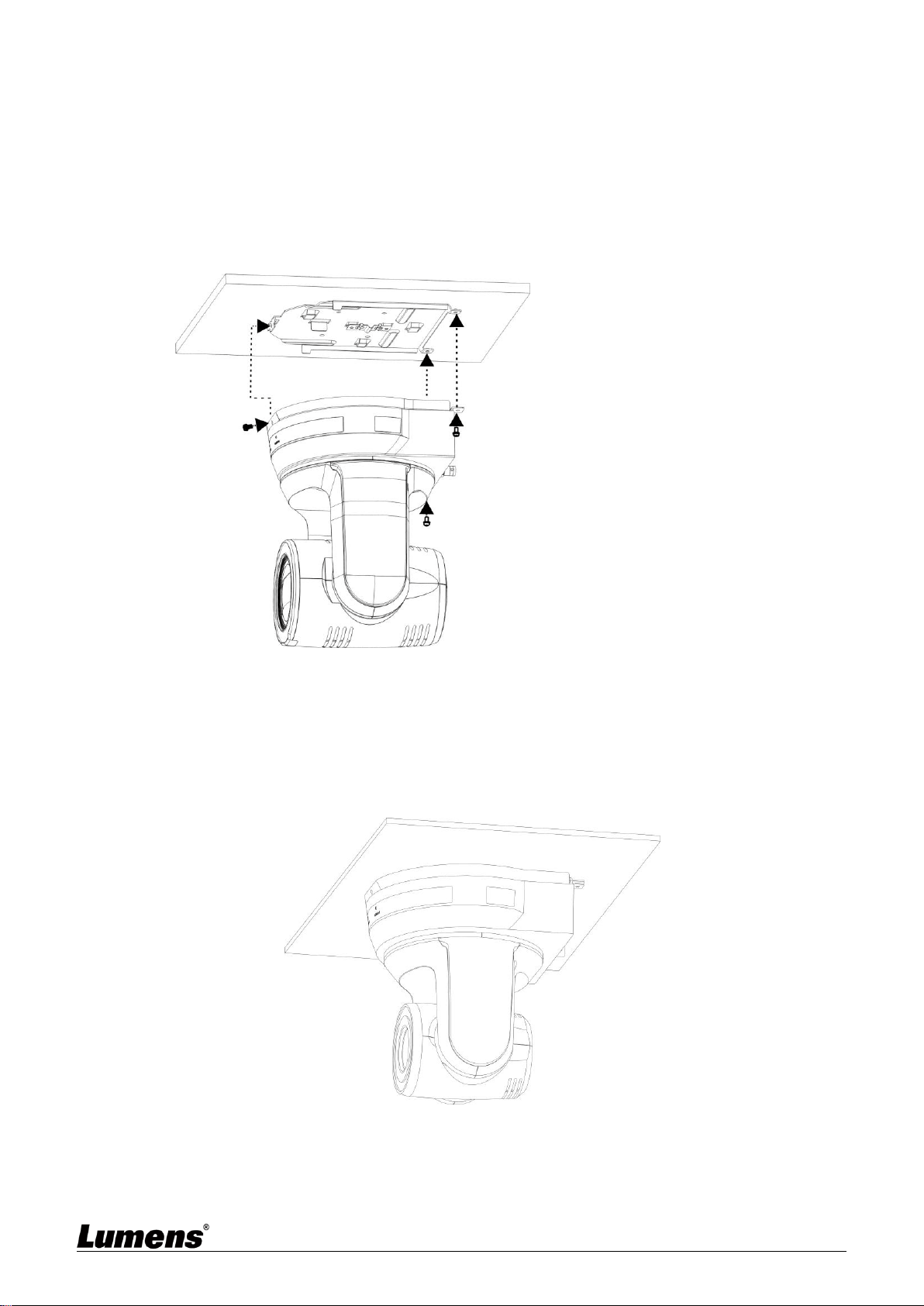
2. Fix the metal plate A on the machine base with 4 M3 silver screws
3. Lock the metal plate B on ceiling mounted hanger
※ Caution: (1) Please use the hanger that has obtained UL security approval
1.5 meter ↑
Projector
Computer
English - 14
(2) Please reserve the hole for the connecting wires of the camera
4. Combine the metal plate A and the metal plate B
(1) Push the metal plate A up to the ceiling and then to the right to latch the metal
plate B
(2) And then secure with 2 M3 silver screws and 1 M3 black screw
4.2.2.7 How to remove
1. Remove the connecting wires from the camera
2. Uninstall the camera together with the ceiling, loosen the three screws that fix the
metal plates A and B and push to the left to remove the machine
3. Then remove the screws on the hanger and the machine
4.3 Connecting devices
4.3.1 Connecting to PC (video conference)
black
screw

English - 15
<Remark> SDI supports the audio output of 48 KHz / resolutions up to 1080p 59.94/50
4.3.2 Connecting to an HDTV/computer monitor (HDMI)
HDMI Cable
Or
SDI Cable
MTU
HDMI cable
English - 16
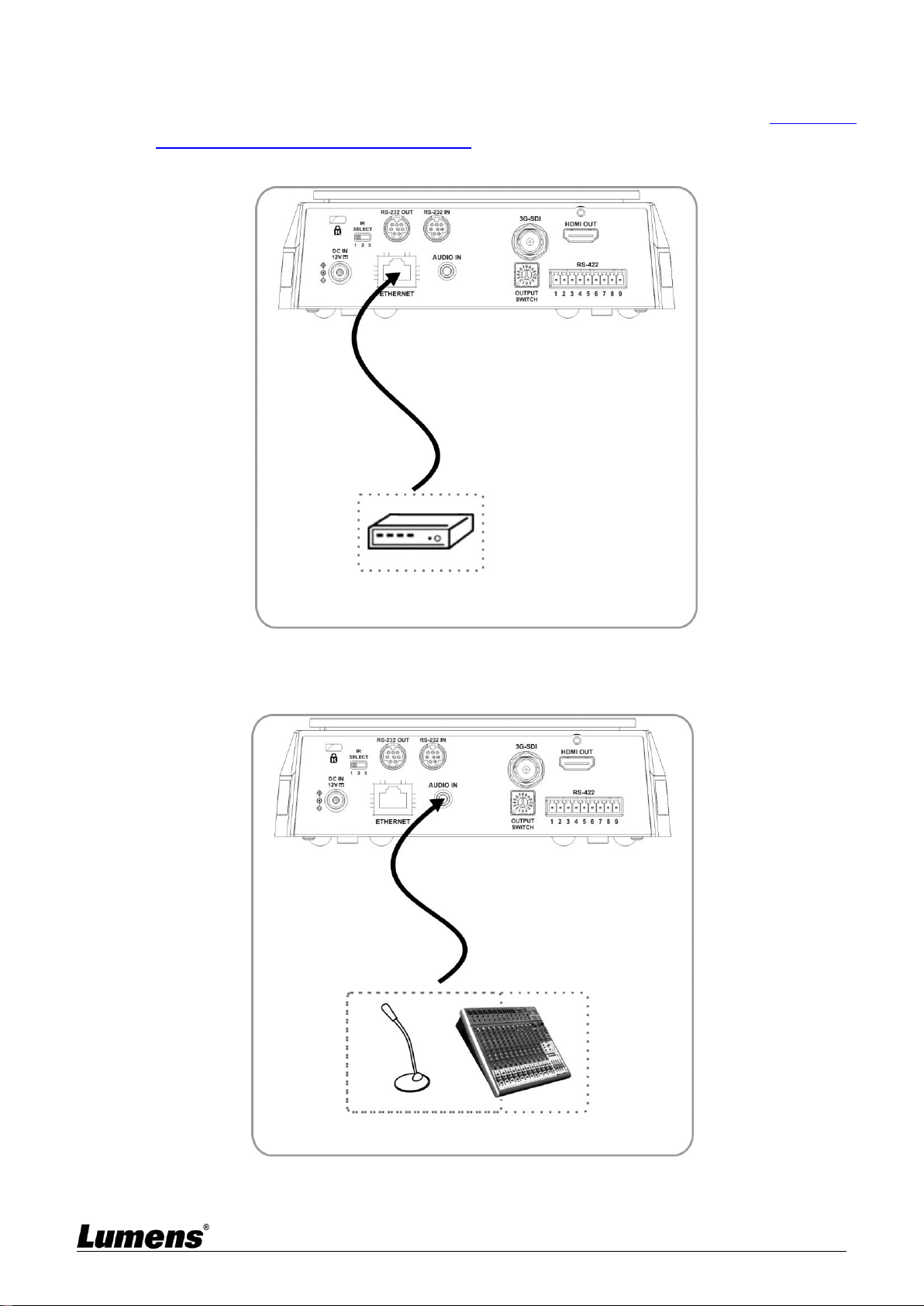
4.3.3 Connecting to Internet
For details of web page connection setting and description, please refer to Chapter 6
Network Function Settings Description
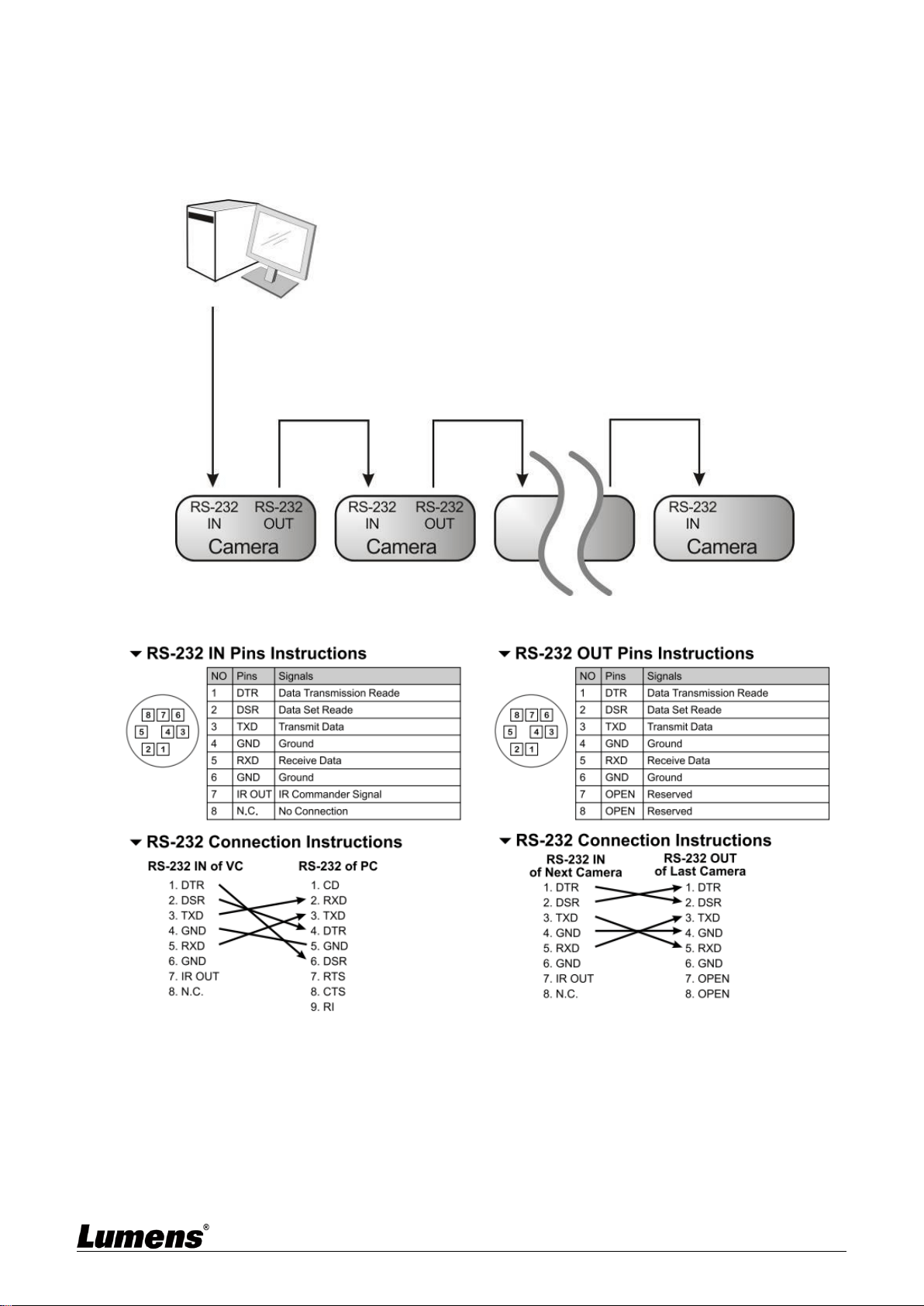
4.3.4 Connecting AUDIO IN
Set the [Audio In] in the OSD to reflect the input device
Network cable
Router
or Hub
Audio Cable
MIC or audio mixer
English - 17
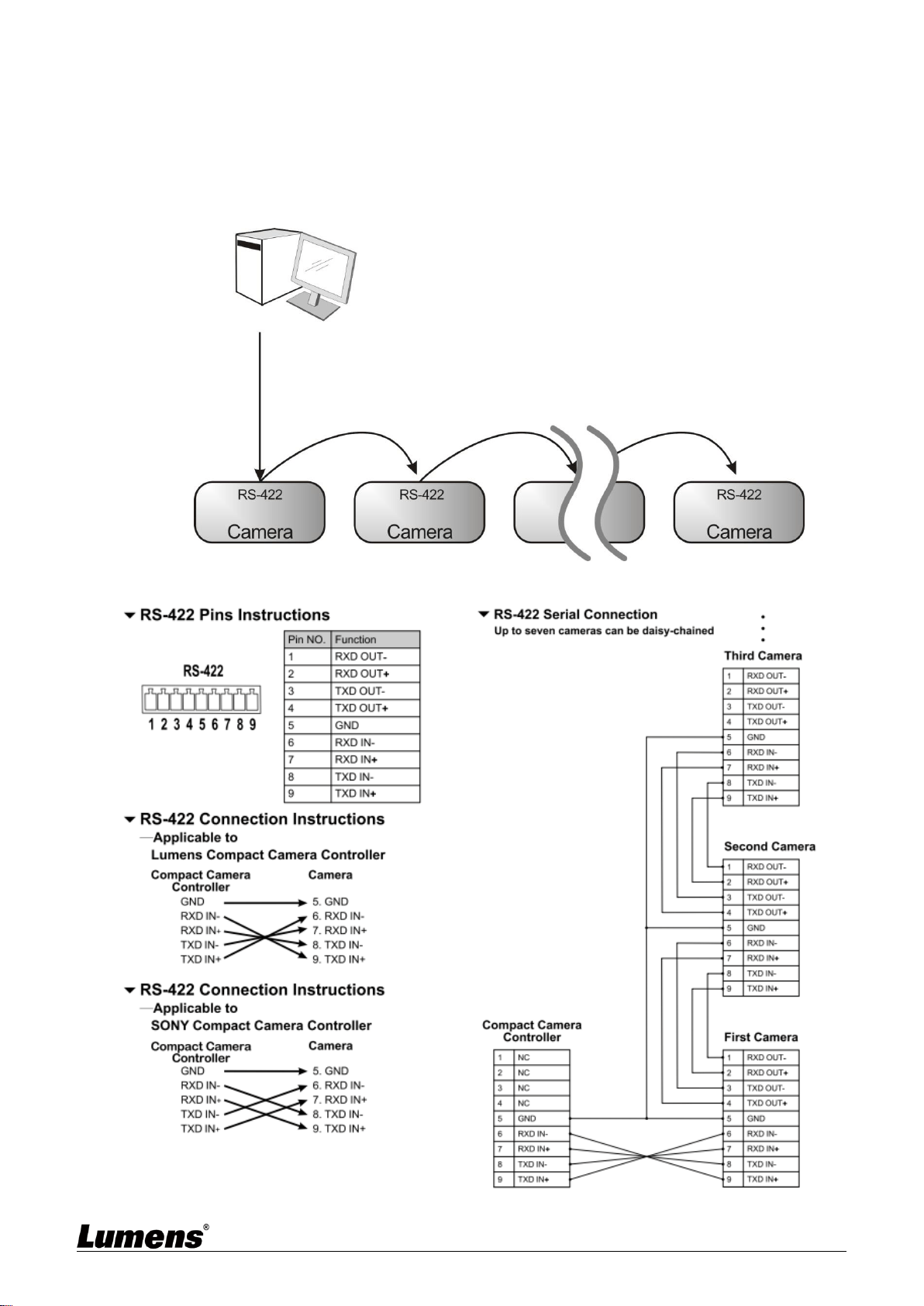
4.3.5 Connecting RS-232
With RS-232 in/out, at most 7 Lumens cameras can be connected.
RS-232 pins definition instructions
English - 18
4.3.6 Connecting RS-422
With RS-422, at most 7 Lumens cameras can be connected.
<Caution> When RS-422 connection is being used, do not use RS-232
connection.
RS-422 pins definition instructions
English - 19
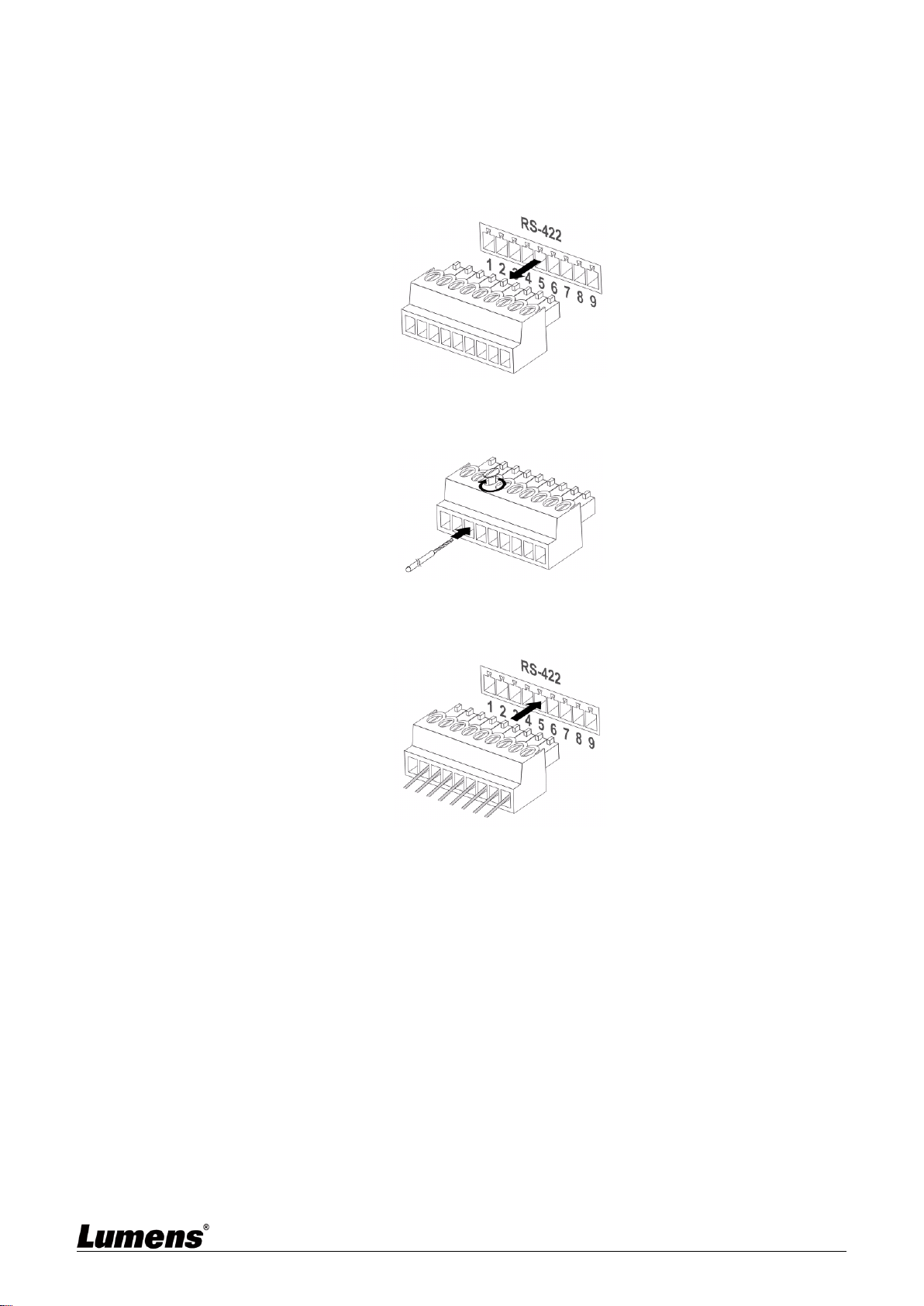
RS-422 connection instructions
1. Hold the two sides of RS-422 connector and pull out in the direction shown by the arrow
in the figure below
2. Peel off a section of copper wire (AWG Nos. 28 to 18) and insert it into the connector
hole; then use flat screw driver to fix it
3. Insert the wired RS-422 connector back to the Camera. Now the connection is
completed
English - 20
Chapter 5 Remote Control and Setting Menu
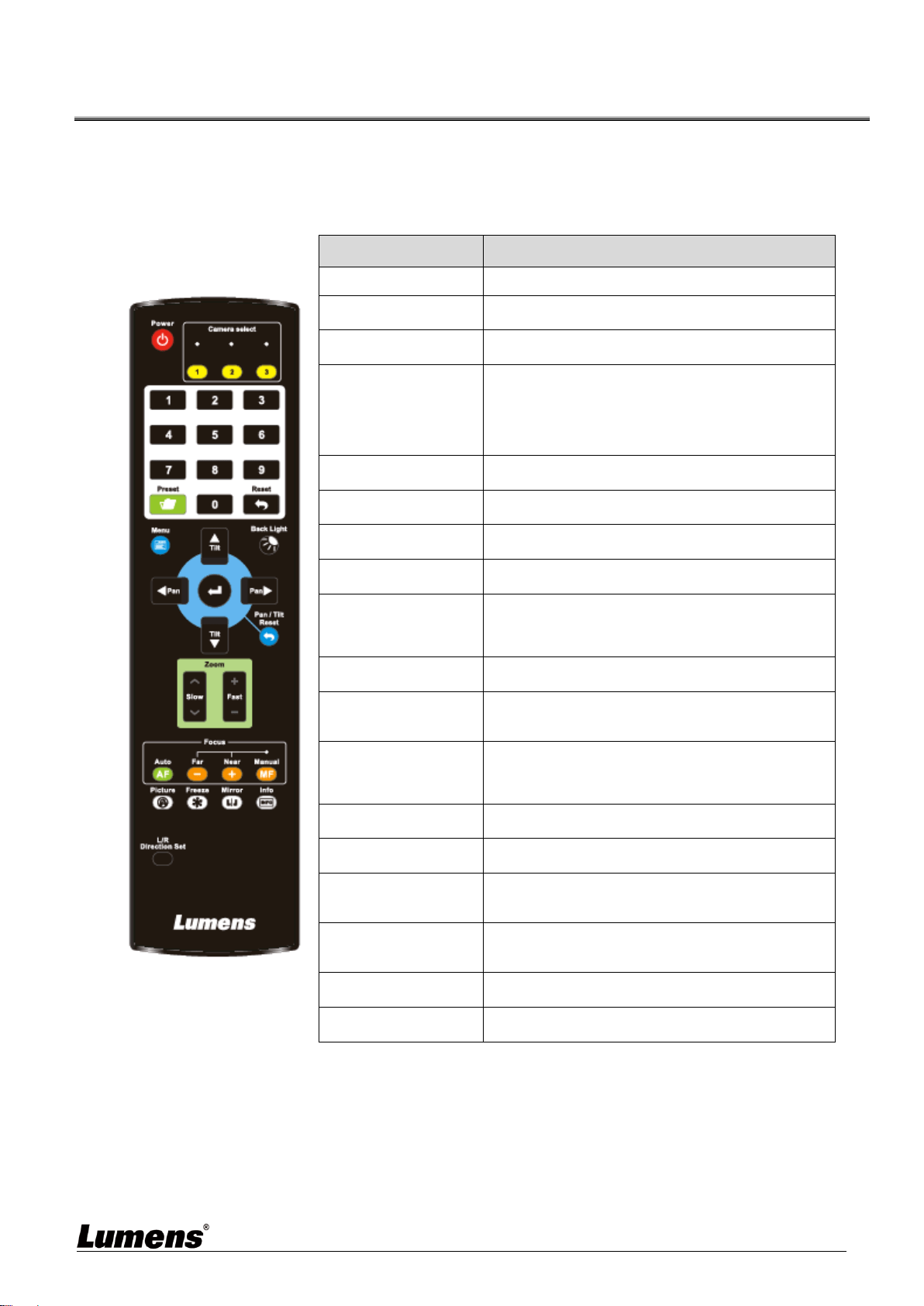
5.1 Functions of remote control
<Remark> The below functions are listed alphabetically.
Item
Description
,,,
Move the lens
Back Light
Turn on/off back light compensation
Camera select
Choose Camera ID 1 ~ 3
Focus-
Manual /
Far/Near
Turn on manual focus to adjust the focal
length
Focus-Auto
Auto Focus
Freeze
Freeze the screen
Home-Enter
Go back to the main page / Execute
Info
Status information
L/R
Direction Set
L/R Direction / Normal
Menu
Display OSD menu
Mirror
Rotate the image (OFF / Mirror / Flip /
Rotate)
Pan/Tilt
Reset
Clear the Pan / Tilt setting
Picture
Switch image effect (OFF / Neg / B&W)
Power
Power Switch
Preset
Appoint an ID (0 ~ 9) to save the current
position data
Reset
Appoint an ID (0 ~ 9) to delete the
current position data
Zoom-Fast
Adjust image size
Zoom-Slow
Fine-tune image size
English - 21
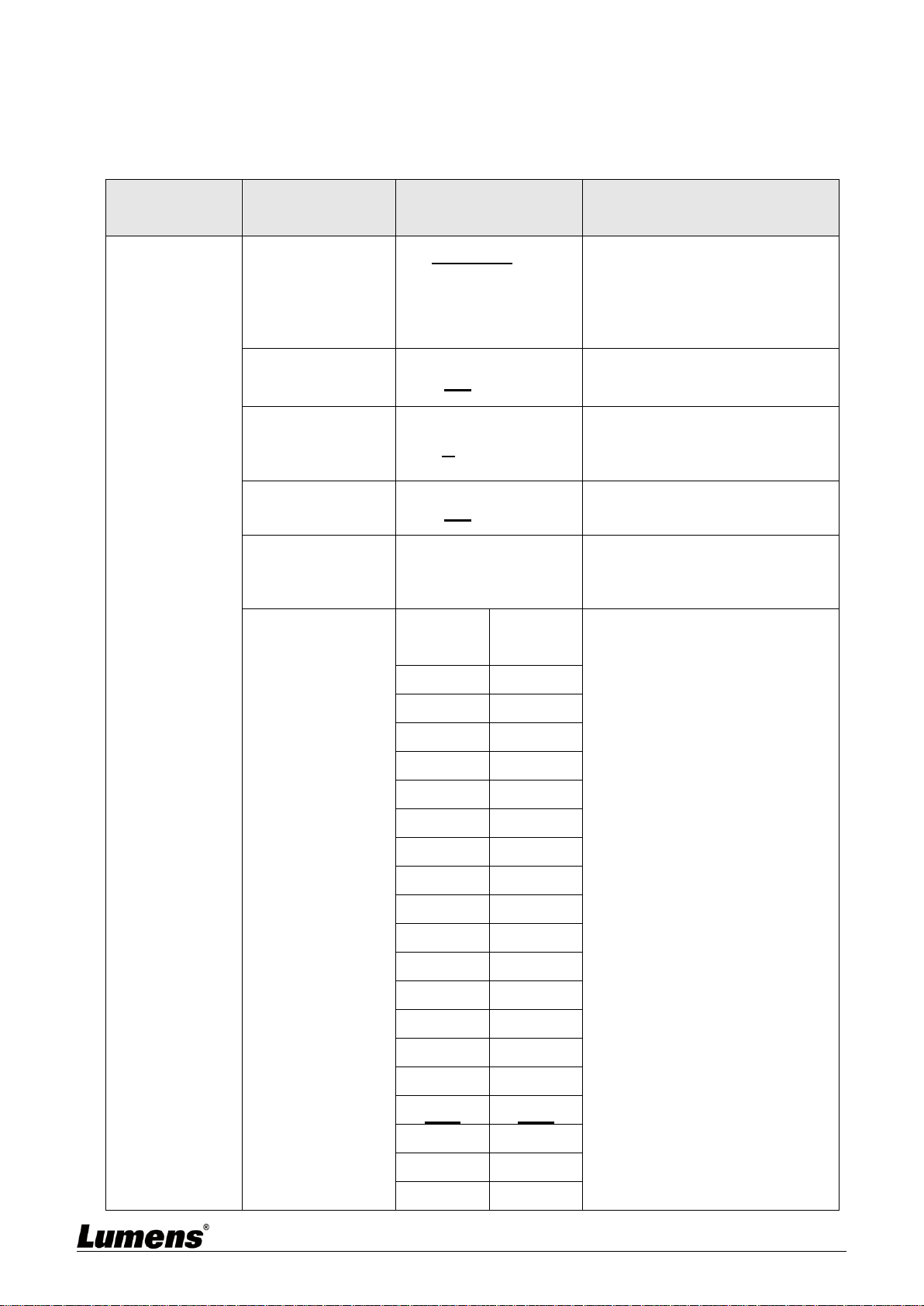
5.2 Setting Menu
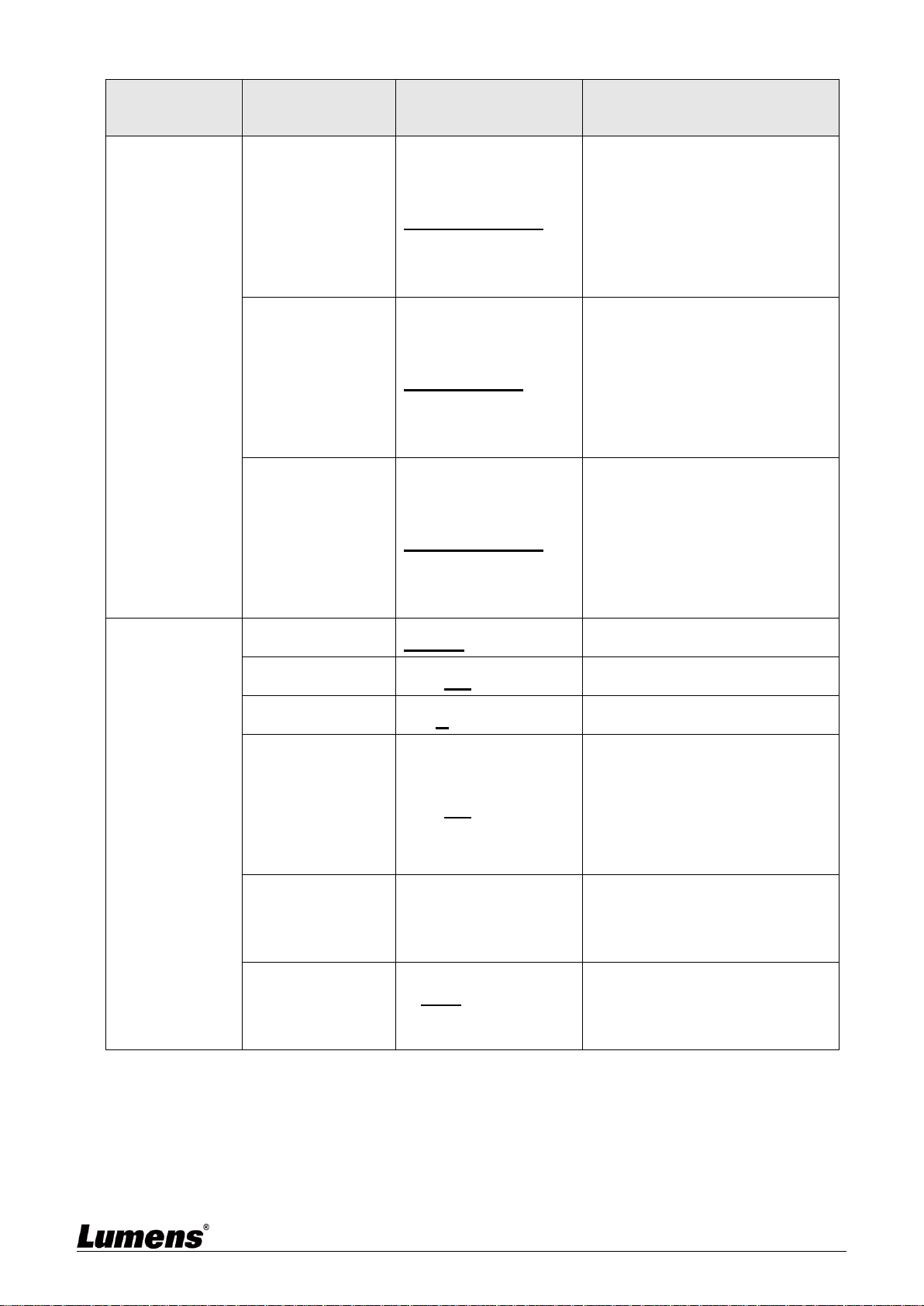
<Remark> Press [Menu] on the remote control to enter the setting menu; the bold
underlined values in the following table are defaults.
1st Level
Major Items
2nd Level
Minor Items
3rd Level
Adjustment Values
Function Descriptions
Exposure
Mode
1. Full Auto
2. Shutter Pri
3. Iris Pri
4. Manual
Exposure mode setting
Exposure
Comp.
On / Off
AE Level
Exposure
Comp. Level
-5 ~ C ~ 5
The value can be adjusted after
Exposure Comp. is activated
Spot Light
On / Off
Spot Light
Position
X (0 ~ 6) Y (0 ~ 4)
The value can be adjusted after
Spot Light is activated
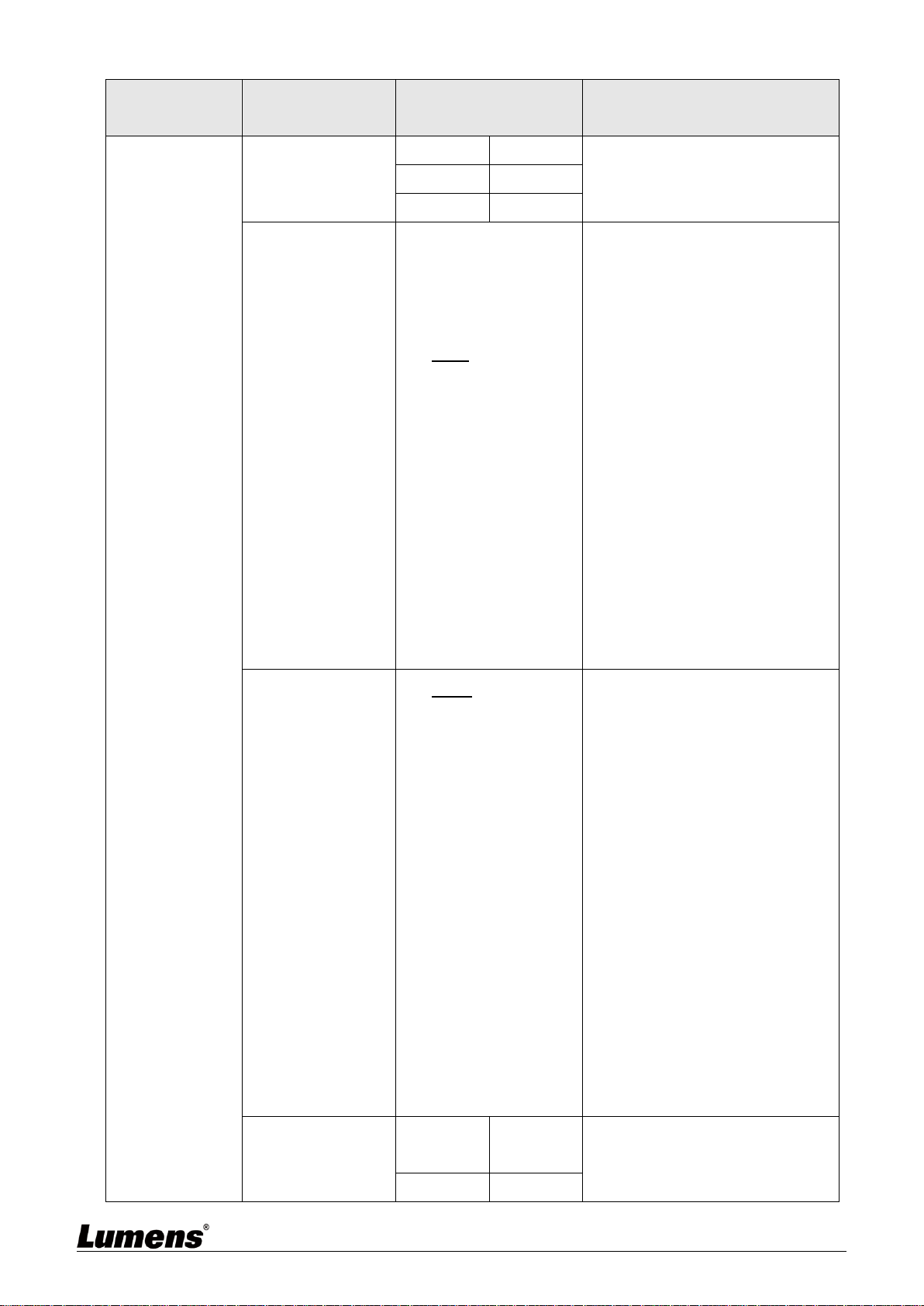
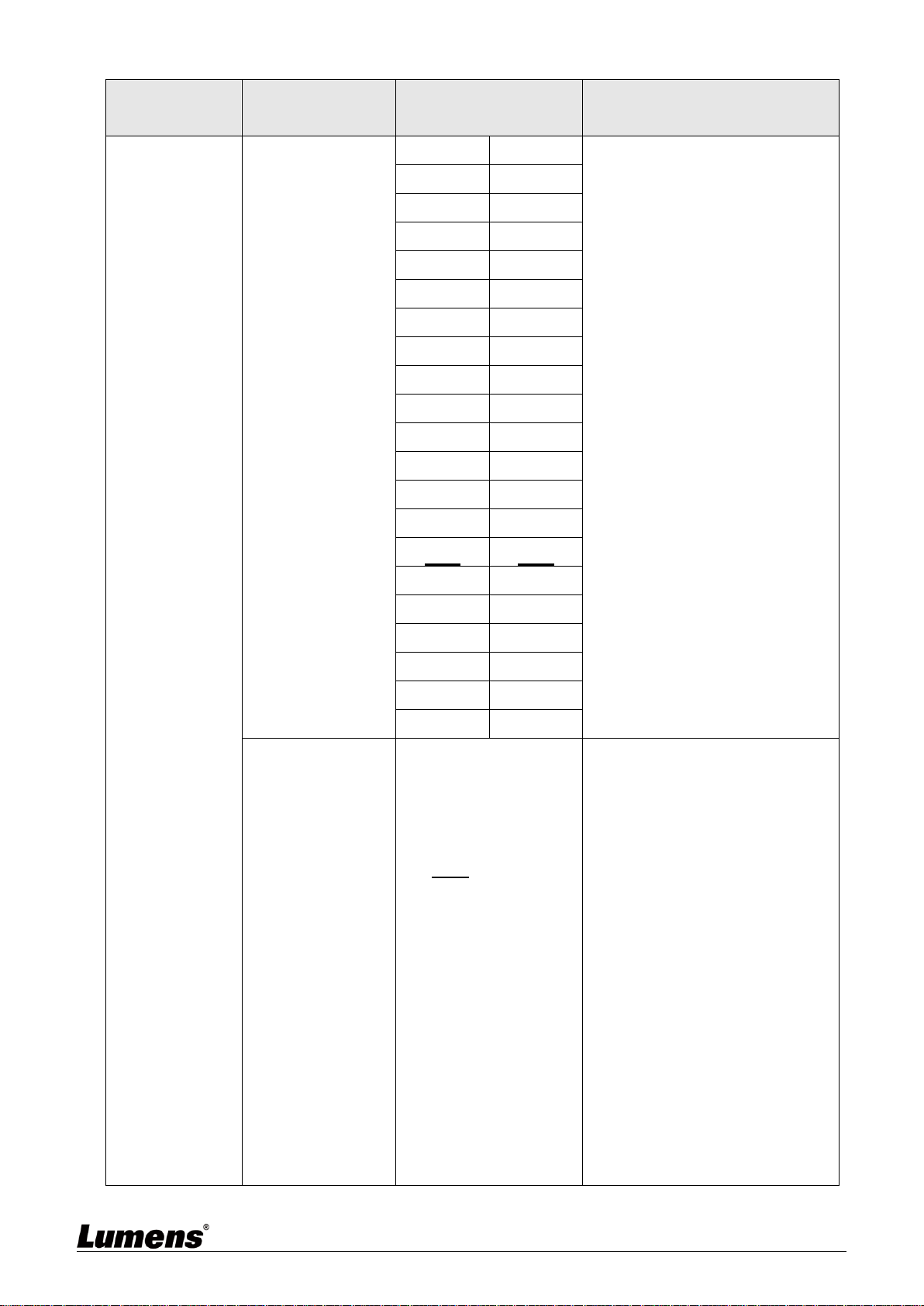
Shutter Pri
60/30
mode
50/25
mode
Adjustable when the Exposure
mode is set to Shutter Pri
1/10000
1/10000
1/5000
1/5000
1/3000
1/3000
1/2500
1/2500
1/2000
1/1750
1/1500
1/1250
1/1000
1/1000
1/725
1/600
1/500
1/425
1/350
1/300
1/250
1/215
1/180
1/150
1/120
1/120
1/100
1/100
1/90
1/75
1/60
1/50
1/30
1/25
1/15
1/12
1/8
1/6
English - 22
1st Level
Major Items
2nd Level
Minor Items
3rd Level
Adjustment Values
Function Descriptions
1/4
1/3
1/2
1/2
1/1
1/1
Iris Pri
1. F1.6
2. F2
3. F2.2
4. F2.7
5. F3.2
6. F3.8
7. F4.5
8. F5.4
9. F6.3
10. F7.8
11. F9
12. F11
13. F13
14. F16
15. F18
16. Close
Adjustable when the Exposure
mode is set to Iris Pri
Manual Gain
1. 0 dB
2. 3 dB
3. 6 dB
4. 9 dB
5. 12 dB
6. 15 dB
7. 18 dB
8. 21 dB
9. 24 dB
10. 27 dB
11. 30 dB
12. 33 dB
13. 36 dB
14. 39 dB
15. 42 dB
16. 45 dB
Adjustable when the Exposure
mode is set to Manual
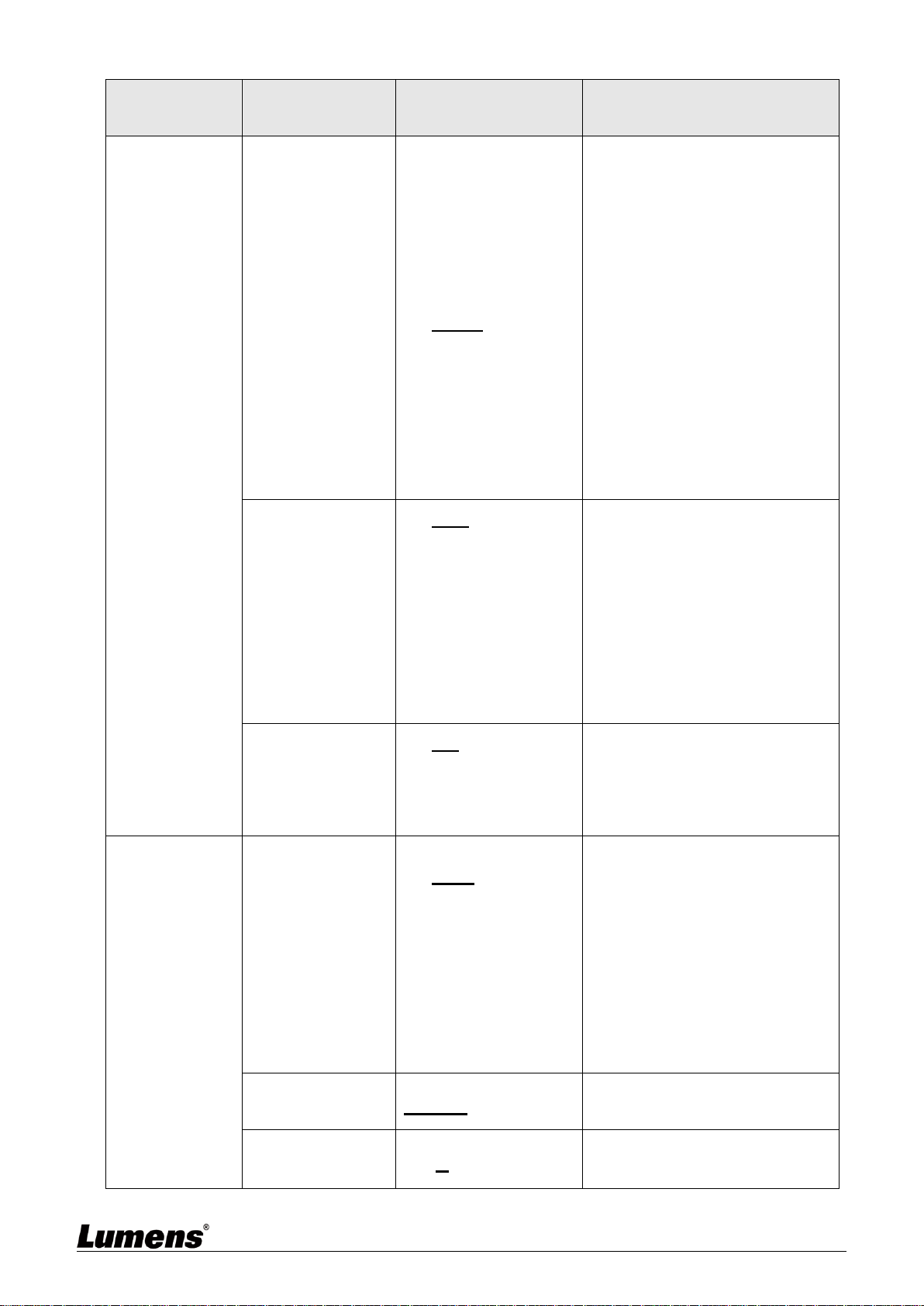
Manual Speed
60/30
mode
50/25
mode
Manually set the shutter
1/10000
1/10000
English - 23
1st Level
Major Items
2nd Level
Minor Items
3rd Level
Adjustment Values
Function Descriptions
1/5000
1/5000
1/3000
1/3000
1/2500
1/2500
1/2000
1/1750
1/1500
1/1250
1/1000
1/1000
1/725
1/600
1/500
1/425
1/350
1/300
1/250
1/215
1/180
1/150
1/120
1/120
1/100
1/100
1/90
1/75
1/60
1/50
1/30
1/25
1/15
1/12
1/8
1/6
1/4
1/3
1/2
1/2
1/1
1/1
Manual Iris
1. F1.6
2. F2
3. F2.2
4. F2.7
5. F3.2
6. F3.8
7. F4.5
8. F5.4
9. F6.3
10. F7.8
11. F9
12. F11
13. F13
14. F16
15. F18
16. Close
Manually set the iris
English - 24
1st Level
Major Items
2nd Level
Minor Items
3rd Level
Adjustment Values
Function Descriptions
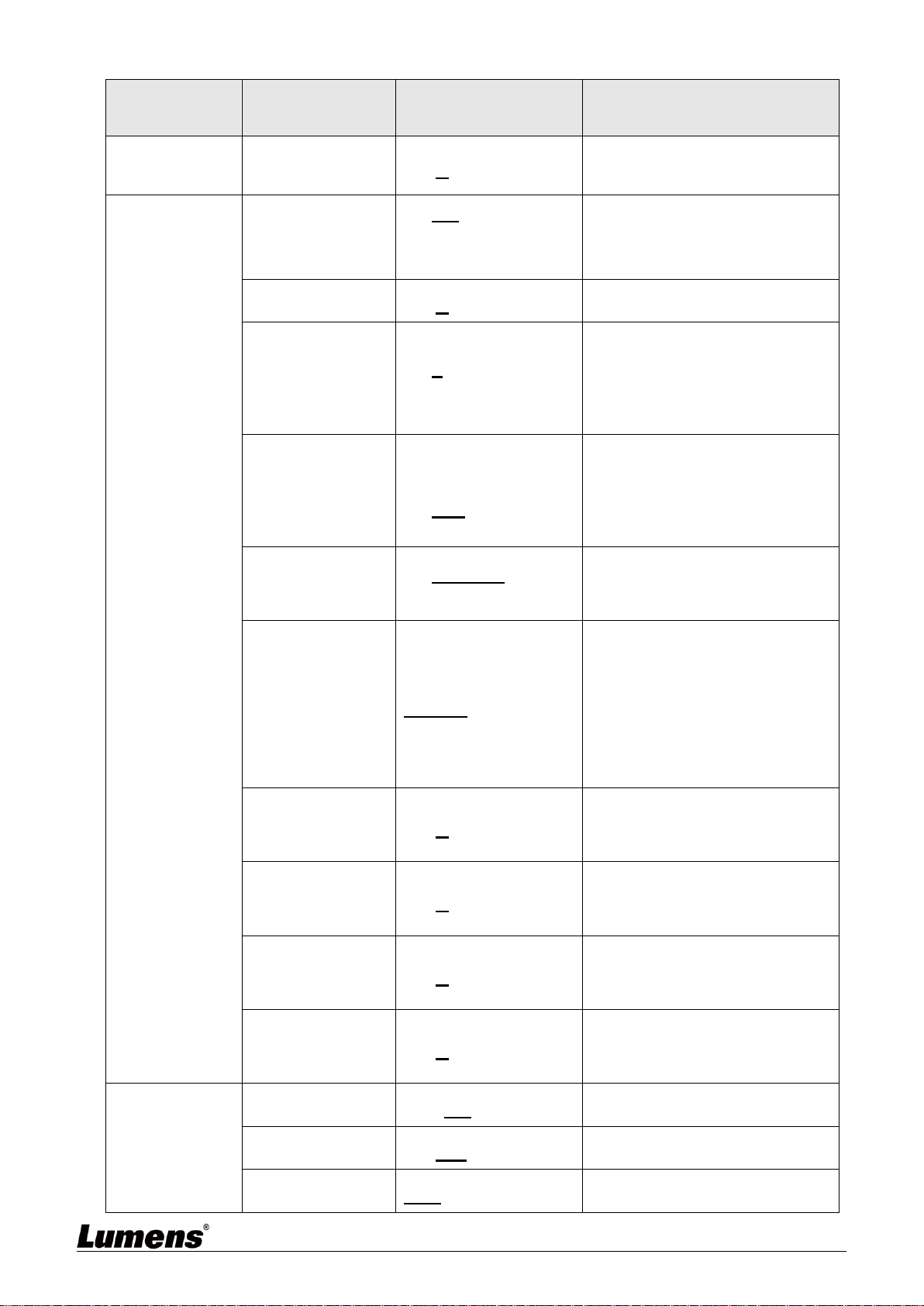
Gain Limit
1. 9 dB
2. 12 dB
3. 15 dB
4. 18 dB
5. 21 dB
6. 24 dB
7. 27 dB
8. 30 dB
9. 33 dB
10. 36 dB
11. 39 dB
12. 42 dB
13. 45 dB
Max. limit value of electron gain
Iris Limit
1. F3.2
2. F3.8
3. F4.5
4. F5.4
5. F6.3
6. F7.8
7. F9
8. F11
Max. limit value of iris
WDR
1. Off
2. 1
3. 2
4. 3
White
Balance
Mode
1. Auto
2. Indoor
3. Outdoor
4. One Push WB
5. ATW
6. Manual
7. Sodium Lamp
Select the color temperature mode
1. 4000k ~ 7000k
2. 3200k
3. 5800k
4. 1700k ~ 10000k
5. 1700k ~ 10000k
6. Custom
7. 2800k
One Push
Trigger
ENTER
One push trigger
Manual Red
0 ~ C ~ 128
Adjustable when the white balance
mode is set to Manual
English - 25
1st Level
Major Items
2nd Level
Minor Items
3rd Level
Adjustment Values
Function Descriptions
Manual Blue
0 ~ C ~ 128
Adjustable when the white balance
mode is set to Manual
Picture
Picture effect
1. Off
2. Neg
3. B & W
Sharpness
0 ~ A ~ 14
2D NR
1. Off
2. 1
3. 2
4. 3
3D NR
1. Off
2. Low
3. Typ
4. Max
Image Mode
1. Default
2. Custom
The user may customize his/her
desired image mode
Image Mode
Load
ENTER
Adjustable when the Image mode
is set to Custom. After selected,
the corresponding Image mode
parameters will be read and
applied to Custom
Brightness
0 ~ A ~ 15
Adjustable when the Image mode
is set to Custom
Hue
0 ~ A ~ 15
Adjustable when the Image mode
is set to Custom
Saturation
0 ~ A ~ 15
Adjustable when the Image mode
is set to Custom
Gamma
0 ~ A ~ 3
Adjustable when the Image mode
is set to Custom
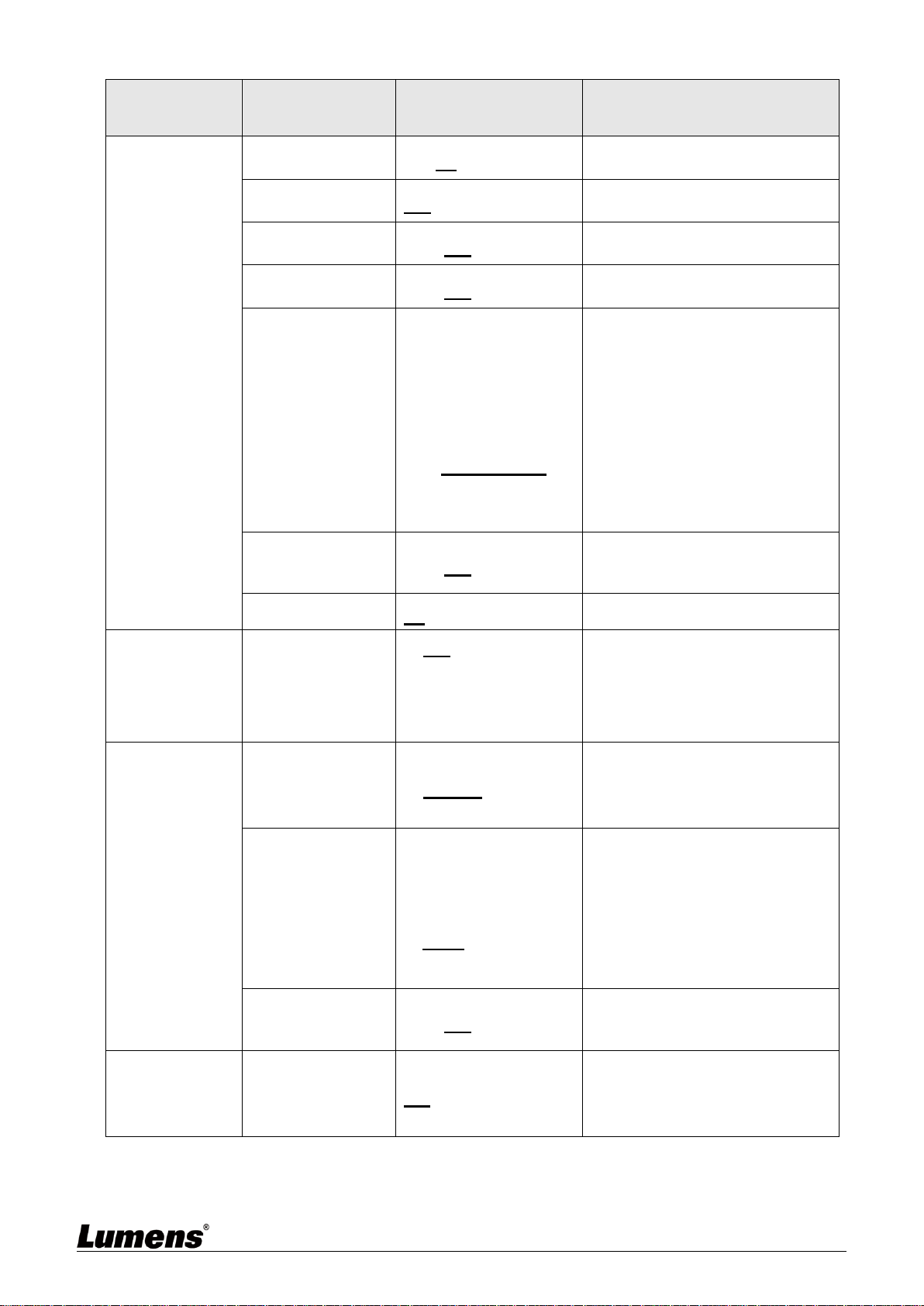
Pan Tilt
Zoom
Pan/Tilt Limit
On / Off
Turn on/off the angle limit setting
Pan Right Limit
0 ~ 170
Limit the right angle
Pan Left Limit
-170 ~ 0
Limit the left angle
English - 26
1st Level
Major Items
2nd Level
Minor Items
3rd Level
Adjustment Values
Function Descriptions
Tilt UP Limit
0 ~ 90
Limit the upward angle
Tilt Down Limit
-30 ~ 0
Limit the downward angle
Pan Flip
On / Off
Activate the reverse Pan command
Tilt Flip
On / Off
Activate the reverse Tilt command
Preset Speed
1. 5 deg/sec
2. 25 deg/sec
3. 50 deg/sec
4. 80 deg/sec
5. 120 deg/sec
6. 160 deg/sec
7. 200 deg/sec
8. 300 deg/sec
Set the rotation speed of the cradle
head when Preset is executed
PTZ Speed
Comp
On / Off
Set the Pan/Tilt moving speed to
vary from the zoom position
D-Zoom Limit
x1~x12
Set limits for digital zoom
D-Effect
Mirror
1. Off
2. Mirror
3. Flip
4. Mirror + Flip
Set the mode at which the image is
turned
Auto Focus
AF Sensitivity
1. Low
2. Middle
3. High
For AF triggering speed, the higher
the speed is, the faster AF is
triggered
AF Frame
1. Center
2. Full Frame
3. Auto
AF frame setting, when central
area was set as AF frame,
focusing will be on the center of
the screen. When Full Frame was
set as AF frame, focusing will be
calculated based on the full screen
PTZ Assist
On / Off
Turn on the auto focus function in
Manual
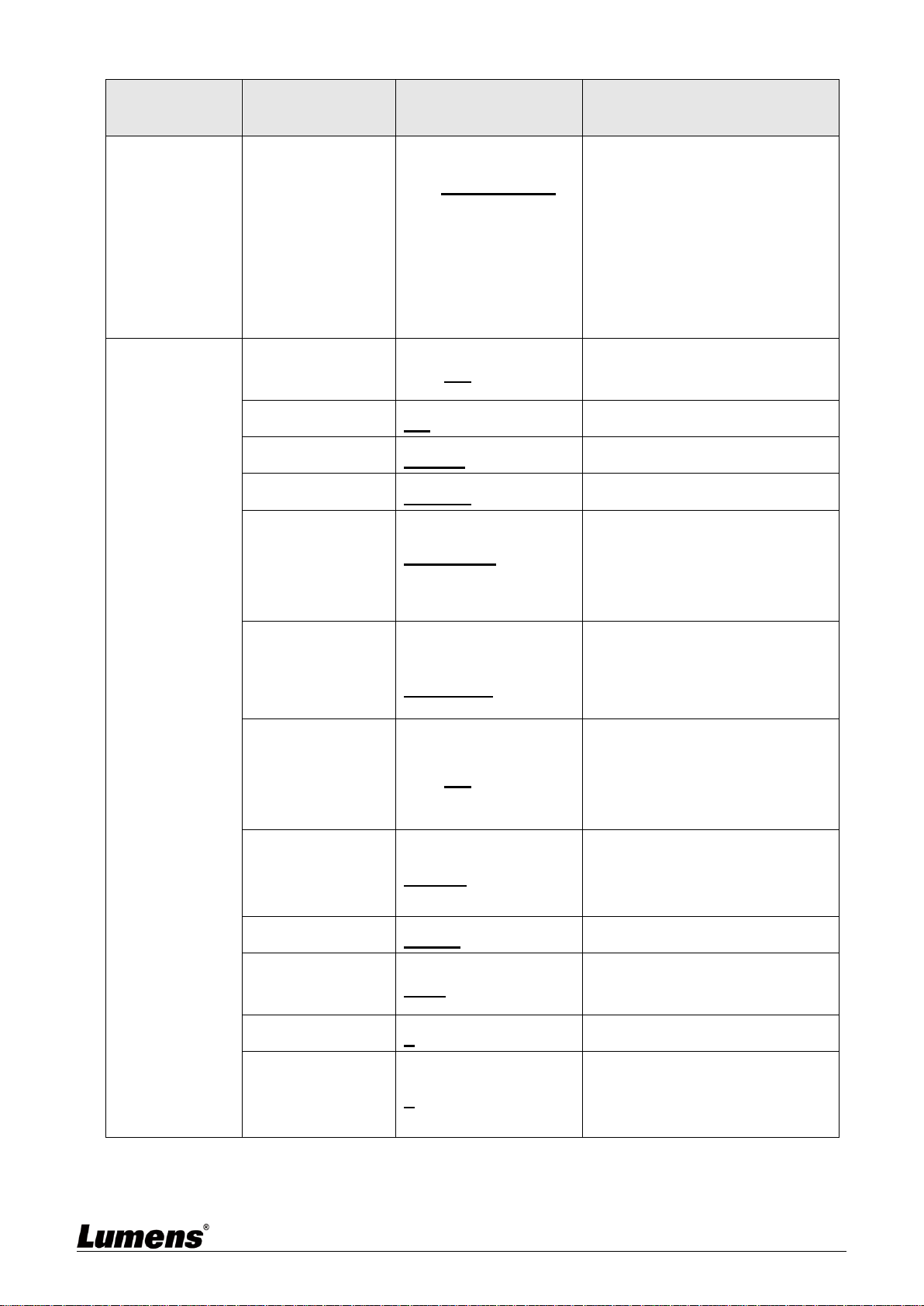
Ethernet
DHCP
On / Off
Enable/Disable DHCP setting
using left and right arrow keys and
press [ENTER] to apply setting.
English - 27
1st Level
Major Items
2nd Level
Minor Items
3rd Level
Adjustment Values
Function Descriptions
IP Address
192.168.100.100
Press [ENTER] to be in modify
mode; select the item to be
modified using the up and down
keys, and modify the value using
the left and right keys or the
numeric keys.
Subnet Mask
255.255.255.0
Press [ENTER] to be in modify
mode; select the item to be
modified using the up and down
keys, and modify the value using
the left and right keys or the
numeric keys.
Gateway
192.168.100.254
Press [ENTER] to be in modify
mode; select the item to be
modified using the up and down
keys, and modify the value using
the left and right keys or the
numeric keys.
Audio
Audio In
Line In/Mic In
Set Audio In
Audio Enable
On / Off
Turn on/off audio output
Audio Volume
0 ~ A ~ 10
Volume Setting
Audio Delay
On / Off
When audio and video are out of
sync, enable this feature to set the
audio delay time
<Remark>VC-A61PN does not
support this setting
Audio Delay
Time (ms)
-1~-500ms
Set audio delay time
<Remark>VC-A61PN does not
support this setting
Encode Type
1. AAC
2. G.711
Set encode type
<Remark>VC-A61PN does not
support this setting
English - 28
1st Level
Major Items
2nd Level
Minor Items
3rd Level
Adjustment Values
Function Descriptions
Encode
Sample Rate
1. 48 KHz(AAC)
2. 44.1 KHz(AAC)
3. 16 KHz(AAC)
4. 16 KHz(G.711)
5. 8 KHz(G.711)
Set the encode type and sample
rate
<Remark> SDI supports the audio
output of 48 KHz only
<Remark> VC-A61PN does not
support this setting
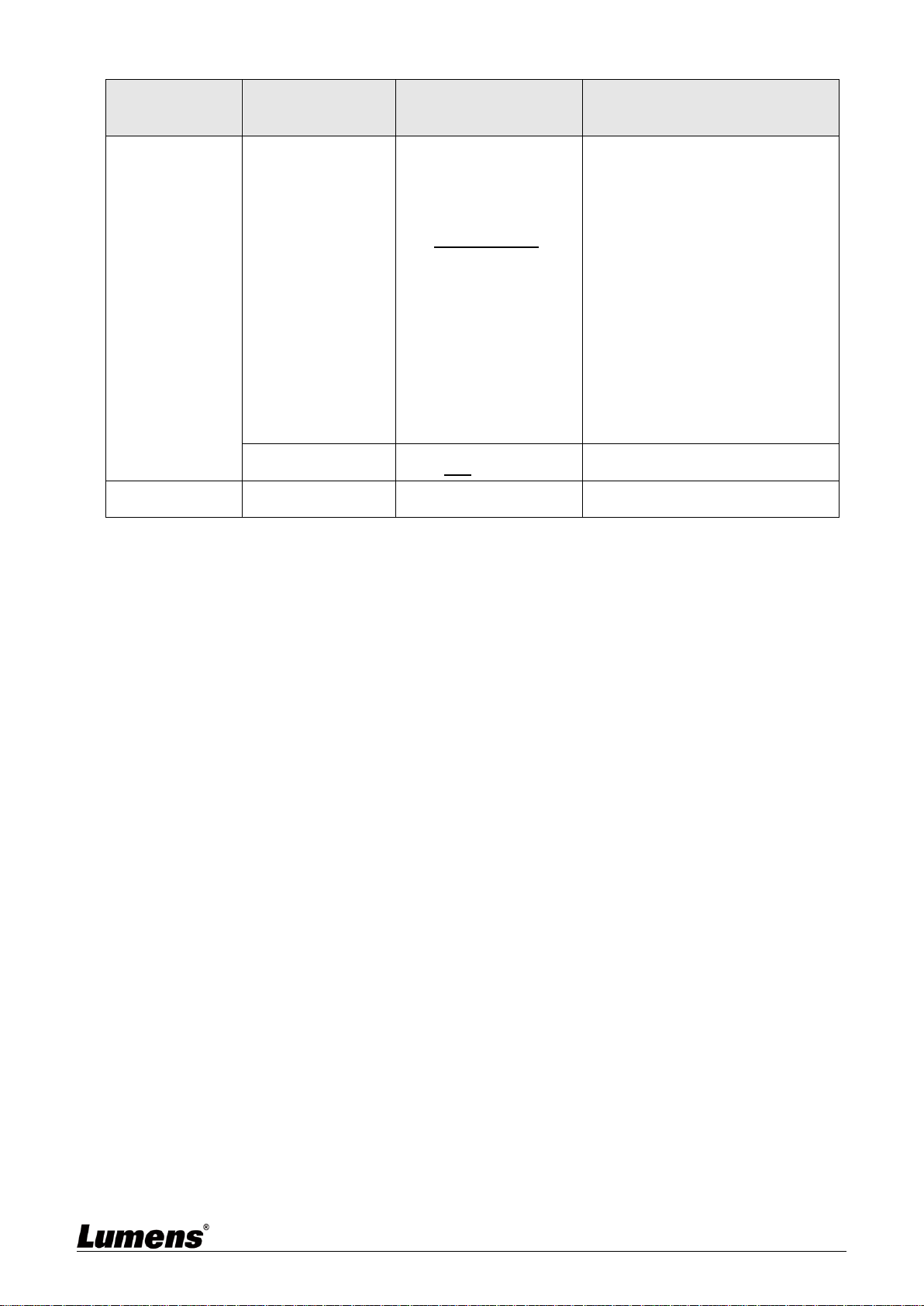
System
Prompt
On / Off
Turn on/off the prompt information
on the display
IR Receive
On / Off
Tally Lamp
Enable / Disable
Language
English / Chinese
Initial Position
Last MEM / 1st
Preset
Set the camera lens to return to
the last operated position or the
first preset position after POWER
ON
Control Device
Encoder /
Controller
Control Device setting,
Controller: for joystick
Encoder: for tracking system
Motionless
Preset
On / Off
When the function is enabled, the
screen will Freeze when Preset is
executed. Freeze will be released
after Preset is completed.
Control Port
RS-232/RS-422
Choose whether the control
interface used is RS-232 or
RS-422
Protocol
VISCA/Pelco D
Baud Rate
9600/38400
Choose the transmission speed of
the control signal
VISCA Address
0 ~ 7
Pelco D
Address
1 ~ 255
The Protocol set to Pelco D allows
the camera ID address to be
assigned
English - 29
1st Level
Major Items
2nd Level
Minor Items
3rd Level
Adjustment Values
Function Descriptions
Output Mode
1. 3840 x
2160/29.97p
2. 3840 x 2160/25p
3. 1080p/59.94
4. 1080p/50
5. 1080p/29.97
6. 1080p/25
7. 720p/59.94
8. 720p/50
9. 720p/29.97
10. 720p/25
Choose the output resolution
<Remark>VC-A61PN does not
support 720p/29.97 and 720p/25
output modes
Factory Reset
On / Off
Resume the factory default setting
Status
Display the current setting status
English - 30
Chapter 6 Network Function Settings Description
6.1 Connecting Camera to Network
6.1.1 Connecting to Internet
Two common connection methods are shown below
1. Connecting via switch or router
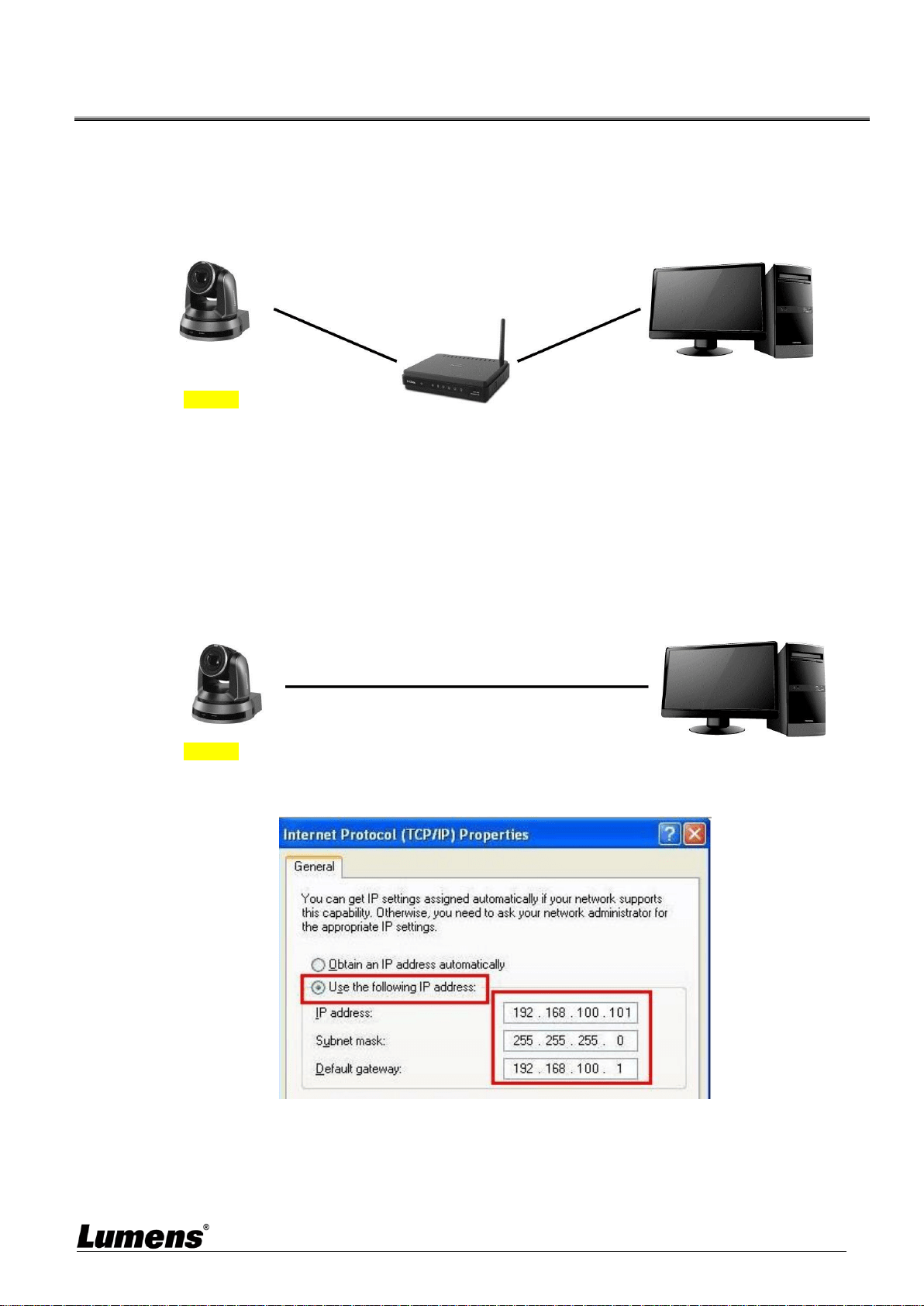
2. To connect directly through network cable, the IP address of the computer should be
changed so that it is on the same network segment as the camera
e.g.: The factory-preset default IP address of the camera is 192.168.100.100. The
computer IP address must be set with the same network segment, such as
192.168.100.101, so that the computer can be connected correctly with the camera
Change network settings
Switch or router
Network cable
Network cable
Camera
Computer
Camera
Computer
Network cable
English - 31
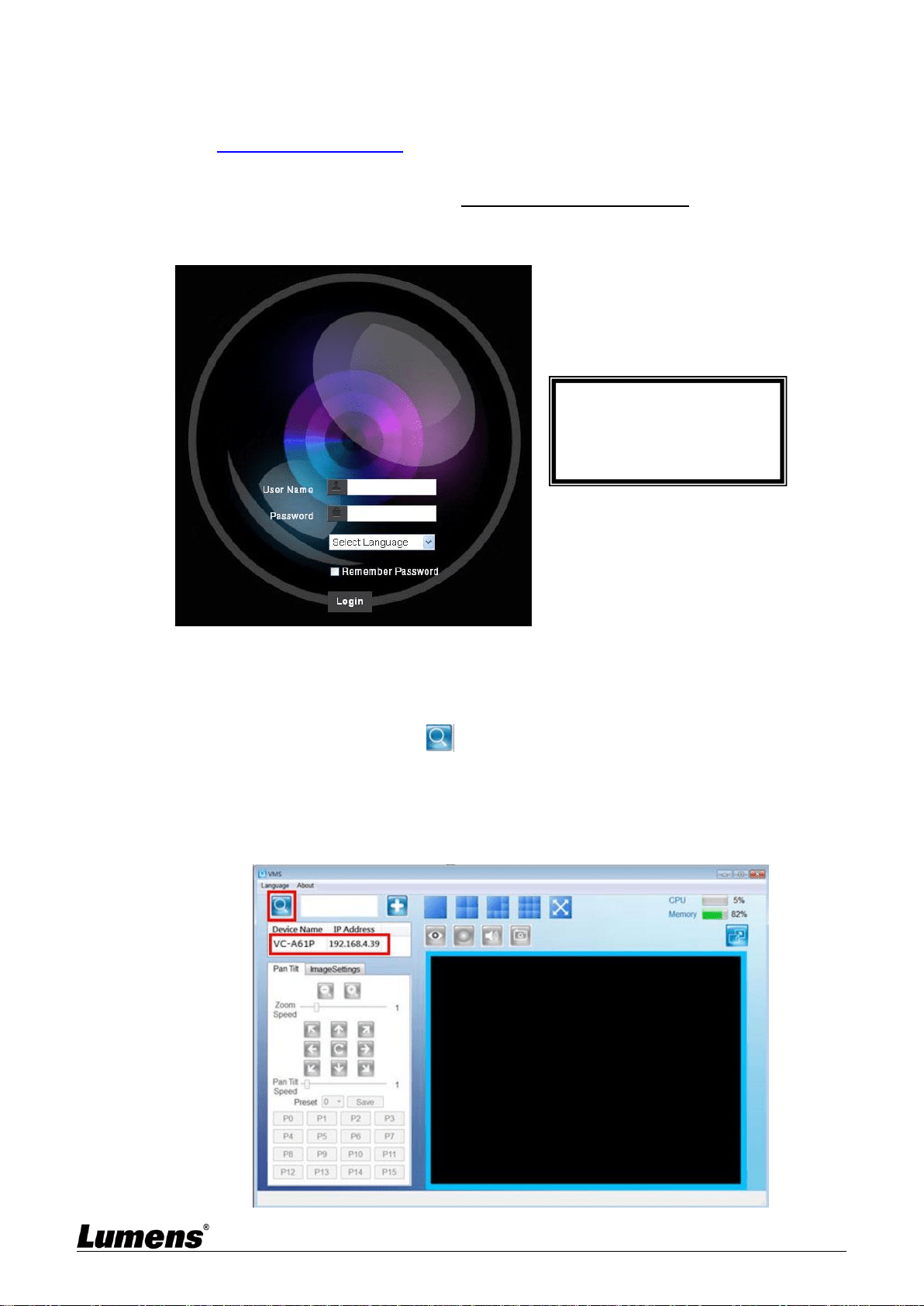
6.1.2 Using the Browser to View the Images
Open the browser, and enter the URL of camera in the IP address bar
e.g.: http://192.168.100.100 (default IP address)
Enter administrator’s account and password
* For the first login, please refer to 6.2.3 Account Management to change the default
password
6.1.3 Using Lumens VMS Software to View the Images
<Remark> Lumens VMS is for VC-A61P only and cannot work with VC-A61PN
Open LUMENS VMS software (Please download from the Lumens official website)
Search for the camera: Press [automatically search for the device] button to
locate the camera
Click the camera in the list and start operation after connecting to network
<Note> When using automatic search, the camera and computer must be in the same network
segment, e.g.: 192.168.4.X
Lumens IP Camera
Account: admin
Password: 9999
English - 32
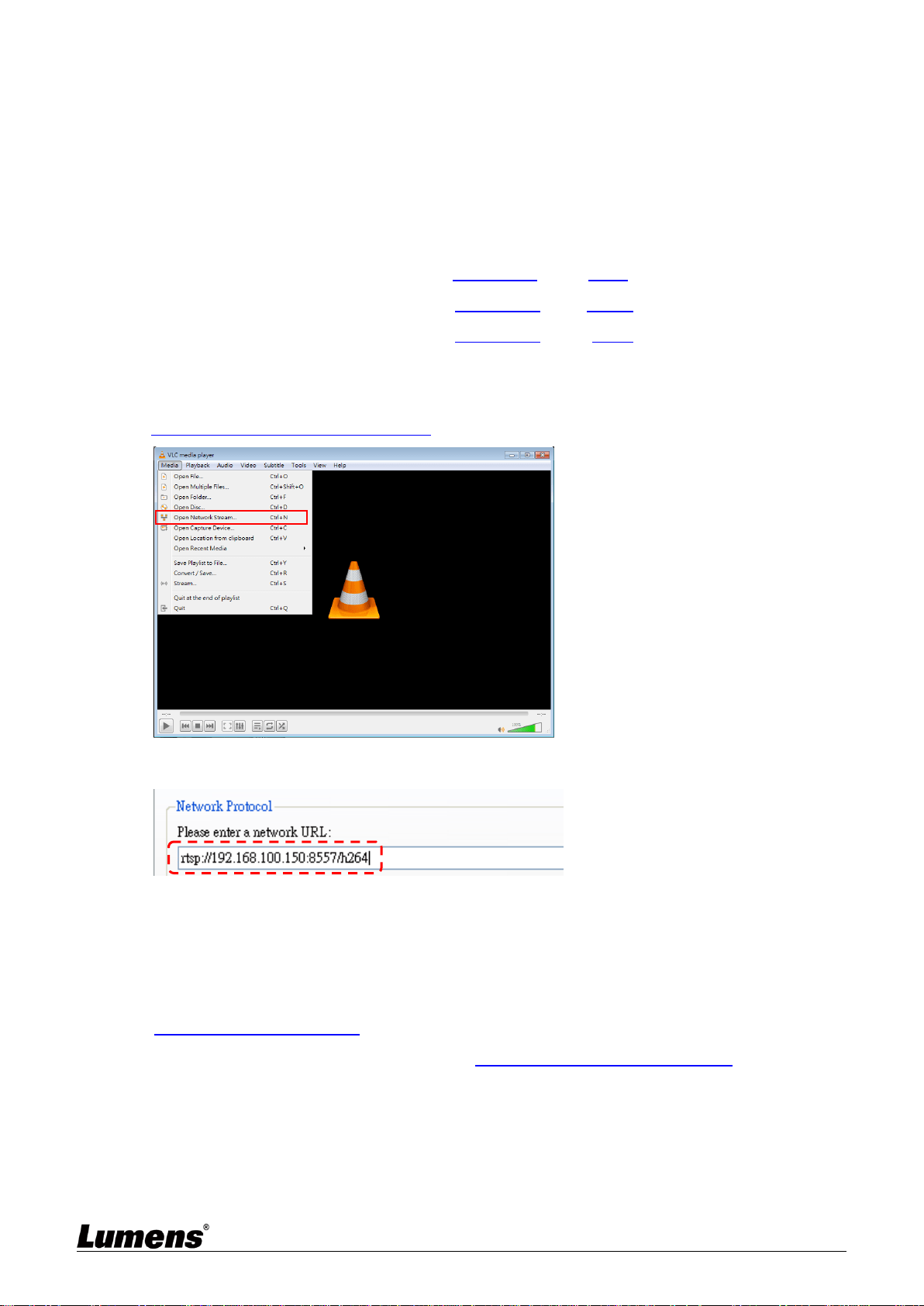
6.1.4 Using RTSP Player to View the Images
<Remark> This is only applicable to VC-A61P. VC-A61PN does not support RTSP Streaming
In addition to the browser and VMS, other free softwares also can be used for RTSP
connection,such as VLC, Quick Time and PotPlayer
RTSP connection address formats are as follows:
RTSP Main Streaming => rtsp://camera IP:8554/hevc
RTSP Sub1 Streaming => rtsp://camera IP:8557/h264
RTSP Sub2 Streaming => rtsp://camera IP:8556/h264
Example: Open VLC software, click [Open Network Streaming], and enter a URL:
rtsp://192.168.100.150:8557/h264
6.1.5 Using NDI Studio Monitor to View the Images
<Remark> This is only applicable to VC-A61PN. VC-A61P does not support NDI
For NewTek product operation or instructions, please visit the website:
https://www.newtek.com/.
To download NDI 4 Tool, click the link: http://new.tk/NDIHX-Driver-Win
English - 33
6.2 Web Page Function Description
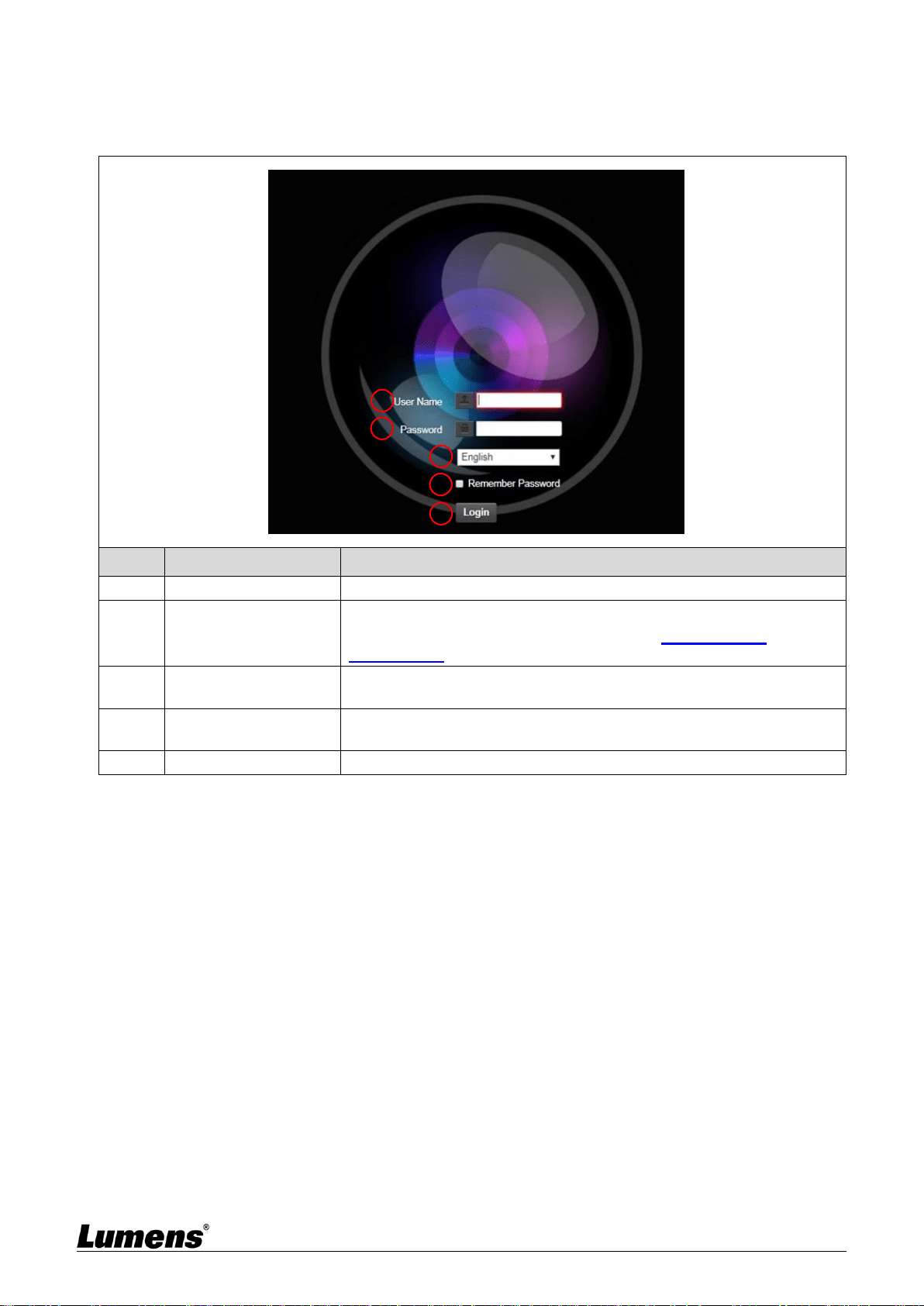
6.2.1 Login Screen
No
Item
Function Descriptions
1
Username
Enter user account (default: admin)
2
Password
Enter user password (default: 9999)
*When log in for the first time, please refer to 6.2.3 Account
Management to change the default password.
3
Language selection
Currently, the system supports English, Traditional Chinese and
Simplified Chinese
4
Remember password
Save user account name and password to the browser. When you log
in next time, there is no need to re-enter them
5
Login
Log into the administrator screen on the website
1
2
3
5
4
English - 34
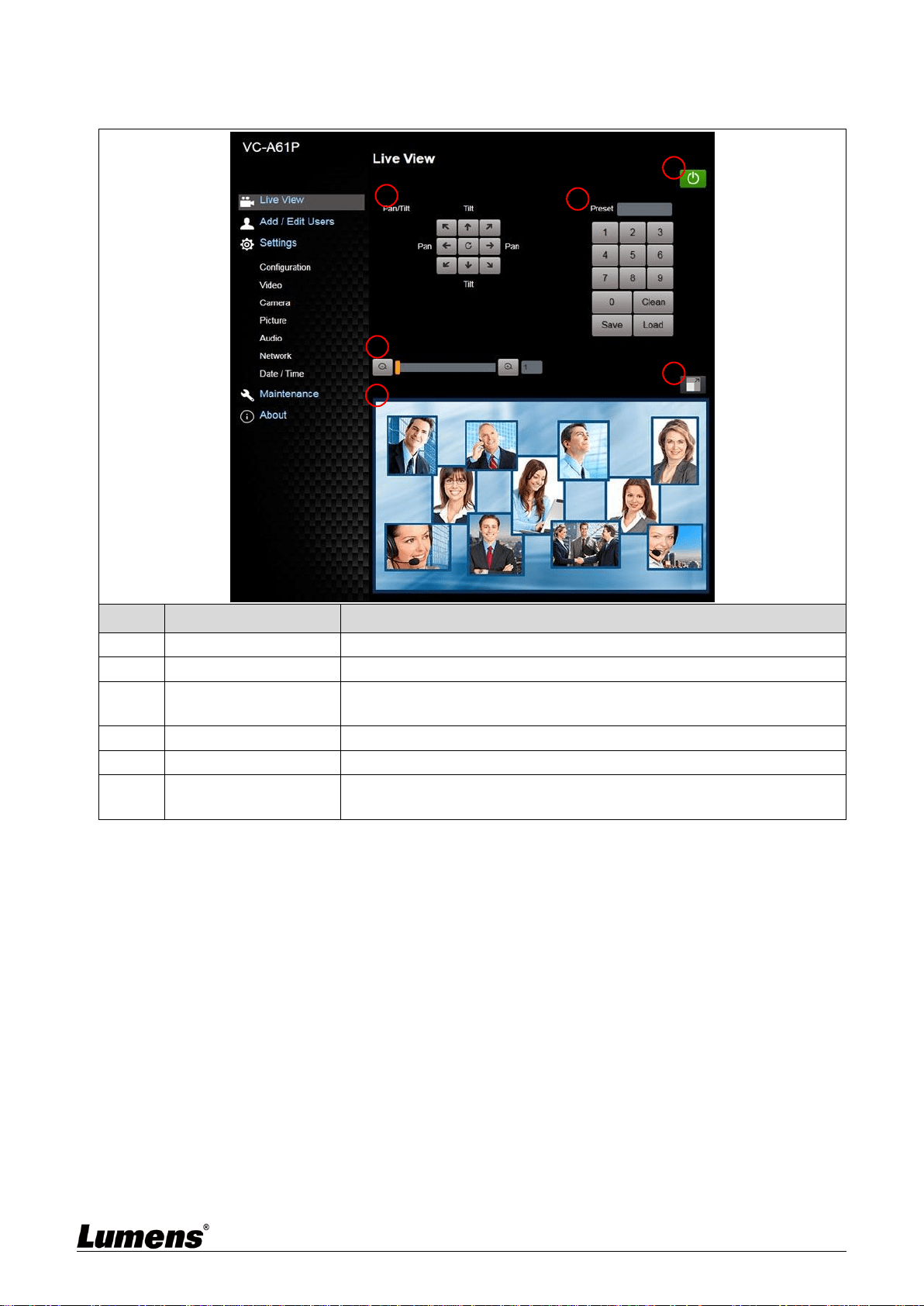
6.2.2 Viewing In Real Time
No
Item
Function Descriptions
1
Pan / Tilt setting
Adjust the Pan/Tilt position of the camera screen
2
Zoom ratio
Adjust the zoom-in or zoom-out ratio via scroll bar
3
Preview window
Display the screen currently captured by the camera
<Remark> VC-A61PN does not support this setting
4
Preset setting
Select the number first and then select SAVE or LOAD
5
Power button
Turn on or turn off the camera power
6
Switch to Full Screen
Switch the preview window to full screen
<Remark> VC-A61PN does not support this setting
4
3
2
1
5
6
English - 35
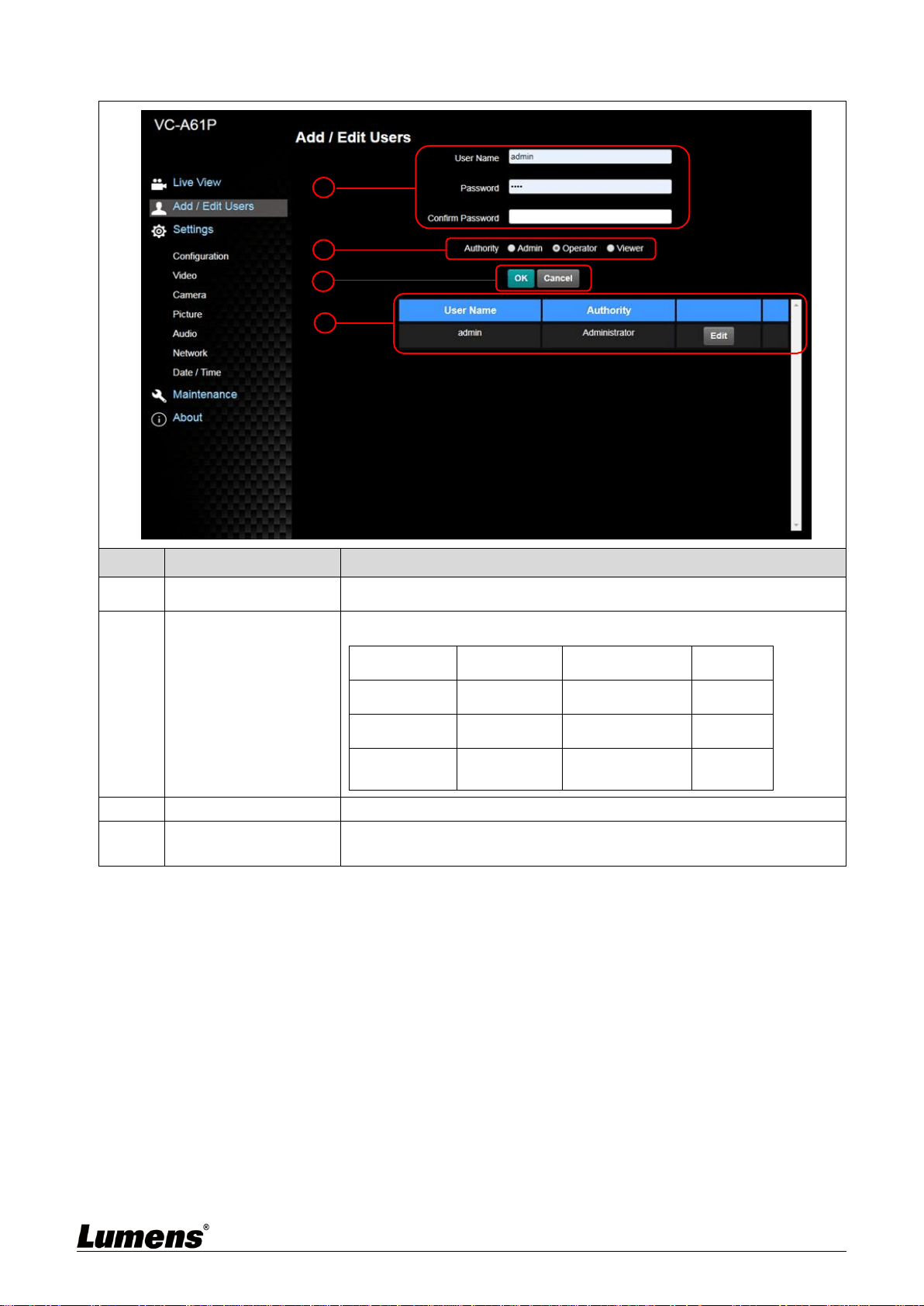
6.2.3 Account Management
No
Item
Function Descriptions
1
Add user account
Enter a user name and password to add a new user
2
Permission setting
Set the new account management permissions
User Type
Admin
Operator
Viewer
View images
V
V
V
Settings
V
V
X
Account
management
V
X
X
3
Applying setting
Add the newly created user to the list of account
4
List of accounts
Edit: Modify the user password and permissions
Delete: Delete the user account
1
2
3
4
English - 36
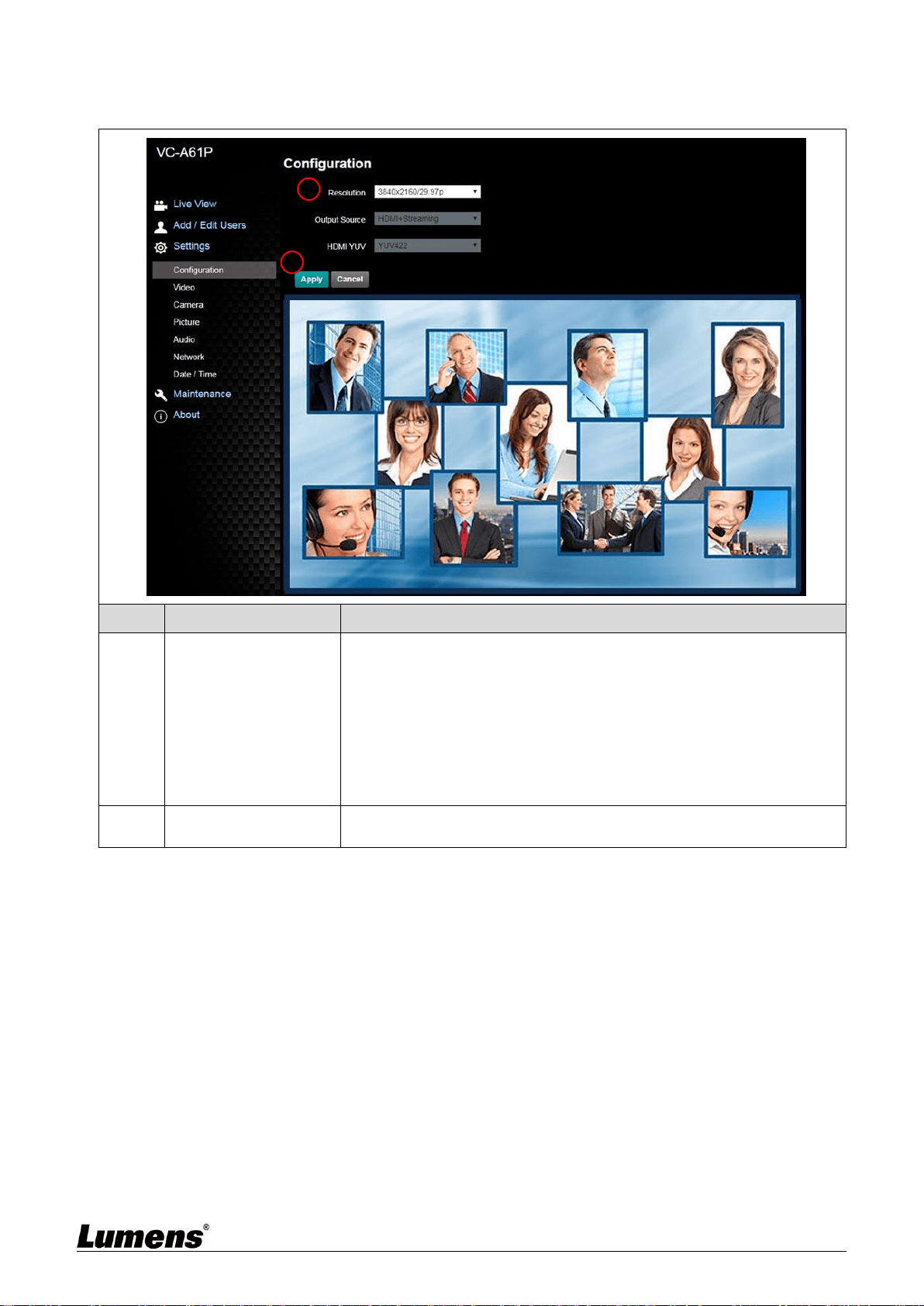
6.2.4 Setting-System Setting
<Remark> The figure is an example of VC-A61P. VC-A61PN does not support Preview Window
No
Item
Function Descriptions
1
Resolution
Set the resolution of the camera, resolutions supported by the camera
are as follows:
3840 x 2160 29.97/25 fps
1080P 59.94/50/29.97/25 fps
720P 59.94/50/29.97/25 fps
1080i 59.94 / 50 fps
<Remark>VC-A61PN does not support 720p 29.97/25 fps resolutions
After switching to the resolution, the camera will restart. Please refresh
the browser
2
Apply
After the setting has been modified, select this button to apply the
setting
1
2
English - 37
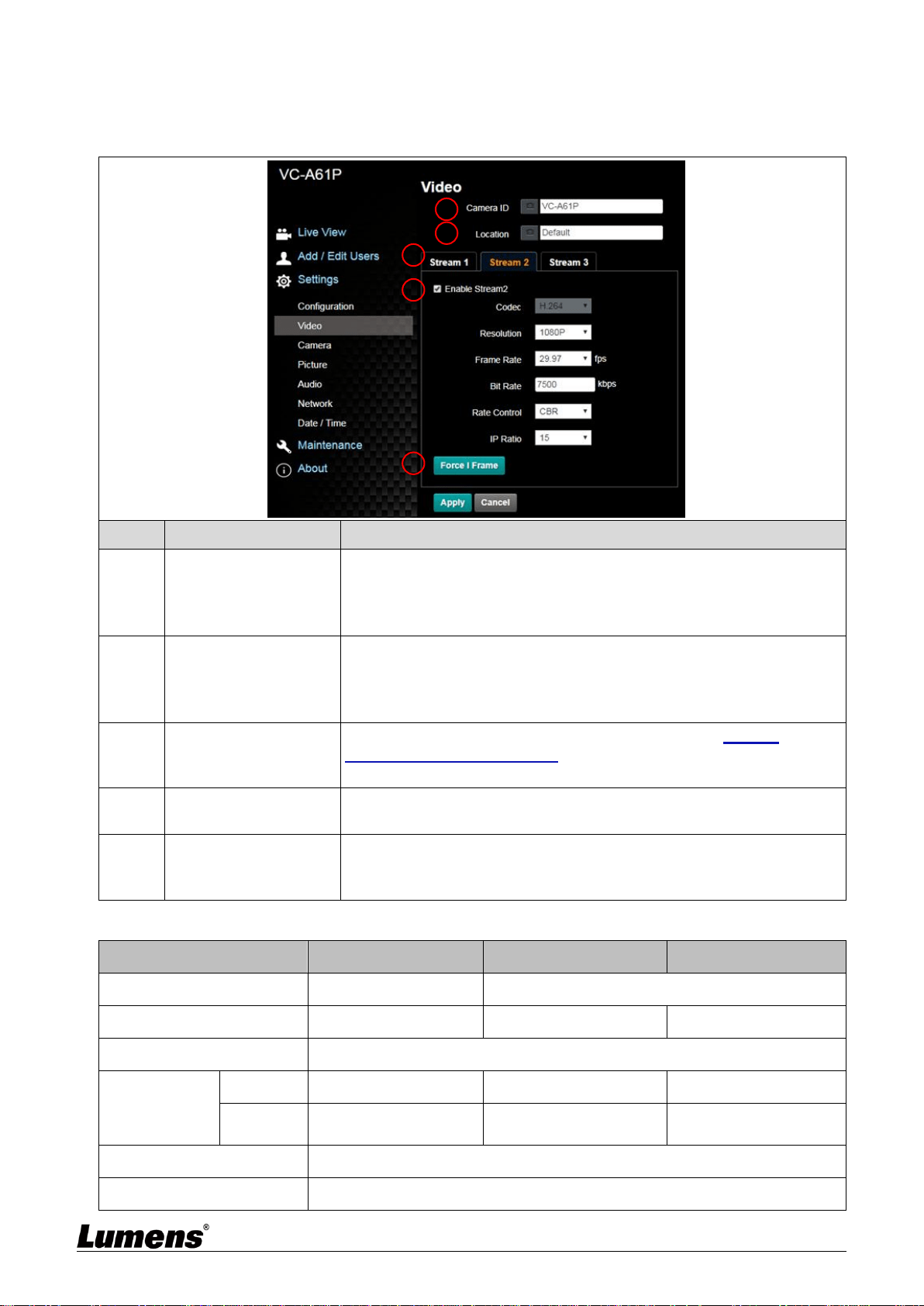
6.2.5 Setting - Video
<Remark> Streaming related settings are only applicable to VC-A61P. VC-A61PN does not
support this feature
No
Item
Function Descriptions
1
Camera name
Modify the camera name
Camera names are limited to 1 - 12 characters
Please use a camera name by mixing uppercase and lowercase
letters or numbers. Do not use “/” and “space” or special symbols
2
Camera Location
Modify the location of the camera, such as Meeting Room 1
Camera location is limited to 1 - 12 characters
Please use a camera name by mixing uppercase and lowercase
letters or numbers. Do not use “/” and “space” or special symbols
3
Streaming 1/Streaming 2
/Streaming 3
VC-A61P supports 3 streaming outputs. Please refer to 6.2.5.1
Streaming Parameter Setting for relevant settings
<Remark> VC-A61PN does not support this setting
4
Open Streaming
Confirm whether or not the streaming function is opened
<Remark> VC-A61PN does not support this setting
5
Force I Frame
Check this item to insert IDR frame into specified series flow and apply
its setting. User’s setting will be reserved and displayed in GUI interface
<Remark> VC-A61PN does not support this setting
6.2.5.1 Streaming parameter setting
Function
Streaming 1
Streaming 2
Streaming 3
Encode Format
H.265
H.264
Resolution
4K /1080P / 720P
1080P/720P
640 x 360
Frame Rate
Setting according to the supported resolution
Bit Rate (kbps)
Range
2,000 ~ 20,000
2,000 ~ 20,000
512 ~ 5,000
Factory
Default
7,000
7,000
1,000
Rate Control
CBR/VBR
IP Ratio
Setting according to the supported resolution
1
2
3
4
5
English - 38
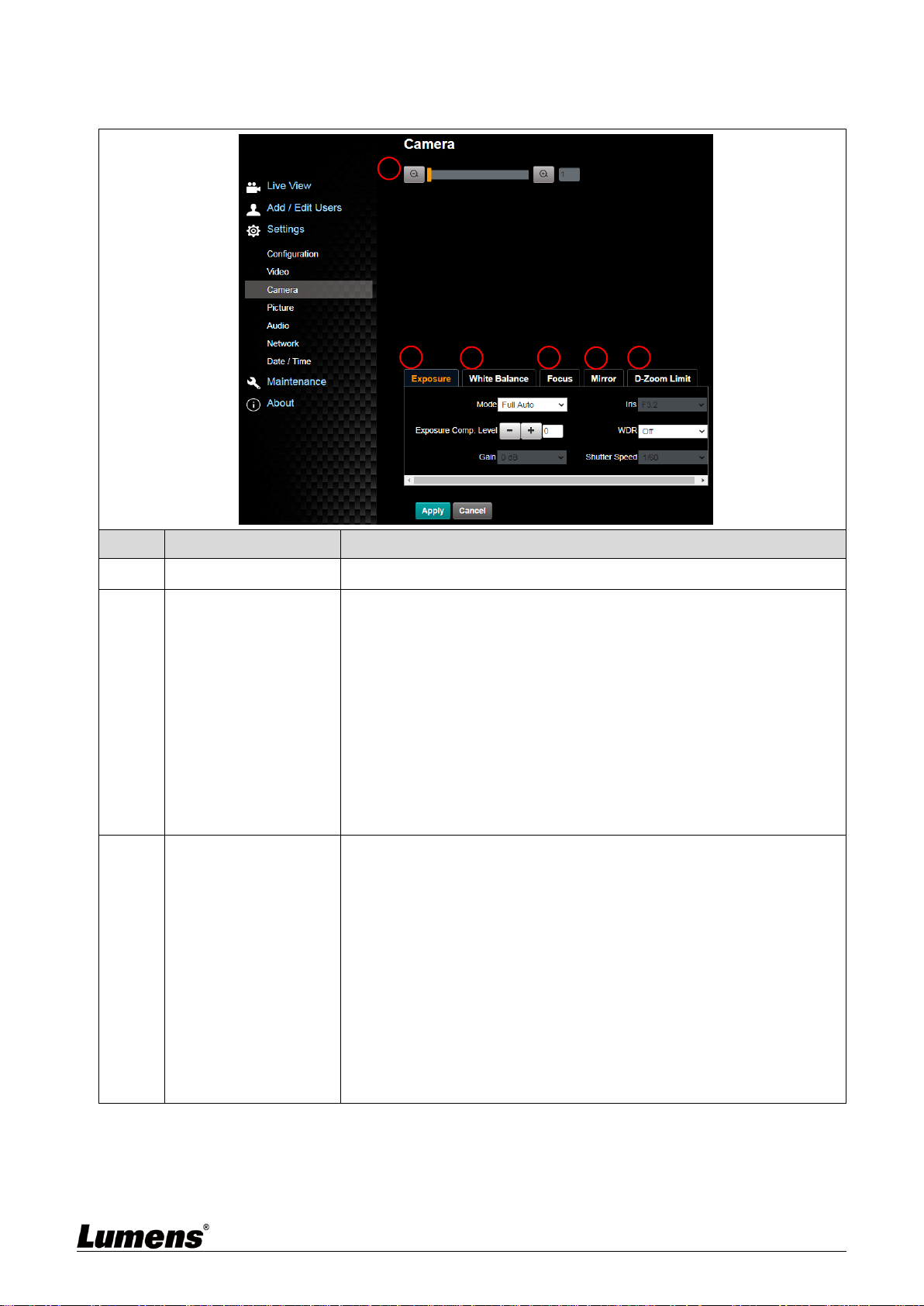
6.2.6 Setting - Camera
No
Item
Function Descriptions
1
Zoom ratio
Adjust the zoom-in or zoom-out ratio via scroll bar
2
Exposure
Mode: Select exposure mode (Automatic/Shutter Priority/Aperture
Priority/Manual)
Exposure Comp. Level: Select exposure compensation level
Gain: The gain limit is adjustable when the exposure mode is set to
“Manual”
Iris: The size of aperture is adjustable when the exposure mode is
set to “Manual” or “Aperture Priority”
WDR: Set the level of wide dynamic range (WDR) in order to obtain
better images
Shutter Speed: The shutter speed is adjustable when the exposure
mode is set to “Manual” or “Shutter Priority”
3
White Balance
Mode: Select the color temperature mode
Auto
Indoor
Outdoor
One Push WB
ATW
Manual
Sodium Lamp
One Push WB: One push color temperature is adjustable when
the white balance mode is set to “One Push WB”
Manual Red/Blue: Manually adjust blue/red color temperature
5
4
3
2
1
6

English - 39
4
Focus
Mode: Select manual/automatic focus
Focus Range: The focusing range is adjustable when the focus
mode is set to “Manual”
AF Sensitivity: Set automatic focus sensitivity
AF Frame: Set automatic focus range
5
Mirror
Mirror: Set automatic flip mode
6
D-Zoom Limit
Set limits for digital zoom
6.2.7 Setting - Picture
No
Item
Function Descriptions
1
Picture Effect
Set picture effect, Off/Neg/Black and White
2
2D noise reduction
settings
2D noise reduction settings
3
3D noise reduction
settings
3D noise reduction settings
4
Image mode
The user may customize his/her desired image mode
5
Image Mode Load
When no custom setting is needed, reset the picture parameters back
to the factory default by selecting this item
6
Gamma
Gamma Level adjustment; Adjustable when the image mode is set to
Custom
7
Brightness
Brightness adjustment; Adjustable when the image mode is set to
Custom
8
Contrast
Contrast adjustment; Adjustable when the image mode is set to Custom
9
Saturation
Saturation adjustment of the image; Adjustable when the image mode
is set to Custom
10
Sharpness
Adjust the sharpness of the image
10
9
8
7
6
5
4
3
2
1
English - 40
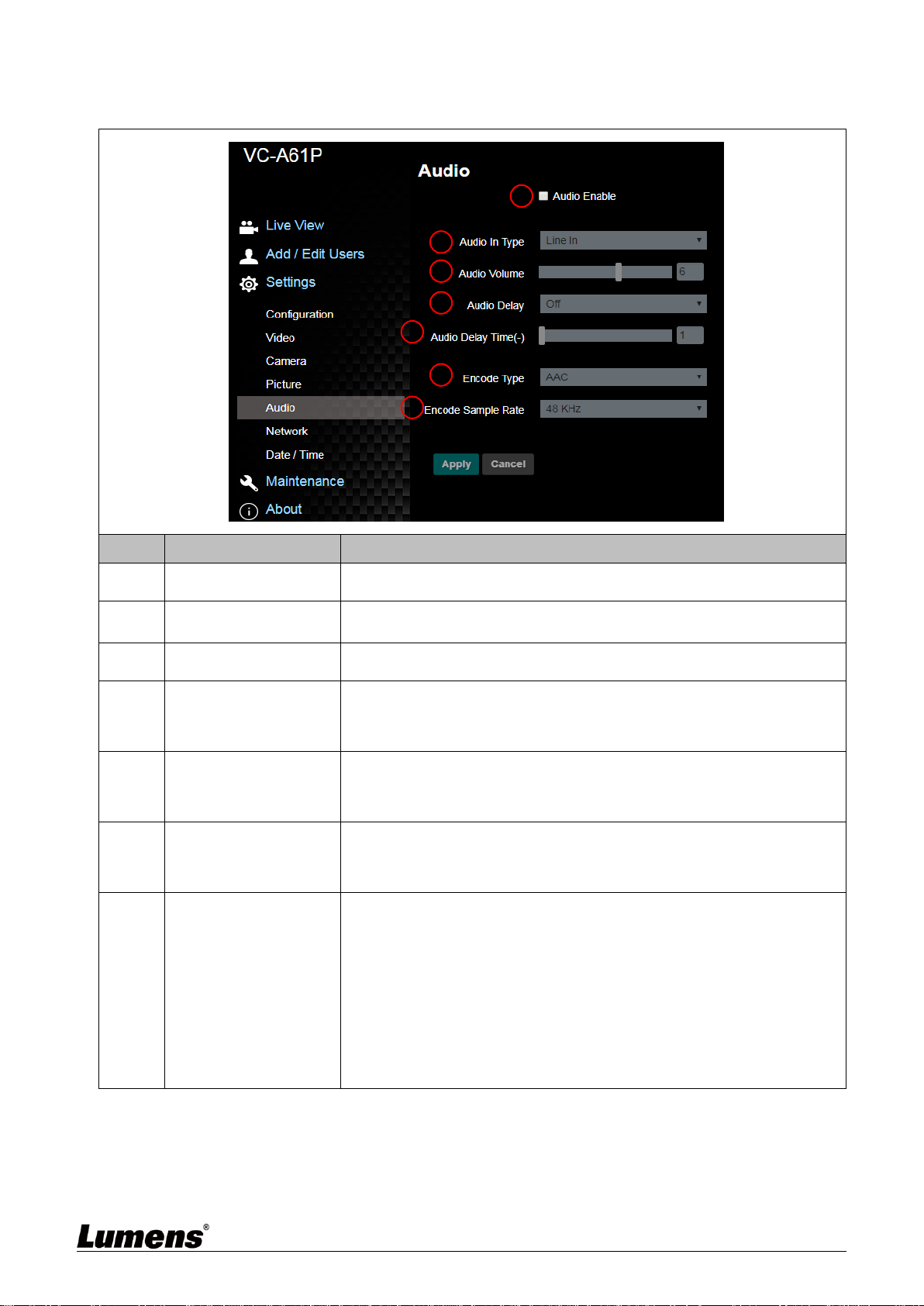
6.2.8 Setting - Audio
No
Item
Function Descriptions
1
Open audio
Turn on/off sound
2
Soundtrack effect
setting
Set MIC In/Line In
3
Volume
Adjust Volume
4
Audio delay
On / Off audio signal delay
<Remark> VC-A61PN does not support this setting
5
Audio delay time
Set the audio signal delay time (-1~-500ms)
<Remark> VC-A61PN does not support this setting
6
Encode type
AAC / G.711
<Remark> VC-A61PN does not support this setting
7
Encode sample rate
Set Encode sample rate
48 KHz (AAC)
44.1 KHz (AAC)
16 KHz (AAC)
6 KHz (G.711)
8 KHz (G.711)
<Remark> VC-A61PN does not support this setting
1
2
3
4
5
6
7
English - 41
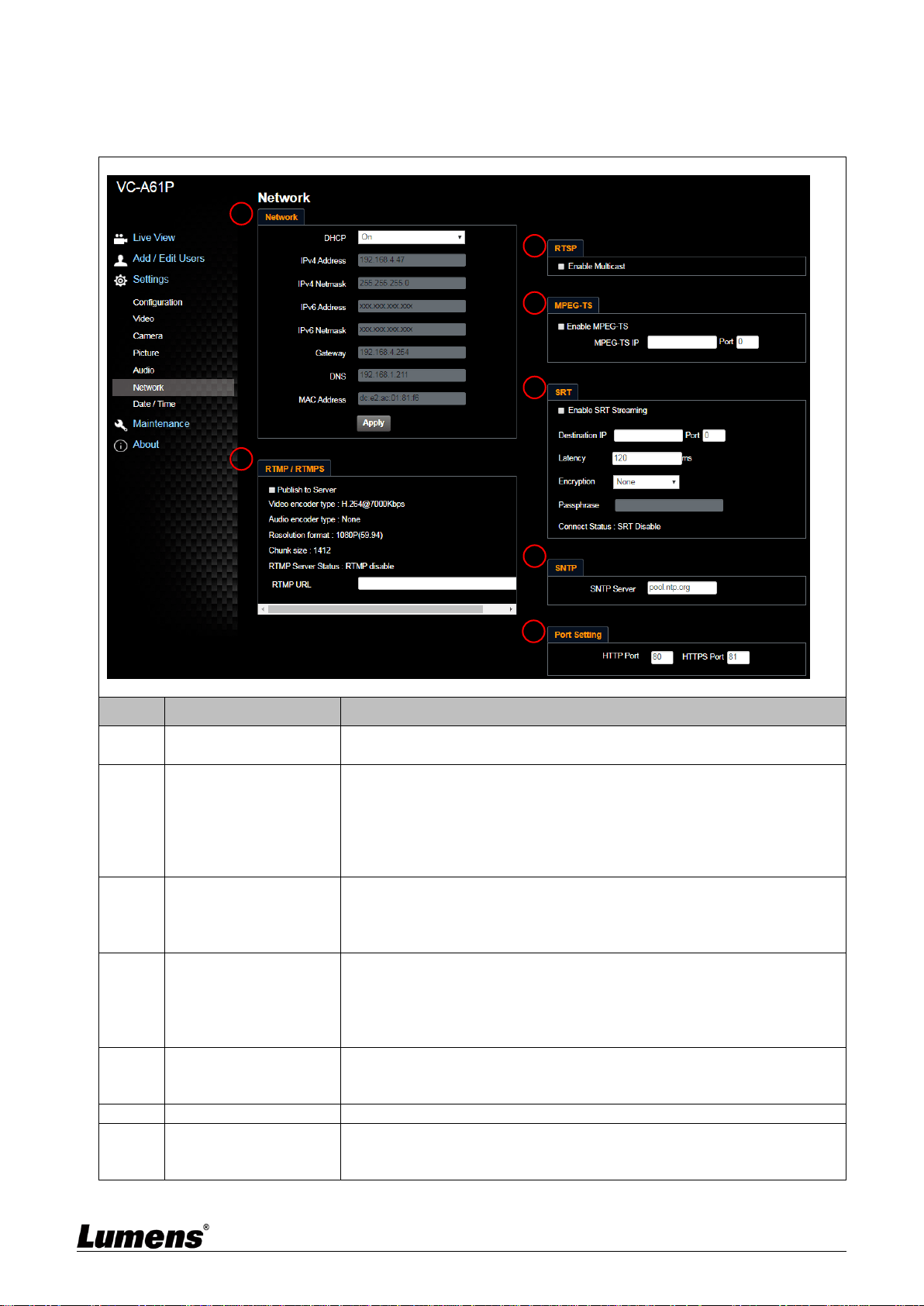
6.2.9 Setting - Network
<Remark> Some settings are only applicable to VC-A61P. Please see the function descriptions
below for details
No
Item
Function Descriptions
1
Network
Network setting of camera. Change of setting is available when DHCP
function is closed.
2
RTMP Setting
Copy the RTMP web address provided by the RTMP service platform
and paste it to the RTMP connection address to publish the camera
images on the RTMP service platform
To upload to YouTube for live streaming, the audio function must be
turned on first
<Remark> VC-A61PN does not support this setting
3
RTSP Setting
Enable/Disable Multicast. It is suggested to enable Multicast when the
number of users online watching the live image simultaneously is more
than 4
<Remark> VC-A61PN does not support this setting
4
MPEG-TS Setting
Set MPEG-TS format
<Remark> The following port has been used by the camera. Setting of
the port may not connect correctly
8554, 8556, 8557, 8080, 80, 81, 9090, 23
<Remark> VC-A61PN does not support this setting
5
SRT Setting
On / Off SRT.
<Remark> VC-A61PN does not support this setting
6
SNTP Setting
Set SNTP Server IP
7
Port Setting
Set HTTP port. The default Port value is 80
<Remark> Change of setting is available only when DHCP
function of camera is closed
1
2
3
4
5
6
7
English - 42
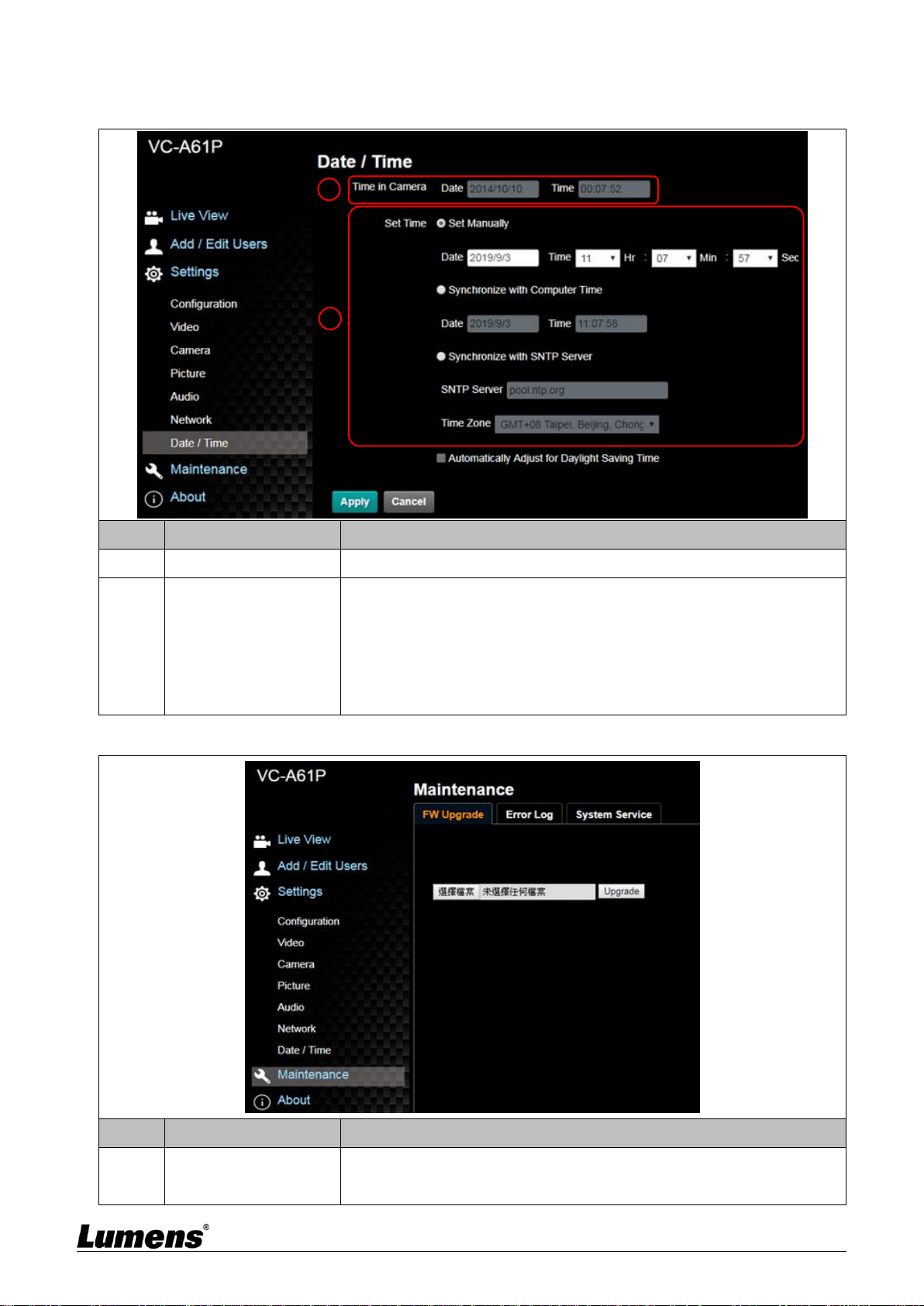
6.2.10 Setting-Time
No
Item
Function Descriptions
1
Camera Time
Display the date and time of the camera
2
Set the Time
Manually: Set time manually
Synchronize with computer time: Set the camera time according
to the computer time
Synchronize with SNTP server: Set the camera time
synchronously with the SNTP server
<Remark> SNTP server address: Please change in network setting
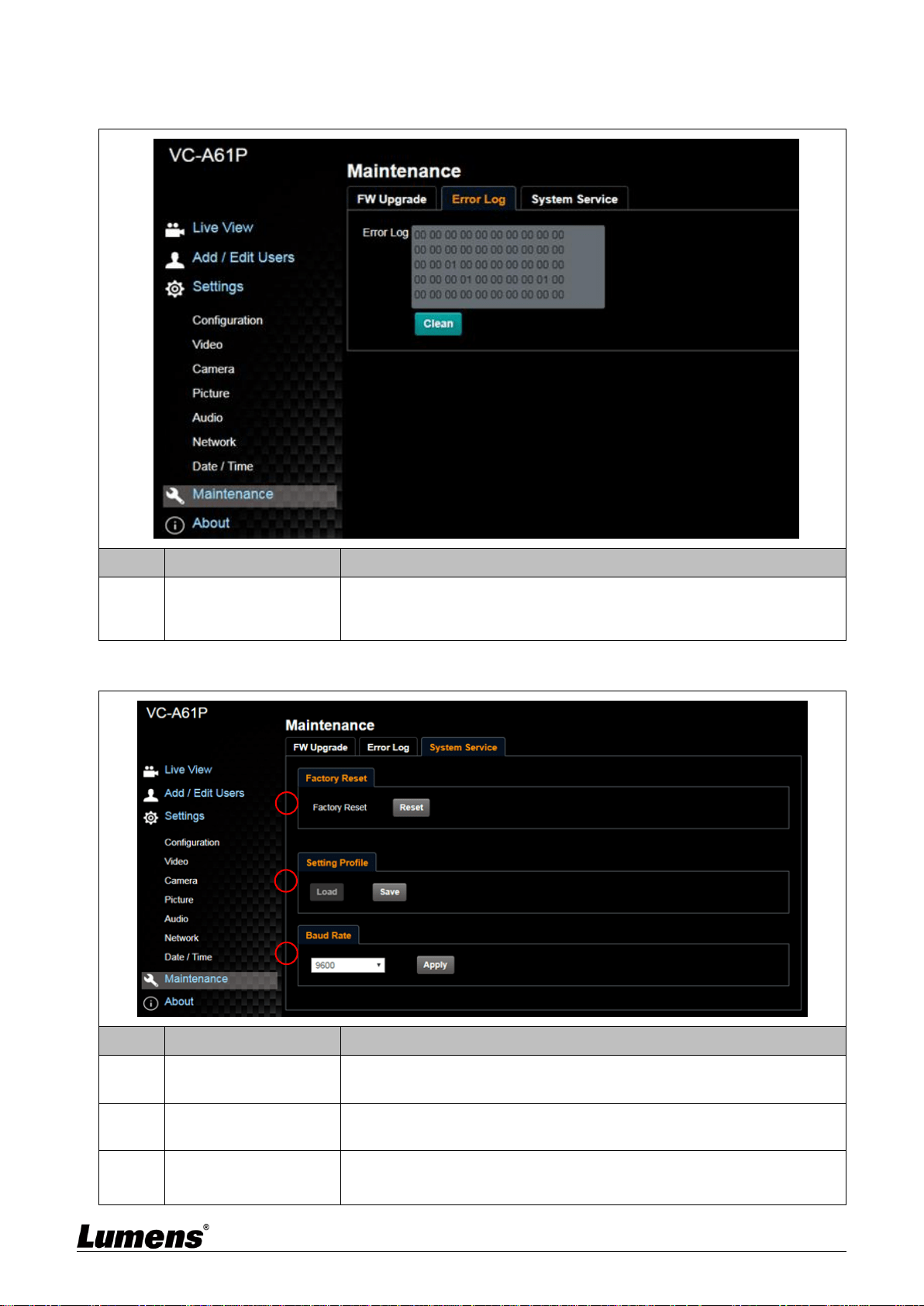
6.2.11 Setting - Maintenance - Upgrading Firmware
No
Item
Function Descriptions
1
Firmware Update
The camera firmware may be upgraded via web page. For the upgrade
method, please download the FW upgrade manual from Lumens official
website
1
2
English - 43
6.2.12 Setting - Maintenance - Incident Log
No
Item
Function Descriptions
1
Event Logs
If the camera encounters errors, an error code log will be established
<Remark> When an error code appears, please try to clear it to
make sure whether the issue has occurred repetitively
6.2.13 Setting - Maintenance - System Service
No
Item
Function Descriptions
1
Reset to the default
value
Select the reset button to resume the factory default setting as the web
page setting
2
Setting File
The web page setting parameters can be exported from the computer
and imported/applied to another camera
3
Communication
protocol related
settings
Communication protocol related settings for the use of connecting
RS-232/ RS-422 communication
1
2
3
English - 44
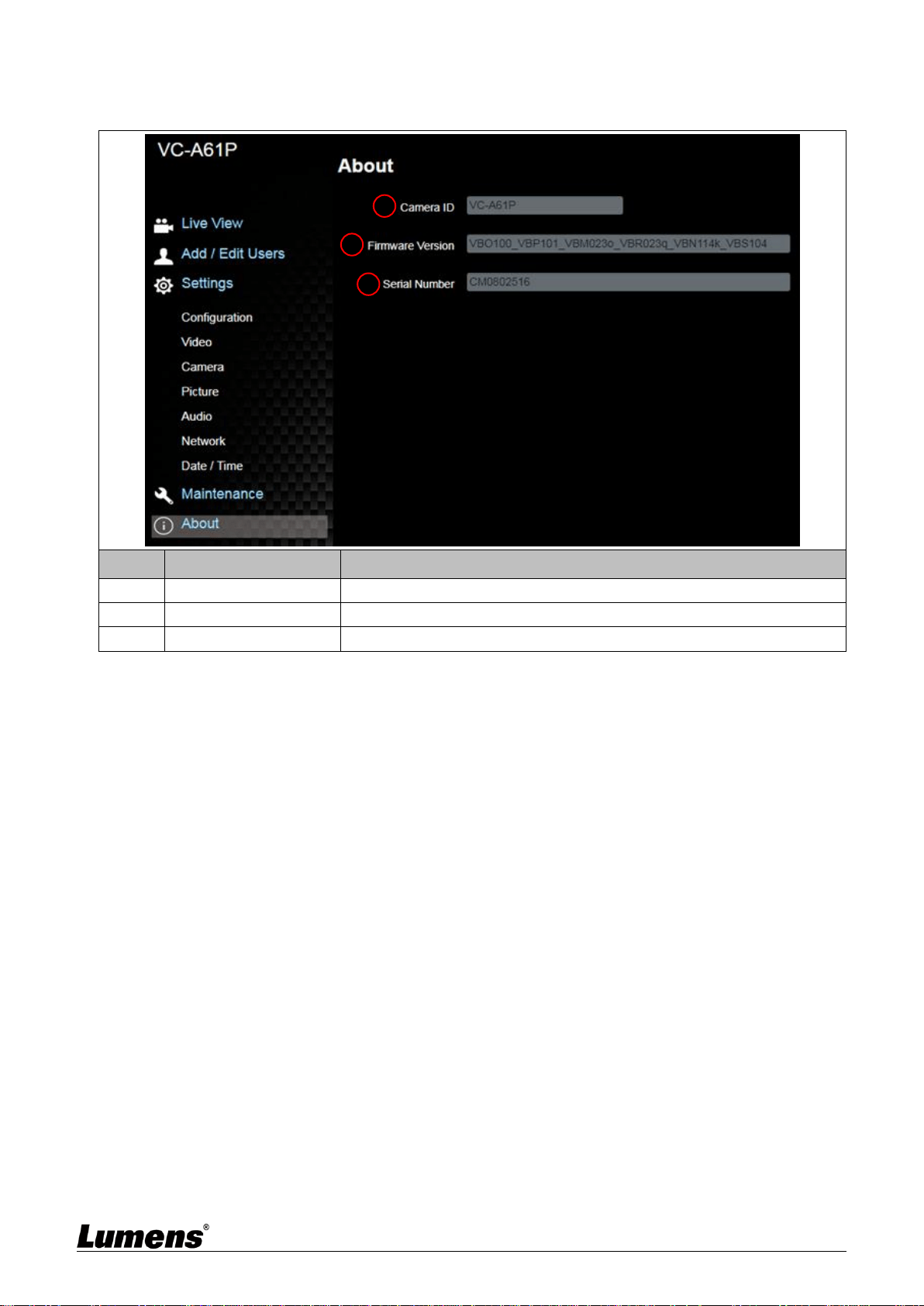
6.2.14 About
No
Item
Function Descriptions
1
Camera name
Display the camera name
2
Firmware Version
Display the firmware version of the camera
3
Serial No.
Display the camera serial No.
1
2
3
English - 45
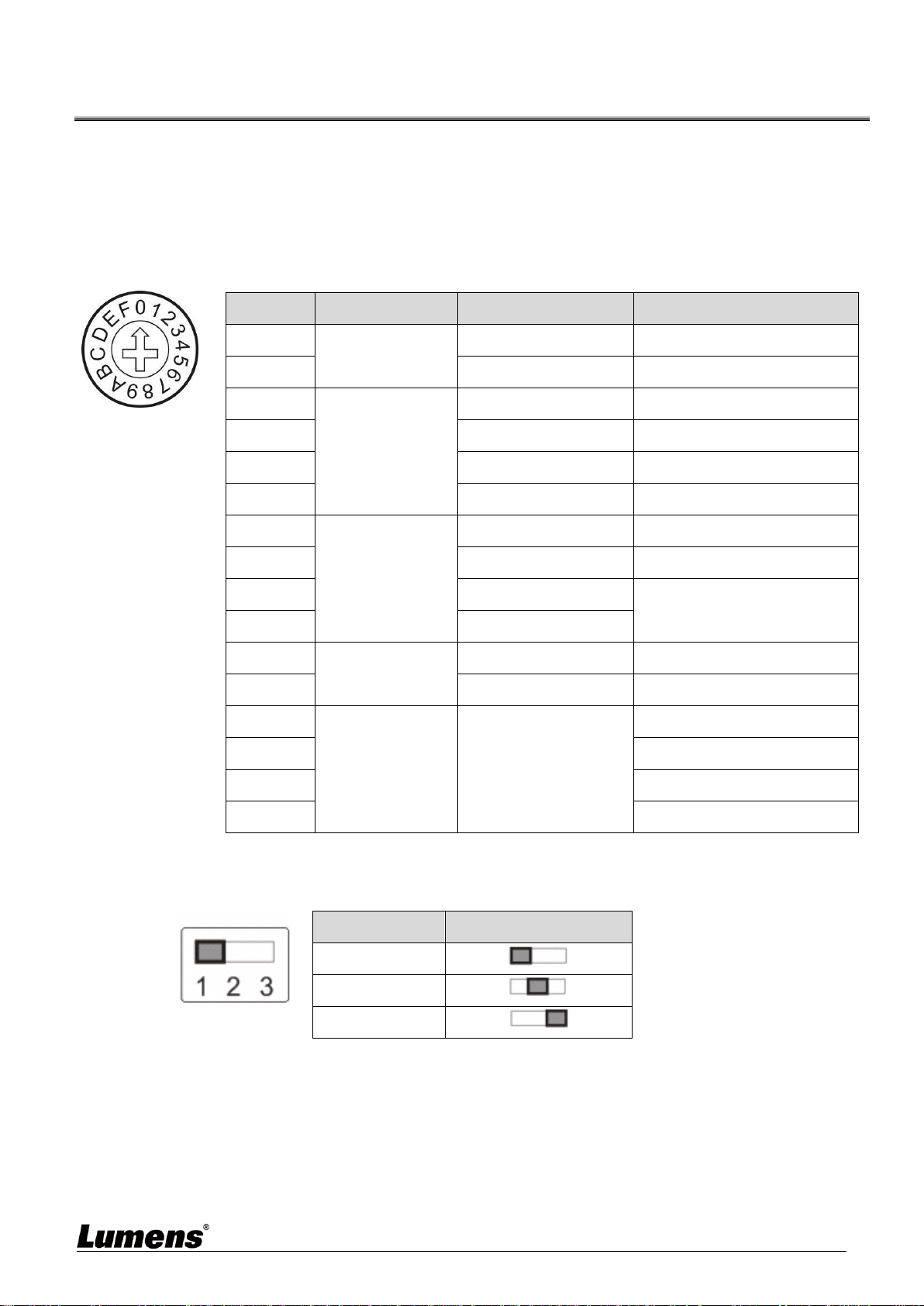
Chapter 7 DIP Switch Setting
7.1 DIP SWITCH
7.1.1 OUTPUT Switch
To switch via the OSD/ RS-232 Command is also available based on the last
executed action
7.1.2 IR SELECT
ID
Setting
1
2
3
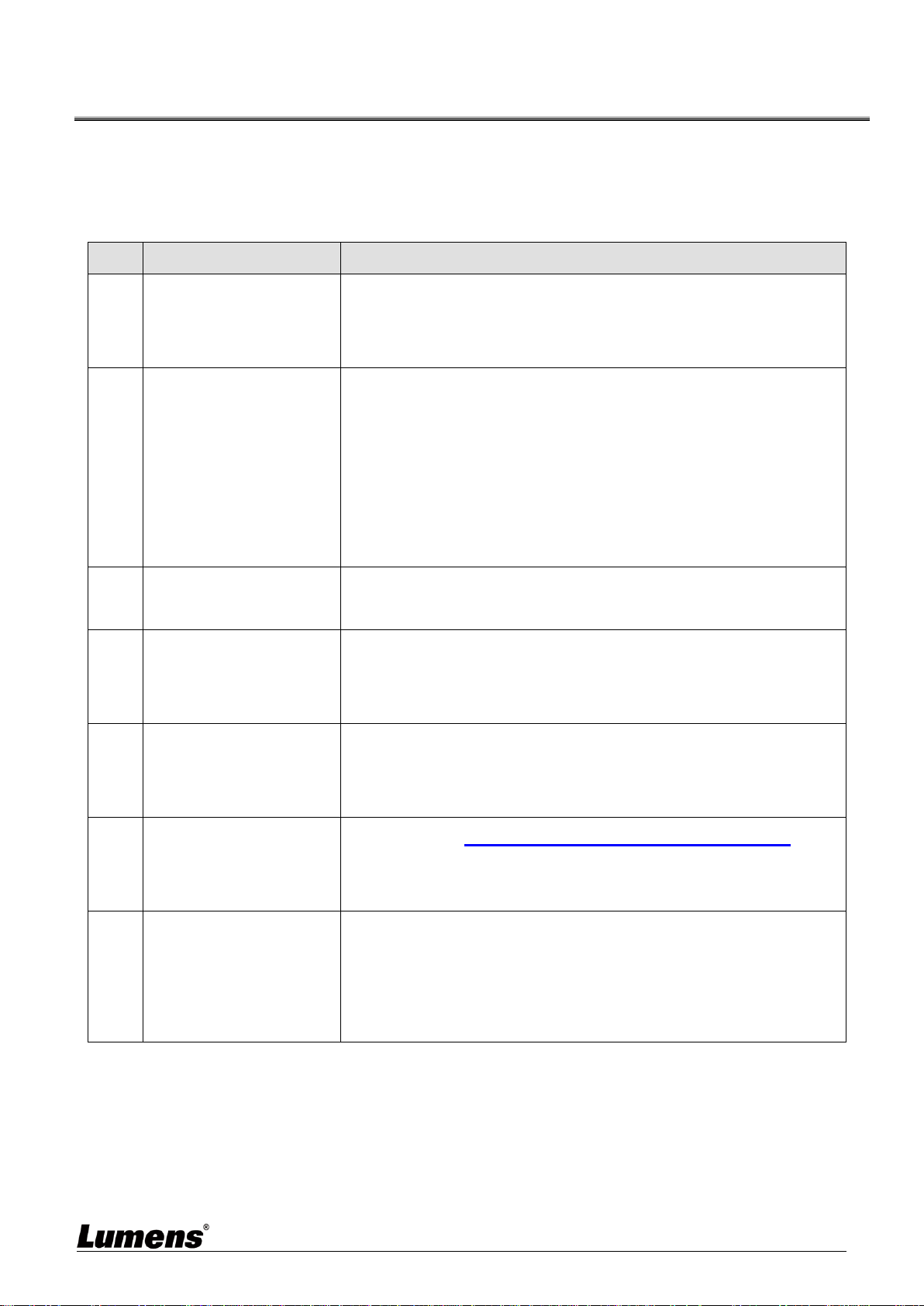
ID
Resolution
Frame Rate
Remark
0
3840 x 2160p
29.97
1
25
2
1920 x 1080p
59.94
3
50
4
29.97
5
25
6
1280 x 720p
59.94
7
50
8
29.97
<Remark> VC-A61PN does
not support 720p 29.97/25 fps
resolutions
9
25
A
1920x1080i
59.94
B
50
C
Reserved
Reserved
D
E
F
English - 46
Chapter 8 Troubleshooting
This chapter describes problems you may encounter while using VC-A61P/VC-A61PN. If you
have questions, please refer to related chapters and follow all the suggested solutions. If the
problem still occurred, please contact your distributor or the service center.
No.
Problems
Solutions
1.
Boot without power
signal
1. Make sure you have plugged in the power cord.
2. When using a PoE connection, ensure that the power supply
supports POE+ (IEEE 802.3at) hubs
2.
There is no image
output from the camera
1. Check the power supply or PoE supply functions.
2. Confirm the output signals are in streaming output.
3. Confirm whether the camera resolution can be used together
with the monitor equipment
If 4k output, confirm the monitor equipment supports 4K
output
4. Replace the cables and make sure they are not faulty.
3.
The Camera image is
severely delayed
Please use 1080p or 720p 60/50 fps rather than 25/30 fps
signals.
4.
RS-232 cannot be
controlled
1. Confirm the connection is correct (RS-232 In/ Out)
2. Please make sure the Baud rate setting is the same as the
control equipment
5.
No image for 3G-SDI
output resolution
3840x2160 29.97/ 25
Please confirm the screen menu/ Dip Switch setting
3G-SDI supports output resolutions up to 1080p 59.94/50
6.
Whether the Internet
can be used for
operation
Please refer to Chapter 6 Network Function Description for
the Internet usage
7.
ONVIF software cannot
locate the machine
Please be sure to use only English alphabets or numbers in
[Setting]>[Video]> [Camera](Location) of the webpage. Using
special characters and pressing the spacebar will cause the
ONVIF software unable to locate the machine.
<Remark> This is only applicable to VC-A61P. VC-A61PN does not
support ONVIF protocol

English - 47
Supplier's Declaration of Conformity
47 CFR § 2.1077 Compliance Information
Manufacturer:Lumens Digital Optics Inc.
Product Name:VC-A61P/ VC-A61PN
Model Number:4KPTZ Video Camera
Responsible Party – U.S. Contact Information
Supplier:Lumens Integration, Inc.
4116 Clipper Court, Fremont, CA 94538, United States
FCC Compliance Statement
This device complies with Part 15 of the FCC Rules. Operation is subject to the following two conditions : (1) This
device may not cause harmful interference, and (2) this device must accept any interference received, including
interference that may cause undesired operation.