User Guide
English ( 2 – 8 )
Guía del usuario
Español ( 9– 15 )
Guide d'utilisation
Français ( 16 – 22 )
Guida per l'uso
Italiano ( 23 – 29 )
Benutzerhandbuch
Deutsch ( 30– 36 )
Appendix
English ( 37 – 39 )
2
User Guide (English)
Introduction
Box Contents
M-Track Solo
USB-B–to–USB-A Cable
Software Download Cards
User Guide
Safety & Warranty Manual
Support
For the latest information about this product (system requirements, compatibility
information, etc.) and product registration, visit m-audio.com.
For additional product support, visit m-audio.com/support.
3
Quick Start
macOS users: No driver installation is needed for class-compliant operation with M-
Track Solo.
iOS users: The power available from an iOS device is not sufficient to power M-Track
Solo. Use the Apple Camera Connection Kit (sold separately), a USB break-out cable
(sold separately), and a USB power adapter (sold separately) which will provide an
additional USB connector to power M-Track Solo.
Windows users: Before connecting M-Track Solo to your computer, install the drivers:
1. Go to m-audio.com/drivers and download the latest M-Track Solo driver for your
operating system.
2. Open the file you downloaded and double-click the driver installer file.
3. Follow the on-screen instructions to install the drivers.
Software: We've included Pro Tools | First M-Audio Edition and MPC Beats with your
M-Track Solo so you can get started making music with professional software right out
of the box. Register your M-Track Solo on m-audio.com/softwaredownload, and
follow the install instructions in your User Account.
Virtual Instruments: Follow the instructions in your user account for installing the
included virtual instrument plugins. After installation, most DAWs will not load virtual
instrument plugins automatically. In order to access the virtual instrument plugins with
Pro Tools | First M-Audio Edition, you will need to choose the plugin folder for the
software to scan:
Pro Tools | First M-Audio Edition (AAX) plugin folders:
Windows (32-bit): C:\Program Files (x86)\Common Files\Avid\Audio\Plug-Ins
Windows (64-bit): C:\Program Files\Common Files\Avid\Audio\Plug-Ins
macOS: Macintosh HD/Library/Application Support/Avid/Audio/Plug-Ins

4
To set M-Track Solo as your default playback device, follow the directions below based
on your computer’s operating system.
Windows:
1. Use the included USB cable to connect the M-Track Solo to your computer.
2. In the Taskbar, locate the Volume Control "speaker" icon. Right-click the speaker
and open Sound Settings > Sounds.
Alternatively, go to Start Menu > System > Sound > Sound Control Panel.
3. In the Windows Sound control panel select the Playback tab and select USB
Audio Codec as the default device.
4. Click the Recording tab and select USB Audio Codec as the default device.
5. Click Properties in the lower right-hand corner.
6. In the new window, click the Advanced tab and select 2-channel, 16-bit, 48000 Hz
(Studio Quality) as the default format.
7. Uncheck both boxes under Exclusive Mode.
8. Click OK to close the Properties window.
9. Click OK to close the Sound control panel.
macOS:
1. Use the included USB cable to connect the M-Track Solo to your computer.
2. Go to Applications > Utilities > Audio MIDI Setup.
3. In the Audio Devices window, select USB Audio Codec in the left column.
4. Right-click USB Audio Codec, and select Use this device for sound input.
5. Right-click USB Audio Codec, and select Use this device for sound output.
6. Quit Audio MIDI Setup.
5
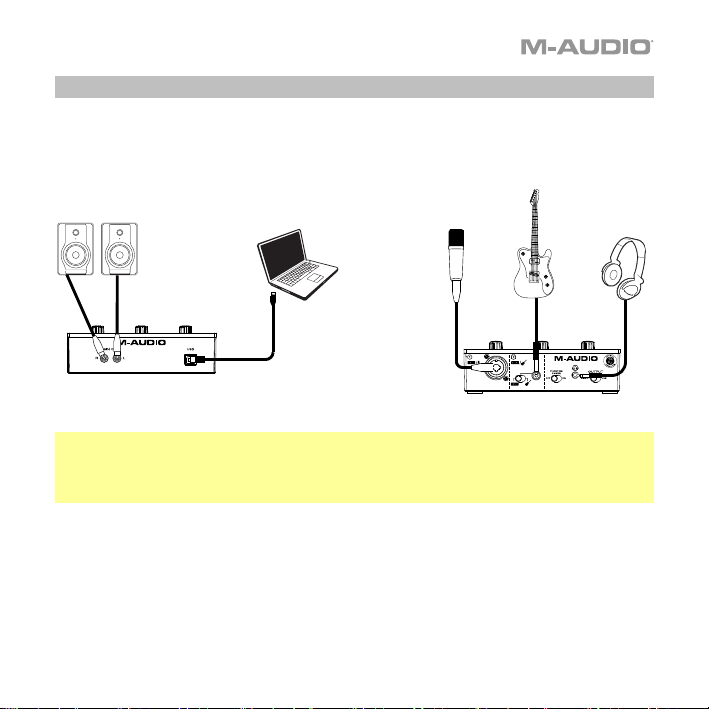
Connection Diagram
Items not listed under Introduction > Box Contents are sold separately.
Note: Use the +48V (Phantom Power) Switch only if a microphone requires phantom
power. Most dynamic microphones and ribbon microphones do not require phantom
power, but most condenser microphones do. Consult your microphone's documentation
to find out whether it needs phantom power.
Front Panel
Rear Panel
Monitors
Headphones
Guitar
Computer
Microphone
6
Setting Up M-Track Solo with Your Software
Setting Up M-Track Solo with Pro Tools | First M-Audio Edition
1. Use the included USB cable to connect the M-Track Solo to your computer.
2. Open Pro Tools | First M-Audio Edition.
3. Go to Setup > Playback Engine….
4. Open the Playback Engine dropdown menu and select USB Audio Codec.
Note: You may need to save and restart your project.
5. Select your Sample Rate and then click OK to close the Setup window.
You can now add tracks to send and receive audio from sources connected to M-Track Solo
inputs and stream recorded audio back through the M-Track Solo outputs.
Setting Up M-Track Solo with MPC Beats
1. Use the included USB cable to connect the M-Track Solo to your computer.
2. Open MPC Beats.
3. Go to Edit > Preferences….
4. For Windows Users: In the Audio window, select ASIO under the Audio Device Type
dropdown menu. In the Device dropdown menu, select M-Track Solo and Duo ASIO.
For MacOS Users: In the Audio window, select USB Audio Codec under the Output and
Input dropdown menus.
Note: You may need to save and restart your project.
5. Select your Sample Rate and then click OK to close the Preferences window.
You can now add tracks to send and receive audio from sources connected to M-Track
Solo inputs and stream recorded audio back through the M-Track Solo outputs.
7
Features
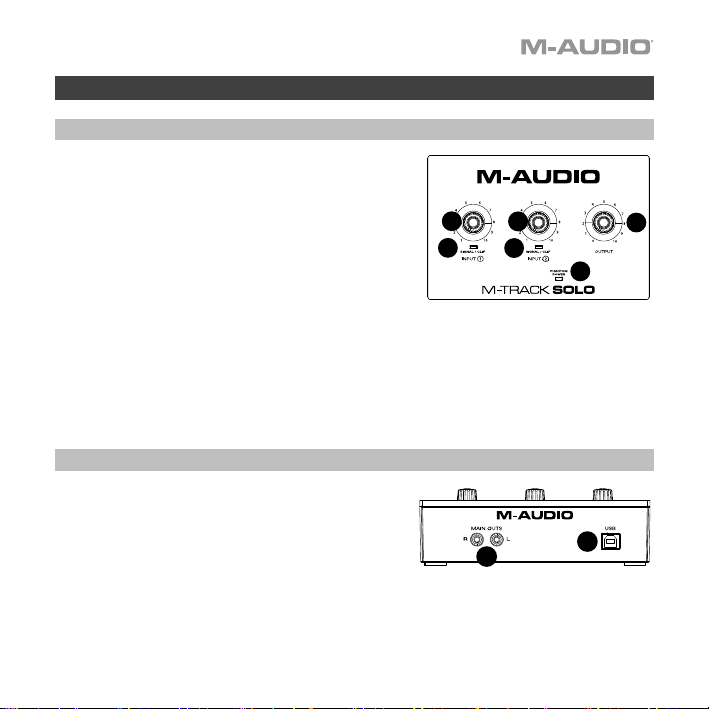
Top Panel
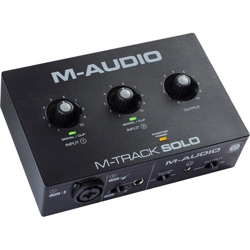
1. Input Gain: Adjusts the input's gain level. Set this
knob so the corresponding Signal/Clip LED
(located below the knob) displays a "healthy" level
during performance—but not so high that the LED
"clips" or peaks, causing distortion in the audio.
2. Signal/Clip LED: The LED will light up green
when an input signal is detected. The LED will
light up red if the signal level is too high which
may cause distortion or “clipping”. If this occurs,
turn down the Input Gain and/or reduce the
output level from your sound source.
3. Monitor Level: Adjusts the output volume of the Main Outputs, which should be
connected to your powered monitors or amplifier system, and the Headphone Output.
4. +48V (Phantom Power) LED: This lights up when phantom power is engaged for use
with the Combo Input.
Rear Panel
1. USB Port (Type B): This connection will allow
you to send audio to and from a computer. Use
the included USB-B-to-USB-A cable to connect
the M-Track Solo to a computer. The M-Track
Solo requires a USB 2.0 connection (or higher).
2. Main Outputs: Use standard RCA cables to connect these outputs to your powered
monitors, amplifier system, etc. The mix you hear from these outputs will be determined
by the Direct/USB Switch. The level of these outputs is controlled by the Monitor Level
knob.
1
2
3
4
1
2
2
1
8
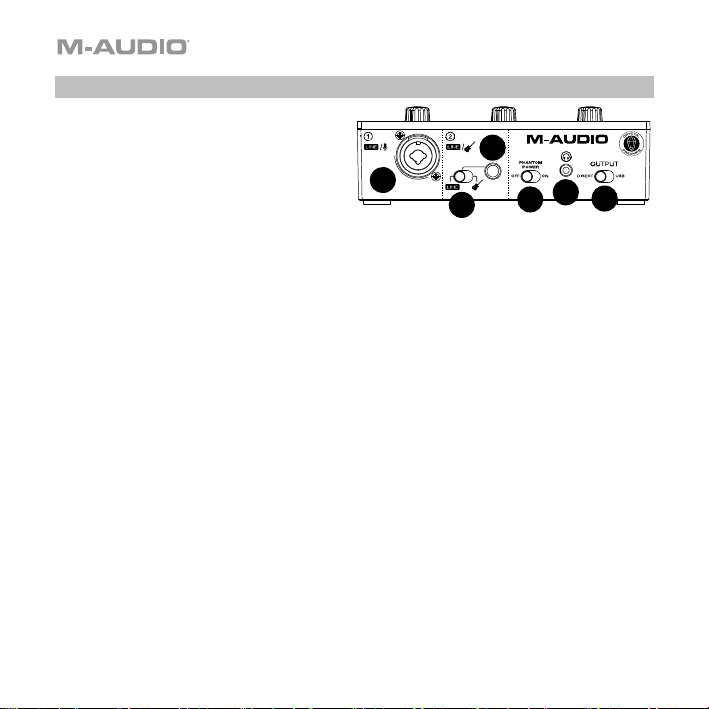
Front Panel
1. Combo Input: Connect a microphone,
a guitar or bass with an active pickup,
or a line-level device to this input. For
microphones, use an XLR or 1/4” (6.35
mm) TRS cable. For a guitar or bass
with an active pickup, use a standard
1/4” (6.35 mm) TS cable.
2. 1/4" Input: For line-level signals, use a 1/4" (6.35 mm) TRS cable. For a guitar or bass
with an active pickup, use a standard 1/4” (6.35 mm) TS cable.
3. Line/Instrument Switch: Set the switch to Line when connecting a microphone, or
keyboard. Set the switch to Instrument when connecting a guitar or bass.
4. +48V (Phantom Power) Switch: This switch activates and deactivates phantom power.
When activated (lit), phantom power supplies +48 volts to the Combo Input. Please note
that most dynamic microphones and ribbon microphones do not require phantom
power, while most condenser microphones do. Consult your microphone's
documentation to find out whether it needs phantom power.
5. Headphone Output: Connect 1/8" (3.5 mm) TRS headphones to this output. The mix
you hear from this output will be determined by the Direct/USB Switch. The level of this
output is controlled by the Monitor Level knob.
6. Direct/USB: This switch controls whether or not the direct input signal or the USB
stream return signal is sent to the Headphone Output and Main Outputs.
• When set to USB, only the USB audio playback from your computer will be heard.
• Set the switch to Direct to monitor the direct input signal with all inputs summed to
mono and heard equally on each side. This is useful for monitoring a guitar or vocal
mic signal. This switch does not affect the DAW playback or how your sound is
recorded into your DAW; it only affects how you hear the input signal in the
Headphone Output and Main Outputs.
1
3
5
1
4
6
2