
English
QUICK SETUP GUIDE
Before using the TV, please read this guide thoroughly
and retain it for future reference. For more detailed
instructions, please see the User Manual or the E-Manual.
43A7HAU
50A7HAU
55A7HAU
65A7HAU
75A7HAU
85A7HAU
ES-A21512G-1
A
Declaration
B
Important Safety Precautions
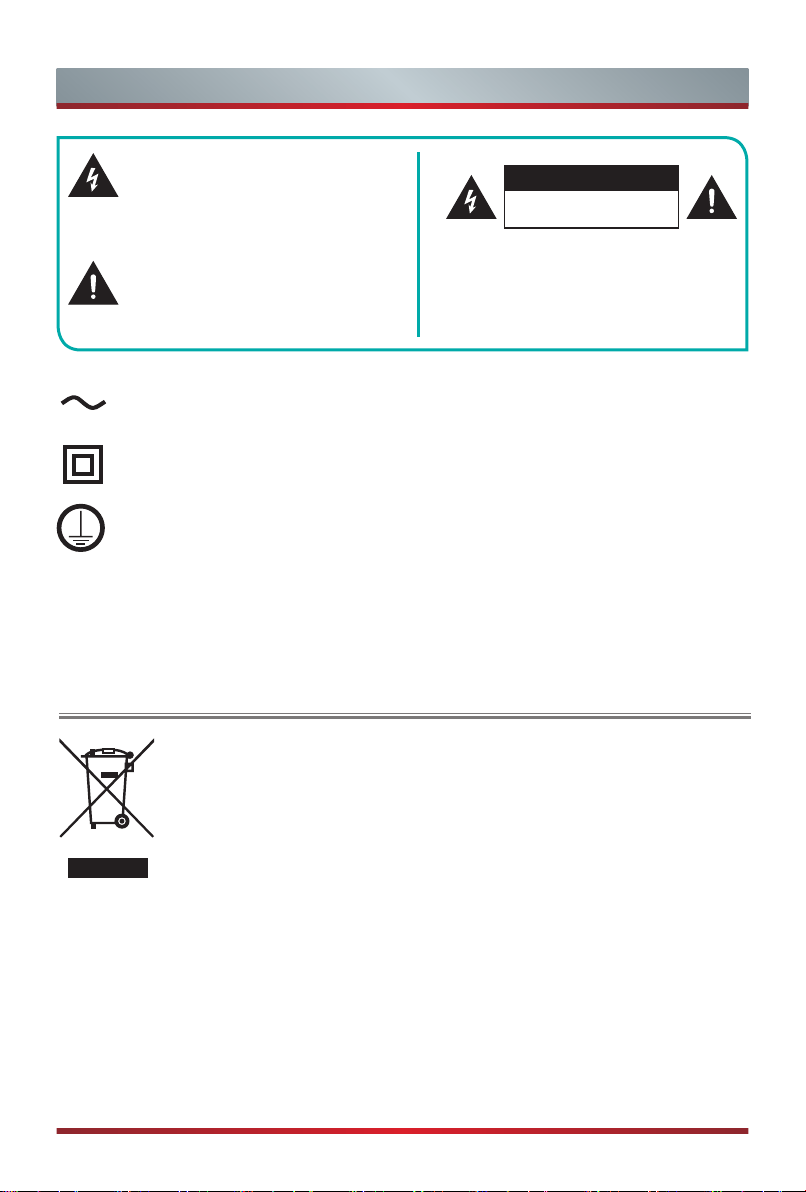
This symbol alerts user about the
presence of a dangerous voltage not
isolated inside the product which can
be sufficiently powerful to constitute a
risk of electrocution.
This symbol alerts user about the
presence of important operating
instructions and maintenance in the
document enclosed in the package.
Disposal of Used Electrical & Electronic Equipment
ATTENTION
RISK OF SHOCK
ELECTRIC
Packaging and electrical goods should be recycled appropriately, and
not treated as household waste. Please dispose of this equipment at
your applicable collection point for the recycling of electrical & electronic
equipment waste. By ensuring the correct disposal of this product,
you will help prevent potentially hazardous to the environment and to
human health, which could otherwise be caused by unsuitable waste
handling of this product. The recycling of materials will help conserve
natural resources. Please do not therefore dispose of your old electrical
and electronic equipment with your household waste. For more detailed
information about recycling of this product, please contact your local city
office, your household waste disposal service or the shop where you
purchased the product.
Do not open the back cover.
In no case the user is allowed to operate
inside the TV set. Only a qualified
technician is entitled to operate.
Class II product: This symbol indicates that it does not require a safety
connection of protective earthing (ground). (43"/50"/55"/65"/75")
AC voltage: This symbol indicates that the rated voltage marked with the
symbol is AC voltage.
Class I product: This symbol indicates that it requires a safety connection of
protective earthing (ground). (85")
C
Important Safety Precautions
Warning
A television set may fall, causing serious personal injury or death. Many injuries,
particularly to children, can be avoided by taking simple precautions such as:
ALWAYS use cabinets or stands or mounting methods recommended by the
manufacturer of the television set.
ALWAYS use furniture that can safely support the television set.
ALWAYS ensure the television set is not overhanging the edge of the supporting
furniture.
ALWAYS educate children about the dangers of climbing on furniture to reach the
television set or its controls.
ALWAYS route cords and cables connected to your television so they cannot be
tripped over, pulled or grabbed.
NEVER place a television set in an unstable location.
NEVER place the television set on tall furniture (for example, cupboards or
bookcases) without anchoring both the furniture and television set to a suitable
support.
NEVER place the television set on cloth or other materials that may be located
between the television set and supporting furniture.
NEVER place items that might tempt children to climb, such as toys and remote
controls, on the top of the television or furniture on which the television is placed.
If your existing television set is being retained or relocated, the same considerations
as above should be applied.

D
Important Safety Precautions
Safeguards
Please read the following safeguards for your TV and retain for future reference.
Always follow all warnings and instructions marked on the television.
1. A note about safety and operating instructions
Read and follow all safety and operating instructions, and retain them safely for future
reference.
2. Heed Warnings
Adhere to all warnings on the appliance and in the operating instructions.
3. Cleaning
Unplug the TV from the wall outlet before cleaning. Do not use liquid, abrasive, or
aerosol cleaners. Cleaners can permanently damage the cabinet and screen. Use a
lightly dampened cloth for cleaning.
4. Wall Mount Bracket
Wall mount bracket is only available for some models. If wall mount bracket is not
supplied with this product, you can buy it at the local market.
Please refer to the Installing the Wall Mount Bracket page for dimensions.
5. Water and Moisture
Avoid dripping or splashing of liquids onto the product. Objects filled with liquids, such
as vases, should not be placed on the product.
6. Setting
Do not place this TV on an unstable cart, stand or table. Placing the TV on an unstable
base can cause the TV to fall, resulting in serious personal injuries as well as damage
to the TV. Use only a cart, stand, bracket or table recommended by the manufacturer
or salesperson.
7. Ventilation
Slots and openings in the cabinet are provided for ventilation, to ensure reliable
operation of the TV and to protect it from overheating. Do not cover the ventilation
openings in the cabinet and never place the set in a confined space such as built-in
cabinet unless proper ventilation is provided. Leave a minimum 10cm gap all around
the unit, the rear of the TV should be 6cm away from the wall.
8. Power Source
This TV should be operated only from the type of power source indicated on the
marking label. If you are not sure of the type of power supplied to your home, consult
your appliance dealer or local power company.

E
Important Safety Precautions
9. Power-Cord Protection
Power- supply cords should be routed so that they are not likely to be walked on or
pinched by items placed upon or against them, paying particular attention to cords at
plug, wall outlets, and the point where they exit from the TV. MAIN plug on the power
cord is used as the disconnect device, the disconnect device and socket-outlet shall be
easily accessible.
10. Lightning
For added protection for this TV during a lightning storm, or when it is left unattended
and unused for long periods of time, unplug it from the wall outlet and disconnect the
antenna or cable system. This will prevent damage to the TV due to lightning or power-
line surge.
11. Power Lines
An outside antenna system should not be located in the vicinity of overhead power
lines or other electric light or power circuits, or where it can fall into such power lines or
circuits. Where installing an outside antenna system, extreme care should be taken to
keep from touching such power lines or circuits as contact with them might be fatal.
12. Overloading
Do not overload wall outlets and extension cords as this can result in a risk of fire or
electric shock.
13. Object and Liquid Entry
Never push objects of any kind into this TV through openings as they may touch
dangerous voltage points or short-out parts that could result in fire or electric shock.
Never spill liquid of any kind on or into the TV.
14. Outdoor Antenna Grounding
If an outside antenna or cable system is connected to the TV, be sure the antenna or
cable system is grounded so as to provide some protection against voltage surges and
built-up static charges.
15. Servicing
Do not attempt to service this TV yourself as opening or removing covers may expose
you to dangerous voltage or other hazards. Refer all servicing to qualified service
personnel.
16. Damage Requiring Service
Unplug the TV from the wall outlet and refer servicing to qualified service personnel
under the following conditions:
(a) When the power - supply cord or plug is damaged.
(b) If liquid has been spilled, or objects have fallen into the TV.
F
Important Safety Precautions
(c) If the TV has been exposed to rain or water.
(d) If the TV does not operate normally by following the operating instructions. Adjust
only those controls that are covered by the operating instructions as an improper
adjustment of other controls may result in damage and will often require extensive
work by a qualified technician to restore the TV to its normal operation.
(e) If the TV has been dropped or the cabinet has been damaged.
(f) When the TV exhibits a distinct change in performance - this indicates a need for
service.
17. Replacement Parts
When replacement parts are required, be sure the service technician has used
replacement parts specified by the manufacturer or have the same characteristics as
the original part. Unauthorized substitutions may result in fire, electric shock or other
hazards.
18. Safety Check
Upon completion of any service or repair to the TV, ask the service technician to
perform safety checks to determine that the TV is in safe operating condition.
19. Heat
The product should be situated away from heat sources such as radiators, heat
registers, stoves, or other products (including amplifiers) that produce heat.
20. Fire
The product should be situated away from naked flame sources such as lighted candle.
21. Off-gassing
The TV smells of plastic is normal and will dissipate over time.
To fully disconnect the TV, remove power plug from wall socket. Be sure
to have the wall socket and power plug readily accessible.
Do not mix and use new batteries with old batteries, or batteries with
different types. Do not expose batteries to heat such as direct sunlight or
fire. Make sure the batteries' positive and negative ends are facing the
correct direction.
The device should not be exposed to dripping and spraying and it cannot
be placed under objects filled with liquids.
Apparatus with CLASS I construction shall be connected to a MAINS
socket outlet with a protective earthing connection.
1
Contents
Contents
Figures and illustrations in this manual are provided for reference only and may dier
from actual product appearance.
Parts of the software function changes with the system upgrade.
Accessories List..............................................................................................................1
Installing the Stand .........................................................................................................2
Installing the Wall Mount Bracket ...................................................................................6
TV Front..........................................................................................................................7
TV Rear ..........................................................................................................................8
Making Connections .....................................................................................................10
Remote Control ............................................................................................................14
Turning the TV on for the First Time .............................................................................18
Specifications ...............................................................................................................19
Other Information..........................................................................................................21
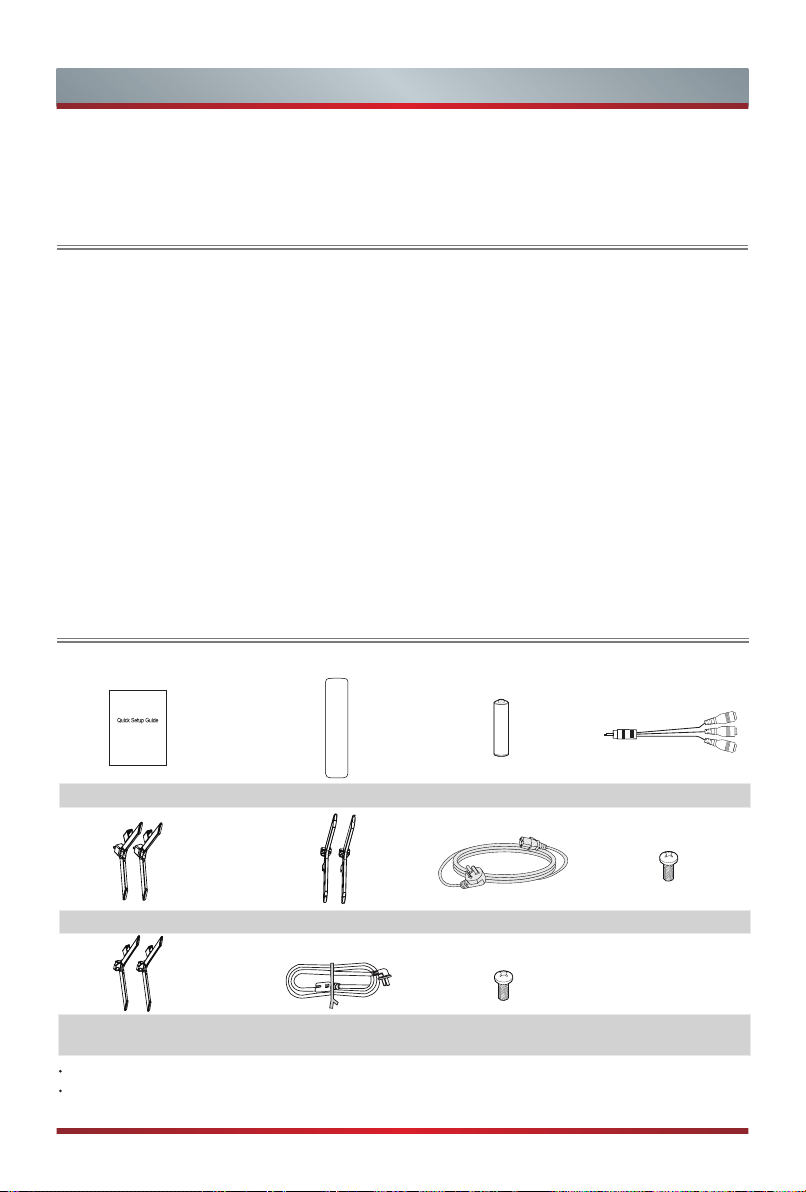
Accessories List
The following accessories are included with TV:
Actual product may vary in appearance.
The accessories may be dierent from the list above due to dierent models, countries/
regions, please refer to the actual accessory bag.
Quick Setup Guide ×1 Remote Control ×1 AA/AAA Battery ×2
RCA Jack to AV Cable ×1
Base Stand ×2(43") Base Stand ×2(85") Power Cord ×1(85") Screw ×6(85")
Base Stand ×2 Power Cord ×1 Screw ×4
(50"/55"/65"/75")
(43"/50"/55"/65"/75")
(43"/50"/55"/65"/75")

2
Follow the illustrations and textual instructions below to complete the installation steps:
Installing the Stand
Installing the Stand or Wall Mount Bracket
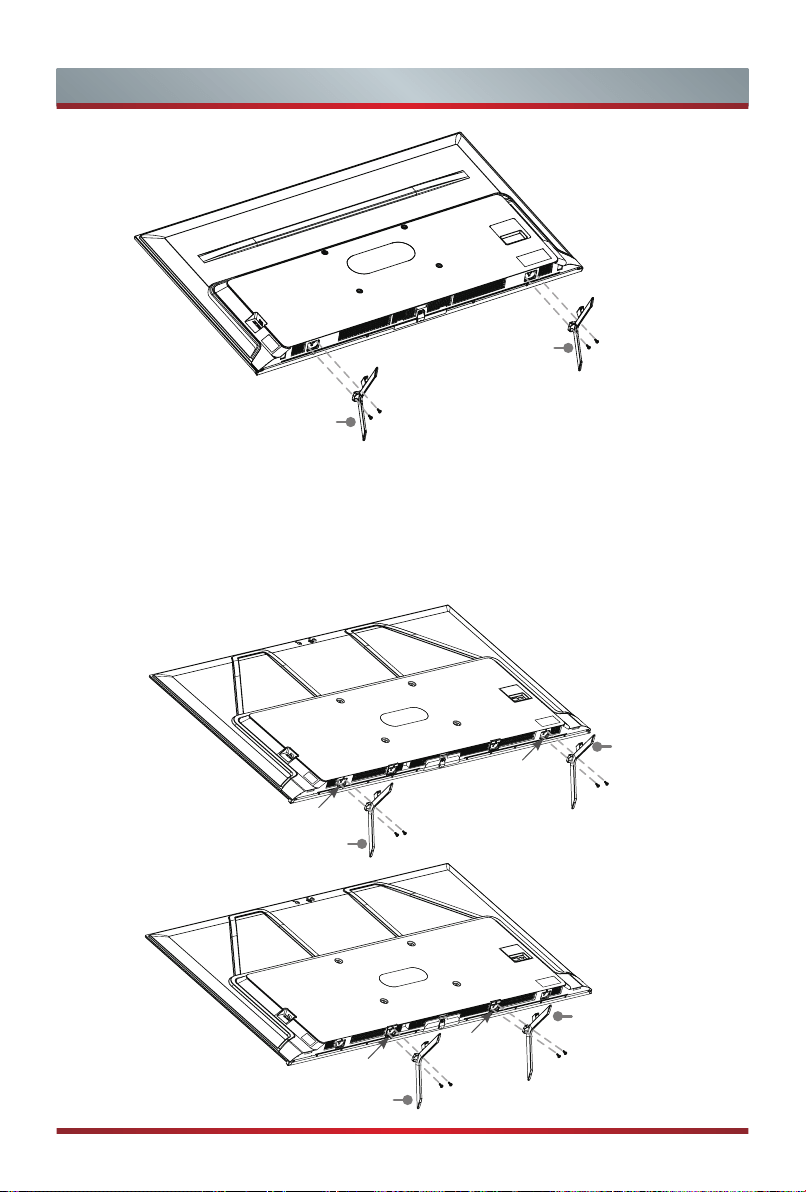
1. Carefully place your TV facedown on a soft, flat surface to prevent damage to the
TV or scratching to the screen.
2. Take out the 2 stands from the accessory bag and then insert the stands into the
bottom slots of the TV.
3. Secure the Base Stand to the TV with the 4 screws in the accessory bag tightly.
CAUTION
Be sure to disconnect the AC power cord before removing a base stand or installing
wall mount brackets.
The display on your TV is fragile. Make sure the TV screen is not scratched or
damaged by hard objects or from pressure.
After the installation is complete, make sure the TV is steady on a table or firmly
attached to a wall mount, before removing all protective film, if any.
For
43"
Screws:
M4×16
Base Stand
Base Stand
Screws:
M4×16
3
Installing the Stand or Wall Mount Bracket
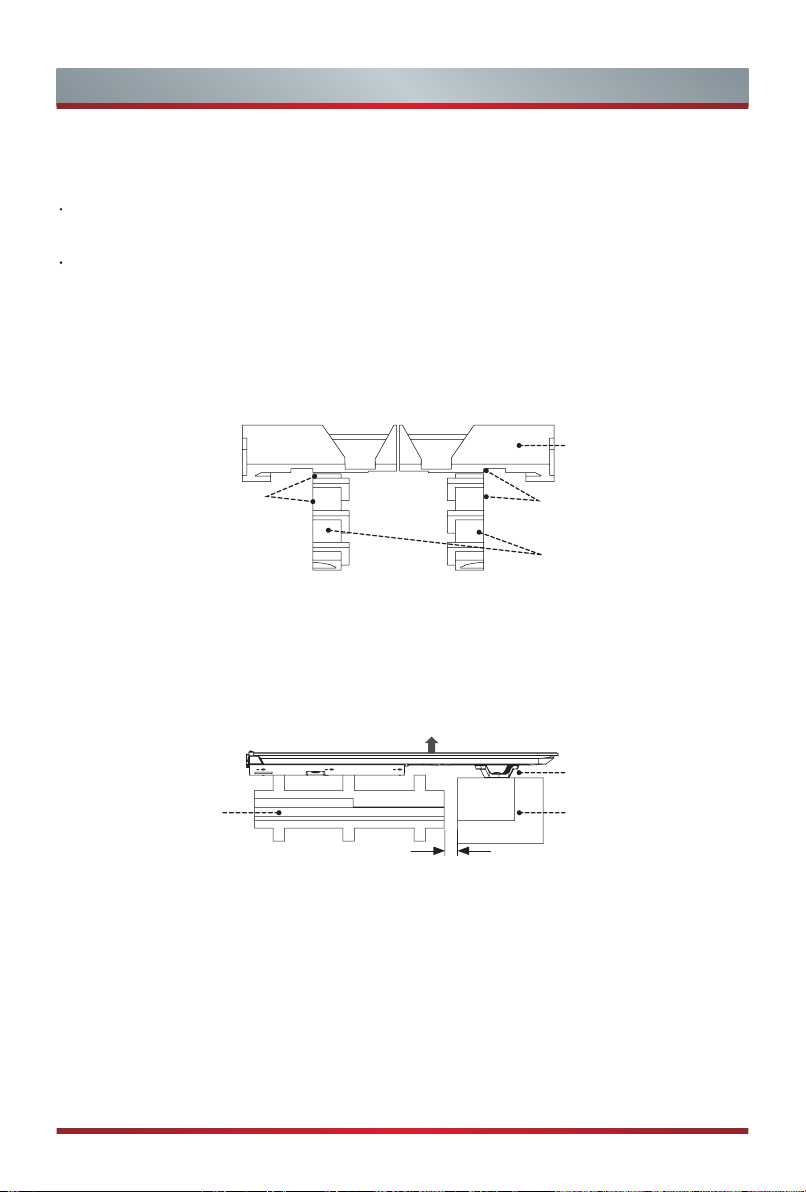
For
50"/55"/65"
Base Stand
Screws:
M5×12 (50"/55")
M5×16 (65")
Base Stand
For
75"
Screws:
M5×12 (50"/55")
M5×16 (65")
Note:
If your table is long enough to place the TV on top of, then insert the base stands into
the screw holes ‘A’ that are shown in the illustration. If your table is NOT long enough, then
insert the base stand into the screw holes ‘B’ that are shown in the illustration. Note that
these two installation methods types cannot be mixed.
Screws:
M5×12
Base Stand
Base Stand
Screws:
M5×12
A
A
Base Stand
Base Stand
Screws:
M5×12
Screws:
M5×12
B
B
4
Installing the Stand or Wall Mount Bracket
For
85"
ATTENTION
Follow the illustrations and textual instructions below
to complete the stand
installation steps.
Two people and above are required.
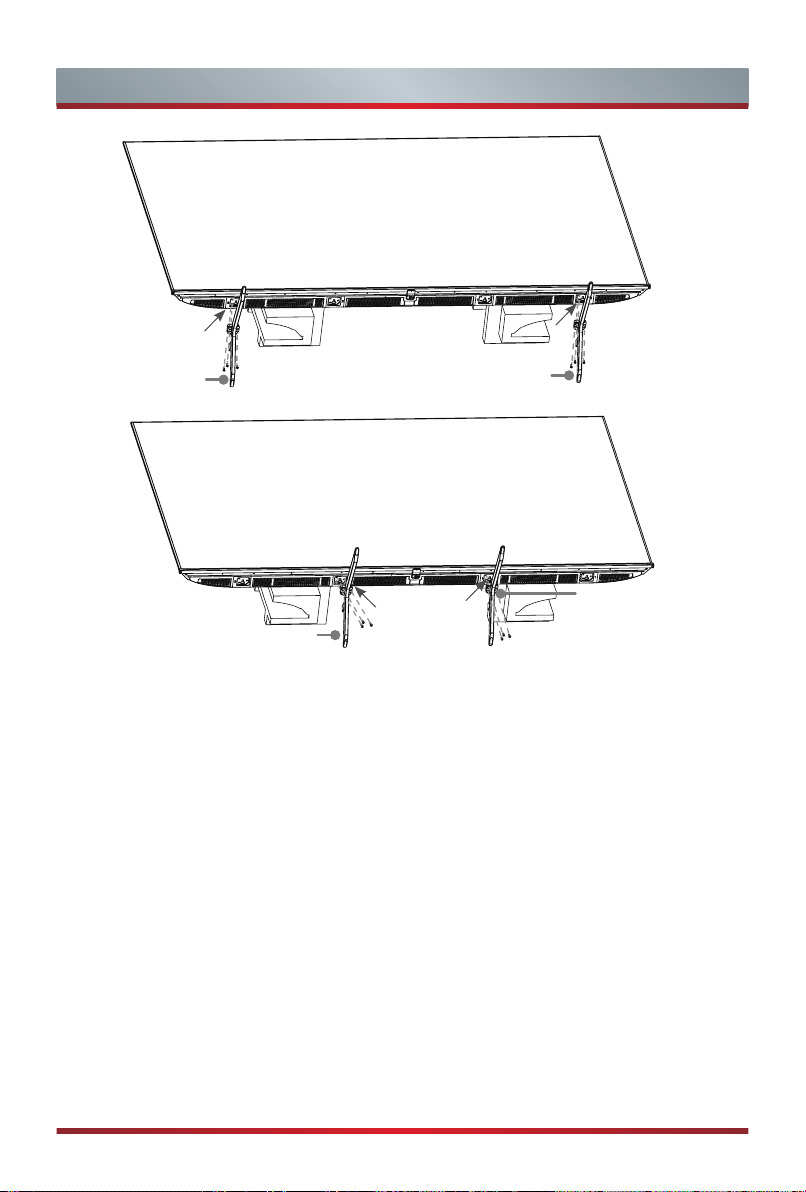
1. First follow the instructions on the carbon box. Open the box, take out the base
stands and then take out the upper cushion, left cushion and right cushion. Make
sure the side of left and right cushion is aligned with the gap of upper cushion(to
avoid the interference between cushions and the base stand when installing it), just
as the picture shows below.
2. Two people stand on each side of the television. Hold the back side of TV with one
hand and grasp the buckle on lower box with the other hand. Place the TV on the
cushions with the screen face upward. Make the handle touch upper cushion, back
cover touch the left and right cushions. When nished, take o the lower box.
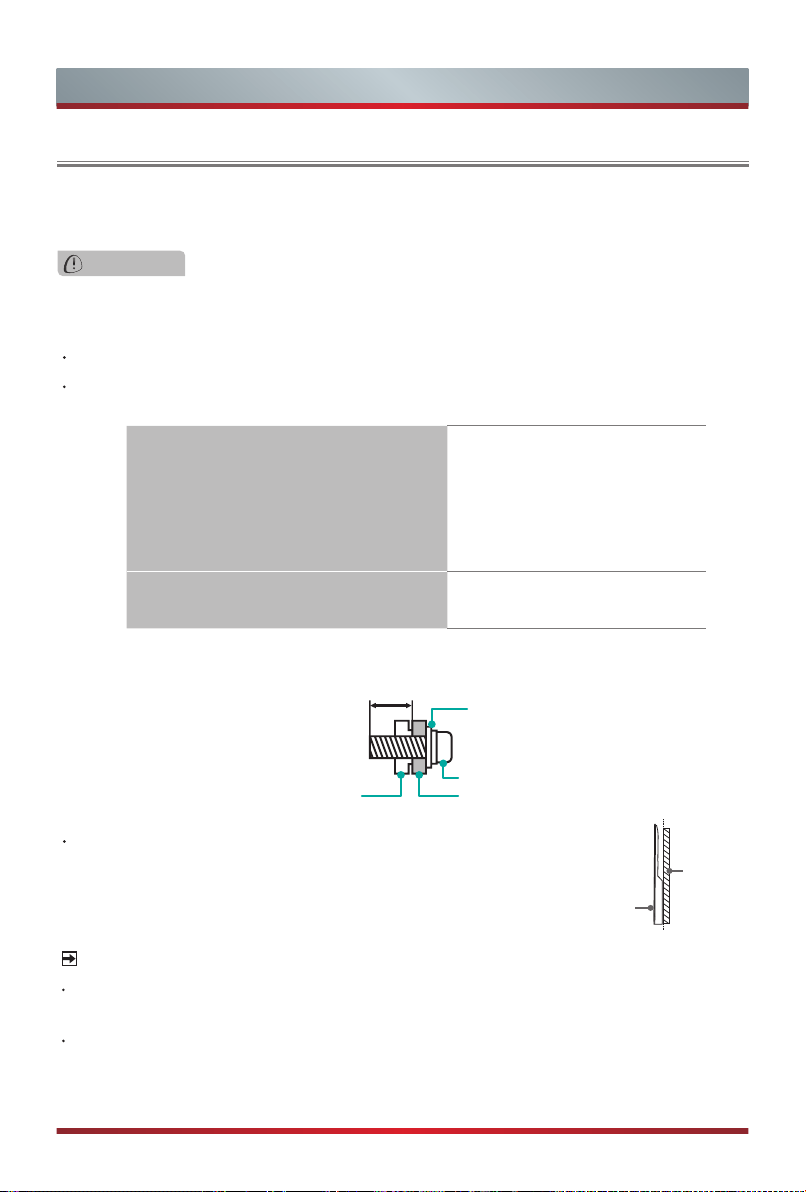
3. Secure the Base Stand to the TV with the 6 screws in the accessory bag tightly.
Then stand the TV up.
Note:
If your table is long enough to place the TV on top of, then insert the base stands into
the screw holes ‘A’ that are shown in the illustration. If your table is NOT long enough, then
insert the base stand into the screw holes ‘B’ that are shown in the illustration. Note that
these two installation methods types cannot be mixed.
left and right
cushion
upper cushion
align
align
left and right
cushion
handle
upper cushion
about 50 mm
screen face upward
5
Installing the Stand or Wall Mount Bracket
A
A
Screws:
M5×16
Screws:
M5×16
Base Stand
Base Stand
Screws:
M5×16
B
B
Screws:
M5×16
Base Stand
Base Stand
6
Installing the Stand or Wall Mount Bracket
Installing the Wall Mount Bracket
CAUTION
When mounting the TV on a wall, follow instructions provided with the wall mount bracket. If
it is not correctly mounted, the TV may fall and cause property damage or personal injury.
Before mounting the TV, remove the TV stand if you have already attached it, and make
sure the wall mount bracket supports the weight of your TV.
NOTES
The diameter and length of the screws differ depending on the wall mount bracket
model.
Wall mount bracket is optional, your device may not have wall mount bracket, please
refer to the actual accessories.
Place spacers between the TV and bracket.
Standard dimensions are shown below.
We do not recommend hanging the TV on a slanted wall, and
when wall mounting make sure your television remains parallel to
the wall and does not lean forward.
TV
screen
Vertical
surface
Wall mount hole pattern (mm)
200 × 200 (43")
300 × 200 (50"/55")
400 × 200 (65")
400 × 300 (75")
600 × 400 (85")
Wall mount screw size
M6 (43"/50"/55"/65"/75")
M8 (85")
Wall Mount Bracket
Wall Mount Screw
Wall Mount Spacer
Rear cover of the TV
9.5 - 11.5 mm(50"/55"/65"/85")
8.0 - 10.0 mm(43"/75")
7
TV Front
TV Front
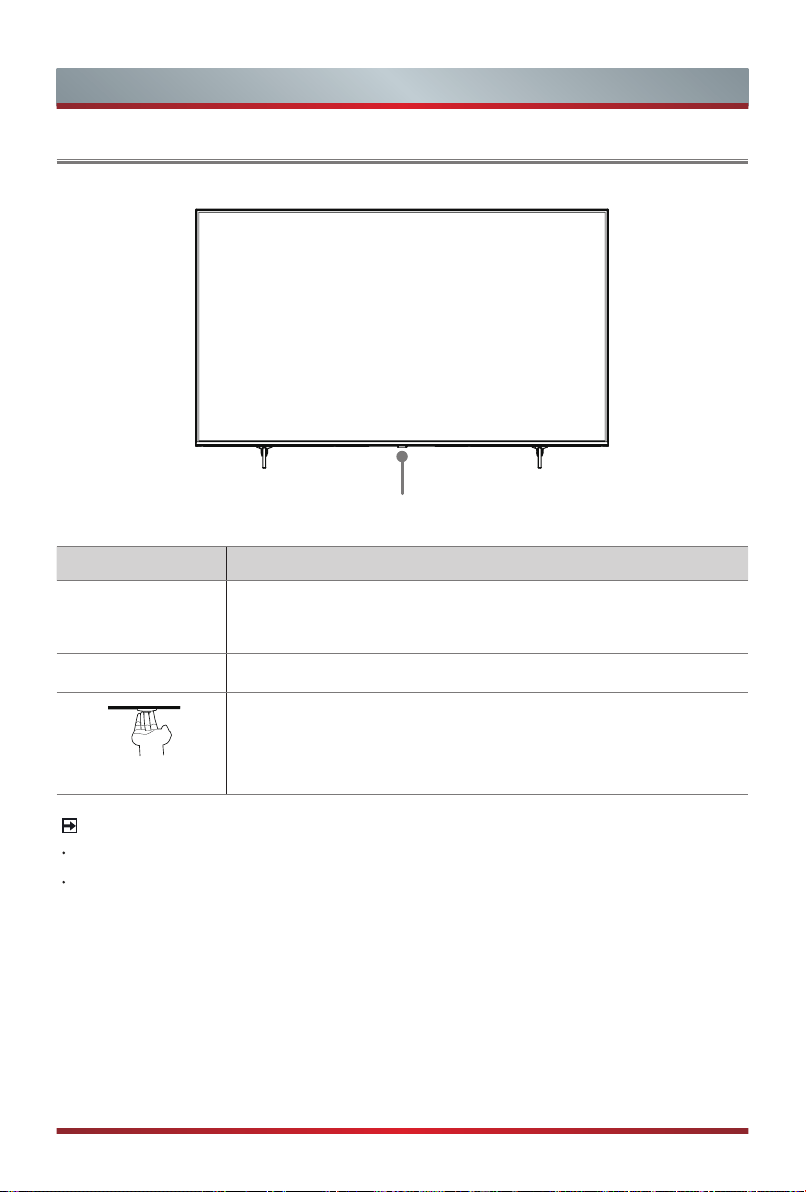
NOTES
The Picture is Only for Reference.
Powering on the TV requires several seconds to load programs. Do not rapidly
turn the TV off as it may cause the TV work abnormally.
Item Description
Remote sensor
Receive remote signals from the remote control.
Do not put anything near the sensor, as its function may be
affected.
Power indicator
The light is red in standby mode.
Standby / Source
Press the button to turn the TV on. Press it again to bring up the
control menu and move the focus between different inputs. Long
press the button to make a selection.
Remote sensor/Power indicator/Single button (Standby/Source)
8
TV Rear
TV Rear
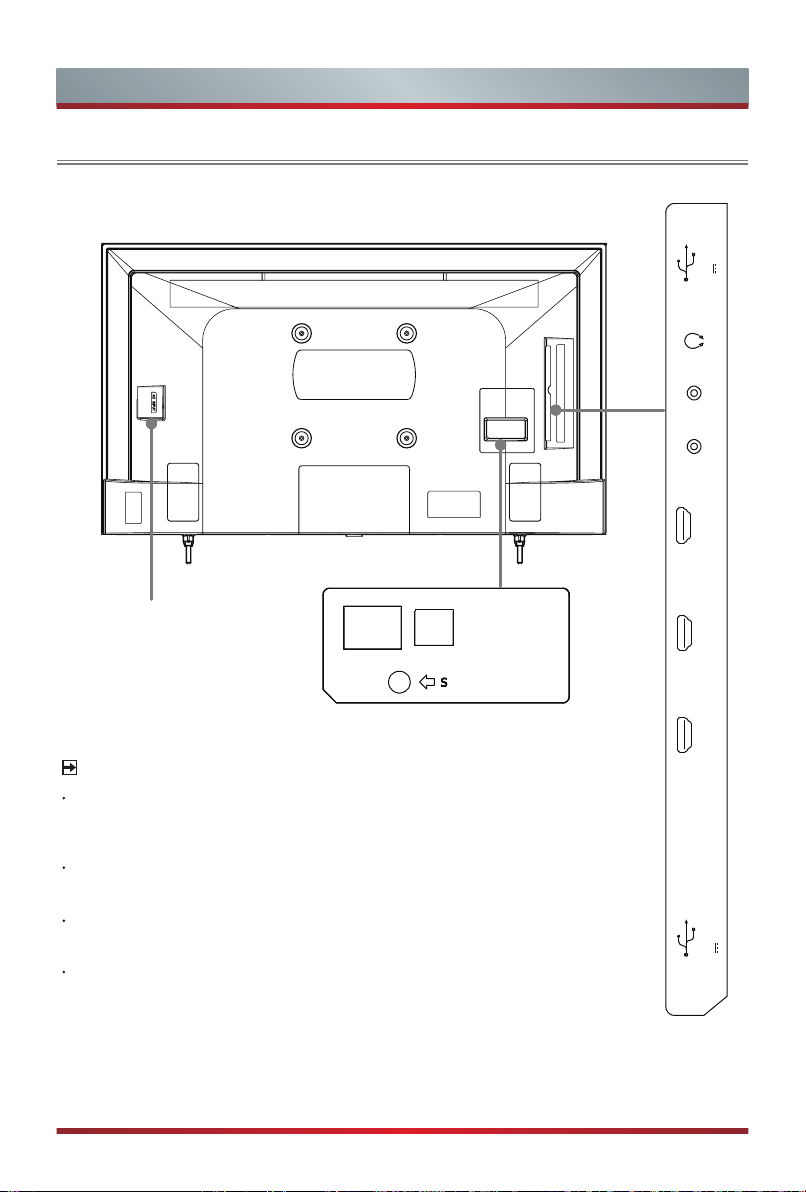
For
43"
USB 2
DC 5V 0.5A(MAX)
HDMI 3
(4K@60Hz)
SERVICE
ANT
HDMI 2(
4K@60Hz
)
(eARC/ARC)
AV IN
USB 1
DC 5V 1A(MAX)
HDMI 1
(4K@60Hz)
LAN
DIGITAL
AUDIO OUT
AC INPUT
NOTES
Check the jacks for position and type before making any connections.
Loose connections can result in image or color problems. Make sure
that all connections are tight and secure.
The TV may not be compatible with all external devices. To check
compatibility, please refer to the user manual of external device.
Do not connect external equipment while TV's power cord is plugged
in. It may cause electric shock.
Service jack is not available for you to connect an external device. It
can only be used by our factory for testing
purposes.
9
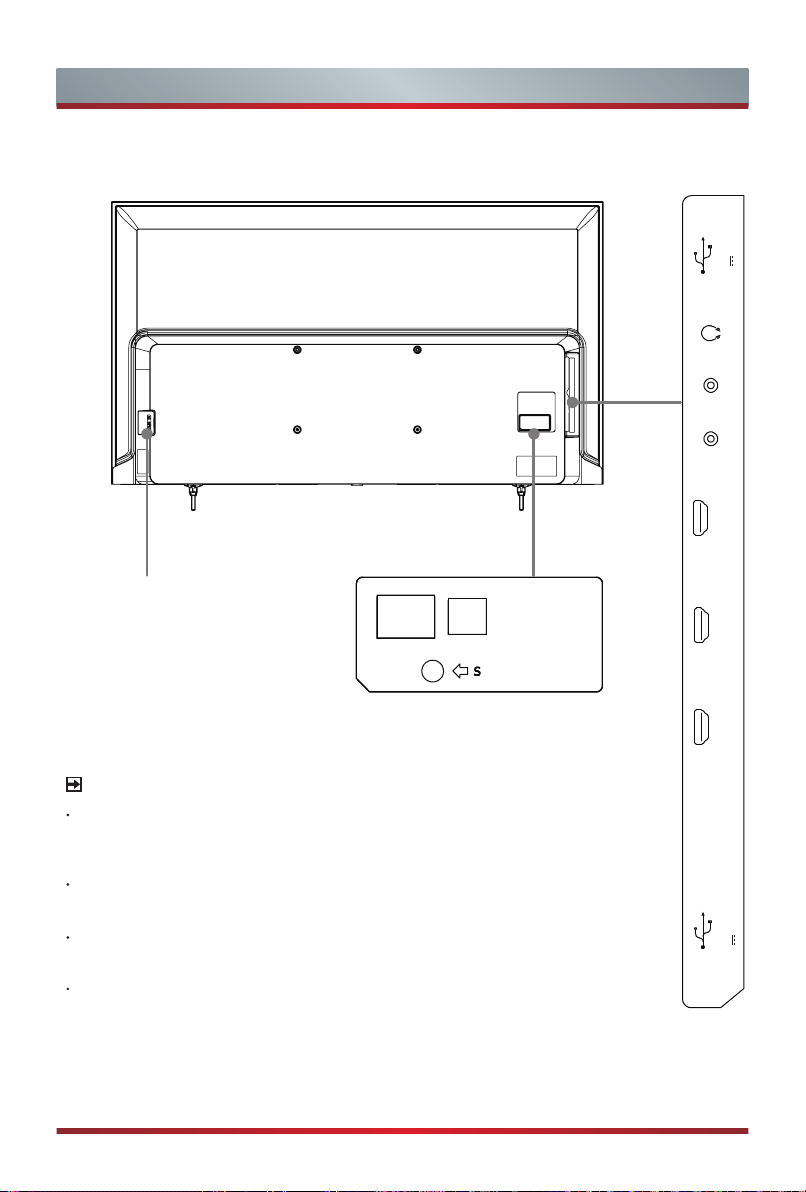
NOTES
Check the jacks for position and type before making any connections.
Loose connections can result in image or color problems. Make sure
that all connections are tight and secure.
The TV may not be compatible with all external devices. To check
compatibility, please refer to the user manual of external device.
Do not connect external equipment while TV's power cord is plugged
in. It may cause electric shock.
Service jack is not available for you to connect an external device. It
can only be used by our factory for testing
purposes.
AC INPUT
USB 2
DC 5V 0.5A(MAX)
HDMI 3
(4K@60Hz)
SERVICE
ANT
HDMI 2(
4K@60Hz
)
(eARC/ARC)
AV IN
USB 1
DC 5V 1A(MAX)
HDMI 1
(4K@60Hz)
LAN
DIGITAL
AUDIO OUT
TV Rear
For
50"/55"/65"/75"/85"
10
Making Connections
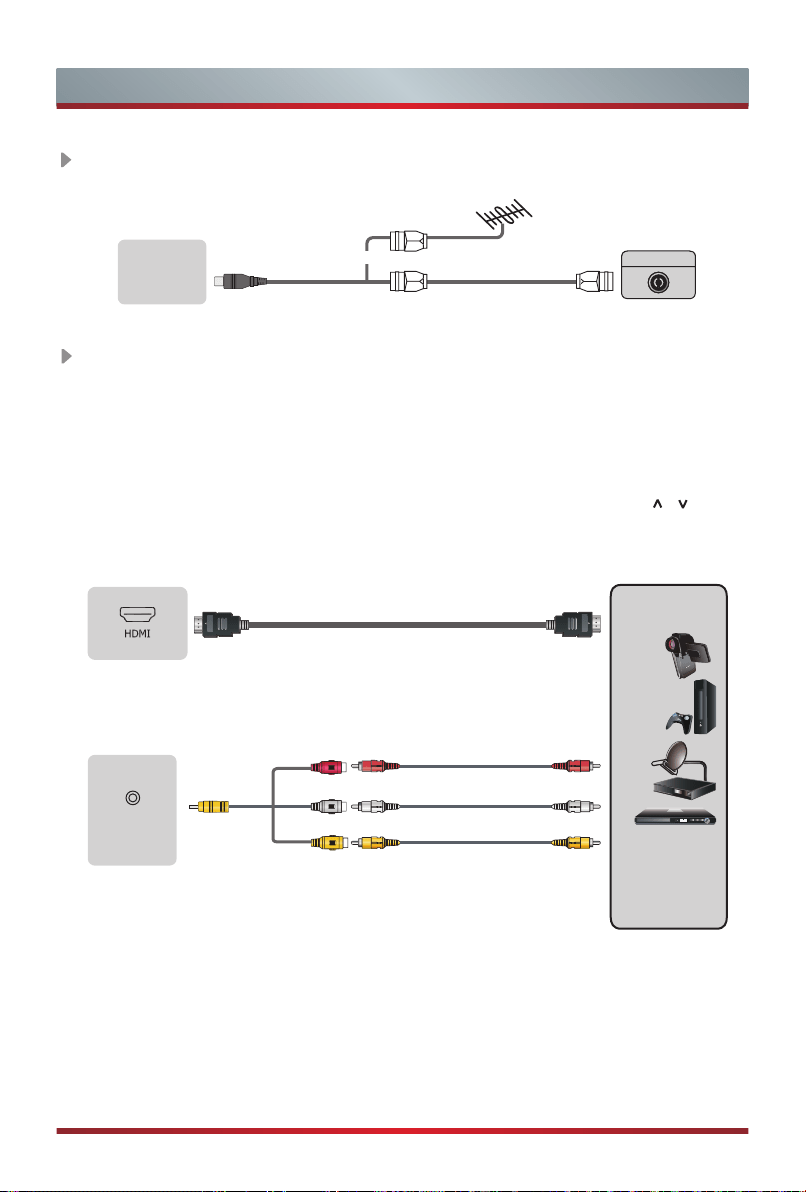
ANT
Connect an outdoor VHF/UHF antenna or cable.
TV JACK
Outdoor
Antenna
Antenna Cable (75Ω)
or
ANT OUT
Cable
VHF/UHF Antenna
ANT
(not included)
HDMI / AV
Connect a HDMI / AV cable from an external AV equipment. No sound connection
is needed for HDMI to HDMI connection. If the signal resolution does not match the
specification table, you need to change the setting of device according to the table.
Please consult your device user manual for instruction.
·
To select the HDMI / AV
Press the [
INPUT
] button, when the list of input Source appears, press the [
/ / < / >
]
buttons to select the source
HDMI
/
AV
, then press the [
OK
] button to connect.
BETTER (HDMI)
Video Eect:
Video Camera/
Set-top Box/
Satellite Receiver
TV JACK
GOOD (AV)
Video Eect:
TV JACK
HDMI cable (not included)
White(L)
Red(R)
Yellow(Video)
AV IN
(Cables are not included)
11
Making Connections
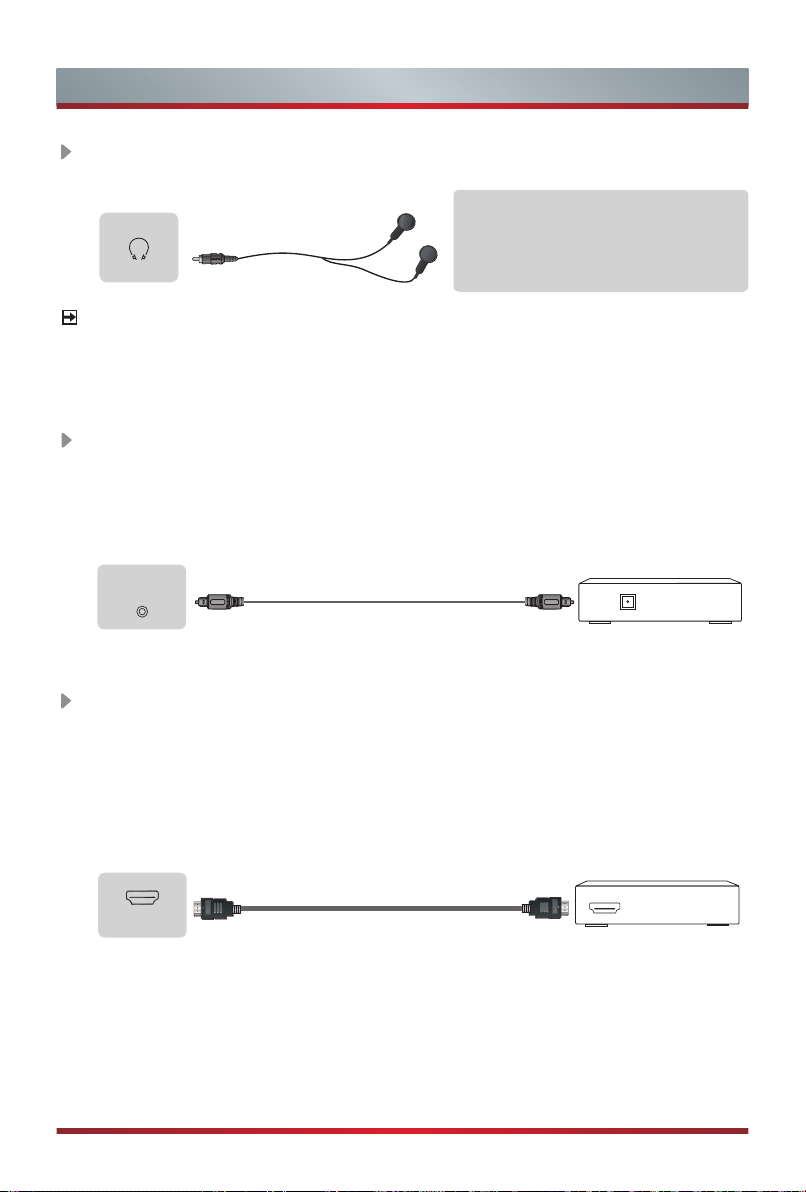
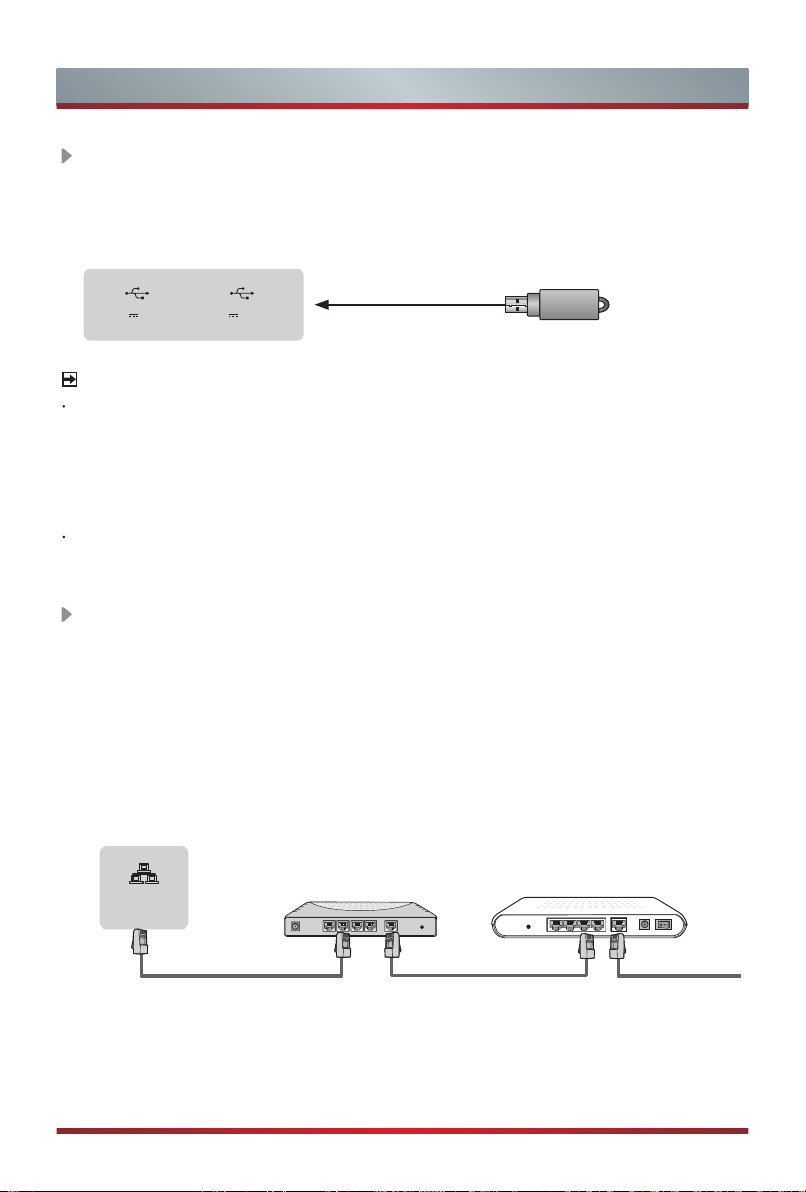
DIGITAL AUDIO OUT
Connect to an external digital audio system.
Before connecting a digital audio system to the DIGITAL AUDIO OUT jack, you
should decrease the volume of both the TV and the system to avoid that the
volume suddenly becomes bigger.
TV JACK
DIGITAL AUDIO cable (not included)
Audio Amplier/Speaker
HEADPHONE
Connect Headphone for audio out of the TV.
TV JACK
Headphone (not included)
ATTENTION
Excessive sound pressure from
earphones and headphones can
cause hearing loss.
NOTE
Please make sure that the headphone you plug in is without microphone function, or it
may not be supported.
eARC/ARC
Connect an HDMI cable from an external digital audio system.
eARC/ARC enables the TV to directly output the digital sound through an HDMI
cable. Please note that it works only when the TV is connected to the audio receiv-
er that supports the eARC/ARC (Audio Return Channel) function.
When this port is used as the eARC/ARC function, it can't be used as signal input
at the same time.
TV JACK
HDMI cable (not included)
HDMI
Audio Amplier/Speaker
DIGITAL
AUDIO OUT
HDMI
(eARC/ARC)
12
Making Connections
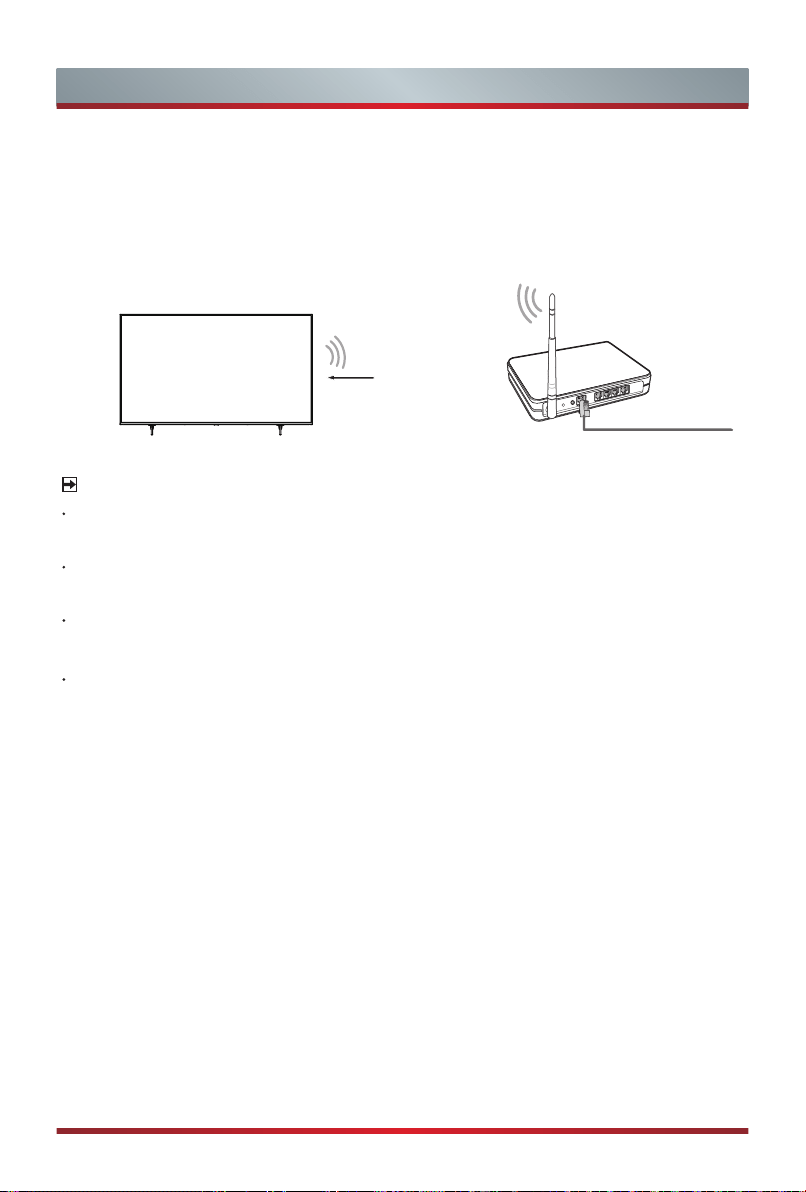
LAN (Wired setup)
Connect your TV to your network by connecting the LAN port on the back of your
TV to an external modem or router using a LAN (Ethernet/Cat 5) cable. See the
illustration below.
·
We recommend you to use a modem or router that supports Dynamic Host
Configuration Protocol (DHCP). Modems and routers that support DHCP
automatically provide the IP address, subnet mask, gateway, and DNS, so you
don’t have to enter them manually. Most home networks already have DHCP.
TV JACK
Modem CableLAN CableLAN Cable
External Modem
(ADSL / VDSL / Cable TV)
IP Sharer (Router)
(with DHCP server)
LAN
USB
Connect the USB1.1
and USB2.0 devices such as hard drives, USB sticks and
digital cameras for browsing photos, listening to
music and watching
movies.
TV JACK
NOTES
When connecting a hard disk or a USB hub, always connect the mains adapter of
the connected device to the power supply. If a USB 1.1 or USB2.0 device requires
more than 500mA or 5V, the USB device may not be supported. Max supported
current for USB 3.0 device is 1A
(only for some models). Exceeding the max
supported current may result in damage or data loss.
Certain digital cameras may not be compatible with the TV.
USB
DC 5V 1A(MAX) DC 5V 0.5A(MAX)
USB
13
Making Connections
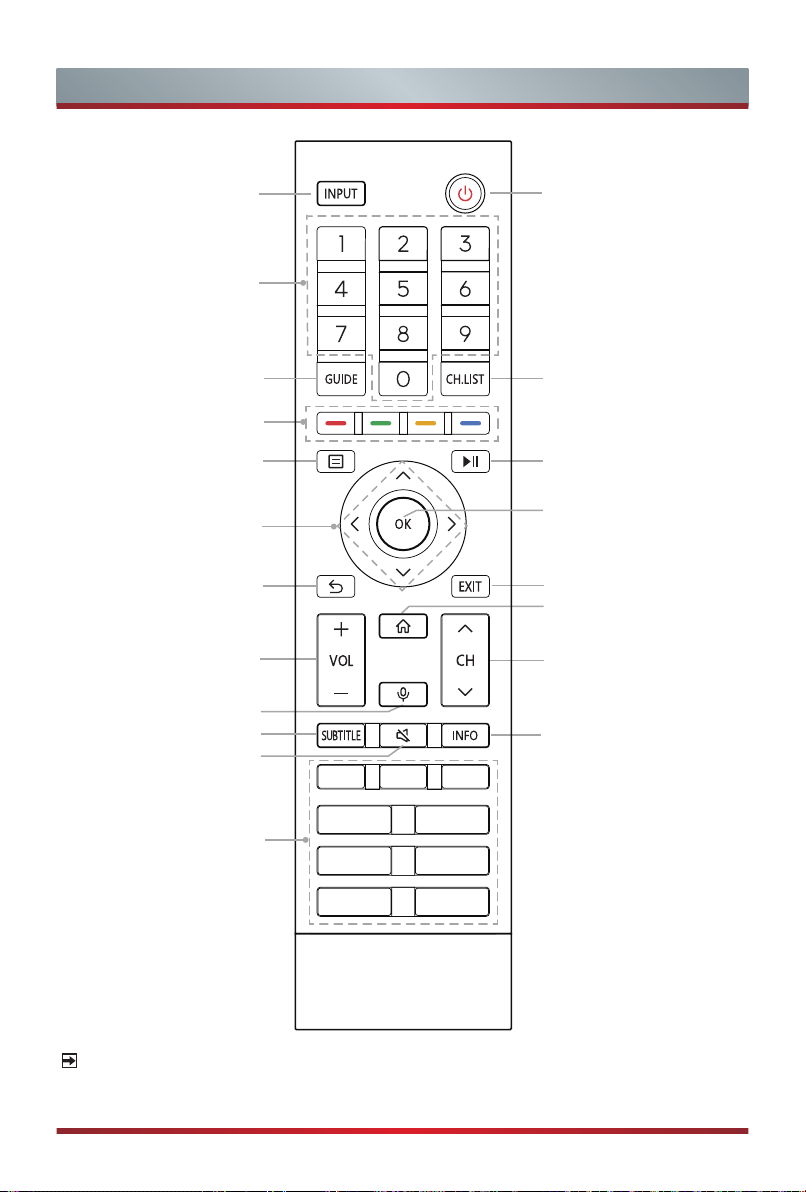
Wireless setup
Connect your TV to your wireless network, you need a wireless router or modem.
See the illustration below.
·
The TV’s built-in Wireless LAN Adapter supports the IEEE 802.11 a/b/g/n/ac
communication protocols.
Wireless router with DHCP
LAN Cable
Wireless LAN Adapter
built-in TV set
NOTES
You must use the built-in Wireless LAN Adapter to use a wireless network because
the set doesn’t support external USB network adapter.
If the wireless router supports DHCP, your TV can connect more easily to the
wireless network.
If you apply a security system which is not listed below, it will not work with the TV.
Security system : WPA, WEP, WPA2.
In order to guarantee smooth network, the distance between router and TV should be
less than 10 meters.
14
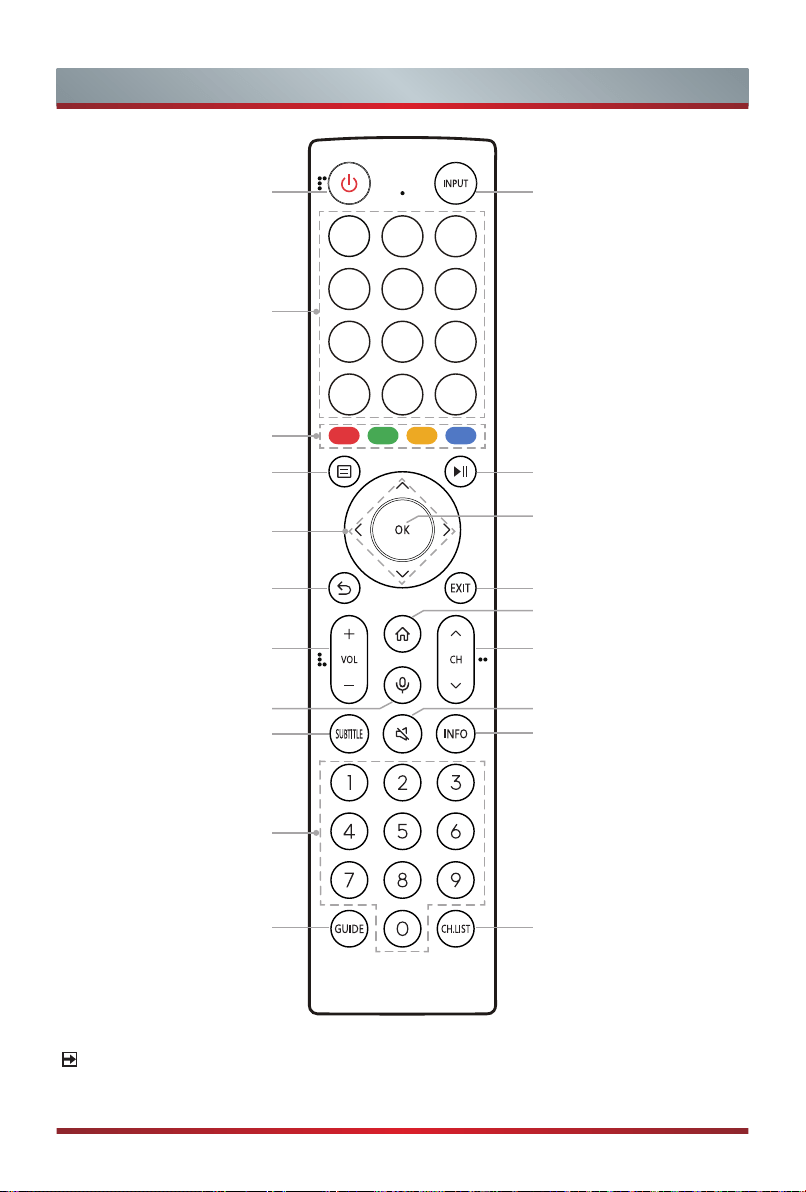
Remote Control
NOTE
The included remote control will vary depending on model, country/region. Check
information according to the actual remote control in the accessory bag.
Power on/ Standby
Activate the microphone
Exit the menu or exit
the application
Channel (up/down)
Under the Menu or App,
return to the previous
place
Navigation buttons
(Up/Down/Left/Right)
Display the Home screen
Select input sources
Playpad keys
Volume (up/down)
Special function buttons
Quick setup
Display the current
program information
Select a channel or input
numbers
Display the Electronic
Program Guide (DTV mode)
Display the Channel
List on the screen
OK / Display the on-screen
keyboard
Mute and restore sound
Quick access buttons to
apps
Display subtitles in the
Live TV
15
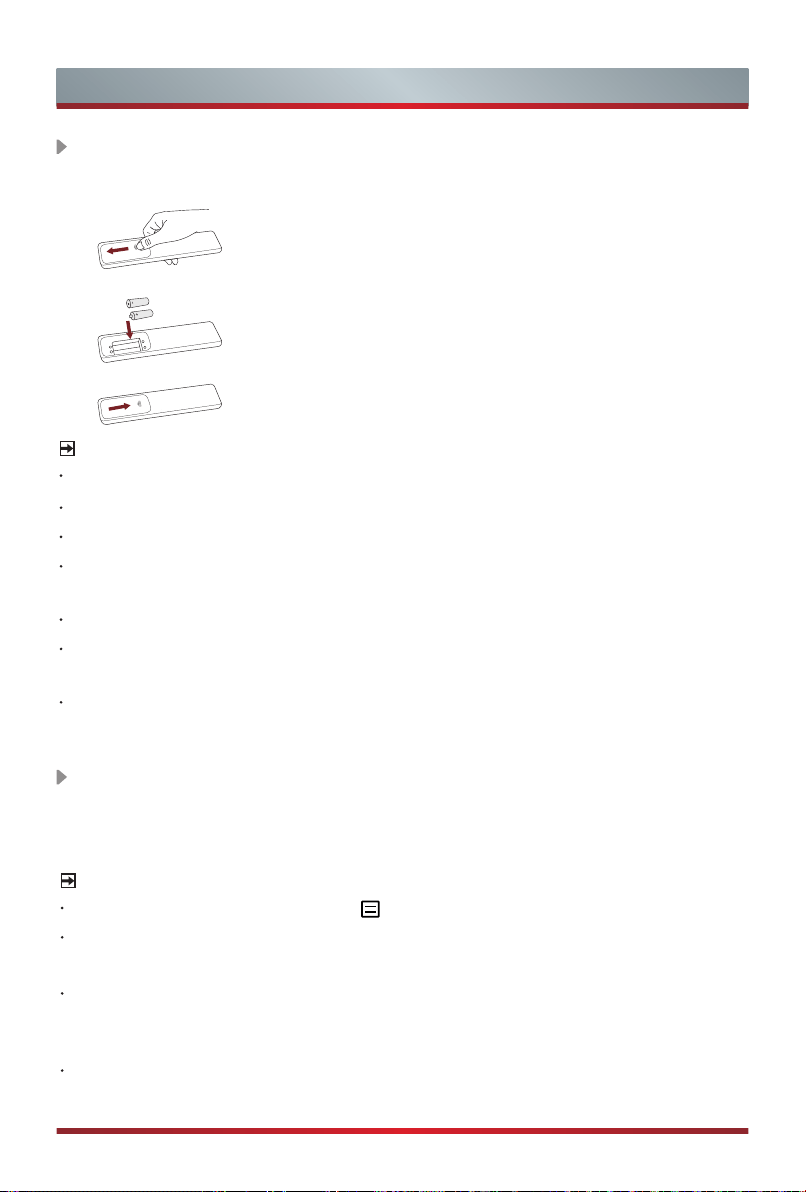
NOTE
The included remote control will vary depending on model, country/region. Check
information according to the actual remote control in the accessory bag.
Remote Control
Power on/ Standby Select input sources
Quick access buttons to
apps
Special function buttons
Quick setup Playpad keys
Navigation buttons
(Up/Down/Left/Right)
OK / Display the on-screen
keyboard
Under the Menu or App,
return to the previous
place
Exit the menu or exit
the application
Display the Home screen
Volume (up/down)
Channel (up/down)
Activate the microphone
Display subtitles in the
Live TV
Mute and restore sound
Display the current
program information
Select a channel or input
numbers
Display the Electronic
Program Guide (DTV mode)
Display the Channel List
on the screen
16
Remote Control
Installing Batteries in the Remote Control
NOTES
Product image is only for reference, actual product may vary in appearance.
Dispose of your batteries in a designated disposal area. Do not throw the batteries into fire.
Do not mix battery types or combine used batteries with new ones.
Remove depleted batteries immediately to prevent battery acid from leaking into
the battery compartment.
If you do not intend to use the remote control for a long time, remove the batteries.
Batteries should not be exposed to excessive heat, such as sunshine, heat
registers, or fire.
Battery chemicals can cause a rash. If the batteries leak, clean the battery
compartment with a cloth. If chemicals touch your skin, wash immediately.
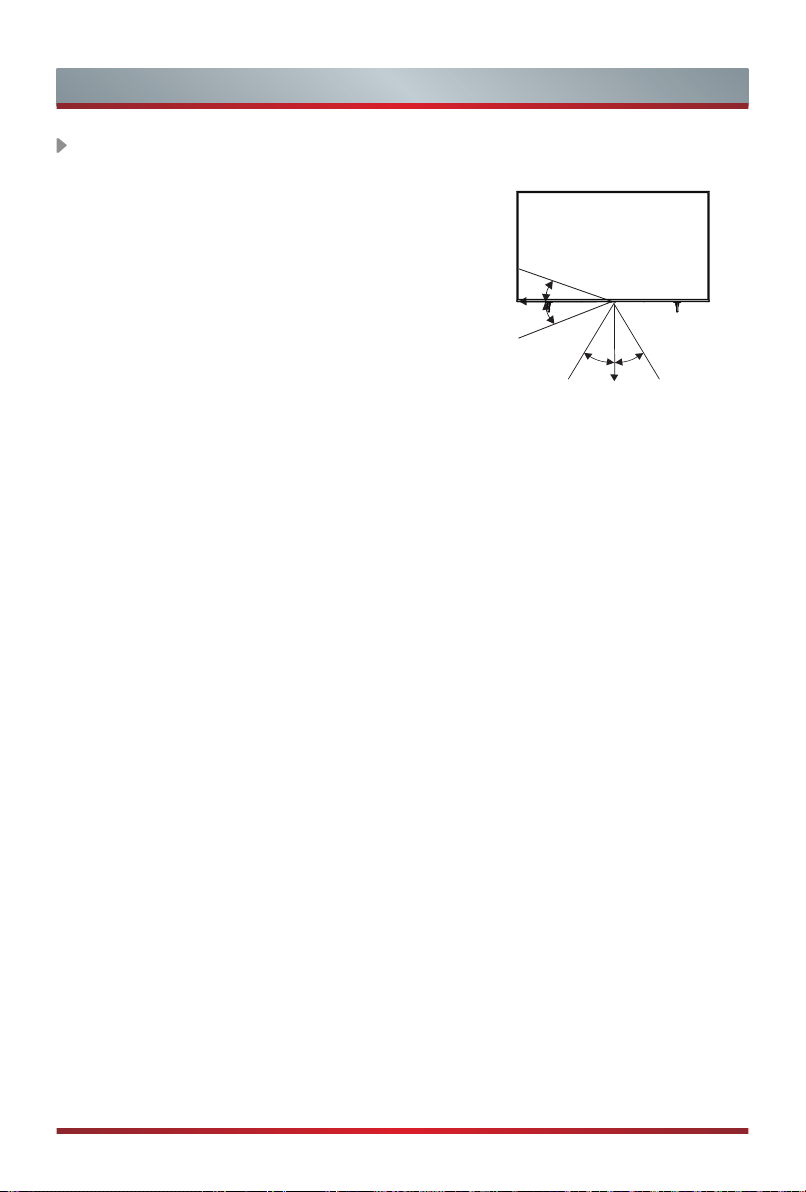
1. Slide the back cover to open the battery compartment
of the remote control.
2. Insert two AA or AAA size batteries. Make sure
to match the (+) and ( - ) ends of the batteries
with the (+) and ( - ) ends indicated in the battery
compartment.
3. Close the battery compartment with the cover.
NOTE:
Check information according to the actual remote control in the accessory bag.
Pairing the Remote Control (only for Bluetooth remote control)
Pair the remote to the TV after you power it on. Keep the remote control within 3
metres from the TV. Press any button (except power and mic
button) to pair.
NOTES
In special cases, press and hold [ ] button to pair.
If an unknown error occurred with the remote, then it could have been caused by
interference. Try to remove what's causing the interference and pair it again.
If an unknown error occurred in the remote control while the battery power is
normal, you can take out the batteries, press any key for 1~2 seconds, and insert
them back. Then the remote control will work normally.
The remote cannot be paired to the TV while the TV is in standby mode.
17
Remote Control Operation Range
Disposal of this unit
Product should not be damaged, dismantled or thrown in municipal waste.
It should be packed and handed over to authorised re-cycler.
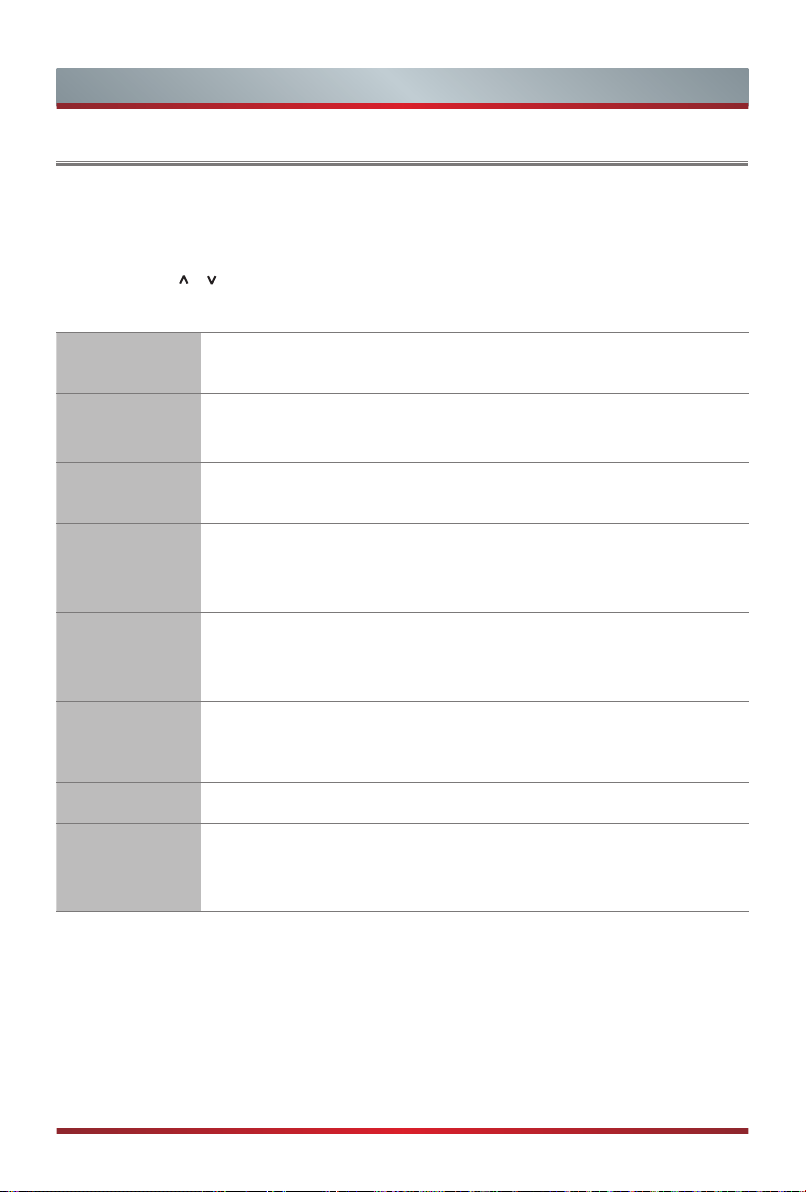
1. The remote control can work at a distance of
up to 8 meters in
front of the TV set.
2. The remote control angle: taking the remote
sensor as an apex, 6 meters away, its
controlled horizontal angle is within ±30°, while
the vertical angle is within ±15°.
3. The operating distance may vary depending
on the brightness of the room.
6m
8m
6m
6m
8m
6m
30° 30°
15° 15°
Remote Control
18
Turning the TV on for the First Time
Turning the TV on for the First Time
1. Connect the mains cable to the mains socket after you have completed all the
connections.
2. The first time you turn the TV on, it will go straight into the Installation Guide.
3. Press the [
/ / < / >
] buttons to navigate the menu and change the settings.
Press the [
OK
] button to confirm.
Select your
Language
Select your desired language to be displayed on the menu.
Press menu button to set up your TV for store mode.
Connect to
the Internet
If your TV does not automatically detect an Ethernet connection,
then use a wireless network,
select your network from the list that
displays, also you can add a hidden network.
Select your
Country
Select the Country where you will operate the TV.
Terms &
Conditions,
Privacy Policy
Your use of this device is subject to the End User License
Agreement, and lack of your acceptance of the End User License
Agreement will turn off all smart features of this device. Please
read the details carefully before you choose.
Enhanced
Viewing
Enhanced viewing can automatically adjust the picture mode and
sound mode so as to match with the current content displayed
on this device in case it is recognized by the automatic content
recognition service.
Sign in
your VIDAA
Account
Link your TV with VIDAA account.
Name your TV
Give your TV a name.
Select
your Voice
Assistant
Select a voice assistant that you want to use on the TV.
NOTE:
The Guide above is for referencing purpose and may differ depending on models/countries/
regions.
19
Specifications
Features, appearance and specifications are subject to change without notice.
If you encountered difficulty when setting up your TV, we suggest you refer to the
troubleshooting tips in the User Manual or the E-Manual.
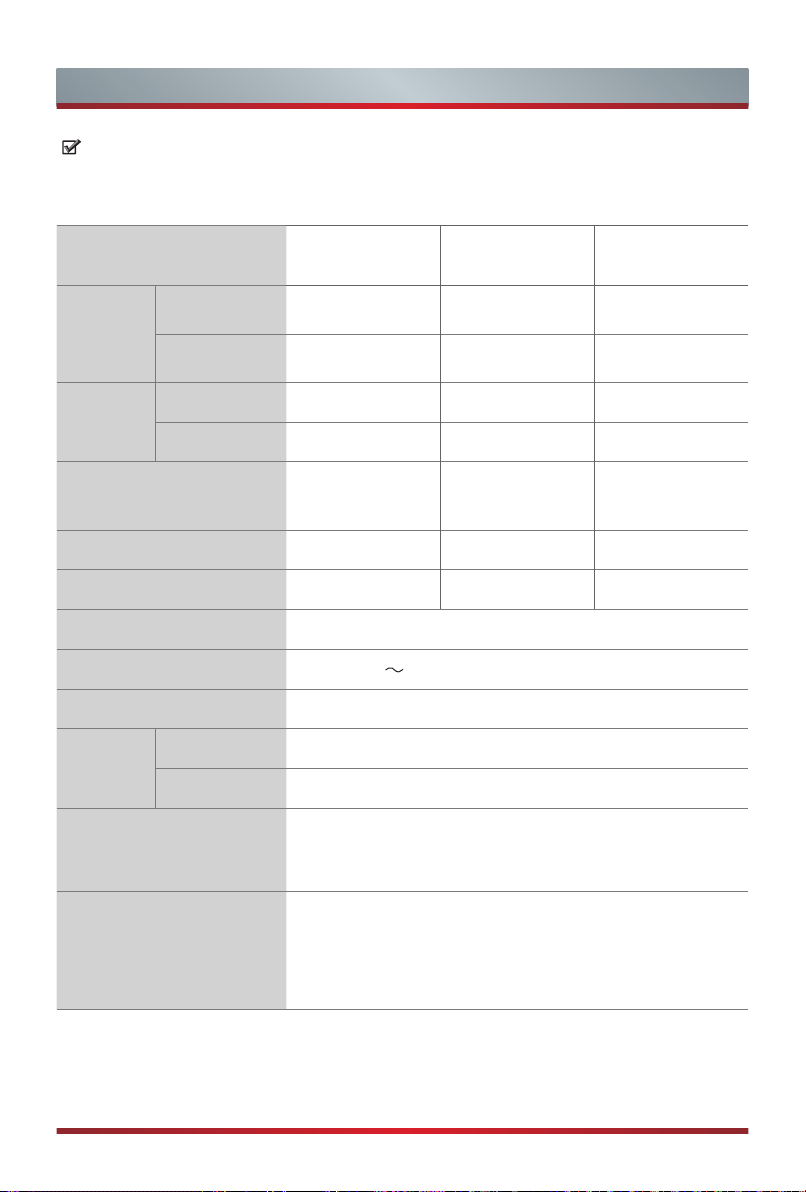
Item
43" 50" 55"
Dimension
(mm)
Without Stand
(W × H × D)
962 × 560 × 86 1117 × 647 × 77 1230 × 711 × 78
With Stand
(W × H × D)
962 × 613 × 281 1117 × 710 × 306 1230 × 773 × 306
Weight
(kg)
Without Stand
8.7 10.5 13.1
With Stand
9.2 10.8 13.4
Active Screen Size
(Diagonal)
(cm)
108 126 139
Screen resolution
3840 × 2160 3840 × 2160 3840 × 2160
Audio power
8W + 8W 10W + 10W 10W + 10W
Power consumption
Please refer to the rating label.
Power supply
100
-
240V 50/60Hz
Standby Power
0.5W
Receiving
systems
Analog
PAL-D/K, B/G, I SECAM-D/K, B/G
Digital
DVB-T/T2, DVB-C
Environmental conditions
Temperature: 5°C - 45°C
Humidity: 20% - 80% RH
Atmospheric pressure: 86 kPa - 106 kPa
HDMI Input
60Hz (640×480, 800×600, 1024×768)
60Hz (480i, 480p, 720p, 1080i, 1080p)
50Hz (576i, 576p, 720p, 1080i, 1080p)
24Hz 25Hz 30Hz 50Hz 60Hz (3840×2160)
20
Specifications
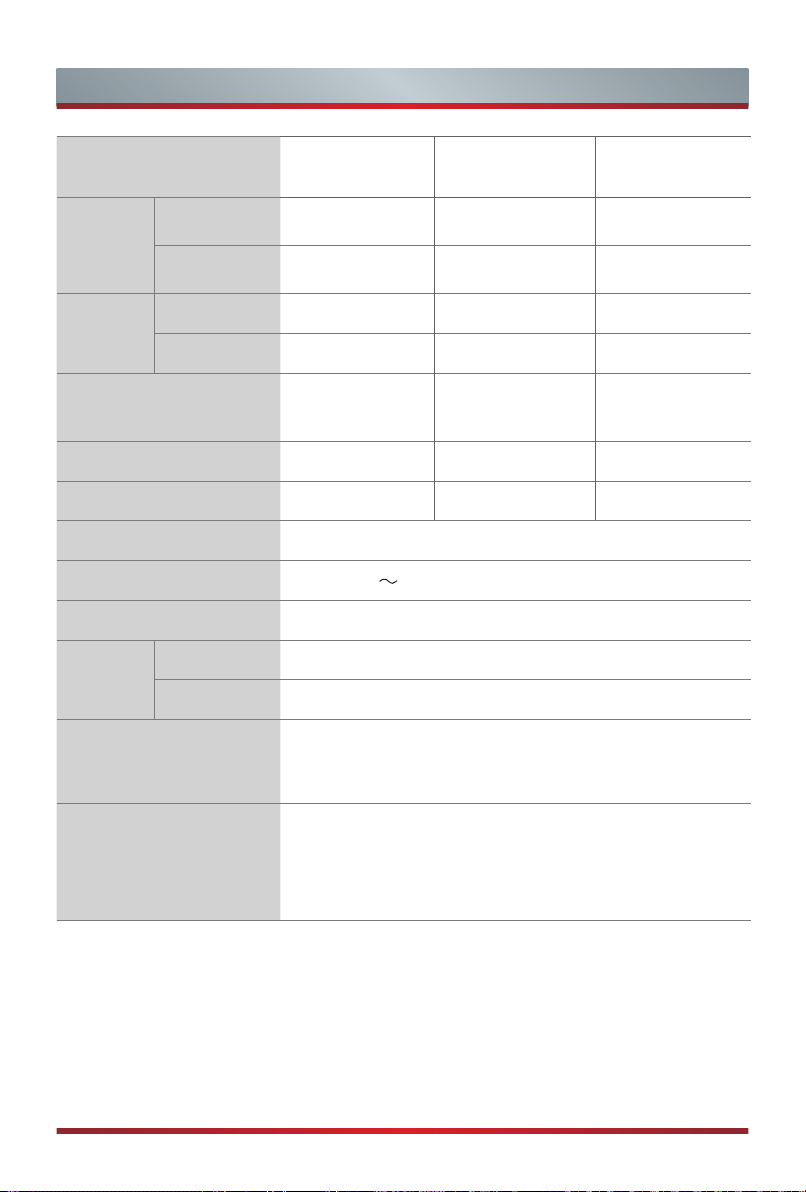
Item
65" 75" 85"
Dimension
(mm)
Without Stand
(W × H × D)
1449 × 835 × 78 1675 × 960 × 78 1903
×
1088
×
89
With Stand
(W × H × D)
1449 × 901 × 335 1675 × 1042 × 366 1903
×
1183
×
474
Weight
(kg)
Without Stand
18.5 28.0 41.0
With Stand
19.0 28.5 43.4
Active Screen Size
(Diagonal)
(cm)
164 189 215
Screen resolution
3840 × 2160 3840 × 2160 3840 × 2160
Audio power
10W + 10W 15W + 15W 15W + 15W
Power consumption
Please refer to the rating label.
Power supply
100
-
240V 50/60Hz
Standby Power
0.5W
Receiving
systems
Analog
PAL-D/K, B/G, I SECAM-D/K, B/G
Digital
DVB-T/T2, DVB-C
Environmental conditions
Temperature: 5°C - 45°C
Humidity: 20% - 80% RH
Atmospheric pressure: 86 kPa - 106 kPa
HDMI Input
60Hz (640×480, 800×600, 1024×768)
60Hz (480i, 480p, 720p, 1080i, 1080p)
50Hz (576i, 576p, 720p, 1080i, 1080p)
24Hz 25Hz 30Hz 50Hz 60Hz (3840×2160)
21
Other Information
What is Freeview Plus?
Freeview Plus is a new television service delivered via broadband providing a state of
the art Electronic Program Guide (EPG) and seamless access to catch-up TV across
the free-to-air networks with the simple press of a button.
How does it work?
First ensure the TV is connected to internet and an antenna system. Then when you’re
watching TV, you’ll briey see a prompt at the top left of the screen. Press the ‘Green’
button on your remote to launch Freeview Plus. More information about Freeview Plus
can be found on http://www.freeview.com.au/
NOTE
Freeview Plus service only available in Australia territories.
THIS PRODUCT IS LICENSED UNDER THE AVC PATENT PORTFOLIO LICENSE FOR THE
PERSONAL USE OF A CONSUMER OR OTHER USES IN WHICH IT DOES NOT RECEIVE
REMUNERATION TO (i) ENCODE VIDEO IN COMPLIANCE WITH THE AVC STANDARD
(“AVC VIDEO”) AND/OR (ii) DECODE AVC VIDEO THAT WAS ENCODED BY A CONSUMER
ENGAGED IN A PERSONAL ACTIVITY AND/OR WAS OBTAINED FROM A VIDEO PROVIDER
LICENSED TO PROVIDE AVC VIDEO. NO LICENSE IS GRANTED OR SHALL BE IMPLIED
FOR ANY OTHER USE. ADDITIONAL INFORMATION MAY BE OBTAINED FROM MPEG LA,
L.L.C. SEE HTTP://WWW.MPEGLA.COM
The terms HDMI and HDMI High-Definition Multimedia
Interface, and the HDMI Logo are trademarks or registered
trademarks of HDMI Licensing Administrator, Inc. in the United
States and other countries.
Dolby, Dolby Vision, Dolby Atmos, and the double-D symbol
are registered trademarks of Dolby Laboratories Licensing
Corporation. Manufactured under license from Dolby
Laboratories. Condential unpublished works. Copyright ©
2012-2021 Dolby Laboratories. All rights reserved.