

Table of Contents
Before Using the Calculator.................................................... 3
About this Manual.................................................................................... 3
Initializing the Calculator..........................................................................3
Precautions..............................................................................................3
Safety Precautions..........................................................................................3
Handling Precautions......................................................................................4
Getting Started.........................................................................................4
Removing the Hard Case................................................................................4
Turning Power On and Off.............................................................................. 5
Adjusting Display Contrast..............................................................................5
Key Markings.................................................................................................. 5
Reading the Display........................................................................................6
Using Menus................................................................................................... 8
Calculation Modes and Calculator Setup...............................9
Calculation Mode..................................................................................... 9
Configuring the Calculator Setup.............................................................9
Initializing Calculator Settings....................................................................... 13
Inputting Expressions and Values........................................14
Basic Input Rules...................................................................................14
Inputting with Natural Display................................................................ 16
Using Values and Expressions as Arguments (Natural Display only)....16
Overwrite Input Mode (Linear Display only)...........................................17
Correcting and Clearing an Expression................................................. 17
Basic Calculations..................................................................19
Toggling Calculation Results..................................................................19
Fraction Calculations............................................................................. 20
Percent Calculations..............................................................................21
Degree, Minute, Second (Sexagesimal) Calculations............................21
Multi-Statements....................................................................................22
Using Engineering Notation................................................................... 22
Prime Factorization................................................................................22
Calculation History and Replay..............................................................23
Calculation History........................................................................................ 23
Replay...........................................................................................................24
Using Memory Functions....................................................................... 24
Answer Memory (Ans)...................................................................................24
Variables (A, B, C, D, E, F, M, X, Y)..............................................................25
Independent Memory (M)..............................................................................25
Clearing the Contents of All Memories..........................................................26
1
Function Calculations............................................................27
Pi (π), Natural Logarithm Base e............................................................ 27
Trigonometric Functions........................................................................ 27
Hyperbolic Functions............................................................................. 27
Angle Unit Conversion........................................................................... 28
Exponential Functions............................................................................28
Logarithmic Functions............................................................................28
Power Functions and Power Root Functions.........................................29
Rectangular-Polar Coordinate Conversion............................................ 30
Factorial Function (!)..............................................................................31
Absolute Value Function (Abs)...............................................................31
Random Number (Ran#)........................................................................31
Random Integer (RanInt#)..................................................................... 32
Permutation (nPr) and Combination (nCr)............................................. 32
Rounding Function (Rnd).......................................................................32
Greatest Common Divisor (GCD) and Least Common Multiple (LCM).....
...............................................................................................................33
Using Calculation Modes.......................................................34
Statistical Calculations (STAT)...............................................................34
Inputting Data................................................................................................35
Statistics Calculation Screen.........................................................................36
Using the Statistics Menu..............................................................................36
Calculating Estimated Values........................................................................41
Using VERIFY (VERIF)..........................................................................42
Expression Input Precautions....................................................................... 43
VERIFY Mode Calculation Examples............................................................43
Technical Information............................................................ 45
Errors..................................................................................................... 45
Displaying the Location of an Error...............................................................45
Clearing the Error Message.......................................................................... 45
Error Messages.............................................................................................45
Before Assuming Malfunction of the Calculator... ............................... 46
Replacing the Battery.............................................................................47
Calculation Priority Sequence................................................................48
Calculation Ranges, Number of Digits, and Precision........................... 49
Calculation Range and Precision..................................................................49
Function Calculation Input Ranges and Precision........................................ 50
Specifications.........................................................................................52
Verifying the Authenticity of Your Calculator.......................................... 52
Frequently Asked Questions.................................................54
Frequently Asked Questions..................................................................54
2

Before Using the Calculator
About this Manual
• In no event shall CASIO Computer Co., Ltd. be liable to anyone for
special, collateral, incidental, or consequential damages in connection
with or arising out of the purchase or use of this product and items that
come with it.
• Moreover, CASIO Computer Co., Ltd. shall not be liable for any claim of
any kind whatsoever by any other party arising out of the use of this
product and the items that come with it.
• Unless specifically stated, all sample operations in this manual assume
that the calculator is in its initial default setup. Use the procedure under
"Initializing the Calculator" to return the calculator to its initial default
setup.
• The contents of this manual are subject to change without notice.
• The displays and illustrations (such as key markings) shown in this
manual are for illustrative purposes only, and may differ somewhat from
the actual items they represent.
• QR Code is a registered trademark of DENSO WAVE INCORPORATED
in Japan and in other countries.
• Company and product names used in this manual may be registered
trademarks or trademarks of their respective owners.
Initializing the Calculator
Perform the following procedure when you want to initialize the calculator
and return the calculation mode and setup to their initial default settings.
Note that this operation also clears all data currently in calculator memory.
(CLR) (All) (Yes)
Precautions
Be sure to read the following safety precautions before using the
calculator.
Safety Precautions
Battery
• Keep batteries out of the reach of small children.
3

• Use only the type of battery specified for this calculator in this
manual.
Handling Precautions
• Even if the calculator is operating normally, replace the battery
according to the schedule shown below. Continued use after the
specified number of years may result in abnormal operation. Replace
the battery immediately after display figures become dim.
fx-82AU PLUS II: Every 2 years
• A dead battery can leak, causing damage to and malfunction of the
calculator. Never leave a dead battery in the calculator.
• The battery that comes with the calculator is for factory testing,
and it discharges slightly during shipment and storage. Because of
these reasons, its battery life may be shorter than normal.
• Do not use a nickel-based primary battery with this product.
Incompatibility between such batteries and product specifications can
result in shorter battery life and product malfunction.
• Avoid use and storage of the calculator in areas subjected to
temperature extremes, and large amounts of humidity and dust.
• Do not subject the calculator to excessive impact, pressure, or bending.
• Never try to take the calculator apart.
• Use a soft, dry cloth to clean the exterior of the calculator.
• Whenever discarding the calculator or batteries, be sure to do so in
accordance with the laws and regulations in your particular area.
Getting Started
Removing the Hard Case
Before using the calculator, slide its hard case downwards to remove it,
and then affix the hard case to the back of the calculator as shown in the
illustration below.
4
Turning Power On and Off
• Press to turn on the calculator.
• Press (OFF) to turn off the calculator.
Note
• The calculator also will turn off automatically after approximately 10 minutes of non-
use. Press the key to turn the calculator back on.
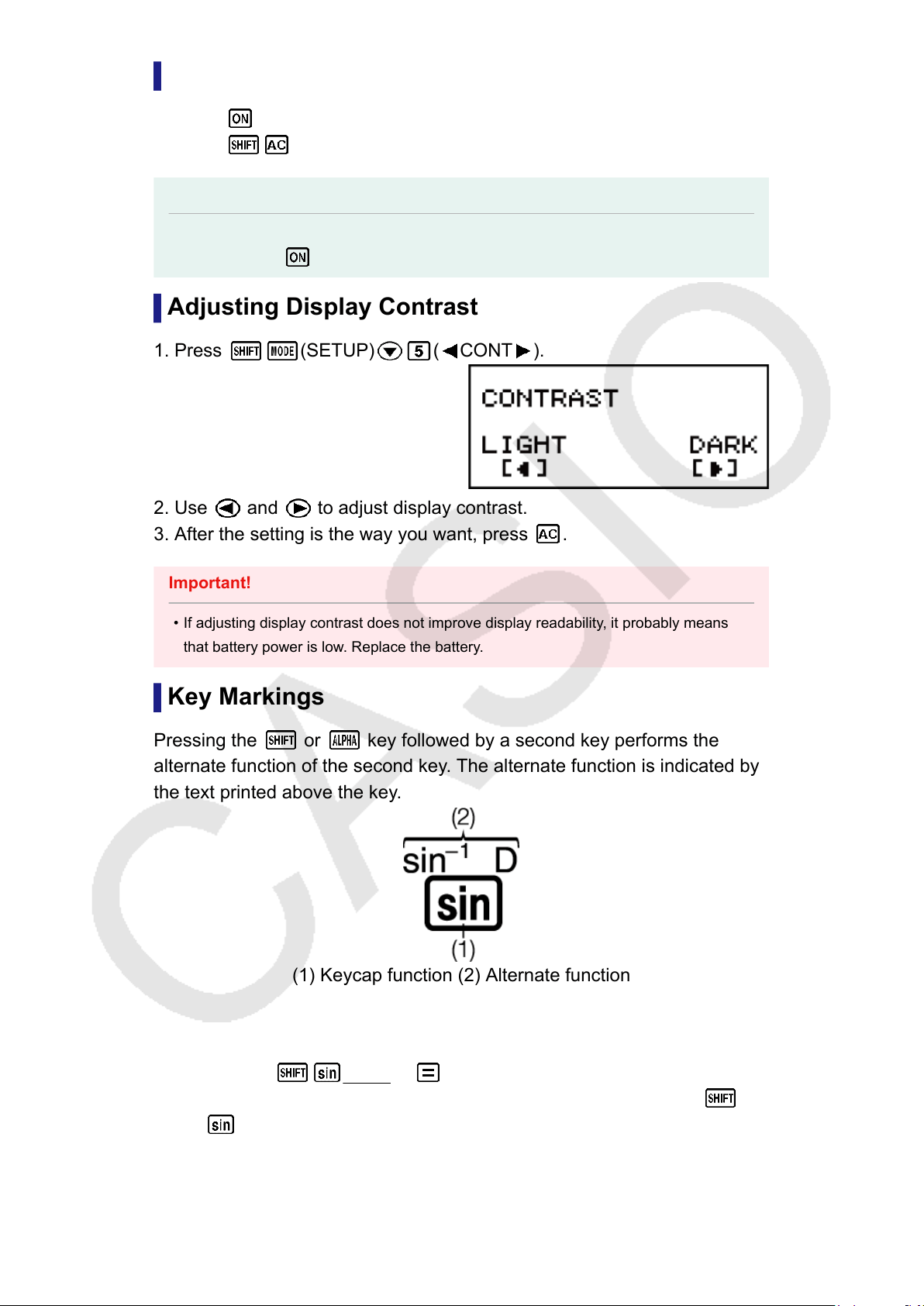
Adjusting Display Contrast
1. Press
(SETUP) ( CONT ).
2. Use and to adjust display contrast.
3. After the setting is the way you want, press .
Important!
• If adjusting display contrast does not improve display readability, it probably means
that battery power is low. Replace the battery.
Key Markings
Pressing the
or key followed by a second key performs the
alternate function of the second key. The alternate function is indicated by
the text printed above the key.
(1) Keycap function (2) Alternate function
• The following shows an example of how an alternate function operation
is represented in this manual.
Example: (sin
-1
)* 1
* Indicates the function that is accessed by the key operation (
) before it. Note that this is not part of the actual key operation
you perform.
5
• The following shows an example of how a key operation to select an on-
screen menu item is represented in this manual.
Example: (COMP)
*
* Indicates the menu item that is selected by the number key
operation ( ) before it. Note that this is not part of the actual key
operation you perform.
• The cursor key is marked with four arrows, indicating direction, as
shown in the illustration nearby. In this manual, cursor key operation is
indicated as , , , and .
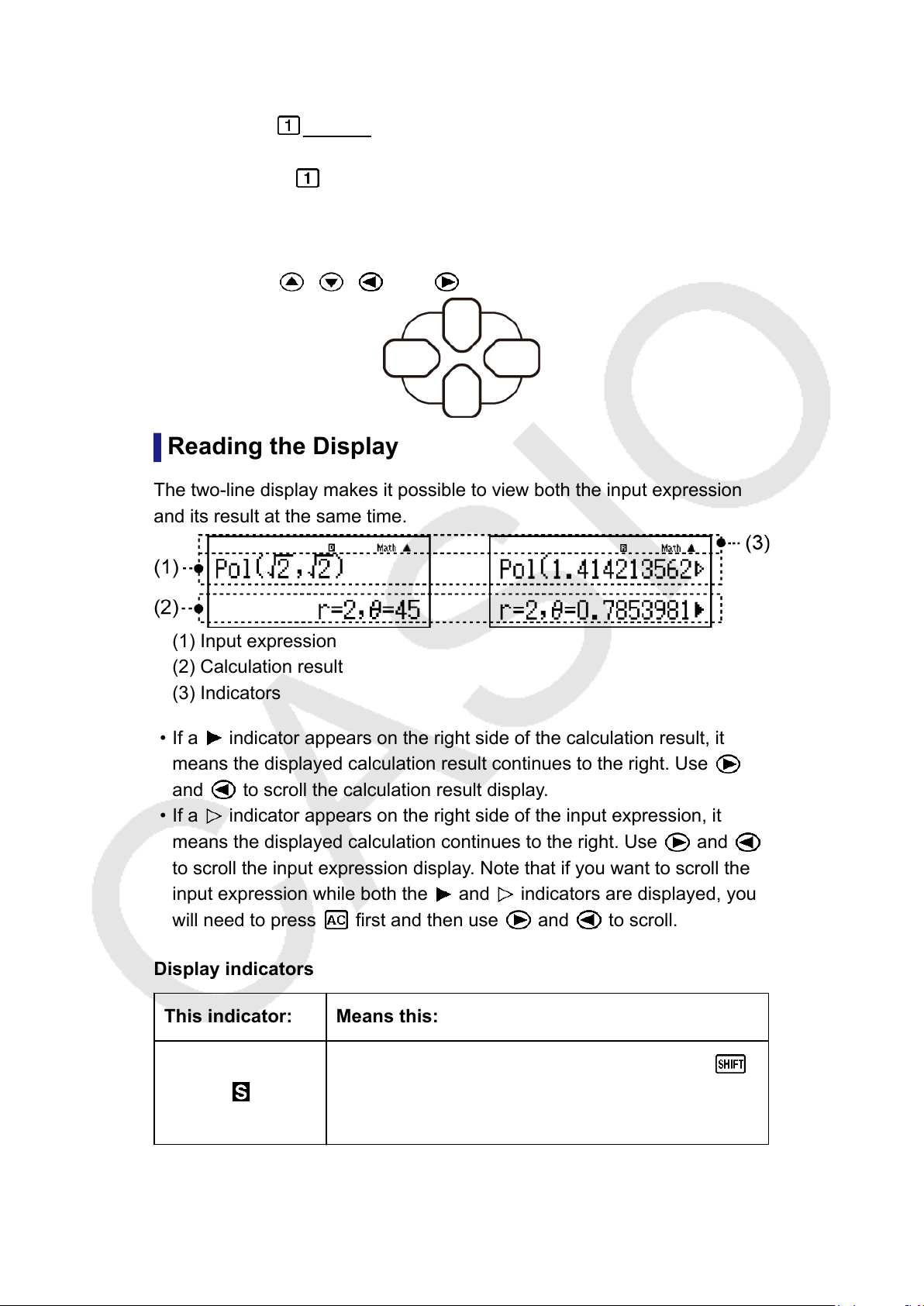
Reading the Display
The two-line display makes it possible to view both the input expression
and its result at the same time.
(1) Input expression
(2) Calculation result
(3) Indicators
• If a indicator appears on the right side of the calculation result, it
means the displayed calculation result continues to the right. Use
and to scroll the calculation result display.
• If a indicator appears on the right side of the input expression, it
means the displayed calculation continues to the right. Use and
to scroll the input expression display. Note that if you want to scroll the
input expression while both the and indicators are displayed, you
will need to press first and then use and to scroll.
Display indicators
This indicator: Means this:
The keypad has been shifted by pressing the
key. The keypad will unshift and this indicator will
disappear when you press a key.
6

The alpha input mode has been entered by
pressing the key. The alpha input mode will
be exited and this indicator will disappear when
you press a key.
M There is a value stored in independent memory.
STO
The calculator is standing by for input of a variable
name to assign a value to the variable. This
indicator appears after you press (STO).
RCL
The calculator is standing by for input of a variable
name to recall the variable's value. This indicator
appears after you press .
STAT The calculator is in the STAT Mode.
The default angle unit is degrees.
The default angle unit is radians.
The default angle unit is grads.
FIX A fixed number of decimal places is in effect.
SCI A fixed number of significant digits is in effect.
Math Natural Display is selected as the display format.
Calculation history memory data is available and
can be replayed, or there is more data above/
below the current screen.
Disp
The display currently shows an intermediate result
of a multi-statement calculation.
Important!
• For some type of calculation that takes a long time to execute, the display may show
only the above indicators (without any value) while it performs the calculation
internally.
7

Using Menus
Some of the calculator's operations are performed using menus. Pressing
or , for example, will display a menu of applicable functions.
The following are the operations you should use to navigate between
menus.
• You can select a menu item by pressing the number key that
corresponds to the number to its left on the menu screen.
• The indicator in the upper right corner of a menu means there is
another menu below the current one. The indicator means another
menu above. Use and to switch between menus.
• To close a menu without selecting anything, press .
8
Calculation Modes and
Calculator Setup
Calculation Mode
Before starting a calculation, you must first enter the correct mode as
indicated in the table below.
When you want to perform this type of
operation:
Perform this key
operation:
General calculations (COMP)
Statistical and regression calculations (STAT)
Verify a calculation (VERIF)
Note
•
The initial default calculation mode is the COMP Mode.
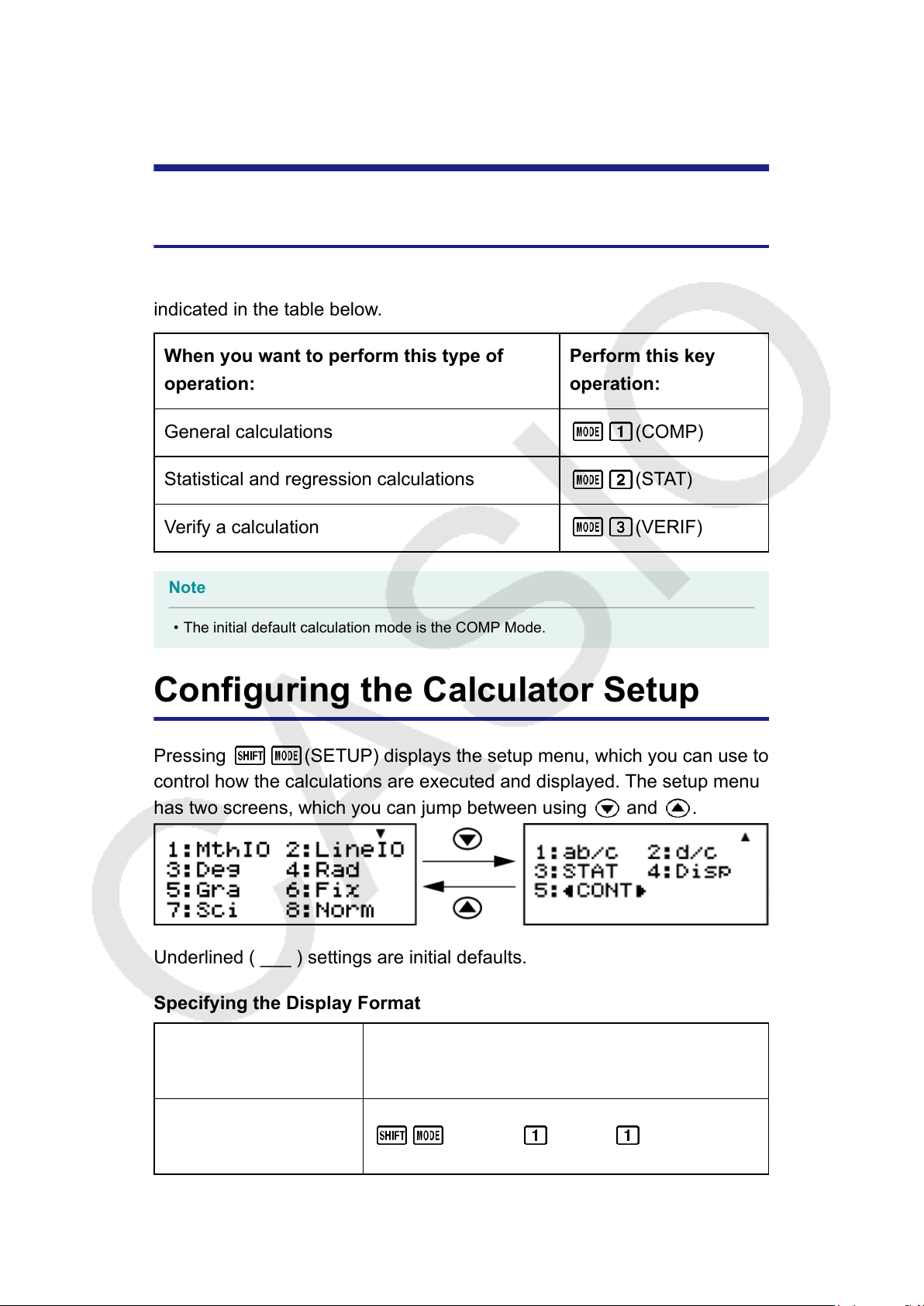
Configuring the Calculator Setup
Pressing
(SETUP) displays the setup menu, which you can use to
control how the calculations are executed and displayed. The setup menu
has two screens, which you can jump between using and .
Underlined ( ___ ) settings are initial defaults.
Specifying the Display Format
To specify this
display format:
Perform this key operation:
Natural Display
(MthIO-MathO)
(SETUP) (MthIO) (MathO)
9

Natural Display
(MthIO-LineO)
(SETUP) (MthIO) (LineO)
Linear Display
(LineIO)
(SETUP) (LineIO)
Natural Display (MthIO-MathO, MthIO-LineO) causes fractions, irrational
numbers, and other expressions to be displayed as they are written on
paper.
MthIO-MathO displays input and calculation results using the same format
as they are written on paper.
MthIO-LineO displays input the same way as MthIO-MathO, but
calculation results are displayed in linear format.
Linear Display (LineIO) causes fractions and other expressions to be
displayed in a single line.
Examples:
MthIO-MathO
MthIO-LineO
(Number Format: Norm 1)
MthIO-LineO
(Number Format: Norm 2)
LineIO
(Number Format: Norm 1)
10
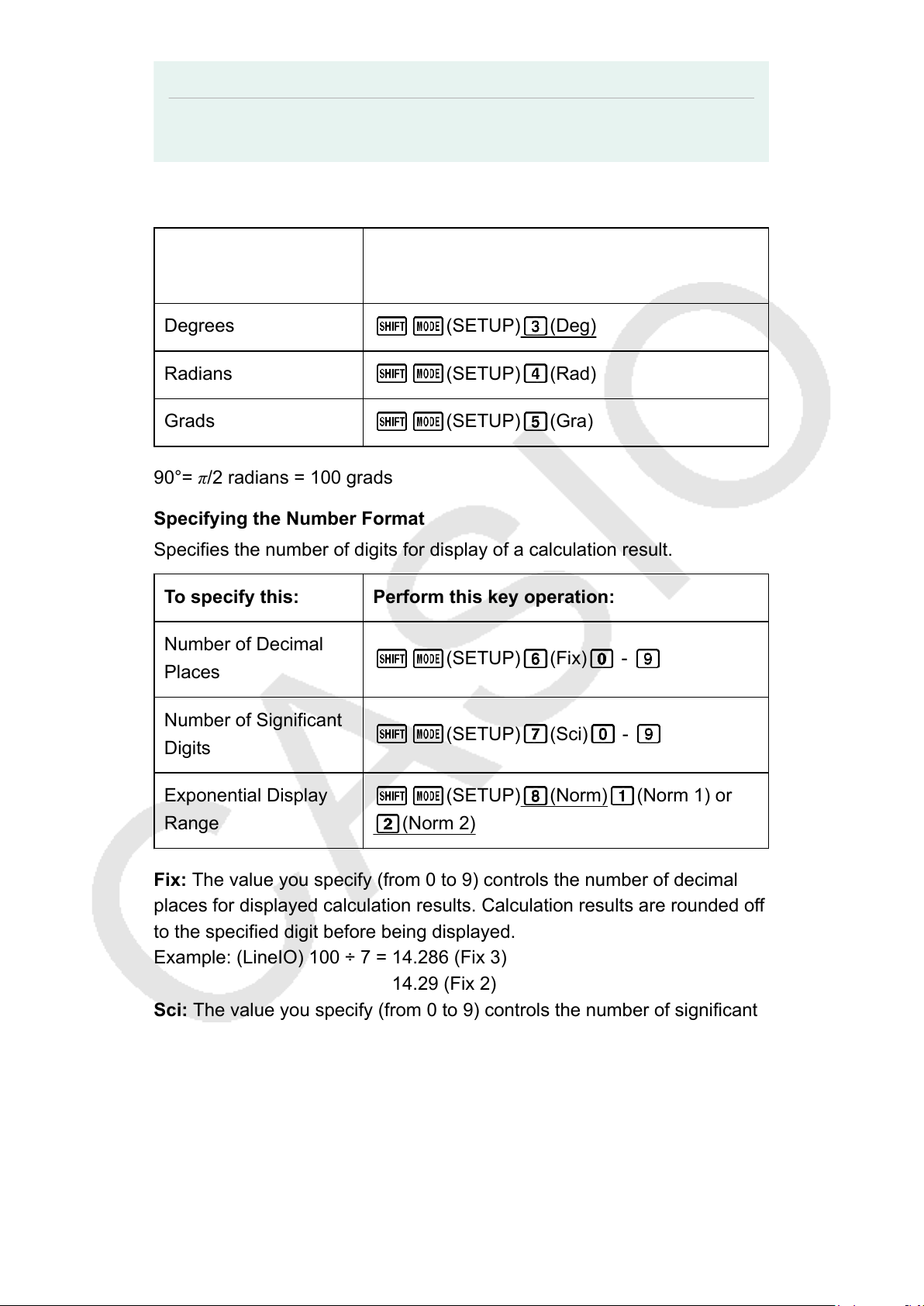
Note
• The calculator switches to Linear Display automatically whenever you enter the STAT
Mode.
Specifying the Default Angle Unit
To specify this as the
default angle unit:
Perform this key operation:
Degrees (SETUP) (Deg)
Radians (SETUP) (Rad)
Grads (SETUP) (Gra)
90°= π/2 radians = 100 grads
Specifying the Number Format
Specifies the number of digits for display of a calculation result.
To specify this: Perform this key operation:
Number of Decimal
Places
(SETUP) (Fix) -
Number of Significant
Digits
(SETUP) (Sci) -
Exponential Display
Range
(SETUP) (Norm) (Norm 1) or
(Norm 2)
Fix: The value you specify (from 0 to 9) controls the number of decimal
places for displayed calculation results. Calculation results are rounded off
to the specified digit before being displayed.
Example: (LineIO) 100 ÷ 7 = 14.286 (Fix 3)
14.29 (Fix 2)
Sci: The value you specify (from 0 to 9) controls the number of significant
digits for displayed calculation results. Calculation results are rounded off
to the specified digit before being displayed.
Example: (LineIO) 1 ÷ 7 = 1.4286 × 10
-1
(Sci 5)
1.429 × 10
-1
(Sci 4)
1.428571429 × 10
-1
(Sci 0)
Norm: Selecting one of the two available settings (Norm 1, Norm 2)
determines the range in which results will be displayed in exponential
11
format. Outside the specified range, results are displayed using non-
exponential format.
Norm 1: 10
-2
> |x|, |x| ≧ 10
10
Norm 2: 10
-9
> |x|, |x| ≧ 10
10
Example: (LineIO) 1 ÷ 200 = 5 × 10
-3
(Norm 1)
0.005 (Norm 2)
Specifying the Fraction Display Format
To specify this
fraction display
format:
Perform this key operation:
Mixed (SETUP) (ab/c)
Improper (SETUP) (d/c)
Specifying the Stat Format
Specifies whether or not to display a FREQ (frequency) column in the
STAT Mode Statistics Editor.
To specify this: Perform this key operation:
Show FREQ Column (SETUP) (STAT) (ON)
Hide FREQ Column (SETUP) (STAT) (OFF)
Specifying the Decimal Point Display Format
Specifies whether to display a dot or a comma for the calculation result
decimal point. A dot is always displayed during input.
To specify this
decimal point
display format:
Perform this key operation:
Dot (.) (SETUP) (Disp) (Dot)
Comma (,) (SETUP) (Disp) (Comma)
Note
•
When dot is selected as the decimal point, the separator for multiple results is a
comma (,). When comma is selected, the separator is a semicolon (;).
12
Adjusting Display Contrast
(SETUP) ( CONT )
See "Getting Started" for details.
Initializing Calculator Settings
Perform the following procedure to initialize the calculator, which returns
the calculation mode to COMP and returns all other settings, including
setup menu settings, to their initial defaults.
(CLR) (Setup) (Yes)
This setting: Is initialized to this:
Calculation Mode COMP
Display Format MthIO-LineO
Angle Unit Deg
Number Format Norm 2
Fraction Display
Format
d/c
Stat Format OFF
Decimal Point Dot
13
Inputting Expressions and
Values
Basic Input Rules
Calculations can be input in the same form as they are written. When you
press
the priority sequence of the input calculation will be evaluated
automatically and the result will appear on the display.
Example 1: 4 × sin30 × (30 + 10 × 3) = 120
*1 Input of the closing parenthesis is required for sin, sinh, and other
functions that include parentheses.
*2 These multiplication symbols (×) can be omitted. A multiplication
symbol can be omitted when it occurs immediately before an opening
parenthesis, immediately before sin or other function that includes
parentheses, immediately before the Ran# (random number) function,
or immediately before a variable (A, B, C, D, E, F, M, X, Y), scientific
constants, π or e.
*3 The closing parenthesis immediately before the
operation can be
omitted.
Example 2: Input example omitting
*2
and
*3
operations in the
above example.
4 30 30 10 3
Important!
• If you execute a calculation that includes both division and multiplication operations in•
which a multiplication sign has been omitted, parentheses will be inserted
automatically as shown in the examples below.
- When a multiplication sign is omitted immediately before an open parenthesis or after
a closed parenthesis.
14
Examples: 6 ÷ 2 (1 + 2) → 6 ÷ (2 (1 + 2))
6 ÷ A (1 + 2) → 6 ÷ (A (1 + 2))
1 ÷ (2 + 3) sin(30) → 1 ÷ ((2 + 3) sin(30))
- When a multiplication sign is omitted immediately before a variable, a constant, etc.
Examples: 6 ÷ 2π → 6 ÷ (2π)
2 ÷ 2√
2 → 2 ÷ (2√2)
4π ÷ 2π → 4π ÷ (2π)
- When inputting a function that uses commas (such as Pol, Rec, and RanInt#), be
sure to input the closed parentheses required by the expression. If you do not input
closed parentheses, parentheses may not be inserted automatically as described
above.
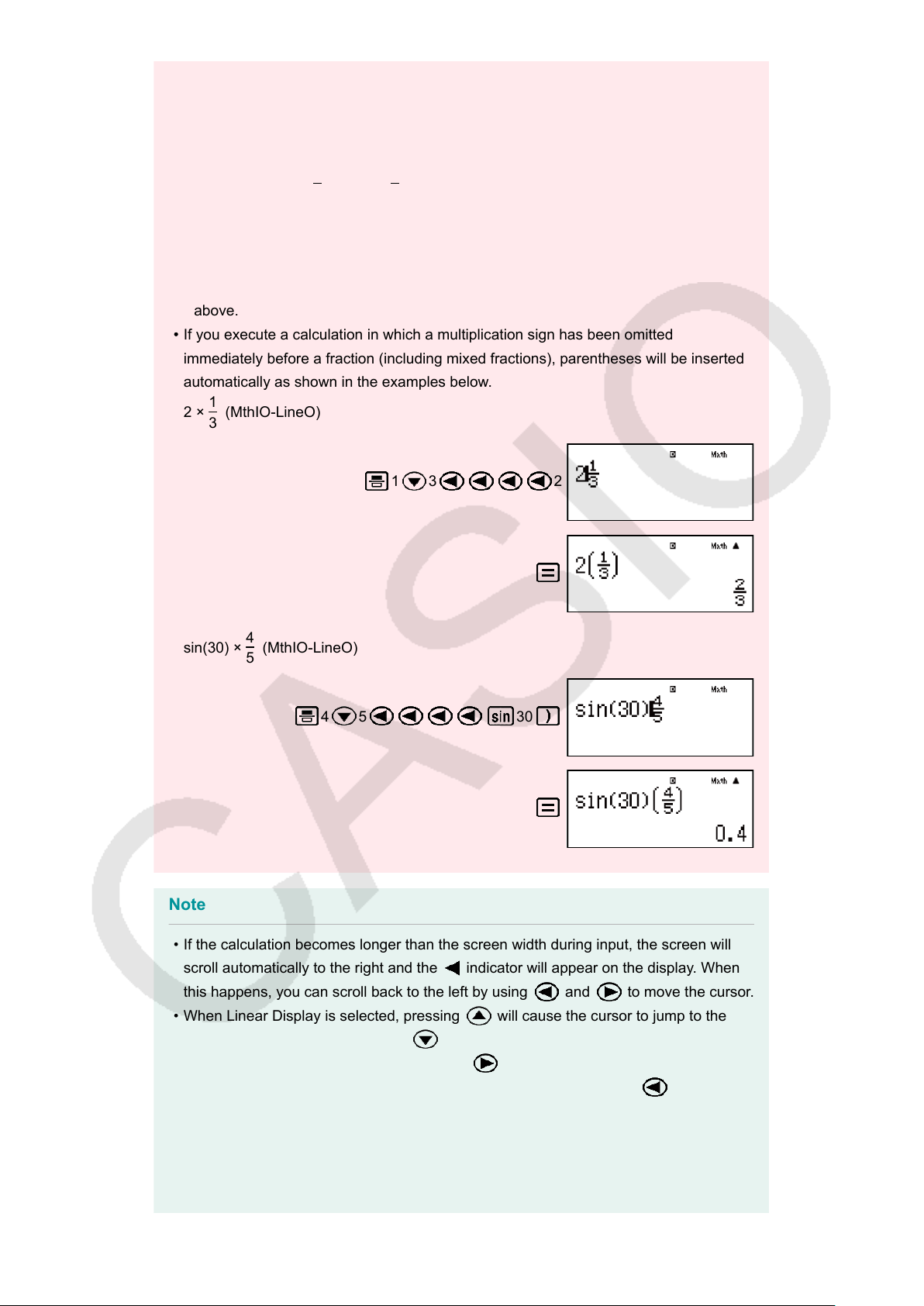
• If you execute a calculation in which a multiplication sign has been omitted•
immediately before a fraction (including mixed fractions), parentheses will be inserted
automatically as shown in the examples below.
2 ×
1
3
(MthIO-LineO)
1 3 2
sin(30) ×
4
5
(MthIO-LineO)
4 5 30
Note
• If the calculation becomes longer than the screen width during input, the screen will
scroll automatically to the right and the indicator will appear on the display. When
this happens, you can scroll back to the left by using and to move the cursor.
• When Linear Display is selected, pressing will cause the cursor to jump to the
beginning of the calculation, while
will jump to the end.
• When Natural Display is selected, pressing while the cursor is at the end of the
input calculation will cause it to jump to the beginning, while pressing while the
cursor is at the beginning will cause it to jump to the end.
• You can input up to 99 bytes for a calculation. Each numeral, symbol, or function
normally uses one byte. Some functions require three to 13 bytes.
15
• The cursor will change shape to when there are 10 bytes or less of allowed input
remaining. If this happens, end calculation input and then press .
Inputting with Natural Display
Selecting Natural Display makes it possible to input and display fractions
and certain functions (
, , , , , , , , , Abs) just as
they are written in your textbook.
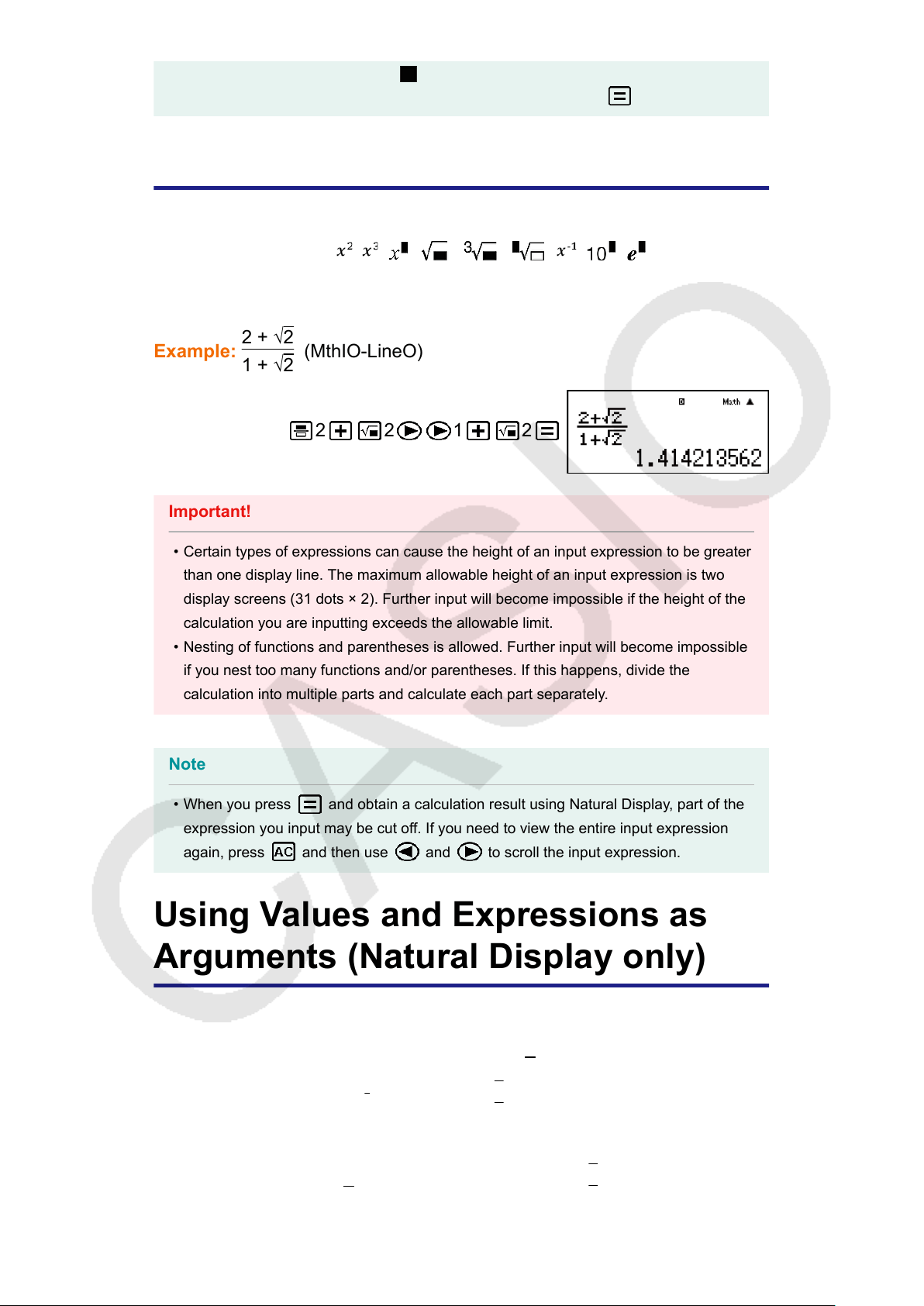
Example:
2 + √2
1 + √2
(MthIO-LineO)
2 2 1 2
Important!
• Certain types of expressions can cause the height of an input expression to be greater
than one display line. The maximum allowable height of an input expression is two
display screens (31 dots × 2). Further input will become impossible if the height of the
calculation you are inputting exceeds the allowable limit.
• Nesting of functions and parentheses is allowed. Further input will become impossible
if you nest too many functions and/or parentheses. If this happens, divide the
calculation into multiple parts and calculate each part separately.
Note
• When you press and obtain a calculation result using Natural Display, part of the
expression you input may be cut off. If you need to view the entire input expression
again, press and then use and to scroll the input expression.
Using Values and Expressions as
Arguments (Natural Display only)
A value or an expression that you have already input can be used as the
argument of a function. After you have input
7
6
, for example, you can
make it the argument of √ , resulting in
√
7
6
.
Example: To input 1 +
7
6
and then change it to 1 +
√
7
6
(MthIO-LineO)
16
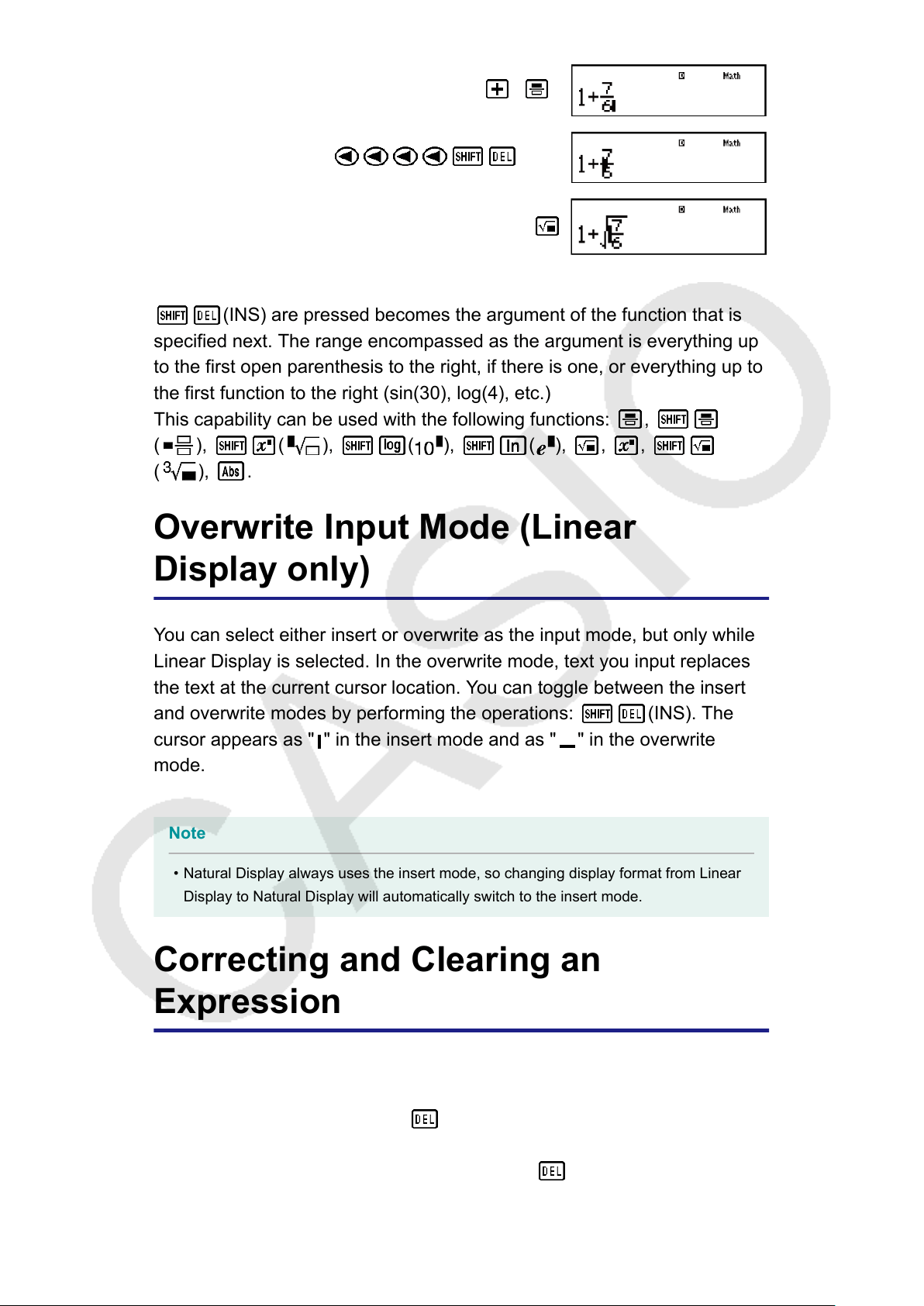
1 7 6
(INS)
As shown above, the value or expression to the right of the cursor after
(INS) are pressed becomes the argument of the function that is
specified next. The range encompassed as the argument is everything up
to the first open parenthesis to the right, if there is one, or everything up to
the first function to the right (sin(30), log(4), etc.)
This capability can be used with the following functions: ,
( ), ( ), ( ), ( ), , ,
( ), .
Overwrite Input Mode (Linear
Display only)
You can select either insert or overwrite as the input mode, but only while
Linear Display is selected. In the overwrite mode, text you input replaces
the text at the current cursor location. You can toggle between the insert
and overwrite modes by performing the operations:
(INS). The
cursor appears as " " in the insert mode and as " " in the overwrite
mode.
Note
• Natural Display always uses the insert mode, so changing display format from Linear
Display to Natural Display will automatically switch to the insert mode.
Correcting and Clearing an
Expression
To delete a single character or function:
Move the cursor so it is directly to the right of the character or function you
want to delete, and then press
.
In the overwrite mode, move the cursor so it is directly under the character
or function you want to delete, and then press .
17

To insert a character or function into a calculation:
Use and to move the cursor to the location where you want to
insert the character or function and then input it. Be sure always to use the
insert mode if Linear Display is selected.
To clear all of the calculation you are inputting:
Press .
18
Basic Calculations
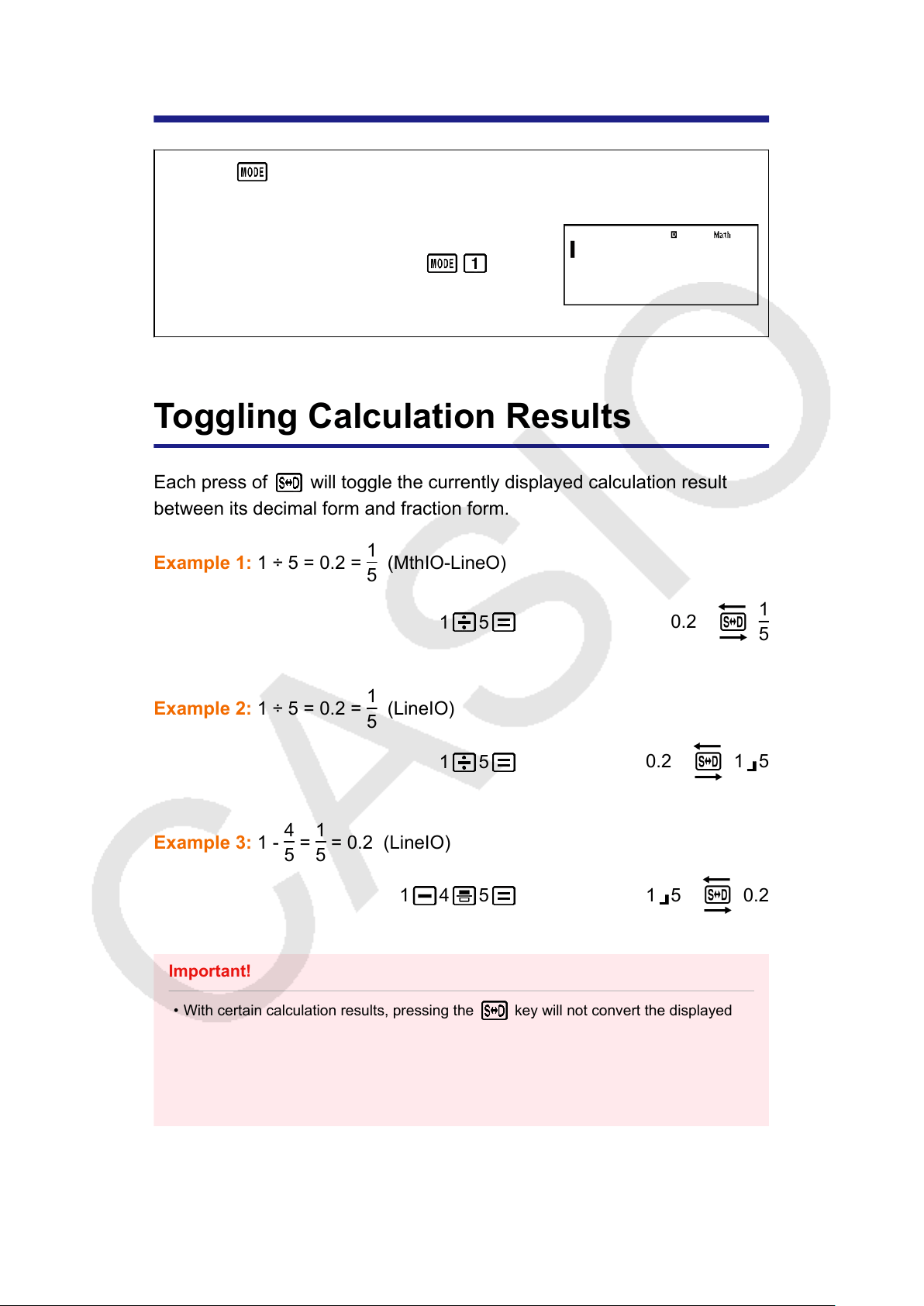
Use the
key to enter the COMP Mode when you want to perform
basic calculations.
(COMP)
Toggling Calculation Results
Each press of
will toggle the currently displayed calculation result
between its decimal form and fraction form.
Example 1: 1 ÷ 5 = 0.2 =
1
5
(MthIO-LineO)
1 5
0.2
1
5
Example 2: 1 ÷ 5 = 0.2 =
1
5
(LineIO)
1 5
0.2 1 5
Example 3: 1 -
4
5
=
1
5
= 0.2 (LineIO)
1 4 5
1 5 0.2
Important!
• With certain calculation results, pressing the key will not convert the displayed
value.
• You cannot switch from decimal form to mixed fraction form if the total number of digits
used in the mixed fraction (including integer, numerator, denominator, and separator
symbols) is greater than 10.
19
Note
• With Natural Display (MathO), pressing instead of after inputting a
calculation will display the calculation result in decimal form.
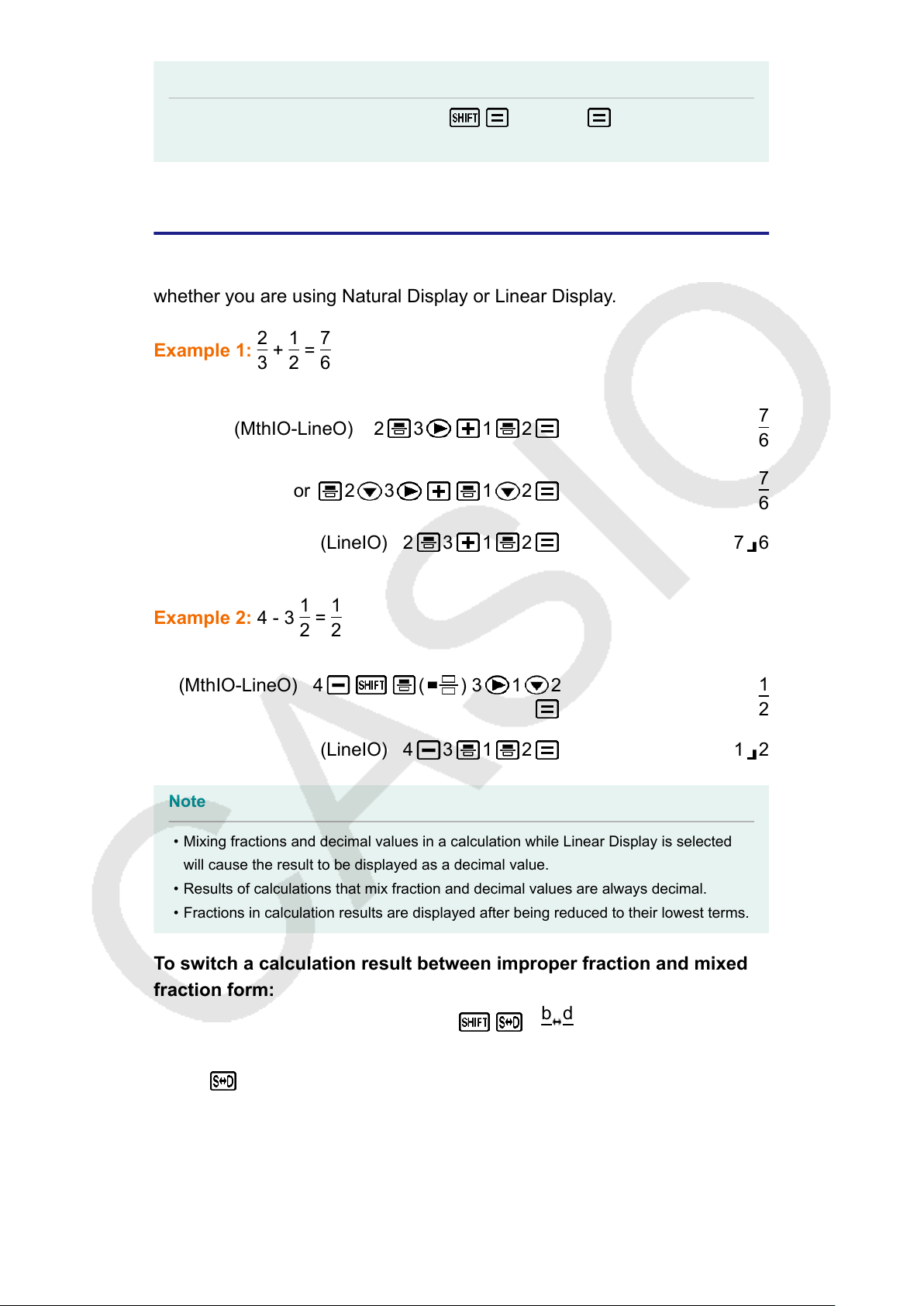
Fraction Calculations
Note that the input method for fractions is different, depending upon
whether you are using Natural Display or Linear Display.
Example 1:
2
3
+
1
2
=
7
6
(MthIO-LineO) 2 3 1 2
7
6
or 2 3 1 2
7
6
(LineIO) 2 3 1 2 7 6
Example 2: 4 - 3
1
2
=
1
2
(MthIO-LineO) 4 ( ) 3 1 2
1
2
(LineIO) 4 3 1 2 1 2
Note
• Mixing fractions and decimal values in a calculation while Linear Display is selected
will cause the result to be displayed as a decimal value.
• Results of calculations that mix fraction and decimal values are always decimal.
• Fractions in calculation results are displayed after being reduced to their lowest terms.
To switch a calculation result between improper fraction and mixed
fraction form:
Perform the following key operation:
(a
b
c
d
c
)
To switch a calculation result between fraction and decimal form:
Press
.
20
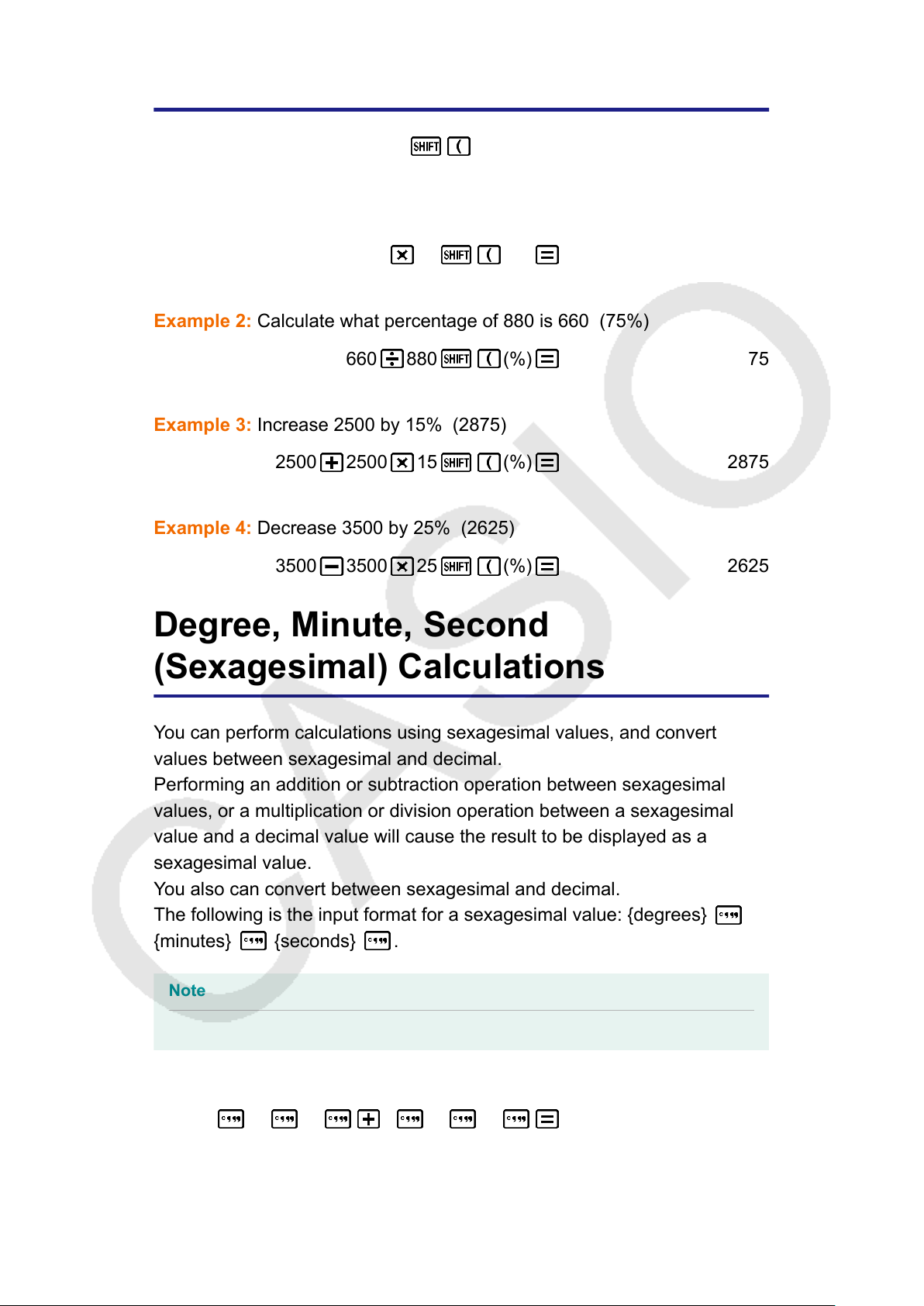
Percent Calculations
Inputting a value and pressing
(%) causes the input value to
become a percent.
Example 1: 150 × 20% = 30
150 20 (%) 30
Example 2: Calculate what percentage of 880 is 660 (75%)
660 880 (%) 75
Example 3: Increase 2500 by 15% (2875)
2500 2500 15 (%) 2875
Example 4: Decrease 3500 by 25% (2625)
3500 3500 25 (%) 2625
Degree, Minute, Second
(Sexagesimal) Calculations
You can perform calculations using sexagesimal values, and convert
values between sexagesimal and decimal.
Performing an addition or subtraction operation between sexagesimal
values, or a multiplication or division operation between a sexagesimal
value and a decimal value will cause the result to be displayed as a
sexagesimal value.
You also can convert between sexagesimal and decimal.
The following is the input format for a sexagesimal value: {degrees}
{minutes} {seconds} .
Note
• You must always input something for the degrees and minutes, even if they are zero.
Example 1: 2°20’30” + 39’30” = 3°00’00”
2 20 30 0 39 30 3°0’0”
Example 2: Convert 2°15’18” to its decimal equivalent.
21
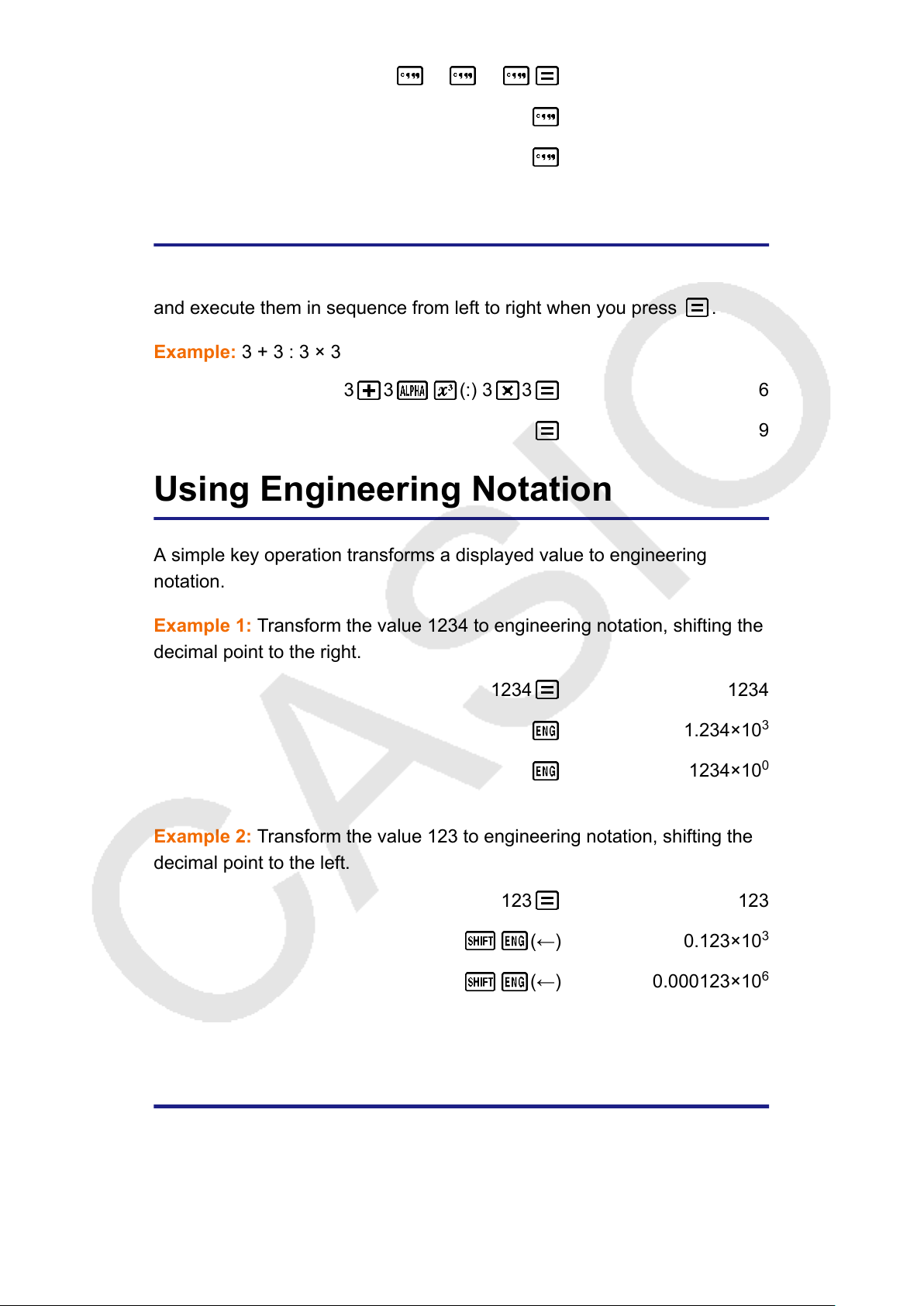
2 15 18 2°15’18”
(Converts sexagesimal to decimal.) 2.255
(Converts decimal to sexagesimal.) 2°15’18”
Multi-Statements
You can use the colon character (:) to connect two or more expressions
and execute them in sequence from left to right when you press
.
Example: 3 + 3 : 3 × 3
3 3 (:) 3 3 6
9
Using Engineering Notation
A simple key operation transforms a displayed value to engineering
notation.
Example 1: Transform the value 1234 to engineering notation, shifting the
decimal point to the right.
1234 1234
1.234×10
3
1234×10
0
Example 2: Transform the value 123 to engineering notation, shifting the
decimal point to the left.
123
123
(←) 0.123×10
3
(←) 0.000123×10
6
Prime Factorization
In the COMP Mode, a positive integer no more than 10 digits long can be
factored to prime factors.
22
1 + 1 = 2
2 + 2 = 4
Example 1: To perform prime factorization on 1014
1014 1014
(FACT)
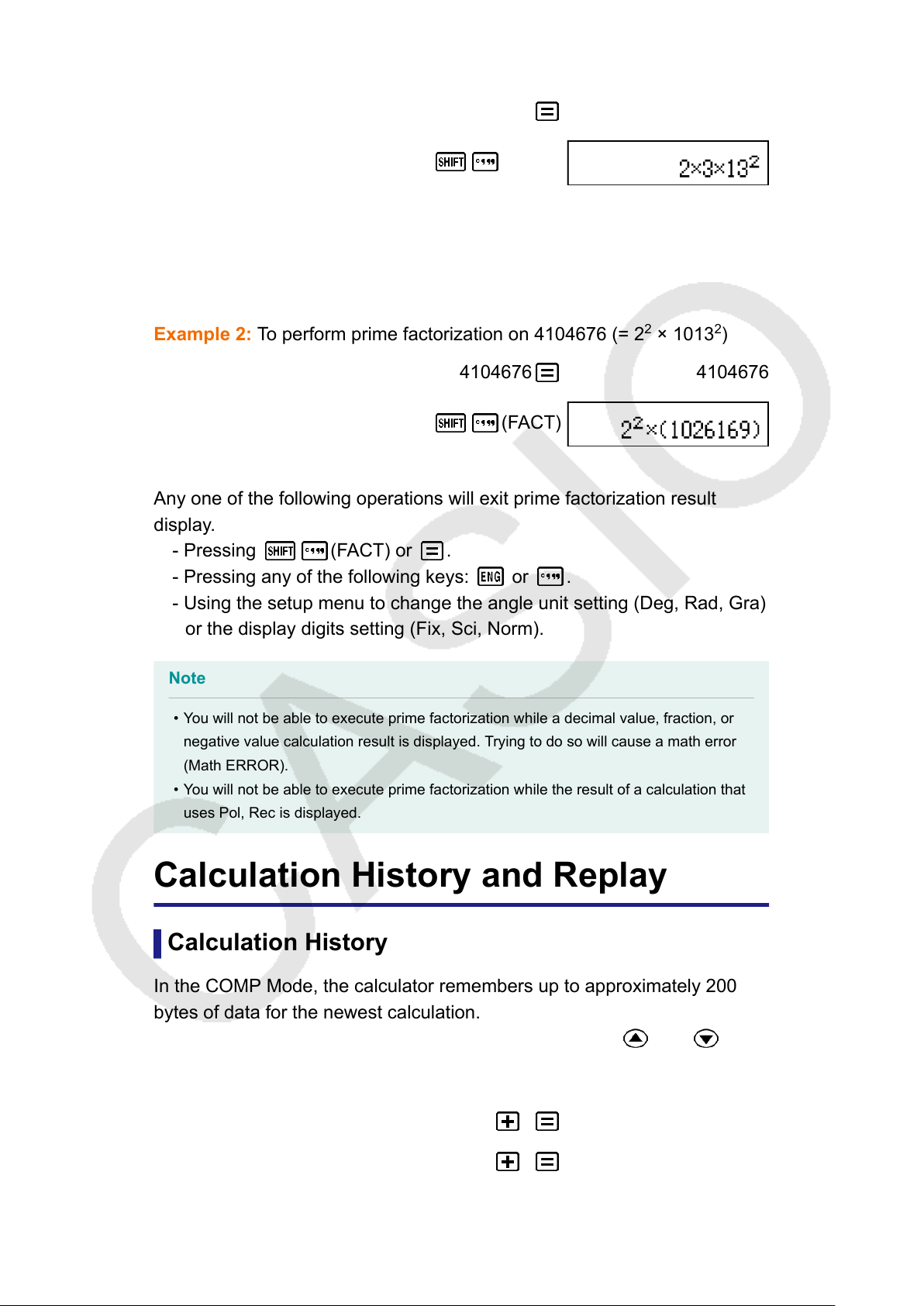
When you perform prime factorization on a value that includes a factor that
is prime number with more than three digits, the part that cannot be
factored will be enclosed in parentheses on the display.
Example 2: To perform prime factorization on 4104676 (= 2
2
× 1013
2
)
4104676 4104676
(FACT)
Any one of the following operations will exit prime factorization result
display.
- Pressing (FACT) or .
- Pressing any of the following keys: or .
- Using the setup menu to change the angle unit setting (Deg, Rad, Gra)
or the display digits setting (Fix, Sci, Norm).
Note
• You will not be able to execute prime factorization while a decimal value, fraction, or
negative value calculation result is displayed. Trying to do so will cause a math error
(Math ERROR).
• You will not be able to execute prime factorization while the result of a calculation that
uses Pol, Rec is displayed.
Calculation History and Replay
Calculation History
In the COMP Mode, the calculator remembers up to approximately 200
bytes of data for the newest calculation.
You can scroll through calculation history contents using
and .
Example:
1 1 2
2 2 4
23
3 + 3 = 6 3 3 6
(Scrolls back.) 4
(Scrolls back again.) 2
Note
• Calculation history data is all cleared whenever you press , when you change to a
different calculation mode, when you change the display format, or whenever you
perform the following operations: (CLR) (Setup) (Yes),
(CLR) (All) (Yes).
Replay
While a calculation result is on the display, you can press
or to
edit the expression you used for the previous calculation.
Example: 4 × 3 + 2 = 14
4 × 3 - 7 = 5
4 3 2 14
(Continuing) 7 5
Using Memory Functions
Answer Memory (Ans)
The last calculation result obtained is stored in Ans(answer) memory.
Ans memory contents are updated whenever a new calculation result is
dispalayed.
Answer Memory contents are updated whenever you execute a calculation
using any one of the following keys:
, , , (M-), ,
(STO).
Answer Memory can hold up to 15 digits.
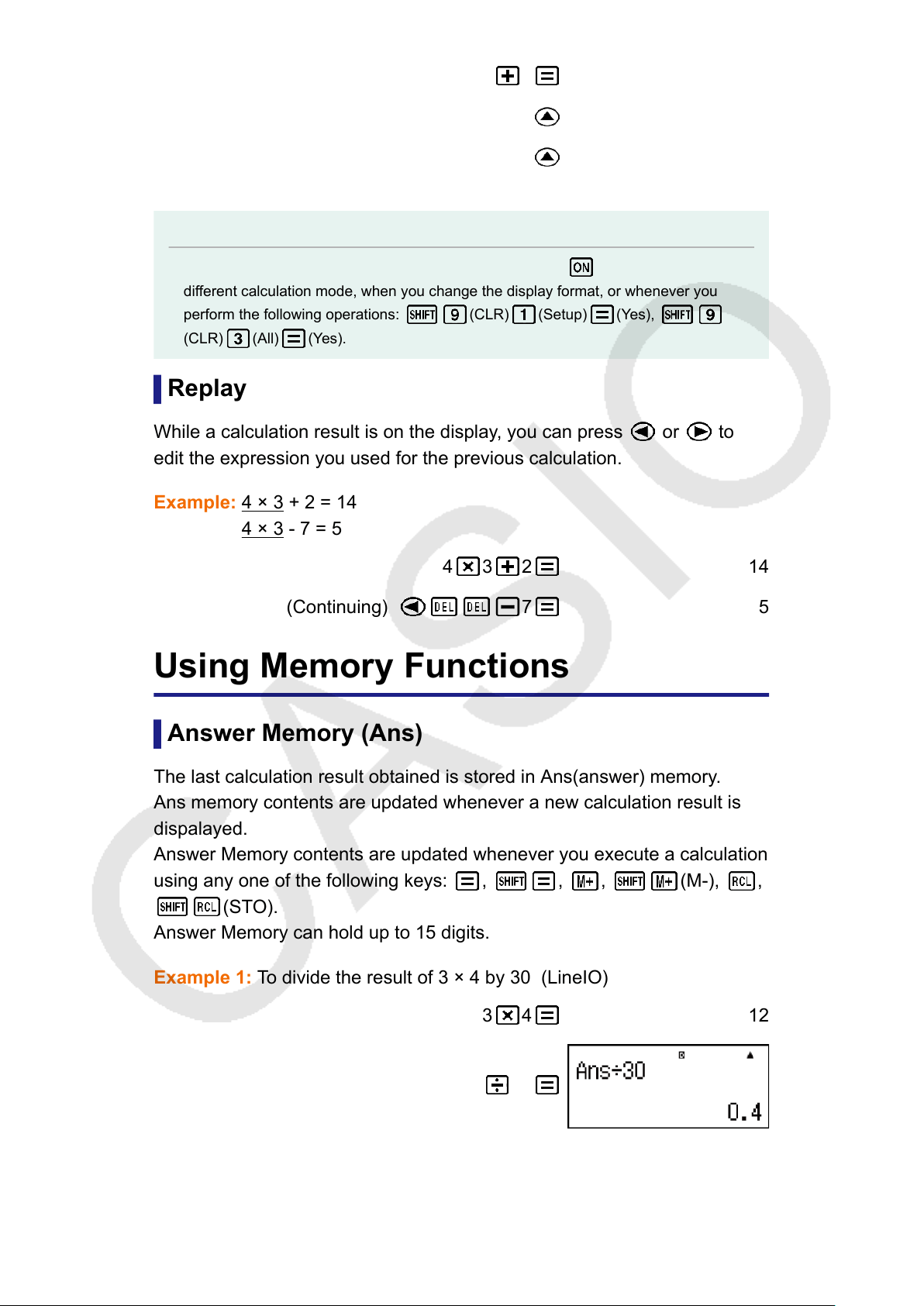
Example 1: To divide the result of 3 × 4 by 30 (LineIO)
3 4 12
(Continuing) 30
Example 2: To perform the calculations shown below:
24

(MthIO-LineO)
123 456 579
(Continuing) 789
Variables (A, B, C, D, E, F, M, X, Y)
Your calculator has nine preset variables named A, B, C, D, E, F, M, X,
and Y.
You can assign values to variables and use the variables in calculations.
Example:
To assign the result of 3 + 5 to variable A
3 5 (STO) (A) 8
To multiply the contents of variable A by 10
(Continuing) (A) 10 80
To recall the contents of variable A
(Continuing) (A) 8
To clear the contents of variable A
0 (STO) (A) 0
Independent Memory (M)
You can add calculation results to or subtract results from independent
memory.
The "M" indicator appears on the display when there is any value other
than zero stored in independent memory.
Example:
To clear the contents of M
0 (STO) (M) 0
To add the result of 10 × 5 to M
(Continuing) 10 5 50
25
To subtract the result of 10 + 5 from M
(Continuing) 10 5 (M-) 15
To recall the contents of M
(Continuing) (M) 35
Note
• Variable M is used for independent memory.
Clearing the Contents of All Memories
Ans memory, independent memory, and variable contents are retained
even if you press
, change the calculation mode, or turn off the
calculator.
Perform the following procedure when you want to clear the contents of all
memories.
(CLR) (Memory) (Yes)
26
Function Calculations
Use the
key to enter the COMP Mode when you want to perform
function calculations.
(COMP)
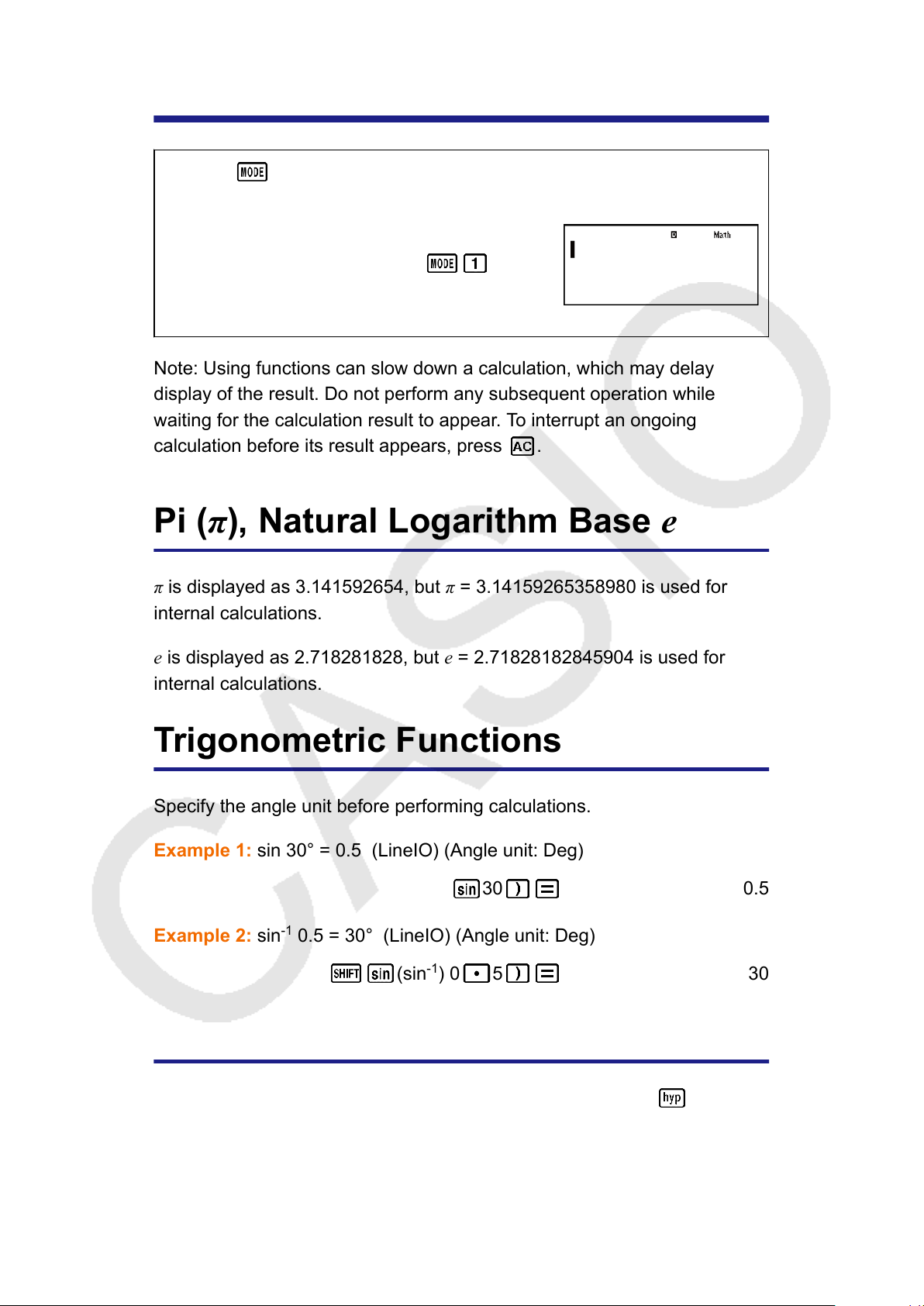
Note: Using functions can slow down a calculation, which may delay
display of the result. Do not perform any subsequent operation while
waiting for the calculation result to appear. To interrupt an ongoing
calculation before its result appears, press .
Pi (π), Natural Logarithm Base e
π is displayed as 3.141592654, but π = 3.14159265358980 is used for
internal calculations.
e is displayed as 2.718281828, but e = 2.71828182845904 is used for
internal calculations.
Trigonometric Functions
Specify the angle unit before performing calculations.
Example 1: sin 30° = 0.5 (LineIO) (Angle unit: Deg)
30 0.5
Example 2: sin
-1
0.5 = 30° (LineIO) (Angle unit: Deg)
(sin
-1
) 0 5 30
Hyperbolic Functions
Input a function from the menu that appears when you press
.
The angle unit setting does not affect calculations.
Example 1: sinh 1 = 1.175201194
27
(sinh) 1 1.175201194
Example 2: cosh
-1
1 = 0
(cosh
-1
) 1 0
Angle Unit Conversion
°,
r
,
g
: These functions specify the angle unit. ° specifies degrees,
r
radians, and
g
grads.
Input a function from the menu that appears when you perform the
following key operation: (DRG ).
Example: π/2 radians = 90°, 50 grads = 45° (Angle unit: Deg)
(π) 2 (DRG ) (
r
)
90
50 (DRG ) (
g
) 45
Exponential Functions
Note that the input method is different depending upon whether you are
using Natural Display or Linear Display.
Example: To calculate e
5
× 2 to three significant digits (Sci 3)
(SETUP) (Sci)
(MthIO-LineO) ( ) 5 2 2.97×10
2
(LineIO) ( ) 5 2 2.97×10
2
Logarithmic Functions
Example 1: log
10
1000 = log 1000 = 3
1000 3
Example 2: To calculate ln 90 (= log
e
90) to three significant digits (Sci 3)
(SETUP) (Sci)
90
4.50×10
0
28
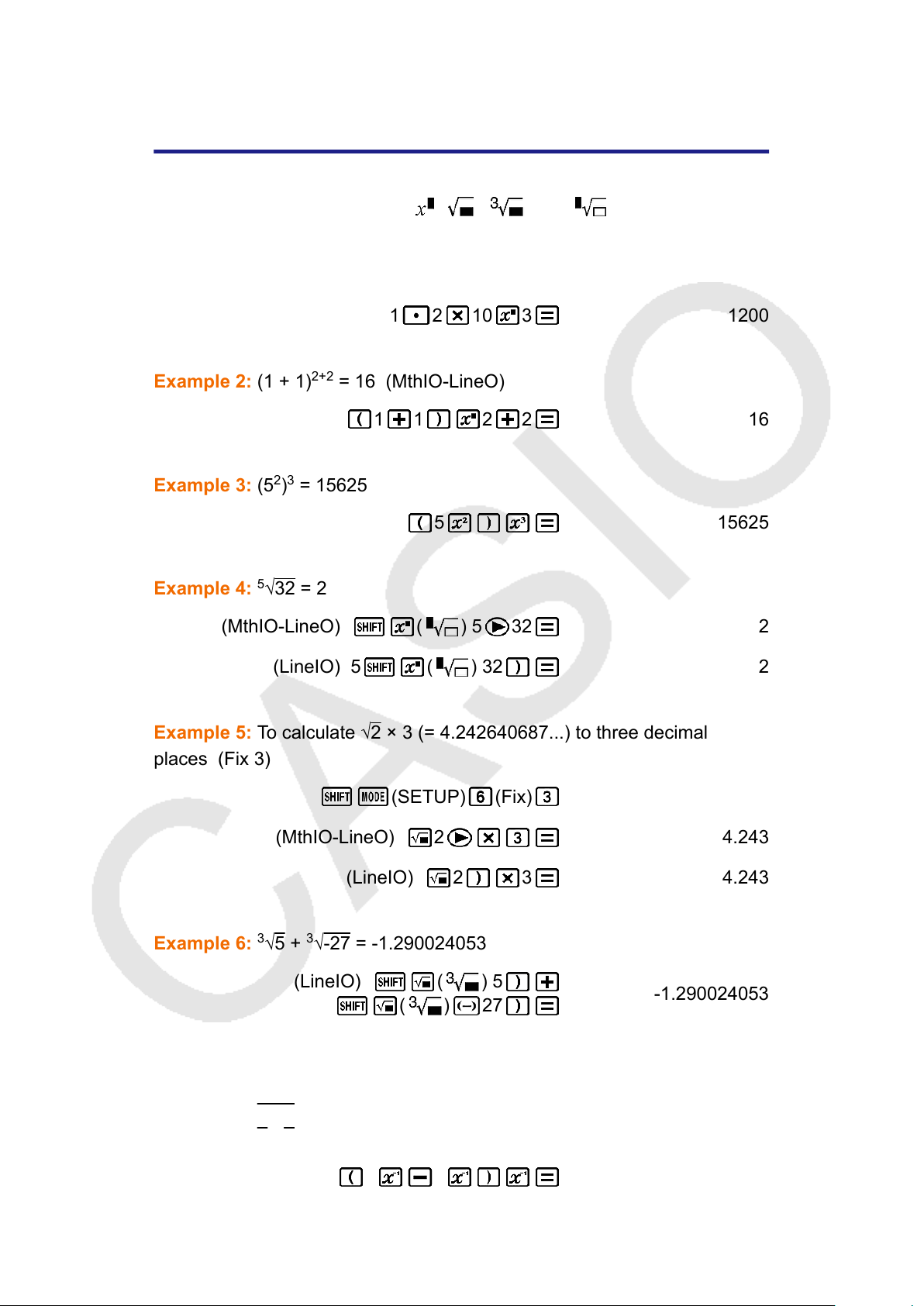
Power Functions and Power Root
Functions
Note that the input methods for
, , , and are different
depending upon whether you are using Natural Display or Linear Display.
Example 1: 1.2 × 10
3
= 1200 (MthIO-LineO)
1 2 10 3 1200
Example 2: (1 + 1)
2+2
= 16 (MthIO-LineO)
1 1 2 2 16
Example 3: (5
2
)
3
= 15625
5 15625
Example 4:
5
√32 = 2
(MthIO-LineO) ( ) 5 32 2
(LineIO) 5 ( ) 32 2
Example 5: To calculate √2 × 3 (= 4.242640687...) to three decimal
places (Fix 3)
(SETUP) (Fix)
(MthIO-LineO) 2 4.243
(LineIO) 2 3 4.243
Example 6:
3
√5 +
3
√-27 = -1.290024053
(LineIO) ( ) 5
( ) 27
-1.290024053
Example 7:
1
1
3
-
1
4
= 12
(LineIO) 3 4 12
29

Note
• The following functions cannot be input in consecutive sequence: x
2
, x
3
, , x
-1
. If you
input 2
, for example, the final will be ignored. To input 2
2
2
, input 2 ,
press the key, and then press (MthIO-LineO).
Rectangular-Polar Coordinate
Conversion
Pol converts rectangular coordinates to polar coordinates, while Rec
converts polar coordinates to rectangular coordinates.
(1) Rectangular Coordinates (Rec)
(2) Polar Coordinates (Pol)
Specify the angle unit before performing calculations.
The calculation result for r and θ and for x and y are each assigned
respectively to variables X and Y.
Calculation result θ is displayed in the range of -180° < θ ≦ 180°.
Example 1: To convert rectangular coordinates (√
2, √2) to polar
coordinates (Angle unit: Deg)
(MthIO-LineO)
(Pol) 2 (,) 2
r = 2, θ = 45
(LineIO)
(Pol) 2 (,) 2
r = 2
θ = 45
Example 2: To convert polar coordinates (√2, 45°) to rectangular
coordinates (Angle unit: Deg)
30
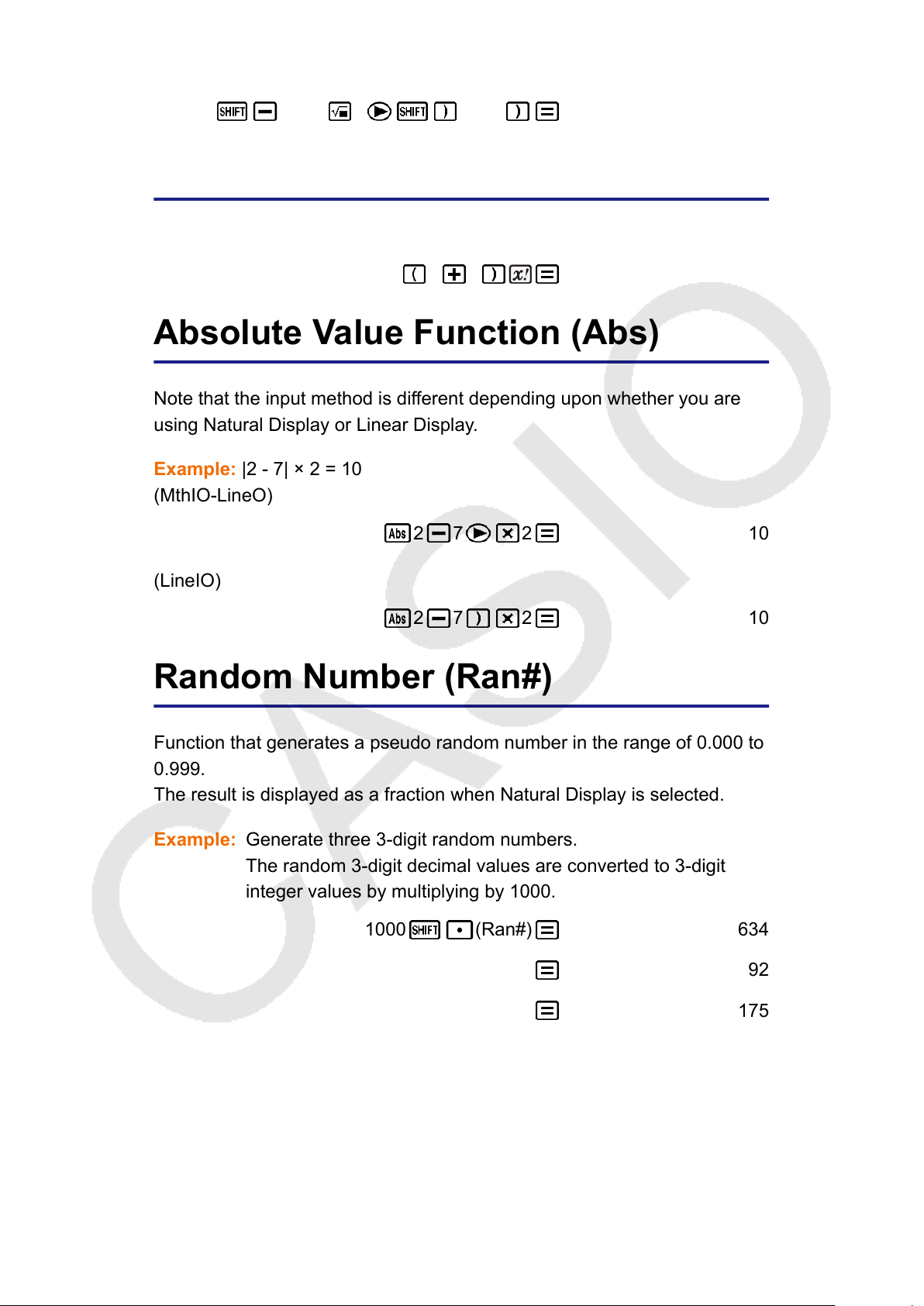
Example:
(MthIO-LineO)
(Rec) 2 (,) 45 X = 1, Y = 1
Factorial Function (!)
Example: (5 + 3)! = 40320
5 3 40320
Absolute Value Function (Abs)
Note that the input method is different depending upon whether you are
using Natural Display or Linear Display.
Example: |2 - 7| × 2 = 10
(MthIO-LineO)
2 7 2 10
(LineIO)
2 7 2 10
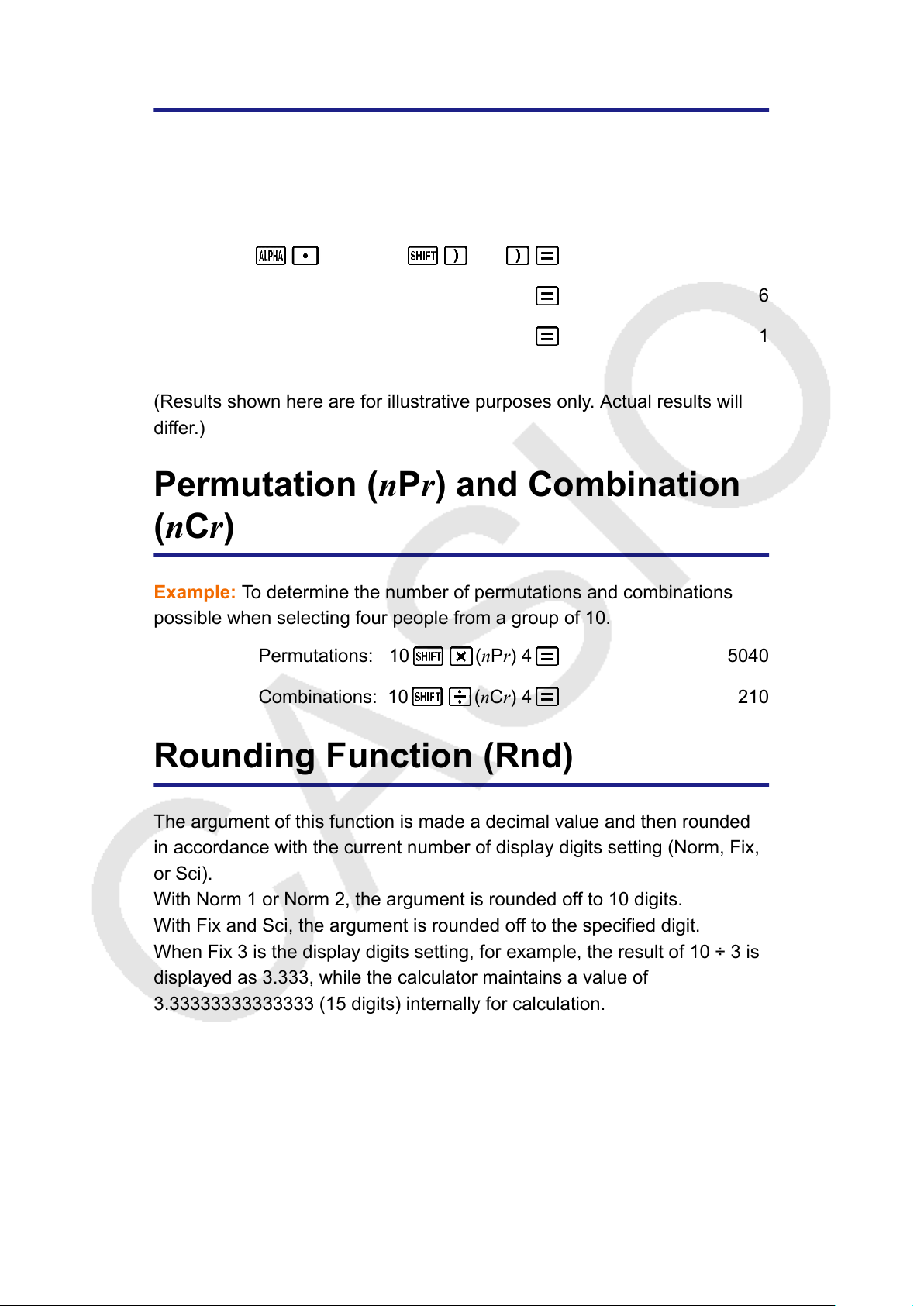
Random Number (Ran#)
Function that generates a pseudo random number in the range of 0.000 to
0.999.
The result is displayed as a fraction when Natural Display is selected.
Generate three 3-digit random numbers.
The random 3-digit decimal values are converted to 3-digit
integer values by multiplying by 1000.
1000
(Ran#) 634
92
175
(Results shown here are for illustrative purposes only. Actual results will
differ.)
31
Example:
Random Integer (RanInt#)
For input of the function of the form RanInt#(a, b), which generates a
random integer within the range of a to b.
To generate random integers in the range of 1 to 6
(RanInt) 1 (,) 6 2
6
1
(Results shown here are for illustrative purposes only. Actual results will
differ.)
Permutation (nPr) and Combination
(nCr)
Example: To determine the number of permutations and combinations
possible when selecting four people from a group of 10.
Permutations: 10 (nPr) 4
5040
Combinations: 10 (nCr) 4
210
Rounding Function (Rnd)
The argument of this function is made a decimal value and then rounded
in accordance with the current number of display digits setting (Norm, Fix,
or Sci).
With Norm 1 or Norm 2, the argument is rounded off to 10 digits.
With Fix and Sci, the argument is rounded off to the specified digit.
When Fix 3 is the display digits setting, for example, the result of 10 ÷ 3 is
displayed as 3.333, while the calculator maintains a value of
3.33333333333333 (15 digits) internally for calculation.
In the case of Rnd(10÷3) = 3.333 (with Fix 3), both the displayed value
and the calculator’s internal value become 3.333.
Because of this a series of calculations will produce different results
depending on whether Rnd is used (Rnd(10÷3) × 3 = 9.999) or not used
(10 ÷ 3 × 3 = 10.000).
32
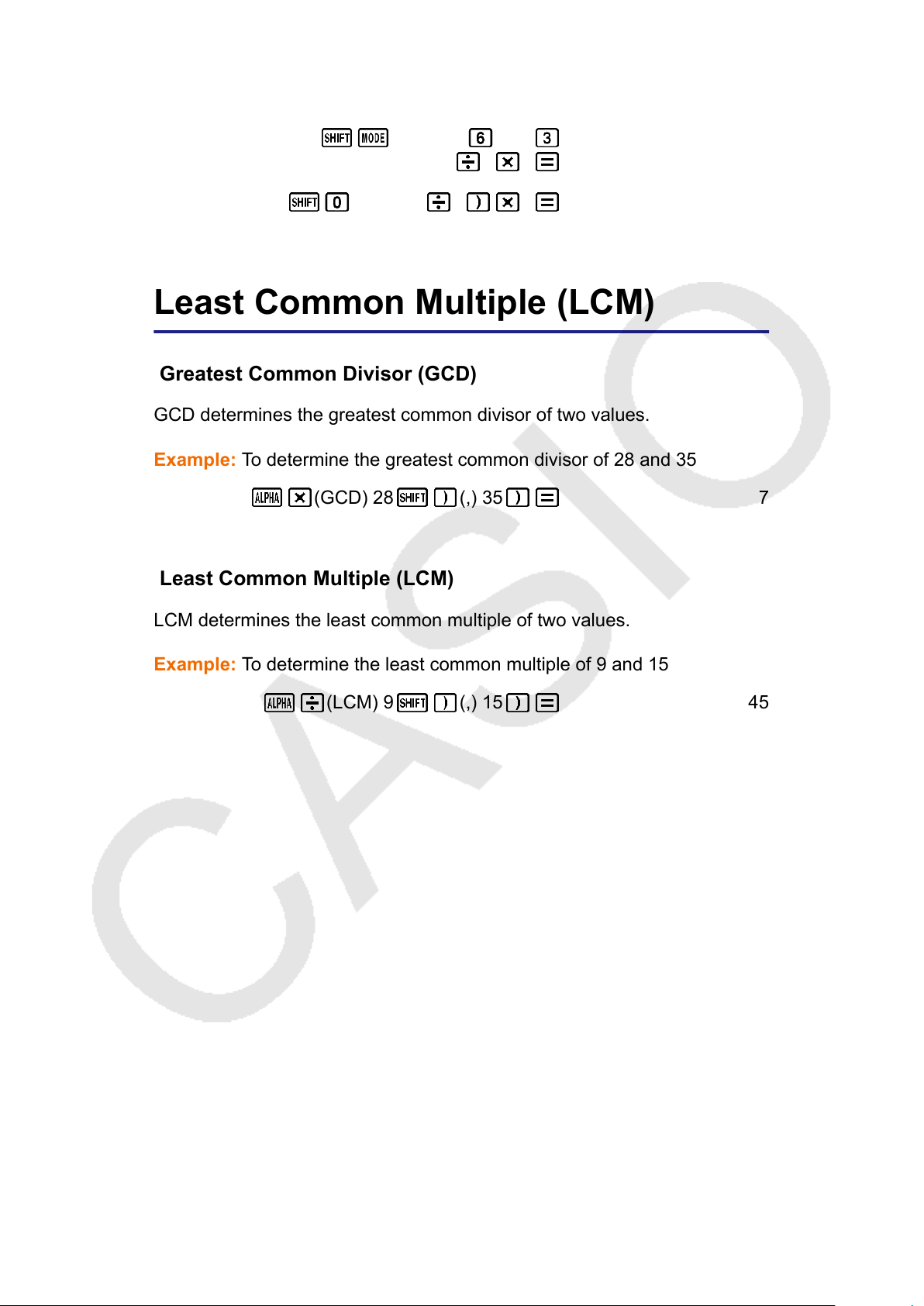
Example: To perform the following calculations when Fix 3 is selected for
the number of display digits: 10 ÷ 3 × 3 and Rnd(10 ÷ 3) × 3 (LineIO)
(SETUP) (Fix)
10 3 3 10.000
(Rnd) 10 3 3 9.999
Greatest Common Divisor (GCD) and
Least Common Multiple (LCM)
Greatest Common Divisor (GCD)
GCD determines the greatest common divisor of two values.
Example: To determine the greatest common divisor of 28 and 35
(GCD) 28 (,) 35 7
Least Common Multiple (LCM)
LCM determines the least common multiple of two values.
Example: To determine the least common multiple of 9 and 15
(LCM) 9 (,) 15 45
33
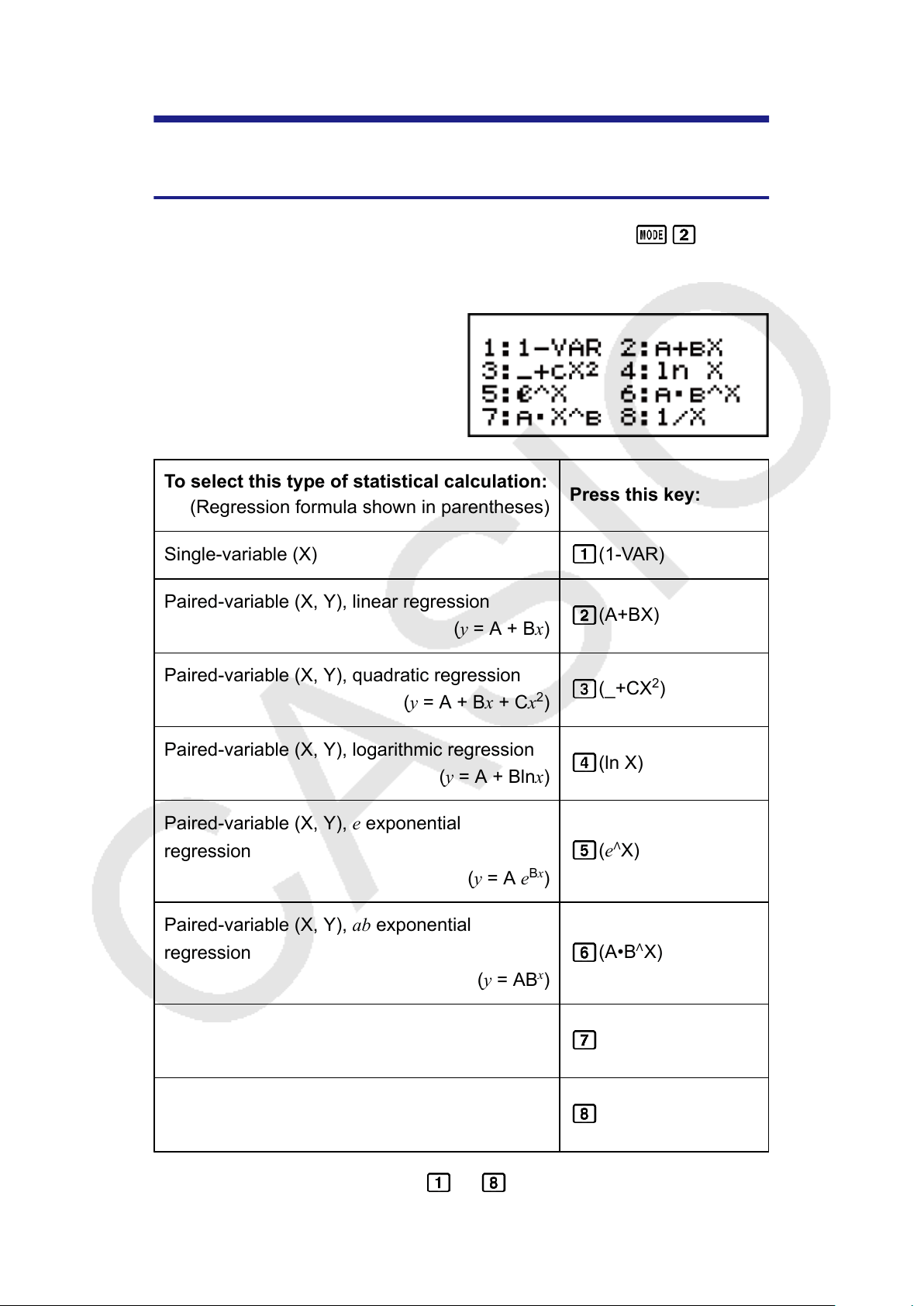
Using Calculation Modes
Statistical Calculations (STAT)
To start a statistical calculation, perform the key operation
(STAT)
to enter the STAT Mode and then use the screen that appears to select the
type of calculation you want to perform.
To select this type of statistical calculation:
(Regression formula shown in parentheses)
Press this key:
Single-variable (X) (1-VAR)
Paired-variable (X, Y), linear regression
(y = A + Bx)
(A+BX)
Paired-variable (X, Y), quadratic regression
(y = A + Bx + Cx
2
)
(_+CX
2
)
Paired-variable (X, Y), logarithmic regression
(y = A + Blnx)
(ln X)
Paired-variable (X, Y), e exponential
regression
(y = A e
Bx
)
(e
∧
X)
Paired-variable (X, Y), ab exponential
regression
(y = AB
x
)
(A•B
∧
X)
Paired-variable (X, Y), power regression
(y = Ax
B
)
(A•X
∧
B)
Paired-variable (X, Y), inverse regression
(y = A + B/x)
(1/X)
Pressing any of the above keys ( to ) displays the Statistics Editor.
34

Note
• When you want to change the calculation type after entering the STAT Mode, perform
the key operation (STAT) (Type) to display the calculation type selection
screen.
Inputting Data
Use the Statistics Editor to input data. Perform the following key operation
to display the Statistics Editor:
(STAT) (Data).
The Statistics Editor provides 40 rows for data input when there is an X
column only or when there are X and Y columns, 20 rows when there are
X and FREQ columns, or 26 rows when there are X, Y, and FREQ
columns.
Note
• Use the FREQ (frequency) column to input the quantity (frequency) of identical data
items. Display of the FREQ column can be turned on (displayed) or off (not displayed)
using the Stat Format setting on the setup menu.
Example 1: To select linear regression and input the following data:
(170, 66), (173, 68), (179, 75)
(STAT) (A+BX)
170 173 179
66 68 75
Important!
• All data currently input in the Statistics Editor is deleted whenever you exit the STAT
Mode, switch between the single-variable and a paired-variable statistical calculation
type, or change the Stat Format setting on the setup menu.
• The following operations are not supported by the Statistics Editor: ,
(M-), (STO). Pol, Rec, and multi-statements also cannot be input with the
Statistics Editor.
35
To change the data in a cell:
In the Statistics Editor, move the cursor to the cell that contains the data
you want to change, input the new data, and then press
.
To delete a line:
In the Statistics Editor, move the cursor to the line that you want to delete
and then press
.
To insert a line:
In the Statistics Editor, move the cursor to the location where you want to
insert the line and then perform the following key operation:
(STAT) (Edit) (Ins).
To delete all Statistics Editor contents:
In the Statistics Editor, perform the following key operation:
(STAT) (Edit) (Del-A).
Statistics Calculation Screen
The Statistics Calculation Screen is for performing statistical calculations
with the data you input with the Statistics Editor. Pressing the
key
while the Statistics Editor is displayed switches to the Statistics Calculation
Screen.
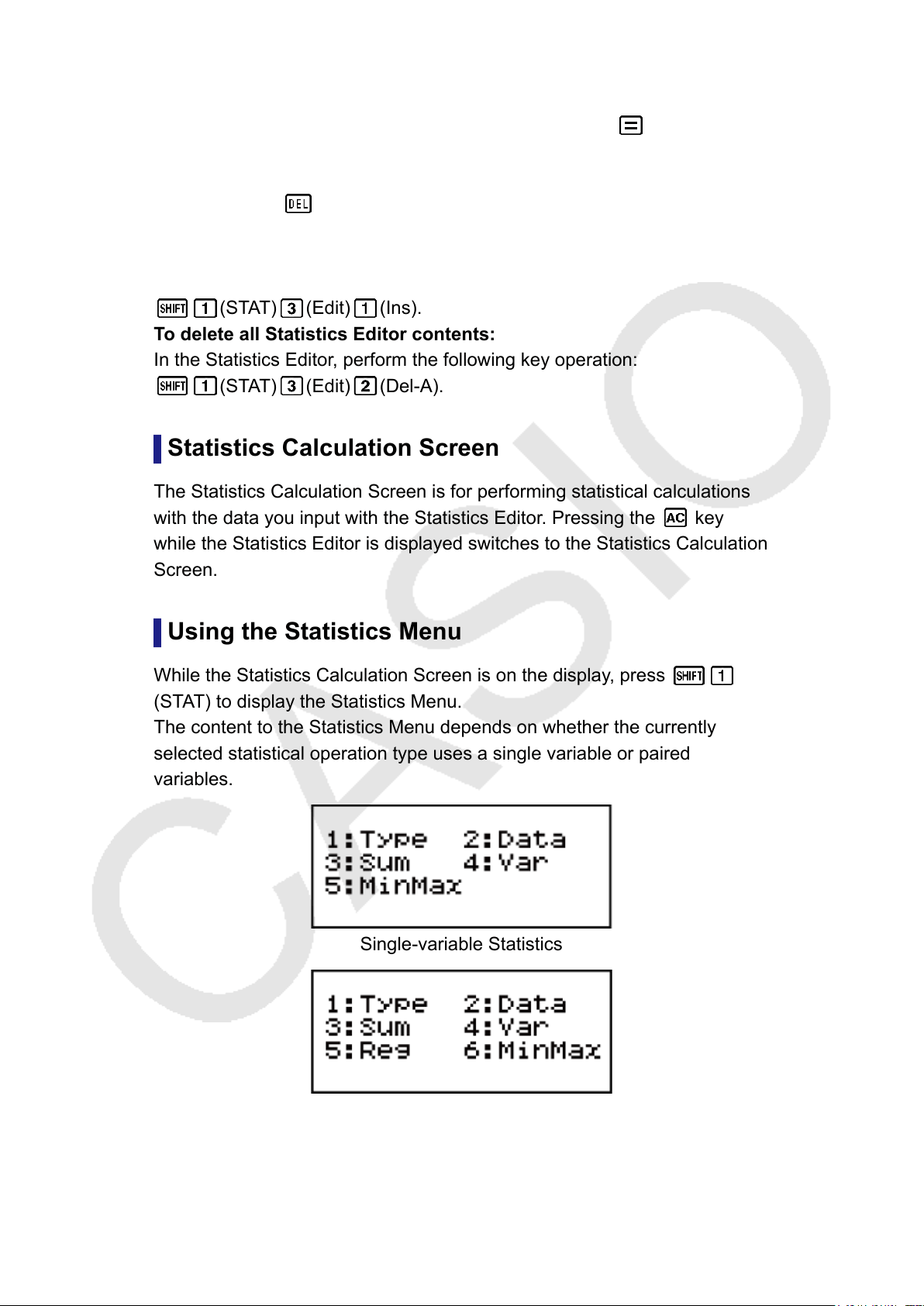
Using the Statistics Menu
While the Statistics Calculation Screen is on the display, press
(STAT) to display the Statistics Menu.
The content to the Statistics Menu depends on whether the currently
selected statistical operation type uses a single variable or paired
variables.
Single-variable Statistics
Paired-variables Statistics
36
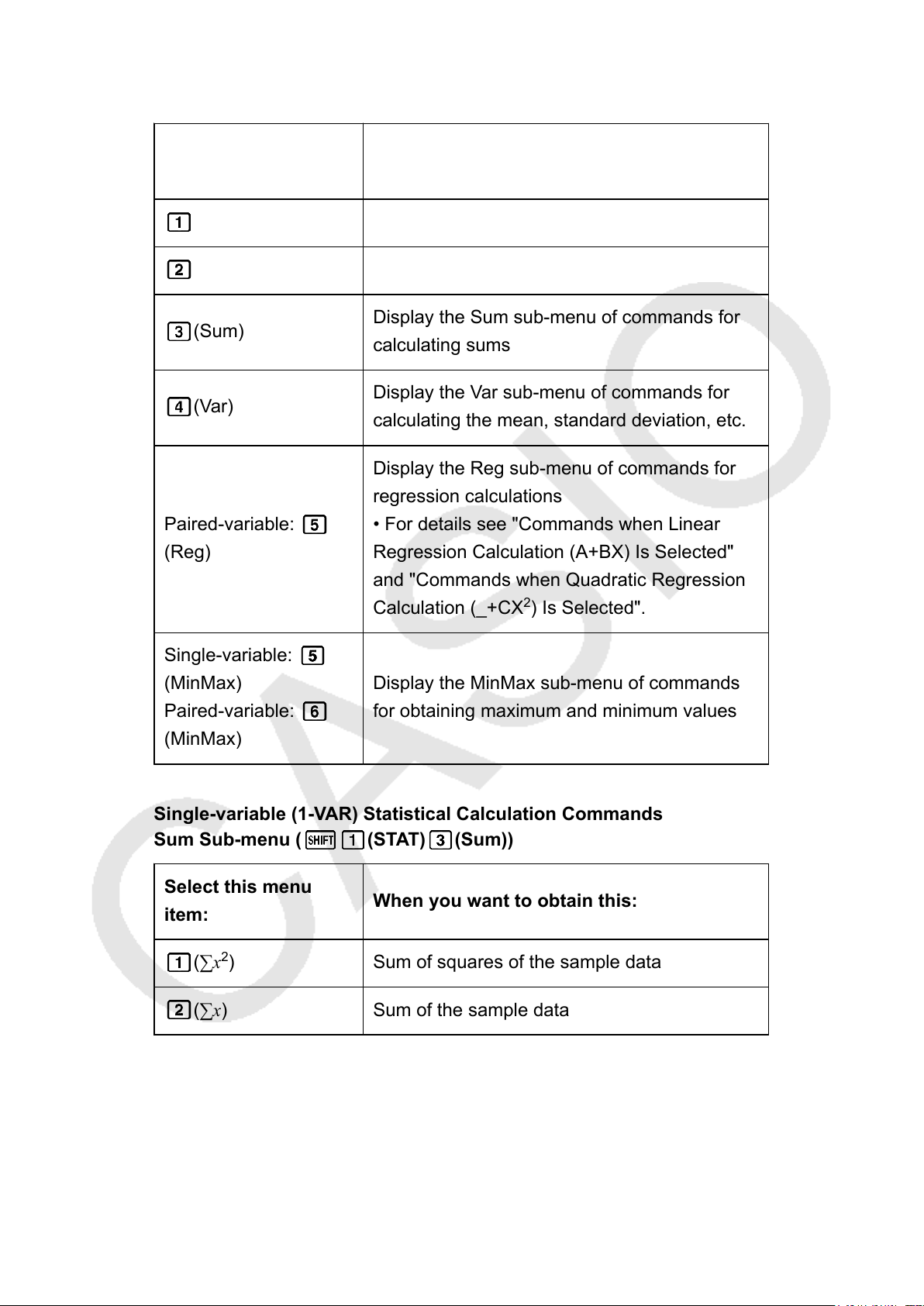
Statistics Menu Items
Common Items
Select this menu
item:
When you want to obtain this:
(Type) Display the calculation type selection screen
(Data) Display the Statistics Editor
(Sum)
Display the Sum sub-menu of commands for
calculating sums
(Var)
Display the Var sub-menu of commands for
calculating the mean, standard deviation, etc.
Paired-variable:
(Reg)
Display the Reg sub-menu of commands for
regression calculations
• For details see "Commands when Linear
Regression Calculation (A+BX) Is Selected"
and "Commands when Quadratic Regression
Calculation (_+CX
2
) Is Selected".
Single-variable:
(MinMax)
Paired-variable:
(MinMax)
Display the MinMax sub-menu of commands
for obtaining maximum and minimum values
Single-variable (1-VAR) Statistical Calculation Commands
Sum Sub-menu ( (STAT) (Sum))
Select this menu
item:
When you want to obtain this:
(∑x
2
)
Sum of squares of the sample data
(∑x)
Sum of the sample data
37

Var Sub-menu ( (STAT) (Var))
Select this menu
item:
When you want to obtain this:
(n)
Number of samples
(x) Mean of the sample data
(σ
x
) Population standard deviation
(s
x
) Sample standard deviation
MinMax Sub-menu ( (STAT) (MinMax))
Select this menu
item:
When you want to obtain this:
(minX) Minimum value
(maxX) Maximum value
(Q1) First quartile
(med) Median
(Q3) Third quartile
Commands when Linear Regression Calculation (A+BX) Is Selected
Sum Sub-menu ( (STAT) (Sum))
Select this menu
item:
When you want to obtain this:
(∑x
2
)
Sum of squares of the X-data
(∑x)
Sum of the X-data
(∑y
2
)
Sum of squares of the Y-data
(∑y)
Sum of the Y-data
(∑xy)
Sum of products of the X-data and Y-data
(∑x
3
)
Sum of cubes of the X-data
38

(∑x
2
y)
Sum of (X-data squares × Y-data)
(∑x
4
)
Sum of biquadrate of the X-data
Var Sub-menu ( (STAT) (Var))
Select this menu
item:
When you want to obtain this:
(n)
Number of samples
(x) Mean of the X-data
(σ
x
) Population standard deviation of the X-data
(s
x
) Sample standard deviation of the X-data
(y) Mean of the Y-data
(σ
y
) Population standard deviation of the Y-data
(s
y
) Sample standard deviation of the Y-data
Reg Sub-menu ( (STAT) (Reg))
Select this menu
item:
When you want to obtain this:
(A) Regression coefficient constant term A
(B) Regression coefficient B
(r) Correlation coefficient r
(xˆ)
Estimated value of X
(yˆ)
Estimated value of Y
MinMax Sub-menu ( (STAT) (MinMax))
Select this menu
item:
When you want to obtain this:
(minX) Minimum value of the X-data
39

(maxX) Maximum value of the X-data
(minY) Minimum value of the Y-data
(maxY) Maximum value of the Y-data
Commands when Quadratic Regression Calculation (_+CX
2
) Is
Selected
Reg Sub-menu ( (STAT) (Reg))
Select this menu
item:
When you want to obtain this:
(A) Regression coefficient constant term A
(B)
Linear coefficient B of the regression
coefficients
(C)
Quadratic coefficient C of the regression
coefficients
(xˆ
1
) Estimated value of x
1
(xˆ
2
) Estimated value of x
2
(yˆ) Estimated value of y
Note
•
x
ˆ
, x
ˆ
1
, x
ˆ
2
and y
ˆ
are not variables. They are commands of the type that take an
argument immediately before them. See "Calculating Estimated Values" for more
information.
Example 2: To input the single-variable data x = {1, 2, 2, 3, 3, 3, 4, 4,
5}, using the FREQ column to specify the number of repeats for each
items ({x
n
; freq
n
} = {1;1, 2;2, 3;3, 4;2, 5;1}), and calculate the mean and
population standard deviation.
(SETUP) (STAT) (ON)
(STAT) (1-VAR)
1 2 3 4 5
1 2 3 2
(STAT) (Var) (x) 3
40

Results:
Results:
(STAT) (Var) (σ
x
)
1.154700538
Mean: 3, Population Standard Deviation: 1.154700538
Example 3: To calculate the linear regression and logarithmic regression
correlation coefficients for the following paired-variable data and determine
the regression formula for the strongest correlation: (x, y) = (20, 3150),
(110, 7310), (200, 8800), (290, 9310). Specify Fix 3 (three decimal places)
for results.
(SETUP) (STAT) (OFF)
(SETUP) (Fix)
(STAT) (A+BX)
20 110 200 290
3150 7310 8800 9310
(STAT) (Reg) (r)
0.923
(STAT) (Type) (ln X)
(STAT) (Reg) (r)
0.998
(STAT) (Reg) (A) -3857.984
(STAT) (Reg) (B) 2357.532
Linear Regression Correlation Coefficient: 0.923
Logarithmic Regression Correlation Coefficient: 0.998
Logarithmic Regression Formula: y = -3857.984 + 2357.532lnx
Calculating Estimated Values
Based on the regression formula obtained by paired-variable statistical
calculation, the estimated value of y can be calculated for a given x-value.
The corresponding x-value (two values, x
1
and x
2
, in the case of quadratic
regression) also can be calculated for a value of y in the regression
formula.
Example 4: To determine the estimate value for x when y = -130 in the
regression formula produced by logarithmic regression of the data in
Example 3. Specify Fix 3 for the result. (Perform the following operation
after completing the operations in Example 3.)
130 (STAT) (Reg) (xˆ)
4.861
Important!
• Regression coefficient, correlation coefficient, and estimated value calculations can
take considerable time when there are a large number of data items.
41
Using VERIFY (VERIF)
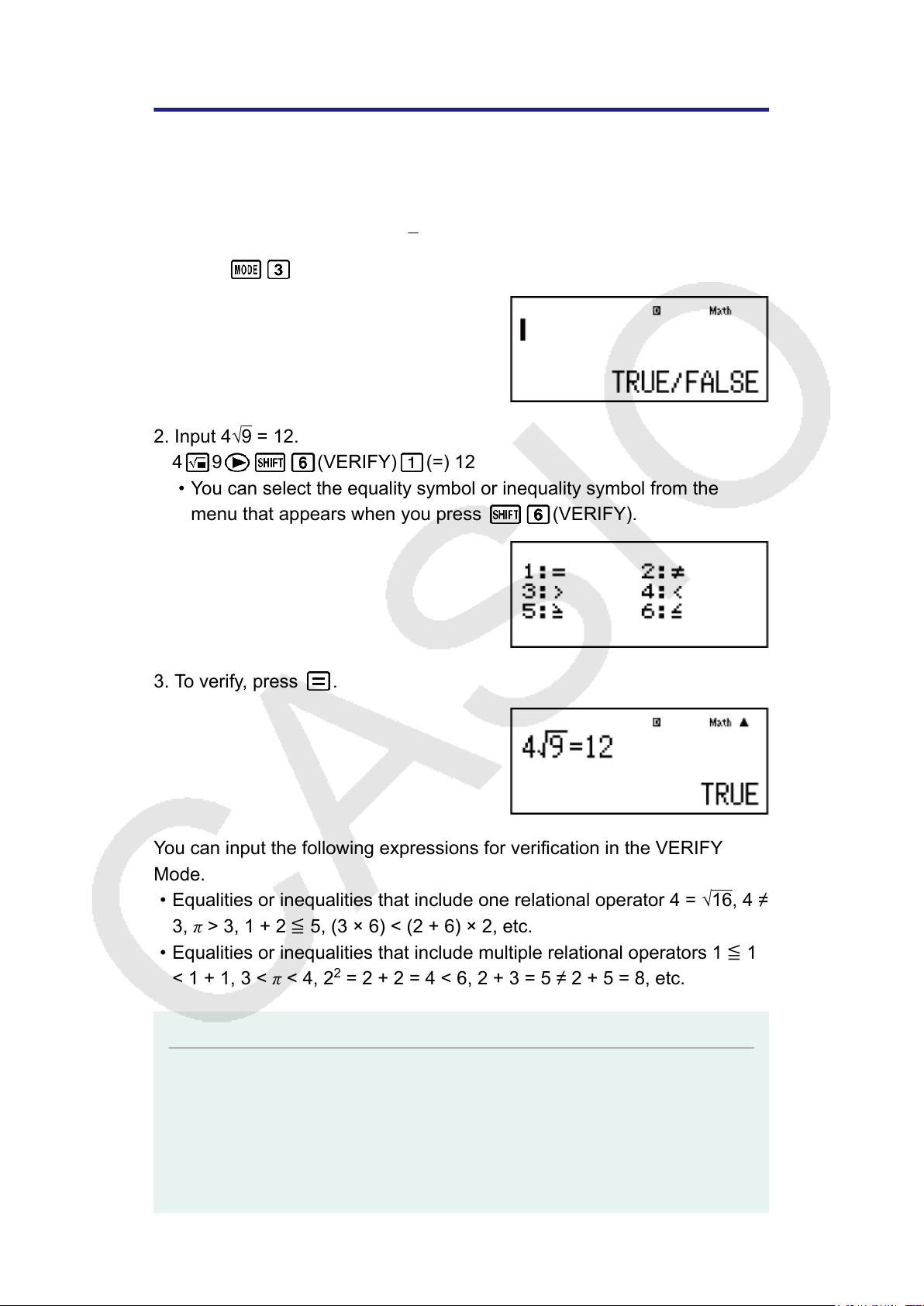
VERIFY is a function you can use to verify whether an input equality or
inequality is true (indicated by TRUE) or false (indicated by FALSE). The
following shows the general procedure for using VERIFY.
Example: To verify whether 4√
9 = 12 is true (MthIO-LineO)
1. Press (VERIF) to enter the VERIFY Mode.
2. Input 4√9 = 12.
4 9 (VERIFY) (=) 12
• You can select the equality symbol or inequality symbol from the
menu that appears when you press (VERIFY).
3. To verify, press .
You can input the following expressions for verification in the VERIFY
Mode.
• Equalities or inequalities that include one relational operator 4 = √16, 4 ≠
3, π > 3, 1 + 2 ≦ 5, (3 × 6) < (2 + 6) × 2, etc.
•
Equalities or inequalities that include multiple relational operators 1 ≦ 1
< 1 + 1, 3 < π < 4, 2
2
= 2 + 2 = 4 < 6, 2 + 3 = 5 ≠ 2 + 5 = 8, etc.
Note
• The verification result will cause 1 to be assigned to Ans memory when TRUE and 0
when FALSE.
• The input expression can be a total of 99 bytes, including the left side, right side, and
relational operators.
• Any variable (A, B, C, D, E, F, X, Y, M) input into an expression is treated as a value,
using the value currently assigned to the variable.
42
• Pol and Rec functions cannot be used in an expression.
• In the VERIFY Mode, the calculator performs a mathematical operation on the input
expression and then displays TRUE or FALSE based on the result. Because of this,
calculation error can occur or a mathematically correct result may not be able to be
displayed when the input calculation expression includes calculation that approaches
the singular point or inflection point of a function, or when the input expression
contains multiple calculation operations.
Expression Input Precautions
The following types of expressions cause a Syntax ERROR and cannot be
verified.
• An expression with nothing on the left side or right side (Example: =
5√7)
• An expression in which a relational operator is inside of a fraction or
function (Example:
1=1
2
, cos (8 ≦ 9))
• An expression in which a relational operator is enclosed in parentheses
(Example: 8 < (9 < 10))
• An expression in which multiple relational operators that are not oriented
in the same direction (Example: 5 ≦ 6 ≧ 4)
• An expression that contains two of the following operators in any
combination (Example: 4 < 6 ≠ 8)
•
An expression that contains consecutive relational operators (Example:
5 ≧ > 9)
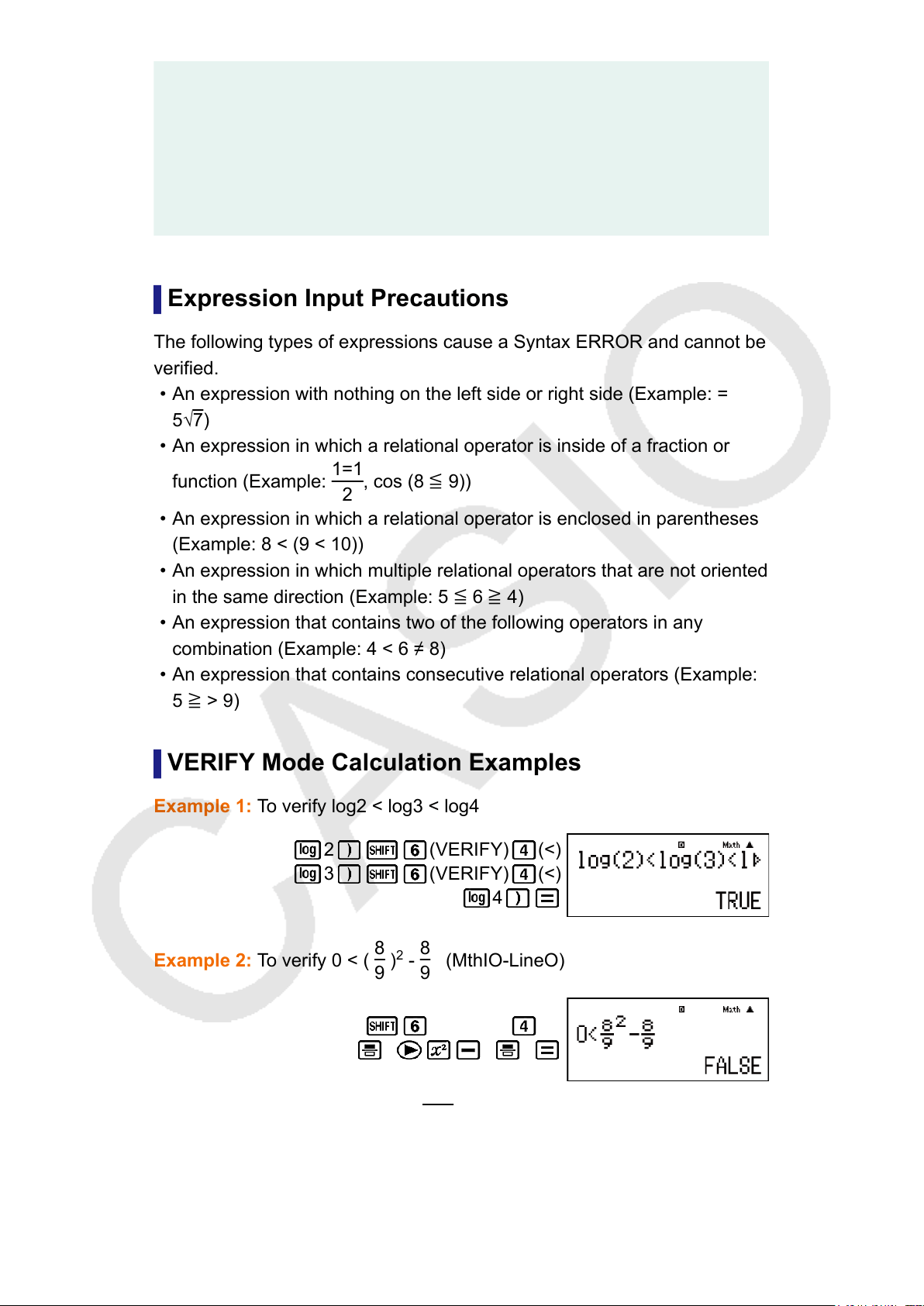
VERIFY Mode Calculation Examples
Example 1: To verify log2 < log3 < log4
2 (VERIFY) (<)
3 (VERIFY) (<)
4
Example 2: To verify 0 < (
8
9
)
2
-
8
9
(MthIO-LineO)
0
(VERIFY) (<)
8 9 8 9
Example 3: To verify 5
2
= 25 = √625 (MthIO-LineO)
43

5 (VERIFY) (=)
25 (VERIFY) (=) 625
44
Technical Information
Errors
The calculator will display an error message whenever an error occurs for
any reason during a calculation.
There are two ways to exit an error message display: Pressing
or
to display the location of the error, or pressing to clear the message
and calculation.
Displaying the Location of an Error
While an error message is displayed, press or to return to the
calculation screen. The cursor will be positioned at the location where the
error occurred, ready for input. Make the necessary corrections to the
calculation and execute it again.
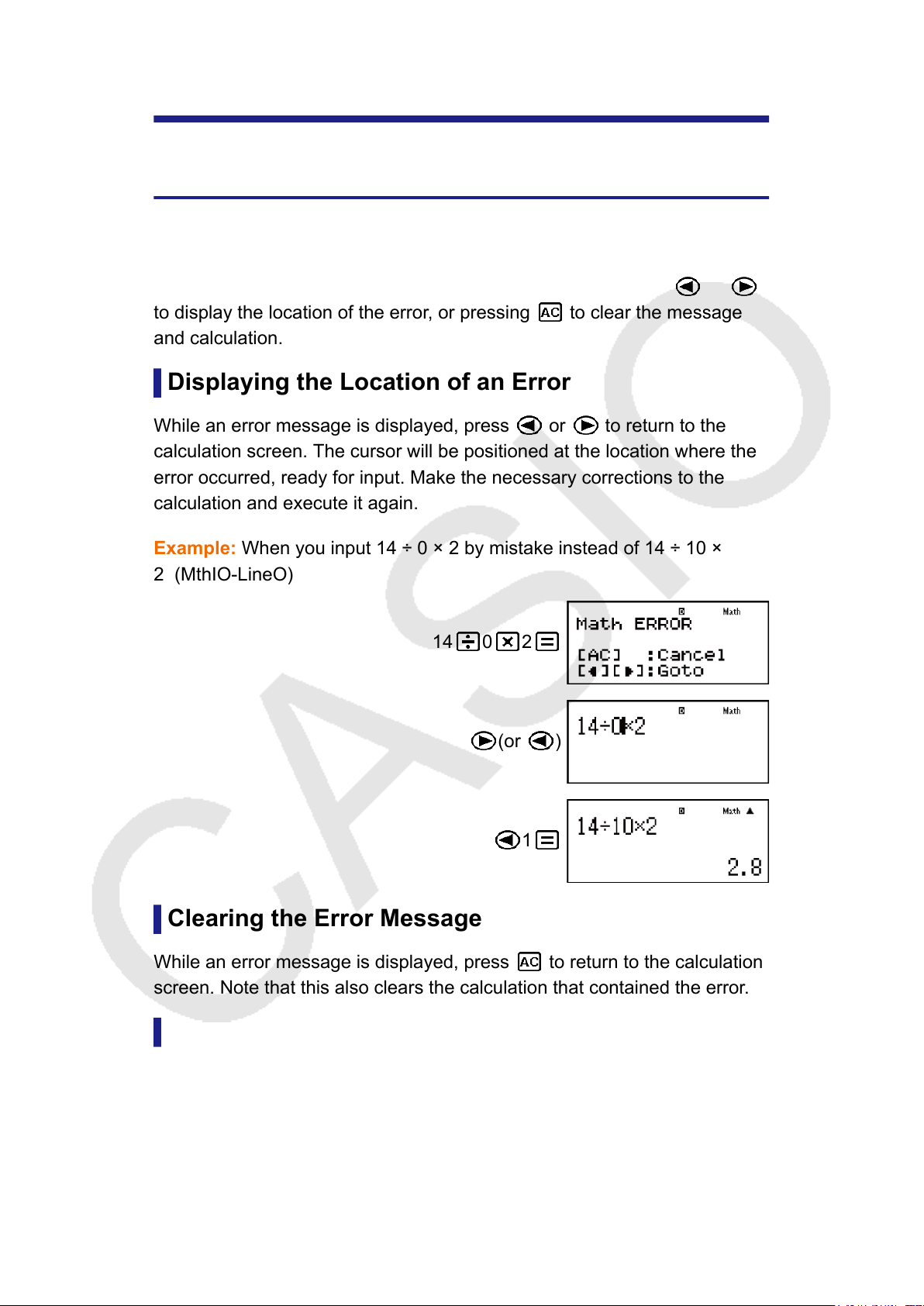
Example: When you input 14 ÷ 0 × 2 by mistake instead of 14 ÷ 10 ×
2 (MthIO-LineO)
14 0 2
(or )
1
Clearing the Error Message
While an error message is displayed, press
to return to the calculation
screen. Note that this also clears the calculation that contained the error.
Error Messages
Math ERROR
Cause:
• The intermediate or final result of the calculation you are performing
exceeds the allowable calculation range.
45
• Your input exceeds the allowable input range (particularly when using
functions).
• The calculation you are performing contains an illegal mathematical
operation (such as division by zero).
Action:
• Check the input values, reduce the number of digits, and try again.
• When using independent memory or a variable as the argument of a
function, make sure that the memory or variable value is within the
allowable range for the function.
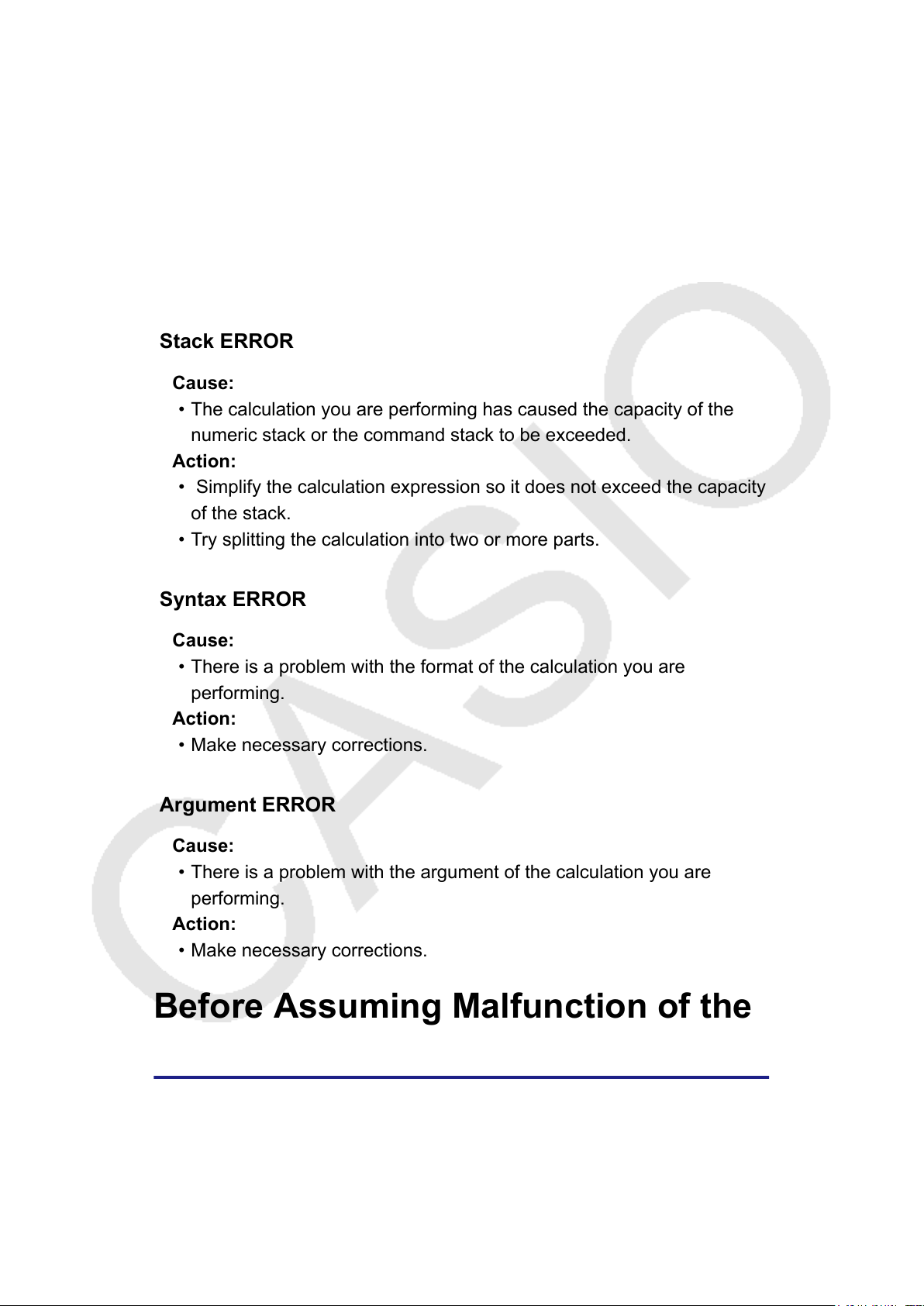
Stack ERROR
Cause:
• The calculation you are performing has caused the capacity of the
numeric stack or the command stack to be exceeded.
Action:
• Simplify the calculation expression so it does not exceed the capacity
of the stack.
• Try splitting the calculation into two or more parts.
Syntax ERROR
Cause:
• There is a problem with the format of the calculation you are
performing.
Action:
•
Make necessary corrections.
Argument ERROR
Cause:
• There is a problem with the argument of the calculation you are
performing.
Action:
• Make necessary corrections.
Before Assuming Malfunction of the
Calculator...
Perform the following steps whenever an error occurs during a calculation
or when calculation results are not what you expected. If one step does
not correct the problem, move on to the next step.
46
Note that you should make separate copies of important data before
performing these steps.
1. Check the calculation expression to make sure that it does not contain
any errors.
2. Make sure that you are using the correct mode for the type of
calculation you are trying to perform.
3. If the above steps do not correct your problem, press the key. This
will cause the calculator to perform a routine that checks whether
calculation functions are operating correctly. If the calculator discovers
any abnormality, it automatically initializes the calculation mode and
clears memory contents. For details about initialized settings, see
"Configuring the Calculator Setup".
4. Initialize all modes and settings by performing the following
operation: (CLR) (Setup) (Yes).
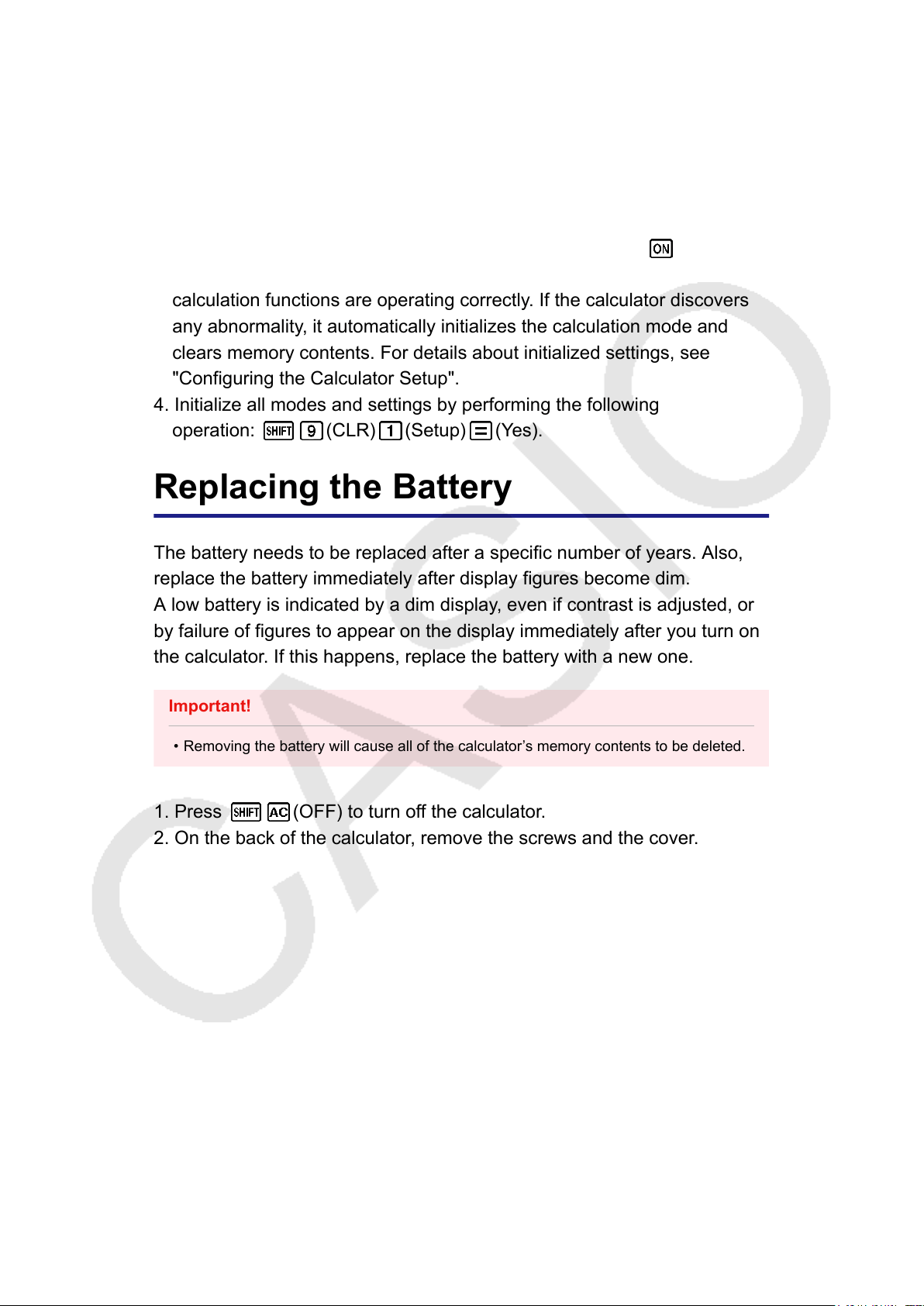
Replacing the Battery
The battery needs to be replaced after a specific number of years. Also,
replace the battery immediately after display figures become dim.
A low battery is indicated by a dim display, even if contrast is adjusted, or
by failure of figures to appear on the display immediately after you turn on
the calculator. If this happens, replace the battery with a new one.
Important!
• Removing the battery will cause all of the calculator’s memory contents to be deleted.
1. Press
(OFF) to turn off the calculator.
2. On the back of the calculator, remove the screws and the cover.
47
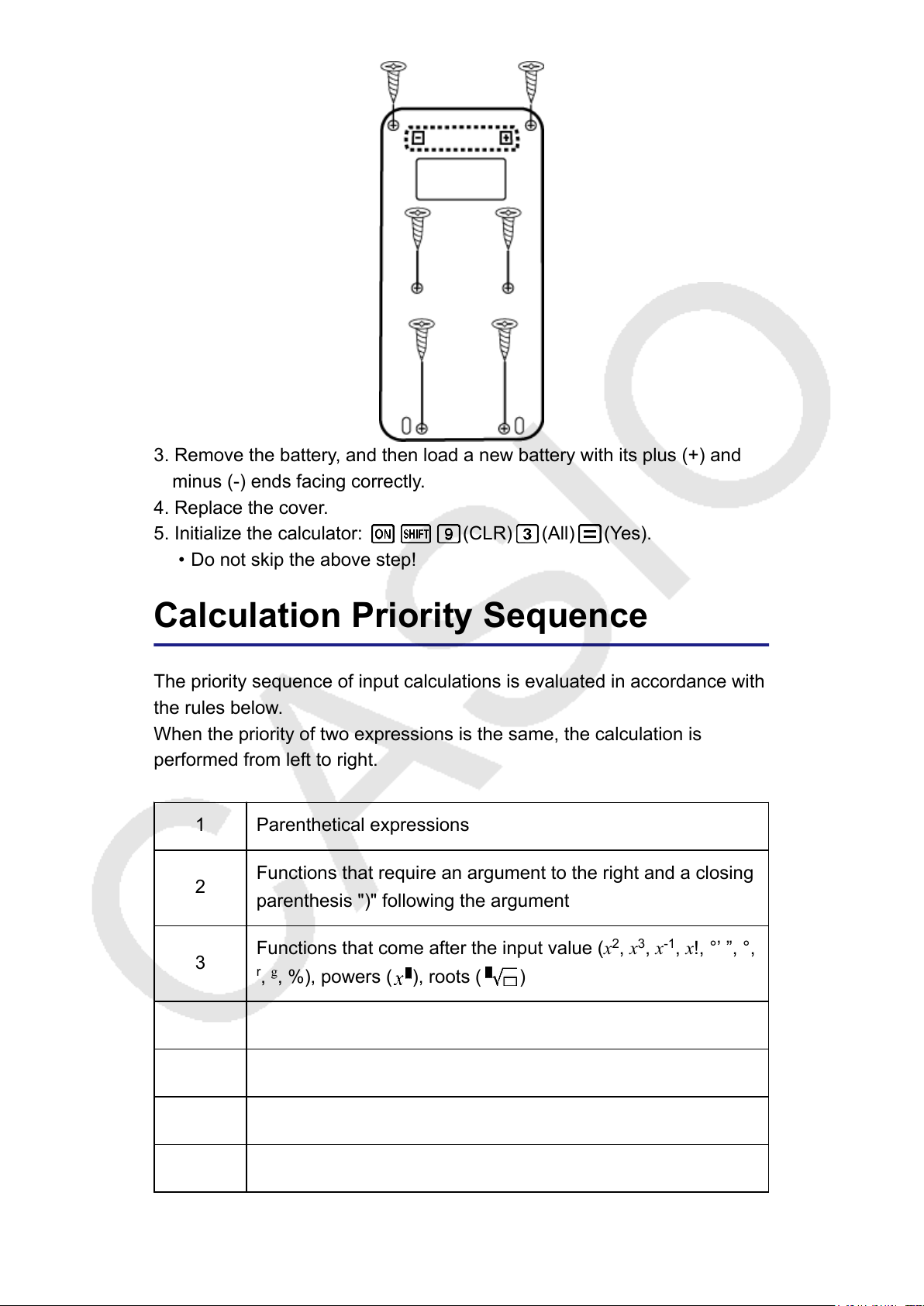
3. Remove the battery, and then load a new battery with its plus (+) and
minus (-) ends facing correctly.
4. Replace the cover.
5. Initialize the calculator:
(CLR) (All) (Yes).
• Do not skip the above step!
Calculation Priority Sequence
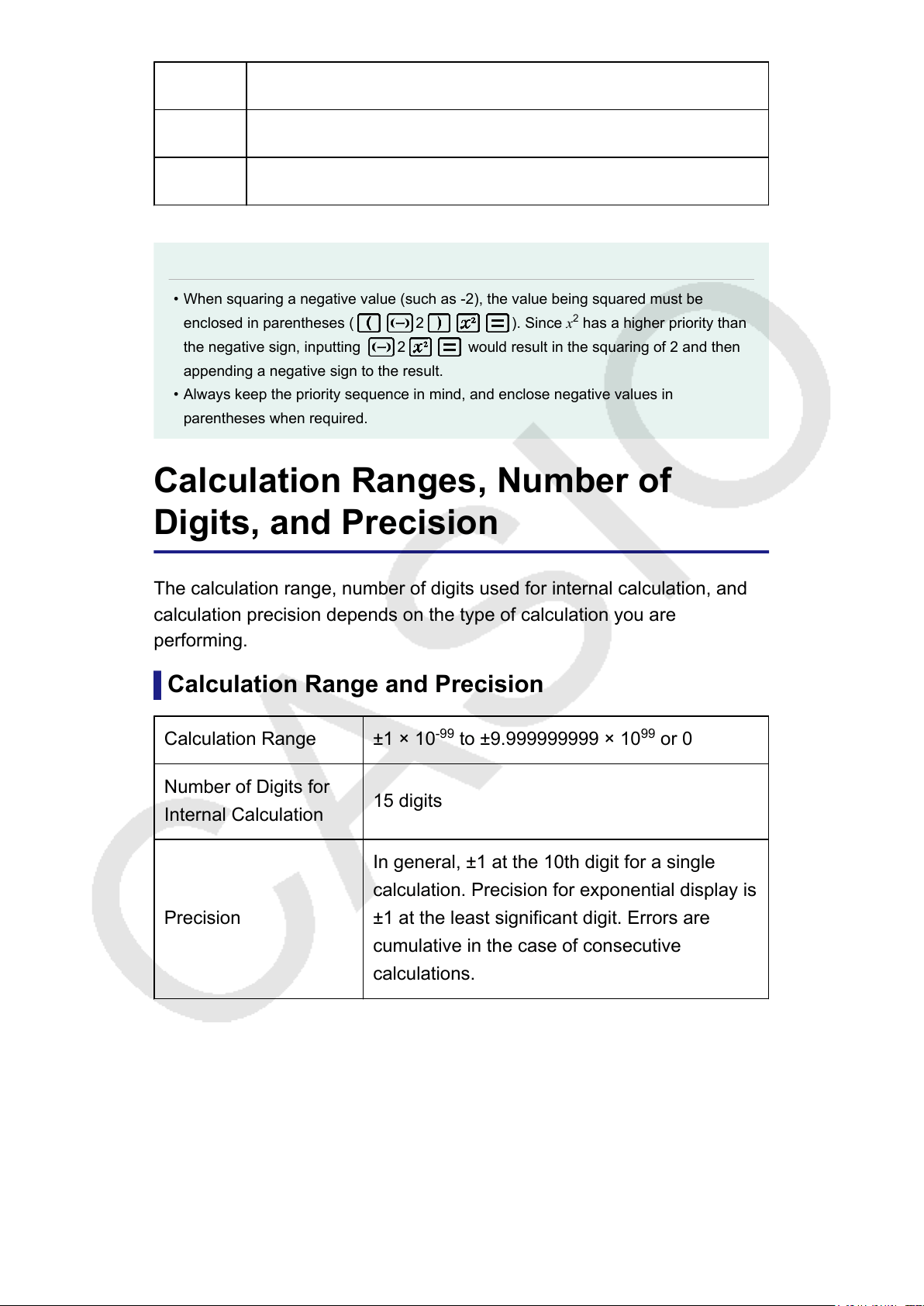
The priority sequence of input calculations is evaluated in accordance with
the rules below.
When the priority of two expressions is the same, the calculation is
performed from left to right.
1 Parenthetical expressions
2
Functions that require an argument to the right and a closing
parenthesis ")" following the argument
3
Functions that come after the input value (x
2
, x
3
, x
-1
, x!, °’ ”, °,
r
,
g
, %), powers ( ), roots ( )
4 Fractions
5 Negative sign ((-))
6
STAT Mode estimated values (xˆ, yˆ, xˆ
1
, xˆ
2
)
7 Multiplication where the multiplication sign is omitted
48
8
Permutation (nPr), combination (nCr)
9 Multiplication (×), division (÷)
10 Addition (+), subtraction (-)
Note
• When squaring a negative value (such as -2), the value being squared must be
enclosed in parentheses ( 2 ). Since x
2
has a higher priority than
the negative sign, inputting
2 would result in the squaring of 2 and then
appending a negative sign to the result.
• Always keep the priority sequence in mind, and enclose negative values in
parentheses when required.
Calculation Ranges, Number of
Digits, and Precision
The calculation range, number of digits used for internal calculation, and
calculation precision depends on the type of calculation you are
performing.
Calculation Range and Precision
Calculation Range ±1 × 10
-99
to ±9.999999999 × 10
99
or 0
Number of Digits for
Internal Calculation
15 digits
Precision
In general, ±1 at the 10th digit for a single
calculation. Precision for exponential display is
±1 at the least significant digit. Errors are
cumulative in the case of consecutive
calculations.
49
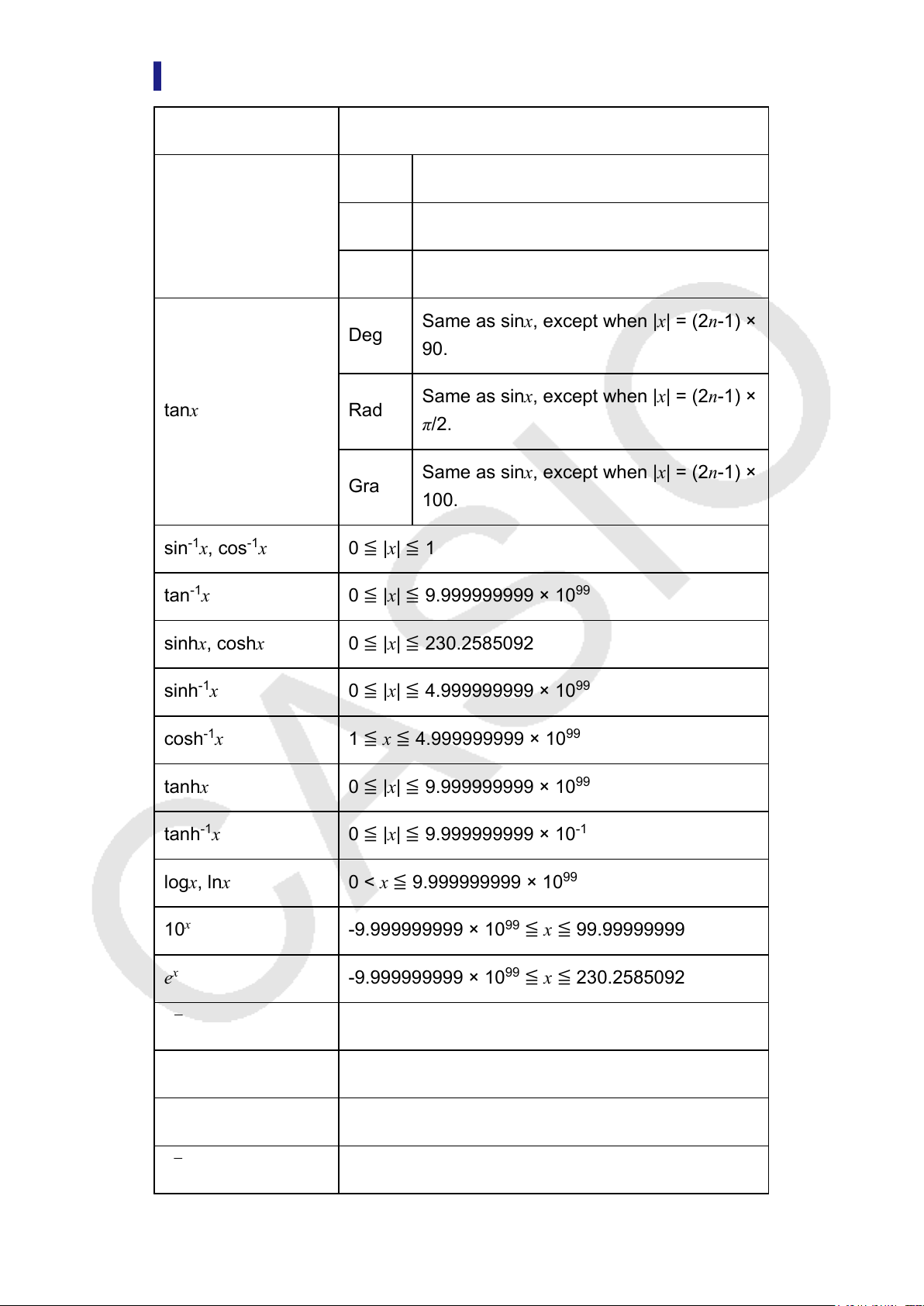
Function Calculation Input Ranges and Precision
Functions Input Range
sinx
cosx
Deg
0 ≦ |x| < 9 × 10
9
Rad
0 ≦ |x| < 157079632.7
Gra
0 ≦ |x| < 1 × 10
10
tanx
Deg
Same as sinx, except when |x| = (2n-1) ×
90.
Rad
Same as sinx, except when |x| = (2n-1) ×
π/2.
Gra
Same as sinx, except when |x| = (2n-1) ×
100.
sin
-1
x, cos
-1
x 0 ≦ |x| ≦ 1
tan
-1
x 0 ≦ |x| ≦ 9.999999999 × 10
99
sinhx, coshx 0 ≦ |x| ≦ 230.2585092
sinh
-1
x 0 ≦ |x| ≦ 4.999999999 × 10
99
cosh
-1
x 1 ≦ x ≦ 4.999999999 × 10
99
tanhx 0 ≦ |x| ≦ 9.999999999 × 10
99
tanh
-1
x 0 ≦ |x| ≦ 9.999999999 × 10
-1
logx, lnx 0 < x ≦ 9.999999999 × 10
99
10
x
-9.999999999 × 10
99
≦ x ≦ 99.99999999
e
x
-9.999999999 × 10
99
≦ x ≦ 230.2585092
√x 0 ≦ x < 1 × 10
100
x
2
|x| < 1 × 10
50
x
-1
|x| < 1 × 10
100
; x ≠ 0
3
√x |x| < 1 × 10
100
50
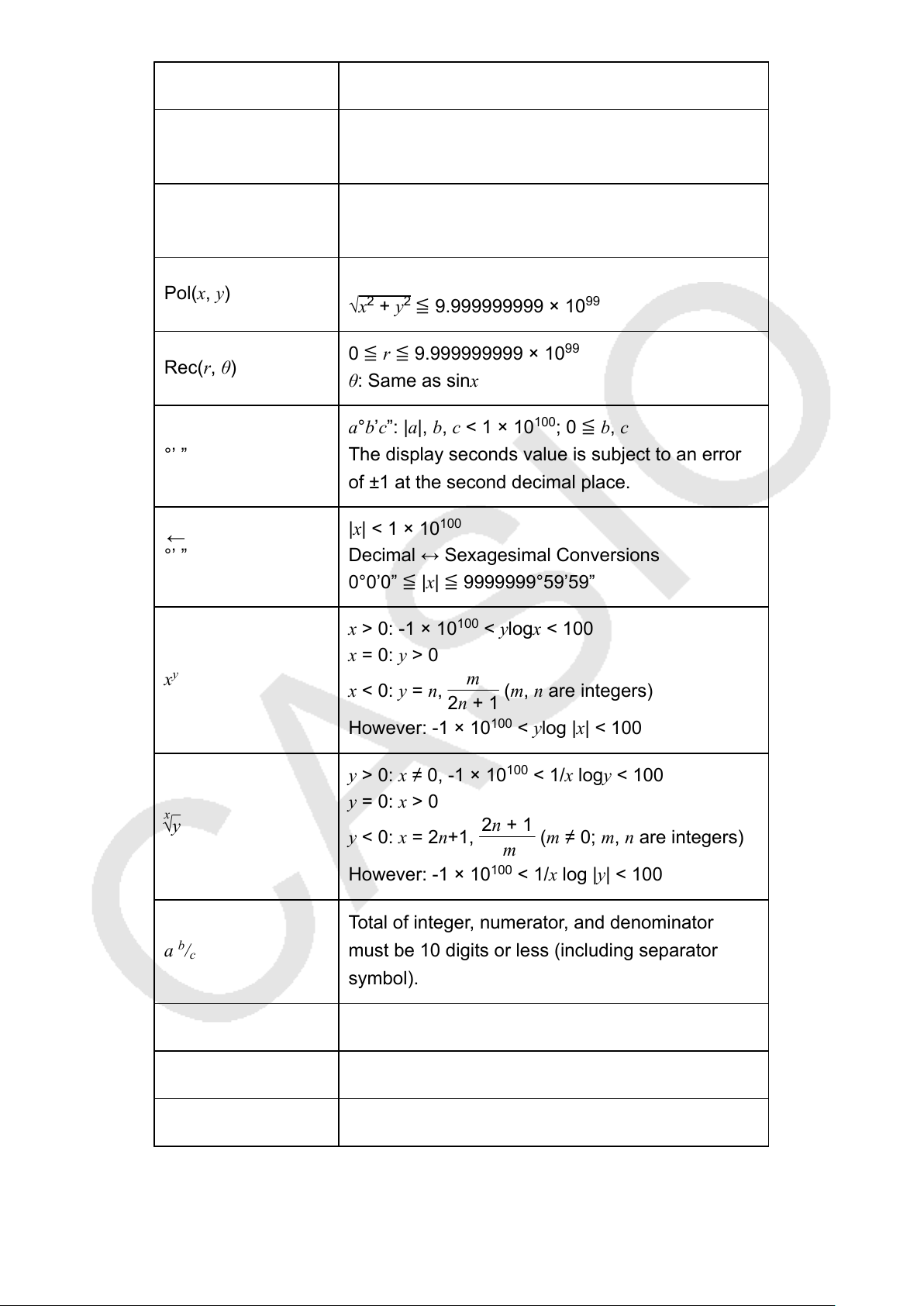
x! 0 ≦ x ≦ 69 (x is an integer)
nPr
0 ≦ n < 1 × 10
10
, 0 ≦ r ≦ n (n, r are integers)
1 ≦ {n!/(n-r)!} < 1 × 10
100
nCr
0 ≦ n < 1 × 10
10
, 0 ≦ r ≦ n (n, r are integers)
1 ≦ n!/r! < 1 × 10
100
or 1 ≦ n!/(n-r)! < 1 × 10
100
Pol(x, y)
|x|, |y| ≦ 9.999999999 × 10
99
√x
2
+ y
2
≦ 9.999999999 × 10
99
Rec(r, θ)
0 ≦ r ≦ 9.999999999 × 10
99
θ: Same as sinx
°’ ”
a°b’c”: |a|, b, c < 1 × 10
100
; 0 ≦ b, c
The display seconds value is subject to an error
of ±1 at the second decimal place.
°’ ”
←
|x| < 1 × 10
100
Decimal ↔ Sexagesimal Conversions
0°0’0” ≦ |x| ≦ 9999999°59’59”
x
y
x > 0: -1 × 10
100
< ylogx < 100
x = 0: y > 0
x < 0: y = n,
m
2n + 1
(m, n are integers)
However: -1 × 10
100
< ylog |x| < 100
x
√y
y > 0: x ≠ 0, -1 × 10
100
< 1/x logy < 100
y = 0: x > 0
y < 0: x = 2n+1,
2n + 1
m
(m ≠ 0; m, n are integers)
However: -1 × 10
100
< 1/x log |y| < 100
a
b
/
c
Total of integer, numerator, and denominator
must be 10 digits or less (including separator
symbol).
RanInt#(a, b) a < b; |a|, |b| < 1 × 10
10
; b - a < 1 × 10
10
GCD(a, b) |a|, |b| < 1 × 10
10
(a, b are integers)
LCM(a, b) 0 ≦ a, b < 1 × 10
10
(a, b are integers)
51
• Precision is basically the same as that described under "Calculation
Range and Precision", above.
• x
y
,
x
√y,
3
√ , x!, nPr, nCr type functions require consecutive internal
calculation, which can cause accumulation of errors that occur with each
calculation.
• Error is cumulative and tends to be large in the vicinity of a function's
singular point and inflection point.
Specifications
Power Requirements:
AAA-size battery R03 (UM-4) × 1
Approximate Battery Life:
2 years (based on one hour of operation per day)
Power Consumption:
0.0002 W
Operating Temperature:
0°C to 40°C (32°F to 104°F)
Dimensions:
13.8 (H) × 77 (W) × 161.5 (D) mm
1
/
2
" (H) × 3" (W) × 6
3
/
8
" (D)
Approximate Weight:
105 g (3.7 oz) including the battery
Verifying the Authenticity of Your
Calculator
Use the steps below to verify that your calculator is a genuine CASIO
calculator.
1. Press .
2. Press
.
•
This displays the information below.
- Calculator ID number (24-character string)
- QR Code for accessing the Worldwide Education Service
(https://wes.casio.com/calc/)
3. Access the above site.
52

4. Follow the instructions on the display to verify the authenticity of your
calculator.
Press to return to the mode menu.
53

Frequently Asked Questions
Frequently Asked Questions
■ How can I perform input and display results the same way I did on
a model that does not have Natural Textbook Format?
→ Perform the following key operation:
(SETUP) (LineIO). See
"Configuring the Calculator Setup" for more information.
■ How can I change a fraction form result to decimal form?
How can I change a fraction form result produced by a division
operation to decimal form?
→ See "Toggling Calculation Results" for the procedure.
■ What is the difference between Ans memory, independent memory,
and variable memory?
→ Each of these types of memory acts like "containers" for temporary
storage of a single value.
Ans Memory:
Stores the result of the last calculation performed. Use this memory to
carry the result of one calculation on to the next.
Independent Memory:
Use this memory to totalize the results of multiple calculations.
Variables:
This memory is helpful when you need to uses the same value multiple
times in one or more calculations.
■ What is the key operation to take me from the STAT Mode to a
mode where I can perform arithmetic calculations?
→ Press
(COMP).
■ How can I return the calculator to its initial default settings?
→ Perform the following key operation:
(CLR) (Setup) (Yes).
■ When I execute a function calculation, why do I get a calculation
result that is completely different from older CASIO calculator
models?
→ With a Natural Textbook Display model, the argument of a function that
uses parentheses must be followed by a closing parenthesis. Failing to
press after the argument to close the parentheses may cause
unwanted values or expressions to be included as part of the argument.
Example: (sin 30) + 15 (Angle Unit: Deg)
54

0.707106781230 15
Older (S-V.P.A.M.) Model: 30 15 15.5
Natural Textbook Display Model:
(LineIO) 30 15 15.5
Failure to press here as shown below will result in calculation of sin
45.
55

© 2020 CASIO COMPUTER CO., LTD.

