
OWNER’S MANUAL
WIRELESS
SOUND BAR
Please read this manual carefully before operating your set and retain it for future
reference.
Model
SH7Q (SH7Q, SPQ5H-W)
2304_Rev02
www.lg.com
Copyright © 2023 LG Electronics Inc. All Rights Reserved.
2
Sound Bar Quick Guide
Installing and using the Product
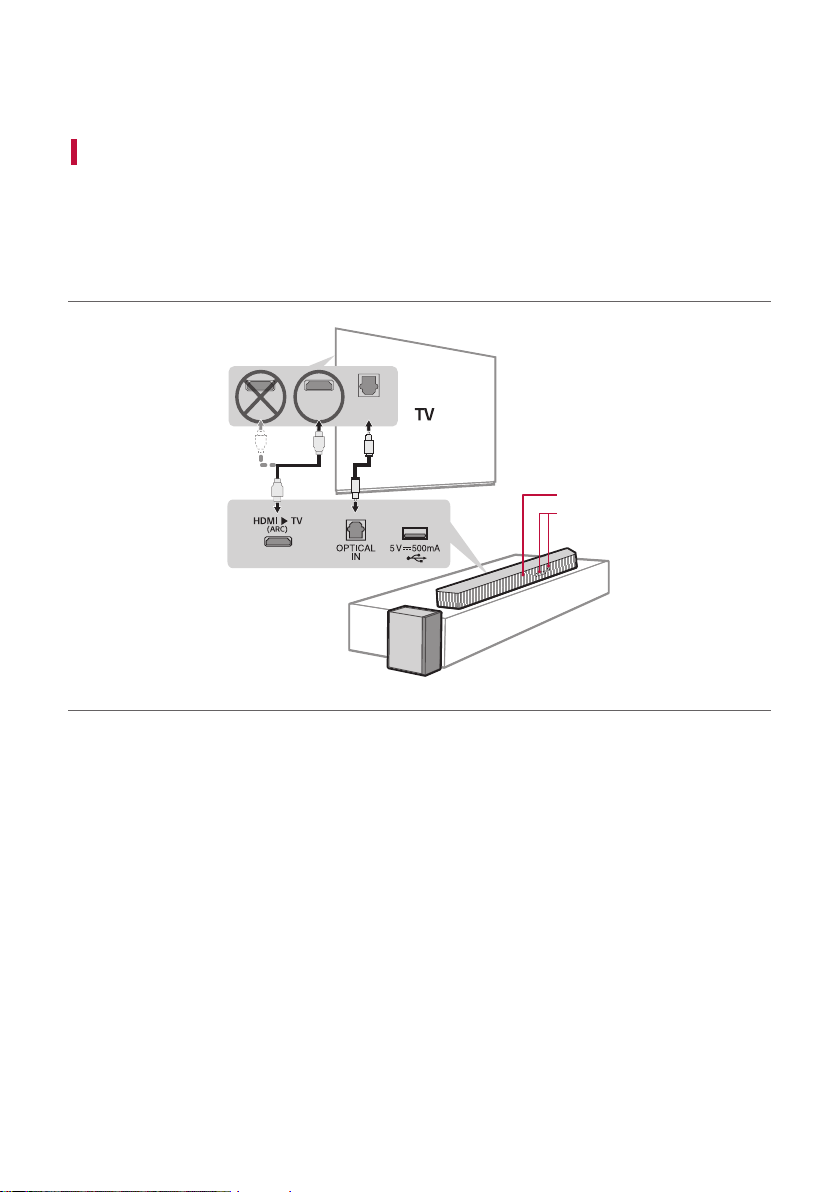
a Connect the sound bar to your TV via an optical cable or an HDMI
cable.
C
a
OPTICAL
OUT
HDMI IN
(ARC)
HDMI IN
a
B
A
A Sound bar
B Status Display / Remote Control Receiver
C Wireless Subwoofer - Install it close to the sound bar.

3
b Connect to power in the following order: wireless subwoofer [ sound bar. Then, turn on the sound bar.
When the connection is automatically established with the sound bar, the LED on the wireless subwoofer will
light up green. ([ See “Connecting the Product” on page 7.)
c Using the product with your TV ([ See “Connecting with an
Optical Cable”, “Connecting with LG Sound Sync (Wireless)”,
“Connecting with an HDMI Cable” on page 26, 28, 29.)
A Press the Function
button repeatedly until “OPT/HDMI ARC” appears on the status display.
B On your TV's settings, set the output speaker to [HDMI ARC], [Optical], or [External Speaker].
C When the TV is properly connected to the product, “OPT” or “ARC” will appear on the status display with a
sound.
d Connecting the product to your smartphone via Bluetooth ([
See “Connecting via Bluetooth” on page 32.)
A Tap the Settings
button on your smartphone and select Bluetooth. Turn on the Bluetooth function.
( Off > On)
B Press the Bluetooth pair
button. After a moment, you will see “BT READY” on the status display.
C Find and tap the product on your smartphone. The product appears as “LG SH7Q (XX)”.
D When the product is connected to your smartphone via Bluetooth, you can see the status display change
from “PAIRED” [ “Connected Bluetooth device name” [ “BT”.
e Connecting to the LG Sound Bar app ([ See “Connecting with a
Smartphone via LG Sound Bar app” on page 35.)
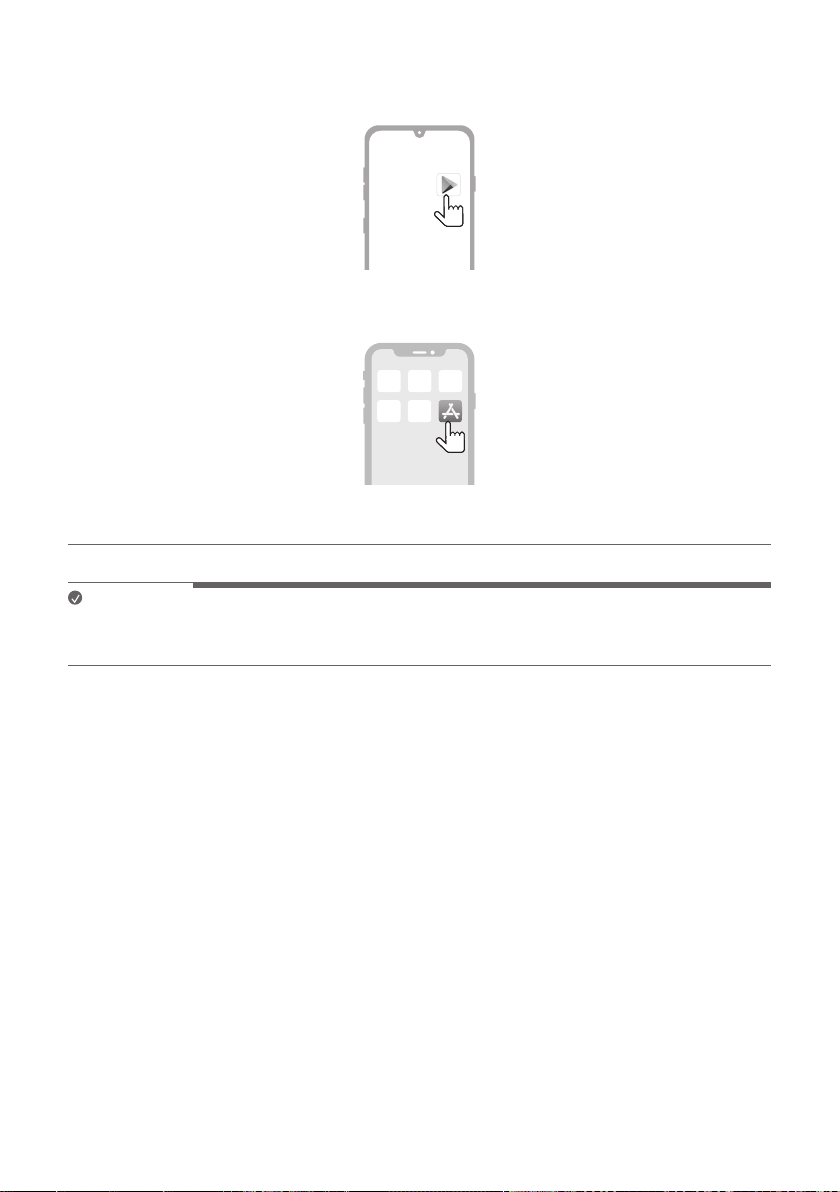
A Find and install the LG Sound Bar app on Google Play or App Store from your smartphone.
B You can get more information regarding its use by selecting [Help] in [Setting].

4
Manually connecting the sound bar to the wireless subwoofer ([ See
“Connecting the wireless subwoofer manually” on page 9.)
If you see a red LED on the front of the wireless subwoofer, it means that the sound bar is not connected
to the subwoofer. If this is the case, connect them in the following order.
A Press the Power
button on the sound bar to turn it off.
B Press the PAIRING button on the back of the disconnected wireless subwoofer. Check if LED blinks
green.
- If you still see a red LED on the front of the wireless subwoofer, press and hold the button on the
back of the subwoofer again.
C Press the Power
button on the sound bar to turn it on.
D When the connection is established, you will see a green LED light on the front of the wireless
subwoofer.

5
Table of Contents
Sound Bar Quick Guide
2 Installing and using the Product
Installation
6 Installing the sound bar
7 Connecting the Product
Exploring the Product
14 Front
16 Back
17 Exploring Remote Control
Connecting to the TV
26 Connecting with an Optical Cable
28 Connecting with LG Sound Sync (Wireless)
29 Connecting with an HDMI Cable
Connecting to an External Device
31 Connecting with an Optical Cable
Using the Product as an Audio
System
32 Connecting via Bluetooth
35 Connecting with a Smartphone via LG Sound
Bar app
37 Connecting to a USB Storage Device
Safety Precautions
39 Safety and Regulatory
Before Reporting Product
Malfunction
42 Troubleshooting
Appendix
45 Specifications
47 Registered Trademarks and Licenses
49 Open Source Software Notice Information
49 Handling the Product
6
Installation
Installing the sound bar
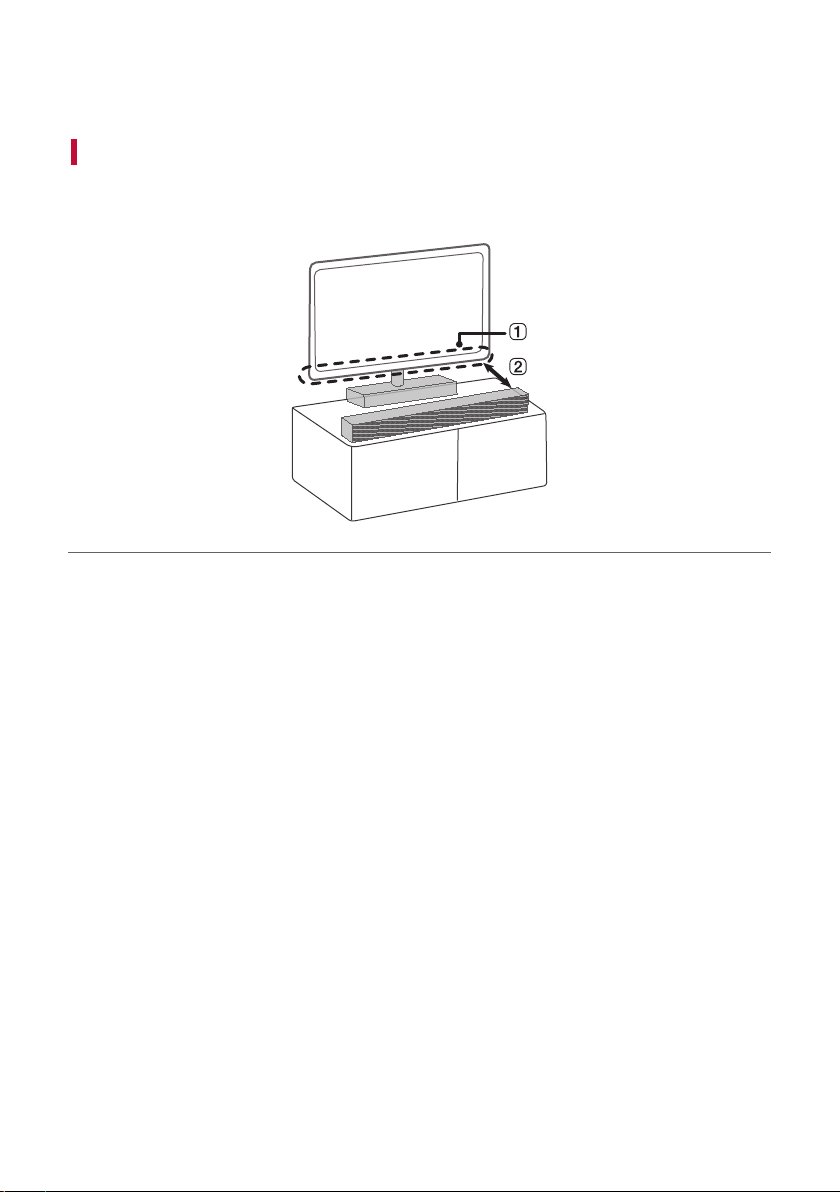
Place the sound bar in front of the TV. When you install the sound bar, do not block the remote control receiver of
the TV.
A Remote Control Receiver
B If the sound bar covers the remote control receiver of the TV, please separate distance between the sound bar
and TV by 10 ~ 15 cm or more.
7
Connecting the Product
You can enjoy a richer sound by connecting the sound bar to the wireless subwoofer.
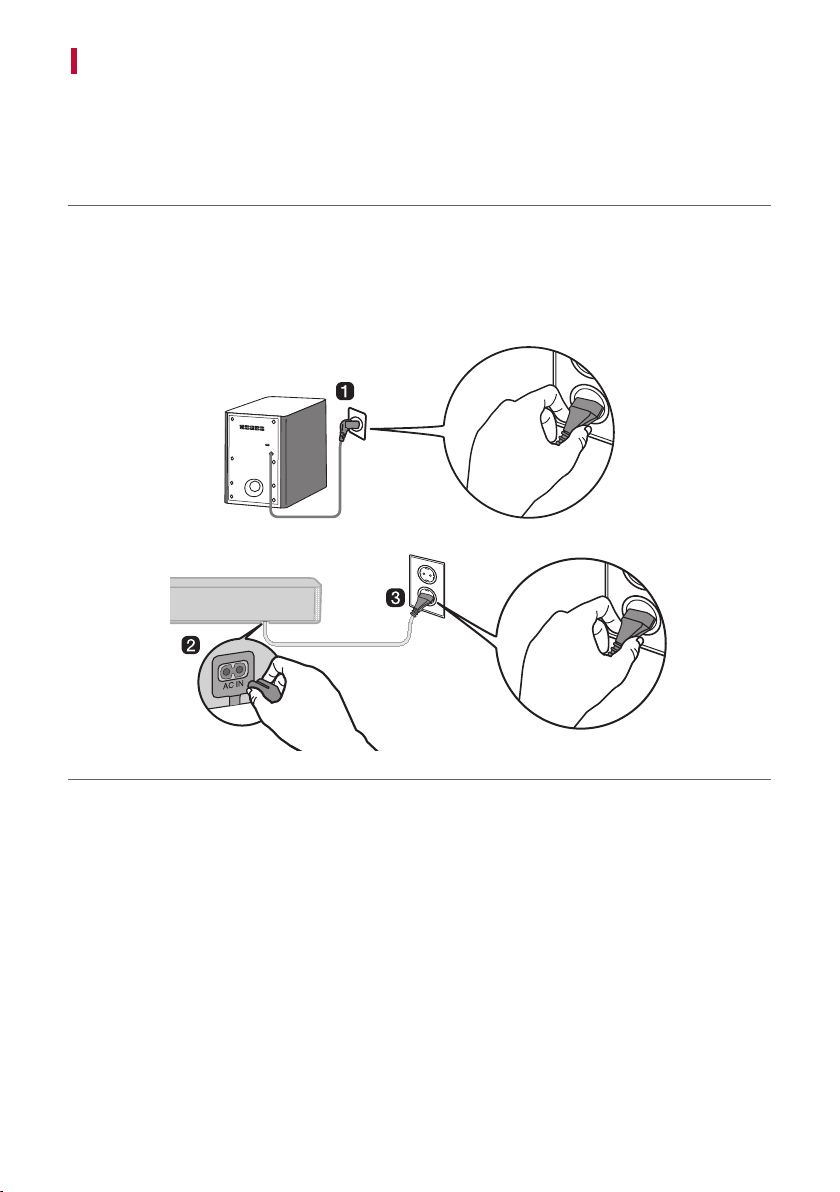
Connecting the wireless subwoofer automatically
After completing installation, the wireless subwoofer will automatically be connected to the sound bar. Connect
the sound bar to the subwoofer in the following order.
a Plug the power cable connected to the wireless subwoofer into an outlet.
b Plug the power cable into the sound bar.
c Plug the power cable connected to the sound bar into an outlet.
d When the connection is automatically established, you will see the LED on the front of the wireless
subwoofer light up green.

8
Checking the connection with the LED on the front of the wireless
subwoofer
You can check the connection status by looking at the LED on the front of the wireless subwoofer.
LED Colour Status
Blinking green Connecting in progress
Green Connected successfully
Red Bad connection, or the subwoofer is in standby
Off Power cable not connected
9
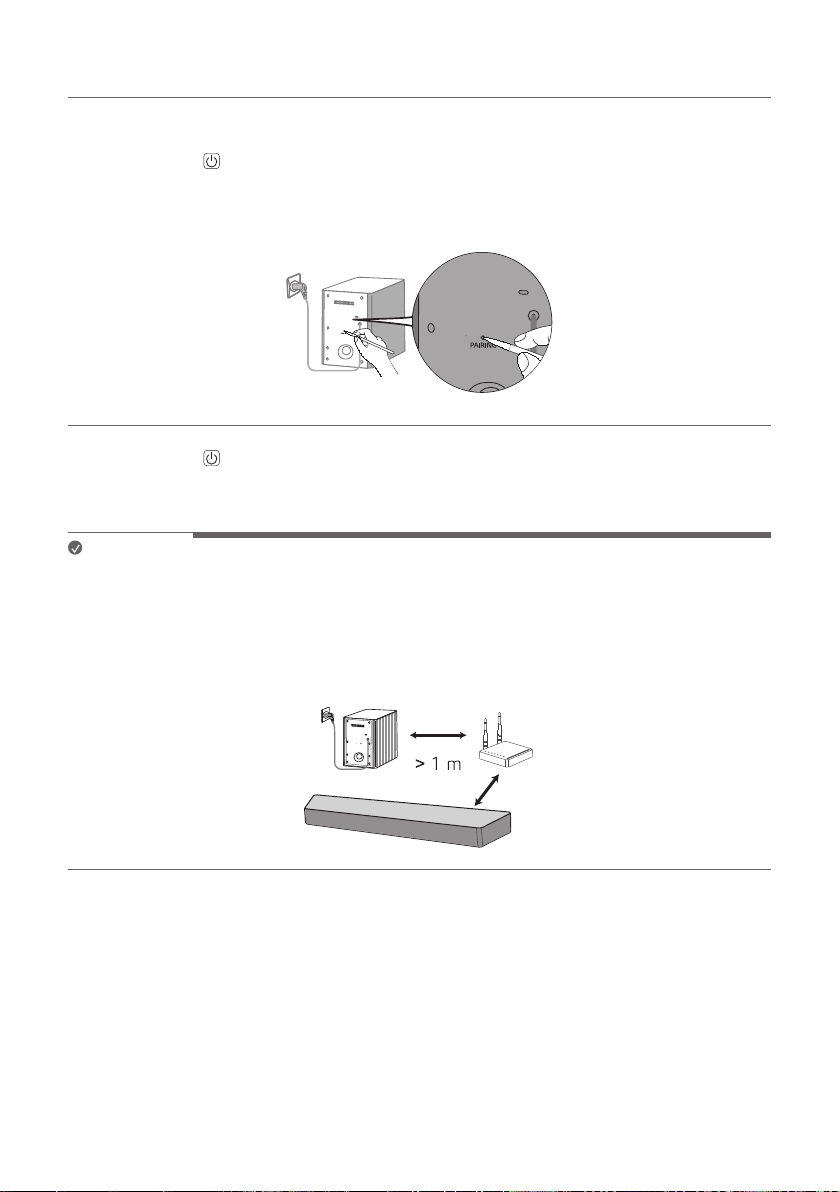
Connecting the wireless subwoofer manually
If you see a red LED on the front of the wireless subwoofer, it means that the sound bar is not connected to the
subwoofer. If this is the case, connect them in the following order.
a Press the Power
button on the sound bar to turn it off.
b Press the PAIRING button on the back of the wireless subwoofer. Check if the LED on the front of the
subwoofer is blinking green. If you still see a red LED on the wireless subwoofer, press and hold the button on
the back of the subwoofer again.
c Press the Power button on the sound bar to turn it on.
d When the connection is established, you will see the LED light on the front of the wireless subwoofer light up
green.
Note
• Install the sound bar as close to the wireless subwoofer as possible. The closer the distance between the sound
bar and the wireless subwoofer, the better the sound quality.
• Please ensure there are no obstacles between the sound bar and the wireless subwoofer.
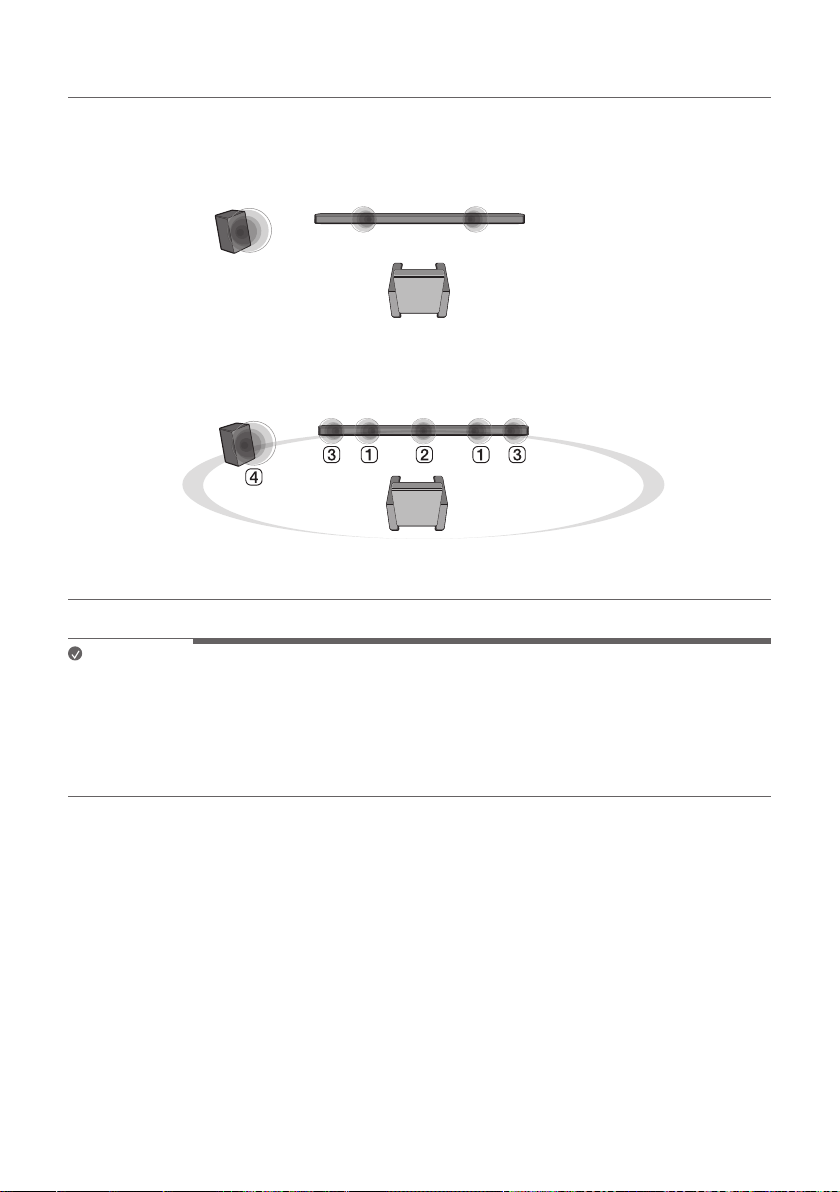
• To prevent wireless interference, maintain a distance of at least 1 m between the sound bar or the wireless
subwoofer and any peripheral devices that generate strong electromagnetic waves (ex. wireless routers,
microwave ovens, etc.).
10
Setting up surround sound
The surround sound function allows you to hear immersive 3D sound produced by multiple audio channels from
the speakers, regardless of the channels in the originally recorded content.
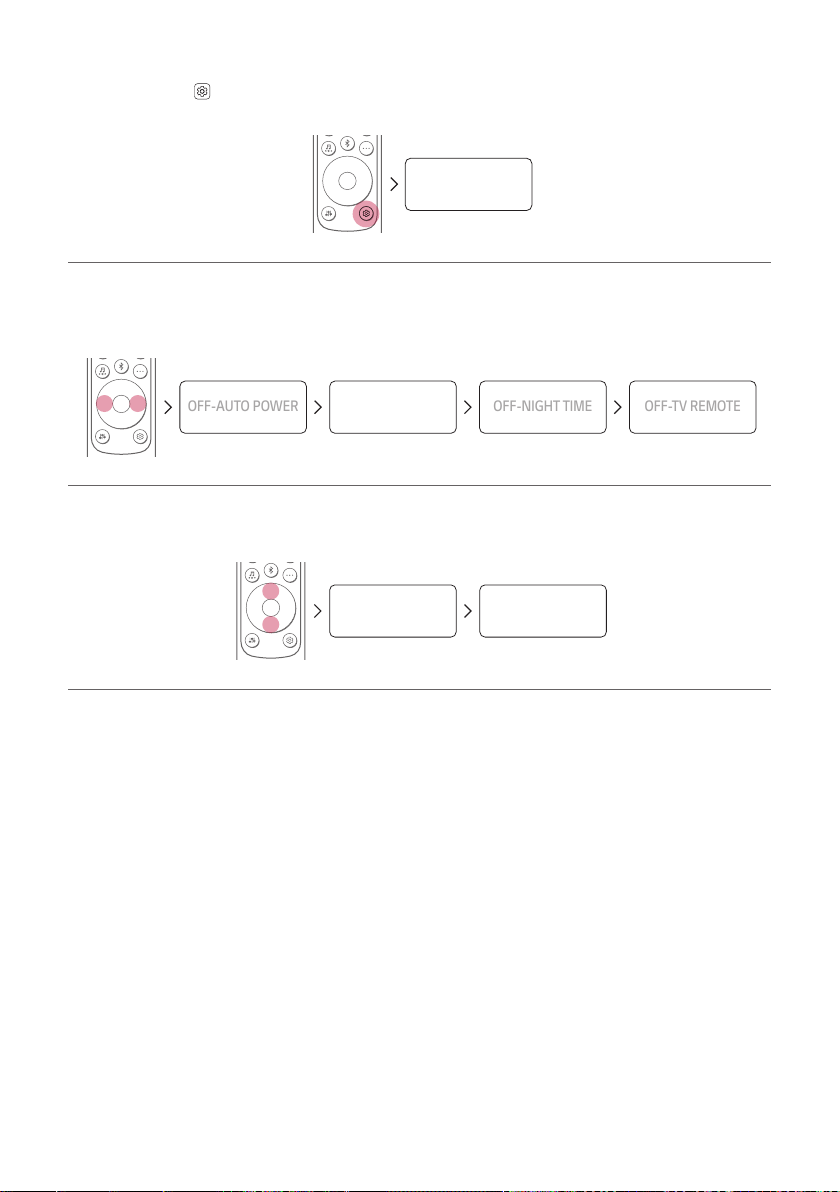
For example, if you listen to music recorded in 2.0 channels with standard sound effects, you can hear the
following difference.
When the surround sound is off
When the surround sound is on
Note
• Speaker positions are as follows.
A Front speakers
B Centre speaker
C Surround (Side) speakers
D Subwoofer
11
Turning surround sound on/off
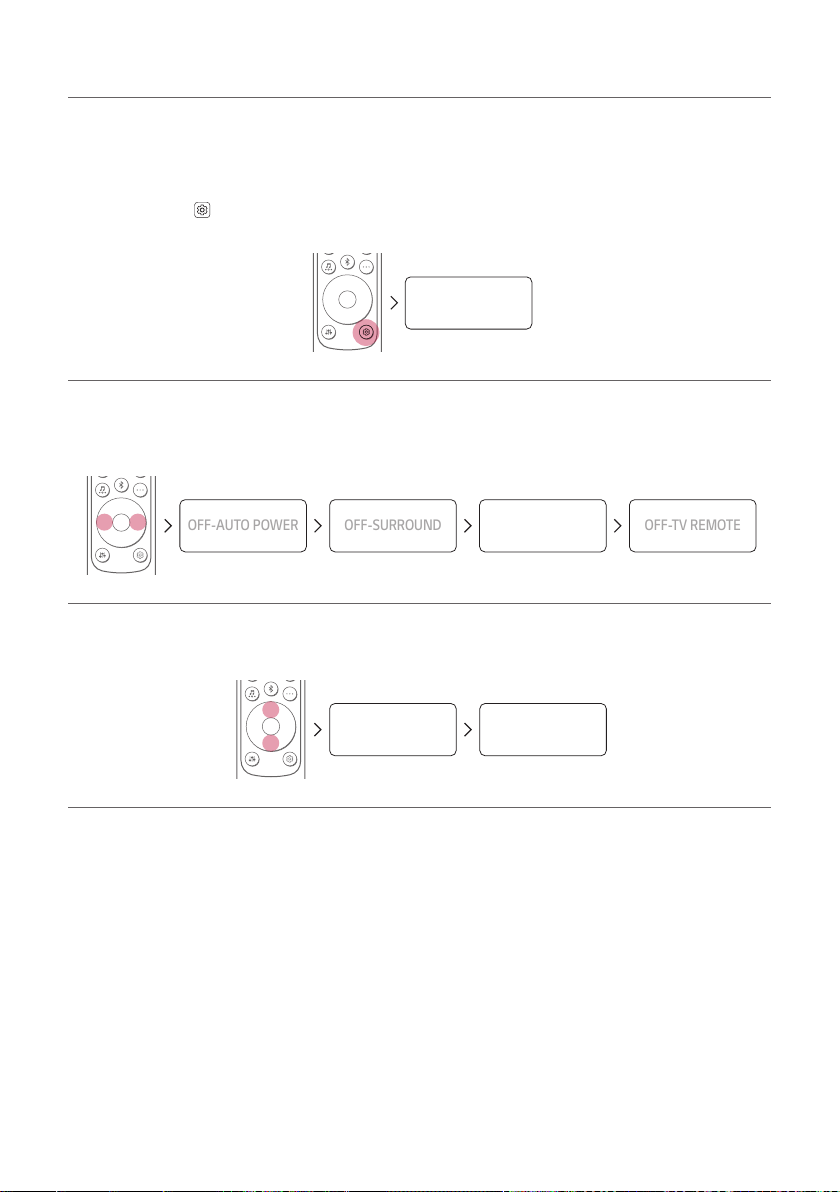
a Press Settings
button. The product enters the setting mode and you can see “OFF-AUTO POWER” or
“ON-AUTO POWER”.
OFF-AUTO POWER
b While the “OFF-AUTO POWER” or “ON-AUTO POWER” is scrolling in the status display, press Left/
Right button to select the surround sound setting. You can see the status of the surround sound, “OFF-
SURROUND” or “ON-SURROUND”.
OFF-AUTO POWER
OFF-SURROUND
OFF-NIGHT TIME
OFF-TV REMOTE
c While the “OFF-SURROUND” or “ON-SURROUND” is scrolling in the status display, press Up/Down
button to turn on or off the surround sound.
OFF-SURROUND ON-SURROUND
12
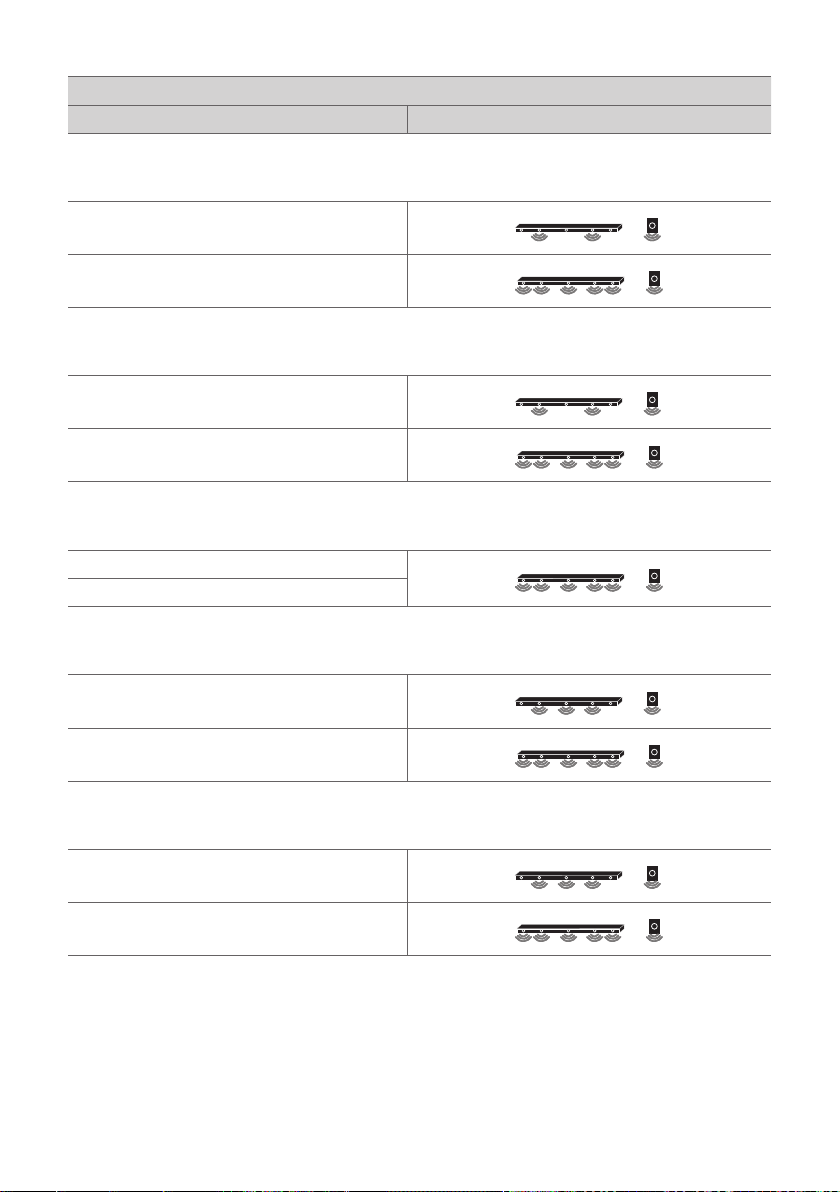
Speaker sound based on input channels
Sound Effects
Input Output
AI SOUND PRO
Sound customised with artificial intelligence
2.0 channels
5.1 channels or more
STANDARD
You can enjoy optimised sound.
2.0 channels
5.1 channels or more
CINEMA
Cinematic 3D sound
2.0 channels
5.1 channels or more
CLEAR VOICE
Voice sound clear, improving the quality of voice sound
2.0 channels
5.1 channels or more
SPORTS
Realistic sound like in a stadium
2.0 channels
5.1 channels or more
13
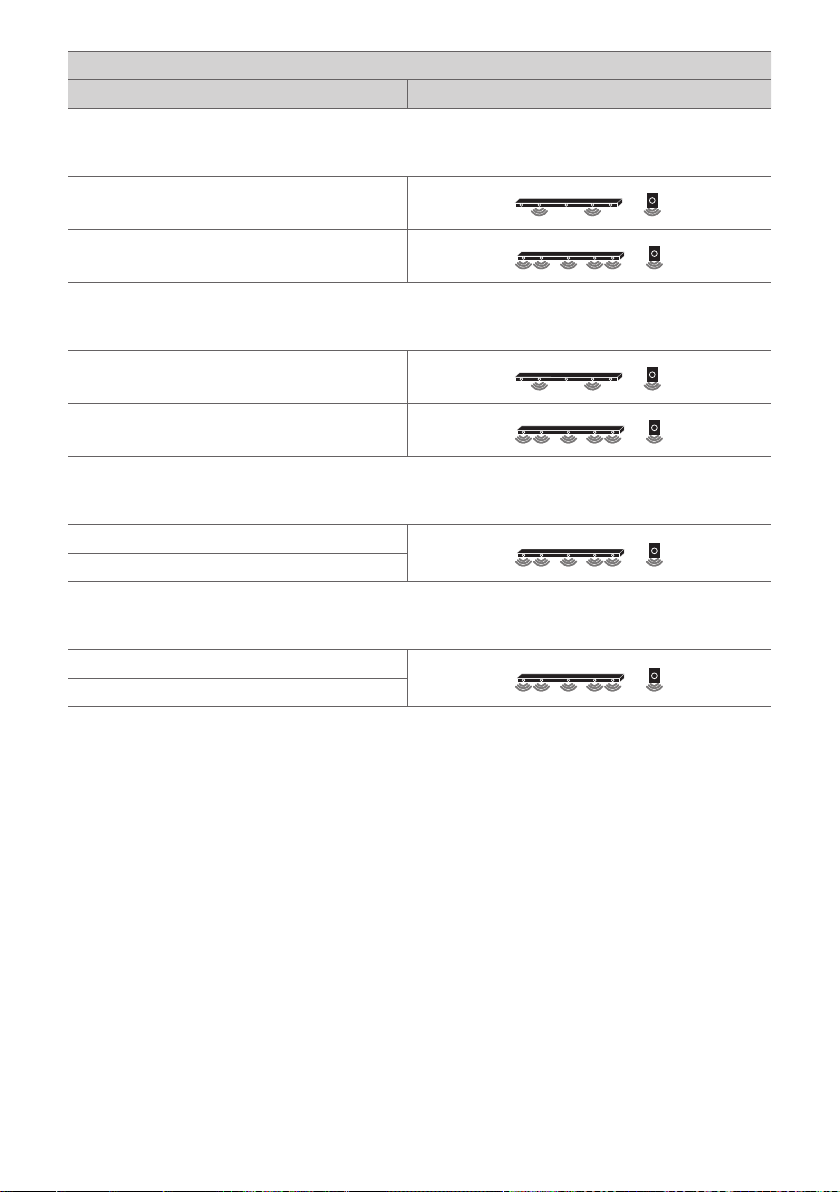
Sound Effects
Input Output
MUSIC
You can enjoy more good sound for music source.
2.0 channels
5.1 channels or more
GAME
Optimised sound for game
2.0 channels
5.1 channels or more
DTS VIRTUAL: X
Sound with immersive and cinematic surround
2.0 channels
5.1 channels or more
BASS BLAST (BASS BLAST+)
Sound with reinforced bass
2.0 channels
5.1 channels or more
14
Exploring the Product
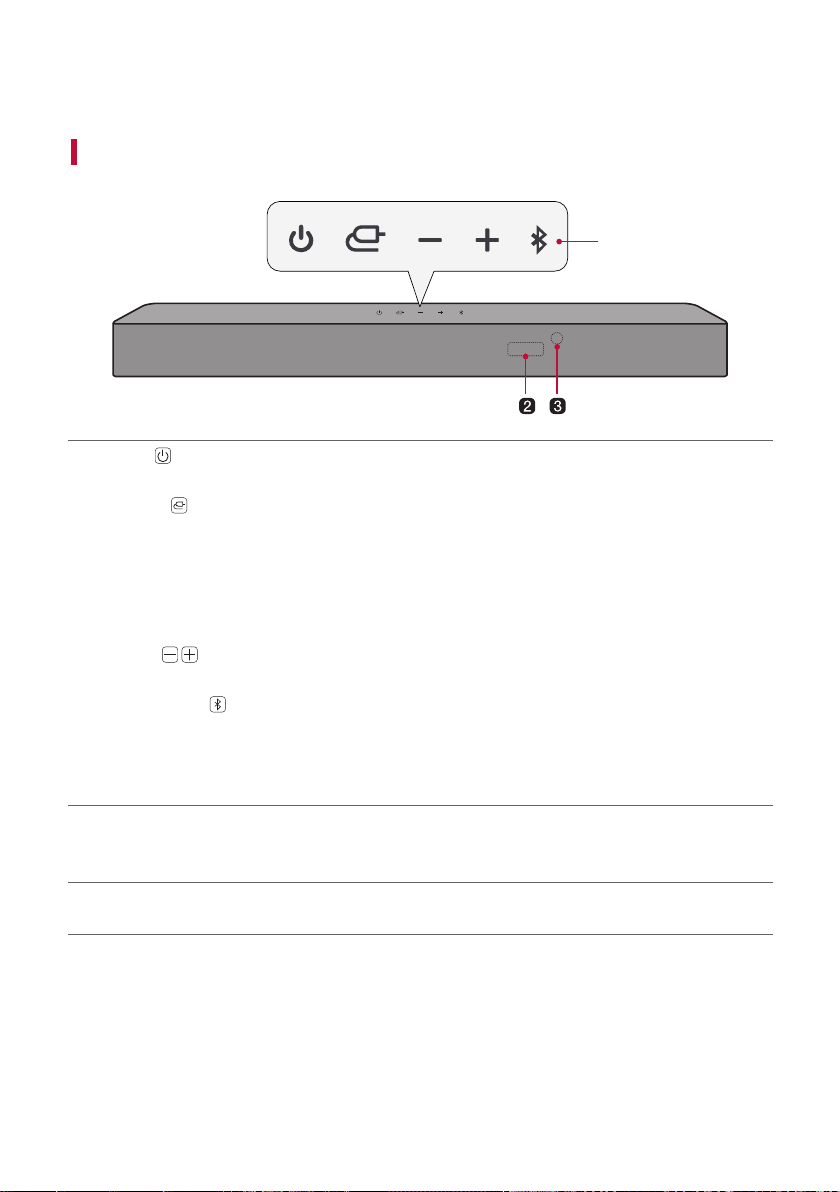
Front
a
a
Power
This turns the product on/off.
Function
Press the button repeatedly to select the desired function or input mode.
• OPT/HDMI ARC: Connects the product to a TV that supports an optical cable, ARC or LG Sound Sync.
• BT: Connects the product via Bluetooth
• LG TV: Connects the product to a TV that supports LG Sound Sync (Wireless)
• USB: Connects the product to a USB storage device
Volume
Adjusts the sound volume.
Bluetooth pair
It allows you to pair your Bluetooth device such as a smartphone to this product for three minutes. ([
See “Connecting via Bluetooth” on page 32.)
It allows you to pair your LG TV to this product for three minutes. ([ See “Connecting with LG Sound
Sync (Wireless)” on page 28.)
b
Status display
Options such as input mode and volume are displayed in text.
• The status display can be controlled as auto, on, and off. ([ See “Using Display” on page 24.)
c
Remote Control Receiver
This receives wireless signals from the remote control.

15
Note
• To reduce power consumption, the product will automatically turn off after 15 minutes of no input signal from
an external device.
16
Back
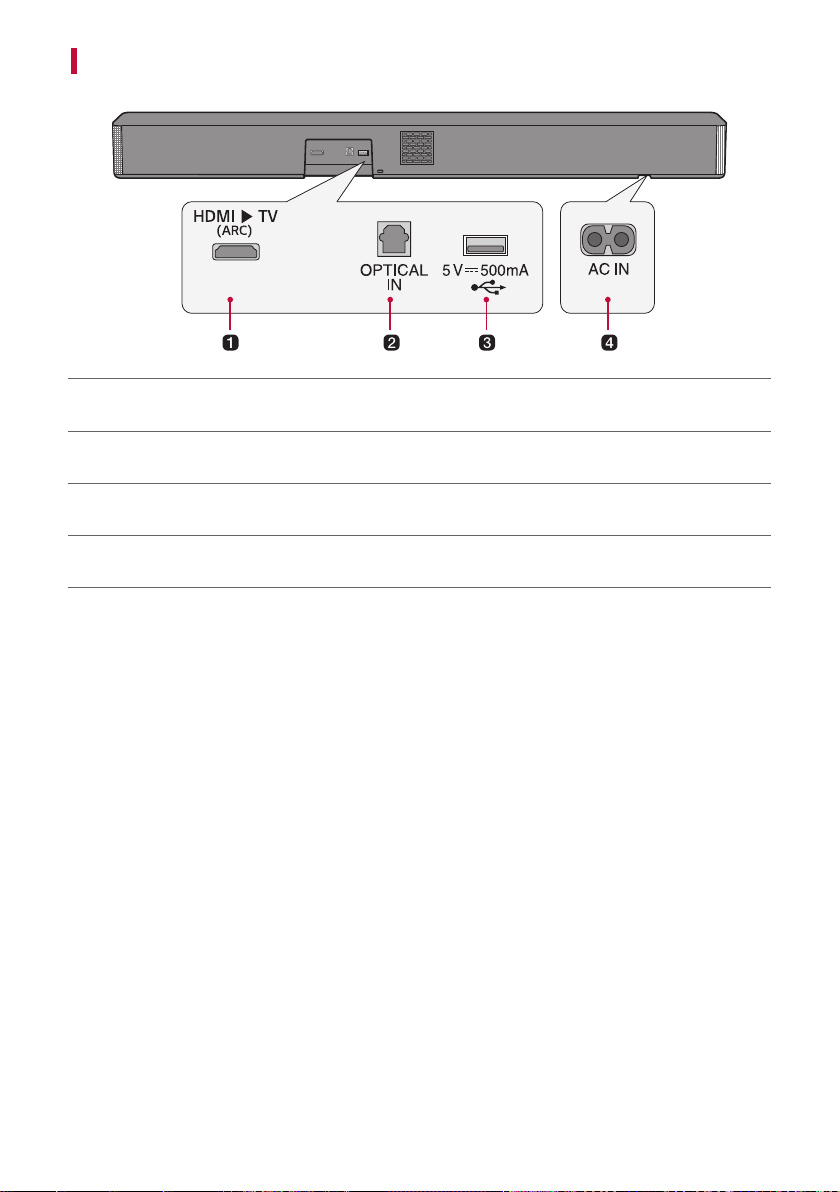
a HDMI d TV (ARC)
Plug in an HDMI cable to connect the TV to the product.
b
OPTICAL IN
Plug in an optical cable to connect the TV to the product.
c
USB port
Plug in a USB storage device to play music with the product.
d
AC IN
Plug in the power cord.
17
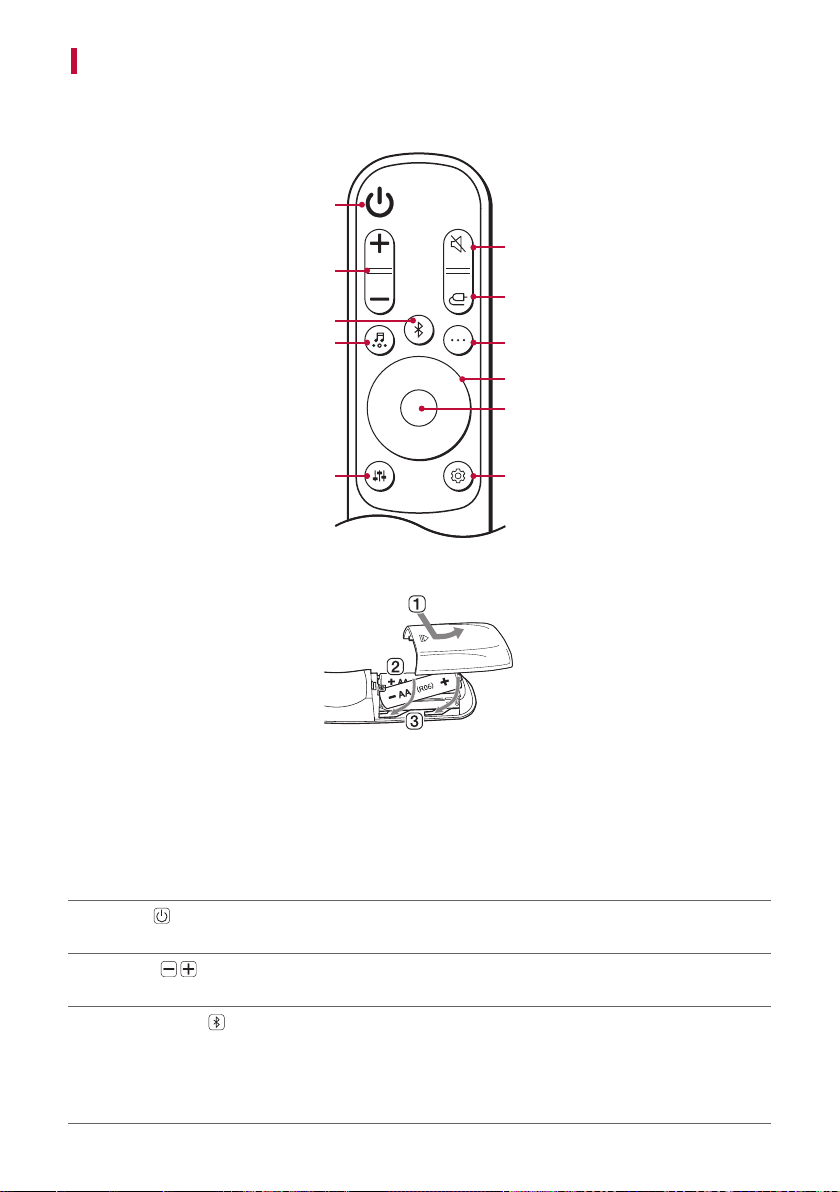
Exploring Remote Control
You can use the remote to control all functions of the product, from turning the power on/off to enabling
cinematic sound.
a
b
c
j
i
d
e
h
k
g
f
Replacement of Battery
Use AA 1.5V batteries. Replace the two batteries by inserting them into the remote control in accordance with the
directions indicated.
A Open the battery cover on the back of the remote control.
B Insert the batteries with the + and – ends corresponding to the markings.
C Close the battery cover.
Risk of fire or explosion if the battery is replaced by an incorrect type.
a
Power
Turns the product on/off.
b
Volume
Adjusts the sound volume.
c
Bluetooth pair
It allows you to pair your Bluetooth device such as a smartphone to this product for three minutes. ([
See “Connecting via Bluetooth” on page 32.)
It allows you to pair your LG TV to this product for three minutes. ([ See “Connecting with LG Sound
Sync (Wireless)” on page 28.)

18
d
Sound Effects
Press the button to select the desired sound field.
• AI SOUND PRO: Artificial intelligence selects the optimal sound settings to suit your content.
• STANDARD: You can enjoy optimised sound.
• CINEMA: Play content with 3D sound similar to a movie theater.
• CLEAR VOICE: Voice sound clear, improving the quality of voice sound.
• SPORTS: Realistic sound like in a stadium.
• MUSIC: You can enjoy more good sound for music source.
• GAME: Optimised sound for game.
• DTS VIRTUAL: X: Sound with immersive and cinematic surround.
• BASS BLAST (BASS BLAST+): Bass sounds are enhanced.
e
Sound Tuning
This adjusts the sound level of the connected speaker. Press the Sound Tuning button and then Left/
Right button to select the desired speaker before you press the Up/Down button to increase/decrease
the sound volume. Adjustable speakers and adjustment ranges are as follows:
• WF (Subwoofer): -15 - 6
• C (Centre speaker): -6 - 6
• S (Surround (Side) speaker): -6 - 6
• TRE (Front speaker (treble)): -5 - 5
• BAS (Front speaker (bass)): -5 - 5
19
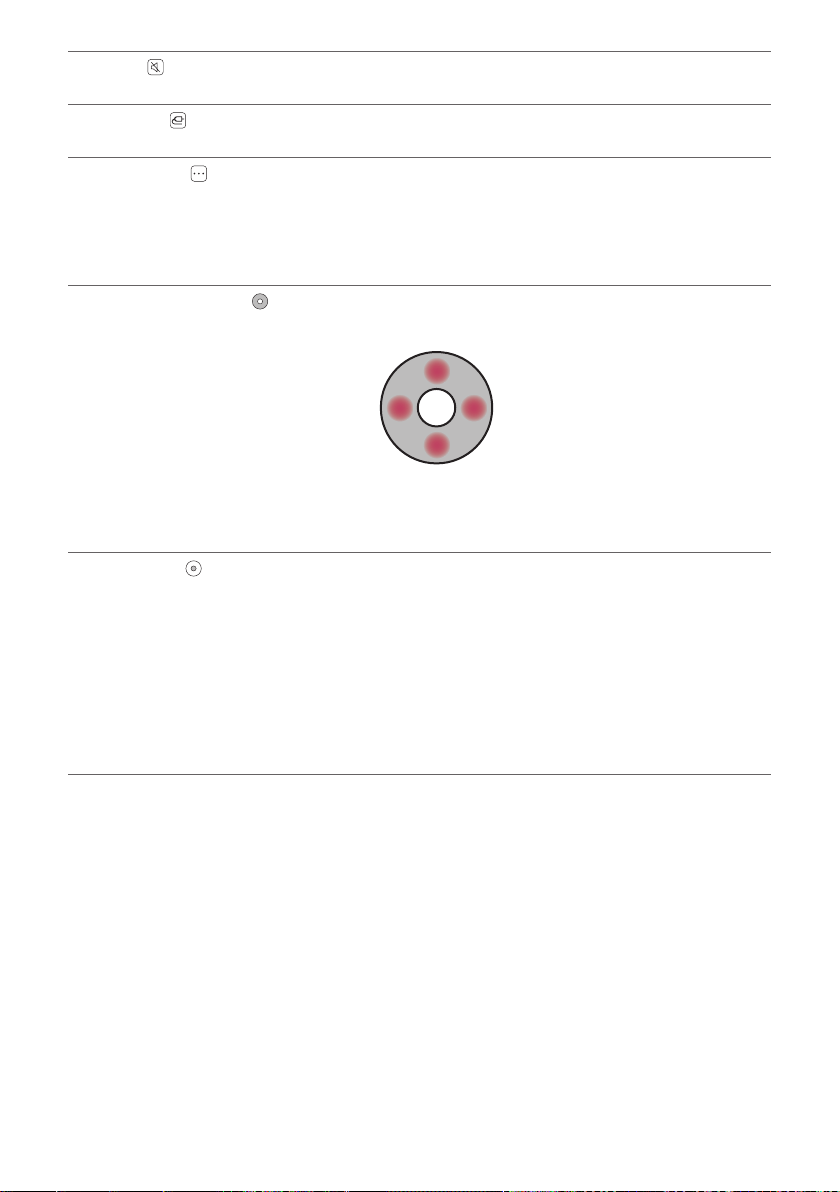
f
Mute
This turns off the sound from the product.
g
Function
Press the button repeatedly to select the desired input mode or function.
h
Information
View the connected input source or Bluetooth information.
• BT: Connected Bluetooth device name
• OPT/ARC: Current sound source
• USB: Current sound filename
i
Up/Down/Left/Right
These buttons are used to adjust the settings of the convenient functions.
Up/Down: This scrolls through the folders on the USB storage device. You can press the button to select
the desired folder.
Left/Right: If you play a previous song, press Left button. If you play a next song, press Right button.
j
Play/Pause
If you play or pause a song, press this button.
• When listening to music on a USB storage device, you can select the play mode by pressing the button
for 3 seconds or longer, then press Up/Down to select the desired Repeat option.
• OFF: Plays the files in order, then ends playback
• ONE: Plays the current file repeatedly
• FOLDER: Only plays the files in the folder on a loop
• ALL: Plays all files on a loop
• SHUFFLE: Plays a random file until all files are played, then ends playback

20
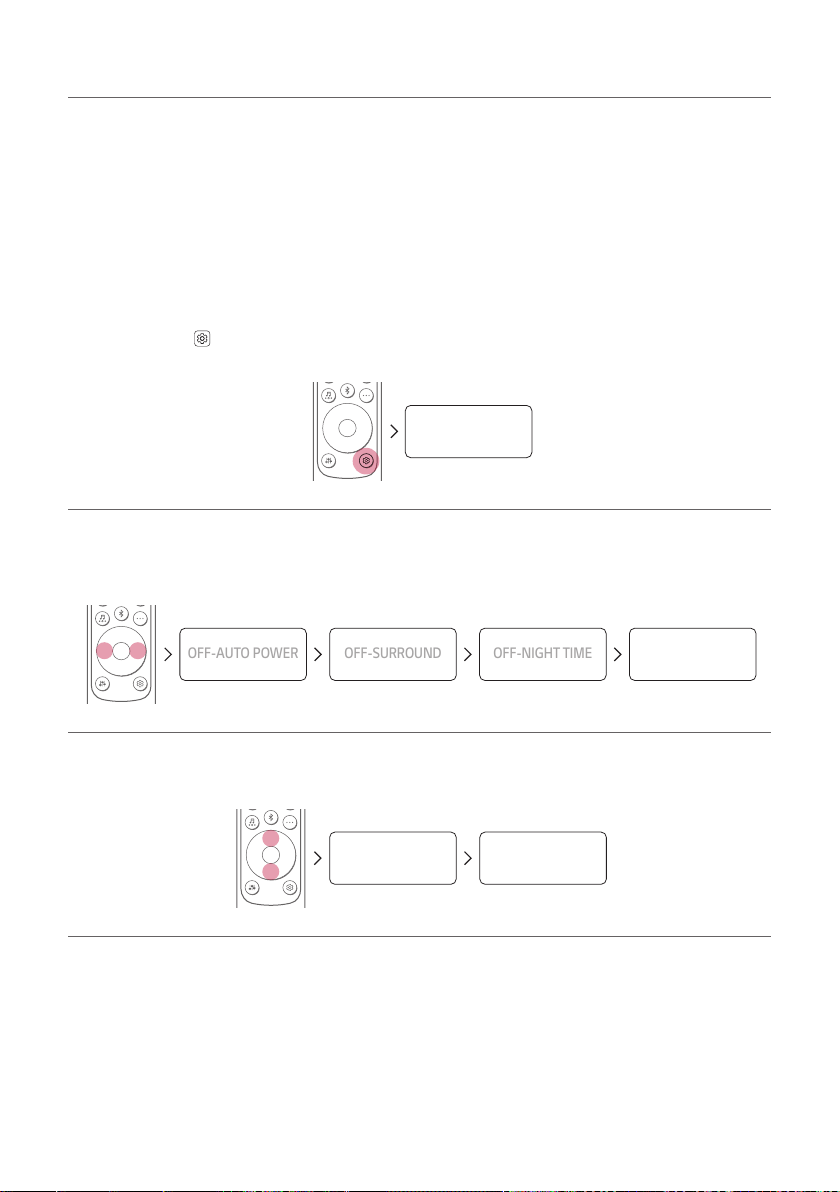
k
Settings
It allows you to adjust the settings of this product: AUTO POWER, SURROUND, NIGHT TIME, TV REMOTE,
DISPLAY. Press Settings button and select the setting by using Left/Right button before you press
the Up/Down button to turn on/off the setting.
• AUTO POWER: When the TV or an external device is turned on or off, the product will also turn on or off
automatically. It is available only when the product is connected to the TV with an optical cable. ([ See
“Using Auto Power” on page 22.)
• SURROUND: The surround sound function allows you to hear immersive 3D sound produced by multiple
audio channels from the speakers, regardless of the channels in the originally recorded content. ([ See
“Turning surround sound on/off” on page 11.)
• NIGHT TIME: This reduces the general sound volume, but raises the volume of soft and delicate sounds.
This is useful when enjoying music or a movie late at night. ([ See “Using Night Time” on page 23.)
• TV REMOTE: This convenient function allows you to adjust the volume of the product with your TV’s
remote control. ([ See “Controlling the product with your TV’s remote control” on page 21.)
• DISPLAY: The status display can be controlled as auto, on, and off. ([ See “Using Display” on page
24.)
21
Controlling the product with your TV’s remote control
The product volume can be adjusted with LG TV Remote control as well as other brands.
Functions controllable with a TV remote control
Volume, mute on/off
TV brands supported
LG, Panasonic, Philips, Samsung, Sharp Electronics, Sony, Toshiba, Vizio
Activating/Deactivating this function
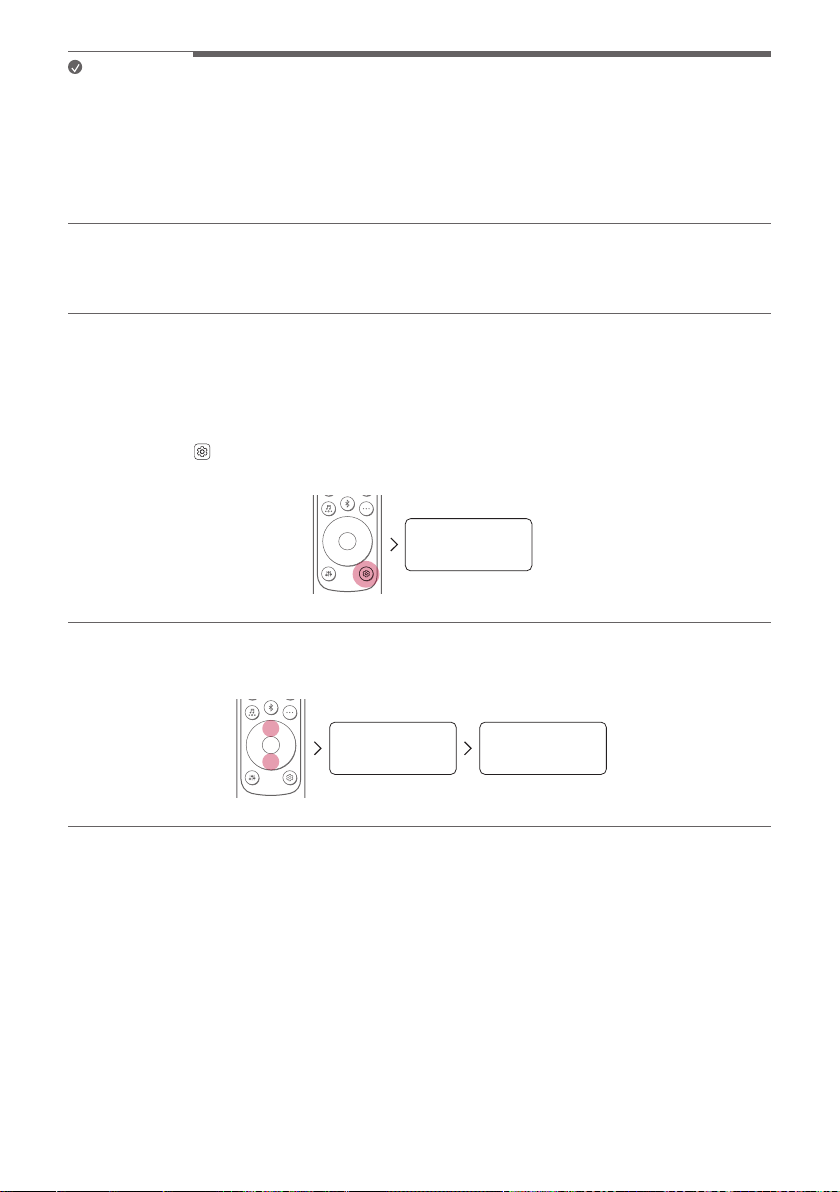
a Press Settings
button. The product enters the setting mode and you can see “OFF-AUTO POWER” or
“ON-AUTO POWER”.
OFF-AUTO POWER
b While the “OFF-AUTO POWER” or “ON-AUTO POWER” is scrolling in the status display, press Left/Right
button to select the TV remote setting. You can see the status of the TV remote, “ON-TV REMOTE” or “OFF-
TV REMOTE”.
OFF-AUTO POWER
OFF-SURROUND
OFF-NIGHT TIME
OFF-TV REMOTE
c While the “ON-TV REMOTE” or “OFF-TV REMOTE” is scrolling in the status display, press Up/Down button
to turn on or off the TV remote.
OFF-TV REMOTE ON-TV REMOTE
22
Note
• Press the Settings button on the TV remote control to check if the TV's audio output is set to [External
Speaker].
• You cannot control the product with the LG TV's Magic Remote Control.
• When the SIMPLINK or Sound Sync functions of the TV are turned on, this function may not work properly.
Press the Settings button on the TV remote control to turn off this function.
• This function may not work well when the unit and the TV are connected with an HDMI cable.
Using Auto Power
This function automatically turns the product on or off when the TV or external device is turned on or off.
When the connected device is turned on, the product turns on automatically and selects a function according to
the input signal.
Activating/Deactivating the Auto Power function
a Press Settings
button. The product enters the setting mode and you can see “OFF-AUTO POWER” or
“ON-AUTO POWER”.
OFF-AUTO POWER
b While the “OFF-AUTO POWER” or “ON-AUTO POWER” is scrolling in the status display, press Up/Down
button to turn on or off the Auto Power function.
OFF-
AUTO POWER
ON-
AUTO POWER
23
Using Night Time
This reduces the general sound volume, but raises the volume of soft and delicate sounds. This is useful when
enjoying music or a movie late at night.
Activating/Deactivating the Night Time function
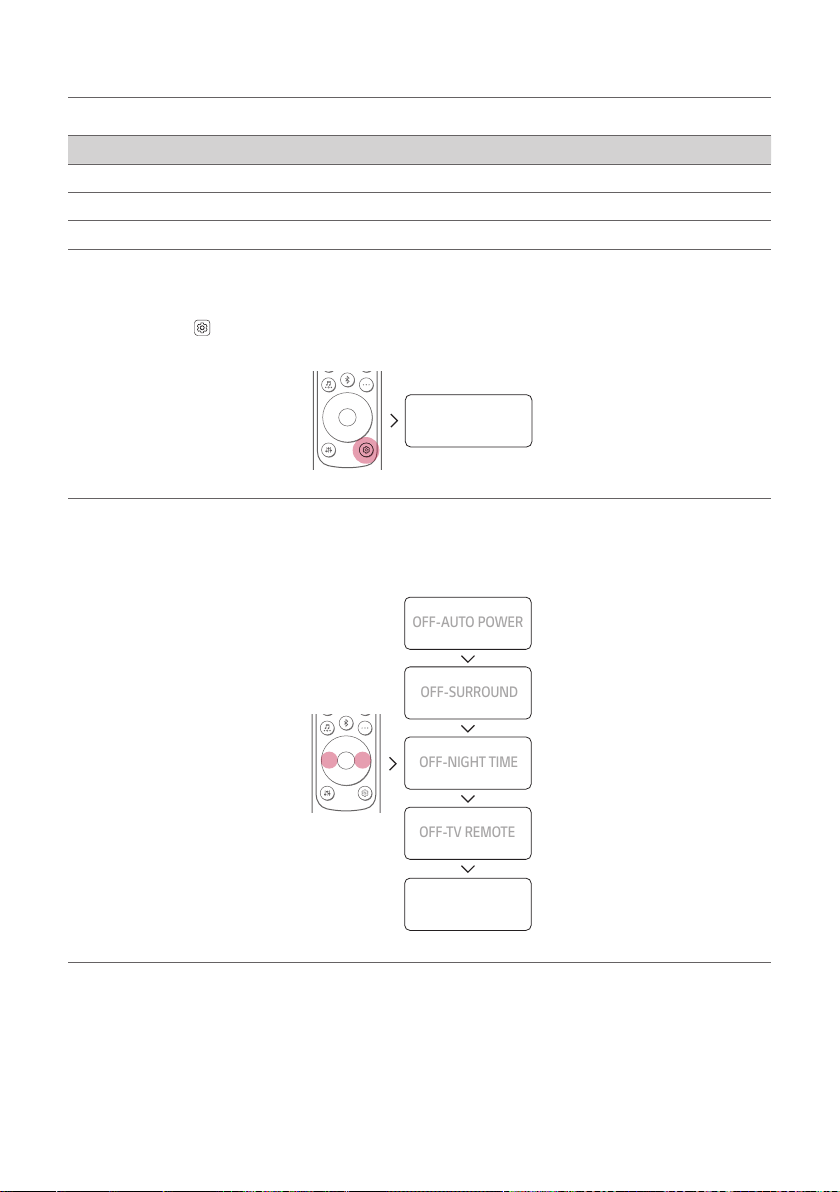
a Press Settings
button. The product enters the setting mode and you can see “OFF-AUTO POWER” or
“ON-AUTO POWER”.
OFF-AUTO POWER
b While the “OFF-AUTO POWER” or “ON-AUTO POWER” is scrolling in the status display, press Left/Right
button to select the Night time setting. You can see the status of the Night time, “ON-NIGHT TIME” or
“OFF-NIGHT TIME”.
OFF-AUTO POWER
OFF-SURROUND
OFF-NIGHT TIME
OFF-TV REMOTE
c While the “ON-NIGHT TIME” or “OFF-NIGHT TIME” is scrolling in the status display, press Up/Down
button to turn on or off the Night time.
OFF-NIGHT TIME ON-NIGHT TIME
24
Using Display
The status display can be controlled as auto, on, and off.
Option Status display
AUTO Dimmed after 20 seconds of button input.
ON Always on
OFF Turned off after 20 seconds of button input.
Activating/Deactivating the Display function
a Press Settings
button. The product enters the setting mode and you can see “OFF-AUTO POWER” or
“ON-AUTO POWER”.
OFF-AUTO POWER
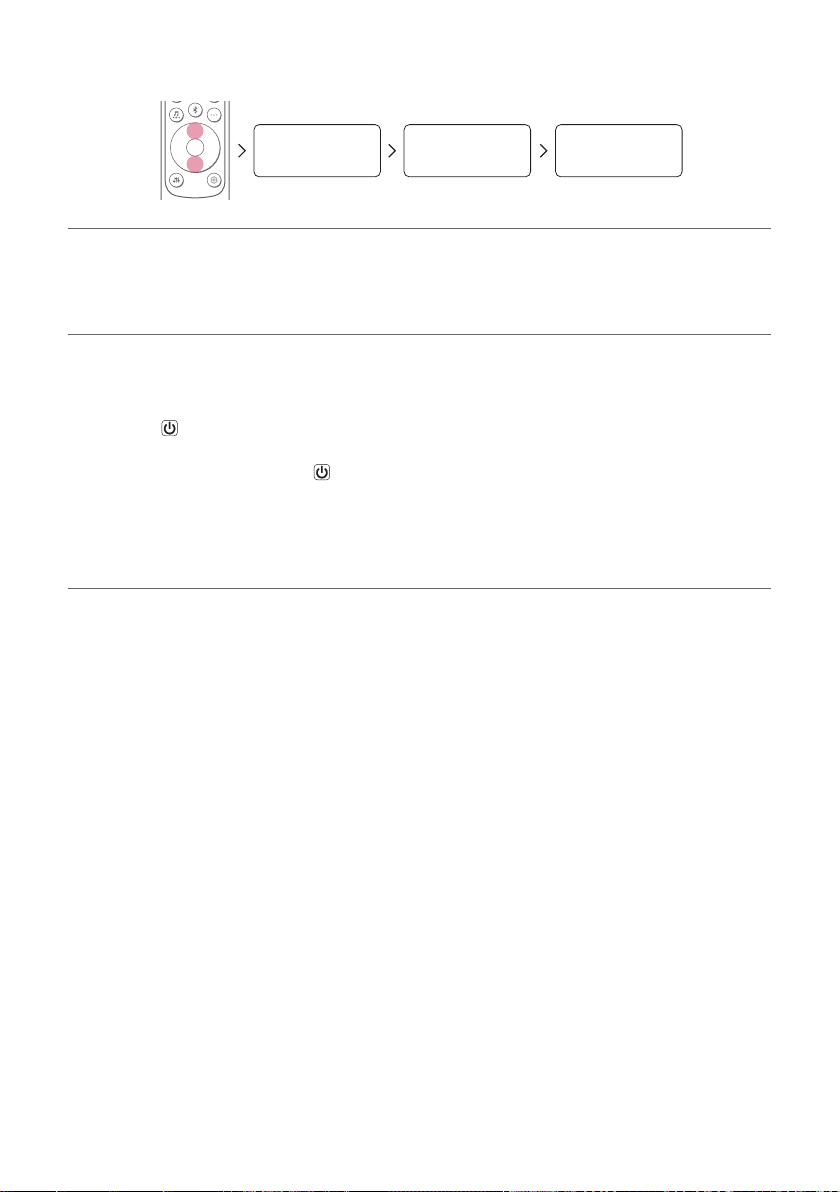
b While the “OFF-AUTO POWER” or “ON-AUTO POWER” is scrolling in the status display, press Left/
Right button to select the Display setting. You can see the status of the Display, "AUTO-DISPLAY", "ON-
DISPLAY" or “OFF-DISPLAY”.
OFF-AUTO POWER
OFF-SURROUND
OFF-NIGHT TIME
OFF-TV REMOTE
AUTO-DISPLAY
25
c While the "AUTO-DISPLAY", "ON-DISPLAY" or “OFF-DISPLAY ” is scrolling in the status display, Press Up/
Down button to change the Display to “AUTO” or turn it on or off.
AUTO-DISPLAY ON-DISPLAY OFF-DISPLAY
Using Quick start
This reduces booting time by staying standby mode using low power consumption.
Activating/Deactivating the Quick start function
Press and hold
button on the product for 3 seconds when the product is turn on. Then you can see “ON-
QUICK START”.
To turn off this function, Press and hold
button on the product for 3 seconds when the product is turn on, then
you can see “OFF-QUICK START”.
How to deactivate the wireless network connection(s).
Set up the Auto Power function to off and turn off the product.
26
Connecting to the TV
Connecting with an Optical Cable
Transmit your TV’s audio to the product by connecting it to the TV with an optical cable. You can add a variety of
3D effects to the original audio to fill the room with a deep, rich sound.
Watching TV after connecting with an optical cable
a If the digital cable terminal has a cover, first remove the covers from both ends.
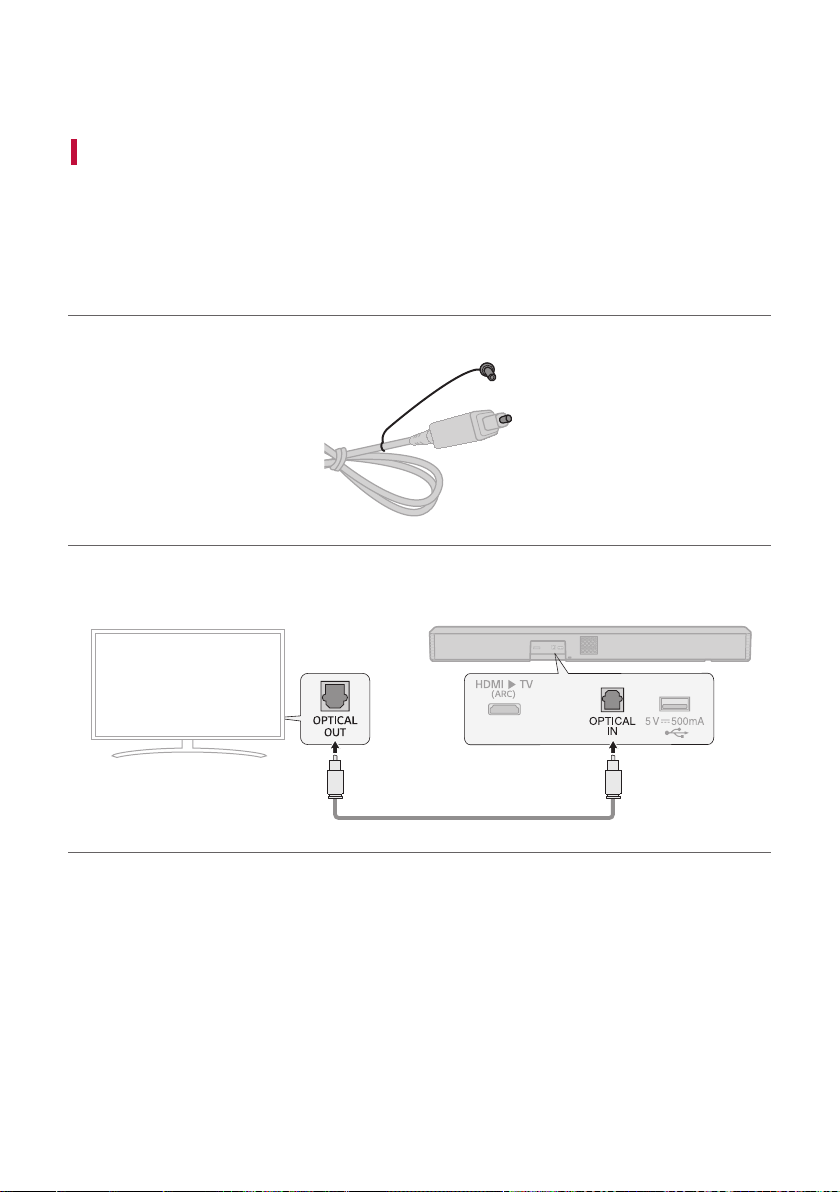
b Using an optical cable, connect the OPTICAL IN terminal on the back of the product to the Optical Digital
Output (OPTICAL OUT) terminal on the TV as shown in the picture.
27
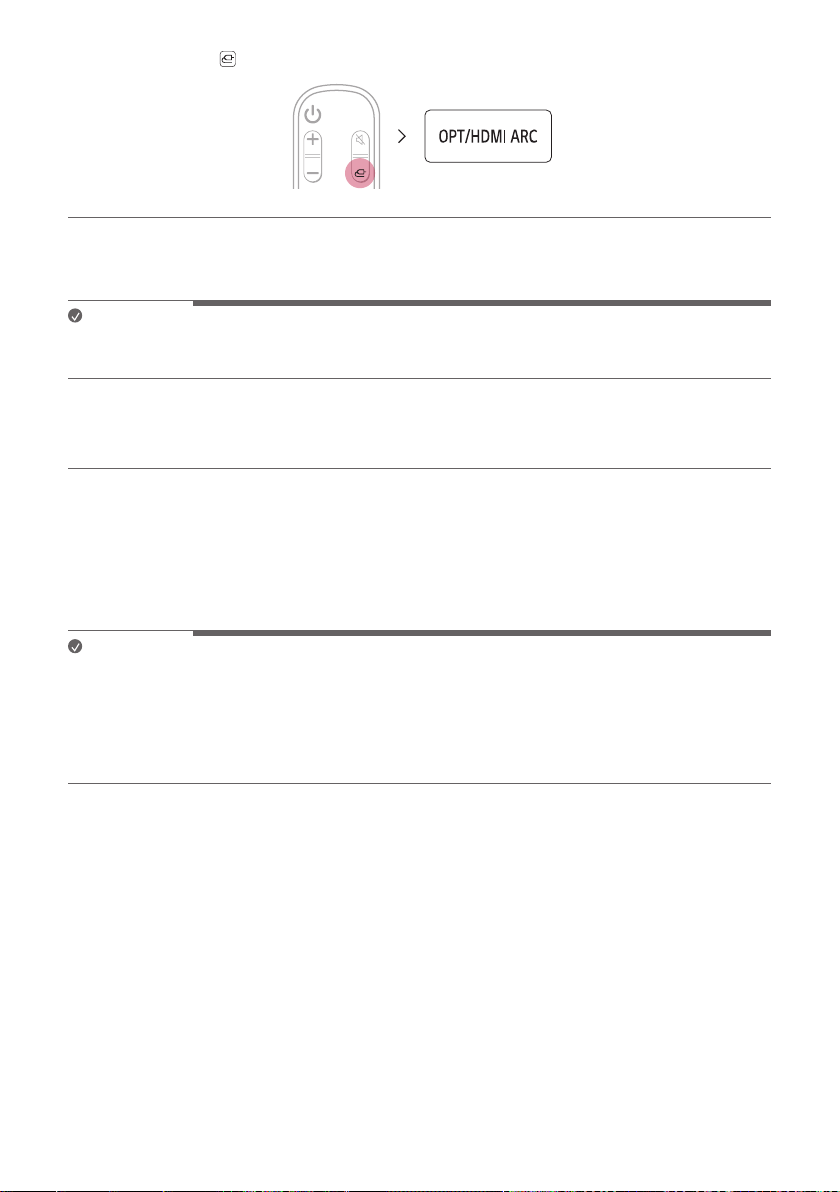
c Press the Function button repeatedly until “OPT/HDMI ARC” appears on the status display.
d Press the Settings button on the TV remote control to enter the [Speaker] menu and set the output speaker
to [Optical] or [External Speaker]. Settings and menu items may vary depending on the TV manufacturer.
Note
• If the optical input signal and the ARC signal attempt to connect at the same time, the ARC signal will take
priority.
When you use an LG TV
You can adjust the volume with the LG TV remote control if the TV is connected to the product with an optical
cable. You can only do so on a TV that supports the LG TV Sound Sync function. Check your TV’s user manual to
see if your TV is supported.
Functions controllable with an LG TV remote control
Volume, mute on/off
Note
• When the TV is properly connected to the product, “LGOPT” will appear on the status display.
• When using the product with an LG TV remote control, the volume and mute status set on the TV will
automatically be applied to the product.
• You can still use the product’s remote control even after connecting it to an LG TV.
• To use LG Sound Sync, you may have to change the sound setting of your TV. It may vary depending on the TV.
28
Connecting with LG Sound Sync (Wireless)
You can adjust the volume with the LG TV remote control if the TV is connected to the product with LG Sound
Sync (Wireless). Check out the TV user manual to see if your TV is supported.
Watching TV after connecting it wirelessly
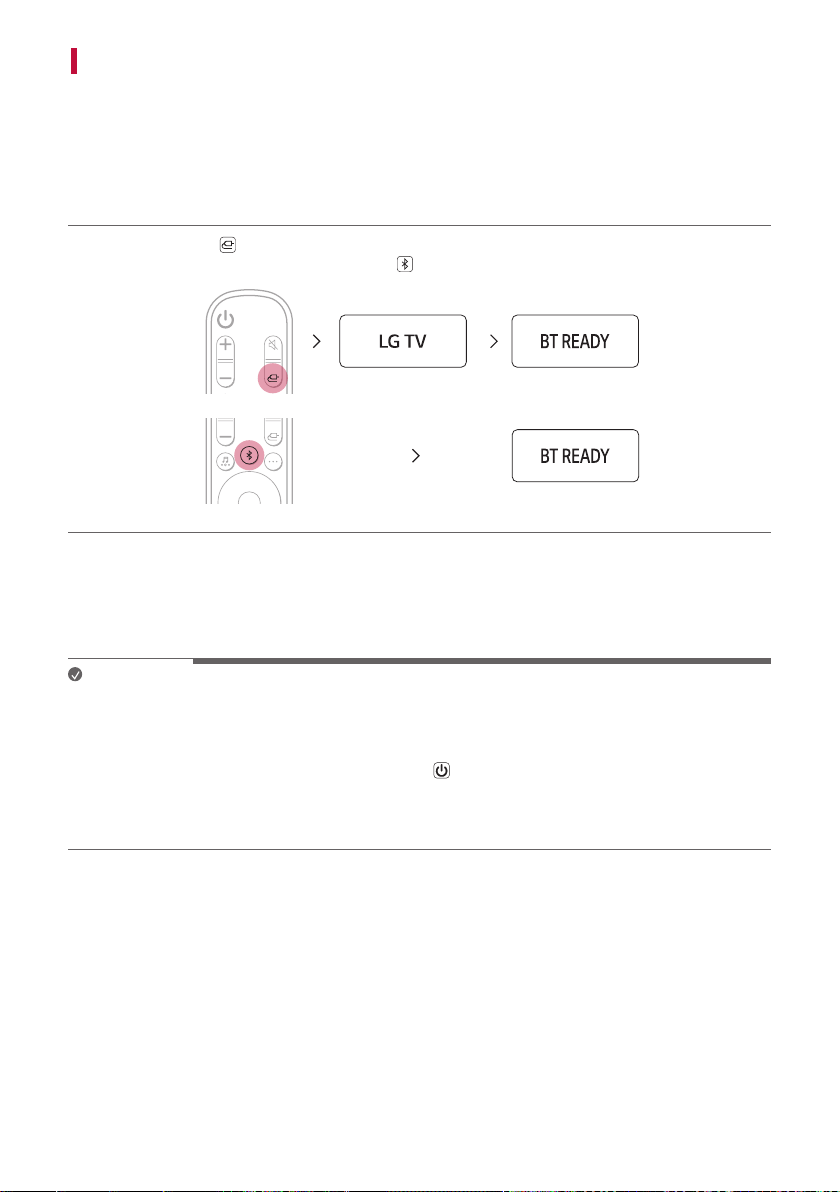
a Press the Function button repeatedly until “LG TV” appears on the status display. After a moment, it will
show “BT READY”. Or Press the Bluetooth pair button. After a moment, it will show “BT READY”.
b Press the Settings button on the TV remote control and enter the [Speaker] menu to set the output speaker
to [LG Sound Sync (Wireless)].
c When the product is connected to the TV via Bluetooth, you can see the status display change from
“PAIRED” (Connected) [ “LG TV” (Ready to use)
Note
• When using the product with an LG TV remote control, the volume and mute status set on the TV will
automatically be applied to the product.
• You can still use the product’s remote control even after connecting it to an LG TV.
• If you turn off the power of the product with the Power
button, the LG Sound Sync (Wireless) will be
disconnected.
• Depending on the TV, the product may be connected to the LG TV even if it is connected with the Bluetooth
function.
29
Connecting with an HDMI Cable
You can transmit TV audio to the product by connecting the TV to the product with an HDMI cable. Add a variety
of 3D effects to the original audio to fill the room with a deep, rich sound.
Watching TV after connecting with an HDMI cable
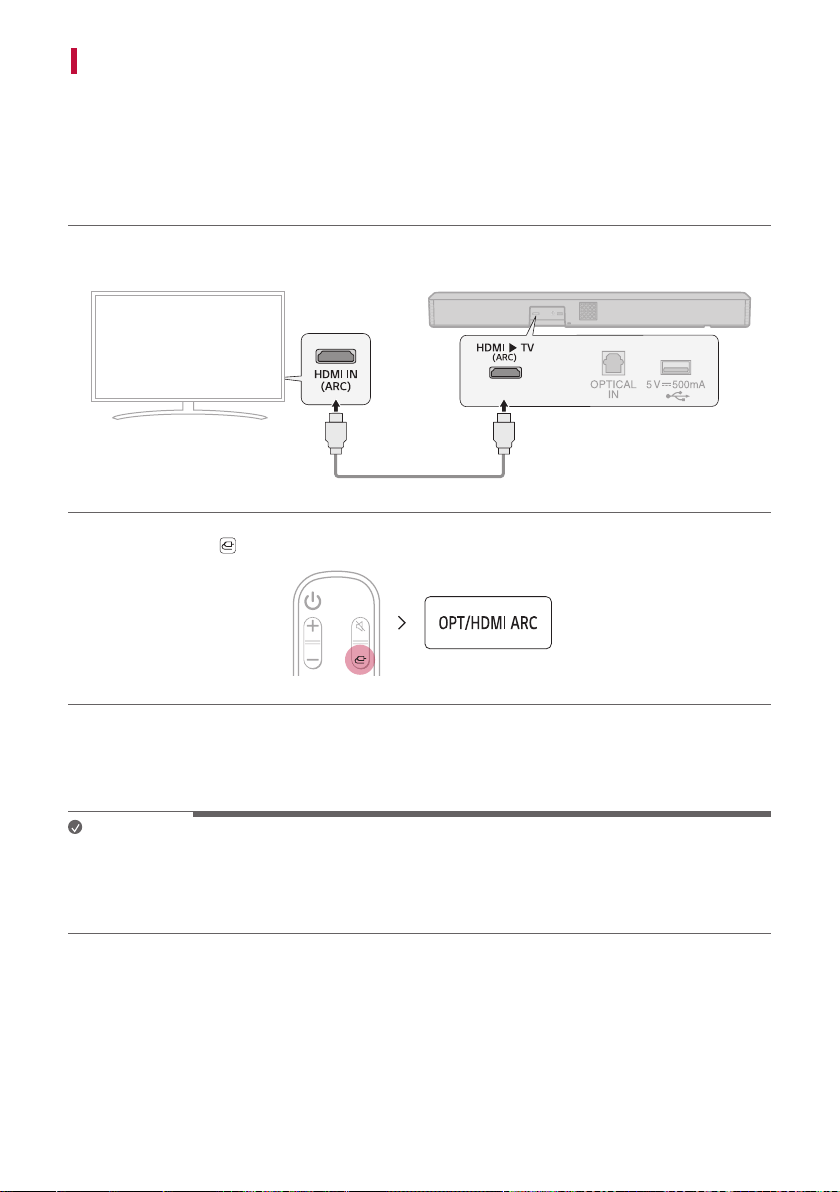
a Using the HDMI cable, connect the HDMI d TV (ARC) terminal on the back of the product to the HDMI IN
(ARC) terminal on the TV as shown in the picture.
b Press the Function button repeatedly until “OPT/HDMI ARC” appears on the status display.
c Press the Settings button on the TV remote control to enter the [Speaker] menu and set the output speaker
to [HDMI ARC]. Settings and menu items may vary depending on the TV manufacturer.
d When the TV is properly connected to the product, “ARC” will appear on the status display.
Note
• Make sure that your TV supports the ARC function before you press the Setting button on the TV remote
control and turn on ARC. For more information on how to set the function, refer to the TV user manual as it
may differ depending on the TV.
• Use a certified cable with the HDMI logo.

30
SIMPLINK
• SIMPLINK refers to the HDMI-CEC function that allows you to use a single TV remote control to easily operate
an audio device or player connected to an LG TV via HDMI.
- Functions controllable with a SIMPLINK-compatible LG TV remote control: Power on/off, volume control,
mute on/off, etc.
• For more information on how to set up SIMPLINK, consult your LG TV’s user manual.
Note
• The SIMPLINK function may not work properly depending on the status of the product or other connected
devices.
- HDMI-CEC features by TV manufacturer: LG SIMPLINK, Sony BRAVIA Sync/Link, Philips EasyLink, Samsung
Anynet+, etc.
31
Connecting to an External Device
Connecting with an Optical Cable
Connect the TV and external device (game console, DVD player, etc.) with an optical cable and enjoy a deep and
rich sound.
Connecting an external device via optical cable
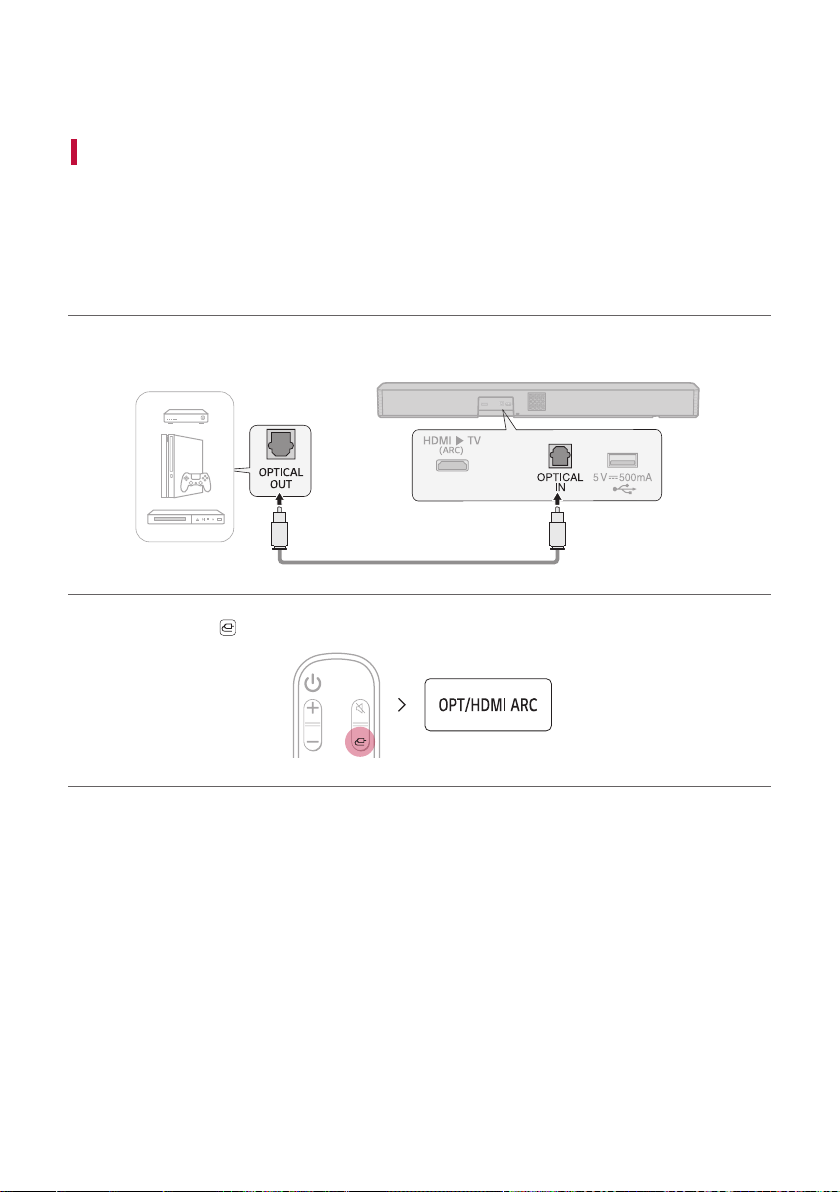
a Use the optical cable to connect the OPTICAL IN terminal on the back of the product to the OPTICAL OUT
terminal of your external device (ex. TV, Blu-ray player) as shown in the picture.
b Press the Function button repeatedly until “OPT/HDMI ARC” appears on the status display.
c When the external device is properly connected to the product, “OPT” will appear on the status display.
32
Using the Product as an Audio System
Connecting via Bluetooth
You can play music files stored on a Bluetooth device, or run music apps to enjoy the music with this product.
Please check the following first.
• Bluetooth devices to be connected to the product should meet the following specifications.
- Bluetooth 4.2 technology
- Codec: SBC, AAC
• Steps to connect the device to the product may vary depending on the Bluetooth device type and
model. For more information on how to connect the device, please refer to your external device’s user
manual.
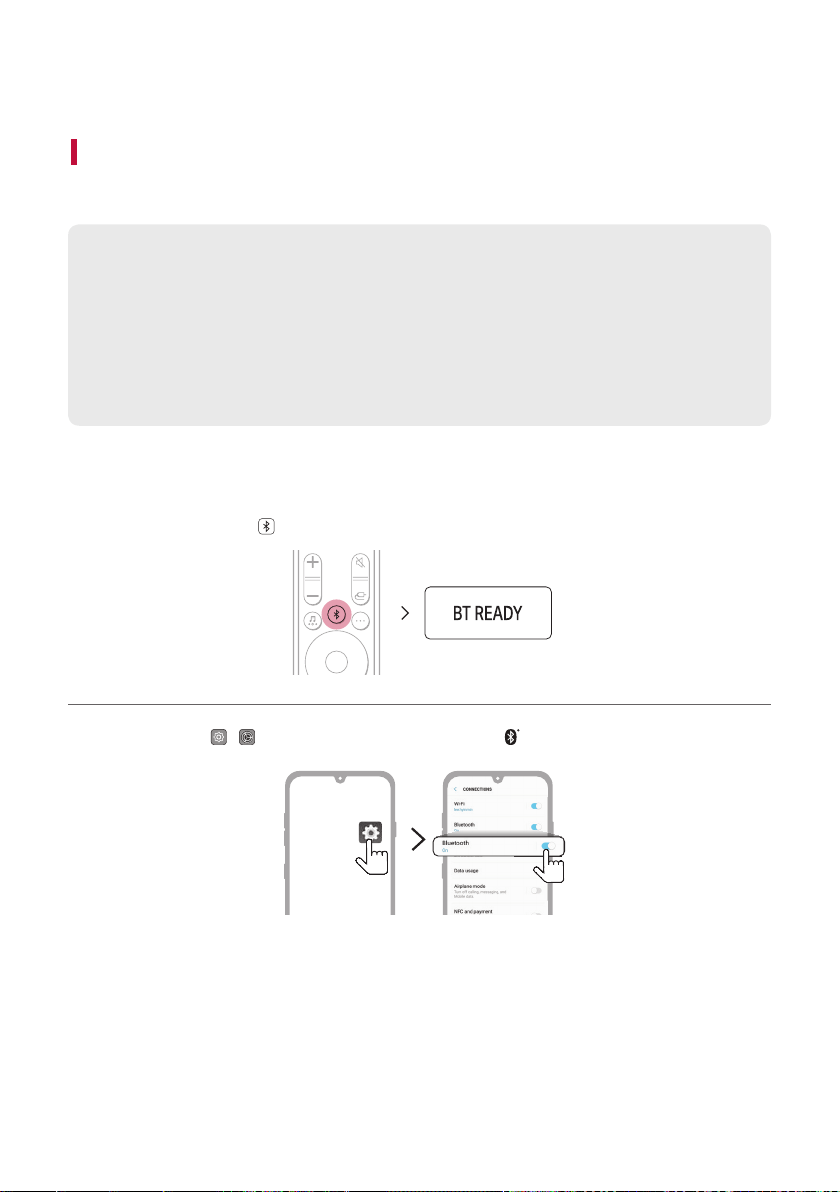
Select the [Bluetooth] from your smartphone's Settings menu.
Settings menu items may vary depending on your smartphone manufacturer and model.
a Turn on the product.
b Press the Bluetooth pair
button. After a moment, “BT READY” appears on the status display.
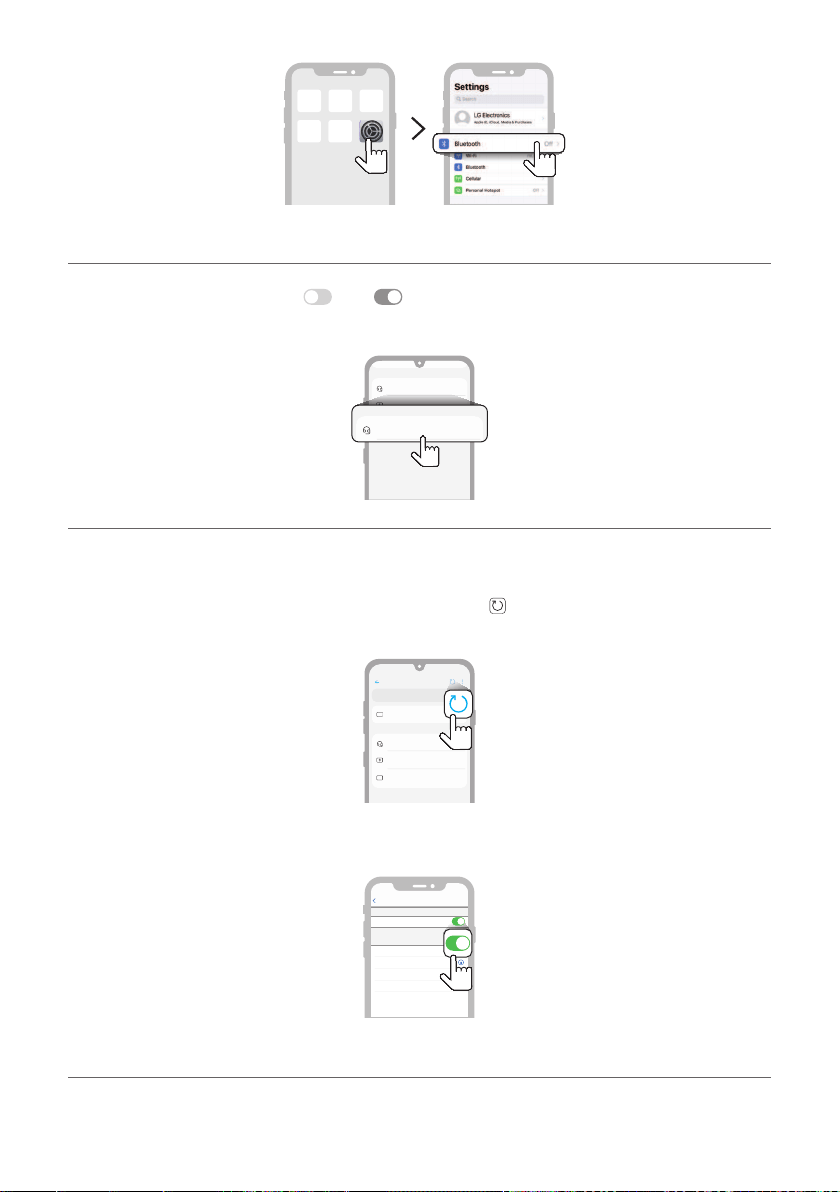
c Tap the Settings ( / ) button on your smartphone and select Bluetooth.
(Android Phone)
33
(iPhone)
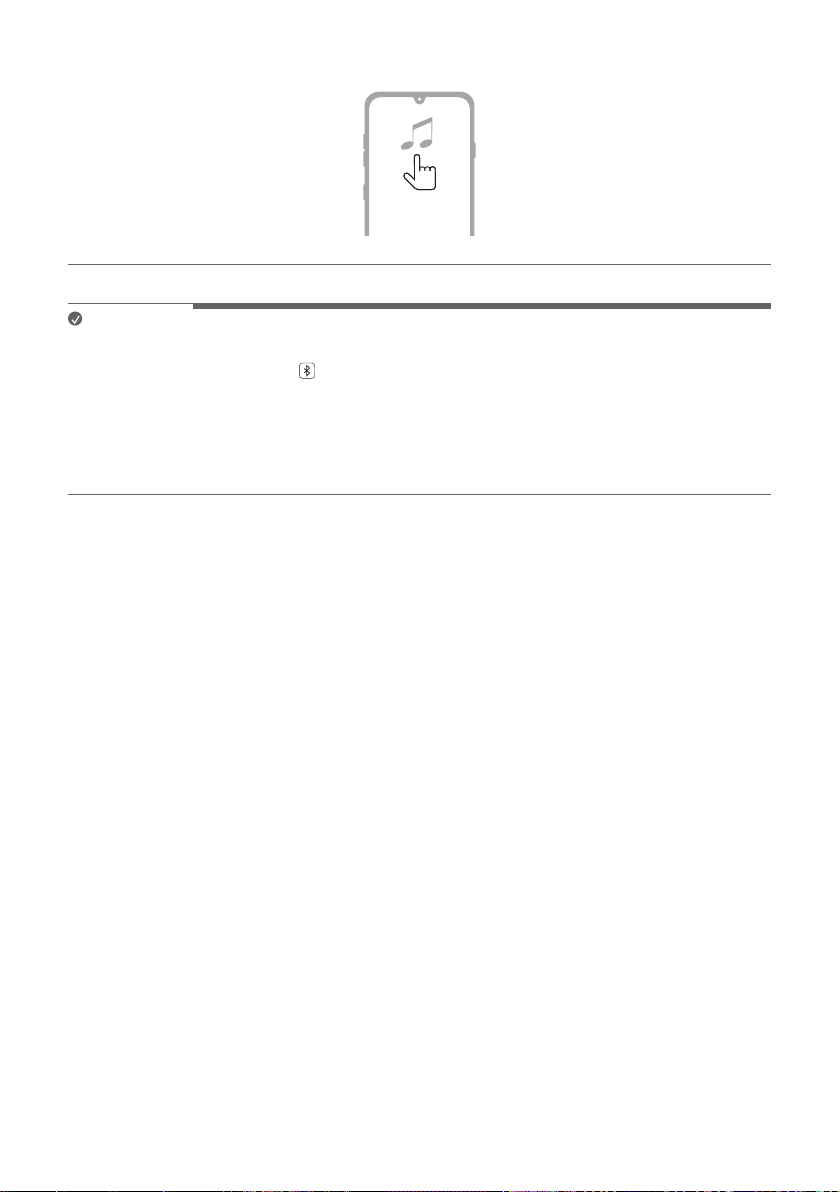
d Turn on the Bluetooth function. ( Off > On)
e You will see a list of connectable devices on your smartphone. Find and tap "LG SH7Q (XX)".
LG SH7Q (XX)
Bluetooth devices
LG Smart Phone
Bluetooth devices
AVAILABLE DEVICES
LG SH7Q (XX)
AVAILABLE DEVICES
f When the product is connected to the smartphone via Bluetooth, you will see the status display change
from “PAIRED” (Connected) [ “Connected Bluetooth device name” [ “BT” (Ready to use).
g If you cannot find the product “LG SH7Q (XX)”, tap the Refresh
button at the top right of the screen on
the Android smartphone or turn the Bluetooth off and turn it on again on iPhone.
Bluetooth
Speaker
Bluetooth devices
LG Smart Phone
Bluetooth devices
On
AVAILABLE DEVICES
(Android Phone)
Not Connected
LG Speaeker1
Not Connected
Not Connected
Not Connected
Settings
LG Speaeker2
LG Speaeker3
LG Speaeker4
MY DEVICES
Now discoverable as “iPhone”
Bluetooth
Bluetooth
(iPhone)
34
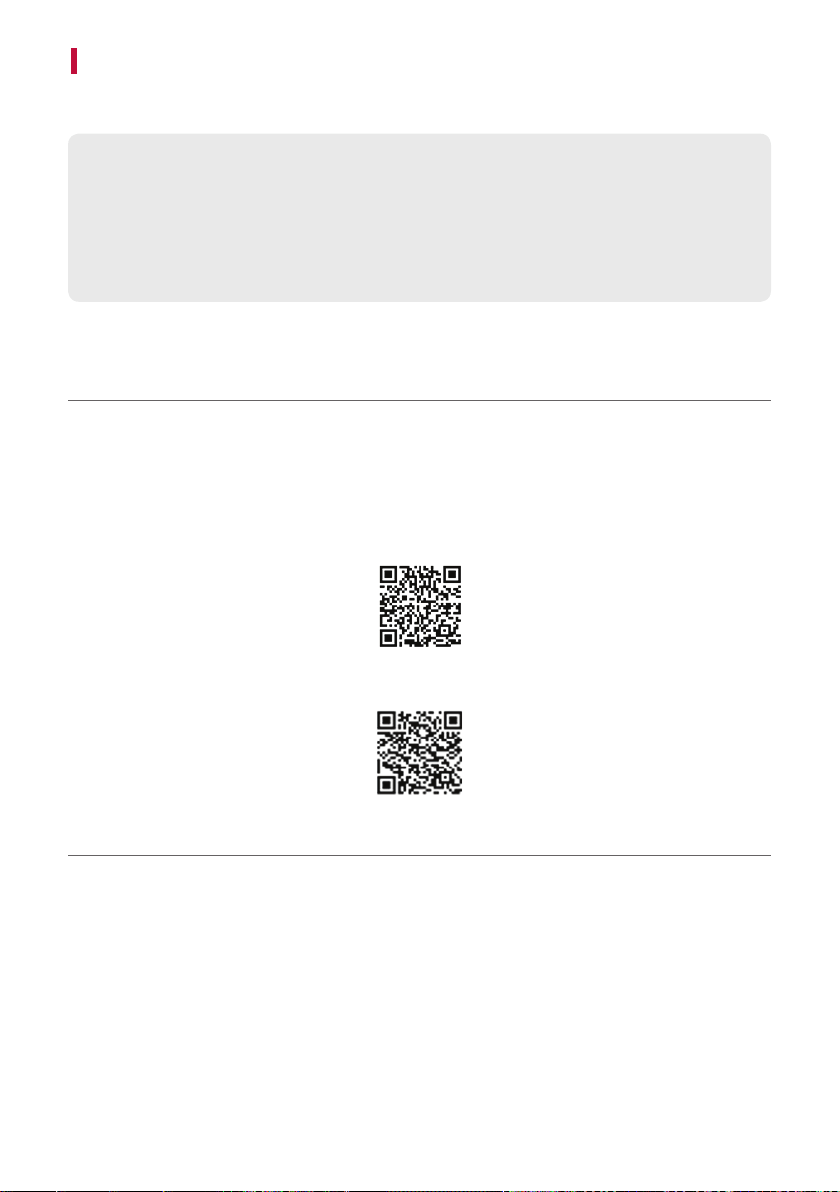
h Run a Music app and listen to music on the smartphone.
Note
• The closer the Bluetooth device is to the product, the better your connection.
• If you pressed the Bluetooth pair
button of the product and selected the “BT” option, but could not
connect to the Bluetooth device, you will see “BT READY” on the status display. Check the status of the
Bluetooth device.
• When using Bluetooth, you should adjust the volume level to an appropriate level.
• XX is the last 2 digits of the MAC address of the product. For example, if the MAC address is
9C:02:98:4A:F7:08, it will be displayed as “LG SH7Q (08)”.
35
Connecting with a Smartphone via LG Sound Bar app
Please use the LG Sound Bar app to run various functions of the product conveniently.
Please check the following first.
• The LG Sound Bar app is available in the versions listed below.
- Android™ OS: Version 6.0 or higher
- iOS OS: Version 12 or higher
- Minimum supported versions for each OS may change later.
Installing the app
Install the LG Sound Bar app on your smartphone. To install the LG Sound Bar app, you can scan the QR code
with a QR code scan app or download on Google Play or the App Store.
Downloading with a QR code
a Scan the QR code below with a QR code scan app.
b You will be directed to a page where you can download the LG Sound Bar app. Tap the app to install it.
(Android Phone OS)
(iPhone OS)
36
Downloading from the Google Play or App Store
Go to the Google play or the App Store on your smartphone and search for the LG Sound Bar app to install it.
(Android Phone)
(iPhone)
Note
• Settings menu items may vary depending on the smartphone manufacturer and OS.
• Google, Android and Google Play are trademarks of Google LLC.
37
Connecting to a USB Storage Device
Enjoy high-quality sound by connecting a USB storage device containing music files to the product.
Connecting the product to a USB storage device
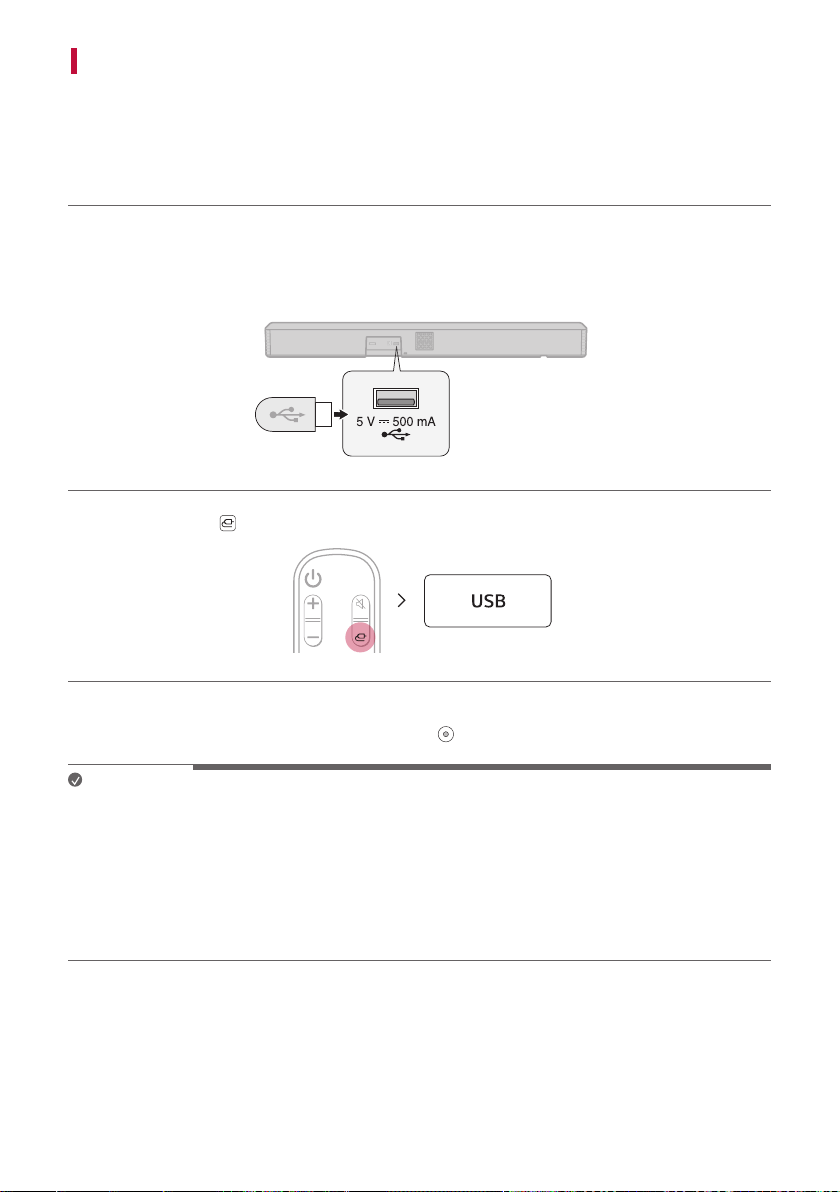
a Plug the USB storage device into the USB port on the back of the product.
• The product cannot play any devices connected via a USB storage device hub or a USB storage device cable.
• The product cannot be connected to any USB storage device, USB type MP3 player, or card reader that
requires a separate device drive to be installed.
b Press the Function button repeatedly until “USB” appears on the status display.
c When the product is properly connected to a USB storage device, the number of music files in the USB device
will appear on the status display. Press the Play/Pause button on the remote control to enjoy the music.
Note
• It is recommended that you purchase a separate USB gender changer to make it easier to plug in and out USB
storage devices.
• Purchase a USB gender changer with a USB 2.0 extension cable.
• USB devices with a large storage volume may take several minutes to browse through files.
• LG Electronics is not responsible for any data loss. Please always back up the data on your USB storage device
to minimise damage caused by data loss.
• Only FAT16/FAT32/NTFS formats are supported. exFAT format is not supported.

38
USB storage devices supported
• MP3 player
• Flash MP3 player
• USB flash device
• USB 2.0
This product may not recognise some USB storage devices.
Playable file specifications
File extension Sampling frequency / Bitrate
MP3 32 kHz - 48 kHz / 8 kbps - 320 kbps
WMA 32 kHz - 48 kHz / 56 kbps - 128 kbps
OGG 32 kHz - 48 kHz / 64 kbps - 320 kbps
File extension Sampling frequency
FLAC (16 bit/24 bit) 32 kHz, 44.1 kHz, 48 kHz, 88.2 kHz, 96 kHz, 176.4 kHz, 192 kHz
WAV (16 bit/24 bit) 32 kHz, 44.1 kHz, 48 kHz, 88.2 kHz, 96 kHz, 176.4 kHz, 192 kHz
• Number of playable files: Up to 2,000
• Maximum number of directories: Up to 200
• This product cannot play files protected by DRM (Digital Rights Management).
• This product cannot play video files from a USB storage device.
39
Safety Precautions
Safety and Regulatory
CAUTION
RISK OF ELECTRIC SHOCK
DO NOT OPEN
CAUTION: TO REDUCE THE RISK OF ELECTRIC SHOCK DO NOT REMOVE COVER (OR BACK) NO USER-
SERVICEABLE PARTS INSIDE REFER SERVICING TO QUALIFIED SERVICE PERSONNEL.
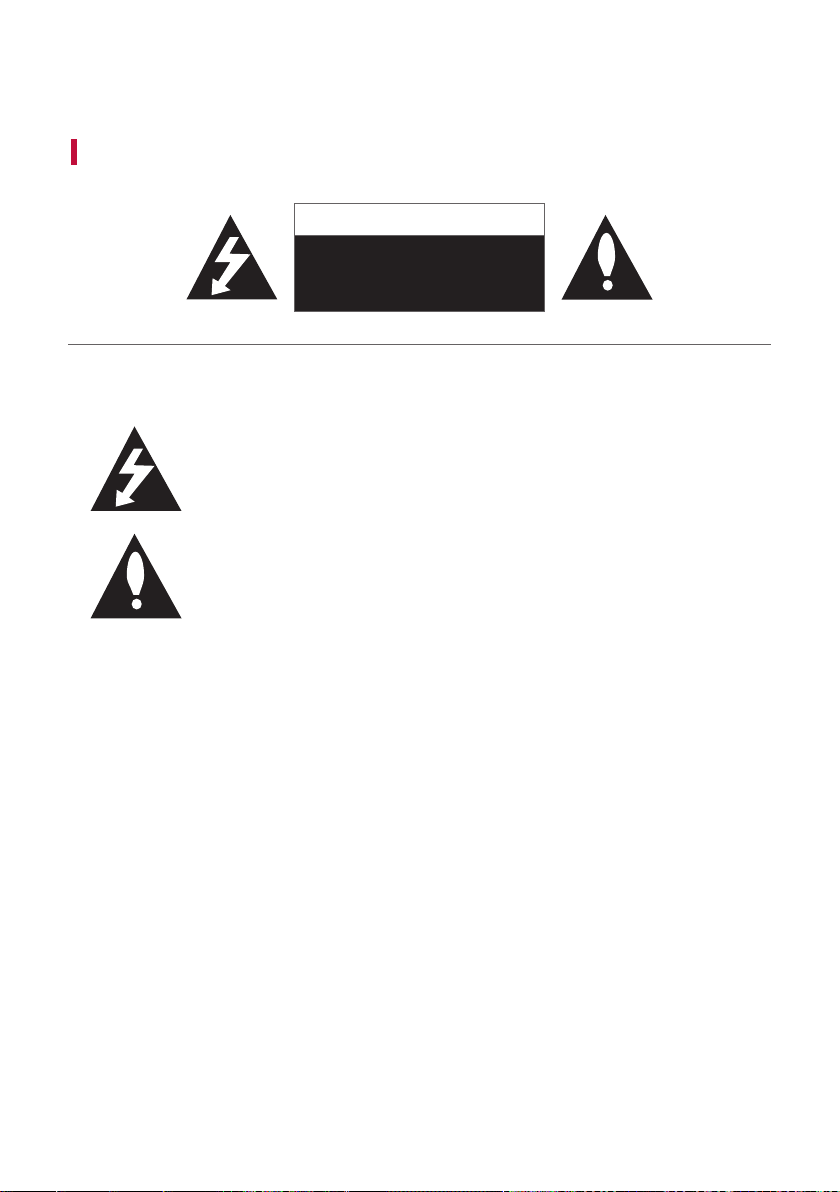
This lightning flash with arrowhead symbol within an equilateral triangle is intended to
alert the user to the presence of uninsulated dangerous voltage within the product’s
enclosure that may be of sufficient magnitude to constitute a risk of electric shock to
persons.
The exclamation point within an equilateral triangle is intended to alert the user to the
presence of important operating and maintenance (servicing) instructions in the literature
accompanying the product.
WARNING:
• TO PREVENT FIRE OR ELECTRIC SHOCK HAZARD, DO NOT EXPOSE THIS PRODUCT TO RAIN OR MOISTURE.
• Do not install this equipment in a confined space such as a book case or similar unit.
CAUTION:
• Do not use high voltage products around this product. (ex. Electrical swatter) This product may malfunction due
to electrical shock.
• No naked flame sources, such as lighted candles, should be placed on the apparatus.
• Do not block any ventilation openings. Install in accordance with the manufacturer’s instructions. Slots and
openings in the cabinet are provided for ventilation and to ensure reliable operation of the product and to
protect it from over heating. The openings should never be blocked by placing the product on a bed, sofa, rug or
other similar surface. This product shall not be placed in a built-in installation such as a bookcase or rack unless
proper ventilation is provided or the manufacturer’s instruction has been adhered to.
• The apparatus should not be exposed to water (dripping or splashing) and no objects filled with liquids, such as
vases, should be placed on the apparatus.
• For safety marking information including product identification and supply ratings, please refer to the main
label on the bottom or the other surface of the product.
• Be careful to make sure children do not put their hands or any objects into the *speaker duct.
- * speaker duct: A hole for plentiful bass sound on speaker cabinet. (enclosure)

40
CAUTION concerning the Power Cord
The Power Plug is the disconnecting device. In case of an emergency, the Power Plug must remain readily
accessible.
Check the specification page of this owner’s manual to be certain of the current requirements.
Do not overload wall outlets. Overloaded wall outlets, loose or damaged wall outlets, extension cords, frayed power
cords, or damaged or cracked wire insulation are dangerous. Any of these conditions could result in electric shock
or fire. Periodically examine the cord of your device, and if its appearance indicates damage or deterioration, unplug
it, discontinue use of the device, and have the cord replaced with an exact replacement part by an authorised
service centre.
Protect the power cord from physical or mechanical abuse, such as being twisted, kinked, pinched, closed in a door,
or walked upon. Pay particular attention to plugs, wall outlets, and the point where the cord exits the device.
For models using an adapter
Only use the AC adapter supplied with this device. Do not use a power supply from another device or another
manufacturer. Using any other power cable or power supply may cause damage to the device and void your
warranty.

41
For models using a battery
This device is equipped with a portable battery or accumulator.
CAUTION: Risk of fire or explosion if the battery is replaced by an incorrect type.
For models using a built-in battery
Do not store or transport at pressures lower than 11.6 kPa and at above 15,000 m altitude.
• replacement of a battery with an incorrect type that can defeat a safeguard (for example, in the case of some
lithium battery types);
• disposal of a battery into fire or a hot oven, or mechanically crushing or cutting of a battery, that can result in
an explosion;
• leaving a battery in an extremely high temperature surrounding environment that can result in an explosion or
the leakage of flammable liquid or gas; and
• a battery subjected to extremely low air pressure that may result in an explosion or the leakage of flammable
liquid or gas.
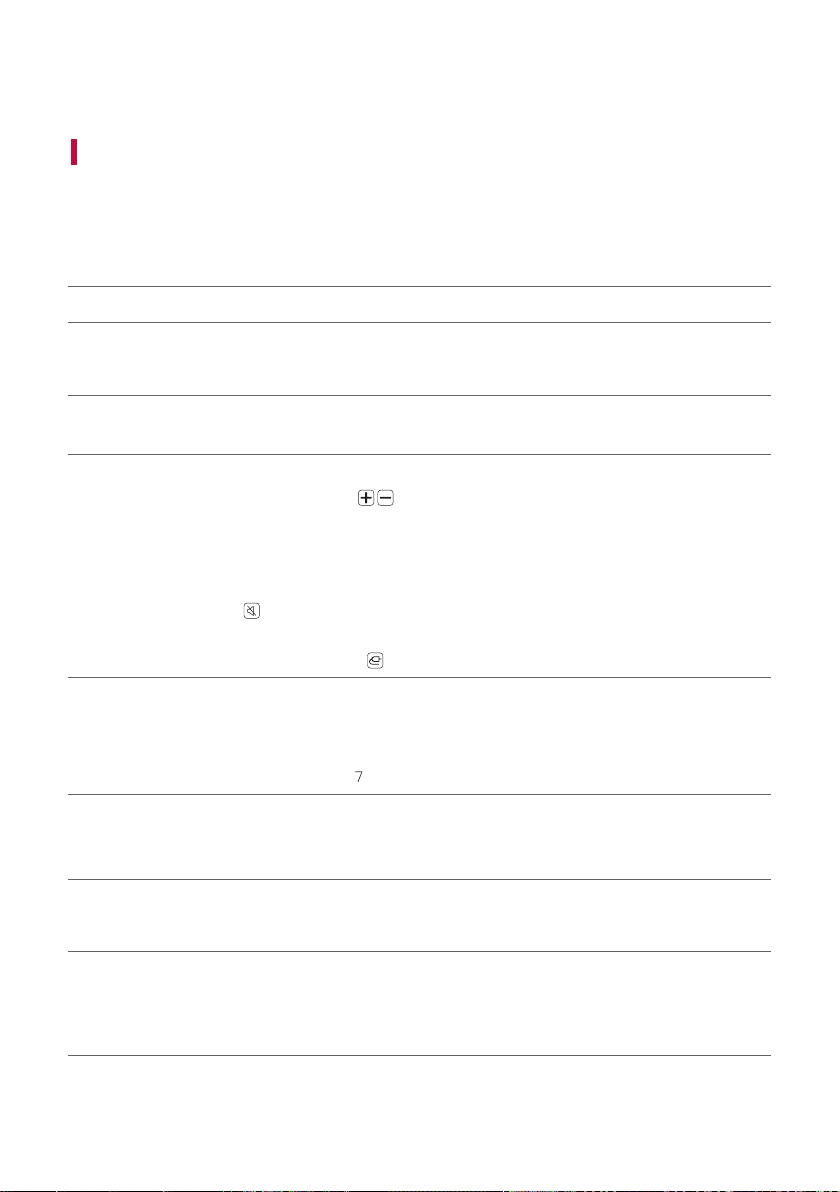
Symbols
: Alternating current (AC).
0 : Direct current (DC).
: This is a class II equipment.
1 : Standby power state.
! : The power is turned on.
: Danger voltage.
42
Before Reporting Product Malfunction
Troubleshooting
If you experience the following issues while using the product, please perform several checks, as they may not be
malfunctions.
General Errors
Issue Solution
The product
does not work
properly
• Unplug the power cables and any external devices such as your TV, subwoofer, or
amplifier from the product, then plug them in again.
The power does
not turn on
• Is the power cord plugged into the outlet properly?
- Connect the power plug to the outlet correctly.
There is no
sound
• Is the volume set to minimum?
- Press the Volume
button on the remote control to turn up the volume.
- If you are using an external device such as a set-top box, portable device, or
Bluetooth device, adjust the volume of the external device.
• Is the mute function activated?
- If “MUTE” appears on the status display, the mute function is on. Press the Mute
button to unmute.
• Is the correct product function selected according to the external device connected?
- Press the Function
button to check if you selected the correct function.
The subwoofer
does not
produce sound
• Is the product properly connected to the wireless subwoofer?
- If the LED on the front of the wireless subwoofer is blinking green or lit in red, it
means it is not connected. If the connection is established, a green light will appear.
Reconnect the product to the wireless subwoofer. ([ See “Connecting the
Product” on page 7.)
The remote
control does not
work properly
• When using the remote control, point it at the front of the product.
• Use the remote control within a 7-m radius of the product.
• Replace the batteries with new ones as needed.
The Auto Power
function does
not work
• Check connection to external devices (ex. set-top box, portable device, Bluetooth
device).
LG Sound Sync
does not work
• Check whether your TV supports LG Sound Sync.
• Check if the TV is properly connected to the product via an optical cable.
- Press the Settings button on the TV remote control to check if the function is
turned on in [LG Sound Sync].

43
The product
volume is low
• Check the following and change the settings accordingly.
- Run the LG Sound Bar app, tap the Settings
button on the first screen, and
change the [DRC] function to [Off] on the [Sound Settings] menu.
- When the product is connected to a TV, press the Settings button on the TV
remote control, select the [Speaker] menu, and change the [Digital Sound Output]
setting from [PCM] to [AUTO] or [BITSTREAM].
- If the product's Night Time mode is on, turn it off by pressing the Settings
button and Left/Right and then Up/Down.
The product
fails to
recognise a USB
storage device
• The product may not support the file format of the USB storage device. Format the
USB storage device and reconnect it. When formatting, refer to the USB storage
device formats supported by the product and select an appropriate file format. ([
See “Connecting to a USB Storage Device” on page 37.)
A Bluetooth
device cannot
be paired
• Press the Settings button on the Bluetooth device and check whether the Bluetooth
function is enabled. If Bluetooth is enabled, turn it off and on, then try again.
• Remove any obstacles between the product and the Bluetooth device.
• Bluetooth pairing (connection) may not work properly depending on the Bluetooth
device type or the surrounding environment.

44
Problems in Wireless Connection
Issue Solution
There is radio
interference
• Install the product and the wireless subwoofer as close to each other as possible.
• Do not install the product on metal furniture.
• Wireless communication may not work properly in weak signal areas.
The Bluetooth
connection
is causing a
malfunction or
making noise
• Do you hear noise or experience malfunctions when using Bluetooth?
- Do not let any part of your body contact the transceiver of the Bluetooth device or
the product.
- Do not install the Bluetooth device on a wall or in a secluded spot.
- Remove any obstacles between the product and the Bluetooth device.
- Install the Bluetooth device near the product.
• When the Bluetooth device is too far from the product, Bluetooth may be
disconnected or malfunctions may occur.
- Install the Bluetooth device 1 m away from devices that use the same frequency
as the product, such as wireless routers, medical equipment, and microwave ovens.
Turning off the Demo Mode
Issue Solution
The remote
control does not
work
• Does the text on the status display remain unchanged, even if you press the Function
button several times?
• Do you only see the text “DEMO” in the status display?
- The demo mode may be activated on the product. Unplug the product's power cable
and plug it back in.
- If the remote control still does not work, press the Volume
button on the
product to set the volume level at 2, the press and hold the Function button for
about 5 seconds. If the currently selected function appears on the status display, it
means that demo mode has been turned off.
45
Appendix
Specifications
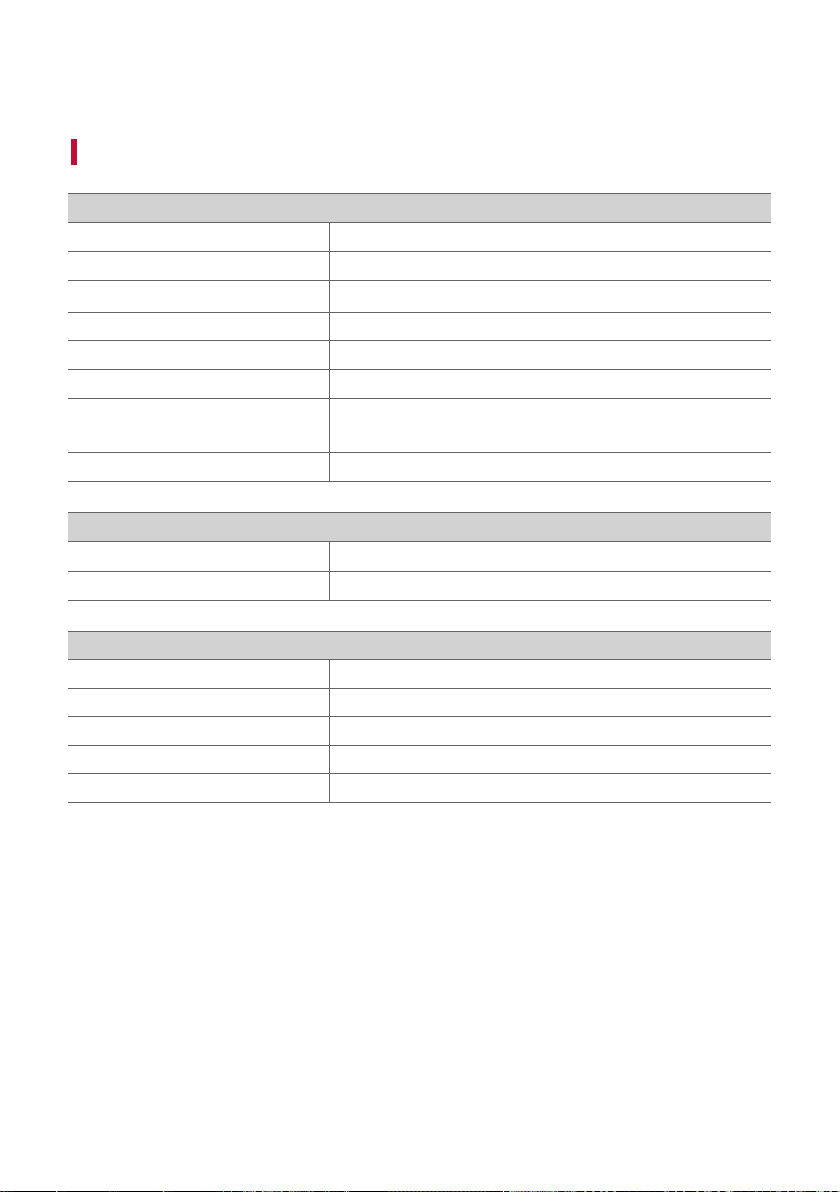
General
Power Requirements Refer to the main label.
Power Consumption Refer to the main label.
Dimensions (W x H x D) Approx. 1200.0 mm x 97.0 mm x 145.0 mm (including the base)
Operation Temperature Range 5 °C - 40 °C
Operation Humidity Range 5 % - 60 %
Bus Power Supply (USB)
5 V 0 500 mA
Available Digital Input Audio Sampling
Frequency
32 kHz, 44.1 kHz, 48 kHz, 88.2 kHz, 96 kHz
Available Digital Input Audio format Dolby Audio™, DTS Digital Surround, PCM
Input/Output
OPTICAL IN 3.0 V (p-p), (optical audio connection terminal) × 1
HDMI d TV (ARC)
19-pin (Type A, HDMI™ connection terminal) × 1
Amplifier (RMS output)
Total 800 W RMS
Front 120 W RMS×2 (Impedance: 4 Ω, THD 10 %)
Centre 120 W RMS (Impedance: 4 Ω, THD 10 %)
Surround (Side) 120 W RMS×2 (Impedance: 4 Ω, THD 10 %)
Subwoofer 200 W RMS (Impedance: 3 Ω, THD 10 %)

46
Wireless Subwoofer
Power Requirement Refer to the main label on the Wireless Subwoofer.
Power Consumption Refer to the main label on the Wireless Subwoofer.
Type 1-way 1 speaker
Impedance 3 Ω
Rated power 200 W RMS
Max. Power 400 W RMS
Dimensions (W x H x D) Approx. 171.0 mm × 390.0 mm × 261.0 mm
• Design and specifications are subject to change without notice.
47
Registered Trademarks and Licenses
All trademarks and trade names are the property of their respective owners.
Dolby, Dolby Audio and the double-D symbol are trademarks of Dolby Laboratories Licensing Corporation.
Manufactured under license from Dolby Laboratories. Confidential unpublished works. Copyright 2012-2021
Dolby Laboratories. All rights reserved.
For DTS patents, see http://patents.dts.com. Manufactured under license from DTS, Inc. (for companies
headquartered in the U.S./Japan/Taiwan) or under license from DTS Licensing Limited (for all other companies).
DTS, Digital Surround, Virtual:X, and the DTS logo are registered trademarks or trademarks of DTS, Inc. in the
United States and other countries. © 2022 DTS, Inc. ALL RIGHTS RESERVED.
The Bluetooth® word mark and logos are registered trademarks owned by the Bluetooth SIG, Inc. and any use of
such marks by LG Electronics is under license.
Other trademarks and trade names are those of their respective owners.

48
The terms HDMI, HDMI High-Definition Multimedia Interface, HDMI Trade Dress and the HDMI Logos are
trademarks or registered trademarks of HDMI Licensing Administrator, Inc.
“Made for iPhone,” and “Made for iPod” mean that an electronic accessory has been designed to connect
specifically to iPhone, or iPod, respectively, and has been certified by the developer to meet Apple performance
standards. Apple is not responsible for the operation of this device or its compliance with safety and regulatory
standards. Please note that the use of this accessory with iPhone or iPod may affect wireless performance.

49
Open Source Software Notice Information
To obtain the source code that is contained in this product, under GPL, LGPL, MPL, and other open source licenses
that have the obligation to disclose source code, and to access all referred license terms, copyright notices and
other relevant documents, please visit https://opensource.lge.com.
LG Electronics will also provide open source code to you on CD-ROM for a charge covering the cost of performing
such distribution (such as the cost of media, shipping, and handling) upon email request to opensour[email protected].
This offer is valid to anyone in receipt of this information for a period of three years after our last shipment of this
product.
Handling the Product
When shipping the Product
Please save the original shipping carton and packing materials. If you need to ship the product, for maximum
protection, re-pack the product as it was originally packed at the factory.
Keeping the exterior surfaces clean
• Do not use volatile liquids such as insecticide spray near the product.
• Wiping with strong pressure may damage the surface.
• Do not leave rubber or plastic products in contact with the product for a long period of time.
Cleaning the product
To clean the product, use a soft, dry cloth. If the surfaces are extremely dirty, use a soft cloth lightly moistened
with a mild detergent solution. Do not use strong solvents such as alcohol, benzine, or thinner, as these might
damage the surface of the product.