Illustrations in this guide are provided for
reference only and may dier from actual
product appearance. Product design and
specifications may be changed without
notice.
TCL and the TCL Logo are owned by TCL Corporation and
under license to TCL North America. Other brand and product
names are the trademarks or registered trademarks of their
respective owners.
To enjoy all smart features and services on your TCL TV with
Google TV™, a Google Account, a TCL account, and a reliable
broadband internet connection are required.
User Guide
For United States
English

Contents
Important Information .......................................................................................................................................... 3
Important Safety Instructions ........................................................................................................................... 4
Connections and setup
Before initial setup ................................................................................................................................................. 6
Protect against power surges ......................................................................................................................... 6
Safety information ............................................................................................................................................... 6
Avoid audio interference
.......................................................................................................................................
6
Avoid direct light................................................................................................................................................... 6
Set up your new TV ............................................................................................................................................... 8
What's in the box ................................................................................................................................................. 8
To mount on a wall .............................................................................................................................................. 9
To use the stand .................................................................................................................................................. 10
To use the cable clip .......................................................................................................................................... 10
Connect to the Internet ....................................................................................................................................... 11
Network settings .................................................................................................................................................... 11
Switch the TV on and o ................................................................................................................................... 12
Initial setup .............................................................................................................................................................. 12
Basic TV operations
Accessing channels ............................................................................................................................................... 13
Watching connected devices ............................................................................................................................ 13
Adjusting volume ................................................................................................................................................... 13
Using the power button on your TV ............................................................................................................... 13
Accessing TV homepage .................................................................................................................................... 14
Using TV settings menu ...................................................................................................................................... 15
Adjusting your TV
Channels & Inputs .................................................................................................................................................. 16
Display & Sound ..................................................................................................................................................... 17
System Settings ..................................................................................................................................................... 19
Other information
Password in Parental Control ........................................................................................................................... 20
Troubleshooting .................................................................................................................................................... 20
Broadcasting & Operating Environment ...................................................................................................... 21
Battery CAUTION & Disposal Information .................................................................................................. 21
ELECTRONICS & PACKAGING RECYCLING INFORMATION ............................................................
.
.. 22
Legal Statement .................................................................................................................................................... 23
TCL North America Limited Warranty .............
................................................................................................... 24
3
Important Information
CAUTION
RISK OF ELECTRIC SHOCK.
DO NOT OPEN.
CAUTION: Neutral fusing. Disconnect mains before servicing.
Caution: To reduce the risk of electric shock, do not remove cover (or back). No user serviceable
parts inside. Refer servicing to qualified service personnel.
This symbol indicates that this product incorporates double insulation between
hazardous main voltage and user accessible parts. When servicing, use only identical
replacement parts.
This symbol indicates “dangerous voltage” inside the product that presents a risk of
electric shock or personal injury.
This symbol indicates important instructions accompanying the product.
WARNING
To reduce the risk of fire or electric shock, do not expose this product to rain or moisture. This
product should not be exposed to dripping or splashing. No objects filled with liquids, such as
vases, should be placed on the apparatus.
The TV is unstable if it is not properly attached to the base or mounted to the wall. Please follow
the base or wall mounting instructions provided in the User’s Guide to ensure your safety.
The batteries should not be exposed to excessive heat, such as prolonged direct sunlight, open
flame, or fire of any kind. Refer to the identification/rating label located on the back panel of your
product for its proper operating voltage.
Cable TV Installer: This reminder is provided to call your attention to Article 820-40 of the National
Electrical Code (Section 54 of the Canadian Electrical Code, Part 1) which provides guidelines for
proper grounding and, in particular, specifies that the cable ground should be connected to the
grounding system of the building as close to the point of cable entry as practical.
Important: This television is a table model and is designed to sit on a firm, flat surface. Do not place
the TV on soft carpeting or on a similar surface as this may cause the ventilation slots located on
the bottom of the unit to be blocked and may result in reduced product lifespan from overheating
To assure adequate ventilation for this product, maintain a spacing of one (1) inch from the top and
side of the TV receiver and two (2) inches from the rear of the TV receiver and other surfaces.
Make sure the TV stand or base you use is of adequate size and strength to prevent the TV from
being accidentally tipped over, pushed o, or pulled o. This may cause personal injury and/or
damage the TV. Refer to the Important Safety Instructions on the next page.
The Power button
on this TV and your remote control puts the TV into a very low-power standby
mode but will not completely turn the power o. In order to completely shut the power o, you will
need to disconnect the power cord from the outlet. The mains plug/appliance coupler is used to
completely turn o the device. If you prefer to completely turn o the device, you should install the
TV in a manner that allows you to disconnect the power cord when desired.
Warning: Changes or modifications to this unit not expressly approved by the party responsible for
compliance could void the user’s authority to operate the equipment. Keep the apparatus at least 8
inches away from the human body.
For the best viewing experience, remove the energy guide label from the TV front panel or TV
screen before use
.

4
Important Safety Instructions
1. Read these instructions.
2. Keep these instructions.
3. Heed all warnings.
4. Follow all instructions.
5. Do not use this apparatus near water.
6. Clean only with a dry cloth.
7. Do not block any ventilation openings. Install in accordance with the manufacturer’s
instructions.
8. Do not install near any heat sources such as radiators, heat registers, stoves, or other apparatus
(including amplifiers) that produce heat.
9. Protect the power cord from being walked on or pinched particularly at plugs, convenience
receptacles, and the point where they exit from the apparatus.
10. WARNING: Please refer the information on exterior bottom enclosure for electrical and safety
information before installing or operating the apparatus.
11. WARNING: The main plug is used to disconnect the device and should remain readily operable.
12. When not in use, tie up the power cordset with a cable tie or with something similar. It should
not be near sharp edges as it may cause abrasion of the power cordset. When put into use
again, please make sure the power cordset is not damaged. If any damage is found, please use
a replacement power cord specified by the manufacturer or that is identical to the original one.
13. No open flame sources, such as lit candles, should be placed on, under, or near the apparatus
14. Unplug this apparatus during lightning storms or when unused for long periods of time.
15. Only use attachments/accessories specified by the manufacturer.
16. Use only with the cart, stand, tripod, bracket, or table specified by the manufacturer, or
sold with the apparatus. When a cart is used, use caution when moving the cart/apparatus
combination to avoid any injury.
17. Refer all servicing to qualified service personnel. Servicing is required when the apparatus has
been damaged in any way, such as power-supply cord or plug is damaged, liquid has been
spilled or objects have fallen into the apparatus, the apparatus has been exposed to rain or
moisture, does not operate normally, or has been dropped.
18. For safe operation of the apparatus, please follow these installation requirements:
Keep at least 2 inches of ventilation space between the rear cover of the apparatus and the wall
Keep at least 1 inch of ventilation space between the apparatus and all other surfaces. Do not
allow any of the apparatus’ ventilation openings to be blocked by objects that might obstruct
them, such as newspapers, curtains, table-cloths or any other objects. Do not expose the
apparatus to any external heat sources. Do not place any heat sources such as candles, lamps,
etc. on the apparatus. Do not expose the device to high levels of humidity or to any possible
sources of moisture. When disposing of used batteries from the remote control, consult local
regulations regarding proper disposal.

5
19. If an outside antenna or cable system is connected to the product, be sure the antenna or
cable system is grounded so as to provide some protection against voltage surges and built-
up static charges. Section 810 of the National Electrical Code, ANSI/NFPA No. 70-2011 (Section
54 of Canadian Electrical Code, Part 1) provides information with respect to proper grounding
of the mast and supporting structure, grounding of the lead in wire to an antenna-discharge
unit, size of grounding conductors, location of antenna discharge unit, connection to grounding
electrodes, and requirements for the grounding electrode.
See following example:
ANTENNA LEAD IN WIRE
GROUND CLAMP
ANTENNA DISCHARGE UNIT
(NEC SECTION 810-20)
GROUND CLAMPS
GROUNDING CONDUCTORS
(NEC SECTION 810-21)
ELECTRIC SERVICE
EQUIPMENT
POWER SERVICE GROUNDING
ELECTRODE SYSTEM (NEC ART
250, PART H)

6
Connections and setup
Before initial setup
Protect against power surges
• Connect all components before you plug any power cords into the wall outlet or power strip.
• NEVER plug your TV into an outlet that is controlled by a wall switch.
• Turn o the TV before you connect or disconnect any cables.
• Make sure all antennas and cables are properly grounded. Refer to the Important
Safety Instructions.
Safety information
• Prevent TV from overheating by placing in an area with good ventilation.
• Do not block ventilation holes on the TV. Position the TV so air can circulate freely on all sides.
• Do not stack objects on the TV.
• If you place the TV on a stand, make sure you allow adequate ventilation.
• If you connect an audio receiver or amplifier to the TV, place it on the top shelf so the heated air
will not overheat the TV.
Avoid audio interference
• Position cables properly; insert each cable firmly into the designated jack.
• Route all cables down one side of the back of the TV instead of straight down the middle.
• If your antenna uses 300-ohm twin lead cables, do not coil the cables.
• Keep twin lead cables away from audio/video cables.
Avoid direct light
• Do not place the TV where sunlight or room lighting is directed toward the screen. Use soft or
indirect lighting.
7
Dolby, Dolby Vision, Dolby Atmos, and the double-D symbol are
registered trademarks of Dolby Laboratories Licensing Corporation.
Manufactured under license from Dolby Laboratories. Confidential
unpublished works. Copyright © 2012–2022 Dolby Laboratories. All
rights reserved.
For DTS patents, see http://patents.dts.com. Manufactured under
license from DTS, Inc. or DTS Licensing Limited. DTS, DTS-HD Master
Audio, DTS-HD, Virtual:X, and the DTS-HD logo are registered
trademarks or trademarks of DTS, Inc. in the United States and other
countries. © 2021 DTS, Inc. ALL RIGHTS RESERVED.
The terms HDMI, HDMI High-Definition Multimedia Interface, HDMI
Trade Dress and the HDMI Logos are trademarks or registered
trademarks of HDMI Licensing Administrator, Inc.
FCC Information
This equipment has been tested and found to comply with the limits for a Class B digital device,
pursuant to Part 15 of the FCC Rules. These limits are designed to provide reasonable protection
against harmful interference in a residential installation. This equipment generates, uses, and can
radiate radio frequency energy and, if not installed and used in accordance with the instructions,
may cause harmful interference to radio communications. However, there is no guarantee that
interference will not occur in a particular installation. If this equipment does cause harmful
interference to radio or television reception, which can be determined by turning the equipment
following measures:
• Reorient or relocate the receiving antenna.
• Increase the separation between the equipment and receiver.
• Connect the equipment into an outlet on a circuit different from that to which the receiver
is connected.
• Consult the dealer or an experienced radio/TV technician for help.
This Class B digital apparatus complies with Canadian ICES-003.
The series, include models (Q670G)
This device complies with part 15 of the FCC Rules. Operation is subject to the following
two conditions:
(1) This device may not cause harmful interference, and
(2) this device must accept any interference received, including interference that may cause
undesired operation.
Supplier Name: TTE Technology, Inc. (dba TCL North America)
Supplier Address: 189 Technology Drive, Irvine, CA 92618, USA
Supplier phone number and internet contact information: 1-877-300-9509 support.tcl.com/us

8
Set up your new TV
Open the box and remove the TV and other items. Be careful, the TV may be heavy! We strongly
recommend that at least two people unbox the TV.
Be sure to check all the foam packaging as the stands from some TV’s are stored in the foam
for protection.
and pets. Do not use packaging bags in cribs, beds, carriages, or playpens.
What’s in the box
2 x AAA batteries
for remotePower cable
TV remote
TCL Google TV
Cable clips4 x Stand screws
50”: M5x25mm
55”/65”: M5x30mm
75”: M5x50mm
(The 75” screws are
in the stand bag)
TV stands
50”/55”/65”
75”
HDMI cable
Shielded cables must be used with this unit to ensure compliance with the Class B FCC limits.

9
To mount on a wall
If you are mounting your TCL Google TV to the wall, do not attach the TV base stand or TV
stand column.
To mount your TV to the wall, purchase the one of the following VESA wall mounts:
•50" model VESA 200x200, 4 M6x12mm screws
•55" model VESA 200x300, 4 M6x12mm screws
•65" model VESA 300x300, 4 M6x12mm screws
•75" model VESA 300x300, 4 M6x25mm screws
The VESA number is the horizontal and vertical measurement of the mounting holes. For
example, 200 x 200 indicates that the mounting holes are spaced 200mm horizontally and
200mm vertically.
Follow the directions supplied with the wall mount to mount the TV to the wall.
Caution: Your wall mount must be able to bear a minimum of five times the TVs net weight to
avoid damage.
Note: The wall mount bracket and the screws are not included.
Warning: This product should only be mounted by a professional installer.
Warning: Never install or mount this product to the ceiling with the screen side facing down.
Installing or mounting this product to the ceiling or the underside of a structure or surface is
hazardous and may result in personal injury and/or property damage.
1-1
Place your TV on a soft, cushioned surface. Remove the 2
screws from the back of the TV and store in a safe place.
1-2
2 3
75” 50”/55”/65”
50”/55”
/65”/75”
Place your TV on a soft, cushioned surface. Remove the 4
screws from the back of the TV and store in a safe place.
Screw the VESA bracket tightly onto the back cover with 4
VESA screws
purchased with the wall mount separately.
Follow the instructions that come with the wall mount to
hang the TV on the wall.
10
To use the stand
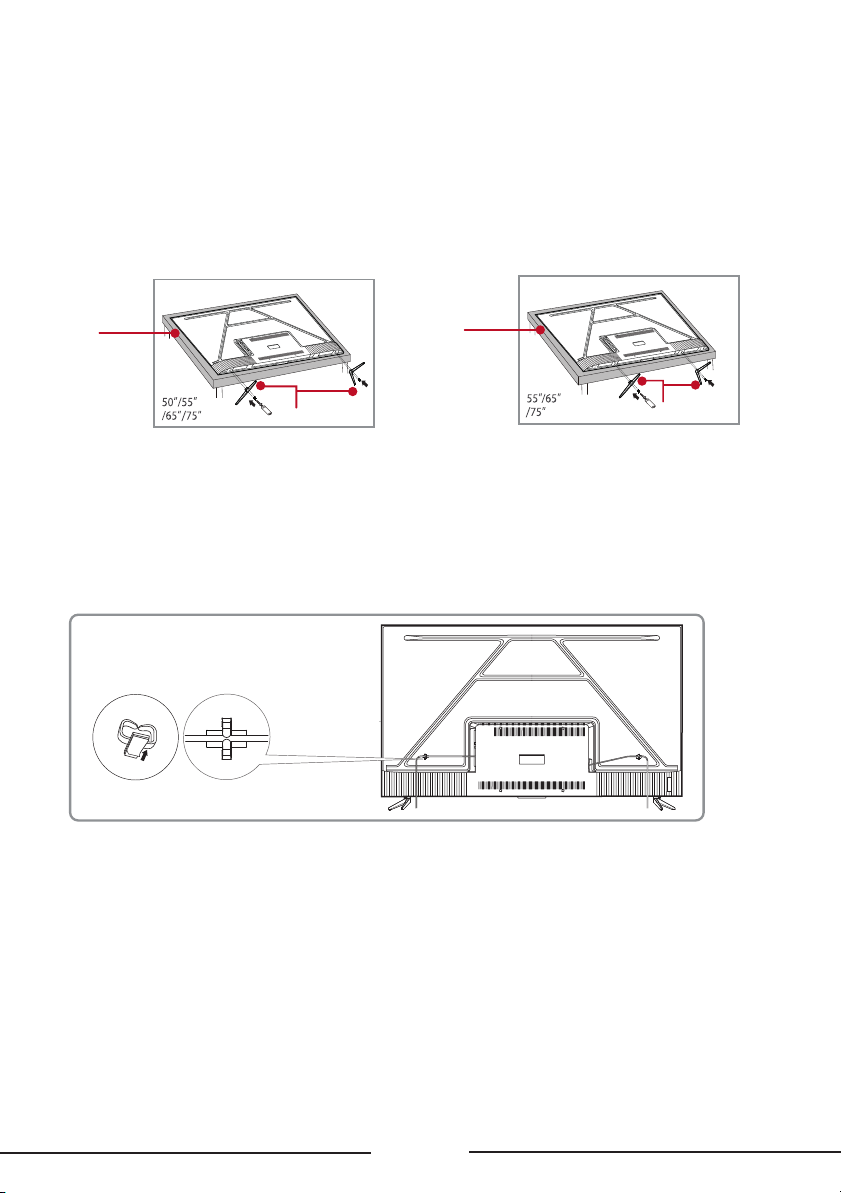
A — To prevent damage to the screen, carefully place your TV on a soft, cushioned surface.
B — Align the stands with the screw holes located on the TV. Secure the stands to the TV with four
(4) screws.
Note: Make sure the installation direction of the stand is the same as illustrated. Please remove
the protective film after installation.
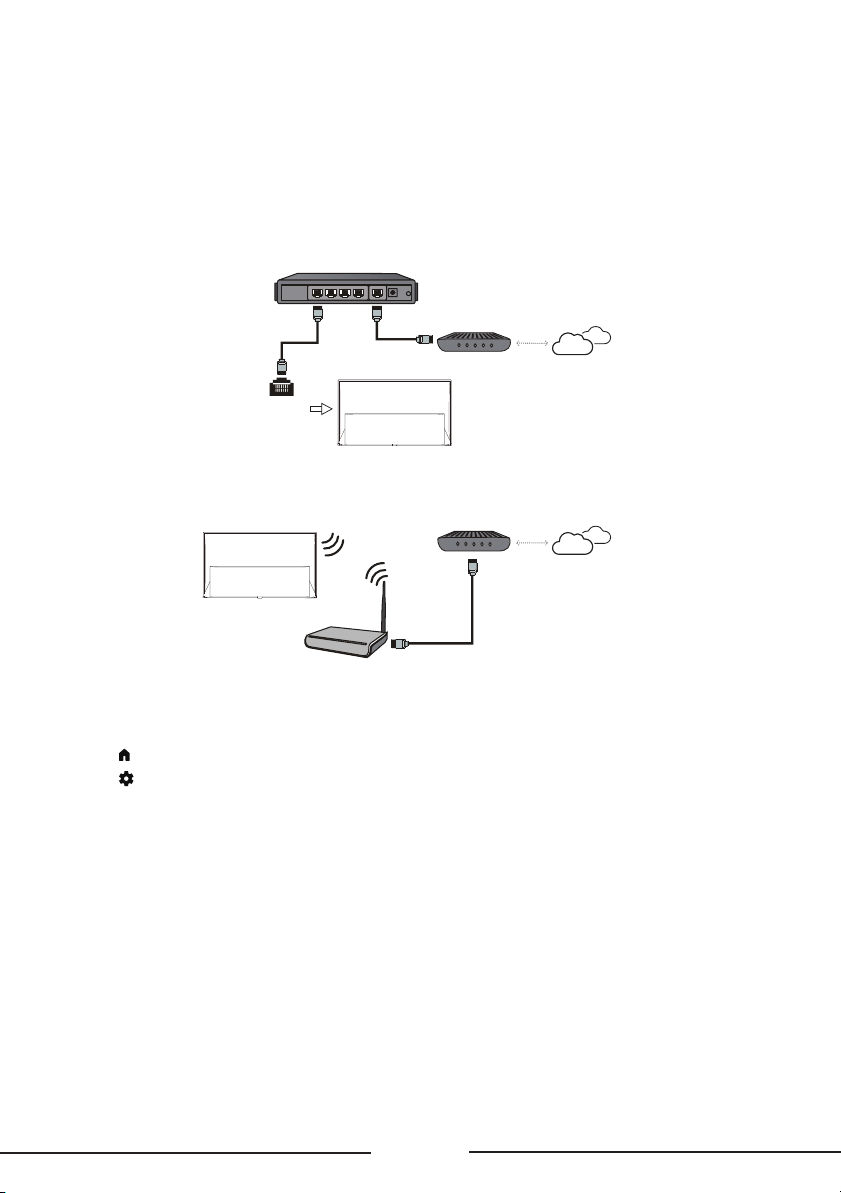
To use the cable clip
Stick the two cable clips to the back of the TV and route the cables as illustrated.
Screws
(50”: M5x25mm 55”/65”: M5x30mm 75”: M5x50mm)
B
A
B
A
1 2
11
Connect to the Internet
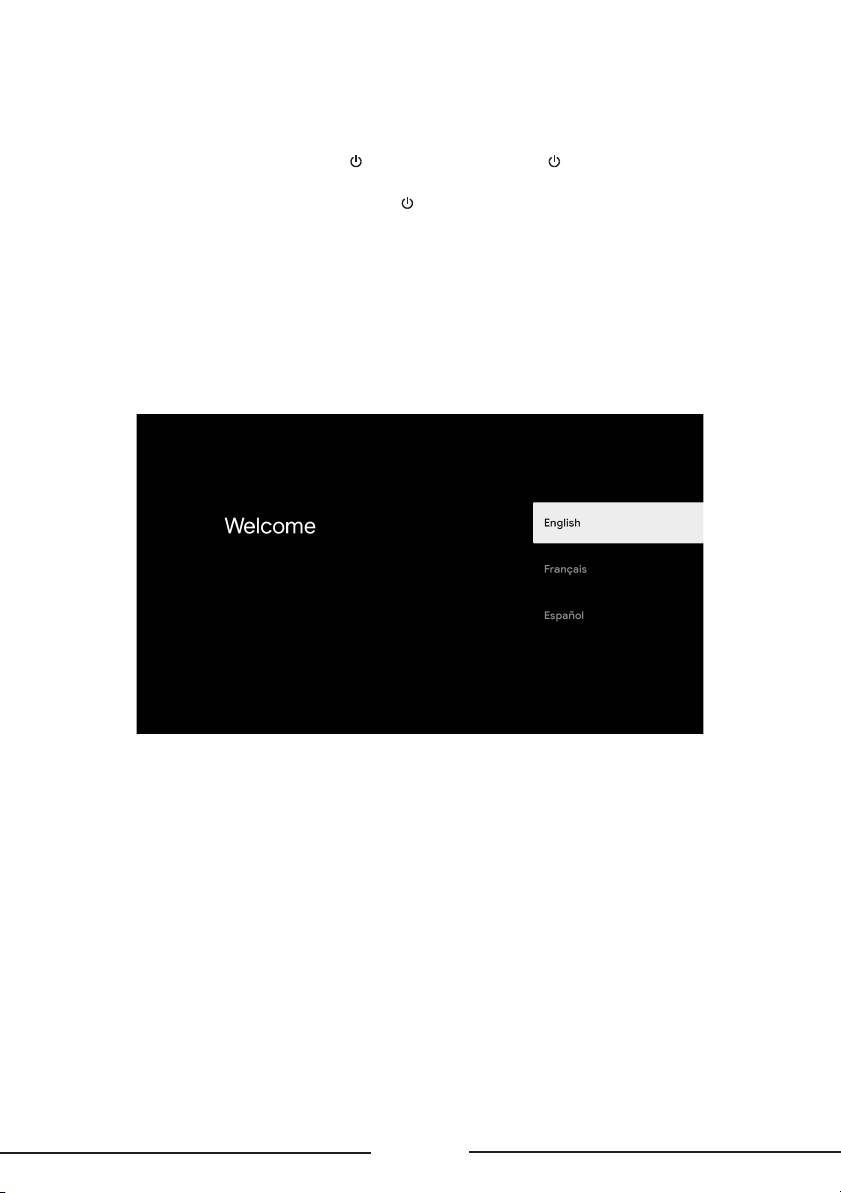
The following instructions are just the usual ways to connect your TV to the wired or wireless
network. The connection method may be dierent depending on your actual network configuration.
If you have any questions about your home network, please refer to your Internet service provider
.
Wired connection
Wireless connection
Router
ETHERNET
port
Wireless router
Network settings
1. Press on the remote control to display the TV homepage.
2. Press
on the remote control, select Settings and press OK to enter the Settings menu.
3. Select Network & Internet, press OK to enter the submenu and follow the on-screen guidance
to set up your network.
12
Switch the TV on and off
1. When the power cord is connected, the TV will be turned on directly or be in standby mode. If
the TV is in standby mode, press the button on the set or the button on the remote control
to turn it on.
2. To put the TV into standby mode, press the
button on the remote control. The TV set remains
powered on, but with low energy consumption.
3. To completely turn the TV off, unplug the power cord from the wall outlet.
Initial setup
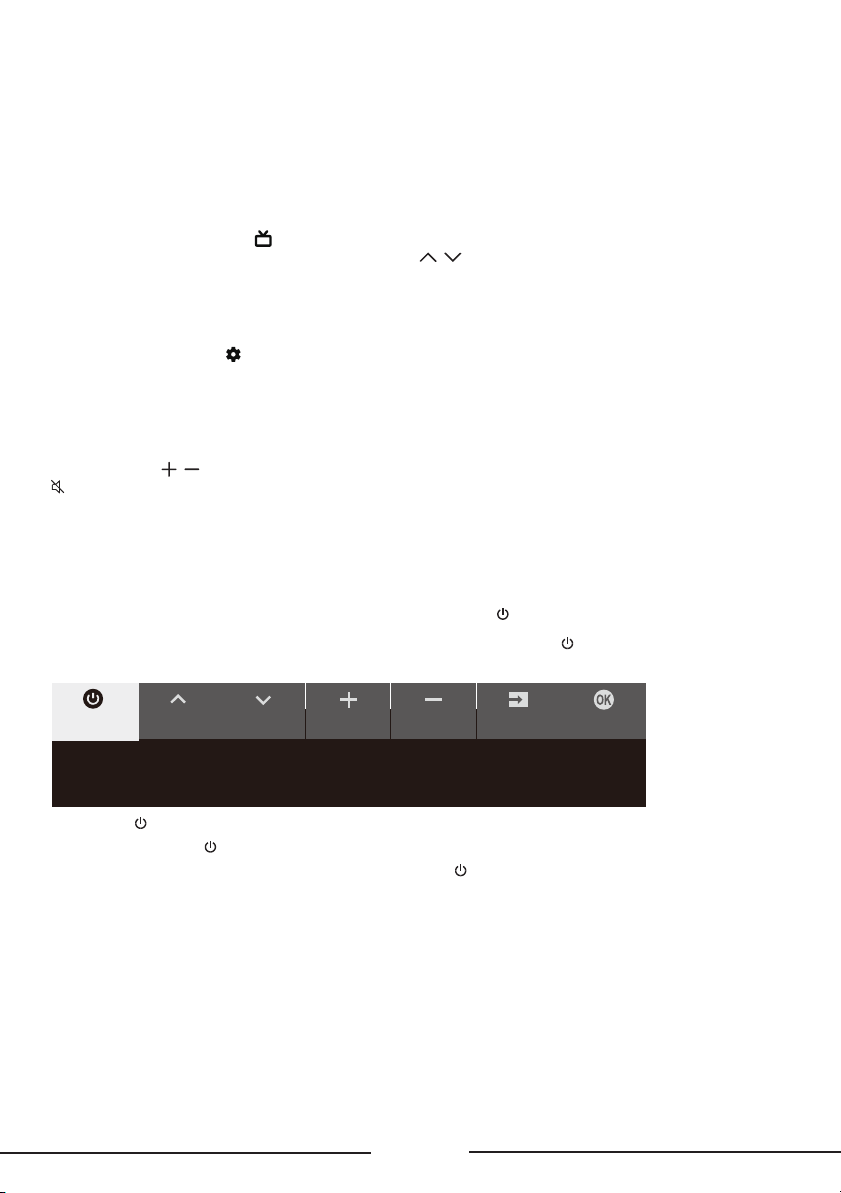
The first time you switch the TV on, the Welcome screen appears, which guides you through the
initial setup process. Follow the on-screen instructions to finish the initial setup process including
selecting the language, connecting to the network, and more. During each step, either make a
choice or skip the step. If you skip a step, you can perform the setup later from the settings menu.
13
Basic TV operations
Accessing channels
In TV homepage, press the button on the remote control to display the live antenna TV channels
and select Search to scan channels. Press the CH
/ buttons to change channels.
Watching connected devices
In TV homepage, press on the remote control, select Inputs and press OK to display the source
list. Press the Left/Right button to select input source and press OK to confirm.
Adjusting volume
Press the VOL / buttons on the remote control to increase or decrease the volume. Press the
button on the remote control to mute the sound.
Using the power button on your TV
In addition to using the remote control to control your TV, you can also use the button on your TV.
You can turn on the TV from standby mode by pressing the
button on your TV.
While the TV is on, the multi-function menu appears by pressing the
button on your TV. For more
information on how to use the multi-function menu, please refer to the figure below.
CH+ CH- Volume+ Inputs OKVolume-
Standby
Tips: Click to select options, press and hold to confirm.
• Press the button to move the highlight to the next function selection.
• Press and hold the
button for more than 2 seconds to confirm your selection.
Note: Please refer to the Quick Start Guide to find the
button on your TV set.
14
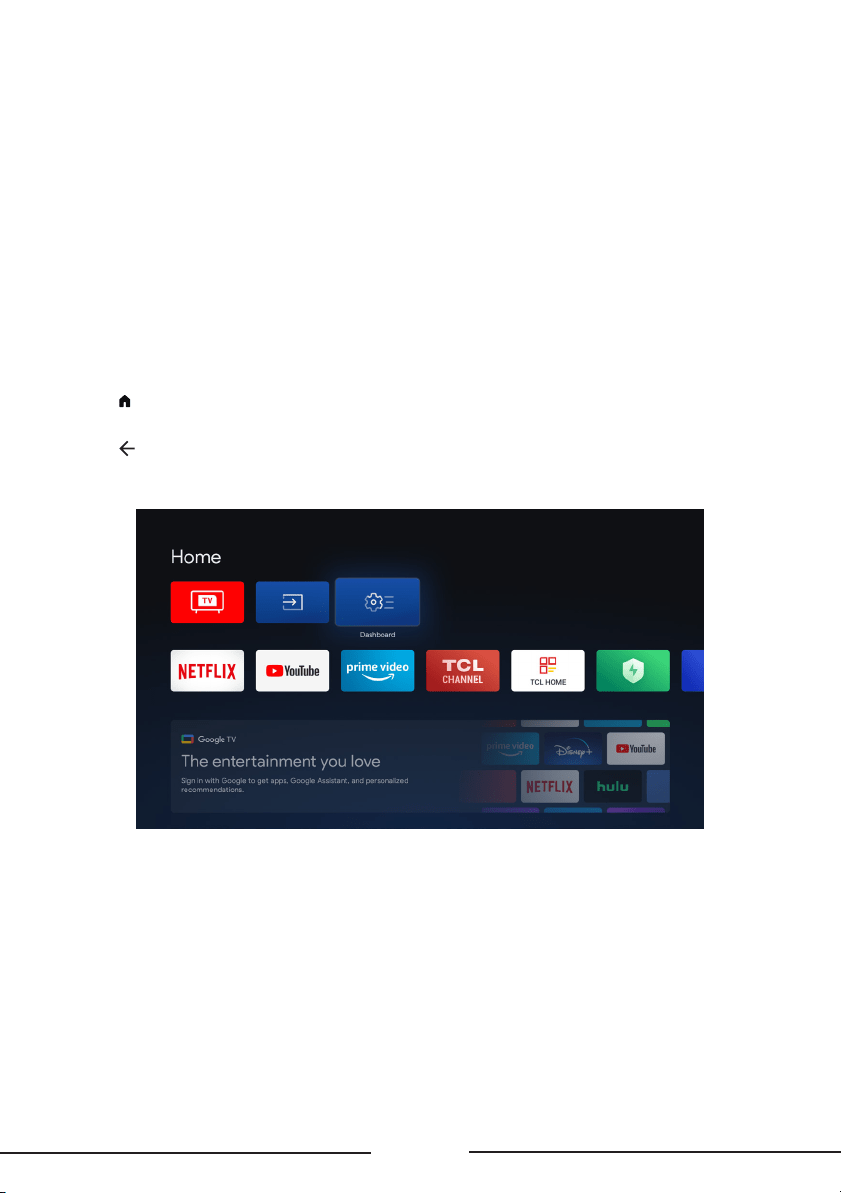
Accessing TV homepage
The basic TV homepage allows you to enjoy Internet Applications, specially adapted Internet
websites, and change your TV settings.
WARNING:
• Configure the network settings before using Smart TV applications.
• Slow responses and/or interruptions may occur, depending on your network conditions.
• If you experience a problem using an application, please contact the content provider.
• According to circumstances of the content provider, an application’s updates or the application
itself may be discontinued.
• Depending on your country's regulations, some applications may have limited service or not
be supported.
• Changes in application content may be made without prior notice by the service provider.
1. Press
on the remote control to display the TV homepage.
2. Press the Up/Down/Left/Right button and OK to enter the desired Apps, functions or settings.
3. Press
to return to the homepage.
Note: Since the connection to the Internet takes time, it’s recommended that you wait a few
minutes to use the Smart TV feature after you activate the TV from standby mode.
15
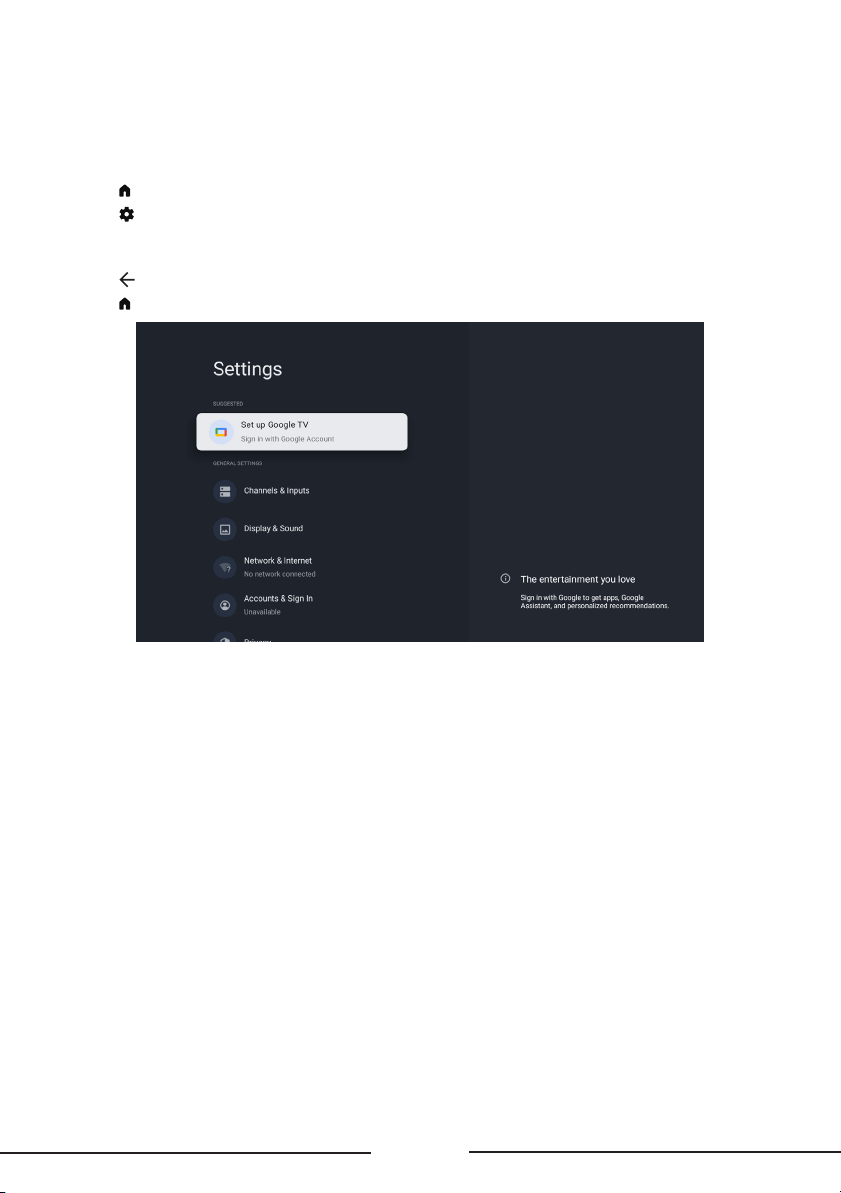
Using TV settings menu
Allow you to configure settings of TV features, such as channels, display and sound, network,
accounts, privacy, apps, system, remotes and accessories, etc.
1. Press
on the remote control to display the TV homepage.
2. Press
on the remote control, select Settings and press OK to enter the Settings menu.
3. Press the Up/Down button to select menu options, then press OK to enter the option list or the
corresponding submenu.
4. Press
to return to the previous menu.
5. Press
to close the settings menu and return to the homepage.
General settings
• Channels & Inputs: Adjust the channel settings, scan for channels and adjust input settings.
• Display & Sound: Adjust the picture settings and adjust to experience the dierent sound eects.
• Network & Internet: Configure the Wi-Fi and internet settings. The network status is
also displayed.
• Accounts & Sign In: Sign in your Google account to make the most of your TV.
• Privacy: Adjust your privacy settings.
• Apps: View the list of recently opened apps, all installed apps and the system apps. You can also
add permissions for dierent apps, configure special app access to optimized energy and set
usage access, notification access, and more.
• System: Adjust the system settings of the TV.
• Remotes & Accessories: Search for Bluetooth accessories and pair them with your TV. You can
set up your TV to make it visible to all nearby Bluetooth devices.
• Help & Feedback: Visit Google TV Help.

16
Adjusting your TV
Channels & Inputs
The channels and inputs menus are used to scan and maintain your channels, and access the
Electronic Program Guide. Adjust the input settings. The menus are only available in TV mode.
1. In TV mode, press
on the remote control, select Settings and go to Channels & Inputs.
2. Press the Up/Down button to select the item you want to set, and then press OK.
3. Set the channel and input items to your preferences one by one.
Channels
• Channel Scan: Search channels automatically or manually.
Country/Region: The TV installs and arranges channels according to your country or region.
Press the Up/Down button to select Country/Region, and press OK to enter. Create or enter
your password. Press the Up/Down button to select your country or region and press OK
to confirm.
Scan Automatically: Press the Up/Down button to select Scan Automatically and press OK
to enter. Select the tuner mode and channel type you wanted, then press the Down button to
select Search and press OK to start scanning channels.
Manually Scan: Scan channels manually by entering parameters such as channel number
or frequency.
• Edit Channels: After the automatic search, channels are arranged in a preset order. If you want to
edit the channel list, select Edit Channels and press OK to enter.
• Clear Channel List: Reset all channel lists.
• EPG: Access electronic program guide.
• Channel Diagnostics: Test your TV's picture, sound and signal.
Inputs
You can see the connected input, standby inputs and set the name of these inputs and select
whether to display them in the input list.
• External devices control (CEC): Control the devices connected by HDMI.

17
Display & Sound
The menus are used to obtain the best picture and audio settings according to your preference and
the type of program you are watching. The menus can be set up at every broadcasting type and
every input source.
1. Press
on the remote control, select Settings and go to Display & Sound.
2. Press the Up/Down button to select the item you want to set, and then press OK.
3. Set the picture and audio items to your preferences one by one.
Note: The options available may vary depending on the picture mode you set.
Intelligent Settings
• Intelligent Picture: Automatically adjusts picture settings for the best viewing experience. Select
an option and press OK to enable or disable.
• Intelligent Sound: Automatically adjusts audio settings based on content for the best listening
experience. Select an option and press OK to enable or disable.
Picture
• Picture Mode: Select a picture mode optimized for dierent viewing conditions. Press the Up/
Down button to select an option and then press OK.
• Brightness: Adjust the luminance level of the screen. Press the Left/Right button to set the
preferred brightness.
• Color Saturation: Adjust the color saturation level of the picture. Press the Left/Right button to
set the preferred color saturation.
• Advanced Settings: Adjust more picture options.
Brightness Settings: Adjust settings such as Contrast, Brightness and Black level.
Color: Adjust settings such as Color saturation
,
Temperature and Tint.
Clarity: Adjust settings such as Sharpness and Digital Noise Reduction.
Motion: Control settings such as Motion Clarity and Judder Reduction.
Expert Calibration: Adjust advanced picture settings such as White Balance and Color Space.
iPQ: When activated, the picture effect of the TV can be set through the "TCL iPQ Engine
Calibration" application on your mobile phone.
• Screen Settings: Adjust settings such as Aspect Ratio.
• Apply All Picture Settings: Select whether to apply the picture settings to the current input or to
all inputs.
• Restore Defaults: Reset all custom picture settings. Press the Left/Right button to select OK and
then press OK.
Audio
• Sound Mode: Select a sound mode that best suits your audio needs. Enter the Sound Mode menu
and press the Up/Down button to select an option and then press OK.
• Audio Delay: Adjust the delay time between audio and video tracks.

18
• Audio Output: Select the device you wish to output audio. Enter the menu and press the Up/
Down button to select an option and then press OK.
• Audio Processing: Choose the right processing to enjoy a more realistic and immersive sound
experience. Enter the menu and press the Up/Down button to select an option and then
press OK.
• Advanced Settings: Adjust more sound options.
Audio Only Mode: Select to switch o the TV display and only listen to the sound from the TV.
The TV screen will turn o in about 10 seconds. In audio only mode, press any key to turn on the
TV screen again.
Balance: Adjust the volume of the left and right speakers.
Auto Volume Control: Equalize audio for a more relaxed experience.
Digital Audio Out: Select the audio format for the audio system connected with HDMI or optical
digital cable.
DTS DRC: This option is valid for DTS encoded format content.

19
System Settings
Follow these instructions to configure various system settings.
1. Press
on the remote control to display the TV homepage.
2. Press
on the remote control, select Settings and press OK to enter the Settings menu.
3. Press the Up/Down button to select System and then press OK.
4. Press the Up/Down button to select the items you want to set, and then press OK.
• Accessibility: Configure captions, high contrast text, text to speech. Set the talkback and
switch access.
• About: Check the detail information of the TV, such as
system update, device name, status, model
and version, product information, etc. You can also view legal information, turn on the auto
update and reset the TV.
• Date & Time: This function needs network connection and then you can set the date and time.
You can choose whether to auto synchronize or to manually set the date and time. You can also
set the time zone and choose to use 24-hour format.
• Language: Select a menu language. The selected menu language will also be set as the voice
recognition language.
• Keyboard: Configure the settings of the on-screen keyboard. You can set language and check the
version and user agreements of the current keyboard. You can also add new virtual keyboards or
active virtual remote keyboard.
• Storage: View the memory usage status, clear data, cache and defaults, and to open, force stop
or disable an app. Besides, you can add or remove an app's permissions to access your contacts,
location, and microphone, etc.
• Ambient mode: You should set up Google TV to enable the function which can show the weather,
time, the owner's name, etc. with Ambient.
• Power & Energy: Configure the screen saver settings, including power on behavior, the inactivity
time after which to turn o display, the sleep timer. Configure quick start function.
• System Sounds: You can set the system sounds to o, low, medium or high.
• TCL Care: Access the remote guide.
• Parental Controls: You can set the parental control feature to restrict the viewing of programs
by children under the specified age limit. You must set a four-digit password before using the
parental control feature. Password will be required to watch a program subject to watching
restriction. Enter your password to access the submenu.
• Advanced Settings: Set the LED indicator in standby mode and choose the environment in which
your TV is used.
• Restart: Restart your TV.
20
Other information
Password in Parental Control
-
Set the password in the Settings > System > Parental Controls menu.
-
The super password is 0423. If you forget your code, enter the super password to override any
existing codes.
Troubleshooting
Please check the following list before requesting service.
There is no picture or sound.
• Make sure the power cord is properly inserted in the power outlet.
• Make sure the source type is set correctly.
• Make sure the antenna is properly connected.
• Make sure the volume is not set to minimum or the sound is not set to mute.
• Make sure the headphones are not connected.
• The TV may be receiving a signal other than from TV broadcasting stations.
Picture is not clear.
• Make sure the antenna cable is properly connected.
• Consider whether your TV signal is being properly received.
• Poor picture quality can occur due to a VHS camera, camcorder, or other peripheral being
• The ‘ghost’ or double image may be caused by obstruction to the antenna due to high-rise
buildings or hills. Using a highly directional antenna may improve the picture quality.
• The horizontal dotted lines shown on the pictures may be caused by electrical interference, e.g.,
Picture is too dark, too light or tinted.
• Check the color adjustment.
• Check the brightness setting.
• Check the sharpness function.
Remote control does not work.
• Check the batteries of the remote control.
• Make sure the remote sensor window on the front of the TV is not in strong fluorescent lighting.
• Try to clean the remote sensor window on the front of the TV with a soft cloth.
If the above suggestions do not solve your technical issue, please refer to the warranty card for
service information.
How to turn on/off the backlight of the remote?
The backlight of the remote will be turned on automatically when it is taken up. If you want to turn
off the backlight, press and hold the SETTINGS button and the BACK button at the same time for 3
seconds. If you want to turn on the backlight again, press and hold the SETTINGS button and the
BACK button at the same time for 3 seconds.
21
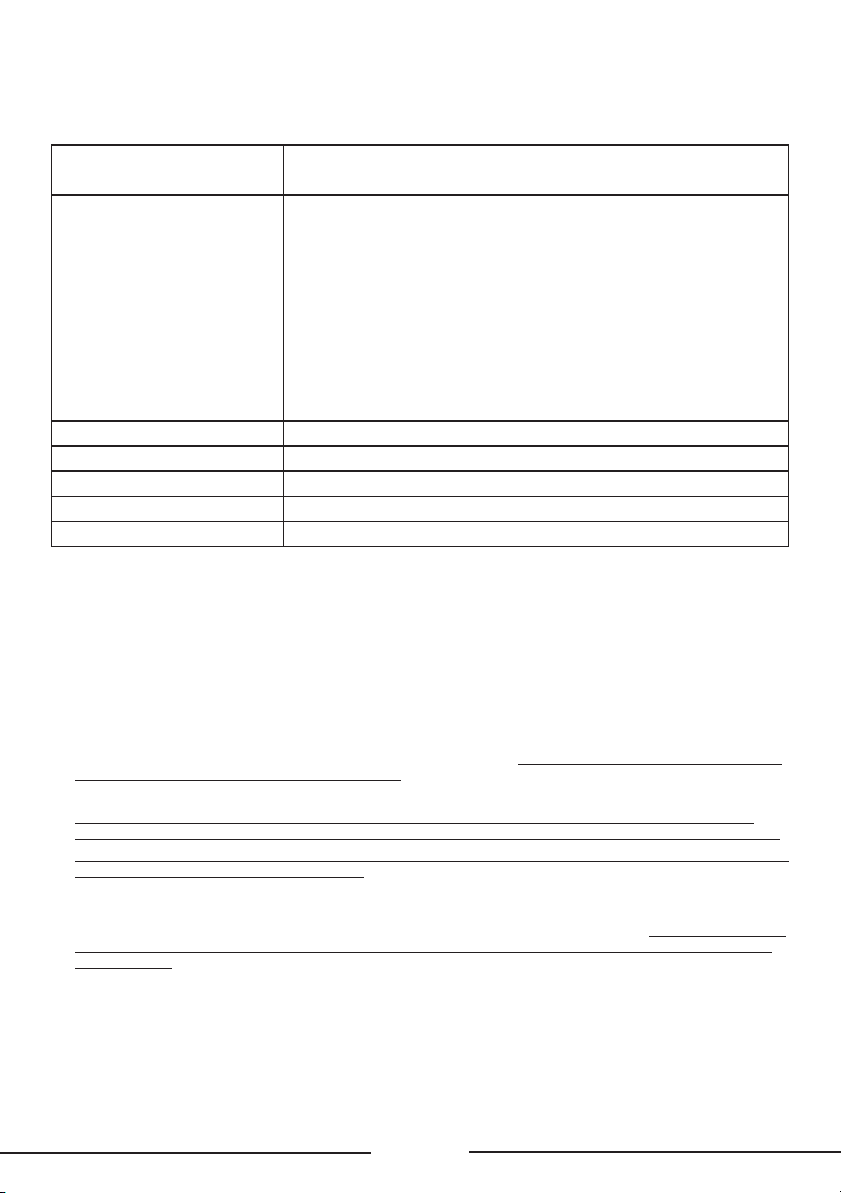
Broadcasting & Operating Environment
Broadcasting system US System NTSC-M
ATSC standard (8VSB), QAM
Receiving Channels VHF2-13
UHF14-69
CATV 14-36 (A)-(W)
37-59 (AA)-(WW)
60-85 (AAA)-(ZZZ)
86-94 (86)-(94)95-99 (A-5)-(A-1)
100-135 (100)-(135)
01 (4A)
Tuner type Frequency synthesized
Operating Temperature 5°C to 35°C (41°F to 95°F)
Operating Humidity 20% to 80%, non-condensing
Storage Temperature -15°C to 45°C (5°F to 113°F)
Storage Humidity 10% to 90%, non-condensing
Battery CAUTION & Disposal Information
1. For best results, use alkaline-type batteries.
2. Do not mix Alkaline, Standard (Carbon-Zinc), or Rechargeable (Nickel Cadmium or Nickel Metal
Hydride) batteries.
3. Always replace depleted batteries with two same brand-new batteries from the same
manufacturer. Never use damaged batteries.
4. Do not use Rechargeable (Nickel Cadmium or Nickel Metal Hydride) batteries.
5. Install only new batteries of the same type in your product. There is a risk of fire or explosion if
the battery is replaced by an incorrect type.
6. Do not mix old and new batteries.
7. Batteries should not be exposed to excessive heat, such as prolonged direct sunlight, open
flame, or fire of any kind as it may result in an explosion, or leakage of flammable liquid, or gas.
8. Batteries should not be exposed to extremely low air pressure as it may result in an explosion or
the leakage of flammable liquid or gas.
9. Failure to insert batteries in the correct polarity, as indicated in the battery compartment, may
shorten the life of the batteries or cause batteries to leak.
10. Batteries should be recycled or disposed of as per state and local guidelines. Do not dispose of
batteries in a fire, hot oven, or mechanically crushing or cutting a battery, which may result in
an explosion.

22
ELECTRONICS & PACKAGING RECYCLING
INFORMATION
For information on recycling your old TVs, sound bars, and home comfort products, and to find
drop-o locations in your area, please visit the “Electronics Recycling” area of the TCL website
at www.tcl.com. Click on our convenient interactive map to quickly locate a solution in your
community. TCL encourages consumers to always look for a recycling or reuse alternative to
discarding televisions and other electronics, and in many areas TCL has programs for consumers to
drop-o and recycle televisions free of charge.
Look for convenient How2Recycle® labels on the product box for help preparing your new TV
packaging for recycling. These labels show important information identifying the various types
of packaging material included with your new TV along with easy-to-understand
recycling instructions.
Warning: To avoid the danger of suocation, keep plastic packaging away from babies, children,
and pets. Do not use packaging bags in cribs, beds, carriages, or playpens.

23
Legal Statement
Due to the various capabilities of products featuring the SmartTV - Services, as well as limitations
in the available content, certain features, applications, and services may not be available on all
devices or in all territories. Some features on SmartTV may also require additional peripheral
devices or membership fees that are sold separately. Please visit our website for more information
on specific device information and content availability. The services and availability of content
through SmartTV are subject to change from time to time without prior notice.
All content and services accessible through this device belong to third parties and are protected
by copyright, patent, trademark and/or other intellectual property laws. Such content and
services are provided solely for your personal noncommercial use. You may not use any content
or services in a manner that has not been authorized by the content owner or service provider.
Without limiting the foregoing, unless expressly authorized by the applicable content owner or
service provider, you may not modify, copy, republish, upload, post, transmit, translate, sell, create
derivative works, exploit, or distribute in any manner or medium any content or services displayed
through this device.
YOU EXPRESSLY ACKNOWLEDGE AND AGREE THAT USE OF THE DEVICE IS AT YOUR SOLE
RISK AND THAT THE ENTIRE RISK AS TO SATISFACTORY QUALITY, PERFORMANCE AND
ACCURACY IS WITH YOU. THE DEVICE AND ALL THIRD PARTY CONTENT AND SERVICES ARE
PROVIDED “AS IS” WITHOUT WARRANTY OF ANY KIND, EITHER EXPRESS OR IMPLIED. TCL
EXPRESSLY DISCLAIMS ALL WARRANTIES AND CONDITIONS WITH RESPECT TO THE DEVICE
AND ANY CONTENT AND SERVICES, EITHER EXPRESS OR, IMPLIED, INCLUDING BUT NOT
LIMITED TO, WARRANTIES OF MERCHANTABILITY, OF SATISFACTORY QUALITY, FITNESS FOR
A PARTICULAR PURPOSE, OF ACCURACY, OF QUIET ENJOYMENT, AND NON-INFRINGEMENT
OF THIRD PARTY RIGHTS. TCL DOES NOT GUARANTEE THE ACCURACY, VALIDITY, TIMELINESS,
LEGALITY, OR COMPLETENESS OF ANY CONTENT OR SERVICE MADE AVAILABLE THROUGH
THIS DEVICE AND DOES NOT WARRANT THAT THE DEVICE, CONTENT OR SERVICES WILL
MEET YOUR REQUIREMENTS, OR THAT OPERATION OF THE DEVICE OR SERVICES WILL BE
UNINTERRUPTED OR ERROR-FREE. UNDER NO CIRCUMSTANCES, INCLUDING NEGLIGENCE,
SHALL TCL BE LIABLE, WHETHER IN CONTRACT OR TORT, FOR ANY DIRECT, INDIRECT,
INCIDENTAL, SPECIAL OR CONSEQUENTIAL DAMAGES, ATTORNEY FEES, EXPENSES, OR
ANY OTHER DAMAGES ARISING OUT OF, OR IN CONNECTION WITH, ANY INFORMATION
CONTAINED IN, OR AS A RESULT OF THE USE OF THE DEVICE, OR ANY CONTENT OR SERVICE
ACCESSED BY YOU OR ANY THIRD PARTY, EVEN IF ADVISED OF THE POSSIBILITY OF
SUCH DAMAGES.
Third party services may be changed, suspended, removed, terminated or interrupted, or access
may be disabled at any time, without notice, and TCL makes no representation or warranty that
any content or service will remain available for any period of time. Content and services are
transmitted by third parties by means of networks and transmission facilities over which TCL
has no control. Without limiting the generality of this disclaimer, TCL expressly disclaims any
responsibility or liability for any change, interruption, disabling, removal of or suspension of any
content or service made available through this device. TCL may impose limits on the use of or
access to certain services or content, in any case and without notice or liability. TCL is neither
responsible nor liable for customer service related to the content and services. Any question or
request for service relating to the content or services should be made directly to the respective
content and service providers.

24
TCL North America Limited Warranty
What your limited warranty covers: Defects in materials or workmanship to the original owner of
this TCL Product when purchased as new from an Authorized Dealer of TCL brand Products in the
United States and packaged with this warranty statement.
New Products (Non-Commercial Use)
For how long after your purchase:
• Three (3) years from date of purchase for parts and labor for non-commercial use.
New Products (Commercial Use)
For how long after your purchase:
• Six (6) months from date of purchase for parts and labor for commercial use.
Commercial use includes, but is not limited to, the use of this Product in a commercial or business
environment, the use of this Product in an institution or for institutional purposes, or for other
commercial purposes including rental purposes.
What we will do
• At TCL’s discretion, (1) pay an Authorized TCL Service Center for both labor charges and parts
to repair your Product, or (2) replace your Product with a new or refurbished/remanufactured
equivalent value Product. The decision to repair or replace will be made solely by TCL. See
section entitled “How to get service.”
How to get service
• Before submitting a request for warranty service, please visit support.tcl.com for helpful FAQs
and additional troubleshooting suggestions.
• To get warranty service, contact TCL Customer Support by visiting support.tcl.com/contact-
us. Please have your Product type, model number, serial number, and ZIP code ready.
Troubleshooting and prior approval from a TCL representative MUST occur be
fore sending in your
Product to a TCL Service Center.
• A representative must troubleshoot your problem over the telephone, via chat, or through e-mail
before receiving service. If it is determined that your Unit requires service, the service location will
be at the sole discretion of TCL based upon the Limited Warranty Statement.
• At the sole discretion of TCL, television screen sizes 43-inches and smaller will either be repaired
at an Authorized TCL Service Center or directly exchanged for a new or refurbished/re-certified
Unit. At the sole discretion of TCL, television screen sizes 44-inches or larger will either be
repaired or directly exchanged for a new or refurbished/re-certified Unit at an Authorized TCL
Service Center or in-home. In the event of a service visit where the on-site technician, in his-her
sole discretion, deems the home or property conditions to be hazardous and/or unsafe, TCL
reserves the right to cancel or re-schedule the service visit, or opt for an exchange of the
in-warranty Unit for a refurbished/re-certified Unit in lieu of the in-home service visit.
32S370G, 40S370G, 43S370G, 43S470G, 50S470G, 55S470G, 58S470G, 65S470G, 70S470G,
75S470G, 85S470G, 50Q670G, 55Q670G, 65Q670G, 75Q570G, 75Q670G, 85Q670G (each
hereinafter individually referred to as a “Product” or “Unit”, and together referred to as the
“Products” or “Units”):
This limited consumer Product warranty is for new TCL LCD/LED Television Products consisting
of the following model numbers only:

25
• TCL is not responsible for transportation costs for warranty coverage, including but not limited
to Unit repair or replacement, to the Authorized TCL Service Center or TCL-designated address.
However, TCL will pay for return shipping to a United States address only. TCL will provide
instructions for packaging and shipping the Unit to the Authorized TCL Service Center or TCL-
designated address. Units that are improperly packed and damaged during shipping are not
covered under your limited Product warranty.
• Proof of purchase in the form of a bill of sale or receipted invoice from an Authorized Dealer
which is evidence that the Product is within the warranty period must be presented to obtain
warranty service.
• In the event that a Unit is to be replaced, a picture of the back of the Unit showing the model and
serial number and picture of the Product issue itself may be required.
• PRE-AUTHORIZATION MUST BE OBTAINED BEFORE (1) SENDING ANY PRODUCT TO
AN AUTHORIZED TCL SERVICE CENTER, OR (2) OBTAINING ANY IN-HOME REPAIR/
REPLACEMENT/RENTAL SERVICES.
What your warranty does not cover
• A Unit sold in “As-Is”, “Used”, “Factory Reconditioned”, “Factory Re-Certified”, or “Refurbished”,
condition or with faults.
• Damage caused by transportation or handling, including damage during shipment from a Retailer
(please contact your Retailer for assistance).
• Extended Service Plans purchased from Retailers. Please contact your Retailer for assistance.
• Customer instruction. (Your Owner’s Manual describes how to in
stall, adjust, and operate your
Unit. Any additional information should be obtained from your Authorized Dealer).
• Service calls to your home for delivery or pick-up, installation, instruction, replacement of house
fuses, connection of house wiring or plumbing, or to correct unauthorized repairs.
• Installation and related adjustments, or damage resulting from installation.
• Damage resulting from non-approved installation or repair methods.
• Failure of the Product to perform due to signal reception problems not caused by your Unit, or
due to power failures or interruptions, or inadequate electrical service.
• Damage from misuse, abuse, neglect, insects, normal wear and tear, cosmetic damage,
mishandling, faulty installation, inadequate electrical wiring, or power line surges.
• Damage caused by operating the Product in a corrosive or wet atmosphere.
• Markings or images on the television’s panel resulting from viewing fixed images (including but
not limited to certain 4:3 images on wide screen televisions, or data or images in fixed screen
locations from banners, video games, or certain broadcast networks).
• Units that have original factory serial numbers that are unreadable or missing, or that have been
changed, defaced, or altered in any manner.
• Batteries.
• A television that has been modified or incorporated into other Products, or that has had the serial
number removed or altered.
• Use of accessories or components that are not compatible with this Product.
• A Unit purchased or serviced outside of the United States.
• Costs of shipping the Unit to the Authorized TCL Service Center or TCL-designated address. TCL
will pay f
or return shipping to the customer to a United States address only.

26
• Acts of nature or God (as illustrative examples and for the avoidance of doubt, such acts of
nature or God include but are not limited to damage caused by earthquakes, fires, lightning, or
flood whether caused by nature or humans).
• Special, incidental, or consequential damages.
LIMITATION OF WARRANTY
• THE WARRANTY STATED ABOVE IS THE ONLY WARRANTY APPLICABLE TO THIS PRODUCT.
NO VERBAL OR WRITTEN INFORMATION GIVEN BY TTE TECHNOLOGY, INC. DBA TCL NORTH
AMERICA, ITS AGENTS OR EMPLOYEES SHALL CREATE A GUARANTY OR IN ANY WAY
INCREASE OR MODIFY THE SCOPE OF THIS WARRANTY.
• REPAIR OR REPLACEMENT AS PROVIDED UNDER THIS WARRANTY IS THE EXCLUSIVE
REMEDY OF THE CONSUMER. TTE TECHNOLOGY, INC. DBA TCL NORTH AMERICA SHALL
NOT BE LIABLE FOR SPECIAL, INCIDENTAL, OR CONSEQUENTIAL DAMAGES RESULTING FROM
THE USE OF THIS PRODUCT OR ARISING OUT OF ANY BREACH OF ANY EXPRESS OR IMPLIED
WARRANTY ON THIS PRODUCT. THIS DISCLAIMER OF WARRANTIES AND LIMITED WARRANTY
ARE GOVERNED BY THE LAWS OF THE STATE OF CALIFORNIA. EXCEPT TO THE EXTENT
PROHIBITED BY APPLICABLE LAW, ANY IMPLIED WARRANTY OF MERCHANTABILITY OR
FITNESS FOR A PARTICULAR PURPOSE ON THIS PRODUCT IS LIMITED TO THE APPLICABLE
WARRANTY AND WARRANTY PERIOD SET FORTH ABOVE. THIS WARRANTY IS SUBJECT
TO CHANGE WITHOUT NOTICE. PLEASE VISIT WWW.TCL.COM TO VIEW THE MOST
CURRENT VERSION.
How State Law relates to this warranty
• Some states may not allow the exclusion or limitation of incidental or consequential damages, or
limitations on how long an implied warranty lasts, so the above limitations or exclusions may not
apply to you.
• This warranty gives you specific legal rights, and you also may have other rights that vary from
state to state.
If you purchased your Unit outside of the United States or seek warranty service coverage
outside of the United States, this warranty does not apply. Contact your dealer for
warranty information.
Service calls which do not involve defective materials or workmanship are not covered by this
limited warranty. Costs of such service calls are the sole responsibility of the purchaser.