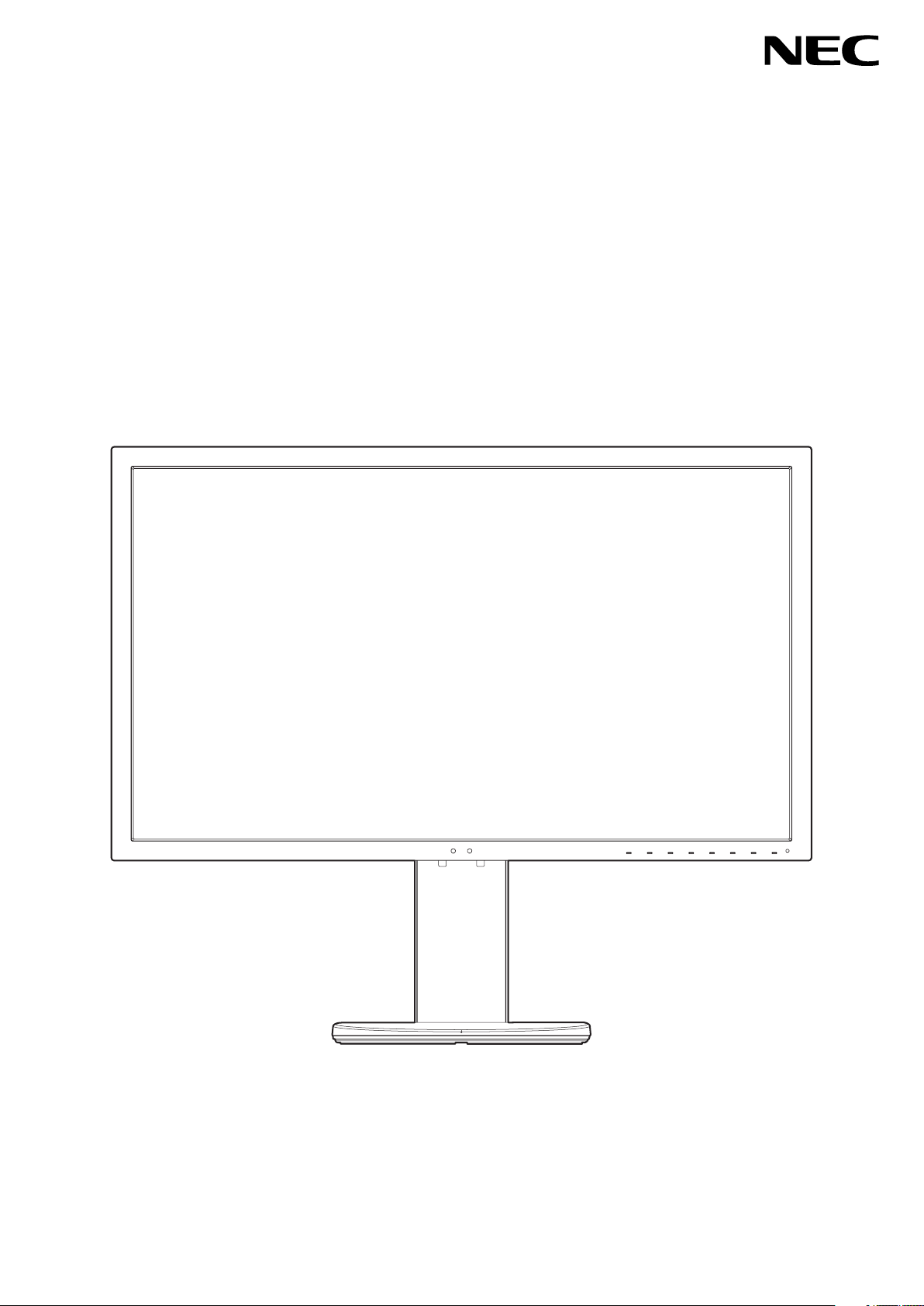
Please find your model name in the label on the rear side of the monitor.
MODEL: PA271Q-BK
Desktop Monitor
MultiSync PA271Q
User’s Manual

Index
WARNING ....................................................................................................................................English-1
CAUTION .....................................................................................................................................English-1
Registration Information ...............................................................................................................English-2
Recommended use ......................................................................................................................English-3
Safety Precautions and Maintenance ..................................................................................English-3
Ergonomics ..........................................................................................................................English-4
Cleaning the LCD Panel .......................................................................................................English-4
Cleaning the Cabinet ............................................................................................................English-4
Product Features ..........................................................................................................................English-5
Parts Name and Functions ...........................................................................................................English-7
Quick Start ....................................................................................................................................English-9
Using the Monitor functions ..........................................................................................................English-13
OSD (On-Screen-Display) Controls .............................................................................................English-16
Controlling the LCD monitor via LAN ...........................................................................................English-23
Stand Alone Calibration ................................................................................................................English-25
Import / export and firmware update with USB flash drive ...........................................................English-27
Specifications ...............................................................................................................................English-28
Troubleshooting ............................................................................................................................English-30
Manufacturer’s Recycling and Energy Information .......................................................................English-32
English-1
English
WARNING
TO PREVENT FIRE OR SHOCK HAZARDS, DO NOT EXPOSE THIS UNIT TO RAIN OR MOISTURE. ALSO, DO NOT
USE THIS UNIT’S POLARIZED PLUG WITH AN EXTENSION CORD RECEPTACLE OR OTHER OUTLETS UNLESS THE
PRONGS CAN BE FULLY INSERTED.
REFRAIN FROM OPENING THE CABINET AS THERE ARE HIGH VOLTAGE COMPONENTS INSIDE. REFER SERVICING
TO QUALIFIED SERVICE PERSONNEL.
CAUTION
CAUTION: TO REDUCE THE RISK OF ELECTRIC SHOCK, MAKE SURE POWER CORD IS UNPLUGGED FROM WALL
SOCKET. TO FULLY DISENGAGE THE POWER TO THE UNIT, PLEASE DISCONNECT THE POWER CORD
FROM THE AC OUTLET. DO NOT REMOVE COVER (OR BACK). NO USER SERVICEABLE PARTS INSIDE.
REFER SERVICING TO QUALIFIED SERVICE PERSONNEL.
This symbol warns user that uninsulated voltage within the unit may have sufficient magnitude to cause electric
shock. Therefore, it is dangerous to make any kind of contact with any part inside this unit.
This symbol alerts the user that important literature concerning the operation and maintenance of this unit has
been included. Therefore, it should be read carefully in order to avoid any problems.
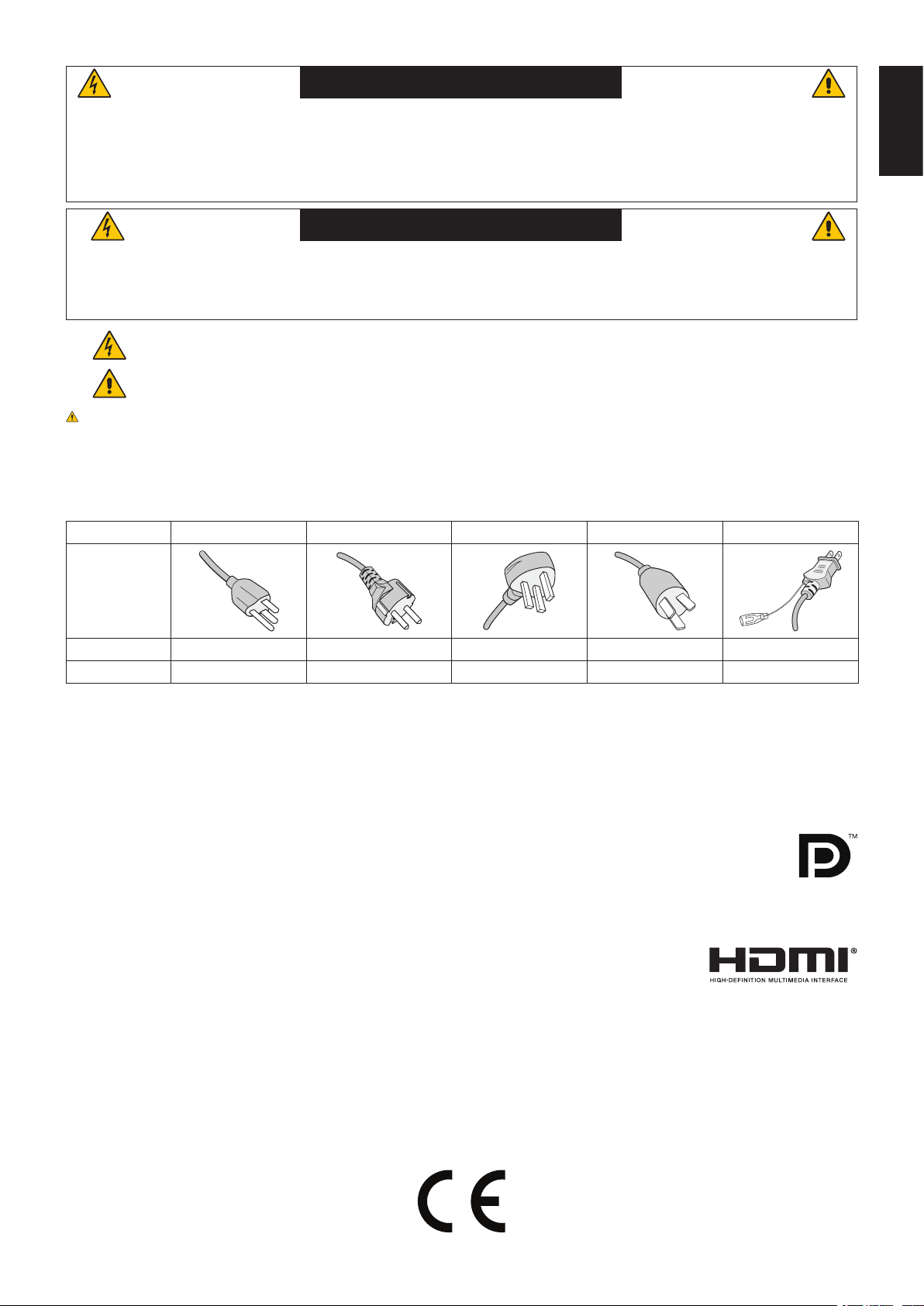
CAUTION: Please use the power cord provided with this display in accordance with the table below. If a power cord is
not supplied with this equipment, please contact NEC. For all other cases, please use the power cord with the plug style that
matches the power socket where the monitor is located. The compatible power cord corresponds to the AC voltage of the power
outlet and has been approved by, and complies with, the safety standards in the country of purchase.
This equipment is designed to be used in the condition of the power cord connected to earth. If the power cord is not connected
to the earth, it may cause electric shock. Please make sure the power cord is earthed properly.
Plug Type North America European Continental U.K. Chinese Japanese
Plug Shape
Country
U.S.A./Canada EU U.K. China Japan
Voltage
120* 230 230 220 100
* When operating the monitor with its AC 125-240V power supply, use a power supply cord that matches the power supply
voltage of the AC power outlet being used.
NOTE: This product can only be serviced in the country where it was purchased.
Windows is a registered trademark of Microsoft Corporation.
NEC is a registered trademark of NEC Corporation.
ErgoDesign is a registered trademark of NEC Display Solutions, Ltd. in Austria, Benelux, Denmark, France,
Germany, Italy, Norway, Spain, Sweden, U.K.
All other brands and product names are trademarks or registered trademarks of their respective owners.
DisplayPort and DisplayPort Compliance Logo are trademarks owned by Video Electronics Standards
Association in the United States and other countries.
Adobe and the Adobe logo are either registered trademarks or trademarks of Adobe Systems Incorporated in
the United States and/or other countries.
The terms HDMI and HDMI High-Definition Multimedia Interface, and the HDMI Logo are
trademarks or registered trademarks of HDMI Licensing Administrator, Inc. in the United States
and other countries.
HDCP (High-bandwidth Digital Content Protection): HDCP is a system for preventing illegal copying
of video data sent over a digital signal. If you are unable to view material via the digital signal input, this does not necessarily
mean the display is not functioning properly. With the implementation of HDCP, there may be cases in which certain content is
protected with HDCP and might not be displayed due to the decision/intention
of the HDCP community (Digital Content Protection, LLC).
• TheintendedprimaryuseofthisproductisasanInformationTechnicalEquipmentinanofceordomesticenvironment.
• Theproductisintendedtobeconnectedtoacomputerandisnotintendedforthedisplayoftelevisionbroadcastsignals.
English-2
Registration Information
Cable information
CAUTION: Use the attached specified cables with this monitor so as not to interfere with radio and television reception.
For DisplayPort, Mini-DisplayPort, HDMI, USB, USB-C and LAN, please use a shielded signal cable. Use of
other cables and adapters may cause interference with radio and television reception.
FCC Information
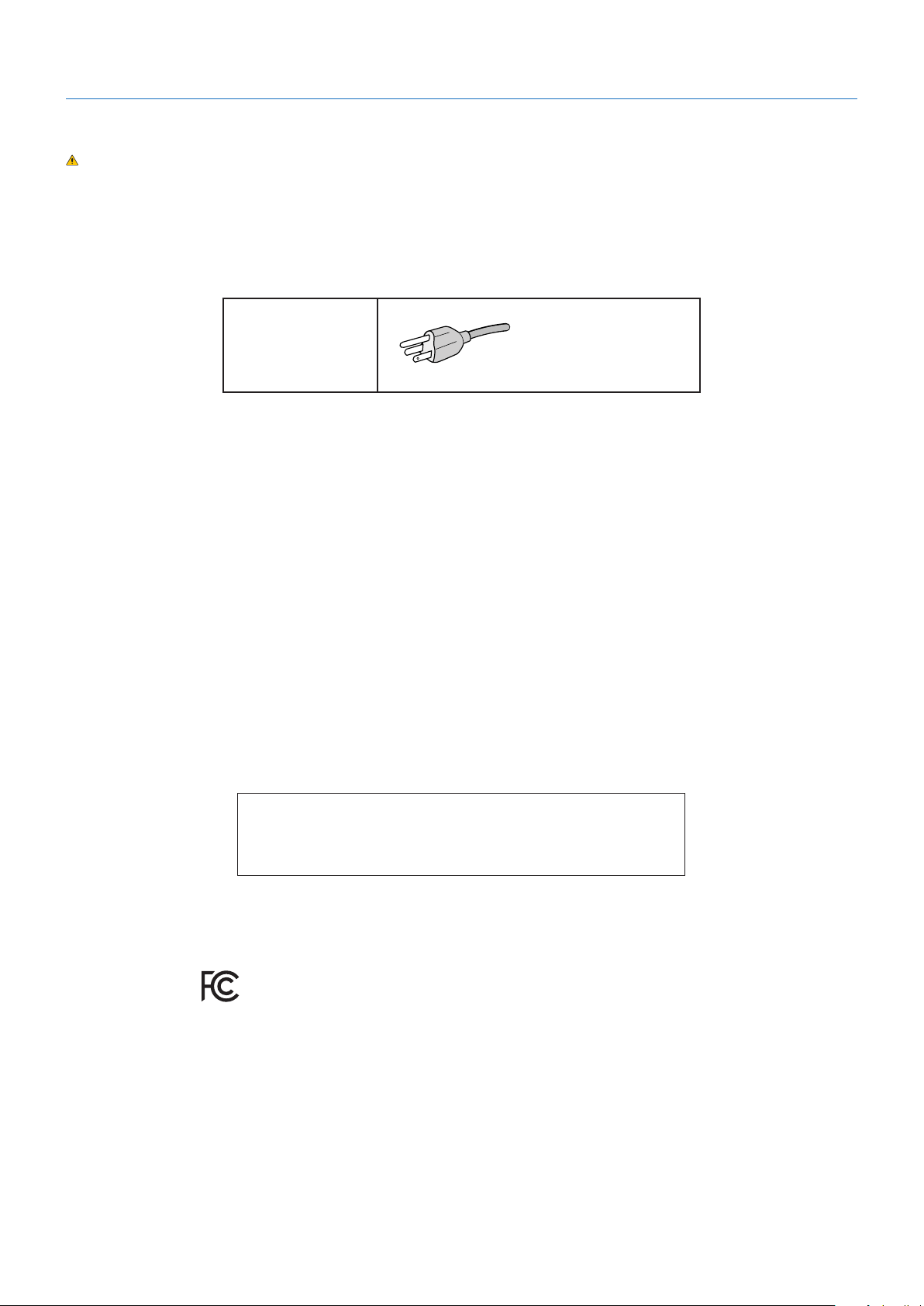
1. The power supply cord you use must have been approved by and comply with the safety standards of U.S.A., and meet
the following condition.
Power supply cord
Plug shape
Non shield type, 3-conductor
U.S.A
2. This equipment has been tested and found to comply with the limits for a Class B digital device, pursuant to part 15 of
the FCC Rules. These limits are designed to provide reasonable protection against harmful interference in a residential
installation. This equipment generates, uses, and can radiate radio frequency energy, and, if not installed and used
in accordance with the instructions, may cause harmful interference to radio communications. However, there is no
guarantee that interference will not occur in a particular installation. If this equipment does cause harmful interference to
radio or television reception, which can be determined by turning the equipment off and on, the user is encouraged to try
to correct the interference by one or more of the following measures:
• Reorientorrelocatethereceivingantenna.
• Increasetheseparationbetweentheequipmentandreceiver.
• Connecttheequipmentintoanoutletonacircuitdifferentfromthattowhichthereceiverisconnected.
• Consultyourdealeroranexperiencedradio/TVtechnicianforhelp.
If necessary, the user should contact the dealer or an experienced radio/television technician for additional suggestions.
The user may find the following booklet, prepared by the Federal Communications Commission, helpful: “How to Identify
and Resolve Radio-TV Interference Problems.” This booklet is available from the U.S. Government Printing Office,
Washington, D.C., 20402, Stock No. 004-000-00345-4.
Declaration of Conformity
This device complies with Part 15 of FCC Rules. Operation is subject to the following two conditions. (1) This device may not
cause harmful interference, and (2) this device must accept any interference received, including interference that may cause
undesired operation.
U.S. Responsible Party: NEC Display Solutions of America, Inc.
Address: 500 Park Boulevard, Suite 1100
Itasca, Illinois 60143
Tel. No.: (630) 467-3000
Type of Product: Display Monitor
Equipment Classification: Class B Peripheral
Model: MultiSync PA271Q (PA271Q-BK)
We hereby declare that the equipment specified above conforms
to the technical standards as specified in the FCC Rules.
To see a list of our TCO certified monitors and their TCO Certification (in English only), visit our website at
https://www.nec-display.com/global/about/legal_regulation/TCO_mn/index.html
English-3
English
Recommended use
Safety Precautions and Maintenance
FOR OPTIMUM PERFORMANCE, PLEASE NOTE
THE FOLLOWING WHEN SETTING UP AND
USING THE LCD COLOR MONITOR:
• DONOTOPENTHEMONITOR.There are no user serviceable parts inside and opening or removing covers may expose
you to dangerous shock hazards or other risks. Refer all servicing to qualified service personnel.
• Donotspillanyliquidsintothecabinetoruseyourmonitornearwater.
• Donotinsertobjectsofanykindintothecabinetslotsastheymaytouchdangerousvoltagepoints,whichcanbeharmfulor
fatal, or may cause electric shock, fire or equipment failure.
• Donotplaceanyheavyobjectsonthepowercord.Damagetothecordmaycauseshockorre.
• Donotplacethisproductonaslopingorunstablecart,standortable,asthemonitormayfall,causingseriousdamageto
the monitor.
• Thepowersupplycordyouusemusthavebeenapprovedbyandcomplywiththesafetystandardsofyourcountry.
(e.g. Type H05VV-F 3G 0.75 mm
2
should be used in Europe).
• IntheUKuseaBS-approvedpowercordwithamoldedplughavingablack(10A)fuseinstalledforusewiththismonitor.
• Donotusethemonitoroutdoors.
• Do not bend, crimp or otherwise damage the power cord.
• Donotusethemonitorinhightemperature,humid,dusty,oroilyareas.
• Donotcovertheventonthemonitor.
• Vibrationcandamagethebacklight.Donotinstallinareaswherethemonitorwillbeexposedtocontinualvibration.
• Ifmonitororglassisbroken,donotcomeincontactwiththeliquidcrystalandhandlewithcare.
• Topreventdamagetothemonitorcausedbytippingoverduetoearthquakesorothershocks,makesuretoinstallthe
monitor in a stable location and take measures to prevent falling.
• To ensure the monitor’s reliability, please clean the holes at the rear side of the cabinet at least once a year to remove dirt
and dust.
• WhenusingaLANcable,donotconnecttoaperipheraldevicewithwiringthatmighthaveexcessivevoltage.
• Immediately turn off the power, unplug your monitor from the wall outlet and move to a safe location, then refer servicing to
qualified service personnel under the following conditions. If the monitor is used in this condition, the monitor may cause fall,
fire and electric shock:
• Ifthemonitorstandhasbeencrackedorpeeled.
• Ifyounoticeanystructuraldamagesuchascracksorunnaturalwobbling.
• Ifthemonitorhasanunusualodor.
• If the power supply cord or plug is damaged.
• Ifliquidhasspilledorobjectshavefallenintothemonitor.
• Ifthemonitorhasbeenexposedtorainorwater.
• Ifthemonitorhasbeendroppedorthecabinethasbeendamaged.
• Ifthemonitordoesnotoperatenormallybyfollowingoperatinginstructions.
• Allowadequateventilationaroundthemonitor,sothatheatcanproperlydissipate.Donotblockventilatedopeningsorplace
the monitor near a radiator or other heat sources.
• Donotputanythingontopofthemonitor.
• Thepowercableconnectoristheprimarymeansofdetachingthesystemfromthepowersupply.
The monitor should be installed close to a power outlet which is easily accessible.
• Handlewithcarewhentransporting.Savepackagingfortransporting.
• Handlewithcareduringinstallationandadjustmenttopreventpersonalinjuryanddamagetothemonitor.
• Donotconnectheadphonestothemonitorwhileyouarewearingthem.Dependingonthevolumelevel,itmaydamageyour
ears and cause loss of hearing.
• Pleasetightenallscrews.Aloosescrewmaycausethemonitortofalloffthearmorstand.
• DonottouchLCDpanelsurfacewhiletransporting,mountingandsetting.
Applying pressure on the LCD panel can cause serious damage.
CAUTION
WARNING
English-4
Image Persistence: Image persistence occurs when a residual or “ghost” image of a previous image remains visible on the
screen. Unlike CRT monitors, LCD monitors’ image persistence is not permanent, but a still image being displayed for a long
period of time should be avoided.
To alleviate image persistence, turn off the monitor for as long as the previous image was displayed. For example, if an image
was on the monitor for one hour and a residual image remains, the monitor should be turned off for one hour to erase the image.
NOTE: As with all personal display devices, NEC DISPLAY SOLUTIONS recommends using a moving screen saver at regular
intervals whenever the screen is idle, or turn off the monitor when not in use.
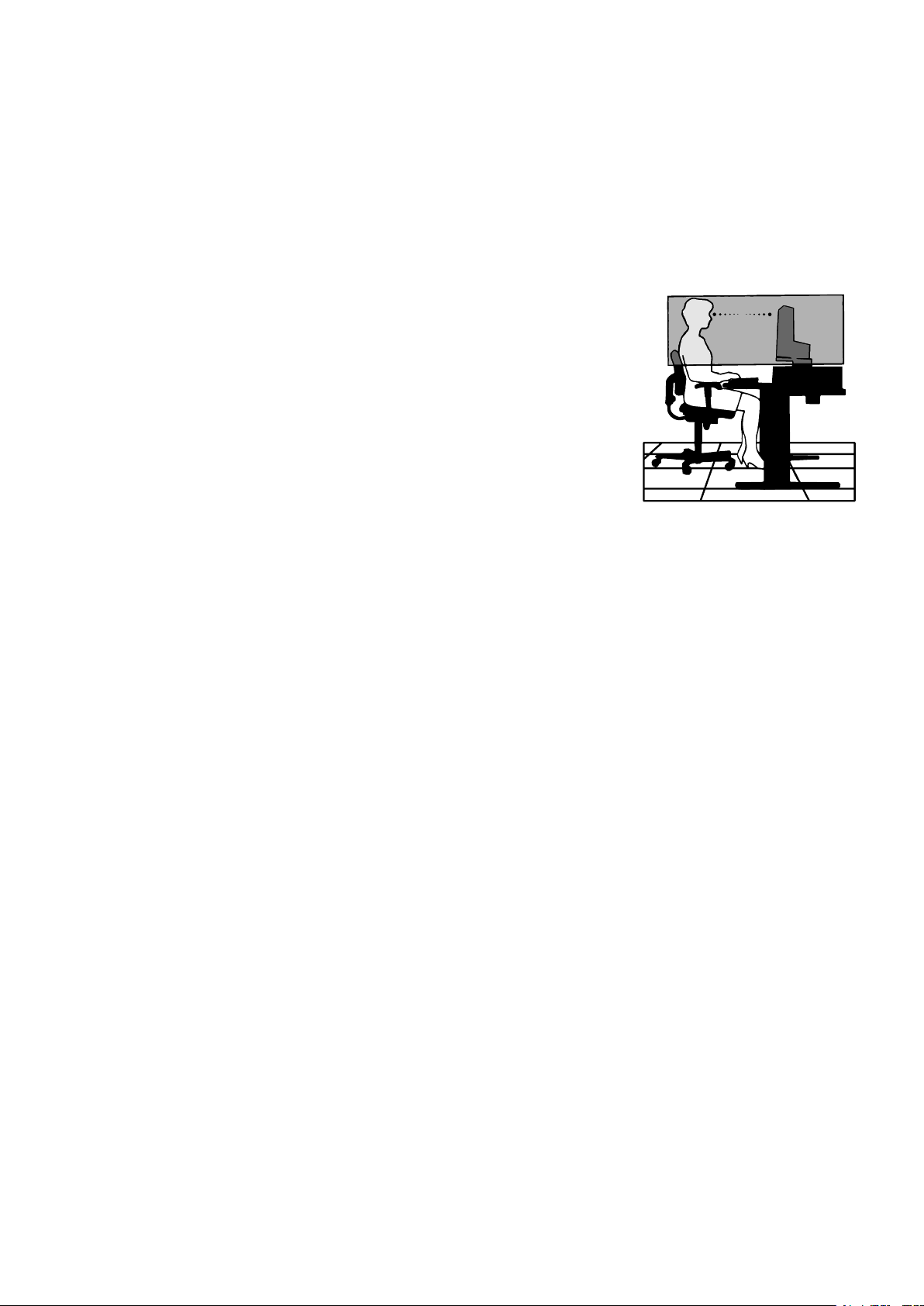
CORRECT PLACEMENT AND ADJUSTMENT OF THE MONITOR CAN
REDUCE EYE, SHOULDER, AND NECK FATIGUE. CHECK THE
FOLLOWING WHEN YOU POSITION THE MONITOR:
Ergonomics
To realize the maximum ergonomics benefits, we recommend the following:
• For optimum performance of the monitor, allow 20 minutes for warming up. Avoid
reproduction of still patterns on the monitor for long periods of time to avoid image
persistence (after image effects).
• Adjustthemonitorheightsothatthetopofthescreenisatorslightlybeloweyelevel.
Your eyes should look slightly downward when viewing the middle of the screen.
• Positionyourmonitornocloserthan40cm(15.75inches)andnofurtherawaythan
70 cm (27.56 inches) from your eyes. The optimal distance is 50 cm (19.69 inches).
• Rest your eyes periodically for 5 to 10 minutes for every 1 hour by focusing on an object
at least 20 feet away.
• Positionthemonitorata90°angletowindowsandotherlightsourcestominimizeglare
and reflections. Adjust the monitor tilt so that ceiling lights do not reflect on your screen.
• Ifreectedlightmakesithardforyoutoseeyourscreen,useananti-glarelter.
• Adjustthemonitor’sluminance controls to enhance readability.
• Useadocumentholderplacedclosetothescreen.
• Positionwhateveryouarelookingatmostofthetime(thescreenorreferencematerial)directlyinfrontofyoutominimize
turning your head while you are typing.
• Blink often. Eye exercise helps to reduce eye strain. Please contact your ophthalmologist. Get regular eye checkups.
• Toavoideyefatigue,adjustthebrightnesstoamoderatesetting.PlaceasheetofwhitepapernexttotheLCDscreenfor
luminance reference.
• DonotpositiontheContrastcontroltoitsmaximumsetting.
• UsethepresetSizeandPositioncontrolswithstandardsignals.
• UsethepresetColorSetting.
• Usenon-interlacedsignals.
• Donotuseprimarycolorblueonadarkbackground,asitisdifculttoseeandmayproduceeyefatigueduetoinsufcient
contrast.
• Suitable for entertainment purposes at controlled luminous environments, to avoid disturbing reflections from the screen.
Cleaning the LCD Panel
• WhentheLCDisdusty,pleasegentlywipewithasoftcloth.
• CleantheLCDmonitorsurfacewithalint-free,non-abrasivecloth.Avoidusinganycleaningsolutionorglasscleaner!
• PleasedonotrubtheLCDpanelwithhardorcoarsematerial.
• PleasedonotapplypressuretotheLCDsurface.
• PleasedonotuseOAcleanerasitwillcausedeteriorationordiscolorationontheLCDpanelsurface.
Cleaning the Cabinet
• Unplugthepowersupply
• Gentlywipethecabinetwithasoftcloth
• Tocleanthecabinet,dampentheclothwithaneutraldetergentandwater,wipethecabinetandfollowwithadrycloth.
NOTE: DO NOT clean with benzene thinner, alkaline detergent, alcoholic system detergent, glass cleaner, wax, polish
cleaner, soap powder, or insecticide. Rubber or vinyl should not be in contact with the cabinet for an extended period
of time. These types of fluids and materials can cause the paint to deteriorate, crack or peel.
For more detailed information on setting up a healthy work environment, write to the American National Standard for Human
Factors Engineering of Computer Workstations - ANSI/HFES 100-2007 - The Human Factors Society, Inc. P.O. Box 1369,
Santa Monica, California 90406.

English-5
English
Product Features
• Accurate color reproduction
- SpectraView engine.
The sophisticated NEC exclusive color processing engine integrated into the display. It combines internal luminance, white
point, ambient lighting, temperature and time monitoring, together with individual characterization and calibration of each
display during production, to provide an unparalleled level of color control, uniformity, accuracy and stability.
The SpectraView engine provides the utmost in versatility; from faster and more advanced color calibration, to the ability
to accurately emulate color spaces such as Adobe
®
RGB and sRGB, to performing printer output emulations using ICC
Profiles and internal 3D Look-Up Tables.
- Picture mode (see page 17).
Up to 10 programmable Picture Mode profiles for quick access to Industry standard color spaces or user customized
settings.
- MultiProfiler supported.
Multiple color modes can be easily configured and selected using the MultiProfiler application, which can be downloaded
from our website.
- Uniformity (see page 18).
Provides a more consistent luminance and color across the screen by compensating for variations in luminance and color
that are inherent to LCD panels.
- Wide viewing angle technology.
ProfessionalgradeIPS(in-planeswitching)panelforviewingthemonitorwithminimalcolorshift.Providesa178°viewing
angle of the screen from any direction for all orientations. Minimal light leakage on dark tones when viewing the screen
from an angle in a dimly lit room.
- 10 bit color.
All signal inputs supports 10bit grayscale, over 1 Billion colors.
- Stand-alone calibration (see page 25).
This function updates the display’s internal color processor reference data with measurements taken using your color
sensor. Those measurements will become the reference for all color settings in the display.
• Multiplesignalinput
- USB type-C interface (see page 14).
Supports video and audio input, supplies power, and USB hub function with a single cable.
- DisplayPort and HDMI interfaces (see page 8).
Designed to be future-ready scalable solutions for high performance digital display connectivity. Both interfaces enable the
highest resolution, fastest refresh rates and deepest color depths.
- Picture By Picture/Picture In Picture (see page 20).
Increases productivity by displaying two different input sources simultaneously, either side by side (Picture By Picture) or a
small sub screen on a large main screen (Picture In Picture). This function can also be used to display one input source in
two different picture modes for a side by side comparison of different settings.
- USB 3.1 hub with input select (see page 20).
Change the USB upstream ports (USB1/USB2/USB-C) associated with the current display input. When connecting a
computer to each of the upstream ports, the monitor’s USB downstream ports can be used by selecting this setting for
the current input signal. The SuperSpeed USB hub offers a 10x performance increase over the previous Hi-Speed USB
generation and is backwards compatible with USB 2.0 devices.
• Customizablefunctions
- Hot key setting (see page 22).
Picture modes or other functions can be assigned to the keys on the front bezel for easy access.
- LED indicator (see page 22).
The color of the LED on the front bezel can be associated with different Picture Modes or video inputs for easy reference.
- Area marker function (see page 22).
Shows a customizable on-screen marker used to indicate different aspect ratios and safe areas in video production.

English-6
• Displaymanagement
- LAN function (see page 23).
Provides control of the monitor settings over the network, via a custom application or a web browser on a connected
computer or smartphone.
- Import/Export (see page 27).
Backup or copy the picture modes and monitor settings to a USB flash drive connected to the SENS/MEM port.
• Ergonomics
- Human/Ambient Sensors (see page 7 and page 21).
Automatically detects your presence and work environment to determine and control the display brightness to conserve
power.
- Fully adjustable quick-release stand (see page 11 and page 12).
Provides flexibility and comfort for individual viewer preferences, including height-adjustment, pivot, tilt and swivel
capabilities, plus a quick release lever for fast removal of the stand for simplified installation.
English-7
English
Parts Name and Functions
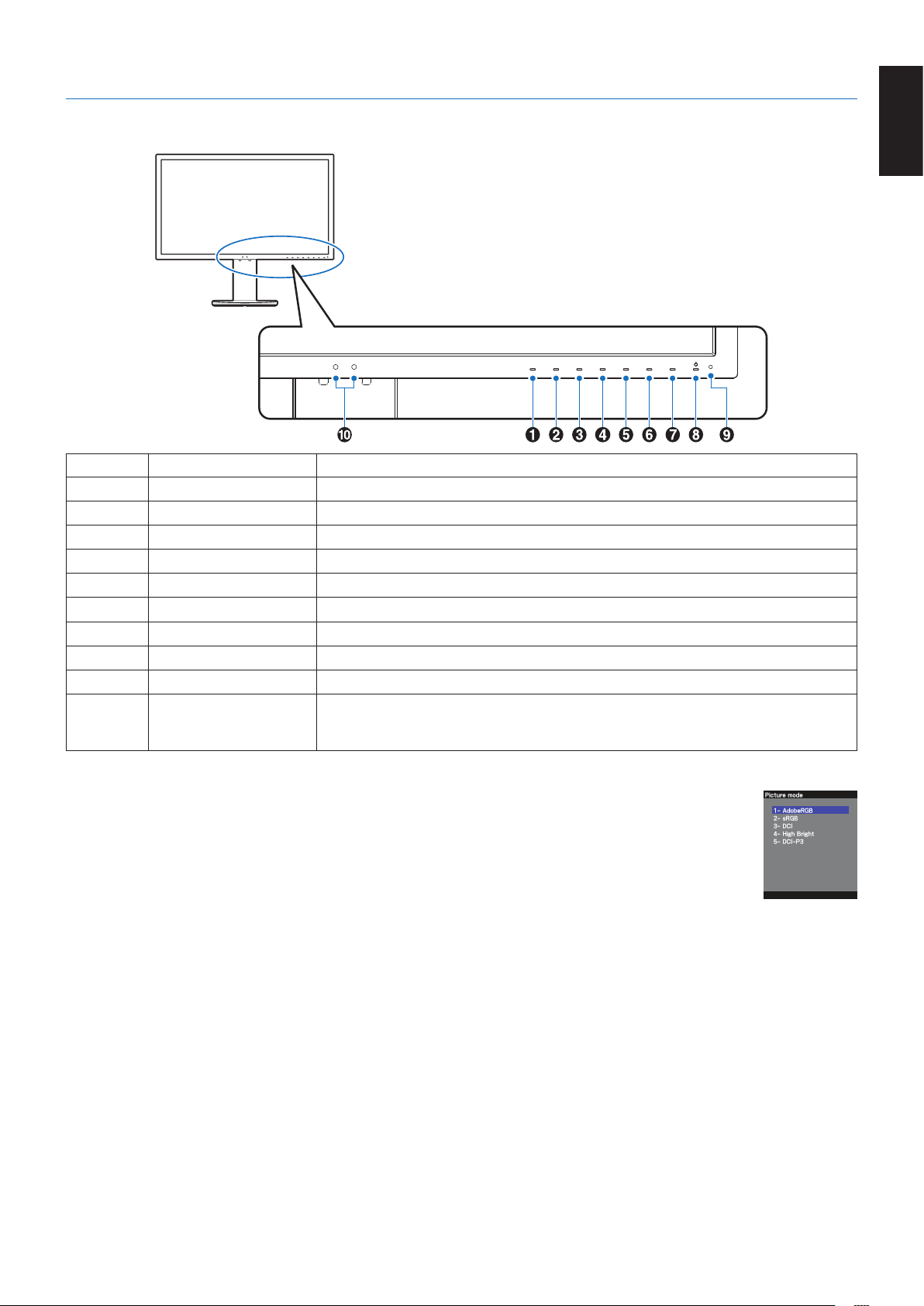
Control Panel
Key Default assign Function
A Key1
Menu (Menu)
Access the OSD menu.
B Key2
Picture mode List (Pic.L) Shows “Picture mode” menu when not in the OSD control menu*
1
.
C Key3
Luminance (Lumi) Adjusts the luminance when the OSD menu is not open.
D Key4
Volume (Volume) Adjusts the volume when the OSD menu is not open.
E Key5
Mute (Mute) Switches the audio mute on/off.
F Key6
Input (Input) Changes the input source for the “Active picture” when not in the OSD control menu.
G Key7
Information (i) Shows the SpectraView engine status.
H Key8
Power (Power) Turns the monitor on and off.
I LED
Indicates that the power is on. The LED color can be changed in the OSD menu.
J Sensor
Detects the ambient lighting and the presence of a user, allowing the monitor to make
adjustments to various settings resulting in a more comfortable viewing experience.
Do not cover this sensor.
* The touch key on the screen can be customized.
*
1
“Picture mode” menu.
Touch the [Up/Down] key to select “Picture mode” in “Active picture”. In “PiP” (picture in picture) or
“PbP” (picture by picture) mode, touch [</>] key to change “Active picture”. “Picture mode” can be
selected for “Active picture” independently.
English-8
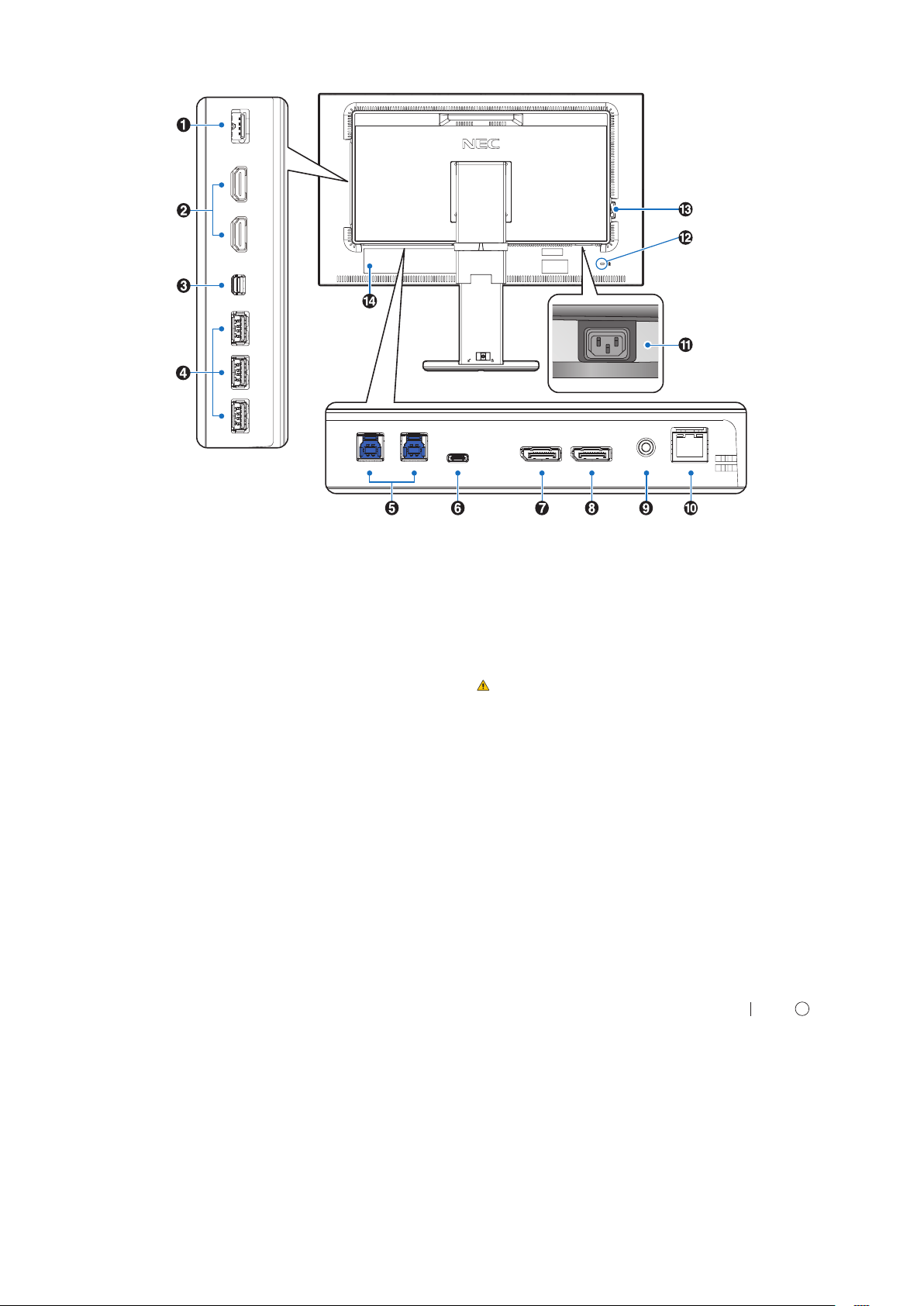
Terminal Panel
A SENS/MEM Port
Connect the external USB color sensor or USB memory.
NOTE: This port is not for USB hub connection.
B HDMIIN
Digital HDMI signals input.
C Mini-DisplayPort IN
DisplayPort signals input.
D USB Downstream Port (Type-A)
Connects with USB devices.
Connects with external equipment such as a computer
compliant with USB.
E USB Upstream Port (Type-B)
Connects with external equipment such as a computer.
Please use this port to control the monitor from connected
external equipment.
F USB-C Port
Connects with USB Type-C compliant external equipment
such as a computer.
G DisplayPort IN
DisplayPort signals input.
H DisplayPort OUT
Outputs DisplayPort signals or USB-C signals.
Connects with DisplayPort input of another monitor.
I HeadphoneJack
Connects with headphones.
NOTE: Adjustment of the volume control as well as the
equalizer to other settings than the center position may
increase the ear-/headphones output voltage and therefore
the sound pressure level.
Use an audio cable without a built-in resistor. Using an audio
cable with a built-in resistor lowers the sound.
CAUTION: Do not connect headphones to the monitor
while you are wearing them.
Depending on the volume level, it may
damage your ears and cause loss of hearing.
J LAN Port IN (RJ-45)
LAN connection.
K AC IN Connector
Connects with the supplied power cord.
L Security Slot
Security and theft protection lock compatible with Kensington
security cables/equipment.
For products, visit Kensington’s website,
http://www.kensington.com/
M Main Power Switch
On/Off switch to turn main power ON/OFF. : ON : OFF
N Rating Label
English-9
English
Quick Start
For box contents, please refer to the printed contents sheet provided in the box.
To connect the LCD monitor to your system, follow these instructions:
NOTE: Make sure to read “Recommended Use” (page 3) before installation.
CAUTION: The accessories included depends on the location where the LCD monitor was shipped.
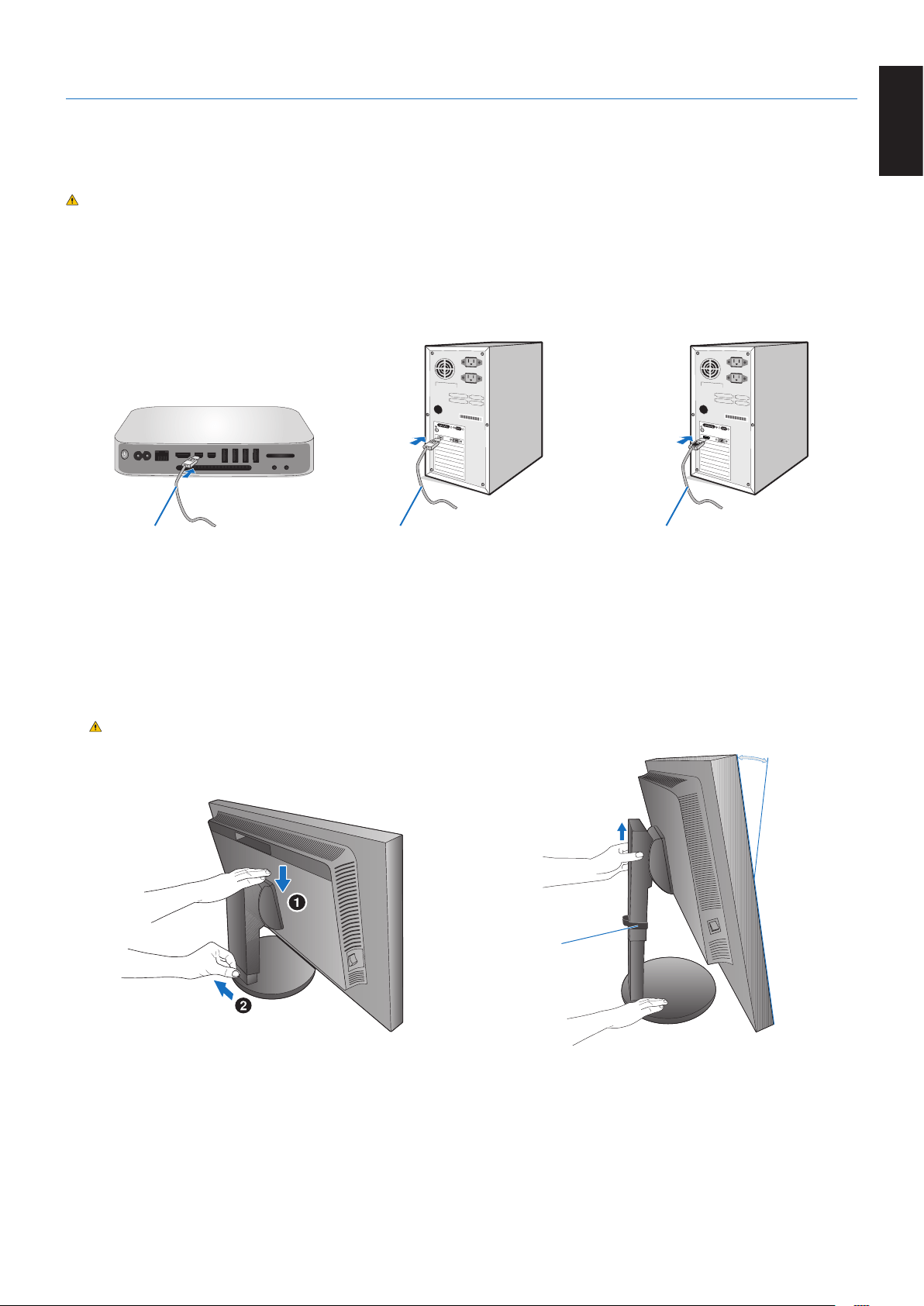
1. Turn off the power to your computer.
2. For a MAC with Thunderbolt or Mini DisplayPort output: Connect a Mini DisplayPort to DisplayPort cable to a
video connector in your system (Figure A.1).
For a PC with DisplayPort output: Connect the DisplayPort cable to the connector of the display card in your system
(Figure A.2).
ForaPCwithHDMIoutput:Connect the HDMI cable to the connector of the display card in your system (Figure A.3).
Figure A.3
Mini DisplayPort to DisplayPort cable
Figure A.1 Figure A.2
DisplayPort cable HDMI cable
NOTE: • Please use a Certified DisplayPort cable.
• WhenremovingtheDisplayPortcable,holddownthetopbuttontoreleasethelock.
• Please use a High Speed HDMI cable with the HDMI logo.
3. Height adjustment is locked by a lock switch. Place a hand on top of the stand to push down the screen to the lowest
position. Slide the lock switch to unlock the stand and raise the monitor screen (Figure B.1).
Place hands on each side of the monitor to tilt the LCD panel to a maximum tilt angle and lift up to the highest position
(Figure B.2).
CAUTION: Cable holder cannot be removed.
Figure B.1
Maximum Tilt
Cable holder
Figure B.2
English-10
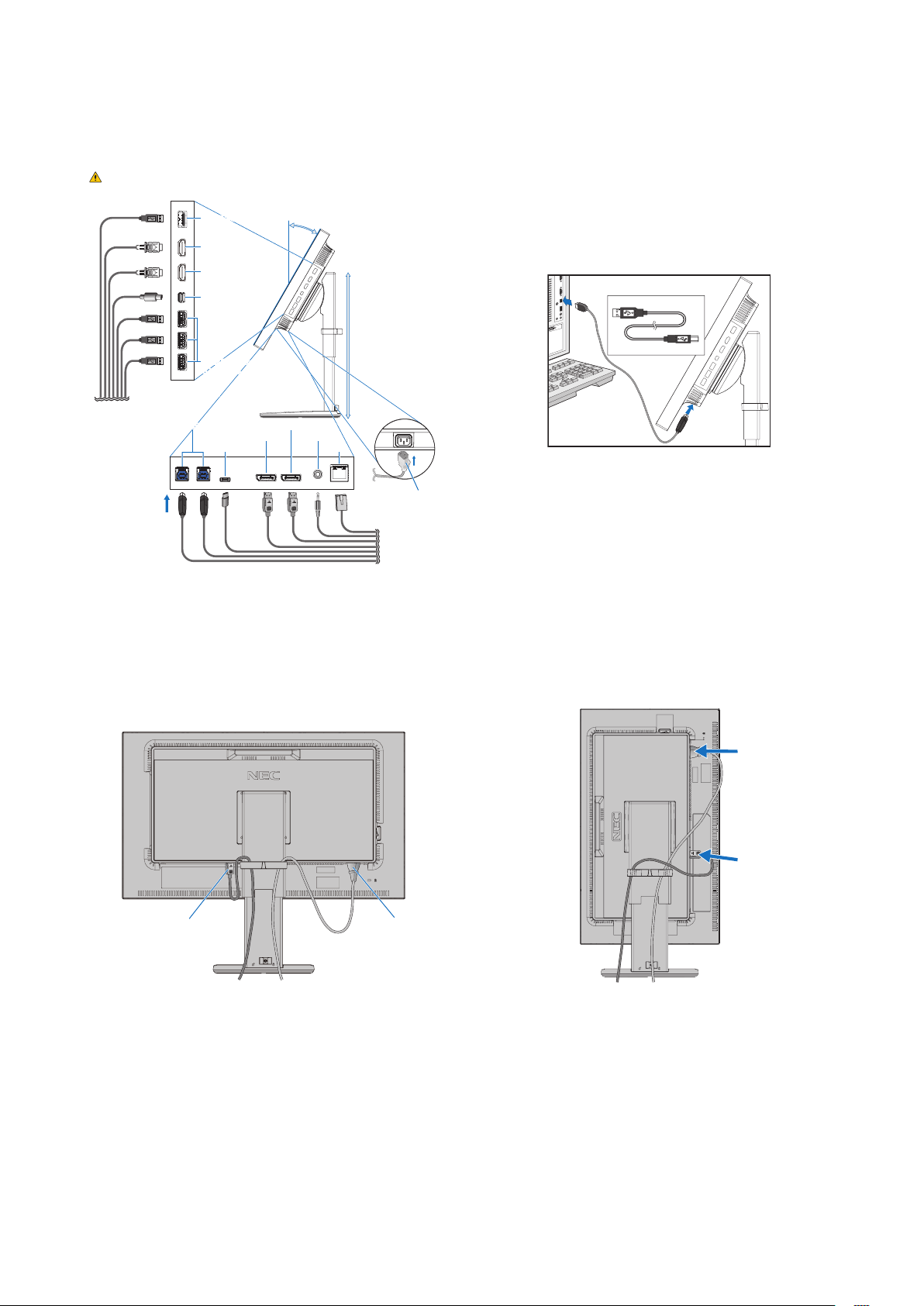
4. Connect all cables to the appropriate connectors (Figure C.1). When using a USB cable, connect the B type connector to
the USB upstream port on the rear side of the monitor and the A type connector to the downstream port on the computer
(Figure C.1a). If using the cord from a USB device, plug into one of the downstream ports of the monitor.
NOTE: Incorrect cable connections may result in irregular operation, damage display quality/components of LCD module
and/or shorten the module’s life.
CAUTION: Do not bind the USB cable. It may cause heat or fire.
Figure C.1a
A Type
B Type
A Type
B Type
Maximum Tilt
DisplayPort IN
USB Upstream (USB Type-B)
Headphone
Highest
Stand
Position
Figure C.1
DisplayPort OUT*
LANUSB-C
USB Downstream
(USB Type-A)
Power cord
Mini DisplayPort IN
HDMI 1 IN
HDMI 2 IN
SENS/MEM*
*: Remove the SENS/MEM and DP OUT cap when using the connector.
5. To keep the cables neatly and evenly organized, place them into the cable holder which is installed onto the stand
(Figure C.2 and Figure C.3).
6. Please check that you can still rotate, raise and lower the monitor screen when you have installed the cables.
Figure C.3
Power Cord
DisplayPort Cable
Figure C.2
Power Cord
DisplayPort Cable
English-11
English
7. Connect the power cord to a power outlet.
NOTE: Please refer to the Caution section of this manual for proper selection of the AC power cord (see page 1).
8. Turn on the monitor by touching the power key and then the computer (Figure E.1).
NOTE: If you have any problems please refer to the Troubleshooting section of this User’s Manual (see page 30).
Figure E.1
Power key
Adjustable stand with pivot capability
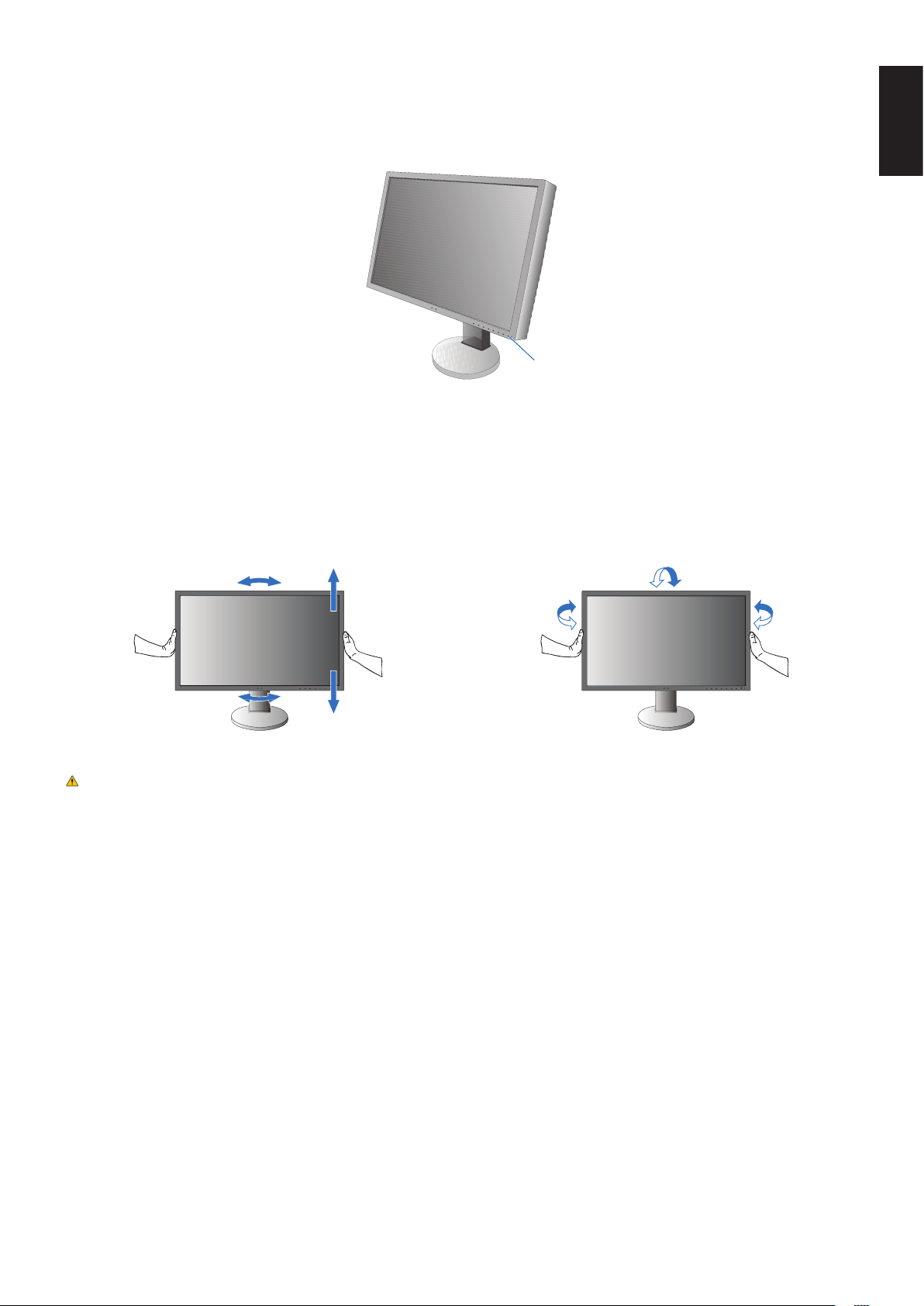
Raise and Lower: Hold the monitor on each side and lift or lower to the desired height.
Tilt and Swivel: Hold the top and bottom sides of the monitor screen with your hands and adjust the tilt and swivel as desired.
Screen Rotation (Pivot): Hold the monitor on each side and turn it from landscape to portrait.
To rotate the OSD menu between landscape and portrait, refer to the OSD (On-Screen-Display) Controls section (see page 16).
Tilt and SwivelRotation, Raise and Lower
CAUTION: Handle with care when adjusting the monitor screen. Do not apply pressure to the LCD when adjusting the
monitor screen height.
Before rotating, disconnect the power cord and all cables from the display. The screen must be raised to the
highest level and tilt to avoid knocking the screen on the desk or pinching your fingers.
English-12
Figure S.1
Flexible Arm Installation
This LCD monitor is designed for use with a flexible arm. Contact NEC for more information.
To prepare the monitor for alternate mounting purposes:
• Followtheinstructionsprovidedbythemanufacturerofthedisplaymount.
CAUTION: To meet the safety requirements, the monitor must be mounted to an arm that supports the weight of the monitor.
See page 28 for details. Remove the monitor stand before mounting.
Remove the Monitor Stand for Mounting
To prepare the monitor for alternate mounting purposes:
1. Disconnect all cables.
2. Place your hands on each side of the monitor and lift up to the highest position.
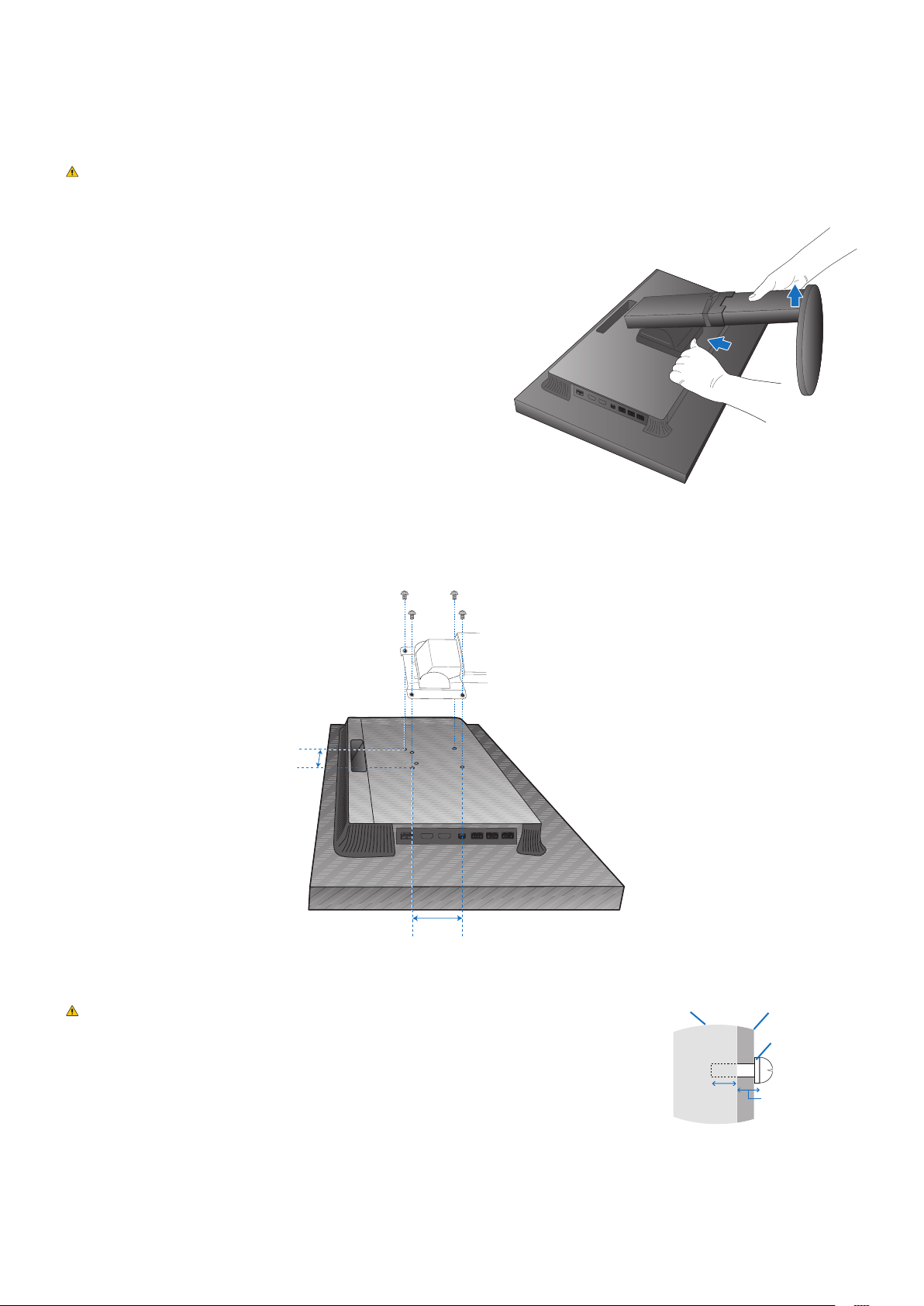
3. Place the monitor face down on a non-abrasive surface (Figure S.1).
4. Place one hand around the base and one hand on the Quick Release Lever.
Push and hold the Quick Release Lever in the direction indicated by the
arrows (Figure S.1).
5. Lift up the stand to unhook it from the monitor (Figure S.1).
The monitor can now be mounted using an alternate method.
Reverse the process to reattach stand.
NOTE: Handle with care when removing the monitor stand.
Mount the Flexible arm
This LCD monitor is designed for use with a flexible arm.
1. Follow the instructions on how Remove the Monitor Stand for Mounting to remove the stand.
2. Use the attached 4 screws to fasten the arm to the monitor (Figure F.1).
Figure F.1
100 mm
100 mm
Weight of LCD assembly: 6.9 kg
CAUTION: • Onlyusethescrews(4pcs)thatareincludedorM4sizedscrews
(Length: thickness of bracket and washer + 10-12 mm) when mounting to
avoid damage to the monitor and stand.
• Tofulllthesafetyrequirements,themonitormustbemountedtoanarm
which, guaranties the necessary stability under consideration for the weight
of the monitor. The LCD monitor should only be used with an approved arm
(e.g. TUEV GS mark).
• Tightenallscrews(recommendedFastenForce:98-137N•cm).
A loose screw may cause the monitor to fall off the arm.
• Attachingtheexiblearmshouldbedonebytwoormorepeopleifthemonitorcannotbeplacedfacedown
on a flat surface for installation.
Mounting
Bracket
Screw
Washer
Unit
10-12 mm
Thickness
of bracket
and washer
English-13
English
Using the Monitor functions
“Picture mode” function
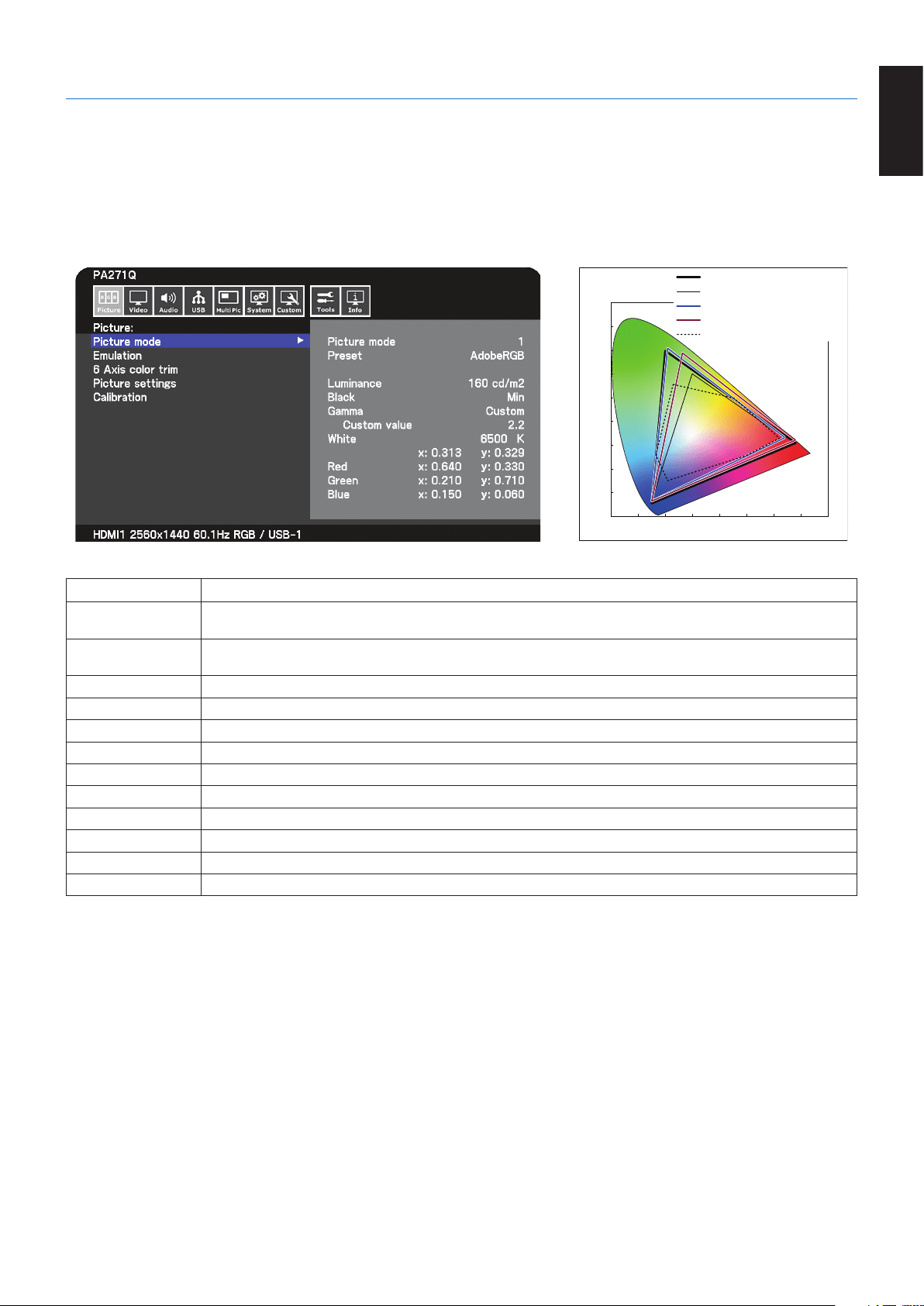
Choose the “Picture mode” that is most suitable for the type of content.
You can set the “picture mode” separately for each window when the “Multi picture” function is selected.
There are several types of color space configured as “Preset” in each “Picture mode”. You can change the detailed settings of
the “Preset”.
• Each“Picture mode” includes “Luminance”, “Black”, “Gamma”, “White”, “Red”, “Green”, “Blue” settings. You can change
these settings in “Picture mode” menu.
sRGB / Rec.709
AdobeRGB
DCI
REF: PRINTER (CMYK)
RED
GREEN
BLUE
0.9
0.8
0.7
0.6
0.5
0.4
0.3
0.2
0.1
0
0
0.80.70.60.50.40.30.20.1
FULL / HIGH BRIGHT / DICOM
PRESET GAMUT
The type of “Preset”
Preset Purpose
sRGB
The standard color setting of the Internet, Windows
®
operating systems and digital cameras. Recommended setting
for general color management.
AdobeRGB
Wider color gamut setting used in high-end graphics applications such as professional digital still cameras and
printing.
eciRGB_v2
Color setting recommended by Europe printing group, ECI (The European Color Initiative).
DCI-P3
Color setting for digital cinema.
Rec.709
Color setting for High-definition television.
Rec.2100 (HLG)
Color setting for HDR (High Dynamic Range) broadcasting.
Rec.2100 (PQ)
Color setting for HDR (High Dynamic Range) digital cinema on disc and internet streaming.
HighBright
Highest brightness setting.
Low Blue*
1
Reduces blue light emitted from the monitor. Paper-like color setting.
Full
Native LCD panel color gamut. Suitable for use with color managed applications.
DICOM
Color setting for medical imaging that conforms to DICOM GSDF (Grayscale Standard Display Function).
Programmable
Programmable preset for MultiProfiler and other supported software. The preset name can be changed by software.
*
1
: Low Blue Light function substantially reduces blue light and helps to alleviate eye-strain.
NOTE: - Settings of “Emulation” and “6 Axis color trim” are also stored to each “Picture mode”.
- When the selected “Picture mode” does not match the color setting of your computer (ICC profile), the color
reproduction of the displayed image is inaccurate.
- For detailed color settings and to set the ICC profile on your computer automatically, MultiProfiler software is
recommended. The latest version of the MultiProfiler software is available on the NEC Display Solutions website.
- “*” mark is shown for the edited Picture mode.
English-14
USB-C port functions
The equipped USB-C port supports the following functions. These three functions can be used concurrently, however, the actual
behavior depends on the function and specification of the connected USB-C device. You can check the status of the actual
functions on the “USB-C information” OSD.
Video and audio input
Supports DisplayPort input (DisplayPort Alt Mode on USB Type-C). Supports RGB 10bit signal and DisplayPort multistream
(see page 19).
NOTE: This function is available when the connected USB-C device complies with DisplayPort Alt Mode on USB Type-C.
Please use a USB-C cable that complies with USB3.1 Gen.1 or Gen.2.
Power supply (see page 28)
Charges a connected USB device (USB Power Delivery).
NOTE: - This function is available when the connected USB-C device complies with USB Power Delivery.
- The maximum power supply is 30 W but it changes depending on the connected device and cable.
You can check the power voltage and current information in the OSD.
If the connected device does not comply with USB Power Delivery or the device is not recognized,
the information shows “---”.
In this case, the power might be supplied as complies with USB Type-C power delivery depending on the type of
connected devices and cables.
- Please use a USB-C cable that complies with USB Power Delivery.
USB hub function
Allows using USB devices that are connected to the USB down stream port of the monitor.
NOTE: - If a signal is sent to the USB input that is beyond the recommended signal timings, even if the device complies
with USB3.1 Gen.1, it might be connected as USB2.0.
In this case, the USB hub is disconnected temporarily when changing between USB3.1 Gen.1 and USB2.0.
- The USB hub is disconnected temporarily when changing the setting of SST (Single-Stream Transport) to
MST (Multi-Streaming Transport).
Please remove the USB device before changing the setting.
NOTE: Information about the tested USB-C devices and cables are on the NEC Display Solutions website.
For safety and reliability purposes, it is highly recommended that only the tested cables be used.
English-15
English
Power management function
The power management function is an energy saving feature that automatically reduces the power consumption of the monitor
when the keyboard or the mouse has not been used for a fixed period.
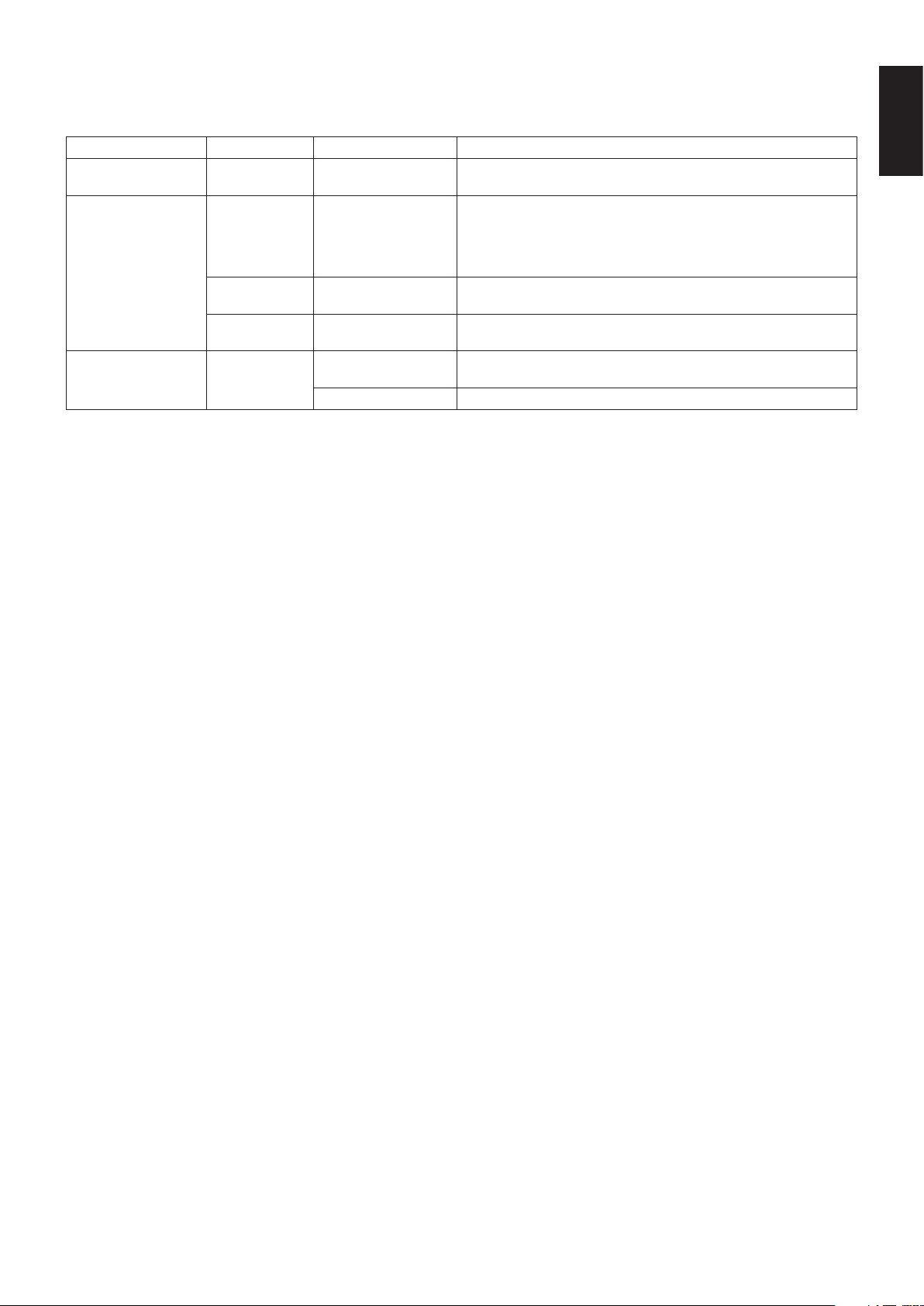
Mode LED indicator Power consumption Condition
Normal operation
(Maximum brightness)
Blue Approx. 60 W Normal operation (Backlight is on)
Energy saving mode
Amber Approx. 10 W
When meeting one of the conditions below, the monitor has passed a
certain amount of time with no video signal input.
• AcomputerisconnectedtotheUSBupstreamport.
• “Quickrecovery”issetto“On”.
• DPoutmultistreamsettingissetto“MST”.
Dark amber 2 W
The monitor has passed a certain amount of time with no video signal
input when there is an active network signal input.
Wavering amber 0.5 W
The monitor has passed a certain amount of time with no video signal
input and there is no network signal input.
Off mode Off
0.5 - Approx. 10 W
Turn off the monitor by the power key. Power consumption depends
on the power saving mode status.
0.3 W Turn off the monitor by the main power switch.
Power consumption depends on the setting of OSD or which devices are connected to the monitor.
NOTE: This function works with computers that support VESA approved DPM (Display Power Management).
The LED indicator color for normal operation can be customized (see page 22).
English-16
OSD (On-Screen-Display) Controls
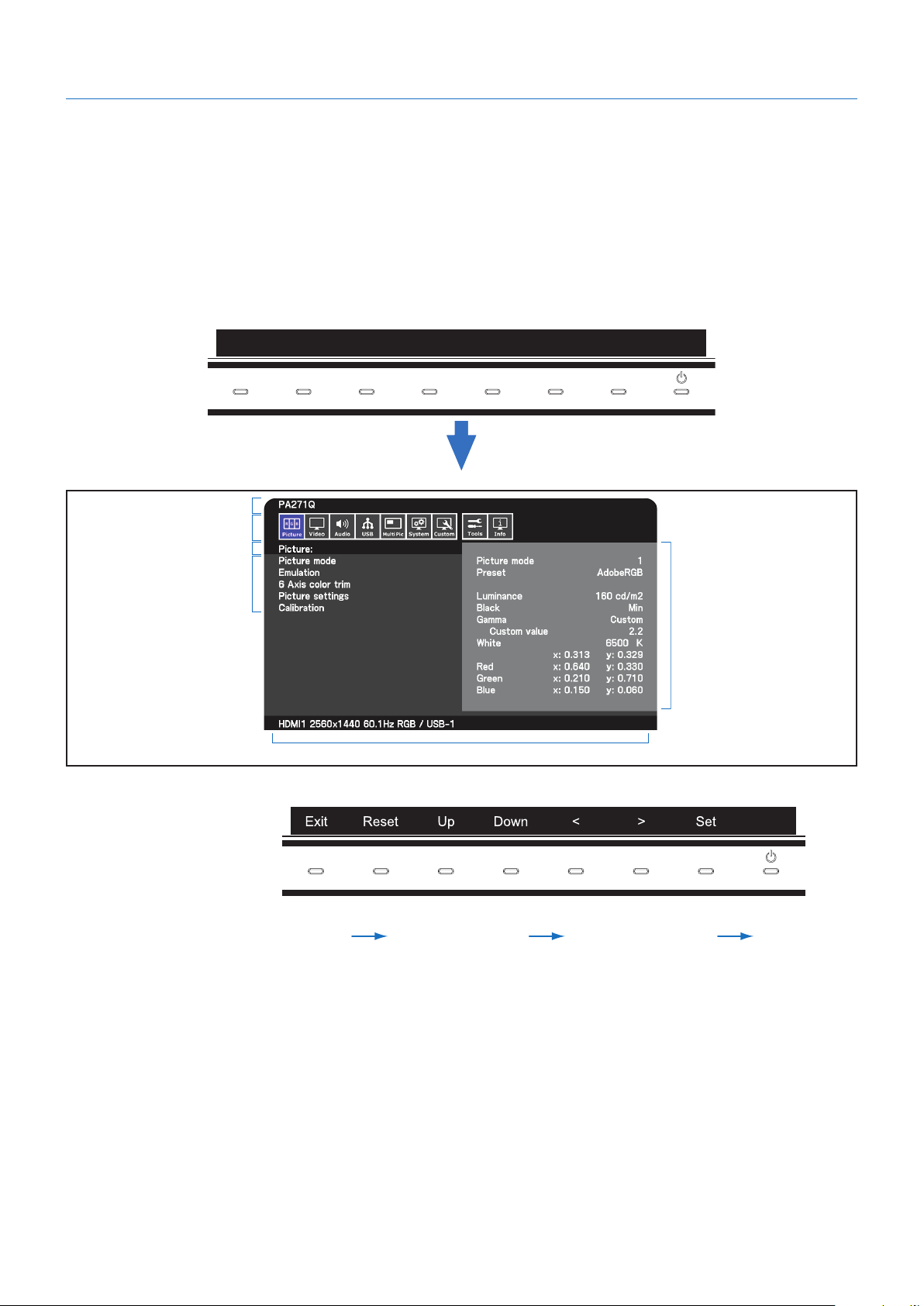
Many of the OSD controls are also available in the included MultiProfiler software, developed by NEC Display Solutions.
The latest MultiProfiler software is available on the NEC Display Solutions website.
OSD (On-Screen Display) control key on the front of the monitor function as
follows:
To access the OSD menu, touch the [Menu] key.
To change the signal input, touch the [Input] key.
NOTE: The OSD must be closed in order to change signal input.
Some functions may not be available depending on the model or optional equipment.
Menu Pic.L Lumi Volume Mute Input i Power
Input source
Main Menu Icons
Main Menu Item
Sub Menu
Information
Adjustment Settings
The keys’ guide and their functions change when the OSD menu is open.
Control Panel
Touch [Down] or
[Up] key to
select sub-menu.
Touch [Set] key.
Touch [Down], [Up],
[<] or [>] key to select
the function or setting
to be adjusted.
Touch [Exit].
NOTE: Touch [Reset] key to return the selected items to factory shipment state.
English-17
English
OSD Settings
Picture
Picture mode
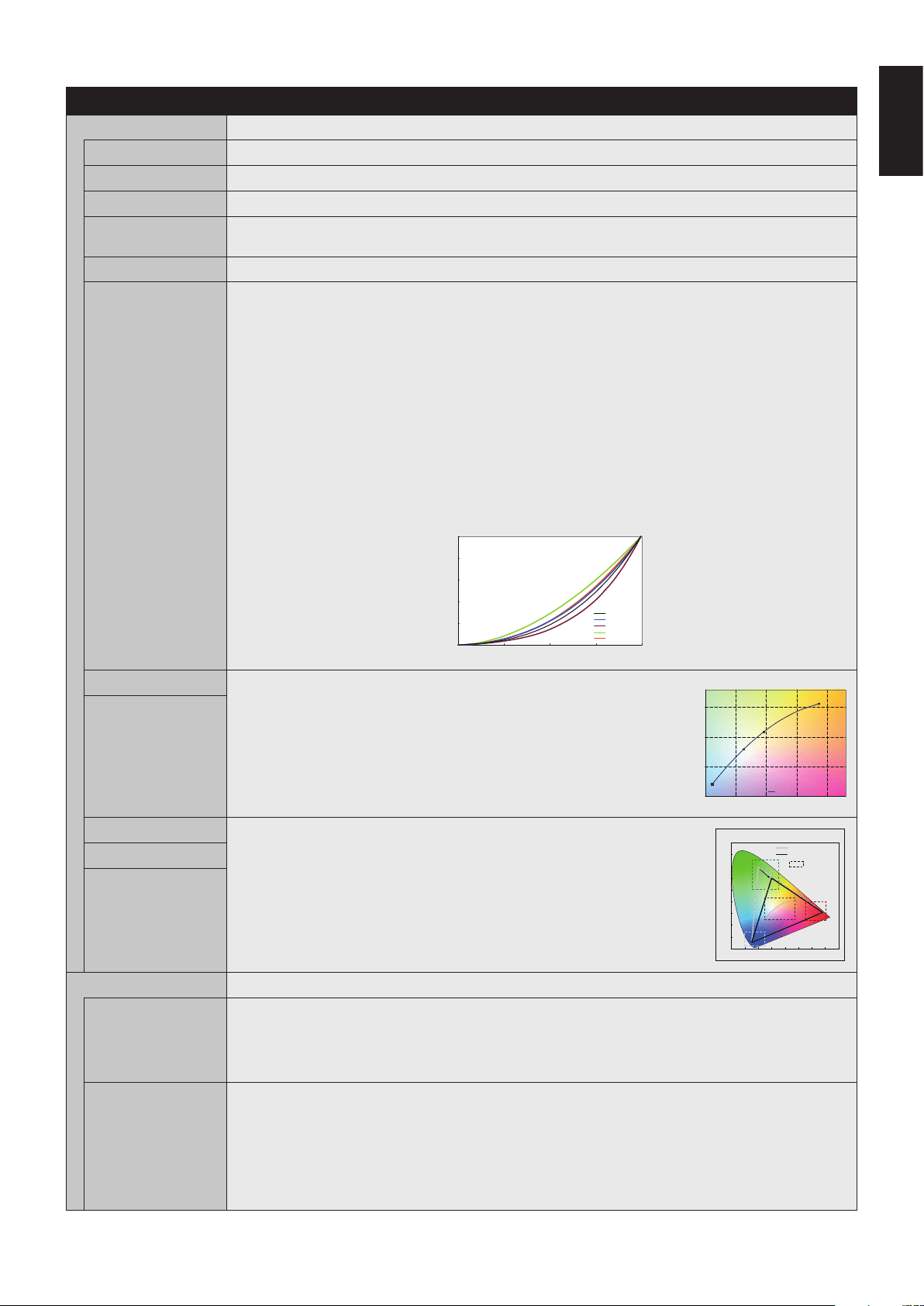
Picture mode Select “Picture mode” from 1 to 10.
Preset Sets the Picture mode preset from the type of preset (see page 13).
3D LUT Emu. Shows the name that you set in supported software when “3D LUT Emulation” is available.
Luminance Adjusts the overall image and screen background luminance.
When the setting is too high to display, the OSD characters are changed to yellow.
Black Adjusts the black luminance. When the setting is too low to display, the OSD characters are changed to yellow.
Gamma Allows you to manually select the brightness level of grayscale.
sRGB: Gamma setting for sRGB.
L Star: Gamma setting for the CIELAB color space Lab.
Rec.1886: Gamma setting for HDTV broadcasting.
Hybrid Log: Gamma setting for HDR, typically for UHD broadcasting. System gamma can be adjusted.
System gamma: System gamma is adjustable in 0.5-2.0 range. When “Auto” is selected, the system gamma is
automatically selected according to the “Luminance” setting.
ST2084(PQ): Gamma setting for HDR, typically for UHD disk media and streaming videos. Peak luminance
value is adjustable.
Peak lumi.: Sets the peak luminance value to display ST2084(PQ) luminance range.
A larger value will improve white saturation but the picture become darker. When “Auto” is
selected, “Luminance” is used as the peak luminance setting.
DICOM: DICOM GSDF (Grayscale Standard Display Function) is typically used for medical imaging.
Programmable: A programmable gamma curve can be loaded using optional NEC software.
Custom: Set a custom value for Peak luminance.
Custom value: The gamma value is selected from a range from 0.5 to 4.0 in 0.1 steps.
SAMPLE OF PRESET GAMMA
0
20
40
60
80
100
0 64 128 192
GRAY STEP [0-255]
LUMINANCE [cd/m
2
]
L*
sRGB
DICOM
Custom 1.8
Custom 2.2
255
White (K) Adjusts the white color by temperature or x, y setting. A lower color temperature
will result in a reddish screen and a higher color temperature in a bluish screen.
A larger x value will result in a reddish screen, a larger y value changes the
screen to greenish, and smaller x,y values will change the screen to bluish white.
WHITE RANGE
0.25
0.30
0.35
0.40
0.25 0.30 0.35 0.40 0.45
x
y
WHITE TEMPERATURE
15000K
3000K
6500K
5000K
0.43
0.48
White (x,y)
Red (x,y) Adjusts the color gamut. When the setting is outside of the color gamut of the
LCD panel, the OSD characters are changed to yellow.
LCD NATIVE GAMUT
GREEN MODIFIED
WHITE
GREEN
RED
BLUE
SETTING
RANGE
0.9
0.8
0.7
0.6
0.5
0.4
0.3
0.2
0.1
0
0
0.80.70.60.50.40.30.20.1
SAMPLE OF RGB GAMUT SETTING
x
y
Green (x,y)
Blue (x,y)
Emulation
3D LUT Emulation Activates the 3D LUT data, which is applied by application software.
On: 3D LUT data is applied on the selected Picture mode.
Off: 3D LUT data is not applied.
Compare: Indicates the difference of “On” and “Off” in gray. This function can be used to indicate the range,
which is outside of the color gamut.
Color vision emulation Previews various typical human vision deficiencies and is useful for evaluating how people who have such
deficiencies will perceive colors. This preview is available in four modes: Types P (Protanopia), D (Deuteranopia)
and T (Tritanopia) emulate color vision dichromacy, and Grayscale can be used for evaluating contrast legibility.
NOTE: Depending on the vision of the user, including those with color vision deficiency, there will be a variation
in how the screen’s color is seen and experienced. A simulation is used to illustrate the view of those with a color
vision deficiency. It is not their actual view. The simulation is a reproduction of those with a strong color vision
mode of type P, type D or type T. People with a slight color vision deficiency will experience little to no difference
compared to those with normal color vision.
English-18
6 Axis color trim
Red (Hue/Sat/Offset) Hue: Adjusts the hue of each color*
1
. The change in color will appear on screen and the menu
color bars will show the amount of adjustment.
Sat. (Saturation): Adjusts the color depth of each color*
1
. Touch the [>] key and the color vividness increases.
Offset: Adjusts the color brightness of each color*
1
. Touch the [>] key and the color brightness
increases.
*
1
: Red, Yellow, Green, Cyan, Blue and Magenta.
Yellow (Hue/Sat/Offset)
Green (Hue/Sat/Offset)
Cyan (Hue/Sat/Offset)
Blue (Hue/Sat/Offset)
Magenta (Hue/Sat/
Offset)
Picture settings
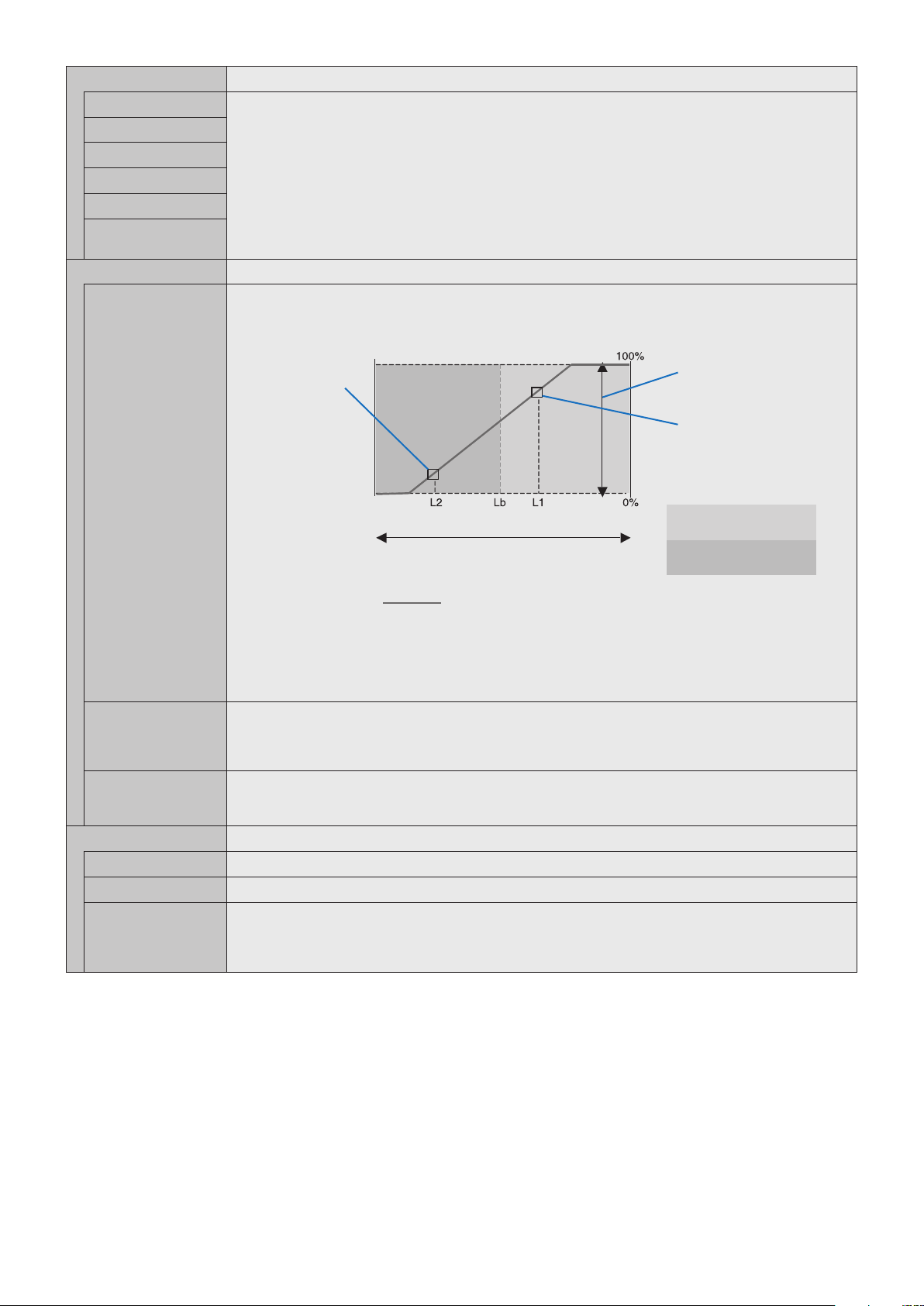
Auto brightness Adjusts the luminance automatically by detecting the brightness level of your environment.
NOTE: Do not cover the ambient light sensor. “Off” is recommended for best color reproduction.
When the “Auto brightness” function is enabled, the luminance level of the screen changes automatically
according to the lighting conditions of the room.
Luminance level set
for the monitor to use
when ambient light
level is low.
Luminance level set for
the monitor to use when
ambient light level is high.
Luminance range
Lb: Border between bright and dim lighting conditions; set at factory
L1: Luminance level set for the monitor to use when ambient light level is high (L1>Lb)
L2 : Luminance level set for the monitor to use when ambient light level is low (L2<Lb)
L1 and L2 are the brightness levels set by the user to compensate for changes in ambient light.
dark bright
room bright condition
Screen Brightness value by Auto Brightness function
Bright condition area
Dark condition area
Uniformity This function electronically compensates for the slight variations in the white uniformity level as well as deviations
in color that may occur throughout the screen area. These variations are characteristic of LCD panel technology.
This function improves the color reproduction and evens out the non-uniformity in luminance of the monitor.
NOTE: A higher number produces a better effect, but may also reduce the contrast ratio.
ECO mode Decreases the amount of power consumed by reducing the brightness level.
Off: ECO mode does not function.
On: Reduces the maximum possible brightness to about 100 cd/m
2
.
Calibration
Calibration Start “Stand Alone Calibration” by using USB color sensor (See page 25).
Color stabilizer Uses the internal color sensor to compensate for a natural color shift that occurs with age.
Metamerism Improves the white point color matching when the display used side-by-side with a standard gamut display
monitor. This feature compensates for the way the human eye perceives colors slightly differently compared to
the scientific instrument used to adjust the display during calibration. This function should be disabled in color-
critical applications.
English-19
English
Video
Input
Input Selects the input signal.
DisplayPort settings
DisplayPort version Selects the DisplayPort mode “1.1a” or “1.2” for DP1. “1.2” is the recommended setting. If there are compatibility
problems please try using 1.1a.
DP out multistream To display the same screen image, select “SST” (Single-Stream Transport). To display the independent screen
image, select “MST” (Multi-Stream Transport). Multi-Stream Transport requires a corresponding display card.
NOTE: When “DisplayPort version 1.1a” is selected, “SST” is set automatically.
The USB hub might be disconnected temporarily when set “DP out multistream”.
If the removal message does appear, remove any USB devices such as USB memory from the monitor.
Input selection Selects “USB-C” (USB-C port) or “DisplayPort” (DisplayPort IN) for DP1 input. When using only one connector,
the input is selected automatically.
Video settings
Expansion Select the aspect ratio of the screen image.
Aspect: The image is expanded without changing the aspect ratio.
Full: Fills the entire screen.
1:1: Shows the image in a 1 by 1 pixel format.
Zoom: The image can be expanded beyond the active screen area. The image, which is outside of the active
screen area, is not shown.
Zoom Sets the Zoom ratio.
Overscan Some video formats may require different scanning modes in order to best display the image.
On: Image size is larger than what can be displayed. The image edge will appear cropped.
Approximately 95% of the image will be shown on the screen.
Off: Image size stays within the display area. The whole image is displayed on the screen.
NOTE: When you use a computer with HDMI out please set Overscan to “Off”.
Auto: Image size is set automatically.
Sharpness Adjusts the crispness of the image.
Video range Adjusts the white and black level corresponding to the input signal level.
White
Black
Signal format Selects the color space setting for the HDMI/DisplayPort signal.
Input settings
Input detect Selects the method of input detection the monitor uses when more than one signal source is connected.
None: The monitor will not search for signals at the other video input ports.
First: When the current video input signal is not present, the monitor searches for a video signal from another
video input port. If a video signal is present in the other input, the monitor switches from the current
video source to this active video source. The monitor will not look for any other video signals while the
current video source is present.
Last: When the monitor is reproducing a signal from the current video source and a new second video source
is supplied to the monitor, the monitor will automatically switch to the new video source. When the
current video input signal is not present anymore, the monitor searches for a video signal from any
other video input. If a video signal is present in the other input, the monitor switches from the current
video source to this active video source automatically.
NOTE: “Last” function does not work between DisplayPort IN and USB-C port.
Blank signal skip Skip no signal inputs when you change the input signal using the [Input] key.
DDC/CI Turns on or off the two way communication and control of the monitor via the video cable.
Advanced signal settings
Bit rate DP1 DisplayPort Sets the bit rate of the DisplayPort signal. These settings are automatically selected according to the DisplayPort
version and the “DP out multistream” settings. If the image is unstable or picture noise occurs, please try the
other settings.
NOTE: When “RBR” or “HBR” is selected, MST function cannot be activated.
Bit rate DP1 USB-C
Bit rate DP2 mDP
Equalizer DP1 USB-C Compensates for image degradation for stability reproduction.
If the image is unstable or picture noise occurs, please change the settings.
English-20
Audio
Audio settings
Source Selects the audio source: “Active picture”, “Picture1”, “Picture2”.
Volume Increase or decrease output volume level.
Mute on Mutes the sound output.
Audio delay For synchronizing sounds and pictures, delay the audio timing.
USB
USB hub input select
DP1 USB upstream port selection for “DP1”, “DP2 (mDP)”, “HDMI1”, and “HDMI2”. Change the USB upstream port
(USB1/USB2/USB-C) associated with the current display input. When connecting a computer to each of the
upstream ports, the monitor’s USB downstream ports can be used by selecting this setting for the current input
signal. When using only one upstream port, the connected upstream port is active.
NOTE: To avoid data loss, before changing USB upstream ports, ensure that no USB storage devices are in use
by the operating system of the computer attached to the USB upstream port.
DP2 (mDP)
HDMI1
HDMI2
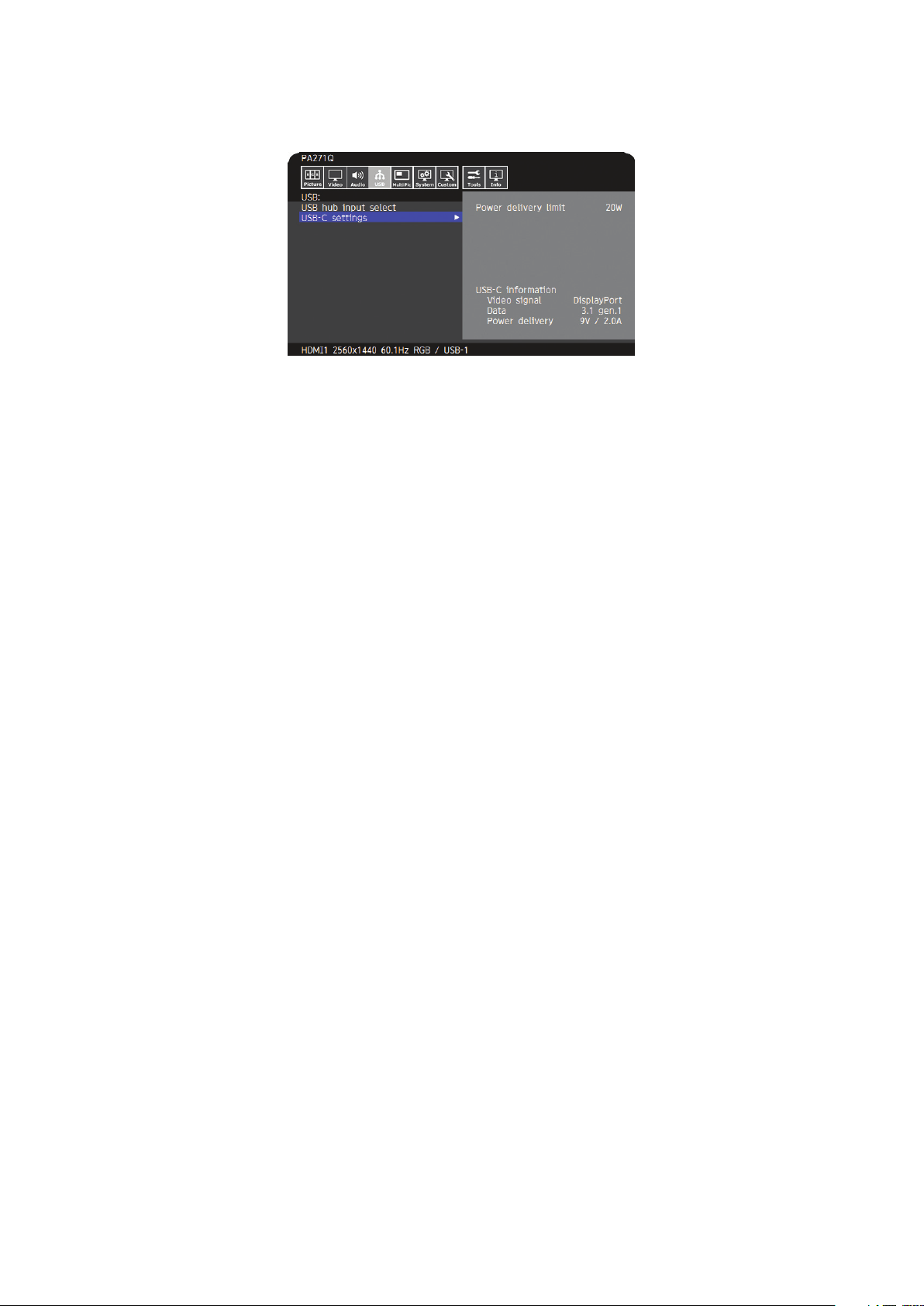
USB-C settings
Power delivery limit Selects the maximum supplied power for USB-C devices. Normally, use the “20W” setting, but if power charging
does not start or is unstable, try one of the other settings.
NOTE:
- The selection of “15W”, “20W”, or “30W” sets the maximum power wattage that can be supplied to a connected
device. Depending on the type of connected USB-C device, the actual wattage is lower than the selected
option.
- When “15W” is selected, output voltage is fixed to 5V.
- When “30W” is selected, maximum luminance is decreased.
USB-C information Shows USB-C signal information.
Multi picture
Multi picture settings
Multi picture When “On” is selected, two pictures are displayed.
Multi picture mode Selects “PiP” (Picture in picture) or “PbP” (Picture by picture).
Active picture Selects a target picture for OSD operations.
Side border color Adjusts the side black bars color.
Position / Size
Position Sets the active picture location.
Size Sets the active picture size.
Tile matrix
Tile matrix Allows one image to be displayed over multiple screens (up to 9).
H Monitors: Select the number of horizontal displays.
V Monitors: Select the number of vertical displays.
Position: Select a position to expand the screen.
Tile comp: Compensates for the width of the tile bezels in order to accurately display the image.
Enable: Enables “Tile matrix” settings that you set.
English-21
English
System
Language
[Languages] Select the language used by the OSD.
OSD
OSD time Turns off the OSD after a period of inactivity.
OSD position Determines the location where the OSD appears on the screen.
OSD transparency Selects the transparency of the OSD.
OSD rotation Determines the OSD orientation between landscape and portrait.
Landscape: Shows the OSD in landscape orientation.
Portrait: Shows the OSD in portrait orientation.
Auto: OSD is orientated automatically along with the display orientation.
OSD last memory The OSD menu opens to the last menu view before it closed.
Information OSD Selects whether the signal information OSD is displayed or not. The signal information OSD will appear when the
input signal or input source changes.
Boot logo The NEC logo is briefly displayed after the monitor is powered on.
Finger detection When the sensor detects the vicinity of a finger, the key guide appears automatically.
NOTE: This function is not available when the monitor is off.
Power management
Quick recovery Select the behavior of power saving mode.
Off: Enables the most effective power saving mode.
On: The monitor returns to On mode faster from power saving mode. The power consumption is higher than “Off”
setting.
Human sensing
Human sensing The sensor detects the movement of a person by using the “Human sensing” function. The “Human sensing”
function has three settings:
Off: No human sensing.
On: After no person has been detected for a period of time, the monitor shifts to power saving mode
automatically to reduce the power consumption. When a person comes near the monitor again,
the monitor will automatically return to normal mode.
Custom: You can set “Backlight” and “Volume” conditions.
Sensor setting Adjusts the threshold level of human sensing. The current threshold is shown to the right of the adjustment slider.
To adjust the sensor’s distance threshold, use the [</>] key to move the slider left or right.
NOTE: Detects a person within about 1.5 m from the monitor.
Start time Adjusts the wait time before entering low brightness mode or power saving mode when the human sensor
detects no person.
Backlight Select the backlight setting when “Human sensing” is activated.
Volume Select the volume setting when “Human sensing” is activated.
Network settings
IP setting Enabling this option automatically assigns an IP address to the monitor from your DHCP server.
Disabling this option allows you to enter a fixed IP address and subnet mask data obtained from your network
administrator.
NOTE: Consult your network administrator for the IP address when “Auto” is selected for “IP setting”.
IP address Set your IP address for the monitor connected to the network when “Manual” is selected for “IP setting”.
Subnet mask Set your subnet mask data for the monitor connected to the network when “Manual” is selected for “IP setting”.
Default gateway Set your default gateway for the monitor connected to the network when “Manual” is selected for “IP setting”.
NOTE: Enter [0.0.0.0] to delete the setting.
Factory reset
Factory reset All items are returned to factory shipment state.
English-22
Customize
Hot key
Key 1-8 Customizes seven keys on the front bezel by assigning Picture modes or other functions to the keys for easy
access. The following functions can be assigned:
- Picture modes.
- Video input connectors.
- Some OSD menu shortcuts.
- Other function1: USB hub upstream, Luminance, Volume setting OSD.
- Other function2: Toggle functions like Emulation, Sound mute.
NOTE: Key 1 is the Menu Key and cannot be changed.
Input name
Input name You can create a name for the input currently being used. Max: 14 characters, including space, A-Z, 0-9, and
some symbols.
Number of Picture modes
Number of Picture
modes
Sets the maximum number of selectable “Picture mode”.
LED indicator
LED brightness Controls the brightness of the LED on the front bezel of the monitor.
LED color Selects the color of LED on the front bezel from Blue, Green or Custom.
Custom1: Change LED color along with the selected “Picture mode”.
Custom2: Change LED color along with the status of “Picture mode”. (Default or Emulation on or Edited.)
Custom3: Change LED color by the selected video input.
OSD lock out
OSD lock out Prevents the monitor from being controlled by the OSD menu or the hot key. Touch the [Key1] and [Key3]
simultaneously for a few seconds to unlock.
Disable: All OSD menu and hot key actions are available for normal operation.
Enable: Locks all OSD menu and hot key actions.
Custom: Locks all OSD menu actions. Hot key actions are available for normal operation.
Tools
Area marker
Area marker Shows a marker by a frame or line.
NOTE: When a line marker is displayed for a long time, LCD panel may have image sticking phenomena.
To avoid it a frame marker is recommended.
Size Adjusts the size of the marker.
Aspect Adjusts the aspect ratio of the marker.
Color Selects the color of a line marker or the brightness of a frame marker.
Import / Export
Import / Export Imports or exports the settings of your display to a USB memory (See page 27).
NOTE:
- The Import function will overwrite the current monitor settings. If needed, backup the current settings using the
export function before importing new settings.
- Some monitor specific settings, such as calibration records, are not exported.
- If the IP address is set manually, make sure it is a unique address and there is no duplicate on the network.
Information
Monitor information Shows the model name, serial number, input signal and audio information for your monitor.
SpectraView engine status Shows the status of internal sensors and the calibration information for your monitor.
USB information Shows the USB hub and USB-C information.
System information Shows the firmware version, SpectraView engine status, hours running, carbon savings, carbon usage and MAC
address of your monitor.
Hours running: Show total running time.
Carbon savings: Shows the estimated carbon saving information in kg-CO2. The carbon footprint factor in the
carbon saving calculation is based on the OECD (2008 Edition).
Carbon usage: Shows the estimated carbon usage information in kg-CO2. This is an arithmetic estimation, not an
actual measurement value. This estimation is based on the monitor settings only and does not account for any
connected devices.
English-23
English
LAN Control Function
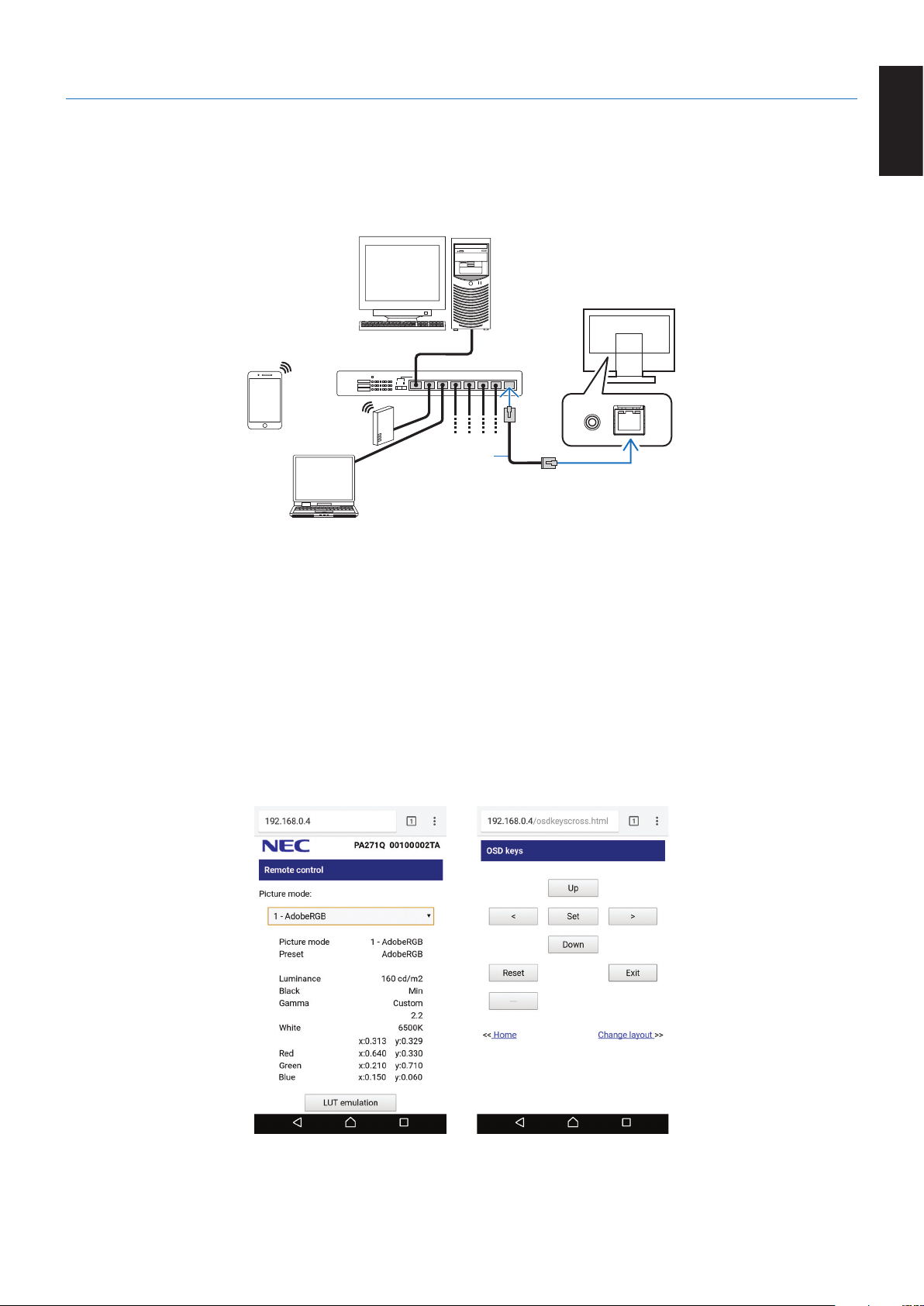
Provides control of the monitor settings over the network, via a custom application or a web browser on a connected computer
or smartphone.
Example of LAN connection:
Server
Hub
NOTE: Use a category 5 or higher LAN cable.
LAN cable
(not supplied)
Preparation Before Use
Connect the monitor to the network by using a commercially available LAN cable.
Set the IP address (see page 21).
Using Control Software
Control software allows you to control the monitor settings and get the monitor status, including calibration information.
Please download the software from our web page and install it on your computer.
OSDcontrolviawebbrowser(HTTPserverfunction)
You can switch the picture modes and video inputs via a web browser.
To access this function, enter the monitor’s URL in the web browser on a connected smartphone or computer.
http://<the monitor’s IP address>/index.html
You can control the OSD menu using the web browser instead of the touch keys on the monitor. By using the “Hot key” setting in
the OSD, you can customize the functions.
Controlling the LCD monitor via LAN
English-24
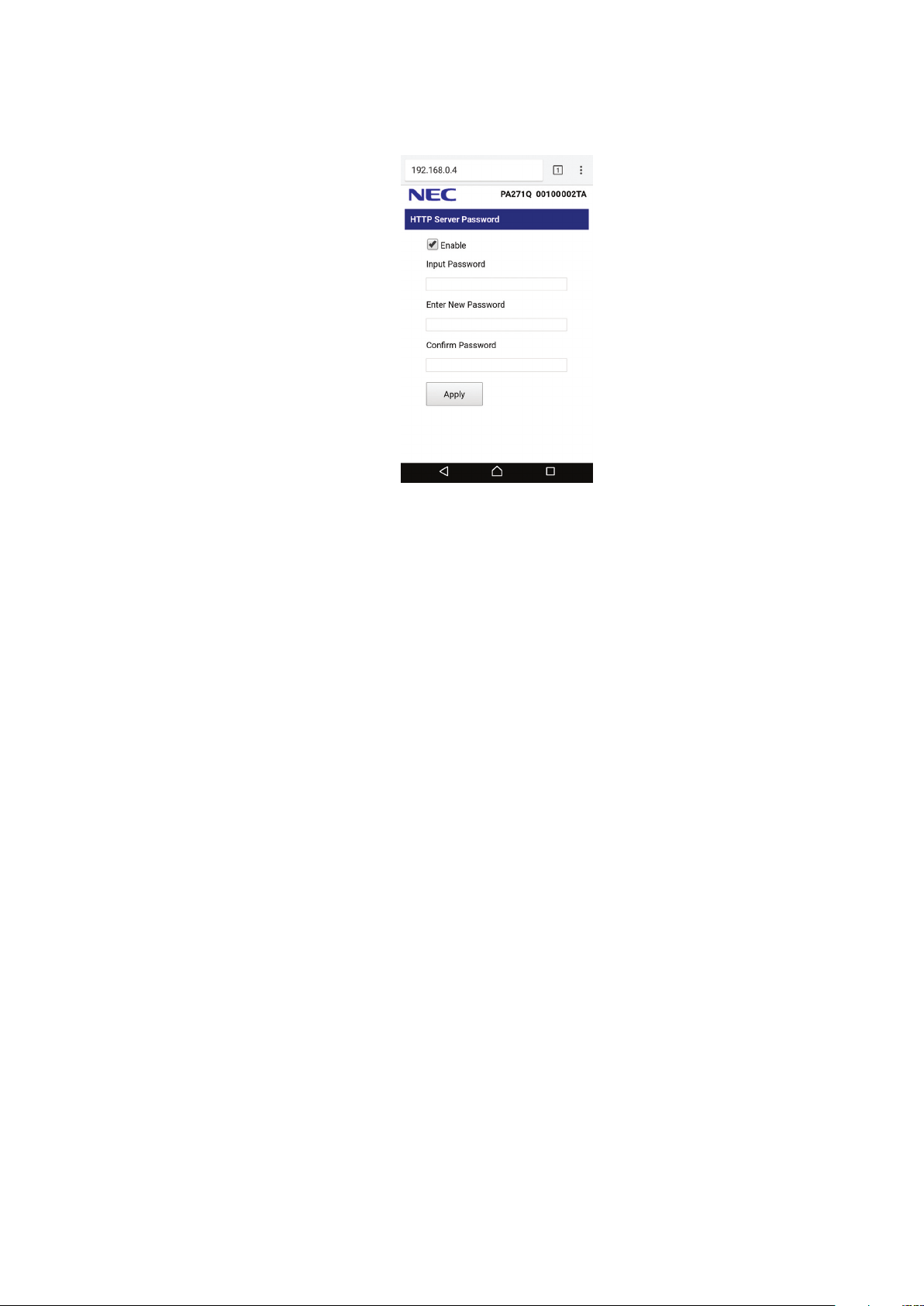
For security, you can set a password to access the HTTP server function. Please select “Enable” for HTTP Server Password
function. A-Z, 0-9, and some symbols can be used for the password. The default setting is [0000]. The user name is “PA271Q”.
NOTE: The default setting for the IP address is “Auto”. When a LAN cable is connected, or after a monitor “Reset”, the
IP address will be assigned automatically.
If the monitor appears to be slow in response to commands or clicks on buttons in the browser, or the general speed
of operation is unacceptable, this may be due to network traffic or the settings on your network. Should this happen,
consult your network administrator.
The monitor may not respond if the buttons shown on the browser are repeatedly pressed in rapid intervals. Should
this happen, wait a moment and repeat. If you still can’t get a response, turn the monitor off and then back on.
The HTTP server function is confirmed on some major web browsers, however, it is not guaranteed to work with all
web browsers.
If the HTTP server screen does not appear in the web browser, refresh your web browser (or clear the cache).
Operation with a browser that uses a proxy server may not be possible depending on the type of proxy server and the
setting method. Although the type of proxy server will be a factor, it is possible that items that have been set will not
be shown depending on the effectiveness of the cache, and the contents set from the browser may not be reflected in
operation. It is recommended that a proxy server is not used unless the network environment requires it.
English-25
English
Stand Alone Calibration
Stand Alone Calibration Function
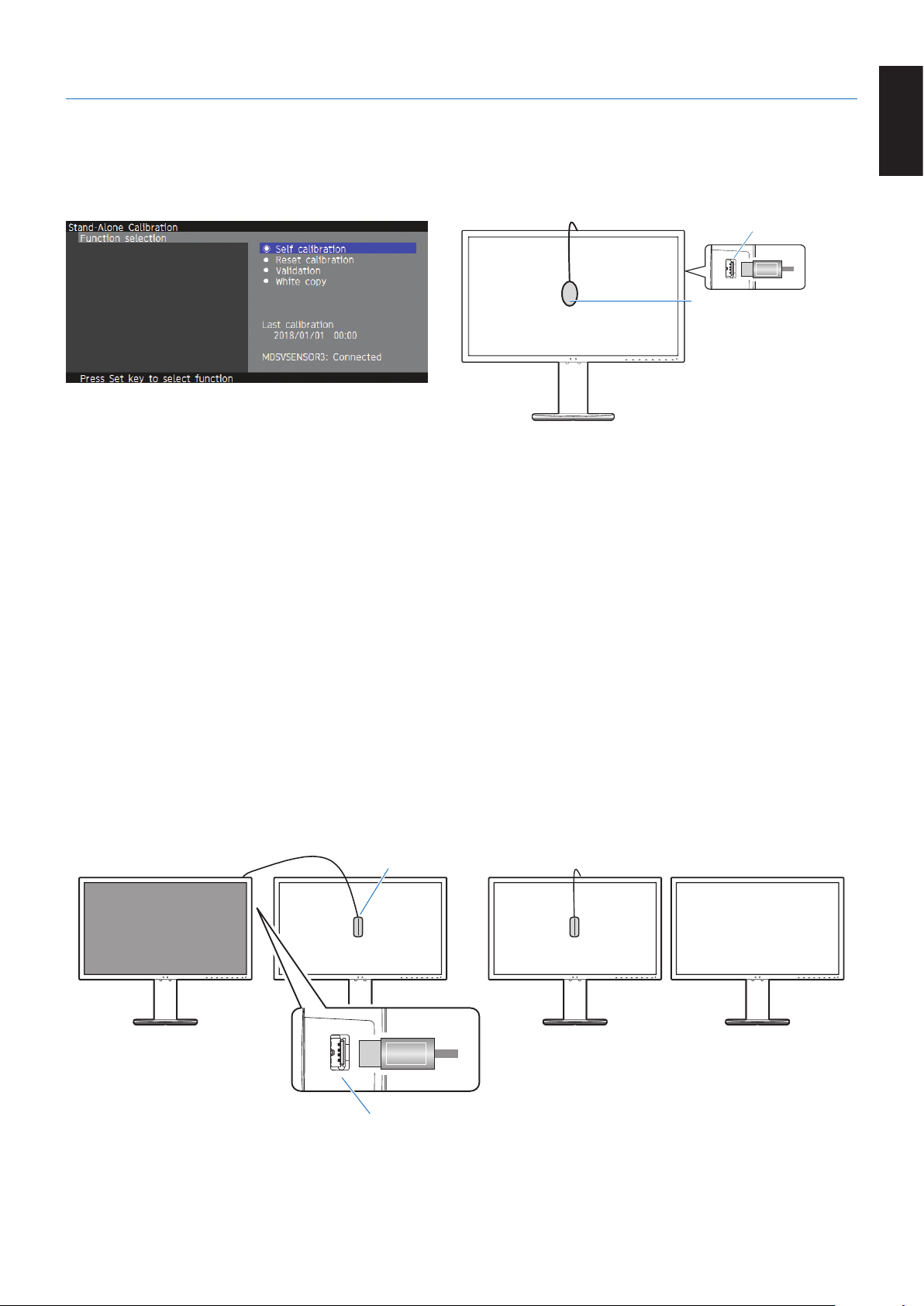
This function allows calibration of the monitor without using computers. To open Stand Alone Calibration OSD menu, select
Calibration (see page 18) on the OSD or connect a supported USB color sensor on SENS/MEM port.
Select a function on the menu and follow the instructions on the OSD message.
SENS/MEM port
USB color sensor
Self calibration
This function updates the display’s internal color processor reference data to use measurements taken using your color
sensor instead of the original factory measurement data. Your color sensor’s measurements will become the reference for all
color settings in the display and all presets will be updated accordingly. When a supported USB color sensor is connected to
the SENS/MEM port, the monitor measures and calibrates automatically. Please place the USB color sensor on the center
of the monitor screen and follow the instructions in the OSD messages. If using a non-supported color sensor, such as near
range color analyzers, you can manually input the measured Y/x/y data in the OSD. All picture modes are calibrated when this
calibration data is updated; there is no need to re-calibrate when you use other picture modes or edit the picture modes.
Reset calibration
Deletes the result of the “Self calibration” function and initializes the internal optical data to the factory calibrated data. Effective
for all picture modes by single operation.
Validation
Measures the color patches with the USB color sensor and verifies the calibration result. The result of the validation is indicated
as the average of color difference (dE). Larger values mean that the difference of the measurement values between the built-
in color sensor and the USB color sensor is high. In general, you can use the monitor without trouble when the value is 3.0 or
smaller, however, if the value is higher than you expected, please retry the “Self calibration” function.
White copy
This function measures the luminance and white point of the target monitor (A), and sets the values to the current picture mode
of this monitor (B). Using this feature reduces the variation between different displays allowing them to match each other more
closely.
B A B A
USB color sensor
SENS/MEM port
Display A – SOURCE display of white point to copy.
Display B – PA271Q which performs a copy.

English-26
NOTE: The supported USB color sensor for SENS/MEM port is MDSVSENSOR3.
After the monitor is powered on, the “Color stabilizer” function is busy internally and must be warmed up. Calibrating
during this period will affect the calibration quality. For the best calibration results, wait 30 minutes for the monitor to
warm up before starting the calibration.
The results of the “Self calibration” and “Validation” functions are stored in the monitor and can be read by software
on your computer. Setting the monitor’s time clock is required for this function. Follow the instructions on the OSD
menu and set the time. After the time is set, the monitor counts automatically while the AC power is active.
“White copy” will adjust only luminance and white point. For more accurate color matching please use the MultiProfiler
software, which can be download from the NEC Display Solutions website.
English-27
English
Import / export and firmware update with
USB flash drive
Import / Export and firmware update with USB flash drive
Backup or copy the picture modes and monitor settings to a USB flash drive connected to the SENS/MEM port.
You can also update the firmware of the monitor.
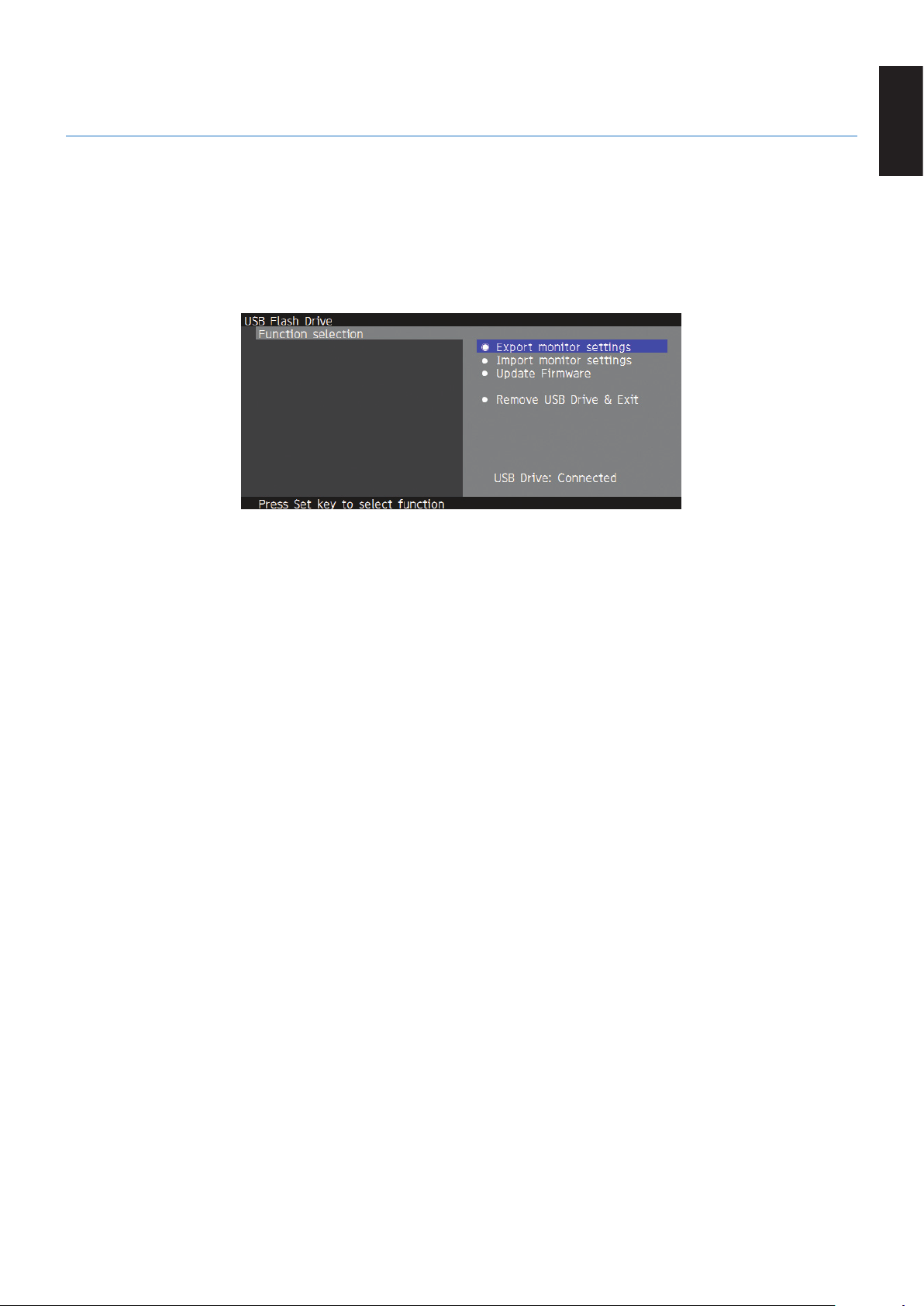
The USB Flash Drive OSD will be shown when you select “Import/Export” (see page 22) on the OSD menu or connect a USB
flash drive into the SENS/MEM port.
NOTE: This function is not available when using the USB ports from the USB hub. This function will only work in the
SENS/MEM port.
Select a function on the menu and follow the instructions on the OSD message.
Export monitor settings
Exports the monitor settings to the USB memory for back-up and copy. Select a type of export items.
Current Picture mode: Export the picture mode settings of the current active window.
All Picture modes: Export all picture modes settings.
All monitor settings: Export all OSD settings.
The export file name is automatically set to avoid duplication.
Import monitor settings
Imports the exported setting file and overwrites the current OSD settings.
Only the OSD settings, which are contained in the exported file are overwritten.
Please put the exported files on the root folder of the flash drive.
If you set the IP address of the monitor manually, please make sure not to duplicate the IP address.
NOTE: The monitor detects up to 15 files, so do not put more than 15 files on the drive.
Update Firmware
Updates the firmware of the monitor. Please put the firmware updating file on the root folder of the USB drive in advance.
The LED blinks green during firmware updating. When the update is complete, the monitor restarts automatically. After restart,
turn off and on the main power switch.
Remove USB Drive and Exit
Prepares the USB flash drive for disconnect and closes the OSD menu.
Please use this function before removing the USB flash drive from the monitor.
NOTE: The supported file system format of the USB flash drives is FAT32.
The “Import/Export” function does not export the dependent settings of each monitor, i.e. calibration status.
The export file can be imported to other PA271Q monitors. The latest compatible models for “Import/Export”
functions will be on the NEC Display Solutions website.
Setting the time clock is required to create an export file. Follow the instructions on the OSD menu and set the time.
Once the time is set, the monitor counts automatically while the AC power is active.
Visit the NEC Display Solutions website for information on firmware releases.
English-28
Specifications
Monitor Specifications MultiSync PA271Q Notes
LCD Module Diagonal:
Viewable Image Size:
Native Resolution (Pixel Count):
68.5 cm/27.0 inches
68.5 cm/27.0 inches
2560 x 1440
Active matrix; thin film transistor (TFT) liquid crystal
display (LCD); 0.233 mm dot pitch; 350 cd/m
2
white
luminance; 1500:1 contrast ratio (typical).
Input Signal
DisplayPort: DisplayPort Connector:
USB-C Port:
Mini-DisplayPort Connector:
Digital RGB
Digital RGB
Digital RGB
DisplayPort V1.1a, 1.2 (HDCP1.3)
DisplayPort V1.1a, 1.2 (HDCP1.3)
DisplayPort V1.1a (HDCP1.3)
HDMI: HDMI Connector: Digital RGB HDMI (HDCP1.4)
Display Colours 1,073,741,824 (DisplayPort/HDMI 10 bit) Depends on display card used.
Synchronization Range Horizontal:
Vertical:
15 kHz to 135 kHz
24 Hz to 85 Hz
Automatically
Automatically
Viewing Angle Left/Right:
Up/Down:
±89°(CR>10)
±89°(CR>10)
Response Time 8 ms (Gray to gray Typ)
Active Display Area Landscape: Horiz.:
Vert.:
Portrait: Horiz.:
Vert.:
596.7 mm/23.5 inches
335.7 mm/13.2 inches
335.7 mm/13.2 inches
596.7 mm/23.5 inches
USB Hub I/F:
Port:
Load Current:
USB Specification Revision 3.1 Gen 1
Upstream 3 (incl. 1 x USB-C Port)
Downstream 3
Downstream Port: 5V/0.9A (Max.)
USB-C Port: 30 W (Max.)
AUDIO
AUDIO Input: DisplayPort Connector:
HDMI Connector:
Digital Audio
Digital Audio
PCM 2ch 32, 44.1, 48 kHz (16/20/24bit)
PCM 2ch 32, 44.1, 48 kHz (16/20/24bit)
Headphone Output: STEREO Mini Jack: Headphone Impedance 32 Ohm
Speaker Output Internal Speaker 1W + 1W (Stereo)
Control LAN:
SENS/MEM Port:
RJ-45 10 BASE-T/100 BASE-TX
USB Color Sensor Port, Memory Port
Power Supply AC 100-240 V ~ 50/60 Hz
Current Rating 1.5 - 0.73 A (with option)
Dimensions Landscape:
Portrait:
640.2 mm (W) x 395.7 - 545.7 mm (H) x 233.0 mm (D)
25.2 inches (W) x 15.6 - 21.5 inches (H) x 9.2 inches (D)
378.6 mm (W) x 657.3 - 671.8 mm (H) x 233.0 mm (D)
14.9 inches (W) x 25.9 - 26.4 inches (H) x 9.2 inches (D)
Stand adjustable range Height Adjustment:
Tilt / Pivot / Swivel:
150 mm/5.9 inches (Landscape orientation)
14.5 mm/0.6 inches (Portrait orientation)
UP 30°Down5°/90°/340°
Weight 9.7 kg (21.4 lbs)
Environmental Considerations
Operating Temperature:
Humidity:
Altitude:
Storage Temperature:
Humidity:
Altitude:
5°Cto35°C/41°Fto95°F
20% to 80%
0 to 16,404 Feet/0 to 5,000 m
-20°Cto60°C/-4°Fto140°F
10% to 85%
0 to 40,000 Feet/0 to 12,192 m
NOTE: Technical specifications are subject to change without notice.
English-29
English
Major supported timings
Resolution
Vertical Frequency Scan Type Notes
H V
640 x 480 60/67/72/75 Hz p
720 x 400 70 Hz p
720 x 480 60 Hz p
720 x 480 60 Hz i HDMI only
720 x 576 50 Hz p
720 x 576 50 Hz i HDMI only
800 x 600 56/60/72/75 Hz p SVGA
1024 x 768 60/70/75 Hz p XGA
1280 x 720 24/25/30/50/60 Hz p 720p
1280 x 1024 60/75 Hz p SXGA
1280 x 1440 60 Hz p For Multi picture
1440 x 900 60 Hz p
1600 x 1200 60 Hz p UXGA
1920 x 1080 24/25/30/50/60 Hz p 1080p
1920 x 1080 50/60 Hz i 1080i, HDMI only
2560 x 1440 60 Hz p Recommend
p: Progressive.
i: Interlace.
NOTE: When the selected monitor resolution is not a native panel resolution, the text contents appearance in the monitor
screen is expanded in a horizontal or vertical direction to show the non-native resolution to full screen. This expansion
is done by interpolated resolution technologies, which are normal and widely used in flat panel devices.

English-30
Troubleshooting
No picture
• Thesignalcableshouldbecompletelyconnectedtothedisplaycard/computer.
• Thedisplaycardshouldbecompletelyseatedinitsslot.
• Checkthemainpowerswitch,itshouldbeintheONposition.
• PowerswitchesforthemonitorandcomputershouldbeintheONposition.
• Makesurethatasupportedresolutionhasbeenselectedonthedisplaycardorsystembeingused.
If in doubt, please refer to the user’s manual of the display controller or system to change the resolution.
• Checkthemonitorandyourdisplaycardwithrespecttocompatibilityandrecommendedsignaltimings.
• Checkthesignalcableconnectorforbentorpushed-inpins.
• Themonitorautomaticallygoesintostandbyatthepresettimeperiodafterthevideosignalwaslost.Pressthebuttonon
the monitor.
Power Key does not respond
• UnplugthepowercordofthemonitorfromtheACoutlettoturnoffandresetthemonitor.
• CheckthemainPowerSwitchofthemonitor.
Image Persistence
• Imagepersistenceiswhenaresidualor“ghost”imageofapreviousimageremainsvisibleonthescreen.UnlikeCRT
monitors, LCD monitors’ image persistence is not permanent, but constant images being displayed for a long period
of time should be avoided. To alleviate image persistence, turn off the monitor for as long as the previous image was
displayed. For example, if an image was on the monitor for one hour and a residual image remains, the monitor should
be turned off for one hour to erase the image.
NOTE: As with all personal display devices, NEC DISPLAY SOLUTIONS recommends using a moving screen saver at
regular intervals whenever the screen is idle, or turning off the monitor when not in use.
Picture is discolored
• Makesure“3DLUTEmulation”and“Colorvisionemulation”are“Off”.
• Makesurethe“Picturemode”settingisthesameastheICCproleonthePC.
Color irregularities on screen
• Reduce“Luminance”.
• Set“Uniformity”to“5”.
Message “Out of range” is displayed (screen is either blank or shows rough images only)
• Imageisdisplayedroughly(pixelsaremissing)andanOSDwarning“Outofrange”isdisplayed:Eithersignalclockor
resolution is too high. Choose one of the supported modes.
• AnOSDwarning“Outofrange”isdisplayedonablankscreen:Signalfrequencyisoutofrange.Chooseoneofthe
supported modes.
The image is unstable, unfocused or swimming is apparent
• Thesignalcableshouldbecompletelyattachedtothecomputer.
• Checkthemonitorandyourdisplaycardwithrespecttocompatibilityandrecommendedsignaltimings.
• Iftextlooksgarbled,changethevideomodetonon-interlacedanduse60Hzrefreshrate.
LED on monitor is not lit
• ThepowerswitchshouldbeintheONpositionandpowercordshouldbeconnected.
• Checkthemainpowerswitch,itshouldbeintheONposition.
• Increase “LED Brightness” adjustment.
Picture is not as bright
• Makesure“ECOmode”is“Off”and“Powerdeliverylimit”is“15W”or“20W”.
• LCDbrightnessdegradationoccursduetolong-termusageorextremecoldconditions.
• Whenthedisplaycannotachievethedesiredbrightness,thenumericalbrightnessvalueontheOSDwillbeyellow.
• WhenusinganHDMIinput,pleasechangethe“Videorange”.
LED colors, except for blue, are blinking or glowing
• Acertainfailuremighthaveoccurred,pleasecontactyoursupplier.
• Ifthemonitorispoweredoffbytheinternaltemperaturebeinghigherthanthenormaloperatingtemperature,theLEDwill
blink red for five or six times. Power on the monitor again after confirming the internal temperature has been reduced to
normal operation temperature.
• Themonitorcouldbeinstandby.Pressthepowerswitchesonthemonitor.
• IftheLEDblinksredduringrmwareupdating,turnoffandonthemainpowerswitchandupdateagain.

English-31
English
The image is not properly reproduced
• Makesurethatasupportedresolutionhasbeenselectedonthedisplaycardorsystembeingused.
If in doubt, please refer to the user’s manual of the display card or system to change the resolution.
Selected resolution is not displayed properly
• UsetheOSDtoenterthe“Monitorinformation”menuandconrmthattheappropriateresolutionhasbeenselected.
No Video
• Ifnovideoispresentonthescreen,turnthePowerkeyoffandonagain.
• Make sure the computer is not in a power-saving mode by touching the connected keyboard or the connected mouse.
• Somevideocardsdonotoutputvideosignalwhenthemonitoristurnedoff/onordisconnect/connectfromtheACpower
cord under low resolution with DisplayPort.
No Sound
• Checktoseeifmuteisactivated.
• Checktoseeif“Volume”issettoaminimum.
• ChecktoseeifthecomputersupportsanaudiosignalthroughDisplayPortorHDMI.
Brightness variations over time
• Change“Autobrightness”to“Off”.
NOTE: When “Auto brightness” is set to “On”, the monitor automatically adjusts brightness based on the environment.
When the brightness of surrounding environment changes, the monitor will also change.
The USB hub does not operate
• ChecktomakesurethattheUSBcableisproperlyconnected.RefertoyourUSBdeviceuser’smanual.
• CheckiftheUSBupstreamportonthemonitorisconnectedtotheUSBdownstreamportonthecomputer.
Please make sure the computer is ON.
• DisconnectoneupstreamUSBcablewhenusing2upstreamconnections.
• Turntheswitchesoffandonagain.
USB or LAN control is not available
• ChecktheLANcable.
A category 5 or higher LAN cable is required for connection.
• ChecktoseeiftheUSBupstreamportonthemonitorisconnectedtotheUSBdownstreamportonthecomputer.
USB Type-C device does not work
“Warning: Remove USB-C cable” OSD was shown.
• ThemonitordetectedabnormalvoltageorcurrentonUSB-Cport.PleaseremoveUSB-Ccableimmediately.
• RefertotheNECDisplaySolutionswebsitefortheinformationoftestedUSBType-Cdevicesandcables.
No picture
• CheckiftheconnectedUSB-CdevicecomplieswithDisplayPortAltModeonUSBType-C.
• CheckiftheUSBType-CcablecomplieswithUSB3.1Gen.1orGen.2.
• RefertotheNECDisplaySolutionswebsitefortheinformationoftestedUSBType-Cdevicesandcables.
Charging is not started or unstable.
• CheckiftheconnectedUSB-CdevicecomplieswithUSBPowerDelivery.
• CheckiftheUSBType-CcablecomplieswithUSBPowerDelivery.
• RefertotheNECDisplaySolutionswebsitefortheinformationoftestedUSBType-Cdevicesandcables.
English-32
Manufacturer’s Recycling and Energy Information
NEC DISPLAY SOLUTIONS is strongly committed to environmental protection and sees recycling as one of the company’s
top priorities in trying to minimize the burden placed on the environment. We are engaged in developing environmentally-
friendly products, and always strive to help define and comply with the latest independent standards from agencies such as
ISO (International Organisation for Standardization) and TCO (Swedish Trades Union).
Disposing of your old NEC product
The aim of recycling is to gain an environmental benefit by means of re-use, upgrading, reconditioning or reclamation of
material. Dedicated recycling sites ensure that environmentally harmful components are properly handled and securely
disposed. To ensure the best recycling of our products, NEC DISPLAY SOLUTIONS offers a variety of recycling procedures
and gives advice on how to handle the product in an environmentally sensitive way, once it has reached the end of its life.
All required information concerning the disposal of the product and country-specific information on recycling facilities can be
found on our following websites:
http://www.nec-display-solutions.com/greencompany/ (in Europe),
https://www.nec-display.com (in Japan) or
http://www.necdisplay.com (in USA).
Energy Saving
This monitor features an advanced energy saving capability. When a Display Power Management signal is sent to the monitor,
the Energy Saving mode is activated. The monitor enters a single Energy Saving mode.
Mode Power consumption LED colour
Normal Operation (Maximum brightness) Approx. 60 W Blue
Energy Saving Mode
2 W Glowing amber
0.5 W Dusky amber
Off Mode 0.5 W Unlit
For additional information visit:
http://www.necdisplay.com/ (in USA)
http://www.nec-display-solutions.com/ (in Europe)
https://www.nec-display.com/global/index.html (Global)
For Energy Saving information: [Default setting: Quick recovery Off]
For ErP requirement/For ErP (Network standby) requirement:
Setting: Quick recovery Off
Power consumption: 2 W or less (Dusky amber).
Time for power management function: Approx. 1 min.
(Except for a condition that the monitor has plural signal inputs.)
Power consumption: 0.5 W or less (Blinking amber).
Time for power management function: Approx. 5 min.
(Except for a condition that the monitor has plural signal inputs.)
WEEE Mark (European Directive 2012/19/EU and amendments)
Disposing of your used product: In the European Union
EU-wide legislation as implemented in each Member State requires that used electrical and electronic products
carrying the mark (left) must be disposed of separately from normal household waste. This includes monitors
and electrical accessories, such as signal cables or power cords. When you dispose of such products, please
follow the guidance of your local authority or ask the shop where you purchased the product, or if applicable,
follow applicable legislation or agreement you may have. The mark on electrical and electronic products may
only apply to the current European Union Member States.
Outside the European Union
If you wish to dispose of used electrical and electronic products outside the European Union, please contact your local authority
and ask for the correct method of disposal.