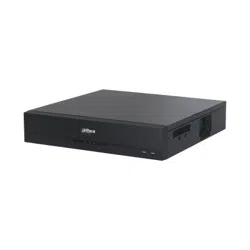
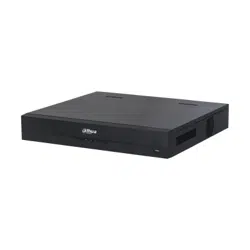
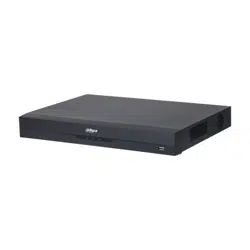
Network Video Recorder
User's Manual
ZHEJIANG DAHUA VISION TECHNOLOGY CO., LTD. V2.3.0
User's Manual
I
Foreword
General
This user’s manual (hereinafter referred to be "the Manual") introduces the installation, functions and
operations of the Network Video Recorder (NVR) devices (hereinafter referred to be "the Device").
Read carefully before using the Device, and keep the manual safe for future reference.
Safety Instructions
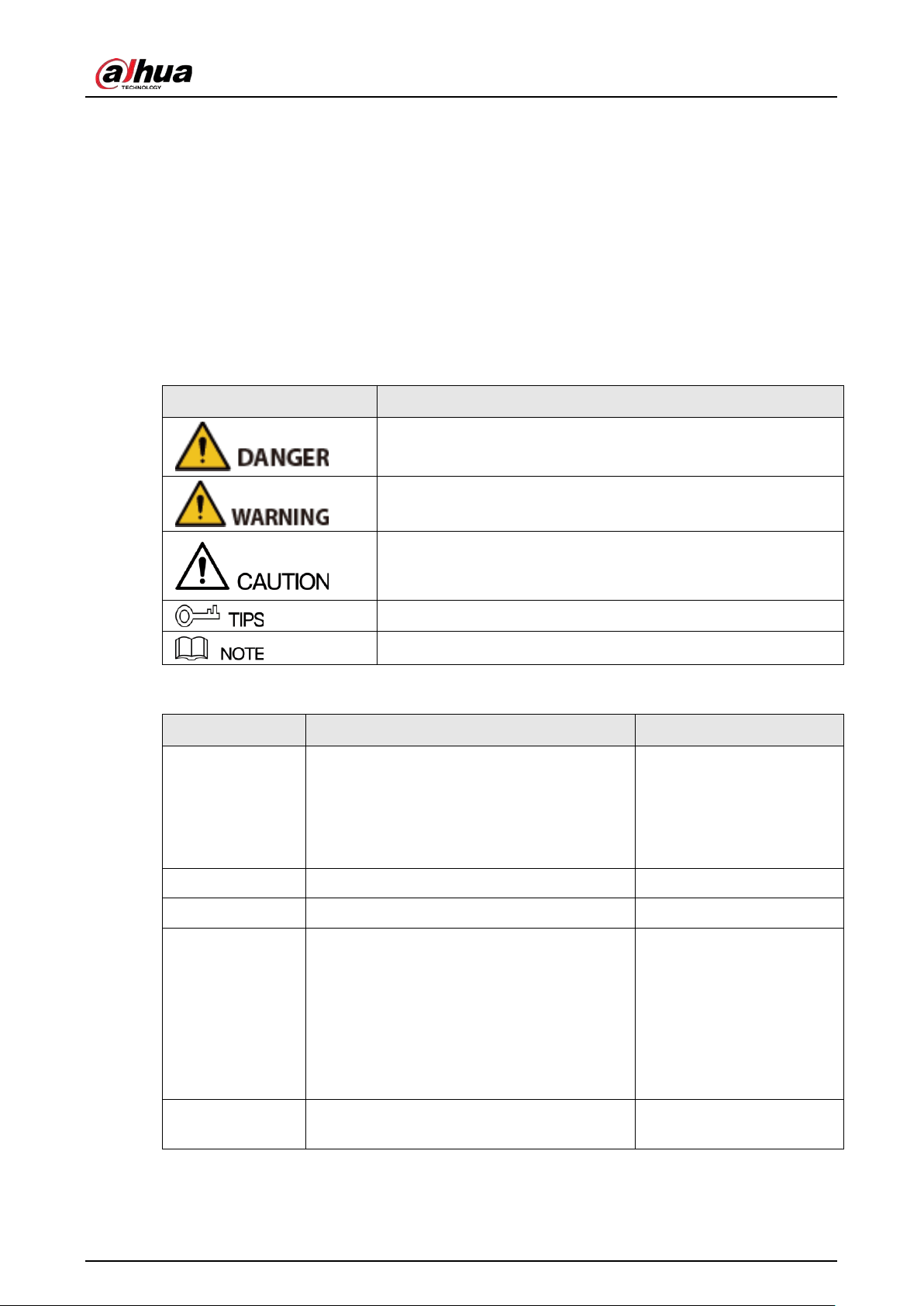
The following signal words might appear in the manual.
Signal Words Meaning
Indicates a high potential hazard which, if not avoided, will result
in death or serious injury.
Indicates a medium or low potential hazard which, if not avoided,
could result in slight or moderate injury.
Indicates a potential risk which, if not avoided, could result in
property damage, data loss, reductions in performance, or
unpredictable results.
Provides methods to help you solve a problem or save you time.
Provides additional information as a supplement to the text.
Revision History
Version Revision Content Release Time
V2.3.0
●
Added NVR608H-32-XI/NVR608H-64-
XI/NVR608H-128-XI/NVR608RH-32-
XI/NVR608RH-64-XI/NVR608RH-128-XI.
●
Added smart tracking and sub screen
mirroring.
August 2022
V2.2.0 Added AI SSA and Quick Pick. June 2022
V2.1.0 Updated cluster service. April 2022
V2.0.0
●
Added intelligent diagnosis.
●
Added report query.
●
Added resetting password through
DMSS app.
●
Added LLDP.
●
Updated several figures of the local
interface.
March 2022
V1.4.0
Added NVR11HS-W-S2-CE and NVR11HS-W-
S2-FCC.
January 2022

User's Manual
II
Version Revision Content Release Time
V1.3.0
●
Added some models.
●
Updated the web login page.
●
Added privacy masking.
●
Added AI codec.
November 2021
V1.2.0
Added NVR44-4KS2/I, NVR44-16P-4KS2/I,
NVR48-4KS2/I, and NVR48-16P-4KS2/I.
June 2021
V1.1.0
Combined AI and non-AI models and deleted
discontinued models.
May 2021
V1.0.10 Added several models. April 2021
V1.0.9 Added 6 models. February 2021
V1.0.8 Added 5 models. January 2021
V1.0.7
●
Added 2 models.
●
Added "5.11.7 Cellular Network".
August 2020
V1.0.6
●
Added picture search, picture search
playback, disk health monitoring, and
exporting and importing face database.
●
Updated AI search, human detection,
configuration of face recognition, and
display settings.
May 2020
V1.0.5
Added split tracking, main-sub tracking,
analytics list, configuring video quality
analytics, iSCSI, and cluster service.
May 2020
V1.0.4
●
Added 16 models.
●
Added PoE status, switch, and display.
April 2020
V1.0.3
●
New GUI baseline, replaces all interfaces.
●
Added AI functions.
July 2019
V1.0.2 Updated the description of rear panel. May 2019
V1.0.1
●
Added NVR 5216-16P-I and NVR5216-8P-
I. Updated relevant info.
●
Updated icons on the rear panel.
●
Added video metadata function and
non-motor vehicle detection function.
September 2018
Privacy Protection Notice
As the device user or data controller, you might collect the personal data of others such as their face,
fingerprints, and license plate number. You need to be in compliance with your local privacy
protection laws and regulations to protect the legitimate rights and interests of other people by
implementing measures which include but are not limited: Providing clear and visible identification
to inform people of the existence of the surveillance area and provide required contact information.
About the Manual
●
The manual is for reference only. If there is inconsistency between the manual and the actual

User's Manual
III
product,
●
We are not liable for any loss caused by the operations that do not comply with the manual.
●
The manual would be updated according to the latest laws and regulations of related regions.
For detailed information, see the paper manual, CD-ROM, QR code or our official website. If there
is inconsistency between paper manual and the electronic version, the electronic version shall
prevail.
●
All the designs and software are subject to change without prior written notice. The product
updates might cause some differences between the actual product and the manual. Please
contact the customer service for the latest program and supplementary documentation.
●
There still might be deviation in technical data, functions and operations description, or errors in
print. If there is any doubt or dispute, please see our final explanation.
●
Upgrade the reader software or try other mainstream reader software if the manual (in PDF
format) cannot be opened.
●
All trademarks, registered trademarks and the company names in the manual are the properties
of their respective owners.
●
Please visit our website, contact the supplier or customer service if there is any problem occurred
when using the device.
●
If there is any uncertainty or controversy, please see our final explanation.
User's Manual
IV
Important Safeguards and Warnings
This section introduces content covering the proper handling of the Device, hazard prevention, and
prevention of property damage. Read carefully before using the Device, and comply with the
guidelines when using it.
Transportation Requirements
Transport the Device under allowed humidity and temperature conditions.
Storage Requirements
Store the Device under allowed humidity and temperature conditions.
Operation Requirements
●
Do not place the Device in a place exposed to sunlight or near heat sources.
●
Keep the Device away from dampness, dust, and soot.
●
Install the Device on a stable surface to prevent it from falling.
●
Do not drop or splash liquid onto the Device, and make sure that there is no object filled with
liquid on the Device to prevent liquid from flowing into it.
●
Put the Device in a well-ventilated place, and do not block its ventilation.
●
Operate the Device within the rated range of power input and output.
●
Do not disassemble the Device.
●
Use the Device under allowed humidity and temperature conditions.
Installation Requirements
●
Do not connect the power adapter to the device while the adapter is powered on.
●
Strictly comply with the local electric safety code and standards. Make sure the ambient voltage
is stable and meets the power supply requirements of the device.
●
Do not expose the battery to environments with extremely low air pressure, or extremely high or
low temperatures. Also, it is strictly prohibited to throw the battery into a fire or furnace, and to
cut or put mechanical pressure on the battery. This is to avoid the risk of fire and explosion.
●
Use the standard power adapter or cabinet power supply. We will assume no responsibility for
any injuries or damages caused by the use of a nonstandard power adapter.
●
Do not place the Device in a place exposed to sunlight or near heat sources.
●
Keep the Device away from dampness, dust, and soot.
●
Put the Device in a well-ventilated place, and do not block its ventilation.
●
Install the Device on a stable surface to prevent it from falling.

User's Manual
V
●
The power supply must conform to the requirements of ES1 in IEC 62368-1 standard and be no
higher than PS2. Please note that the power supply requirements are subject to the device label.
●
The device is a class I electrical appliance. Make sure that the power supply of the Device is
connected to a power socket with protective earthing.
●
Use power cords that conform to your local requirements, and are rated specifications.
●
Before connecting the power supply, make sure the input voltage matches the power
requirements of the Device.
●
When installing the Device, make sure that the power plug and appliance coupler can be easily
reached to cut off power.
●
Install the Device near a power socket for emergency disconnect.
●
It is prohibited for non-professionals and unauthorized personnel to open the Device casing.

User's Manual
VI
Table of Contents
Foreword
........................................................................................................................................................................................................I
Important Safeguards and Warnings
............................................................................................................................................ IV
1 Introduction
............................................................................................................................................................................................ 1
1.1 Overview
........................................................................................................................................................................................ 1
1.2 Features
.......................................................................................................................................................................................... 1
2 Front Panel and Rear Panel
............................................................................................................................................................. 4
2.1 Front Panel
.................................................................................................................................................................................... 4
2.1.1 NVR41-4KS2/NVR41-P-4KS2/NVR41-8P-4KS2/NVR41-4KS2/L/NVR41-P-4KS2/L/NVR41-8P-
4KS2/L/NVR21-4KS2/NVR21-P-4KS2/NVR21-8P-4KS2/NVR21-S3/NVR21-P-S3/NVR21-8P-S3
Series
......................................................................................................................................................................................... 4
2.1.2 NVR11HS-S3H/NVR11HS-P-S3H/NVR11HS-8P-S3H/NVR41HS-4KS2/NVR41HS-P-
4KS2/NVR41HS-8P-4KS2/NVR41HS-4KS2/L/NVR41HS-P-4KS2/L/NVR41HS-8P-
4KS2/L/NVR21HS-4KS2/NVR21HS-P-4KS2/NVR21HS-8P-4KS2/NVR21HS-S3/NVR21HS-P-
S3/NVR21HS-8P-S3
............................................................................................................................................................. 5
2.1.3 NVR52-4KS2/NVR52-8P-4KS2/NVR52-16P-4KS2/NVR42-4KS2/NVR42-P-4KS2/NVR42-8P-
4KS2/NVR42-16P-4KS2/NVR42-4KS2/L/NVR42-P-4KS2/L/NVR42-8P-4KS2/L/NVR42-16P-
4KS2/L/NVR5224-24P-4KS2/NVR54-4KS2/NVR54-16P-4KS2/NVR44-4KS2/NVR44-16P-
4KS2/NVR44-4KS2/L/NVR44-16P-4KS2/L/NVR5424-24P-4KS2/NVR58-4KS2/NVR58-16P-
4KS2/NVR48-4KS2/NVR48-16P-4KS2/NVR48-4KS2/L/NVR48-16P-4KS2/L/NVR22-4KS2/NVR22-
P-4KS2/NVR22-8P-4KS2/NVR52-8P-4KS2E/NVR52-16P-4KS2E/NVR54-16P-4KS2E/NVR58-16P-
4KS2E
......................................................................................................................................................................................... 6
2.1.4 NVR21-W-4KS2 Series
................................................................................................................................................... 7
2.1.5 NVR21HS-W-4KS2/NVR11HS-W-S2-CE/NVR11HS-W-S2-FCC Series
...................................................... 8
2.1.6 NVR21-I/NVR21-I2/NVR21-P-I/NVR21-P-I2/NVR21-8P-I/NVR21-8P-I2 Series
................................... 9
2.1.7 NVR22-I/NVR22-I2/NVR22-P-I/NVR22-P-I2/NVR22-8P-I/NVR22-8P-I2/NVR22-16P-I/NVR22-
16P-
I2 Series
......................................................................................................................................................................... 10
2.1.8 NVR21HS-I/NVR21HS-I2/NVR21HS-P-I/NVR21HS-P-I2/NVR21HS-8P-I/NVR21HS-8P-
I2/NVR44-4KS2/I/NVR44-16P-4KS2/I Series
......................................................................................................... 11
2.1.9 NVR48-I/NVR58-I/NVR58-I/L Series
..................................................................................................................... 12
2.1.10 NVR42-I/NVR44-I/NVR54-I/NVR54-I/L/NVR52-I/NVR52-I/L Series
..................................................... 12
2.1.11 NVR48-4KS2/I/NVR48-16P-4KS2/I Series
....................................................................................................... 13
2.1.12 NVR608-32-4KS2 Series
.......................................................................................................................................... 13
2.1.13 NVR608-64-4KS2/NVR608-128-4KS2/NVR608H-XI/NVR608RH-XI Series
..................................... 14
2.1.14 NVR616-4KS2 Series
................................................................................................................................................. 14
2.2 Rear Panel
.................................................................................................................................................................................... 16
2.2.1 NVR21-4KS2/NVR21-P-4KS2/NVR21-8P-4KS2 Series
................................................................................. 16
2.2.2 NVR11HS-S3H/NVR11HS-P-S3H/NVR11HS-8P-S3H/NVR21HS-4KS2/NVR21HS-P-
4KS2/NVR21HS-8P-4KS2/NVR41HS-4KS2/NVR41HS-P-4KS2/NVR41HS-8P-4KS2/NVR41HS-
4KS2/L/NVR41HS-P-4KS2/L/NVR41HS-8P-4KS2/L/NVR21HS-S3/NVR21HS-P-S3/NVR21HS-8P-
S3
............................................................................................................................................................................................... 18

User's Manual
VII
2.2.3 NVR22-4KS2/NVR22-P-4KS2/NVR22-8P-4KS2 Series
................................................................................. 19
2.2.4 NVR52-4KS2/NVR52-8P-4KS2/NVR52-16P-4KS2/NVR52-24P-4KS2/NVR52-8P-4KS2E/NVR52-
16P-4KS2E Series
............................................................................................................................................................... 21
2.2.5 NVR54-4KS2/NVR58-4KS2/NVR54-16P-4KS2/NVR58-16P-4KS2/NVR54-24P-4KS2/NVR58-
16P-4KS2E Series
............................................................................................................................................................... 23
2.2.6 NVR41-4KS2/NVR41-P-4KS2/NVR41-8P-4KS2/NVR41-4KS2/L/NVR41-P-4KS2/L/NVR41-8P-
4KS2/L/NVR21-S3/NVR21-P-S3/NVR21-8P-S3
.................................................................................................... 25
2.2.7 NVR42-4KS2/NVR42-P-4KS2/NVR42-8P-4KS2/NVR42-16P-4KS2/NVR42-4KS2/L/NVR42-P-
4KS2/L/NVR42-8P-4KS2/L/NVR42-16P-4KS2/L Series
.................................................................................... 27
2.2.8 NVR44-4KS2/NVR44-16P-4KS2/NVR44-4KS2/L/NVR44-16P-4KS2/L/NVR44-4KS2/I/NVR44-
16P-4KS2/I Series
............................................................................................................................................................... 29
2.2.9 NVR48-4KS2/NVR48-16P-4KS2/NVR48-4KS2/L/NVR48-16P-4KS2/L/NVR48-4KS2/I/NVR48-
16P-4KS2/I Series
............................................................................................................................................................... 31
2.2.10 NVR21-W-4KS2 Series
.............................................................................................................................................. 33
2.2.11 NVR21HS-W-4KS2Series
......................................................................................................................................... 34
2.2.12 NVR21-I/NVR21-I2 Series
....................................................................................................................................... 35
2.2.13 NVR22-I/NVR22-I2 Series
....................................................................................................................................... 36
2.2.14 NVR21-P-I/NVR21-P-I2 Series
............................................................................................................................... 37
2.2.15 NVR22-P-I/NVR22-P-I2 Series
............................................................................................................................... 38
2.2.16 NVR21-8P-I/NVR21-8P-I2 Series
......................................................................................................................... 39
2.2.17 NVR22-8P-I/NVR22-8P-I2 Series
......................................................................................................................... 39
2.2.18 NVR22-16P-I/NVR22-8P-I2 Series
....................................................................................................................... 40
2.2.19 NVR21HS-I/NVR21HS-I2 Series
........................................................................................................................... 42
2.2.20 NVR21HS-P-I/NVR21HS-P-I2 Series
................................................................................................................... 43
2.2.21 NVR21HS-8P-I/NVR21HS-8P-I2 Series
................................................................................................
............. 44
2.2.22 NVR4208-8P-I Series
................................................................................................................................................. 45
2.2.23 NVR4216-I Series
........................................................................................................................................................ 46
2.2.24 NVR58-I/NVR58-I/L/NVR48-I Series
................................................................................................................... 47
2.2.25 NVR54-I/NVR54-I/L/NVR44-I Series
................................................................................................................... 49
2.2.26 NVR52-16P-I/NVR52-16P-I/L/NVR52-8P-I/NVR52-8P-I/L/NVR42-16P-I Series
............................. 51
2.2.27 NVR608-4KS2/NVR608H-XI/NVR608RH-XI Series
...................................................................................... 54
2.2.28 NVR616-4KS2 Series
................................................................................................................................................. 55
2.2.29 NVR11HS-W-S2-CE/NVR11HS-W-S2-FCC Series
.......................................................................................... 57
2.3 Alarm Connection
.................................................................................................................................................................... 58
2.3.1 Alarm Port
........................................................................................................................................................................ 58
2.3.2 Alarm Input Port
............................................................................................................................................................ 59
2.3.3 Alarm Output Port
........................................................................................................................................................ 60
2.3.4 Alarm Relay Specifications
....................................................................................................................................... 60
2.4 Two-way Talk
............................................................................................................................................................................. 61

User's Manual
VIII
2.4.1 Device-end to PC-end
................................................................................................................................................. 61
2.4.2 PC-end to the Device-end
......................................................................................................................................... 62
3 Device Installation
............................................................................................................................................................................. 63
3.1 Device Installation Diagram
............................................................................................................................................... 63
3.2 Checking Unpacked NVR
..................................................................................................................................................... 64
3.3 HDD Installation
....................................................................................................................................................................... 64
3.3.1 NVR41-4KS2/NVR41-P-4KS2/NVR41-8P-4KS2/NVR41-4KS2/L/NVR41-P-4KS2/L/NVR41-8P-
4KS2/L/NVR21-4KS2/NVR21-P-4KS2/NVR21-8P-4KS2/NVR21-W-4KS2/NVR21-I/NVR21-
I2/NVR21-P-I/NVR21-P-I2/NVR21-8P-I/NVR21-8P-I2/NVR21-S3/NVR21-P-S3/NVR21-8P-S3
...... 64
3.3.2 NVR41HS-4KS2/NVR41HS-P-4KS2/NVR41HS-8P-4KS2/NVR41HS-4KS2/L/NVR41HS-P-
4KS2/L/NVR41HS-8P-4KS2/L/NVR21HS-4KS2/NVR21HS-P-4KS2/NVR21HS-8P-4KS2/NVR21HS-
W-4KS2/NVR11HS-S3H/NVR11HS-P-S3H/NVR11HS-8P-S3H/NVR21HS-I/NVR21HS-
I2/NVR21HS-P-I/NVR21HS-P-I2/NVR21HS-8P-I/NVR21HS-8P-I2/NVR21HS-S3/NVR21HS-P-
S3/NVR21HS-8P-S3/NVR11HS-W-S2-CE/NVR11HS-W-S2-FCC Series
...................................................... 67
3.3.3 NVR22-8P-S2/NVR42-4KS2/NVR42-P-4KS2/NVR42-8P-4KS2/NVR42-16P-4KS2/NVR42-
4KS2/L/NVR42-P-4KS2/L/NVR42-8P-4KS2/L/NVR42-16P-4KS2/L/NVR52-4KS2/NVR52-8P-
4KS2/NVR52-16P-4KS2/ NVR52-24P-4KS2/NVR22-4KS2/NVR22-P-4KS2/NVR22-8P-
4KS2/NVR52-8P-4KS2E/NVR22-I/NVR22-I2/NVR22-P-I/NVR22-P-I2/NVR22-8P-I/NVR22-8P-
I2/NVR22-16P-I/NVR22-16P-I2/NVR42-I/NVR42-8P-I/NVR42-16P-I/NVR52-16P-I/NVR52-16P-
I/L/NVR52-8P-I/NVR52-8P-I/L Series
........................................................................................................................ 69
3.3.4 NVR54-4KS2/NVR54-16P-4KS2/NVR44-4KS2/NVR44-16P-4KS2/NVR44-4KS2/L/NVR44-16P-
4KS2/L/NVR54-24P-4KS2/NVR54-16P-4KS2E/NVR58-I/NVR58-I/L/NVR54-I/NVR54-I/L/NVR52-
I/NVR52-I/L/NVR42-
I/NVR42-8P-I/NVR44-I/NVR48-I/NVR608-32-4KS2/NVR44-4KS2/I/NVR44-
16P-4KS2/I/NVR48-4KS2/I/NVR48-16P-4KS2/I Series
..................................................................................... 71
3.3.5 NVR608-64-4KS2/NVR608-128-4KS2/NVR608H-32-XI/NVR608H-64-XI/NVR608H-128-XI
Series
....................................................................................................................................................................................... 75
3.3.6 NVR616-4KS2 Series
.................................................................................................................................................... 77
3.4 CD-ROM Installation
............................................................................................................................................................... 79
3.5 Connection Sample
................................................................................................................................................................. 83
3.5.1 NVR41-4KS2/NVR41-P-4KS2/NVR41-8P-4KS2/NVR41-4KS2/L/NVR41-P-4KS2/L/NVR41-8P-
4KS2/L/NVR21-4KS2/NVR21-P-4KS2/NVR21-8P-4KS2/NVR21-I/NVR21-I2/NVR21-P-I/NVR21-P-
I2/NVR21-8P-I/NVR21-8P-I2/NVR21-S3/NVR21-P-S3/NVR21-8P-S3 Series
.......................................... 83
3.5.2 NVR21-W-4KS2/NVR21HS-W-4KS2 Series
........................................................................................................ 84
3.5.3 NVR11HS-S3H/NVR11HS-P-S3H/NVR11HS-8P-S3H/NVR41HS-4KS2/NVR41HS-P-
4KS2/NVR41HS-8P-4KS2/NVR41HS-4KS2/L/NVR41HS-P-4KS2/L/NVR41HS-8P-
4KS2/L/NVR21HS-4KS2/NVR21HS-P-4KS2/NVR21HS-8P-4KS2/NVR21HS-I/NVR21HS-
I2/NVR21HS-P-I/NVR21HS-P-I2/NVR21HS-8P-I/NVR21HS-8P-I2/NVR21HS-S3/NVR21HS-P-
S3/NVR21HS-8P-S3 Series
............................................................................................................................................. 85
3.5.4 NVR22-4KS2/NVR22-P-4KS2/NVR22-8P-4KS2/NVR22-I/NVR22-I2/NVR22-P-I/NVR22-P-
I2/NVR22-8P-I/NVR22-8P-I2/NVR22-16P-I/NVR22-16P-I2 Series
.............................................................. 85
3.5.5 NVR52-4KS2/NVR52-8P-4KS2/NVR52-16P-4KS2/NVR52-24P-4KS2/NVR52-8P-4KS2E/NVR52-
16P-4KS2E Series
............................................................................................................................................................... 86
3.5.6 NVR42-4KS2/NVR42-P-4KS2/NVR42-8P-4KS2/NVR42-16P-4KS2/NVR42-4KS2/L/NVR42-P-
4KS2/L/NVR42-8P-4KS2/L/NVR42-16P-4KS2/L Series
.................................................................................... 86
3.5.7 NVR54-4KS2/NVR54-16P-4KS2/NVR58-4KS2/NVR58-16P-4KS2/NVR54-24P-4KS2/NVR54-

User's Manual
IX
16P-4KS2E/NVR58-16P-4KS2E Series
...................................................................................................................... 87
3.5.8 NVR44-4KS2/NVR44-16P-4KS2/NVR44-4KS2/L/NVR44-16P-4KS2/L/NVR44-4KS2/I/NVR44-
16P-4KS2/I Series
............................................................................................................................................................... 87
3.5.9 NVR48-4KS2/NVR48-16P-4KS2/NVR48-4KS2/L/NVR48-16P-4KS2/L/NVR48-4KS2/I/NVR48-
16P-4KS2/I Series
............................................................................................................................................................... 88
3.5.10 NVR58-I/NVR58-I/L/NVR48-I Series
................................................................................................................... 90
3.5.11 NVR54-I/NVR54-I/L/NVR44-I
................................................................................................................................. 90
3.5.12 NVR52-16P-I/NVR52-16P-I/L/NVR52-8P-I/NVR52-8P-I/L/NVR42-8P-I/NVR42-16P-I Series
.. 90
3.5.13 NVR4216-I Series
........................................................................................................................................................ 91
3.5.14 NVR608-4KS2/NVR608H-XI/NVR608RH-XI Series
...................................................................................... 91
3.5.15 NVR616-4KS2 Series
................................................................................................................................................. 92
4 Starting the Device
............................................................................................................................................................................ 93
5 Local Operations
................................................................................................................................................................................. 94
5.1 Initialization
............................................................................................................................................................................... 94
5.2 Startup Wizard
.......................................................................................................................................................................... 96
5.3 Login
........................................................................................................................................................................................... 101
5.4 Main Menu
................................................................................................................................................................................ 103
5.5 Quick Operation Bar
............................................................................................................................................................ 104
5.6 Live View
................................................................................................................................................................................... 106
5.6.1 Live Page
........................................................................................................................................................................ 106
5.6.2 Navigation bar
............................................................................................................................................................ 107
5.6.3 Live View Control Bar
............................................................................................................................................... 108
5.6.3.1 Instant Playback
.............................................................................................................................................. 109
5.6.3.2 Digital Zoom
...................................................................................................................................................... 109
5.6.3.3 Instant Backup
.................................................................................................................................................. 110
5.6.3.4 Manual Snapshot
............................................................................................................................................ 110
5.6.3.5 Two-way Talk
.................................................................................................................................................... 110
5.6.3.6 Stream Switch
................................................................................................................................................... 110
5.6.3.7 Picture Search
................................................................................................................................................... 111
5.6.3.8 Quick Pick
........................................................................................................................................................... 112
5.6.4 Shortcut Menu
............................................................................................................................................................. 114
5.6.5 AI Live View Mode
..................................................................................................................................................... 117
5.6.6 Split Tracking
............................................................................................................................................................... 119
5.6.7 PTZ
................................
..................................................................................................................................................... 121
5.6.7.1 PTZ Settings
....................................................................................................................................................... 121
5.6.7.2 PTZ Control
........................................................................................................................................................ 123
5.6.7.3 Configuring PTZ Functions
........................................................................................................................ 125
5.6.7.3.1 Configuring Presets
............................................................................................................................ 125

User's Manual
X
5.6.7.3.2 Configuring Tours
................................................................................................................................ 125
5.6.7.3.3 Configuring Patterns
.......................................................................................................................... 126
5.6.7.3.4 Configuring AutoScan
....................................................................................................................... 127
5.6.7.4 Using PTZ Functions
...................................................................................................................................... 128
5.6.7.4.1 Presets
....................................................................................................................................................... 128
5.6.7.4.2 Tours
........................................................................................................................................................... 128
5.6.7.4.3 Patterns
..................................................................................................................................................... 128
5.6.7.4.4 AutoScan
.................................................................................................................................................. 128
5.6.7.4.5 Calling AutoPan
.................................................................................................................................... 128
5.6.7.4.6 Auxiliary Button
.................................................................................................................................... 129
5.6.8 Wireless Pairing
.......................................................................................................................................................... 129
5.6.9 Sequence
........................................................................................................................................................................ 130
5.6.10 Fisheye
.......................................................................................................................................................................... 133
5.6.10.1 Fisheye De-warp on Live View Interface
........................................................................................... 133
5.6.10.2 Fisheye De-warp During Playback
....................................................................................................... 135
5.6.11 Temperature Monitoring
.................................................................................................................................... 135
5.6.12 Shortcut Menu to Add Camera
......................................................................................................................... 136
5.6.13 Smart Tracking
......................................................................................................................................................... 137
5.7 Camera
....................................................................................................................................................................................... 137
5.7.1 Initializing Remote Devices
.................................................................................................................................. 137
5.7.2 Adding Remote Devices
......................................................................................................................................... 140
5.7.2.1 Adding Cameras from Search
................................................................................................................... 141
5.7.2.2 Adding Cameras Manually
......................................................................................................................... 142
5.7.2.3 Importing Cameras
........................................................................................................................................ 144
5.7.3 Changing IP Address of Remote Device
......................................................................................................... 145
5.7.3.1 Changing IP Address of Connected Remote Device
...................................................................... 145
5.7.3.2 Changing IP Address of Unconnected Cameras
.............................................................................. 145
5.7.4 Configuring Image Settings
................................................................................................................................. 146
5.7.5 Configuring Overlay Settings
.............................................................................................................................. 148
5.7.5.1 Overlay
................................................................................................................................................................. 148
5.7.5.2 Privacy Masking
............................................................................................................................................... 149
5.7.6 Configuring Encoding Settings
........................................................................................................................... 150
5.7.6.1 Configuring Audio and Video Encoding Settings
........................................................................... 150
5.7.6.2 Snapshot
............................................................................................................................................................. 152
5.7.7 Modifying Channel Name
...................................................................................................................................... 153
5.7.8 Checking the PoE Status
......................................................................................................................................... 154
5.7.9 Updating Remote Devices
..................................................................................................................................... 155

User's Manual
XI
5.7.10 Viewing Remote Device Information
............................................................................................................ 156
5.7.10.1 Device Status
.................................................................................................................................................. 156
5.7.10.2 Firmware
........................................................................................................................................................... 157
5.8 Recording Management
.................................................................................................................................................... 158
5.8.1 Recording Schedule
.................................................................................................................................................. 158
5.8.1.1 Configuring Video Recording Schedule
.............................................................................................. 158
5.8.1.2 Configuring Snapshot Schedule
.............................................................................................................. 162
5.8.1.3 Configuring Recording Mode
................................................................................................................... 163
5.8.2 Search and Playback
................................................................................................................................................ 164
5.8.2.1 Search Page
....................................................................................................................................................... 164
5.8.2.2 Playback
.............................................................................................................................................................. 167
5.8.2.3 Smart Search Playback
................................................................................................................................. 169
5.8.2.4 Clipping Videos
................................................................................................................................................ 170
5.8.2.5 Backing Up
......................................................................................................................................................... 170
5.8.2.6 File List
................................................................................................................................................................. 171
5.8.2.7 Tag Playback
..................................................................................................................................................... 171
5.8.3 Recording Information
............................................................................................................................................ 173
5.9 AI
................................................................................................................................................................................................... 173
5.9.1 Overview
........................................................................................................................................................................ 173
5.9.2 Smart Plan
..................................................................................................................................................................... 174
5.9.3 Face Detection
............................................................................................................................................................. 175
5.9.3.1 Enabling Smart Plan
...................................................................................................................................... 175
5.9.3.2 Configuring Face Detection
....................................................................................................................... 175
5.9.3.3 AI Search (Face Detection)
.......................................................................................................................... 176
5.9.4 Face & Body Detection
............................................................................................................................................ 178
5.9.4.1 Enabling Smart Plan
...................................................................................................................................... 178
5.9.4.2 Configuring Face & Body Detection
...................................................................................................... 178
5.9.4.3 AI Search (Face & Body Detection)
......................................................................................................... 179
5.9.5 Face Recognition
........................................................................................................................................................ 179
5.9.5.1 Enabling Smart Plan
...................................................................................................................................... 180
5.9.5.2 Creating Face Database
............................................................................................................................... 180
5.9.5.2.1 Creating Local Face Databases
...................................................................................................... 180
5.9.5.2.2 Creating Remote Face Databases
................................................................................................ 181
5.9.5.2.3 Creating the Passerby Database
.................................................................................................. 181
5.9.5.3 Adding Images to Face Database
........................................................................................................... 182
5.9.5.3.1 Adding Face Images One by One
................................................................................................. 182
5.9.5.3.2 Adding Face Images in Batches
.................................................................................................... 185

User's Manual
XII
5.9.5.4 Configuring Face Recognition
.................................................................................................................. 186
5.9.5.4.1 Configuring AI by Recorder
............................................................................................................ 186
5.9.5.4.2 Configuring AI by Camera
............................................................................................................... 187
5.9.5.5 AI Search (Face Recognition)
..................................................................................................................... 188
5.9.5.5.1 Search by Attributes
........................................................................................................................... 188
5.9.5.5.2 Search by Image
................................................................................................................................... 190
5.9.5.5.3 Report Query
.......................................................................................................................................... 191
5.9.6 IVS
...................................................................................................................................................................................... 192
5.9.6.1 Enabling Smart Plan
...................................................................................................................................... 192
5.9.6.2 Configuring IVS
................................................................................................................................................ 192
5.9.6.2.1 Tripwire
..................................................................................................................................................... 192
5.9.6.2.2 Intrusion
................................................................................................................................................... 195
5.9.6.2.3 Abandoned Object Detection
........................................................................................................ 198
5.9.6.2.4 Fast Moving
............................................................................................................................................ 201
5.9.6.2.5 Parking
...................................................................................................................................................... 204
5.9.6.2.6 Crowd Gathering
.................................................................................................................................. 207
5.9.6.2.7 Missing Object Detection
................................................................................................................. 210
5.9.6.2.8 Loitering Detection
............................................................................................................................. 213
5.9.6.3 AI Search (IVS)
................................................................................................................................................... 216
5.9.7 Stereo Analysis
............................................................................................................................................................ 217
5.9.7.1 Enabling Smart Plan
...................................................................................................................................... 218
5.9.7.2 Configuring Stereo Analysis
...................................................................................................................... 218
5.9.7.2.1 People Approach Detection
............................................................................................................ 218
5.9.7.2.2 Fall Detection
......................................................................................................................................... 219
5.9.7.2.3 Violence Detection
.............................................................................................................................. 220
5.9.7.2.4 People No. Exception Detection
................................................................................................... 221
5.9.7.2.5 People Stay Detection
....................................................................................................................... 222
5.9.7.3 AI Search (Stereo Analysis)
........................................................................................................................ 224
5.9.8 Video Metadata
.......................................................................................................................................................... 225
5.9.8.1 Enabling Smart Plan
...................................................................................................................................... 225
5.9.8.2 Configuring Video Metadata
.................................................................................................................... 225
5.9.8.3 AI Search (Video Metadata)
....................................................................................................................... 226
5.9.8.3.1 Human Detection
................................................................................................................................. 226
5.9.8.3.2 Motor Vehicle Detection
.................................................................................................................. 228
5.9.8.3.3 Non-motor Vehicle Detection
........................................................................................................ 230
5.9.8.3.4 Report Query
.......................................................................................................................................... 231
5.9.9 ANPR
................................................................................................................................................................................. 232

User's Manual
XIII
5.9.9.1 Adding Vehicle Blocklist and Allowlist
................................................................................................ 232
5.9.9.2 Configuring ANPR
........................................................................................................................................... 233
5.9.9.3 AI Search (ANPR)
............................................................................................................................................. 235
5.9.10 Crowd Distribution
................................................................................................................................................. 235
5.9.10.1 Enabling Smart Plan
................................................................................................................................... 235
5.9.10.2 Configuring Crowd Distribution
........................................................................................................... 235
5.9.10.3 Report Query
.................................................................................................................................................. 236
5.9.11 People Counting
...................................................................................................................................................... 236
5.9.11.1 Enabling Smart Plan
................................................................................................................................... 236
5.9.11.2 Configuring People Counting
................................................................................................................ 237
5.9.11.3 Configuring In Area No.
............................................................................................................................ 238
5.9.11.4 Queuing
............................................................................................................................................................ 239
5.9.11.5 Report Query
.................................................................................................................................................. 240
5.9.12 Heat Map
..................................................................................................................................................................... 241
5.9.12.1 Enabling Smart Plan
................................................................................................................................... 241
5.9.12.2 Configuring Heat map
............................................................................................................................... 241
5.9.12.3 Report Query
.................................................................................................................................................. 242
5.9.12.3.1 General
................................................................................................................................................... 242
5.9.12.3.2 Fisheye
.................................................................................................................................................... 243
5.9.13 SMD
................................................................................................................................................................................ 244
5.9.13.1 Enabling Smart Plan
................................................................................................................................... 244
5.9.13.2 Configuring SMD
.......................................................................................................................................... 244
5.9.13.3 AI Search (SMD)
............................................................................................................................................. 246
5.9.14 Vehicle Density
......................................................................................................................................................... 246
5.9.14.1 Enabling Smart Plan
................................................................................................................................... 246
5.9.14.2 Configuring Vehicle Density
................................................................................................................... 246
5.9.14.3 Report Query
.................................................................................................................................................. 247
5.9.15 Main-sub Tracking
.................................................................................................................................................. 248
5.9.16 Video Quality Analytics
........................................................................................................................................ 250
5.9.16.1 Configuring Video Quality Analytics
.................................................................................................. 250
5.9.16.2 Analytics List
................................................................................................................................................... 252
5.9.17 Entries Frequency
................................................................................................................................................... 252
5.10 Alarm Settings
..................................................................................................................................................................... 254
5.10.1 Alarm Information
.................................................................................................................................................. 254
5.10.2 Alarm Status
.............................................................................................................................................................. 255
5.10.3 Alarm Input
................................................................................................................................................................ 256
5.10.4 Alarm Output
............................................................................................................................................................ 257

User's Manual
XIV
5.10.5 Video Detection
....................................................................................................................................................... 258
5.10.5.1 Motion Detection
......................................................................................................................................... 258
5.10.5.2 Video Loss
........................................................................................................................................................ 260
5.10.5.3 Video Tampering
.......................................................................................................................................... 261
5.10.5.4 Scene Change
................................................................................................................................................. 261
5.10.5.5 PIR Alarm
.......................................................................................................................................................... 262
5.10.6 Audio Detection
....................................................................................................................................................... 264
5.10.7 Thermal Alarm
.......................................................................................................................................................... 264
5.10.8 Exception
..................................................................................................................................................................... 265
5.10.9 Disarming
.................................................................................................................................................................... 266
5.11 Network
.................................................................................................................................................................................. 268
5.11.1 TCP/IP
............................................................................................................................................................................ 268
5.11.2 Routing Table
............................................................................................................................................................ 270
5.11.3 Port
................................................................................................................................................................................. 271
5.11.4 External Wi-Fi
............................................................................................................................................................ 272
5.11.5 Wi-Fi AP
........................................................................................................................................................................ 274
5.11.5.1 General Settings
........................................................................................................................................... 274
5.11.5.2 Advanced Settings
....................................................................................................................................... 275
5.11.6 3G/4G
............................................................................................................................................................................ 276
5.11.7 Cellular Network
...................................................................................................................................................... 277
5.11.8 Repeater
...................................................................................................................................................................... 279
5.11.9 PPPoE
............................................................................................................................................................................ 281
5.11.10 DDNS
........................................................................................................................................................................... 282
5.11.11 UPnP
............................................................................................................................................................................ 283
5.11.11.1 Configuring Router
................................................................................................................................... 283
5.11.11.2 Configuring UPnP
...................................................................................................................................... 284
5.11.12 Email
........................................................................................................................................................................... 285
5.11.13 SNMP
.......................................................................................................................................................................... 287
5.11.14 Multicast
................................................................................................................................................................... 289
5.11.15 Alarm Center
........................................................................................................................................................... 290
5.11.16 Register
..................................................................................................................................................................... 291
5.11.17 Switch
......................................................................................................................................................................... 292
5.11.18 P2P
............................................................................................................................................................................... 293
5.12 Storage
.................................................................................................................................................................................... 294
5.12.1 Basic
............................................................................................................................................................................... 294
5.12.2 Disk Manager
............................................................................................................................................................ 295
5.12.3 RAID
............................................................................................................................................................................... 296

User's Manual
XV
5.12.3.1 Creating RAID
................................................................................................................................................. 297
5.12.3.2 Viewing RAID Information
....................................................................................................................... 299
5.12.3.3 Creating Hot Spare Disk
............................................................................................................................ 299
5.12.4 Disk Group
.................................................................................................................................................................. 300
5.12.5 Disk Quota
.................................................................................................................................................................. 301
5.12.6 Disk Check
................................................................................................................................................................... 302
5.12.6.1 Manual Check
................................................................................................................................................. 302
5.12.6.2 Detection Report
.......................................................................................................................................... 303
5.12.6.3 Disk Health Monitoring
............................................................................................................................. 305
5.12.7 Record Estimate
....................................................................................................................................................... 306
5.12.7.1 Calculating Recording Time
.................................................................................................................... 307
5.12.7.2 Calculating HDD Capacity for Storage
.............................................................................................. 307
5.12.8 FTP
.................................................................................................................................................................................. 307
5.12.9 iSCSI
............................................................................................................................................................................... 309
5.13 Account
................................................................................................................................................................................... 311
5.13.1 Group
............................................................................................................................................................................ 311
5.13.2 User
................................................................................................................................................................................ 312
5.13.2.1 Adding User
.................................................................................................................................................... 312
5.13.2.2 Changing Password
.................................................................................................................................... 314
5.13.3 Resetting Password
................................................................................................................................................ 315
5.13.3.1 Enabling Password Reset
......................................................................................................................... 315
5.13.3.2 Resetting Password on Local Interface
............................................................................................. 316
5.13.4 ONVIF User
................................................................................................................................................................. 320
5.14 Security
................................................................................................................................................................................... 322
5.14.1 Security Status
.......................................................................................................................................................... 322
5.14.2 System Service
.......................................................................................................................................................... 323
5.14.2.1 Basic Services
................................................................................................................................................. 323
5.14.2.2 802.1x
................................................................................................................................................................. 325
5.14.2.3 HTTPS
................................................................................................................................................................. 326
5.14.3 Attack Defense
......................................................................................................................................................... 326
5.14.3.1 Firewall
.............................................................................................................................................................. 326
5.14.3.2 Account Lockout
........................................................................................................................................... 327
5.14.3.3 Anti-DoS Attack
............................................................................................................................................. 328
5.14.3.4 Sync Time-Allowlist
..................................................................................................................................... 328
5.14.4 CA Certificate
............................................................................................................................................................. 329
5.14.4.1 Device Certificate
......................................................................................................................................... 329
5.14.4.2 Trusted CA Certificate
................................................................................................................................ 331

User's Manual
XVI
5.14.5 Audio/Video Encryption
...................................................................................................................................... 332
5.14.6 Security Warning
..................................................................................................................................................... 333
5.14.6.1 Security Exception
....................................................................................................................................... 333
5.14.6.2 Illegal Login
..................................................................................................................................................... 334
5.15 System
..................................................................................................................................................................................... 335
5.15.1 General
......................................................................................................................................................................... 335
5.15.1.1 General
.............................................................................................................................................................. 335
5.15.1.2 Date and Time
................................................................................................................................................ 337
5.15.1.3 Holiday
.............................................................................................................................................................. 338
5.15.2 Serial Port
.................................................................................................................................................................... 340
5.16 Output and Display
........................................................................................................................................................... 341
5.16.1 Display
.......................................................................................................................................................................... 341
5.16.2 Tour
................................................................................................................................................................................ 342
5.16.3 Custom Layout
.......................................................................................................................................................... 344
5.17 POS
............................................................................................................................................................................................ 346
5.17.1 Settings
........................................................................................................................................................................ 346
5.17.1.1 Privacy Setup
.................................................................................................................................................. 348
5.17.1.2 Connection Mode
......................................................................................................................................... 349
5.17.2 Search
........................................................................................................................................................................... 349
5.18 Audio
........................................................................................................................................................................................ 350
5.18.1 File Management
.................................................................................................................................................... 350
5.18.2 Audio Play
................................................................................................................................................................... 352
5.18.3 Broadcast
.................................................................................................................................................................... 353
5.19 Operation and Maintenance
........................................................................................................................................ 354
5.19.1 Log
.................................................................................................................................................................................. 354
5.19.2 System
.......................................................................................................................................................................... 355
5.19.2.1 System Version
.............................................................................................................................................. 355
5.19.2.2 AI Algorithm Version
.................................................................................................................................. 355
5.19.2.3 HDD Info
........................................................................................................................................................... 356
5.19.2.4 BPS
....................................................................................................................................................................... 356
5.19.2.5 Device Status
.................................................................................................................................................. 357
5.19.3 Network
....................................................................................................................................................................... 358
5.19.3.1 Online User
...................................................................................................................................................... 358
5.19.3.2 Network Load
................................................................................................................................................. 358
5.19.3.3 Network Test
.................................................................................................................................................. 359
5.19.4 Maintenance and Management
....................................................................................................................... 360
5.19.4.1 Device Maintenance
................................................................................................................................... 360

User's Manual
XVII
5.19.4.2 Exporting System Settings
...................................................................................................................... 361
5.19.4.3 Restoring Defaults
....................................................................................................................................... 363
5.19.4.3.1 Restoring Defaults on the Local Interface
............................................................................ 363
5.19.4.3.2 Resetting Device through the Reset Button
........................................................................ 364
5.19.4.4 System Update
.............................................................................................................................................. 365
5.19.4.4.1 Upgrading File
.................................................................................................................................... 365
5.19.4.4.2 Online Upgrade
.................................................................................................................................. 366
5.19.4.4.3 Uboot Upgrading
.............................................................................................................................. 367
5.19.4.5 Intelligent Diagnosis
.................................................................................................................................. 367
5.20 USB Device Auto Pop-up
................................................................................................................................................ 367
5.21 Shutdown
............................................................................................................................................................................... 368
6 Web Operation
.................................................................................................................................................................................. 371
6.1 Network Connection
........................................................................................................................................................... 371
6.2 Web Login
................................................................................................................................................................................. 371
6.3 Web Main Menu
..................................................................................................................................................................... 372
6.4 Cluster Service
........................................................................................................................................................................ 374
6.4.1 Configuring Cluster IP
............................................................................................................................................. 374
6.4.2 Main Device
.................................................................................................................................................................. 374
6.4.3 Sub Device
..................................................................................................................................................................... 375
6.4.4 Transferring Videos
.................................................................................................................................................. 376
6.4.5 Configuring Cluster Control
................................................................................................................................. 376
6.4.5.1 Cluster Control
................................................................................................................................................. 376
6.4.5.2 Arbitrage IP
........................................................................................................................................................ 376
6.4.6 Cluster Log
.................................................................................................................................................................... 377
7 Glossary
................................................................................................................................................................................................ 378
8 FAQ
......................................................................................................................................................................................................... 379
Appendix 1 HDD Capacity Calculation
..................................................................................................................................... 383
Appendix 2 Mouse Operation
....................................................................................................................................................... 384
Appendix 3 Remote Control
.......................................................................................................................................................... 385
Appendix 4 Compatible Network Camera List
..................................................................................................................... 388
Appendix 5 Cybersecurity Recommendations
..................................................................................................................... 394

User's Manual
1
1 Introduction
1.1 Overview
The NVR is a high performance network video recorder. This product supports local live view,
multiple-window display, recorded file local storage, remote control and mouse shortcut menu
operation, and remote management and control function.
This product supports center storage, front-end storage and client-end storage. The monitor zone in
the front-end can be set in anywhere. Working with other front-end devices such as IPC, NVS, this
series product can establish a strong surveillance network through the CMS. In the network system,
there is only one network cable from the monitor center to the monitor zone in the whole network.
There is no audio/video cable from the monitor center to the monitor zone. The whole project is
featured by simple connection, low-cost, low maintenance work.
This NVR can be widely used in areas such as public security, water conservancy, transportation and
education.
1.2 Features
AI Functions
AI functions are available on select models and vary with models.
●
Face detection. The system can detect the faces are on the video image.
●
Face recognition. The system can compare the detected faces with the images in the face
database in real time.
●
Human body detection. The system activates alarm actions once human body is detected.
●
People counting. The system can effectively count the number of people and flow direction.
●
Heat map. The system can monitor the active objects in a specific area.
●
Automatic number plate recognition (ANPR). The system can effectively monitor the passing
vehicles.
Smart Playback
This function is available on select models.
●
IVS playback. It can screen out and replay the records meeting the set rules.
●
Face detection playback. It can screen out and replay the records with human faces.
●
Face recognition playback. It can compare the face information in the video with the information
in the database and replay the corresponding records.
●
ANPR playback. It can screen out the record with a specific car plate number or all the records
with car plate numbers.
●
Human body detection playback. It can screen out and replay the records with specific human
bodies.

User's Manual
2
●
Smart search. It includes smart functions such as searching by attribute and searching by image
to enable users to get target records quickly.
Cloud Upgrade
For the NVR connected to the Internet, it supports application online upgrade.
Real-Time Surveillance
●
VGA, HDMI port. Connect to monitor to realize real-time surveillance. Some series support
TV/VGA/HDMI output at the same time.
●
Shortcut menu for preview.
●
Support multiple popular PTZ decoder control protocols. Support preset, tour and pattern.
Playback
●
Support independent real-time recording for each channel. At the same time it supports
functions such as smart search, forward play, network monitor, record search and download.
●
Support various playback modes: slow play, fast play, backward play and frame-by-frame play.
●
Support time title overlay so that you can view the event accurate occurred time.
●
Support specified zone enlargement.
User Management
Users can be added to user groups for management. Each group has a set of permissions that can be
individually edited.
Storage
●
With corresponding settings (such as alarm settings and schedule settings), you can back up
related audio/video data in the network video recorder.
●
You can take records via the web and the record files are saved on the PC in which the client
locates.
Alarm
●
Respond to external alarm simultaneously (within 200 ms). Based on user’s pre-defined relay
settings, the system can process the alarm input correctly and sends user screen or voice
prompts (supporting pre-recorded audio).
●
Support settings of the central alarm server, so that the system can automatically notify users of
the alarm information. Alarm input can be derived from various connected peripheral devices.
●
Alert you of alarm information via email.
Network Surveillance
●
Send audio/video data compressed by IPC or NVS to client-ends through the network, and then
the data will be decompressed and displayed.
●
Support max 128 connections at the same time.
●
Transmit audio/video data by protocols such as HTTP, TCP, UDP, MULTICAST and RTP/RTCP.
●
Transmit some alarm data or alarm info by SNMP.
●
Support web access in WAN/LAN.

User's Manual
3
Window Split
Adopt video compression and digital processing to display several windows in one monitor. Support
1/4/8/9/16/25/36 window split in preview and 1/4/9/16 window split in playback.
Record
Support regular record, motion record, alarm record and smart record. Save the recorded files in the
HDD, USB device, client-end PC or network storage server and you can search or playback the saved
files at the local-end or via the Web/USB devices.
Backup
Support network backup and USB record backup. You can back up the record files in devices such as
network storage server, peripheral USB 2.0 device and burner.
Network Management
●
Supervise NVR configuration and control power via Ethernet.
●
Support web management.
Peripheral Equipment Management
●
Support peripheral device control and you can freely set the control protocol and connection
port.
●
Support transparent data transmission such as RS-232 and RS-485.
Auxiliary
●
Support switch between NTSC and PAL.
●
Support real-time display of system resources information and running status.
●
Support log record.
●
Local GUI output. Shortcut menu operation with the mouse.
●
IR control function (for some series only). Shortcut menu operation with remote control.
●
Support to play the video/audio files from remote IPC or NVS.
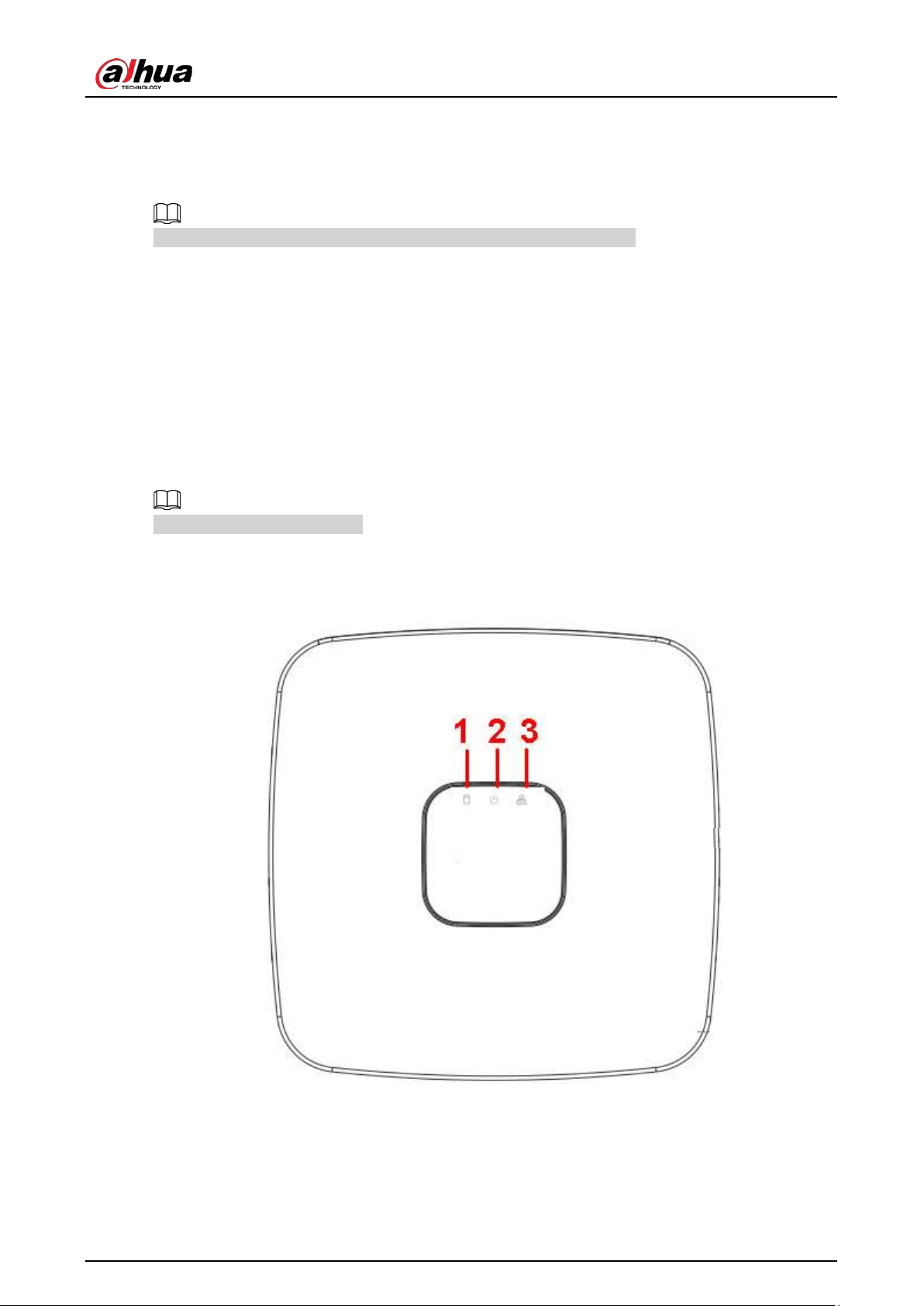
User's Manual
4
2 Front Panel and Rear Panel
The following front panel and rear panel figures are for reference only.
2.1 Front Panel
2.1.1 NVR41-4KS2/NVR41-P-4KS2/NVR41-8P-4KS2/NVR41-
4KS2/L/NVR41-P-4KS2/L/NVR41-8P-4KS2/L/NVR21-4KS2/NVR21-P-
4KS2/NVR21-8P-4KS2/NVR21-S3/NVR21-P-S3/NVR21-8P-S3 Series
The figure is for reference only.
The NVR41-4KS2/NVR41-4KS2/L/NVR41-P-4KS2/NVR41-P-4KS2/L/NVR21-4KS2/NVR21-P-
4KS2/NVR21-S3/NVR21-P-S3 front panel is shown as below.
Figure 2-1 Front panel
The NVR41-8P-4KS2/NVR41-8P-4KS2/L/NVR21-8P-4KS2/NVR21-8P-S3 front panel is shown as below.
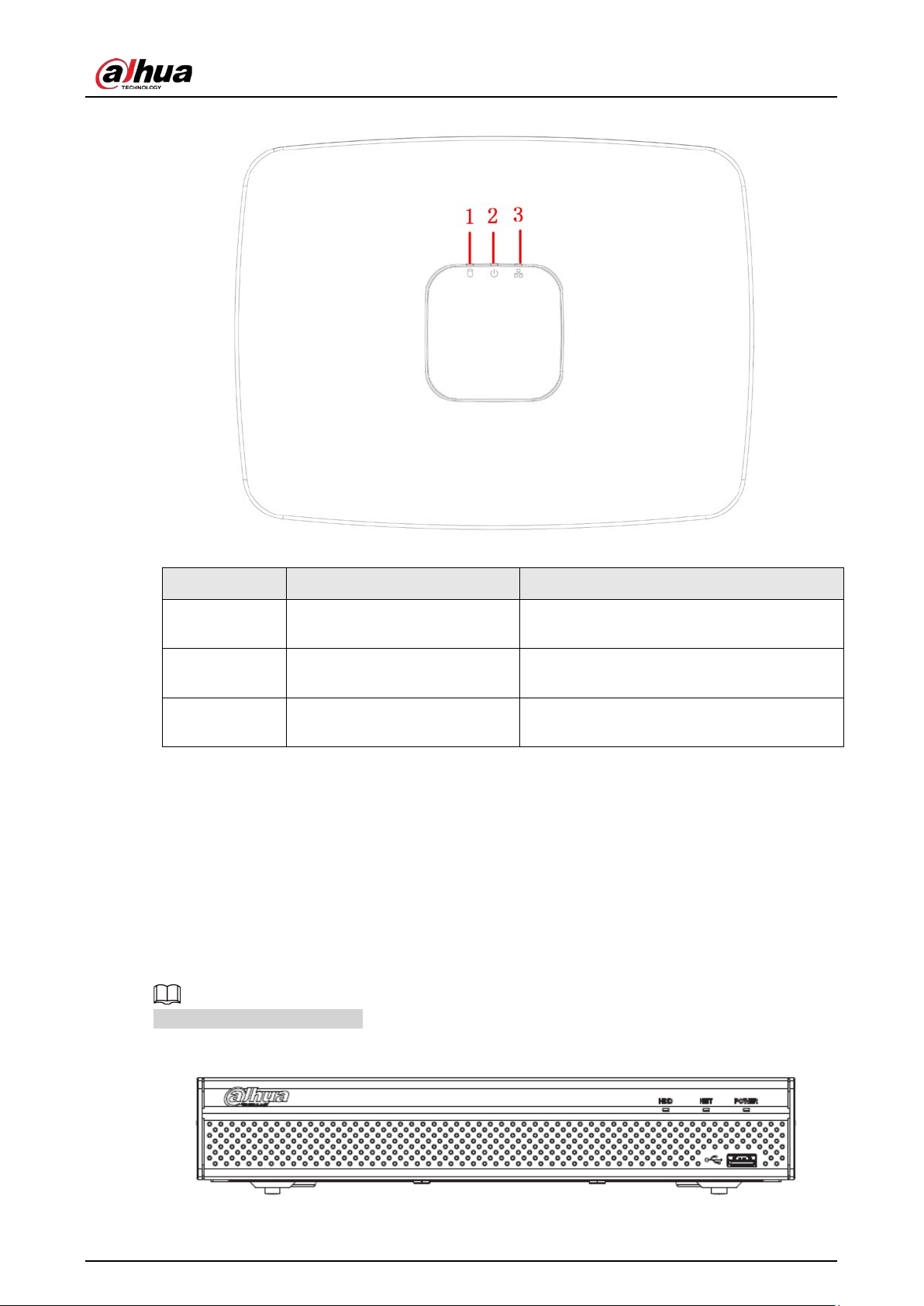
User's Manual
5
Figure 2-2 Front panel
Table 2-1 Icons
No. Name Function
1 HDD status indicator light
The red light becomes on when HDD is
abnormal.
2 Power indicator light
The red light becomes on when the power
connection is normal.
3 Network status indicator light
The red light becomes on when the network
connection is abnormal.
2.1.2 NVR11HS-S3H/NVR11HS-P-S3H/NVR11HS-8P-S3H/NVR41HS-
4KS2/NVR41HS-P-4KS2/NVR41HS-8P-4KS2/NVR41HS-
4KS2/L/NVR41HS-P-4KS2/L/NVR41HS-8P-4KS2/L/NVR21HS-
4KS2/NVR21HS-P-4KS2/NVR21HS-8P-4KS2/NVR21HS-S3/NVR21HS-
P-S3/NVR21HS-8P-S3
The figure is for reference only.
Figure 2-3 Front panel
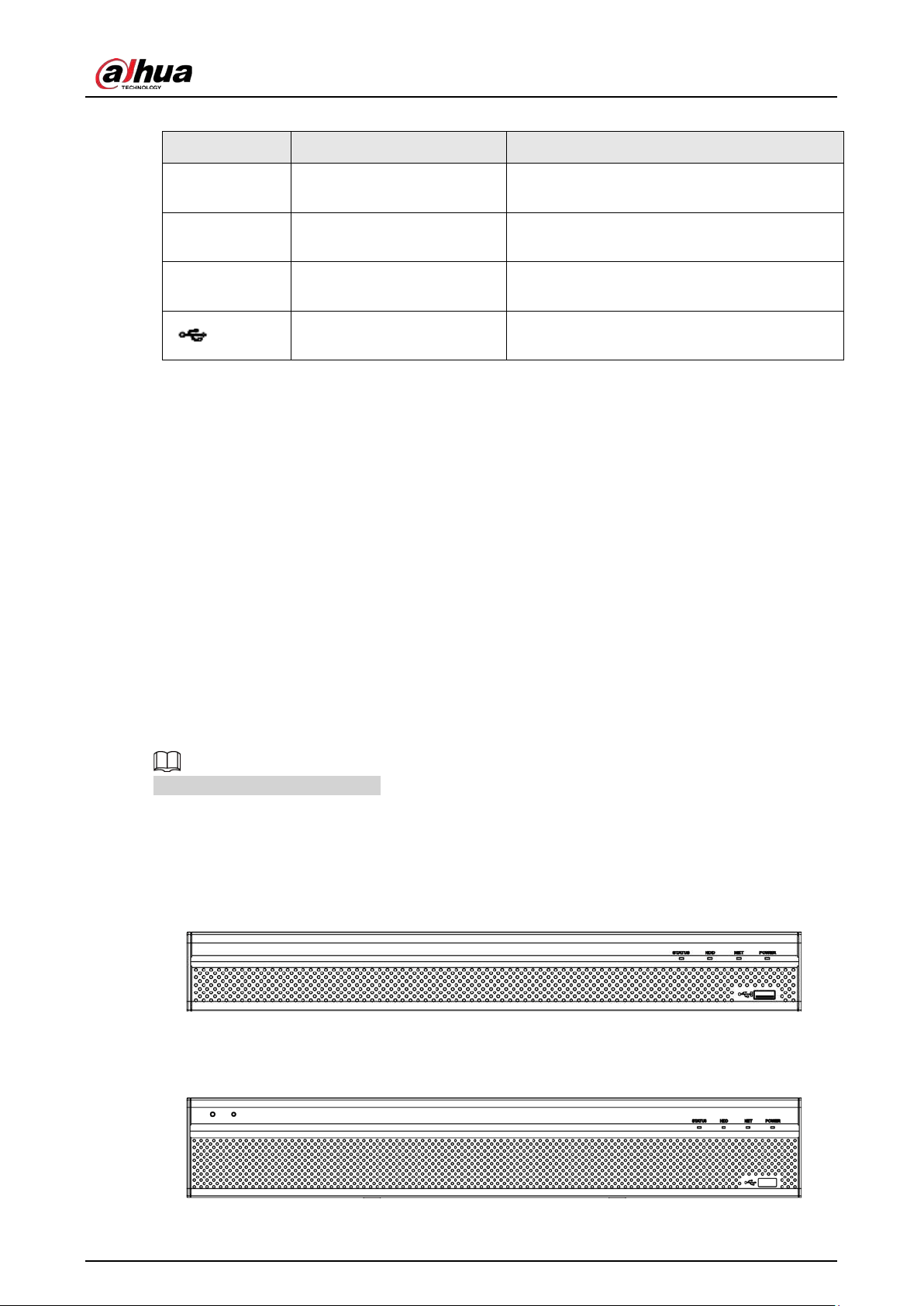
User's Manual
6
Table 2-2 Icons
Icon Name Function
HDD HDD status indicator light
The blue light is on when the HDD is
malfunction.
NET
Network status indicator
light
The blue light is on when the network
connection is abnormal.
POWER Power status indicator light
The blue light is on when the power
connection is OK.
USB port
Connect to peripheral USB storage device,
mouse and more.
2.1.3 NVR52-4KS2/NVR52-8P-4KS2/NVR52-16P-4KS2/NVR42-
4KS2/NVR42-P-4KS2/NVR42-8P-4KS2/NVR42-16P-4KS2/NVR42-
4KS2/L/NVR42-P-4KS2/L/NVR42-8P-4KS2/L/NVR42-16P-
4KS2/L/NVR5224-24P-4KS2/NVR54-4KS2/NVR54-16P-4KS2/NVR44-
4KS2/NVR44-16P-4KS2/NVR44-4KS2/L/NVR44-16P-
4KS2/L/NVR5424-24P-4KS2/NVR58-4KS2/NVR58-16P-4KS2/NVR48-
4KS2/NVR48-16P-4KS2/NVR48-4KS2/L/NVR48-16P-4KS2/L/NVR22-
4KS2/NVR22-P-4KS2/NVR22-8P-4KS2/NVR52-8P-4KS2E/NVR52-
16P-4KS2E/NVR54-16P-4KS2E/NVR58-16P-4KS2E
The figures are for reference only.
The NVR52-4KS2/NVR52-8P-4KS2/NVR52-16P-4KS2/NVR42-4KS2/NVR42-P-4KS2/NVR42-8P-
4KS2/NVR42-16P-4KS2/NVR42-4KS2/L/NVR42-P-4KS2/L/NVR42-8P-4KS2/L/NVR42-16P-
4KS2/LNVR5224-24P-4KS2/NVR22-4KS2/NVR22-P-4KS2/NVR22-8P-4KS2/NVR52-8P-4KS2E/NVR52-
16P-4KS2E series front panel is shown as below.
Figure 2-4 Front panel
The NVR54-4KS2/NVR54-16P-4KS2/NVR44-4KS2/NVR44-16P-4KS2/NVR44-4KS2/L/NVR44-16P-
4KS2/L/NVR54-24P-4KS2/NVR54-16P-4KS2E series front panel is shown as below.
Figure 2-5 Front panel
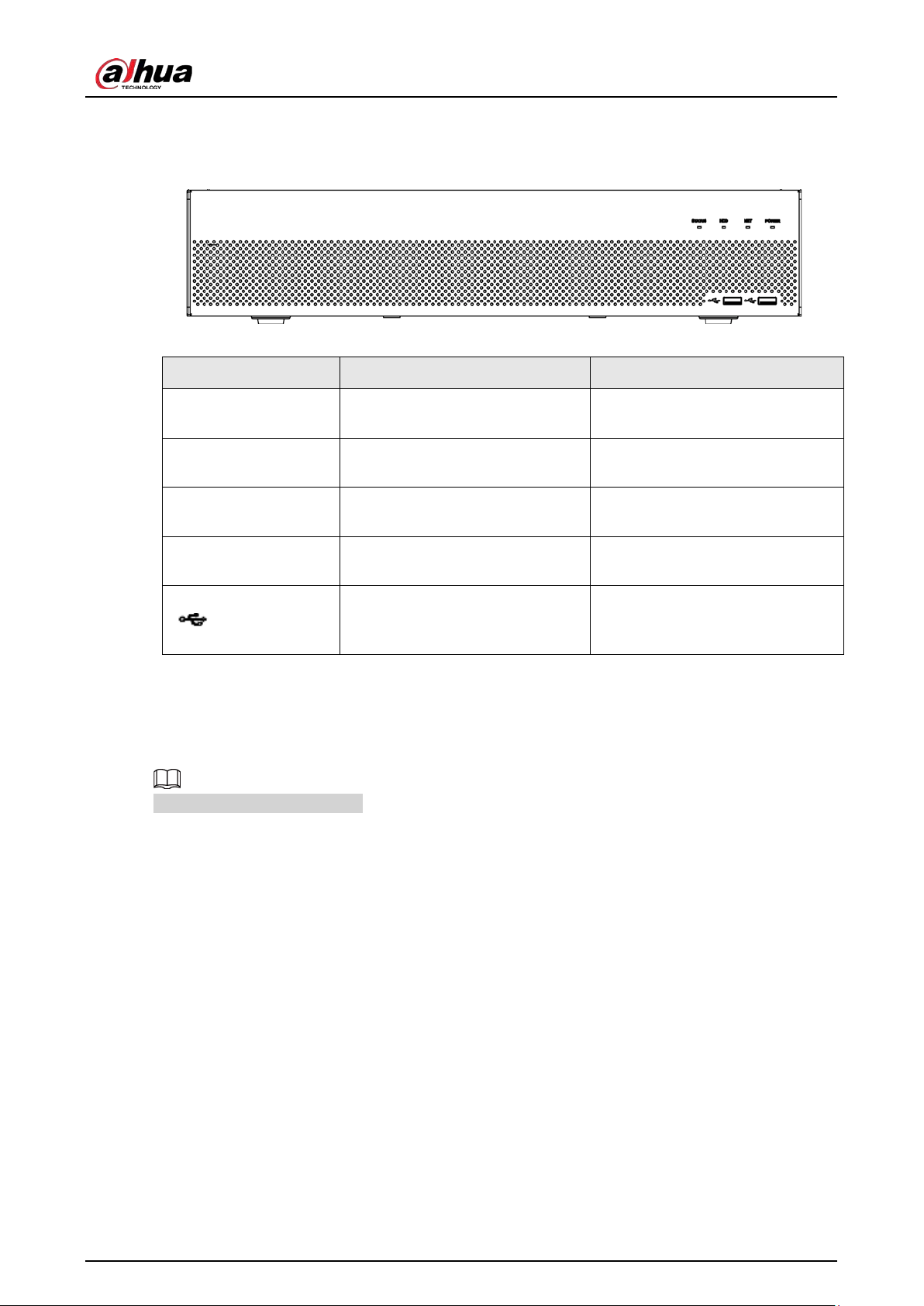
User's Manual
7
The NVR58-4KS2/NVR58-16P-4KS2/NVR48-4KS2/NVR48-16P-4KS2/NVR48-4KS2/L/NVR48-16P-
4KS2/L/NVR58-16P-4KS2E series front panel is shown as below
Figure 2-6 Front panel
Table 2-3 Icons
Icon Name Function
STATUS Status indicator light
The blue light is on when the
Device is working properly.
HDD HDD status indicator light
The blue light is on when the HDD
malfunctions.
NET Network status indicator light
The blue light is on when the
network connection is abnormal.
POWER Power status indicator light
The blue light is on when the
power connection is normal.
USB 2.0 port
Connect to peripheral USB 2.0
storage device, mouse, burner
and more.
2.1.4 NVR21-W-4KS2 Series
The front panel is shown as below.
The figure is for reference only.
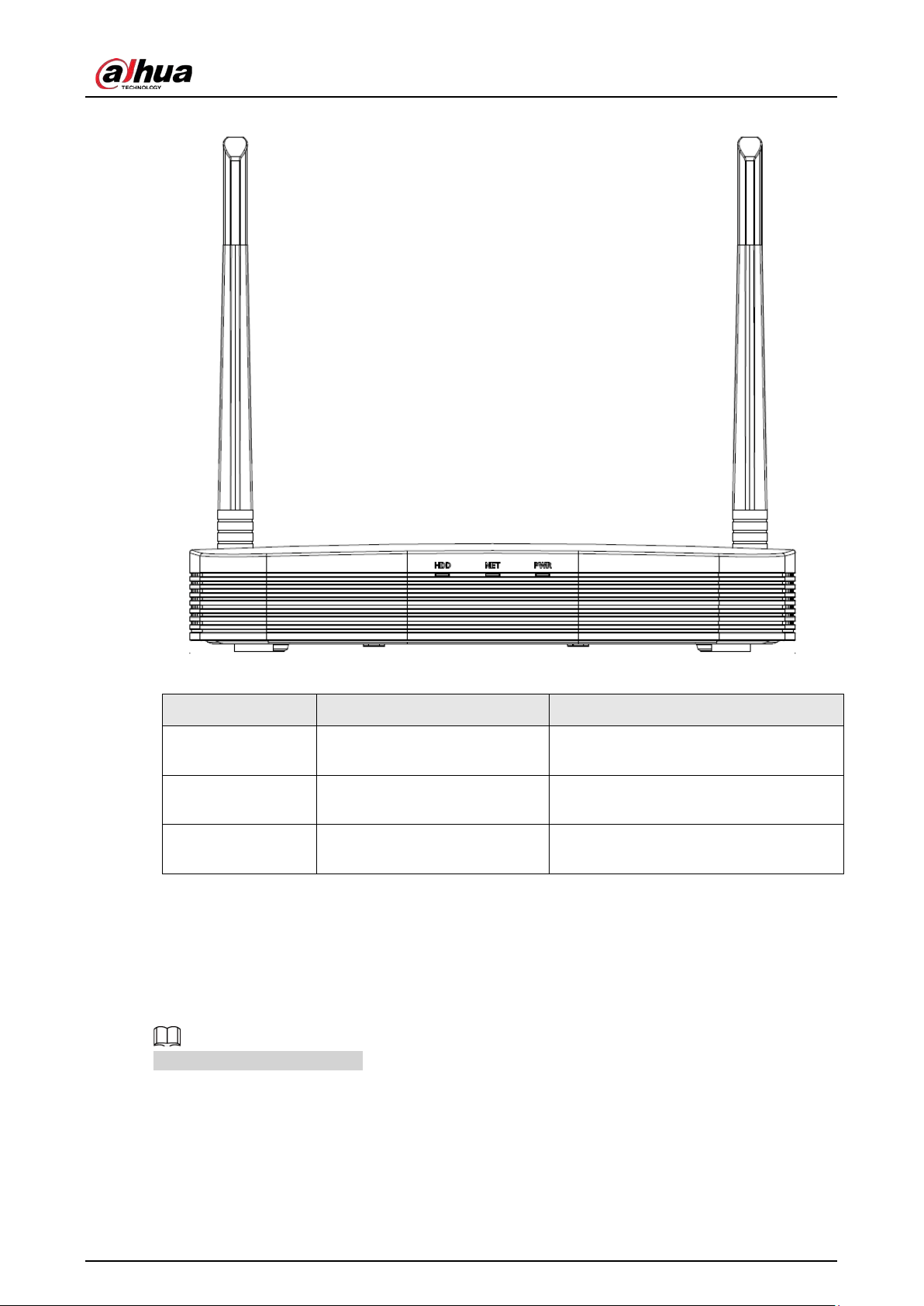
User's Manual
8
Figure 2-7 Front panel
Table 2-4 Icons
Icon Name Function
HDD HDD status indicator light
The blue light is on when the HDD
malfunctions.
NET Network status indicator light
The blue light is on when the network
connection is abnormal.
PWR Power status indicator light
The blue light is on when the power
connection is normal.
2.1.5 NVR21HS-W-4KS2/NVR11HS-W-S2-CE/NVR11HS-W-S2-FCC
Series
The front panel is shown as below.
The figure is for reference only.
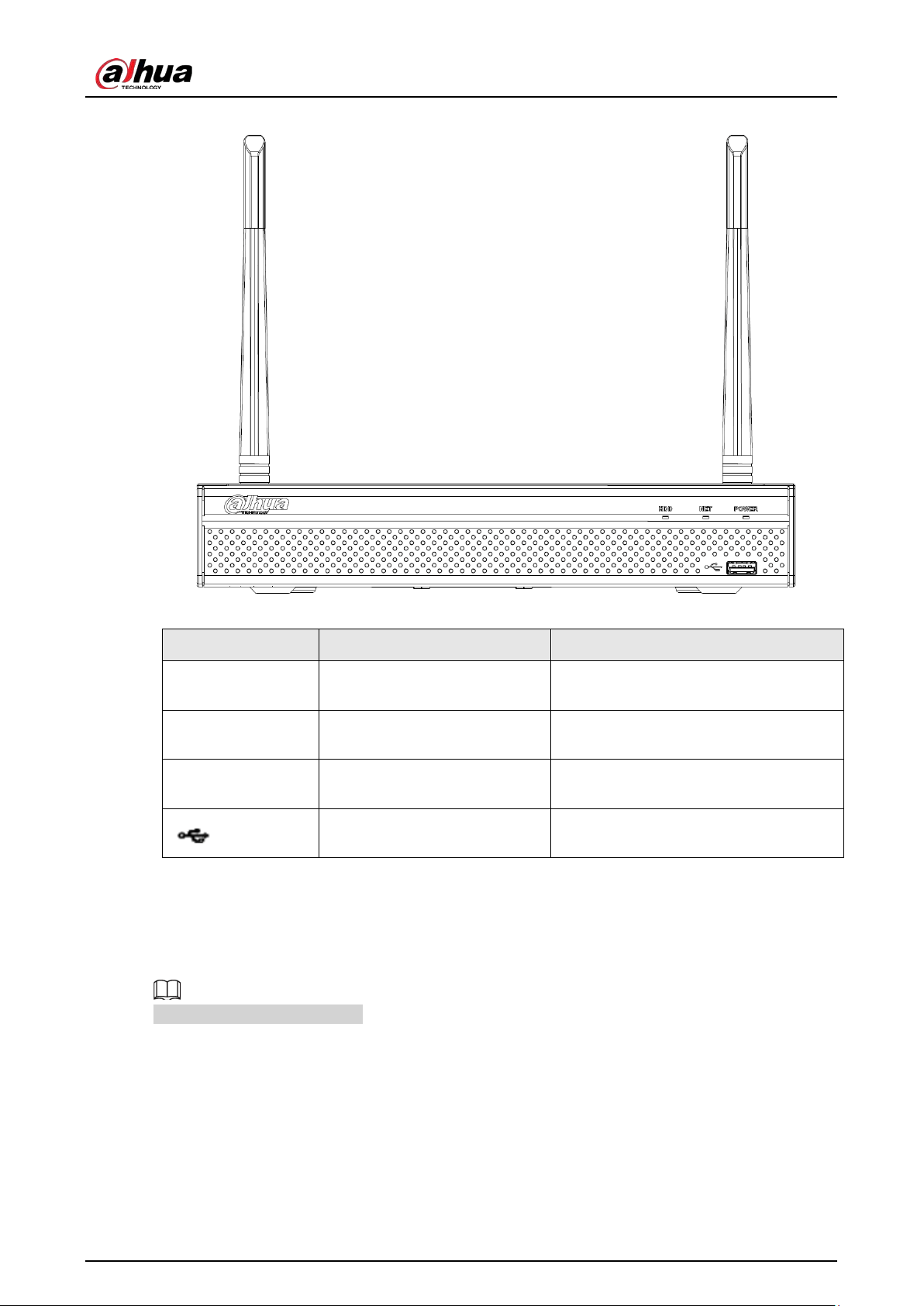
User's Manual
9
Figure 2-8 Front panel
Table 2-5 Icons
Icon Name Function
HDD HDD status indicator light
The blue light is on when the HDD is
malfunction.
NET Network status indicator light
The blue light is on when the network
connection is abnormal.
POWER Power status indicator light
The blue light is on when the power
connection is normal.
USB 2.0 port
Connect to peripheral USB storage
device, mouse and more.
2.1.6 NVR21-I/NVR21-I2/NVR21-P-I/NVR21-P-I2/NVR21-8P-I/NVR21-
8P-I2 Series
The figure is for reference only.
The NVR21-I/NVR21-I2 front panel is shown as below.
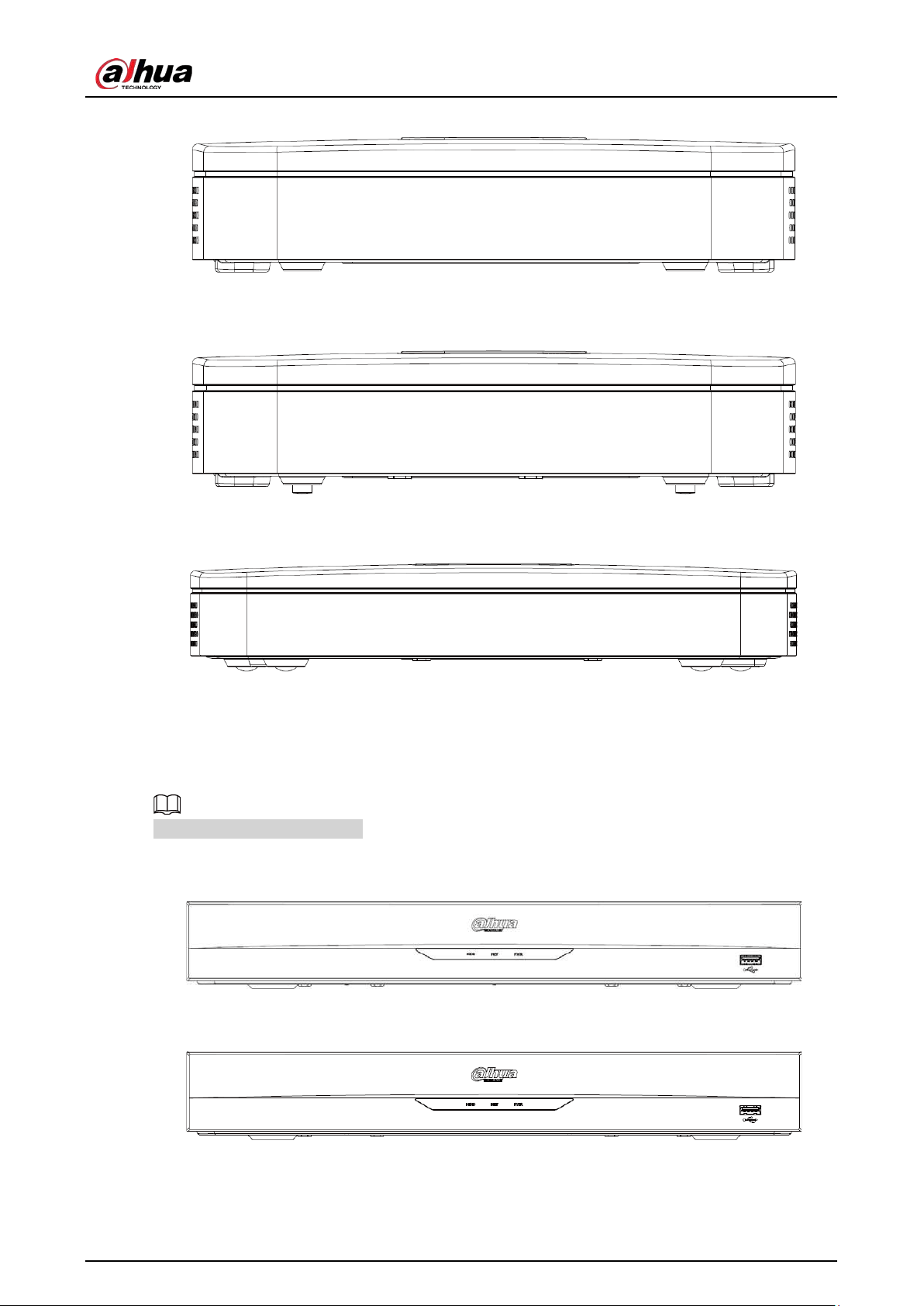
User's Manual
10
Figure 2-9 Front panel
The NVR21-P-I/NVR21-P-I2 front panel is shown as below.
Figure 2-10 Front panel
The NVR21-8P-I/NVR21-8P-I2 front panel is shown as below.
Figure 2-11 Front panel
2.1.7 NVR22-I/NVR22-I2/NVR22-P-I/NVR22-P-I2/NVR22-8P-I/NVR22-
8P-I2/NVR22-16P-I/NVR22-16P-I2 Series
The figure is for reference only.
The NVR22-I/NVR22-I2 front panel is shown as below.
Figure 2-12 Front panel
The NVR22-P-I/NVR22-P-I2 front panel is shown as below.
Figure 2-13 Front panel
The NVR22-8P-I/NVR22-8P-I2 front panel is shown as below.
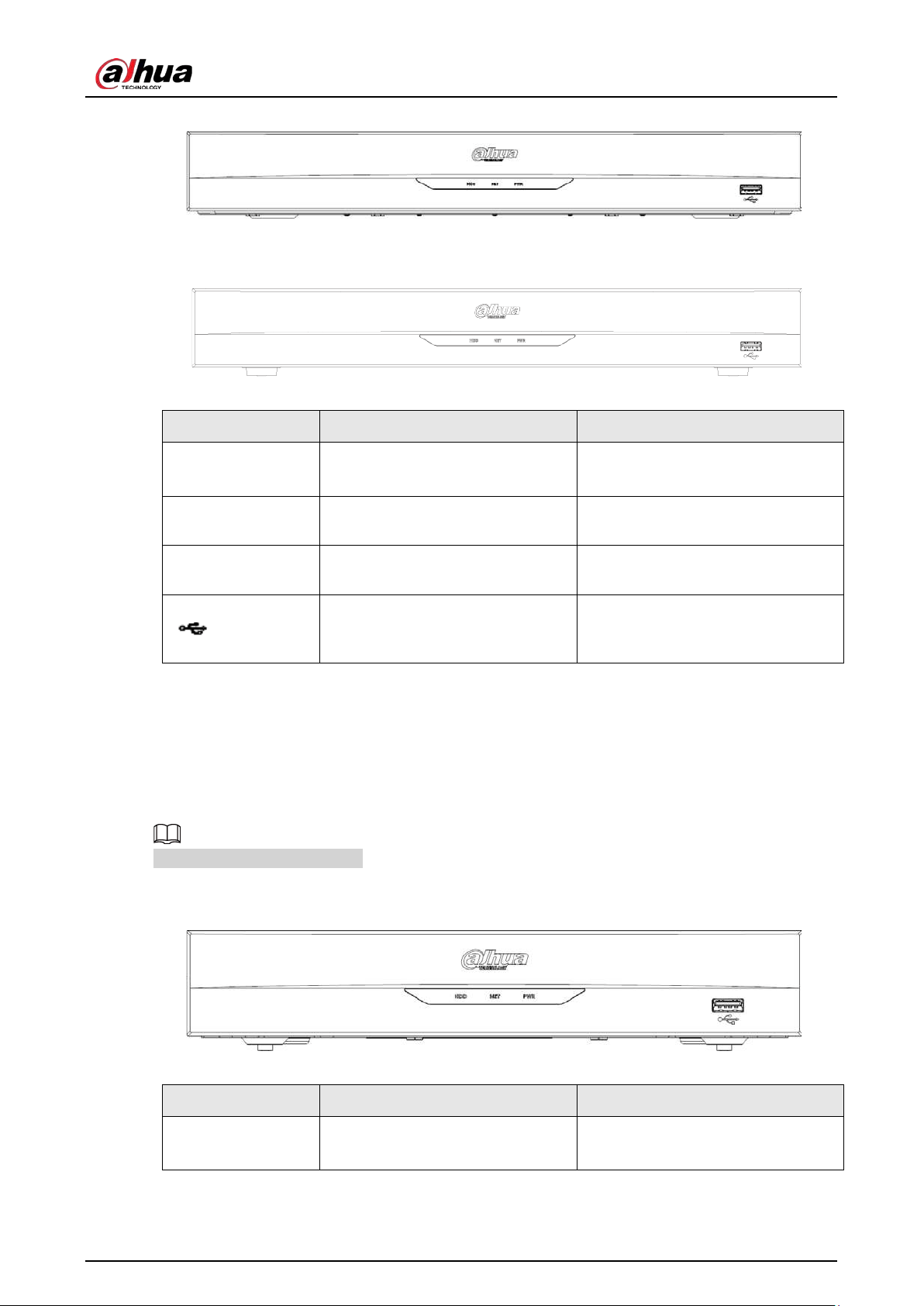
User's Manual
11
Figure 2-14 Front panel
The NVR22-16P-I/NVR22-16P-I2 front panel is shown as below.
Figure 2-15 Front panel
Table 2-6 Icons
Icon Name Function
HDD
HDD status indicator
light
The blue light is on when the HDD
malfunctions.
NET Network status indicator light
The blue light is on when the
network connection is abnormal.
PWR Power status indicator light
The blue light is on when the power
connection is OK.
USB 2.0 port
Connect to peripheral USB 2.0
storage device, mouse, burner and
more.
2.1.8 NVR21HS-I/NVR21HS-I2/NVR21HS-P-I/NVR21HS-P-
I2/NVR21HS-8P-I/NVR21HS-8P-I2/NVR44-4KS2/I/NVR44-16P-4KS2/I
Series
The figure is for reference only.
The front panel is shown as below.
Figure 2-16 Front panel
Table 2-7 Icons
Icon Name Function
HDD
HDD status indicator
light
The blue light is on when the HDD
malfunctions.
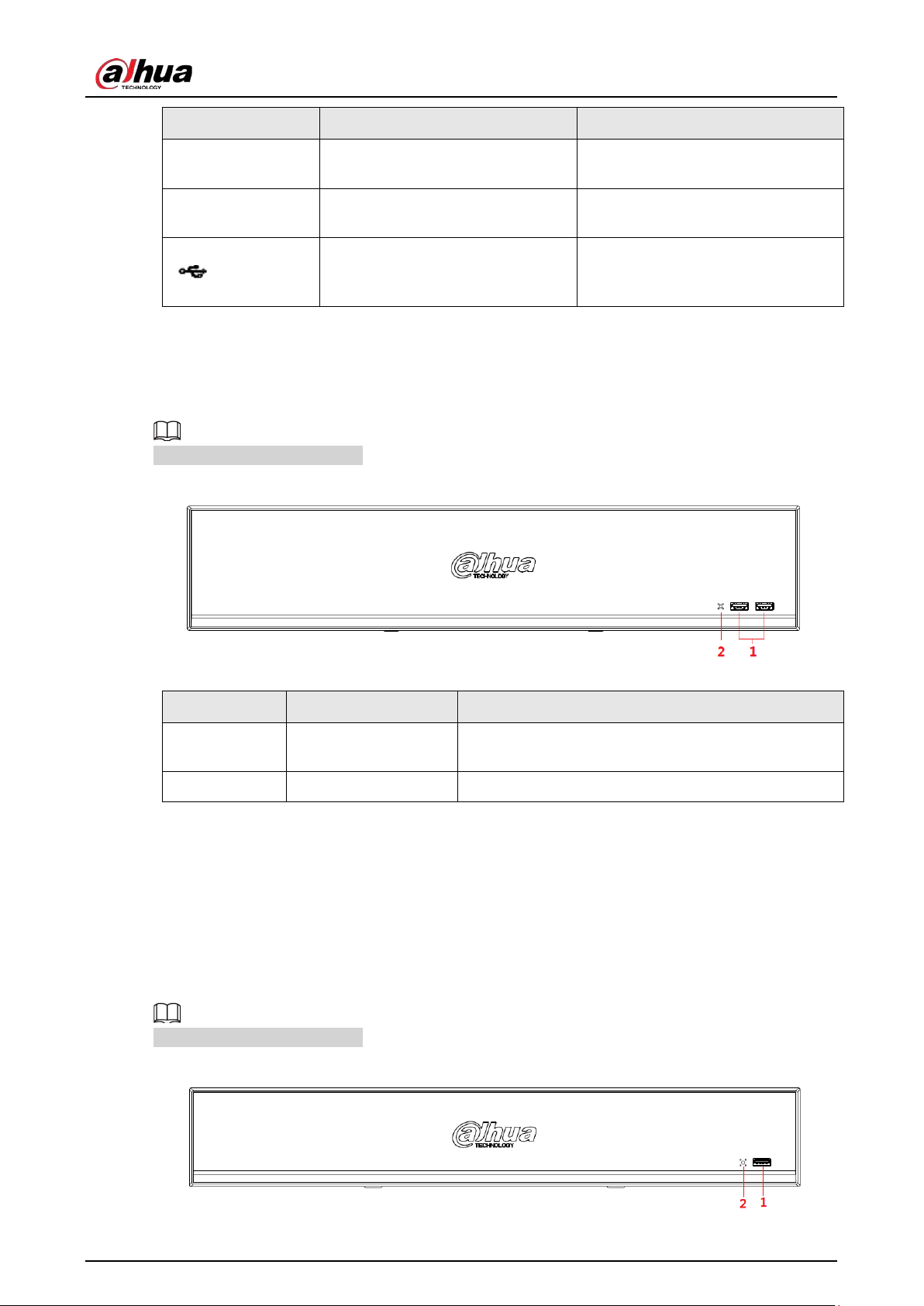
User's Manual
12
Icon Name Function
NET Network status indicator light
The blue light is on when the
network connection is abnormal.
PWR Power status indicator light
The blue light is on when the power
connection is OK.
USB 2.0 port
Connect to peripheral USB 2.0
storage device, mouse, burner and
more.
2.1.9 NVR48-I/NVR58-I/NVR58-I/L Series
The section takes NVR4832-I/NVR5864-I/NVR5864-I/L/NVR5832-I/NVR5832-I/L series as examples.
The figure is for reference only.
Figure 2-17 Front panel
Table 2-8 Icons
No. Port Name Function
1 USB port
Connects to the external devices such as keyboard,
mouse, and USB storage device.
2 IR indicator Receives signals from the remote control.
2.1.10 NVR42-I/NVR44-I/NVR54-I/NVR54-I/L/NVR52-I/NVR52-I/L
Series
The section uses NVR4208-8P-I/NVR4216-I/NVR4216-16P-I/NVR4416-16P-I/NVR4432-I/NVR5432-16P-
I/NVR5432-16P-I/L/ NVR5216-16P-I/NVR5216-16P-I/L/NVR5216-8P-I/NVR5216-8P-I/L series as
examples.
The figure is for reference only.
Figure 2-18 Front panel
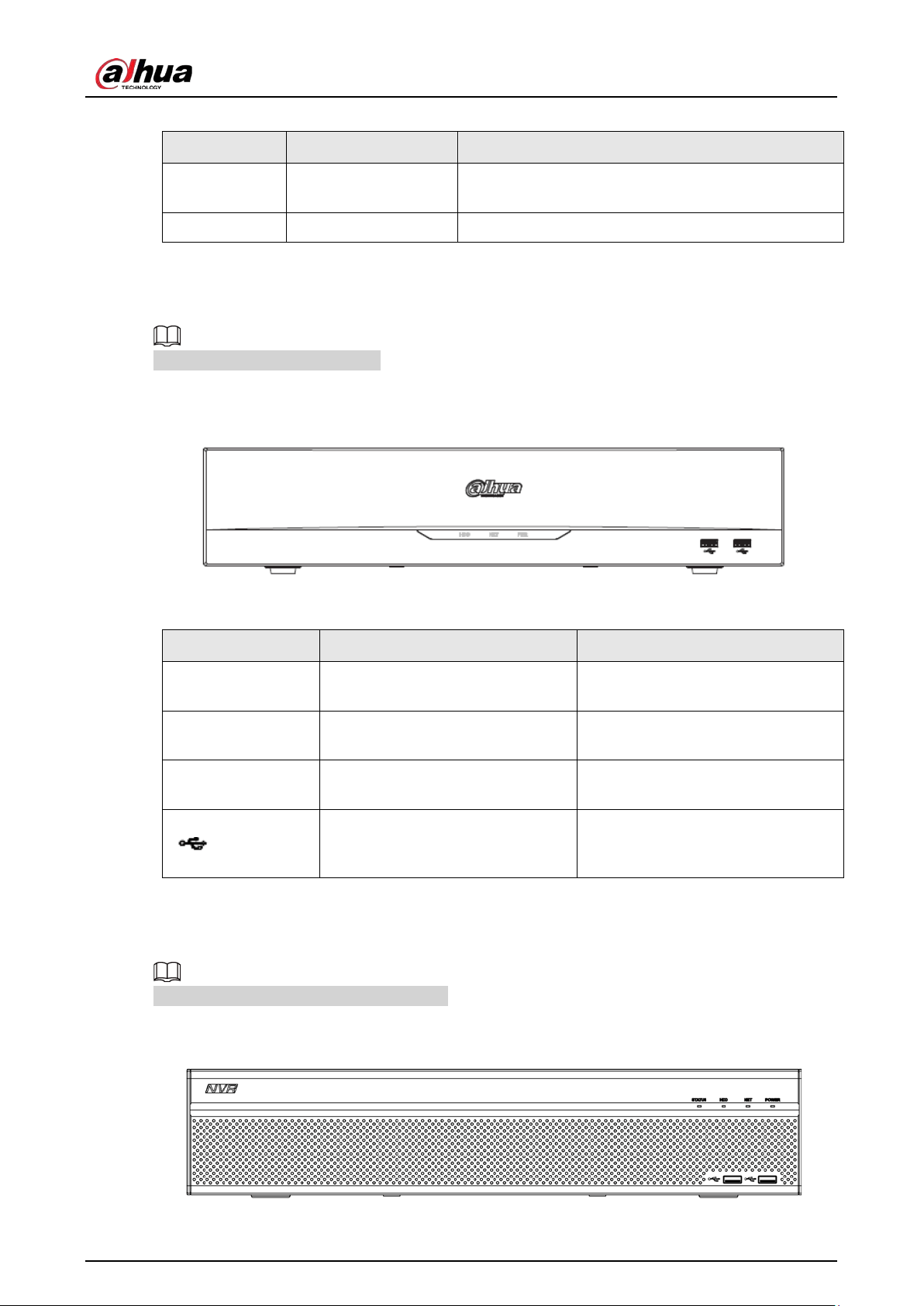
User's Manual
13
Table 2-9 Icons
No. Port Name Function
1 USB port
Connects to the external devices such as keyboard,
mouse, and USB storage device.
2 IR indicator Receives signals from the remote control.
2.1.11 NVR48-4KS2/I/NVR48-16P-4KS2/I Series
The figures are for reference only.
The NVR48-4KS2/I/NVR48-16P-4KS2/I series front panel is shown as below.
Figure 2-19 Front panel
Table 2-10 Icons
Icon Name Function
HDD HDD status indicator light
The blue light is on when the HDD
malfunctions.
NET Network status indicator light
The blue light is on when the
network connection is abnormal.
PWR Power status indicator light
The blue light is on when the power
connection is normal.
USB 2.0 port
Connect to peripheral USB 2.0
storage device, mouse, burner and
more.
2.1.12 NVR608-32-4KS2 Series
The following figures are for reference only.
The NVR608-32-4KS2 front panel is shown as below.
Figure 2-20 Front panel
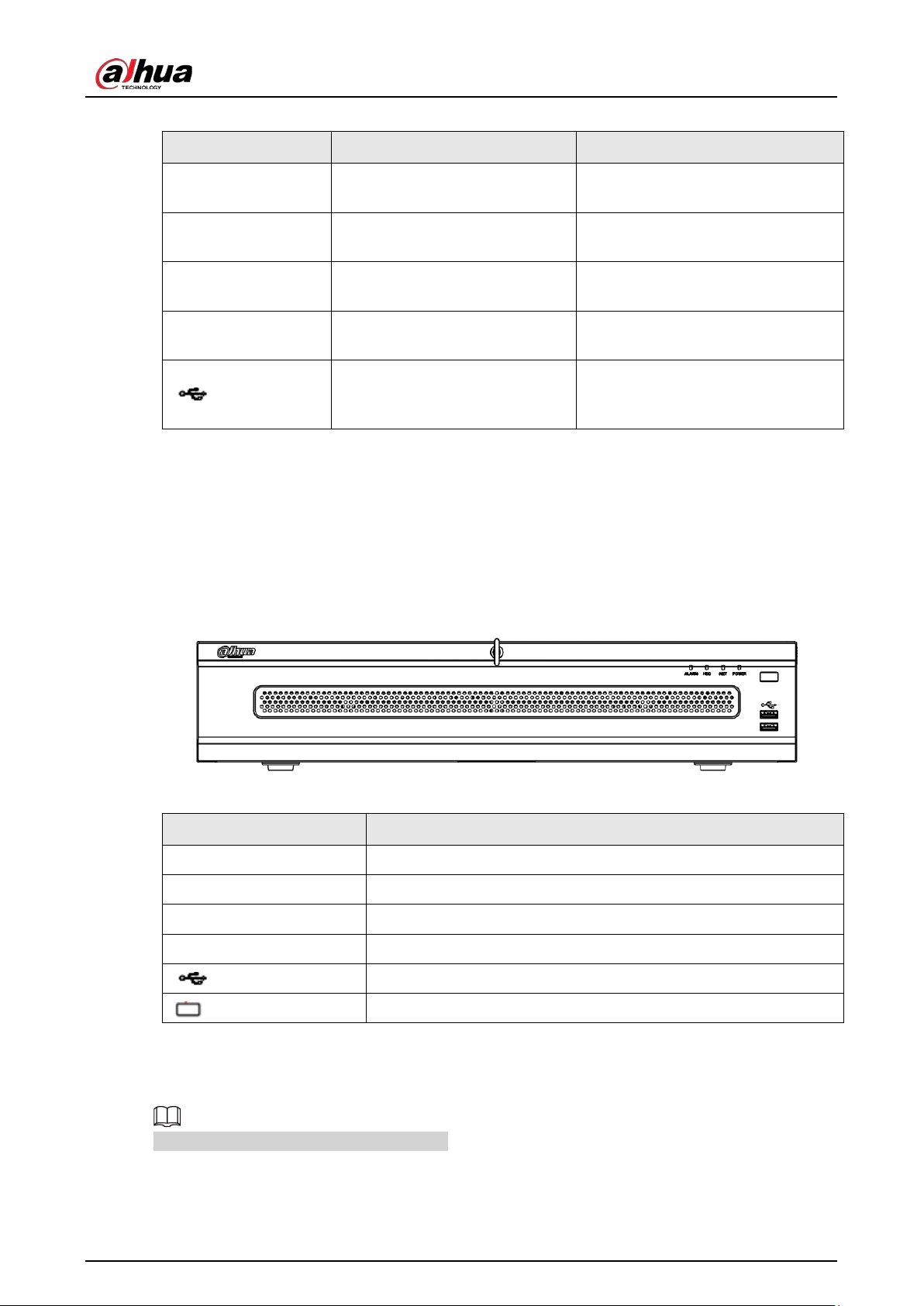
User's Manual
14
Table 2-11 Icons description
Icon Name Function
STATUS Status indicator light
The blue light is on when the device
is working properly.
HDD HDD status indicator light
The blue light is on when the HDD
malfunctions.
NET Network status indicator light
The blue light is on when the
network connection is abnormal.
POWER Power status indicator light
The blue light is on when the power
connection is normal.
USB 2.0 port
Connect to peripheral USB 2.0
storage device, mouse, burner and
more.
2.1.13 NVR608-64-4KS2/NVR608-128-4KS2/NVR608H-
XI/NVR608RH-XI Series
The NVR608-64-4KS2/NVR608-128-4KS2/NVR608H-32-XI/NVR608H-64-XI/NVR608H-128-
XI/NVR608RH-32-XI/NVR608RH-64-XI/NVR608RH-128-XI front panel is shown as below.
Figure 2-21 Front panel
Table 2-12 Front panel description
Icon Name
ALARM Alarm indicator light
HDD HDD status indicator light
NET Network status indicator light
POWER Power status indicator light
USB 2.0 port
Power on-off button
2.1.14 NVR616-4KS2 Series
The following figures are for reference only.
For the product of LCD, the front panel of NVR616-4KS2 is shown as below.
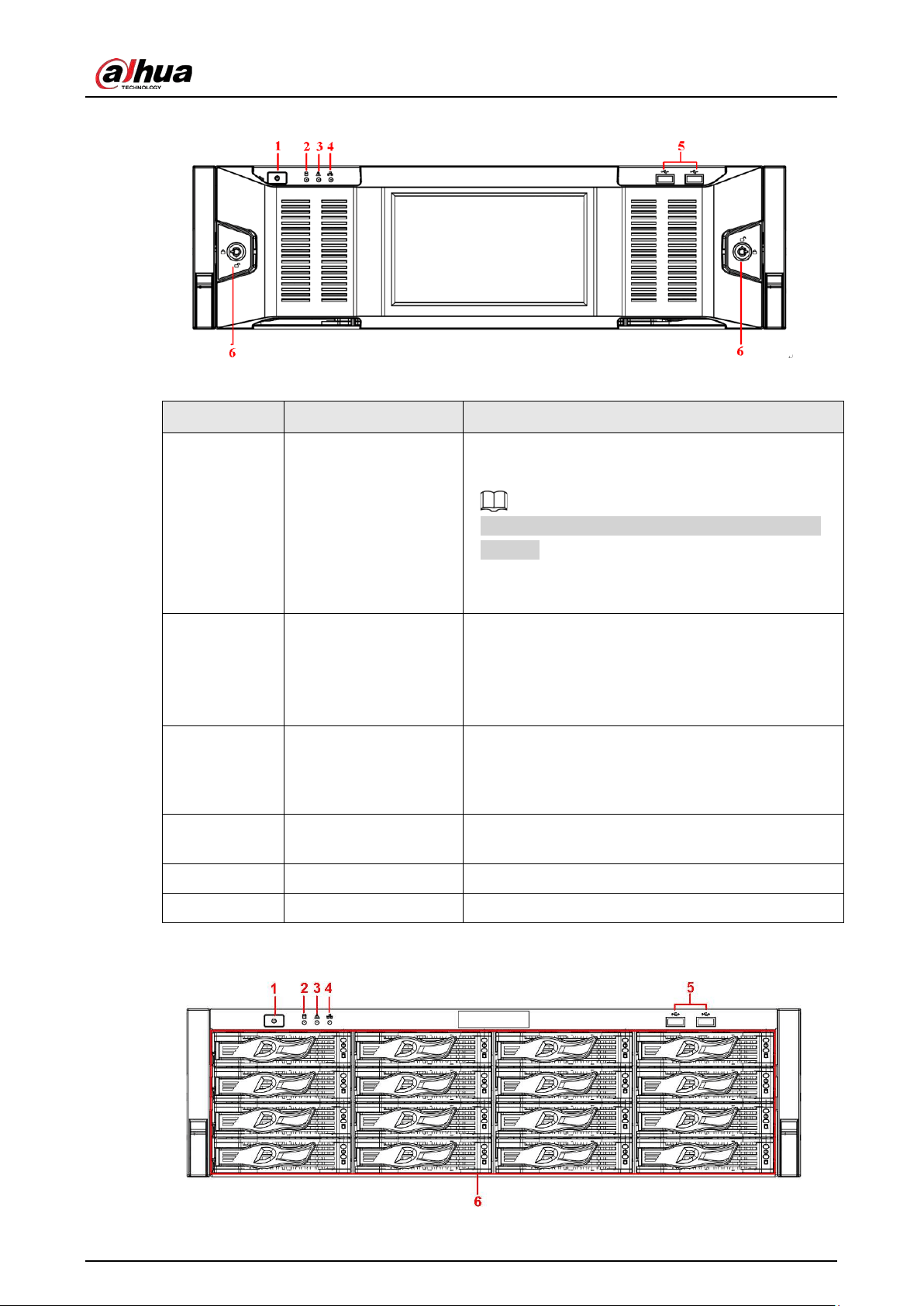
User's Manual
15
Figure 2-22 Front panel
Table 2-13 Icons
No. Name Function
1 Power button
Press it once to turn on the device.
Press it for a long time to turn off the device.
We do not recommend you turn off the Device in
this way.
Press power button for a long time or pull out the
power cable might result in device auto restart.
2
System HDD Indicator
light
The blue light becomes on after system booted up
properly.
In the system HDD, there are device important
configuration file, factory default configuration file,
and device initial boot up data.
3 Alarm indicator light
The alarm indicator light becomes on once an alarm
occurred. It becomes on via the software detection.
The indicator light becomes on when there is a local
alarm.
4 Network indicator light
The blue network indicator light is on after you
connected the device to the network.
5 USB port —
6 Front panel lock —
For general NVR616-4KS2 series, the front panel is shown as below.
Figure 2-23 Front panel
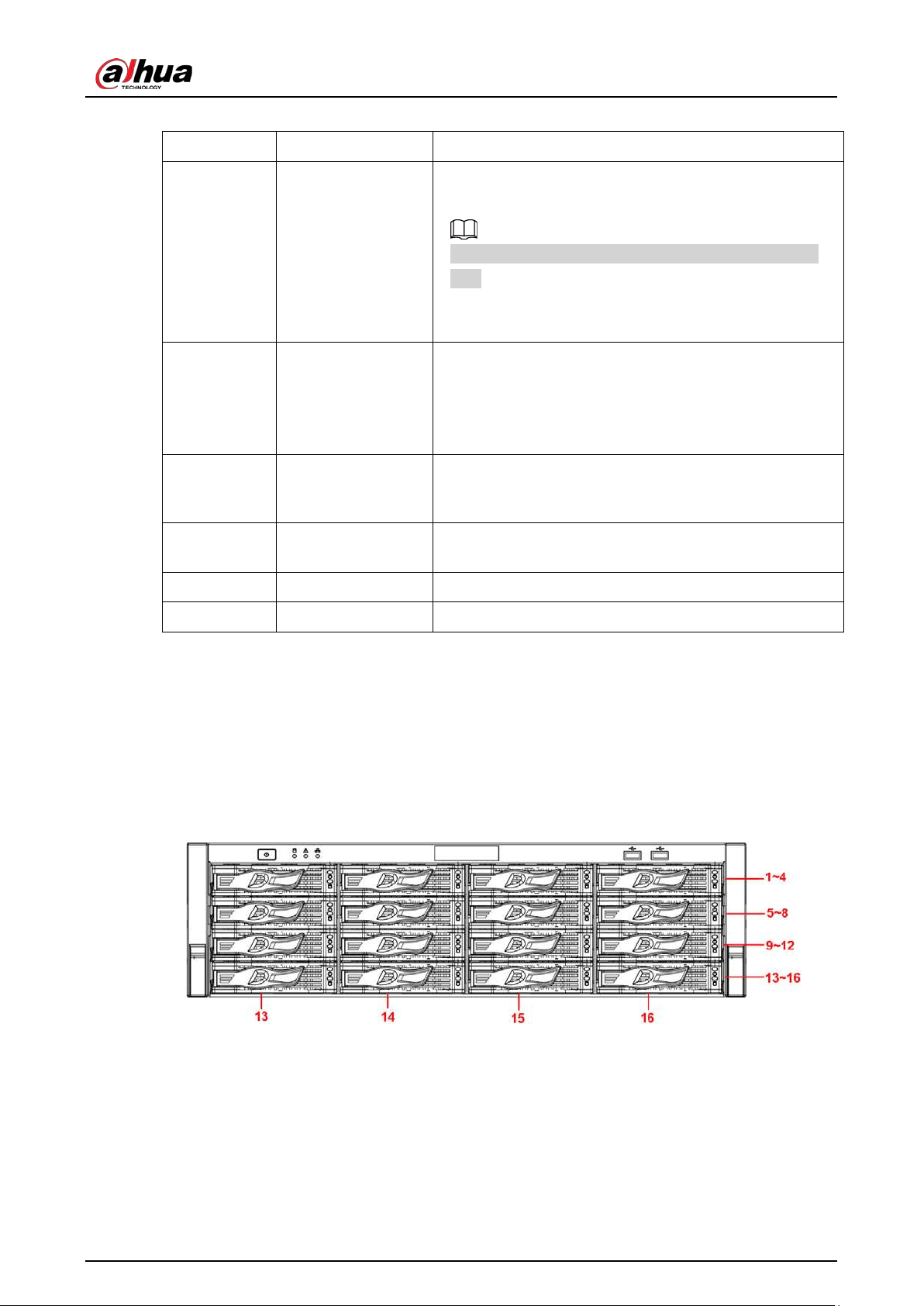
User's Manual
16
Table 2-14 Icons
No. Name Function
1 Power button
Press it once to turn on the device.
Press it for a long time to turn off the device.
We do not recommend you turn off the Device in this
way.
Press power button for a long time or pull out the power
cable might result in device auto restart.
2
System HDD
Indicator light
The blue light becomes on after system booted up
properly.
In the system HDD, there are device important
configuration file, factory default configuration file,
device initial boot up data.
3
Alarm indicator
light
The alarm indicator light becomes on once an alarm
occurred. It becomes on via the software detection. The
indicator light becomes on when there is a local alarm.
4
Network indicator
light
The blue network indicator light is on after you
connected the device to the network.
5 USB port —
6 16 HDD slot —
After you remove the front panel, you can see there are 16 HDDs. From the left to the right and from
the top to the bottom, it ranges from 1~4, 5~8, 9~12, 13~16.
You can see there are two indicator lights on the HDD bracket.
●
The power indicator light is at the top. The light is yellow after you connected the device to the
power.
●
The read-write indicator light is at the bottom. The blue light flashes when system is reading or
writing the data.
Figure 2-24 Front panel
2.2 Rear Panel
2.2.1 NVR21-4KS2/NVR21-P-4KS2/NVR21-8P-4KS2 Series
The NVR21-4KS2 is shown as below.
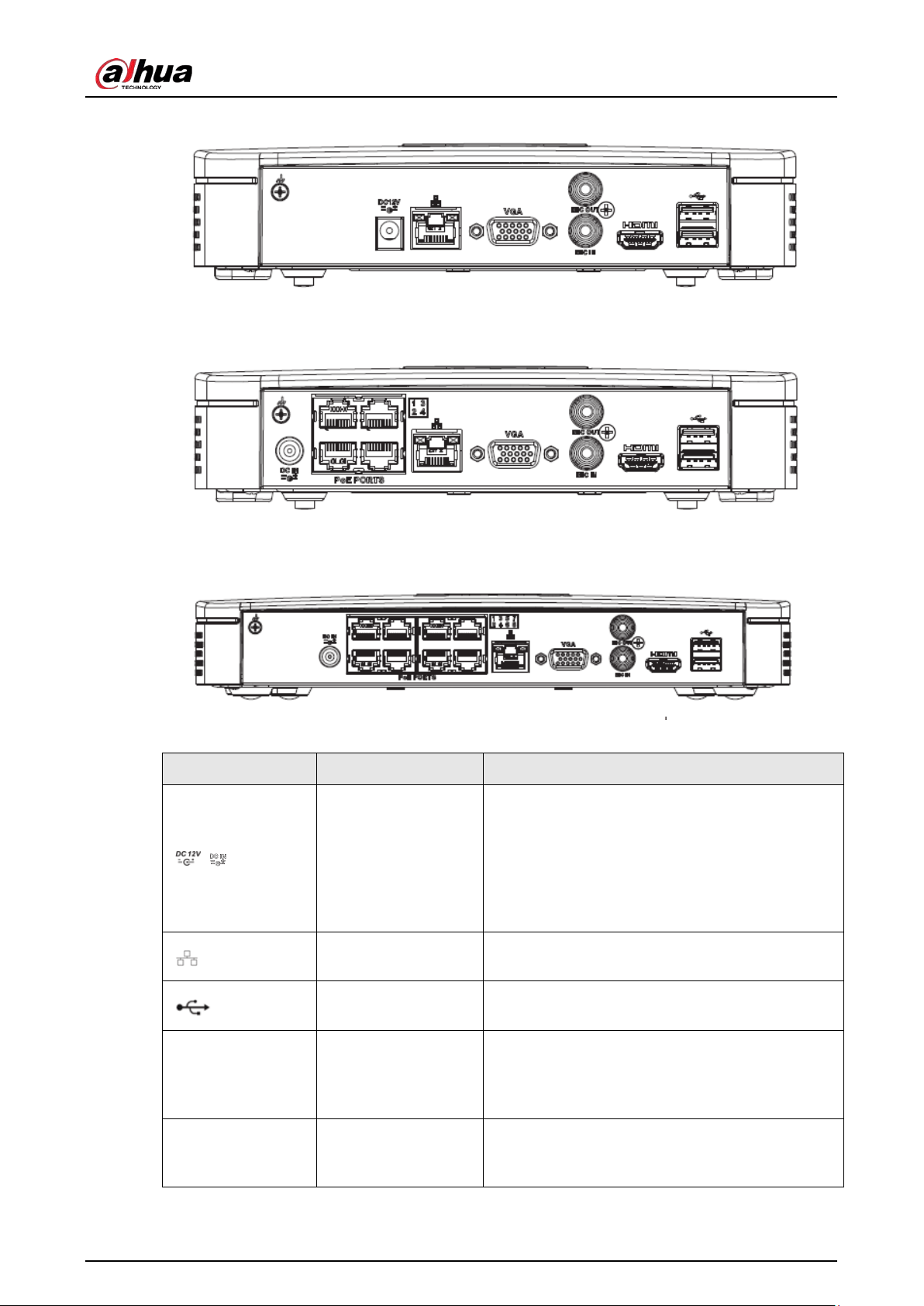
User's Manual
17
Figure 2-25 Rear panel
The NVR21-P-4KS2 is shown as below.
Figure 2-26 Rear panel
The NVR21-8P-4KS2 is shown as below.
Figure 2-27 Rear panel
Table 2-15 Ports
Port Name Connection Function
/ Power input port
Power socket.
●
For NVR21-S2/21-4KS2, input 12 VDC/2 A.
●
For NVR21-P-S2/21-P-4KS2, input 48 VDC/1.25
A.
●
For NVR21-8P-S2/21-8P-4KS2, input 48 VDC/2
A.
Network port
10/100 Mbps self-adaptive Ethernet port. Connect
to the network cable.
USB port
USB port. Connect to mouse, USB storage device
and more.
HDMI
High Definition
Media Interface
High definition audio and video signal output
port. It transmits uncompressed high definition
video and multiple-channel data to the HDMI port
of the display device. HDMI version is 1.4.
VGA
VGA video output
port
VGA video output port. Output analog video
signal. It can connect to the monitor to view
analog video.
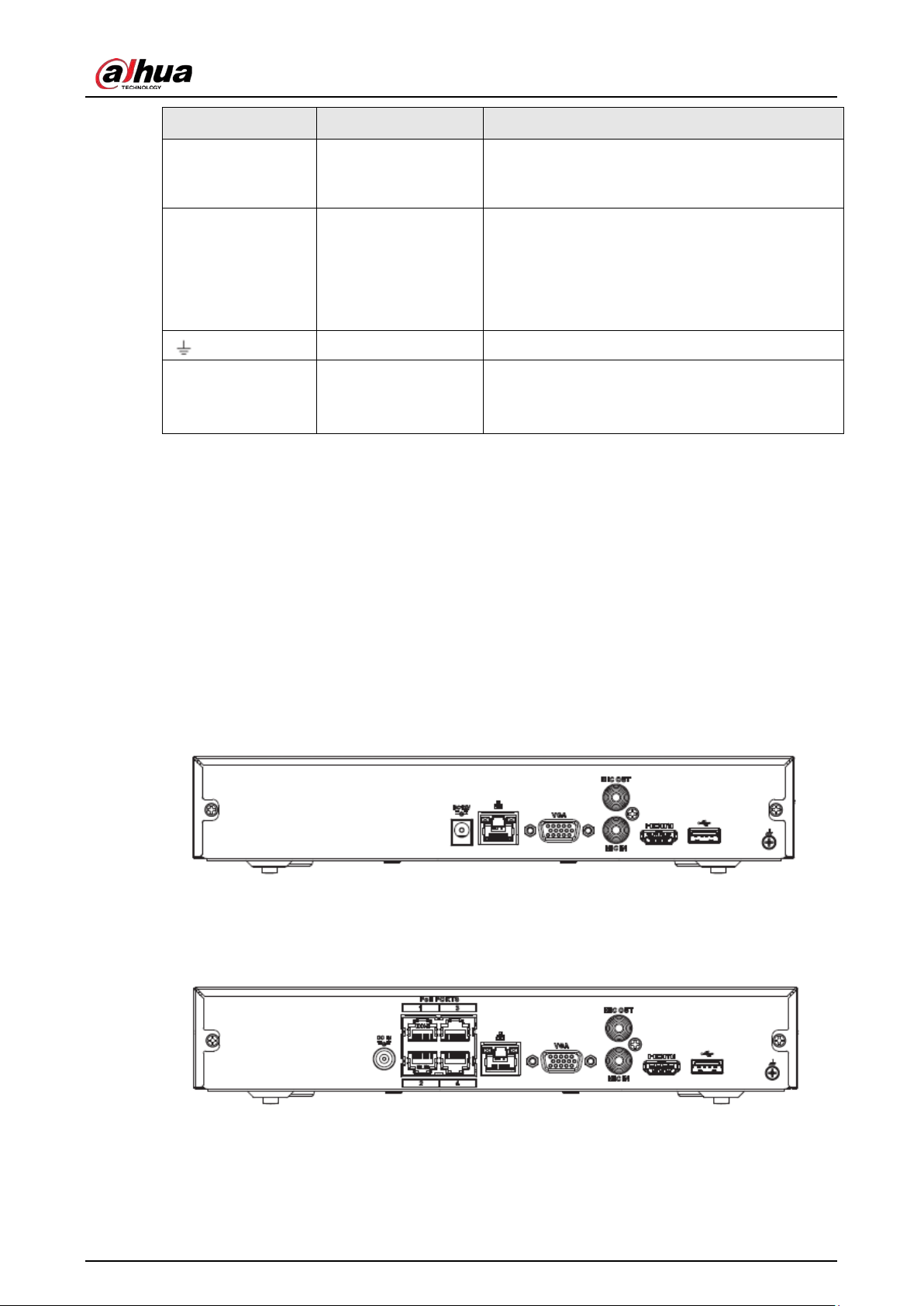
User's Manual
18
Port Name Connection Function
MIC IN Audio input port
Bidirectional talk input port. It is to receive the
analog audio signal output from the devices such
as microphone, pickup.
MIC OUT Audio output port
Audio output port. It is to output the analog
audio signal to the devices such as the sound box.
●
Bidirectional talk output.
●
Audio output on 1-window video monitor.
●
Audio output on 1-window video playback.
GND Ground end.
PoE PORTS PoE port
Built-in switch. Support PoE function.
For PoE series product, you can use this port to
provide power to the network camera.
2.2.2 NVR11HS-S3H/NVR11HS-P-S3H/NVR11HS-8P-S3H/NVR21HS-
4KS2/NVR21HS-P-4KS2/NVR21HS-8P-4KS2/NVR41HS-
4KS2/NVR41HS-P-4KS2/NVR41HS-8P-4KS2/NVR41HS-
4KS2/L/NVR41HS-P-4KS2/L/NVR41HS-8P-4KS2/L/NVR21HS-
S3/NVR21HS-P-S3/NVR21HS-8P-S3
The NVR11HS-S3H/NVR21HS-4KS2/NVR41HS-4KS2/NVR41HS-4KS2/L/NVR21HS-S3 series rear panel is
shown as below.
Figure 2-28 Rear panel
The NVR11HS-P-S3H/NVR21HS-P-4KS2/NVR41HS-P-4KS2/NVR41HS-P-4KS2/L/NVR21HS-P-S3 series
rear panel is shown as below.
Figure 2-29 Rear panel
The NVR11HS-8P-S3H/NVR21HS-8P-4KS2/NVR41HS-8P-4KS2/NVR41HS-8P-4KS2/L/NVR21HS-8P-S3
series rear panel is shown as below.
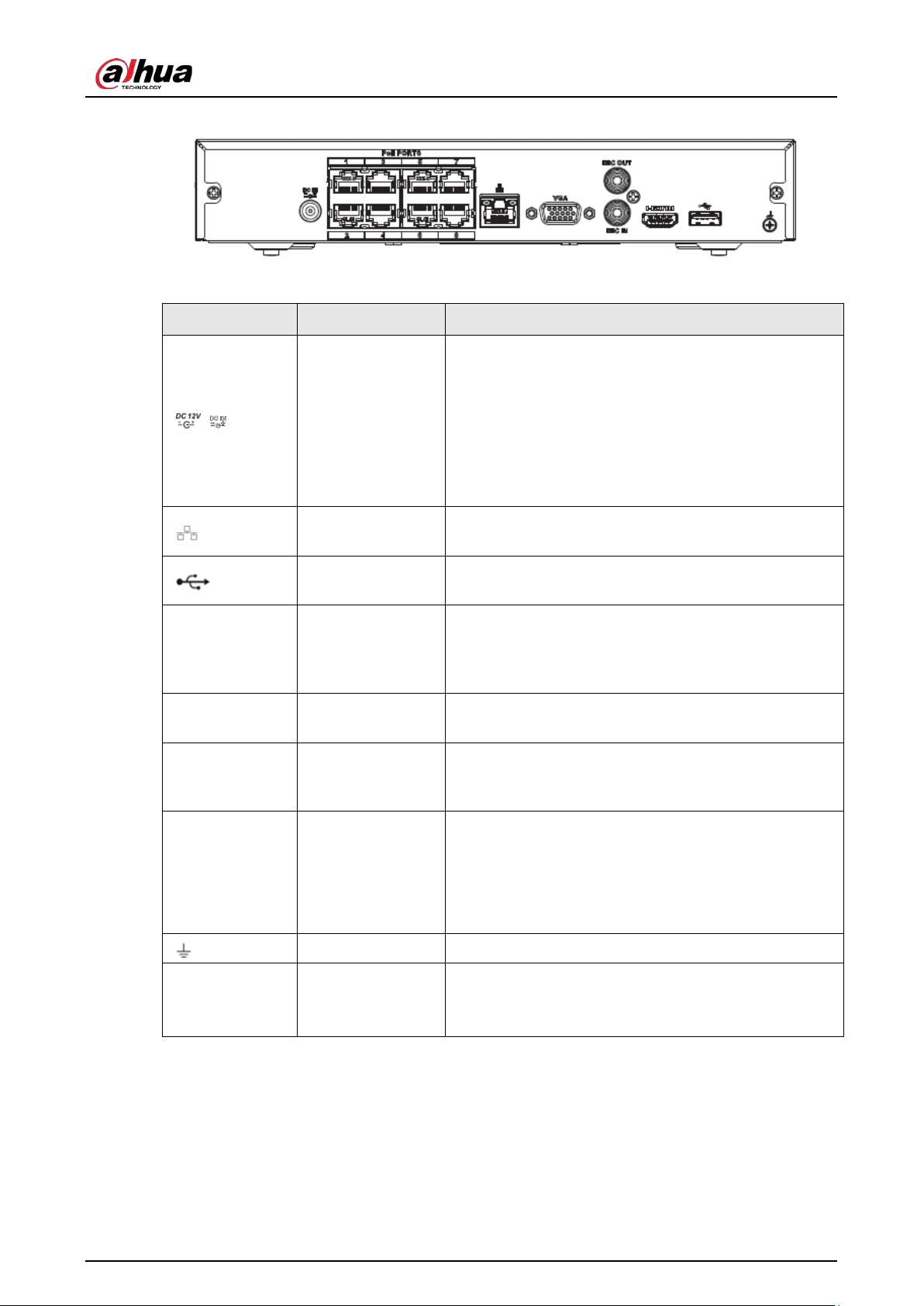
User's Manual
19
Figure 2-30 Rear panel
Table 2-16 Ports
Port Name Connection Function
/ Power input port
Power socket.
●
For NVR11HS-P-S3H/NVR21HS-4KS2/NVR41HS-
4KS2 series, input 12 VDC/2 A.
●
For NVR11HS-P-S3H/NVR21HS-P-4KS2/NVR41HS-
4KS2 series, input 48 VDC/1.25 A.
●
For NVR11HS-8P-4KS2/NVR21HS-8P-
4KS2/NVR41HS-4KS2 series, input 48 VDC/2 A.
Network port
10/100 Mbps self-adaptive Ethernet port. Connect to
the network cable.
USB port
USB port. Connect to mouse, USB storage device and
more.
HDMI
High Definition
Media Interface
High definition audio and video signal output port. It
transmits uncompressed high definition video and
multiple-channel data to the HDMI port of the display
device. HDMI version is 1.4.
VGA
VGA video output
port
VGA video output port. Output analog video signal. It
can connect to the monitor to view analog video.
MIC IN Audio input port
Bidirectional talk input port. It is to receive the analog
audio signal output from the devices such as
microphone, pickup.
MIC OUT Audio output port
Audio output port. It is to output the analog audio
signal to the devices such as the sound box.
●
Bidirectional talk output.
●
Audio output on 1-window video monitor.
●
Audio output on 1-window video playback.
GND Ground end.
PoE PORTS PoE port
Built-in switch. Support PoE function.
For PoE series product, you can use this port to provide
power to the network camera.
2.2.3 NVR22-4KS2/NVR22-P-4KS2/NVR22-8P-4KS2 Series
The NVR22-4KS2 series rear panel is shown as below.
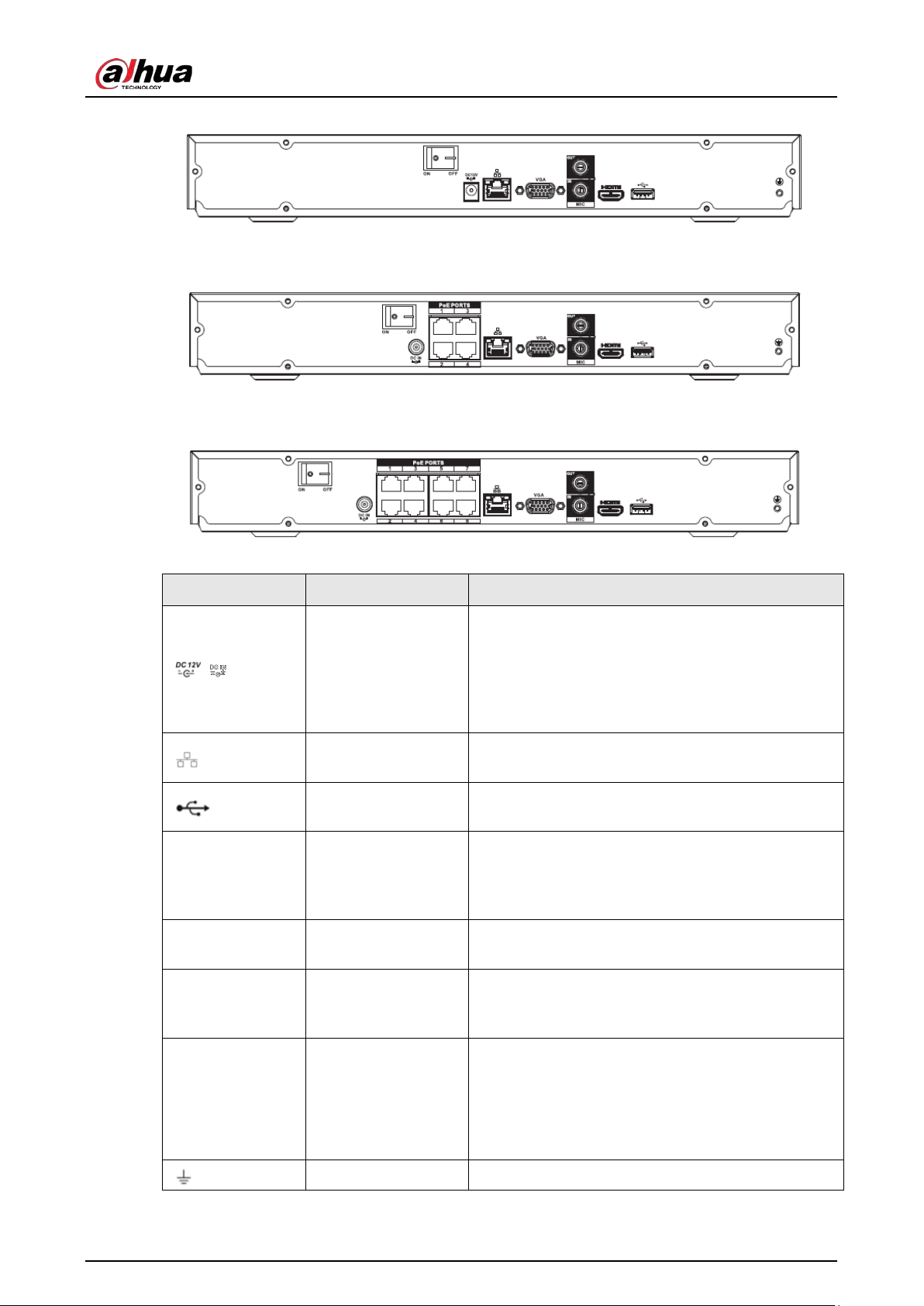
User's Manual
20
Figure 2-31 Rear panel
The NVR22-P-4KS2 series rear panel is shown as below.
Figure 2-32 Rear panel
The NVR22-8P-4KS2 series rear panel is shown as below.
Figure 2-33 Rear panel
Table 2-17 Rear panel description
Port Name Connection Function
/ Power input port
Power socket.
●
For NVR22-4KS2general series, input 12 VDC/4
A.
●
For NVR22-P-4KS2 series, input 48 VDC/1.5 A.
●
For NVR22-8P-4KS2 series, input 53 VDC 120 W.
Network port
10/100 Mbps self-adaptive Ethernet port. Connect
to the network cable.
USB port
USB port. Connect to mouse, USB storage device
and more.
HDMI
High Definition
Media Interface
High definition audio and video signal output port.
It transmits uncompressed high definition video
and multiple-channel data to the HDMI port of the
display device. HDMI version is 1.4.
VGA
VGA video output
port
VGA video output port. Output analog video signal.
It can connect to the monitor to view analog video.
MIC IN Audio input port
Bidirectional talk input port. It is to receive the
analog audio signal output from the devices such as
microphone, pickup.
MIC OUT Audio output port
Audio output port. It is to output the analog audio
signal to the devices such as the sound box.
●
Bidirectional talk output.
●
Audio output on 1-window video monitor.
●
Audio output on 1-window video playback.
GND Ground end.
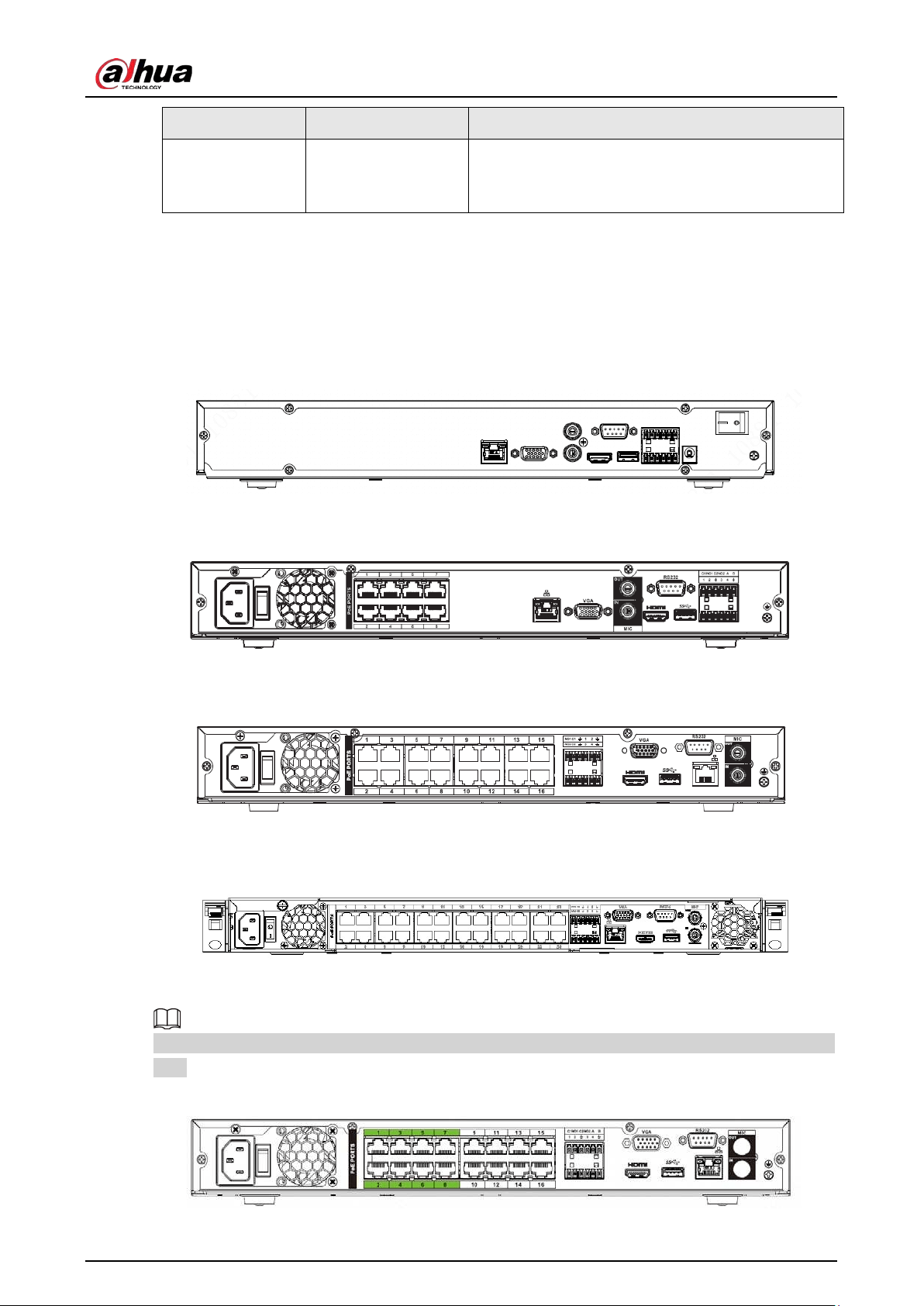
User's Manual
21
Port Name Connection Function
PoE PORTS PoE port
Built-in switch. Support PoE function.
For PoE series product, you can use this port to
provide power to the network camera.
2.2.4 NVR52-4KS2/NVR52-8P-4KS2/NVR52-16P-4KS2/NVR52-24P-
4KS2/NVR52-8P-4KS2E/NVR52-16P-4KS2E Series
The NVR52-4KS2 series rear panel is shown as below.
Figure 2-34 Rear panel
The NVR52-8P-4KS2 series rear panel is shown as below.
Figure 2-35 Rear panel
The NVR52-16P-4KS2 series rear panel is shown as below.
Figure 2-36 Rear panel
The NVR52-24P-4KS2 series rear panel is shown as below.
Figure 2-37 Rear panel
The NVR52-8P-4KS2E/52-16P-4KS2E series rear panel is shown as below.
The following figure takes NVR52-16P-4KS2E series as an example. NVR52-8P-4KS2E has 8 ePoE ports
only.
Figure 2-38 Rear panel
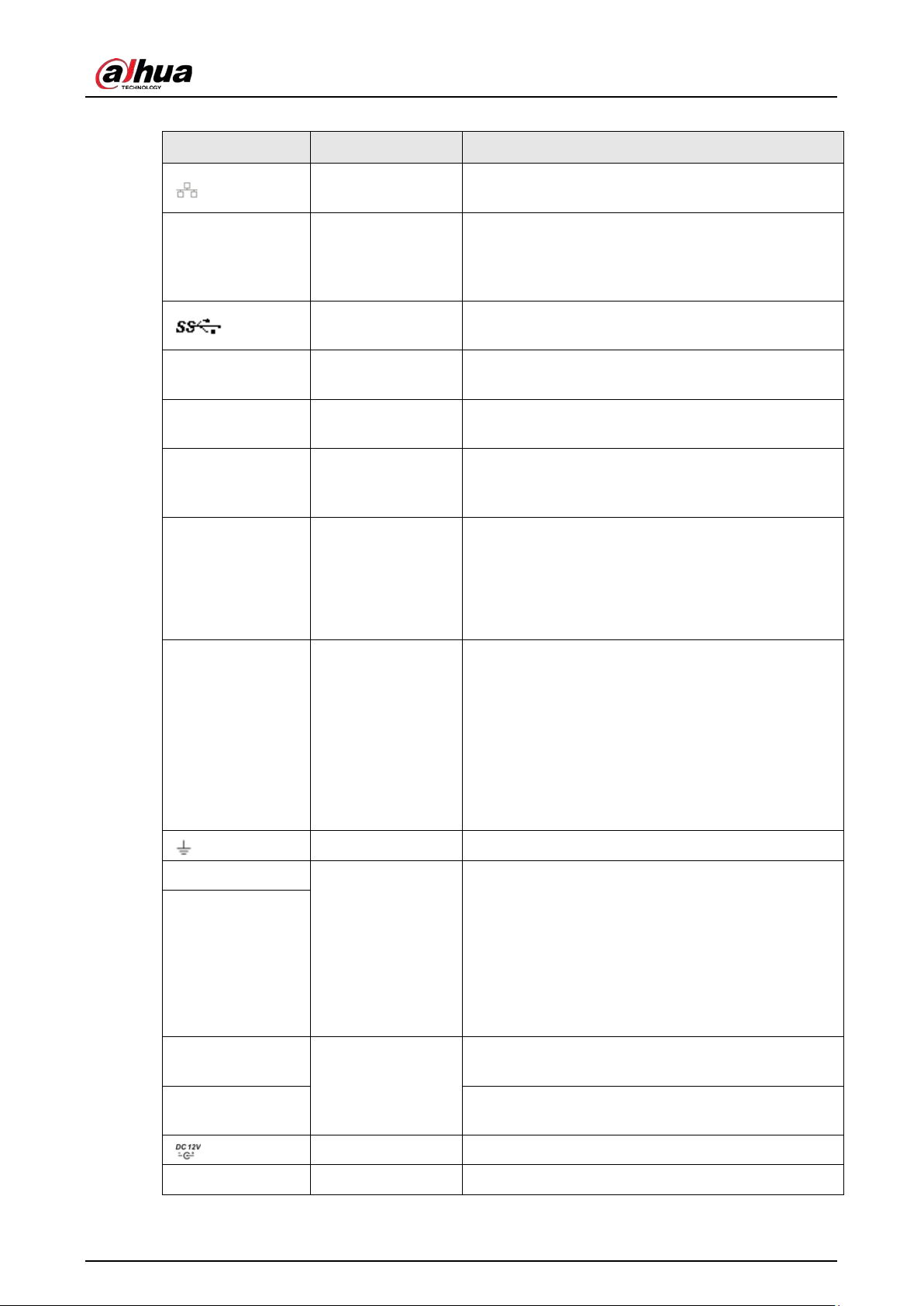
User's Manual
22
Table 2-18 Ports
Icon Port Name Function
Network port
10/100/1000 Mbps self-adaptive Ethernet port.
Connect to the network cable.
HDMI
High Definition
Media Interface
High definition audio and video signal output port. It
transmits uncompressed high definition video and
multiple-channel data to the HDMI port of the
display device. HDMI version is 1.4.
USB 3.0 port
USB 3.0 port. Connect to mouse, USB storage device,
USB burner and more.
RS-232
RS-232 debug
COM
It is for general COM debug to configure IP address
or transfer transparent COM data.
VGA
VGA video output
port
VGA video output port. Output analog video signal.
It can connect to the monitor to view analog video.
MIC IN Audio input port
Bidirectional talk input port. It is to receive the
analog audio signal output from the devices such as
microphone, pickup.
MIC OUT Audio output port
Audio output port. It is to output the analog audio
signal to the devices such as the sound box.
●
Bidirectional talk output.
●
Audio output on 1-window video monitor.
●
Audio output on 1-window video playback.
1–8
Alarm input port
1–8
●
There are two groups. The first group is from
port 1 to port 4; the second group is from port 5
to port 8. They are to receive the signal from the
external alarm source. There are two types; NO
(normal open)/NC (normal close).
●
When your alarm input device is using external
power, please make sure the device and the NVR
have the same ground.
GND Alarm input ground port.
NO1–NO3
Alarm output port
1–3
●
3 groups of alarm output ports. (Group 1: port
NO1–C1; Group 2: port NO2–C2; Group 3: port
NO3–C3). Output alarm signal to the alarm
device. Please make sure there is power to the
external alarm device.
●
NO: Normal open alarm output port.
●
C: Alarm output public end.
C1–C3
A
RS-485
communication
port
RS485_A port. It is the cable A. You can connect to
the control devices such as speed dome PTZ.
B
RS485_B. It is the cable B. You can connect to the
control devices such as speed dome PTZ.
Power input port Input 12 VDC/4 A.
Power switch — Power on/off button.
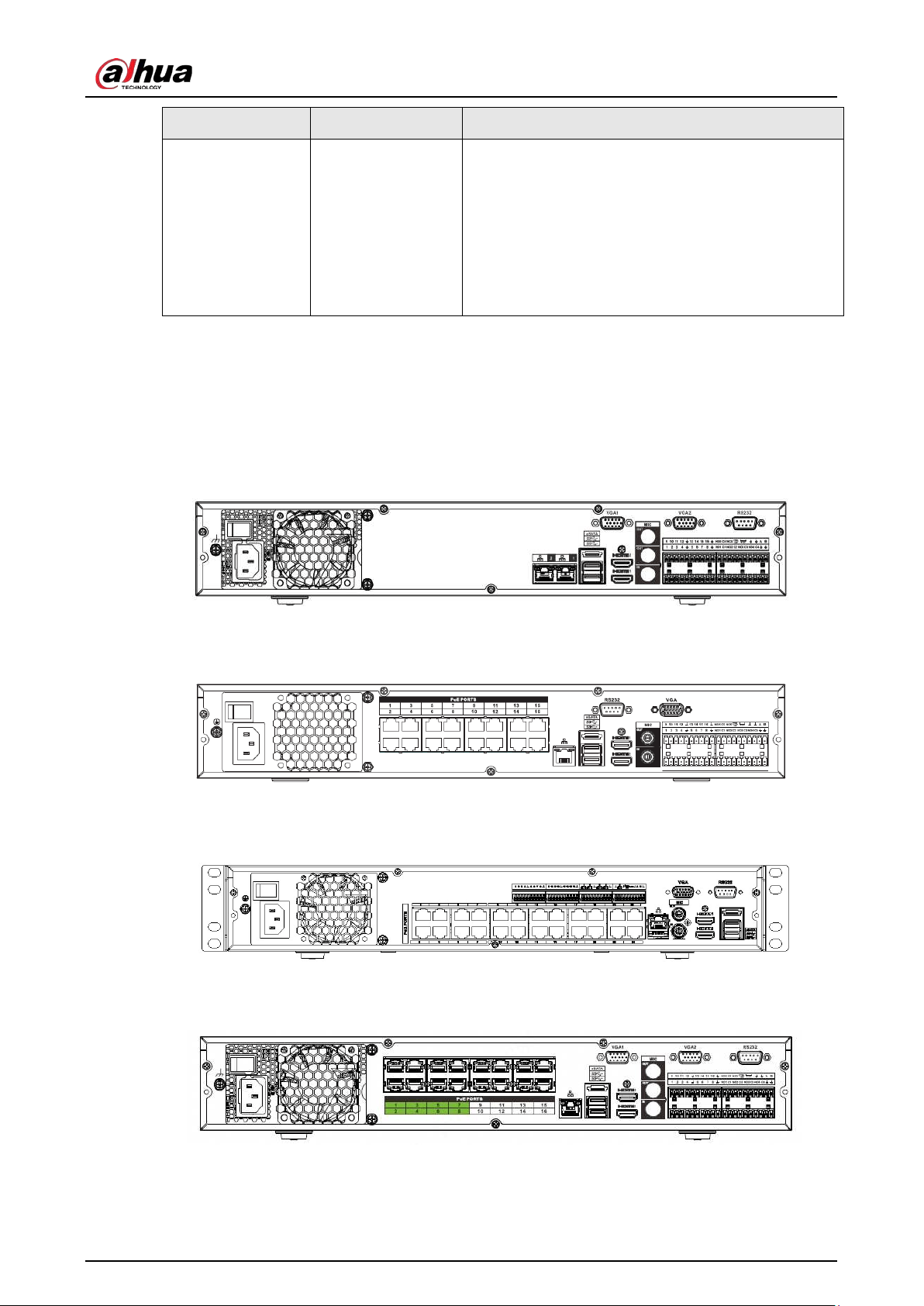
User's Manual
23
Icon Port Name Function
PoE PORTS —
Built-in Switch. Support PoE or ePoE function.
●
For ePoE series product, port 1 to port 8 are the
ePoE ports. ePoE port supports 300
meters@100Mbps, 800 meters@10Mbps. Port 9
to port 16 are general PoE ports.
●
The 8 PoE series product supports total 130 W.
●
The 16 PoE series product supports total 130 W.
2.2.5 NVR54-4KS2/NVR58-4KS2/NVR54-16P-4KS2/NVR58-16P-
4KS2/NVR54-24P-4KS2/NVR58-16P-4KS2E Series
The NVR54-4KS2/NVR58-4KS2 series rear panel is shown as below.
Figure 2-39 Rear panel
The NVR54-16P-4KS2/NVR58-16P-4KS2 series rear panel is shown as below.
Figure 2-40 Rear panel
The NVR54-24P-4KS2 series rear panel is shown as below.
Figure 2-41 Rear panel
The NVR54-16P-4KS2E series rear panel is shown as below.
Figure 2-42 Rear panel
The NVR58-16P-4KS2E series rear panel is shown as below.
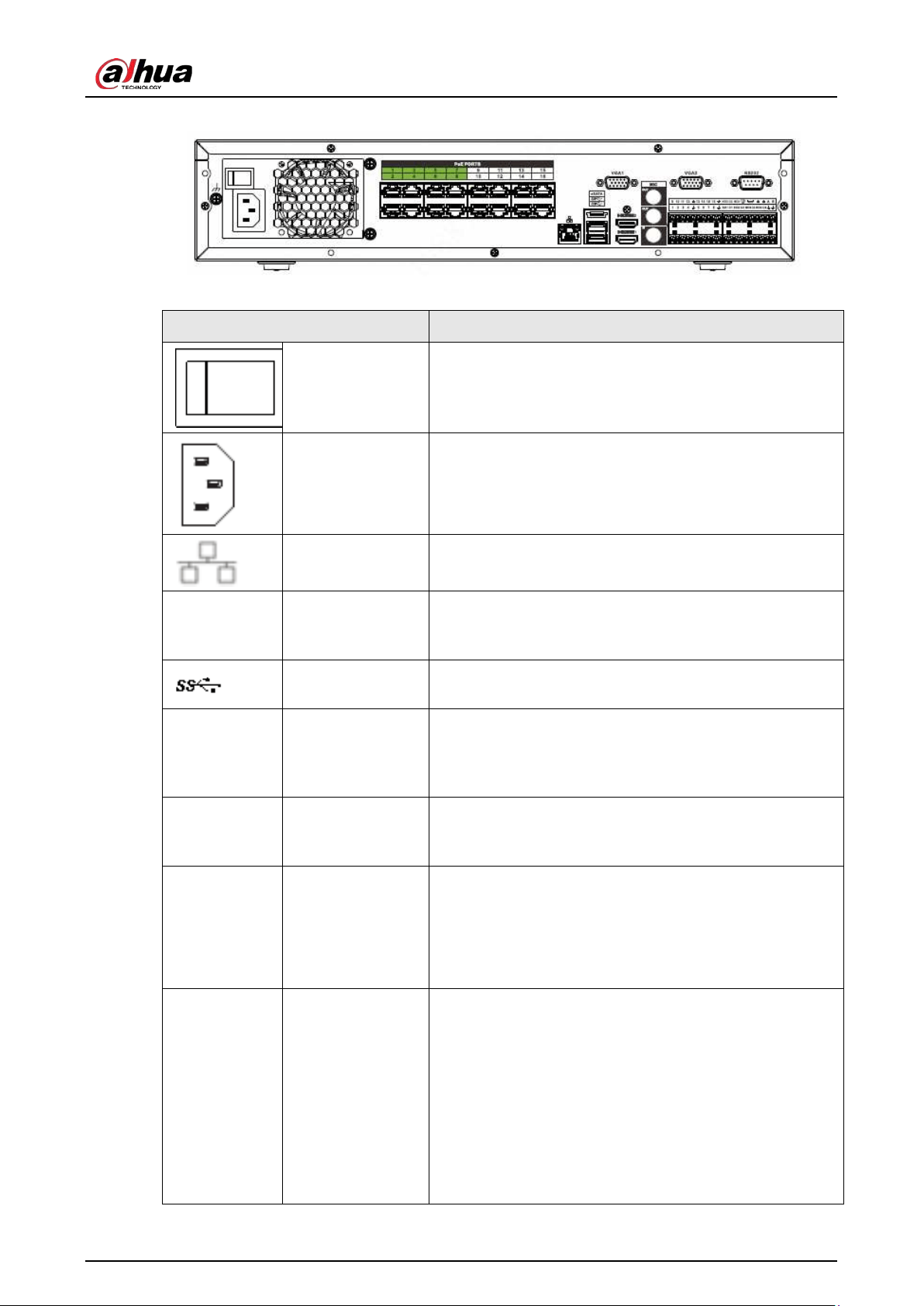
User's Manual
24
Figure 2-43 Rear panel
Table 2-19 Rear panel description
Name Function
Power switch Power on-off button
Power input port Input 100–240 VAC.
Network port
10/100/1000 Mbps self-adaptive Ethernet port. Connect
to the network cable.
eSATA eSATA port
External SATA port. It can connect to the device of the
SATA port. Please jump the HDD when there is peripheral
connected HDD.
USB port
USB port. Connect to mouse, USB storage device, USB
burner and more.
HDMI
High Definition
Media Interface
High definition audio and video signal output port. It
transmits uncompressed high definition video and
multiple-channel data to the HDMI port of the display
device. HDMI version is 1.4b.
MIC IN Audio input port
Bidirectional talk input port. It is to receive the analog
audio signal output from the devices such as microphone,
pickup.
MIC OUT Audio output port
Audio output port. It is to output the analog audio signal
to the devices such as the sound box.
●
Bidirectional talk output.
●
Audio output on 1-window video monitor.
●
Audio output on 1-window video playback.
1–16
Alarm input port
1–16
●
There are four groups. The first group is from port 1 to
port 4, the second group is from port 5 to port 8, the
third group is from 9 to 12, and the fourth group is
from 13 to 16. They are to receive the signal from the
external alarm source. There are two types; NO
(normal open)/NC (normal close).
●
When your alarm input device is using external
power, please make sure the device and the NVR have
the same ground.
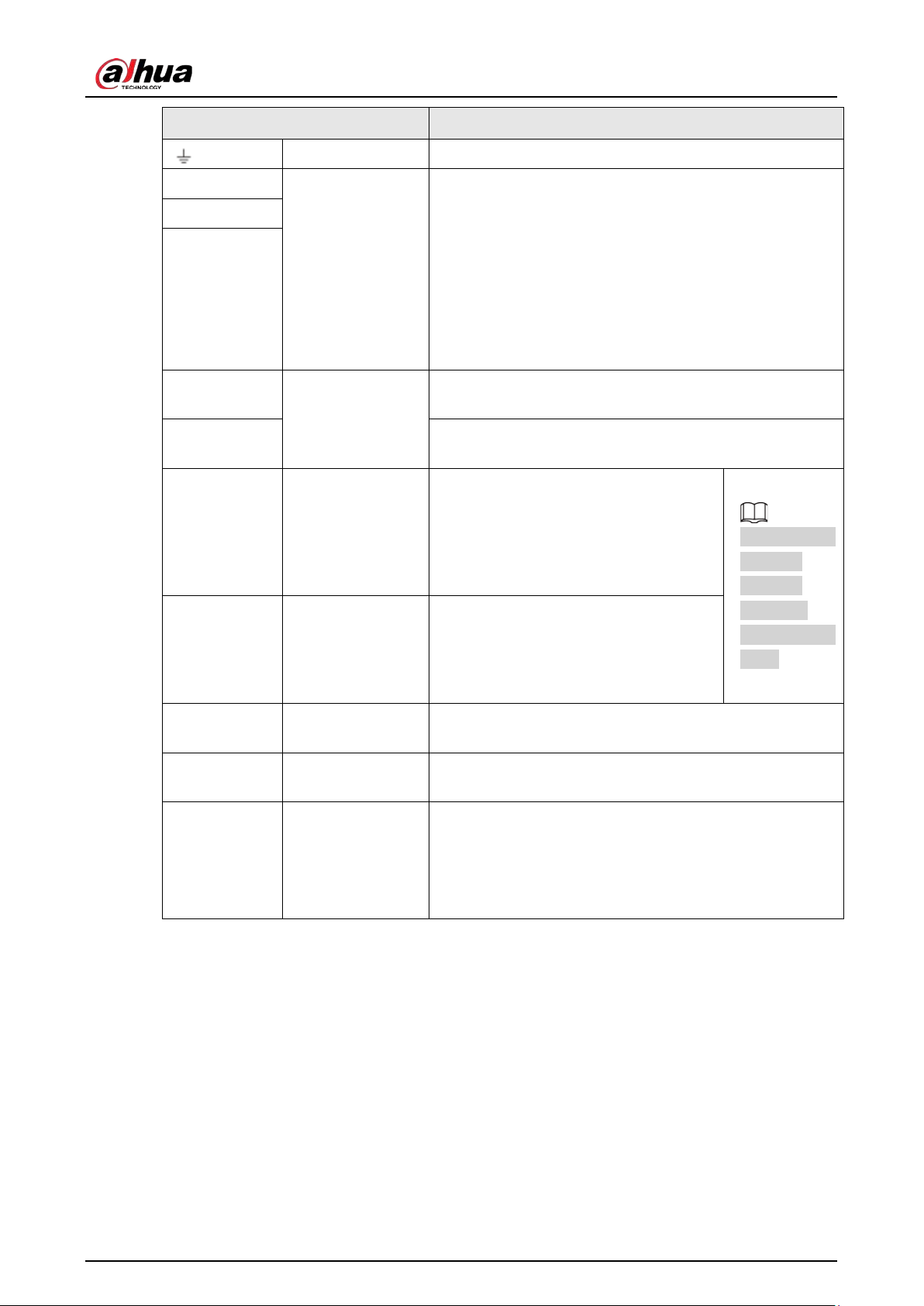
User's Manual
25
Name Function
Ground Alarm input ground end.
NO1–NO5
Alarm output port
1–5
●
5 groups of alarm output ports. (Group 1: port NO1–
C1, Group 2:port NO2–C2, Group 3: port NO3–C3,
Group 4: port NO4–C4, Group 5: port NO5, C5, NC5).
Output alarm signal to the alarm device. Please make
sure there is power to the external alarm device.
●
NO: Normal open alarm output port.
●
C: Alarm output public end.
●
NC: Normal close alarm output port.
C1–C5
NC5
A
RS-485
communication
port
RS485_A port. It is the cable A. You can connect to the
control devices such as speed dome PTZ.
B
RS485_B. It is the cable B. You can connect to the control
devices such as speed dome PTZ.
CTRL (CTRL 12
V)
—
Controller 12 V power output. It is to
control the on-off alarm relay output. It
can be used to control the device alarm
output. At the same time, it can also be
used as the power input source of some
devices such as the alarm detector.
The two ports
serve as
another
group of
alarm output
ports.
P (+12 V) —
+12 V power output port. It can provide
the power to some peripheral devices
such as the camera or the alarm device.
Please note the supplying power shall
be below 1 A.
RS-232
RS-232 debug
COM
It is for general COM debug to configure IP address or
transfer transparent COM data.
VGA
VGA video output
port
VGA video output port. Output analog video signal. It can
connect to the monitor to view analog video.
PoE PORTS —
Built-in Switch. Support PoE or ePoE function.
For ePoE series product, port 1 to port 8 are the ePoE
ports. ePoE port supports 300 meters@100Mbps, 800
meters@10Mbps. Port 9 to port 16 are general PoE ports.
The 16 PoE series supports total 150W.
2.2.6 NVR41-4KS2/NVR41-P-4KS2/NVR41-8P-4KS2/NVR41-
4KS2/L/NVR41-P-4KS2/L/NVR41-8P-4KS2/L/NVR21-S3/NVR21-P-
S3/NVR21-8P-S3
The NVR41-4KS2/NVR41-4KS2/L/NVR21-S3 series rear panel is shown as below.
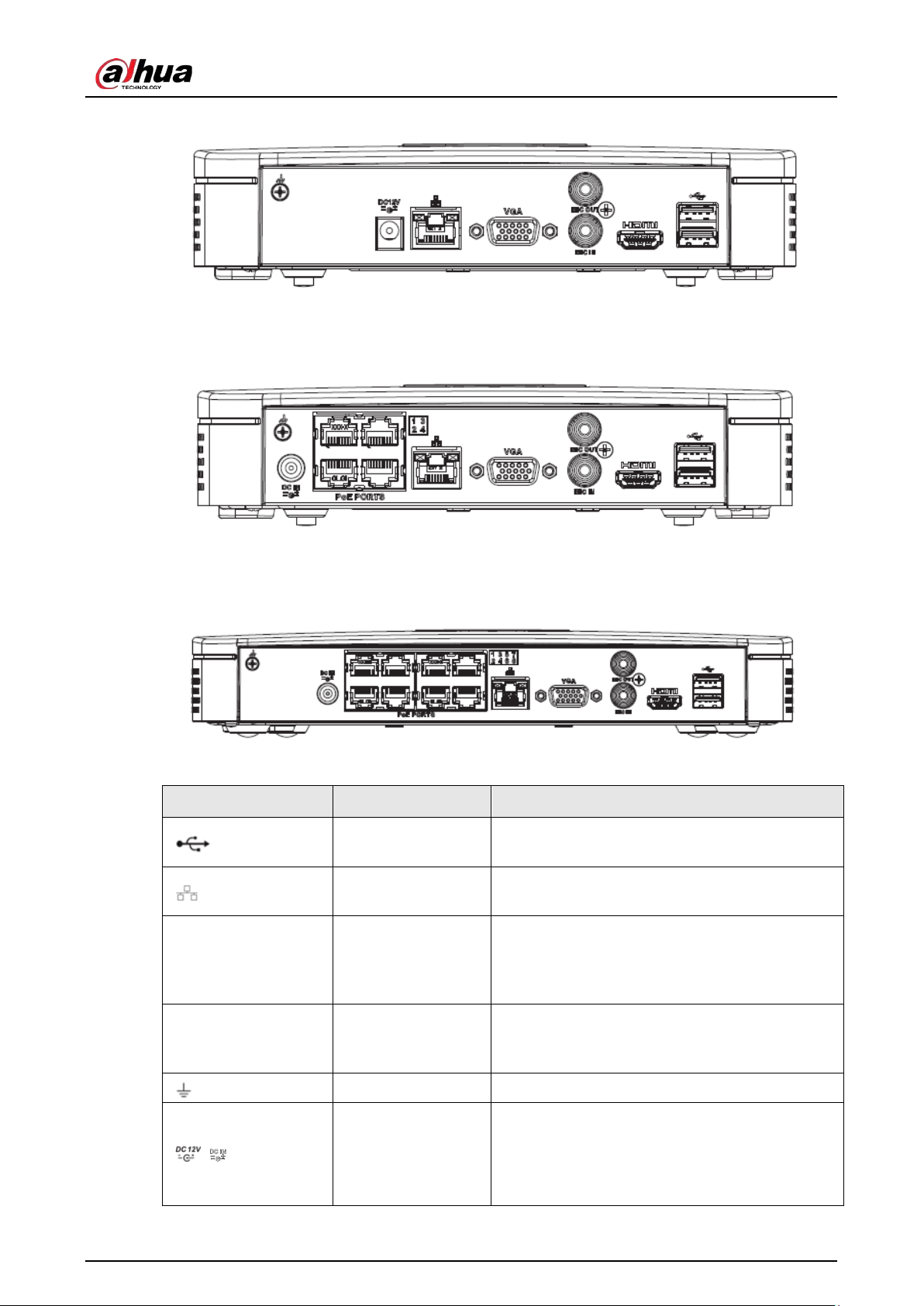
User's Manual
26
Figure 2-44 Rear panel
The NVR41-P-4KS2/NVR41-P-4KS2/L series rear panel is shown as below.
Figure 2-45 Rear panel
The NVR41-8P-4KS2/NVR41-8P-4KS2/L series rear panel is shown as below.
Figure 2-46
Table 2-20 Ports
Port Name Connection Function
USB port
USB port. Connect to mouse, USB storage
device, USB burner and more.
Network port
10/100 Mbps self-adaptive Ethernet port.
Connect to the network cable.
HDMI
High Definition
Media Interface
High definition audio and video signal output
port. It transmits uncompressed high definition
video and multiple-channel data to the HDMI
port of the display device. HDMI version is 1.4.
VGA
VGA video output
port
VGA video output port. Output analog video
signal. It can connect to the monitor to view
analog video.
GND Ground end.
/ Power input port
Power socket.
●
For NVR41-4KS2: 12 VDC/2 A power.
●
For NVR41-P-4KS2: 48 VDC/72 W power.
●
For NVR41-8P-4KS2: 48 VDC/96 W power.
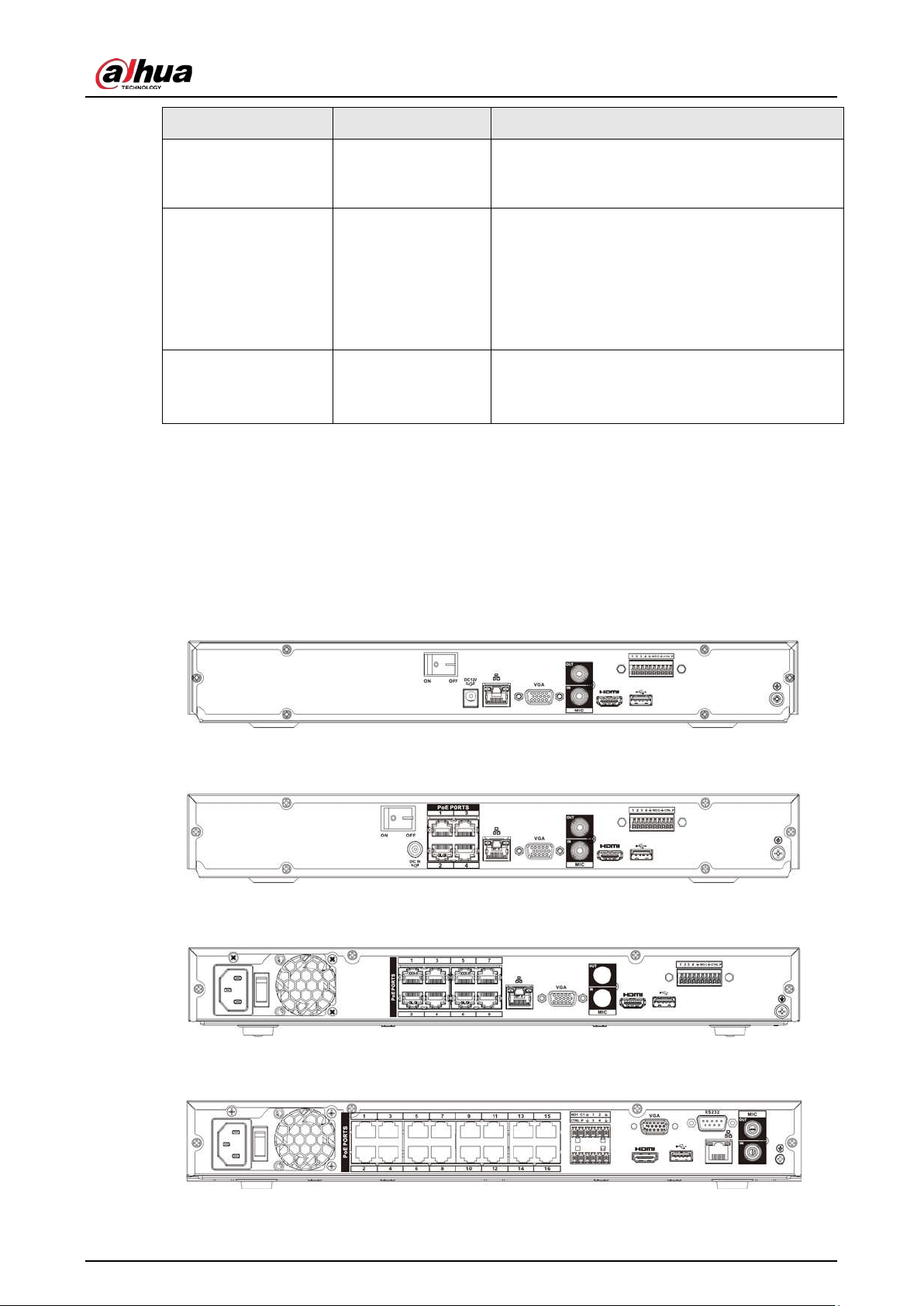
User's Manual
27
Port Name Connection Function
MIC IN Audio input port
Bidirectional talk input port. It is to receive the
analog audio signal output from the devices
such as microphone, pickup.
MIC OUT Audio output port
Audio output port. It is to output the analog
audio signal to the devices such as the sound
box.
●
Bidirectional talk output.
●
Audio output on 1-window video monitor.
●
Audio output on 1-window video playback.
PoE PORTS PoE port
Built-in switch. Support PoE function.
For PoE series product, you can use this port to
provide power to the network camera.
2.2.7 NVR42-4KS2/NVR42-P-4KS2/NVR42-8P-4KS2/NVR42-16P-
4KS2/NVR42-4KS2/L/NVR42-P-4KS2/L/NVR42-8P-4KS2/L/NVR42-
16P-4KS2/L Series
The NVR42-4KS2/NVR42-4KS2/L series rear panel is shown as below.
Figure 2-47 Rear panel
The NVR42-P-4KS2/NVR42-P-4KS2/L series rear panel is shown as below.
Figure 2-48 Rear panel
The NVR42-8P-4KS2/NVR42-8P-4KS2/L series rear panel is shown as below.
Figure 2-49 Rear panel
The NVR42-16P-4KS2/NVR42-16P-4KS2/L series rear panel is shown as below.
Figure 2-50 Rear panel
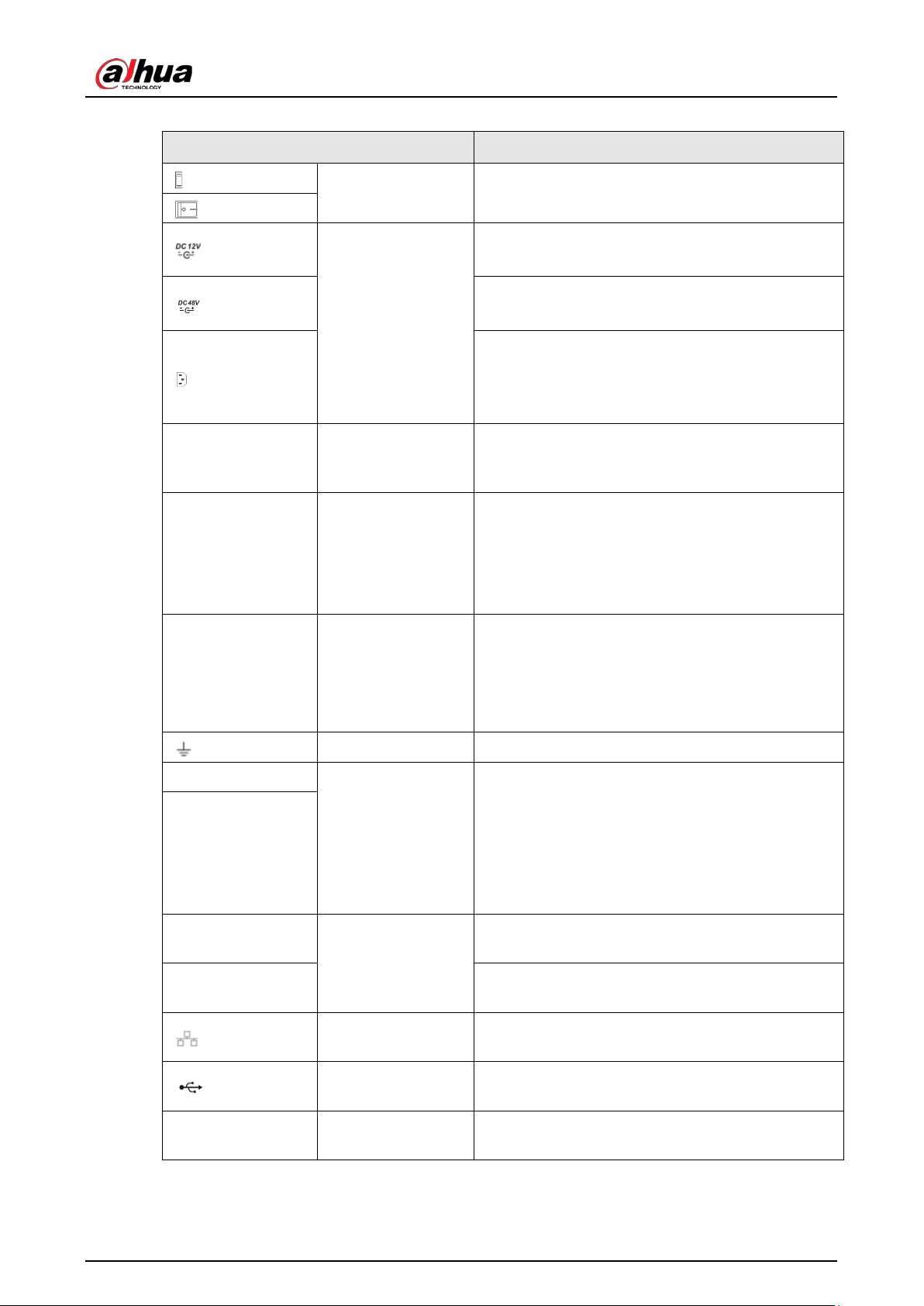
User's Manual
28
Table 2-21 Rear panel description
Name Function
Power switch Power on/off button.
Power input port
Input 12 VDC/4 A.
For NVR42-4KS2 series product only.
Switch power port. Input 48 VDC/96 W.
For NVR42-P-4KS2 series product only.
Input 90~264-12 VAC 5 A/52 V 2.5 A-190 W.
For NVR42-8P-4KS2/NVR42-16P-4KS24K 1U (S2)
with 8 PoE ports/ 4K 1U (S2) with 16 PoE ports
series product only.
MIC IN Audio input port
Bidirectional talk input port. It is to receive the
analog audio signal output from the devices such
as microphone, pickup.
MIC OUT Audio output port
Audio output port. It is to output the analog audio
signal to the devices such as the sound box.
●
Bidirectional talk output.
●
Audio output on 1-window video monitor.
●
Audio output on 1-window video playback.
1–4
Alarm input port 1–
4
●
There are two types; NO (normal open)/NC
(normal close).
●
When your alarm input device is using external
power, please make sure the device and the
NVR have the same ground.
GND Alarm input ground port.
N1, N2
Alarm output port
1–2
●
2 groups of alarm output ports. (Group 1: port
NO1–C1,Group 2: port NO2–C2).Output alarm
signal to the alarm device. Please make sure
there is power to the external alarm device.
●
NO: Normal open alarm output port.
●
C:Alarm output public end.
C1, C2
A
RS-485
communication
port
RS485_A port. It is the cable A. You can connect to
the control devices such as speed dome PTZ.
B
RS485_B. It is the cable B. You can connect to the
control devices such as speed dome PTZ.
Network port
10/100/1000 Mbps self-adaptive Ethernet port.
Connect to the network cable.
USB port
USB port. Connect to mouse, USB storage device,
USB burner and more.
RS-232 RS-232 debug COM
It is for general COM debug to configure IP address
or transfer transparent COM data.
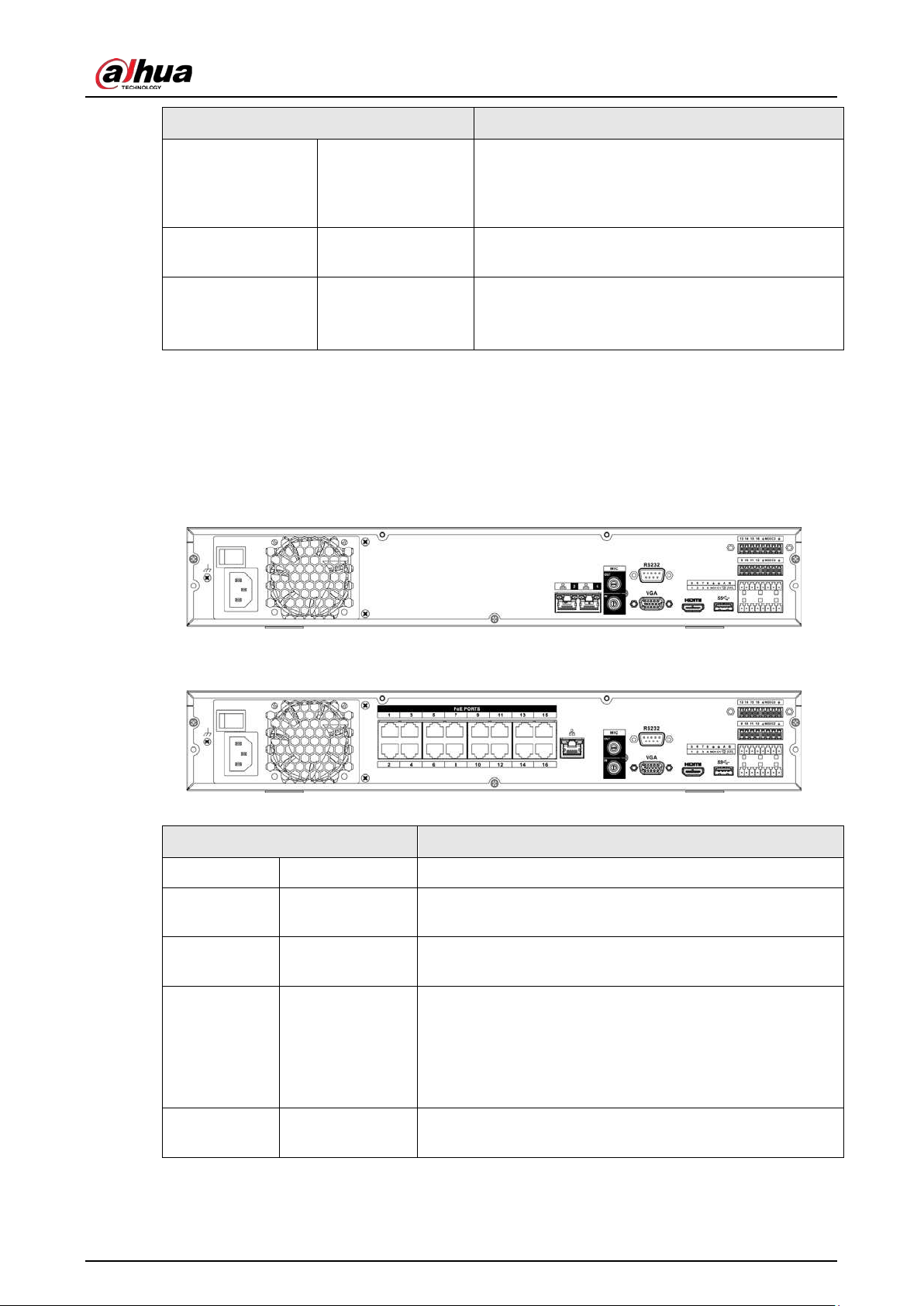
User's Manual
29
Name Function
HDMI
High Definition
Media Interface
High definition audio and video signal output port.
It transmits uncompressed high definition video
and multiple-channel data to the HDMI port of the
display device. HDMI version is 1.4.
VGA
VGA video output
port
VGA video output port. Output analog video signal.
It can connect to the monitor to view analog video.
PoE PORTS /
Built-in Switch. Support PoE.
For PoE series product, you can use this port to
provide power to the network camera.
2.2.8 NVR44-4KS2/NVR44-16P-4KS2/NVR44-4KS2/L/NVR44-16P-
4KS2/L/NVR44-4KS2/I/NVR44-16P-4KS2/I Series
The NVR44-4KS2/NVR44-4KS2/L/NVR44-4KS2/I series rear panel is shown as below.
Figure 2-51 Rear panel
The NVR44-16P-4KS2/NVR44-16P-4KS2/L/NVR44-16P-4KS2/I series rear panel is shown as below.
Figure 2-52 Rear panel
Table 2-22 Ports
Name Function
Power switch — Power on-off button
Power input
port
— 90~264-12 VAC 12.5 A/-53 V 2.83 A
MIC IN Audio input port
Bidirectional talk input port. It is to receive the analog audio
signal output from the devices such as microphone, pickup.
MIC OUT
Audio output
port
Audio output port. It is to output the analog audio signal to
the devices such as the sound box.
●
Bidirectional talk output.
●
Audio output on 1-window video monitor.
●
Audio output on 1-window video playback.
VIDEO OUT
Video output
port
CVBS output
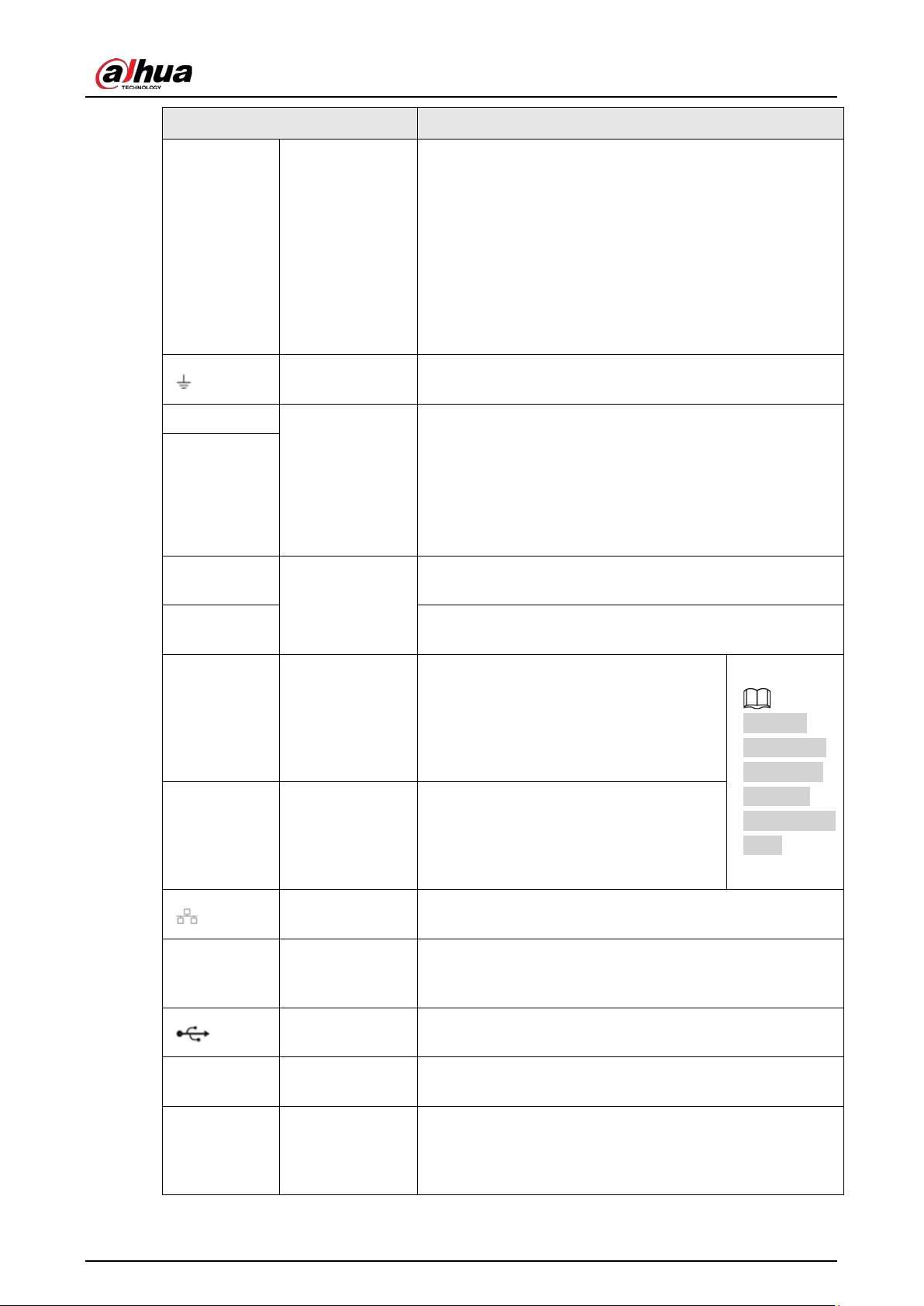
User's Manual
30
Name Function
1–16
Alarm input port
1–16
●
There are four groups. The first group is from port 1 to
port 4, the second group is from port 5 to port 8, the
third group is from 9 to 12, and the fourth group is from
13 to 16. They are to receive the signal from the
external alarm source. There are two types; NO (normal
open)/NC (normal close).
●
When your alarm input device is using external power,
please make sure the device and the NVR have the
same ground.
Video output
port
CVBS output
NO1–NO3
Alarm output
port 1–3
●
3 groups of alarm output ports. (Group 1: port NO1–C1;
Group 2: port NO2–C2; Group 3: port NO3–C3). Output
alarm signal to the alarm device. Please make sure
there is power to the external alarm device.
●
NO: Normal open alarm output port.
●
C: Alarm output public end.
C1–C3
A
RS-485
communication
port
RS485_A port. It is the cable A. You can connect to the
control devices such as speed dome PTZ.
B
RS485_B. It is the cable B. You can connect to the control
devices such as speed dome PTZ.
CTRL (CTRL
12 V)
—
Controller 12 V power output. It is to
control the on-off alarm relay output. It
can be used to control the device alarm
output. At the same time, it can also be
used as the power input source of some
devices such as the alarm detector.
The two
ports serve
as another
group of
alarm output
ports.
P (+12 V) —
+12 V power output port. It can provide
the power to some peripheral devices
such as the camera or the alarm device.
Please note the supplying power shall be
below 1 A.
Network port
10/100/1000 Mbps self-adaptive Ethernet port. Connect to
the network cable.
eSATA eSATA port
External SATA port. It can connect to the device of the SATA
port. Please jump the HDD when there is peripheral
connected HDD.
USB 2.0 port
USB 2.0 port. Connect to mouse, USB storage device, USB
burner and more.
RS-232
RS-232 debug
COM
It is for general COM debug to configure IP address or
transfer transparent COM data.
HDMI
High Definition
Media Interface
High definition audio and video signal output port. It
transmits uncompressed high definition video and
multiple-channel data to the HDMI port of the display
device. HDMI version is 1.3.
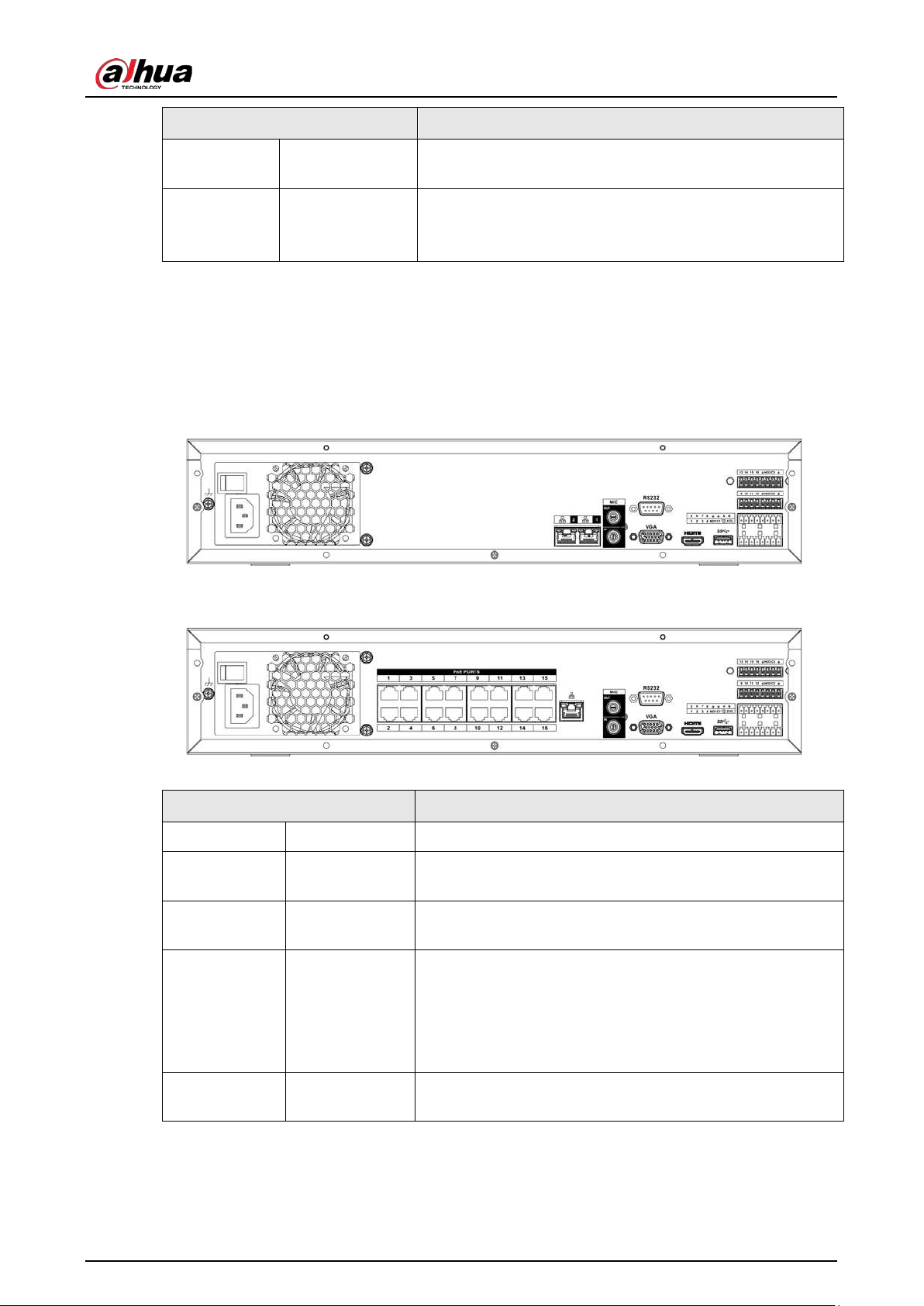
User's Manual
31
Name Function
VGA
VGA video
output port
VGA video output port. Output analog video signal. It can
connect to the monitor to view analog video.
PoE PORTS PoE port
Built-in Switch. Support PoE.
For PoE series product, you can use this port to provide
power to the network camera.
2.2.9 NVR48-4KS2/NVR48-16P-4KS2/NVR48-4KS2/L/NVR48-16P-
4KS2/L/NVR48-4KS2/I/NVR48-16P-4KS2/I Series
The NVR48-4KS2/NVR48-4KS2/L/NVR48-4KS2/I series rear panel is shown as below.
Figure 2-53 Rear panel
The NVR48-16P-4KS2/NVR48-16P-4KS2/L/NVR48-16P-4KS2/I series rear panel is shown as below.
Figure 2-54 Rear panel
Table 2-23 Ports
Name Function
Power switch — Power on-off button.
Power input
port
— 90~264-12 VAC 12.5 A/-53 V 2.83 A.
MIC IN
Audio input
port
Bidirectional talk input port. It is to receive the analog audio
signal output from the devices such as microphone, pickup.
MIC OUT
Audio output
port
Audio output port. It is to output the analog audio signal to
the devices such as the sound box.
●
Bidirectional talk output.
●
Audio output on 1-window video monitor.
●
Audio output on 1-window video playback.
VIEDEO OUT
Video output
port
CVBS output.
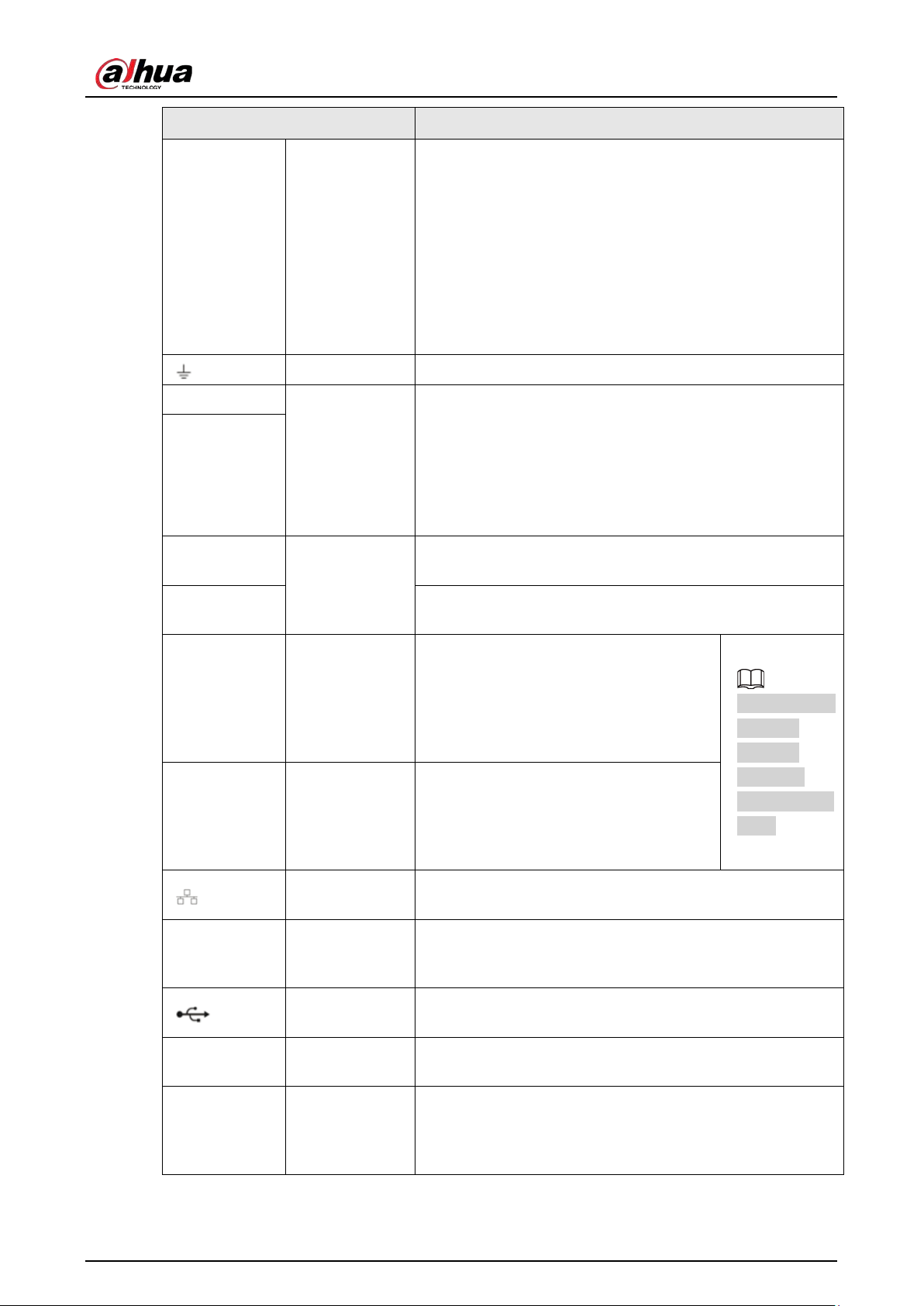
User's Manual
32
Name Function
1–16
Alarm input
port 1–16
●
There are four groups. The first group is from port 1 to
port 4, the second group is from port 5 to port 8, the
third group is from 9 to 12, and the fourth group is from
13 to 16. They are to receive the signal from the external
alarm source. There are two types; NO (normal
open)/NC (normal close).
●
When your alarm input device is using external power,
please make sure the device and the NVR have the
same ground.
GND Alarm input ground port.
NO1–NO3
Alarm output
port 1–3
●
3 groups of alarm output ports. (Group 1: port NO1–C1;
Group 2: port NO2–C2; Group 3: port NO3–C3). Output
alarm signal to the alarm device. Please make sure there
is power to the external alarm device.
●
NO: Normal open alarm output port.
●
C: Alarm output public end.
C1–C3
A
RS-485
communication
port
RS485_A port. It is the cable A. You can connect to the
control devices such as speed dome PTZ.
B
RS485_B. It is the cable B. You can connect to the control
devices such as speed dome PTZ.
CTRL (CTRL 12
V)
—
Controller 12 V power output. It is to
control the on-off alarm relay output. It
can be used to control the device alarm
output. At the same time, it can also be
used as the power input source of some
devices such as the alarm detector.
The two ports
serve as
another
group of
alarm output
ports.
P (+12 V) —
+12 V power output port. It can provide
the power to some peripheral devices
such as the camera or the alarm device.
Please note the supplying power shall be
below 1 A.
Network port
One 10/100/1000 Mbps self-adaptive Ethernet port.
Connect to the network cable.
eSATA eSATA port
External SATA port. It can connect to the device of the SATA
port. Please jump the HDD when there is peripheral
connected HDD.
USB port
USB port. Connect to mouse, USB storage device, USB
burner and more.
RS-232
RS-232 debug
COM
It is for general COM debug to configure IP address or
transfer transparent COM data.
HDMI
High Definition
Media Interface
High definition audio and video signal output port. It
transmits uncompressed high definition video and
multiple-channel data to the HDMI port of the display
device. HDMI version is 1.4.
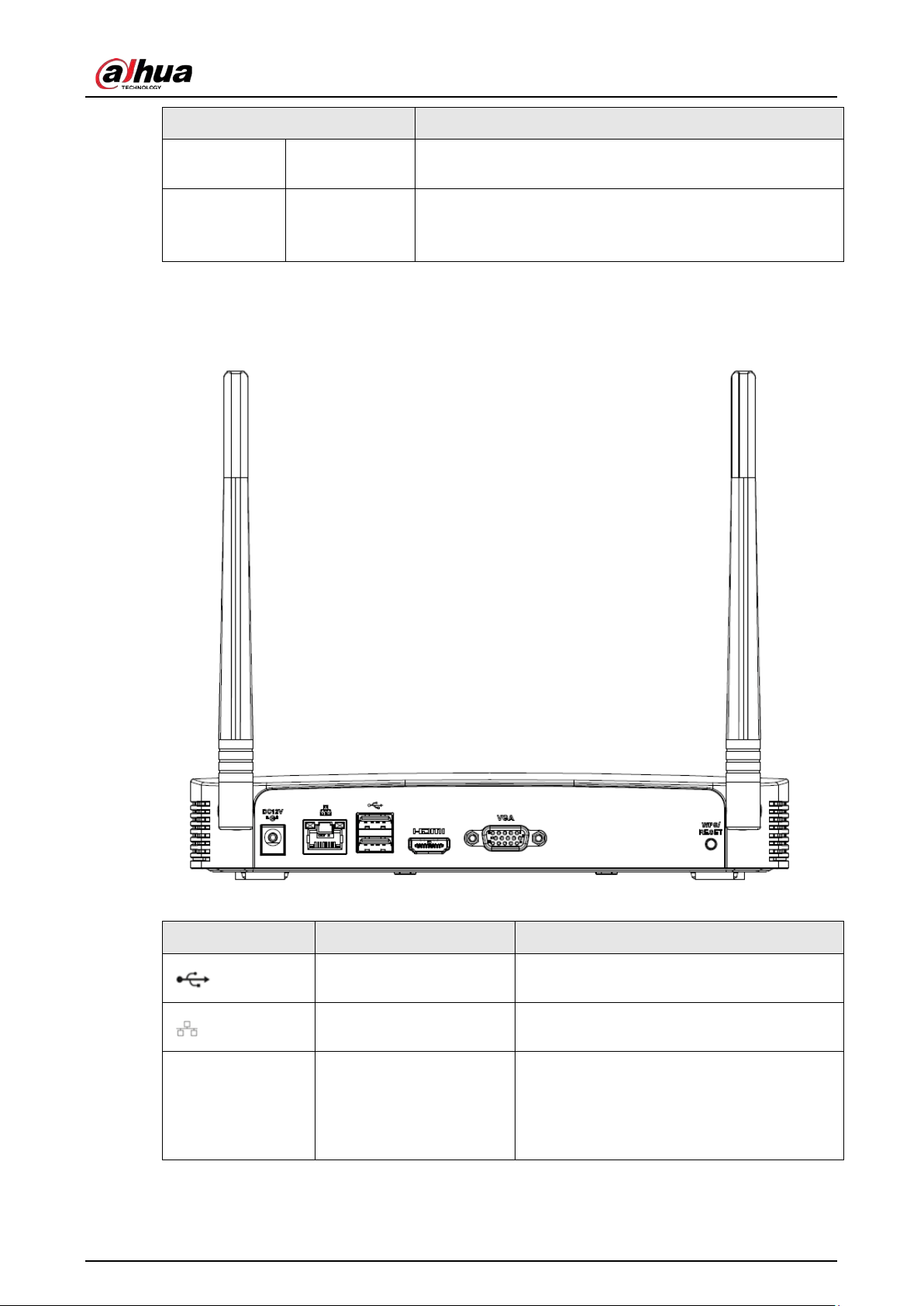
User's Manual
33
Name Function
VGA
VGA video
output port
VGA video output port. Output analog video signal. It can
connect to the monitor to view analog video.
PoE PORTS PoE port
Built-in Switch. Support PoE.
For PoE series product, you can use this port to provide
power to the network camera.
2.2.10 NVR21-W-4KS2 Series
Figure 2-55 Rear panel
Table 2-24 Ports
Port Name Connection Function
USB 2.0 port
USB 2.0 port. Connect to mouse, USB storage
device, USB burner and more.
Network port
10/100 Mbps self-adaptive Ethernet port.
Connect to the network cable.
HDMI
High Definition Media
Interface
High definition audio and video signal
output port. It transmits uncompressed high
definition video and multiple-channel data
to the HDMI port of the display device. HDMI
version is 1.4.
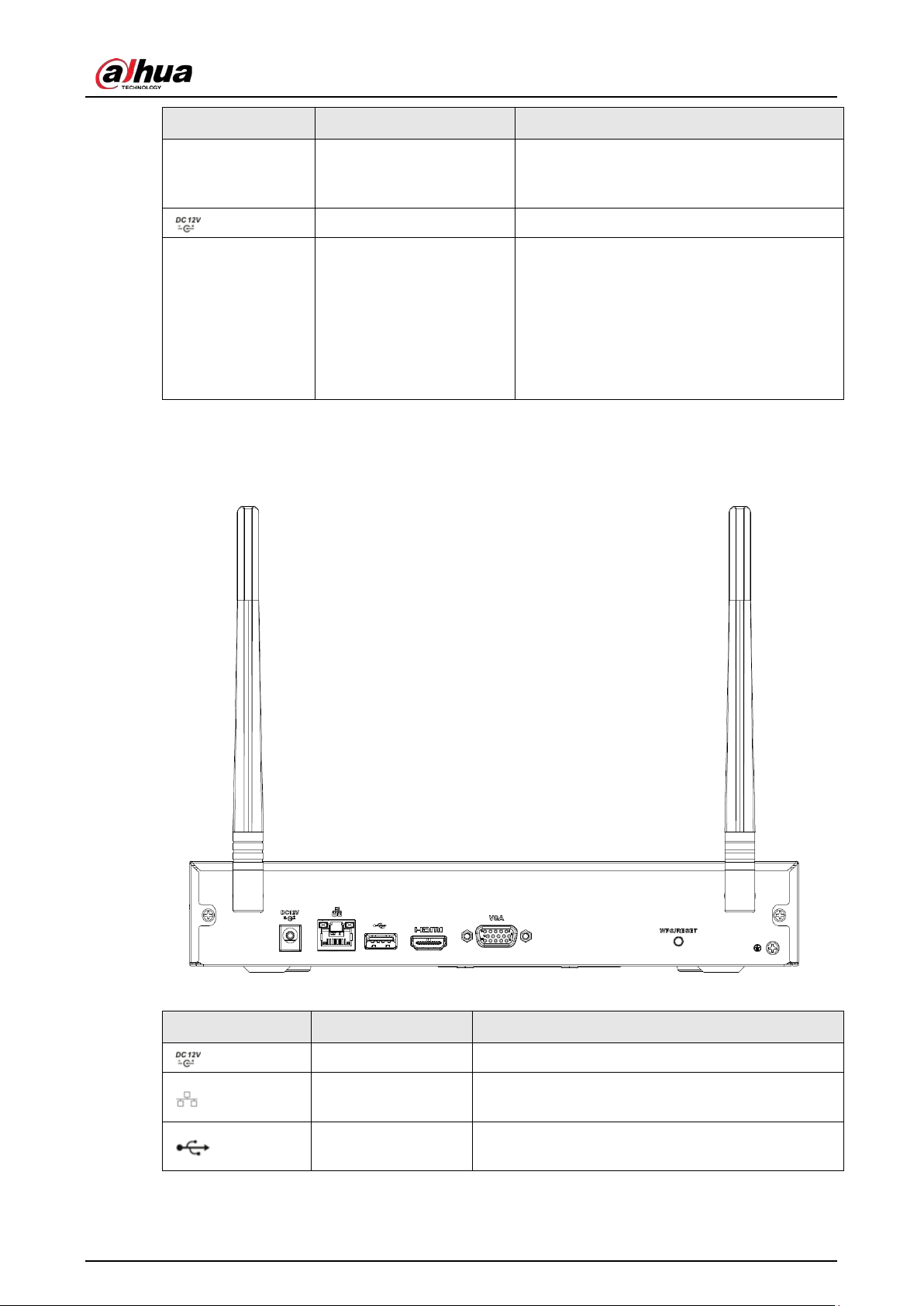
User's Manual
34
Port Name Connection Function
VGA VGA video output port
VGA video output port. Output analog video
signal. It can connect to the monitor to view
analog video.
Power input port Input 12 VDC/2 A.
WPS/RESET Reset/WPS function
Device Wi-Fi reset and WPS function button:
●
Hold down this button for 5 seconds and
above to restore Wi-Fi AP to defaults.
●
Press this button for less than 2 seconds,
and then press the WPS button of Wi-Fi
IPC, the device and Wi-Fi IPC can be
connected.
2.2.11 NVR21HS-W-4KS2Series
Figure 2-56 Rear panel
Table 2-25 Ports
Icon Name Function
Power input socket Power socket. Input 12 VDC/2 A.
Network port
10/100 Mbps self-adaptive Ethernet port. Connect
to the network cable.
USB 2.0 port
USB 2.0 port. Connect to mouse, USB storage
device, and more.
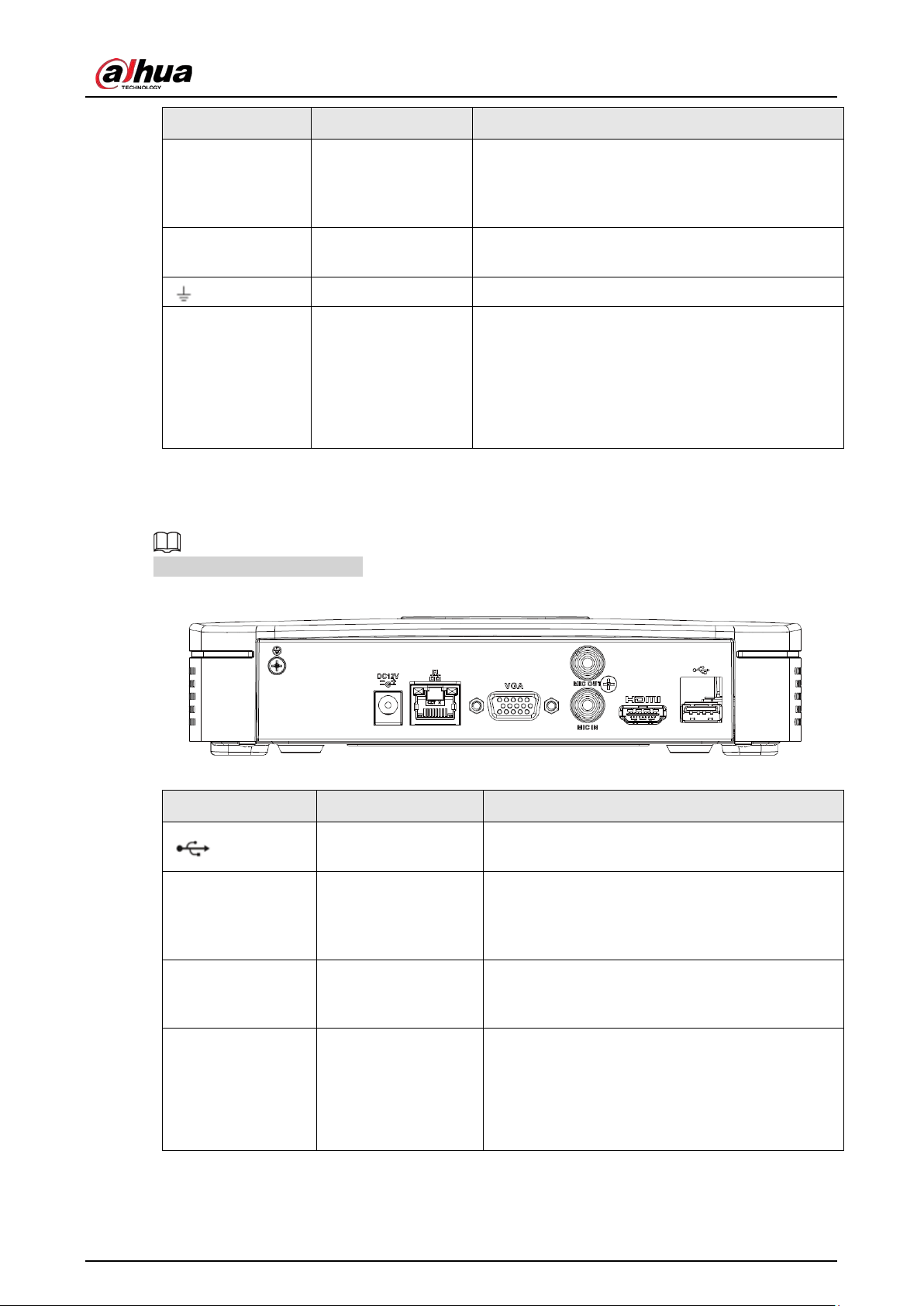
User's Manual
35
Icon Name Function
HDMI
High Definition
Media Interface
High definition audio and video signal output port.
It transmits uncompressed high definition video
and multiple-channel data to the HDMI port of the
display device. HDMI version is 1.4.
VGA
VGA video output
port
VGA video output port. Output analog video signal.
It can connect to the monitor to view analog video.
GND Ground end.
WPS/RESET Reset/WPS function
Device Wi-Fi reset and WPS function button:
●
Hold down this button for 5 seconds and above
to restore Wi-Fi AP to defaults.
●
Press this button for less than 2 seconds, and
then press the WPS button of Wi-Fi IPC, the
device and Wi-Fi IPC can be connected.
2.2.12 NVR21-I/NVR21-I2 Series
The figure is for reference only.
Figure 2-57 Rear panel
Table 2-26 Ports
Port Name Connection Function
USB port
USB port. Connect to mouse, USB storage device
and more.
HDMI
High Definition
Media Interface
High definition audio and video signal output
port. It transmits uncompressed high definition
video and multiple-channel data to the HDMI port
of the display device. HDMI version is 1.4.
MIC IN Audio input port
Bidirectional talk input port. It is to receive the
analog audio signal output from the devices such
as microphone, pickup.
MIC OUT Audio output port
Audio output port. It is to output the analog
audio signal to the devices such as the sound box.
●
Bidirectional talk output.
●
Audio output on 1-window video monitor.
●
Audio output on 1-window video playback.
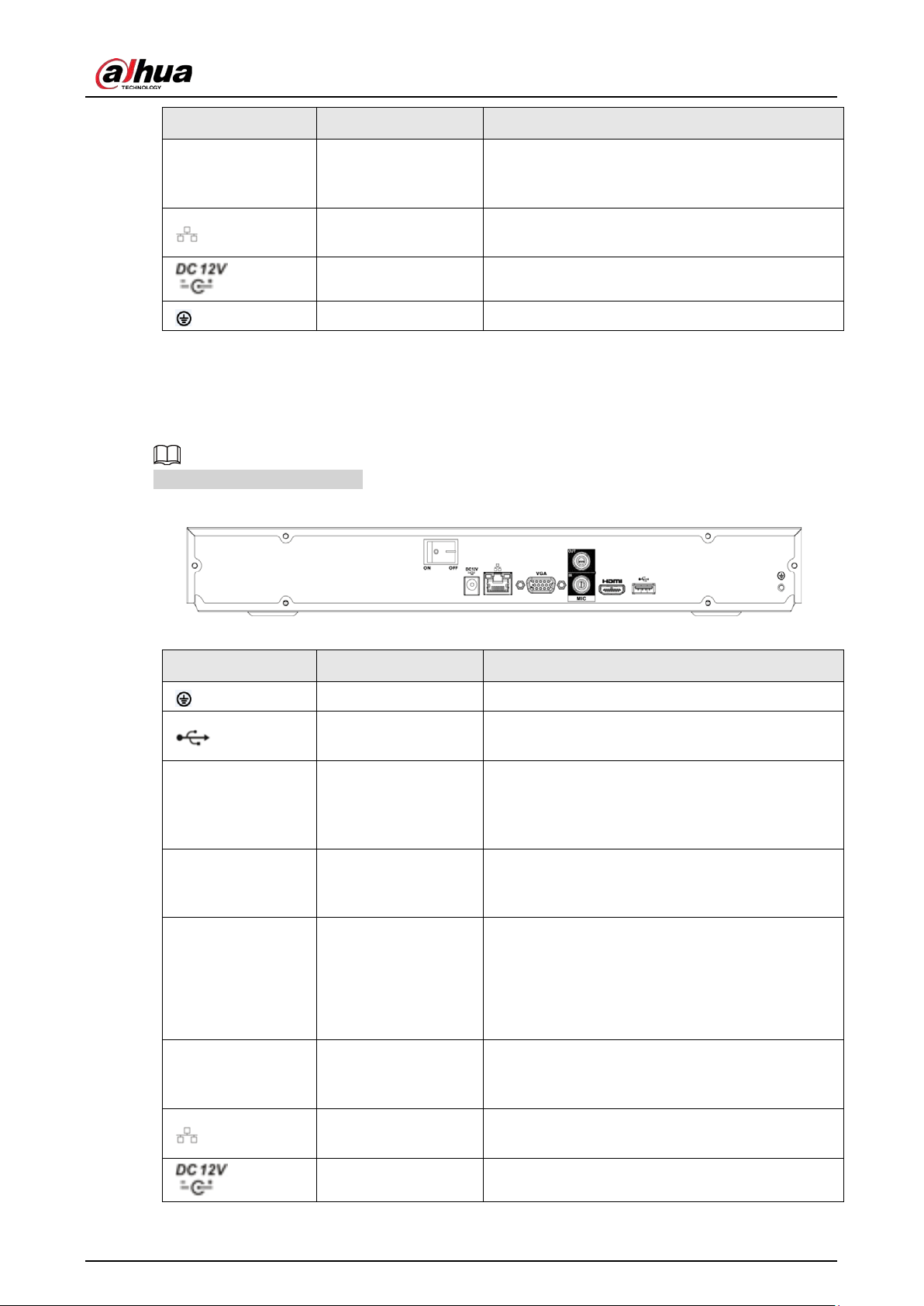
User's Manual
36
Port Name Connection Function
VGA
VGA video output
port
VGA video output port. Output analog video
signal. It can connect to the monitor to view
analog video.
Network port
10/100 Mbps self-adaptive Ethernet port. Connect
to the network cable.
Power input port Power socket.
GND Ground end.
2.2.13 NVR22-I/NVR22-I2 Series
The rear panel is shown as below.
The figure is for reference only.
Figure 2-58 Rear panel
Table 2-27 Ports
Port Name Connection Function
GND Ground end.
USB port
USB port. Connect to mouse, USB storage device
and more.
HDMI
High Definition
Media Interface
High definition audio and video signal output
port. It transmits uncompressed high definition
video and multiple-channel data to the HDMI port
of the display device. HDMI version is 1.4.
MIC IN Audio input port
Bidirectional talk input port. It is to receive the
analog audio signal output from the devices such
as microphone, pickup.
MIC OUT Audio output port
Audio output port. It is to output the analog
audio signal to the devices such as the sound box.
●
Bidirectional talk output.
●
Audio output on 1-window video monitor.
●
Audio output on 1-window video playback.
VGA
VGA video output
port
VGA video output port. Output analog video
signal. It can connect to the monitor to view
analog video.
Network port
10/100 Mbps self-adaptive Ethernet port. Connect
to the network cable.
Power input port Power socket.
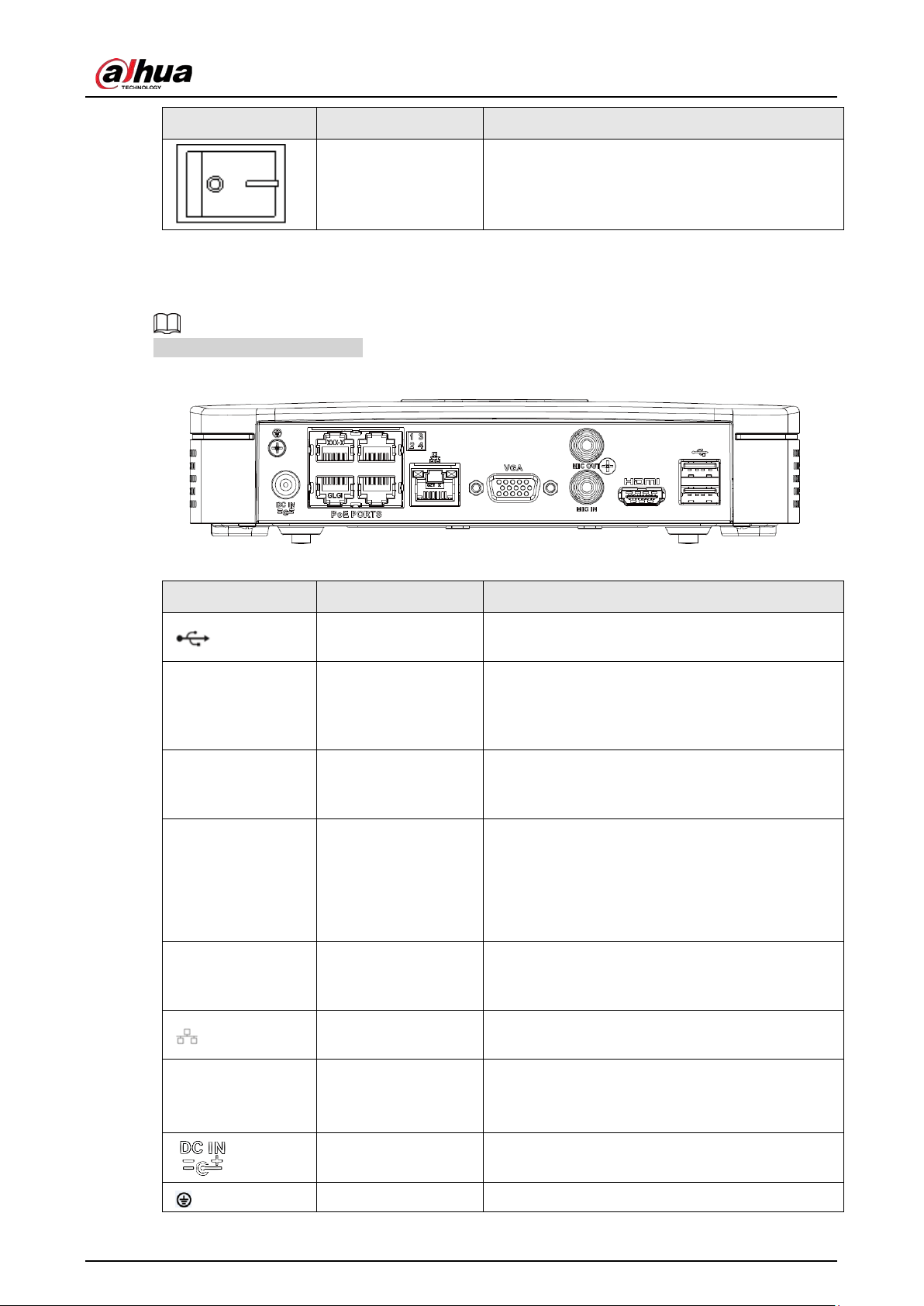
User's Manual
37
Port Name Connection Function
Power switch Power on/off button.
2.2.14 NVR21-P-I/NVR21-P-I2 Series
The figure is for reference only.
Figure 2-59 Rear panel
Table 2-28 Ports
Port Name Connection Function
USB port
USB port. Connect to mouse, USB storage device
and more.
HDMI
High Definition
Media Interface
High definition audio and video signal output
port. It transmits uncompressed high definition
video and multiple-channel data to the HDMI port
of the display device. HDMI version is 1.4.
MIC IN Audio input port
Bidirectional talk input port. It is to receive the
analog audio signal output from the devices such
as microphone, pickup.
MIC OUT Audio output port
Audio output port. It is to output the analog
audio signal to the devices such as the sound box.
●
Bidirectional talk output.
●
Audio output on 1-window video monitor.
●
Audio output on 1-window video playback.
VGA
VGA video output
port
VGA video output port. Output analog video
signal. It can connect to the monitor to view
analog video.
Network port
10/100 Mbps self-adaptive Ethernet port. Connect
to the network cable.
PoE PORTS PoE port
Built-in switch. Support PoE function.
For PoE series product, you can use this port to
provide power to the network camera.
Power input port Power socket.
GND Ground end.
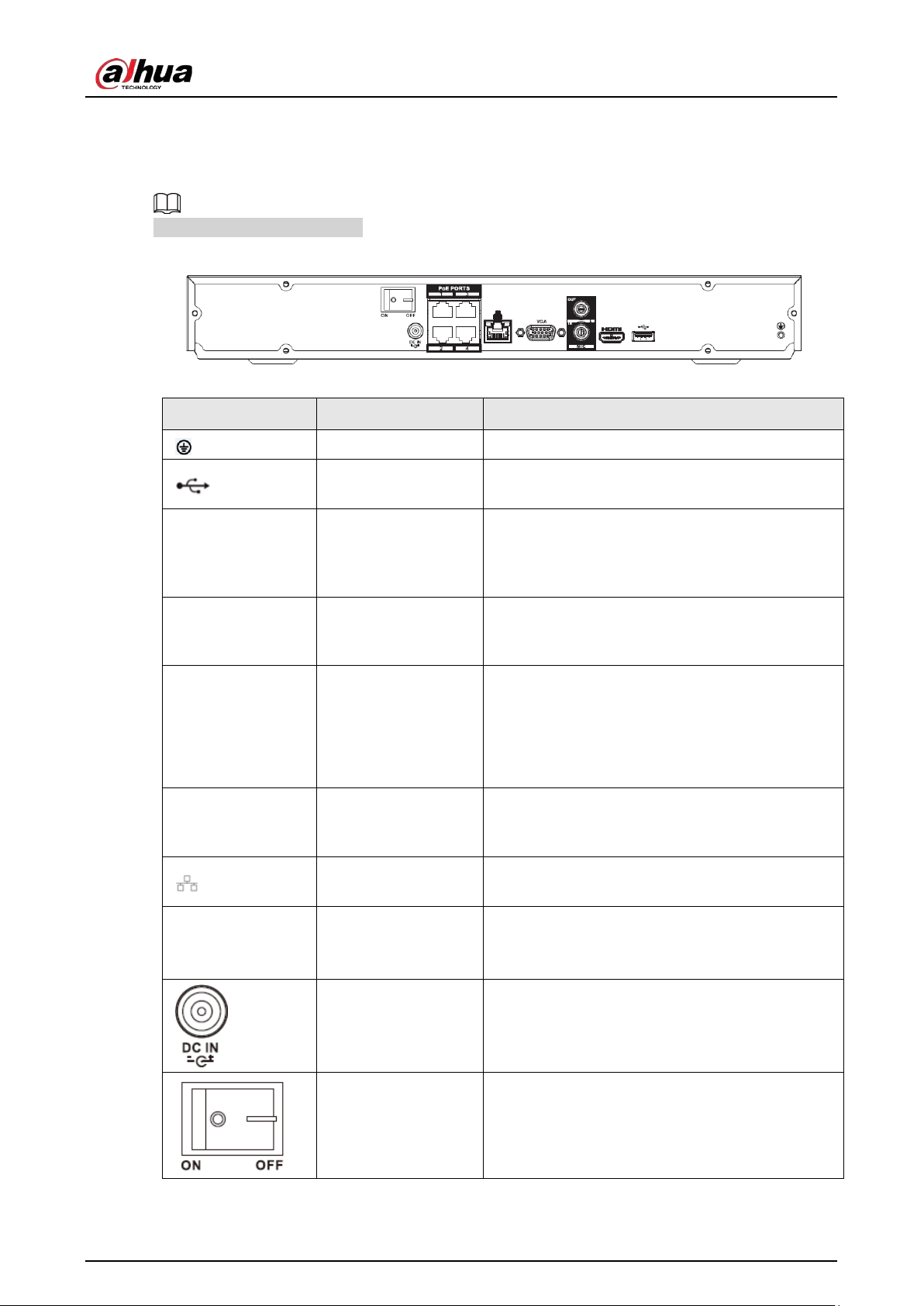
User's Manual
38
2.2.15 NVR22-P-I/NVR22-P-I2 Series
The rear panel is shown as below.
The figure is for reference only.
Figure 2-60 Rear panel
Table 2-29 Ports
Port Name Connection Function
GND Ground end.
USB port
USB port. Connect to mouse, USB storage device
and more.
HDMI
High Definition
Media Interface
High definition audio and video signal output
port. It transmits uncompressed high definition
video and multiple-channel data to the HDMI port
of the display device. HDMI version is 1.4.
MIC IN Audio input port
Bidirectional talk input port. It is to receive the
analog audio signal output from the devices such
as microphone, pickup.
MIC OUT Audio output port
Audio output port. It is to output the analog
audio signal to the devices such as the sound box.
●
Bidirectional talk output.
●
Audio output on 1-window video monitor.
●
Audio output on 1-window video playback.
VGA
VGA video output
port
VGA video output port. Output analog video
signal. It can connect to the monitor to view
analog video.
Network port
10/100 Mbps self-adaptive Ethernet port. Connect
to the network cable.
PoE PORTS PoE port
Built-in switch. Support PoE function.
For PoE series product, you can use this port to
provide power to the network camera.
Power input port Power socket.
Power switch Power on/off button.
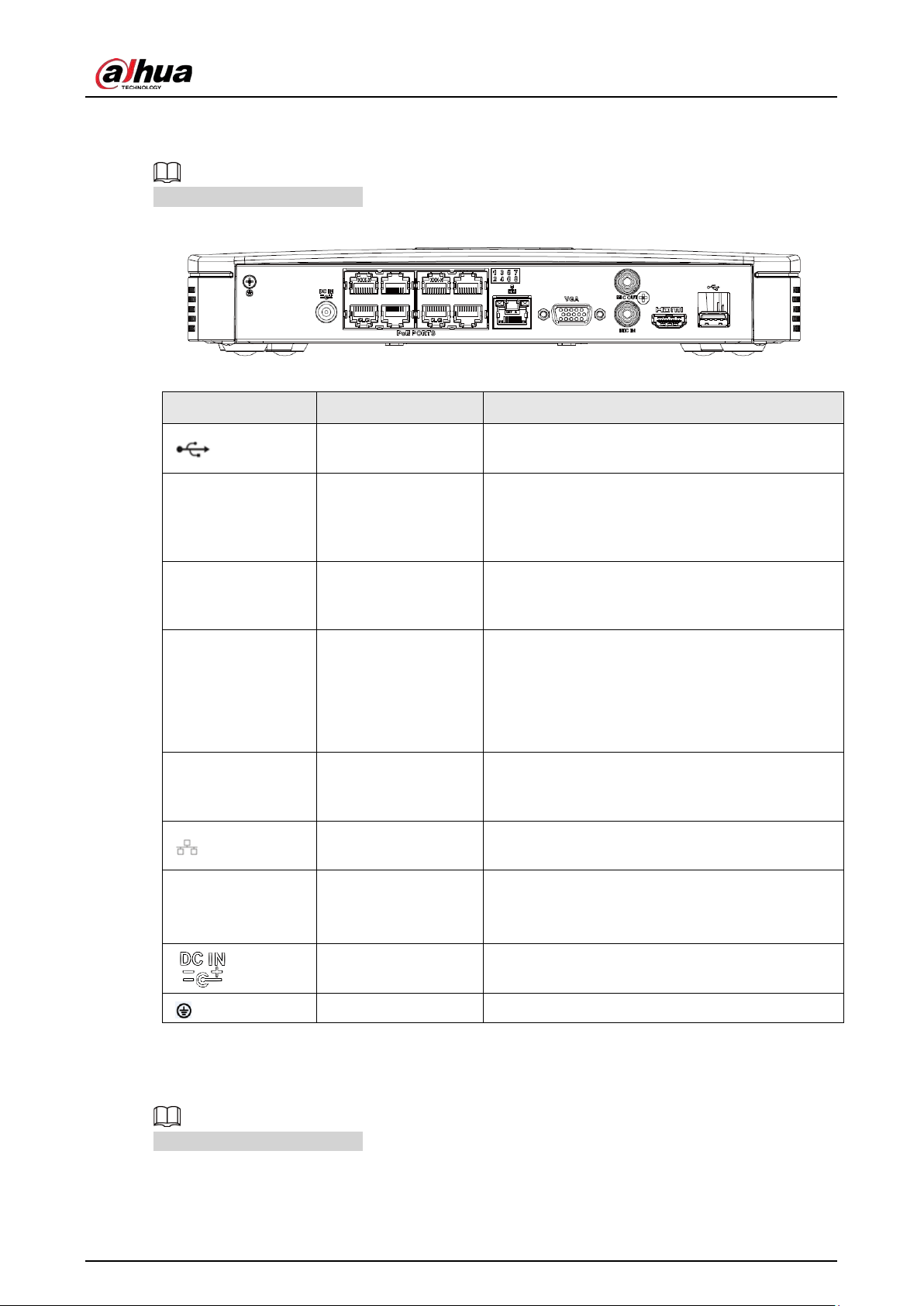
User's Manual
39
2.2.16 NVR21-8P-I/NVR21-8P-I2 Series
The figure is for reference only.
Figure 2-61 Rear panel
Table 2-30 Ports
Port Name Connection Function
USB port
USB port. Connect to mouse, USB storage device
and more.
HDMI
High Definition
Media Interface
High definition audio and video signal output
port. It transmits uncompressed high definition
video and multiple-channel data to the HDMI port
of the display device. HDMI version is 1.4.
MIC IN Audio input port
Bidirectional talk input port. It is to receive the
analog audio signal output from the devices such
as microphone, pickup.
MIC OUT Audio output port
Audio output port. It is to output the analog
audio signal to the devices such as the sound box.
●
Bidirectional talk output.
●
Audio output on 1-window video monitor.
●
Audio output on 1-window video playback.
VGA
VGA video output
port
VGA video output port. Output analog video
signal. It can connect to the monitor to view
analog video.
Network port
10/100 Mbps self-adaptive Ethernet port. Connect
to the network cable.
PoE PORTS PoE port
Built-in switch. Support PoE function.
For PoE series product, you can use this port to
provide power to the network camera.
Power input port Power socket.
GND Ground end.
2.2.17 NVR22-8P-I/NVR22-8P-I2 Series
The figure is for reference only.
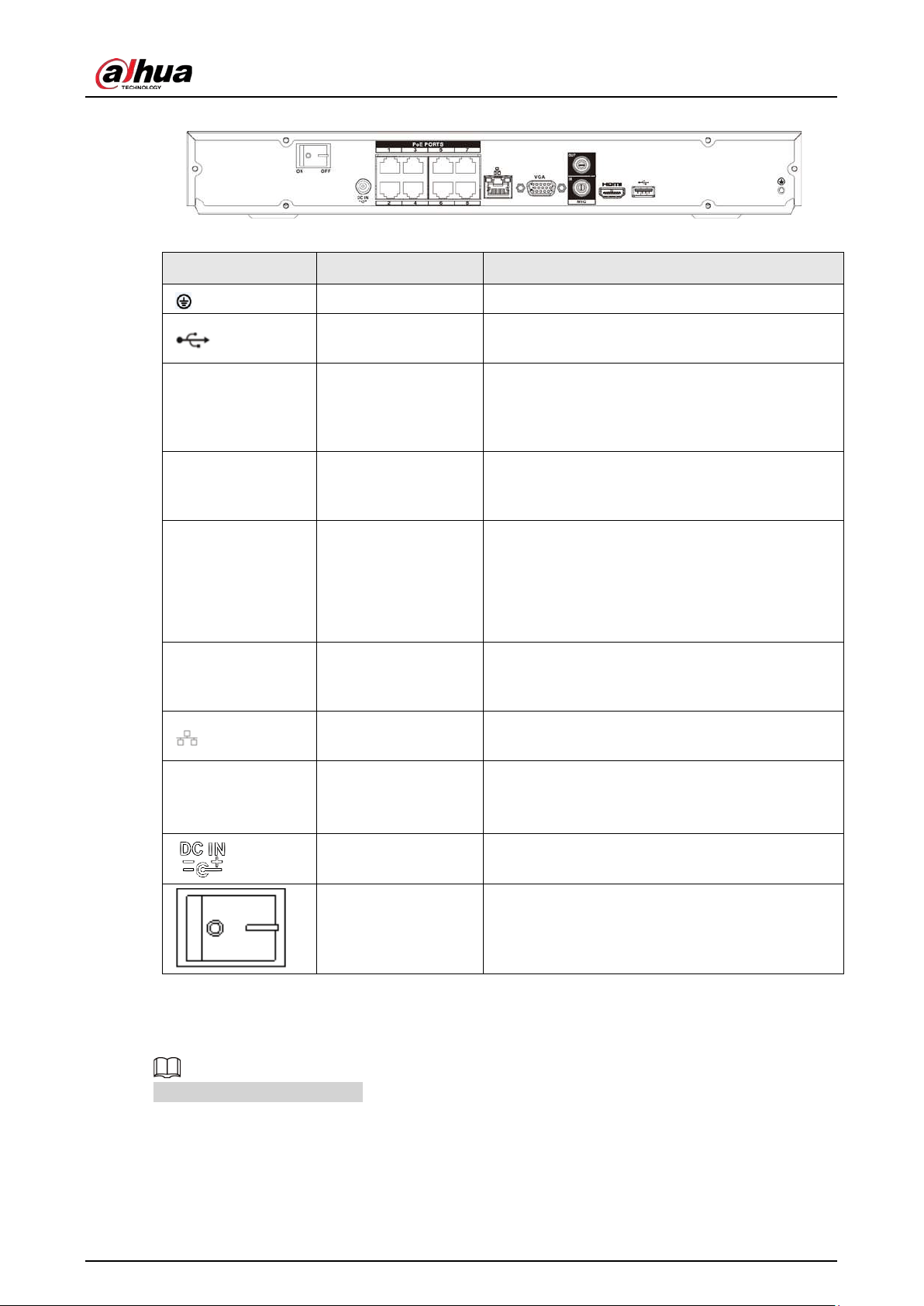
User's Manual
40
Figure 2-62 Rear panel
Table 2-31 Ports
Port Name Connection Function
GND Ground end.
USB port
USB port. Connect to mouse, USB storage device
and more.
HDMI
High Definition
Media Interface
High definition audio and video signal output
port. It transmits uncompressed high definition
video and multiple-channel data to the HDMI port
of the display device. HDMI version is 1.4.
MIC IN Audio input port
Bidirectional talk input port. It is to receive the
analog audio signal output from the devices such
as microphone, pickup.
MIC OUT Audio output port
Audio output port. It is to output the analog
audio signal to the devices such as the sound box.
●
Bidirectional talk output.
●
Audio output on 1-window video monitor.
●
Audio output on 1-window video playback.
VGA
VGA video output
port
VGA video output port. Output analog video
signal. It can connect to the monitor to view
analog video.
Network port
10/100 Mbps self-adaptive Ethernet port. Connect
to the network cable.
PoE PORTS PoE port
Built-in switch. Support PoE function.
For PoE series product, you can use this port to
provide power to the network camera.
Power input port Power socket.
Power switch Power on/off button.
2.2.18 NVR22-16P-I/NVR22-8P-I2 Series
The figure is for reference only.
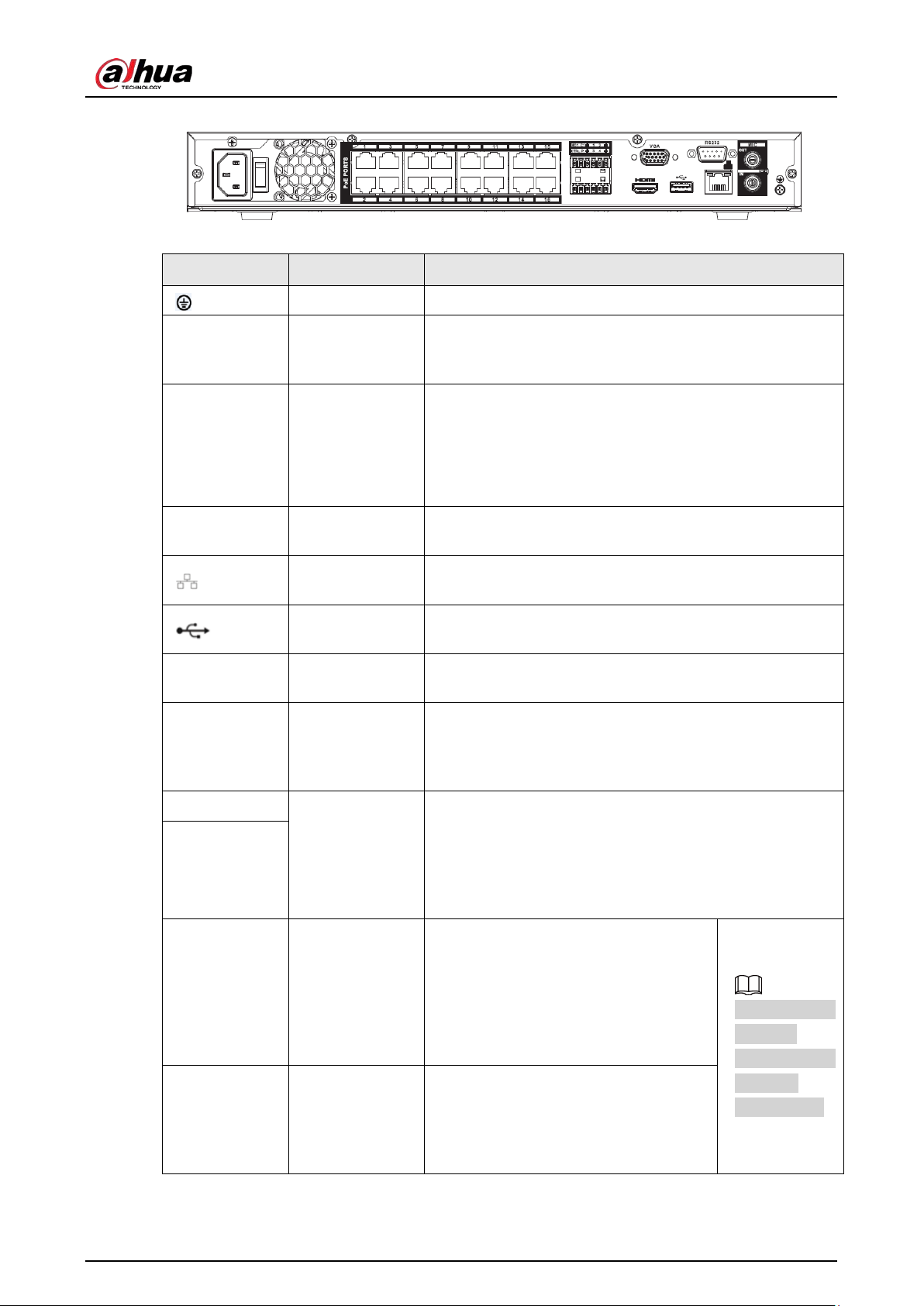
User's Manual
41
Figure 2-63 Rear panel
Table 2-32 Ports
Port Name Connection Function
GND Ground end.
MIC IN Audio input port
Bidirectional talk input port. It is to receive the analog
audio signal output from the devices such as microphone,
pickup.
MIC OUT
Audio output
port
Audio output port. It is to output the analog audio signal
to the devices such as the sound box.
●
Bidirectional talk output.
●
Audio output on 1-window video monitor.
●
Audio output on 1-window video playback.
RS-232
RS-232 debug
COM
It is for general COM debug to configure IP address or
transfer transparent COM data.
Network port
10/100 Mbps self-adaptive Ethernet port. Connect to the
network cable.
USB port
USB port. Connect to mouse, USB storage device and
more.
VGA
VGA video
output port
VGA video output port. Output analog video signal. It can
connect to the monitor to view analog video.
HDMI
High Definition
Media Interface
High definition audio and video signal output port. It
transmits uncompressed high definition video and
multiple-channel data to the HDMI port of the display
device. HDMI version is 1.4.
NO1
Alarm output
port
●
1 group of alarm output ports (port NO1–C1). Output
alarm signal to the alarm device. Please make sure
there is power to the external alarm device.
●
NO: Normal open alarm output port.
●
C: Alarm output public end.
C1
CTRL —
Controllable power supply output.
Control the output of the on-off button
alarm relay. It controls the alarm device
with the presence or absence of
voltage. It can also be used as power
input for some alarm devices such as
alarm detectors.
The two ports
serve as
another group
of alarm
output ports.
P —
Power output port. It can provide
power to some peripheral devices such
as camera and alarm device. Make sure
the power supply of peripheral device
shall be below 1 A.
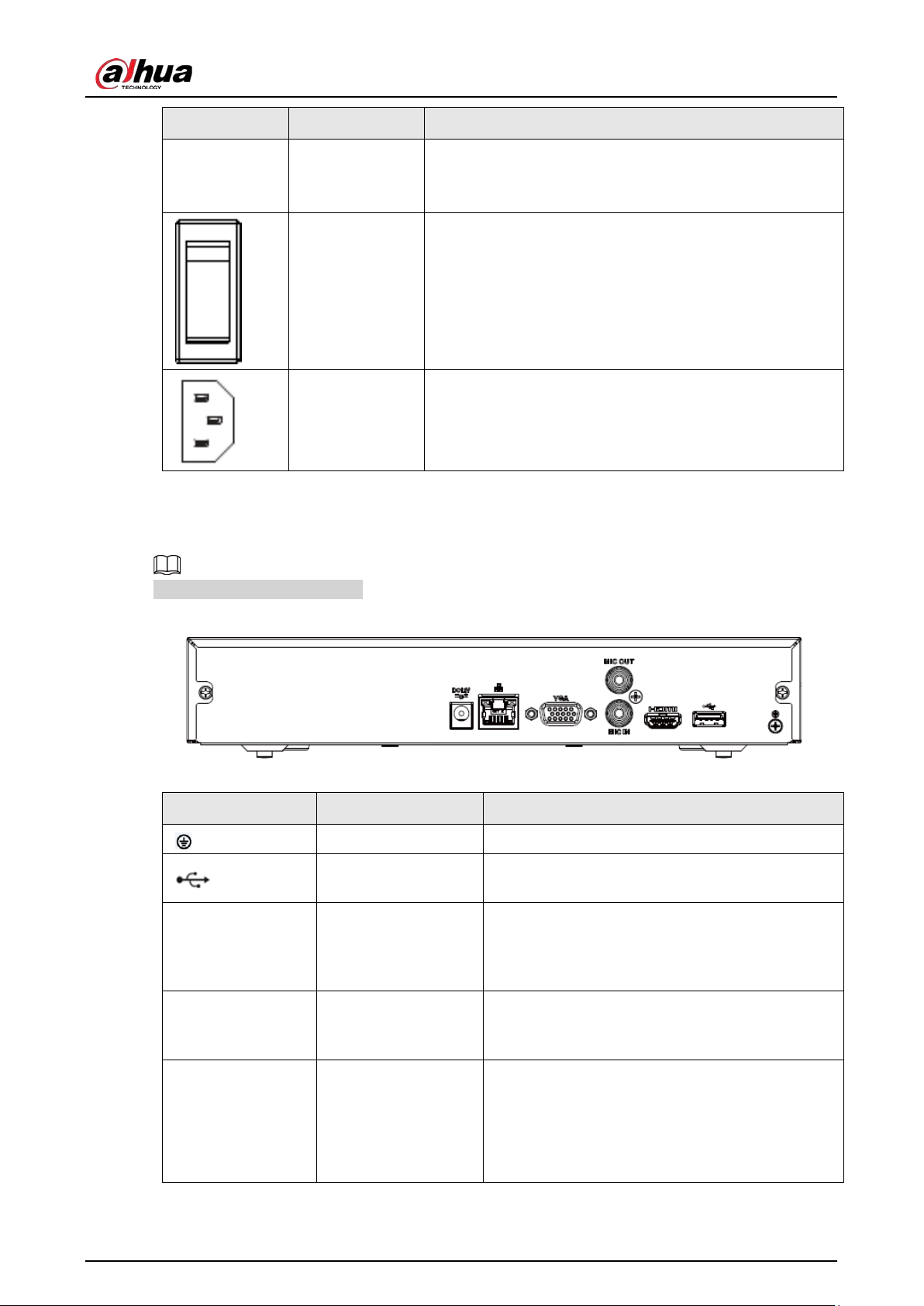
User's Manual
42
Port Name Connection Function
PoE PORTS PoE port
Built-in switch. Support PoE function.
For PoE series product, you can use this port to provide
power to the network camera.
Power switch Power on/off button.
Power input
port
Power socket.
2.2.19 NVR21HS-I/NVR21HS-I2 Series
The figure is for reference only.
Figure 2-64 Rear panel
Table 2-33 Rear panel description
Port Name Connection Function
GND Ground end.
USB port
USB port. Connect to mouse, USB storage device
and more.
HDMI
High Definition
Media Interface
High definition audio and video signal output
port. It transmits uncompressed high definition
video and multiple-channel data to the HDMI port
of the display device. HDMI version is 1.4.
MIC IN Audio input port
Bidirectional talk input port. It is to receive the
analog audio signal output from the devices such
as microphone, pickup.
MIC OUT Audio output port
Audio output port. It is to output the analog
audio signal to the devices such as the sound box.
●
Bidirectional talk output.
●
Audio output on 1-window video monitor.
●
Audio output on 1-window video playback.
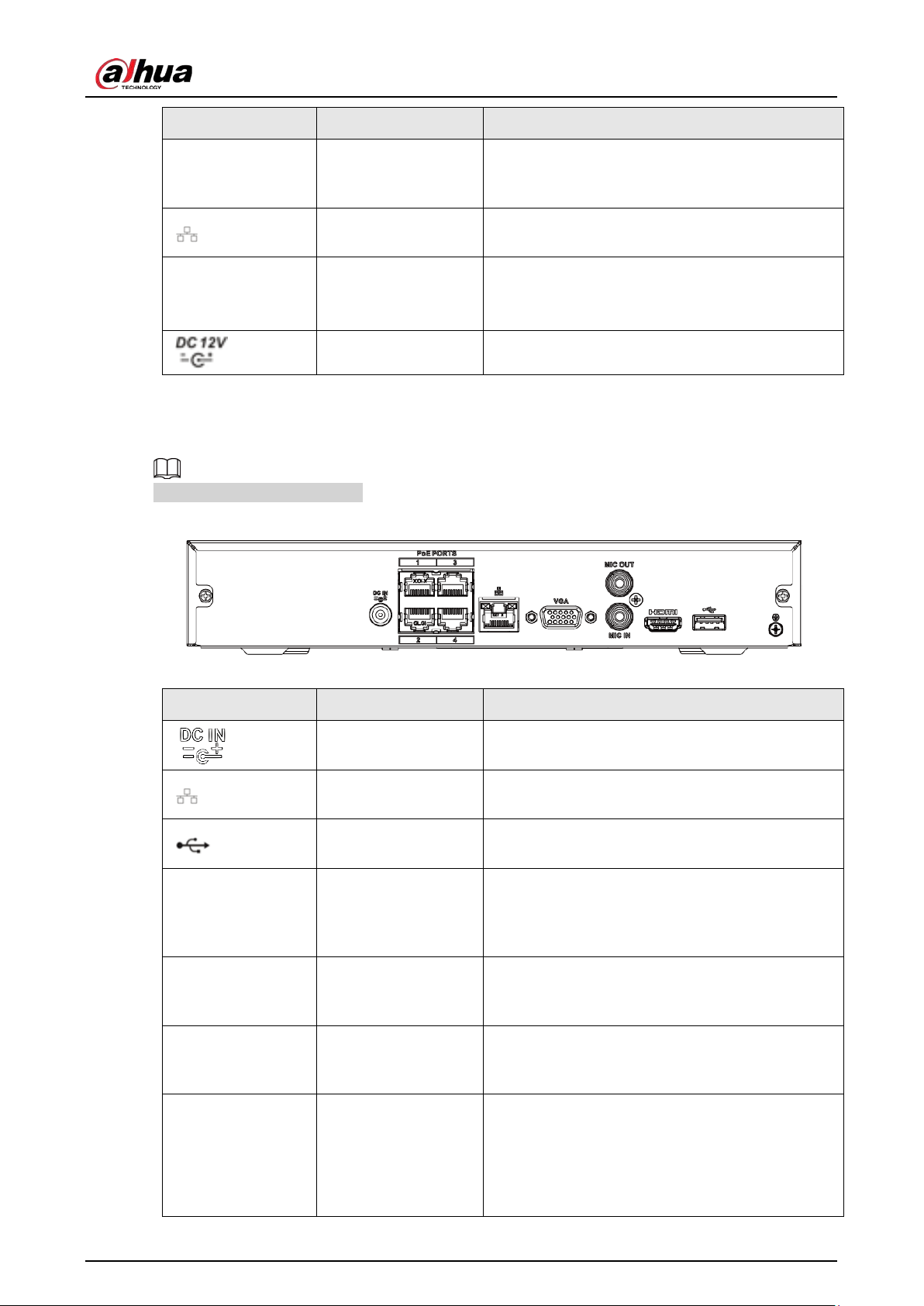
User's Manual
43
Port Name Connection Function
VGA
VGA video output
port
VGA video output port. Output analog video
signal. It can connect to the monitor to view
analog video.
Network port
10/100 Mbps self-adaptive Ethernet port. Connect
to the network cable.
PoE PORTS PoE port
Built-in switch. Support PoE function.
For PoE series product, you can use this port to
provide power to the network camera.
Power input port Power socket.
2.2.20 NVR21HS-P-I/NVR21HS-P-I2 Series
The figure is for reference only.
Figure 2-65 Rear panel
Table 2-34 Ports
Port Name Connection Function
Power input port Power socket.
Network port
10/100 Mbps self-adaptive Ethernet port. Connect
to the network cable.
USB port
USB port. Connect to mouse, USB storage device
and more.
HDMI
High Definition
Media Interface
High definition audio and video signal output
port. It transmits uncompressed high definition
video and multiple-channel data to the HDMI port
of the display device. HDMI version is 1.4.
VGA
VGA video output
port
VGA video output port. Output analog video
signal. It can connect to the monitor to view
analog video.
MIC IN Audio input port
Bidirectional talk input port. It is to receive the
analog audio signal output from the devices such
as microphone, pickup.
MIC OUT Audio output port
Audio output port. It is to output the analog
audio signal to the devices such as the sound box.
●
Bidirectional talk output.
●
Audio output on 1-window video monitor.
●
Audio output on 1-window video playback.
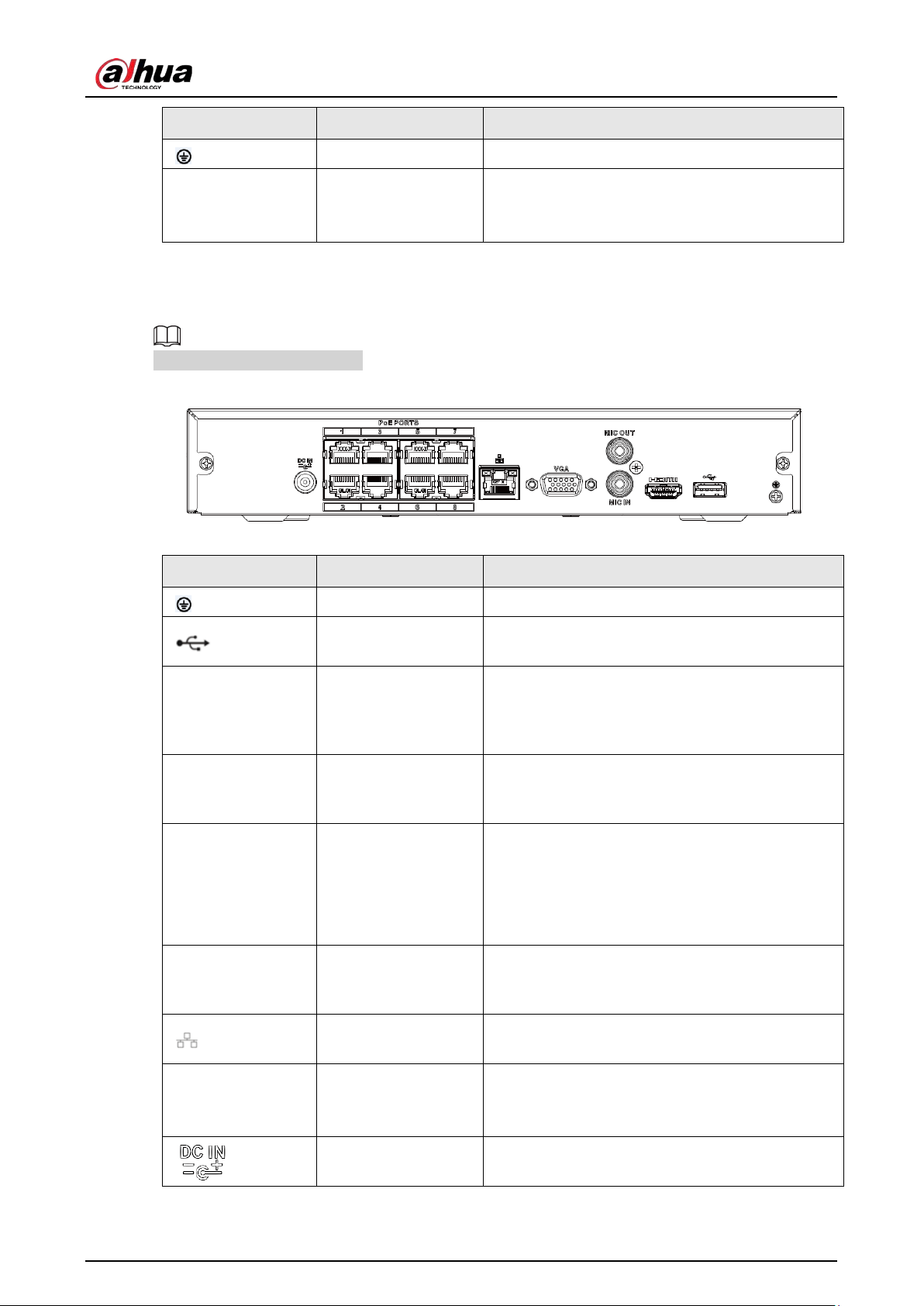
User's Manual
44
Port Name Connection Function
GND Ground end.
PoE PORTS PoE port
Built-in switch. Support PoE function.
For PoE series product, you can use this port to
provide power to the network camera.
2.2.21 NVR21HS-8P-I/NVR21HS-8P-I2 Series
The figure is for reference only.
Figure 2-66 Rear panel
Table 2-35 Ports
Port Name Connection Function
GND Ground end.
USB port
USB port. Connect to mouse, USB storage device
and more.
HDMI
High Definition
Media Interface
High definition audio and video signal output
port. It transmits uncompressed high definition
video and multiple-channel data to the HDMI port
of the display device. HDMI version is 1.4.
MIC IN Audio input port
Bidirectional talk input port. It is to receive the
analog audio signal output from the devices such
as microphone, pickup.
MIC OUT Audio output port
Audio output port. It is to output the analog
audio signal to the devices such as the sound box.
●
Bidirectional talk output.
●
Audio output on 1-window video monitor.
●
Audio output on 1-window video playback.
VGA
VGA video output
port
VGA video output port. Output analog video
signal. It can connect to the monitor to view
analog video.
Network port
10/100 Mbps self-adaptive Ethernet port. Connect
to the network cable.
PoE PORTS PoE port
Built-in switch. Support PoE function.
For PoE series product, you can use this port to
provide power to the network camera.
Power input port Power socket.
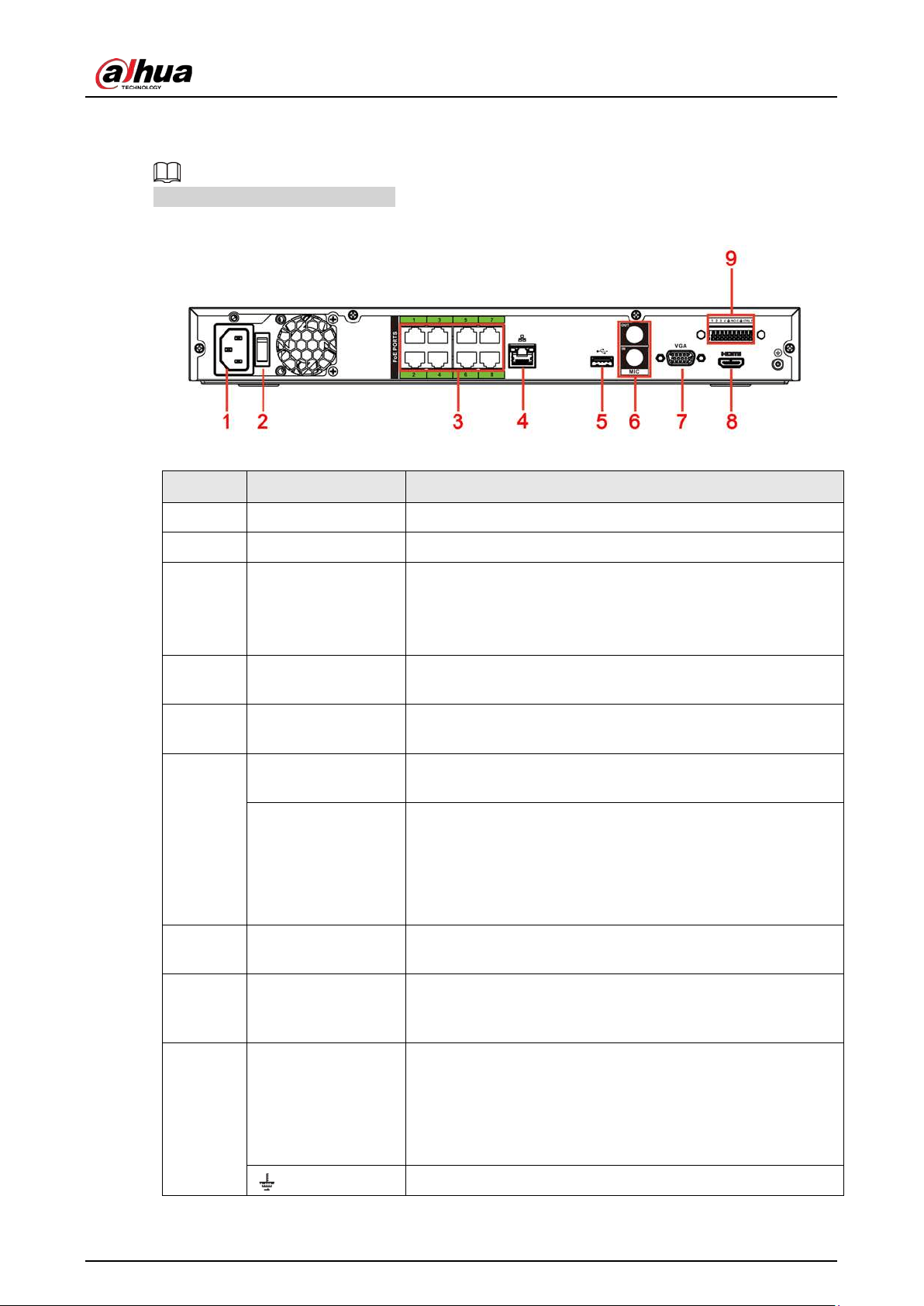
User's Manual
45
2.2.22 NVR4208-8P-I Series
These figures are for reference only.
Figure 2-67 Rear panel
Table 2-36 Ports
No. Port Name Function
1 Power input port Input power of 100-240 V and 50-60 Hz.
2 Power button Turns on/off the NVR.
3 PoE port
Built-in switch. It can provide power for IPC.
8 PoE ports: 1-8 are ePoE ports (support 300m @ 100M. 800m
@ 10M). The device supports 48 V, 100 W total power output
under 55 °C, and 48 V, 130 W total power output under 45 °C.
4 Network port
10/100/1000 Mbps self-adaptive Ethernet port. Connect to
the network cable.
5 USB port
USB 3.0 port. Connect to devices such as mouse, USB storage
device and USB burner.
6
MIC IN
Bidirectional talk input port. It is to receive analog audio
signal from devices such as microphone, sound pickup.
MIC OUT
Audio output port. It is to output analog audio signal to
devices such as sound box.
●
Bidirectional talk output.
●
Audio output on 1-window video monitor.
●
Audio output on 1-window video playback.
7 VGA port
VGA video output port. Output analog video signal. It can
connect to the monitor to view analog video.
8 HDMI port
High definition audio and video signal output port. It
transmits uncompressed high definition video and multiple-
channel audio data to displays with HDMI port.
9
Alarm input port (1-
4)
●
They receive signals from external alarm source. Alarm
input includes two types; NO (normal open) and NC
(normal close).
●
When your alarm input device is using external power,
make sure the device and the NVR have the same GND.
GND. Alarm input ground port.
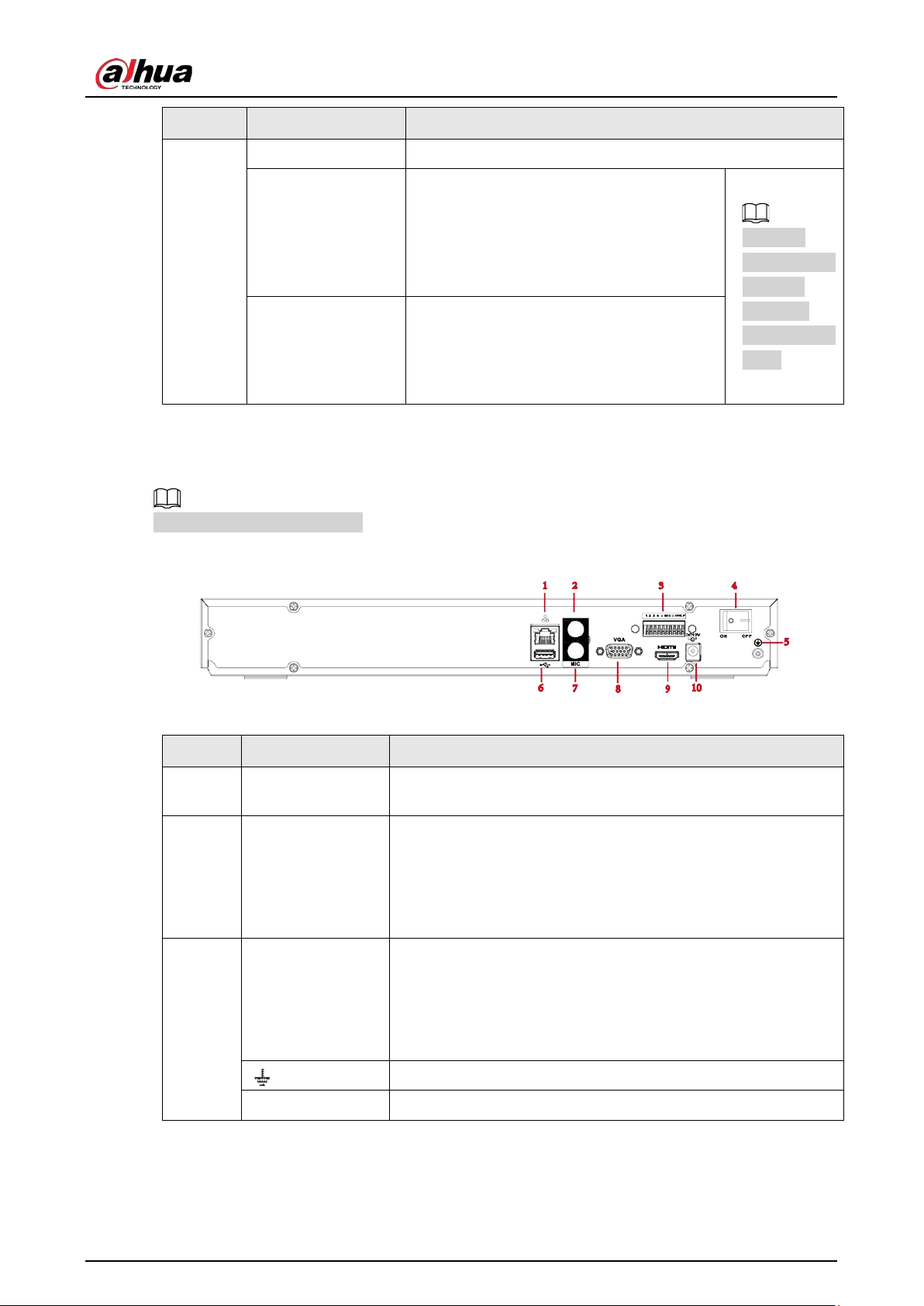
User's Manual
46
No. Port Name Function
NO C One NO activation output group. (On-off button).
CTRL
Controllable power supply output. Control
the output of the on-off button alarm relay.
It controls the alarm device with the
presence or absence of voltage. It can also
be used as power input for some alarm
devices such as alarm detectors.
The two
ports serve as
another
group of
alarm output
ports.
P
Power output port. It can provide power to
some peripheral devices such as camera
and alarm device. Make sure the power
supply of peripheral device shall be below 1
A.
2.2.23 NVR4216-I Series
The figure is for reference only.
Figure 2-68 Rear panel
Table 2-37 Ports
No. Port Name Function
1 Network port
10/100/1000 Mbps self-adaptive Ethernet port. Connect to the
network cable.
2 MIC OUT
Audio output port. It is to output analog audio signal to devices
such as sound box.
●
Bidirectional talk output.
●
Audio output on 1-window video monitor.
●
Audio output on 1-window video playback.
3
Alarm input port
(1-4)
●
They receive signals from external alarm source. Alarm
input includes two types; NO (normal open) and NC (normal
close).
●
When your alarm input device is using external power,
make sure the device and the NVR have the same GND.
GND. Alarm input ground port.
NO C One NO activation output group. (On-off button).
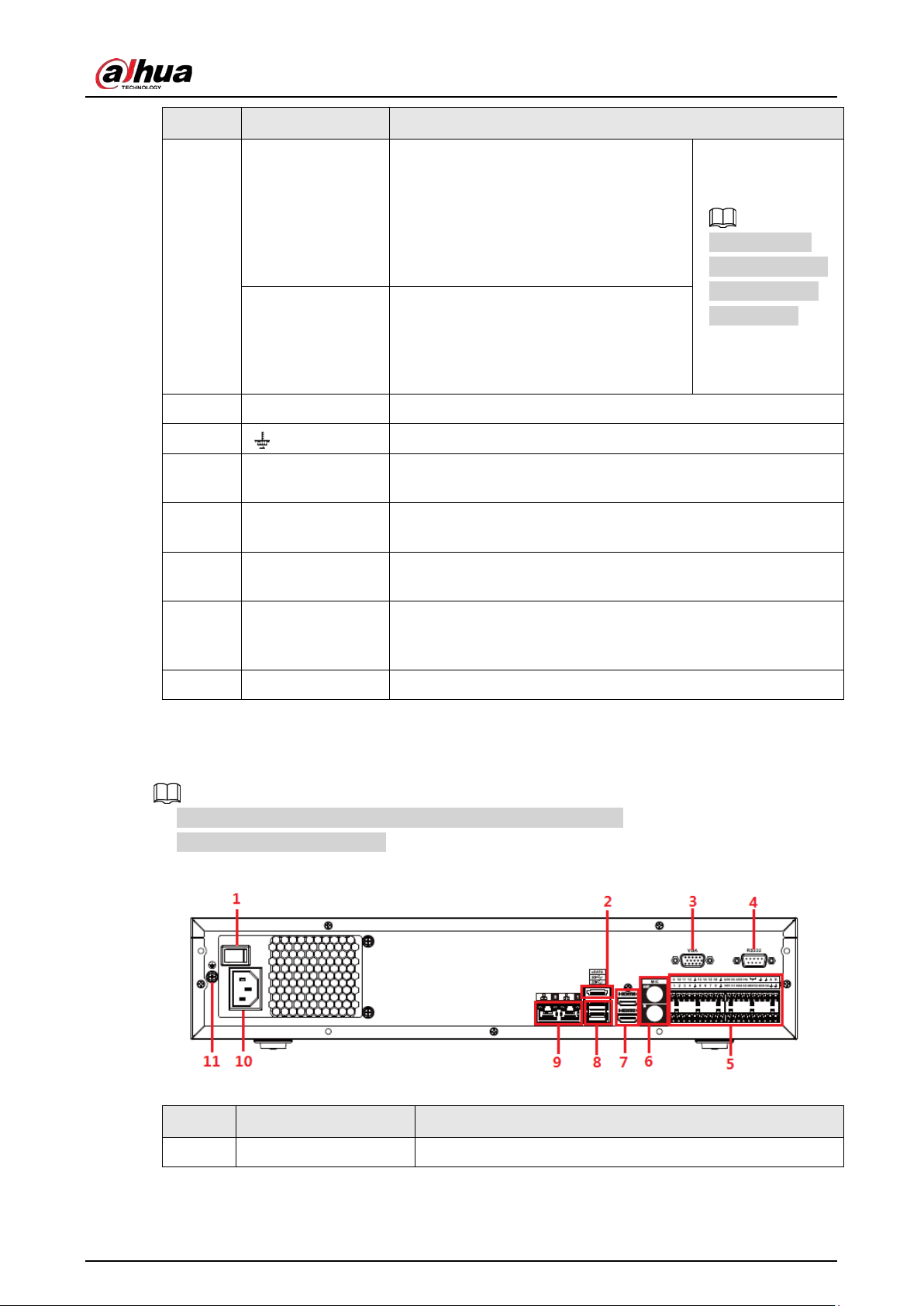
User's Manual
47
No. Port Name Function
CTRL
Controllable power supply output.
Control the output of the on-off button
alarm relay. It controls the alarm device
with the presence or absence of voltage.
It can also be used as power input for
some alarm devices such as alarm
detectors.
The two ports
serve as another
group of alarm
output ports.
P
Power output port. It can provide power
to some peripheral devices such as
camera and alarm device. Make sure the
power supply of peripheral device shall
be below 1 A.
4 Power button Turns on/off the NVR.
5
GND.
6 USB port
USB 3.0 port. Connect to devices such as mouse, USB storage
device and USB burner.
7 MIC IN
Bidirectional talk input port. It is to receive analog audio signal
from devices such as microphone, sound pickup.
8 VGA port
VGA video output port. Output analog video signal. It can
connect to the monitor to view analog video.
9 HDMI port
High definition audio and video signal output port. It transmits
uncompressed high definition video and multiple-channel
audio data to displays with HDMI port.
10 Power input port Input power of 100V-240V and 50Hz-60Hz.
2.2.24 NVR58-I/NVR58-I/L/NVR48-I Series
●
The figure takes NVR58-I/NVR58-I/L/NVR4832-I series as examples.
●
The figure is for reference only.
Figure 2-69 Rear panel
Table 2-38 Ports
No. Port Name Function
1 Power button Turns on/off the NVR.
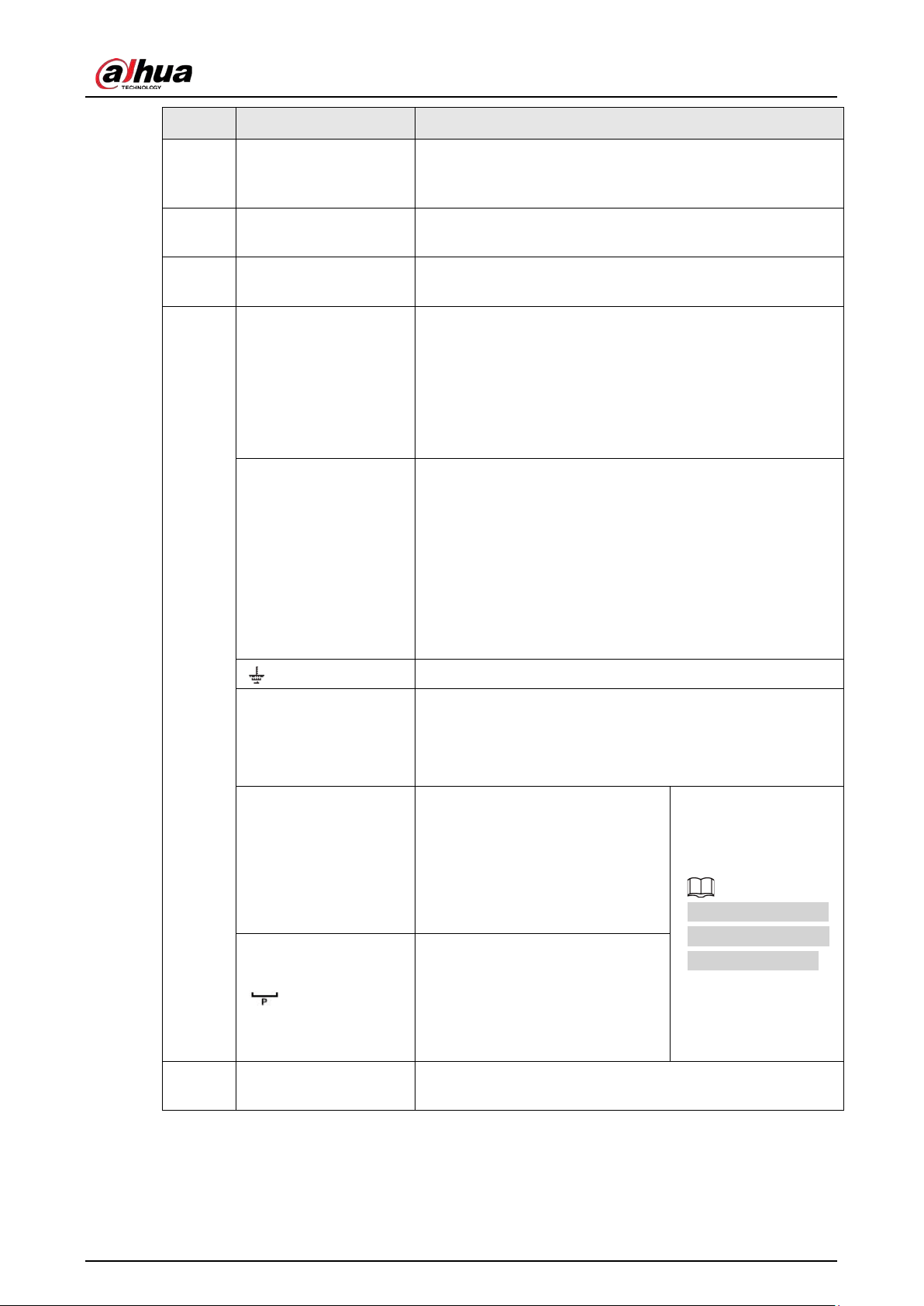
User's Manual
48
No. Port Name Function
2 eSATA port
External SATA port. It can connect device with SATA port.
You need to jump the HDD when there is peripherally
connected HDD.
3 VGA port
VGA video output port. Output analog video signal. It can
connect to the monitor to view analog video.
4 RS-232 port
It is for general COM debugging to configure IP address and
transfer transparent COM data.
5
Alarm input port (1-16)
●
There are four groups: 1-4, 5-8, 9-12 and 13-16.
They receive signals from external alarm source. Alarm
input includes two types; NO (normal open) and NC
(normal close).
●
When your alarm input device is using external power,
make sure the device and the NVR have the same GND.
Alarm output port
(NO1-NO5, C1-C5, NC5)
●
Five groups of alarm output ports (Group 1: NO1-C1,
Group 2: NO2-C2, Group 3: NO3-C3, Group 4: NO4-C4,
Group 5: NO5, C5, NC5). Output alarm signal to the
external alarm device. Make sure power supply is
available for the external alarm device.
●
NO: Normal open alarm output port.
●
C: Alarm output public end.
●
NC: Normal close alarm output port.
GND. Alarm input ground port.
RS-485 port (A, B)
●
RS485_A port. Control cable A of the 485 device. It
connects external devices such as speed dome and PTZ.
●
RS485_B port. Control cable B of the 485 device. It
connects external devices such as speed dome and PTZ.
CTRL
Controllable 12 V power output. It
is to control the on-off alarm relay
output. It can be used to control
the device alarm output. At the
same time, it can also be used as
the power input source of some
devices such as alarm detector.
The two ports serve
as another group of
alarm output ports.
+12 V power output port. It can
provide power to some peripheral
devices such as camera and alarm
device. Make sure the power
supply of peripheral device shall
be below 1 A.
6 MIC IN
Bidirectional talk input port. It is to receive analog audio
signal from devices such as microphone, sound pickup.
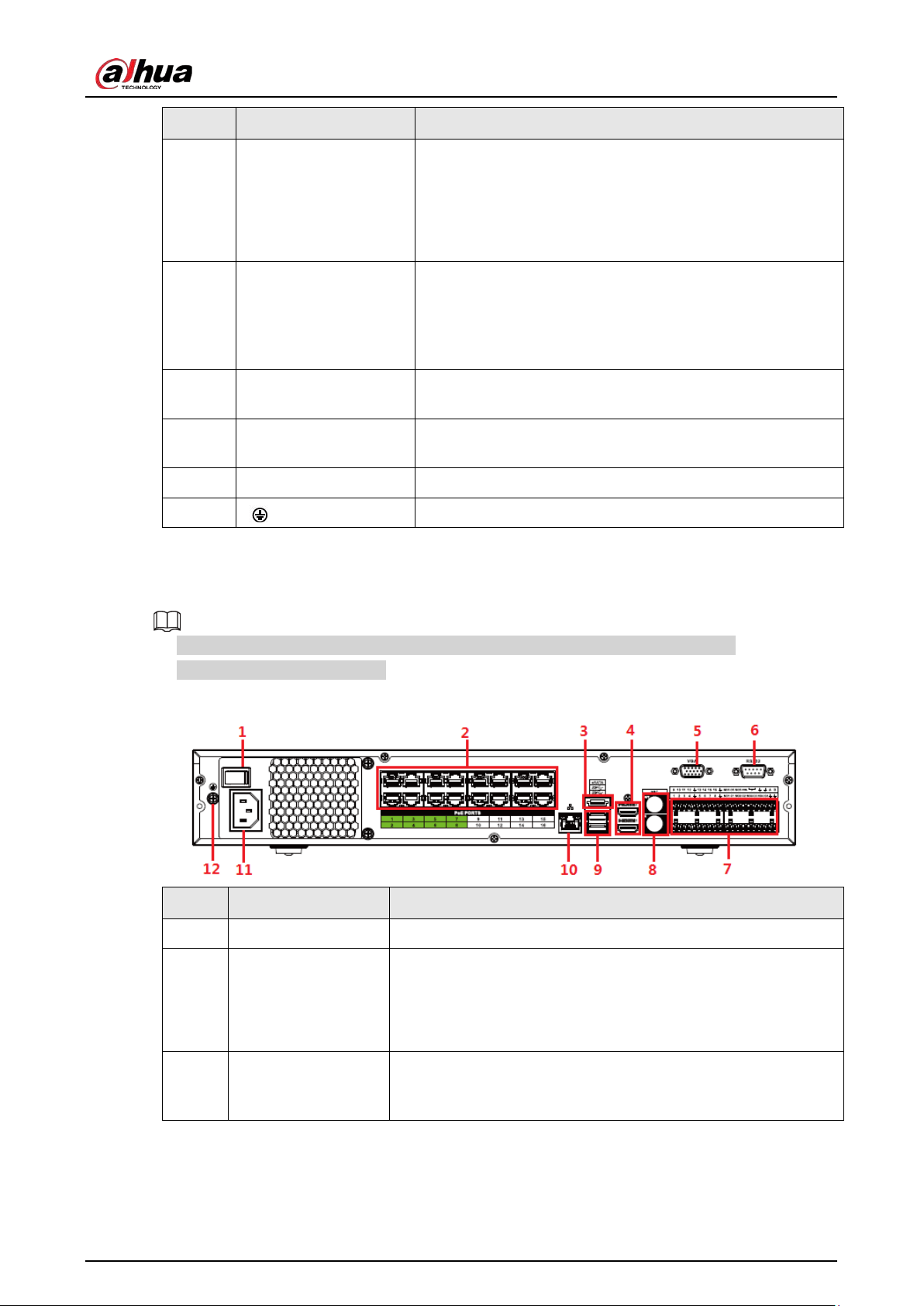
User's Manual
49
No. Port Name Function
MIC OUT
Audio output port. It is to output analog audio signal to
devices such as sound box.
●
Bidirectional talk output.
●
Audio output on 1-window video monitor.
●
Audio output on 1-window video playback.
7 HDMI port
High definition audio and video signal output port. It
transmits uncompressed high definition video and
multiple-channel audio data to displays with HDMI port.
The two HDMI ports support 2-channel high definition
HDMI output of different sources.
8 USB port
USB 3.0 port. Connect to devices such as mouse, USB
storage device and USB burner.
9 Network port
10/100/1000 Mbps self-adaptive Ethernet port. Connect to
the network cable.
10 Power input port Input power of 100-240 V and 50Hz-60Hz.
11
GND.
2.2.25 NVR54-I/NVR54-I/L/NVR44-I Series
●
The following figure takes NVR5432-16P-I and NVR5432-16P-I/L series as examples.
●
The figure is for reference only.
Figure 2-70 Rear panel
No. Port Name Function
1 Power button Turns on/off the NVR.
2 PoE port
Built-in switch. It can provide power for IPC.
●
16 PoE ports: 1-8 are ePoE ports (support 300m @ 100M.
800m @ 10M). 9-16 are regular PoE ports.
●
Device with 16 PoEs supports 150 W total power.
3 eSATA port
External SATA port. It can connect device with SATA port. You
need to jump the HDD when there is peripherally connected
HDD.
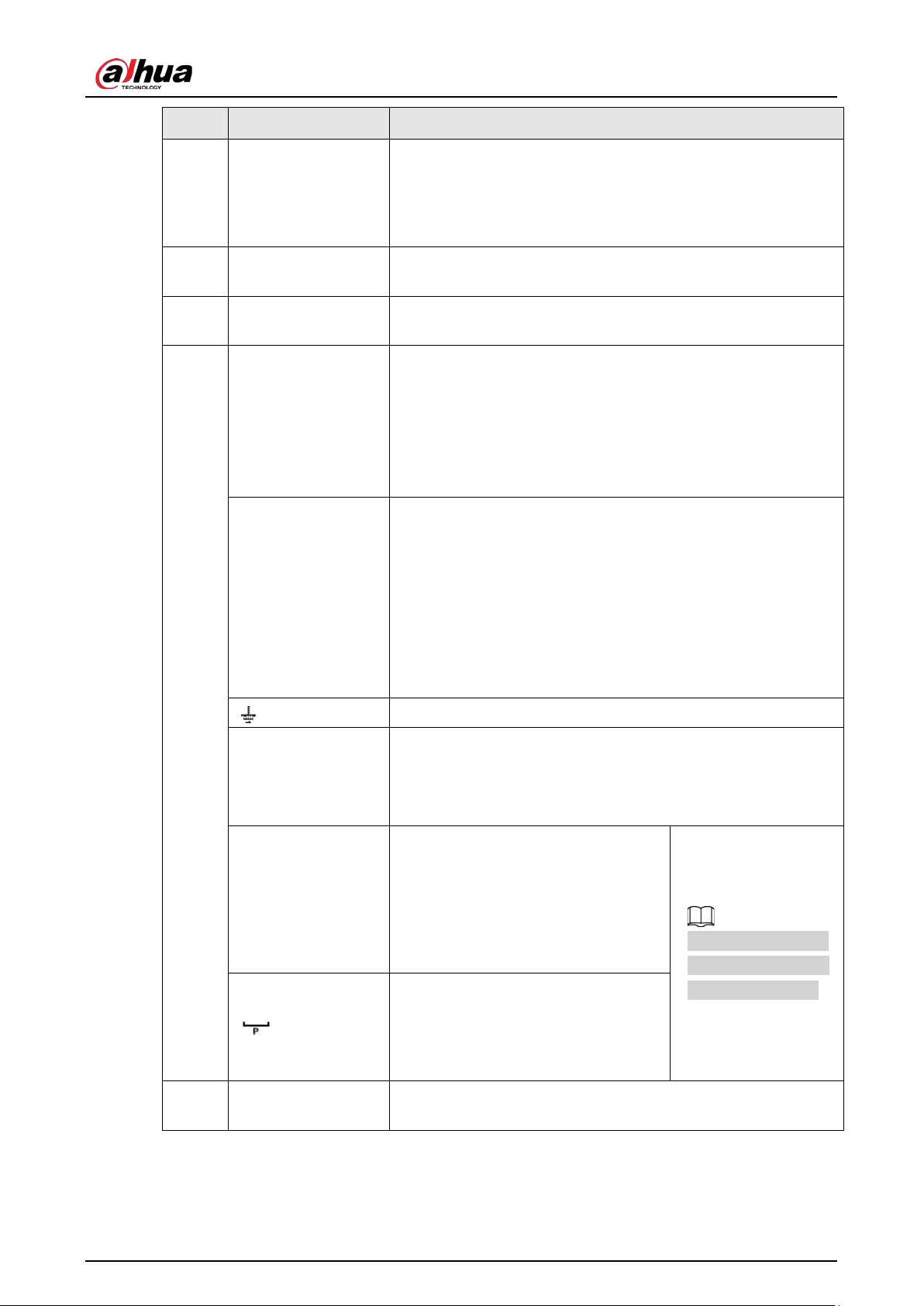
User's Manual
50
No. Port Name Function
4 HDMI port
High definition audio and video signal output port. It transmits
uncompressed high definition video and multiple-channel
audio data to displays with HDMI port. The two HDMI ports
support 2-channel high definition HDMI output of different
sources.
5 VGA port
VGA video output port. Output analog video signal. It can
connect to the monitor to view analog video.
6 RS-232 port
It is for general COM debugging to configure IP address and
transfer transparent COM data.
7
Alarm input port (1-
16)
●
There are four groups: 1-4, 5-8, 9-12 and 13-16.
They receive signals from external alarm source. Alarm
input includes two types; NO (normal open) and NC (normal
close).
●
When your alarm input device is using external power,
make sure the device and the NVR have the same GND.
Alarm output port
(NO1-NO5, C1-C5,
NC5)
●
Five groups of alarm output ports (Group 1: NO1-C1, Group
2: NO2-C2, Group 3: NO3-C3, Group 4: NO4-C4, Group 5:
NO5, C5, NC5). Output alarm signal to the external alarm
device. Make sure power supply is available for the external
alarm device.
●
NO: Normal open alarm output port.
●
C: Alarm output public end.
●
NC: Normal close alarm output port.
GND. Alarm input ground port.
RS-485 port (A, B)
●
RS485_A port. Control cable A of the 485 device. It connects
external devices such as speed dome and PTZ.
●
RS485_B port. Control cable B of the 485 device. It connects
external devices such as speed dome and PTZ.
CTRL
Controllable 12 V power output. It is
to control the on-off alarm relay
output. It can be used to control the
device alarm output. At the same
time, it can also be used as the power
input source of some devices such as
alarm detector.
The two ports serve
as another group of
alarm output ports.
+12 V power output port. It can
provide power to some peripheral
devices such as camera and alarm
device. Make sure the power supply of
peripheral device shall be below 1 A.
8 MIC IN
Bidirectional talk input port. It is to receive analog audio signal
from devices such as microphone, sound pickup.
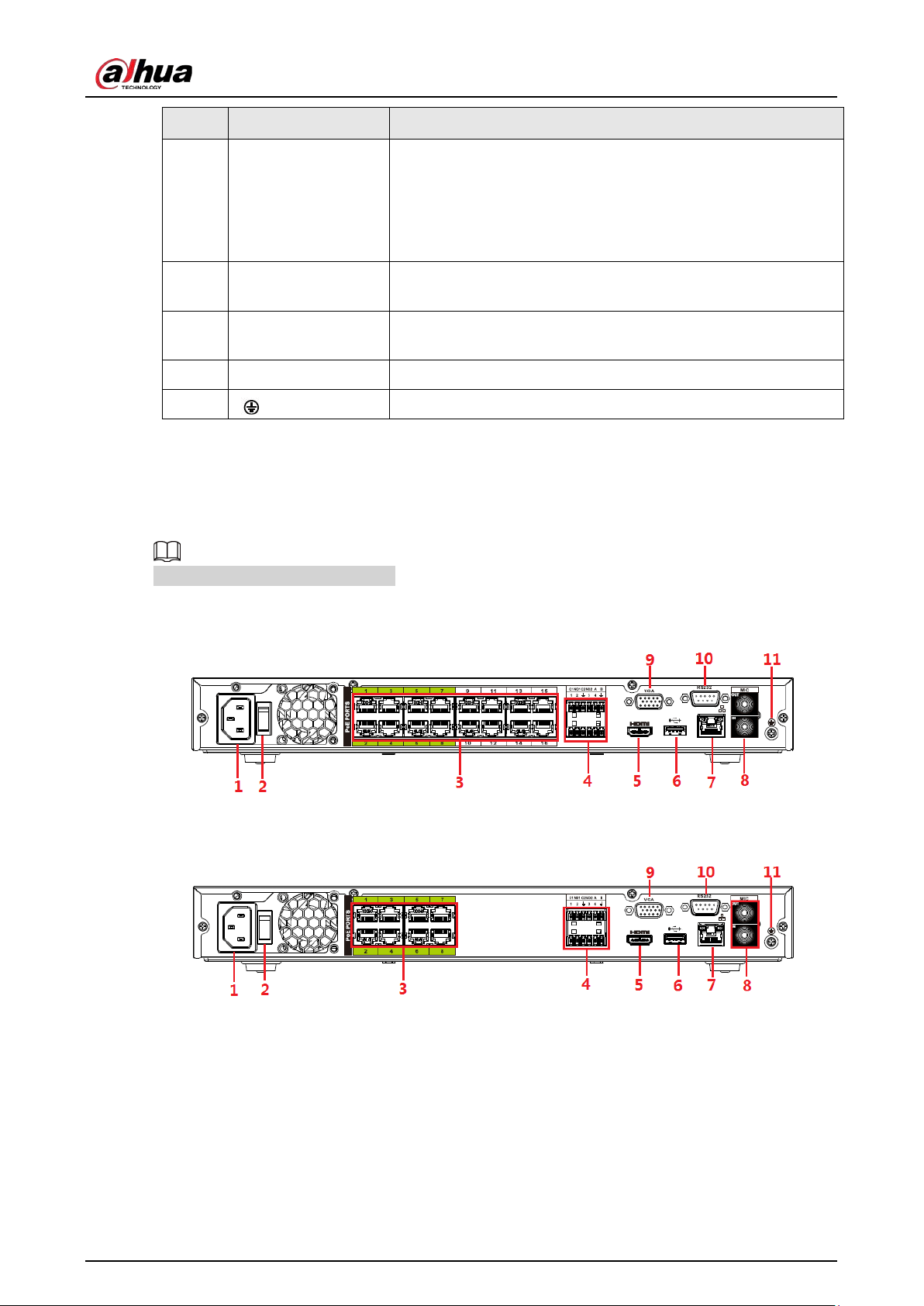
User's Manual
51
No. Port Name Function
MIC OUT
Audio output port. It is to output analog audio signal to devices
such as sound box.
●
Bidirectional talk output.
●
Audio output on 1-window video monitor.
●
Audio output on 1-window video playback.
9 USB port
USB 3.0 port. Connect to devices such as mouse, USB storage
device and USB burner.
10 Network port
10/100/1000 Mbps self-adaptive Ethernet port. Connect to the
network cable.
11 Power input port Input power of 100V-240V and 50Hz-60Hz.
12
GND.
2.2.26 NVR52-16P-I/NVR52-16P-I/L/NVR52-8P-I/NVR52-8P-
I/L/NVR42-16P-I Series
These figures are for reference only.
The NVR52-16P-I/NVR52-16P-I/L series rear panel is shown as below.
Figure 2-71 Rear panel
The NVR52-8P-I/NVR52-8P-I/L series rear panel is shown as below.
Figure 2-72 Rear panel
The NVR4216-16P-I series rear panel is shown as below.
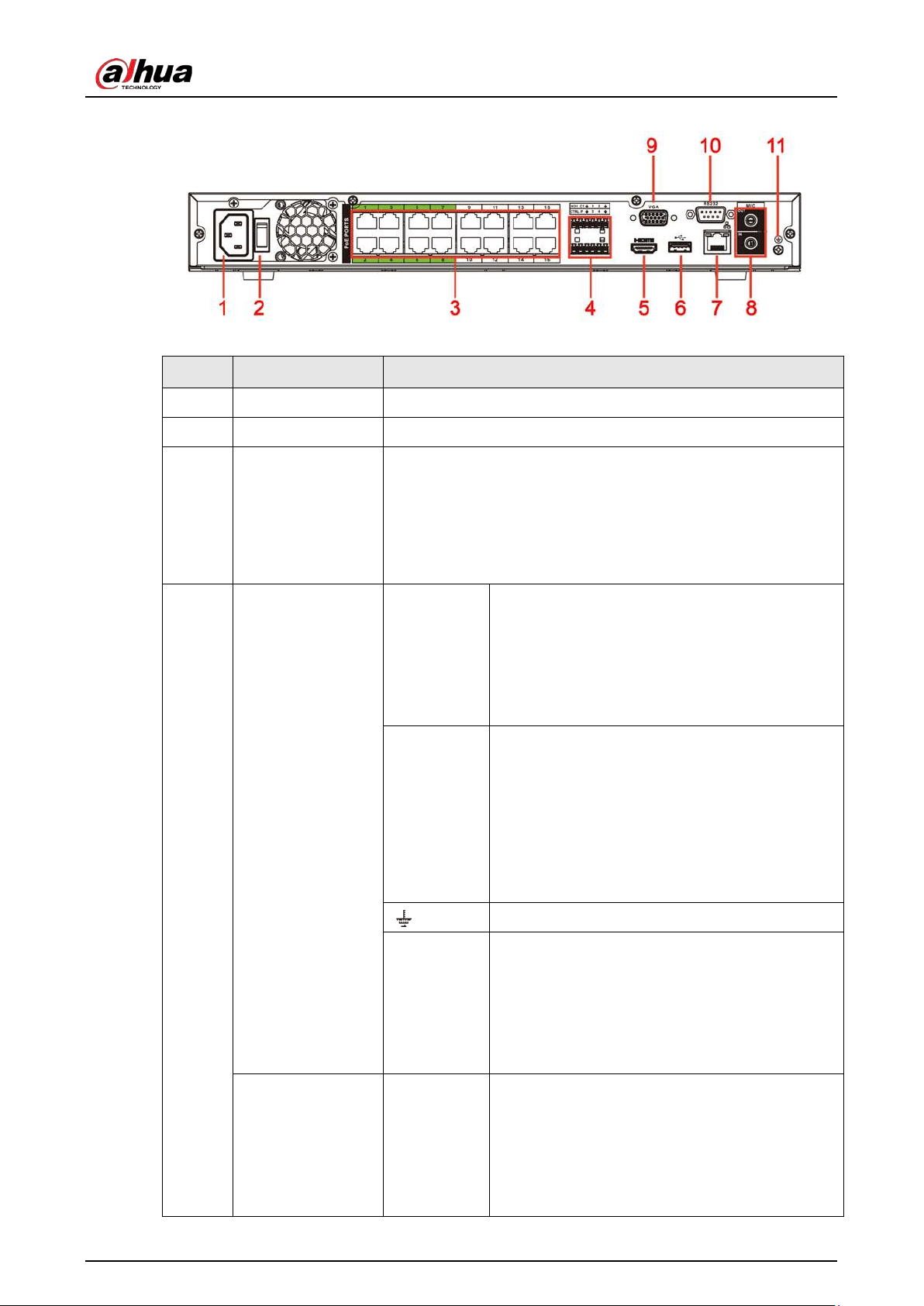
User's Manual
52
Figure 2-73 Rear panel
Table 2-39 Rear panel description
No. Port Name Function
1 Power input port Input power of 100-240 V and 50-60 Hz.
2 Power button Turns on/off the NVR.
3 PoE port
Built-in switch. It can provide power for IPC.
16 PoE ports: 1-8 are ePoE ports (support 300m @ 100M. 800m @
10M). 9-16 are regular PoE ports. The device supports 150 W
total power.
8 PoE ports: 1-8 are ePoE ports (support 300m @ 100M. 800m @
10M). The device supports 48 V, 120 W total power.
4
Alarm
input/output of
NVR52-16P-
I/NVR52-16P-I/L
and NVR52-8P-
I/NVR52-8P-I/L
Alarm input
port (1-4)
●
They receive signals from external alarm
source. Alarm input includes two types; NO
(normal open) and NC (normal close).
●
When your alarm input device is using
external power, make sure the device and
the NVR have the same GND.
Alarm
output port
(NO1-NO2,
C1-C2)
●
Two groups of alarm output ports (Group 1:
NO1-C1, Group 2: NO2-C2). Output alarm
signal to the external alarm device. Make
sure power supply is available for the
external alarm device.
●
NO: Normal open alarm output port.
●
C: Alarm output public end.
GND. Alarm input ground port.
RS-485 port
(A, B)
●
RS485_A port. Control cable A of the 485
device. It connects external devices such as
speed dome and PTZ.
●
RS485_B port. Control cable B of the 485
device. It connects external devices such as
speed dome and PTZ.
Alarm
input/output of
NVR4216-16P-I
Alarm input
port (1-4)
●
They receive signals from external alarm
source. Alarm input includes two types; NO
(normal open) and NC (normal close).
●
When your alarm input device is using
external power, make sure the device and
the NVR have the same GND.
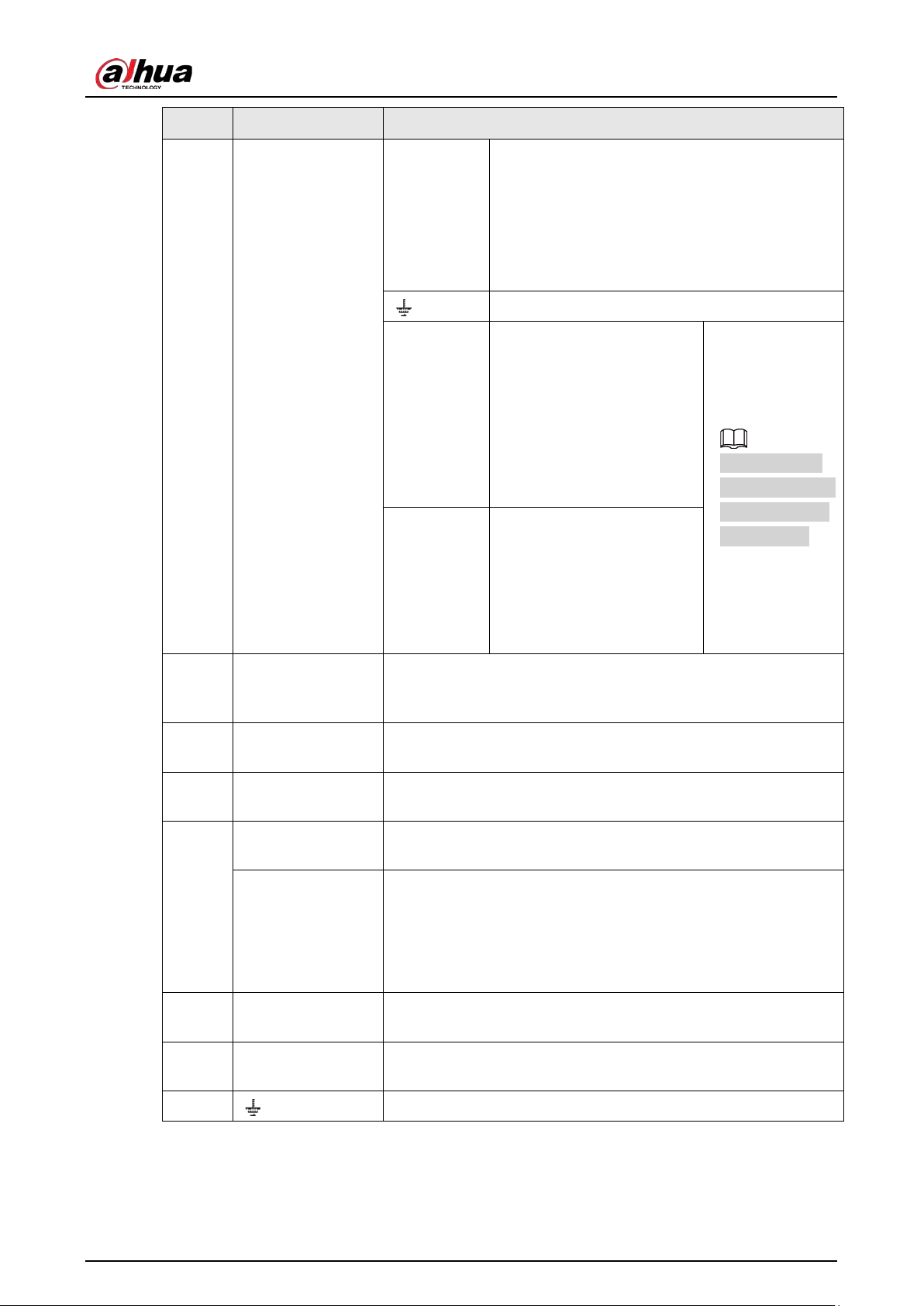
User's Manual
53
No. Port Name Function
Alarm
output port
(NO1, C1)
●
One group of alarm output ports (Group 1:
NO1-C1). Output alarm signal to the external
alarm device. Make sure power supply is
available for the external alarm device.
●
NO: Normal open alarm output port.
●
C: Alarm output public end.
GND. Alarm input ground port.
CTRL
Controllable 12 V power
output. It is to control the
on-off alarm relay output. It
can be used to control the
device alarm output. At the
same time, it can also be
used as the power input
source of some devices
such as alarm detector.
The two ports
serve as another
group of alarm
output ports.
P
+12 V power output port. It
can provide power to some
peripheral devices such as
camera and alarm device.
Make sure the power supply
of peripheral device shall be
below 1 A.
5 HDMI port
High definition audio and video signal output port. It transmits
uncompressed high definition video and multiple-channel audio
data to displays with HDMI port.
6 USB port
USB 3.0 port. Connect to devices such as mouse, USB storage
device and USB burner.
7 Network port
10/100/1000 Mbps self-adaptive Ethernet port. Connect to the
network cable.
8
MIC IN
Bidirectional talk input port. It is to receive analog audio signal
from devices such as microphone, sound pickup.
MIC OUT
Audio output port. It is to output analog audio signal to devices
such as sound box.
●
Bidirectional talk output.
●
Audio output on 1-window video monitor.
●
Audio output on 1-window video playback.
9 VGA port
VGA video output port. Output analog video signal. It can
connect to the monitor to view analog video.
10 RS-232 port
It is for general COM debugging to configure IP address and
transfer transparent COM data.
11
GND.
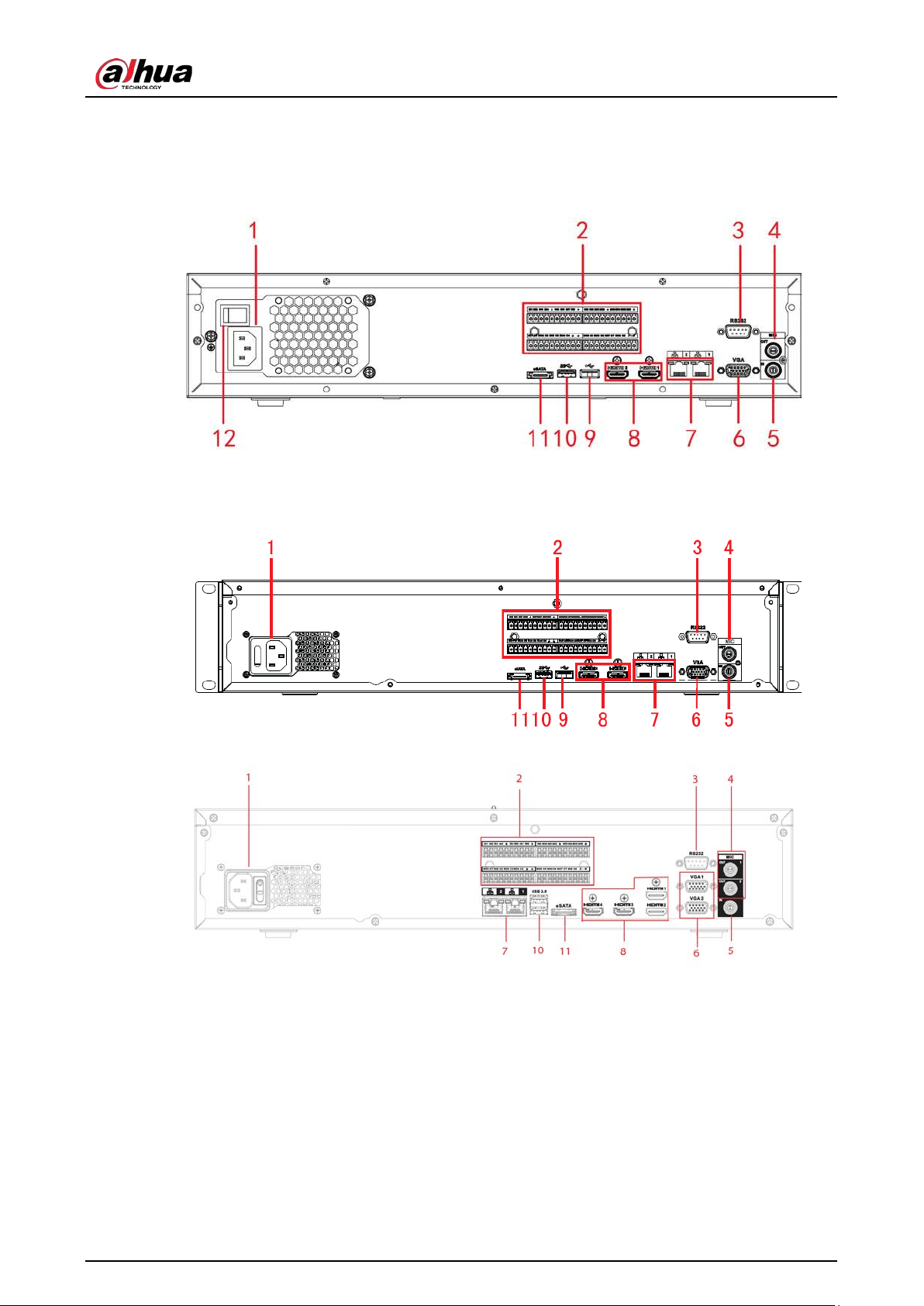
User's Manual
54
2.2.27 NVR608-4KS2/NVR608H-XI/NVR608RH-XI Series
The NVR608-32-4KS2 series rear panel is shown as below.
Figure 2-74 Rear panel (1)
The NVR608-64-4KS2/NVR608-128-4KS2/NVR608H-32-XI/NVR608H-64-XI/NVR608H-128-XI series rear
panel is shown as below.
Figure 2-75 Rear panel (2)
Figure 2-76 Rear panel (3)
The NVR608RH-32-XI/NVR608RH-64-XI/NVR608RH-128-XI front panel is shown as below.
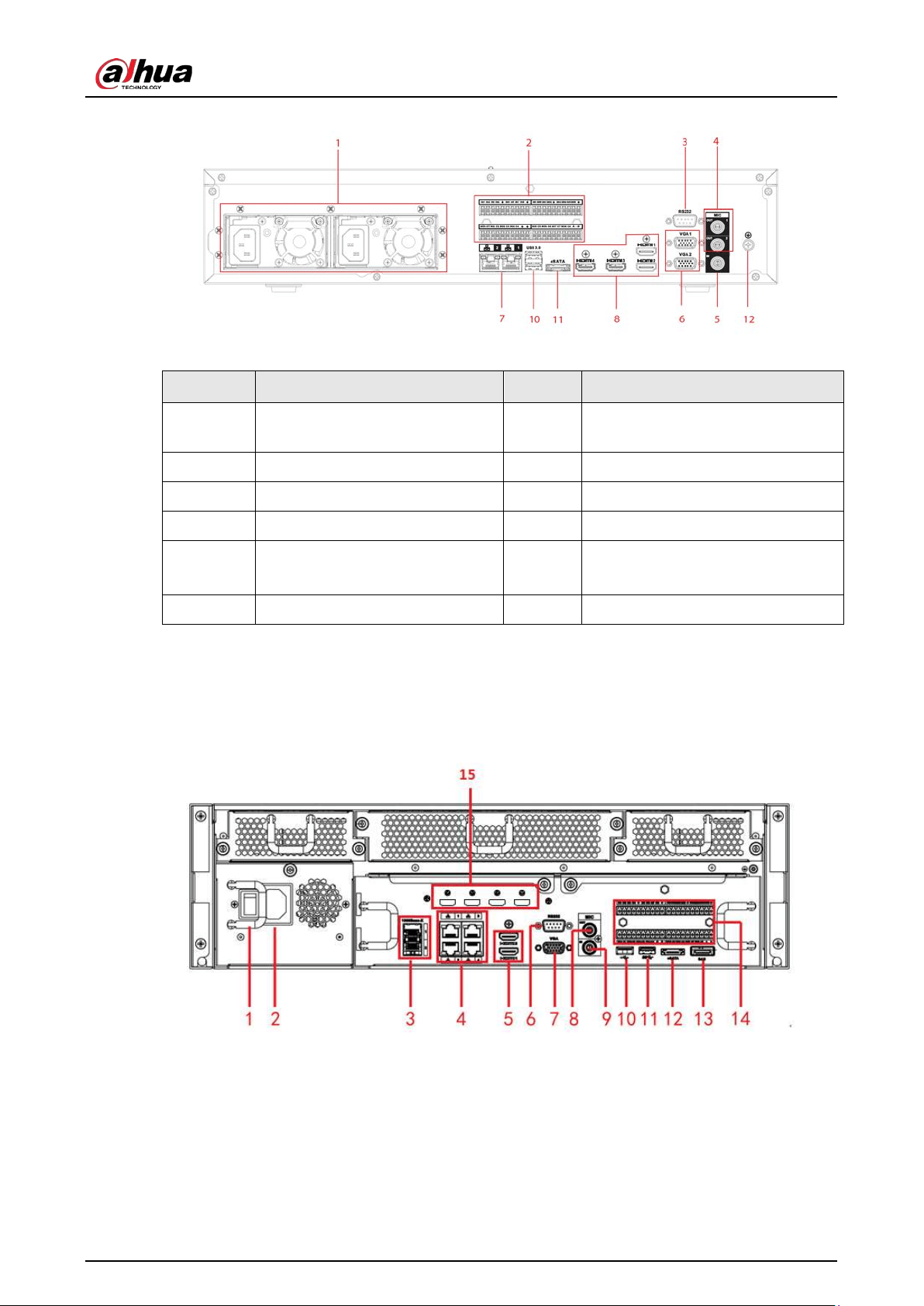
User's Manual
55
Figure 2-77 Rear panel (4)
Table 2-40 Ports description
No. Function No. Function
1 Power socket. 2
Alarm input/alarm output/RS-485
port
3 RS-232 port 4 Audio output
5 Audio input 6 VGA port
7 Network port 8 HDMI port
9
●
NVR608-4K: USB 2.0 port
●
NVR608-4KS2: USB 3.0 port
10 USB 3.0 port
11 eSATA port 12 Ground
2.2.28 NVR616-4KS2 Series
The general series rear panel of NVR616-4KS2 is shown as below.
Figure 2-78 Rear panel
The redundant power series rear panel of NVR616-4KS2 is shown as below.
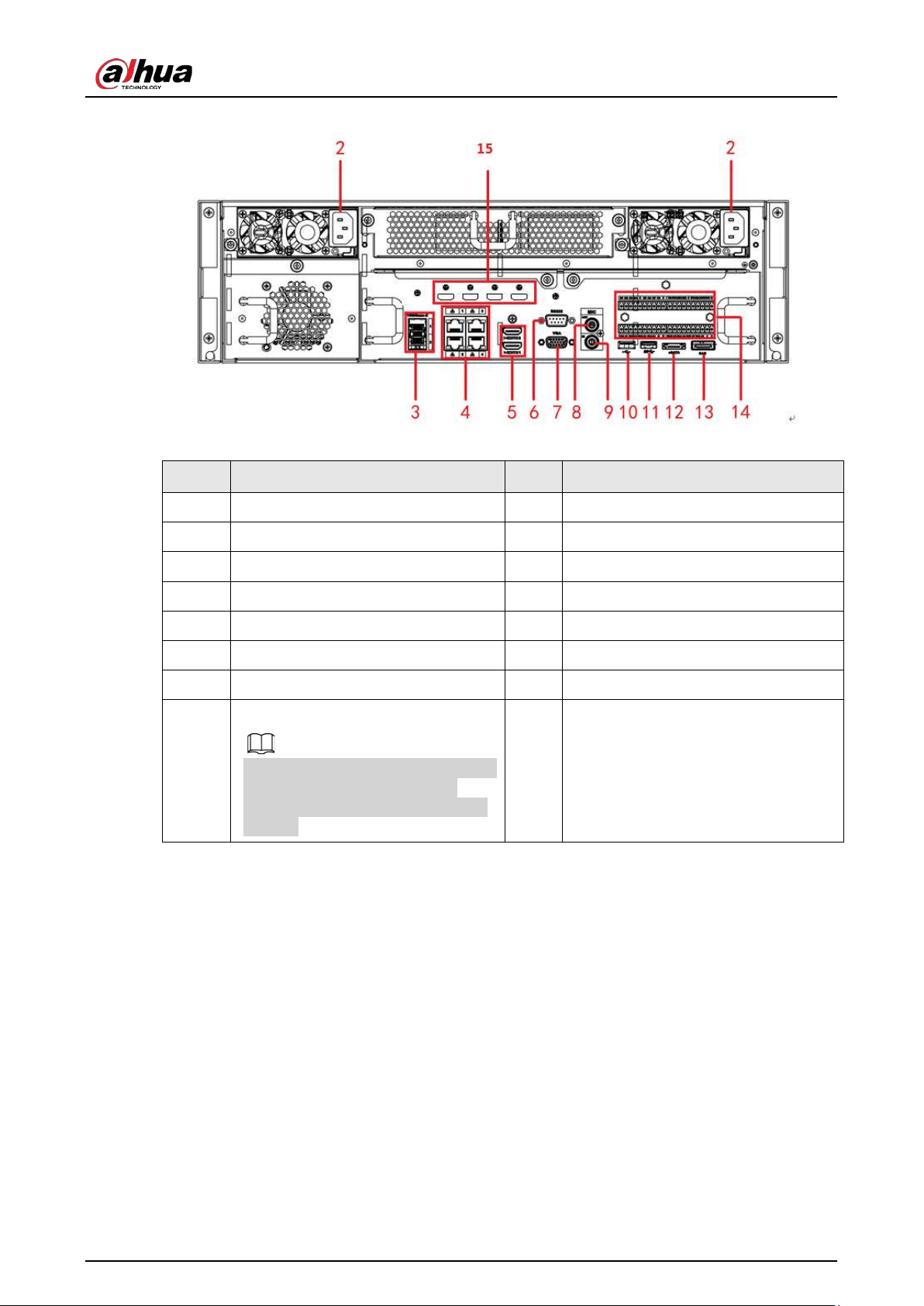
User's Manual
56
Figure 2-79 Rear panel
Table 2-41 Ports
No. Name No. Name
1 Power on-off button 2 Power socket.
3 1000M fiber port 4 Network port
5 HDMI port 6 RS-232 port
7 Video VGA output 8 Audio output
9 Audio input 10 USB 3.0 port
11 USB 3.0 port 12 eSATA port
13 SAS extension port 14 Alarm input/output/RS-485 port
15
HDMI port
High-definition decoding card is not
installed in standard hardware
configuration, you can purchase as
needed.
— —
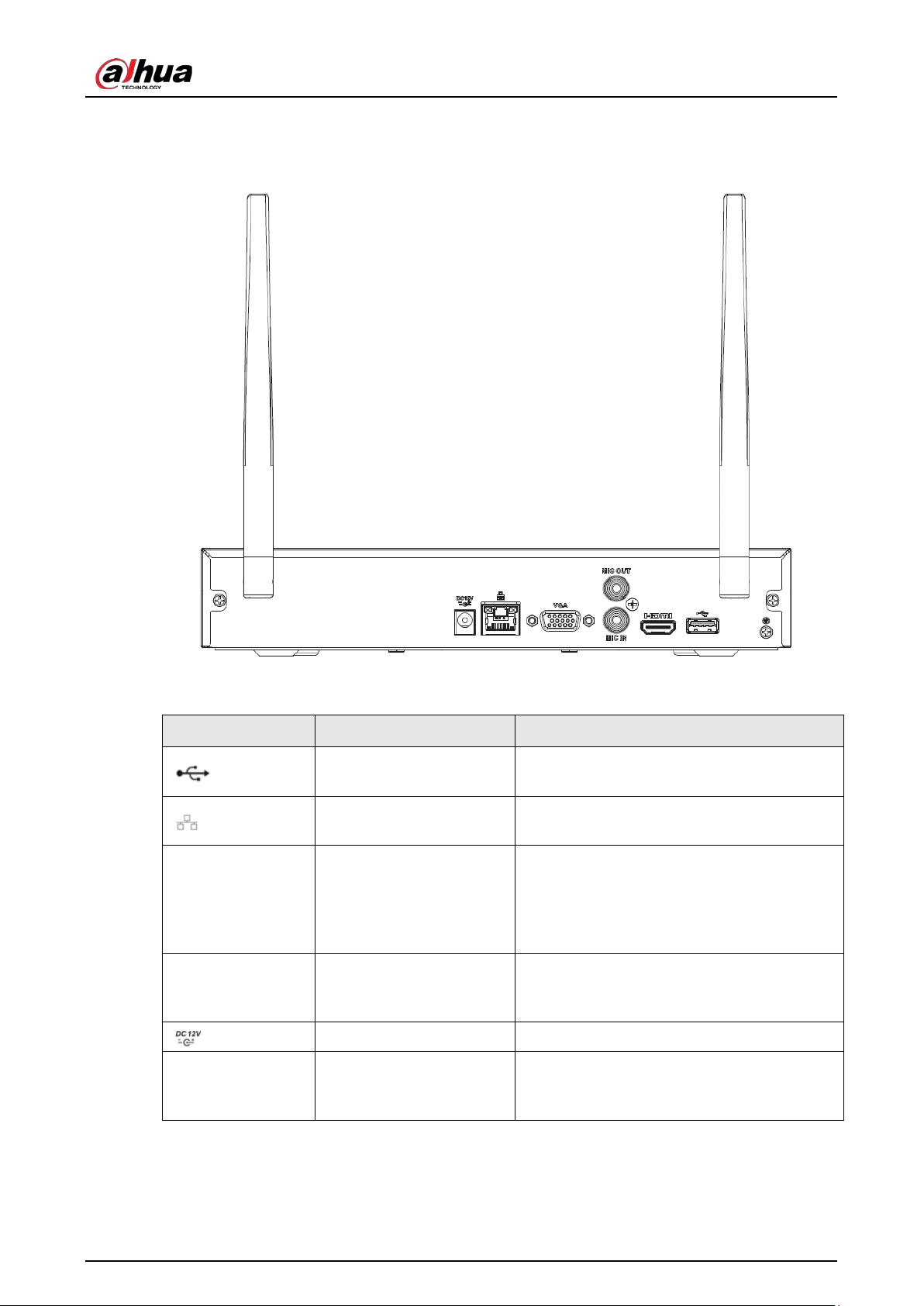
User's Manual
57
2.2.29 NVR11HS-W-S2-CE/NVR11HS-W-S2-FCC Series
Figure 2-80 Rear panel
Table 2-42 Ports
Icon Name Function
USB 2.0 port
USB 2.0 port. Connect to mouse, USB storage
device, USB burner and more.
Network port
10/100 Mbps self-adaptive Ethernet port.
Connect to the network cable.
HDMI
High Definition Media
Interface
High definition audio and video signal
output port. It transmits uncompressed high
definition video and multiple-channel data
to the HDMI port of the display device. HDMI
version is 1.4.
VGA VGA video output port
VGA video output port. Output analog video
signal. It can connect to the monitor to view
analog video.
Power input port Input 12 VDC/2 A.
MIC IN Audio input port
Bidirectional talk input port. It is to receive
the analog audio signal output from the
devices such as microphone, pickup.
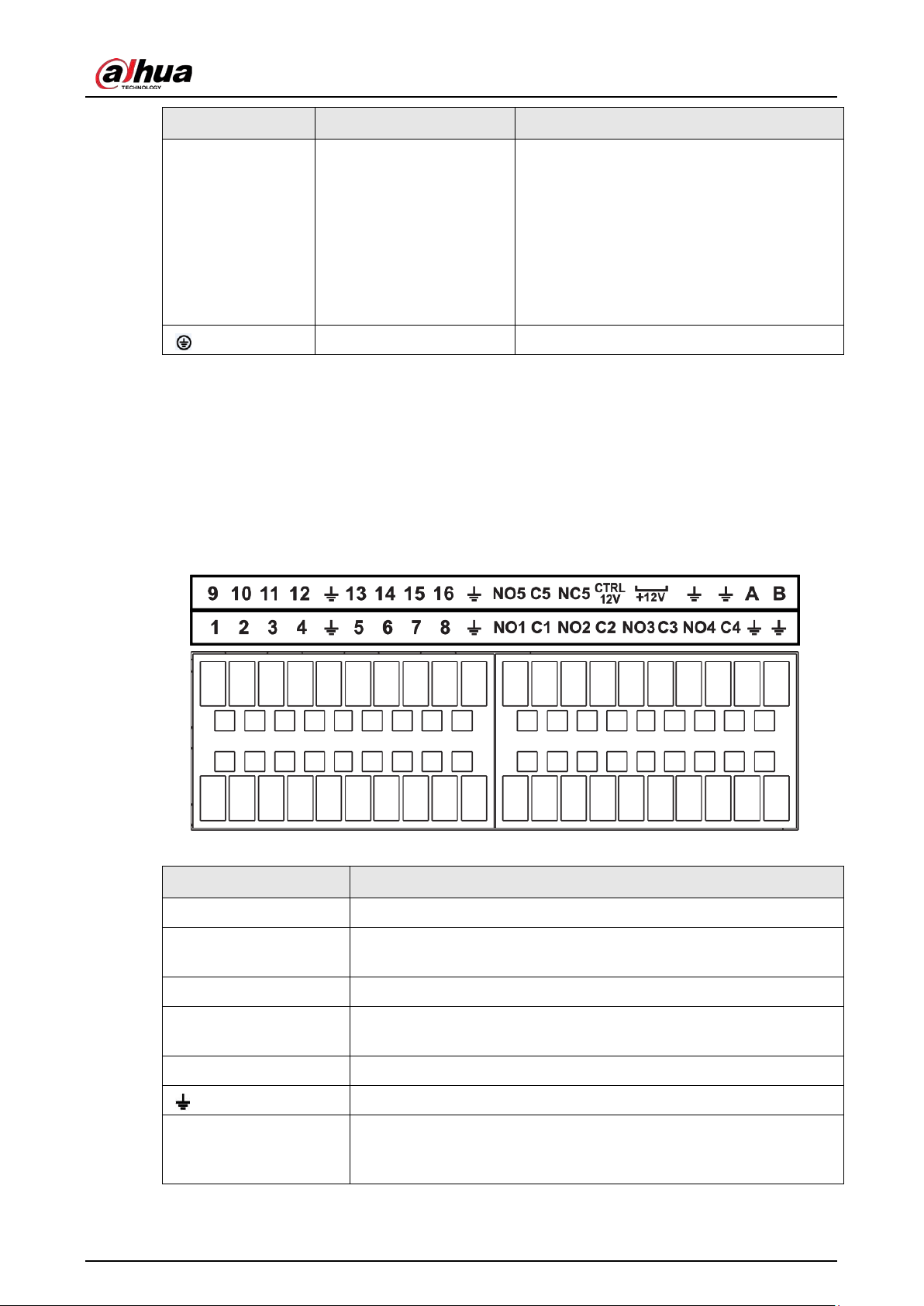
User's Manual
58
Icon Name Function
MIC OUT Audio output port
Audio output port. It is to output the analog
audio signal to the devices such as the sound
box.
●
Bidirectional talk output.
●
Audio output on 1-window video
monitor.
●
Audio output on 1-window video
playback.
GND Ground end.
2.3 Alarm Connection
2.3.1 Alarm Port
The alarm port is shown as below. The following figure is for reference only.
Figure 2-81 Alarm port
Table 2-43 Alarm port description
Icon Function
1–16 ALARM1–ALARM16. The alarm becomes activated in the low level.
NO1 C1, NO2 C2, NO3
C3, NO4 C4
Four NO activation output groups. (On-off button).
NO5 C5 NC5 One NO/NC activation output group. (On-off button).
CTRL (CTRL 12 V)
Control power output. Disable power output when alarm is canceled.
Current is 500 mA.
P (+12 V) Rated current output. Current is 500 mA.
GND.
A/B
485 communication port. They are used to control devices such as
PTZ. Please parallel connect 120 TΩ between A/B cables if there are
too many PTZ decoders.
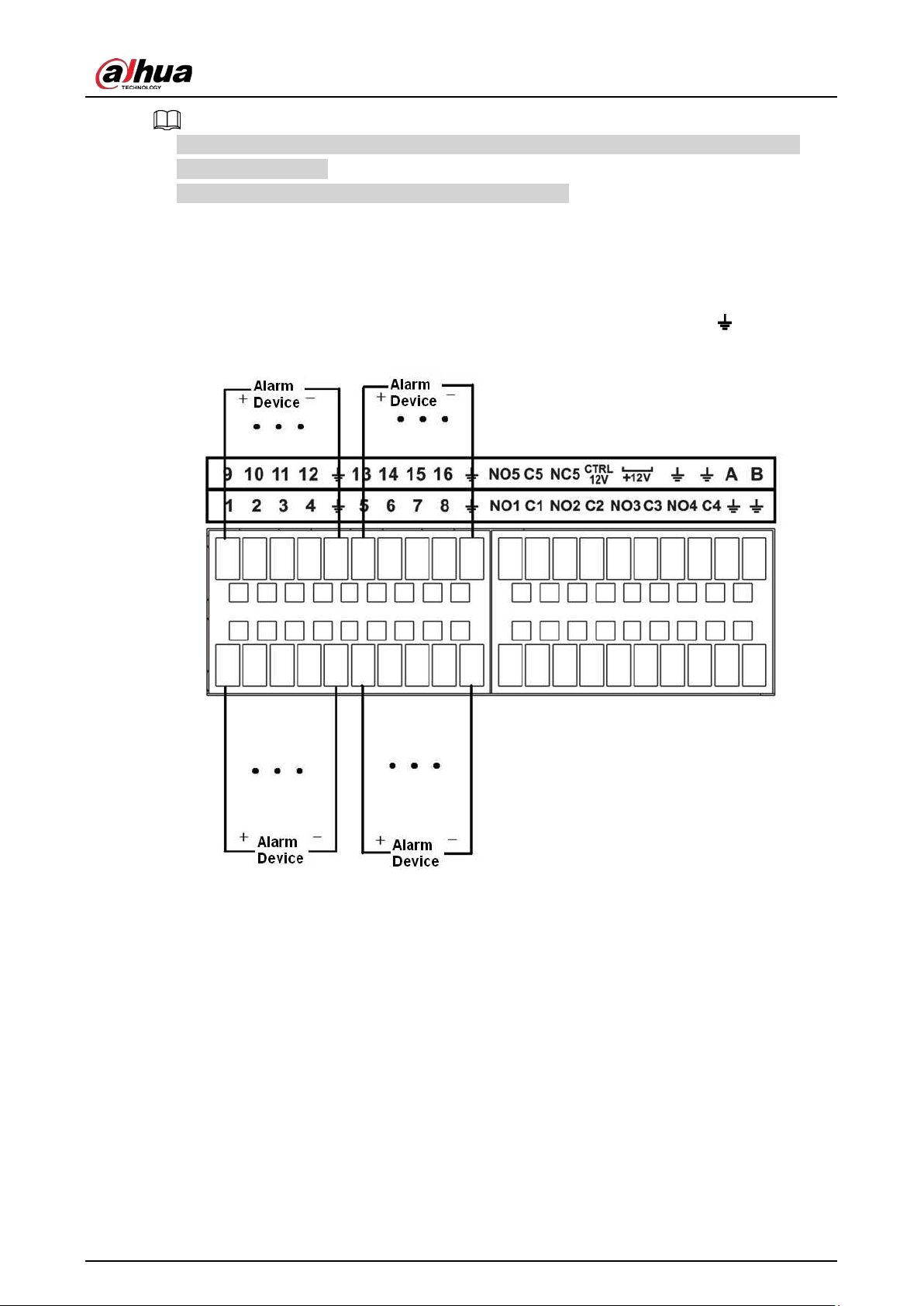
User's Manual
59
●
Different models support different alarm input ports. Please see the specifications sheet for
detailed information.
●
Slight difference might be found on the alarm port layout.
2.3.2 Alarm Input Port
Connect the positive end (+) of the alarm input device to the alarm input port (ALARM IN 1–16) of
the NVR. Connect the negative end (-) of the alarm input device to the ground end ( ) of the NVR.
Figure 2-82 Alarm input port
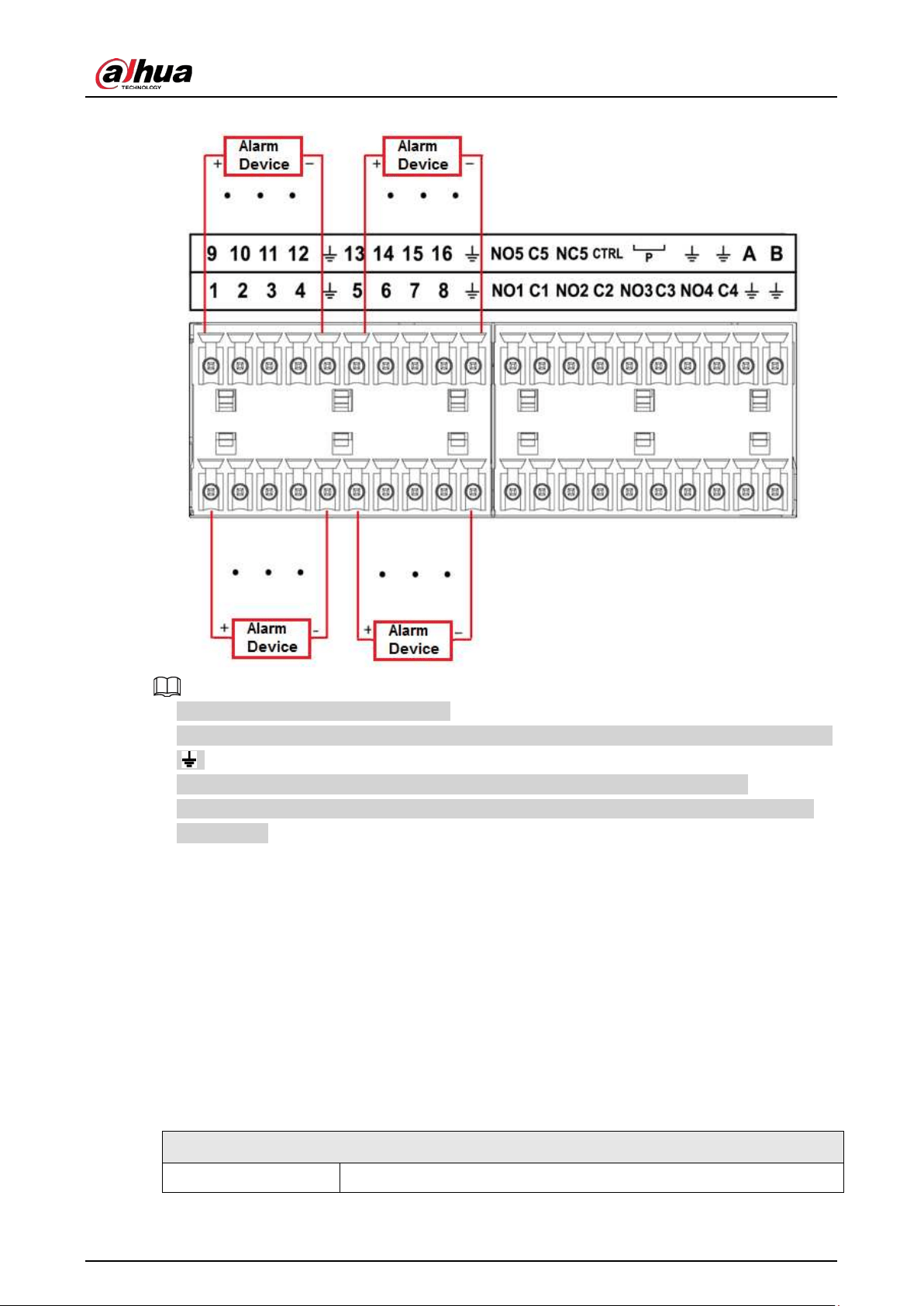
User's Manual
60
Figure 2-83 Alarm input port
●
There are two alarm input types: NO/NC.
●
When connect the ground port of the alarm device to the NVR, you can use any of the GND ports
( ).
●
Connect the NC port of the alarm device to the alarm input port (ALARM) of the NVR.
●
When there is peripheral power supplying for the alarm device, please make sure it is earthed
with the NVR.
2.3.3 Alarm Output Port
●
There is peripheral power supplying for the external alarm device.
●
In case overload might result in NVR damage, please see the following relay specifications for
detailed information.
●
A/B cable of the RS-485 is for the A/B cable connection of the speed PTZ.
2.3.4 Alarm Relay Specifications
Table 2-44 Alarm relay specifications
Model: JRC-27F
Material of the touch Silver
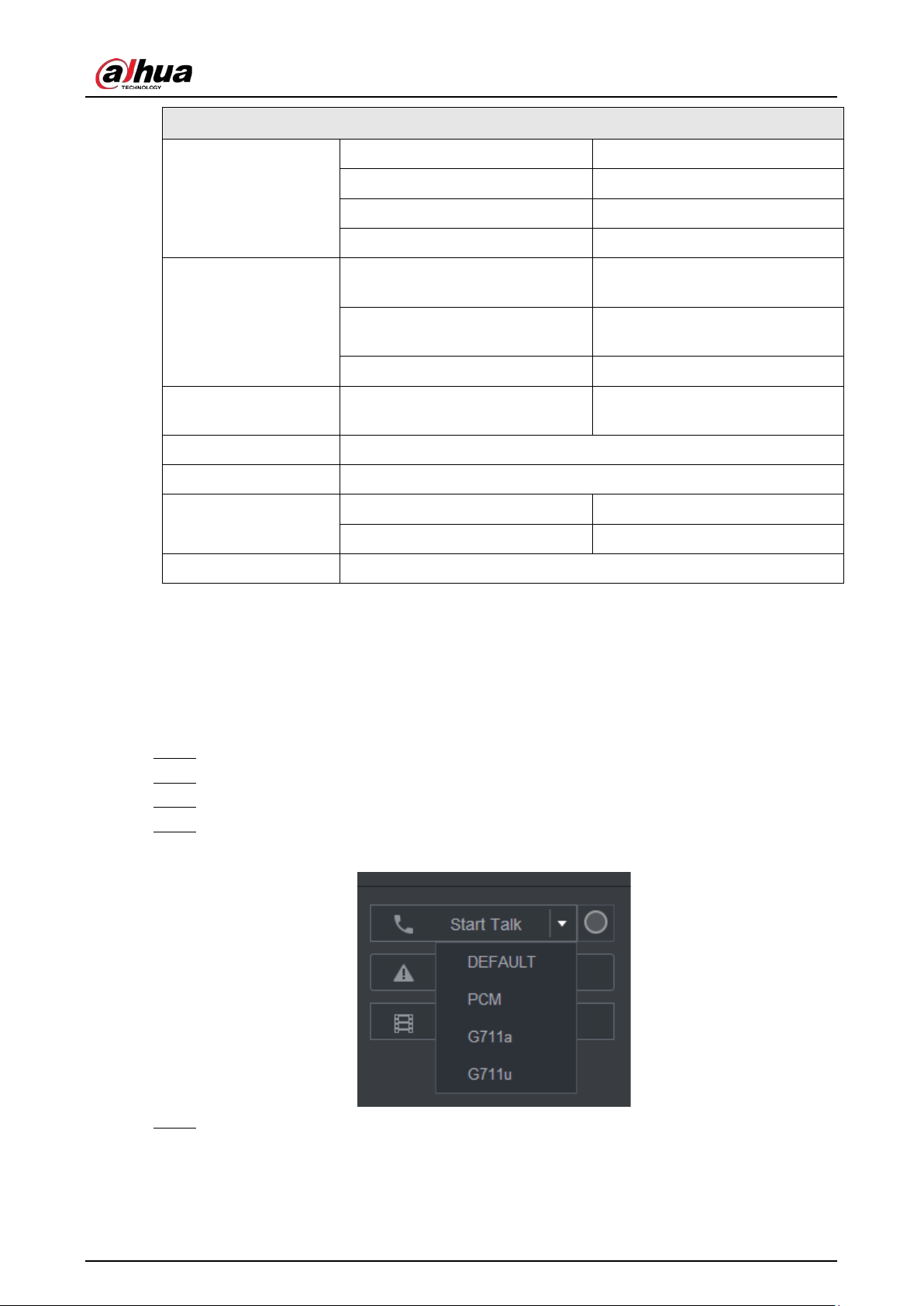
User's Manual
61
Model: JRC-27F
Rating (Resistance
Load)
Rated switch capacity 30 VDC 2 A, 125 VAC 1 A
Maximum switch power 125 VAC, 160 W
Maximum switch voltage 250 VAC, 220 VDC
Maximum switch currency 1 A
Insulation
Between touches with same
polarity
1000 VAC 1 minute
Between touches with different
polarity
1000 VAC 1 minute
Between touch and winding 1000 VAC 1 minute
Surge voltage
Between touches with same
polarity
1500 V (10×160 μs)
Length of open time 3 ms max
Length of close time 3 ms max
Longevity
Mechanical 50 × 106 MIN (3 Hz)
Electrical 200 × 103 MIN (0.5 Hz)
Temperature -40 °C to +70 °C
2.4 Two-way Talk
2.4.1 Device-end to PC-end
Step 1 Connect the speaker or the pickup to the first audio input port on the device rear panel.
Step 2 Connect the earphone or the sound box to the audio output port in the PC.
Step 3 Log in to the web and then enable the corresponding channel real-time monitor.
Step 4 Enable two-way talk.
Figure 2-84 Enable two-way talk
Step 5 At the device end, speak by the speaker or the pickup, and then you can get the audio
from the earphone or sound box at the PC end.
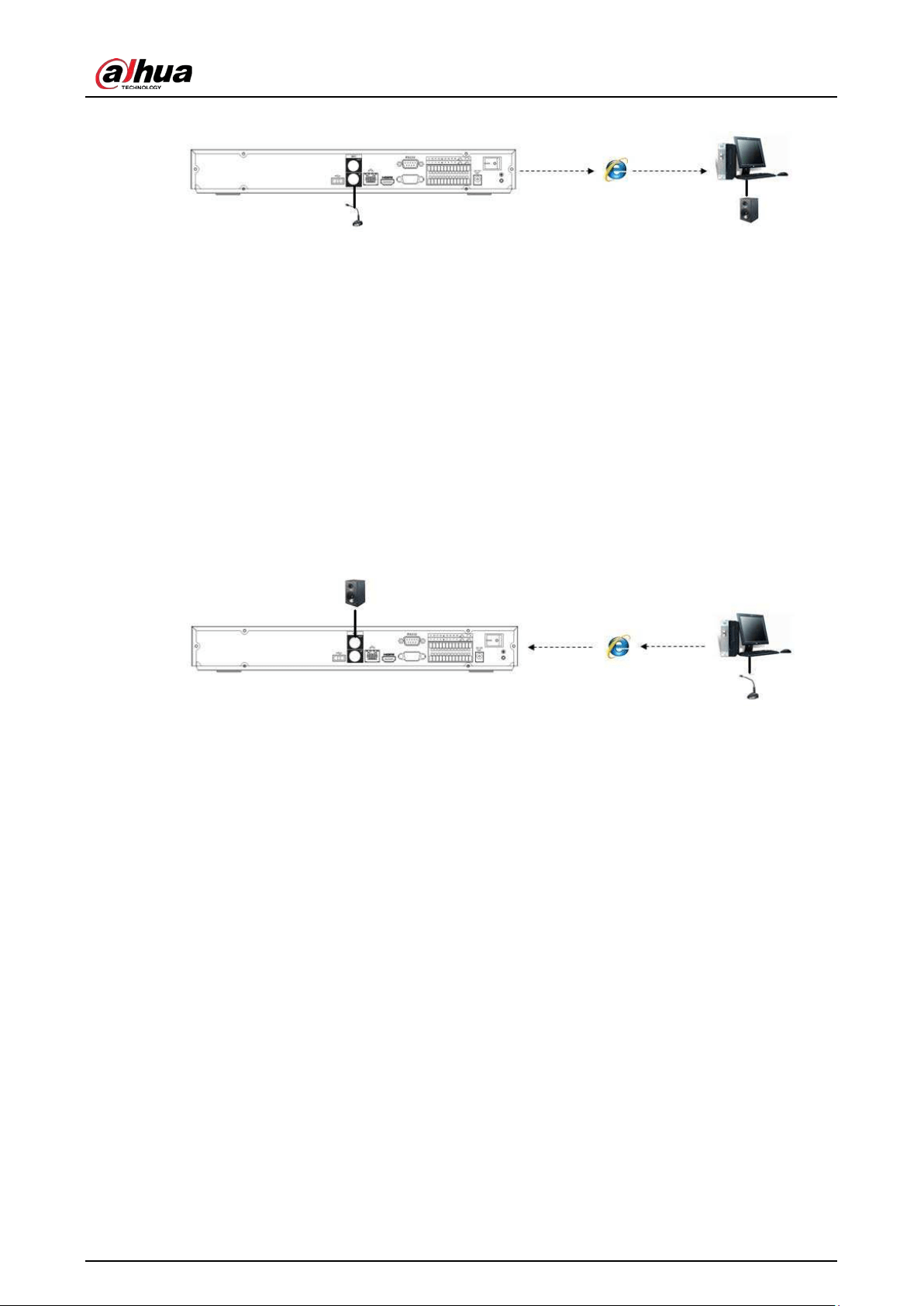
User's Manual
62
Figure 2-85 Device to PC
2.4.2 PC-end to the Device-end
Device Connection
1. Connect the speaker or the pickup to the audio output port in the PC.
2. Connect the earphone or the sound box to the first audio input port in the device rear panel.
3. Log in to the web and then enable the corresponding channel real-time monitor.
4. Enable bidirectional talk. See Figure 2-84.
Listening Operation
At the PC-end, speak by the speaker or the pickup, and then you can get the audio from the
earphone or sound box at the device-end.
Figure 2-86 PC to device
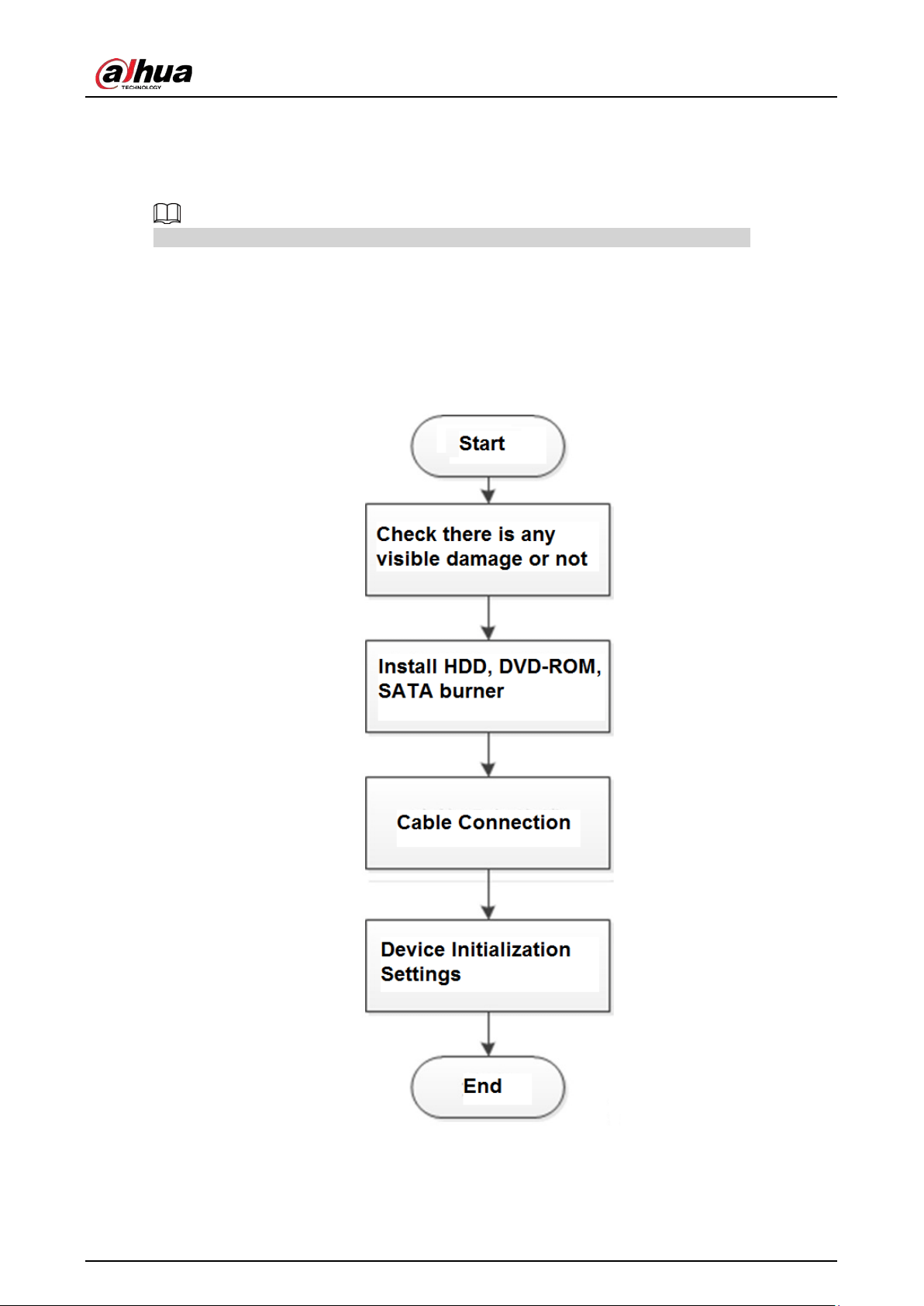
User's Manual
63
3 Device Installation
All the installation and operations here should conform to your local electric safety rules.
3.1 Device Installation Diagram
Please see the following diagram to install the NVR.
Figure 3-1 Installation flowchart
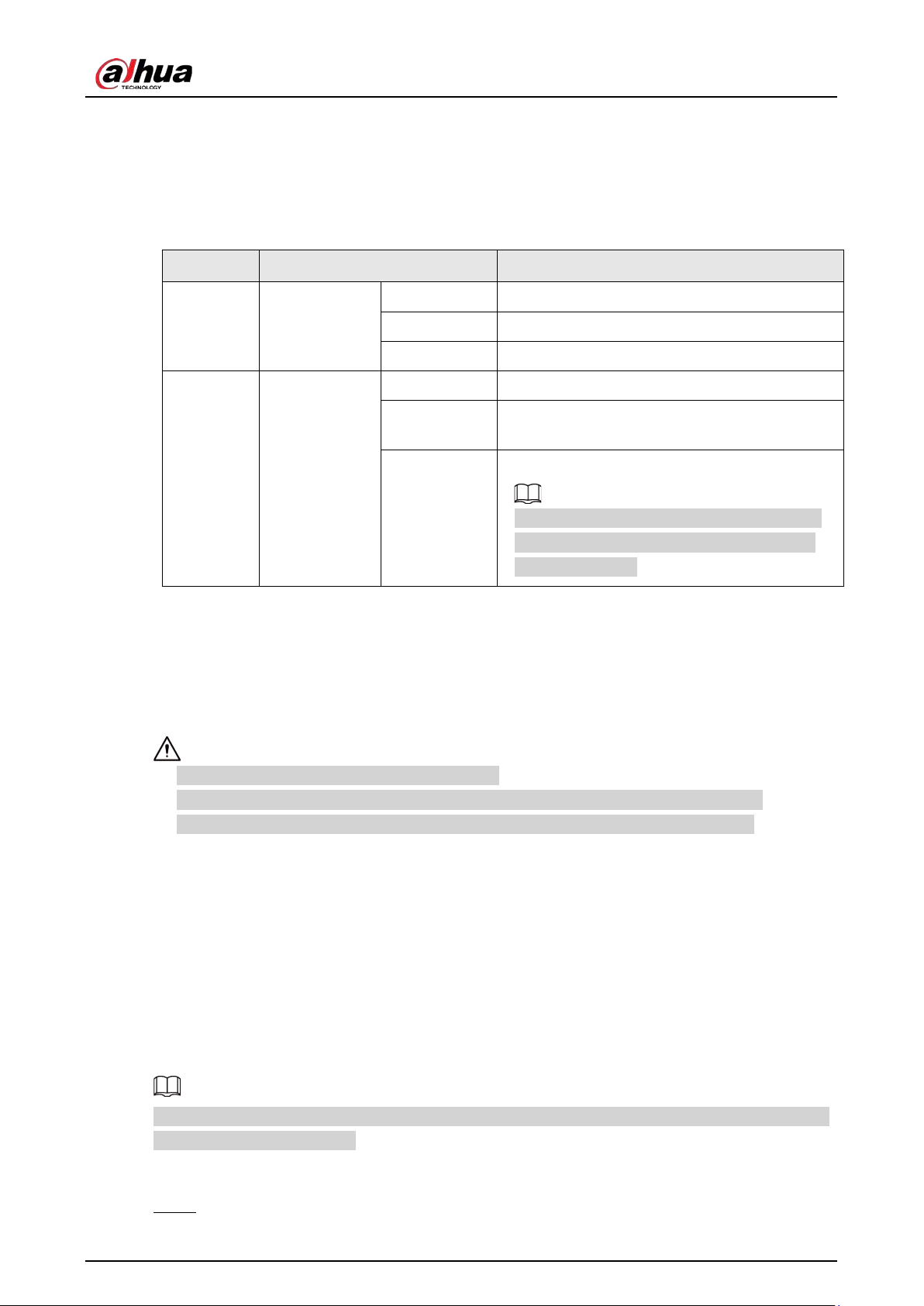
User's Manual
64
3.2 Checking Unpacked NVR
When you receive the NVR, check against the following checklist. If any of the items are missing or
damaged, contact the local retailer or after-sales service immediately.
Table 3-1 Checklist
Sequence Item Description
1
Overall
packaging
Appearance No obvious damage.
Package Not distorted or broken.
Accessories Nothing missing.
2 The Device
Appearance No obvious damage.
Model
The model description is consistent with the
contract.
Label
Not torn up.
Keep the label well. You need to provide the
serial number on the label when calling the
after-sales service.
3.3 HDD Installation
For the first time installation, make sure whether the HDD has been installed or not. We recommend
to use HDD of enterprise level or surveillance level. It is not recommended to use PC HDD.
●
Shut off the power before you replace the HDD.
●
Use the dedicated SATA HDD for monitoring recommended by the HDD manufacturer.
●
You can see the Appendix for HDD space information and recommended HDD brand.
3.3.1 NVR41-4KS2/NVR41-P-4KS2/NVR41-8P-4KS2/NVR41-
4KS2/L/NVR41-P-4KS2/L/NVR41-8P-4KS2/L/NVR21-4KS2/NVR21-P-
4KS2/NVR21-8P-4KS2/NVR21-W-4KS2/NVR21-I/NVR21-I2/NVR21-P-
I/NVR21-P-I2/NVR21-8P-I/NVR21-8P-I2/NVR21-S3/NVR21-P-
S3/NVR21-8P-S3
Connect cable and then secure the HDD on the NVR if it is not convenient to connect the HDD data
cable and power cable at first.
Procedure
Step 1 Loosen the screws of the bottom of the chassis.
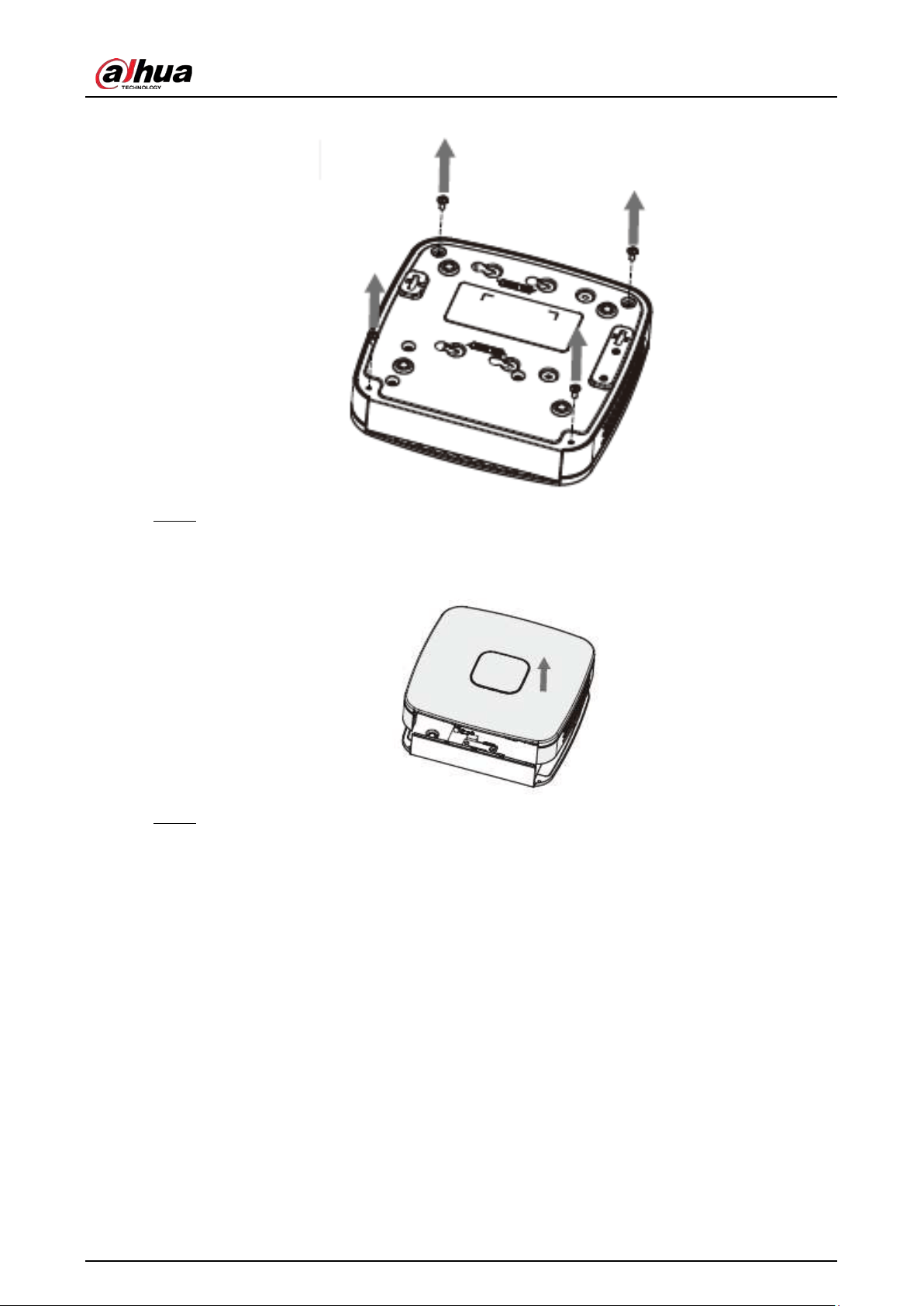
User's Manual
65
Figure 3-2 Lossen screws
Step 2 Place the HDD in accordance with the four holes in the bottom.
Figure 3-3 Aligh HDD
Step 3 Turn the device upside down and then secure the screws firmly.
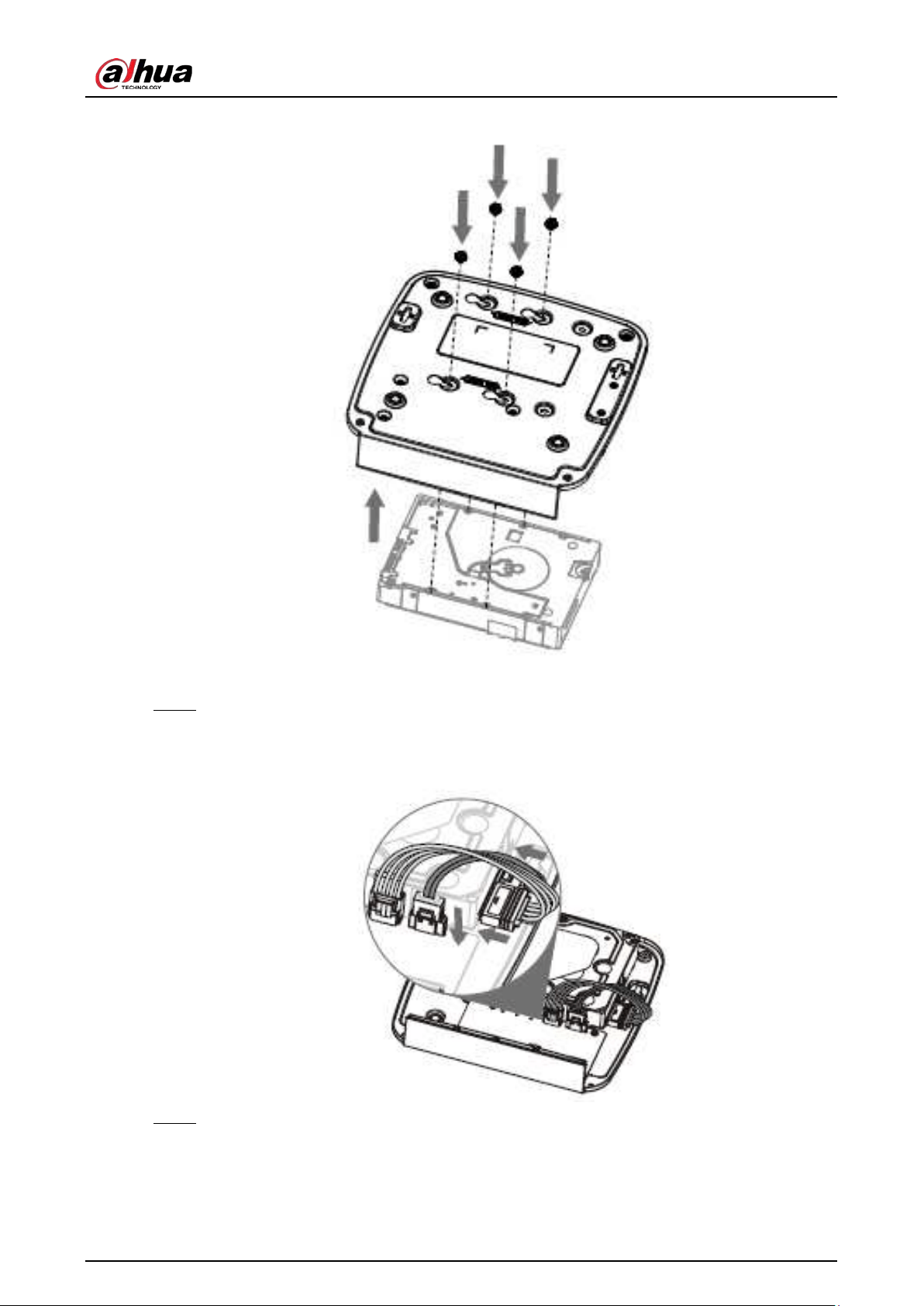
User's Manual
66
Figure 3-4 Secure screws
Step 4 Connect the HDD cable and power cable to the HDD and the mainboard respectively.
Figure 3-5 Connect cables
Step 5 Put the cover back and then fix the screws of the rear panel. The installation is complete.
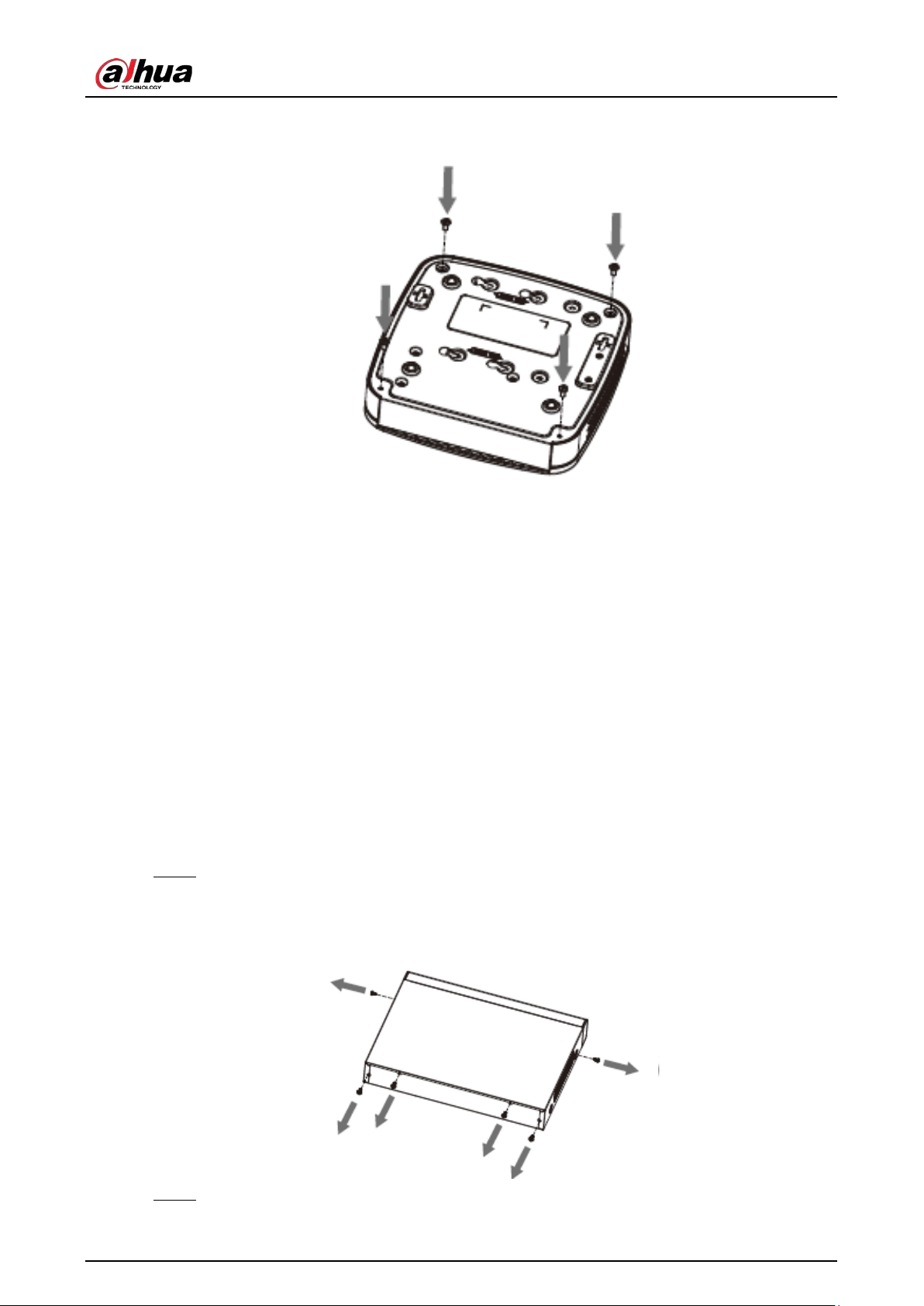
User's Manual
67
Figure 3-6 Put back the cover
3.3.2 NVR41HS-4KS2/NVR41HS-P-4KS2/NVR41HS-8P-
4KS2/NVR41HS-4KS2/L/NVR41HS-P-4KS2/L/NVR41HS-8P-
4KS2/L/NVR21HS-4KS2/NVR21HS-P-4KS2/NVR21HS-8P-
4KS2/NVR21HS-W-4KS2/NVR11HS-S3H/NVR11HS-P-S3H/NVR11HS-
8P-S3H/NVR21HS-I/NVR21HS-I2/NVR21HS-P-I/NVR21HS-P-
I2/NVR21HS-8P-I/NVR21HS-8P-I2/NVR21HS-S3/NVR21HS-P-
S3/NVR21HS-8P-S3/NVR11HS-W-S2-CE/NVR11HS-W-S2-FCC Series
Procedure
Step 1 Loosen the screws of the upper cover and side panel.
Figure 3-7 Loosen screws
Step 2 Remove the cover in the direction of the arrow as shown in the figure below.
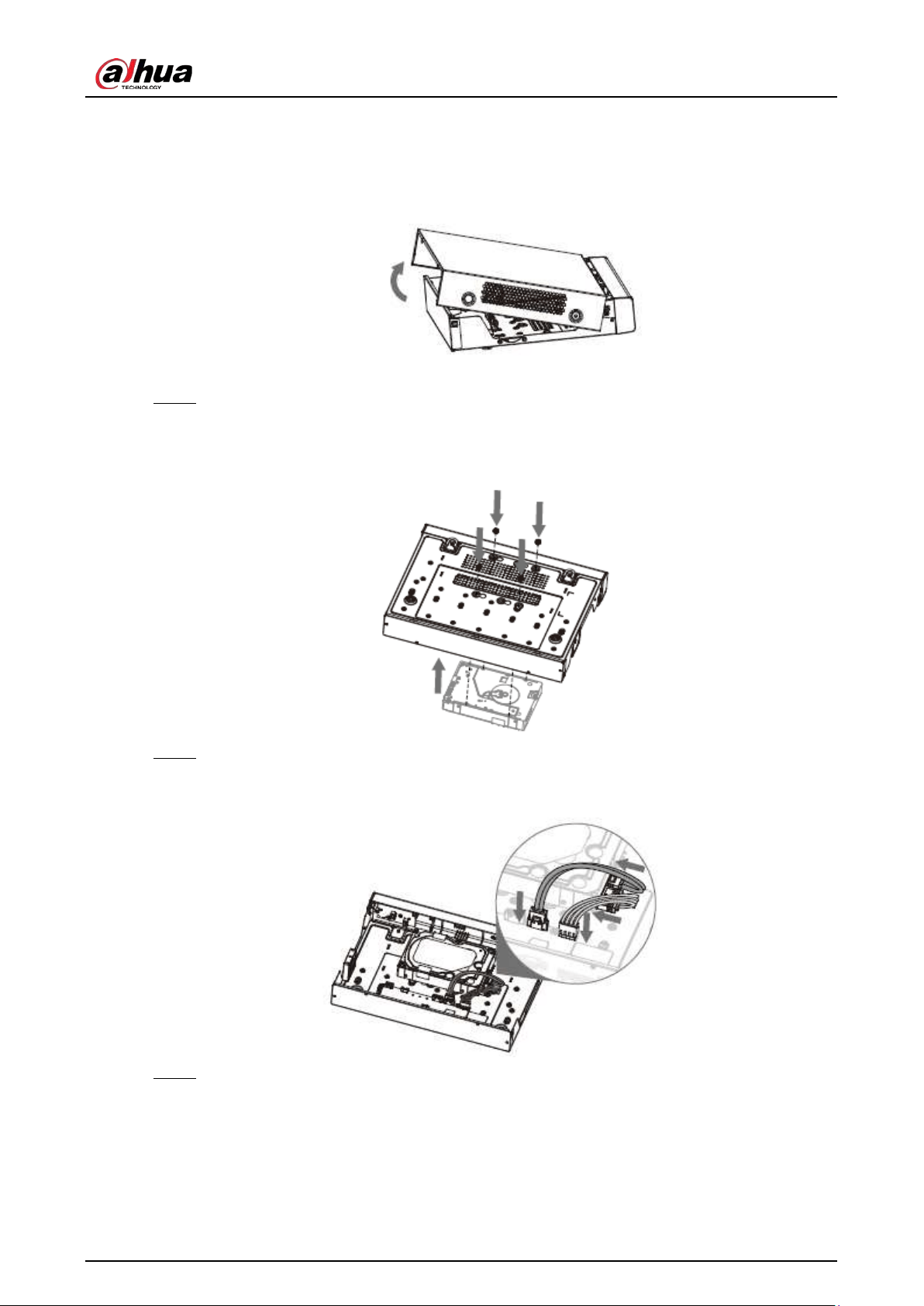
User's Manual
68
Figure 3-8 Remove cover
Step 3 Turn over the device, and align the HDD to the four holes of bottom panel, and then fix the
HDD with screws.
Figure 3-9 Align HDD
Step 4 Connect HDD to the device using data cable and power cable.
Figure 3-10 Connect cables
Step 5 Put the cover in accordance with the clip and then fix the screws on the rear panel and side
panel.
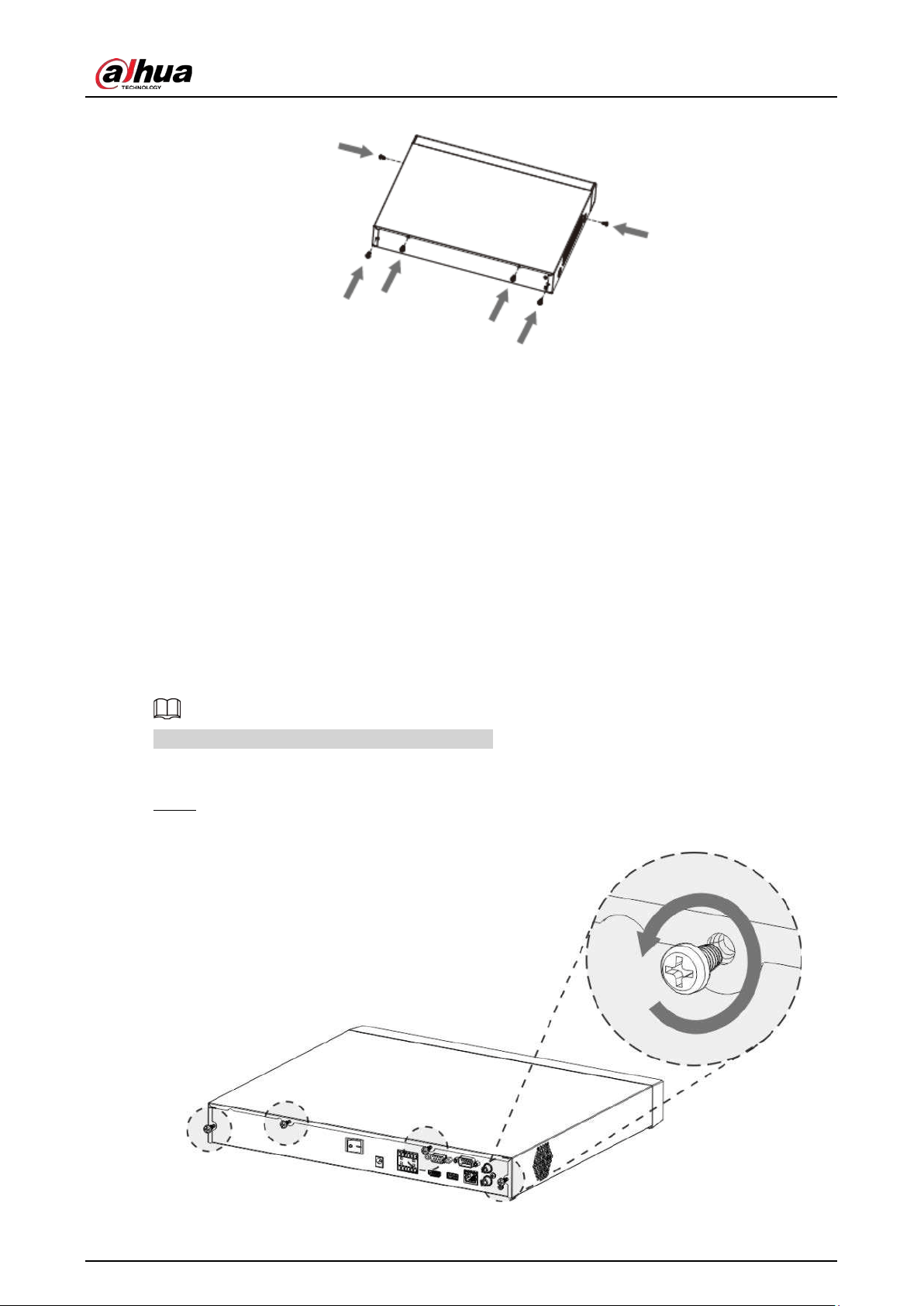
User's Manual
69
Figure 3-11 Put cover back
3.3.3 NVR22-8P-S2/NVR42-4KS2/NVR42-P-4KS2/NVR42-8P-
4KS2/NVR42-16P-4KS2/NVR42-4KS2/L/NVR42-P-4KS2/L/NVR42-8P-
4KS2/L/NVR42-16P-4KS2/L/NVR52-4KS2/NVR52-8P-4KS2/NVR52-
16P-4KS2/ NVR52-24P-4KS2/NVR22-4KS2/NVR22-P-4KS2/NVR22-
8P-4KS2/NVR52-8P-4KS2E/NVR22-I/NVR22-I2/NVR22-P-I/NVR22-P-
I2/NVR22-8P-I/NVR22-8P-I2/NVR22-16P-I/NVR22-16P-I2/NVR42-
I/NVR42-8P-I/NVR42-16P-I/NVR52-16P-I/NVR52-16P-I/L/NVR52-8P-
I/NVR52-8P-I/L Series
Different models have different numbers of HDDs.
Procedure
Step 1 Remove the four fixing screws on the rear panel.
Figure 3-12 Remove screws
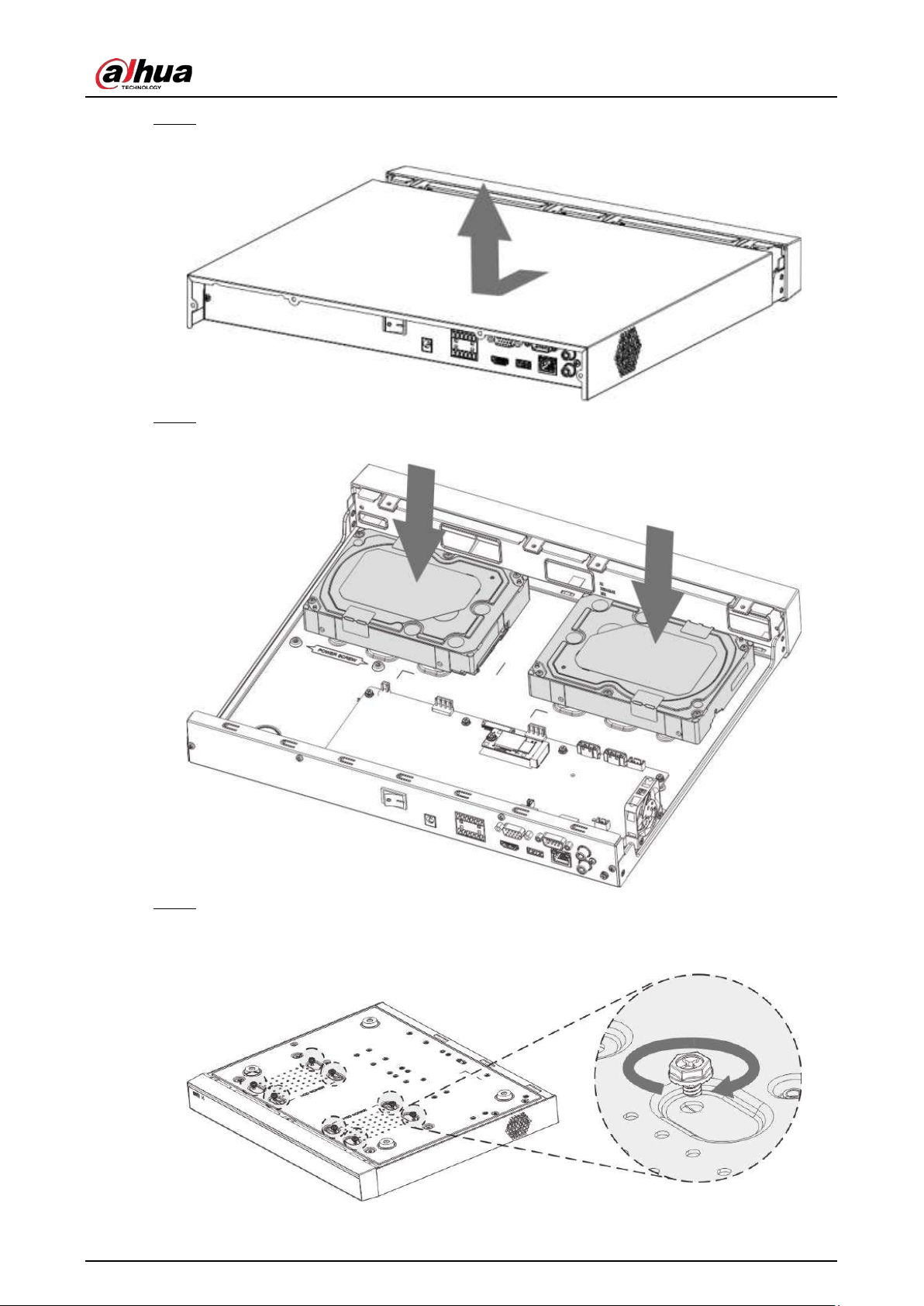
User's Manual
70
Step 2 Remove the case cover along the direction shown in the following arrow.
Figure 3-13 Remove cover
Step 3 Match the four holes on the baseboard to place the HDD.
Figure 3-14 Align HDD
Step 4 Turn the device upside down, match the screws with the holes on the HDD and then fasten
them. The HDD is fixed to the baseboard.
Figure 3-15 Fasten screws
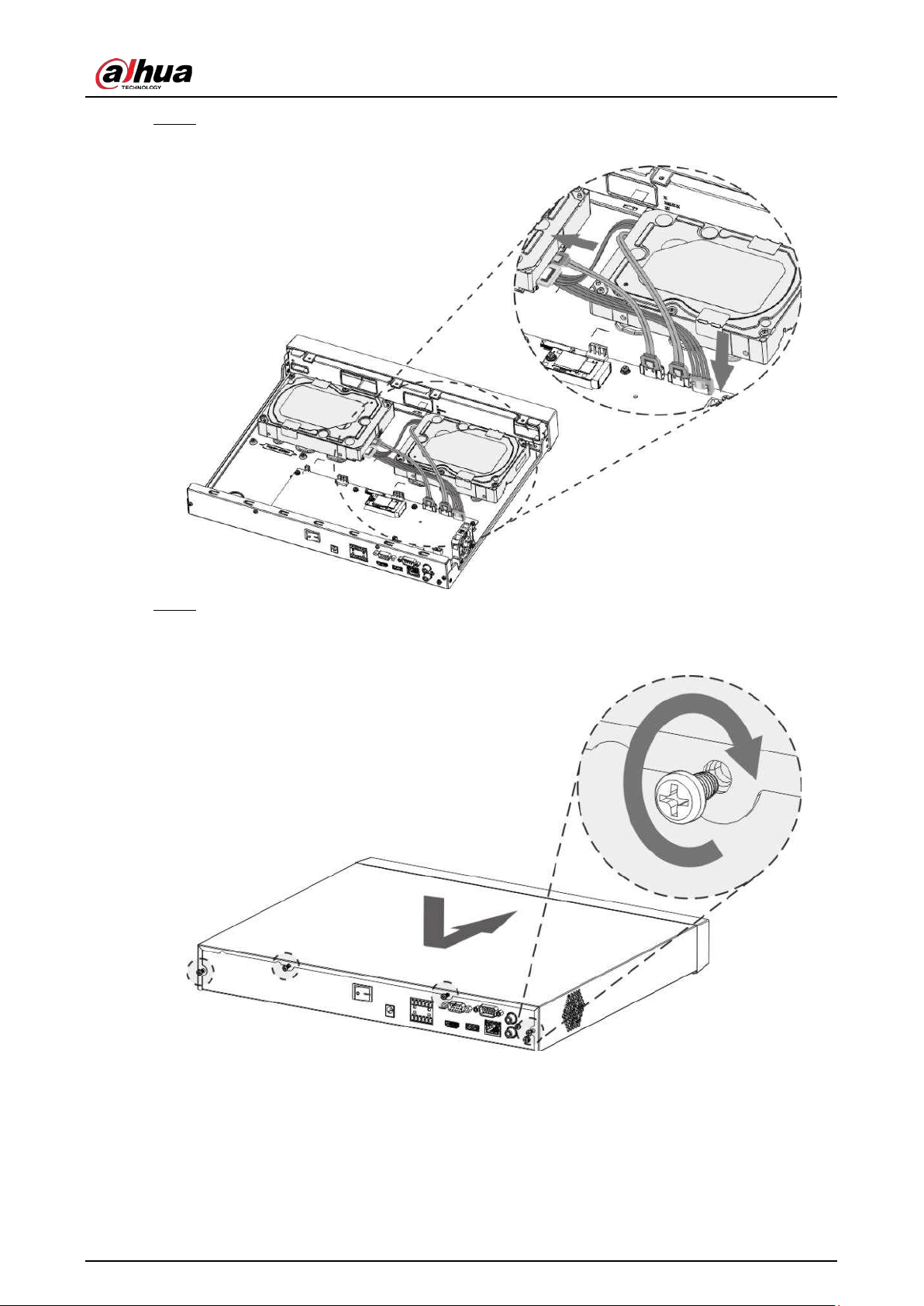
User's Manual
71
Step 5 Connect the HDD data cable and power cable to the device.
Figure 3-16 Connect cables
Step 6 Put back the cover and fasten the four screws on the rear panel to complete the
installation.
Figure 3-17 Put back cover
3.3.4 NVR54-4KS2/NVR54-16P-4KS2/NVR44-4KS2/NVR44-16P-
4KS2/NVR44-4KS2/L/NVR44-16P-4KS2/L/NVR54-24P-4KS2/NVR54-
16P-4KS2E/NVR58-I/NVR58-I/L/NVR54-I/NVR54-I/L/NVR52-I/NVR52-
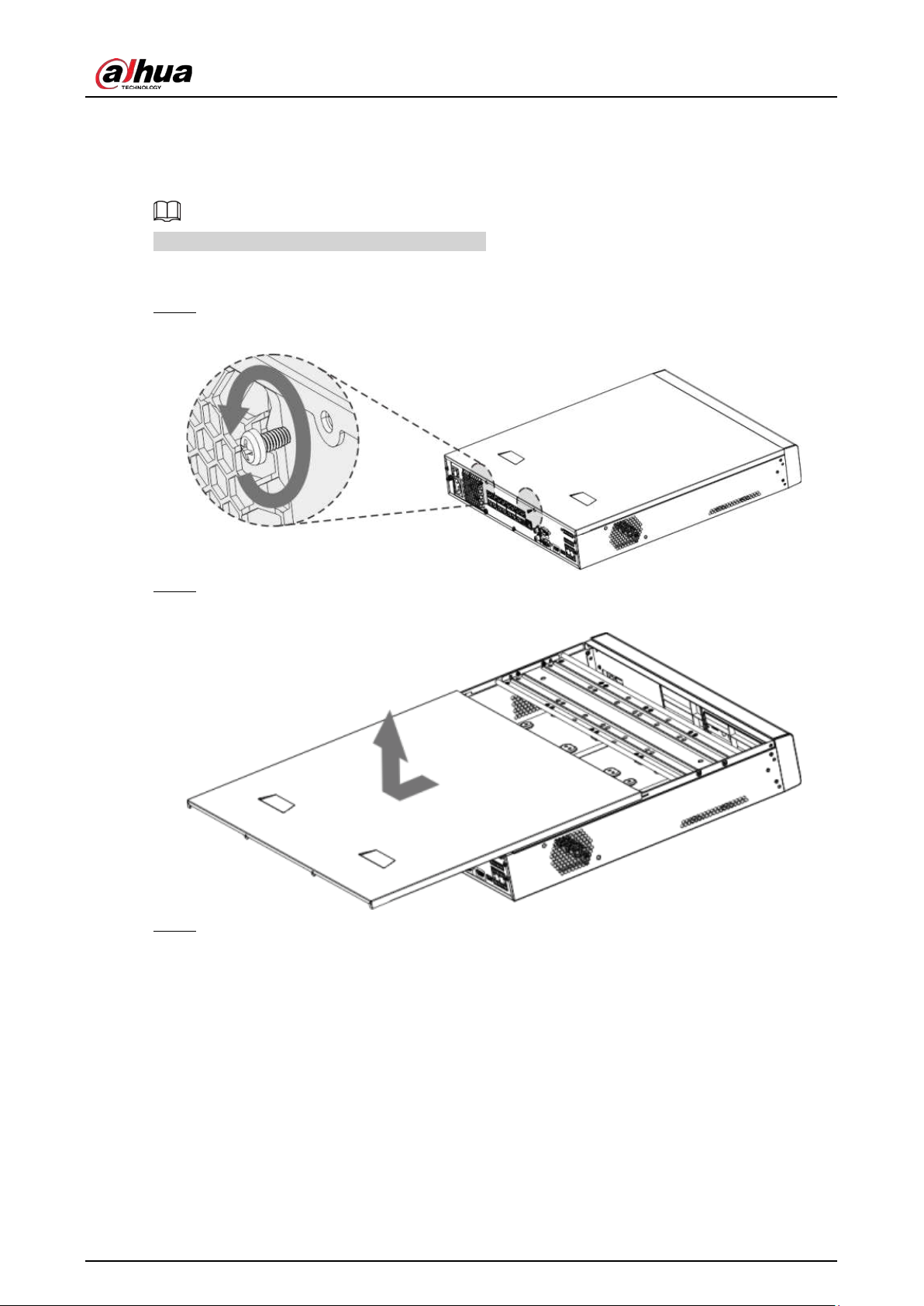
User's Manual
72
I/L/NVR42-I/NVR42-8P-I/NVR44-I/NVR48-I/NVR608-32-4KS2/NVR44-
4KS2/I/NVR44-16P-4KS2/I/NVR48-4KS2/I/NVR48-16P-4KS2/I Series
Different models have different number of HDDs.
Procedure
Step 1 Remove the fixing screws on the rear panel of the device.
Figure 3-18 Remove screws
Step 2 Remove the case cover along the direction shown in the following arrow.
Figure 3-19 Remove cover
Step 3 Remove the screws on the sides of HDD bracket to take out the bracket.
●
1.5U device has one HDD bracket. For the way to remove the bracket, see Figure 3-20
●
2U device has two HDD brackets. For the way to remove the brackets, see Figure 3-21.
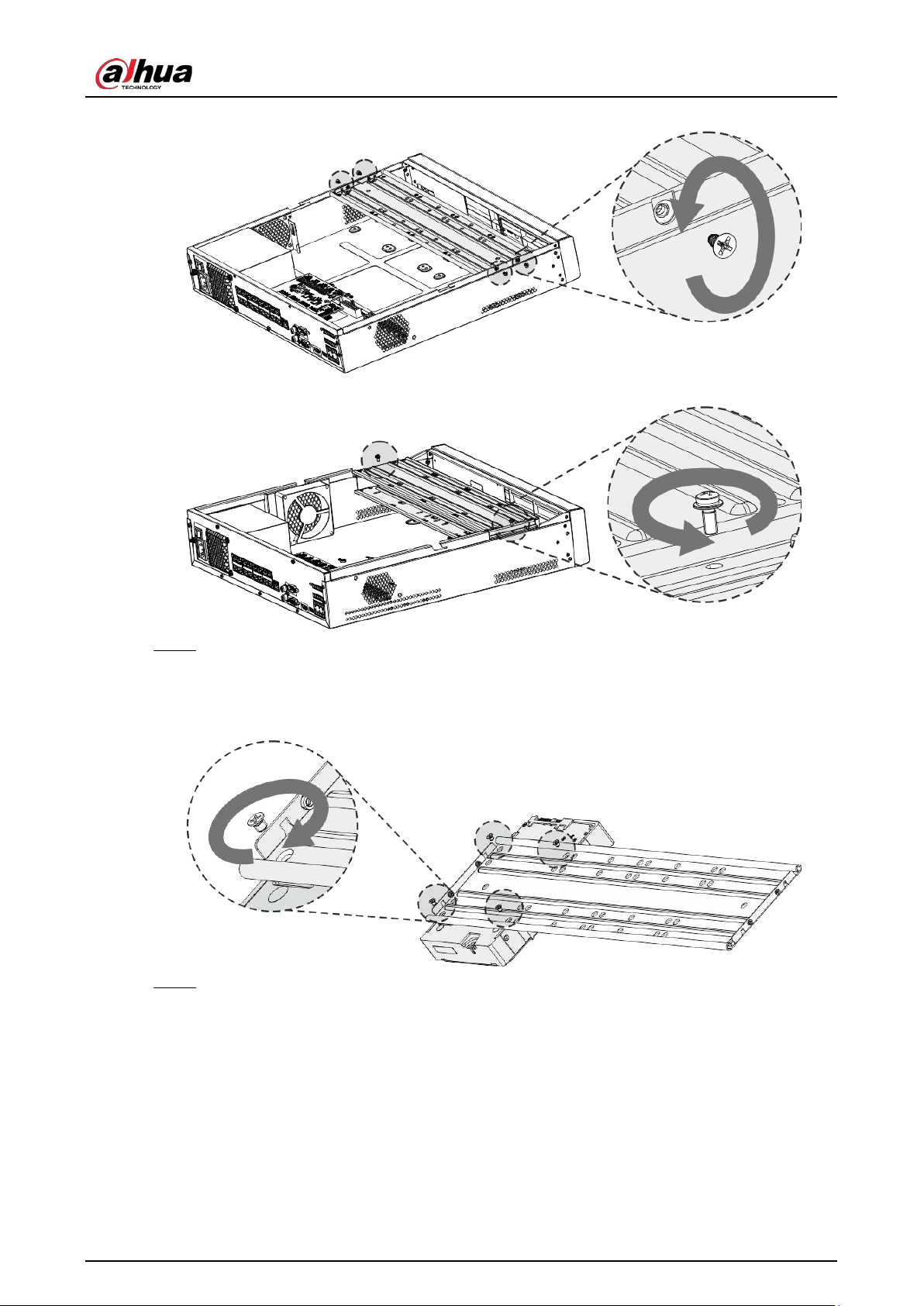
User's Manual
73
Figure 3-20 Remove screws (1.5U)
Figure 3-21 Remove screws (2U)
Step 4 Match the four screw holes on the HDD with the four holes on the bracket and then fasten
the screws.
The HDD is fixed to the bracket.
Figure 3-22 Fasten screws
Step 5 see Step 4 to install other HDDs.
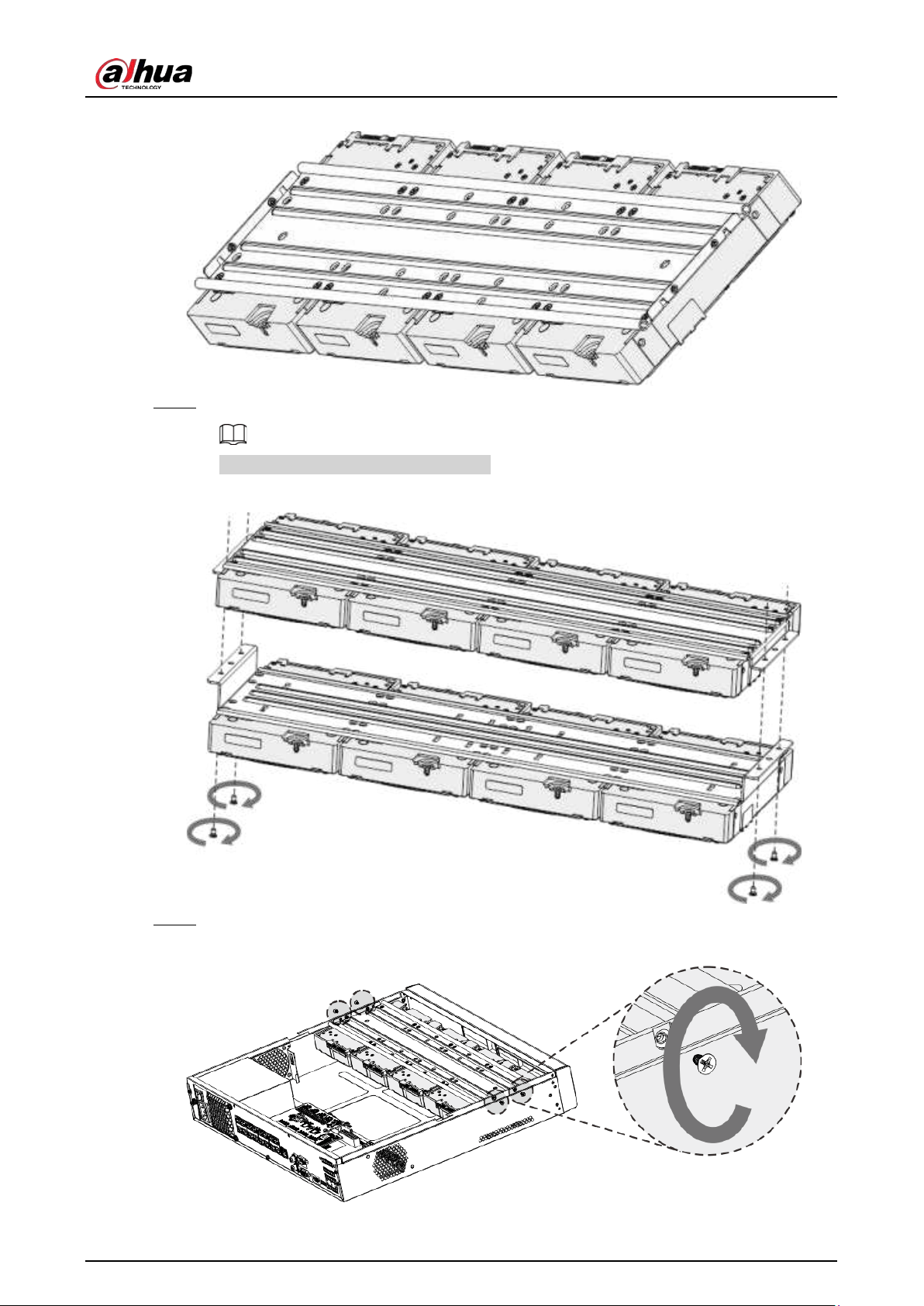
User's Manual
74
Figure 3-23 Install more HDDs
Step 6 Lock the two HDD brackets.
This step is required for 2U devices only.
Figure 3-24 Lock brackets
Step 7 Place the bracket to the device and then fasten the screws on the sides of the bracket.
Figure 3-25 Fasten screws
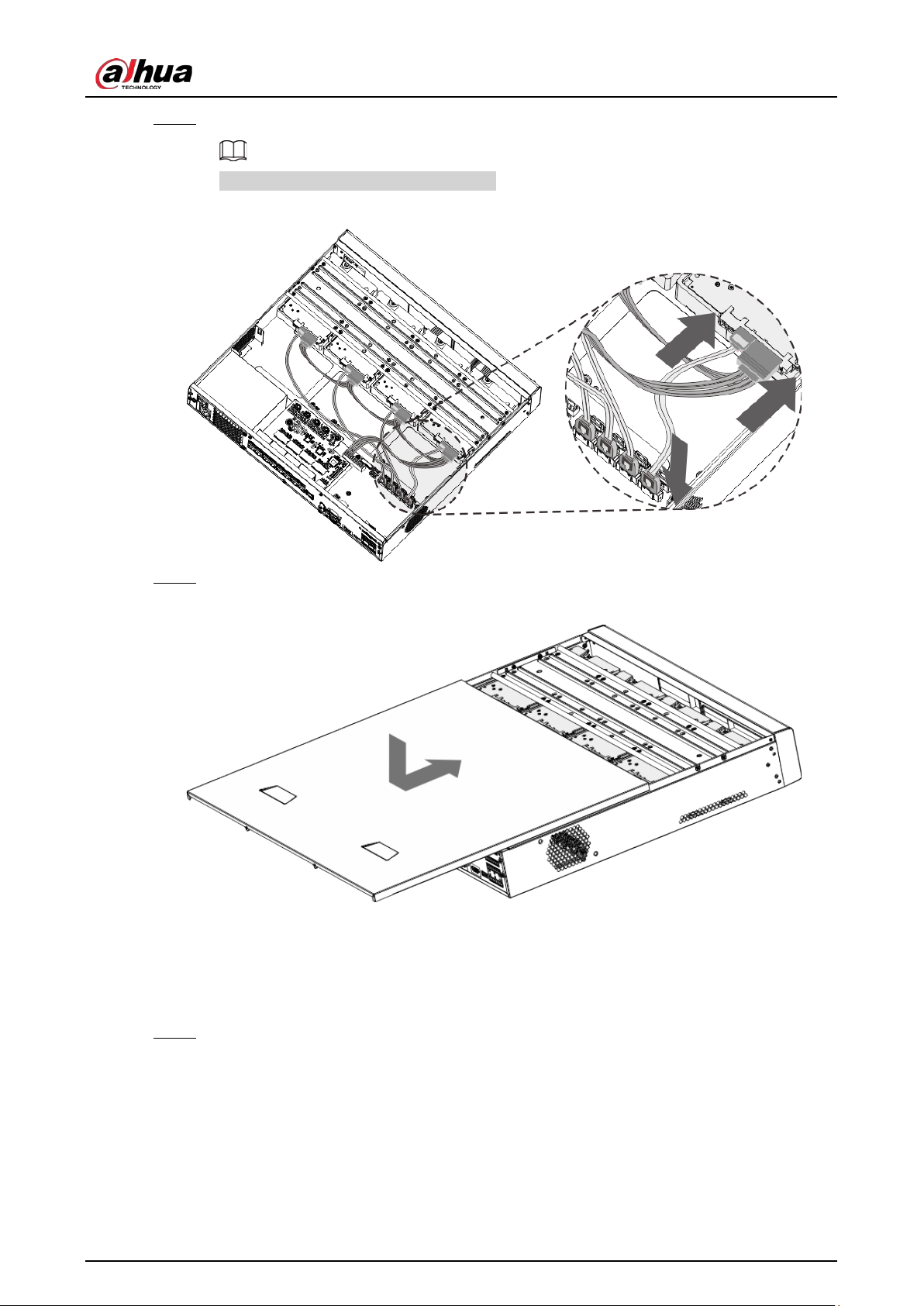
User's Manual
75
Step 8 Connect the HDD data cable and power cable to the device.
The following figure is for reference only.
Figure 3-26 Connect cables
Step 9 Put back the cover and fasten the screws on the rear panel to complete the installation.
Figure 3-27 Fasten screws
3.3.5 NVR608-64-4KS2/NVR608-128-4KS2/NVR608H-32-
XI/NVR608H-64-XI/NVR608H-128-XI Series
Step 1 Unlock the lock on the front panel.
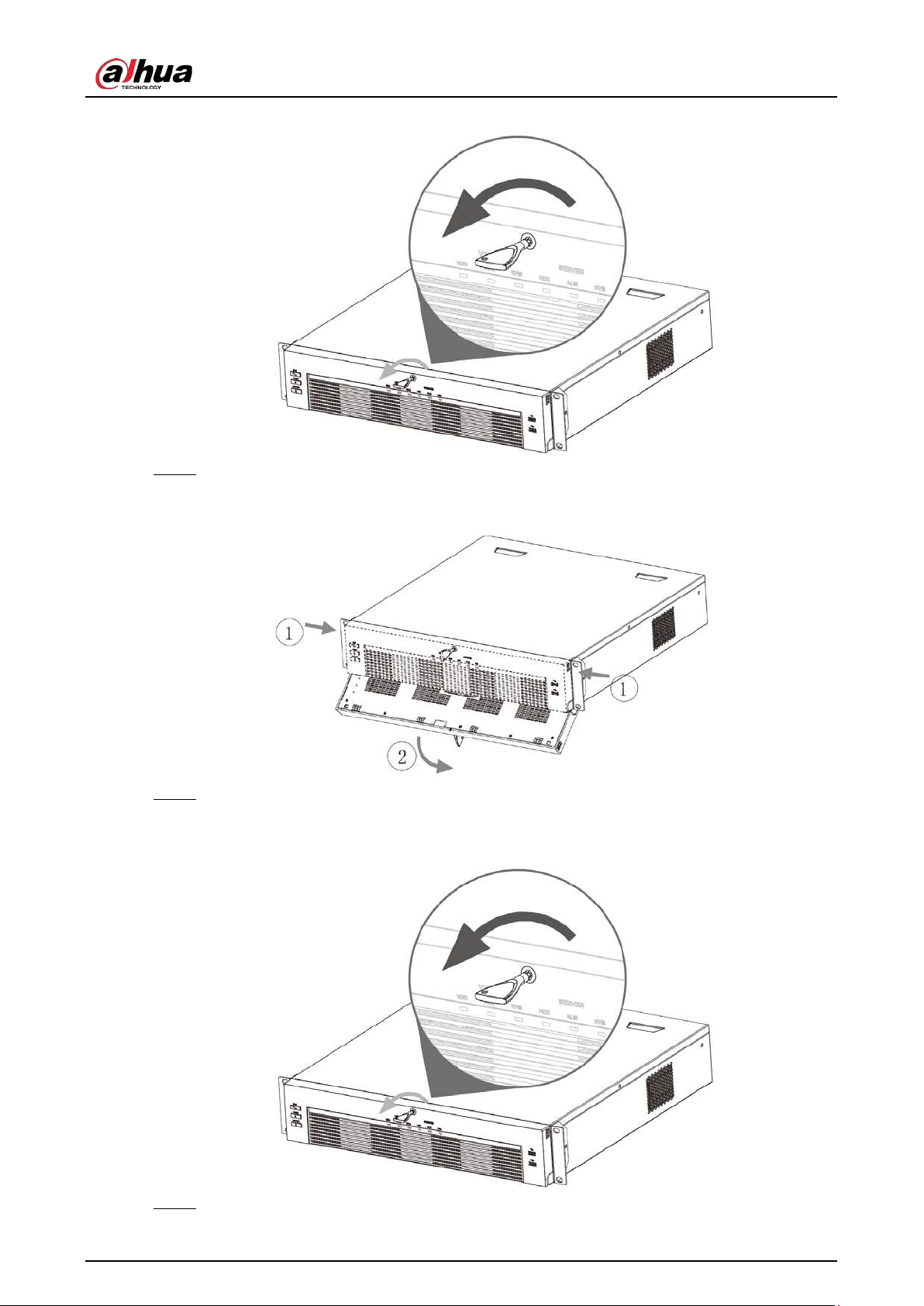
User's Manual
76
Figure 3-28 Unlock front panel
Step 2 Press the button on the 2 sides to open the front panel.
Figure 3-29 Open front panel
Step 3 Match the 4 screw holes on the HDD with the 4 holes on the bracket and then fasten the
screws.
Figure 3-30 Fasten HDD
Step 4 Push the HDD box into the device.
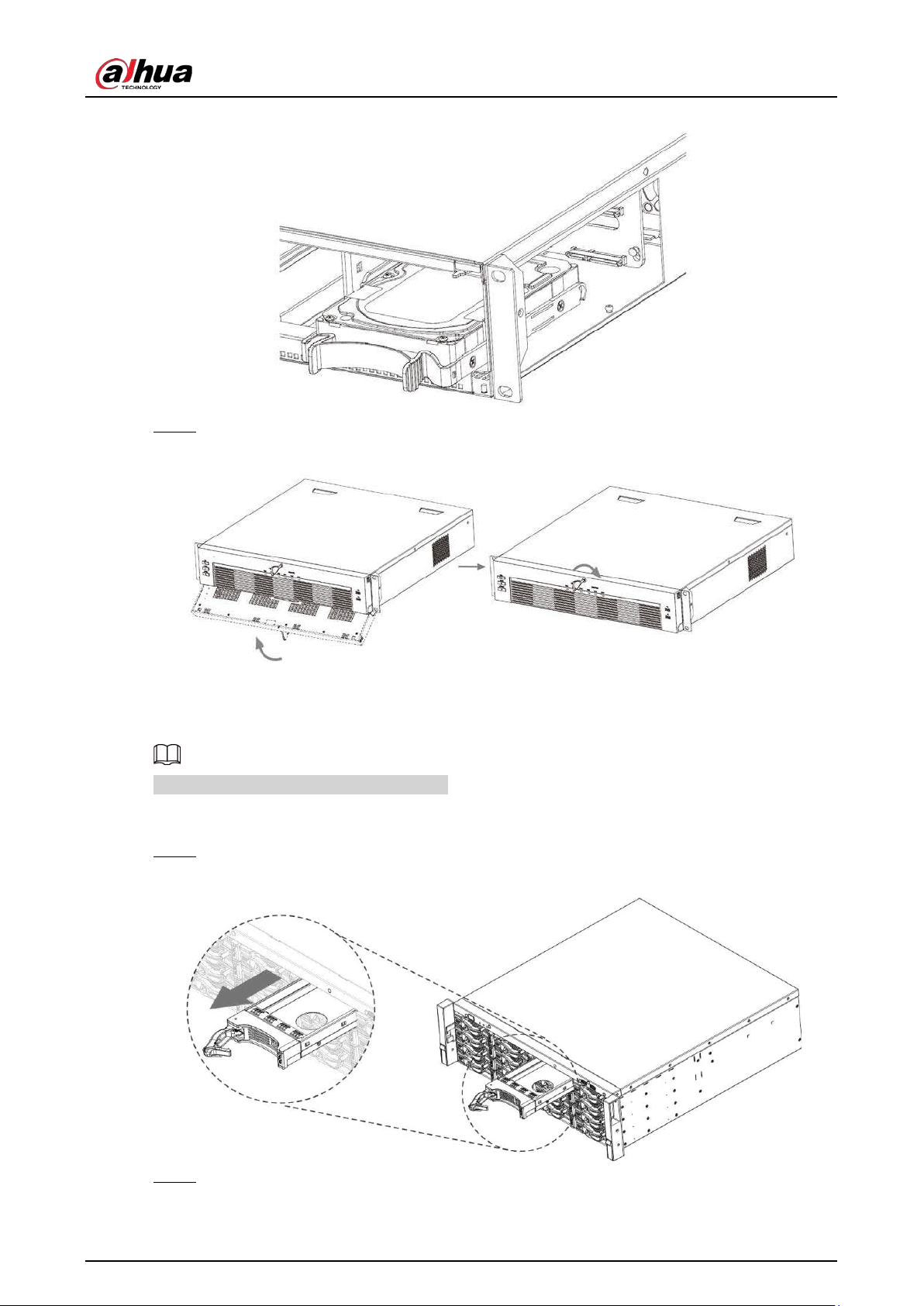
User's Manual
77
Figure 3-31 Unlock front panel
Step 5 Close the front panel and then tighten the lock on the front panel.
Figure 3-32 Lock front panel
3.3.6 NVR616-4KS2 Series
The following figures are for reference only.
Procedure
Step 1 Press the red button on the HDD box, open the handle and then pull out the HDD box.
Figure 3-33 Take out HDD box
Step 2 Put the HDD into the HDD box along the direction shown in the following arrow.
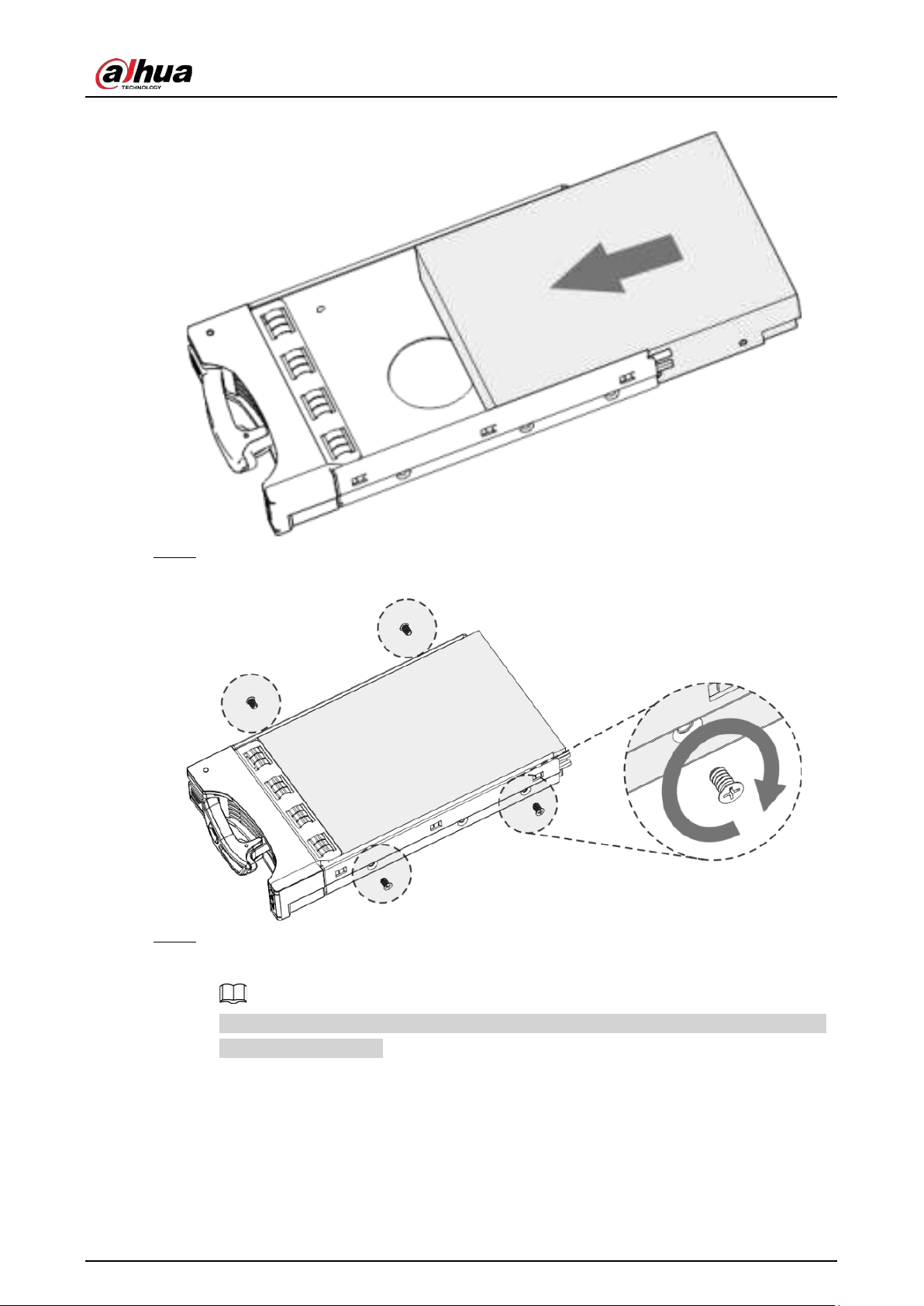
User's Manual
78
Figure 3-34 Put HDD into box
Step 3 Fasten the screws on the sides of the HDD box.
Figure 3-35 Fasten screws
Step 4 Insert the HDD box into the HDD slot, press it to the bottom, and then close the box
handle.
If you have not pushed the HDD box to the bottom, do not close the handle to avoid any
damage to the HDD slot
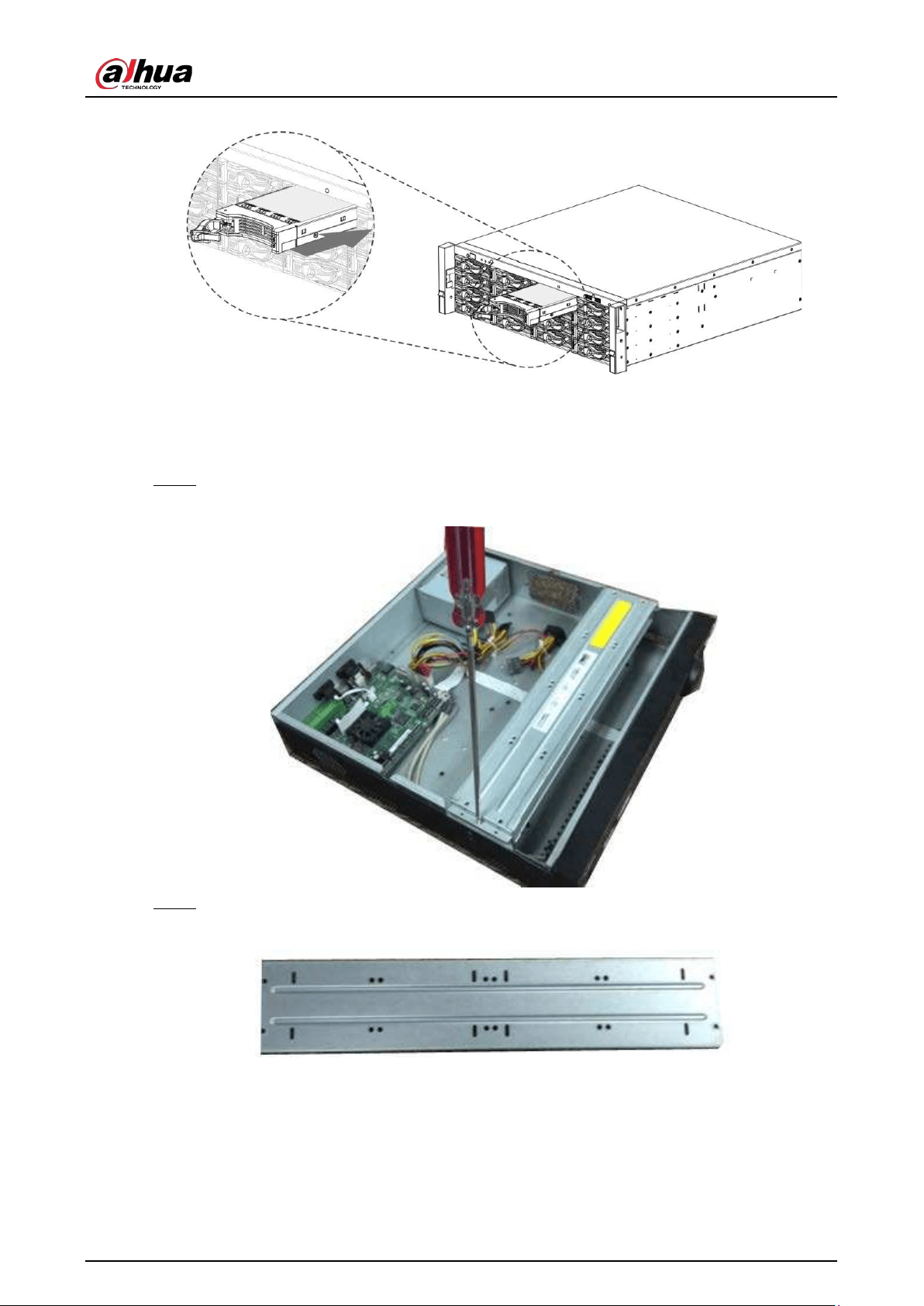
User's Manual
79
Figure 3-36 Close the handle
3.4 CD-ROM Installation
Step 1 Open the top cover and then remove the HDD bracket.
Figure 3-37 Open the top cover
Step 2 Take off the bottom of the HDD bracket and CD-ROM bracket.
Figure 3-38 Take out HDD bracket

User's Manual
80
Figure 3-39 Take out CD-ROM bracket
Step 3 Fix the CD-ROM bracket at the HDD bracket.
Figure 3-40 Fix bracket
Step 4 Install a pair of the CD-ROM bracket. Please make sure that the reverse side is secure too.
Figure 3-41 Install bracket
Figure 3-42 Install bracket (reverse side)
Step 5 Install SATA burner. Line up the SATA burner to the hole positions.
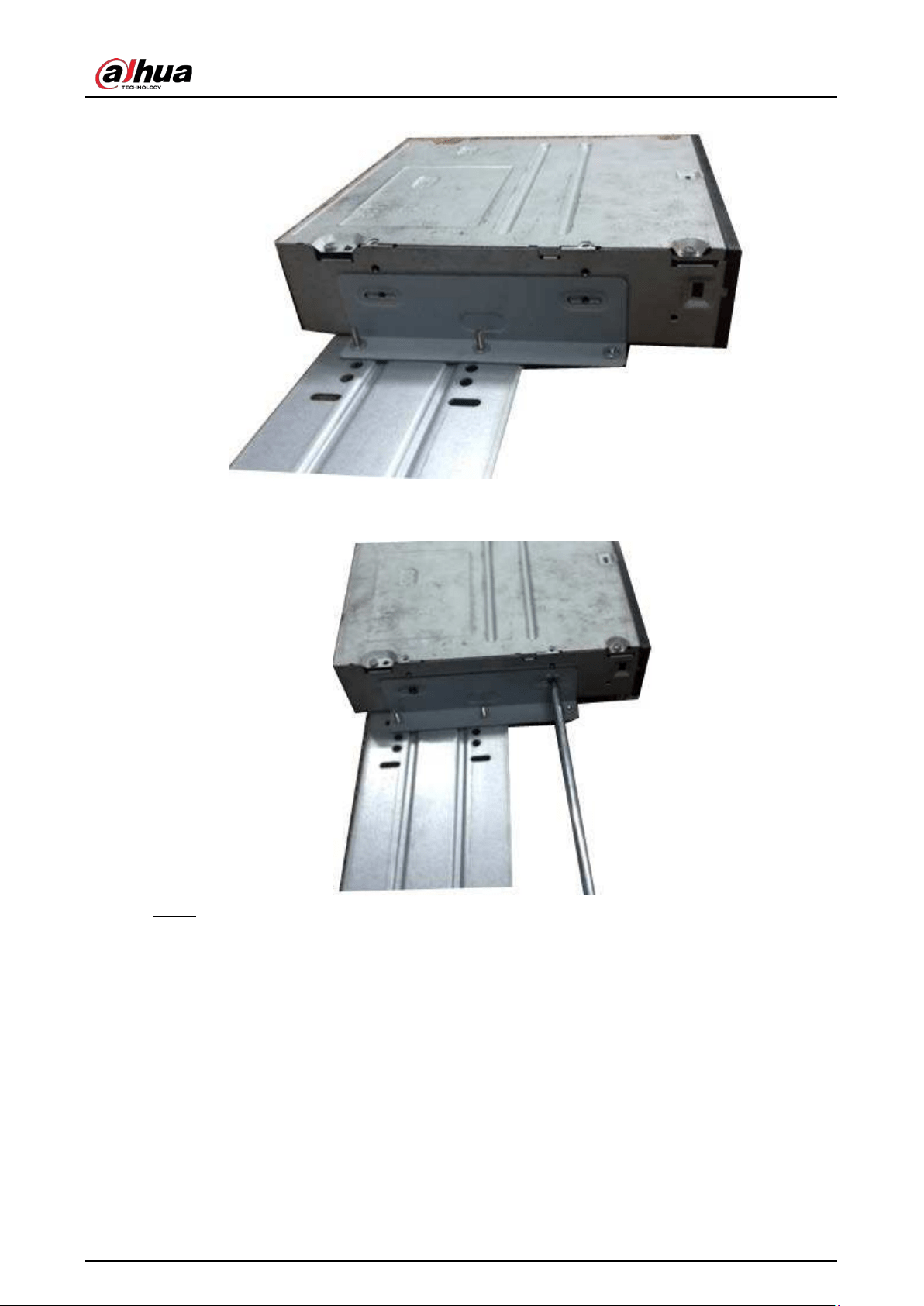
User's Manual
81
Figure 3-43 Install SATA burner
Step 6 Use screw driver to fix the screws.
Figure 3-44 Fasten screws
Step 7 Put the bracket back. Please adjust the CD-ROM to the proper position so that the button
of the front panel is directly facing the pop-up button of the CD-ROM.
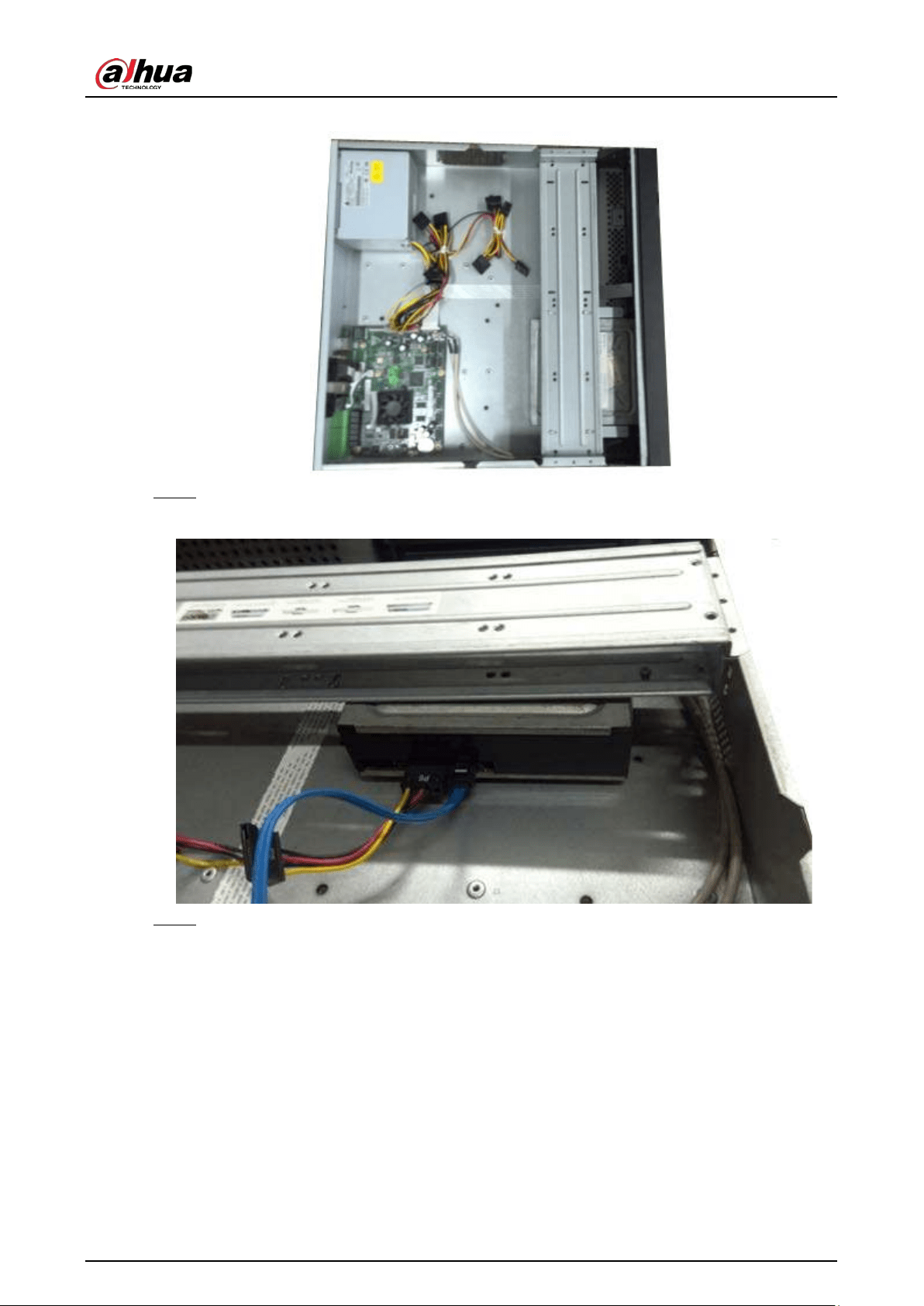
User's Manual
82
Figure 3-45 Put bracket back
Step 8 Connect the SATA cable and power wire.
Figure 3-46 Connect cables
Step 9 Secure the HDD bracket and put the top cover back.
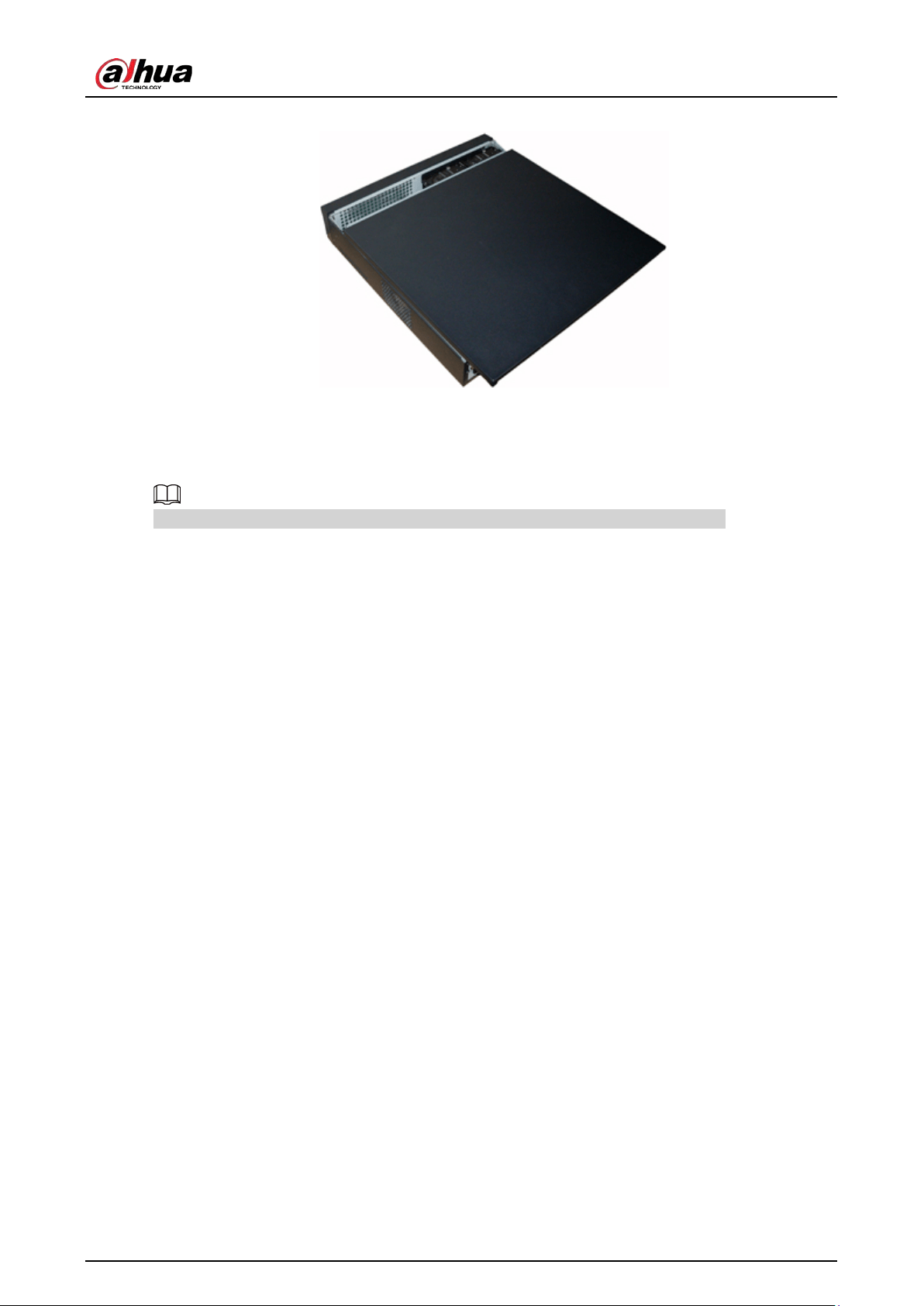
User's Manual
83
Figure 3-47 Put cover back
3.5 Connection Sample
The following figures are for reference only and might differ from the actual product.
3.5.1 NVR41-4KS2/NVR41-P-4KS2/NVR41-8P-4KS2/NVR41-
4KS2/L/NVR41-P-4KS2/L/NVR41-8P-4KS2/L/NVR21-4KS2/NVR21-P-
4KS2/NVR21-8P-4KS2/NVR21-I/NVR21-I2/NVR21-P-I/NVR21-P-
I2/NVR21-8P-I/NVR21-8P-I2/NVR21-S3/NVR21-P-S3/NVR21-8P-S3
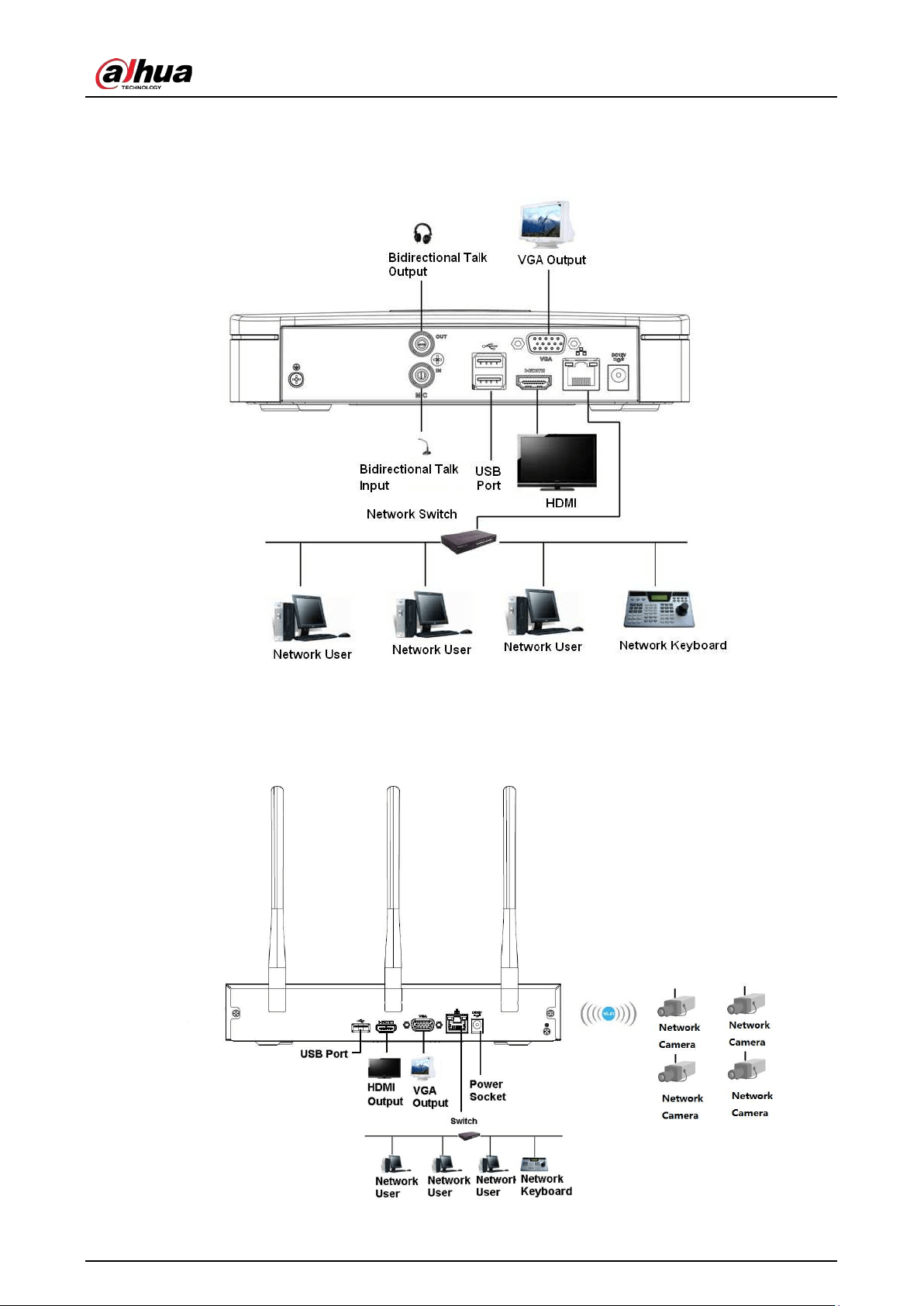
User's Manual
84
Series
Figure 3-48 Typical connection
3.5.2 NVR21-W-4KS2/NVR21HS-W-4KS2 Series
Figure 3-49 Typical connection
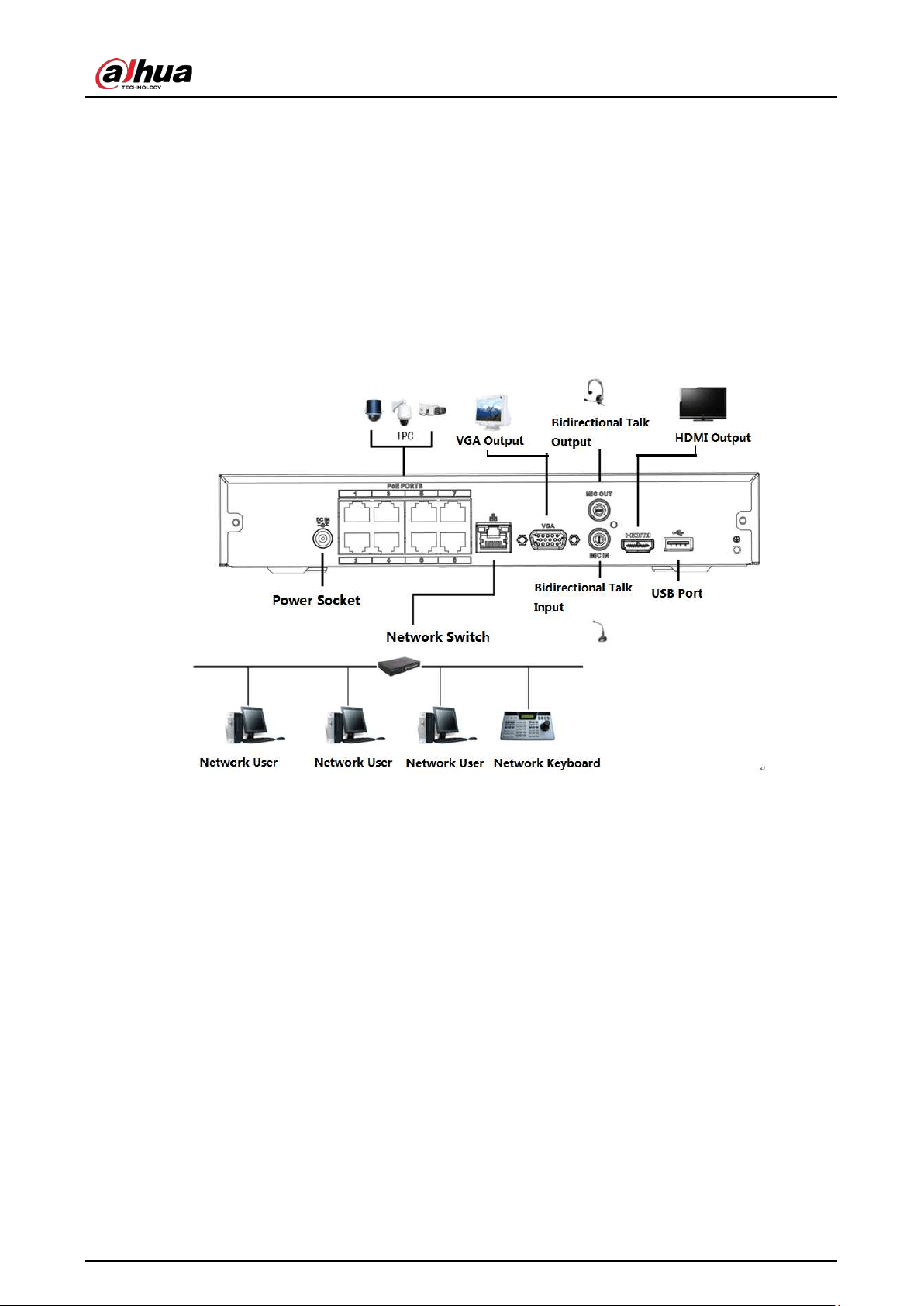
User's Manual
85
3.5.3 NVR11HS-S3H/NVR11HS-P-S3H/NVR11HS-8P-S3H/NVR41HS-
4KS2/NVR41HS-P-4KS2/NVR41HS-8P-4KS2/NVR41HS-
4KS2/L/NVR41HS-P-4KS2/L/NVR41HS-8P-4KS2/L/NVR21HS-
4KS2/NVR21HS-P-4KS2/NVR21HS-8P-4KS2/NVR21HS-I/NVR21HS-
I2/NVR21HS-P-I/NVR21HS-P-I2/NVR21HS-8P-I/NVR21HS-8P-
I2/NVR21HS-S3/NVR21HS-P-S3/NVR21HS-8P-S3 Series
Figure 3-50 Typical connection
3.5.4 NVR22-4KS2/NVR22-P-4KS2/NVR22-8P-4KS2/NVR22-I/NVR22-
I2/NVR22-P-I/NVR22-P-I2/NVR22-8P-I/NVR22-8P-I2/NVR22-16P-
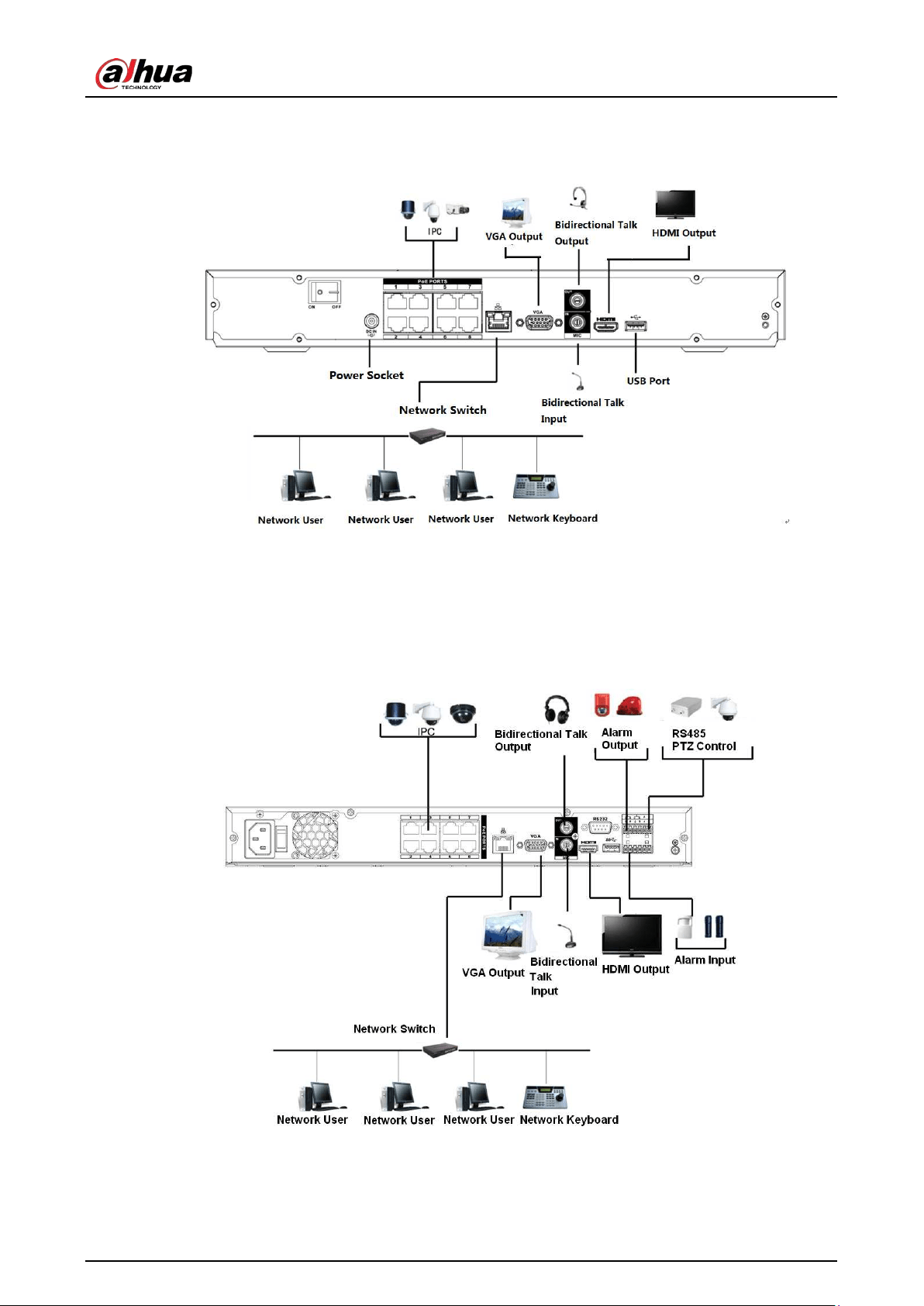
User's Manual
86
I/NVR22-16P-I2 Series
Figure 3-51 Typical connection
3.5.5 NVR52-4KS2/NVR52-8P-4KS2/NVR52-16P-4KS2/NVR52-24P-
4KS2/NVR52-8P-4KS2E/NVR52-16P-4KS2E Series
Figure 3-52 Typical connection
3.5.6 NVR42-4KS2/NVR42-P-4KS2/NVR42-8P-4KS2/NVR42-16P-
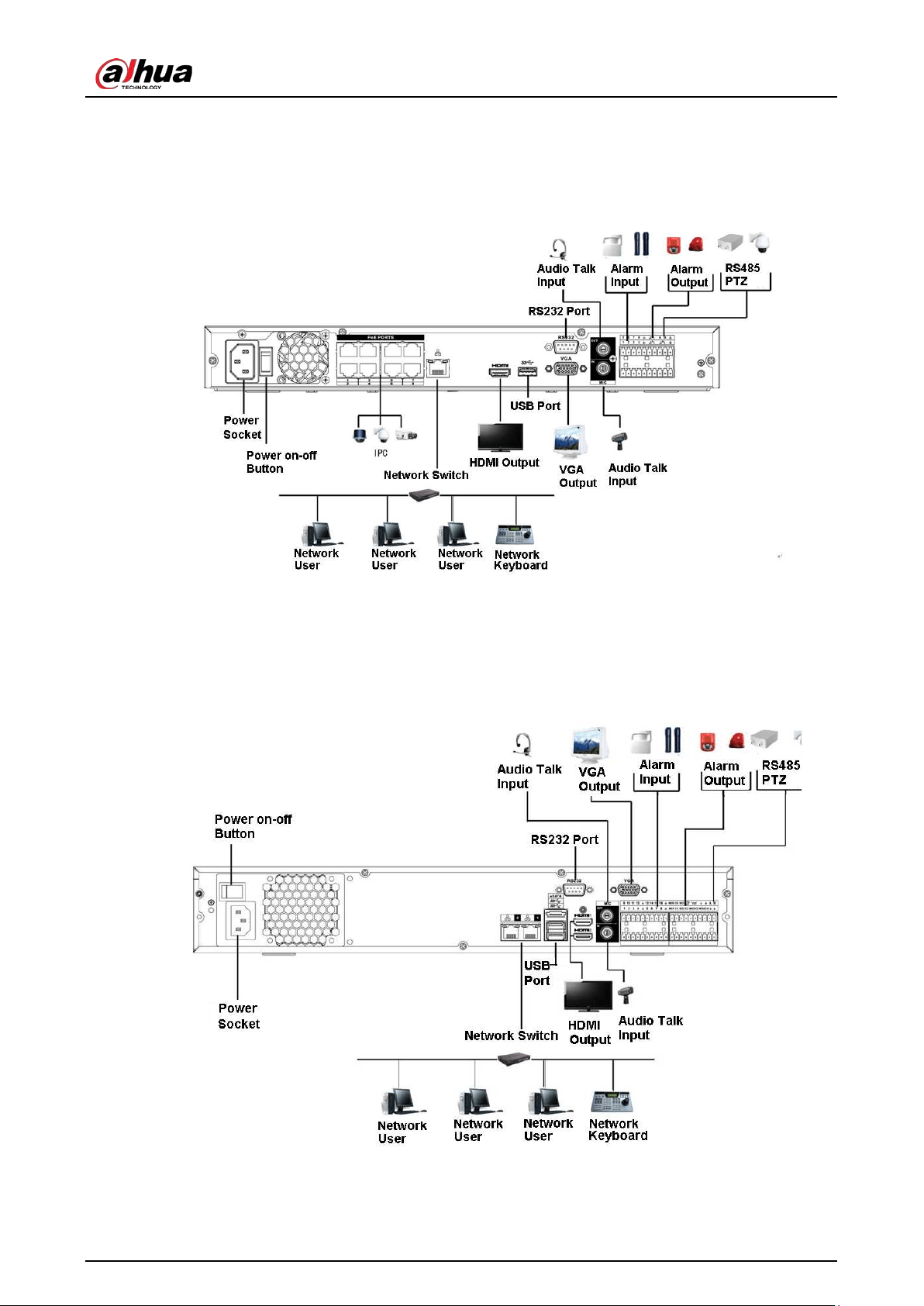
User's Manual
87
4KS2/NVR42-4KS2/L/NVR42-P-4KS2/L/NVR42-8P-4KS2/L/NVR42-
16P-4KS2/L Series
Figure 3-53 Typical connection
3.5.7 NVR54-4KS2/NVR54-16P-4KS2/NVR58-4KS2/NVR58-16P-
4KS2/NVR54-24P-4KS2/NVR54-16P-4KS2E/NVR58-16P-4KS2E Series
Figure 3-54 Typical connection
3.5.8 NVR44-4KS2/NVR44-16P-4KS2/NVR44-4KS2/L/NVR44-16P-
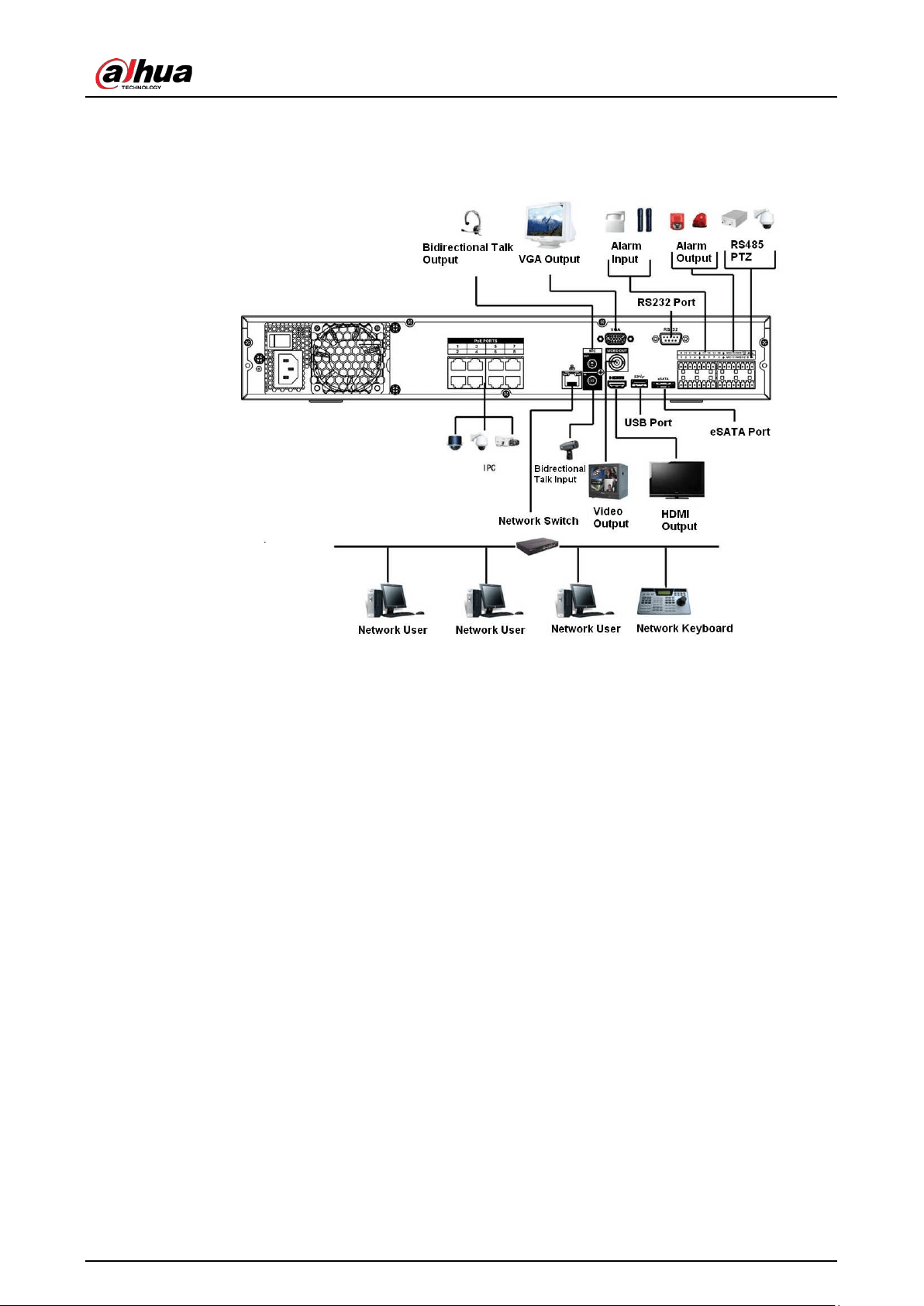
User's Manual
88
4KS2/L/NVR44-4KS2/I/NVR44-16P-4KS2/I Series
Figure 3-55 Typical connection
3.5.9 NVR48-4KS2/NVR48-16P-4KS2/NVR48-4KS2/L/NVR48-16P-
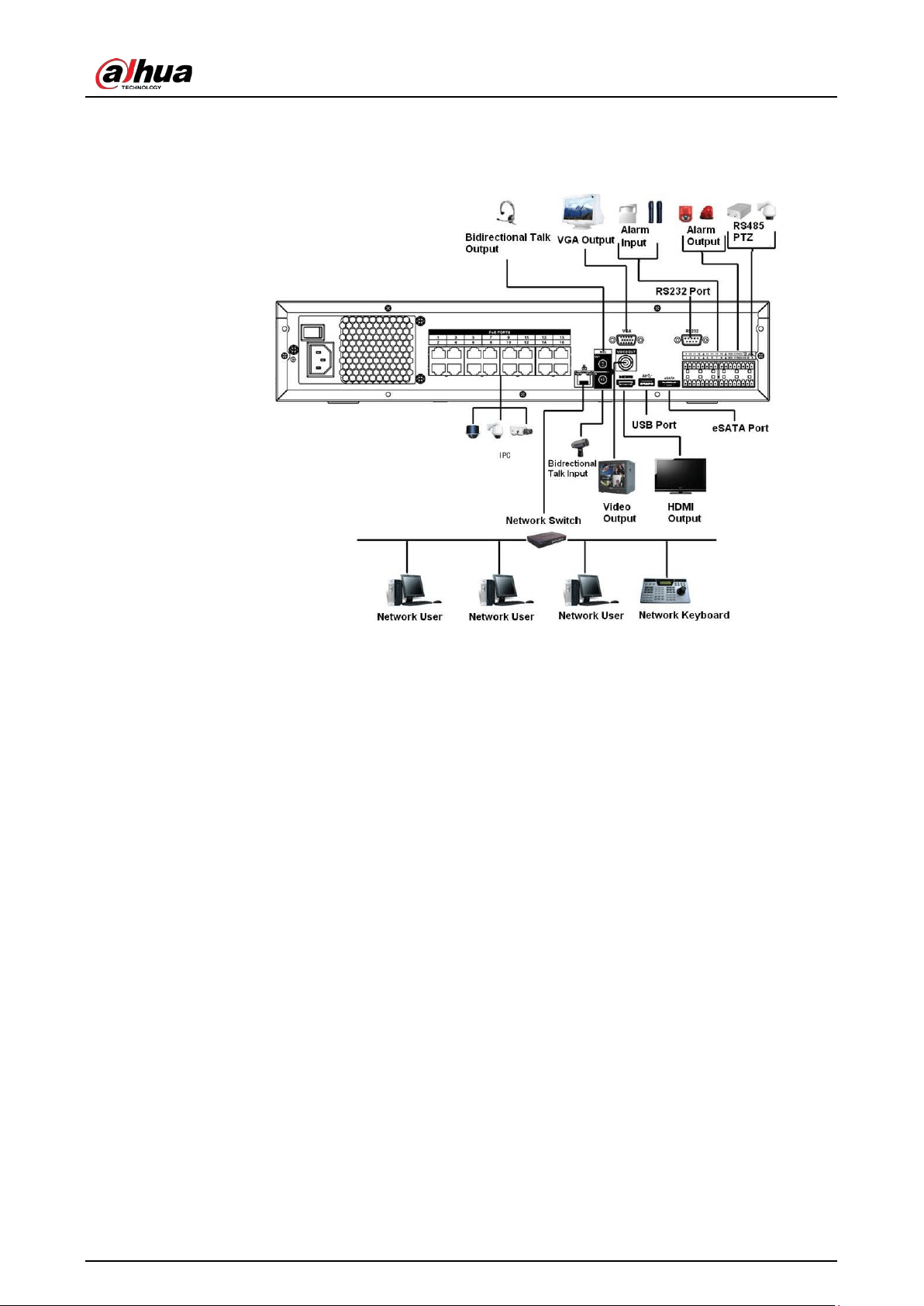
User's Manual
89
4KS2/L/NVR48-4KS2/I/NVR48-16P-4KS2/I Series
Figure 3-56 Typical connection
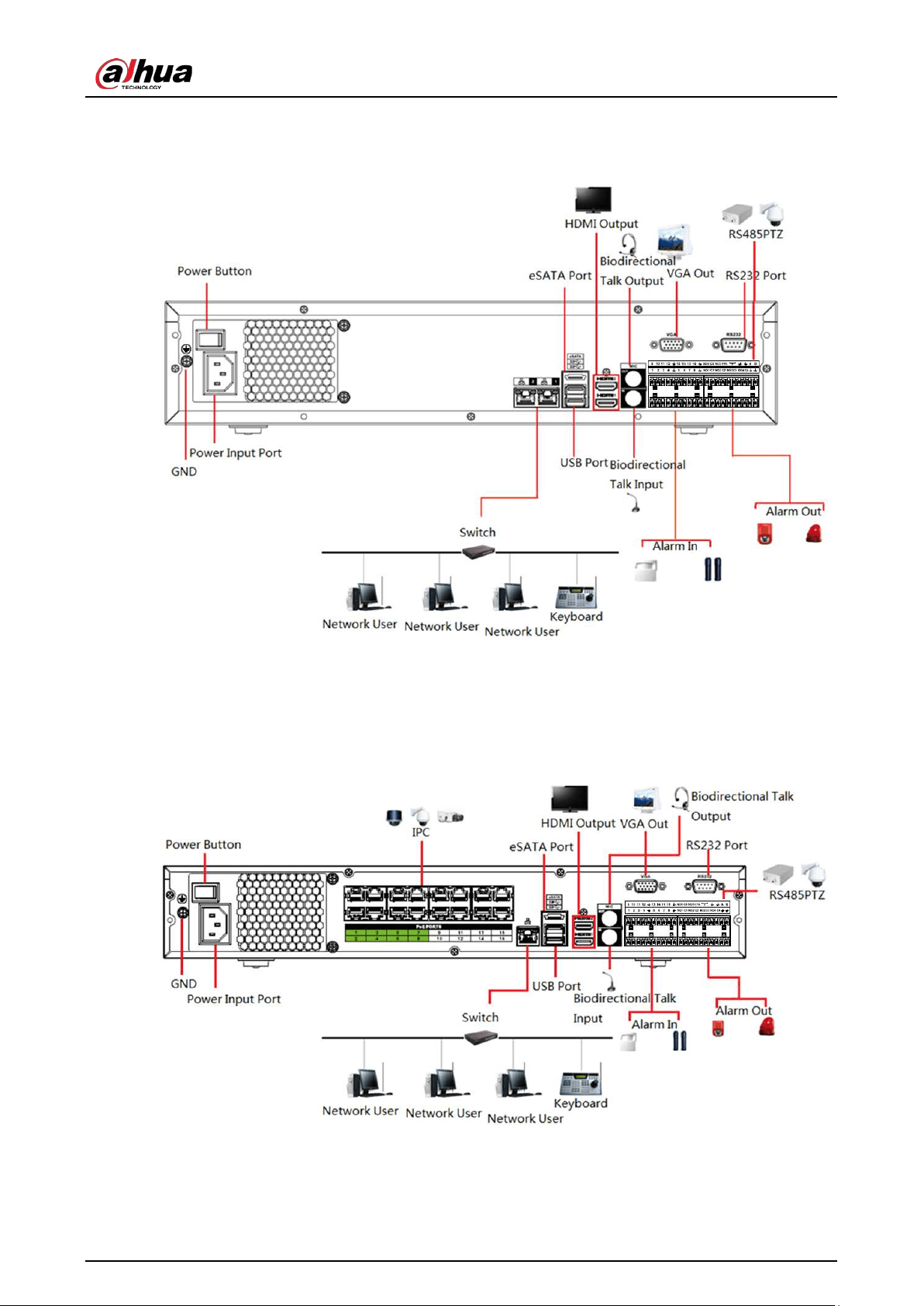
User's Manual
90
3.5.10 NVR58-I/NVR58-I/L/NVR48-I Series
Figure 3-57 Typical connection
3.5.11 NVR54-I/NVR54-I/L/NVR44-I
Figure 3-58 Typical connection
3.5.12 NVR52-16P-I/NVR52-16P-I/L/NVR52-8P-I/NVR52-8P-
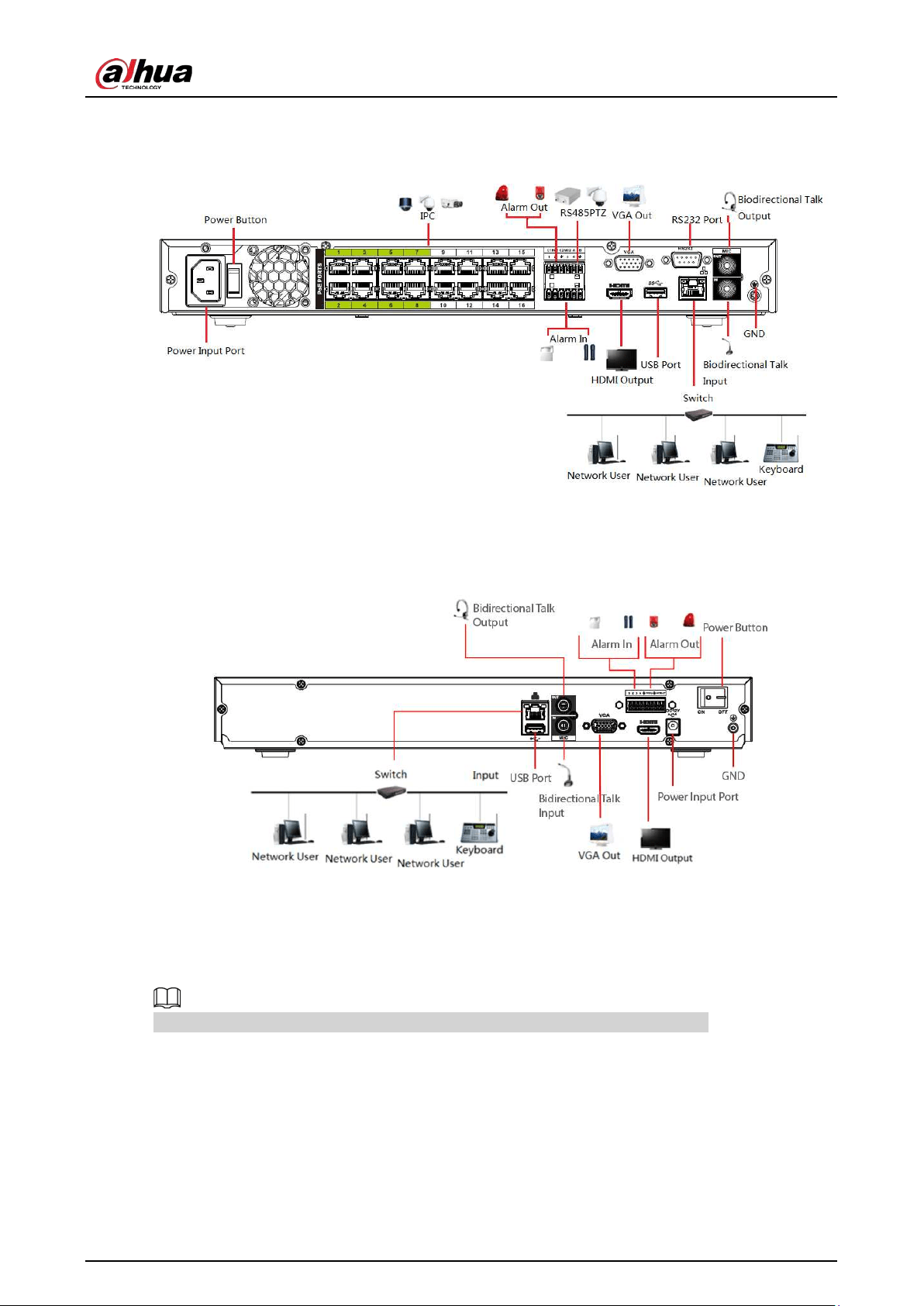
User's Manual
91
I/L/NVR42-8P-I/NVR42-16P-I Series
Figure 3-59 Typical connection
3.5.13 NVR4216-I Series
Figure 3-60 Typical connection
3.5.14 NVR608-4KS2/NVR608H-XI/NVR608RH-XI Series
The following figure is for reference only and might differ from the actual product.
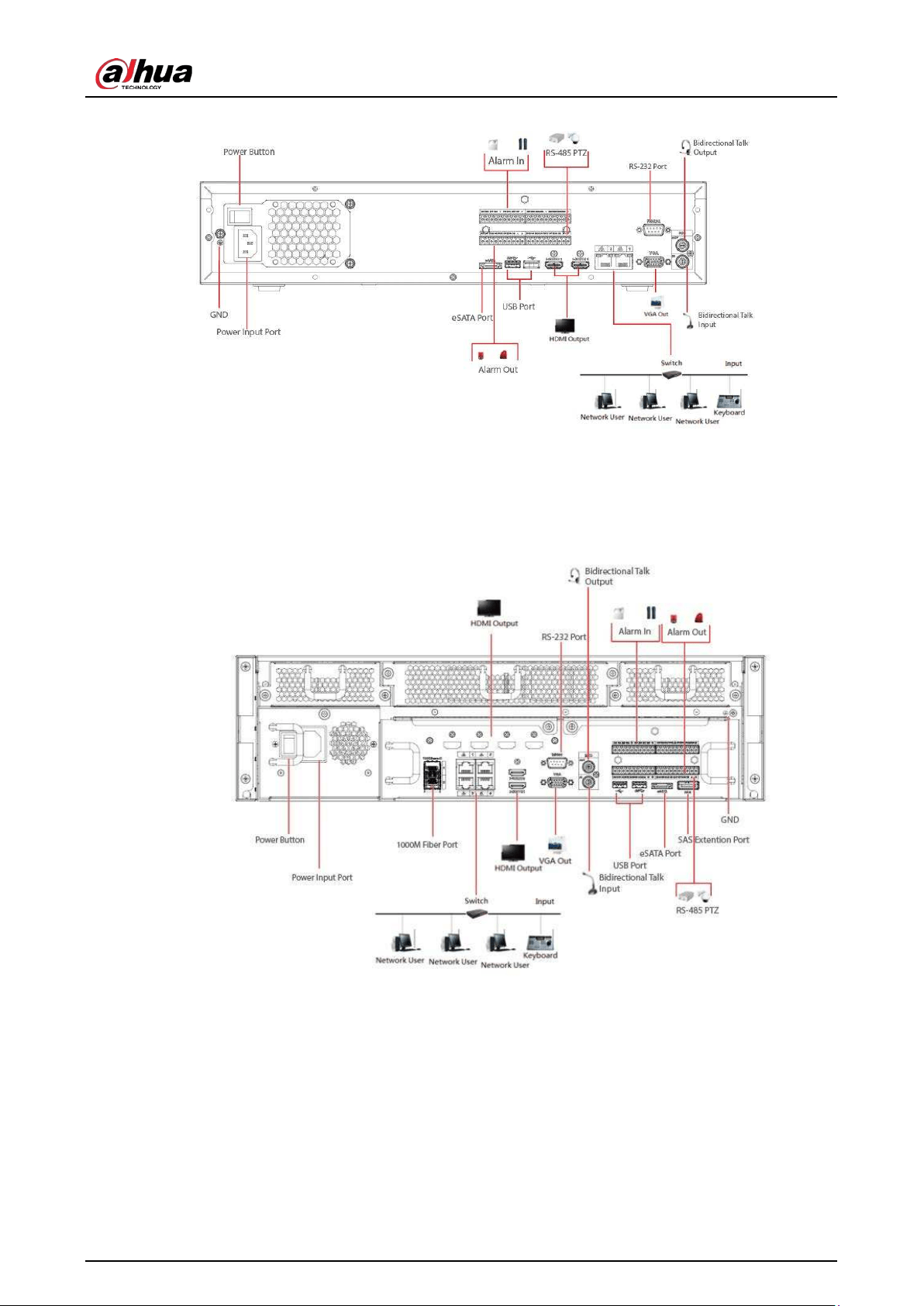
User's Manual
92
Figure 3-61 Typical connection
3.5.15 NVR616-4KS2 Series
Figure 3-62 Typical connection
User's Manual
93
4 Starting the Device
●
For device security, connect the NVR to the power adapter first and then connect the device to
the power socket.
●
The rated input voltage matches the device power button. Make sure the power wire connection
is OK. Then press the power button.
●
Always use the stable current, if necessary UPS is a best alternative measure.
Procedure
Step 1 Connect the device to the monitor and then connect a mouse.
Step 2 Connect power cable.
Step 3 Press the power button on the front panel or turn on the power switch on the rear panel to
start up the device.
After the device starts, the system is in multiple-channel display mode by default.
The Device will verify license during starting up. If the verification failed, the icon is
displayed on the screen. Contact the technical support.
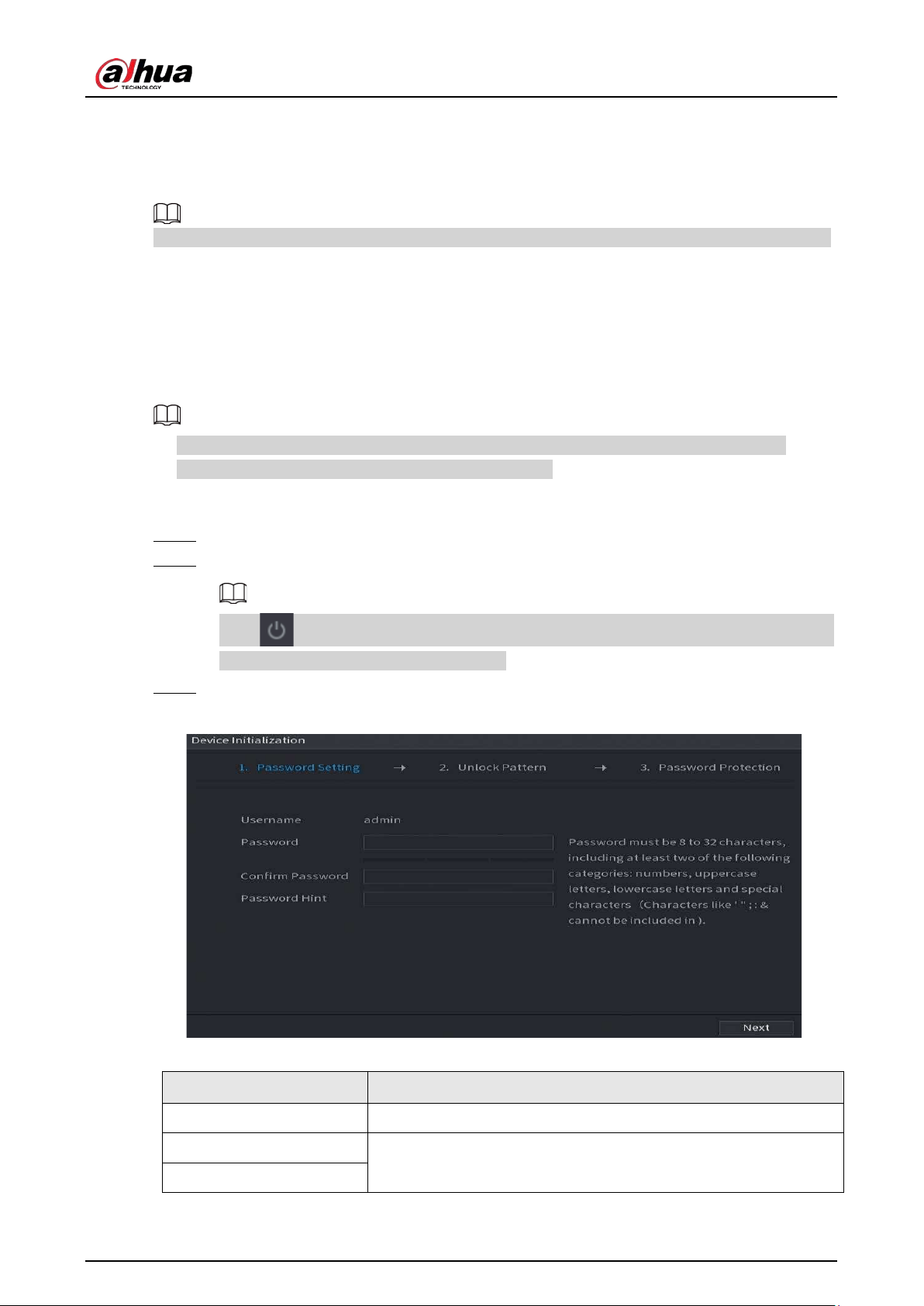
User's Manual
94
5 Local Operations
The following figures are for reference only. Slight difference might be found on the actual interface.
5.1 Initialization
●
For first-time use, set a login password for the admin account (default user).
●
We recommend setting password protection so that you can reset password in case you forgot.
●
For your device safety, keep your login password well, and change the password regularly.
●
The IP address of the Device is 192.168.1.108 by default.
Procedure
Step 1 Start the NVR.
Step 2 Set region, time zone, and time according to the actual situation, and then click
Next
.
Click to shut down the device. The system integrator or the user can shut down the
Device directly after setting the time zone.
Step 3 Set the login password for the admin account and then click
Next
.
Figure 5-1 Set password
Table 5-1 Password parameters
Parameter Description
User By default, the user is admin.
Password
Enter the password for admin and then confirm the password.
Confirm Password
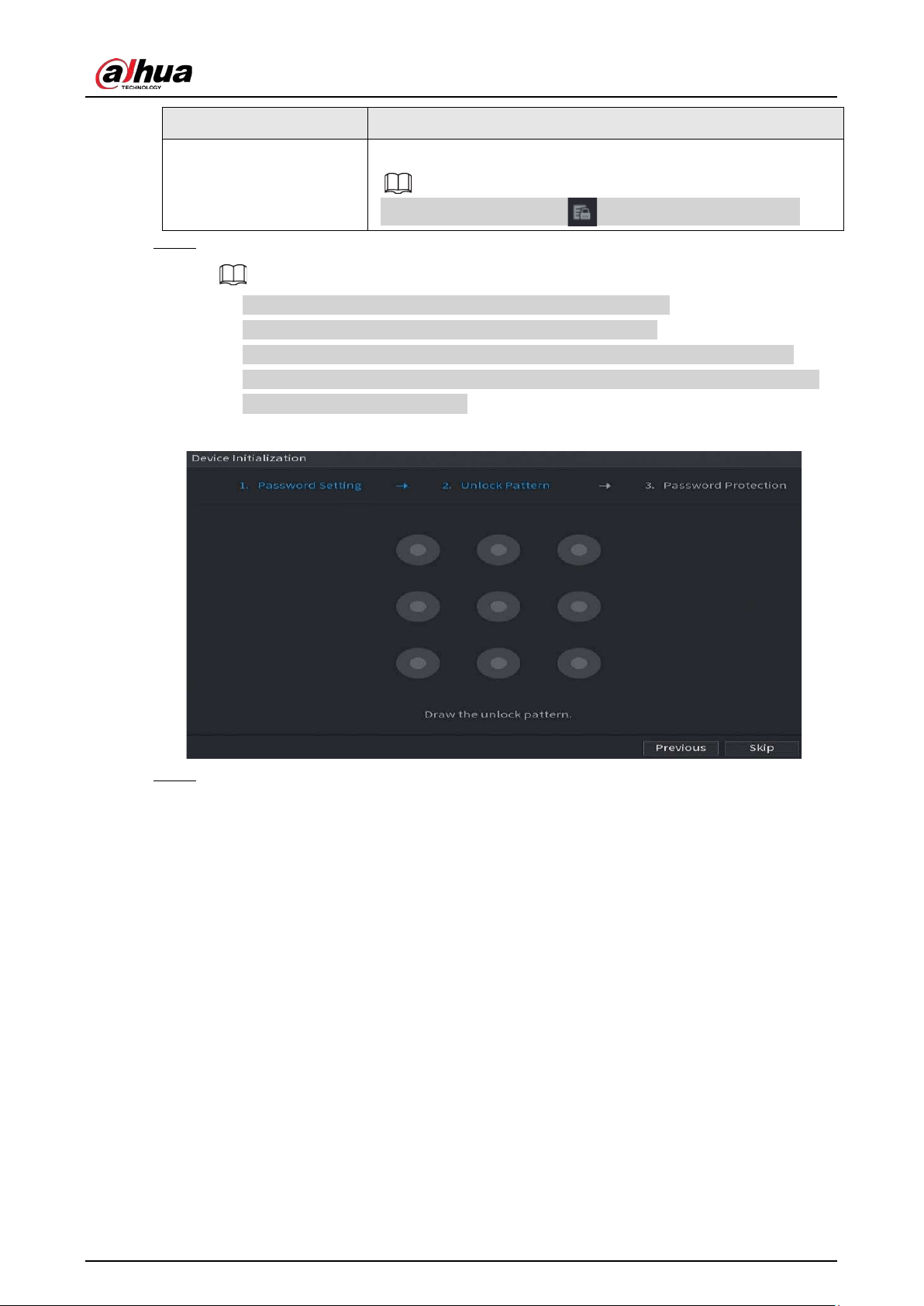
User's Manual
95
Parameter Description
Password Hint
Enter the information that can remind you of the password.
On the login window, click to display the password hint.
Step 4 Set unlock pattern.
●
The pattern that you want to set must cross at least four points.
●
If you do not want to configure the unlock pattern, click
Skip
.
●
Once you have configured the unlock pattern, the system will require the unlock
pattern as the default login method. If you did not configure the unlock pattern, you
need to enter password for login.
Figure 5-2 Draw unlock pattern
Step 5 Set password protection.
●
After configuration, if you forgot the password for admin user, you can reset the
password through the linked email address or security questions. For details on
resetting the password, see "5.13.3 Resetting Password".
●
If you do not need password protection, disable
Reserved Email
and
Security
Question
.
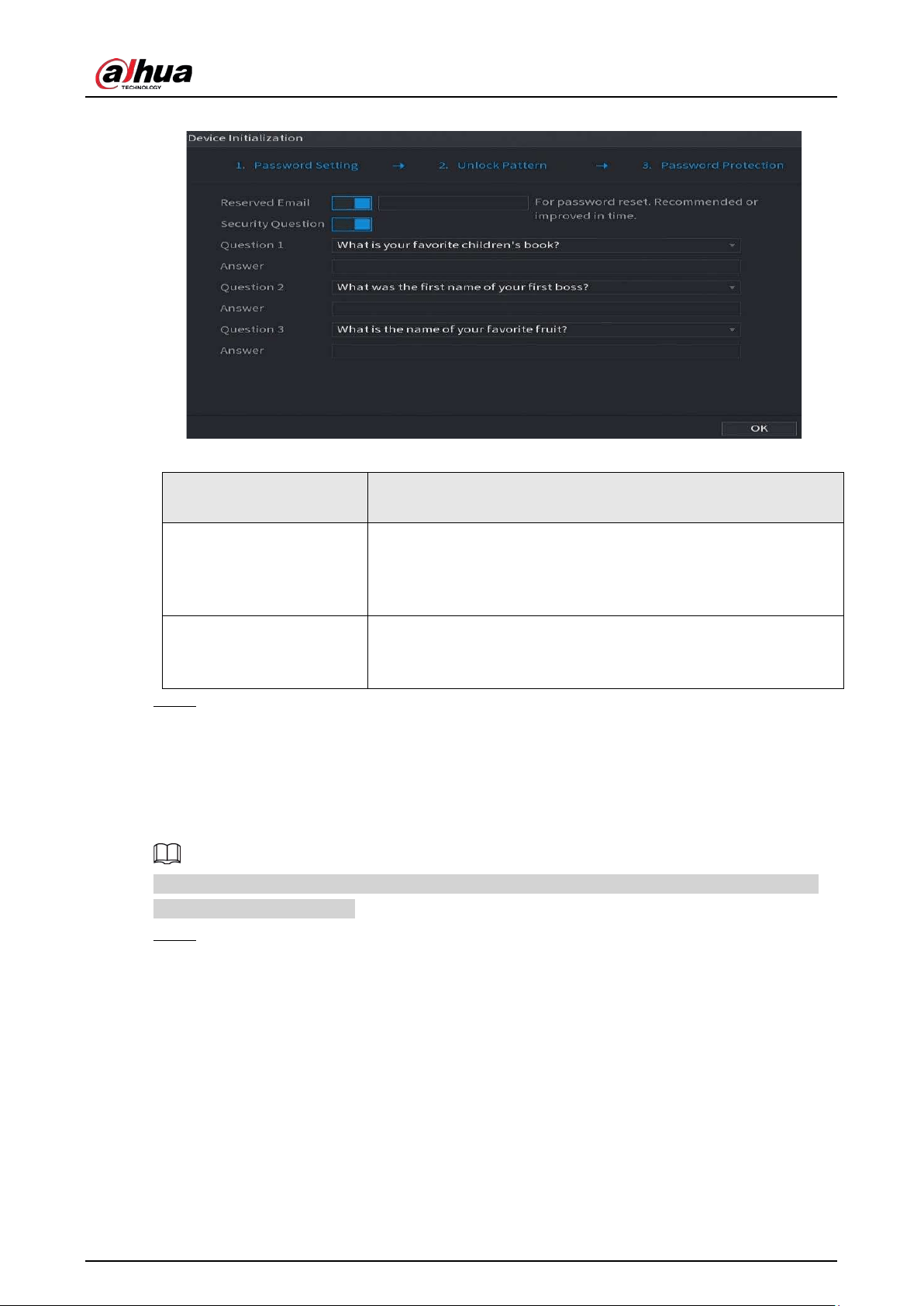
User's Manual
96
Figure 5-3 Set password protection
Table 5-2 Security question parameters
Password Protection
Mode
Description
Email Address
Enter the linked email address.
Enter an email address for password reset. If you forgot the
password, enter the security code that you will get from this linked
email address to reset the password of admin.
Security Questions
Configure the security questions and answers.
If you forgot the password, you can reset the password after
entering the answers to the questions.
Step 6 Click
Save
.
5.2 Startup Wizard
After initialization, the system goes to
Startup Wizard
. You can quickly configure your device.
Startup Wizard
is displayed only when you log in to the Device for the first time or have restored
the Device to factory settings.
Step 1 Select
Auto Check for Updates
, and then click
Next
.
If you select the
Auto Check for Updates
checkbox, the system will notify you
automatically when updates are available.
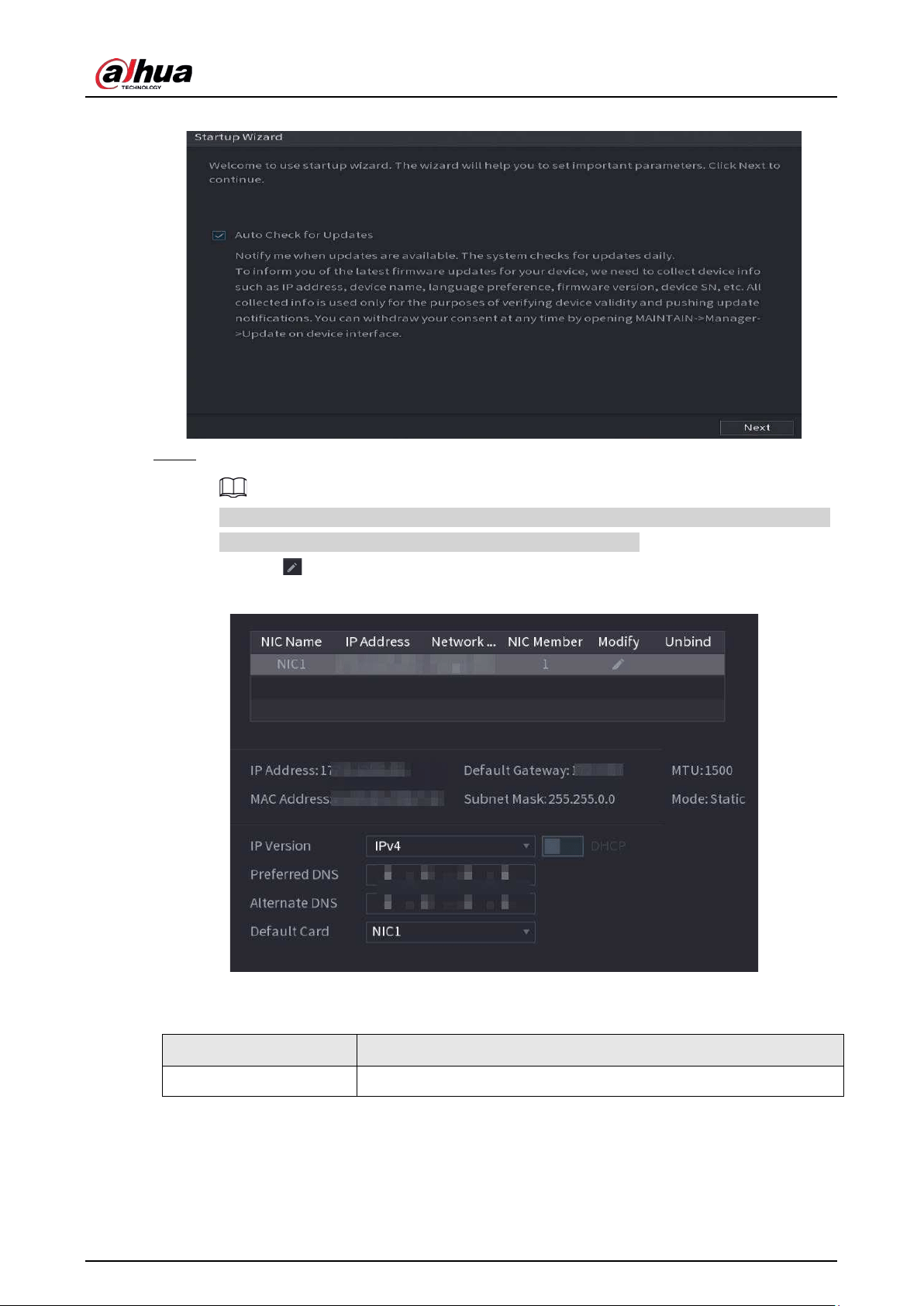
User's Manual
97
Figure 5-4 Startup wizard
Step 2 Configure IP address, and then click
Next
.
The number of network adapters might vary with models. Configure the IP address of the
network adapter according to the actual connection situation.
1) Click .
Figure 5-5 Edit network adapter
2) Configure parameters.
Table 5-3 Network parameters
Parameter Description
Network Mode
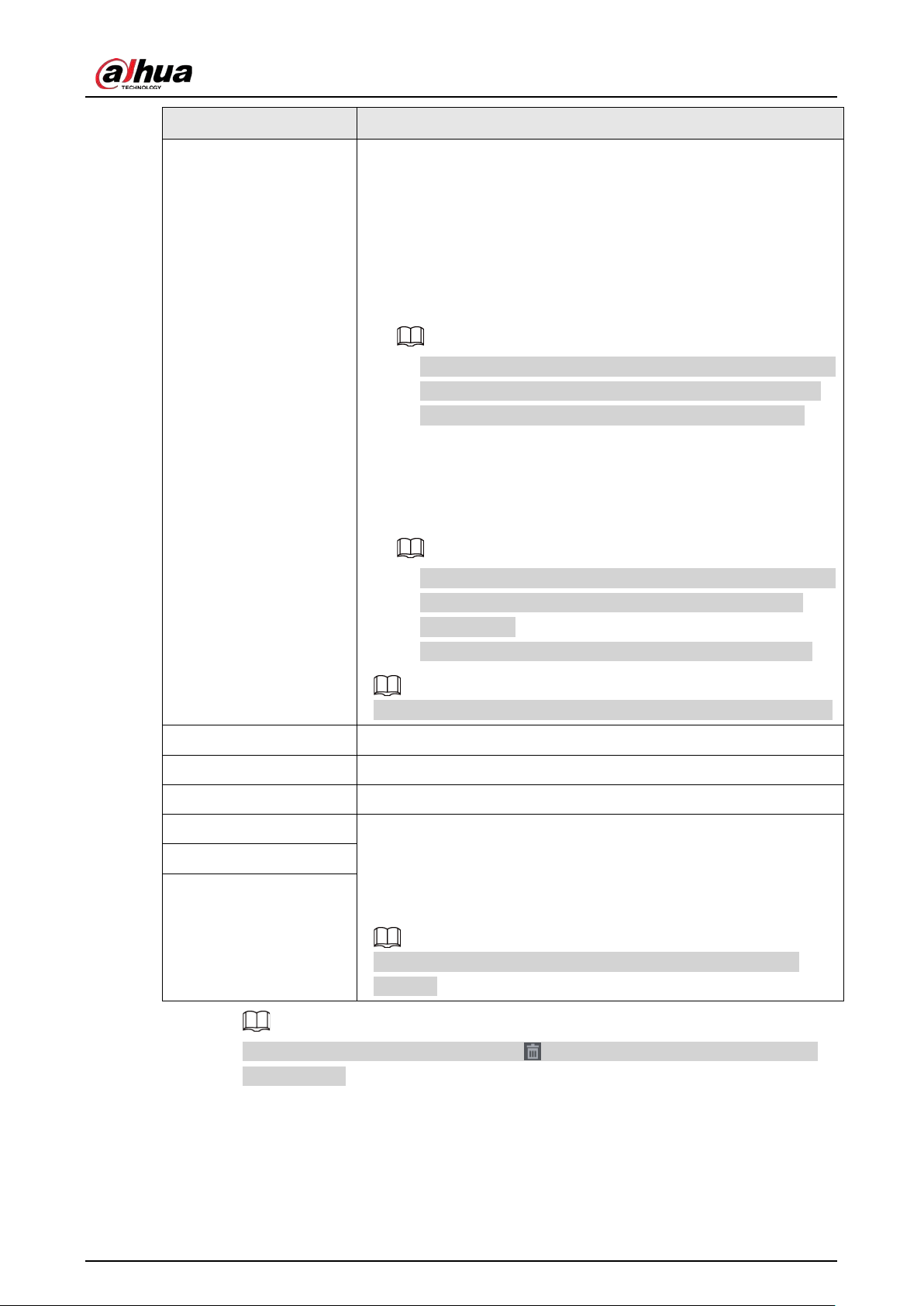
User's Manual
98
Parameter Description
Default Ethernet Port
●
Single NIC
: Two network adapters work separately. If one of the
two network adapters is disconnected, the system network
status is regarded as offline.
●
Fault Tolerance
: Two network adapters share one IP address.
Normally only one network adapter is working. When this
adapter fails, the other network adapter will start working
automatically to ensure the network connection.
◇
When you test the network status, the network is regarded as
offline only when both network adapters are disconnected.
◇
The two network adapters are used under the same LAN.
●
Load Balance
: Two network adapters share one IP address. The
two adapters work at the same time to share the network load
averagely. If one of them fails, the other can continue working
normally.
◇
When testing the network status, the network is regarded as
offline only when both of the two network adapters are
disconnected.
◇
The two network adapters are used under the same LAN.
The Device with single Ethernet port does not support this function.
IP Version
Select
IPv4
or
IPv6
. Both versions are supported for access.
DHCP Enable the system to automatically obtain a dynamic IP address.
MAC Address Displays the MAC address of the Device.
IP Address
●
Enter the IP address and then configure the corresponding
subnet mask and default gateway.
●
After configuration, click
Test
to check whether there is conflict
in IP address.
IP address and default gateway must be on the same network
segment.
Subnet Mask
Default Gateway
To unbind NIC, on the
TCP/IP
page, click . The unbinding will take effect after the
Device restarts.
3) On the
TCP/IP
page, configure DNS server. This step should be performed when you
enable the domain name service.
You can get DNS server address or manually enter it.
●
Automatically get DNS server address: When there is a DHCP server in the network,
you can enable
DHCP
, and then the Device gets a dynamic IP address.
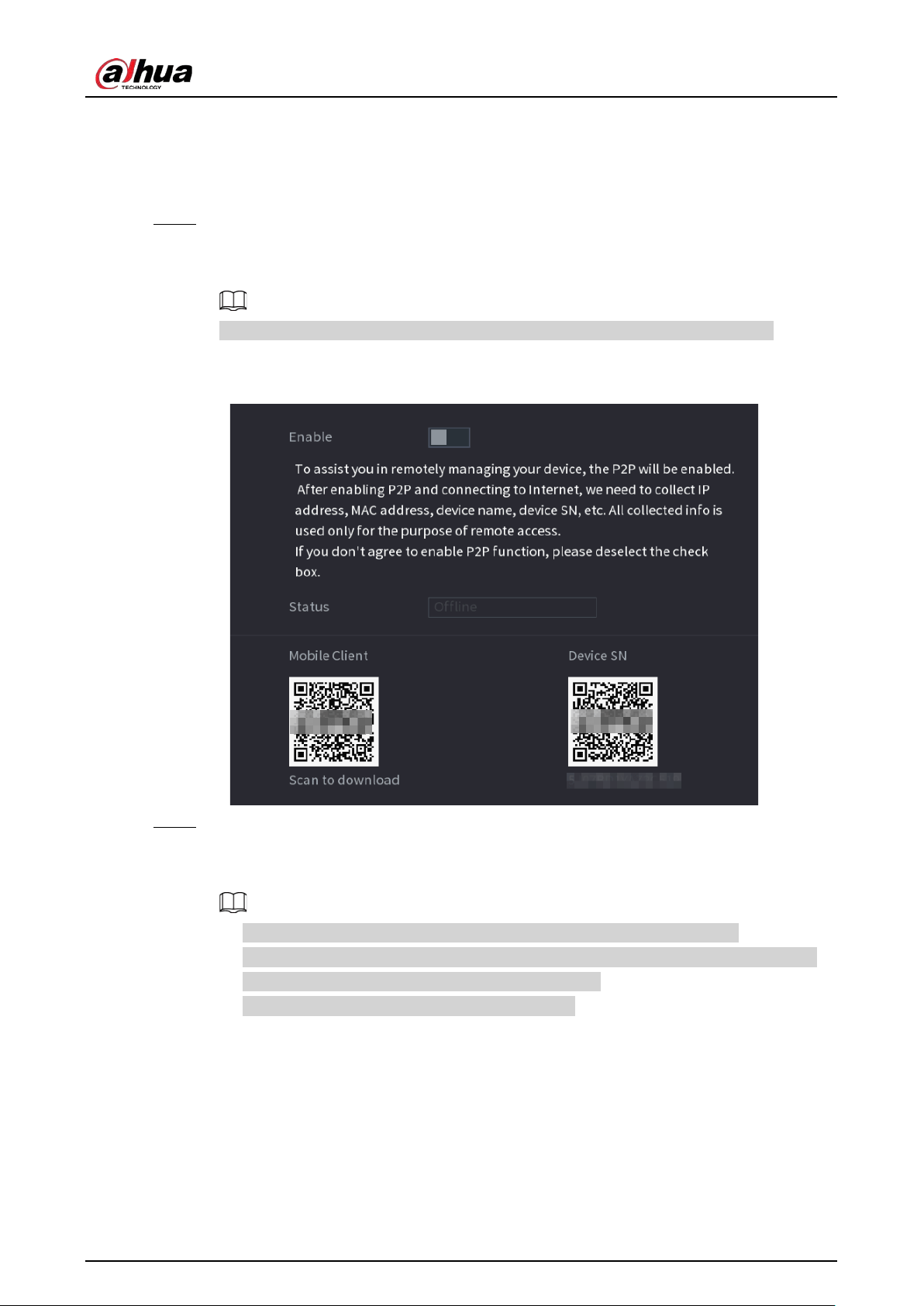
User's Manual
99
●
Enter DNS server address: Select
IP Version
, and then configure the preferred DNS
server and alternate DNS server.
4) On the
Default Card
drop-down list, select the default NIC.
5) Click
Next
.
Step 3 Enable
P2P
, and then click
Next
.
Scan the QR code on the actual interface to download the app. Register an account and
then you can add the Device to the app.
Before using the P2P function, make sure that the NVR has connected to the WAN.
The
Status
becomes
Online
after you successfully configure P2P.
Figure 5-6 P2P
Step 4 Add cameras according to the actual situation.
After adding cameras, you can view the video images transmitted from the cameras, and
change camera configuration.
●
The number of cameras that can be added to the NVR varies with models.
●
The system supports adding camera through searching, manual add and batch add.
This section uses adding by searching as an example.
●
Initialize the camera before adding to the Device.
1) Click
Search Device
.
The devices found are displayed at the upper pane, excluding devices already added.
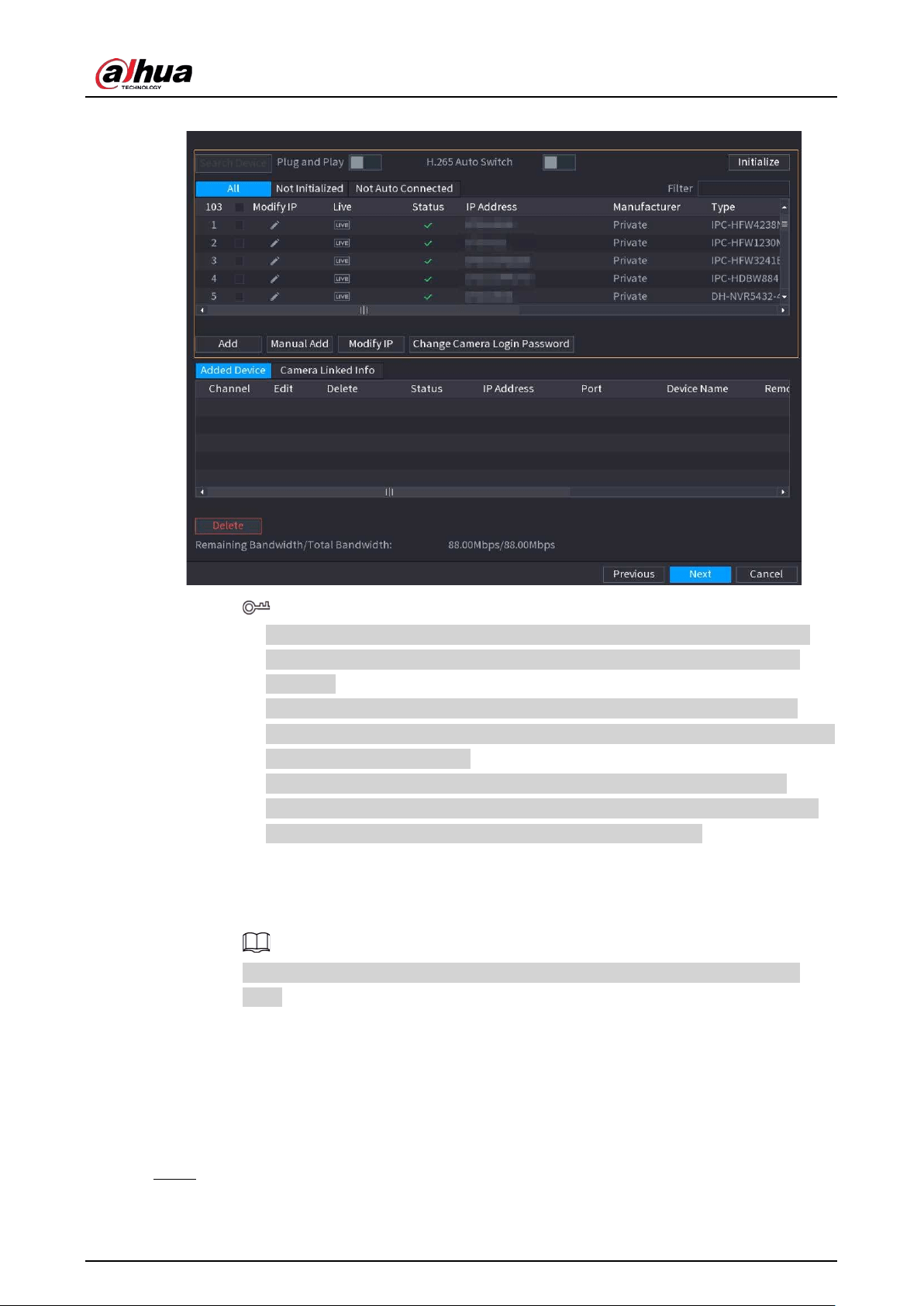
User's Manual
100
Figure 5-7 Search device
●
To view the live image of a camera, click
LIVE
and then enter the username and
password. You can only view live images of cameras accessed through private
protocol.
●
To filter the remote devices, select device name from the
Filter
drop-down list.
●
To filter out the uninitialized devices, click the
Not Initialized
tab, and then you can
initialize the devices remotely.
●
To view all remote devices added through plug and play, click the
Not Auto
Connected
tab. You can remove devices added through plug and play, and they
can be automatically added again after plug and play is enabled.
2) (Optional) Enable
Plug and Play
.
When
Plug and Play
is enabled, the Device automatically adds cameras on the same
LAN.
For uninitialized cameras, the Device automatically initializes them before adding
them.
3) Enable
H.265 Auto Switch
When
H.265 Auto Switch
is enabled, the video compression standard of added remote
devices is switched to H.265 automatically.
4) Double-click a camera, or select a camera and then click
Add
to register it to the
Added
Device
list.
5) Click
Next
.
Step 5 Manage HDD. You can view HDD name, physical position, health status, capacity, and
more.
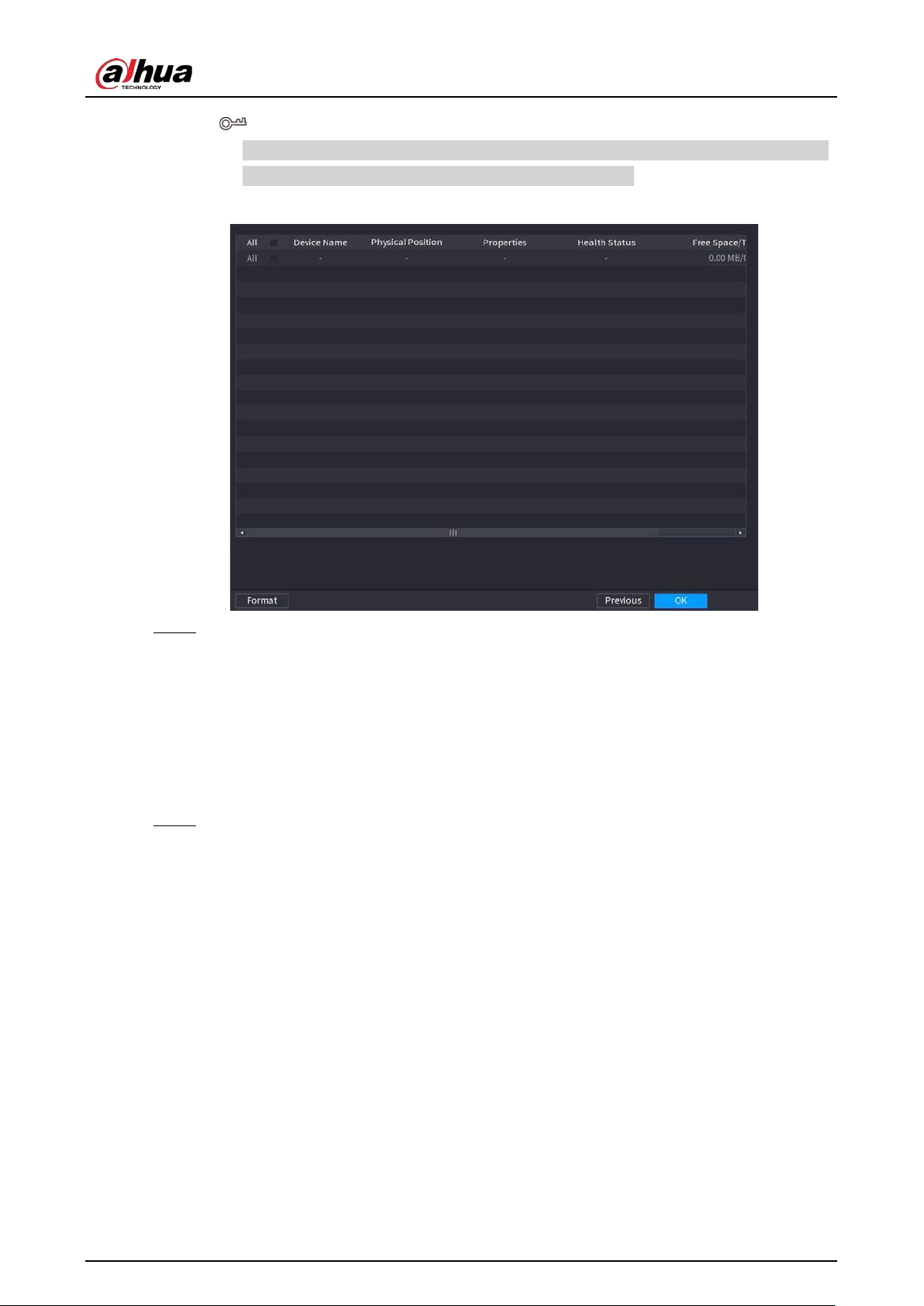
User's Manual
101
●
To configure read/write property, select an option from the
Properties
drop-down list.
●
To format an HDD, select the HDD, and then click
Format
.
Figure 5-8 Manage HDD
Step 6 Click
OK
.
When the Device prompts whether to restart, click
OK
. The configurations through startup
wizard take effect after the Device restarts.
5.3 Login
Log in to the Device to perform local operations.
Step 1 Right-click the live page, and then click the shortcut menu.
●
If you have configured unlock pattern, the unlock pattern login window is displayed.
Click
Forgot Pattern
to switch to password login.
●
If you did not configure unlock pattern, the password login window is displayed.
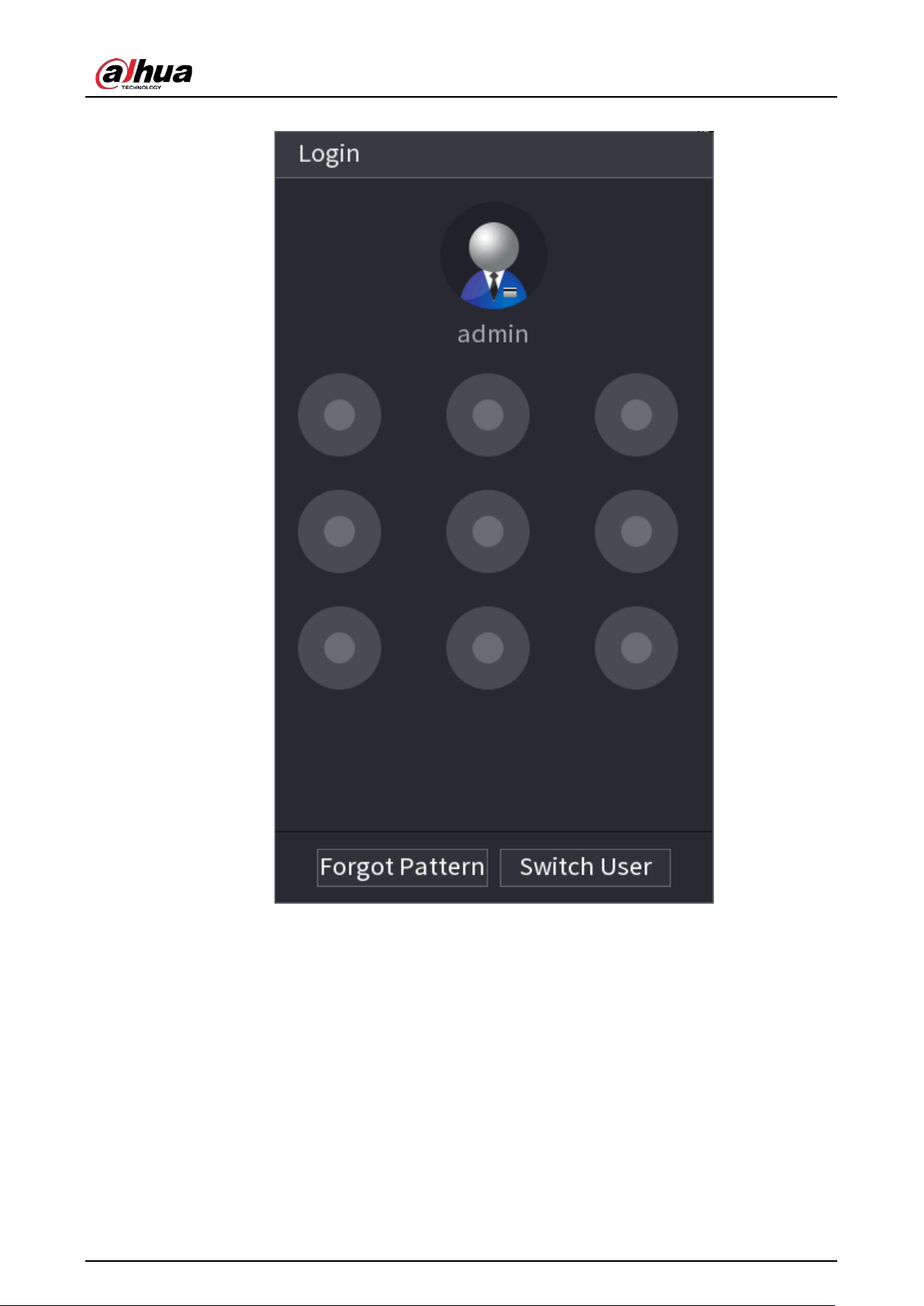
User's Manual
102
Figure 5-9 Unlock pattern login
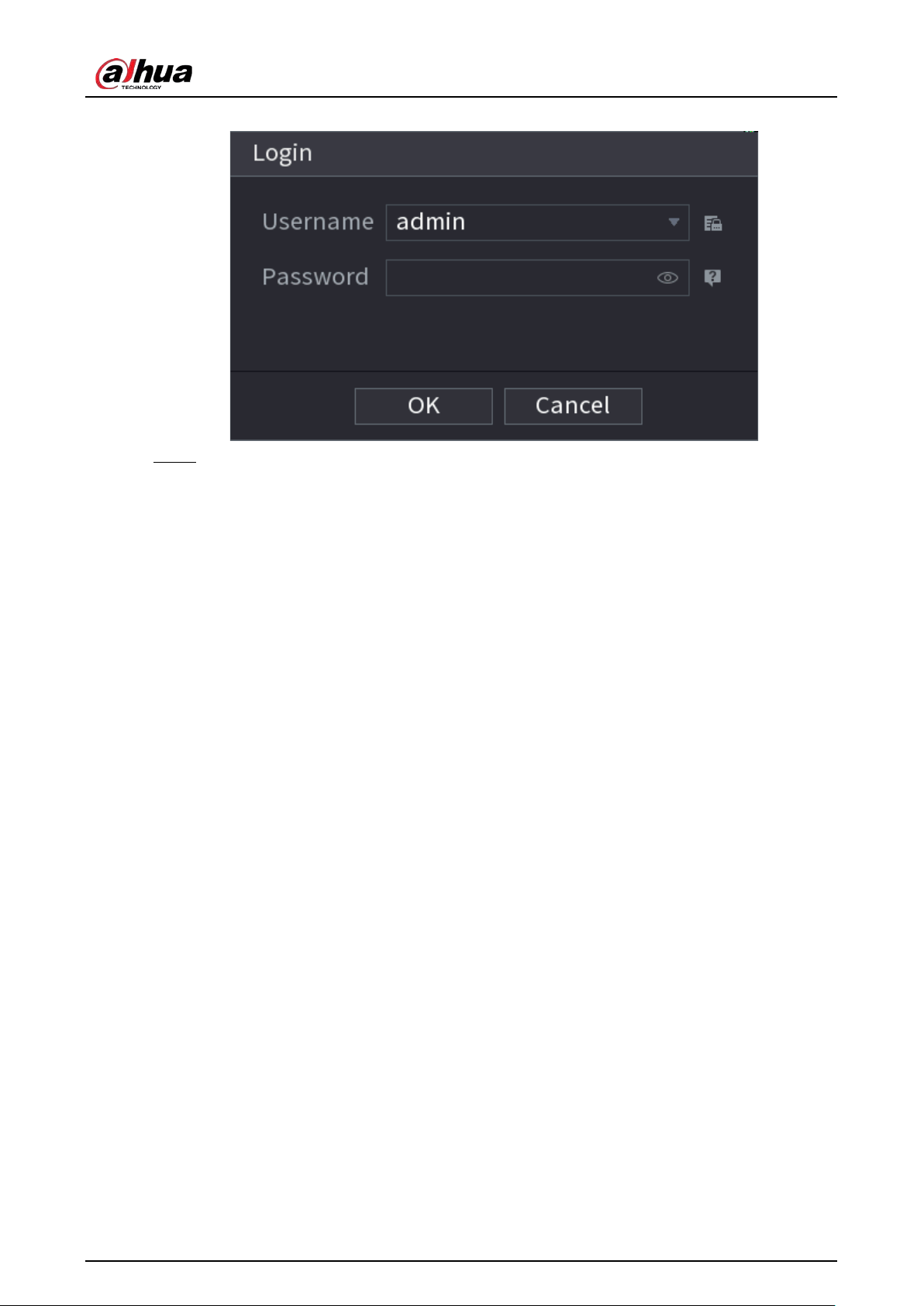
User's Manual
103
Figure 5-10 Password login
Step 2 Draw unlock pattern, or enter password and then click
OK
.
5.4 Main Menu
After login, right-click the live page, and then click
Main Menu
.
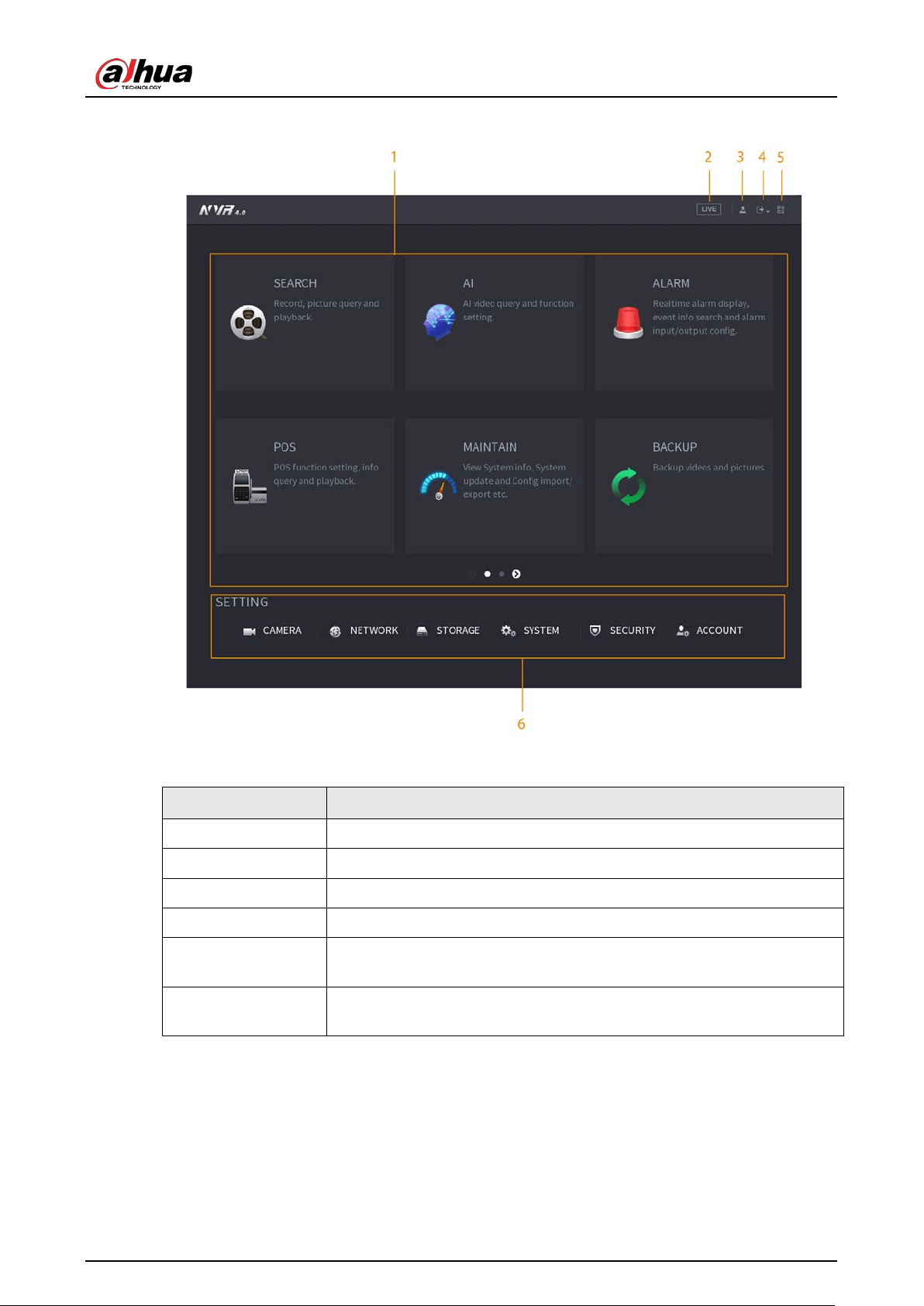
User's Manual
104
Figure 5-11 Main menu
Table 5-4 Main menu description
No. Description
1 Click each tile to open the corresponding configuration page.
2 Go back to live view.
3 Point to the icon to view the current username.
4 Log out of, restart, or shut down the Device.
5
Click the icon to get the QR codes of mobile client and device SN. You
can add the Device to the mobile client for remote management.
6
Configure the settings of camera, network, storage, system, security and
account.
5.5 Quick Operation Bar
You can click the icons on the main menu to go to the corresponding configuration page. After that,
you can go to other function tiles or setting item through the quick operation bar.
This section uses
ALARM
and
CAMERA
as examples to show how to quickly access other modules.
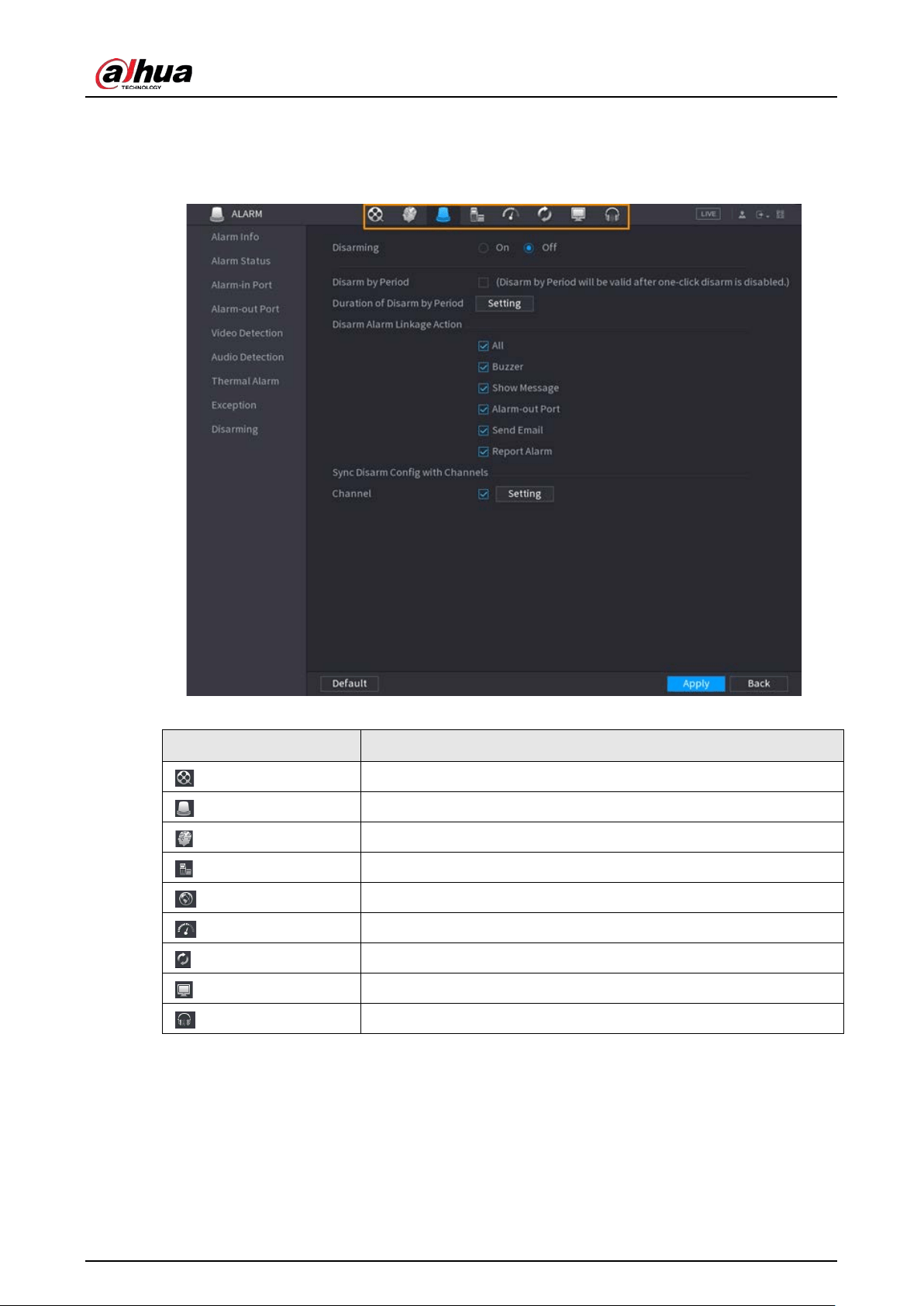
User's Manual
105
Shortcut Icons on Function Titles
Click
ALARM
to go to the
ALARM
page.
Figure 5-12 Quick operation bar (1)
Table 5-5 Quick operation bar description (1)
Icon Description
Go to the
SEARCH
page.
Go to the
ALARM
page.
Go to the
AI
page.
Go to the
POS
page.
Go to
NETWORK
page.
Go to the
MAINTAIN
page.
Go to the
BACKUP
page.
Go to the
DISPLAY
page.
Go to the
AUDIO
page.
Shortcut Icons on Setting Menu
Click
CAMERA
to go to the
CAMERA
page.
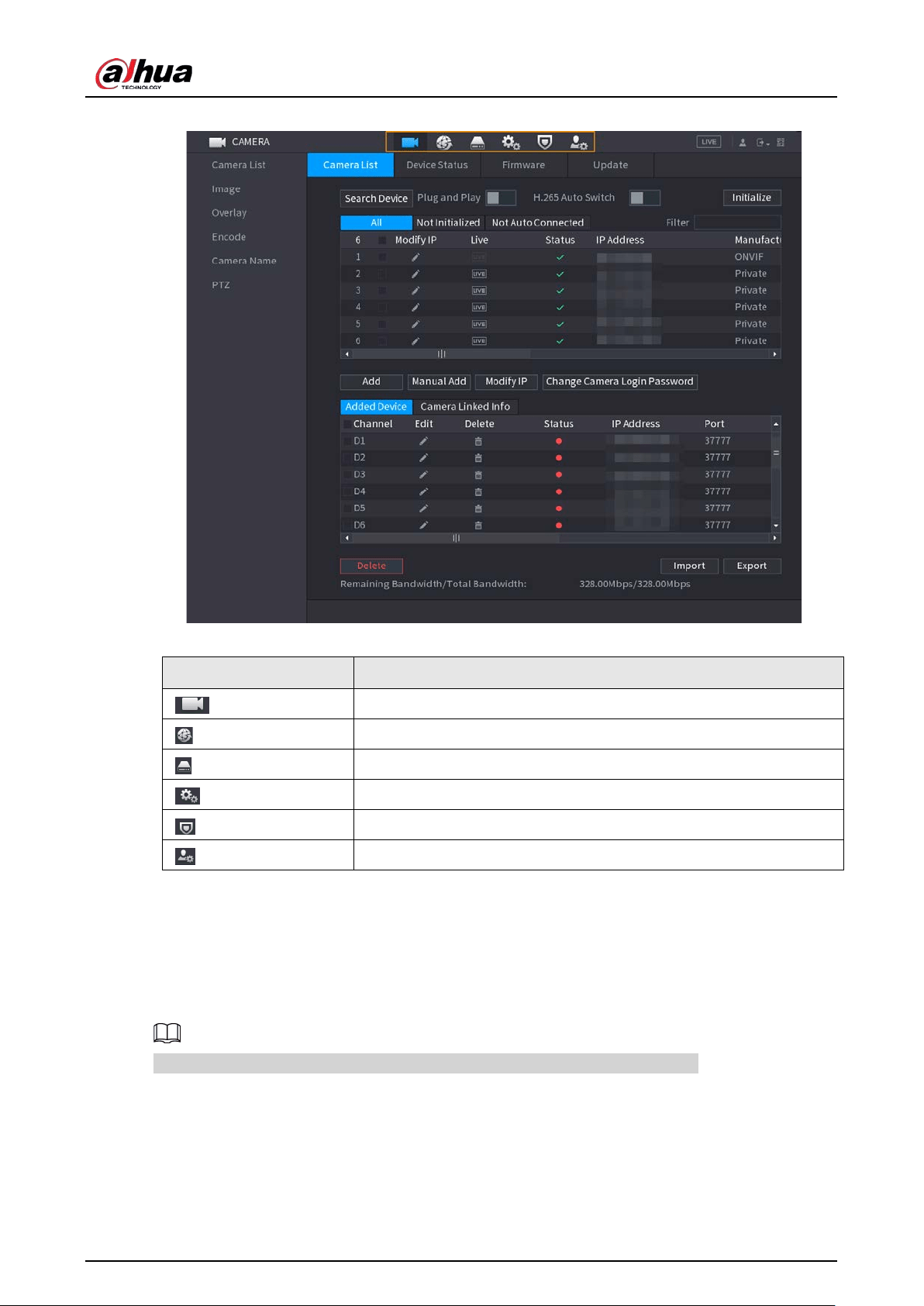
User's Manual
106
Figure 5-13 Quick operation bar (2)
Table 5-6 Quick operation bar description (2)
Icon Description
Go to the
CAMERA
page.
Go to the
NETWORK
page.
Go to the
STORAGE
page.
Go to the
SYSTEM
page.
Go to the
SECURITY
page.
Go to the
ACCOUNT
page.
5.6 Live View
After you logged in, the system goes to multiple-channel live view mode by default. You can view
the live video of each channel.
The number of window splits might vary depending on the model you are using.
5.6.1 Live Page
On the live view page, you can view the live video of each channel. The corresponding channel
displays date, time, and channel name after you overlay the corresponding information.
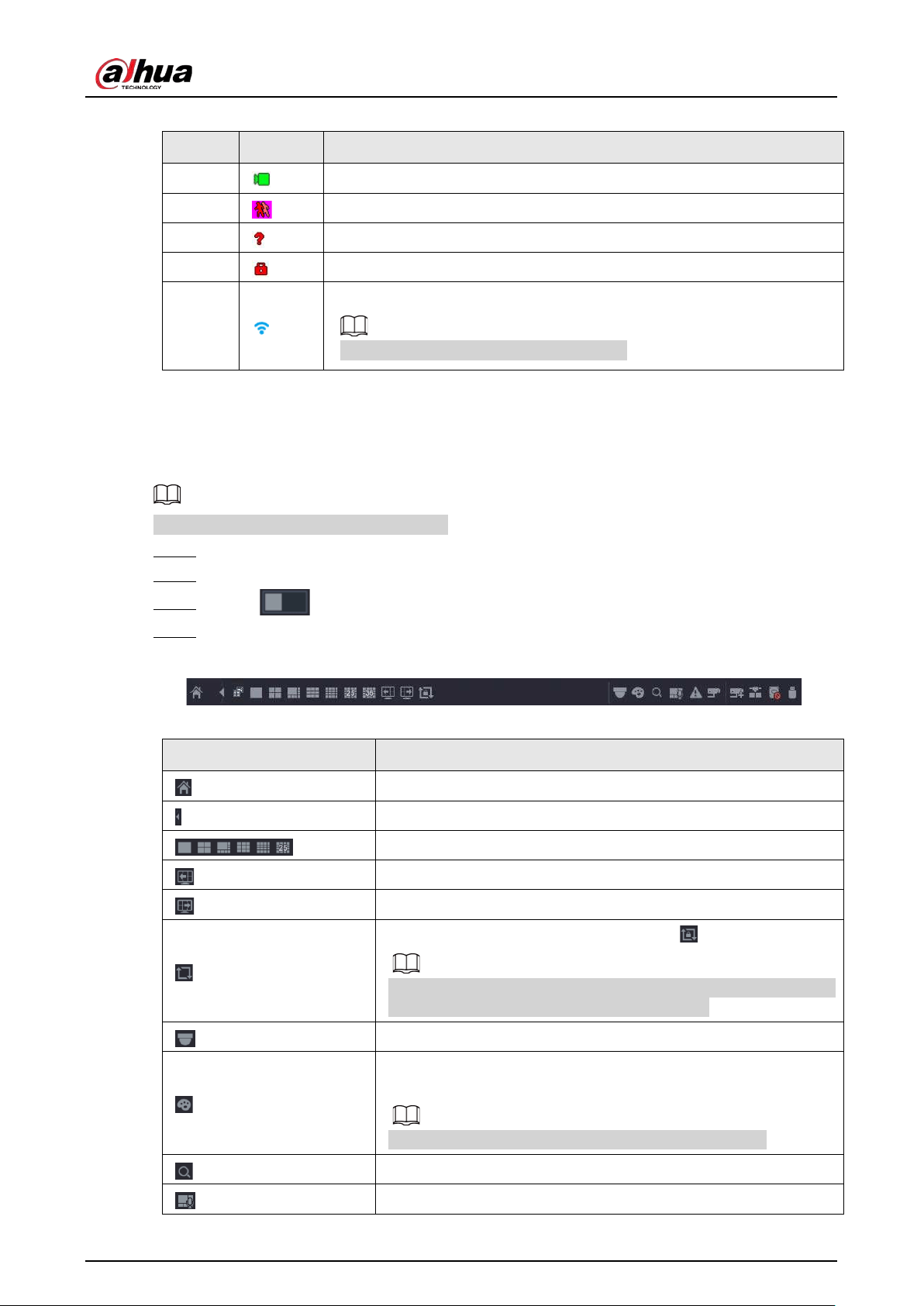
User's Manual
107
Table 5-7 Icon description
No. Icon Description
1
The current channel is recording.
2
Motion detection alarm occurs.
3
Video loss alarm occurs.
4
The current channel is in monitor lock status.
5
The Device connects to the network camera remotely.
This function is available on select models.
5.6.2 Navigation bar
You can quickly perform operations through the icons on the navigation bar.
The navigation bar might vary with models.
Step 1 After login, right-click the live page, and then select
Main Menu
.
Step 2 Select
System
>
General
>
Basic
.
Step 3 Click to enable navigation bar.
Step 4 On the live page, click any position and then the navigation appears at the bottom.
Figure 5-14 Navigation bar
Table 5-8 Navigation bar description
Icon Function
Open
Main Menu
.
Expand or condense the navigation bar.
Select view layout.
Go to the previous screen.
Go to the next screen.
Enable tour function. The icon switches to .
If you close the tour or the triggered tour operation has canceled,
the Device restores the previous preview video.
Open the PTZ control panel. For details, see "5.6.7.2 PTZ Control".
Configure image settings. For details, see "5.7.4 Configuring
Image Settings".
This function is supported only in single-channel layout.
Search for records. For detail, see "5.8.2.1 Search Page".
Open the
Voice Broadcast
page. For detail, see"5.18.3 Broadcast".
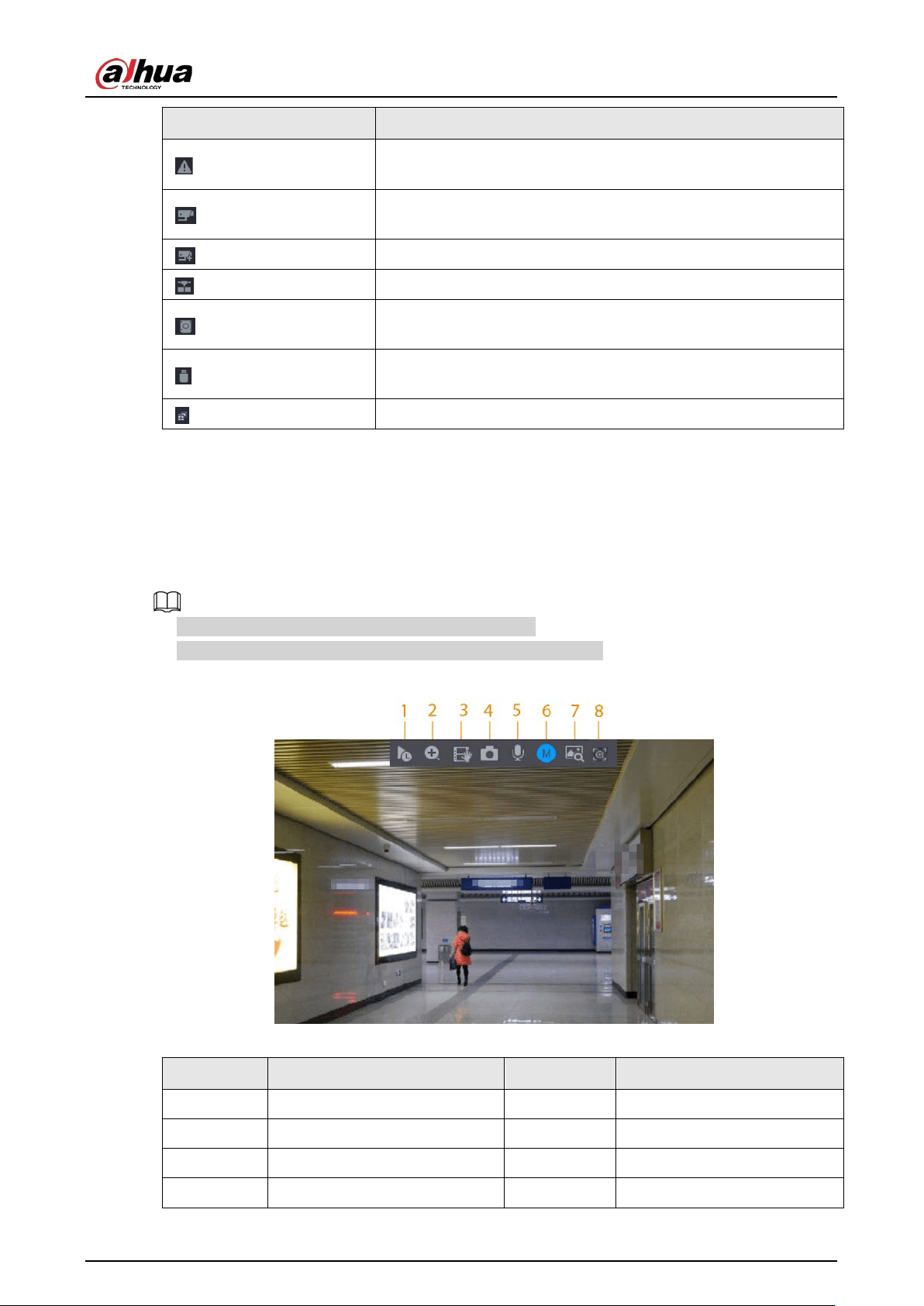
User's Manual
108
Icon Function
Open the
Alarm Status
interface to view the device alarm status.
For details, see "5.10.2 Alarm Status".
Open the
Channel Info
interface to display the information of
each channel.
Open the
Add Camera
page..
Open the
NETWORK
page. For details, see "5.19.3 Network".
Open the
Disk Manager
page. For details, see "5.12.2 Disk
Manager".
Open the
USB Management
page. You can view USB
information, back up files, and update the system.
Switch to the sub screen.
5.6.3 Live View Control Bar
Point to the top center of the video of current channel; and then the live view control bar appears.
If your mouse stays in this area for more than 6 seconds and has no operation, the control bar
automatically hides.
●
Disable the navigation bar before using this function.
●
The live view control bar is different depending on the model.
Figure 5-15 Live view control bar
Table 5-9 Live view control bar description
No. Name No. Name
1 Instant playback. 5 Two-way talk.
2 Digital zoom. 6 Stream switch.
3 Instant backup. 7 Picture search.
4 Manual snapshot. 8 Quick pick.
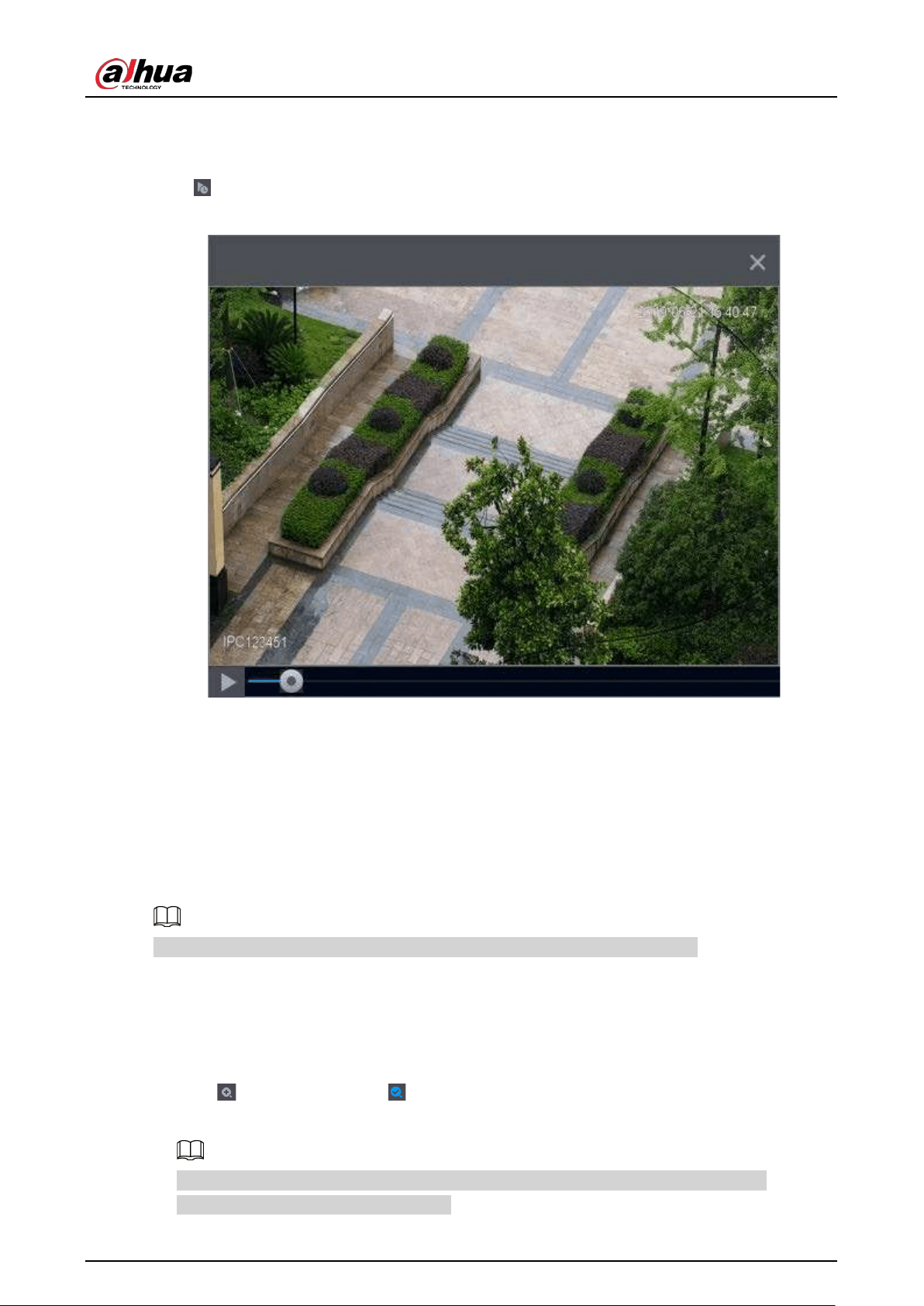
User's Manual
109
5.6.3.1 Instant Playback
You can play back the previous 5-60 minutes record of current channel.
Click for instant playback.
Figure 5-16 Instant playback
●
Move the slider to choose the time you want to start playing.
●
You can start, pause and close playback.
●
The information such as channel name and recording status icon are shielded during instant
playback and will not display until you exit playback.
●
During playback, screen split layout switch is not allowed.
●
Tour has high higher priority than the instant playback. The instant playback function is not
available when tour function is in process and the live view control bar automatically hides
either. The function becomes available again after tour ends.
Go to the
Main Menu
>
SYSTEM
>
General
>
Basic
to set instant playback time.
5.6.3.2 Digital Zoom
You can zoom in a specified zone of the current channel to view details. They system supports multi-
channel zoom. You can use the digital zoom in the following two ways:
●
Click . The icon switches to . Select an area. The area is enlarged after you release the
mouse button.
For some models, when the image is enlarged in this way, the selected area is zoomed
proportionally according to the window.
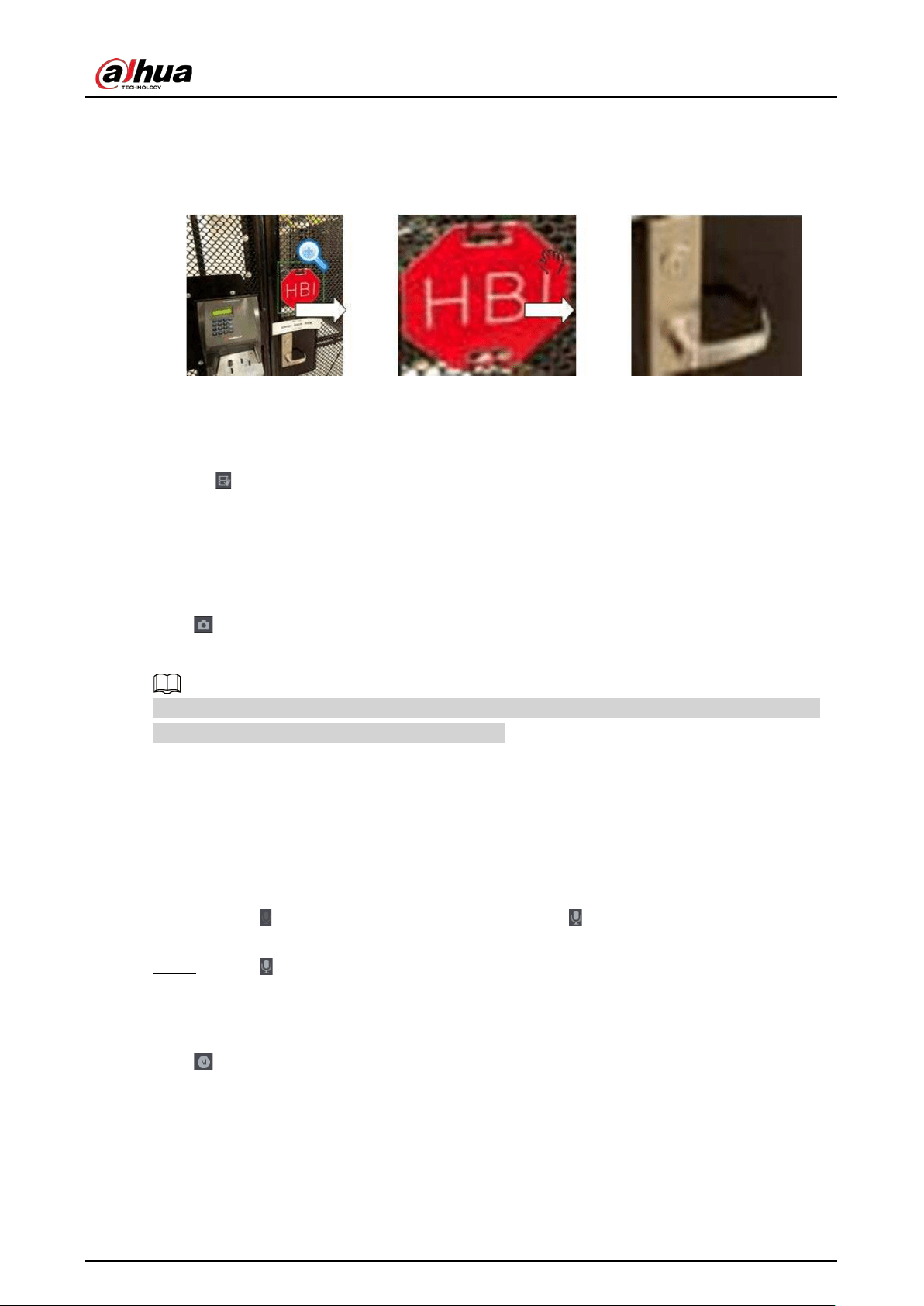
User's Manual
110
●
Point to the center that you want to enlarge, and then scroll the mouse to enlarge the area.
When the image is in the enlarged status, you can drag the image toward any direction to view the
other enlarged areas. Right-click to cancel zoom and go back to the original video image.
Figure 5-17 Zoom
5.6.3.3 Instant Backup
You can record the video of any channel and save the clip to a USB storage device.
Clicking to start the recording. To stop recording, click this icon again. The clip is automatically
saved to the connected USB storage device.
5.6.3.4 Manual Snapshot
You can take one to five snapshots of the video and save to a USB storage device.
Click to take snapshots. The snapshots are automatically saved to the connected USB storage
device. You can view the snapshots on your PC.
To change the quantity of snapshots, select
Main Menu
>
CAMERA
>
Encode
>
Snapshot
, in the
Manual Snapshot
list, select the snapshot quantity.
5.6.3.5 Two-way Talk
You can perform the voice interaction between the NVR and the remote device to improve efficiency
of emergency.
Procedure
Step 1 Click to start two-way talk. The icon changes to . The rest two-way talk buttons of
digital channel become dimmed.
Step 2 Click again to cancel two-way talk.
5.6.3.6 Stream Switch
Click to switch the bit stream type of the main stream and sub stream according to current
network bandwidth.
●
M: Main stream: Its bit streams are big and definition is high. It occupies large network bandwidth
suitable for video wall surveillance, storage and more.
●
S: Sub stream: Its definition is low but occupies small network bandwidth. It is suitable for general
surveillance, remote connection and more. Some models support two sub streams (S1, S2).
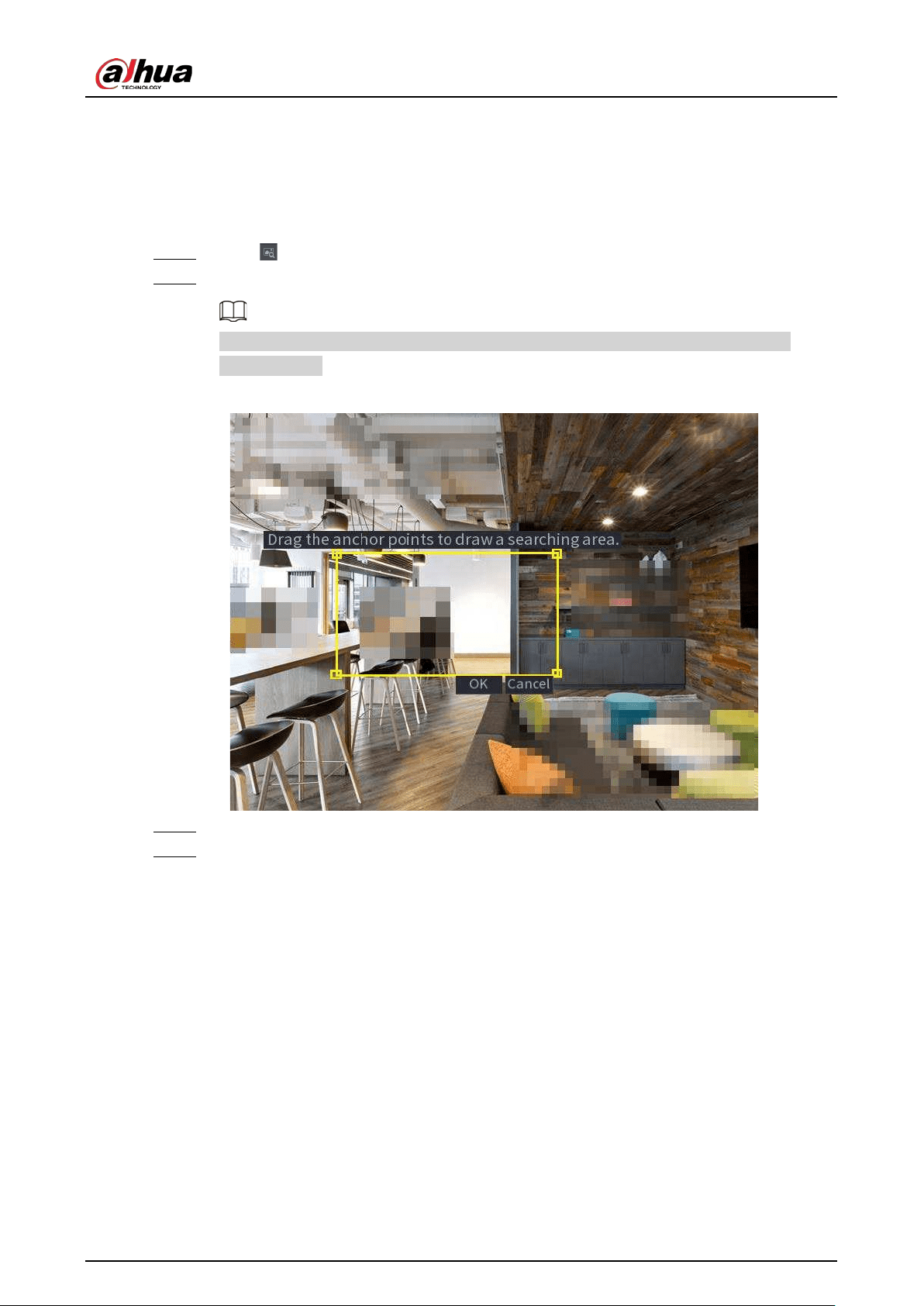
User's Manual
111
5.6.3.7 Picture Search
Select the image of target person on the live view page and then search by image for all the related
videos with the target person.
Procedure
Step 1 Click . The live image is frozen.
Step 2 Draw a search range according to the on-screen prompt, and then click
OK
.
You can adjust the searching area. Make sure that there are less than 30 faces in the
selected range.
Figure 5-18 Draw a searching range
Step 3 Select the target face that you want to search for. You can select maximum 8 target faces.
Step 4 Click
Search
. The search results are displayed.
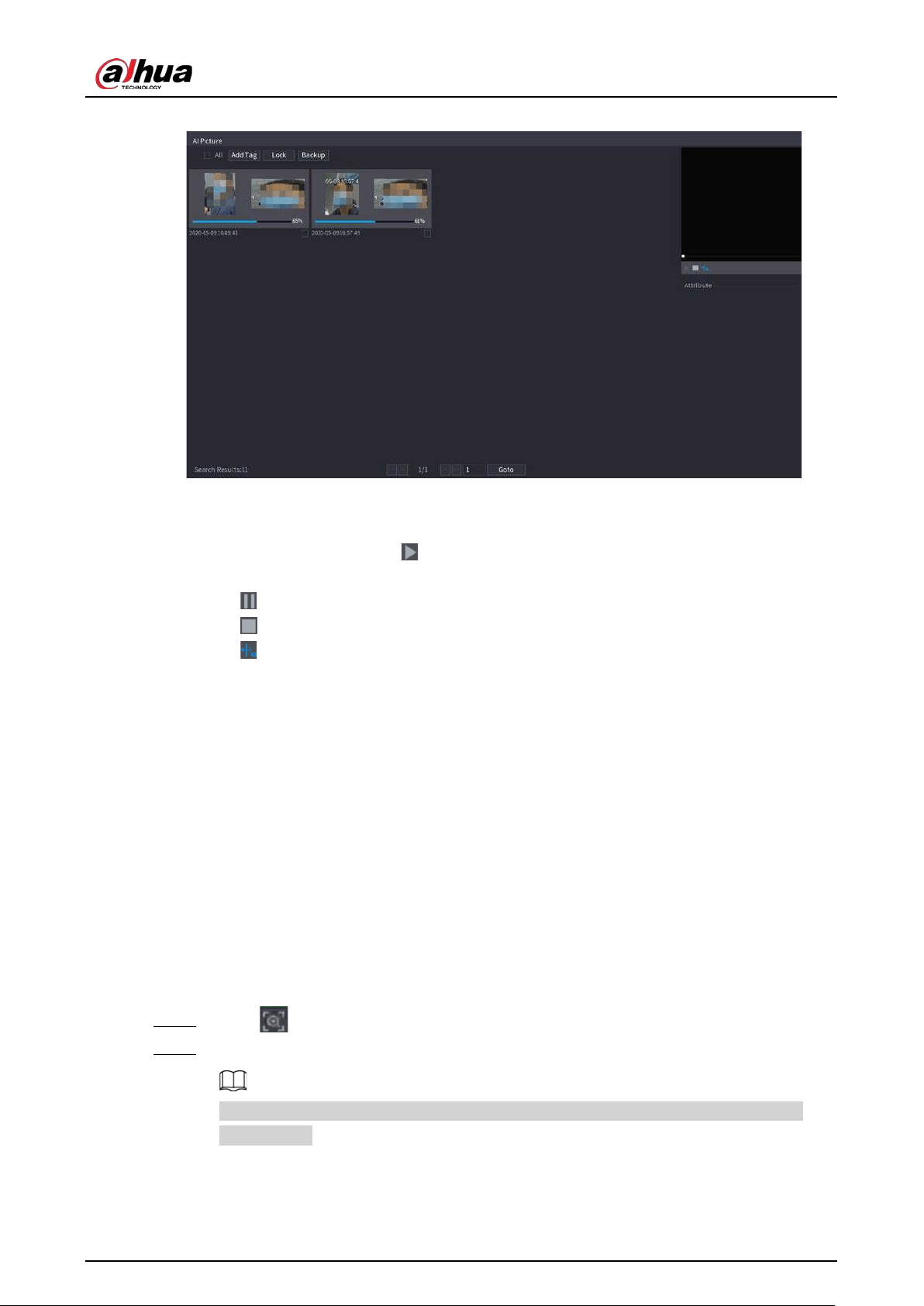
User's Manual
112
Figure 5-19 Picture search results
Related Operations
●
Play video.
Select the picture and then click to play back the video within 10 seconds before and after
the snapshot. During playback, you can
◇
Click to pause.
◇
Click to stop.
◇
Click to display or hide the intelligent rules.
●
Add tag.
Select the picture and then click
Add Tag
to add a tag to the recorded video to find the target
recorded video more fast.
●
Lock recorded video.
If you want to keep the recorded video permanently, select the picture, and then click
Lock
. The
locked video cannot be overwritten and deleted.
●
Back up recorded video or picture.
Select the picture, and then click
Backup
. You can set save path, backup type, and file type, and
then export to the external storage device.
5.6.3.8 Quick Pick
When connected with select IPC cameras, Quick Pick technology becomes available, allowing human
and vehicle targets to be easily searched for and picked out.
Step 1 Click to freeze the live page.
Step 2 Drag the anchor points to draw a searching area.
You can adjust the searching area. Make sure that there are less than 30 targets in the
selected area.
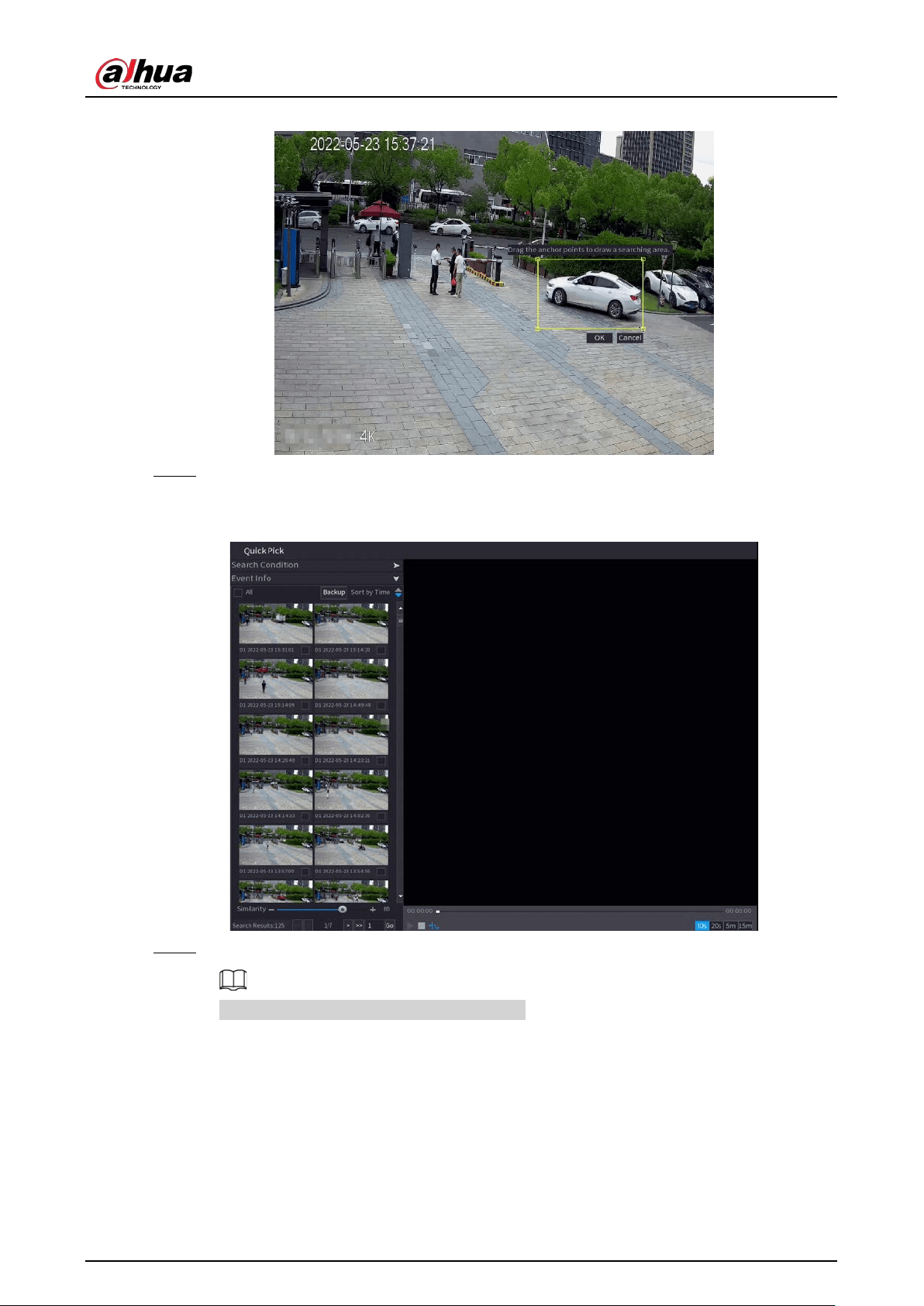
User's Manual
113
Figure 5-20 Quick pick
Step 3 Click
OK
.
The search results are displayed.
Figure 5-21 Search results
Step 4 (Optional) Click
Search Condition
, change the search conditions, and then click
Search
.
You can only select up to 8 targets for search.
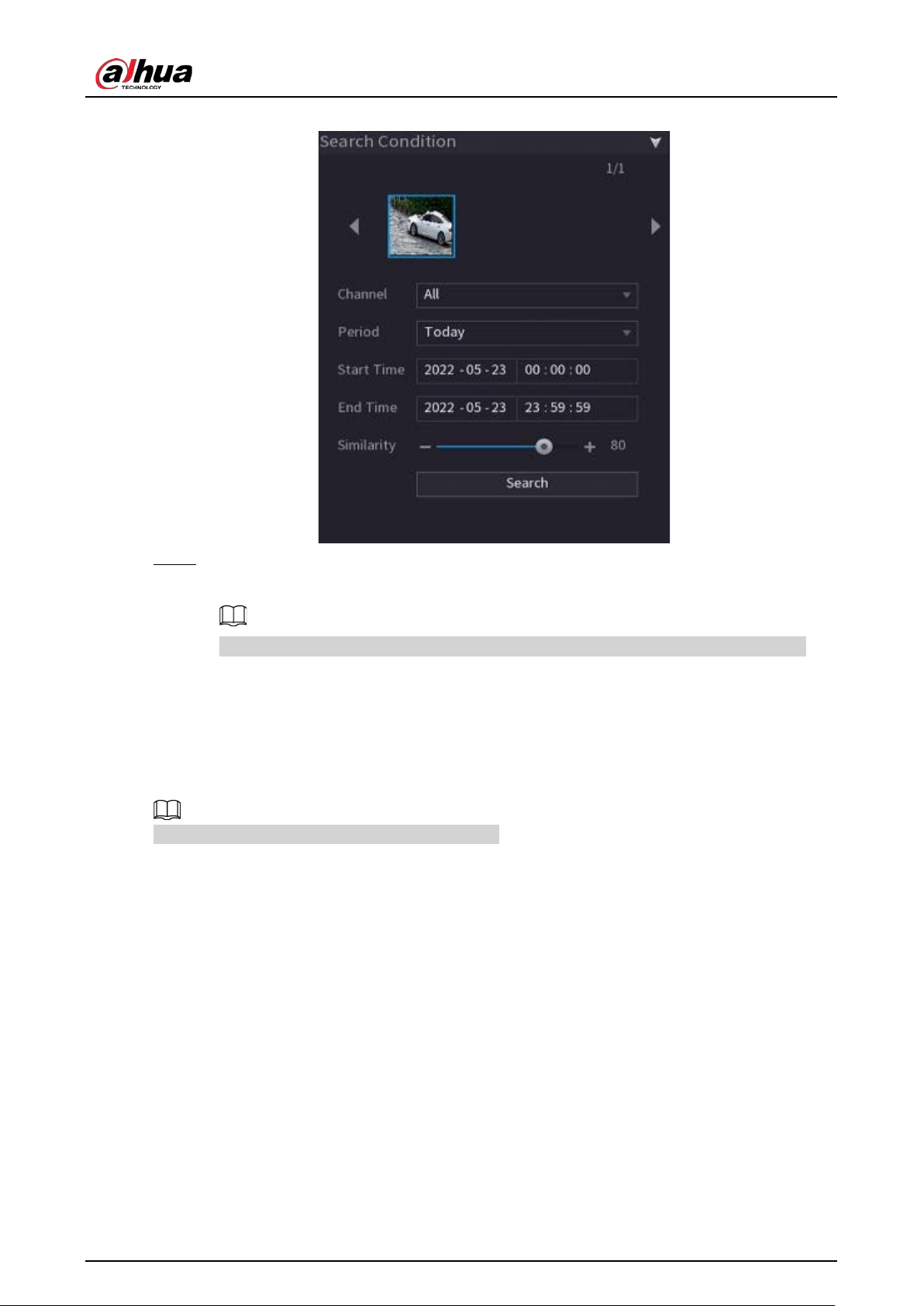
User's Manual
114
Figure 5-22 Search conditions
Step 5 Hover over a search result to view the basic information including channel, start time, end
time and target type. Double-click a result to play the video.
You can select one or more search results and then click
Backup
to back up the results.
5.6.4 Shortcut Menu
Right-click the live view page to bring up the shortcut menu. You can go to main menu, play back
videos or images, configure view split, and configure the settings of PTZ, image, and more.
The shortcut menu is different for different models.
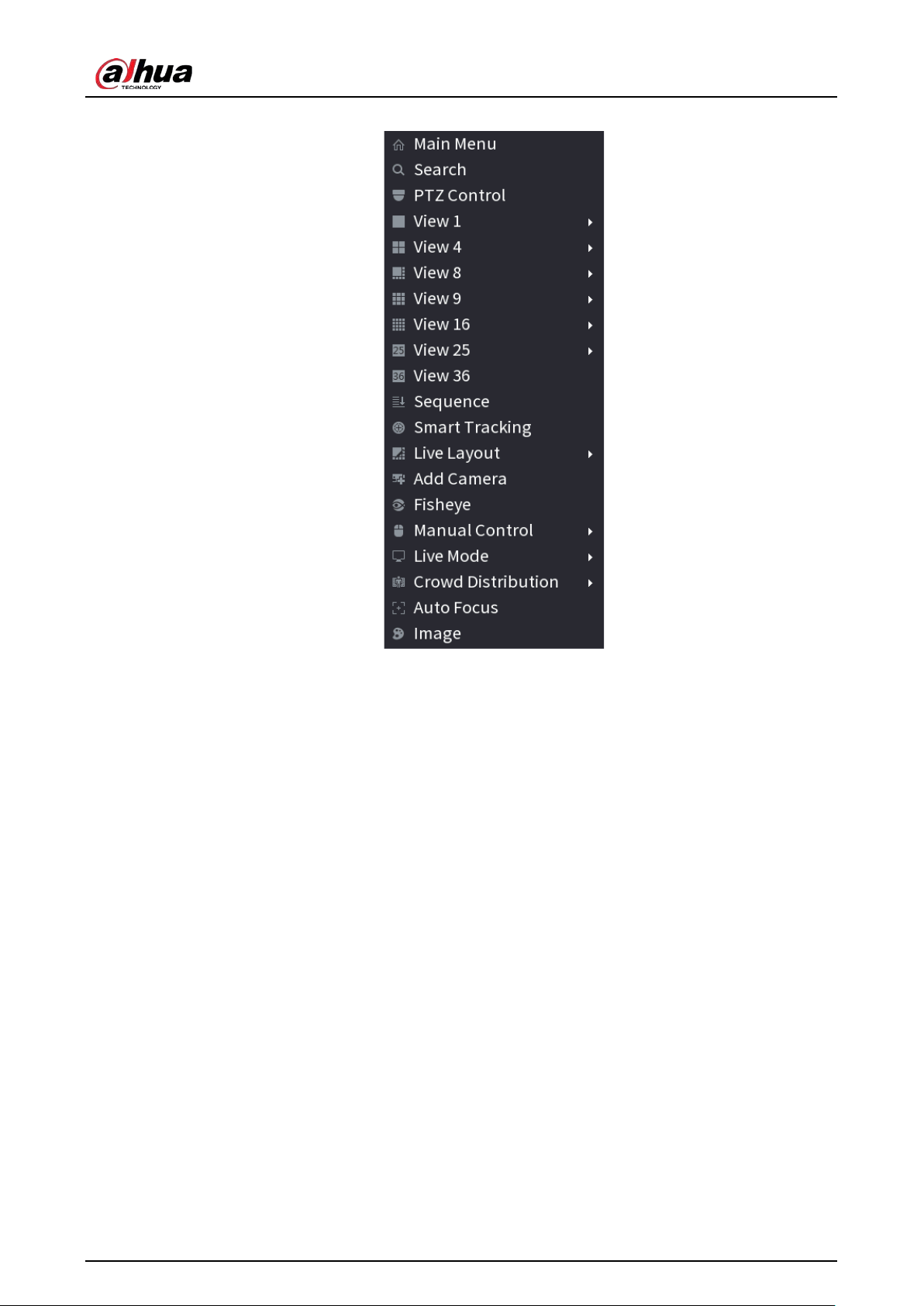
User's Manual
115
Figure 5-23 Shortcut menu (1)
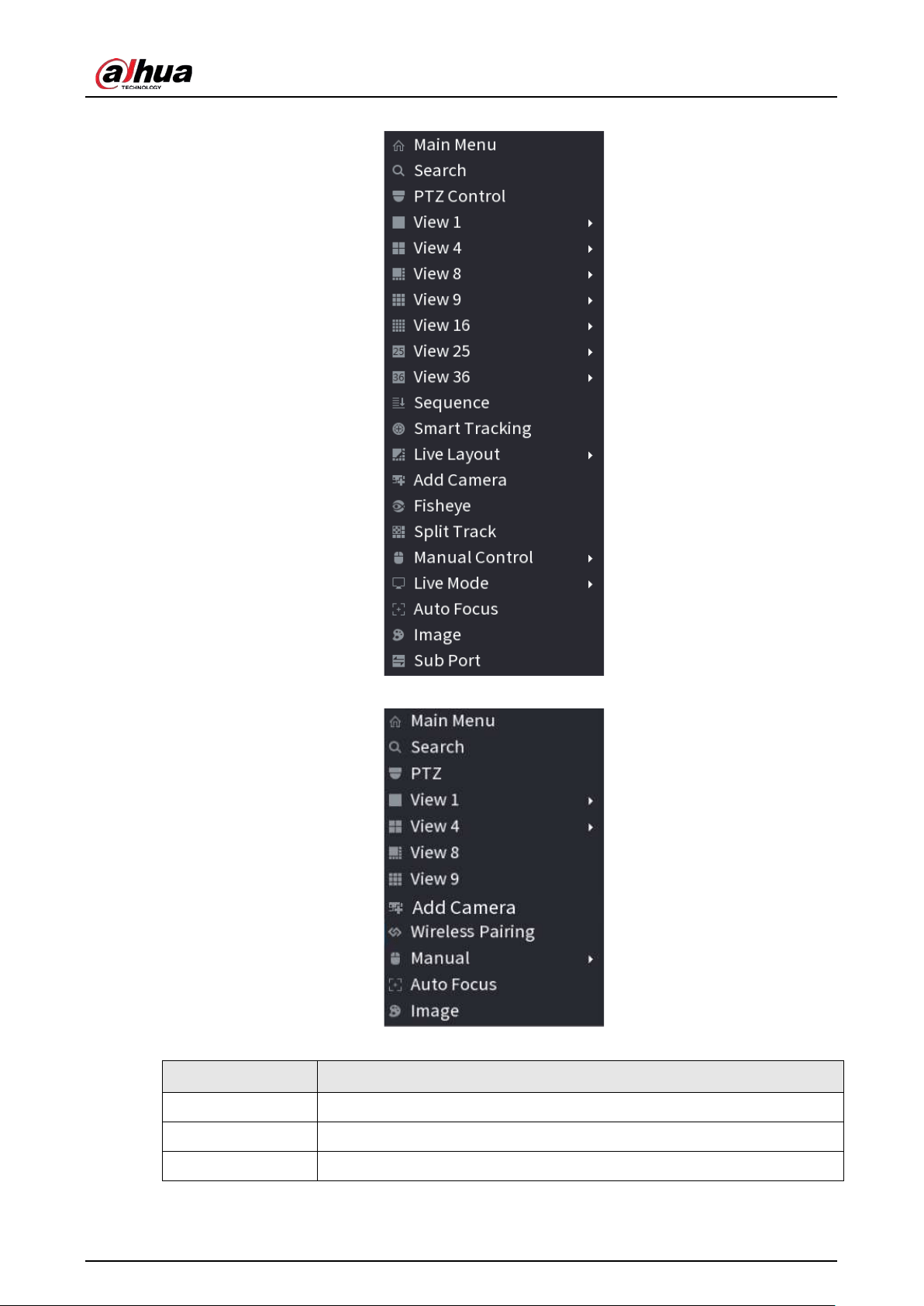
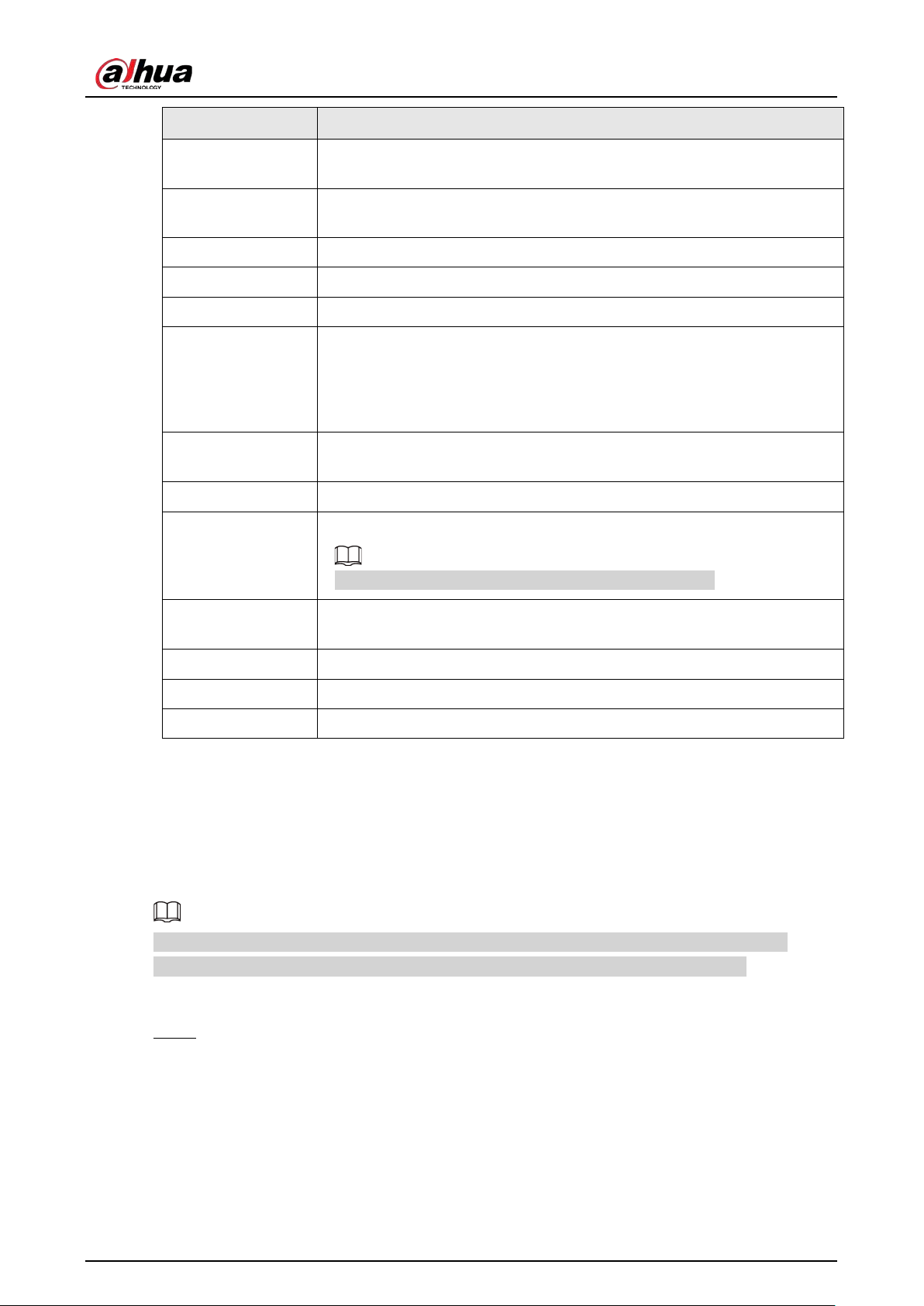
User's Manual
117
Function Description
View
1/4/8/9/16/25/36
Configure the live view screen as a single-channel layout or multi-channel
layout.
Sequence
Set customized screen split mode and channels. For details, see "5.6.9
Sequence".
Add Camera Add cameras to the Device.
Wireless Pairing Quickly add IPCs. For details, see "5.6.8 Wireless Pairing".
Split Track Split the screen of a certain channel. For details, see "5.6.6 Split Tracking".
Manual Control
●
Record Mode
: You can configure the recording mode as
Auto
or
Manual
, or stop the recording. You can also enable or disable
snapshot function
●
Alarm Mode
: You can configure alarm output settings.
Live Mode
Select
General
or
AI Mode
. In the AI mode, the information of detected
face, human or vehicles are displayed on the right side of the live page.
Crowd Distribution
Select
On
or
Close
to enable or disable crowd distribution function.
Auto Focus
Click to realize auto focus function.
Make sure the connected camera supports this function.
Image
Click to modify the camera image parameters. For details, see "5.7.4
Configuring Image Settings".
Sub Screen
Click
Sub Screen
to switch to the current monitor to the sub screen.
Smart Tracking Enable smart tracking to track targets manually or automatically.
Mirror Sub Screen Displays the image of the sub screen on the main screen.
5.6.5 AI Live View Mode
When you select AI mode, the system displays information of human face, personnel, vehicle and
non-motor vehicle on the right side of the live page, and it supports to play back records and display
feature attributes.
You need to enable face detection, body detection, vehicle detection and non-motor vehicle
detection to support this function. For details, see "5.9.8.2 Configuring Video Metadata".
Procedure
Step 1 Right-click the live page, and then select
AI Mode
as
Live Mode
.
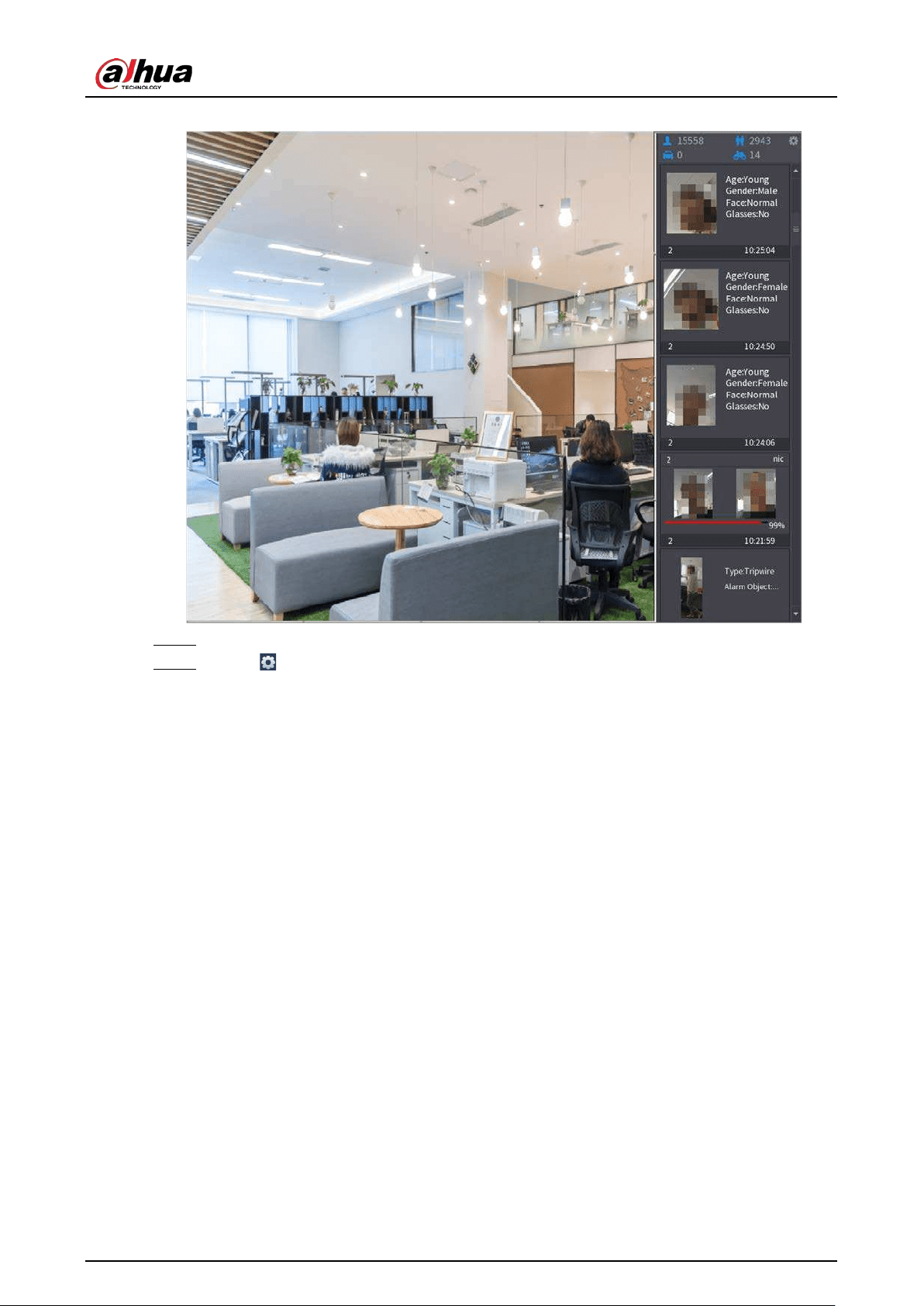
User's Manual
118
Figure 5-26 AI live view
Step 2 (Optional) Double-click the image on the right to play the corresponding video.
Step 3 Click , and then select the face attributes that you want to display. You can select up to
four attributes.
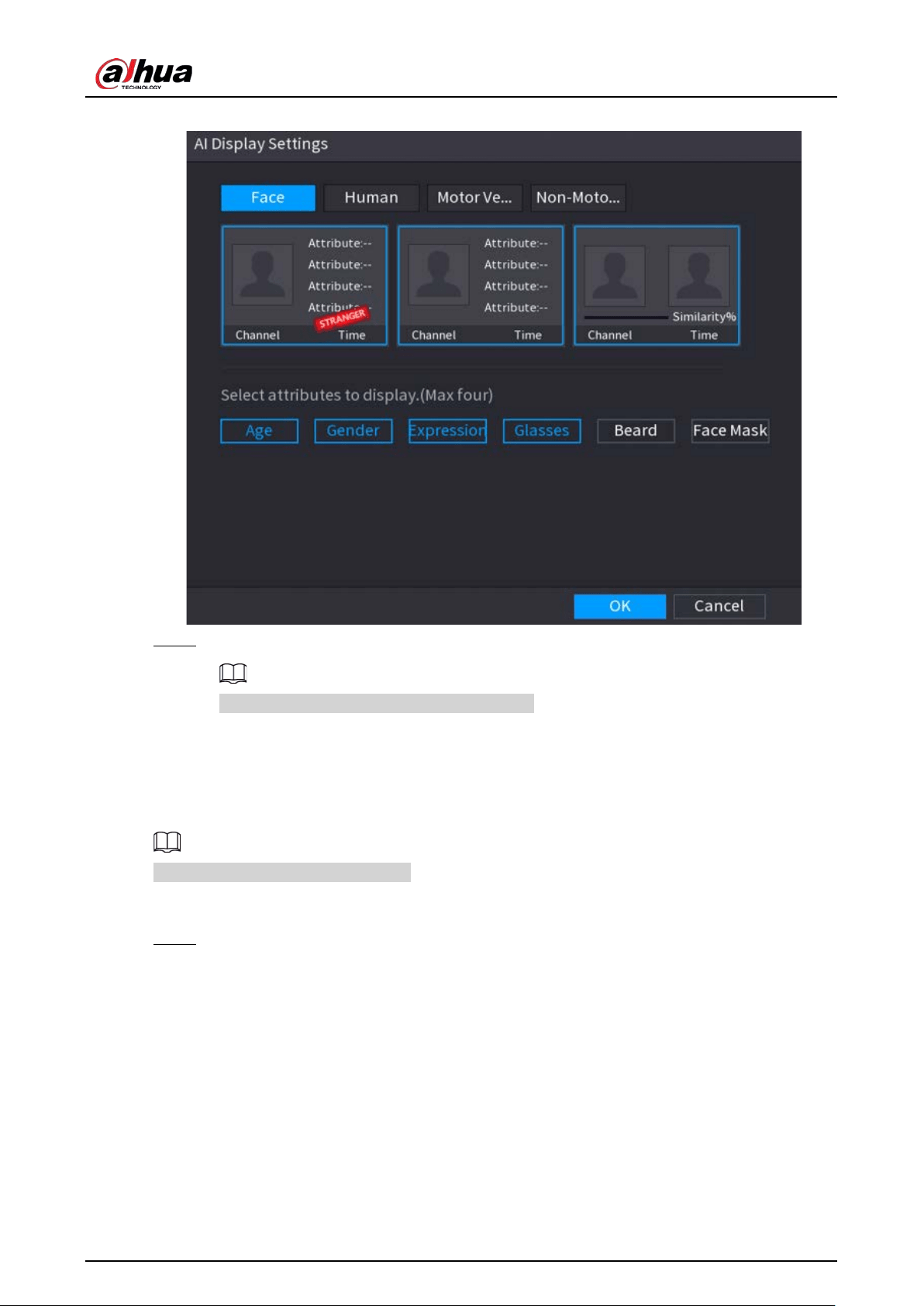
User's Manual
119
Figure 5-27 Face vehicle properties
Step 4 Click
OK
.
The system can display four attributes at most.
5.6.6 Split Tracking
You can track window split for a certain channel.
This function is for select models only.
Procedure
Step 1 Right-click the live page, and then select
Split Track
.
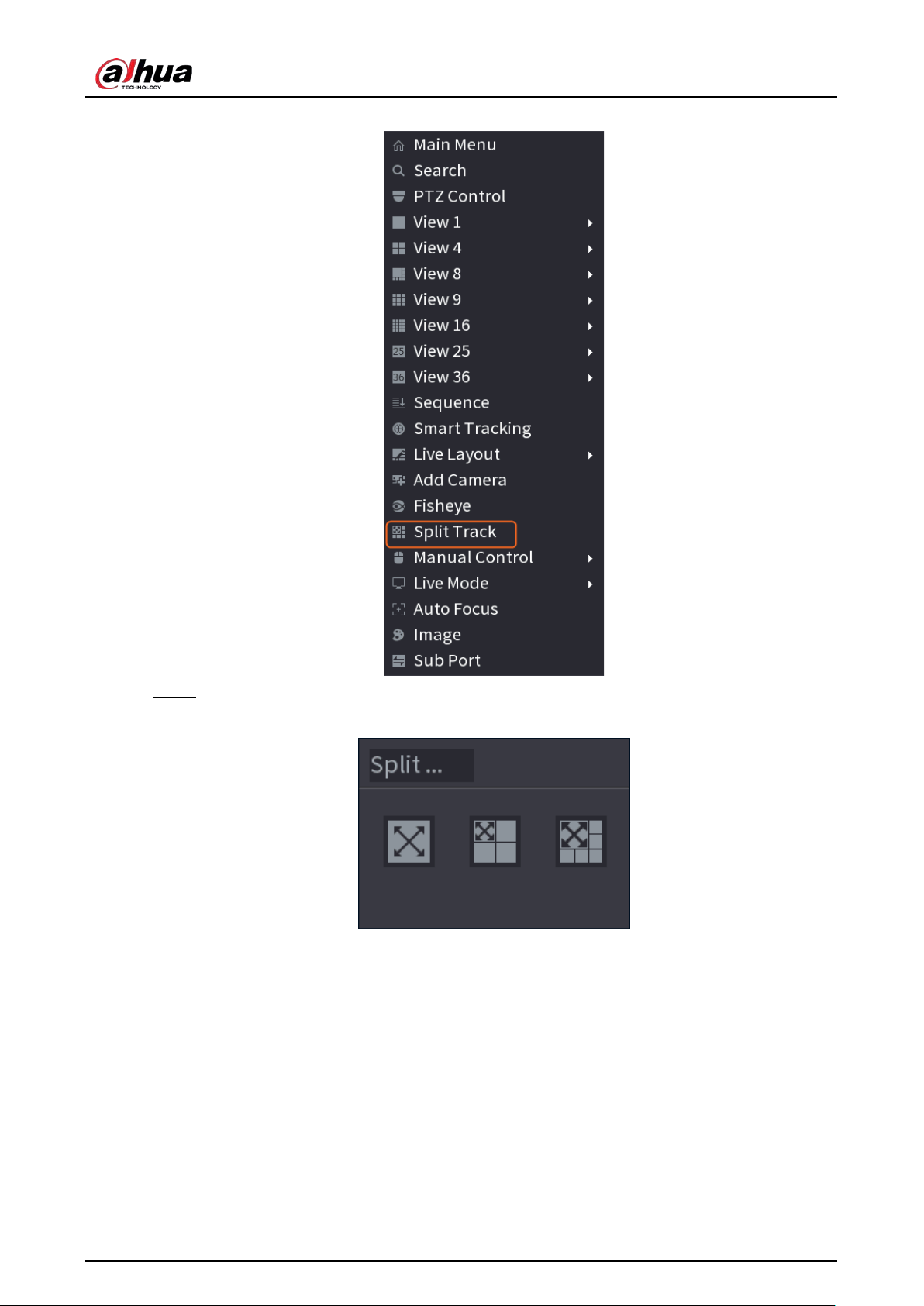
User's Manual
120
Figure 5-28 Split track
Step 2 Select a split mode.
Figure 5-29 Split mode
Split mode includes full screen, 1 main screen + 3 split screens and 1 main screen + 5 split
screens.
●
You can move the rectangles with color to adjust the videos displayed on split screens.
●
You can scroll the mouse in split screens to zoom in or out the video.
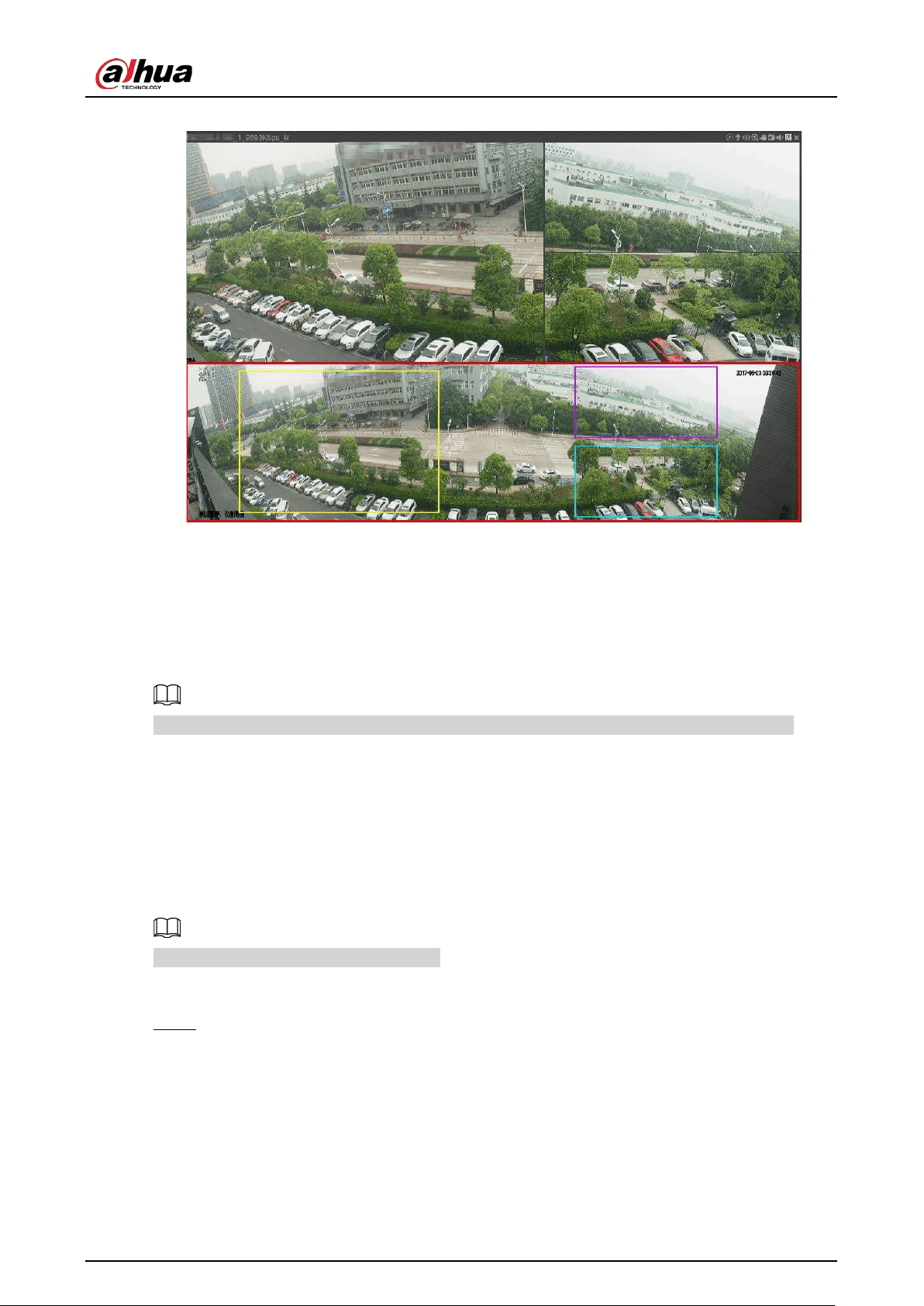
User's Manual
121
Figure 5-30 Split display
5.6.7 PTZ
PTZ is a mechanical platform that carries a camera and a protective cover and performs overall
control remotely. A PTZ can move in both horizontal and vertical direction to provide all-around
view to the camera.
Before you control the PTZ, make sure the PTZ decoder and the NVR network connection is OK.
5.6.7.1 PTZ Settings
You can set different PTZ parameters for local type and remote type. Before you use local PTZ, make
sure you have set PTZ protocol; otherwise you cannot control the local PTZ.
●
Local: The PTZ device connects to the NVR through the cable.
●
Remote: The PTZ device connects to the NVR through the network.
This function is available on select models.
Procedure
Step 1 Select
Main menu
>
Camera
>
PTZ
.
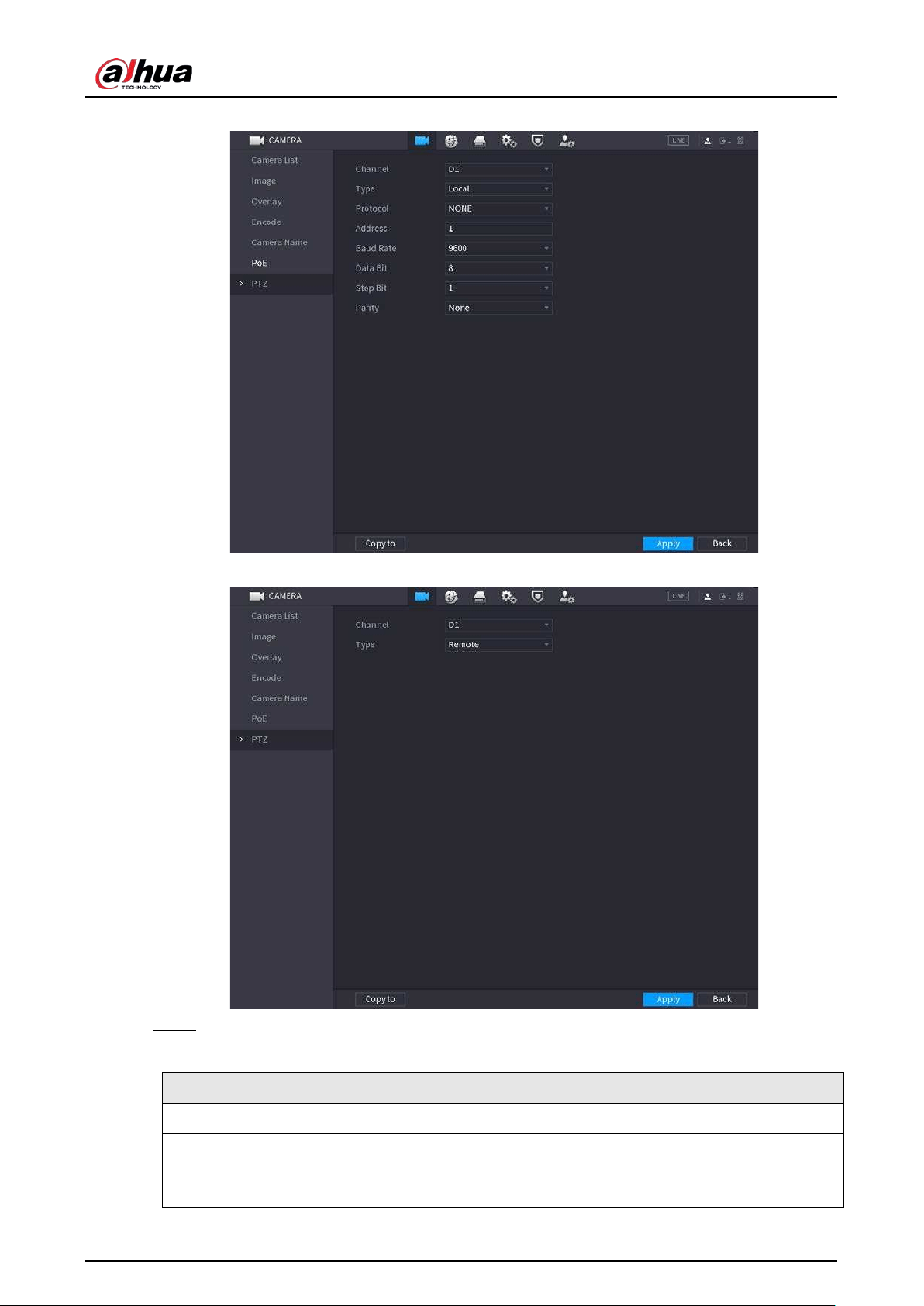
User's Manual
122
Figure 5-31 PTZ (local)
Figure 5-32 PTZ (remote)
Step 2 Configure parameters.
Table 5-11 PTZ parameters
Parameter Description
Channel Select the channel that you want to connect the PTZ camera to.
Type
●
Local: Connect through RS-485 port.
●
Remote: Connect through network by adding IP address of PTZ camera
to the Device.
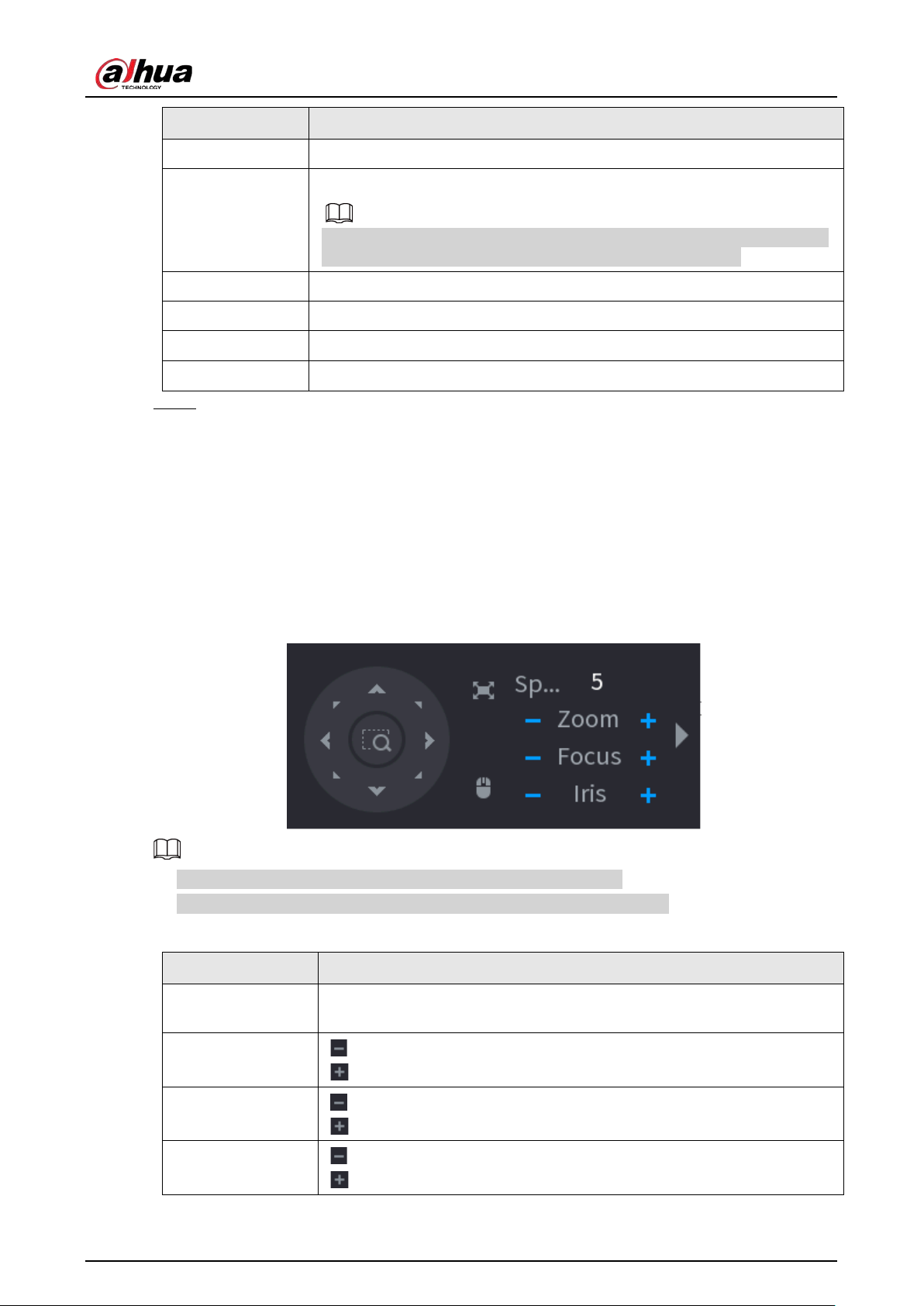
User's Manual
123
Parameter Description
Protocol Select the protocol for the PTZ camera such as PELCOD.
Address
Enter the address for PTZ camera. The default is 1.
The entered address must be the same with the address configured on the
PTZ camera; otherwise the system cannot control PTZ camera.
Baud rate Select the baud rate for the PTZ camera. The default is 9600.
Data Bit The default value is 8.
Stop Bit The default value is 1.
Parity
The default value is
None
.
Step 3 Click
Apply
.
5.6.7.2 PTZ Control
You can use the PTZ control panel to perform the operations such as directing camera in eight
directions, adjusting zoom, focus and iris settings, and quick positioning.
Basic PTZ Control Panel
Right-click the live page, and then select
PTZ Control
.
Figure 5-33 Basic PTZ control panel
●
The gray button means system does not support current function.
●
For some model, the PTZ function is available only in one-window mode.
Table 5-12 PTZ control parameters
Parameter Description
Speed
Controls the movement speed. The bigger the value, the faster the
movement.
Zoom
: Zoom out.
: Zoom in.
Focus
: Focus far.
: Focus near.
Iris
: Image darker.
: Image brighter.
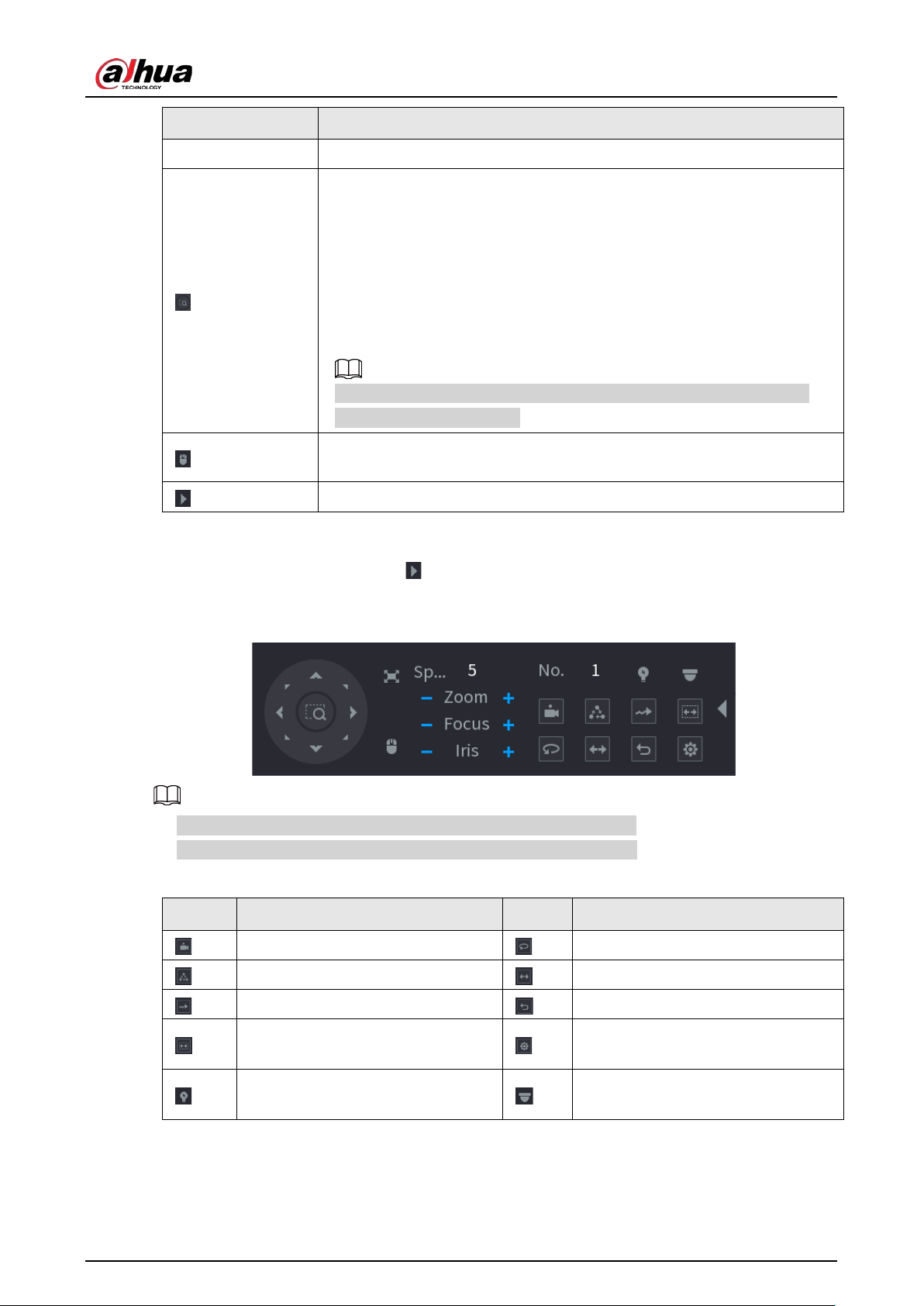
User's Manual
124
Parameter Description
PTZ movement Supports eight directions.
Fast positioning button.
●
Positioning: Click the icon, and the click any point on the live page.
The PTZ will turn to this point and locate this point in the center.
●
Zooming: Click the icon, and then drag to draw a square on the view.
The square supports zooming.
◇
Drag upward to zoom out, and drag downward to zoom in.
◇
The smaller the square, the larger the zoom effect.
This function is available on select models, and can only be controlled
through mouse operations.
Click the icon, and then you can control the four directions (left, right, up,
and down) of PTZ movement through mouse operation.
Open the expanded PTZ control panel.
Expanded PTZ Control Panel
On the basic PTZ control panel, click to open the expanded PTZ control panel to find more
options. See Figure 5-34.
Figure 5-34 Expanded PTZ control bar
●
The functions with buttons in gray are not supported by the system.
●
Right-click once to return to the interface of PTZ basic control panel.
Table 5-13 PTZ functions
Icon Function Icon Function
Preset
Pan
Tour
Flip
Pattern
Reset
Scan
Click the
AUX Config
icon to open
the PTZ functions settings interface.
AUX Switch
Click the
Enter Menu
icon to open
the
PTZ Menu
interface.
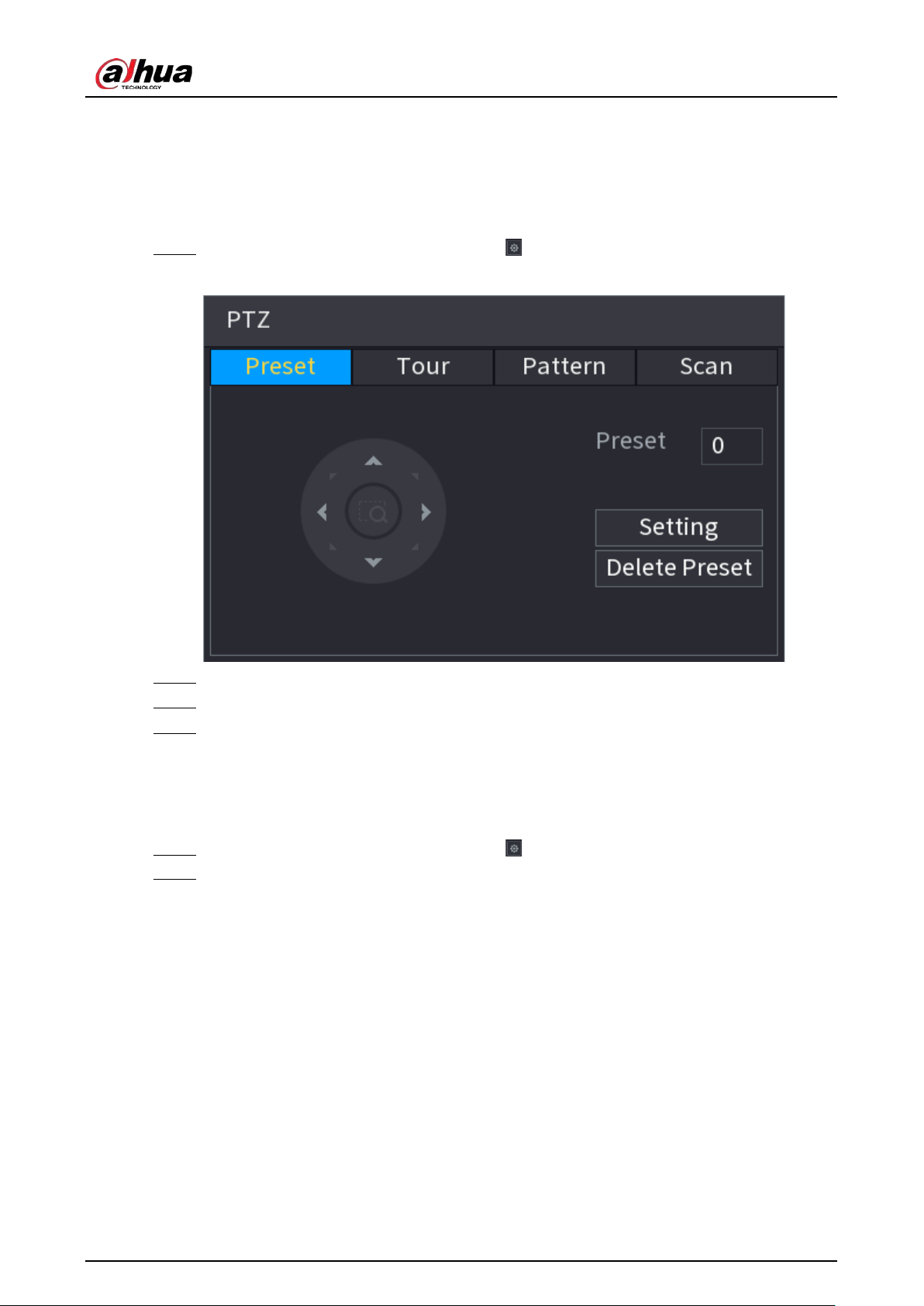
User's Manual
125
5.6.7.3 Configuring PTZ Functions
5.6.7.3.1 Configuring Presets
Procedure
Step 1 On the expanded PTZ control panel, click .
Figure 5-35 Preset
Step 2 Click the direction arrows to the required position.
Step 3 In the
Preset
box, enter the value to represent the required position.
Step 4 Click
Setting
to complete the preset settings.
5.6.7.3.2 Configuring Tours
Procedure
Step 1 On the expanded PTZ control panel, click .
Step 2 Click the
Tour
tab.
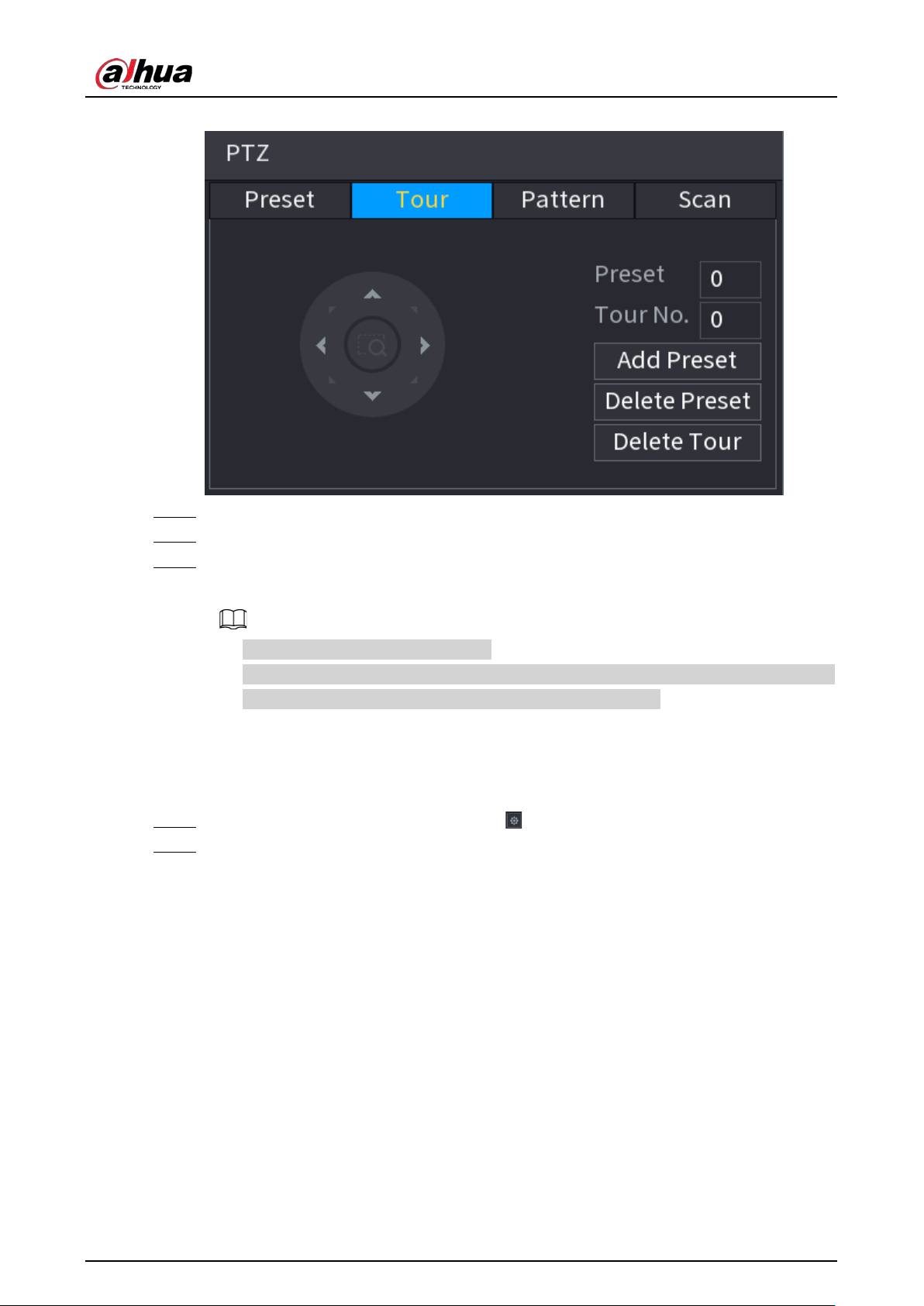
User's Manual
126
Figure 5-36 Tour
Step 3 In the
Tour No.
box, enter the value for the tour route.
Step 4 In the
Preset
box, enter the preset value.
Step 5 Click
Add Preset
.
A preset will be added for this tour.
●
You can repeat adding more presets.
●
Click
Delete Preset
to delete the preset for this tour. This operation can be repeated to
delete more presets. Some protocols do not support deleting.
5.6.7.3.3 Configuring Patterns
Procedure
Step 1 On the expanded PTZ control panel, click .
Step 2 Click the
Pattern
tab.
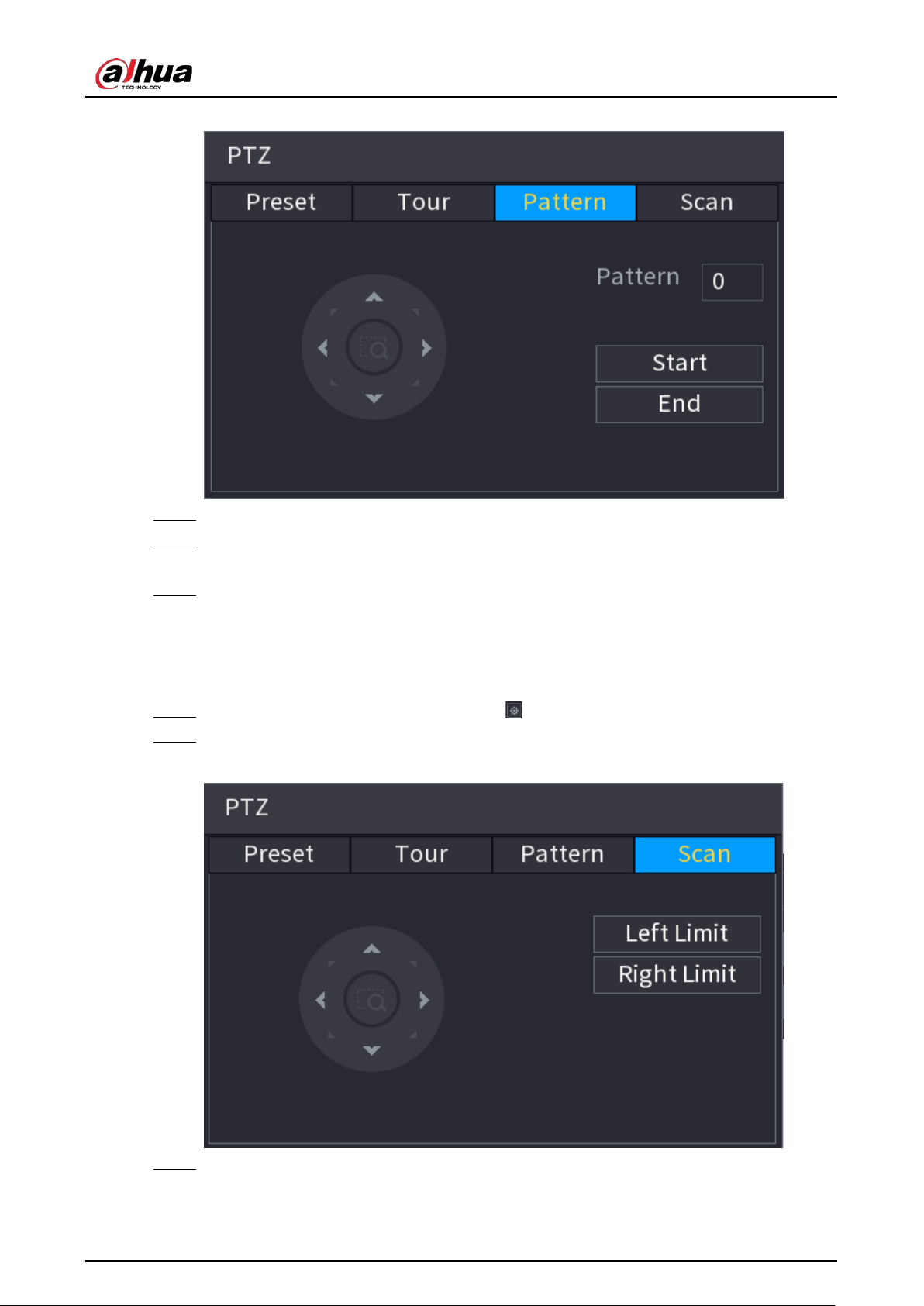
User's Manual
127
Figure 5-37 Pattern
Step 3 In the
Pattern
box, enter the value for pattern.
Step 4 Click
Start
to perform the directions operations. You can also go to the PTZ Control Panel
to perform the operations of adjusting zoom, focus, iris, and directions.
Step 5 On the
PTZ
window, click
End
to complete the settings.
5.6.7.3.4 Configuring AutoScan
Procedure
Step 1 On the expanded PTZ control panel, click .
Step 2 Click the
Scan
tab.
Figure 5-38 Scan
Step 3 Click the direction arrows to position the left and right limits.
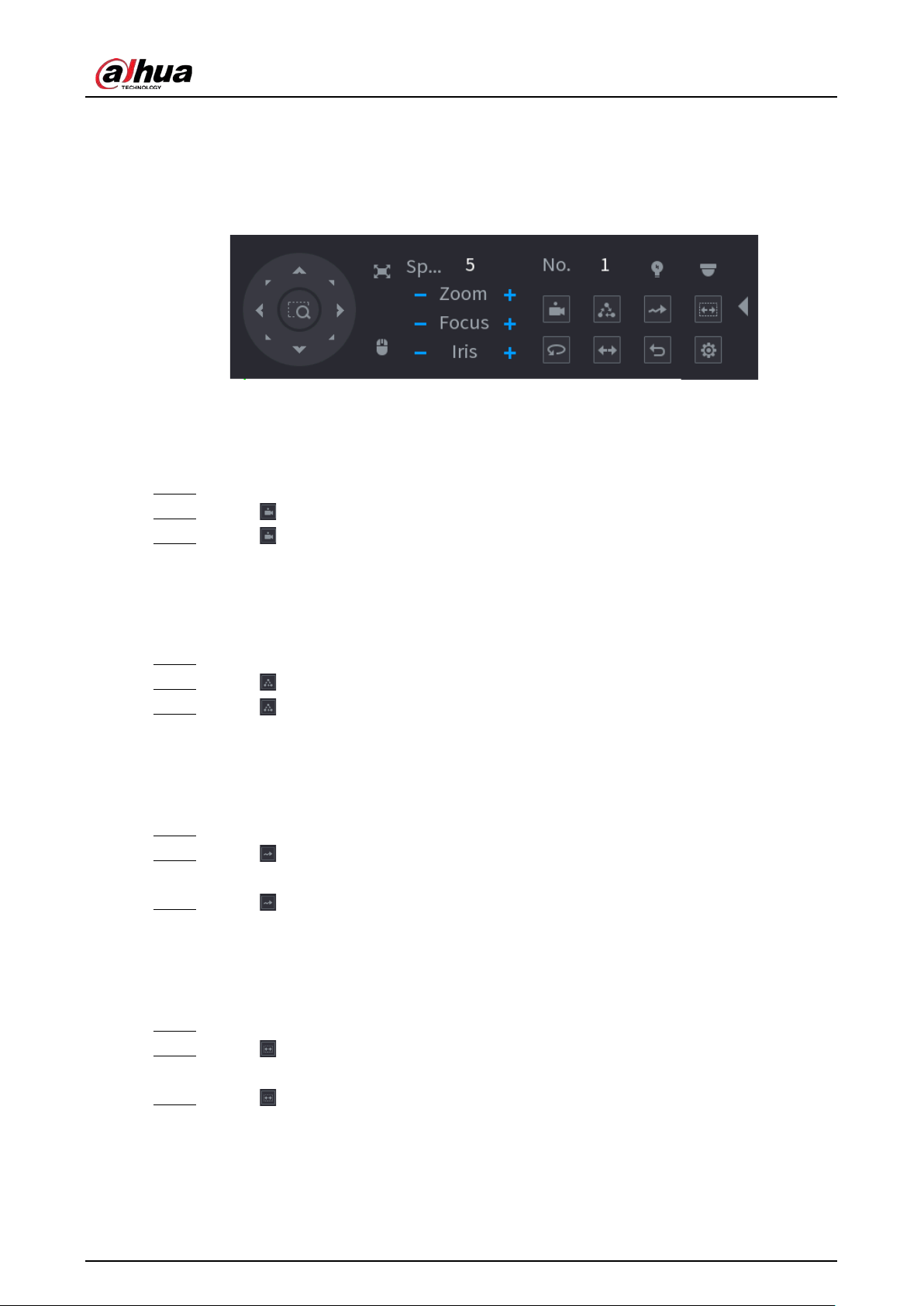
User's Manual
128
5.6.7.4 Using PTZ Functions
After you have configured the PTZ settings, you can use the PTZ functions from the expanded PTZ
control panel.
Figure 5-39 Expanded PTZ control panel
5.6.7.4.1 Presets
Procedure
Step 1 On the expanded PTZ control panel, in the
No.
box, enter the value of the preset.
Step 2 Click to call the preset.
Step 3 Click again to stop calling the preset.
5.6.7.4.2 Tours
Procedure
Step 1 On the expanded PTZ control panel, in the
No.
box, enter the value of the tour.
Step 2 Click to call the tour.
Step 3 Click again to stop calling the tour.
5.6.7.4.3 Patterns
Procedure
Step 1 On the expanded PTZ control panel, in the
No.
box, enter the value of the pattern.
Step 2 Click to call the pattern.
The PTZ camera moves according to the configured pattern repeatedly.
Step 3 Click again to stop calling the pattern.
5.6.7.4.4 AutoScan
Procedure
Step 1 On the expanded PTZ control panel, in the
No.
box, enter the value of the border.
Step 2 Click .
The PTZ camera performs scanning according to the configured borders.
Step 3 Click again to stop auto scanning.
5.6.7.4.5 Calling AutoPan
Procedure
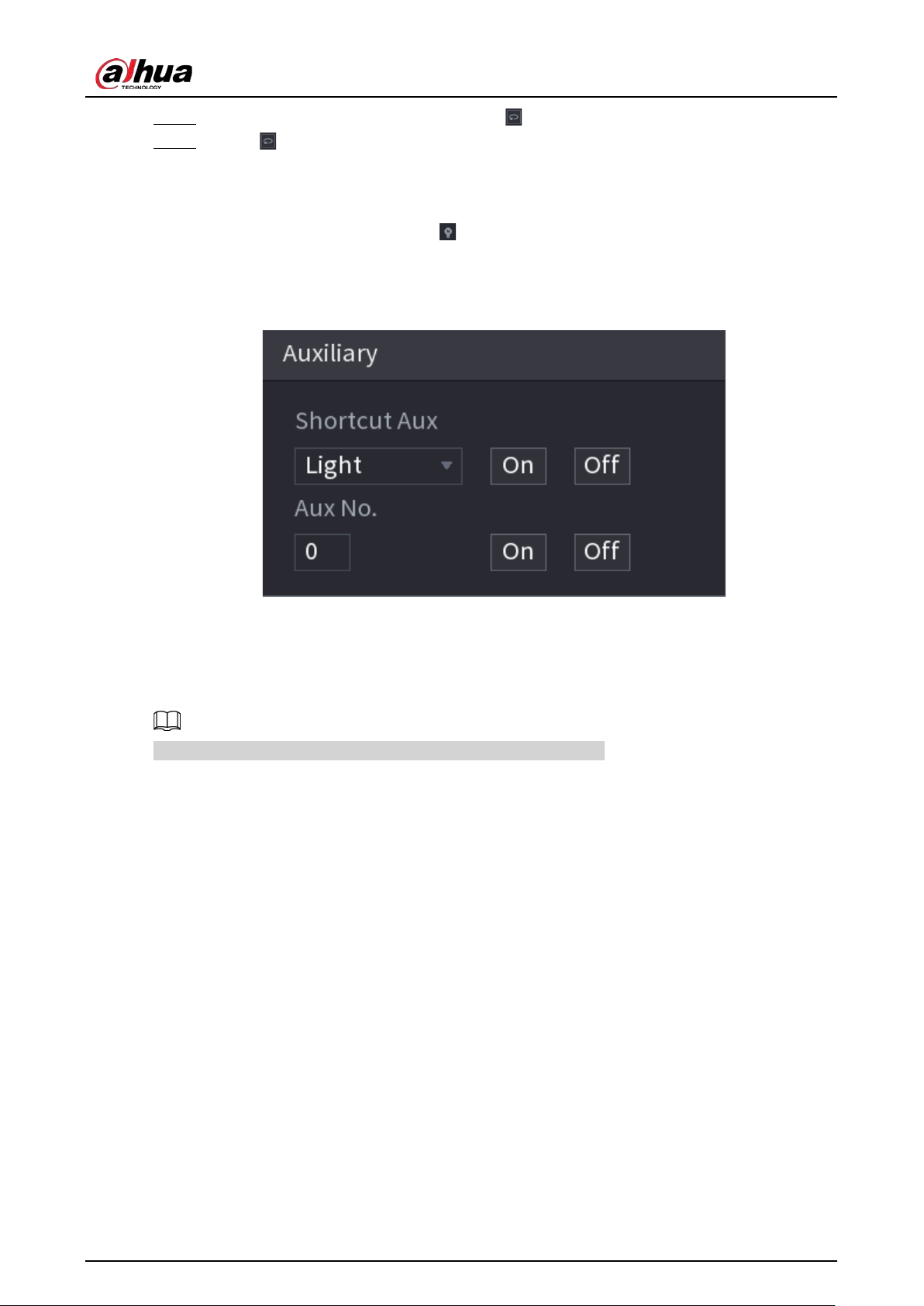
User's Manual
129
Step 1 On the expanded PTZ control panel, click to start moving in horizontal direction.
Step 2 Click again to stop moving.
5.6.7.4.6 Auxiliary Button
On the expanded PTZ control panel, click .
In the
Shortcut Aux
list, select the option that corresponds to the applied protocol.
In the
Aux No.
box, enter the number that corresponds to the AUX switch on the decoder.
Figure 5-40 Auxiliary
5.6.8 Wireless Pairing
You can use the wireless pairing to quickly add IPCs to the NVR.
Make sure that the IPC and NVR are on the same network segment.
Right-click the live page, and then select
Wireless Pairing
. The system starts a 120-second pairing
countdown. You can see the video of the paired IPC after pairing is successful.
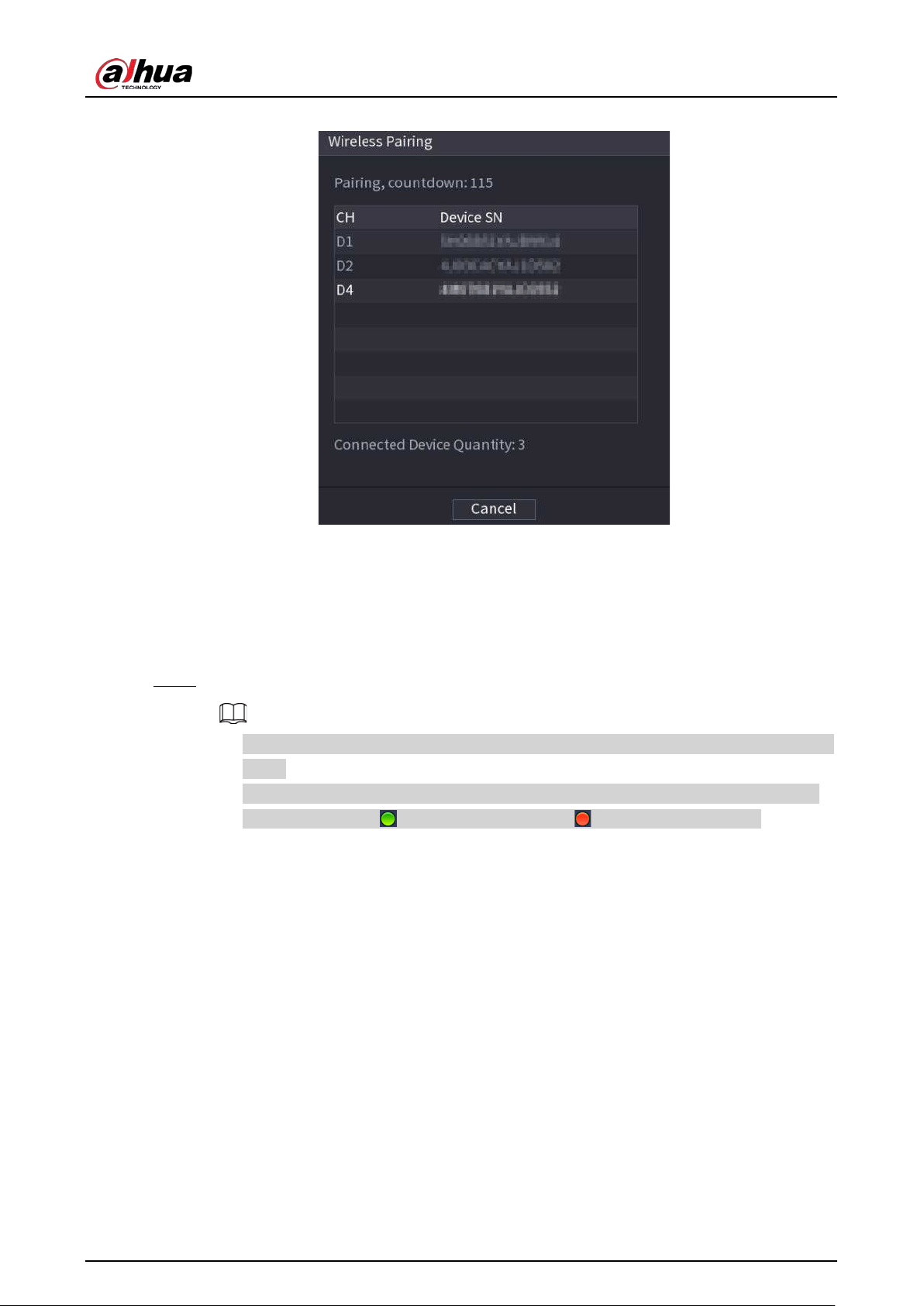
User's Manual
130
Figure 5-41 Wireless pairing
5.6.9 Sequence
You can configure the sequence of the channels displayed on the live page.
Procedure
Step 1 Right-click the live page, and then select
Sequence
.
●
After you select
Sequence
, the system automatically switches to the max split amount
mode.
●
The channel list on the
Sequence
panel displays the added camera channel number
and channel name. means camera is online. means camera is offline.
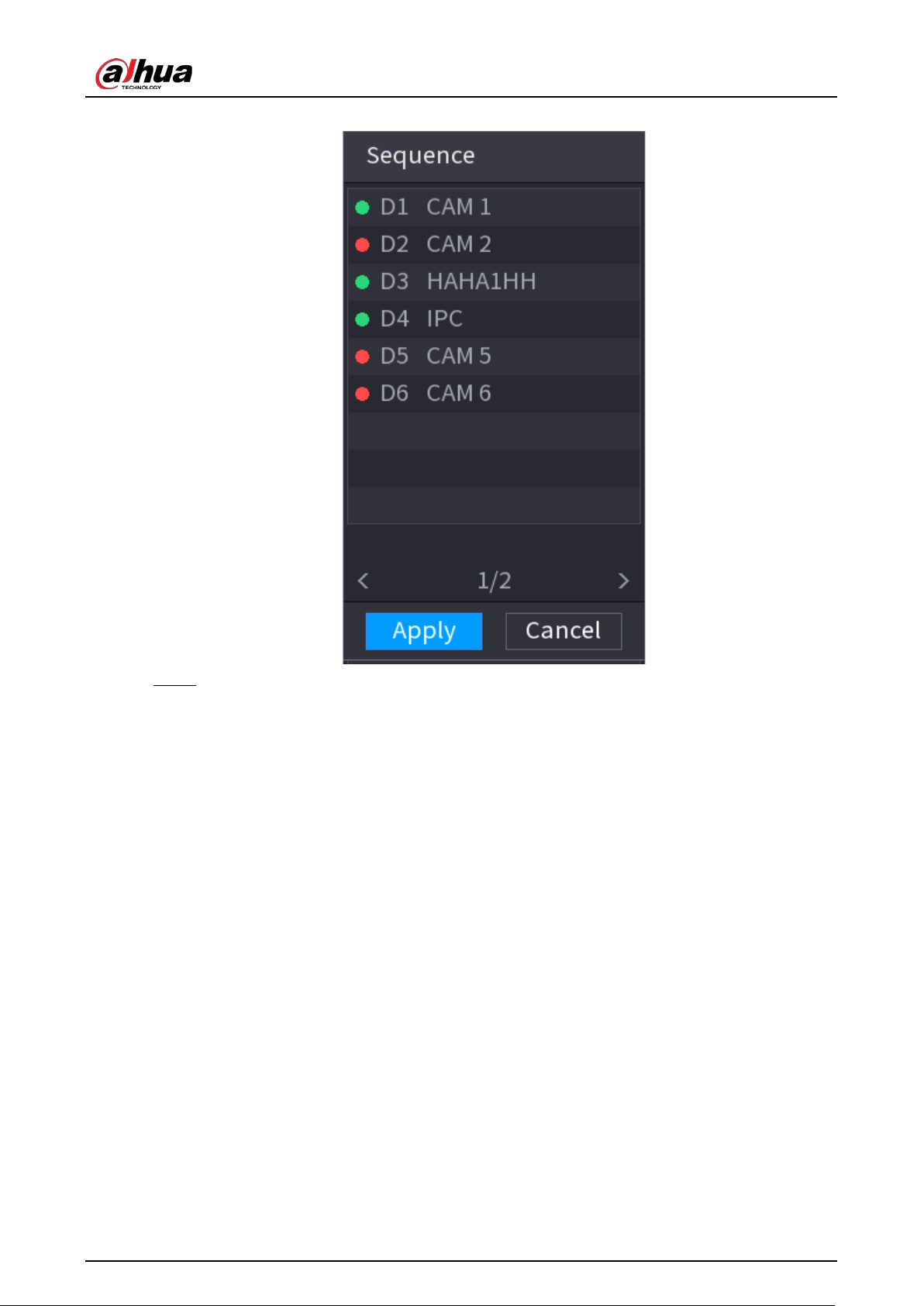
User's Manual
131
Figure 5-42 Sequence
Step 2 On the
Sequence
panel, drag the channel to the desired window, or drag on the live
window to switch the position.
Check the channel number at the right bottom corner to view the current channel
sequence.
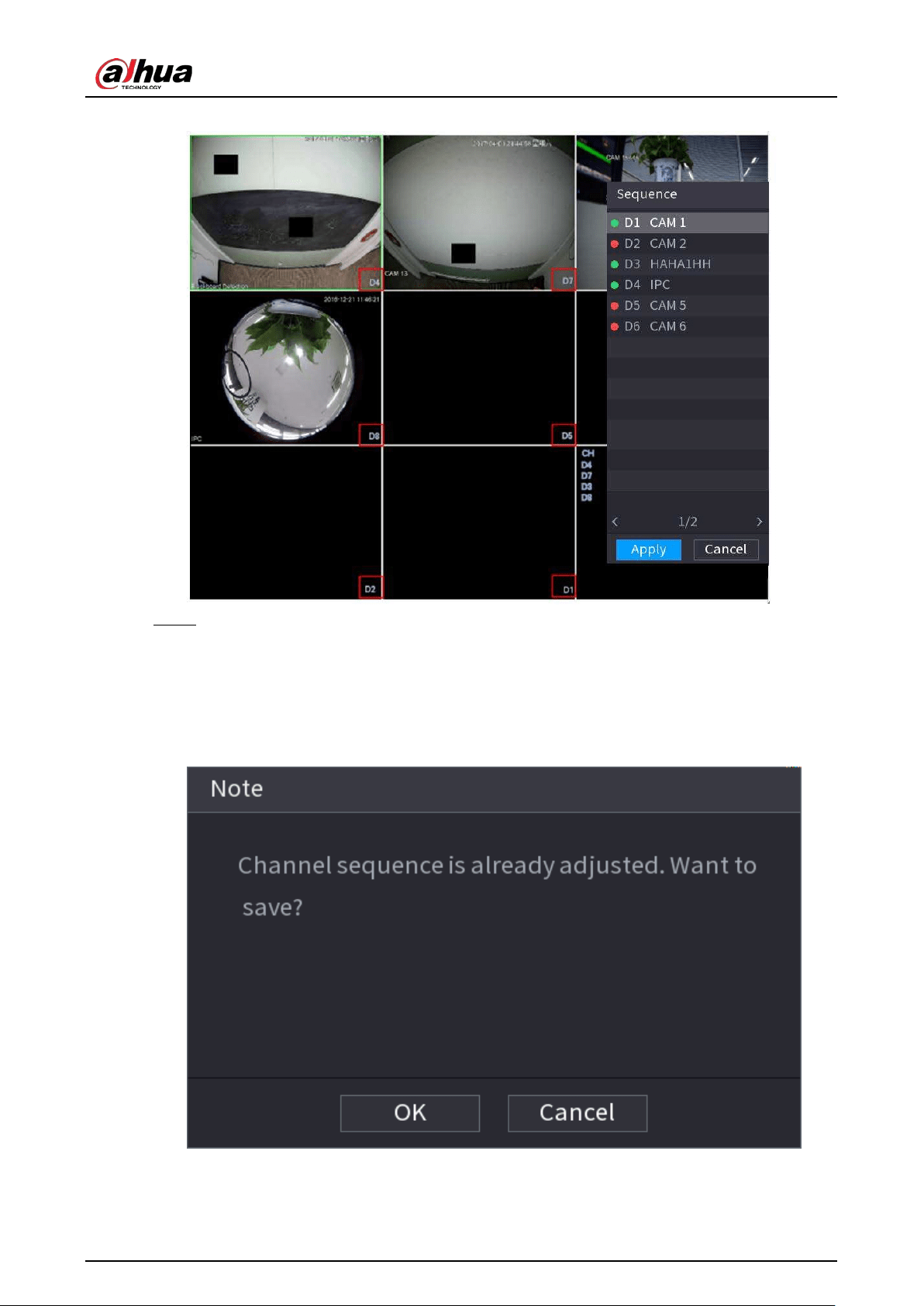
User's Manual
132
Figure 5-43 Channel number
Step 3 Click
Apply
.
After you change the channel sequence, click
Cancel
or right-click the live view page, the
system prompts you whether to save the sequence change.
●
Click
OK
to save current settings.
●
Click
No
to exit without saving the settings.
Figure 5-44 Note for saving sequence
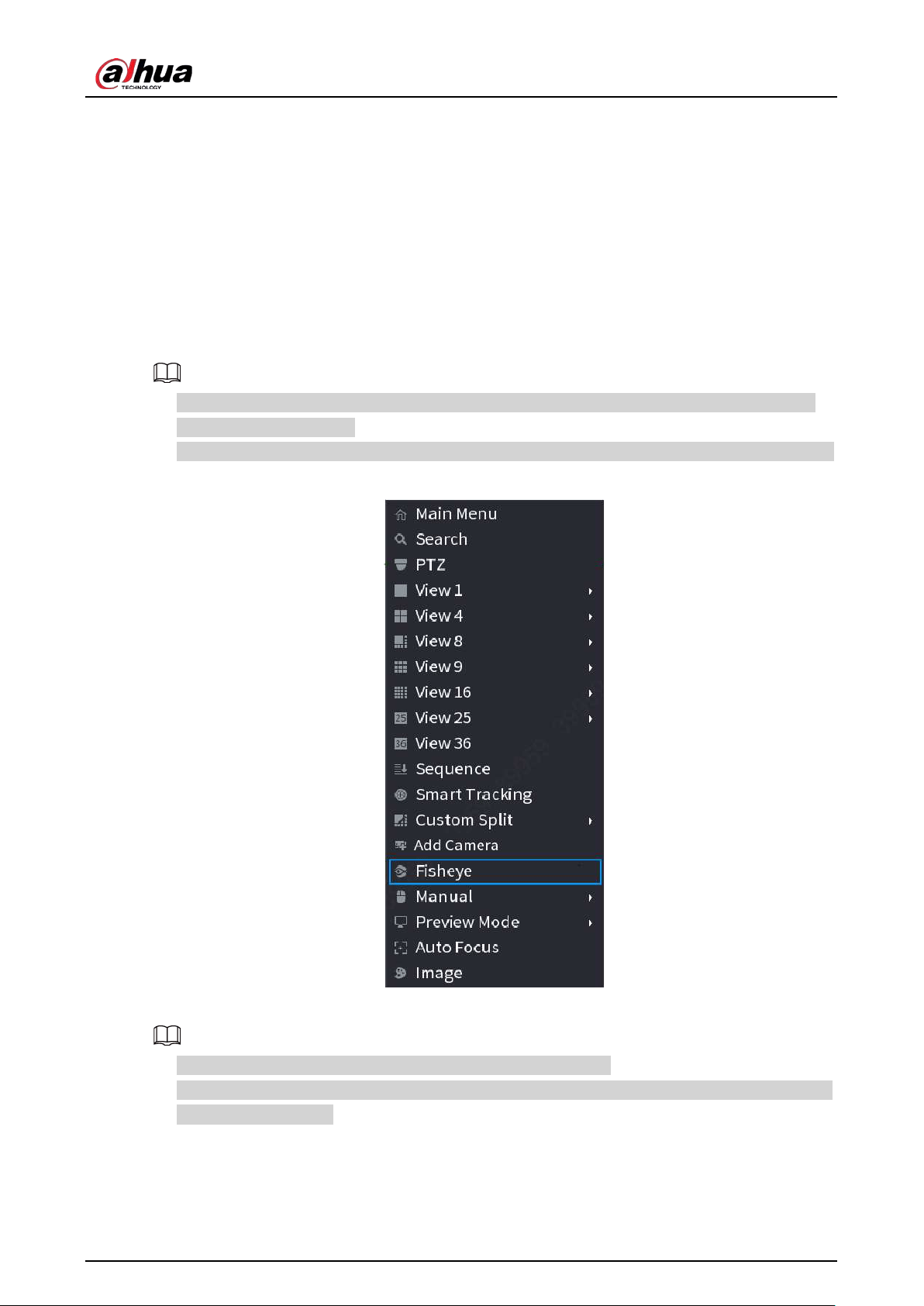
User's Manual
133
5.6.10 Fisheye
This function is for some models only.
5.6.10.1 Fisheye De-warp on Live View Interface
The fisheye camera (panoramic camera) has wide video of angle but its video is seriously distorted.
The de-warp function can present the proper and vivid video suitable for human eyes.
On the live page, right-click the fisheye channel, and then select
Fisheye
. You can set fisheye
installation mode and display mode.
●
For the non-fish eye channel, the system prompts you it is not a fisheye channel and does not
support de-warp function.
●
If system resources are insufficient, the system prompts you the de-warp function is not available.
Figure 5-45 Fisheye
There are three installation modes: ceiling mount, wall mount, and ground mount.
●
The different installations modes have different de-warp modes.
●
Some models support de-warp of 180° fisheye camera. 180° fisheye camera supports de-warp in
wall mount mode only.
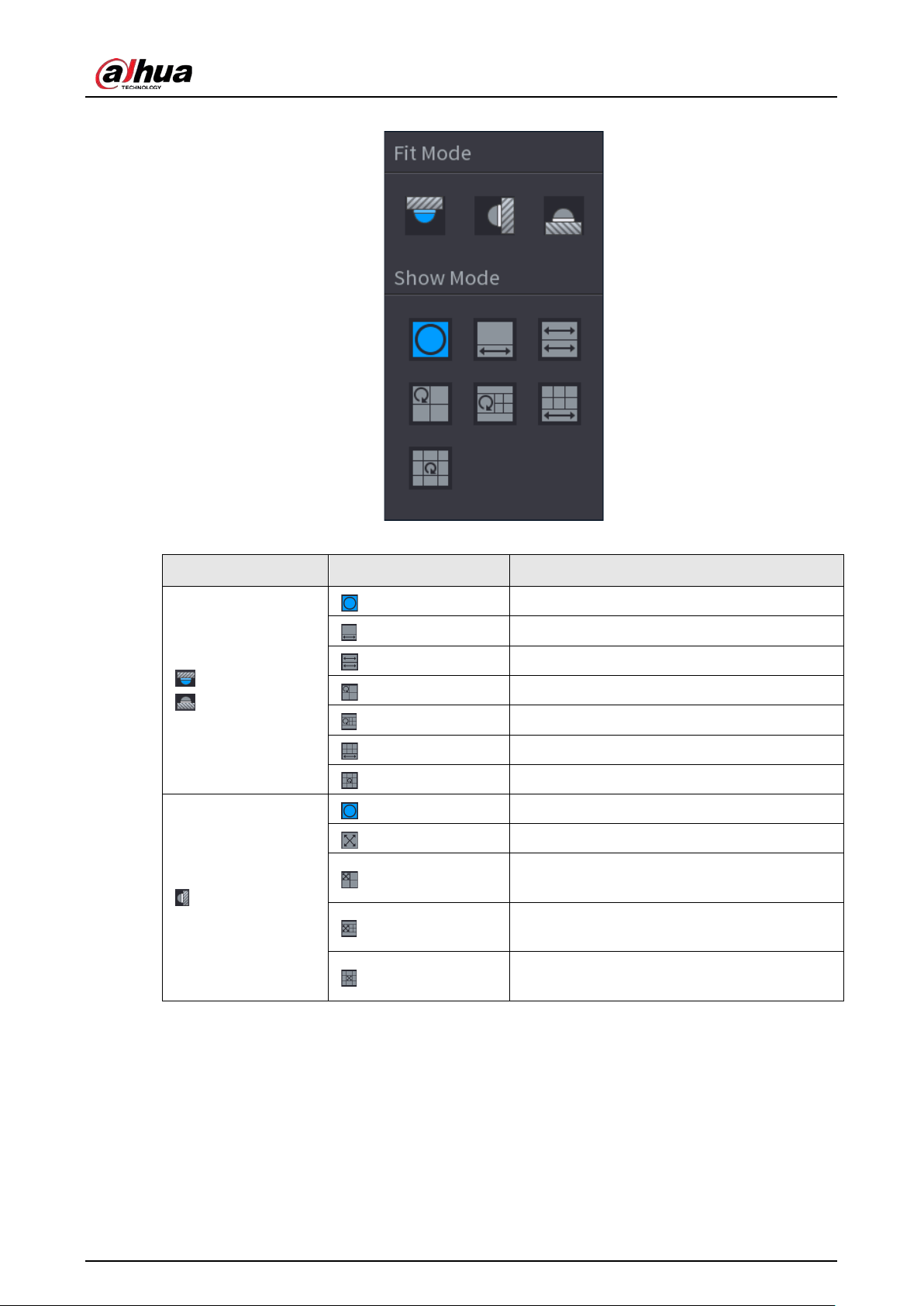
User's Manual
134
Figure 5-46 Fisheye settings
Table 5-14 Installation mode
Installation mode Icon Description
(Ceiling mount)
(Ground mount)
360° panorama original view
1 de-warp window+1 panorama stretching
2 panorama stretching views
1 360° panorama view+3 de-warp windows
1 360°panorama view+4 de-warp windows
4 de-warp windows+1 panorama stretching
1 360° panorama view+8 de-warp windows
(Wall mount)
360°panorama original view
Panorama stretching
1 panorama unfolding view+3 de-warp
windows
1 panorama unfolding view +4 de warp
windows
1 panorama unfolding view +8 de warp
windows
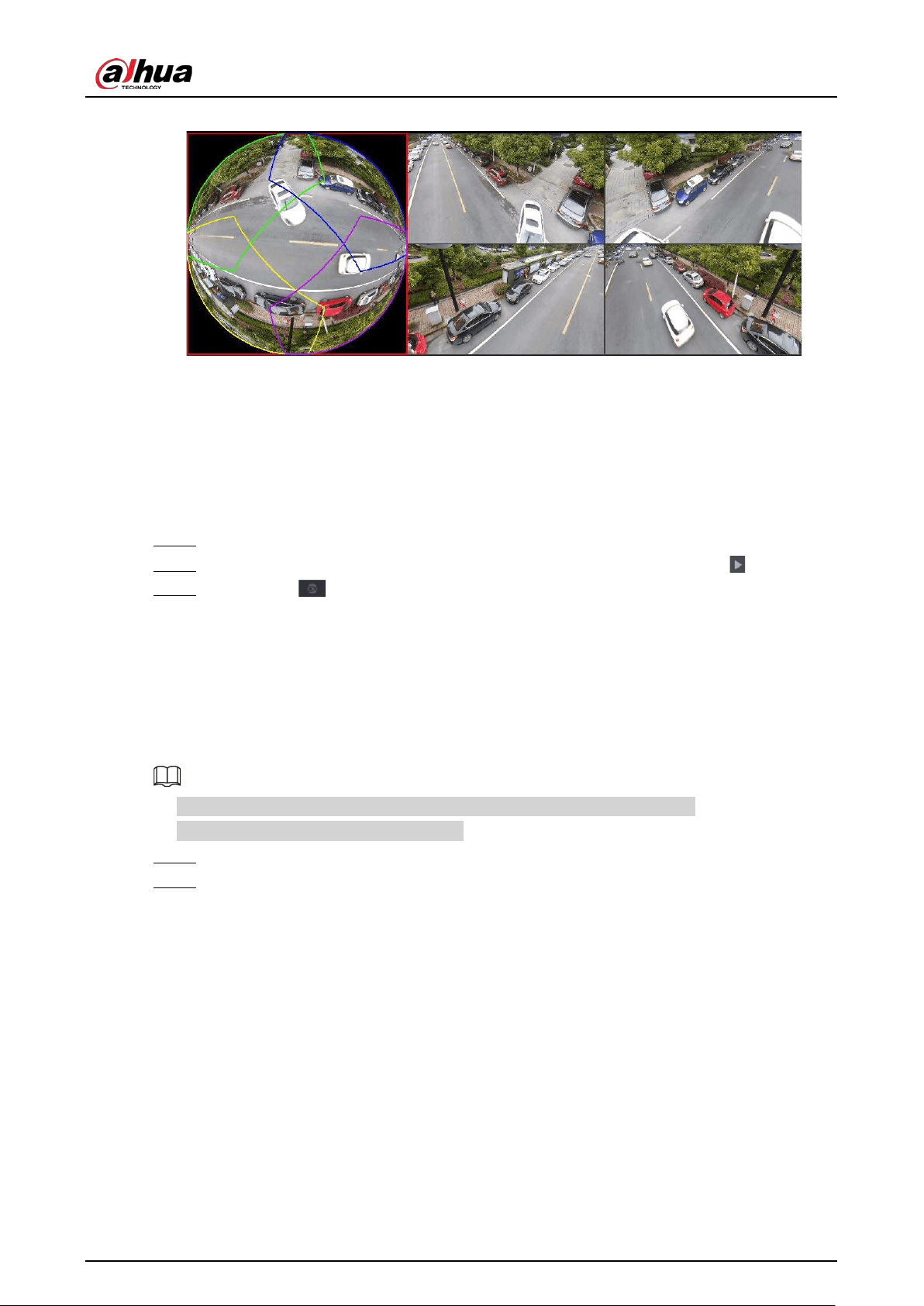
User's Manual
135
Figure 5-47 De-warp
You can adjust the color pane on the left pane or use your mouse to change the position of the small
images on the right pane to realize fish eye de-warp.
Operation: Use mouse to zoom in, zoom out, move, and rotate the image (Not for wall mount mode.)
5.6.10.2 Fisheye De-warp During Playback
When playing back the fisheye record file, you can use de-warp function to adjust video.
Step 1 On the main menu, click
BACKUP
.
Step 2 Select 1-window playback mode and corresponding fish eye channel, click to play.
Step 3 Right-click , and then you can go to the de-warp playback page. For detailed
information, see Figure 5-47.
5.6.11 Temperature Monitoring
When NVR connects to the camera that supports temperature detection, the system can display
instant temperature.
●
This function might collect the human temperature in the surveillance video.
●
This function is available on select models.
Step 1 Go to
Main Menu
>
DISPLAY
>
Display
to enable the temperature test function.
Step 2 On the live page, click any position on the thermal channel video. The temperature at the
position is displayed.
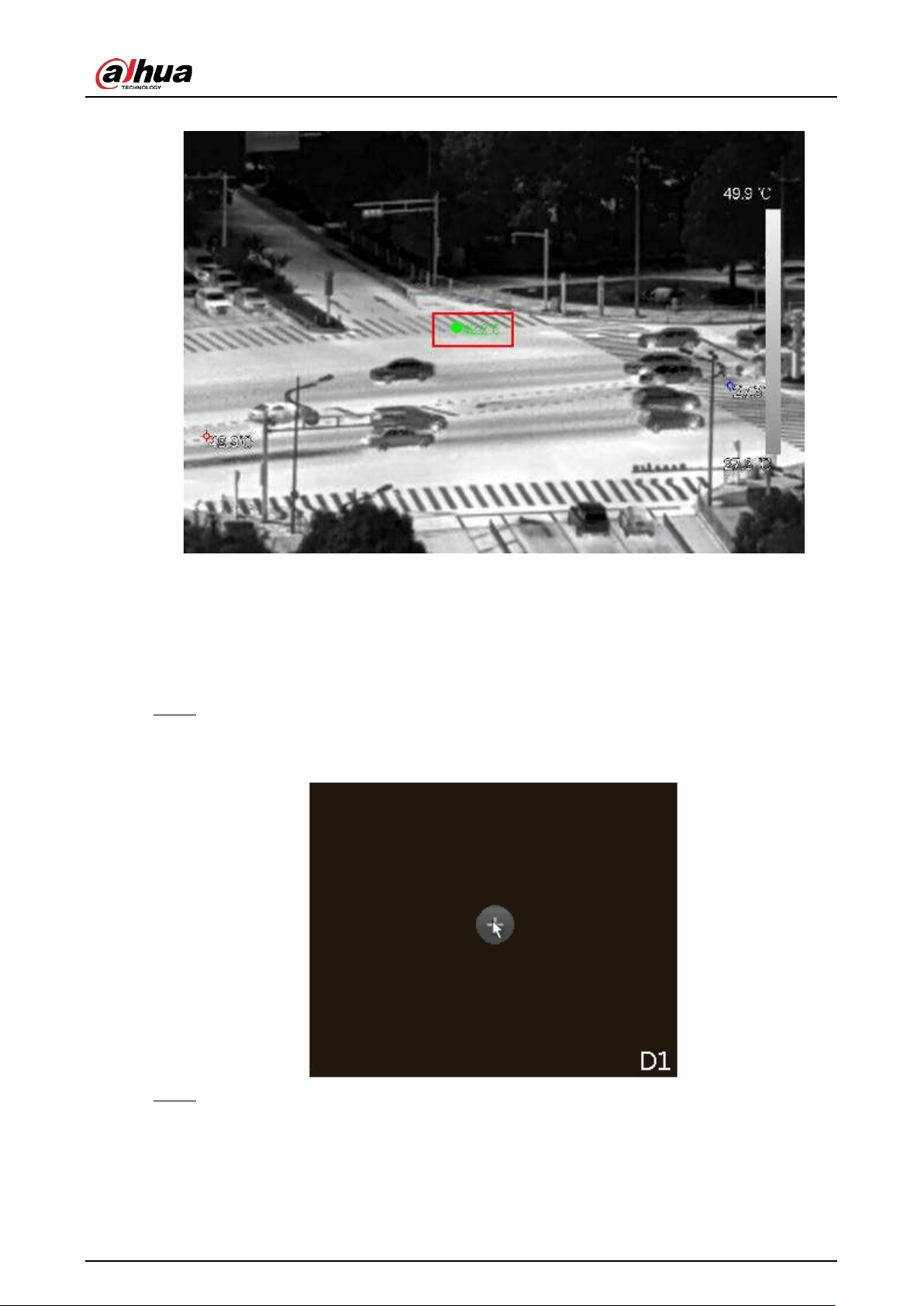
User's Manual
136
Figure 5-48 Temperature display
5.6.12 Shortcut Menu to Add Camera
You can add cameras on the live page.
Procedure
Step 1 On the live page, point to a channel window.
There is an icon + on the channel window.
Figure 5-49 Add icon
Step 2 Click "+", and then configure the parameters to add the remote device. For details, see
"5.7.2 Adding Remote Devices".

User's Manual
137
5.6.13 Smart Tracking
Track targets manually or automatically. This function is only available on the multi-sensor
panoramic camera + PTZ camera.
Make sure that the linked tracking function has been enabled.
Step 1 Right-click the live video, and then select
Smart Tracking
.
Step 2 Select the tracking method.
●
Manual positioning: Click a spot or select a zone on the bullet camera video, and then
the PTZ camera will automatically rotates there and zoom in.
●
Manual tracking: Click or select a target on the bullet camera video, and then the PTZ
camera automatically rotates and tracks it.
●
Automatic tracking: The tracking action is automatically triggered by tripwire or
intrusion alarms according to the pre-defined rules.
5.7 Camera
5.7.1 Initializing Remote Devices
You can change the login password and IP address of a remote device when you initialize it.
●
When you connect a camera to the NVR via PoE port, NVR automatically initializes the camera.
The camera adopts NVR current password and email information by default.
●
When you connect a camera to the NVR via PoE port after NVR is upgraded to the new version,
the NVR might fail to initialize the camera. You need to initialize the camera manually.
Step 1 Log in to the local system of the Device.
Step 2 Right-click the live page and then select
Main Menu
>
CAMERA
>
Camera List
>
Camera
List
.
Step 3 Click
Uninitialized
, and then click
Search Device
.
The Device displays cameras to be initialized.
Step 4 Select a camera to be initialized and then click
Initialize
.
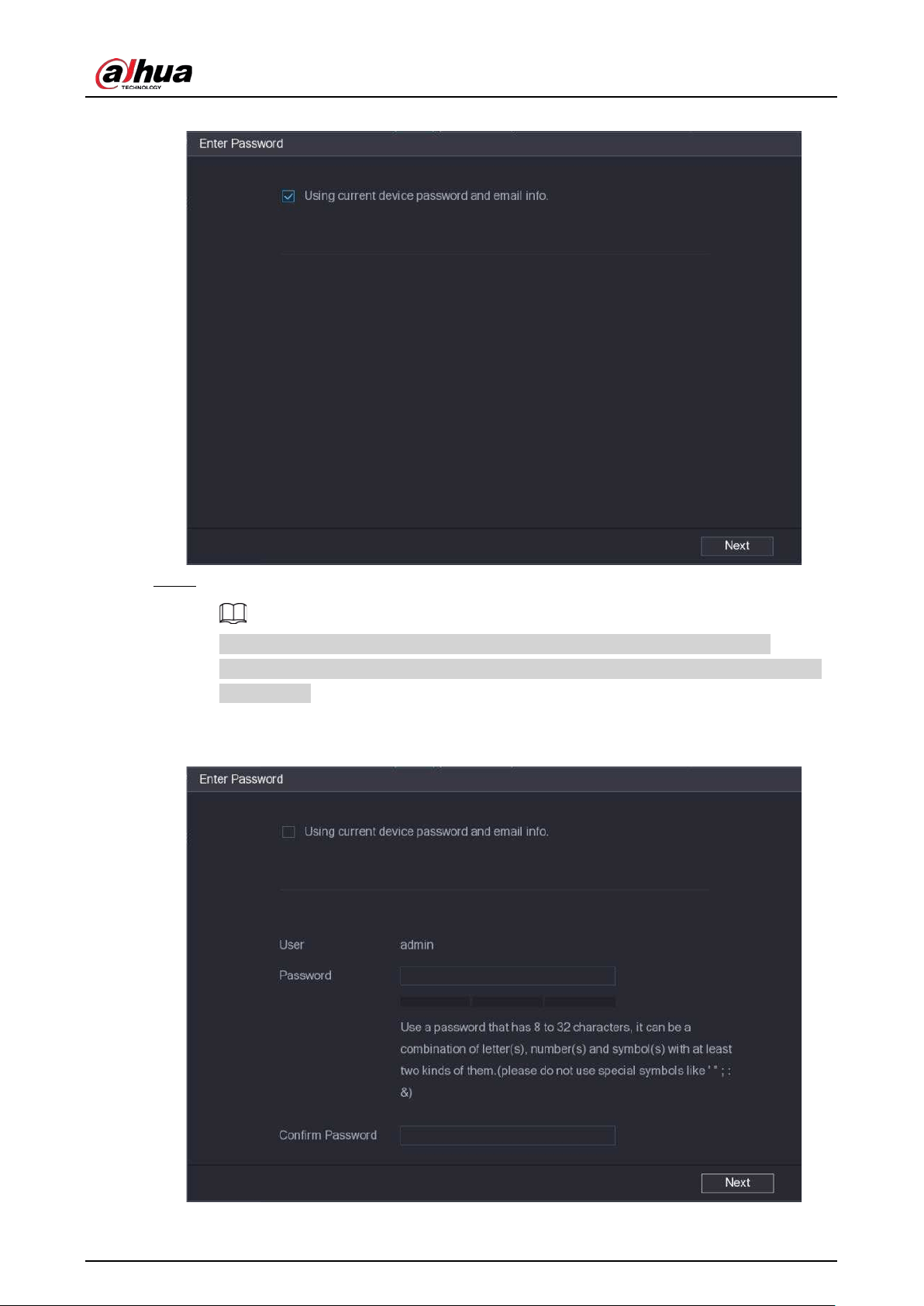
User's Manual
138
Figure 5-50 Enter password
Step 5 Set password and email information for the remote device.
If you select
Using current device password and email info
, the remote device
automatically uses NVR admin account information (login password and email). You can
skip this step.
1) Cancel the selection of
Using current device password and email info
.
Figure 5-51 Password
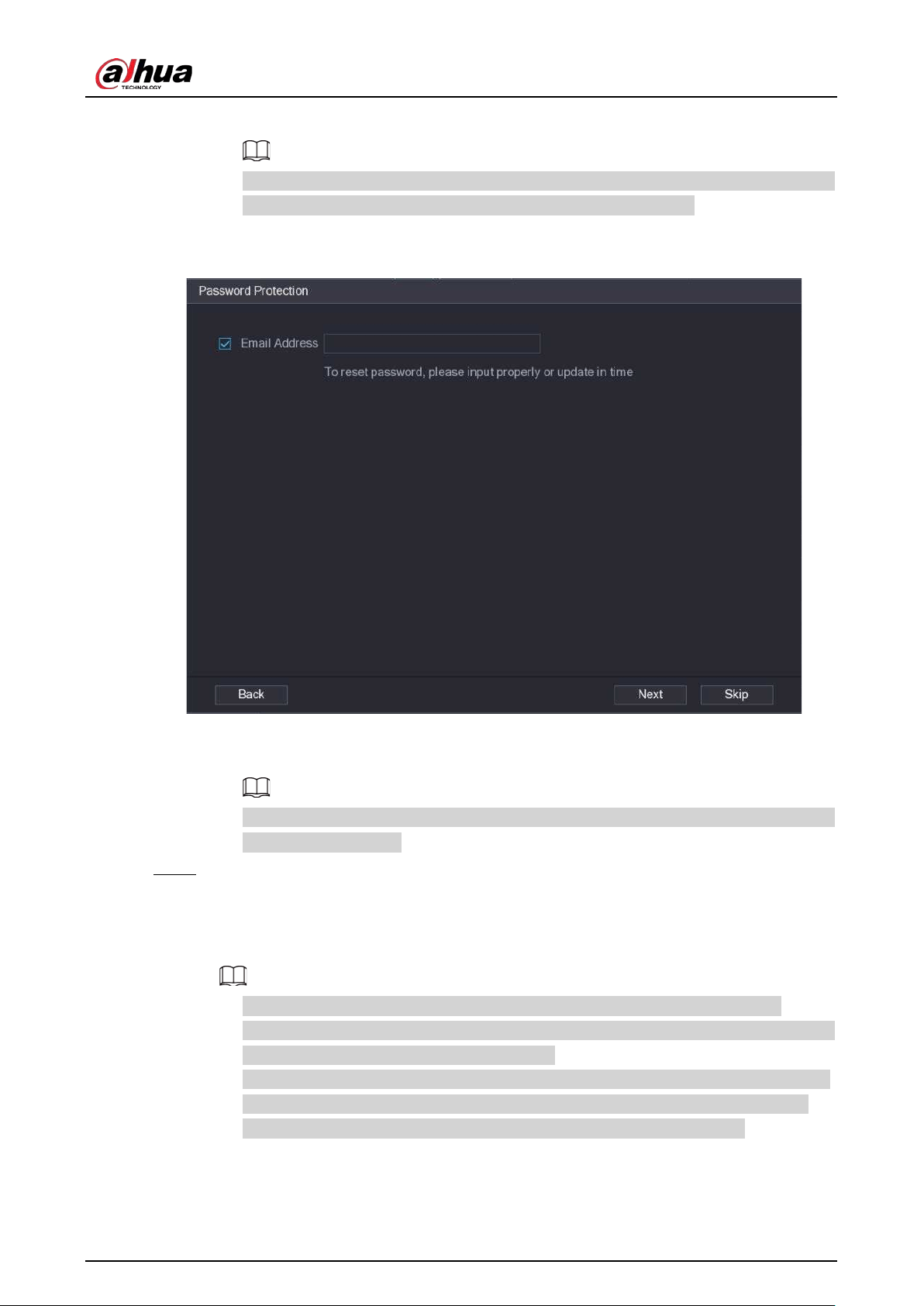
User's Manual
139
2) Enter the password and then confirm it.
For your device security, we recommend you create a strong password according to the
password strength indication and change your password regularly.
3) Click
Next
.
Figure 5-52 Password protection
4) Enter your email address, and then click
Next
.
The email address is used to receive the security code for password resetting.
If you do not want to enter email information, cancel the selection of the checkbox and
then click
Next
or
Skip
.
Step 6 Set camera IP address.
●
DHCP
: There is no need to enter IP address, subnet mask, and default gateway. Device
automatically allocates the IP address to the camera.
●
Static
: You need to enter IP address, subnet mask, and default gateway.
●
When you are changing IP addresses of several devices at the same time, enter
incremental value. The system can add the fourth decimal digit of the IP address one by
one to automatically allocate the IP addresses.
●
If an IP conflict occurs when you change static IP address, the system will notify you of
the issue. If you change IP addresses in batches, the system automatically skips the
conflicted IP and begins the allocation according to the incremental value.
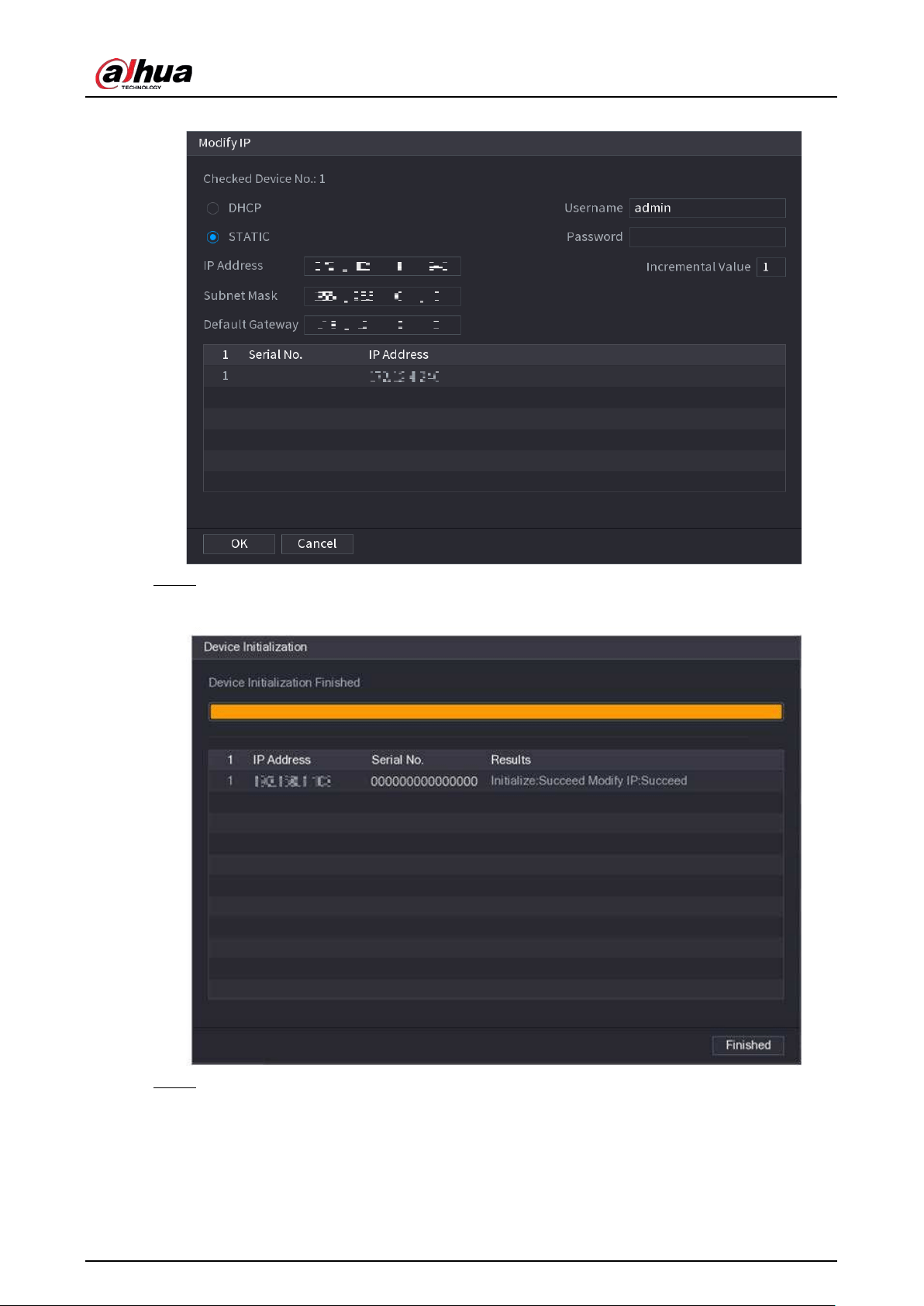
User's Manual
140
Figure 5-53 Modify IP
Step 7 Click
Next
.
Figure 5-54 Device initialization
Step 8 Click
Finished
.
5.7.2 Adding Remote Devices
Add remote devices to the NVR to receive, store, and manage the video streams of the remote
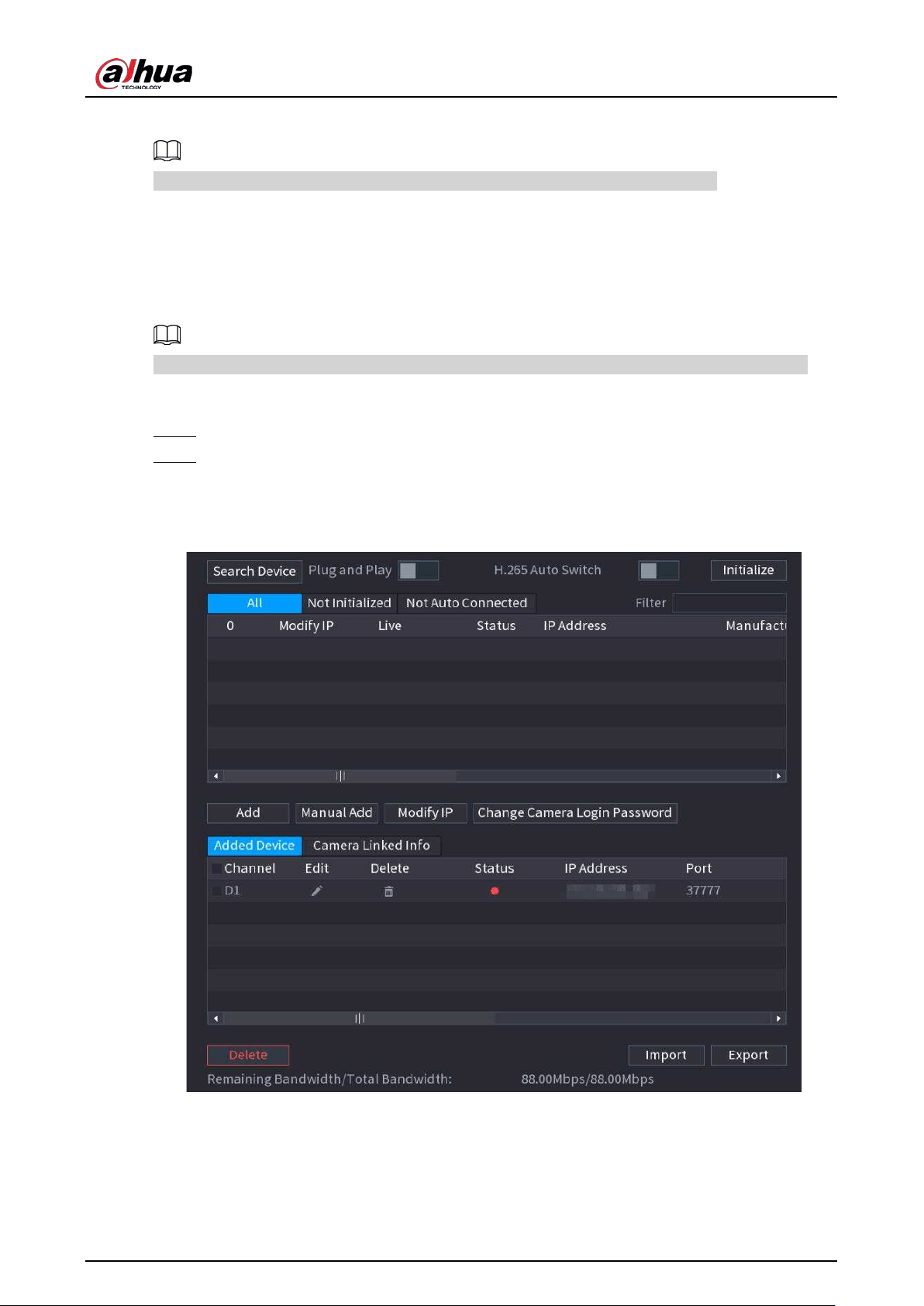
User's Manual
141
device.
Before adding the remote devices, make sure that the devices have been initialized.
5.7.2.1 Adding Cameras from Search
Search for the remote devices that are on the same network with the NVR, and then add the remote
devices from the search results.
We recommend this method when you do not know the specific IP address of the remote device.
Procedure
Step 1 Select
Main Menu
>
CAMERA
>
Camera List
>
Camera List
.
Step 2 Click
Search Device
.
The remote devices found are displayed at the upper pane. Devices already added are not
included in the searched results.
Figure 5-55 Search device
●
For cameras accessed through private protocol, you can click
LIVE
and then enter the
username and password to play live video.
●
To filter the remote devices, you can enter all or part of device name in the
Filter
box.
●
To filter out the uninitialized devices, click the
Not Initialized
tab, and then you can
initialize the devices. For details, see "5.7.1 Initializing Remote Devices".
User's Manual
142
●
To view all remote devices added through plug and play, you can click the
Not Auto
Connected
tab. You can remove devices added through plug and play, and they can
be automatically added again after plug and play is enabled.
Step 3 (Optional) Enable
Plug and Play
.
When
Plug and Play
is enabled, the NVR automatically adds remote devices on the same
subnet.
For uninitialized remote devices, the NVR automatically initializes them before adding
them.
Step 4 (Optional) Enable
H.265 Auto Switch
.
When
H.265 Auto Switch
is enabled, the video compression standard of added remote
devices is switched to H.265 automatically.
Step 5 Double-click a remote device, or select a remote device and then click
Add
to register it to
the
Added Device
list.
Related Operations
●
Change camera login password.
Select an added camera, and then click
Change Camera Login Password
to change the
password.
●
Edit camera information.
On the
Added Device
list, click to change the IP address, username, password and other
information.
●
Import and export cameras.
You can export the information of the connected cameras and import camera information to the
system to add cameras in batches. For details, see "5.7.2.3 Importing Cameras".
●
View linked information.
If the remote device has multiple channels, you can click the
Camera Linked Info
to view linked
information of the remote device.
●
Delete cameras.
◇
Delete one by one.
Click to delete the corresponding camera.
◇
Delete in batches.
Select one or more cameras, and then click
Delete
.
5.7.2.2 Adding Cameras Manually
Configure the IP address, username, password and other information of the remote device manually
to add to the NVR.
We recommend this method when you want to add only a few remote devices and know their IP
addresses, usernames and passwords.
Step 1 Select
Main Menu
>
CAMERA
>
Camera List
>
Camera List
.
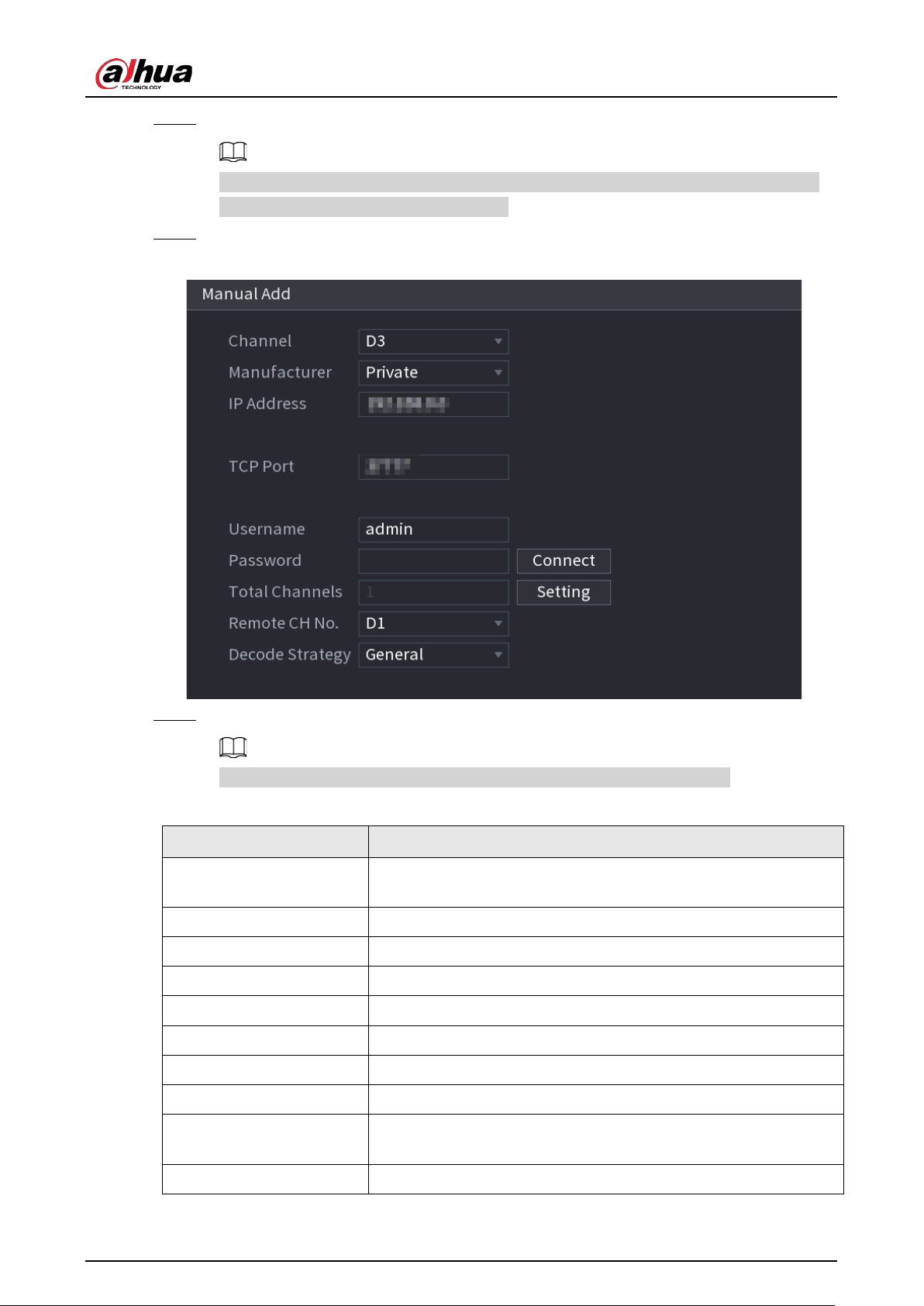
User's Manual
143
Step 2 (Optional) Enable
H.265 Auto Switch
.
When
H.265 Auto Switch
is enabled, the video compression standard of added remote
devices is switched to H.265 automatically.
Step 3 Click
Manual Add
.
Figure 5-56 Manual add
Step 4 Configure the parameters.
The parameters might vary depending on the manufacturer that you select.
Table 5-15 Remote channel parameters
Parameter Description
Channel
Select the channel that you want use on the Device to connect the
remote device.
Manufacturer Select the manufacturer of the remote device.
IP Address Enter the IP address of the remote device.
RTSP Port Enter the RTSP port number. The default value is 554.
HTTP Port Enter the HTTP port number. The default value is 80.
TCP Port The default value is 37777. You can enter the value as needed.
Username Enter the username of the remote device.
Password Enter the password of the user for the remote device.
Total Channels
Click
Connect
to get the total number of channels of the remote
device.
Remote CH No. Enter the remote channel number of the remote device.
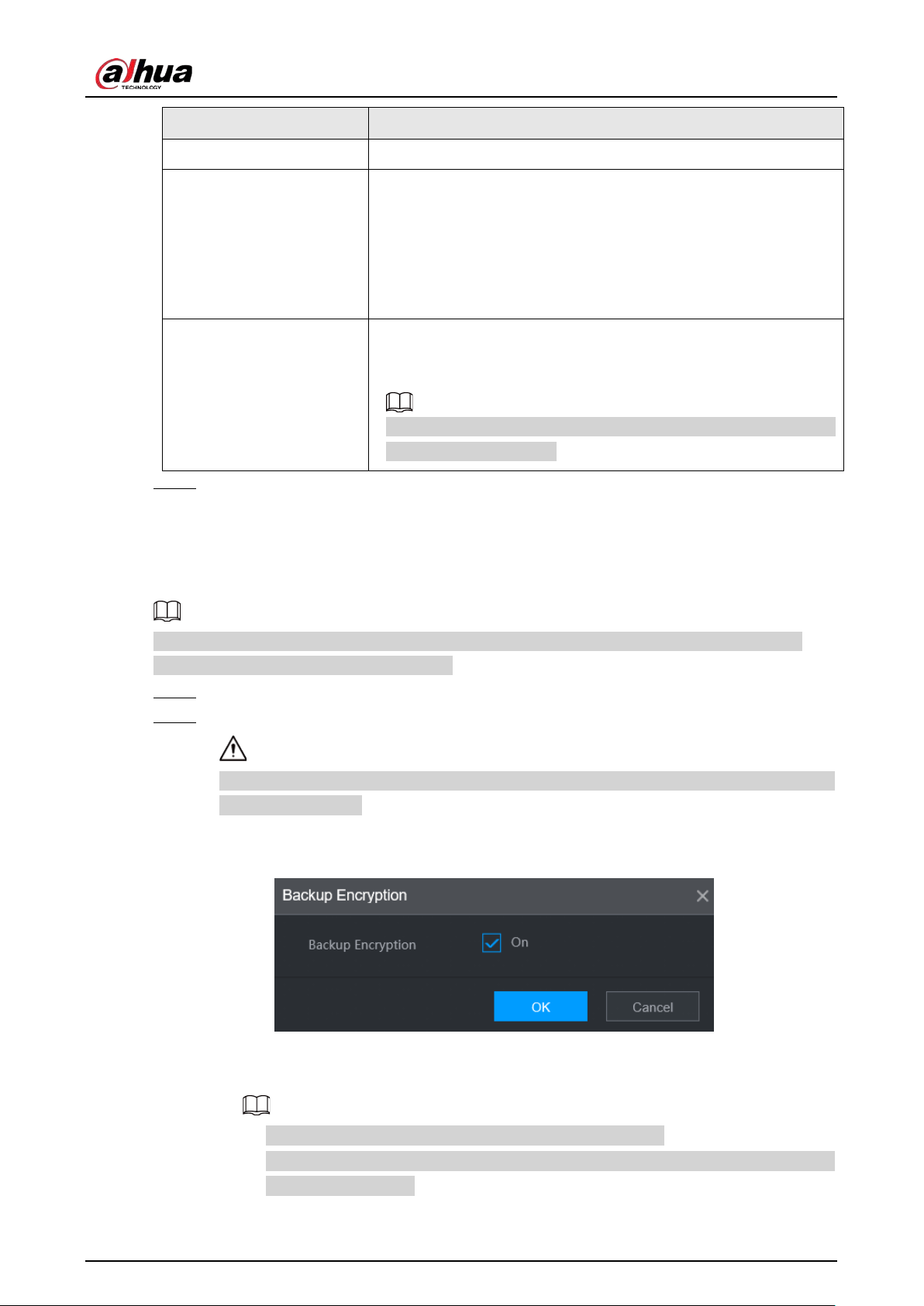
User's Manual
144
Parameter Description
Decode Strategy
Select
Default
,
Realtime
, or
Fluent
.
Protocol Type
●
If the remote device is added through private protocol, the
default type is
TCP
.
●
If the remote device is added through ONVIF protocol, the
system supports
Auto
,
TCP
,
UDP
, or
MULTICAST
.
●
If the remote device is added through other manufacturers,
the system supports
TCP
and
UDP
.
Encryption
If the remote device is added through ONVIF protocol, select the
Encrypt
checkbox and then the system will provide encryption
protection to the data being transmitted.
To use this function, make sure that the HTTPS function is enabled
for the remote IP camera.
Step 5 Click
OK
.
5.7.2.3 Importing Cameras
You can import remote devices in batches.
We recommend this method when you want to add lots of remote devices whose IP addresses,
usernames and passwords are not the same.
Step 1 Select
Main Menu
>
CAMERA
>
Camera List
>
Camera List
.
Step 2 Export the template.
The exported template includes the information of the added remote device. Pay attention
to your data security.
1) Click
Export
.
Figure 5-57 Backup encryption
2) Cancel the selection of the
On
checkbox to disable backup encryption, and then click
OK
.
●
If
Backup Encryption
is enabled, the file format is .backup.
●
If
Backup Encryption
is disabled, the file format is .csv. Keep unencrypted files well
to avoid data leakage.
User's Manual
145
3) Select the storage path and then click
Save
.
●
The template file is named RemoteConfig_
20220222191255
.csv.
20220222191255
represents the export time.
●
The template includes the IP address, port, remote channel No., manufacturer,
username, password and other information.
Step 3 Fill in the template and then save the file.
Do not change the file extension of the template. Otherwise, the template cannot be
imported.
Step 4 Click
Import
, select the template file and then open it.
The remote devices in the template are added to the NVR. If the remote device in the
template has been added, the system will prompt you whether to replace the existing one
on the device list.
●
If you select
Yes
, the system deletes the existing one and import the device again.
●
If you select
No
, the system retains the existing one and add the device to another
unoccupied channel.
5.7.3 Changing IP Address of Remote Device
The procedures to change the IP addresses of connected and unconnected cameras are different.
You can change the IP address only when the camera is online.
5.7.3.1 Changing IP Address of Connected Remote Device
Step 1 Select
Main Menu
>
CAMERA
>
Camera List
>
Camera List
.
Step 2 On the
Added Device
list, double-click a remote device or click .
Step 3 Change the IP address.
Step 4 Click
OK
.
5.7.3.2 Changing IP Address of Unconnected Cameras
Step 1 Select
Main Menu
>
CAMERA
>
Camera List
>
Camera List
.
Step 2 Click
Search Device
.
The remote devices found are displayed at the upper pane.
Step 3 Click , or select one or more remote devices and then click
Modify IP
.
When changing the IP addresses of multiple remote devices at the same time, make sure
that they share the same username and password.
Step 4 Enter username and password of the remote device, and then configure the IP address.
●
DHCP
: The remote device gets a dynamic IP address automatically.
●
Static
: You need to enter static IP address, subnet mask, and default gateway. When
changing IP addresses of multiple remote devices at the same time. enter the
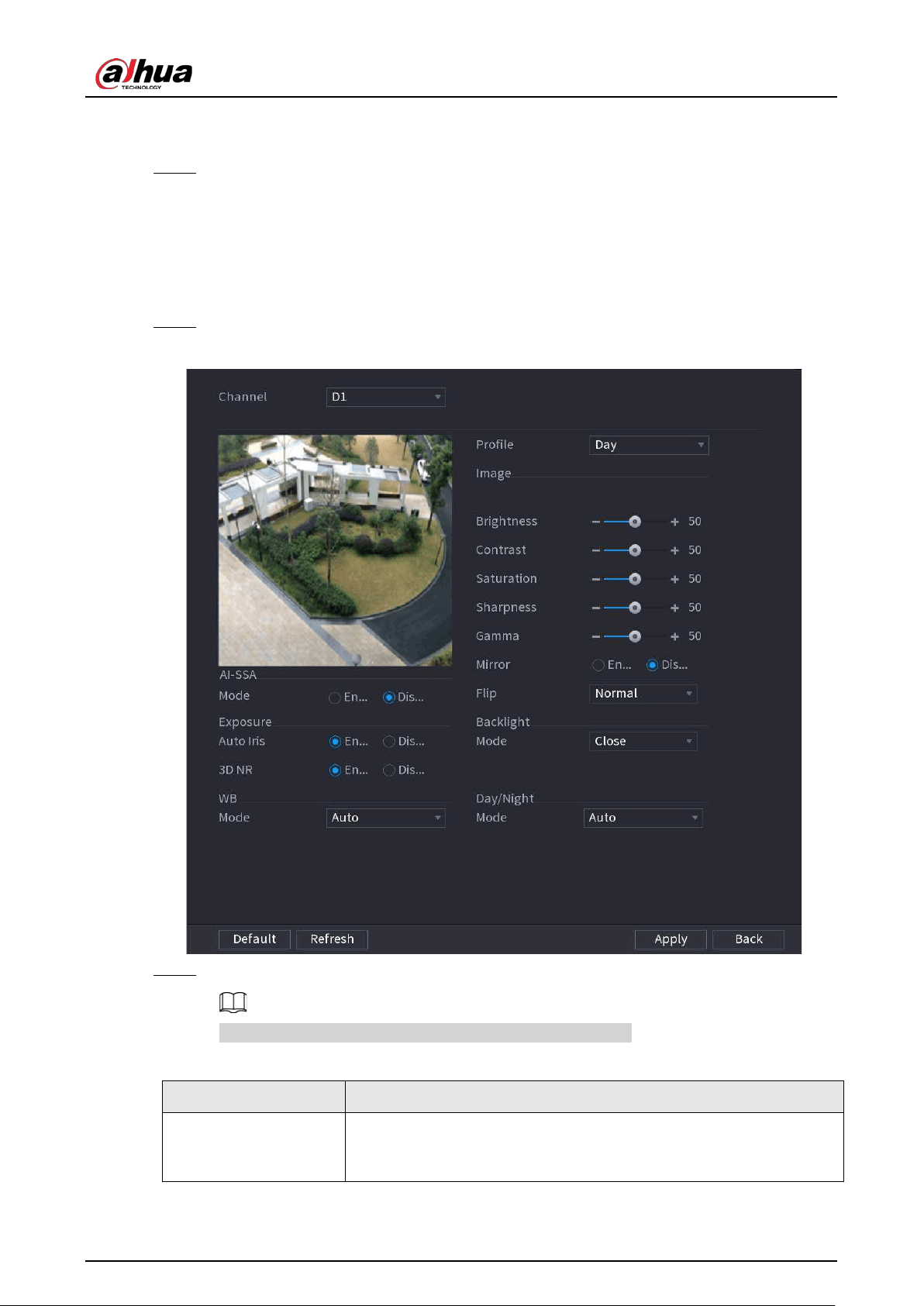
User's Manual
146
incremental value so that the system can add the fourth decimal digit of the IP address
one by one according to the incremental value.
Step 5 Click
OK
.
5.7.4 Configuring Image Settings
You can set network camera parameters according to different environments to get the best video
effect.
Step 1 Select
Main Menu
>
CAMERA
>
Image
.
Figure 5-58 Image
Step 2 Select a channel and then configure parameters.
The parameters might vary depending on the camera model.
Table 5-16 Image parameters
Parameter Description
Profile
There are three configuration files. The system has configured the
corresponding parameters for each file. You can select according to
your actual situation.
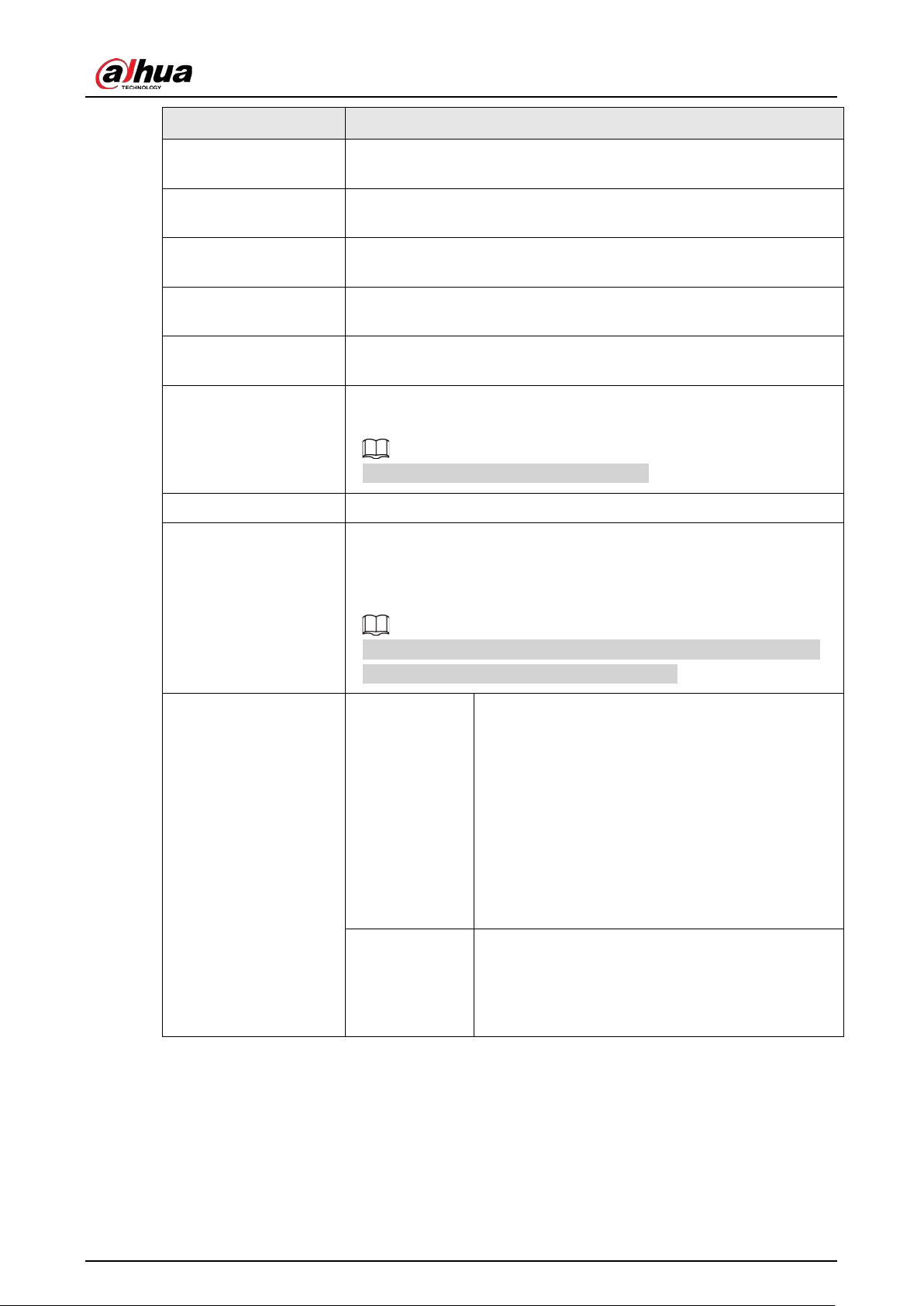
User's Manual
147
Parameter Description
Brightness
Adjust the image brightness. The bigger the value is, the brighter the
image will become.
Contrast
Adjust the image contrast. The bigger the value is, the more obvious
the contrast between the light area and dark area will become.
Saturation
Adjust the color shades. The bigger the value, the lighter the color will
become.
Sharpness
Adjust the sharpness of image edge. The bigger the value is, the more
obvious the image edge is.
Gamma
Adjust image brightness and enhance the image dynamic display
range. The bigger the value is, the brighter the video is.
Mirror
Switch the left and right sides of the video image. It is disabled by
default.
This function is available on select models.
Flip Set video display direction. It includes normal, 180°, 90°, and 270°.
AI SSA
After you enable AI SSA (AI Scene Self-adaptation), the camera can
detect environmental conditions, such as rain, fog, backlight, low light
and flicker, to adjust the parameters of the image to suit the
conditions, ensuring that clear images are always produced.
When AI SSA is enabled, some image parameters such as exposure
and backlight mode will become unavailable.
Exposure
Auto Iris
●
This function is available when the camera is
equipped with the auto iris lens.
●
After you enable auto iris function, the iris can
automatically zoom in and zoom out according
to the brightness of the environment and the
image brightness changes accordingly.
●
If you disable the auto iris function, the iris is at
the biggest value. The iris does not
automatically zoom in or zoom out according
to the brightness of the environment.
3D NR
This function specially applies to the image whose
frame rate is configured as 2 at least. It reduces the
noise by using the information between two
frames. The bigger the value is, the better the
effect.
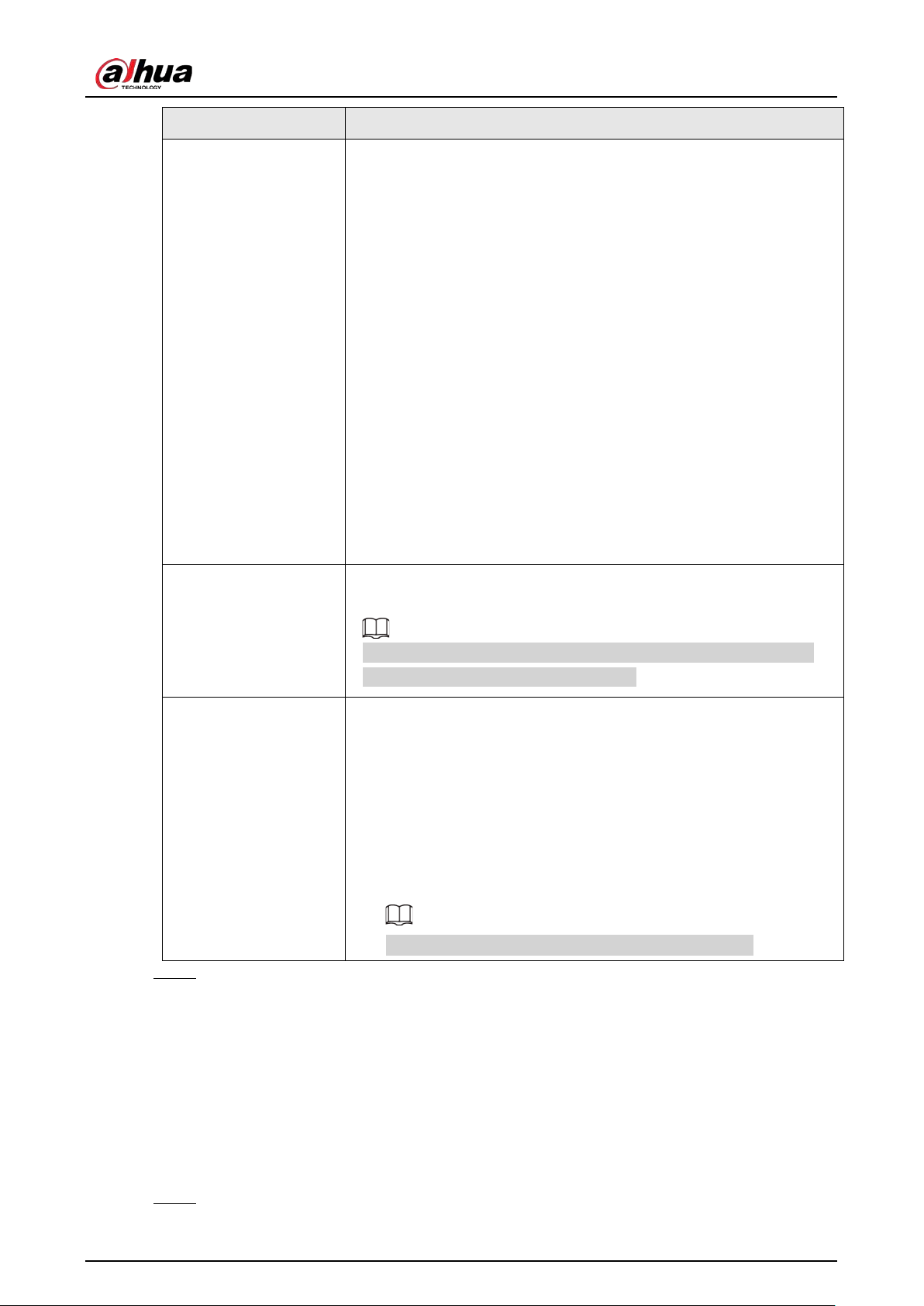
User's Manual
148
Parameter Description
Backlight Mode
You can set camera backlight mode.
●
SSA: In the backlight environment, the system can automatically
adjust image brightness to clearly display the object.
●
BLC:
◇
Default: The device performs automatic exposures according
to the environment situation to make the darkest area of the
video clear.
◇
Customize: After you select the specified zone, the system can
expose the specific zone so that the zone can reach the proper
brightness.
●
WDR: In backlight environment, the system lowers the high bright
section and enhances the brightness of the low bright section, so
that you can view these two sections clearly at the same time.
●
HLC: In the backlight environment, the system lowers the
brightness of the brightest section, reduces the area of the halo
and lowers the brightness of the whole video.
●
Close: Disable the BLC function.
WB Mode
You can set camera white balance mode. The system adjusts the
overall image hue to make the image color display precisely as it is.
Different cameras support different white balance modes, such as
auto, manual, natural light, and outdoor.
Day/Night Mode
Configure the color and black & white mode of the image. This
parameter is not affected by the configuration files.
●
Color
: The camera outputs color image only.
●
Auto
: The camera outputs color images or black and white images
according to ambient brightness
●
B/W
: The camera outputs black and white image only.
●
Sensor
: Use this mode when there is peripheral IR light
connected.
The
Sensor
mode is available on select non-IR models.
Step 3 Click
Apply
.
5.7.5 Configuring Overlay Settings
You can set parameters for overlay and private masking.
5.7.5.1 Overlay
You can add the information of time and channel in the live view interface.
Step 1 Select
Main Menu
>
CAMERA
>
Overlay
>
Overlay
.
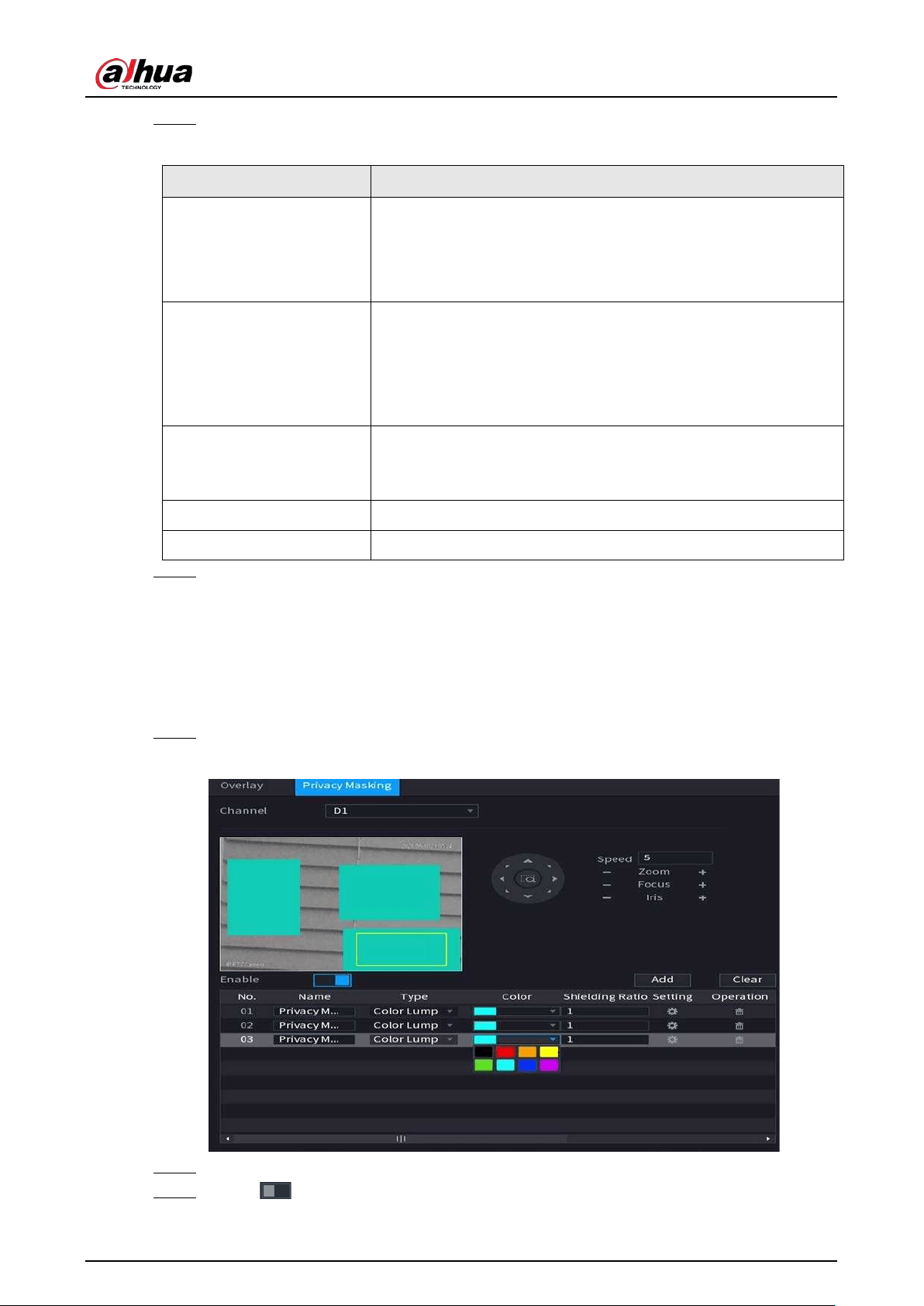
User's Manual
149
Step 2 Select a channel and then configure parameters.
Table 5-17 Video overlay parameters
Parameter Description
Time Title
Display the time tile on the video image in live view and playback.
1. Select
Time Title
.
2. Drag the time title to a desired place.
3. Click
Apply
.
Channel Title
Display the channel tile on the video image in live view and
playback.
1. Select
Channel Title
and then edit the channel title.
2. Drag the channel title to a desired place.
3. Click
Apply
.
Custom Title
You can customize title to be overlaid on the video image.
Click
Setting
to set the information such as font size, title content
and text alignment, and then click
OK
.
Default Restore the overlay settings to default configuration.
Copy to Copy the overlay settings to other channels.
Step 3 Click
Apply
.
5.7.5.2 Privacy Masking
You can mask certain areas of the video image for privacy protection.
Procedure
Step 1 Select
Main Menu
>
CAMERA
>
Overlay
>
Privacy Masking
.
Figure 5-59 Privacy masking
Step 2 Select a channel.
Step 3 Click to enable privacy masking.
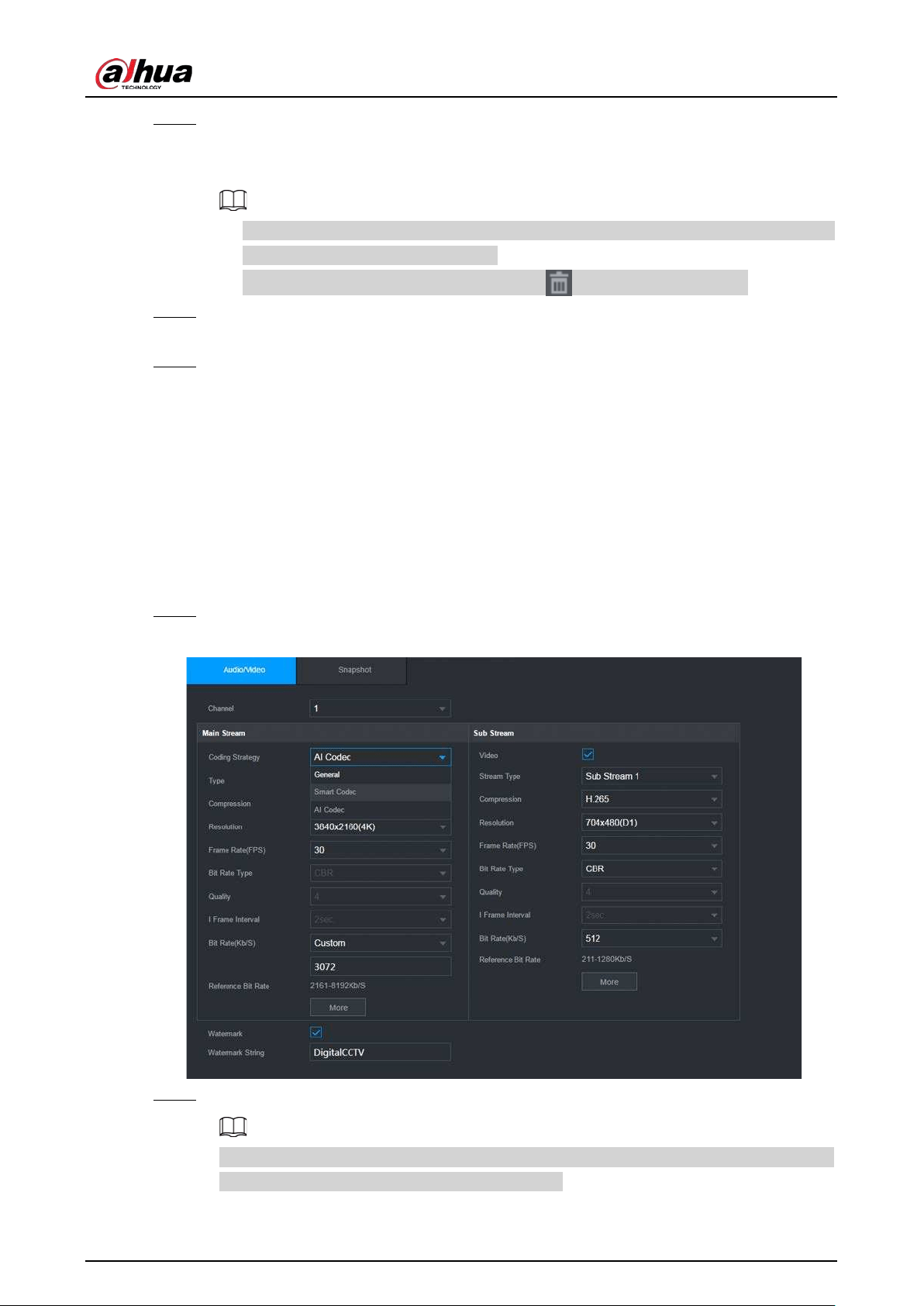
User's Manual
150
Step 4 Click
Add
, select the masking type and color, and then draw mosaic or color blocks in the
image as needed.
A masking block appears on the video image.
●
The number of masking blocks that you can add might differ depending on the camera.
You can add up to 24 masking blocks.
●
Click
Clear
to delete all masking areas. Click to delete a masking area.
Step 5 Drag the masking block to a desired position and then configure the type, color and other
parameters.
Step 6 Click
Apply
.
5.7.6 Configuring Encoding Settings
You can set video bit stream and image parameters.
5.7.6.1 Configuring Audio and Video Encoding Settings
You can set audio and video encoding parameters such as bit stream type, compression, and
resolution.
Step 1 Select
Main Menu
>
CAMERA
>
Encode
>
Audio/Video
.
Figure 5-60 Audio/video
Step 2 Select a channel and then configure parameters.
The parameters for main stream and sub stream are different. Some models support three
streams: main stream, sub stream 1, sub stream 2.
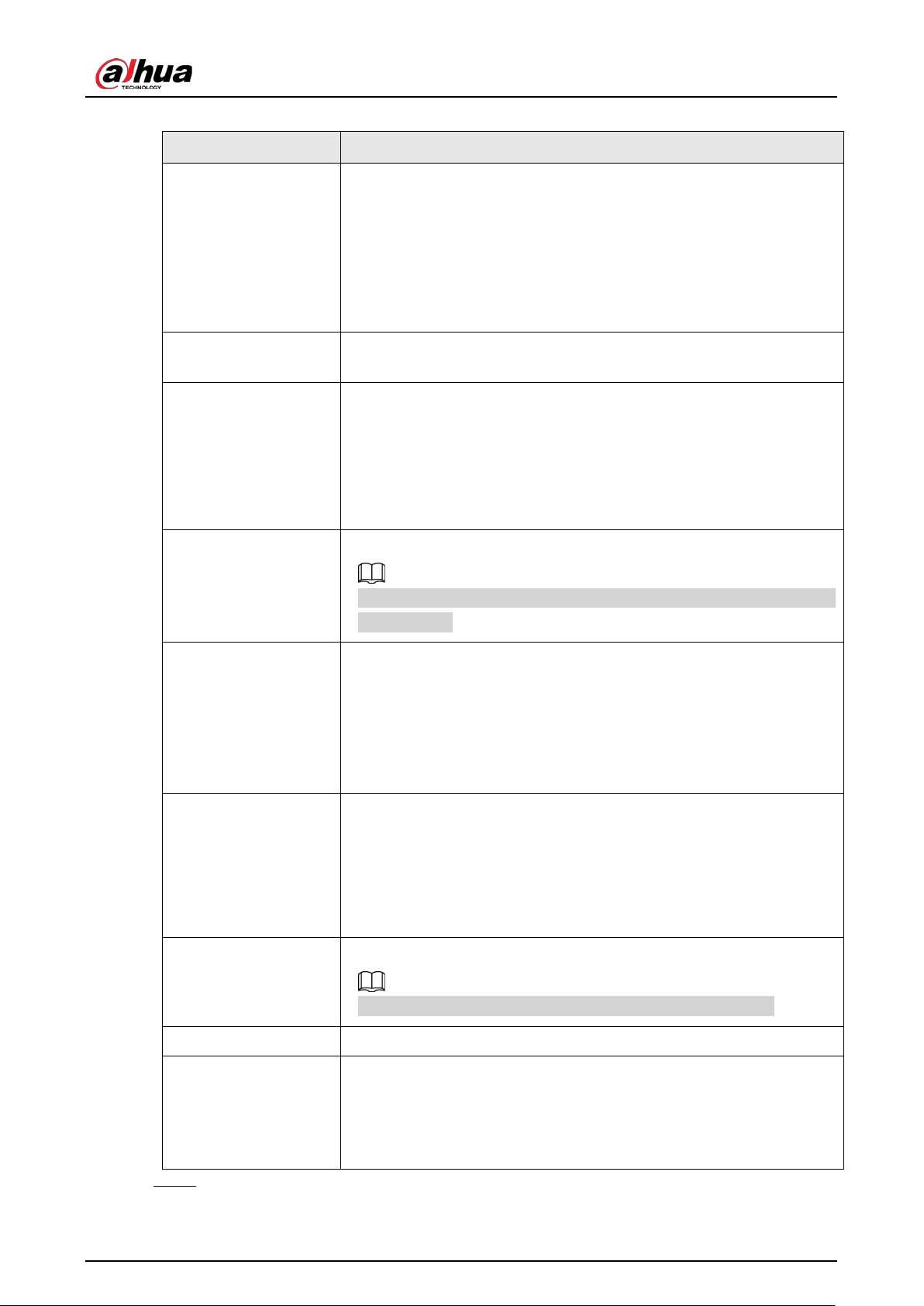
User's Manual
151
Table 5-18 Audio/video parameters
Parameter Description
Coding Strategy
●
General
: Use general coding strategy.
●
Smart Codec
: Enable the smart codec function. This function can
reduce the video bit stream for non-important recorded video to
maximize the storage space.
●
AI Codec
: Enable the AI codec function. This function can reduce
the camera code stream, network transmission pressure, and hard
drive storage space without affecting the image quality.
Type
Select the recording type for main stream from
General
,
Motion
(motion detection), or
Alarm
.
Compression
Select the encoding mode.
●
H.265: Main profile encoding. This setting is recommended.
●
H.264H: High profile encoding. Low bit stream with high definition.
●
H.264: Main profile encoding.
●
H.264B: Baseline profile encoding. This mode requires higher bit
stream compared with other modes for the same definition.
Resolution
Select resolution for the video.
The maximum video resolution might be different depending on your
device model.
Frame Rate (FPS)
Configure the frames per second for the video. The higher the value is,
the clearer and smoother the image will become. Frame rate changes
along with the resolution.
Generally, in PAL format, you can select the value from 1 through 25; in
NTSC format, you can select the value from 1 through 30. However, the
actual range of frame rate that you can select depends on the
capability of the Device.
Bit Rate Type
●
CBR
(constant bit rate): The bit rate changes slightly around the
defined value. We recommended selecting
CBR
when there might
be only small changes in the monitoring environment.
●
VBR
(variable bit rate): The bit rate changes with monitoring
scenes. Select variable stream when there might be big changes in
the monitoring environment.
Quality
The bigger the value is, the better the image will become.
This parameter is available if you select
VBR
as
Bit Rate Type
.
I Frame Interval The interval between two reference frames.
Bit Rate (Kb/S)
●
Main stream: The higher the value, the better the image quality.
●
Sub stream: For constant stream, the bit rate changes near the
defined value; for variable stream, the bit rate changes along with
the image but the maximum value still stays near the defined
value.
Step 3 Click
More
.
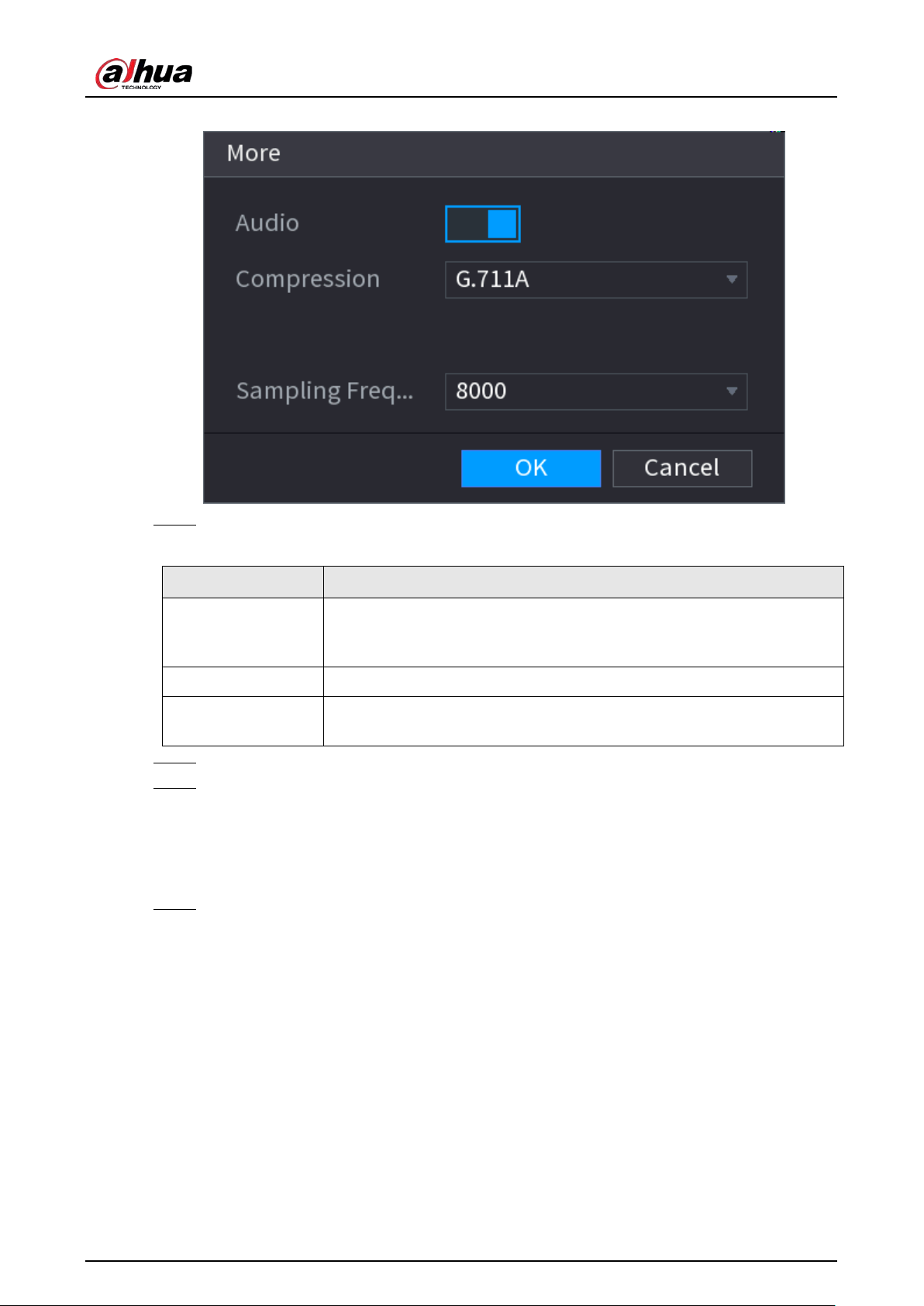
User's Manual
152
Figure 5-61 More settings
Step 4 Configure audio compression parameters.
Table 5-19 Audio compression parameters
Parameter Description
Audio
This function is enabled by default for main stream. You need to manually
enable it for sub stream. Once this function is enabled, the recorded
video file is composite audio and video stream.
Compression Select an audio compression format.
Sampling Frequency
Set how many times per second a sound is sampled. The bigger the value,
the more natural the sound.
Step 5 Click
OK
.
Step 6 Click
Apply
.
5.7.6.2 Snapshot
You can set snapshot mode, image size, quality and interval.
Step 1 Select
Main Menu
>
CAMERA
>
Encode
>
Snapshot
.
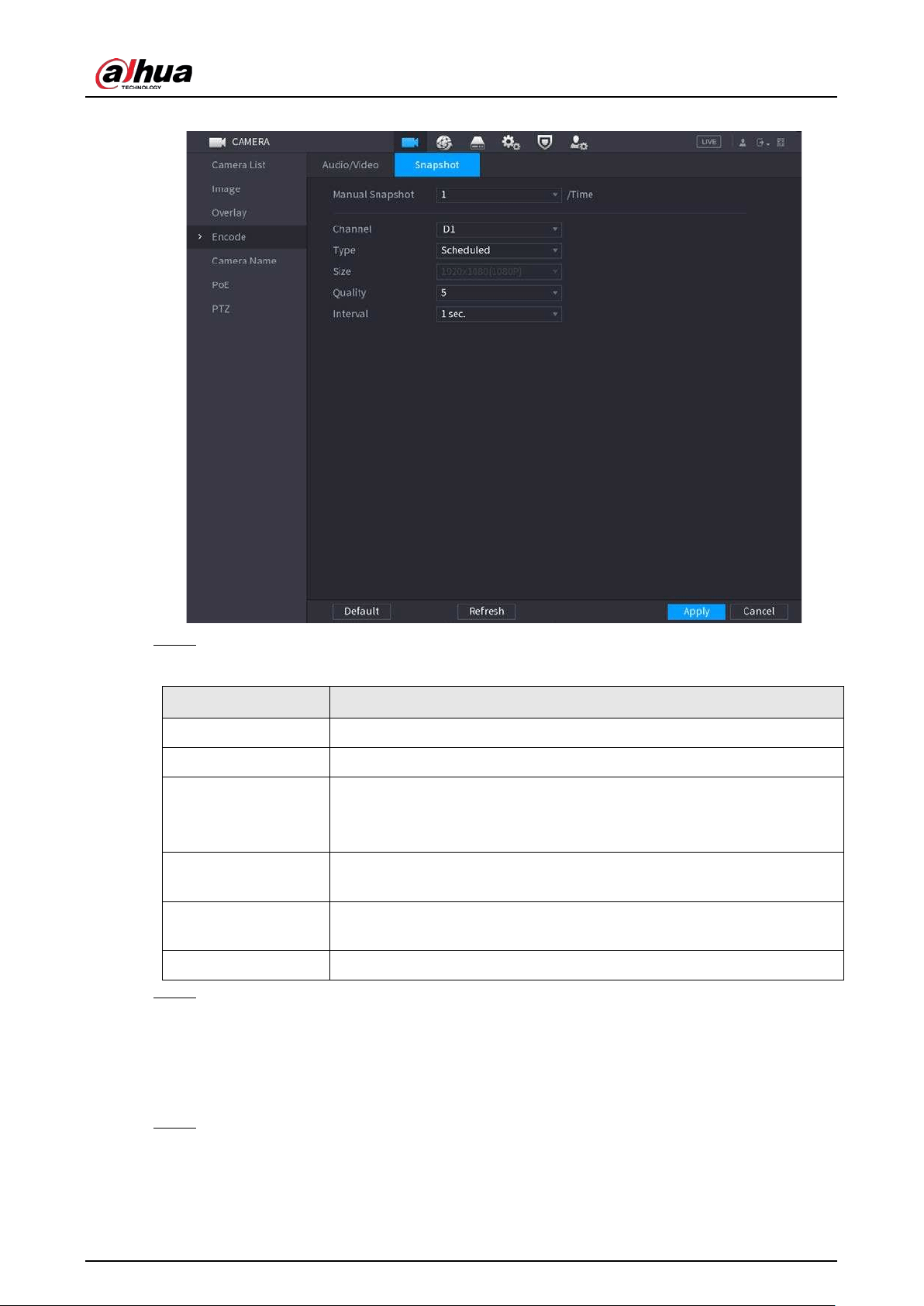
User's Manual
153
Figure 5-62 Snapshot
Step 2 Configure parameters.
Table 5-20 Snapshot parameters
Parameter Description
Manual Snapshot Select the number of snapshots that you want to take each time.
Channel Select the channel that you want to configure the settings for.
Type
●
Scheduled
: The snapshot is taken during the scheduled period.
●
Event
: The snapshot is taken for motion detection, video loss, local
alarms and other events.
Size
The size is determined by the resolution of the main stream or sub
stream of the channel.
Quality
Configure the image quality. The higher the level is, the better the image
will become. Level 6 represents the best quality.
Interval Select or customize how frequently snapshots are to be taken.
Step 3 Click
Apply
.
5.7.7 Modifying Channel Name
You can customize channel name.
Step 1 Select
Main Menu
>
CAMERA
>
Camera Name
.
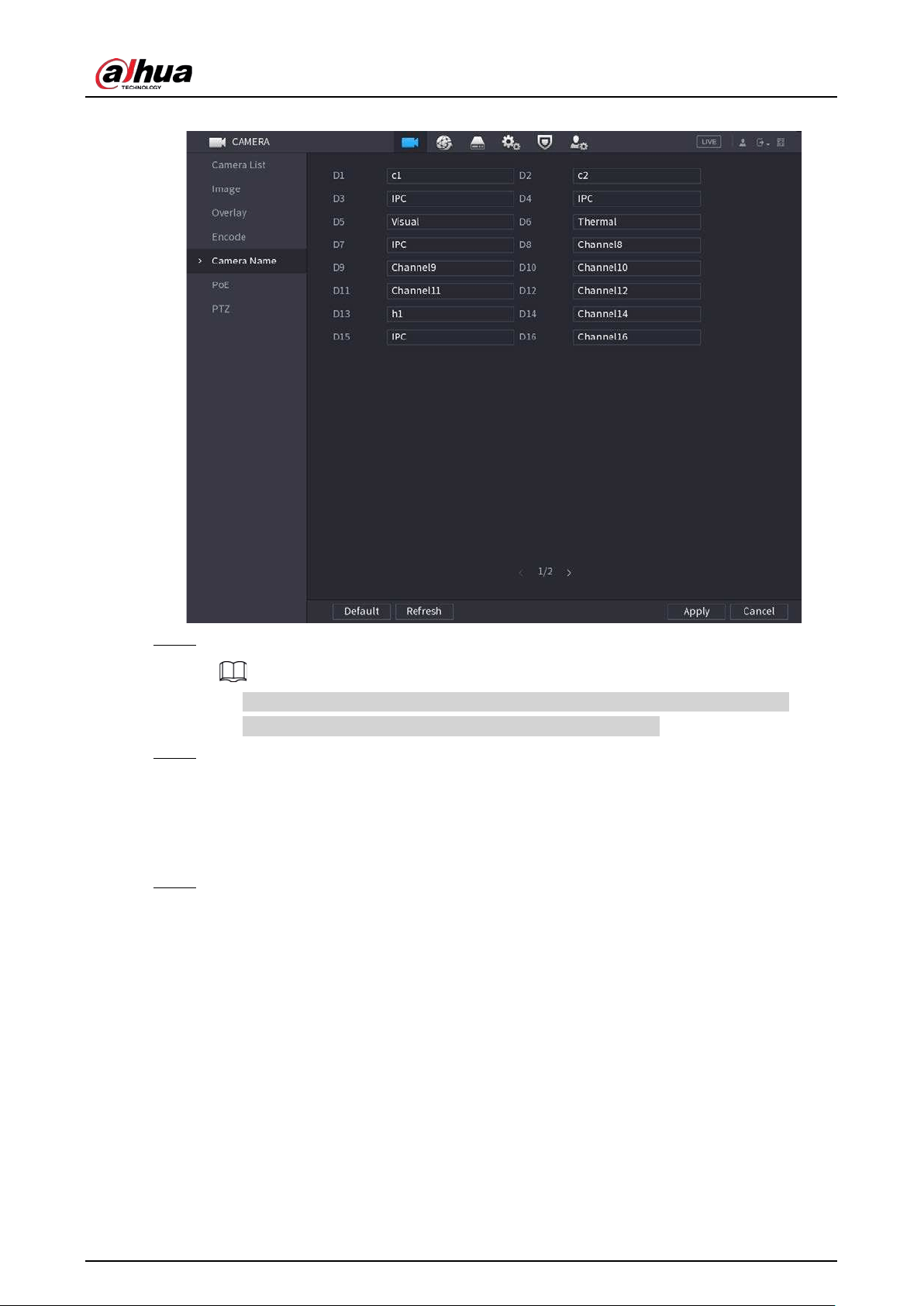
User's Manual
154
Figure 5-63 Camera name
Step 2 Modify a channel name.
●
You can only change the name of the camera connected via the private protocol.
●
You can enter up to 63 English characters for a channel name.
Step 3 Click
Apply
.
5.7.8 Checking the PoE Status
You can check the status of PoE ports and set enhancement mode for each PoE port.
Step 1 Select
Main Menu
>
CAMERA
>
PoE
.
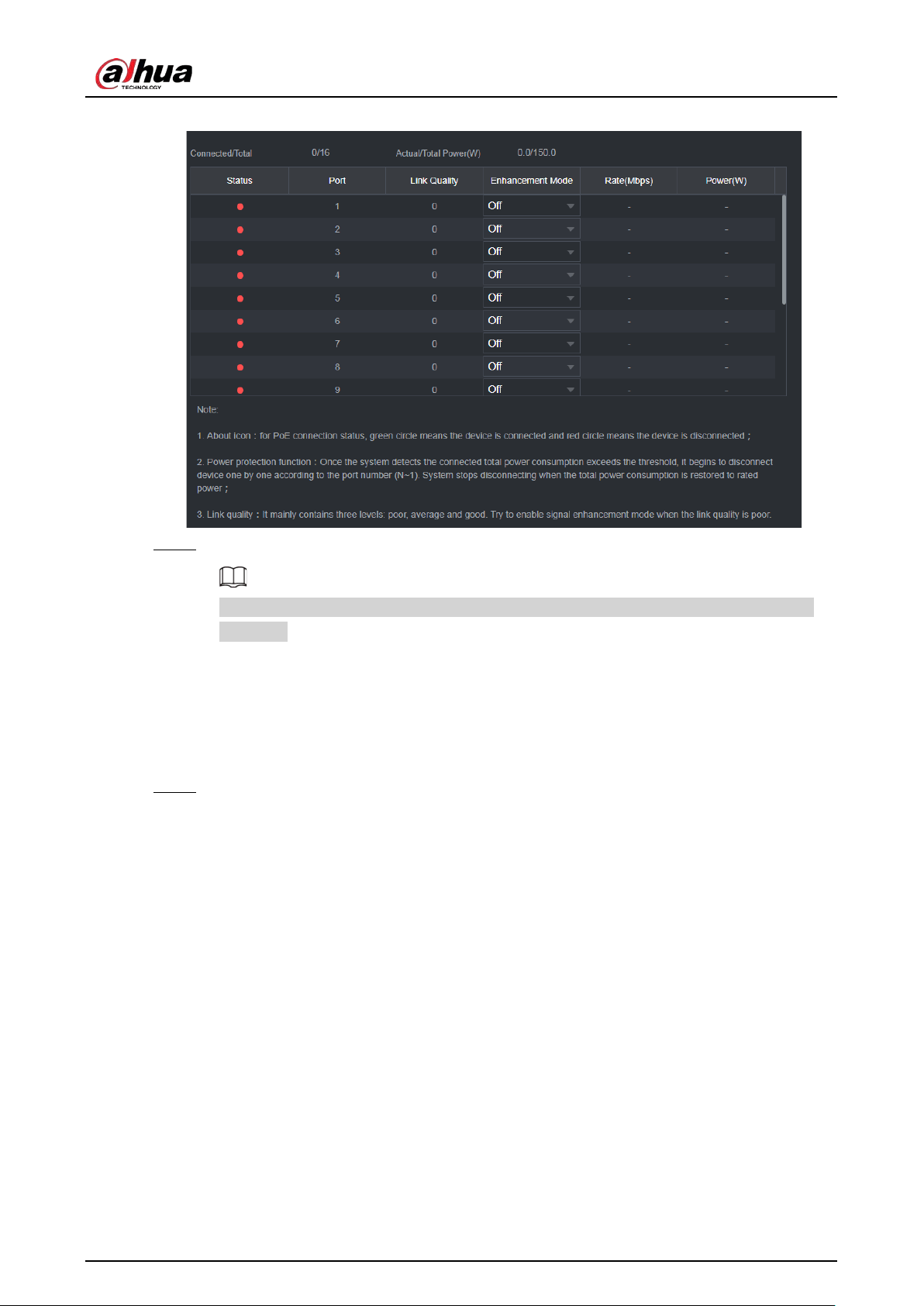
User's Manual
155
Figure 5-64 PoE
Step 2 (Optional) Set
Enhancement Mode
to
On
or
Off
.
When enhancement mode is enabled, the transmission distance of the PoE port will be
extended.
5.7.9 Updating Remote Devices
You can update the firmware of the connected network camera through online update or file
update.
Step 1 Select
Main Menu
>
CAMERA
>
Camera List
>
Update
.
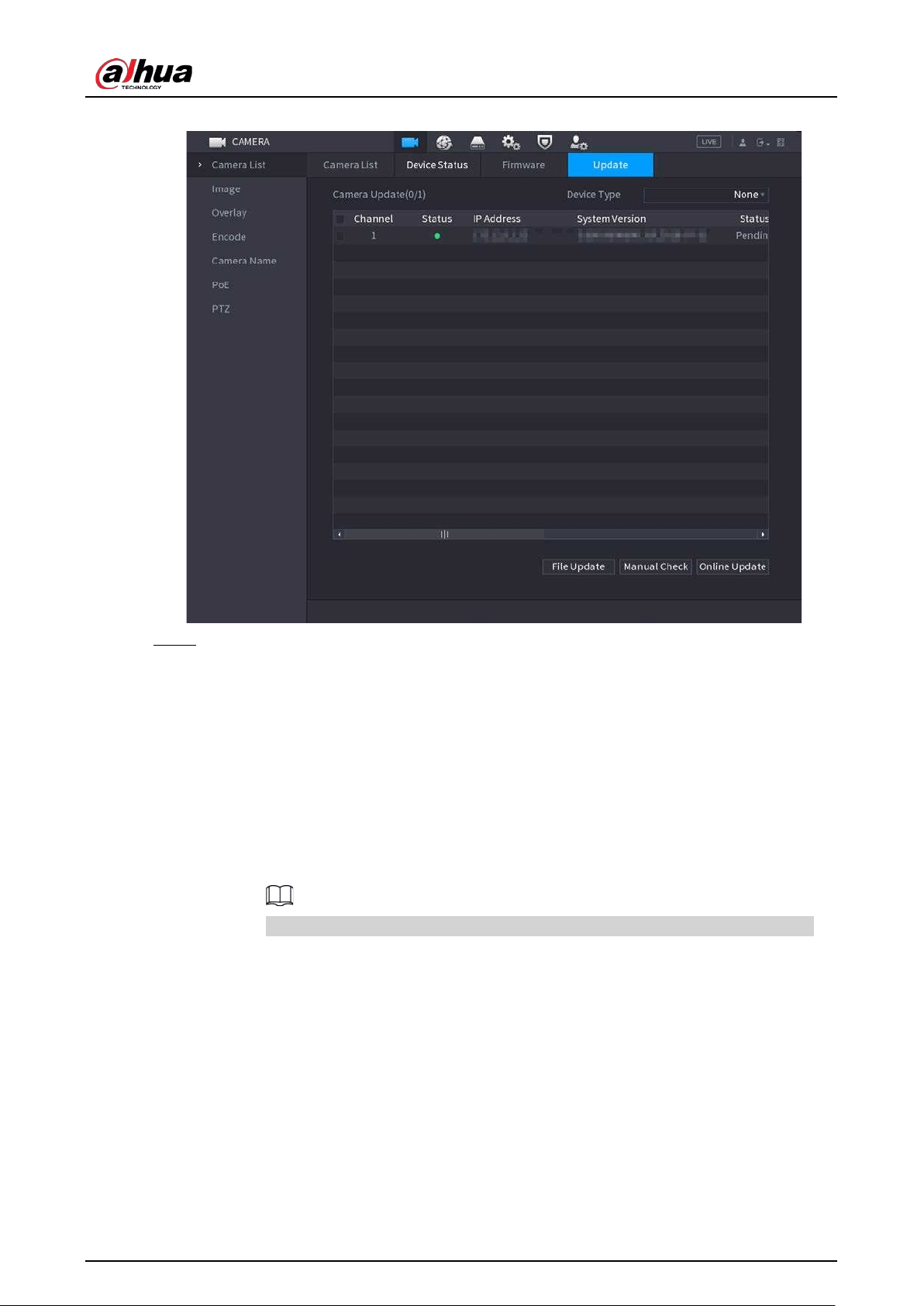
User's Manual
156
Figure 5-65 Update
Step 2 Update the firmware of the connected remote device.
●
Online update.
1. Select a remote device and then click
Manual Check
.
The system checks for available updates.
2. Select a remote device that has an update available for it, and then click
Online
Update
.
●
File update.
1. Select a channel and then click
File Update
.
2. Select an update file.
3. Click
OK
.
If there are too many remote devices, you can filter them on the
Device Type
list.
5.7.10 Viewing Remote Device Information
5.7.10.1 Device Status
You can view the connection and alarm status of the corresponding channel.
Select
Main Menu
>
CAMERA
>
Camera List
>
Device Status
.
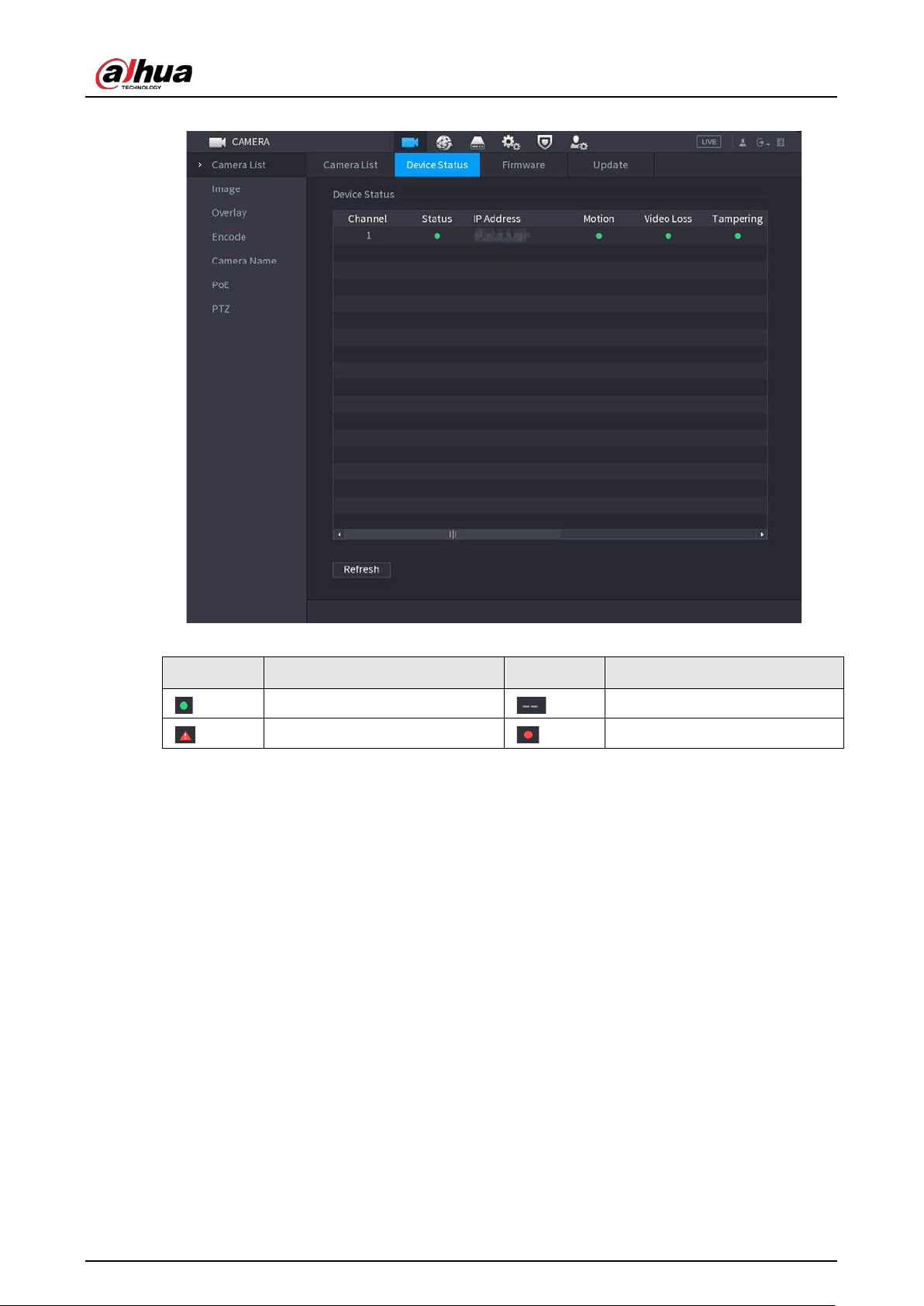
User's Manual
157
Figure 5-66 Device status
Table 5-21 Parameters of device status
Icon Description Icon Description
IPC works properly.
IPC is not supported.
Alarm.
Video loss.
5.7.10.2 Firmware
You can view the IP address, manufacturer, type, and system version of the connected remote
device.
Select
Main Menu
>
CAMERA
>
Camera List
>
Firmware
.
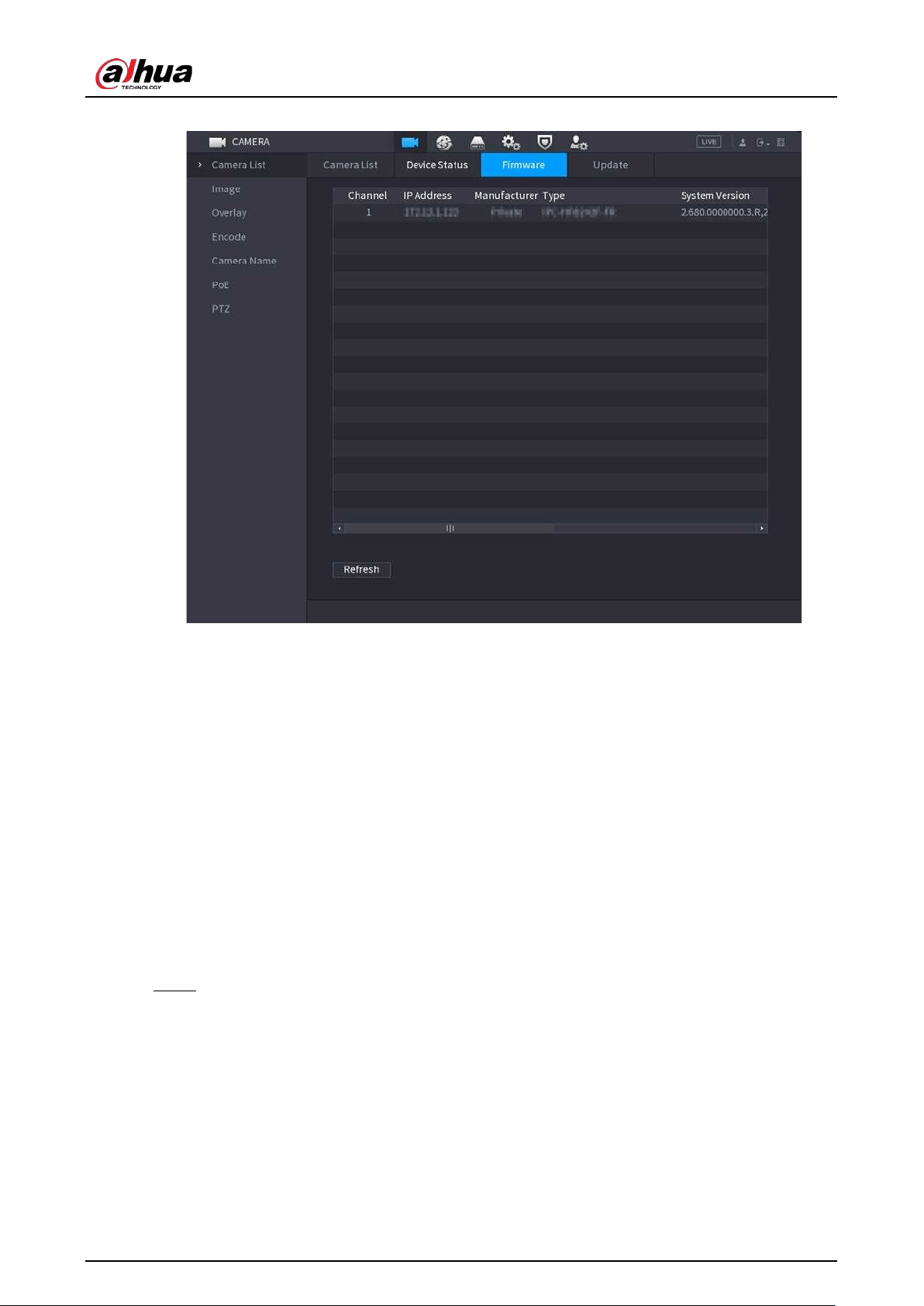
User's Manual
158
Figure 5-67 Firmware
5.8 Recording Management
5.8.1 Recording Schedule
After you set the recording schedule for videos and snapshots, the Device can automatically record
videos and snapshots at the scheduled time.
5.8.1.1 Configuring Video Recording Schedule
After you set the schedule for videos, the Device will record videos according to the period you set.
For example, if the alarm recording period is from 6:00–18:00 on Monday, the Device will make a
recording on Mondays from 6:00-18:00.
Step 1 Right-click the live page, and then select
Main Menu
>
STORAGE
>
Schedule
>
Record
.
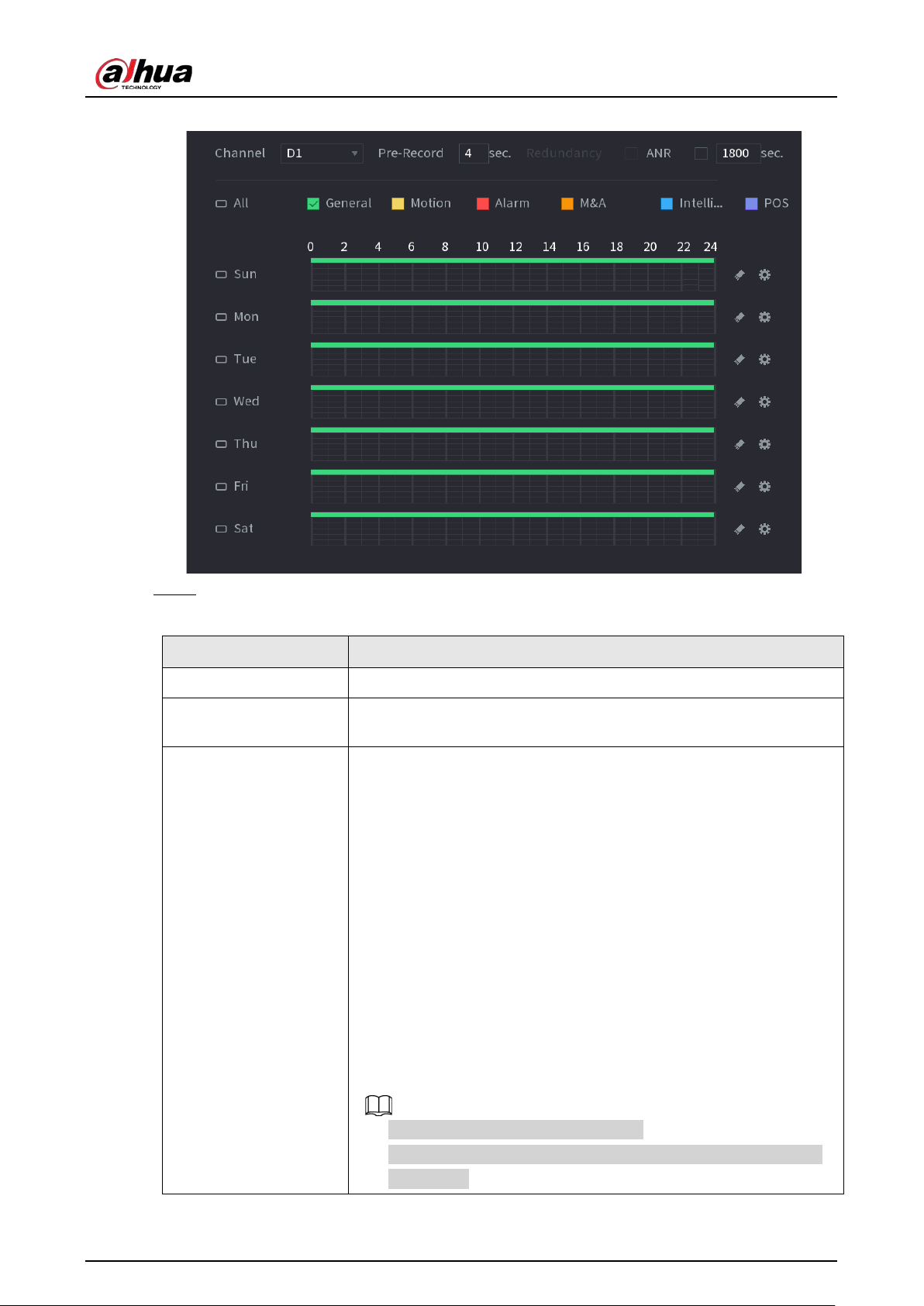
User's Manual
159
Figure 5-68 Video schedule
Step 2 Configure the parameters.
Table 5-22 Video schedule parameters
Parameter Description
Channel Select a channel to record a video.
Pre-record
Enter the amount of time that you want the pre-recording to last. A
recording will be made prior to the event.
Redundancy
If there are several HDDs installed to the Device, you can set one of
the HDDs as the redundant HDD to save the recorded files into
different HDDs. If one of the HDDs becomes damaged, you can find
the backup on the other HDD.
●
Select
Main Menu
>
STORAGE
>
Disk Manager
, and then set a
HDD as redundant HDD.
●
Select
Main Menu
>
STORAGE
>
Schedule
>
Record
, and then
select the
Redundancy
checkbox.
◇
If the selected channel is not recording, the redundancy
function will take effect the next time that you record,
whether or not you select the checkbox.
◇
If the selected channel is recording, the current recorded files
will be packed, and then start recording according to the new
schedule.
●
This function is for some models only.
●
The redundant HDD only backs up the recorded videos but not
snapshots.
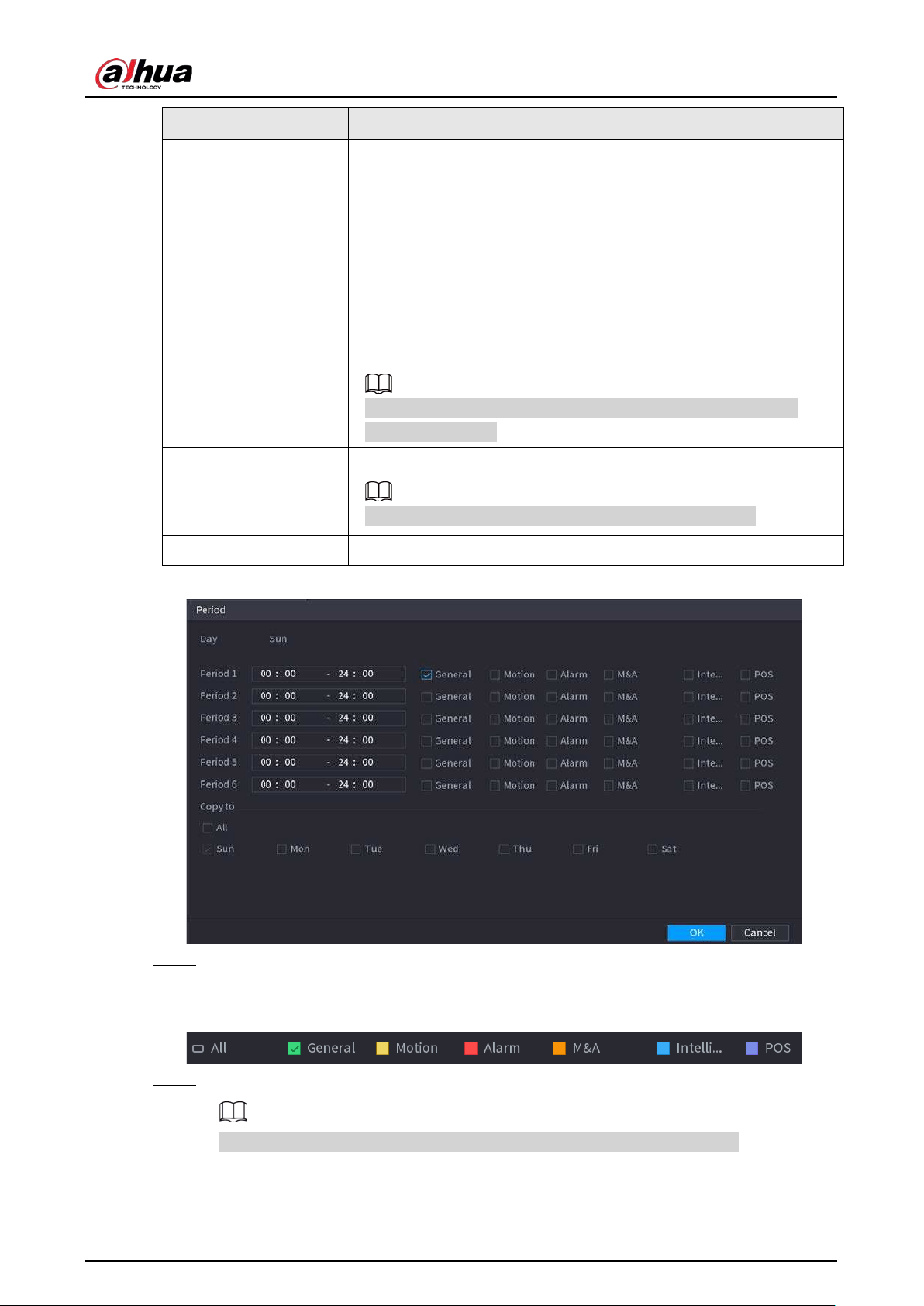
User's Manual
160
Parameter Description
ANR
You can set the ANR (auto network resume) function.
●
The IPC continues recording once the NVR and IPC connection
fails. After the network becomes normal, the NVR can download
recording files while it is disconnected from the IPC. This is to help
protect against data loss from the current IPD channel that is
connected.
●
Set the maximum recording upload period. If the offline period is
longer than the period you set, IPC will only upload the recording
file during the specified period.
Make sure that SD card is installed and the recording function is
enabled on the IPC.
Period
Set a period during which the configured recording setting is active.
The system only activates the alarm in the defined period.
Copy to
Click
Copy to
to copy the settings to other channels.
Figure 5-69 Period
Step 3 Set one or more recording types from
General
,
Motion
(motion detection),
Alarm
,
M&A
(motion detection and alarm),
Intelligent
and
Alarm
.
Figure 5-70 Recording type
Step 4 Set recording period.
If you have added a holiday, you can set the recording period for the holiday.
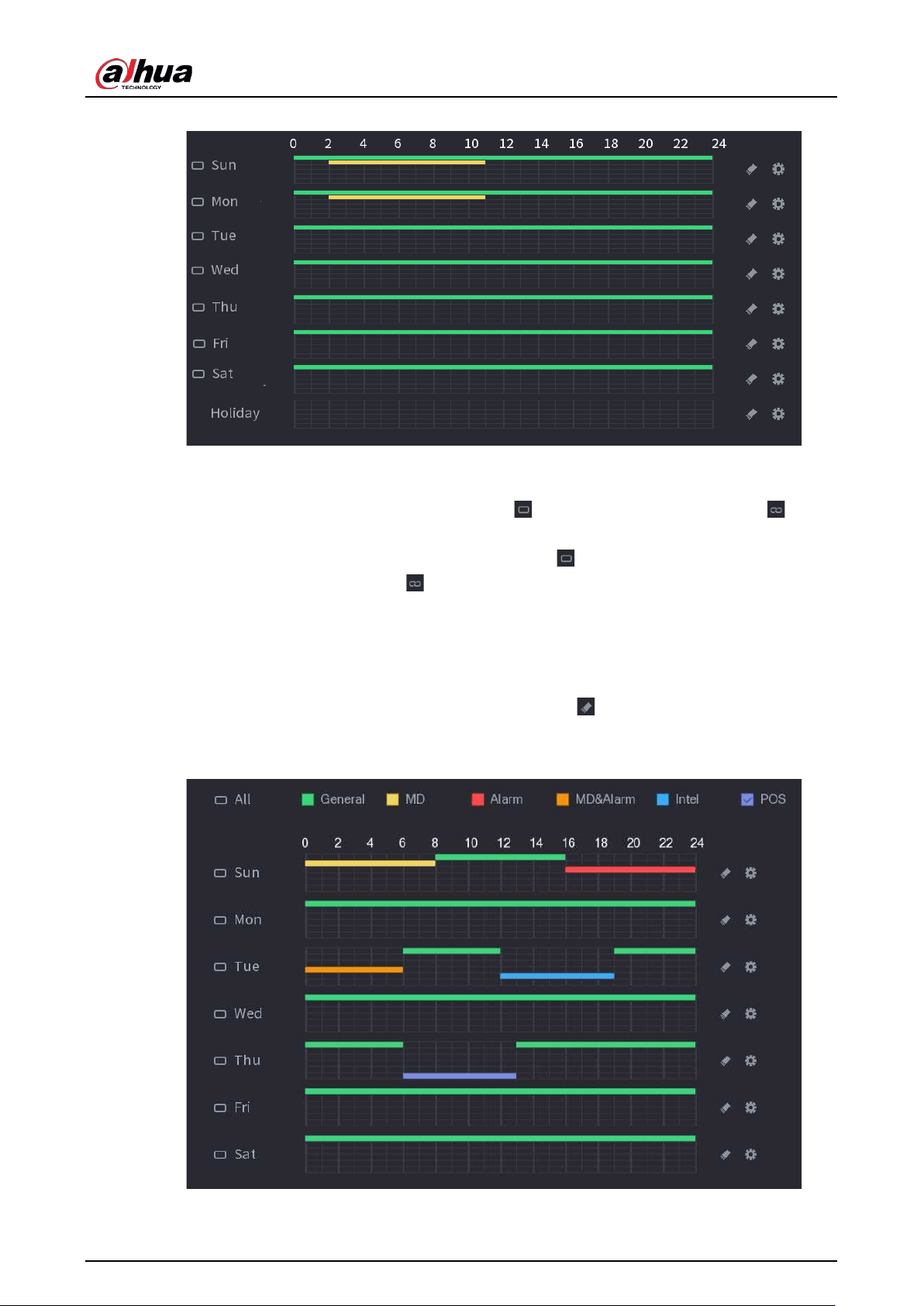
User's Manual
161
Figure 5-71 Set record period
●
Define the period by drawing.
1. Select a corresponding date to set.
◇
Define for the whole week: Click next to
All
. All the icon switch to . You
can define the period for all the days simultaneously.
◇
Define for several days of a week: Click before each day one by one. The
icon switches to . You can define the period for the selected days
simultaneously.
2. On the timeline, drag to define a period.
◇
Once the time period overlaps, the recording priority is:
M&A
>
Alarm
>
POS
>
Intelligent
>
Motion
>
General
.
◇
Select a recording type and then click the of the corresponding date to clear
the corresponding period.
Figure 5-72 Set period by drawing
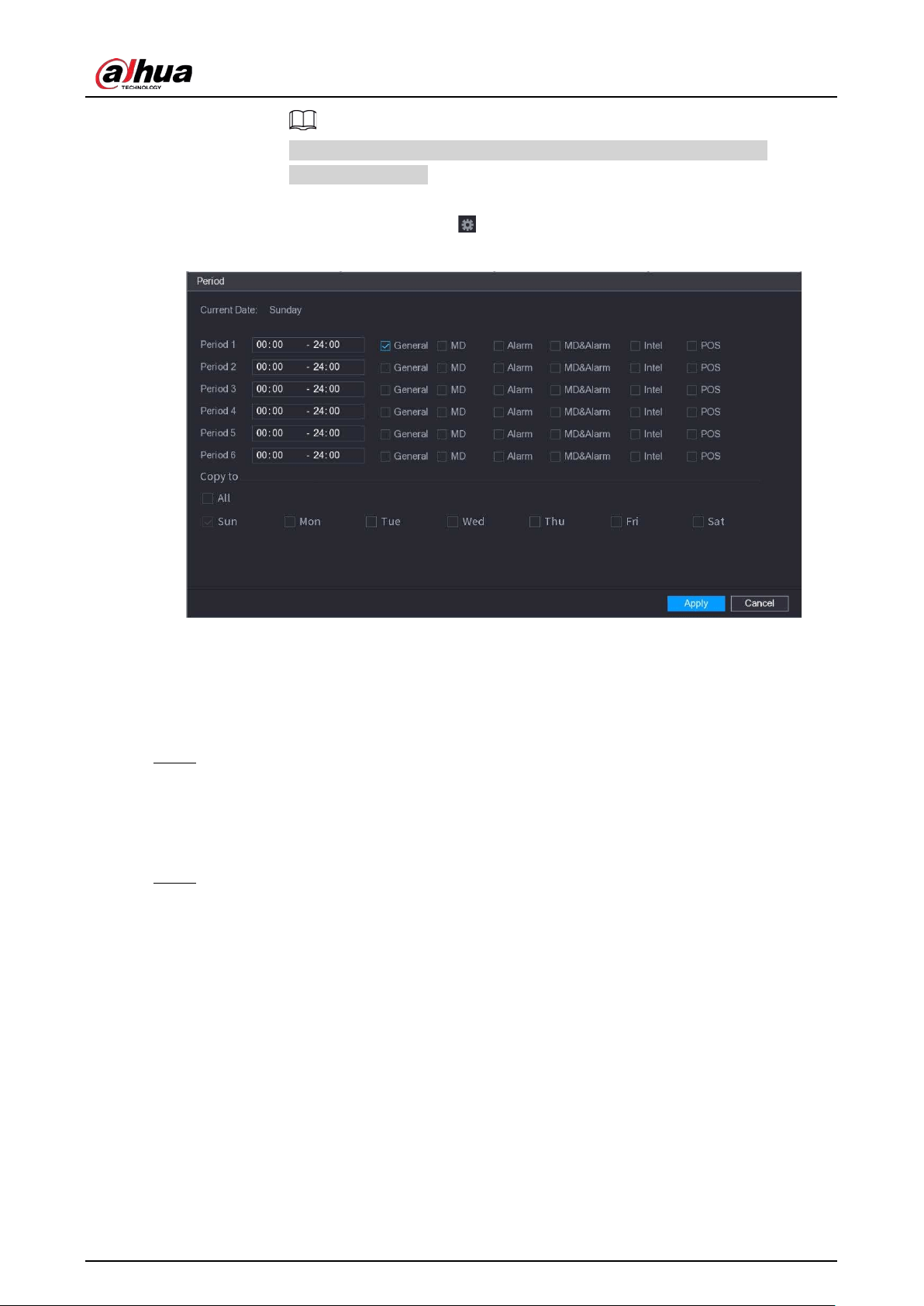
User's Manual
162
The MD record and alarm record function are both null if you enabled
MD&Alarm function.
●
Define the period by editing.
1. Select a date and then click .
Figure 5-73 Set period by editing
2. Set the recording type for each period.
◇
There are six periods for you to set for each day.
◇
Under
Copy to
, select
All
to apply the settings to all the days of the week, or
select specific days that you want to apply the settings to.
3. Click
Apply
.
Step 5 Click
Apply
to complete the settings.
5.8.1.2 Configuring Snapshot Schedule
Configure recording schedule for snapshots.
Step 1 Right-click the live page, and then select
Main Menu
>
STORAGE
>
Schedule
>
Snapshot
.
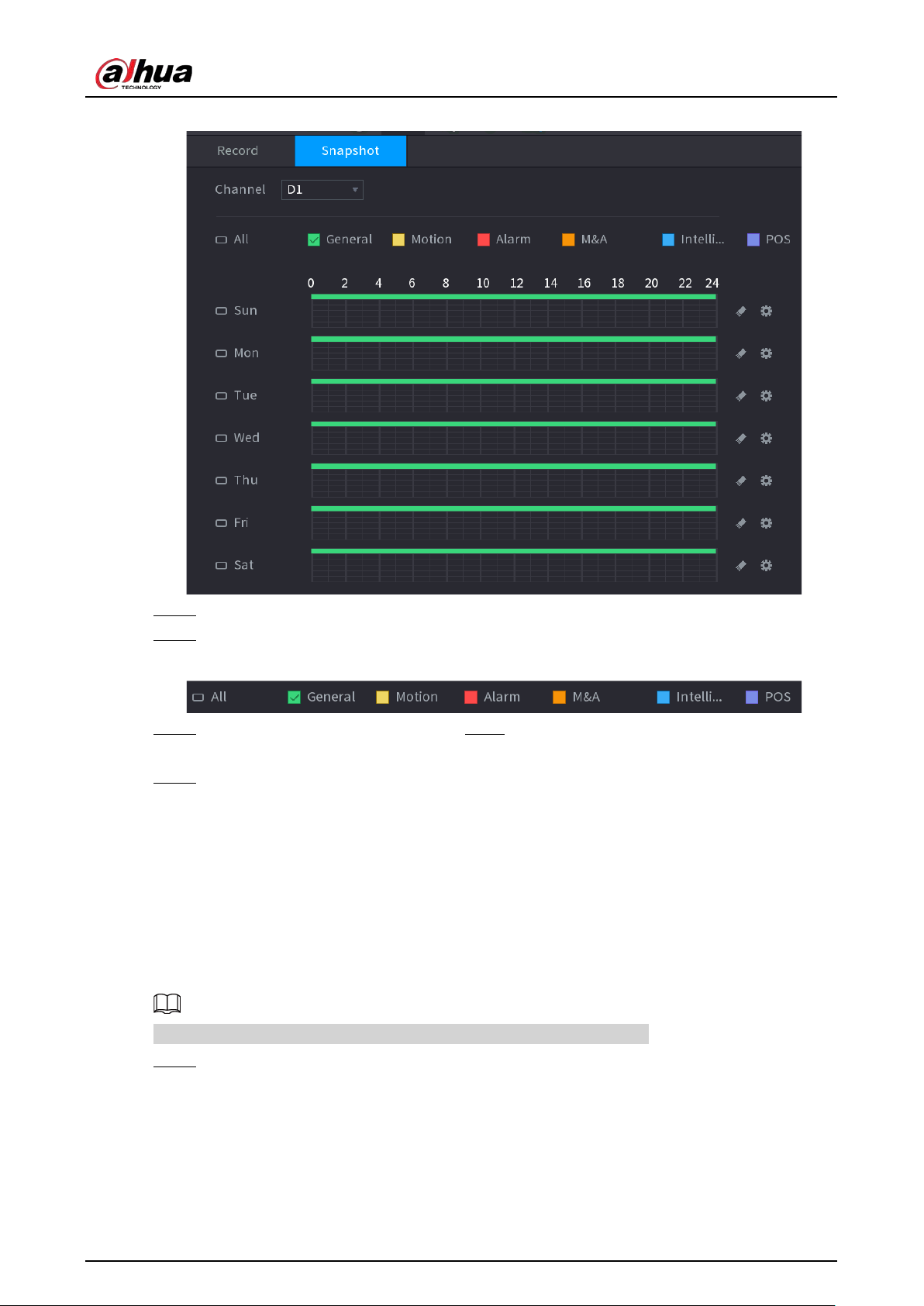
User's Manual
163
Figure 5-74 Snapshot
Step 2 Select a channel to set schedule snapshot.
Step 3 Set a recording type.
Figure 5-75 Recording type
Step 4 Set snapshot period. For details, see Step4 in "5.8.1.1 Configuring Video Recording
Schedule".
Step 5 Click
Apply
.
5.8.1.3 Configuring Recording Mode
After you set schedule record or schedule snapshot, you need to enable the auto record and
snapshot function so that the system can automatically record or take snapshot.
●
Auto: The system automatically records the videos and snapshots according to the defined
schedule.
●
Manual: The system records general files for the entire day.
You need to have storage authorities to use the
Manual
recording mode.
Step 1 Right-click the live page, and then select
Main Menu
>
STORAGE
>
Record
.
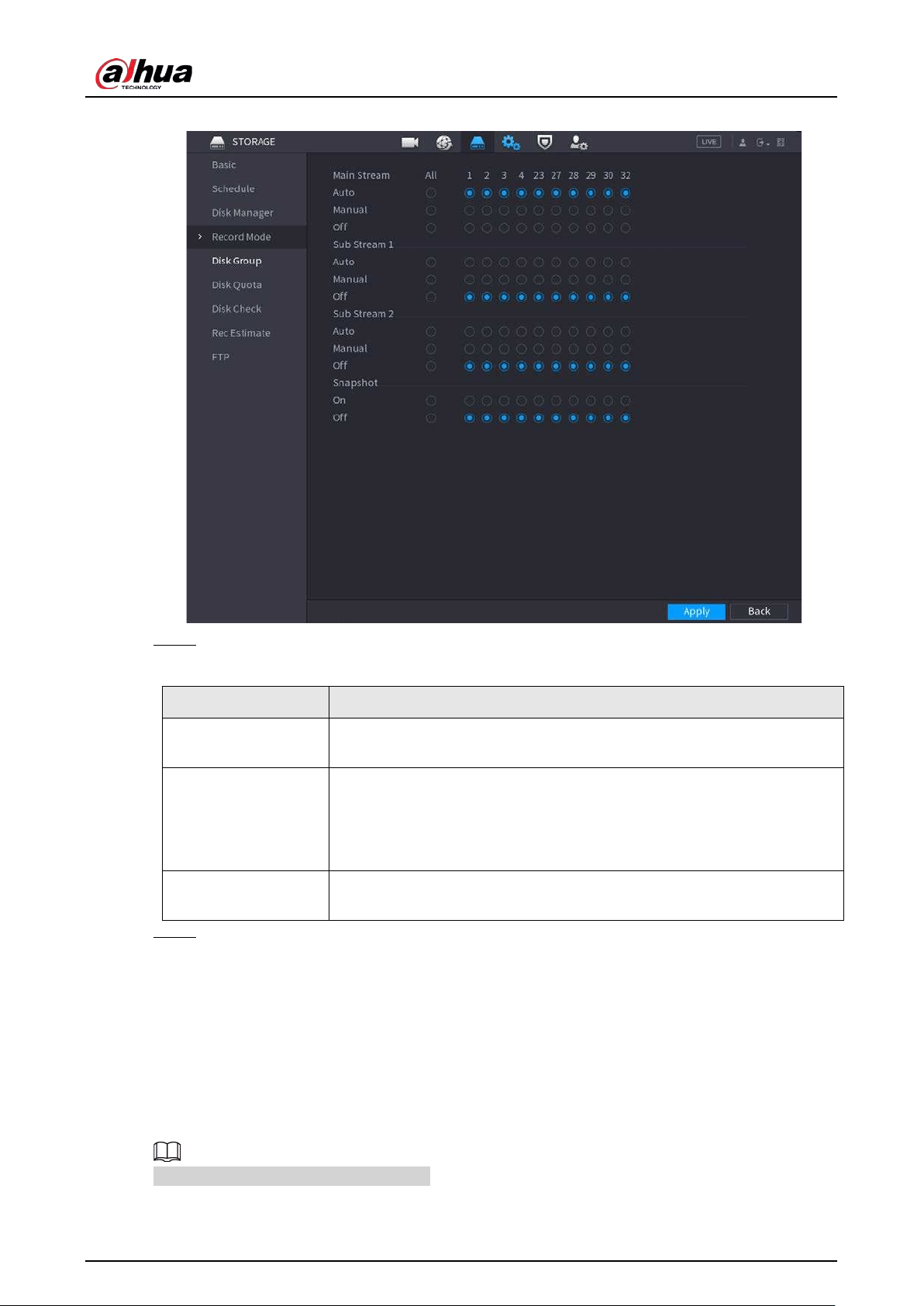
User's Manual
164
Figure 5-76 Recording mode
Step 2 Configure parameters.
Table 5-23 Recording mode parameters
Parameter Description
Channel
Displays all the connected channels. You can select a single channel or
select
All
.
Recording status
●
Auto: Automatically make recordings according to the schedule.
●
Manual: Makes a general recording within 24 hours for the selected
channel.
●
Off: Do not record.
Snapshot status
Enable or disable the scheduled snapshot for the corresponding
channels.
Step 3 Click
Apply
.
5.8.2 Search and Playback
5.8.2.1 Search Page
You can search for and play back the recorded files on the NVR.
Select
Main Menu
>
SEARCH
, or right-click on the live view page and then select
Search
.
The following figure is for reference only.
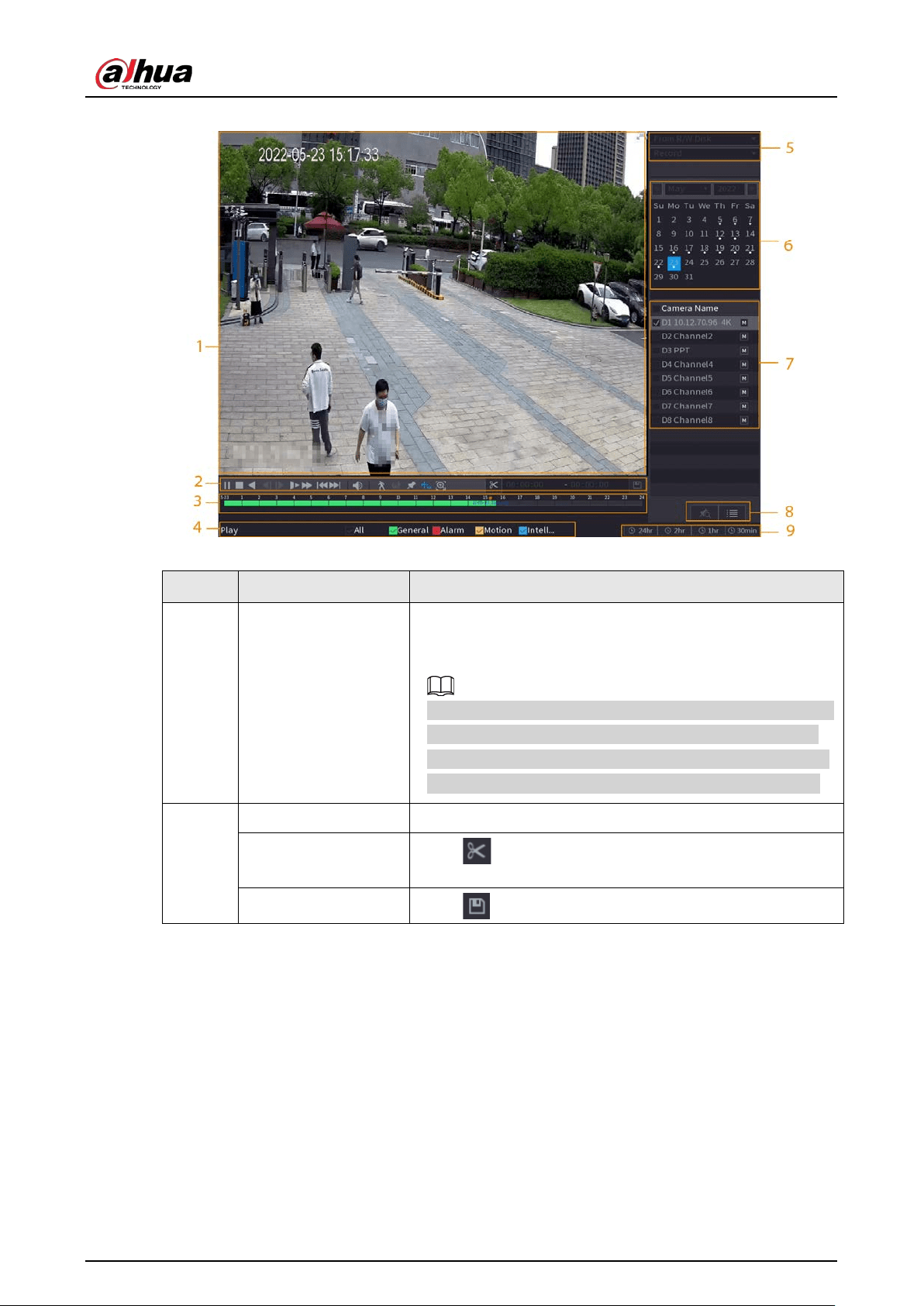
User's Manual
165
Figure 5-77 Search
Table 5-24 Search page description
No. Function Description
1 Display window
Display the searched recorded video or picture. The system
supports playing in single-channel, 4-channel, 9-channel,
and 16-channel simultaneously.
When playing back in the single-channel mode, hold down
the left mouse button to select the area that you want to
enlarge. The area is enlarged after the left mouse button is
released. To exit the enlarged status, right-click the image.
2
Playback controls bar Playback control buttons.
Clip
Click to clip the recording file and then save the
footage. See "5.8.2.4 Clipping Videos" for details.
Backup Click to back up recordings.
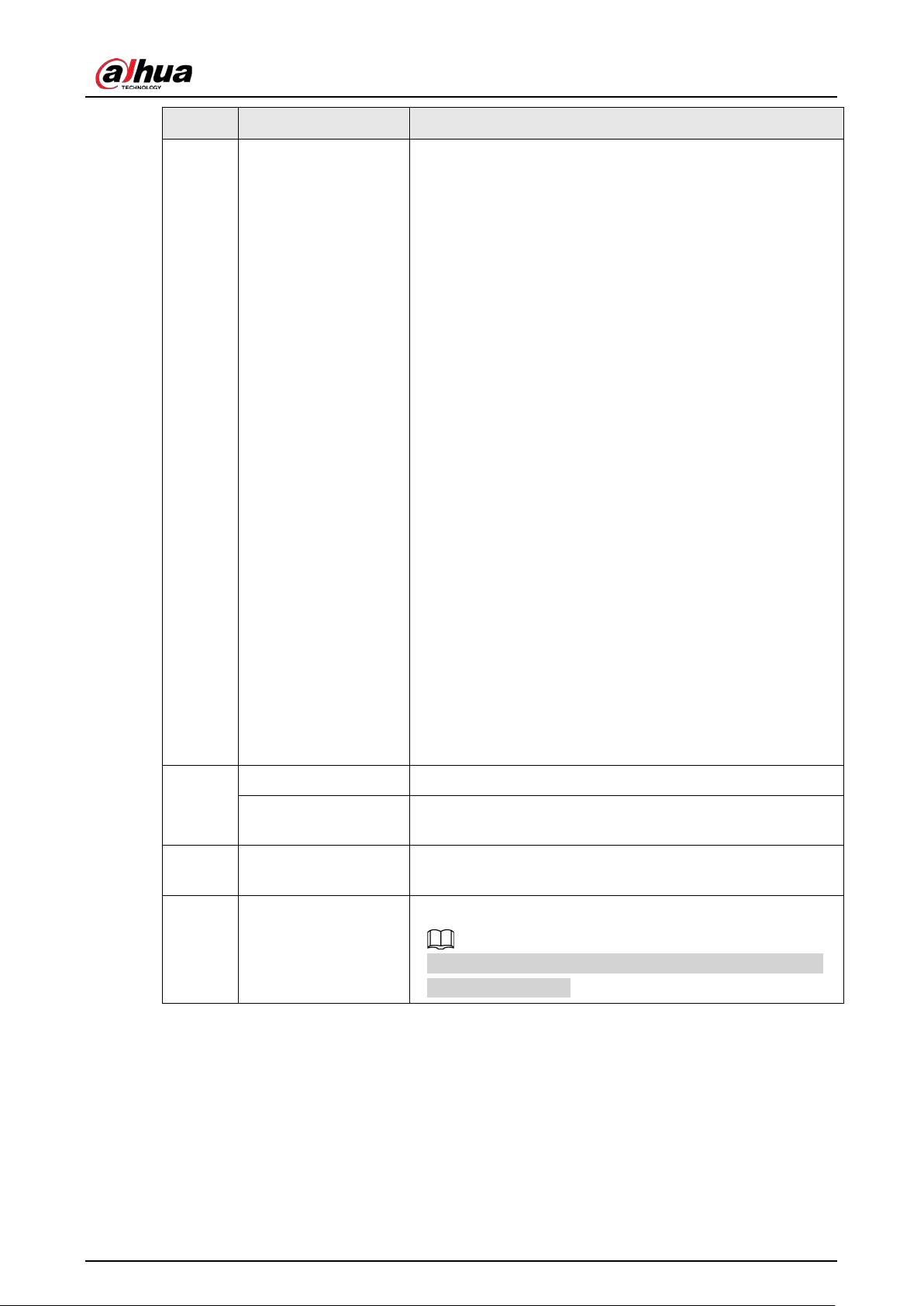
User's Manual
166
No. Function Description
3 Time bar
Display the type and time period of the current recorded
video.
●
In the 4-channel layout, 4 time bars are displayed. In
other view layouts, only 1 time bar is displayed.
●
Click the colored area to start playback from a certain
time.
●
When you are configuring the settings, rotate the wheel
button on the time bar to zoom in from 0. When a
playback is being played, rotate the wheel button on the
time bar, the time bar will zoom into the time point
where the playback is located.
●
Time bar colors: Green for general type; red for external
alarm; yellow for motion detection; blue for intelligent
events; purple for POS events.
●
Click and hold the time bar, and the mouse pointer
changes to a hand icon, and then you can drag to view
the playback of the target time.
●
You can drag the vertical orange line on the time bar to
rapidly view the playback in iframe format.
●
When playing back a video in one channel mode, point
to the time bar for 0.1 seconds, and then you can view 4
pictures before and after the selected time, and the
thumbnail picture of the selected time.
●
For some models, when you click the blank area in the
time bar, the system automatically jumps to the next
time point where there is a recorded video located.
4
Play status
Includes 2 playback status:
Play
and
Stop
.
Record type
Select the checkbox to define the recording type to search
for.
5 Search type
Select the content to play back:
Record
,
Picture
, and
Subperiod
.
6 Calendar
Click the date that you want to search for.
The dates with recordings or snapshots have a small solid
circle under the date.
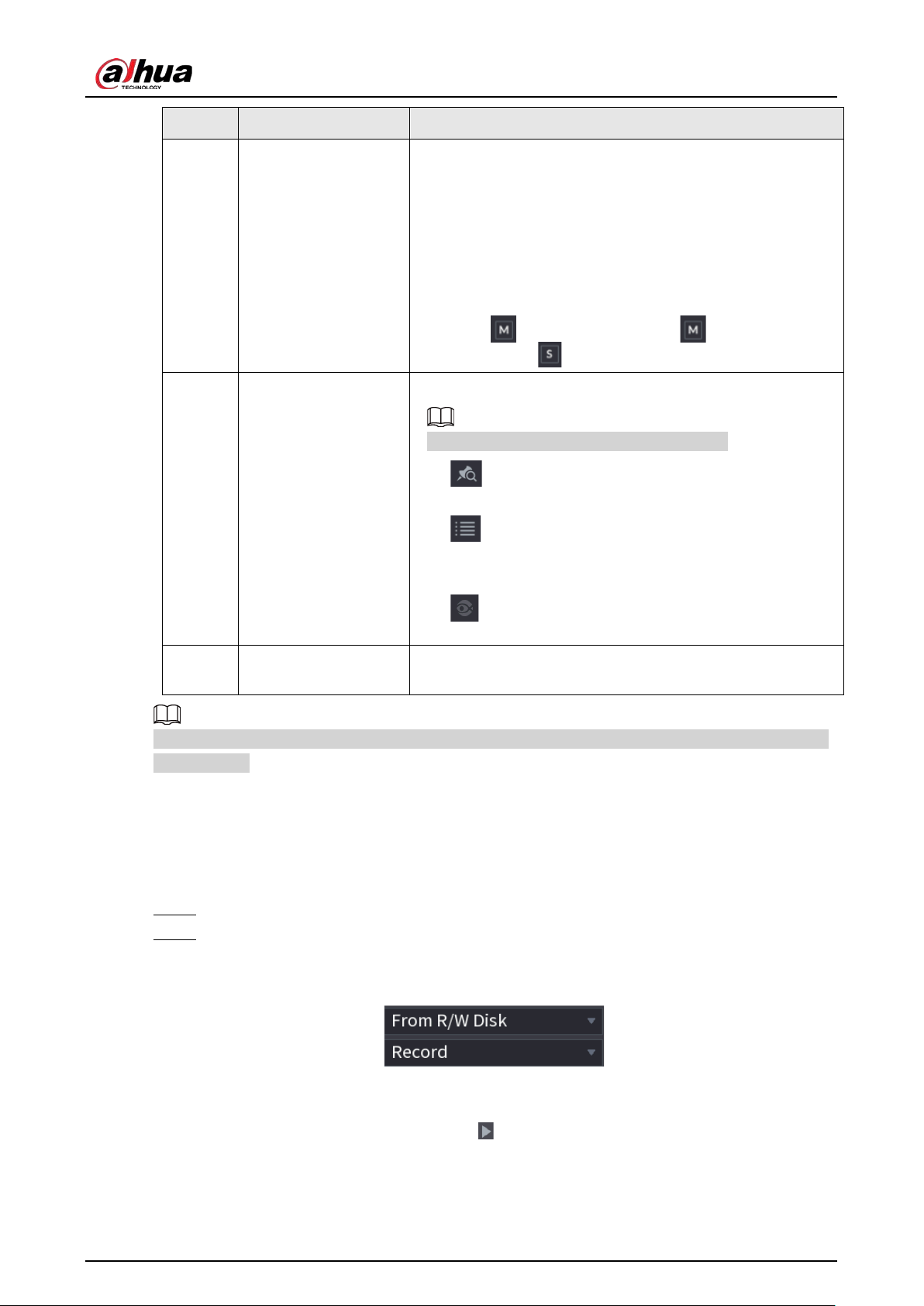
User's Manual
167
No. Function Description
7
View layout and
channel selection
●
In the
Camera Name
list, select one or more channels
that you want to play back.
●
The window split is decided by how you select the
channels. For example, if you select 1 channel, the
playback is displayed in the single-channel view. If you
select two to four channels, the playback is displayed in
the four-channel view. The maximum is eight channels.
●
Click to switch the streams. indicates main
stream, and indicates sub stream.
8 List display
This area includes
Tag List
and
File List
.
The icons displayed might vary with models.
●
: Click
Tag List
to view the marked recorded video
list. Double-click the file to start playing.
●
: Click
File List
to view the files that were found. You
can lock and unlock the files. See"5.8.2.6 File List" for
detailed information.
●
: fisheye dewarp. See "5.6.10.2 Fisheye De-warp
During Playback " for detailed information.
9 Time bar unit
You can select 24 hr, 2 hr, 1 hr, or 30 min as the unit of time
bar.
All the operations for playback might vary with hardware versions. Some functions are available on
select models.
5.8.2.2 Playback
You can search for and play back videos, images or video clips. The operations are similar. This
section uses video playback as an example.
Step 1 Select
Main Menu
>
Search
, or right-click the live page and then select
Search
.
Step 2 Select
From R/W Disk
or
From I/O Device
.
●
From R/W Disk: Search for recorded files on the HDD of the Device.
Figure 5-78 Search from R/W disk
●
From I/O Device: Search for recorded files from external storage device.
Click
Browse
, select the storage path of the recorded video file that you want to play.
Double-click the video file or click to start playing.
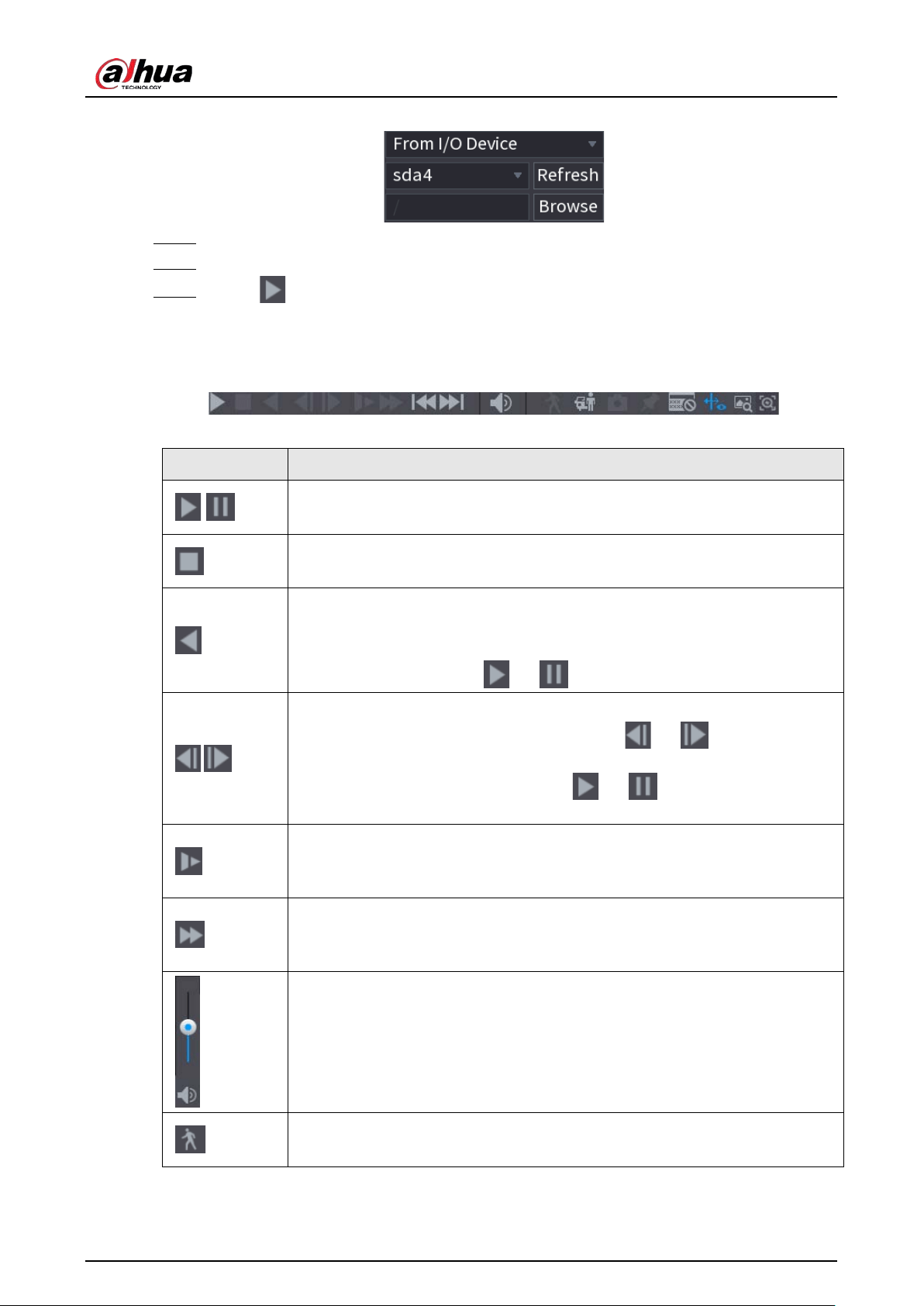
User's Manual
168
Figure 5-79 Search from I/O device
Step 3 Select
Record
as the search type.
Step 4 Select the date, and channel.
Step 5 Click or any position on the time bar.
The system starts playback. You can use the playback controls to control the playback
process.
Figure 5-80 Playback control
Table 5-25 Playback control description
Icon Function
/
Play/Pause
In slow play mode, click it to switch between play/pause.
Stop
When playing back, click to stop current playback process.
Rewind
In normal play mode, left-click the button, the file begins to rewind. Click it
again to pause it.
While it is rewinding, click or to restore normal play.
,
Display previous frame/next frame.
When you pause the normal playback file, click or to play back
frame by frame.
In frame by frame playback mode, click or to resume normal
playback mode.
Slow play
In playback mode, click it to use various slow play modes such as slow play 1,
slow play 2, and more.
Fast forward
In playback mode, click to realize various fast play modes such as fast play
1,fast play 2 and more.
Adjust the volume of the playback.
Smart search.
See "5.8.2.3 Smart Search Playback" for detailed information.
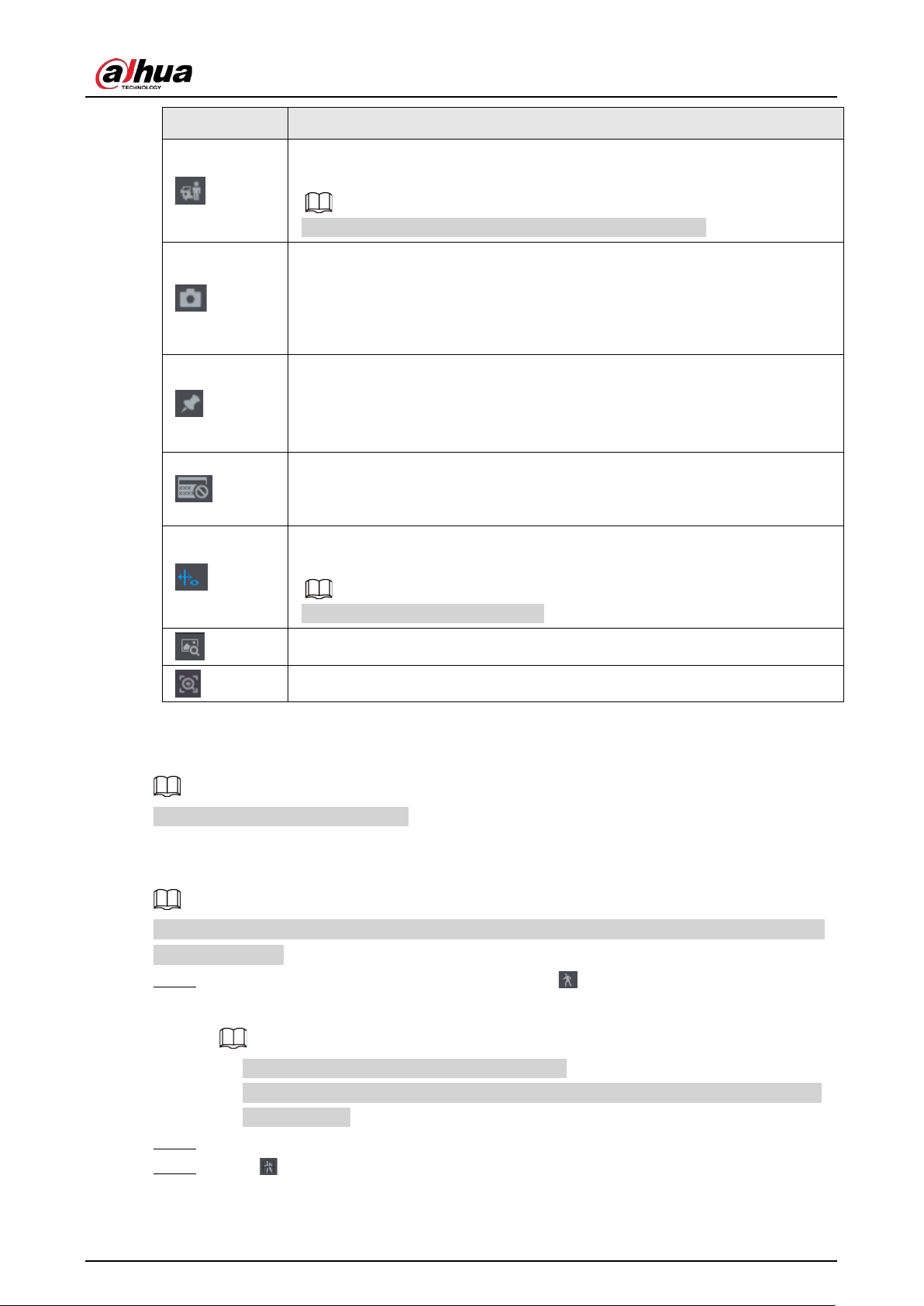
User's Manual
169
Icon Function
Smart motion detection. You can click the icon to select a human or motor
vehicle, and the system plays detected videos of the person or motor vehicle.
Human and motor vehicle can be selected at the same time.
Click the snapshot button in the full-screen mode to take one snapshot.
System supports custom snap picture saved path. Connect the peripheral
device first, click snap button on the full-screen mode, you can select or create
a path. Click Start button, the snapshot picture can be saved to the specified
path.
Mark button.
This function is available on select models. Make sure there is a mark button in
the playback control pane.
See "5.8.2.7 Tag Playback" for detailed information.
Display and hide POS information.
In 1-channel playback mode, you can click it to display/hide POS information
on the video.
In 1-channel playback mode, click it to enable or disable display IVS rule
information on the video.
This function is for some series only.
Picture search. For details, see "5.6.3.7 Picture Search".
Quick pick. For details, see "5.6.3.8 Quick Pick".
5.8.2.3 Smart Search Playback
This function is for some models only.
During the playback process, the system can analyze the motion detection zone in the scene and
give the analysis result.
Make sure that motion detection has been enabled in
Main Menu
>
ALARM
>
Video Detection
>
Motion Detection
.
Step 1 Select a channel to playback video and then click . You can view the grids on the
playback video.
●
This function is for one-channel playback mode.
●
In multiple-channel playback mode, double-click a channel to switch to one-channel
playback mode.
Step 2 Select smart search zones (22*18(PAL), 22*15(NTSC)).
Step 3 Click to go to smart search and playback. The system is going to play back all motion
detection record footage.
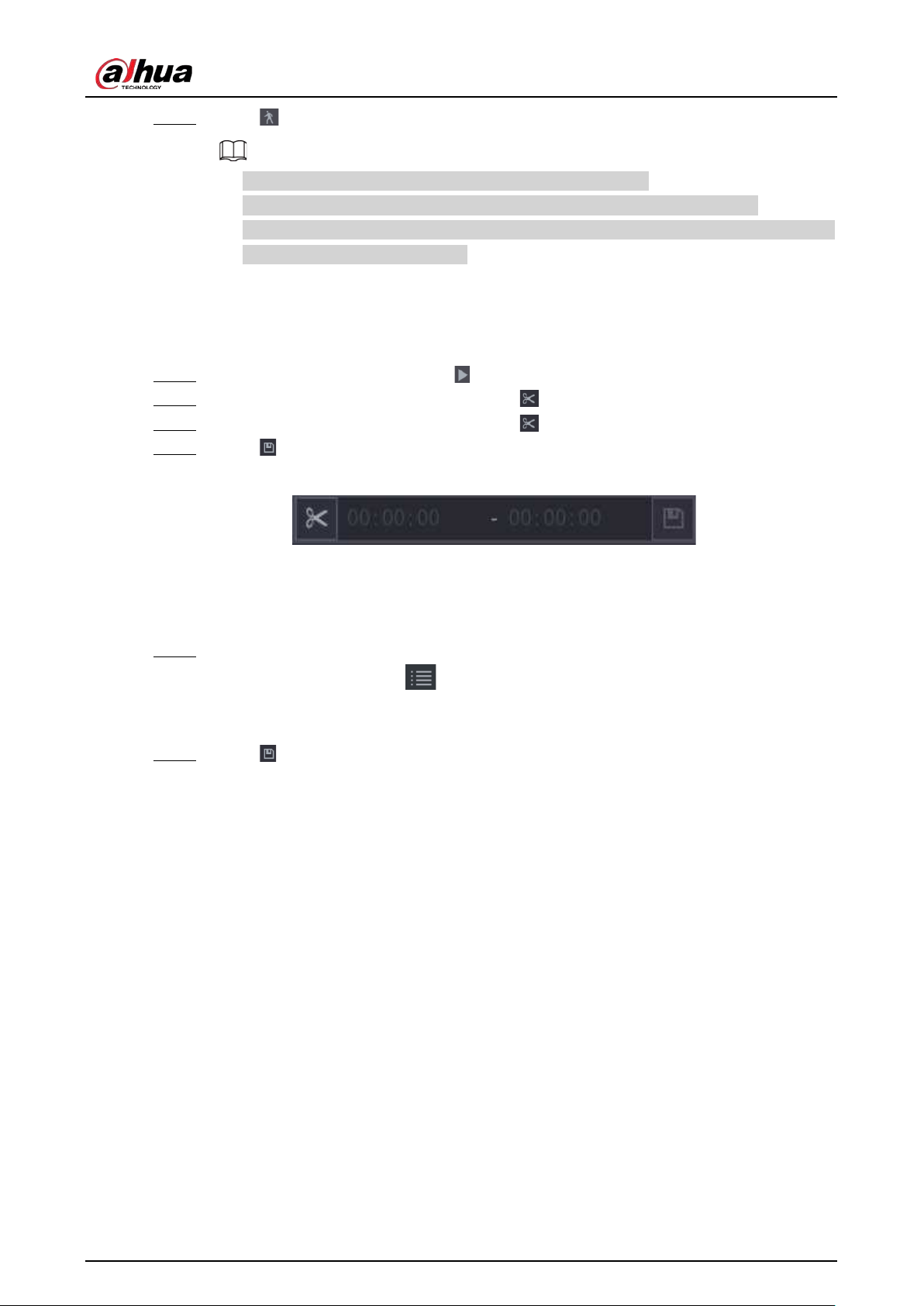
User's Manual
170
Step 4 Click again to stop smart search.
●
The motion detection region cannot be the full screen zone.
●
The motion detection region adopts the current whole play pane by default.
●
The time bar unit switch, rewinding, frame by frame are not available when the system
is playing a motion detection file.
5.8.2.4 Clipping Videos
You can clip some footage from recorded videos to a new file and then save to the USB device.
Step 1 Select a record first and then click to play back.
Step 2 Select a time on the time bar and then click to start clip.
Step 3 Select a time on the time bar and then click to stop clip.
Step 4 Click , the system pops up dialogue box to save the clip file.
Figure 5-81 Clip
5.8.2.5 Backing Up
You can back up recorded videos, images, or video clips to a USB storage device.
Step 1 Select the files that you want to back up.
●
Videos or images. Click at the lower-right corner of the search page, and then on
the file list, select the files for backup.
●
Video clips. See "5.8.2.4 Clipping Videos".
Step 2 Click .
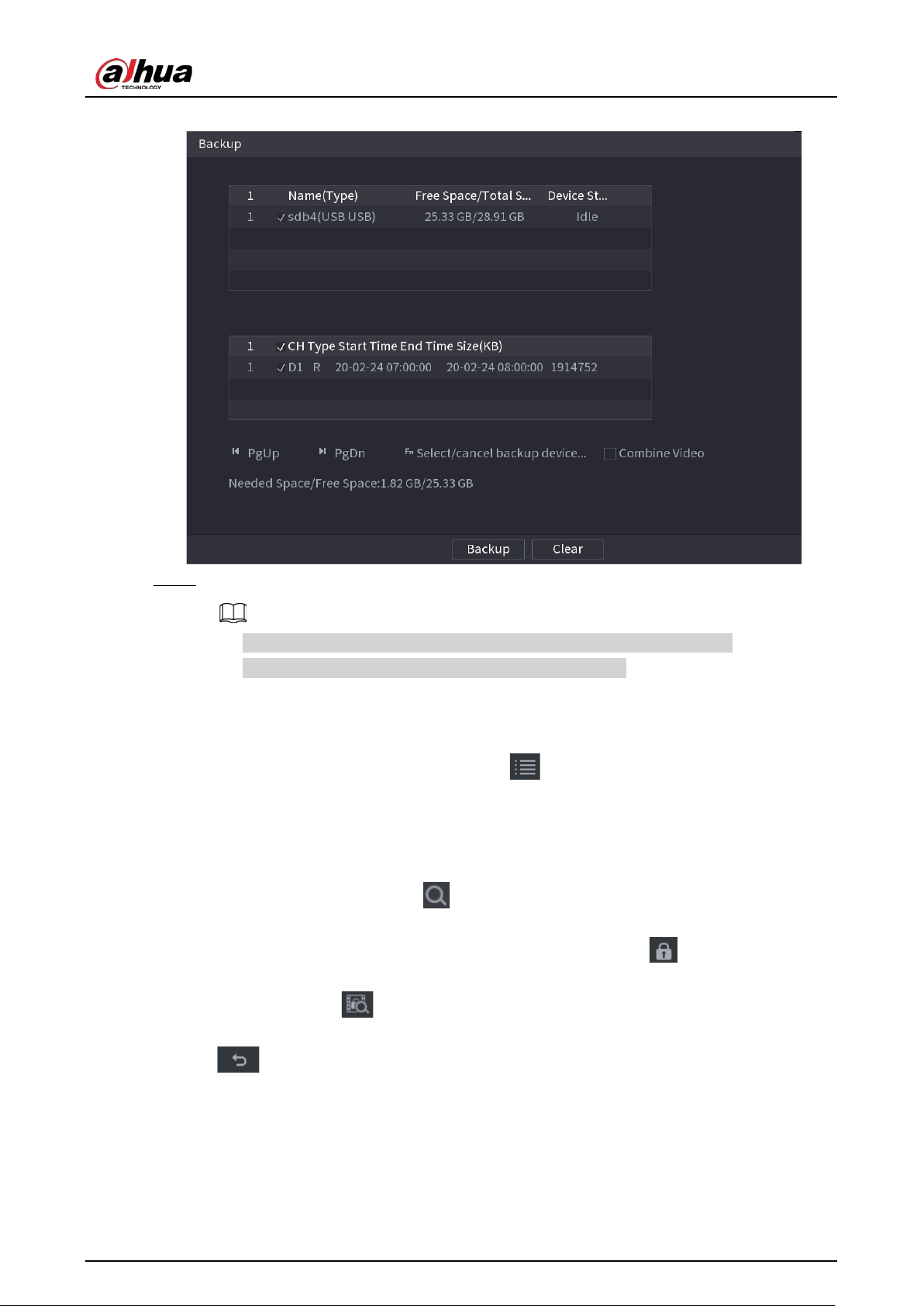
User's Manual
171
Figure 5-82 Backup
Step 3 Select the storage device, and then click
Backup
.
●
You can cancel the selection of the files that you do not want to back up.
●
Select
Combine Video
to merge several videos into one.
5.8.2.6 File List
On the search page, select a channel, and then click to view the file list. On the file list, you can
manage the files of the selected channel.
●
Play.
Double-click a file to play.
●
Search.
Select a specific time and then click .
●
Lock or unlock files.
◇
To lock files, on the file list, select one or more files, and then click . The locked files will
not be overwritten.
◇
To unlock files, click . and then select one or more files and then click
Unlock
.
●
Go back to the previous page.
Click to return to the page with calendar.
5.8.2.7 Tag Playback
When you are playing back a video, you can add a tag to mark an important point in time on the
video. After playback, you can use time or the tag keywords to search for the corresponding video
and then play.
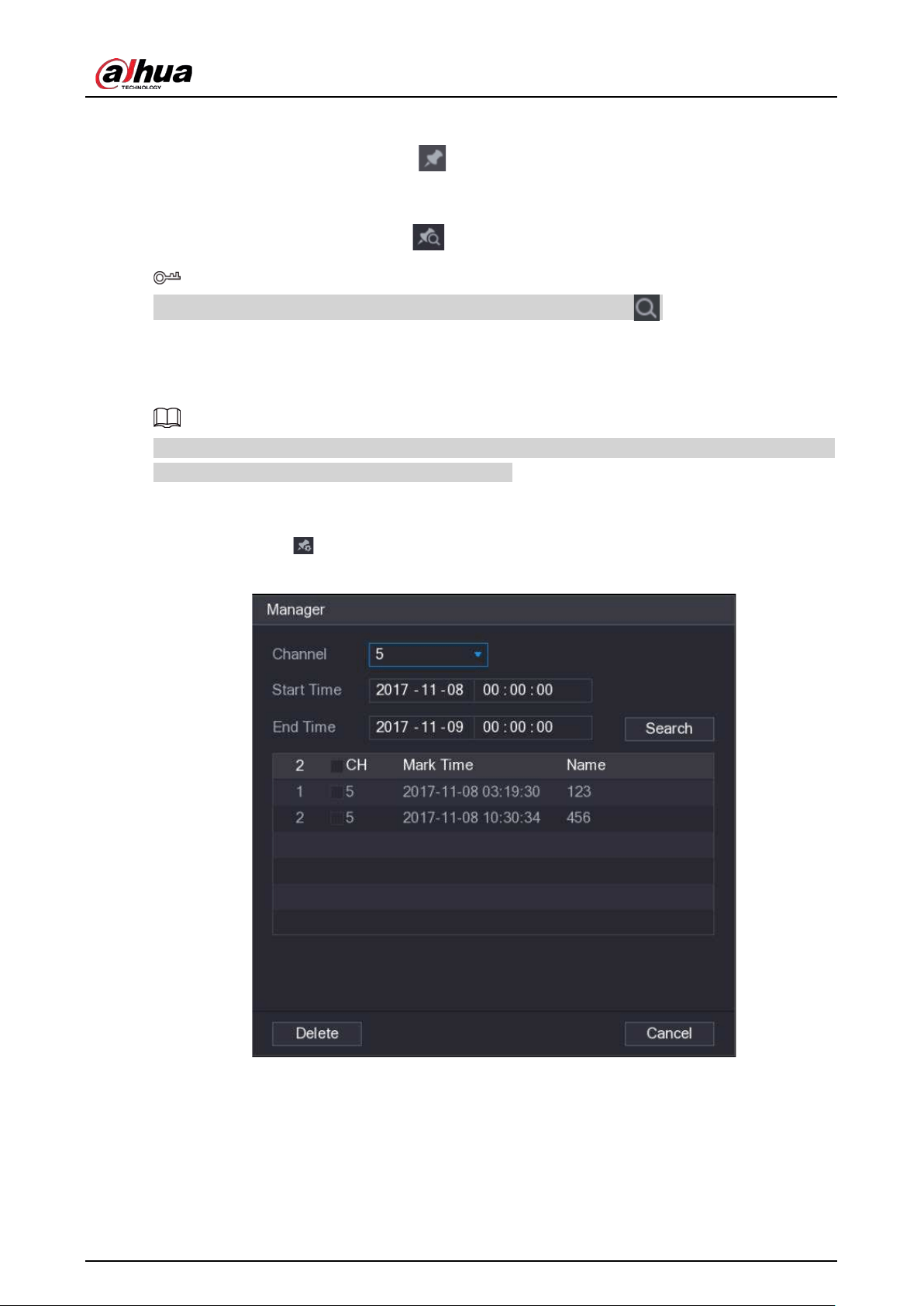
User's Manual
172
Adding Tag
When the system is playing back, click , and then configure the tag name.
Playing back Tag
During single-channel playback, click , and then on the tag list, double-click a file to play back.
To search for tagged videos by time, select the tag time and then click .
Playing before Tagged Time
You can choose to play back from the previous N seconds of the tag time.
The system can play back previous N seconds before the tagged time if there is a video at that point.
Otherwise, the system plays back as much as there is.
Managing Tags
On the tag list, click .
Figure 5-83 Tag management
●
To search for the tagged video, select channel number, start time and end time, and then click
Search
.
●
To change the tag name, double-click a tagged video, and then enter the new name.
●
To delete tags, select one or more tagged videos, and then click
Delete
.
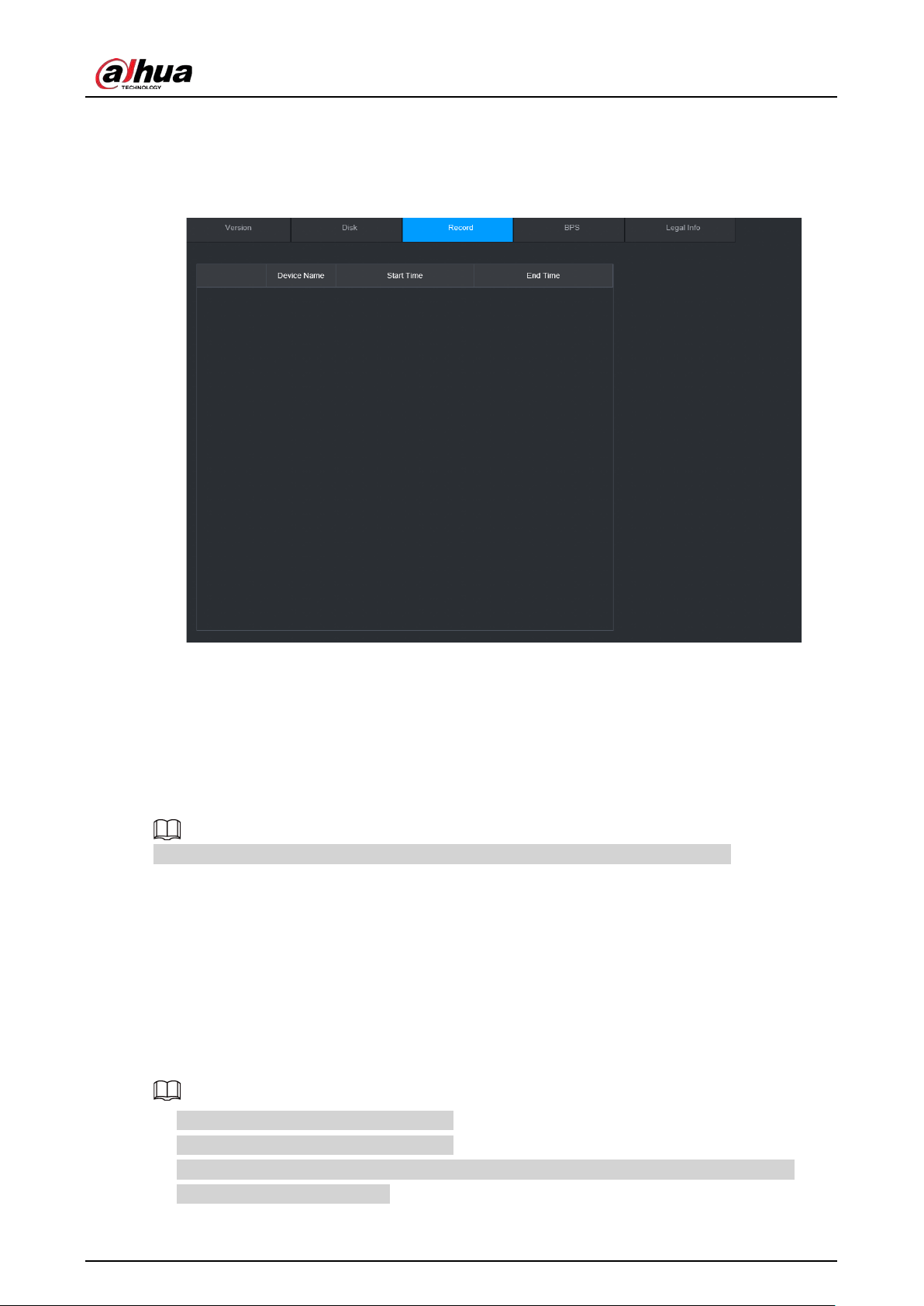
User's Manual
173
5.8.3 Recording Information
Select
Main Menu
>
MAINTAIN
>
System Info
to view the recording information.
Figure 5-84 Recording information
5.9 AI
AI detection is to process and analyze the image and extract the key information, and then compare
the key information with the preset detection rule. An alarm is triggered when the detected
behavior matches the detection rule.
The following figures are for reference only and might differ from the actual situation.
5.9.1 Overview
AI detection falls into AI by camera and AI by recorder.
●
AI by camera: Some cameras themselves support AI detection. The cameras perform AI detection
and send the detection results to the NVR for display. When using AI by camera, make sure to
connect the Device to the cameras that support the corresponding AI detection functions.
●
AI by recorder: The cameras send videos to NVR for detection, analysis and result display.
●
Some models support AI by camera only.
●
The AI functions might vary with models.
●
Different AI functions might conflict with each other. You cannot enable two conflicting AI
functions for the same channel.
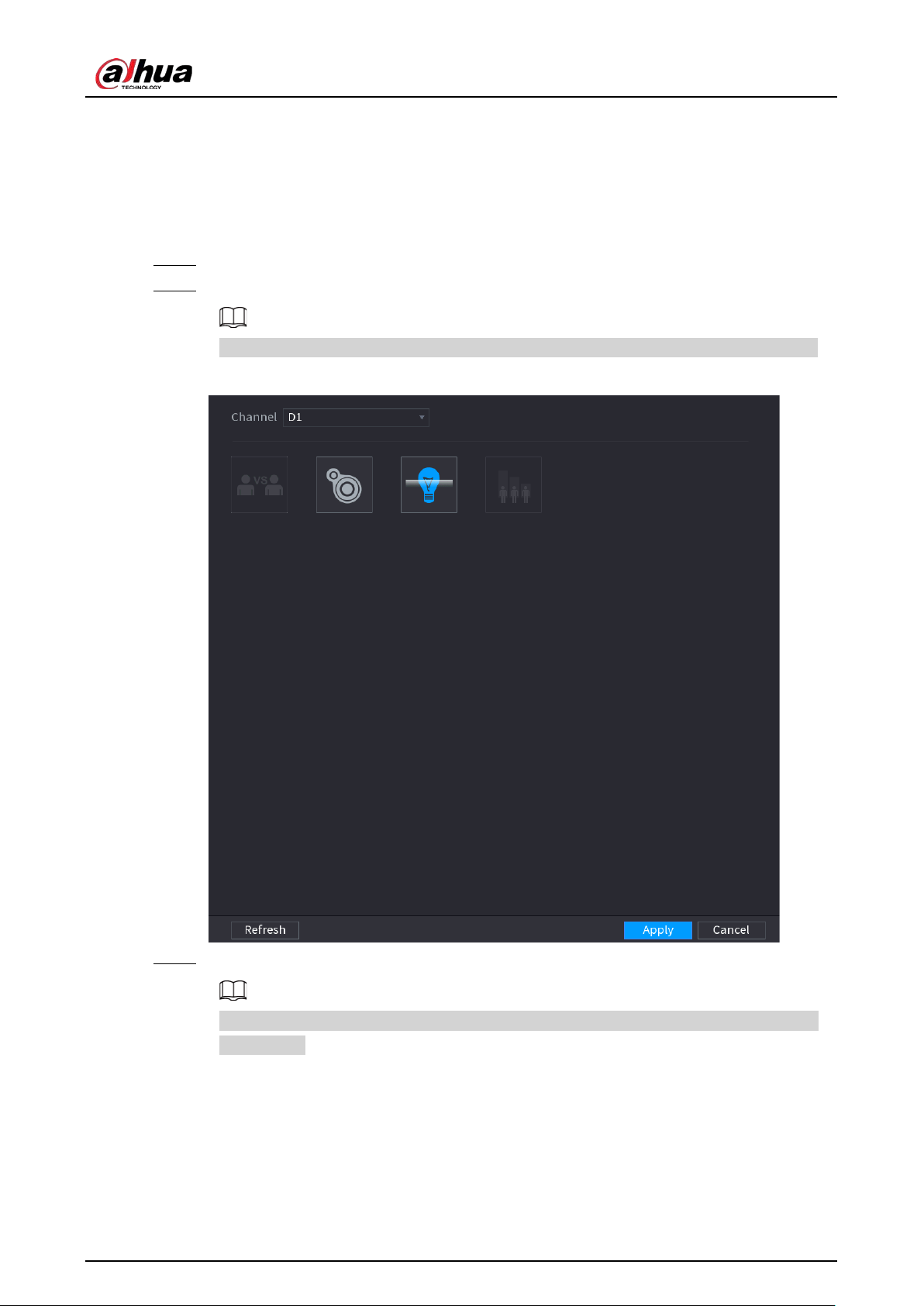
User's Manual
174
5.9.2 Smart Plan
To use AI by camera for face detection, face recognition and other detection functions, you need to
enable the corresponding smart plan first.
Procedure
Step 1 Select
Main Menu
>
AI
>
Parameters
>
Smart Plan
.
Step 2 Select a channel.
The page might differ depending on which smart plans that the remote device supports.
Figure 5-85 Smart plan
Step 3 Click the icon that represents the smart plan to enable it. The icon becomes highlighted.
If the channel is connected to a PTZ camera, you can set smart plans separately for each
preset point.
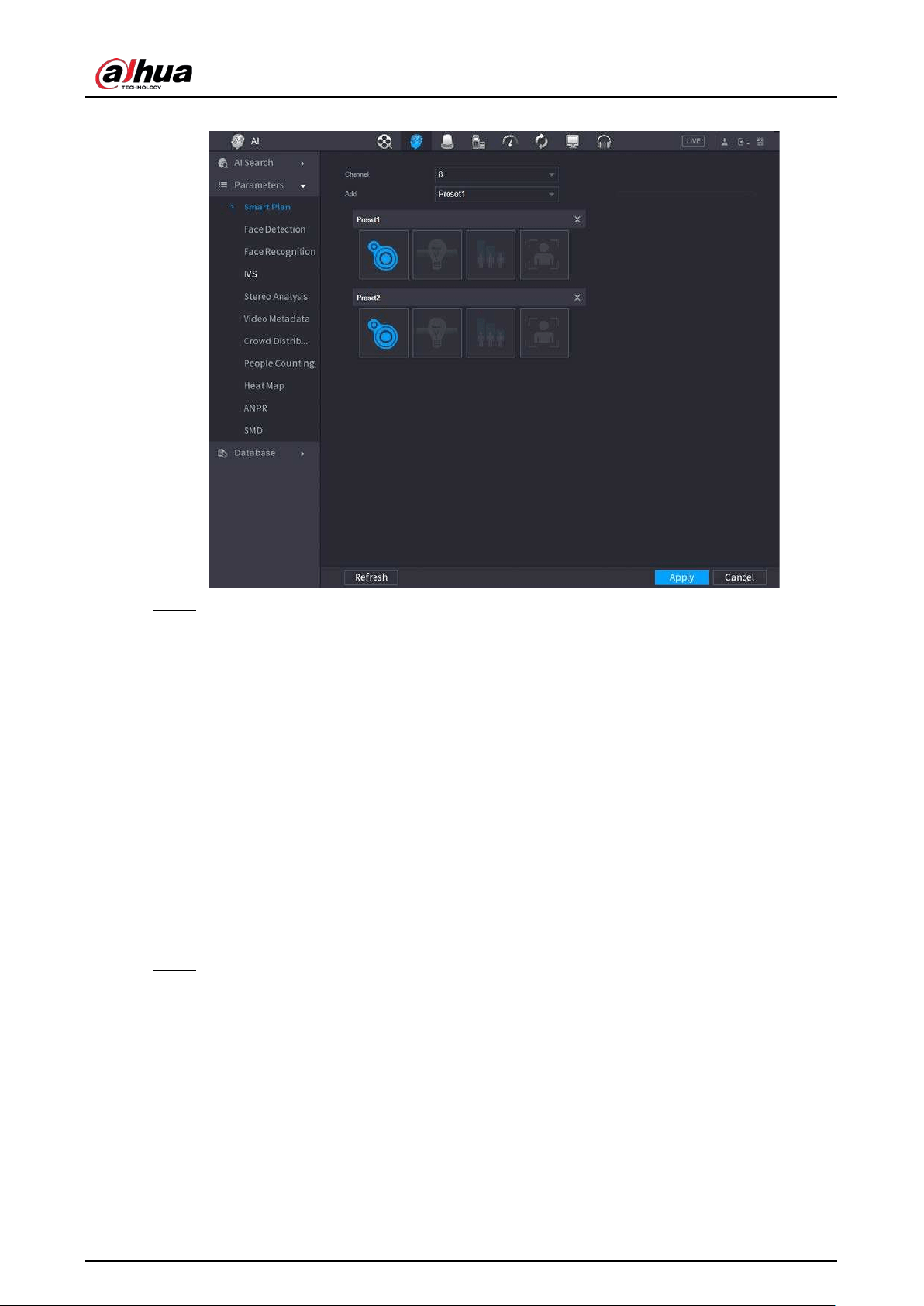
User's Manual
175
Figure 5-86 Smart plan (PTZ)
Step 4 Click
Apply
.
5.9.3 Face Detection
The Device can detect faces on the video image.
5.9.3.1 Enabling Smart Plan
To use AI by camera, you need to enable the smart plan first. For details, see "5.9.2 Smart Plan".
5.9.3.2 Configuring Face Detection
Configure alarm rules for face detection.
Procedure
Step 1 Select
Main Menu
>
AI
>
Parameters
>
Face Detection
.
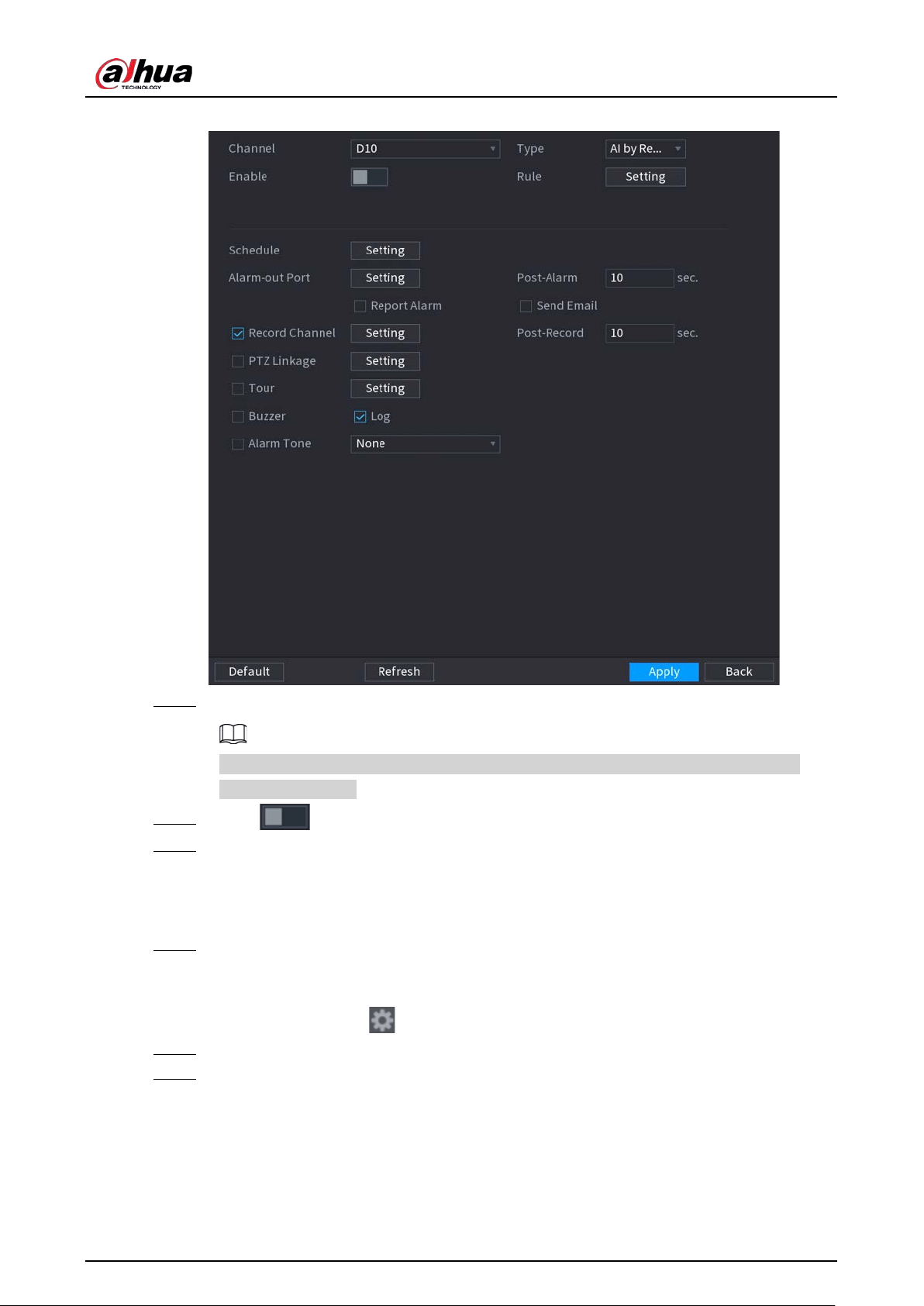
User's Manual
176
Figure 5-87 Face detection
Step 2 Select a channel, and then select
AI by Reorder
or
AI by Camera
as
Type
.
When
AI by Camera
is selected, you can enable
Face Enhancement
to improve face
detection efficiency.
Step 3 Click to enable face detection.
Step 4 Click
Setting
next to
Rule
to draw areas to filter the target.
You can configure two target filters (maximum size and minimum size). The system
triggers an alarm when the size of detected target is between the maximum size and the
minimum size.
Step 5 Click
Setting
next to
Schedule
to configure the arming period.
The system triggers corresponding alarm actions only during the arming period.
●
On the time line, drag to set the period.
●
You can also click to set the period.
Step 6 Configure alarm linkage actions. For details, see Table 5-43.
Step 7 Click
Apply
.
5.9.3.3 AI Search (Face Detection)
You can search for the detected faces and play back related recordings.
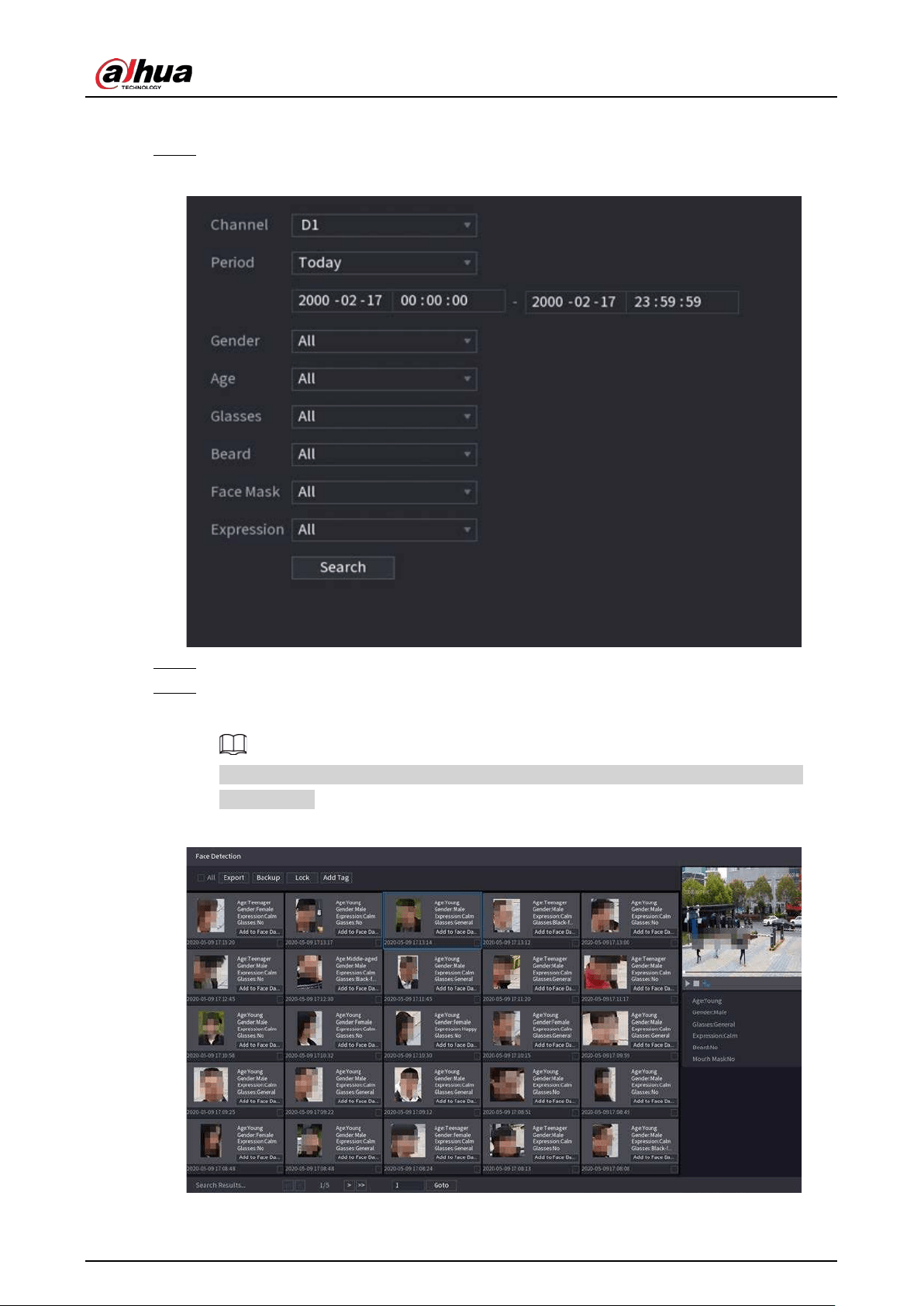
User's Manual
177
Procedure
Step 1 Select
Main Menu
>
AI
>
AI Search
>
Face Detection
.
Figure 5-88 Face search
Step 2 Select the channel, enter the start time and end time, and select the attributes.
Step 3 Click
Search
.
The results are displayed.
For privacy reason, the human faces in the image are intentionally blurred. The actual
image is clear.
Figure 5-89 Search results
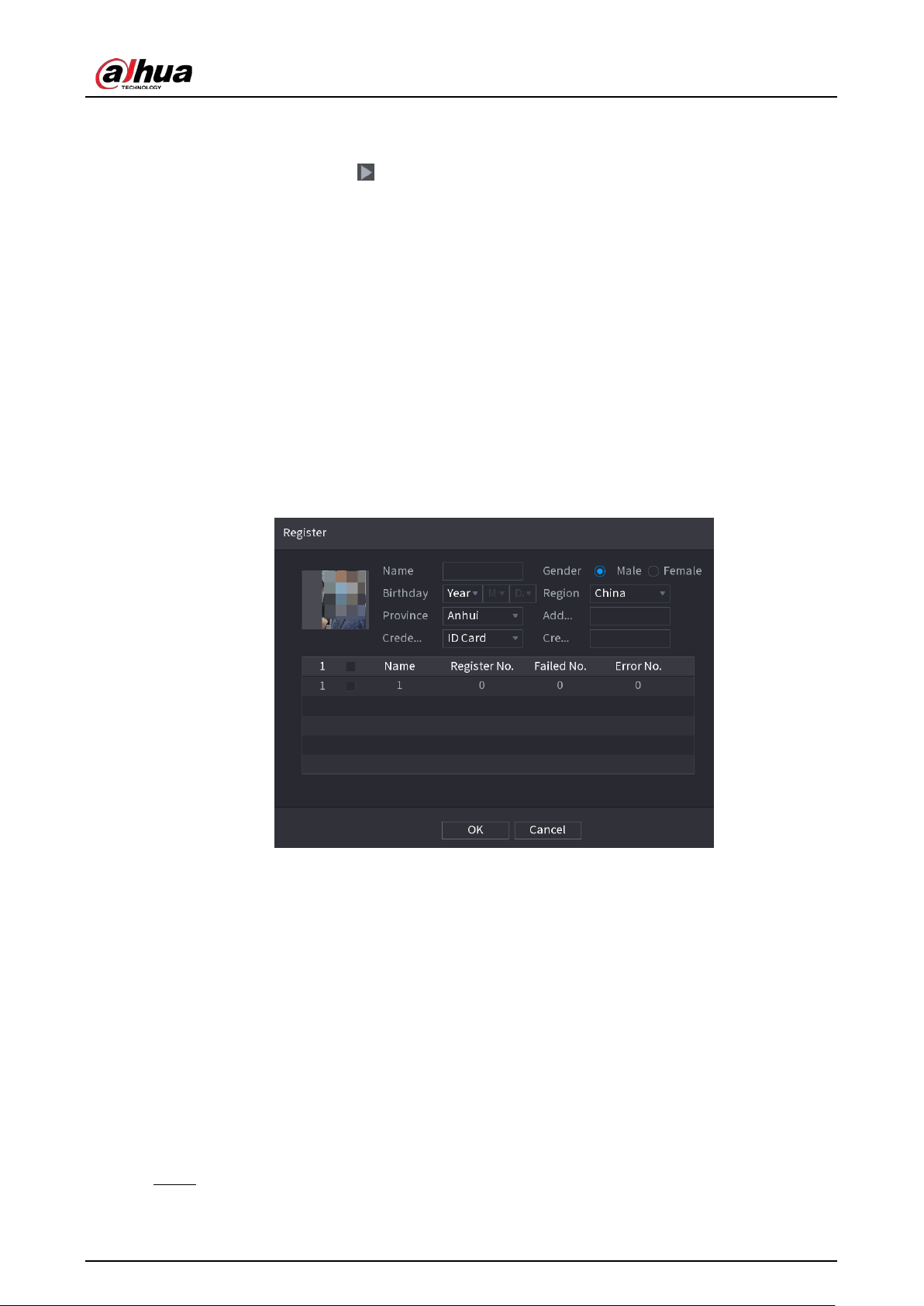
User's Manual
178
Related Operations
●
Play related video.
Click a face and then click . The system plays back the video around the snapshot time.
●
Export.
Click
Export
to export results in Excel format.
●
Back up.
Select one or more images, click
Backup
, select the storage path and file type, and then click
Start
to back up the selected files to an external storage device.
●
Lock.
Select one or more images and then click
Lock
. The locked files will not be overwritten.
●
Add tags.
Select one or more images and then click
Add Tag
.
●
Add to face database.
Click
Add to Face Database
, enter corresponding information, and then add the image to the
face database.
Figure 5-90 Add face image to database
5.9.4 Face & Body Detection
After enabling face & body detection, you can view the face and body snapshots and related
attributes on the live page.
5.9.4.1 Enabling Smart Plan
To use AI by camera, you need to enable the smart plan first. For details, see "5.9.2 Smart Plan".
5.9.4.2 Configuring Face & Body Detection
Configure alarm rules for face and body detection.
Step 1 Select
Main Menu
>
AI
>
Parameters
>
Face Detection
.
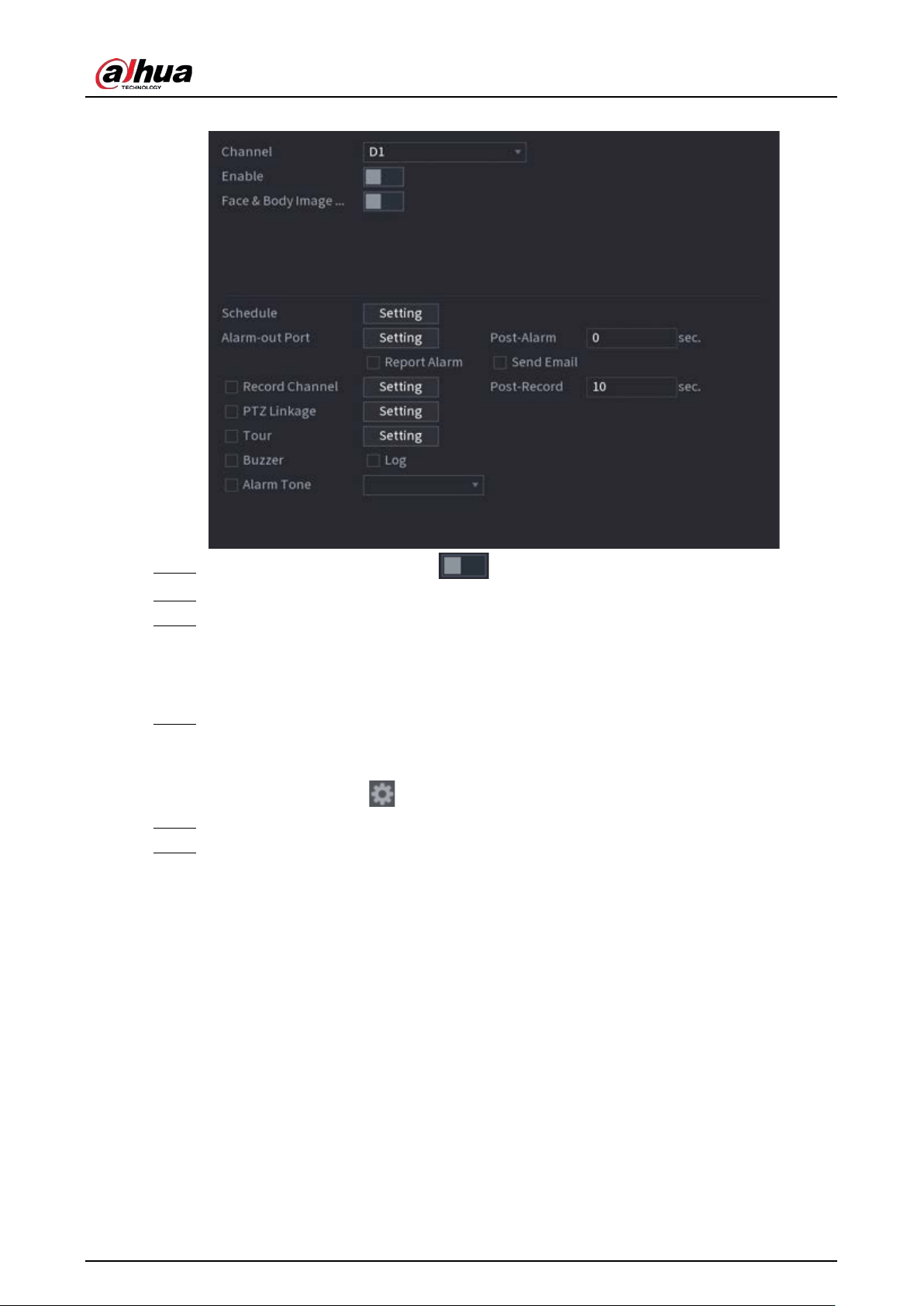
User's Manual
179
Figure 5-91 Face and body detection
Step 2 Select a channel, and then click to enable the function.
Step 3 Enable
Face & Body Image Enhancement
to improve detection efficiency.
Step 4 Configure target filters.
You can configure two target filters (maximum size and minimum size). The system
triggers an alarm when the size of detected target is between the maximum size and the
minimum size.
Step 5 Click
Setting
next to
Schedule
to configure the arming period.
The system triggers corresponding alarm actions only during the arming period.
●
On the time line, drag to set the period.
●
You can also click to set the period.
Step 6 Configure alarm linkage actions. For details, see Table 5-43.
Step 7 Click
Apply
.
5.9.4.3 AI Search (Face & Body Detection)
To search for face detection results, see "5.9.3.3 AI Search (Face Detection)". To search for body
detection results, see "5.9.8.3.1 Human Detection".
5.9.5 Face Recognition
The system compares the detected faces with the faces in the database to judge whether the
detected face belongs to the database. When the similarity reaches the defined threshold, an alarm
is triggered.
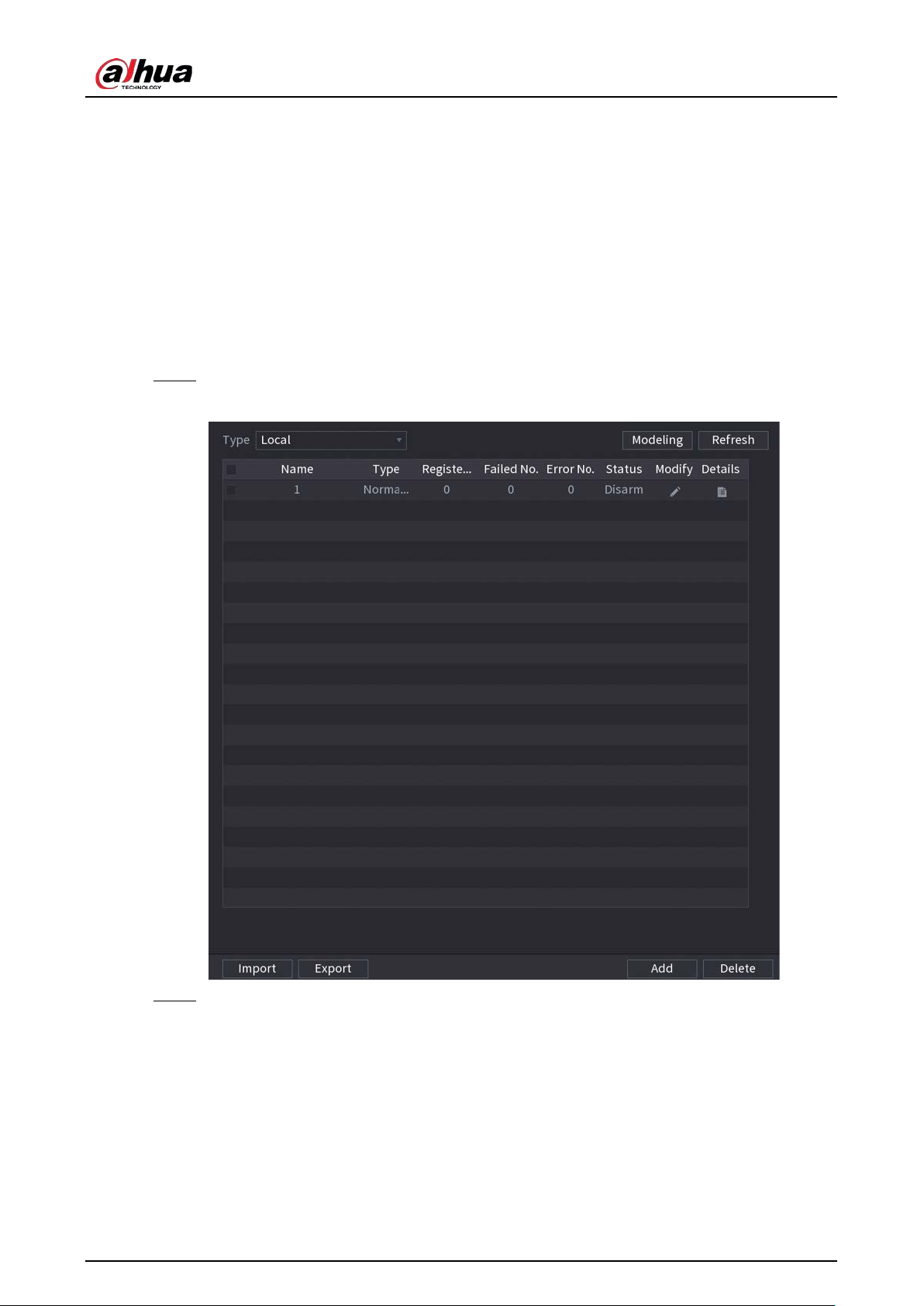
User's Manual
180
5.9.5.1 Enabling Smart Plan
To use AI by camera, you need to enable the smart plan first. For details, see "5.9.2 Smart Plan".
5.9.5.2 Creating Face Database
Create face databases to manage face images for face recognition.
5.9.5.2.1 Creating Local Face Databases
You can create face databases on the Device to manage face images for face recognition by Device.
Step 1 Select
Main Menu
>
AI
>
Database
>
Face Database Config
.
Figure 5-92 Face database configuration
Step 2 Select
Local
as
Type
, and then click
Add
.
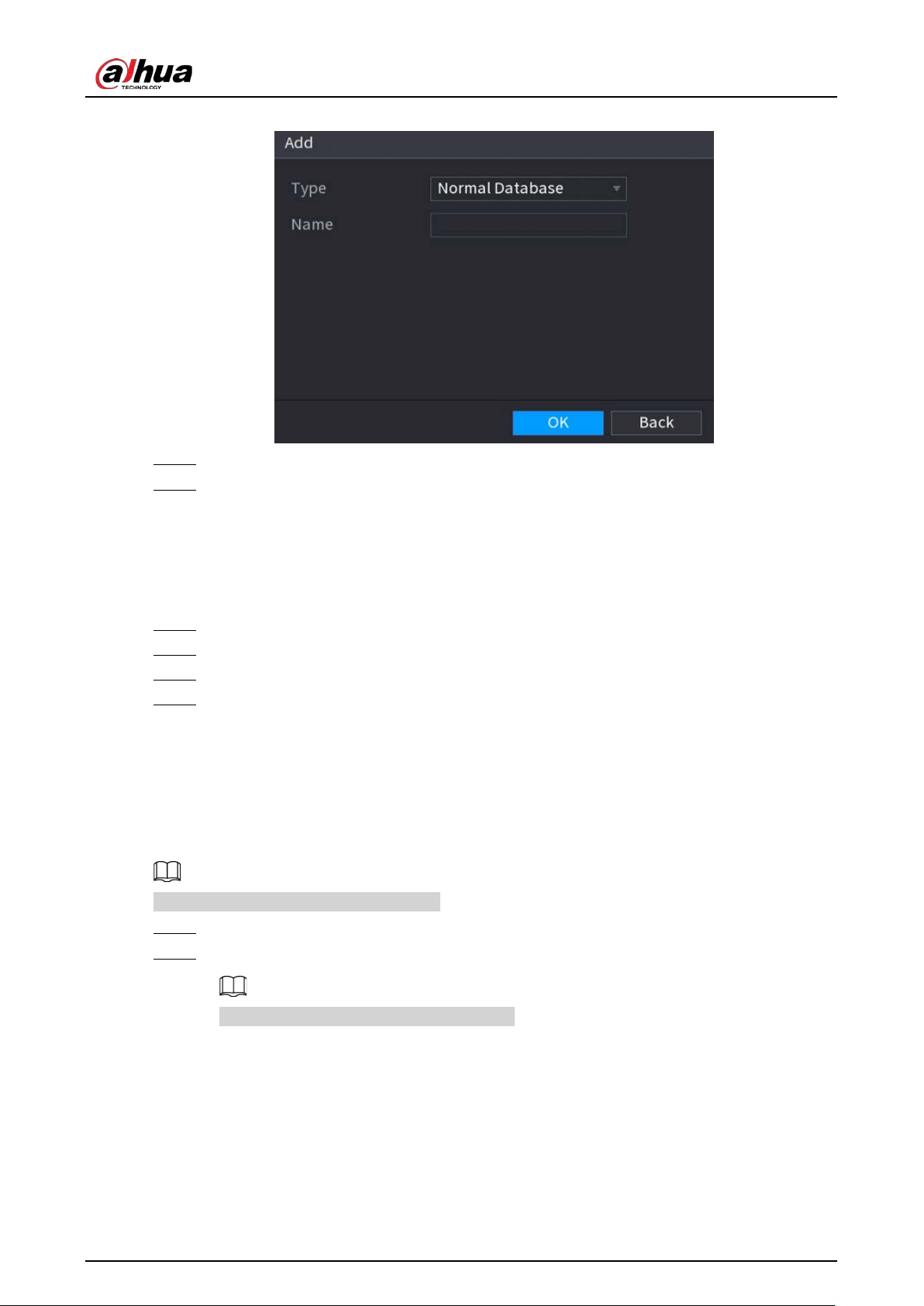
User's Manual
181
Figure 5-93 Add database
Step 3 Select
Normal Database
from the
Type
list, and then enter database name.
Step 4 Click
OK
.
5.9.5.2.2 Creating Remote Face Databases
The Device can get face databases from the remote devices, and also allows creating face databases
for remote devices. The remote device face database is suitable for face recognition by Camera.
Step 1 Select
Main Menu
>
AI
>
Database
>
Face Database Config
.
Step 2 Select
Remote
as
Type
, select a channel and then click
Add
.
Step 3 Enter database name.
Step 4 Click
OK
.
5.9.5.2.3 Creating the Passerby Database
If you use the passerby database for alarm linkage, when the detected face is not in the face
database, the system automatically captures the face image, and then save it to the passerby
database.
This function is available on select models.
Step 1 Select
Main Menu
>
Database
>
Face Database Config
.
Step 2 Select
Local
as
Type
, and then click
Add
.
You can create only one passerby database.
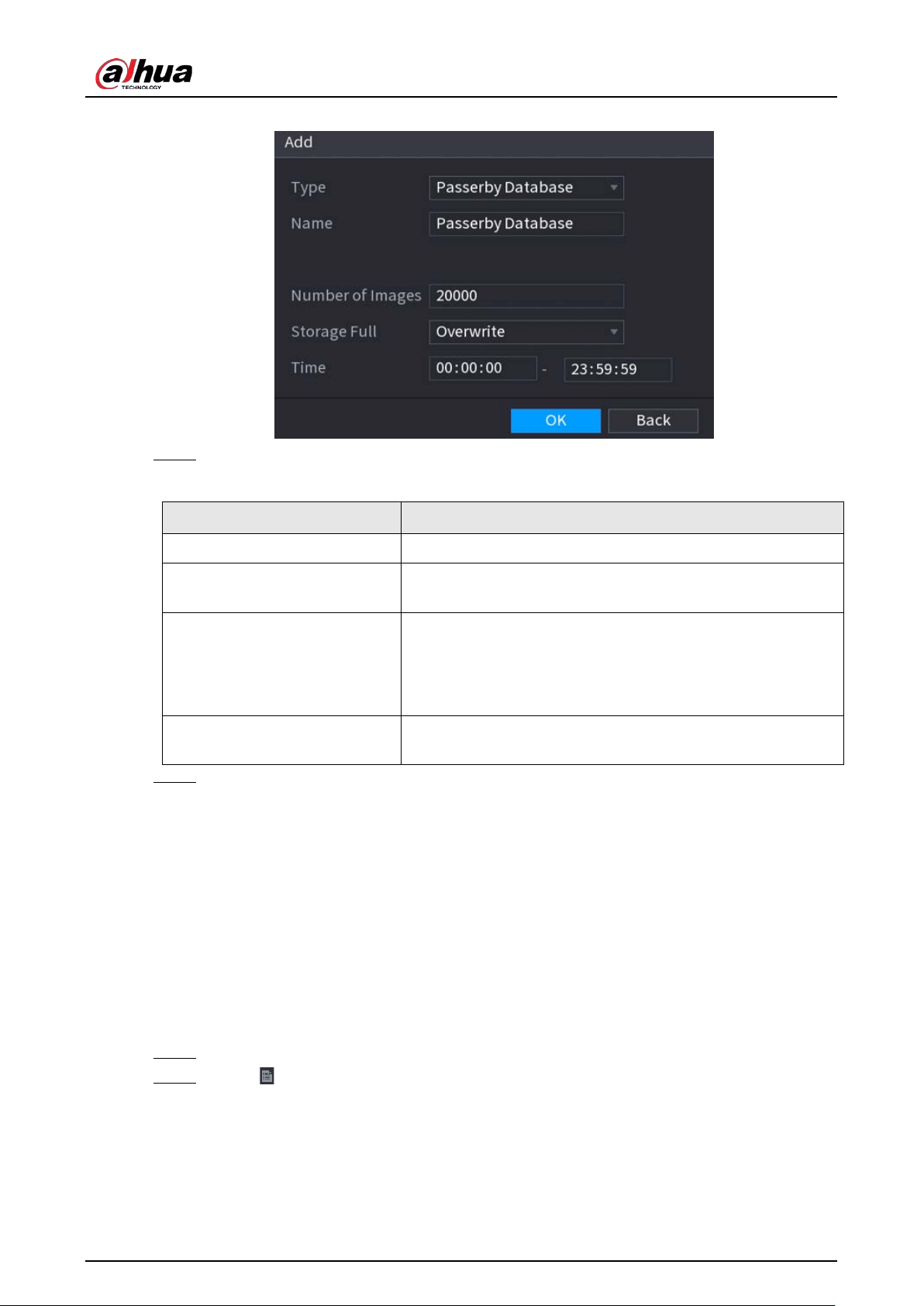
User's Manual
182
Figure 5-94 Add database
Step 3 Select
Passerby Database
from the
Type
list, and then configure other parameters.
Table 5-26 Passerby database parameters
Parameter Description
Name Enter a name for the passerby database.
Number of Images
Configure the number of images that the database can
contain.
Storage Full
Select the storage strategy when space is full.
●
Stop: No more images can be added.
●
Overwrite: The newest images overwrite the oldest
images. Back up the old images as necessary.
Time
Set the period in which the system removes duplicate face
images from the database.
Step 4 Click
OK
.
5.9.5.3 Adding Images to Face Database
You can add face images to the existing databases one by one or in batches.
5.9.5.3.1 Adding Face Images One by One
You can add one face image to the database. It is for the scenario that the registered human face
picture amount is small.
Procedure
Step 1 Select
Main Menu
>
AI
>
Database
>
Face Database Config
.
Step 2 Click of the database that you want to configure.
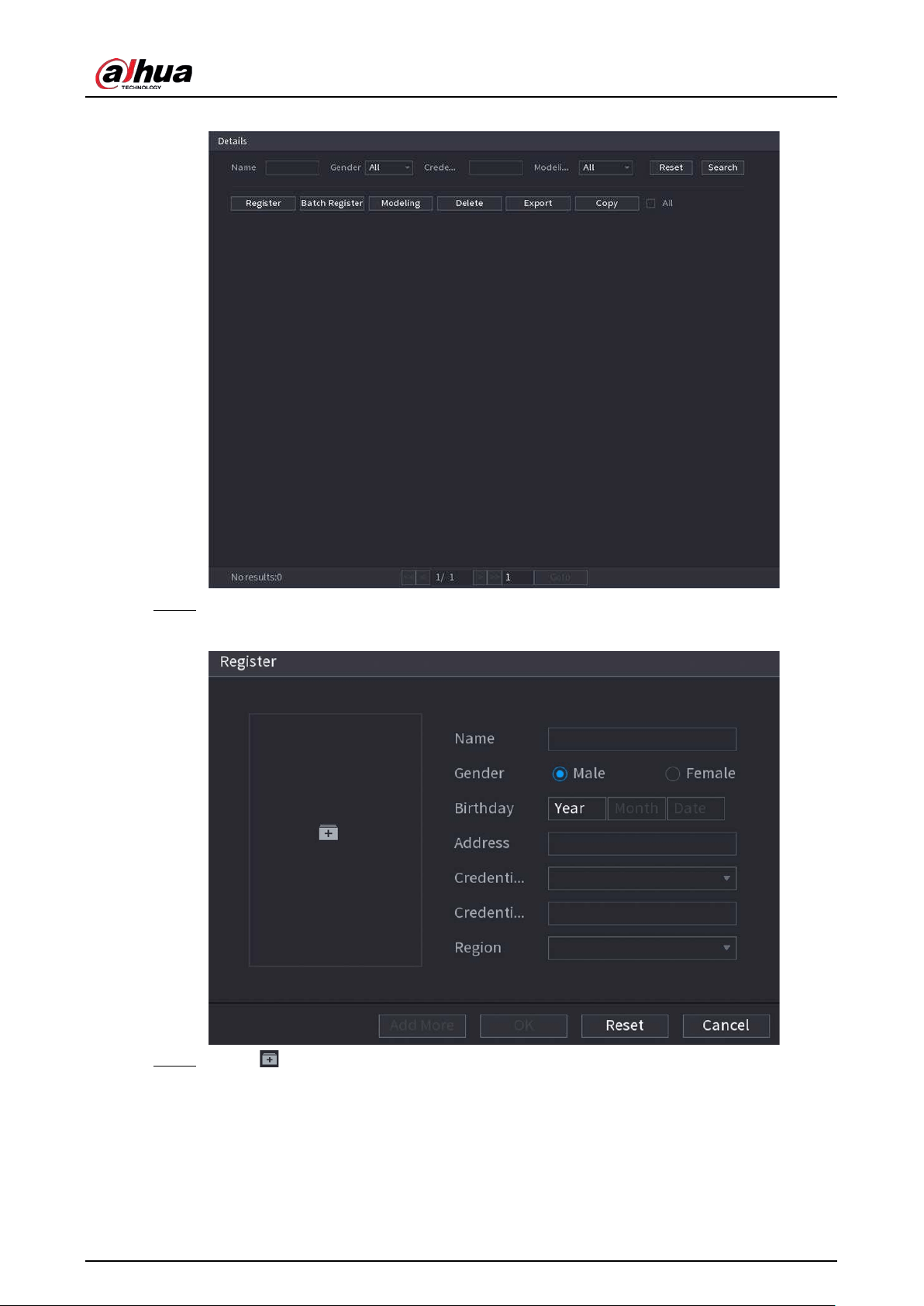
User's Manual
183
Figure 5-95 Databases details
Step 3 Click
Register
.
Figure 5-96 Register
Step 4 Click to add a face image.
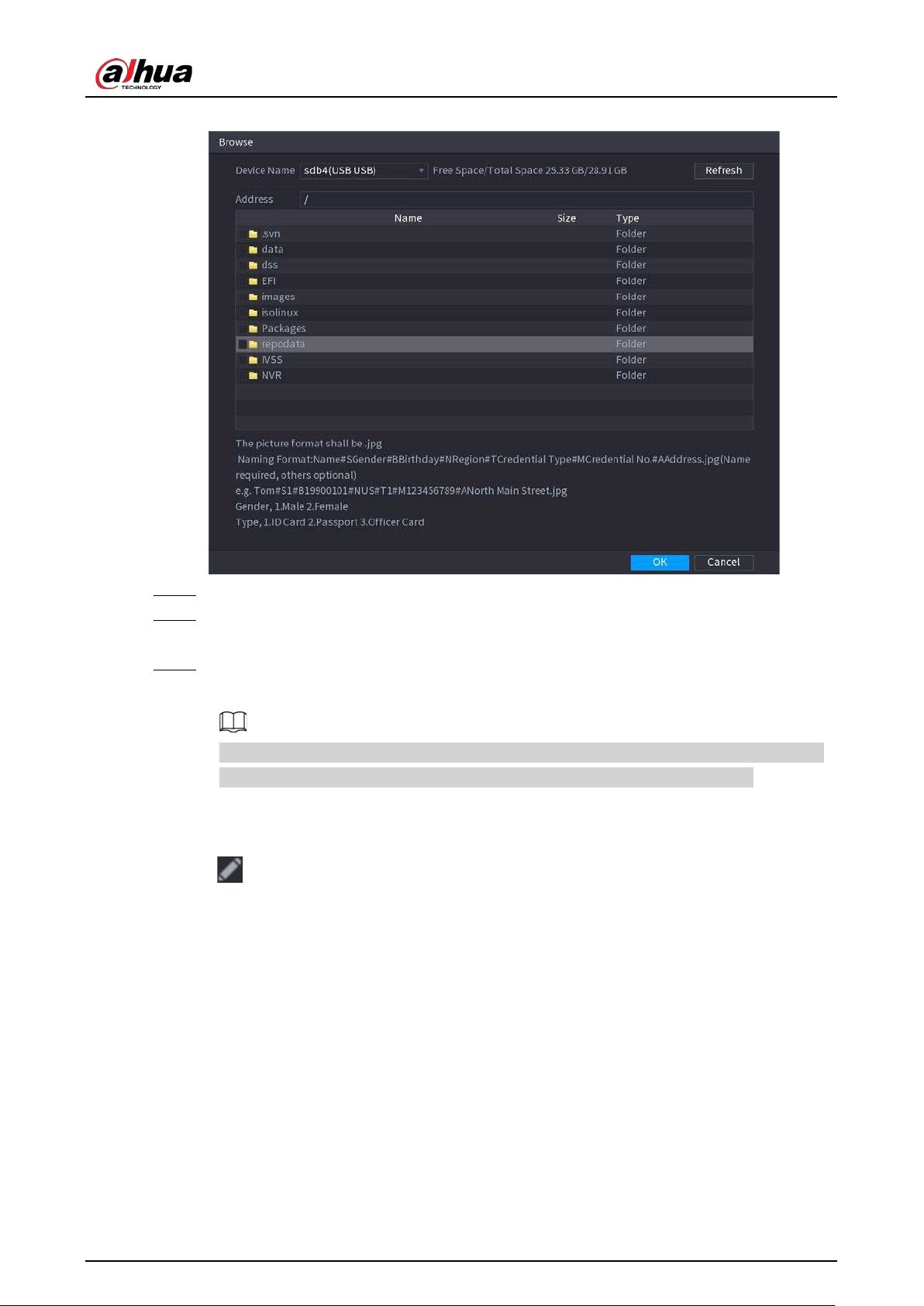
User's Manual
184
Figure 5-97 Browse
Step 5 Select a face image and then enter the registration information.
Step 6 Click
OK
.
The system prompts the registration is successful.
Step 7 On the
Details
page, click
Search
.
The system prompts modeling is successful.
If the system prompts modeling is in process, wait a while and then click
Search
again. If
modeling failed, the registered face image cannot be used for face recognition.
Related Operations
●
Edit registration information.
Click to modify the registration information.
●
Model face images.
The face images are modeled automatically after added to face database. You can also model
face images manually.
◇
On the
Database Config
page, select a database, and then click
Modeling
to model all the
face images in the database.
◇
On the
Details
page, select one or more face images, and then click
Modeling
to model the
selected images.
●
Export face images.
Select one or more face images, and then click
Export
.
●
Delete face images.
Select one or more face images, and then click
Delete
.
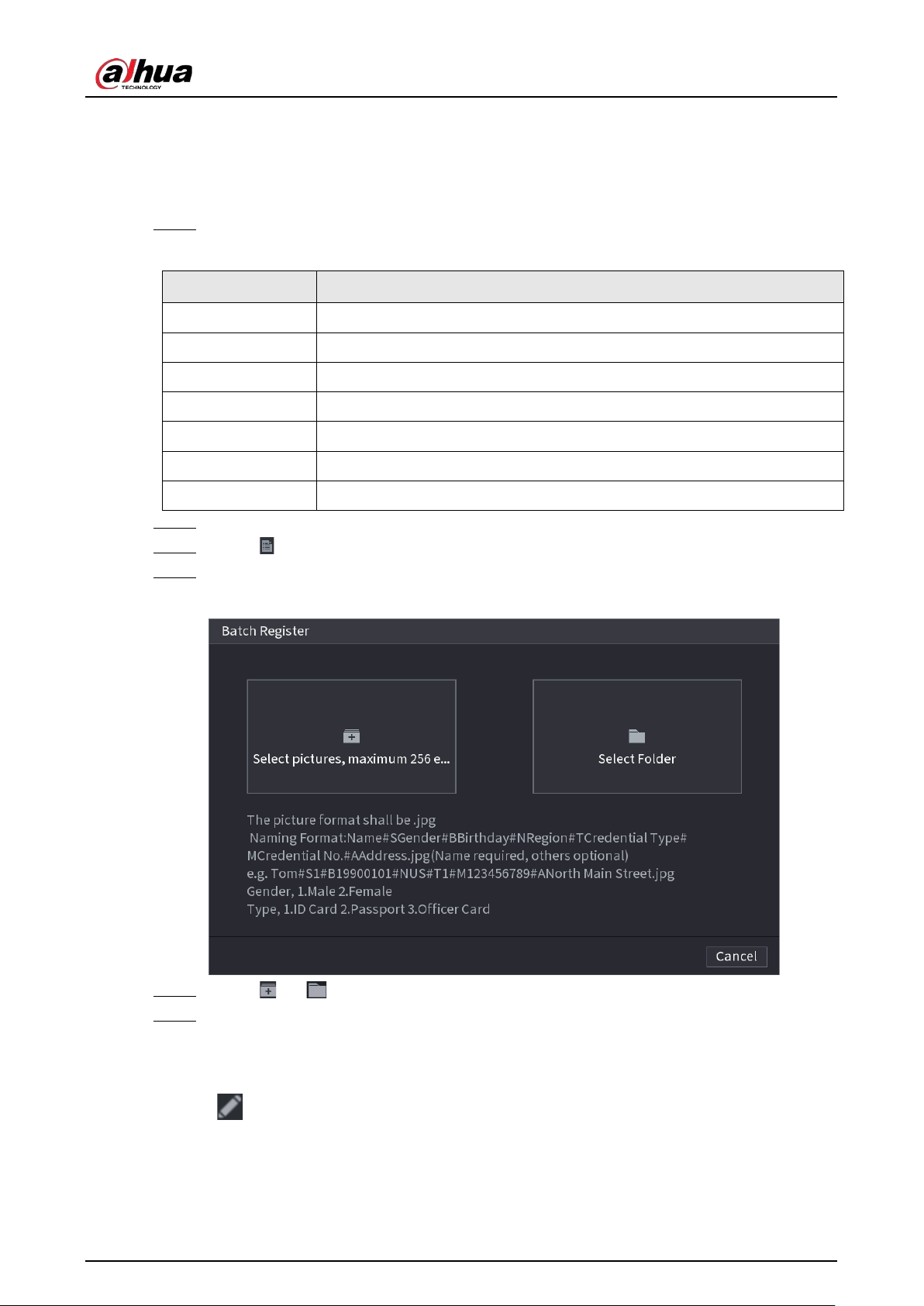
User's Manual
185
5.9.5.3.2 Adding Face Images in Batches
The system supports batch add if you want to import several human face image at the same time.
Procedure
Step 1 Give a name to the face picture by referring to the following table.
Table 5-27 Naming rule
Naming format Description
Name Enter the name.
Gender Enter 1 or 2. 1 represents male, and 2 represents female.
Birthday Enter numbers in the format of yyyy-mm-dd.
Region Enter the abbreviation of region. For example, CN for China.
Credential Type 1 represents ID card; 2 represents passport; 3 represents officer card.
Credential No. Enter the credential number.
Address Enter the address.
Step 2 Select
Main Menu
>
AI
>
Database
>
Face Database Config
.
Step 3 Click of the database that you want to configure.
Step 4 Click
Batch Register
.
Figure 5-98 Batch register
Step 5 Click or to import face images.
Step 6 Click
OK
.
Related Operations
●
Edit registration information.
Click to modify the registration information.
●
Model face images.
The face images are modeled automatically after added to face database. You can also model
face images manually.
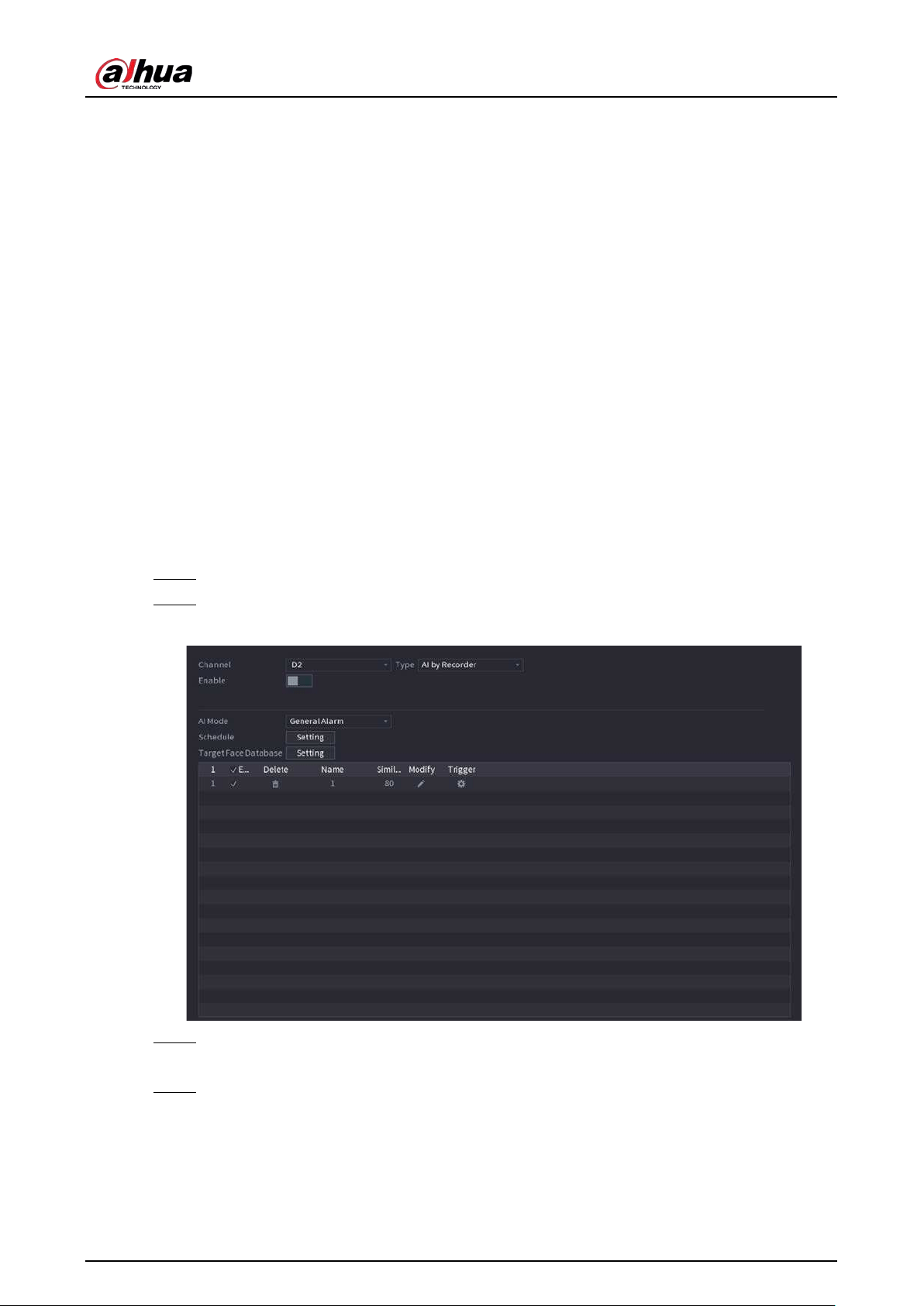
User's Manual
186
◇
On the
Database Config
page, select a database, and then click
Modeling
to model all the
face images in the database.
◇
On the
Details
page, select one or more face images, and then click
Modeling
to model the
selected images.
●
Export face images.
Select one or more face images, and then click
Export
.
●
Delete face images.
Select one or more face images, and then click
Delete
.
5.9.5.4 Configuring Face Recognition
Configure alarm rules for face recognition.
5.9.5.4.1 Configuring AI by Recorder
Prerequisites
Make sure the face detection function is enabled at corresponding channel.
Procedure
Step 1 Select
Main Menu
>
AI
>
Parameters
>
Face Recognition
.
Step 2 Select the channel, enable the function, and select
AI by Recorder
in the
Type
list.
Figure 5-99 AI by recorder
Step 3 Click
Setting
next to
Schedule
to configure arming periods. The corresponding alarm
actions are linked by the alarm events triggered during armed period.
Step 4 Arm target face database.
●
General Alarm
: The alarm is triggered when the similarity of detected faces reaches
the defined value.
1. Select
General Alarm
in
AI Mode
.
2. Click
Setting
next to
Target Face Database
.
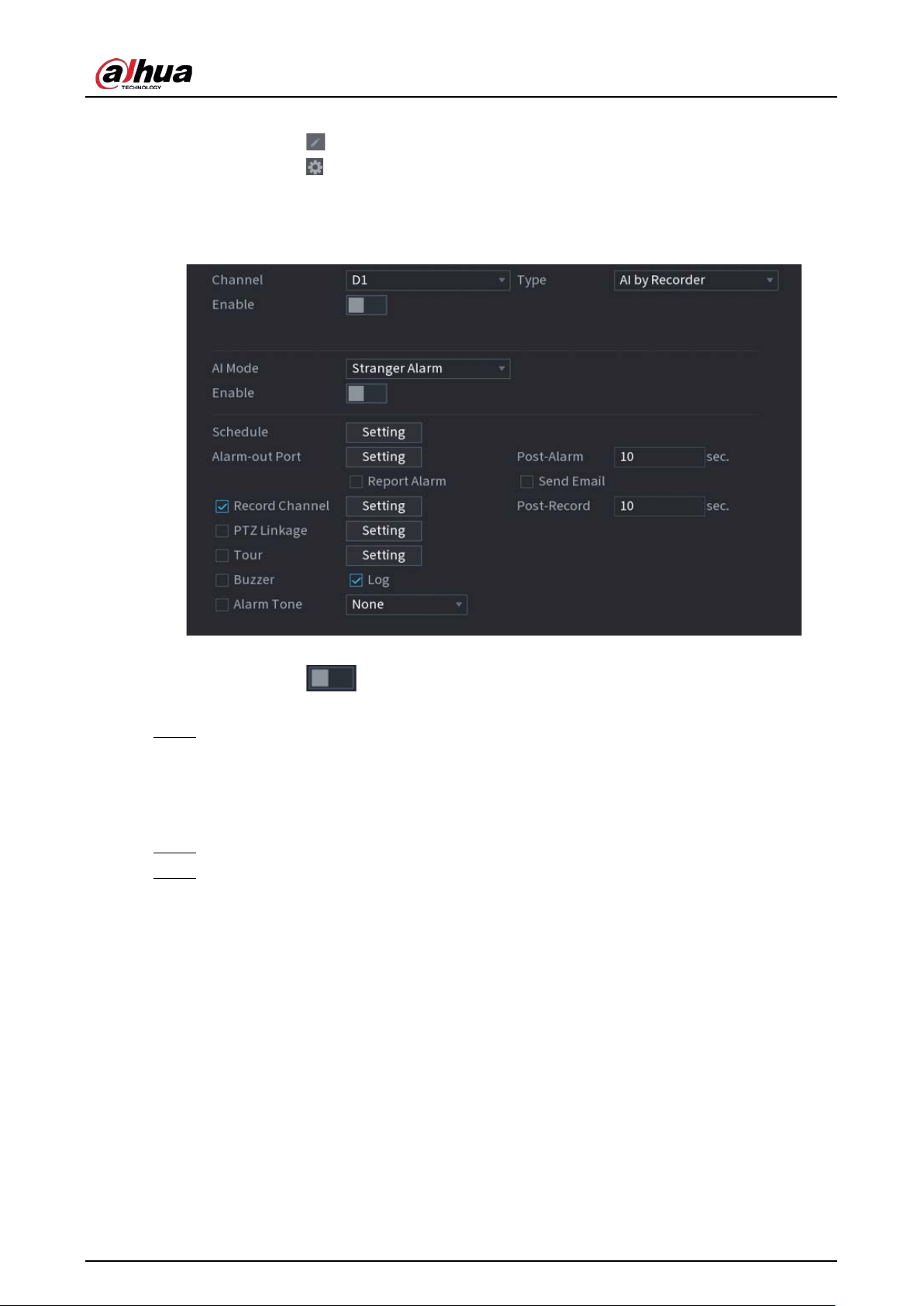
User's Manual
187
3. Select the face database that you want to arm, and then click
OK
.
4. Click to modify similarity.
5. Click to configure alarm linkages.
●
Stranger Alarm
: The alarm is triggered when the similarity of detected faces does not
reach the defined value.
Figure 5-100 Stranger alarm (AI by recorder)
1. Select
Stranger Alarm
in
AI Mode
.
2. Click enable the function.
3. Configure the alarm linkage actions. For details on alarm linkage, see Table 5-43.
Step 5 Click
Apply
.
5.9.5.4.2 Configuring AI by Camera
Make sure the connected camera supports face recognition.
Step 1 Select
Main Menu
>
AI
>
Parameters
>
Face Recognition
.
Step 2 Select the channel, enable the function, and select
AI by Camera
in the
Type
list.
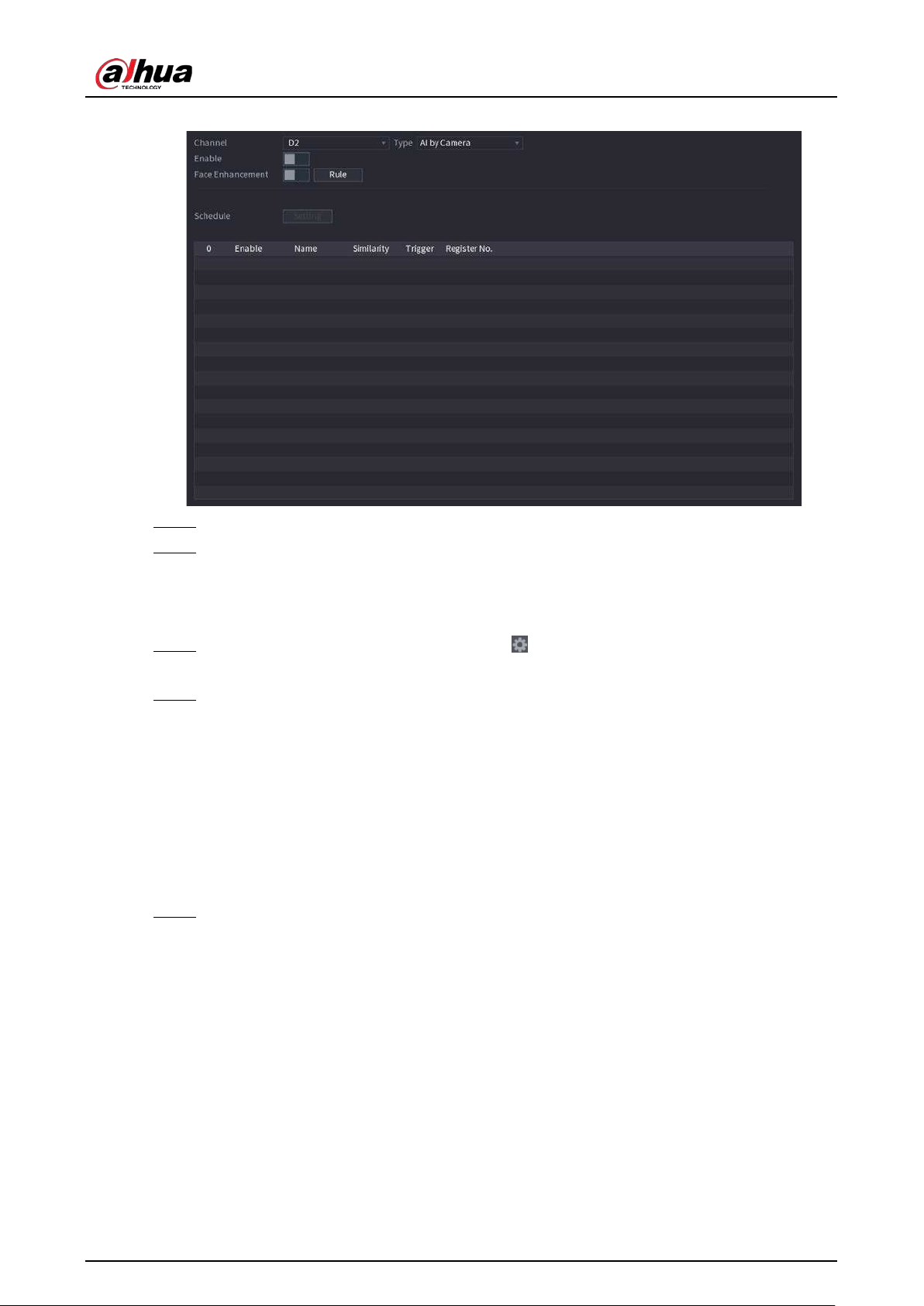
User's Manual
188
Figure 5-101 AI by camera
Step 3 Enable
Face Enhancement
to make the faces displayed more clear.
Step 4 Click
Rule
to draw areas to filter the target.
You can configure two target filters (maximum size and minimum size). When the target is
smaller than the minimum size or larger than the maximum size, no alarms will be
activated.
Step 5 Select target face database, and then click to configure alarm linkage. For details on
alarm linkage, see Table 5-43.
Step 6 Click
Apply
.
5.9.5.5 AI Search (Face Recognition)
You can search for the face recognition results by attributes or by image.
5.9.5.5.1 Search by Attributes
Procedure
Step 1 Select
Main Menu
>
AI
>
AI Search
>
Face Recognition
>
Search by Attributes
.
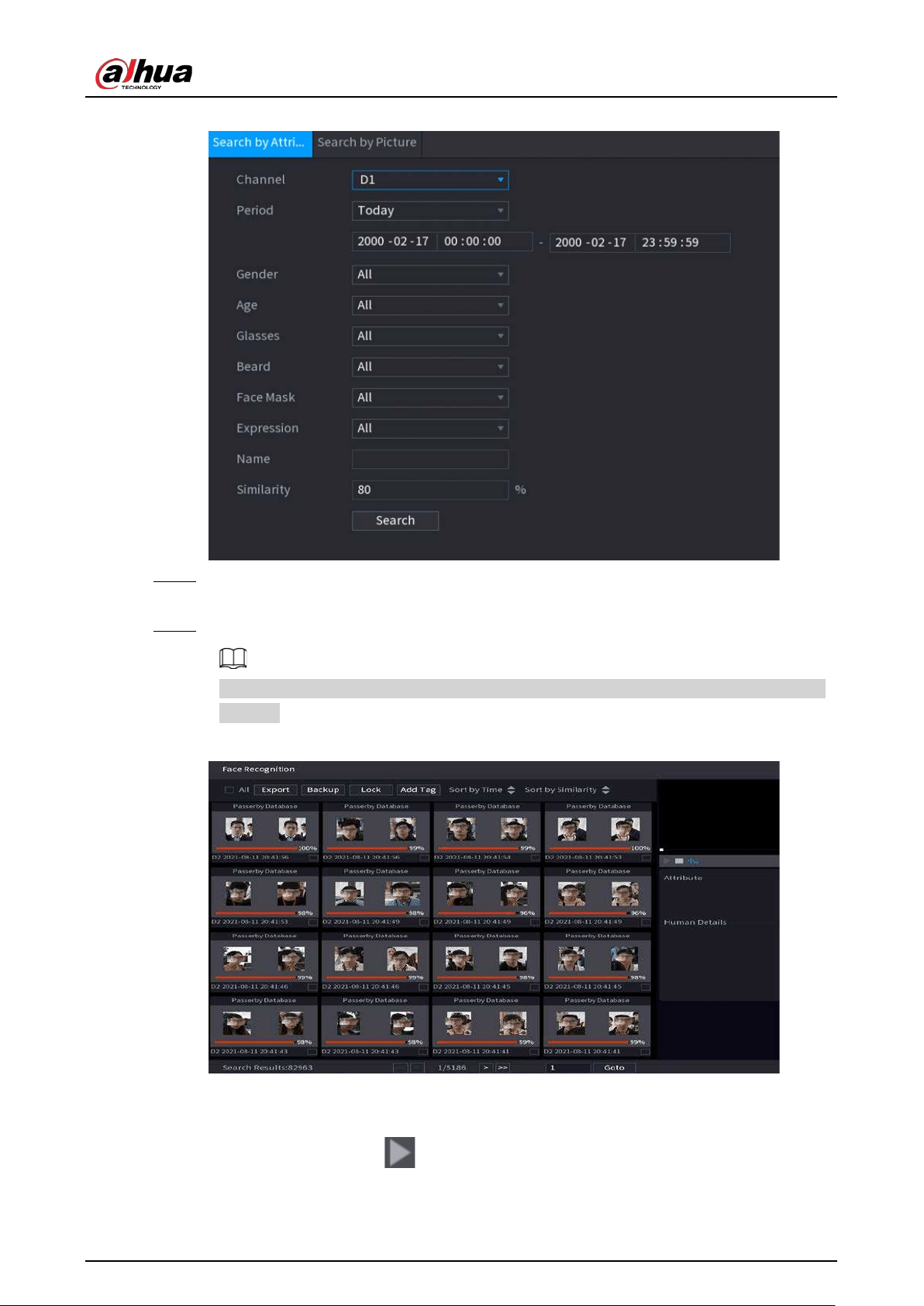
User's Manual
189
Figure 5-102 Search by attributes
Step 2 Select the channel and set the parameters including start time, end time, gender, age,
glasses, beard, mask, name and similarity.
Step 3 Click
Search
.
The faces in the image are intentionally blurred for privacy protection. The actual images
are clear.
Figure 5-103 Search results
Related Operations
●
Play back video.
Click an image, and then click to play back the related video.
During playback, you can:
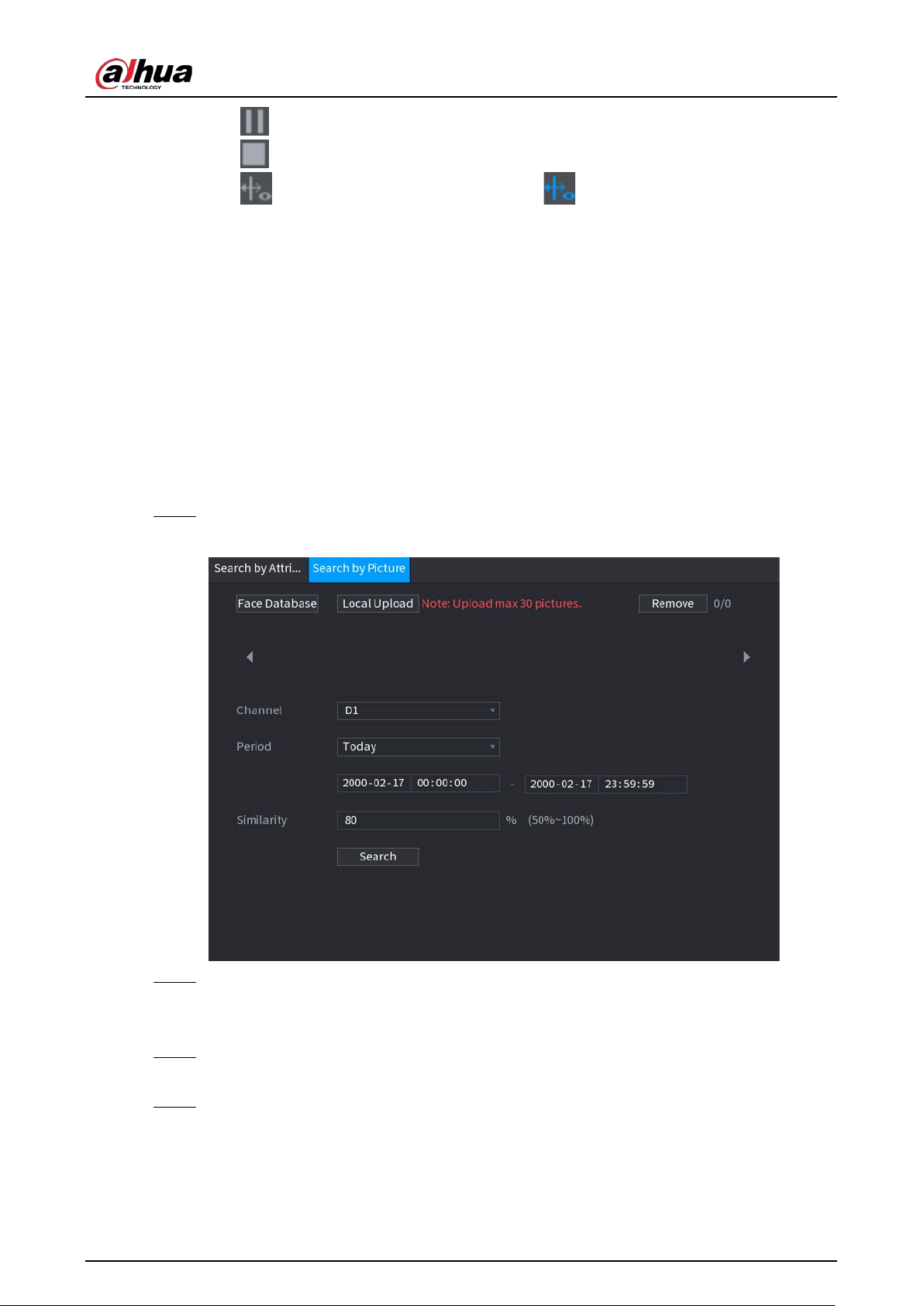
User's Manual
190
◇
Click to pause.
◇
Click to stop.
◇
Click to display AI rule. The icon changes to .
●
Add tags.
Select one or more images, and then click
Add Tag
.
●
Lock.
Select one or more images, and then click
Lock
. The locked files will not be overwritten.
●
Export.
Select one or more images, and then click
Export
to export selected search results in excel.
●
Back up.
Select one or more images, click
Backup
, select the storage path and file type, and then click
Start
to export files to external storage device.
5.9.5.5.2 Search by Image
Step 1 Select
Main Menu
>
AI
>
AI Search
>
Face Recognition
>
Search by Picture
.
Figure 5-104 Search by image
Step 2 Upload face images.
●
Face Database
: Upload face images from database.
●
Local Upload
: Upload face images from external storage device.
Step 3 Select the image used to search and then set the parameters including channel, start time,
end time, gender, age, glasses, beard, mask, and similarity.
Step 4 Click
Search
.
The search results are displayed.
Related Operations
●
Play back video.
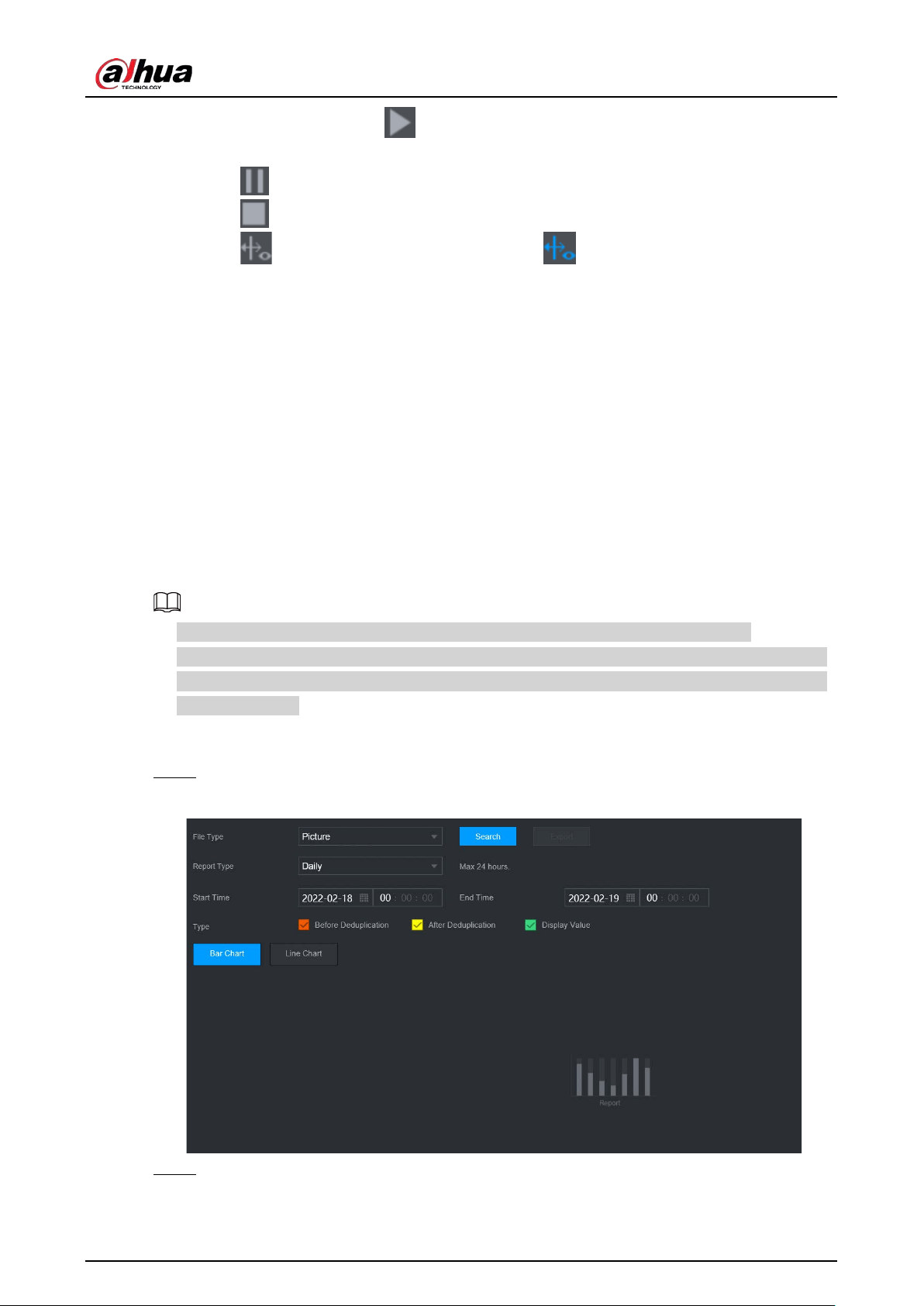
User's Manual
191
Click an image, and then click to play back the related video.
During playback, you can:
◇
Click to pause.
◇
Click to stop.
◇
Click to display AI rule. The icon changes to .
●
Add tags.
Select one or more images, and then click
Add Tag
.
●
Lock.
Select one or more images, and then click
Lock
. The locked files will not be overwritten.
●
Export.
Select one or more images, and then click
Export
to export selected search results in excel.
●
Back up.
Select one or more images, click
Backup
, select the storage path and file type, and then click
Start
to export files to external storage device.
5.9.5.5.3 Report Query
You can search for and export face statistics.
●
The statistics might be overwritten when the storage space runs out. Back up in time.
●
When you restore the Device to factory settings, all the data except data in the external storage
device will be cleared. You can clear the data in the external storage device through formatting
or other methods.
Procedure
Step 1 Select
Main Menu
>
AI
>
Report Query
>
Face Statistics
.
Figure 5-105 Face statistics
Step 2 Select the report type, start time and end time, and then click
Search
.

User's Manual
192
Related Operations
●
Switch chart type.
Click
Bart Chart
or
Line Chart
to switch the chart type.
●
Export.
Select file type, and then click
Export
to export the report in picture or csv format.
5.9.6 IVS
The IVS function processes and analyzes the images to extract the key information to match the
specified rules. When the detected behaviors match the rules, the system activates alarms.
●
This function is available on select models.
●
IVS and face detection cannot be enabled at the same time.
5.9.6.1 Enabling Smart Plan
To use AI by camera, you need to enable the smart plan first. For details, see "5.9.2 Smart Plan".
5.9.6.2 Configuring IVS
5.9.6.2.1 Tripwire
When the detection target crosses the warning line along the set direction, the system performs an
alarm linkage action.
Step 1 Select
Main Menu
>
AI
>
Parameters
>
IVS
.
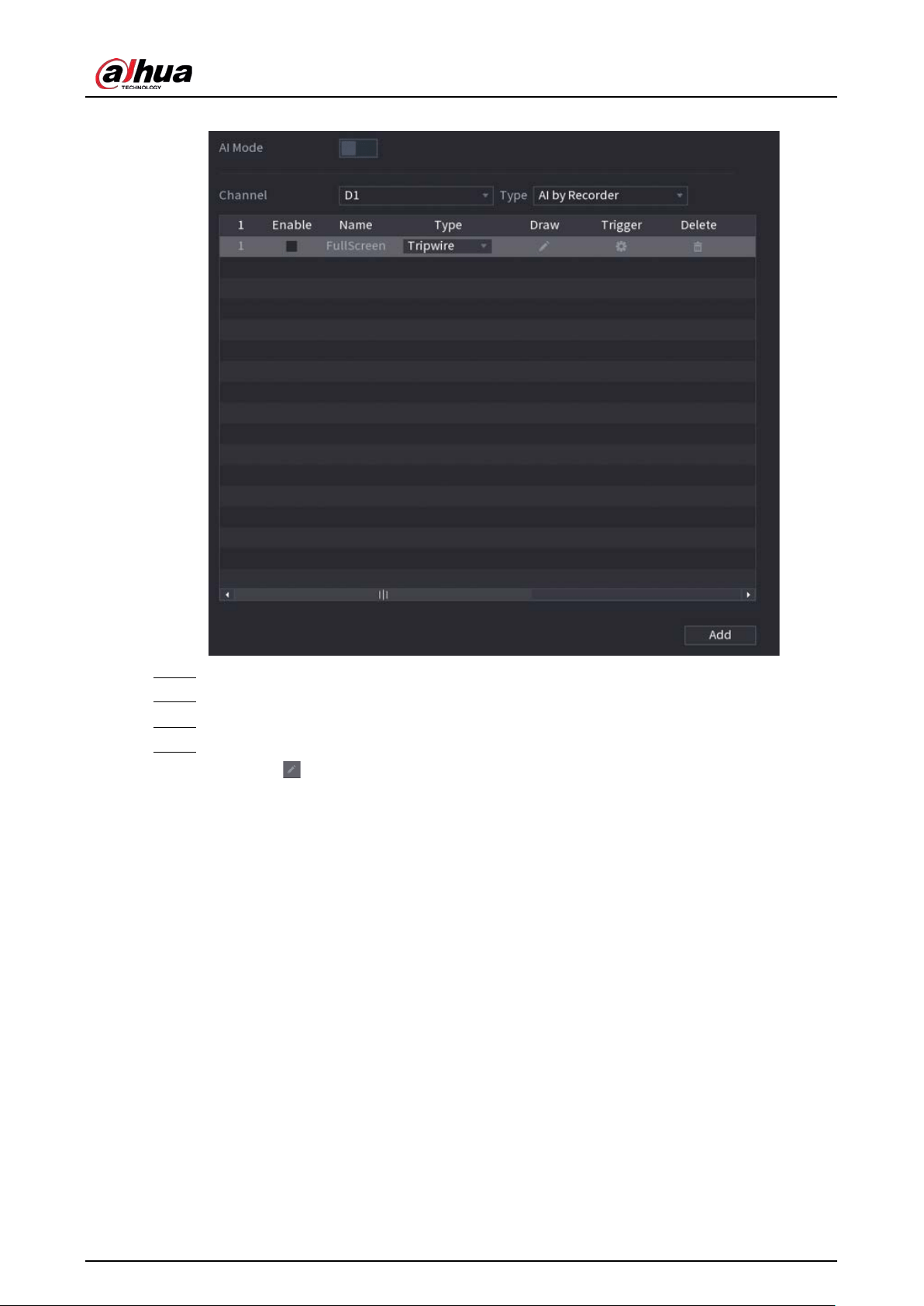
User's Manual
193
Figure 5-106 IVS
Step 2 Select channel and AI type.
Step 3 Click
Add
to add a rule.
Step 4 On the
Type
list, select
Tripwire
.
Step 5 Draw the detection rule.
1) Click to draw a straight line or a curve on the surveillance video image. Right-click
the image to stop drawing.
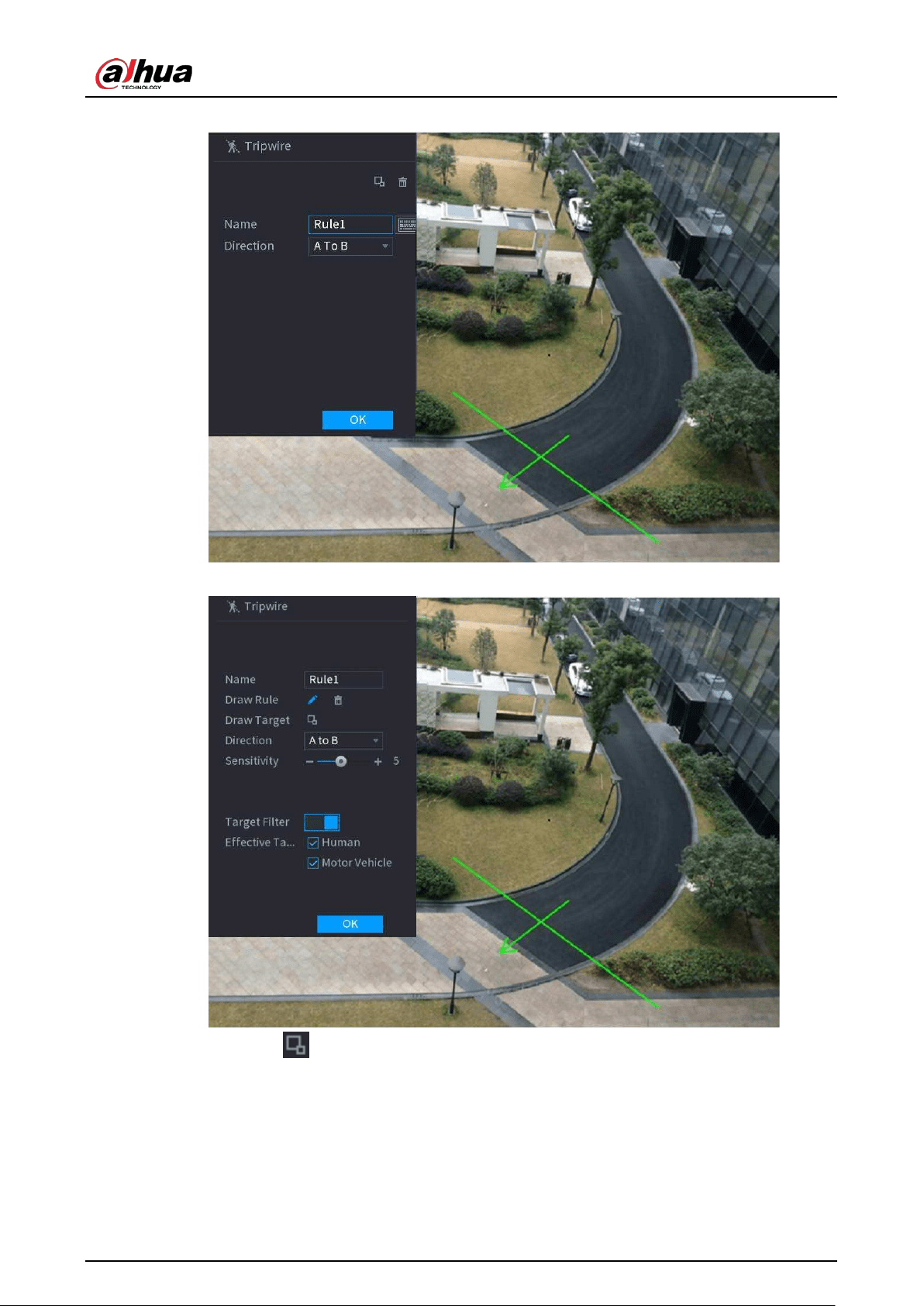
User's Manual
194
Figure 5-107 Tripwire (AI by camera)
Figure 5-108 Tripwire (AI by recorder)
2) Click to draw the minimum size or maximum size to filter the target.
The system triggers an alarm only when the size of detected target is between the
maximum size and the minimum size.
3) Configure the parameters.
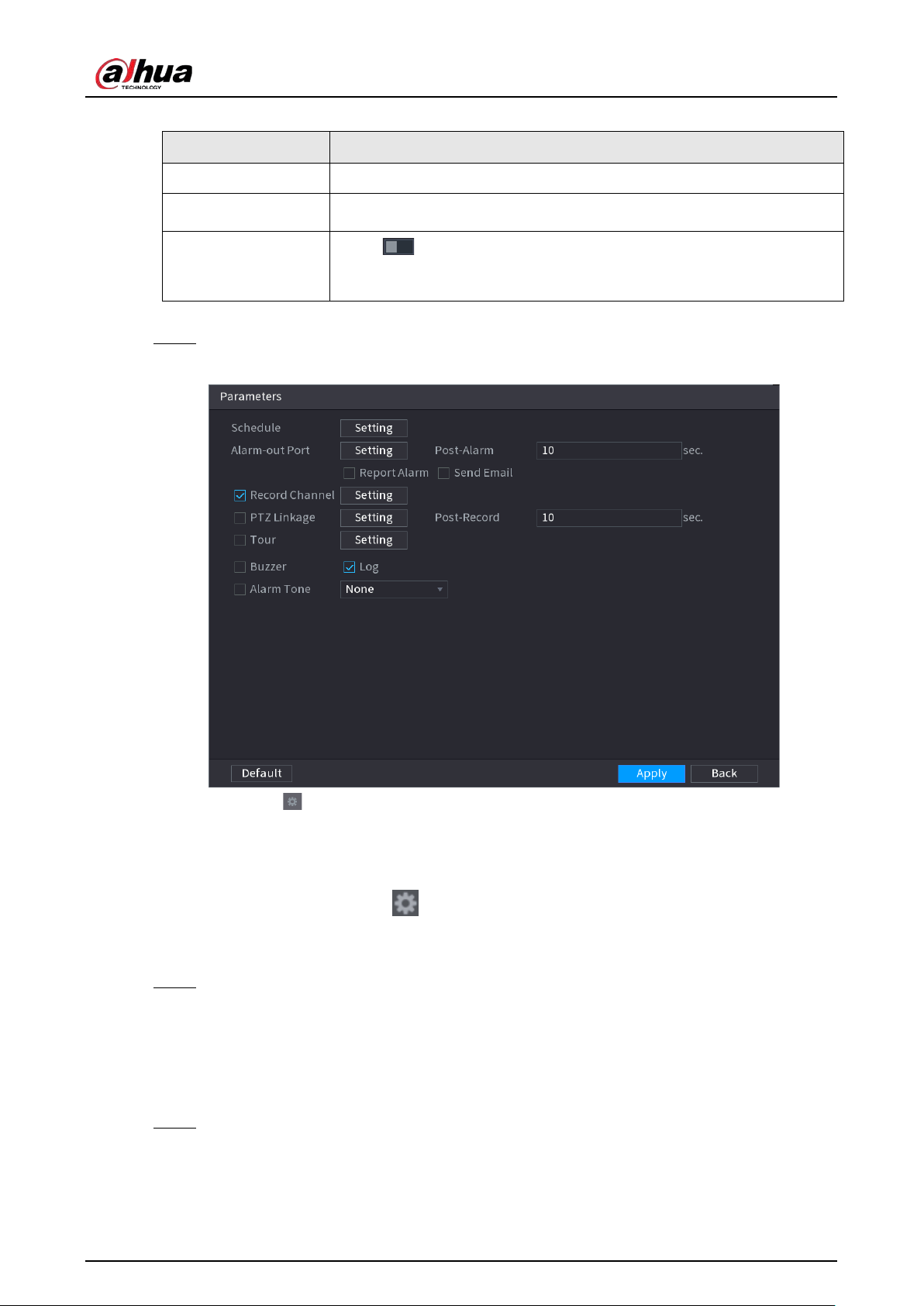
User's Manual
195
Table 5-28 Tripwire parameters
Parameter Description
Name Customize the rule name.
Direction
Set the tripwire direction, including A
→
B, B
→
A and A
↔
B.
Target Filter
Click and then select effective target. With
Human
and
Motor
Vehicle
selected by default, the system automatically identifies the
person and motor vehicle appeared within the monitoring range.
4) Click
OK
.
Step 6 Configure alarm schedule and linkage.
Figure 5-109 Schedule and alarm linkage
1) Click .
2) Click
Setting
next to
Schedule
to configure the alarm period.
The system performs linkage actions only for alarms during the arming period.
●
On the time line, drag to set the period.
●
You can also click to set the period.
3) Configure alarm linkage. For details, see Table 5-43.
4) Click
Apply
.
Step 7 Select the
Enable
checkbox and then click
Apply
.
5.9.6.2.2 Intrusion
When the detection target passes the edge of the monitoring area, and enters, leaves or traverses
the monitoring area, the system performs an alarm linkage action.
Step 1 Select
Main Menu
>
AI
>
Parameters
>
IVS
.
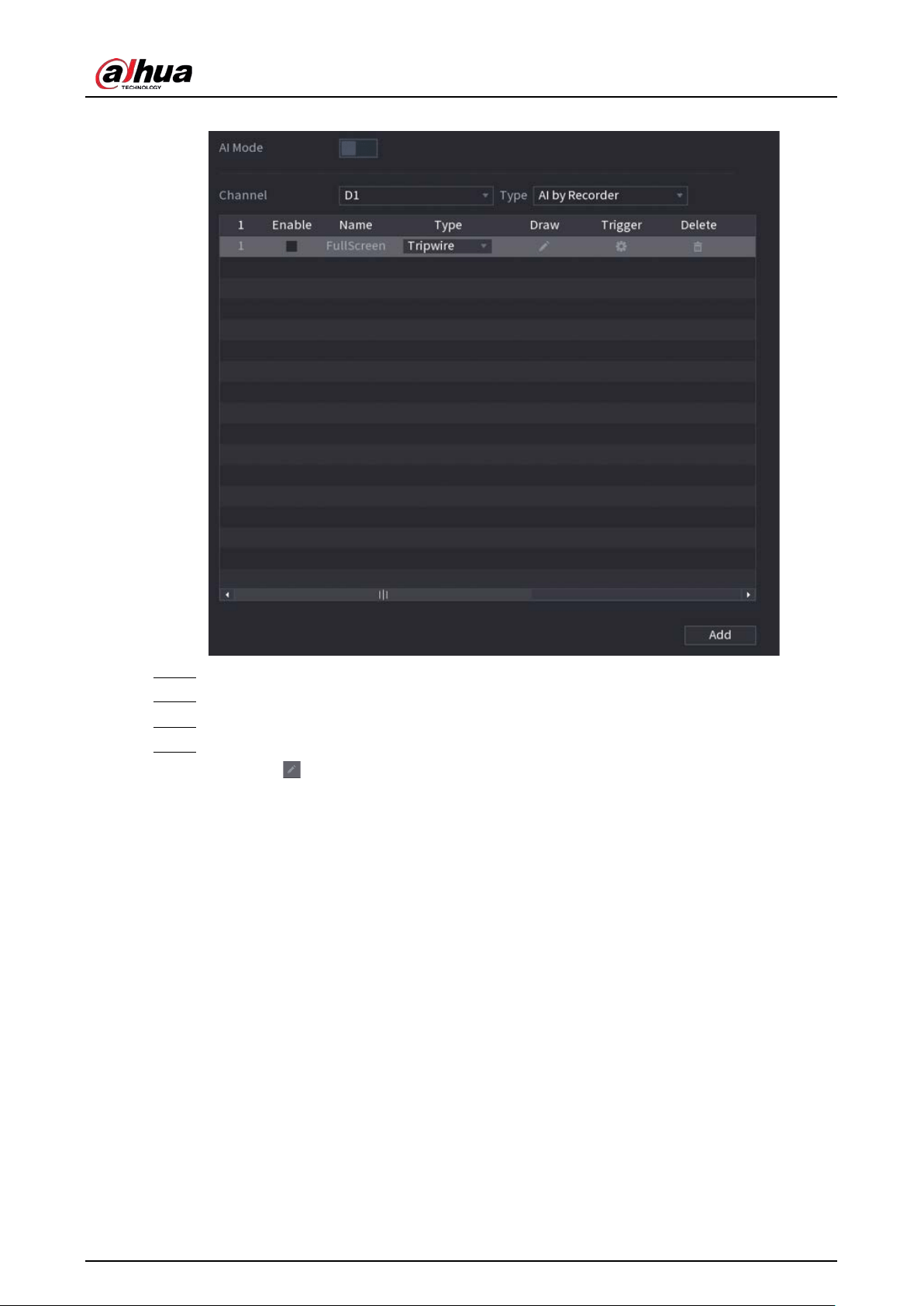
User's Manual
196
Figure 5-110 IVS
Step 2 Select channel and AI type.
Step 3 Click
Add
to add a rule.
Step 4 On the
Type
list, select
Intrusion
.
Step 5 Draw the detection rule.
1) Click to draw the rule on the surveillance video image. Right-click the image to
stop drawing.
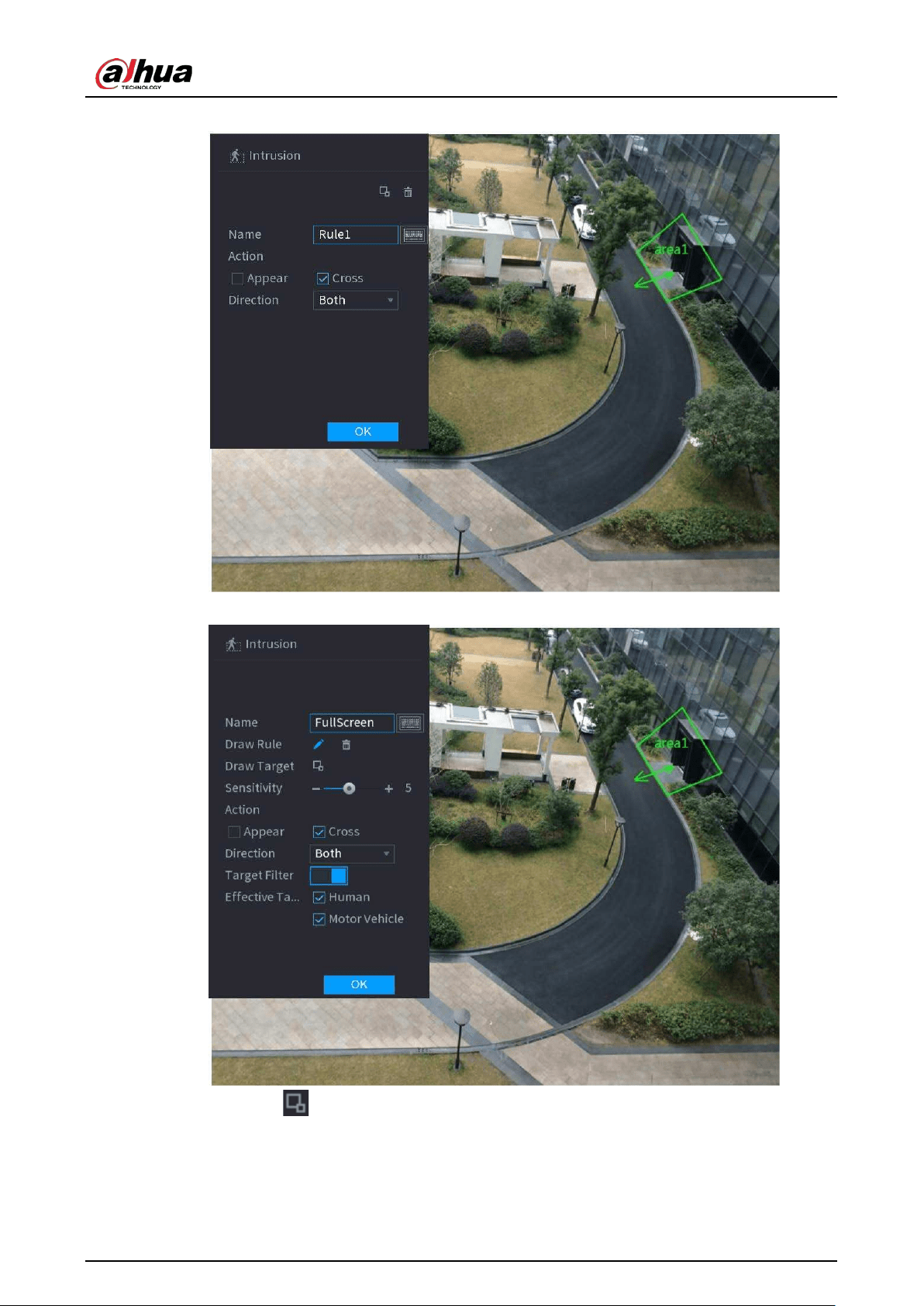
User's Manual
197
Figure 5-111 Intrusion (AI by camera)
Figure 5-112 Intrusion (AI by recorder)
2) Click to draw the minimum size or maximum size to filter the target.
The system triggers an alarm only when the size of detected target is between the
maximum size and the minimum size.
3) Configure the parameters.
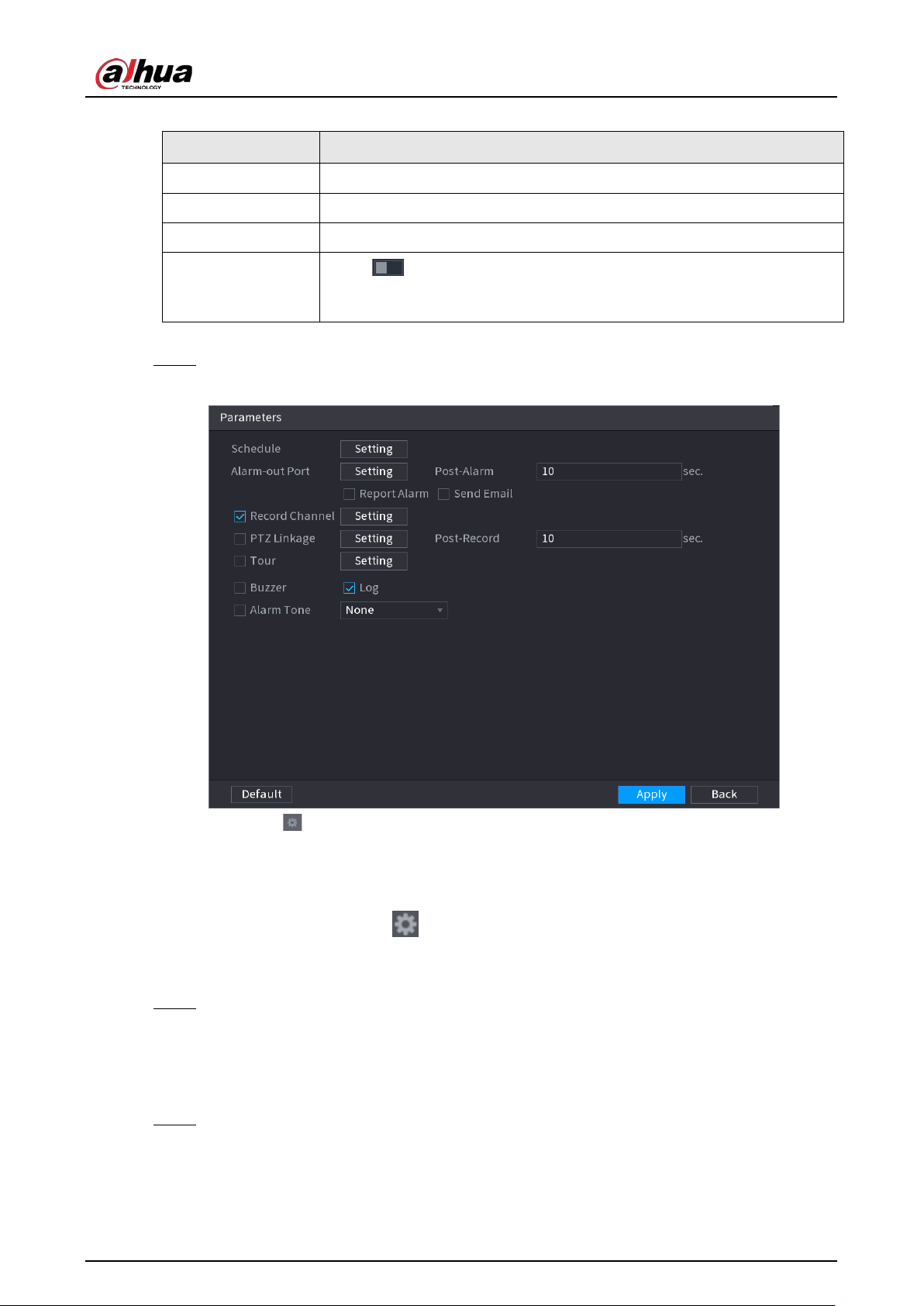
User's Manual
198
Table 5-29 Intrusion parameters
Parameter Description
Name Customize the rule name.
Action Set the intrusion action, including appear and crossing area.
Direction Set the direction to cross the area, including enter, exit and both.
Target Filter
Click and then select effective target. With
Human
and
Motor
Vehicle
selected by default, the system automatically identifies the
person and motor vehicle appeared within the monitoring range.
4) Click
OK
.
Step 6 Configure alarm schedule and linkage.
Figure 5-113 Schedule and alarm linkage
1) Click .
2) Click
Setting
next to
Schedule
to configure the alarm period.
The system performs linkage actions only for alarms during the arming period.
●
On the time line, drag to set the period.
●
You can also click to set the period.
3) Configure alarm linkage. For details, see Table 5-43.
4) Click
Apply
.
Step 7 Select
Enable
checkbox and then click
Apply
.
5.9.6.2.3 Abandoned Object Detection
The system generates an alarm when there is an abandoned object in the specified zone.
Step 1 Select
Main Menu
>
AI
>
Parameters
>
IVS
.
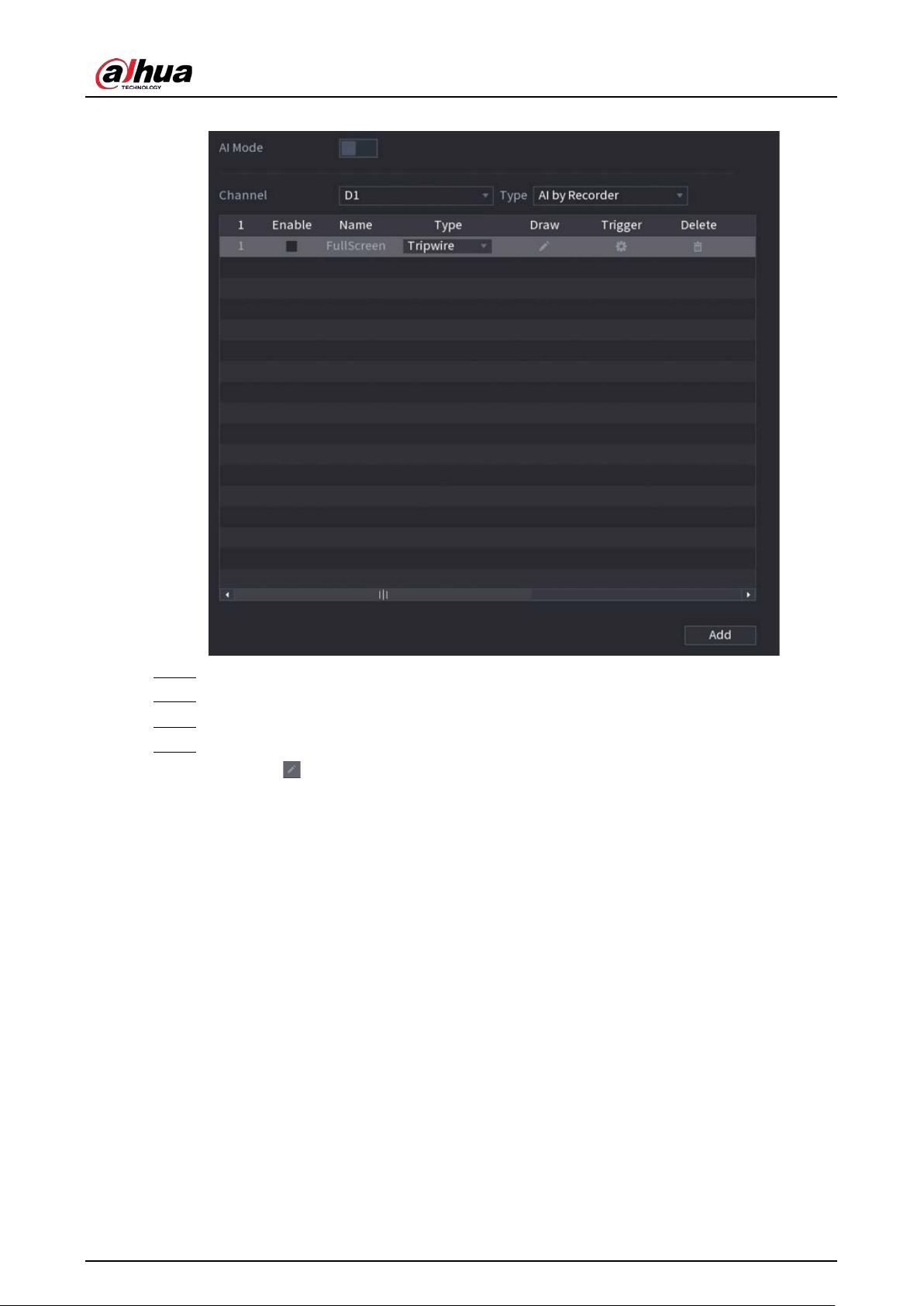
User's Manual
199
Figure 5-114 IVS
Step 2 Select channel and AI type.
Step 3 Click
Add
to add a rule.
Step 4 On the
Type
list, select
Abandoned Object
.
Step 5 Draw the detection rule.
1) Click to draw a rectangle on the surveillance video image. Right-click the image to
stop drawing.
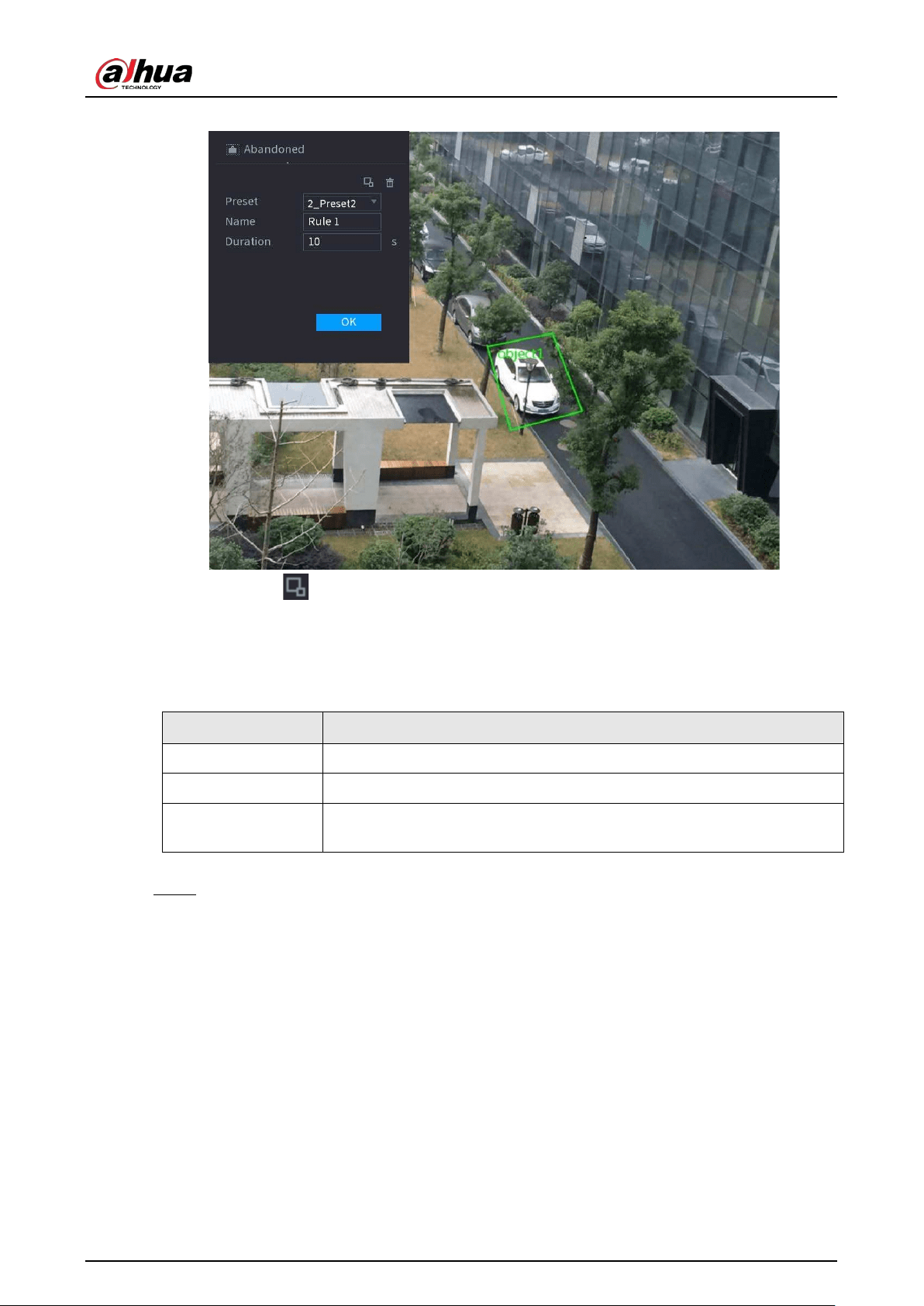
User's Manual
200
Figure 5-115 Abandoned object rule
2) Click to draw the minimum size or maximum size to filter the target.
The system triggers an alarm only when the size of detected target is between the
maximum size and the minimum size.
3) Configure parameters.
Table 5-30 Parameters of abandoned object detection
Parameter Description
Preset Select a preset you want to use IVS.
Name Customize the rule name.
Duration
The system generates an alarm once the object is in the zone for the
defined period.
4) Click
OK
.
Step 6 Configure alarm schedule and linkage.
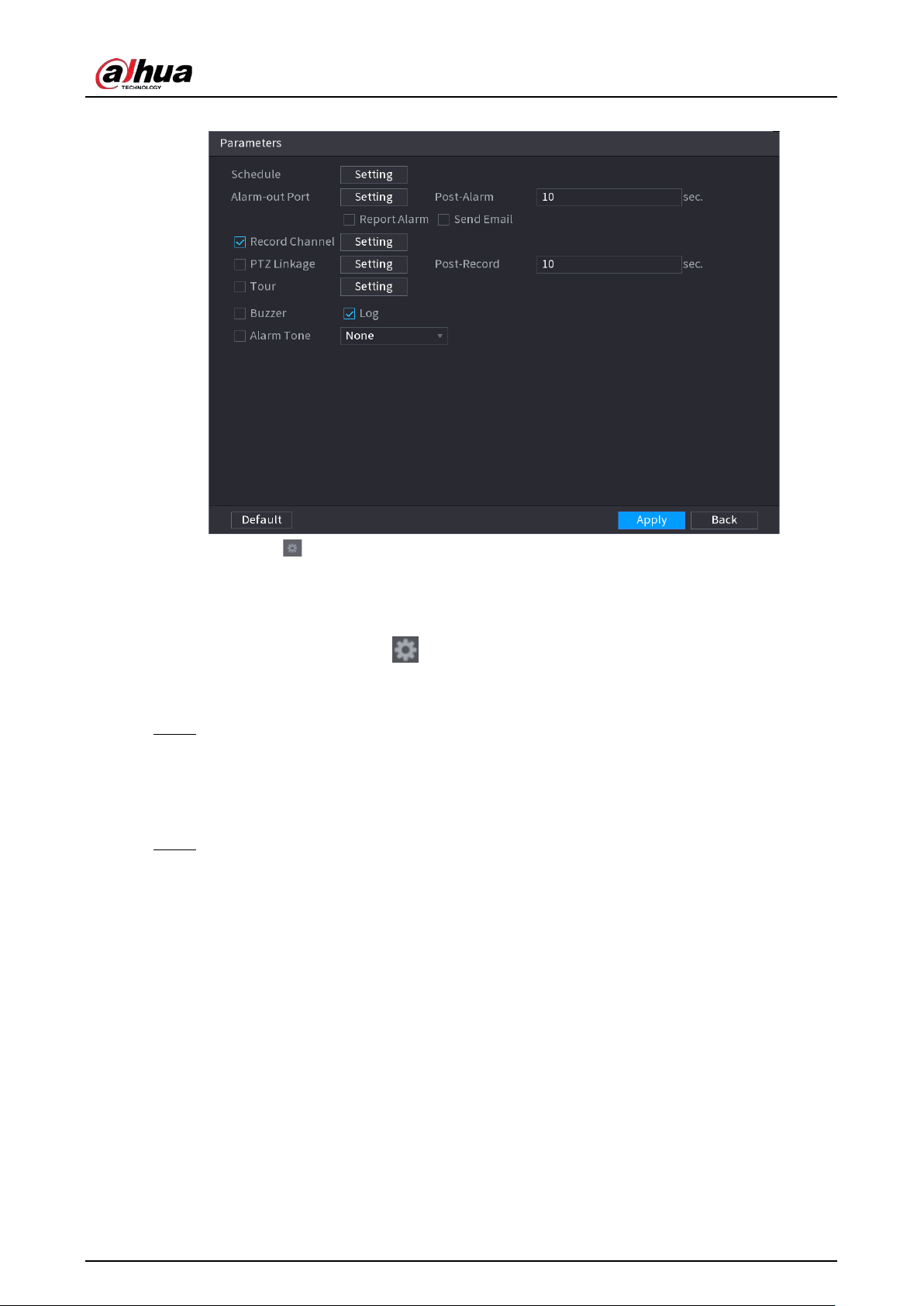
User's Manual
201
Figure 5-116 Schedule and alarm linkage
1) Click .
2) Click
Setting
next to
Schedule
to configure the alarm period.
The system performs linkage actions only for alarms during the arming period.
●
On the time line, drag to set the period.
●
You can also click to set the period.
3) Configure alarm linkage. For details, see Table 5-43.
4) Click
Apply
.
Step 7 Select
Enable
checkbox and then click
Apply
.
5.9.6.2.4 Fast Moving
You can detect the fast moving object in the specified zone.
Step 1 Select
Main Menu
>
AI
>
Parameters
>
IVS
.
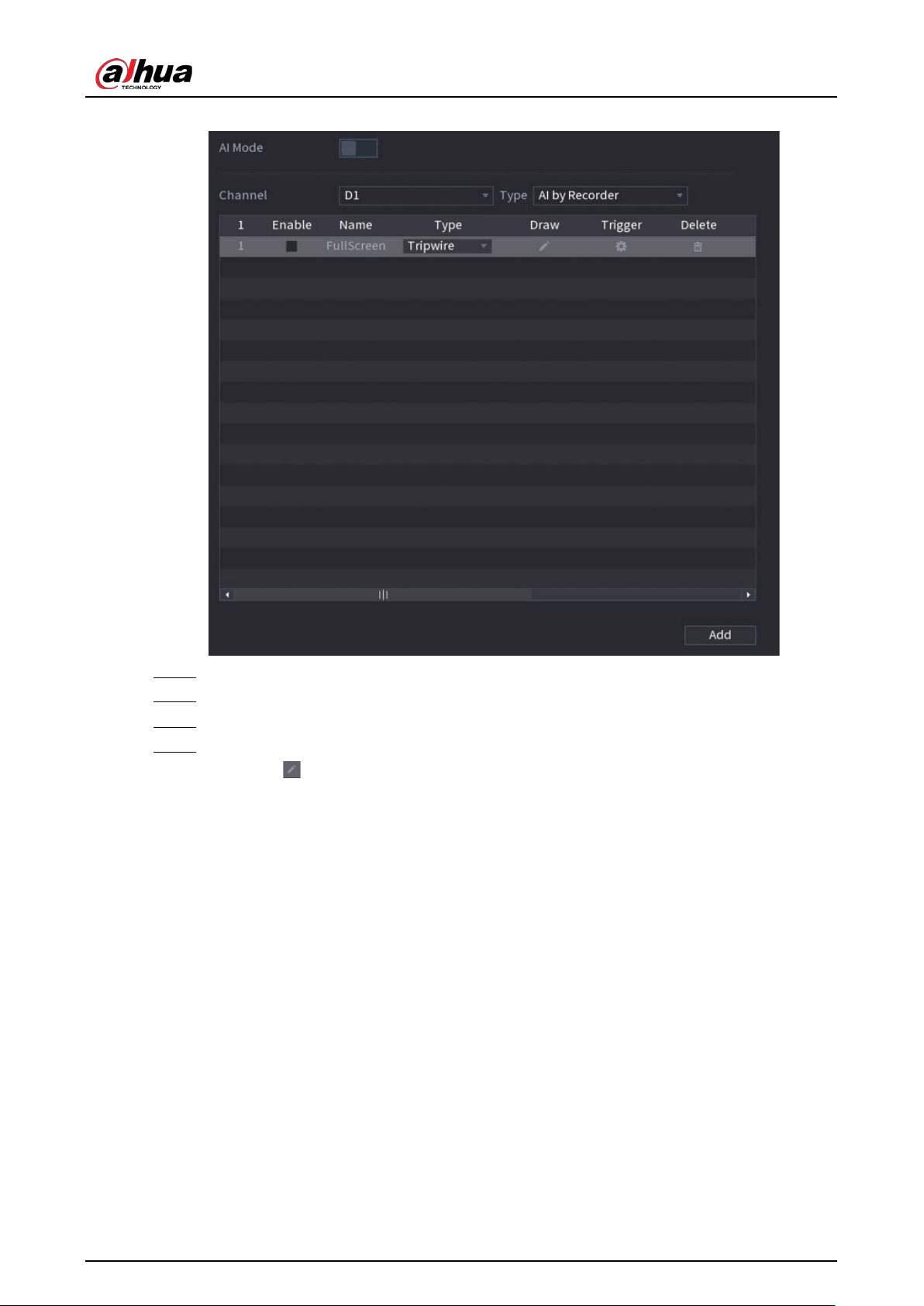
User's Manual
202
Figure 5-117 IVS
Step 2 Select channel and AI type.
Step 3 Click
Add
to add a rule.
Step 4 On the
Type
list, select
Fast Moving
.
Step 5 Draw the detection rule.
1) Click to draw a rectangle on the surveillance video image. Right-click the image to
stop drawing.
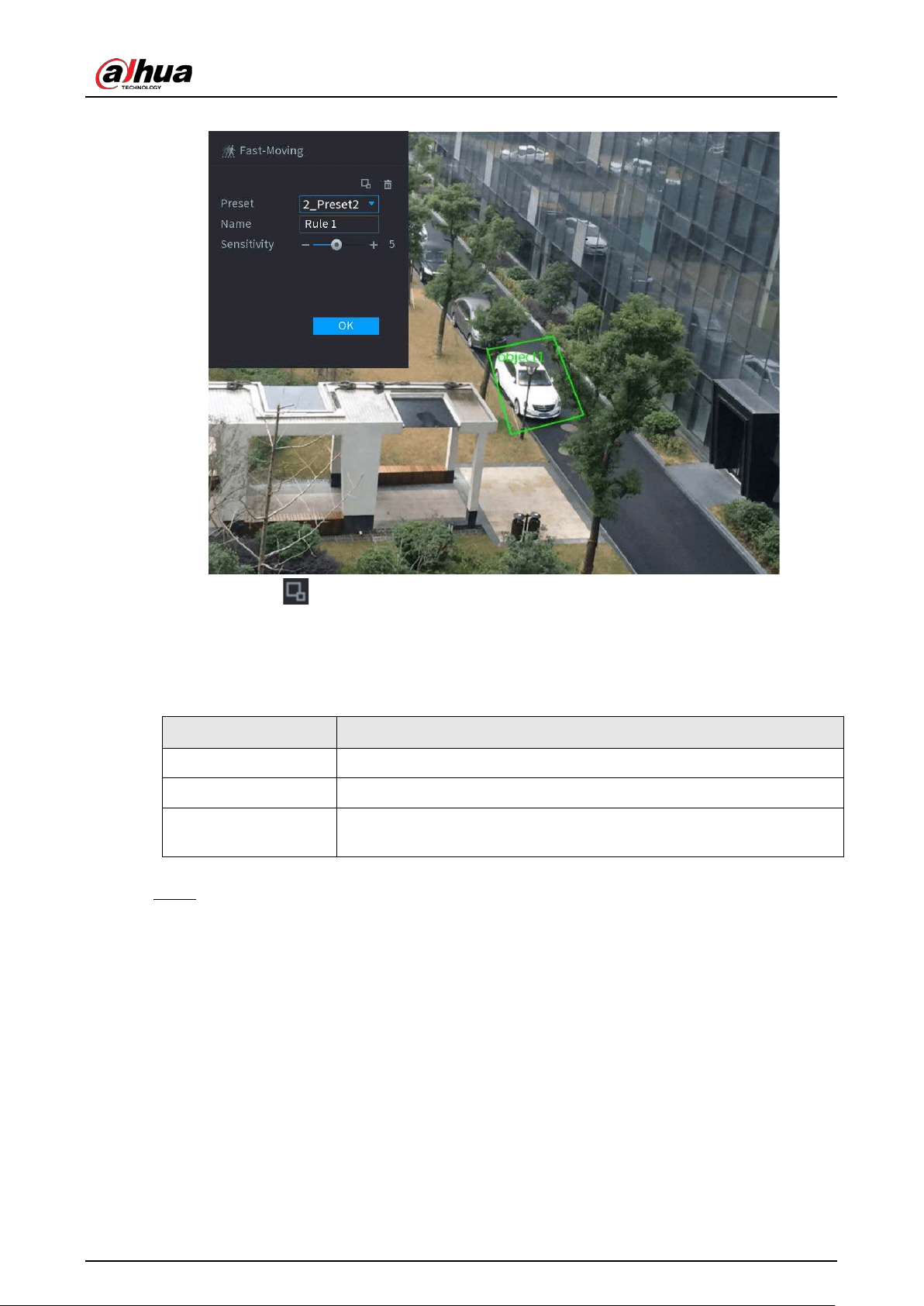
User's Manual
203
Figure 5-118 Fast moving
2) Click to draw the minimum size or maximum size to filter the target.
The system triggers an alarm only when the size of detected target is between the
maximum size and the minimum size.
3) Configure parameters.
Table 5-31 Fast moving parameters
Parameter Description
Preset Select a preset you want to use IVS.
Name Customize the rule name.
Sensitivity
You can set alarm sensitivity. The higher the value, the easier to detect a
fast moving object but meanwhile the higher false alarm rate.
4) Click
OK
.
Step 6 Configure alarm schedule and linkage.
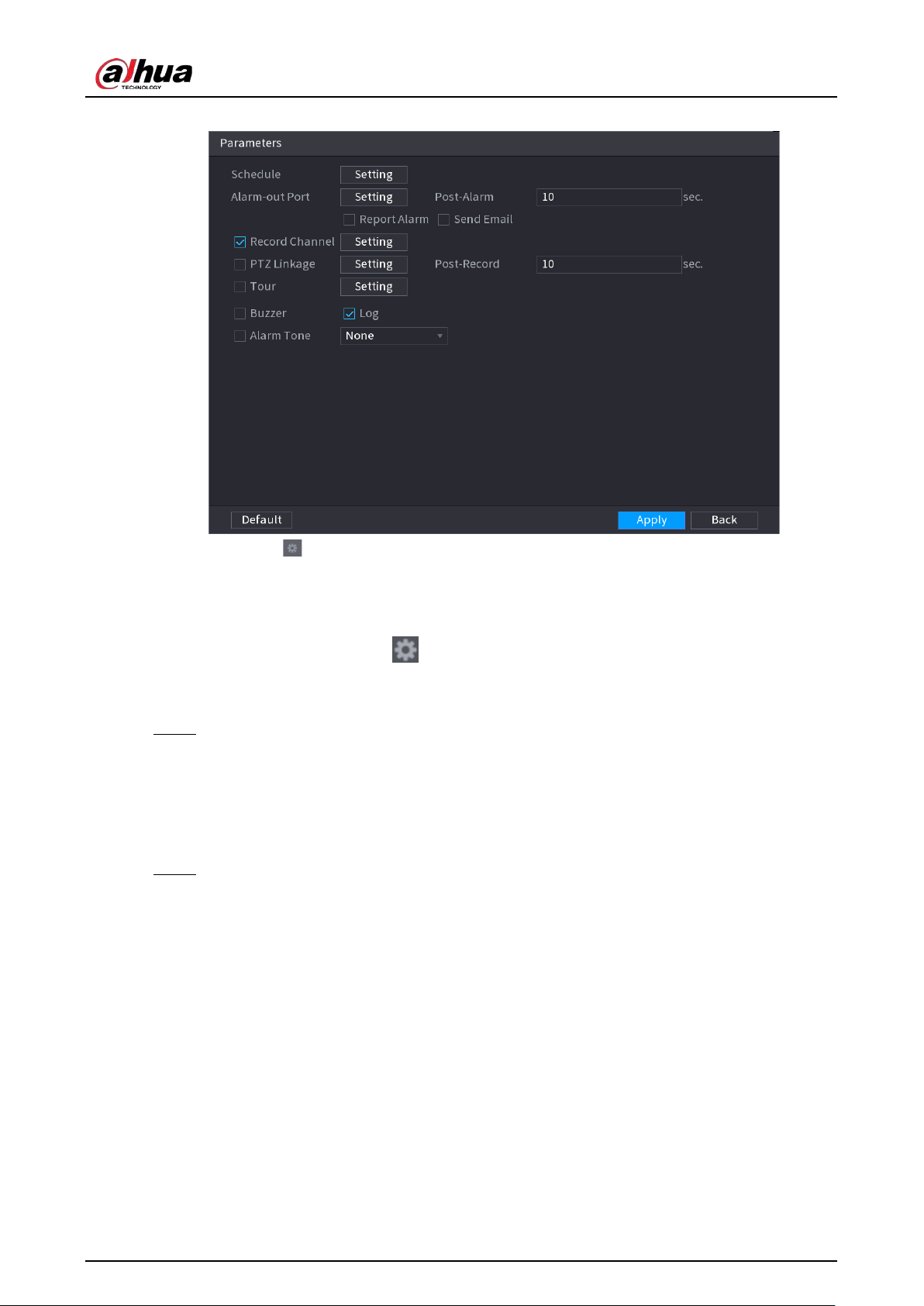
User's Manual
204
Figure 5-119 Schedule and alarm linkage
1) Click .
2) Click
Setting
next to
Schedule
to configure the alarm period.
The system performs linkage actions only for alarms during the arming period.
●
On the time line, drag to set the period.
●
You can also click to set the period.
3) Configure alarm linkage. For details, see Table 5-43.
4) Click
Apply
.
Step 7 Select
Enable
checkbox and then click
Apply
.
5.9.6.2.5 Parking
When the detection target stays in the monitoring area longer than the set duration, the system
performs alarm linkage action.
Step 1 Select
Main Menu
>
AI
>
Parameters
>
IVS
.
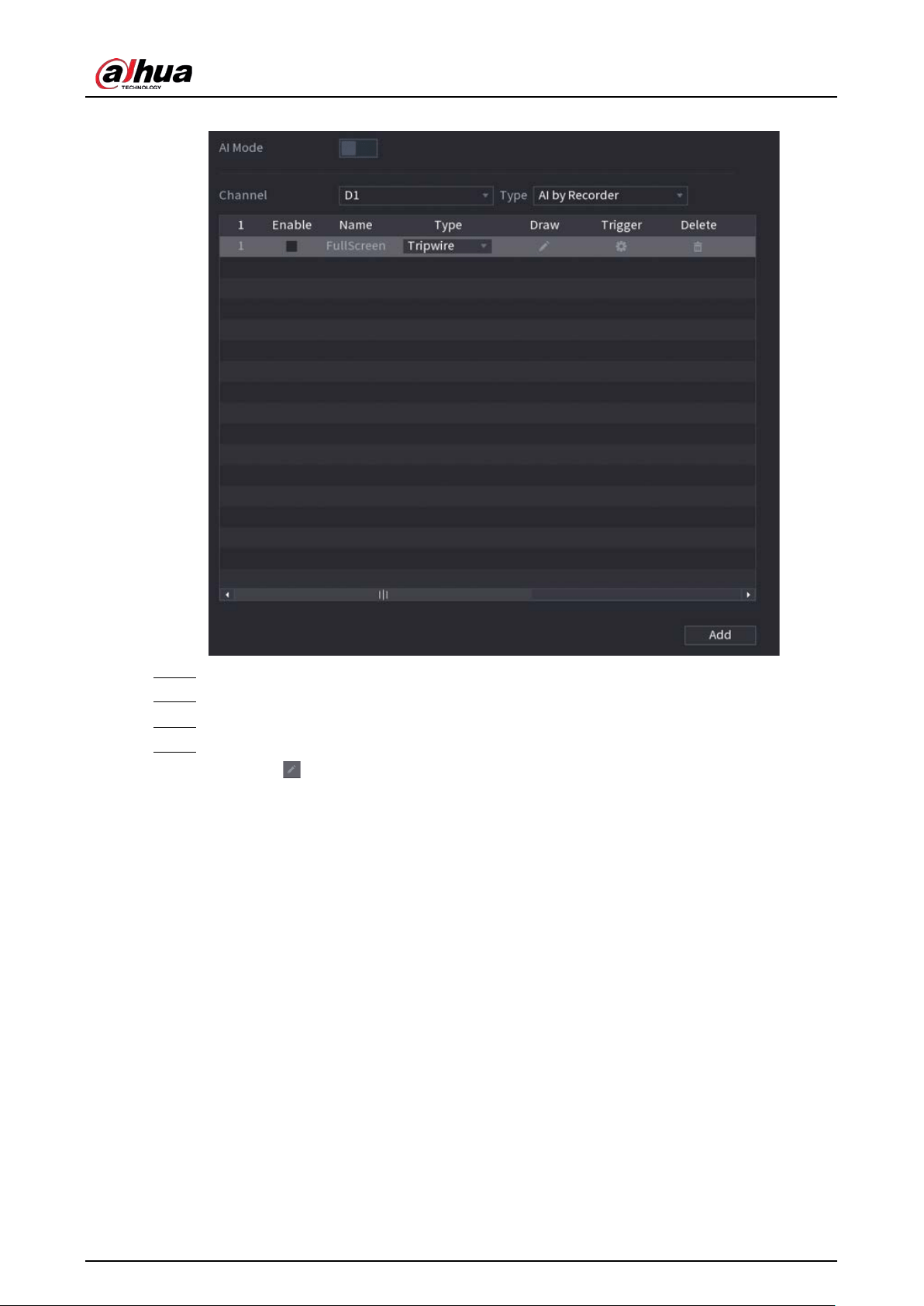
User's Manual
205
Figure 5-120 IVS
Step 2 Select channel and AI type.
Step 3 Click
Add
to add a rule.
Step 4 On the
Type
list, select
Parking
.
Step 5 Draw the detection rule.
1) Click to draw a rectangle on the surveillance video image. Right-click the image to
stop drawing.
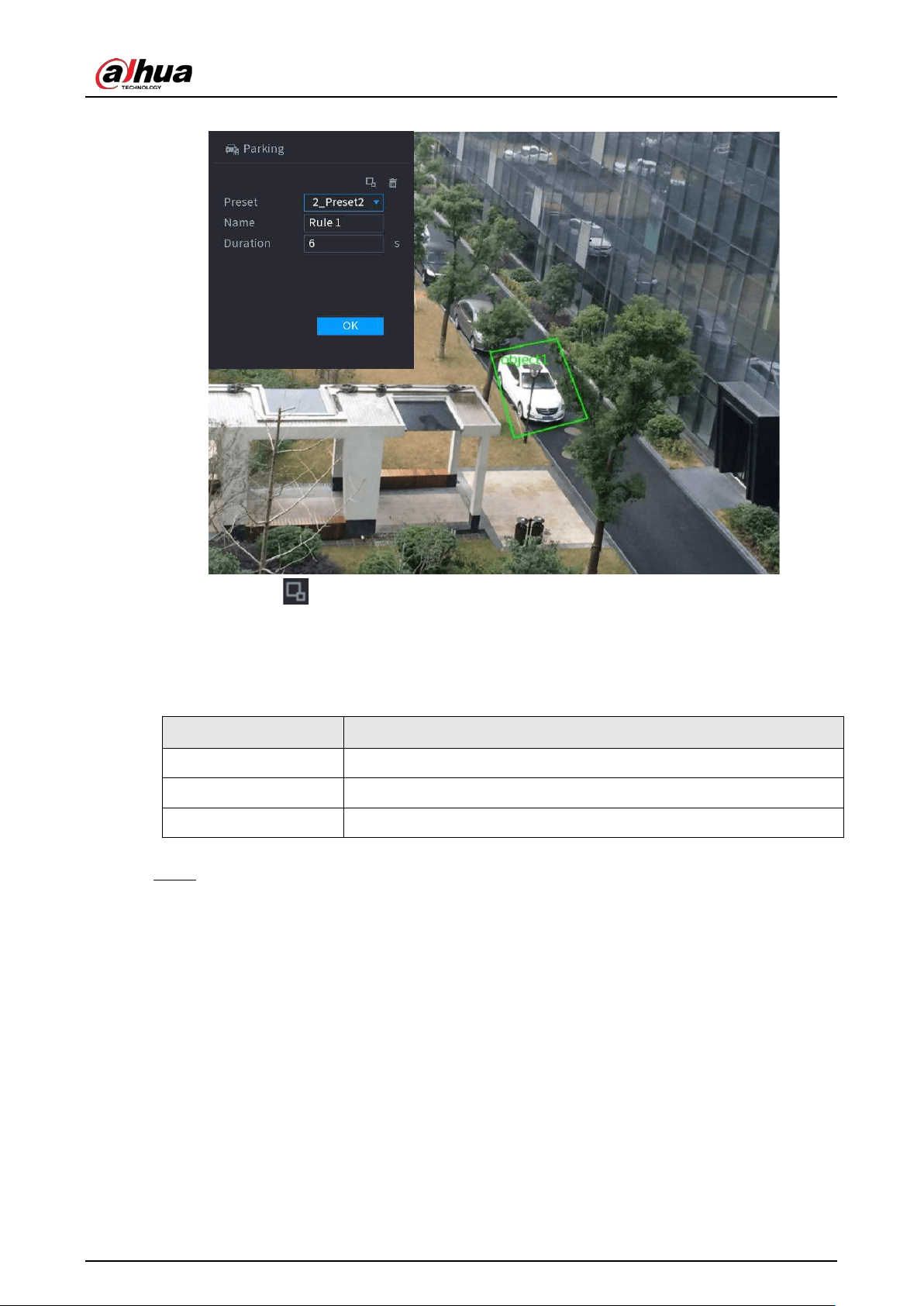
User's Manual
206
Figure 5-121 Parking
2) Click to draw the minimum size or maximum size to filter the target.
The system triggers an alarm only when the size of detected target is between the
maximum size and the minimum size.
3) Configure parameters.
Table 5-32 Parking parameters
Parameter Description
Preset Set the preset point for IVS detection.
Name Customize the rule name.
Duration Set how long the object stays until the alarm is triggered.
4) Click
OK
.
Step 6 Configure alarm schedule and linkage.
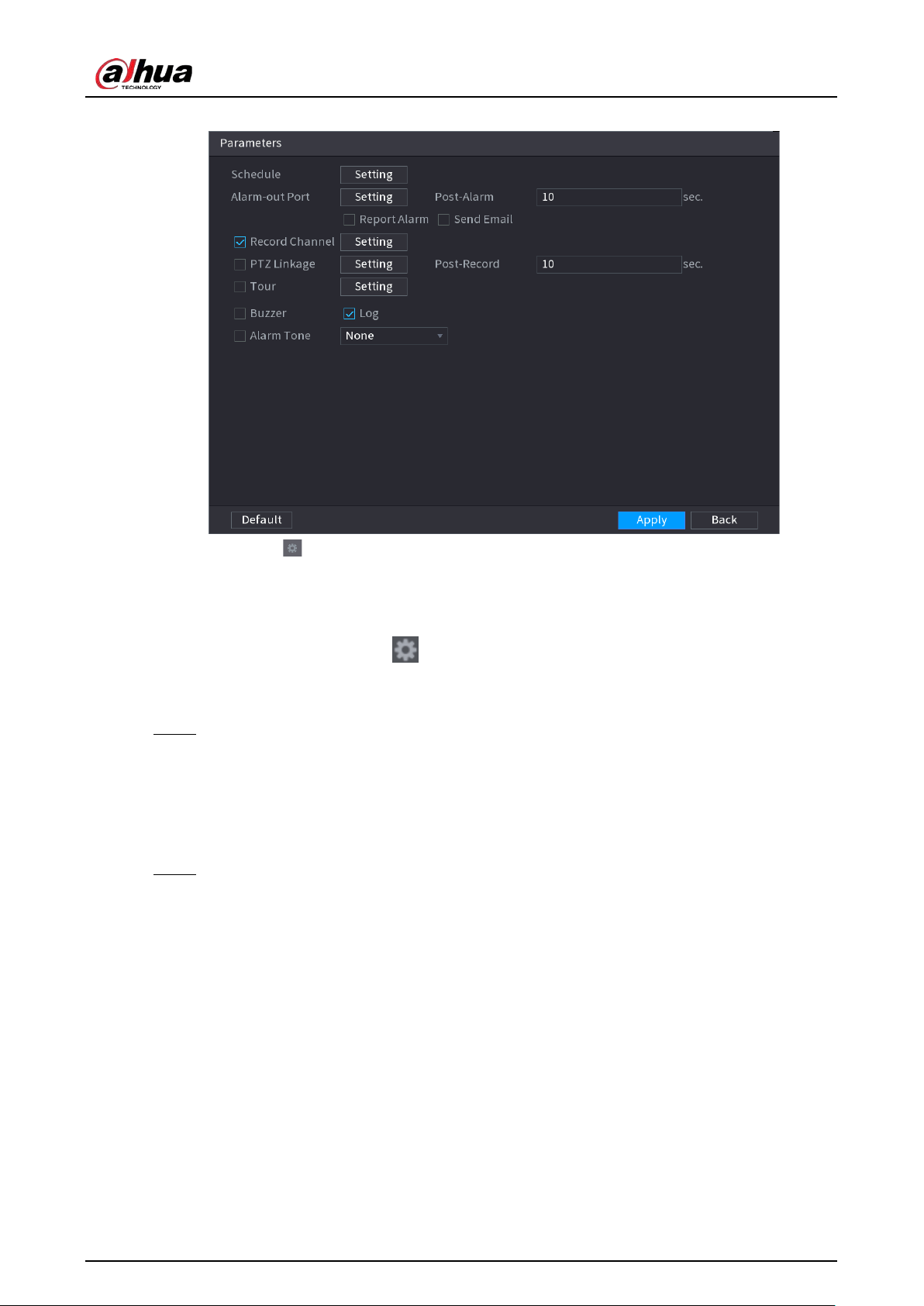
User's Manual
207
Figure 5-122 Schedule and alarm linkage
1) Click .
2) Click
Setting
next to
Schedule
to configure the alarm period.
The system performs linkage actions only for alarms during the arming period.
●
On the time line, drag to set the period.
●
You can also click to set the period.
3) Configure alarm linkage. For details, see Table 5-43.
4) Click
Apply
.
Step 7 Select
Enable
checkbox and then click
Apply
.
5.9.6.2.6 Crowd Gathering
The system generates an alarm once people are gathering in the specified zone longer than the
defined duration.
Step 1 Select
Main Menu
>
AI
>
Parameters
>
IVS
.
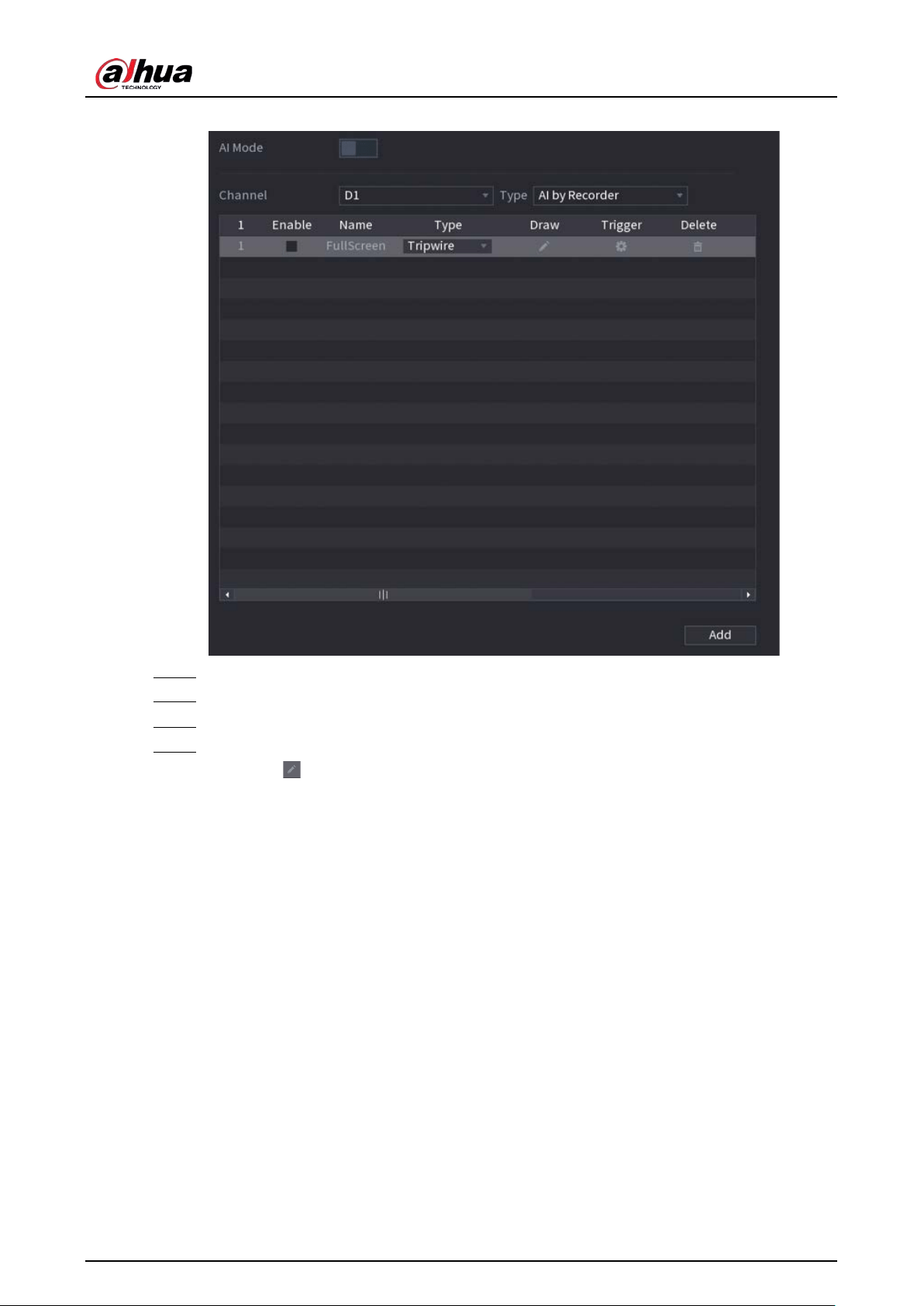
User's Manual
208
Figure 5-123 IVS
Step 2 Select channel and AI type.
Step 3 Click
Add
to add a rule.
Step 4 On the
Type
list, select
Crowd Gathering Estimation
.
Step 5 Draw the detection rule.
1) Click to draw a rectangle on the surveillance video image. Right-click the image to
stop drawing.
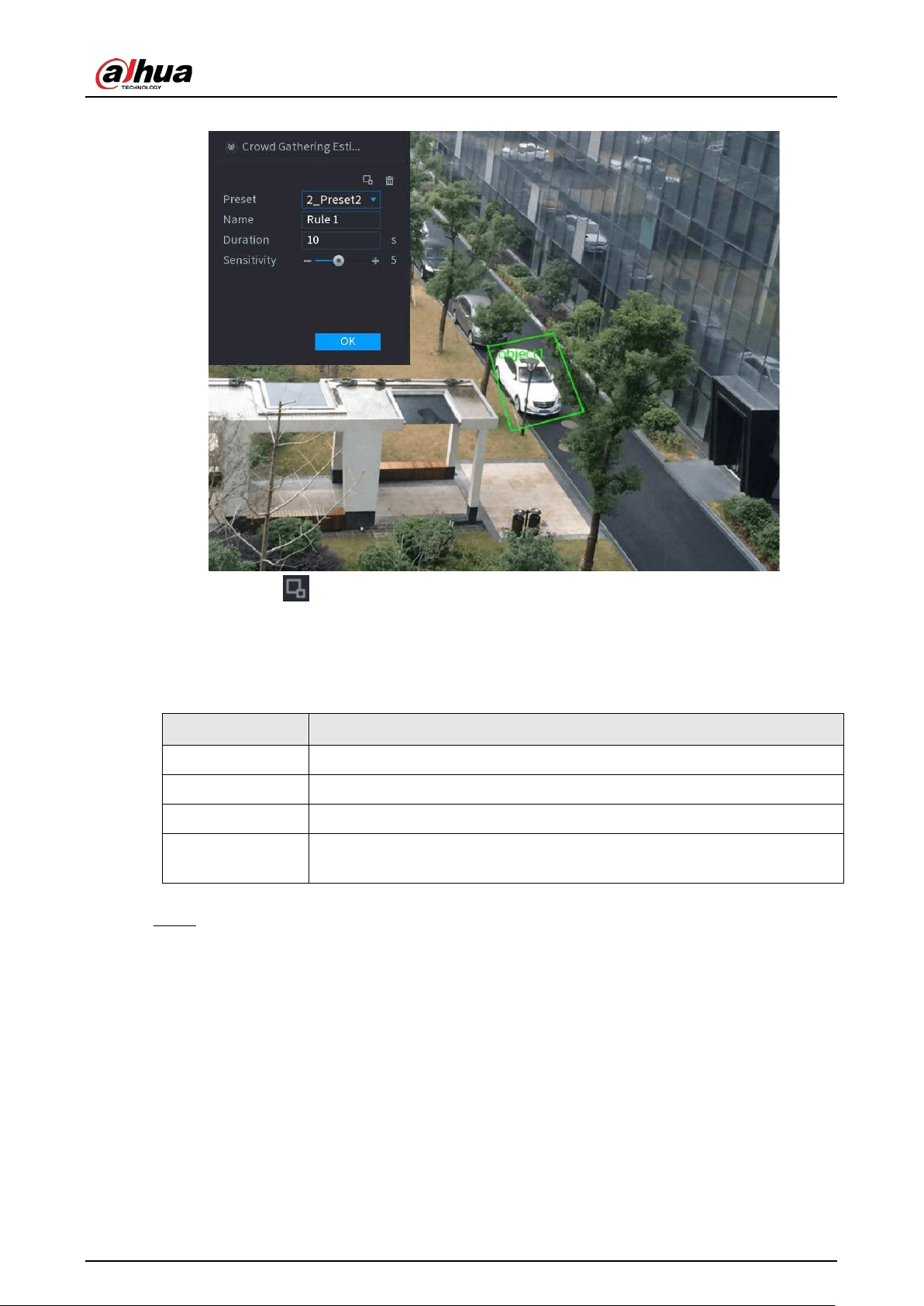
User's Manual
209
Figure 5-124 Crowd gathering
2) Click to draw the minimum size or maximum size to filter the target.
The system triggers an alarm only when the size of detected target is between the
maximum size and the minimum size.
3) Set parameters.
Table 5-33 Crowd gathering parameters
Parameter Description
Preset Select a preset you want to use IVS.
Name Customize the rule name.
Duration Set how long the object stays until the alarm is triggered.
Sensitivity
You can set alarm sensitivity. The higher the value, the easier to detect
crowd gathering but meanwhile the higher false alarm rate.
4) Click
OK
.
Step 6 Configure alarm schedule and linkage.
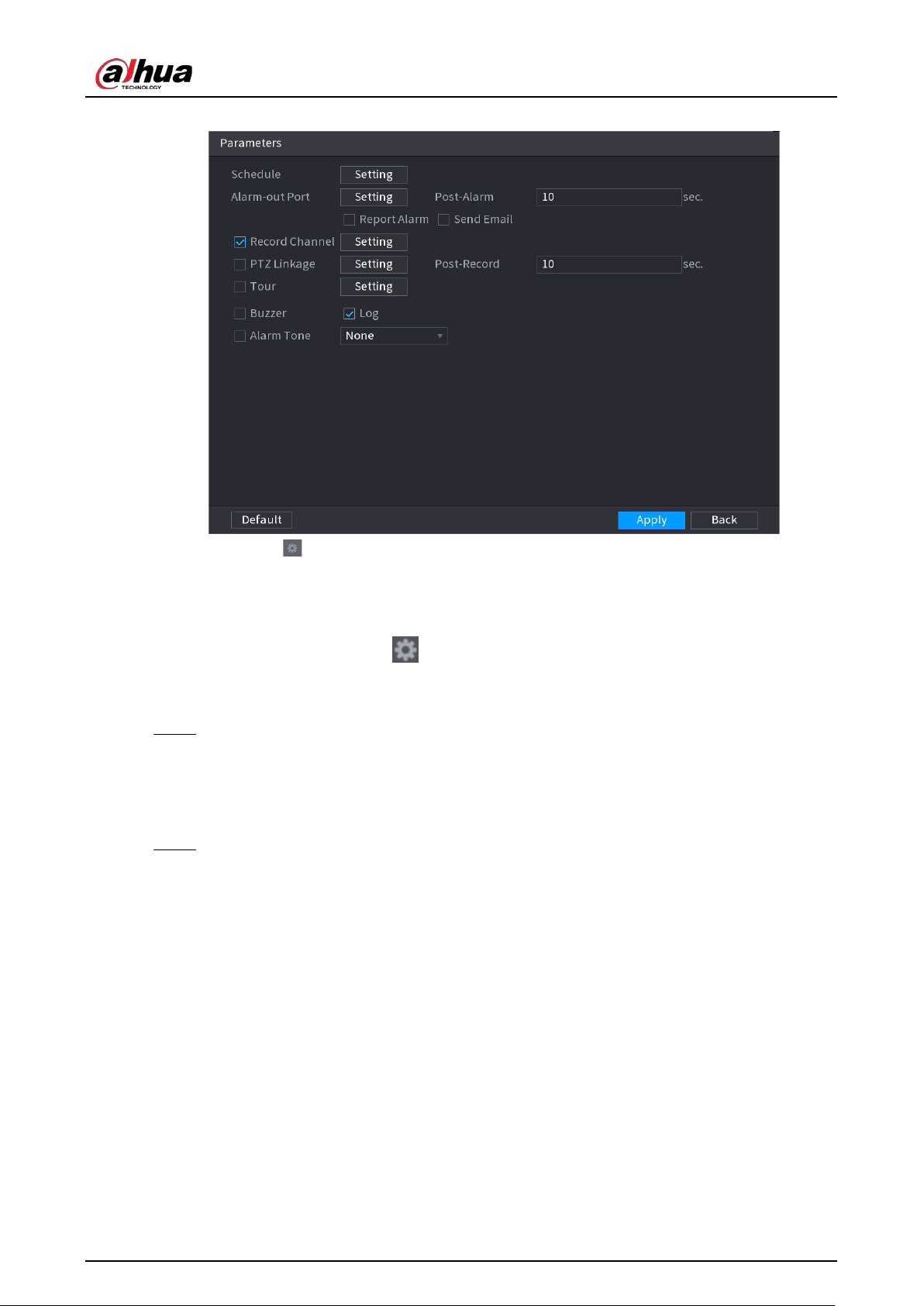
User's Manual
210
Figure 5-125 Schedule and alarm linkage
1) Click .
2) Click
Setting
next to
Schedule
to configure the alarm period.
The system performs linkage actions only for alarms during the arming period.
●
On the time line, drag to set the period.
●
You can also click to set the period.
3) Configure alarm linkage. For details, see Table 5-43.
4) Click
Apply
.
Step 7 Select
Enable
checkbox and then click
Apply
.
5.9.6.2.7 Missing Object Detection
The system generates an alarm when there is missing object in the specified zone.
Step 1 Select
Main Menu
>
AI
>
Parameters
>
IVS
.
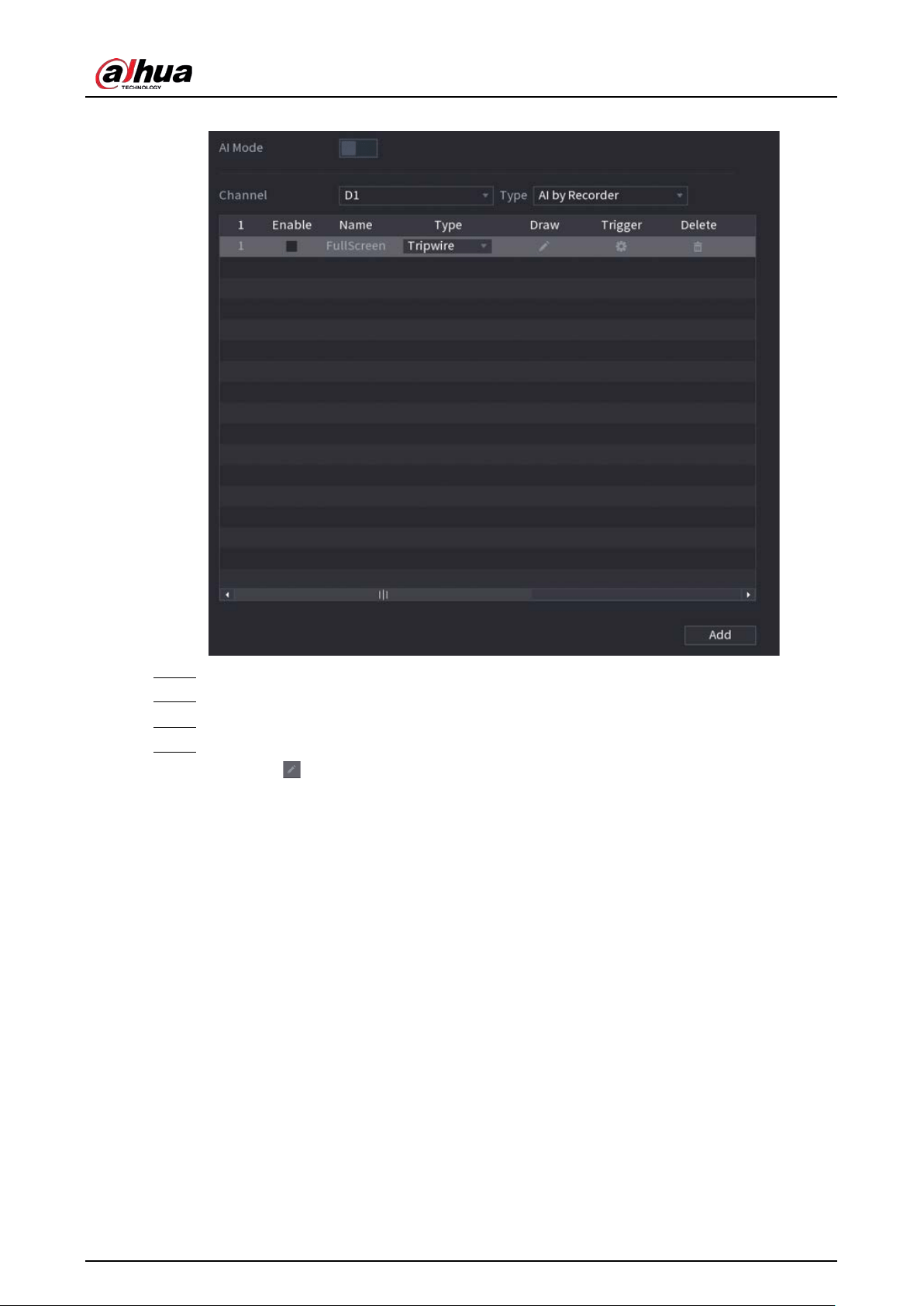
User's Manual
211
Figure 5-126 IVS
Step 2 Select channel and AI type.
Step 3 Click
Add
to add a rule.
Step 4 On the
Type
list, select
Missing
.
Step 5 Draw the detection rule.
1) Click to draw a rectangle on the surveillance video image. Right-click the image to
stop drawing.
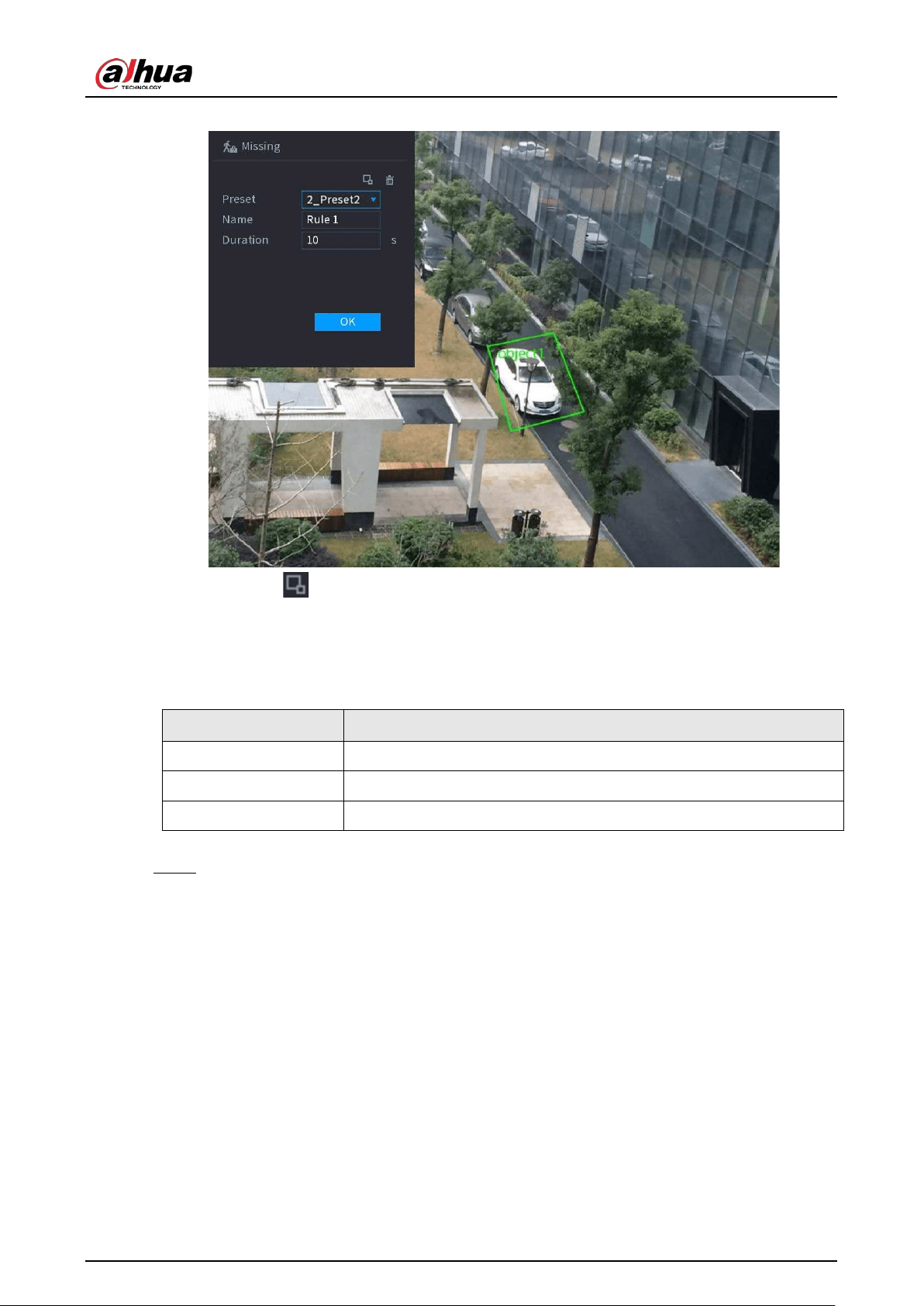
User's Manual
212
Figure 5-127 Missing object
2) Click to draw the minimum size or maximum size to filter the target.
The system triggers an alarm only when the size of detected target is between the
maximum size and the minimum size.
3) Configure parameters.
Table 5-34 Parameters of missing object detection
Parameter Description
Preset Set the preset point for IVS detection according to the actual needs.
Name Customize the rule name.
Duration Set how long the object stays until the alarm is triggered.
4) Click
OK
.
Step 6 Configure alarm schedule and linkage.
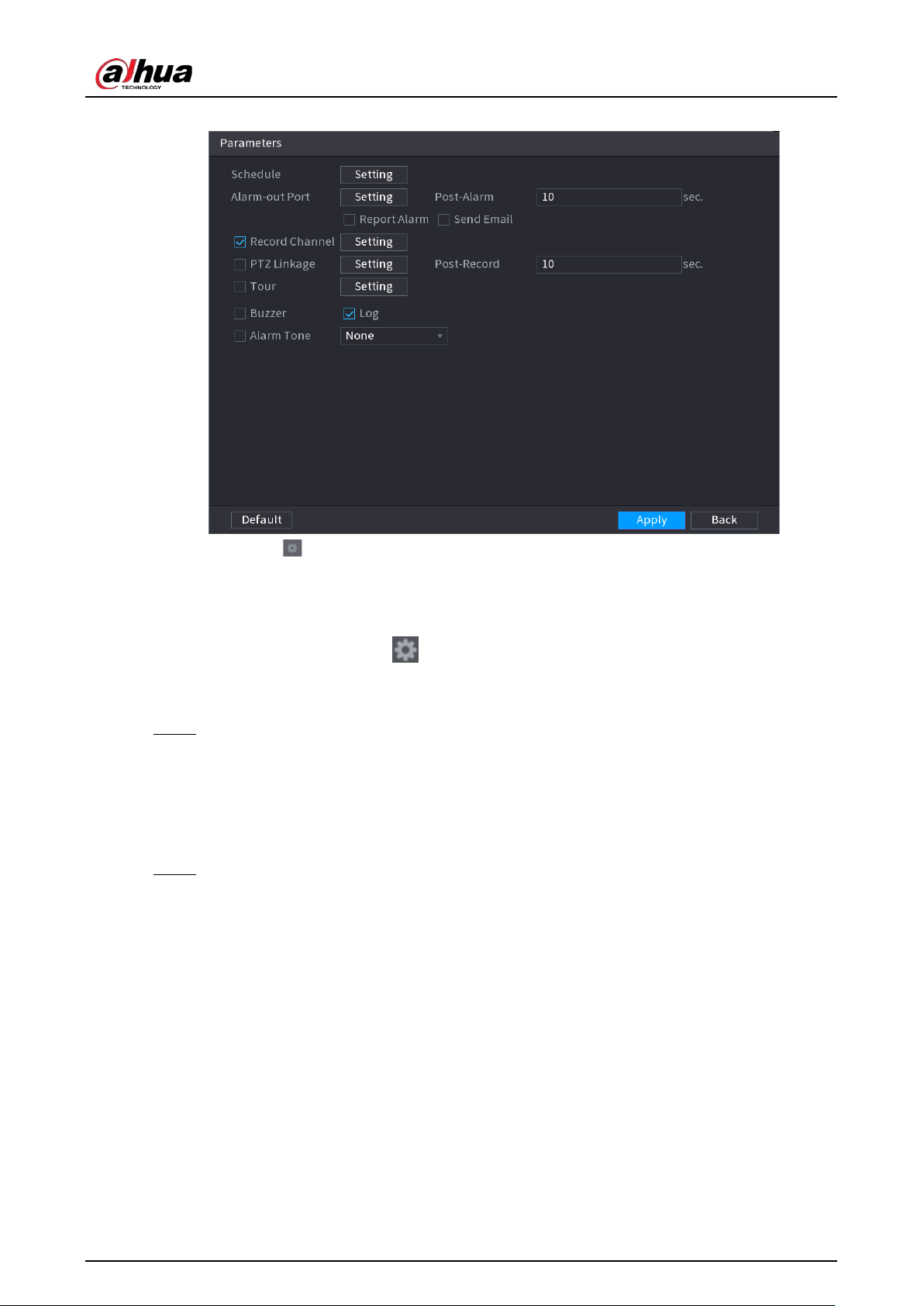
User's Manual
213
Figure 5-128 Schedule and alarm linkage
1) Click .
2) Click
Setting
next to
Schedule
to configure the alarm period.
The system performs linkage actions only for alarms during the arming period.
●
On the time line, drag to set the period.
●
You can also click to set the period.
3) Configure alarm linkage. For details, see Table 5-43.
4) Click
Apply
.
Step 7 Select
Enable
checkbox and then click
Apply
.
5.9.6.2.8 Loitering Detection
The system generates an alarm once the object is staying in the specified zone longer than the
defined duration.
Step 1 Select
Main Menu
>
AI
>
Parameters
>
IVS
.
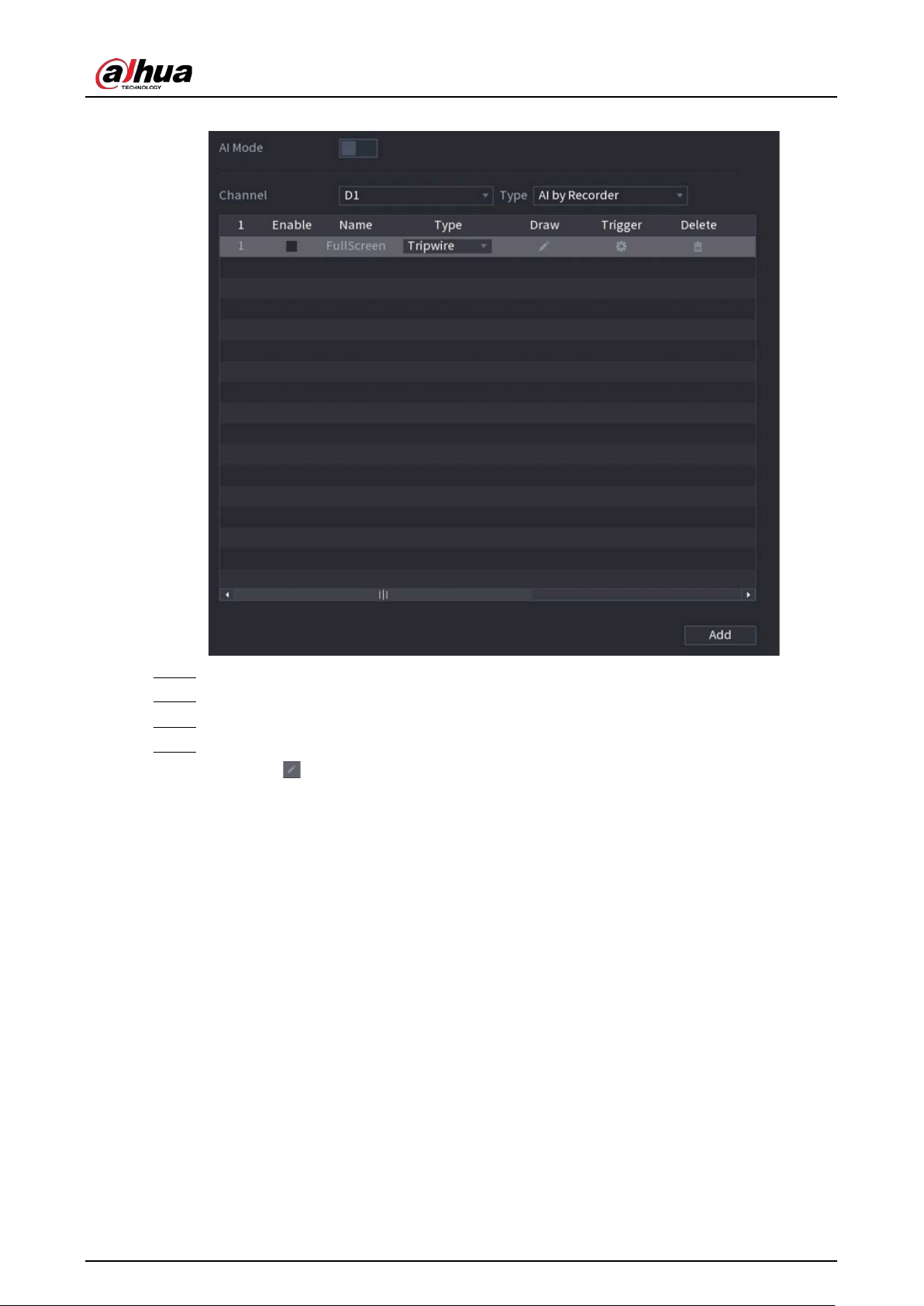
User's Manual
214
Figure 5-129 IVS
Step 2 Select channel and AI type.
Step 3 Click
Add
to add a rule.
Step 4 On the
Type
list, select
Loitering Detection
.
Step 5 Draw the detection rule.
1) Click to draw a rectangle on the surveillance video image. Right-click the image to
stop drawing.
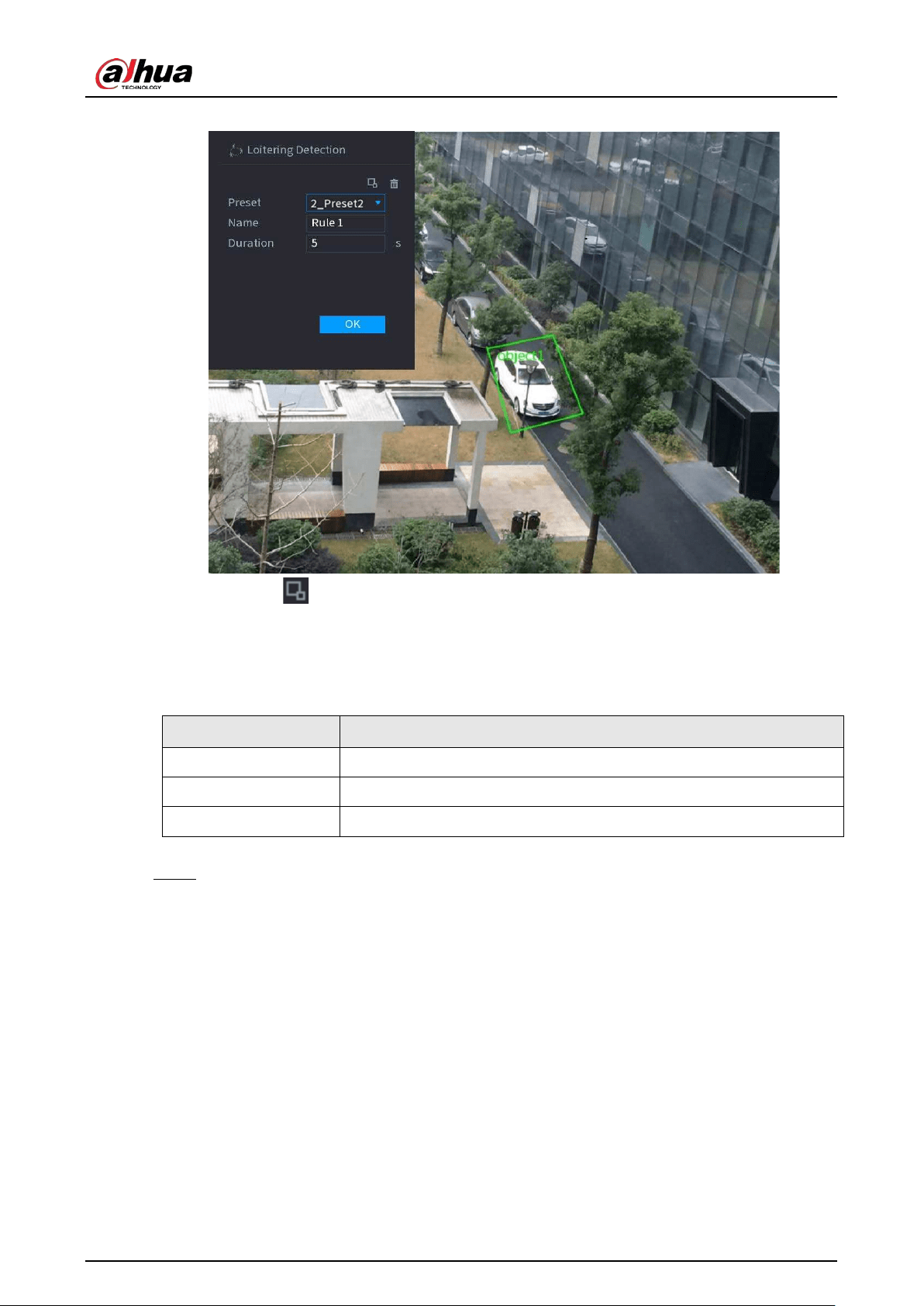
User's Manual
215
Figure 5-130 Loitering detection
2) Click to draw the minimum size or maximum size to filter the target.
The system triggers an alarm only when the size of detected target is between the
maximum size and the minimum size.
3) Configure parameters.
Table 5-35 Loitering detection parameters
Parameter Description
Preset Set the preset point for IVS detection.
Name Customize the rule name.
Duration Set how long the object stays until the alarm is triggered.
4) Click
OK
.
Step 6 Configure alarm schedule and linkage.
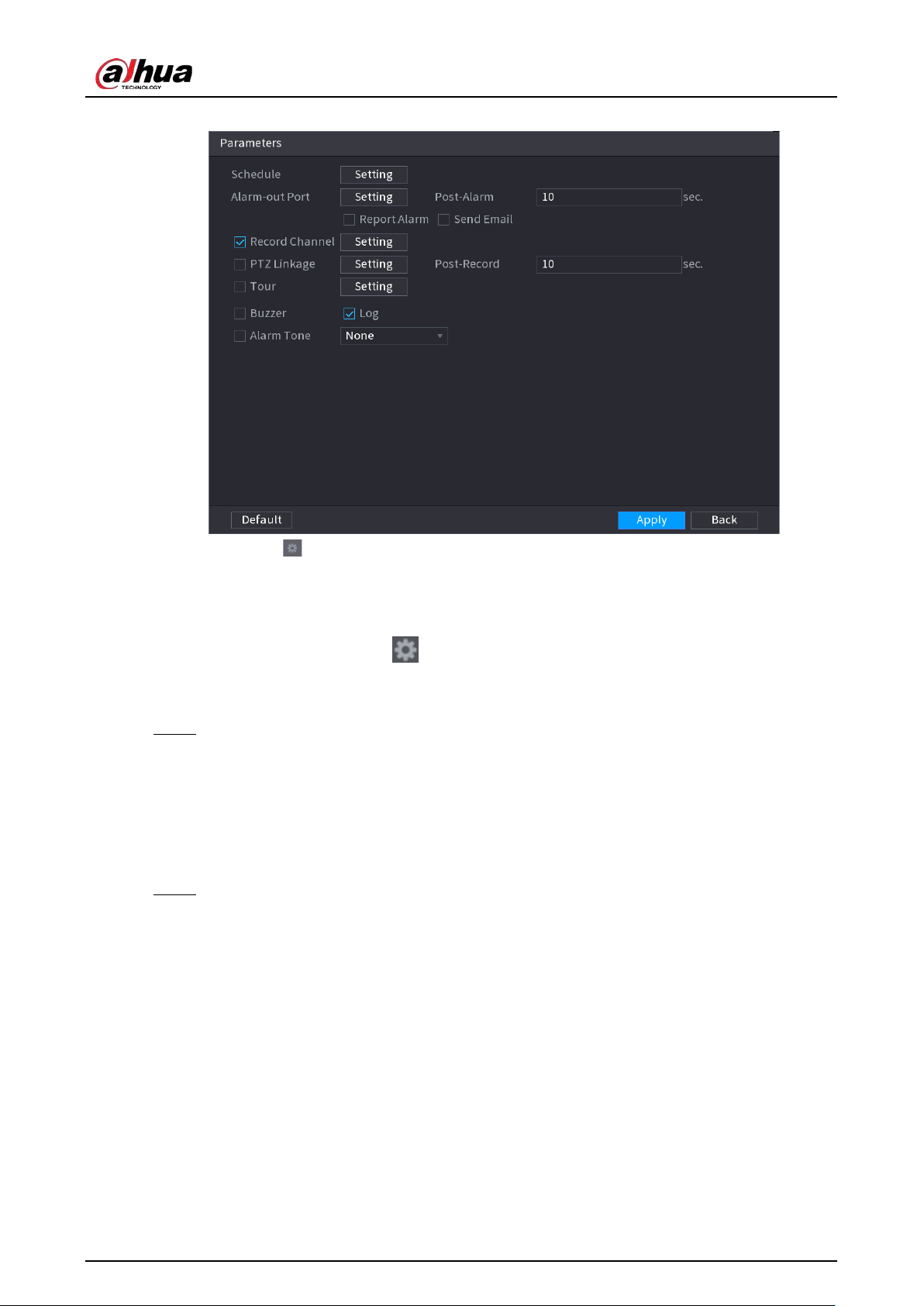
User's Manual
216
Figure 5-131 Schedule and alarm linkage
1) Click .
2) Click
Setting
next to
Schedule
to configure the alarm period.
The system performs linkage actions only for alarms during the arming period.
●
On the time line, drag to set the period.
●
You can also click to set the period.
3) Configure alarm linkage. For details, see Table 5-43.
4) Click
Apply
.
Step 7 Select
Enable
checkbox and then click
Apply
.
5.9.6.3 AI Search (IVS)
You can search for IVS detection results.
Procedure
Step 1 Select
Main Menu
>
AI
>
AI Search
>
IVS
.
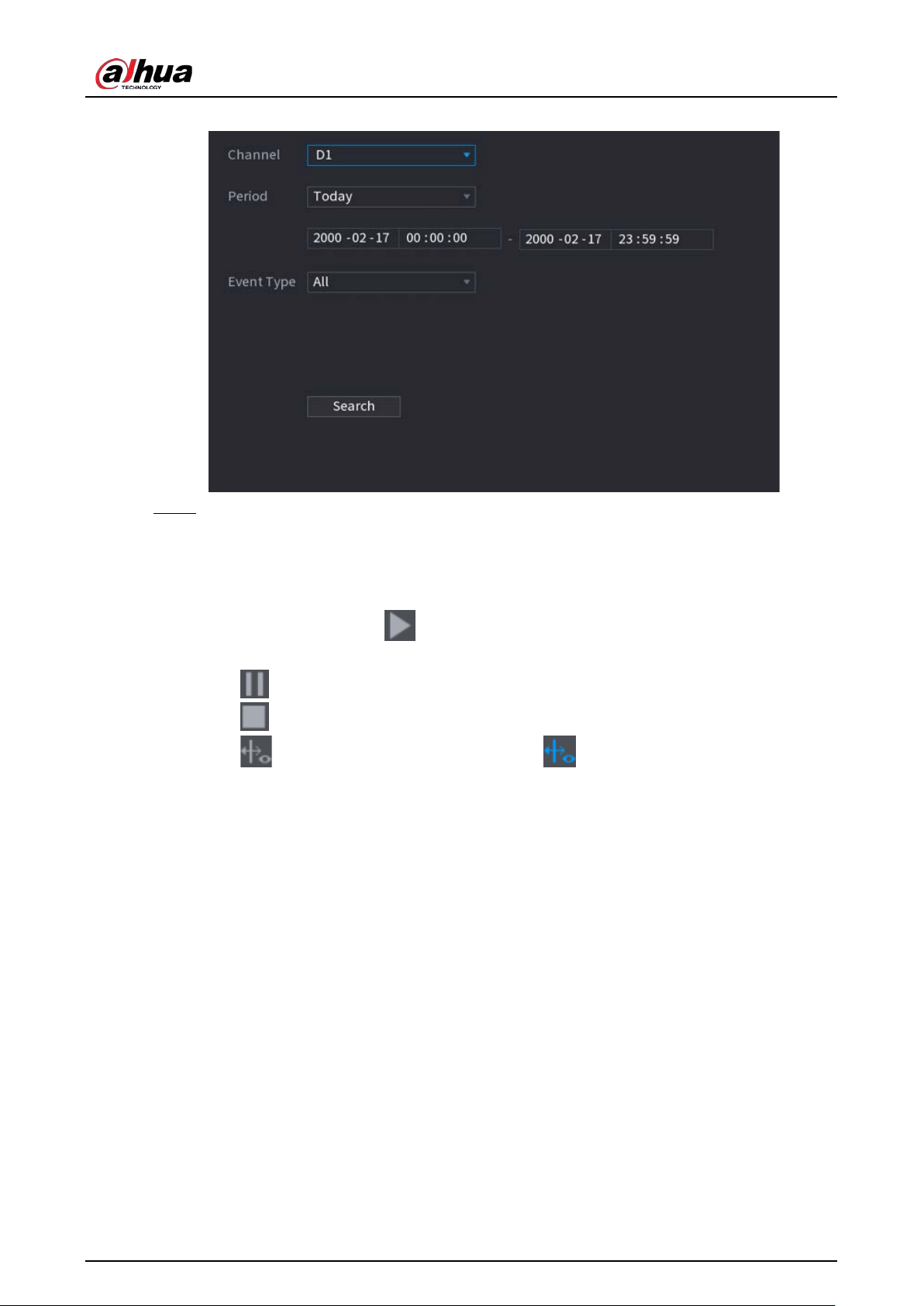
User's Manual
217
Figure 5-132 IVS search
Step 2 Select a channel, start time, end time, event type, and then click
Search
.
The search results are displayed.
Related Operations
●
Play back video.
Click an image, and then click to play back the related video.
During playback, you can:
◇
Click to pause.
◇
Click to stop.
◇
Click to display AI rule. The icon changes to .
●
Add tags.
Select one or more images, and then click
Add Tag
.
●
Lock.
Select one or more images, and then click
Lock
. The locked files will not be overwritten.
●
Export.
Select one or more images, and then click
Export
to export selected search results in excel.
●
Back up.
Select one or more images, click
Backup
, select the storage path and file type, and then click
Start
to export files to external storage device.
5.9.7 Stereo Analysis
By drawing and setting the rules of stereo behavior analysis, the system will perform alarm linkage
actions when the video matches the detection rule. Types of events include: people approach
detection, fall detection, violence detection, people No. exception detection and people stay
detection.
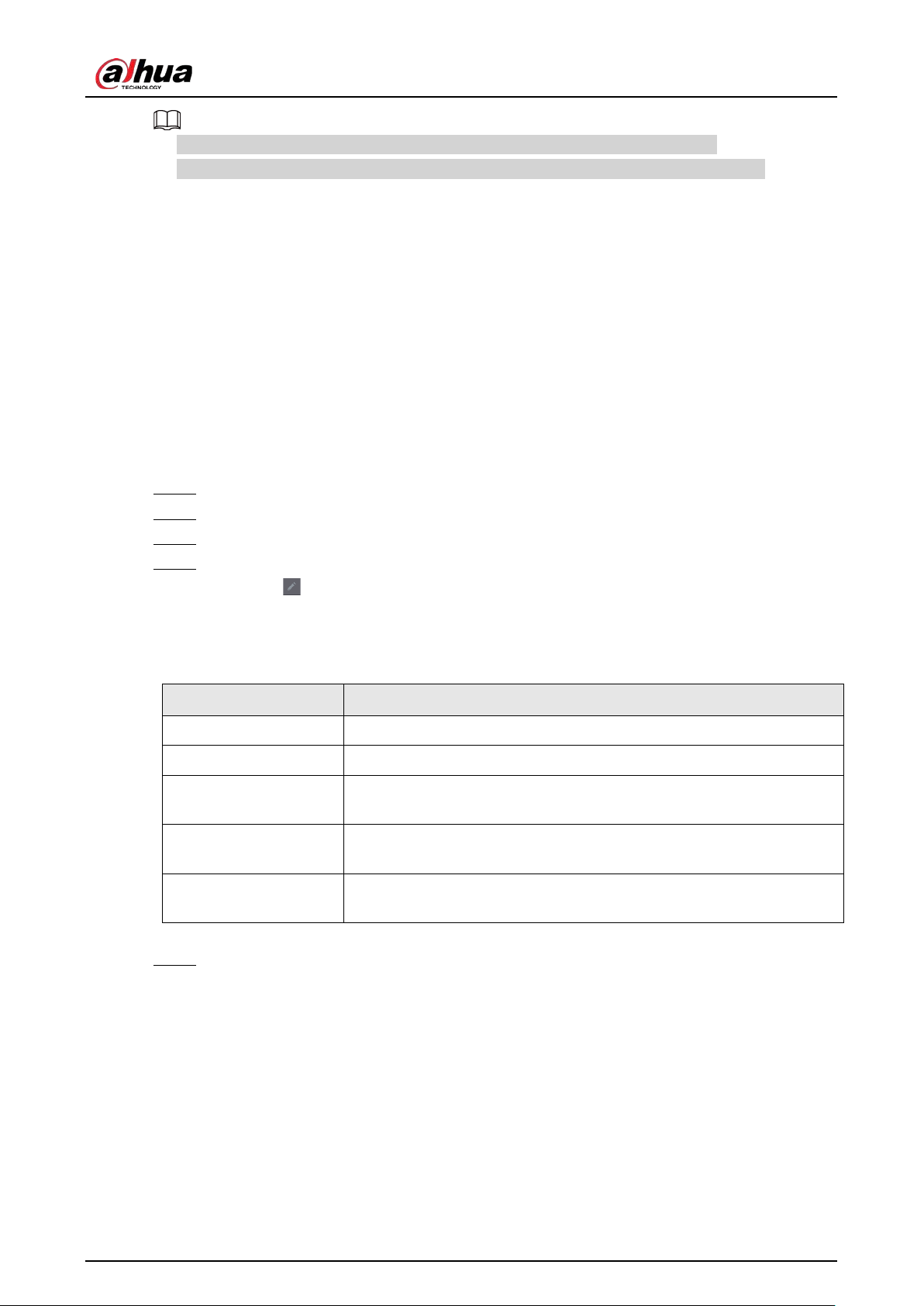
User's Manual
218
●
This function requires access to a camera that supports stereo behavior analysis.
●
Stereo analysis and IVS are mutually exclusive and cannot be enabled at the same time.
5.9.7.1 Enabling Smart Plan
To use AI by camera, you need to enable the smart plan first. For details, see "5.9.2 Smart Plan".
5.9.7.2 Configuring Stereo Analysis
5.9.7.2.1 People Approach Detection
When two people stay in the same detection area longer than the defined duration or when the
distance between two people is larger or smaller than the defined threshold, an alarm will be
triggered.
Step 1 Select
Main Menu
>
AI
>
Parameters
>
Stereo Analysis
.
Step 2 Select a channel and then click
Add
.
Step 3 Select
Enable
and then set
Type
to
People Approach Detection
.
Step 4 Draw detection rule.
1) Click , and then draw a detection area on the video image. Right-click the image to
stop drawing.
2) Configure parameters.
Table 5-36 Parameters of people approach detection
Parameter Description
Name Customize the rule name.
Sensitivity Set alarm sensitivity.
Duration
Set how long two people stay in the same detection area until an
alarm is triggered.
Repeat Alarm Time
Set repeat alarm time. If the alarm-triggering event continues, an
alarm will be triggered again when repeat alarm time passed.
Interval Threshold
When the distance between people in the area is greater than or less
than the defined threshold, an alarm will be triggered.
3) Click
OK
.
Step 5 Configure alarm schedule and linkage.
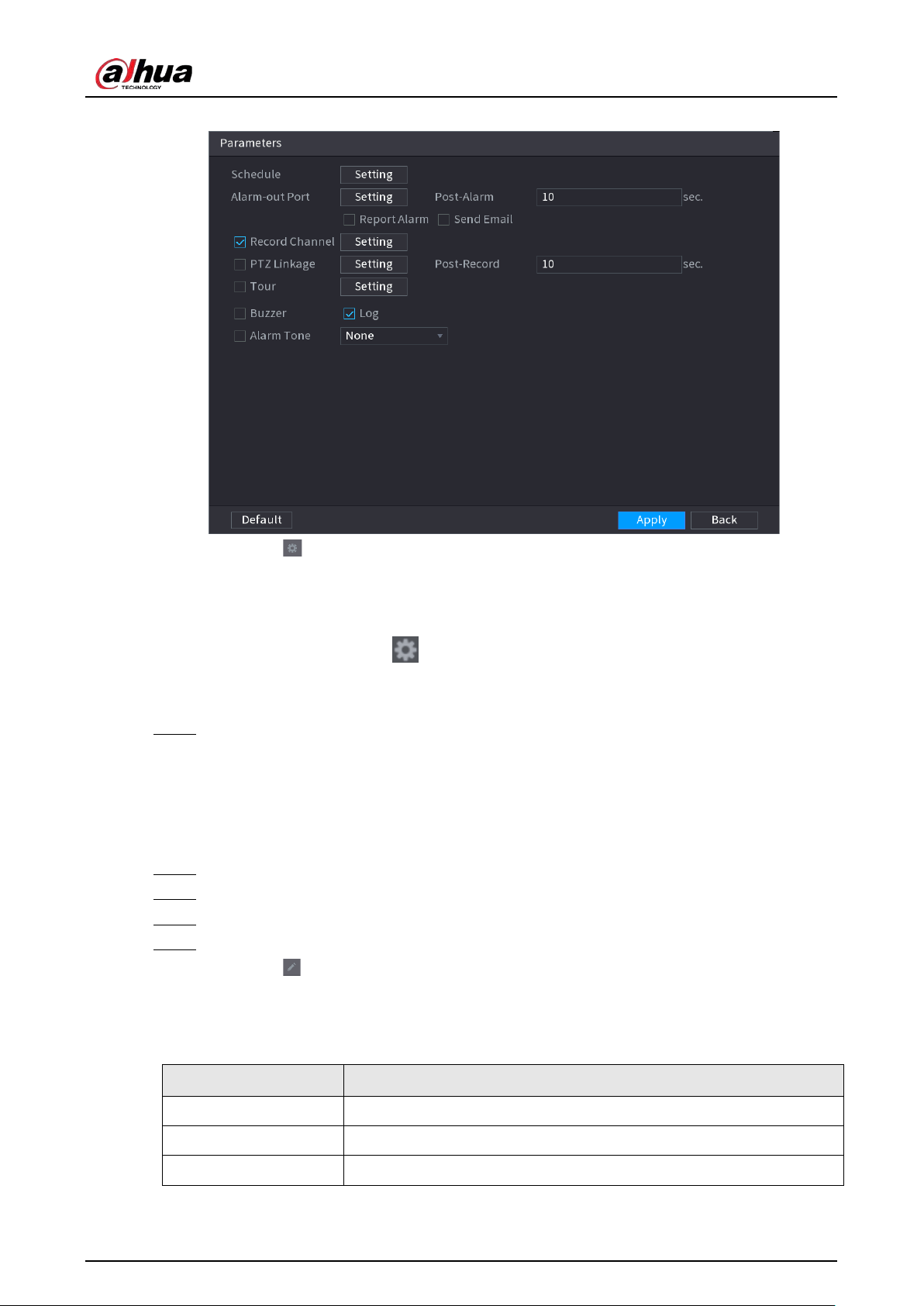
User's Manual
219
Figure 5-133 Schedule and alarm linkage
1) Click .
2) Click
Setting
next to
Schedule
to configure the alarm period.
The system performs linkage actions only for alarms during the arming period.
●
On the time line, drag to set the period.
●
You can also click to set the period.
3) Configure alarm linkage. For details, see Table 5-43.
4) Click
Apply
.
Step 6 Click
Apply
.
5.9.7.2.2 Fall Detection
When someone falls from a height in the detection area and the duration of the action is greater
than the defined threshold, an alarm will be triggered.
Step 1 Select
Main Menu
>
AI
>
Parameters
>
Stereo Analysis
.
Step 2 Select a channel and then click
Add
.
Step 3 Select
Enable
and then set
Type
to
Fall Detection
.
Step 4 Draw detection rule.
1) Click , and then draw a detection area on the video image. Right-click the image to
stop drawing.
2) Configure parameters.
Table 5-37 Parameters of fall detection
Parameter Description
Name Customize the rule name.
Sensitivity Set alarm sensitivity.
Duration Set the minimum time of triggering an alarm when people fall.
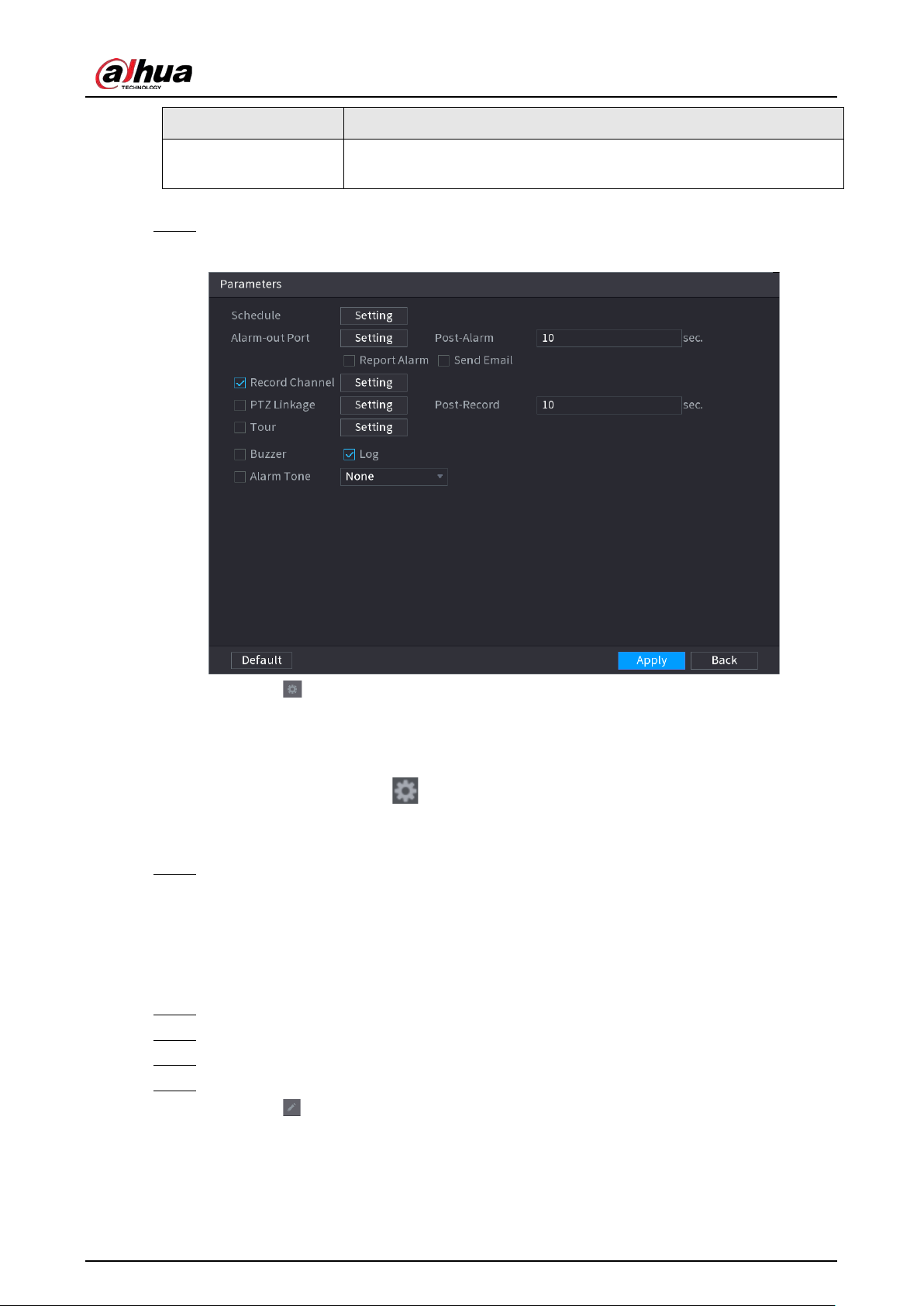
User's Manual
220
Parameter Description
Repeat Alarm Time
Set repeat alarm time. If the alarm-triggering event continues, an
alarm will be triggered again when repeat alarm time passed.
3) Click
OK
.
Step 5 Configure alarm schedule and linkage.
Figure 5-134 Schedule and alarm linkage
1) Click .
2) Click
Setting
next to
Schedule
to configure the alarm period.
The system performs linkage actions only for alarms during the arming period.
●
On the time line, drag to set the period.
●
You can also click to set the period.
3) Configure alarm linkage. For details, see Table 5-43.
4) Click
Apply
.
Step 6 Click
Apply
.
5.9.7.2.3 Violence Detection
When the target in the detection region has large body movements such as smashing and fighting,
an alarm will be triggered.
Step 1 Select
Main Menu
>
AI
>
Parameters
>
Stereo Analysis
.
Step 2 Select a channel and then click
Add
.
Step 3 Select
Enable
and then set
Type
to
Violence Detection
.
Step 4 Draw detection rule.
1) Click , and then draw a detection area on the video image. Right-click the image to
stop drawing.
2) Configure parameters.
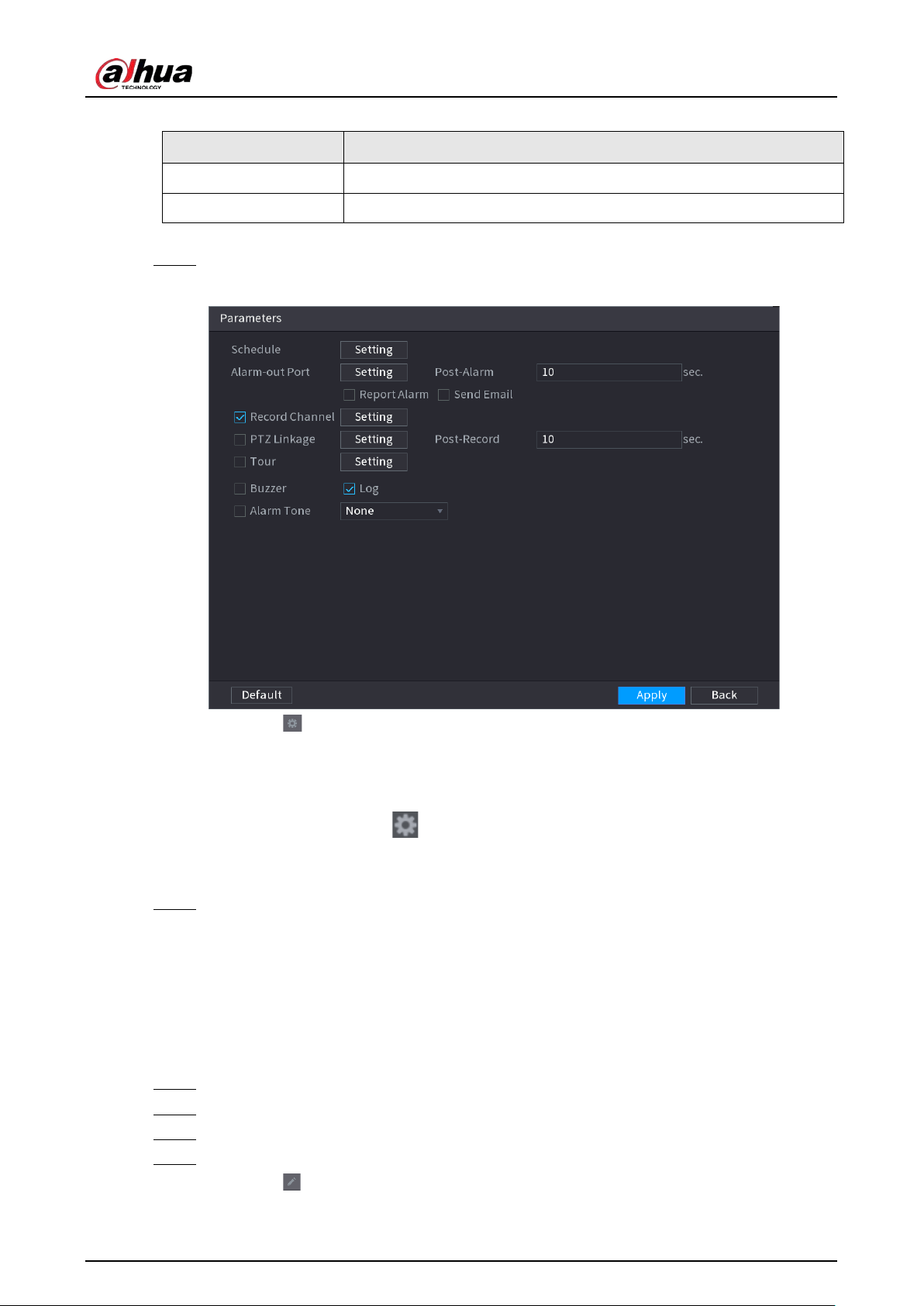
User's Manual
221
Table 5-38 Parameters of violence detection
Parameter Description
Name Customize the rule name.
Sensitivity Set alarm sensitivity.
3) Click
OK
.
Step 5 Configure alarm schedule and linkage.
Figure 5-135 Schedule and alarm linkage
1) Click .
2) Click
Setting
next to
Schedule
to configure the alarm period.
The system performs linkage actions only for alarms during the arming period.
●
On the time line, drag to set the period.
●
You can also click to set the period.
3) Configure alarm linkage. For details, see Table 5-43.
4) Click
Apply
.
Step 6 Click
Apply
.
5.9.7.2.4 People No. Exception Detection
When the system detects an abnormal number of people in the same detection area, an alarm will
be triggered.
Procedure
Step 1 Select
Main Menu
>
AI
>
Parameters
>
Stereo Analysis
.
Step 2 Select a channel and then click
Add
.
Step 3 Select
Enable
and then set
Type
to
People No. Exception Detection
.
Step 4 Draw detection rule.
1) Click , and then draw a detection area on the video image. Right-click the image to
stop drawing.
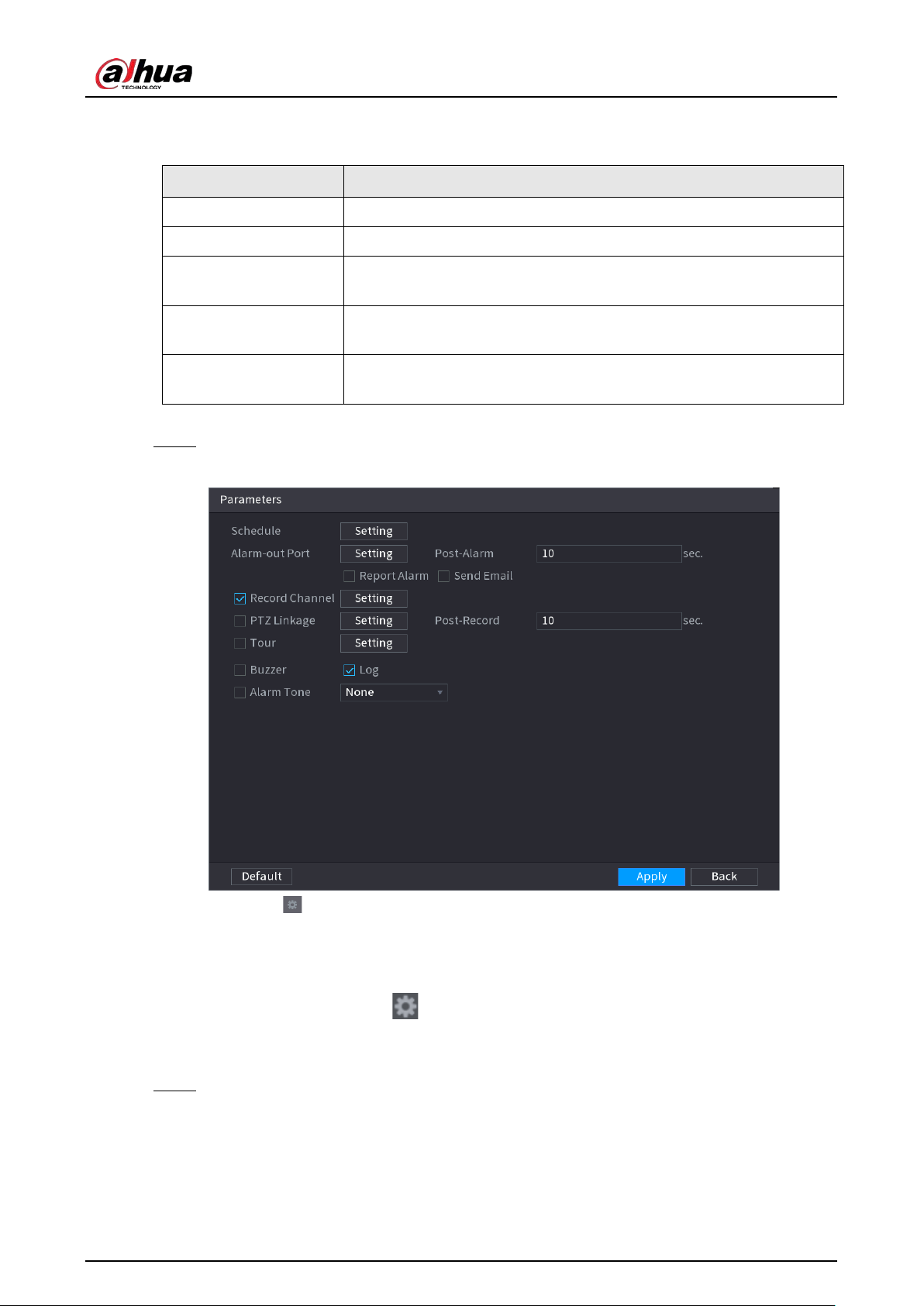
User's Manual
222
2) Configure parameters.
Table 5-39 Parameters of people No. exception detection
Parameter Description
Name Customize the rule name.
Sensitivity Set alarm sensitivity.
Duration
Set the minimum time to trigger an alarm after the system detects an
abnormal number of people.
Repeat Alarm Time
Set repeat alarm time. If the alarm-triggering event continues, an
alarm will be triggered again when repeat alarm time passed.
Alarm People No.
When the number of people in the area is greater than, equal to, or
less than the defined threshold, an alarm will be triggered.
3) Click
OK
.
Step 5 Configure alarm schedule and linkage.
Figure 5-136 Schedule and alarm linkage
1) Click .
2) Click
Setting
next to
Schedule
to configure the alarm period.
The system performs linkage actions only for alarms during the arming period.
●
On the time line, drag to set the period.
●
You can also click to set the period.
3) Configure alarm linkage. For details, see Table 5-43.
4) Click
Apply
.
Step 6 Click
Apply
.
5.9.7.2.5 People Stay Detection
When the target stays in the detection area longer than the defined duration, an alarm will be
triggered.
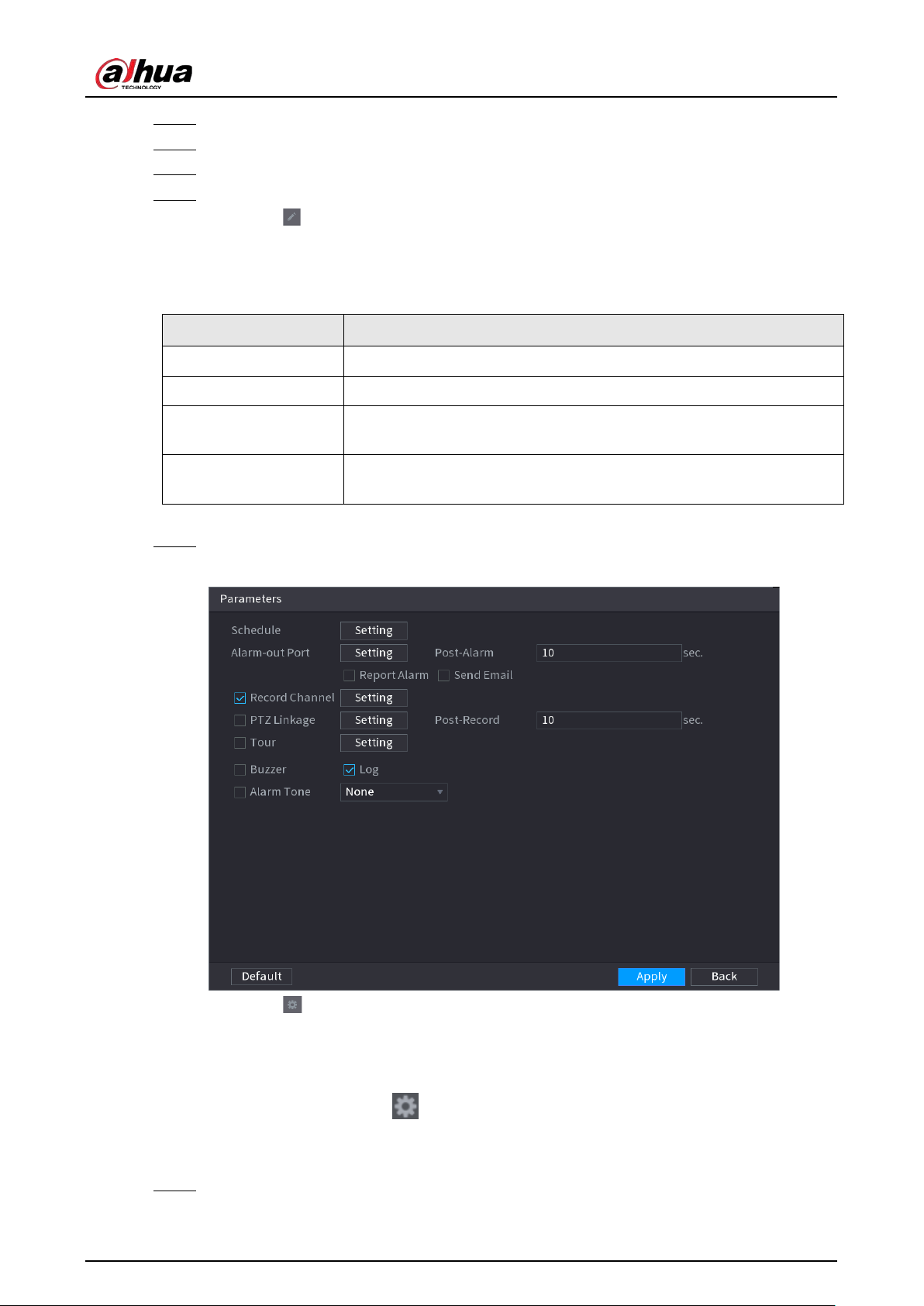
User's Manual
223
Step 1 Select
Main Menu
>
AI
>
Parameters
>
Stereo Analysis
.
Step 2 Select a channel and then click
Add
.
Step 3 Select
Enable
and then set
Type
to
People Stay Detection
.
Step 4 Draw detection rule.
1) Click , and then draw a detection area on the video image. Right-click the image to
stop drawing.
2) Configure parameters.
Table 5-40 Parameters of people stay detection
Parameter Description
Name Customize the rule name.
Sensitivity Set alarm sensitivity.
Duration
Set low long people stay in the detection area until an alarm is
triggered.
Repeat Alarm Time
Set repeat alarm time. If the alarm-triggering event continues, an
alarm will be triggered again when repeat alarm time passed.
3) Click
OK
.
Step 5 Configure alarm schedule and linkage.
Figure 5-137 Schedule and alarm linkage
1) Click .
2) Click
Setting
next to
Schedule
to configure the alarm period.
The system performs linkage actions only for alarms during the arming period.
●
On the time line, drag to set the period.
●
You can also click to set the period.
3) Configure alarm linkage. For details, see Table 5-43.
4) Click
Apply
.
Step 6 Click
Apply
.
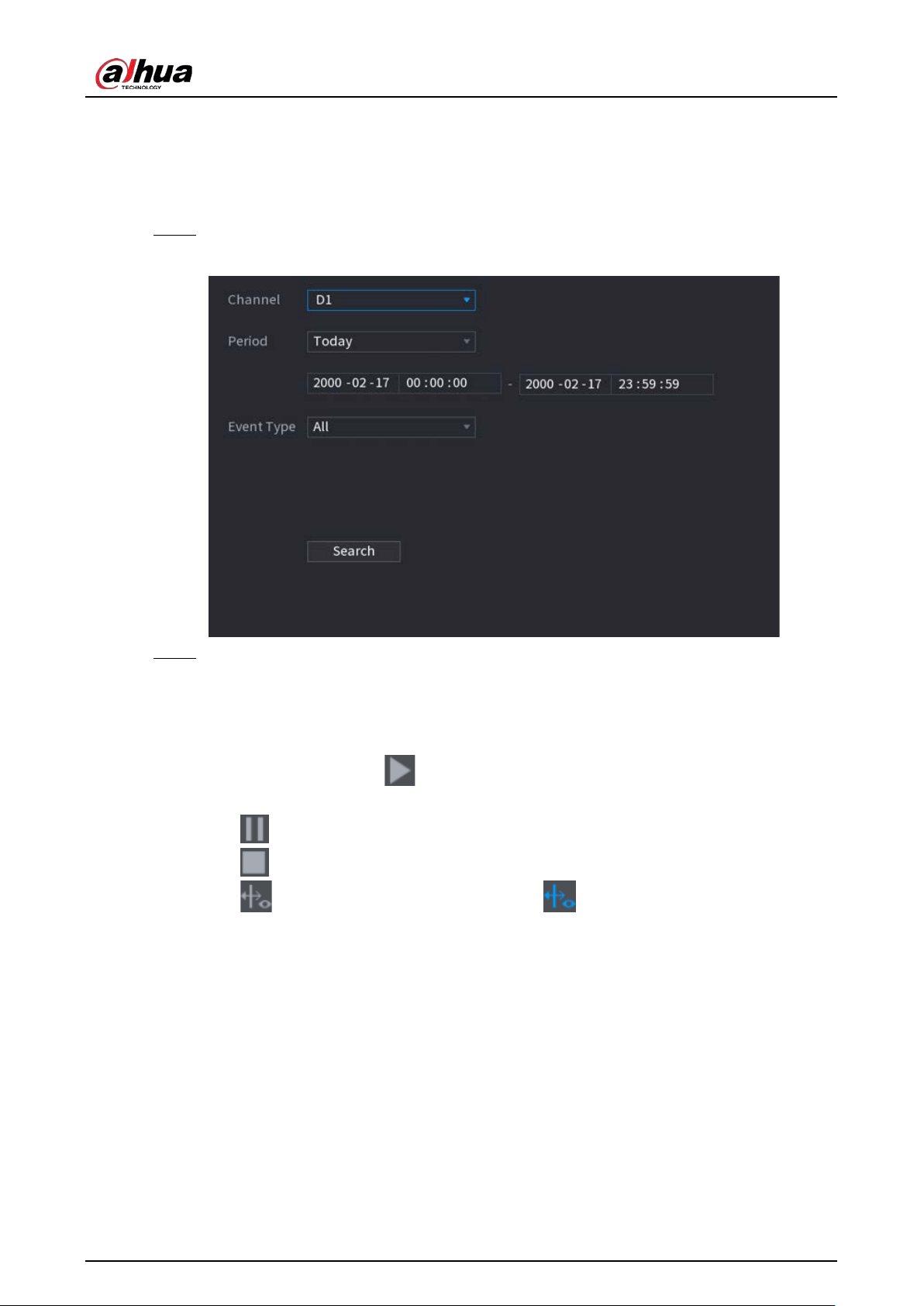
User's Manual
224
5.9.7.3 AI Search (Stereo Analysis)
You can search for detection results of stereo analysis.
Procedure
Step 1 Select
Main Menu
>
AI
>
AI Search
>
Stereo Analysis
.
Figure 5-138 Stereo analysis search
Step 2 Select a channel, start time, end time, event type, and then click
Search
.
The search results are displayed.
Related Operations
●
Play back video.
Click an image, and then click to play back the related video.
During playback, you can:
◇
Click to pause.
◇
Click to stop.
◇
Click to display AI rule. The icon changes to .
●
Add tags.
Select one or more images, and then click
Add Tag
.
●
Lock.
Select one or more images, and then click
Lock
. The locked files will not be overwritten.
●
Export.
Select one or more images, and then click
Export
to export selected search results in excel.
●
Back up.
Select one or more images, click
Backup
, select the storage path and file type, and then click
Start
to export files to external storage device.
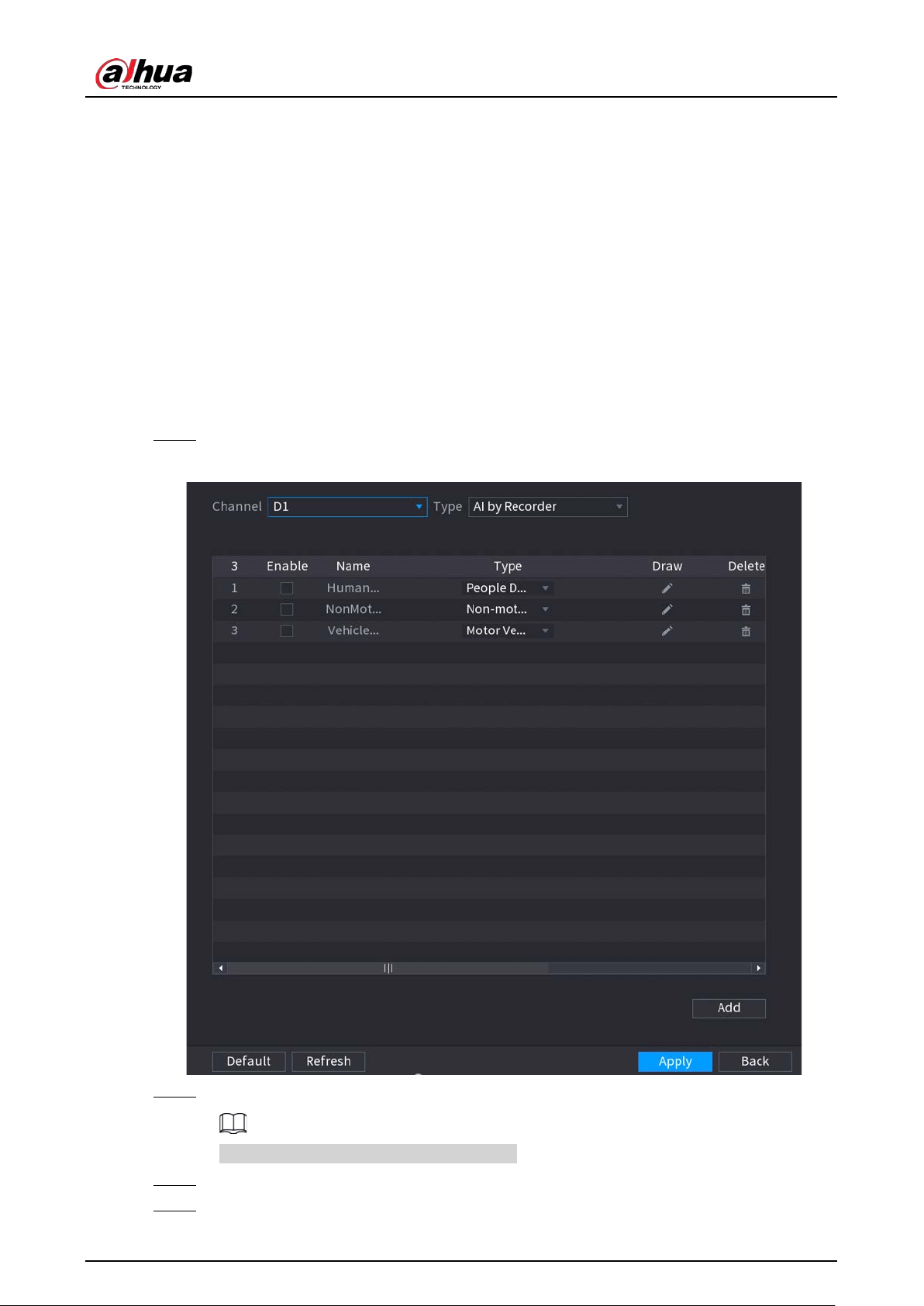
User's Manual
225
5.9.8 Video Metadata
The system analyzes real-time video stream to detect the existence of human, motor vehicle, and
non-motor vehicle. Once a target is detected, an alarm is triggered.
5.9.8.1 Enabling Smart Plan
To use AI by camera, you need to enable the smart plan first. For details, see "5.9.2 Smart Plan".
5.9.8.2 Configuring Video Metadata
When a metadata alarm is triggered, the system links the corresponding camera to record videos
and logs and take snapshots. Other alarm linkage actions are not supported for video metadata.
Step 1 Select
Main Menu
>
AI
>
Parameters
>
Video Metadata
.
Figure 5-139 Video metadata
Step 2 Select a channel and AI type.
AI by Recorder is available on select models.
Step 3 Click
Add
to add a rule.
Step 4 Select
Enable
and then set
Type
to
People Detection
,
Non-motor Vehicle Detection
or
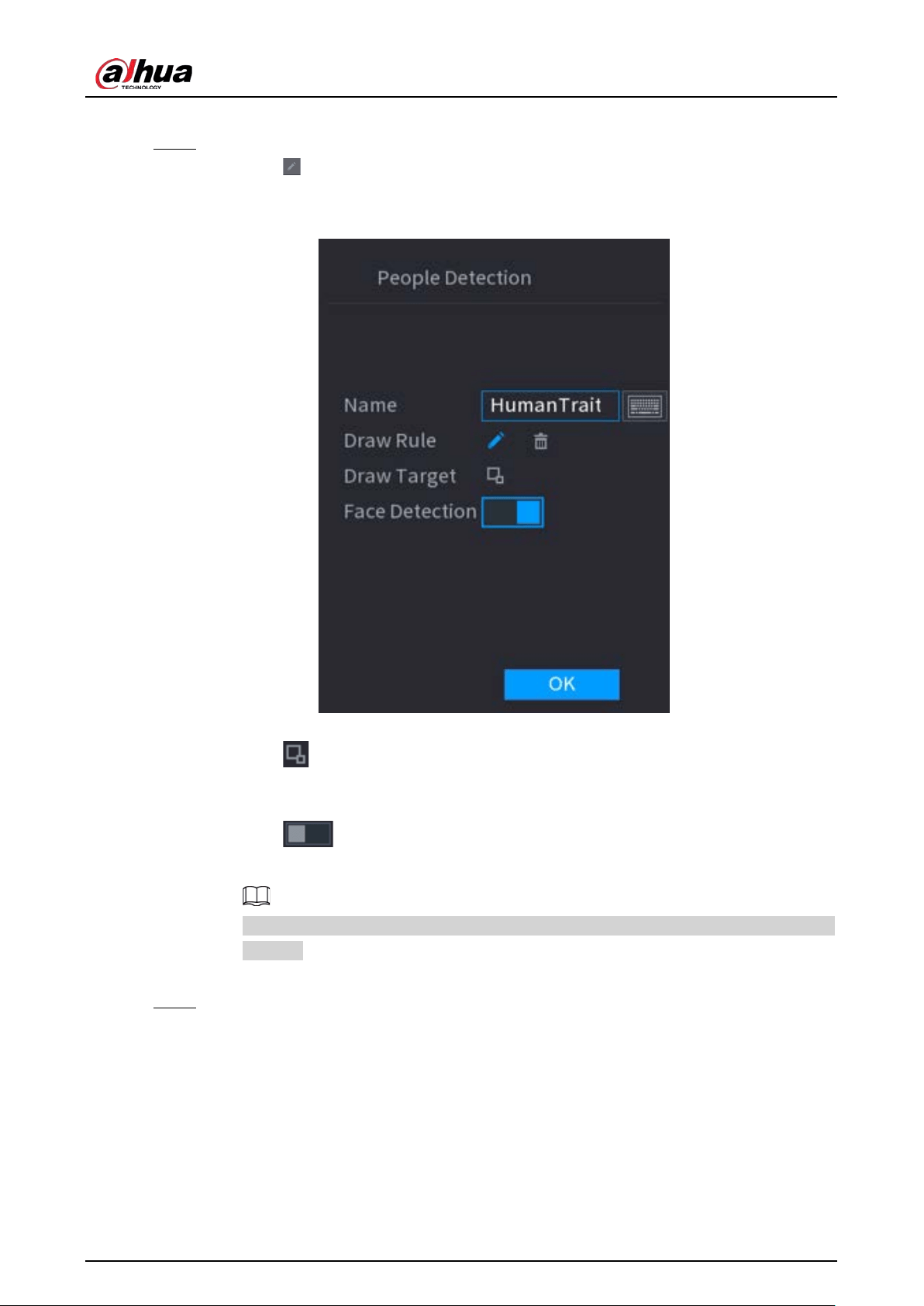
User's Manual
226
Motor Vehicle Detection
.
Step 5 Draw detection rule.
1) Click , and then draw a detection area on the video image. Right-click the image to
stop drawing.
Figure 5-140 People detection
2) Enter the rule name.
3) Click to draw the minimum size or maximum size to filter the target.
The system triggers an alarm only when the size of detected target is between the
maximum size and the minimum size.
4) Click to enable face detection.
5) Select
A to B
,
B to A
, or
Both
as direction for tripwire counting.
Tripwire counting is available when AI by Camera is used and the camera supports this
function.
6) Click
OK
.
Step 6 Click
Apply
.
5.9.8.3 AI Search (Video Metadata)
You can search for the video metadata detection results and play back related videos.
5.9.8.3.1 Human Detection
Procedure
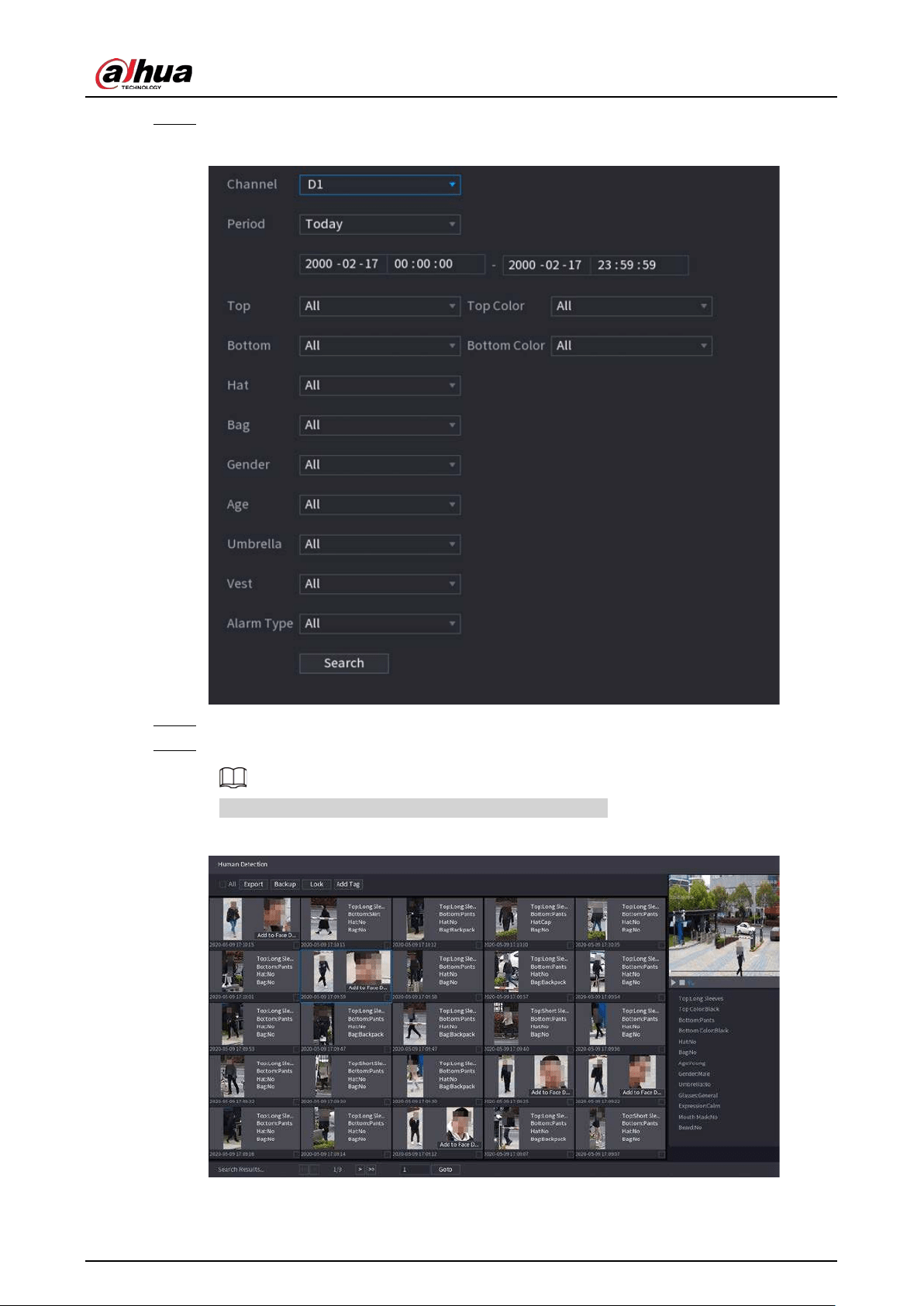
User's Manual
227
Step 1 Select
Main Menu
>
AI
>
AI Search
>
Human Detection
.
Figure 5-141 Human detection
Step 2 Select a channel, start time, end time, and set corresponding parameters.
Step 3 Click
Search
.
For privacy protection, the faces are intentionally blurred.
Figure 5-142 Search results
Related Operations
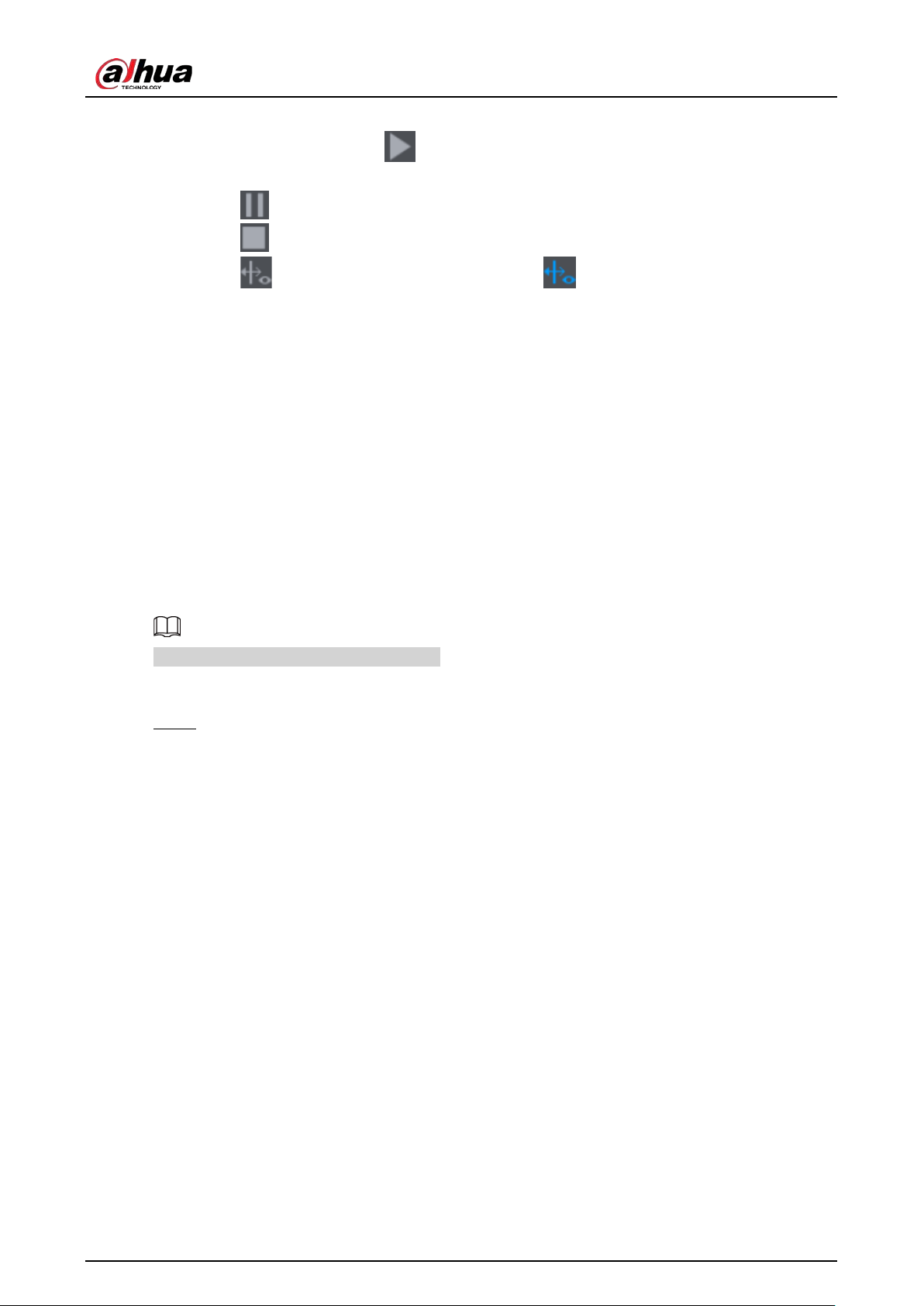
User's Manual
228
●
Play back video.
Click an image, and then click to play back the related video.
During playback, you can:
◇
Click to pause.
◇
Click to stop.
◇
Click to display AI rule. The icon changes to .
●
Add tags.
Select one or more images, and then click
Add Tag
.
●
Lock.
Select one or more images, and then click
Lock
. The locked files will not be overwritten.
●
Export.
Select one or more images, and then click
Export
to export selected search results in excel.
●
Back up.
Select one or more images, click
Backup
, select the storage path and file type, and then click
Start
to export files to external storage device.
5.9.8.3.2 Motor Vehicle Detection
You can search for motor vehicle detection results according to the vehicle parameters.
This function is available on select models.
Procedure
Step 1 Select
Main Menu
>
AI
>
AI Search
>
Motor Vehicle Detection
.
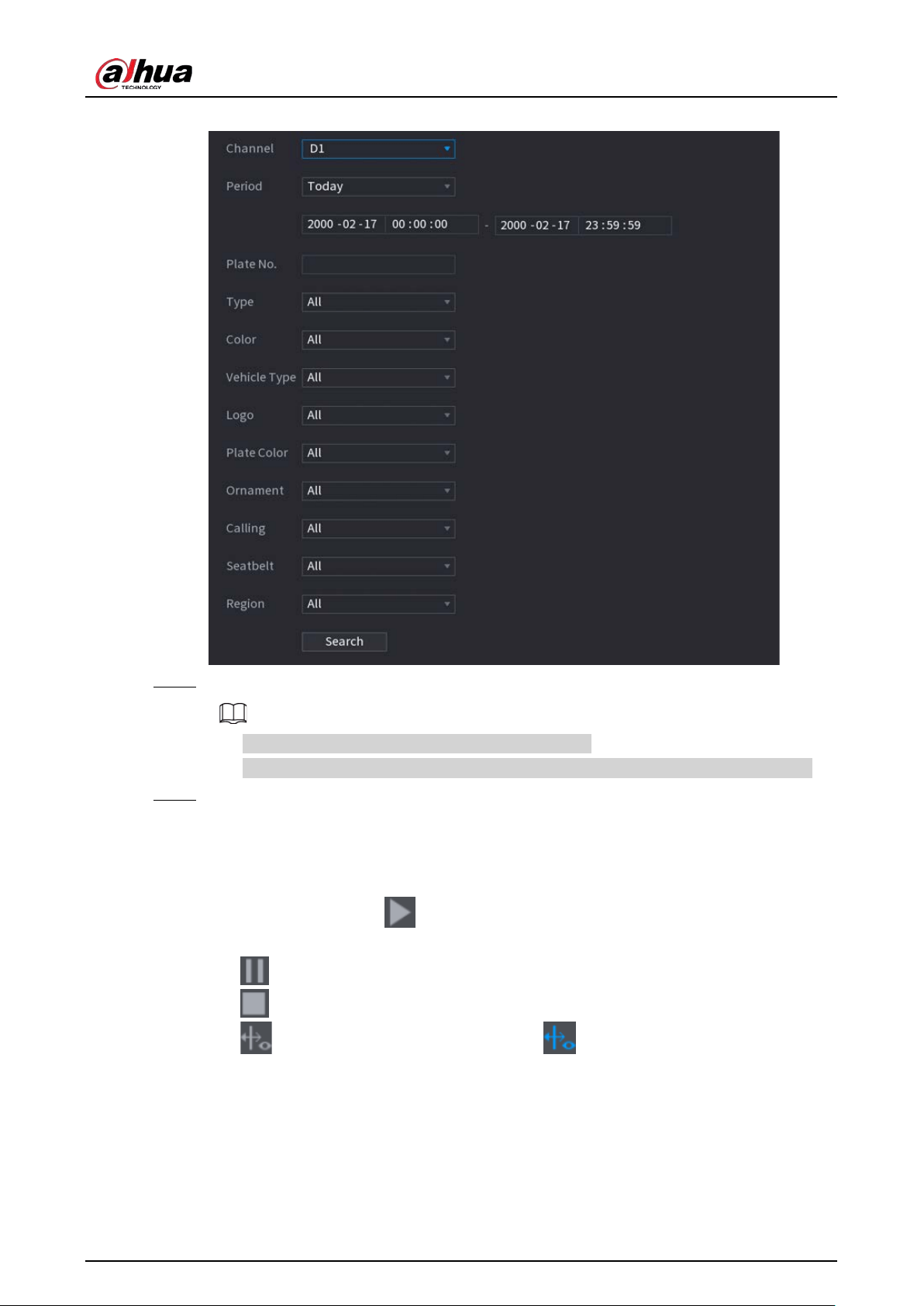
User's Manual
229
Figure 5-143 Motor vehicle detection
Step 2 Select a channel and then set parameters.
●
The system supports fuzzy search of plate numbers.
●
The system searches all plate numbers by default if you have not set a plate number.
Step 3 Click
Search
.
The search results are displayed.
Related Operations
●
Play back video.
Click an image, and then click to play back the related video.
During playback, you can:
◇
Click to pause.
◇
Click to stop.
◇
Click to display AI rule. The icon changes to .
●
Add tags.
Select one or more images, and then click
Add Tag
.
●
Lock.
Select one or more images, and then click
Lock
. The locked files will not be overwritten.
●
Export.
Select one or more images, and then click
Export
to export selected search results in excel.
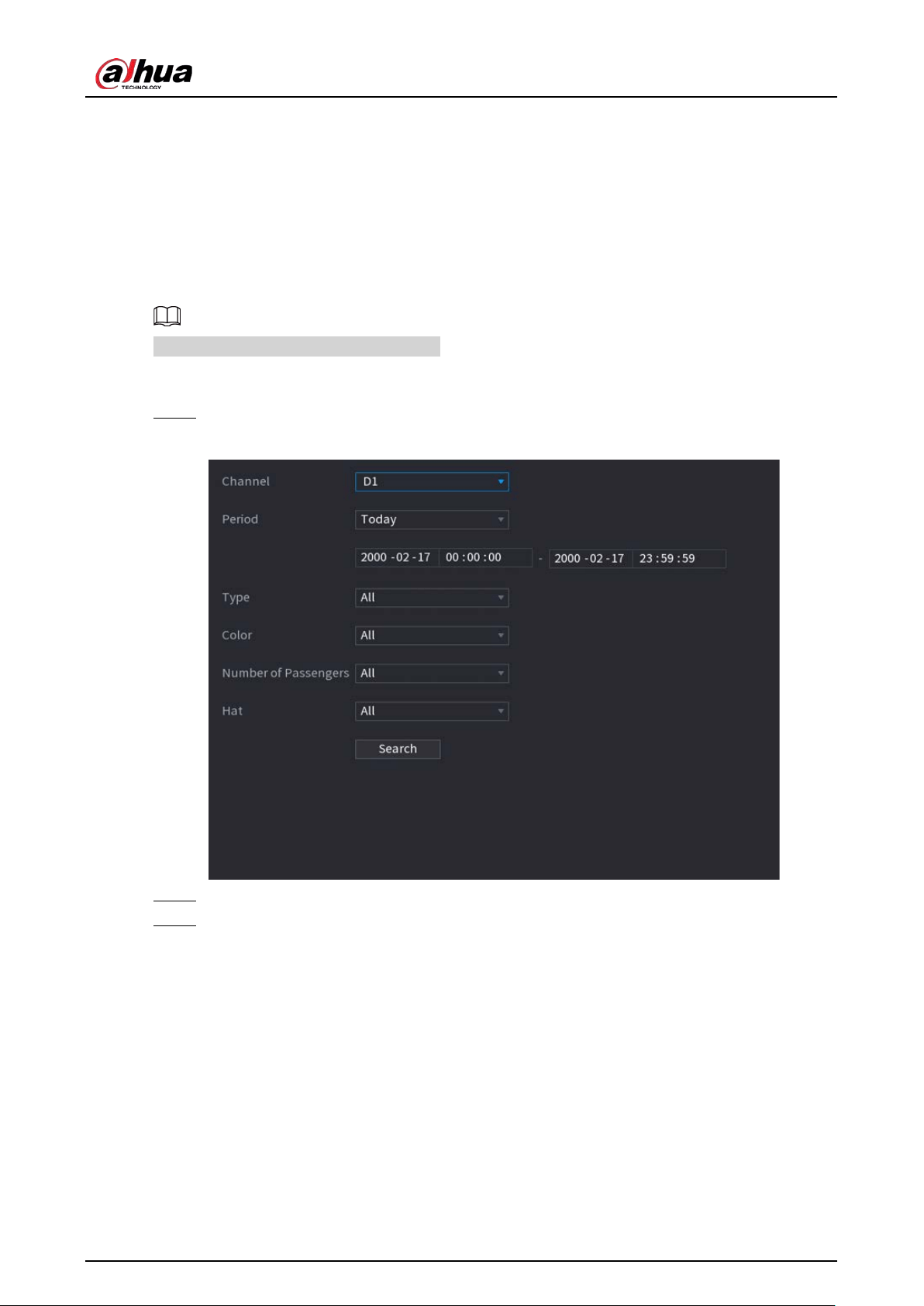
User's Manual
230
●
Back up.
Select one or more images, click
Backup
, select the storage path and file type, and then click
Start
to export files to external storage device.
5.9.8.3.3 Non-motor Vehicle Detection
You can search for non-motor vehicle detection results according to the non-motor vehicle
parameters.
This function is available on select models.
Procedure
Step 1 Select
Main Menu
>
AI
>
AI Search
>
Non-Motor Vehicle Detection
.
Figure 5-144 Non-motor vehicle detection
Step 2 Select a channel and then set parameters.
Step 3 Click
Search
.
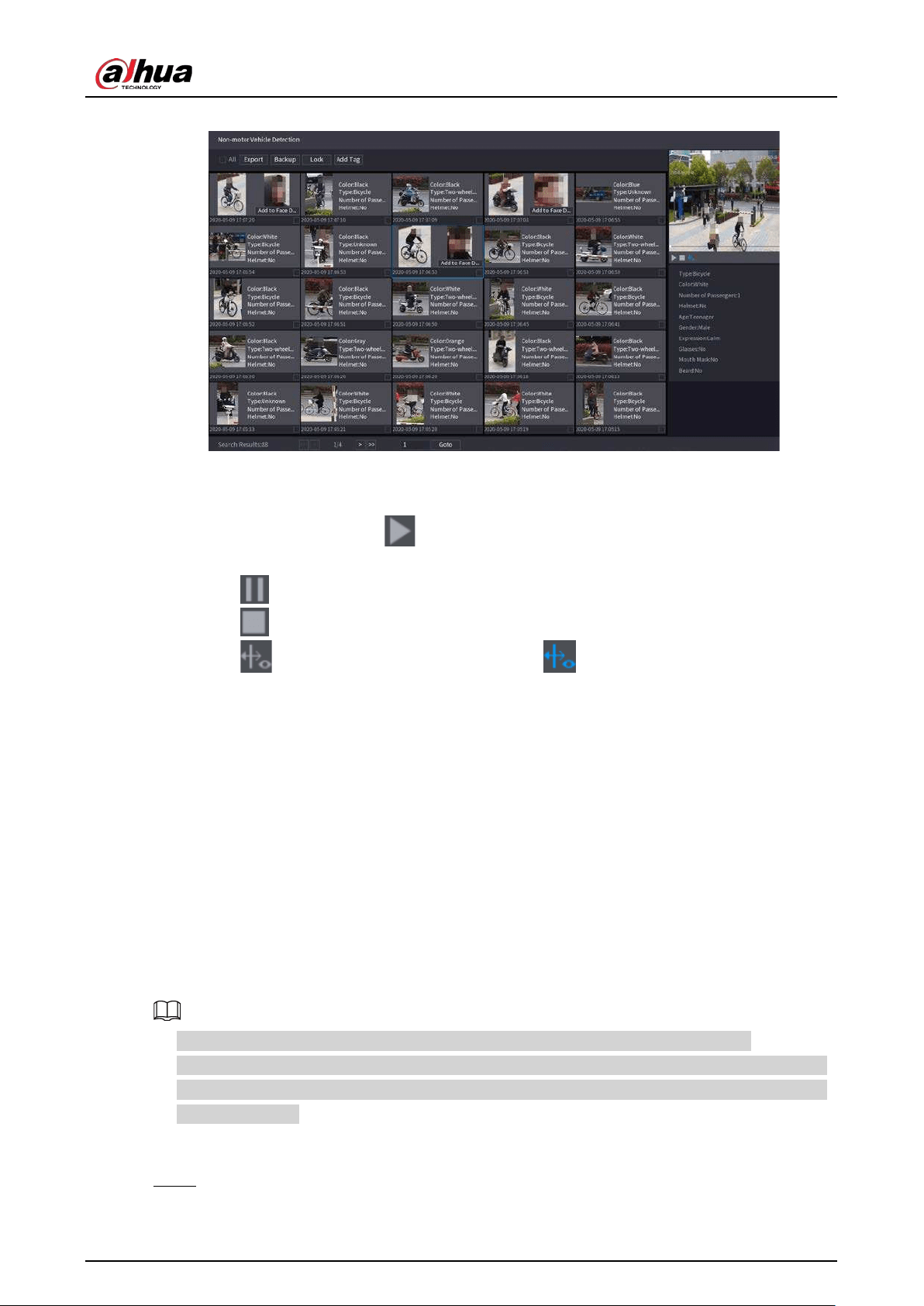
User's Manual
231
Figure 5-145 Search results
Related Operations
●
Play back video.
Click an image, and then click to play back the related video.
During playback, you can:
◇
Click to pause.
◇
Click to stop.
◇
Click to display AI rule. The icon changes to .
●
Add tags.
Select one or more images, and then click
Add Tag
.
●
Lock.
Select one or more images, and then click
Lock
. The locked files will not be overwritten.
●
Export.
Select one or more images, and then click
Export
to export selected search results in excel.
●
Back up.
Select one or more images, click
Backup
, select the storage path and file type, and then click
Start
to export files to external storage device.
5.9.8.3.4 Report Query
You can search for and export video metadata statistics.
●
The statistics might be overwritten when the storage space runs out. Back up in time.
●
When you restore the Device to factory settings, all the data except data in the external storage
device will be cleared. You can clear the data in the external storage device through formatting
or other methods.
Procedure
Step 1 Select
Main Menu
>
AI
>
Report Query
>
Video Metadata
.
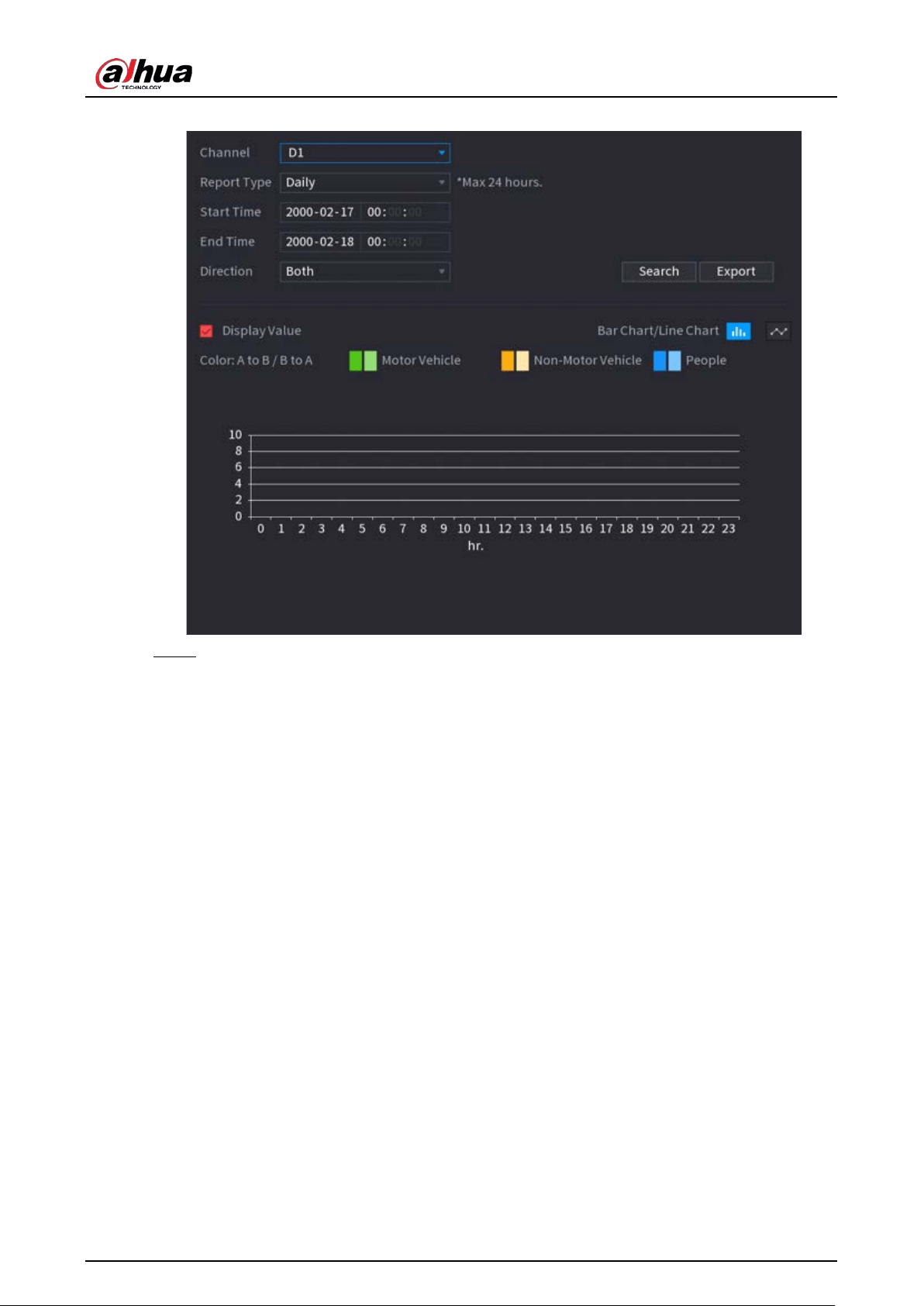
User's Manual
232
Figure 5-146 Metadata statistics
Step 2 Select channel, report type, start time and end time, direction and then click
Search
.
Related Operations
●
Switch chart type.
Click
Bart Chart
or
Line Chart
to switch the chart type.
●
Export.
Select file type, and then click
Export
to export the report in picture or csv format.
5.9.9 ANPR
The system extracts the plate number on the surveillance video and then compare it with the
specified plate information. When a match is detected, the system triggers an alarm.
5.9.9.1 Adding Vehicle Blocklist and Allowlist
To facilitate vehicle management, you can add the plate numbers to the blocklist or allowlist. The
system can compare the detected plate information with the plate on the blocklist and allowlist and
then trigger the corresponding alarm linkage.
●
With the blocklist and allowlist enabled, on the live page, the plate on the blocklist is displayed as
red on the plate list and the plate on the allowlist is displayed as green. For the plate not on the
blocklist or allowlist, the color is white.
●
The added blocklist and allowlist will be synchronized to the connected ITC camera.
Procedure
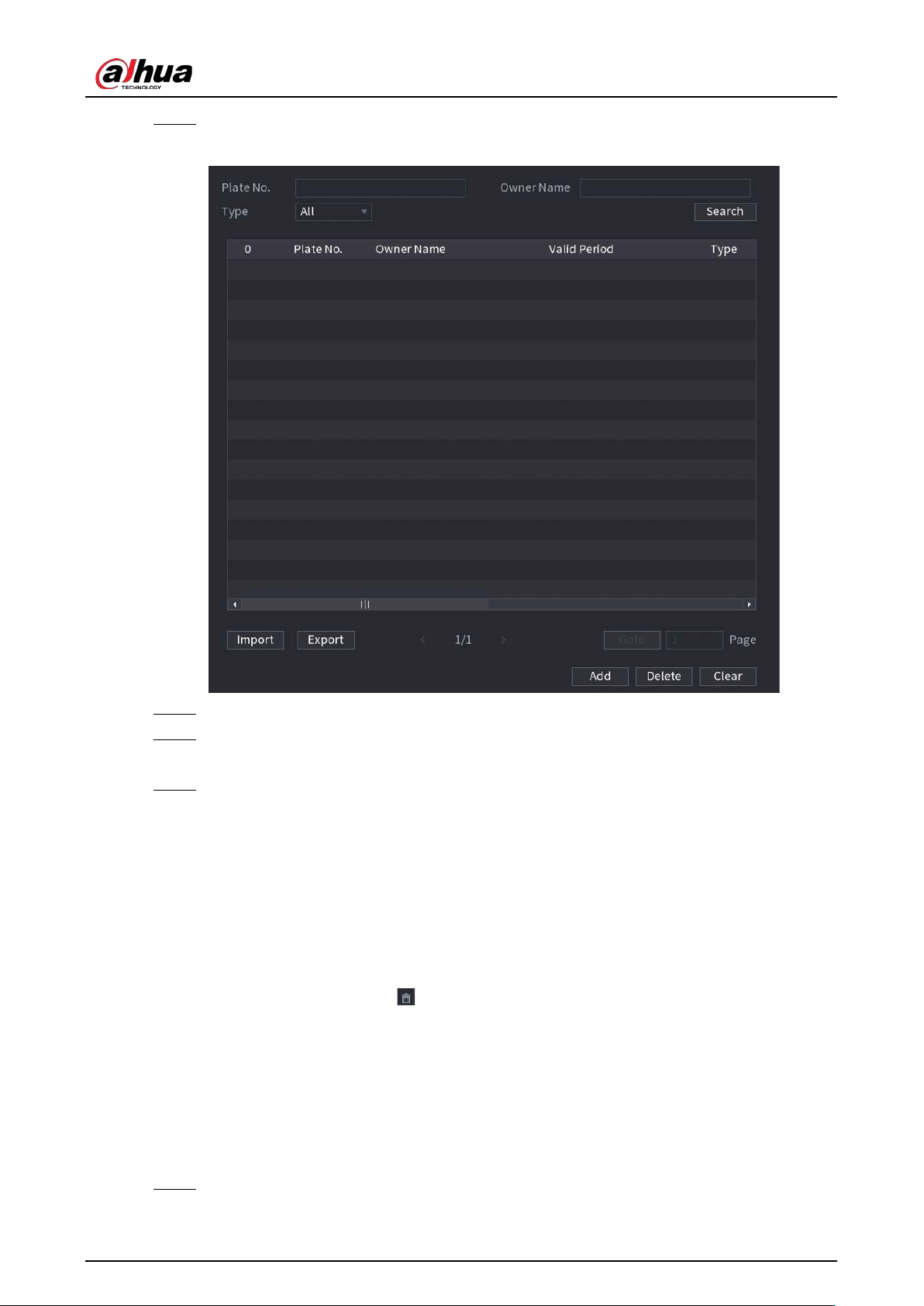
User's Manual
233
Step 1 Select
Main Menu
>
AI
>
Database
>
Vehicle Blocklist/Allowlist
.
Figure 5-147 Vehicle blocklist/allowlist
Step 2 Click
Add
.
Step 3 Set plate information such as plate number, car owner name, select
Block List
or
Allow
List
, and then set validity period.
Step 4 Click
OK
.
Related Operations
●
Search.
Enter keywords for
Plate No.
and
Owner Name
, select type and then click
Search
.
●
Import and export plate information.
◇
Import: Click
Import
, select the corresponding file, and then click
Browse
to import the file.
◇
Export: Click
Export
, select the file storage path and then click
Save
.
●
Delete plate information.
◇
Delete one by one: Click the of the corresponding plate number.
◇
Delete in batches: Select the plate numbers and then click
Delete
.
5.9.9.2 Configuring ANPR
Configure the ANPR alarm rules.
Procedure
Step 1 Select
Main Menu
>
AI
>
Parameters
>
ANPR
.
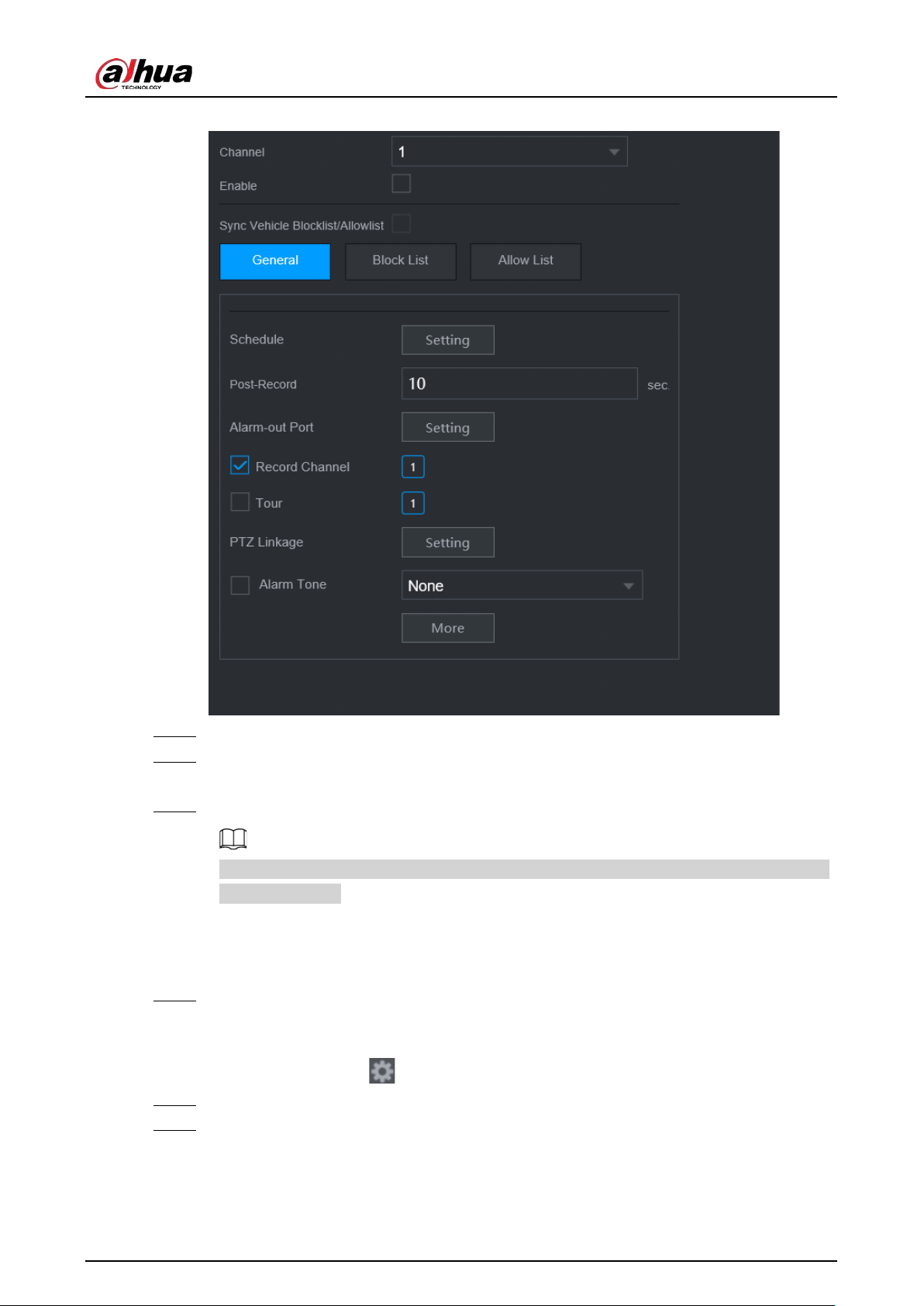
User's Manual
234
Figure 5-148 ANPR
Step 2 Select a channel and then select the
Enable
checkbox to enable ANPR.
Step 3 (Optional) Enable
Sync Vehicle Blocklist/Allowlist
to synchronize the blocklist and
allowlist on the NVR to the connected camera.
Step 4 Click
General
(default),
Blocklist
or
Allowlist
tab.
Before enabling the blocklist alarm or allowlist alarm, you need to add the corresponding
plate information.
●
General
: The system triggers an alarm when it detects any plate number.
●
Block List
: The system triggers an alarm when it detects plate number on the blocklist.
●
Allow List
: The system triggers an alarm when it detects plate number on the allowlist.
Step 5 Click
Setting
next to
Schedule
to configure the arming period.
The system triggers corresponding alarm actions only during the arming period.
●
On the time line, drag to set the period.
●
You can also click to set the period.
Step 6 Configure alarm linkage actions. For details, see Table 5-43.
Step 7 Click
Apply
.
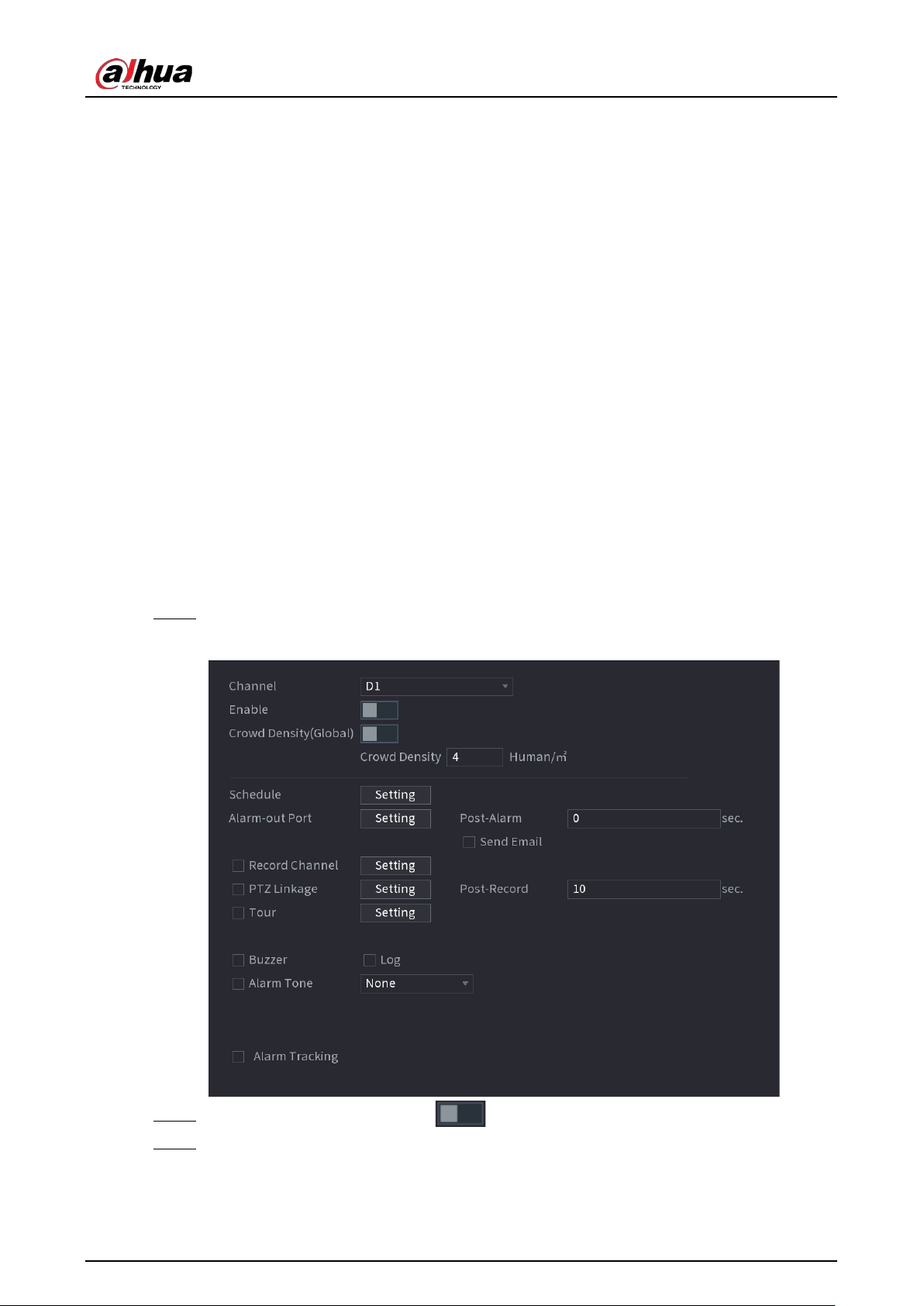
User's Manual
235
5.9.9.3 AI Search (ANPR)
You can search for the ANPR detection results. For details, see "5.9.8.3.2 Motor Vehicle Detection".
5.9.10 Crowd Distribution
The system detects the crowd distribution. When the crowd density exceeds the defined threshold,
an alarm is triggered.
5.9.10.1 Enabling Smart Plan
To use AI by camera, you need to enable the smart plan first. For details, see "5.9.2 Smart Plan".
5.9.10.2 Configuring Crowd Distribution
Configure the alarm rules of crowd distribution detection.
Prerequisites
Make sure that the connected camera supports the crowd distribution function.
Procedure
Step 1 Select
Main Menu
>
AI
>
Parameters
>
Crowd Distribution
.
Figure 5-149 Crowd distribution
Step 2 Select a channel and then click next to
Enable
.
Step 3 Configure parameters.
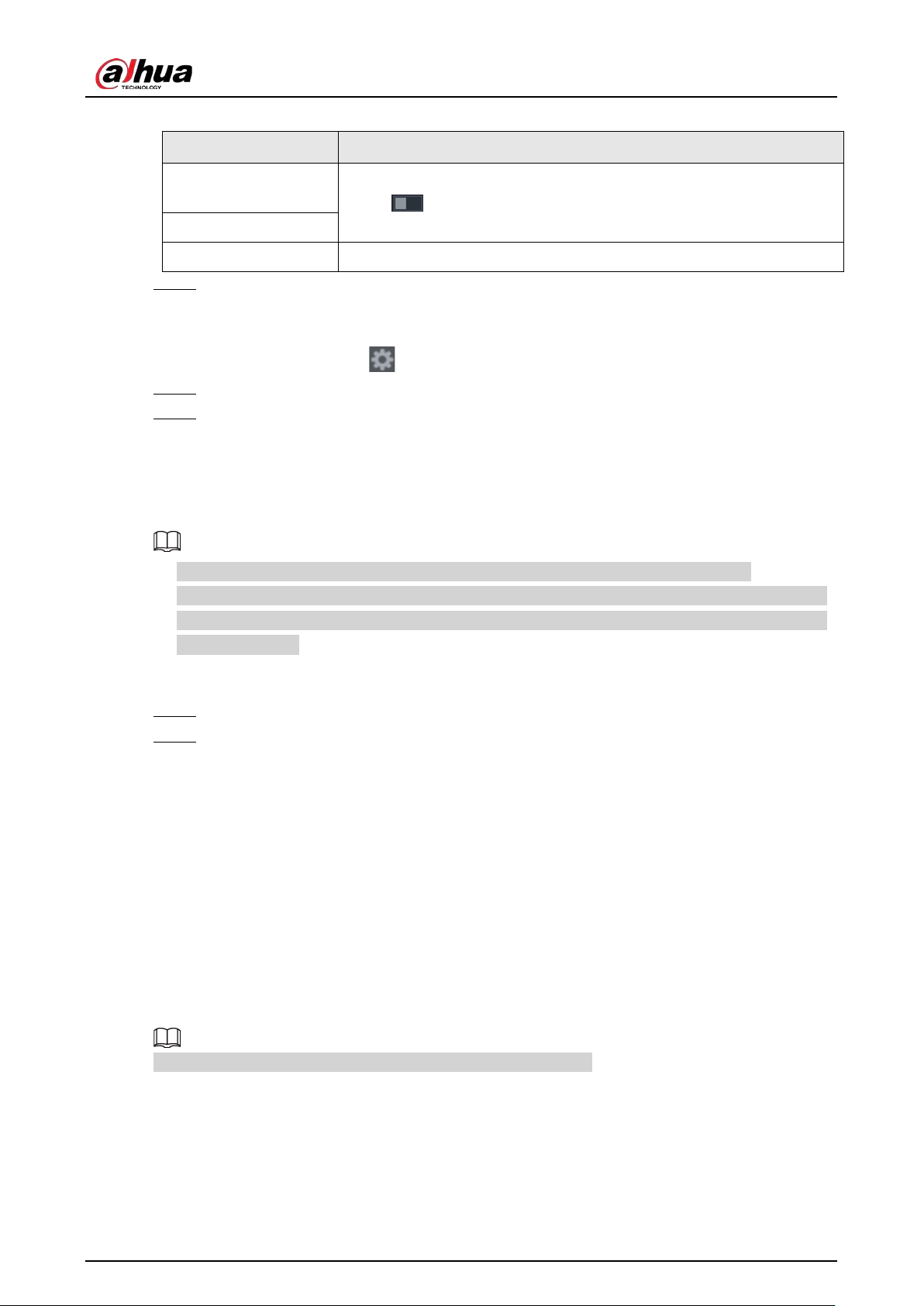
User's Manual
236
Table 5-41 Crowd distribution parameters
Parameter Description
Crowd Density
(Global)
Click and then configure the density threshold.
Crowd Density
Alarm Tracking After an alarm occurs, the system tracks the target automatically.
Step 4 Click
Setting
next to
Schedule
to configure the arming period.
The system triggers corresponding alarm actions only during the arming period.
●
On the time line, drag to set the period.
●
You can also click to set the period.
Step 5 Configure alarm linkage actions. For details, see Table 5-43.
Step 6 Click
Apply
.
5.9.10.3 Report Query
You can search for and export video metadata statistics.
●
The statistics might be overwritten when the storage space runs out. Back up in time.
●
When you restore the Device to factory settings, all the data except data in the external storage
device will be cleared. You can clear the data in the external storage device through formatting
or other methods.
Procedure
Step 1 Select
Main Menu
>
AI
>
Report Query
>
Crowd Density
.
Step 2 Select the channel, report type, start time and end time, and then click
Search
.
Related Operations
●
Switch chart type.
Click
Bart Chart
or
Line Chart
to switch the chart type.
●
Export.
Select the file type, and then click
Export
to export the report in picture or csv format.
5.9.11 People Counting
The system can calculate the number of entry or exit people in the detection zone. An alarm is
triggered when the number has exceeded the threshold.
Make sure that the connected camera supports people counting.
5.9.11.1 Enabling Smart Plan
To use AI by camera, you need to enable the smart plan first. For details, see "5.9.2 Smart Plan".
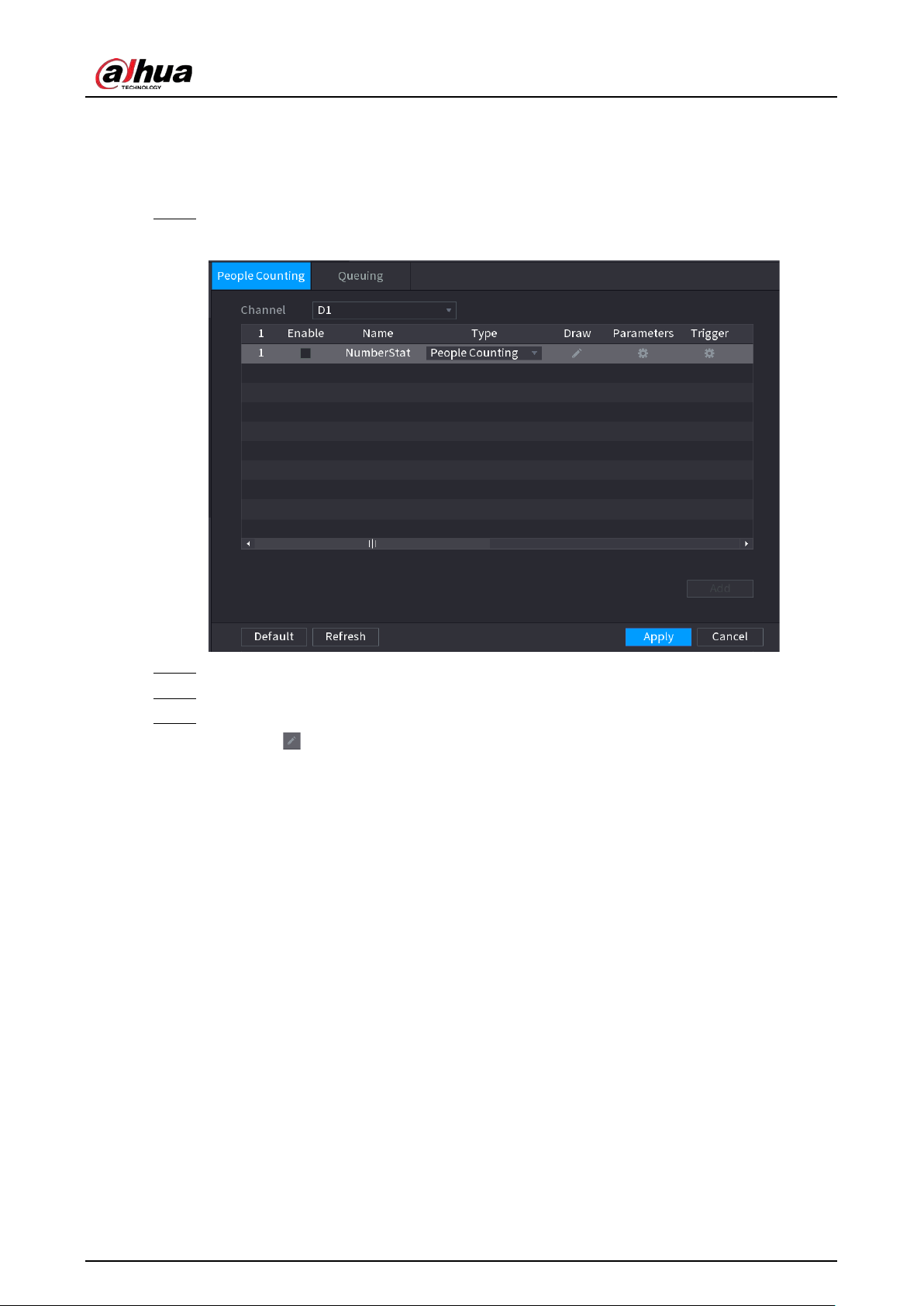
User's Manual
237
5.9.11.2 Configuring People Counting
The system counts the number of people in and out of the detection area. When the number of
entry, exit or staying people exceeds the threshold, an alarm is triggered.
Step 1 Select
Main Menu
>
AI
>
Parameters
>
People Counting
>
People Counting
.
Figure 5-150 People counting
Step 2 Select a channel and then click
Add
.
Step 3 Select the
Enable
checkbox and then set
Type
to
People Counting
.
Step 4 Draw people counting rule.
1) Click to draw people counting rule. Right-click the image to stop drawing.
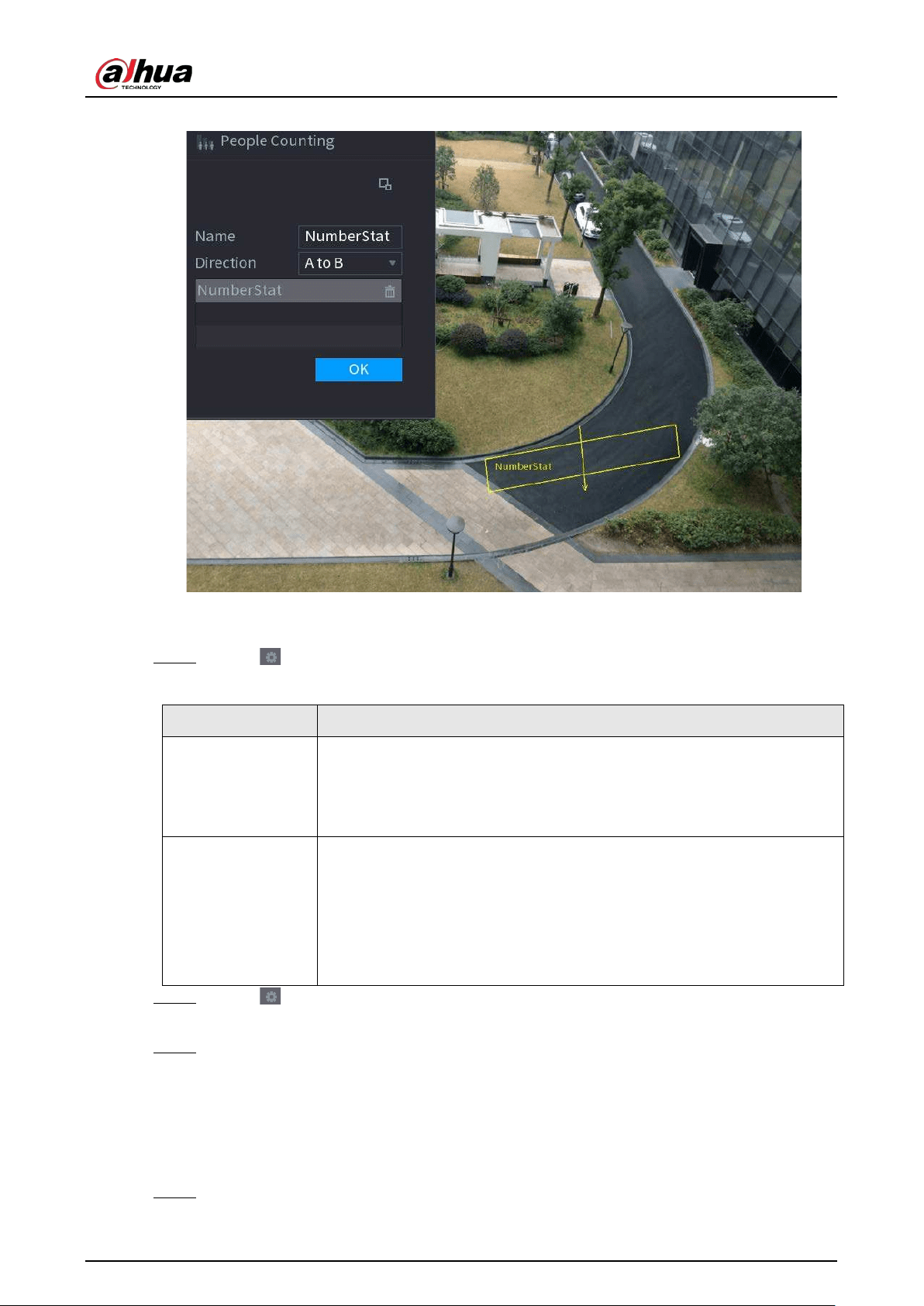
User's Manual
238
Figure 5-151 People counting rule
2) Customize the rule name and then select direction.
3) Click
OK
.
Step 5 Click under
Parameters
and then configure the parameters.
Table 5-42 People counting parameters
Parameter Description
OSD
●
Select
Enter No.
, and then the number of people entering the
detection zone will be displayed on the live page.
●
Select
Exit No.
, and then the number of people leaving the detection
zone will be displayed on the live page.
Setting
●
Enter No.
: An alarm is triggered when the number of people entering
the detection zone exceeds the defined threshold.
●
Exit No.
: An alarm is triggered when the number of people leaving the
detection zone exceeds the defined threshold.
●
Stay No.
: An alarm is triggered when the number of people staying
the detection zone exceeds the defined threshold.
Step 6 Click under
Trigger
to configure alarm schedule and linkage. For details on alarm
linkage, see Table 5-43.
Step 7 Click
Apply
.
5.9.11.3 Configuring In Area No.
When the number of people in the detection area is larger or lower than the defined threshold, or
when the staying period exceeds the defined duration, an alarm is triggered.
Step 1 Select
Main Menu
>
AI
>
Parameters
>
People Counting
>
People Counting
.
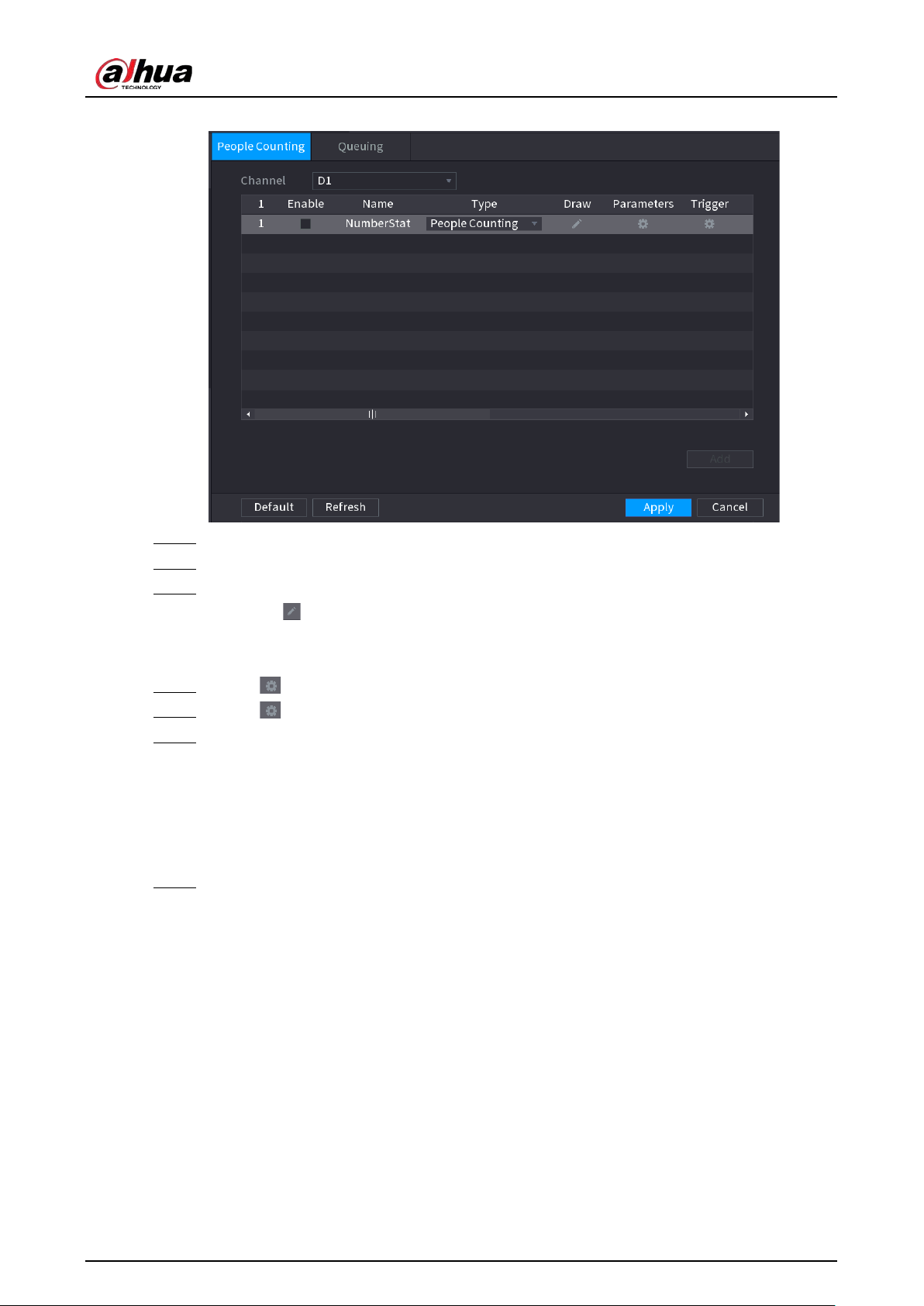
User's Manual
239
Figure 5-152 People counting
Step 2 Select a channel and then click
Add
.
Step 3 Select the
Enable
checkbox and then set
Type
to
In Area No.
Step 4 Draw people counting rule.
1) Click to draw a rule. Right-click the image to stop drawing.
2) Configure the parameters.
3) Click
OK
.
Step 5 Click and then enable in-area people number alarm and stay alarm.
Step 6 Click under
Trigger
to configure the alarm schedule and linkage
Step 7 Click
Apply
.
5.9.11.4 Queuing
After configuring queuing alarm, the system can realize the corresponding linkage actions once the
number of people in the queue or the waiting time has triggered an alarm.
Step 1 Select
Main Menu
>
AI
>
Parameters
>
People Counting
>
Queuing
.
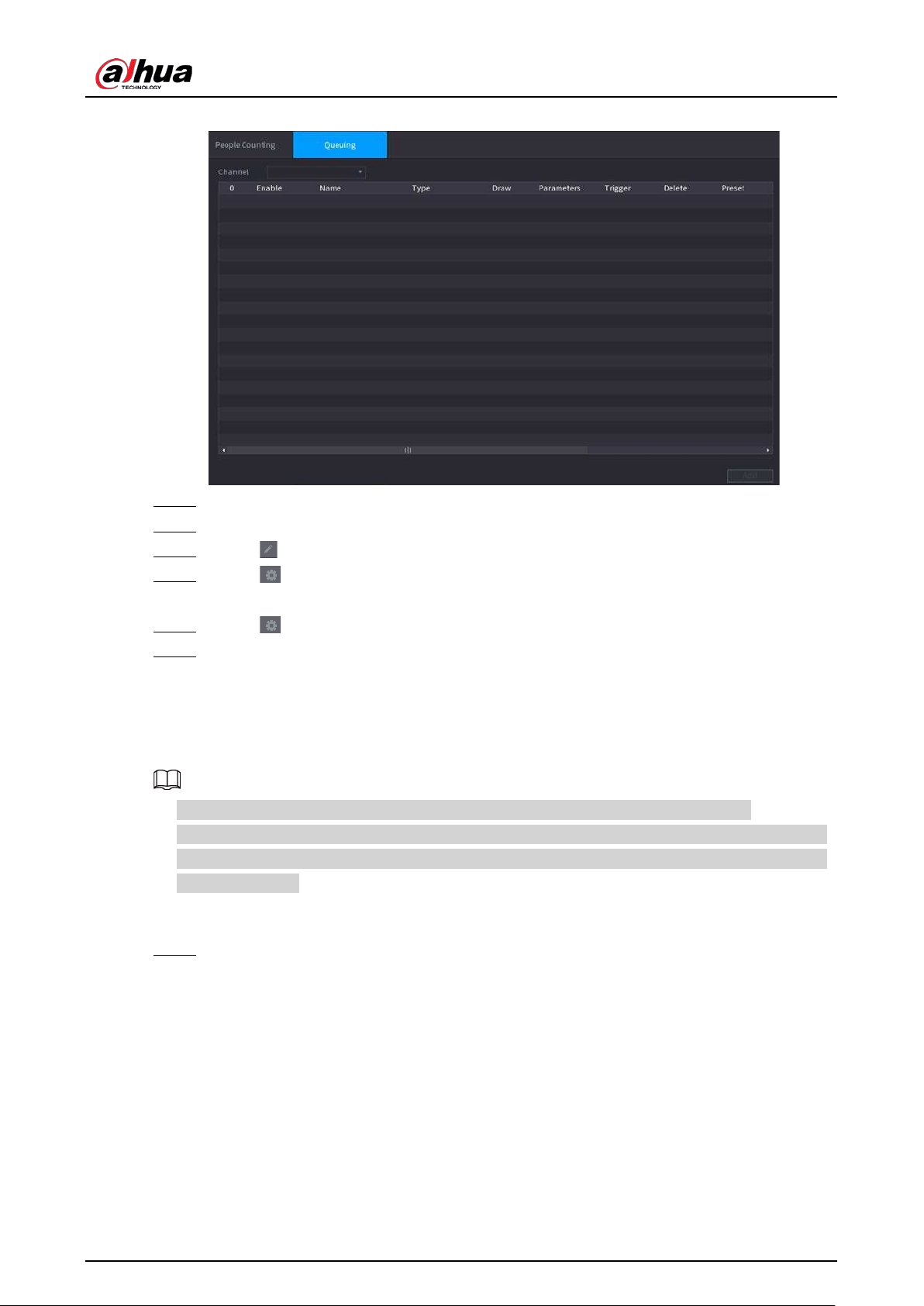
User's Manual
240
Figure 5-153 Queuing
Step 2 Select a channel, and then click
Add
.
Step 3 Select the
Enable
checkbox.
Step 4 Click to draw queuing rule and area.
Step 5 Click under
Parameters
, and then enable
Queue People No. Alarm
or
Queue Time
Alarm
.
Step 6 Click under
Trigger
to configure alarm schedule and linkage.
Step 7 Click
Apply
.
5.9.11.5 Report Query
You can search for and export the people counting statistics.
●
The statistics might be overwritten when the storage space runs out. Back up in time.
●
When you restore the Device to factory settings, all the data except data in the external storage
device will be cleared. You can clear the data in the external storage device through formatting
or other methods.
Procedure
Step 1 Select
Main Menu
>
AI
>
Report Query
>
People Counting
.
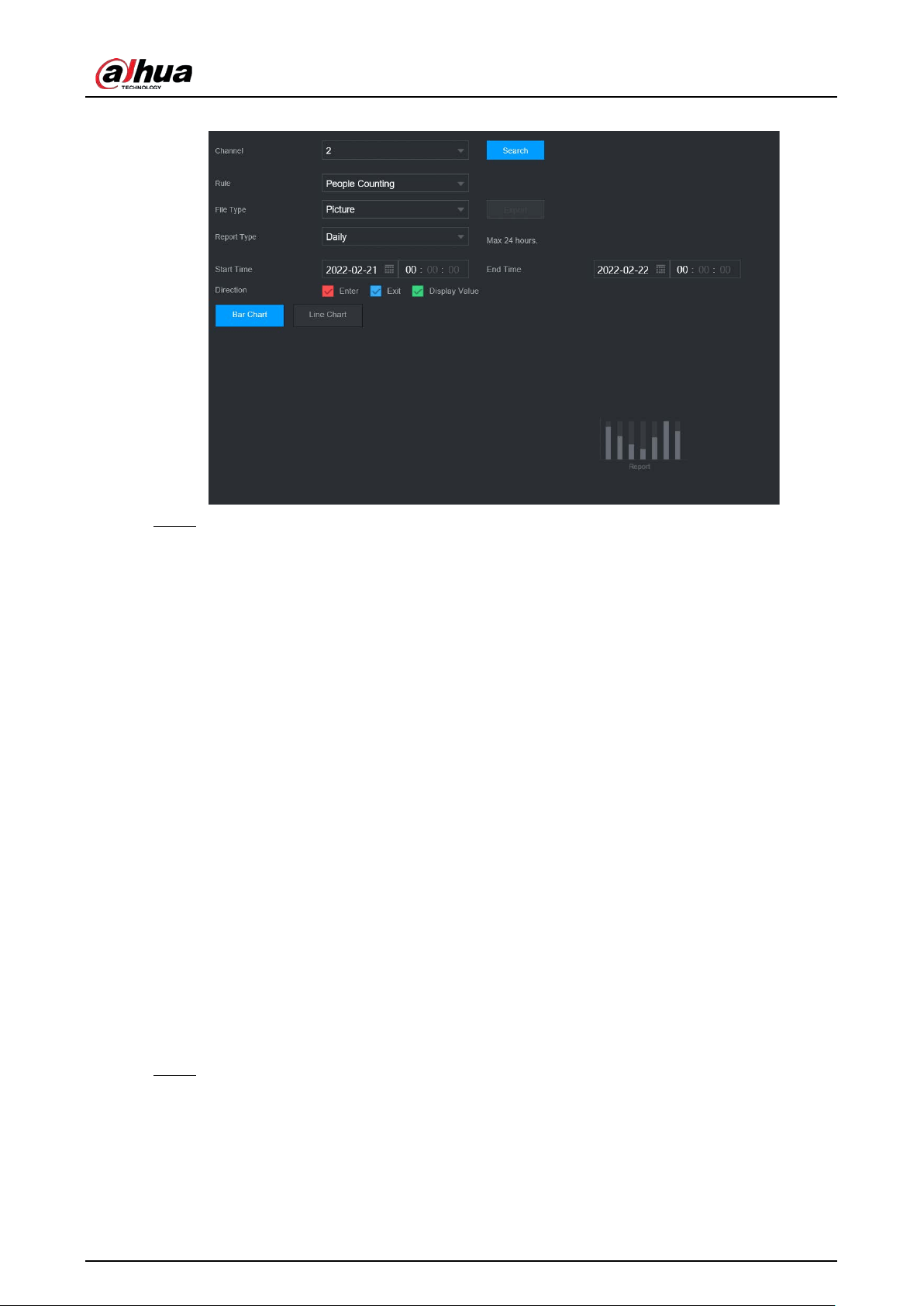
User's Manual
241
Figure 5-154 People counting
Step 2 Select channel, rule, report type, start and end time, and direction, and then click
Search
.
Related Operations
●
Switch chart type.
Click
Bart Chart
or
Line Chart
to switch the chart type.
●
Export.
Select file type, and then click
Export
to export the report in picture or csv format.
5.9.12 Heat Map
The Device can monitor the distribution of active objects in the detection zone during a period of
time, and use different colors to display the objects on the heat map.
5.9.12.1 Enabling Smart Plan
To use AI by camera, you need to enable the smart plan first. For details, see "5.9.2 Smart Plan".
5.9.12.2 Configuring Heat map
Heat map technology can monitor the active objects distribution status on the specified zone during
a period of time, and use different colors to display on the heat map.
Procedure
Step 1 Select
Main Menu
>
AI
>
Parameters
>
Heat Map
.
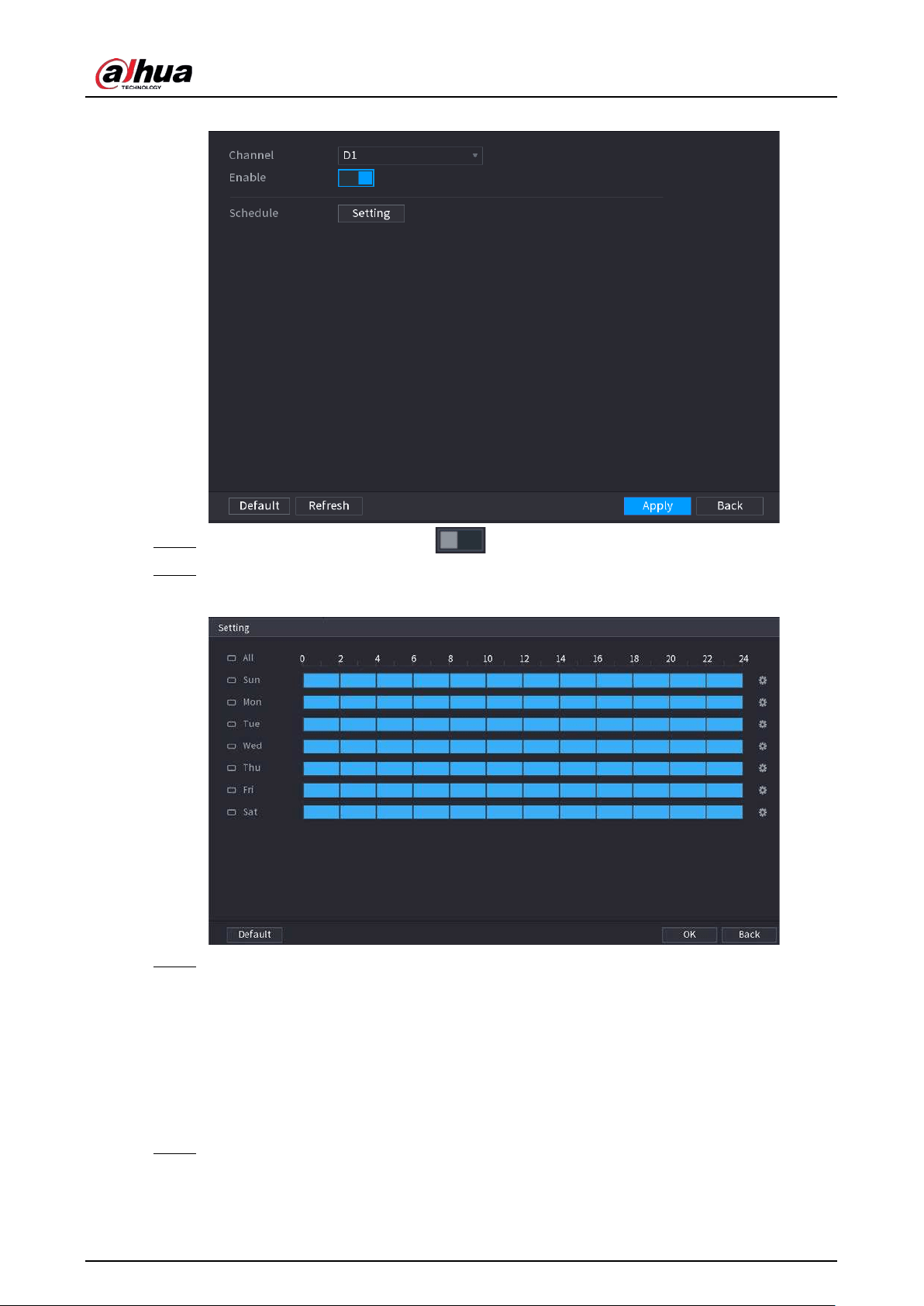
User's Manual
242
Figure 5-155 Heat map
Step 2 Select a channel and then click to enable the function.
Step 3 Click
Setting
to configure the alarm schedule.
Figure 5-156 Schedule
Step 4 Click
Apply
.
5.9.12.3 Report Query
You can search for and export the heat map report of general and fisheye cameras.
5.9.12.3.1 General
Step 1 Select
Main Menu
>
AI
>
Report Query
>
Heat Map
>
General
.
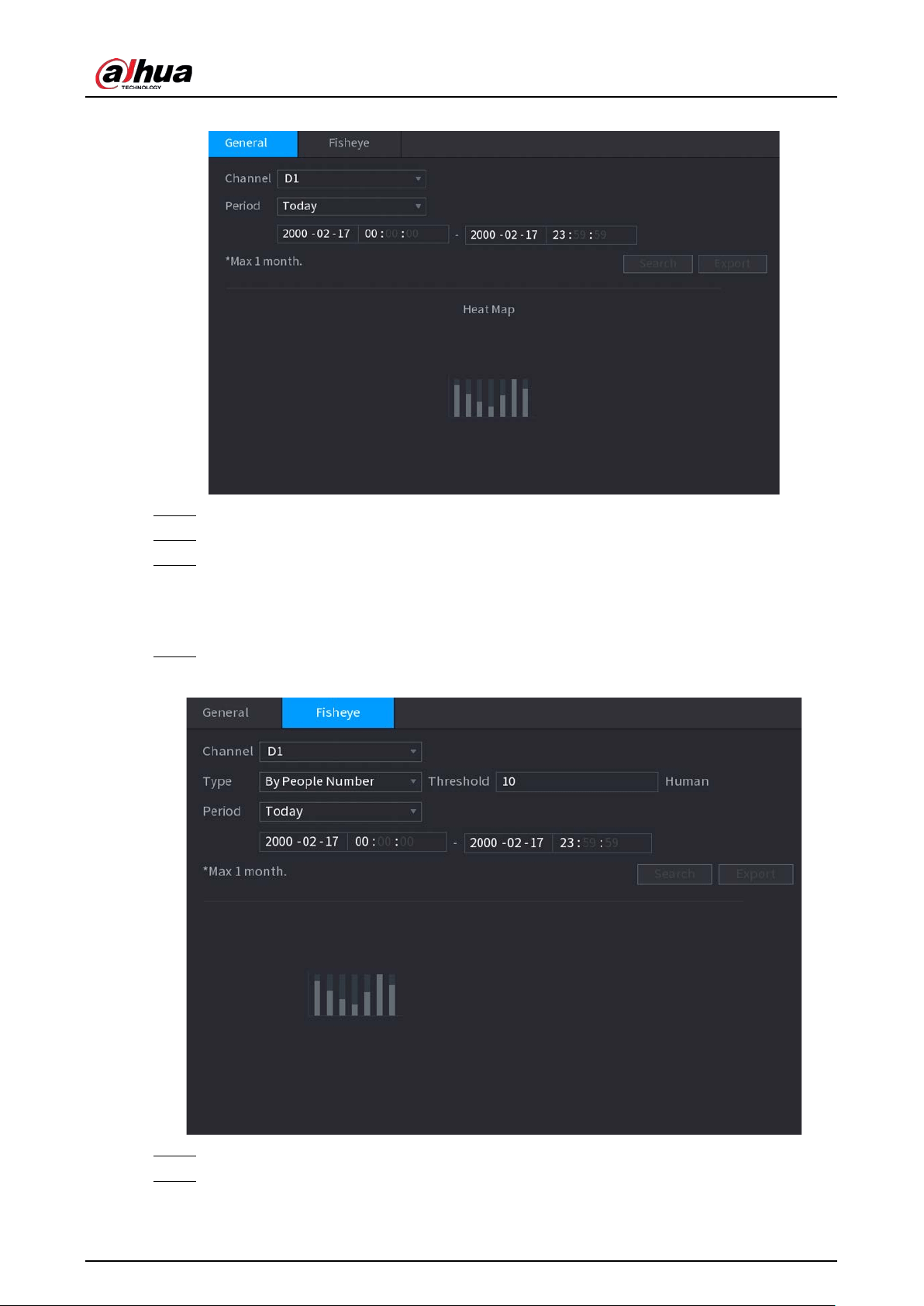
User's Manual
243
Figure 5-157 General
Step 2 Select the channel, start time, and end time.
Step 3 Click
Search
.
Step 4 Click
Export
to export the heat map.
5.9.12.3.2 Fisheye
Step 1 Select
Main Menu
>
AI
>
Report Query
>
Heat Map
>
Fisheye
.
Figure 5-158 Fisheye
Step 2 Set channel, type and period, and then click
Search
.
Step 3 Click
Export
to export the heat map.
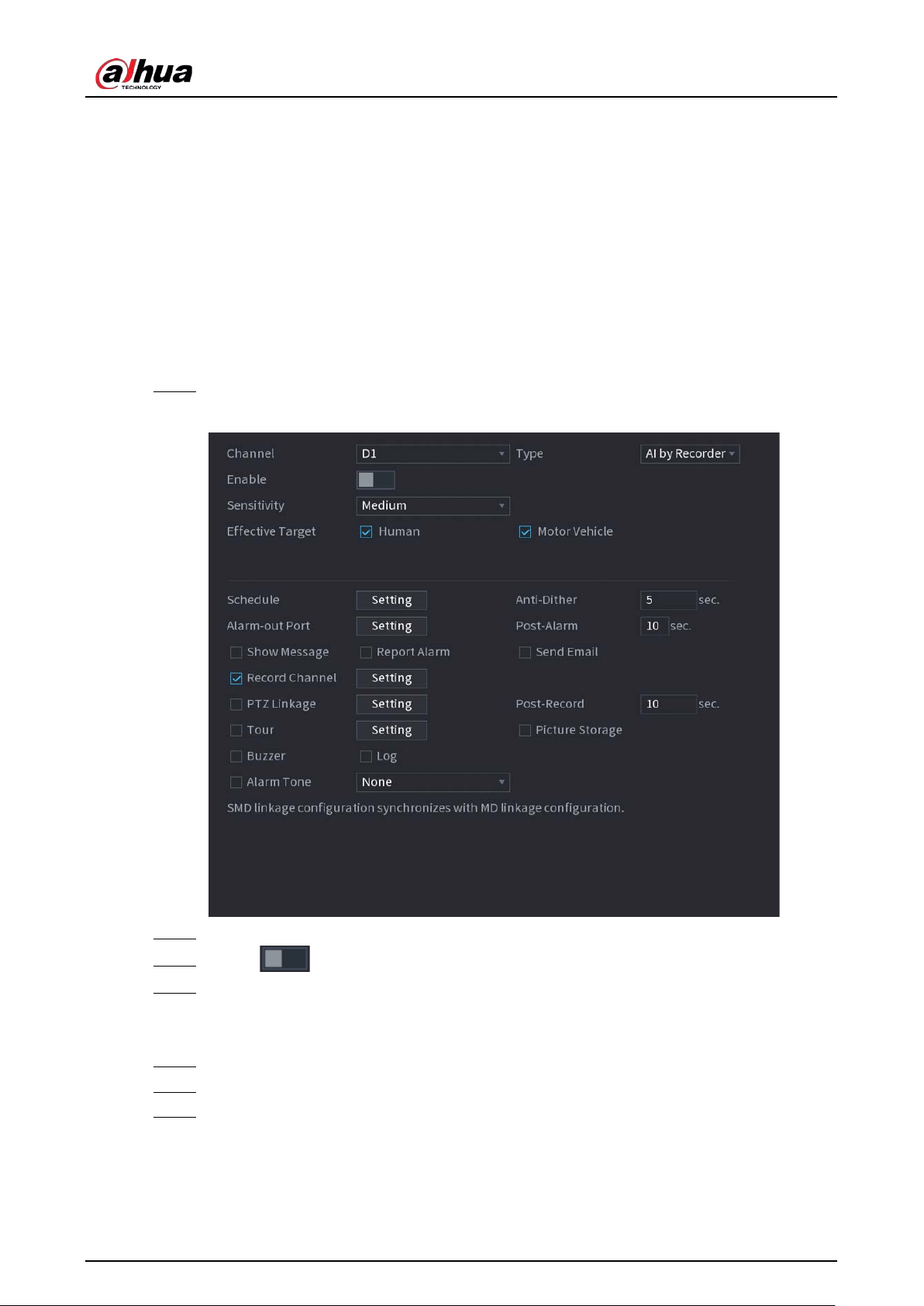
User's Manual
244
5.9.13 SMD
You can use SMD (Smart Motion Detection) to detect humans and vehicles in the video, and store
the detection results in structured storage for fast retrieval.
5.9.13.1 Enabling Smart Plan
To use AI by camera, you need to enable the smart plan first. For details, see "5.9.2 Smart Plan".
5.9.13.2 Configuring SMD
Step 1 Select
Main Menu
>
AI
>
Parameters
>
SMD
.
Figure 5-159 SMD
Step 2 Select a channel and AI type.
Step 3 Click to enable the function.
Step 4 Configure the sensitivity.
The higher the value, the easier it is to trigger an alarm. But meanwhile, the false alarm
might occur. The default value is recommended.
Step 5 Select effective target from
Human
and
Motor Vehicle
.
Step 6 Click
Setting
next to schedule to configure the alarm period.
Step 7 Configure alarm linkage.
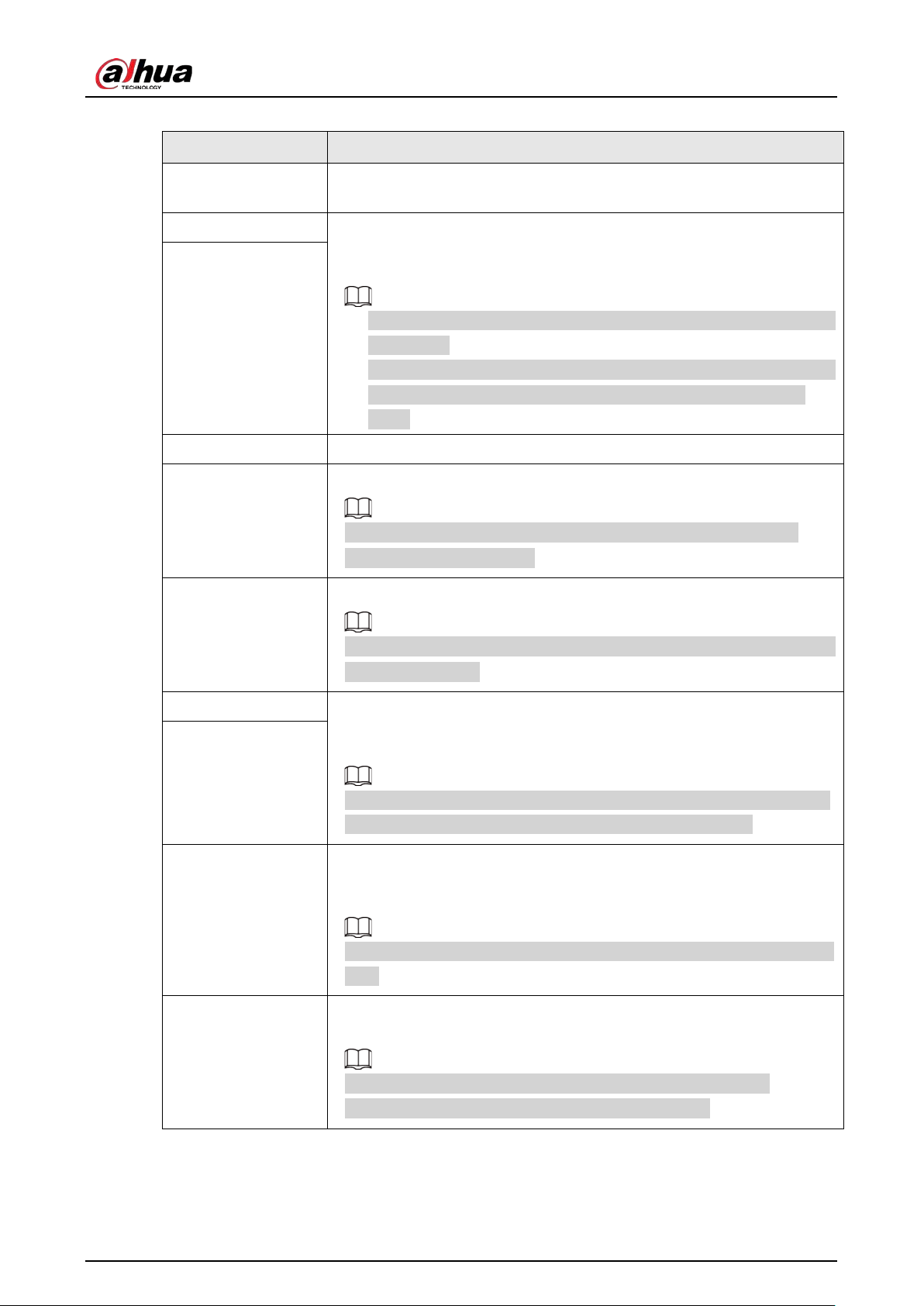
User's Manual
245
Table 5-43 Alarm linkage parameters
Parameter Description
Anti-Dither
The system records only one motion detection event within the defined
period.
Alarm-out Port When an alarm occurs, the NVR links the alarm output device to generate
an alarm. The alarm lasts a period of time depending on the defined
value for
Post-Alarm
.
●
Make sure that the alarm devices are connected to the alarm output
port of NVR.
●
In
Main Menu
>
ALARM
>
Alarm-out Port
, set the mode to
Auto
so
that the system can link the alarm output device to generate an
alarm.
Post-Alarm
Show Message Enable on-screen prompt when an alarm occurs.
Report Alarm
Enable the system to report the alarm to the alarm center.
Make sure that alarm center has been configured in
Main Menu
>
NETWORK
>
Alarm Center
.
Send Email
Enable the system to send an email to notify you when an alarm occurs.
Make sure that the email settings have been configured in
Main Menu
>
NETWORK
>
Email
.
Record Channel When an alarm occurs, the system activates recording of the selected
channel. After the alarm ends, the recording continues for a period of
time depending on the defined value for
Post-Record
.
Make sure that intelligent recording schedule and auto recording have
been configured. For details, see "5.8.1 Recording Schedule".
Post-Record
PTZ Linkage
When an alarm occurs, the NVR associates the channel to perform the
corresponding PTZ action. For example, rotate the PTZ to the preset
point.
Make sure that PTZ actions have been configured. For details, see "5.6.7
PTZ".
Tour
When an alarm occurs, the local interface of the NVR displays the image
of the selected channels in turn.
Make sure that the time interval and mode for tour have been
configured in
Main Menu
>
DISPLAY
>
Tour Setting
.
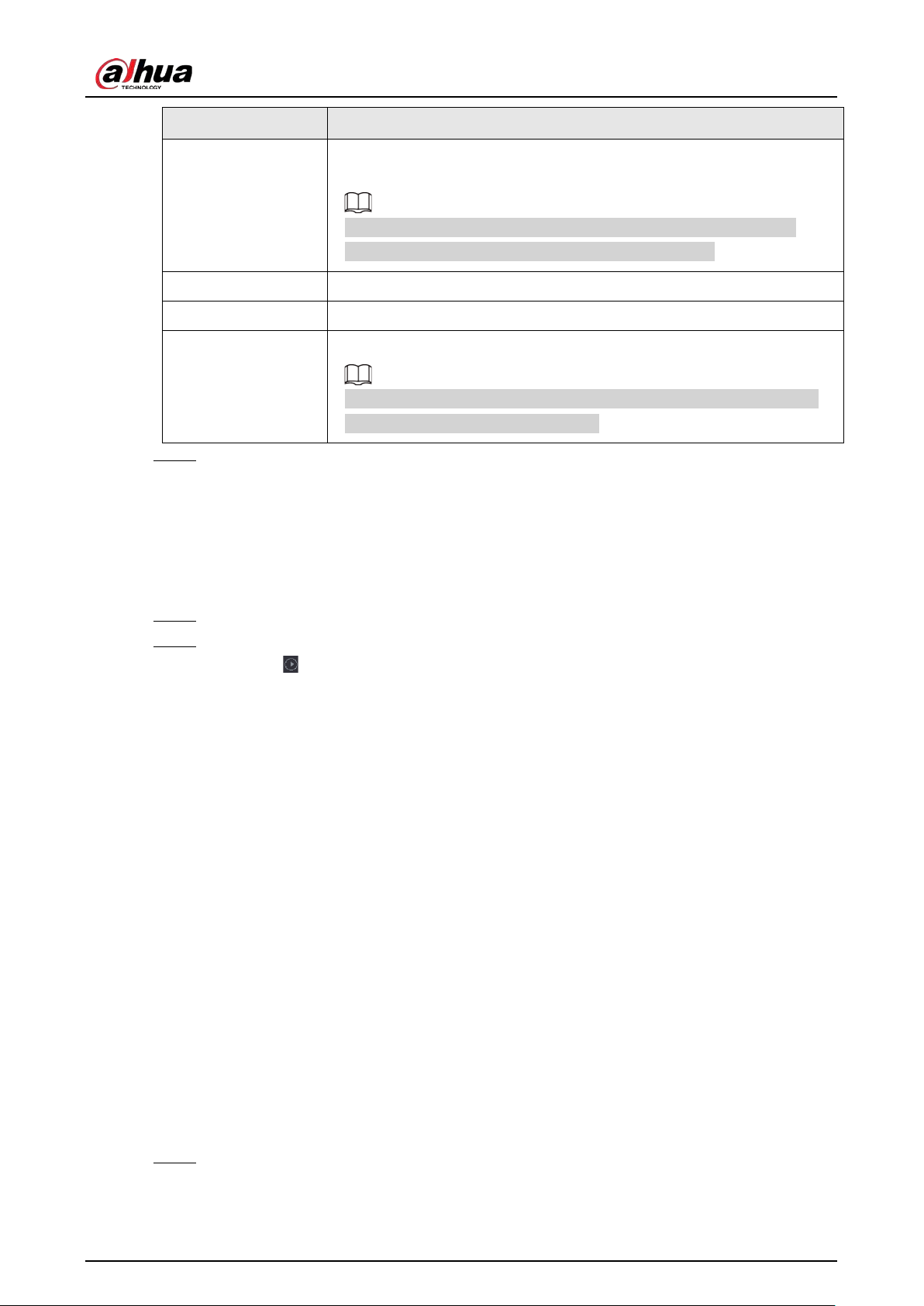
User's Manual
246
Parameter Description
Picture Storage
When an alarm occurs, the system takes a snapshot of the channel and
stores the snapshot on the Device.
Make sure that snapshot schedule and snapshot mode have been
configured. For details, see "5.8.1 Recording Schedule".
Buzzer The system activates the buzzer when an alarm occurs.
Log When an alarm occurs, the system records the event in the logs.
Alarm Tone
When an alarm occurs, the system plays the selected audio file.
Make sure that the audio files have been uploaded to the system. For
details, see "5.18.1 File Management".
Step 8 Click
Apply
.
5.9.13.3 AI Search (SMD)
You can search for and play back videos that triggered SMD alarms.
Procedure
Step 1 Select
Main Menu
>
AI
>
AI Search
>
SMD
.
Step 2 Select channel, type, start time and end time, and then click
Search
.
●
Click to play back the video.
●
Select a video and click
Export
to export video file to a USB flash drive.
5.9.14 Vehicle Density
You can configure the rules for traffic congestion and parking upper limit, , and view the counting
data on the live page.
●
Traffic congestion: The system counts the vehicles in the detection area. When the counted
vehicle number and the continuous congestion time exceed the configured values, an alarm is
triggered and the system performs an alarm linkage.
●
Parking upper limit: The system counts the vehicles in the detection area. When the counted
vehicle number exceeds the configured value, an alarm triggered and the system performs an
alarm linkage.
5.9.14.1 Enabling Smart Plan
To use AI by camera, you need to enable the smart plan first. For details, see "5.9.2 Smart Plan".
5.9.14.2 Configuring Vehicle Density
Step 1 Select
Main Menu
>
AI
>
Parameters
>
Vehicle Density
.
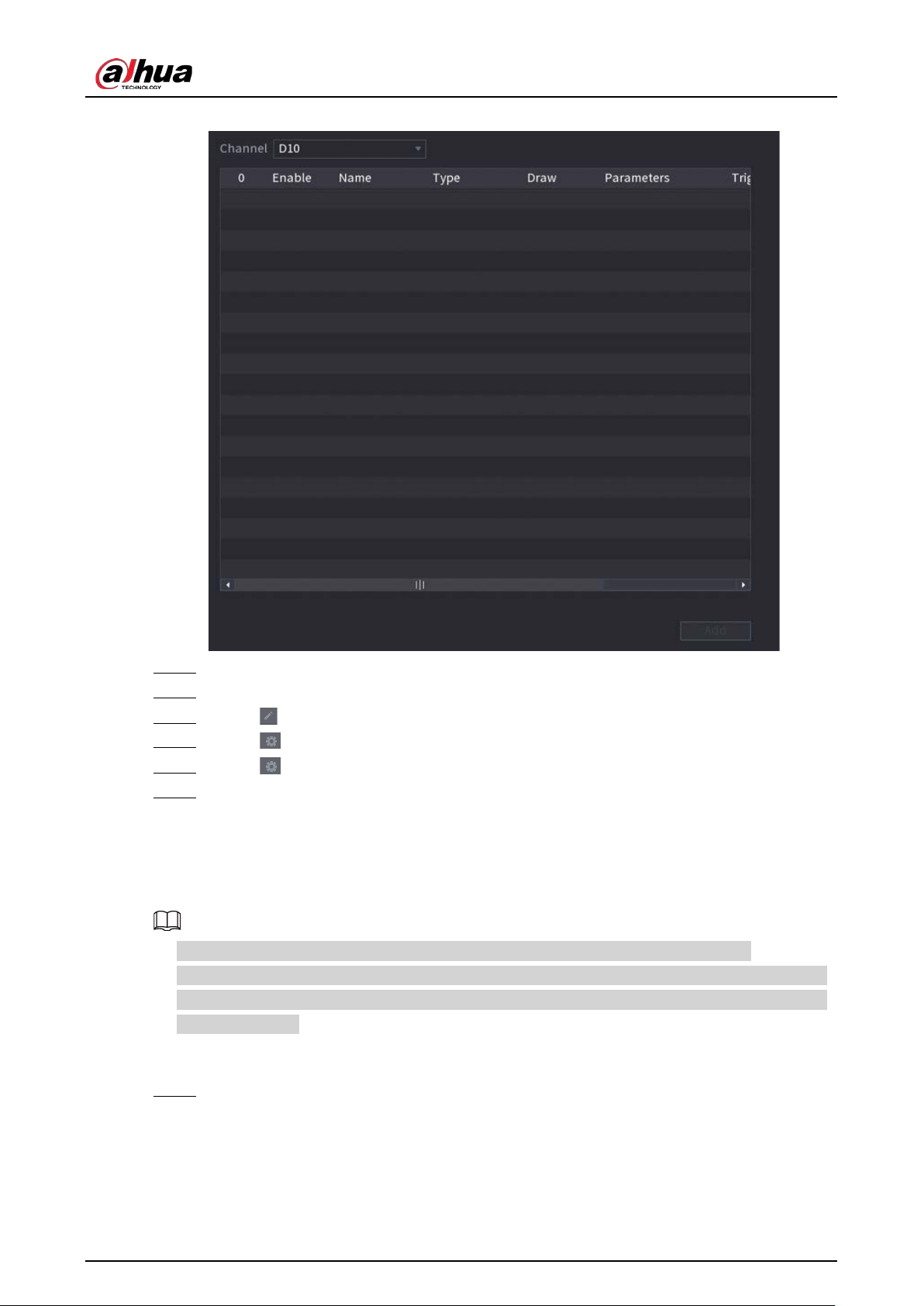
User's Manual
247
Figure 5-160 Vehicle density
Step 2 Select a channel and then click
Add
.
Step 3 Select the
Enable
checkbox and then select a detection type.
Step 4 Click to draw the detection rule.
Step 5 Click under
Parameters
and then configure the parameters.
Step 6 Click under
Trigger
to configure alarm schedule and linkage.
Step 7 Click
Apply
.
5.9.14.3 Report Query
You can search for and export statistics on vehicle density.
●
The statistics might be overwritten when the storage space runs out. Back up in time.
●
When you restore the Device to factory settings, all the data except data in the external storage
device will be cleared. You can clear the data in the external storage device through formatting
or other methods.
Procedure
Step 1 Select
Main Menu
>
AI
>
Report Query
>
Vehicle Density
.
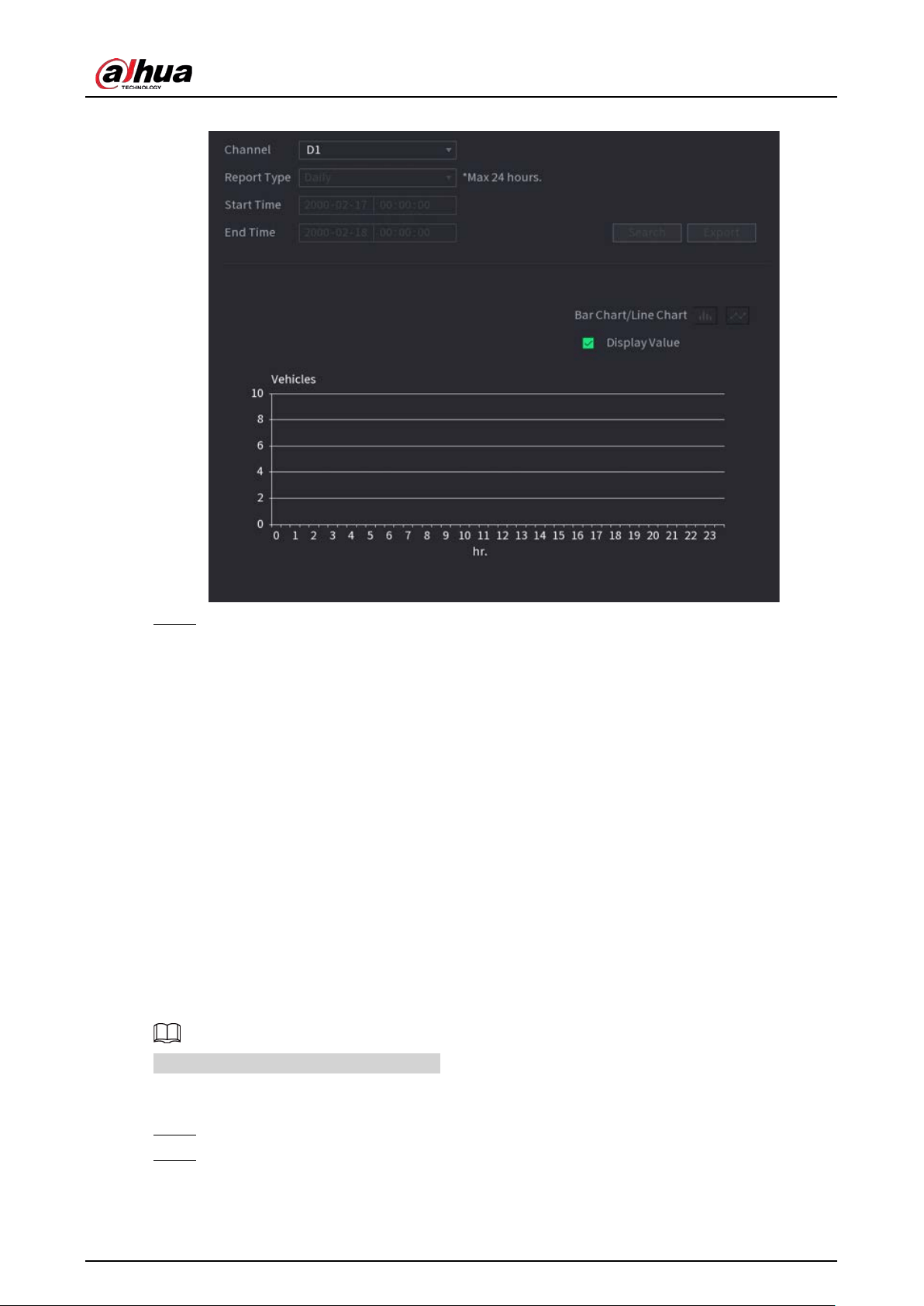
User's Manual
248
Figure 5-161 Vehicle density
Step 2 Select channel, report type, start and end time, and then click
Search
.
Related Operations
●
Switch chart type.
Click
Bart Chart
or
Line Chart
to switch the chart type.
●
Export.
Select file type, and then click
Export
to export the report in picture or csv format.
5.9.15 Main-sub Tracking
Main-sub tracking refers to fisheye camera and speed dome linkage system. The fisheye camera
serves as the main camera and captures panoramic videos. The speed dome serves as the sub
camera and captures details of the video.
Prerequisites
●
The monitoring areas of fisheye camera and speed dome are the same area.
●
Fisheye camera and speed dome are added through private protocol.
This function is available on select models.
Procedure
Step 1 Select
Main Menu
>
AI
>
Parameters
>
Main-Sub Tracking
.
Step 2 Add monitoring area.
1) Click
Add
.
2) Configure parameters.
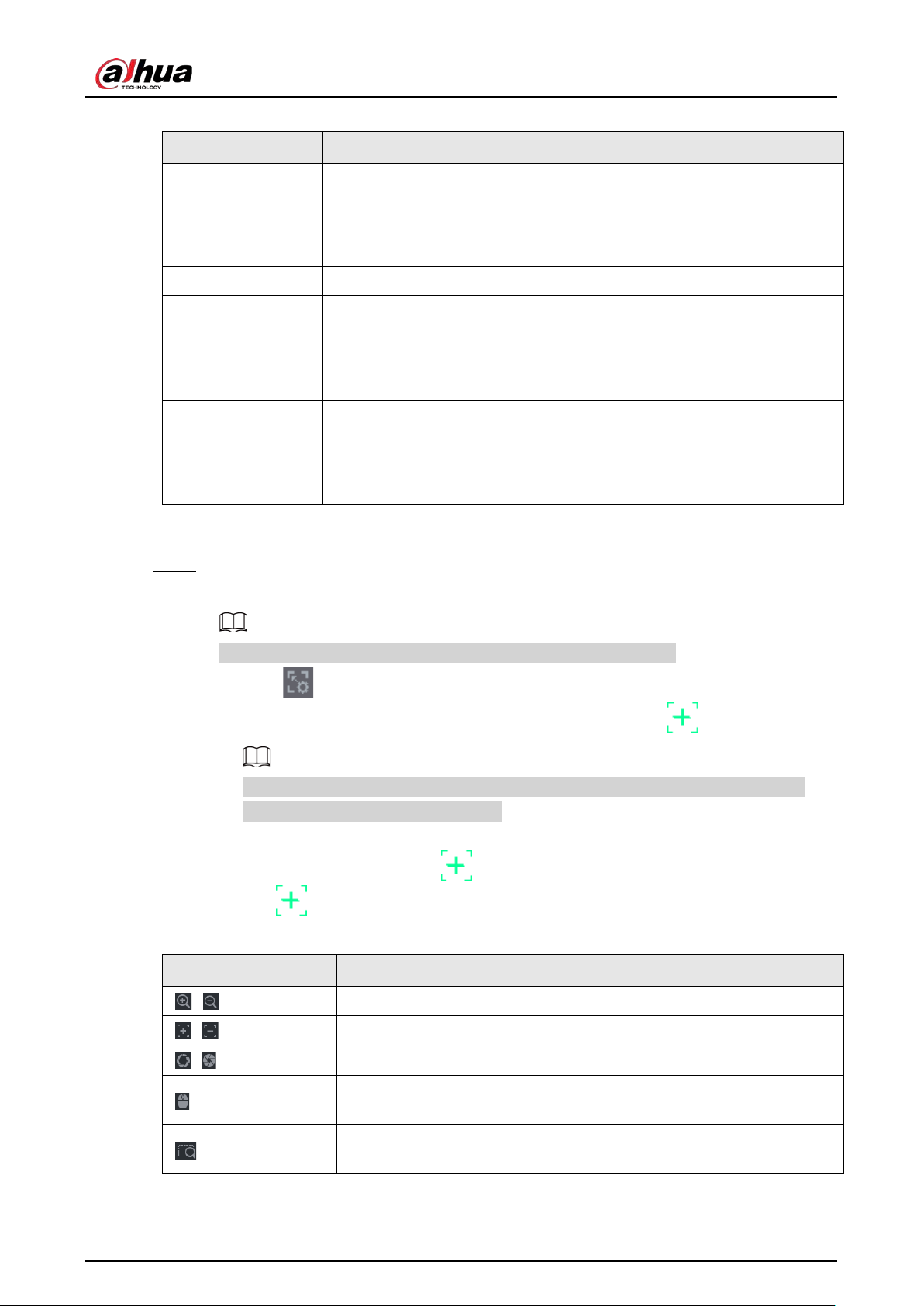
User's Manual
249
Table 5-44 Main-sub tracking parameters
Parameter Description
Type
Select a type according to the number of fisheye and PTZ cameras:
●
1 Fisheye + 1 PTZ.
●
1 Fisheye + 2 PTZ.
●
1 Fisheye + 3 PTZ.
Scene Name Customize the scene name.
Main Camera
Select a fisheye camera.
1. Click
Select
in
Main Camera
line.
2. Select a fisheye camera.
3. Click
Apply
.
Sub Camera
Select speed domes as needed.
1. Click
Select
in
Sub Camera
line.
2. Select speed domes.
3. Click
Apply
.
Step 3 Click
Apply
.
The monitoring area is successfully added.
Step 4 Configure calibration points to set the binding relationship of fisheye camera and speed
dome.
Set a distant place as the first calibration point to improve accuracy.
1) Click or double-click the target scene.
2) Click the target place on the video of fisheye camera, or move to the target place.
The video at upper-left corner is the fisheye camera screen, and the video at upper-
right corner is the speed dome screen.
3) Adjust position through the icons below the speed dome screen to make the center of
speed dome identical to the of fisheye camera.
The on the speed dome screen is the center of speed dome.
Table 5-45 Icon description
Icon Description
, Zoom in and zoom out.
, Adjust resolution.
, Adjust height.
Electronic mouse. You can use this icon to move the mouse to control
PTZ direction.
Quick positioning key. Click this icon to select a place, and the screen
will be focused and centered on the selected place.
4) Click
Add
.
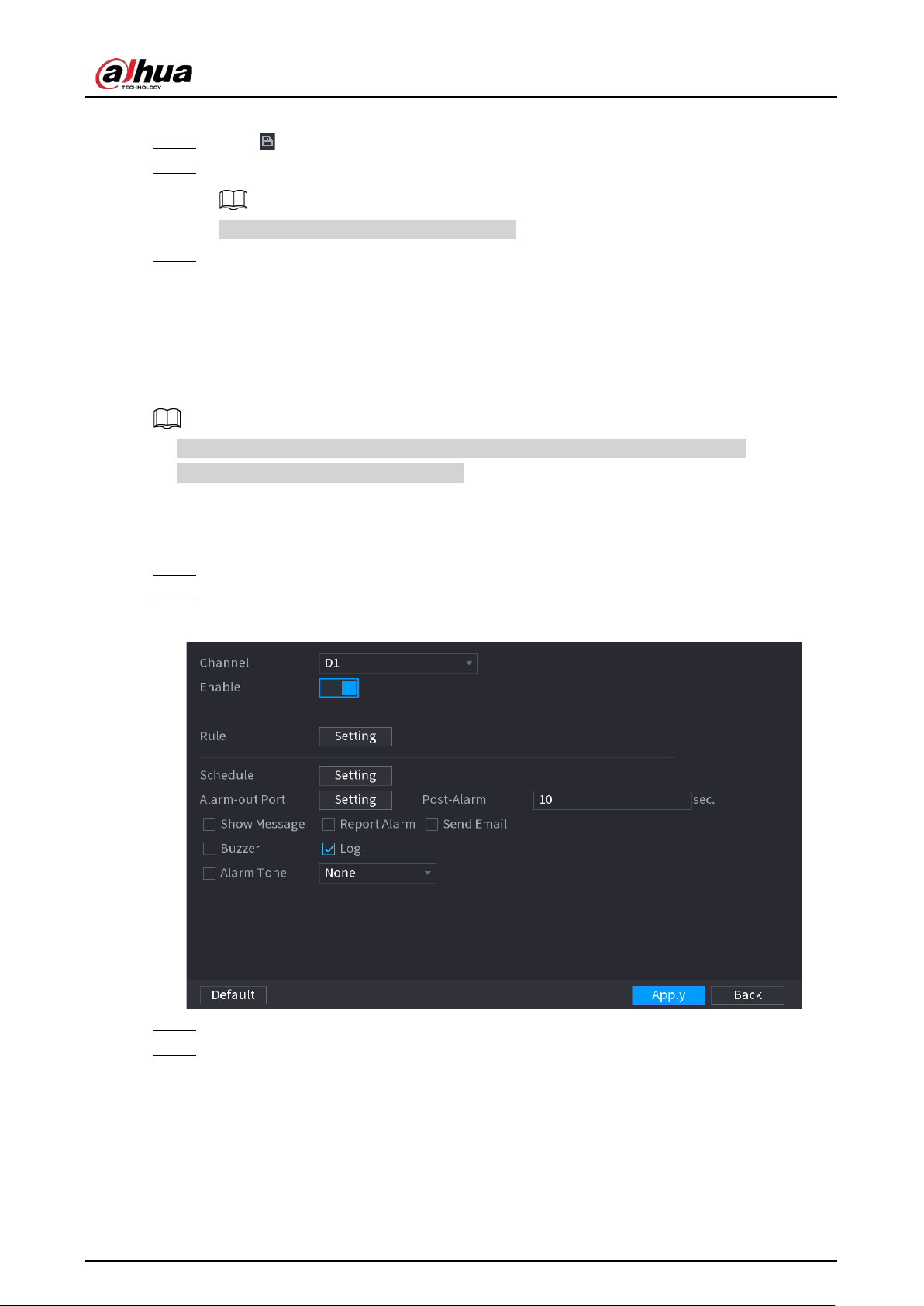
User's Manual
250
The calibration point will be displayed on the list at lower-right corner.
Step 5 Click to save the newly added calibration point.
Step 6 Repeat Step 2 to Step 5 to add more calibration points.
Set 3–8 calibration points for a speed dome.
Step 7 Click
Apply
.
5.9.16 Video Quality Analytics
When conditions such as blurry, overexposure, or the color changes appear on the screen, the
system triggers the alarm.
●
This function takes effect only when the remote IPC supports video quality analytics.
●
This function is available on select models.
5.9.16.1 Configuring Video Quality Analytics
Step 1 Select
Main Menu
>
AI
>
Parameters
>
Video Quality Analytics
.
Step 2 Select a channel and click
Enable
.
Figure 5-162 Video quality analytics
Step 3 Click
Setting
next to
Rule
.
Step 4 Select items and set thresholds as needed.
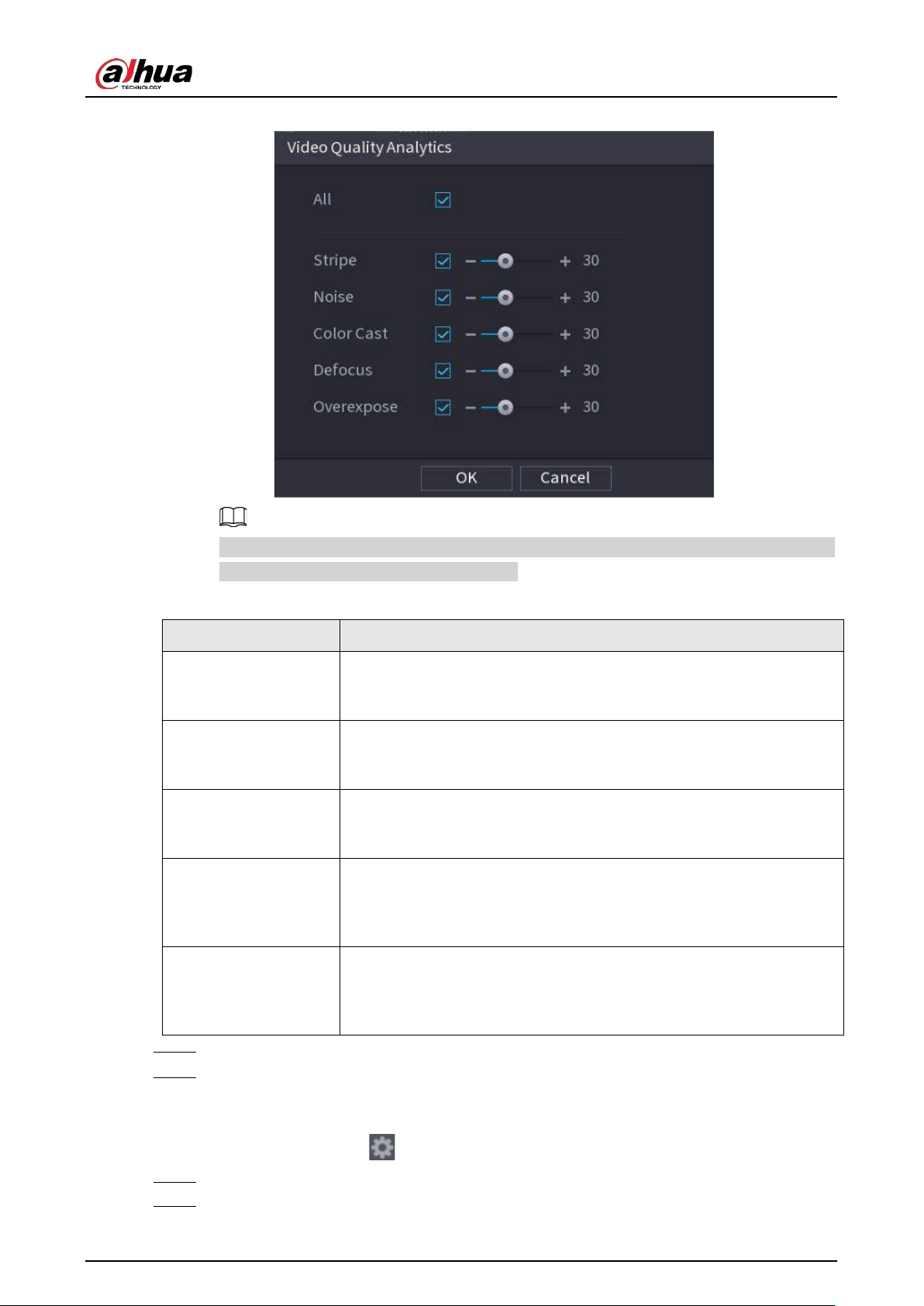
User's Manual
251
Figure 5-163 Video quality analytics settings
The value range of threshold is 0–100, and the default value is 30. When the value exceeds
the set threshold, an alarm will be triggered.
Table 5-46 Video quality analytics parameters
Parameter Description
Stripe
Stripes refer to the striped interferences in the video which might be
due to device aging or signal interference. The stripe might be
horizontal, vertical, or oblique.
Noise
Video noise refers to the distortion of optical system or the
degradation of image quality caused by hardware equipment during
transmission.
Color Cast
An image in the video is generally a colorful image that contains color
information, such as RGB. When these three components appear at
some unusual scale in an image, the image is biased.
Defocus
An image with high resolution contains more details, but image blur is
a common problem of image quality decrease which is caused by
many factors in the process of image acquisition, transmission and
processing, and is defined as virtual focus in video diagnosis.
Overexpose
The brightness of the image refers to the intensity of the image pixels.
Black is the darkest and white is the brightest. Black is represented by 0
and white is represented by 255. When the brightness value exceeds
the threshold, the image is over exposed.
Step 5 Click
OK
.
Step 6 Click
Setting
next to
Schedule
to configure the arming period.
The system triggers corresponding alarm actions only during the arming period.
●
On the time line, drag to set the period.
●
You can also click to set the period.
Step 7 Configure alarm linkage actions. For details, see Table 5-43.
Step 8 Click
Apply
.
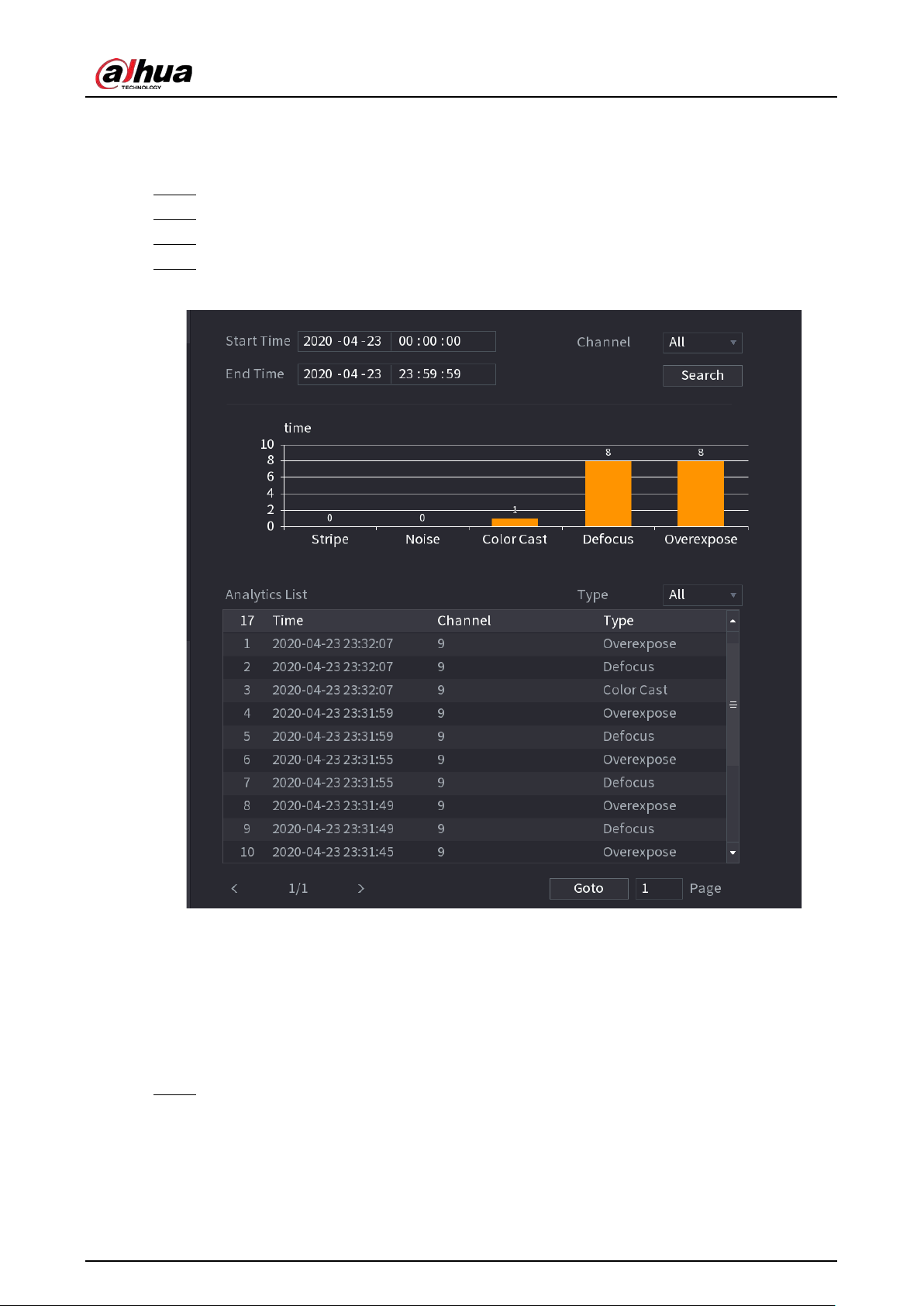
User's Manual
252
5.9.16.2 Analytics List
Search for the results of video quality analytics.
Step 1 Select
Main Menu
>
AI
>
AI Search
>
Analytics List
.
Step 2 Select the start time and end time.
Step 3 Select one or more channels.
Step 4 Click
Search
.
Figure 5-164 Analytics list
5.9.17 Entries Frequency
After setting entries frequency, when the entries detected of a person reach or exceed the threshold,
an alarm is triggered.
Procedure
Step 1 Select
Main Menu
>
AI
>
Parameters
>
Face Recognition
>
Entries Frequency
.
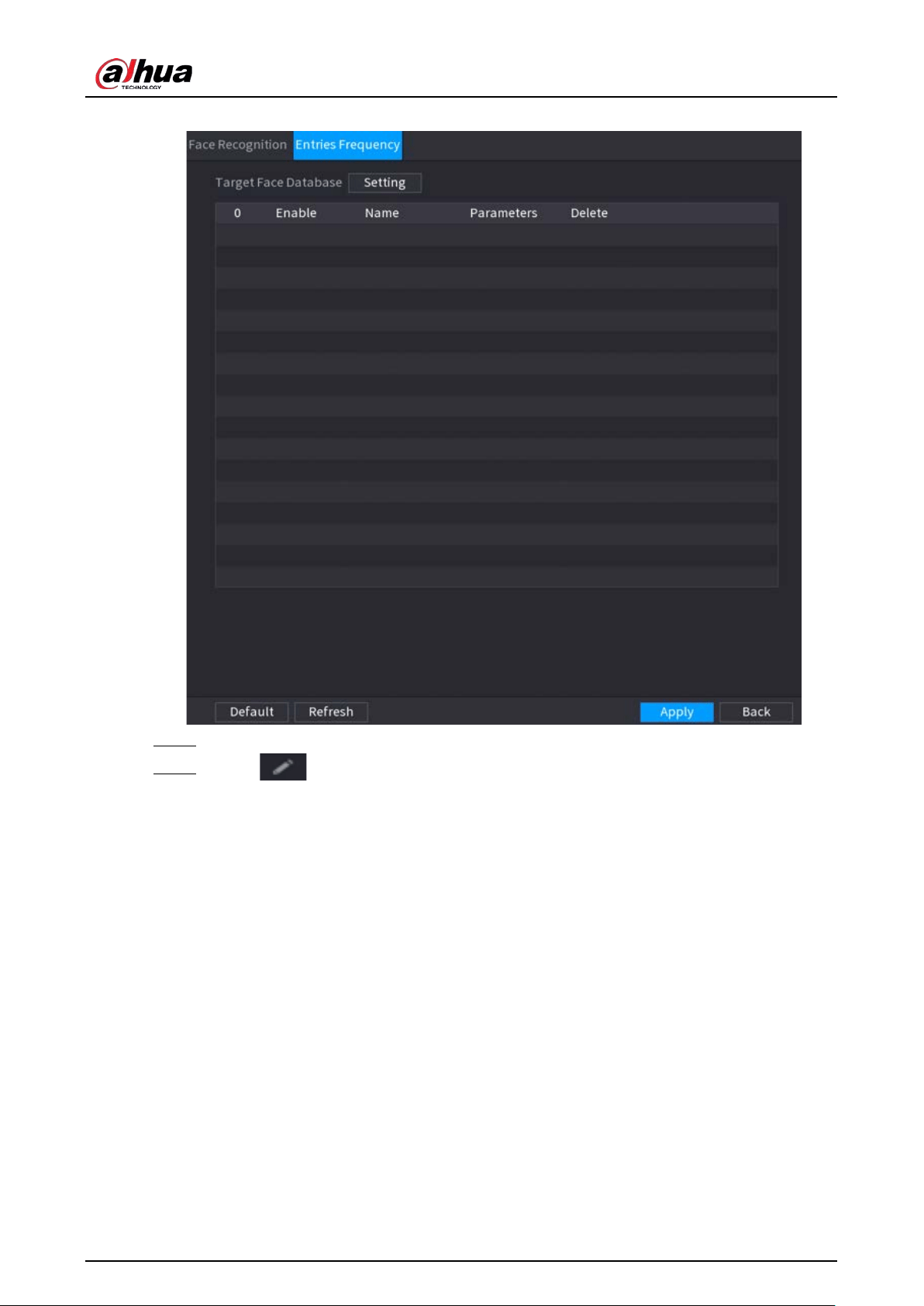
User's Manual
253
Figure 5-165 Entries frequency
Step 2 Click
Setting
to select a database and then click
OK
.
Step 3 Click and then configure the parameters.
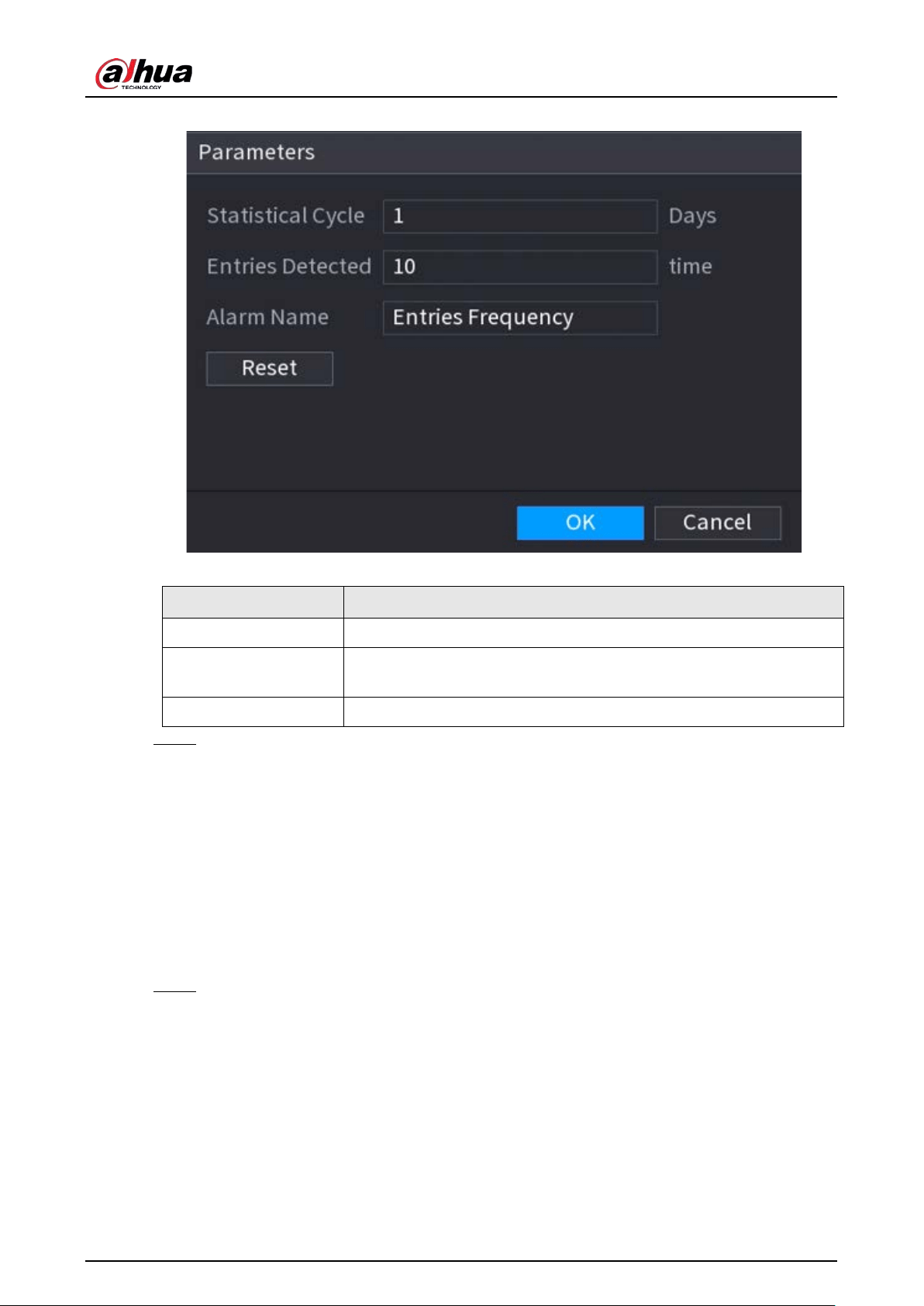
User's Manual
254
Figure 5-166 Configure entries frequency
Table 5-47 Entries frequency parameters
Parameter Description
Statistical Cycle Set the cycle for counting the entries frequency.
Entries Detected
Set the threshold of entries frequency. When the entries detected
reaches or exceeds the threshold, an alarm is triggered.
Alarm Name The name is
Entries Frequency
by default. You can change the name.
Step 4 Click
Apply
.
5.10 Alarm Settings
5.10.1 Alarm Information
You can search for, view and back up the alarm information.
Procedure
Step 1 Select
Main Menu
>
ALARM
>
Alarm Info
.
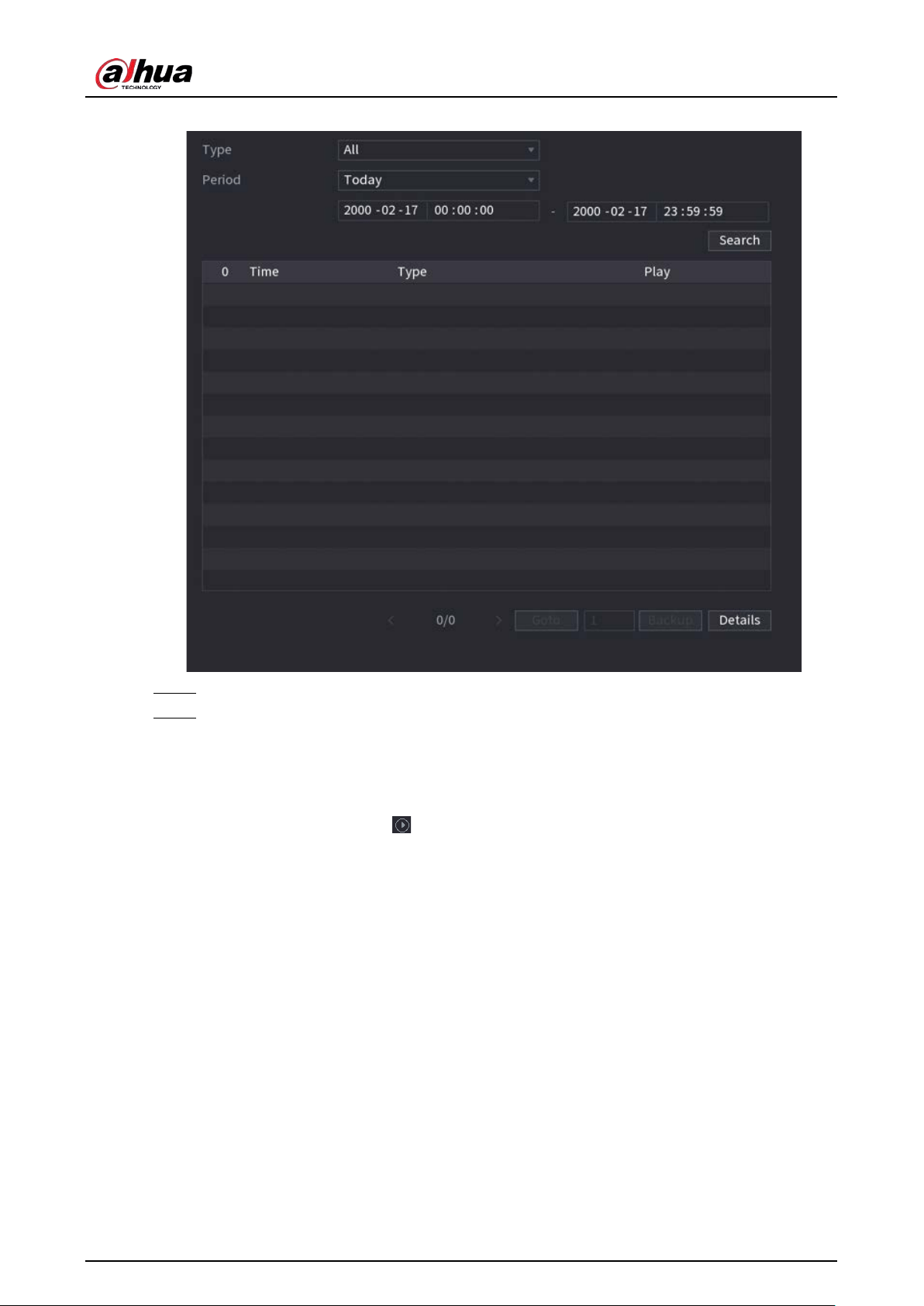
User's Manual
255
Figure 5-167 Alarm information
Step 2 Select the event type, and then set the search period.
Step 3 Click
Search
.
The search results are displayed.
Related Operations
●
Play back alarm videos.
Select an alarm event log, click to play the recorded video of alarm event.
●
Back up.
Select an alarm event log and then click
Backup
to back up it to peripheral USB device.
●
View alarm details.
Double-click a log or click
Details
to view the detailed information of the event.
5.10.2 Alarm Status
You can view NVR alarm event, and remote channel alarm event.
Select
Main Menu
>
ALARM
>
Alarm Status
.
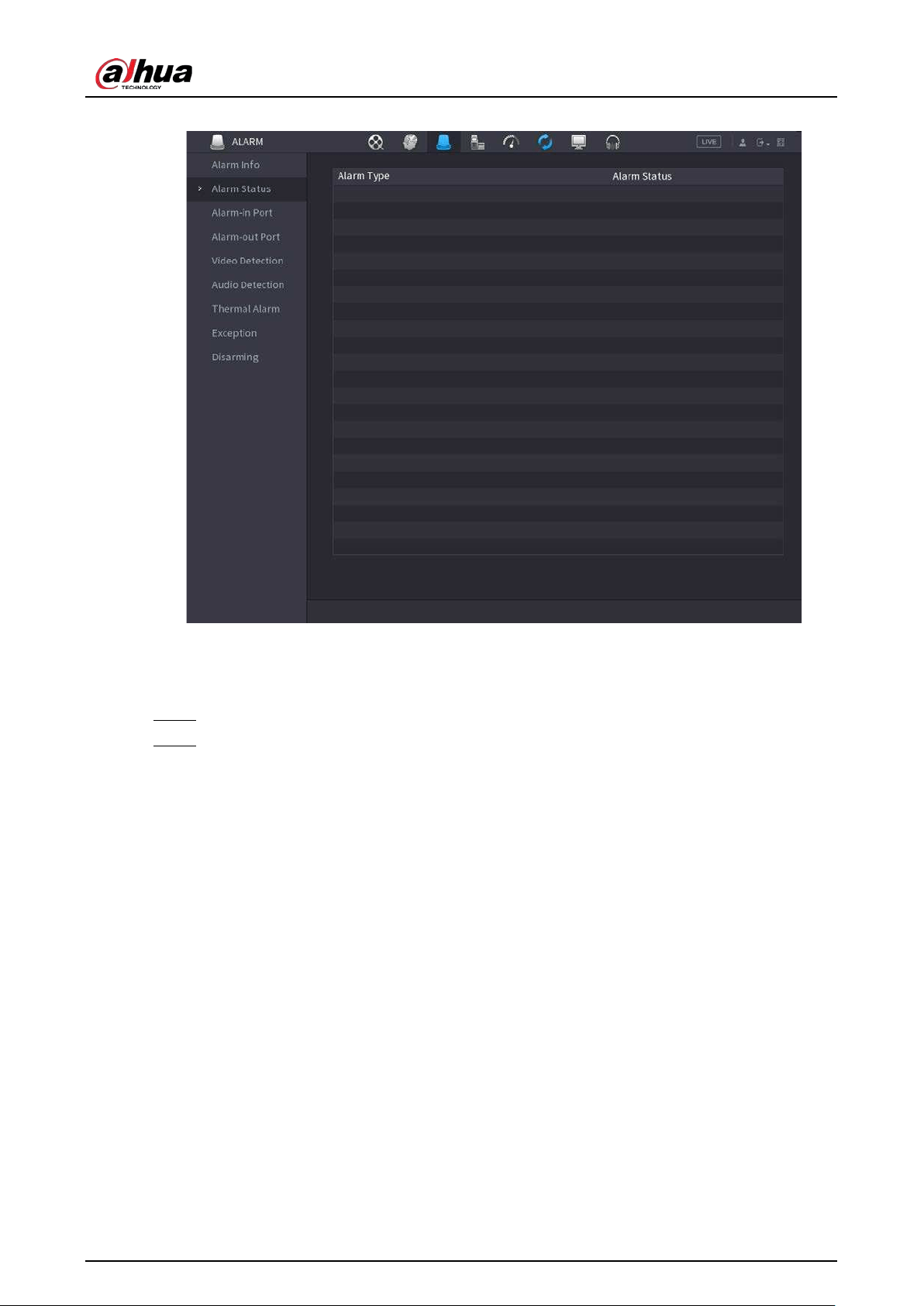
User's Manual
256
Figure 5-168 Alarm status
5.10.3 Alarm Input
Step 1 Select
Main menu
>
ALARM
>
Alarm-in Port
.
Step 2 Click each tab to configure alarm input settings.
●
Local alarm: After connect the alarm device to the NVR alarm input port, the system
performs alarm linkage actions when there is an alarm signal from the alarm input port
to the NVR.
●
Alarm box: You can connect the alarm box to the RS-485 port of the Device. When the
alarm is detected by the alarm box, the alarm information will be uploaded to the
Device, and then the Device performs alarm linkage actions.
●
Network alarm: NVR performs alarm linkage actions when it receives the alarm signal
via the network transmission.
●
IPC external alarm: When the peripheral device connected to the camera has triggered
an alarm, the camera uploads the alarm signal to the NVR via the network transmission.
The system performs the corresponding alarm linkage actions.
●
IPC offline alarm: When the network connection between the NVR and the network
camera is off, the system performs alarm linkage actions.
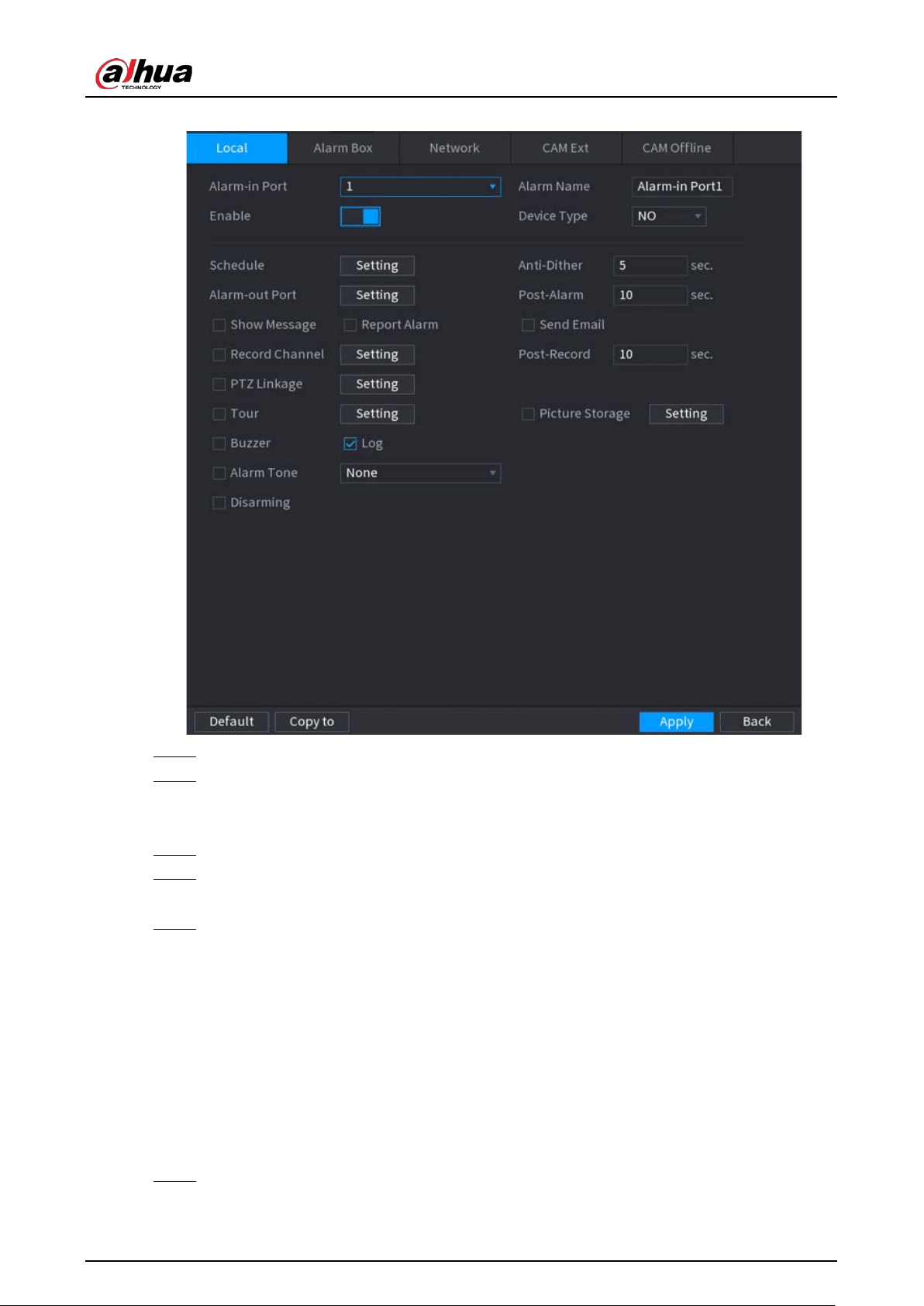
User's Manual
257
Figure 5-169 Local alarm
Step 3 Click
Setting
next to
Schedule
to configure the alarm schedule.
Step 4 Configure the anti-dither period.
If multiple alarms occur during the anti-dither period, the system only record the event
once.
Step 5 Configure alarm linkage. For details, see Table 5-43.
Step 6 Enable
Disarming
so that you can connect a switch to the alarm input port for disarming
control.
Step 7 Click
Apply
.
5.10.4 Alarm Output
You can set proper alarm output mode to auto, manual or off. After you connect the alarm device to
the alarm output port of NVR, and set the mode to auto, the system performs alarm linkage actions
when an alarm occurs.
●
Auto: Once an alarm event occurs, the system generates an alarm.
●
Manual: Alarm device is always on the alarming mode.
●
Off: Disable alarm output function.
Step 1 Select
Main Menu
>
ALARM
>
Alarm-out Port
.
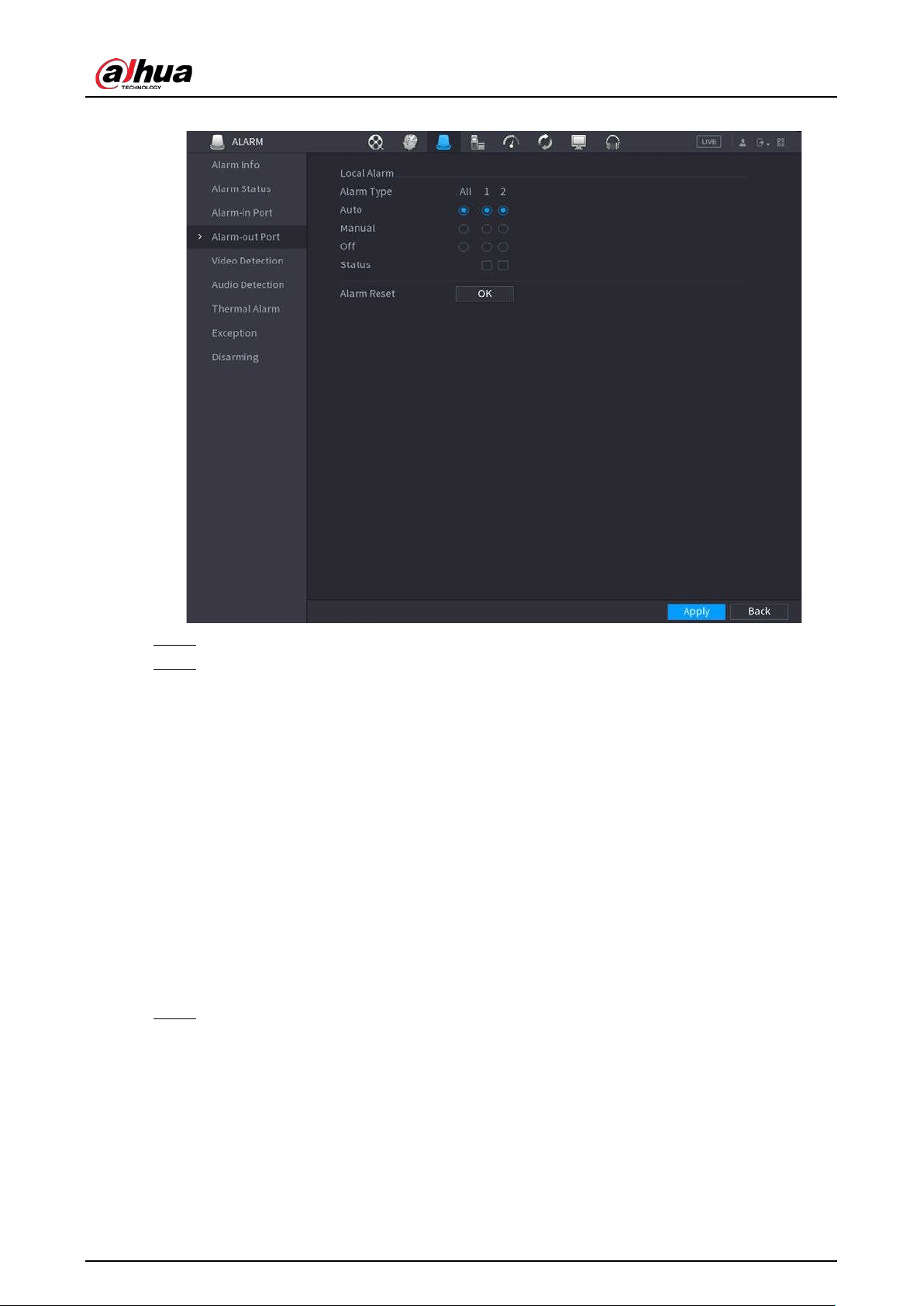
User's Manual
258
Figure 5-170 Alarm-out port
Step 2 Select the alarm mode of the alarm output channel.
Step 3 Click
Apply
.
●
Click
OK
next to
Alarm Reset
to clear all alarm output statuses.
●
View the alarm output status on the
Status
column.
5.10.5 Video Detection
The system can analyze the video and check whether there is considerable change or not. Once
video has changed considerably (for example, there is any moving object, video is distorted), the
system performs alarm linkage actions.
5.10.5.1 Motion Detection
When the moving object appears and moves fast enough to reach the preset sensitivity value, the
system performs alarm linkage actions.
Step 1 Select
Main Menu
>
ALARM
>
Video Detection
>
Motion Detection
.
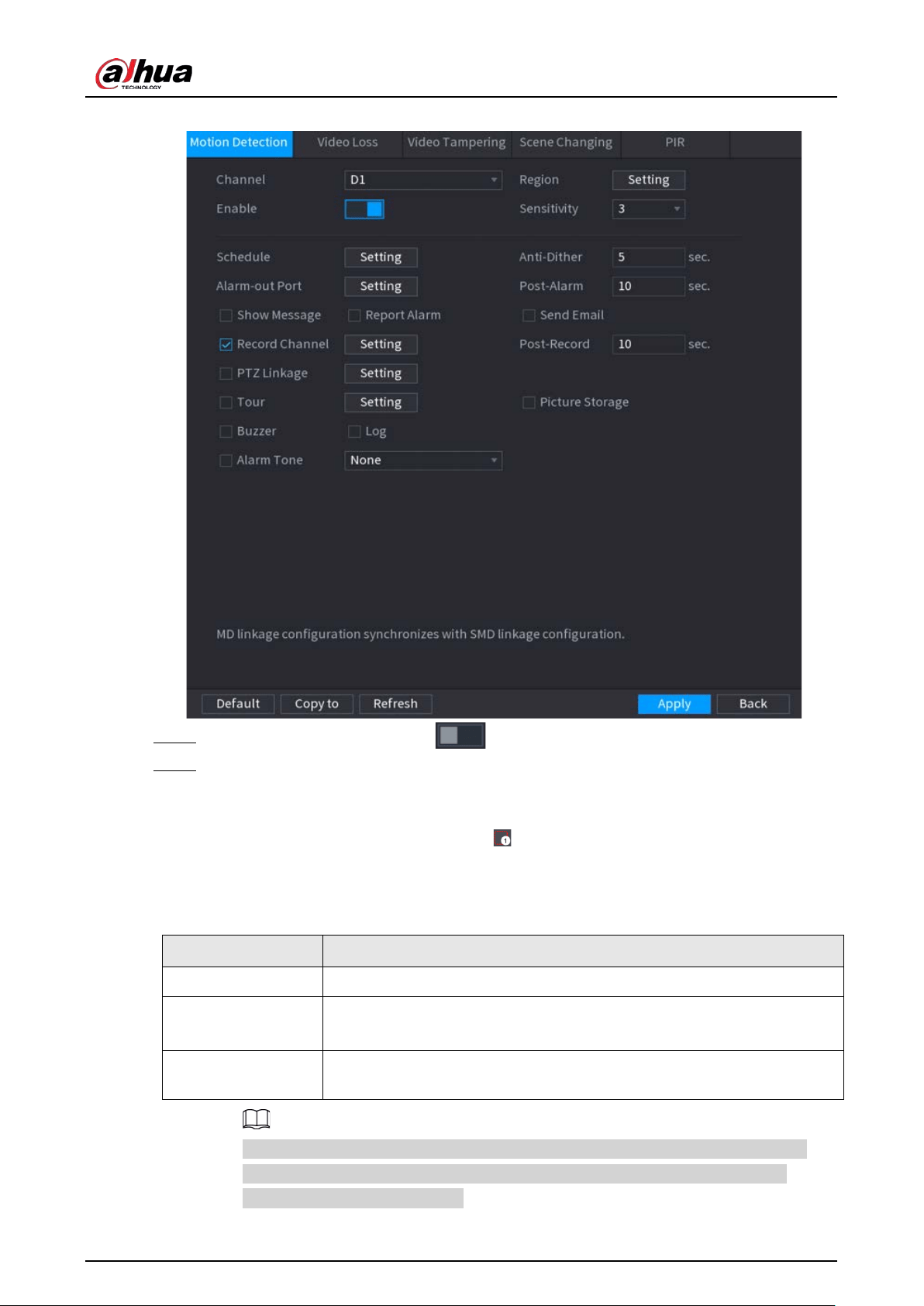
User's Manual
259
Figure 5-171 Motion detection
Step 2 Select a channel and then click to enable the function.
Step 3 Configure the detection region.
1) Click
Setting
next to
Region
.
2) Point to the middle top of the page.
3) Select one region, for example, click .
4) Drag on the screen to select the region that you want to detect.
5) Configure the parameters.
Table 5-48 Detection region parameters
Parameter Description
Name Enter a name for the region.
Sensitivity
Every region has an individual sensitivity value.
The bigger the value is, the easier to trigger an alarm.
Threshold
Adjust the threshold for motion detection. Every region of every channel
has an individual threshold.
You can configurer up to four detection regions. When any one of the four regions
activates motion detection alarm, the channel where this region belongs to will
activate motion detection alarm.
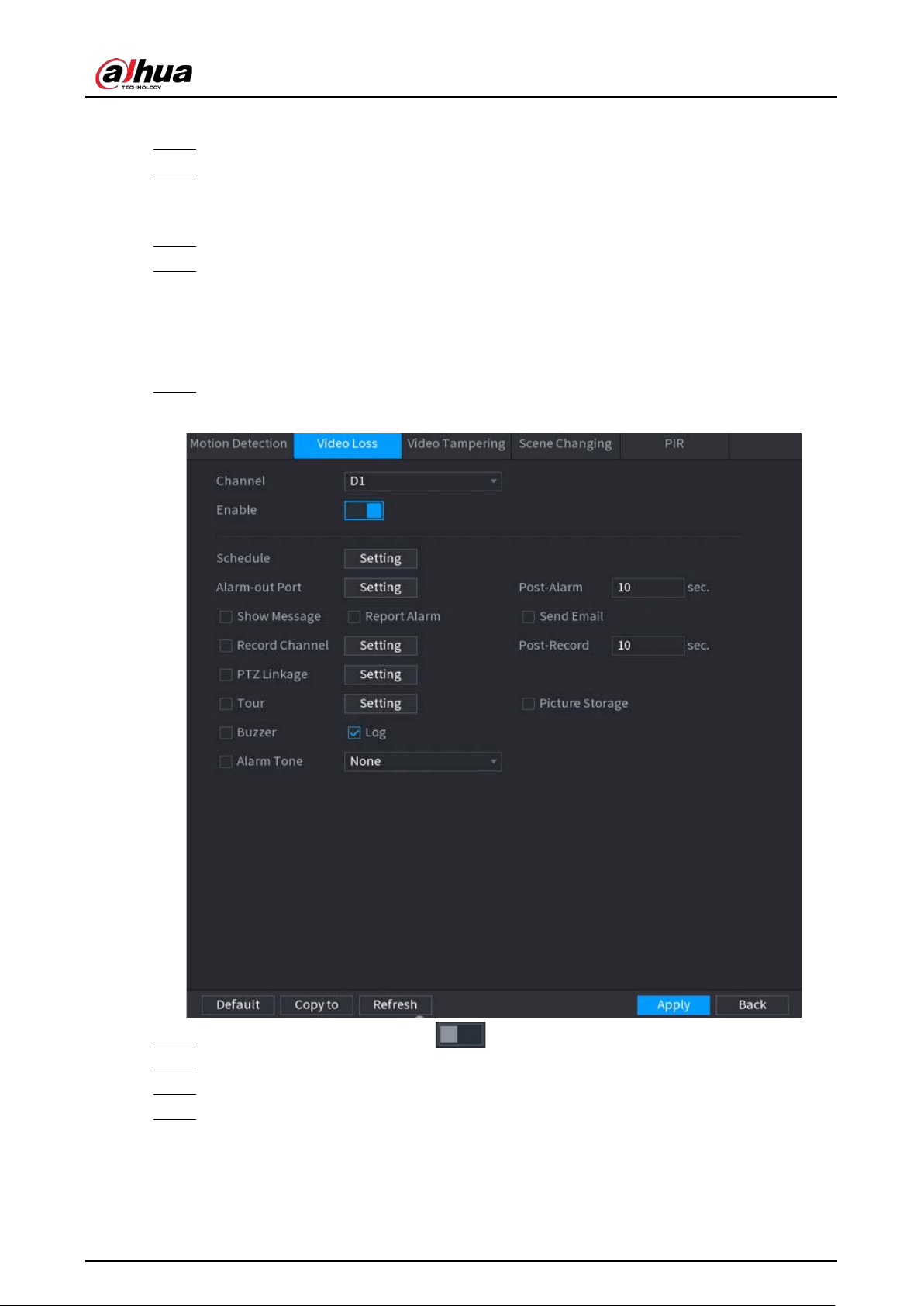
User's Manual
260
6) Right-click the page to exit.
Step 4 Click
Setting
next to
Schedule
to configure the alarm schedule.
Step 5 Configure the anti-dither period.
If multiple alarms occur during the anti-dither period, the system only record the event
once.
Step 6 Configure alarm linkage. For details, see Table 5-43.
Step 7 Click
Apply
.
5.10.5.2 Video Loss
When the video loss occurs, the system performs alarm linkage actions.
Step 1 Select
Main Menu
>
ALARM
>
Video Detection
>
Video Loss
.
Figure 5-172 Video Loss
Step 2 Select a channel and then click to enable the function.
Step 3 Click
Setting
next to
Schedule
to configure the alarm schedule.
Step 4 Configure alarm linkage. For details, see Table 5-43.
Step 5 Click
Apply
.
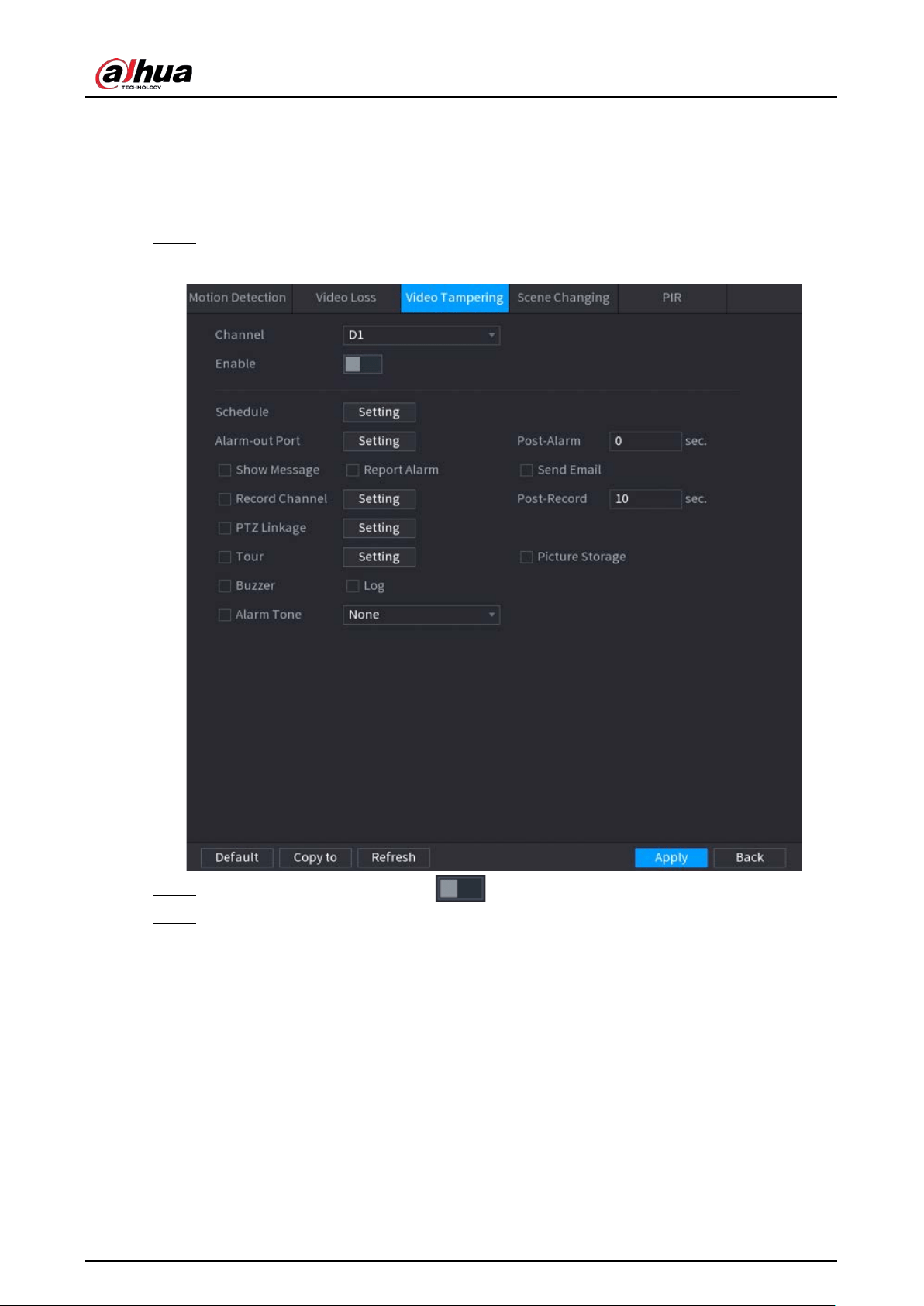
User's Manual
261
5.10.5.3 Video Tampering
When the camera lens is covered, or the video is displayed in a single color because of sunlight
status, the monitoring cannot be continued normally. To avoid such situations, you can configure
the tampering alarm settings.
Step 1 Select
Main Menu
>
ALARM
>
Video Detection
>
Video Tampering
.
Figure 5-173 Video tampering
Step 2 Select a channel and then click to enable the function.
Step 3 Click
Setting
next to
Schedule
to configure the alarm schedule.
Step 4 Configure alarm linkage. For details, see Table 5-43.
Step 5 Click
Apply
.
5.10.5.4 Scene Change
When the detected scene has changed, system performs alarm linkage actions.
Step 1 Select
Main Menu
>
ALARM
>
Video Detection
>
Scene Changing
.
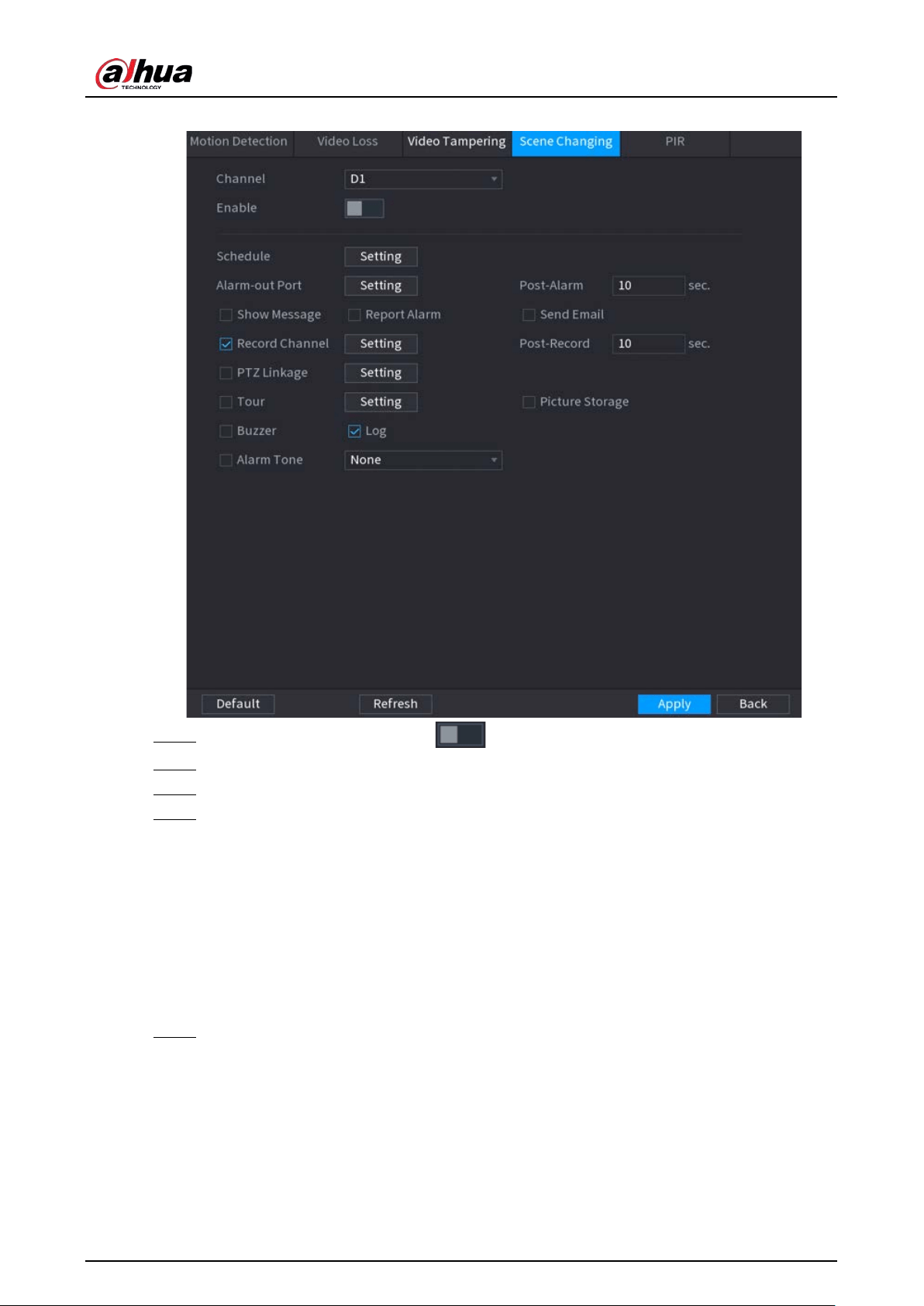
User's Manual
262
Figure 5-174 Scene changing
Step 2 Select a channel and then click to enable the function.
Step 3 Click
Setting
next to
Schedule
to configure the alarm schedule.
Step 4 Configure alarm linkage. For details, see Table 5-43.
Step 5 Click
Apply
.
5.10.5.5 PIR Alarm
PIR function helps enhancing the accuracy and validity of motion detect. It can filter the meaningless
alarms that are activated by the objects such as falling leaves and flies. The detection range by PIR is
smaller than the field angle.
PIR function is enabled by default if it is supported by the cameras. Enabling PIR function will get the
motion detection to be enabled automatically to generate motion detection alarms.
Step 1 Select
Main Menu
>
ALARM
>
Video Detection
>
PIR
.
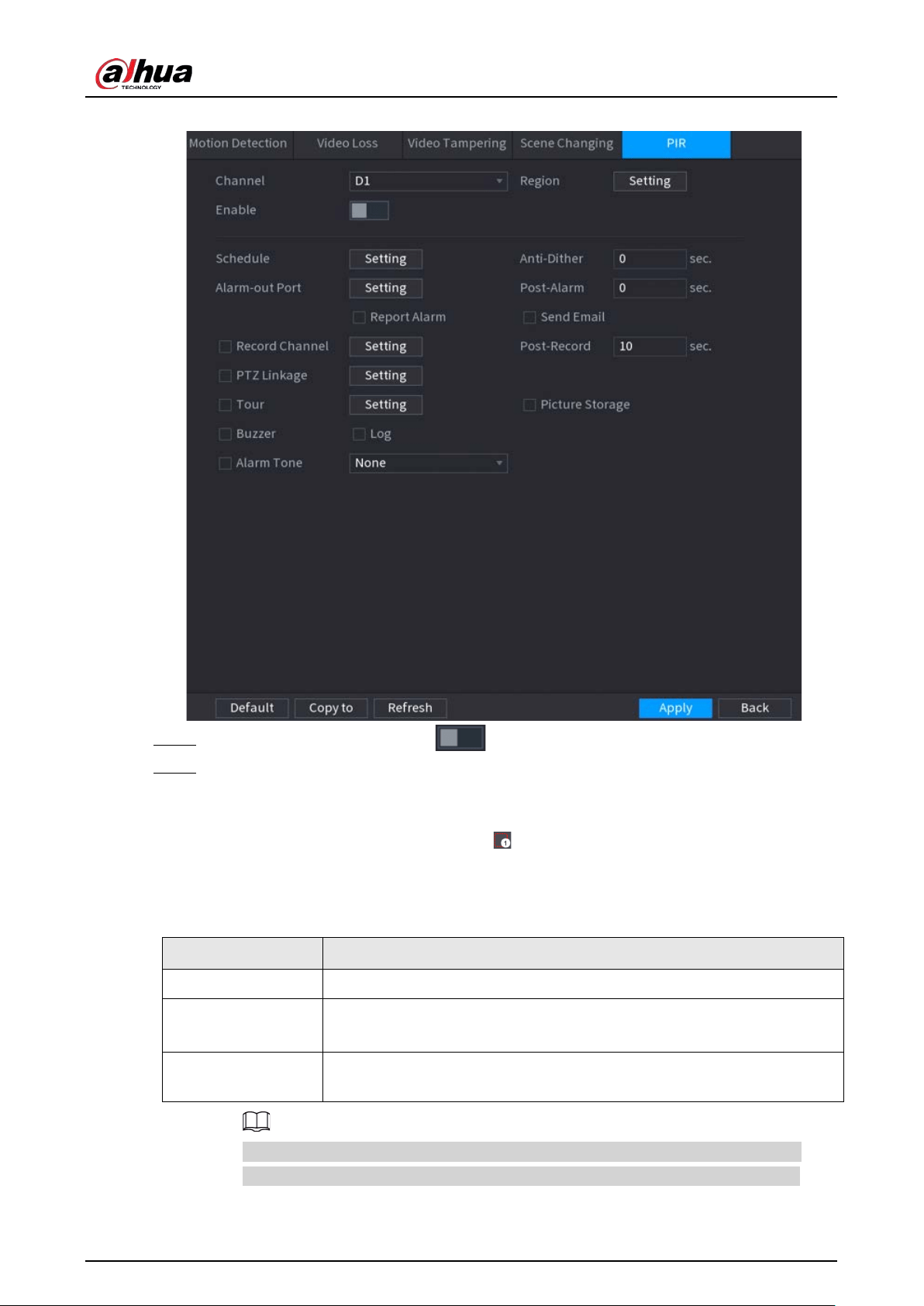
User's Manual
263
Figure 5-175 PIR
Step 2 Select a channel and then click to enable the function.
Step 3 Configure the detection region.
1) Click
Setting
next to
Region
.
2) Point to the middle top of the page.
3) Select one region, for example, click .
4) Drag on the screen to select the region that you want to detect.
5) Configure the parameters.
Table 5-49 Detection region parameters
Parameter Description
Name Enter a name for the region.
Sensitivity
Every region of every channel has an individual sensitivity value.
The bigger the value is, the easier to trigger an alarm.
Threshold
Adjust the threshold for motion detection. Every region of every channel
has an individual threshold.
You can configure up to four detection regions. When any one of the four regions
activates an alarm, the channel where this region belongs to will activate an alarm.
6) Right-click to exit the page.
User's Manual
264
Step 4 Click
Setting
next to
Schedule
to configure the alarm schedule.
Step 5 Configure the anti-dither period.
If multiple alarms occur during the anti-dither period, the system only record the event
once.
Step 6 Configure alarm linkage. For details, see Table 5-43.
Step 7 Click
Apply
.
5.10.6 Audio Detection
The system can generate an alarm once it detects the audio is not clear, the tone color has changed
or there is abnormal or audio volume change.
Step 1 Select
Main Menu
>
ALARM
>
Audio Detection
.
Step 2 Select a channel and then click to enable detection of audio exception and
intensity change.
●
Audio Exception
: The system generates an alarm when the audio input is abnormal.
●
Intensity Change
: Set the sensitivity and threshold. An alarm is triggered when the
change in sound intensity exceeds the defined threshold.
Step 3 Click
Setting
next to
Schedule
to configure the alarm schedule.
Step 4 Configure alarm linkage. For details, see Table 5-43.
Step 5 Click
Apply
.
5.10.7 Thermal Alarm
After receiving the alarm signal from the connected thermal devices, the system can recognize the
alarm type, and then trigger the corresponding alarm actions.
The system supports heat alarm, temperature (temperature difference) and cold/hot alarm.
●
Heat alarm: The system generates an alarm once it detects there is a fire.
●
Temperature (temperature difference): The system triggers an alarm once the temperature
difference between two positions is higher or below the specified threshold.
●
Cold/hot alarm: The system triggers an alarm once the detected position temperature is higher
or below the specified threshold.
●
Make sure that the connected camera supports temperature monitoring function.
●
This function is available on select models.
●
The thermal detection functions might vary depending on the connected camera. This section
uses heat alarm as an example.
Step 1 Select
Main Menu
>
ALARM
>
Thermal Alarm
.
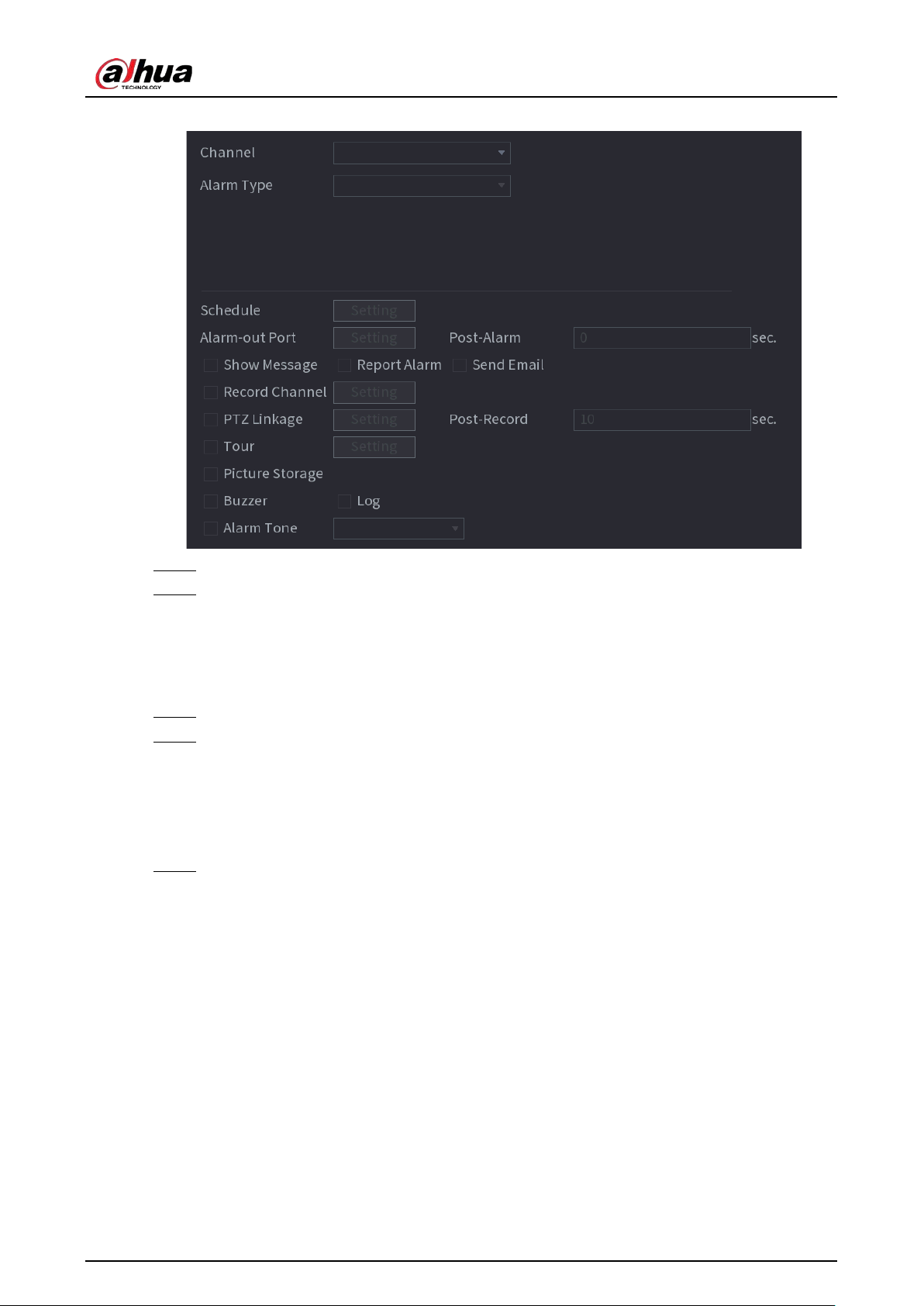
User's Manual
265
Figure 5-176 Thermal alarm
Step 2 Select a channel and set alarm type to heat alarm, and then enable the function.
Step 3 Select fire mode. The system supports preset mode and zone excluded mode.
●
Preset mode: Select a preset and then enable the function. The system generates an
alarm once it detects there is a fire.
●
Zone excluded mode: The system filters the specified high temperature zone. The
system generates an alarm once the rest zone has fire.
Step 4 Configure alarm linkage. For details, see Table 5-43.
Step 5 Click
Apply
.
5.10.8 Exception
When an error in HDD, network, and device occurs, the system performs alarm linkage actions.
Step 1 Select
Main Menu
>
ALARM
>
Exception
.
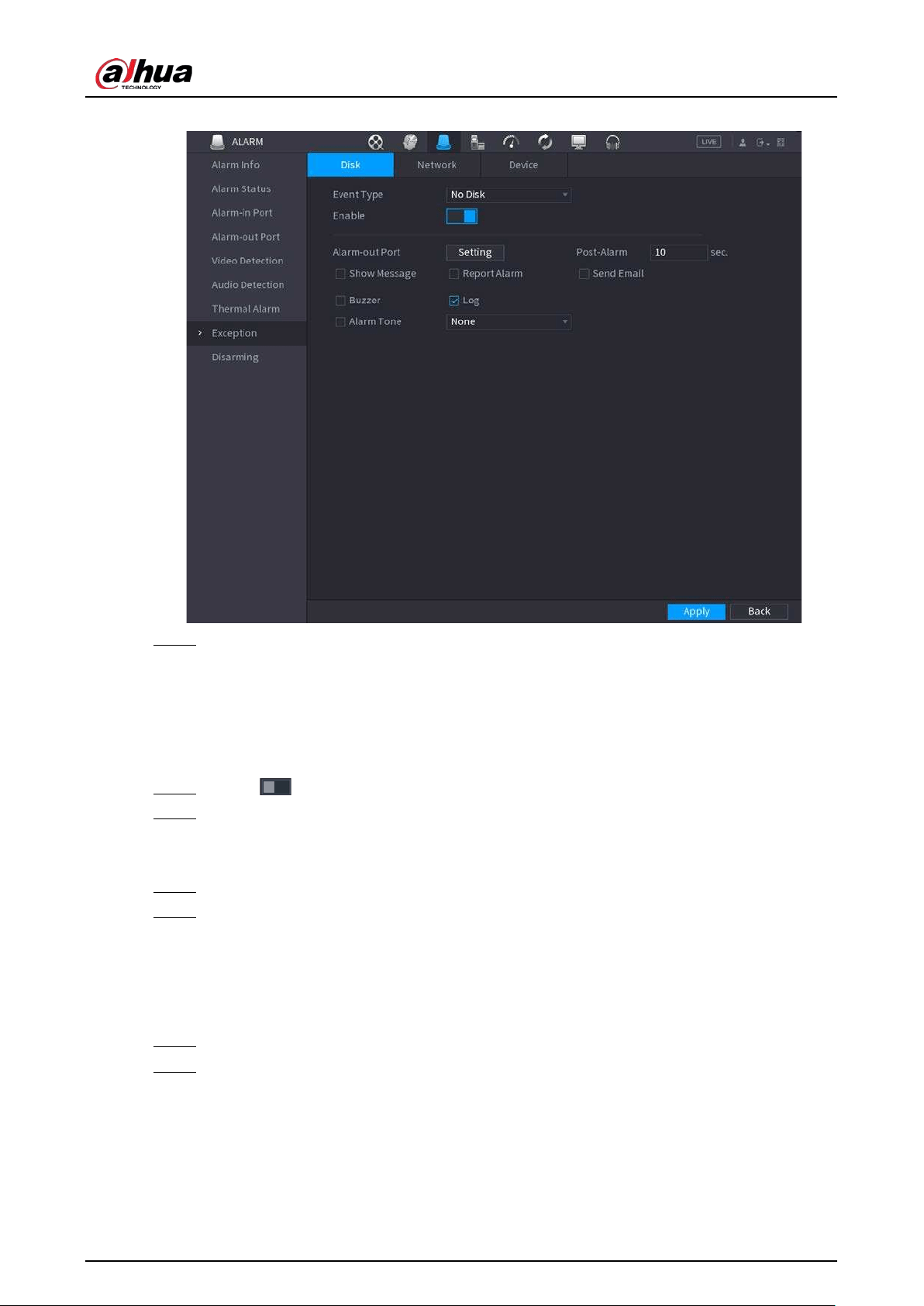
User's Manual
266
Figure 5-177 Disk exception
Step 2 Click each tab and then select an event type.
●
Disk
: The system detects HDD error, no HDD, no space, and other HDD events.
●
Network
: The system detects network errors such as disconnection, IP conflict, and
MAC conflict.
●
Device
: The system detects device errors such as abnormal fan speed and network
security error.
Step 3 Click to enable the function.
Step 4 (Optional) If the event type is
Low Space
, you need to configure the threshold of storage
space.
When the storage space is lower than the threshold, an alarm is triggered.
Step 5 Configure alarm linkage. For details, see Table 5-43.
Step 6 Click
Apply
.
5.10.9 Disarming
You can disarm all alarm linkage actions as needed through one click.
Step 1 Select
Main Menu
>
ALARM
>
Disarming
.
Step 2 Select
On
for
Disarming
to enable disarming.
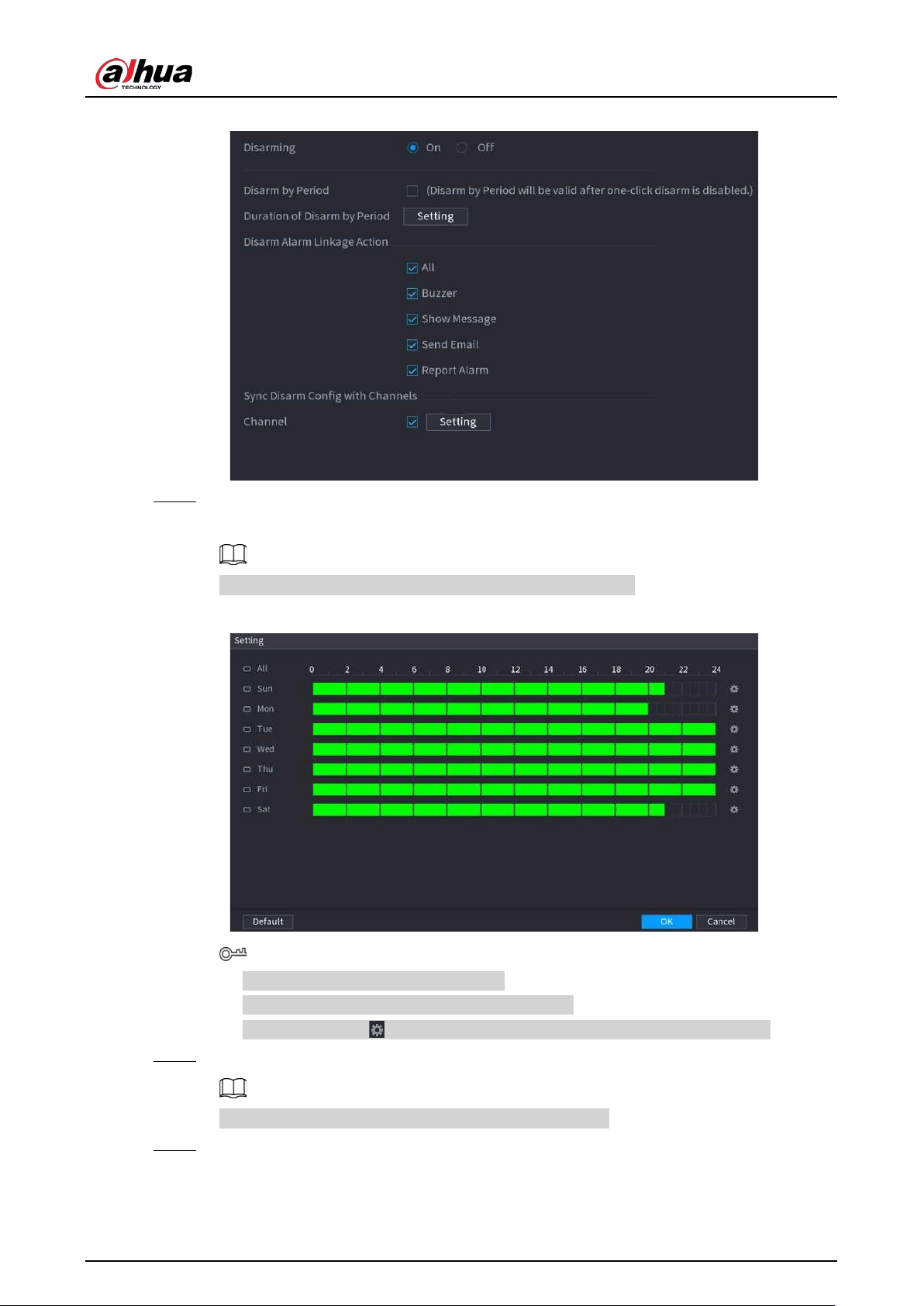
User's Manual
267
Figure 5-178 Disarming
Step 3 (Optional) To enable scheduled disarming, click
Setting
next to
Duration of Disarm by
Period
, and then set periods.
Scheduled disarming is only effective when
Disarming
is
Off
.
Figure 5-179 Scheduled disarming
●
Drag your mouse to select time blocks.
●
Green blocks indicates that disarming is enabled.
●
You can also click to set time periods. One day can have 6 periods at most.
Step 4 Select the alarm linkage actions to disarm.
All alarm linkage actions will be disarmed if you select
All
.
Step 5 To disarm remote channels, select the checkbox at
Channel
, and then click
Setting
to
select channels.
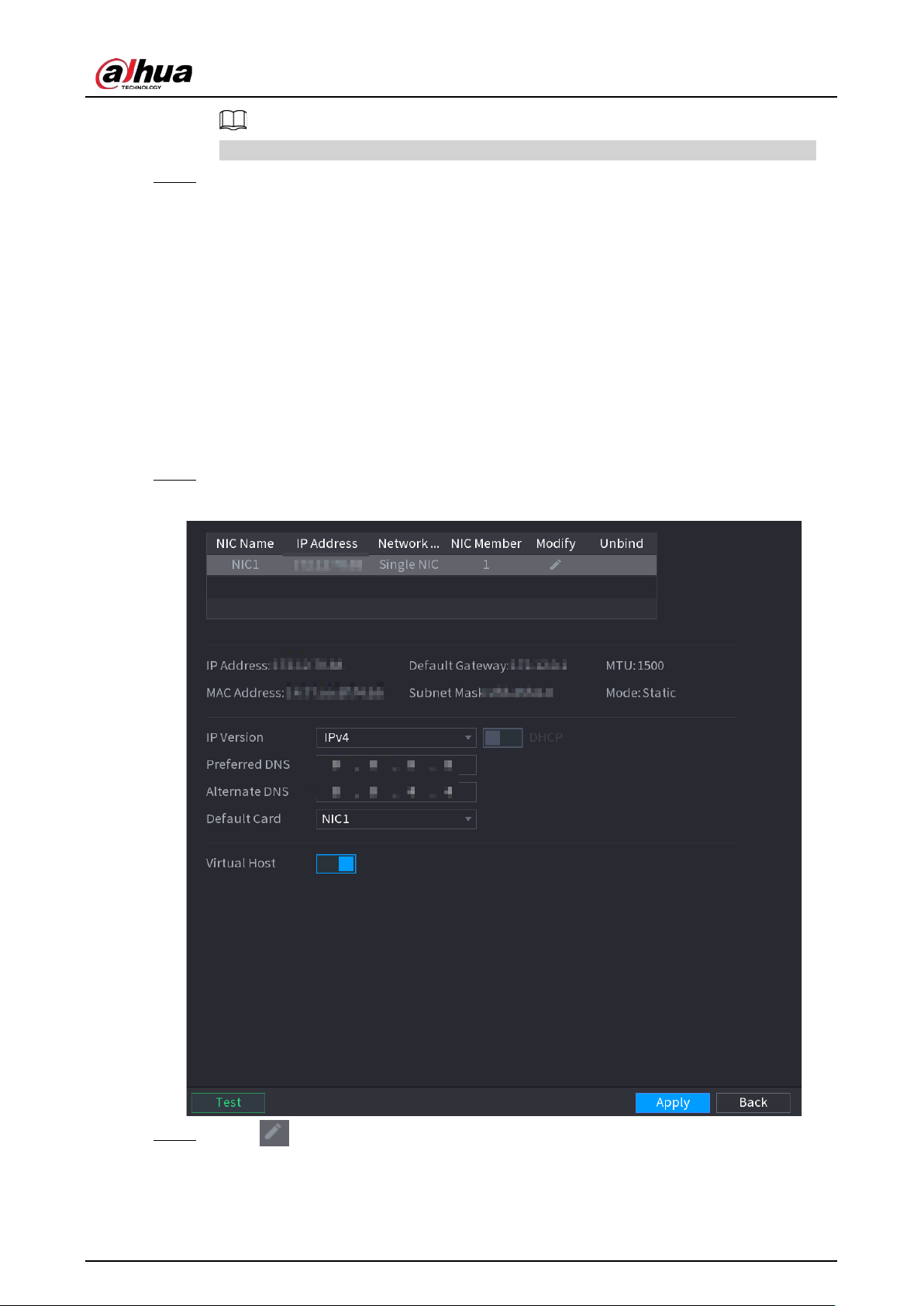
User's Manual
268
This function is only effective when the connected camera supports one-click disarming.
Step 6 Click
Apply
.
5.11 Network
Configure the network settings to ensure the Device can communicate with other devices on the
same LAN.
5.11.1 TCP/IP
You can configure the settings for the Device such as IP address, DNS according to the networking
plan.
Step 1 Select
Main Menu
>
NETWORK
>
TCP/IP
.
Figure 5-180 TCP/IP
Step 2 Click to configure the NIC card, and then click
OK
.
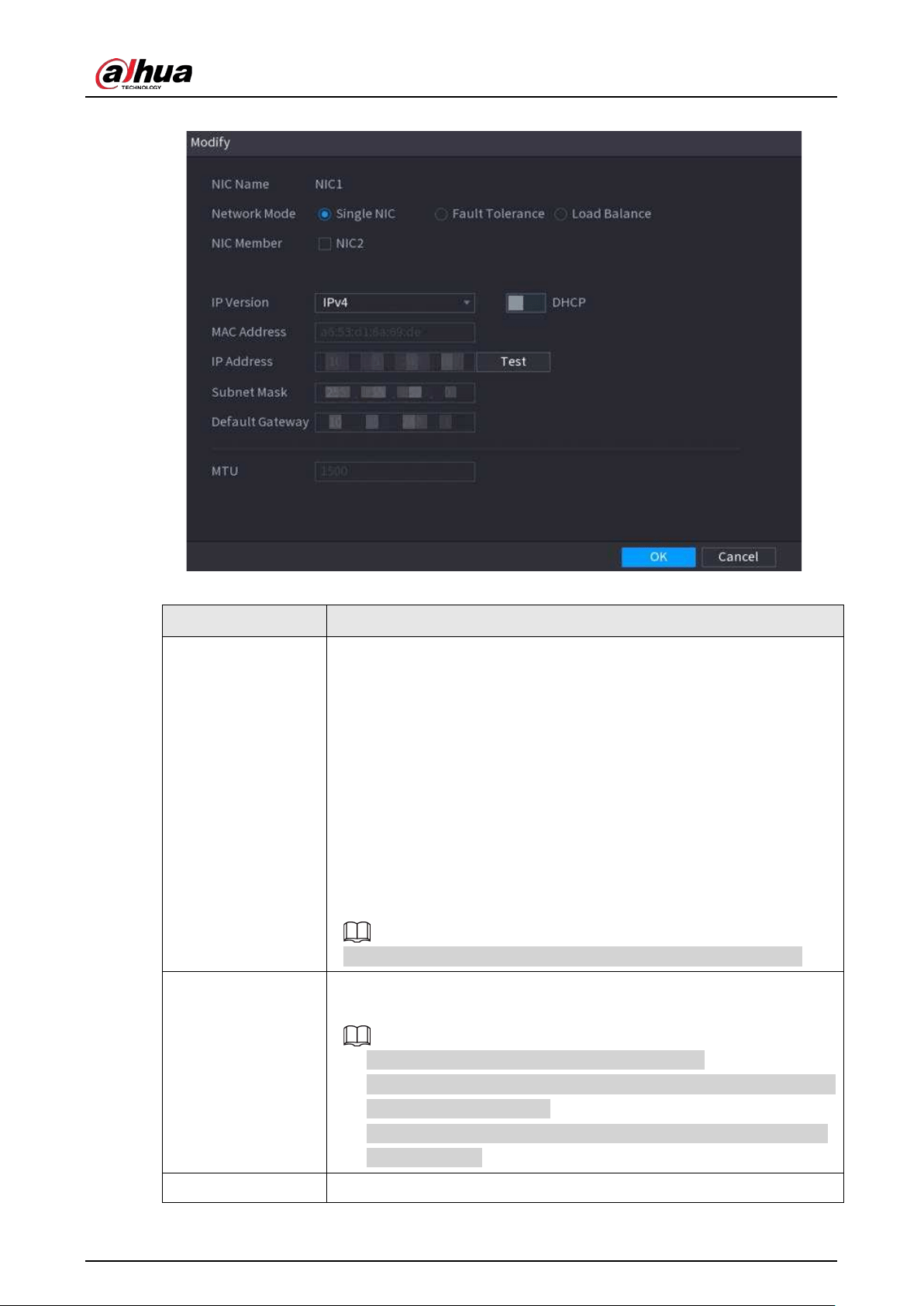
User's Manual
269
Figure 5-181 TCP/IP
Table 5-50 TCP/IP parameters
Parameter Description
Network Mode
●
Single NIC
: The current NIC card works independently. If the current
NIC card is disconnected, the Device becomes offline.
●
Fault Tolerance
: Two NIC cards share one IP address. Normally only
one NIC card is working. When this card fails, the other NIC card will
start working automatically to ensure the network connection. The
Device is regarded as offline only when both NIC cards are
disconnected.
●
Load Balance
: Two NIC cards share one IP address and work at the
same time to share the network load averagely. When one NIC card
fails, the other card continues to work normally. The Device is
regarded as offline only when both NIC cards are disconnected.
The Device with single Ethernet port does not support this function.
NIC Member
When the network mode is
Fault Tolerance
or
Load Balance
, you need
to select the checkbox to bind NIC cards.
●
Make sure that at least two NIC cards are installed.
●
NIC cards using different ports such as optical port and electrical port
cannot be bound together.
●
After binding NIC cards, you need to restart the Device to make the
change effective.
IP Version Select IPv4 or IPv6. Both versions are supported for access.
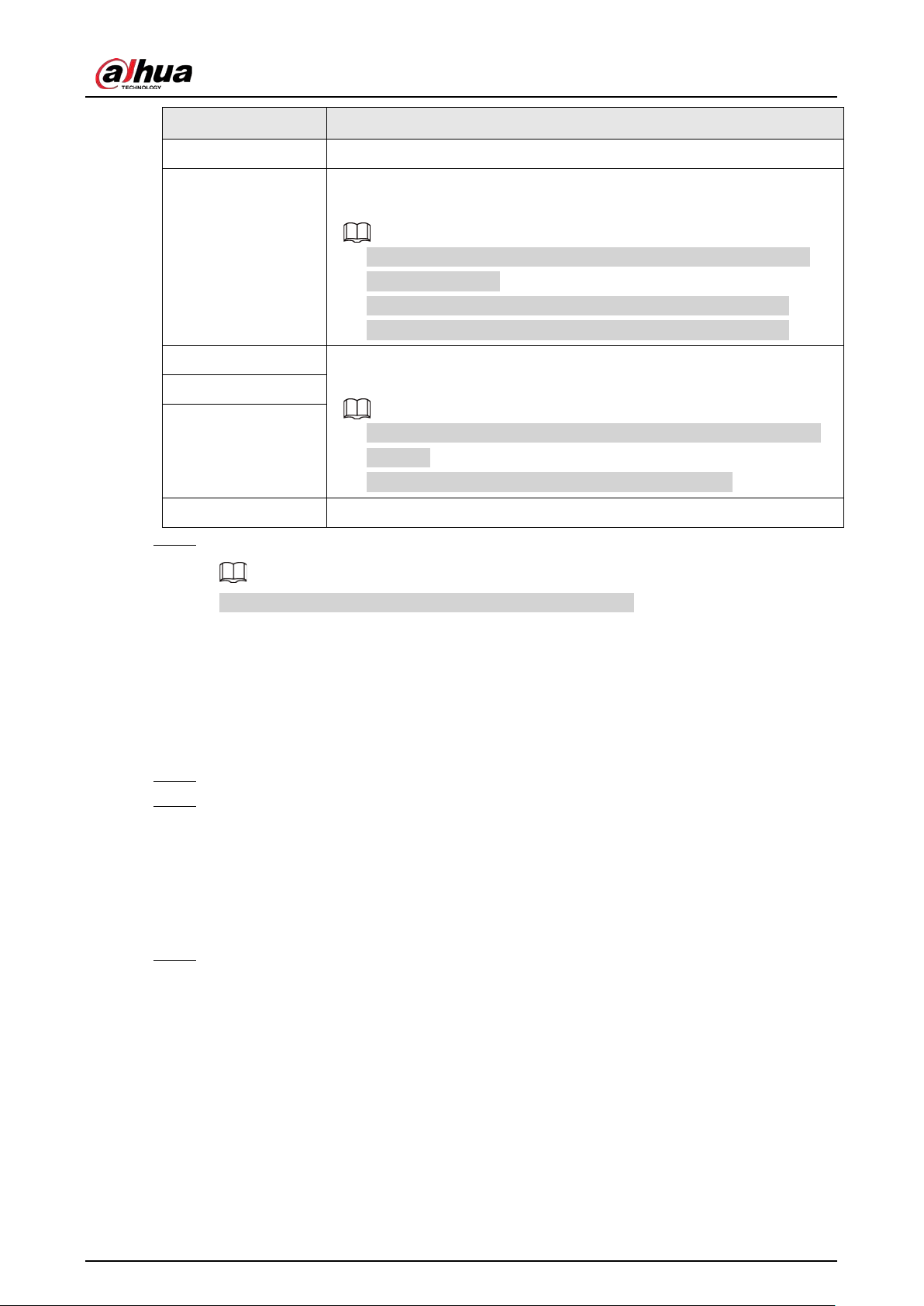
User's Manual
270
Parameter Description
MAC Address Displays the MAC address of the Device.
DHCP
Enable the system to allocate a dynamic IP address to the Device. There is
no need to set IP address manually.
●
If you want to manually configure the IP information, disable the
DHCP function first.
●
If PPPoE connection is successful, the IP address, subnet mask,
default gateway, and DHCP are not available for configuration.
IP Address Enter the IP address and configure the corresponding subnet mask and
default gateway.
●
The IP address and default gateway must be on the same network
segment.
●
Click
Test
to check whether the IP address is available.
Subnet Mask
Default Gateway
MTU Displays the MTU value of the NIC card.
Step 3 On the
TCP/IP
page, configure the DNS server.
This step is compulsive if you want to use the domain service.
●
Obtain DNS server automatically.
When there is DHCP server on the network, you can enable
DHCP
so that the Device
can automatically obtain a dynamic IP address.
●
Configure DNS server manually.
Select the IP version, and then enter the IP addresses of preferred and alternate DNS
server.
Step 4 Select a NIC card as the default card.
Step 5 Click
Apply
.
5.11.2 Routing Table
You can configure the routing table so that the system can automatically calculate the best path for
data transmission.
Step 1 Select
Main Menu
>
NETWORK
>
TCP/IP
>
Routing Table
.
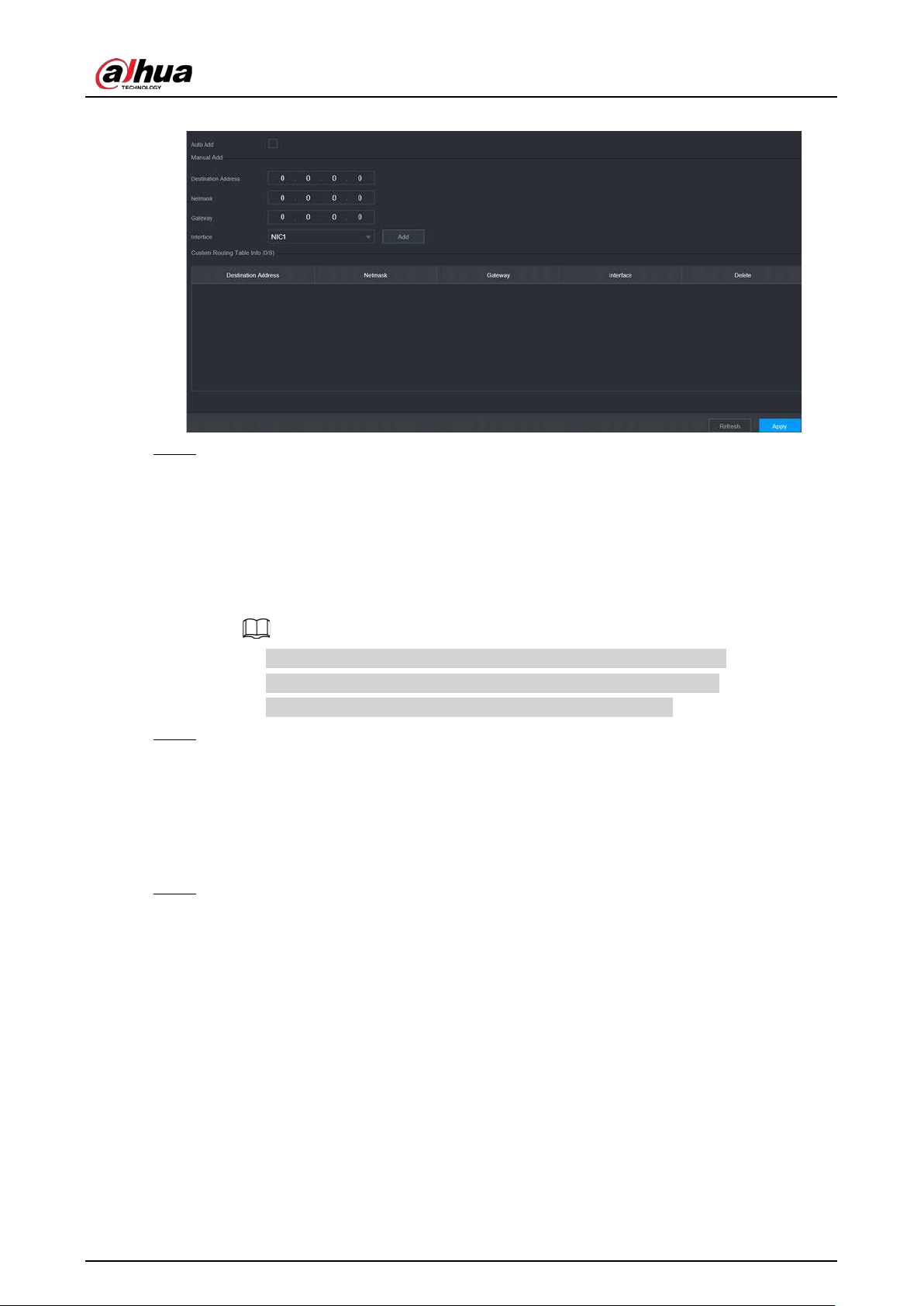
User's Manual
271
Figure 5-182 Routing table
Step 2 Add the routing table.
●
Auto add.
When you add a camera to the NVR and the IP address of the camera is not on the
existing routing table, the system will add the routing information.
●
Manual add.
Configure the parameters such as destination address, netmask, and gateway, and then
click
Add
.
◇
The destination address and netmask must not be on the same LAN.
◇
The netmask must be valid and on the same LAN with the NIC card.
◇
You can configure up to eight pieces of routing information.
Step 3 Click
Apply
.
5.11.3 Port
You can configure the maximum connection for accessing the Device from web, platform, mobile
phone or other clients at the same time, and configure each port number.
Step 1 Select
Main Menu
>
NETWORK
>
Port
.
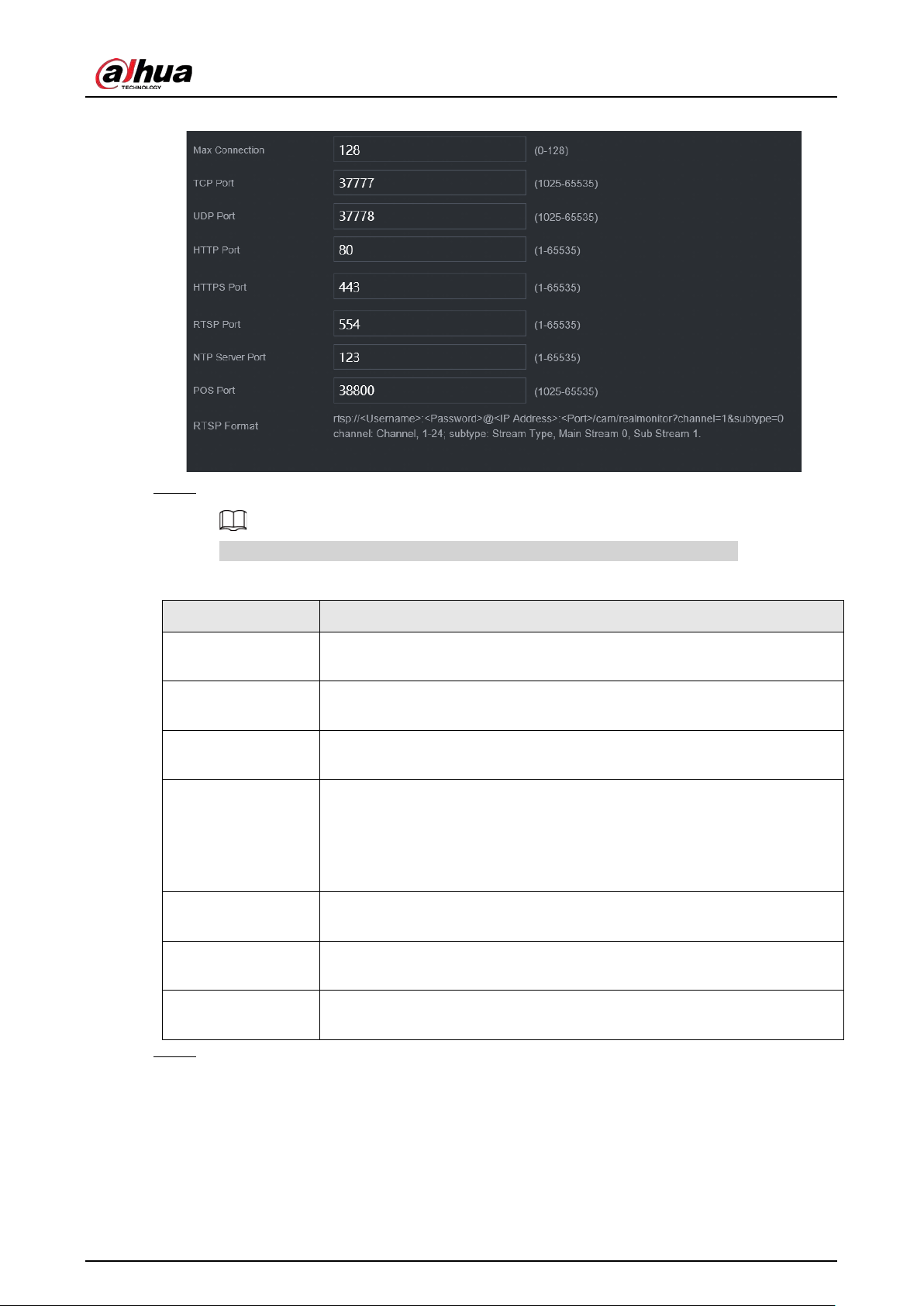
User's Manual
272
Figure 5-183 Port
Step 2 Configure the parameters.
The parameters except
Max Connection
take effect after the Device restarts.
Table 5-51 Port parameters
Parameter Description
Max Connection
The allowable maximum clients accessing the Device at the same time,
such as web client, platform, and mobile client.
TCP Port
Transmission control protocol port. Enter the value according to your
actual situation.
UDP Port
User datagram protocol port. Enter the value according to your actual
situation.
HTTP Port
The default value setting is 80. You can enter the value according to your
actual situation.
If you change the HTTP port number to, for example, 70, then you need to
enter 70 after the IP address when logging in to the Device through the
browser.
HTTPS Port
HTTPS communication port. The default value is 443. You can enter the
value according to your actual situation.
RTSP Port
The default value is 554. You can enter the value according to your actual
situation.
POS Port
POS data transmission port. The value range from 1 through 65535. The
default value is 38800.
Step 3 Click
Apply
.
5.11.4 External Wi-Fi
The Device can be connected to wireless network with an external Wi-Fi module.
Prerequisites
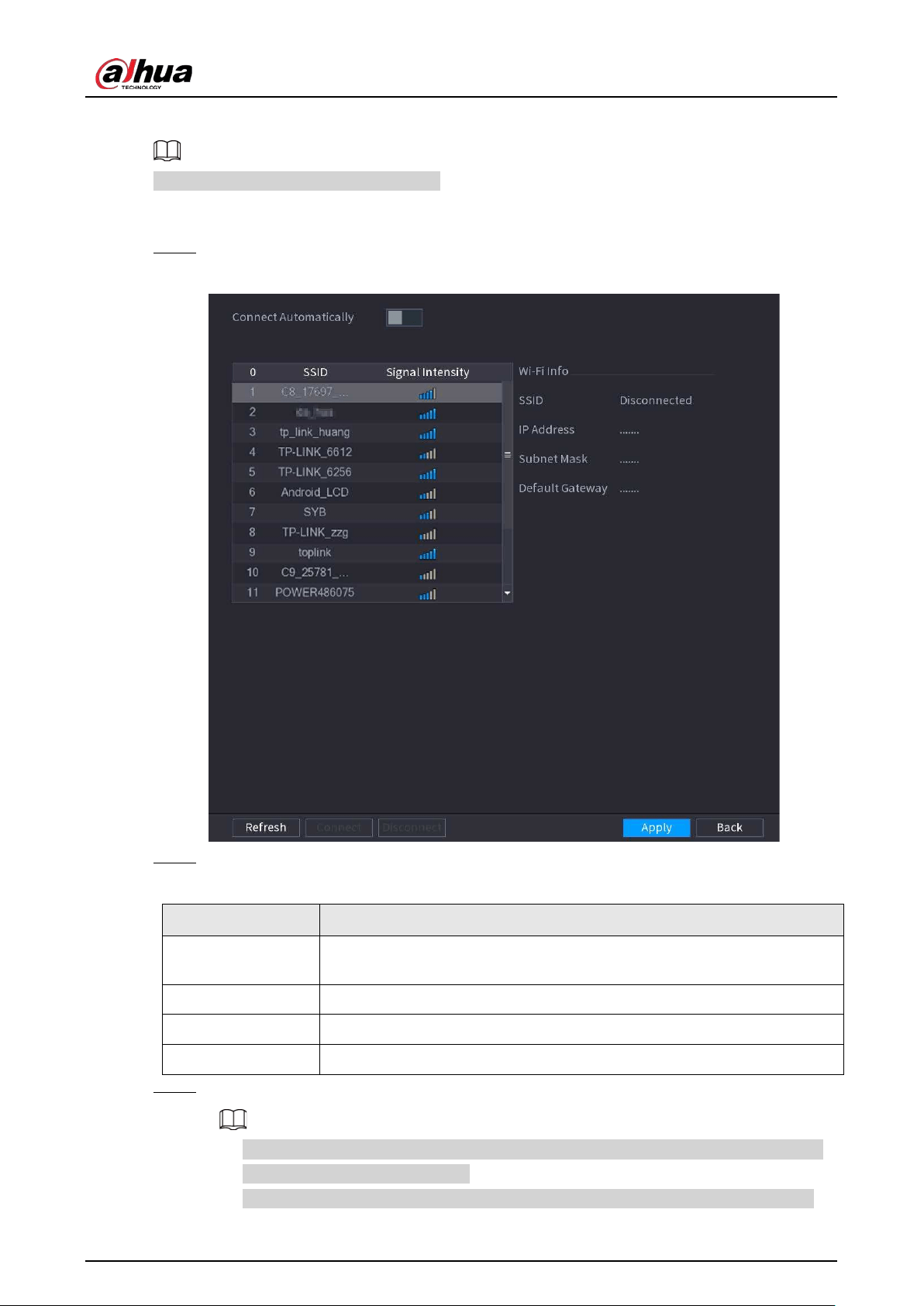
User's Manual
273
Make sure that external Wi-Fi module is installed on the Device.
This function is available on select models.
Procedure
Step 1 Select
Main Menu
>
NETWORK
>
Wi-Fi
.
Figure 5-184 Wi-Fi
Step 2 Configure the parameters.
Table 5-52 Wi-Fi parameters
Parameter Description
Connect
Automatically
After the function is enabled, the NVR will connect to the nearest site that
was previously successfully connected after the Device starts.
Refresh Search for the sites again.
Disconnect Disconnect the current connection.
Connect
Select an available site and then click
Connect
.
Step 3 Click
Apply.
●
After the connection is successful, a Wi-Fi connection signal flag appears in the upper-
right corner of the live view page.
●
The Wi-Fi module models currently supported are D-LINK, dongle and EW-7811UTC
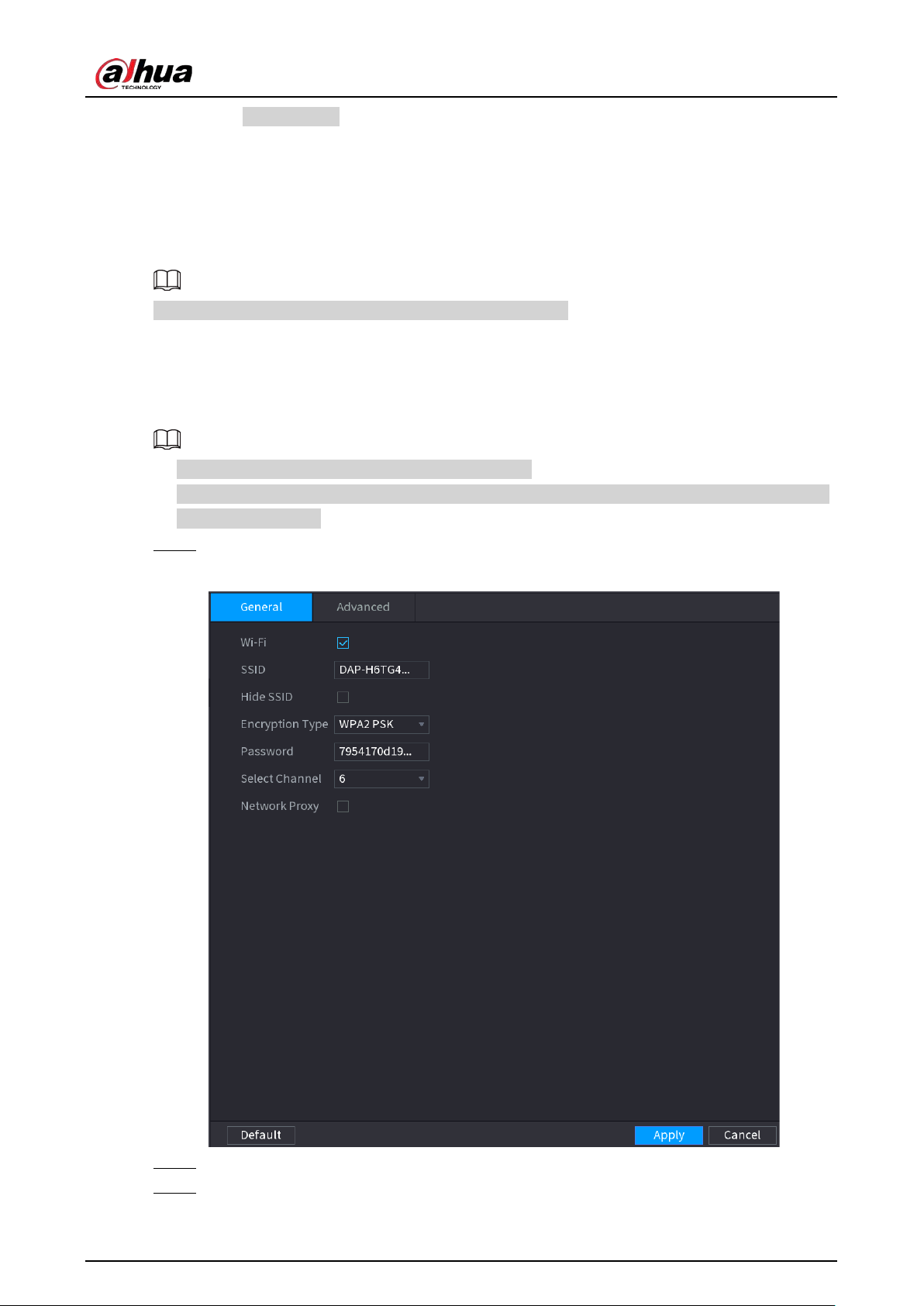
User's Manual
274
wireless cards.
5.11.5 Wi-Fi AP
You can configure Wi-Fi parameters for the NVR to ensure that a wireless IPC can connect to the NVR
through Wi-Fi AP.
This function requires the built-in Wi-Fi module in the Device.
5.11.5.1 General Settings
You can configure SSID, encryption type, password and channel of the device.
●
This function is supported on select wireless models.
●
When the wireless IPC and NVR are matched, the pairing will be completed in 120 seconds after
they are powered on.
Step 1 Select
Main Menu
>
NETWORK
>
Wi-Fi AP
>
General
.
Figure 5-185 General settings
Step 2 Select
Wi-Fi
to enable Wi-Fi.
Step 3 Configure parameters.
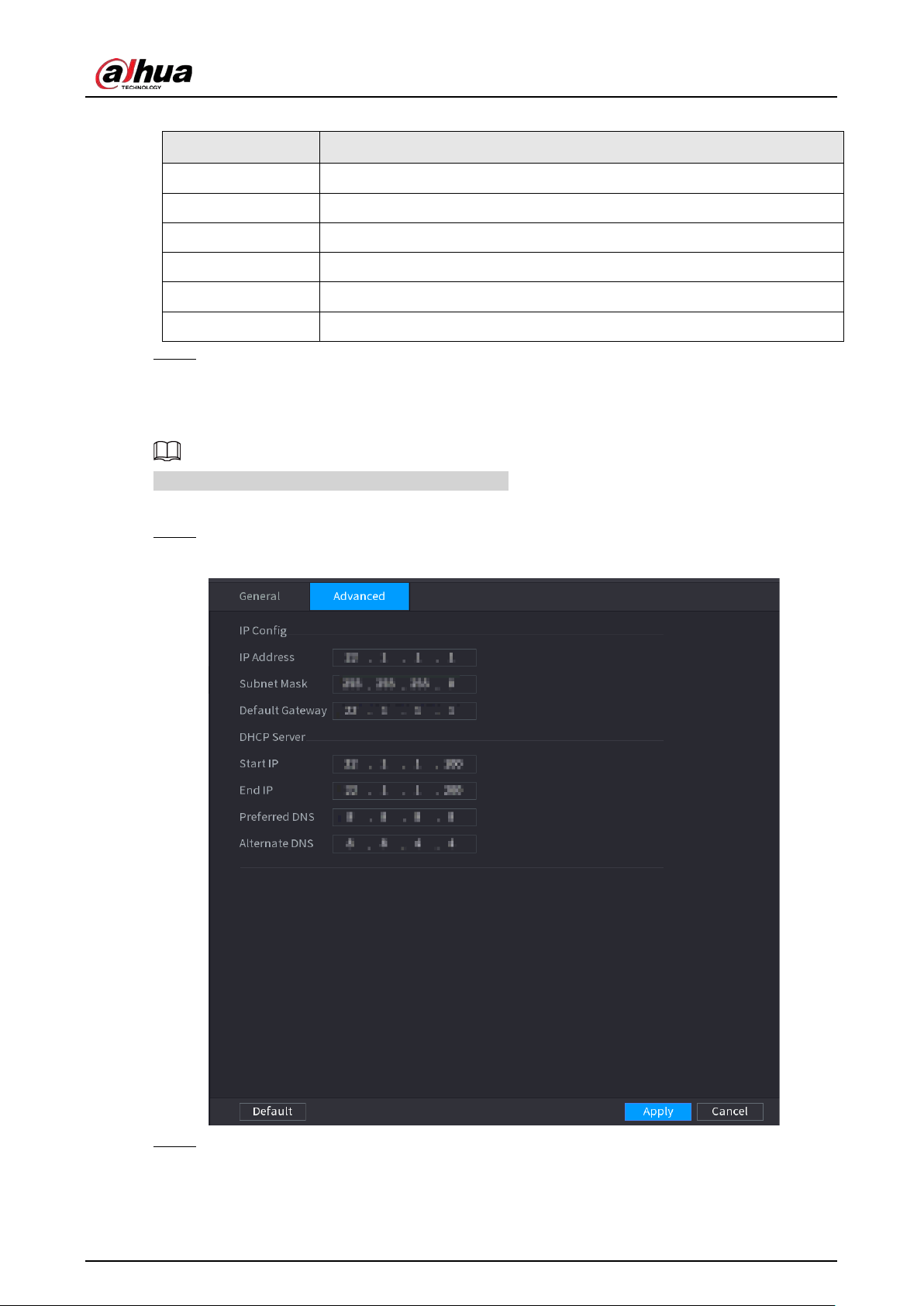
User's Manual
275
Table 5-53 Parameters of general settings
Parameter Description
SSID Wi-Fi name for the device.
Hide SSID Hide the Wi-Fi name.
Encryption Type Select an encryption mode from WPA2 PSK and WPA PSK.
Password Set the Wi-Fi password for the Device.
Select Channel Select the channel for device communication.
Network Proxy Enable the external network access through the Device for a wireless IPC.
Step 4 Click
Apply
.
5.11.5.2 Advanced Settings
This function is supported on select wireless models.
You can configure IP address, subnet mask, default gateway, DHCP server of the Device.
Step 1 Select
Main Menu
>
NETWORK
>
Wi-Fi AP
>
Advanced
.
Figure 5-186 Advanced settings
Step 2 Configure parameters.
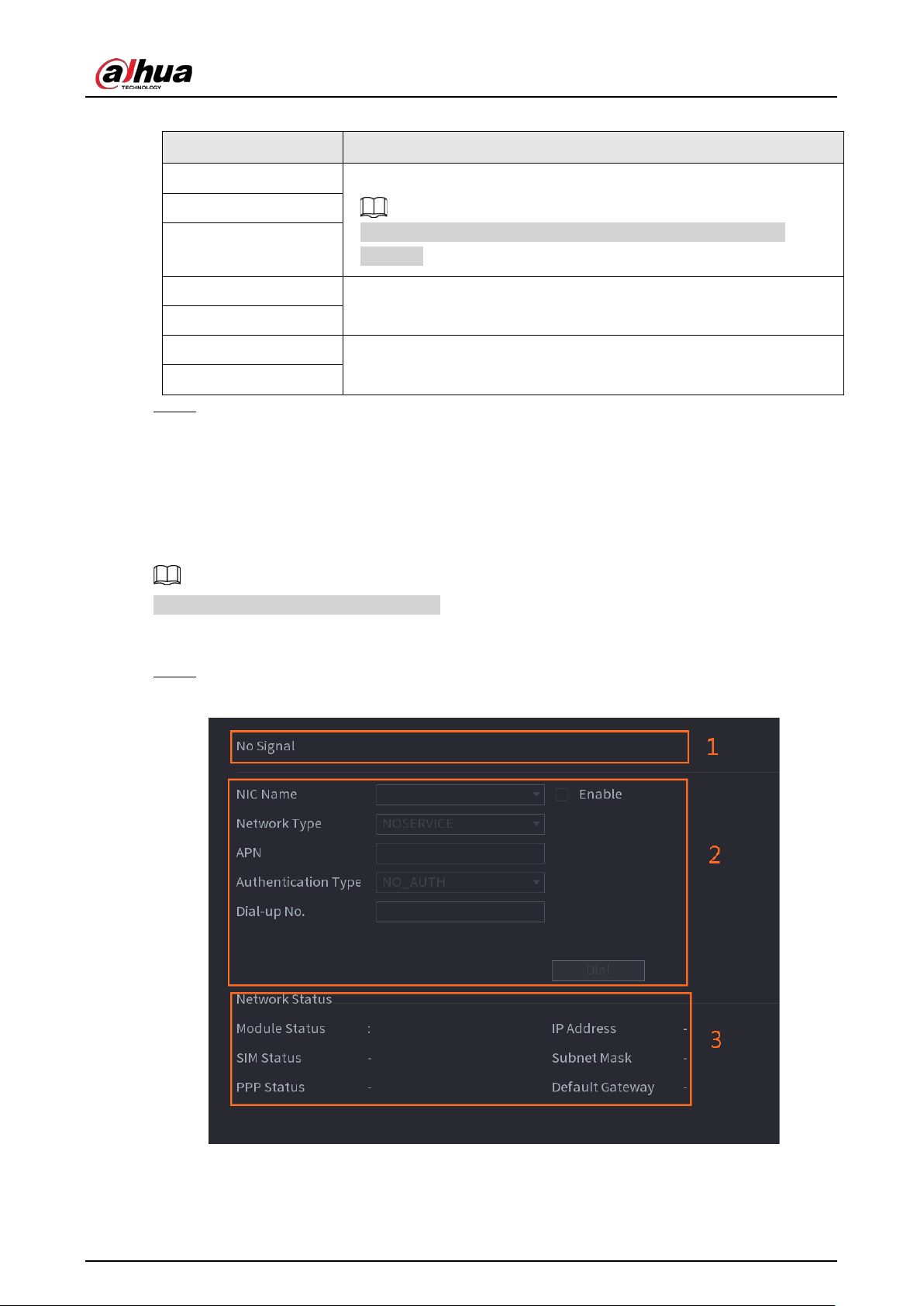
User's Manual
276
Table 5-54 Parameters of advanced settings
Parameter Description
IP Address Set IP address, subnet mask and default gateway for the Wi-Fi of NVR.
IP address and default gateway must be on the same network
segment.
Subnet Mask
Default Gateway
Start IP
Set the start IP address and end IP address of the DHCP server.
End IP
Preferred DNS
Set preferred and alternate DNS server address.
Alternate DNS
Step 3 Click
Apply
.
5.11.6 3G/4G
Prerequisites
Make sure that 3G/4G module is installed on the device.
This function is available on select models.
Procedure
Step 1 Select
Main Menu
>
NETWORK
>
3G/4G
.
Figure 5-187 3G/4G
The page is divided into three main areas:
●
Zone 1 displays a 3G/4G signal indication.
●
Zone 2 displays 3G/4G module configuration information.
User's Manual
277
●
Zone 3 displays the status information of the 3G/4G module.
Zone 2 displays the corresponding information when the 3G/4G module is connected,
while Zone 1 and Zone 3 will only display the corresponding content when the 3G/4G is
enabled.
Step 2 Configure parameters.
Table 5-55 3G/4G parameters
Parameter Description
NIC Name Select a NIC name.
Network Type.
Select a 3G/4G network type to distinguish between 3G/4G modules
from different vendors.
APN, Dial-up No. Main parameters of PPP dial.
Authentication Type
Select PAP, CHAP or NO_AUTH. NO_AUTH represents no
authentication for 3G/4G.
Step 3 Click
Apply
.
5.11.7 Cellular Network
Connect the Device to mobile network and view network status and traffic of the cellular network.
Prerequisites
A SIM card is inserted in the recorder.
This function is available on select models.
Procedure
Step 1 Select
Main Menu
>
NETWORK
>
Cellular Network
>
Cellular Network
.
Step 2 Enable cellular network and configure parameters.
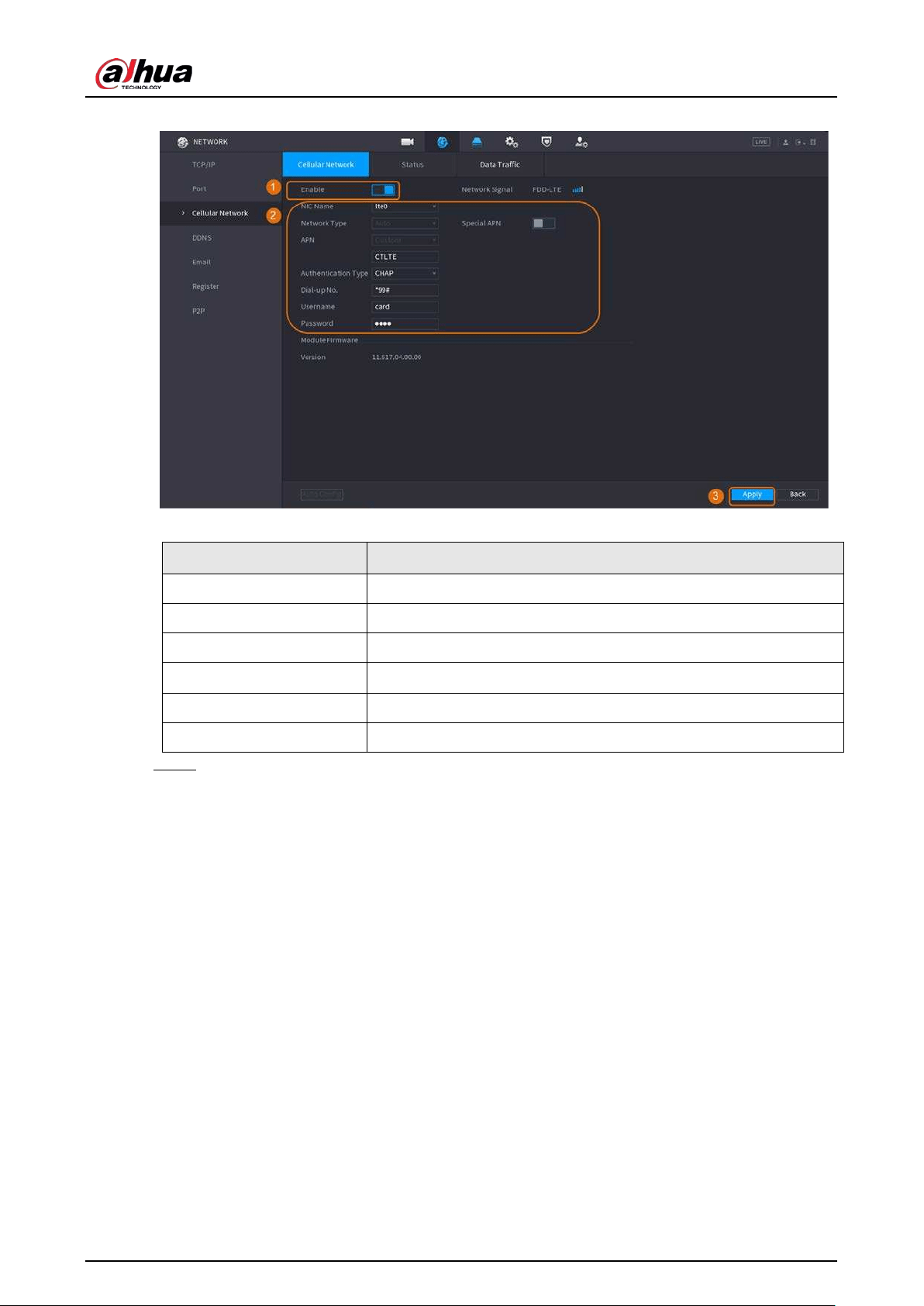
User's Manual
278
Figure 5-188 Configuring cellular network
Table 5-56 4G cellular network parameters
Parameter Description
NIC Name Select a NIC.
Network Type Select a network from the SIM card provider.
APN, Dial-up No. The two main parameters of PPP dial-up connection.
Authentication Type
Select
PAP
,
CHAP
or
NO-AUTH
.
Username The username for dial-up connection.
Password The password for dial-up connection.
Step 3 Click
Apply
.
Related Operations
●
View network status.
Click the
Status
tab to check cellular network status such as IP address, SIM card status and dial-
up status.
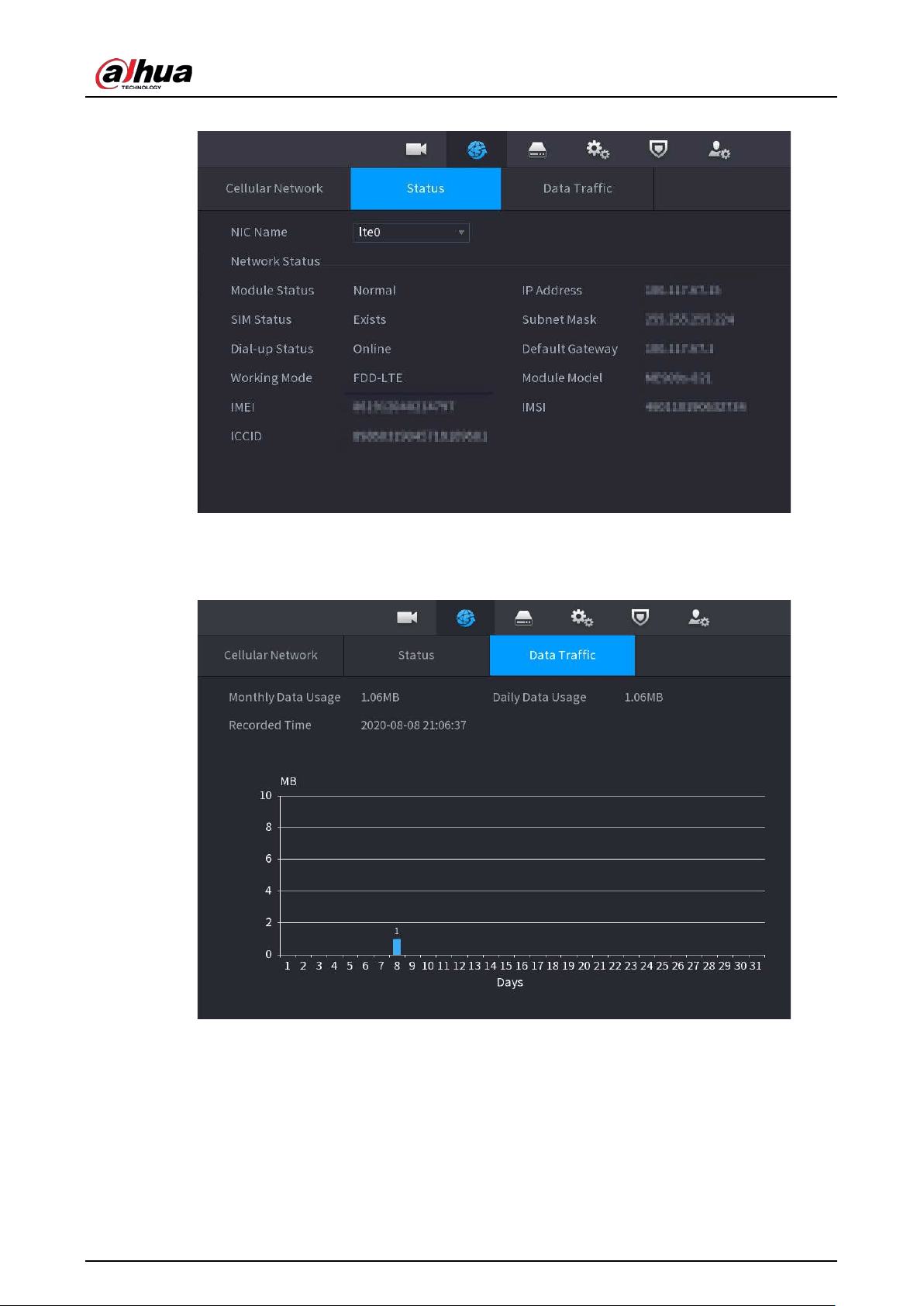
User's Manual
279
Figure 5-189 Network status
●
View data traffic.
Click the
Data Traffic
tab to view the daily and monthly data usage.
Figure 5-190 Cellular data usage
5.11.8 Repeater
The Device supports settings for the wireless repeater IPC to extend video transmission distance and
range.
Prerequisites
●
The Device has the built-in Wi-Fi module.
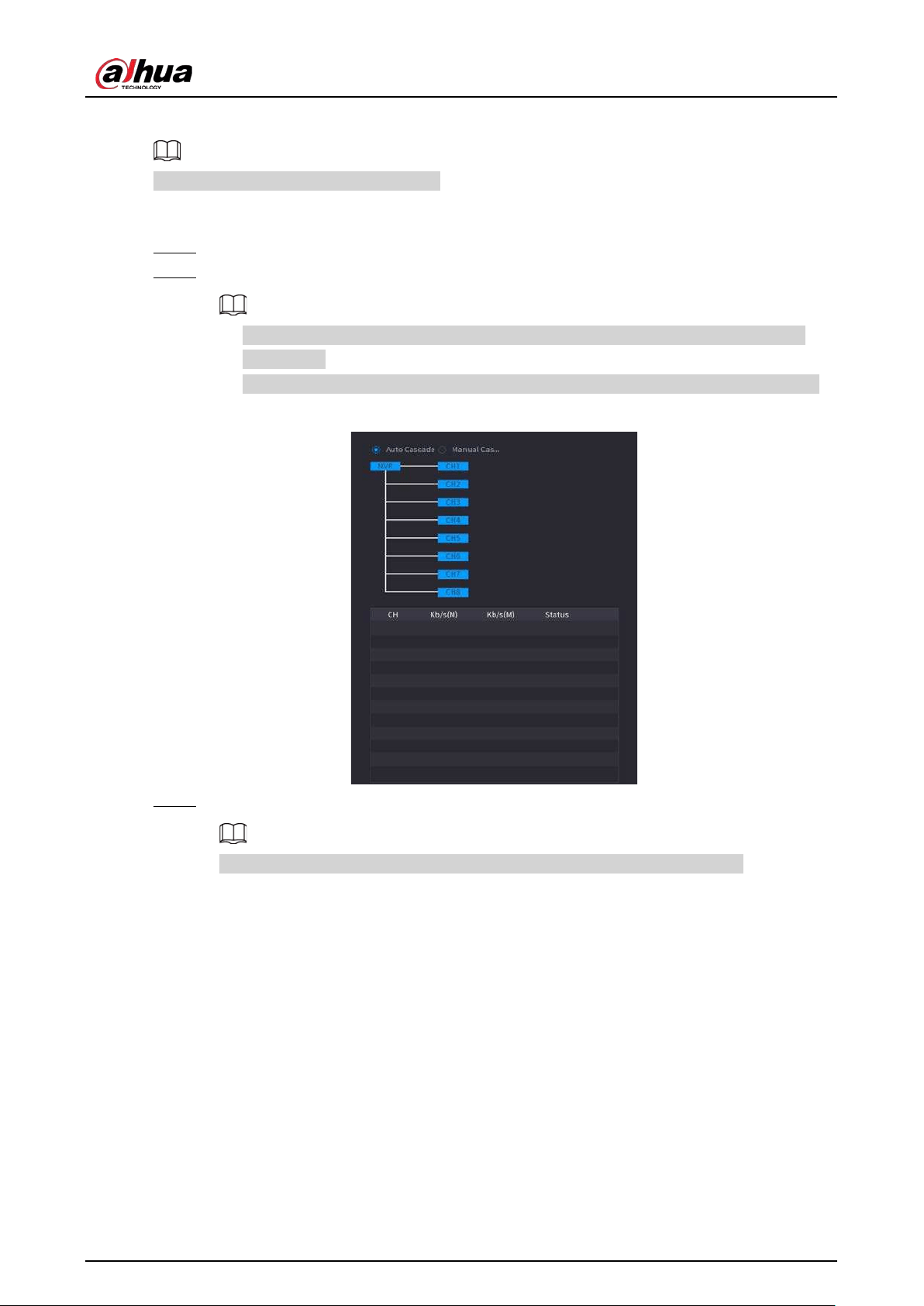
User's Manual
280
●
The IPC has wireless repeater module.
This function is available on select models.
Procedure
Step 1 Power on the NVR and wireless repeater IPC, and connect all IPCs to the NVR through Wi-Fi.
Step 2 Select
Main Menu
>
NETWORK
>
REPEATER
.
●
Green connection line represents the successful connection between channel and
wireless IPC.
●
Auto cascade: After selecting auto cascade, the IPC can cascade to NVR automatically.
Figure 5-191 Repeater
Step 3 Select
Manual Cascade
.
You can use manual cascade when there are at least two IPCs on the network.
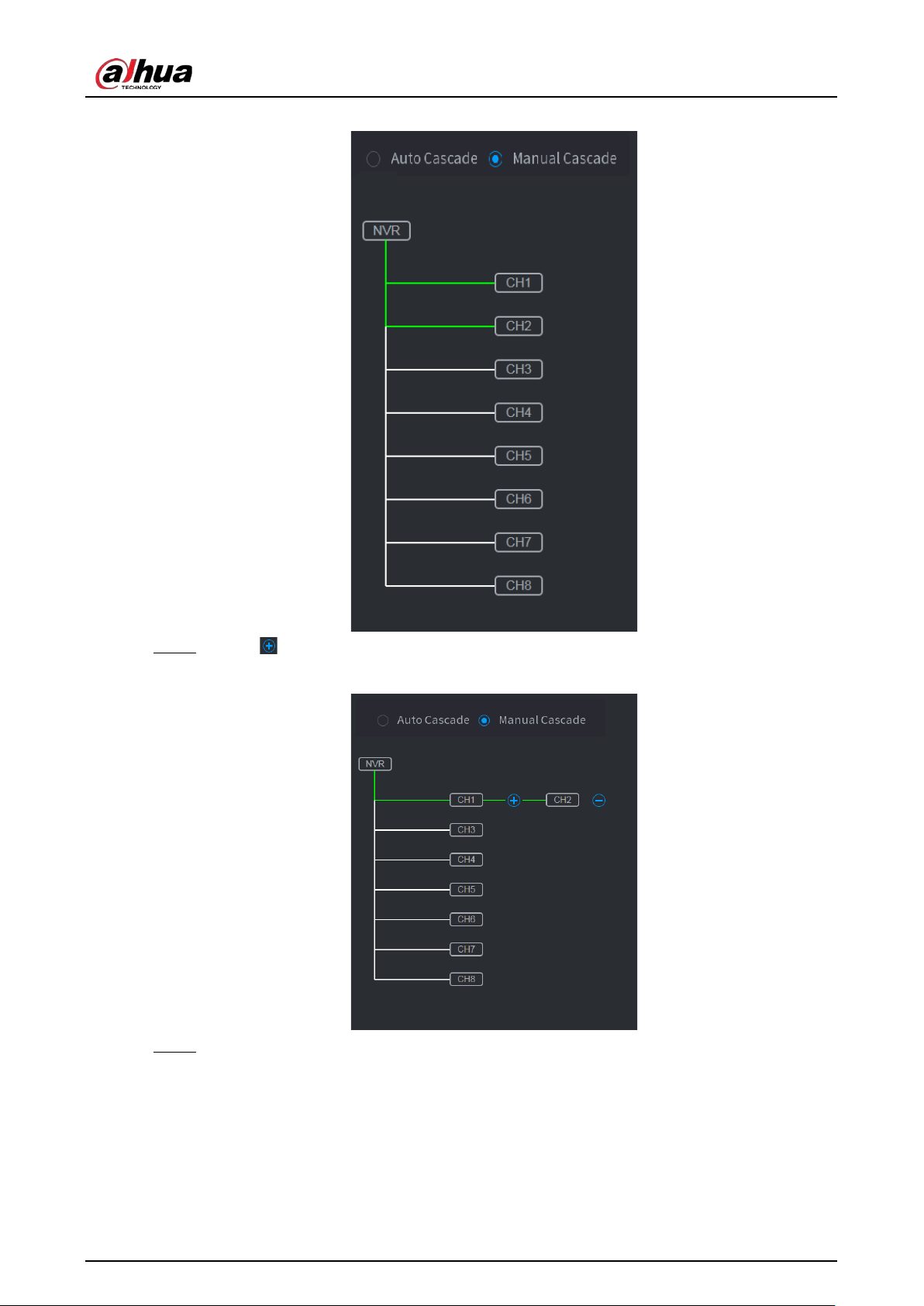
User's Manual
281
Figure 5-192 Manual cascade
Step 4 Click and select the channel to be added.
Figure 5-193 Added channel
Step 5 Click
Apply
.
5.11.9 PPPoE
PPPoE is another way for the Device to access the network. You can establish network connection by
configuring PPPoE settings to give the Device a dynamic IP address on the WAN.
To use this function, firstly you need to obtain the username and password from the Internet Service
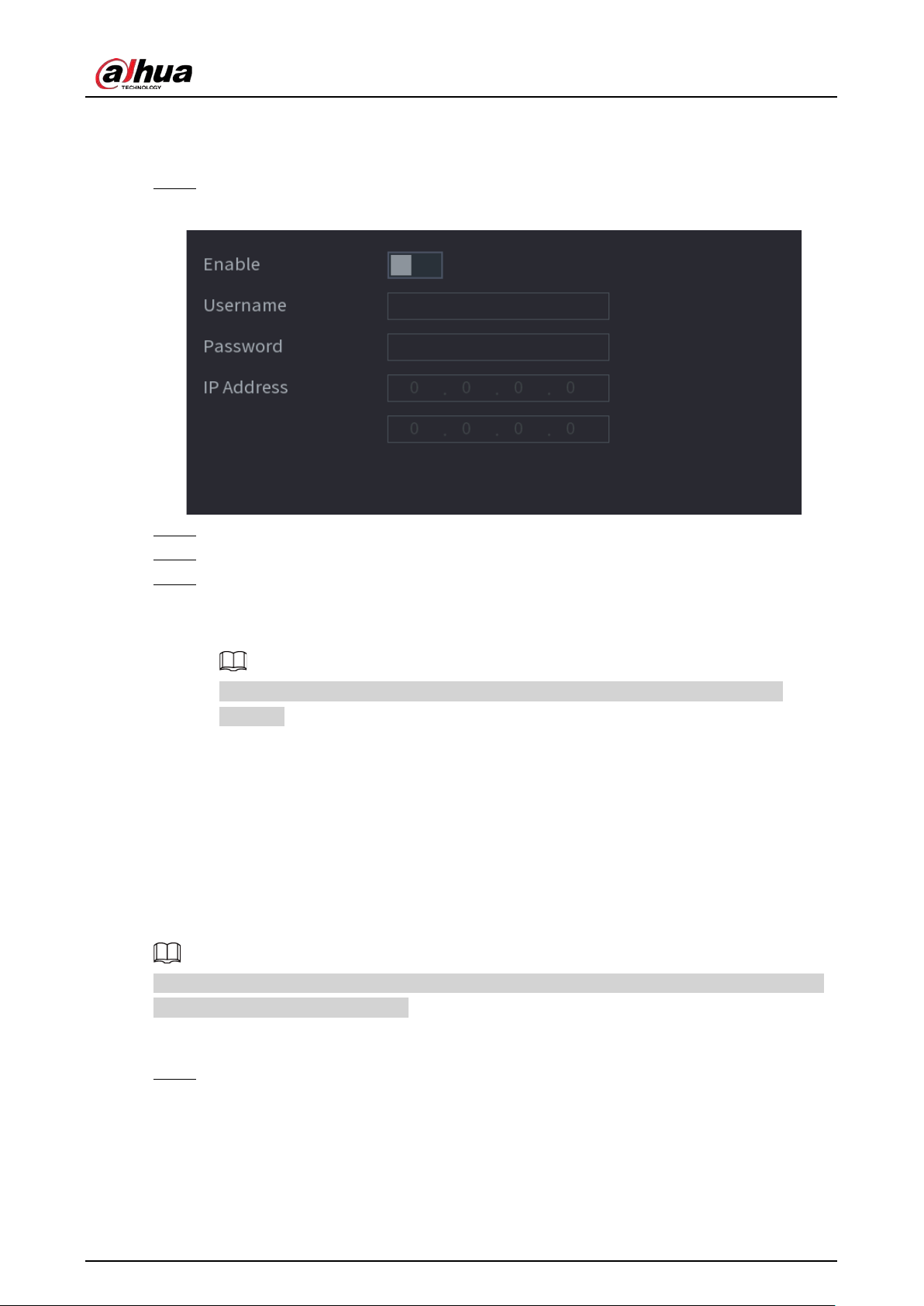
User's Manual
282
Provider.
Procedure
Step 1 Select
Main Menu
>
NETWORK
>
PPPoE
.
Figure 5-194 PPPoE
Step 2 Enable the PPPoE function.
Step 3 Enter the username and password provided by the Internet Service Provider.
Step 4 Click
Apply
.
The IP address appears on the PPPoE page. You can use this IP address to access the
Device.
When the PPPoE function is enabled, the IP address on the
TCP/IP
page cannot be
modified.
5.11.10 DDNS
When the IP address of the Device changes frequently, the DDNS function can dynamically refresh
the correspondence between the domain on DNS and the IP address. You can access the Device by
using the domain.
Check the type of DDNS that the Device supports and then log in to the website provided by the
DDNS service provider to register domain and other information.
After registration, you can log in to the DDNS website to view the information of all the connected
devices under the registered account.
Procedure
Step 1 Select
Main Menu
>
NETWORK
>
DDNS
.
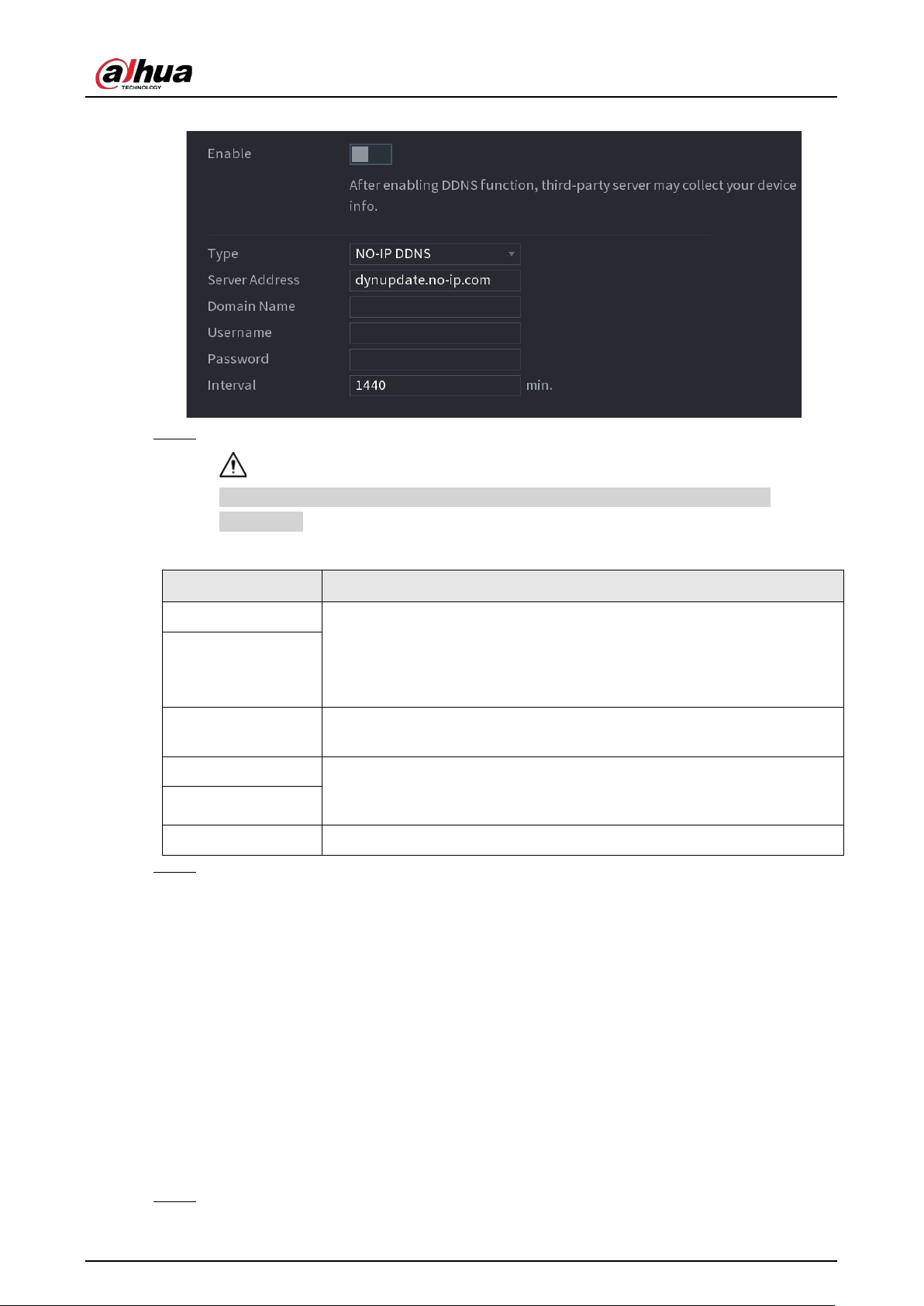
User's Manual
283
Figure 5-195 DDNS
Step 2 Enable DDNS and then configure the parameters.
After you enable DDNS function, the third-party server might collect your device
information.
Table 5-57 DDNS parameters
Parameter Description
Type Displays the type and address of DDNS service provider.
●
For
Dyndns DDNS
, the default address is members.dyndns.org.
●
For
NO-IP DDNS
, the default address is dynupdate.no-ip.com.
●
For
CN99 DDNS
, the default address is members.3322.org.
Server Address
Domain Name
Enter the domain name that you have registered on the website of DDNS
service provider.
Username Enter the username and password obtained from DDNS service provider.
You need to register the username, password and other information on
the website of DDNS service provider.
Password
Interval Enter the interval at which you want to update the DDNS.
Step 3 Click
Apply
.
Enter the domain name in the browser on your computer, and then press the Enter key. If
the web interface of the Device is displayed, the configuration is successful. If not, the
configuration failed.
5.11.11 UPnP
You can map the relationship between the LAN and the WAN to access the Device on the LAN
through the IP address on the WAN.
5.11.11.1 Configuring Router
Procedure
Step 1 Log in to the router to set the WAN port to enable the IP address to connect into the WAN.
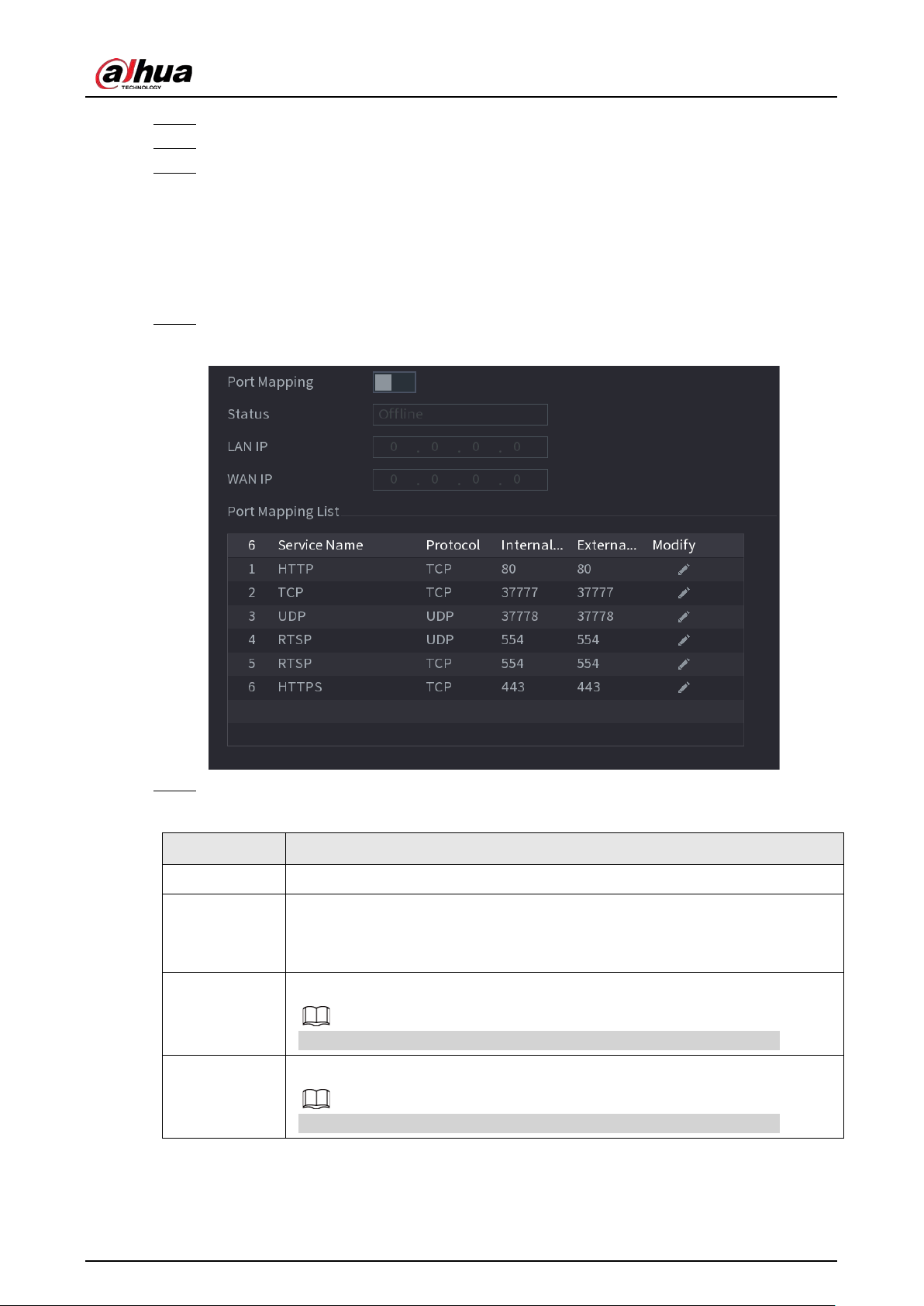
User's Manual
284
Step 2 Enable the UPnP function on the router.
Step 3 Connect the Device with the LAN port on the router to connect into the LAN.
Step 4 Select
Main Menu
>
NETWORK
>
TCP/IP
, configure the IP address into the router IP
address range, or enable the DHCP function to obtain an IP address automatically.
5.11.11.2 Configuring UPnP
Procedure
Step 1 Select
Main Menu
>
NETWORK
>
UPnP
.
Figure 5-196 UPnP
Step 2 Configure the settings for the UPnP parameters.
Table 5-58 UPnP parameters
Parameter Description
Port Mapping Enable the UPnP function.
Status
Indicates the status of UPnP function.
●
Offline: Failed.
●
Online: Succeeded.
LAN IP
Enter IP address of router on the LAN.
After mapping succeeded, the system obtains IP address automatically.
WAN IP
Enter IP address of router on the WAN.
After mapping succeeded, the system obtains IP address automatically.
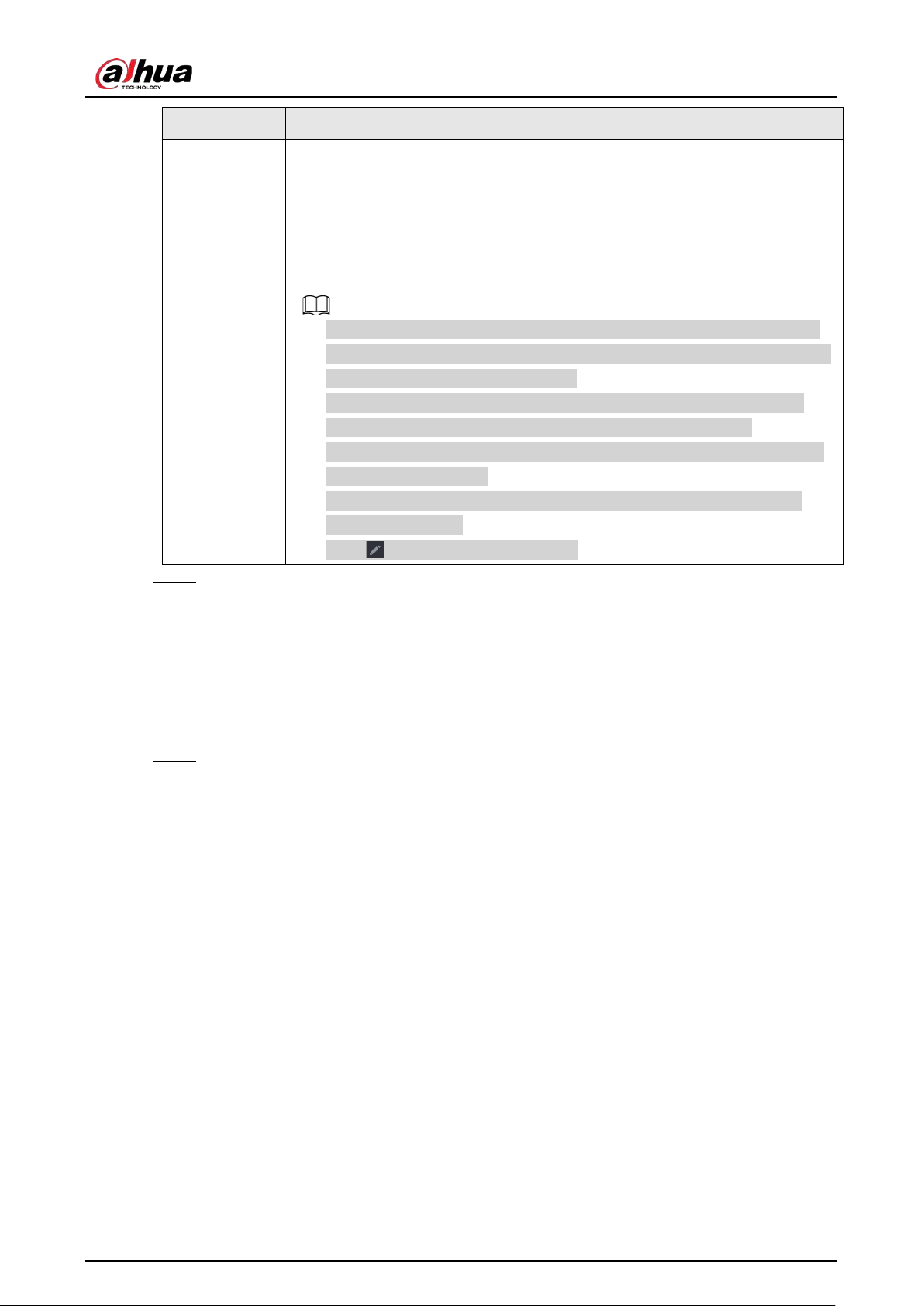
User's Manual
285
Parameter Description
Port Mapping
List
The settings on port mapping list correspond to the UPnP port mapping list on
the router.
●
Service Name: Name of network server.
●
Protocol: Type of protocol.
●
Internal Port: Internal port that is mapped on the Device.
●
External Port: External port that is mapped on the router.
●
To avoid the conflict, when setting the external port, try to use the ports
from 1024 through 5000 and avoid popular ports from 1 through 255 and
system ports from 256 through 1023.
●
When there are several devices on the LAN, properly arrange the ports
mapping relations to avoid mapping to the same external port.
●
When establishing a mapping relationship, ensure the mapping ports are
not occupied or limited.
●
The internal and external ports of TCP and UDP must be the same and
cannot be modified.
●
Click to modify the external port.
Step 3 Click
Apply
to complete the settings.
In the browser, enter http://WAN IP: External IP port. You can visit the Device on the LAN.
5.11.12 Email
You can configure the email settings to enable the system to send the email as a notification when
an alarm event occurs.
Step 1 Select
Main Menu
>
NETWORK
>
Email
.
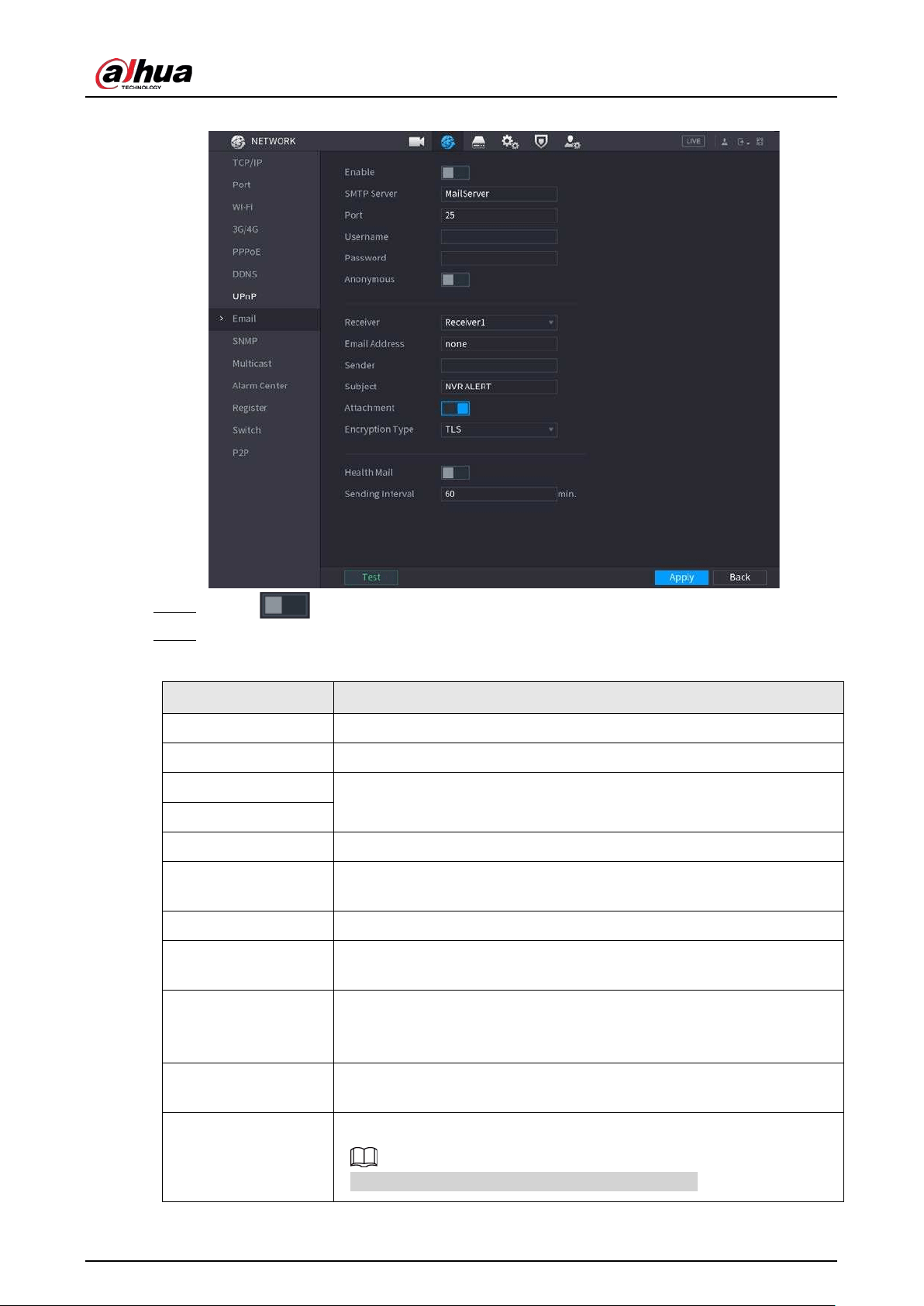
User's Manual
286
Figure 5-197 Email
Step 2 Click to enable the function.
Step 3 Configure the email parameters.
Table 5-59 Email parameters
Parameter Description
SMTP Server Enter the address of SMTP server of sender’s email account.
Port Enter the port of SMTP server. The default value is 25.
Username
Enter the username and password of sender’s email account.
Password
Anonymous Enable anonymous login.
Receiver
Select the receiver to receive the notification. You can select up to three
receivers.
Email Address Enter the email address of mail receivers.
Sender
Enter the sender’s email address. You can enter up to three senders
separated by comma.
Subject
Enter the email subject.
You can enter Chinese, English and numerals with the length limited to
64 characters.
Attachment
Enable the attachment function. When there is an alarm event, the
system can attach snapshots as an attachment to the email.
Encryption Type
Select the encryption type from
NONE
,
SSL
, or
TLS
.
For SMTP server, the default encryption type is
TLS
.
User's Manual
287
Parameter Description
Interval (Sec.)
Set the interval at which the system sends an email for the same type of
alarm event to avoid excessive pileup of emails caused by frequent
alarm events.
The value ranges from 0 to 3600. 0 means that there is no interval.
Health Mail
Enable the health test function. The system can send a test email to
check the connection.
Sending Interval
Set the interval at which the system sends a health test email.
The value ranges from 30 to 1440. 0 means that there is no interval.
Test
Click
Test
to test the email sending function. If the configuration is
correct, the receiver’s email account will receive the email.
Before testing, click
Apply
to save the settings.
Step 4 Click
Apply
.
5.11.13 SNMP
You can connect the Device with some software such as MIB Builder and MG-SOFT MIB Browser to
manage and control the Device from the software.
Prerequisites
●
Install the software that can manage and control the SNMP, such as MIB Builder and MG-SOFT
MIB Browser
●
Obtain the MIB files that correspond to the current version from the technical support.
This function is available on select models.
Procedure
Step 1 Select
Main Menu
>
NETWORK
>
SNMP
.
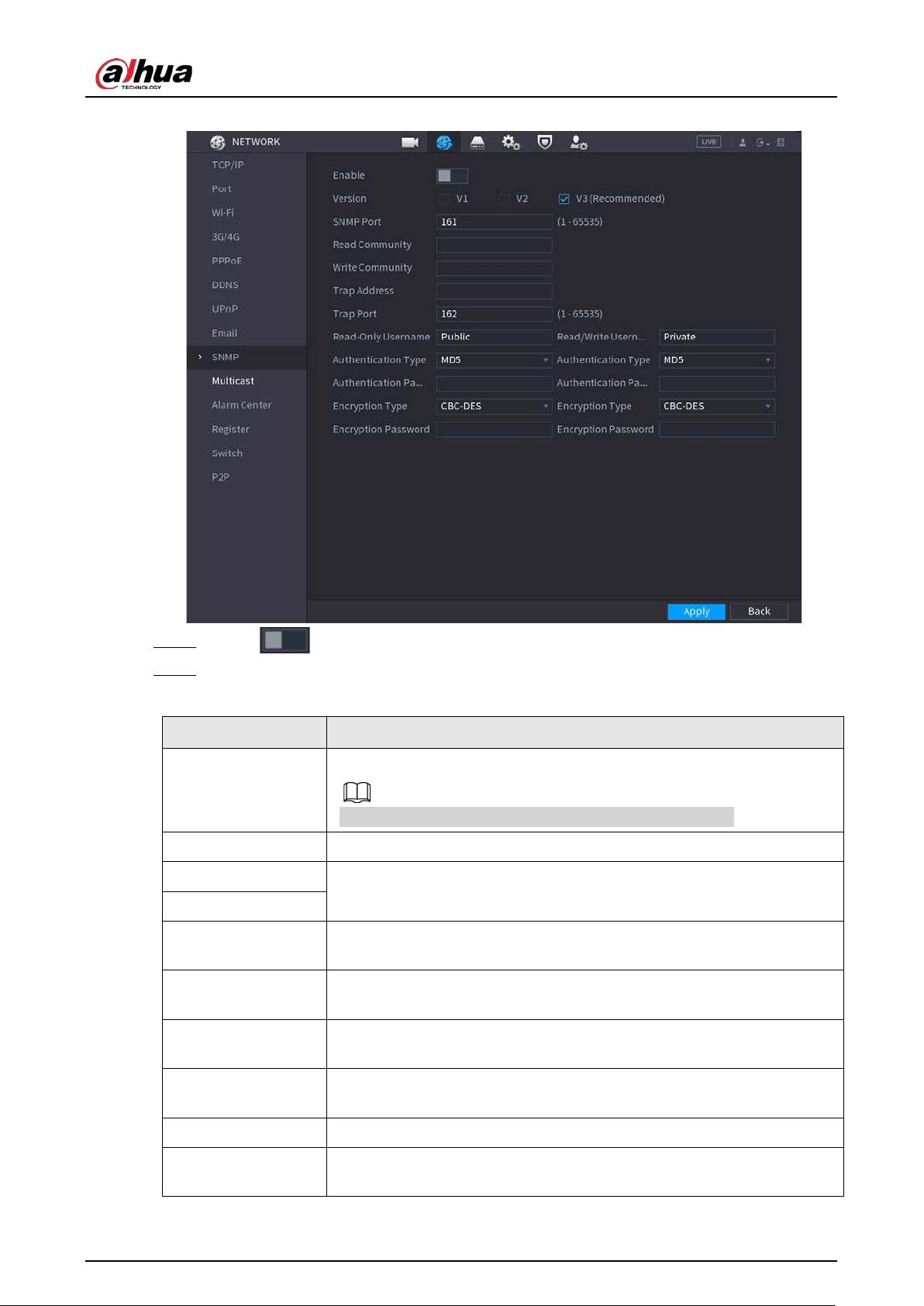
User's Manual
288
Figure 5-198 SNMP
Step 2 Click to enable the function.
Step 3 Configure the parameters.
Table 5-60 SNMP parameters
Parameter Description
Version
Select the checkbox of SNMP version that you are using.
The default version is
V3
. There is a risk if you use V1 or V2.
SNMP Port Enter the monitoring port on the agent program.
Read Community
Enter the read and write strings supported by the agent program.
Write Community
Trap Address
Enter the destination address for the agent program to send the Trap
information.
Trap Port
Enter the destination port for the agent program to send the Trap
information.
Read-Only
Username
Enter the username that is allowed to access the Device and has the
read-only permission.
Read/Write
Username
Enter the username that is allowed to access the Device and has the read
and write permission.
Authentication Type Select MD5 or SHA. The system recognizes the type automatically.
Authentication
Password
Enter the password for authentication. The password should be no less
than eight characters.
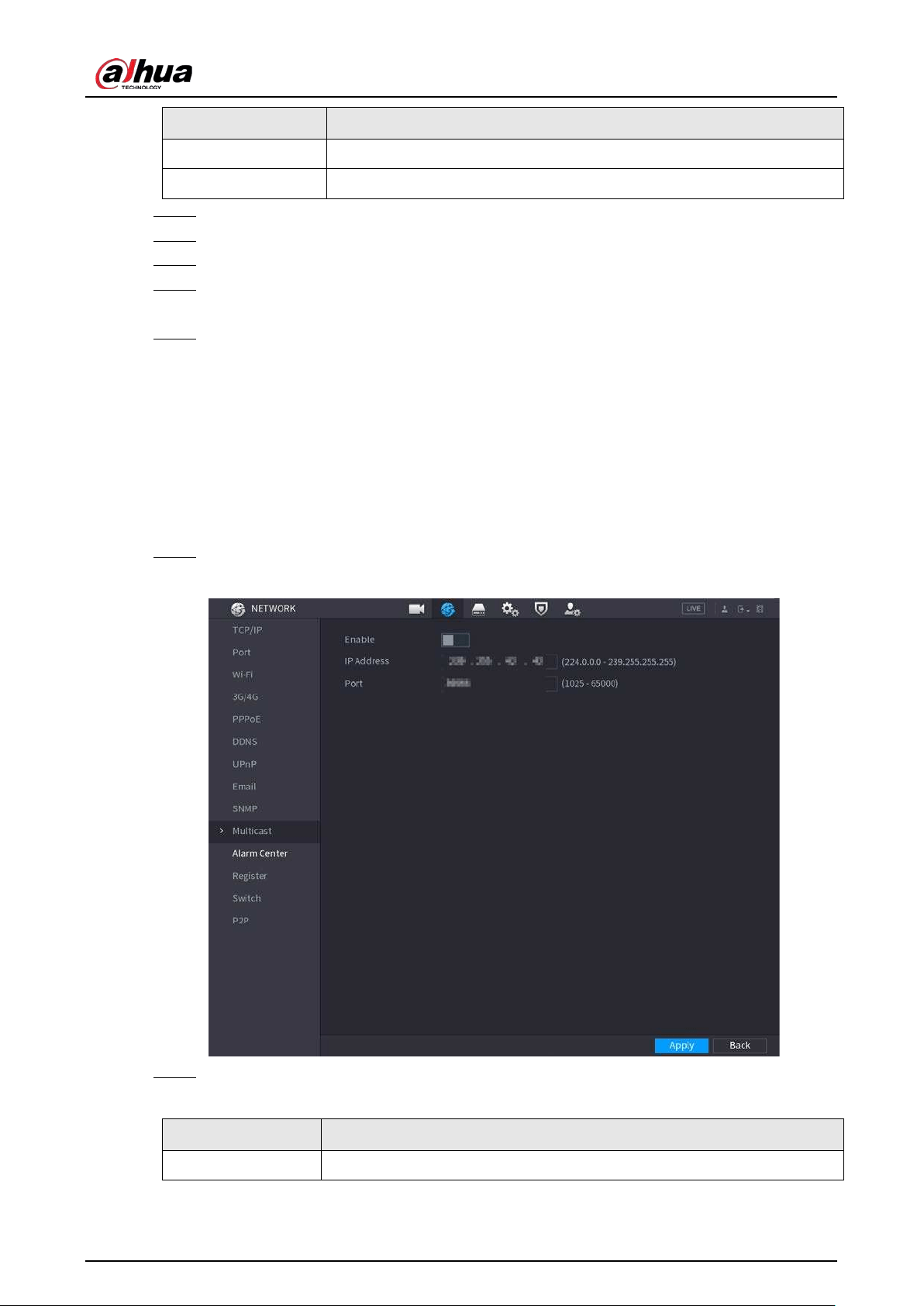
User's Manual
289
Parameter Description
Encryption Type Select an encryption type. The default setting is CBC-DES.
Encryption Password Enter the encryption password.
Step 4 Click
Apply
.
Step 5 Compile the two MIB files by MIB Builder.
Step 6 Run MG-SOFT MIB Browser to load in the module from compilation.
Step 7 On the MG-SOFT MIB Browser, enter the device IP that you want to manage, and then
select the version number to query.
Step 8 On the MG-SOFT MIB Browser, unfold the tree-structured directory to obtain the
configurations of the Device, such as the channels quantity and software version.
5.11.14 Multicast
When you access the Device from the network to view the video, if the access is exceeded, the video
will not display. You can use the multicast function to group the IP to solve the problem.
Procedure
Step 1 Select
Main Menu
>
NETWORK
>
Multicast
.
Figure 5-199 Multicast
Step 2 Configure the parameters.
Table 5-61 Multicast parameters
Parameter Description
Enable Enable the multicast function.
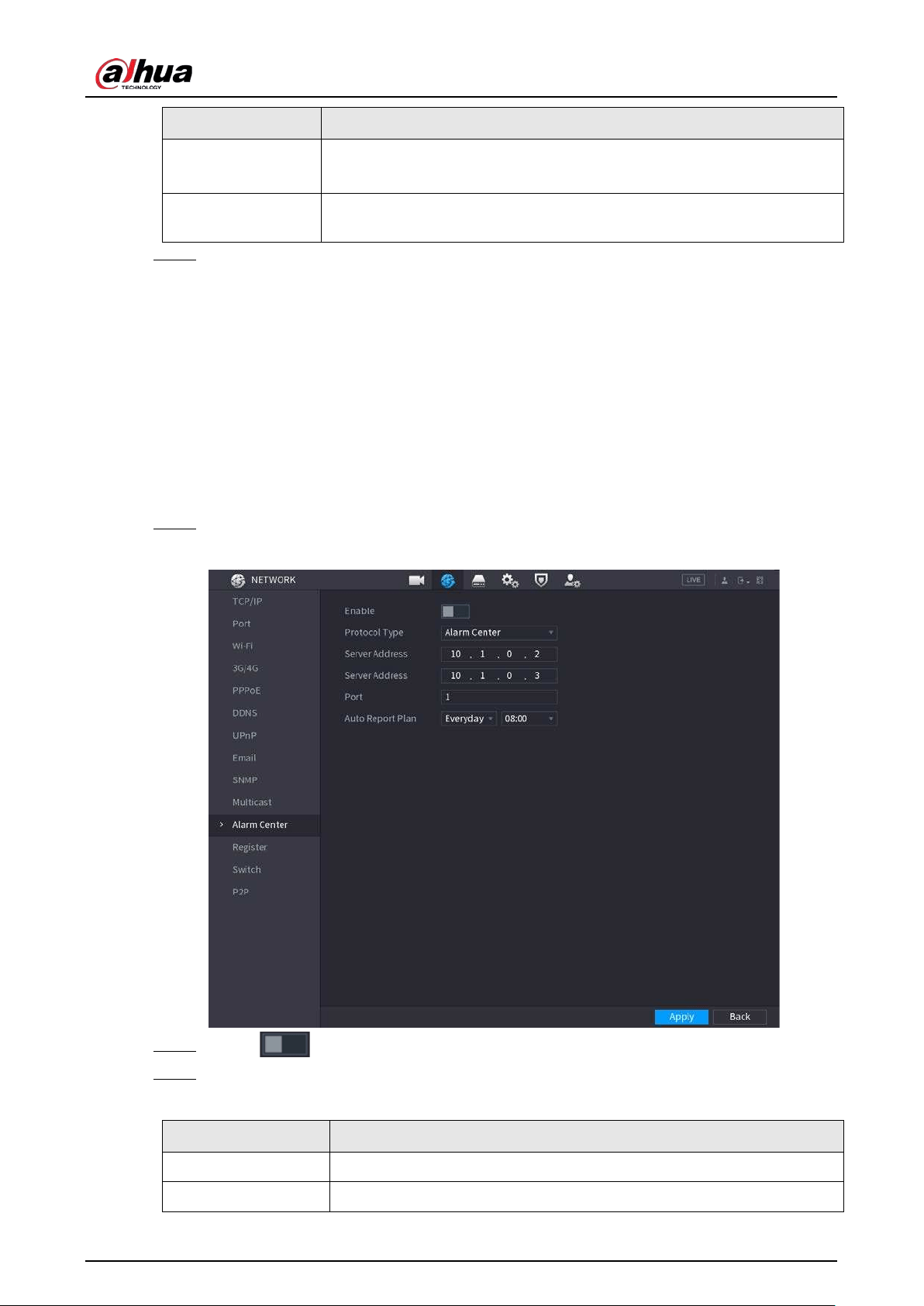
User's Manual
290
Parameter Description
IP Address
Enter the IP address that you want to use as the multicast IP.
The IP address ranges from 224.0.0.0 through 239.255.255.255.
Port
Enter the port for the multicast. The port ranges from 1025 through
65000.
Step 3 Click
Apply
.
You can log in to the web interface via multicast.
On the web login page, on the
Type
list, select
Multicast
. The web will automatically
obtain the multicast IP address and join the multicast group. Then you can view the video
through multicast function.
5.11.15 Alarm Center
You can configure the alarm center server to receive the uploaded alarm information.
Procedure
Step 1 Select
Main Menu
>
NETWORK
>
Alarm Center
.
Figure 5-200 Alarm center
Step 2 Click to enable the function.
Step 3 Configure the parameters.
Table 5-62 Alarm center parameters
Parameter Description
Protocol Type Select a protocol type.
Server Address
The IP address and communication port of the PC installed with alarm
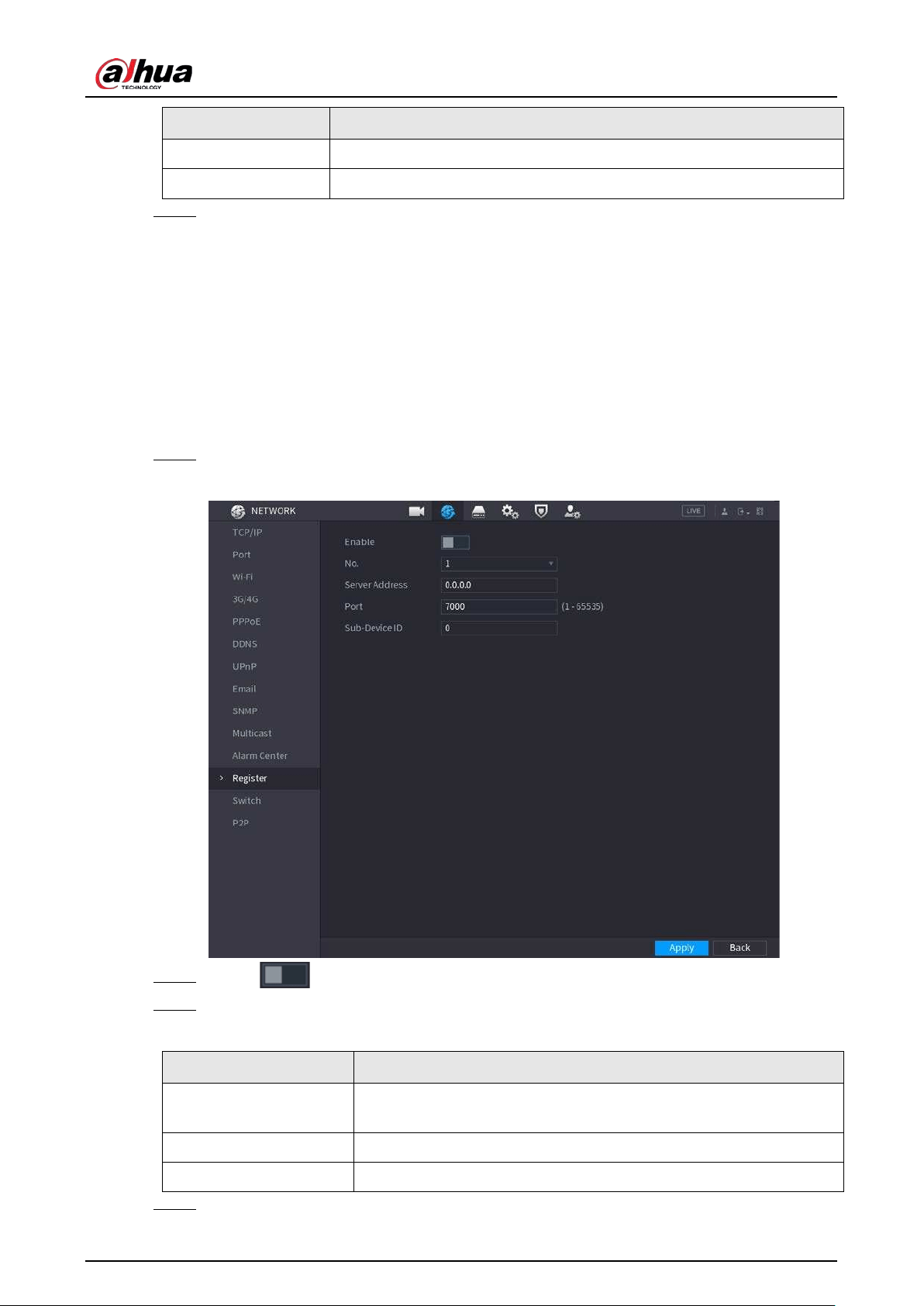
User's Manual
291
Parameter Description
Port
client.
Auto Report Plan Select time cycle and specific time for uploading alarm.
Step 4 Click
Apply
.
5.11.16 Register
You can register the Device into the specified proxy server which acts as the transit to enable the
client software to access the Device
●
The proxy server has been deployed.
●
The Device, the proxy server and the device running the client software are on the same network.
Procedure
Step 1 Select
Main Menu
>
NETWORK
>
Register
.
Figure 5-201 Register
Step 2 Click to enable the function.
Step 3 Configure the parameters.
Table 5-63 Register parameters
Function Description
Server Address
Enter the IP address or domain name of the server that you want to
register to.
Port Enter the port of the server.
Sub-Device ID Enter the ID allocated by the server.
Step 4 Click
Apply
.
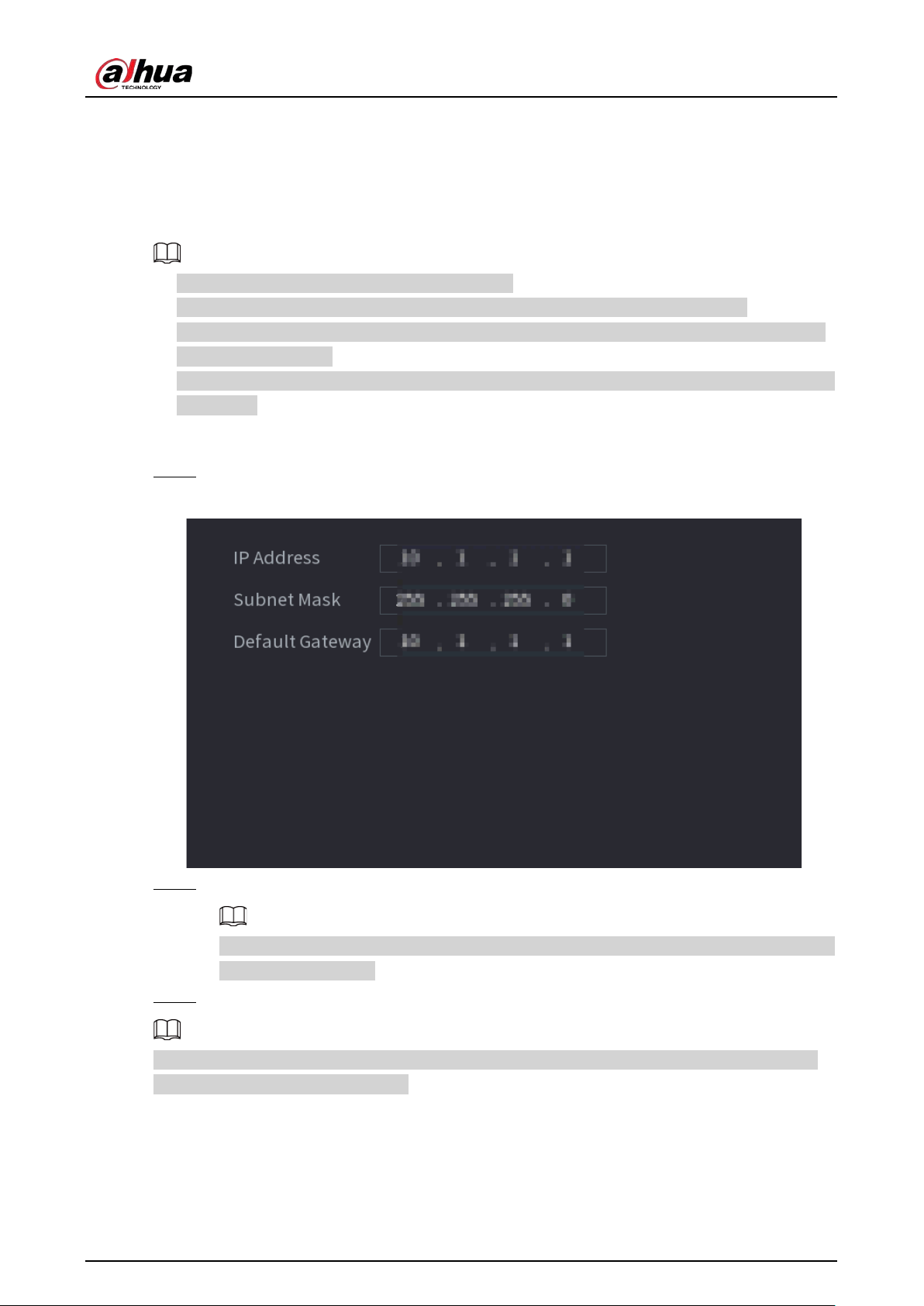
User's Manual
292
5.11.17 Switch
After setting
Switch
, when an IPC is connected to the PoE port, the system automatically assigns the
IP address to the IPC according to the defined IP segment, and the NVR will automatically connect to
the IPC.
●
Only models with PoE ports support this function.
●
Do not connect the PoE port with a switch, otherwise it will cause connection failure.
●
This function is enabled by default, and the IP segment start from 10.1.1.1. We recommend you
use the default setting.
●
When connecting to a third-party IPC, make sure that the IPC supports ONVIF protocol and DHCP
is enabled.
Procedure
Step 1 Select
Main Menu
>
NETWORK
>
Switch
.
Figure 5-202 Switch
Step 2 Configure IP address, subnet mask, and default gateway..
Do not set the IP address to the same network segment with the NVR. We recommend you
use the default setting.
Step 3 Click
Apply
.
When connecting IP camera to PoE port, if all the channels are occupied, the system prompts you
whether to take place of one channel.
User's Manual
293
Table 5-64 PoE operation
PoE operation Description
Connect to PoE port
When an IPC is connected to the PoE port, the system automatically
assigns the IP address to the IPC according to the set IP segment. The
NVR will try the method of arp ping to assign the IP address. If DHCP is
enabled on the NVR, the NVR will use DHCP to assign the IP address.
●
When IP address is successfully set, the system will broadcast
through the switch function. If there is a response from the IPC, it
means the connection is successful, and the NVR will log in to the
IPC. You can find the corresponding channel occupied and there is a
PoE icon at the upper-left corner.
●
You can also view PoE status such as channel number and PoE port
number on the
Added Device
list in
Main Menu
>
CAMERA
>
Camera List
.
Disconnect PoE port
When an IPC is disconnected form PoE port, you will find the
information of
Failed to find network host
on the live channel window.
PoE connection
mapping
The PoE ports are bound to corresponding channels. When an IPC is
connected to PoE port 1, the corresponding channel is Channel 1.
5.11.18 P2P
P2P is a kind of convenient private network penetration technology. Instead of applying for dynamic
domain name, mapping ports or deploying transit server, you can add NVR devices to the app for
remote management.
Step 1 Select
Main Menu
>
NETWORK
>
P2P
.
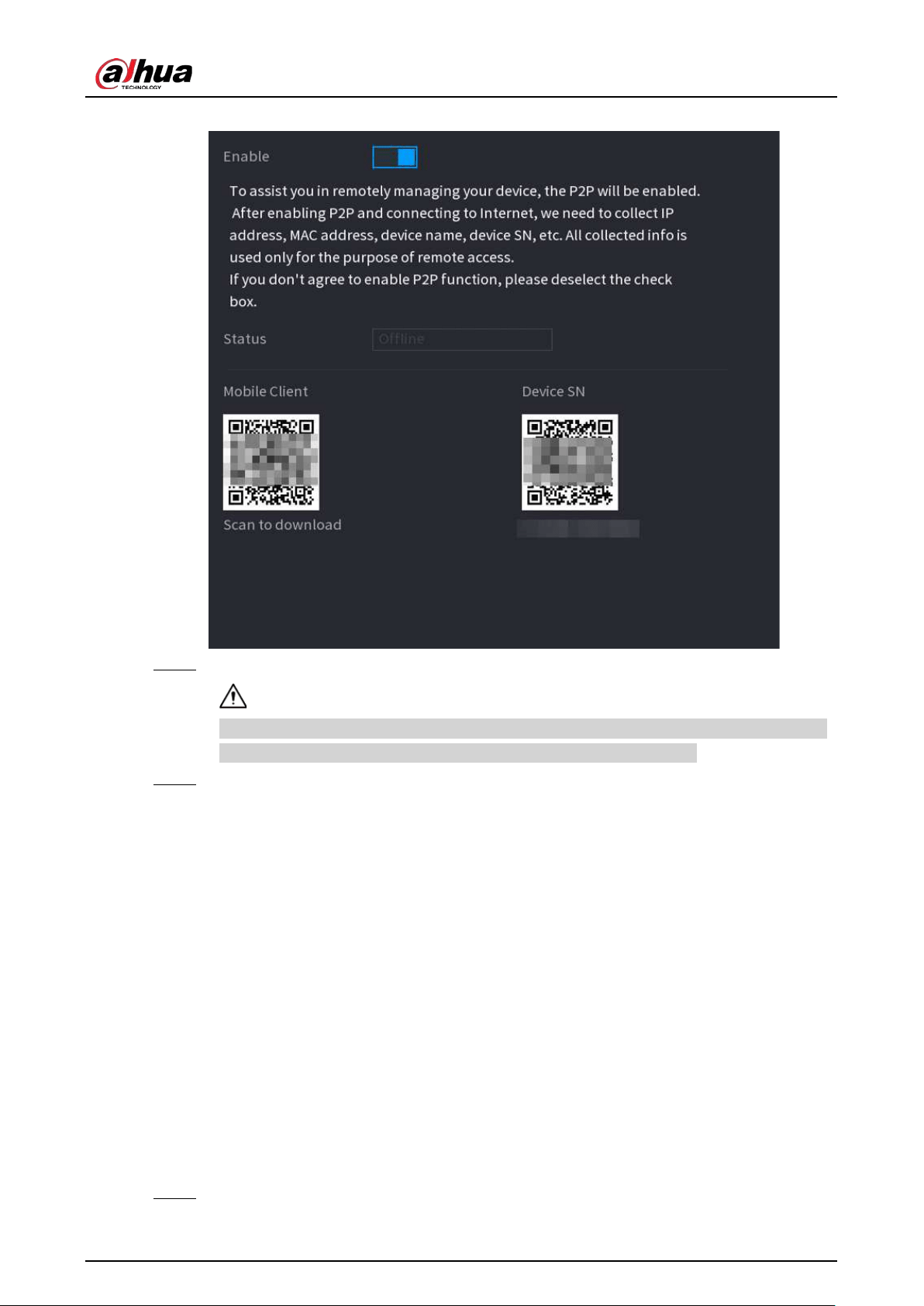
User's Manual
294
Figure 5-203 P2P
Step 2 Enable the P2P function.
After you enable the P2P function and connect to the Internet, the system will collect the
information such as email address and MAC address for remote access.
Step 3 Click
Apply
.
The P2P function is enabled. You can use your phone to scan the QR code under
Mobile
Client
to download and install the mobile client. After that, you can use the mobile client
to scan the QR code under
Device SN
to add the Device for remote management. For
details on the app operation, see the user's manual of the app.
5.12 Storage
You can manage the storage resources (such as record file) and storage space. So that it is easy for
you to use and enhance storage space usage.
5.12.1 Basic
You can set basic storage parameters.
Procedure
Step 1 Select
Main Menu
>
STORAGE
>
Basic
.
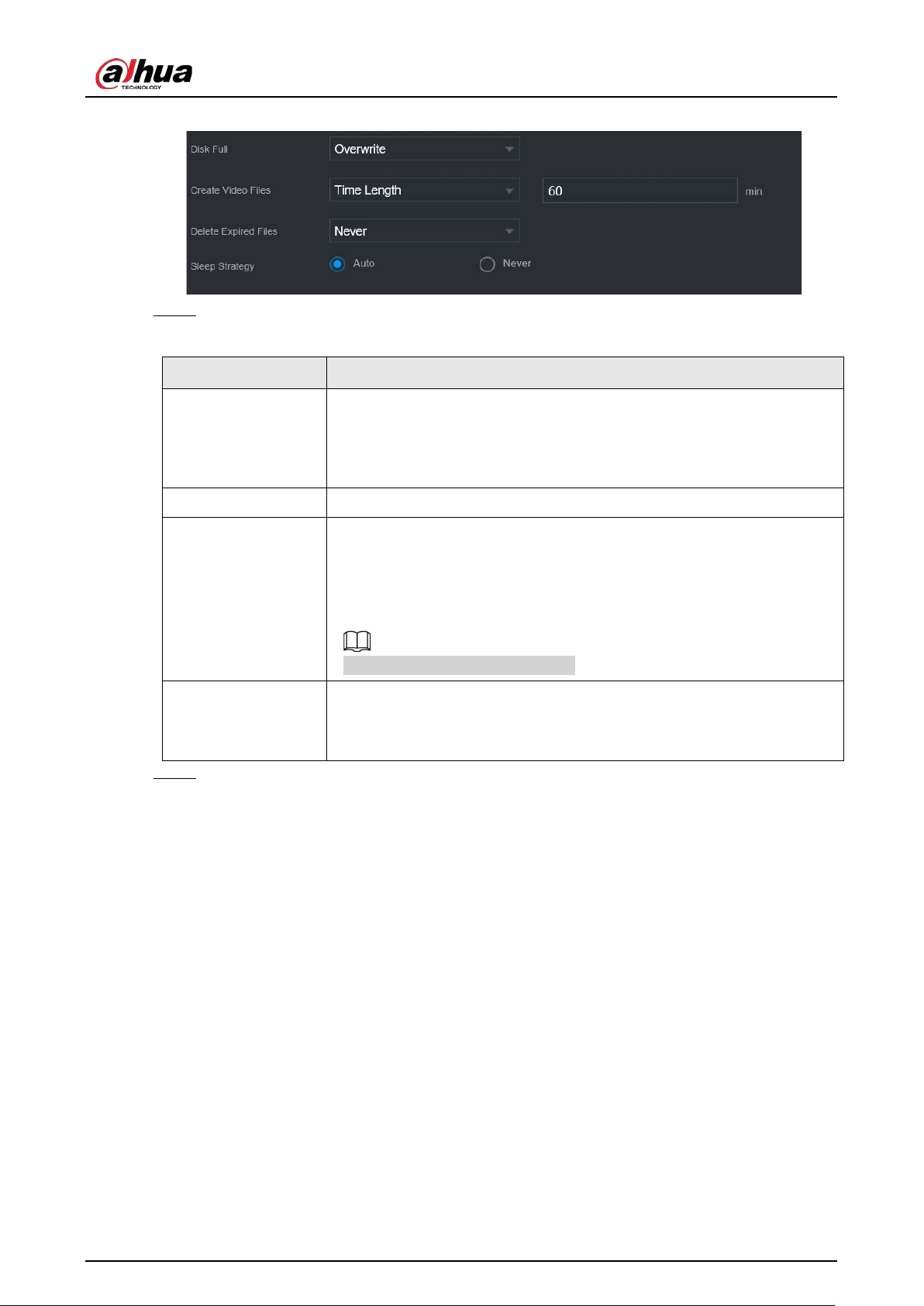
User's Manual
295
Figure 5-204 Basic storage
Step 2 Set parameters.
Table 5-65 Basic storage parameters
Parameter Description
Disk Full
Configure the storage strategy to be used when no more storage space is
available
●
Stop
: Stop recording.
●
Overwrite
: The newest files overwrite the oldest ones.
Create Video Files Configure the time length and file length for each recorded video.
Delete Expired Files
Configure whether to delete the old files.
●
Select
Auto
and then configure how long you want to keep the old
files.
●
Select
Never
if you do not want to use this function.
Deleted files cannot be recovered.
Sleep Strategy
●
Auto
: The system sleeps automatically after idling for a period of
time.
●
Never
: The system keeps running all the time.
Step 3 Click
Apply
.
5.12.2 Disk Manager
Select
Main Menu
>
STORAGE
>
Disk Manager
, and then you can set HDD properties and format
HDD.
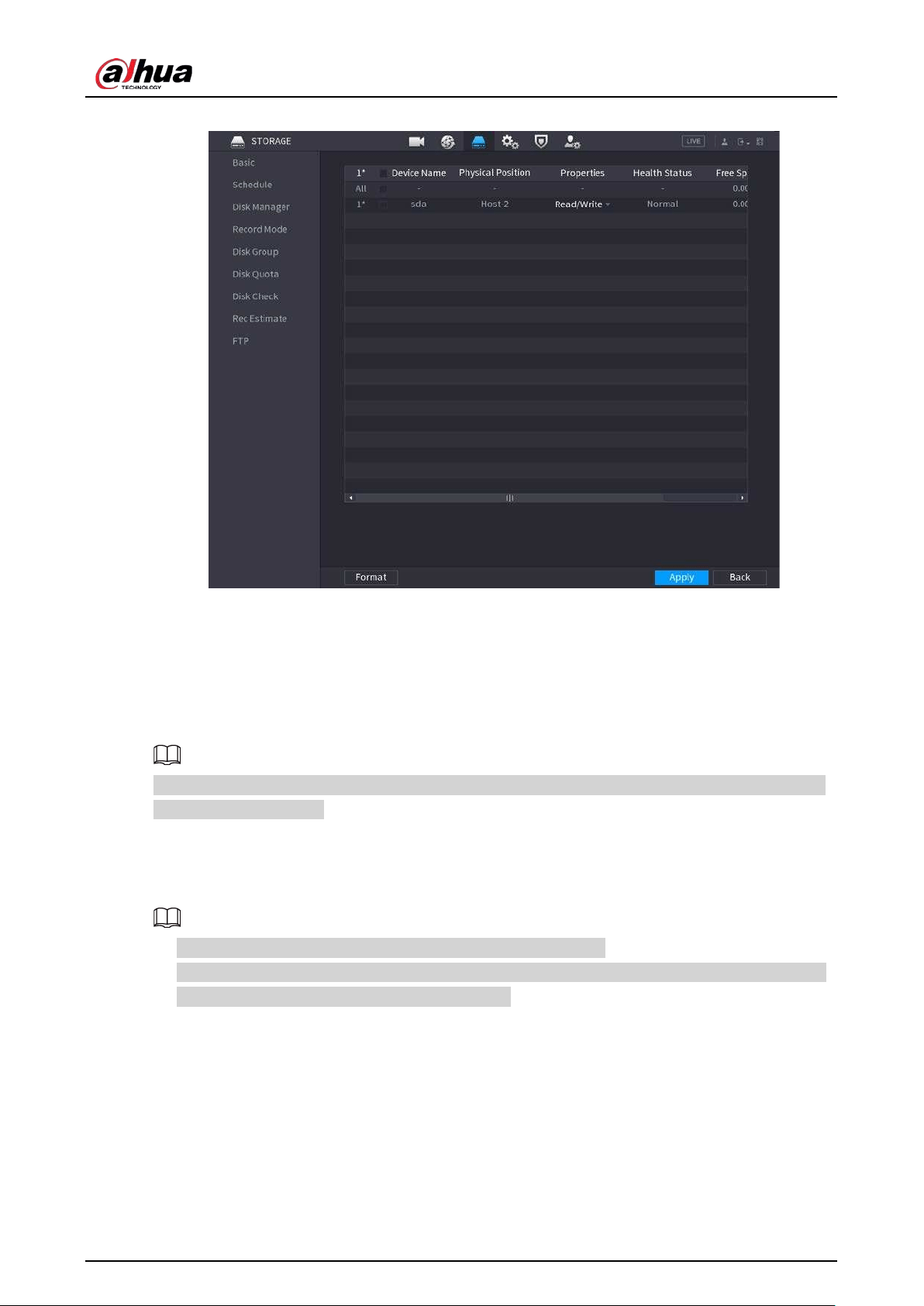
User's Manual
296
Figure 5-205 Disk manager
View HDD Information
You can view the physical position, properties, status and storage capacity of each HDD.
Configure HDD Properties
In the
Properties
column, you can set read and wire, read-only and redundant HDD.
When there are two or more HDDs installed on the Device, you can set one HDD as redundant disk
to back up recorded files.
Format HDD
Select an HDD, click
Format
, and then follow the on-screen prompts to format the HDD.
●
Formatting will erase all data in the HDD, proceed with caution.
●
You can select whether to erase the HDD database. If the HDD database is erased, the AI search
data and the uploaded audio files will be deleted.
5.12.3 RAID
RAID (redundant array of independent disks) is a data storage virtualization technology that
combines multiple physical HDD components into a single logical unit for the purposes of data
redundancy, performance improvement, or both.
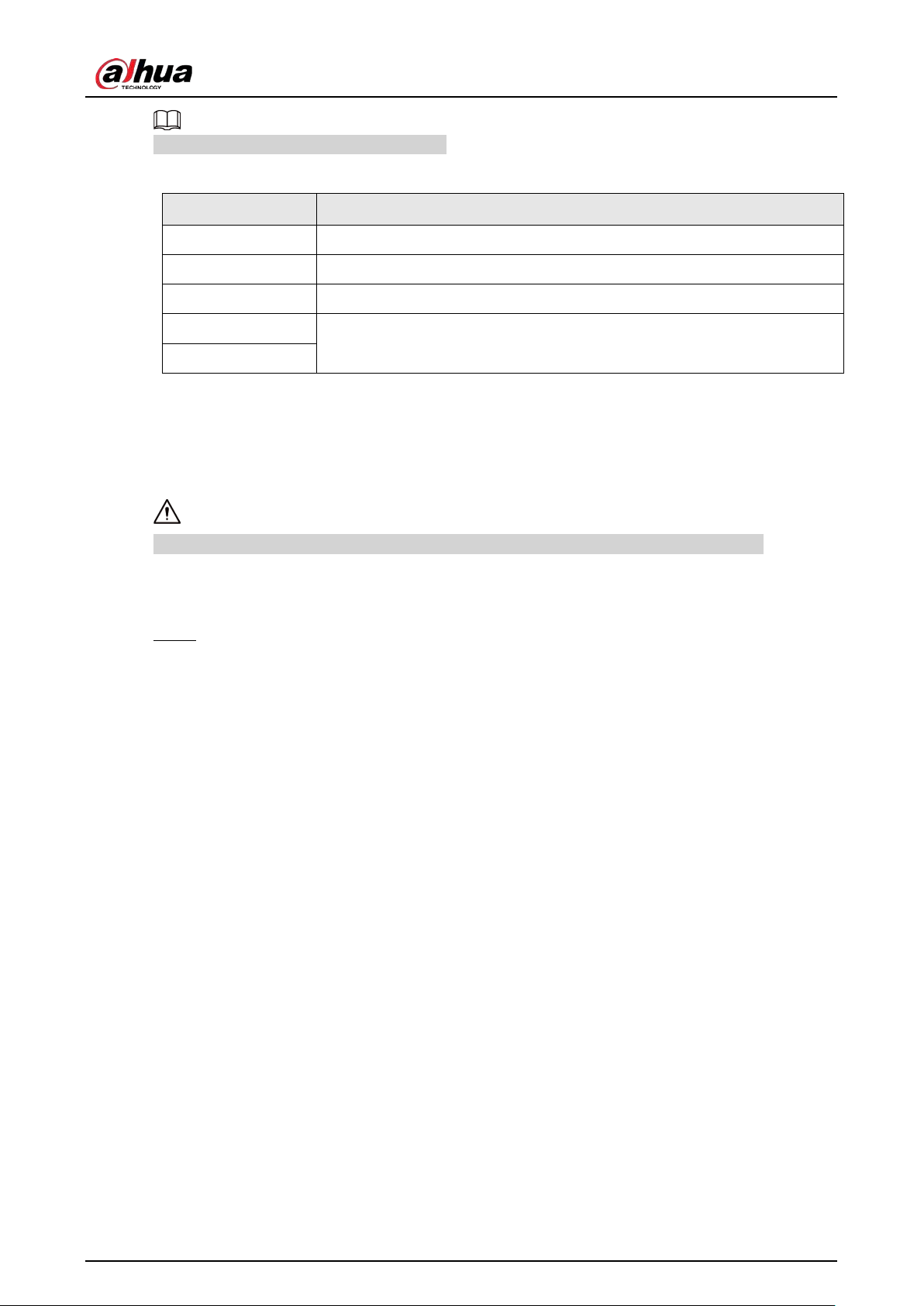
User's Manual
297
RAID function is available on select models.
Table 5-66 Disk quantity for different RAID types
RAID type Required disk quantity
RAID 0 At least 2.
RAID 1 Only 2.
RAID 5 At least 3. We recommend using 4 disks to 6 disks.
RAID 6
At least 4.
RAID 10
5.12.3.1 Creating RAID
RAID has different levels, such as RAID 5 and RAID 6. Each level has different data protection, data
availability, and performance grade. You can create different types of RAID as needed.
When you create RAID, the disks in the RAID group will be formatted. Back up data in time.
You can create different types of RAID as needed.
Procedure
Step 1 Select
Main Menu
>
STORAGE
>
RAID
>
RAID
.
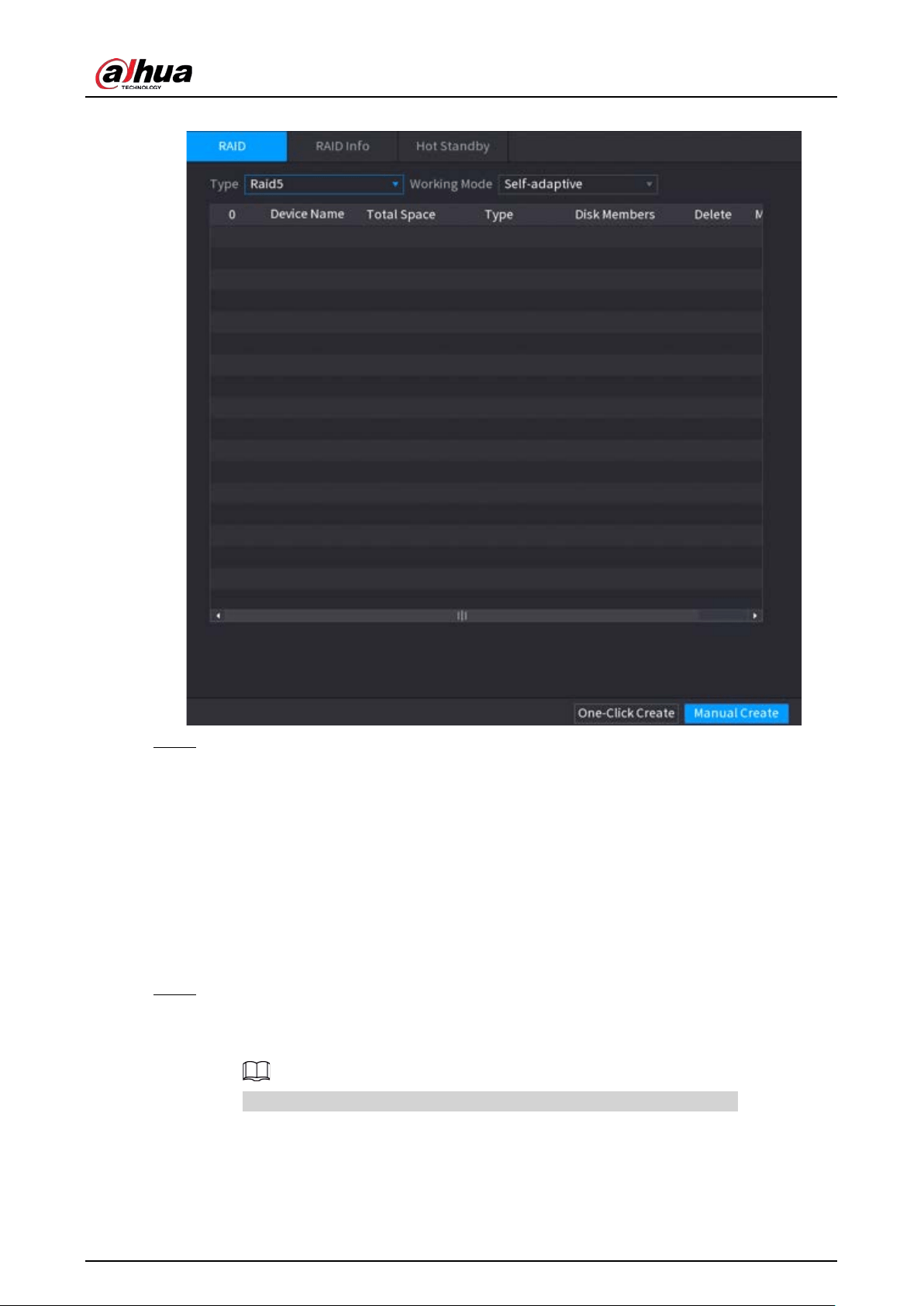
User's Manual
298
Figure 5-206 RAID
Step 2 Select RAID type and working mode.
The working mode determines how the system allocate resources.
●
Self-Adaptive
: Automatically adjust the RAID synchronization speed according to the
business status.
◇
When there is no business running, synchronization is performed at a high speed.
◇
When there is business running, synchronization is performed at a low speed.
●
Sync First
: Resource priority is assigned to RAID synchronization.
●
Business First
: Resource priority is assigned to business operations.
●
Balance
: Resource is evenly distributed to RAID synchronization and business
operations.
Step 3 Create RAID.
●
Automatic creation.
Select disks, and then click
Create RAID
. The system will create RAID 5 automatically.
Automatic creation of RAID is available only when the RAID type is
Raid5
.
●
Manual creation.
Select disks, click
Create Manually
and then follow the on-screen instructions to create
RAID.
●
Change working mode.
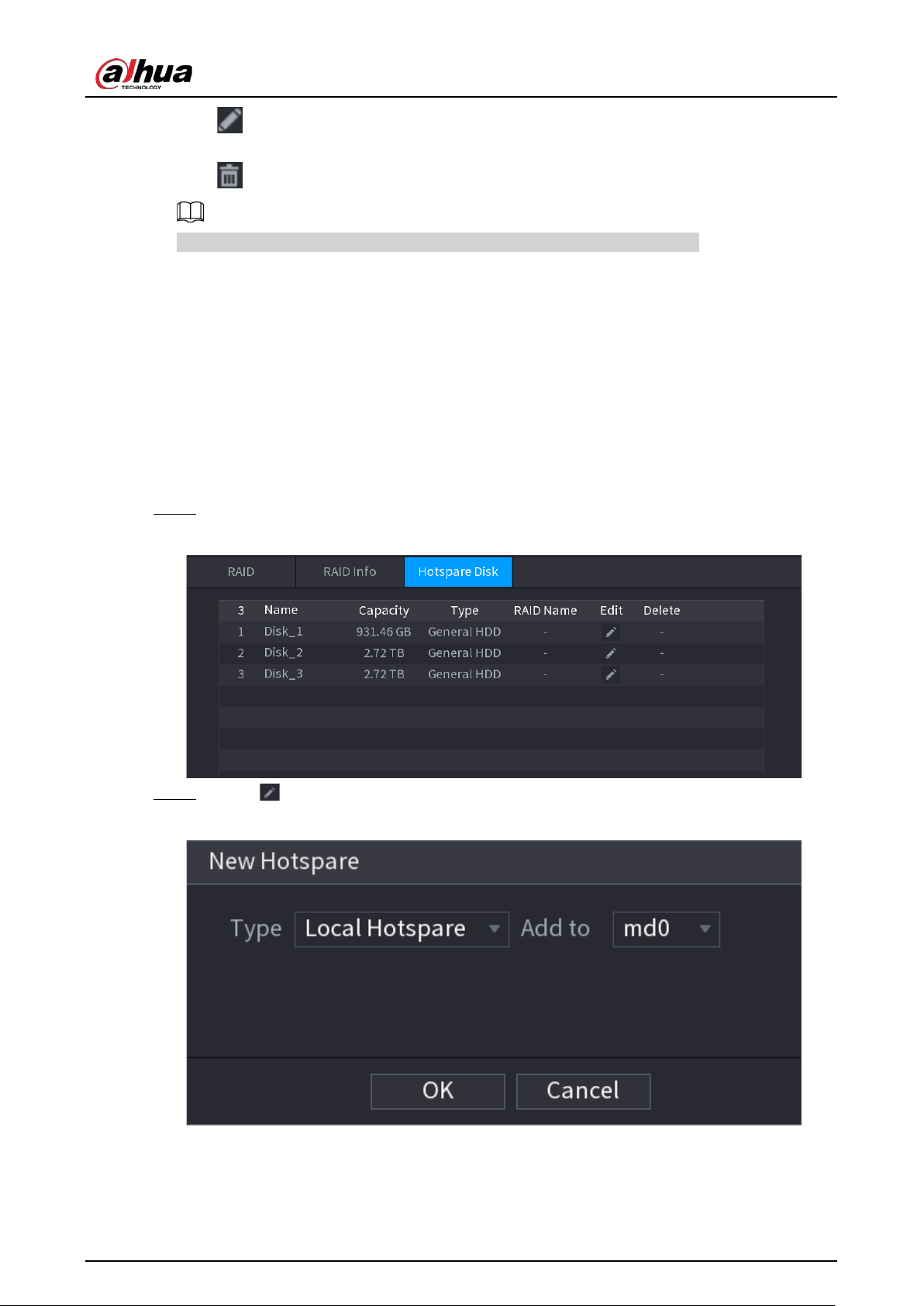
User's Manual
299
Click to change the working mode of the RAID group.
●
Delete RAID.
Click to delete the RAID group.
When you delete a RAID group, the disks in the RAID group will be formatted.
5.12.3.2 Viewing RAID Information
Select
Main Menu
>
STORAGE
>
RAID
>
RAID Info
. You can view the RAID information, including
type, disk space, hot spare, and status.
5.12.3.3 Creating Hot Spare Disk
You can create a hot spare disk. When a disk of the RAID group malfunctions, the hot spare disk can
replace the malfunctioning disk.
Step 1 Select
Main Menu
>
STORAGE
>
RAID
>
Hotspare Disk
.
Figure 5-207 Hotspare disk
Step 2 Click .
Figure 5-208 Local hotspare
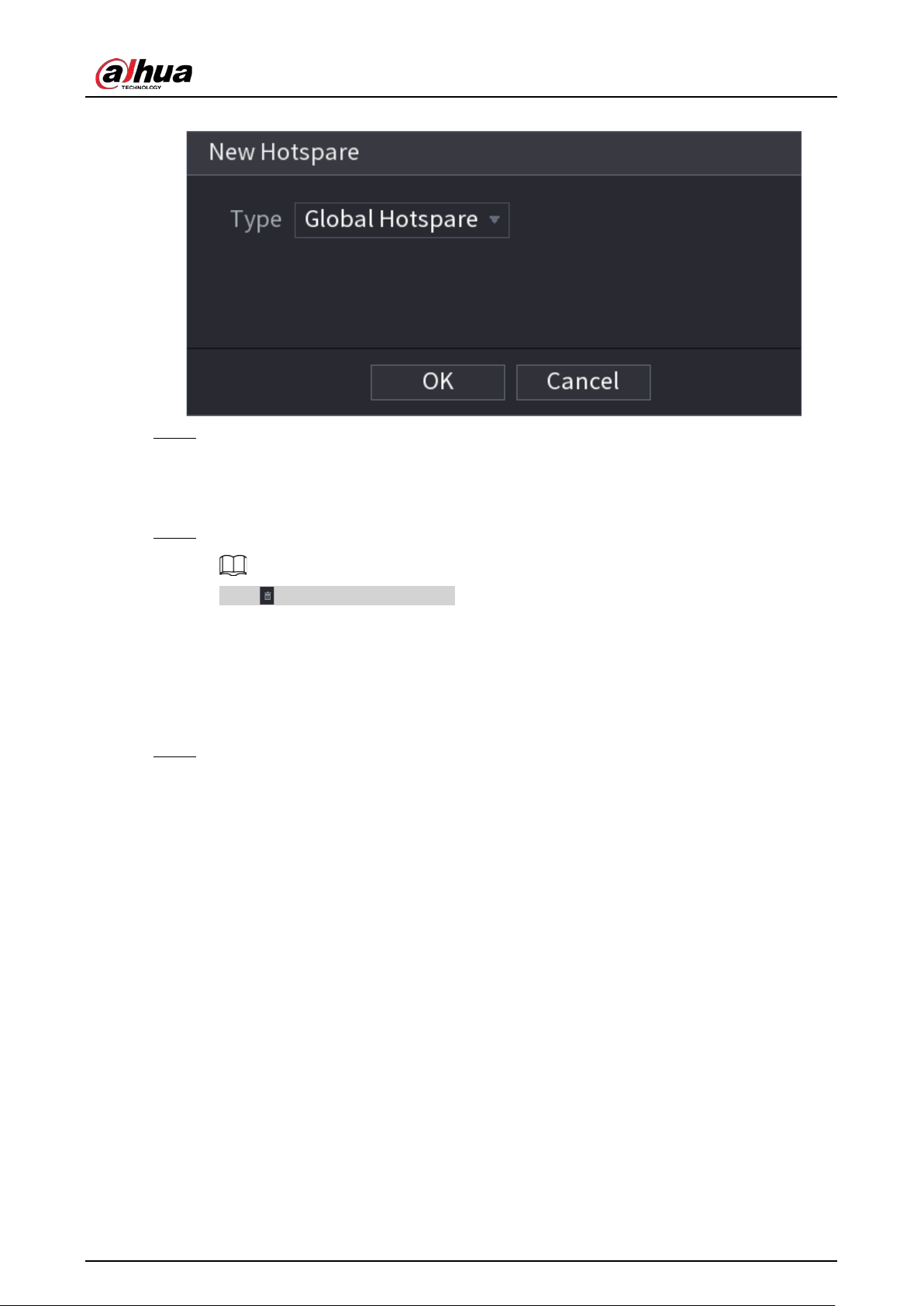
User's Manual
300
Figure 5-209 Global hotspare
Step 3 You can select
Local Hotspare
or
Global Hotspare
.
●
Local Hotspare
: Select the target disk, and the current disk will serve as the hot spare
disk for the selected target disk.
●
Global Hotspare
: The current disk will serve as the hot spare disk of the entire RAID.
Step 4 Click
OK
.
Click to delete a hot spare disk.
5.12.4 Disk Group
By default, the installed HDD and created RAID are in Disk Group 1. You can set HDD group, and HDD
group setup for main stream, sub stream and snapshot operation.
Step 1 Select
Main Menu
>
STORAGE
>
Disk Group
.
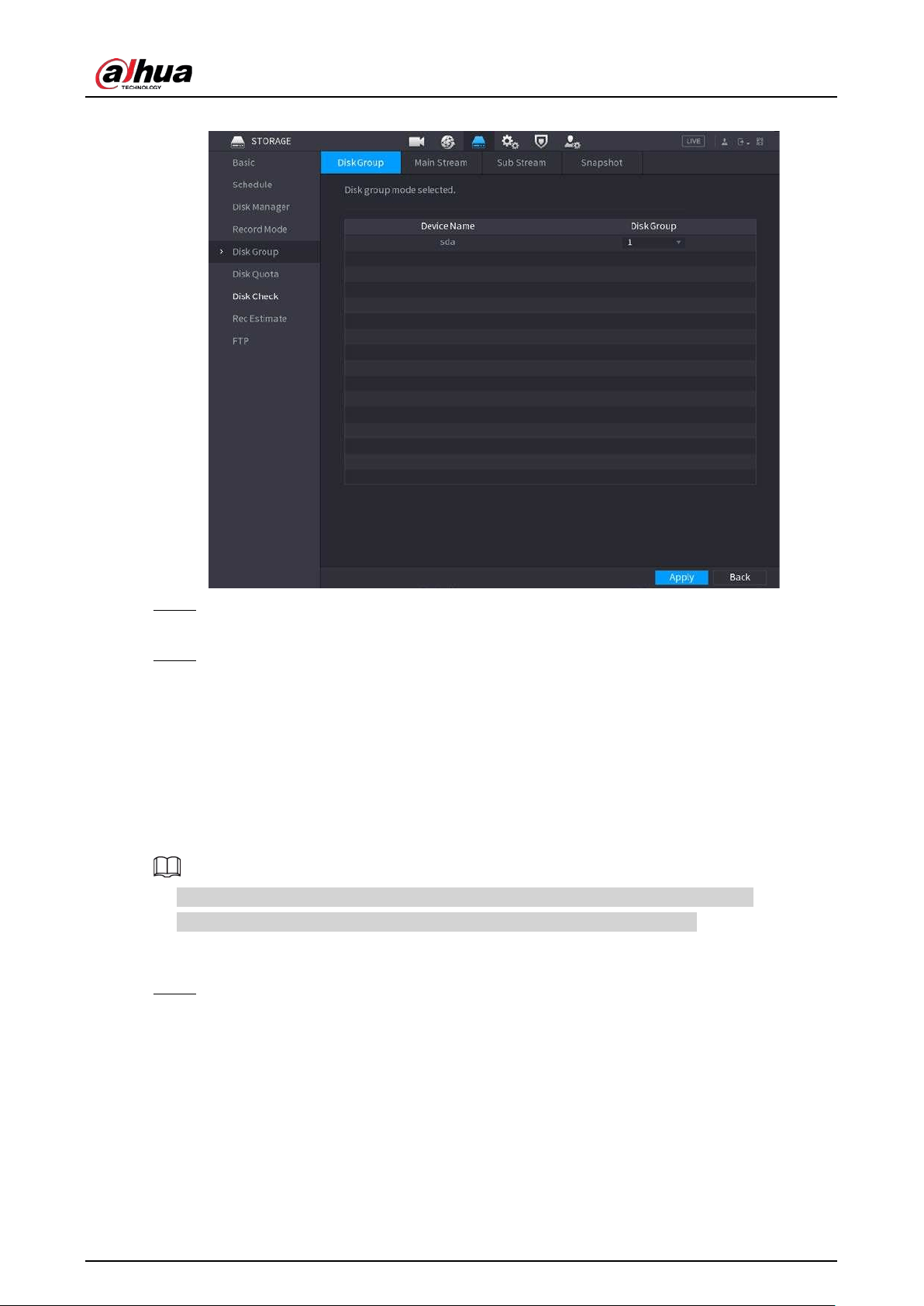
User's Manual
301
Figure 5-210 Disk group
Step 2 (Optional) If
Disk Quota is selected
is shown on the page, click
Switch to Disk Group
Mode
and then follow the on-screen instructions to format disks.
Step 3 Select the group for each HDD, and then click
Apply
.
After configuring HDD group, under the
Main Stream
tab,
Sub Stream
tab and
Snapshot
tab, configure settings to save the main stream, sub stream and snapshot to different disk
groups.
5.12.5 Disk Quota
You can allocate a certain storage capacity for each channel to manage the storage space properly.
●
If
Disk group mode selected.
is shown in the interface, click
Switch to Quota Mode.
●
Disk quota mode and disk group mode can not be selected at the same time.
Procedure
Step 1 Select
Main Menu
>
STORAGE
>
Disk Quota
.
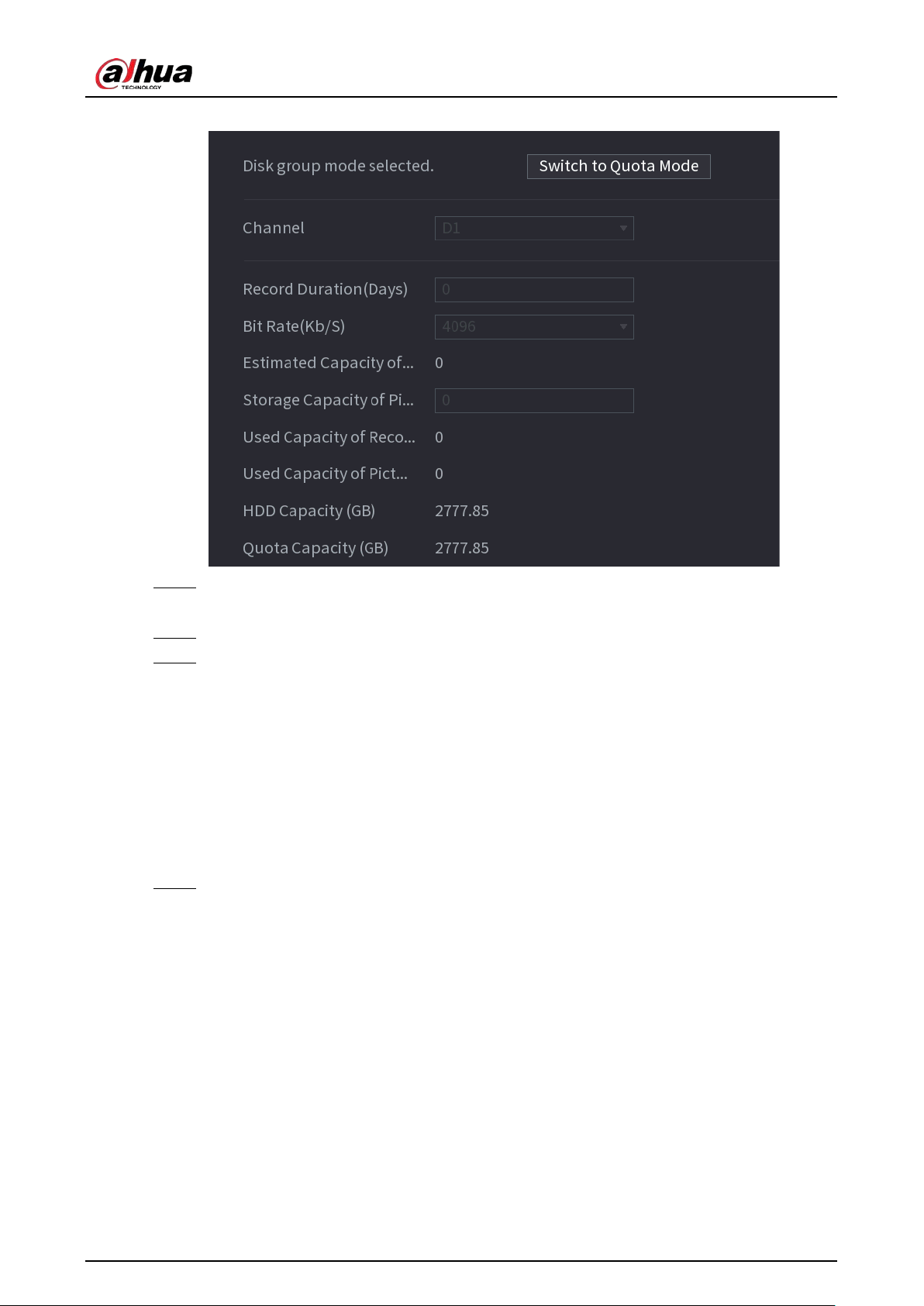
User's Manual
302
Figure 5-211 Disk Quota
Step 2 (Optional) If
Disk group mode selected
is shown on the page, click
Switch to Quota
Mode
and then follow the on-screen instructions to format disks.
Step 3 Select a channel and set the record duration, bit rate and storage capacity of picture.
Step 4 Click
Apply
.
5.12.6 Disk Check
The system can detect HDD status so that you can clearly understand the HDD performance and
replace the malfunctioning HDD.
5.12.6.1 Manual Check
Step 1 Select
Main Menu
>
STORAGE
>
Disk Check
>
Manual Check
.
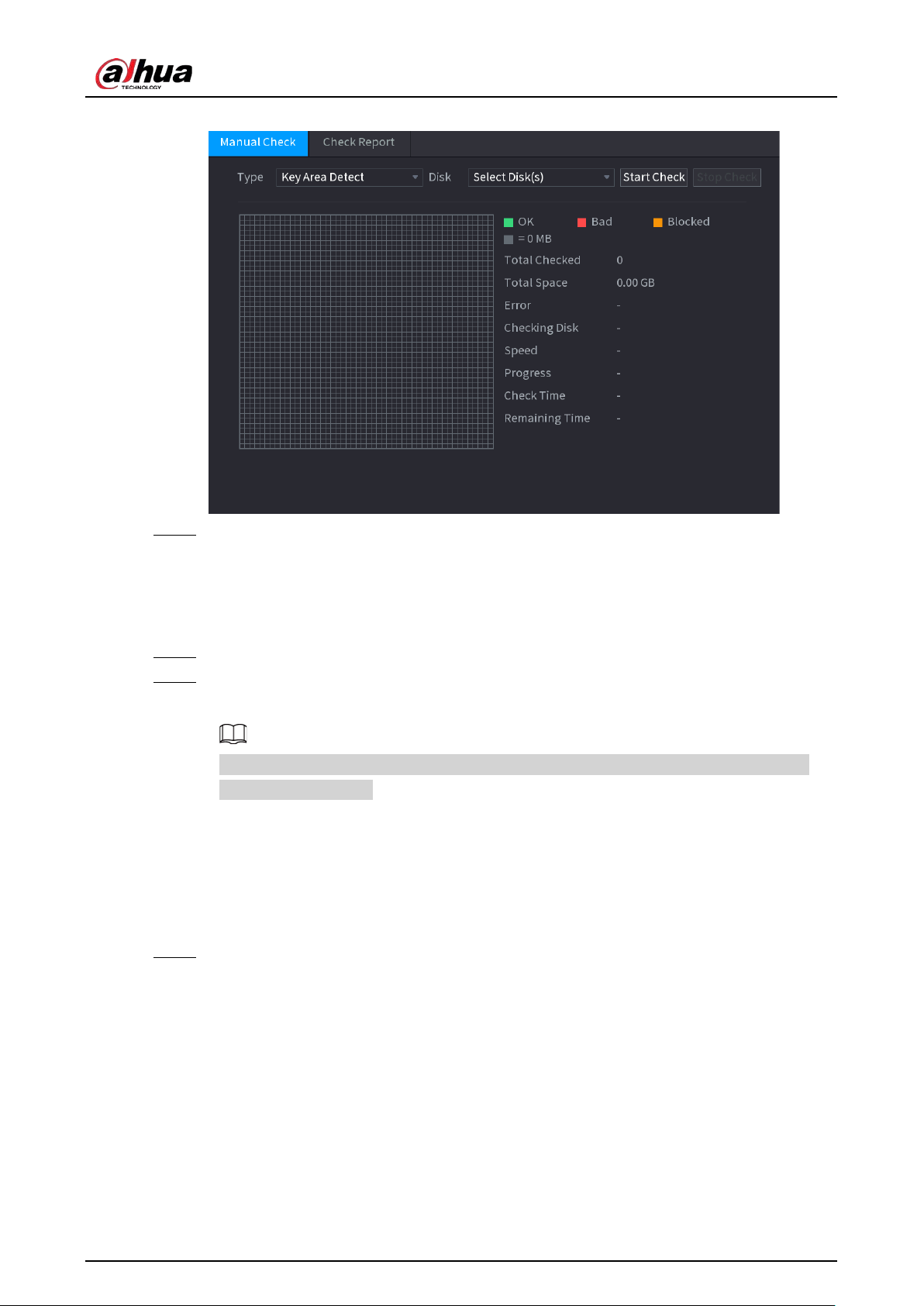
User's Manual
303
Figure 5-212 Manual check
Step 2 Select the detection type.
●
Key area detection: The system detects the used space of the HDD through the built-in
file system. This type of detection is efficient.
●
Global detection: The system detects the entire HDD through Window. This type of
detection takes time and might affect the HDD that is recording.
Step 3 Select the HDD that you want to detect
Step 4 Click
Start Check
.
The system starts detecting the HDD and displays the detection information.
When system is detecting HDD, click
Stop Check
to stop current detection. Click
Start
Check
to detect again.
5.12.6.2 Detection Report
After the detection operation, you can view the detection report.
Procedure
Step 1 Select
Main Menu
>
STORAGE
>
Disk Check
>
Check Report
.
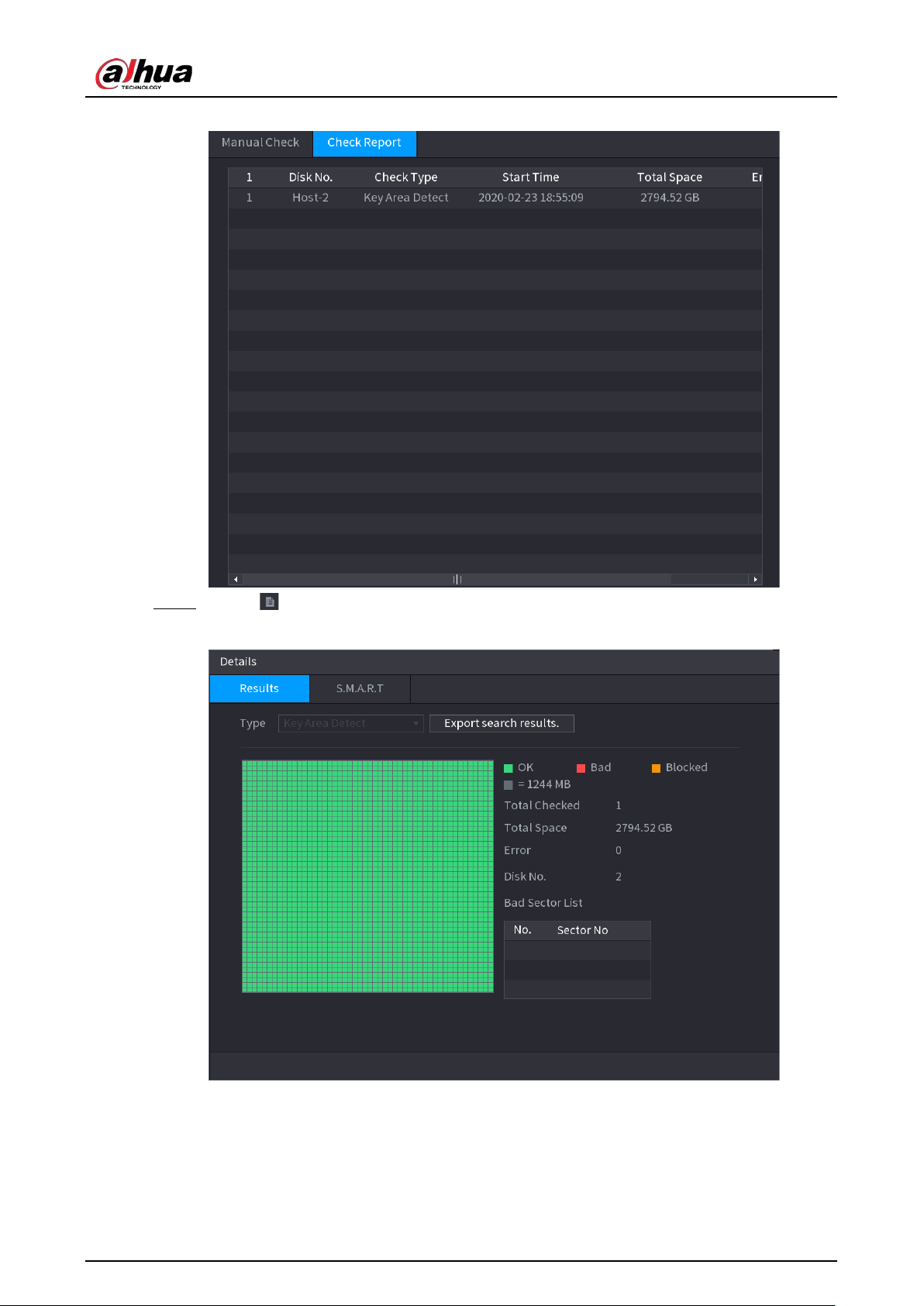
User's Manual
304
Figure 5-213 Check report
Step 2 Click to view detection results and S.M.A.R.T report.
Figure 5-214 Results
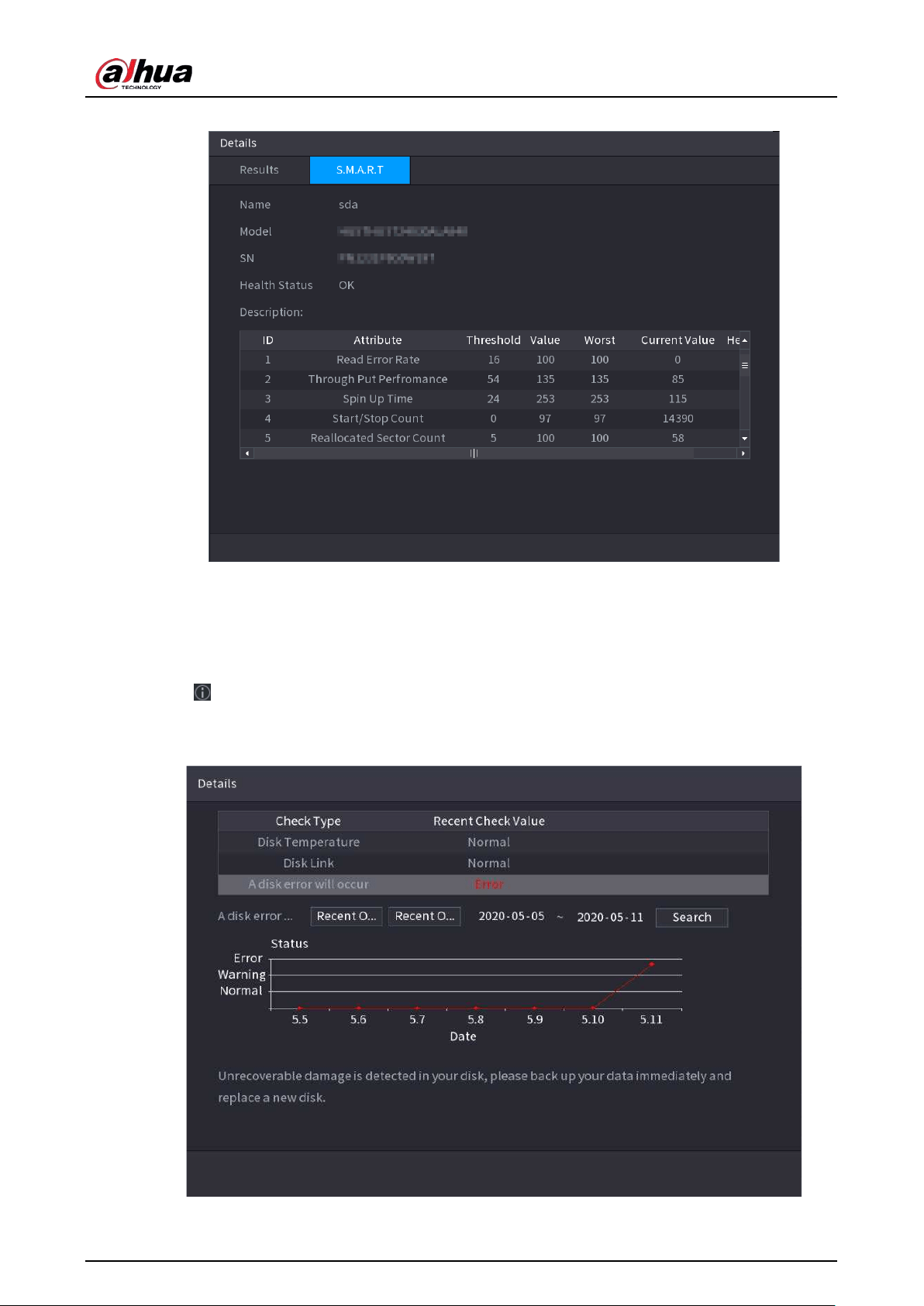
User's Manual
305
Figure 5-215 S.M.A.R.T
5.12.6.3 Disk Health Monitoring
Monitor health status of disks, and repair if any exceptions are found so as to avoid data loss.
Select
Main Menu
>
STORAGE
>
Disk Check
>
Health Monitoring
.
Click to show disk details interface. Then select
Check Type
, set time period, and then click
Search
. The system shows the details of disk monitoring status.
Figure 5-216 Disk details
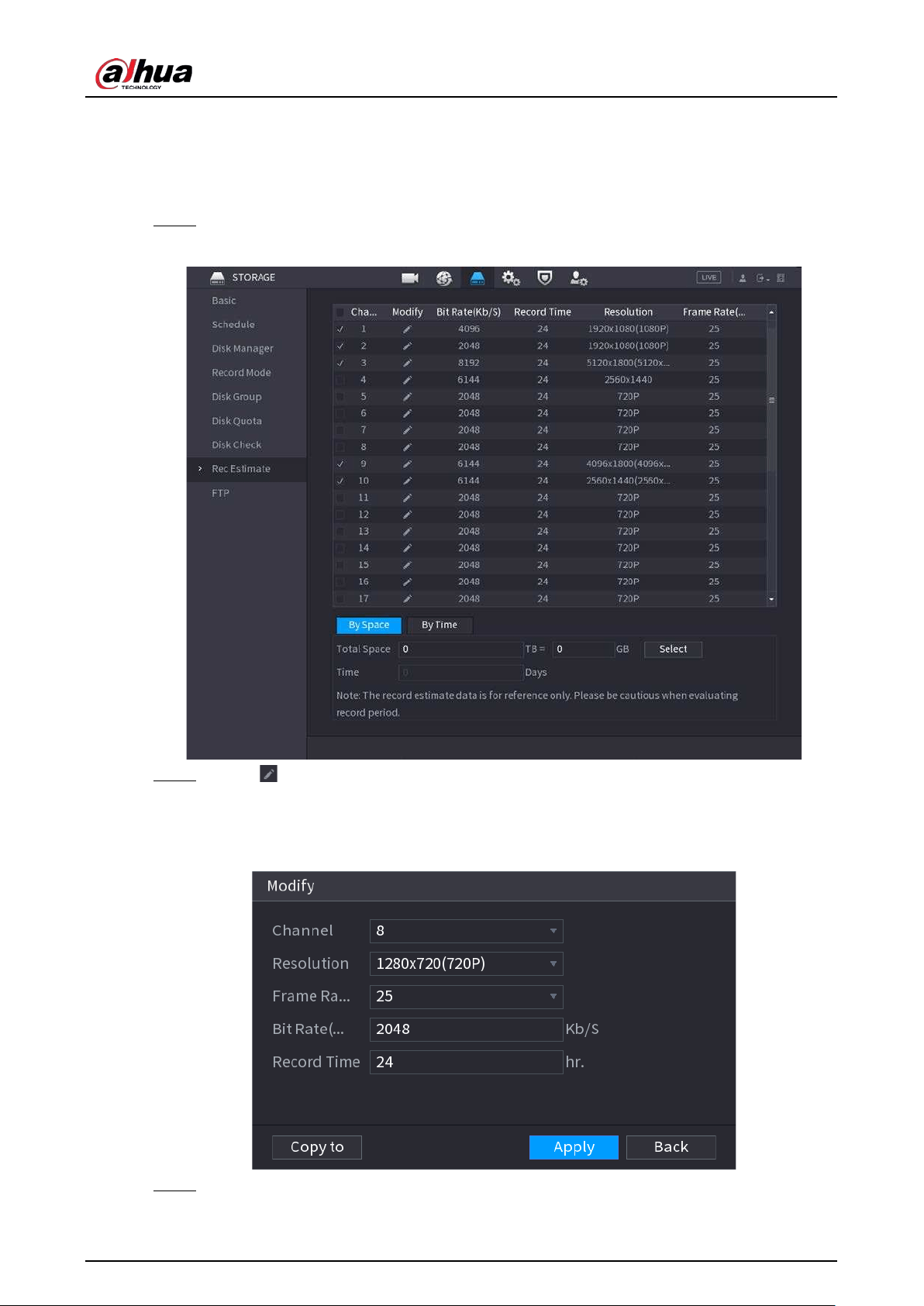
User's Manual
306
5.12.7 Record Estimate
Record estimate function can calculate how long you can record video according to the HDD
capacity, and calculate the required HDD capacity according to the record period.
Step 1
Select Main Menu
>
STORAGE
>
Rec Estimate
.
Figure 5-217 Record estimation
Step 2 Click .
You can configure the
Resolution
,
Frame Rate
,
Bit Rate
and
Record Time
for the selected
channel.
Figure 5-218 Modify channel settings
Step 3 Click
Apply
.
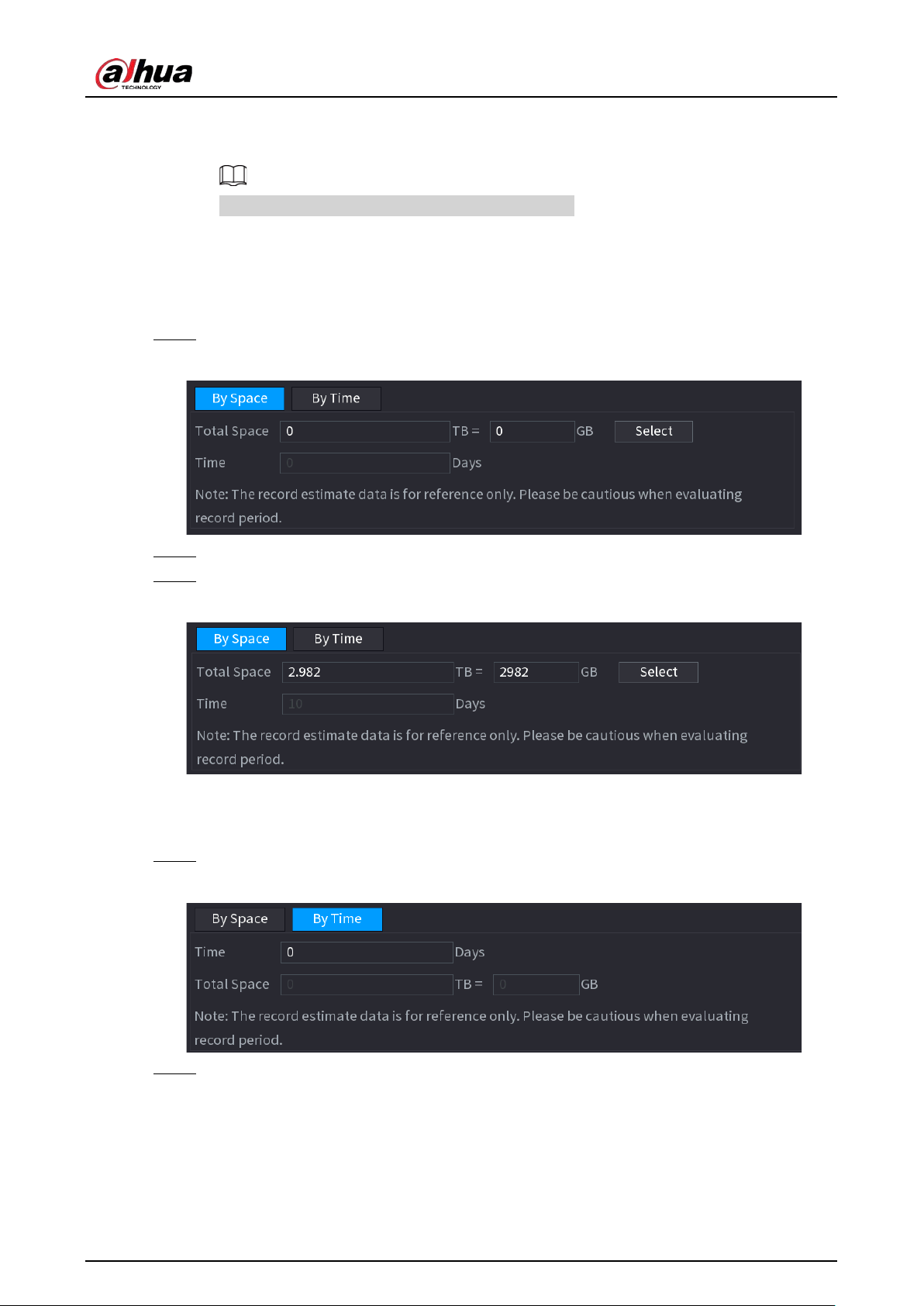
User's Manual
307
Then the system will calculate the time period that can be used for storage according to
the channels settings and HDD capacity.
Click
Copy to
to copy the settings to other channels.
5.12.7.1 Calculating Recording Time
Procedure
Step 1 On the
Rec Estimate
interface, click the
By Space
tab.
Figure 5-219 By space
Step 2 Click
Select
.
Step 3 Select the checkbox of the HDD that you want to calculate.
Figure 5-220 Recording time
5.12.7.2 Calculating HDD Capacity for Storage
Step 1 On the
Rec Estimate
interface, click the
By Time
tab.
Figure 5-221 By time
Step 2 In the
Time
box, enter the time period that you want to record.
In the
Total Space
box, the required HDD capacity is displayed.
5.12.8 FTP
You can store and view the recorded videos and snapshots on the FTP server.
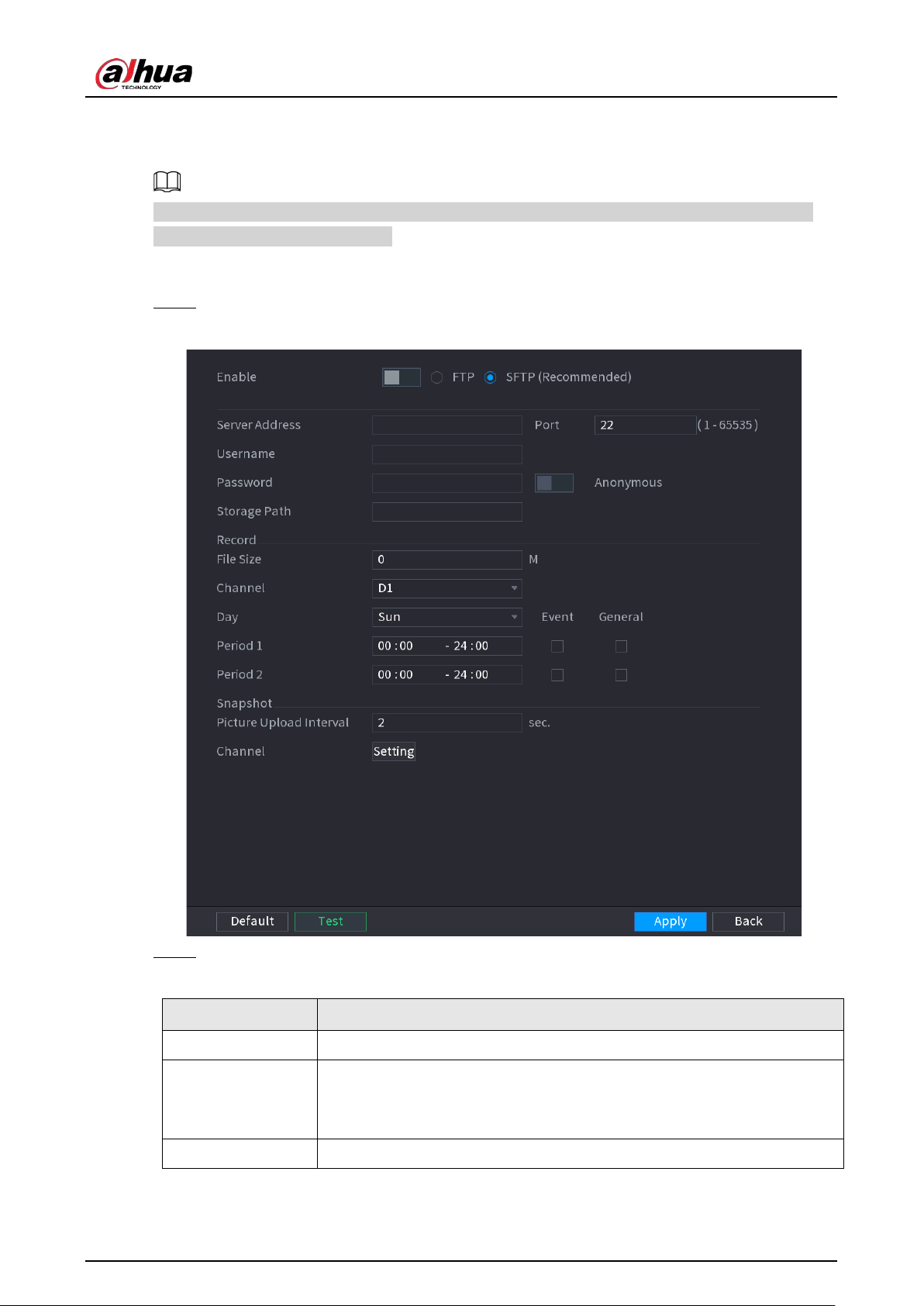
User's Manual
308
Prerequisites
Purchase or download a FTP (File Transfer Protocol) server and install it on your PC.
For the created FTP user, you need to set the write permission; otherwise the upload of recorded
videos and snapshots will be failed.
Procedure
Step 1 Select
Main Menu
>
STORAGE
>
FTP
.
Figure 5-222 FTP
Step 2 Configure the parameters.
Table 5-67 FTP parameters
Parameter Description
Enable Enable the FTP upload function.
FTP type
Select FTP type.
●
FTP: Plaintext transmission.
●
SFTP: Encrypted transmission (recommended).
Server Address IP address of FTP server.

User's Manual
309
Parameter Description
Port
Enter the port of the FTP server.
●
FTP: The default is 21.
●
SFTP: The default is 22.
Username
Enter the username and password to log in to the FTP server.
If you enable the anonymity function, you can log in anonymously without
entering the username and password.
Password
Anonymous
Storage Path
Create folder on FTP server.
●
If you do not enter the name of remote directory, the system
automatically creates the folders according to the IP and time.
●
If you enter the name of remote directory, the system creates the
folder with the entered name under the FTP root directory first, and
then automatically creates the folders according to the IP and time.
File Size
Enter the length of the uploaded recorded video.
●
If the entered length is less than the recorded video length, only a
section of the recorded video can be uploaded.
●
If the entered length is more than the recorded video length, the
whole recorded video can be uploaded.
●
If the entered length is 0, the whole recorded video will be uploaded.
Picture Upload
Interval
●
If this interval is longer than snapshot interval, the system takes the
recent snapshot to upload. For example, the interval is 5 seconds, and
snapshot interval is 2 seconds per snapshot, the system uploads the
recent snapshot every 5 seconds.
●
If this interval is shorter than snapshot interval, the system uploads the
snapshot per the snapshot interval. For example, the interval is 5
seconds, and snapshot interval is 10 seconds per snapshot, the system
uploads the snapshot every 10 seconds.
●
To configure the snapshot interval, go to
Main Menu
>
CAMERA
>
Encode
>
Snapshot
.
Channel Select the channel that you want to apply the FTP settings.
Day
Select the week day and set the time period that you want to upload the
recorded files. You can set two periods for each week day.
Period 1, Period 2
Record type
Select the record type (Alarm, Intel, MD, and General) that you want to
upload. The selected record type will be uploaded during the configured
time period.
Step 3 Click
Test
to validate the FTP connection.
If FTP connection failed, check the network and FTP settings.
Step 4 Click
Apply
.
5.12.9 iSCSI
Internet Small Computer Systems Interface (iSCSI) is a transport layer protocol that works on top of
the Transport Control Protocol (TCP), and enables block-level SCSI data transport between the iSCSI
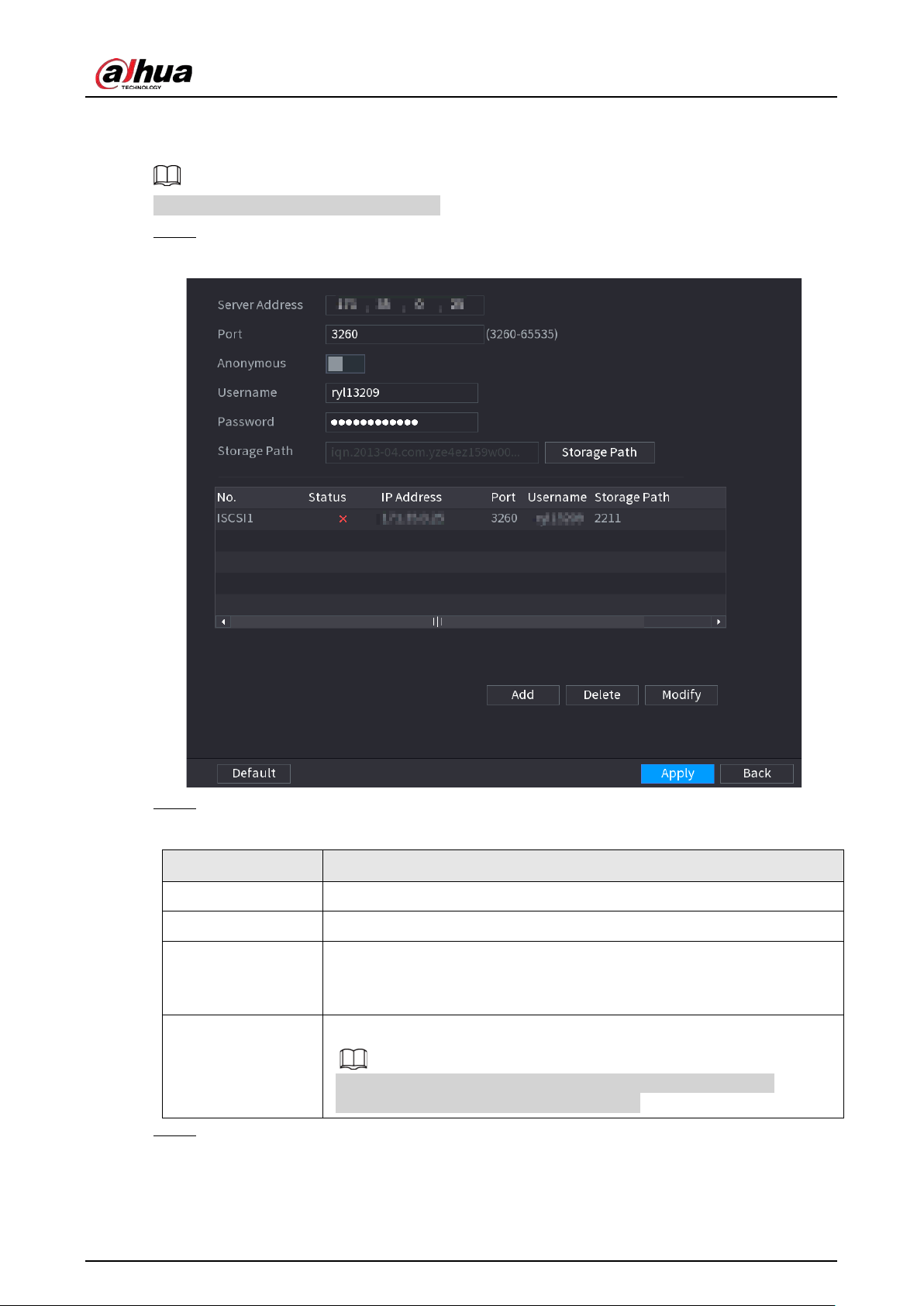
User's Manual
310
initiator and the storage target over TCP/IP networks. After the network disk is mapped to the NVR
device through iSCSI, the data can be stored on the network disk.
This function is available on select models.
Step 1 Select
Main Menu
>
STORAGE
>
iSCSI
.
Figure 5-223 iSCSI
Step 2 Set parameters.
Table 5-68 iSCSI parameters
Parameter Description
Server Address Enter the server address of iSCSI server.
Port Enter the port of iSCSI server, and the default value is 3260.
Storage Path
Click
Storage Path
to select a remote storage path.
Each path represents an iSCSI shared disk and these paths are generated
when created on the server
Username,
Password
Enter the username and password of iSCSI server.
If anonymous login is supported by iSCSI server, you can enable
Anonymous
to log in as an anonymous user.
Step 3 Click
Apply
.
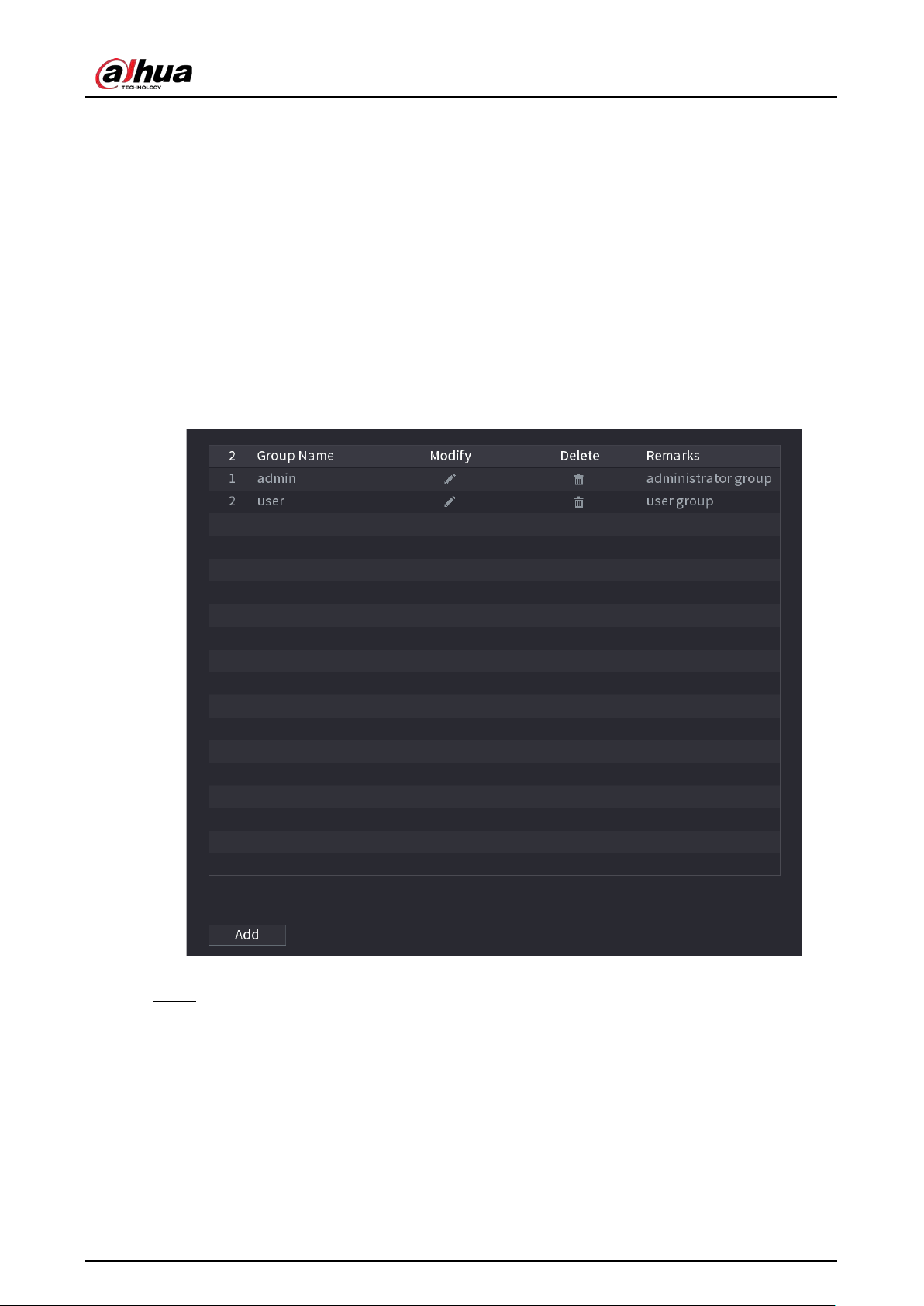
User's Manual
311
5.13 Account
You can manage users, user group and ONVIF user, and set admin security questions.
5.13.1 Group
The accounts of the Device adopt two-level management mode: user and user group. Every user
must belong to a group, and one user only belongs to one group.
The
admin
and
user
group are two default user groups that cannot be deleted. You can add more
groups and define corresponding permissions.
Step 1 Select
Main Menu
>
ACCOUNT
>
Group
.
Figure 5-224 Group
Step 2 Click
Add
.
Step 3 Enter group name and then enter some remarks if necessary.
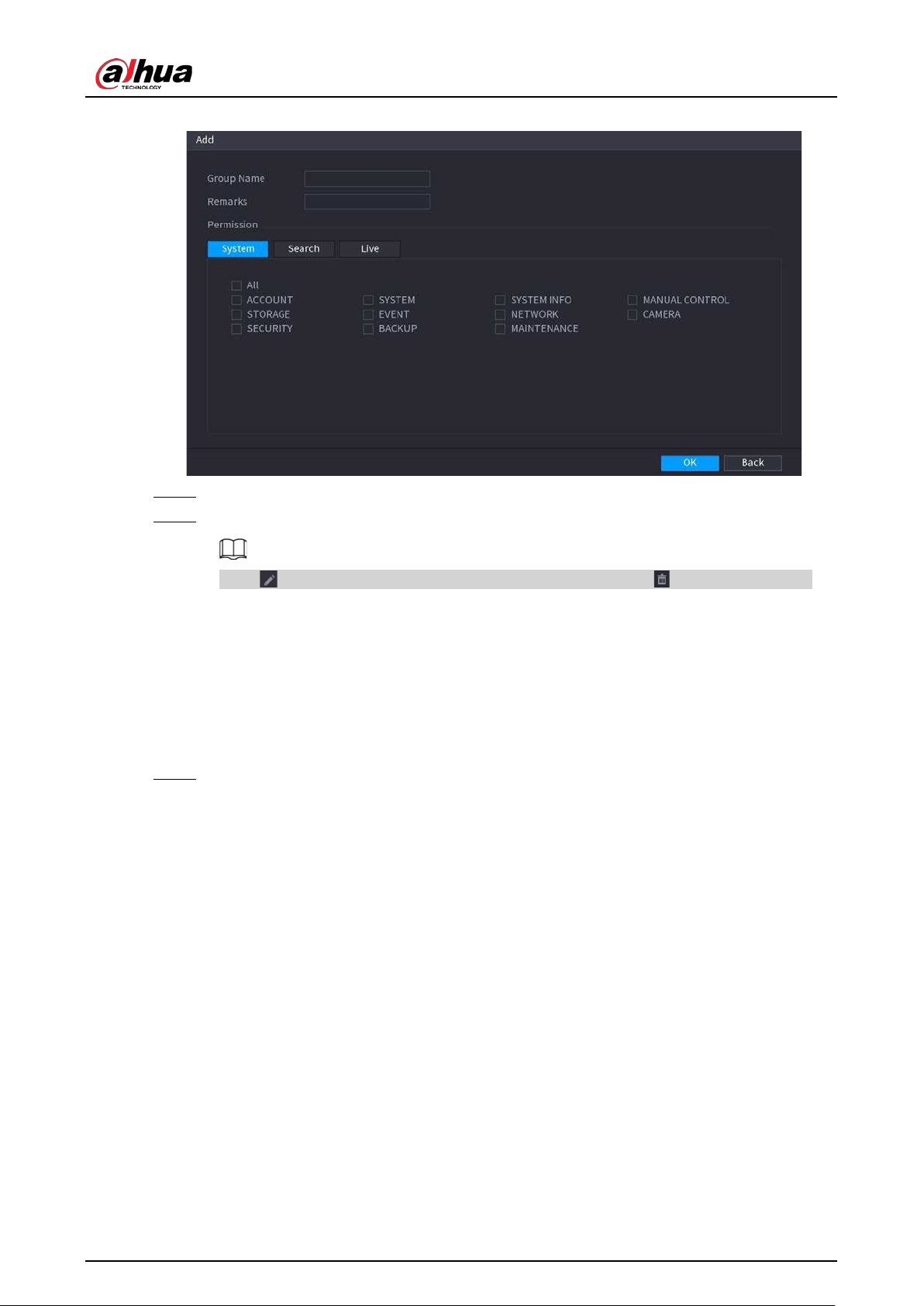
User's Manual
312
Figure 5-225 Add group
Step 4 Select the checkboxes to select permissions.
Step 5 Click
OK
.
Click to modify the corresponding group information, click to delete the group.
5.13.2 User
5.13.2.1 Adding User
Procedure
Step 1 Select
Main Menu
>
ACCOUNT
>
User
.
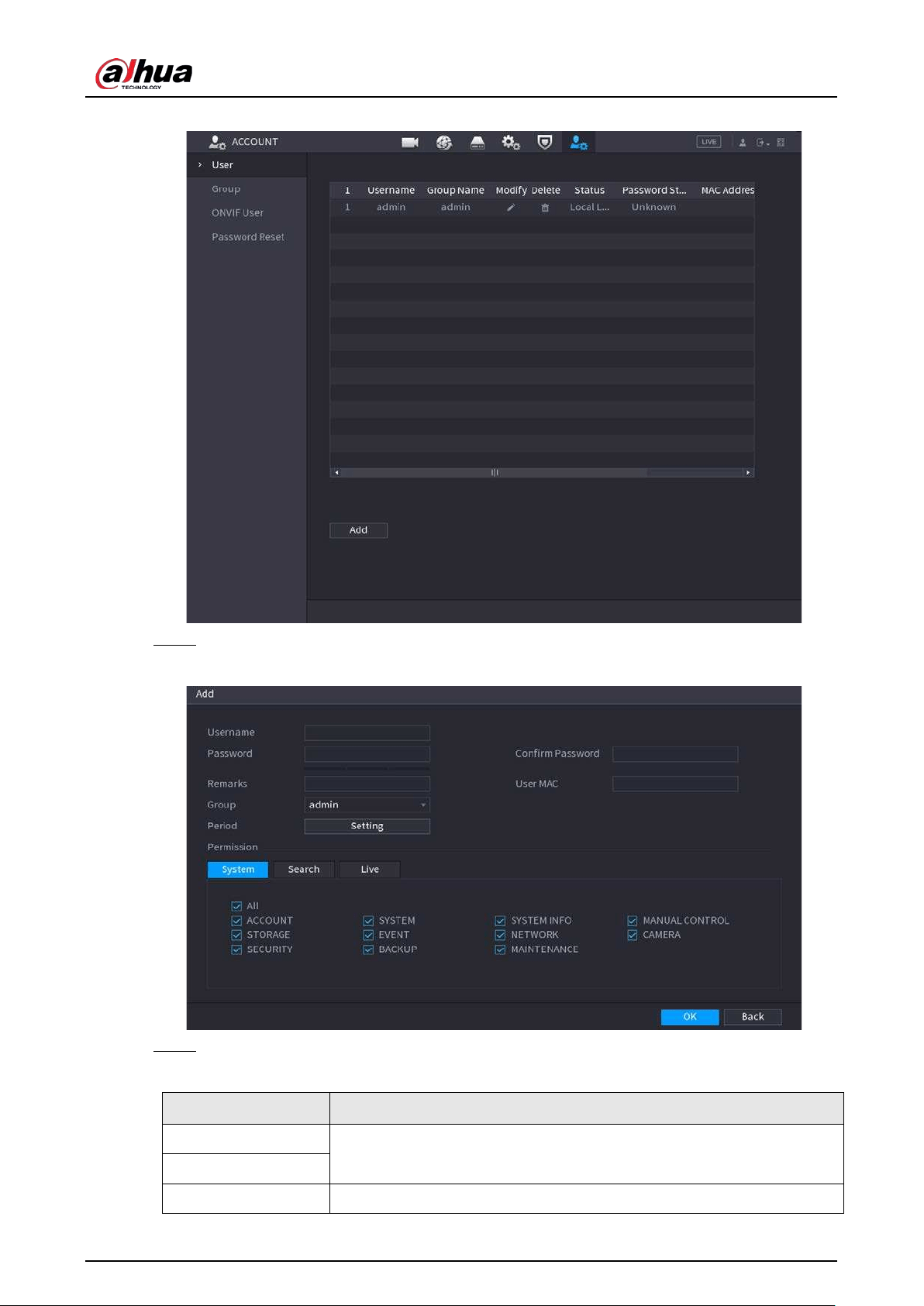
User's Manual
313
Figure 5-226 User
Step 2 Click
Add
.
Figure 5-227 Add user
Step 3 Configure the parameters.
Table 5-69 Parameters of adding user
Parameter Description
Username
Enter a username and password for the account.
Password
Confirm Password Enter the password again to confirm it.
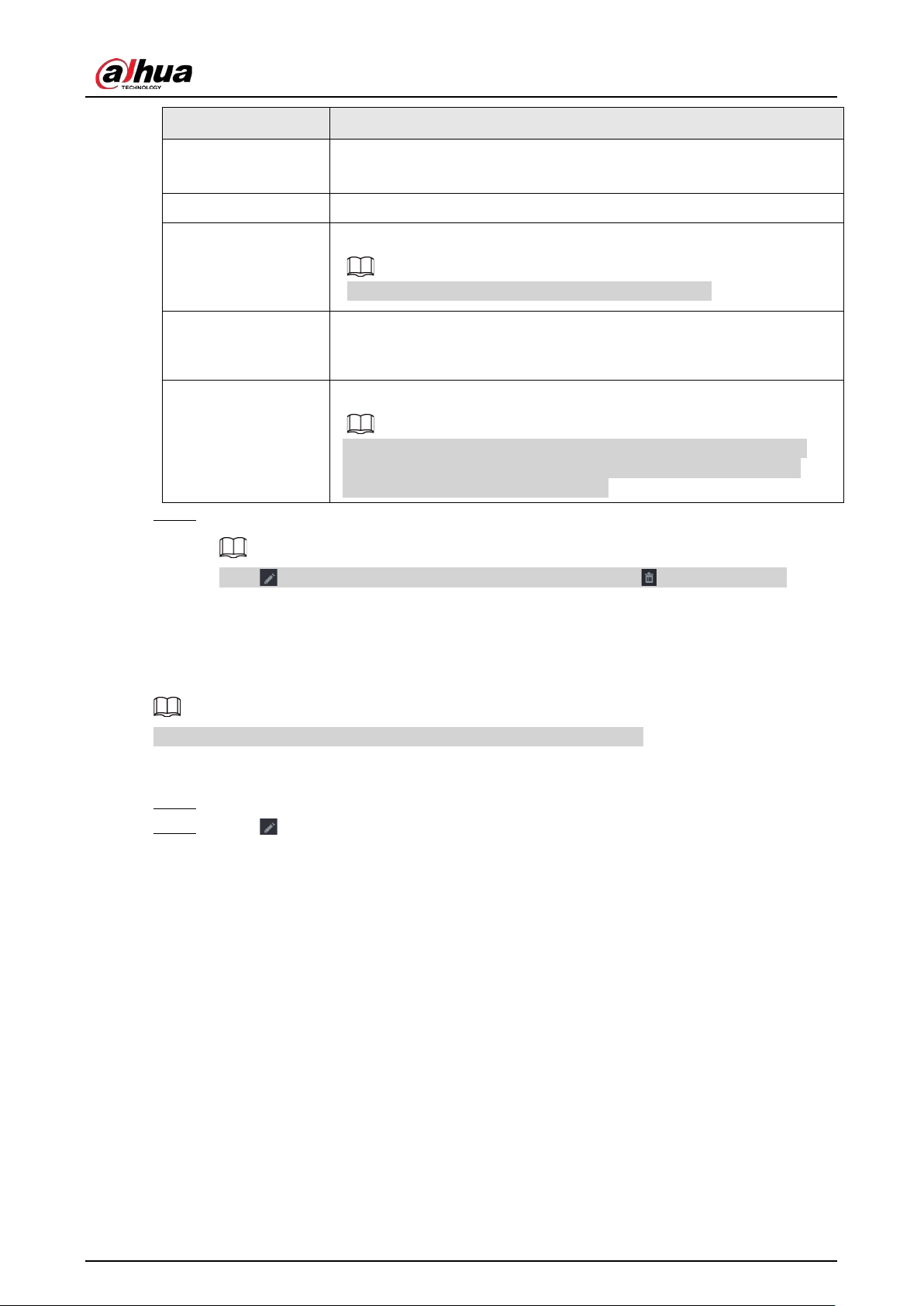
User's Manual
314
Parameter Description
Remarks
Optional.
Enter a description of the account.
User MAC Enter user MAC address
Group
Select a group for the account.
The user rights must be within the group permissions.
Period
Click
Setting
to define a period during which the new account can log in
to the Device. The new account cannot access the device during other
periods.
Permission
Select the checkboxes to grant permissions to the user.
To manage the user account easily, when defining the user account
permission, do not give the authority to the common user account
higher that the advanced user account.
Step 4 Click
OK
.
Click to modify the corresponding user information, click to delete the user.
5.13.2.2 Changing Password
We recommend you change the password regularly to enhance device security.
Users with account permissions can change the password of other users.
Procedure
Step 1 Select
Main Menu
>
ACCOUNT
>
User
.
Step 2 Click of the corresponding user.
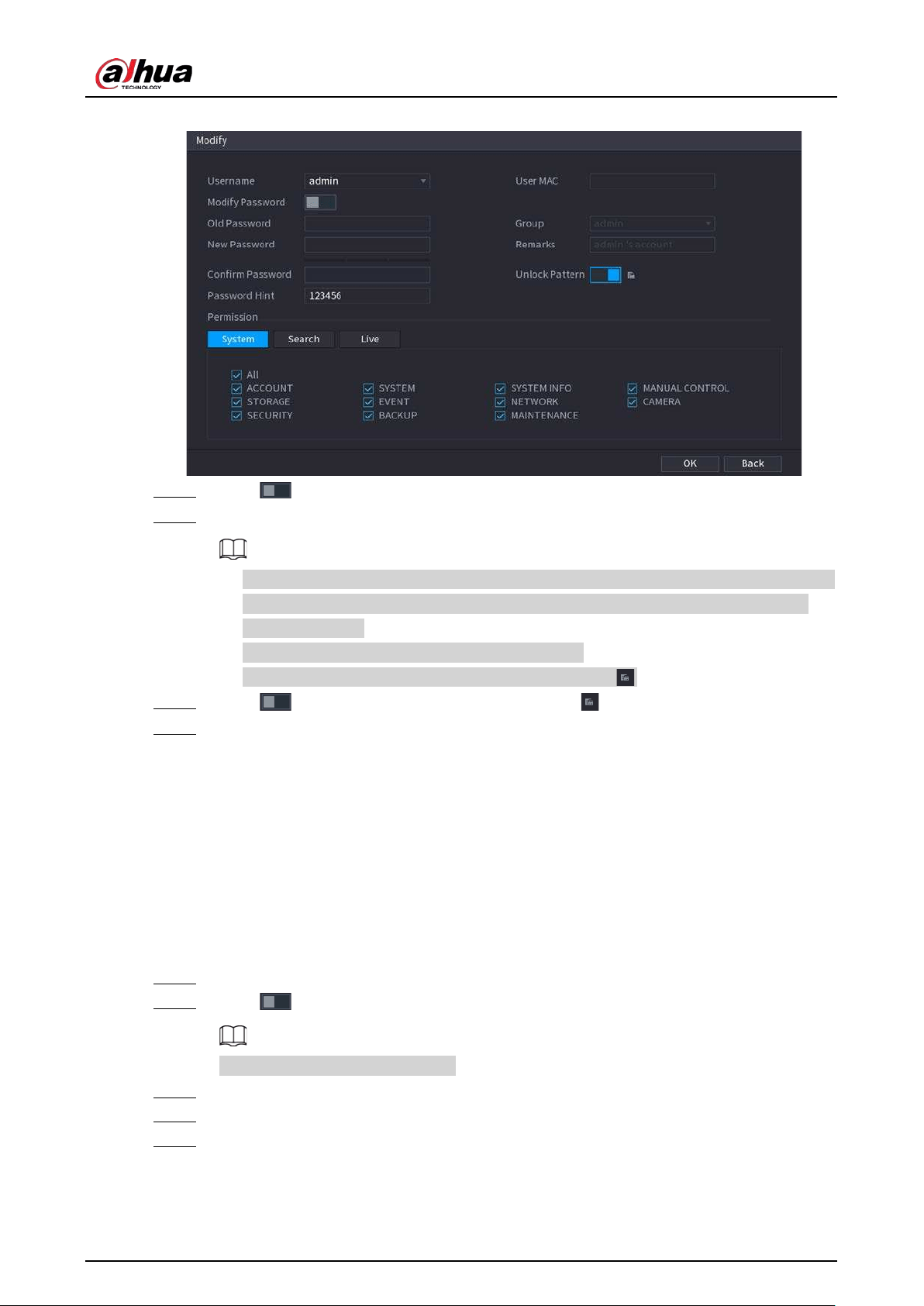
User's Manual
315
Figure 5-228 Change password
Step 3 Click to enable the
Modify Password
function.
Step 4 Enter old password and then enter new password twice.
●
The password must consist of 8–32 non-blank characters and contain at least two types
of the following characters: uppercase, lowercase, numbers, and special characters
(excluding ' " ; : &).
●
For your device security, create a strong password.
●
Check the box to enable Unlock Pattern function, click .
Step 5 Click to enable
Unlock Pattern
and then click to draw the pattern.
Step 6 Click
OK
.
5.13.3 Resetting Password
You can reset the password when you forget the password.
5.13.3.1 Enabling Password Reset
Enable the password reset function and configure the linked email address and security questions
that are used to reset the password.
Step 1 Select
Main Menu
>
ACCOUNT
>
Password Reset
.
Step 2 Click to enable the password reset function.
This function is enabled by default.
Step 3 Enter an email address to receive the security code used to reset the password.
Step 4 Configure security questions and answers.
Step 5 (Optional) Follow the on-screen instructions to bind the Device to DMSS app.
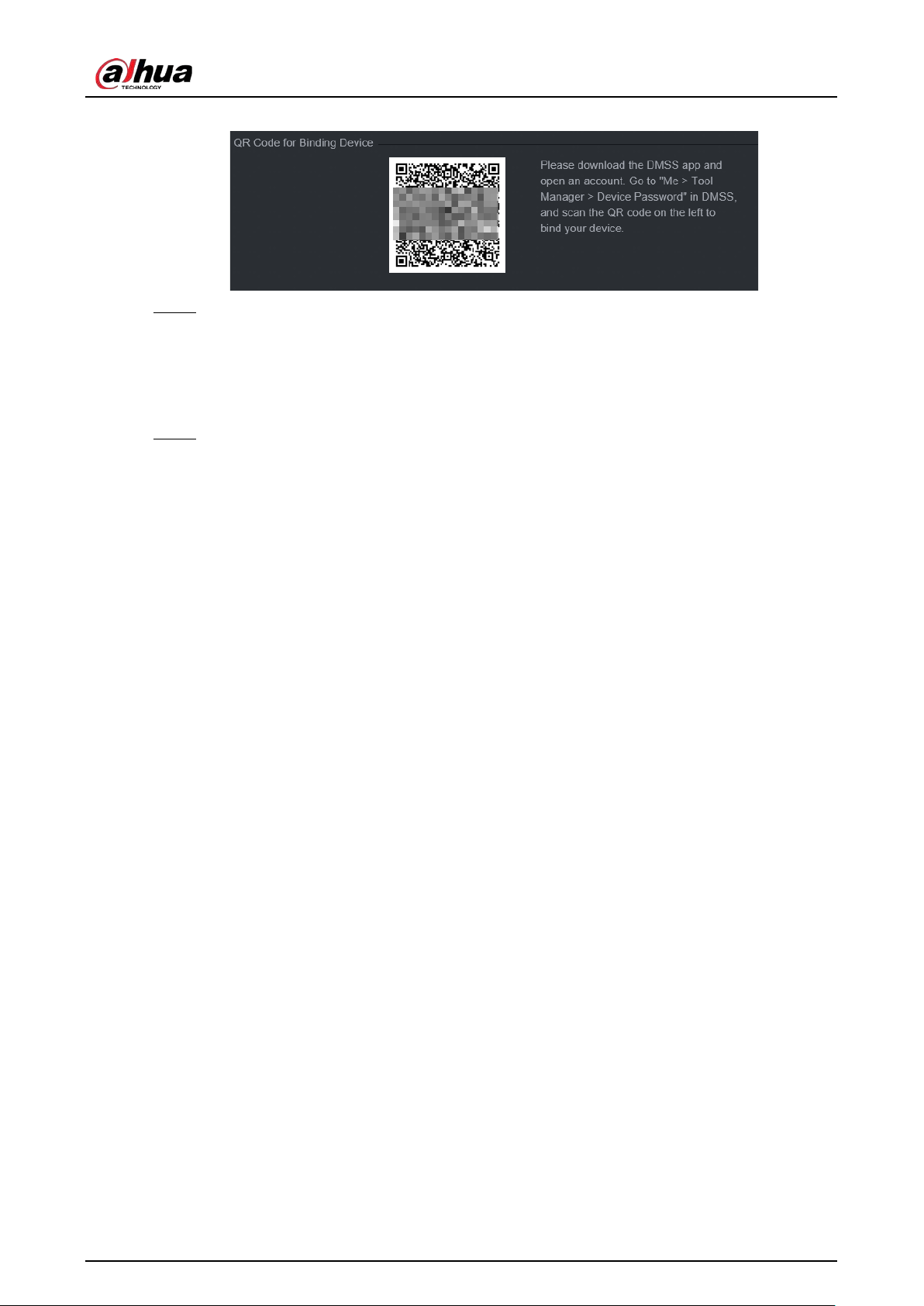
User's Manual
316
Figure 5-229 Bind device
Step 6 Click
OK
.
5.13.3.2 Resetting Password on Local Interface
Procedure
Step 1 Right-click the live page and then select any item on the shortcut menu.
●
If you have configured unlock pattern, the unlock pattern login window is displayed.
Click
Forgot Pattern
to switch to password login.
●
If you did not configure unlock pattern, the password login window is displayed.
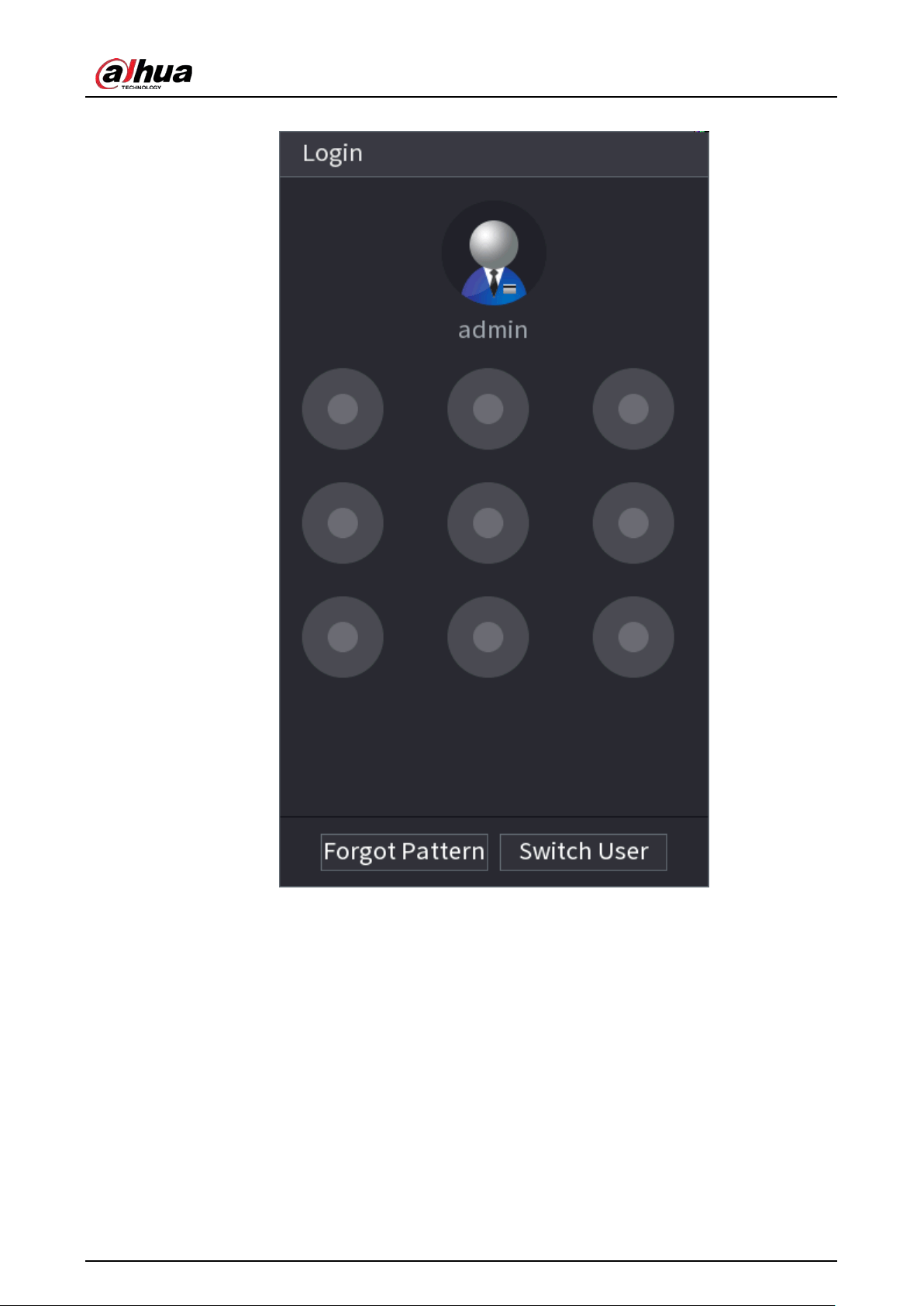
User's Manual
317
Figure 5-230 Pattern login
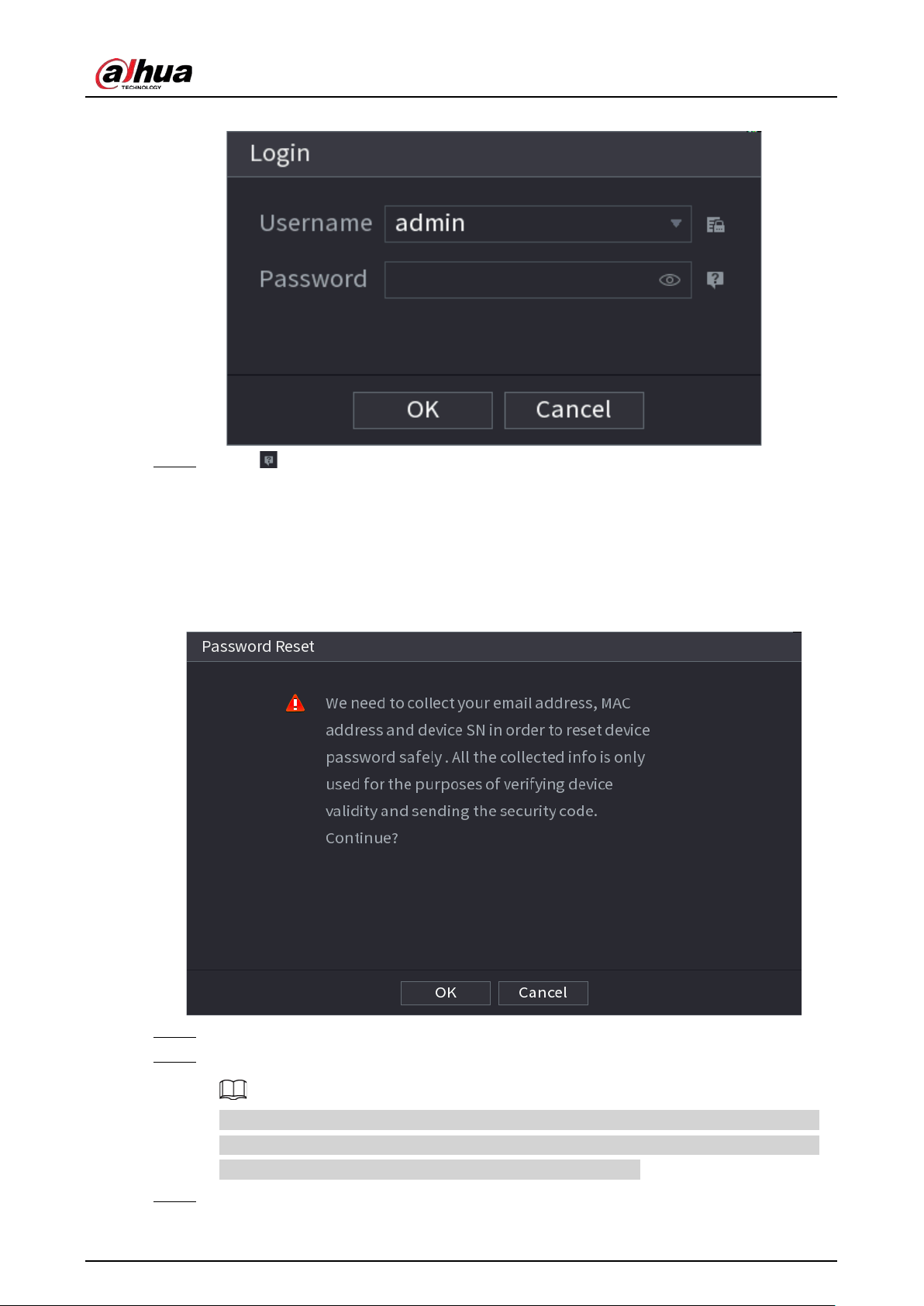
User's Manual
318
Figure 5-231 Password login
Step 2 Click .
●
If you have set the linked email address, the system will notify you of data collection
required for resetting password. Click
OK
.
●
If you did not set the linked email address, the system prompts you to enter an email
address. Enter the email address and then click
Next
. Then the system will notify you of
data collection required for resetting password.
Figure 5-232 Notification on data colleciton
Step 3 Read the prompt and then click
OK
.
Step 4 Click
Next
.
After clicking
Next
, the system will collect your information for password reset, purpose
and the information includes but not limited to email address, MAC address, and device
serial number. Read the prompt carefully before clicking
Next
.
Step 5 Reset the password.
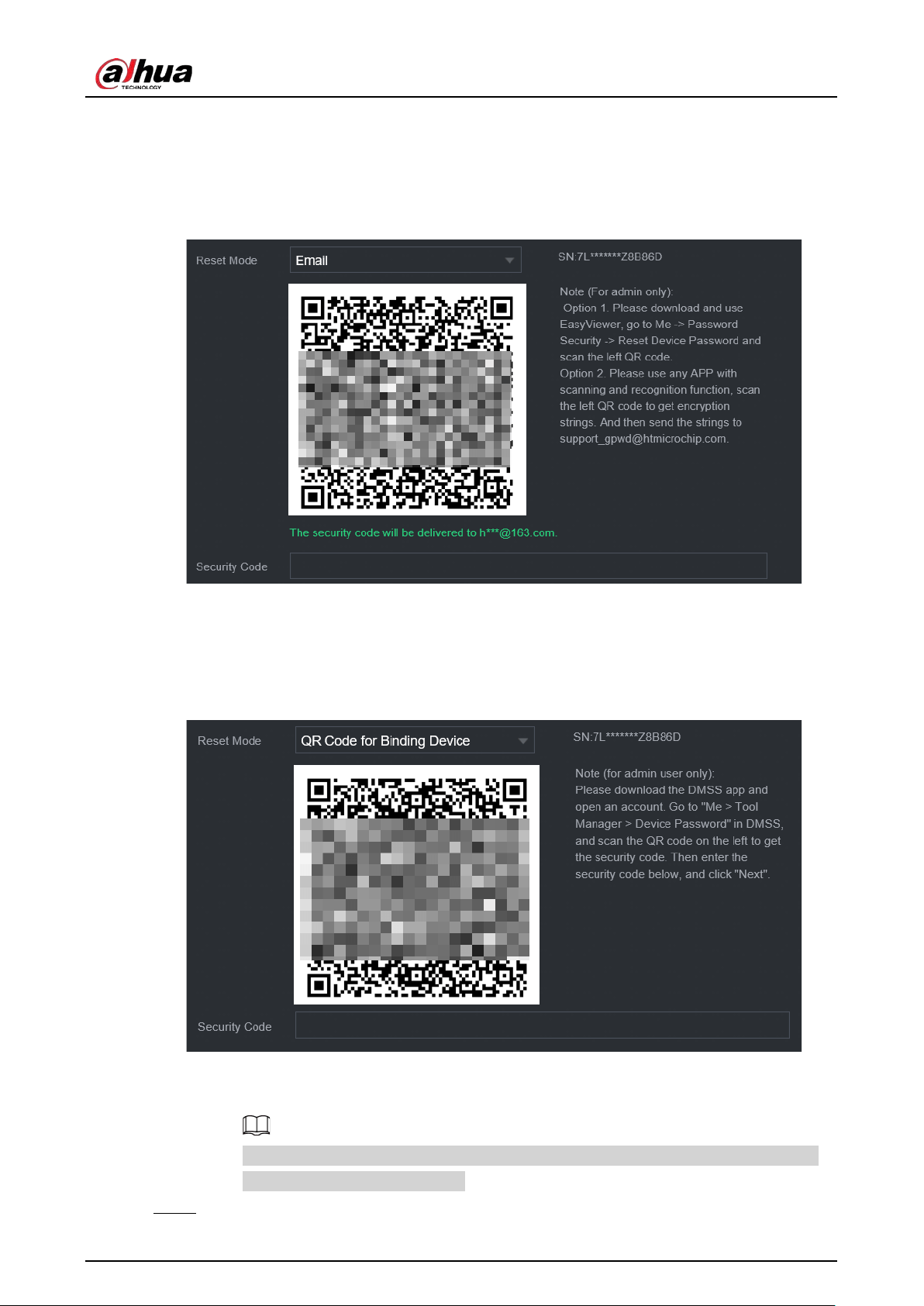
User's Manual
319
●
Email.
Select
Email
as the reset mode, and then follow the on-screen instructions to get the
security code in your linked email address. After that, enter the security code in the
Security Code
box.
Figure 5-233 Reset mode (email)
●
App.
Select
QR Code for Binding Device
as the reset mode, and then follow the on-screen
instructions to get the security code on the DMSS app. After that, enter the security
code in the
Security Code
box.
Figure 5-234 Reset mode (app)
●
Security question
Select
Security Question
as reset mode and then answer the security questions.
If you did not configure the security questions in advance ,
Security Question
is not
available on the
Reset Mode
list.
Step 6 Click
Next
.
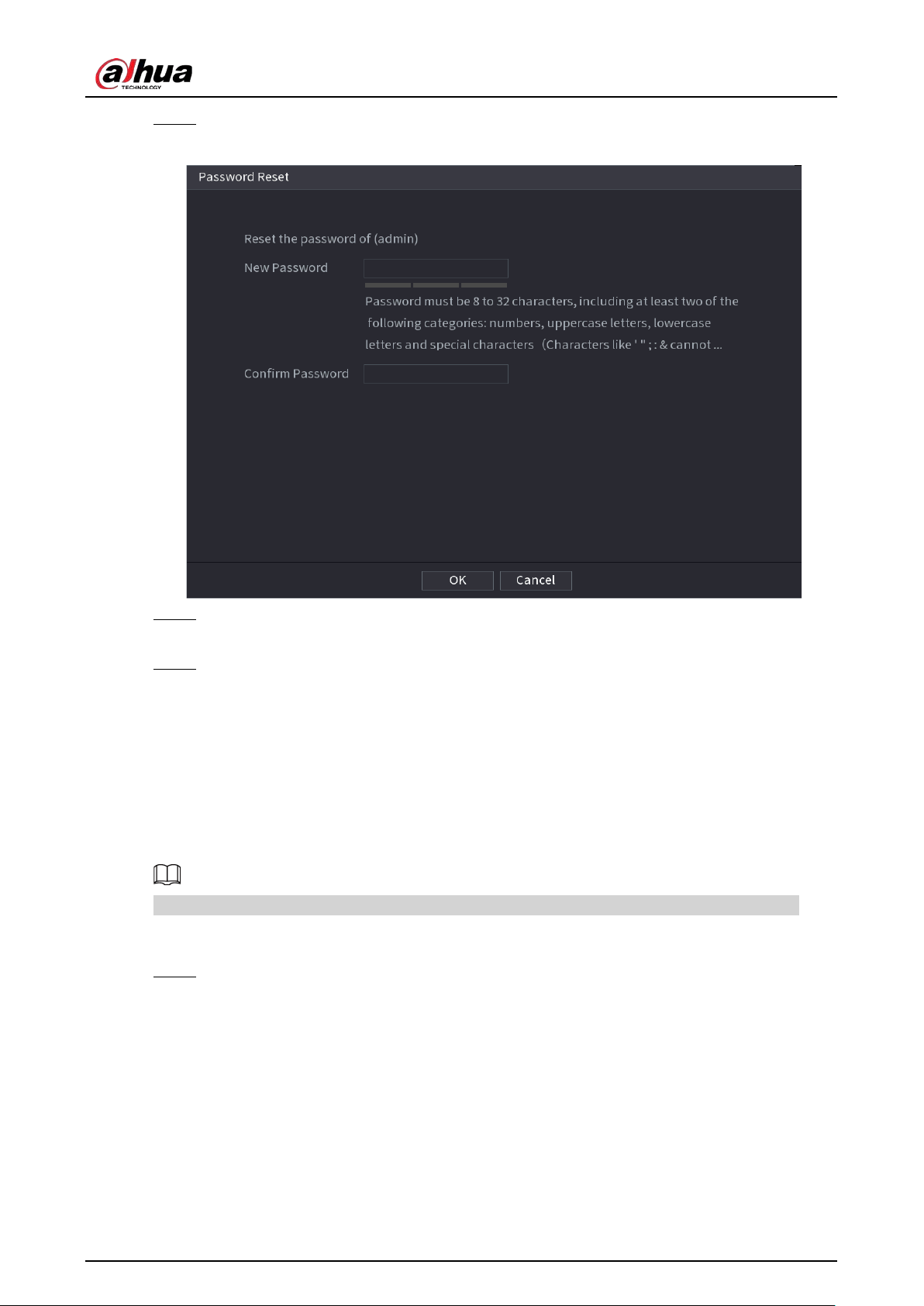
User's Manual
320
Step 7 Enter the new password and then enter the password again to confirm it.
Figure 5-235 Enter new password
Step 8 Click
OK
.
The password is reset.
Step 9 (Optional) When the system prompts whether to synchronize the password with the
remote devices accessed through the private protocol, click
OK
to synchronize the
password.
5.13.4 ONVIF User
To connect the camera from the third party to the NVR via the ONVIF protocol, you need to use a
verified ONVIF account.
The default ONVIF user is
admin
. It is created after you initialize the NVR and cannot be deleted.
Procedure
Step 1 Select
Main Menu
>
ACCOUNT
>
ONVIF User
.
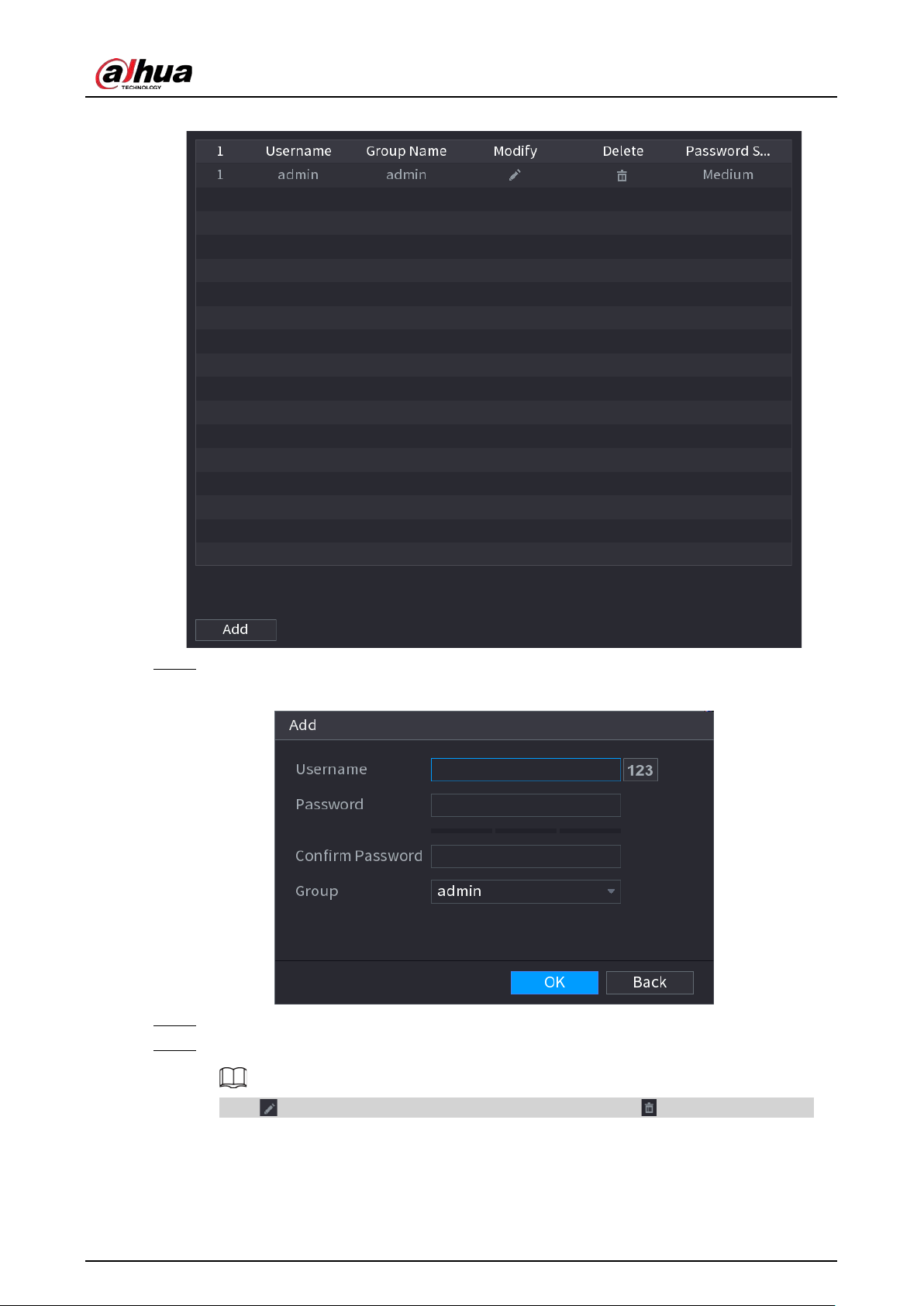
User's Manual
321
Figure 5-236 ONVIF user
Step 2 Click
Add
.
Figure 5-237 Add ONVIF user
Step 3 Configure username, password and user group.
Step 4 Click
OK
.
Click to modify the corresponding user information, click to delete current user.
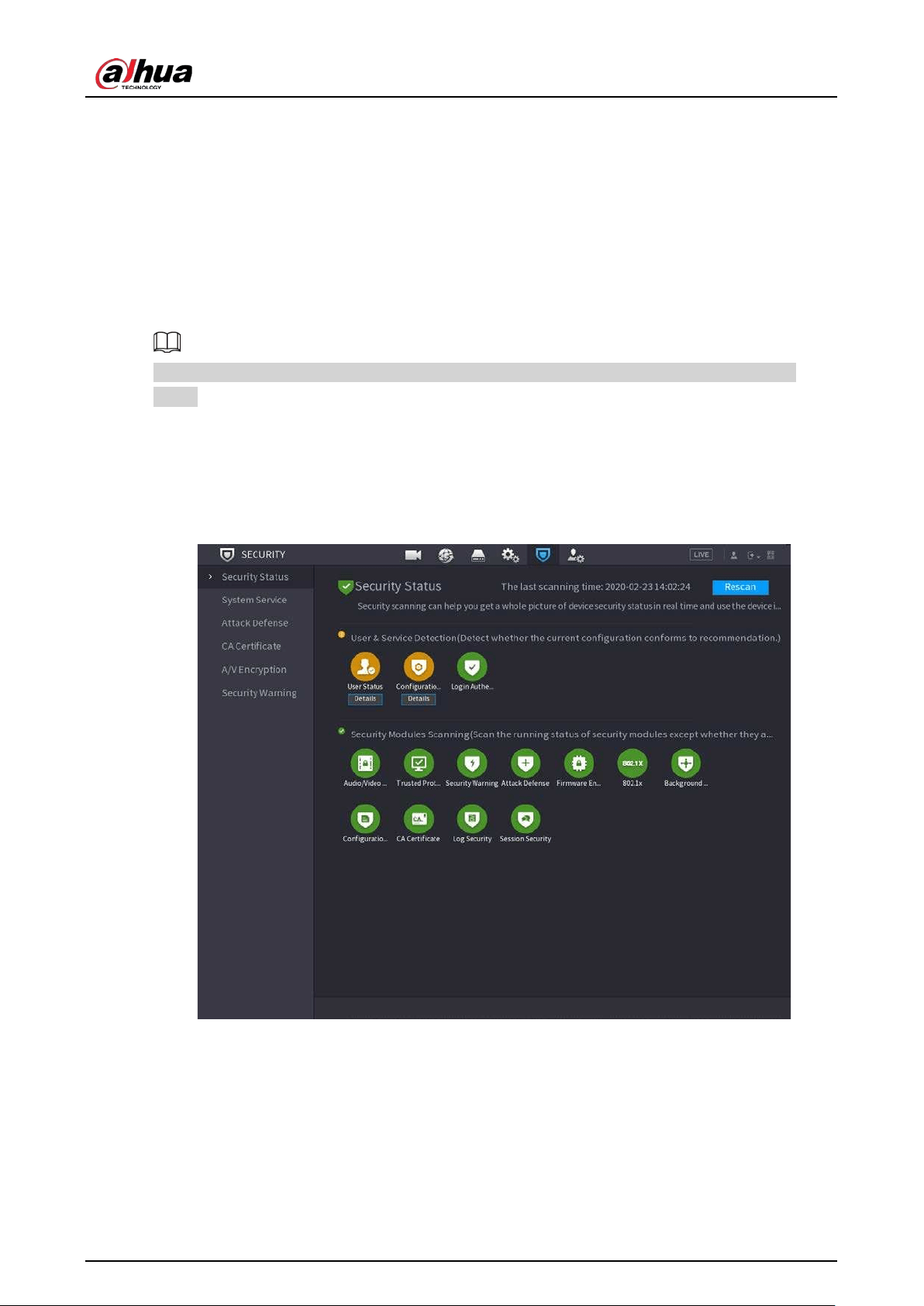
User's Manual
322
5.14 Security
5.14.1 Security Status
Security scanning helps get a whole picture of device security status. You can scan user, service and
security module status for detailed information on the security status of the device.
Detecting User and Service
Green icon represents a healthy status of the scanned item, and orange icon represents a risky
status.
●
Login authentication: When there’s a risk in the device configuration, the icon will be in orange to
warn risk. You can click
Details
to see the detailed risk description.
●
User Status: When one of device users or ONVIF users uses weak password, the icon will be in
orange to warn risk. You can click
Details
to optimize or ignore the risk warning.
Figure 5-238 Security status
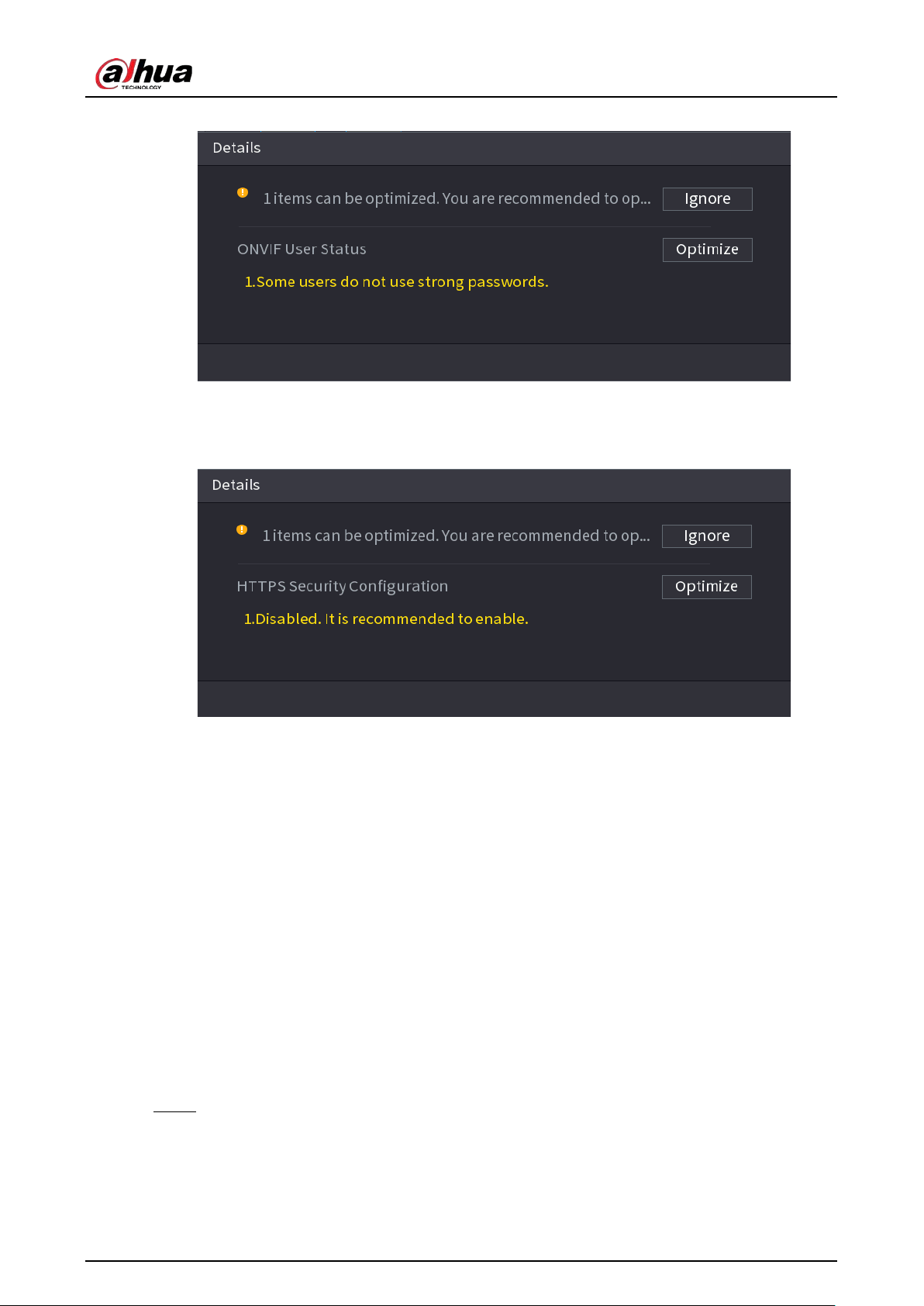
User's Manual
323
Figure 5-239 Details (1)
●
Configuration Security: When there’s a risk in the device configuration, the icon will be in orange
to warn risk. You can click
Details
to see the detailed risk description.
Figure 5-240 Details (2)
Scanning Security Modules
This area shows the running status of security modules. For details about the security modules, point
to the icon to see the on-screen instructions.
Re-scanning Security Status
You can click
Rescan
to scan security status.
5.14.2 System Service
You can set NVR basic information such as basic services, 802.1x and HTTPS.
5.14.2.1 Basic Services
Procedure
Step 1 Select
Main Menu
>
SECURITY
>
System Service
>
Basic Services
.
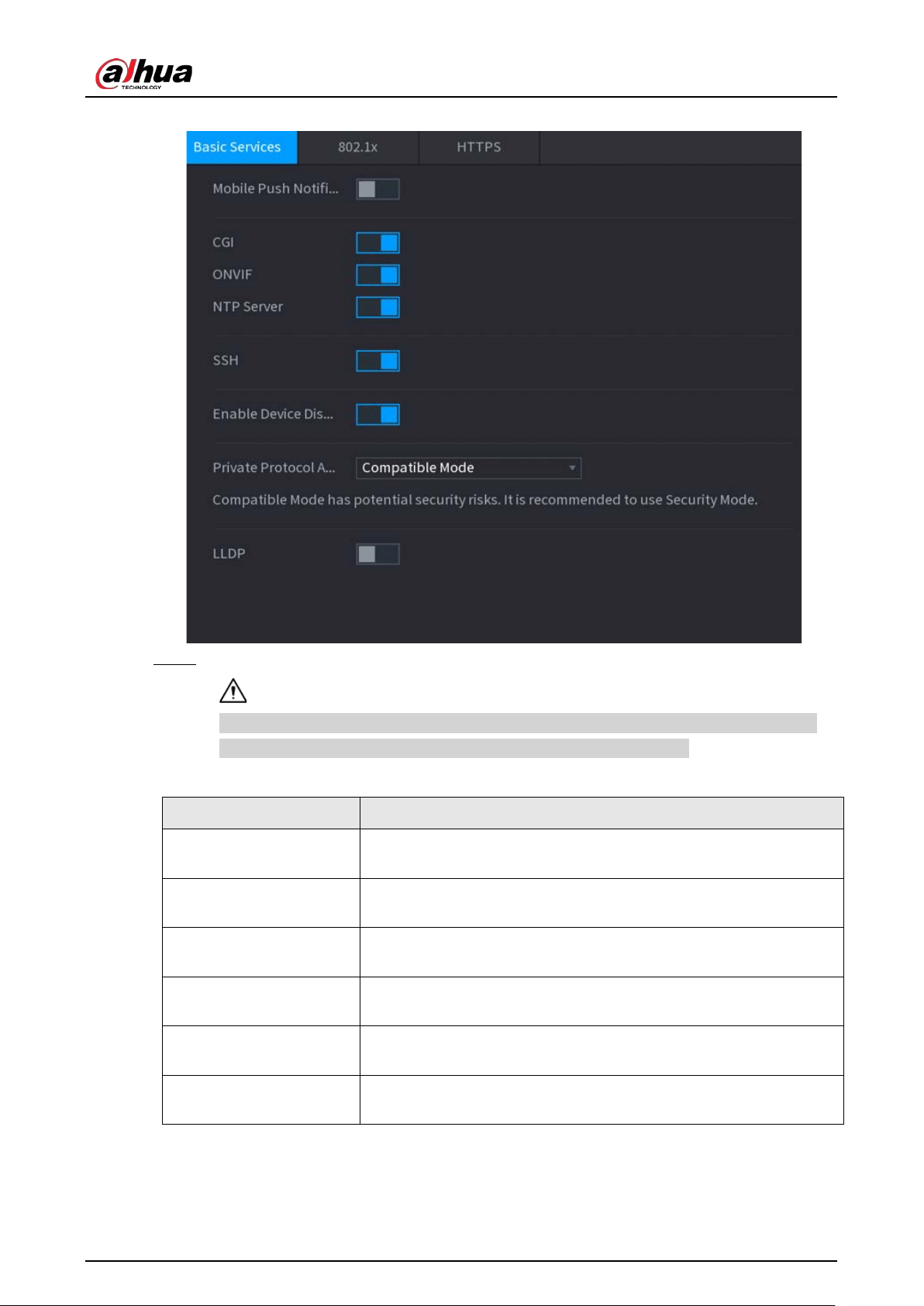
User's Manual
324
Figure 5-241 Basic services
Step 2 Enable the system services.
There might be safety risk when
Mobile Push Notifications
,
CGI
,
ONVIF
,
SSH
and
NTP
Server
is enabled. Disable these functions when they are not needed.
Table 5-70 Basic service parameters
Parameter Description
Mobile Push Notifications
After enabling this function, the alarm triggered by the NVR can be
pushed to a mobile phone. This function is enabled by default.
CGI
If this function is enabled, the remote devices can be added through
the CGI protocol. This function is enabled by default.
ONVIF
If this function is enabled, the remote devices can be added through
the ONVIF protocol. This function is enabled by default.
NTP Server
After enabling this function, a NTP server can be used for time
synchronization. This function is enabled by default.
SSH
After enabling this function, you can use SSH service. This function is
disabled by default.
Enable Device Discovery
After enabling this function, the NVR can be found by other devices
through searching.
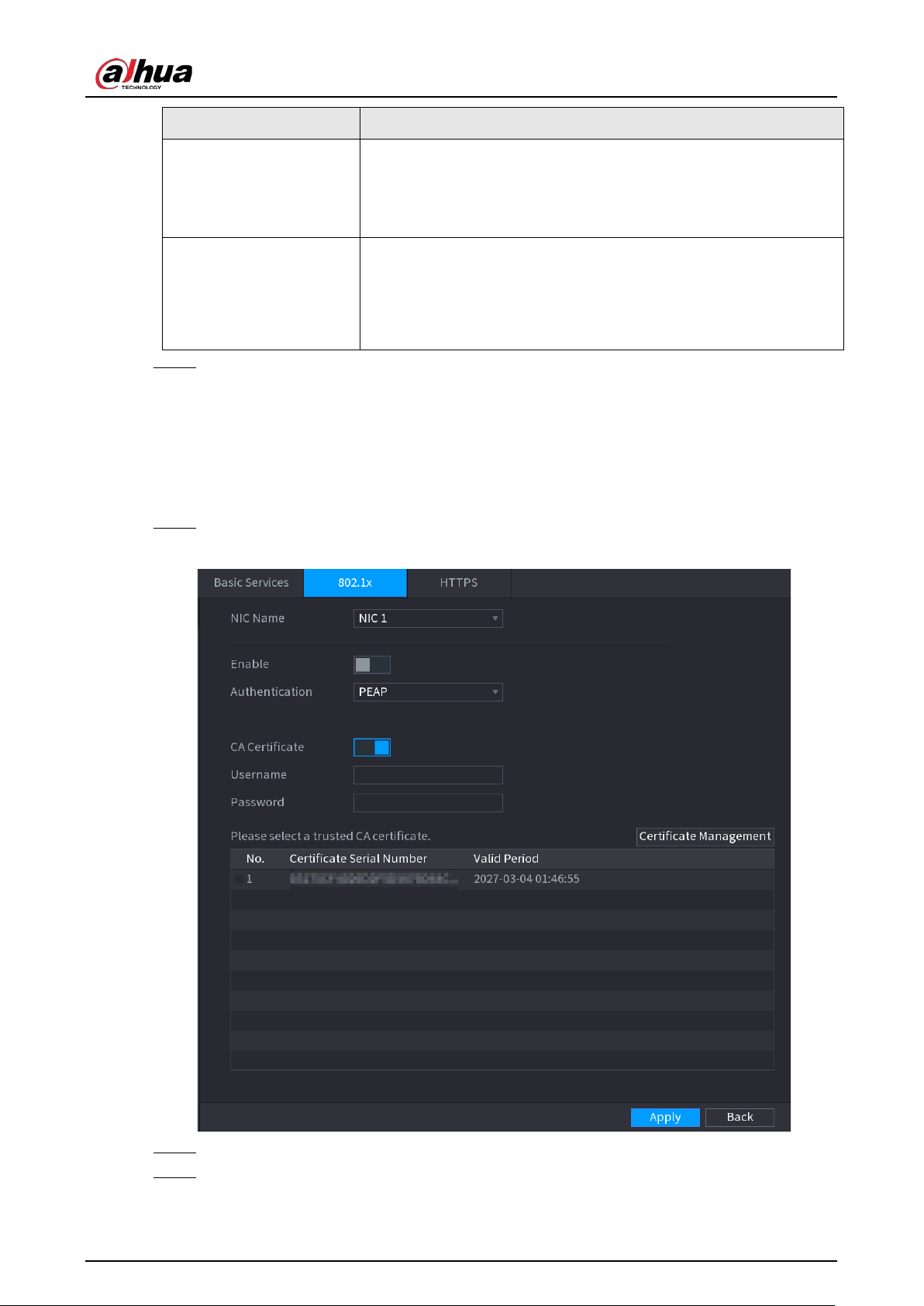
User's Manual
325
Parameter Description
Private Protocol
Authentication Mode
●
Security Mode (Recommended): Uses Digest access
authentication when connecting to NVR.
●
Compatible Mode: Select this mode when the client does not
support Digest access authentication.
LLDP
Enable the LLDP service.
The Link Layer Discovery Protocol (LLDP) allows two different
devices to collect hardware and protocol information about
neighboring devices, which is useful in troubleshooting the
network.
Step 3 Click
Apply
.
5.14.2.2 802.1x
The Device needs to pass 802.1x certification to enter the LAN.
Procedure
Step 1 Select
Main Menu
>
SECURITY
>
System Service
>
802.1x
.
Figure 5-242 802.1x
Step 2 Select the Ethernet card you want to certify.
Step 3 Select
Enable
and configure parameters.
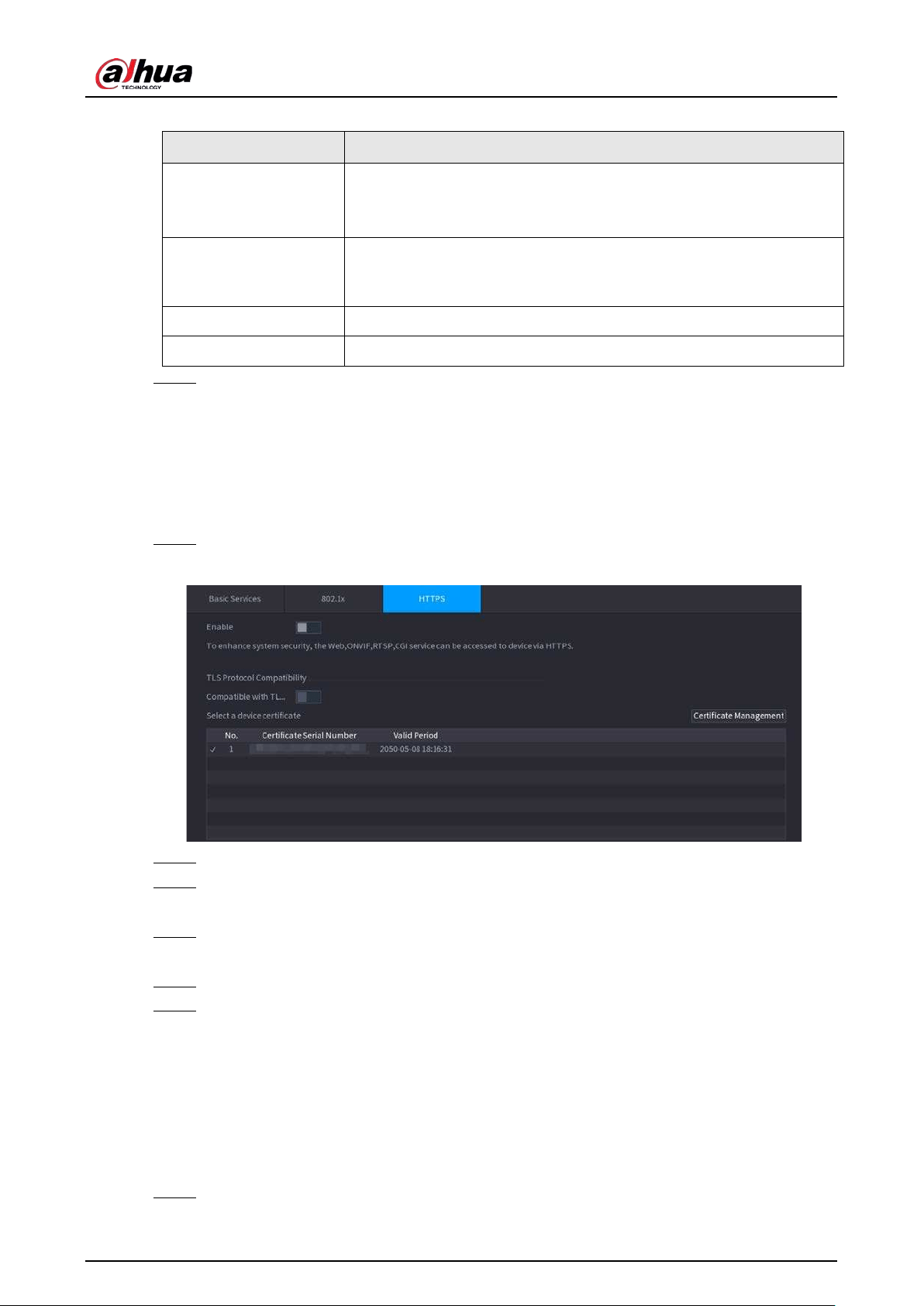
User's Manual
326
Table 5-71 802.1x parameters
Parameter Description
Authentication
●
PEAP: protected EAP protocol.
●
TLS: Transport Layer Security. Provide privacy and data integrity
between two communications application programs.
CA Certificate
Enable it and click
Browse
to import CA certificate from flash drive. For
details about importing and creating a certificate, see "5.14.4 CA
Certificate".
Username The username shall be authorized at server.
Password Password of the corresponding username.
Step 4 Click
Apply
.
5.14.2.3 HTTPS
We recommend you enable HTTPS function to enhance system security.
Procedure
Step 1 Select
Main Menu
>
SECURITY
>
System Service
>
HTTPS
.
Figure 5-243 HTTPS
Step 2 Enable HTTPS function.
Step 3 (Optional) Enable
Compatible with TLSv1.1 and earlier versions
to allow protocol
compatibility.
Step 4 Click
Certificate Management
to create or import a HTTPS certificate from USB drive. For
details about importing or creating a CA certificate, see "5.14.4 CA Certificate".
Step 5 Select a HTTPS certificate.
Step 6 Click
Apply
.
5.14.3 Attack Defense
5.14.3.1 Firewall
You can configure the hosts that are allowed or prohibited to access the Device.
Step 1 Select
Main Menu
>
SECURITY
>
Attack Defense
>
Firewall
.
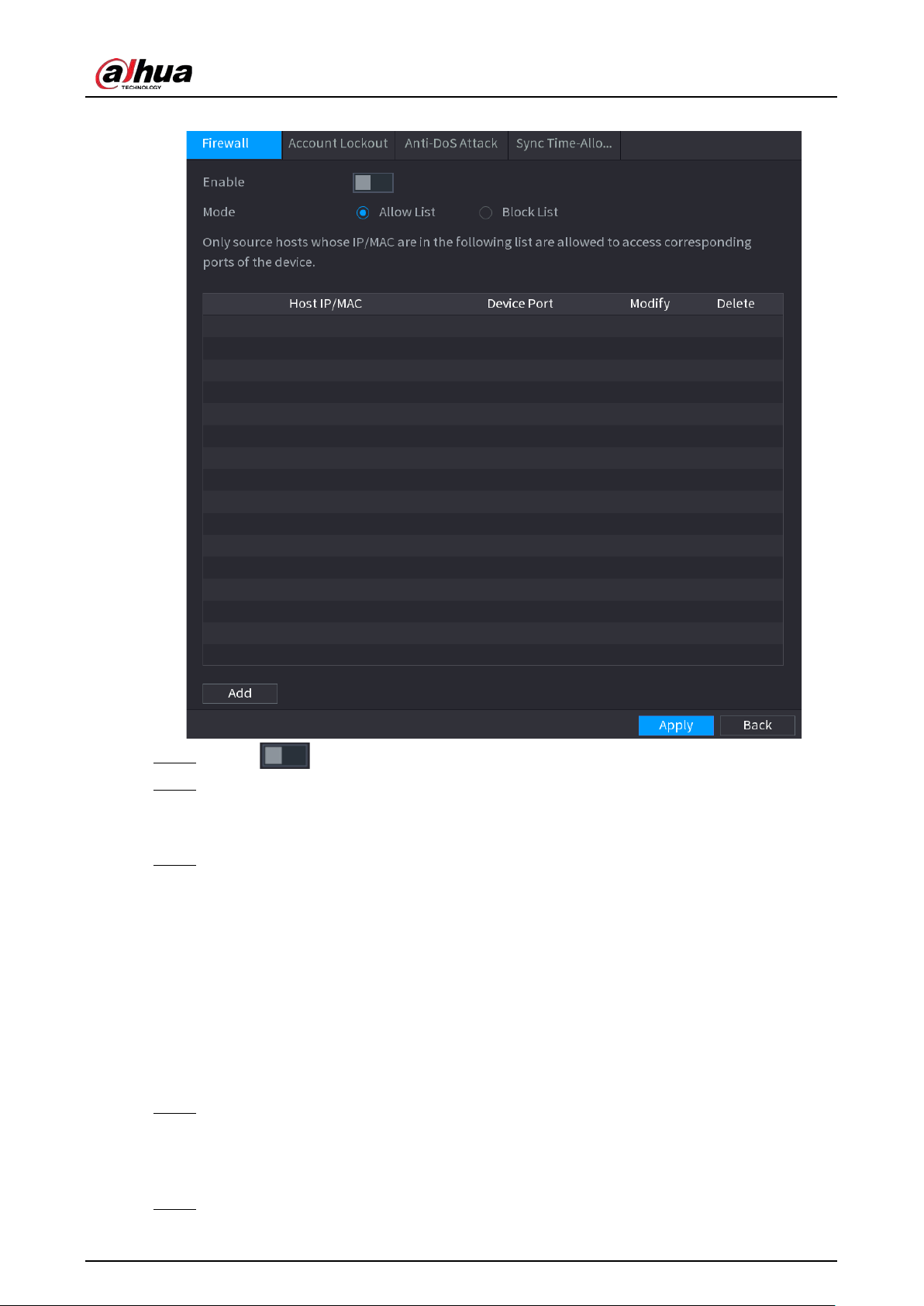
User's Manual
327
Figure 5-244 Firewall
Step 2 Click to enable the firewall.
Step 3 Select a firewall mode.
●
Allow List
: The hosts on the allowlist can access the Device.
●
Block List
: The hosts on the blocklist are prohibited to access the Device.
Step 4 Click
Add
and then select a type for the allowlist or blocklist.
You can allow or prohibit hosts through a specific IP address, a network segment, or a MAC
address.
●
IP address.
Enter the IP address, start port and end port, and then click
OK
.
●
IP segment.
Enter the start address and end address, starting port and ending port, and then click
OK
.
●
MAC address.
Enter the MAC address, and then click
OK
.
Step 5 Click
Apply
.
5.14.3.2 Account Lockout
Step 1 Select
Main Menu
>
SECURITY
>
Attack Defense
>
Account Lockout
.
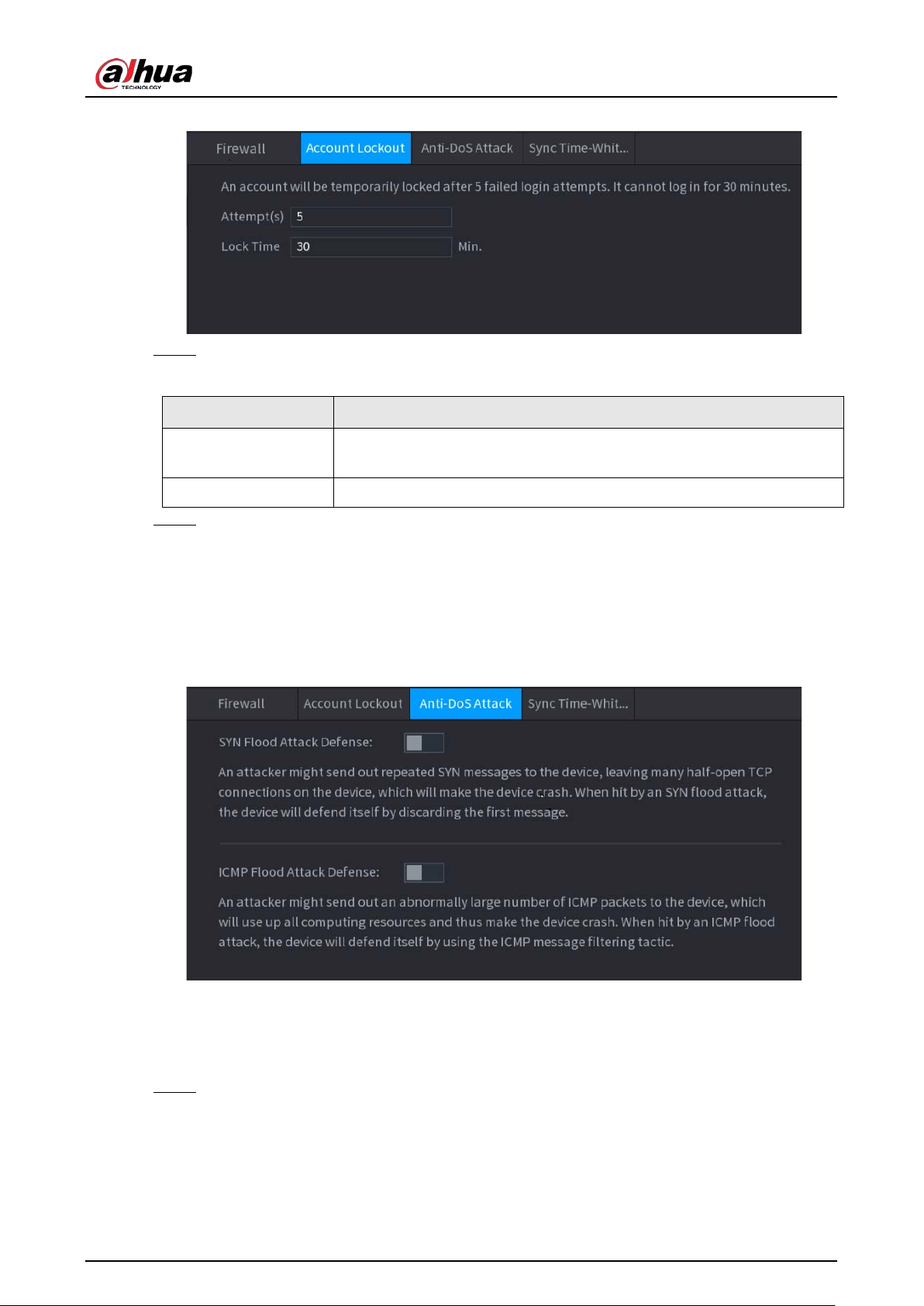
User's Manual
328
Figure 5-245 Account lockout
Step 2 Set parameters.
Table 5-72 Account lockout parameters
Parameter Description
Attempt(s)
Set the maximum number of allowable wrong password entries. The
account will be locked after your entries exceed the maximum number.
Lock Time Set how long the account is locked for.
Step 3 Click
Apply
.
5.14.3.3 Anti-DoS Attack
You can enable
SYN Flood Attack Defense
and
ICMP Flood Attack Defense
to defend the Device
against Dos attack.
Figure 5-246 Anti-Dos Attack
5.14.3.4 Sync Time-Allowlist
You can configure which hosts are allowed to synchronize time with the Device.
Step 1 Select
Main Menu
>
SECURITY
>
Attack Defense
>
Sync Time-Allowlist
.
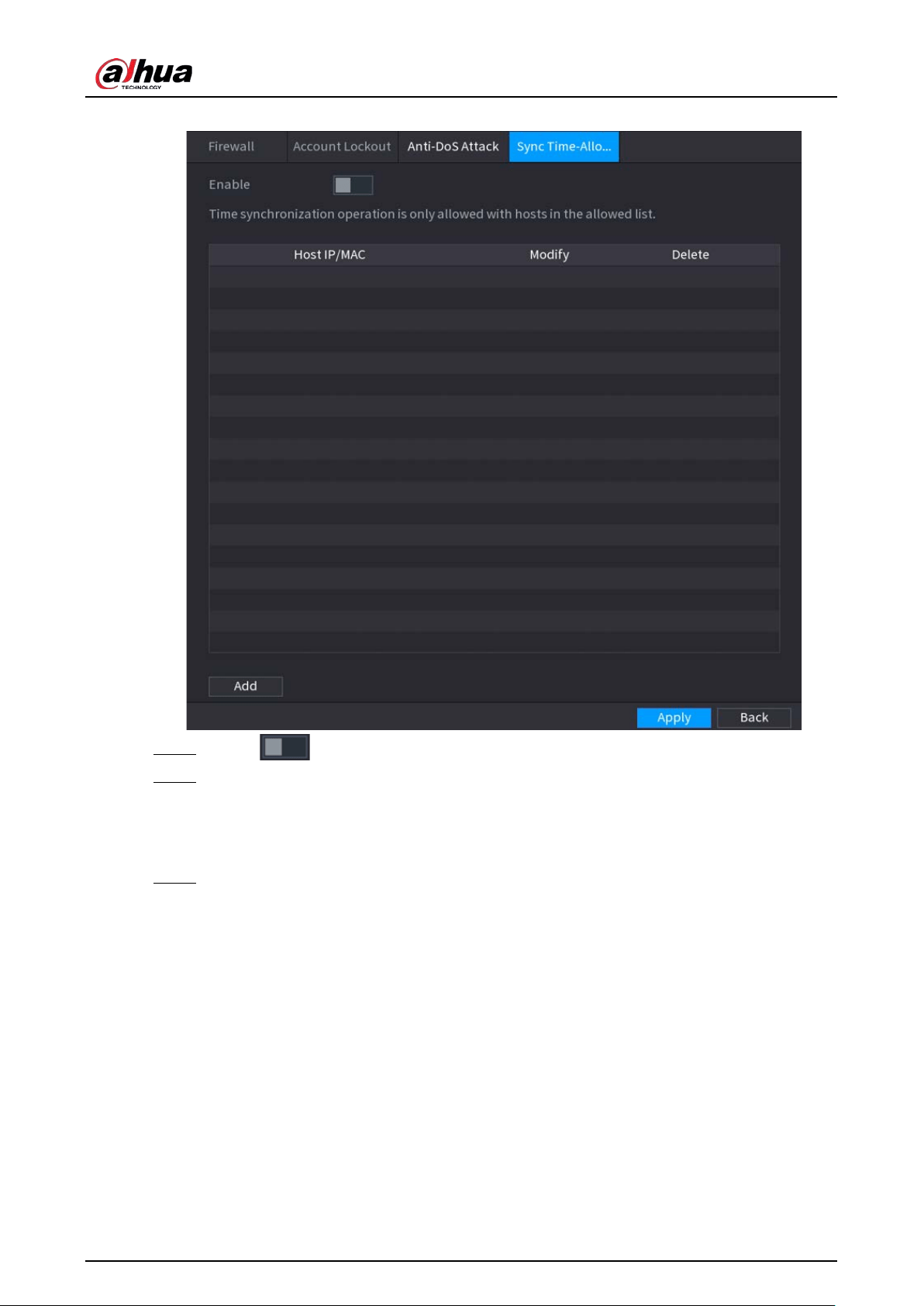
User's Manual
329
Figure 5-247 Sync Time-Allowlist
Step 2 Click to enable the function.
Step 3 Click
Add
to add trusted hosts for time synchronization.
●
If you set
Type
to
IP Address
, enter the IP address, and then click
OK
.
●
If you set
Type
to
IP Segment
, enter the start address and end address, and then click
OK
.
Step 4 Click
Apply
.
5.14.4 CA Certificate
5.14.4.1 Device Certificate
Create Certificate
1. Select
Main Menu
>
SECURITY
>
CA Certificate
>
Device Certificate
.
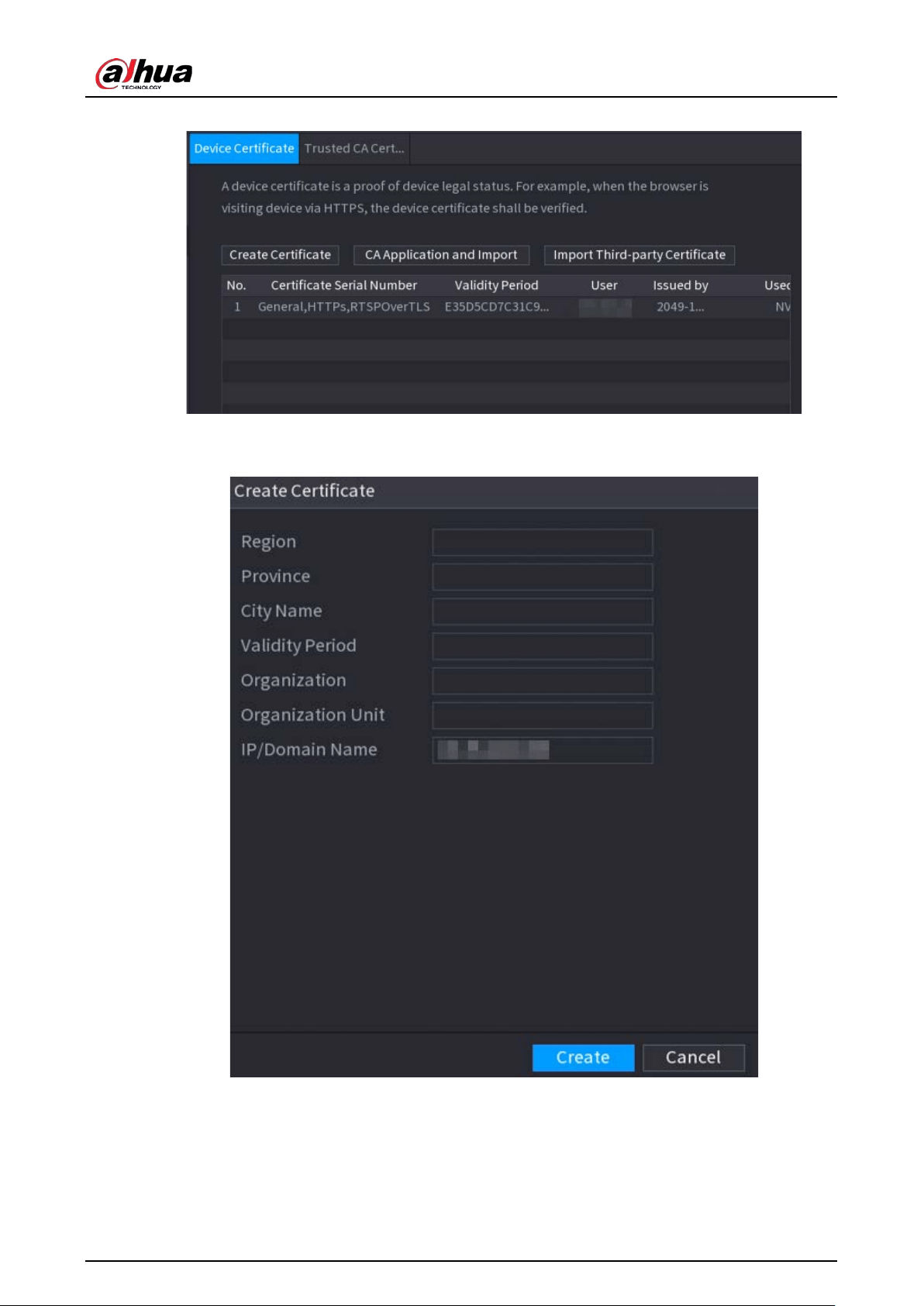
User's Manual
330
Figure 5-248 Device certificate
2. Click
Create Certificate
.
Figure 5-249 Create certificate
3. Configure the parameters.
4. Click
Create
.
CA Application and Import
Click
CA Application and Import
and then follow the on-screen instructions to finish CA application
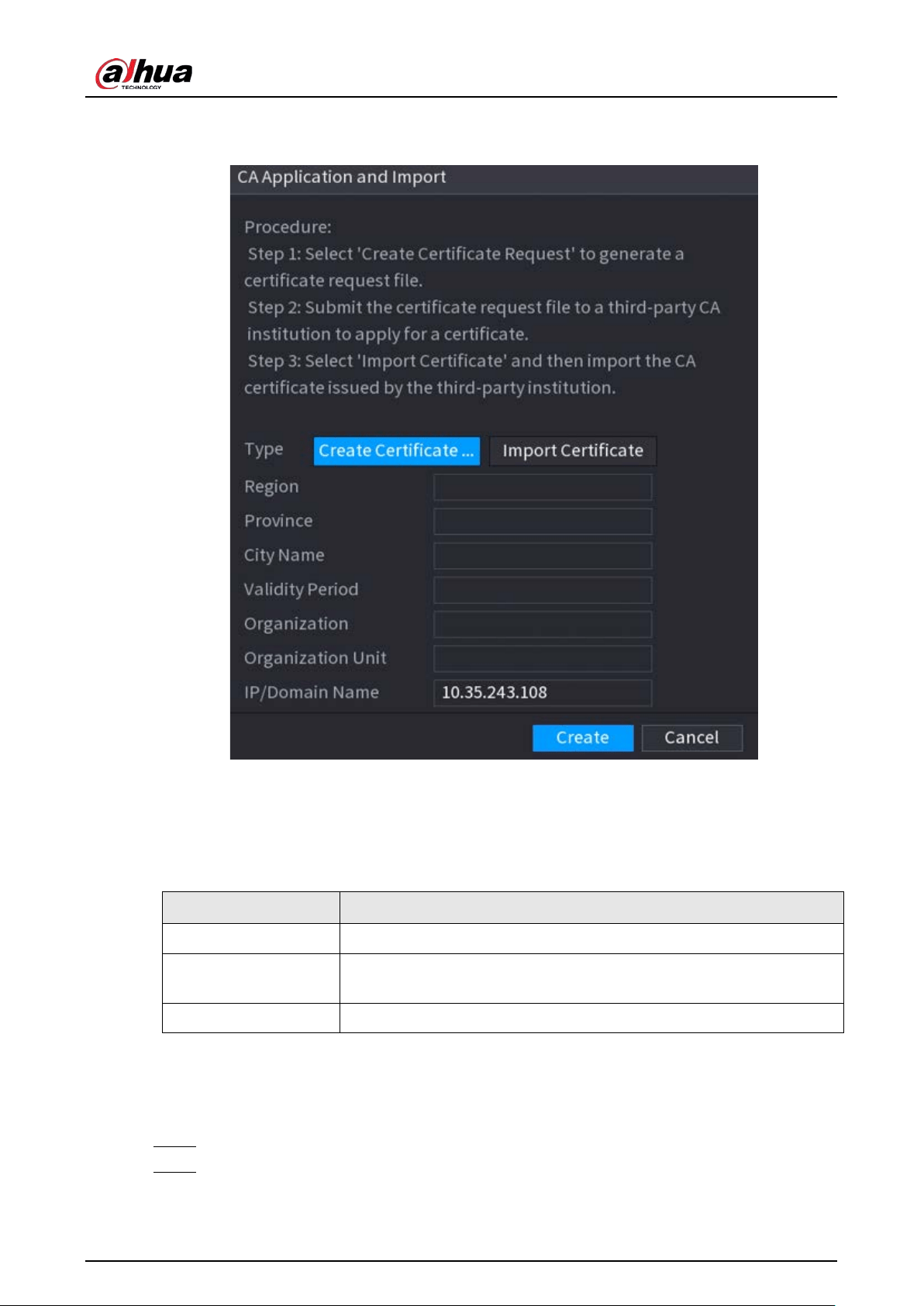
User's Manual
331
and import.
Figure 5-250 CA application and import
Import Third-Party Certificate
1. Click
Import Third-Party Certificate
2. Configure the parameters.
Table 5-73 Parameters for importing third-party certificate
Parameter Description
Path
Click
Browse
to find the third-party certificate path on the USB drive.
Private Key
Click
Browse
to find the third-party certificate private key on the USB
drive.
Private Key Password Input the private key password.
3. Click
Create
.
5.14.4.2 Trusted CA Certificate
Step 1 Select
Main Menu
>
SECURITY
>
CA Certificate
>
Trusted CA Certificate
.
Step 2 Click
Install Trusted Certificate
.
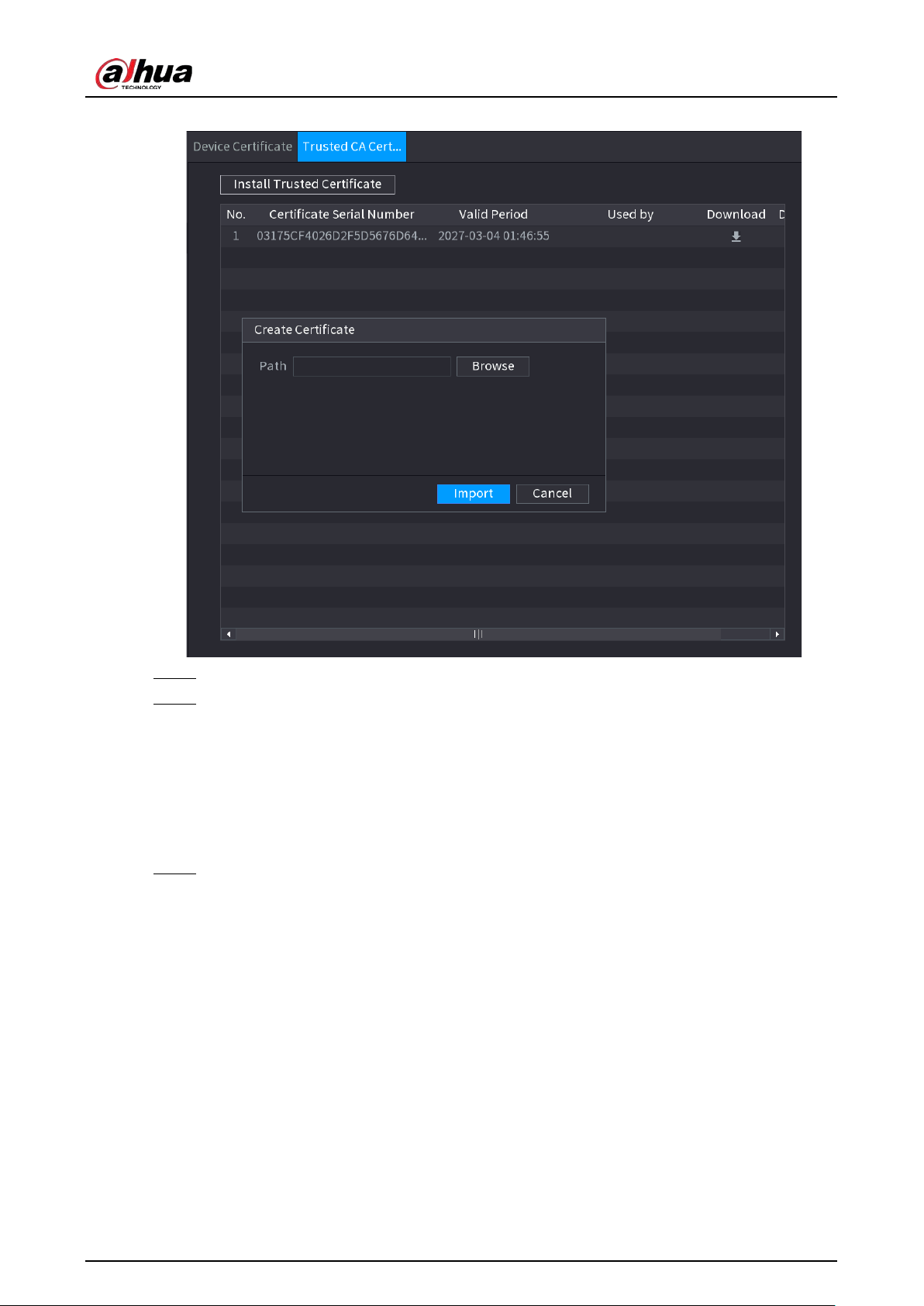
User's Manual
332
Figure 5-251 Create certificate
Step 3 Click
Browse
to select the certificate that you want to install.
Step 4 Click
Import
.
5.14.5 Audio/Video Encryption
The Device supports audio and video encryption during data transmission.
Procedure
Step 1 Select
Main Menu
>
SECURITY
>
AUDIO/VIDEO ENCRYPTION
>
Audio/Video
Transmission
.
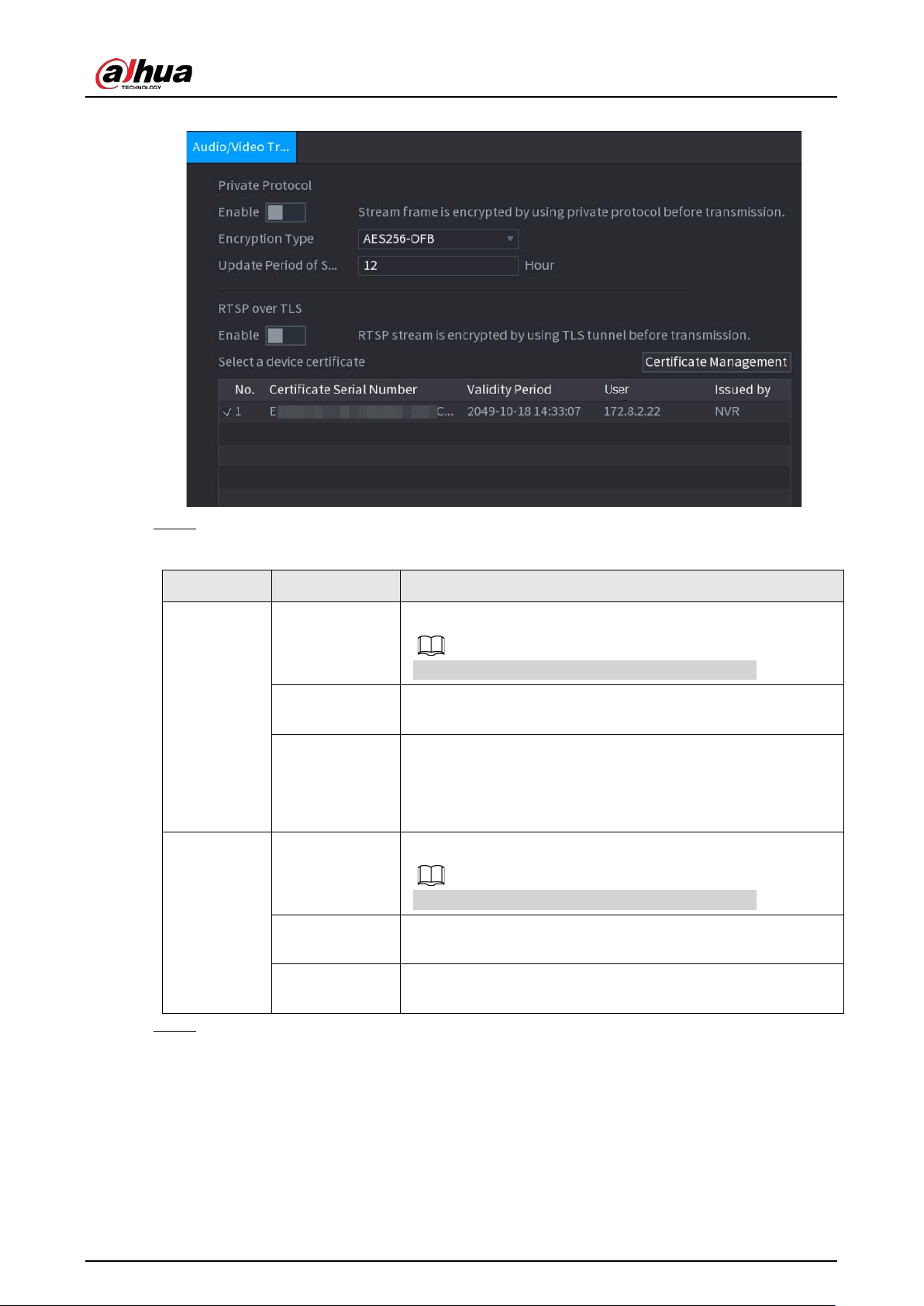
User's Manual
333
Figure 5-252 Audio and video transmission
Step 2 Configure parameters.
Table 5-74 Audio and video transmission parameters
Area Parameter Description
Private
Protocol
Enable
Enables stream frame encryption by using private protocol.
There might be safety risk if this service is disabled.
Encryption
Type
Use the default setting.
Update Period
of Secret Key
Secret key update period.
Value range: 0–720 hours. 0 means never update the secret
key.
Default value: 12.
RTSP over
TLS
Enable
Enables RTSP stream encryption by using TLS.
There might be safety risk if this service is disabled.
Select a device
certificate
Select a device certificate for RTSP over TLS.
Certificate
Management
For details about certificate management, see "5.14.4.1 Device
Certificate".
Step 3 Click
Apply
.
5.14.6 Security Warning
5.14.6.1 Security Exception
The Device gives warnings to the user when a security exception occurs.
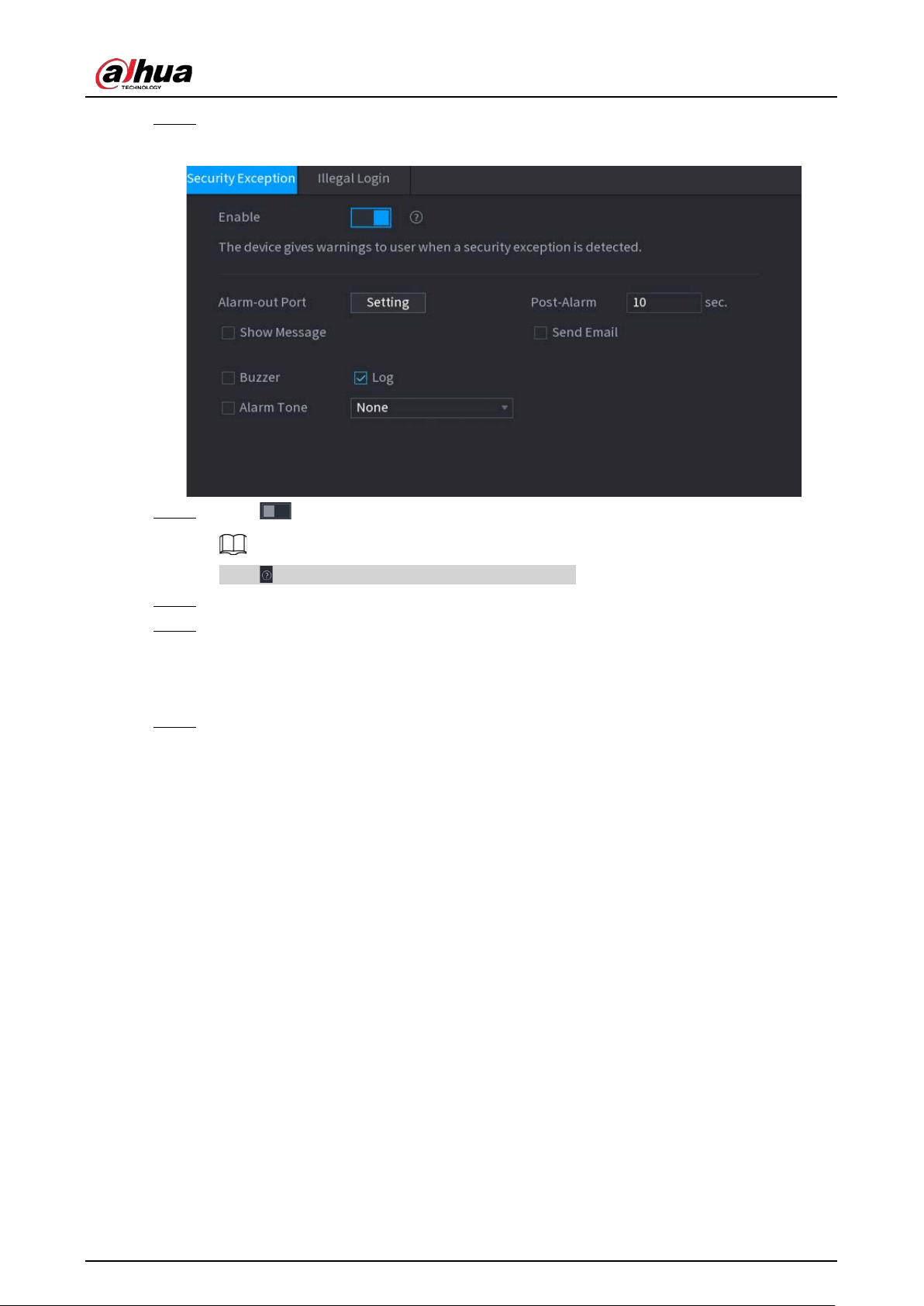
User's Manual
334
Step 1 Select
Main Menu
>
SECURITY
>
Security Warning
>
Security Exception
.
Figure 5-253 Security exception
Step 2 Click to enable the function.
Click to view the list of security exception events.
Step 3 Configure alarm linkage actions. For details, see Table 5-43.
Step 4 Click
Apply
.
5.14.6.2 Illegal Login
Step 1 Select
Main Menu
>
SECURITY
>
Security Warning
>
Illegal Login
.
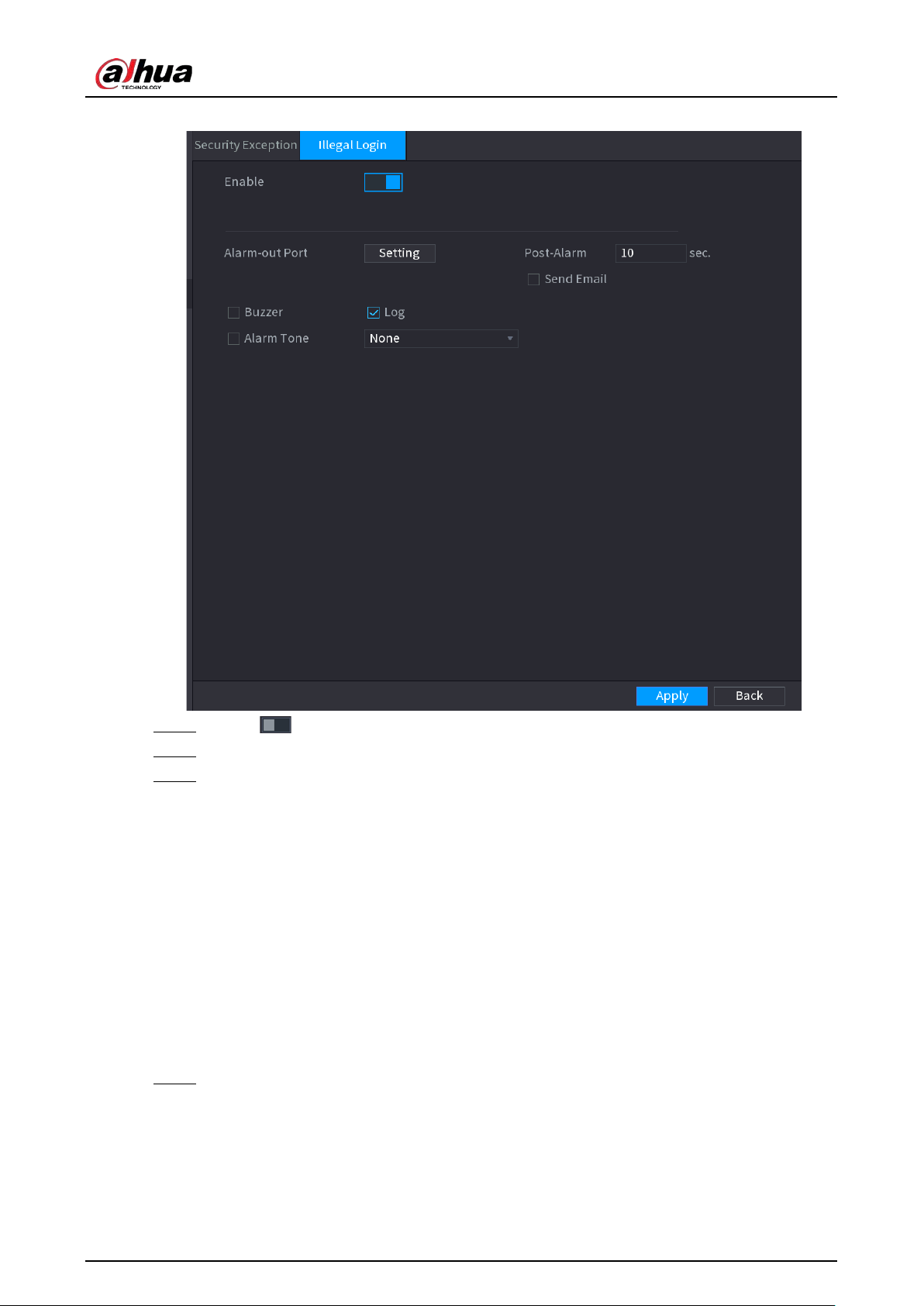
User's Manual
335
Figure 5-254 Illegal login
Step 2 Click to enable the function.
Step 3 Configure alarm linkage actions. For details, see Table 5-43.
Step 4 Click
Apply
.
5.15 System
5.15.1 General
You can set NVR basic information such as system date and holiday.
5.15.1.1 General
You can set device basic information such as device name, and serial number.
Step 1 Select
Main Menu
>
SYSTEM
>
General
>
Basic
.
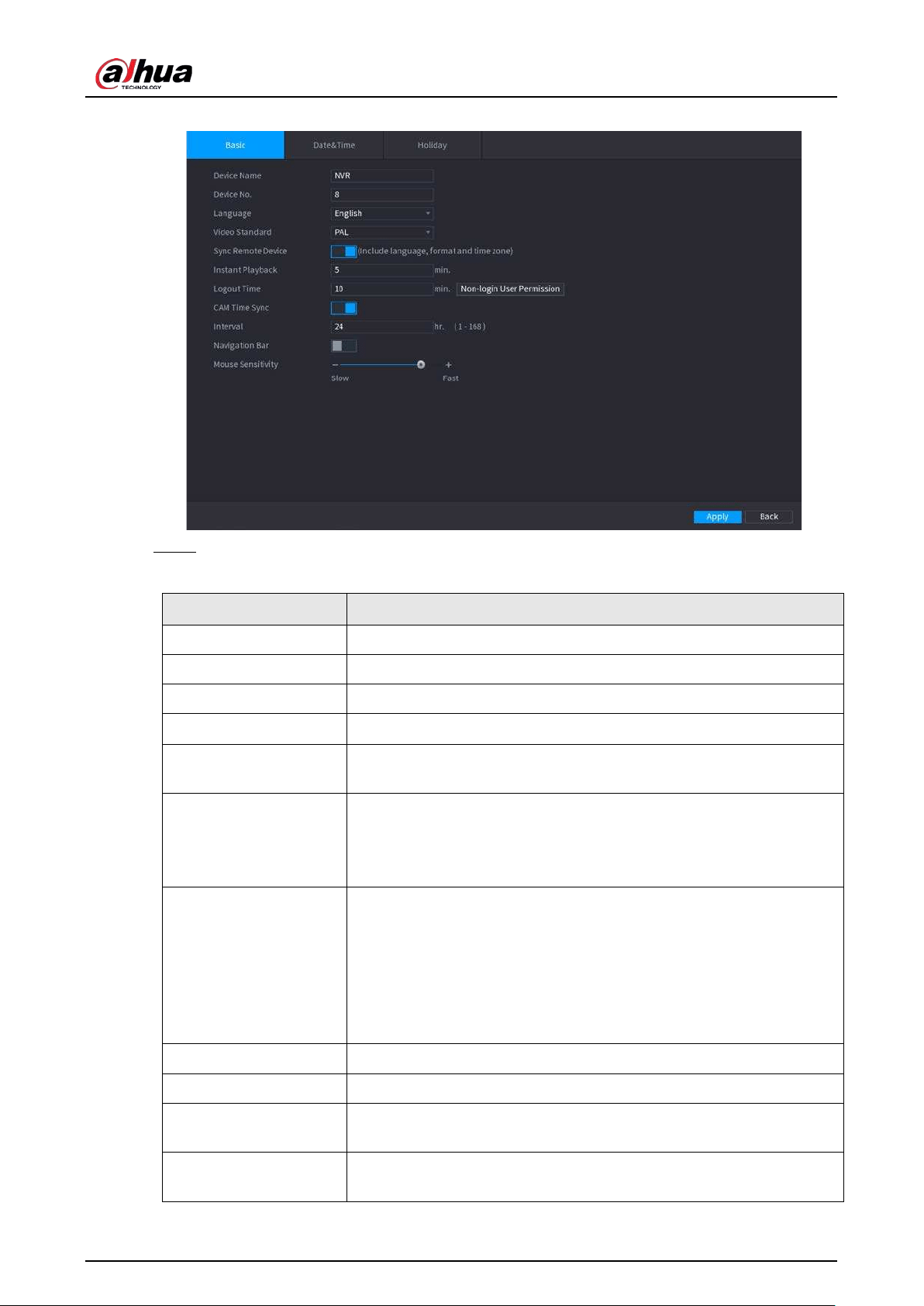
User's Manual
336
Figure 5-255 Basic settings
Step 2 Set parameters.
Table 5-75 Basic parameters
Parameter Description
Device Name Enter the Device name.
Device No. Enter a number for the Device.
Language Select a language for the Device system.
Video Standard Select
PAL
or
NTSC
as needed.
Sync Remote Device
Enable this function; the NVR can synchronize information with the
remote device such as Language, video standard and time zone.
Instant Playback
In the
Instant Play
box, enter the time length for playing back the
recorded video. The value ranges from 5 to 60.
On the live view control bar, click the instant playback button to play
back the recorded video within the configured time.
Logout Time
Enter the standby time for the Device. The Device automatically logs
out when it is not working in the configured period. You need to login
the Device again.
The value ranges from 0 to 60. 0 indicates there is not standby time for
the Device.
Click
Monitor Channel(s) when logout
. You can select the channels
that you want to continue monitoring when you logged out.
CAM Time Sync Syncs the Device time with IP camera.
Interval Enter the interval for time sync.
Logout Time
You can set auto logout interval once login user remains inactive for a
specified time. Value ranges from 0 to 60 minutes.
Navigation Bar
Enable the navigation bar. When you click on the live view screen, the
navigation bar is displayed.
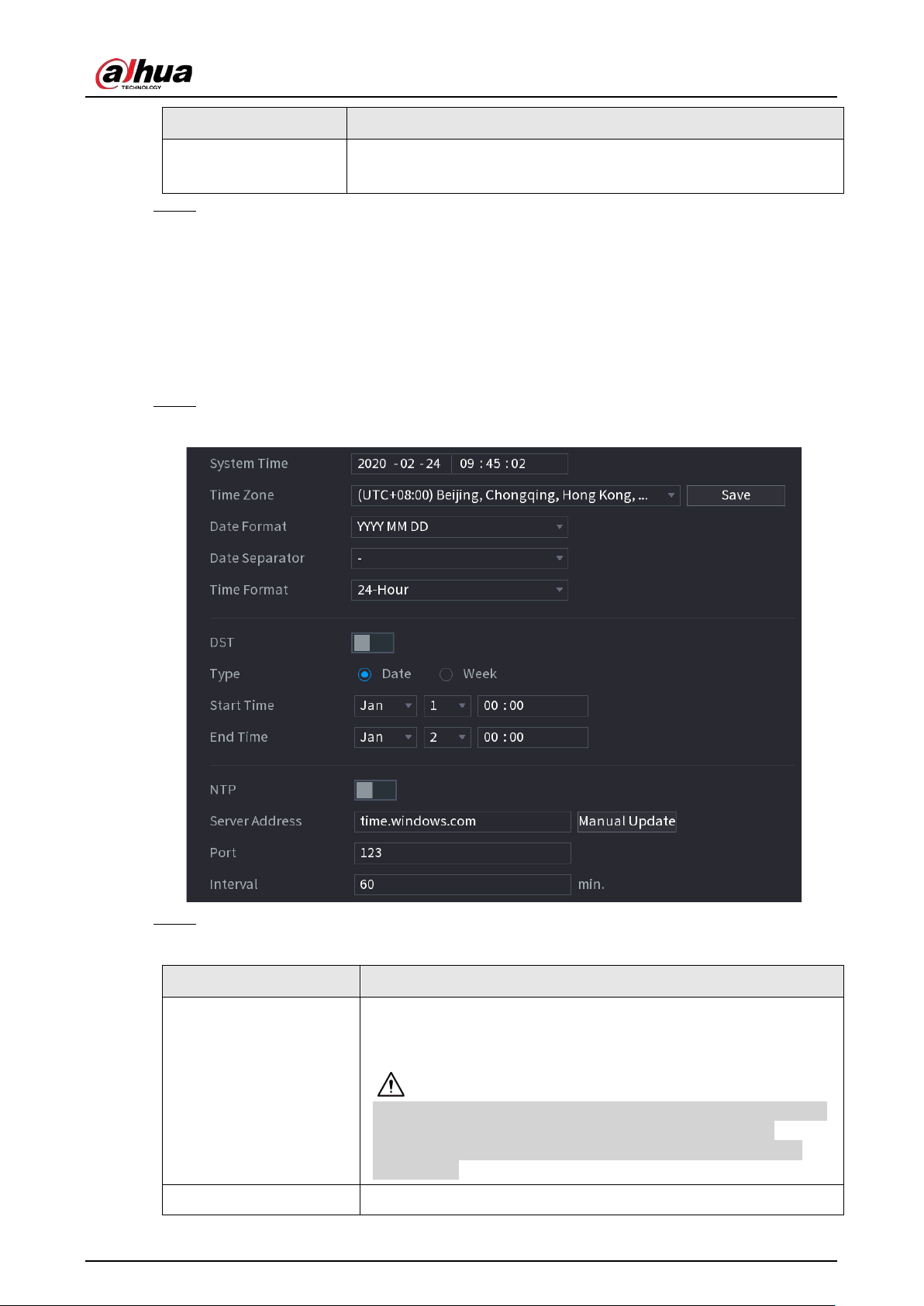
User's Manual
337
Parameter Description
Mouse Sensitivity
Adjust the speed of double-click by moving the slider.
The bigger the value is, the faster the speed is.
Step 3 Click
Apply
button to save settings.
5.15.1.2 Date and Time
You can set device time. You can enable NTP (Network Time Protocol) function so that the device
can sync time with the NTP server.
You can also configure date and time settings by selecting
Main Menu
>
SYSTEM
>
General
>
Date&Time
.
Step 1 Click
Date&Time
tab.
Figure 5-256 Date and time
Step 2 Configure the settings for date and time parameters.
Table 5-76 Data and time parameters
Parameter Description
System Time
In the
System Time
box, enter time for the system.
Click the time zone list, you can select a time zone for the system,
and the time in adjust automatically.
Do not change the system time randomly; otherwise the recorded
video cannot be searched. It is recommended to avoid the
recording period or stop recording first before you change the
system time.
Time Zone
In the
Time Zone
list, select a time zone for the system.
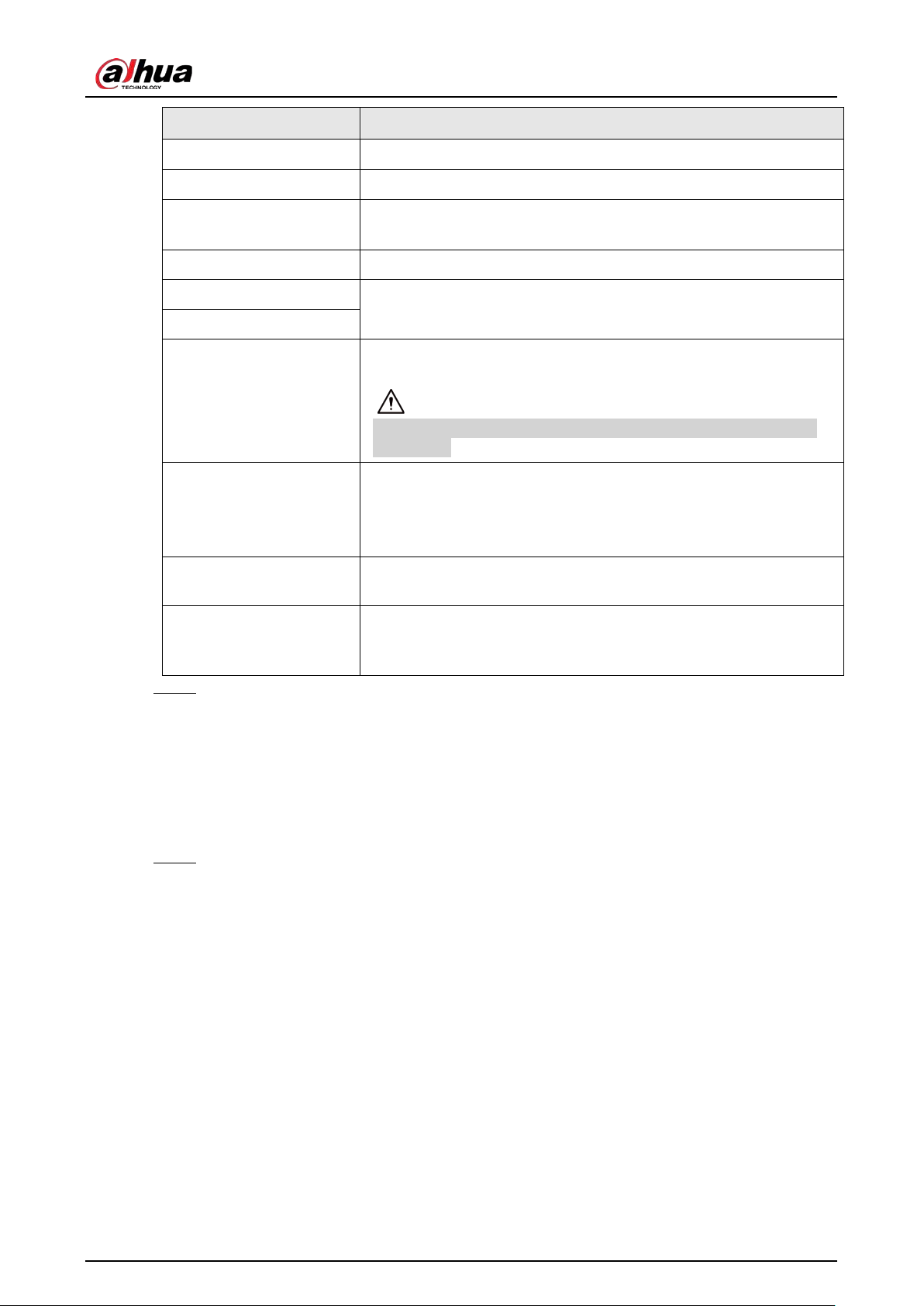
User's Manual
338
Parameter Description
Date Format
In the
Date Format
list, select a date format for the system.
Date Separator In the
Date Separator
list, select a separator style for the date.
Time Format
In the
Time Format
list, select
12-HOUR
or
24-HOUR
for the time
display style.
DST
Enable the Daylight Saving Time function. Click
Week
or
Date
.
Start Time
Configure the start time and end time for the DST.
End Time
NTP
Enable the NTP function to sync the Device time with the NTP
server.
If NTP is enabled, device time will be automatically synchronized
with server.
Server Address
In the
Server Address
box, enter the IP address or domain name of
the corresponding NTP server.
Click
Manual Update
, the Device starts syncing with the server
immediately.
Port
The system supports TCP protocol only and the default setting is
123.
Interval
In the
Interval
box, enter the amount of time that you want the
Device to sync time with the NTP server. The value ranges from 0 to
65535.
Step 3 Click
Next
to save settings.
5.15.1.3 Holiday
Here you can add, edit, and delete holiday. After you successfully set holiday information, you can
view holiday item on the record and snapshot period.
You can also configure holiday settings by selecting
Main Menu
>
SYSTEM
>
General
>
Holiday
.
Step 1 Click
Next
.
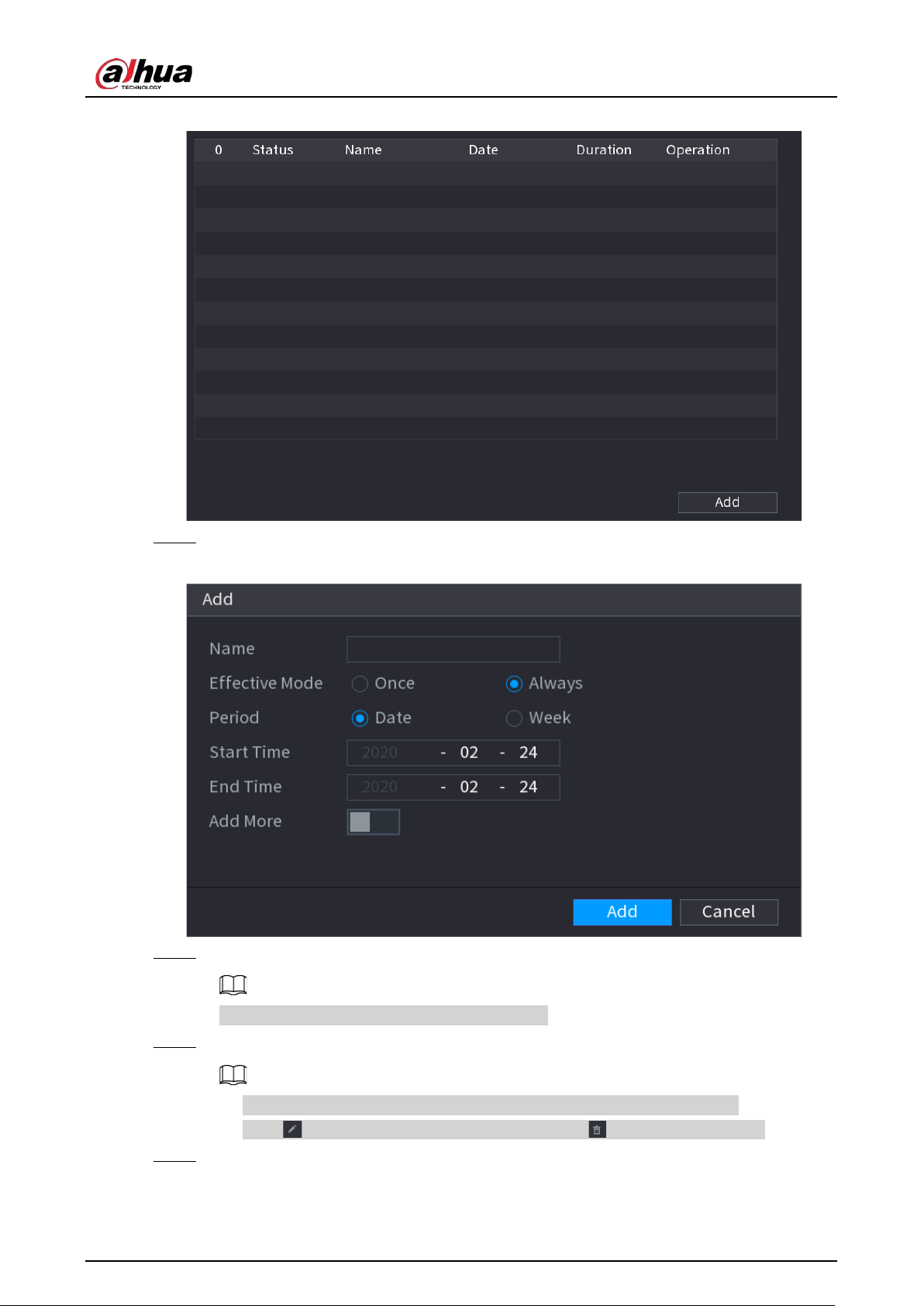
User's Manual
339
Figure 5-257 Holiday
Step 2 Click
Add Holidays
.
Figure 5-258 Add holidays
Step 3 Set holiday name, repeat mode and holiday mode.
Click
Add more
to add new holiday information.
Step 4 Click
Add
, you can add current holiday to the list.
●
Click the drop-down list of the state; you can enable/disable holiday date.
●
Click to change the holiday information. Click to delete current date.
Step 5 Click
Next
to save settings.
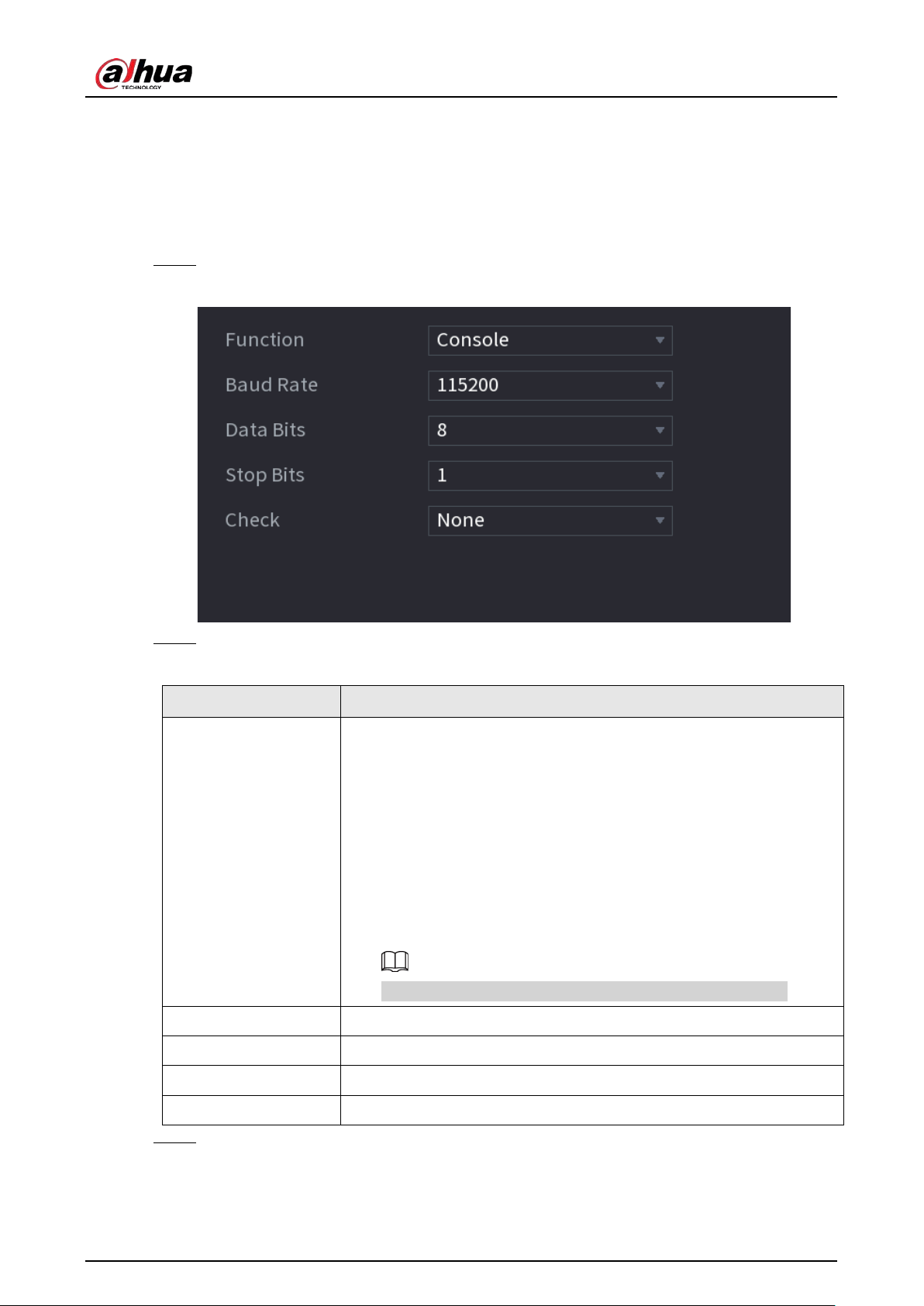
User's Manual
340
5.15.2 Serial Port
After setting RS-232 parameters, the NVR can use the COM port to connect to other device to debug
and operate.
Procedure
Step 1 Select
MAIN MENU
>
SYSTEM
>
Serial Port
.
Figure 5-259 Serial port
Step 2 Configure parameters.
Table 5-77 Serial port parameters
Parameter Description
Function
Select serial port control protocol.
●
Console: Upgrade the program and debug with the console and
mini terminal software.
●
Keyboard: Control this Device with special keyboard.
●
Adapter: Connect with PC directly for transparent transmission of
data.
●
Protocol COM: Configure the function to protocol COM, in order to
overlay card number.
●
PTZ Matrix: Connect matrix control
Different series products support different RS-232 functions.
Baud Rate Select baud rate, which is 115200 by default.
Data Bits It ranges from 5 to 8, which is 8 by default.
Stop Bits It includes 1 and 2.
Parity It includes none, odd, even, mark and null.
Step 3 Click
Apply
.
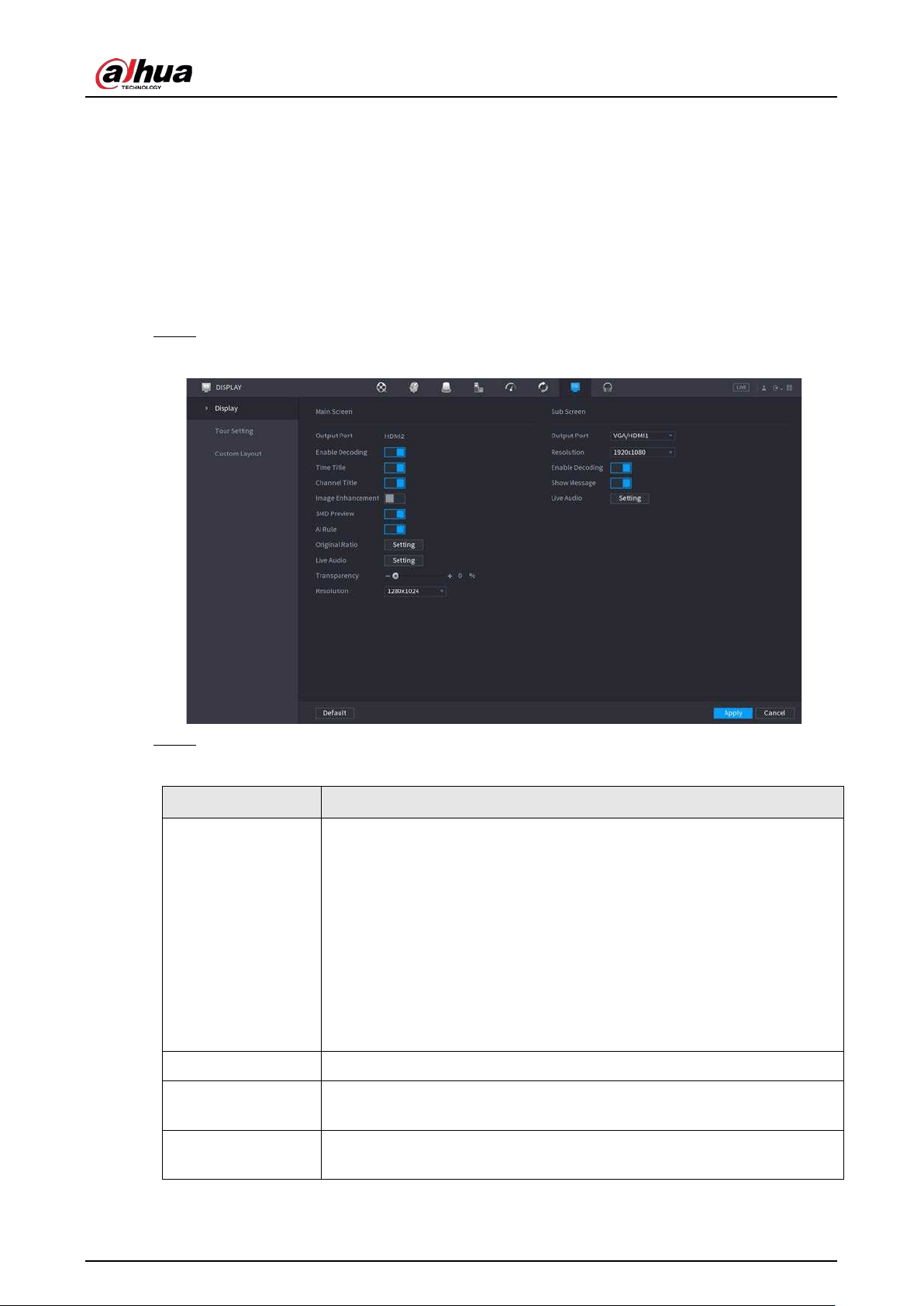
User's Manual
341
5.16 Output and Display
5.16.1 Display
You can configure the display effect such as displaying time title and channel title, adjusting image
transparency, and selecting the resolution.
Procedure
Step 1 Select
Main Menu
>
DISPLAY
>
Display
.
Figure 5-260 Display
Step 2 Configure the parameters.
Table 5-78 Display parameters
Parameter Description
Main Screen/Sub
Screen
Configure the output port format of both screens.
●
When sub screen is disabled, the format of main screen is HDMI/VGA
simultaneous output.
●
When sub screen is enabled, the format of main screen and sub
screen are non-simultaneous outputs.
◇
When output port of sub screen is set to
HDMI
, the output port of
main screen is set to
VGA
by the device.
◇
When output port of sub screen is set to
VGA
, the output port of
main screen is set to
HDMI
by the device.
Enable Decoding After it is enabled, the device can normally decode.
Time Title/Channel
Title
Select the checkbox and the date and time of the system will be displayed
in the preview screen.
Transparency
Set the transparency of the local menu of the NVR device. The higher the
transparency, the more transparent the local menu.
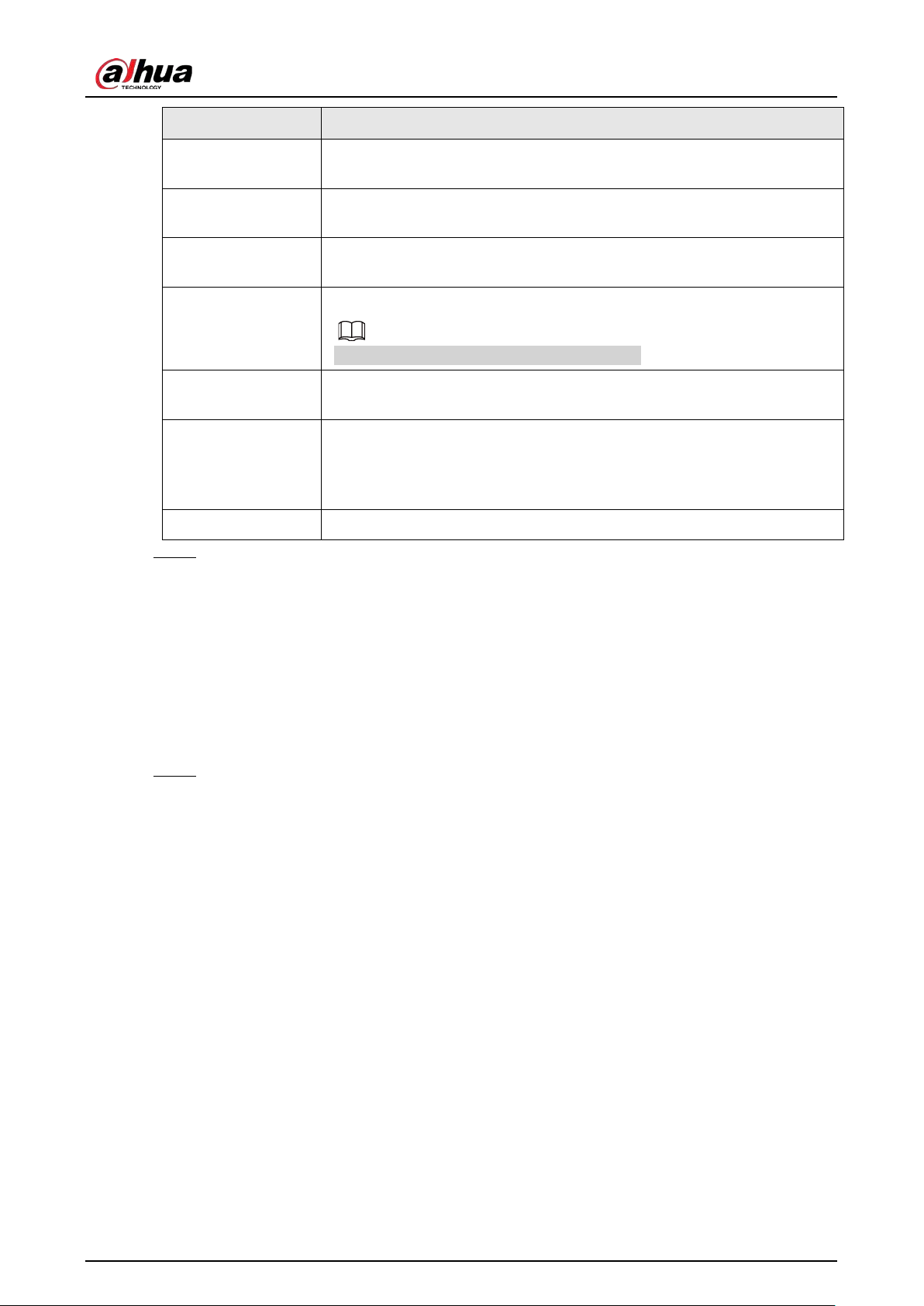
User's Manual
342
Parameter Description
Time Title/Channel
Title
Select the checkbox and the date and time of the system will be displayed
in the preview screen.
Image
Enhancement
Select the checkbox to optimize the preview image edges.
SMD Preview
Select the checkbox to display the SMD previews in the live view
interface.
AI Rule
Select the checkbox to display the AI rules in the live view interface.
This function is for some series products only.
Original Ratio
Click
Setting
and select the channel to restore the corresponding channel
image to the original scale.
Live Audio
Configure audio input on live view. You can select
Audio 1
,
Audio 2
, and
Mixing
. For example, if you select
Audio 1
for
D1
channel, the sound of
audio input port 1 of camera is playing. If you select
Mixing
, the sound of
all audio input ports are playing.
Resolution Support 1920×1080, 1280×1024(default), 1280×720.
Step 3 Click
Apply
.
5.16.2 Tour
You can configure a tour of selected channels to repeat playing videos. The videos display in turn
according to the channel group configured in tour settings. The system displays one channel group
for a certain period and then automatically changes to the next channel group.
Procedure
Step 1 Select
DISPLAY
>
Tour Setting
>
Main Screen
.
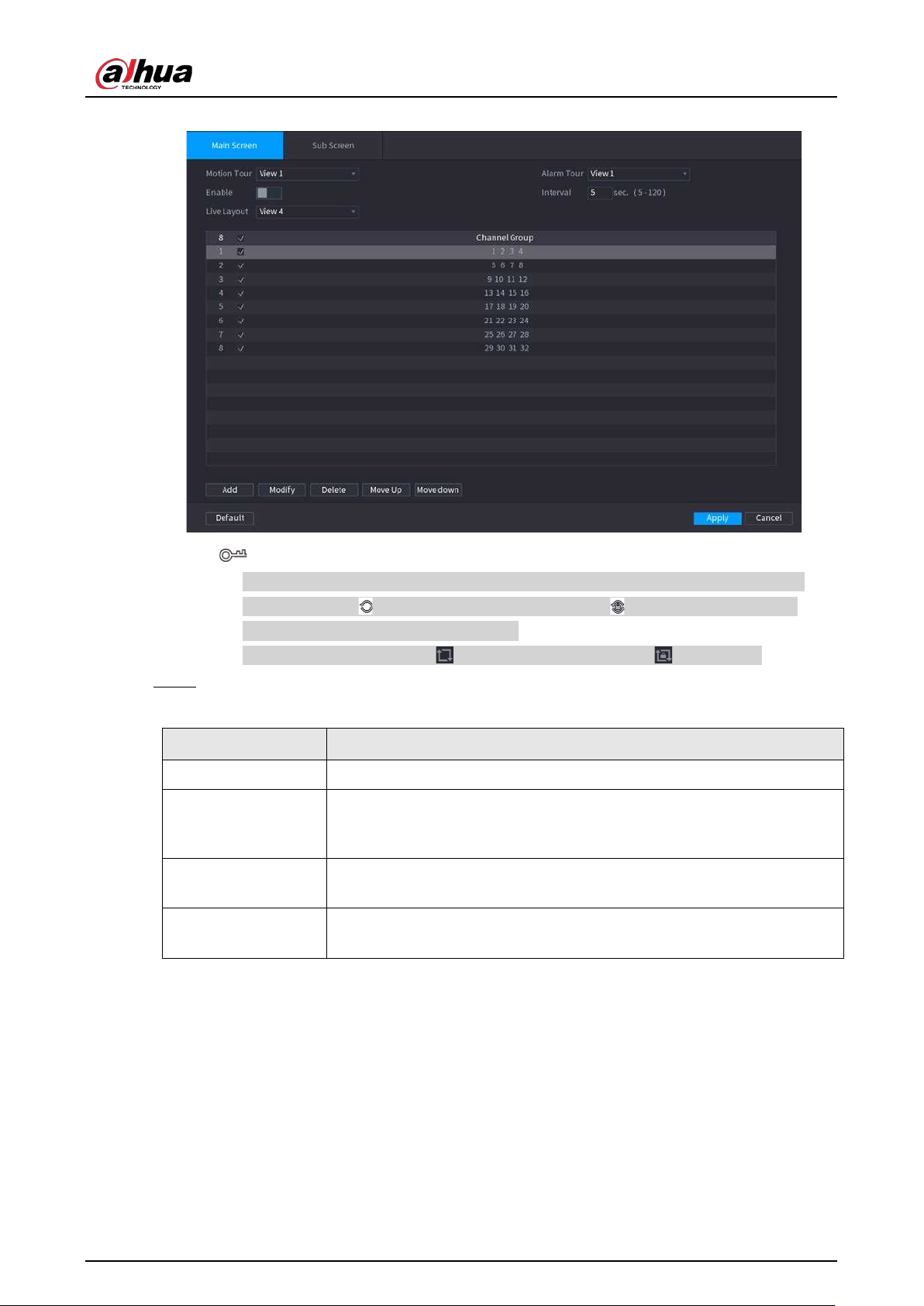
User's Manual
343
Figure 5-261 Tour
●
On the top right of the live view screen, use the left mouse button or press Shift to
switch between (image switching is allowed) and (image switching is not
allowed) to turn on/off the tour function.
●
On the navigation bar, click to enable the tour and click to disable it.
Step 2 Configure the tour setting parameters.
Table 5-79 Tour parameters
Parameter Description
Enable Tour Enable tour function.
Interval
Enter the amount of time that you want each channel group displays on
the screen. The value ranges from 5 seconds to 120 seconds, and the
default value is 5 seconds.
Motion Tour, Alarm
Tour
Select the View 1 or View 8 for
Motion Tour
and
Alarm Tour
(system
alarm events).
Live Layout
In the
Live Layout
list, select
View 1
,
View 4
,
View 8
, or other modes
that are supported by the Device.
User's Manual
344
Parameter Description
Channel Group
Display all channel groups under the current Window Split setting.
●
Add a channel group: Click
Add
, in the pop-up
Add Group
channel,
select the channels to form a group, and then click
Save
.
●
Delete a channel group: Select the checkbox of any channel group,
and then click
Delete
.
●
Edit a channel group: Select the checkbox of any channel group and
then click
Modify
, or double-click on the group. The
Modify
Channel Group
dialog box is displayed. You can regroup the
channels.
●
Click
Move up
or
Move down
to adjust the position of channel
group.
Step 3 Click
Apply
to save the settings.
5.16.3 Custom Layout
You can set customized video split mode.
●
This function is for some series products. See the actual product for detailed information.
●
Device max. supports 5 customized videos.
Procedure
Step 1 Select
Main Menu
>
DISPLAY
>
Custom Split
.
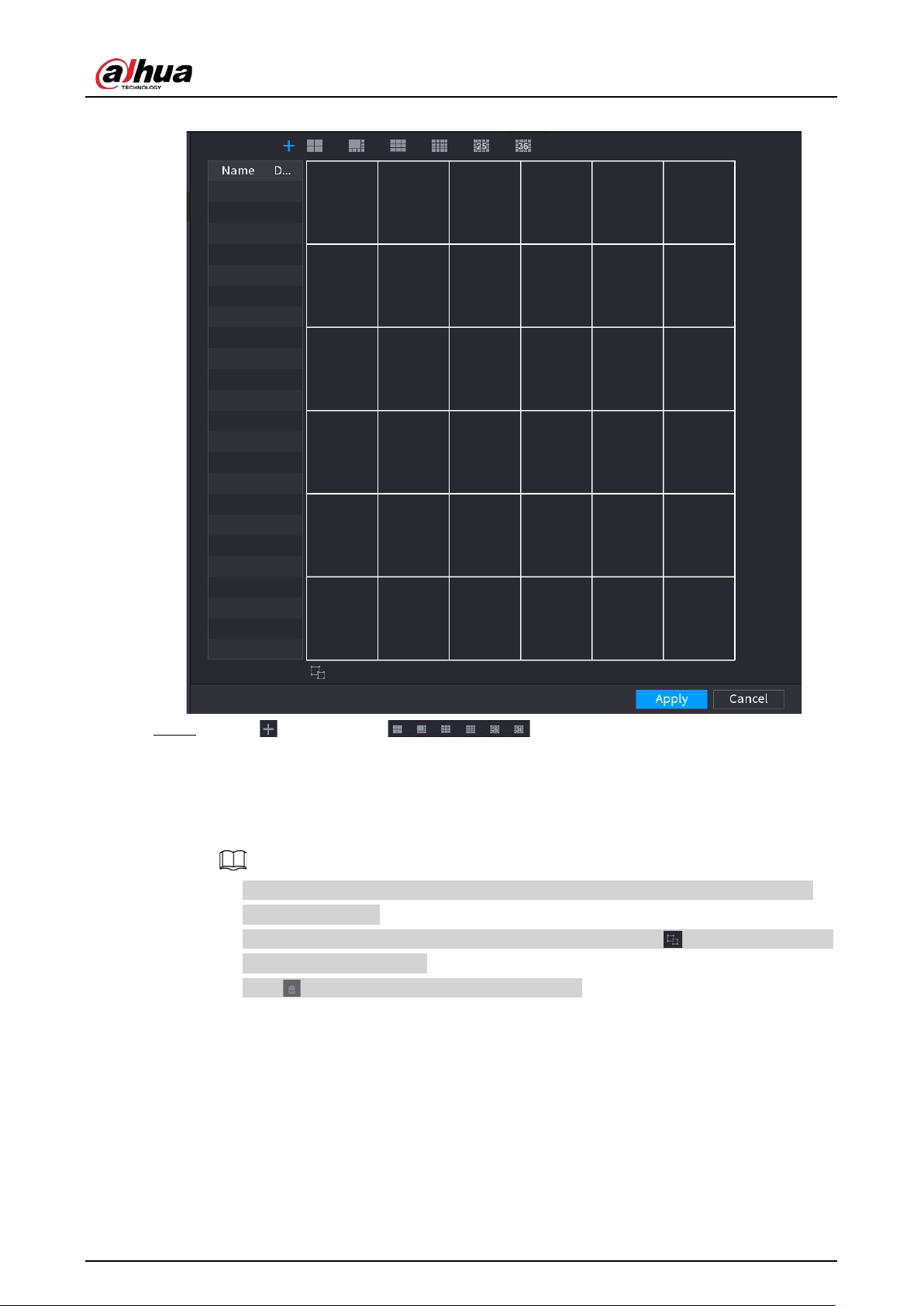
User's Manual
345
Figure 5-262 Custom split
Step 2 Click and then click to select basic mode.
System adopts the basic window mode as the new window name. For example, if you
select the 8 display mode, the default name is Split8.In regular mode, drag the mouse in
the preview frame; you can merge several small windows to one window so that you can
get you desired split mode.
●
After merge the window, system adopts the remaining window amount as the new
name such as Split6.
●
Select the window you want to merge (red highlighted), click to cancel the merge
to restore the basic mode.
●
Click to delete the customized window mode.
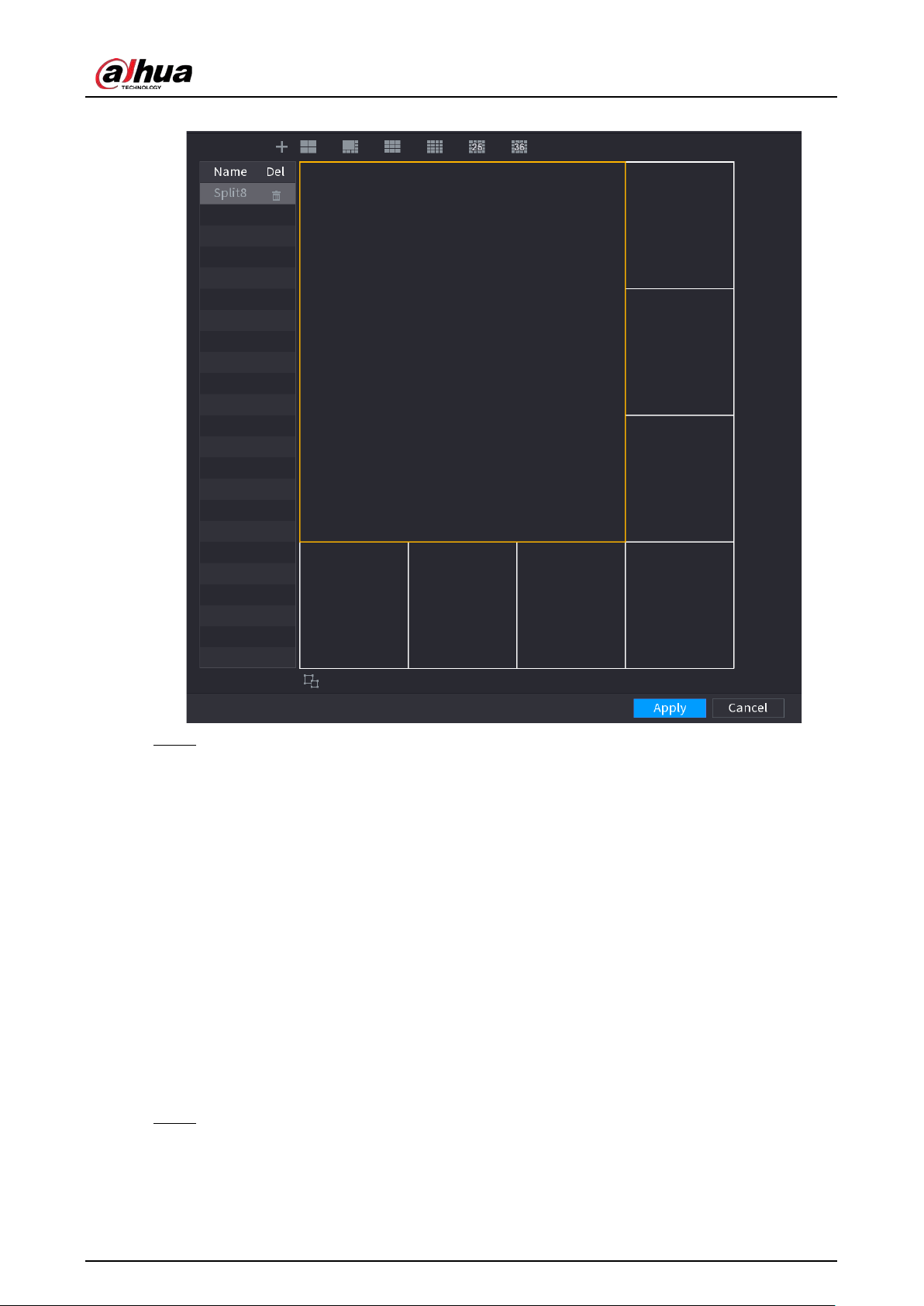
User's Manual
346
Figure 5-263 Merged window
Step 3 Click
Apply
to exit.
After the setup, you can go to the preview window, right-click and then select
Live Layout
to select the custom split layout.
5.17 POS
You can connect the Device to the POS (Point of Sale) machine and receive the information from it.
This function applies to the scenarios such as supermarket POS machine. After connection is
established, the Device can access the POS information and display the overlaid text in the channel
window.
5.17.1 Settings
Procedure
Step 1 Select
Main Menu
>
POS
>
POS Setting
.
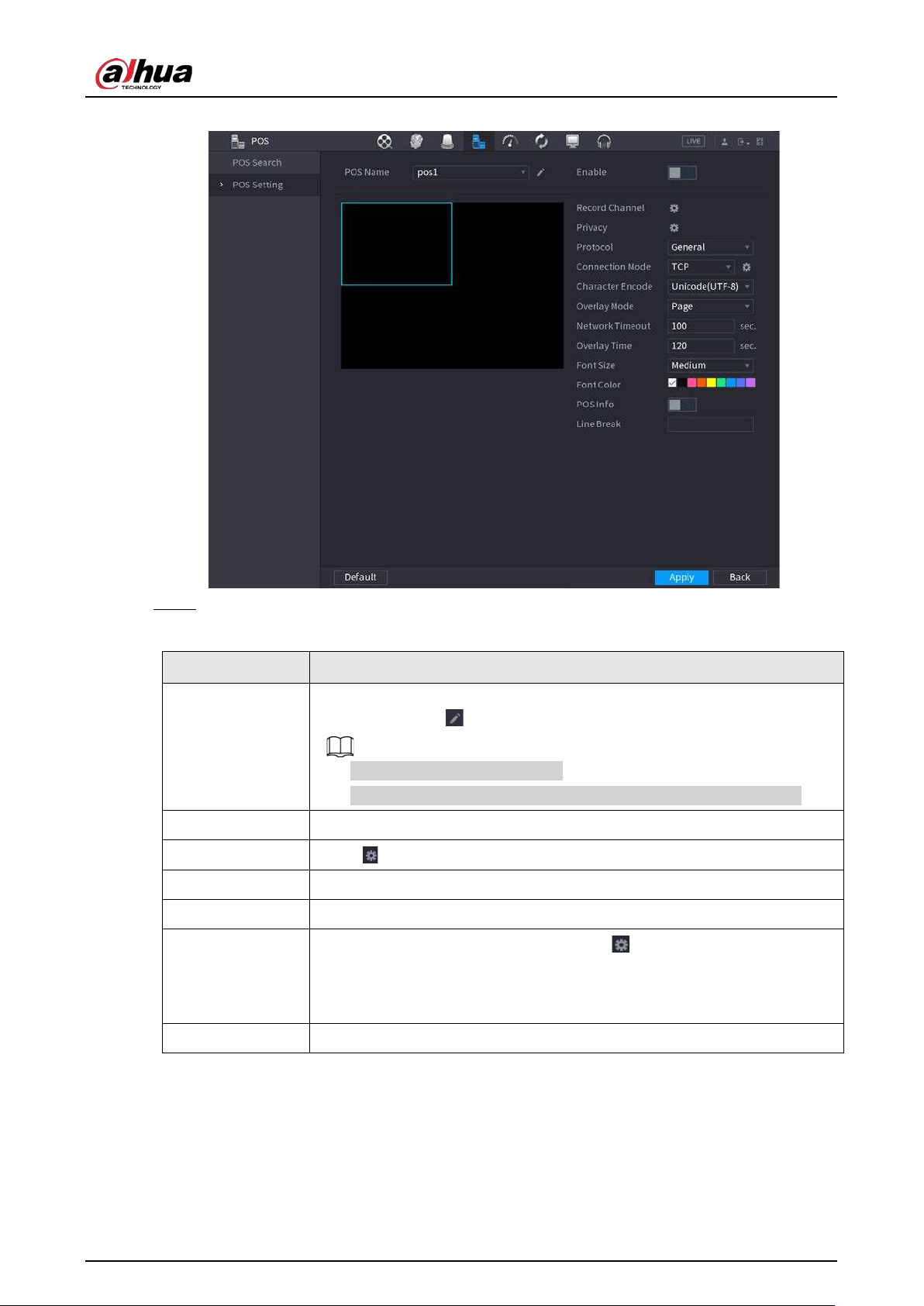
User's Manual
347
Figure 5-264 POS setting
Step 2 Configure the POS parameters.
Table 5-80 POS parameters
Parameter Description
POS Name
In the POS Name list, select the POS machine that you want to configures
settings for. Click to modify the POS name.
●
The POS name must be unique.
●
You can enter up to 21 Chinese characters or 63 English characters.
Enable Enable the POS function.
Record Channel Click to select a channel to record.
Privacy Enter the privacy contents.
Protocol Select a protocol. Different machines correspond to different protocols.
Connection Mode
Select the connection protocol type. Click , the
IP Address
window is
displayed.
In the
Source IP
box, enter the IP address (the machine that is connected to
the Device) that sends messages.
Character Encode Select a character encoding mode.
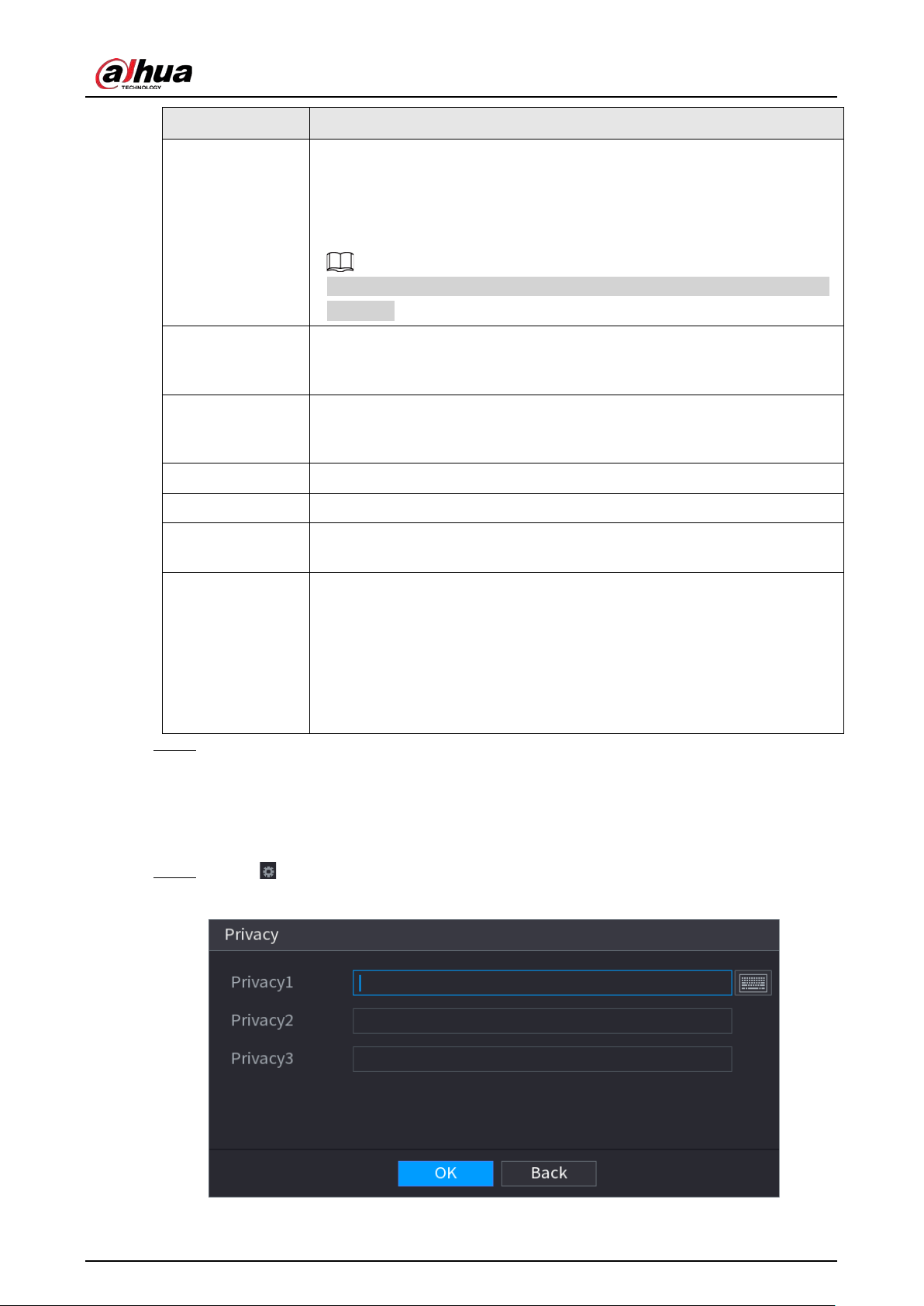
User's Manual
348
Parameter Description
Overlay Mode
In the
Overlay Mode
list, Select
Turn
or
ROLL
.
●
Turn: Once the information is at 16 lines, system displays the next page.
●
ROLL: Once the information is at 16 lines, system rolls one line after
another to delete the first line.
When the local preview mode is in 4-split, the turn/ROLL function is based
on 8 lines.
Network time out
When the network is not working correctly and cannot be recovered after
the entered timeout limit, the POS information will not display normally.
After the network is recovered, the latest POS information will be displayed.
Time Display
Enter the time that how long you want to keep the POS information
displaying. For example, enter 5, the POS information disappear from the
screen after 5 seconds.
Font Size Select
Small
,
Medium
, or
Big
as the text size of POS information
Font Color In the color bar, click to select the color for the text size of POS information.
POS Info
Enable the POS Info function, the POS information displays in the live
view/WEB.
Line Break
There is no line delimiter by default.
After you set the line delimiter (HEX), the overlay information after the
delimiter is displayed in the new line. For example, the line delimiter is F
and the overlay information is 123F6789, NVR displays overlay information
on the local preview interface and Web as:
123
6789
Step 3 Click
Apply
.
5.17.1.1 Privacy Setup
Procedure
Step 1 Click next to
Privacy
.
Figure 5-265 Privacy
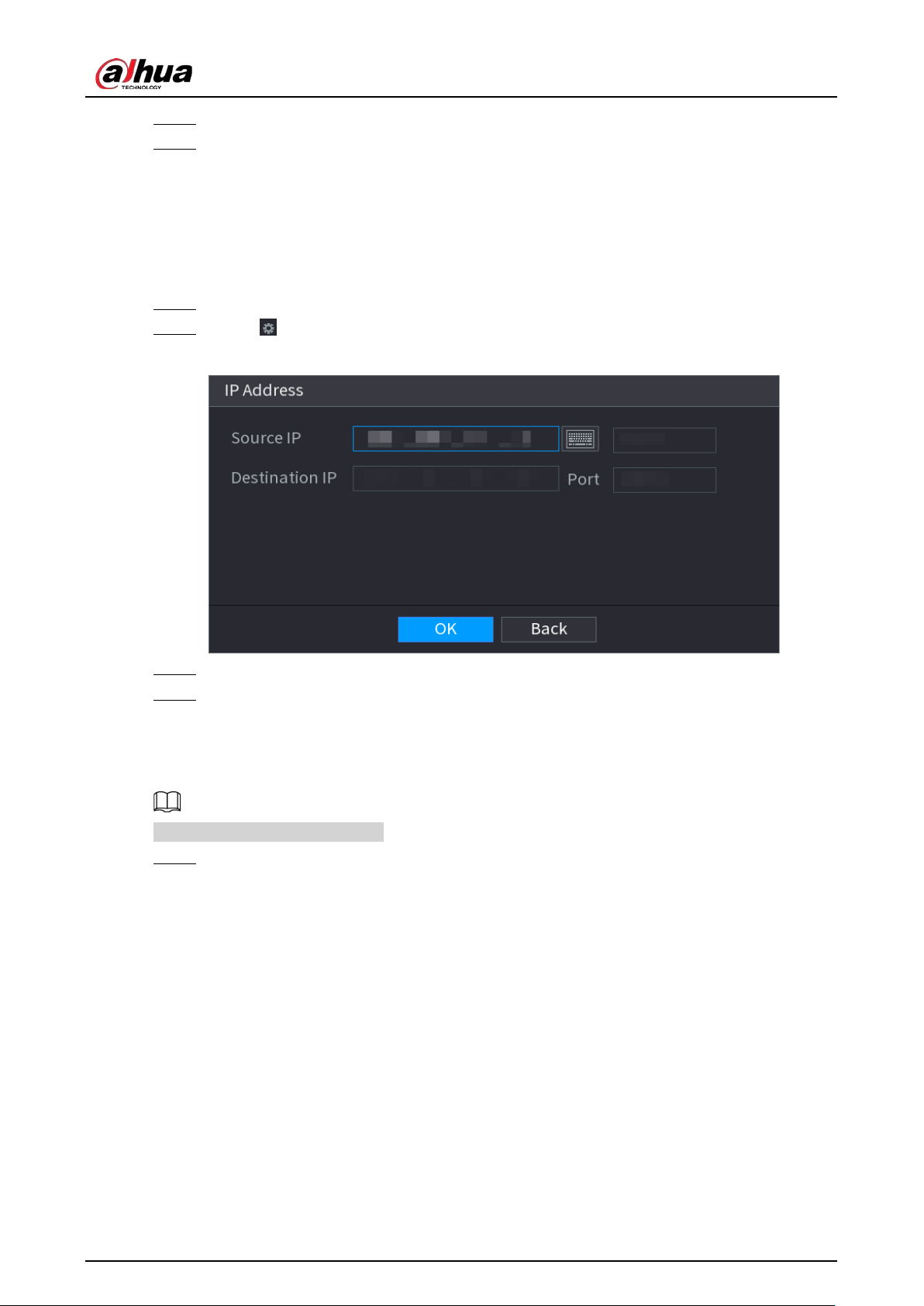
User's Manual
349
Step 2 Set privacy information.
Step 3 Click
OK
.
5.17.1.2 Connection Mode
Connection type is UDP or TCP.
Procedure
Step 1 Select
Connection Mode
as
UDP
,
TCP_CLINET
or
TCP
.
Step 2 Click .
Figure 5-266 IP address
Step 3 For
Source IP
and
Port
, enter the POS IP address and port.
Step 4 Click
OK
.
5.17.2 Search
The system supports fuzzy search.
Step 1 Select
Main Menu
>
POS
>
POS Search
.
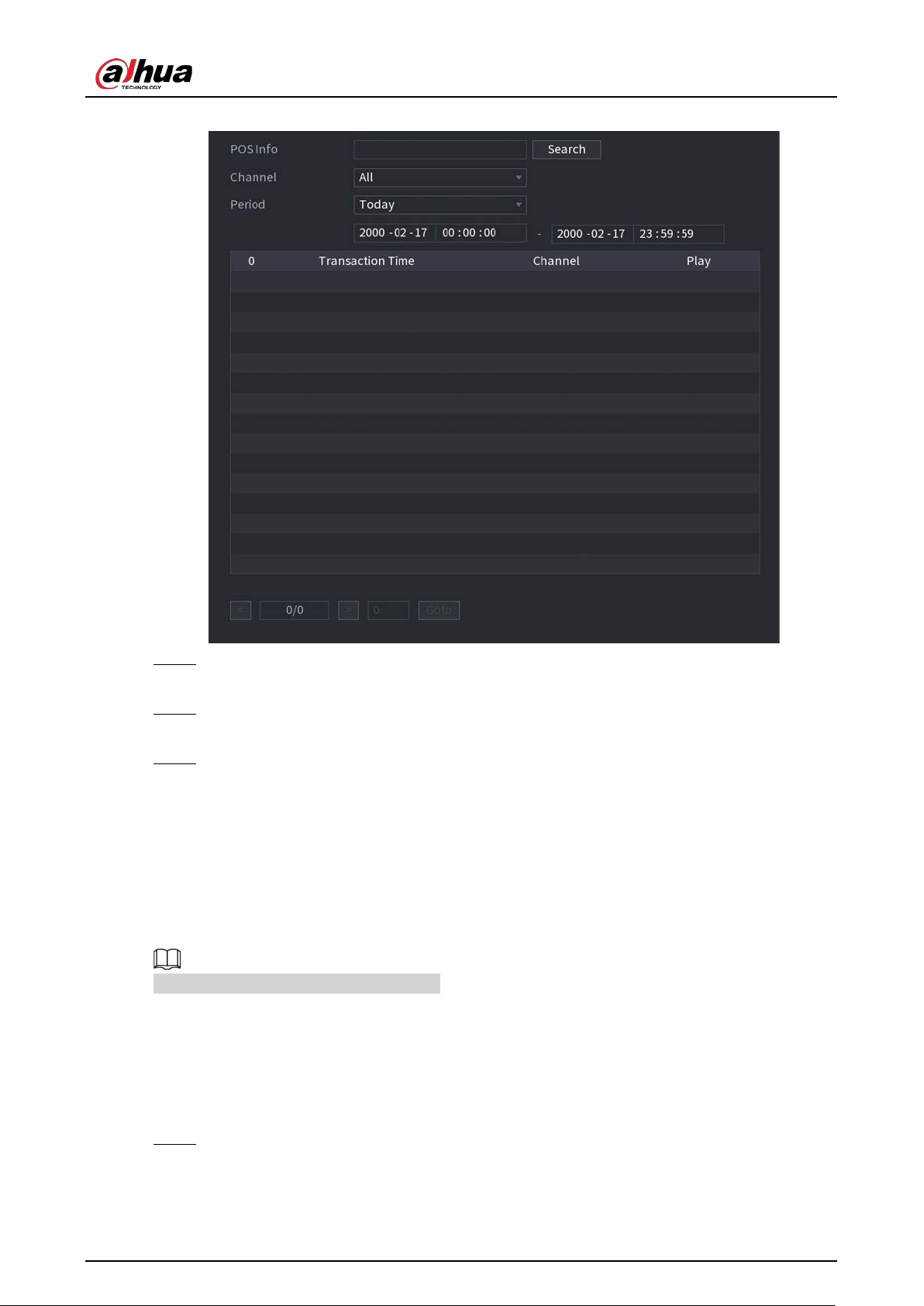
User's Manual
350
Figure 5-267 POS search
Step 2 In the
POS Search
box, enter the information such as transaction number on your receipt,
amount, or product name.
Step 3 In the
Start Time
box and
End Time
box, enter the time period that you want to search
the POS transaction information.
Step 4 Click
Search
.
The searched transaction results display in the table.
5.18 Audio
The audio function is to manage audio files and set schedule play function. It is to realize audio
broadcast activation function.
This function is available on select models.
5.18.1 File Management
You can add audio files, listen to audio files, rename and delete audio files, and configure the audio
volume.
Step 1 Select
Main Menu
>
AUDIO
>
File Management
.
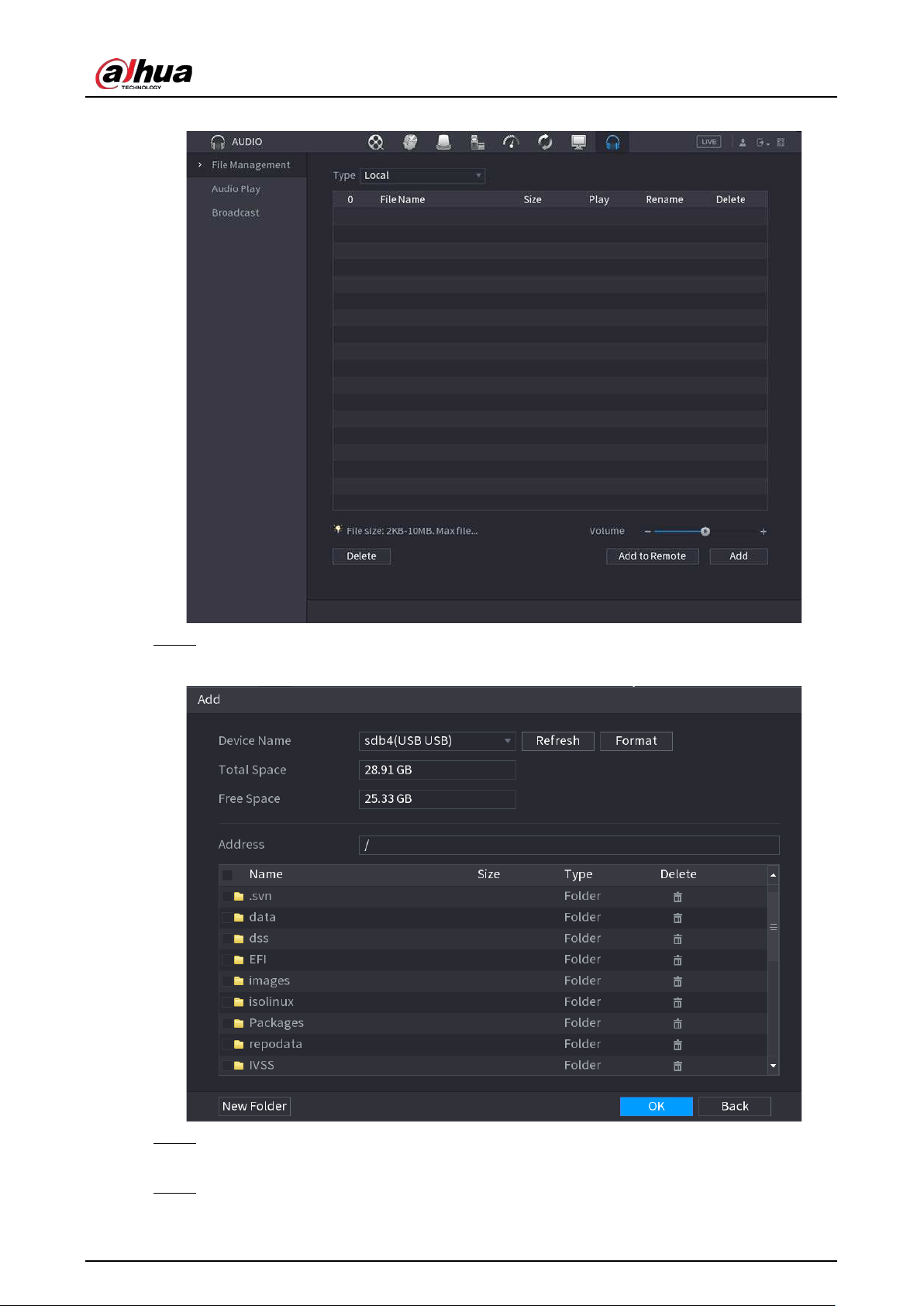
User's Manual
351
Figure 5-268 File management
Step 2 Click
Add
.
Figure 5-269 Add file
Step 3 Select the audio file and then click
Import
.
System supports MP3 and PCM audio format.
Step 4 Click
OK
to start importing audio files from the USB storage device.
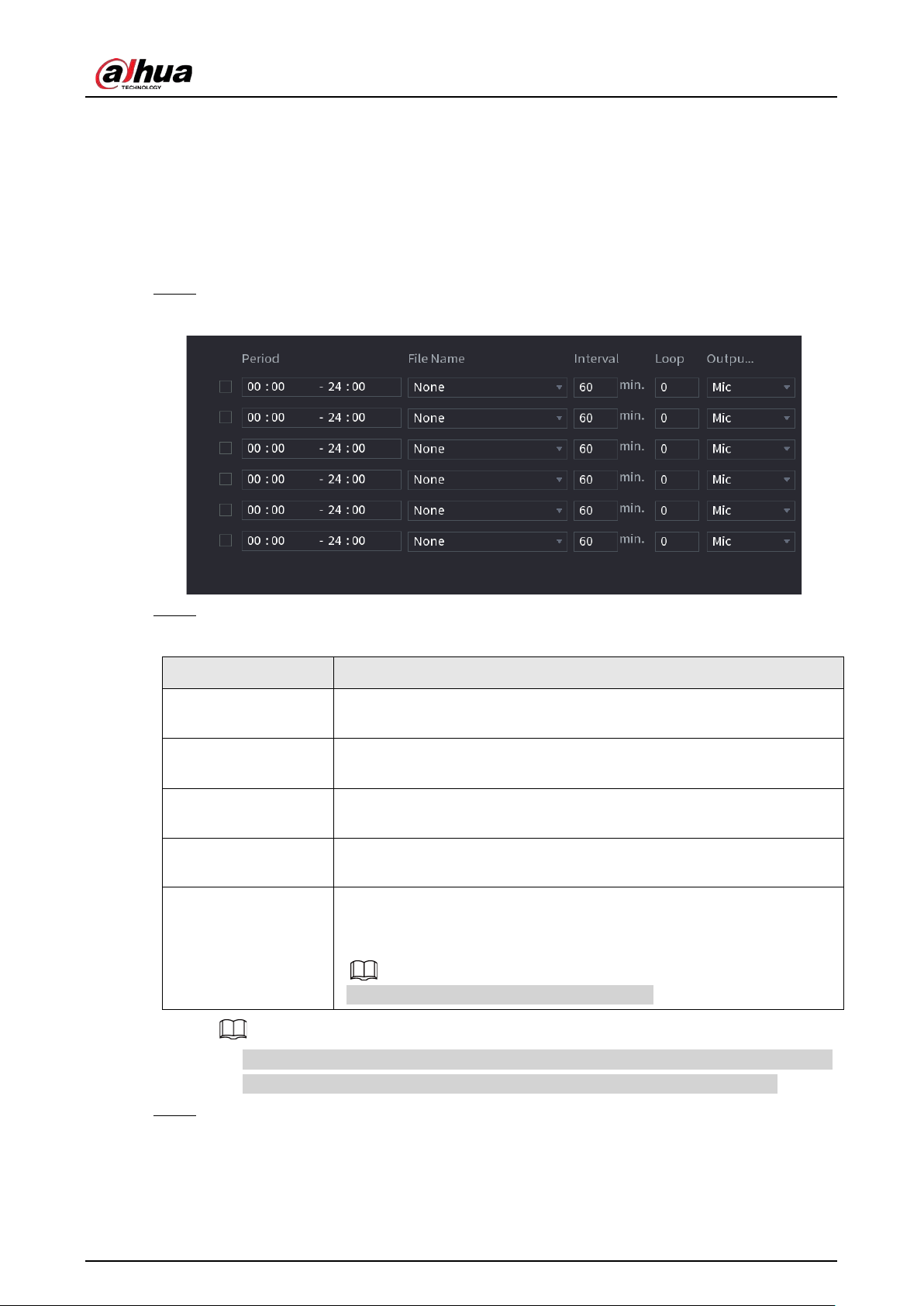
User's Manual
352
If the importing is successful, the audio files will display in the
File Management
page.
5.18.2 Audio Play
You can configure the settings to play the audio files during the defined time period.
Procedure
Step 1 Select
Main Menu
>
AUDIO
>
Schedule
.
Figure 5-270 Schedule
Step 2 Configure the parameters.
Table 5-81 Schedule parameters
Parameter Description
Period
In the
Period
box, enter the time. Select the checkbox to enable the
settings. You can configure up to six periods.
File Name
In the
File Name
list, select the audio file that you want to play for this
configured period.
Interval
In the
Interval
box, enter the time in minutes for how often you want to
repeat the playing.
Loop
Configure how many times you want to repeat the playing in the
defined period.
Output
Includes two options: MIC and Audio. It is MIC by default. The MIC
function shares the same port with talkback function and the latter has
the priority.
Some series products do not have audio port.
●
The finish time for audio playing depends on audio file size and the configured interval.
●
Playing priority: Alarm event > Audio talk > Trial listening > Schedule audio file.
Step 3 Click
Apply
.
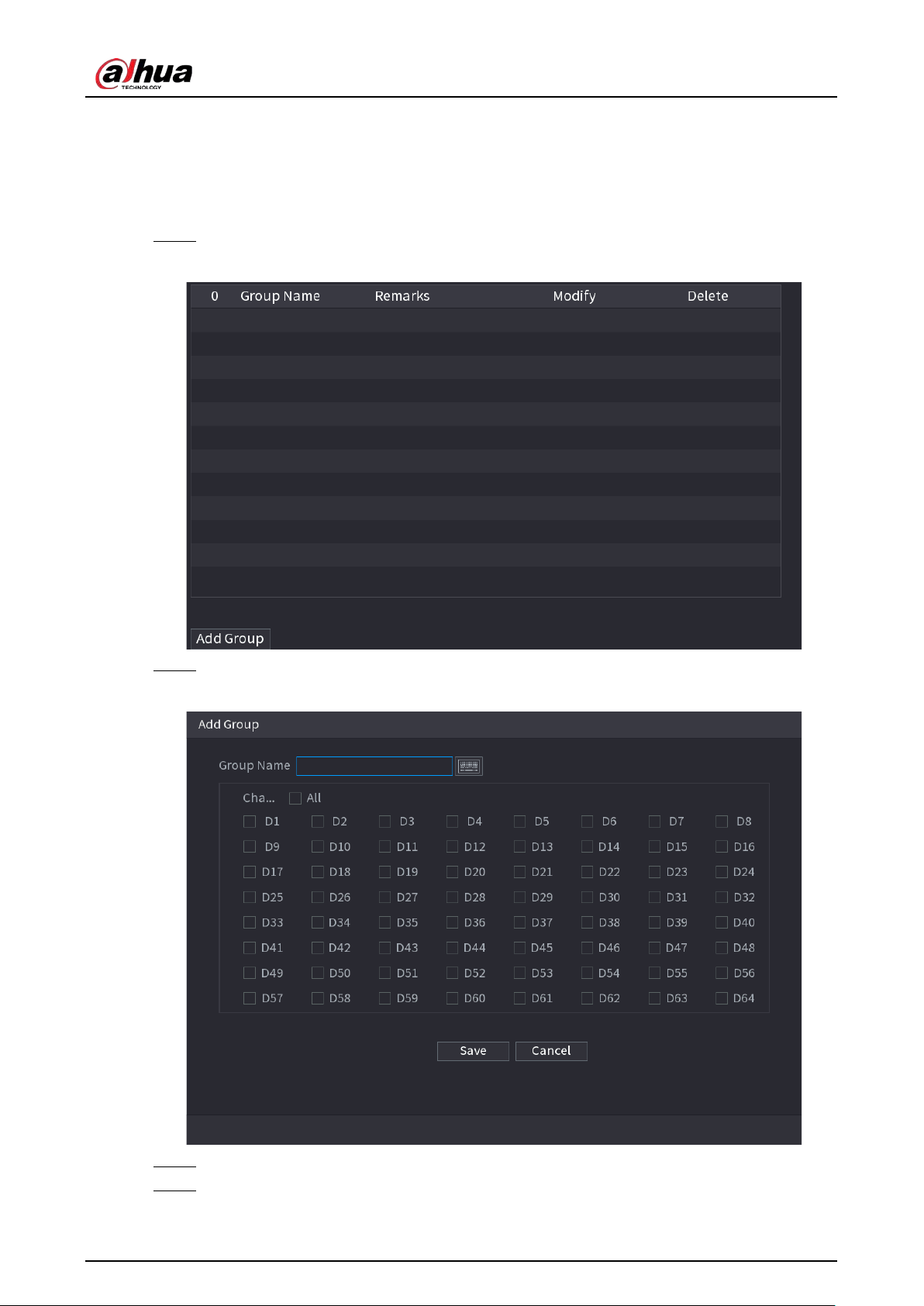
User's Manual
353
5.18.3 Broadcast
System can broadcast to the camera, or broadcast to a channel group.
Procedure
Step 1 Select
Mani Menu
>
AUDIO
>
Broadcast
.
Figure 5-271 Broadcast
Step 2 Click
Add Group
.
Figure 5-272 Add group (1)
Step 3 Input group name and select one or more channels.
Step 4 Click
Save
to complete broadcast group setup.
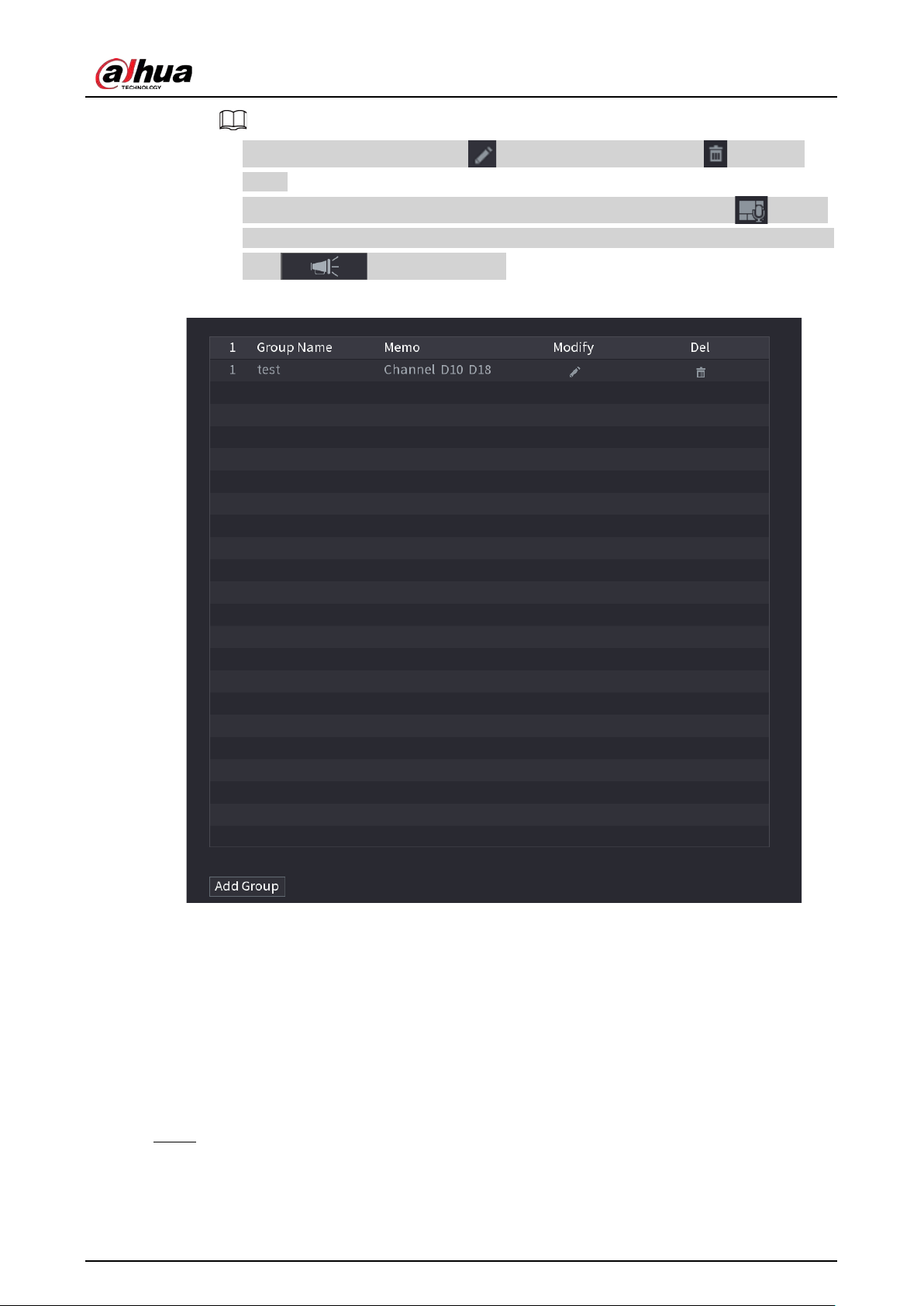
User's Manual
354
●
On the broadcast interface, click to change group setup, click to delete
group.
●
After complete broadcast setup, on the preview interface and then click on the
navigation bar, device pops up broadcast dialogue box. Select a group name and then
click to begin broadcast.
Figure 5-273 Add group (2)
5.19 Operation and Maintenance
5.19.1 Log
You can view and search for the log information, or back up log to the USB device.
Procedure
Step 1 Select
Main Menu
>
MAINTAIN
>
Log
.
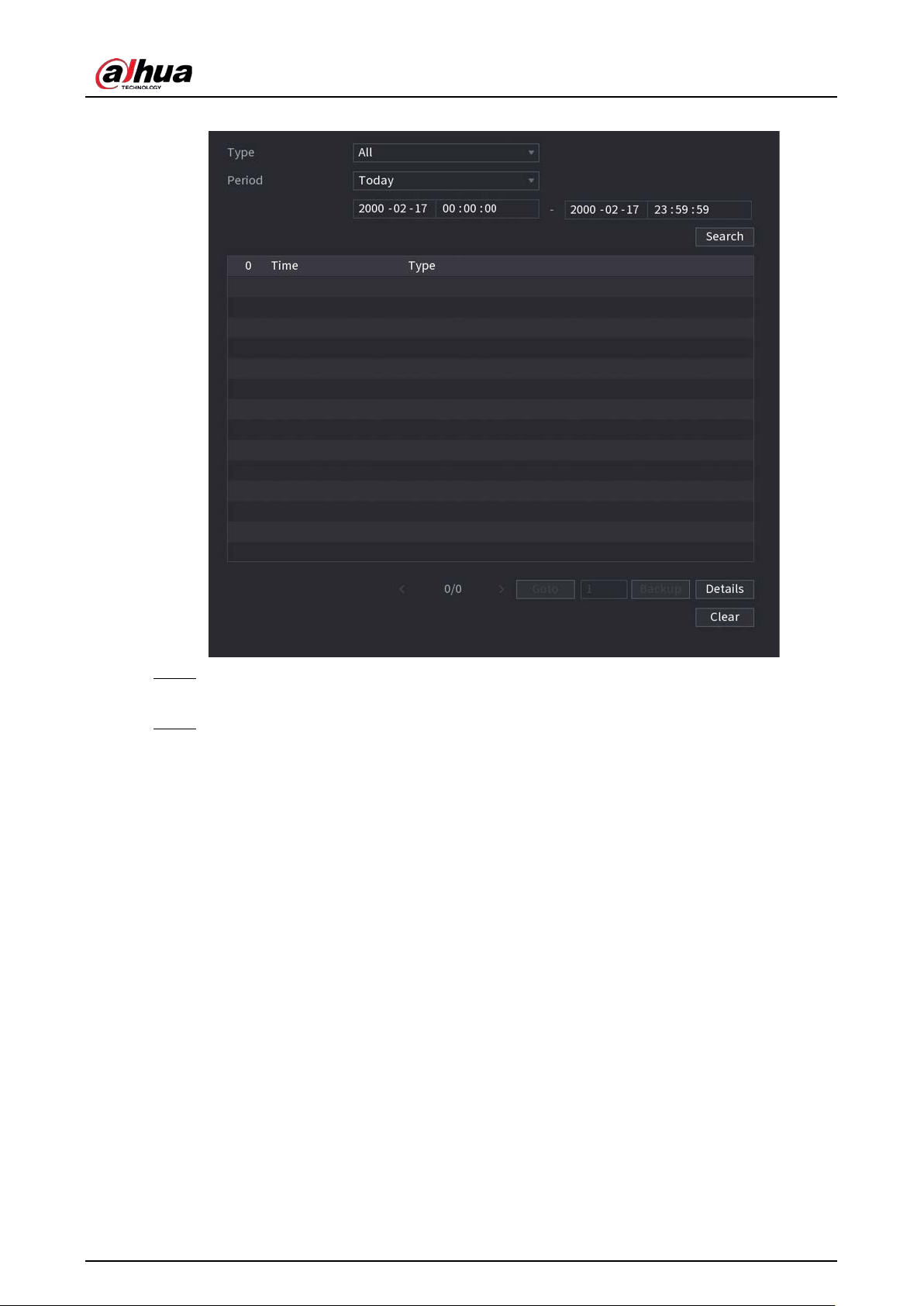
User's Manual
355
Figure 5-274 Log
Step 2 In the
Type
list, select the log type that you want to view (
System
,
Config
,
Storage
,
Record
,
Account
,
Clear Log
,
Playback
, and
Connection
) or select
All
to view all logs.
Step 3 Enter the time period to search, and then click
Search
.
The search results are displayed.
Related Operations
●
Click
Details
or double-click the log to view details. Click
Next
or
Previous
to view more log
information.
●
Click
Backup
to back up the logs to the USB storage device.
●
Click
Clear
to remove all logs.
5.19.2 System
5.19.2.1 System Version
Select
Main Menu
>
MAINTAIN
>
System Info
>
Version
.
You can view NVR version information.
5.19.2.2 AI Algorithm Version
Select
Main Menu
>
MAINTAIN
>
System Info
>
Intelligent Algorithm
.
You can view version information for AI functions such as face detection, face recognition, IVS, and
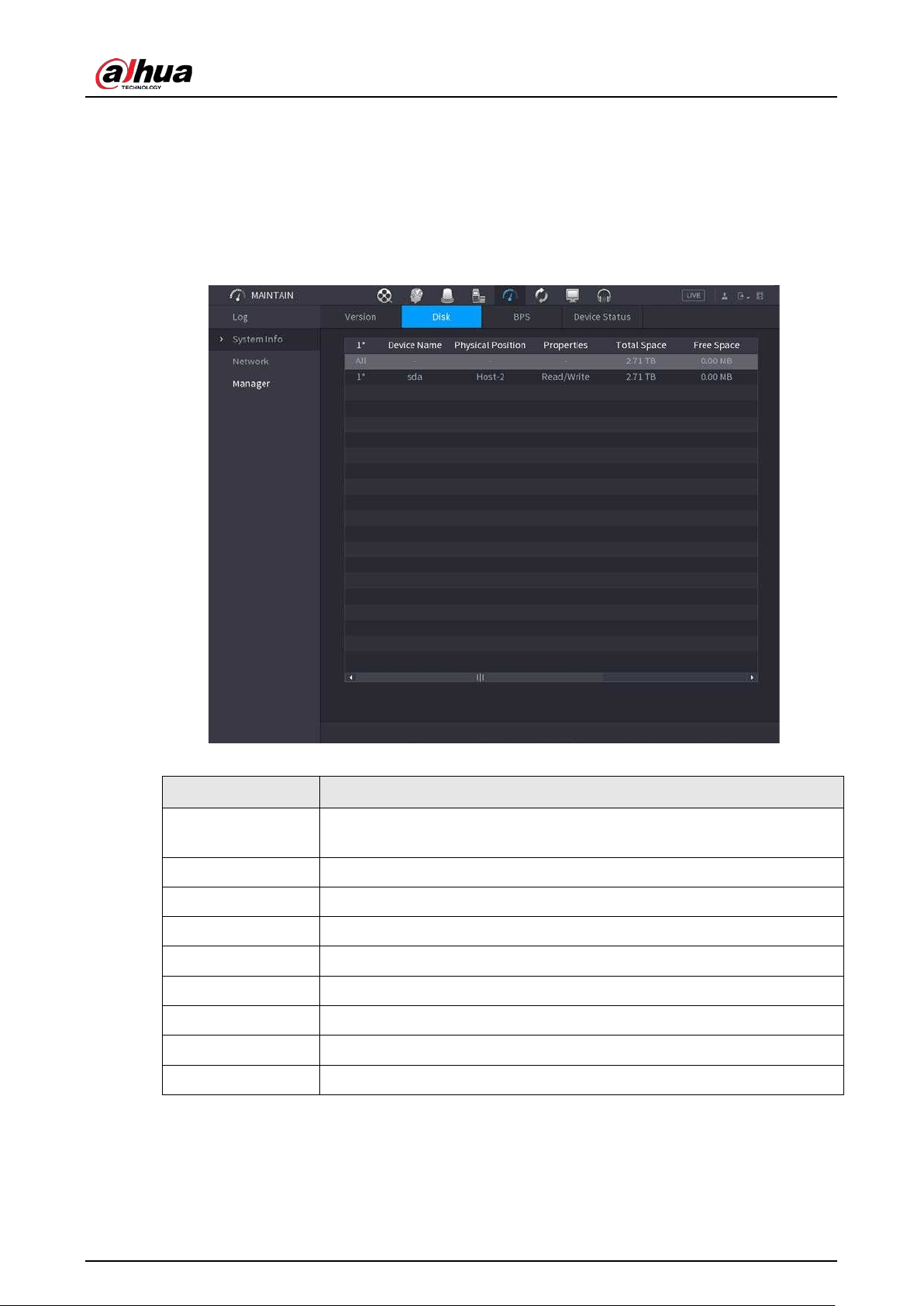
User's Manual
356
video metadata.
5.19.2.3 HDD Info
You can view the HDD quantity, HDD type, total space, free space, status, and S.M.A.R.T information.
Select
Main Menu
>
MAINTAIN
>
System Info
>
Disk
.
Figure 5-275 Disk information
Table 5-82 Disk information
Parameter Description
No.
Indicates the number of the currently connected HDD. The asterisk (*)
means the current working HDD.
Device Name Indicates name of HDD.
Physical Position Indicates installation position of HDD.
Properties Indicates HDD type.
Total Space Indicates the total capacity of HDD.
Free Space Indicates the usable capacity of HDD.
Health Status Indicates the health status of the HDD.
S.M.A.R.T View the S.M.A.R.T reports from HDD detecting.
Status Indicates the status of the HDD to show if it is working normally.
5.19.2.4 BPS
You can view current video bit rate (kb/s) and resolution.
Select
Main Menu
>
MAINTAIN
>
System Info
>
BPS
.
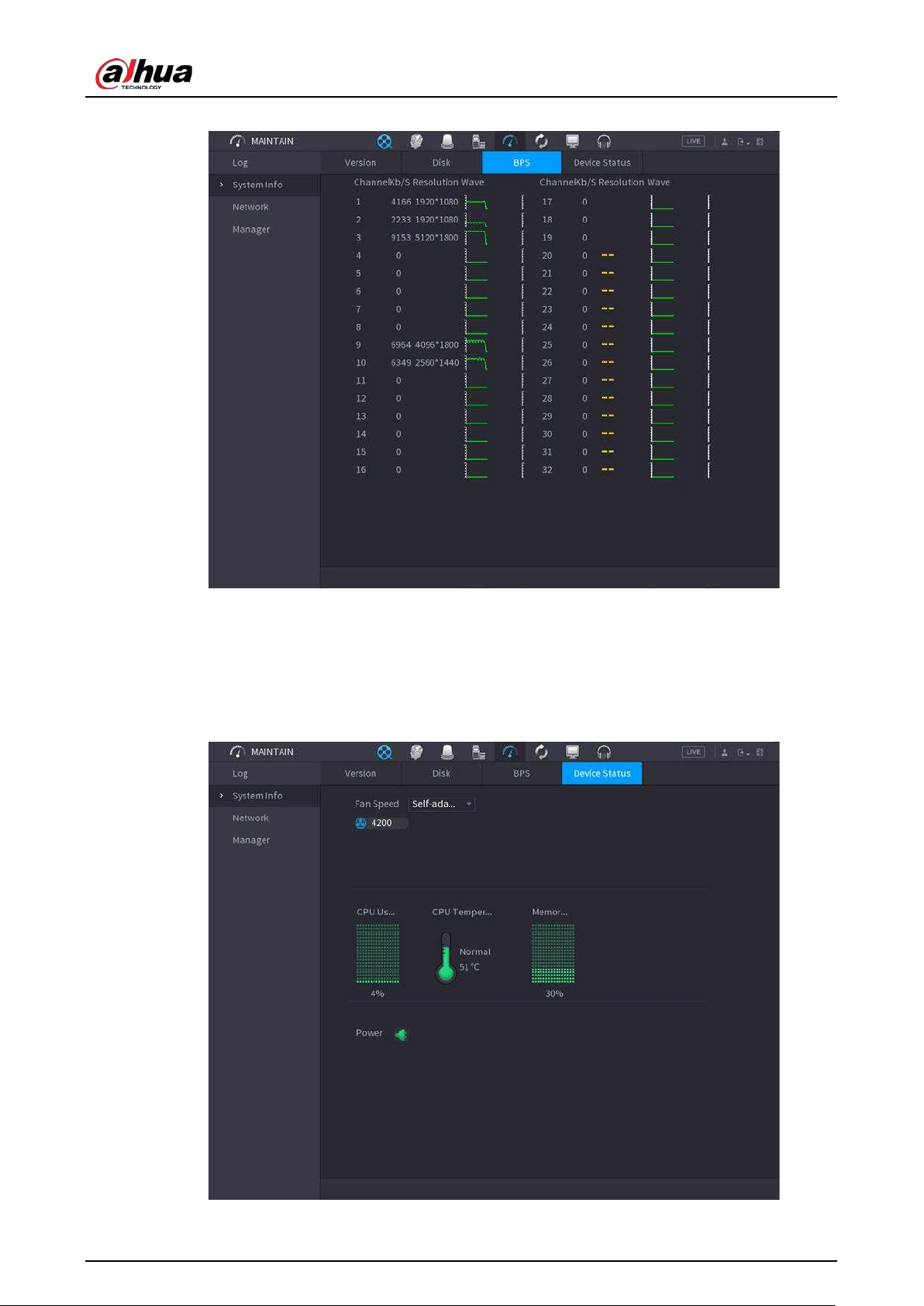
User's Manual
357
Figure 5-276 BPS
5.19.2.5 Device Status
You can view fan running status such as speed, CPU temperature, and memory.
Select
Main Menu
>
MAINTAIN
>
System Info
>
Device Status
.
Figure 5-277 Device status
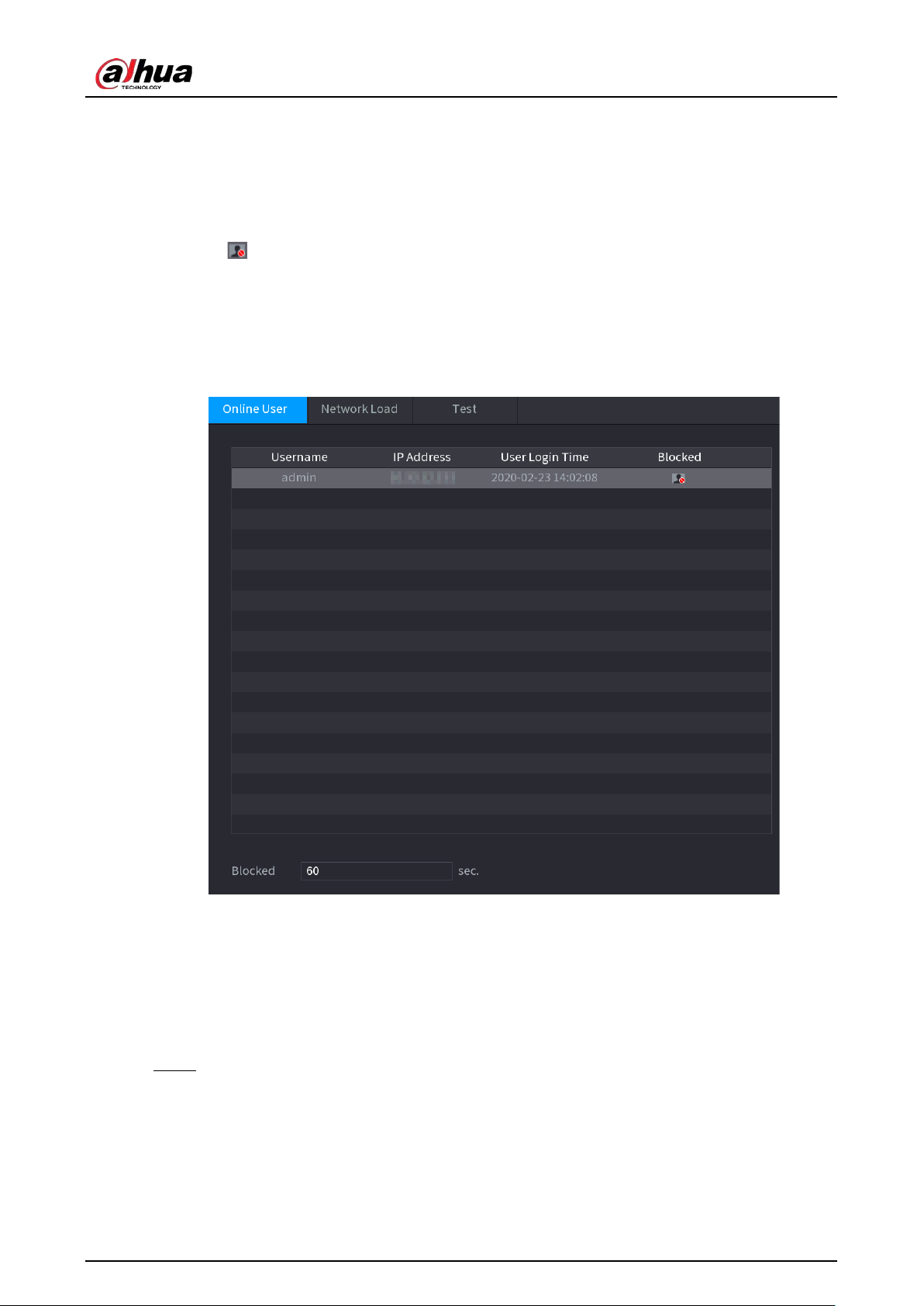
User's Manual
358
5.19.3 Network
5.19.3.1 Online User
You can view the online user information or block any user for a period of time. To block an online
user, click and then enter the time that you want to block this user. The maximum value you can
set is 65535.
The system detects every 5 seconds to check whether there is any user added or deleted, and update
the user list timely.
Select
Main Menu
>
MAINTAIN
>
Network
>
Online User
.
Figure 5-278 Online user
5.19.3.2 Network Load
Network load means the data flow which measures the transmission capability. You can view the
information such as data receiving speed and sending speed.
Procedure
Step 1 Select
Main Menu
>
MAINTAIN
>
Network
>
Network Load
.
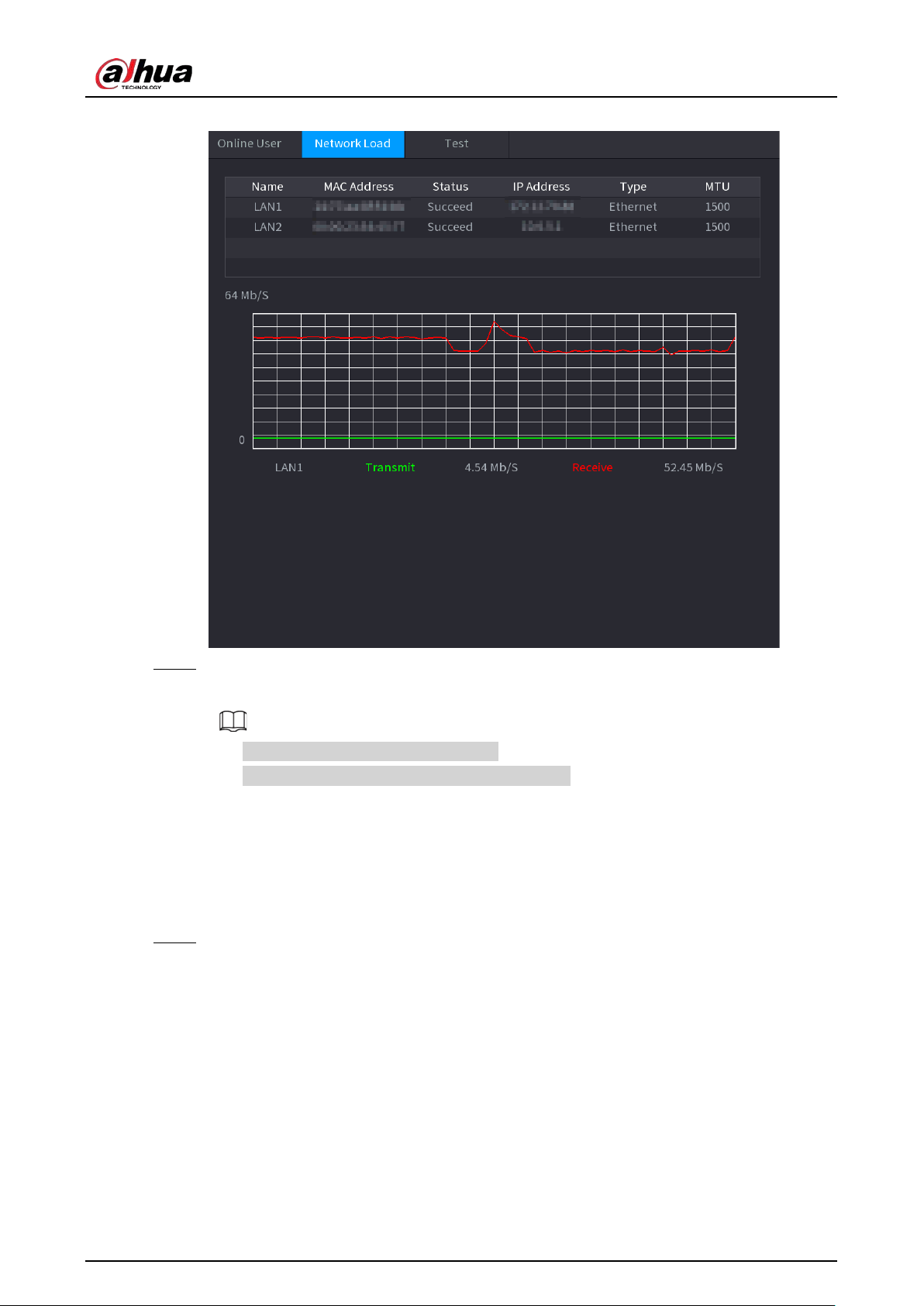
User's Manual
359
Figure 5-279 Network load
Step 2 Click the LAN name that you want to view, for example,
LAN1
.
The system displays the information of data sending speed and receiving speed.
●
System displays LAN1 load by default.
●
Only one LAN load can be displayed at one time.
5.19.3.3 Network Test
You can test the network connection status between the Device and other devices.
Procedure
Step 1 Select
Main Menu
>
MAINTAIN
>
Network
>
Test
.
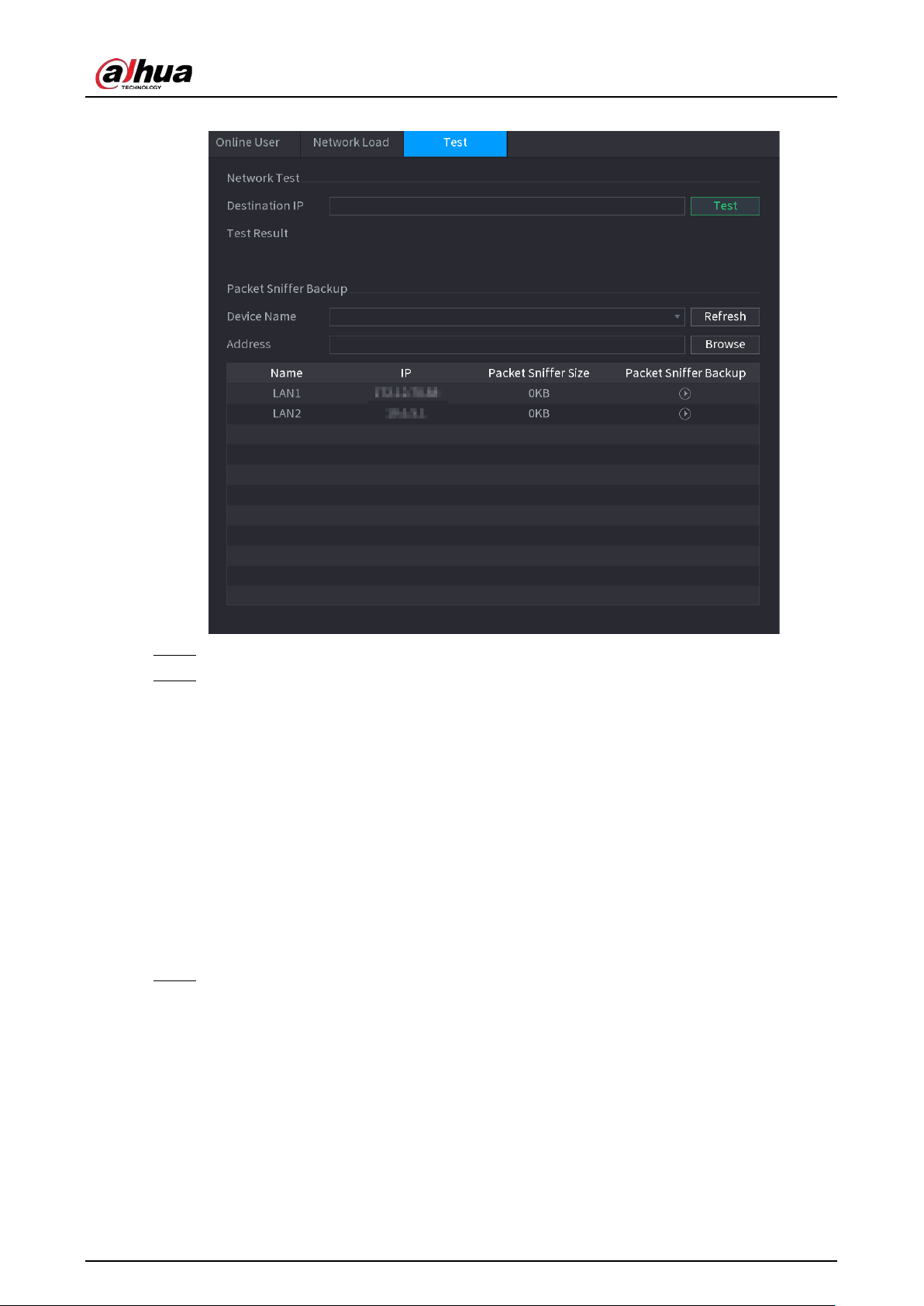
User's Manual
360
Figure 5-280 Test
Step 2 In the
Destination IP
box, enter the IP address.
Step 3 Click
Test
.
After testing is completed, the test result is displayed. You can check the evaluation for
average delay, packet loss, and network status.
5.19.4 Maintenance and Management
5.19.4.1 Device Maintenance
When the Device has been running for a long time, you can enable the Device to restart
automatically at the idle time. You can also enable emergency maintenance.
Procedure
Step 1 Select
Main Menu
>
MAINTAIN
>
Manager
>
Maintenance
.
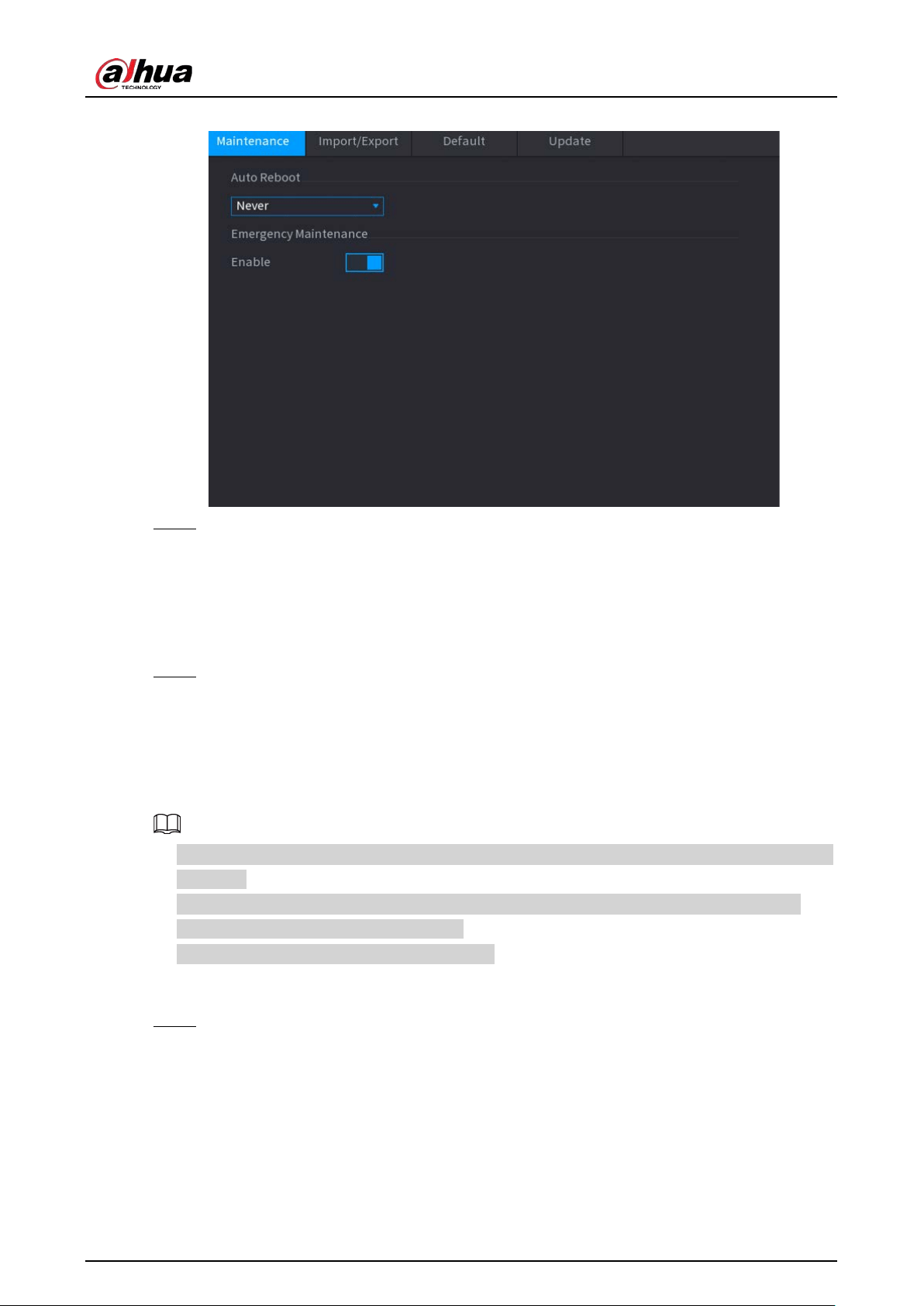
User's Manual
361
Figure 5-281 Maintenance
Step 2 Configure the parameters.
●
Auto Reboot
: Enable the Device to restart at the idle time.
●
Emergency Maintenance
: When the Device has an update power outage, running
error and other problems, and you cannot log in, then you can use the emergency
maintenance function to restart the Device, clear configuration, update the system, and
more.
Step 3 Click
Apply
.
5.19.4.2 Exporting System Settings
You can export or import the Device system settings if there are several Devices that require the
same setup.
●
The
Import/Export
interface cannot be opened if the backup operation is ongoing on the other
interfaces.
●
When you open the
Import/Export
interface, the system refreshes the devices and sets the
current directory as the first root directory.
●
Click
Format
to format the USB storage device.
Procedure
Step 1 Select
Main Menu
>
MAINTAIN
>
Manager
>
Import/Export
.
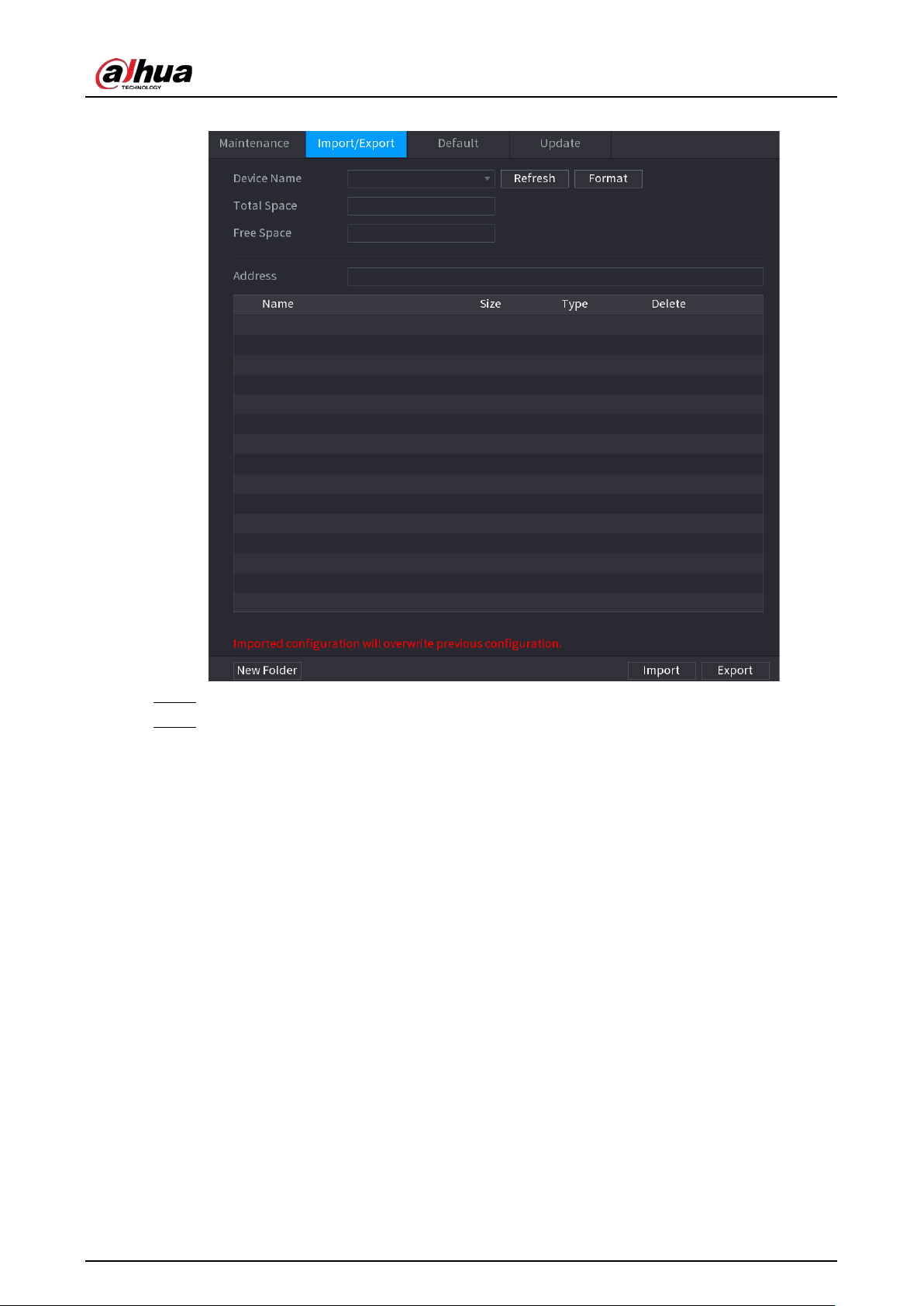
User's Manual
362
Figure 5-282 Import and export
Step 2 Insert a USB storage device into one of the USB ports on the Device.
Step 3 Click
Refresh
to refresh the interface.
The connected USB storage device is displayed.
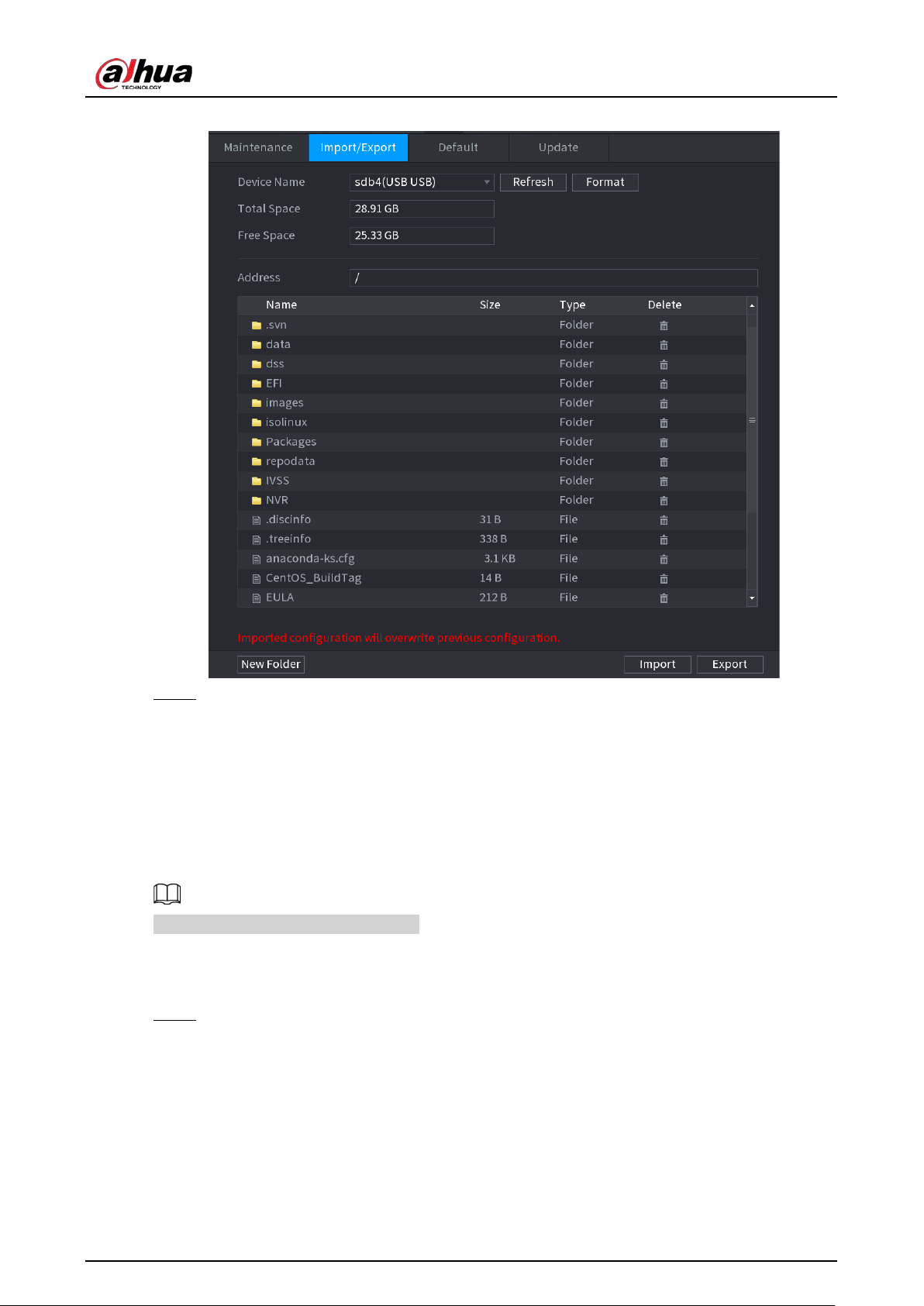
User's Manual
363
Figure 5-283 Connected USB device
Step 4 Click
Export
.
There is a folder under the name style of "Config_[YYYYMMDDhhmmss]". Double-click this
folder to view the backup files.
5.19.4.3 Restoring Defaults
5.19.4.3.1 Restoring Defaults on the Local Interface
This function is for admin account only.
You can restore the Device to default settings on the local interface.
Procedure
Step 1 Select
Main Menu
>
MAINTAIN
>
Manager
>
Default
.
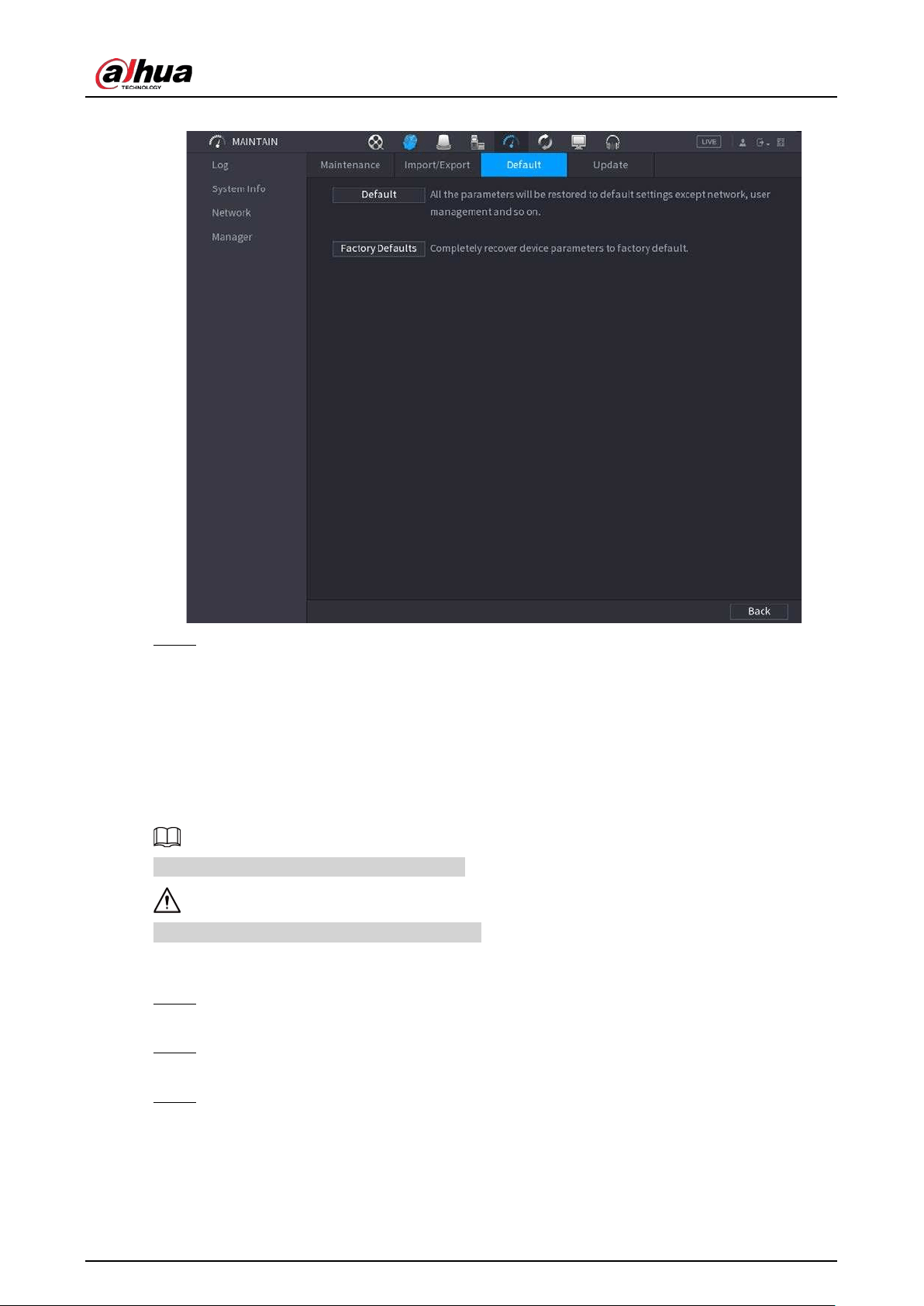
User's Manual
364
Figure 5-284 Default
Step 2 Restore the settings.
●
Default
: Restore all the configurations except network settings and user management
to the default..
●
Factory Default
: Restore all the configurations to the factory default settings.
5.19.4.3.2 Resetting Device through the Reset Button
You can use the reset button on the mainboard to reset the Device to the factory default settings.
The reset button is available on select models.
After resetting, all the configurations will be lost.
Procedure
Step 1 Disconnect the Device from power source, and then remove the cover panel. For details
about removing the cover panel, see "3.3 HDD Installation".
Step 2 Find the reset button on the mainboard, and then connect the Device to the power source
again.
Step 3 Press and hold the reset button for 5 seconds to 10 seconds.
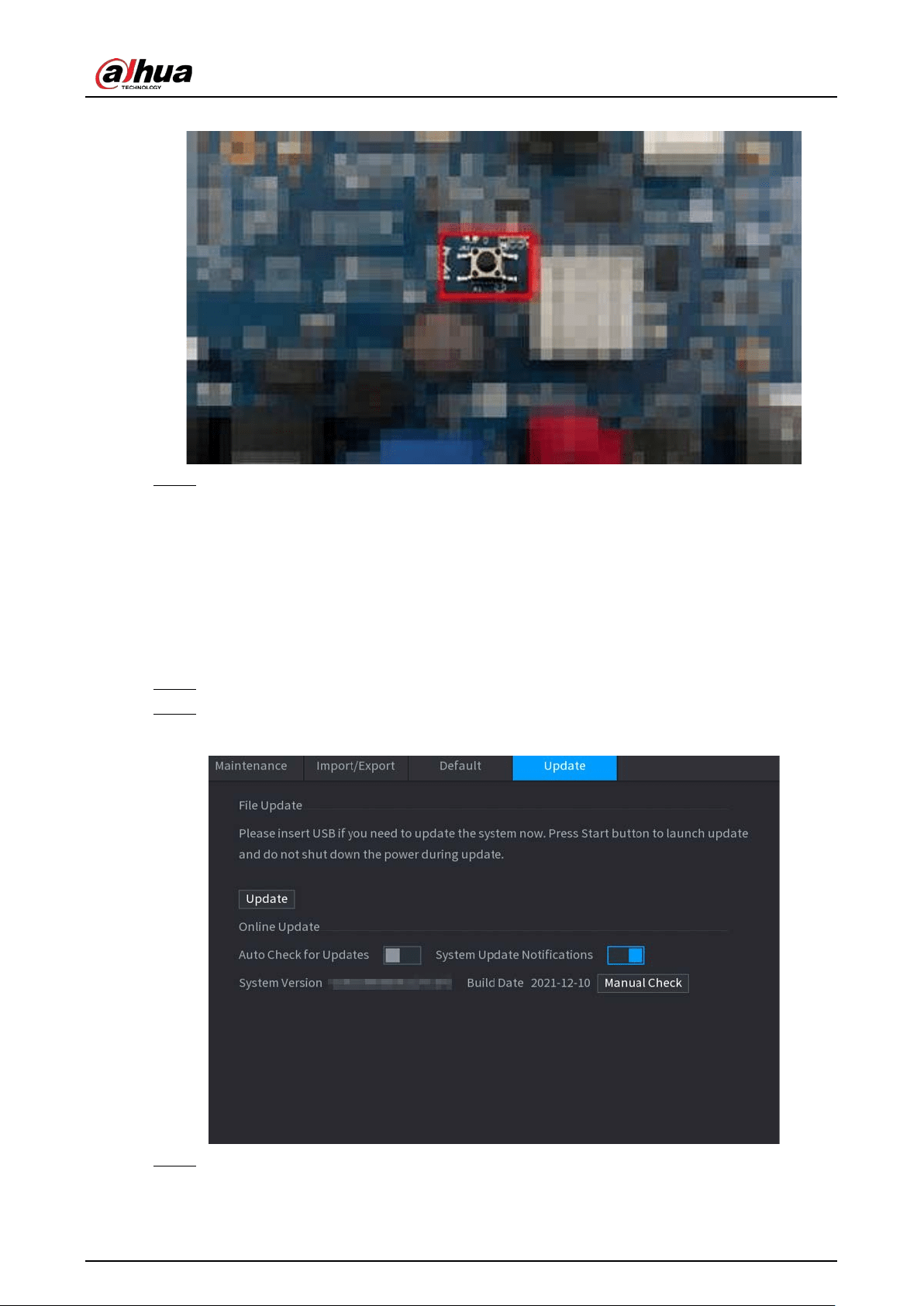
User's Manual
365
Figure 5-285 Reset button
Step 4 Restart the Device.
After the Device restarts, the settings have been restored to the factory default.
5.19.4.4 System Update
5.19.4.4.1 Upgrading File
Procedure
Step 1 Insert a USB storage device containing the upgrade files into the USB port of the Device.
Step 2 Select
Main Menu
>
MAINTAIN
>
Manager
>
Update
Figure 5-286 Update
Step 3 Click
Update
.
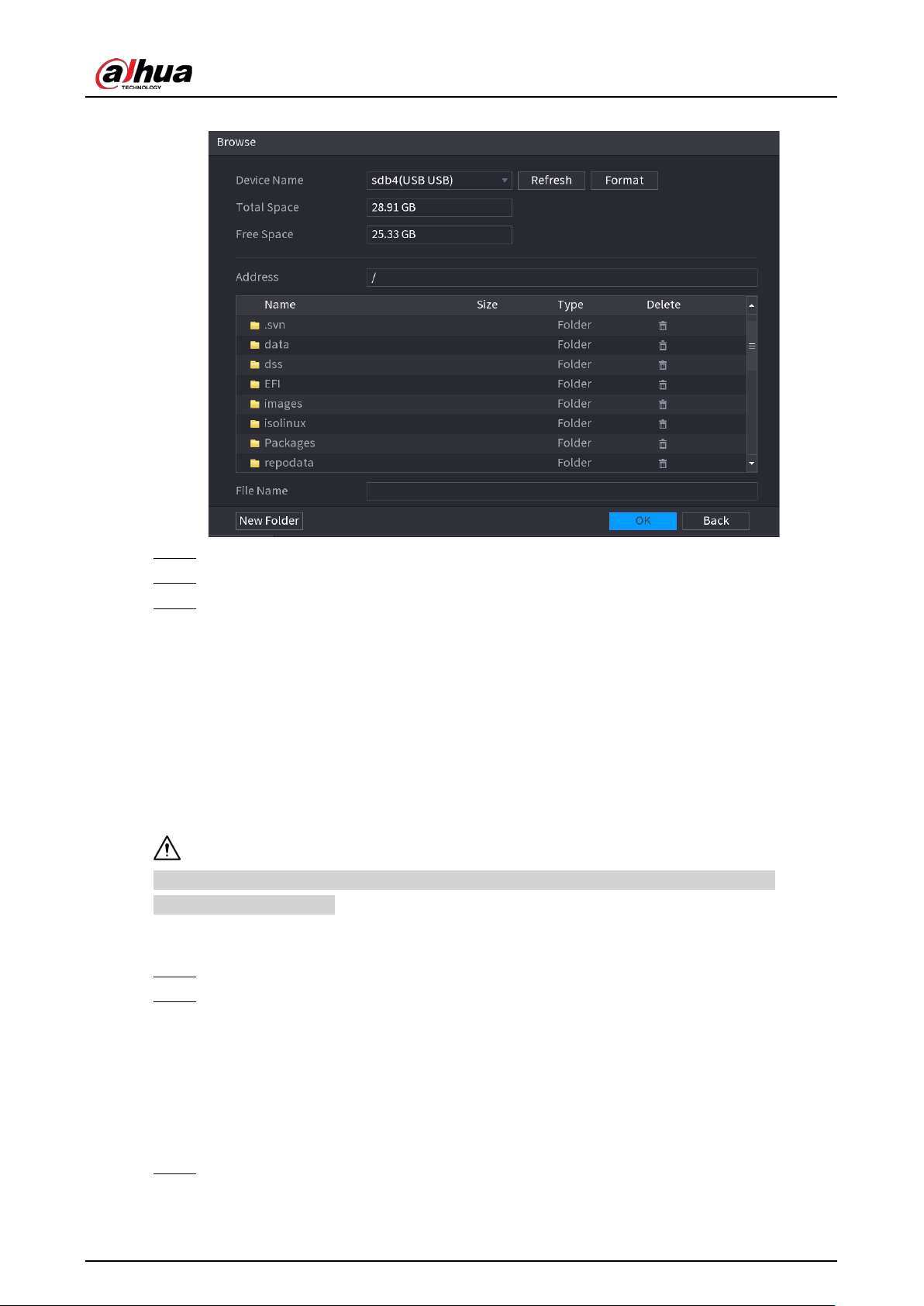
User's Manual
366
Figure 5-287 Browse
Step 4 Click the file that you want to upgrade.
Step 5 The selected file is displayed in the
Update File
box.
Step 6 Click
Start
.
5.19.4.4.2 Online Upgrade
When the Device is connected to Internet, you can use online upgrade function to upgrade the
system.
Before using this function, you need to check whether there is any new version by auto check or
manual check.
●
Auto check: The Device checks if there is any new version available at intervals.
●
Manual check: Perform real-time check whether there is any new version available.
Ensure the correct power supply and network connection during upgrading; otherwise the
upgrading might be failed.
Procedure
Step 1 Select
Main Menu
>
MAINTAIN
>
Manager
>
Update
.
Step 2 Check whether there is any new version available.
●
Auto-check for updates: Enable Auto-check for updates.
●
Manual check: Click
Manual Check
.
The system starts checking the new versions. After checking is completed, the check result
is displayed.
●
If the "It is the latest version" text is displayed, you do not need to upgrade.
●
If the text indicating there is a new version, go to the step 3.
Step 3 Click
Update now
to update the system.
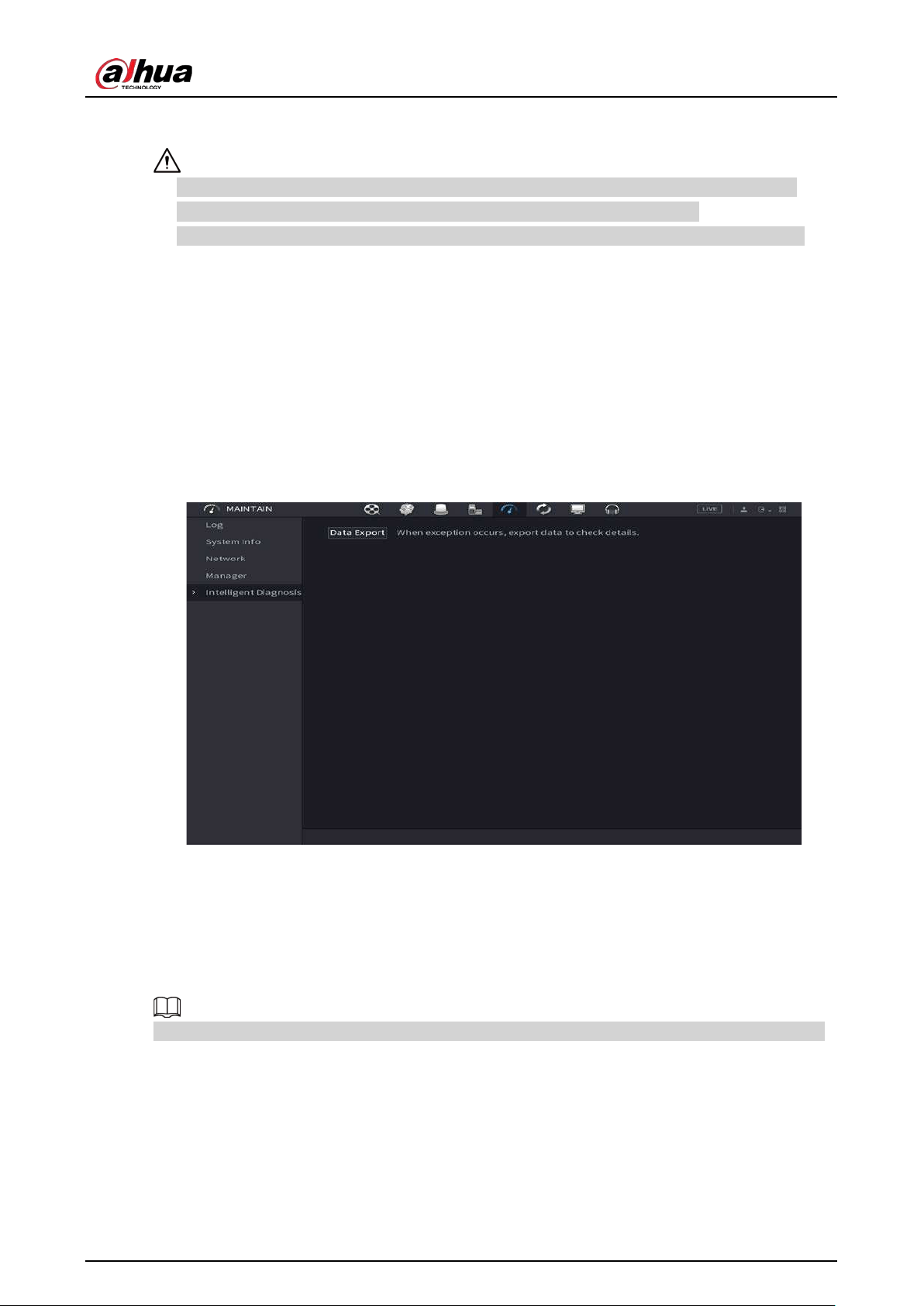
User's Manual
367
5.19.4.4.3 Uboot Upgrading
●
Under the root directory in the USB storage device, there must be "u-boot.bin.img" file and
"update.img" file saved, and the USB storage device must be in FAT32 format.
●
Make sure the USB storage device is inserted; otherwise the upgrading cannot be performed.
When starting the Device, the system automatically checkswhether there is a USB storage device
connected and any upgrade file, and if yes and the check result of the upgrade file is correct, the
system will upgrade automatically. The Uboot upgrade can avoid the situation that you have to
upgrade through +TFTP when the Device is halted.
5.19.4.5 Intelligent Diagnosis
When exception occurs, export data to check details.
Select
Maintain
>
Intelligent Diagnosis
.
Figure 5-288 Intelligent diagnosis
5.20 USB Device Auto Pop-up
After you inserted the USB device, system can auto detect it and pop up the following dialogue box.
It allows you to conveniently backup file, log, configuration or update system.
You can add a USB keyboard through USB port, and it can input characters limited to soft keyboard.
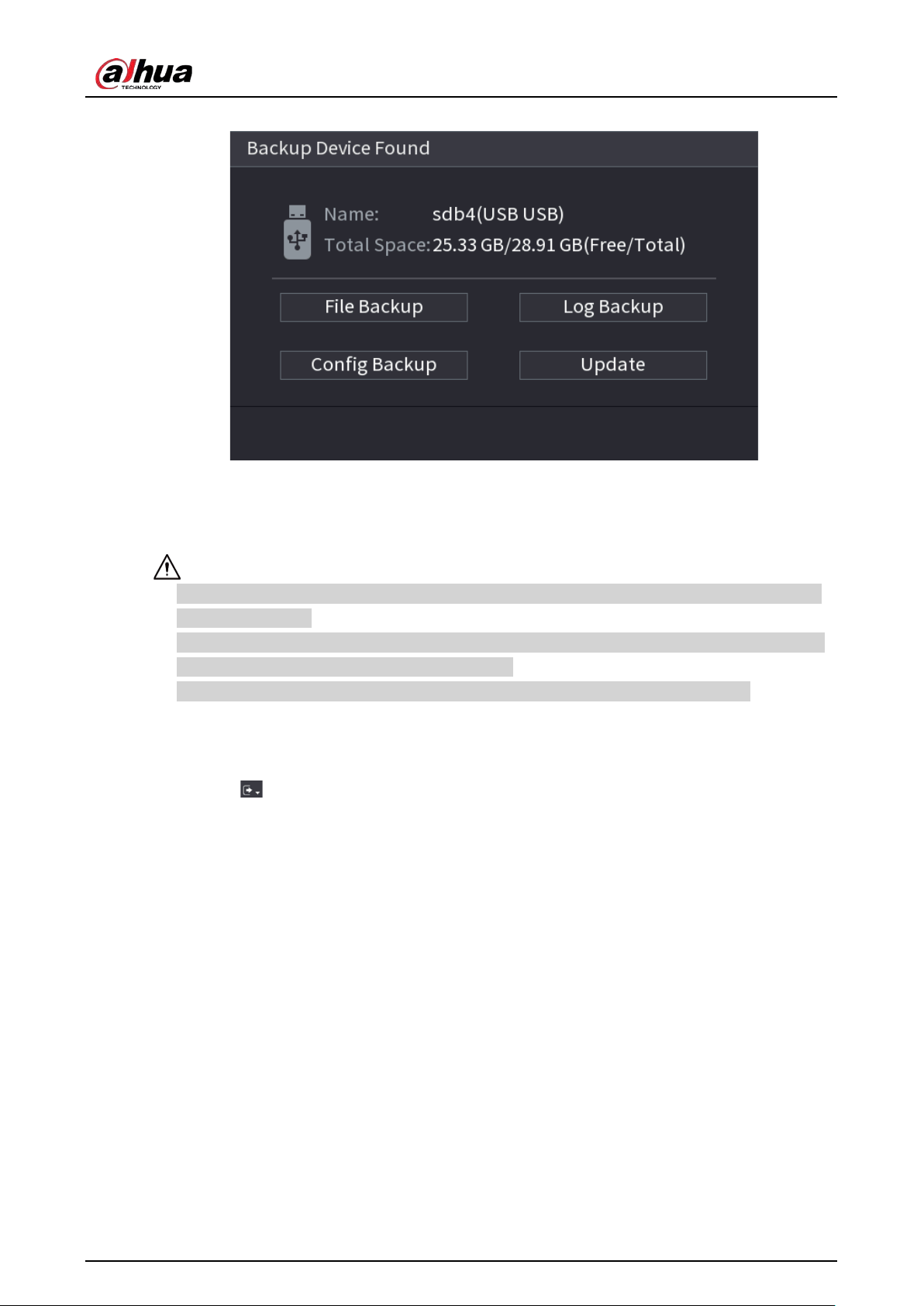
User's Manual
368
Figure 5-289 USB device prompt
5.21 Shutdown
●
When you see corresponding dialogue box "System is shutting down…" Do not click power on-
off button directly.
●
Do not unplug the power cable or click power on-off button to shutdown device directly when
device is running (especially when it is recording.)
●
Shut down the device and then unplug the power cable before you replace the HDD.
Procedure
●
From the main menu (Recommended)
1. Click at the upper-right corner.
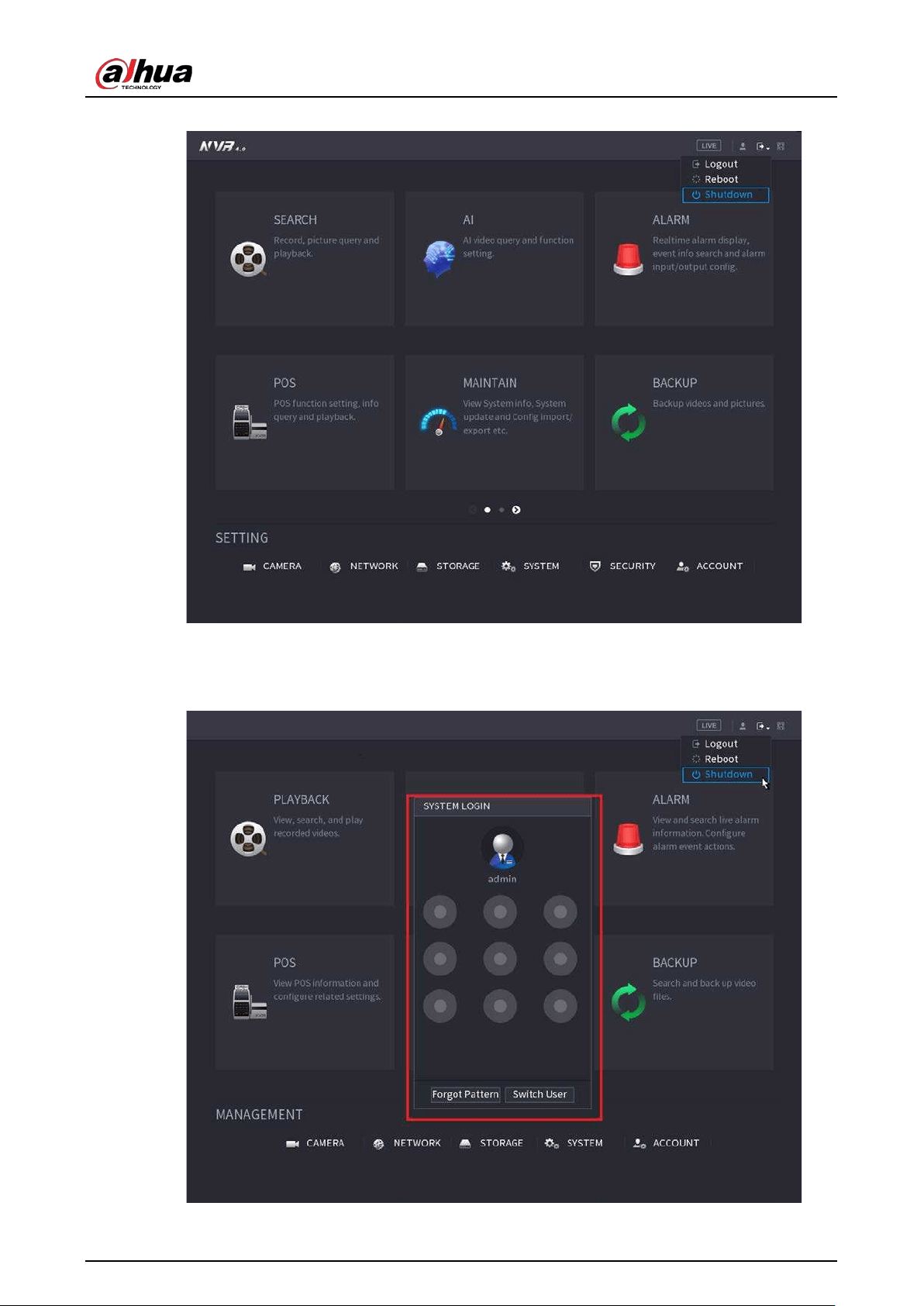
User's Manual
369
Figure 5-290 Shutdown (1)
2. Select
Shutdown.
Draw the unlock pattern or input password first if you have no authority to shut down.
Figure 5-291 Shutdown (2)
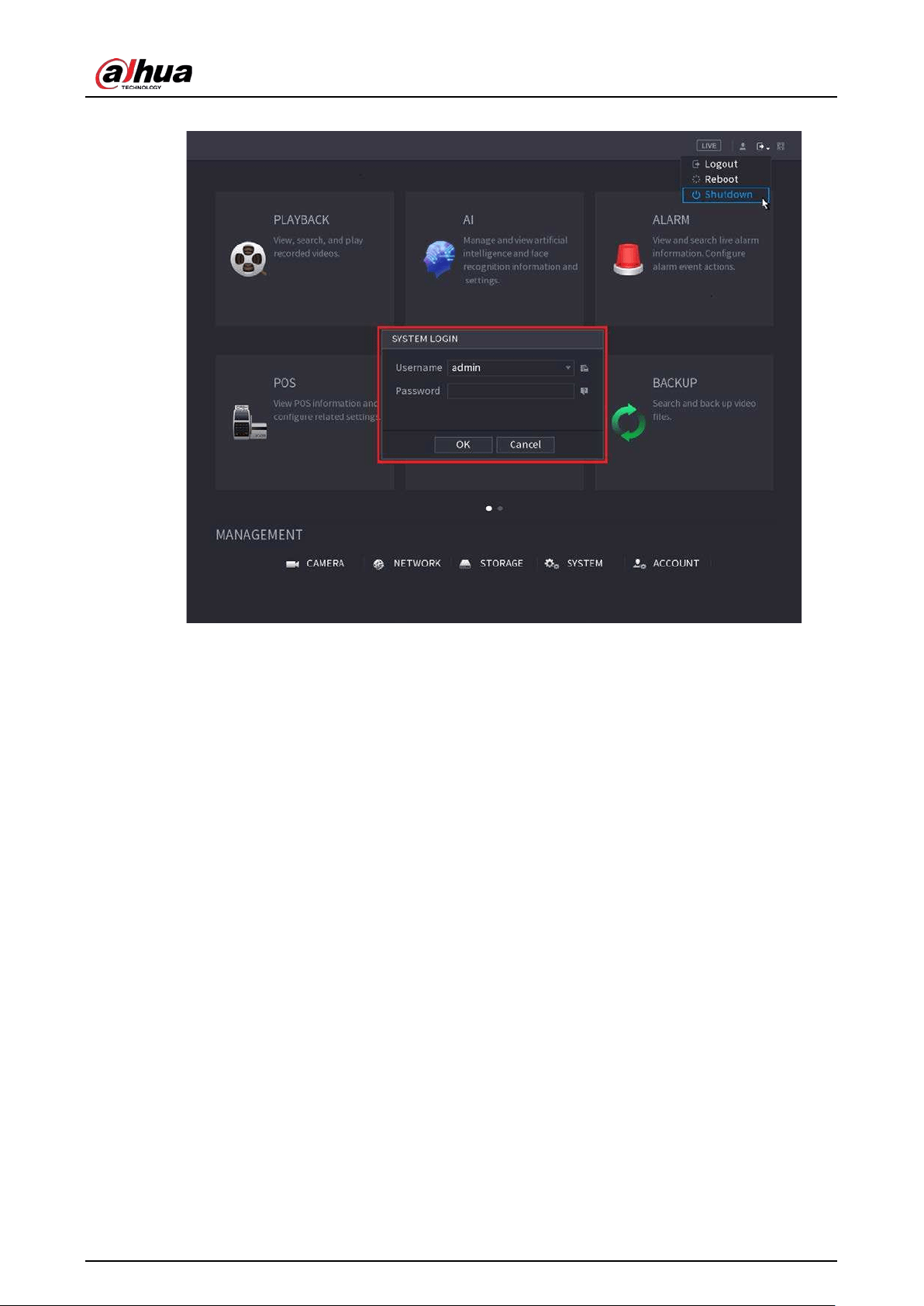
User's Manual
370
Figure 5-292 Shutdown (3)
●
Remote Control
Press the power button on the remote for at least 3 seconds.
●
Press the power button at the rear panel of the device.
Auto Resume after Power Failure
The system can automatically backup video file and resume previous working status after power
failure.

User's Manual
371
6 Web Operation
●
The figures in the Manual are used for introducing the operations and only for reference. The
actual interface might be different dependent on the model you purchased.
●
The Manual is a general document for introducing the product, so there might be some functions
described for the Device in the Manual not apply to the model you purchased.
●
Besides Web, you can use our Smart PSS to login the device. For detailed information, see Smart
PSS user’s manual.
6.1 Network Connection
●
The factory default IP of the Device is 192.168.1.108.
●
The Device supports monitoring on different browsers such as Safari, Firefox, Google to perform
the functions such as multi-channel monitoring, PTZ control, and device parameters
configurations.
Procedure
Step 1 Check to make sure the Device has connected to the network.
Step 2 Configure the IP address, subnet mask and gateway for the PC and the Device. For details
about network configuration of the Device, see "5.19.3 Network".
Step 3 On your PC, check the network connection of the Device by using "ping ***.***.***.***".
Usually the return value of TTL is 255.
6.2 Web Login
Step 1 Open the browser, enter the IP address of the Device, and then press Enter.
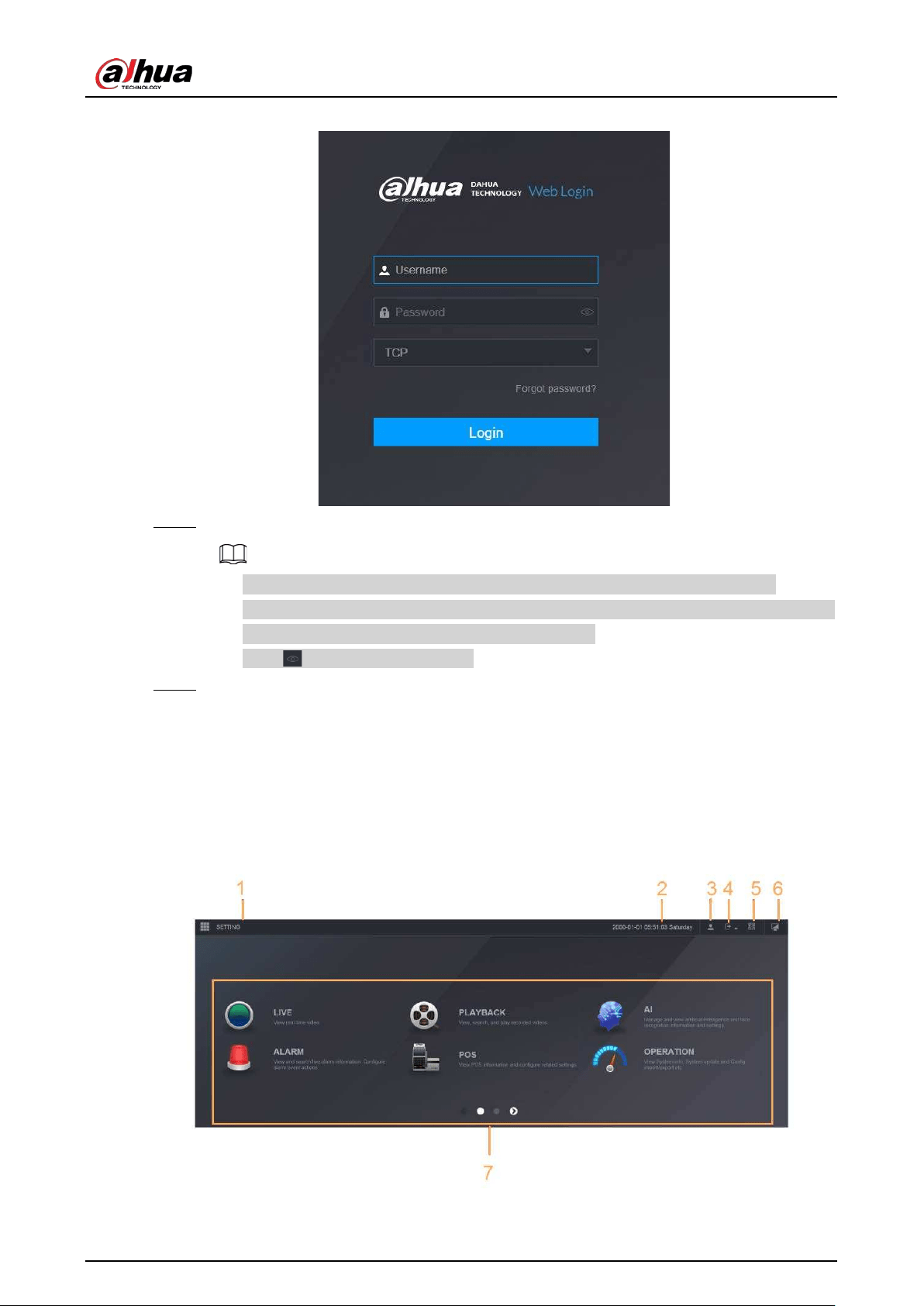
User's Manual
372
Figure 6-1 Login
Step 2 Enter the username and password.
●
The default administrator account is
admin
. The password is the one that was
configured during initial settings. To ensure your account security, we recommend you
keep the password properly and change it regularly.
●
Click to display the password.
Step 3 Click
Login
.
6.3 Web Main Menu
After you have logged in to the web, the main menu is displayed.
For detailed operations, see "5 Local Operations".
Figure 6-2 Main menu
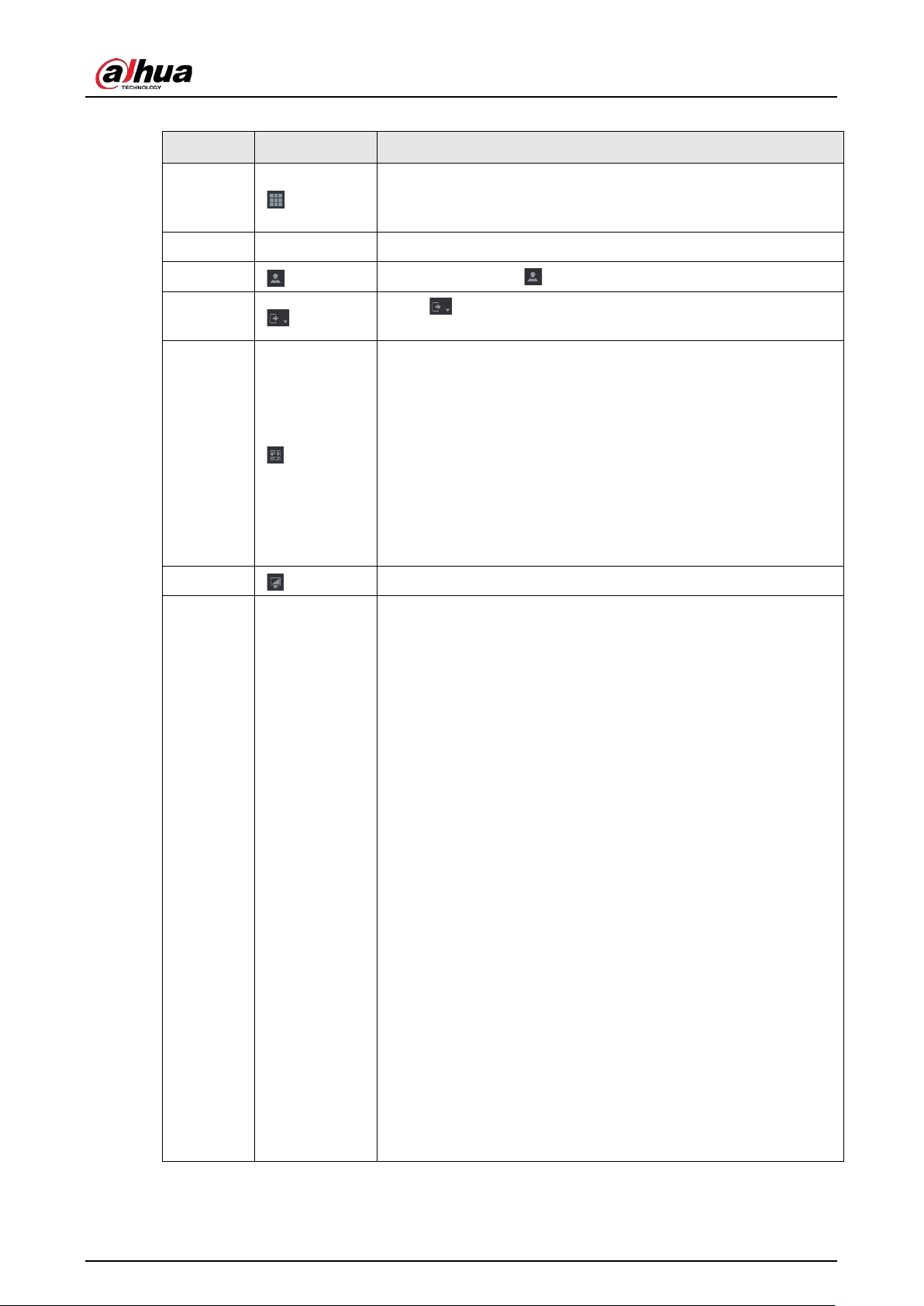
User's Manual
373
Table 6-1 Main menu symbols
No. Icon Description
1
Includes configuration menu through which you can configure
camera settings, network settings, storage settings, system
settings, account settings, and view information.
2 None Displays system date and time.
3
When you point to , the current user account is displayed.
4
Click , select Logout, Reboot, or Shutdown according to your
actual situation.
5
Displays Cell Phone Client and Device SN QR Code.
●
Cell Phone Client: Use your mobile phone to scan the QR
code to add the device into the Cell Phone Client, and then
you can start accessing the Device from your cell phone.
●
Device SN: Obtain the Device SN by scanning the QR code. Go
to the P2P management platform and add the Device SN into
the platform. Then you can access and manage the device in
the WAN. For details, see the P2P operation manual. You can
also configure P2P function in the local configurations, see
"5.11.18 P2P".
6
Displays the web main menu.
7 None
Includes eight function tiles:
LIVE, PLAYBACK, AI, ALARM, POS,
OPERATION, BACKUP, DISPLAY, and AUDIO
. Click each tile to
open the configuration interface of the tile.
●
LIVE
: You can perform the operations such as viewing real-
time video, configuring channel layout, setting PTZ controls,
and using smart talk and instant record functions if needed.
●
PLAYBACK
: Search for and play back the recorded video
saved on the Device.
●
ALARM
: Search for alarm information and configure alarm
event actions.
●
AI
: Configure and manage artificial intelligent events. It
includes smart search, parameters, and database.
●
POS
: View POS information and configure related settings.
●
OPERATION
: View system information, import/export system
configuration files, or update system.
●
BACKUP
: Search and back up the video files to the local PC or
external storage device such as USB storage device.
●
DISPLAY
: Configure the display effect such as displaying
content, image transparency, and resolution, and enable the
zero-channel function.
●
AUDIO
: Manage audio files and configure the playing
schedule. The audio file can be played in response to an
alarm event if the voice prompts function is enabled.

User's Manual
374
6.4 Cluster Service
The cluster function, also known as cluster redundancy, is a kind of deployment method that can
improve the reliability of the device. In the cluster system, there is a number of main devices and
another number of sub devices (the N+M mode), and they have a virtual IP address (the cluster IP).
When the main device fails, the corresponding sub device will take over the job automatically. When
the main device recovers, the sub device will transmit the configuration data, cluster IP address and
videos recorded during the failure to the main device which then takes over the job again.
In the N+M cluster system, there is a management server, the DCS (Dispatching Console) server,
which is responsible for timely and correct scheduling management of the main and sub devices.
When you create a cluster, the current device is used as the first sub device and the DCS server by
default.
This function is available on select models.
6.4.1 Configuring Cluster IP
When the main device malfunctions, the sub device can use the main device configuration and
virtual IP address to replace the work (monitor or record) accordingly. When you use the virtual IP to
access the device, you can still view the real-time video and there is no risk of record loss.
Step 1 Log in to the web as the admin user.
Step 2 Select
SETTING
>
Cluster Service
>
CLUSTER IP
.
Step 3 Select
Enable
.
Step 4 Configure
IP Address
,
Subnet Mask
and
Default Gateway
.
Step 5 Click
OK
.
6.4.2 Main Device
You can add several main devices manually. After you enable the cluster function, you can vie IP
address, working status and connection log of the main device.
Step 1 Select
SETTING
>
Cluster Service
>
Main Device
.
Step 2 Click
Manual Add
.
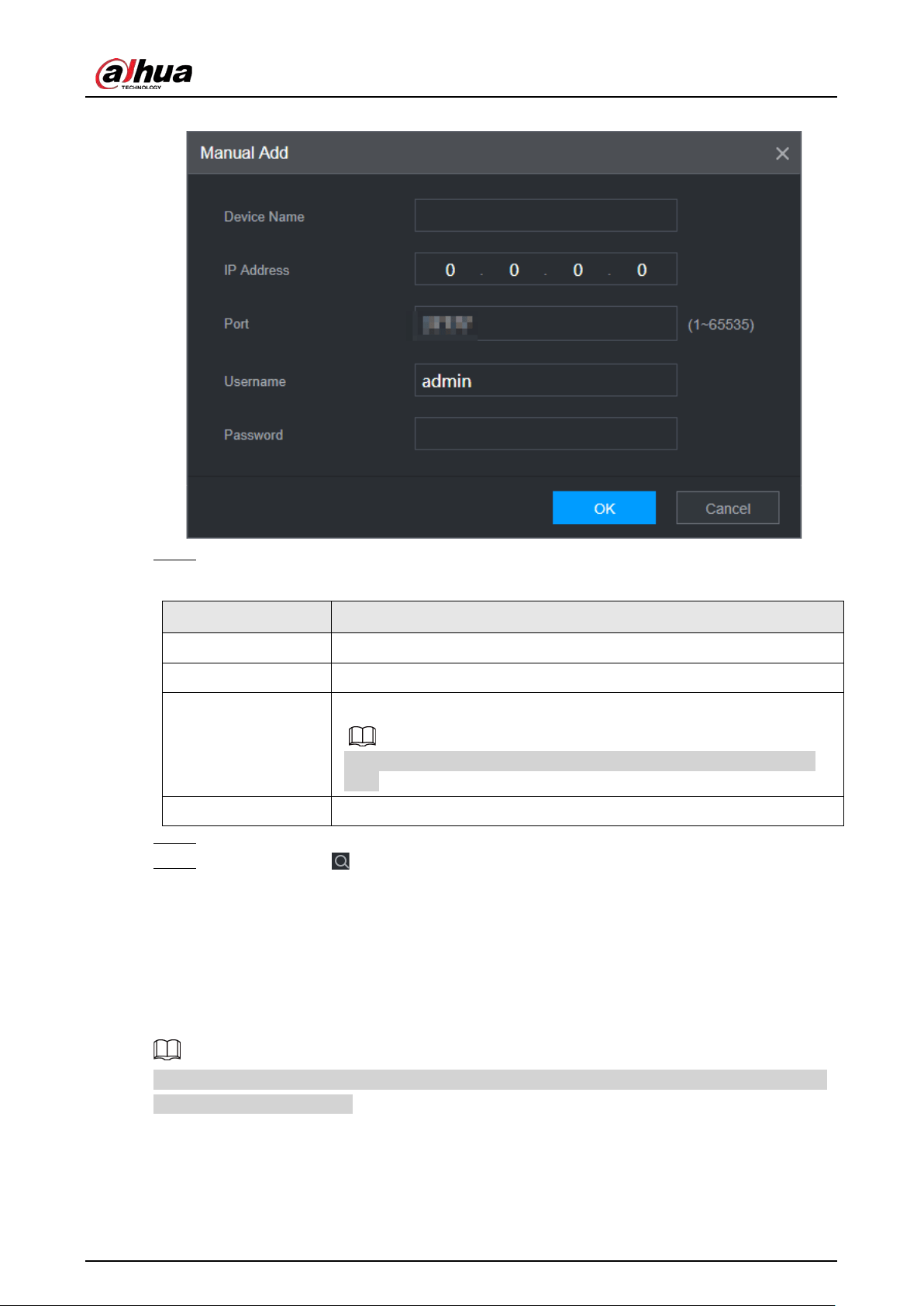
User's Manual
375
Figure 6-3 Manual add
Step 3 Configure parameters.
Table 6-2 Parameters of adding main device
Parameter Description
Device Name Customize the device name.
IP Address Enter the IP address of the NVR.
Port
Set the TCP port number of the server. The default value is 37777.
You can view the current TCP port number in
SETTING
>
Network
>
Port
.
Username/Password Enter the username and password of the NVR.
Step 4 Click
OK
.
Step 5 (Optional) Click to view event occurrence time, name, operation and reason.
6.4.3 Sub Device
When you add the first sub device, the default IP is the device IP address that logs in on the web.
From
SETTING
>
Cluster Service
>
Sub Device
, you can add sub devices. For details, see "6.4.2 Main
Device".
When adding the first sub device, you need not enter the IP address, because the first sub device is
the current device by default.
After you added main device and sub device, you need to enable cluster function. See "6.4.5
Configuring Cluster Control" for more information.
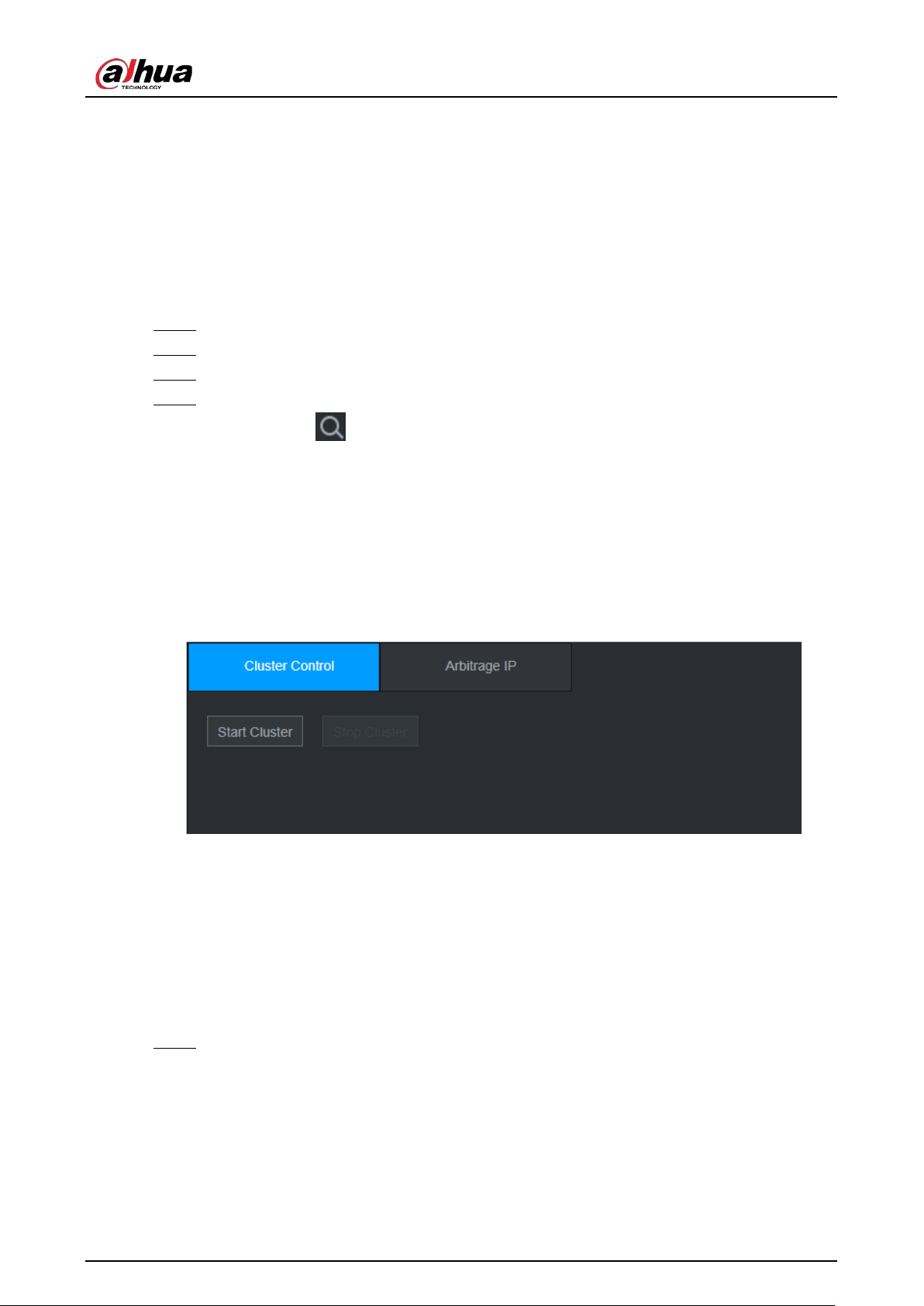
User's Manual
376
6.4.4 Transferring Videos
After the main device has recovered, the videos recorded on the sub device during the failure period
can be transferred to the main device.
Prerequisites
The main device works normally.
Procedure
Step 1 Select
SETTING
>
Cluster Service
>
Transfer Recorder
.
Step 2 Click
Add Task
.
Step 3 Configure parameters.
Step 4 Click
OK
.
You can click to view details on the transferring task.
6.4.5 Configuring Cluster Control
6.4.5.1 Cluster Control
From
SETTING
>
Cluster Service
>
Cluster Control
, you can enable or disable cluster.
Figure 6-4 Start cluster
You can see the corresponding prompt if you successfully enabled cluster service.
6.4.5.2 Arbitrage IP
When there are only 2 devices in the cluster, a third-party device is required to determine whether
the main device is faulty, so arbitration IP must be set for the cluster to perform a normal
replacement operation. The arbitration IP can be the IP address of another device, computer or
gateway.
Step 1 Select
SETTING
>
Cluster Service
>
Arbitrage IP
.
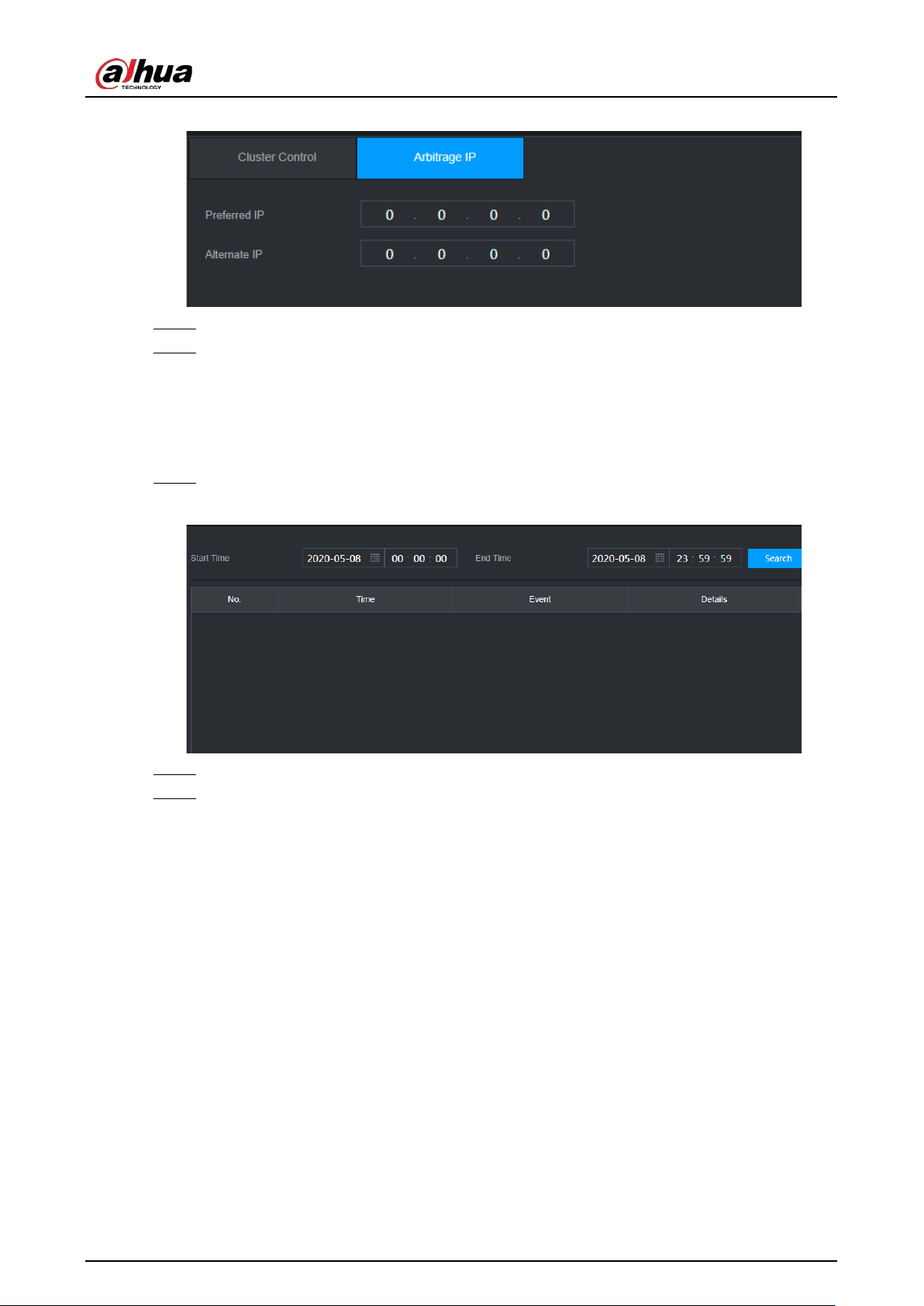
User's Manual
377
Figure 6-5 Arbitrage IP
Step 2 Configure the preferred and alternate IP.
Step 3 Click
OK
.
6.4.6 Cluster Log
You can search for and view cluster logs.
Step 1 Select
SETTING
>
Cluster Service
>
Cluster Log
.
Figure 6-6 Cluster log
Step 2 Enter the start time and end time.
Step 3 Click
Search
.

User's Manual
378
7 Glossary
●
DHCP
: DHCP (Dynamic Host Configuration Protocol) is one of the TCP/IP protocol cluster. It is
mainly used to assign temporary IP addresses to computers on a network.
●
DDNS
: DDNS (Dynamic Domain Name Server) is a service that maps Internet domain names to IP
addresses. This service is useful to anyone who wants to operate a server (web server, mail server,
ftp server and more.) connected to the internet with a dynamic IP or to someone who wants to
connect to an office computer or server from a remote location with software.
●
eSATA
: eSATA (External Serial AT) is an interface that provides fast data transfer for external
storage devices. It is the extension specifications of a SATA interface.
●
GPS
: GPS (Global Positioning System) is a satellite system, protected by the US, safely orbiting
thousands of kilometers above the earth.
●
PPPoE
: PPPoE (Point to Point Protocol over Ethernet) is a specification for connecting multiple
computer users on an Ethernet local area network to a remote site. Now the popular mode is
ADSL and it adopts PPPoE protocol.
●
Wi-Fi
: Wi-Fi is the name of a popular wireless networking technology that uses radio waves to
provide wireless high-speed Internet and network connections. The standard is for wireless local
area networks (WLANs). It is like a common language that all the devices use to communicate to
each other. It is actually IEEE802.11, a family of standard The IEEE (Institute of Electrical and
Electronics Engineers Inc.)
●
3G
: 3G is the wireless network standard. It is called 3G because it is the third generation of
cellular telecom standards. 3G is a faster network for phone and data transmission and speed Is
over several hundred kbps. Now there are four standards: CDMA2000, WCDMA, TD-SCDMA and
WiMAX.
●
Dual-stream
: The dual-stream technology adopts high-rate bit stream for local HD storage such
as QCIF/CIF/2CIF/DCIF/4CIF encode and one low-rate bit stream for network transmission such as
QCIF/CIF encode. It can balance the local storage and remote network transmission. The dual-
stream can meet the difference band width requirements of the local transmission and the
remote transmission. In this way, the local transmission using high-bit stream can achieve HD
storage and the network transmission adopting low bit stream suitable for the fluency
requirements of the 3G network such as WCDMA, EVDO, TD-SCDMA.
●
On-off value
: It is the non-consecutive signal sampling and output. It includes remote sampling
and remote output. It has two statuses: 1/0.

User's Manual
379
8 FAQ
Questions Reasons
The Device failed to start
properly.
●
Incorrect input power.
●
Incorrect connection of the power cord.
●
Damaged power switch.
●
Wrong program.
●
Damaged HDD.
●
Damaged mainboard.
The Device automatically shuts
down or stops running.
●
Unstable or insufficient input voltage.
●
Insufficient button power.
●
Improper operating environment.
●
Hardware error.
The Device cannot detect
HDD.
●
Damaged HDD or HDD ribbon.
●
Loose connection of HDD cable.
●
Damaged SATA port.
There is no video output in all
channels.
●
Program version is not correct.
●
Brightness is 0.
●
Hardware error.
I cannot find local records.
●
Damaged HDD or HDD ribbon.
●
Program version is not correct.
●
The recorded file has been overwritten.
●
The recording function has been disabled.
Distorted recorded videos.
●
Video quality setup is too low.
●
Program read error, bit data is too small. There is mosaic in
the full screen. Restart the NVR to solve this problem.
●
HDD data ribbon error.
●
HDD malfunction.
●
NVR hardware malfunctions.
Time display is not correct.
●
Setup is not correct.
●
Battery contact is not correct or voltage is too low.
●
Crystal is broken.

User's Manual
380
Questions Reasons
NVR cannot control PTZ.
●
Front panel PTZ error.
●
PTZ decoder setup, connection or installation is not
correct.
●
Cable connection is not correct.
●
PTZ setup is not correct.
●
PTZ decoder and NVR protocol is not compatible.
●
PTZ decoder and NVR address is not compatible.
●
When there are several decoders, add 120 Ohm between
the PTZ decoder A/B cables furthest end to delete the
reverberation or impedance matching. Otherwise the PTZ
control is not stable.
●
The distance is too far.
I cannot log in client-end or
web.
●
For Windows 98 or Windows ME user, update your system
to Windows 2000 sp4. Or you can install client-end
software of lower version. Please note right now, our NVR
is not compatible with Windows VISTA control.
●
ActiveX control has been disabled.
●
No dx8.1 or higher. Upgrade display card driver.
●
Network connection error.
●
Network setup error.
●
Password or username is invalid.
●
Client-end is not compatible with NVR program.
There is only mosaic no video
when preview or playback
video file remotely.
●
Network fluency is not good.
●
Client-end resources are limit.
●
Current user has no right to monitor.
Network connection is not
stable.
●
Network is not stable.
●
IP address conflict.
●
MAC address conflict.
●
PC or device network card is not good.
Burn error /USB back error.
●
Burner and NVR are in the same data cable.
●
System uses too much CPU resources. Stop record first and
then begin backup.
●
Data amount exceeds backup device capacity. It might
result in burner error.
●
Backup device is not compatible.
●
Backup device is damaged.
Keyboard cannot control NVR.
●
NVR serial port setup is not correct.
●
Address is not correct.
●
When there are several switchers, power supply is not
enough.
●
Transmission distance is too far.

User's Manual
381
Questions Reasons
Alarm signal cannot be
disarmed.
●
Alarm setup is not correct.
●
Alarm output has been open manually.
●
Input device error or connection is not correct.
●
Some program versions might have this problem. Upgrade
your system.
Alarm function is null.
●
Alarm setup is not correct.
●
Alarm cable connection is not correct.
●
Alarm input signal is not correct.
●
There are two loops connect to one alarm device.
Record storage period is not
enough.
●
Camera quality is too low. Lens is dirty. Camera is installed
against the light. Camera aperture setup is not correct.
●
HDD capacity is not enough.
●
HDD is damaged.
Cannot playback the
downloaded file.
●
There is no media player.
●
No DXB8.1 or higher graphic acceleration software.
●
There is no DivX503Bundle.exe control when you play the
file transformed to AVI via media player.
●
No DivX503Bundle.exe or ffdshow-2004 1012 .exe in
Windows XP OS.
Forgot local menu operation
password or network
password
Contact your local service engineer or our sales person for
help. We can guide you to solve this problem.
There is no video. The screen is
in black.
●
IPC IP address is not right.
●
IPC port number is not right.
●
IPC account (username/password) is not right.
●
IPC is offline.
The displayed video is not full
in the monitor.
Check current resolution setup. If the current setup is
1920*1080, then you need to set the monitor resolution as
1920*1080.
There is no HDMI output.
●
Displayer is not in HDMI mode.
●
HDMI cable connection is not right.
The video is not fluent when I
view in multiple-channel mode
from the client-end.
●
The network bandwidth is not sufficient. The multiple-
channel monitor operation needs at least 100M or higher.
●
Your PC resources are not sufficient. For 16-ch remote
monitor operation, the PC shall have the following
environment: Quad Core, 2G or higher memory,
independent displayer, display card memory 256M or
higher.
User's Manual
382
Questions Reasons
I cannot connect to the IPC
●
Make sure that the IPC has booted up.
●
IPC network connection is right and it is online
●
IPC IP is in the blocklist.
●
The device has connected to the too many IPC. It cannot
transmit the video.
●
Check the IPC port value and the time zone is the same as
the NVR.
●
Make sure current network environment is stable.
After I set the NVR resolution
as 1080P, my monitor cannot
display.
Shut down the device and then reboot. When you reboot,
press the Fn button at the same time and then release after 5
seconds. You can restore NVR resolution to the default setup.
My admin account has been
changed and I cannot log in.
Use telnet and then input the following command:
cd /mnt/mtd/Config/
rm -rf group
rm -rf password
Reboot the device to restore the default password.
After I login the Web, I cannot
find the remote interface to
add the IPC.
Clear the Web controls and load again.
There is IP and gateway, I can
access the internet via the
router. But I cannot access the
internet after I reboot the NVR.
Use command PING to check you can connect to the gateway
or not. Use telnet to access and then use command "ifconfig–a"
to check device IP address. If you see the subnet mask and the
gateway has changed after the reboot. Upgrade the
applications and set again.
I use the VGA monitor. I want
to know if I use the multiple-
window mode, I see the video
from the main stream or the
sub stream?
●
For 32-channel series product, the 9/16-window is using
the sub stream.
●
For 4/8/16 series product, system is using the main stream
no matter you are in what display mode.
Daily Maintenance
●
Use the brush to clean the board, socket connector and the chassis regularly.
●
The device shall be soundly earthed in case there is audio/video disturbance. Keep the device
away from the static voltage or induced voltage.
●
Unplug the power cable before you remove the audio/video signal cable, RS-232 or RS-485 cable.
●
Do not connect the TV to the local video output port (VOUT). It might result in video output
circuit.
●
Always shut down the device properly. Use the shutdown function in the menu, or you can press
the power button in the rear pane for at least three seconds to shut down the device. Otherwise
it might result in HDD malfunction.
●
Make sure the device is away from the direct sunlight or other heating sources. Keep the sound
ventilation.
●
Check and maintain the device regularly.

User's Manual
383
Appendix 1 HDD Capacity Calculation
Calculate the total capacity needed by each device according to video recording (video recording
type and video file storage time).
1. According to Formula (1) to calculate storage capacity that is the capacity of each channel
needed for each hour, unit Mbyte.
In the formula: means the bit rate, unit Kbit/s
2. After video time requirement is confirmed, according to Formula (2) to calculate the storage
capacity , which is storage of each channel needed unit Mbyte.
In the formula:
means the recording time for each day (hour)
means number of days for which the video shall be kept
3. According to Formula (3) to calculate total capacity (accumulation) that is needed for all
channels in the device during
scheduled video recording
.
In the formula:
means total number of channels in one device
4. According to Formula (4) to calculate total capacity (accumulation) that is needed for all
channels in device during
alarm video recording (including motion detection)
.
In the formula: means alarm occurrence rate
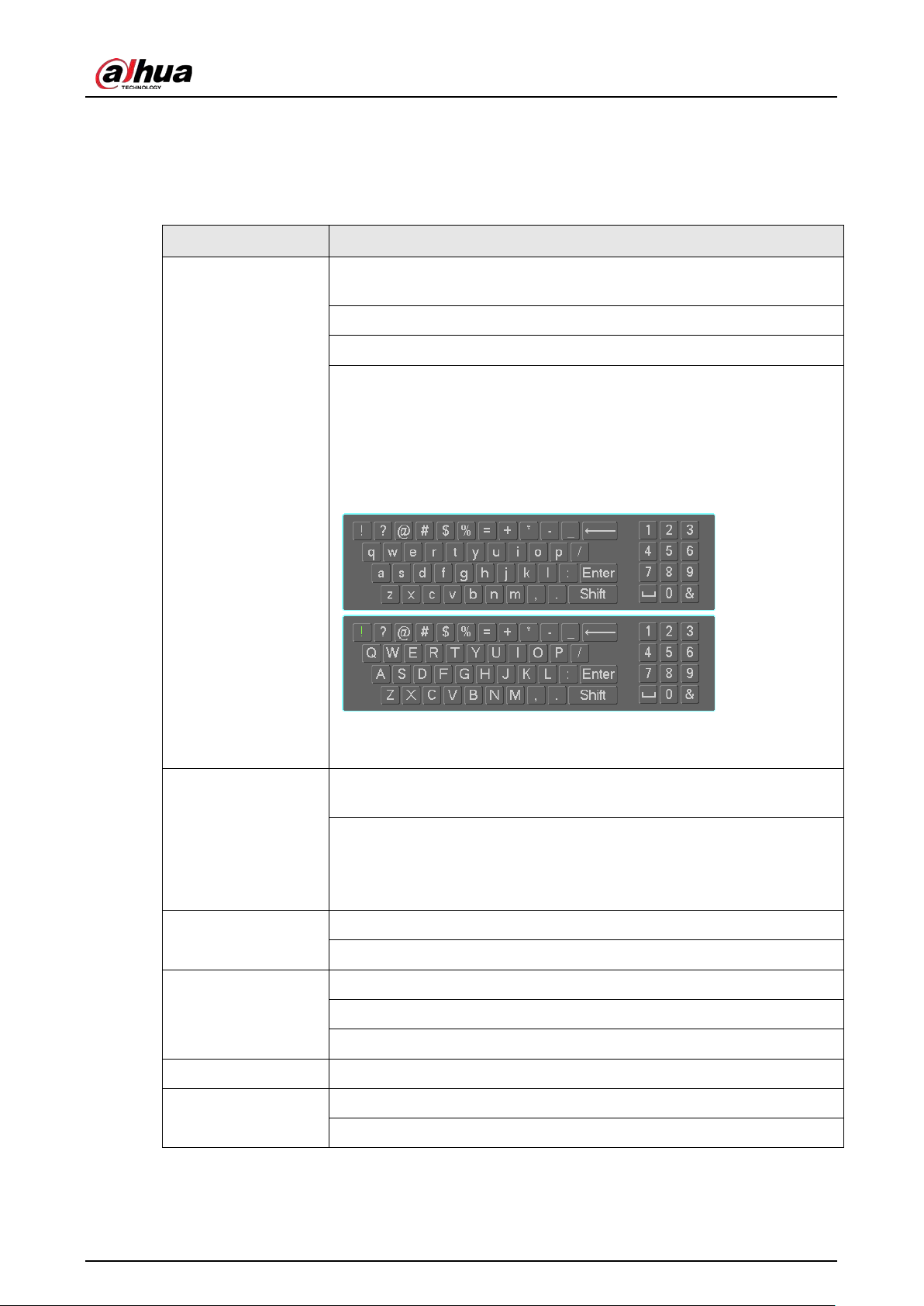
User's Manual
384
Appendix 2 Mouse Operation
Appendix Table 2-1 Mouse operation
Operation Description
Left click mouse
When you have selected one menu item, left click mouse to view menu
content.
Modify checkbox or motion detection status.
Click combo box to pop up drop-down list
In input box, you can select input methods. Left click the corresponding
button on the panel you can input numeral/English character (lower
case/upper case). Here
←
stands for backspace button.
_
stands for
space button.
In English input mode: _ stands for input a backspace icon and
←
stands
for deleting the previous character.
In numeral input mode: _ stands for clear and
←
stands for deleting the
previous numeral.
Double left click
mouse
Implement special control operation such as double click one item in the
file list to playback the video.
In multiple-window mode, double left click one channel to view in full-
window.
Double left click current video again to go back to previous multiple-
window mode.
Right click mouse
In real-time monitor mode, pops up shortcut menu.
Exit current menu without saving the modification.
Press middle button
In numeral input box: Increase or decrease numeral value.
Switch the items in the checkbox.
Page up or page down.
Move mouse Select current control or move control.
Drag mouse
Select motion detection zone.
Select privacy mask zone.
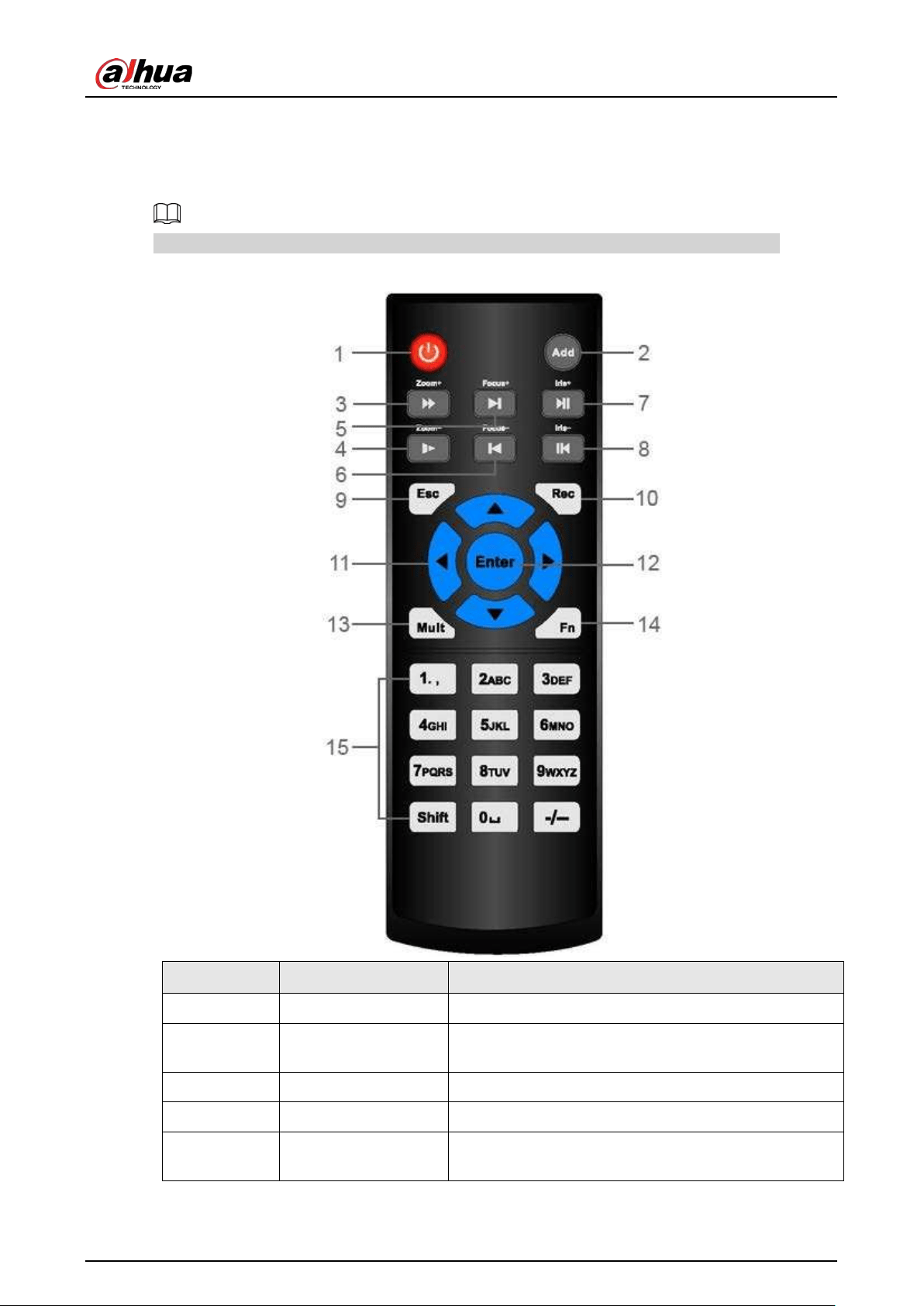
User's Manual
385
Appendix 3 Remote Control
Remote control is not our standard accessory and it is not included in the accessory package.
Appendix Figure 3-1 Remote control
No. Name Function
1 Power button Press this button to boot up or shut down the device.
2 Address
Press this button to input device serial number, so that
you can control the Device.
3 Forward Multi-step forward speed and normal speed playback.
4 Slow motion Multi-step slow motion speed or normal playback.
5 Next record
In playback state, press this button to play back the
next video.

User's Manual
386
No. Name Function
6 Previous record
In playback state, press this button to play back the
previous video.
7 Play/Pause
●
In normal playback state, press this button to
pause playback.
●
In pause state, press this button to resume to
normal playback.
●
In live view window interface, press this button to
enter video search menu.
8 Reverse/pause
In the reverse playback state, press this button to
pause reverse playback.
In the reverse playback pause state, press this button
to resume to playback reversing state.
9 Esc
Go back to previous menu or cancel current operation
(close front interface or control).
10 Record
●
Start or stop record manually.
●
In record interface, use the direction buttons to
select the channel that you want to record.
●
Press this button for at least 1.5 seconds, and the
manual record interface will be displayed.
11 Direction keys
Switch between current activated controls by going
left or right.
In playback state, the keys control the playback
progress bar.
Aux function (such as operating the PTZ menu).
12 Enter/menu key
●
Confirms an operation.
●
Go to the OK button.
●
Go to the menu.
13
Multiple-window
switch
Switch between multiple-window and one-window.
14 Fn
●
In single-channel monitoring mode, press this
button to display the PTZ control and color setting
functions.
●
Switch the PTZ control menu in PTZ control
interface.
●
In motion detection interface, press this button
with direction keys to complete setup.
●
In text mode, press and hold this button to delete
the last character. To use the clearing function:
Long press this button for 1.5 seconds.
●
In HDD menu, switch HDD recording time and
other information as indicated in the pop-up
message.

User's Manual
387
No. Name Function
15 Alphanumeric keys
●
Input password, numbers.
●
Switch channel.
●
Press Shift to switch the input method.

User's Manual
388
Appendix 4 Compatible Network Camera List
Please note all the models in the following list for reference only. For those products not included in
the list, please contact your local retailer or technical supporting engineer for detailed information.
Appendix Table 4-1 Compatible network camera list
Manufacturer Model Version
Video
Encode
Audio/Vi
deo
Protocol
AXIS
P1346 5.40.9.2 H264 √ ONVIF/Private
P3344/P33
44-E
5.40.9.2 H264 √ ONVIF/Private
P5512
-
H264 √ ONVIF/Private
Q1604 5.40.3.2 H264 √ ONVIF/Private
Q1604-E 5.40.9 H264 √ ONVIF/Private
Q6034E
-
H264 √ ONVIF/Private
Q6035 5.40.9 H264 √ ONVIF/Private
Q1755
-
H264 √ ONVIF/Private
M7001
-
H264 √ Private
M3204 5.40.9.2 H264 √ Private
P3367
HEAD LFP4_0
130220
H264 √ ONVIF
P5532-P
HEAD LFP4_0
130220
H264 √ ONVIF
ACTi
ACM-3511
A1D-220-
V3.12.15-AC
MPEG4 √ Private
ACM-8221
A1D-220-
V3.13.16-AC
MPEG4 √ Private
Arecont
AV1115 65246 H264 √ Private
AV10005D
N
65197 H264 √ Private
AV2115DN 65246 H264 √ Private
AV2515DN 65199 H264 √ Private
AV2815 65197 H264 √ Private
AV5115DN 65246 H264 √ Private
AV8185DN 65197 H264 √ Private
Bosch
NBN-921-P
-
H264 √ ONVIF
NBC-455-
12P
-
H264 √ ONVIF
VG5-825 9500453 H264 √ ONVIF

User's Manual
389
Manufacturer Model Version
Video
Encode
Audio/Vi
deo
Protocol
NBN-832 66500500 H264 √ ONVIF
VEZ-211-
IWTEIVA
-
H264 √ ONVIF
NBC-255-P 15500152 H264 √ ONVIF
VIP-X1XF -
H264 √ ONVIF
Brikcom
B0100
-
H264 √ ONVIF
D100
-
H264 √ ONVIF
GE-100-CB
-
H264 √ ONVIF
FB-100A v1.0.3.9 H264 √ ONVIF
FD-100A v1.0.3.3 H264 √ ONVIF
Cannon VB-M400
-
H264 √ Private
CNB
MPix2.0DIR
XNETM11201
11229
H264 √ ONVIF
VIPBL1.3MI
RVF
XNETM21001
11229
H264 √ ONVIF
IGC-2050F
XNETM21001
11229
H264 √ ONVIF
CP PLUS
CP-NC9-K 6.E.2.7776 H264 √ ONVIF/Private
CP-NC9W-K 6.E.2.7776 H264 √ Private
CP-ND10-R
cp20111129
ANS
H264 √ ONVIF
CP-ND20-R
cp20111129
ANS
H264 √ ONVIF
CP-NS12W-
CR
cp20110808
NS
H264 √ ONVIF
VS201
cp20111129
NS
H264 √ ONVIF
CP-NB20-R
cp20110808B
NS
H264 √ ONVIF
CP-
NT20VL3-R
cp20110808B
NS
H264 √ ONVIF
CP-NS36W-
AR
cp20110808
NS
H264 √ ONVIF
CP-
ND20VL2-R
cp20110808B
NS
H264 √ ONVIF
CP-RNP-
1820
cp20120821
NSA
H264 √ Private
CP-RNC-
TP20FL3C
cp20120821
NSA
H264 √ Private

User's Manual
390
Manufacturer Model Version
Video
Encode
Audio/Vi
deo
Protocol
CP-RNP-
12D
cp20120828
ANS
H264 √ Private
CP-RNC-
DV10
cp20120821
NSA
H264 √ Private
CP-RNC-
DP20FL2C
cp20120821
NSA
H264 √ Private
Dynacolor
ICS-13
d20120214N
S
H264 √ ONVIF/Private
ICS-20W
vt20111123N
SA
H264 √ ONVIF/Private
NA222
-
H264 √ ONVIF
MPC-IPVD-
0313
k20111208A
NS
H264 √ ONVIF/Private
MPC-IPVD-
0313AF
k20111208B
NS
H264 √ ONVIF/Private
Honeywell
HIDC-
1100PT
h.2.2.1824 H264 √ ONVIF
HIDC-
1100P
h.2.2.1824 H264 √ ONVIF
HIDC-
0100P
h.2.2.1824 H264 √ ONVIF
HIDC-
1300V
2.0.0.21 H264 √ ONVIF
HICC-
1300W
2.0.1.7 H264 √ ONVIF
HICC-2300 2.0.0.21 H264 √ ONVIF
HDZ20HDX
H20130114N
SA
H264 √ ONVIF
LG
LW342-FP
-
H264 √ Private
LNB5100
-
H264 √ ONVIF
Imatek
KNC-B5000
-
H264 √ Private
KNC-B5162
-
H264 √ Private
KNC-B2161 -
H264 √ Private
Panasonic
NP240/CH
-
MPEG4 √ Private
WV-NP502
-
MPEG4 √ Private
WV-
SP102H
1.41 H264 √ ONVIF/Private
WV-
SP105H
-
H264 √ ONVIF/Private

User's Manual
391
Manufacturer Model Version
Video
Encode
Audio/Vi
deo
Protocol
WV-
SP302H
1.41
H264,
MPEG4
√ ONVIF/Private
WV-
SP306H
1.4
H264,
MPEG4
√ ONVIF/Private
WV-
SP508H
-
H264,
MPEG4
√ ONVIF/Private
WV-
SP509H
-
H264,
MPEG4
√ ONVIF/Private
WV-SF332H 1.41
H264,
MPEG4
√ ONVIF/Private
WV-
SW316H
1.41
H264,
MPEG4
√ ONVIF/Private
WV-
SW355H
1.41
H264,
MPEG4
√ ONVIF/Private
WV-
SW352H
-
H264,
MPEG4
√ ONVIF/Private
WV-
SW152E
1.03
H264,
MPEG4
√ ONVIF/Private
WV-
SW558H
-
H264,
MPEG4
√ ONVIF/Private
WV-
SW559H
-
H264,
MPEG4
√ ONVIF/Private
WV-
SP105H
1.03
H264,
MPEG4
√ ONVIF/Private
WV-
SW155E
1.03
H264,
MPEG4
√ ONVIF/Private
WV-SF336H 1.44
H264,
MPEG4
√ ONVIF/Private
WV-SF332H 1.41
H264,
MPEG4
√ ONVIF/Private
WV-SF132E 1.03
H264,
MPEG4
√ ONVIF/Private
WV-SF135E 1.03
H264,
MPEG4
√ ONVIF/Private
WV-SF346H 1.41
H264,
MPEG4
√ ONVIF/Private
WV-SF342H 1.41
H264,
MPEG4
√ ONVIF/Private
WV-
SC385H
1.08
H264,
MPEG4
√ ONVIF/Private
WV-
SC386H
1.08
H264,
MPEG4
√ ONVIF/Private

User's Manual
392
Manufacturer Model Version
Video
Encode
Audio/Vi
deo
Protocol
WV-SP539 1.66
H264,
MPEG4
√ ONVIF
DG-SC385 1.66
H264,
MPEG4
√ ONVIF
PELCO
IXSOLW
1.8.1-
20110912-
1.9082-
A1.6617
H264 √ Private
IDE20DN
1.7.41.9111-
O3.6725
H264 √ Private
D5118
1.7.8.9310-
A1.5288
H264 √ Private
IM10C10
1.6.13.9261-
O2.4657
H264 √ Private
DD4N-X 01.02.0015 MPEG4 √ Private
DD423-X 01.02.0006 MPEG4 √ Private
D5220
1.8.3-FC2-
20120614-
1.9320-
A1.8035
H264 √ Private
Samsung
SNB-3000P 2.41
H264,
MPEG4
√ ONVIF/Private
SNP-3120
1.22_110120
_1
H264,
MPEG4
√ ONVIF/Private
SNP-3370 1.21_110318 MPEG4 √ Private
SNB-5000 2.10_111227
H264,
MPEG4
√ ONVIF/Private
SND-5080
-
H264,
MPEG4
√ Private
SNZ-5200 1.02_110512
H264,
MPEG4
√ ONVIF/Private
SNP-5200 1.04_110825
H264,
MPEG4
√ ONVIF/Private
SNB-7000 1.10_110819 H264 √ ONVIF/Private
SNB-6004 V1.0.0 H264 √ ONVIF
Sony
SNC-DH110 1.50.00 H264 √ ONVIF/Private
SNC-CH120 1.50.00 H264 √ ONVIF/Private
SNC-CH135 1.73.01 H264 √ ONVIF/Private
SNC-CH140 1.50.00 H264 √ ONVIF/Private
SNC-CH210 1.73.00 H264 √ ONVIF/Private
SNC-DH210 1.73.00 H264 √ ONVIF/Private

User's Manual
393
Manufacturer Model Version
Video
Encode
Audio/Vi
deo
Protocol
SNC-DH240 1.50.00 H264 √ ONVIF/Private
SNC-
DH240-T
1.73.01 H264 √ ONVIF/Private
SNC-CH260 1.74.01 H264 √ ONVIF/Private
SNC-CH280 1.73.01 H264 √ ONVIF/Private
SNC-RH-
124
1.73.00 H264 √ ONVIF/Private
SNC-RS46P 1.73.00 H264 √ ONVIF/Private
SNC-ER550 1.74.01 H264 √ ONVIF/Private
SNC-ER580 1.74.01 H264 √ ONVIF/Private
SNC-ER580 1.78.00 H264 √ ONVIF
SNC-
VM631
1.4.0 H264 √ ONVIF
WV-SP306 1.61.00
H264,
MPEG4
√ SDK
WV-SP306 1.61.00 H264 √ ONVIF
SNC-VB600 1.5.0 H264 √ Private
SNC-
VM600
1.5.0 H264 √ Private
SNC-VB630 1.5.0 H264 √ Private
SNC-
VM630
1.5.0 H264 √ Private
SANYO
VCC-
HDN4000P
C
-
H264 √ ONVIF

User's Manual
394
Appendix 5 Cybersecurity Recommendations
Cybersecurity is more than just a buzzword: it’s something that pertains to every device that is
connected to the internet. IP video surveillance is not immune to cyber risks, but taking basic steps
toward protecting and strengthening networks and networked appliances will make them less
susceptible to attacks. Below are some tips and recommendations from Dahua on how to create a
more secured security system.
Mandatory actions to be taken for basic device network security:
1.
Use Strong Passwords
Please refer to the following suggestions to set passwords:
●
The length should not be less than 8 characters.
●
Include at least two types of characters; character types include upper and lower case letters,
numbers and symbols.
●
Do not contain the account name or the account name in reverse order.
●
Do not use continuous characters, such as 123, abc, etc.
●
Do not use overlapped characters, such as 111, aaa, etc.
2.
Update Firmware and Client Software in Time
●
According to the standard procedure in Tech-industry, we recommend to keep your device
(such as NVR, DVR, IP camera, etc.) firmware up-to-date to ensure the system is equipped with
the latest security patches and fixes. When the device is connected to the public network, it is
recommended to enable the "auto-check for updates" function to obtain timely information
of firmware updates released by the manufacturer.
●
We suggest that you download and use the latest version of client software.
"Nice to have" recommendations to improve your device network security:
1.
Physical Protection
We suggest that you perform physical protection to device, especially storage devices. For
example, place the device in a special computer room and cabinet, and implement well-done
access control permission and key management to prevent unauthorized personnel from
carrying out physical contacts such as damaging hardware, unauthorized connection of
removable device (such as USB flash disk, serial port), etc.
2.
Change Passwords Regularly
We suggest that you change passwords regularly to reduce the risk of being guessed or cracked.
3.
Set and Update Passwords Reset Information Timely
The device supports password reset function. Please set up related information for password
reset in time, including the end user’s mailbox and password protection questions. If the
information changes, please modify it in time. When setting password protection questions, it is
suggested not to use those that can be easily guessed.
4.
Enable Account Lock
The account lock feature is enabled by default, and we recommend you to keep it on to
guarantee the account security. If an attacker attempts to log in with the wrong password several
times, the corresponding account and the source IP address will be locked.
5.
Change Default HTTP and Other Service Ports
We suggest you to change default HTTP and other service ports into any set of numbers between

User's Manual
395
1024–65535, reducing the risk of outsiders being able to guess which ports you are using.
6.
Enable HTTPS
We suggest you to enable HTTPS, so that you visit Web service through a secure communication
channel.
7.
MAC Address Binding
We recommend you to bind the IP and MAC address of the gateway to the device, thus reducing
the risk of ARP spoofing.
8.
Assign Accounts and Privileges Reasonably
According to business and management requirements, reasonably add users and assign a
minimum set of permissions to them.
9.
Disable Unnecessary Services and Choose Secure Modes
If not needed, it is recommended to turn off some services such as SNMP, SMTP, UPnP, etc., to
reduce risks.
If necessary, it is highly recommended that you use safe modes, including but not limited to the
following services:
●
SNMP: Choose SNMP v3, and set up strong encryption passwords and authentication
passwords.
●
SMTP: Choose TLS to access mailbox server.
●
FTP: Choose SFTP, and set up strong passwords.
●
AP hotspot: Choose WPA2-PSK encryption mode, and set up strong passwords.
10.
Audio and Video Encrypted Transmission
If your audio and video data contents are very important or sensitive, we recommend that you
use encrypted transmission function, to reduce the risk of audio and video data being stolen
during transmission.
Reminder: encrypted transmission will cause some loss in transmission efficiency.
11.
Secure Auditing
●
Check online users: we suggest that you check online users regularly to see if the device is
logged in without authorization.
●
Check device log: By viewing the logs, you can know the IP addresses that were used to log in
to your devices and their key operations.
12.
Network Log
Due to the limited storage capacity of the device, the stored log is limited. If you need to save the
log for a long time, it is recommended that you enable the network log function to ensure that
the critical logs are synchronized to the network log server for tracing.
13.
Construct a Safe Network Environment
In order to better ensure the safety of device and reduce potential cyber risks, we recommend:
●
Disable the port mapping function of the router to avoid direct access to the intranet devices
from external network.
●
The network should be partitioned and isolated according to the actual network needs. If
there are no communication requirements between two sub networks, it is suggested to use
VLAN, network GAP and other technologies to partition the network, so as to achieve the
network isolation effect.
●
Establish the 802.1x access authentication system to reduce the risk of unauthorized access to
private networks.
●
Enable IP/MAC address filtering function to limit the range of hosts allowed to access the

User's Manual
396
device.
More information
Please visit Dahua official website security emergency response center for security announcements
and the latest security recommendations.

User's Manual