JBL Consumer Products
250 Crossways Park Drive, Woodbury, NY 11797
8500 Balboa Boulevard, Northridge, CA 91329
800-336-4JBL (4525) (USA only)
www.jbl.com
©2001 JBL, Incorporated. JBL is a registered trademark
of JBL, Incorporated.
Part No.
ai5115
PRO SOUND
COMES HOME
™
MODEL NUMBER:
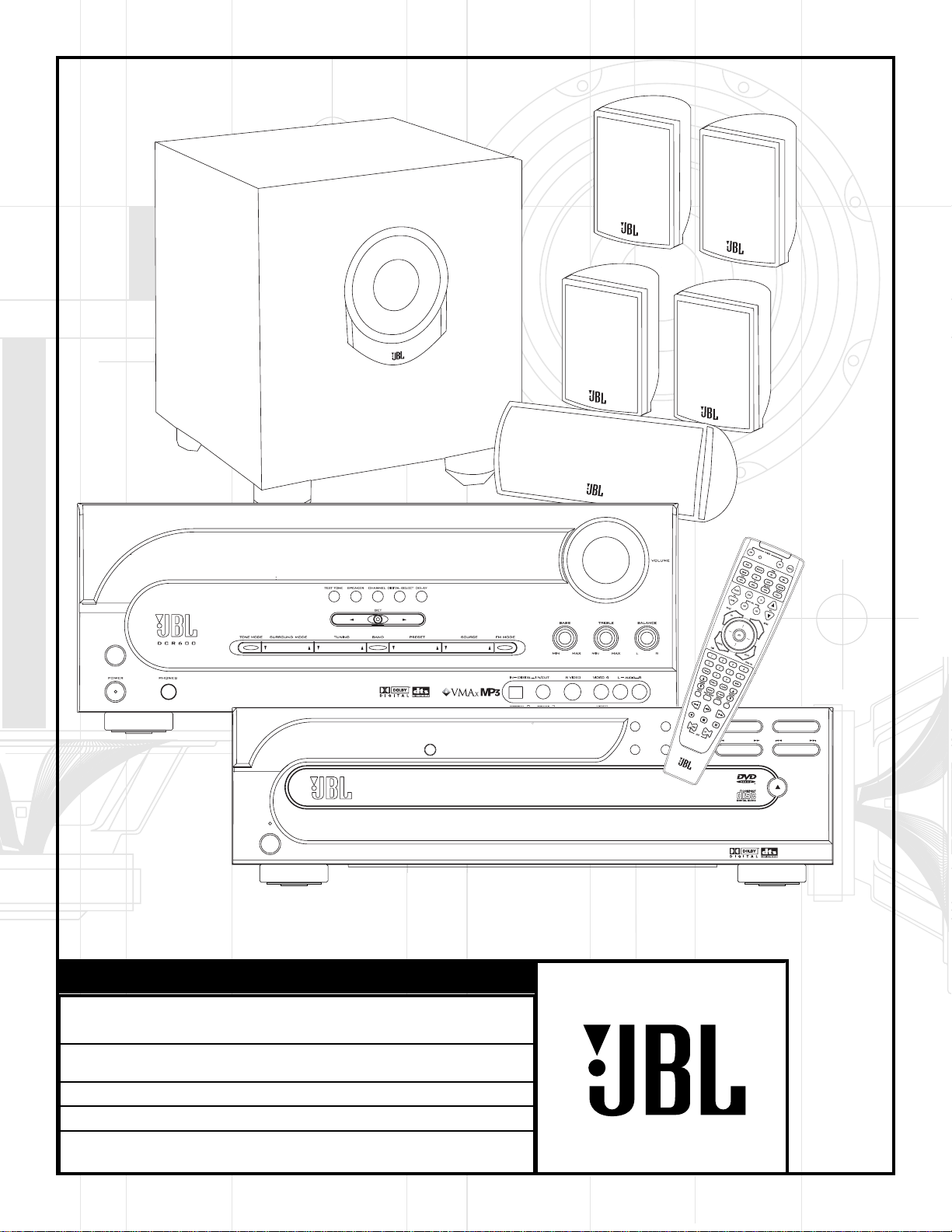
CINEMA PROPACK
™
600
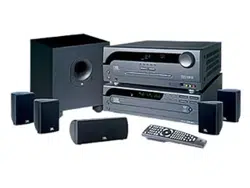
Includes: DCR600, DVD600 AND SCS135S
DESIGN GOAL: Re-create the excitement of the movies using high-performance
separate components in one convenient package.
AUDIO/VIDEO RECEIVER: DCR600 with Dolby* Digital, DTS
®
, Logic 7
®
, VMAx
®
and MP3 Decoding
SOURCE UNIT: DVD600 Five-Disc Carousel DVD/CD/CD-RW/VCD Changer
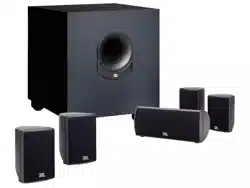
LOUDSPEAKERS: SCS135S Six-Piece Home-Cinema Speaker System with 4 Satellites,
1 Center and 100-Watt Powered Subwoofer
OWNER’S GUIDE
TECHNICAL SPECIFICATIONS
Cinema ProPack 600 System
General
Power Requirement: AC 120V 60Hz
Contents: DCR600, DVD600, Programmable Master Remote Control,
SCS135S speaker system, basic hookup wiring
Carton Dimensions:
Width: 37 inches (940mm)
Height: 18 inches (457mm)
Depth: 23 inches (584mm)
Shipping Weight: 95 lbs. (43.2kg)
All features and specifications are subject to change without notice.
MODEL NUMBER:
CINEMA PROPACK
™
600
Includes: DCR600, DVD600 AND SCS135S
DESIGN GOAL: Re-create the excitement of the movies using high-performance
separate components in one convenient package.
AUDIO/VIDEO RECEIVER: DCR600 with Dolby* Digital, DTS
®
, Logic 7
®
, VMAx
®
and MP3 Decoding
SOURCE UNIT: DVD600 Five-Disc Carousel DVD/CD/CD-RW/VCD Changer
LOUDSPEAKERS: SCS135S Six-Piece Home-Cinema Speaker System with 4 Satellites,
1 Center and 100-Watt Powered Subwoofer
X +
0 +
Y
2
0
M
HZ
X + 0 + Y
2
0M
HZ
”
X + 0 + Y
2
0
OWNER’S GUIDE
231
56
search
play
skip
open/close
pause stop
4
Dimmer
power
DVD 600
2
4 SAFETY INFORMATION and UNPACKING
5 GETTING STARTED
5 What’s Included
5 Installing and Connecting the Equipment
5 What We Recommend
6 Quick Installation Diagrams
9 Where to Place the Speakers
9 Speaker Mounting Options
10 Connecting the Speakers
10 Making the Audio Connections
11 Making the Video Connections
11 Completing Setup
12 Quick Guide to Using the JBL Cinema ProPack 600
13 DCR600 Front Panel Controls
15 DCR600 Front Panel Information Display
16 DCR600 Rear Panel Connections
18 DVD600 Front Panel Controls
19 DVD600 Front Panel Information Display
20 DVD600 Rear Panel Connections
21 Remote Control
25 Remote Control Function Grid
27 Remote Control Code Tables
37 SCS135S Subwoofer Rear Panel
38 Configuring the DCR600 Receiver
38 Memory Backup
38 Configuring the Speakers
39 Adjusting the Output Levels
40 Setting Delay Times
42 Remote Control Functions
42 Programming the Remote Control
42 Entering Product Codes
42 Auto-Searching for Product Codes
42 Reading Back the Programmed Code
43 Programming Macros
44 Erasing Macro Commands
44 Device Functions
44 Notes on Using the Remote With Other Devices
44 Volume Punch-Through
45 Channel Control Punch-Through
45 Transport Control Punch-Through
45 Reassigning Devices
45 Resetting the Remote Memory
46 Configuring the DVD600 DVD Changer
46 DVD Compatibility & Terminology
47 Using the Remote Control
47 Selecting Audio Output Languages
47 Selecting Subtitle Languages
48 Selecting Menu Languages
48 Parental Lock and Passwords
48 Password Selection and Control Lock
49 Clearing Passwords
49 Changing the Password
50 Setting the Aspect Ratio
50 Setting the Dynamic Range
51 Using the Digital Audio Output
52 Operating the DCR600 Receiver
52 Surround Mode Chart
53 Selecting a Surround Mode
53 Using Digital Sources
53 Dolby Digital
53 DTS
53 Selecting a Digital Source
54 Digital Status Indicators
54 Night Mode
54 Important Notes on Digital Playback
55 PCM Audio Playback
55 MP3 Audio Playback
55 Operating the Tuner
55 Station Selection
55 Preset Tuning
56 Recalling Preset Stations
56 Tape Recording
57 Operating the DVD600 DVD Changer
57 Loading Discs
57 Playback Basics
58 Using the DVD Disc’s Menu
59 Using the Menu Bar
59 Menus and Controls
59 Selecting Titles and Chapters
59 Changing Languages
60 Changing Camera Angles
60 Playing CDs
61 Selecting a Track
61 Using IntroScan
61 Time Display Selection
62 Programmed Play
62 Random Play
62 Repeat Play
62 Repeat A~B
62 Programmed Play
63 Notes on Programmed Play
63 ` Bookmarks
64 DVD Language Codes
65 Operating the SCS135S
66 Troubleshooting
69 Technical Specifications
Typographical Conventions
In order to help you use this manual with the remote control, front panel
controls and rear panel connections, certain conventions have been used.
EXAMPLE – (bold type) indicates a specific remote control or front panel button,
or rear panel connection jack
EXAMPLE – (OCR type) indicates a message that is visible on the front panel
information display
1 – (number in a square) indicates a specific front panel control
on the DCR600 receiver
¡ – (number in a circle) indicates a rear panel connection
on the DCR600 receiver
– (number followed by a capital “D” in a rectangle) indicates a specific
front panel control on the DVD600 DVD changer
– (number followed by a capital “D” in a circle) indicates a rear panel
connection on the DVD600 DVD changer
a – (number in an oval) indicates a button or indicator on the remote
A – (letter in a square) indicates an indicator in the front panel display
on the DCR600 receiver.
– (letter with a prime in a square) indicates an indicator in the
front panel display on the DVD600 DVD changer.
– (number in a triangle) indicates a specific indicator or control on the
rear panel of the SCS135S subwoofer.
1
1D
3
1. Read Instructions.
All the safety and operating
instructions should be read before the product is operated.
2. Retain Instructions. The safety and operating
instructions should be retained for future reference.
3. Heed Warnings. All warnings on the product and in
the operating instructions should be adhered to.
4. Follow Instructions. All operating and use instruc-
tions should be followed.
5. Cleaning. Unplug this product from the wall outlet
before cleaning. Do not use liquid cleaners or aerosol
cleaners. Use a damp cloth for cleaning.
6. Attachments. Do not use attachments not
recommended by the product manufacturer, as they may
cause hazards.
7. Water and Moisture. Do not use this product near
water – for example, near a bathtub, wash bowl, kitchen
sink or laundry tub; in a wet basement; near a swimming
pool; or the like.
8. Accessories. Do not place this product on an unsta-
ble cart, stand, tripod, bracket or table. The product may
fall, causing serious injury to a child or adult, and serious
damage to the product. Use only with a cart, stand, tripod,
bracket or table recommended by the manufacturer, or sold
with the product. Any mounting of the product should follow
the manufacturer’s instructions, and should use a mounting
accessory recommended by the manufacturer.
9. A Product and Cart Combination Should Be
Moved with Care. Quick stops, excessive force and
uneven surfaces may cause the product and cart
combination to overturn.
10. Ventilation. Slots and openings in the cabinet are
provided for ventilation and to ensure reliable operation
of the product and to protect it from overheating, and
these openings must not be blocked
or covered. The openings should
never be blocked by placing the
product on a bed, sofa, rug or
other similar surface. This prod-
uct should not be placed in a built-in installation, such as
a bookcase or rack, unless proper ventilation is provided
or the manufacturer’s instructions have been adhered to.
11. Power Sources. This product should be operated
only from the type of power source indicated on the
marking label. If you are not sure of the type of power
supply to your home, consult your product dealer or local
power company. For products intended to operate from
battery power, or other sources, refer to the operating
instructions.
12. Polarization. This product may be equipped with a
polarized alternating-current-line plug (a plug having one
blade wider than the other). This plug will fit into the
power outlet only one way. This is a safety feature. If you
are unable to insert the plug fully into the outlet, try
reversing the plug. If the plug should still fail to fit, con-
tact your electrician to replace your obsolete outlet. Do
not defeat the safety purpose of the polarized plug.
13. Power-Cord Protection.
Power-supply cords should
be routed so that they are not likely to be walked on or
pinched by items placed upon or against them, paying par-
ticular attention to cords at plugs, convenience recepta-
cles, and the point where they exit from the product.
14. Nonuse Periods. The power cord of the product
should be unplugged from the outlet when left unused for
long periods of time.
15. Outdoor Antenna Grounding. If an outside
antenna or cable system is connected to the product, be
sure the antenna or cable system is grounded so as to
provide some protection against voltage surges and built-
up static charges. Article 810 of the National Electrical
Code, ANSI/NFPA 70, provides information with regard to
proper grounding of the mast and supporting structure,
grounding of the lead-in wire to an antenna discharge
unit, size of grounding conductors, location of antenna-
discharge unit, connection to grounding electrodes, and
requirements for the grounding electrode. See Figure A.
16. Lightning. For added protection for this product
during a lightning storm, or when it is left unattended and
unused for long periods of time, unplug it from the wall
outlet and disconnect the antenna or cable system. This
will prevent damage to the product due to lightning and
power-line surges.
17. Power Lines. An outside antenna system should
not be located in the vicinity of overhead power lines or
other electric light or power circuits, or where it can fall
into such power lines or circuits. When installing an out-
side antenna system, extreme care should be taken to
keep from touching such power lines or circuits, as con-
tact with them might be fatal.
18. Overloading. Do not overload wall outlets, exten-
sion cords, or integral convenience receptacles, as this
can result in a risk of fire or electric shock.
19. Object and Liquid Entry. Never push objects of
any kind into this product through openings, as they may
touch dangerous voltage points or short-out parts that
could result in a fire or electric shock. Never spill liquid of
any kind on the product.
20. Servicing. Do not attempt to service this product
yourself, as opening or removing covers may expose you
to dangerous voltage or other hazards. Refer all servicing
to qualified service personnel.
21. Damage Requiring Service. Unplug this product
from the wall outlet and refer servicing to qualified serv-
ice personnel under the following conditions:
a. The power-supply cord or the plug has been damaged;
or
b. Objects have fallen onto, or liquid has been spilled
into, the product; or
c. The product has been exposed to rain or water; or
d. The product does not operate normally when follow-
ing the operating instructions. Adjust only those controls
that are covered by the operating instructions, as an
improper adjustment of other controls may result in dam-
age and will often require extensive work by a qualified
technician to restore the product to its normal operation;
or
e. The product has been dropped or damaged in any
way; or
f. The product exhibits a distinct change in performance;
this indicates a need for service.
22. Replacement Parts. When replacement parts are
required, be sure the service technician has used replace-
ment parts specified by the manufacturer or that have the
same characteristics as the original part. Unauthorized
substitutions may result in fire, electric shock or other
hazards.
23. Safety Check. Upon completion of any service or
repairs to this product, ask the service technician to per-
form safety checks to determine that the product is in
proper operating condition.
24. Wall or Ceiling Mounting. The product should be
mounted to a wall or ceiling only as recommended by the
manufacturer.
25. Heat. The product should be situated away from
heat sources such as radiators, heat registers, stoves or
other products (including amplifiers) that produce heat.
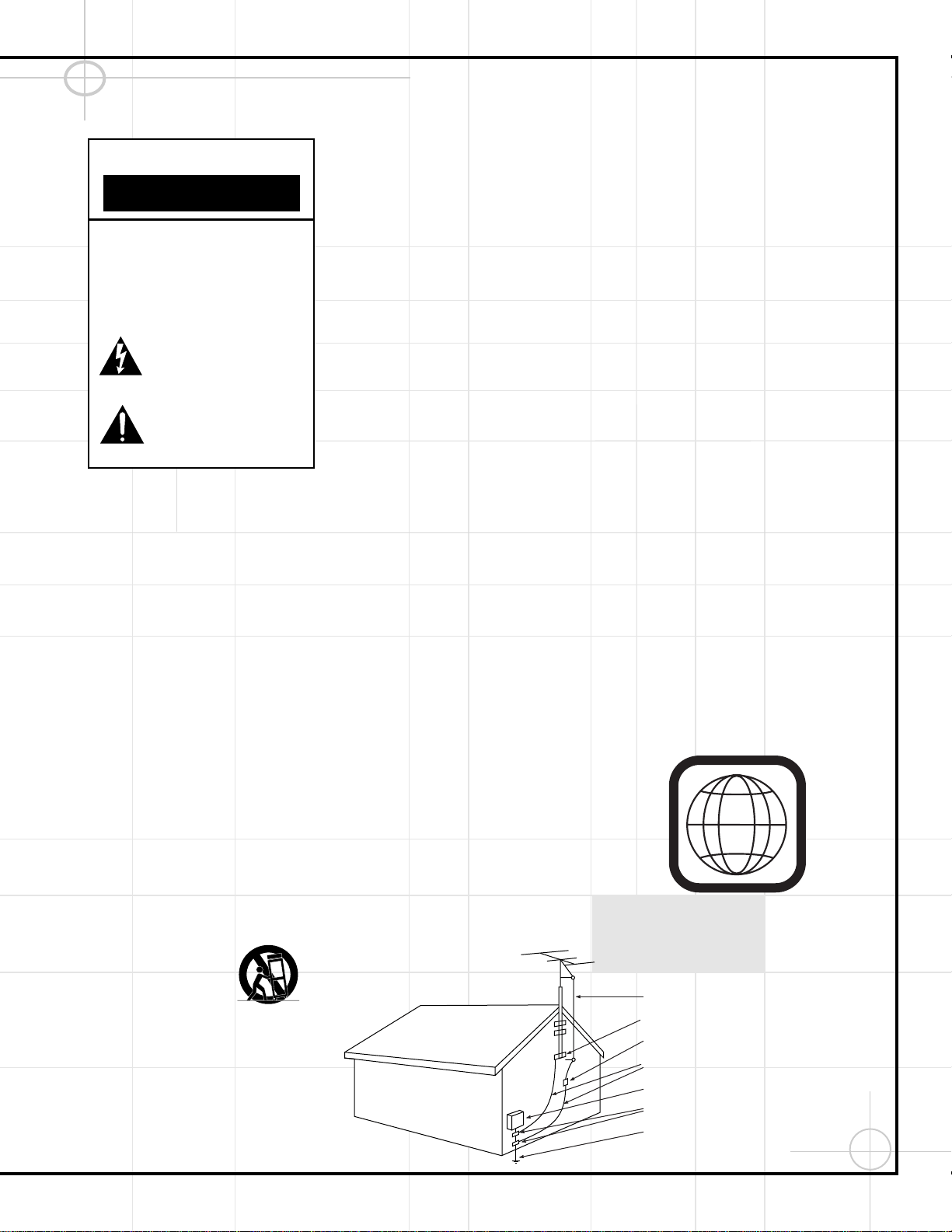
NOTE: This player is designed and manufactured for com-
patibility with Region Management Information that is
encoded on most DVD discs. This player is designed only
for playback of discs with Region Code 1, or for discs that
do not contain Region Code information. If there is any
other Region Code on a disc, that disc will not play on the
DVD600.
Antenna Lead-In Wire
Ground Clamp
Antenna Discharge Unit (NEC Section 810-20)
Grounding Conductors (NEC Section 810-21)
Electric Service Equipment
Ground Clamps
Power Service Grounding Electrode System
(NEC Art. 250, Part H)
Figure A.
Example of Antenna Grounding as per
National Electrical Code ANSI/NFPA 70
CAUTION
RISK OF ELECTRIC SHOCK
DO NOT OPEN
CAUTION: To prevent electric shock,
do not use this (polarized)
plug with an extension cord,
receptacle or other outlet
unless the blades can
be fully inserted to
prevent blade exposure.
The lightning flash with arrowhead symbol,
within an equilateral triangle, is intended to
alert the user to the presence of uninsulated
dangerous voltage within the product s
enclosure that may be of sufficient magnitude to constitute a
risk of electric shock to persons.
The exclamation point within an equilateral
triangle is intended to alert the user to the
presence of important operating and
maintenance (servicing) instructions in the
literature accompanying the appliance.
read first! Important Safety Precautions!
1

4
Important Safety Information
Verify Line Voltage Before Use
Your JBL Cinema ProPack 600 home-theater
system has has been designed for use with
120-volt AC current. Connection to a line voltage
other than that for which it is intended can
create a safety and fire hazard and may
damage the system.
If you have any questions about the voltage
requirements for your specific model, or about
the line voltage in your area, contact your selling
dealer before plugging the components into a
wall outlet.
Do Not Use Extension Cords
To avoid safety hazards, use only the power
cord attached to your components. We do not
recommend that extension cords be used with
this product. As with all electrical devices, do
not run power cords under rugs or carpets or
place heavy objects on them. Damaged power
cords should be replaced immediately by an
authorized service depot with a cord meeting
factory specifications.
Handle the AC Power Cord Gently
When disconnecting the power cord from an
AC outlet, always pull the plug – never pull the
cord. If you do not intend to use the system for
any considerable length of time, disconnect the
plugs from the AC outlet.
Do Not Open the Cabinet
of Any Components
There are no user-serviceable components
inside this product. Opening the cabinets may
present a shock hazard, and any modification
to the product will void your guarantee. If water
or any metal object such as a paper clip, wire or
a staple accidentally falls inside, disconnect it
from the AC power source immediately, and
consult an authorized service station.
CATV or Antenna Grounding
If an outside antenna or cable system is
connected to this product, be certain that it
is grounded so as to provide some protection
against voltage surges and static charges.
Section 810 of the National Electrical Code,
ANSI/NFPA No. 70-1984, provides information
with respect to proper grounding of the mast
and supporting structure, grounding of the lead-in
wire to an antenna discharge unit, size of grounding
conductors, location of antenna discharge
unit, connection to grounding electrodes and
requirements of the grounding electrode.
NOTE TO CATV SYSTEM
INSTALLER:
This reminder is provided to call the CATV
(Cable TV) system installer’s attention to article
820-40 of the NEC that provides guidelines for
proper grounding and, in particular, specifies
that the cable ground shall be connected to the
grounding system of the building, as close to
the point of cable entry as possible.
Installation Location
■ To ensure proper operation, particularly of
the precision laser transport mechanism and
carousel tray in the DVD600, and to avoid
the potential for safety hazards, place the
components on a firm and level surface.
When placing the components on a shelf, be
certain that the shelf and any mounting
hardware can support the weight of the
product.
■ Make certain that proper space is provided
both above and below each component for
ventilation. If this product will be installed
in a cabinet or other enclosed area, make
certain that there is sufficient air movement
within the cabinet. Under some circum-
stances, a fan may be required.
■ Make certain that there is enough room in
front of the DVD600 for the disc tray to open
fully, and that there is enough space above
the unit so that discs may easily be inserted.
■ Do not place the components directly on a
carpeted surface.
■ Avoid installation in extremely hot or cold
locations, or in an area that is exposed to
direct sunlight or heating equipment.
■ Avoid moist or humid locations.
■ Do not obstruct the ventilation slots on the
top of any component, or place objects
directly over them.
■ Do not place the DVD600 in a location that
is subject to direct sunlight or extreme
heat or cold, as these conditions may
damage the discs used in the player, or
the player itself.
Cleaning
When the system gets dirty, wipe it with a
clean, soft, dry cloth. If necessary, wipe it with a
soft cloth dampened with mild soapy water,
then a fresh cloth with clean water. Wipe dry
immediately with a dry cloth. NEVER use ben-
zene, aerosol cleaners, thinner, alcohol or any
other volatile cleaning agent. Do not use
abrasive cleaners, as they may damage the fin-
ish of metal parts. Avoid spraying insecticide
near the components.
Moving the Components
Before moving the components, be certain to
disconnect any interconnection cords with
other components, and make certain that you
disconnect the unit from the AC outlet.
Important Information for the User
This equipment has been tested and found to
comply with the limits for a Class-B digital
device, pursuant to Part 15 of the FCC Rules.
The limits are designed to provide reasonable
protection against harmful interference in a
residential installation. This equipment
gener-
ates, uses and can radiate radio-frequency energy
and,
if not installed and used in accordance
with the instructions, may cause harmful inter-
ference to radio communication. However,
there is no guarantee that harmful interference
will not occur in a particular installation. If this
equipment does cause harmful interference to
radio or television reception (which can be
determined by turning the equipment off and
on), the user is encouraged to try to correct the
interference by one or more of the following
measures:
■ Reorient or relocate the receiving antenna.
■ Increase the separation between the equip-
ment and receiver.
■ Connect the equipment into an outlet on a
circuit different from that to which the
receiver is connected.
■ Consult the dealer or an experienced
radio/TV technician for help.
This device complies with Part 15 of the FCC
Rules. Operation is subject to the following
two conditions: (1) this device may not cause
harmful interference, and (2) this device must
accept interference received, including interfer-
ence that may cause undesired operation.
NOTE: Changes or modifications may
cause this system to fail to comply
with Part 15 of the FCC Rules and may
void the user’s authority to operate the
equipment.
Unpacking
The carton and shipping materials used to pro-
tect your new home theater system during
shipment were specially designed to cushion it
from shock and vibration. We suggest that you
save the carton and packing materials for use
in shipping if you move, or should the system
ever need repair.
To minimize the size of the carton in storage,
you may wish to flatten it. This is done by
carefully slitting the tape seams on the bottom
and collapsing the carton. Other cardboard
inserts may be stored in the same manner.
Packing materials that cannot be collapsed
should be saved along with the carton in a
plastic bag.
If you do not wish to save the packaging mate-
rials, please note that the carton and other
sections of the shipping protection are recycla-
ble. Please respect the environment and dis-
card those materials at a local recycling center.

5
GETTING STARTED
For more than 50 years, JBL has been involved
in every aspect of music and film recording and
reproduction, from live performances to the
recordings you play in your home, car or office.
We’re confident that the JBL system you have
chosen will provide every note of enjoyment
that you expected – and that when you think
about purchasing additional audio equipment
for your home, car or office, you will once again
choose JBL.
Please take a moment to complete the enclosed
profile card. It enables us to keep you posted on
our latest advancements, and helps us to better
understand our customers and build products
that meet their needs and expectations.
JBL Consumer Products
Your JBL Cinema ProPack 600 Home-Theater
System includes everything you need to connect
the system to your television and begin enjoying
the cinema experience in your own home:
One DCR600 Audio/Video Receiver with Dolby
Digital, DTS, Logic 7, VMAx and MP3 Decoding
One DVD600 Five-Disc Carousel DVD Changer
One SCS135S Six-Piece Loudspeaker System
with four satellites and wall-mount brackets,
one center and a 100-watt powered subwoofer
One universal, programmable, 8-device remote
control with three AAA batteries
One FM antenna cable
One AM loop antenna
One 15-foot, single-lead RCA patch cord with
brown connectors for connecting the receiver’s
subwoofer output to the subwoofer
Five two-conductor, color-coded speaker cables
(three 40-foot and two 20-foot) for connecting
the receiver to the four satellites and center
speaker
One 3-foot, single-lead coaxial digital cable
with orange connectors for connecting the
digital audio output of the DVD changer to the
receiver
One 3-foot, single-lead RCA patch cord with
yellow connectors for connecting the composite
video output of the DVD changer to the receiver
One 5-foot, triple-lead RCA patch cord with red,
white and yellow connectors for connecting the
composite video and analog audio outputs from
the receiver to your television
One single-lead mini phone jack for connecting
the remote-out jack on the receiver to the
remote-in jack on the DVD changer
The pages that follow describe in detail the
various controls and displays on the system
components. Feel free to read them now, or
review them at a later time. Please go to the
section labeled Where To Place the Speakers
on page 9 to begin setting up your JBL Cinema
ProPack 600 system.
Thank You for Choosing JBL
What‘s Included
Installing and Connecting the Equipment
When making connections to audio source equipment or speakers, it is
always a good practice to unplug the unit from the AC wall outlet. This
prevents any possibility of accidentally sending audio or transient signals
to the speakers that may damage them.
Refer to the attached Quick Installation diagrams and the Rear Panel
Connections diagrams for the DCR600 and DVD600 on pages 16 and 20
when connecting your equipment.
We recommend a simple connection of your system components to each
other, plus a video connection to your television. After you have made
these connections, you may wish to read further in this owner’s manual for
information on connecting other components, such as external tape or dig-
ital recorders, CD players, laserdisc players, cable television boxes,
satellite dishes, video games or other devices.
Important Note: Any cables run inside walls should be CL3/FT4 rated, or
carry any other certification that is required by the NEC or state and local
building and electrical codes. To avoid interference, audio and speaker
cables should not be parallel to, or run in the same conduits or path with,
AC cables. If you have any questions about wiring, consult your dealer or
electrical contractor.
What We Recommend

6
LFE
GREEN: ON
RED: STAND-BY
SUB135S
CAUTION
RISK OF ELECTRIC SHOCK
DO NOT OPEN
"WARNING: TO REDUCE THE RISK OF FIRE OR ELECTRIC SHOCK,
DO NOT EXPOSE THIS APPLIANCE TO RAIN OR MOISTURE."
"AVERTISSEMENT:
POUR PR VENIR LES RISQUES D’INCENDIE OU
DE CHOC LECTRIQUE, VITER D’EXPOSER CET APPAREIL A LA
PLUIE OU A L’HUMIDIT . "
"WARNING: FOR CONTINUED
PROTECTION AGAINST RISK
OR FIRE, REPLACE ONLY WITH
SAME TYPE 2.5A, 250 VOLT
"AVERTISSEMENT:
UTILISEZ UN
FUSIBLE DE RECHANGE DE MEME
TYPE 2.5A, 250V"
NRTL/C
CSA 22-2 No.1
UL 1492
AVIS: RISQUE DE CHOC ELECTRIQUE-NE PAS OUVRIR
POWER
FUSE
2.5A/250V
TYPE T
AC 120V
~
60Hz
200 Watts
This area is designed to become quite warm
during normal operation
JBL, Incorporated
L
R
AM
FM
75Ω
GND
IN
IN
IN
1
2
IN
OUT
TAPE
VID 3
IN
(DVD)
OUT
L
R
VIDEO S-VIDEO
L
R
VID 2
IN
VID 3
IN
VID 2
DIGITAL IN
OPTICAL
COAXIAL
RIGHT LEFT
LEFTRIGHT
SURR. SPKRS (8Ω)
FRONT SPKRS (8Ω)
CENTER
SPKR (8Ω)
DIGITAL OUT
MON.
OUT
OPT
VID 1
IN
OUT
VID 1
LFE/
SUBWOOFER
CD
IN
DVD
ANTENNA
Manufactured under license from Digital Theater Systems, Inc. US Pat.
No 5,451,942 and other world-wide patents issued and pending. "DTS",
"DTS Digital Surround", are trademarks of Digital Theater Systems, Inc.
Copyright 1996 Digital Theater Systems, Inc. All Rights Reserved.
Manufactured under license from Dolby Laboratories.
"Dolby", "Pro Logic" and the double-D symbols are trademarks
of Dolby Laboratories. Confidential Unpublished Works.
' 1992-1997 Dolby Laboratories, Inc. All rights reserved.
U.S. Patent Nos.
4,893,342, 4,910,779, 4,975,954
5,034,983, 5,136,651, and 5,333,200
Cooper Bauck Transaural Stereo
This device complies with part 15 of the FCC rules. Operation is
subject to the following two conditions: (1) This device may not
cause harmful interference, and (2) This device must accept any
interference received, including interference that may cause
undesired operation.
AC INPUT
~120V/60Hz A
CAUTION
RISK OF ELECTRIC SHOCK
DO NOT OPEN
WARNING: TO REDUCE THE RISK OF FIRE OR ELECTRIC SHOCK,
DO NOT EXPOSE THIS APPLIANCE TO RAIN OR MOISTURE.
AVERTISSEMENT:
POUR PRÉVENIR LES RISQUES D'INCENDIE
OU DE CHOC ÉLECTRIQUE, ÉVITER D'EXPOSER CET APPAREIL
A LA PLUIE OU A L'HUMIDITÉ.
AVIS : RISQUE DE CHOC
ÉLECTRIQUE-NE PAS OUVRIR
C
US
U
L
®
LISTED
E191351
40KK
AUDIO EQUIPMENT
AC OUTLETS
~120V/60Hz
SERIAL NO.
UNSWITCHED/100W, 1A MAX
SWITCHED/50W, 0.5A MAX
MODEL NO. DCR 600
NORTHRIDGE
CALIFORNIA, USA
Manufactured under license from Dolby Laboratories.
"Dolby", "Pro Logic" and the double-D symbols are trademarks
of Dolby Laboratories. Confidential Unpublished Works.
' 1992-1997 Dolby Laboratories, Inc. All rights reserved.
This device complies with part 15 of the FCC rules. Operation is
subject to the following two conditions; (1) This device may not
cause harmful interference, and (2) This device must accept any
interference received, including interference that may cause
undesired operation.
Apparatus Claims of U.S. Patent Nos. 4,631,603,
4,577,216, 4,819,098, and 4,907,093 licensed for
limited viewing uses only.
"DTS" and "DTS Digital Out" are trademarks
of Digital Theater Systems, Inc.
AC INPUT
~120V/60Hz 25W
WARNING: TO REDUCE THE RISK OF FIRE OR ELECTRIC SHOCK,
DO NOT EXPOSE THIS APPLIANCE TO RAIN OR MOISTURE.
AVERTISSEMENT:
POUR PRÉVENIR LES RISQUES D'INCENDIE
OU DE CHOC ÉLECTRIQUE, ÉVITER D'EXPOSER CET APPAREIL
A LA PLUIE OU A L'HUMIDITÉ.
CAUTION
RISK OF ELECTRIC SHOCK
DO NOT OPEN
AVIS : RISQUE DE CHOC
ÉLECTRIQUE–NE PAS OUVRIR
C
US
U
L
®
LISTED
E206909
7H57
AUDIO/VIDEO
EQUIPMENT
MODEL NO. DVD 600
NORTHRIDGE
CALIFORNIA, USA
CERTIFIFICATION - THIS PRODUCT COMPLIES WITH DHHS
RULES 21 CFR, SUBCHAPTER J, PART
1040 AT DATE OF MANUFACT
URE
DIGITAL
OUT
VIDEO OUT
COMPONENT
VIDEO OUT
COAXIAL
VIDEO IN
AUDIO IN
L
R
AUDIO OUT
L
R
VIDEO OUT
S-VIDEO IN
S-VIDEO OUT
VIDEO
SERIAL NO.
Pr
Pb
Y
S-VIDEO
CLASS 1
LASER PRODUCT
1
COMPONENT
VIDEO IN
Pr
Pb
Y
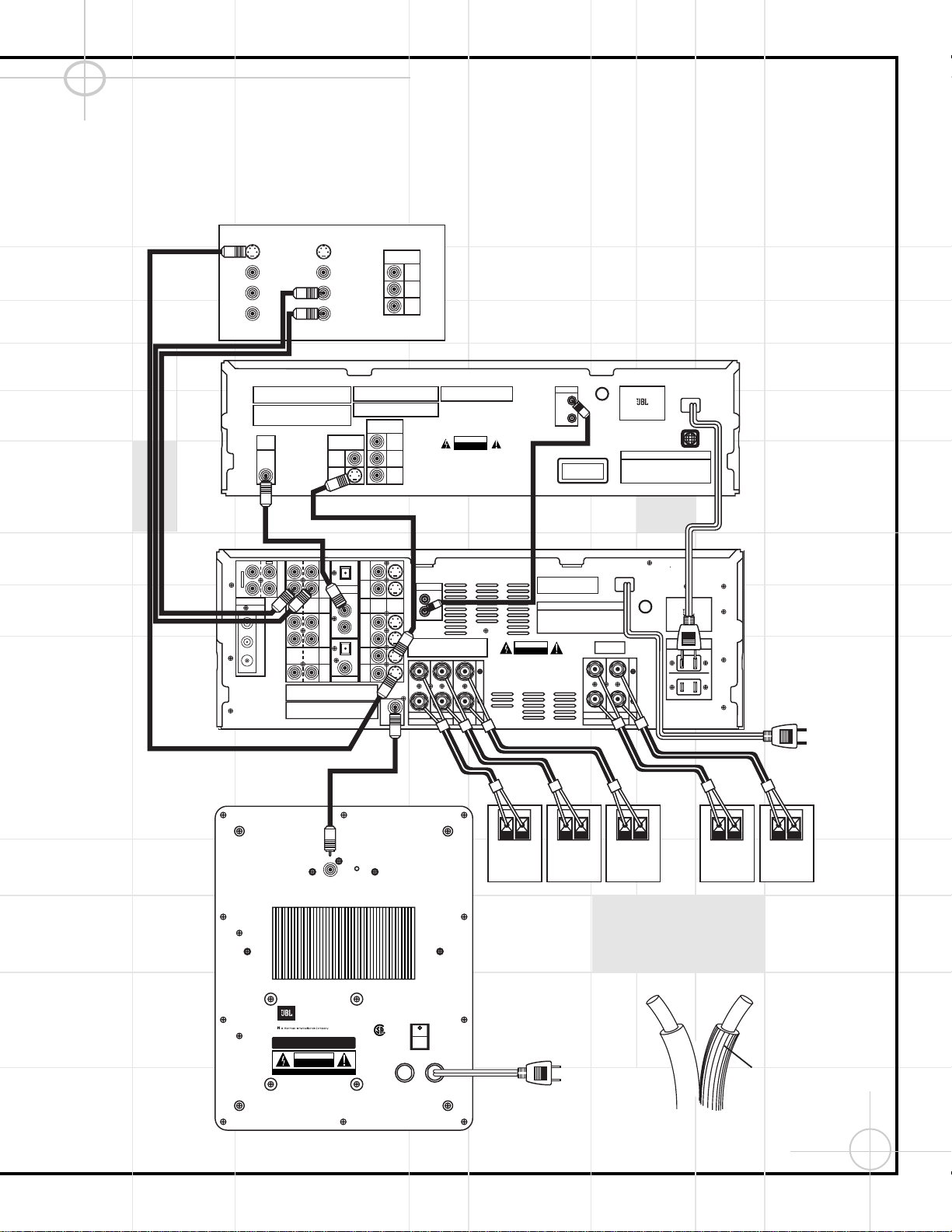
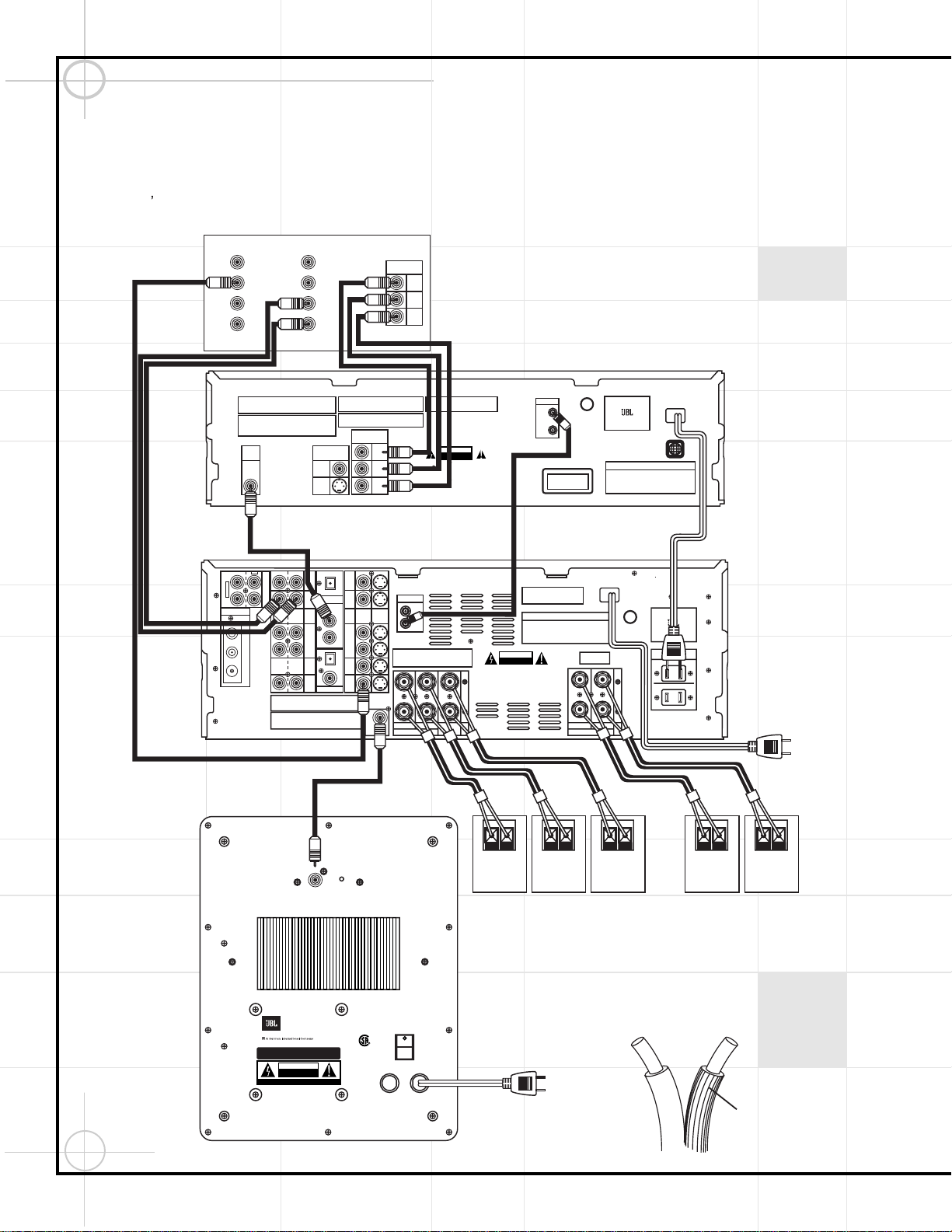
BASIC INSTALLATION: Your TV must at a minimum have a composite video input
(this connector usually has a yellow-colored core), and Left (usually has a
white-colored core) and Right (red-colored core) Stereo audio preamp-level
RCA outputs. All wires for this hookup are included.
– + – + – + – + – +
RIGHT FRONT
SPEAKER
LEFT FRONT
SPEAKER
RIGHT SURROUND
SPEAKER
LEFT SURROUND
SPEAKER
CENTER
SPEAKER
SCS135S
DCR600
DVD600
TV
CONNECT TO
AC OUTLET
CONNECT TO
AC OUTLET
NOTES:
1. CONNECT “RIDGED” WIRE TO (+) RED
ON DCR600 AND SPEAKERS.
2. WIRE COLOR CODES ARE FOR EASE OF CONNECTION.
THE SPEAKER WIRES CAN BE INTERCHANGED IF NECESSARY.
(—) (+)
Ridges
Yellow
Yellow
White
Red
Black
Orange
Red White Green Yellow Blue
Brown
REMOTE
IN
OUT
REMOTE
IN
OUT
Quick Installation Diagrams
7
Quick Installation Diagrams (Continued)
LFE
GREEN: ON
RED: STAND-BY
SUB135S
CAUTION
RISK OF ELECTRIC SHOCK
DO NOT OPEN
"WARNING: TO REDUCE THE RISK OF FIRE OR ELECTRIC SHOCK,
DO NOT EXPOSE THIS APPLIANCE TO RAIN OR MOISTURE."
"AVERTISSEMENT:
POUR PR VENIR LES RISQUES D’INCENDIE OU
DE CHOC LECTRIQUE, VITER D’EXPOSER CET APPAREIL A LA
PLUIE OU A L’HUMIDIT . "
"WARNING: FOR CONTINUED
PROTECTION AGAINST RISK
OR FIRE, REPLACE ONLY WITH
SAME TYPE 2.5A, 250 VOLT
"AVERTISSEMENT:
UTILISEZ UN
FUSIBLE DE RECHANGE DE MEME
TYPE 2.5A, 250V"
NRTL/C
CSA 22-2 No.1
UL 1492
AVIS: RISQUE DE CHOC ELECTRIQUE-NE PAS OUVRIR
POWER
FUSE
2.5A/250V
TYPE T
AC 120V
~
60Hz
200 Watts
This area is designed to become quite warm
during normal operation
JBL, Incorporated
L
R
AM
FM
75Ω
GND
IN
IN
IN
1
2
IN
OUT
TAPE
VID 3
IN
(DVD)
OUT
L
R
VIDEO S-VIDEO
L
R
VID 2
IN
VID 3
IN
VID 2
DIGITAL IN
OPTICAL
COAXIAL
RIGHT LEFT
LEFTRIGHT
SURR. SPKRS (8Ω)
FRONT SPKRS (8Ω)
CENTER
SPKR (8Ω)
DIGITAL OUT
MON.
OUT
OPT
VID 1
IN
OUT
VID 1
LFE/
SUBWOOFER
CD
IN
DVD
ANTENNA
Manufactured under license from Digital Theater Systems, Inc. US Pat.
No 5,451,942 and other world-wide patents issued and pending. "DTS",
"DTS Digital Surround", are trademarks of Digital Theater Systems, Inc.
Copyright 1996 Digital Theater Systems, Inc. All Rights Reserved.
Manufactured under license from Dolby Laboratories.
"Dolby", "Pro Logic" and the double-D symbols are trademarks
of Dolby Laboratories. Confidential Unpublished Works.
' 1992-1997 Dolby Laboratories, Inc. All rights reserved.
U.S. Patent Nos.
4,893,342, 4,910,779, 4,975,954
5,034,983, 5,136,651, and 5,333,200
Cooper Bauck Transaural Stereo
This device complies with part 15 of the FCC rules. Operation is
subject to the following two conditions: (1) This device may not
cause harmful interference, and (2) This device must accept any
interference received, including interference that may cause
undesired operation.
AC INPUT
~120V/60Hz A
CAUTION
RISK OF ELECTRIC SHOCK
DO NOT OPEN
WARNING: TO REDUCE THE RISK OF FIRE OR ELECTRIC SHOCK,
DO NOT EXPOSE THIS APPLIANCE TO RAIN OR MOISTURE.
AVERTISSEMENT:
POUR PRÉVENIR LES RISQUES D'INCENDIE
OU DE CHOC ÉLECTRIQUE, ÉVITER D'EXPOSER CET APPAREIL
A LA PLUIE OU A L'HUMIDITÉ.
AVIS : RISQUE DE CHOC
ÉLECTRIQUE-NE PAS OUVRIR
C
US
U
L
®
LISTED
E191351
40KK
AUDIO EQUIPMENT
AC OUTLETS
~120V/60Hz
SERIAL NO.
UNSWITCHED/100W, 1A MAX
SWITCHED/50W, 0.5A MAX
MODEL NO. DCR 600
NORTHRIDGE
CALIFORNIA, USA
Manufactured under license from Dolby Laboratories.
"Dolby", "Pro Logic" and the double-D symbols are trademarks
of Dolby Laboratories. Confidential Unpublished Works.
' 1992-1997 Dolby Laboratories, Inc. All rights reserved.
This device complies with part 15 of the FCC rules. Operation is
subject to the following two conditions; (1) This device may not
cause harmful interference, and (2) This device must accept any
interference received, including interference that may cause
undesired operation.
Apparatus Claims of U.S. Patent Nos. 4,631,603,
4,577,216, 4,819,098, and 4,907,093 licensed for
limited viewing uses only.
"DTS" and "DTS Digital Out" are trademarks
of Digital Theater Systems, Inc.
AC INPUT
~120V/60Hz 25W
WARNING: TO REDUCE THE RISK OF FIRE OR ELECTRIC SHOCK,
DO NOT EXPOSE THIS APPLIANCE TO RAIN OR MOISTURE.
AVERTISSEMENT:
POUR PRÉVENIR LES RISQUES D'INCENDIE
OU DE CHOC ÉLECTRIQUE, ÉVITER D'EXPOSER CET APPAREIL
A LA PLUIE OU A L'HUMIDITÉ.
CAUTION
RISK OF ELECTRIC SHOCK
DO NOT OPEN
AVIS : RISQUE DE CHOC
ÉLECTRIQUE–NE PAS OUVRIR
C
US
U
L
®
LISTED
E206909
7H57
AUDIO/VIDEO
EQUIPMENT
MODEL NO. DVD 600
NORTHRIDGE
CALIFORNIA, USA
CERTIFIFICATION - THIS PRODUCT COMPLIES WITH DHHS
RULES 21 CFR, SUBCHAPTER J, PART
1040 AT DATE OF MANUFACT
URE
DIGITAL
OUT
VIDEO OUT
COMPONENT
VIDEO OUT
COAXIAL
VIDEO IN
AUDIO IN
L
R
AUDIO OUT
L
R
VIDEO OUT
S-VIDEO IN
S-VIDEO OUT
VIDEO
SERIAL NO.
Pr
Pb
Y
S-VIDEO
CLASS 1
LASER PRODUCT
1
COMPONENT
VIDEO IN
Pr
Pb
Y
ALTERNATE INSTALLATION FOR BETTER PICTURE QUALITY: Your TV
must have an S-Video input, and Left (usually has a white-colored core) and
Right (red-colored core) Stereo audio preamp-level RCA outputs. Two pieces
of S-Video cable are not included and should be purchased separately.
– + – + – + – + – +
RIGHT FRONT
SPEAKER
LEFT FRONT
SPEAKER
RIGHT SURROUND
SPEAKER
LEFT SURROUND
SPEAKER
CENTER
SPEAKER
SCS135S
DCR600
DVD600
TV
CONNECT TO
AC OUTLET
CONNECT TO
AC OUTLET
NOTES:
1. CONNECT “RIDGED” WIRE TO (+) RED
ON DCR600 AND SPEAKERS.
2. WIRE COLOR CODES ARE FOR EASE OF CONNECTION.
THE SPEAKER WIRES CAN BE INTERCHANGED IF NECESSARY.
(—) (+)
Ridges
White
Red
Black
Orange
Red White Green Yellow Blue
Brown
S-Video cable
not included
S-Video cable not included
REMOTE
IN
OUT
REMOTE
IN
OUT
8
Quick Installation Diagrams (Continued)
LFE
GREEN: ON
RED: STAND-BY
SUB135S
CAUTION
RISK OF ELECTRIC SHOCK
DO NOT OPEN
"WARNING: TO REDUCE THE RISK OF FIRE OR ELECTRIC SHOCK,
DO NOT EXPOSE THIS APPLIANCE TO RAIN OR MOISTURE."
"AVERTISSEMENT:
POUR PR VENIR LES RISQUES D’INCENDIE OU
DE CHOC LECTRIQUE, VITER D’EXPOSER CET APPAREIL A LA
PLUIE OU A L’HUMIDIT . "
"WARNING: FOR CONTINUED
PROTECTION AGAINST RISK
OR FIRE, REPLACE ONLY WITH
SAME TYPE 2.5A, 250 VOLT
"AVERTISSEMENT:
UTILISEZ UN
FUSIBLE DE RECHANGE DE MEME
TYPE 2.5A, 250V"
NRTL/C
CSA 22-2 No.1
UL 1492
AVIS: RISQUE DE CHOC ELECTRIQUE-NE PAS OUVRIR
POWER
FUSE
2.5A/250V
TYPE T
AC 120V
~
60Hz
200 Watts
This area is designed to become quite warm
during normal operation
JBL, Incorporated
L
R
AM
FM
75Ω
GND
IN
IN
IN
1
2
IN
OUT
TAPE
VID 3
IN
(DVD)
OUT
L
R
VIDEO S-VIDEO
L
R
VID 2
IN
VID 3
IN
VID 2
DIGITAL IN
OPTICAL
COAXIAL
RIGHT LEFT
LEFTRIGHT
SURR. SPKRS (8Ω)
FRONT SPKRS (8Ω)
CENTER
SPKR (8Ω)
DIGITAL OUT
MON.
OUT
OPT
VID 1
IN
OUT
VID 1
LFE/
SUBWOOFER
CD
IN
DVD
ANTENNA
Manufactured under license from Digital Theater Systems, Inc. US Pat.
No 5,451,942 and other world-wide patents issued and pending. "DTS",
"DTS Digital Surround", are trademarks of Digital Theater Systems, Inc.
Copyright 1996 Digital Theater Systems, Inc. All Rights Reserved.
Manufactured under license from Dolby Laboratories.
"Dolby", "Pro Logic" and the double-D symbols are trademarks
of Dolby Laboratories. Confidential Unpublished Works.
' 1992-1997 Dolby Laboratories, Inc. All rights reserved.
U.S. Patent Nos.
4,893,342, 4,910,779, 4,975,954
5,034,983, 5,136,651, and 5,333,200
Cooper Bauck Transaural Stereo
This device complies with part 15 of the FCC rules. Operation is
subject to the following two conditions: (1) This device may not
cause harmful interference, and (2) This device must accept any
interference received, including interference that may cause
undesired operation.
AC INPUT
~120V/60Hz A
CAUTION
RISK OF ELECTRIC SHOCK
DO NOT OPEN
WARNING: TO REDUCE THE RISK OF FIRE OR ELECTRIC SHOCK,
DO NOT EXPOSE THIS APPLIANCE TO RAIN OR MOISTURE.
AVERTISSEMENT:
POUR PRÉVENIR LES RISQUES D'INCENDIE
OU DE CHOC ÉLECTRIQUE, ÉVITER D'EXPOSER CET APPAREIL
A LA PLUIE OU A L'HUMIDITÉ.
AVIS : RISQUE DE CHOC
ÉLECTRIQUE-NE PAS OUVRIR
C
US
U
L
®
LISTED
E191351
40KK
AUDIO EQUIPMENT
AC OUTLETS
~120V/60Hz
SERIAL NO.
UNSWITCHED/100W, 1A MAX
SWITCHED/50W, 0.5A MAX
MODEL NO. DCR 600
NORTHRIDGE
CALIFORNIA, USA
Manufactured under license from Dolby Laboratories.
"Dolby", "Pro Logic" and the double-D symbols are trademarks
of Dolby Laboratories. Confidential Unpublished Works.
' 1992-1997 Dolby Laboratories, Inc. All rights reserved.
This device complies with part 15 of the FCC rules. Operation is
subject to the following two conditions; (1) This device may not
cause harmful interference, and (2) This device must accept any
interference received, including interference that may cause
undesired operation.
Apparatus Claims of U.S. Patent Nos. 4,631,603,
4,577,216, 4,819,098, and 4,907,093 licensed for
limited viewing uses only.
"DTS" and "DTS Digital Out" are trademarks
of Digital Theater Systems, Inc.
AC INPUT
~120V/60Hz 25W
WARNING: TO REDUCE THE RISK OF FIRE OR ELECTRIC SHOCK,
DO NOT EXPOSE THIS APPLIANCE TO RAIN OR MOISTURE.
AVERTISSEMENT:
POUR PRÉVENIR LES RISQUES D'INCENDIE
OU DE CHOC ÉLECTRIQUE, ÉVITER D'EXPOSER CET APPAREIL
A LA PLUIE OU A L'HUMIDITÉ.
CAUTION
RISK OF ELECTRIC SHOCK
DO NOT OPEN
AVIS : RISQUE DE CHOC
ÉLECTRIQUE–NE PAS OUVRIR
C
US
U
L
®
LISTED
E206909
7H57
AUDIO/VIDEO
EQUIPMENT
MODEL NO. DVD 600
NORTHRIDGE
CALIFORNIA, USA
CERTIFIFICATION - THIS PRODUCT COMPLIES WITH DHHS
RULES 21 CFR, SUBCHAPTER J, PART
1040 AT DATE OF MANUFACT
URE
DIGITAL
OUT
VIDEO OUT
COMPONENT
VIDEO OUT
COAXIAL
VIDEO IN
AUDIO IN
L
R
AUDIO OUT
L
R
VIDEO OUT
S-VIDEO IN
S-VIDEO OUT
VIDEO
SERIAL NO.
Pr
Pb
Y
S-VIDEO
CLASS 1
LASER PRODUCT
1
COMPONENT
VIDEO IN
Pr
Pb
Y
ALTERNATE INSTALLATION FOR BEST PICTURE QUALITY: Your TV must have Y/Pr/Pb component
video inputs (three separate RCA connectors with red-, blue- and green-colored cores), and Left (usually
has a white-colored core) and Right (red-colored core) Stereo audio preamp-level RCA outputs. The
composite video cable is not included and should be purchased separately. This setup requires that the
TV s own video switching is utilized to access DVD picture. All other video switching is still done through
the DCR600.
– + – + – + – + – +
RIGHT FRONT
SPEAKER
LEFT FRONT
SPEAKER
RIGHT SURROUND
SPEAKER
LEFT SURROUND
SPEAKER
CENTER
SPEAKER
SCS135S
DCR600
DVD600
TV
CONNECT TO
AC OUTLET
CONNECT TO
AC OUTLET
NOTES:
1. CONNECT “RIDGED” WIRE TO (+) RED
ON DCR600 AND SPEAKERS.
2. WIRE COLOR CODES ARE FOR EASE OF CONNECTION.
THE SPEAKER WIRES CAN BE INTERCHANGED IF NECESSARY.
3. MUST USE VIDEO SWITCHING THROUGH TV TO ACCESS
COMPONENT VIDEO.
(—) (+)
Ridges
Yellow
White
Red
Black
Orange
Red White Green Yellow Blue
Brown
REMOTE
IN
OUT
REMOTE
IN
OUT
9
Where to Place the Speakers
Mounting Options
Satellites and Surrounds
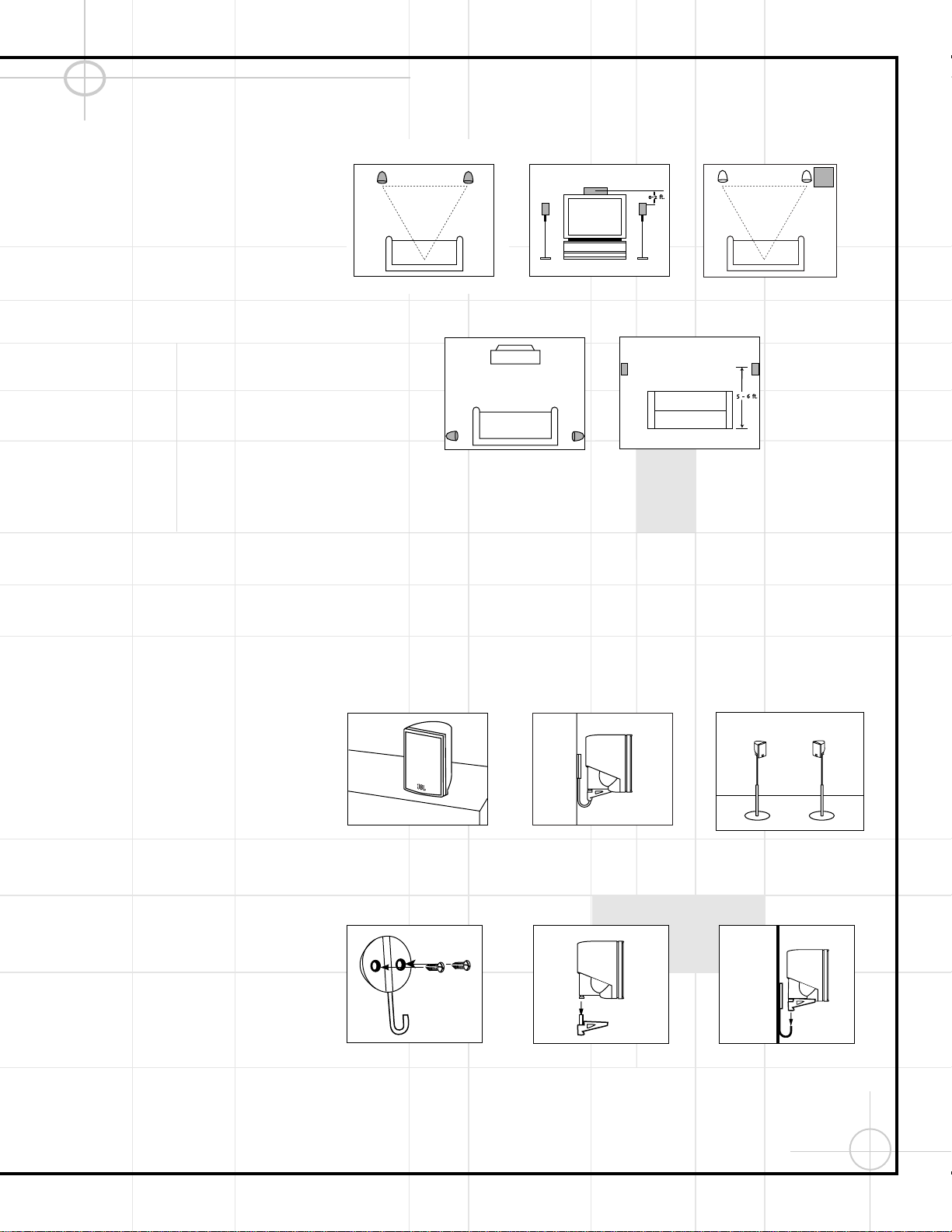
On shelves.
Wall-Mounting
Attach plate to wall. The
brackets should be placed, if
possible, so that the screws
will fasten into a wooden wall
stud. If that is not possible, use
properly selected wall anchors.
The customer is responsible for proper
selection and use of mounting hardware,
available through hardware stores, to prop-
erly and safely wall-mount the speakers.
On the wall. Wall brackets
are included.
Slide speaker onto support.
On optional stands (FS300).
Place speaker and sup-
port on wall plate.
Subwoofer
Surround Speakers
Front Speakers Center-Channel Speaker
The front speakers should be placed the same
distance from each other as they are from the
listening position. They should be placed at
about the same height from the floor as the
listeners’ ears will be, or they may be angled
toward the listeners.
The center-channel speaker should be placed
slightly behind the front left and right speakers,
and no more than two feet above or below the
tweeters of the left and right speakers. It is
often convenient to set the center speaker on
top of the television set, as shown in the drawing.
Use the supplied support leg to aim it toward
the listener by screwing the leg in to angle the
speaker up, or unscrewing the leg slightly to
angle the speaker down.
The two surround speakers should be placed
slightly behind the listening position and, ideally,
should face each other and be at a level higher
than the listeners’ ears. If that is not possible,
they may be placed on a wall behind the listening
position, facing forward. The surround speakers
should not call attention to themselves.
Experiment with their placement until you hear a
diffuse, ambient sound accompanying the main-
program material heard in the front speakers.
The low-frequency material reproduced by the
subwoofer is mostly omnidirectional, and this
speaker may be placed in a convenient location
in the room. However, the best reproduction of
bass will be heard when the subwoofer is
placed in a corner along the same wall as the
front speakers. Experiment with subwoofer
placement by temporarily placing the subwoofer
in the listening position and moving around the
room until the bass reproduction is best. Place
the subwoofer in that location.
10
Connecting the Speakers
Making the Audio Connections
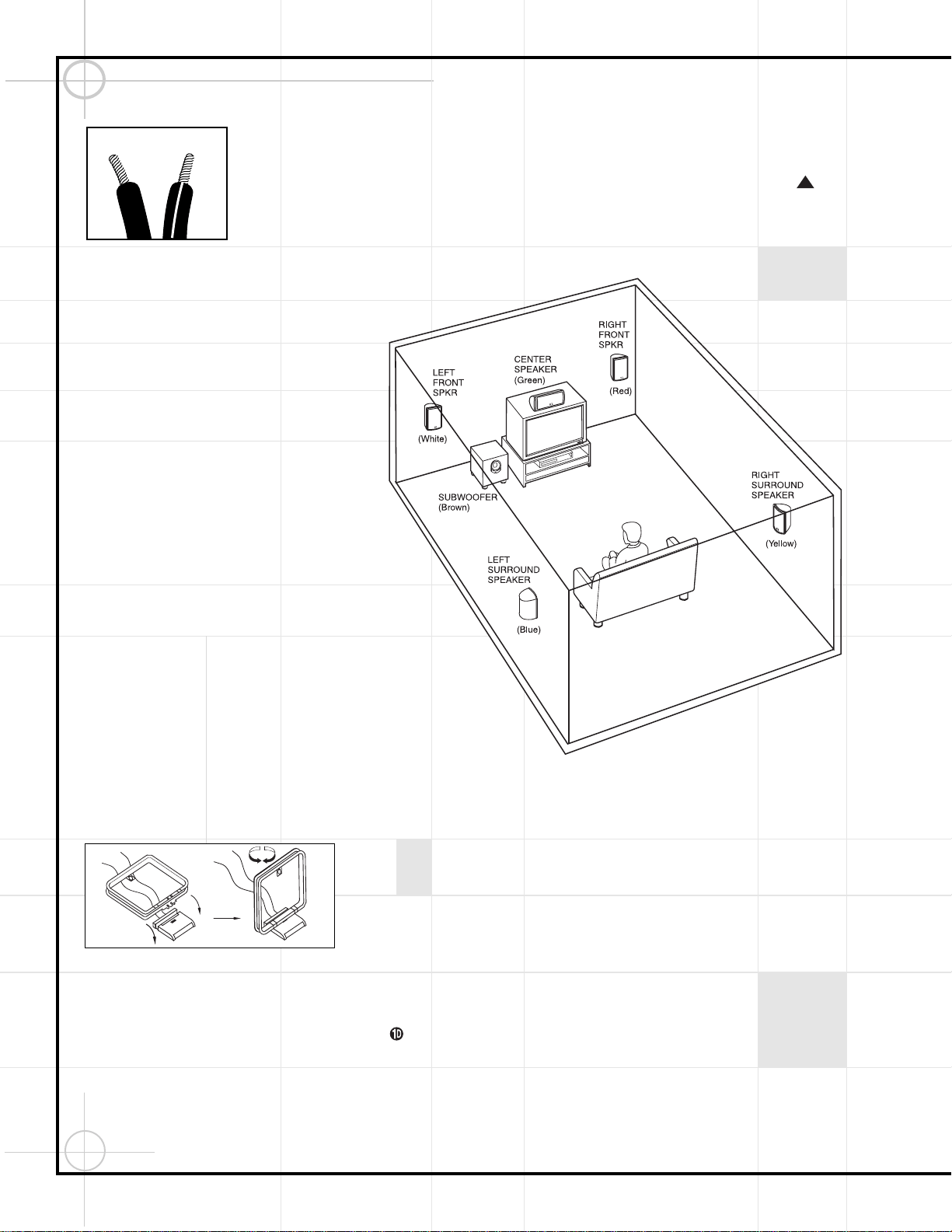
Separate and strip
the ends of the
speaker wire as
shown. Speakers
and electronics ter-
minals have
corresponding (+)
and (–) terminals.
Most manufacturers of speakers and electronics,
including JBL, use red to denote the (+) terminal
and black for the (–) terminal.
The (+) lead of the speaker wire is noted with a
stripe. It is important to connect both speakers
identically: (+) on the speaker to (+) on the
receiver and (–) on the speaker to (–) on the
receiver. Wiring “out of phase” results in thin
sound, weak bass and a poor stereo image.
With the advent of multichannel surround-sound
systems, connecting all of the speakers in your
system with the correct polarity remains equally
important in order to preserve the proper ambi-
ence and directionality of the program material.
The wires for the three front speakers should all
be of the same length even if the speakers will
be placed at varying distances from the DCR600.
The same applies to the two rear speakers. To
make sure that you use the correct wires for
each speaker, we have color-coded them, as
shown in the diagram:
Left Front: White Wire
Center: Green Wire
Right Front: Red Wire
Right Rear: Yellow Wire
Left Rear: Blue Wire
Finally, connect one end of the single-lead RCA
cable with brown connectors to the LFE/Subwoofer
output ⁄ on the back of the DCR600 receiver,
and the other end to the LFE Input on the
back of the SCS135S subwoofer.
1
1. Assemble the supplied AM Loop Antenna as
shown above. Connect it to the AM and GND
terminals ¢ on the back of the DCR600.
2. Connect the supplied 75-ohm FM antenna to
the FM terminal § on the back of the DCR600.
Note that if you use an optional external FM
antenna with 300-ohm twin-lead cable, you
must use a 300-ohm-to-75-ohm adaptor (not
supplied) to make the connection.
3. Connect one end of the supplied single-lead
coaxial digital cable with orange connectors to
the COAX1 (upper) digital input g on the receiver,
and connect the other end to the coaxial digital
output on the DVD changer.
4. In order to obtain the best possible sound
reproduction when watching your television, con-
nect the left and right analog audio outputs of
your TV to the Video 2 Audio inputs h on the
DCR600 using the red (right) and white (left)
leads of the supplied triple-lead RCA cable.
Colors shown in parentheses are wiring color codes.
.
.
11
Connect all components as per the Quick Setup
Guide, or as per pages 6 thru 8 of this manual.
Remove the protective plastic films from the
front panel displays of the DCR600 and DVD600.
1. Plug the Power Cord ‡ into an unswitched
AC outlet.
2. Press the Main Power Switch 1 in so that
it latches in and is flush with the front panel.
Note that the Power Indicator 3 will turn
amber, indicating that the unit is in the
Standby mode.
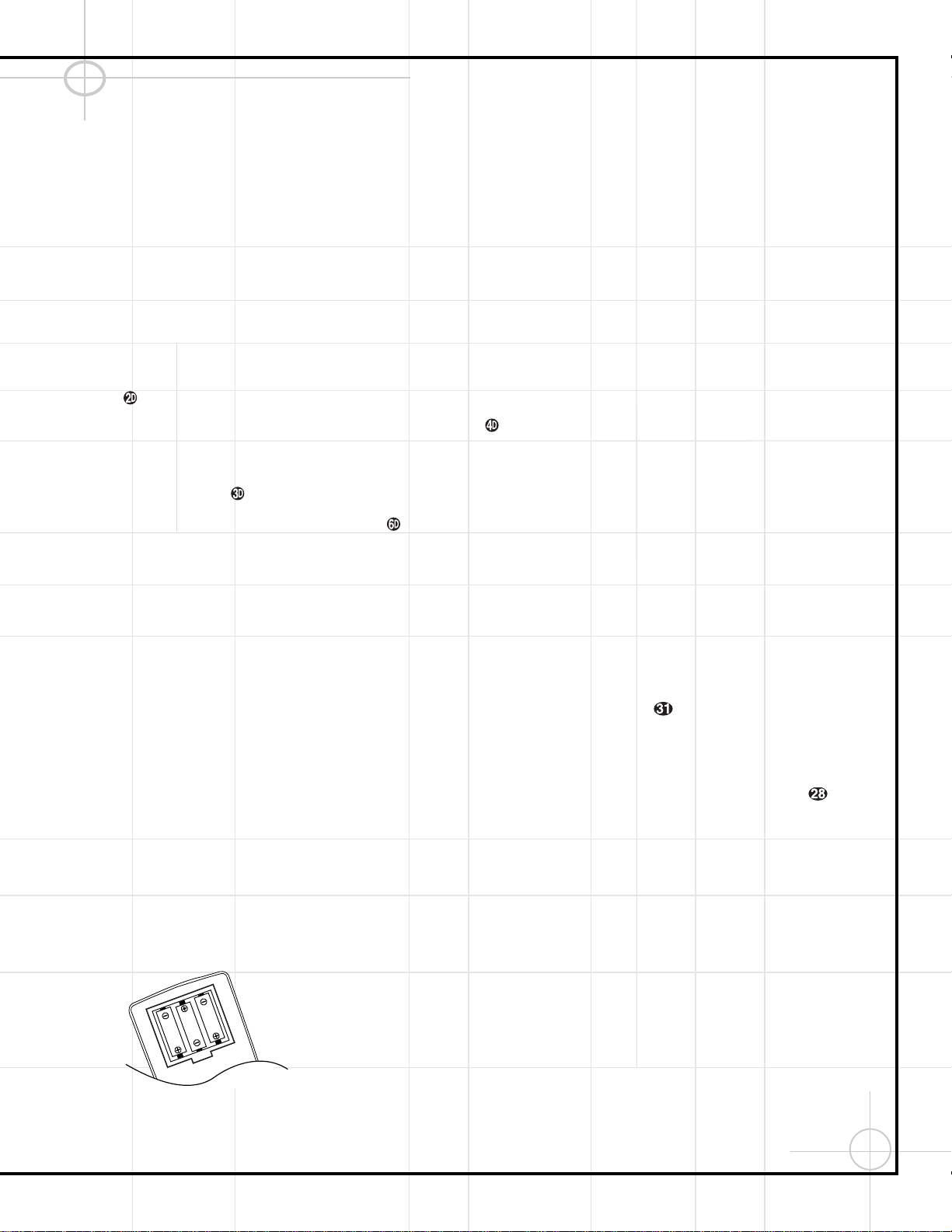
3. Install the three supplied AAA batteries in the
remote as shown. Be certain to follow the (+)
and (–) polarity indicators that are on the bot-
tom of the battery compartment.
4. Turn the DCR600 on, either by pressing the
System Power Control 2 on the front
panel, or by pressing an Input Selector
ijklmno on the remote.
The Power Indicator 3 will turn green to
confirm that the unit is on, and the
Information Display Ú will also light up.
Setting the output levels correctly is the key to
preserving the enveloping surround sensation
that the artists of your favorite movies intended
for you to experience.
1. Make sure the Balance Control * is in
the “12 o‘clock” position, and put the DCR600
in Dolby Pro Logic* mode by pressing the
Surround Mode Selector t7repeat-
edly until PRO LOGIC appears in the
Main Information Display W, and the
PRO LOGIC indicator F lights.
2. Press the Test Button q to start a test
tone circulating from speaker to speaker,
starting with the front left speaker (indicated
by FL in the display), and going around
clockwise. Let it circulate once to check that
your speakers have been connected correctly.
3. The goal is to obtain the same output level
from each speaker. Use the front left speaker
as your reference, adjusting the Volume
Control Ósw until the sound coming
from the front left speaker is at a comfortable
level.
4. If any other speaker sounds too loud or soft
in comparison to the front left speaker, adjust
its output level by pressing the
⁄
/
¤
Buttons
y on the remote, or the Selector
Buttons 5 on the receiver’s front panel.
This will cause the test tone to pause at that
speaker to allow you to make the adjustment.
When you are satisfied with the level of that
speaker, press the Set Button Ô to
store the setting. The tone will continue to
circulate after about 15 seconds.
5. If you are using a sound pressure level (SPL)
meter for precise level adjustment, start by
setting the volume so that the meter reads
75dB, C-Weighting, Slow.
6. When you are finished adjusting the levels
for all speakers (except the subwoofer, which
is not adjustable using this procedure), press
the Test Button q to end the test tone.
For most installations, your DCR600 receiver
should now be ready for use. If you would like
further information on making other, advanced
settings, please see the section titled
“Configuring the DCR600 Receiver”.
Making the Video Connections
IMPORTANT NOTE: The DCR600 and DVD600
offer both S-Video and composite video inputs
and outputs. However, you must choose one
type of connection or the other for all connec-
tions in your system. This will depend on the
type of connections on your television. If both
types of connections are available, we recom-
mend that you purchase S-Video cables and
make those connections for superior picture
quality. The composite video connections will
also provide excellent results. However, the
DCR600 will not convert from one type of signal
to the other.
1. Connect one end of the single-lead RCA cable
with yellow connectors to the composite video
output on the DVD600 and the other end
to the DVD composite video input ª on the
receiver.
OR
Connect one end of an S-Video cable (not sup-
plied) to the S-Video output on the DVD600
to the DVD S-Video input ª on the receiver.
2. Connect one of the yellow ends of the triple-
lead RCA cable with red, white and yellow con-
nectors to the Video Monitor composite video
output ‚ on the receiver, and the other end to
the composite video input jack on your television.
This jack is often color-coded yellow; however, if
you have any questions about which jack to use,
consult your television’s owner’s manual or your
dealer for assistance.
OR
Connect one end of a second S-Video cable
(not supplied) to the Video Monitor S-Video
output ‚ on the receiver, and the other end
to the S-Video input jack on your television.
3. If your television is equipped with component
video (Y/Pr/Pb) inputs, in addition to the above
connections, you may use a triple-lead compo-
nent video cable (not supplied) to connect the
component video outputs on the DVD600 to
the inputs on your television.
4. Connect one end of the black 1/8" mini phone
cord to the Remote IR Output ° on the
DCR600, and the other end to the Remote IR
Input on the DVD600.
If you will not be connecting additional equip-
ment to your system just yet, you may plug in
the receiver, DVD changer and subwoofer. The
DVD600 may be plugged into the Unswitched
Accessory Outlet fl on the rear of the
receiver. The receiver has a master power
switch 1 which must be pressed in first, and a
power switch 2, which should be pressed sec-
ond. The last source selection will appear in the
receiver’s information display.
The DCR600 is set at the factory to a default
configuration for use with small satellite speak-
ers and a powered subwoofer such as the JBL
SCS135S. If other speakers are used, then the
speaker configurations may need to be changed.
Although the DCR600 is set to the correct speaker
configuration settings for the speakers supplied
with this system at the factory, you will need
to adjust the output levels of the speakers to
customize the system to your speaker placement
and room acoustics.
Completing Setup
12
Quick Setup Guide to Using the JBL Cinema ProPack 600
The DVD600 can play discs in the following
formats:
• Both 5-inch (12cm) and 3-inch (8cm) discs
• CD audio discs • DTS audio discs
• CD-RW audio discs • DVD movie discs
• VCD video compact discs
However, it cannot play:
• DVD discs with a Region Code other than "1"
or "All"
• DVD discs using PAL format video
• DVD-ROM data discs
• DVD-RAM discs • CD-R discs
• CD-I discs • CD-G discs
• SVCD discs • Photo CD discs
• MP3 audio discs
Press the DVD600’s Power Switch so
that it latches and the Status Indicator
turns amber, indicating that the unit is in the
Standby mode. Turn the unit on by pressing
either the Power On Button b on the
remote or the Open/Close Button or
Play Button on the front panel. The
Status Indicator will turn green.
Open the DVD600’s drawer, and insert up to
5 discs in the tray locations, using the Disc
Skip Button to rotate the carousel
to access all locations. Make sure each disc is
loaded with the label side up, and that it is
seated correctly in its location.
When you close the drawer, the DVD600 will
automatically start playing the first disc it rec-
ognizes, whether it is a CD or DVD disc.
However, whichever type of disc is playing,
make sure that you have selected DVD as the
input source on the DCR600 by pressing d on
the remote, or ! on the front panel of the
receiver until DVD is indicated.
For most discs, the DVD600 and DCR600 will
automatically select the correct surround mode.
To make sure that audio in the DTS audio format
is correctly processed, you must choose that for-
mat as the default in the DVD600’s setup menu.
Simply stop play of the disc, and enter the setup
menu by pressing z on the remote. Use the
⁄
/
¤
Buttons y to scroll down to
Digital Audio Output. Press the Set Button
to select this option, and a screen will pop
up, allowing you to choose from PCM, Dolby
Digital or DTS outputs. Use the
⁄
/
¤
Buttons y to highlight DTS, then press
the Set Button to select this choice. You
do not need to reset the audio output for other
formats. The DCR600 and DVD600 will automat-
ically process PCM, Dolby Digital and DTS sig-
nals correctly. Press the Menu Button z to
exit the menu screen. If you press the Menu
Button z while the disc is playing, you can
access the disc’s menu to choose the DTS for-
mat there as well.
You may wish to experiment with surround
modes other than Dolby Digital and DTS using
the DCR600’s functions. Press the Surround
Mode Selector t7 to scroll through such
choices as Dolby Pro Logic, Dolby 3 Stereo,
5-Channel Stereo, Hall, Theater, VMAx, Logic 7
or Surround Off (Stereo). See page 52 for
descriptions of these modes.
Press the Stop Button once to enter
Resume mode, in which play will resume from
the point where it was stopped. Pressing the
Stop Button twice will cause play to
resume from the beginning of the disc, or the
disc’s main menu.
You may wish to listen to the tracks of a CD, or
view the chapters of a DVD, in a different order
than they appear on the disc.
The Random function will play all of the tracks
on one CD, or all of the chapters on one DVD, in
a random order selected by the DVD600. The
DVD600 does not randomly play selections from
all five discs inserted in its tray, since this might
result in the odd experience of alternating among
audio tracks and disjointed video selections.
Simply press the Random Button once to
start random play, and press it again to return to
standard play, using the disc’s main menu.
The DVD600 offers several variations of Repeat
Play: Repeat All discs in the unit once; Repeat
1 Disc until play is manually stopped; Repeat
Title on a DVD disc until play is manually
stopped; Repeat Track/Chapter on either a CD
or DVD disc until play is manually stopped; and
Repeat A–B, which repeats a programmed
selection until play is manually stopped.
Press the Repeat Button to scroll through
the repeat choices. Repeat play can be stopped
by pressing the Repeat Button until
Repeat Off is selected, or by pressing the Stop
Button twice.
Program the Repeat A–B function while a disc is
playing. Press the Repeat A–B Button at
the start of the passage to be repeated, and
press it again at the end of the passage. The
passage will continue to play until the Stop
Button is pressed.
You can also program play lists of selected
tracks or chapters.
1. Select the DVD600 by pressing the DVD
Button d, and press the Program Button
to bring up the Program Edit Screen.
2. Use the
⁄
/
¤
y keys to select a disc
number, and press either Set or
›
to enter the selection and move to the next
option.
3. Use the
⁄
/
¤
y keys to select a track
(for a CD) or title (for a DVD), and press either
Set or
›
to enter the selection and
move to the next option. If “99” appears, it
means the DVD600 has not read the disc yet
to determine whether it is a CD or DVD.
4. For DVDs only, use the same procedure to
enter a chapter.
5. The next choice is to add the selection to the
play list by pressing the Set Button .
6. Repeat Steps 2–5 to enter up to 25 selections
into the play list.
7. Play the list by using the arrow keys to high-
light the Play selection, and the Set Button
to begin play. Press the Stop Button
twice to stop playback of the list. To
cancel the list, press the Clear Button .
8. To delete a selection, highlight the item to be
deleted, press the Set Button , and then
use the
⁄
/
¤
y keys to choose the
Delete Button. Press the Set Button
again to delete it. Alternatively, highlight the
item and press the Clear Button to
delete it.
9. Insert an entry by highlighting the item in the
play list at the point of insertion, pressing the
Set Button , and using the
¤
key
once to select the Insert option. Follow Steps
2 through 5 above to enter the new selection.
You may also edit an entry by pressing the
Check Button twice to step through
the items in a play list. Use the
‹
/
›
`
keys to choose a disc, track or chapter to be
edited, and the
⁄
/
¤
y keys to make
a change.
This completes the quick setup and operation of
your JBL Cinema ProPack 600 system. Additional
information is provided in the following sections
for those users with additional components, or who
wish to make other, more advanced adjustments
to their system.
53
47
47
61
46
8D
61
56
8D
61
55
55
50
61
8D
61
8D
4D
51
2D
10D
6D
2D
1D
13
DCR600 Front Panel Controls
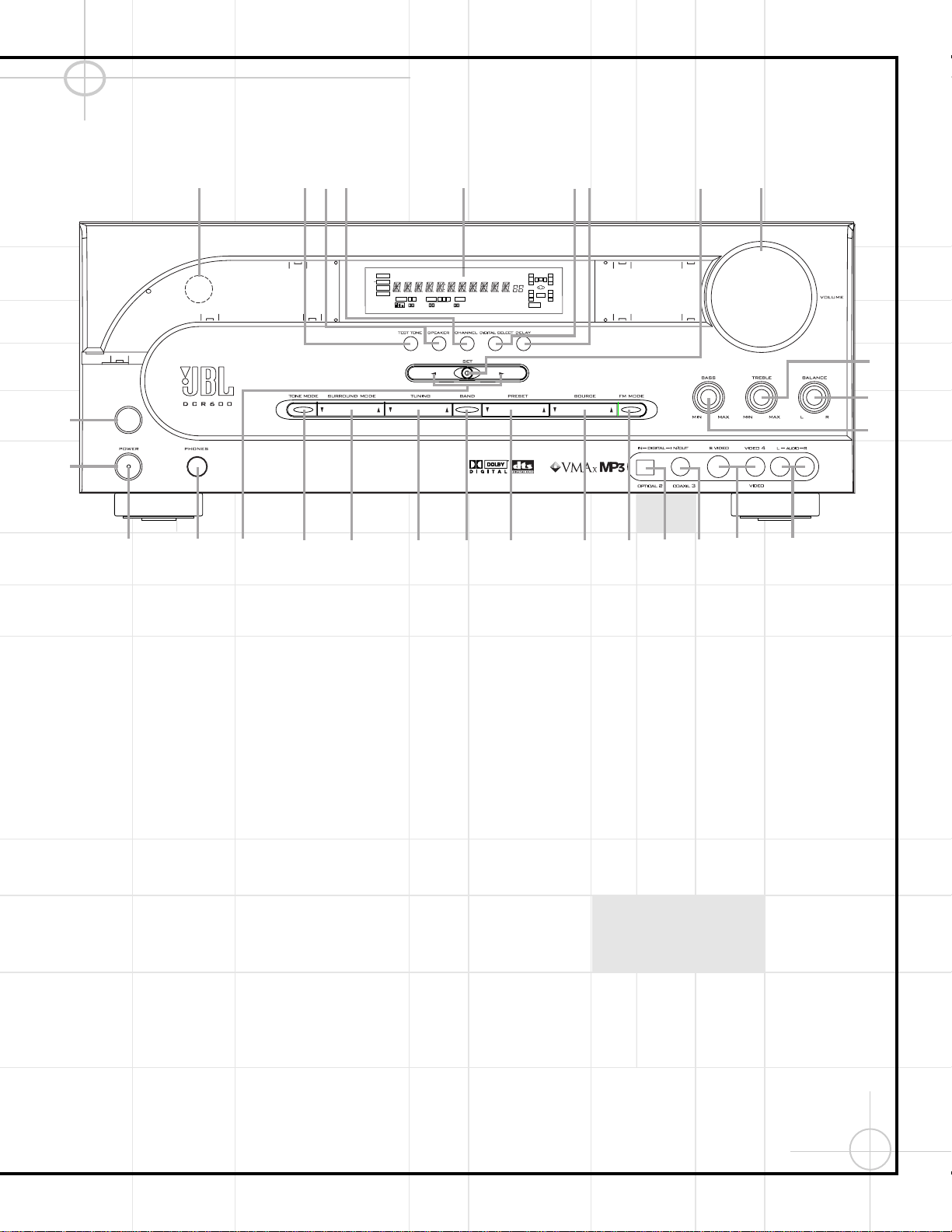
1 Main Power Switch: Press this button to
apply power to the DCR600. When the switch
is pressed in, the unit is placed in a Standby
mode, as indicated by the amber Power
Indicator 3 surrounding the System Power
Control 2. This button MUST be pressed in
to operate the unit. To turn the unit off and
prevent the use of the remote control, this
switch should be pressed until it pops out from
the front panel so that the word “OFF” may be
read at the top of the switch.
NOTE:
This switch is normally left in the “ON” position.
2 System Power Control: When the Main
Power Switch 1 is “ON,” press this button
to turn on the DCR600; press it again to turn
the unit off. Note that the Power Indicator
3 in the center of the switch will turn green
when the unit is on.
3 Power Indicator: This LED will be illumi-
nated in amber when the unit is in the Standby
mode to signal that the unit is ready to be
turned on. When the unit is in operation, the
indicator will turn green.
4 Headphone Jack: This jack may be used
to listen to the DCR600’s output through a pair
of headphones. Be certain that the headphones
have a standard 1/4" stereo phone plug. Note
that the main room speakers will automatically
be turned off when the headphone jack is in use.
5 Selector Buttons: When you are estab-
lishing the DCR600’s configuration settings,
use these buttons to select from the choices
available, as shown in the Main Information
Display Ú.
6 Tone Mode: Pressing this button enables
or disables the Bass and Treble tone controls.
When the button is pressed so that the words
TONE IN appear in the Main Information
Display Ú, the settings of the Bass & and
Treble ( controls may be used to adjust the
output signals. When the button is pressed so
that the words TONE OUT appear in the Main
Information Display Ú, the output signal
will be “flat,” without any bass or treble alter-
ation, no matter how the actual Bass and
Treble &( controls are adjusted.
7 Surround Mode Selector: Press this but-
ton to change the surround mode by scrolling
through the list of available modes. Note that
depending on the type of input, some modes
are not always available. (See page 52 for
more information about surround modes.)
8 Tuning Selector: Press the left side of the
button to tune lower-frequency stations and
the right side of the button to tune higher-
frequency stations. When a station with a strong
signal is reached, the TUNED indicator U will
be illuminated in the Main Information
Display Ú.
To tune manually, tap the button lightly and
note that the tuner will step up one frequency
increment per button press. When the button is
held for a few seconds you will note that the
unit will quickly search the frequency band.
Release it once the fast tuning starts; the tuner
will automatically scan for the next station
with an acceptable signal and then stop.
9 Tuner Band Selector: Pressing this button
will automatically switch the DCR600 to the
Tuner mode. Pressing it again will switch
between the AM and FM frequency bands.
) Preset Stations Selector: Press this
button to scroll up or down through the list or
stations that have been entered into the preset
memory.
1
2
3
4
5
67
8
9
…)
!
@
#
$
%
^
&
(
*
ÓÔ
ÒÚıˆ
Û
Ù
COAXIAL
THEATER
5 CH STEREO
HALL 1
3
-
STEREO
PRO LOGIC
DIGITAL
DTS
DOLBY D
PCM
MP3
NIGHT
OPTICAL
ANALOG
LFE
0
CL
0
1 2
1 2 3
MEMORY PRESET
SLEEP
AUTO
5.1 LOGIC 7 CM
VMAx NF
MUTE
TUNED ST
O
O
R
O
O
LS
O
O
RS
O
O
14
! Input Source Selector: Press this button
to change the input by scrolling up or down
through the list of input sources. When an
audio source is selected, the last video input
used remains routed to the Video 1 Output a
and Video Monitor Output ‚. This permits
you to simultaneously view and listen to
different sources.
@ FM Mode Selector: Press this button to
select Auto or Manual tuning. When the but-
ton is pressed so that the AUTO indicator V
lights, the tuner will search for the next station
with an acceptable signal when the Tuning
Selector 8 is pressed. When the
button is pressed so that the AUTO indicator
V is not lit, each press of the Tuning Selector
8 will increase the frequency.
NOTE: When the FM reception of a station is
weak, audio quality will be increased by
switching to Mono mode by pressing the
FM (Tuning) Mode Button
@
until the
STEREO Indicator T goes out.
# Digital Optical 2 Input: Connect the
optical digital output of an audio or video
product to this jack. When the Input is not in
use, be certain to keep the plastic cap installed
to avoid dust contamination that might
degrade future performance.
$ Digital Coax 3 Jack: This jack is used for
connection to the output of portable audio
devices, video game consoles or other products
that have a coax digital jack.
% Video 4 Video Input Jacks: These jacks
may be used for temporary connection to the
composite or S-Video output of video games,
camcorders or other portable video products.
^ Video 4 Audio Input Jacks: These
audio/video jacks may be used for temporary
connection to video games or portable
audio/video products such as camcorders and
portable audio players.
& Bass Control: Turn this control to modify
the low-frequency output of the left/right
channels by as much as ±10dB. Set this control
to a suitable position for your taste or room
acoustics.
* Balance Control: Turn this control to
change the relative volume for the front
left/right channels.
NOTE:
For proper operation of the surround modes
this control should be at the midpoint, or
“12 o’clock,” position.
( Treble Control: Turn this control to modify
the high-frequency output of the left/right
channels by as much as ±10dB. Set this control
to a suitable position for your taste or room
acoustics.
Ó Volume Control: Turn this knob clockwise
to increase the volume, counterclockwise to
decrease the volume. If the DCR600 is muted,
adjusting the volume control will automatically
release the unit from the silenced condition.
Ô Set Button: When making choices during
the setup and configuration process, press this
button to enter the desired setting as shown in
the Main Information Display Ú into the
DCR600’s memory. The Set button may also be
used to change the display brightness, to avoid
interfering with video presentations:
Press and hold the Set Button Ô on the front
panel for three seconds until the message in
the Main Information Display Ú reads
VFD FULL. Within five seconds, press the
front panel Selector Buttons 5 until the
desired brightness display level is shown.
Press the Set Button Ô again to enter the
setting.
When FULL appears in the Main
Information Display Ú, the display is at its
normal brightness. When HALF appears, the
display is at half the normal brightness level.
When OFF appears, all of the indicators in
the Main Information Display Ú will go
dark. Note, however, that the Power
Indicator 3 will always remain lit to remind
you that the unit is turned on.
Once the desired brightness level is selected,
it will remain in effect until it is changed again
or until the unit is turned off.
Delay: Press this button to begin the
sequence of steps required to enter delay time
settings.
Ò Digital Input Selector: When playing a
source that has a digital output, press this
button to select between the Optical #e
and Coaxial $f Digital inputs.
Ú Main Information Display: This display
delivers messages and status indications to
help you operate the receiver.
Û Channel Select Button: Press this button
to begin the process of trimming the channel
output levels using an external audio source.
Ù Speaker Select Button: Press this button
to begin the process of selecting the speaker
positions that are used in your listening room.
ı Test Tone Selector: Press this button
to begin the process of adjusting the channel
output levels using the internal test tone as
a reference.
ˆ Remote Sensor Window: The sensor
behind this window receives infrared signals
from the remote control. Aim the remote at
this area and do not block or cover it unless an
external remote sensor is installed.
49
49
15
DCR600 Front Panel Information Display
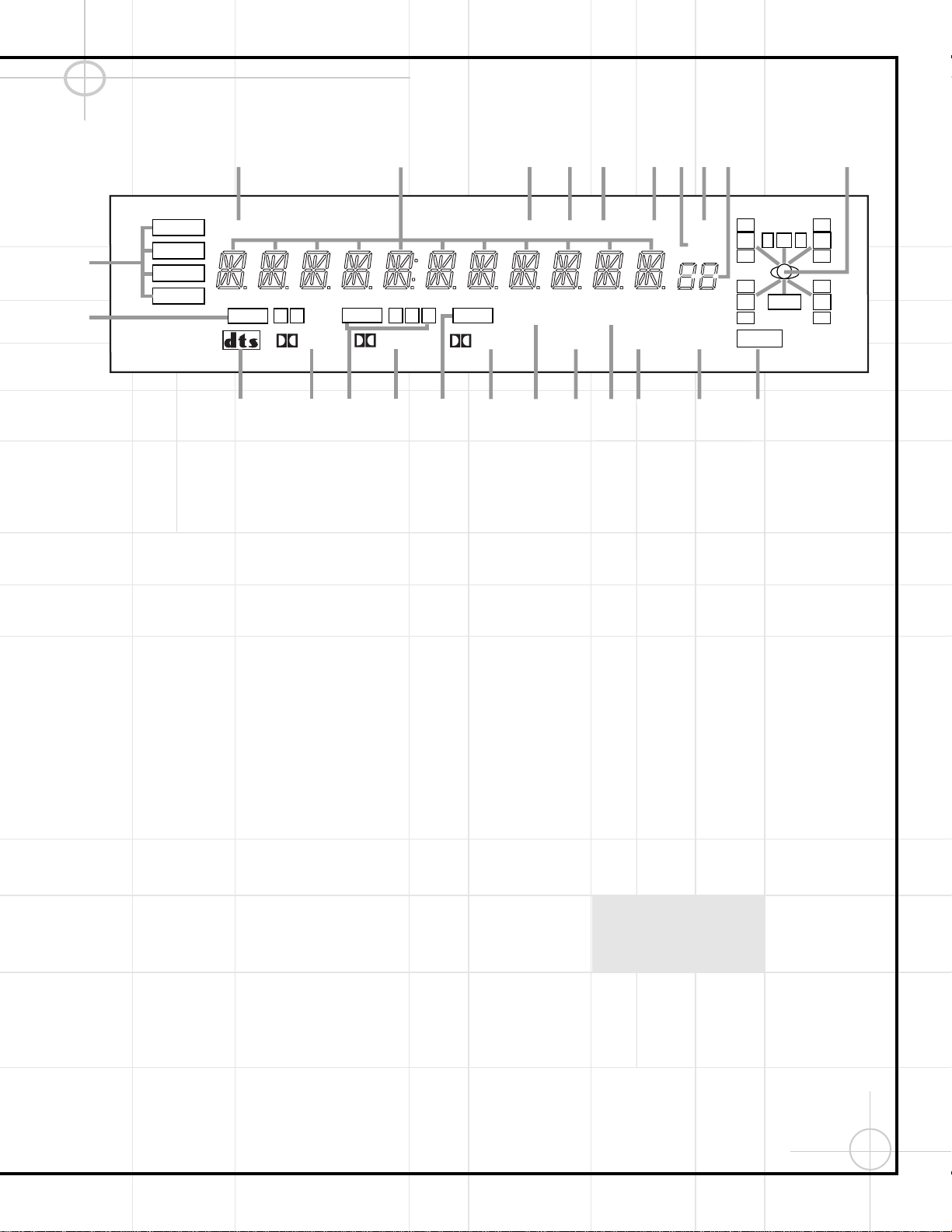
A Bitstream Indicators: When the input is
a digital source, these indicators display the
specific type of data signal.
B Optical Source: Indicates an Optical
Digital Input has been selected.
C DTS: Indicates a DTS-encoded source.
D Dolby Digital: Indicates a Dolby Digital
source.
E Coaxial Source: Indicates a Coaxial
Digital Input.
F Dolby Pro Logic: Indicates the Dolby
Pro Logic mode has been selected.
G Analog Input: Indicates an analog input
source.
NOTE: Analog audio input is not available
when the DVD input is in use.
H Dolby 3 Stereo Indicator: This indicator
lights when the Dolby 3 Stereo Mode has been
selected.
I VMAx Mode: Lights when the VMAx
mode is in use.
VMAx F
appears when the
Far Field VMAx mode is selected; VMAx N
appears when the Near Field VMAx mode is
selected.
J 5-Channel Stereo: Lights when the 5-
Channel Stereo mode has been selected.
K Logic 7 Mode: Indicates that the Logic 7
mode is in use. LOGIC 7C appears for the
Cinema version of Logic 7; LOGIC 7M
appears for the Music version of Logic 7.
L Hall Mode: Lights when the Hall mode
has been selected.
M Theater Mode: Indicates that the Theater
mode has been selected.
N Night Mode: Indicates that the DCR600
is in the Night mode, which preserves the
dynamic range of digital program material
at low volume levels.
O Speaker/Channel Input: These indicators
are multipurpose, indicating either the speaker
type selected for each channel or the incoming
data-signal configuration. The left, center,
right, right surround and left surround speaker
indicators are composed of three boxes, while
the subwoofer is a single box. The center box
lights when a “Small” speaker is selected, and
all three boxes light when “Large” speakers
are selected. When none of the boxes are lit
for the center, surround or subwoofer channels,
no speaker has been selected for one of those
positions. The letters inside each of the center
boxes display active input channels. For stan-
dard analog inputs, only the L and R will light,
indicating a stereo input. When a digital
source is playing, the indicators will light to
display the channels being received at the digi-
tal input. When the letters flash, the digital
input has been interrupted.
P Preset Number/Sleep Timer: In Tuner
mode these numbers indicate the preset mem-
ory location in use. In Sleep function mode it
shows the number of minutes remaining before
the unit goes into the Standby mode.
Q Preset Indicator: This indicator lights
when the tuner is in use to show that the
Preset Number/Sleep Timer P is showing
the station’s preset memory number.
R Sleep Indicator: This indicator lights
when the Sleep function is in use.
S
Memory: Flashes when entering presets
and other information into the tuner’s memory.
T Stereo: Lights when an FM station is
being tuned in stereo.
U Tuned: Lights when a station is being
received with sufficient signal strength to pro-
vide acceptable listening quality.
V Auto: Lights when the tuner is in Auto
mode.
W Main Information Display: Shows mes-
sages relating to the status, input source, sur-
round mode, tuner, volume level or other
aspects of operation.
X Mute: Lights to indicate that the unit has
been put in Mute by pressing the Mute
Button c. Press the Mute button again to
return to the previously selected output level.
COAXIAL
THEATER
5 CH STEREO
HALL
3
-
STEREO
PRO LOGIC
DIGITAL
DTS
DOLBY D
PCM
MP3
NIGHT
OPTICAL
ANALOG
LFE
0
CL
0
1 2
1 2 3
MEMORY PRESET
SLEEP
AUTO
5.1 LOGIC 7 CM
VMAx NF
MUTE
TUNED ST
A
B
D
E
N
O
K
M
L
S
T
R
QP
X
W
V
U
F
H
I
J
O
O
R
O
O
LS
O
O
RS
O
O
C
G
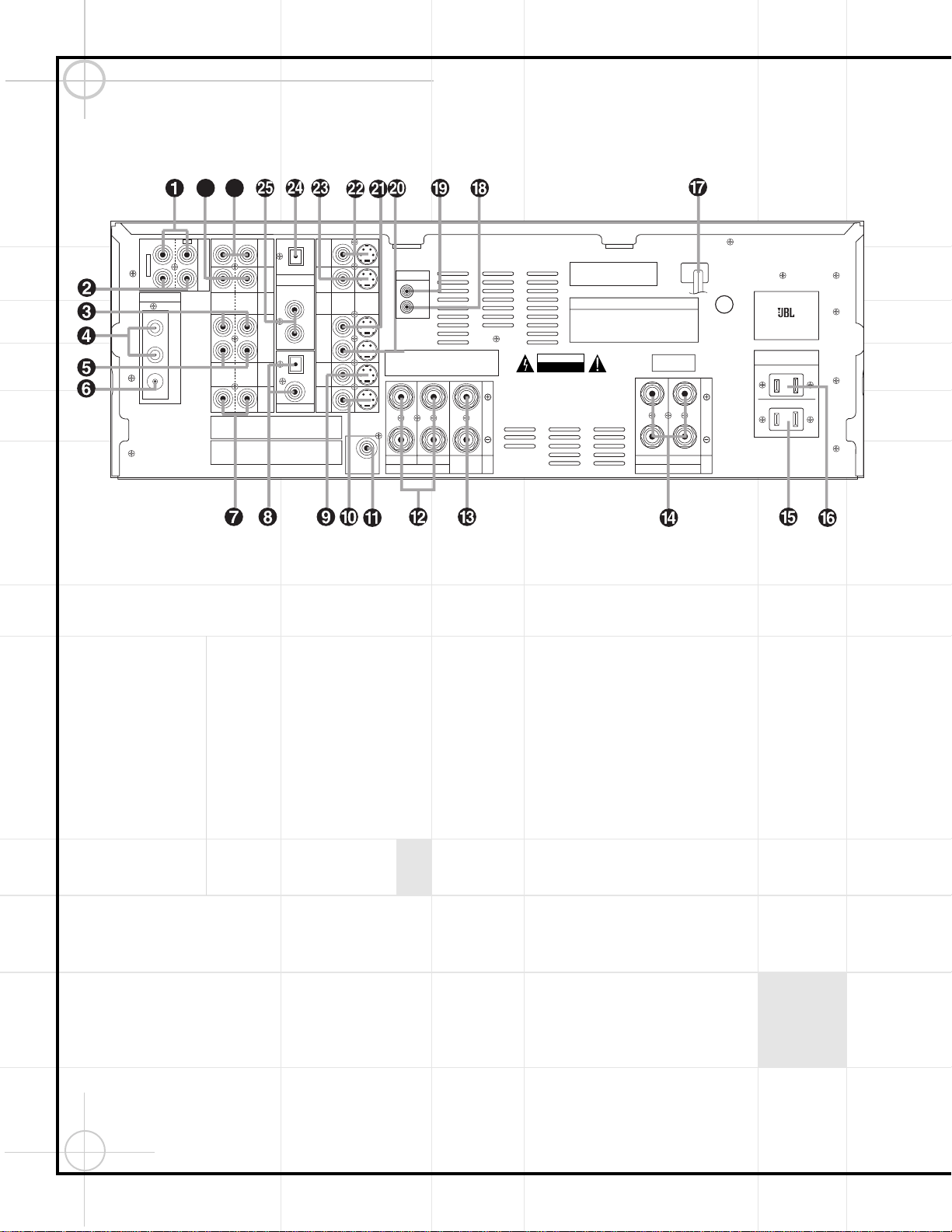
16
IMPORTANT NOTES:
A. The AC plug connections should always be
the last connections made when installing an
A/V system. When making subsequent connec-
tions to audio source equipment or speakers, it
is always a good practice to unplug the unit
from the AC wall outlet. This prevents the pos-
sibility of sending audio or transient signals to
the speakers that may damage them.
B. Connect devices as per the Quick Setup
Guide or per pages 6 through 8 of this manual.
C. The DCR600 offers both composite and S-
Video inputs and outputs. However, either S
or composite input/output connections should
be used throughout the system in order for it to
function properly. Do not use S-Video and com-
posite video connections interchangeably.
D. The digital outputs are active only when a
digital signal is present, and they do not con-
vert an analog input to a digital signal, or
change the format of the digital signal. In
addition, any digital recorder used must be
compatible with the output signal. For exam-
ple, the PCM digital input from a CD player
may be recorded on a CD-R or MiniDisc, but
Dolby Digital or DTS signals may not.
¡ Tape Inputs: Connect to PLAY/OUT jacks
of an audio recorder.
™ Tape Outputs: Connect to RECORD/INPUT
jacks of an audio recorder.
£ Video 1 Audio Inputs: Connect jacks to
the PLAY/OUT audio jacks on a VCR or other
video source.
¢ AM Antenna: Connect to the AM loop
antenna supplied. If an external AM antenna is
used, make connections to the AM and GND
terminals in accordance with the instructions
supplied with the antenna.
∞ Video 1 Audio Outputs: Connect to the
RECORD/INPUT audio jacks on a VCR or
other video recorder.
§ FM Antenna: Connect to the supplied
indoor, or an optional external, FM antenna.
¶ CD Inputs: Connect to output of a CD player.
NOTE: When the CD player has both fixed and
variable audio outputs, it is best to use the
fixed output unless you find that the input to
the receiver is so low that the sound is noisy,
or so high that the signal is distorted.
• Digital Audio Outputs: Connect to the
same type digital input connector on a CD-R or
MiniDisc recorder.
ª DVD Video Inputs: Connect to composite
or S-Video output jacks on a DVD.
‚ Video Monitor Outputs: Connect to com-
posite or S-Video input of a TV monitor or
video projector.
⁄ LFE/Subwoofer Output: Connect to the
LFE or line-level input of a powered subwoofer.
¤ Front Speaker Outputs: Connect to
matching + and – terminals on front left/right
speakers.
‹ Center Speaker Outputs: Connect to
matching + and – terminals on center speaker.
› Surround Speaker Outputs: Connect to
matching + and – terminals on left and right
surround speakers.
NOTE: When making speaker connections
always make certain to maintain correct
polarity by connecting the red (+) terminals on
the DCR600 to the red (+) terminals on the
speakers and the black (–) terminals on the
DCR600 to the black (–) terminals on the
speakers.
DCR600 Rear Panel Connections
L
R
AM
FM
75Ω
GND
IN
1
2
IN
(DVD)
OUT
L
R
VIDEO S-VIDEO
L
R
IN
IN
DIGITAL IN
COAXIAL
LEFTRIGHT
SURR. SPKRS (8Ω)
DIGITAL OUT
OPT
VID 1
IN
OUT
VID 1
CD
IN
DVD
ANTENNA
Manufactured under license from Digital Theater Systems, Inc. US Pat.
No 5,451,942 and other world-wide patents issued and pending. "DTS",
"DTS Digital Surround", are trademarks of Digital Theater Systems, Inc.
Copyright 1996 Digital Theater Systems, Inc. All Rights Reserved.
Manufactured under license from Dolby Laboratories.
"Dolby", "Pro Logic" and the double-D symbols are trademarks
of Dolby Laboratories. Confidential Unpublished Works.
' 1992-1997 Dolby Laboratories, Inc. All rights reserved.
U.S. Patent Nos.
4,893,342, 4,910,779, 4,975,954
5,034,983, 5,136,651, and 5,333,200
Cooper Bauck Transaural Stereo
This device complies with part 15 of the FCC rules. Operation is
subject to the following two conditions: (1) This device may not
cause harmful interference, and (2) This device must accept any
interference received, including interference that may cause
undesired operation.
CAUTION
RISK OF ELECTRIC SHOCK
DO NOT OPEN
WARNING: TO REDUCE THE RISK OF FIRE OR ELECTRIC SHOCK,
DO NOT EXPOSE THIS APPLIANCE TO RAIN OR MOISTURE.
AVERTISSEMENT:
POUR PRÉVENIR LES RISQUES D'INCENDIE
OU DE CHOC ÉLECTRIQUE, ÉVITER D'EXPOSER CET APPAREIL
A LA PLUIE OU A L'HUMIDITÉ.
AVIS : RISQUE DE CHOC
ÉLECTRIQUE-NE PAS OUVRIR
C
US
U
L
®
LISTED
E191351
40KK
AUDIO EQUIPMENT
AC OUTLETS
~120V/60Hz
SERIAL NO.
UNSWITCHED/100W, 1A MAX
SWITCHED/50W, 0.5A MAX
MODEL NO. DCR 600
NORTHRIDGE
CALIFORNIA, USA
IN
IN
OUT
TAPE
VID 3
IN
VID 2
VID 3
VID 2
OPTICAL
RIGHT LEFT
CENTER
SPKR (8Ω)
MON.
OUT
LFE/
SUBWOOFER
FRONT SPKRS (8Ω)
AC INPUT
~120V/60Hz A
REMOTE
IN
OUT
27 26
17
fi Switched AC Accessory Outlet: Used to
power any device you wish to have turned on
when the receiver is turned on with the
System Power Control 2 switch.
NOTE: Many audio and video products go into
a Standby mode when they are used with
switched outlets, and cannot be fully turned on
using the outlet alone without a remote control
command. The JBL Cinema ProPack 600 remote
offers ALL OFF and ALL ON commands. If a
device is programmed into the remote, do not
use the switched outlet to power the device.
fl Unswitched AC Accessory Outlet: Used
to power any AC device. The power will
remain on at this outlet regardless of whether
the receiver is on or off.
NOTE: The total power consumption of all
devices connected to the accessory outlets
should not exceed 100 watts.
‡ AC Power Cord: Connect the AC plug to
an unswitched AC wall output.
° Remote IR Output: Permits the IR sensor
in the receiver to serve other remote-controlled
devices. Connect this jack to the “IR IN” jack
on the DVD600 or other compatible equipment.
· Remote IR Input: If the DCR600’s front
panel IR sensor is blocked due to cabinet doors
or other obstructions, an external IR sensor
may be used. Connect the output of the sensor
to this jack.
a Video 1 Video Outputs: Connect to
RECORD/INPUT composite or S-Video jack on
a VCR or other video receiver.
b Video 1 Video Inputs: Connect to
PLAY/OUT composite or S-Video jacks on a
VCR or other video source.
c Video 3 Video Inputs: Connect to
PLAY/OUT composite or S-Video jacks on a
VCR or other video source.
d Video 2 Video Inputs: Connect to
PLAY/OUT composite or S-Video jacks on a
VCR or other video source.
e Optical Digital Input: Connect to optical
digital output of a digital source. The signal
may be either a Dolby Digital signal, a DTS sig-
nal or a standard PCM digital source.
f Coaxial Digital Inputs: Connect to coax
digital output of a digital source. The signal
may be either a Dolby Digital signal, DTS sig-
nal or a standard PCM digital source. Do not
connect the RF digital output of an LD player to
these jacks.
g Video 3 Audio Inputs: Connect to
PLAY/OUT audio jacks on a VCR or other
video source.
h Video 2 Audio Inputs: Connect to
PLAY/OUT audio jacks on a VCR or other
video source.
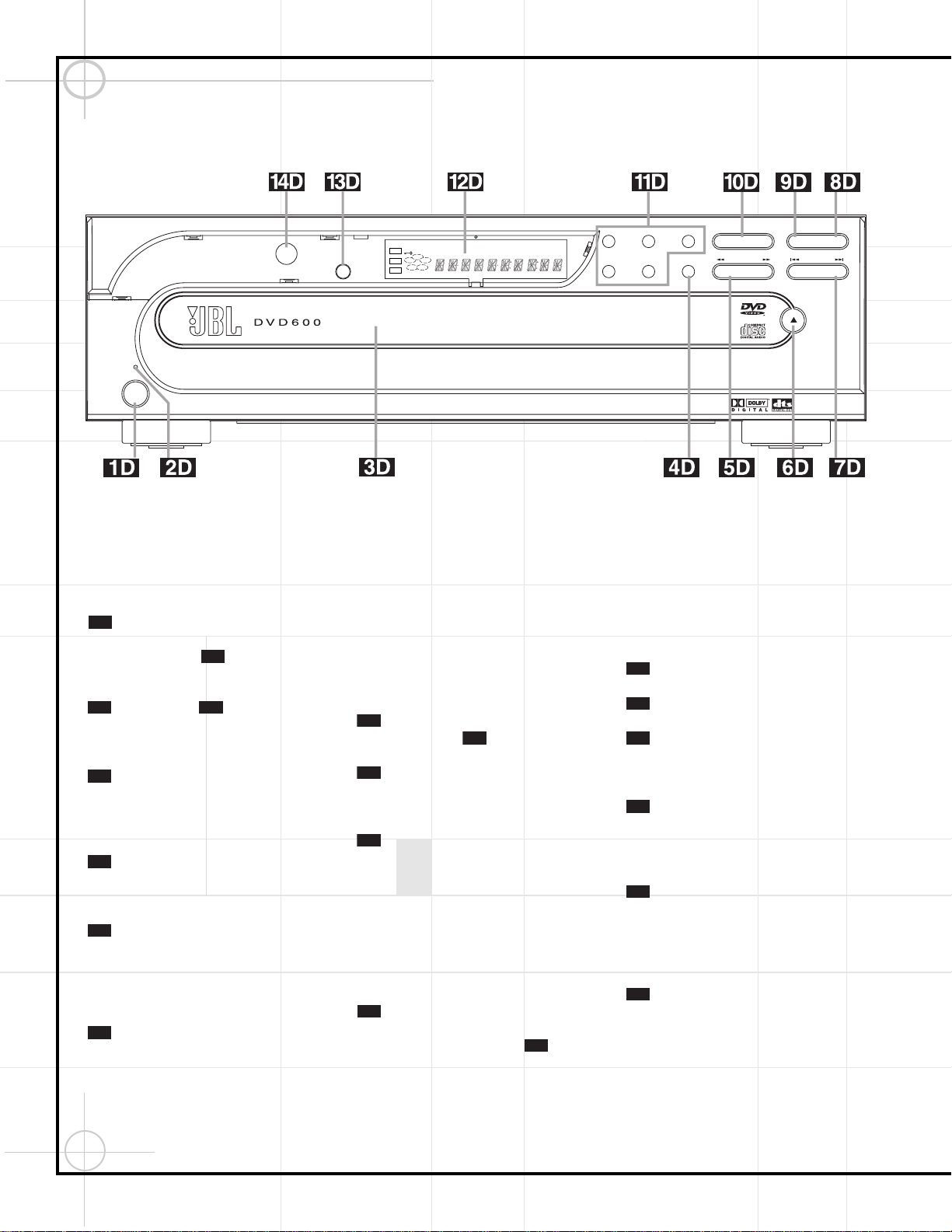
18
DVD600 Front Panel Controls
Power Switch: Press to apply power to
the DVD600. When the unit is first turned on,
the Status Indicator will turn amber,
indicating that it is in Standby mode. To turn
the unit on, press the Open/Close Button
or Play Button , or use the remote
control to select DVD d, and then power the
unit on b.
Status Indicator: When the DVD600 is
in the On mode, this indicator will glow green.
When the unit is in Standby, the indicator will
glow amber.
Disc Tray: Holds up to five DVD or CD
discs that can be played one at a time in the
DVD600.
Disc Skip: Press to change the disc
being played. Each press of the button will
move the tray forward to the next occupied
position in the tray, skipping over the empty
disc positions.
Search Forward/Reverse: Press to
move forward or backward through a disc at
one of four speeds. Each press and release will
increase the search speed, as indicated in the
on-screen display. Once you have selected the
desired speed, release the button and the disc
will continue to search at fast speed. To
resume normal playback speed, press the Play
button.
Open/Close Button: Press to open or
close the Disc Tray .
Skip Forward/Reverse: Press to move
forward or backward through the music tracks
or chapters on a disc.
Stop: Press once to place the disc in the
Resume mode, which means that playback will
stop, but (as long as the tray is not opened or
the disc changed) DVD playback will continue
from the same point on the disc when the Play
button is pressed again. Resume will also work
if the unit was turned off. To stop a disc and
have play start from the beginning, press the
button twice.
Pause: Press to momentarily pause
playback. To resume playback, press the button
again, or press the Play Button . If a
DVD is playing, action will freeze and a still
picture will be displayed when the button is
pressed.
Play: Press to begin playback of a disc,
or to resume playback after the Pause Button
has been pressed.
Direct Access Buttons: Press one of
these buttons to play any of the five discs
loaded in the Disc Tray.
Information Display: This display con-
tains a variety of indicators that provide infor-
mation about the status of the DVD600 and the
disc currently playing.
Display Dim: Press this button to adjust
the brightness of the Information Display by
50% or to turn the display off completely in the
following order: FULL BRIGHTNESS ➔ HALF
BRIGHTNESS ➔ OFF ➔ FULL BRIGHTNESS.
Remote Sensor: The sensor that
receives the infrared commands from the
remote control is behind this area. Do not
cover or obscure this part of the front panel, in
order to avoid a malfunction with the remote.
14 D
13 D
12D
11D
9D
10D
10D
9D
8D
7D
3D
6D
5D
4D
3D
2D
10D
6D
2D
1D
231
5
search
play
disc skip
skip
open/close
pause stop
4
Dimmer
power
RESUME
TITLE
RANDOM
CHAPTER
REPEAT
TRACK
1ALL
HOUR
DISC
A – B
MIN
PROG.
INTRO
SEC
DVD
CD
—±‚
1
2
3
4
5
DISC
VCD
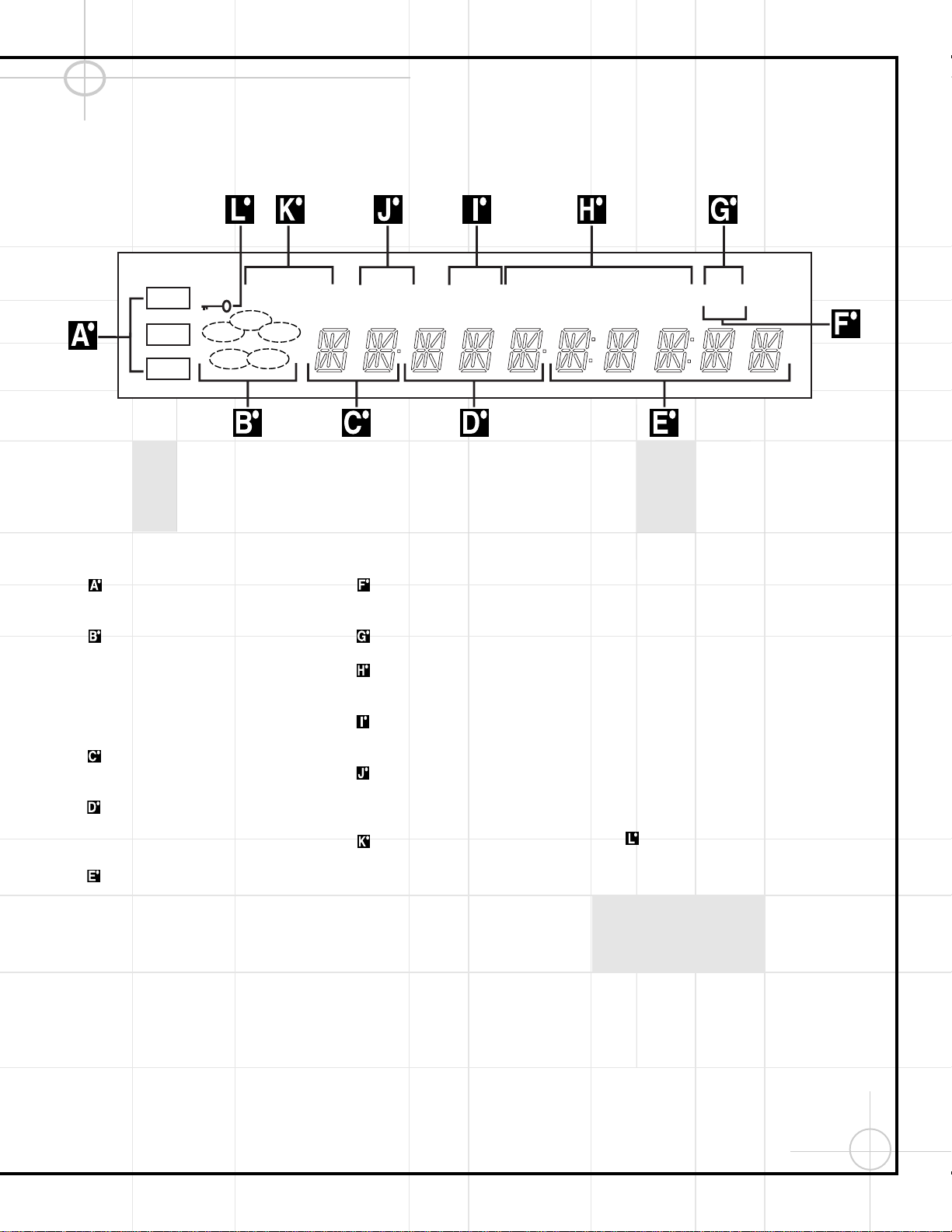
19
DVD600 Front Panel Information Display
Disc Type: Lights to show the type of disc
currently being played.
Disc Number: Shows if a disc is loaded
in a tray position. The indicator for the disc in
play flashes. Note that if a disc is added to, or
removed from, the tray while a disc is playing,
the indicator will not show the change until all
discs are cycled.
Title: Shows the DVD title number cur-
rently playing.
Chapter/Track Number: Shows the
current chapter (DVD) or current track
number (CD).
Program Time: Shows the running time
of a DVD or current track time, time remaining
in the current track, or the total remaining time
of a CD.
NOTE: The Program Time Indicators will also
display text messages about the DVD600’s sta-
tus, including Reading when a disc is
loading, Bye when the unit is turned off, and
Disc Error when a disc not compatible
with the DVD600 is put into the play position.
Intro: Lights when the Intro Scan function
is active.
Program: Lights during programming.
Repeat: Lights to indicate any of the
Repeat modes.
Random: Lights when the unit is in the
Random Play mode.
Resume: Lights when the Stop button has
been pressed once to put the unit in the
Resume mode.
Playback Mode: Lights to show the cur-
rent playback mode:
› Lights when a disc is playing in the Normal
mode.
›› Lights when the disc is in the Fast Search
Forward mode. For DVDs, when both triangles
glow steadily, the disc plays at 2x normal
speed. When the right triangle is flashing, the
disc plays at 4x normal speed. When the left
triangle is flashing, the disc plays at 8x normal
speed. When both triangles are flashing, the
disc plays at 16x normal speed. For CDs, only
the first three Fast Search modes are available.
›± Lights when the disc is paused.
‹‹ Lights when the disc is in the Fast Search
Reverse mode. For DVDs, when both triangles
glow steadily, the disc plays at 2x normal
speed. When the left triangle is flashing, the
disc plays at 4x normal speed. When the right
triangle is playing, the disc plays at 8x normal
speed. When both triangles are flashing, the
disc plays at 16x normal speed. For CDs, only
the first three Fast Search modes are available.
Parental Lock Indicator: This indicator
lights when the parental-lock system is
engaged in order to prevent anyone from
changing the rating level without a code.
RESUME
TITLE
RANDOM
CHAPTER
REPEAT
TRACK
1ALL
HOUR
DISC
A – B
MIN
PROG.
INTRO SEC
DVD
CD
—±‚
1
2
3
4
5
DISC
VCD
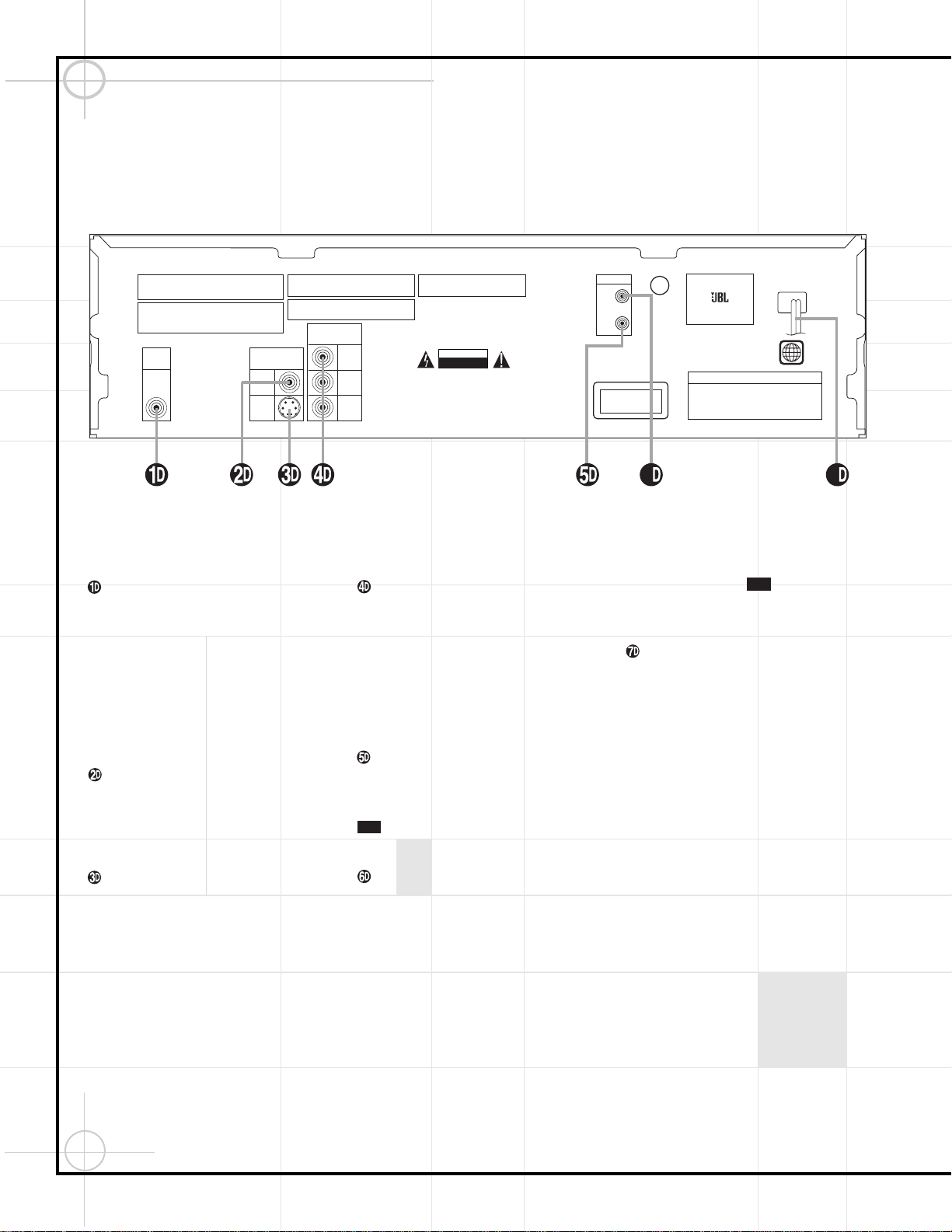
20
Coaxial Digital Output: Connect this jack
to the coaxial digital input of an A/V receiver
or surround processor for Dolby Digital, DTS or
PCM audio playback.
NOTE: The coaxial digital output should only
be connected to a digital input. Even though it
is the same RCA-type connector as standard
analog audio connections, DO NOT connect it
to a conventional analog input jack.
Composite Video Output: Connect this
jack to the video input on a television or video
projector, or to a video input on an A/V receiver
or processor if you are using that type of
device for video input switching.
S-Video Output: Connect this jack to the
S-Video input on a television or video projector,
or to an S-Video input on an A/V receiver or
processor if you are using that type of device
for S-Video input switching.
Component Video Outputs: If your TV or
video projector has component video inputs,
you may connect these output jacks to the set
for the highest video quality available. Note
that the component video inputs may be
labeled as Y/Pr/Pb or Y/Cr/Cb but, for connec-
tion purposes, they are the same. The outputs
of these jacks should NOT be connected to a
standard composite video input.
Remote Control Output: Connect this
jack to the infrared (IR) input jack of another
JBL or other compatible remote-controlled
product to have the built-in Remote Sensor
on the DVD600 provide IR signals to
other compatible products.
Remote Control Input: Connect the out-
put of a remote infrared sensor, or the remote
control output of another JBL or other compati-
ble product, to this jack. This will enable the
remote control to operate even when the front
panel Remote Sensor is blocked. This
jack may also be used with compatible IR
remote control-based automation systems.
AC Power Cord: Connect this plug to
an AC outlet. If the outlet is controlled by a
switch, make certain that it is in the ON
position.
14 D
14 D
DVD600 Rear Panel Connections
Manufactured under license from Dolby Laboratories.
"Dolby", "Pro Logic" and the double-D symbols are trademarks
of Dolby Laboratories. Confidential Unpublished Works.
' 1992-1997 Dolby Laboratories, Inc. All rights reserved.
This device complies with part 15 of the FCC rules. Operation is
subject to the following two conditions; (1) This device may not
cause harmful interference, and (2) This device must accept any
interference received, including interference that may cause
undesired operation.
Apparatus Claims of U.S. Patent Nos. 4,631,603,
4,577,216, 4,819,098, and 4,907,093 licensed for
limited viewing uses only.
"DTS" and "DTS Digital Out" are trademarks
of Digital Theater Systems, Inc.
AC INPUT
~120V/60Hz 25W
WARNING: TO REDUCE THE RISK OF FIRE OR ELECTRIC SHOCK,
DO NOT EXPOSE THIS APPLIANCE TO RAIN OR MOISTURE.
AVERTISSEMENT:
POUR PRÉVENIR LES RISQUES D'INCENDIE
OU DE CHOC ÉLECTRIQUE, ÉVITER D'EXPOSER CET APPAREIL
A LA PLUIE OU A L'HUMIDITÉ.
CAUTION
RISK OF ELECTRIC SHOCK
DO NOT OPEN
AVIS : RISQUE DE CHOC
ÉLECTRIQUE–NE PAS OUVRIR
C
US
U
L
®
LISTED
E206909
7H57
AUDIO/VIDEO
EQUIPMENT
MODEL NO. DVD 600
NORTHRIDGE
CALIFORNIA, USA
CERTIFIFICATION - THIS PRODUCT COMPLIES WITH DHHS
RULES 21 CFR, SUBCHAPTER J, PART
1040 AT DATE OF MANUFACT
URE
DIGITAL
OUT
VIDEO OUT
COMPONENT
VIDEO OUT
COAXIAL
SERIAL NO.
Pr
Pb
Y
S-VIDEO
CLASS 1
LASER PRODUCT
1
REMOTE
IN
OUT
VIDEO
67
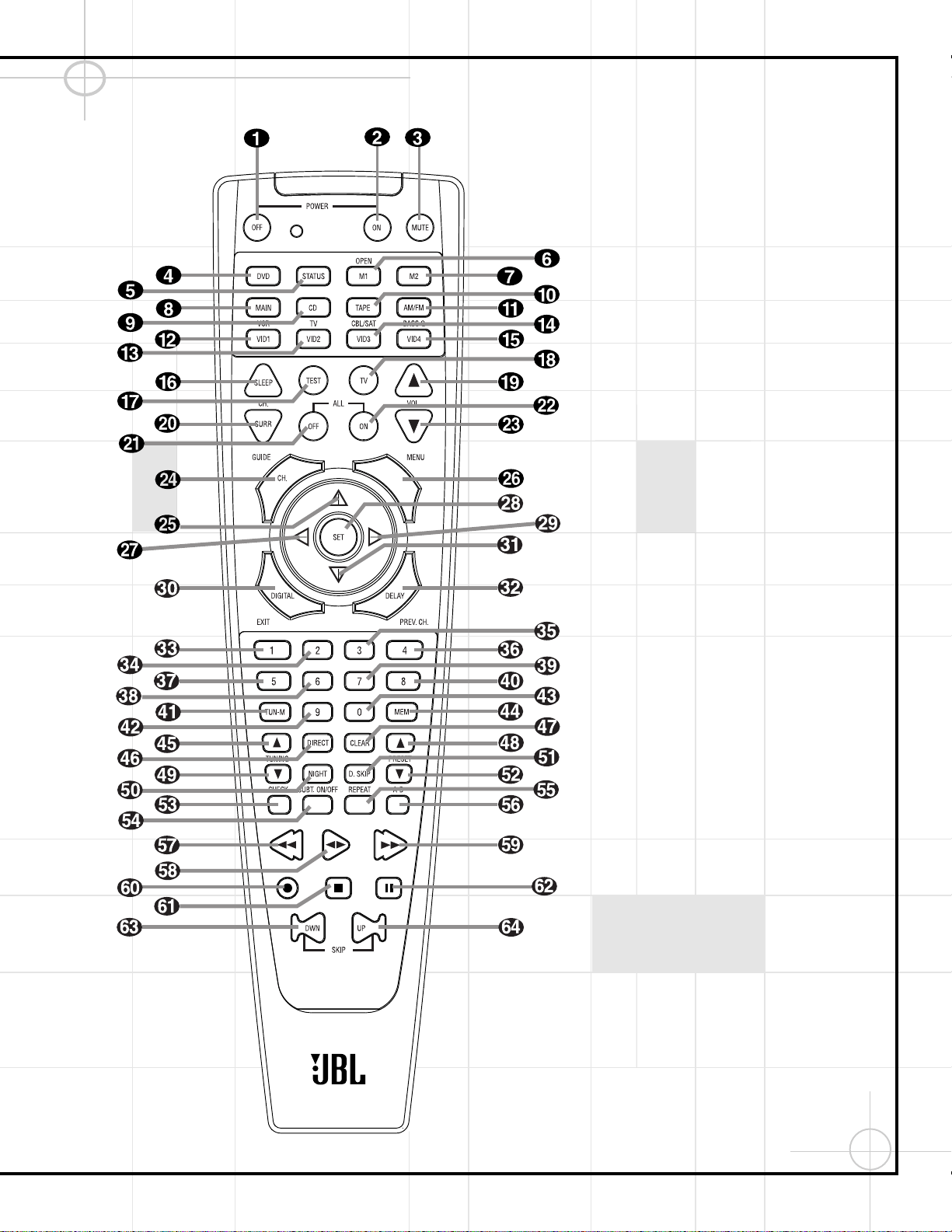
21
Remote Control Functions
IMPORTANT NOTE: The JBL Cinema ProPack
600 remote control may be programmed to
control up to eight devices, including the
DCR600 and DVD600. It is helpful to think of
the remote as being organized into “pages,”
with one page for each device. Depending on
which device has been selected, the buttons
on that device’s page will perform different
functions, as listed starting on the next page.
These functions may vary from the labels on
the remote, and from one device to the next.
Some buttons may perform no function at all
for a given device.
In order to go to the page for a particular
device, such as the DVD600, you will need to
press the Input Selector button for that device
(DVD in this case), located in a grouping just
below the power buttons. The remote will then
function as if it were dedicated to the DVD600.
If you would like to make an adjustment that
affects the DCR600 receiver, such as turning
the volume up or down, you must first go to
the page for the DCR600 by pressing its Input
Selector button. This button is labeled "Main"
on the remote. The exception to this rule is
that the DVD600’s transport functions – Play,
Forward and Reverse Search, Stop, Pause, and
Previous and Next Chapter/Track Skip – may
be accessed from the "Main" page, without
having to jump to the DVD page.
22
a Power Off Button: Turns off the power
to a device selected by pressing its Input
Selector.
b Power On Button: Turns on the power to
a device selected by pressing its Input
Selector.
c Mute Button: Press to momentarily
silence the DCR600 or TV set being controlled,
depending on which device has been selected.
When the remote is being programmed to
operate an external device, such as a CD player
,
this button is pressed, together with the Input
Selector button, for the new device to begin
the programming process.
d DVD Input Selector: Pressing this button
will perform three actions: 1) If the DCR600 is
not turned on, it will power up. 2) It will select
DVD as the input source. 3) It will switch to
the page for the DVD600, which will cause the
remote to operate only the DVD changer. Press
the Main Button h to return the remote to
control of the DCR600 receiver.
e Status Button: This button operates only
when the DVD600 has been selected. When a
disc is playing, pressing this button will display
the Status Banner, which contains information
about the disc and enables you to change the
functions.
fg M1 and M2 Macro Buttons/Open-
Close Button: Press these buttons to store or
recall a “Macro”, which is a preprogrammed
sequence of commands stored in the remote.
When the DVD600 has been selected, the M1
Button f functions to open or close the disc
tray drawer. (M2 g has no function.) If the
drawer is opened while a disc is still playing,
playback will continue and discs not in use
may be changed. If the drawer is opened while
the unit is stopped, the disc that was playing
will be presented at the front-center position
of the tray.
h Main Input Selector: Pressing this
button will perform two actions: 1) If the
DCR600 is not turned on, it will power up.
2) It will switch to the page for the DCR600,
which will cause the remote to operate only
the receiver and the transport functions of
the DVD600.
i CD Input Selector: Pressing this button
will perform three actions: 1) If the DCR600 is
not turned on, it will power up. 2) It will select
CD as the input source. 3) It will switch to the
page for the CD player whose codes have been
programmed into the remote, which will cause
the remote to operate only the CD player. Press
the Main Button h to return the remote to
control of the DCR600 receiver.
j Tape Input Selector: Pressing this
button will perform three actions: 1) If the
DCR600 is not turned on, it will power up.
2) It will select TAPE as the input source.
3) It will switch to the page for the tape deck
whose codes have been programmed into the
remote, which will cause the remote to oper-
ate only the tape deck. Press the Main Button
h to return the remote to control of the
DCR600 receiver.
k AM/FM Tuner: Selects the DCR600’s
tuner as the listening choice. Pressing this but-
ton when the tuner is already in use will select
between the AM and FM bands.
l Video 1 Input Selector (VCR): Pressing
this button will perform three actions: 1) If the
DCR600 is not turned on, it will power up.
2) It will select VIDEO 1 as the input source.
3) It will switch to the page for the video
device whose codes have been programmed
into the remote, which will cause the remote
to operate only that video device. You may find
it convenient to connect your VCR to the Video
1 input, since it is the only video source that
also features outputs for recording. Press the
Main Button h to return the remote to con-
trol of the DCR600 receiver.
m Video 2 Input Selector (TV): Pressing
this button will perform three actions: 1) If the
DCR600 is not turned on, it will power up.
2) It will select VIDEO 2 as the input source.
3) It will switch to the page for the video
device whose codes have been programmed
into the remote, which will cause the remote
to operate only that video device. You may find
it convenient to connect your television to the
Video 2 input. Press the Main Button h to
return the remote to control of the DCR600
receiver.
n Video 3 Input Selector (Cable or
Satellite): Pressing this button will perform
three actions: 1) If the DCR600 is not turned
on, it will power up. 2) It will select VIDEO 3 as
the input source. 3) It will switch to the page
for the video device whose codes have been
programmed into the remote, which will cause
the remote to operate only that video device.
You may find it convenient to connect your
cable television box or satellite receiver to the
Video 3 input. Press the Main Button h to
return the remote to control of the DCR600
receiver.
o Video 4 Input Selector: Pressing this
button will perform three actions: 1) If the
DCR600 is not turned on, it will power up.
2) It will select VIDEO 4 (the front-panel input)
as the input source. 3) It will switch to a
special page that is preprogrammed to operate
the JBL BassQ™ low-frequency equalization
module. You may find it convenient to connect
your portable camcorder or video game to the
Video 4 input. Press the Main Button h to
return the remote to control of the DCR600
receiver.
p Sleep: Places the DCR600 in the Sleep
Timer mode. After the time shown in the
display has elapsed, the DCR600 will automati-
cally go into Standby. Each press of this button
changes the time until turn-off in intervals of
10 minutes, starting with a maximum of 90
minutes.
This button is also used to change channels on
your TV when the TV is selected.
This button is also used during the "Auto Search"
procedure when programming the remote.
q Test: Begins the sequence used to
calibrate the speaker output levels.
When the CD input has been selected and a CD
recorder is in use, this button is used to select
among the analog and digital inputs to the CDR.
r TV/VCR: This button does not have a
function on the DCR600 or DVD600, but when
used with a compatibly programmed VCR,
DVD, TV or Satellite receiver that has a
“TV/Video” function, pressing this button will
switch between the output of that device and
the external video input to that device. Consult
the owner’s manual for your specific player or
satellite receiver for the details of how it
implements this function.
s Volume Up: Use to raise the system
volume.
t Surround Mode/Audio: Begins the
process of changing the surround mode when
the DCR600 is selected. After the button has
been pressed, use the
⁄
/
¤
Buttons y
to select the desired surround mode.
When the DVD600 is selected, this button
allows you to select from the available audio
tracks or languages on a DVD disc that is cur-
rently playing.
This button is also used to tune channels when
the TV is selected.
23
This button is also used during the “Auto
Search” procedure when programming the
remote.
u All Off: Simultaneously sends Power Off
commands to all programmed devices con-
trolled by the remote.
v All On: Simultaneously sends Power
On commands to all programmed devices
controlled by the remote.
w Volume Down: Use to lower the system
volume.
x Channel/Title/Guide: Starts the process
of setting the DCR600’s speaker output levels
using an input source rather than the test tone.
Press this button, then use the
⁄
/
¤
Buttons
y to select the channel being adjusted,
followed by the Set Button . You may
then use the
⁄
/
¤
Buttons y again to
change the level for that channel. Press the
Set Button to lock in the setting.
When using the DVD600 to play a DVD disc,
this button functions as a Title button, and dis-
plays the disc’s Title Select Menu, or a symbol
(X) if the disc either does not offer this func-
tion or has only one title.
When the Video 3 input has been programmed
for a cable or satellite service, this button will
access the service’s programming guide, if the
service is active.
y
⁄
: Used to change or scroll through items
in the on-screen menus, or to change configu-
ration settings, such as output levels. When
changing an item such as the surround mode
or digital input directly, first press the function
or mode to be changed, such as Surround
Mode or Digital Input, and then press this button
to scroll through the list of available choices.
z Menu: Used only with video sources.
When DVD is selected, pressing this button
while a DVD disc is playing stops playback and
displays the disc’s menu. When the unit is
stopped, pressing this button displays the
DVD600’s Setup Menu.
`
‹
: Used to change the menu selection
or setting during some of the setup or other
procedures.
Set: Used to enter settings into the mem-
ory of the DCR600, DVD600 or video device
selected. Also used in the setup procedures for
delay time, speaker configuration and channel
output level adjustment. When the DVD600
has been selected, pressing this button will
select the item that is highlighted in the Status
Banner, or in the on-screen menu displayed by
a DVD disc.
›
: Used to change the menu selection
or setting during some of the setup or other
procedures.
Digital/Subtitle/Exit: When the DCR600
is selected, press this button to assign one of
the digital inputs to a source. When the
DVD600 is selected, this button is used to
change the subtitle choice. For other video
devices, it exits the menu.
¤
: Used to change or scroll through
items in the on-screen menus, or to change
configuration settings, such as output levels.
When changing an item such as the surround
mode or digital input directly, first press the
function or mode to be changed, such as
Surround Mode or Digital Input, and then press
this button to scroll through the list of
available choices.
Delay/Return/Prev Ch.: Begins the
process for setting the delay times used by the
DCR600 when processing surround sound.
After pressing this button, the delay times are
entered by pressing the Set Button and
then using the
⁄
/
¤
Buttons y to
change the setting. Press the Set Button
again to complete the process.
This button is also used when viewing a menu
display from a DVD disc. Press it to return to
the previous menu screen.
–
,
Numeric Keys: These
buttons serve as a ten-button numeric keypad
to enter tuner preset positions. They are also
used with the DVD600 to enter data for
sequential programming, to enter or change
the access password for parental control, to
enter a language code, or to respond to menu
options presented by a disc. When the TV or
another video device is selected, they are used
to select channel numbers. They may also be
used to select track numbers when playing a
CD, DVD or LD.
Tuner Mode/Angle: Press this button
when the tuner is in use to select between
automatic tuning and manual tuning. When
the button is pressed so that the AUTO indica-
tor V goes out, pressing the Tuning Buttons
8 will move the frequency up or
down in single-step increments. When the
FM band is in use, pressing this button when
a station’s signal is weak will change to
monaural reception.
When a DVD encoded with multiple-angle
information is playing, press to change the
angle in use. Note that this function is only
available on discs that are specially prepared
to take advantage of the multiple-angle func-
tion, and only for those parts of the disc that
are recorded with multiple-angle content.
The DVD600 will display a camera icon on the
screen to indicate when this feature is
available.
Memory: Enters a radio station into the
DCR600’s preset memory. Once the MEMORY
Indicator S flashes, you have five seconds
to enter a preset memory location using the
Numeric Keys
–
,
. Repeat
the process to enter additional stations.
Tuning Up/Down/Step (Frame
Advance) Buttons: When the tuner is in use,
these buttons will tune up or down through the
selected frequency band. If the Tuner Mode
Button @ has been pressed so that the
AUTO Indicator V is illuminated, pressing
and holding either of the buttons for three sec-
onds will cause the tuner to seek the next sta-
tion with acceptable signal strength for quality
reception. When the AUTO Indicator V is
NOT illuminated, pressing these buttons will
tune stations in single-step increments.
When a DVD disc is playing, press these
buttons to move forward or backward one
frame at a time. Press the Play Button
to resume normal play. These buttons do
not function when a CD is playing.
Direct/Program Button: Pressing this
button in tuner mode starts the sequence for
direct entry of a station’s frequency or CD track.
After pressing the button, simply press the
proper Numeric Keys –
,
to
select a station or track.
When the DVD600 is stopped, press this but-
ton to display the program menu and enter a
programmed play sequence. When a disc is
playing, press to switch between normal play
and programmed playback.
Clear Button: Erases incorrect entries
when using the remote to directly enter a radio
station’s frequency.
When the DVD600 has been selected, press
this button to remove the Status Banner or
other displays from your video screen. This
button is also used to clear items from
Programmed Play lists.
47
46
10D
58
49
49

24
Preset Up/Down/Slow-Play
Buttons: When the tuner is in use, press these
buttons to scroll through the stations pro-
grammed into the DCR600’s memory.
When a DVD disc is playing and the DVD600
has been selected, press these buttons to
move forward or backward through the disc in
slow speed. Each press of these buttons
changes the slow-play speed in the following
order: 1/16 Normal Speed ➔ 1/8 Normal
Speed ➔ 1/4 Normal Speed ➔ 1/2 Normal
Speed. To resume normal play, press the Play
Button . These buttons do not func-
tion when a CD is playing.
Night Mode/Random: Activates the
Night mode of the DCR600. This mode is avail-
able in specially encoded digital sources, and
it preserves dialogue (center-channel) intelligi-
bility at low volume levels.
When the DVD600 has been selected, press to
begin the playback of all tracks on a disc in
random order.
Disc Skip Button: Press to move to the
next available disc in the tray when using a
DVD or CD player. This button has no direct
effect on the DCR600.
Check: This button only functions when
the DVD600 has been selected. When a CD is
playing, press this button to check the status
of the current disc via the on-screen display.
This button is also used to verify the contents
of a programmed play list via the front-panel
Information Display.
Subtitle On/Off: This button only
functions when the DVD600 has been selected.
When a DVD is playing, press this button to
turn the Subtitle Display on or off.
Repeat: This button only functions when
the DVD600 or a CD player has been selected.
Press to select a Repeat-Play mode. Each press
of the button shows the choice selected in both
the on-screen Status Banner display or in the
Repeat Indicators in the front-panel
Information Display.
Repeat A–B: This button only functions
when the DVD600 has been selected. Press
once to begin the selection of a portion of a
disc to be repeated. Press it again to choose
the end point of the repeat-play selection.
NOTE: When any of the following buttons
–
is pressed while the remote has
selected the Main Page, the remote will
automatically switch to control of the DVD, as
indicated by the DVD Input Selector d
lighting.
Reverse Search/Rewind: When the
DVD600 has been selected, press to move
backward through a CD or DVD at one of four
speeds. Each press and release will increase
the search speed, in the following order: R.
Search x 2 ➔ R. Search x 4 ➔ R. Search x 8
➔ R. Search x 16. Once you have selected the
desired speed, release the button, and the
disc will continue to search at fast speed. To
resume normal playback, press the Play
Button .
When a tape deck or VCR has been selected,
this button rewinds the tape.
Play Button: Press to begin playback
when the DVD600 has been selected. If the
disc tray drawer is open, it will automatically
close when the button is pushed. Pressing the
Play button when the unit is in the Standby
mode will turn the unit on and begin playback
of the last disc in use.
When a CD player, tape deck or VCR has been
selected, pressing this button will also begin
playback. See the owner’s manual for that
device for more information on the operation
of the play function as it affects that device.
Forward Search/Fast Forward: When
the DVD600 has been selected, press to move
forward through a CD or DVD at one of four
speeds. Each press and release will increase
the search speed, in the following order:
F. Search x 2 ➔ F. Search x 4 ➔ F. Search
x 8 ➔ F. Search x 16. Once you have selected
the desired speed, release the button, and the
disc will continue to search at fast speed. To
resume normal playback, press the Play
Button .
When a tape deck or VCR has been selected,
this button fast-forwards the tape.
Record Button: This button only func-
tions when a CD/CDR, tape deck or VCR con-
nected to the Video 1 input has been selected.
See the owner’s manual for that device for fur-
ther information on how to make recordings.
Stop Button: This button has no effect
on the DCR600. When the DVD600 has been
selected, press this button once to place the
disc in the Resume mode. Playback will stop,
and as long as the tray is not opened or the
disc changed, DVD playback will continue from
the same point on the disc when the Play
Button is pressed again, even if
the unit has been turned off in the interim. To
stop a disc without entering Resume mode,
press the Stop button twice.
This button also performs the Stop function
when a CD player, tape deck or VCR connected
to the Video 1 input has been selected.
Pause Button: Press to pause the disc in
use. To resume playback, either press the
Pause button again, or press the Play Button
.
Previous/Next: Press to move
backward or forward through the music tracks
on a CD disc or the chapters on a DVD disc.
This button also scans backward or forward
when a VCR connected to the Video 1 input
has been selected.
64
63
10D
58
62
10D
58
61
60
10D
58
59
58
10D
58
57
64
57
56
55
54
53
51
50
10D
58
52
48
25
Remote Control Function Grid
#
MAIN
DVD CD/CDR Tape VCR (VID 1) TV (VID 2) CBL (VID 3) SAT (VID 3) BASSQ (VID 4)
Button
DCR600 + DVD600
01 POWER OFF Power Off Power Off Power Off Power Off Power Off Power Off Power Off
02 POWER ON Power On Power On Power On Power On Power On Power On Power On
03 MUTE Mute Mute Mute Mute Mute Mute Mute
04 DVD DVD Input Select DVD Select DVD Select DVD Select DVD Select DVD Select DVD Select DVD Select DVD Select
05 STATUS STATUS
06 M1 M1 Open/Close Open/Close Cancel Sleep PPV Cancel
07 M2 M2 Repeat FAV FAV
08 MAIN DCR Select DCR Select DCR Select DCR Select DCR Select DCR Select DCR Select DCR Select DCR Select
09 CD CD Input Select CD Select CD Select CD Select CD Select CD Select CD Select CD Select CD Select
10 TAPE Tape Input Select Tape Select Tape Select Tape Select Tape Select Tape Select Tape Select Tape Select Tape Select
11 AM/FM Tuner Select Tuner Select Tuner Select Tuner Select Tuner Select Tuner Select Tuner Select Tuner Select Tuner Select
12 VID1 Video 1 Select Video 1 Select Video 1 Select Video 1 Select Video 1 Select Video 1 Select Video 1 Select Video 1 Select Video 1 Select
13 VID2 Video 2 Select Video 2 Select Video 2 Select Video 2 Select Video 2 Select Video 2 Select Video 2 Select Video 2 Select Video 2 Select
14 VID3 Video 3 Select Video 3 Select Video 3 Select Video 3 Select Video 3 Select Video 3 Select Video 3 Select Video 3 Select Video 3 Select
15 VID4 Video 4 Select Video 4 Select Video 4 Select Video 4 Select Video 4 Select Video 4 Select Video 4 Select Video 4 Select Video 4 Select
16 Sleep Sleep Channel+ Channel+ Channel+ Channel+
17 Test Test Tone Input Select
18 TV/VCR TV/DVD CDP Select TV/VCR TV/VCR TV/Cable TV/Sat
19 Volume UP Volume Up Volume Up Input Level Up Volume Up Volume Up Volume Up Volume Up
20 Surround Select Surround Mode Select Audio CDR Select Channel- Channel- Channel- Channel-
21 ALL OFF Sends "OFF" Commands Simultaneously for ALL 8 Devices
22 ALL ON Sends "ON" Commands Simultaneously for ALL 8 Devices
23 Volume Down Volume Down Volume Down Input Level Down Volume Down Volume Down Volume Down Volume Down
24 Channel/Guide Channel Trim Title Info/Guide Info/Guide
25 Up Move/Adjust Up Up Up Up Up Up Level Up
26 Menu Menu Menu Menu Menu Menu
27 Left Move/Adjust Left Left Left Left Left Left
28 Set Set Enter Enter Enter Enter Enter Enter
29 Right Move/Adjust Right Right Right Right Right Right
30 Digital/Exit Digital Input Select Subtitle Exit Exit Exit Exit
31 Down Move/Adjust Down Down Down Down Down Down Level Down
32 Delay/Prev. Ch. Delay Adjust Return Time Prev. Channel Prev. Channel Prev. Channel
33 1 1 1 1 1 1 1 1
34 2 2 2 2 2 2 2 2
35 3 3 3 3 3 3 3 3
36 4 4 4 4 4 4 4 4
D
e
v
i
c
e
26
Remote Control Function Grid
#
MAIN
DVD CD/CDR Tape VCR (VID 1) TV (VID 2) CBL (VID 3) SAT (VID 3) BASSQ (VID 4)
Button
DCR600 + DVD600
37 5 5 5 5 5 5 5 5
38 6 6 6 6 6 6 6 6
39 7 7 7 7 7 7 7 7
40 8 8 8 8 8 8 8 8
41 Tun-M Tuner Mode Angle Select Random Play Bypass Next
42 9 9 9 9 9 9 9 9
43 0 0 0 0 0 0 0 0
44 Memory Memory
45 Tuning Up Tune Up Step + Day+ Day+
46 Direct Direct Tuner Entry Program Track Direct
47 Clear Clear Clear Clear Clear Clear Clear Clear
48 Preset Up Preset Tune Up Slow Forward (+10) Page+ Page+
49 Tuning Down Tune Down Step– Track Increment Day– Day–
50 Night Night Mode Select Random
51 D. Skip Disc Skip Disc Skip Disc Skip
52 Preset Down Preset Tune Down Slow Reverse Intro Scan Page– Page–
53 CHECK Check
54 Subtitle On/Off Subtitle On/Off
55 REPEAT Repeat Repeat
56 A–B A–B
57
‹‹
REW (DVD) R. Search R. Search Rewind Rewind Unknown Unknown Unknown
58 PLAY (‹›) PLAY (DVD) Play Play
F. Play
Play
Unknown Unknown Unknown
R. Play Unknown Unknown Unknown
59
››
FF (DVD) F. Search F. Search Fast Fwd. Fast Fwd. Unknown Unknown Unknown
60 RECORD Record Record Record
61 STOP STOP (DVD) Stop Stop Stop Stop Unknown Unknown Unknown
62 PAUSE PAUSE (DVD) Pause Pause Pause Pause Unknown Unknown Unknown
63 PREV. PREV. CHAP (DVD) Prev. Skip– Scan– Unknown Unknown Unknown
64 NEXT NEXT. CHAP (DVD) Next Skip+ Scan+ Unknown Unknown Unknown
D
e
v
i
c
e

27
Remote Control Code Tables
TV
Maker (Brand) Name Setup Code Number
A-MARK 103 132
ADMIRAL 192
AKAI 123 160
AMPRO 164
ANAM 045 103 106 109 112 122
AOC 103 123 128
BLAUPUNKT 084
BROKSONIC 205 206
CANDLE 123 128
CAPEHART 059
CENTURION 123 171
CETRONIC 045
CITIZEN 045 123 128 132
CLASSIC 045
CONCERTO 128
CONTEC 045
CORANDO 172
CORONADO 132
CRAIG 045 157 158 159
CROWN 045 132
CURTIS MATHES 123 128 132
CXC 045
DAEWOO 045 087 102 105 106 108 111 114 116 119 127 128 132
DAYTRON 128 132
CIGI LINK 200
DYNASTY 045
DYNATECH 063
ELECTROHOME 115 132
EMERSON 045 123 128 132 139 157 158 159 162 205
FUNAI 045
FUTURETECH 045
GE 087 121 123 128 133 145 159 163
GOLDSTAR 101 103 110 128 132
GRUNDIG 193
HALL MARK 128
HARMAN KARDON 201
HITACHI 123 128 132 144 147
INFINITY 148
INKEL 120
JBL 148
JC PENNEY 115 123 128 132 145
JENSEN 019
JVC 079 087 134
KAWASHO 173
KEC 045
KENWOOD 123 204
KMC 132
KTV 045 123 132 162
LLOYTRON 172 173
LODGENET 069
LOGIK 069
LUXMAN 128
LXI 077 145 148
MAGNAVOX 123 128 132 145 148
MARANTZ 115 123 148
MATSUI 148
MEMOREX 069 128
METZ 084
28
Remote Control Code Tables
TV
Maker (Brand) Name Setup Code Number
MGA 115 123 128
MINERVA 084
MITSUBISHI 077 115 123 128 160 167 168
MTC 175 176
NATIONAL 148 177 179 180 181 182
NEC 115 121 123 125
NIKEI 045
ONKING 045
ONWA 045
OPTONICA 077
ORION 207 208 209 210 211
PANASONIC 087 148 169
PHILCO 045 115 123 128 132 148
PHILIPS 123 128 132 145 148
PIONEER 024 123 128 213 214
PORTLAND 128 132
PROSCAN 133
PROTON 059 122 128 132 165
QUASAR 087
RADIO SHACK 045 128 132 180 196 197
RCA 115 123 128 133 145 161 163
REALISTIC 045 196 167
RUNCO 152 153
SAA 183
SAMPO 059 123 128
SAMSUNG 124 128 132 145
SANYO 054
SCOTT 045 128 132
SEARS 128 132 145
SHARP 077 128 132
SIEMENS 084
SIGNATURE 069
SONY 117 130 136 194 212
SOUNDESIGN 045 128
SPECTRICON 103
SSS 011 045
SYLVANIA 123 128 145 148
SYMPHONIC 184
TANDY 077
TATUNG 063
TECHNICS 080
TECHWOOD 128
TEKNIKA 045 069 115 123 128 132
TELERENT 069
TERA 156
THOMSON 190 191
TMK 128
TOSHIBA 063 129 202
TOTEVISION 132
VIDEO CONCEPTS 160
VIDTECH 128
WARDS 069 128 132 148
YAMAHA 123 128
YORK 128
YUPITERU 045
ZENITH 069 090
ZONDA 103
29
Remote Control Code Tables
VCR
Maker (Brand) Name Setup Code Number
AIWA 040
AKAI 048 108 109 126
AMPRO 076
AMSTRAD 133
ASA 134
AUDIO DYNAMICS 018 048
BROKSONIC 110 147 166
CANDLE 134 135 140
CANON 135 140
CAPEHART 094
CITIZEN 134 140
CRAIG 094
DAEWOO 134
DAYTRON 045 116
DBX 017 094 104 105
DUAL 094
DYNATECH 018 048
ELECTROHOME 136
EMERSON 040
FERGUSON 131
FINLUX 013 040 042 105 110 112 119 134 143
FISHER 136
FUNAI 133
GE 017 142
GO VIDEO 113 117
GOLDSTAR 018 107 134
GRAETZ 136
HARMAN KARDON 018 049
HITACHI 040 048 118 130
ITT 136
JC PENNEY 018 045 134
JENSEN 048
JVC 018 048 111 130 132
KENWOOD 020 048
LLOYD 040
LXI 020 040 134
MAGIN 045
MAGNAVOX 040
MARANTZ 018
MARTA 134
MATSUI 036
MEMOREX 017 020 040 076 115 120 134
MGA 049 131
MITSUBISHI 049 131 145 146
MTC 133
MULTITECH 040
NAD 139
NATIONAL 140
NEC 018 048
30
Remote Control Code Tables
VCR
Maker (Brand) Name Setup Code Number
NORDMENDE 048
OPTIMUS 159
ORION 147 166
PANASONIC 114 125 150 167 172
PHILCO 040
PHILIPS 040 134
PILOT 134
PROTLAND 094
PULSAR 076
QUARTZ 020
QUASAR 125 161
RADIO SHACK 020 129 133 134 140 142 158 159 161
RCA 095 124 125 127 157 172
REALISTIC 017 020 040 045 129 133 134 140 142 159
RICO 062
RUNCO 128
SABA 136
SAISHO 143
SALORA 020
SAMSUNG 045 080 095 105 106 109 124 155
SANSUI 048 116 147 166
SANYO 017 115
SCHAUB LORENZ 136
SCOTT 105 110 112
SEARS 017 020 134 142
SHARP 129 156
SONY 062 080 081 129
SOUNDESIGN 040
SYLVANIA 040 131
SYMPHONIC 040
TANDY 017 040
TASHICO 134
TATUNG 048
TEAC 040 048
TEKNIKA 040 134
TELEFUNKEN 136
THOMAS 040
THOMSON 136
THORN 136
TMK 013
TOSHIBA 105 112 131 142 155
TOTEVISION 045 134
UNITECH 045
VECTRO RESEARCH 018
VIDEO CONCEPTS 018 040
VIDEOSONIC 045
WARDS 040 045 105 112
YAMAHA 018 040 048
ZENITH 040 062 076 080 083 134
31
Remote Control Code Tables
CATV
Maker (Brand) Name Setup Code Number
ABC 001 011
ALLEGRO 111
AMERICAST 212
ARCHER 112
BELCOR 113
CABLE STAR 033 113
CITIZEN 111
COLOUR VOICE 085 090
DIGI 114
EAGLE 186
EASTERN 066 070
ELECTRICORD 039
EMERSON 112
FOCUS 116
G.I. 001 011 017 096 097
GC ELECTRONICS 113
GEMINI 032 060
GENERAL 210
GENERAL INSTRUMENT 168
GOODMIND 112
HANLIN 056 099 100 101 117 175 208
HITACHI 001 188
JASCO 111
JERROLD 001 002 011 017 073 096 097 162 168 188 210
LINSAY 118
MACOM 191
MAGNAVOX 017 019 068
MOVIE TIME 035 039
NSC 035 190
OAK 197
PACE 179
PANASONIC 053 176 177 189 214
PANTHER 114
PHILIPS 013 019 020 085 090
PIONEER 001 041 119 171 209
POPULAR MECHANIC 116
PRELUDE 120
PRIMESTAR 162
PTS 049
RADIO SHACK 111 112 213
RCA 053 214
RECOTON 116
REGAL 056 099 100 101 208
REMBRANDT 032
SAMSUNG 072 186
SCIENTIFIC ATLANTA 049 183 203
SEAM 121
SIGNATURE 001 188
32
Remote Control Code Tables
CATV
Maker (Brand) Name Setup Code Number
SPRUCER 053 081 177 189
STARCOM 002 011 163
STARGATE 120
TANDY 024
TELECAPATION 028
TEXSCAN 036
TFC 122
TIMELESS 123
TOCOM 170 205
UNITED CABLE 011
UNIVERSAL 033 034 039 042 113
VIDEOWAY 124 211
VIEWSTAR 019 025 086 089 190
ZENITH 065 125 211
ZENTEK 116
33
Remote Control Code Tables
SATELLITE RECEIVERS
Maker (Brand) Name Setup Code Number
ALPHASTAR 472
ALPHASTAR DBS 450
ALPHASTAR DSR 442
BIRDVIEW 425
CHANNEL MASTER 320 321 322 325 361
CHAPARRAL 315 316 380 451
CITOH 360
DRAKE 313 317 318 413 481
DX ANTENNA 331 352 362 379 483
ECHOSTAR 395 397 452 453 463 477 478 484 485
ELECTRO HOME 392
FUJITSU 324 329 334
GENERAL INSTRUMENT 303 311 323 365 403 454 468 474
HITACHI DBS 455
HOUSTON TRACKER 463
HUGHES 437
JANIEL 366
JERROLD 454 468 484
KATHREIN 410
LEGEND 453
MACOM 317 365 369 370 371
MAGNAVOX 461 473
MEMOREX 453
NEXTWAVE 423
NORSAT 373
OPTIMUS 466
PANASONIC 366 469
PANASONIC DBS 457
PANSAT 420
PERSONAL CABLE 418
PHILIPS 375
PICO 407
PRESIDENT 381 404
PRIMESTAR 412 454 468 475
RCA 301 439 465
RCA DSS 458
REALISTIC 349 480
SAMSUNG 442
SATELLITE SERVICE 335 388
SCIENTIFIC ATLANTA 339
SONY 405
STAR CHOICE DBS 459
STARCAST 347
SUPER GUIDE 327 423
TEECOM 330 333 390 391 393 409
TOSHIBA 302 426 460 461 462 470
UNIDEN 323 332 348 349 350 351 354 355 381 383 389 403 466 479 480
ZENITH 384 385 387 394 419
34
Remote Control Code Tables
CD PLAYERS
Maker (Brand) Name Setup Code Number
ADCOM 063 069
AIWA 072 111 118 156 170
AKAI 050 177 184
AUDIO TECHNICA 053
AUDIOACCESS 125
AUDIOFILE 211
BSR 044
CALIFORNIA AUDIO 015 109
CAPETRONIC 070
CARRERA 087
CARVER 136 140 141 143 144 145 185 186
CASIO 117 122 166
CLARINETTE 122 166
DENON 187 188 213
EMERSON 052 093 108
FISHER 055 068
FRABA 117
FUNAI 126
GE 164
GENEXXA 108
GOLDSTAR 016 087
HAITAI 099 214
HARMAN KARDON 001 002 025 054 190 218 219
HITACHI 093
INKEL 216
JC PENNEY 098 147
JENSEN 153
JVC 176 195 196
KENWOOD 030 062 078 079 148 151 176 178 181
LOTTE 108
LUXMAN 077 102
LXI 164
MAGNAVOX 039 113
MARANTZ 058 084 191 192 193
MCINTOSH 194
MCS 080 098
MITSUMI 152
MODULAIRE 122 166
NAD 013 074 197 198
NAKAMICHI 199 200 201
NEC 069
NIKKO 053 055
ONKYO 037 038 045 046 171 175 202 203
OPTIMUS 065 089 091 092 099 104 212
PANASONIC 015 075 109 119 158 183 204
PHILIPS 039 138 149 209
PIONEER 071 094 100 112 123 131 161 162 215
PROTON 210
QUASAR 015 109
RADIO SHACK 122 126 213
RCA 024 081 093 150
35
Maker (Brand) Name Setup Code Number
RCX 169
REALISTIC 058 093 095 104 105 108 164 166
SANSUI 047 081 134 157 172
SANYO 033 068 082 095 168
SCOTT 108
SHARP 058 105 114 151 159 167 180 181
SHERWOOD 003 041 058 105 133
SONY 103 115 116 118 132 139 163 205 206 207 208 212 217
SOUNDSTREAM 124
SYMPHONIC 059 110
TAEKWANG 177
TEAC 011 058 085 086 106 107 110 121 137 146 154
THETADIGITAL 039
TOSHIBA 013 074 097 151 155 173
VECTOR RESEARCH 087
VICTOR 120 130
WARDS 095
YAMAHA 019 031 053 061 135 169
YORX 122 166
Maker (Brand) Name Setup Code Number
JBL DCR 600 001
HARMAN KARDON 001
Remote Control Code Tables
CD PLAYERS
RECEIVERS
Maker (Brand) Name Setup Code Number
HARMAN KARDON 001
TAPE DECK
36
Remote Control Code Tables
DVD PLAYERS
Maker (Brand) Name Setup Code Number
CALIFORNIA AUDIO 040
DENON 002 019 022 034 051
GE 003 004
GOLDSTAR 005
HARMAN KARDON 001 032
JBL DVD600 001
JVC 006
KENWOOD 007 050
LOTTE 008
MAGNAVOX 009 033 056
MARANTZ 033
MITSUBISHI 023 036
NAD 010
ONKYO 015 048
OPTIMUS 011 050
PANASONIC 024 025 034 035 044 052
PHILIPS 033 056
PIONEER 012 020 038 041 046 047
PROSCAN 037
RCA 018 037
RUNCO 027
SAMSUNG 031 053 054
SANYO 013 049
SHARP 021 028 050
SONY 015 029 043 045
TECHNICS 026
THOMSON 003 004
TOSHIBA 033 047 057
YAMAHA 016 017 030
ZENITH 033 055
ZENITH DIVX 039
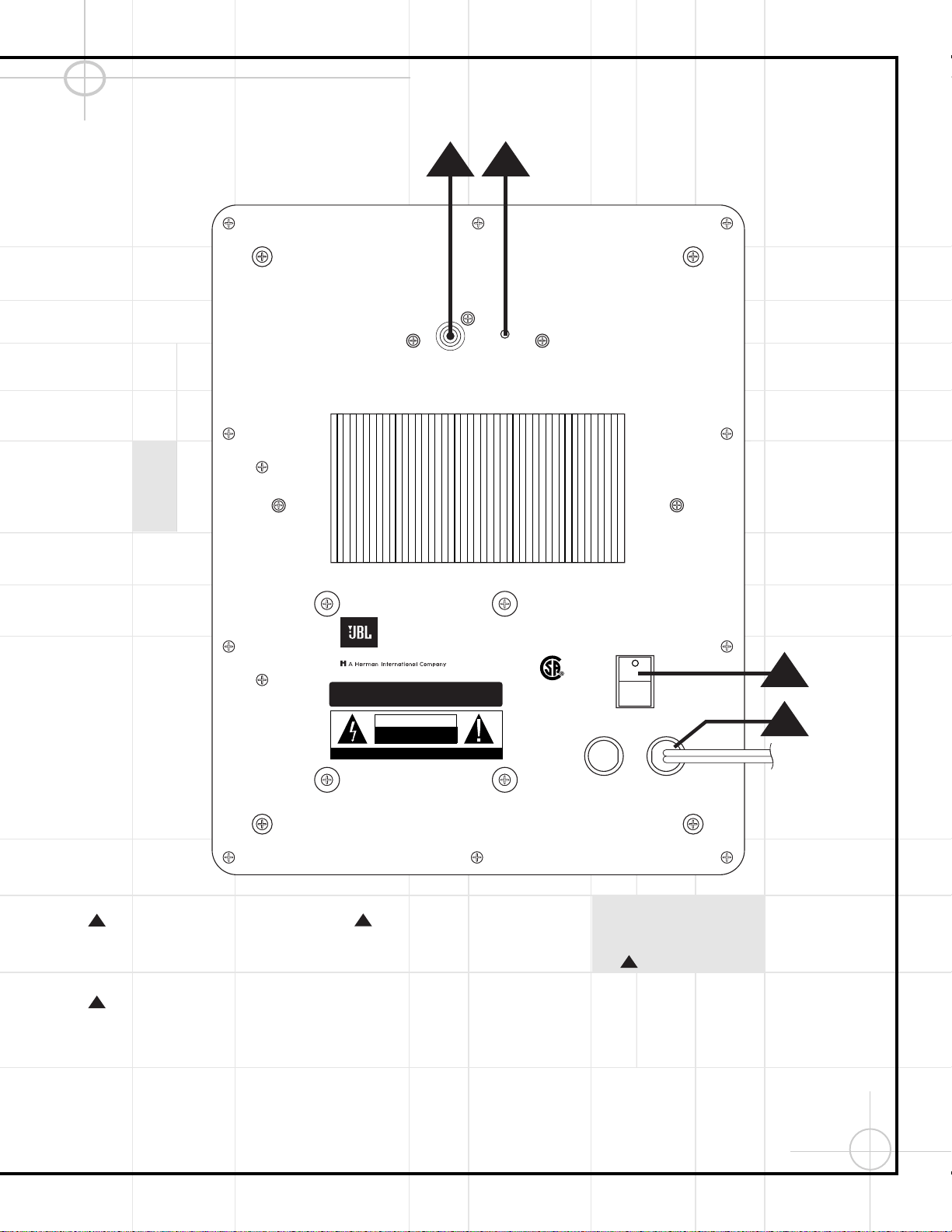
37
SCS135S Subwoofer Rear Panel
LFE Input: Connect to LFE/Subwoofer
Output ⁄ on rear panel of DCR600 receiver
using the single-lead RCA cable with brown
connectors.
LED: Lights green when a low-frequency
signal is present and the subwoofer is playing.
Lights red when no low-frequency audio signal
is present to indicate that the subwoofer is
plugged in, powered on and in the Standby
mode.
Power Switch: Turn the power switch to
the “
•
” (dot) position to power the unit on. The
SCS135S subwoofer will automatically turn
itself on and go into Standby (Sleep) mode
when left in the On position. When your
DCR600 is off, or is not sending program materi-
al to the subwoofer, the subwoofer will be in
Standby mode. When the subwoofer senses an
audio signal, it will automatically turn itself on.
If the subwoofer does not sense a signal after
approximately twenty minutes, it will automati-
cally go into Standby mode. If you will be away
from home for an extended period of time, or if
the subwoofer will not be used, turn this switch
off to conserve electricity and for safety.
AC Power Cord: Plug the power cord into
an unswitched outlet.
4
3
2
1
LFE
GREEN: ON
RED: STAND-BY
SUB135S
CAUTION
RISK OF ELECTRIC SHOCK
DO NOT OPEN
"WARNING: TO REDUCE THE RISK OF FIRE OR ELECTRIC SHOCK,
DO NOT EXPOSE THIS APPLIANCE TO RAIN OR MOISTURE."
"AVERTISSEMENT:
POUR PR VENIR LES RISQUES D’INCENDIE OU
DE CHOC LECTRIQUE, VITER D’EXPOSER CET APPAREIL A LA
PLUIE OU A L’HUMIDIT . "
"WARNING: FOR CONTINUED
PROTECTION AGAINST RISK
OR FIRE, REPLACE ONLY WITH
SAME TYPE 2.5A, 250 VOLT
"AVERTISSEMENT:
UTILISEZ UN
FUSIBLE DE RECHANGE DE MEME
TYPE 2.5A, 250V"
NRTL/C
CSA 22-2 No.1
UL 1492
AVIS: RISQUE DE CHOC ELECTRIQUE-NE PAS OUVRIR
POWER
FUSE
2.5A/250V
TYPE T
AC 120V
~
60Hz
200 Watts
This area is designed to become quite warm
during normal operation
JBL, Incorporated
1 2
3
4
38
Once the speakers have been placed in the
room and connected, the remaining steps in the
setup process are to calibrate the output levels
and set the delay times used by the surround-
sound processor.
The DCR600 features an advanced memory
system that enables you to establish different
configurations for the speaker configuration,
surround mode, delay times and output levels
for each input source. This flexibility enables
you to custom-tailor the way in which you listen
to each source and have the DCR600 memorize
those settings. This means, for example, that
you may use different output levels or trims for
different sources, or set different speaker con-
figurations with the resultant changes to the
bass management system. Once these settings
are made, they will automatically be recalled
whenever you select that input.
The factory default settings for the DCR600
have all inputs (except DVD) configured for an
analog source, and stereo as the surround
mode. Before using the unit, you will probably
want to change the settings for most inputs so
that they are properly configured to reflect the
use of digital or analog inputs, and the surround
mode specifics. Remember that since the
DCR600 memorizes the settings for each input
individually, you will need to make these adjust-
ments for each input used. However, once they
are made, further adjustment is only required
when system components are changed.
Once you have completed the settings for the
first input, many settings may be duplicated for
the remaining inputs. Remember that once the
settings are made for one input, they must be
made for all other input sources in your system.
Memory Backup
This product is equipped with a memory backup
system that preserves the system configuration
information and tuner presets if the unit is acci-
dentally unplugged or subjected to a power out-
age. This memory will last for approximately
two weeks, after which time all information
must be reentered.
Configuring the Speakers
The following instructions are to be followed
only if the DCR600 is not used with JBL SCS135
or SCS135S, or if speaker settings have been
accidently altered from the default settings,
which are SMALL for all positions with SUB-
WOOFER ON. Otherwise go to the Output
Level Adjustments section on page 39. For each
of these settings use the LARGE setting if
the speakers for a particular position are tradi-
tional full-range loudspeakers that are capable
of reproducing sounds below 100Hz. Use the
SMALL setting for smaller, frequency-limited
satellite speakers that do not reproduce sounds
below 100Hz. Note that when “small” speakers
are used, a subwoofer is required to reproduce
low-frequency sounds. Remember that the
“large” and “small” descriptions do not refer to
the actual physical size of the speakers, but
their ability to reproduce low-frequency sounds.
If you are in doubt as to which category
describes your speakers, consult the specifica-
tions in the speakers’ owner’s manual, or ask
your dealer.
With the DCR600 turned on, follow these steps
to configure the speakers:
1. Put the DCR600 in the Dolby Pro Logic mode
by pressing the Surround Mode Selector
7 on the front panel or by pressing the
Surround Mode Selector t on the
remote, until PRO LOGIC appears in the
Main Information Display W and the
PRO LOGIC Indicator F lights.
2. Press the Speaker Button
ı
on the front
panel. The words FNT SPEAKER will
appear in the Main Information Display W.
3. Press the Set Button
Ô
.
4. Press the
⁄
/
¤
Buttons y on the
remote or the Selector Buttons
5 on the
front panel until either LARGE or SMALL
appears, matching the type of speakers you
have at the left-front and right-front positions,
as described by the definitions shown in the
preceding section.
When SMALL is selected, low-frequency
sounds will be sent to the subwoofer output
only. Note that if you choose this option, and
there is no subwoofer connected, you will not
hear any low-frequency sounds from the front
channels.
When LARGE is selected, a full-range
output will be sent to the front-left and
front-right outputs, and NO low-frequency
signals will be sent to the subwoofer output.
5. When you have completed your selection for
the front channel, press the Set Button
Ô
, and then press the
⁄
/
¤
Buttons y
on the remote or the Selector Buttons 5
on the front panel to change the display to
CEN SPEAKER.
6. Press the Set Button
Ô
again, and use
the
⁄
/
¤
Buttons y on the remote, or
the Selector Buttons 5 on the front panel,
to select the option that best describes your
system, based on the speaker definitions
shown in the preceding section.
When CEN SMALL is selected, low-
frequency center-channel sounds will be sent
to the subwoofer output only. Note that if you
choose this option and there is no subwoofer
connected, you will not hear any low-frequency
sounds from the center-channel speaker.
When CEN LARGE is selected, a full-range
output will be sent to the center-speaker output,
and NO center-channel signal will be sent to
the subwoofer output.
When CEN NONE is selected, no signals
will be sent to the center-channel output. The
receiver will operate in a “phantom” center-
channel mode and center-channel information
will be sent to the left- and right-front channel
outputs.
7. When you have completed your selection for
the center channel, press the Set Button
Ô
, and then press the
‹
/
›
Buttons `
on the remote or the Selector Buttons
5
on the front panel to change the display to
SUR SPEAKER.
8. Press the Set Button
Ô
again, and then
use the
⁄
/
¤
Buttons y on the remote
or the Selector Buttons 5 on the front
panel to select the option that best describes
your system, based on the speaker definitions
shown in the preceding section.
When SUR SMALL is selected, low-
frequency surround-channel sounds will be
sent to the subwoofer output only. Note that
if you choose this option and there is no sub-
woofer connected, you will not hear any low-
frequency sounds from the surround speaker.
When SUR LARGE is selected, a full-range
output will be sent to the surround-channel
outputs, and NO surround-channel signals will
be sent to the subwoofer output.
When SUR NONE is selected, surround-
sound information will be split between the
front-left and front-right outputs. Note that
for optimal performance when no surround
speakers are in use, the Dolby 3 Stereo mode
should be used instead of Dolby Pro Logic.
29
CONFIGURING THE DCR600 RECEIVER
39
Configuring the DCR600 Receiver (Continued)
9. When you have completed your selection for
the surround channel, press the Set Button
Ô
, and then press the
⁄
/
¤
Buttons
y on the remote or the Selector
Buttons 5 on the front panel to change the
display to S-W SPEAKER.
10. Press the Set Button
Ô
, and then
press the
⁄
/
¤
Buttons y on the
remote or the Selector Buttons 5 on the
front panel to select the option that best
describes your system.
The choices available for the subwoofer position
will depend on the settings for the other speakers,
particularly the front left/right positions.
If the front left/right speakers are set to SMALL,
the subwoofer will automatically be set to SUB,
which is the “on” position.
If the front left/right speakers are set to LARGE,
three options are available:
•
If no subwoofer is connected to the DCR600,
press the
⁄
/
¤
Buttons y on the
remote so that SUB NONE appears in the
Main Information Display W. When this
option is selected, all bass information will be
routed to the front left/right “main” speakers.
•
If a subwoofer is connected to the DCR600,
you have the option to have the front
left/right “main” speakers reproduce bass fre-
quencies at all times, and have the sub-
woofer operate only when the DCR600 is
being used with a digital source that contains
a dedicated Low-Frequency Effects, or LFE,
soundtrack. This allows you to use both your
main and subwoofer speakers to take advan-
tage of the special bass created for certain
movies. Press
⁄
/
¤
Buttons y on the
remote so that SUB (LFE) appears in
the Main Information Display W.
•
If a subwoofer is connected and you wish to
use it for bass reproduction in conjunction
with the main front left/right speakers,
regardless of the type of program source or
surround mode you are listening to, press the
⁄
/
¤
Buttons y on the remote so
that SUB L/R+LFE appears in the
Main Information Display W. When this
option is selected, a “complete” feed will be
sent to the front left/right “main” speakers,
and the subwoofer will receive the bass
frequencies under the frequency selected in
the next option setting on this menu, as
described below.
11. When all speaker selections have been
made, press the Set Button
Ô
to
return to normal operation.
Adjusting the Output Levels
Output level adjustment is a key part of the
configuration process for any surround-sound
product. It is particularly important for a Dolby
Digital receiver such as the DCR600, as correct
outputs will ensure that you hear soundtracks in
their proper place with the proper directionality
and intensity.
IMPORTANT NOTE: Listeners are often
confused about the operation of the surround
channels. While some assume that sound
should always be coming from each speaker,
most of the time there will be little or no sound
in the surround channels. This is because they
are only used when a movie director or sound
mixer specifically places sound there to create
ambience or a special effect, or to continue
action from the front of the room to the rear.
When the output levels are properly set, it is
normal for surround speakers to operate only
occasionally. Artificially increasing the volume
to the rear speakers may destroy the illusion of
an enveloping sound field that duplicates the
way you hear sound in a movie theater or con-
cert hall.
Before beginning the adjustment process, make
certain that all speaker connections have been
properly made. The system volume should be
set to the level that you will use during a typical
listening session. Finally, make certain that the
Balance Control * is set to the center
“12 o’clock” position.
To assist in making speaker configuration set-
tings, the icons in the Speaker/Channel Input
Indicators O change as the speaker type is
selected at each position. When only the center
icon box containing the abbreviation for the
speaker position is lit, the speaker is set for
“small.” When the inner box and the two outer
boxes with circles inside them are lit, the speaker
is set for “large.” When no indicator appears at
a speaker location, that position is set for
“none” or “no” speaker.
For example, in the following figure, the left
front and right front speakers are set for LARGE,
the center, left surround (LS) and right surround
(RS) speakers are set for SMALL, and a
subwoofer is set, as shown by the box with
the abbreviation “LFE”, which stands for
“low-frequency effects.”
To adjust and calibrate the output levels, follow
these steps. For accurate calibration, it is a
good idea to make these adjustments while
seated in your favorite listening position:
1. Put the DCR600 in the Dolby Pro Logic mode by
pressing the Surround Mode Selector 7 on
the front panel, or by pressing the Surround
Mode Selector t on the remote, until
PRO LOGIC appears in the Main
Information Display W and the PRO LOGIC
Indicator F lights up.
2. Press the Test Button q on the remote.
T-T FL 0dB will appear in the Main
Information Display W and the letters FL
will flash once each second.
3. The test noise will immediately begin to
circulate in the speakers in a clockwise
rotation, pausing at each position for three
seconds. As the test noise rotates, the speaker
position will be shown in the Main Information
Display W .
NOTE: This is a good time to verify that the
speakers have been properly connected. As
the test noise circulates, listen to make
certain that the sound comes from the speaker
position shown in the Main Information
Display. If the sound from a speaker location
does NOT match the position indicated in the
display, turn the DCR600 off using the Main
Power Switch 1 and check the speaker
wiring to make certain that each speaker is
connected to the correct output terminal.
4. After checking for speaker placement, let the
test noise circulate, and listen to see which
channels sound louder than the others. Using
the front left (FL in the display) speaker as a
reference, press the
⁄
/
¤
Buttons y
on the remote or the Selector Buttons 5
on the front panel on each channel to begin to
bring them to the same level. Note that when
one of the buttons is pushed, the test noise
circulation will pause on the channel being
adjusted to give you time to make the
adjustment. When you release the button, the
circulation will resume after 15 seconds.
L
LS RS
RC
LFE
31
40
Configuring the DCR600 Receiver (Continued)
5. Continue to adjust the individual speakers
until they all have the same volume. Note
that adjustments should be made with the
⁄
/
¤
Buttons y on the remote or the
Selector Buttons 5 on the front panel
only, NOT the main volume controls. Then
press the Set Button
Ô
to memorize
the change. If you are using a sound pressure
(SPL) meter for precise level adjustment, set
the volume so that the meter reads 75dB,
C-Weighting Slow.
NOTE: The subwoofer output level is not
adjustable using the test tone. To change the
subwoofer level, press the Channel Select
Button Û while playing a favorite selection,
and use the
⁄
/
¤
Buttons y to adjust
the channel outputs to a desired level, and the
Set Button to memorize the change.
6. When you have adjusted the outputs so that
all channels have the same level, press the
Test Button h on the remote to complete
the adjustment.
NOTE: The output levels may be separately
trimmed for each digital and analog surround
mode. If you wish to have different trim levels
for a specific mode, select that mode and follow
the instructions in the steps shown earlier.
Setting Delay Times
Due to the different distances between the
front-channel speakers and the listening posi-
tion compared to the surround speakers and the
listening position, the amount of time it takes
for sound to reach your ears from the front or
surround speakers is different. You may com-
pensate for this difference through the use of
the delay settings to adjust the timing to match
the specific speaker placement and acoustic
conditions in your listening room or home
theater.
The factory setting is appropriate for most
rooms, but some installations create an uncom-
mon distance between the front and surround
speakers that may cause the arrival of front-
channel sounds to become disconnected from
surround-channel sounds.
To resynchronize the front and surround
channels, follow these steps:
1. Measure the distance from the listening/
viewing position to the front speakers.
2. Measure the distance from the listening/
viewing position to the surround speakers.
3. Subtract the distance to the surround speakers
from the distance to the front speakers.
a. When setting the delay time for the Dolby
Digital surround modes, the optimal delay
time is the result of that subtraction. For
example, if the front speakers are ten feet
away and the surround speakers are five
feet away, the optimal delay time is figured
as 10–5=5. Thus, in this example, the delay
time for Dolby Digital should be set at five
milliseconds.
b. When setting the delay time for the
Pro Logic mode, take the result of the sub-
traction and add 15 to obtain the optimal
delay time. For example, if the front speak-
ers are ten feet away and the surround
speakers are five feet away, the optimal
delay time is figured as 10–5+15=20. Thus,
in this example, the Pro Logic delay should
be set at twenty milliseconds.
NOTE: The Theater and Hall modes use a fixed,
nonadjustable delay time.
The Dolby Digital mode also includes a separate
setting for the center-channel delay mode, since
the discrete nature of these signals makes the
location of the center-channel speaker more
critical. To calculate the delay for the center
channel, measure the distance from the
preferred listening position in the center of
the room to both the center-channel speaker
and either the left or right speaker.
If the distances are equal, no further adjustment
is required and the center delay should be set to
zero. If the distance to the front speakers is
greater than the distance to the center speaker,
you may wish to reposition the speakers by
moving the front-left and front-right speakers
closer to the listening position or the center
speaker further away from the listening
position.
If repositioning of the speakers is not possible,
adjust the center delay time, adding one
millisecond of center-channel delay for every
foot closer to the listening position the center
speaker is than the front speakers. For example,
if the front-left and front-right speakers are each
10 feet from the listening position and the
center-channel speaker is 8 feet away, the delay
is figured as 10–8=2, suggesting an optimal
center delay of 2 milliseconds.
To set the delay times, follow these steps:
1. Put the DCR600 in the Dolby Pro Logic mode
by pressing the Surround Mode Selector 7
on the front panel or by pressing the
Surround Mode Selector t on the
remote, until PRO LOGIC appears in
the Main Information Display W and the
PRO LOGIC Indicator F lights up.
2. Press the Delay Button
Ò on the
remote or front panel. The words S DELAY
TIME will appear in the Main Information
Display W.
3. Press the Set Button
Ô
.
4. Adjust the delay time by pressing the
⁄
/
¤
Buttons y on the remote or the
Selector Buttons 5 on the front panel until
the delay time figure calculated using the
formula entered above appears in the display.
5. If only analog sources will be used, no adjust-
ment is needed for the center-channel delay.
In that case, press the Set Button
Ô to
enter the surround delay settings into the
DCR600’s memory. However, if you will be
using digital sources and the calculations out-
lined above indicate that the center-channel
delay requires an adjustment, continue with
the following steps.
6. Before setting the center-channel delay time,
make certain that a digital source such as the
DVD600 has been selected. If a digital source
is playing, COAXIAL E or OPTICAL B will
appear in the Main Information Display
Ú. If a digital source is already connected and
playing, press the Delay Button and
then the
⁄
/
¤
Buttons on the remote
y or the front panel Selector Buttons
5 until the words C DELAY TIME
32
32
41
Configuring the DCR600 Receiver (Continued)
appear in the Main Information Display W
and proceed to Step 10. If a digital source is
not playing, follow Steps 7 through 10.
7. Press the Set Button
Ô
.
8. Select the Dolby Digital mode either by press-
ing the front panel Surround Mode Selector
7 or by pressing the Surround Mode
Selector t on the remote until
DOLBY DIG appears in the Main
Information Display W.
9. Press the Delay Button on the
remote or front panel. The words
S DELAY TIME appear in the
Main Information Display W.
10. Press the
⁄
/
¤
Buttons y on the
remote once, so that C DELAY TIME
appears in the Main Information Display
W or in the on-screen display.
11. Press the Set Button
Ô
.
12. Press the
⁄
/
¤
Buttons y on the
remote or the Selector Buttons 5 on the
front panel until the desired delay time for
the center channel appears in the display.
13. Press the Set Button
Ô
to enter the
setting into the DCR600’s memory.
32
42
REMOTE CONTROL FUNCTIONS
The JBL Cinema ProPack 600 is equipped with a
powerful remote control that will control the
functions of not only the DCR600 receiver and
DVD600 DVD changer, but also most popular
brands of audio and video equipment, including
CD players, cassette decks, TV sets, cable boxes,
VCRs, satellite receivers and other home-theater
equipment. Once the remote is programmed
with the codes for the products you own, it is
possible to eliminate most other remotes and
replace them with the convenience of a single,
universal remote control.
Programming the Remote
As shipped from the factory, the remote is fully
programmed for all DCR600, DVD600 and
JBL BassQ
™
digital bass correction functions. In
addition, by following one of the methods below,
you may program the remote to operate a wide
range of devices from other manufacturers.
We suggest that you refrain from reprogramming
the main, DVD and VID 4 functions. Should you
reprogram them inadvertently, you may reprogram
each of these buttons individually to code 001 to
reset it without disturbing other functions pro-
grammed into the remote.
Entering Product Codes
This method is the easiest way to program your
remote to work with different products.
1. Use the tables on pages 27 to 36 to determine
the three-digit code or codes that match both
the product type (e.g., VCR, TV) and the
specific brand name. If there is more than one
number for a brand, make note of the differ-
ent choices.
2. Turn on the unit you wish to program into the
remote.
3. Press and hold both the Input Selector
i–n for the product you wish to control
(e.g., VCR, TV) and the Mute Button c at
the same time. When the Program
Indicator lights and begins flashing, release
the buttons. The light under the Input
Selector key will appear. It is important that
you begin the next step within 20 seconds.
4. Point the remote towards the unit to be
programmed, and enter the first three-digit
code number using the Numeric Keys
–
,
. If the unit turns off, the
correct code has been entered. Press the Input
Selector i–n again, and note that the
red light will flash three times before going dark
to confirm the entry.
5. If the device to be programmed in does NOT
turn off, continue to enter three-digit code
numbers until the equipment turns off. At this
point, the correct code has been entered.
Press the Input Selector i–n again
and note that the red light under the Input
Selector will flash three times before going
dark to confirm the entry.
6. Try all of the functions on the remote to make
certain that the product operates properly.
Keep in mind that many manufacturers use a
number of different combinations of codes, so
it is a good idea to make certain that not only
the power control, but the volume, channel
and transport controls work as they should. If
all functions do not work properly, you may
need to use a different remote code.
7. If a code cannot be entered to turn the unit
off, if the code for your product does not
appear in the tables in this manual, or if not
all functions operate properly, try program-
ming the remote with the Auto Search
Method.
Auto-Searching for Product Codes
If the unit you wish to include in the remote is
not listed in the code tables in this manual or if
the code does not seem to operate properly, you
may wish to program the correct code using the
Auto Search method that follows:
1. Turn on the unit that you wish to include in
the remote.
2. Press the Input Selector i–n for the
type of product to be entered (e.g., VCR, TV)
and the Mute Button c at the same time.
Hold both buttons until the red light under the
Input Selector i–n stays lit. Note
that the next step must take place while
the red light is on, and it must begin within
20 seconds after the light appears.
3. Point the remote towards the unit to be
programmed, and press either the
⁄
or
¤
Button y . Each press will send out a
series of codes from the remote’s built-in data-
base. When the unit being programmed turns
off, release the
⁄
or
¤
Button y , as
that is your indication that the correct code
is in use.
4. Press the Input Selector i–n, and note
that the red light under the Input Selector will
flash three times before going dark to confirm
the entry.
5. Try all of the functions on the remote to make
certain that the product operates. Keep in
mind that many manufacturers use a number
of different combinations of codes, and it is a
good idea to make certain that not only the
power control works, but also that the
volume, channel and transport controls
operate, as appropriate. If all functions do not
work properly, you may need to Auto-Search
for a different code, or enter a code via the
Direct Code Entry method.
Reading Back the
Programmed Code
When the code has been entered using the Auto
Search method, it is always a good idea to find
out the exact code so that it may be easily reen-
tered if necessary. You may also read the codes
to verify which device has been programmed to
a specific Control Selector button.
1. Press and hold both the Input Selector
i–n for the device for which you wish
to find the code and the Mute Button c
at the same time. Note that the Program
Indicator will light. Release the buttons and
begin the next step within 20 seconds.
2. Press the Set Button . The Program
Indicator will then blink in a sequence that
corresponds to the three-digit code, with a one-
second pause between each digit. Count the
number of blinks between each pause to deter-
mine the digit of the code. One blink is the
number 1, two blinks is the number 2, and so
forth. Ten blinks are used to indicate a “0.”
Example: One blink, followed by a one-second
pause, followed by six blinks, followed by a
one-second pause, followed by ten blinks indi-
cates that the code has been set to 160.
For future reference, enter the Setup Codes for
the equipment in your system here:
CD __________________________________
VID1/VCR ________ VID2/TV __________
VID3/CBL/SAT ______________________
VID4/BASSQ ________________________
TAPE ______________________________
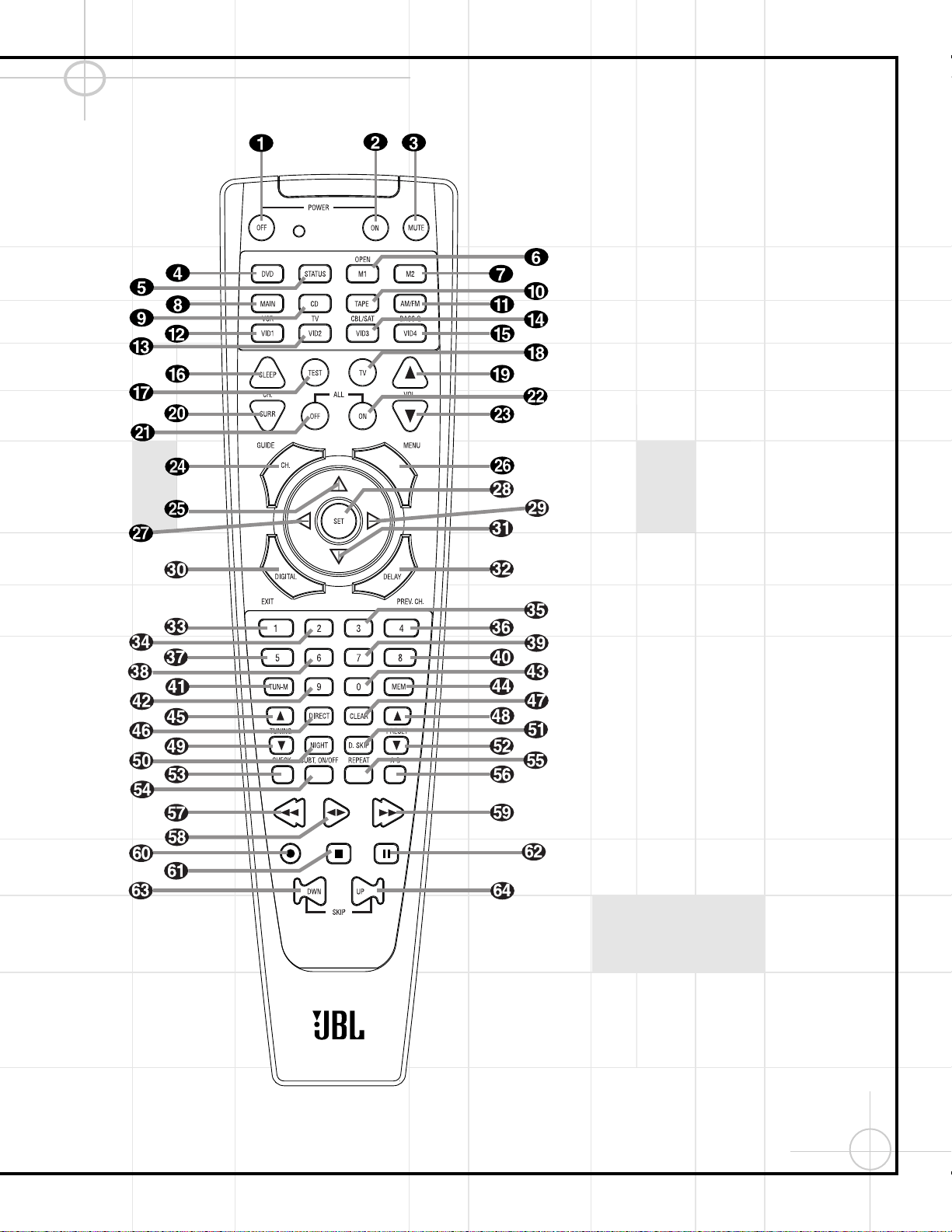
43
Remote Control Functions (Continued)
Programming Macros
Macros enable you to easily repeat frequently
used combinations of commands with the press
of a single button on the remote control. Once
programmed, a macro will send out up to 19
different remote codes in a predetermined
sequential order, enabling you to automate the
process of turning on your system, changing
devices, or other common tasks. The remote can
store up to three separate macro command
sequences: one that is associated with the Power
On Button b, and two more that are
accessed by pressing the Macro Buttons
fg.
The DCR600 remote also features two pre-
programmed functions, ALL OFF u and ALL
ON v, that turn all eight programmed devices
off or on when the appropriate key is pressed.
1. Press the Mute Button c and the Macro
Buttons fg to be programmed or the
Power On Button b at the same time.
Note that an Input Selector d,h–o
will light red, and the Program Indicator
will flash.
2. Enter the steps for the macro sequence by
pressing the button for the actual command
step. Although the macro may contain up to
19 steps, each button press, including those
used to change devices, counts as a step.
The Program Indicator will flash to confirm
each button press as you enter commands.
NOTE: While entering commands for Power
On/Off of any device during a macro sequence,
press the Mute Button c. DO NOT press the
actual Power button.
3. When all the steps have been entered,
press the Sleep Button p to enter the
commands. The red light under the Input
Selectors d,h–o will blink and then
turn off.
Example: To program the Macro 1 button so
that it turns on only the DCR600, TV and a
Cable Box, follow these steps:
• Press the Macro 1 f and Mute c
buttons at the same time and then
release them.
• Note that the Program Indicator will
flash.
• Press the MAIN Selector h.
44
Remote Control Functions (Continued)
• Press the Mute Button c to store the
DCR600’s Power On command.
• Press the VID 2 Input Selector Button
m to indicate the next command is for
“TV Power On.”
• Press the Mute Button c to store the
TV Power On command.
• Press the VID 3 Input Selector Button
n to indicate the next command is for
“Cable Power On.”
• Press the Mute Button c to store the
Cable Power On command.
• Press the Sleep Button p to complete
the process and store the macro sequence.
After following these steps, each time you
press the Macro 1 Button f, the remote
will send the Power On/Off command to only
those devices.
Erasing Macro Commands
To remove the commands that have been pro-
grammed into one of the Macro buttons, follow
these steps:
1. Press the Mute Button c and the Macro
Buttons bfg that contain the
commands you wish to erase.
2. Note that the Program Indicator will flash,
and the LED under the MAIN Selector h
will turn red.
3. Within ten seconds, press the Surround
Mode Selector Button t.
4. The red LED under the MAIN Selector h
will go out, and the Program Indicator will
flash three times before it goes out.
5. When the Program Indicator goes out,
the Macro has been erased.
Device Functions
Once the remote has been programmed for the
codes of other devices, press the appropriate Input
Selector i–o to change the remote from
controlling the DCR600 and DVD600 to controlling
the additional product. When you press any one
of the selectors, it will briefly flash in red to indi-
cate that you have changed the device being
controlled.
When operating a device other than the
DCR600 or DVD600, the controls may not
correspond exactly to the function printed on
the remote or button. Some commands, such as
the volume control, are the same as they are
with the DCR600. Other buttons will change
their function so that they correspond to a sec-
ondary label on the remote. For example, the
Sleep p and Surround Mode Selector t
buttons also function as the Channel Up and
Channel Down buttons when operating most TV
sets, VCRs or cable boxes. The Channel
Up/Down indication is printed directly on the
remote. For many standard CD players, cassette
decks, VCRs and DVD functions, the standard
function icons are printed on top of the buttons.
For some products, however, the function of a
particular button does not follow the command
printed on the remote. In order to see which
function a button controls, consult the Function
List tables printed on pages 25 and 26. To use
those tables, first check the type of device being
controlled (e.g., TV, VCR). Next, look at the
remote control diagram. Note that each button
has a number on it.
To find out what function a particular button has
for a specific device, find the button number on
the Function List and then look in the column for
the device you are controlling. For example,
button number 7 is the Macro 2 button for the
DCR600, but it is the Replay button for CD
players and receivers. Button number 32 is the
Delay button for the DCR600, but the + Time
button for CD players, and Preview Channel
button for many TVs, cable television boxes amd
satellite services.
Notes on Using the Remote
With Other Devices
• Manufacturers may use different code sets for
the same product category. For that reason, it
is important that you check to see whether the
code set you have entered operates as many
controls as possible. If it appears that only a
few functions operate, check to see whether
another code set will work with more buttons.
• When a button is pressed on the remote,
the red light under the Input Selector
d,h–o for the product being operated
should flash briefly. If the Device Control
Selector flashes for some but not all buttons
for a particular product, it does NOT indicate
a problem with the remote but rather that no
function is programmed for the button being
pushed. Consult the Function List on pages 25
and 26. Blank squares indicate that no function
is programmed for that button for the corre-
sponding device. The word “unknown” indi-
cates that the button sends an IR signal to
the device but its function depends on the
device‘s programming, and the device may
not be programmed to respond at all to that
button. Consult the device‘s owner‘s manual.
Volume Punch-Through
The remote may be programmed to operate the
Volume Control sw and Mute c func-
tions of either the TV or the DCR600 in conjunc-
tion with any of the devices controlled by the
remote. For example, since the DCR600 will likely
be used as the sound system for TV viewing,
you may wish to have the DCR600’s volume acti-
vated, although the remote is set to run the TV.
Either the DCR600 or TV volume control may be
associated with any of the remote’s devices. To
program the remote for Volume Punch-Through,
follow these steps:
1. Press the Input Selector i–o for the
unit you wish to have associated with the
volume control and the Mute Button c at
the same time until the red light appears under
the Input Selector i–o and note that
the Program Indicator will flash.
2. Press the Volume Up Button s and note
that the Program Indicator will stop flashing
and stay lit.
3. Press either the MAIN Selector h or the
Input Selector i–o, depending on
which system’s volume control you wish to
have attached for the punch-through mode.
The Program Indicator will blink three times
and then go out to confirm the data entry.
Example: To have the DCR600’s volume
control activated even though the remote is
set to control the TV, first press the Video/TV
Input Selector m and the Mute Button
c at the same time. Next, press the
Volume Up Button s, followed by the
MAIN Selector h.
NOTE: Should you wish to return the remote to
the original configuration after entering a Volume
Punch-Through, you will need to repeat the steps
shown above. However, press the same Input
Selector in Steps 1 and 3.
45
Remote Control Functions (Continued)
Channel Control Punch-Through
The remote may be programmed to operate so
that the channel control function for either the
TV, cable or satellite receiver used in your system
may be used in conjunction with one of the other
devices controlled by the remote. For example,
while using and controlling the VCR, you may
wish to change channels on a cable box or satel-
lite receiver without having to change the device
selected by the DCR600 or the remote. To pro-
gram the remote for Channel Control Punch-
Through, follow these steps:
1. Press the Input Selector Button i–o
for the device with which you wish to have the
channel control associated and the Mute
Button c at the same time until the red
light appears under the Input Selector
i–o
and the Program Indicator flashes.
2. Press the Volume Down Button w. The
Program Indicator will stop flashing and
stay lit.
3. Press and release the Input Selector Button
i–o for the device that will be used to
change the channels. The Program Indicator
will blink three times and then go out to con-
firm the data entry.
Example: To control the channels using your
cable box or satellite receiver while the
remote is set to control the VCR, first press the
VID 1/VCR Input Selector Button m and
the Mute Button c at the same time. Next,
release them and press the Volume Down
Button w, followed by the VID 3/
CATV/SAT Input Selector Button n.
NOTE: To remove the Channel Control Punch-
Through and return the remote to its original con-
figuration, repeat the steps shown in the exam-
ple above. However, press the VID 1/VCR Input
Selector m in Steps 1 and 3.
Transport Control Punch-Through
The remote may be programmed to operate so
that the Transport Control – functions
(Play, Stop, Fast Forward, Rewind, Pause and
Record) for a VCR, DVD or CD will operate in con-
junction with one of the other devices controlled
by the remote. For example, while using and con-
trolling the TV, you may wish to start or stop your
VCR or DVD without having to change the device
selected by the DCR600 or the remote. To
program the remote for Transport Control Punch-
Through, follow these steps:
1. Press the Input Selector i–o for the
device with which you wish to have the chan-
nel control associated and the Mute Button
c at the same time until the red light
appears under the Input Selector i–o
and the Program Indicator flashes.
2. Press the Play Button . The Program
Indicator will stop flashing and stay lit.
3. Press and release the Input Selector Button
i–o for the device that will be used to
change the channels. The Program Indicator
will blink three times and then go out to con-
firm the data entry.
Example: To control the transport of a DVD
player while the remote is set to control the
TV, first press the VID 2/TV Input Selector
Button m and the Mute Button c at the
same time. Next, release them and press the
Play Button , followed by the DVD
Input Selector Button d.
NOTE: To remove the Channel Control Punch-
Through and return the remote to its original con-
figuration, repeat the steps shown in the exam-
ple above. However, press the VID 2/TV Input
Selector m in Steps 1 and 3.
NOTE: Before programming the remote for
Volume, Channel or Transport Punch-Through,
make certain that any programming needed to
assign the remote to control the specific TV, CD,
DVD, cable or satellite receivers has been
completed.
Reassigning Devices
Although each Input Selector i–n is
normally assigned to the category of product
shown on the remote, it is possible to reassign
one of these buttons to operate a second device
of another type. For example, if you have two
VCRs but no satellite receiver, you may program
the “SAT” button to operate a second VCR.
Before following the normal programming steps
for either three-digit entry or Auto Search code
entry, you must first reassign the button with the
following steps:
1. Press the Input Selector i–n you wish
to reassign and the Mute Button c at the
same time until the red light appears under
the Input Selector i–n and the
Program Indicator flashes.
2. Press the Input Selector i–n for the
device you wish to program into the
reassigned button.
3. Enter the three-digit code for the specific
model you wish the reassigned button to
operate.
4. Press the same Input Selector i–n
pressed in Step 1 once again to store the
selection. The red LED under the reassigned
Input Selector will flash three times and then
go out.
Example: To use the CBL/SAT button to
operate a second VCR, first press the
CBL/SAT Input Selector n and the Mute
Button c at the same time until the red
light glows under the CBL/SAT n button.
Press the VCR l button, followed by the
three-digit code for the specific model you
wish to control. Finally, press the CBL/SAT
n button again.
Resetting the Remote Memory
As you add components to your home-theater
system, occasionally you may wish to totally
reprogram the remote control without the confu-
sion of any commands, macros or ”Punch-
Through“ programming that you may have done.
To do this, it is possible to reset the remote to
the original factory defaults and command codes
by following these steps. Note, however, that
once the remote is reset, all commands or codes
that you have entered will be erased and will
need to be reentered:
1. Press any of the Input Selector Button t
h,i–o and the ”O“ Button at
the same time until the Program Indicator
begins to flash.
2. Press the ”3“ Button three times.
3. The red LED under the Input Selector
h,i–o will go out and the Program
Indicator will stop flashing and stay lit.
4. The Program Indicator will remain lit until
the remote is reset. Note that this may take
a while, depending on how many commands
are in the memory and need to be erased.
5. When the Program Indicator goes out, the
remote has been reset to the factory
settings.
58
58
62
57
46
CONFIGURING THE DVD600 DVD CHANGER
DVD Compatibility & Terminology
The DVD600 is more than a DVD player;
it will play the following disc formats:
•
Both 5-inch (12cm) and 3-inch (8cm) discs
•
CD audio discs
•
DTS audio discs
•
CD-RW audio discs
•
DVD movie discs
•
VCD (video CD) discs
However, it will NOT play the following:
•
DVD discs with a Region Code other than
the one for which the player is set
•
DVD discs with PAL format video
•
DVD-ROM data discs
•
DVD-RAM discs
•
CD-R discs
•
CD-I discs
•
CD-G discs
•
SVCD discs
•
Photo CD discs
•
MP3 audio discs
NOTE: Due to differences in the format of
certain discs, it is possible that some discs may
include a mix of features that are not compati-
ble with the DVD600. Similarly, although the
DVD600 is capable of a wide range of features,
not all discs include every capability of the
DVD system. For example, although the
DVD600 is compatible with multi-angle discs,
that feature is only possible when the disc is
specially encoded for multiple-angle play. In
addition, the DVD600 is capable of playing back
both Dolby Digital and DTS soundtracks, but the
number and types of tracks available will vary
from disc to disc. To make certain that a specific
feature or soundtrack option is available, please
check the options noted on the disc jacket.
•
Playback of DTS audio discs requires
connection to a processor or receiver with
a DTS decoder, such as the DCR600.
•
Playback capability for CD-RW discs may vary
due to variations in the quality of the CD-RW
disc and the recorder used to create the disc.
Since they share some of the characteristics and
technology of CD players, many of the terms
and operational concepts used in a DVD player
are similar to what you may be familiar with
from CD players and changers, or older video
disc formats such as Laser Disc. However, if this
is your first DVD product, some of the terms
used to describe the features of a DVD player
may be unfamiliar. The following explanations
should solve some of the mysteries of DVD, and
help you to enjoy all the power and flexibility of
the DVD format and the DVD.
Aspect Ratio: This is a description of the width
of a video image in relation to its height. A con-
ventional video screen is four units wide for
every three units of height, making it almost
square. Newer, wide aspect ratio video displays
are 16 units wide for every nine units of height,
making them more like the screen in a movie
theater. The program material on a DVD may be
recorded in either format and, in addition, you
may configure the DVD to play back in either
format, depending on the features recorded
on a disc.
Chapter: DVD programs are divided into chap-
ters and titles. Chapters are the subsections
programmed into a single title on a disc.
Chapters may be compared to the individual
tracks on an audio CD. Press the Menu button to
see a listing of the chapters on a disc.
Component Video: This is a new form of video
signal which eliminates many of the artifacts of
traditional composite-video signals by splitting
the signal into a separate luminance channel
and two color-difference signals. With a
component-video connection, you will see
greater picture resolution and eliminate many
picture imperfections, such as the moiré pat-
terns often seen on checked patterned cloths.
However, in order to benefit from component
video, you must have a video display with
Y/Pr/Pb component-video inputs. Do not connect
the component-video outputs of the DVD600
to the standard composite or S-Video inputs of
a TV or recorder.
Title: For a DVD, a title is defined as an entire
movie or program. There may be as many chap-
ters within a title as the producers decide to
include. Most discs include only one title, but
some may have more than one, to give you a
“Double Feature” presentation. Press the Title
button to see a listing of the titles on a disc.
When a disc has only one title, pressing the title
button may show a list of the chapters.
Multiple Angle: DVDs have the capability to
show up to four different views of the same
scene in a program. When a disc is encoded
with multiple-angle information, pressing the
Angle button will enable you to switch between
these different views. Note that, at present,
few discs take advantage of this capability and,
when they do, the multiple-angle technology
may only be present for short periods of time
within the disc. Producers will usually insert
some sort of icon or graphic in the picture to
alert you to the availability of multiple-angle
scenes.
Reading: This is a message that you will see
when you first press the Play button. It refers
to the fact that the player must first examine
the contents of the disc to see whether it is a
CD or DVD, and then extract the information
about the type of material on the disc, such as
languages, aspect ratios, subtitles, number of
titles and more. The slight delay while the con-
tents of the disc are read is normal.
Resume: The operation of the Stop button on
the DVD600 works differently from what you are
used to on CD or CD players. On a traditional CD
player, when you press the Stop button, the unit
does just that: it stops playback. On a CD player,
when you press the Start button again, the disc
starts from the beginning. With the DVD600,
however, you have two options when playing
DVD discs. Pressing Stop once will stop the
playback, but it actually puts the unit in the
Resume mode. This means that you can turn the
machine off and, when you press play the next
time, the disc will resume or continue from the
point on the disc where the Stop button was
pressed. This is helpful if you are watching a
movie and must interrupt your viewing session
but wish to pick up where you left off. Pressing
the Stop button twice will stop the machine in a
traditional manner and, when the disc is played
again, it will start from the beginning.
The DVD600 is turned on in two steps. First,
press the Power Switch on the front
panel until it latches and the Status Indicator
lights. Then, either press the Open/Close
Button or Play Button on the front
panel, or use the remote control to select DVD
d and turn on the unit b.
10D
6D
2D
1D
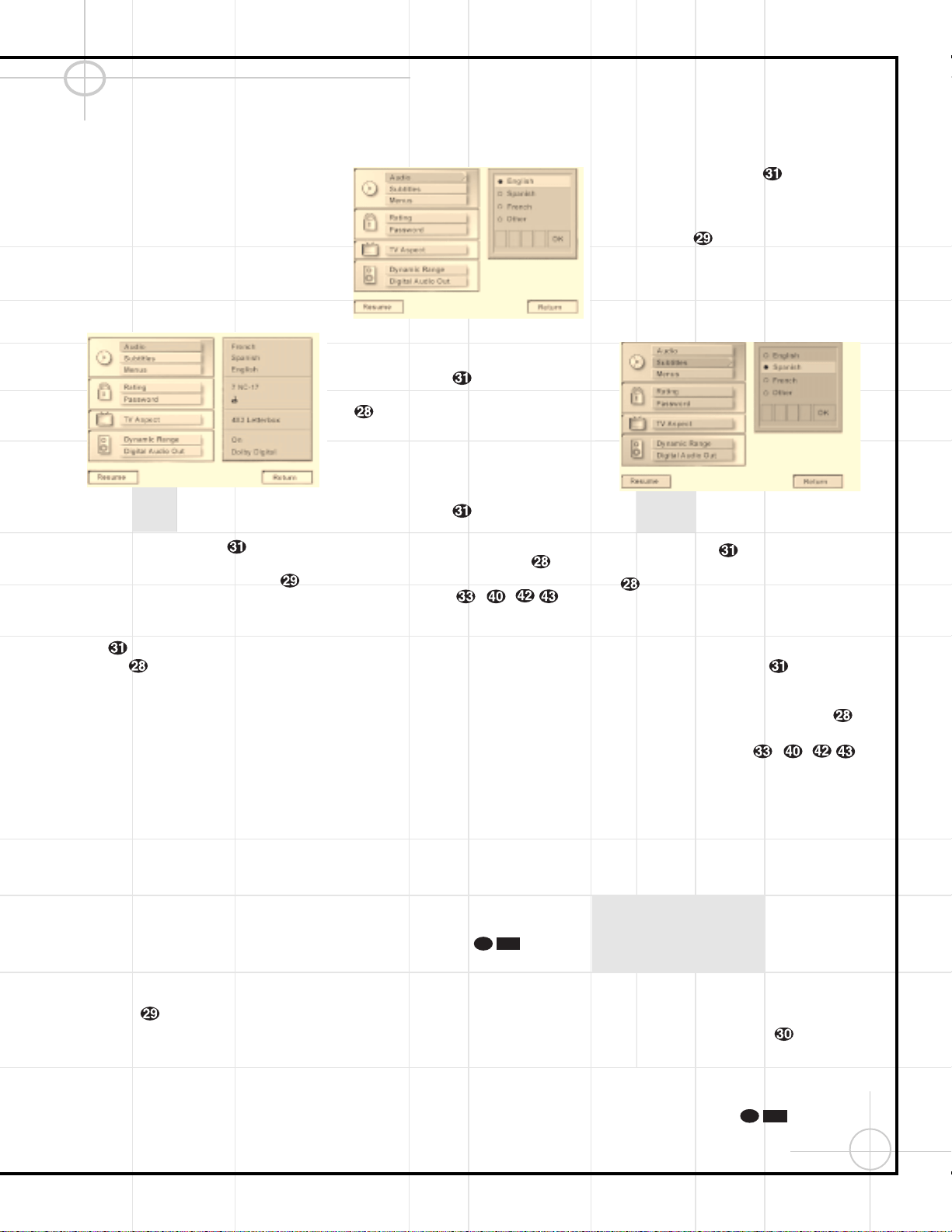
47
Configuring the DVD600 DVD Changer (Continued)
Using the Remote Control
To access the Setup Menu, press the Menu
Button z on the remote. The Setup Menu
will appear on the video display screen as
shown in Figure 1. The left side of the screen
will show the various options, and the box
on the right side of the screen will show the
current defaults.
Figure 1
To navigate through the settings on the screen,
use the
⁄
/
¤
Buttons y to scroll up or
down through the list of settings or the list of
options. Press the
‹
/
› Buttons ` to
move back and forth between the list of settings
and the list of options for those settings. To
choose a specific option, use the
⁄
/
¤
Buttons
y
until it is highlighted. Press the Enter
Button to select the choice. When a
selection is made, you may confirm the choice
by checking to see that a black dot fills the
“radio button” circle next to the choice. This
filled circle, not the highlighted option, is the
active choice.
Selecting Audio Output Languages
The Audio Language option sets the default
choice for the language that will be played from
a DVD disc.
To select the language default, you must be
viewing the Setup Menu (Figure 1), which is
available by pressing the Menu Button z
while the unit is in the Stop mode. Audio
Language Selection is the first option, so it will
automatically be highlighted in dark blue when
the Setup Menu is displayed.
To change the default language, press the
› Button and note that the list of system
defaults will be replaced with a list of the
available options, as shown in Figure 2. The
current language choice will be indicated by
a filled-in circle on the list on the right side
of the screen.
Figure 2
To change the default setting, press the
⁄
/
¤
Buttons y until the desired choice
is highlighted, and then press the Enter Button
. Note that the circle for your choice will
fill in, and the menu will return to the default
listings.
If you wish to change the default to a language
other than English, Spanish or French, press the
⁄
/
¤
Buttons y until the “Other” line
on the bottom is highlighted. Consult the
Language Codes list on page 64 for the desired
language. Press the Enter Button , and
then enter the four-digit code from the list using
the Numeric Keys –
,
.
Although your selection will be entered, the
word “Other” will appear on the default list.
Note that when a default language is selected,
it will be used whenever that language is present
on the DVD disc being played. However, when
that language is not present, the language used
will be the one preprogrammed into the disc
itself. (Typically, that default will be English for
discs sold in Region 1, but the selection will
vary at the discretion of the disc’s producer.)
Although the default will set the language that
will be used when a disc is first put into play,
the language may easily be changed at any time
by using the Audio Button t.
If you have no other changes to make after set-
ting this default, press the Menu Button z
to remove the Setup Menu from the screen, or
press the Play Button to begin or
resume playback.
Selecting Subtitle Languages
The Subtitle Language option sets the default
choice for the language that will be displayed
when subtitles are turned on during DVD
playback.
To select the Subtitle Language default, you must
be viewing the Setup Menu (Figure 1), which is
available by pressing the Menu Button z
while the unit is in the Stop mode. At the Setup
Menu, press the
¤
Button until the
Subtitle Language option is highlighted.
To change the default Subtitle Language, press
the
› Button and note that the list of
system defaults will be replaced with a list of
the available options, as shown in Figure 3. The
current subtitle language choice will be indicated
by a filled-in circle in the list on the right side of
the screen.
Figure 3
To change the default setting, press the
⁄
/
¤
Buttons y until the desired choice
is highlighted, and then press the Enter Button
. Note that the circle for your choice will fill
in, and the menu will return to the default listings.
If you wish to change the subtitle default to a
language other than English, Spanish or French,
press the
⁄
/
¤
Buttons y until the
“Other” line on the bottom is highlighted. Consult
the Language Codes list on page 64 for the
desired language. Press the Enter Button ,
and then enter the four-digit code from the list
using the Numeric Keys –
,
.
Although your selection will be entered, the
word “Other” will appear on the default list.
Note that when a default subtitle language is
selected, it will be used whenever that lan-
guage is present on the DVD disc being played.
However, when that language is not present,
the language used will be the one prepro-
grammed into the disc itself. (Typically, that
default will be English for discs sold in
Region 1, but the selection will vary at the
discretion of each disc’s producer.)
Although the default will set the language that
will be used when the disc is first put into play,
the language may easily be changed at any time
by using the Subtitle Button .
If you have no other changes to make after set-
ting this default, press the Menu Button z
to remove the Setup Menu from the screen, or
press the Play Button to begin or
resume playback.
10D
58
10D
58

48
Configuring the DVD600 DVD Changer (Continued)
Selecting Menu Languages
The Menu Language option sets the default
choice for the language that will be used for the
DVD600’s own on-screen menu displays. This
default setting DOES NOT impact the playback
of DVD discs.
To select the Menu Language default, you must
be viewing the Setup Menu (Figure 1), which is
available by pressing the Menu Button z
while the unit is in the Stop mode. At the Setup
Menu, press the
¤
Button until the
Menu’s option is highlighted.
To change the default Menu Language, press
the
› Button and note that the list of
system defaults will be replaced with a list of
the available options, as shown in Figure 4. The
current language choice will be indicated by a
filled-in circle in the list on the right side of
the screen.
Figure 4
To change the default setting, press the
⁄
/
¤
Buttons y until the desired choice
is highlighted, and then press the Enter Button
. Note that the circle for your choice will fill
in, and the menu will return to the default listings.
If you have no other changes to make after set-
ting this default, press the Menu Button z
to remove the Setup Menu from the screen, or
press the Play Button to begin or
resume playback.
Parental Lock and Passwords
The DVD600 enables you to control the discs
that are viewed by setting a ratings level. When
a disc that’s ready to play has a rating level
greater than the default, it will not play. To
further protect against unauthorized viewing of
restricted discs, the ratings-level option may be
locked so that only authorized persons (such as
a parent) may change the rating level after a
password is entered.
The ratings system is dependent on information
encoded into the DVD disc being played so,
although most movies will carry an MPAA or
other rating symbol, the disc may or may not
contain that rating in its software. In addition to
the five MPAA ratings of G, PG, PG-13, R and
NC-17, the DVD600 will accommodate a total of
eight ratings steps, as set by the creators of the
DVD format. These additional steps allow for
more critical control of program playback for all
audiences.
To select the permitted ratings values, you must
be viewing the Setup Menu (Figure 1), which is
available by pressing the Menu Button z
while the unit is in the Stop mode. At the Setup
Menu, press the
¤
Button until the
Ratings option is highlighted.
To change the default Ratings setting, press the
› Button and note that the list of system
defaults will be replaced with a list of the
program ratings as shown in Figure 5. Some
ratings will be highlighted in orange, while
others will be highlighted in blue. Discs with a
rating in the orange color band will play without
any further action by the viewer. Discs with
ratings in the blue band will only play after a
password is entered.
Figure 5
To change the range of ratings that may be
viewed without a password, press the
⁄
/
¤
Buttons y until the desired range
is set, and then press the Enter Button .
Note that the circle for your choice will fill in,
and the menu will return to the default listings.
The listing in the default settings will show the
highest rated program that may be viewed with-
out entering a password.
If you have no other changes to make after set-
ting this default, press the Menu Button z
to remove the Setup Menu from the screen, or
press the Play Button to begin or
resume playback.
Password Selection and Control Lock
The DVD600’s Password System is used to
control viewing of restricted programs and one’s
capability to change the password itself. The
DVD600 is shipped without a password and
with the settings for the password system
unlocked. The following instructions will show
how to add a password and to lock the settings.
To set a password or lock the password system,
you must be viewing the Setup Menu (Figure 1),
which is available by pressing the Menu Button
z while the unit is in the Stop mode. At the
Setup Menu, press the
¤
Button until the
Password option is highlighted.
To enter a password, press the
› Button
and note that the list of system defaults will be
replaced with a list of the three password
options (Figure 6). To enter a password, check to
make certain that the words Set Password are
highlighted in light blue and then press the
Enter Button . The Enter Password screen
will then appear on your video display (Figure 7).
Figure 6
Figure 7
To enter a password, you may either enter the
four-digit number directly, using the Numeric
Keys –
,
, or you may use the
⁄
/
¤
Buttons y to select the number
for a position, and then press the
› Button
to move to the next position. Note that as each
number is entered, it will turn to a solid circle
when you move to the next position to protect
the password’s privacy. When all four numbers
of the password have been entered, press the
Enter Button .
10D
58
10D
58
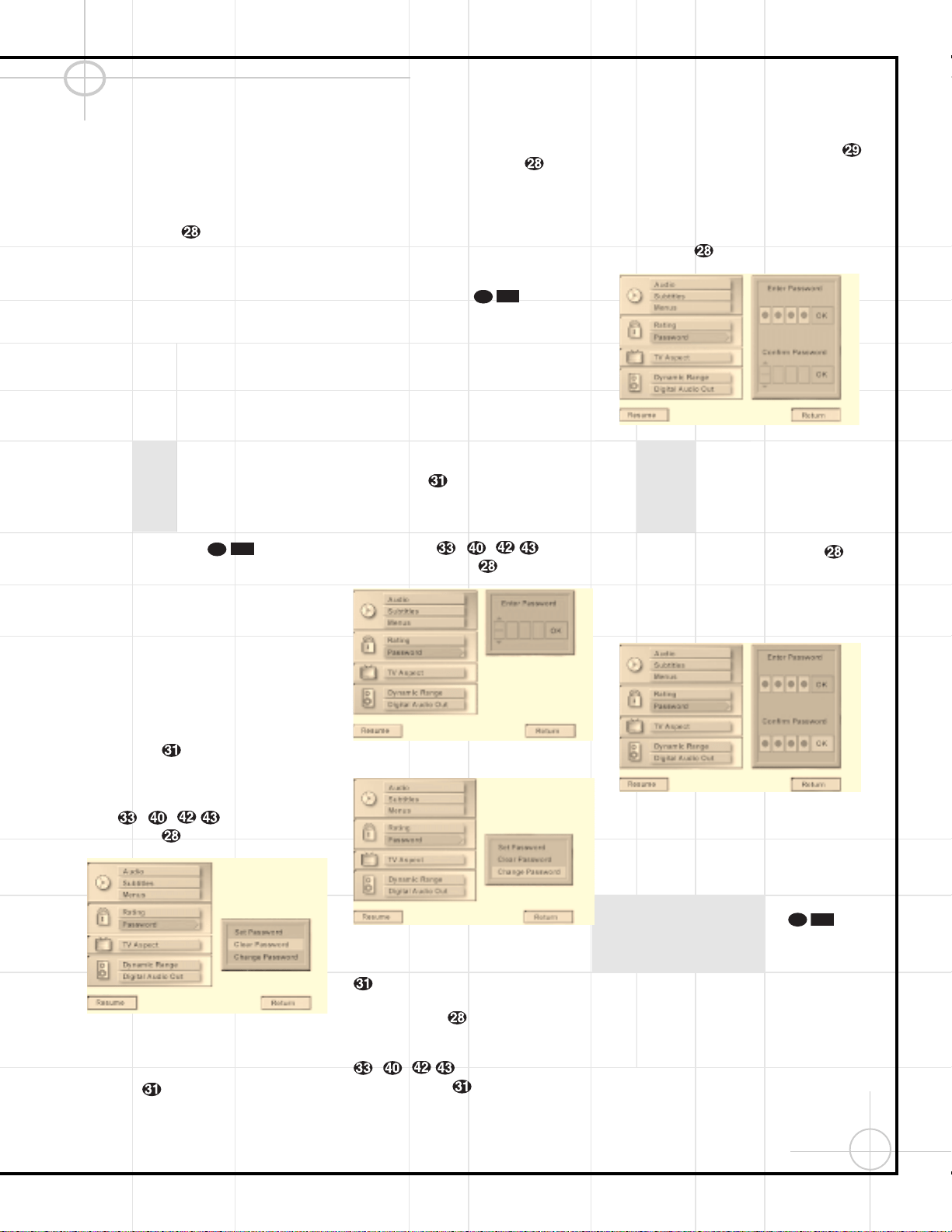
49
Configuring the DVD600 DVD Changer (Continued)
After the password has been entered once, a
second set of data entry boxes will appear, asking
you to confirm the entry. Using the same method
described earlier, enter the password again.
When all four numbers have been repeated, press
the Enter Button to set the password in
the DVD600’s memory. If the two passwords do
not agree, an “Incorrect Password” message
will appear to ask you to try entering the
number again.
Once this password is entered, you will need to
use this four-digit number to view a disc when
the rating of the disc exceeds the settings
entered in the Ratings Menu. If a password
has been entered, it is also required that you
change the settings range in the Ratings Menu.
Finally, the password is required if you wish to
unlock the system again to permit access to the
Ratings Menu.
If you have no other changes to make after set-
ting this default, press the Menu Button z
to remove the Setup Menu from the screen, or
press the Play Button to begin or
resume playback.
Clearing Passwords
Once a password has been entered, the system
remains locked until the password is cleared. To
clear a password so that the ratings may be
changed or to permit any movie to be viewed
regardless of ratings, you must be viewing the
Setup Menu (Figure 1), which is available by
pressing the Menu Button z while the unit
is in the Stop mode. At the Setup Menu, press
the
¤
Button until the Password option is
highlighted. As the system is locked, you will
first be asked to enter the password previously
set. Enter that password using the Numeric
Keys
–
,
and then press the
Enter Button .
Figure 8
To clear the password lock once you have
entered the correct password, press the
¤
Button so that the words “Clear
Password” are highlighted in light blue (Figure
8). Next, press the Enter Button to com-
plete the process. Note that the wording for
Clear Password will change to white as a confir-
mation that the system is now unlocked.
If you have no other changes to make after set-
ting this default, press the Menu Button z
to remove the Setup Menu from the screen, or
press the Play Button to begin or
resume playback.
Changing the Password
If you feel that the password has become known
to an unauthorized person, you may change the
password without unlocking the system. To
change a password, you must be viewing the
Setup Menu (Figure 1), which is available by
pressing the Menu Button z while the unit
is in the Stop mode. At the Setup Menu, press
the
¤
Button until the Password option is
highlighted. As the system is locked, you will
first be asked to enter the password previously
set (Figure 9). Enter that password using the
Numeric Keys –
,
and then
press the Enter Button .
Figure 9
Figure 10
To change the password, press the
¤
Button
so that the words “Change Password” are
highlighted in light blue (Figure 10). Next, press
the Enter Button . On the next screen that
appears (Figure 11), enter the new four-digit
password directly by using the Numeric Keys
–
,
, or you may use the
⁄
/
¤
Buttons y to select the number
for a position, and then press the
› Button
to move to the next position. Note that as each
number is entered, it will turn to a solid circle
when you move to the next position to protect
the password’s privacy. When all four numbers
of the password have been entered, press the
Enter Button .
Figure 11
After the password has been entered once, a
second set of data entry boxes will appear, ask-
ing you to confirm the entry (Figure 12). Using
the same method described above, enter the
password again. When all four numbers have
been repeated, press the Enter Button to
set the password in the DVD600’s memory. If
the two passwords do not agree, an “Incorrect
Password” message will appear to ask you to
try entering the number again.
Figure 12
Once the new password has been entered, the
system remains locked with the new password
in effect. If you have no other changes to make
after setting this default, press the Menu
Button z to remove the Setup Menu from the
screen, or press the Play Button to
begin or resume playback.
10D
58
10D
58
10D
58

50
Configuring the DVD600 DVD Changer (Continued)
Setting the Aspect Ratio
The aspect ratio of a television picture is the
relationship between its width and height, and
it defines the shape of the picture. Television
sets have traditionally had an aspect ratio of
4 x3, which is to say that they are almost
square, with slightly more width than height.
Almost all television programming is presented
in the 4 x3 aspect ratio so that the pictures fit
within the confines of the TV screen.
Movies, on the other hand, have a variety of
what are known as “wide aspect ratio” formats
that are significantly wider in relation to their
height than traditional television pictures.
Indeed, the development of wide-screen movies
was something that was popularized in the
1950’s in response to the success of television;
movie producers wanted to provide a wider
vista than afforded by TVs.
However, since many movies are produced for a
wider screen than the TV set they are played on,
a problem arises that is like fitting a square peg
into a round hole. In many instances this is
taken care of by the disc’s producers, who refor-
mat the image to fit within a standard 4 x3 TV
screen. Discs such as this require no special
setting. The only downside to this is that when
wide-screen movies are converted to 4 x3,
some of the information at the sides of a scene
may be cut off due to the difference in picture
shape. This is also called a “pan and scan”
presentation, as a 4 x3 viewing area is moved
across the wider cinema image.
Other discs are produced in what is called a
“letterbox wide-screen” format. In this case, the
entire wide image is fit inside the 4 x 3 screen
shape from side to side. This means that you
see the entire picture as the movie’s director
intended, but the height of the picture is
reduced to accommodate the added width. The
blank areas that appear at the top and bottom
of the screen make the image in the center
appear as if you are looking through a mail slot,
giving this sort of presentation the nickname of
“letterbox.”
The DVD format accommodates both of these
formats, though it is up to the producer of the
disc to select which way to convert the movie to
video. Sometimes you will have a choice of only
one of the two formats, while some discs offer
a full screen, with the pan-and-scan version on
one side of a disc and the widescreen, but
letterbox version, on the other side.
The DVD600 will play either type of disc, and
you may select a default that tells which way to
present the image when there is a choice.
To select an aspect ratio default, you must be
viewing the Setup Menu (Figure 1), which is
available by pressing the Menu Button z
while the unit is in the Stop mode. At the Setup
Menu, press the
¤
Button until the
Aspect Ratio option is highlighted. Next, press
the Enter Button . Select one of the three
choices in the options box (Figure 13) using the
⁄
/
¤
Buttons y .
Figure 13
Depending on the type of television set you
have, choose one of these three options:
•
4 x 3 Letterbox: Choose this setting if you
have a standard 4 x 3 television set and
prefer to see movies in their original aspect
ratio. You will see the entire movie but, when
it is presented in a letterbox fashion, there
will be black bars at the top and bottom of
the screen. Movies or other programs recorded
in a 4 x 3 format will appear normal.
•
4 x 3 Pan and Scan: Choose this setting if you
have a standard 4 x 3 television set and
always want the image to fill the entire
screen. When a wide screen movie is shown,
you may not see parts of the picture at one
side of the screen or the other. Note, how-
ever, that even when you select this option,
playing a wide-screen-only movie will result
in black letterbox bars at the top and bottom
of the screen. This is due to the way the disc
was produced, and it cannot be changed.
•
16 x 9 Wide-Screen: Choose this setting only
if you have a wide-screen television set
(16 x9 aspect ratio). With this setting, the
DVD600 will adjust the output for wide-screen
movies so that they fill the entire screen in
the proper aspect ratio. Note, however, that
in this setting a disc recorded in the 4 x3
aspect ratio will appear in the wide-screen
as a boxed image in the center, with black
columns on the left and right side of the screen.
NOTE: If the wide-screen option is chosen
and a wide-screen movie is played on a conven-
tional 4 x3 aspect ratio set, the image will be
distorted due to vertical compression.
When you have made your selection using the
⁄
/
¤
Buttons y to highlight the desired
option, press the Enter Button and note
that the circle next to your choice will fill in. The
menu system will then automatically return to
the status listing.
If you have no other changes to make after set-
ting this default, press the Menu Button z
to remove the Setup Menu from the screen, or
press the Play Button to begin or
resume playback.
Setting the Dynamic Range
With the DVD format you have the opportunity
to hear a program’s soundtrack in the most
accurate and realistic presentation possible,
thanks to the use of digital audio technology.
However, in certain instances you may wish to
slightly compress the dynamic range of the audio
output (the difference between the loudest
sounds and the quietest ones) so that you may
listen to a movie at a lower volume that does not
disturb others without losing dialog intelligibility.
In most cases, it is desirable to leave the
Dynamic Range setting at “OFF” so that no com-
pression is applied to the audio, but if you wish
to change to a compressed setting, follow these
steps:
First, you must be viewing the Setup Menu
(Figure 1), which is available by pressing the
Menu Button z while the unit is in the
Stop mode. At the Setup Menu, press the
¤
Button until the Dynamic Range option
is highlighted. Next, press the Enter Button
and select one of the two choices in the
options box using the
⁄
/
¤
Buttons y
(Figure 14). The choices are as follows:
•
Off: Select this option to turn off the Dynamic
Range compression and have the soundtrack
presented exactly as it was authored.
•
On: Select this option to turn on the
Dynamic Range compression circuitry so
that the dialog will remain clear even at
low volume levels.
10D
58
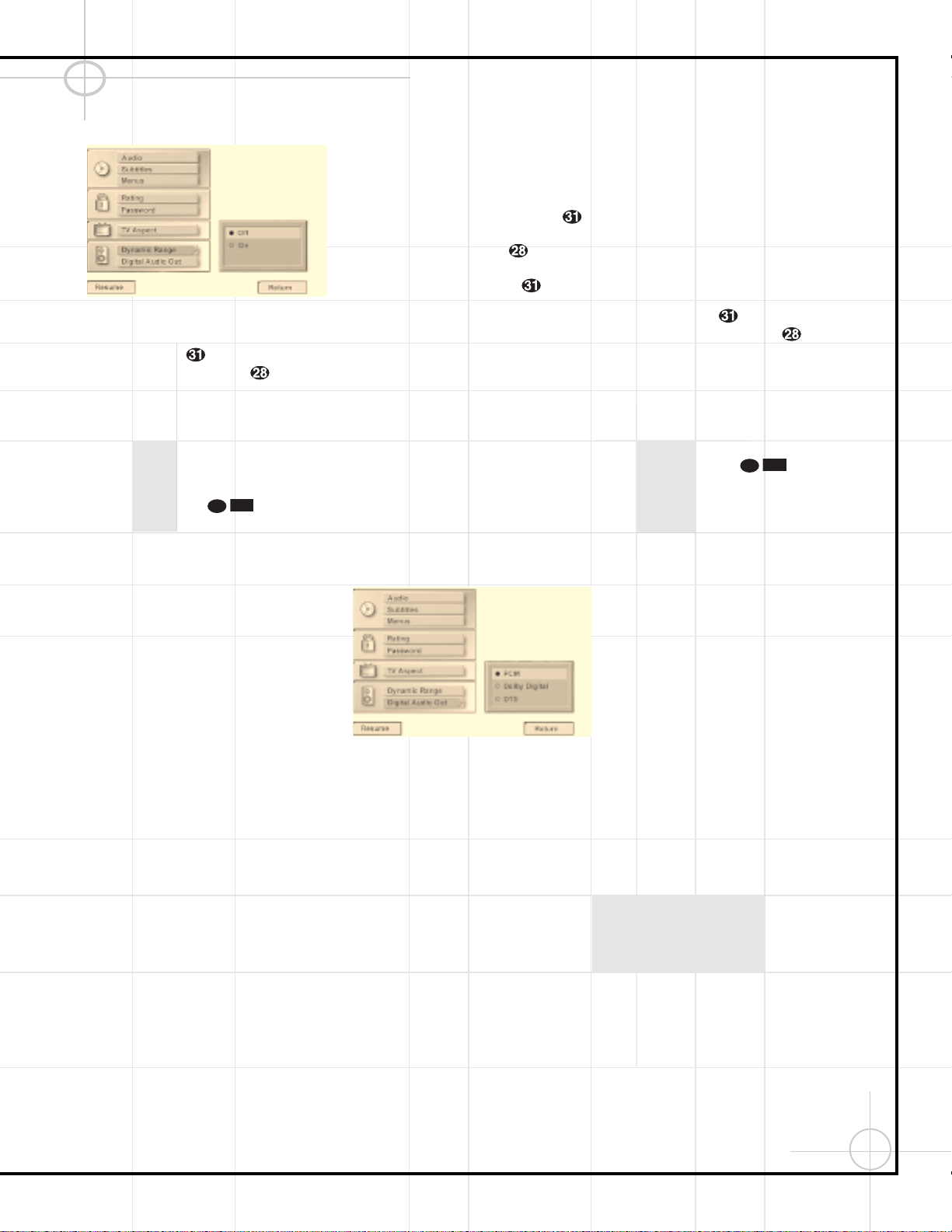
51
Configuring the DVD600 DVD Changer (Continued)
Figure 14
When you have made your selection using the
⁄
/
¤
Buttons
y
to highlight the desired
option, press the Enter Button and note
that the circle next to your choice will fill in. The
menu system will then automatically return to
the status listing.
If you have no other changes to make after set-
ting this default, press the Menu Button z
to remove the Setup Menu from the screen, or
press the Play Button to begin or
resume playback.
Note that the performance of the Dynamic
Range function is dependent on the audio
format of the disc being played, and whether
or not the disc’s soundtrack is capable of this
feature.
Using the Digital Audio Output
DVD players accommodate a variety of audio
formats, including Dolby Digital, DTS and the
PCM audio format used by conventional CD
discs and some DVD playback. The DCR600
receiver can automatically detect any of these
digital formats. Depending on the format of the
discs in your library, you need to set a default
for the type of audio outputs accommodated.
Although the DVD600 will play all of these disc
types, this setting creates a default that tells
which way to present the soundtracks when
there is a choice.
To select a Digital Audio Output default, you
must be viewing the Setup Menu (Figure 1),
which is available by pressing the Menu
Button z while the unit is in the Stop mode.
At the Setup Menu, press the
¤
Button
until the Digital Audio Out option is highlighted.
Next, press the Enter Button . Select one
of the three choices in the options box (Figure
15) using the
⁄
/
¤
Buttons y . The
choices are as follows:
•
PCM: Choose this setting if most of your
library consists of conventional CDs.
•
Dolby Digital: Choose this setting only if
you do not plan on listening to any DTS selec-
tions. Should you choose to watch a DVD
movie or listen to a CD which has a DTS
audio track, you must return to this menu and
change this selection to DTS.
•
DTS: We recommend that you choose this
setting, since the DCR600 receiver included
with your system is capable of automatically
detecting and decoding any of the three
formats of DTS, Dolby Digital and PCM.
Figure 15
NOTE: If you select the DTS option, your
receiver or processor MUST be capable of
decoding DTS audio. If the DTS option is chosen
and the unit is connected to a product that can-
not support DTS, no audio will be heard when a
DTS disc is played.
Remember, regardless of the option chosen, you
may still have to adjust the settings on your
DVD disc or audio equipment, if you do not use
the DCR600, to match the output of the
DVD600. In addition, the choice of which audio
formats are available is limited by the type
of material recorded on the disc when it was
authored.
When you have made your selection using the
⁄
/
¤
Buttons y to highlight the desired
option, press the Enter Button and note
that the circle next to your choice will fill in. The
menu system will then automatically return to
the status listing.
If you have no other changes to make after set-
ting this default, press the Menu Button z
to remove the Setup Menu from the screen, or
press the Play Button to begin or
resume playback.
10D
58
10D
58
52
OPERATING THE DCR600 RECEIVER
Surround Mode Chart
MODE FEATURES DELAY TIME RANGE
DOLBY DIGITAL Available only with digital input sources encoded with Dolby Digital data. It provides Center: 0 ms –5 ms
up to five separate main audio channels and a special dedicated Low-Frequency Effects Initial Setting – 0 ms
channel. Surround: 0 ms –15 ms
Initial Setting – 0 ms
DTS Available only with digital input sources encoded with DTS data. Available on special Delay time not adjustable
DVD, LD and audio-only discs, DTS provides up to five separate main audio channels and
a special dedicated low-frequency channel.
DOLBY PRO LOGIC The standard mode for analog surround-sound decoding. It uses information encoded 15 ms – 30 ms
in a two-channel stereo recording to produce four distinct outputs: Left, Center, Right and Initial Setting = 15 ms
a Mono Surround channel. Use this mode for accurate reproduction of programs bearing
the Dolby Surround, DTS Stereo, UltraStereo
®
or other “Surround” logos. Surround-encoded
programs include videocassette, DVD and LD movies, TV and cable programs, radio
programs and audio CDs. Dolby Pro Logic processing may also be used to provide a
pleasing surround effect with some stereophonic source material that does not carry
surround encoding.
LOGIC 7 C Logic 7 is an advanced mode that extracts the maximum surround information from either Delay time not adjustable
LOGIC 7 M surround-encoded programs or conventional stereo material. The Logic 7 C, or Cinema, mode
should be used with any source that contains Dolby Surround or similar matrix encoding.
Logic 7 C delivers increased center-channel intelligibility, and more accurate placement of sounds
with fades and pans that are much smoother and more realistic than with other decoding
techniques. The Logic 7 M, or Music, mode should be used with analog or PCM stereo sources.
Logic 7 M enhances the listening experience by presenting a wider front soundstage and greater
rear ambience. Both Logic 7 modes also direct low-frequency information to the subwoofer
(if installed and configured) to deliver maximum bass impact.
DOLBY 3 STEREO Uses the information contained in a surround-encoded or two-channel stereo program to No surround channels
create center-channel information. In addition, the information that is normally sent to the
rear-channel surround speakers is carefully mixed in with the front-left and front-right
channels for increased realism. Use this mode when you have a center-channel speaker
but no surround speakers.
THEATER Surround processing uses matrix surround decoding to simulate a standard movie or Delay time not adjustable
stage theater.
HALL 1 The Hall mode offers a matrix surround choice that simulates a medium-sized chamber hall. Delay time not adjustable
VMAx Near When only the two front-channel loudspeakers are used, JBL’s patented VMAx mode No surround channels
VMAx Far delivers a three-dimensional sound space with the illusion of “phantom speakers” at the
center and surround positions. The VMAx N, or Near Field, mode should be selected when
your listening position is less than five feet from the speakers. The VMAx F, or Far Field, mode
should be selected when your listening position is greater than five feet from the speakers.
5-Channel Stereo This mode takes advantage of multiple speakers to place a stereo signal at both the front and No delay is available for
back of a room. Ideal for playing music in situations such as a party, it places the same signal this mode
at the front-left and surround-left, and front-right and surround-right speakers. The center
channel is fed a summed mono mix of the in-phase material of the left and right channels.
SURROUND This mode turns off all surround processing and presents the pure left- and right- No surround channels
OFF (STEREO) channel presentation of two-channel stereo programs.
53
Operating the DCR600 Receiver (Continued)
Selecting a Surround Mode
One of the most important features of the
DCR600 is its ability to reproduce a full
multichannel, surround-sound field from digital
sources, analog matrix surround-encoded
programs and standard stereo programs. In all,
a total of twelve listening modes are available
on the DCR600.
Selection of a surround mode is based on personal
taste, as well as the type of program source
material being used. For example, motion pictures
or TV programs bearing the logo of one of the
major surround-encoding processes, such as
Dolby Surround, DTS Stereo or UltraStereo may
be played in either the Dolby Digital, Dolby
Pro Logic or Logic 7 Cinema surround modes
depending on the source material.
NOTE: Once a program has been encoded with
matrix surround information, it retains the
surround information as long as the program is
broadcast in stereo. Thus, movies with surround
sound may be decoded via any of the analog
surround modes such as Pro Logic or Logic 7,
when they are broadcast via conventional TV
stations, cable, pay-TV and satellite transmission.
In addition, a growing number of made-for-television
programs, sports broadcasts, radio dramas and
music CDs are also recorded in surround sound.
You may view a list of these programs at the
Dolby Laboratories Web site at www.dolby.com.
Even when a program is not listed as carrying
intentional surround information, you may find
that the Pro Logic, Logic 7, VMAx and the Hall or
Theater modes often deliver enveloping surround
presentations through the use of the natural
information present in all stereo recordings.
However, for stereo, but not surround programs,
we suggest that you experiment with the
other modes.
Surround modes are selected using either the
front panel controls or the remote. To select a
surround mode from the front panel, press the
Surround Mode Selector 7 to scroll up or
down through the list of available modes. To
select a surround mode using the remote, press
the Surround Mode Selectort and then
press the
⁄
/
¤
Button ty to change
the mode. As you press the buttons, the
Surround mode name will appear in the Main
Information Display W, and an individual
mode indicator will also light up CDFHI
JKLM.
Note that the Dolby Digital and DTS modes may
only be selected when a digital input is in use.
In addition, when a digital source is present, the
DCR600 will automatically select and switch to
the correct mode (Dolby Digital or DTS), regardless
of the mode that has been previously selected.
For more information on selecting digital sources,
see the following section of this manual.
To listen to a program in traditional two-channel
stereo, using the front-left and front-right
speakers only (plus the subwoofer if installed
and configured), follow the instructions shown
above for using the remote until SURR OFF
appears in the Main Information Display W.
Using Digital Sources
Digital audio is a major advancement over older
systems such as Dolby Pro Logic. It delivers five
discrete channels: left-front, center, right-front,
left-surround and right-surround. Each channel
reproduces full frequency range (20Hz to 20kHz)
and offers dramatically improved dynamic range
and significant improvements to signal-to-noise
ratios. In addition, digital systems have the
capability to deliver an additional channel that is
specifically devoted to low-frequency information.
This is the “.1” channel referred to when you see
these systems described as “5.1”. The bass
channel is separate from the other channels, but
since it is intentionally bandwidth-limited, sound
designers have given it that unique designation.
Dolby Digital
Dolby Digital (originally known as AC-3
®
) is a
standard part of DVD, and is available on specially
encoded LD discs and satellite broadcasts and is
a part of the new high-definition television (HDTV)
system.
Note that an optional, external RF demodulator
is required to use the DCR600 to listen to the
Dolby Digital soundtracks available on laser
discs. Connect the RF output of the LD player to
the demodulator and then connect the digital
output of the demodulator to the Optical or
Coaxial Inputs ef#$ of the DCR600. No
demodulator is required for use with DVD
players or DTS-encoded laser discs.
DTS
DTS is another digital audio system that is
capable of delivering 5.1 audio. Although both
DTS and Dolby Digital are digital, they use dif-
ferent methods of encoding the signals, and
thus they require different decoding circuits to
convert the digital signals back to analog.
DTS-encoded soundtracks are available on
select DVD and LD discs, as well as on special
audio-only DTS discs. You may use any LD or CD
player equipped with a digital output to play
DTS-encoded discs with the DCR600. All that is
required is to connect the player’s output to
either the Optical or Coaxial Input on the rear
panel ef or front panel #$.
In order to listen to DVDs encoded with DTS
soundtracks, the DVD player must be compatible
with the DTS signal as indicated by a DTS logo
on the player’s front panel. Note that, although
early DVD players may not be able to play DTS-
encoded DVDs, the DVD600 is compatible. This
does not indicate a problem with the DCR600,
as some players cannot pass the DTS signal
through to the digital outputs. If you are in
doubt as to the capability of your DVD player to
handle DTS discs, consult the player’s owner’s
manual.
Selecting a Digital Source
To utilize either digital mode, you must have
properly connected a digital source to the
DCR600. Connect the digital outputs from DVD
players, HDTV receivers, satellite systems or CD
players to the Optical or Coaxial Inputs
ef#$. In order to provide a backup signal
and a source for analog stereo recording, the
analog outputs provided on digital source equip-
ment should also be connected to their appropri-
ate inputs on the DCR600 rear panel (note that
the DCR600 does not offer an analog audio
input for DVD).
When playing a digital source, first select the
input using the remote or front panel controls as
outlined in this manual. Next, select the digital
source by pressing the Digital Input Selector
Button Ú and then using the
⁄
/
¤
Buttons
y
on the remote or the Selector
Buttons 5 on the front panel to
choose any of
the OPTICAL or COAXIAL
inputs, as
they appear in the Main Information Display
W, or Source Indicators BE. Note that the
DCR600‘s DVD input is configured at the factory
to default to the COAX 1 digital input. When the
54
Operating the DCR600 Receiver (Continued)
digital source is playing, the DCR600 will auto-
matically detect whether it is a multichannel
Dolby Digital, DTS source, MP3 or a conventional
PCM signal, which is the standard output from
CD players. A Bitstream Indicator A will
light in the Main Information Display Ú to
confirm that the digital signal is Dolby Digital, DTS
or PCM.
Digital Status Indicators
When a digital source is playing, the DCR600
senses the type of bitstream data that is present.
Using this information, the correct surround
mode will automatically be selected. For example,
DTS bitstreams will cause the unit to switch to
DTS decoding, and Dolby Digital bitstreams will
enable Dolby Digital decoding. When the unit
senses PCM data from CDs and LDs, it will
allow the appropriate surround sources to be
selected manually. Since the range of available
surround modes is dependent on the type of
digital data that is present, the DCR600 uses a
variety of indicators to let you know what type
of signal is present. This will help you to
understand the choice of modes.
When a digital source is playing, a Bitstream
Indicator A will light to show which type of
signal is playing:
DOLBY D: When the DOLBY D indicator lights,
a Dolby Digital bitstream is being received.
Depending on the settings on the source player
and specific surround information and number of
channels on the disc, a number of surround
modes are possible. For discs with full 5.1
audio, only the Dolby Digital and VMAx modes
are available. When the Dolby Digital signal is
only two-channel, you may also select from the
Logic 7 Cinema/Music, Hall, Theater, Dolby
Pro Logic or Dolby 3 Stereo modes.
DTS: When the DTS indicator lights, a DTS
bitstream is being received. When the unit senses
this type of data, only the DTS mode may be used.
PCM: When the PCM indicator lights, a standard
Pulse Code Modulation, or PCM, signal is being
received. This is the type of digital audio used
by conventional compact disc and laser disc
recordings. When a PCM bitstream is present, all
modes except Dolby Digital and DTS are available.
MP3: When the MP3 indicator lights, a com-
patible MPEG 1/Layer 3 digital signal is being
received. This is the popular audio format used
by many computer programs for recording com-
pressed audio files. When an MP3 bitstream is
present, the sound will automatically be played
in the Stereo (surround off) mode. The surround
modes are not available during MP3 playback.
MP3 bitstreams can only be received from a
compatible PC sound card with an S/P-DIF
output.
In addition to the bitstream indicators, the
DCR600 features a set of unique channel-input
indicators that tell you how many channels of
digital information are being received and/or
whether the digital signal is interrupted.
These indicators are the L/C/R/LS/RS/LFE let-
ters that are inside the center boxes of the
Speaker/Channel Input Indicators O in the
front panel Main Information Display Ú.
When a standard analog signal is in use, only
the “L” and “R” indicators will light, as analog
signals have only left and right channels,
respectively.
Digital signals, however, may have two, five or
six separate channels, depending on the
program material, the method of transmission
and the way in which it was encoded. When a
digital signal is playing, the letters in these
indicators will light in response to the specific
signal being received. It is important to note
that although Dolby Digital, for example, is
referred to as a “5.1” system, not all Dolby
Digital DVDs or programs are encoded for 5.1.
Thus, it is sometimes normal for a DVD with a
Dolby Digital soundtrack to trigger only the “L”
and “R” indicators.
NOTE: Many DVD discs are recorded with both
“5.1” and “2.0” versions of the same sound-
track. When playing a DVD, always be certain to
check the type of material on the disc. Most discs
show this information in the form of a listing or
icon on the back of the disc jacket. When a disc
does offer multiple soundtrack choices, you may
have to make some adjustments to your DVD
player (usually with the “Audio Select” button or
in a menu screen on the disc) to send a full 5.1
feed to the DCR600. It is also possible for the
type of signal feed to change during the course
of a DVD playback. In some cases, the previews
of special material will only be recorded in 2.0
audio, while the main feature is available in 5.1
audio. As long as your DVD player is set for 6-
channel output, the DCR600 will automatically
sense changes to the bitstream and channel
count and reflect them in these indicators.
The letters used by the Speaker/Channel
Input Indicators O also flash to indicate
when a bitstream has been interrupted. This will
happen when a digital input source is selected
before the playback starts, or when a digital
source such as a DVD is paused. The flashing
indicators remind you that the playback has
stopped due to the absence of a digital signal
and not through any fault of the DCR600. This is
normal, and the digital playback will resume
once the playback is started again.
Night Mode
A special feature of Dolby Digital is the Night
mode, which enables AC-3 input sources to be
played back with full digital intelligibility while
reducing the minimum peak level by
1
/4 to
1
/3.
This prevents abruptly loud transitions from dis-
turbing others, without reducing the impact of
the digital source. The Night mode is available
only when Dolby Digital signals with special
data are being played.
The Night mode may be engaged when a Dolby
Digital DVD is playing by pressing the Night
Mode Button on the remote. Next, press
the
⁄
/
¤
Buttons
y
to select either the
middle range or full-compression versions of the
Night mode. To turn the Night mode off, press
the
⁄
/
¤
Buttons
y
until the message
in the lower third of the video display and the
Main Information Display W reads
D-Range Off. When the Night mode is active,
the Night Mode Indicator N will also light.
IMPORTANT NOTES
ON DIGITAL PLAYBACK:
1. When the digital playback source is stopped,
or in a Pause, Fast Forward or Chapter Search
mode, the digital audio data will momentarily
stop, and the channel position letters inside the
Speaker/Channel Input Indicators O will
flash. This is normal and does not indicate a
problem with either the DCR600 or the source
machine. The DCR600 will return to digital play-
back as soon as the data is available and when
the machine is in a standard play mode.
2. Although the DCR600 will decode virtually all
DVD movies, CDs and HDTV sources, it is possible
that some future digital sources may not be com-
patible with the DCR600.
50
55
Operating the DCR600 Receiver (Continued)
3. Note that not all digitally encoded programs
contain full 5.1-channel audio. Consult the pro-
gram guide that accompanies the DVD or laser
disc to determine which type of audio has been
recorded on the disc. The DCR600 will automati-
cally sense the type of digital surround encoding
used and adjust to accommodate it.
4. When a digital source is playing, you may not
be able to select some of the analog surround
modes such as Dolby Pro Logic, Dolby 3, Stereo,
Hall, Theater or Logic 7.
5. When a Dolby Digital or DTS source is playing,
it is not possible to make an analog recording
using the Tape ™ and Video 1 Record Outputs
∞a. However, the digital signals will be passed
through to the Digital Audio Outputs •.
PCM Audio Playback
PCM (Pulse Code Modulation) is the non-
compressed digital audio system used for compact
discs and laser discs. The digital circuits in the
DCR600 are capable of high-quality digital-to-
analog decoding, and they may be connected
directly to the digital audio output of your CD or
LD player.
Connections may be made to either the rear
panel Optical or Coaxial Inputs ef or the
front panel Digital Inputs #$.
To listen to a PCM digital source, first select the
input for the desired source (e.g., CD). Next press
the Digital Select Button Ú and then
use the
⁄
/
¤
Buttons
y
on the remote,
or the Selector Buttons5 on the front panel,
until the desired choice appears in the Main
Information Display W.
When a PCM source is playing, the PCM
Indicator A will light. During PCM playback,
you may select any surround mode except Dolby
Digital or DTS.
Playback from PCM sources may also benefit
from the Logic 7 mode. When playing back a
surround-encoded PCM source, such as an LD or
surround-encoded CD, use the Logic 7 C (or
Cinema) mode. When playing true stereo record-
ings, use the Logic 7 M (or Music) mode for a
wider soundstage and increased rear-channel
ambience.
MP3 Audio Playback
The DCR600 is one of the first A/V receivers to
provide on-board decoding for the MP3 audio
format used by computers and portable audio
devices. In addition, some new CD players are
capable of playing back optical discs that are
recorded with MP3, rather than standard CD
audio information. By offering MP3 decoding,
the DCR600 is able to deliver more precise
conversion of the digital signals to an analog
output, along with the benefits of listening to
the MP3 audio through the DCR600’s high-
current amplifier and the speakers from your
surround system, rather than the smaller
speakers and low-powered amplifiers typically
used with computers.
To take advantage of the DCR600’s MP3 capabil-
ities, simply connect the PCM output of a com-
puter’s sound card or the PCM output of a
portable digital audio device to either the rear
panel Digital Inputs ef or the front panel
Digital Inputs #$. As soon as the digital
signal is available, the MP3 Bitstream
Indicator A will light, and the audio will
begin playing.
NOTES:
•
The DCR600 is only capable of playing
signals in the MP3 (MPEG 1/Layer 3) format.
It is not compatible with other computer
audio codecs.
•
The digital audio input signal may be either
optical or coaxial, but the signal must be in
the PCM format. Direct connection of USB or
serial data outputs is not possible, even
though the signals are in the MP3 format.
If you have any questions about the data
output format from your computer or a sound
card, check with the device’s owner’s manual
or contact the manufacturer’s technical
support area.
Operating the Tuner
The DCR600’s tuner is capable of tuning AM, FM
and FM Stereo broadcast stations. Stations may
be tuned manually, or they may be stored as
favorite station presets and recalled from a
30-position memory.
Station Selection
1. Press the AM/FM Tuner Select Button k
on the remote to select the tuner as an input.
The tuner may be selected from the front panel
by either pressing the Input Source Selector
! until the tuner is active or by pressing the
Tuner Band Selector 9 at any time.
2. Press the AM/FM Tuner Select Button k
or Tuner Band Selector 9 again to switch
between AM and FM so that the desired
frequency band is selected.
3. Press the FM Mode Button
@
to select
manual or automatic tuning.
When the AUTO Indicator V is illuminated in
the Main Information Display W the tuner
will stop only at those stations that have a
strong enough signal to be received with
acceptable quality.
When the AUTO Indicator V is not illuminated,
the tuner is in a manual mode and will stop at
each frequency increment in the selected band.
Press and hold the Tuning Selector Button
8
to search more quickly.
4. To select stations, press the Tuning Selector
Button
8
. When the AUTO
Indicator V is illuminated, press the button
for two seconds and then release to cause the
tuner to search for the next highest- or lowest-
frequency station that has an acceptable signal.
When tuning FM stations in the Auto mode, the
tuner will select only stereo stations. To tune to
the next station, press the button again. If the
STEREO Indicator T is not illuminated, tap
the Tuning Selector Button
8
to
advance one frequency increment at a time, or
press and hold it to locate a specific station.
When the TUNED Indicator U lights, the
station is properly tuned and should be heard
with clarity.
5. Stations may also be tuned directly by press-
ing the Direct Button , and then pressing
the Numeric Keys – that
correspond to the station’s frequency. The
desired station will automatically be tuned. If
you press an incorrect button while entering a
direct frequency, press the Clear Button
to start over.
NOTE: When the FM reception of a station is
weak, audio quality will be increased by switching
to Mono mode by pressing the FM Mode
Button
@
until the STEREO Indicator
T goes out.
Preset Tuning
Using the remote, up to 30 stations may be
stored in the DCR600’s memory for easy recall
using the front panel controls or the remote.
To enter a station into the memory, first tune the
station using the steps outlined above. Then:
1. Press the Memory Button on the
remote. Note that the MEMORY Indicator S
will be illuminated and flash in the Main
Information Display Ú.
47
46
49
49
49
56
Operating the DCR600 Receiver (Continued)
2. Within five seconds, press the Numeric
Keys –
,
corresponding to the
location where you wish to store this station’s
frequency. Once entered, the preset number will
appear in the Preset Number/Sleep Timer
Display P.
3. Repeat the process after tuning any additional
stations to be preset.
Recalling Preset Stations
•
To manually select a station previously
entered in the preset memory, press the
Numeric Keys –
,
that
correspond to the desired station’s memory
location.
•
To manually tune through the list of stored
preset stations one by one, press the Preset
Stations Selector Buttons ) on
the front panel or remote.
Tape Recording
In normal operation, the audio or video source
selected for listening through the DCR600 is
sent to the record outputs. This means that any
program you are watching or listening to may be
recorded simply by placing machines connected
to the outputs for Tape Outputs ™ or Video 1
Outputs ∞a in the Record mode.
When a digital audio recorder is connected to
the Digital Audio Outputs •, you are able to
record the digital signal using a CD-R, MiniDisc
or other digital recording system.
NOTES:
•
The digital outputs are active only when a
digital signal is present, and they do not
convert an analog input to a digital signal,
or change the format of the digital signal.
In addition, the digital recorder must be
compatible with the output signal. For
example, the PCM digital input from a CD
player may be recorded on a CD-R or
MiniDisc, but Dolby Digital or DTS signals
may not.
•
Please make certain that you are aware of
any copyright restrictions on any material you
copy. Unauthorized duplication of copyrighted
materials is prohibited by federal law.
52
48
57
OPERATING THE DVD600 CHANGER
Loading Discs
To load discs in the DVD600, first make certain
that the unit is turned on by pressing the
Standby Switch so that it latches, and
then the Power On Button b on the remote,
or the Open/Close Button
f
or Play
Button .The Status Indicator
turns green.
Next, press the Open/Close Button f
until the Disc Tray opens.
Holding the discs by the edge, gently place each
one into one of the compartment slots in the
drawer. Note that there is a number embossed
onto the drawer tray at the right of the disc slot.
This is the number for that specific disc position;
it will be used to indicate the disc in both the
Information Display and the on-screen displays.
When loading discs, please note the following:
•
The DVD600 will play discs with the following
logos only. DO NOT attempt to play another
type of disc, as shown in the list on page 46.
•
The DVD600 will only play discs in the NTSC
video format. It will not play discs for other
standards such as PAL or SECAM.
•
Playback capability for CD-RW discs will vary
according to the quality of the CD-RW disc.
On some occasions, it is possible that CD-RW
discs may not play on the DVD600. This does
not indicate any problem with the DVD600.
•
The DVD600 will only play discs that are
coded for Region 1 or discs that are open to
being played in all regions. Discs that contain
a Region Code of 2, 3, 4, 5 or 6 (as noted by a
number inside a world map logo on the disc’s
cover jacket or case) will not play.
•
Both 5-inch (12cm) and 3-inch (8cm) discs
may be used.
•
When loading CD audio discs, load the discs
with the label side up.
•
When loading DVD discs with printed labels,
load them label side up.
•
Some DVD discs are double-sided. The title
information for these will be printed on the
inner ring of the disc, very close to the center
hole. The title for the side you wish to play
should be facing up.
To move the discs in the tray so that you may
insert discs in slots that are partially hidden
inside the disc tray drawer, press the Disc Skip
Button . Each press of the button
will move the carousel tray one position to the
left (counterclockwise).
•
To access all disc positions, the unit must be
in the full-stop position. If the unit is in the
Play mode, press the Stop Button
twice.
•
If the disc tray drawer is opened while a disc
is playing, the Play Exchange feature allows
you to change the remaining four discs.
Simply press the Disc Skip Button
to move the discs in the tray in one direction
or the other.
IMPORTANT NOTES
ON DISC LOADING
•
Remove all discs from the tray before
moving the player.
•
Make certain that all discs are properly
seated before closing the disc tray drawer.
•
Do not push the disc tray drawer with the
power off.
•
Do not attempt to change discs or touch the
disc tray carousel while it is moving.
•
Do not attempt to rotate the disc tray by
hand. If the tray drawer or carousel tray
appears to be stuck, contact your local JBL
authorized service center.
•
Do not load more than one disc in each slot
in the tray and do not attempt to place a
standard 5-inch (12cm) disc over a smaller
3-inch (8cm) disc.
Once the discs are loaded, press the Open/
Close Button
f
to close the disc tray.
When the tray drawer closes, the disc that was
last in the center position facing outward in the
tray will be readied for playback. After the
drawer closes, you will see a brief indication of
Reading in both the Information Display and
in the on-screen display to alert you to the fact
that the unit is determining the type of disc
(DVD or CD) and is reading the data for track,
chapter, title and other information about the
disc. At the same time, the Disc Number
Indicator for the disc in use will begin to
flash, indicating which disc is being played.
Once the disc’s data has been read, the type of
disc (DVD or CD) will be displayed by the Disc
Type Indicator and the disc will automati-
cally begin playing. The disc’s track timing infor-
mation and other relevant data will appear in
the Information Display . For CD discs
only, a Status Menu Bar will appear in the
on-screen display. To view this display for
DVD discs, press the Status Button e.
The Disc Number Indicator will show a
lighted number for the disc slot positions that
are occupied, and the disc in use will flash.
Note, however, that all occupied positions may
not be shown until the disc tray has been rotated
past an empty or occupied slot by pressing the
Disc Skip Buttons , or by manually
selecting a specific disc with the Disc-Select
buttons.
Playback Basics
Basic playback with the DVD600 involves
functions similar to those you may be familiar
with for conventional CD players or changers:
•
Turn the unit on by pressing in the Power
Switch , if it has not already been
engaged. If there are already discs loaded in
the unit, the last disc to be played will auto-
matically begin playing.
•
If the disc was stopped using the Resume
function, (by pressing the Stop Button
once) playback will begin from
the point where it was stopped. If the disc
was stopped by pressing the Stop Button
twice, the disc will begin playing
from its beginning.
•
Load any new discs as indicated in the
previous section.
•
After loading discs, press the Open/Close
Button
f
to begin play.
Playback Features for DVD and CD Discs:
•
To move to the next disc in the unit, press the
Disc Skip Button .
•
To select a specific disc in the player, press
the Direct Access Button corresponding
to the slot where that disc is loaded.
•
To momentarily pause playback and freeze
the current picture frame on a DVD, press the
Pause Button . To resume play-
back after pressing the Pause button, press
the Play Button .
•
To move forward or backward through the
tracks on a CD or the chapters on a DVD,
press the Skip Forward/Reverse Buttons
on the front panel or the Previous/
Next Buttons on the remote .
64
63
7D
58
10D
62
9D
11D
51
4D
6D
61
8D
61
8D
1D
51
4D
12D
6D
51
4D
61
8D
51
4D
ReWritable
VIDEO
3D
6D
2D
58
10D
6D
1D
58
Operating the DVD600 Changer
•
To move forward or backward through the
DVD or CD disc being played at fast speed,
press the Search Forward/Reverse
Buttons . Once one of these
buttons is pressed, the fast search will
continue until the Play Button is
pressed. Note that the fast-play speeds vary
for CD discs and DVDs.
For DVD playback, there are four fast-play
speeds. Each press of the Search Forward/
Reverse Buttons will cycle to
the next speed in the following order:
•
In Fast Search x2, the
‹‹
and
››
Playback
Mode Indicators will both light steadily.
•
In Fast Search x4, the outside
‹‹
or
››
Playback Mode Indicator will flash and
the inside indicator will remain steadily lit.
•
In Fast Search x8, the inside
‹‹
or
››
Playback Mode Indicator will flash and
the outside indicator will remain steadily lit.
•
In Fast Search x16, both
‹‹
and
››
Playback
Mode Indicators will flash.
Note that there will be no audio playback during
fast-forward or -reverse play of DVD discs.
This is normal for DVD, as A/V receivers and
surround processors cannot process the digital
audio streams during fast-play modes; audio will
be heard during fast-play of conventional CDs.
For CD playback, there are three fast-play
speeds. Each press of the of the Search
Forward/Reverse Buttons will
cycle to the next speed in the following order:
•
In Fast Search x2, the
‹‹
and
››
Playback
Mode Indicators will both light steadily.
•
In Fast Search x4, the outside
‹‹
or
››
Playback Mode Indicator will flash and
the inside indicator will remain steadily lit.
•
In Fast Search x8, the inside
‹‹
or
››
Playback Mode Indicator will flash and
the outside indicator will remain steadily lit.
When playing a DVD disc, you may move for-
ward or backward through the program being
played in one of four speeds by pressing the
Slow-Play Buttons on the remote.
Each press of the buttons will move to the next
speed in the following order:
•
In the 1/16 Speed Slow mode, the
‹‹
and
››
Playback Mode Indicators
will both flash.
•
In the 1/8 Speed Slow mode, the inside
‹‹
and
››
Playback Mode Indicator will
flash and the outside indicator will remain
steadily lit.
•
In the 1/4 Speed Slow mode, the outside
‹‹
or
››
Playback Mode Indicator
will flash and the inside indicator will
remain steadily lit.
•
In the 1/2 Speed Slow mode, both the
‹‹
and
››
Playback Mode Indicators
will remain steadily lit.
Note that there will be no audio playback during
slow-forward or -reverse play of DVD discs.
This is normal for DVD, as A/V receivers and
surround processors cannot process the digital
audio streams during slow modes. Slow play
is not available for CD discs.
•
When a camera icon appears on the screen,
this is your indication that there is multiple-
angle information on the disc being played.
To change the angle, press the Angle
Button until the desired angle view
appears. An on-screen banner message will
appear to indicate the angle view in use.
NOTE: Playback of discs with 96kHz/24-bit
audio requires the use of circuitry normally used
for other features. Accordingly, Slow Play,
Forward/Reverse Search, Step Advance and
Pause features are not available with these
discs.
Using the DVD Disc’s Menu
One of the unique features of the DVD system is
that it offers a producer the opportunity to include
a wide range of features on a disc, including
multiple-language tracks; subtitles in a variety
of languages; special information such as movie
trailers and cast information; as well as other
custom-tailored information. In addition, produc-
ers may divide a movie or program into chapters
that allow for quick access to specific parts of the
program. These chapters may be accompanied
by thumbnail pictures of a scene from the
specific chapter to help you select the desired
spot on the disc.
When a disc is playing, press the Menu Button
z to pause the playback and display the disc’s
menu. As there are no hard rules about style
and content of DVD menus, the way they
appear on the screen and the information they
contain will vary from one disc to another.
However, the following general rules apply to
most menus:
•
The first menu that appears is the Main
Menu, and you may move through the
options with the
⁄
/
¤
/‹
/
› Buttons
y` , as the disc’s programming
allows. The option selected will typically
be highlighted in a certain color or inside
an outline box.
•
To select a highlighted option, which may
either play a portion of the disc or move to
a sub-menu, press the Enter Button
or Play Button .
•
On some discs, when you select the DVD
menu during the playback of a movie, the
disc will return to the point in the program
where the menu was selected by offering a
“Play Movie” option. Press the Enter Button
or Play Button to resume
play. However, not all discs offer this feature,
and selecting the menu while playing a
movie may mean that you will either have to
go back to the beginning of the program or
the start of a chapter. This feature is out of
the control of the DVD600, as it is set by the
disc’s internal programming.
IMPORTANT NOTES
ON DVD PLAYBACK
The DVD600 is capable of all the features and
options covered by the DVD standards.
However, it is up to the producer of a DVD disc
to decide which of those features and functions
are available on any given disc. For that reason,
not all discs will function identically, and some
discs will not have many of the features of the
DVD system. For example, most current DVD
discs do not take advantage of the multiple-
angle feature. When you press a button and the
player displays the “Feature Prohibited” icon
“X”, this is an indication that the disc has not
been programmed for that feature.
In addition, it is common for the producers of
DVD discs to block the use of certain functions
during only some parts of a disc. For example,
many discs prohibit the use of fast-play buttons
or prohibit access to the Chapter Menu display
during the playback of copyright notices, studio
logos, movie credits or trailers. The appearance
of the “Feature Prohibited” icon “X”, or the
inability of certain features to operate when the
disc itself has prohibited them, does not indi-
cate a problem with the DVD600, as these fea-
tures are outside of the unit’s control.
10D
58
10D
58
52
48
59
57
5D
59
57
5D
58
10D
59
57
5D

59
Operating the DVD600 Changer
Using the Menu Bar
The DVD600 is equipped with a powerful on-
screen display system that serves the dual pur-
pose of showing you the current status of the
DVD600 while enabling quick and easy changes
to settings and functions. Depending on
whether a DVD or CD is in use, the menu will
vary to display information that is specific to the
type of disc in play.
Menus and Controls
When a DVD is playing, press the Status
Button e to view the status of the current
disc and to change the setting for key playback
functions (Figure 16).
Figure 16
Title: The number shown indicates the number
of the title that is currently playing.
Chapter: The number shown indicates the
number of the chapter that is currently playing.
Audio: The number and abbreviation show the
audio language soundtrack that is currently
playing. Consult the DVD jacket for the key to
available audio tracks on the disc.
Subtitles: The number and abbreviation show
the subtitle language that is currently playing.
Consult the DVD jacket for the key to available
subtitle languages on the disc.
Angles: The number shown indicates the
multiple-angle view that is currently playing.
Bookmarks: Highlight this area and press the
Enter Button to mark or go to previously
bookmarked locations on a disc.
Disc Type: The type of disc playing (DVD or CD)
is shown.
Disc Number: The slot number of the disc being
played is shown.
Time Indicator: The elapsed time of the current
title is shown.
Once the Menu Bar appears, press the
‹
/
›
Buttons ` to move across the display to
select the desired option. When the option to be
changed is highlighted in white with yellow
brackets on both sides, press the Enter Button
to change the setting for that option.
Selecting Titles and Chapters
Some discs contain more than one title.
Remember that a disc may contain one title or
two separate program titles, or the disc may use
the Title function to separate the special feature
sections on the disc. The use of titles is optional
with the producer of each DVD disc, as is the
way in which he/she may choose to implement
the feature.
To change the title on those discs using the
Menu Status Bar, follow these steps:
1. During disc playback, press the Status
Button e.
2. If needed, press the
‹
/
› Buttons `
until the disc icon for the current title, with the
letter “T” underneath it, is highlighted in white
between yellow brackets.
3. Press the Enter Button .
4. Note that the number to the right of the “T”
will be replaced with two dashes (– –).
5. Use the Numeric Keys –,
to enter the number of the title to be accessed.
6. The desired title will automatically be started.
Titles may also be selected during the playback
of a DVD by pressing the Title Button x.
However, the action of the disc when pressing
this button will vary from disc to disc. On occa-
sion, pressing this button will take you to the
disc’s main menu while, in other cases, pressing
this button will result in no action at all.
The movies or programs on most discs are divided
into individual chapters, as selected by the
disc’s producer. Using the on-screen Menu Bar,
you may view the number of the current chapter
and move to any chapter on the disc.
To change the chapter using the Menu Status
Bar, follow these steps:
1. During disc playback, press the Status
Button e.
2. Press the
‹
/
› Buttons ` until the
icon showing a disc and a file folder (second
from left), with the letter “C” beneath it, is
highlighted in white between yellow brackets.
3. Press the Enter Button .
4. Note that the number to the right of the “C”
will be replaced with two dashes (– –).
5. Using the Numeric Keys –, ,
enter the number of the chapter to be accessed.
6. The desired chapter will automatically be
started.
Changing Languages
DVD discs may contain a variety of audio tracks,
including foreign languages, special commen-
taries, descriptive video for the sight-impaired,
and various digital formats. In normal play, the
unit will always look for the default setting for
the audio track, but you may change the audio
track at any time using the Menu Status Bar and
following these steps:
1. During disc playback, press the Status
Button e.
2. Press the
‹
/
› Buttons ` until the
speaker icon (third from the left) is highlighted
in white between yellow brackets.
3. Press the Enter Button .
4. Note that the main Menu Bar will be replaced
with a single display of the current language
type (Figure 17).
Figure 17
5. Press the Enter Button until the desired
audio track is displayed. Note that the audio
tracks available on a disc will vary and that they
are always listed on the disc’s jacket or cover.
6. Within a few seconds, the disc will continue
play with the newly selected audio track.
Note that the audio track type selected in this
fashion is temporary and will only remain in
effect until the player is turned off. When the
unit is turned on for subsequent play, the
default audio type will always be used.
TITLE
CHAPTER
AUDIO
SUBTITLES
ANGLES
BOOKMARKS TIME INDICATOR
DISC
TYPE
DISC NO

60
Operating the DVD600 Changer
The audio track may also be selected during
the playback of a DVD by pressing the Audio
Button t. After pressing the button, the audio
track may be changed by pressing the Enter
Button until the desired audio track is
shown. Note, however, that some discs do not
allow audio track change while a disc is playing.
When the Audio Button t is pressed on this
type of disc, the player will go to the disc’s own
menu page for audio track selection. In this
case, use the
‹
/
›
/
⁄
/
¤
Buttons y`
to make the selection from the menu
screen and then press the Enter Button .
The functionality of the Audio Button t may
vary from disc to disc. Many discs will allow you
to change the playback language while the disc
is playing, as noted earlier. However, when the
Audio Button t is pressed with some discs,
playback will stop and you will be taken to the
disc’s own audio menu. At that menu, use the
‹
/
›
/
⁄
/
¤
Buttons y` to high-
light the desired playback language. Press the
Enter Button when the choice is made
and the disc will either resume playback or
take you to the disc’s main menu. Note that
these functions are controlled by information
programmed within the disc, and are outside
of the control of the DVD600.
DVD discs may contain a variety of subtitles. In
normal play, the unit will always look for the
default setting for the subtitle language, but you
may change that language at any time using the
Menu Status Bar and by following these steps:
1. During disc playback, press the Status
Button e.
2. Press the
‹
/
› Buttons ` until the
letter “S” icon (fourth from the left) is highlighted
in white between yellow brackets.
3. Press the Enter Button .
4. Note that the main Menu Bar will be replaced
with a single display of the subtitle language
(Figure 18).
Figure 18
5. Press the Enter Button until the desired
subtitle language is displayed. Note that the
subtitles available on a disc will vary, and they
are always listed on the disc’s jacket or cover.
Some discs may not offer alternative subtitles,
or any subtitles at all.
6. Within a few seconds, the disc will continue
to play with the newly selected subtitle
language.
Note that the subtitle language selected in this
fashion is temporary, and will remain in effect
until the player is turned off. When the unit
is turned on for subsequent play, the default
subtitle language will always be used.
The subtitle language may also be selected dur-
ing the playback of a DVD by pressing the
Subtitle Button . After pressing the but-
ton, the language may be changed by pressing
the Enter Button until the desired choice
is shown. Note, however, that some discs do
not allow audio track change while the disc is
playing. When the Audio Button t is
pressed, the player will go to the disc’s own
menu page for subtitle disc selection. In this
case, use the
‹
/
›
/
⁄
/
¤
Buttons y`
to make the selection from the menu
screen and then press the Enter Button .
IMPORTANT NOTE: The steps indicated on
the page allow you to change the subtitle lan-
guage, but they do not determine whether the
subtitles are actually displayed on the screen.
To have the subtitles appear at any time, press
the Subtitle On/Off Button to toggle the
subtitles on or off with each press of the button.
When the subtitles are active, a Check-mark
icon “✔” will appear in the box to the right of
the subtitle description as shown earlier.
Also note that some DVD discs do not contain
subtitles. When the Subtitle On/Off Button
is pressed on a disc with no subtitles, the
Prohibit icon “X” will appear on screen.
Changing Camera Angles
A special feature of the DVD format is its capa-
bility of showing more than one view, or camera
angle, of the same scene. This feature enables
you to become the director, selecting the view
of a scene that you wish. Note, however, that
this feature does not appear on many discs and,
when it does appear, it will typically be for only
certain scenes and not for the entire disc’s pro-
gram. If you attempt to use the multiple-angle
feature on a disc that is not programmed for it,
you may see the Prohibited Feature icon “X” on
the screen. This is not a fault of the player; it
simply indicates that the feature is not available
on the disc being played.
To see whether a disc contains multiple angles,
check the disc’s cover or jacket. When a disc
does contain scenes with multiple angles, the pro-
ducers will usually include some sort of special
on-screen icon to alert you to the availability of
different angles of view. When you see such an
icon, the angle may be changed by the following
steps:
1. Press the Status Button e.
2. Press the
‹
/
› Buttons ` until the
camera icon with the letters “Ang” below it (fifth
from the left) is highlighted in white between
yellow brackets.
3. Press the Enter Button .
4. Note that the main Menu Bar will be replaced
with a single display of the angle number
(Figure 19).
Figure 19
5. Press the Enter Button until the desired
angle is shown. Note that the number of angles
available is set by the disc’s producer, not the
DVD600, and it may vary from disc to disc.
You may also change the angle directly by
pressing the Angle Button when multiple
angles are present, until the desired angle
appears on the screen.
Playing CDs
The DVD600 allows you to take advantage of
the on-screen Menu Bar even when playing
CDs. The use of this graphical display makes it
easy to select CD Functions.
When a CD is playing, the Menu Bar will auto-
matically appear in your video display, even
though there is no video on the CD itself. To
remove the Menu Bar at any time, press the
Clear Button . If the Menu Bar is not pres-
ent, press the Status Button e to have it
appear on the screen (Figure 20).
Figure 20
TRACK BOOKMARKS
DISC
TYPE
DISC
NO
INTROSCAN TIME
DISPLAY TYPE
TIME
INDICATOR
47
54
54
30
61
Operating the DVD600 Changer
Track: The number shown indicates the number
of the track that is currently playing.
IntroScan: When the IntroScan feature is
active, the musical notes in this icon will
change.
Bookmarks: Highlight this area and press enter
to enter or go to bookmarked locations on a disc.
Time Display Type: This shows the type of
time indication being shown: Time Remaining
for the Current Track, Total Elapsed for the Disc,
or Total Remaining for the Disc.
Disc Type: Shows the type of disc being played.
Disc Number: The slot number of the disc being
played is shown.
Time Indicator: The time indication selected
is shown.
Once the Menu Bar appears, press the
‹
/
›
Buttons ` to move across the display
to select the desired option. When the option to
be changed is highlighted in white with yellow
brackets on both sides, press the Enter Button
to change the setting for that option.
Selecting a Track
To select any track on a CD, follow these steps:
1. During disc playback, press the Status Button
e if the Menu Bar is not already on the screen.
2. If needed, press the
‹
/
› Buttons `
until the disc icon with the letter “T” underneath
it is highlighted in white between yellow brackets.
3. Press the Enter Button .
4. Note that the number to the right of the “T”
will be replaced with two dashes (– –).
5. Using the Numeric Keys –, ,
enter the number of the track to be accessed.
6. The desired title will automatically be started.
Using IntroScan
The IntroScan feature allows you to sample the
tracks on a CD by playing the first ten seconds
of each track and then moving to the next track.
To use IntroScan, follow these steps:
1. During disc playback, press the Status Button
e if the Menu Bar is not already on the screen.
2. If needed, press the
‹
/
› Buttons `
until the musical score icon with the words
“IntroScan” underneath it (second from the left)
is highlighted in white between yellow brackets.
3. Press the Enter Button .
4. Note that the disc will immediately begin to
play the first track on the disc and the musical
notes in the icon will change and flash.
5. The unit will play the first ten seconds of
each track on the disc, moving from one track to
the next.
6. To play a track during IntroScan, press the
Play Button .
7. If no track is selected, the disc will stop play-
ing when it has played the first ten seconds of
each track in order.
Note that while the IntroScan feature is in use,
the Intro Indicator will appear in the
Information Display .
Time Display Selection
When playing CDs, the DVD600’s displays are
capable of the time displays that you are famil-
iar with from traditional CD-only players. The
choice of a time display is made through the use
of the on-screen Menu Bar, but any changes to
the display will also change the Time Display
mode for the Information Display.
To change the time display during CD playback,
follow these steps:
1. During disc playback, press the Status Button
e if the Menu Bar is not already on the screen.
2. If needed, press the
‹
/
› Buttons `
until the clock icon with the word “Time” next to it
is highlighted in white between yellow brackets.
3. Press the Enter Button to select one of
these four choices. Each press of the button will
select the next option:
•
Track Elapsed: This shows the time that
has elapsed for the current track. At the start
of each track this display will reset to zero
and begin to count up again.
•
Track Remain: This shows the time
remaining for the current track. At the start
of each track the time will begin to count
down again, starting with the total time of
the track.
•
Disc Elapsed: This shows the total
time that the current disc has played for
all tracks.
•
Disc Remain: This shows the total time
remaining for all tracks on the disc that have
not yet been played.
12D
10D
58
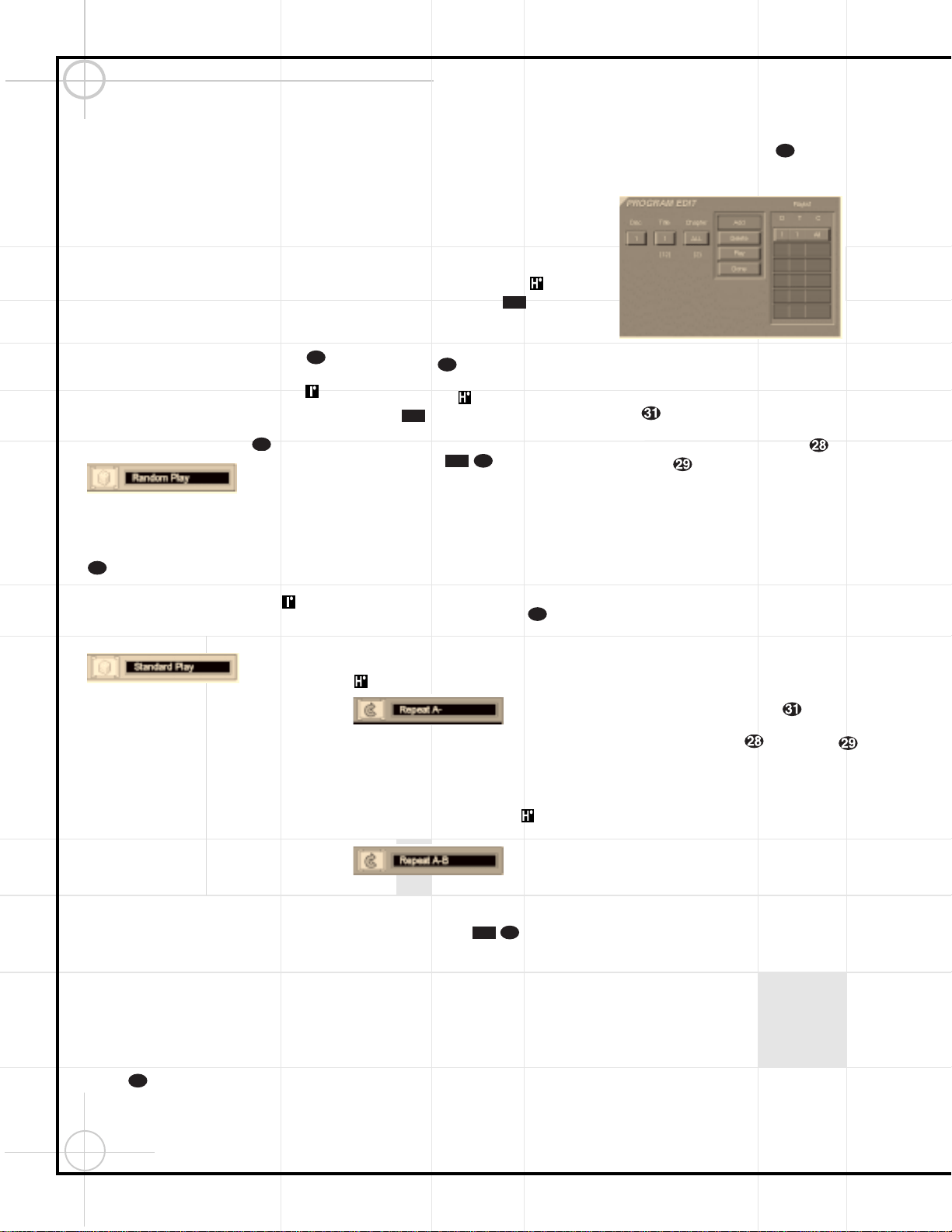
62
Operating the DVD600 Changer
Programmed Play
The DVD600 is equipped with a wide range of
programmed play functions that enable you to
have the unit select or repeat tracks for you, or
you may program a specific order for discs and
tracks to play.
Random Play
The Random Play function will play all of the
tracks on a CD or chapters on a DVD in a ran-
dom order, as selected by the DVD600. Once the
disc has played all of the tracks, it will stop.
To select Random Play at any time while a CD or
DVD is playing, press the Random Button .
The Random Play Banner (Figure 21) will appear
on the screen and the Random Indicator
will appear in order to confirm your selection.
To remove the Random Play Banner from the
screen, press the Clear Button .
Figure 21
To return to Standard Play, with tracks or chap-
ters playing in order, press the Random Button
again. Note that a Standard Play Banner
(Figure 22) will appear in order to confirm your
selection and the Random Indicator will
go out. The DVD600 may return to the disc’s
main menu.
Figure 22
Repeat Play
The DVD600 offers five repeat functions that
allow you to take advantage of the five-disc
capacity of the unit for unattended playback:
•
Repeat All: Plays all discs in the unit in order
from beginning to end.
•
Repeat 1 Disc: Plays a specific disc from start
to finish until the disc is manually stopped.
•
Repeat Title: For DVD discs only, this mode
repeats the title currently being played until
the disc is manually stopped.
•
Repeat Track/Chapter: Repeats the CD
track or DVD chapter currently being played
until the disc is manually stopped.
•
Repeat A–B: Repeats any selected portion
of a disc until the disc is manually stopped.
To select Repeat All, Repeat 1 Disc, Repeat Title
or Repeat Track/Chapter, simply press the Repeat
Button until the banner display with the
desired playback method appears on the screen.
The selection process will follow this order:
•
For DVD Discs: Repeat All (Discs) ➔ Repeat
1 (Current) Disc ➔ Repeat (Current) Title ➔
Repeat (Current) Chapter ➔ Repeat Off
•
For CD Discs: Repeat All (Discs) ➔ Repeat 1
(Current) Disc ➔ Repeat (Current) Track ➔
Repeat Off
In addition, when the video display is not
available, the Repeat Indicators will light
in the Information Display to show the
options in use.
To stop any Repeat Play function, press the
Repeat Button until the Repeat Off
Banner appears in the on-screen display or the
Repeat Indicators in the Information
Display go out.
Repeat Play may also be stopped by pressing
the Stop Button twice.
Repeat A–B
The Repeat A–B function allows you to select
any portion of a DVD or CD and have it repeat
continually unit the unit is manually stopped.
To initiate a Repeat A–B playback sequence,
follow these steps while a disc is playing:
1. Press the Repeat A–B Button at the
start of the sequence to be repeated. Note that
a Repeat A Banner (Figure 23) will appear on
the video screen and the Repeat A Indicator
will light in the Information Display.
Figure 23
2. When at the end of the sequence to be
repeated, note that the on-screen banner mes-
sage will change to Repeat A–B (Figure 24), as
will the Repeat A–B Indicator in the
Information Display.
Figure 24
3. The selected sequence will now play continually
until the Stop Button is pressed.
Programmed Play
Programmed play allows you to select any track,
title or chapter from any disc in the DVD600 for
playback in a specific order. This type of
programming is particularly useful for parties
or other situations where you want continual
playback of specific selections for a long period
of time. To program the discs in the DVD600
for playback, follow these steps:
1. Press the Program Button on the
remote. Note that the Program Edit Screen
(Figure 25) will appear on the video display.
Figure 25
2. Select the disc position for the first playback
selection by pressing the
⁄
/
¤
Buttons
y . When the desired disc number
appears in the disc’s box in white over a blue
background, press the Enter Button or
› Button to move to the next selection.
3. The second box will now be highlighted in
blue to indicate that a selection for track or title
is to be made. As the DVD600 already knows
the disc type for the position selected, the head-
ing over the box will indicate “Track” for CD
discs and “Title” for DVD discs. The number in
parentheses under the box shows the maximum
number of tracks or titles on the disc. If “99”
appears, it indicates that the disc selected has
not yet been played and the unit does not yet
know the type of disc and how many titles or
tracks are available.
4. Press the
⁄
/
¤
Buttons y to scroll
through the list of available tracks or titles.
Press the Enter Button or
› Button
to move to the next selection.
Note that most DVD movie discs use “Title 1”
for movies, while “Title 2” is used for the open-
ing logos and piracy warnings. Before selecting
a DVD title number, you may wish to preview
the disc while the on-screen Menu Bar is active
to see which title numbers refer to each portion
of the disc. This is particularly important in discs
with large amounts of special feature material.
5. The third box will now be highlighted in blue
to indicate that a selection for chapter should
be made. This choice is available only for DVD
discs, as CD discs do not have chapter capa-
bility. The number in parentheses under the box
shows the maximum number of chapters on the
disc. If “99” appears, it indicates that the disc
selected has not yet been played and the unit
does not yet know the type of disc and how
many titles or tracks are available. If “0”
appears, this is your indication that the disc
is a CD.
46
61
8D
56
61
8D
12D
55
12D
55
50
47
50
63
Operating the DVD600 Changer
Programmed Play (Continued)
6. Press the
⁄
/
¤
Buttons y to scroll
through the list of available chapters. Press the
Enter Button or
› Button to move
to the next selection area.
7. The blue highlighted box will now appear
in a column where the options are “Add,”
“Delete,” “Play” and “Done.” Since this is the
first selection to be entered, press the Enter
Button and note that the selected disc,
track, title and chapter will be added to the Play
List column over a beige highlighted area. The
blue highlight will return to the disc box to
allow you to enter additional selections by
repeating Seps 2 through 7.
8. Repeat the steps as needed, noting that the
selections will be added to the Play List up to a
maximum of 22 steps.
•
To delete an entry from the Play List, press
the
› and
⁄
/
¤
Buttons y until
the selection to be deleted is highlighted in
dark green with green numbers on the Play
List. Press the Enter Button and then
press the
¤
Button once, so that the
word Delete is highlighted. Press the Enter
Button and the selection will be deleted.
A selection may also be deleted by following
this step to highlight it in green and then
pressing the Clear Button .
•
To insert an entry into a Play List that has
already been created, press the
› and
⁄
/
¤
Buttons y until the place on the
Play List where you wish to insert a selection
is highlighted in dark green with green num-
bers. Press the Enter Button and then
press the
¤
Button once, so that the
word Insert is highlighted in blue, and
then follow Steps 2 through 7. When you
have entered the data for the selection, high-
light the word Insert in blue and press Enter.
9. When you have completed the Play List, you
may play the programmed selections by press-
ing the
› and
⁄
/
¤
Buttons y until
the word Play is highlighted in blue. Press the
Enter Button to begin playback of the
entire Play List. During Program Play, the
Program Indicator will light.
10. To exit from the programming screen, press
the Return Button .
Notes on Programmed Play
•
To stop the playback of a Programmed Play
List, press the Stop Button twice.
•
To cancel programmed Play Lists, press the
Clear Button .
•
To edit the contents of a Play List using the
Information Display only, and not
the on-screen display, follow these steps:
•
Press the Check Button .
•
Press the Check Button again to
step through each of the programmed
items. The Program Sequence Number will
appear on the far right side of the
Information Display , next to the
PR indication.
•
Use the ‹
/
› Buttons ` to select
the disc, track or chapter to be edited.
•
Use the
⁄
/
¤
Buttons y to
change the selection.
•
Press the Clear Button to remove a
program step.
•
When all steps have been programmed,
press the Play Button to begin pro-
grammed play, or the Return Button
to exit the programming function and
return to normal operation.
Bookmarks
Bookmarks are a feature of the DVD600 that
allows you to mark up to nine different points
on a disc and to quickly return to those points
later. The Bookmarks feature works on both
DVD and CD discs.
To Enter a Bookmark,
Follow These Steps:
1. During disc playback, press the Status
Button e if the Menu Bar is not already on
the screen.
2. Press the
‹
/
› Buttons ` until the
disc icon with the word “Mark” below it is high-
lighted in white between yellow brackets.
3. Press the Enter Button to view the
Bookmark Banner.
4. At any point during playback where you wish
to mark a spot so that you may return to it later,
press the Enter Button . Note that a check
mark “✔” will appear in the box on both the
“Go To” and “Mark” lines.
5. To enter additional Bookmark points, press
the
‹
/
› Buttons ` until another empty
box on the Mark line is highlighted in black.
Press the Enter Button .
6. Repeat Steps 4 and 5 for up to nine Bookmark
points on a disc.
7. To exit the Bookmark Banner, press the
‹
/
›
Buttons ` until the box at the right side
of the banner is highlighted with a yellow out-
line and the arrow and open door icons turn
from white to green. Press the Enter Button
to return to normal play. Press the Clear
Button to remove the Bookmark menu bar
from the on-screen display.
The marked spots will remain in the DVD600’s
memory as long as the disc is not changed. The
Bookmark memory will remain active if the disc
is stopped or the unit turned off, but it will be
lost if the disc is removed from the player, or if
the disc tray drawer is opened when the unit is
the Stop mode.
To Recall a Bookmarked Scene or
Passage, Follow These Steps:
Note that a check mark “✔” will appear in the
box on both the “Go To” and “Mark” lines.
1. During disc playback, press the Status
Button e if the Menu Bar is not already on
the screen.
2. Press the ‹
/
› Buttons ` until the
disc icon with the word “Mark” below it is high-
lighted in white between yellow brackets.
3. Press the Enter Button to view the
Bookmark banner.
4. Press the
⁄
Button y so that a box on
the top “Go To” line of the banner is highlighted
in black with a yellow outline.
5. Press the ‹
/
› Buttons ` so that the
box below the number of the desired
Bookmarked spot is highlighted.
6. Press the Enter Button to go directly to
the selected point on the disc
7. To exit the Bookmark Banner, press the ‹
/
›
Buttons ` until the box at the right side
of the banner is highlighted with a yellow out-
line and the arrow and open door icons turn
from white to green. Press the Enter Button
to return to normal play. Press the Clear
Button to remove the Bookmark menu bar
from the on-screen display.
47
47
58
47
12D
53
53
12D
47
61
47
64
Operating the DVD600 Changer
Language Codes
The availability of specific languages for the main audio track or subtitles is dependent on the choices made by a disc’s producer. You should always
consult the disc’s jacket for information on languages for any disc. In the case of some languages, you may be required to enter a code from the list
below to access that language. See pages 47 and 48 for more information on entering language codes.
Language Code
Abkhazian 6566
Afar 6565
Afrikaans 6570
Albanian 8381
Ameharic 6577
Arabic 6582
Armenian 7289
Assamese 6583
Aymara 6588
Azerbaijani 6590
Bashkir 6665
Basque 6985
Bengali; Bangla 6678
Bhutani 6890
Bihari 6672
Bislama 6673
Breton 6682
Bulgarian 6671
Burmese 7789
Byelorussian 6669
Cambodian 7577
Catalan 6765
Chinese 9072
Corsican 6779
Croatian 7282
Czech 6783
Danish 6865
Dutch 7876
English 6978
Esperanto 6979
Estonian 6984
Faroese 7079
Fiji 7074
Finnish 7073
French 7082
Frisian 7089
Galician 7176
Georgian 7565
German 6869
Greek 6976
Greenlandic 7576
Guarani 7178
Gujarati 7185
Hausa 7265
Hebrew 7387
Hindi 7273
Language Code
Hungarian 7285
Icelandic 7383
Indonesian 7378
Interlingua 7365
Interlingue 7369
Iunpiak 7375
Irish 7165
Italian 7384
Japanese 7465
Javanese 7487
Kannada 7578
Kashmiri 7583
Kazakh 7575
Kinyarwanda 8287
Kirghiz 7589
Kirundi 8278
Korean 7579
Kurdish 7585
Laothian 7679
Latin 7665
Latvian, Lettish 7686
Lingala 7678
Lithuanian 7684
Macedonian 7775
Malagsy 7771
Malay 7783
Malayalam 7776
Maltese 7784
Maori 7773
Marathi 7782
Moldavian 7779
Mongolian 7778
Naru 7865
Nepali 7869
Norwegian 7879
Occitan 7967
Oriya 7982
Oromo (Afan) 7977
Panjabi 8065
Pashto, Pushto 8083
Persian 7065
Polish 8076
Portuguese 8084
Quechua 8185
Rhaero-Romance 8277
Romanian 8279
Language Code
Russian 8285
Samoan 8377
Sangho 8371
Sanskrit 8365
Scots Gaelic 7168
Serbian 8382
Servo-Groatian 8372
Sesotho 8384
Setswana 8478
Shona 8378
Sindhi 8368
Singhalese 8373
Siswati 8383
Slovak 8375
Slovenian 8376
Somali 8379
Spanish 6983
Sundanese 8385
Swahili 8387
Swedish 8386
Tagalog 8476
Tajik 8471
Tamil 8465
Tatar 8484
Telugu 8469
Thai 8472
Tibetan 6679
Tigrinya 8473
Tonga 8479
Tsonga 8483
Turkish 8482
Turkmen 8475
Twi 8487
Ukrainian 8575
Urdu 8582
Uzbek 8590
Vietnamese 8673
Volapuk 8679
Welsh 6789
Wolof 8779
Xhosa 8872
Yiddish 7473
Yoruba 8979
Zulu 9085
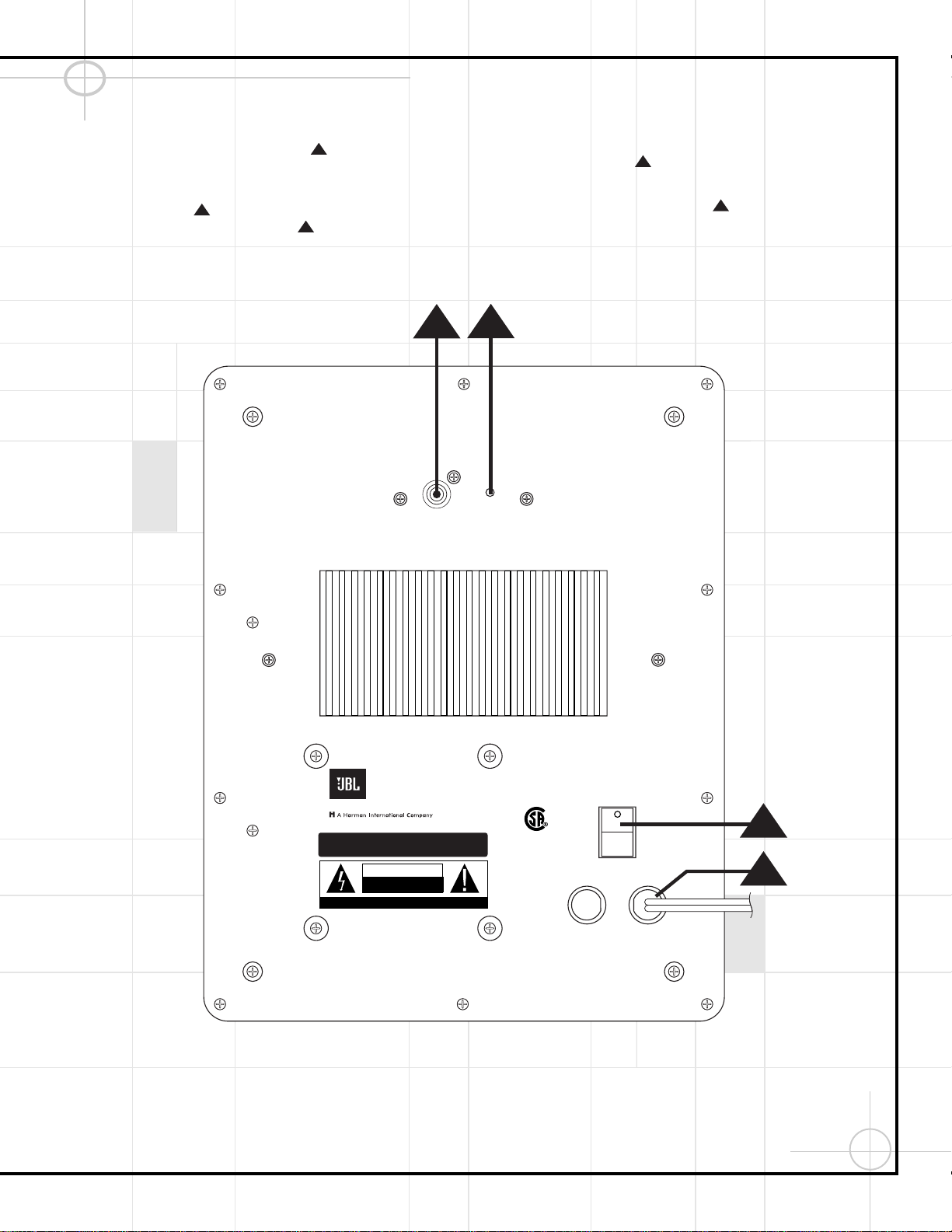
65
OPERATING THE SCS135S
Move the Master Power switch (marked “Power” ) to the “
•
” (On) position to
use the subwoofer. The SCS135S subwoofer will automatically turn itself on or go
into Standby (sleep) mode. When your receiver or amplifier is off, or is not sending
program material to the subwoofer, the subwoofer will be in Standby mode, which
is indicated by the LED
turning red. When the subwoofer senses an audio signal,
it will automatically turn itself on, and the LED will turn green. If the subwoofer
does not sense a signal after
approximately twenty minutes,
it will automatically go
into Standby mode, and the LED will revert to red.
If you will be away from home for an extended period of time, or if the subwoofer
will not be used, switch the Master Power switch to the Off position.
3
2
2
2
3
LFE
GREEN: ON
RED: STAND-BY
SUB135S
CAUTION
RISK OF ELECTRIC SHOCK
DO NOT OPEN
"WARNING: TO REDUCE THE RISK OF FIRE OR ELECTRIC SHOCK,
DO NOT EXPOSE THIS APPLIANCE TO RAIN OR MOISTURE."
"AVERTISSEMENT:
POUR PR VENIR LES RISQUES D’INCENDIE OU
DE CHOC LECTRIQUE, VITER D’EXPOSER CET APPAREIL A LA
PLUIE OU A L’HUMIDIT . "
"WARNING: FOR CONTINUED
PROTECTION AGAINST RISK
OR FIRE, REPLACE ONLY WITH
SAME TYPE 2.5A, 250 VOLT
"AVERTISSEMENT:
UTILISEZ UN
FUSIBLE DE RECHANGE DE MEME
TYPE 2.5A, 250V"
NRTL/C
CSA 22-2 No.1
UL 1492
AVIS: RISQUE DE CHOC ELECTRIQUE-NE PAS OUVRIR
POWER
FUSE
2.5A/250V
TYPE T
AC 120V
~
60Hz
200 Watts
This area is designed to become quite warm
during normal operation
JBL, Incorporated
1 2
3
4
66
TROUBLESHOOTING
Processor Reset
In the rare case where the DCR600’s operation
or the displays seem abnormal, the cause may
involve the erratic operation of the system’s
memory or microprocessor.
To correct this problem, first unplug the unit
from the AC wall outlet and wait at least three
minutes. After the pause, reconnect the AC
power cord and check the unit’s operation. If the
system still malfunctions, a system reset may
clear the problem.
To clear the DCR600’s entire system memory
including tuner presets, output level settings,
delay times and speaker configuration data, first
put the unit in Standby by pressing the System
Power Control Button 2. Next, press and
hold the Tone Mode 6 and the FM Mode
Selector @ buttons for three seconds.
The unit will turn on automatically and display
the RESET message in the Main
Information Display W. Note that once you
have cleared the memory in this manner, it is
necessary to reestablish all system configuration
settings and tuner presets.
NOTE: Resetting the processor will erase any
configuration settings you have made for speak-
ers, output levels, surround modes and digital
input assignments, as well as the tuner presets.
After a reset, the unit will be returned to the
factory presets, and all settings for these items
must be reentered.
If the system is still operating incorrectly, there
may have been an electronic discharge or
severe AC line interference that has corrupted
the memory or microprocessor.
If these steps do not solve the problem, consult
an authorized JBL service center.
In the event that you forget the password for
the DVD600, you may reset it to the factory
default by following this procedure: In Standby
mode, press the Search Back and Skip
Forward buttons on the front panel
simultaneously for more than 3 seconds. The
Information Display W will light, and a test
pattern will appear on your TV. Press Power On
b to proceed.
7D
5D
SYMPTOM PROBABLE CAUSE SOLUTION
DCR600 does not function when Main • No AC Power • Make certain AC power cord is plugged into
Power Switch is pushed a live outlet.
• Check to see whether outlet is switch-controlled.
DVD600 does not turn on • Main Power Switch turned off • Press in Main Power Switch.
• No AC power • Check AC power plug and make certain any switched
outlet is turned on.
Display lights, but no sound • Intermittent input connections • Make certain that all input and speaker connections
are secure.
• Mute is on • Press Mute button.
• Volume control is down • Turn up volume control.
Unit turns on, but front panel • Display brightness is turned off • Follow the instructions in the Display Brightness section
display does not light up so that the display is set to VFD FULL.
No sound from any speaker; • Amplifier is in Protection mode • Check speaker wire connections for shorts at receiver and
light around power switch is red due to possible short speaker ends.
• Amplifier is in Protection mode • Contact your local JBL service center.
due to internal problems
No sound from any speaker • No audio signal is being transmitted • Check that DCR600 is on and a source is playing.
to the speakers • Check all wires and connections between the DCR600
and speakers. Make sure all wires are connected. Make sure
none of the speaker wires are frayed, cut or punctured.
• Review proper operation of the DCR600.
• If in DVD mode, make sure that • Check Input assignment for DVD Input. DVD Input should be
analog input is not accidentally assigned set to COAX 1 and the DVD600 Digital Output should be
connected to Coaxial 1 Digital Input yon the DCR600.
• Intermittent connections • Check all audio connections.
• Incorrect digital audio selection • Check digital audio settings.
• DVD disc is in Fast or Slow mode • There is no audio playback on DVD discs during
Fast or Slow modes.
67
Troubleshooting(Continued)
No sound from one speaker • Balance is not at ”12 o’clock” • Check the Balance control on the DCR600.
• No audio signal is being transmitted • Check all wires and connections between the DCR600 and
to the speakers speakers. Make sure all wires are connected. Make sure
none of the speaker wires are frayed, cut or punctured.
• In Dolby Digital or DTS modes, make sure that the DCR600
is configured so that the speaker in question is enabled.
No sound from surround or • Incorrect surround mode • Select a mode other than Stereo.
center speakers • Make sure the movie or TV show you are watching is
recorded in a surround-sound mode. If it is not, try using
another surround mode.
• Input is monaural • There is no surround information from mono sources.
• Stereo or Mono program material • The surround decoder may not create center- or rear-channel
information from nonencoded programs.
• Review the operation of your DVD player and the jacket
of your DVD to make sure that the DVD features the desired
Dolby Digital or DTS mode, and that you have properly
selected that mode using both the DVD player’s menu and
the DVD disc’s menu.
• No audio signal is being transmitted • Check all wires and connections between the DCR600 and
to the speaker speaker. Make sure all wires are connected. Make sure
none of the speaker wires are frayed, cut or punctured.
• Incorrect configuration • If the DCR600 is set in Dolby Pro Logic mode, make sure
the center speaker is not in Phantom mode.
• If the DCR600 is set in Dolby Digital or DTS mode, make
sure it is configured so that the center speaker is enabled.
• In Dolby Digital or DTS modes, make sure the DCR600 is
configured so that the surround speakers are enabled.
• Check all wires and connections between the DCR600 and
speakers. Make sure all wires are connected. Make sure
none of the speaker wires are frayed, cut or punctured.
System plays at low volume but • Speaker impedances are dropping too • Check all wires and connections between the DCR600 and
shuts off as volume is increased low for receiver to handle speakers. Make sure all wires are connected. Make sure
none of the speaker wires are frayed, cut or punctured.
• Do not use more than one pair of main speakers.
Low (or no) bass output • Speakers are connected out of phase • Make sure the connections to the left and right
Speaker Inputs have the correct polarity (+ and –).
• Subwoofer not activated • Make sure the subwoofer is plugged into an
active electrical outlet and turned on.
• Subwoofer output of DCR600 not enabled • In Dolby Digital or DTS modes, make sure the DCR600 is
configured so that the subwoofer and LFE output is enabled.
Unit does not respond to • Weak batteries in remote • Change remote batteries.
remote commands • Wrong device selected • Press the Main h or DVD d selector.
• Remote sensor is obscured • Make certain front panel sensor is visible to remote
or connect remote sensor.
Intermittent buzzing in tuner • Local interference • Move unit or antenna away from computers, fluorescent
lights, motors or other electrical appliances.
Letters flash in the channel indicator • Digital audio feed paused • Resume play for DVD.
display and digital audio stops • Check that Digital Input is selected.
68
Troubleshooting(Continued)
Disc does not play • Disc loaded improperly • Load disc label-side up.
• Incorrect disc type • Check to see that disc is CD, CD-RW, DVD-Movie or Video CD;
other types will not play.
• Invalid Region Code • Use Region 1 disc only.
• Rating is above parental preset • Enter password to override or change rating settings.
No picture • Intermittent connections • Check all video connections.
• Wrong Input • Check input selection of TV or DCR600.
Picture is distorted or jumps during • MPEG-2 decoding • It is a normal artifact of DVD playback for pictures
Fast Forward or Reverse Play to jump or show some distortion during rapid play.
Some remote buttons do not operate • Function not available for this disc • Some discs do not include all DVD features.
during DVD play
The menu is in a foreign language • Incorrect menu language • Change menu language selection.
“X” symbol appears • Requested function not available at • Certain functions may be disabled during passages
this time of a disc.
Picture is displayed in the • Incorrect match of aspect ratio settings • Change Aspect Ratio settings.
wrong aspect ratio to disc
Disc will not copy to VCR • Macrovision protection • Most DVDs are encoded with Macrovision
to prevent copying to VCR.
69
TECHNICAL SPECIFICATIONS
DCR600
Audio Section
Two-Channel Stereo Mode
75W per channel continuous RMS power into 8 ohms
at 0.08% THD, 100Hz to 20kHz
(frequencies below 100Hz are handled by
SCS135S powered subwoofer)
Five-Channel Cinema Mode
100W per channel dynamic RMS power
into 8 ohms at 0.08% THD,
100Hz to 20kHz (frequencies below 100Hz
are handled by SCS135S powered subwoofer)
Input Sensitivity/Impedance
200mV/47k ohms
Signal-to-Noise Ratio 95dBA
Surround System Adjacent Channel Separation
Analog Decoding 40dB
Dolby Digital 55dB
DTS 55dB
Frequency Response
10Hz–100kHz (+0, –3dB)
FM Tuner Section
Frequency Range 87.5–108MHz
Usable Sensitivity 1.3µV/13.2dBf
Signal-to-Noise Ratio 70dB (mono)
68dB (stereo)
Distortion 0.2% (mono)
0.3% (stereo)
Stereo Separation 40dB @ 1kHz
Selectivity ±400kHz, 70dB
Image Rejection 80dB
IF Rejection 90dB
Tuner Output Level 500mV at 1kHz,
±75kHz Deviation
AM Tuner Section
Frequency Range 520–1710kHz
Signal-to-Noise Ratio 45dB
Usable Sensitivity 500µV (loop)
Distortion 0.8% (1kHz, 50% Modulation)
Selectivity 30dB at ±10kHz
Video Section
Format NTSC
Input Level/Impedance 1Vp-p/75 ohms
Output Level/Impedance 1Vp-p/75 ohms
Video Frequency
Response 10Hz to 8MHz (–3dB)
General
Unit Power Consumption 72W idle, 580W maximum
Unit Dimensions
Width 17.3 inches (440mm)
Height 6.5 inches (165mm)
Depth 17.1 inches (435mm)
Unit Weight 31 lb (14.1kg)
Depth measurement includes knobs, buttons and terminal connections.
Height measurement includes feet and chassis.
All features and specifications are subject to change without notice.
*Manufactured under license from Dolby Laboratories. “Dolby,” “Pro Logic,” “AC-3” and the Double-D symbol are trademarks
of Dolby Laboratories. Confidential Unpublished Works. ©1992–1999 Dolby Laboratories, Inc. All rights reserved.
DTS and DTS Surround are registered trademarks of Digital Theater Systems, Inc.
UltraStereo is a trademark of UltraStereo Corp.
VMAx is a registered trademark of Harman International Industries, Inc., and is an implementation of
Cooper Bauck Transaural Stereo under patent license.
Logic 7 is a registered trademark of Lexicon, Inc., a Harman International Company.
Crystal is a registered trademark of Cirrus Logic Corp.
70
TECHNICAL SPECIFICATIONS
DVD600
Playback Media: 5-inch (12cm) or 3-inch (8cm)
DVD-Video: Region 1, single or dual sides/layers, linear PCM,
Dolby Digital, or DTS
CD, CD-RW: Linear PCM Audio
Video CD (VCD): MPEG-1 Video, Linear PCM Audio
Video Section:
Signal format: NTSC
Composite Output: 1V p-p/75 ohms, sync, negative polarity
S Output: Y/Luminance: 1V p-p/75 ohms, sync, negative polarity
C/Chrominance: 0.286V p-p
Component Outputs: Y: 1V p-p/75 ohms, sync, negative polarity
Pr: 0.648V p-p/75 ohms
Pb: 0.648V p-p/75 ohms
Audio Section:
Coaxial Digital Output: 0.5V p-p/75 ohms
Frequency Response: 2Hz to 22kHz, +/– 0.5dB (44.1kHz sampling rate)
Dynamic Range: DVD: 105dB (20-bit)
CD: 100dB
Channel Separation: 90dB
THD: 0.0035%
Signal-to-Noise Ratio: 100 dB
Wow and Flutter: below measurable limits
General:
Unit Power Consumption: 25W
Unit Dimensions: Width: 17.3 inches (440mm)
Height: 5.1 inches (130mm)
Depth: 16.9 inches (420mm)
Unit Weight: 14.4 lb (7.6kg)
Depth measurement includes knobs and buttons.
Height measurement includes feet and chassis.
All features and specifications are subject to change without notice.
This product incorporates copyright protection technology that is protected by method claims of certain U.S. patents and
other intellectual property rights owned by Macrovision Corporation and other rights owners. Use of this copyright protection
technology must be authorized by Macrovision Corporation and is intended for home and other limited viewing uses only,
unless otherwise authorized by Macrovision Corporation. Reverse engineering or disassembly is prohibited.
71
TECHNICAL SPECIFICATIONS
SCS135S
All features and specifications are subject to change without notice.
Overall Frequency Response: 35Hz – 20kHz (–6dB)
Satellites
Configuration: 2-Way, video-shielded
Recommended Amplification: Use with DCR600 only
Impedance: 8 Ohms nominal
Sensitivity: 86dB @ 1 watt/1 meter
Tweeter: One 1/2"titanium-laminate dome
Midrange: One 3" cone
Unit Dimensions:
Width: 3.19 inches (81mm)
Height: 4.38 inches (111mm)
Depth: 3.75 inches (95mm)
Unit Weight: 1.1 lb/0.5kg
Center
Configuration: 2-Way, video-shielded
Recommended Amplification: Use with DCR600 only
Impedance: 8 Ohms nominal
Sensitivity: 86dB @ 1 watt/1 meter
Tweeter: One 1/2"titanium-laminate dome
Midranges: Dual 3" cones
Unit Dimensions:
Width: 7.63 inches (194mm)
Height: 3.25 inches (83mm)
Depth: 3.75 inches (95mm)
Unit Weight: 1.89 lb/0.86kg
Subwoofer
Configuration: Floor-firing, bass-reflex ported enclosure
Woofer: 8" cone
Amplifier Power output: 100W Continuous RMS power
at 0.8% THD, 20Hz to 100Hz
LFE Input Voltage/Impedance: 2V p-p/47k ohms
Unit Dimensions: Width: 13 inches (330mm)
Height: 15 inches (381mm)
Depth: 14 inches (356mm)
Unit Weight: 30 lb/13.6kg