QUADRO
RTX
™
QUICK START GUIDE


Thank you for choosing an NVIDIA
®
Quadro
RTX
™
graphics card. Before you begin set-up,
review the following Minimum System
Requirements list to ensure your system
meets the minimum hardware and software
specification for your graphics card.
EN
01
MINIMUM SYSTEM
REQUIREMENTS

Minimum System Requirements
> Motherboard
PCI Express x16 slot
> Operating System
∙ Microsoft Windows 10, 8, 7 (64-bit)
∙ Linux 64-bit on:
- Red Hat Enterprise Linux 6.x
- SUSE Linux Enterprise Desktop 12.x
- OpenSUSE 11.x
- Fedora 19
- Ubuntu 16.04
∙ FreeBSD 11.x
∙ Solaris 11
> Processor
∙ Intel Core i5, i7 or Xeon processor or later
∙ AMD Phenom or Opteron class processor
or later

> System Memory
Greater than or equal to GPU memory; twice the
GPU memory recommended
> Internet connection for driver installation
EN

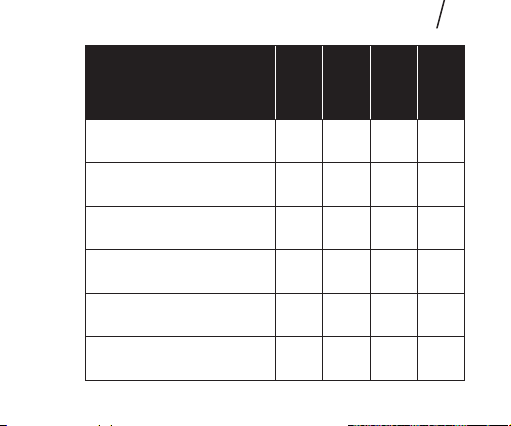
Included equipment with each NVIDIA Quadro RTX
graphics card.
02
EQUIPMENT
EQUIPMENT
RTX 8000
RTX 6000
RTX 5000
RTX 4000
Quick Start Guide Yes Yes Yes Yes
Support Guide Yes Yes Yes Yes
DisplayPort to DVI Adapter 1 1 1 1
DisplayPort to HDMI Adapter 1 1 1 1
USB-C to DisplayPort Adapter N/A N/A N/A 1
Auxiliary Power Cable
(8-pin to dual 6-pin Adapter)
1 1 1 N/A
EN
02
EQUIPMENT

!
Attention: Static electricity can severely
damage electronic components. Take the
following precautions when installing your new
NVIDIA Quadro graphics card:
> Before touching any electronic parts,
discharge the static electricity from your
body by touching the internal metal frame of
your system while it is unplugged.
> Do not remove your card from the packaging
clamshell until you are ready to install it.
Whenever you remove a card from your
system, always place it back in the clamshell.
> Do not allow clothing or jewelry touch any
electronic parts.
> When handling your graphics card, hold it by
the edges and avoid touching any circuitry or
the PCIe connector.
1 Remove the current graphics driver installed on
the host system.
2 Power down your system.
3 Unplug the power cord from the AC power source.
4 Remove the side panel from your system to gain
access to the motherboard.
Note: Reference your specific computer
documents for instructions on accessing
the motherboard in your computer.
EN
03
HARDWARE
INSTALLATION
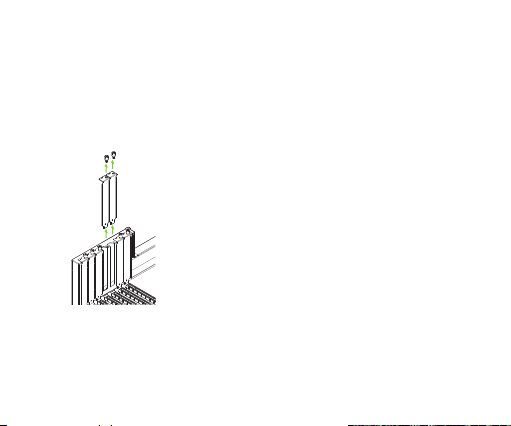
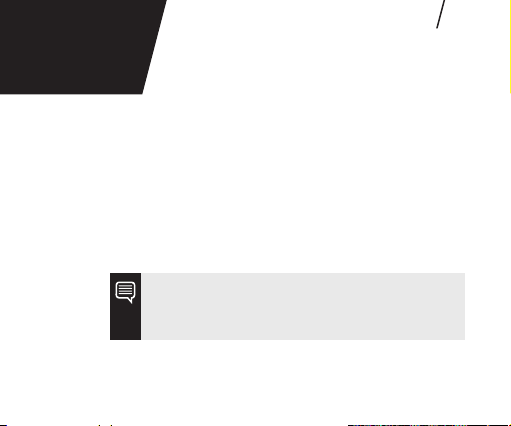
5 Remove the existing graphics card if present. If a
retention bar is holding the card in place, remove
the screw securing the card. OR, If there is no
existing graphics card, remove the access covers
from the primary x16 PCI slot.
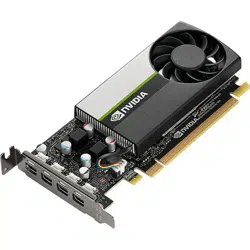
The Quadro RTX 4000 is a single slot
GPU and will only require removing
one PCI x16 slot cover. The Quadro
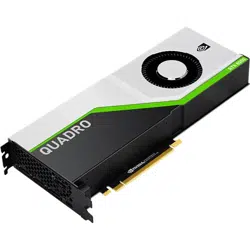
RTX 8000, RTX 6000, and RTX 5000
are dual-slot GPUs and will require
removing two adjacent slot covers.
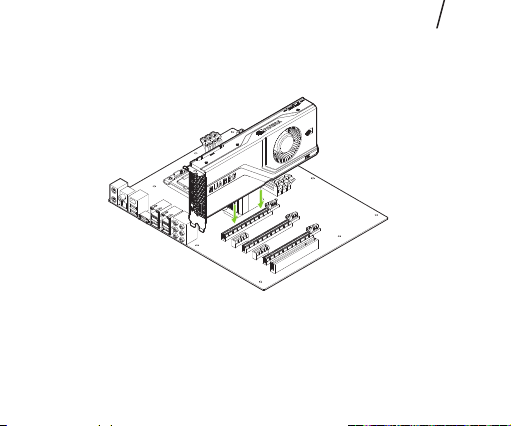
6 Install the card into the primary x16 PCI slot.
Press gently on the card until it is seated securely
in the slot.
Install the graphics card into the primary x16 PCI slot.
The Quadro RTX 8000, RTX 6000, and RTX 5000 are
dual-slot GPUs and will cover the adjacent slot.
EN
7 Secure the card to the system frame using the
screw(s) removed in step 5.
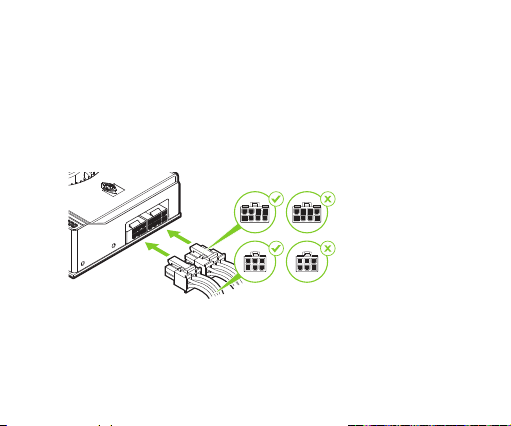
8 Connect the auxiliary power cable from the power
supply to the back edge of the Quadro RTX 8000,
Quadro RTX 6000, Quadro RTX 5000 or Quadro
RTX 4000 GPU.
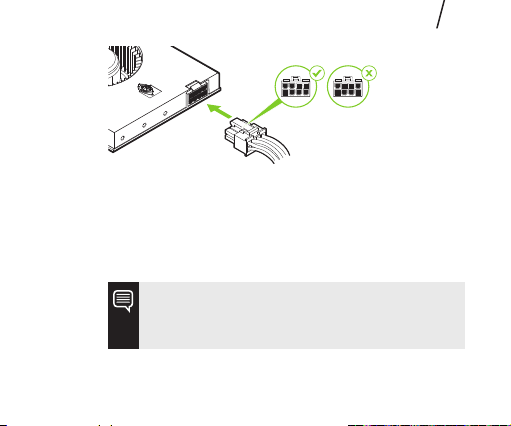
For Quadro RTX 8000, RTX 6000, and RTX 5000, use the
8-pin to dual 6-pin auxiliary cable if the power supply
does not have a 6-pin auxiliary cable. Connecting a
single 8-pin or 6-pin auxiliary cable directly to the
graphics card is not recommended.
Note: Use the recommended power
connector guidelines at www.nvidia.com/
quadropowerguidelines.
9 Install the side panel removed in step 4.
EN
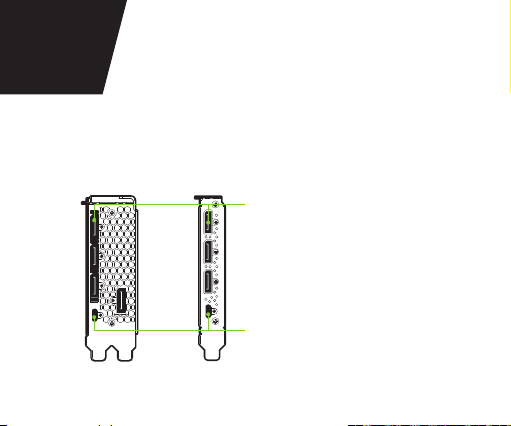
1 Connect the display cable(s) to your GPU.
2 Reconnect your power cord to the workstation.
DisplayPort Connectors
RTX 8000/6000/5000 (x4)
RTX 4000 (x3)
USB type-C
™
Connector
RTX 8000/
6000/5000
RTX 4000
04
CONNECTING TO
THE DISPLAY
Driver Installation: With the hardware installed, it is
now time to install the graphics driver.
1 Power up your computer, start Windows or Linux,
and login with an account that has Administrator
rights.
Note: Since there is no GPU driver
currently loaded, the display may run at
reduced resolution or image quality.
2 Download and install the driver.
∙ Go to www.nvidia.com/drivers and set the
“Product Type” to Quadro.
EN
05
SOFTWARE INSTALLATION
AND CONFIGURATION

∙ Use the various drop down menus to select
your graphics card, operating system and then
set the “Download Type” to Optimal Driver for
Enterprise (ODE).
∙ Launch the downloaded executable file,
then follow the installer guides to complete
installation.
The installer may require you to reboot your
system once the driver installation is complete.
Congratulations! Your NVIDIA Quadro
graphics card is now ready to use!