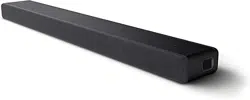

Help Guide
Sound Bar
HT-A3000
Use this Help Guide when you have any questions on how to use the speaker system.
Getting Started
About Manuals of the Speaker System
What You Can Do with the Speaker System
Guide to Parts and Controls
Bar Speaker
Remote Control
Using the Home Menu
Setting Up
Installing the Speaker System
Installing the Bar Speaker
Mounting the Bar Speaker on a Wall
Connecting to a TV
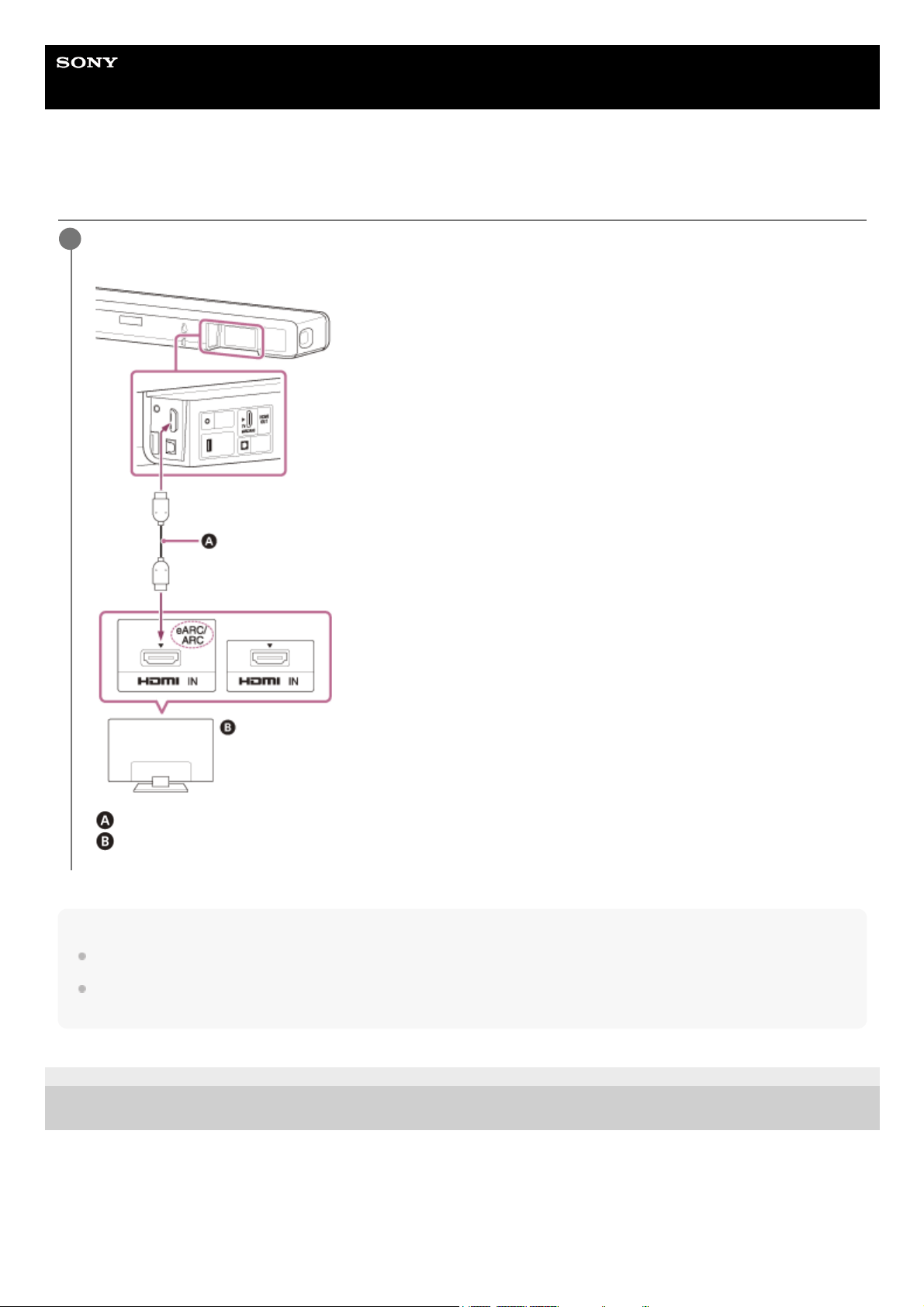
Connecting a TV Compatible with ARC/eARC
1
Connecting a TV That Is not Compatible with ARC/eARC
When Your TV Has the S-CENTER SPEAKER IN Jack
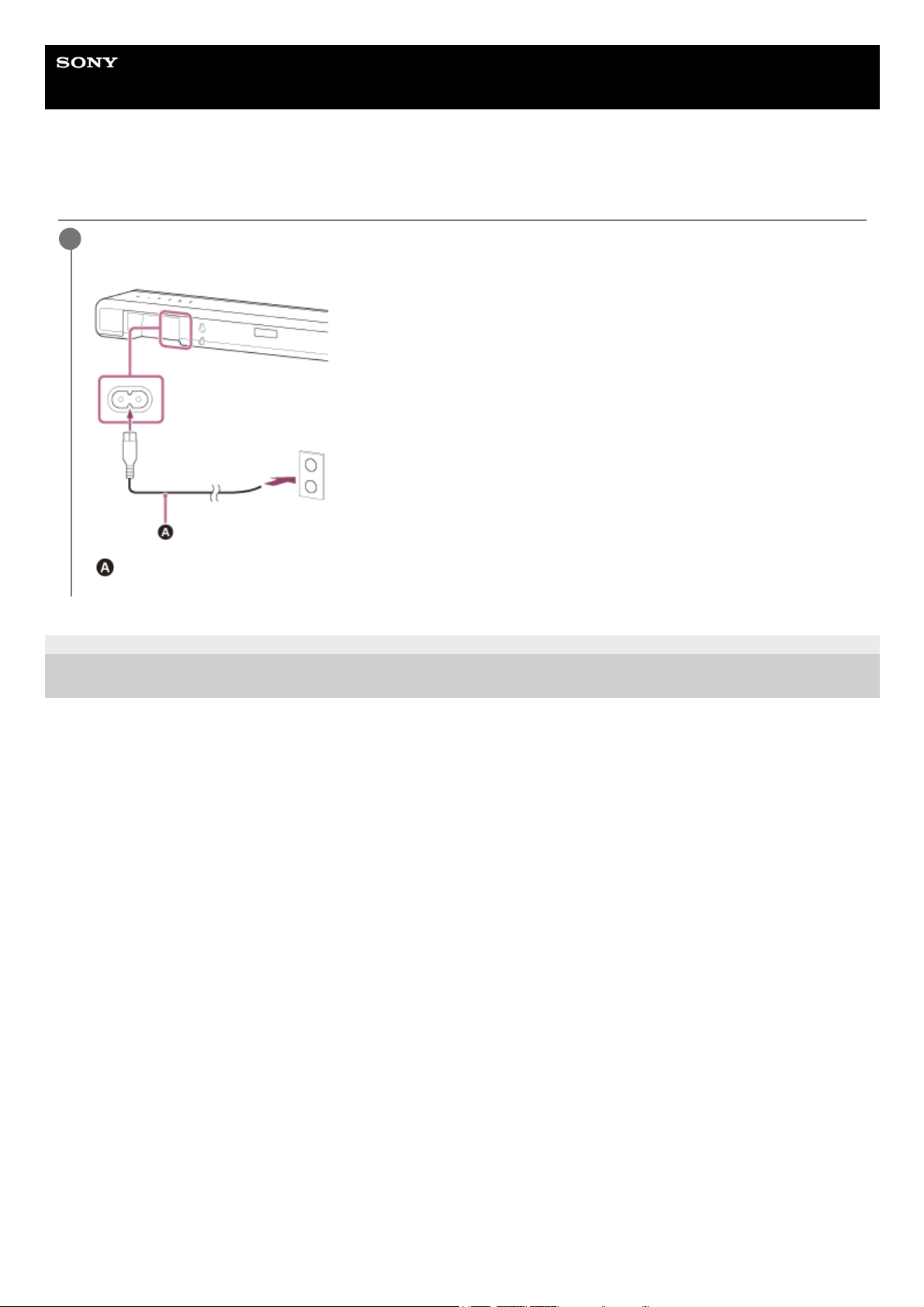
Connecting to the AC Outlet (mains)
Performing Initial Settings
Connecting the Optional Speaker
Connecting the Optional Speaker with the Manual Connection
If Wireless Transmission Is Unstable
When the TV Remote Control Does not Work
Watching Images
Watching TV
Listening to Music/Sound
Listening to Sony TV Sound with the BLUETOOTH® Function
What You Can Do by Connecting a TV with the BLUETOOTH® Function
Listening to TV Sound by Connecting the Speaker System and TV Wirelessly
Listening to Sound of the Paired TV
Listening to Music/Sound with the BLUETOOTH® Function
Listening to Music by Pairing the Mobile Device That Is Connected for the First Time
Listening to Music from the Paired Device
Listening to Music on a USB Device
Listening to Sound of the Connected TV or Device Using Headphones
Listening to Sound by Pairing with Headphones
Listening to Sound with Paired Headphones
About the Connection of the Headphones
Listening to Music by Connecting to a Network
What You Can Do by Connecting the Speaker System to a Network
Notes on Connecting to the Internet
Connecting to a Wireless Network
Setting Up a Wireless Network Connection on the Home Menu
Setting Up a Wireless Network Connection Using Sony | Music Center
2
Setting Up a Wi-Fi Connection Using an iOS Device
Playing music from Amazon Music
Prerequisite: Making the Initial Settings for Alexa with Sony | Music Center
Audio Formats Available for Playback by Audio Casting Protocol
Playing Music with the Amazon Music App
Operating the Speaker System by Talking to an Alexa Built-in Device
Playing Music with the TIDAL App
Playing Music from Other Streaming Services
Prerequisite: Making the Initial Settings for Chromecast built-in
Playing Music with Apps Compatible with Other Streaming Services
Using Spotify
Using AirPlay
Using Sony | Music Center
Listening to Music on Your PC via a Home Network
Adjusting the Volume and Sound Quality
Adjusting the Volume
Enjoying Surround Effect (SOUND FIELD)
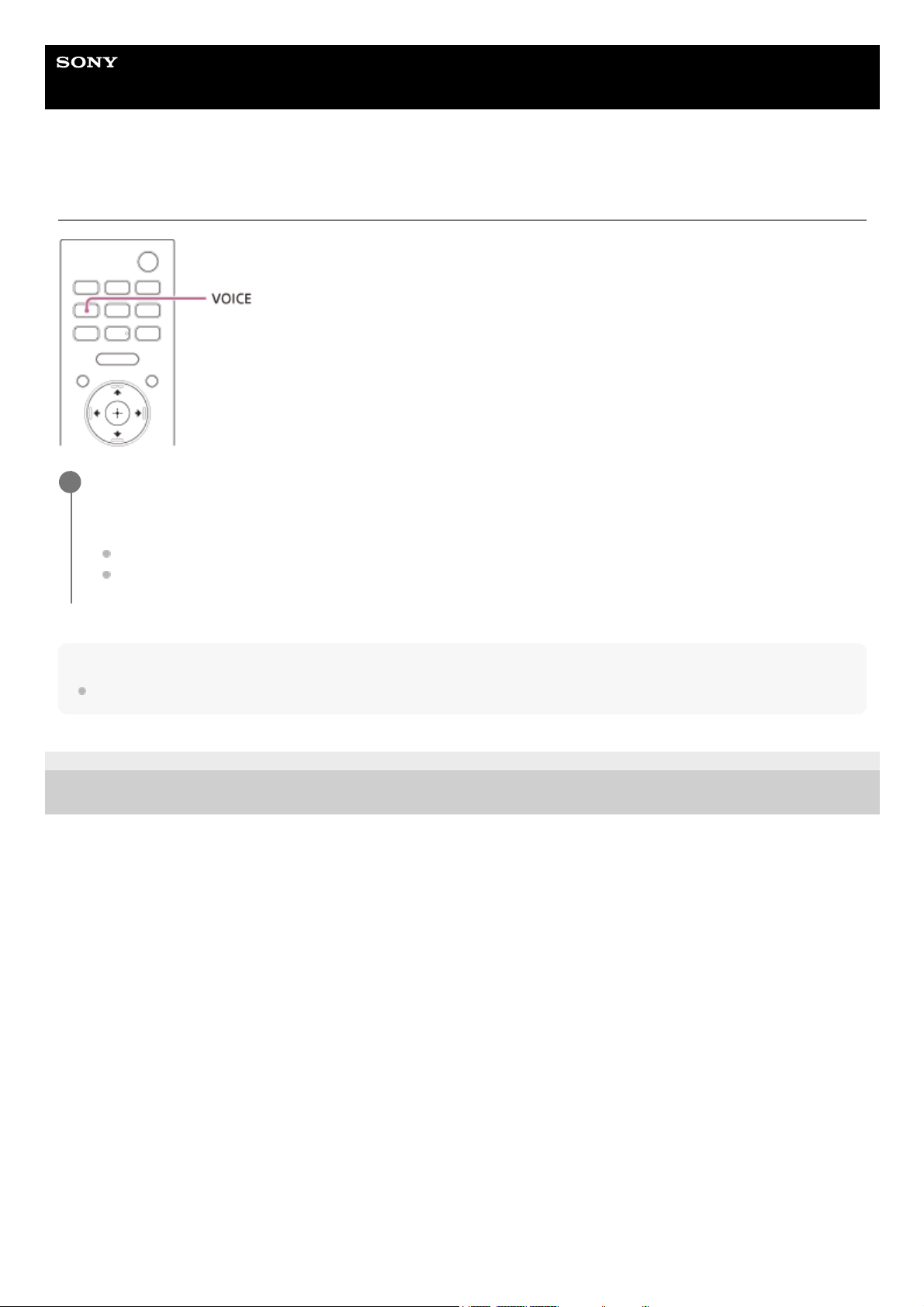
Making Dialogs Clearer (VOICE)
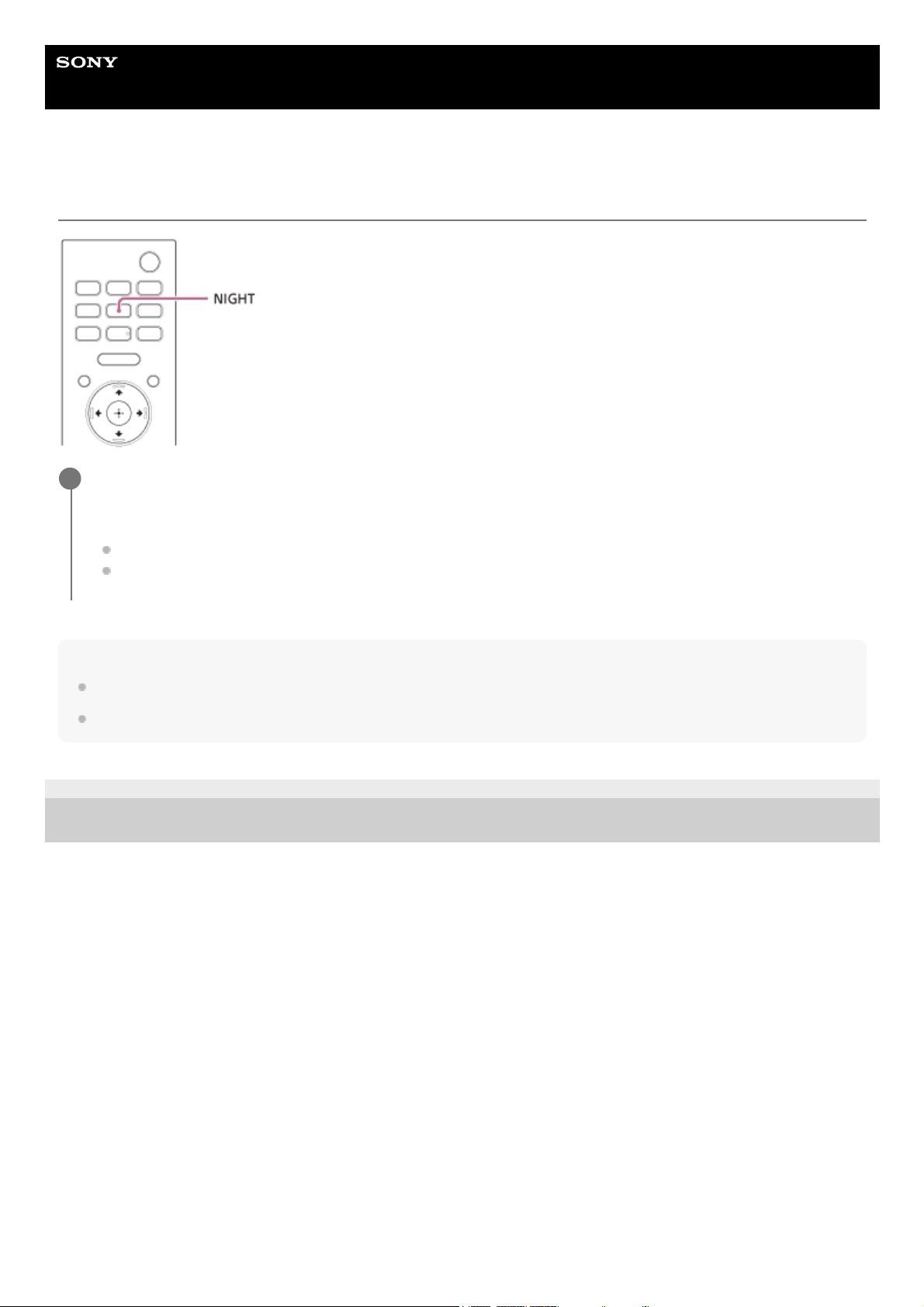
Enjoying Clear Sound with Low Volume at Midnight (NIGHT)
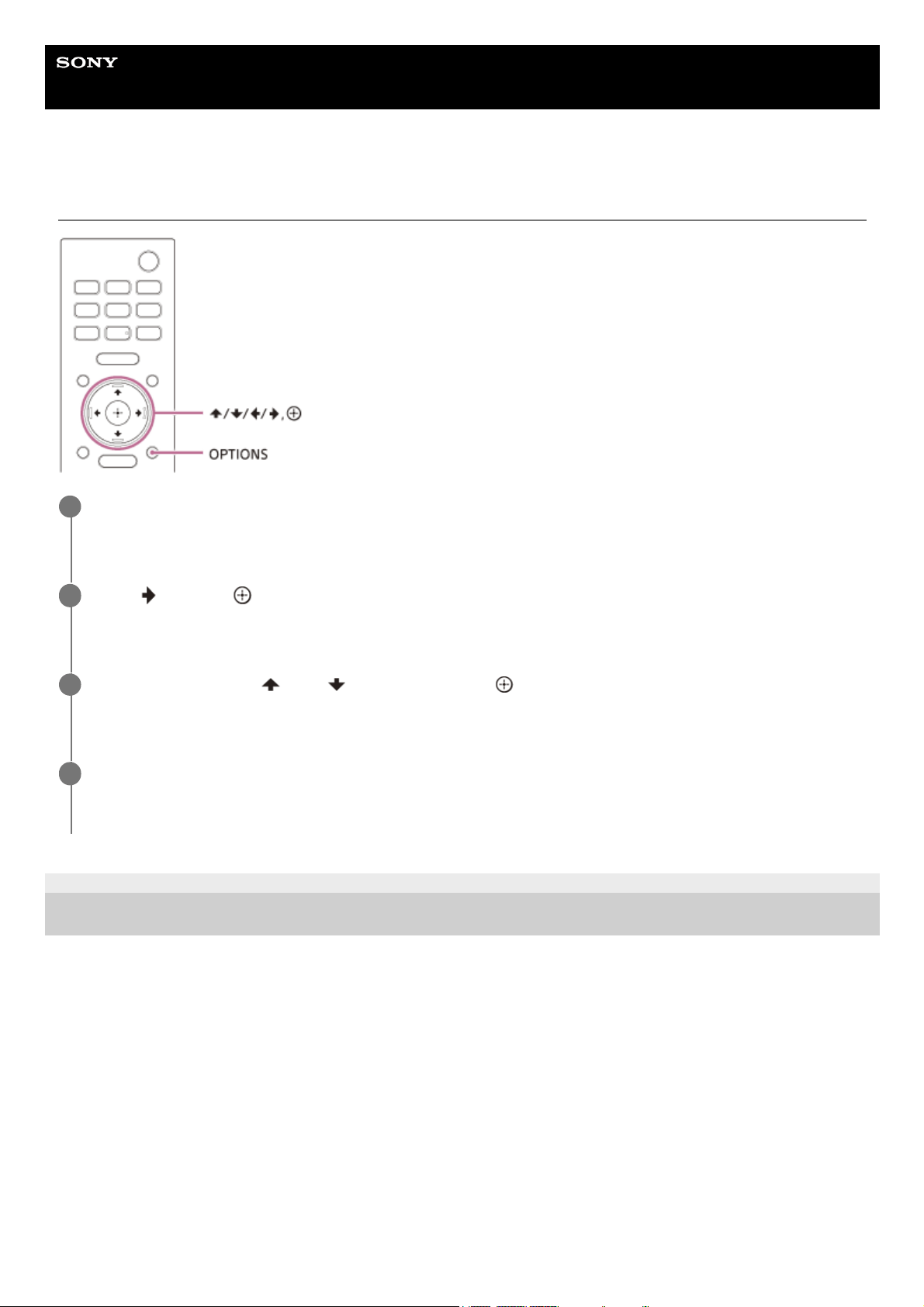
Adjusting the Delay Between the Picture and Sound
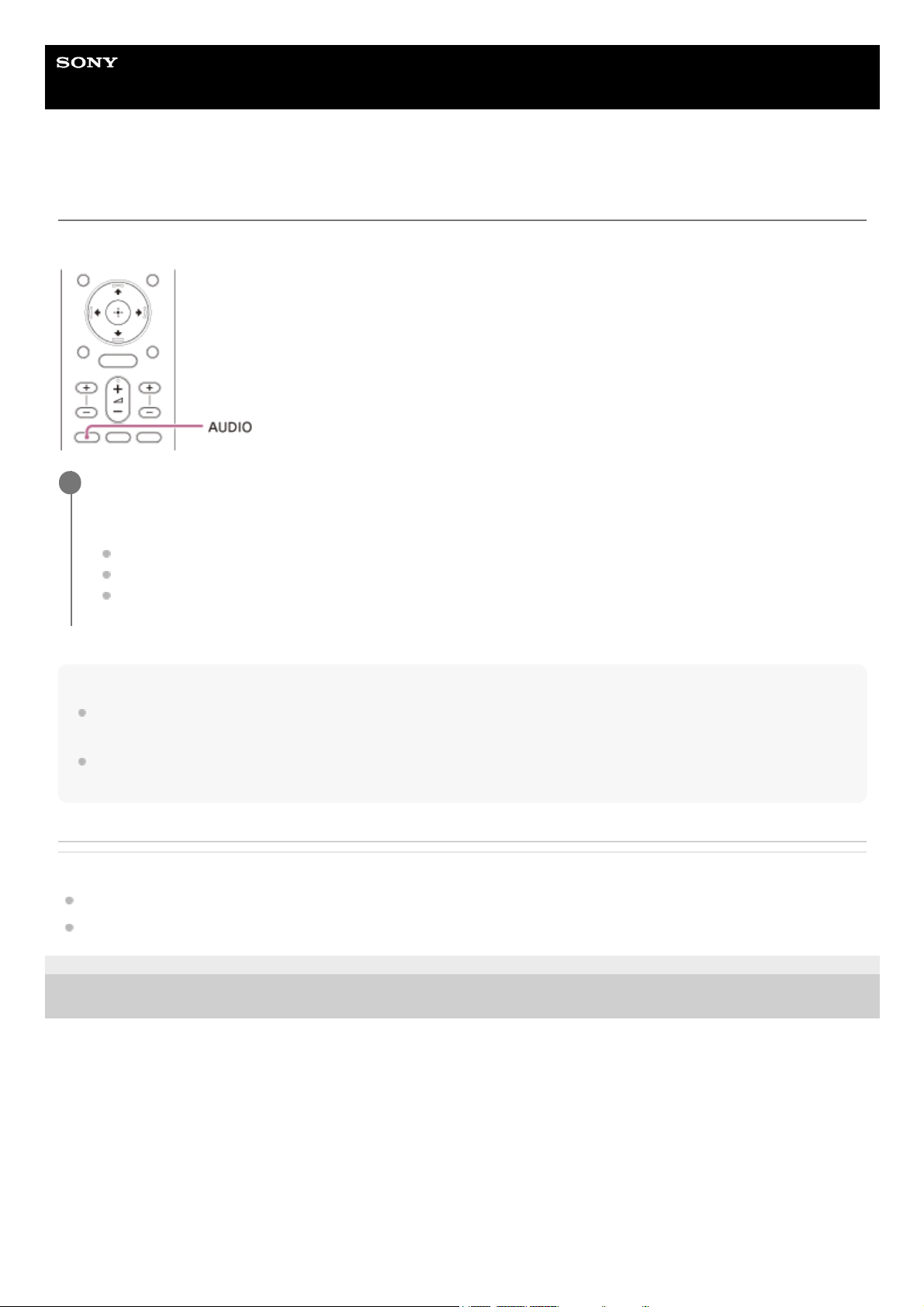
Enjoying Multiplex Broadcast Sound (AUDIO)
Adjusting the Dialog Volume While the DTS:X Content is Played Back
Using the Speaker System by Interlocking with a TV
Operating the Speaker System by Interlocking with a TV (Control for HDMI Function)
Operating the Speaker System by Interlocking with a TV Compatible with the “BRAVIA” Sync Function
Changing the Settings
Changing the Brightness of the Front Panel Display and Indicators (DIMMER)
Saving Power in Standby Mode
Performing Easy Setup
3
Performing Advanced Settings
Using the [Advanced Settings] Menu
[Speaker Settings]
[Audio Settings]
[HDMI Settings]
[Bluetooth Settings]
[System Settings]
[Network Settings]
[Resetting]
[Software Update]
Updating the Software
Troubleshooting
Troubleshooting
Power
The speaker system does not power up.
The speaker system does not turn on even when the TV is turned on.
The speaker system turns off when the TV is turned off.
The speaker system does not turn off even when the TV is turned off.
The speaker system cannot be turned off.
Picture
There is no picture or the picture is not output correctly.
The picture on the TV screen is distorted.
Sound
The speaker system cannot connect to a TV with the BLUETOOTH function.
No TV sound is output from the speaker system.
The sound is output from both the speaker system and TV.
The TV sound from this speaker system lags behind the image.
No sound or only a very low-level sound of the device connected to the speaker system is heard.
The surround effect cannot be obtained.
No sound is output from the optional rear speakers/subwoofer.
4

Sound is not output from some speakers.
Sound Field Optimization
Sound Field Optimization failed.
USB Device Connection
The USB device is not recognized.
Mobile Device Connection
Pairing cannot be achieved.
BLUETOOTH connection cannot be completed.
Sound of the connected BLUETOOTH mobile device is not output from the speaker system.
Headphones Connection with the BLUETOOTH Function
Pairing cannot be achieved.
BLUETOOTH connection cannot be completed.
No sound is output from the connected BLUETOOTH headphones.
The BLUETOOTH connection with the headphones becomes disconnected.
Wireless LAN Connection
The speaker system cannot connect to the network, or the network connection is unstable.
The wireless LAN router you want is not shown in the wireless network list.
Internet Connection
You cannot connect the speaker system to the Internet.
Remote Control
The remote control of this speaker system does not function.
TV remote control does not work.
Optional Speakers
No sound or only a very low-level sound is heard from the optional speaker.
Sound skips or has noise.
Others
The Control for HDMI function does not work properly.
[PRTCT] flashes in the front panel display for 5 seconds and the speaker system is turned off.
[PRTCT], [PUSH], speaker name ([SUB], [RL], or [RR]), and [POWER] flash alternately in the front panel display.
5
5-034-491-11(2) Copyright 2022 Sony Corporation
[HIGH], [TEMP], and [ERROR] appear alternately for 2 seconds each in the front panel display, [STANDBY] appears in the front
panel display, then the speaker system is turned off.
[BT TX] appears in the front panel display.
Sensors of the TV do not work properly.
Wireless functions (wireless LAN, the BLUETOOTH function, or optional subwoofer/rear speakers) are unstable.
Music that you are not familiar with suddenly plays.
The speaker system cannot be turned off or [Advanced Settings] cannot be used./When pressing the power button, [.DEMO]
appears in the front panel display and the speaker system cannot be turned off.
Spotify cannot be played with the MUSIC SERVICE button, or cannot be played on the way of playback.
The speaker system restarts.
Resetting the Speaker System
Additional Information
Playable Types of Audio Files
Supported Input Audio Formats
On BLUETOOTH® Communication
Copyrights and Trademarks
6
Help Guide
Sound Bar
HT-A3000
About Manuals of the Speaker System
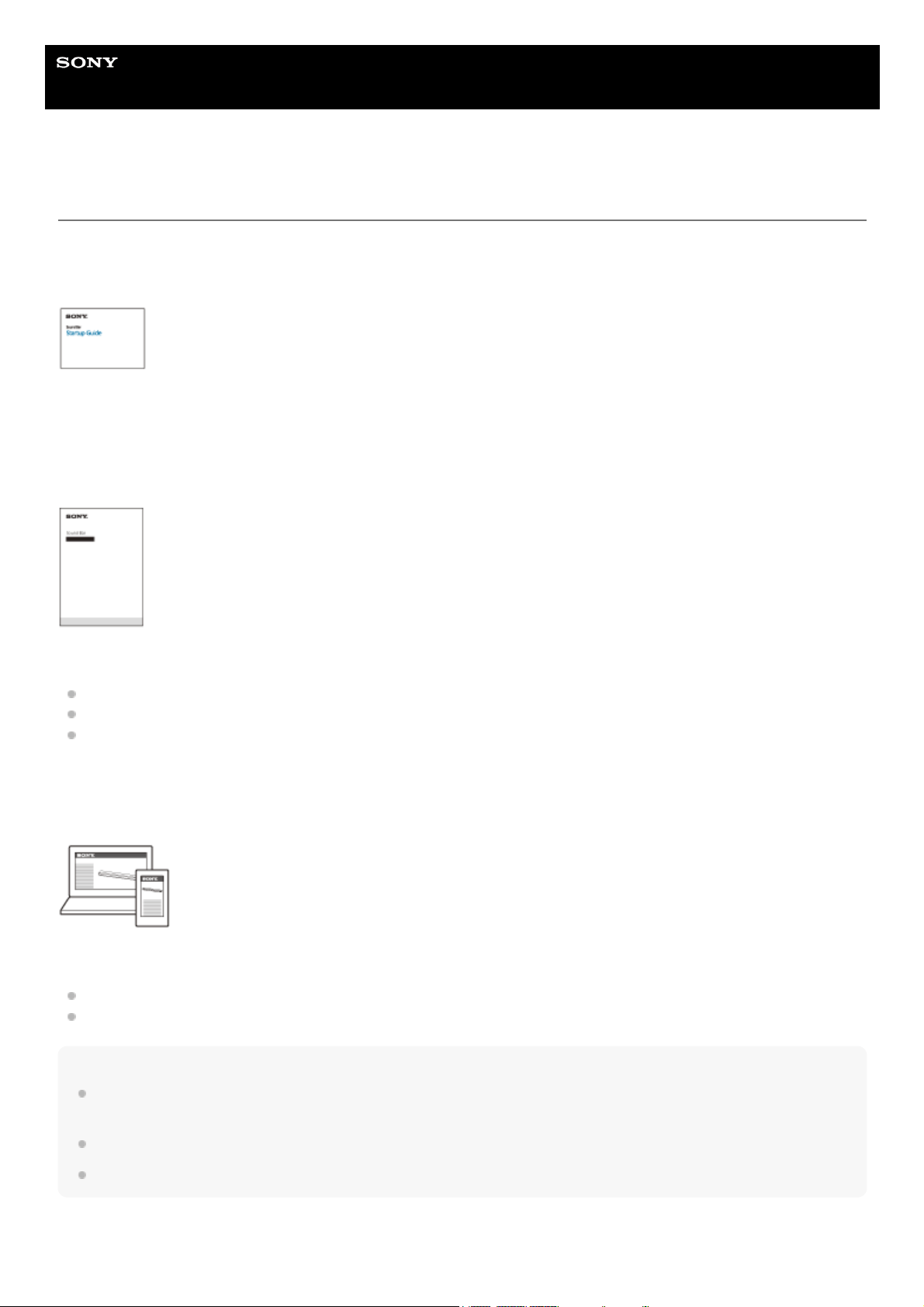
The information included in each manual is as shown below.
Startup Guide
Introduces the initial procedures concerning installation and connection for using the speaker system, and operations
until you play music.
Operating Instructions
Explains the basic operations.
Connection with a TV
Playback for music/sound of devices connected with an HDMI cable or the BLUETOOTH function
Sound adjustment, etc.
Help Guide (Web manual) (this document)
Provides all operations including advanced usage.
Playback for music/sound with the network function
Details on menu items, etc.
Hint
The instructions in these manuals describe operations using the controls on the remote control.
You can use the buttons on the bar speaker if they have the same or similar names as those on the remote control.
Characters in brackets [ ] appear on the TV screen or front panel display.
Details are omitted from the illustrations.
7

5-034-491-11(2) Copyright 2022 Sony Corporation
8
Help Guide
Sound Bar
HT-A3000
What You Can Do with the Speaker System
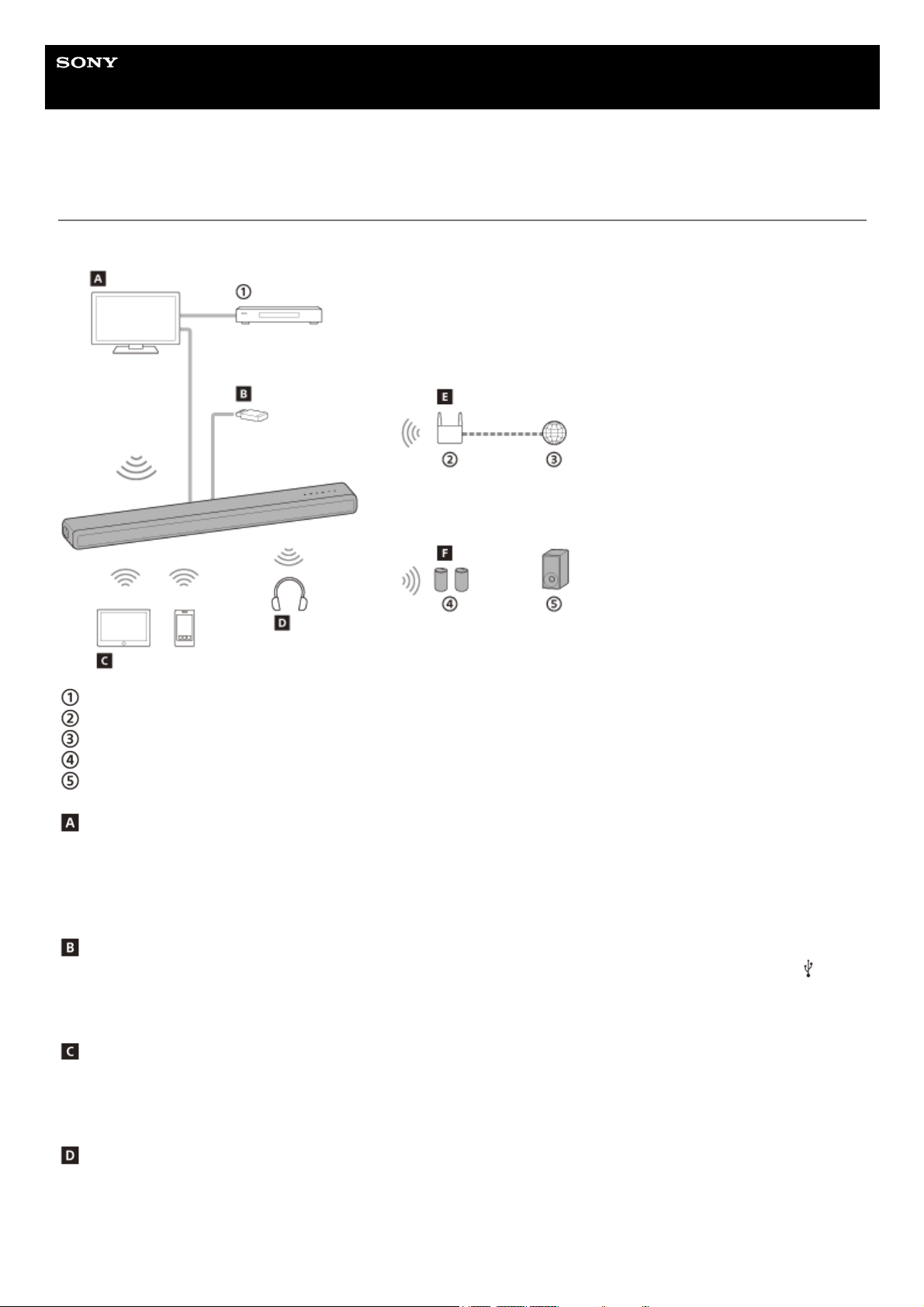
The speaker system supports object-based audio formats such as Dolby Atmos and DTS:X.
Blu-ray Disc™ player, set-top box, gaming console, etc.
Wireless LAN router
Internet
Optional rear speakers
Optional subwoofer
TV
You can listen to sound of a TV with the speaker system by connecting the speaker system and TV with an HDMI cable
or BLUETOOTH function.
Watching TV
What You Can Do by Connecting a TV with the BLUETOOTH® Function
USB device
You can play music files stored on a USB device with the speaker system by connecting the USB device to the
(USB)
port of the speaker system.
Listening to Music on a USB Device
Mobile device
You can listen to sound of a mobile device with the speaker system by connecting the speaker system and mobile device
with the BLUETOOTH function.
Listening to Music by Pairing the Mobile Device That Is Connected for the First Time
Headphones
You can listen to sound of the connected TV from headphones by connecting the speaker system and headphones with
the BLUETOOTH function.
Listening to Sound by Pairing with Headphones
9

Network
You can perform streaming playback of music content or play music files stored on your PC with the speaker system by
connecting the speaker system to the same network as that of the smartphone, tablet, or iOS device.
What You Can Do by Connecting the Speaker System to a Network
Optional speakers
For the operations of the optional rear speakers and subwoofer, refer to their operating instructions.
For the supported optional speakers, confirm on the Sony website.
5-034-491-11(2) Copyright 2022 Sony Corporation
10
Help Guide
Sound Bar
HT-A3000
Bar Speaker
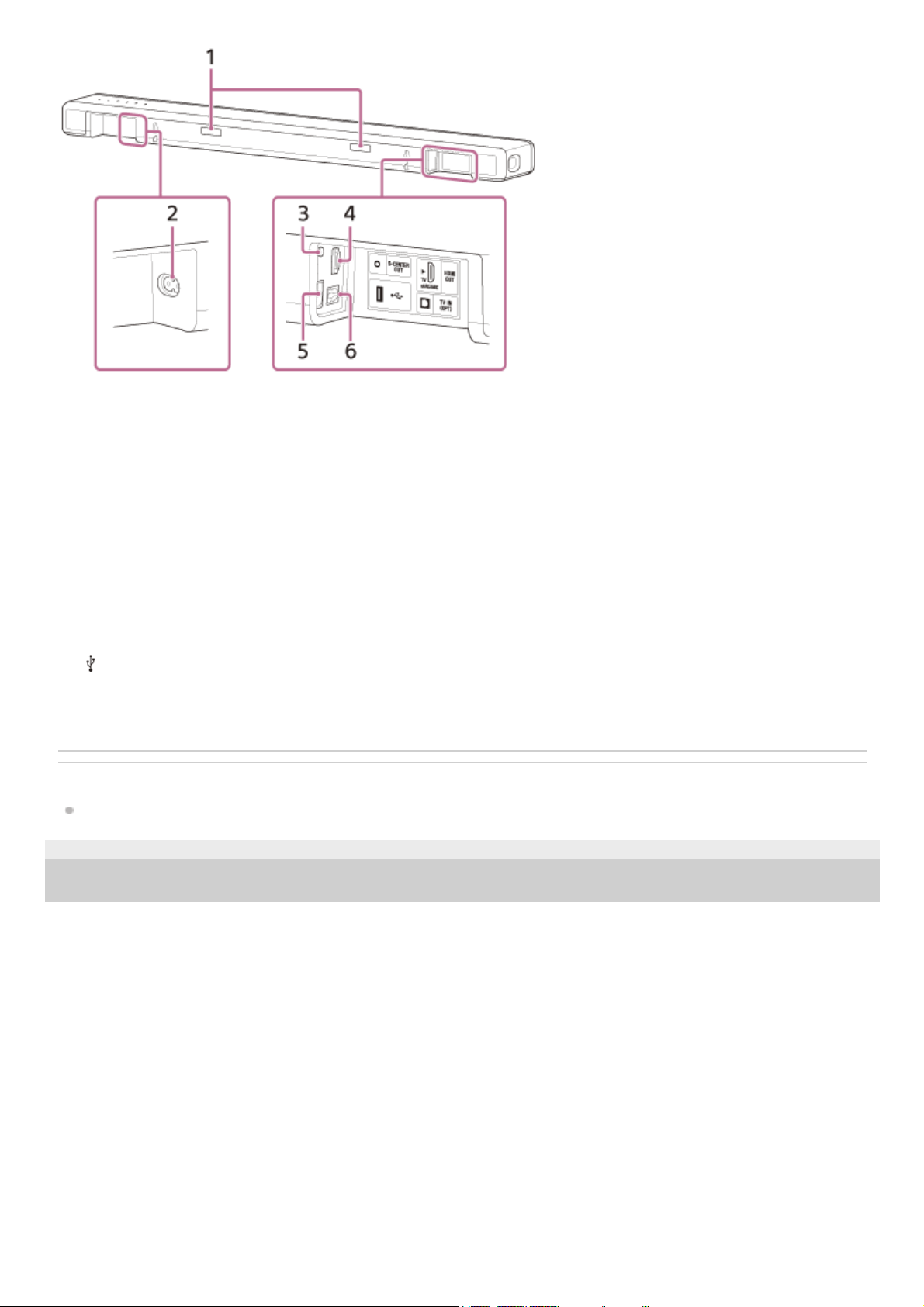
Front
Rear
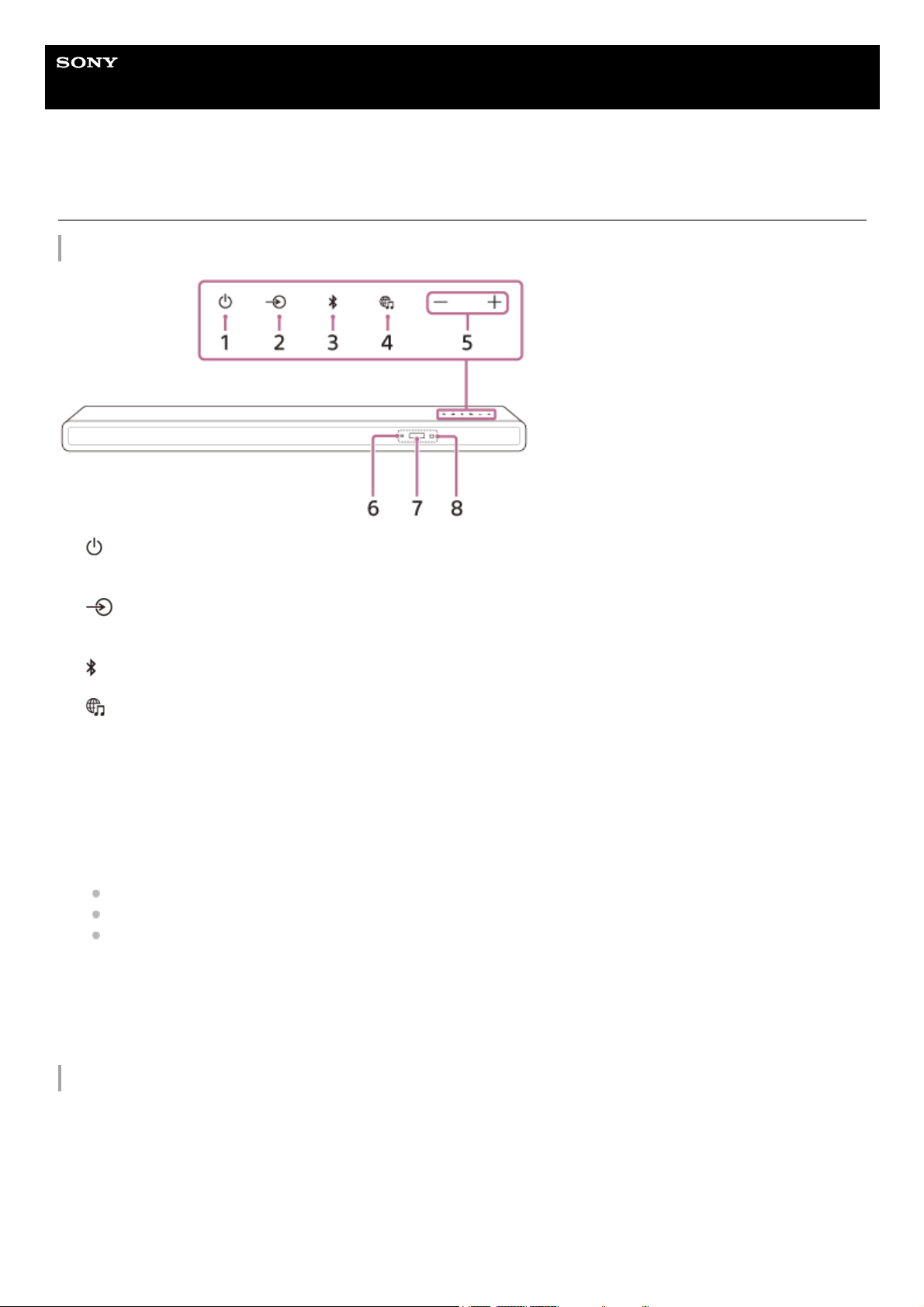
(power) button
Turns on the speaker system or sets it to standby mode.
1.
(input select) button
Selects the input for playback on the speaker system.
2.
(BLUETOOTH) button3.
(MUSIC SERVICE) button
If you have previously played music on Spotify on the speaker system, you can resume playback by pressing this
button.
This button may not be available in some countries/regions.
4.
+/– (volume) buttons5.
BLUETOOTH indicator
Flashes quickly in blue: During pairing standby status
Flashes in blue: BLUETOOTH connection is being attempted.
Lights in blue: BLUETOOTH connection has been established.
6.
Front panel display7.
Remote control sensor
Point the remote control at the remote control sensor to operate the speaker system.
8.
11
Related Topic
When Your TV Has the S-CENTER SPEAKER IN Jack
5-034-491-11(2) Copyright 2022 Sony Corporation
IR repeater
Transmits the remote signal of the TV remote control to the TV.
1.
AC inlet2.
S-CENTER OUT jack3.
HDMI OUT (TV eARC/ARC) jack
Connect a TV that has an HDMI input jack with an HDMI cable. The speaker system is compatible with eARC and
ARC. ARC is the function that sends TV sound to an AV device such as the speaker system from the TV’s HDMI
jack. eARC is an extension of ARC and enables transmission of the object audio and multi-channel LPCM content
that cannot be transmitted with ARC.
4.
(USB) port5.
TV IN (OPT) jack6.
12
Help Guide
Sound Bar
HT-A3000
Remote Control
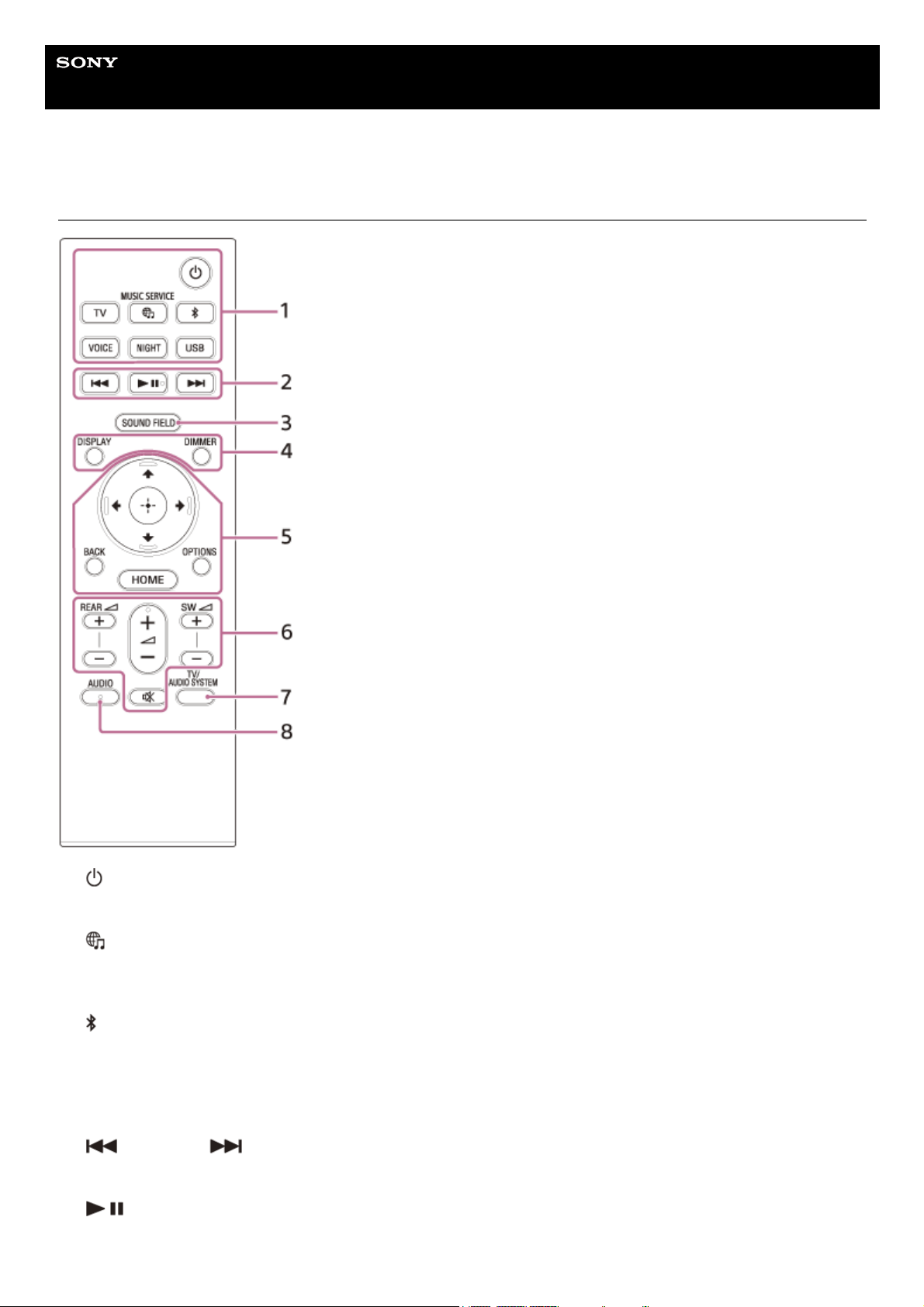
(power)
Turns on the speaker system or sets it to standby mode.
TV
(MUSIC SERVICE)
If you have previously played music on Spotify on the speaker system, you can resume playback by pressing this
button.
This button may not be available in some countries/regions.
(BLUETOOTH)
VOICE
NIGHT
USB
1.
Playback operation buttons
(previous)/ (next)
Selects the previous/next track or file.
Pressing and holding it searches backward or forward (rewind/fast forward) during playback.
(play/pause)(*)
Starts, pauses, or re-starts playback (resume play).
2.
13

About the replacement of batteries for the remote control
When the speaker system does not respond by operating with the remote control, replace two batteries with new
batteries.
Use R03 (size AAA) manganese batteries for replacement.
Related Topic
Making Dialogs Clearer (VOICE)
Enjoying Clear Sound with Low Volume at Midnight (NIGHT)
Enjoying Surround Effect (SOUND FIELD)
5-034-491-11(2) Copyright 2022 Sony Corporation
SOUND FIELD3.
DISPLAY
Displays stream information in the front panel display.
DIMMER
4.
(up)/ (down)/ (left)/ (right)
(enter)
BACK
OPTIONS
Displays the options menu in the front panel display.
HOME
5.
REAR
(rear speakers volume) +/–
Adjusts the volume of the optional rear speakers when connecting them.
(volume) +(*)/–
Adjusts the volume.
SW
(subwoofer volume) +/–
Adjusts the volume of the built-in subwoofer or optional subwoofer when connecting it.
(muting)
Turns off the sound temporarily.
6.
TV/AUDIO SYSTEM
Switches the output for the connected TV sound between the TV and speaker system.
Note
This button works in the following conditions.
The connected TV is compatible with the System Audio Control function.
The Control for HDMI function of the speaker system is set to on.
7.
AUDIO(*)8.
The AUDIO,
(play/pause), and (volume) + buttons have a tactile dot. Use it as a guide during operation.
*
14
Help Guide
Sound Bar
HT-A3000
Using the Home Menu
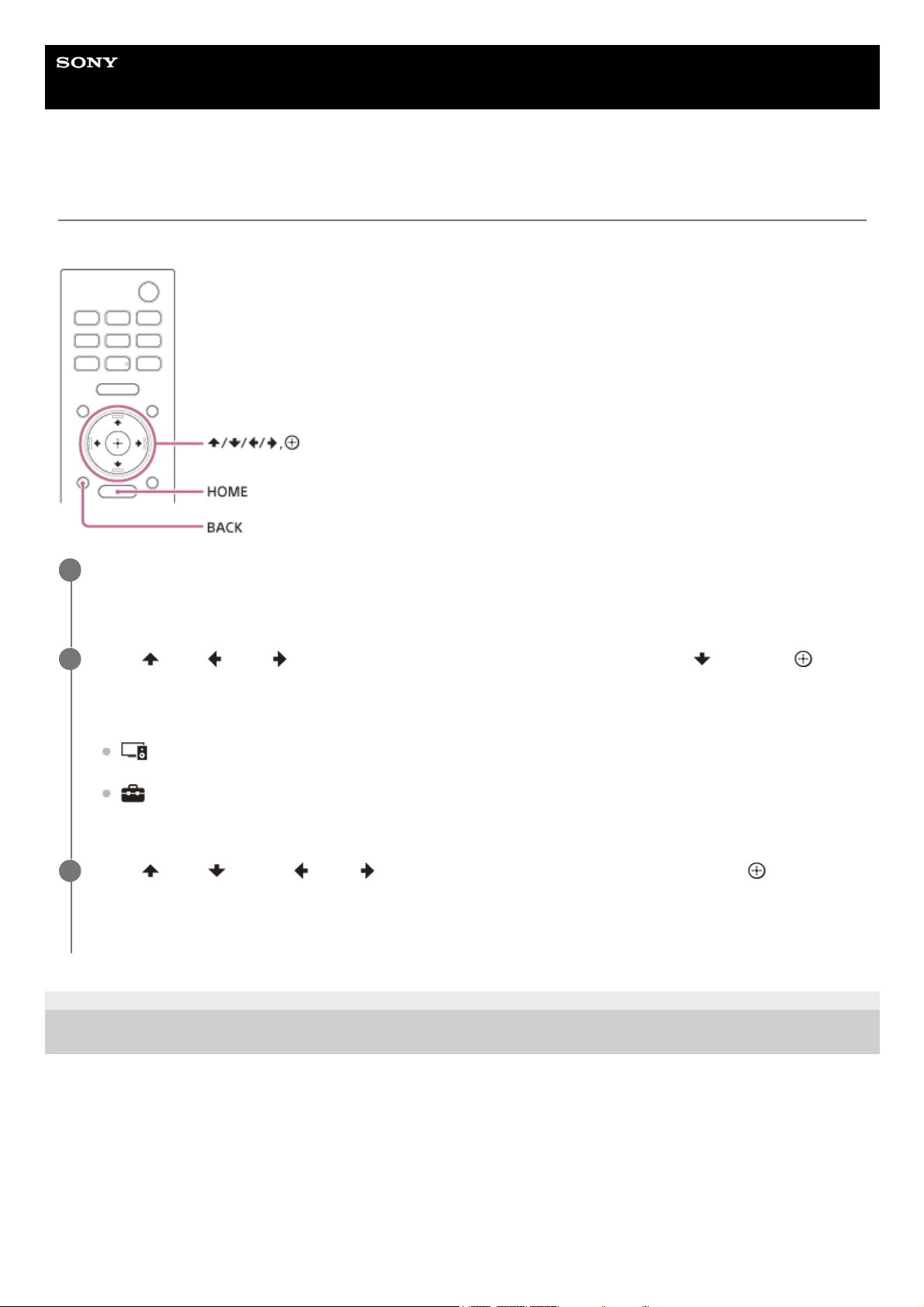
You can display the home menu on the TV screen by connecting the speaker system and TV with an HDMI cable.
5-034-491-11(2) Copyright 2022 Sony Corporation
Press HOME.
The home menu appears on the TV screen.
1
Press (up)/ (left)/ (right) to select the category that you want, then press (down) or
(enter).
The items for the selected category appear under the category list on the TV screen.
[Watch & Listen]: Selects the input of the TV or audio device that is connected to the speaker system or
music service for playing back on the speaker system.
[Setup]: Performs the basic initial settings by using [Easy Setup] or various advanced settings of the
speaker system.
2
Press
(up)/ (down)/ (left)/ (right) to select the item that you want, then press (enter).
The selected input or setting display appears on the TV screen.
To return to the previous screen, press BACK.
3
15
Help Guide
Sound Bar
HT-A3000
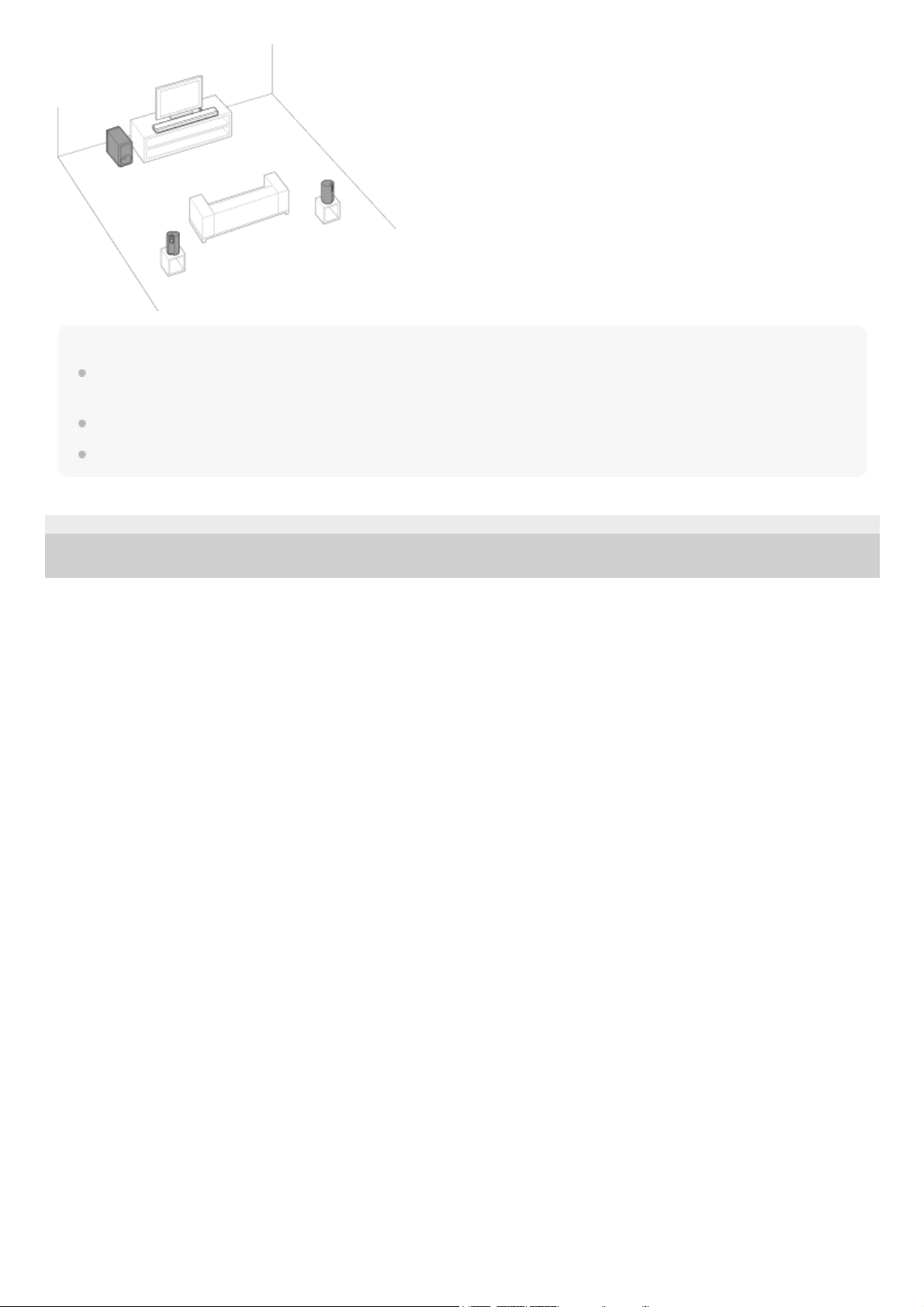
Installing the Bar Speaker
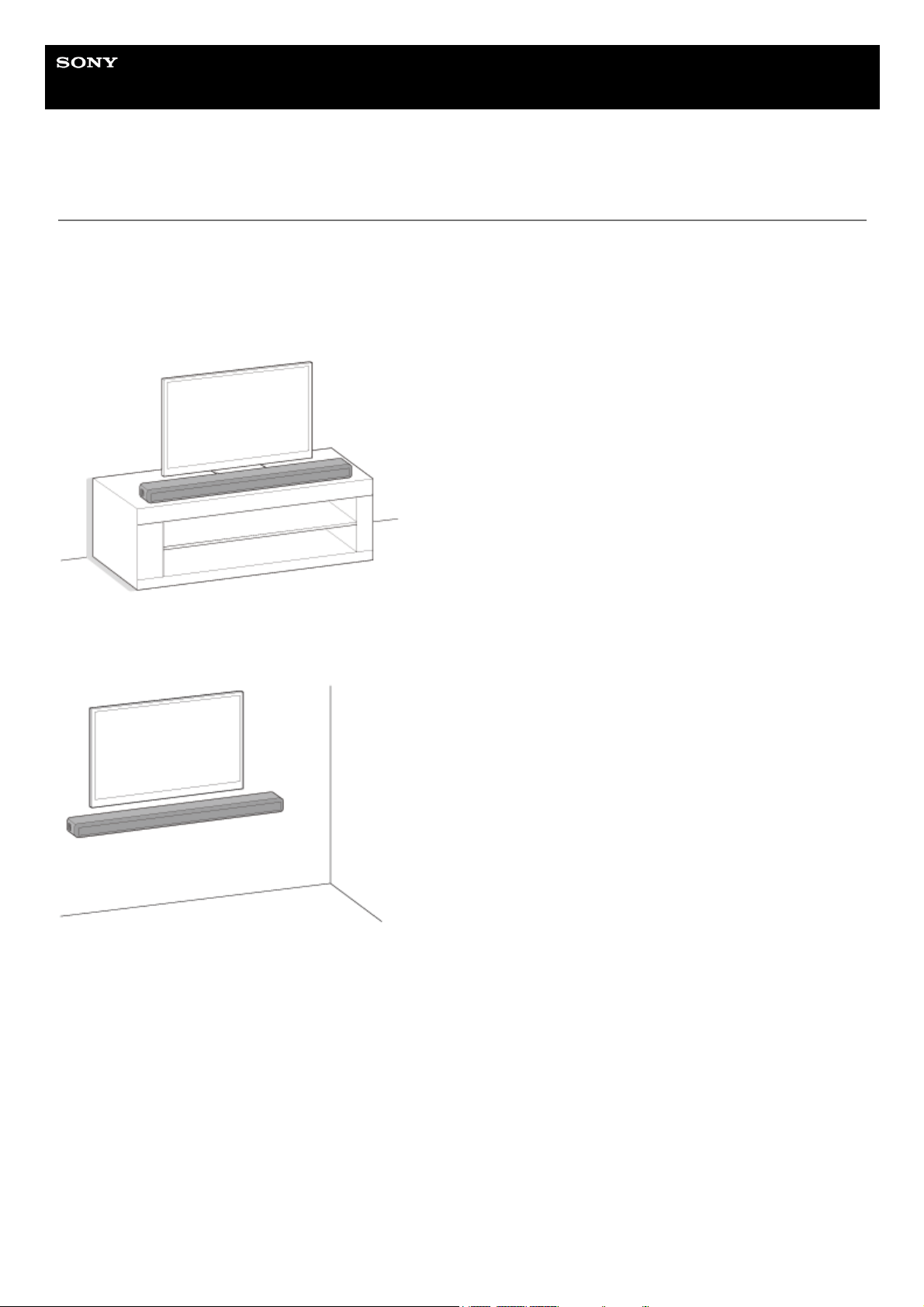
Install the bar speaker in the same location as your TV. The bar speaker can be installed on a shelf, such as a TV stand,
or mounted on a wall.
Installing on a shelf/stand
Install the bar speaker in an empty space in front of the TV.
Mounting on a wall
Mount the bar speaker on the wall under the TV.
To set up with the optional subwoofer and/or rear speakers
Complete the setup of the speaker system following the Startup Guide. And then connect the optional speakers to the
speaker system referring to the operating instructions supplied with the optional speakers.
If the optional speaker cannot connect to the speaker system, resetting the speaker system may solve this problem. For
details, see “Resetting the Speaker System”.
When the sound from the optional speakers skips, it may be improved by changing the installation position or setting. For
details, see “No sound is output from the optional rear speakers/subwoofer.”.
16
Note
Before connecting the speaker system, disconnect the AC power cord (mains lead) of the TV from the AC outlet (mains).
Reconnect it after connecting the speaker system to a TV.
Do not place metal objects near the speaker system. Wireless functions may become unstable.
There are ventilation holes at the rear of the bar speaker. Do not block these holes.
5-034-491-11(2) Copyright 2022 Sony Corporation
17
Help Guide
Sound Bar
HT-A3000
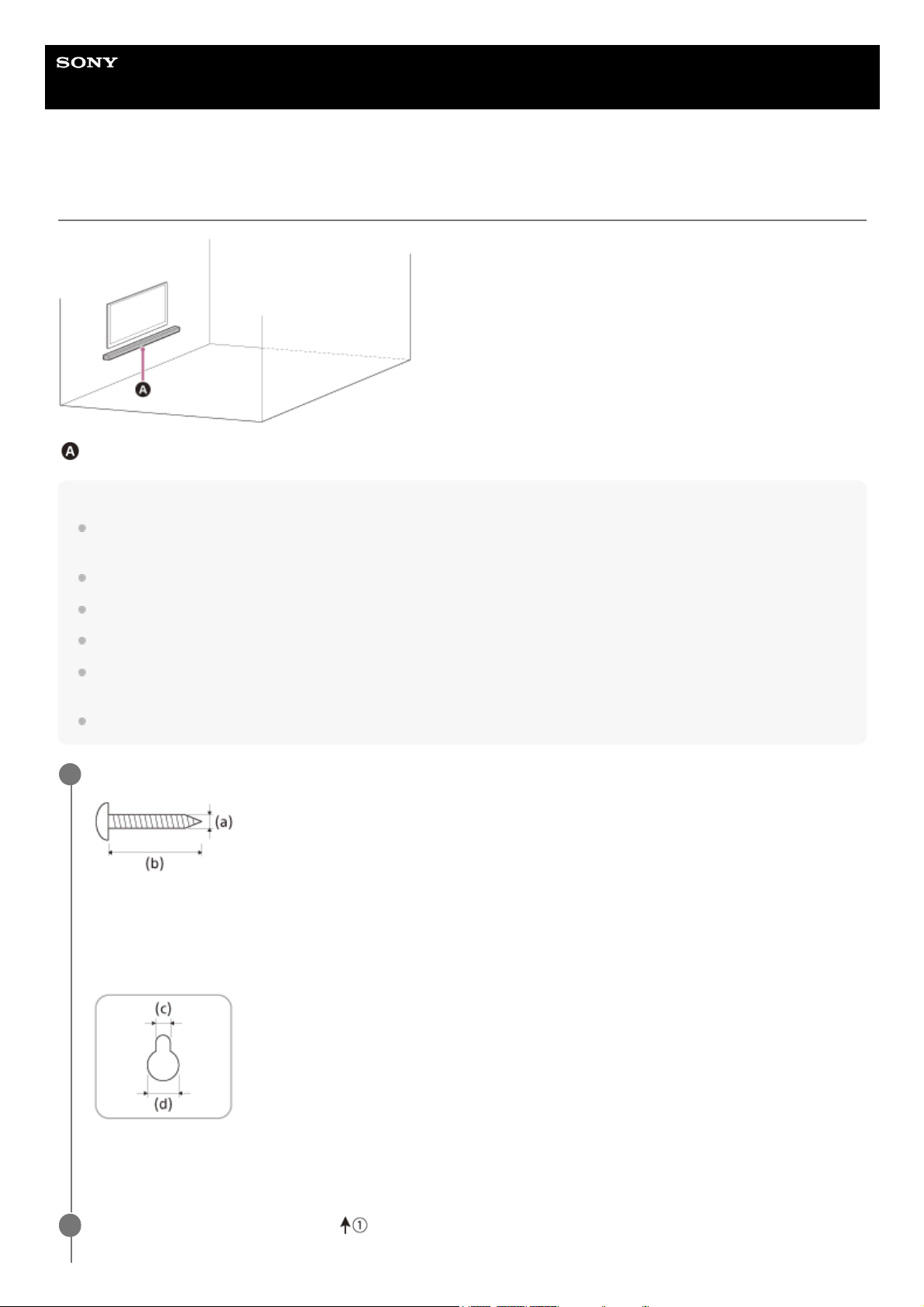
Mounting the Bar Speaker on a Wall
Bar speaker
Note
Prepare screws (not supplied) that are suitable for the wall material and stability. Depending on the wall material, the wall may be
damaged.
Fasten the screws securely in the wall beam.
Hang the bar speaker horizontally on the reinforced wall.
Have the installation done by a Sony dealer or licensed contractor and pay special attention to safety during the installation.
Sony shall not be held responsible for accidents or damage caused by improper installation, insufficient wall stability, improper
screw installation, natural disasters, etc.
Two or more persons are required to hang the bar speaker for safety.
Prepare two screws (not supplied) that are suitable for the wall mount holes on the rear of the bar speaker.
(a) 4 mm (3/16 in)
(b) More than 30 mm (1 3/16 in)
Hole on the rear of the bar speaker
(c) 5 mm (7/32 in)
(d) 10 mm (13/32 in)
1
Align the vertical line above the “
TV CENTER LINE” printed on the WALL MOUNT TEMPLATE
(supplied) with the center of the width of your TV.
2
18
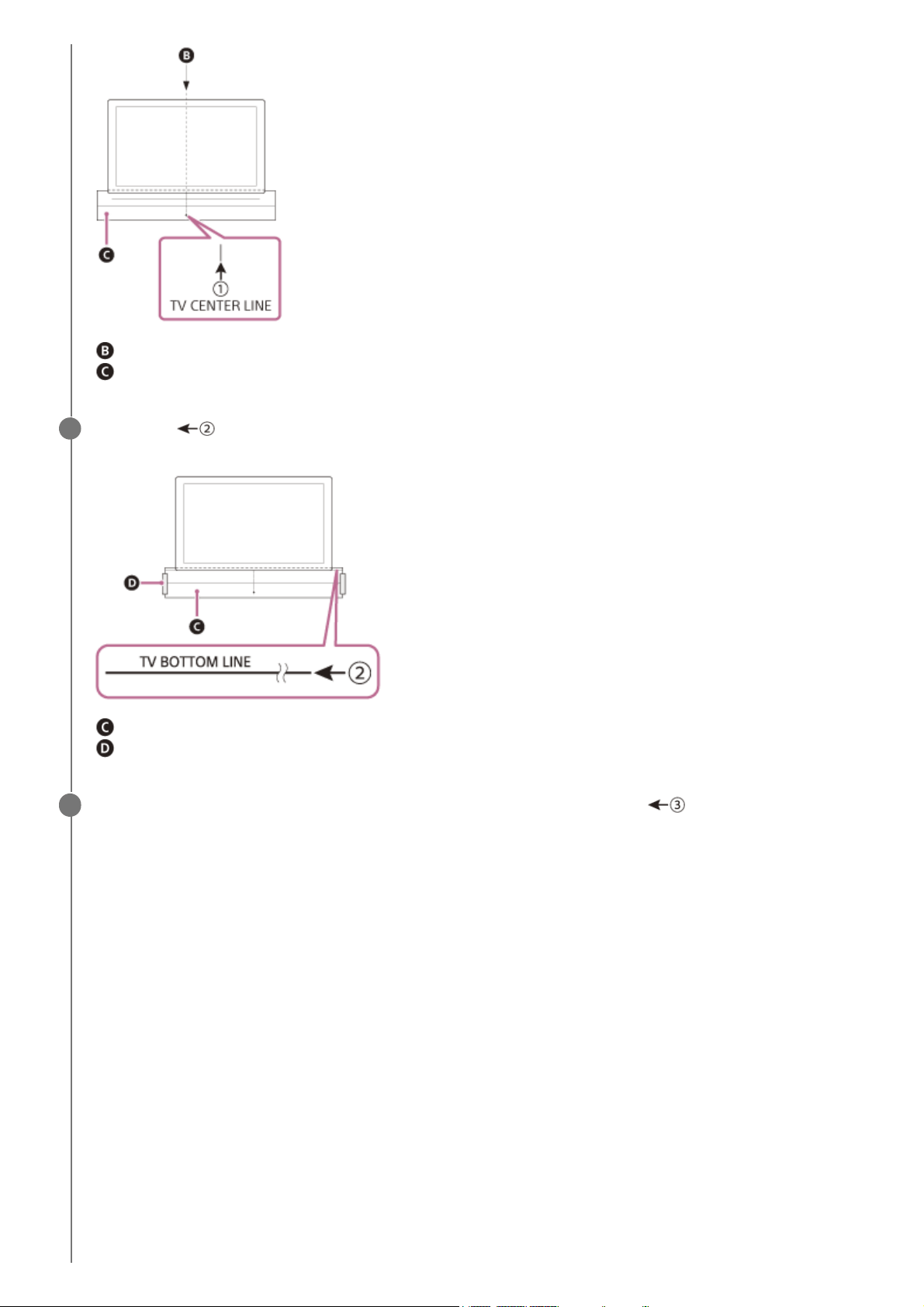
Center of the TV
WALL MOUNT TEMPLATE
Align the “ TV BOTTOM LINE” printed on the WALL MOUNT TEMPLATE with the bottom of your TV,
then adhere the WALL MOUNT TEMPLATE on the wall with a commercially available adhesive tape, etc.
WALL MOUNT TEMPLATE
Adhesive tape, etc.
3
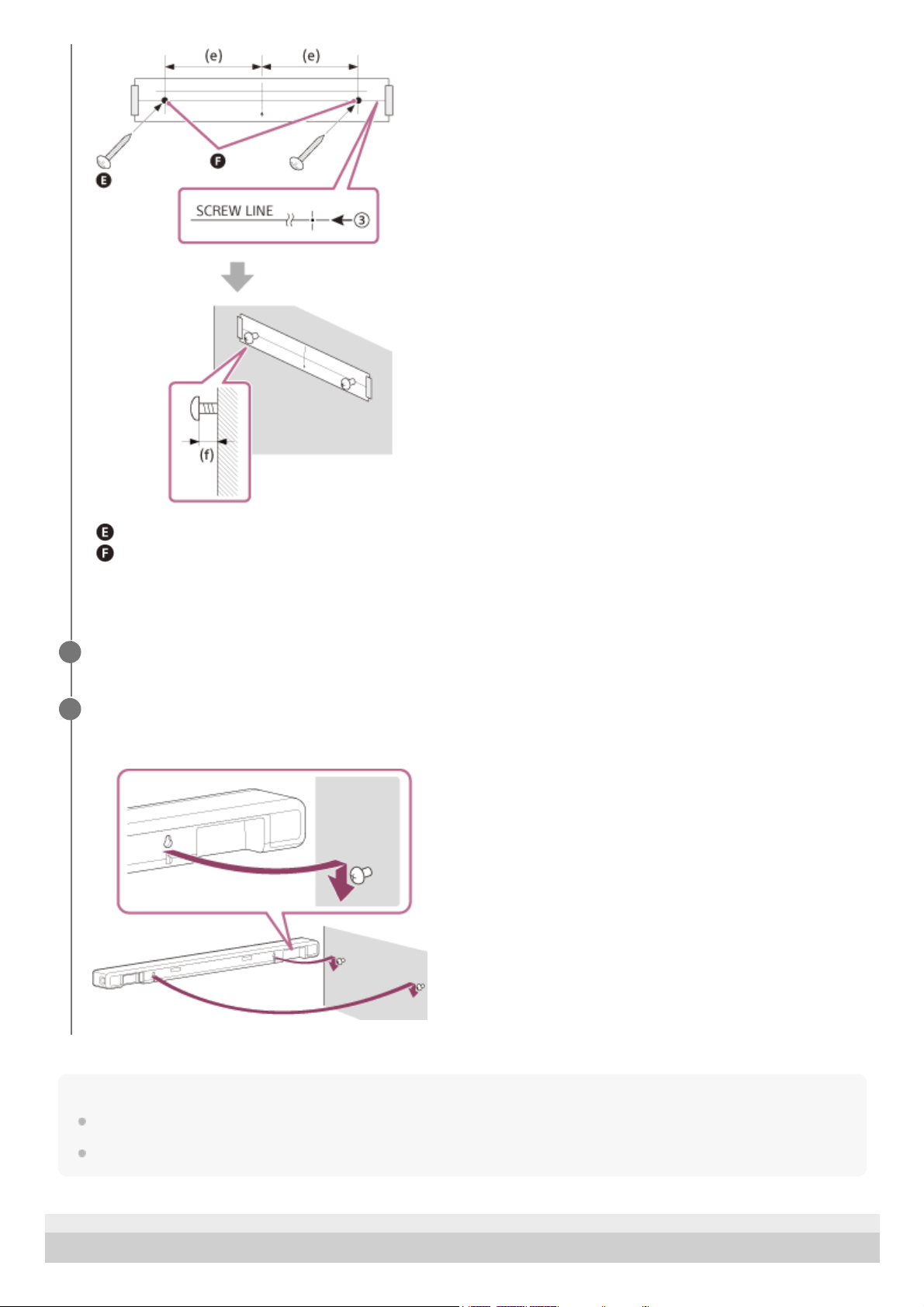
Fasten the screws prepared in step 1 securely into the screw marks on the “
SCREW LINE” printed
on the WALL MOUNT TEMPLATE.
4
19
Note
When adhering the WALL MOUNT TEMPLATE on the wall, smooth it out fully.
Install the bar speaker apart from the TV by 70 mm (2 7/8 in) or more.
5-034-491-11(2) Copyright 2022 Sony Corporation
Screws
Marks
(e) 270 mm (10 3/4 in)
(f) 10 mm to 11 mm (approx. 7/16 in)
Remove the WALL MOUNT TEMPLATE.
5
Hang the bar speaker on the screws.
Align the holes of the rear of the bar speaker with the screws, then hang the bar speaker on the two screws.
6
20

21
Help Guide
Sound Bar
HT-A3000
Connecting a TV Compatible with ARC/eARC
Note
Make sure that the connectors are firmly inserted.
Enable the Control for HDMI function on the TV. If the Control for HDMI function on the TV is not enabled, TV sound will not be
output from the speaker system.
5-034-491-11(2) Copyright 2022 Sony Corporation
Connect the HDMI IN jack compatible with ARC/eARC on the TV and HDMI OUT (TV eARC/ARC) jack on the
speaker system with the HDMI cable (supplied).
HDMI cable (supplied)
TV
1
22
Help Guide
Sound Bar
HT-A3000
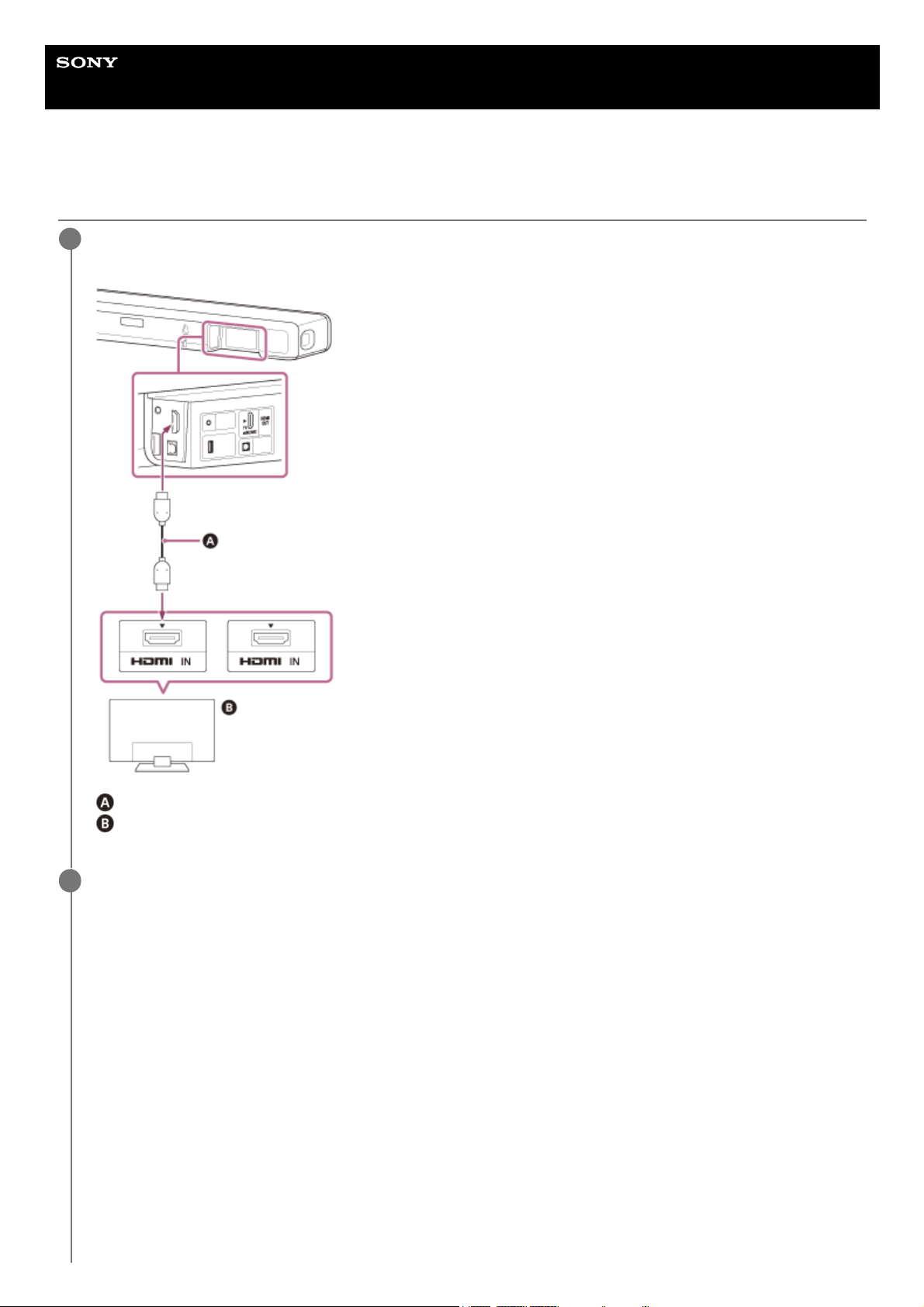
Connecting a TV That Is not Compatible with ARC/eARC
Connect the HDMI IN jack on the TV and HDMI OUT (TV eARC/ARC) jack on the speaker system with the
HDMI cable (supplied).
HDMI cable (supplied)
TV
1
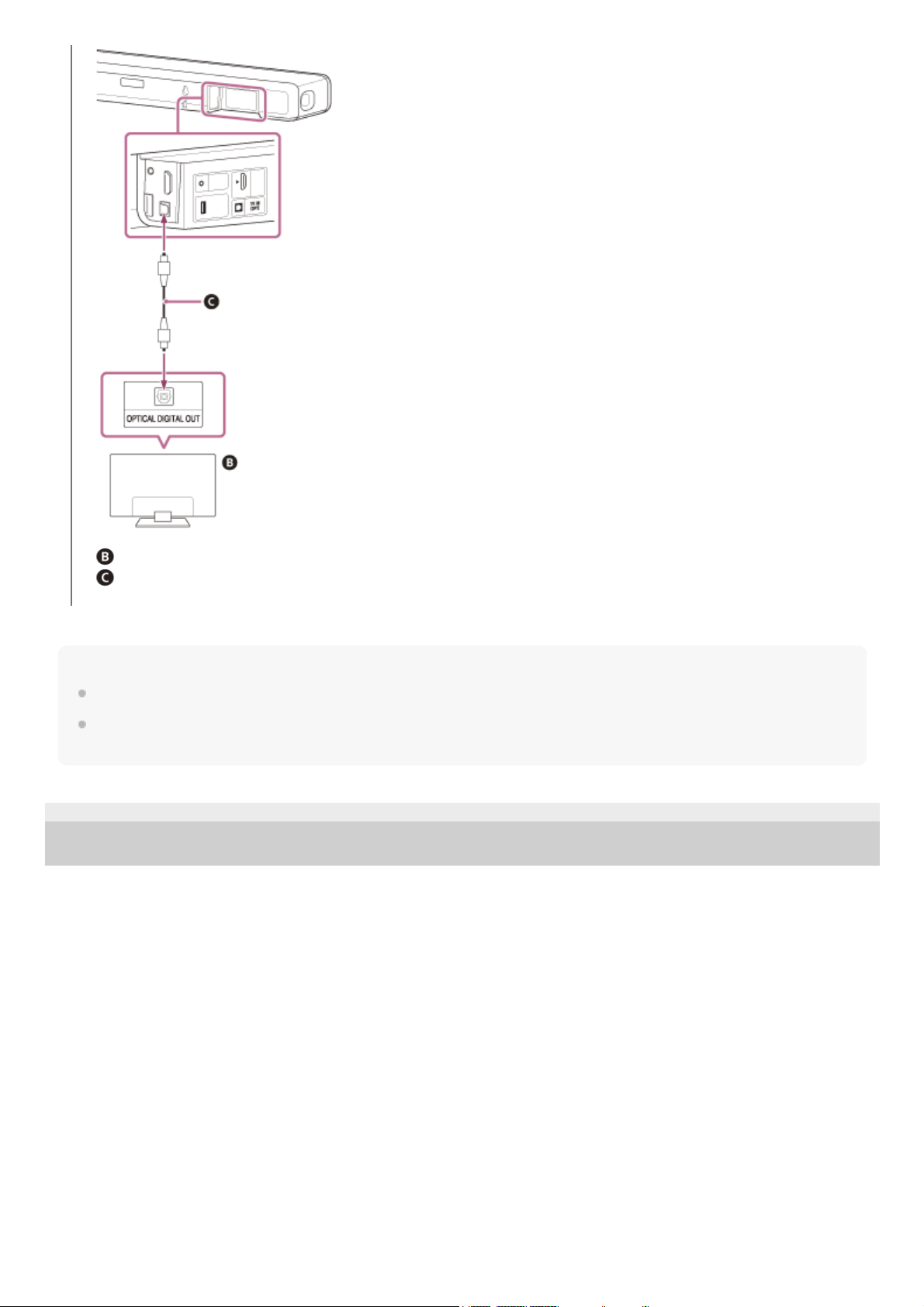
Connect the optical digital output jack on the TV and the TV IN (OPT) jack on the speaker system with an
optical digital cable (not supplied).
2
23
Note
Make sure that the connectors are firmly inserted.
Insert a plug of the optical digital cable in the correct direction by checking the shape of the plug and connector on the bar
speaker and TV. If the plug is forcibly inserted in the wrong direction, the connector and plug may be damaged.
5-034-491-11(2) Copyright 2022 Sony Corporation
TV
Optical digital cable (not supplied)
24
Help Guide
Sound Bar
HT-A3000
When Your TV Has the S-CENTER SPEAKER IN Jack
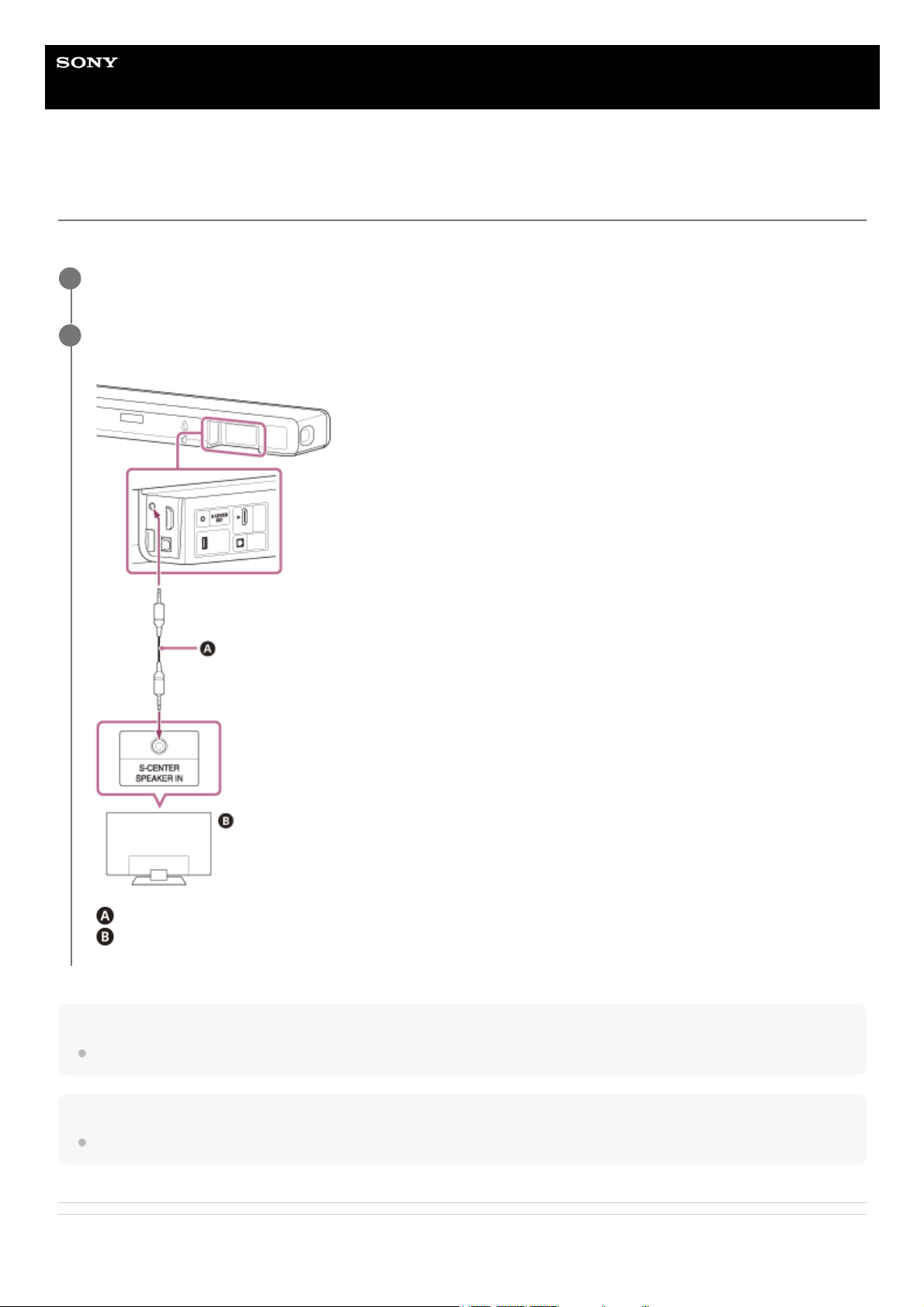
You can output the center part of the speaker system sound from the TV by connecting the TV with the following method.
Note
Make sure that the connectors are firmly inserted.
Hint
If the length of the TV center speaker mode cable is not sufficient, use a commercially available stereo mini cable.
Related Topic
Connect the speaker system and TV with the HDMI cable (supplied).
1
Connect the S-CENTER SPEAKER IN jack on the TV and the S-CENTER OUT jack on the speaker system
with the TV center speaker mode cable (supplied).
TV center speaker mode cable (supplied)
TV
2
25

Help Guide
Sound Bar
HT-A3000
Performing Initial Settings
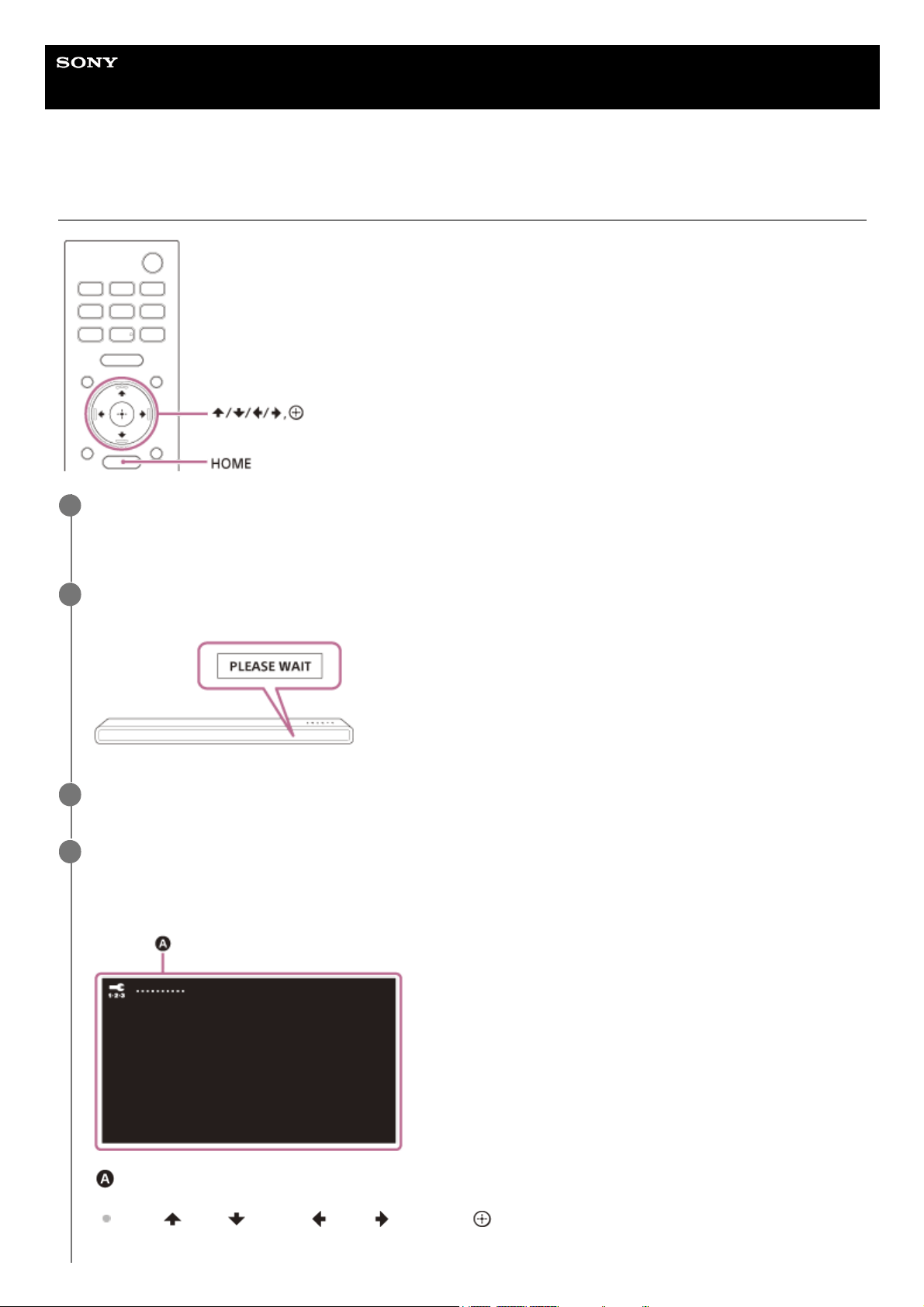
Press HOME on the remote control supplied with the speaker system to turn on the speaker system.
Operate the remote control by pointing it toward the front of the bar speaker.
1
Wait until [PLEASE WAIT] in the front panel display disappears and the next indication appears in the front
panel display.
2
Turn on the TV.
3
Follow the instructions on the screen displayed on the TV to perform initial settings.
If the initial setting screen is not displayed, use the TV remote control to switch the input on the TV to the HDMI
input that is connected to the speaker system, then press HOME on the remote control of the speaker system.
Initial settings screen
Press
(up)/ (down)/ (left)/ (right) and (enter) to select the item as instructed on the screen.
4
28

Note
Depending on the order in which you turn on the TV and the speaker system, the speaker system may be muted and [MUTING]
is displayed on the front panel display of the speaker system. If this happens, turn all devices off, then turn on the speaker system
after turning on the TV.
5-034-491-11(2) Copyright 2022 Sony Corporation
If you use the optional subwoofer/rear speakers, connect them by following the instructions on the [Checking
Wireless Speaker Connection] screen.
Once [Setup is complete.] appears, select [Learn more].
29
Help Guide
Sound Bar
HT-A3000
Connecting the Optional Speaker with the Manual Connection
The optional speaker is connected to the speaker system automatically when it is turned on. For details, refer to the
operating instructions of the optional speaker.
If the optional speaker cannot be connected to the speaker system automatically, perform the manual connection by
following the steps below.
Note
If you perform [Start manual linking],
[Setup] - [Advanced Settings] - [Speaker Settings] - [Wireless Speaker Settings] - [Link
mode] is set to [Manual] automatically.
Only the speakers for which [Connected] has been displayed in step 6 connect to the speaker system. If the optional speaker is
not properly connected, perform the operation again from step 1.
5-034-491-11(2) Copyright 2022 Sony Corporation
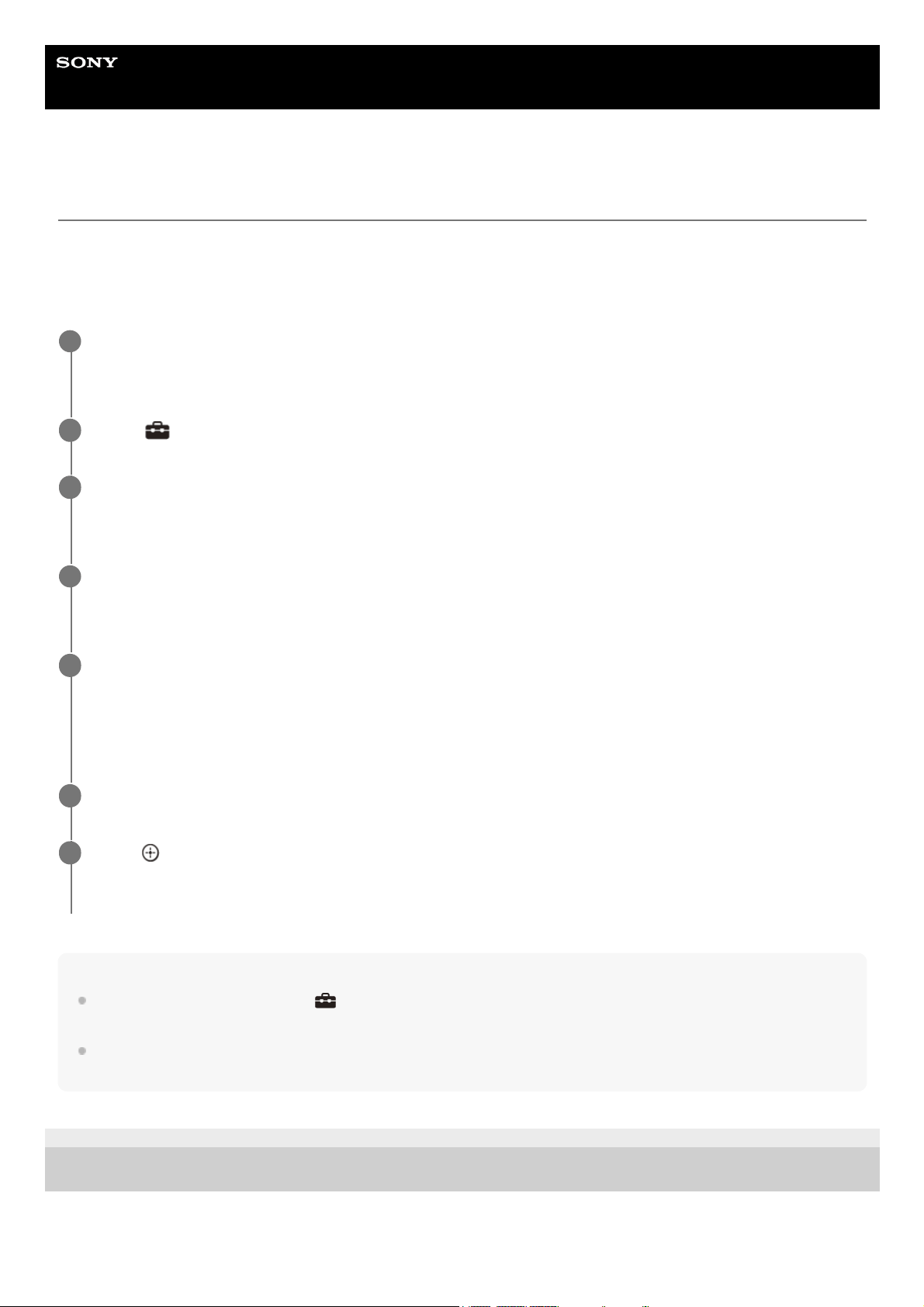
Press HOME.
The home menu appears on the TV screen.
1
Select
[Setup] - [Advanced Settings] on the home menu.
2
Select [Speaker Settings] - [Wireless Speaker Settings] - [Start manual linking].
The [Start manual linking] screen appears on the TV screen.
3
Press LINK on the optional speaker.
The power indicator of the optional speaker that had LINK pressed flashes twice repeatedly in green.
4
Select [Start].
The manual connection starts.
The connecting process appears on the TV screen.
To cancel the manual connection, select [Cancel].
5
When the optional speaker which you want to connect displays [Connected], select [Finish].
6
Press
(enter).
The manual connection is established and the power indicator of the optional speaker lights in green.
7
30
Help Guide
Sound Bar
HT-A3000
If Wireless Transmission Is Unstable
If you use multiple wireless systems, such as a wireless LAN, the wireless signals may become unstable. In this case,
the transmission may be improved by changing the following setting.
Note
If you change the [RF Channel] setting from [Off] to [On], it may take 1 minute to reconnect.
This setting does not appear depending on countries/regions.
5-034-491-11(2) Copyright 2022 Sony Corporation
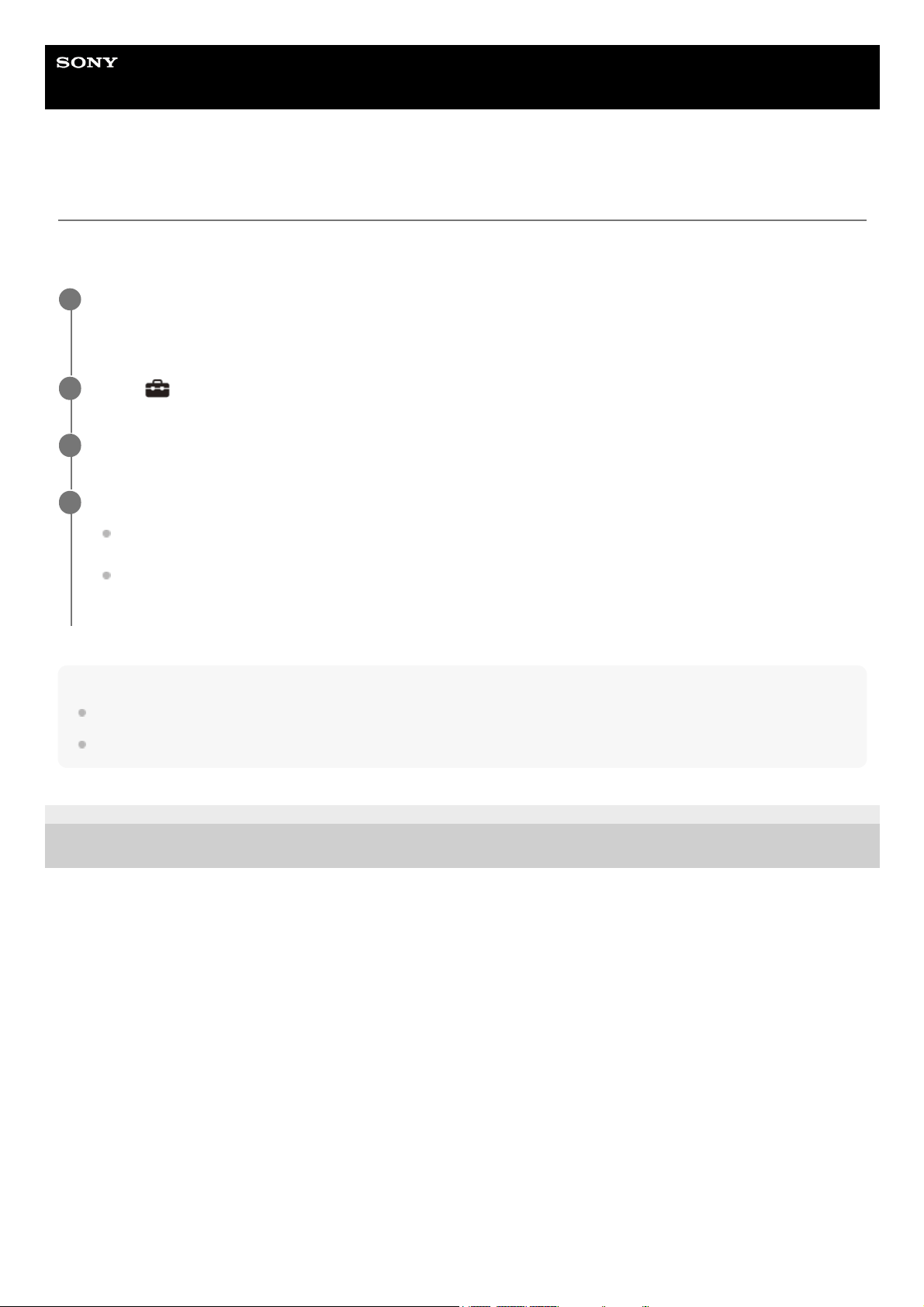
Press HOME.
The home menu appears on the TV screen.
1
Select
[Setup] - [Advanced Settings] on the home menu.
2
Select [Speaker Settings] - [Wireless Speaker Settings] - [RF Channel].
3
Select the setting you want.
[On]: Normally select this. The speaker system automatically selects the better channel for transmission. A
stronger mode against wireless interference.
[Off]: The speaker system selects a channel from the limited frequency band to prevent external wireless
interference. If sound dropping occurs while [On] is selected, it may be improved by selecting [Off].
4
31
Help Guide
Sound Bar
HT-A3000
When the TV Remote Control Does not Work
When the bar speaker obstructs the remote control sensor of the TV, the TV remote control may not work. In that case,
enable the IR repeater function of the speaker system.
You can control the TV with the TV remote control by sending the remote signal from the rear of the bar speaker.
Note
Be sure to check that the TV remote control cannot control the TV, and then set [IR-Repeater] to [On]. If it is set to [On] when the
remote control can control the TV, appropriate operation may not be obtained because of the interference between the direct
command from the remote control and command via the bar speaker.
Even if [IR-Repeater] is set to [On], this function may not work depending on your TV. Also, the remote controls of other devices
such as an air conditioner may not work correctly. In this case, change the installation position of the speaker system or TV.
5-034-491-11(2) Copyright 2022 Sony Corporation
Press HOME.
The home menu appears on the TV screen.
1
Select
[Setup] - [Advanced Settings] on the home menu.
2
Select [System Settings] - [IR-Repeater].
The [IR-Repeater] screen appears on the TV screen.
3
Select [On].
4
32
Help Guide
Sound Bar
HT-A3000
Watching TV
Note
When the bar speaker obstructs the remote control sensor of the TV and you cannot operate the TV by the TV remote control,
enable the IR repeater function of the speaker system.
Hint
You can select [TV] directly by pressing TV on the remote control.
Related Topic
When the TV Remote Control Does not Work
5-034-491-11(2) Copyright 2022 Sony Corporation
Press HOME.
The home menu appears on the TV screen.
1
Select
[Watch & Listen] - [TV] on the home menu.
2
Select the program using the TV remote control.
The selected TV program appears on the TV screen and the TV sound is output from the speaker system.
3
Adjust the volume.
4
33
Help Guide
Sound Bar
HT-A3000
What You Can Do by Connecting a TV with the BLUETOOTH® Function
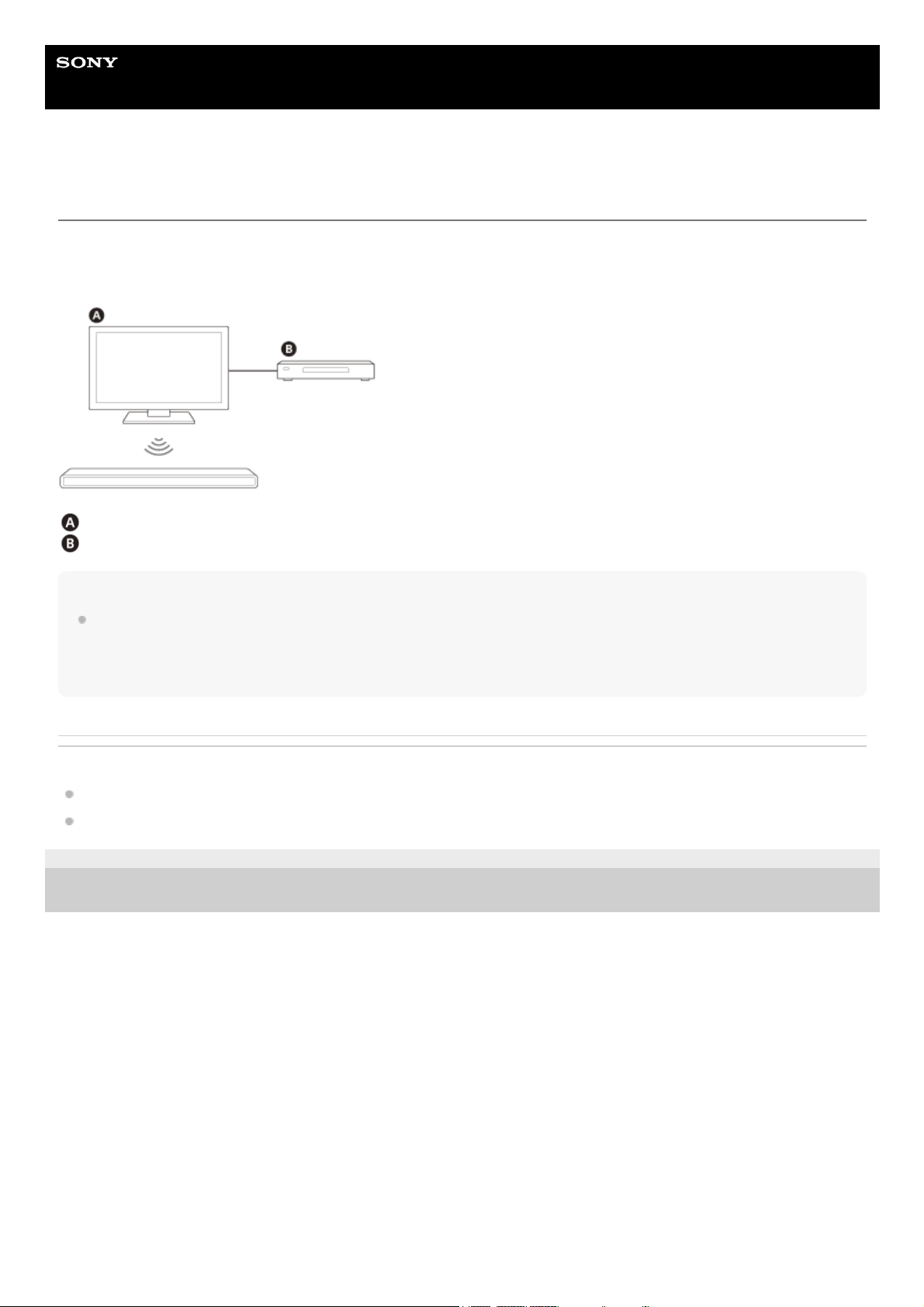
When using Sony TV(*) with the BLUETOOTH function, you can listen to sound of the TV or device that is connected to
the TV by connecting the speaker system and TV wirelessly.
Sony TV
Blu-ray Disc player, set-top box, gaming console, etc.
Note
If connecting the speaker system and TV by using the BLUETOOTH function, you cannot display the operation screen for the
speaker system such as the home menu on the TV screen, and use functions of the speaker system other than the listening
function for the sound of the TV or device that is connected to the TV.
To use all the functions of the speaker system, connect the speaker system and TV with the HDMI cable (supplied).
Related Topic
Connecting a TV Compatible with ARC/eARC
Connecting a TV That Is not Compatible with ARC/eARC
5-034-491-11(2) Copyright 2022 Sony Corporation
The TV needs to be compatible with A2DP (Advanced Audio Distribution Profile) of the BLUETOOTH profile.
*
34
Help Guide
Sound Bar
HT-A3000
Listening to TV Sound by Connecting the Speaker System and TV Wirelessly
You need to perform pairing of the speaker system and TV by using the BLUETOOTH® function.
Pairing is the process required to mutually register the information on BLUETOOTH devices to be connected wirelessly
in advance.
Turn on the TV.
1
Press
(power) to turn on the speaker system.
2
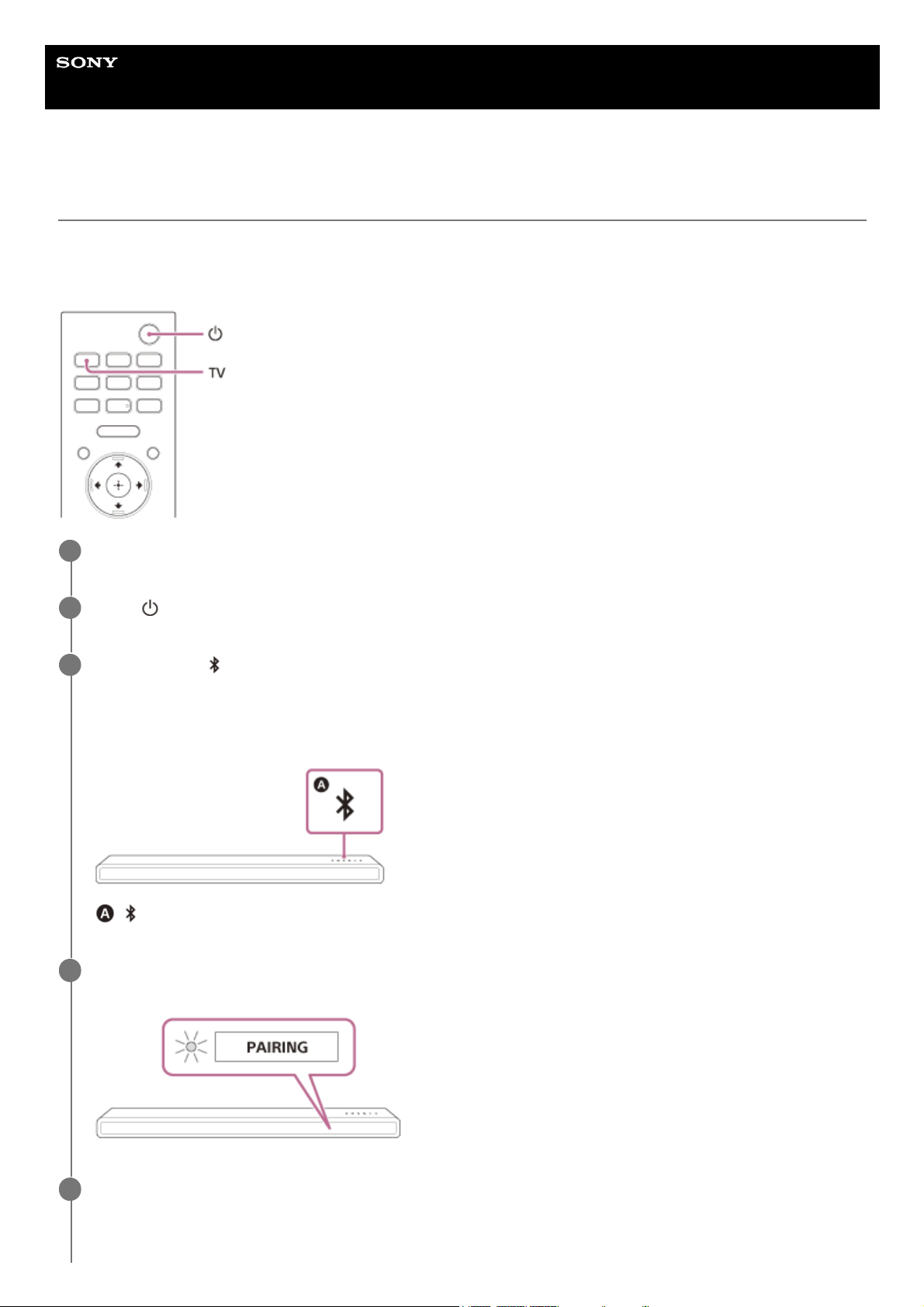
Press and hold
(BLUETOOTH) on the bar speaker and TV on the remote control simultaneously for 5
seconds.
The speaker system enters the BLUETOOTH pairing mode.
[TV-BT ON] and [PAIRING] appear in order in the front panel display.
( BLUETOOTH) button
3
Make sure that the BLUETOOTH indicator on the bar speaker flashes quickly in blue and [PAIRING] appears
in the front panel display.
4
On the TV, search the speaker system by performing the pairing operation.
The list of the BLUETOOTH devices that are detected appears on the TV screen.
For the operation method to pair the BLUETOOTH device to the TV, refer to the operating instructions of the TV.
5
35

Note
If the TV sound is not output from the speaker system, press TV and check the status of the front panel display and indicators on
the bar speaker.
[TV-BT] appears in the front panel display: The speaker system and TV are connected, and TV sound is output from the
speaker system.
The BLUETOOTH indicator flashes quickly and [PAIRING] appears in the front panel display: Perform pairing on the TV.
[TV] appears in the front panel display: Perform steps from the start.
When you connect the speaker system and TV with an HDMI cable, the BLUETOOTH connection is canceled. To connect the
speaker system and TV with the BLUETOOTH function again, disconnect the HDMI cable, then perform the connecting operation
from the start.
5-034-491-11(2) Copyright 2022 Sony Corporation
Pair the speaker system and TV by selecting “HT-A3000” from the list on the TV screen.
6
Make sure that the BLUETOOTH indicator on the bar speaker lights in blue and [TV-BT] appears in the front
panel display.
A connection between the speaker system and TV has been established.
7
Select the program or input of the device by using the TV remote control.
The sound of the displayed image on the TV screen is output from the speaker system.
8
Adjust the volume of the speaker system by using the TV remote control.
When pressing the muting button on the TV remote control, the sound is muted temporarily.
9
36
Help Guide
Sound Bar
HT-A3000
Listening to Sound of the Paired TV
Hint
When the TV is turned off, the speaker system is also turned off by interlocking with the TV power.
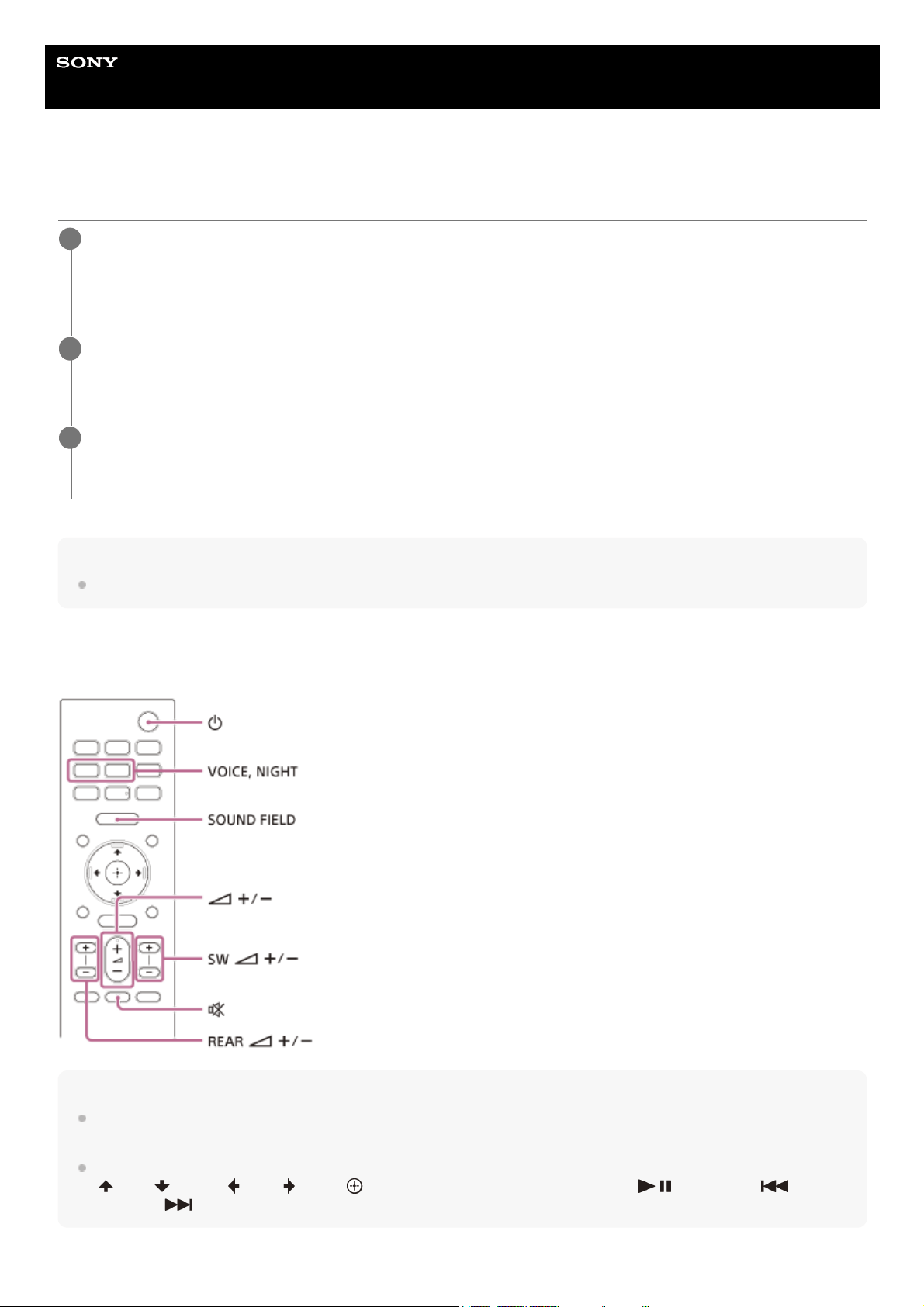
About operations with the remote control that is supplied with the speaker system
You can use the following buttons.
Note
If you select the input other than TV on the remote control supplied with the speaker system, the TV sound is not output from the
speaker system. To output the TV sound, press TV on the remote control to change to the TV input.
While the TV is connected with the BLUETOOTH function, the following remote control buttons do not work.
(up)/ (down)/ (left)/ (right), (enter), BACK, HOME, DISPLAY, OPTIONS, (play/pause),
(previous)/ (next)
Turn on the TV with the TV remote control.
The speaker system is turned on by interlocking with the TV power and TV sound is output from the speaker
system.
1
Select the program or input of the device by using the TV remote control.
The sound of the displayed image on the TV screen is output from the speaker system.
2
Adjust the volume of the speaker system by using the TV remote control.
When pressing the muting button on the TV remote control, the sound is muted temporarily.
3
37

5-034-491-11(2) Copyright 2022 Sony Corporation
38
Help Guide
Sound Bar
HT-A3000
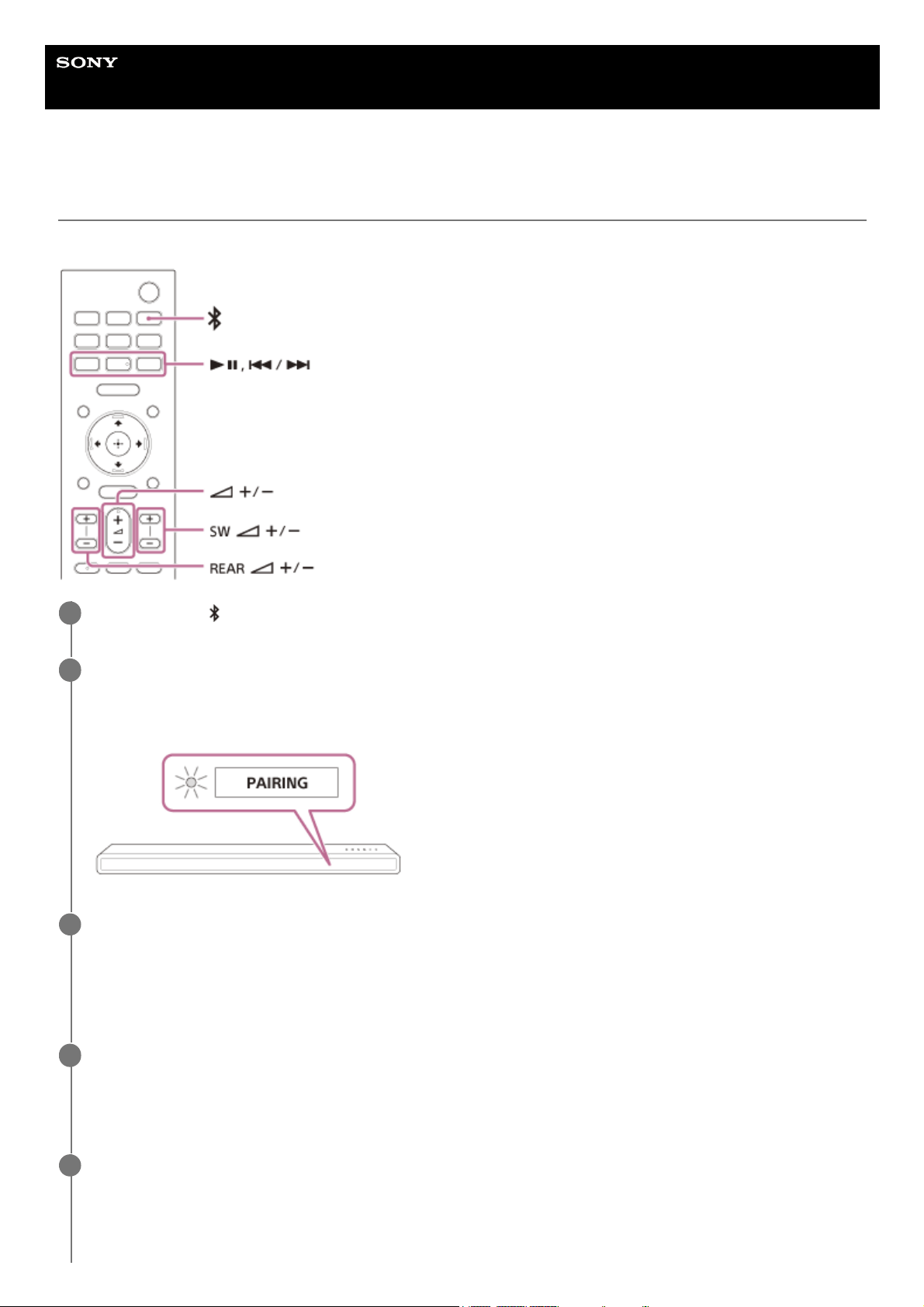
Listening to Music by Pairing the Mobile Device That Is Connected for the First Time
To use the BLUETOOTH® function, you need to perform pairing of the speaker system and mobile device in advance.
Press and hold (BLUETOOTH) for 2 seconds.
1
Make sure that the BLUETOOTH indicator on the bar speaker flashes quickly in blue and [PAIRING] appears
in the front panel display.
The speaker system enters the pairing mode.
2
On the mobile device, search the speaker system by performing the pairing operation.
The list of the BLUETOOTH devices that are detected appears on the screen of the mobile device.
For the operation method to pair the BLUETOOTH device to the mobile device, refer to the operating instructions of
the mobile device.
3
Pair the speaker system and mobile device by selecting “HT-A3000” from the list on the screen of the
mobile device.
If a passkey is requested, enter “0000.”
4
Make sure that the BLUETOOTH indicator on the bar speaker lights in blue and [BT] appears in the front
panel display.
A connection between the speaker system and mobile device has been established.
5
39
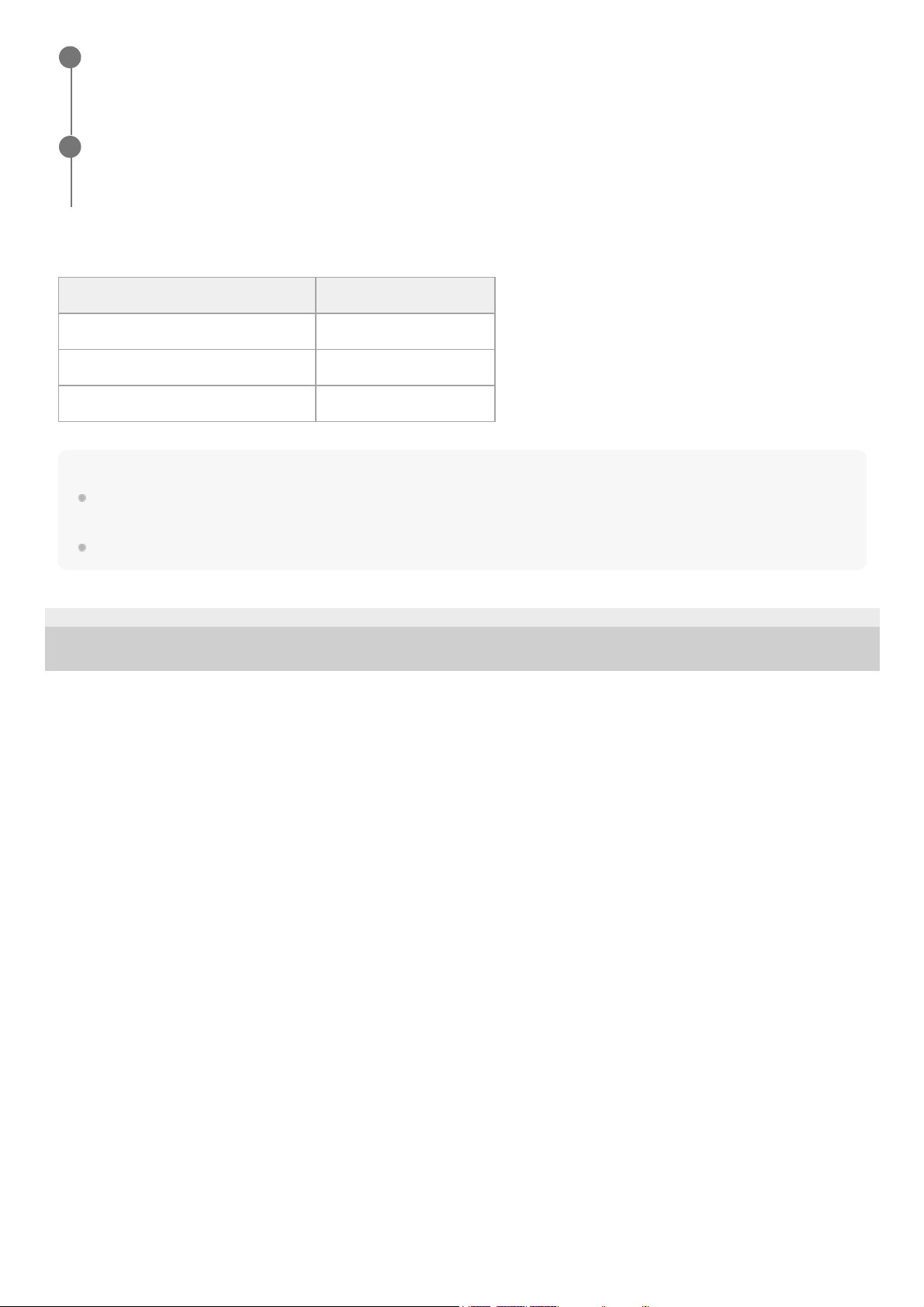
To check the connection status of the BLUETOOTH function
Hint
If there is no mobile device that has been paired (ex. immediately after the purchase of the speaker system), the speaker system
goes into pairing mode simply by changing the input to the BLUETOOTH input.
Perform pairing for the second and subsequent mobile devices.
5-034-491-11(2) Copyright 2022 Sony Corporation
Start audio playback with the music app on the connected mobile device.
Sound is output from the speaker system.
6
Adjust the volume.
You can play or pause the content by using the playback operation buttons on the remote control.
7
Status BLUETOOTH indicator
During pairing standby status Flashes quickly in blue
Connection is being attempted Flashes in blue
Connection has been established Lights in blue
40
Help Guide
Sound Bar
HT-A3000
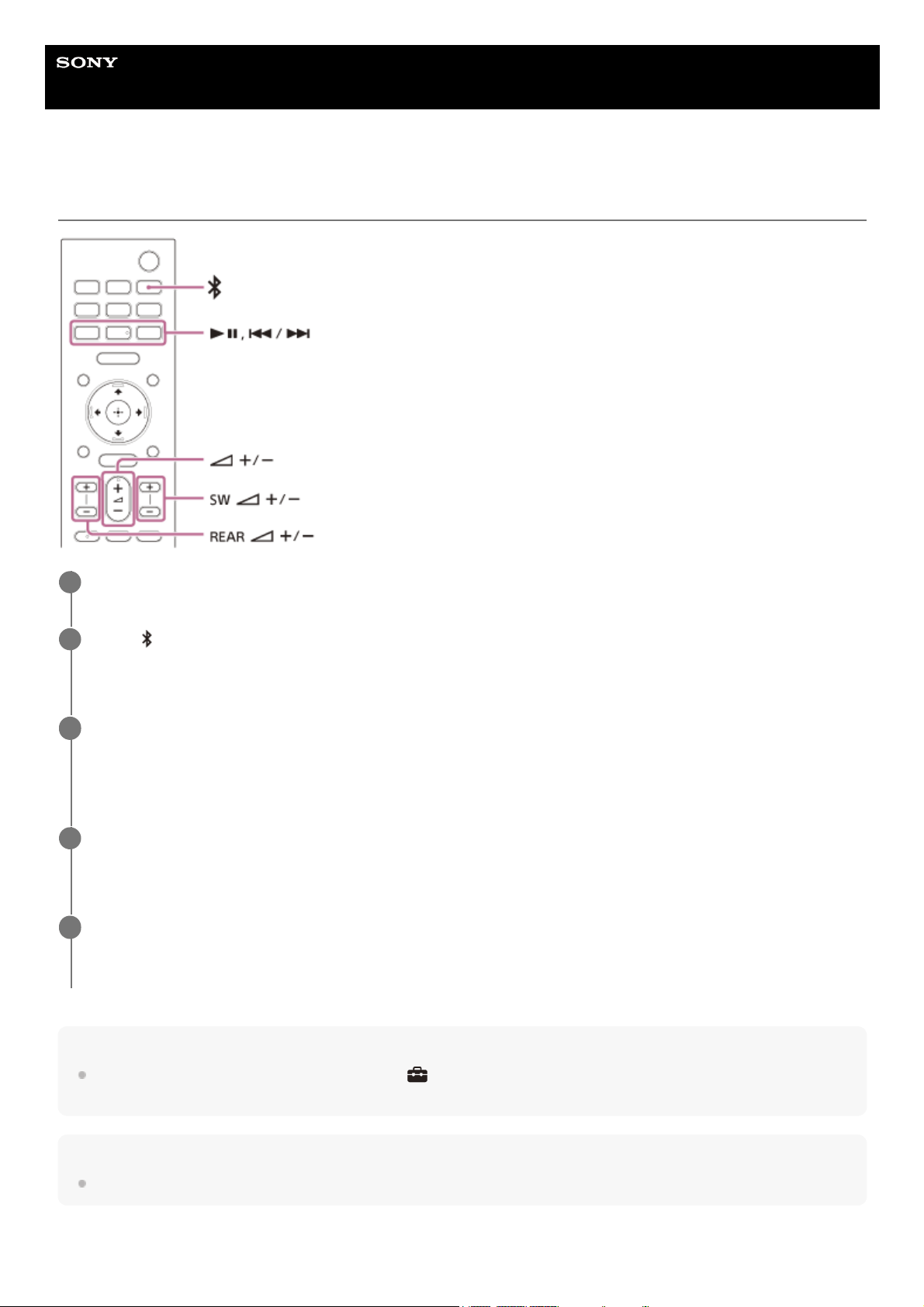
Listening to Music from the Paired Device
Note
If sound delay occurs, it may be improved by setting
[Setup] - [Advanced Settings] - [Bluetooth Settings] - [Bluetooth
Connection Quality] to [Priority on Stable Connection].
Hint
When the connection is not established, select “HT-A3000” on the mobile device.
To disconnect the mobile device
Turn the BLUETOOTH® function of the mobile device to on.
1
Press
(BLUETOOTH).
The speaker system automatically reconnects to the mobile device it was most recently connected to.
2
Make sure that the BLUETOOTH indicator on the bar speaker lights in blue and [BT] appears in the front
panel display.
A connection between the speaker system and mobile device has been established.
3
Start audio playback with the music app on the connected mobile device.
Sound is output from the speaker system.
4
Adjust the volume.
You can play or pause the content by using the playback operation buttons on the remote control.
5
41

Perform any of the following items.
Disable the BLUETOOTH function on the mobile device.
Press
(BLUETOOTH) while the [Bluetooth Audio] screen appears on the TV screen.
Set
[Setup] - [Advanced Settings] - [Bluetooth Settings] - [Bluetooth Mode] to [Transmitter] or [Off].
Turn off the speaker system or mobile device.
5-034-491-11(2) Copyright 2022 Sony Corporation
42
Help Guide
Sound Bar
HT-A3000
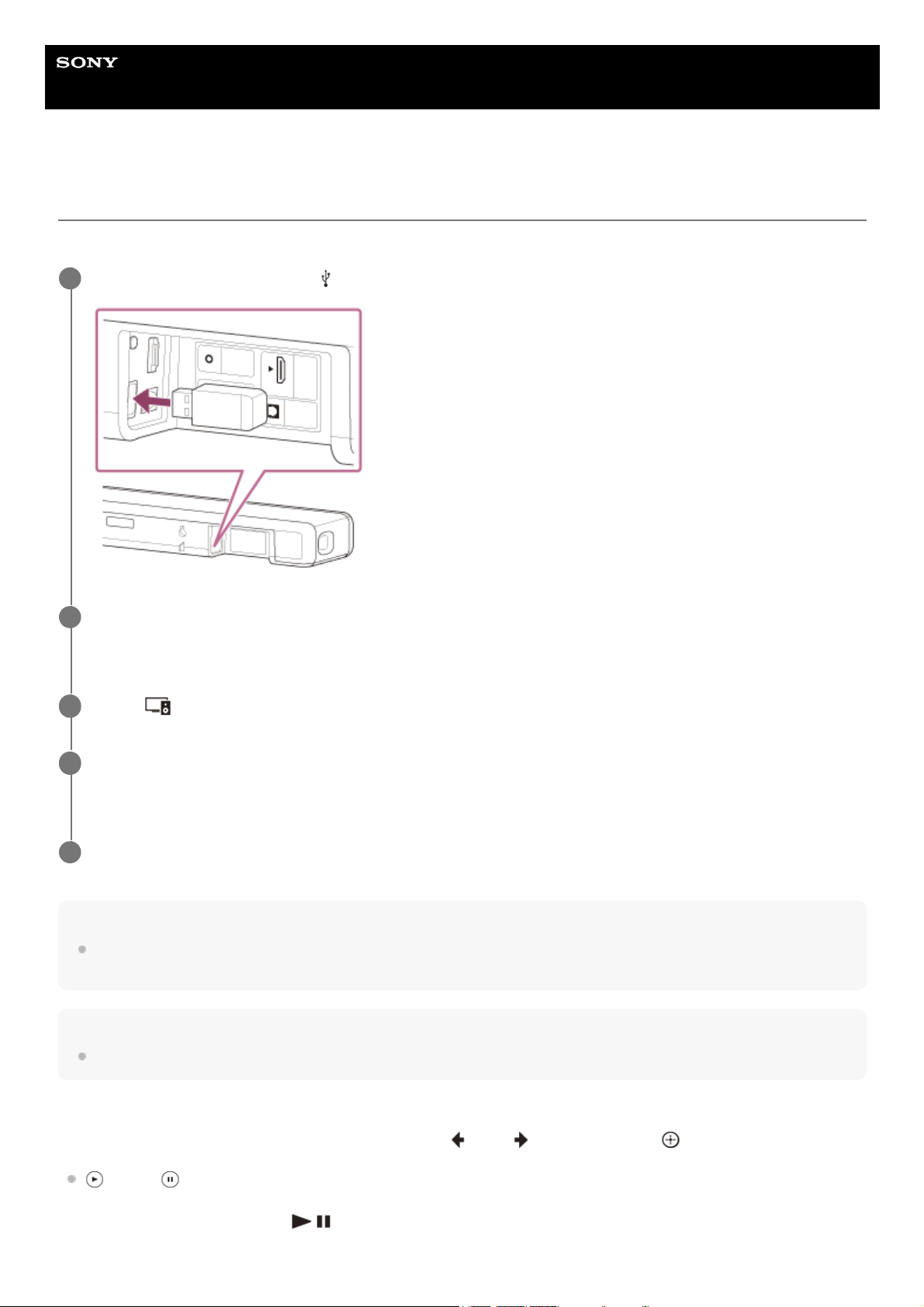
Listening to Music on a USB Device
You can play music files stored on a connected USB device.
Note
Do not remove the USB device during operation. To avoid data corruption or damage to the USB device, turn the speaker system
off before connecting or removing the USB device.
Hint
You can select the USB input directly by pressing USB on the remote control.
About the music playback screen
Select the following buttons on the TV screen by pressing
(left)/ (right), then press (enter).
(play)/ (pause)
Starts or pauses playback.
You can also operate by using
(play/pause) on the remote control.
Connect the USB device to the
(USB) port.
1
Press HOME.
The home menu appears on the TV screen.
2
Select
[Watch & Listen] - [USB (Connected)] on the home menu.
3
Select the folder on which songs are stored, then select a song.
The selected song is played and sound is output from the speaker system.
4
Adjust the volume.
5
43
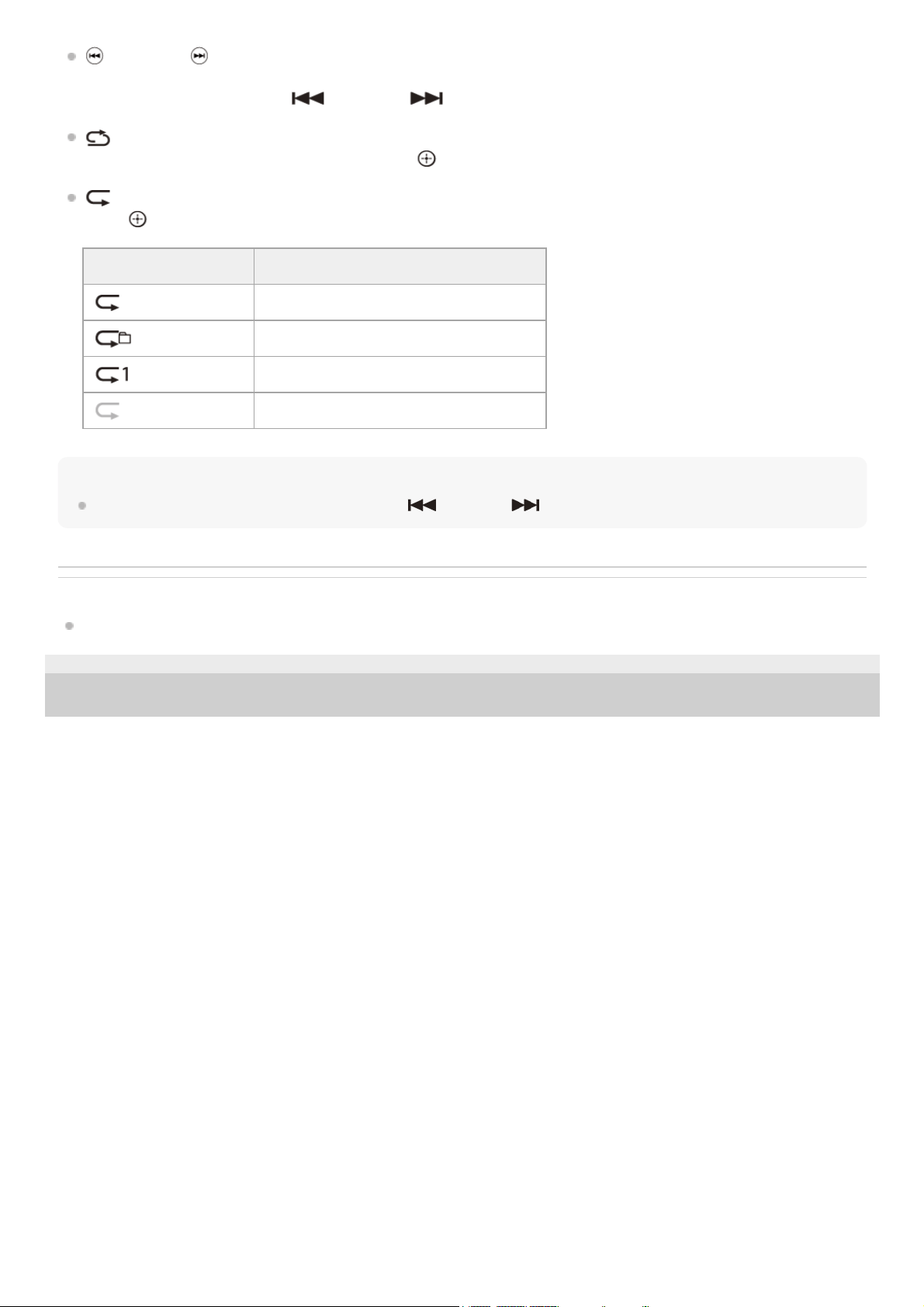
(previous)/ (next)
Plays the previous or next music file.
You can also operate by using
(previous)/ (next) on the remote control.
(Shuffle play)
Shuffles the playback order. Each time you press
(enter), on/off of the shuffle play is switched.
(Repeat play)
Press
(enter) repeatedly to switch the repeat mode.
Hint
You can rewind/fast forward by pressing and holding
(previous)/ (next) on the remote control during playback.
Related Topic
Playable Types of Audio Files
5-034-491-11(2) Copyright 2022 Sony Corporation
Repeat mode Explanation
(Repeat all) Repeats all music files.
(Repeat folder) Repeats all music files in a folder.
(Repeat one) Repeats a music file that is being played.
(Off) Cancels the repeat play.
44
Help Guide
Sound Bar
HT-A3000
Listening to Sound by Pairing with Headphones
To remove the paired headphones from the device list
Note
Set the BLUETOOTH® compatible headphones to pairing mode.
Refer to the operating instructions of the headphones for the pairing method.
1
Press HOME.
The home menu appears on the TV screen.
2
Select
[Setup] - [Advanced Settings] on the home menu.
3
Select [Bluetooth Settings] - [Bluetooth Mode] - [Transmitter].
The speaker system enters BLUETOOTH transmission mode.
4
Select the name of the headphones from the [Device List] in [Bluetooth Settings].
When the BLUETOOTH connection is established, [Connected] appears.
If you cannot find the name of your headphones in [Device List], select [Scan].
5
Return to the home menu, select
[Watch & Listen], and select the input.
The image of the selected input appears on the TV screen, [BT TX] appears in the front panel display, then the
sound is output from the headphones.
Sound from the speaker system is muted at the same time.
6
Adjust the volume.
Adjust the volume level of the headphones first. Then, adjust the volume level of the headphones with +/– on the
bar speaker or
(volume) +/– on the remote control.
7
Press HOME.
The home menu appears on the TV screen.
1.
Select
[Setup] - [Advanced Settings] on the home menu.2.
Select [Bluetooth Settings] - [Device List].3.
Move the cursor to the name of the headphones that you want to remove, and then press DISPLAY.
To remove all the paired headphones from the device list, press AUDIO.
4.
Follow the on-screen instructions to remove the desired headphones from the device list.5.
45

To display the paired headphones on the device list, Set [Setup] - [Advanced Settings] - [Bluetooth Settings] - [Bluetooth
Mode] to [Transmitter].
5-034-491-11(2) Copyright 2022 Sony Corporation
46
Help Guide
Sound Bar
HT-A3000
Listening to Sound with Paired Headphones
To disconnect the paired headphones
Perform any of the following items.
Disable the BLUETOOTH function on the headphones.
Set
[Setup] - [Advanced Settings] - [Bluetooth Settings] - [Bluetooth Mode] to [Receiver] or [Off].
Turn off the speaker system or headphones.
Select the device name of the connected headphones from
[Setup] - [Advanced Settings] - [Bluetooth Settings]
- [Device List].
[Connected] of the device name disappears.
5-034-491-11(2) Copyright 2022 Sony Corporation
Set the BLUETOOTH® function of the headphones to on.
1
Press HOME.
The home menu appears on the TV screen.
2
Select
[Setup] - [Advanced Settings] on the home menu.
3
Select [Bluetooth Settings] - [Bluetooth Mode] - [Transmitter].
The speaker system enters BLUETOOTH transmission mode and the speaker system automatically reconnects to
the headphones that was most recently connected to.
4
Return to the home menu, select
[Watch & Listen], and select the input.
The image of the selected input appears on the TV screen, [BT TX] appears in the front panel display, then the
sound is output from the headphones.
Sound from the speaker system is muted at the same time.
5
Adjust the volume.
Adjust the volume level of the headphones first. Then, adjust the volume level of the headphones with +/– on the
bar speaker or
(volume) +/– on the remote control.
6
47

Help Guide
Sound Bar
HT-A3000
About the Connection of the Headphones
You may not be able to adjust the volume level depending on the BLUETOOTH® compatible headphones.
Input of BLUETOOTH is disabled when
[Setup] - [Advanced Settings] - [Bluetooth Settings] - [Bluetooth Mode]
is set to [Off] or [Transmitter].
You can register up to 9 BLUETOOTH devices. If a 10th BLUETOOTH device is registered, the oldest connected
BLUETOOTH device will be overwritten by the new one.
The speaker system can display up to 15 detected BLUETOOTH devices in the [Device List].
You cannot change the sound effect or settings while transmitting sound to the BLUETOOTH compatible
headphones.
Playback of audio/music on the BLUETOOTH device is delayed compared to that on the speaker system due to the
characteristics of BLUETOOTH wireless technology.
You can enable or disable the reception of LDAC audio from the BLUETOOTH device in [Bluetooth Settings].
5-034-491-11(2) Copyright 2022 Sony Corporation
48
Help Guide
Sound Bar
HT-A3000
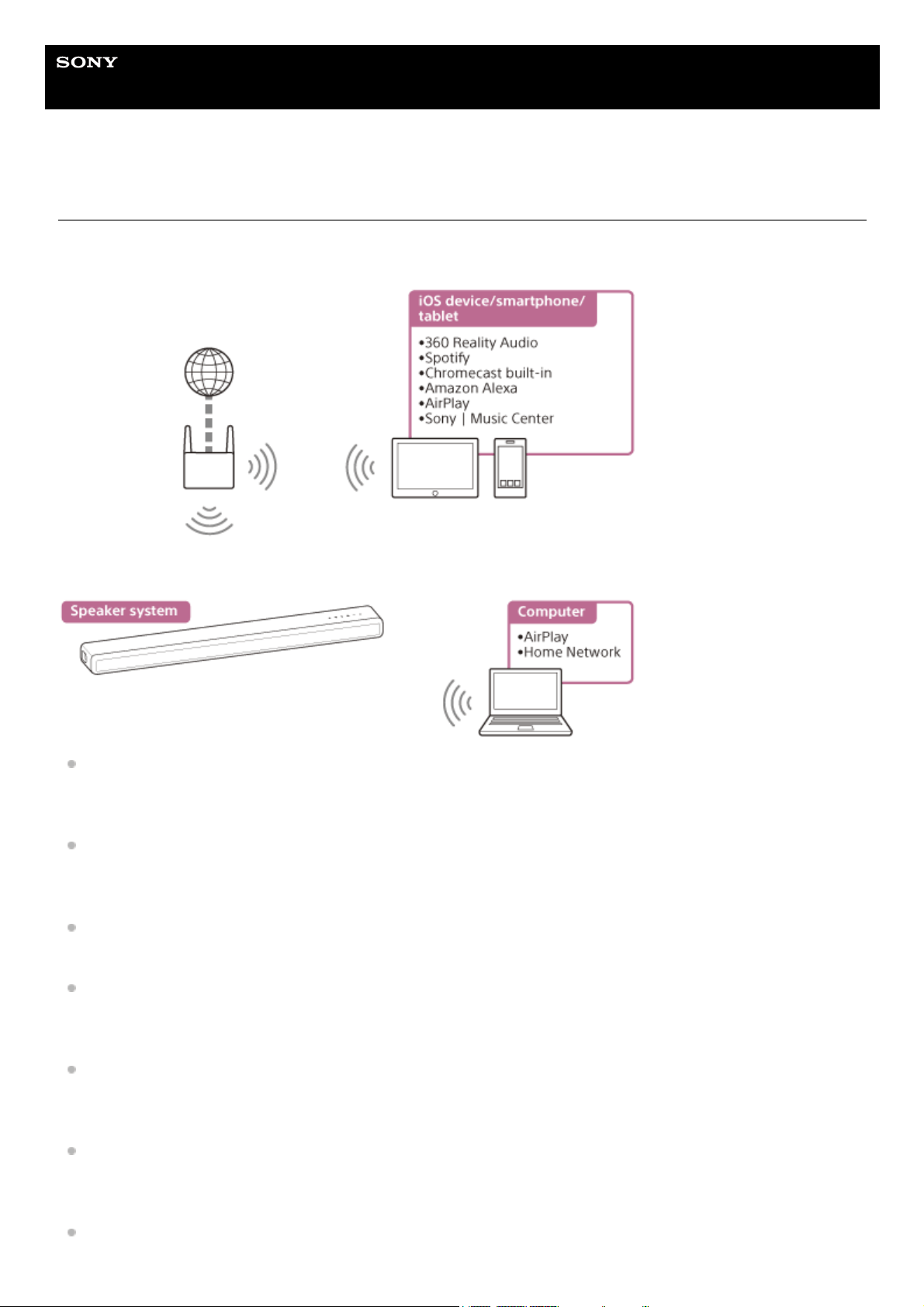
What You Can Do by Connecting the Speaker System to a Network
You can perform streaming playback of music content via the speaker system by operating a smartphone, tablet, or iOS
device, or play music stored on a computer via the speaker system by connecting to the network.
360 Reality Audio
You can play 360 Reality Audio contents on the speaker system by selecting it on the streaming service app
compatible with 360 Reality Audio.
Spotify
You can select music on the Spotify app and play it on the speaker system.
Use your phone, tablet or computer as a remote control for Spotify. Go to spotify.com/connect to learn how.
Chromecast built-in™
You can select music on the Chromecast-enabled app and play it on the speaker system.
Amazon Alexa
You can perform voice control such as music playback, going to the next/previous song, volume adjustment, etc. on
the streaming service by using the speaker system in combination with the Alexa built-in device (not supplied).
AirPlay
The speaker system supports AirPlay. You can play music on the speaker system by operating an iOS device or a
computer.
Sony | Music Center
You can control the speaker system wirelessly by installing the “Sony | Music Center” app on your smartphone or
tablet device.
Home Network
You can play music files stored on your computer on a network location via your home network.
49

Note
The server needs to be connected to the same network as that of the speaker system.
Related Topic
Prerequisite: Making the Initial Settings for Alexa with Sony | Music Center
Playing Music with the TIDAL App
Prerequisite: Making the Initial Settings for Chromecast built-in
Using Spotify
Using AirPlay
Using Sony | Music Center
Listening to Music on Your PC via a Home Network
5-034-491-11(2) Copyright 2022 Sony Corporation
50
Help Guide
Sound Bar
HT-A3000
Notes on Connecting to the Internet
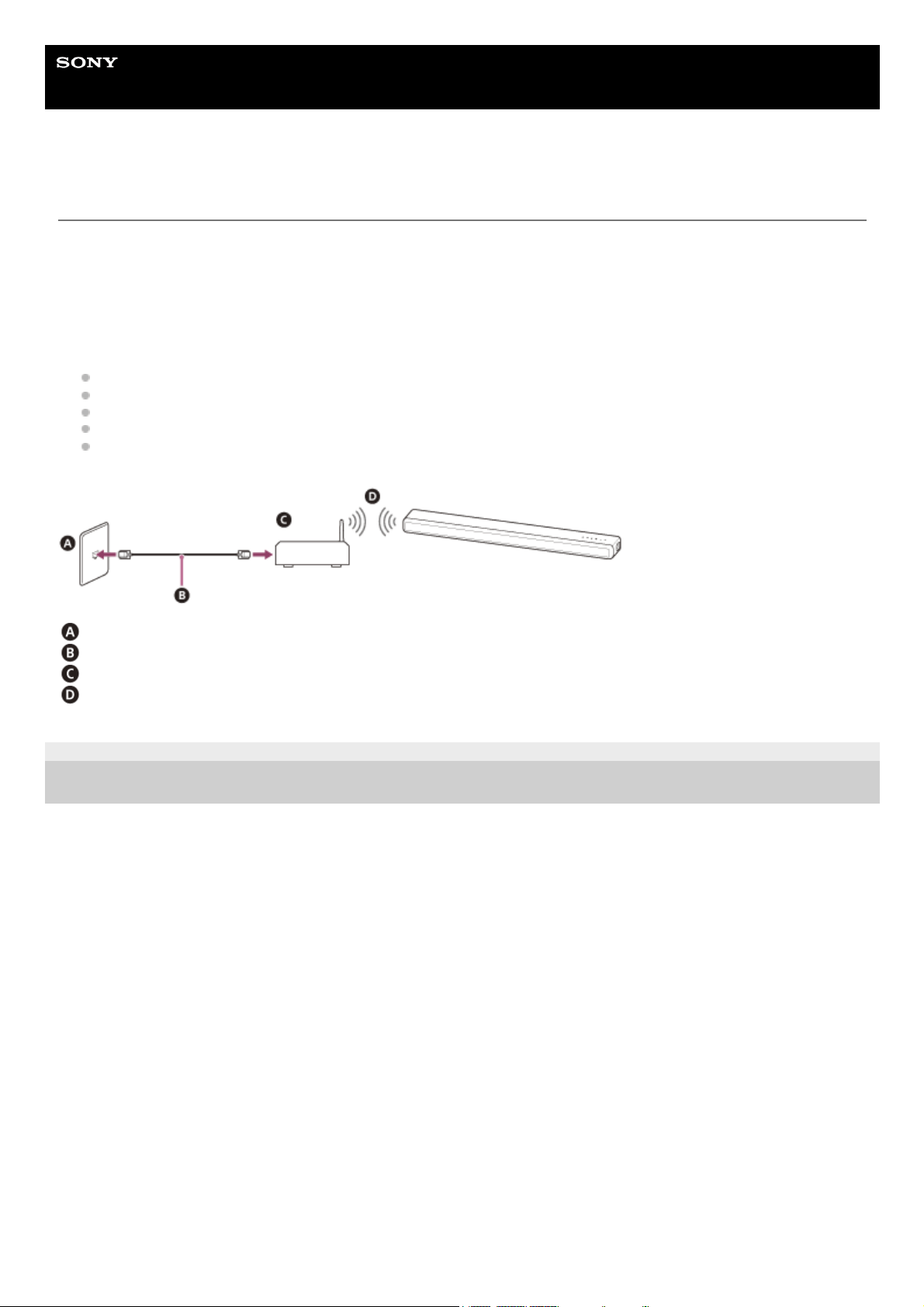
When connecting the speaker system to the Internet, be sure to connect via a router (*) with the appropriate security
settings.
Once a security issue occurs, this product may suffer damage caused by malware (malicious software), etc. via the
Internet and be exposed to security threats such as theft or tampering of personal information or content. This product
may also cause damage to network services without your knowledge.
LAN port on a wall
LAN cable
Router
Wireless LAN
5-034-491-11(2) Copyright 2022 Sony Corporation
A router is a device that relays the Internet and a local area network connection to other devices.
There are the following types of routers:
Wired router
ADSL modem router
Optical Network Unit (ONU) with router function
Wi-Fi access point that can function as a router
In-wall access point router (**)
*
If you are not sure whether an in-wall access point can be used as a router, check with your apartment manager or Internet service provider, etc.
**
51
Help Guide
Sound Bar
HT-A3000
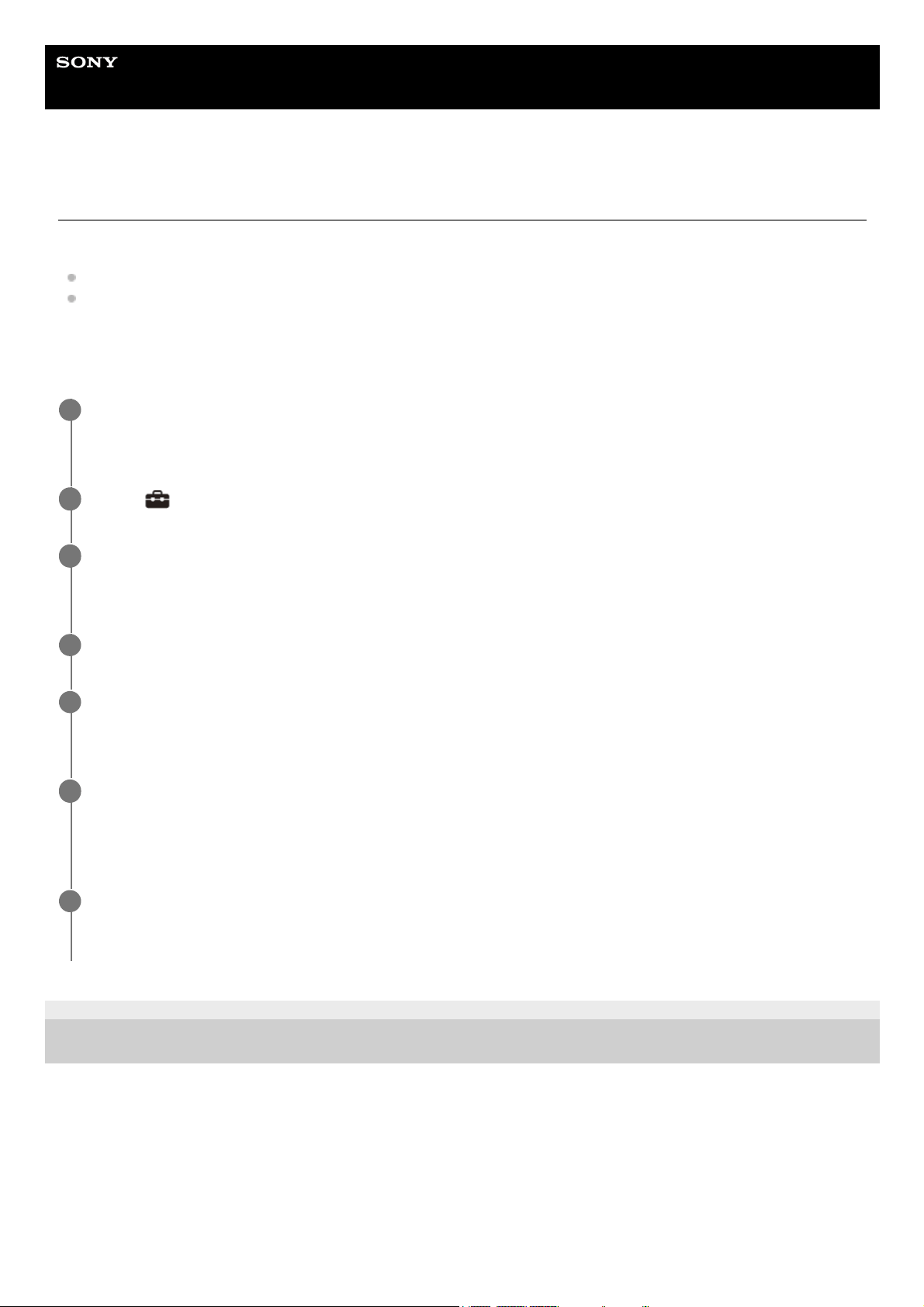
Setting Up a Wireless Network Connection on the Home Menu
Check the following information in advance.
The network name (SSID)(*)
The security key (password)(**)
5-034-491-11(2) Copyright 2022 Sony Corporation
SSID (Service Set Identifier) is a name that identifies a particular access point.
*
This information should be available from a label on your wireless LAN router/access point, from the operating instructions, from the person who
set up your wireless network, or from the information provided by your Internet service provider.
**
Press HOME.
The home menu appears on the TV screen.
1
Select
[Setup] - [Advanced Settings] on the home menu.
2
Select [Network Settings].
Make sure that [Wi-Fi Connection] is set to [On].
3
Select [Internet Settings] - [Next].
4
Select [Search for Wi-Fi network].
The list of network names appears on the TV screen.
5
Select the desired network name (SSID).
When connecting to a network that does not appear in the list, select [New connection registration] and follow the
on-screen instructions.
6
Enter the security key (or password) using the software keyboard, and then select [Enter].
The speaker system starts connecting to the network.
7
52

Help Guide
Sound Bar
HT-A3000
Setting Up a Wireless Network Connection Using Sony | Music Center
Sony | Music Center can connect the speaker system to the same wireless network as that of the mobile device. For
details, follow the instruction of the app or refer to the following URL.
https://www.sony.net/smcqa/
5-034-491-11(2) Copyright 2022 Sony Corporation
53
Help Guide
Sound Bar
HT-A3000
Setting Up a Wi-Fi Connection Using an iOS Device
The speaker system is compatible with Apple Setup.
Using this function, you can connect the speaker system to the same network that connects your iOS device by Wi-Fi
without entering the network name and password.
5-034-491-11(2) Copyright 2022 Sony Corporation
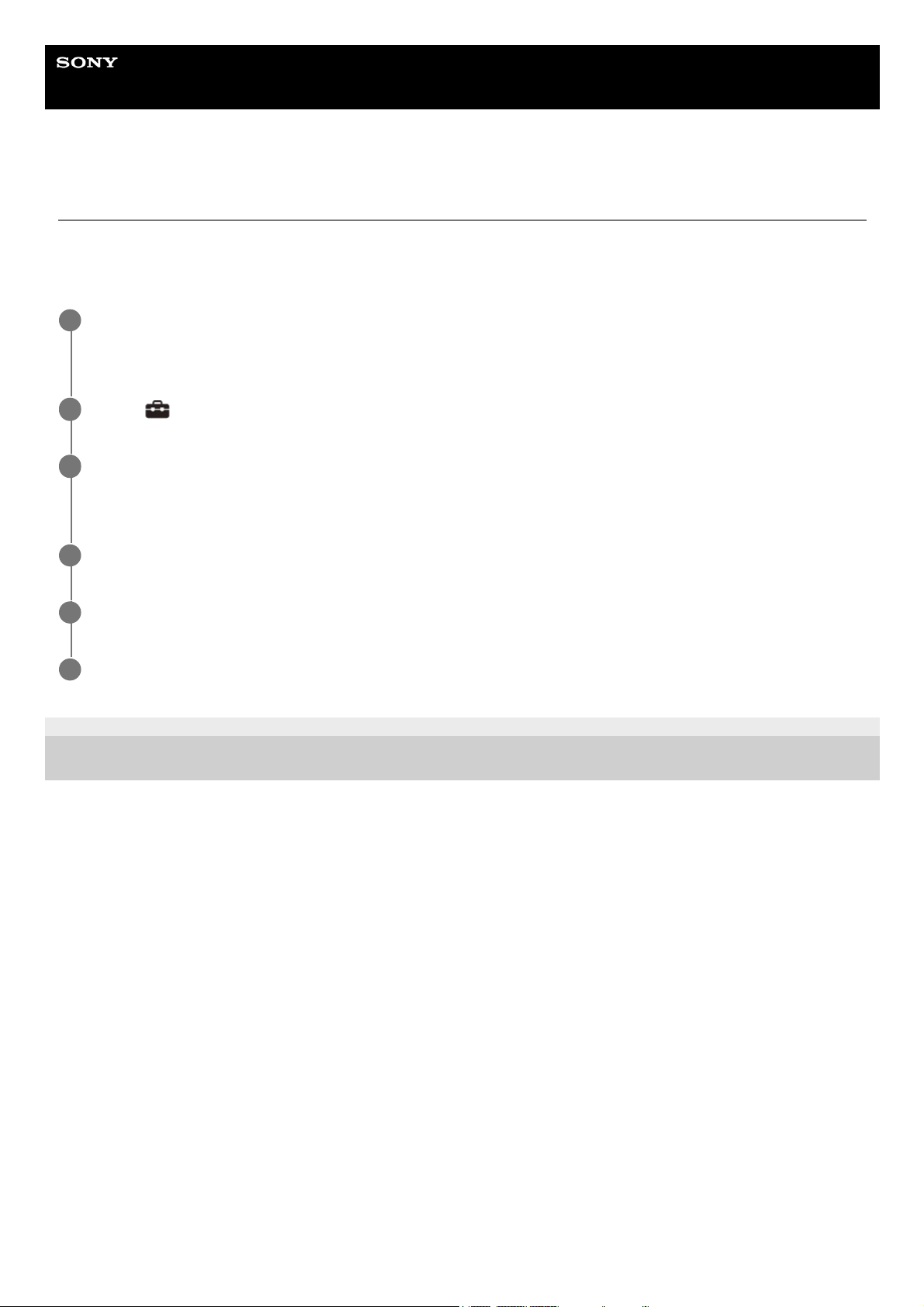
Press HOME.
The home menu appears on the TV screen.
1
Select
[Setup] - [Advanced Settings] on the home menu.
2
Select [Network Settings].
Make sure that [Wi-Fi Connection] is set to [On].
3
Select [Internet Settings] - [Next].
4
Select [Use Apple Setup].
5
Operate the iOS device by following the on-screen instructions.
6
54
Help Guide
Sound Bar
HT-A3000
Prerequisite: Making the Initial Settings for Alexa with Sony | Music Center
With Sony | Music Center, you can play music from Amazon Music or link the speaker system with an Amazon Alexa
Built-in device.
To prepare the speaker system and mobile device, connect the mobile device by Wi-Fi to the same network as that of
the speaker system, and register the speaker system to an Amazon account.
Note
Amazon Alexa is not available in all languages and countries/regions.
Before you use Sony | Music Center, make sure that a Wi-Fi network connection is established.
Related Topic
Setting Up a Wireless Network Connection Using Sony | Music Center
5-034-491-11(2) Copyright 2022 Sony Corporation
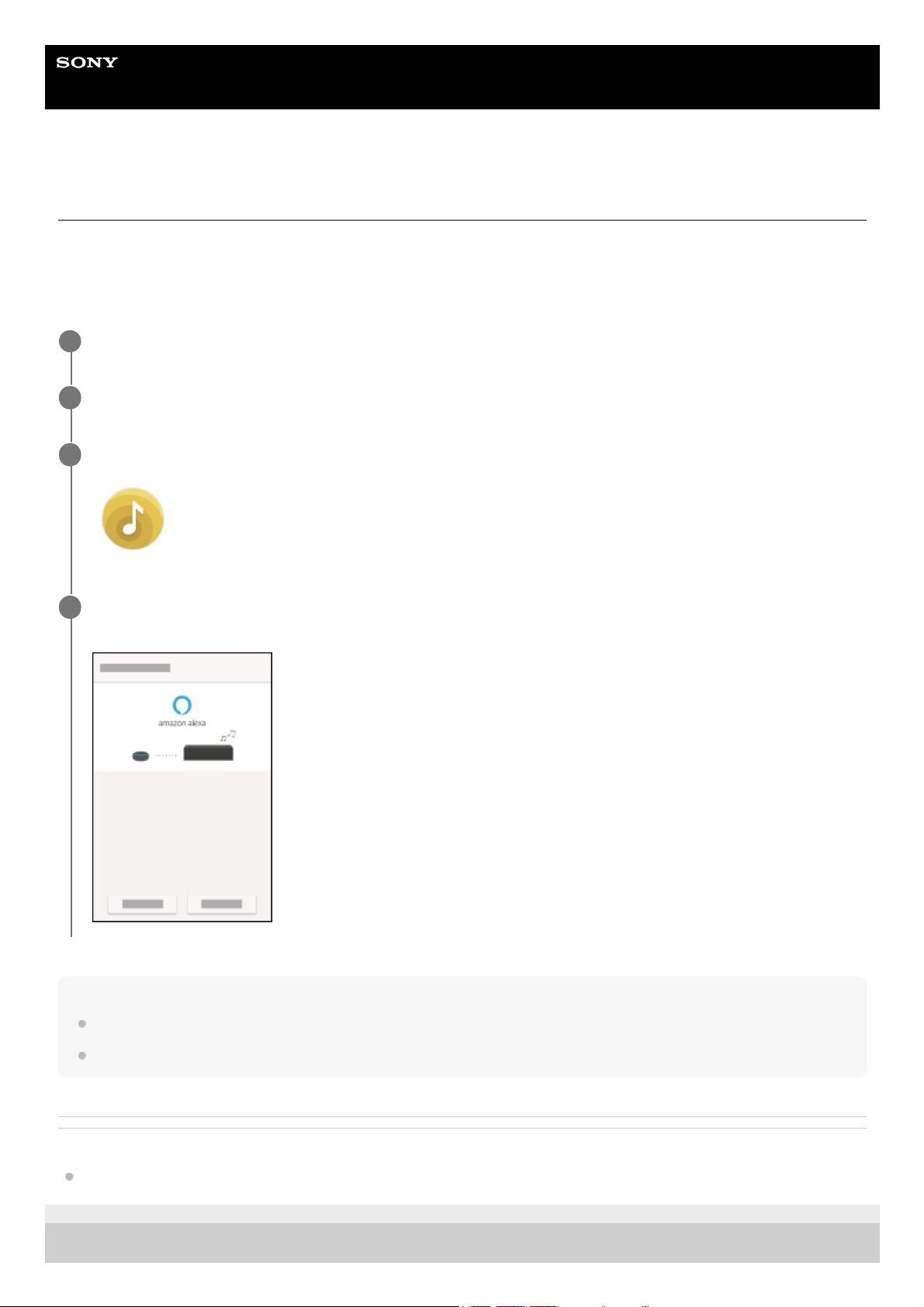
Connect the mobile device by Wi-Fi to the same network as that of the speaker system.
1
Install the free Sony | Music Center app on your mobile device.
2
Start Sony | Music Center and select the speaker system.
3
Select [Settings] - [Amazon Alexa] - [Initial Setup] and follow the on-screen instructions to make settings to
operate the speaker system with Alexa.
4
55

56
Help Guide
Sound Bar
HT-A3000
Audio Formats Available for Playback by Audio Casting Protocol
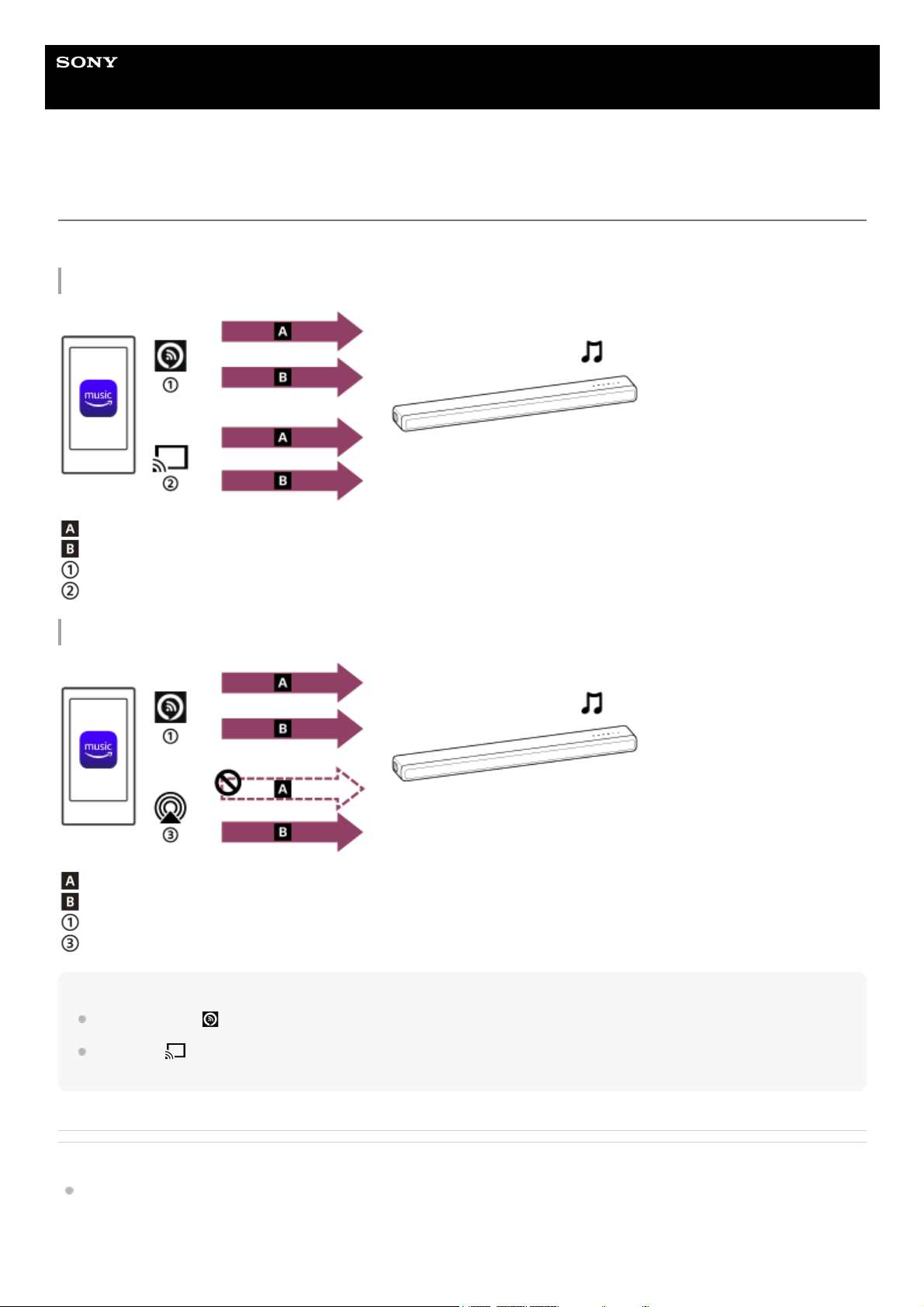
Audio formats available for playback vary depending on the audio casting protocol.
On the Amazon Music app for Android OS:
360 Reality Audio
2-channel audio
Alexa Cast
Cast icon
On the Amazon Music app for iOS:
360 Reality Audio
2-channel audio
Alexa Cast
AirPlay
Hint
Alexa Cast icon (
): The speaker system is identified by the device name you specified in the initial settings for Alexa.
Cast icon (
): The speaker system is identified by the device name, [HT-A3000], or the device name you specified in the
initial settings for Google Home.
Related Topic
Playing Music with the Amazon Music App
57

5-034-491-11(2) Copyright 2022 Sony Corporation
58
Help Guide
Sound Bar
HT-A3000
Playing Music with the Amazon Music App
By operating a smartphone/iPhone on which the Amazon Music app is installed, you can play music from Amazon
Music.
You can play 360 Reality Audio compatible music available on Amazon Music as well.
To play 360 Reality Audio compatible music, you need to subscribe to Amazon Music Unlimited.
Note
To download the app and use network services, additional registrations and payment of communication charges and other fees
may be required.
Note
When selecting a playback device, selecting the speaker system's name displayed with the AirPlay icon (
) does not enable
360 Reality Audio playback.
With Sony | Music Center, you can check the streaming services that provide 360 Reality Audio compatible music. On Sony |
Music Center, select the speaker system and then select [Settings] - [About 360 Reality Audio] - [Next].
Download and install the Amazon Music app on your smartphone/iPhone.
1
Start the Amazon Music app and select music of your choice for playback.
The music tracks indicated with the [360] icon are compatible with 360 Reality Audio.
2
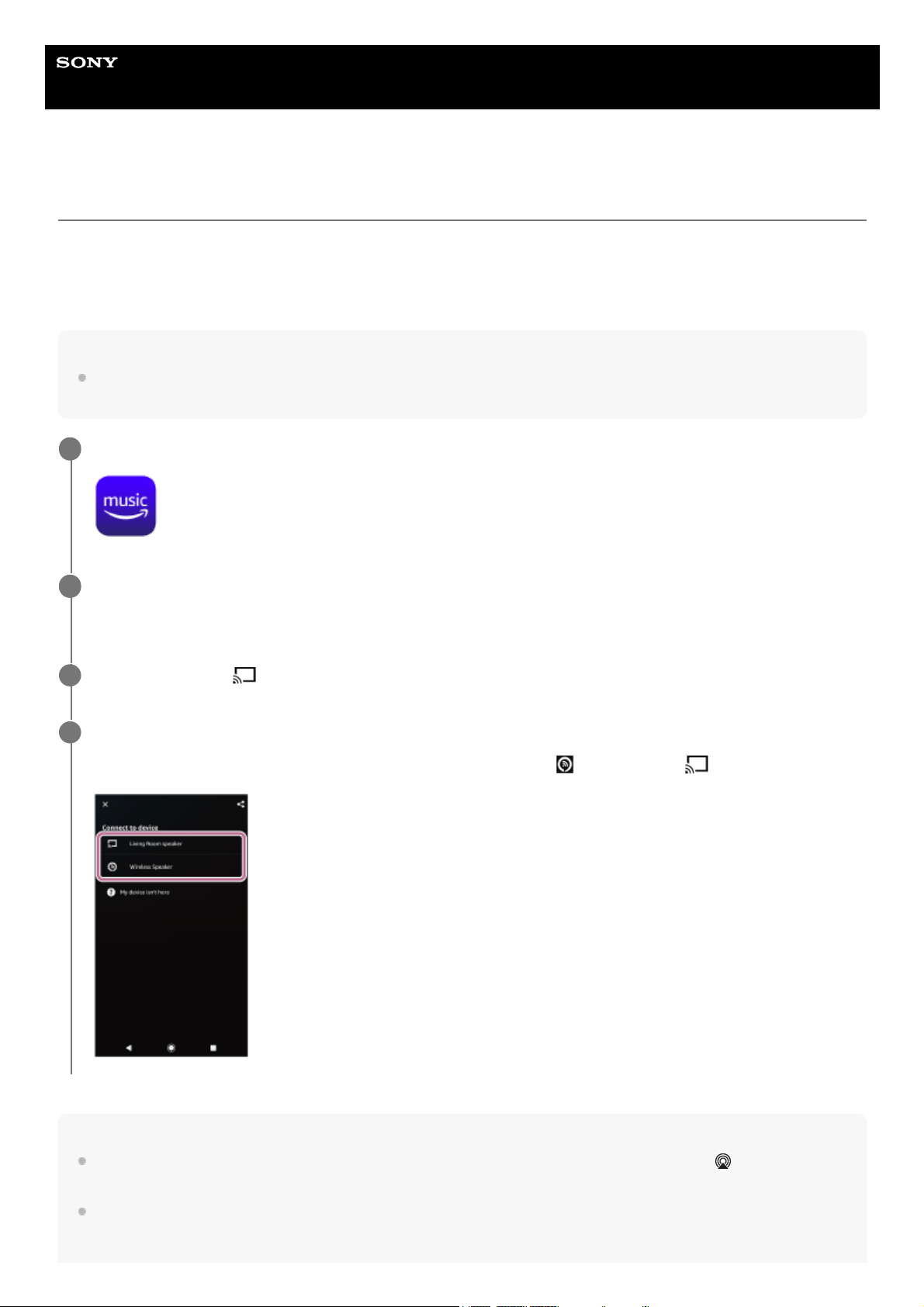
Tap the cast icon (
).
3
Select the speaker system as the music playback destination.
Tap the speaker system's name displayed with the Alexa Cast icon (
) or cast icon ( ).
4
59

Help Guide
Sound Bar
HT-A3000
Operating the Speaker System by Talking to an Alexa Built-in Device
By talking to an Alexa Built-in device, you can stream music to the speaker system from a streaming service that
supports Alexa.
Note
This function is not available in some countries/regions.
Alexa skills that need user responses are not available on the speaker system because the speaker system does not have a
microphone.
An Amazon Alexa Built-in device (not supplied), such as Amazon Echo, is required to use voice command features.
By using an Alexa Built-in device along with the speaker system, you can use voice commands to play, skip to the beginning of
the next/current track, and adjust the volume.
Not all of the Amazon Alexa functions are available on the speaker system.
Hint
Use Sony | Music Center to deregister the speaker system from the Amazon account. Even if you deregister an account on the
Alexa app, the speaker system will not recognize that the account has been deregistered.
An image such as an album cover appears in the playback screen if the played content supports the feature.
5-034-491-11(2) Copyright 2022 Sony Corporation
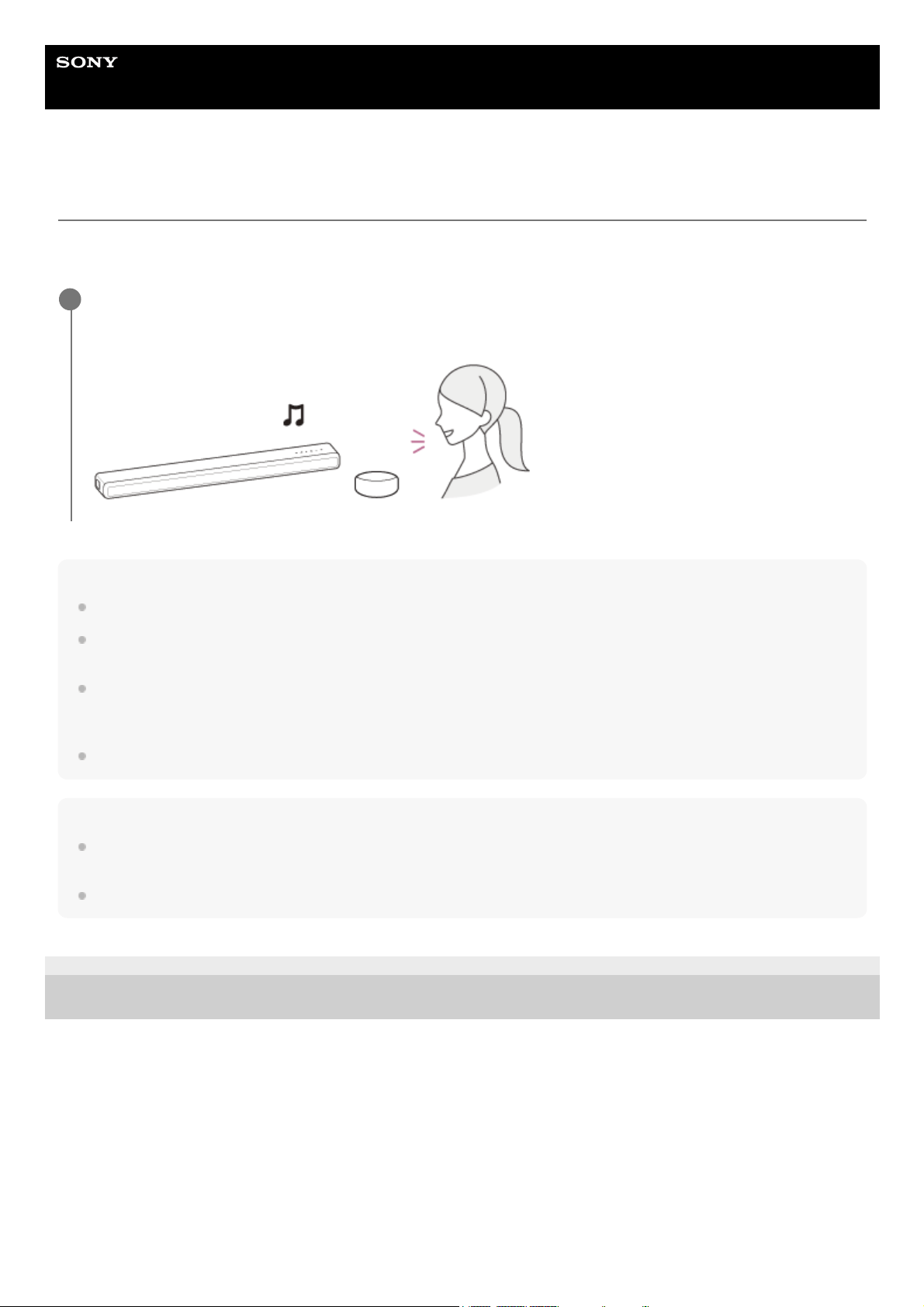
Talk to the Alexa Built-in device to play music.
For details on voice commands for Alexa Built-in device, find them out on Sony | Music Center.
1
61
Help Guide
Sound Bar
HT-A3000
Playing Music with the TIDAL App
By operating a smartphone/iPhone on which the TIDAL app is installed, you can play music from TIDAL.
You can play 360 Reality Audio compatible music available on TIDAL as well.
To play 360 Reality Audio compatible music, you need to subscribe to the TIDAL HiFi plan.
Note
TIDAL may not be available in some languages or countries/regions.
To download the app and use network services, additional registrations and payment of communication charges and other fees
may be required.
Note
With Sony | Music Center, you can check the streaming services that provide 360 Reality Audio compatible music. On Sony |
Music Center, select the speaker system and then select [Settings] - [About 360 Reality Audio] - [Next].
The specifications and design of the app may change without notice.
5-034-491-11(2) Copyright 2022 Sony Corporation
Download and install the TIDAL app on your smartphone/iPhone.
1
Connect the mobile device by Wi-Fi to the same network as that of the speaker system.
2
Start the TIDAL app and select music of your choice for playback.
3
Tap the cast icon (
).
4
Select the speaker system as the music playback destination.
Tap the speaker system's name ([HT-A3000] or the device name you specified in the initial settings for Google
Home).
When you select either 2-channel audio or 360 Reality Audio compatible music, [360RAcast] appears.
5
62

Help Guide
Sound Bar
HT-A3000
Prerequisite: Making the Initial Settings for Chromecast built-in
The speaker system is compatible with Chromecast built-in, which can stream music to the speaker from the mobile
device.
Playing and controlling your music with Google Assistant
This speaker system is compatible with a Google Assistant-enabled device with Chromecast built-in so you can control
your music with your voice. Simply link the speaker system to the Google Home app on your mobile device. For details,
refer to the Google Home app.
5-034-491-11(2) Copyright 2022 Sony Corporation
Press HOME.
The home menu appears on the TV screen.
1
Select
[Listen] - [Chromecast built-in] on the home menu.
Follow the steps that appear on the screen.
After performing the settings, [Network/Bluetooth Standby] is set to [On] automatically and you can play music
quickly even when the speaker system is in standby mode.
2
63
Help Guide
Sound Bar
HT-A3000
Playing Music with Apps Compatible with Other Streaming Services
By operating a smartphone/iPhone on which an app compatible with a streaming service of your choice is installed, you
can play 2-channel audio or 360 Reality Audio compatible music.
Depending on the streaming service, you need to subscribe to the premium plan to play 360 Reality Audio compatible
music.
Note
To download the app and use network services, additional registrations and payment of communication charges and other fees
may be required.
Note
With Sony | Music Center, you can check the streaming services that provide 360 Reality Audio compatible music. On Sony |
Music Center, select the speaker system and then select [Settings] - [About 360 Reality Audio] - [Next].
The specifications and design of the app may change without notice.
5-034-491-11(2) Copyright 2022 Sony Corporation
Download and install an app compatible with a streaming service of your choice on your
smartphone/iPhone.
1
Connect the mobile device by Wi-Fi to the same network as that of the speaker system.
2
Start the app you downloaded in step 1 and select music of your choice for playback.
3
Tap the cast icon.
The cast icon varies depending on the app.
4
Select the speaker system as the music playback destination.
Tap the speaker system's name ([HT-A3000] or the device name you specified in the initial settings for Google
Home).
5
64
Help Guide
Sound Bar
HT-A3000
Using Spotify
You can select music on the Spotify app and play it on the speaker system.
Playing music on the speaker system by using the “Spotify Connect” function
Use your phone, tablet or computer as a remote control for Spotify. Go to spotify.com/connect to learn how.
Hint
If [Network/Bluetooth Standby] is set to [On], you can play music quickly even when the speaker system is in standby mode.
An image such as an album cover appears in the playback screen if the played content supports the feature.
Resuming music that has been played on the mobile device
Note
The Spotify app may not be available in some countries/regions.
Related Topic
[System Settings]
5-034-491-11(2) Copyright 2022 Sony Corporation
Press MUSIC SERVICE.
When you have played music on Spotify on the speaker system, the music that was played with Spotify is resumed.
1
65
Help Guide
Sound Bar
HT-A3000
Using AirPlay
The speaker system is compatible with AirPlay 2. You can select music content on an iOS device such as iPhone, iPad,
and iPod touch and stream it to the speaker system.
Hint
You can also select other speakers at the same time as the speaker system, and stream music through multiple speakers.
Streaming music on the speaker system by talking to Siri
If you add the speaker system to the Home app on the iOS device, you can stream music to the speaker system by
talking to Siri.
Note
Since the speaker system does not have a microphone, you cannot talk to the speaker system to operate it.
Not all features of Siri are available on the speaker system.
5-034-491-11(2) Copyright 2022 Sony Corporation
Connect the iOS device by Wi-Fi to the same network as that of the speaker system.
1
Play the music you want to stream on the iOS device.
2
Display the AirPlay icon (
) on the iOS device and tap it.
3
Select the speaker system as the speaker to stream to on the iOS device.
The music is played on the speaker system.
4
66
Help Guide
Sound Bar
HT-A3000
Using Sony | Music Center
Sony | Music Center is an application for controlling compatible Sony audio devices using the mobile device such as a
smartphone or tablet.
For details about Sony | Music Center, refer to the following URL.
https://www.sony.net/smcqa/
Note
Use Sony | Music Center of the latest version.
If you cannot connect the speaker system and a BLUETOOTH device via the BLUETOOTH function, uninstall Sony | Music
Center and try to connect via the BLUETOOTH function again.
Hint
Connect the mobile device to the same network as that of the speaker system.
Related Topic
Setting Up a Wireless Network Connection on the Home Menu
Setting Up a Wireless Network Connection Using Sony | Music Center
Setting Up a Wi-Fi Connection Using an iOS Device
5-034-491-11(2) Copyright 2022 Sony Corporation
Install the free Sony | Music Center app on your mobile device.
1
Connect the mobile device by Wi-Fi to the same network as that of the speaker system.
2
Start Sony | Music Center.
3
Operate by following the Sony | Music Center screen.
4
67
Help Guide
Sound Bar
HT-A3000
Listening to Music on Your PC via a Home Network
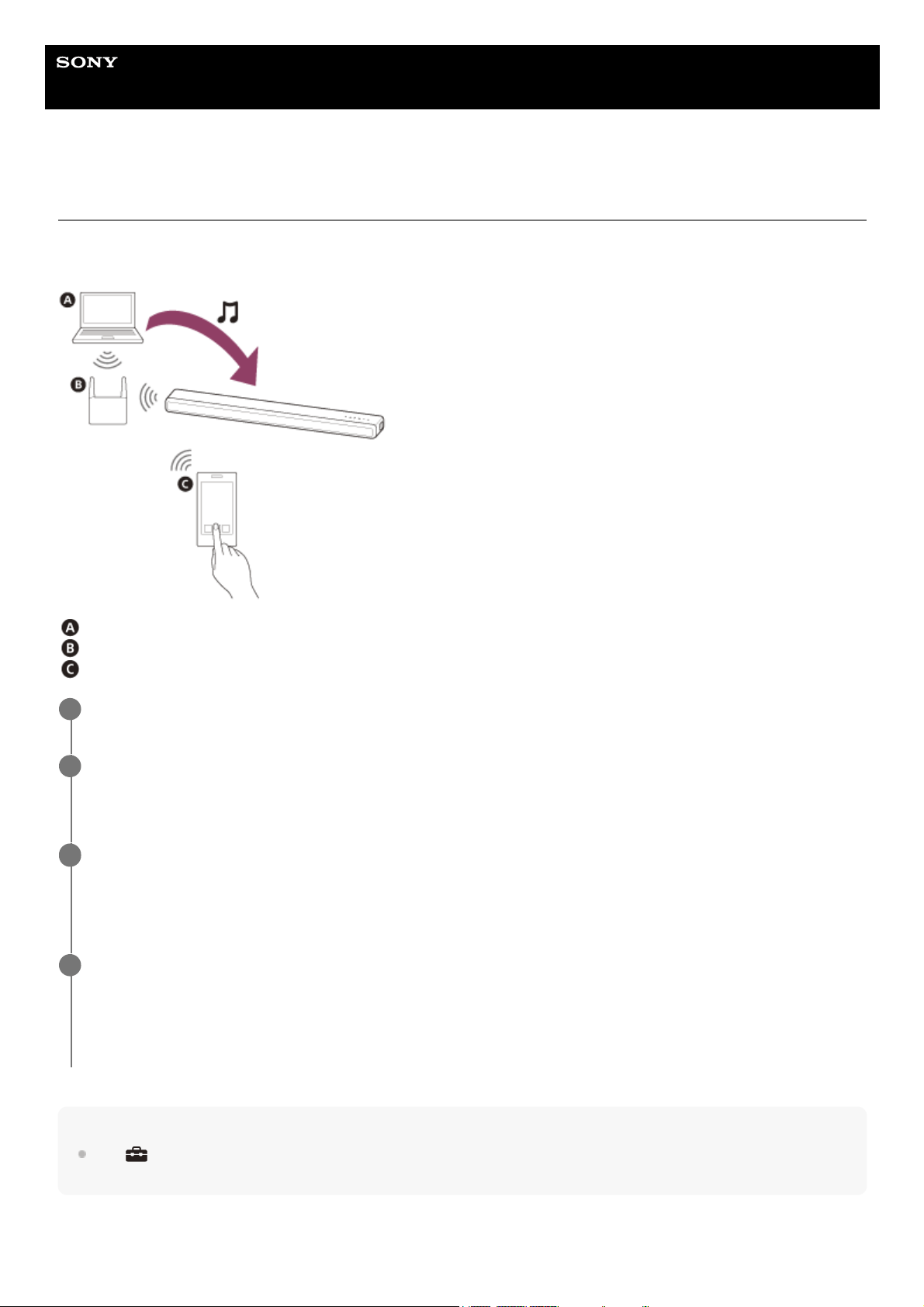
You can play music files stored on your PC via your home network.
Music files can be played by operating Sony | Music Center on a mobile device such as a smartphone or tablet.
PC
Wireless LAN router
Smartphone or tablet
Hint
See
[Setup] - [Advanced Settings] - [Network Settings] - [Network Connection Status] when checking the network
connection status.
Connect the speaker system to a network.
1
Connect the PC to a network.
For details, refer to the operating instructions of the PC.
2
Set the PC.
To use the PC on your home network, you need to set the PC as the server. For details, refer to the operating
instructions of the PC.
3
Listen to music on a PC by using Sony | Music Center.
You can play music files stored on the PC by operating Sony | Music Center that is installed to a mobile device such
as a smartphone or tablet. For details of Sony | Music Center, refer to the following URL.
https://www.sony.net/smcqa/
4
68

Help Guide
Sound Bar
HT-A3000
Adjusting the Volume
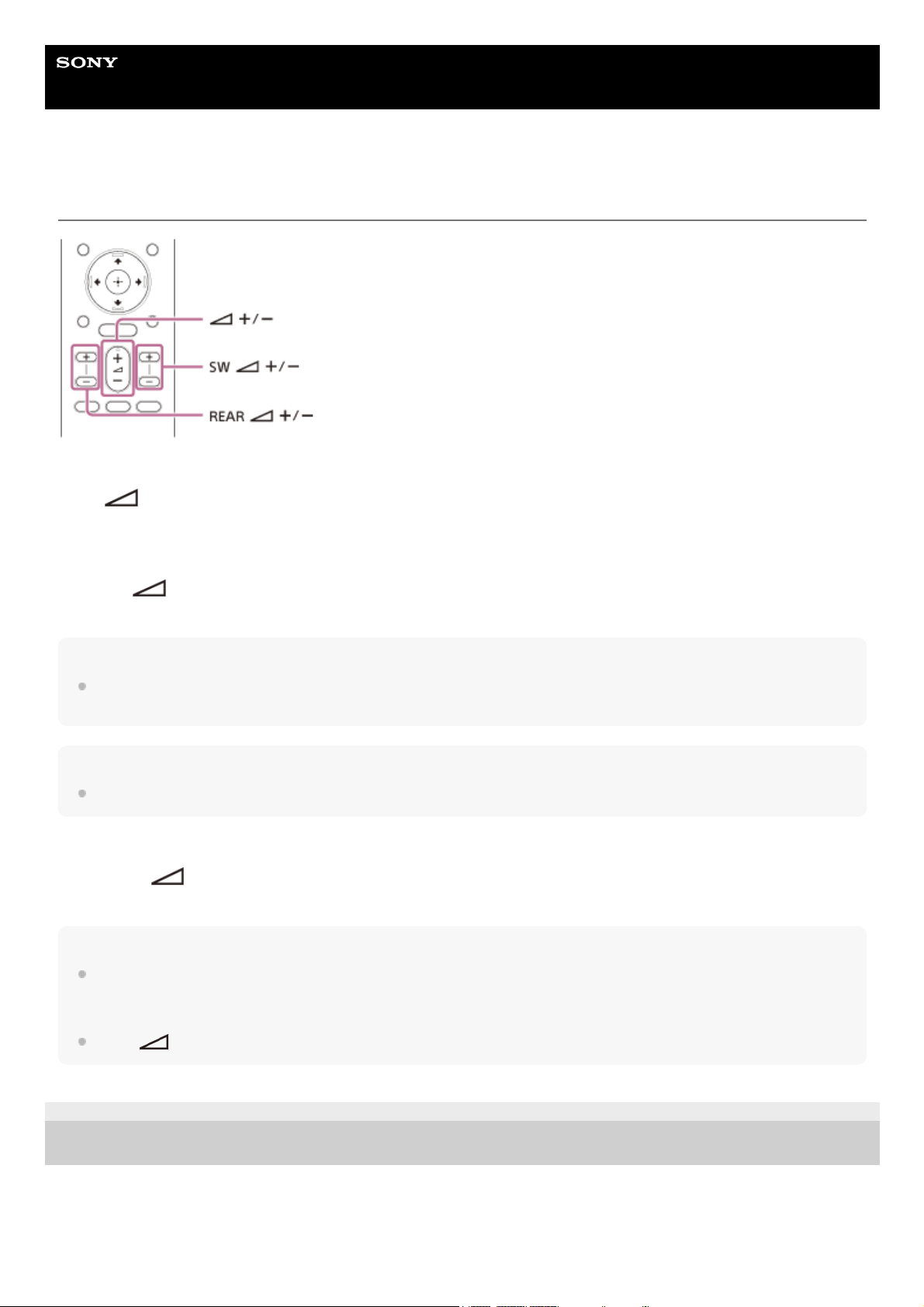
To adjust the speaker system volume
Press
(volume) +/–.
The volume level appears in the front panel display.
To adjust the subwoofer volume
Press SW
(subwoofer volume) +/–.
The volume level appears in the front panel display.
Note
The subwoofer is designed for playback of bass or low frequency sound. When the input source, such as in TV programs, does
not contain much bass sound, the bass sound from the subwoofer may be difficult to hear.
Hint
When connecting the optional subwoofer, the optional subwoofer level is adjusted instead of the built-in subwoofer level.
To adjust the optional rear speaker volume
Press REAR
(rear speakers volume) +/–.
The volume level appears in the front panel display.
Note
The optional rear speakers are designed for playback of the surround part of the multi-channel sound and surround sound that is
created from the 2-channel sound using virtual processing. When the input source does not contain much surround sound, the
surround sound from the optional rear speakers may be difficult to hear.
REAR
(rear speakers volume) +/– does not work when the optional rear speakers are not connected.
5-034-491-11(2) Copyright 2022 Sony Corporation
70
Help Guide
Sound Bar
HT-A3000
Enjoying Surround Effect (SOUND FIELD)
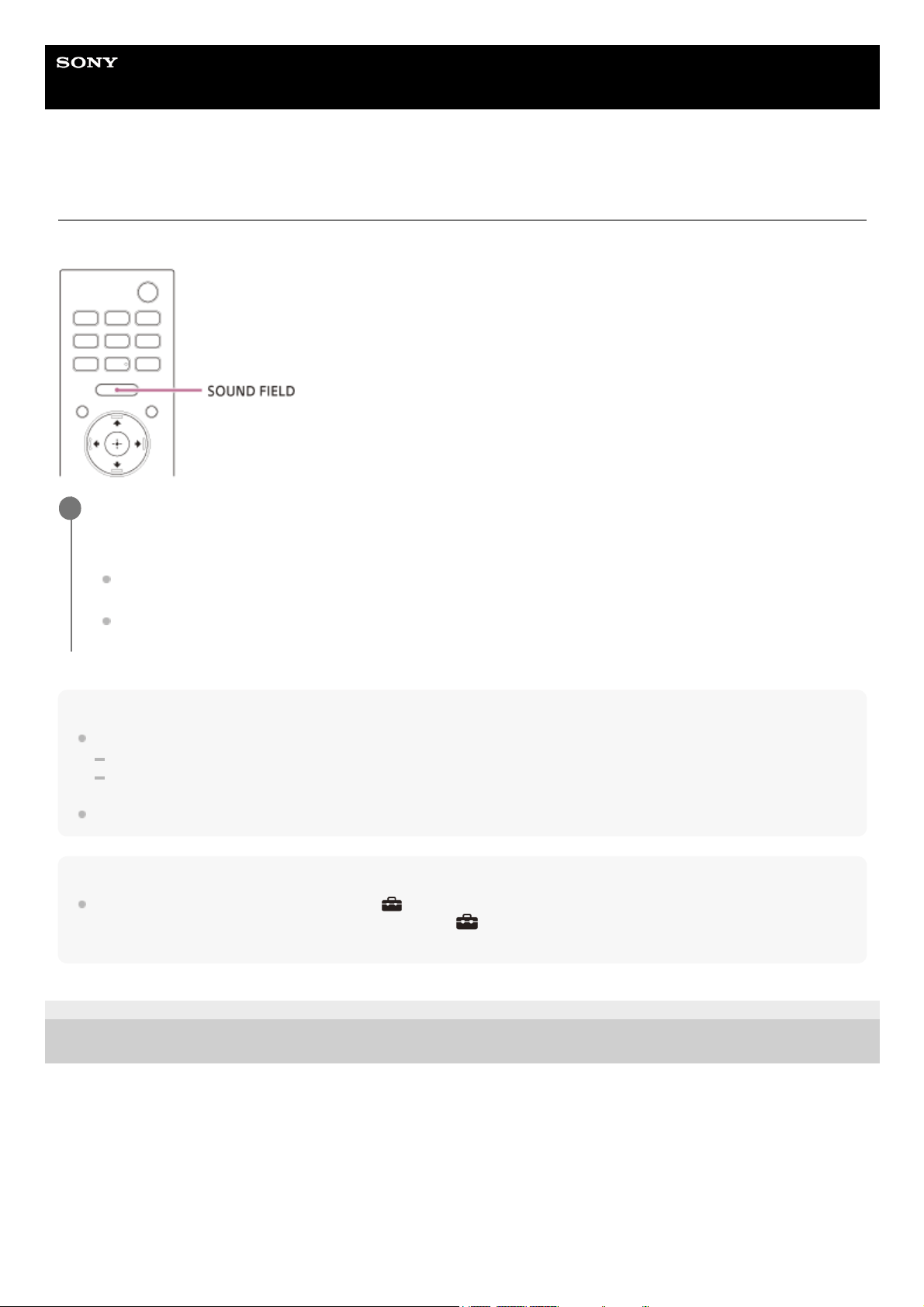
You can turn the surround effect on or off to suit sound sources.
Note
You cannot change the setting in the following conditions even if you press SOUND FIELD.
The BLUETOOTH device is connected in BLUETOOTH transmission mode.
A test tone is emitted.
Depending on the source, such as Dolby Atmos, this setting is always set to ON and cannot be changed.
Hint
You can select the type of the surround effect in
[Setup] - [Advanced Settings] - [Audio Settings] - [Sound Field Setting].
You cannot change the setting of [Sound Field Setting] when [Setup] - [Advanced Settings] - [Audio Settings] - [360 Spatial
Sound Mapping] is set to [On].
5-034-491-11(2) Copyright 2022 Sony Corporation
Press SOUND FIELD to select the setting.
The setting appears in the front panel display.
[SF.ON]: The sound is output with the surround effect. This setting is suitable for experiencing the surround
sound with presence regardless of the genre.
[SF.OFF]: The sound is output without the surround effect.
1
71
Help Guide
Sound Bar
HT-A3000
Making Dialogs Clearer (VOICE)
Note
When the BLUETOOTH device is connected in BLUETOOTH transmission mode, the voice mode is disabled.
5-034-491-11(2) Copyright 2022 Sony Corporation
Press VOICE to select the setting.
The setting appears in the front panel display.
[Vo.ON]: Dialog is easily heard by enhancing dialog range.
[Vo.OFF]: Deactivates the voice mode function.
1
72
Help Guide
Sound Bar
HT-A3000
Enjoying Clear Sound with Low Volume at Midnight (NIGHT)
Note
When you turn the speaker system off, this setting is set to [N.OFF] automatically.
When the BLUETOOTH device is connected in BLUETOOTH transmission mode, the night mode is disabled.
5-034-491-11(2) Copyright 2022 Sony Corporation
Press NIGHT to select the setting.
The setting appears in the front panel display.
[N.ON]: Sound is output at low volume with minimum loss of fidelity and clarity of dialog.
[N.OFF]: Deactivates the night mode function.
1
73
Help Guide
Sound Bar
HT-A3000
Adjusting the Delay Between the Picture and Sound
5-034-491-11(2) Copyright 2022 Sony Corporation
Press OPTIONS.
[SYNC] appears in the front panel display.
1
Press
(right) or (enter).
The adjusting time appears in the front panel display.
2
Adjust the delay using
(up)/ (down), then press (enter).
You can adjust from 0 msec to 300 msec in 25 msec increments.
3
Press OPTIONS.
The options menu in the front panel display turns off.
4
74
Help Guide
Sound Bar
HT-A3000
Enjoying Multiplex Broadcast Sound (AUDIO)
You can enjoy multiplex broadcast sound when the speaker system receives a Dolby Digital multiplex broadcast signal.
Note
To output Dolby Digital sound, you need to connect a TV that is compatible with eARC or ARC to the HDMI OUT (TV eARC/ARC)
jack with the HDMI cable (supplied).
If your TV’s HDMI IN jack is not compatible with eARC or ARC, connect the TV to the TV IN (OPT) jack with an optical digital
cable (not supplied) to output Dolby Digital sound.
Related Topic
Connecting a TV Compatible with ARC/eARC
Connecting a TV That Is not Compatible with ARC/eARC
5-034-491-11(2) Copyright 2022 Sony Corporation
Press AUDIO to select the setting.
The setting appears in the front panel display.
[MAIN]: Sound of the main language is output.
[SUB]: Sound of the sub language is output.
[MN/SB]: Main sound is output from the left speaker and sub sound is output from the right speaker.
1
75
Help Guide
Sound Bar
HT-A3000
Adjusting the Dialog Volume While the DTS:X Content is Played Back
By adjusting the dialog volume, you can easily listen to dialog since it stands out from the ambient noise. This function
works while playing content that is compatible with the DTS:X dialog control function.
The setting method differs depending on the input.
5-034-491-11(2) Copyright 2022 Sony Corporation
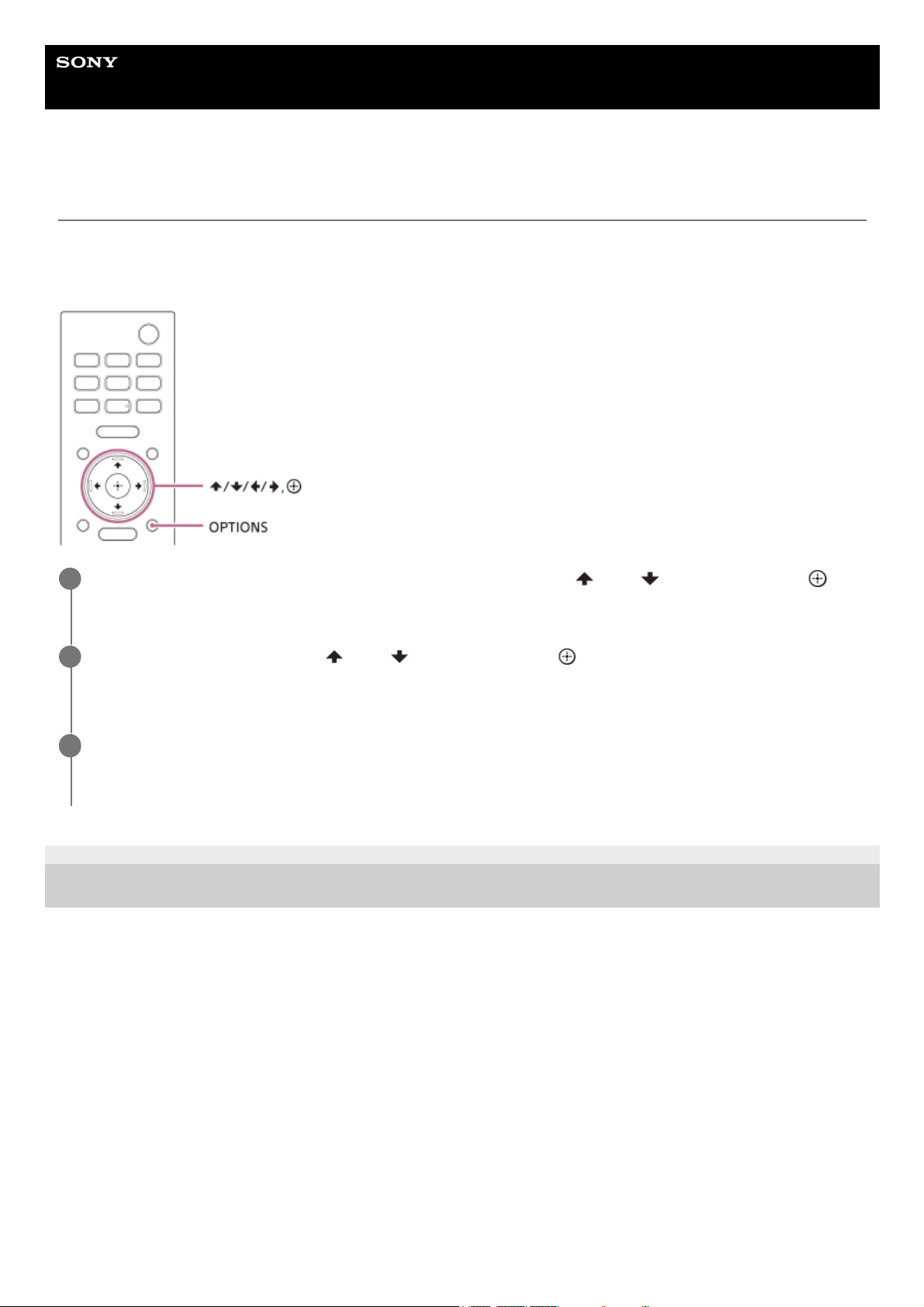
Press OPTIONS, display [DIALOG] in the front panel display using
(up)/ (down), then press
(enter).
1
Adjust the dialog volume using
(up)/ (down), then press (enter).
You can adjust from 0.0 dB to 6.0 dB in 1.0 dB increments.
2
Press OPTIONS.
The options menu in the front panel display turns off.
3
76
Help Guide
Sound Bar
HT-A3000
Operating the Speaker System by Interlocking with a TV (Control for HDMI Function)
Connecting a TV compatible with the Control for HDMI function using an HDMI cable enables you to interlock the
speaker system operation such as power on/off or volume adjustment with a TV.
About the Control for HDMI function
The Control for HDMI function is a function that enables operation of devices connected with an HDMI (High-Definition
Multimedia Interface) cable by interlocking them.
Although this function works for devices compatible with the Control for HDMI function, it may not work if connecting
devices other than those manufactured by Sony.
Preparing to operate by interlocking with a TV
Enable the Control for HDMI function settings of the TV connected to the speaker system with an HDMI cable.
The default setting of the Control for HDMI function of the speaker system is [On].
Hint
When connecting a device such as a Blu-ray Disc player to a TV with an HDMI cable, enable its Control for HDMI function.
To enable the Control for HDMI function of a TV or Blu-ray Disc player, refer to their operating instructions.
If you enable the Control for HDMI (“BRAVIA” sync) function when using a TV manufactured by Sony, the Control for HDMI
function of the speaker system is also enabled automatically. When the setting is complete, [DONE] appears in the front panel
display.
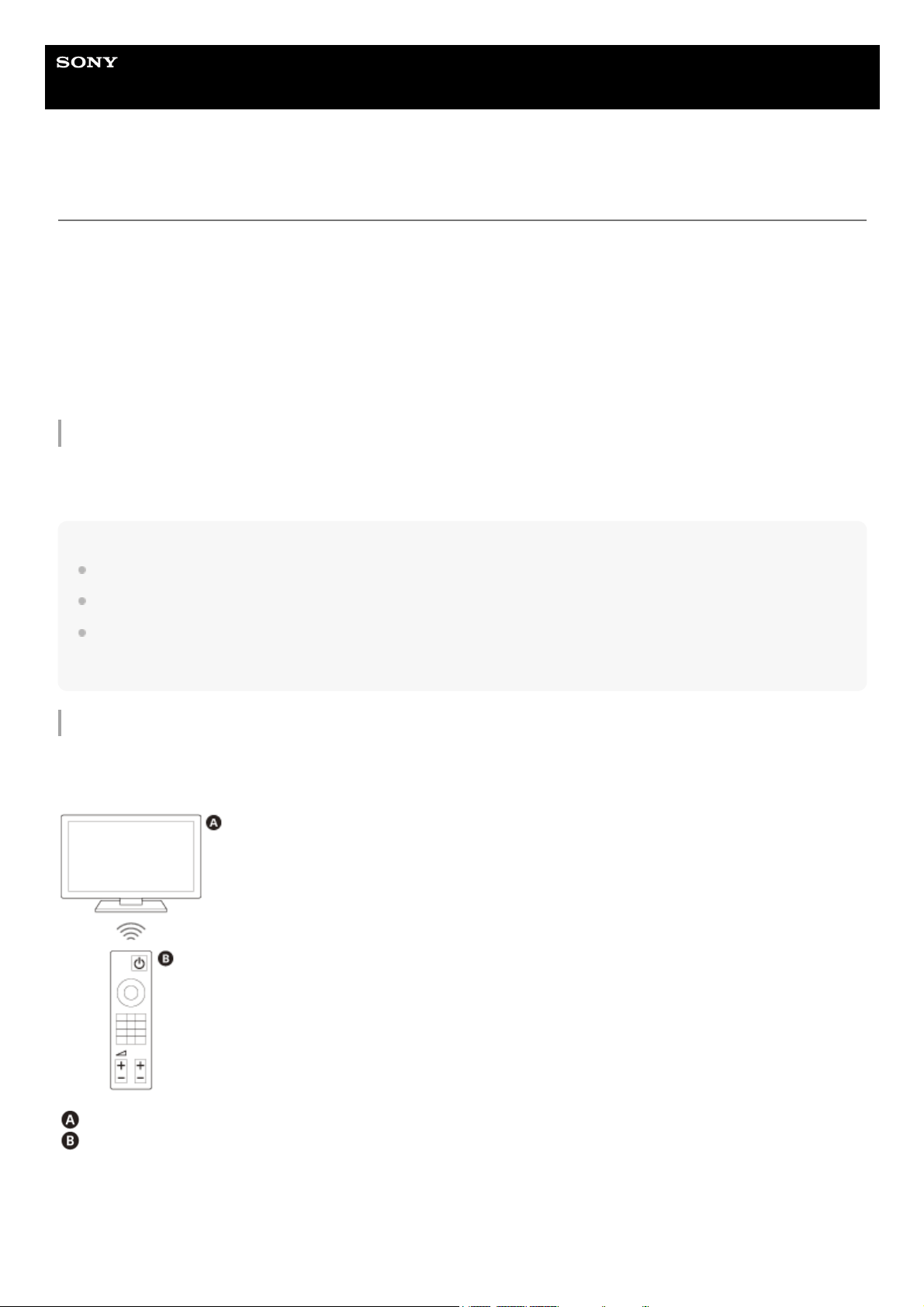
Performing power operation or volume adjustment by a TV remote control
When turning the TV on/off or adjusting the volume using the TV remote control, the speaker system power operation or
volume adjustment is interlocked.
TV
TV remote control
Power interlocking
When you turn on or off the TV, the speaker system will turn on or off automatically.
77

Note
If you turn off the speaker system before turning off the TV, the speaker system may not turn on automatically even though you
turn on the TV next time. In this case, perform the following operation.
Select the speaker system for the sound output device in the TV menu.
When using Sony TV, turn on the speaker system while the TV is turned on.
Volume adjustment
The sound of the TV you are watching is output from the speaker system automatically. You can adjust the speaker
system volume by the TV remote control.
Other interlocking functions
Menu operation by TV remote control
You can operate the menu of the speaker system by selecting the name of the speaker system when changing input or
operating the Sync Menu on the TV.
Note
Some Sony TVs support the Sync Menu. Refer to the operating instructions of your TV to see if your TV supports the Sync Menu.
Language follow
When you change the language for the on-screen display of the TV, the speaker system’s on-screen display language is
also changed.
Hint
You can change the Control for HDMI settings by selecting
[Setup] - [Advanced Settings] - [HDMI Settings] on the home
menu.
5-034-491-11(2) Copyright 2022 Sony Corporation
78

Help Guide
Sound Bar
HT-A3000
Operating the Speaker System by Interlocking with a TV Compatible with the
“BRAVIA” Sync Function
“BRAVIA” Sync is an extended function developed by Sony based on the Control for HDMI function. By connecting
“BRAVIA” Sync-compatible devices such as a TV or a Blu-ray Disc player using an HDMI cable, you can control the
devices by interlocking them with each other.
To use “BRAVIA” Sync
“BRAVIA” Sync is enabled by enabling the Control for HDMI function of the Sony device.
What you can do with “BRAVIA” Sync
Control for HDMI function
Power interlocking
Volume adjustment
Menu Operation by TV Remote Control
Language Follow
Home Theatre Control function
Setting the speaker system, input switching, etc. can be done without switching the TV input.
Related Topic
Operating the Speaker System by Interlocking with a TV (Control for HDMI Function)
5-034-491-11(2) Copyright 2022 Sony Corporation
79
Help Guide
Sound Bar
HT-A3000
Changing the Brightness of the Front Panel Display and Indicators (DIMMER)
You can change the brightness of the front panel display and BLUETOOTH indicator. The brightness of the indicators for
the optional subwoofer and rear speakers also changes.
Note
The front panel display and indicators are turned off when [OFF] is selected. They turn on automatically when you press any
button, then turn off again if you do not operate the speaker system for about 10 seconds. However, in some cases, the front
panel display and indicators may not turn off. In this case, the brightness of the front panel display and indicators are the same as
[DARK].
5-034-491-11(2) Copyright 2022 Sony Corporation
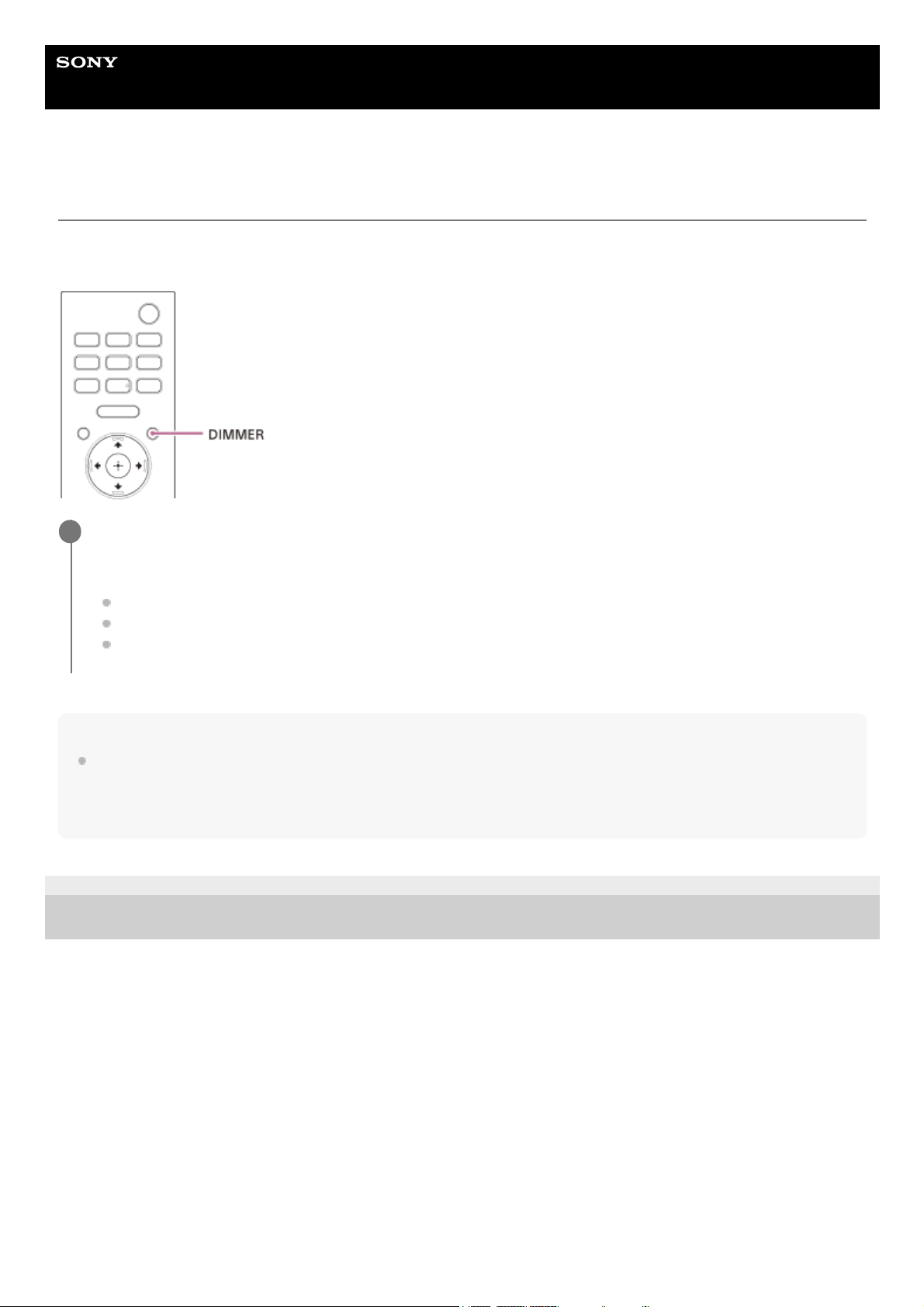
Press DIMMER to select the setting.
The setting appears in the front panel display.
[BRIGHT]: The front panel display and indicators light brightly.
[DARK]: The front panel display and indicators light darkly.
[OFF]: The front panel display and indicators are turned off.
1
80

Help Guide
Sound Bar
HT-A3000
Performing Easy Setup
You can make basic initial settings, speaker settings, and network settings for the speaker system easily by performing
Easy Setup.
5-034-491-11(2) Copyright 2022 Sony Corporation
Press HOME.
The home menu appears on the TV screen.
1
Select
[Setup] - [Easy Setup] on the home menu.
The [Easy Setup] screen appears on the TV screen.
2
Select the desired setting.
[Easy Initial Setup]: Performs the basic initial settings including the speaker settings and network settings.
[Easy Sound Setup]: Performs the basic speaker settings for optimizing the surround sound for your
environment. To use this setting, connect the optional subwoofer or rear speakers.
[Easy Network Setup]: Performs the basic network settings.
3
Perform settings by following the on-screen instructions.
4
82
Help Guide
Sound Bar
HT-A3000
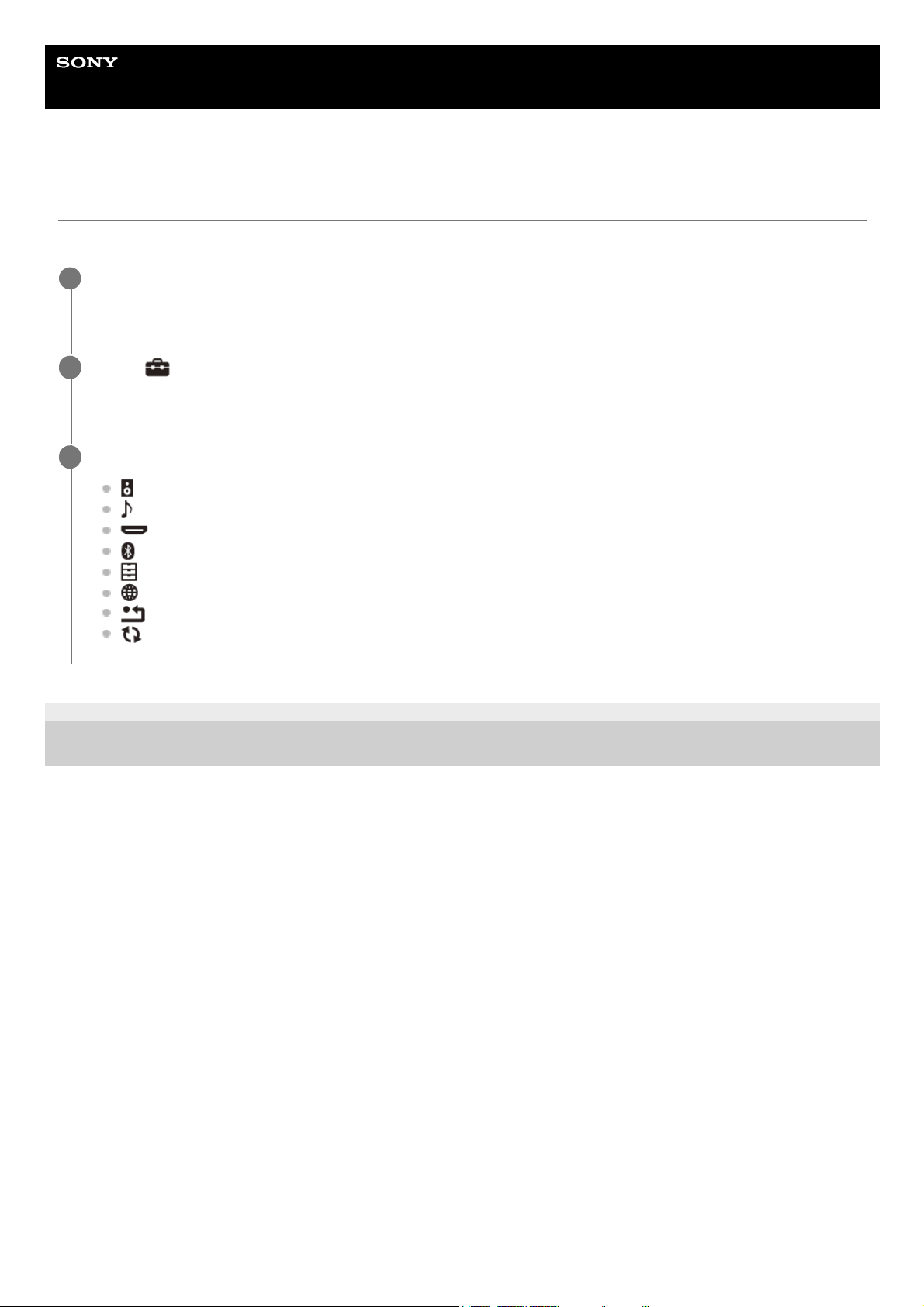
Using the [Advanced Settings] Menu
You can make various adjustments to items such as picture and sound on the [Advanced Settings] menu.
5-034-491-11(2) Copyright 2022 Sony Corporation
Press HOME.
The home menu appears on the TV screen.
1
Select
[Setup] - [Advanced Settings] on the home menu.
The [Advanced Settings] screen appears on the TV screen.
2
Select the setting item.
[Speaker Settings]: Makes the speakers settings for installing and connections.
[Audio Settings]: Makes the audio output settings.
[HDMI Settings]: Makes the HDMI settings.
[Bluetooth Settings]: Makes detailed settings for the BLUETOOTH function.
[System Settings]: Makes the speaker system-related settings.
[Network Settings]: Makes detailed settings for the Internet.
[Resetting]: Resets the speaker system to the factory default settings.
[Software Update]: Updates the software of the speaker system or optional subwoofer/rear speakers.
3
83

Help Guide
Sound Bar
HT-A3000
[Speaker Settings]
[Speaker Settings Information]
You can apply the [Sound Field Optimization] measured value, or the [Manual Speaker Settings] value to speaker
settings. To use this setting, connect the optional subwoofer or rear speakers, execute [Sound Field Optimization] and
disable [360 Spatial Sound Mapping].
[Sound Field Optimization value]: Applies the [Sound Field Optimization] measured value to speaker settings.
[Manual Speaker Settings value]: Applies the [Manual Speaker Settings] value to speaker settings.
[Sound Field Optimization]
This function automatically measures the distance from the bar speaker to the optional subwoofer (*1) and rear speakers
(*1), and optimizes the surround sound quality for your environment.
Follow the on-screen instructions to start the measurements. Optimization will take up to 30 seconds. During
optimization, the speakers may make loud sounds.
Note
Do not make loud noises, walk or stand in front of the speakers during optimization.
[Sound Field Adjustment]
[Direction of sound field]
Follow the instructions on the screen to set the positional relationship between the front speakers and the TV, and
between the speakers and the listening position. This adjusts the direction from which you hear sound such as dialog
to improve the synchronization of image and sound, and also adjusts the direction and balance of the sound to
improve its realism.
To use this setting, connect the optional rear speakers and enable the [360 Spatial Sound Mapping] function.
[Height of sound field](*1)
Adjust the height of the sound field.
[Test Tone]
The test tone is played on the speakers to check for available speakers.
[On]: The test tone is played on the speakers.
[Off]: The test tone is not played on the speakers.
[Manual Speaker Settings]
You can set the speaker distance from your listening position and their output level, etc. to obtain the best possible
surround sound.
To use this setting, disable [360 Spatial Sound Mapping].
[Distance]
Set the distance from the listening position to the speaker.
You can set the value from 0 m to 10 m (0.1 m step) (0 ft to 33 ft (1/4 ft step)).
This is measured only when using the optional subwoofer or rear speakers.
*1
Depending on the rear speakers that are connected, this function may not be available.
*1
84

[Front]: Sets the front speaker distance.
[Subwoofer](*1): Sets the optional subwoofer distance.
[Rear Speaker (L)](*2): Sets the optional left rear speaker distance.
[Rear Speaker (R)](*2): Sets the optional right rear speaker distance.
[Level]
Adjust the sound level of the speakers.
You can set the value from -6.0 dB to 6.0 dB (0.5 dB step).
[Front]: Sets the front speaker level.
[Subwoofer](*1): Sets the optional subwoofer level.
[Rear Speaker (L)](*2): Sets the optional left rear speaker level.
[Rear Speaker (R)](*2): Sets the optional right rear speaker level.
[Rear height (L)](*3): Sets the optional left rear height speaker level.
[Rear height (R)](*3): Sets the optional right rear height speaker level.
[Distance to the ceiling]
Set the distance from the speaker to the ceiling.
[Front](*1): Sets the front speaker distance. You can set the value from 1 m to 5 m (0.1 m step) (3.25 ft to 16.5 ft (1/4
ft step)).
[Rear Speaker (L)](*2): Selects the optional left rear speaker distance.
[Rear Speaker (R)](*2): Selects the optional right rear speaker distance.
[Test Tone]
The test tone is played on the speakers to check for available speakers.
[On]: The test tone is played on the speakers.
[Off]: The test tone is not played on the speakers.
Hint
You can change measurement units (feet or meters) by pressing OPTIONS.
[Wireless Speaker Settings]
You can adjust various items related to wireless connection between the speaker system and optional subwoofer/rear
speakers.
[Link mode]
You can set the connection method for the optional subwoofer and rear speakers.
[Auto]: Connects the optional subwoofer and rear speakers to the speaker system automatically.
[Manual]: Connects the optional subwoofer and rear speakers manually.
[Start manual linking]
Perform manual connection between the optional subwoofer/rear speakers and the speaker system. For details, refer
to the operating instructions supplied with the optional speakers.
[Check wireless connection]
You can check the connection status of the optional subwoofer and rear speakers.
[RF Channel]
You can minimize interference with other wireless devices.
This item appears when using the optional subwoofer.
*1
This item appears when using the optional rear speakers.
*2
This item appears when using the optional subwoofer.
*1
This item appears when using the optional rear speakers.
*2
This item appears when using the optional rear height speakers.
*3
Depending on the rear speakers that are connected, this item may not be available.
*1
This item appears when using the optional rear speakers.
*2
85

[On]: Normally select this. The speaker system automatically selects the better channel for transmission. This is the
stronger mode against wireless interference.
[Off]: The speaker system selects a channel from the limited frequency band to prevent external wireless
interference. If sound dropping occurs while [On] is selected, it may be improved by selecting [Off].
[Wireless Playback Quality]
You can set the wireless playback quality of the optional subwoofer and rear speakers.
[Sound Quality]: The sound quality takes priority over the connection status of the wireless connection.
[Connection]: The connection status takes priority over the sound quality.
[Software Version]
You can check the software version of the optional subwoofer and rear speakers.
Note
[RF Channel], [Wireless Playback Quality], and [Software Version] become selectable only when the optional subwoofer and rear
speakers are connected to the speaker system.
[RF Channel] is not available in some countries/regions.
[TV Center Speaker Settings]
If you connect the speaker system and TV with the HDMI cable (supplied) and the TV center speaker mode cable
(supplied), you can output the center speaker portion of the speaker system sound from the TV. Set [Control for HDMI] to
[On].
[TV Center Speaker Mode]
[On]: Uses a TV compatible with this feature as the center speaker.
[Off]: Off
[TV Position Setting]
Follow the on-screen instructions to set up the speaker system positioning in relation to the TV so that the height at
which the audio (e.g. dialog) can be heard is set to suit the height of the TV.
Note
Depending on the audio content, sound may not be output from the TV.
When the surround effect is set to [Sound Field: Effect On] by pressing SOUND FIELD on the remote control, sound is not output
from the TV.
5-034-491-11(2) Copyright 2022 Sony Corporation
86

Help Guide
Sound Bar
HT-A3000
[Audio Settings]
[360 Spatial Sound Mapping]
Creates an amazing 360 Spatial Sound experience that makes the sound feel more spacious as if there are more
speakers in the room.
Connect the optional rear speakers to use this setting.
[On]: Enables the [360 Spatial Sound Mapping] function.
[Off]: Disables the [360 Spatial Sound Mapping] function.
Note
When the BLUETOOTH device is connected in BLUETOOTH transmission mode, the [360 Spatial Sound Mapping] setting is
disabled.
[Sound Field Setting]
You can select the type of surround effect. This effect is available when the surround effect is set to [SF.ON] by pressing
SOUND FIELD on the remote control.
You can change the settings when [Audio Settings] - [360 Spatial Sound Mapping] is set to [Off].
When headphones are connected with the BLUETOOTH function, this function is not available.
[Sony | Vertical Surround Engine]: Sony | Vertical Surround Engine enhances the surround and height speaker channels
to create an immersive and enveloping virtual surround effect.
[Dolby Speaker Virtualizer]: Dolby Speaker Virtualizer enhances the surround and height speaker channels to create an
immersive and enveloping virtual surround effect when you play Dolby format. Disables sound effects other than Dolby
format.
[DTS Virtual:X / DTS Neural:X]: Performs up mixing in accordance with the surround environment. This function is
disabled while DTS format (96 kHz - 192 kHz), Dolby format or DSD format is playing.
[DSEE Extreme]
[On]: AI technology accurately reproduces frequency responses lost during compression, and it makes you feel as if you
are in a recording studio or at a concert.
[Off]: Off
Note
This function is compatible with the 2-channel digital input signals of 44.1 kHz or 48 kHz sampling frequency.
This function is not compatible with DSD signals.
The sampling frequency/bit depth after upscaling is up to 96 kHz/24 bit.
This function does not work in the following conditions.
Chromecast built-in is used.
[Advanced Auto Volume] is set to [On].
The surround effect is set to [Sound Field: Effect On] by pressing SOUND FIELD on the remote control.
[Audio DRC]
87

You can compress the dynamic range of the audio signal to make it easier to hear quieter sounds.
[Auto]: Automatically compresses sound encoded in Dolby TrueHD.
[On]: Reproduces the Dolby and DTS sound track with the kind of dynamic range that the recording engineer intended.
[Off]: No compression of dynamic range.
[Advanced Auto Volume]
You can reduce the difference of volume due to the input signal. This function is effective when the volume of a TV
commercial is louder than that of the TV program.
[On]: Adjusts the volume automatically.
[Off]: Off
Note
Advanced Auto Volume function is not suitable for listening to music.
Related Topic
Enjoying Surround Effect (SOUND FIELD)
5-034-491-11(2) Copyright 2022 Sony Corporation
88

Help Guide
Sound Bar
HT-A3000
[HDMI Settings]
[Control for HDMI]
[On]: The Control for HDMI function is enabled. Devices connected with an HDMI cable can control each other.
[Off]: Off
[Standby Linked to TV]
This function is available when you set [Control for HDMI] to [On].
[Auto]: If the input of the speaker system is [TV] or [HDMI], the speaker system turns off automatically when you turn off
the TV.
[On]: The speaker system turns off automatically when you turn off the TV regardless of the input.
[Off]: The speaker system does not turn off when you turn off the TV.
[TV Audio Input Mode]
Set this function when the speaker system is connected to a TV’s HDMI IN jack that is compatible with eARC or ARC.
The eARC or ARC function is available when you set [Control for HDMI] to [On].
[Auto]: You can listen to TV sound from the speaker system. The sound of eARC or ARC takes priority while set to
[Auto].
[Optical]: Use this setting when an optical digital cable is connected.
[eARC]
Set this function when the speaker system is connected to a TV’s HDMI IN jack that is compatible with eARC. When
connecting to a TV compatible with ARC (not compatible with eARC), the ARC function works regardless of this setting.
[On]: Enables the eARC function. The eARC function works when connecting a TV compatible with eARC.
[Off]: Disables the eARC function.
Note
When [eARC] is set to [On], make sure of the eARC setting of the connected TV. For details, refer to the operating instructions of
the TV.
Hint
The speaker system is compatible with eARC (Enhanced Audio Return Channel). eARC is a new function standardized by
HDMI2.1 and supports latest audio formats in addition to audio formats that are supported with existing ARC (Audio Return
Channel).
You can enjoy object audio content, such as Dolby Atmos - Dolby TrueHD and DTS:X or multi-channel LPCM content that cannot
be transmitted with ARC by connecting the speaker system and TV compatible with eARC using an HDMI cable.
For the connection, see “Connecting a TV Compatible with ARC/eARC .”
5-034-491-11(2) Copyright 2022 Sony Corporation
89

Help Guide
Sound Bar
HT-A3000
[Bluetooth Settings]
[Bluetooth Mode]
You can enjoy content from a BLUETOOTH® device by using this speaker system or listen to sound from this speaker
system by using BLUETOOTH compatible headphones.
[Receiver]: This speaker system is in receiver mode, which enables it to receive and output audio from the BLUETOOTH
device.
[Transmitter]: This speaker system is in transmitter mode, which enables it to send audio to the BLUETOOTH compatible
headphones. If you switch the input of the speaker system, [BT TX] appears on the front panel display.
[Off]: The BLUETOOTH function is turned off and you cannot select the [Bluetooth Audio] input.
Note
When the [Bluetooth Mode] is set to [Transmitter], the following settings are disabled.
[360 Spatial Sound Mapping]
[Sound Field Setting]
[Device List]
When [Bluetooth Mode] is set to [Receiver]: A list of paired BLUETOOTH devices is displayed.
When [Bluetooth Mode] is set to [Transmitter]: A list of paired and detected BLUETOOTH headphones is displayed.
[Bluetooth Connection Quality]
You can set the BLUETOOTH connection quality for listening to audio of a mobile device using this speaker system.
This function is only available when you set [Bluetooth Mode] to [Receiver].
[Priority on Sound Quality]: Gives priority to sound quality. The codec is automatically selected as LDAC, AAC, or SBC
depending on the compatible codec of the connected device.
[Priority on Stable Connection]: Gives priority to stable connection. The codec is set to SBC.
Note
When connecting a BLUETOOTH device, the [Bluetooth Connection Quality] setting cannot be changed.
[Wireless Playback Quality]
You can set the transmission data rate of LDAC playback. This function is only available when you set [Bluetooth Mode]
to [Transmitter].
[LDAC Sound Quality]: Enables LDAC codec and the highest bit rate is used. Sound is sent in a higher quality; however,
audio playback sometimes may become unstable when the link quality is not good enough. If audio playback is unstable
in this mode, select [LDAC Stable Connection (Auto)].
[LDAC Stable Connection (Auto)]: Enables LDAC codec and the data transfer rate is automatically changed depending
on the environment.
[SBC Sound Quality]: Enables SBC codec. Sound is sent in a higher quality.
[SBC Stable Connection (Auto)]: Enables SBC codec and the data transfer rate is automatically changed depending on
the environment.
90

Note
When connecting a BLUETOOTH device, the [Wireless Playback Quality] setting cannot be changed.
5-034-491-11(2) Copyright 2022 Sony Corporation
91

Help Guide
Sound Bar
HT-A3000
[System Settings]
[Language]
You can select the language you want for the on-screen display of the speaker system.
[IR-Repeater]
[On]: Remote signals for the TV are sent from the rear of the bar speaker.
[Off]: Turns off the function.
[Network/Bluetooth Standby]
[On]: You can turn the speaker system on via the network or BLUETOOTH function.
[Off]: You can save power in standby mode. It may take time for sound to be output from the optional subwoofer or rear
speakers after turning the speaker system on in this mode.
Note
If you agree to use the Chromecast built-in function, [Network/Bluetooth Standby] automatically switches to [On].
If you set [RF Channel] to [On], [Network/Bluetooth Standby] automatically switches to [On].
[Auto Standby]
[On]: Turns on the [Auto Standby] function. When you do not operate the speaker system while no signal is input for
about 20 minutes, the speaker system enters standby mode automatically.
[Off]: Off
[Device Name Setting]
You can change the name of this speaker system according to your preference when using the following functions.
The BLUETOOTH function
The home network
Spotify
Chromecast built-in
Follow the on-screen instructions and use the software keyboard to enter the name.
[System Information]
You can display the speaker system information such as the software version.
[Software License Information]
You can display the Software License Information.
92

5-034-491-11(2) Copyright 2022 Sony Corporation
93

Help Guide
Sound Bar
HT-A3000
[Network Settings]
[Wi-Fi Connection]
[On]: Enables Wi-Fi connection of the speaker system.
[Off]: Disables Wi-Fi connection of the speaker system.
[Internet Settings]
You can set the network settings and check the network connections.
[Network Connection Status]
You can display the current network connection status.
[Software Update Notification]
[On]: Sets the speaker system to inform you of the latest software version information.
[Off]: Off
[Auto Update Settings]
[Auto Update]
[On]: Software is updated automatically between 2 a.m. and 5 a.m. local time in the selected [Time Zone] while the
speaker system is not in use. If you select [Off] for [Network/Bluetooth Standby], software updates are installed right
after you turn off the speaker system.
[Off]: Off
[Time Zone]
Select your area/city.
Note
Software update may be performed even if you select [Off] in [Auto Update] depending on the details of the updates.
Software update is performed automatically within 11 days of a new software release.
If you agree to use the Chromecast built-in function, [Auto Update] automatically switches to [On].
[Privacy Setting]
The speaker system collects the information of your device usage. Read the privacy policy, which will appear when this
setting is required, and decide whether you agree to information gathering.
[Agree]: Select this when you accept information gathering.
[Do not agree]: Select this when you do not accept information gathering.
Hint
Even if you have selected [Agree], you will be able to stop information gathering by reselecting [Do not agree] or resetting
[Network Settings] to the factory default via [Resetting].
94

[Chromecast built-in]
You can set sharing of usage data and confirm the Chromecast built-in feature.
[Share usage data]
[On]: Provides information related to the use of the cast feature to Google™.
[Off]: Off
[About Chromecast built-in]
Displays the reference URLs for the Chromecast built-in feature.
5-034-491-11(2) Copyright 2022 Sony Corporation
95


Help Guide
Sound Bar
HT-A3000
Updating the Software
By updating your software to the latest version, you can take advantage of the newest functions.
For information about update functions, visit the following website:
For customers in Americas
https://www.sony.com/am/support
For customers in Europe
https://www.sony.eu/support
For customers in Asia-Pacific, Oceania, Middle East, and Africa
https://www.sony-asia.com/support
Note
It may take up to 20 minutes for the update to be completed.
An Internet environment is necessary to perform updates via the Internet.
While the updating operation is in progress, do not turn on or off the speaker system, disconnect the AC power cord (mains lead),
disconnect/connect an HDMI cable, or operate the speaker system or TV. Wait for the software update to complete.
Set
[Setup] - [Advanced Settings] - [Network Settings] - [Auto Update Settings] - [Auto Update] to [On] when you want to
perform software updates automatically. Software update may be performed even if you select [Off] in [Auto Update] depending
on the details of the updates.
When using the optional subwoofer, make sure that it is turned on and connected to the speaker system.
When using the rear speakers, make sure that they are connected to the wall outlet (mains), turned on, and
connected to the speaker system.
The power indicator(s) of the optional subwoofer and/or rear speaker light(s) in green.
1
Press HOME.
The home menu appears on the TV screen.
2
Select
[Setup] - [Advanced Settings] on the home menu.
If the speaker system detects update information for the speaker system on the network, the update notification and
[Software Update] appear on the home menu. In this case, select [Software Update] and follow the on-screen
instructions.
3
Select [Software Update].
The [Software Update] screen appears on the TV screen.
4
Select the item for updating.
Select the updating item from the following items by pressing
(up)/ (down) and (enter), then update the
software by following the on-screen instructions.
When a software update starts, the speaker system automatically reboots.
5
98

[Network Update]
Updates the software using the available network. Make sure that the network is connected to the Internet.
[USB Update]
Updates the software using a USB memory. For details on updating, refer to the instructions that are displayed when
downloading the update file.
[Wireless Speakers Update]
When updating the software, connect the wireless speaker to the AC outlet (mains) and turn on.
Updates the software of the optional subwoofer and rear speakers when the software of the speaker system is the latest
version.
Note
You can perform [USB Update] by pressing and holding the
(BLUETOOTH) and (power) button on the bar speaker for 7
seconds.
If updating of the optional subwoofer or rear speakers does not work, move them to a location near the bar speaker and update.
5-034-491-11(2) Copyright 2022 Sony Corporation
During a software update, [UPDATE] appears in the front panel display.
After the update is complete, the speaker system automatically reboots.
99
Help Guide
Sound Bar
HT-A3000
Troubleshooting
If the speaker system does not work properly, handle it in the following order.
5-034-491-11(2) Copyright 2022 Sony Corporation
1. Search for the cause and solution of the issue by referring to these Help Guide or Operating Instructions.
The troubleshooting method is listed in “Troubleshooting.”
2. Search for the cause and solution of the issue on the Sony support site.
Sony support site provides latest support information and Frequently Asked Questions.
For customers in Americas
https://www.sony.com/am/support
For customers in Europe
https://www.sony.eu/support
For customers in Asia-Pacific, Oceania, Middle East, and Africa
https://www.sony-asia.com/support
3. Reset the speaker system.
All the settings of the speaker system return to their initial status.
4. Should any problems persist, consult your nearest Sony dealer.
100


Help Guide
Sound Bar
HT-A3000
The speaker system does not turn on even when the TV is turned on.
Set
[Setup] - [Advanced Settings] - [HDMI Settings] - [Control for HDMI] to [On]. The TV must support the
Control for HDMI function. For details, refer to the operating instructions of your TV.
Check the speaker settings of the TV. The speaker system power syncs with the speaker settings of the TV. For
details, refer to the operating instructions of your TV.
Depending on the TV, if the sound was output from the speakers of the TV the previous time, the speaker system
may not turn on by interlocking with the TV power even when the TV is turned on.
5-034-491-11(2) Copyright 2022 Sony Corporation
102

Help Guide
Sound Bar
HT-A3000
The speaker system turns off when the TV is turned off.
Check the setting of
[Setup] - [Advanced Settings] - [HDMI Settings] - [Standby Linked to TV]. When [Standby
Linked to TV] is set to [On] or [Auto], the speaker system turns off automatically when you turn off the TV.
5-034-491-11(2) Copyright 2022 Sony Corporation
103

Help Guide
Sound Bar
HT-A3000
The speaker system does not turn off even when the TV is turned off.
Check the setting of
[Setup] - [Advanced Settings] - [HDMI Settings] - [Standby Linked to TV]. To turn the
speaker system off automatically, regardless of the input when you turn off the TV, set [Standby Linked to TV] to [On].
The TV must support the Control for HDMI function. For details, refer to the operating instructions of your TV.
5-034-491-11(2) Copyright 2022 Sony Corporation
104


Help Guide
Sound Bar
HT-A3000
There is no picture or the picture is not output correctly.
Select the appropriate input.
When there is no picture while the TV input is selected, select the TV channel that you want using the TV remote
control.
Disconnect an HDMI cable, then connect it again. Make sure that the cable is firmly inserted.
5-034-491-11(2) Copyright 2022 Sony Corporation
106

Help Guide
Sound Bar
HT-A3000
The picture on the TV screen is distorted.
Interference of the wireless function between the TV/other wireless devices and the speaker system may have
occurred. Install the speaker system far away from the TV/other wireless devices.
There is an interference of the frequency band between the wireless LAN and the wireless connection of the optional
speakers. Switch the band of the wireless LAN connection of the TV or device that is playing an image to 2.4 GHz.
5-034-491-11(2) Copyright 2022 Sony Corporation
107

Help Guide
Sound Bar
HT-A3000
No TV sound is output from the speaker system.
Check the type and connection of an HDMI cable, TV center speaker mode cable, or optical digital cable that is
connected to the speaker system and the TV.
Disconnect the cables that are connected to the TV and the speaker system, then connect them firmly again.
Disconnect the AC power cords (mains leads) of the TV and the speaker system from the AC outlets (mains), then
connect them again.
When the speaker system and TV are connected with an HDMI cable, check the following.
The HDMI jack of the connected TV is labeled with “eARC” or “ARC.”
The Control for HDMI function of the TV is set to on.
The eARC or ARC function of the TV is enabled.
The number of connected devices that can be controlled by the Control for HDMI function has not exceeded the
limit.
On the speaker system,
[Setup] - [Advanced Settings] - [HDMI Settings] - [Control for HDMI] is set to [On]
and
[Setup] - [Advanced Settings] - [HDMI Settings] - [TV Audio Input Mode] is set to [Auto].
If your TV is not compatible with eARC, set
[Setup] - [Advanced Settings] - [HDMI Settings] - [eARC] to [Off].
If your TV is not compatible with eARC or ARC, connect an optical digital cable. If the TV is not compatible with
eARC or ARC, TV sound will not be output from the speaker system even if the speaker system is connected to the
TV’s HDMI IN jack.
Switch the input of the speaker system to the TV input.
Increase the volume on the speaker system or cancel muting.
Depending on the order in which you turn on the TV and the speaker system, the speaker system may be muted and
[MUTING] is displayed on the front panel display of the speaker system. If this happens, turn on the TV first, then the
speaker system.
Press TV/AUDIO SYSTEM on the remote control to switch the output for the connected TV sound or set the
speakers setting of your TV to Audio System. Refer to the operating instructions of your TV regarding how to set the
TV.
Related Topic
Connecting a TV Compatible with ARC/eARC
Connecting a TV That Is not Compatible with ARC/eARC
5-034-491-11(2) Copyright 2022 Sony Corporation
109

Help Guide
Sound Bar
HT-A3000
The sound is output from both the speaker system and TV.
Mute the sound of the speaker system or TV.
When you connect the speaker system and TV with the TV center speaker mode cable and set
[Setup] -
[Advanced Settings] - [Speaker Settings] - [TV Center Speaker Settings] - [TV Center Speaker Mode] to [On], the
center part of the speaker system sound is output from the TV.
5-034-491-11(2) Copyright 2022 Sony Corporation
110

Help Guide
Sound Bar
HT-A3000
The TV sound from this speaker system lags behind the image.
Set the adjustment value of the delay between the picture and sound to 0 msec if it is set to the range between 25
msec and 300 msec.
A time gap between the sound and picture may occur depending on the sound source. If your TV has a function that
delays the image, use it for adjustment. For details, refer to the operating instructions of your TV.
Related Topic
Adjusting the Delay Between the Picture and Sound
5-034-491-11(2) Copyright 2022 Sony Corporation
111

Help Guide
Sound Bar
HT-A3000
No sound or only a very low-level sound of the device connected to the speaker
system is heard.
Press
(volume) + on the remote control and check the volume level.
Press
(muting) or (volume) + on the remote control to cancel the muting function.
Make sure the input source is selected correctly. You should try other input sources by pressing the input select
button on the remote control (TV/USB/BLUETOOTH).
Make sure that the connectors are firmly inserted.
5-034-491-11(2) Copyright 2022 Sony Corporation
112

Help Guide
Sound Bar
HT-A3000
The surround effect cannot be obtained.
Depending on the combination of the setting of SOUND FIELD and input signal, surround sound processing may not
work effectively. The surround effect may be subtle, depending on the program or disc.
5-034-491-11(2) Copyright 2022 Sony Corporation
113
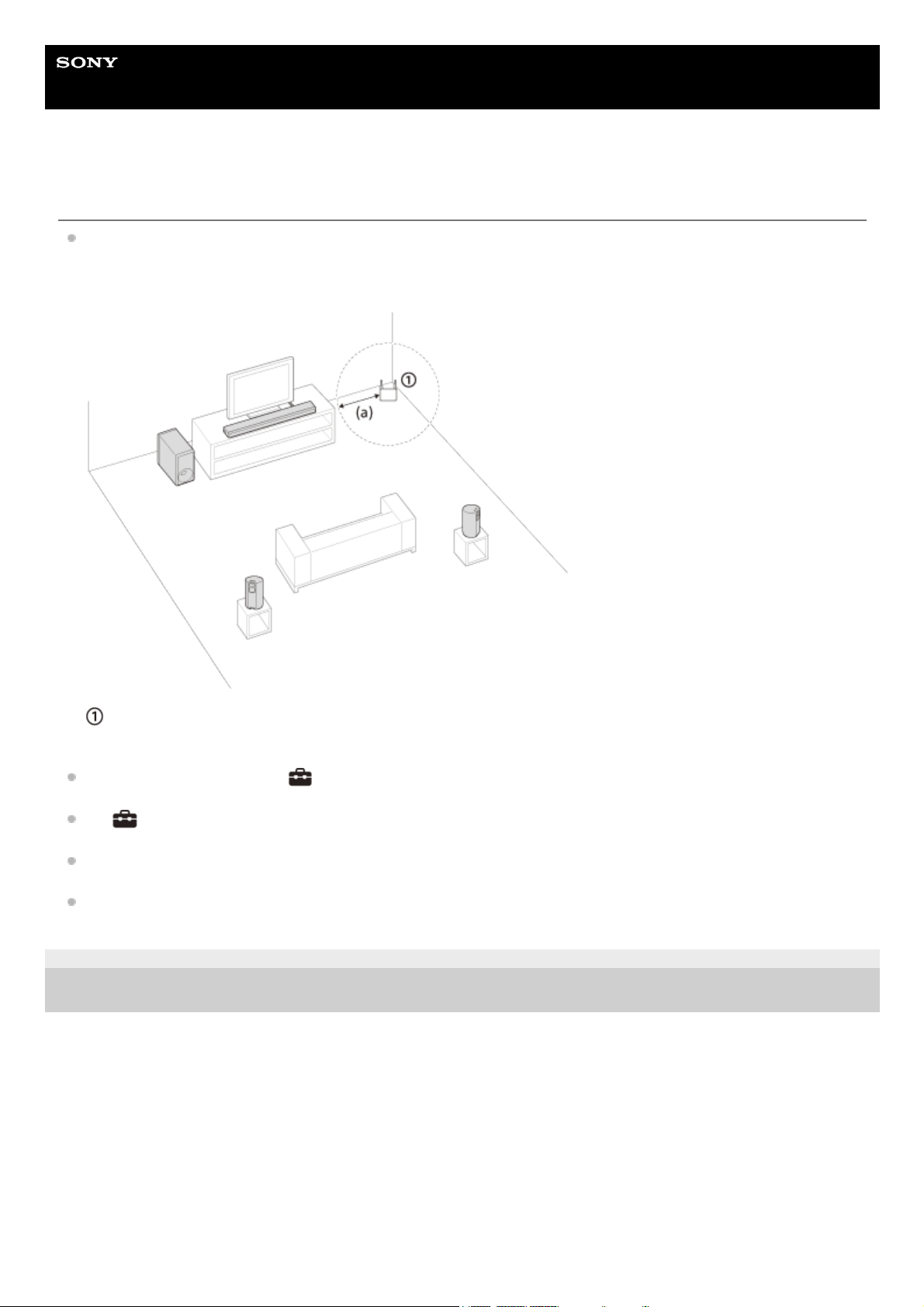
Help Guide
Sound Bar
HT-A3000
No sound is output from the optional rear speakers/subwoofer.
Install the speaker system, the optional rear speakers and subwoofer at a distance of 1.5 m (5 ft) or more from a
wireless LAN router, etc.
It may be improved by changing the direction or the antenna’s angle of the wireless LAN router.
Wireless LAN router, etc.
(a) 1.5 m (5 ft) or more
It may be improved by setting
[Setup] - [Advanced Settings] - [Speaker Settings] - [Wireless Speaker Settings] -
[Wireless Playback Quality] to [Connection].
Set
[Setup] - [Advanced Settings] - [Speaker Settings] - [Wireless Speaker Settings] - [RF Channel] to [Off],
then set to [On].
If a device that generates electromagnetic radiation, such as a wireless LAN device or a microwave oven is nearby,
move the speaker system away from the device.
Refer to the operating instructions of the optional rear speakers/subwoofer.
5-034-491-11(2) Copyright 2022 Sony Corporation
114
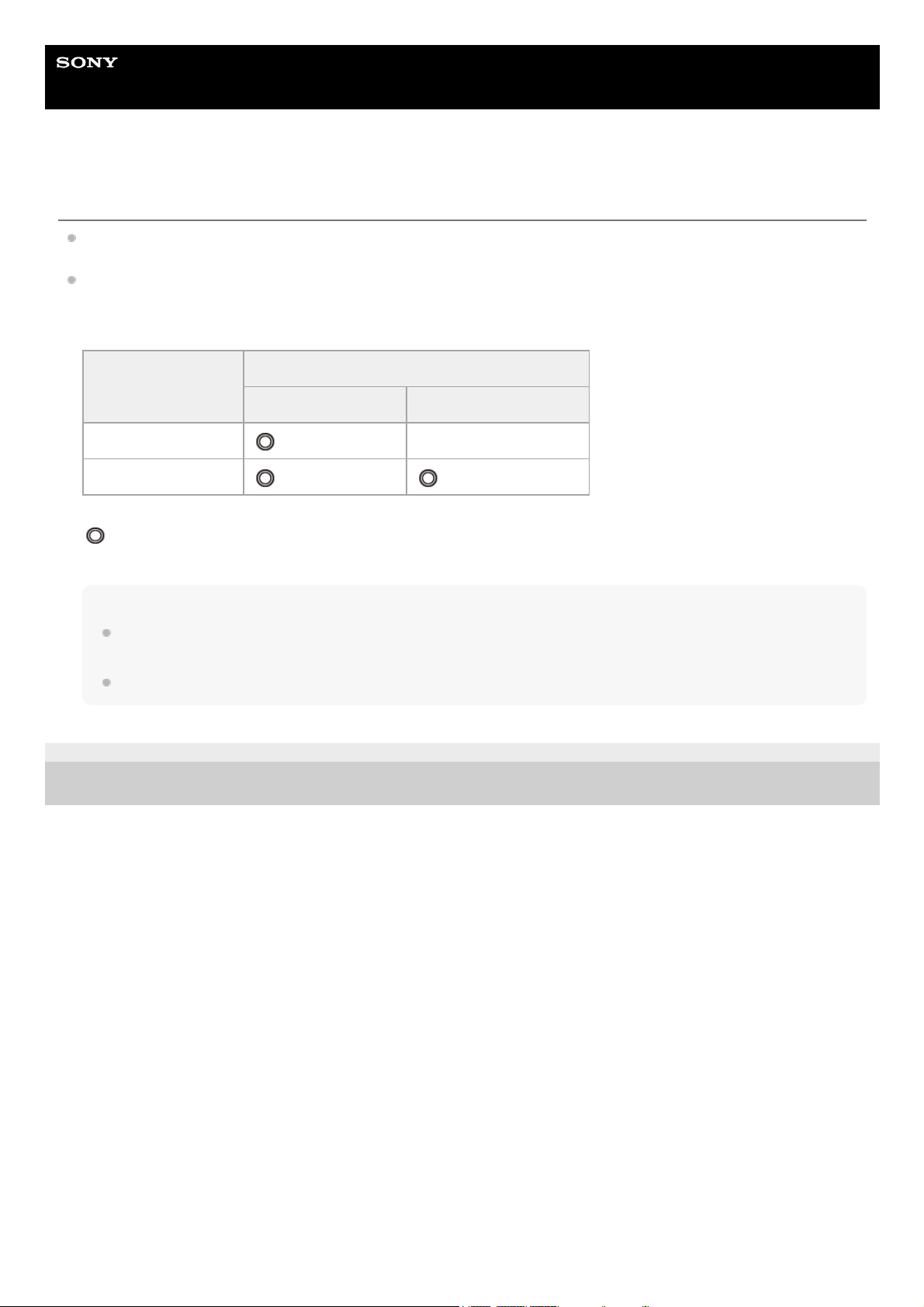
Help Guide
Sound Bar
HT-A3000
Sound is not output from some speakers.
Depending on the combination of the setting of SOUND FIELD and sound source, some speakers may not output
sound.
If sound is not output from the optional rear speakers
By pressing SOUND FIELD to turn on the surround effect, the speaker system upmixes audio signals, and sound is
output from all speakers.
: Sound is output from both the speaker system and the optional rear speakers.
–: Sound is output from the speaker system only. Sound is not output from the optional rear speakers.
Note
When [Sound Field Setting] is set to [Dolby Speaker Virtualizer], some speakers may not output sound depending on the
input content.
Sound is not output from the optional rear speakers when Dual Mono audio is being played.
5-034-491-11(2) Copyright 2022 Sony Corporation
Audio signal
Sound output from the optional rear speakers
[SF.ON] [SF.OFF]
2-channel content
–
Multi-channel content
115

Help Guide
Sound Bar
HT-A3000
Sound Field Optimization failed.
When using the optional rear speakers, install them upright so that the labels on the bottom of the speakers are
directed downwards.
Perform Sound Field Optimization again in a situation where the surrounding is quiet.
If the distance between the bar speaker and optional rear speakers/subwoofer is too close or far away from each
other, Sound Field Optimization cannot be performed properly. Adjust the distance between speakers and perform
Sound Field Optimization again.
If there is any obstacle between speakers or the microphone for measurement of the speaker is blocked by an
obstacle, Sound Field Optimization cannot be performed properly. Remove it if there is any obstacle between
speakers or in front of speakers.
5-034-491-11(2) Copyright 2022 Sony Corporation
116

Help Guide
Sound Bar
HT-A3000
The USB device is not recognized.
Try the following:
Make sure that the USB device is securely connected to the
(USB) port.
Check to see if the USB device is damaged.
Make sure that the USB device is turned on.
If the USB device is connected via a USB hub or cable, disconnect it and connect the USB device directly to the
speaker system.
When connecting a WALKMAN® or smartphone, its internal storage or external storage (such as a memory card)
may not be recognized.
5-034-491-11(2) Copyright 2022 Sony Corporation
Turn the speaker system off.1.
Remove and reconnect the USB device.2.
Turn the speaker system on.3.
117

Help Guide
Sound Bar
HT-A3000
Pairing cannot be achieved.
Bring this speaker system and the BLUETOOTH device closer together.
Make sure this speaker system is not receiving interference from a wireless LAN device, other 2.4 GHz wireless
devices, or a microwave oven. If a device that generates electromagnetic radiation is nearby, move the device away
from this speaker system.
5-034-491-11(2) Copyright 2022 Sony Corporation
118

Help Guide
Sound Bar
HT-A3000
BLUETOOTH connection cannot be completed.
Make sure that the BLUETOOTH indicator of the bar speaker is lit.
Make sure the BLUETOOTH device to be connected with is turned on and the BLUETOOTH function is enabled.
Bring this speaker system and the BLUETOOTH device closer together.
Pair this speaker system and the BLUETOOTH device again. You may need to cancel the pairing with this speaker
system using your BLUETOOTH device first.
Pairing information may be deleted. Perform the pairing operation again.
Related Topic
Listening to Music by Pairing the Mobile Device That Is Connected for the First Time
5-034-491-11(2) Copyright 2022 Sony Corporation
119

Help Guide
Sound Bar
HT-A3000
Sound of the connected BLUETOOTH mobile device is not output from the speaker
system.
Make sure that the BLUETOOTH indicator of the bar speaker is lit.
Bring this speaker system and the BLUETOOTH device closer together.
If a device that generates electromagnetic radiation, such as a wireless LAN device, other BLUETOOTH devices, or
a microwave oven is nearby, move the device away from this speaker system.
Remove any obstacle between this speaker system and the BLUETOOTH device or move this speaker system away
from the obstacle.
Reposition the connected BLUETOOTH device.
Switch the wireless LAN frequency of any nearby wireless LAN router or PC to the 5 GHz range.
Increase the volume on the connected BLUETOOTH device.
Related Topic
Listening to Music by Pairing the Mobile Device That Is Connected for the First Time
5-034-491-11(2) Copyright 2022 Sony Corporation
120

Help Guide
Sound Bar
HT-A3000
Pairing cannot be achieved.
Bring this speaker system and the BLUETOOTH headphones closer together.
Make sure this speaker system is not receiving interference from a wireless LAN device, other 2.4 GHz wireless
devices, or a microwave oven. If a device that generates electromagnetic radiation is nearby, move the device away
from this speaker system.
5-034-491-11(2) Copyright 2022 Sony Corporation
121
Help Guide
Sound Bar
HT-A3000
BLUETOOTH connection cannot be completed.
Make sure that the BLUETOOTH indicator of the bar speaker is lit.
Make sure the BLUETOOTH headphones to be connected with is turned on and the BLUETOOTH function is
enabled.
Bring this speaker system and the BLUETOOTH headphones closer together.
Pair this speaker system and the BLUETOOTH headphones again. You may need to cancel the pairing for the
BLUETOOTH headphones with this speaker system first.
Pairing information may be deleted. Perform the pairing operation again.
Related Topic
Listening to Music by Pairing the Mobile Device That Is Connected for the First Time
Listening to Sound by Pairing with Headphones
5-034-491-11(2) Copyright 2022 Sony Corporation
122
Help Guide
Sound Bar
HT-A3000
No sound is output from the connected BLUETOOTH headphones.
Make sure that the BLUETOOTH indicator of the bar speaker is lit.
Bring this speaker system and the BLUETOOTH headphones closer together.
If a device that generates electromagnetic radiation, such as a wireless LAN device, other BLUETOOTH devices, or
a microwave oven is nearby, move the device away from this speaker system.
Remove any obstacle between this speaker system and the BLUETOOTH headphones, or move this speaker
system away from the obstacle.
Reposition the connected BLUETOOTH headphones.
Switch the wireless LAN frequency of any nearby wireless LAN router or PC to the 5 GHz range.
Increase the volume on the connected BLUETOOTH headphones.
Set
[Setup] - [Advanced Settings] - [Bluetooth Settings] - [Wireless Playback Quality] to [LDAC Stable
Connection (Auto)] or [SBC Stable Connection (Auto)].
Some content may not be output due to content protection.
Related Topic
Listening to Music by Pairing the Mobile Device That Is Connected for the First Time
5-034-491-11(2) Copyright 2022 Sony Corporation
123


Help Guide
Sound Bar
HT-A3000
The speaker system cannot connect to the network, or the network connection is
unstable.
Make sure that the wireless LAN router is turned on.
Check the network connection and network settings.
Depending on the usage environment (including the wall material), radio wave reception conditions, or obstacles
between the speaker system and wireless LAN router, the possible communication distance may be shortened. Move
the speaker system and wireless LAN router closer to each other.
Devices that use a 2.4 GHz frequency band, such as a microwave, BLUETOOTH, or digital cordless device, may
interrupt communication. Move the speaker system away from such devices, or turn off such devices.
The wireless LAN connection may become unstable depending on the usage environment, especially while using the
BLUETOOTH function of the speaker system. In this case, adjust the usage environment.
5-034-491-11(2) Copyright 2022 Sony Corporation
125

Help Guide
Sound Bar
HT-A3000
The wireless LAN router you want is not shown in the wireless network list.
Press OPTIONS on the remote control to update the list. If the wireless LAN router you want is still not detected,
select [New connection registration] from the network list, then input a network name (SSID) manually.
5-034-491-11(2) Copyright 2022 Sony Corporation
126


Help Guide
Sound Bar
HT-A3000
The remote control of this speaker system does not function.
Point the remote control at the remote control sensor on the bar speaker.
Remove any obstacles in the path between the remote control and the speaker system.
Replace both batteries in the remote control with new ones if they are weak.
Make sure you are pressing the correct button on the remote control.
Related Topic
Bar Speaker
5-034-491-11(2) Copyright 2022 Sony Corporation
128


Help Guide
Sound Bar
HT-A3000
No sound or only a very low-level sound is heard from the optional speaker.
Press SW
(subwoofer volume) + on the remote control to increase the subwoofer volume, or press REAR
(rear speakers volume) + to increase the rear speaker volume.
Check the wireless connection status in
[Setup] - [Advanced Settings] - [Speaker Settings] - [Wireless Speaker
Settings] - [Check wireless connection].
Set the night mode to off.
If you change the
[Setup] - [Advanced Settings] - [Speaker Settings] - [Wireless Speaker Settings] - [RF
Channel] setting from [Off] to [On], it may take 1 minute for the sound to be output.
Refer to the operating instructions of the optional rear speakers/subwoofer.
5-034-491-11(2) Copyright 2022 Sony Corporation
130

Help Guide
Sound Bar
HT-A3000
Sound skips or has noise.
If there is a device nearby that generates electromagnetic waves, such as a wireless LAN or a microwave oven in
use, set the optional speaker and the speaker system apart from it.
If there is an obstacle between the optional speaker and the speaker system, move or remove it.
Set the optional speaker and the speaker system in a position as close as possible.
Change the
[Setup] - [Advanced Settings] - [Speaker Settings] - [Wireless Speaker Settings] - [RF Channel]
setting to [Off], and then change to [On] again.
Switch the network connection of the TV or Blu-ray Disc player from wireless to wired.
Set
[Setup] - [Advanced Settings] - [Speaker Settings] - [Wireless Speaker Settings] - [Wireless Playback
Quality] to [Connection].
5-034-491-11(2) Copyright 2022 Sony Corporation
131

Help Guide
Sound Bar
HT-A3000
The Control for HDMI function does not work properly.
Check the connection with the speaker system.
Enable the Control for HDMI function on the TV. For details, refer to the operating instructions of your TV.
Wait a while, and then try again. If you unplug the speaker system, it will take a while before operations can be made.
Wait for 15 seconds or longer, and then try again.
Make sure the TV connected to the speaker system support the Control for HDMI function.
The type and number of devices that can be controlled by the Control for HDMI function are restricted by the HDMI
CEC standard as follows:
Recording devices (Blu-ray Disc recorder, DVD recorder, etc.): up to 3 devices
Playback devices (Blu-ray Disc player, DVD player, etc.): up to 3 devices (this speaker system uses one of them)
Tuner-related devices: up to 4 devices
Audio system (receiver/headphones): up to 1 device (used by this speaker system)
Related Topic
Connecting a TV Compatible with ARC/eARC
Connecting a TV That Is not Compatible with ARC/eARC
5-034-491-11(2) Copyright 2022 Sony Corporation
132


Help Guide
Sound Bar
HT-A3000
[PRTCT], [PUSH], speaker name ([SUB], [RL], or [RR]), and [POWER] flash alternately
in the front panel display.
Press
(power) on the corresponding speaker ([SUB]: optional subwoofer, [RL]: optional left rear speaker, [RR]:
optional right rear speaker) to turn each off. For the optional rear speaker, disconnect the AC power cord (mains
lead), then restart the speaker system. For the optional subwoofer, disconnect the AC power cord (mains lead) and
make sure nothing is obstructing the ventilation holes of the optional subwoofer, then restart the speaker system. If
they are reconnected properly, the display in the front panel display returns to the normal display.
5-034-491-11(2) Copyright 2022 Sony Corporation
134

Help Guide
Sound Bar
HT-A3000
[HIGH], [TEMP], and [ERROR] appear alternately for 2 seconds each in the front panel
display, [STANDBY] appears in the front panel display, then the speaker system is
turned off.
High-temperature is detected in the speaker system. Press
(power) to restart the speaker system.
5-034-491-11(2) Copyright 2022 Sony Corporation
135


Help Guide
Sound Bar
HT-A3000
Sensors of the TV do not work properly.
The bar speaker may block some sensors (such as the brightness sensor), the remote control receiver of your TV or
the emitter for 3D glasses (infrared transmission) of a 3D TV that supports the infrared 3D glass system, or wireless
communication. Move the bar speaker away from the TV within a range that allow those parts to operate properly.
For the locations of the sensors and remote control receiver, refer to the operating instructions of the TV.
5-034-491-11(2) Copyright 2022 Sony Corporation
137



Help Guide
Sound Bar
HT-A3000
The speaker system cannot be turned off or [Advanced Settings] cannot be
used./When pressing the power button, [.DEMO] appears in the front panel display
and the speaker system cannot be turned off.
The speaker system may be in demo mode. To cancel demo mode, reset the speaker system. Press and hold
(power) and – (volume) on the bar speaker for more than 5 seconds.
5-034-491-11(2) Copyright 2022 Sony Corporation
140


Help Guide
Sound Bar
HT-A3000
Resetting the Speaker System
If the speaker system still does not operate properly, reset the speaker system as follows.
To cancel resetting
Select [Cancel] in step 5.
If you cannot perform resetting using the home menu
Press and hold
(power) and – (volume) on the bar speaker for more than 5 seconds.
The settings return to their initial status.
Note
By resetting, the link with the optional subwoofer and rear speakers may be lost. In this case, reconnect them by referring to their
operating instructions.
5-034-491-11(2) Copyright 2022 Sony Corporation
Press HOME.
The home menu appears on the TV screen.
1
Select
[Setup] - [Advanced Settings] on the home menu.
2
Select [Resetting].
3
Select the menu item you want to reset.
4
Select [Start].
5
143
Help Guide
Sound Bar
HT-A3000
Playable Types of Audio Files
Note
Some files may not play depending on the file format, file encoding, recording condition, or other conditions.
Some files edited on a PC may not play.
Fast forward or fast reverse may not be available with some files.
The speaker system does not play coded files such as DRM.
The speaker system cannot recognize a file/folder depending on the name/meta-data.
Some USB devices may not work with this speaker system.
The speaker system can recognize Mass Storage Class (MSC) devices (such as flash memory).
5-034-491-11(2) Copyright 2022 Sony Corporation
Codec Extension
MP3 (MPEG-1 Audio Layer III) .mp3
AAC/HE-AAC .m4a, .aac, .mp4, .3gp
WMA9 Standard .wma
LPCM .wav
FLAC .flac
DSF .dsf
DSDIFF(*) .dff
AIFF .aiff, .aif
ALAC .m4a
Vorbis .ogg
Monkey’s Audio .ape
The speaker system does not play DST encoded files.
*
144
Help Guide
Sound Bar
HT-A3000
Supported Input Audio Formats
Supported audio formats differ depending on the input setting of the speaker system. “
” indicates the supported
audio format and “–” indicates the unsupported audio format in the table below.
5-034-491-11(2) Copyright 2022 Sony Corporation
Format TV input (eARC) TV input (ARC) TV input (OPT)
LPCM 2ch
LPCM 5.1ch – –
LPCM 7.1ch
– –
Dolby Digital
Dolby TrueHD – –
Dolby Digital Plus
–
Dolby Atmos
– –
Dolby Atmos - Dolby TrueHD
– –
Dolby Atmos - Dolby Digital Plus
–
DTS
DTS-ES Discrete 6.1, DTS-ES Matrix 6.1
DTS 96/24
DTS-HD High Resolution Audio – –
DTS-HD Master Audio
– –
DTS:X
– –
145

Help Guide
Sound Bar
HT-A3000
On BLUETOOTH® Communication
BLUETOOTH devices should be used within approximately 10 meters (33 feet) (unobstructed distance) of each
other. The effective communication range may become shorter under the following conditions.
When a person, metal object, wall or other obstruction is between the devices with a BLUETOOTH connection
Locations where a wireless LAN is installed
Around microwave ovens that are in use
Locations where other electromagnetic waves occur
BLUETOOTH devices and wireless LAN (IEEE 802.11 b/g/n) use the same frequency band (2.4 GHz). When using
your BLUETOOTH device near a device with wireless LAN capability, electromagnetic interference may occur. This
could result in lower data transfer rates, noise, or inability to connect. If this happens, try the following remedies:
Use this speaker system at least 10 meters (33 feet) away from the wireless LAN device.
Turn off the power to the wireless LAN device when using your BLUETOOTH device within 10 meters (33 feet).
Install this speaker system and BLUETOOTH device as closer to each other as possible.
The radio waves broadcast by this speaker system may interfere with the operation of some medical devices. Since
this interference may result in malfunction, always turn off the power on this speaker system and BLUETOOTH
device in the following locations:
In hospitals, on trains, in airplanes, at gas stations, and any place where flammable gasses may be present
Near automatic doors or fire alarms
This speaker system supports security functions that comply with the BLUETOOTH specification to ensure secure
connection during communication using BLUETOOTH technology. However, this security may be insufficient
depending on the setting content and other factors, so always be careful when performing communication using
BLUETOOTH technology.
Sony cannot be held liable in any way for damages or other loss resulting from information leaks during
communication using BLUETOOTH technology.
BLUETOOTH communication is not necessarily guaranteed with all BLUETOOTH devices that have the same profile
as this speaker system.
BLUETOOTH devices connected with this speaker system must comply with the BLUETOOTH specification
prescribed by the Bluetooth SIG, Inc., and must be certified to comply. However, even when a device complies with
the BLUETOOTH specification, there may be cases where the characteristics or specifications of the BLUETOOTH
device make it impossible to connect, or may result in different control methods, display or operation.
Noise may occur or the audio may cut off depending on the BLUETOOTH device connected with this speaker
system, the communications environment, or surrounding conditions.
If you have any questions or problems concerning your speaker system, please consult your nearest Sony dealer.
5-034-491-11(2) Copyright 2022 Sony Corporation
146

Help Guide
Sound Bar
HT-A3000
Copyrights and Trademarks
This speaker system incorporates Dolby(*) Digital and the DTS(**) Digital Surround System.
The Bluetooth® word mark and logos are registered trademarks owned by Bluetooth SIG, Inc. and any use of such
marks by Sony Group Corporation and its subsidiaries is under license.
The terms HDMI™, HDMI High-Definition Multimedia Interface, and the HDMI Logo are trademarks or registered
trademarks of HDMI Licensing Administrator, Inc.
Google, Google Play, Google Home and Chromecast built-in are trademarks of Google LLC. Google Assistant is not
available in certain languages and countries.
Apple, AirPlay, iPad, iPhone, iPod touch and Siri are trademarks of Apple Inc., registered in the U.S. and other countries.
Use of the Works with Apple badge means that an accessory has been designed to work specifically with the technology
identified in the badge and has been certified by the developer to meet Apple performance standards.
“BRAVIA” logo is a trademark of Sony Corporation.
WALKMAN® and WALKMAN® logo are registered trademarks of Sony Corporation.
“PlayStation” is a registered trademark or trademark of Sony Interactive Entertainment Inc.
MPEG Layer-3 audio coding technology and patents licensed from Fraunhofer IIS and Thomson.
Windows Media is either a registered trademark or trademark of Microsoft Corporation in the United States and/or other
countries.
This product is protected by certain intellectual property rights of Microsoft Corporation. Use or distribution of such
technology outside of this product is prohibited without a license from Microsoft or an authorized Microsoft subsidiary.
Wi-Fi®, Wi-Fi Protected Access® and Wi-Fi Alliance® are registered trademarks of Wi-Fi Alliance.
Wi-Fi CERTIFIED™, WPA™, and WPA2™ are trademarks of Wi-Fi Alliance.
LDAC™ and LDAC logo are trademarks of Sony Corporation.
LDAC is an audio coding technology developed by Sony that enables the transmission of High-Resolution (Hi-Res)
Audio content, even over a Bluetooth connection. Unlike other Bluetooth compatible coding technologies such as SBC, it
operates without any down-conversion of the Hi-Res Audio content(*), and allows approximately three times more
data(**) than those other technologies to be transmitted over a Bluetooth wireless network with unprecedented sound
quality, by means of efficient coding and optimized packetization.
This product contains software that is subject to the GNU General Public License (“GPL”) or GNU Lesser General Public
License (“LGPL”). These establish that customers have the right to acquire, modify, and redistribute the source code of
said software in accordance with the terms of the GPL or the LGPL.
Dolby, Dolby Atmos, and the double-D symbol are registered trademarks of Dolby Laboratories Licensing Corporation. Manufactured under
license from Dolby Laboratories. Confidential unpublished works. Copyright © 2012–2022 Dolby Laboratories. All rights reserved.
*
For DTS patents, see http://patents.dts.com.
Manufactured under license from DTS, Inc. DTS, DTS:X, and the DTS:X logo are registered trademarks or trademarks of DTS, Inc. in the United
States and other countries. © 2022 DTS, Inc. ALL RIGHTS RESERVED.
**
excluding DSD format contents
*
in comparison with SBC (Subband Coding) when the bitrate of 990 kbps (96/48 kHz) or 909 kbps (88.2/44.1 kHz) is selected
**
147

For details of the GPL, LGPL and other software licenses, please refer to [Software License Information] under
[Setup] - [Advanced Settings] - [System Settings] on the product.
You may find a copy of the relevant source code as required under the GPL/LGPL (and other licenses) at the following
URL. You may obtain the source code as required by the GPL/LGPL on a physical medium from us for a period of three
years after our last shipment of this product by applying through the form at the following URL.
This offer is valid to anyone in receipt of this information.
https://oss.sony.net/Products/Linux/
Please note that Sony cannot answer or respond to any inquiries regarding the content of this source code.
“DSEE Extreme” is a trademark of Sony Corporation.
“TRILUMINOS” and “TRILUMINOS” logo are a registered trademark of Sony Corporation.
The Spotify Software is subject to third party licenses found here:
https://www.spotify.com/connect/third-party-licenses.
Spotify and Spotify logos are trademarks of the Spotify Group.(*)
Amazon, Alexa and all related logos are trademarks of Amazon.com, Inc. or its affiliates.
All other trademarks are trademarks of their respective owners.
5-034-491-11(2) Copyright 2022 Sony Corporation
Depending on the country and region, this function may not be available.
*
148