Text Messaging
Add Favorite
Contacts
Browse the Web
Customize
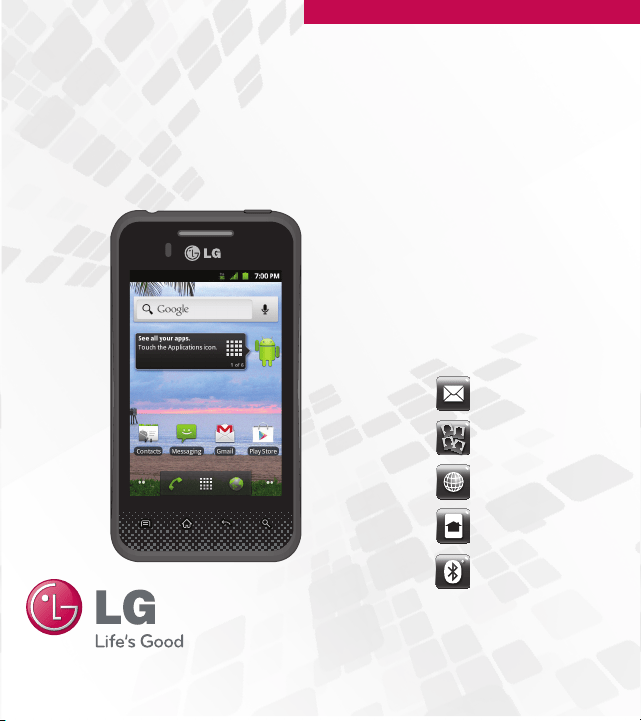
Your Phone
Use Bluetooth®
QUICK START GUIDE
Google
TM
Account Setup
Basics Messaging The Web
Getting to know your phone
P/N : MBM63645401 (1.0)
Printed in Korea
LG L46C
The first time you open a Google
TM
application on your phone, you will be
required to sign in with your existing Google account. If you do not have a
Google account, you will be prompted to create one.
Setting up your Google Account
1. At the setup screen, touch Create or Sign in.
2. Enter your username and password and any other necessary information if
creating an account.
NOTE:
Touch the Back Key to close the keyboard.
3. Touch Sign in.
Now your Gmail
TM
, Google Contacts, Google Calendar
TM
events, and other
settings information synchronized to your Google Account will all be loaded
to your phone automatically.
Your Google Account
You must sign into a Google Account to use Gmail, Google Talk
TM
, Google
Calendar, and other Google Apps
TM
to download applications from Google Play;
and to take advantage of other Google services on your phone.
NOTE:
The user interface of Google applications (Google Search, Google
Maps, Navigation, etc.) can vary depending on its software version.
Touchscreen tips
Here are some tips on how to navigate around your phone.
Touch - To choose a menu/option or open an application, touch it.
Touch and hold - To open an Context menu or grab an object you want
to move, touch and hold it.
Drag - To scroll through a list or move slowly, drag across the touch
screen.
Flick - To scroll through a list or move quickly, flick across the touch
screen (drag quickly and release).
QuickMemo
TM
You can easily and efficiently create memos during a call, with a saved
picture or on the current phone screen.
1. Access the QuickMemo feature by pressing and holding the Up and
Down Volume Keys at the same time for one second while viewing the
screen you want to capture and use to create a memo.
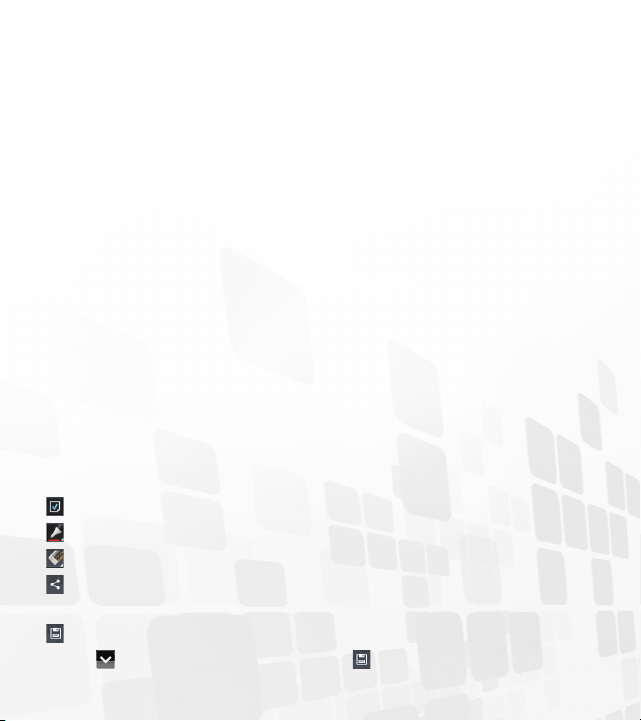
2. Write a QuickMemo using the following options:
- Tap to select whether to use the background screen or not.
- Tap to select the pen type and the color.
- Tap to use the eraser to erase the memo that you created.
- Tap to share the memo via Bluetooth, Gmail, Google+, Messaging,
Picasa, or any other installed application that supports sharing.
- Tap to save the memo you‘ve created on the current screen.
3. Tap from the Edit menu and select to save the memo with the
current screen.
Messaging
Your LG L46C combines text (SMS) and multimedia (MMS) messaging
into one intuitive, easy-to-use menu.
To send a text message
1. Open the Messaging application and touch New message.
2. Enter a mobile phone number in the To field.
As you enter the mobile phone number, matching contacts appear.
You can touch a suggested recipient or continue entering the phone
number.
3. Touch the text field to start entering your message.
A counter is displayed in the top right corner of the text field to tell you
how many characters are left.
If you touch the Back Key
while composing a message, it’s saved
as a draft in your Messaging application. Touch the message to resume
composing it.
4. Touch the Send button to send the message.
Your message is displayed and responses appear in the same window,
creating a message thread with that contact.
WARNING: If an image, video or audio file is added to an SMS
message, it will be automatically converted into an MMS message.
Browser
The Browser application allows you to access the internet from your
device. Access and selections within this feature are dependent upon your
service provider. For specific information on Browser access through your
phone, contact your service provider.
Touch the Menu Key
to view the following options:
New window: Opens a new window.
Bookmarks: Allows you to view, edit, and add bookmarks.
Windows: Displays all your open windows.
Refresh: Allows you to refresh the web page to view new content.
Forward: Go forward to the page you connected to after the current
page. The Back Key
takes you to the previous page.
More
•
Add bookmark: Allows you to save the current web page as a bookmark.
•
Find on page: Allows you to find letters or words on the current web page.
•
Select text: Allows you to select any text from the web page to copy.
•
Page info: Displays the web page information.
•
Share page: Allows you to share the web page with others.
•
Downloads: Displays your download history.
•
Setting: Allows you to set various Browser settings.
NOTE: To return to the previous page, touch the Back Key .
Calls
To open the Phone application
From the Home screen, touch the Phone Key .
To place a call by dialing
1. Open the Phone application.
2. Enter the desired number and touch the Call Key
.
Answering and rejecting a call
When you receive a phone call, the Incoming call screen opens with the
caller ID and any additional information about the caller that you have
saved in the Contacts list. All incoming calls are recorded in the Call log.
Answer a Call
Touch and drag
to the right.
Reject a Call
Touch and drag
to the left.
To turn on the phone, press and hold the Power/Lock Button for
three seconds.
To turn off the phone, press the Power/Lock Button
for three
seconds and touch Power off. Then touch OK to confirm.
NOTE: Proximity Sensor
When receiving and making calls, the proximity sensor automatically turns
the backlight off and locks the touch keypad by sensing when the phone
is near your ear. This extends battery life and prevents the touch keypad
from activating unintentionally during calls.
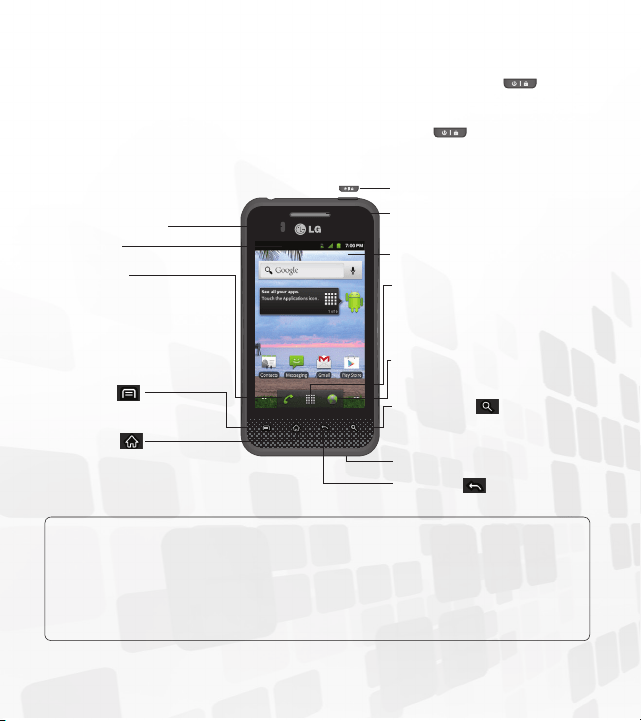
Menu Key
View available options.
Home Key
Return to the Home
screen from any screen.
Phone Keys
Opens the dial pad.
Also provides additional
tabs to access Call
log, Contacts, and your
Favorites.
Proximity Sensor
Status Bar
Search Key
Search the web and contents
in your phone.
Microphone
Back Key
Return to the previous screen.
Earpiece
Power/Lock Button
Touchscreen
Applications Key
Opens the Applications
screen to view installed
applications.
Browser Key
Access to the Web browser.
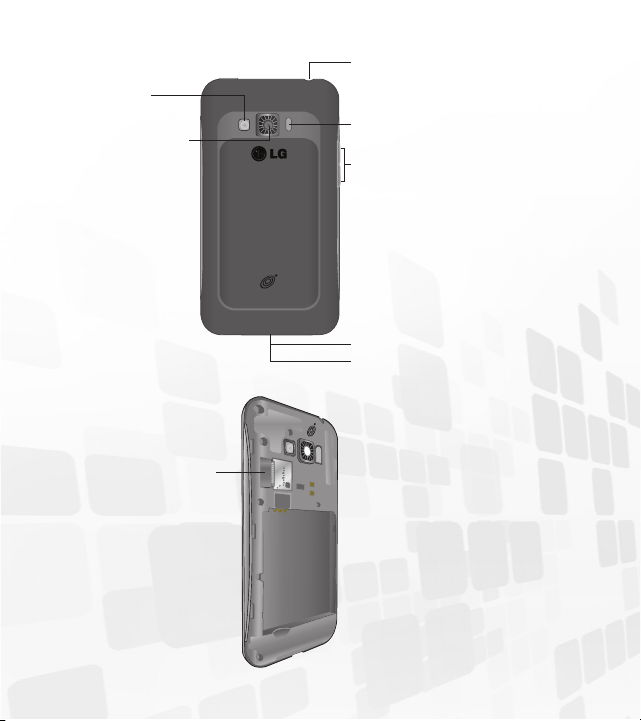
microSD
Slot
3.5mm Headset Jack
Charger/ Accessory Port
Fingertip Cutout
Volume Buttons
Tip:
Press and hold the both
Volume Buttons at the same time
to use the QuickMemo
TM
feature.
Flash
Camera Lens
Camera
Mirror
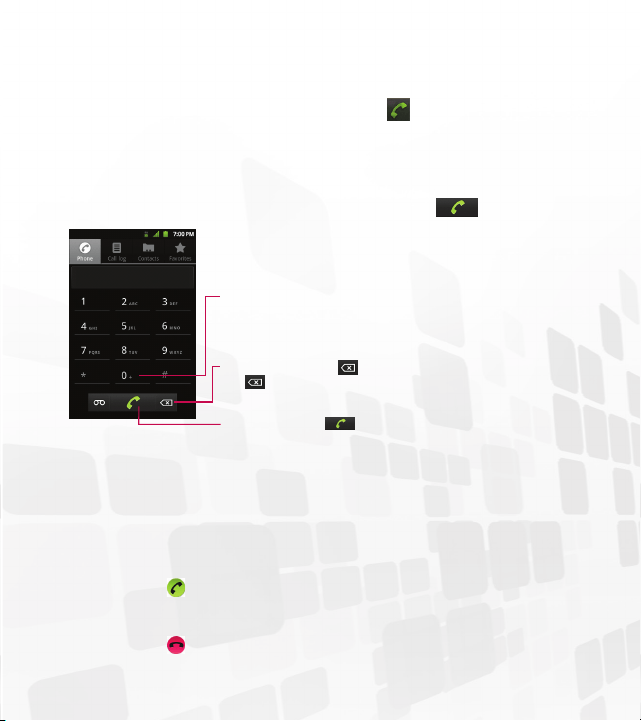
To dial an international number, touch and hold the 0 key to enter the
plus ( + ) symbol. Then, enter the international prefix for the country;
followed by the full phone number.
Touch the Delete Key
to erase a digit. Touch and hold the Delete
Key
to erase the entire number.
Touch the Call Key
to dial the number that you entered.
Text Messaging
Add Favorite
Contacts
Browse the Web
Customize
Your Phone
Use Bluetooth®
QUICK START GUIDE
Google
TM
Account Setup
Basics Messaging The Web
Getting to know your phone
P/N : MBM63645401 (1.0)
Printed in Korea
LG L46C
The first time you open a Google
TM
application on your phone, you will be
required to sign in with your existing Google account. If you do not have a
Google account, you will be prompted to create one.
Setting up your Google Account
1. At the setup screen, touch Create or Sign in.
2. Enter your username and password and any other necessary information if
creating an account.
NOTE:
Touch the Back Key to close the keyboard.
3. Touch Sign in.
Now your Gmail
TM
, Google Contacts, Google Calendar
TM
events, and other
settings information synchronized to your Google Account will all be loaded
to your phone automatically.
Your Google Account
You must sign into a Google Account to use Gmail, Google Talk
TM
, Google
Calendar, and other Google Apps
TM
to download applications from Google Play;
and to take advantage of other Google services on your phone.
NOTE:
The user interface of Google applications (Google Search, Google
Maps, Navigation, etc.) can vary depending on its software version.
Touchscreen tips
Here are some tips on how to navigate around your phone.
Touch - To choose a menu/option or open an application, touch it.
Touch and hold - To open an Context menu or grab an object you want
to move, touch and hold it.
Drag - To scroll through a list or move slowly, drag across the touch
screen.
Flick - To scroll through a list or move quickly, flick across the touch
screen (drag quickly and release).
QuickMemo
TM
You can easily and efficiently create memos during a call, with a saved
picture or on the current phone screen.
1. Access the QuickMemo feature by pressing and holding the Up and
Down Volume Keys at the same time for one second while viewing the
screen you want to capture and use to create a memo.
2. Write a QuickMemo using the following options:
- Tap to select whether to use the background screen or not.
- Tap to select the pen type and the color.
- Tap to use the eraser to erase the memo that you created.
- Tap to share the memo via Bluetooth, Gmail, Google+, Messaging,
Picasa, or any other installed application that supports sharing.
- Tap to save the memo you‘ve created on the current screen.
3. Tap from the Edit menu and select to save the memo with the
current screen.
Messaging
Your LG L46C combines text (SMS) and multimedia (MMS) messaging
into one intuitive, easy-to-use menu.
To send a text message
1. Open the Messaging application and touch New message.
2. Enter a mobile phone number in the To field.
As you enter the mobile phone number, matching contacts appear.
You can touch a suggested recipient or continue entering the phone
number.
3. Touch the text field to start entering your message.
A counter is displayed in the top right corner of the text field to tell you
how many characters are left.
If you touch the Back Key
while composing a message, it’s saved
as a draft in your Messaging application. Touch the message to resume
composing it.
4. Touch the Send button to send the message.
Your message is displayed and responses appear in the same window,
creating a message thread with that contact.
WARNING: If an image, video or audio file is added to an SMS
message, it will be automatically converted into an MMS message.
Browser
The Browser application allows you to access the internet from your
device. Access and selections within this feature are dependent upon your
service provider. For specific information on Browser access through your
phone, contact your service provider.
Touch the Menu Key
to view the following options:
New window: Opens a new window.
Bookmarks: Allows you to view, edit, and add bookmarks.
Windows: Displays all your open windows.
Refresh: Allows you to refresh the web page to view new content.
Forward: Go forward to the page you connected to after the current
page. The Back Key
takes you to the previous page.
More
•
Add bookmark: Allows you to save the current web page as a bookmark.
•
Find on page: Allows you to find letters or words on the current web page.
•
Select text: Allows you to select any text from the web page to copy.
•
Page info: Displays the web page information.
•
Share page: Allows you to share the web page with others.
•
Downloads: Displays your download history.
•
Setting: Allows you to set various Browser settings.
NOTE: To return to the previous page, touch the Back Key .
Calls
To open the Phone application
From the Home screen, touch the Phone Key .
To place a call by dialing
1. Open the Phone application.
2. Enter the desired number and touch the Call Key
.
Answering and rejecting a call
When you receive a phone call, the Incoming call screen opens with the
caller ID and any additional information about the caller that you have
saved in the Contacts list. All incoming calls are recorded in the Call log.
Answer a Call
Touch and drag
to the right.
Reject a Call
Touch and drag
to the left.
To turn on the phone, press and hold the Power/Lock Button for
three seconds.
To turn off the phone, press the Power/Lock Button
for three
seconds and touch Power off. Then touch OK to confirm.
NOTE: Proximity Sensor
When receiving and making calls, the proximity sensor automatically turns
the backlight off and locks the touch keypad by sensing when the phone
is near your ear. This extends battery life and prevents the touch keypad
from activating unintentionally during calls.
Menu Key
View available options.
Home Key
Return to the Home
screen from any screen.
Phone Keys
Opens the dial pad.
Also provides additional
tabs to access Call
log, Contacts, and your
Favorites.
Proximity Sensor
Status Bar
Search Key
Search the web and contents
in your phone.
Microphone
Back Key
Return to the previous screen.
Earpiece
Power/Lock Button
Touchscreen
Applications Key
Opens the Applications
screen to view installed
applications.
Browser Key
Access to the Web browser.
microSD
Slot
3.5mm Headset Jack
Charger/ Accessory Port
Fingertip Cutout
Volume Buttons
Tip:
Press and hold the both
Volume Buttons at the same time
to use the QuickMemo
TM
feature.
Flash
Camera Lens
Camera
Mirror
To dial an international number, touch and hold the 0 key to enter the
plus ( + ) symbol. Then, enter the international prefix for the country;
followed by the full phone number.
Touch the Delete Key
to erase a digit. Touch and hold the Delete
Key
to erase the entire number.
Touch the Call Key
to dial the number that you entered.
Text Messaging
Add Favorite
Contacts
Browse the Web
Customize
Your Phone
Use Bluetooth®
QUICK START GUIDE
Google
TM
Account Setup
Basics Messaging The Web
Getting to know your phone
P/N : MBM63645401 (1.0)
Printed in Korea
LG L46C
The first time you open a Google
TM
application on your phone, you will be
required to sign in with your existing Google account. If you do not have a
Google account, you will be prompted to create one.
Setting up your Google Account
1. At the setup screen, touch Create or Sign in.
2. Enter your username and password and any other necessary information if
creating an account.
NOTE:
Touch the Back Key to close the keyboard.
3. Touch Sign in.
Now your Gmail
TM
, Google Contacts, Google Calendar
TM
events, and other
settings information synchronized to your Google Account will all be loaded
to your phone automatically.
Your Google Account
You must sign into a Google Account to use Gmail, Google Talk
TM
, Google
Calendar, and other Google Apps
TM
to download applications from Google Play;
and to take advantage of other Google services on your phone.
NOTE:
The user interface of Google applications (Google Search, Google
Maps, Navigation, etc.) can vary depending on its software version.
Touchscreen tips
Here are some tips on how to navigate around your phone.
Touch - To choose a menu/option or open an application, touch it.
Touch and hold - To open an Context menu or grab an object you want
to move, touch and hold it.
Drag - To scroll through a list or move slowly, drag across the touch
screen.
Flick - To scroll through a list or move quickly, flick across the touch
screen (drag quickly and release).
QuickMemo
TM
You can easily and efficiently create memos during a call, with a saved
picture or on the current phone screen.
1. Access the QuickMemo feature by pressing and holding the Up and
Down Volume Keys at the same time for one second while viewing the
screen you want to capture and use to create a memo.
2. Write a QuickMemo using the following options:
- Tap to select whether to use the background screen or not.
- Tap to select the pen type and the color.
- Tap to use the eraser to erase the memo that you created.
- Tap to share the memo via Bluetooth, Gmail, Google+, Messaging,
Picasa, or any other installed application that supports sharing.
- Tap to save the memo you‘ve created on the current screen.
3. Tap from the Edit menu and select to save the memo with the
current screen.
Messaging
Your LG L46C combines text (SMS) and multimedia (MMS) messaging
into one intuitive, easy-to-use menu.
To send a text message
1. Open the Messaging application and touch New message.
2. Enter a mobile phone number in the To field.
As you enter the mobile phone number, matching contacts appear.
You can touch a suggested recipient or continue entering the phone
number.
3. Touch the text field to start entering your message.
A counter is displayed in the top right corner of the text field to tell you
how many characters are left.
If you touch the Back Key
while composing a message, it’s saved
as a draft in your Messaging application. Touch the message to resume
composing it.
4. Touch the Send button to send the message.
Your message is displayed and responses appear in the same window,
creating a message thread with that contact.
WARNING: If an image, video or audio file is added to an SMS
message, it will be automatically converted into an MMS message.
Browser
The Browser application allows you to access the internet from your
device. Access and selections within this feature are dependent upon your
service provider. For specific information on Browser access through your
phone, contact your service provider.
Touch the Menu Key
to view the following options:
New window: Opens a new window.
Bookmarks: Allows you to view, edit, and add bookmarks.
Windows: Displays all your open windows.
Refresh: Allows you to refresh the web page to view new content.
Forward: Go forward to the page you connected to after the current
page. The Back Key
takes you to the previous page.
More
•
Add bookmark: Allows you to save the current web page as a bookmark.
•
Find on page: Allows you to find letters or words on the current web page.
•
Select text: Allows you to select any text from the web page to copy.
•
Page info: Displays the web page information.
•
Share page: Allows you to share the web page with others.
•
Downloads: Displays your download history.
•
Setting: Allows you to set various Browser settings.
NOTE: To return to the previous page, touch the Back Key .
Calls
To open the Phone application
From the Home screen, touch the Phone Key .
To place a call by dialing
1. Open the Phone application.
2. Enter the desired number and touch the Call Key
.
Answering and rejecting a call
When you receive a phone call, the Incoming call screen opens with the
caller ID and any additional information about the caller that you have
saved in the Contacts list. All incoming calls are recorded in the Call log.
Answer a Call
Touch and drag
to the right.
Reject a Call
Touch and drag
to the left.
To turn on the phone, press and hold the Power/Lock Button for
three seconds.
To turn off the phone, press the Power/Lock Button
for three
seconds and touch Power off. Then touch OK to confirm.
NOTE: Proximity Sensor
When receiving and making calls, the proximity sensor automatically turns
the backlight off and locks the touch keypad by sensing when the phone
is near your ear. This extends battery life and prevents the touch keypad
from activating unintentionally during calls.
Menu Key
View available options.
Home Key
Return to the Home
screen from any screen.
Phone Keys
Opens the dial pad.
Also provides additional
tabs to access Call
log, Contacts, and your
Favorites.
Proximity Sensor
Status Bar
Search Key
Search the web and contents
in your phone.
Microphone
Back Key
Return to the previous screen.
Earpiece
Power/Lock Button
Touchscreen
Applications Key
Opens the Applications
screen to view installed
applications.
Browser Key
Access to the Web browser.
microSD
Slot
3.5mm Headset Jack
Charger/ Accessory Port
Fingertip Cutout
Volume Buttons
Tip:
Press and hold the both
Volume Buttons at the same time
to use the QuickMemo
TM
feature.
Flash
Camera Lens
Camera
Mirror
To dial an international number, touch and hold the 0 key to enter the
plus ( + ) symbol. Then, enter the international prefix for the country;
followed by the full phone number.
Touch the Delete Key
to erase a digit. Touch and hold the Delete
Key
to erase the entire number.
Touch the Call Key
to dial the number that you entered.

Text Messaging
Add Favorite
Contacts
Browse the Web
Customize
Your Phone
Use Bluetooth®
QUICK START GUIDE
Google
TM
Account Setup
Basics Messaging The Web
Getting to know your phone
P/N : MBM63645401 (1.0)
Printed in Korea
LG L46C
The first time you open a Google
TM
application on your phone, you will be
required to sign in with your existing Google account. If you do not have a
Google account, you will be prompted to create one.
Setting up your Google Account
1. At the setup screen, touch Create or Sign in.
2. Enter your username and password and any other necessary information if
creating an account.
NOTE:
Touch the Back Key to close the keyboard.
3. Touch Sign in.
Now your Gmail
TM
, Google Contacts, Google Calendar
TM
events, and other
settings information synchronized to your Google Account will all be loaded
to your phone automatically.
Your Google Account
You must sign into a Google Account to use Gmail, Google Talk
TM
, Google
Calendar, and other Google Apps
TM
to download applications from Google Play;
and to take advantage of other Google services on your phone.
NOTE:
The user interface of Google applications (Google Search, Google
Maps, Navigation, etc.) can vary depending on its software version.
Touchscreen tips
Here are some tips on how to navigate around your phone.
Touch - To choose a menu/option or open an application, touch it.
Touch and hold - To open an Context menu or grab an object you want
to move, touch and hold it.
Drag - To scroll through a list or move slowly, drag across the touch
screen.
Flick - To scroll through a list or move quickly, flick across the touch
screen (drag quickly and release).
QuickMemo
TM
You can easily and efficiently create memos during a call, with a saved
picture or on the current phone screen.
1. Access the QuickMemo feature by pressing and holding the Up and
Down Volume Keys at the same time for one second while viewing the
screen you want to capture and use to create a memo.
2. Write a QuickMemo using the following options:
- Tap to select whether to use the background screen or not.
- Tap to select the pen type and the color.
- Tap to use the eraser to erase the memo that you created.
- Tap to share the memo via Bluetooth, Gmail, Google+, Messaging,
Picasa, or any other installed application that supports sharing.
- Tap to save the memo you‘ve created on the current screen.
3. Tap from the Edit menu and select to save the memo with the
current screen.
Messaging
Your LG L46C combines text (SMS) and multimedia (MMS) messaging
into one intuitive, easy-to-use menu.
To send a text message
1. Open the Messaging application and touch New message.
2. Enter a mobile phone number in the To field.
As you enter the mobile phone number, matching contacts appear.
You can touch a suggested recipient or continue entering the phone
number.
3. Touch the text field to start entering your message.
A counter is displayed in the top right corner of the text field to tell you
how many characters are left.
If you touch the Back Key
while composing a message, it’s saved
as a draft in your Messaging application. Touch the message to resume
composing it.
4. Touch the Send button to send the message.
Your message is displayed and responses appear in the same window,
creating a message thread with that contact.
WARNING: If an image, video or audio file is added to an SMS
message, it will be automatically converted into an MMS message.
Browser
The Browser application allows you to access the internet from your
device. Access and selections within this feature are dependent upon your
service provider. For specific information on Browser access through your
phone, contact your service provider.
Touch the Menu Key
to view the following options:
New window: Opens a new window.
Bookmarks: Allows you to view, edit, and add bookmarks.
Windows: Displays all your open windows.
Refresh: Allows you to refresh the web page to view new content.
Forward: Go forward to the page you connected to after the current
page. The Back Key
takes you to the previous page.
More
•
Add bookmark: Allows you to save the current web page as a bookmark.
•
Find on page: Allows you to find letters or words on the current web page.
•
Select text: Allows you to select any text from the web page to copy.
•
Page info: Displays the web page information.
•
Share page: Allows you to share the web page with others.
•
Downloads: Displays your download history.
•
Setting: Allows you to set various Browser settings.
NOTE: To return to the previous page, touch the Back Key .
Calls
To open the Phone application
From the Home screen, touch the Phone Key .
To place a call by dialing
1. Open the Phone application.
2. Enter the desired number and touch the Call Key
.
Answering and rejecting a call
When you receive a phone call, the Incoming call screen opens with the
caller ID and any additional information about the caller that you have
saved in the Contacts list. All incoming calls are recorded in the Call log.
Answer a Call
Touch and drag
to the right.
Reject a Call
Touch and drag
to the left.
To turn on the phone, press and hold the Power/Lock Button for
three seconds.
To turn off the phone, press the Power/Lock Button
for three
seconds and touch Power off. Then touch OK to confirm.
NOTE: Proximity Sensor
When receiving and making calls, the proximity sensor automatically turns
the backlight off and locks the touch keypad by sensing when the phone
is near your ear. This extends battery life and prevents the touch keypad
from activating unintentionally during calls.
Menu Key
View available options.
Home Key
Return to the Home
screen from any screen.
Phone Keys
Opens the dial pad.
Also provides additional
tabs to access Call
log, Contacts, and your
Favorites.
Proximity Sensor
Status Bar
Search Key
Search the web and contents
in your phone.
Microphone
Back Key
Return to the previous screen.
Earpiece
Power/Lock Button
Touchscreen
Applications Key
Opens the Applications
screen to view installed
applications.
Browser Key
Access to the Web browser.
microSD
Slot
3.5mm Headset Jack
Charger/ Accessory Port
Fingertip Cutout
Volume Buttons
Tip:
Press and hold the both
Volume Buttons at the same time
to use the QuickMemo
TM
feature.
Flash
Camera Lens
Camera
Mirror
To dial an international number, touch and hold the 0 key to enter the
plus ( + ) symbol. Then, enter the international prefix for the country;
followed by the full phone number.
Touch the Delete Key
to erase a digit. Touch and hold the Delete
Key
to erase the entire number.
Touch the Call Key
to dial the number that you entered.
Text Messaging
Add Favorite
Contacts
Browse the Web
Customize
Your Phone
Use Bluetooth®
QUICK START GUIDE
Google
TM
Account Setup
Basics Messaging The Web
Getting to know your phone
P/N : MBM63645401 (1.0)
Printed in Korea
LG L46C
The first time you open a Google
TM
application on your phone, you will be
required to sign in with your existing Google account. If you do not have a
Google account, you will be prompted to create one.
Setting up your Google Account
1. At the setup screen, touch Create or Sign in.
2. Enter your username and password and any other necessary information if
creating an account.
NOTE:
Touch the Back Key to close the keyboard.
3. Touch Sign in.
Now your Gmail
TM
, Google Contacts, Google Calendar
TM
events, and other
settings information synchronized to your Google Account will all be loaded
to your phone automatically.
Your Google Account
You must sign into a Google Account to use Gmail, Google Talk
TM
, Google
Calendar, and other Google Apps
TM
to download applications from Google Play;
and to take advantage of other Google services on your phone.
NOTE:
The user interface of Google applications (Google Search, Google
Maps, Navigation, etc.) can vary depending on its software version.
Touchscreen tips
Here are some tips on how to navigate around your phone.
Touch - To choose a menu/option or open an application, touch it.
Touch and hold - To open an Context menu or grab an object you want
to move, touch and hold it.
Drag - To scroll through a list or move slowly, drag across the touch
screen.
Flick - To scroll through a list or move quickly, flick across the touch
screen (drag quickly and release).
QuickMemo
TM
You can easily and efficiently create memos during a call, with a saved
picture or on the current phone screen.
1. Access the QuickMemo feature by pressing and holding the Up and
Down Volume Keys at the same time for one second while viewing the
screen you want to capture and use to create a memo.
2. Write a QuickMemo using the following options:
- Tap to select whether to use the background screen or not.
- Tap to select the pen type and the color.
- Tap to use the eraser to erase the memo that you created.
- Tap to share the memo via Bluetooth, Gmail, Google+, Messaging,
Picasa, or any other installed application that supports sharing.
- Tap to save the memo you‘ve created on the current screen.
3. Tap from the Edit menu and select to save the memo with the
current screen.
Messaging
Your LG L46C combines text (SMS) and multimedia (MMS) messaging
into one intuitive, easy-to-use menu.
To send a text message
1. Open the Messaging application and touch New message.
2. Enter a mobile phone number in the To field.
As you enter the mobile phone number, matching contacts appear.
You can touch a suggested recipient or continue entering the phone
number.
3. Touch the text field to start entering your message.
A counter is displayed in the top right corner of the text field to tell you
how many characters are left.
If you touch the Back Key
while composing a message, it’s saved
as a draft in your Messaging application. Touch the message to resume
composing it.
4. Touch the Send button to send the message.
Your message is displayed and responses appear in the same window,
creating a message thread with that contact.
WARNING: If an image, video or audio file is added to an SMS
message, it will be automatically converted into an MMS message.
Browser
The Browser application allows you to access the internet from your
device. Access and selections within this feature are dependent upon your
service provider. For specific information on Browser access through your
phone, contact your service provider.
Touch the Menu Key
to view the following options:
New window: Opens a new window.
Bookmarks: Allows you to view, edit, and add bookmarks.
Windows: Displays all your open windows.
Refresh: Allows you to refresh the web page to view new content.
Forward: Go forward to the page you connected to after the current
page. The Back Key
takes you to the previous page.
More
•
Add bookmark: Allows you to save the current web page as a bookmark.
•
Find on page: Allows you to find letters or words on the current web page.
•
Select text: Allows you to select any text from the web page to copy.
•
Page info: Displays the web page information.
•
Share page: Allows you to share the web page with others.
•
Downloads: Displays your download history.
•
Setting: Allows you to set various Browser settings.
NOTE: To return to the previous page, touch the Back Key .
Calls
To open the Phone application
From the Home screen, touch the Phone Key .
To place a call by dialing
1. Open the Phone application.
2. Enter the desired number and touch the Call Key
.
Answering and rejecting a call
When you receive a phone call, the Incoming call screen opens with the
caller ID and any additional information about the caller that you have
saved in the Contacts list. All incoming calls are recorded in the Call log.
Answer a Call
Touch and drag
to the right.
Reject a Call
Touch and drag
to the left.
To turn on the phone, press and hold the Power/Lock Button for
three seconds.
To turn off the phone, press the Power/Lock Button
for three
seconds and touch Power off. Then touch OK to confirm.
NOTE: Proximity Sensor
When receiving and making calls, the proximity sensor automatically turns
the backlight off and locks the touch keypad by sensing when the phone
is near your ear. This extends battery life and prevents the touch keypad
from activating unintentionally during calls.
Menu Key
View available options.
Home Key
Return to the Home
screen from any screen.
Phone Keys
Opens the dial pad.
Also provides additional
tabs to access Call
log, Contacts, and your
Favorites.
Proximity Sensor
Status Bar
Search Key
Search the web and contents
in your phone.
Microphone
Back Key
Return to the previous screen.
Earpiece
Power/Lock Button
Touchscreen
Applications Key
Opens the Applications
screen to view installed
applications.
Browser Key
Access to the Web browser.
microSD
Slot
3.5mm Headset Jack
Charger/ Accessory Port
Fingertip Cutout
Volume Buttons
Tip:
Press and hold the both
Volume Buttons at the same time
to use the QuickMemo
TM
feature.
Flash
Camera Lens
Camera
Mirror
To dial an international number, touch and hold the 0 key to enter the
plus ( + ) symbol. Then, enter the international prefix for the country;
followed by the full phone number.
Touch the Delete Key
to erase a digit. Touch and hold the Delete
Key
to erase the entire number.
Touch the Call Key
to dial the number that you entered.
Text Messaging
Add Favorite
Contacts
Browse the Web
Customize
Your Phone
Use Bluetooth®
QUICK START GUIDE
Google
TM
Account Setup
Basics Messaging The Web
Getting to know your phone
P/N : MBM63645401 (1.0)
Printed in Korea
LG L46C
The first time you open a Google
TM
application on your phone, you will be
required to sign in with your existing Google account. If you do not have a
Google account, you will be prompted to create one.
Setting up your Google Account
1. At the setup screen, touch Create or Sign in.
2. Enter your username and password and any other necessary information if
creating an account.
NOTE:
Touch the Back Key to close the keyboard.
3. Touch Sign in.
Now your Gmail
TM
, Google Contacts, Google Calendar
TM
events, and other
settings information synchronized to your Google Account will all be loaded
to your phone automatically.
Your Google Account
You must sign into a Google Account to use Gmail, Google Talk
TM
, Google
Calendar, and other Google Apps
TM
to download applications from Google Play;
and to take advantage of other Google services on your phone.
NOTE:
The user interface of Google applications (Google Search, Google
Maps, Navigation, etc.) can vary depending on its software version.
Touchscreen tips
Here are some tips on how to navigate around your phone.
Touch - To choose a menu/option or open an application, touch it.
Touch and hold - To open an Context menu or grab an object you want
to move, touch and hold it.
Drag - To scroll through a list or move slowly, drag across the touch
screen.
Flick - To scroll through a list or move quickly, flick across the touch
screen (drag quickly and release).
QuickMemo
TM
You can easily and efficiently create memos during a call, with a saved
picture or on the current phone screen.
1. Access the QuickMemo feature by pressing and holding the Up and
Down Volume Keys at the same time for one second while viewing the
screen you want to capture and use to create a memo.
2. Write a QuickMemo using the following options:
- Tap to select whether to use the background screen or not.
- Tap to select the pen type and the color.
- Tap to use the eraser to erase the memo that you created.
- Tap to share the memo via Bluetooth, Gmail, Google+, Messaging,
Picasa, or any other installed application that supports sharing.
- Tap to save the memo you‘ve created on the current screen.
3. Tap from the Edit menu and select to save the memo with the
current screen.
Messaging
Your LG L46C combines text (SMS) and multimedia (MMS) messaging
into one intuitive, easy-to-use menu.
To send a text message
1. Open the Messaging application and touch New message.
2. Enter a mobile phone number in the To field.
As you enter the mobile phone number, matching contacts appear.
You can touch a suggested recipient or continue entering the phone
number.
3. Touch the text field to start entering your message.
A counter is displayed in the top right corner of the text field to tell you
how many characters are left.
If you touch the Back Key
while composing a message, it’s saved
as a draft in your Messaging application. Touch the message to resume
composing it.
4. Touch the Send button to send the message.
Your message is displayed and responses appear in the same window,
creating a message thread with that contact.
WARNING: If an image, video or audio file is added to an SMS
message, it will be automatically converted into an MMS message.
Browser
The Browser application allows you to access the internet from your
device. Access and selections within this feature are dependent upon your
service provider. For specific information on Browser access through your
phone, contact your service provider.
Touch the Menu Key
to view the following options:
New window: Opens a new window.
Bookmarks: Allows you to view, edit, and add bookmarks.
Windows: Displays all your open windows.
Refresh: Allows you to refresh the web page to view new content.
Forward: Go forward to the page you connected to after the current
page. The Back Key
takes you to the previous page.
More
•
Add bookmark: Allows you to save the current web page as a bookmark.
•
Find on page: Allows you to find letters or words on the current web page.
•
Select text: Allows you to select any text from the web page to copy.
•
Page info: Displays the web page information.
•
Share page: Allows you to share the web page with others.
•
Downloads: Displays your download history.
•
Setting: Allows you to set various Browser settings.
NOTE: To return to the previous page, touch the Back Key .
Calls
To open the Phone application
From the Home screen, touch the Phone Key .
To place a call by dialing
1. Open the Phone application.
2. Enter the desired number and touch the Call Key
.
Answering and rejecting a call
When you receive a phone call, the Incoming call screen opens with the
caller ID and any additional information about the caller that you have
saved in the Contacts list. All incoming calls are recorded in the Call log.
Answer a Call
Touch and drag
to the right.
Reject a Call
Touch and drag
to the left.
To turn on the phone, press and hold the Power/Lock Button for
three seconds.
To turn off the phone, press the Power/Lock Button
for three
seconds and touch Power off. Then touch OK to confirm.
NOTE: Proximity Sensor
When receiving and making calls, the proximity sensor automatically turns
the backlight off and locks the touch keypad by sensing when the phone
is near your ear. This extends battery life and prevents the touch keypad
from activating unintentionally during calls.
Menu Key
View available options.
Home Key
Return to the Home
screen from any screen.
Phone Keys
Opens the dial pad.
Also provides additional
tabs to access Call
log, Contacts, and your
Favorites.
Proximity Sensor
Status Bar
Search Key
Search the web and contents
in your phone.
Microphone
Back Key
Return to the previous screen.
Earpiece
Power/Lock Button
Touchscreen
Applications Key
Opens the Applications
screen to view installed
applications.
Browser Key
Access to the Web browser.
microSD
Slot
3.5mm Headset Jack
Charger/ Accessory Port
Fingertip Cutout
Volume Buttons
Tip:
Press and hold the both
Volume Buttons at the same time
to use the QuickMemo
TM
feature.
Flash
Camera Lens
Camera
Mirror
To dial an international number, touch and hold the 0 key to enter the
plus ( + ) symbol. Then, enter the international prefix for the country;
followed by the full phone number.
Touch the Delete Key
to erase a digit. Touch and hold the Delete
Key
to erase the entire number.
Touch the Call Key
to dial the number that you entered.
Text Messaging
Add Favorite
Contacts
Browse the Web
Customize
Your Phone
Use Bluetooth®
QUICK START GUIDE
Google
TM
Account Setup
Basics Messaging The Web
Getting to know your phone
P/N : MBM63645401 (1.0)
Printed in Korea
LG L46C
The first time you open a Google
TM
application on your phone, you will be
required to sign in with your existing Google account. If you do not have a
Google account, you will be prompted to create one.
Setting up your Google Account
1. At the setup screen, touch Create or Sign in.
2. Enter your username and password and any other necessary information if
creating an account.
NOTE:
Touch the Back Key to close the keyboard.
3. Touch Sign in.
Now your Gmail
TM
, Google Contacts, Google Calendar
TM
events, and other
settings information synchronized to your Google Account will all be loaded
to your phone automatically.
Your Google Account
You must sign into a Google Account to use Gmail, Google Talk
TM
, Google
Calendar, and other Google Apps
TM
to download applications from Google Play;
and to take advantage of other Google services on your phone.
NOTE:
The user interface of Google applications (Google Search, Google
Maps, Navigation, etc.) can vary depending on its software version.
Touchscreen tips
Here are some tips on how to navigate around your phone.
Touch - To choose a menu/option or open an application, touch it.
Touch and hold - To open an Context menu or grab an object you want
to move, touch and hold it.
Drag - To scroll through a list or move slowly, drag across the touch
screen.
Flick - To scroll through a list or move quickly, flick across the touch
screen (drag quickly and release).
QuickMemo
TM
You can easily and efficiently create memos during a call, with a saved
picture or on the current phone screen.
1. Access the QuickMemo feature by pressing and holding the Up and
Down Volume Keys at the same time for one second while viewing the
screen you want to capture and use to create a memo.
2. Write a QuickMemo using the following options:
- Tap to select whether to use the background screen or not.
- Tap to select the pen type and the color.
- Tap to use the eraser to erase the memo that you created.
- Tap to share the memo via Bluetooth, Gmail, Google+, Messaging,
Picasa, or any other installed application that supports sharing.
- Tap to save the memo you‘ve created on the current screen.
3. Tap from the Edit menu and select to save the memo with the
current screen.
Messaging
Your LG L46C combines text (SMS) and multimedia (MMS) messaging
into one intuitive, easy-to-use menu.
To send a text message
1. Open the Messaging application and touch New message.
2. Enter a mobile phone number in the To field.
As you enter the mobile phone number, matching contacts appear.
You can touch a suggested recipient or continue entering the phone
number.
3. Touch the text field to start entering your message.
A counter is displayed in the top right corner of the text field to tell you
how many characters are left.
If you touch the Back Key
while composing a message, it’s saved
as a draft in your Messaging application. Touch the message to resume
composing it.
4. Touch the Send button to send the message.
Your message is displayed and responses appear in the same window,
creating a message thread with that contact.
WARNING: If an image, video or audio file is added to an SMS
message, it will be automatically converted into an MMS message.
Browser
The Browser application allows you to access the internet from your
device. Access and selections within this feature are dependent upon your
service provider. For specific information on Browser access through your
phone, contact your service provider.
Touch the Menu Key
to view the following options:
New window: Opens a new window.
Bookmarks: Allows you to view, edit, and add bookmarks.
Windows: Displays all your open windows.
Refresh: Allows you to refresh the web page to view new content.
Forward: Go forward to the page you connected to after the current
page. The Back Key
takes you to the previous page.
More
•
Add bookmark: Allows you to save the current web page as a bookmark.
•
Find on page: Allows you to find letters or words on the current web page.
•
Select text: Allows you to select any text from the web page to copy.
•
Page info: Displays the web page information.
•
Share page: Allows you to share the web page with others.
•
Downloads: Displays your download history.
•
Setting: Allows you to set various Browser settings.
NOTE: To return to the previous page, touch the Back Key .
Calls
To open the Phone application
From the Home screen, touch the Phone Key .
To place a call by dialing
1. Open the Phone application.
2. Enter the desired number and touch the Call Key
.
Answering and rejecting a call
When you receive a phone call, the Incoming call screen opens with the
caller ID and any additional information about the caller that you have
saved in the Contacts list. All incoming calls are recorded in the Call log.
Answer a Call
Touch and drag
to the right.
Reject a Call
Touch and drag
to the left.
To turn on the phone, press and hold the Power/Lock Button for
three seconds.
To turn off the phone, press the Power/Lock Button
for three
seconds and touch Power off. Then touch OK to confirm.
NOTE: Proximity Sensor
When receiving and making calls, the proximity sensor automatically turns
the backlight off and locks the touch keypad by sensing when the phone
is near your ear. This extends battery life and prevents the touch keypad
from activating unintentionally during calls.
Menu Key
View available options.
Home Key
Return to the Home
screen from any screen.
Phone Keys
Opens the dial pad.
Also provides additional
tabs to access Call
log, Contacts, and your
Favorites.
Proximity Sensor
Status Bar
Search Key
Search the web and contents
in your phone.
Microphone
Back Key
Return to the previous screen.
Earpiece
Power/Lock Button
Touchscreen
Applications Key
Opens the Applications
screen to view installed
applications.
Browser Key
Access to the Web browser.
microSD
Slot
3.5mm Headset Jack
Charger/ Accessory Port
Fingertip Cutout
Volume Buttons
Tip:
Press and hold the both
Volume Buttons at the same time
to use the QuickMemo
TM
feature.
Flash
Camera Lens
Camera
Mirror
To dial an international number, touch and hold the 0 key to enter the
plus ( + ) symbol. Then, enter the international prefix for the country;
followed by the full phone number.
Touch the Delete Key
to erase a digit. Touch and hold the Delete
Key
to erase the entire number.
Touch the Call Key
to dial the number that you entered.
Text Messaging
Add Favorite
Contacts
Browse the Web
Customize
Your Phone
Use Bluetooth®
QUICK START GUIDE
Google
TM
Account Setup
Basics Messaging The Web
Getting to know your phone
P/N : MBM63645401 (1.0)
Printed in Korea
LG L46C
The first time you open a Google
TM
application on your phone, you will be
required to sign in with your existing Google account. If you do not have a
Google account, you will be prompted to create one.
Setting up your Google Account
1. At the setup screen, touch Create or Sign in.
2. Enter your username and password and any other necessary information if
creating an account.
NOTE:
Touch the Back Key to close the keyboard.
3. Touch Sign in.
Now your Gmail
TM
, Google Contacts, Google Calendar
TM
events, and other
settings information synchronized to your Google Account will all be loaded
to your phone automatically.
Your Google Account
You must sign into a Google Account to use Gmail, Google Talk
TM
, Google
Calendar, and other Google Apps
TM
to download applications from Google Play;
and to take advantage of other Google services on your phone.
NOTE:
The user interface of Google applications (Google Search, Google
Maps, Navigation, etc.) can vary depending on its software version.
Touchscreen tips
Here are some tips on how to navigate around your phone.
Touch - To choose a menu/option or open an application, touch it.
Touch and hold - To open an Context menu or grab an object you want
to move, touch and hold it.
Drag - To scroll through a list or move slowly, drag across the touch
screen.
Flick - To scroll through a list or move quickly, flick across the touch
screen (drag quickly and release).
QuickMemo
TM
You can easily and efficiently create memos during a call, with a saved
picture or on the current phone screen.
1. Access the QuickMemo feature by pressing and holding the Up and
Down Volume Keys at the same time for one second while viewing the
screen you want to capture and use to create a memo.
2. Write a QuickMemo using the following options:
- Tap to select whether to use the background screen or not.
- Tap to select the pen type and the color.
- Tap to use the eraser to erase the memo that you created.
- Tap to share the memo via Bluetooth, Gmail, Google+, Messaging,
Picasa, or any other installed application that supports sharing.
- Tap to save the memo you‘ve created on the current screen.
3. Tap from the Edit menu and select to save the memo with the
current screen.
Messaging
Your LG L46C combines text (SMS) and multimedia (MMS) messaging
into one intuitive, easy-to-use menu.
To send a text message
1. Open the Messaging application and touch New message.
2. Enter a mobile phone number in the To field.
As you enter the mobile phone number, matching contacts appear.
You can touch a suggested recipient or continue entering the phone
number.
3. Touch the text field to start entering your message.
A counter is displayed in the top right corner of the text field to tell you
how many characters are left.
If you touch the Back Key
while composing a message, it’s saved
as a draft in your Messaging application. Touch the message to resume
composing it.
4. Touch the Send button to send the message.
Your message is displayed and responses appear in the same window,
creating a message thread with that contact.
WARNING: If an image, video or audio file is added to an SMS
message, it will be automatically converted into an MMS message.
Browser
The Browser application allows you to access the internet from your
device. Access and selections within this feature are dependent upon your
service provider. For specific information on Browser access through your
phone, contact your service provider.
Touch the Menu Key
to view the following options:
New window: Opens a new window.
Bookmarks: Allows you to view, edit, and add bookmarks.
Windows: Displays all your open windows.
Refresh: Allows you to refresh the web page to view new content.
Forward: Go forward to the page you connected to after the current
page. The Back Key
takes you to the previous page.
More
•
Add bookmark: Allows you to save the current web page as a bookmark.
•
Find on page: Allows you to find letters or words on the current web page.
•
Select text: Allows you to select any text from the web page to copy.
•
Page info: Displays the web page information.
•
Share page: Allows you to share the web page with others.
•
Downloads: Displays your download history.
•
Setting: Allows you to set various Browser settings.
NOTE: To return to the previous page, touch the Back Key .
Calls
To open the Phone application
From the Home screen, touch the Phone Key .
To place a call by dialing
1. Open the Phone application.
2. Enter the desired number and touch the Call Key
.
Answering and rejecting a call
When you receive a phone call, the Incoming call screen opens with the
caller ID and any additional information about the caller that you have
saved in the Contacts list. All incoming calls are recorded in the Call log.
Answer a Call
Touch and drag
to the right.
Reject a Call
Touch and drag
to the left.
To turn on the phone, press and hold the Power/Lock Button for
three seconds.
To turn off the phone, press the Power/Lock Button
for three
seconds and touch Power off. Then touch OK to confirm.
NOTE: Proximity Sensor
When receiving and making calls, the proximity sensor automatically turns
the backlight off and locks the touch keypad by sensing when the phone
is near your ear. This extends battery life and prevents the touch keypad
from activating unintentionally during calls.
Menu Key
View available options.
Home Key
Return to the Home
screen from any screen.
Phone Keys
Opens the dial pad.
Also provides additional
tabs to access Call
log, Contacts, and your
Favorites.
Proximity Sensor
Status Bar
Search Key
Search the web and contents
in your phone.
Microphone
Back Key
Return to the previous screen.
Earpiece
Power/Lock Button
Touchscreen
Applications Key
Opens the Applications
screen to view installed
applications.
Browser Key
Access to the Web browser.
microSD
Slot
3.5mm Headset Jack
Charger/ Accessory Port
Fingertip Cutout
Volume Buttons
Tip:
Press and hold the both
Volume Buttons at the same time
to use the QuickMemo
TM
feature.
Flash
Camera Lens
Camera
Mirror
To dial an international number, touch and hold the 0 key to enter the
plus ( + ) symbol. Then, enter the international prefix for the country;
followed by the full phone number.
Touch the Delete Key
to erase a digit. Touch and hold the Delete
Key
to erase the entire number.
Touch the Call Key
to dial the number that you entered.
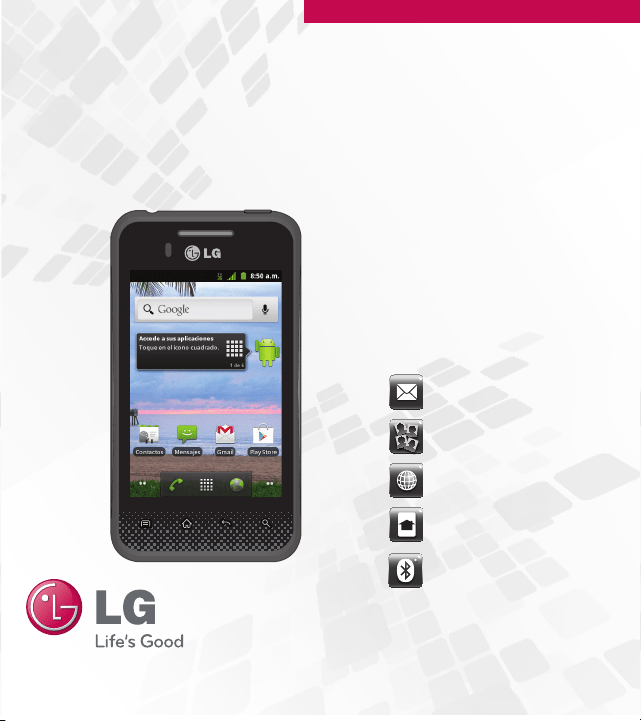
Mensajes de texto
Agregar contactos favoritos
Explorar la Web
Personalizar el teléfono
Usar Bluetooth®
GUÍA DE INICIO RÁPIDO
Configuración de la cuenta de Google
TM
Conceptos básicos Mensajería La Web
Características del teléfono
P/N : MBM63645401 (1.0)
Impreso en Corea
LG L46C
La primera vez que abra la aplicación de Google
TM
en el teléfono, se le
solicitará que inicie sesión con su cuenta de Google. Si no tiene una cuenta de
Google, se le pedirá que cree una.
Crear una cuenta de Google
1. En la pantalla de configuración, toque Crear o Iniciar sesión.
2. Introduzca su Nombre de usuario y Contraseña y cualquier otra información
necesaria si está creando una cuenta.
NOTA:
Toque la Tecla Atrás para cerrar el teclado.
3. Toque Iniciar sesión.
Ahora tu Gmail
TM
, Contactos de Google, los eventos del Calendario de
Google y otra información de configuración sincronizada con su cuenta de
Google se cargarán a tu teléfono automáticamente.
Cuenta de Google
Al iniciar sesión en una cuenta de Google, podrá usar Gmail, Google Talk
TM
,
Calendario y otras aplicaciones de Google; descargar aplicaciones de Google Play;
hacer una copia de seguridad de su configuración en los servidores de Google y
aprovechar otros servicios de Google en su teléfono.
NOTA:
El interfaz de usuario de las aplicaciones de Google (Google Search,
Google Maps, Navigation, etc.) puede variar dependiendo en la versión del
software.
Sugerencias sobre la pantalla táctil
A continuación se incluyen algunos consejos sobre cómo navegar por el
teléfono.
Tocar: Para elegir un menú/opción o abrir una aplicación, tóquelo/a.
Tocar y mantener presionado: Para abrir un menú de contexto o tomar un
objeto que desea mover, tóquelo y manténgalo presionado.
Arrastrar: Para desplazarse por una lista o moverse lentamente, arrástrese
por la pantalla táctil.
Dar un toquecito: Para desplazarse por una lista o moverse rápidamente,
dé toquecitos en la pantalla táctil (arrástrese rápidamente y suelte).
QuickMemo
TM
Puede crear notas fácilmente y con eficiencia durante una llamada, con
una imagen guardada o en la pantalla actual del teléfono.
1. Para acceder a la función QuickMemo, mantenga presionados ambos
Botones de Volumen a la misma vez por un segundo mientras está en
la pantalla que desea capturar y utilizar para la nota.
2. Escriba una nota utilizando las siguientes opciones:
- Toque para seleccionar si desea usar la pantalla de fondo.
- Toque para seleccionar el tipo de pluma y el color.
- Toque para utilizar el borrador para borrar la nota que ha creado.
- Toque para compartir la nota a través de Bluetooth, Gmail, Google+,
Mensajes Picasa, o cualquier otra aplicación instalada que permita
compartir.
- Toque para guardar la nota que creó en la pantalla actual.
3. En el menú Editar, toque y seleccione para guardar la nota con la
pantalla actual.
Mensajería
El teléfono LG L46C combina los mensajes de texto (SMS) y multimedia
(MMS) en un único menú intuitivo y fácil de usar.
Para enviar un mensaje de texto
1. Abra la aplicación Mensajes y toque Nuevo mensaje.
2. Introduzca un número de teléfono móvil en el campo Para.
A medida que introduce el número del teléfono celular, aparecerán
contactos coincidentes. Puede tocar un destinatario sugerido o
continuar introduciendo el número de teléfono.
3. Toque el campo de texto para comenzar a introducir el mensaje.
Se muestra un contador en la esquina superior derecha del campo de
texto para indicarle cuántos caracteres quedan.
Si toca la Tecla Atrás
mientras redacta un mensaje, se guarda
como borrador en la aplicación Mensajes. Toque el mensaje para
continuar escribiendo.
4. Toque Enviar para enviar el mensaje.
Se muestra su mensaje y las respuestas aparecen en la misma ventana
y crean una cadena de mensajes con ese contacto.
ADVERTENCIA: Si se agrega un archivo de imagen, video o audio a
un mensaje SMS, se convertirá automáticamente en un mensaje MMS.
Navegador
La función Navegador le permite acceder a Internet desde su teléfono.
El acceso y las selecciones dentro de esta función dependen de su
proveedor de servicios.
Toque la Tecla Menú
para ver las siguientes opciones.
Nueva ventana: Se abre una nueva ventana.
Favoritos: Permite ver, editar y agregar Favoritos.
Ventanas: Muestra todas las ventanas abiertas.
Actualizar: Permite actualizar la página web actual para ver el
contenido nuevo.
Siguiente: Pasa a la página a la cual se conectó después de la actual.
La Tecla Atrás
lo lleva a la pantalla anterior.
Más
• Agregar favorito: Permite agregar la página web actual como favorito.
• Buscar en la página: Permite buscar letras o palabras en la página web
actual.
• Seleccionar texto: Permite seleccionar cualquier texto de la página web
para copiar.
• Información de la página: Muestra la información de la página web
actual.
• Compartir página: Permite compartir la página web con otros.
• Descargas: Muestra su historial de descargas.
• Ajustes: Permite configurar varias configuraciones del Navegador.
NOTA: Para volver a la página anterior, toque la Tecla Atrás .
Llamadas
Para abrir la aplicación Teléfono
En la pantalla principal, toque la Tecla Teléfono .
Llamar a los contactos
1. Abra la aplicación Teléfono.
2. Introduzca el número telefónico deseado y toque la Tecla Llamar
.
Para marcar un número internacional, toque y mantenga presionado
para introducir el símbolo más (+). Luego introduzca el prefijo
internacional para el país; seguido por el número de teléfono completo.
Toque la Tecla Borrar
para borar un dígito. Toque y mantenga
presionada la Tecla Borrar
para borrar todos los números.
Toque la Tecla Llamar
para marcar el número.
Responder o rechazar llamadas
Cuando recibe una llamada, la pantalla Llamada recibida se abre y
muestra la identificación de la persona que llama y cualquier tipo de
información sobre ella que haya guardado en la lista de contactos. Todas
las llamadas entrantes se graban en el registro de llamadas.
Responder una llamada
Toque y arrastre
a la derecha.
Rechazar una llamada
Toque y arrastre
a la izquierda.
Para encender el teléfono, mantenga presionada la Tecla Encender/
Bloquear
durante tres segundos.
Para apagar el teléfono, presione la Tecla Encender/Bloquear
durante
tres segundos y toque Apagar. Luego toque OK para confirmar.
NOTA: Sensor de proximidad
Cuando reciba o realice llamadas, el sensor de proximidad apagará
automáticamente la luz de fondo y bloqueará el teclado táctil al detectar
cuando el teléfono esté cerca del oído. Esta acción extiende la vida útil
de la batería y evita que el teclado táctil se active de manera involuntaria
durante las llamadas.
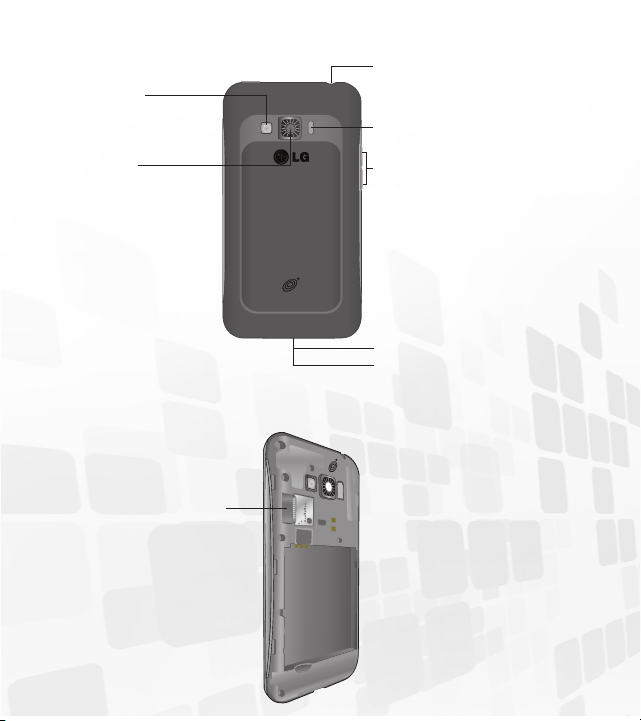
Tecla Menú
Muestra las opciones
disponibles.
Tecla Inicio
Vuelve a la pantalla principal
desde cualquier pantalla.
Teclas Teléfono
Abre el teclado de
marcación. También
proporciona fichas
adicionales al Registro,
Contactos y Favoritos.
Sensor de proximidad
Barra de estado
Tecla Búsqueda
Permite buscar en la Web y en
los contenidos del teléfono.
Micrófono
Tecla Atrás
Vuelve a la pantalla anterior.
Auricular
Botón Encender/Bloquear
Pantalla táctil
Tecla Aplicaciones
Abre la pantalla de
aplicaciones para ver las
aplicaciones instaladas.
Teda Navegador
Accede al navegador de web.
Ranura para
tarjeta microSD
Toma de 3,5 mm
para auriculares
Toma para cargador y
accesorios
Abertura de dedos
Botones de volumen
¡Consejo!
: Mantenga presionados
ambos Botones de Volumen a la
misma vez para utilizar la función
QuickMemo™.
Flash
Lente de la
cámara
Espejo de la
cámara
Mensajes de texto
Agregar contactos favoritos
Explorar la Web
Personalizar el teléfono
Usar Bluetooth®
GUÍA DE INICIO RÁPIDO
Configuración de la cuenta de Google
TM
Conceptos básicos Mensajería La Web
Características del teléfono
P/N : MBM63645401 (1.0)
Impreso en Corea
LG L46C
La primera vez que abra la aplicación de Google
TM
en el teléfono, se le
solicitará que inicie sesión con su cuenta de Google. Si no tiene una cuenta de
Google, se le pedirá que cree una.
Crear una cuenta de Google
1. En la pantalla de configuración, toque Crear o Iniciar sesión.
2. Introduzca su Nombre de usuario y Contraseña y cualquier otra información
necesaria si está creando una cuenta.
NOTA:
Toque la Tecla Atrás para cerrar el teclado.
3. Toque Iniciar sesión.
Ahora tu Gmail
TM
, Contactos de Google, los eventos del Calendario de
Google y otra información de configuración sincronizada con su cuenta de
Google se cargarán a tu teléfono automáticamente.
Cuenta de Google
Al iniciar sesión en una cuenta de Google, podrá usar Gmail, Google Talk
TM
,
Calendario y otras aplicaciones de Google; descargar aplicaciones de Google Play;
hacer una copia de seguridad de su configuración en los servidores de Google y
aprovechar otros servicios de Google en su teléfono.
NOTA:
El interfaz de usuario de las aplicaciones de Google (Google Search,
Google Maps, Navigation, etc.) puede variar dependiendo en la versión del
software.
Sugerencias sobre la pantalla táctil
A continuación se incluyen algunos consejos sobre cómo navegar por el
teléfono.
Tocar: Para elegir un menú/opción o abrir una aplicación, tóquelo/a.
Tocar y mantener presionado: Para abrir un menú de contexto o tomar un
objeto que desea mover, tóquelo y manténgalo presionado.
Arrastrar: Para desplazarse por una lista o moverse lentamente, arrástrese
por la pantalla táctil.
Dar un toquecito: Para desplazarse por una lista o moverse rápidamente,
dé toquecitos en la pantalla táctil (arrástrese rápidamente y suelte).
QuickMemo
TM
Puede crear notas fácilmente y con eficiencia durante una llamada, con
una imagen guardada o en la pantalla actual del teléfono.
1. Para acceder a la función QuickMemo, mantenga presionados ambos
Botones de Volumen a la misma vez por un segundo mientras está en
la pantalla que desea capturar y utilizar para la nota.
2. Escriba una nota utilizando las siguientes opciones:
- Toque para seleccionar si desea usar la pantalla de fondo.
- Toque para seleccionar el tipo de pluma y el color.
- Toque para utilizar el borrador para borrar la nota que ha creado.
- Toque para compartir la nota a través de Bluetooth, Gmail, Google+,
Mensajes Picasa, o cualquier otra aplicación instalada que permita
compartir.
- Toque para guardar la nota que creó en la pantalla actual.
3. En el menú Editar, toque y seleccione para guardar la nota con la
pantalla actual.
Mensajería
El teléfono LG L46C combina los mensajes de texto (SMS) y multimedia
(MMS) en un único menú intuitivo y fácil de usar.
Para enviar un mensaje de texto
1. Abra la aplicación Mensajes y toque Nuevo mensaje.
2. Introduzca un número de teléfono móvil en el campo Para.
A medida que introduce el número del teléfono celular, aparecerán
contactos coincidentes. Puede tocar un destinatario sugerido o
continuar introduciendo el número de teléfono.
3. Toque el campo de texto para comenzar a introducir el mensaje.
Se muestra un contador en la esquina superior derecha del campo de
texto para indicarle cuántos caracteres quedan.
Si toca la Tecla Atrás
mientras redacta un mensaje, se guarda
como borrador en la aplicación Mensajes. Toque el mensaje para
continuar escribiendo.
4. Toque Enviar para enviar el mensaje.
Se muestra su mensaje y las respuestas aparecen en la misma ventana
y crean una cadena de mensajes con ese contacto.
ADVERTENCIA: Si se agrega un archivo de imagen, video o audio a
un mensaje SMS, se convertirá automáticamente en un mensaje MMS.
Navegador
La función Navegador le permite acceder a Internet desde su teléfono.
El acceso y las selecciones dentro de esta función dependen de su
proveedor de servicios.
Toque la Tecla Menú
para ver las siguientes opciones.
Nueva ventana: Se abre una nueva ventana.
Favoritos: Permite ver, editar y agregar Favoritos.
Ventanas: Muestra todas las ventanas abiertas.
Actualizar: Permite actualizar la página web actual para ver el
contenido nuevo.
Siguiente: Pasa a la página a la cual se conectó después de la actual.
La Tecla Atrás
lo lleva a la pantalla anterior.
Más
• Agregar favorito: Permite agregar la página web actual como favorito.
• Buscar en la página: Permite buscar letras o palabras en la página web
actual.
• Seleccionar texto: Permite seleccionar cualquier texto de la página web
para copiar.
• Información de la página: Muestra la información de la página web
actual.
• Compartir página: Permite compartir la página web con otros.
• Descargas: Muestra su historial de descargas.
• Ajustes: Permite configurar varias configuraciones del Navegador.
NOTA: Para volver a la página anterior, toque la Tecla Atrás .
Llamadas
Para abrir la aplicación Teléfono
En la pantalla principal, toque la Tecla Teléfono .
Llamar a los contactos
1. Abra la aplicación Teléfono.
2. Introduzca el número telefónico deseado y toque la Tecla Llamar
.
Para marcar un número internacional, toque y mantenga presionado
para introducir el símbolo más (+). Luego introduzca el prefijo
internacional para el país; seguido por el número de teléfono completo.
Toque la Tecla Borrar
para borar un dígito. Toque y mantenga
presionada la Tecla Borrar
para borrar todos los números.
Toque la Tecla Llamar
para marcar el número.
Responder o rechazar llamadas
Cuando recibe una llamada, la pantalla Llamada recibida se abre y
muestra la identificación de la persona que llama y cualquier tipo de
información sobre ella que haya guardado en la lista de contactos. Todas
las llamadas entrantes se graban en el registro de llamadas.
Responder una llamada
Toque y arrastre
a la derecha.
Rechazar una llamada
Toque y arrastre
a la izquierda.
Para encender el teléfono, mantenga presionada la Tecla Encender/
Bloquear
durante tres segundos.
Para apagar el teléfono, presione la Tecla Encender/Bloquear
durante
tres segundos y toque Apagar. Luego toque OK para confirmar.
NOTA: Sensor de proximidad
Cuando reciba o realice llamadas, el sensor de proximidad apagará
automáticamente la luz de fondo y bloqueará el teclado táctil al detectar
cuando el teléfono esté cerca del oído. Esta acción extiende la vida útil
de la batería y evita que el teclado táctil se active de manera involuntaria
durante las llamadas.
Tecla Menú
Muestra las opciones
disponibles.
Tecla Inicio
Vuelve a la pantalla principal
desde cualquier pantalla.
Teclas Teléfono
Abre el teclado de
marcación. También
proporciona fichas
adicionales al Registro,
Contactos y Favoritos.
Sensor de proximidad
Barra de estado
Tecla Búsqueda
Permite buscar en la Web y en
los contenidos del teléfono.
Micrófono
Tecla Atrás
Vuelve a la pantalla anterior.
Auricular
Botón Encender/Bloquear
Pantalla táctil
Tecla Aplicaciones
Abre la pantalla de
aplicaciones para ver las
aplicaciones instaladas.
Teda Navegador
Accede al navegador de web.
Ranura para
tarjeta microSD
Toma de 3,5 mm
para auriculares
Toma para cargador y
accesorios
Abertura de dedos
Botones de volumen
¡Consejo!
: Mantenga presionados
ambos Botones de Volumen a la
misma vez para utilizar la función
QuickMemo™.
Flash
Lente de la
cámara
Espejo de la
cámara
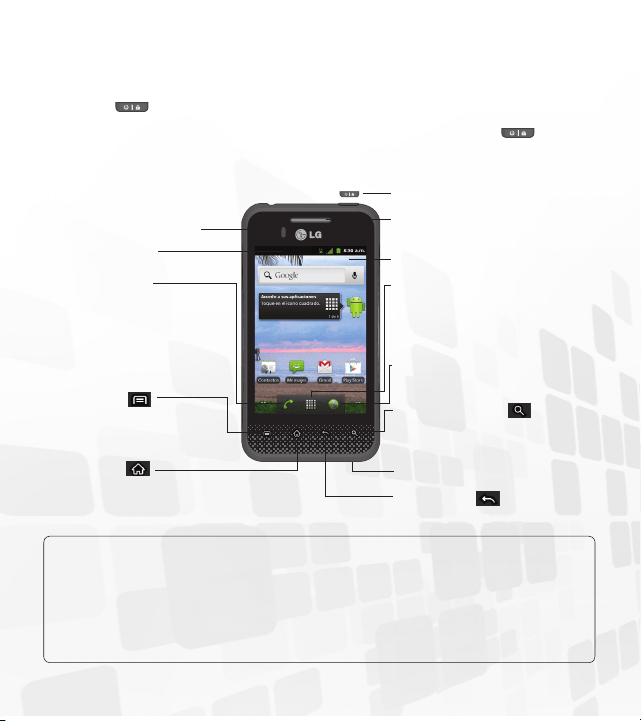
Mensajes de texto
Agregar contactos favoritos
Explorar la Web
Personalizar el teléfono
Usar Bluetooth®
GUÍA DE INICIO RÁPIDO
Configuración de la cuenta de Google
TM
Conceptos básicos Mensajería La Web
Características del teléfono
P/N : MBM63645401 (1.0)
Impreso en Corea
LG L46C
La primera vez que abra la aplicación de Google
TM
en el teléfono, se le
solicitará que inicie sesión con su cuenta de Google. Si no tiene una cuenta de
Google, se le pedirá que cree una.
Crear una cuenta de Google
1. En la pantalla de configuración, toque Crear o Iniciar sesión.
2. Introduzca su Nombre de usuario y Contraseña y cualquier otra información
necesaria si está creando una cuenta.
NOTA:
Toque la Tecla Atrás para cerrar el teclado.
3. Toque Iniciar sesión.
Ahora tu Gmail
TM
, Contactos de Google, los eventos del Calendario de
Google y otra información de configuración sincronizada con su cuenta de
Google se cargarán a tu teléfono automáticamente.
Cuenta de Google
Al iniciar sesión en una cuenta de Google, podrá usar Gmail, Google Talk
TM
,
Calendario y otras aplicaciones de Google; descargar aplicaciones de Google Play;
hacer una copia de seguridad de su configuración en los servidores de Google y
aprovechar otros servicios de Google en su teléfono.
NOTA:
El interfaz de usuario de las aplicaciones de Google (Google Search,
Google Maps, Navigation, etc.) puede variar dependiendo en la versión del
software.
Sugerencias sobre la pantalla táctil
A continuación se incluyen algunos consejos sobre cómo navegar por el
teléfono.
Tocar: Para elegir un menú/opción o abrir una aplicación, tóquelo/a.
Tocar y mantener presionado: Para abrir un menú de contexto o tomar un
objeto que desea mover, tóquelo y manténgalo presionado.
Arrastrar: Para desplazarse por una lista o moverse lentamente, arrástrese
por la pantalla táctil.
Dar un toquecito: Para desplazarse por una lista o moverse rápidamente,
dé toquecitos en la pantalla táctil (arrástrese rápidamente y suelte).
QuickMemo
TM
Puede crear notas fácilmente y con eficiencia durante una llamada, con
una imagen guardada o en la pantalla actual del teléfono.
1. Para acceder a la función QuickMemo, mantenga presionados ambos
Botones de Volumen a la misma vez por un segundo mientras está en
la pantalla que desea capturar y utilizar para la nota.
2. Escriba una nota utilizando las siguientes opciones:
- Toque para seleccionar si desea usar la pantalla de fondo.
- Toque para seleccionar el tipo de pluma y el color.
- Toque para utilizar el borrador para borrar la nota que ha creado.
- Toque para compartir la nota a través de Bluetooth, Gmail, Google+,
Mensajes Picasa, o cualquier otra aplicación instalada que permita
compartir.
- Toque para guardar la nota que creó en la pantalla actual.
3. En el menú Editar, toque y seleccione para guardar la nota con la
pantalla actual.
Mensajería
El teléfono LG L46C combina los mensajes de texto (SMS) y multimedia
(MMS) en un único menú intuitivo y fácil de usar.
Para enviar un mensaje de texto
1. Abra la aplicación Mensajes y toque Nuevo mensaje.
2. Introduzca un número de teléfono móvil en el campo Para.
A medida que introduce el número del teléfono celular, aparecerán
contactos coincidentes. Puede tocar un destinatario sugerido o
continuar introduciendo el número de teléfono.
3. Toque el campo de texto para comenzar a introducir el mensaje.
Se muestra un contador en la esquina superior derecha del campo de
texto para indicarle cuántos caracteres quedan.
Si toca la Tecla Atrás
mientras redacta un mensaje, se guarda
como borrador en la aplicación Mensajes. Toque el mensaje para
continuar escribiendo.
4. Toque Enviar para enviar el mensaje.
Se muestra su mensaje y las respuestas aparecen en la misma ventana
y crean una cadena de mensajes con ese contacto.
ADVERTENCIA: Si se agrega un archivo de imagen, video o audio a
un mensaje SMS, se convertirá automáticamente en un mensaje MMS.
Navegador
La función Navegador le permite acceder a Internet desde su teléfono.
El acceso y las selecciones dentro de esta función dependen de su
proveedor de servicios.
Toque la Tecla Menú
para ver las siguientes opciones.
Nueva ventana: Se abre una nueva ventana.
Favoritos: Permite ver, editar y agregar Favoritos.
Ventanas: Muestra todas las ventanas abiertas.
Actualizar: Permite actualizar la página web actual para ver el
contenido nuevo.
Siguiente: Pasa a la página a la cual se conectó después de la actual.
La Tecla Atrás
lo lleva a la pantalla anterior.
Más
• Agregar favorito: Permite agregar la página web actual como favorito.
• Buscar en la página: Permite buscar letras o palabras en la página web
actual.
• Seleccionar texto: Permite seleccionar cualquier texto de la página web
para copiar.
• Información de la página: Muestra la información de la página web
actual.
• Compartir página: Permite compartir la página web con otros.
• Descargas: Muestra su historial de descargas.
• Ajustes: Permite configurar varias configuraciones del Navegador.
NOTA: Para volver a la página anterior, toque la Tecla Atrás .
Llamadas
Para abrir la aplicación Teléfono
En la pantalla principal, toque la Tecla Teléfono .
Llamar a los contactos
1. Abra la aplicación Teléfono.
2. Introduzca el número telefónico deseado y toque la Tecla Llamar
.
Para marcar un número internacional, toque y mantenga presionado
para introducir el símbolo más (+). Luego introduzca el prefijo
internacional para el país; seguido por el número de teléfono completo.
Toque la Tecla Borrar
para borar un dígito. Toque y mantenga
presionada la Tecla Borrar
para borrar todos los números.
Toque la Tecla Llamar
para marcar el número.
Responder o rechazar llamadas
Cuando recibe una llamada, la pantalla Llamada recibida se abre y
muestra la identificación de la persona que llama y cualquier tipo de
información sobre ella que haya guardado en la lista de contactos. Todas
las llamadas entrantes se graban en el registro de llamadas.
Responder una llamada
Toque y arrastre
a la derecha.
Rechazar una llamada
Toque y arrastre
a la izquierda.
Para encender el teléfono, mantenga presionada la Tecla Encender/
Bloquear
durante tres segundos.
Para apagar el teléfono, presione la Tecla Encender/Bloquear
durante
tres segundos y toque Apagar. Luego toque OK para confirmar.
NOTA: Sensor de proximidad
Cuando reciba o realice llamadas, el sensor de proximidad apagará
automáticamente la luz de fondo y bloqueará el teclado táctil al detectar
cuando el teléfono esté cerca del oído. Esta acción extiende la vida útil
de la batería y evita que el teclado táctil se active de manera involuntaria
durante las llamadas.
Tecla Menú
Muestra las opciones
disponibles.
Tecla Inicio
Vuelve a la pantalla principal
desde cualquier pantalla.
Teclas Teléfono
Abre el teclado de
marcación. También
proporciona fichas
adicionales al Registro,
Contactos y Favoritos.
Sensor de proximidad
Barra de estado
Tecla Búsqueda
Permite buscar en la Web y en
los contenidos del teléfono.
Micrófono
Tecla Atrás
Vuelve a la pantalla anterior.
Auricular
Botón Encender/Bloquear
Pantalla táctil
Tecla Aplicaciones
Abre la pantalla de
aplicaciones para ver las
aplicaciones instaladas.
Teda Navegador
Accede al navegador de web.
Ranura para
tarjeta microSD
Toma de 3,5 mm
para auriculares
Toma para cargador y
accesorios
Abertura de dedos
Botones de volumen
¡Consejo!
: Mantenga presionados
ambos Botones de Volumen a la
misma vez para utilizar la función
QuickMemo™.
Flash
Lente de la
cámara
Espejo de la
cámara

Mensajes de texto
Agregar contactos favoritos
Explorar la Web
Personalizar el teléfono
Usar Bluetooth®
GUÍA DE INICIO RÁPIDO
Configuración de la cuenta de Google
TM
Conceptos básicos Mensajería La Web
Características del teléfono
P/N : MBM63645401 (1.0)
Impreso en Corea
LG L46C
La primera vez que abra la aplicación de Google
TM
en el teléfono, se le
solicitará que inicie sesión con su cuenta de Google. Si no tiene una cuenta de
Google, se le pedirá que cree una.
Crear una cuenta de Google
1. En la pantalla de configuración, toque Crear o Iniciar sesión.
2. Introduzca su Nombre de usuario y Contraseña y cualquier otra información
necesaria si está creando una cuenta.
NOTA:
Toque la Tecla Atrás para cerrar el teclado.
3. Toque Iniciar sesión.
Ahora tu Gmail
TM
, Contactos de Google, los eventos del Calendario de
Google y otra información de configuración sincronizada con su cuenta de
Google se cargarán a tu teléfono automáticamente.
Cuenta de Google
Al iniciar sesión en una cuenta de Google, podrá usar Gmail, Google Talk
TM
,
Calendario y otras aplicaciones de Google; descargar aplicaciones de Google Play;
hacer una copia de seguridad de su configuración en los servidores de Google y
aprovechar otros servicios de Google en su teléfono.
NOTA:
El interfaz de usuario de las aplicaciones de Google (Google Search,
Google Maps, Navigation, etc.) puede variar dependiendo en la versión del
software.
Sugerencias sobre la pantalla táctil
A continuación se incluyen algunos consejos sobre cómo navegar por el
teléfono.
Tocar: Para elegir un menú/opción o abrir una aplicación, tóquelo/a.
Tocar y mantener presionado: Para abrir un menú de contexto o tomar un
objeto que desea mover, tóquelo y manténgalo presionado.
Arrastrar: Para desplazarse por una lista o moverse lentamente, arrástrese
por la pantalla táctil.
Dar un toquecito: Para desplazarse por una lista o moverse rápidamente,
dé toquecitos en la pantalla táctil (arrástrese rápidamente y suelte).
QuickMemo
TM
Puede crear notas fácilmente y con eficiencia durante una llamada, con
una imagen guardada o en la pantalla actual del teléfono.
1. Para acceder a la función QuickMemo, mantenga presionados ambos
Botones de Volumen a la misma vez por un segundo mientras está en
la pantalla que desea capturar y utilizar para la nota.
2. Escriba una nota utilizando las siguientes opciones:
- Toque para seleccionar si desea usar la pantalla de fondo.
- Toque para seleccionar el tipo de pluma y el color.
- Toque para utilizar el borrador para borrar la nota que ha creado.
- Toque para compartir la nota a través de Bluetooth, Gmail, Google+,
Mensajes Picasa, o cualquier otra aplicación instalada que permita
compartir.
- Toque para guardar la nota que creó en la pantalla actual.
3. En el menú Editar, toque y seleccione para guardar la nota con la
pantalla actual.
Mensajería
El teléfono LG L46C combina los mensajes de texto (SMS) y multimedia
(MMS) en un único menú intuitivo y fácil de usar.
Para enviar un mensaje de texto
1. Abra la aplicación Mensajes y toque Nuevo mensaje.
2. Introduzca un número de teléfono móvil en el campo Para.
A medida que introduce el número del teléfono celular, aparecerán
contactos coincidentes. Puede tocar un destinatario sugerido o
continuar introduciendo el número de teléfono.
3. Toque el campo de texto para comenzar a introducir el mensaje.
Se muestra un contador en la esquina superior derecha del campo de
texto para indicarle cuántos caracteres quedan.
Si toca la Tecla Atrás
mientras redacta un mensaje, se guarda
como borrador en la aplicación Mensajes. Toque el mensaje para
continuar escribiendo.
4. Toque Enviar para enviar el mensaje.
Se muestra su mensaje y las respuestas aparecen en la misma ventana
y crean una cadena de mensajes con ese contacto.
ADVERTENCIA: Si se agrega un archivo de imagen, video o audio a
un mensaje SMS, se convertirá automáticamente en un mensaje MMS.
Navegador
La función Navegador le permite acceder a Internet desde su teléfono.
El acceso y las selecciones dentro de esta función dependen de su
proveedor de servicios.
Toque la Tecla Menú
para ver las siguientes opciones.
Nueva ventana: Se abre una nueva ventana.
Favoritos: Permite ver, editar y agregar Favoritos.
Ventanas: Muestra todas las ventanas abiertas.
Actualizar: Permite actualizar la página web actual para ver el
contenido nuevo.
Siguiente: Pasa a la página a la cual se conectó después de la actual.
La Tecla Atrás
lo lleva a la pantalla anterior.
Más
• Agregar favorito: Permite agregar la página web actual como favorito.
• Buscar en la página: Permite buscar letras o palabras en la página web
actual.
• Seleccionar texto: Permite seleccionar cualquier texto de la página web
para copiar.
• Información de la página: Muestra la información de la página web
actual.
• Compartir página: Permite compartir la página web con otros.
• Descargas: Muestra su historial de descargas.
• Ajustes: Permite configurar varias configuraciones del Navegador.
NOTA: Para volver a la página anterior, toque la Tecla Atrás .
Llamadas
Para abrir la aplicación Teléfono
En la pantalla principal, toque la Tecla Teléfono .
Llamar a los contactos
1. Abra la aplicación Teléfono.
2. Introduzca el número telefónico deseado y toque la Tecla Llamar
.
Para marcar un número internacional, toque y mantenga presionado
para introducir el símbolo más (+). Luego introduzca el prefijo
internacional para el país; seguido por el número de teléfono completo.
Toque la Tecla Borrar
para borar un dígito. Toque y mantenga
presionada la Tecla Borrar
para borrar todos los números.
Toque la Tecla Llamar
para marcar el número.
Responder o rechazar llamadas
Cuando recibe una llamada, la pantalla Llamada recibida se abre y
muestra la identificación de la persona que llama y cualquier tipo de
información sobre ella que haya guardado en la lista de contactos. Todas
las llamadas entrantes se graban en el registro de llamadas.
Responder una llamada
Toque y arrastre
a la derecha.
Rechazar una llamada
Toque y arrastre
a la izquierda.
Para encender el teléfono, mantenga presionada la Tecla Encender/
Bloquear
durante tres segundos.
Para apagar el teléfono, presione la Tecla Encender/Bloquear
durante
tres segundos y toque Apagar. Luego toque OK para confirmar.
NOTA: Sensor de proximidad
Cuando reciba o realice llamadas, el sensor de proximidad apagará
automáticamente la luz de fondo y bloqueará el teclado táctil al detectar
cuando el teléfono esté cerca del oído. Esta acción extiende la vida útil
de la batería y evita que el teclado táctil se active de manera involuntaria
durante las llamadas.
Tecla Menú
Muestra las opciones
disponibles.
Tecla Inicio
Vuelve a la pantalla principal
desde cualquier pantalla.
Teclas Teléfono
Abre el teclado de
marcación. También
proporciona fichas
adicionales al Registro,
Contactos y Favoritos.
Sensor de proximidad
Barra de estado
Tecla Búsqueda
Permite buscar en la Web y en
los contenidos del teléfono.
Micrófono
Tecla Atrás
Vuelve a la pantalla anterior.
Auricular
Botón Encender/Bloquear
Pantalla táctil
Tecla Aplicaciones
Abre la pantalla de
aplicaciones para ver las
aplicaciones instaladas.
Teda Navegador
Accede al navegador de web.
Ranura para
tarjeta microSD
Toma de 3,5 mm
para auriculares
Toma para cargador y
accesorios
Abertura de dedos
Botones de volumen
¡Consejo!
: Mantenga presionados
ambos Botones de Volumen a la
misma vez para utilizar la función
QuickMemo™.
Flash
Lente de la
cámara
Espejo de la
cámara

Mensajes de texto
Agregar contactos favoritos
Explorar la Web
Personalizar el teléfono
Usar Bluetooth®
GUÍA DE INICIO RÁPIDO
Configuración de la cuenta de Google
TM
Conceptos básicos Mensajería La Web
Características del teléfono
P/N : MBM63645401 (1.0)
Impreso en Corea
LG L46C
La primera vez que abra la aplicación de Google
TM
en el teléfono, se le
solicitará que inicie sesión con su cuenta de Google. Si no tiene una cuenta de
Google, se le pedirá que cree una.
Crear una cuenta de Google
1. En la pantalla de configuración, toque Crear o Iniciar sesión.
2. Introduzca su Nombre de usuario y Contraseña y cualquier otra información
necesaria si está creando una cuenta.
NOTA:
Toque la Tecla Atrás para cerrar el teclado.
3. Toque Iniciar sesión.
Ahora tu Gmail
TM
, Contactos de Google, los eventos del Calendario de
Google y otra información de configuración sincronizada con su cuenta de
Google se cargarán a tu teléfono automáticamente.
Cuenta de Google
Al iniciar sesión en una cuenta de Google, podrá usar Gmail, Google Talk
TM
,
Calendario y otras aplicaciones de Google; descargar aplicaciones de Google Play;
hacer una copia de seguridad de su configuración en los servidores de Google y
aprovechar otros servicios de Google en su teléfono.
NOTA:
El interfaz de usuario de las aplicaciones de Google (Google Search,
Google Maps, Navigation, etc.) puede variar dependiendo en la versión del
software.
Sugerencias sobre la pantalla táctil
A continuación se incluyen algunos consejos sobre cómo navegar por el
teléfono.
Tocar: Para elegir un menú/opción o abrir una aplicación, tóquelo/a.
Tocar y mantener presionado: Para abrir un menú de contexto o tomar un
objeto que desea mover, tóquelo y manténgalo presionado.
Arrastrar: Para desplazarse por una lista o moverse lentamente, arrástrese
por la pantalla táctil.
Dar un toquecito: Para desplazarse por una lista o moverse rápidamente,
dé toquecitos en la pantalla táctil (arrástrese rápidamente y suelte).
QuickMemo
TM
Puede crear notas fácilmente y con eficiencia durante una llamada, con
una imagen guardada o en la pantalla actual del teléfono.
1. Para acceder a la función QuickMemo, mantenga presionados ambos
Botones de Volumen a la misma vez por un segundo mientras está en
la pantalla que desea capturar y utilizar para la nota.
2. Escriba una nota utilizando las siguientes opciones:
- Toque para seleccionar si desea usar la pantalla de fondo.
- Toque para seleccionar el tipo de pluma y el color.
- Toque para utilizar el borrador para borrar la nota que ha creado.
- Toque para compartir la nota a través de Bluetooth, Gmail, Google+,
Mensajes Picasa, o cualquier otra aplicación instalada que permita
compartir.
- Toque para guardar la nota que creó en la pantalla actual.
3. En el menú Editar, toque y seleccione para guardar la nota con la
pantalla actual.
Mensajería
El teléfono LG L46C combina los mensajes de texto (SMS) y multimedia
(MMS) en un único menú intuitivo y fácil de usar.
Para enviar un mensaje de texto
1. Abra la aplicación Mensajes y toque Nuevo mensaje.
2. Introduzca un número de teléfono móvil en el campo Para.
A medida que introduce el número del teléfono celular, aparecerán
contactos coincidentes. Puede tocar un destinatario sugerido o
continuar introduciendo el número de teléfono.
3. Toque el campo de texto para comenzar a introducir el mensaje.
Se muestra un contador en la esquina superior derecha del campo de
texto para indicarle cuántos caracteres quedan.
Si toca la Tecla Atrás
mientras redacta un mensaje, se guarda
como borrador en la aplicación Mensajes. Toque el mensaje para
continuar escribiendo.
4. Toque Enviar para enviar el mensaje.
Se muestra su mensaje y las respuestas aparecen en la misma ventana
y crean una cadena de mensajes con ese contacto.
ADVERTENCIA: Si se agrega un archivo de imagen, video o audio a
un mensaje SMS, se convertirá automáticamente en un mensaje MMS.
Navegador
La función Navegador le permite acceder a Internet desde su teléfono.
El acceso y las selecciones dentro de esta función dependen de su
proveedor de servicios.
Toque la Tecla Menú
para ver las siguientes opciones.
Nueva ventana: Se abre una nueva ventana.
Favoritos: Permite ver, editar y agregar Favoritos.
Ventanas: Muestra todas las ventanas abiertas.
Actualizar: Permite actualizar la página web actual para ver el
contenido nuevo.
Siguiente: Pasa a la página a la cual se conectó después de la actual.
La Tecla Atrás
lo lleva a la pantalla anterior.
Más
• Agregar favorito: Permite agregar la página web actual como favorito.
• Buscar en la página: Permite buscar letras o palabras en la página web
actual.
• Seleccionar texto: Permite seleccionar cualquier texto de la página web
para copiar.
• Información de la página: Muestra la información de la página web
actual.
• Compartir página: Permite compartir la página web con otros.
• Descargas: Muestra su historial de descargas.
• Ajustes: Permite configurar varias configuraciones del Navegador.
NOTA: Para volver a la página anterior, toque la Tecla Atrás .
Llamadas
Para abrir la aplicación Teléfono
En la pantalla principal, toque la Tecla Teléfono .
Llamar a los contactos
1. Abra la aplicación Teléfono.
2. Introduzca el número telefónico deseado y toque la Tecla Llamar
.
Para marcar un número internacional, toque y mantenga presionado
para introducir el símbolo más (+). Luego introduzca el prefijo
internacional para el país; seguido por el número de teléfono completo.
Toque la Tecla Borrar
para borar un dígito. Toque y mantenga
presionada la Tecla Borrar
para borrar todos los números.
Toque la Tecla Llamar
para marcar el número.
Responder o rechazar llamadas
Cuando recibe una llamada, la pantalla Llamada recibida se abre y
muestra la identificación de la persona que llama y cualquier tipo de
información sobre ella que haya guardado en la lista de contactos. Todas
las llamadas entrantes se graban en el registro de llamadas.
Responder una llamada
Toque y arrastre
a la derecha.
Rechazar una llamada
Toque y arrastre
a la izquierda.
Para encender el teléfono, mantenga presionada la Tecla Encender/
Bloquear
durante tres segundos.
Para apagar el teléfono, presione la Tecla Encender/Bloquear
durante
tres segundos y toque Apagar. Luego toque OK para confirmar.
NOTA: Sensor de proximidad
Cuando reciba o realice llamadas, el sensor de proximidad apagará
automáticamente la luz de fondo y bloqueará el teclado táctil al detectar
cuando el teléfono esté cerca del oído. Esta acción extiende la vida útil
de la batería y evita que el teclado táctil se active de manera involuntaria
durante las llamadas.
Tecla Menú
Muestra las opciones
disponibles.
Tecla Inicio
Vuelve a la pantalla principal
desde cualquier pantalla.
Teclas Teléfono
Abre el teclado de
marcación. También
proporciona fichas
adicionales al Registro,
Contactos y Favoritos.
Sensor de proximidad
Barra de estado
Tecla Búsqueda
Permite buscar en la Web y en
los contenidos del teléfono.
Micrófono
Tecla Atrás
Vuelve a la pantalla anterior.
Auricular
Botón Encender/Bloquear
Pantalla táctil
Tecla Aplicaciones
Abre la pantalla de
aplicaciones para ver las
aplicaciones instaladas.
Teda Navegador
Accede al navegador de web.
Ranura para
tarjeta microSD
Toma de 3,5 mm
para auriculares
Toma para cargador y
accesorios
Abertura de dedos
Botones de volumen
¡Consejo!
: Mantenga presionados
ambos Botones de Volumen a la
misma vez para utilizar la función
QuickMemo™.
Flash
Lente de la
cámara
Espejo de la
cámara
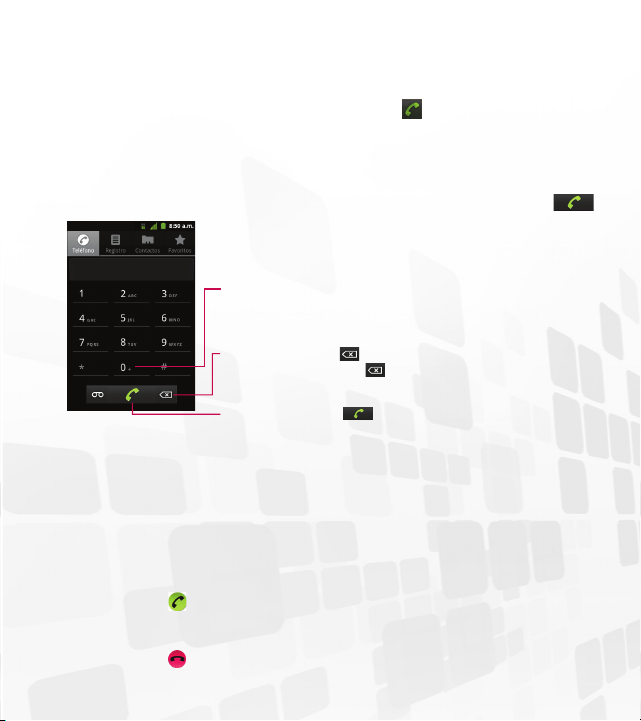
Mensajes de texto
Agregar contactos favoritos
Explorar la Web
Personalizar el teléfono
Usar Bluetooth®
GUÍA DE INICIO RÁPIDO
Configuración de la cuenta de Google
TM
Conceptos básicos Mensajería La Web
Características del teléfono
P/N : MBM63645401 (1.0)
Impreso en Corea
LG L46C
La primera vez que abra la aplicación de Google
TM
en el teléfono, se le
solicitará que inicie sesión con su cuenta de Google. Si no tiene una cuenta de
Google, se le pedirá que cree una.
Crear una cuenta de Google
1. En la pantalla de configuración, toque Crear o Iniciar sesión.
2. Introduzca su Nombre de usuario y Contraseña y cualquier otra información
necesaria si está creando una cuenta.
NOTA:
Toque la Tecla Atrás para cerrar el teclado.
3. Toque Iniciar sesión.
Ahora tu Gmail
TM
, Contactos de Google, los eventos del Calendario de
Google y otra información de configuración sincronizada con su cuenta de
Google se cargarán a tu teléfono automáticamente.
Cuenta de Google
Al iniciar sesión en una cuenta de Google, podrá usar Gmail, Google Talk
TM
,
Calendario y otras aplicaciones de Google; descargar aplicaciones de Google Play;
hacer una copia de seguridad de su configuración en los servidores de Google y
aprovechar otros servicios de Google en su teléfono.
NOTA:
El interfaz de usuario de las aplicaciones de Google (Google Search,
Google Maps, Navigation, etc.) puede variar dependiendo en la versión del
software.
Sugerencias sobre la pantalla táctil
A continuación se incluyen algunos consejos sobre cómo navegar por el
teléfono.
Tocar: Para elegir un menú/opción o abrir una aplicación, tóquelo/a.
Tocar y mantener presionado: Para abrir un menú de contexto o tomar un
objeto que desea mover, tóquelo y manténgalo presionado.
Arrastrar: Para desplazarse por una lista o moverse lentamente, arrástrese
por la pantalla táctil.
Dar un toquecito: Para desplazarse por una lista o moverse rápidamente,
dé toquecitos en la pantalla táctil (arrástrese rápidamente y suelte).
QuickMemo
TM
Puede crear notas fácilmente y con eficiencia durante una llamada, con
una imagen guardada o en la pantalla actual del teléfono.
1. Para acceder a la función QuickMemo, mantenga presionados ambos
Botones de Volumen a la misma vez por un segundo mientras está en
la pantalla que desea capturar y utilizar para la nota.
2. Escriba una nota utilizando las siguientes opciones:
- Toque para seleccionar si desea usar la pantalla de fondo.
- Toque para seleccionar el tipo de pluma y el color.
- Toque para utilizar el borrador para borrar la nota que ha creado.
- Toque para compartir la nota a través de Bluetooth, Gmail, Google+,
Mensajes Picasa, o cualquier otra aplicación instalada que permita
compartir.
- Toque para guardar la nota que creó en la pantalla actual.
3. En el menú Editar, toque y seleccione para guardar la nota con la
pantalla actual.
Mensajería
El teléfono LG L46C combina los mensajes de texto (SMS) y multimedia
(MMS) en un único menú intuitivo y fácil de usar.
Para enviar un mensaje de texto
1. Abra la aplicación Mensajes y toque Nuevo mensaje.
2. Introduzca un número de teléfono móvil en el campo Para.
A medida que introduce el número del teléfono celular, aparecerán
contactos coincidentes. Puede tocar un destinatario sugerido o
continuar introduciendo el número de teléfono.
3. Toque el campo de texto para comenzar a introducir el mensaje.
Se muestra un contador en la esquina superior derecha del campo de
texto para indicarle cuántos caracteres quedan.
Si toca la Tecla Atrás
mientras redacta un mensaje, se guarda
como borrador en la aplicación Mensajes. Toque el mensaje para
continuar escribiendo.
4. Toque Enviar para enviar el mensaje.
Se muestra su mensaje y las respuestas aparecen en la misma ventana
y crean una cadena de mensajes con ese contacto.
ADVERTENCIA: Si se agrega un archivo de imagen, video o audio a
un mensaje SMS, se convertirá automáticamente en un mensaje MMS.
Navegador
La función Navegador le permite acceder a Internet desde su teléfono.
El acceso y las selecciones dentro de esta función dependen de su
proveedor de servicios.
Toque la Tecla Menú
para ver las siguientes opciones.
Nueva ventana: Se abre una nueva ventana.
Favoritos: Permite ver, editar y agregar Favoritos.
Ventanas: Muestra todas las ventanas abiertas.
Actualizar: Permite actualizar la página web actual para ver el
contenido nuevo.
Siguiente: Pasa a la página a la cual se conectó después de la actual.
La Tecla Atrás
lo lleva a la pantalla anterior.
Más
• Agregar favorito: Permite agregar la página web actual como favorito.
• Buscar en la página: Permite buscar letras o palabras en la página web
actual.
• Seleccionar texto: Permite seleccionar cualquier texto de la página web
para copiar.
• Información de la página: Muestra la información de la página web
actual.
• Compartir página: Permite compartir la página web con otros.
• Descargas: Muestra su historial de descargas.
• Ajustes: Permite configurar varias configuraciones del Navegador.
NOTA: Para volver a la página anterior, toque la Tecla Atrás .
Llamadas
Para abrir la aplicación Teléfono
En la pantalla principal, toque la Tecla Teléfono .
Llamar a los contactos
1. Abra la aplicación Teléfono.
2. Introduzca el número telefónico deseado y toque la Tecla Llamar
.
Para marcar un número internacional, toque y mantenga presionado
para introducir el símbolo más (+). Luego introduzca el prefijo
internacional para el país; seguido por el número de teléfono completo.
Toque la Tecla Borrar
para borar un dígito. Toque y mantenga
presionada la Tecla Borrar
para borrar todos los números.
Toque la Tecla Llamar
para marcar el número.
Responder o rechazar llamadas
Cuando recibe una llamada, la pantalla Llamada recibida se abre y
muestra la identificación de la persona que llama y cualquier tipo de
información sobre ella que haya guardado en la lista de contactos. Todas
las llamadas entrantes se graban en el registro de llamadas.
Responder una llamada
Toque y arrastre
a la derecha.
Rechazar una llamada
Toque y arrastre
a la izquierda.
Para encender el teléfono, mantenga presionada la Tecla Encender/
Bloquear
durante tres segundos.
Para apagar el teléfono, presione la Tecla Encender/Bloquear
durante
tres segundos y toque Apagar. Luego toque OK para confirmar.
NOTA: Sensor de proximidad
Cuando reciba o realice llamadas, el sensor de proximidad apagará
automáticamente la luz de fondo y bloqueará el teclado táctil al detectar
cuando el teléfono esté cerca del oído. Esta acción extiende la vida útil
de la batería y evita que el teclado táctil se active de manera involuntaria
durante las llamadas.
Tecla Menú
Muestra las opciones
disponibles.
Tecla Inicio
Vuelve a la pantalla principal
desde cualquier pantalla.
Teclas Teléfono
Abre el teclado de
marcación. También
proporciona fichas
adicionales al Registro,
Contactos y Favoritos.
Sensor de proximidad
Barra de estado
Tecla Búsqueda
Permite buscar en la Web y en
los contenidos del teléfono.
Micrófono
Tecla Atrás
Vuelve a la pantalla anterior.
Auricular
Botón Encender/Bloquear
Pantalla táctil
Tecla Aplicaciones
Abre la pantalla de
aplicaciones para ver las
aplicaciones instaladas.
Teda Navegador
Accede al navegador de web.
Ranura para
tarjeta microSD
Toma de 3,5 mm
para auriculares
Toma para cargador y
accesorios
Abertura de dedos
Botones de volumen
¡Consejo!
: Mantenga presionados
ambos Botones de Volumen a la
misma vez para utilizar la función
QuickMemo™.
Flash
Lente de la
cámara
Espejo de la
cámara
Mensajes de texto
Agregar contactos favoritos
Explorar la Web
Personalizar el teléfono
Usar Bluetooth®
GUÍA DE INICIO RÁPIDO
Configuración de la cuenta de Google
TM
Conceptos básicos Mensajería La Web
Características del teléfono
P/N : MBM63645401 (1.0)
Impreso en Corea
LG L46C
La primera vez que abra la aplicación de Google
TM
en el teléfono, se le
solicitará que inicie sesión con su cuenta de Google. Si no tiene una cuenta de
Google, se le pedirá que cree una.
Crear una cuenta de Google
1. En la pantalla de configuración, toque Crear o Iniciar sesión.
2. Introduzca su Nombre de usuario y Contraseña y cualquier otra información
necesaria si está creando una cuenta.
NOTA:
Toque la Tecla Atrás para cerrar el teclado.
3. Toque Iniciar sesión.
Ahora tu Gmail
TM
, Contactos de Google, los eventos del Calendario de
Google y otra información de configuración sincronizada con su cuenta de
Google se cargarán a tu teléfono automáticamente.
Cuenta de Google
Al iniciar sesión en una cuenta de Google, podrá usar Gmail, Google Talk
TM
,
Calendario y otras aplicaciones de Google; descargar aplicaciones de Google Play;
hacer una copia de seguridad de su configuración en los servidores de Google y
aprovechar otros servicios de Google en su teléfono.
NOTA:
El interfaz de usuario de las aplicaciones de Google (Google Search,
Google Maps, Navigation, etc.) puede variar dependiendo en la versión del
software.
Sugerencias sobre la pantalla táctil
A continuación se incluyen algunos consejos sobre cómo navegar por el
teléfono.
Tocar: Para elegir un menú/opción o abrir una aplicación, tóquelo/a.
Tocar y mantener presionado: Para abrir un menú de contexto o tomar un
objeto que desea mover, tóquelo y manténgalo presionado.
Arrastrar: Para desplazarse por una lista o moverse lentamente, arrástrese
por la pantalla táctil.
Dar un toquecito: Para desplazarse por una lista o moverse rápidamente,
dé toquecitos en la pantalla táctil (arrástrese rápidamente y suelte).
QuickMemo
TM
Puede crear notas fácilmente y con eficiencia durante una llamada, con
una imagen guardada o en la pantalla actual del teléfono.
1. Para acceder a la función QuickMemo, mantenga presionados ambos
Botones de Volumen a la misma vez por un segundo mientras está en
la pantalla que desea capturar y utilizar para la nota.
2. Escriba una nota utilizando las siguientes opciones:
- Toque para seleccionar si desea usar la pantalla de fondo.
- Toque para seleccionar el tipo de pluma y el color.
- Toque para utilizar el borrador para borrar la nota que ha creado.
- Toque para compartir la nota a través de Bluetooth, Gmail, Google+,
Mensajes Picasa, o cualquier otra aplicación instalada que permita
compartir.
- Toque para guardar la nota que creó en la pantalla actual.
3. En el menú Editar, toque y seleccione para guardar la nota con la
pantalla actual.
Mensajería
El teléfono LG L46C combina los mensajes de texto (SMS) y multimedia
(MMS) en un único menú intuitivo y fácil de usar.
Para enviar un mensaje de texto
1. Abra la aplicación Mensajes y toque Nuevo mensaje.
2. Introduzca un número de teléfono móvil en el campo Para.
A medida que introduce el número del teléfono celular, aparecerán
contactos coincidentes. Puede tocar un destinatario sugerido o
continuar introduciendo el número de teléfono.
3. Toque el campo de texto para comenzar a introducir el mensaje.
Se muestra un contador en la esquina superior derecha del campo de
texto para indicarle cuántos caracteres quedan.
Si toca la Tecla Atrás
mientras redacta un mensaje, se guarda
como borrador en la aplicación Mensajes. Toque el mensaje para
continuar escribiendo.
4. Toque Enviar para enviar el mensaje.
Se muestra su mensaje y las respuestas aparecen en la misma ventana
y crean una cadena de mensajes con ese contacto.
ADVERTENCIA: Si se agrega un archivo de imagen, video o audio a
un mensaje SMS, se convertirá automáticamente en un mensaje MMS.
Navegador
La función Navegador le permite acceder a Internet desde su teléfono.
El acceso y las selecciones dentro de esta función dependen de su
proveedor de servicios.
Toque la Tecla Menú
para ver las siguientes opciones.
Nueva ventana: Se abre una nueva ventana.
Favoritos: Permite ver, editar y agregar Favoritos.
Ventanas: Muestra todas las ventanas abiertas.
Actualizar: Permite actualizar la página web actual para ver el
contenido nuevo.
Siguiente: Pasa a la página a la cual se conectó después de la actual.
La Tecla Atrás
lo lleva a la pantalla anterior.
Más
• Agregar favorito: Permite agregar la página web actual como favorito.
• Buscar en la página: Permite buscar letras o palabras en la página web
actual.
• Seleccionar texto: Permite seleccionar cualquier texto de la página web
para copiar.
• Información de la página: Muestra la información de la página web
actual.
• Compartir página: Permite compartir la página web con otros.
• Descargas: Muestra su historial de descargas.
• Ajustes: Permite configurar varias configuraciones del Navegador.
NOTA: Para volver a la página anterior, toque la Tecla Atrás .
Llamadas
Para abrir la aplicación Teléfono
En la pantalla principal, toque la Tecla Teléfono .
Llamar a los contactos
1. Abra la aplicación Teléfono.
2. Introduzca el número telefónico deseado y toque la Tecla Llamar
.
Para marcar un número internacional, toque y mantenga presionado
para introducir el símbolo más (+). Luego introduzca el prefijo
internacional para el país; seguido por el número de teléfono completo.
Toque la Tecla Borrar
para borar un dígito. Toque y mantenga
presionada la Tecla Borrar
para borrar todos los números.
Toque la Tecla Llamar
para marcar el número.
Responder o rechazar llamadas
Cuando recibe una llamada, la pantalla Llamada recibida se abre y
muestra la identificación de la persona que llama y cualquier tipo de
información sobre ella que haya guardado en la lista de contactos. Todas
las llamadas entrantes se graban en el registro de llamadas.
Responder una llamada
Toque y arrastre
a la derecha.
Rechazar una llamada
Toque y arrastre
a la izquierda.
Para encender el teléfono, mantenga presionada la Tecla Encender/
Bloquear
durante tres segundos.
Para apagar el teléfono, presione la Tecla Encender/Bloquear
durante
tres segundos y toque Apagar. Luego toque OK para confirmar.
NOTA: Sensor de proximidad
Cuando reciba o realice llamadas, el sensor de proximidad apagará
automáticamente la luz de fondo y bloqueará el teclado táctil al detectar
cuando el teléfono esté cerca del oído. Esta acción extiende la vida útil
de la batería y evita que el teclado táctil se active de manera involuntaria
durante las llamadas.
Tecla Menú
Muestra las opciones
disponibles.
Tecla Inicio
Vuelve a la pantalla principal
desde cualquier pantalla.
Teclas Teléfono
Abre el teclado de
marcación. También
proporciona fichas
adicionales al Registro,
Contactos y Favoritos.
Sensor de proximidad
Barra de estado
Tecla Búsqueda
Permite buscar en la Web y en
los contenidos del teléfono.
Micrófono
Tecla Atrás
Vuelve a la pantalla anterior.
Auricular
Botón Encender/Bloquear
Pantalla táctil
Tecla Aplicaciones
Abre la pantalla de
aplicaciones para ver las
aplicaciones instaladas.
Teda Navegador
Accede al navegador de web.
Ranura para
tarjeta microSD
Toma de 3,5 mm
para auriculares
Toma para cargador y
accesorios
Abertura de dedos
Botones de volumen
¡Consejo!
: Mantenga presionados
ambos Botones de Volumen a la
misma vez para utilizar la función
QuickMemo™.
Flash
Lente de la
cámara
Espejo de la
cámara
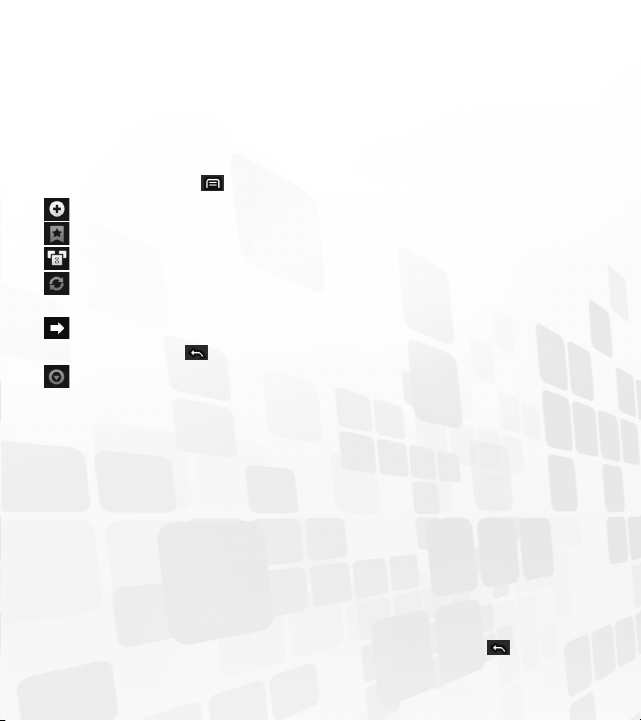
Mensajes de texto
Agregar contactos favoritos
Explorar la Web
Personalizar el teléfono
Usar Bluetooth®
GUÍA DE INICIO RÁPIDO
Configuración de la cuenta de Google
TM
Conceptos básicos Mensajería La Web
Características del teléfono
P/N : MBM63645401 (1.0)
Impreso en Corea
LG L46C
La primera vez que abra la aplicación de Google
TM
en el teléfono, se le
solicitará que inicie sesión con su cuenta de Google. Si no tiene una cuenta de
Google, se le pedirá que cree una.
Crear una cuenta de Google
1. En la pantalla de configuración, toque Crear o Iniciar sesión.
2. Introduzca su Nombre de usuario y Contraseña y cualquier otra información
necesaria si está creando una cuenta.
NOTA:
Toque la Tecla Atrás para cerrar el teclado.
3. Toque Iniciar sesión.
Ahora tu Gmail
TM
, Contactos de Google, los eventos del Calendario de
Google y otra información de configuración sincronizada con su cuenta de
Google se cargarán a tu teléfono automáticamente.
Cuenta de Google
Al iniciar sesión en una cuenta de Google, podrá usar Gmail, Google Talk
TM
,
Calendario y otras aplicaciones de Google; descargar aplicaciones de Google Play;
hacer una copia de seguridad de su configuración en los servidores de Google y
aprovechar otros servicios de Google en su teléfono.
NOTA:
El interfaz de usuario de las aplicaciones de Google (Google Search,
Google Maps, Navigation, etc.) puede variar dependiendo en la versión del
software.
Sugerencias sobre la pantalla táctil
A continuación se incluyen algunos consejos sobre cómo navegar por el
teléfono.
Tocar: Para elegir un menú/opción o abrir una aplicación, tóquelo/a.
Tocar y mantener presionado: Para abrir un menú de contexto o tomar un
objeto que desea mover, tóquelo y manténgalo presionado.
Arrastrar: Para desplazarse por una lista o moverse lentamente, arrástrese
por la pantalla táctil.
Dar un toquecito: Para desplazarse por una lista o moverse rápidamente,
dé toquecitos en la pantalla táctil (arrástrese rápidamente y suelte).
QuickMemo
TM
Puede crear notas fácilmente y con eficiencia durante una llamada, con
una imagen guardada o en la pantalla actual del teléfono.
1. Para acceder a la función QuickMemo, mantenga presionados ambos
Botones de Volumen a la misma vez por un segundo mientras está en
la pantalla que desea capturar y utilizar para la nota.
2. Escriba una nota utilizando las siguientes opciones:
- Toque para seleccionar si desea usar la pantalla de fondo.
- Toque para seleccionar el tipo de pluma y el color.
- Toque para utilizar el borrador para borrar la nota que ha creado.
- Toque para compartir la nota a través de Bluetooth, Gmail, Google+,
Mensajes Picasa, o cualquier otra aplicación instalada que permita
compartir.
- Toque para guardar la nota que creó en la pantalla actual.
3. En el menú Editar, toque y seleccione para guardar la nota con la
pantalla actual.
Mensajería
El teléfono LG L46C combina los mensajes de texto (SMS) y multimedia
(MMS) en un único menú intuitivo y fácil de usar.
Para enviar un mensaje de texto
1. Abra la aplicación Mensajes y toque Nuevo mensaje.
2. Introduzca un número de teléfono móvil en el campo Para.
A medida que introduce el número del teléfono celular, aparecerán
contactos coincidentes. Puede tocar un destinatario sugerido o
continuar introduciendo el número de teléfono.
3. Toque el campo de texto para comenzar a introducir el mensaje.
Se muestra un contador en la esquina superior derecha del campo de
texto para indicarle cuántos caracteres quedan.
Si toca la Tecla Atrás
mientras redacta un mensaje, se guarda
como borrador en la aplicación Mensajes. Toque el mensaje para
continuar escribiendo.
4. Toque Enviar para enviar el mensaje.
Se muestra su mensaje y las respuestas aparecen en la misma ventana
y crean una cadena de mensajes con ese contacto.
ADVERTENCIA: Si se agrega un archivo de imagen, video o audio a
un mensaje SMS, se convertirá automáticamente en un mensaje MMS.
Navegador
La función Navegador le permite acceder a Internet desde su teléfono.
El acceso y las selecciones dentro de esta función dependen de su
proveedor de servicios.
Toque la Tecla Menú
para ver las siguientes opciones.
Nueva ventana: Se abre una nueva ventana.
Favoritos: Permite ver, editar y agregar Favoritos.
Ventanas: Muestra todas las ventanas abiertas.
Actualizar: Permite actualizar la página web actual para ver el
contenido nuevo.
Siguiente: Pasa a la página a la cual se conectó después de la actual.
La Tecla Atrás
lo lleva a la pantalla anterior.
Más
• Agregar favorito: Permite agregar la página web actual como favorito.
• Buscar en la página: Permite buscar letras o palabras en la página web
actual.
• Seleccionar texto: Permite seleccionar cualquier texto de la página web
para copiar.
• Información de la página: Muestra la información de la página web
actual.
• Compartir página: Permite compartir la página web con otros.
• Descargas: Muestra su historial de descargas.
• Ajustes: Permite configurar varias configuraciones del Navegador.
NOTA: Para volver a la página anterior, toque la Tecla Atrás .
Llamadas
Para abrir la aplicación Teléfono
En la pantalla principal, toque la Tecla Teléfono .
Llamar a los contactos
1. Abra la aplicación Teléfono.
2. Introduzca el número telefónico deseado y toque la Tecla Llamar
.
Para marcar un número internacional, toque y mantenga presionado
para introducir el símbolo más (+). Luego introduzca el prefijo
internacional para el país; seguido por el número de teléfono completo.
Toque la Tecla Borrar
para borar un dígito. Toque y mantenga
presionada la Tecla Borrar
para borrar todos los números.
Toque la Tecla Llamar
para marcar el número.
Responder o rechazar llamadas
Cuando recibe una llamada, la pantalla Llamada recibida se abre y
muestra la identificación de la persona que llama y cualquier tipo de
información sobre ella que haya guardado en la lista de contactos. Todas
las llamadas entrantes se graban en el registro de llamadas.
Responder una llamada
Toque y arrastre
a la derecha.
Rechazar una llamada
Toque y arrastre
a la izquierda.
Para encender el teléfono, mantenga presionada la Tecla Encender/
Bloquear
durante tres segundos.
Para apagar el teléfono, presione la Tecla Encender/Bloquear
durante
tres segundos y toque Apagar. Luego toque OK para confirmar.
NOTA: Sensor de proximidad
Cuando reciba o realice llamadas, el sensor de proximidad apagará
automáticamente la luz de fondo y bloqueará el teclado táctil al detectar
cuando el teléfono esté cerca del oído. Esta acción extiende la vida útil
de la batería y evita que el teclado táctil se active de manera involuntaria
durante las llamadas.
Tecla Menú
Muestra las opciones
disponibles.
Tecla Inicio
Vuelve a la pantalla principal
desde cualquier pantalla.
Teclas Teléfono
Abre el teclado de
marcación. También
proporciona fichas
adicionales al Registro,
Contactos y Favoritos.
Sensor de proximidad
Barra de estado
Tecla Búsqueda
Permite buscar en la Web y en
los contenidos del teléfono.
Micrófono
Tecla Atrás
Vuelve a la pantalla anterior.
Auricular
Botón Encender/Bloquear
Pantalla táctil
Tecla Aplicaciones
Abre la pantalla de
aplicaciones para ver las
aplicaciones instaladas.
Teda Navegador
Accede al navegador de web.
Ranura para
tarjeta microSD
Toma de 3,5 mm
para auriculares
Toma para cargador y
accesorios
Abertura de dedos
Botones de volumen
¡Consejo!
: Mantenga presionados
ambos Botones de Volumen a la
misma vez para utilizar la función
QuickMemo™.
Flash
Lente de la
cámara
Espejo de la
cámara