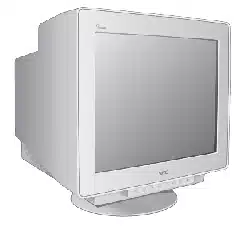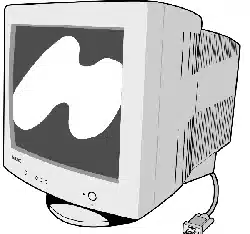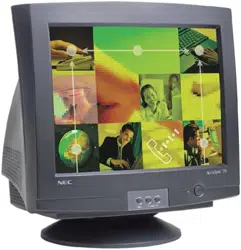
AccuSync 125F
USER'S MANUAL
To learn about other special offers, register online at www.necmitsubishi.com/ productregistration
™
AccuSync125Fcovercontents 01.12.12, 8:481

Index
Warning.................................................................................................. 1
Contents ............................................................................................... 2
Quick Start ...........................................................................................3
Controls ................................................................................................ 5
Recommended Use ............................................................................. 9
Specifications ..................................................................................... 12
Features .............................................................................................. 13
Troubleshooting .................................................................................14
References .......................................................................................... 15
Limited Warranty .............................................................................. 16
Avertissement .................................................................................... 17
Contenu ...............................................................................................18
Mise en marche rapide ..................................................................... 19
Commandes ........................................................................................ 21
Usage recommandé.......................................................................... 25
Fiche technique ................................................................................ 28
Fonctions ............................................................................................ 29
Dépannage ......................................................................................... 30
Références .......................................................................................... 31
Garantie limitée................................................................................ 32
AccuSync125Fcovercontents 01.12.12, 8:482
1
Canadian Department of Communications Compliance Statement
DOC: This Class B digital apparatus meets all requirements of the Canadian Interference-
Causing Equipment Regulations.
C-UL: Bears the C-UL Mark and is in compliance with Canadian Safety Regulations according to
C.S.A. 22.2 #950.
FCC Information
1.
Use the attached specified cables with the
AccuSync 125F color monitor so as not to interfere with
radio and television reception.
(1) Please use the supplied power cable or equivalent to ensure FCC compliance.
(2) Shielded signal cable.
Use of other cables and adapters may cause interference with radio and television reception.
2.
This equipment has been tested and found to comply with the limits for a Class B digital device,
pursuant to part 15 of the FCC Rules. These limits are designed to provide reasonable protection
against harmful interference in a residential installation. This equipment generates, uses, and can
radiate radio frequency energy, and, if not installed and used in accordance with the instructions, may
cause harmful interference to radio communications. However, there is no guarantee that interference
will not occur in a particular installation. If this equipment does cause harmful interference to radio
or television reception, which can be determined by turning the equipment off and on, the user is
encouraged to try to correct the interference by one or more of the following measures:
• Reorient or relocate the receiving antenna.
• Increase the separation between the equipment and receiver.
• Connect the equipment into an outlet on a circuit different from that to which the receiver
is connected.
• Consult your dealer or an experienced radio/TV technician for help.
If necessary, the user should contact the dealer or an experienced radio/television technician for additional
suggestions. The user may find the following booklet, prepared by the Federal Communications Commis-
sion, helpful: ”How to Identify and Resolve Radio-TV Interference Problems.“ This booklet is available from
the U.S. Government Printing Office, Washington, D.C., 20402, Stock No. 004-000-00345-4.
No user serviceable parts inside. Do not attempt to modify this equipment. If modified, your
authority to operate this equipment might be voided by FCC.
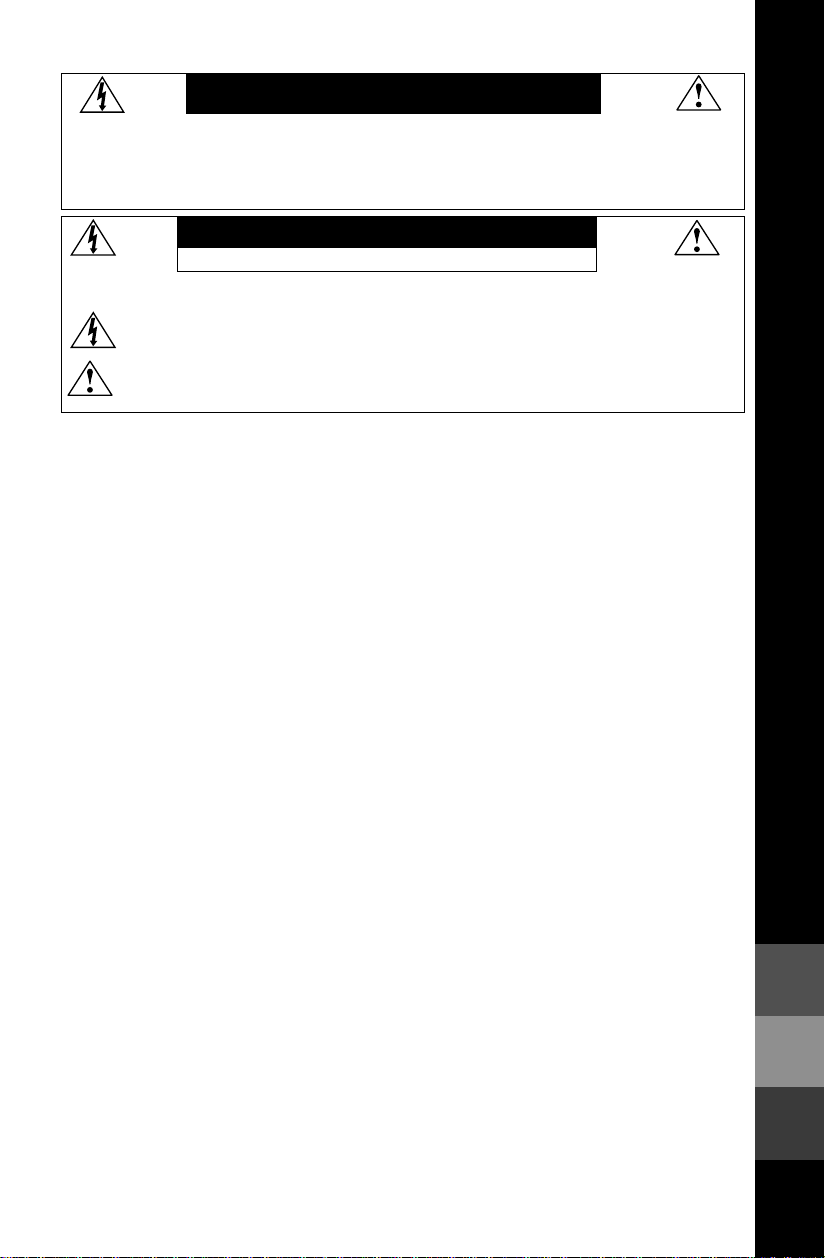
TO PREVENT FIRE OR SHOCK HAZARDS, DO NOT EXPOSE THIS UNIT TO RAIN OR MOISTURE. ALSO, DO NOT USE
THIS UNIT'S POLARIZED PLUG WITH AN EXTENSION CORD RECEPTACLE OR OTHER OUTLETS UNLESS THE PRONGS
CAN BE FULLY INSERTED.
REFRAIN FROM OPENING THE CABINET AS THERE ARE HIGH VOLTAGE COMPONENTS INSIDE. REFER SERVICING
TO QUALIFIED SERVICE PERSONNEL.
WARNING
CAUTION
RISK OF ELECTRIC SHOCK • DO NOT OPEN
CAUTION: TO REDUCE THE RISK OF ELECTRIC SHOCK, DO NOT REMOVE COVER (OR BACK). NO USER
SERVICEABLE PARTS INSIDE. REFER SERVICING TO QUALIFIED SERVICE PERSONNEL.
This
symbol warns user that uninsulated voltage within the unit may have sufficient magnitude to cause
electric shock. Therefore, it is dangerous to make any kind of contact with any part inside this unit.
This symbol alerts the user that important literature concerning the operation and maintenance of this
unit has been included. Therefore, it should be read carefully in order to avoid any problems.
AccuSync125F 01.12.12, 8:431
2
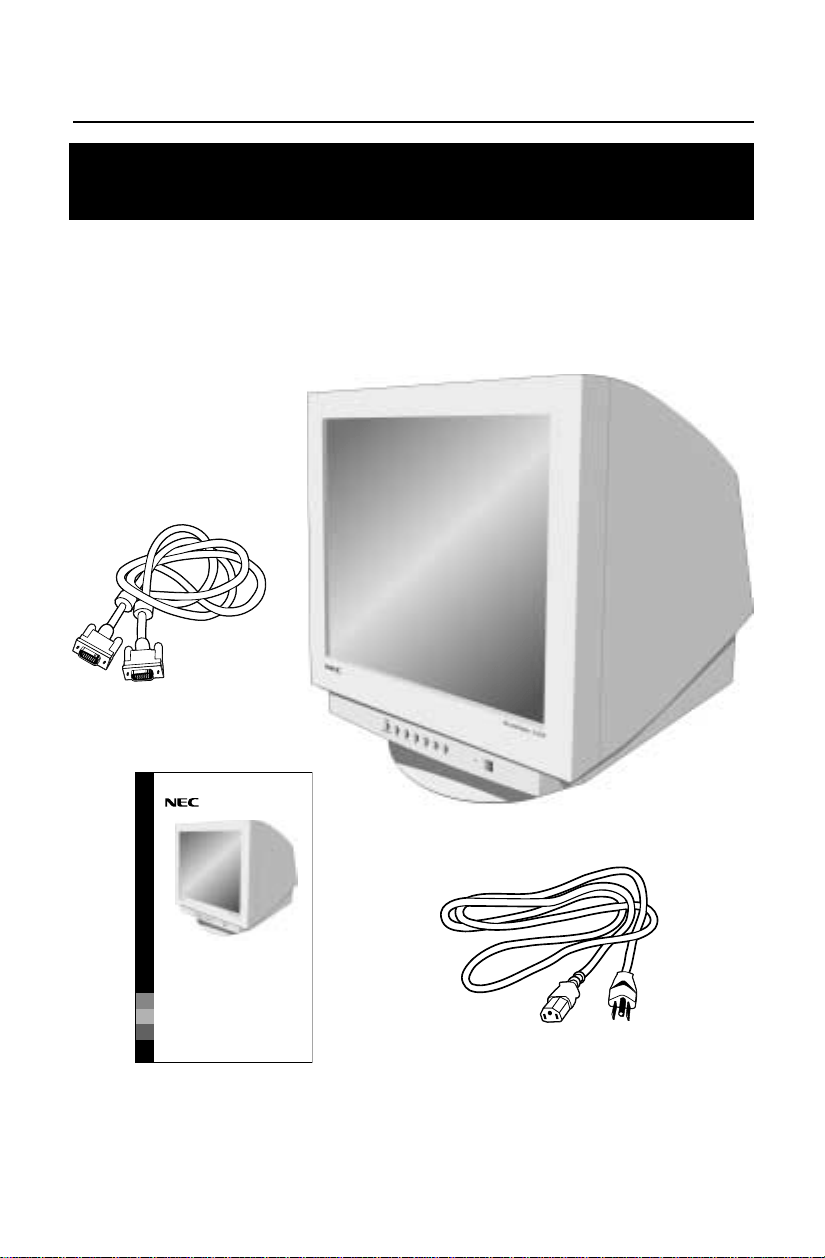
Your new NEC AccuSync
™
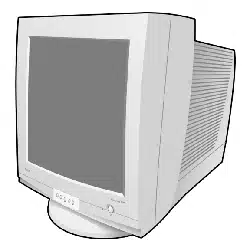
125F monitor box* should contain the
following:
• AccuSync
™
125F with tilt/swivel base
• Power Cord
• Signal Cable
• User’s Manual
Contents
Power Cord
User’s Manual
* Remember to save your original box and packing material to transport or ship the monitor.
Signal Cable
You can register your product online at
www.necmitsubishi.com/productregistration
AccuSync 125F
USER'S MANUAL
To learn about other special offers, register online at www.necmitsubishi.com/ productregistration
™
AccuSync125F 01.12.12, 8:432
3
Quick Start
To attach the AccuSync
™
125F monitor to your system, follow these
instructions:
1. Turn off the power to your computer.
2. If necessary, install the display card into your system. For more information,
refer to the display card manual.
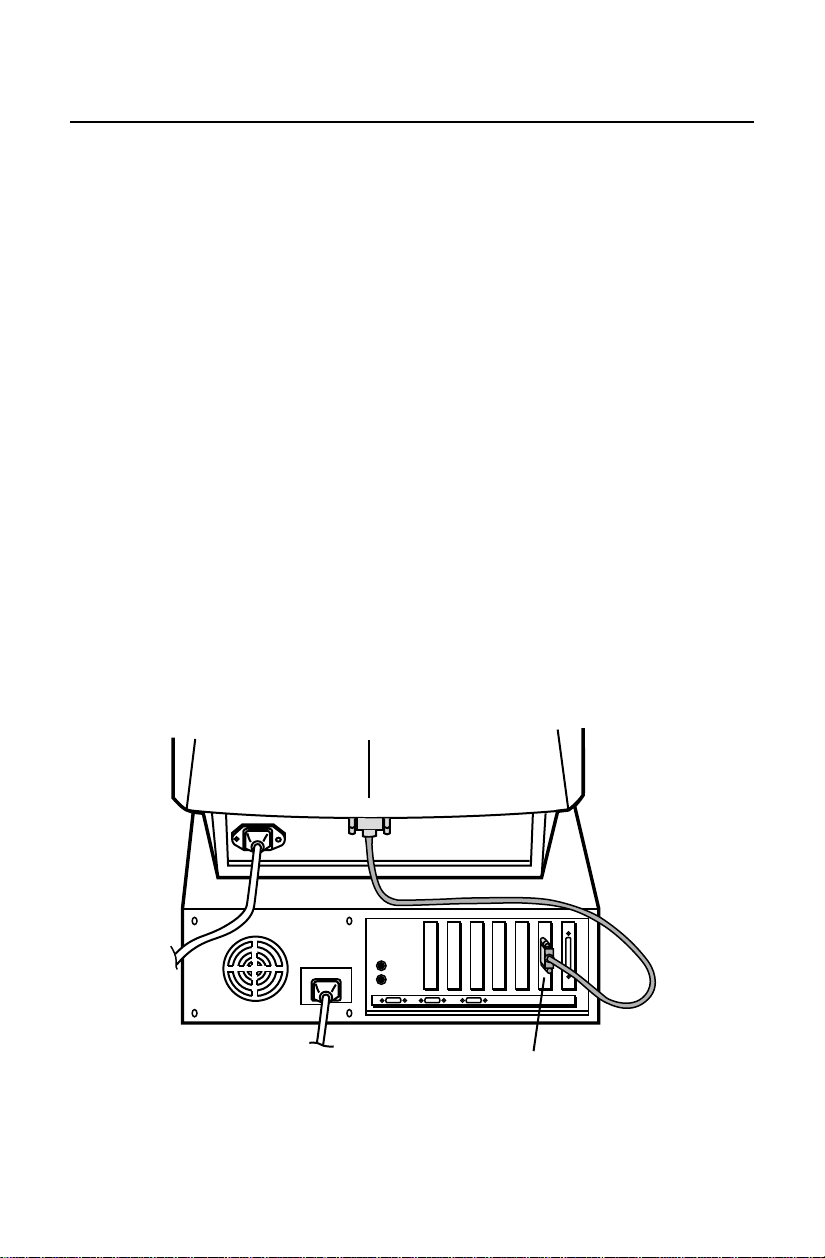
3. For the PC: Connect the 15-pin mini D-SUB of the signal cable to the
connector of the display card in your system (Figure A.1). Tighten all screws.
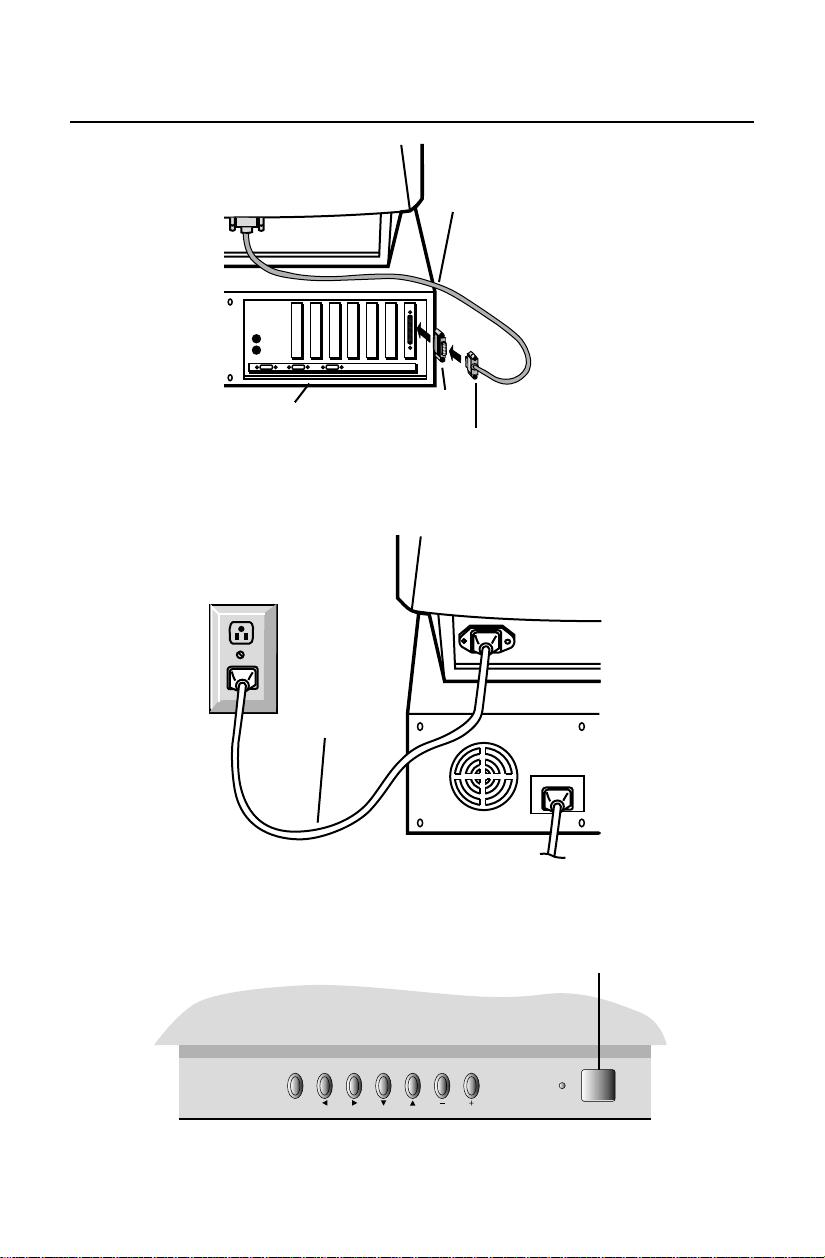
For the Mac: Connect the AccuSync125F Macintosh cable adapter (not
included) to the monitor connector on the Macintosh (Figure B.1). Attach the
15-pin mini D-SUB end of the signal cable to the AccuSync125F Macintosh
cable adapter on the computer (Figure B.1). Tighten all screws.
NOTE: To obtain the AccuSync125F Macintosh cable adapter, call
NEC-Mitsubishi Electronics Display of America, Inc. at (800) 632-4662.
4. For download information on the Windows
®
98/Me/2000/XP INF file for
your AccuSync monitor, refer to the References section of this User’s Manual.
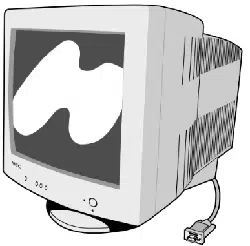
5. Connect one end of the power cord to the AccuSync125F monitor and the
other end to the power outlet (Figure C.1).
6. Turn on the monitor (Figure D.1) and the computer.
NOTE: If you have any problems, please refer to the Troubleshooting section of
this User’s Manual.
15-pin mini D-DUB
Detachable Signal Cable
Figure A.1
AccuSync125F 01.12.12, 8:433
4
Quick Start –continued
Computer
Detachable Signal Cable
Mac Adapter
(Not included)
15-pin mini D-SUB
Power
Cord
Power Button
FPM
OSD OFF
Figure B.1
Figure C.1
Figure D.1
AccuSync125F 01.12.12, 8:434
5
Controls
OSM
™
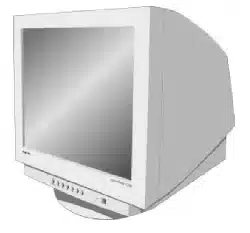
(On-Screen Manager) control buttons on the front of the monitor function
as follows:
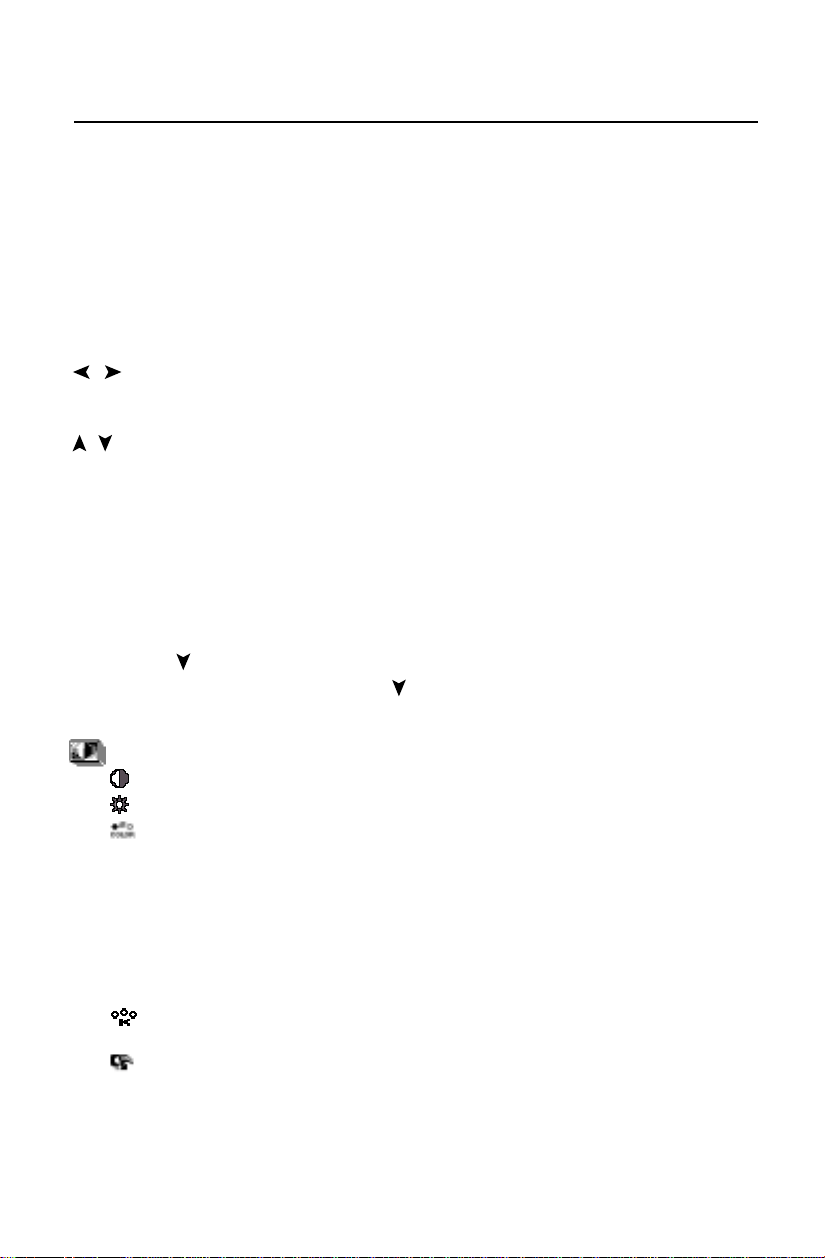
FPM Activates at no OSM menu and to select one of display modes, NORMAL
MODE, TEXT MODE and GRAPHIC MODE.
When OSM controls are activated, icons are displayed at the top of the menu.
If an arrow ( ) is displayed in a sub-menu, it indicates further choices are
available. To enter a sub-menu, press .
Brightness/Contrast/Color/AccuColor Controls
CONTRAST: Adjusts the image brightness in relation to the background.
BRIGHT: Adjusts the overall image and background screen brightness.
COLOR: Selects from desired color setting from Color preset modes 1,
2, 3 and sRGB.
NEC’s AccuColor Control System allows to decrease or increase the
monitor’s red, green or blue color guns depending upon which is
selected, at Color preset modes 1, 2 and 3. At Color preset mode sRGB
selected, AccuColor Control System is unavailable and CONTRAST,
BRIGHT and COLOR TEMPERATURE are no adjustable.
COLOR TEMPERATURE: Decreases or increases Color temperature of
the Color preset mode selected by COLOR.
FACTORY PRESET: Restores the items in Brightness/Contrast/Color/
AccuColor controls to the factory preset condition.
OSD OFF
CONTROL
/
CONTROL
/
CONTROL
-/+
Main Menu
Exits the OSM menu.
Moves the highlighted
area left/right to select
one of the controls.
Moves the highlighted
area up/down to select
one of the controls.
Moves the bar in the - or
+ direction to decrease
or increase the
adjustment.
Sub-Menu
Exits the OSM menu.
Moves the highlighted
area left/right to select
one of the controls.
Moves the highlighted
area up/down to select
one of the controls.
Moves the bar in the - or
+ direction to decrease
or increase the
adjustment.
AccuSync125F 01.12.12, 8:435
6
Controls –continued
Size and Position Controls
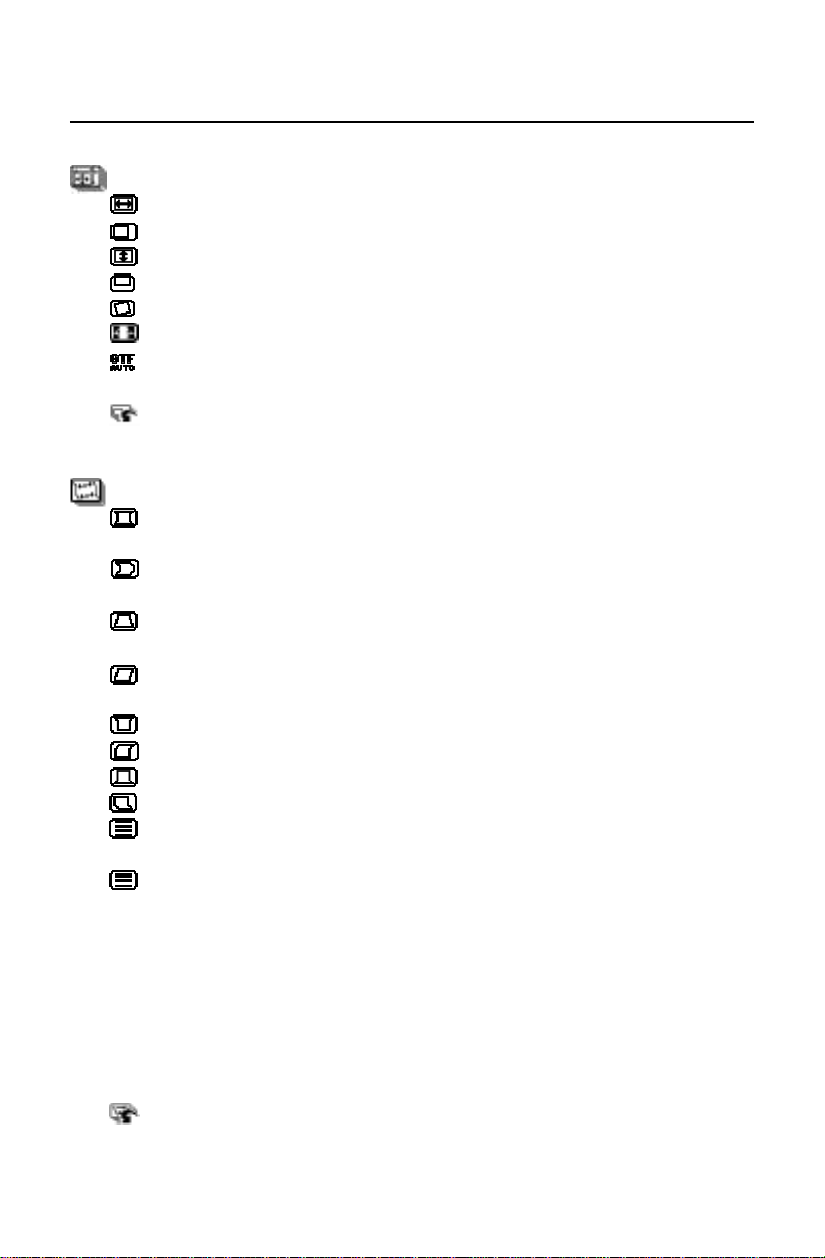
HORIZ-SIZE: Decreases or increases the horizontal size of the image.
HORIZ-POSITION: Moves the image horizontally (left or right).
VERT-SIZE: Decreases or increases the vertical size of the image.
VERT-POSITION: Moves the image vertically (up or down).
ROTATION: Rotates the entire display clockwise or counterclockwise.
ZOOM: Decreases or increases the size of image.
GTF AUTO ADJUST: Adjusts the size and position of image
automatically.
FACTORY PRESET: Restores the items in Size and Position Controls to
the factory preset condition.
Geometry Controls
PINCUSHION: Decreases or increases the curvature of the sides either
inword or outword.
PIN-BALANCE: Decreases or increases the curvature of the sides either
to the left or right.
KEYSTONE: Decreases or increases the bottom of the screen to be the
same as the top.
KEY-BALANCE: Decreases or increases the tilt of the sides either to the
left or right.
TOP-PIN: Decreases or increases the top of corners.
TOP-BALANCE: Moves the slant of top to the left or right.
BOTTOM-PIN: Decreases or increases the bottom of corners.
BOTTOM-BALANCE: Moves the slant of bottom to the left or right.
VERT-LIN: Decreases or increases the spacing on the center of screen
vertically.
VERT-LIN-BALANCE: Decreases or increases the spacing on the bottom
or top of the screen vertically.
NOTE: VERT-LIN and VERT-LIN-BALANCE allow you to adjust the
spacing of the area on the screen. The purpose of these controls
is to ensure that a one-inch circles is a true circle wherever it is
on the screen. The best way to determine the vertical linearity is
as follow:
• Draw equally spaced horizontal lines using a drawing
application that has a ruler.
FACTORY PRESET: Restores the items in Geometry Controls to the
factory preset condition.
AccuSync125F 01.12.12, 8:436
7
Controls –continued
Purity(GlobalSync Control)/Moire Control
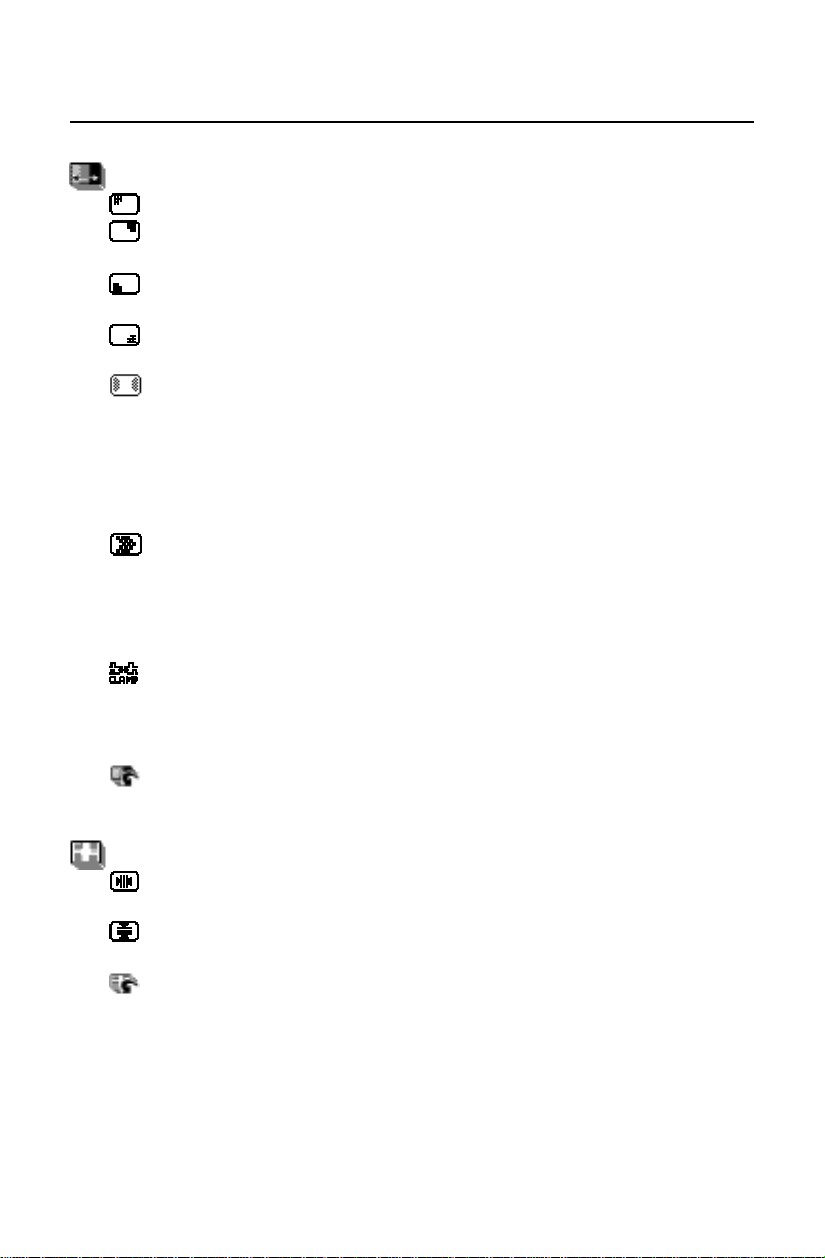
CORNER PURITY(TL): Adjust the purity condition on the top-left corner.
CORNER PURITY(TR): Adjust the purity condition on the top-right
corner.
CORNER PURITY(BL): Adjust the purity condition on the bottom-left
corner.
CORNER PURITY(BR): Adjust the purity condition on the bottom-right
corner.
LEFT/RIGHT PURITY: Adjust the purity condition on the left and right
corners.
NOTE: PURITY controls eliminate picture impurities that may result from
the earth’s magnetic field. NEC recommends that you perform
GlobalSync corrections while running a typical application such
as a spreadsheet or text document.
MOIRE CANCEL LEVEL: Moire is a wavy pattern which can sometimes
appear on the screen. The pattern is repetitive and superimposed as
rippled images. When running certain applications, the wavy pattern is
more evident than in others. To reduce moiré, adjust the level by using
the -/+ CONTROL buttons.
CLAMP PULSE POSITION: Operating your monitor at a non-standard
timing may cause images to appear darker than normal or have color
distortion. Use of the CLAMP PULSE POSITION will adjust images to
their normal state.
FACTORY PRESET: Restores the items in Purity/Moire Controls to the
factory preset condition.
Convergence Controls
HORIZ-CONVERGENCE: Adjusts the alignment of the white lines in the
up/down direction.
VERT-CONVERGENCE: Adjusts the alignment of the white lines in the
left/right direction.
FACTORY PRESET: Restores the items in Convergence Controls to the
factory preset condition.
AccuSync125F 01.12.12, 8:437
8
Controls –continued
Tools
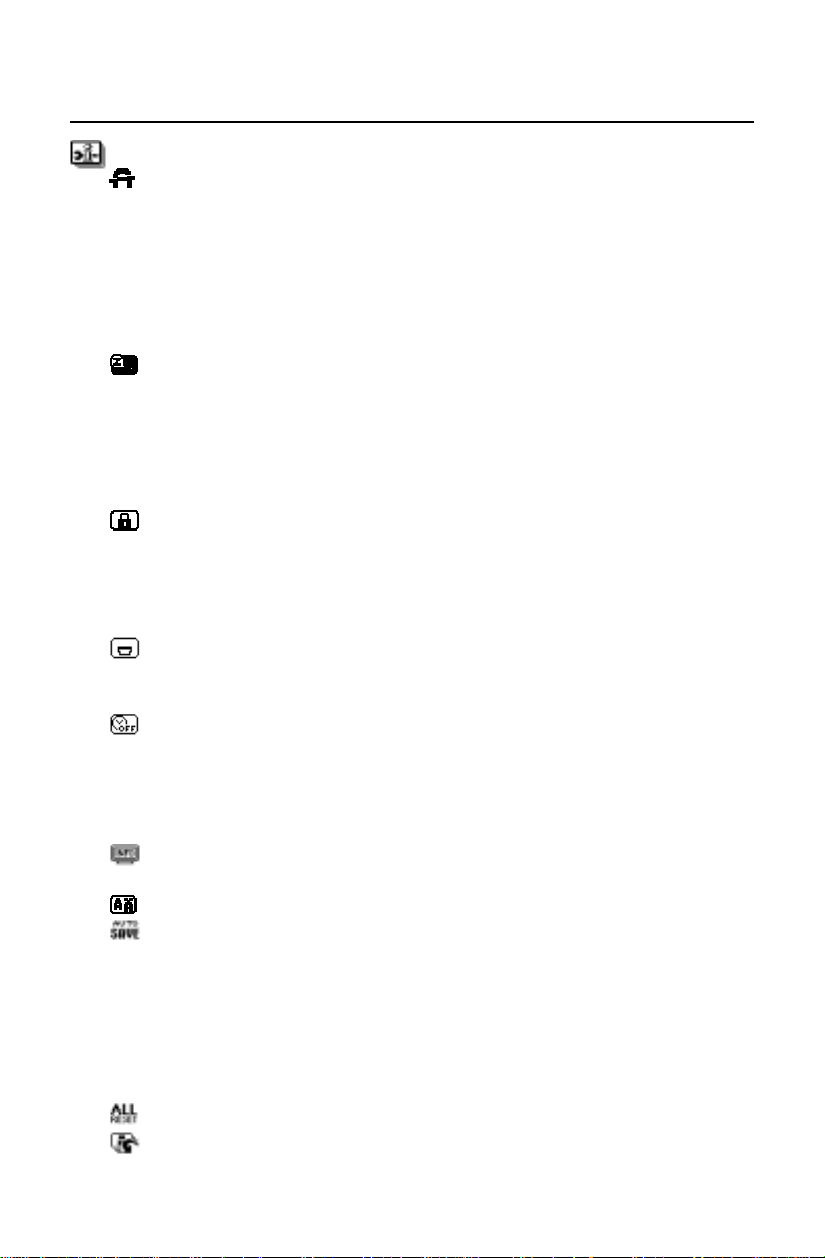
DEGAUSS: Eliminates the buildup of stray magnetic fields which alter
the correct scan of the electron beams and affect the purity of the
screen colors, focus and convergence.
When activated, your screen image will jump and waver a bit as the
screen is demagnetized.
Caution: Please allow a minimum of 20 minutes to elapse between
uses of the Degauss Control.
POWER SAVE (IPM System):
ON: The IPM System works normally and all stages of energy savings
are utilized.
OFF: The Off Mode of the IPM Systems is not used.
NOTE: For standard systems and graphics boards, keep the factory
setting at ON.
CONTROL LOCK: This control completely locks out access to all OSM
controls functions except Brightness and Contrast. When attempting to
activate OSM controls while in the lock out mode, a screen will appear
indicating that OSM controls are locked out. To deactivate the Control
lock, push – control button at Control Lock menu of OSM.
OSD POSITION: You can choose where you would like the OSM
controls menu to appear on your screen. Selecting OSD Position allows
you to manually adjust the OSM controls menu left, right, up or down.
OSD TURN OFF: The OSM controls menu will stay on as long as it is in
use. In the OSD Turn Off sub-menu, you can select how long the
monitor waits after the last touch of a button for the OSM controls menu
to disappear. The preset choices are 10, 20, 30, 45, 60 and 120
seconds.
DIAGNOSIS: Indicates the current mode and frequency setting of the
monitor.
LANGUAGE: OSM controls menus are available in six languages.
AUTO SAVE: The monitor automatically saves the last settings of the
user controls. You can turn this Auto Save feature off by selecting this
menu and changing the off position.
When the off mode is selected, you will prompted with the option to
save or return to the previous setting once you select a different control.
If the save is not confirmed, the setting will go back to previous setting
when OSM turns off.
ALL RESET: Restores all items to the factory preset condition.
FACTORY PRESET: Restores the items in Tools to the factory preset
condition.
AccuSync125F 01.12.12, 8:438
9
Safety Precautions and Maintenance
FOR OPTIMUM PERFORMANCE, PLEASE NOTE THE
FOLLOWING WHEN SETTING UP AND USING
THE AccuSync
™
125F COLOR MONITOR:
• DO NOT OPEN THE MONITOR. There are no user serviceable par5ts inside and
opening or removing covers may expose you to dangerous shock hazards or other
risks. Refer all servicing to qualified service personnel.
• Do not spill any liquids into the cabinet or use your monitor near water.
• Do not insert objects of any kind into the cabinet slots, as they may touch danger-
ous voltage points, which can be harmful or fatal or may cause electric shock, fire
or equipment failure.
• Do not place any heavy objects on the power cord. Damage to the cord may
cause shock or fire.
• Do not place this product on a sloping or unstable cart, stand or table, as the
monitor may fall, causing serious damage to the monitor.
• Keep the monitor away from high capacity transformers, electric motors and other
devices such as external speakers or fans, which may create strong magnetic
fields.
• If possible, position the monitor so that it is facing the east to minimize the effects
of the earth’s magnetic field.
• Changing the direction of the monitor while it is powered on may cause image
discoloration. To correct this, turn the monitor off for 20 minutes before powering
it back on.
Immediately unplug your monitor from the wall outlet and refer servicing to qualified
service personnel under the following conditions:
• When the power supply cord or plug is damaged.
• If liquid has been spilled, or objects have fallen into the monitor.
• If the monitor has been exposed to rain or water.
• If the monitor has been dropped or the cabinet damaged.
• If the monitor does not operate normally by following operating instructions.
• Allow adequate ventilation around the monitor so that heat can properly
dissipate. Do not block ventilated openings or place the monitor near a
radiator or other heat sources. Do not put anything on top of monitor.
• The power cable connector is the primary means of detaching the system
from the power supply. The monitor should be installed close to a power
outlet which is easily accessible.
• Handle with care when transporting. Save packaging for transporting.
Recommended Use
CAUTION
AccuSync125F 01.12.12, 8:439
10
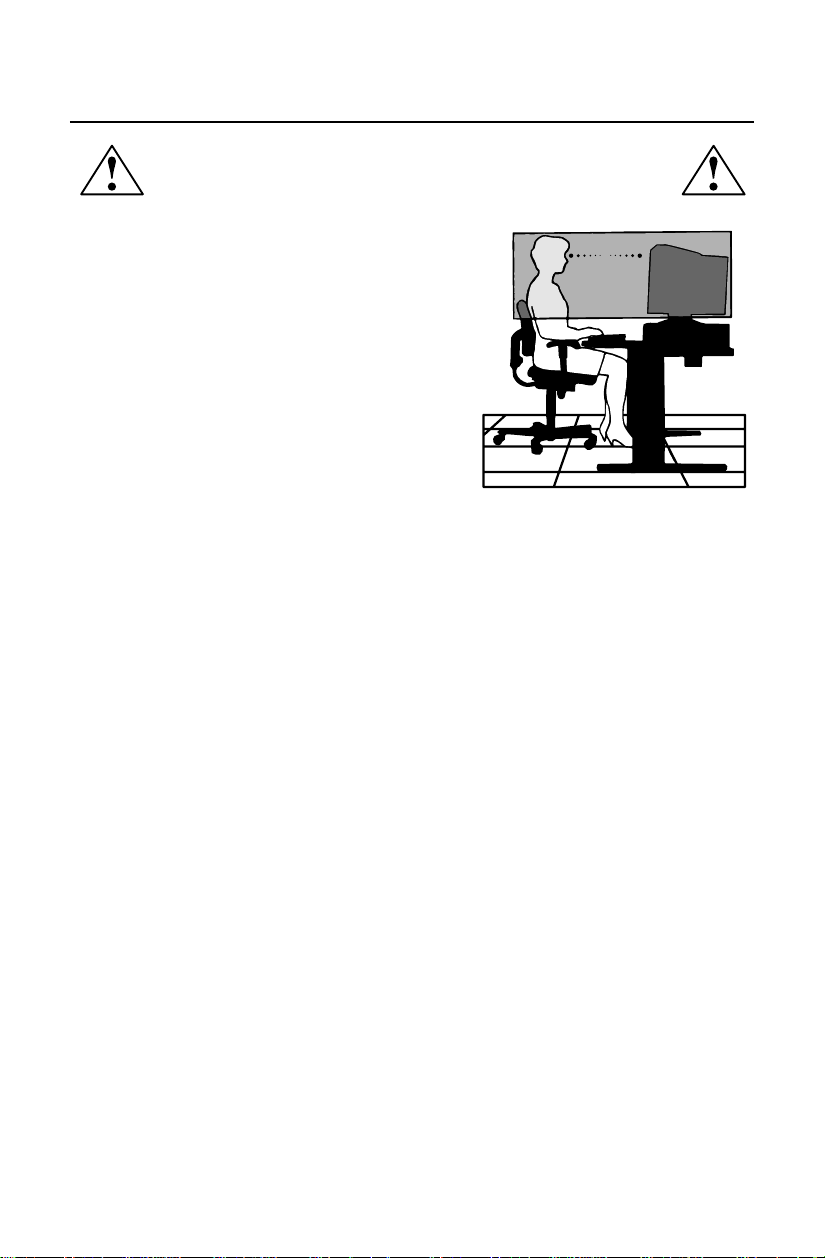
CORRECT PLACEMENT AND ADJUSTMENT OF THE MONITOR
CAN REDUCE EYE, SHOULDER AND NECK FATIGUE. CHECK THE
FOLLOWING WHEN YOU POSITION THE MONITOR:
Recommended Use –continued
• Adjust the monitor height so that the top of
the screen is at or slightly below eye level.
Your eyes should look slightly downward
when viewing the middle of the screen.
• Position your monitor no closer than 12 inches
and no further away than 28 inches from your
eyes. The optimal distance is 24 inches.
• Rest your eyes periodically by focusing on
an object at least 20 feet away. Blink often.
• Position the monitor at a 90° angle to
windows and other light sources to minimize
glare and reflections. Adjust the monitor tilt so that ceiling lights do not reflect
on your screen.
• If reflected light makes it hard for you to see your screen, use an anti-glare filter.
• Cleaning Your Monitor
A special coating is provided on the glass (CRT) surface of this monitor to
reduce a reflection and static electricity on the glass surface.
Due to the delicate coating on the glass surface, use a tint-free, non-abrasive
cloth (cotton or equivalent) and a non-alcohol, neutral, non-abrasive cleaning
solution to minimize dust. If the screen requires more than a light cleaning,
apply water or soften neutral detergent with much water directly to a soft cloth
and use it upon wringing water, to clean the glass surface.
• Clean your monitor regularly.
CAUTION
The following agents will cause damage to the CRT when cleaning the glass
surface:
Benzene, thinner, acid/alkaline detergent, alcohol detergent, detergent with
abrasive powder, detergent with anti-static agent, detergent for cleaning.
• Adjust the monitor’s brightness and contrast controls to enhance readability.
• Use a document holder placed close to the screen.
• Position whatever you are looking at most of the time (the screen or
reference material) directly in front of you to minimize turning your head
while you are typing.
• Get regular eye checkups.
AccuSync125F 01.12.12, 8:4310

11
Ergonomics
To realize the maximum ergonomics benefits, we recommend the following:
• Adjust the Brightness until the background raster disappears
• Do not position the Contrast control to its maximum setting
• Use the preset Size and Position controls with standard signals
• Use the preset Color Setting and Sides Left/Right controls
• Use non-interlaced signals with a vertical refresh rate between 75-160Hz
• Do not use primary color blue on a dark background, as it is difficult to see
and may produce eye fatigue due to insufficient contrast
For more detailed information on setting up a healthy work environment, call
NEC-Mitsubishi Electronics Display at (888) NEC-MITS, NEC FastFacts
™
information at
(800) 366-0476 and request document #900108 or write the American National
Standard for Human Factors Engineering of Visual Display Terminal Workstations –
ANSI-HFS Standard No. 100-1988 – The Human Factors Society, Inc. P.O. Box 1369,
Santa Monica, California 90406.
Recommended Use –continued
AccuSync125F 01.12.12, 8:4311
12
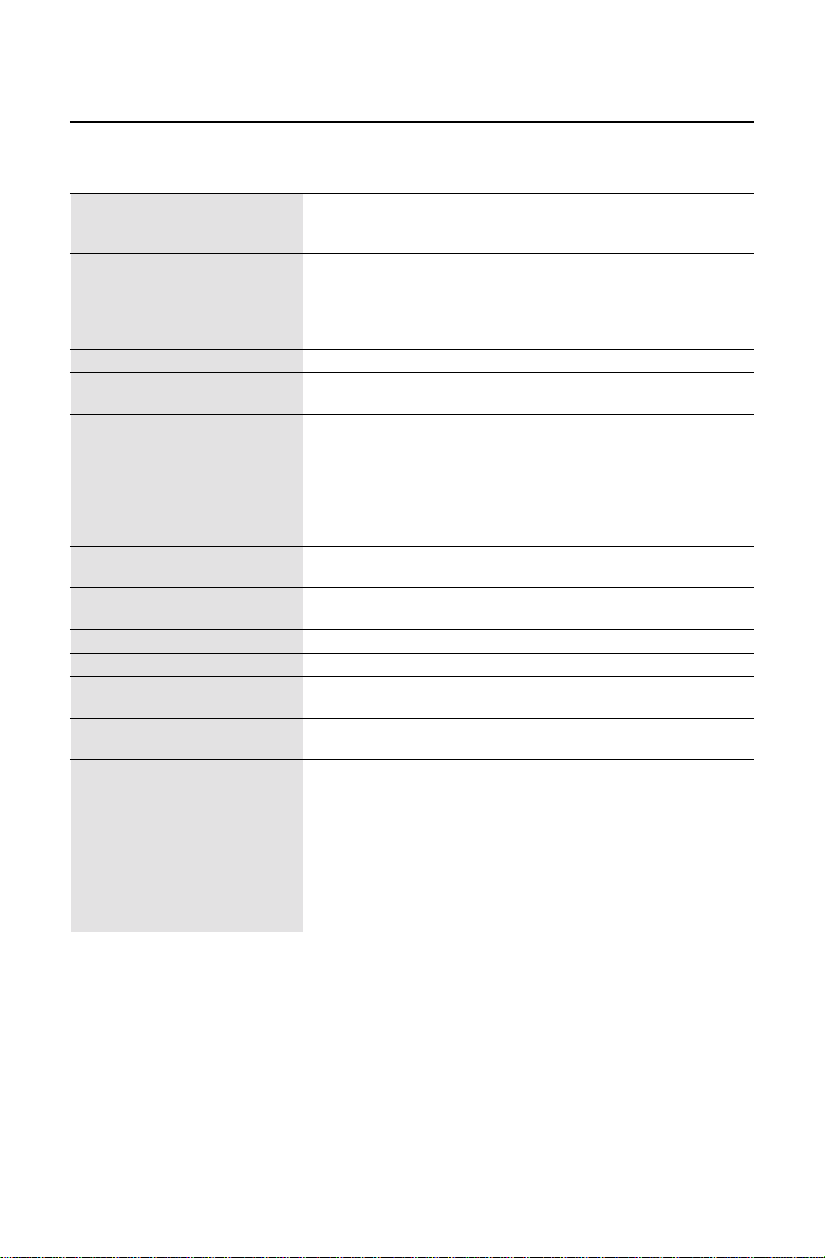
Specifications
Monitor AccuSync
™
125F Notes
Specifications Monitor
Picture Tube Diagonal: 22 inch/55 cm 90° deflection, 0.24 mm grille pitch,
Viewable Image Size: 20 inch/51cm medium short persistence phosphor,
Radius: 50000 mm aperture grille CRT, G-WARAS coating
Input Signal Video: ANALOG 0.7 Vp-p/75 Ohms
Sync: Separate sync. TTL Level
Horizontal sync. Positive/Negative
Vertical sync. Positive/Negative
Composite sync. (Positive/Negative) (TTL Level)
Display Colors Analog input: Unlimited number of Colors Depends on display card used.
Synchronization Horizontal: 30 kHz to 96 kHz Automatically
Range Vertical: 50 Hz to 160 Hz Automatically
Resolutions Supported 640 x 480 @ 50 to 160 Hz
Some systems may not support
Resolution based on
horizontal and
720 x 400 @ 50 to 160 Hz
all modes listed.
vertical frequencies only
800 x 600 @ 50 to 152 Hz
1024 x 768 @ 50 to 120 Hz
1152 x 870 @ 50 to 105 Hz
1280 x 1024 @ 50 to 89 Hz ......................... NEC cites recommended resolution at
1600 x 1200 @ 50 to 76 Hz 85 Hz for optimal display performance.
Active Display Area Horizontal:
396 mm/15.6 inches Dependent upon signal timing used,
(Factory Setting) Vertical:
297 mm/11.7 inches and does not
include border area.
Active Display Area
406 mm/16.0 inches Dependent upon signal timing used,
(Full Scan)
305 mm/12.0 inches and does not
include border area.
Power Supply
AC 100 – 120 V / 220 - 240 V, 50/60 Hz
Current Rating 1.3A @ 100
–
120 V / 0.6A @ 220 - 240 V
Dimensions
495 mm (W) x 493.5 mm (H) x 473 mm (D)
19.5 inches (W) x 19.4 inches (H) x 18.6 inches (D)
Weight 29.7 kg
65.5 lbs
Environmental Considerations
Operating Temperature: +10°C to +35°C/+50° F to +90°F
Humidity: 30% to 80%
Altitude: 3,000 m/10,000 Feet
Storage Temperature: -20°C to +60°C/-4° F to +140°F
Humidity: 10% to 90%
Altitude: 15,000 m/50,000 Feet
NOTE: Technical specifications are subject to change without notice.
AccuSync125F 01.12.12, 8:4312

13
Features
Flat Aperture Grille CRT: Delivers an unparalleled viewing experience with a
virtually
flat image, eliminating distortion and reducing glare so that what you see
on-screen is what you get on your printed output. The striped phosphor alignment
of the CRT delivers superior vertical definition with improved brightness for more
uniform image contrast.
OptiClear
®
Screen Surface: Reduces reflection and glare and increases contrast
without sacrificing focus level, clarity or brightness.
Dual Dynamic Beam Focus: Provides precise, continuous focus adjustments of
the electron beams resulting in optimum image quality, even to the far edges of
the screen.
AccuColor
®
Control System: Allows you to change between three color settings
on your display to match your personal preference.
OSM
™
(On-Screen Manager) Controls: Allow you to quickly and easily adjust all
elements of your screen image via simple to use on-screen menus.
ErgoDesign
®
Features: Enhance human ergonomics to improve the working
environment, protect the health of the user and save money. Examples include
OSM controls for quick and easy image adjustments, tilt/swivel base for pre-
ferred angle of vision and compliance with MPRII guidelines for lower emissions.
Plug and Play: The Microsoft
®
solution with the Windows
®
98/Me/2000/XP
operating system facilitates setup and installation by allowing the monitor to send
its capabilities (such as screen size and resolutions supported) directly to your
computer, automatically optimizing display performance.
IPM
™
(Intelligent Power Manager) System: Provides innovative power-saving
methods that allow the monitor to shift to a lower power consumption level when
on but not in use, saving two-thirds of your monitor energy costs, reducing
emissions and lowering the air conditioning costs of the workplace.
Reduced Magnetic Field
™
Technology: Reduces magnetic and alternating electric
field emissions and static electricity, addressing ergonomic concerns regarding
potential risks from extended computer monitor use.
Multiple Frequency Technology: Automatically adjusts monitor to the display
card’s scanning frequency, thus displaying the resolution required.
FullScan
™
Capability: Allows you to use the entire screen area in most resolu-
tions, significantly expanding image size.
GlobalSync
®
/Corner Purity Control: Allows you to easily adjust impurities in the
four corners of your monitor.
GTF Auto Adjust: Allows you to easily and quickly adjust the suitable horizontal
and vertical size and position settings.
Convergence Control: Allows you to adjust the horizontal and vertical conver-
gence of the entire area to ensure that a white line drawn on the screen is as
crisp and clear as possible.
OSM Display Screen Copyright 2001
by NEC-Mitsubishi Electronics Display
AccuSync125F 01.12.12, 8:4313

14
Troubleshooting
No picture
• Display card should be completely seated in its slot.
• Power Button and computer power switch should be in the ON position.
• Signal cable should be completely connected to display card/computer.
• Check connector for bent or pushed-in pins.
Image is scrolling or unstable
• Signal cable should be completely attached to the computer.
• Check pin assignments and signal timings of the monitor and your
display card with respect to recommended timings and pin assignments.
• If the Macintosh cable adapter is used, check for proper connection or
make sure the display card is Macintosh compatible and that the card is
properly seated in the computer.
LED on monitor is not lit
(no green, orange, yellow color can be seen)
• Power Switch should be in the ON position and power cord should
be connected.
Picture is fuzzy or color looks blotchy
• If the picture is fuzzy, adjust the Moiré Canceler control. If the color looks
blotchy, adjust the Brightness, Contrast or GlobalSync
®
controls, or use the
EdgeLock
™
control to change modes.
• Access the Degauss Control through OSM™ controls. Activate the
Degauss Control.
CAUTION: A minimum interval of 20 minutes should elapse before the
Deguass Control is used a second time when not switching
between modes.
Picture bounces or a wavy pattern is present
in the picture
• Move electrical devices that may be causing electrical interference away
from the monitor.
• See inside cover of User’s Manual for FCC information.
Edges of the display image are not square
• Use the OSM Geometry and Corner Correction Controls to straighten
the edges.
• If possible, position the front of the monitor facing east.
Display image is not centered, too small, or too large
• Use the OSM Size and Position Controls to adjust the image.
Thin lines appear on your screen
• Thin lines are normal for an aperture grille CRT and are not a malfunction.
These are shadows from the damper wires used to stabilize the aperture
grille and are most noticeable when the screen’s background is light
(usually white).
AccuSync125F 01.12.12, 8:4314

15
References
• BBS (978) 742-8706
NEC-Mitsubishi Electronics Display of America Remote Bulletin Board System is
an electronic service accessible with your system and a modem. Communica-
tion parameters are: 300/1200/2400/9600/14.4k/28.8k/33.6k bps, no
parity, 8-data bits, 1 stop bit
• Customer Service/
Technical Support (800) 632-4662
Fax (978) 742-7049
• Electronic Channels:
Internet e-mail: [email protected]
Internet ftp site: ftp.necmitsubishi.com
World Wide Web: http://www.necmitsubishi.com
Product Registration:
http://www.necmitsubishi.com/productregistration
European Operations: http://www.nec-monitors.com
Windows
®
98/Me/2000/XP INF File:
http://support.necmitsubishi.com/software.htm
then download the file NECMSINF.ZIP
• FastFacts™ Information (800) 366-0476
INFORMATION DESCRIPTION DOCUMENT #
Glossary Definition of terms related 900203
to functions, features and
installation of the
AccuSync
®
monitor
More Information Names and addresses of 900204
other groups involved in
standards and features of
the AccuSync monitor
Macintosh Connection Detailed information on 153006
connecting the AccuSync
monitor to a Macintosh
Healthy Work Environment Detailed information on 900108
setting up a healthy work
environment
• Literature & Sales Info (800) NEC-INFO [(800) 632-4636]
• AccuSync Fulfillment (800) 632-4662
[For software & accessories]
• TeleSales (800) 284-4484
AccuSync125F 01.12.12, 8:4315

16
Limited Warranty
NEC-Mitsubishi Electronics Display of America, Inc. (hereinafter “NMD-A”) warrants this
Product to be free from defects in material and workmanship and, subject to the conditions set
forth below, agrees to repair or replace (at NMD-A’s sole option) any part of the enclosed unit
which proves defective for a period of three (3) years from the date of first consumer purchase.
Spare parts are warranted for ninety (90) days. Replacement parts or unit may be new or
refurbished and will meet specifications of the original parts or unit.
This warranty gives you specific legal rights and you may also have other rights, which vary
from state to state. This warranty is limited to the original purchaser of the Product and is not
transferable. This warranty covers only NMD-A-supplied components. Service required as a
result of third party components is not covered under this warranty. In order to be covered
under this warranty, the Product must have been purchased in the U.S.A. or Canada by the
original purchaser. This warranty only covers Product distribution in the U.S.A. or Canada by
NMD-A No warranty service is provided outside of the U.S.A. or Canada. Proof of Purchase
will be required by NMD-A to substantiate date of purchase. Such proof of purchase must be
an original bill of sale or receipt containing name and address of seller, purchaser, and the
serial number of the product.
It shall be your obligation and expense to have the Product shipped, freight prepaid, or
delivered to the authorized reseller from whom it was purchased or other facility authorized
by NMD-A to render the services provided hereunder in either the original package or a
similar package affording an equal degree of protection. All Products returned to NMD-A for
service MUST have prior approval, which may be obtained by calling 1-800-632-4662. The
Product shall not have been previously altered, repaired, or serviced by anyone other than a
service facility authorized by NMD-A to render such service, the serial number of the product
shall not have been altered or removed. In order to be covered by this warranty the Product
shall not have been subjected to displaying of fixed images for long periods of time resulting
in image persistence (afterimage effects), accident, misuse or abuse or operated contrary to
the instructions contained in the User’s Manual. Any such conditions will void this warranty.
NMD-A SHALL NOT BE LIABLE FOR DIRECT, INDIRECT, INCIDENTAL, CONSEQUENTIAL,
OR OTHER TYPES OF DAMAGES RESULTING FROM THE USE OF ANY NMD-A PRODUCT
OTHER THAN THE LIABILITY STATED ABOVE. THESE WARRANTIES ARE IN LIEU OF ALL
OTHER WARRANTIES EXPRESS OR IMPLIED, INCLUDING, BUT NOT LIMITED TO, THE
IMPLIED WARRANTIES OF MERCHANTABILITY OR FITNESS FOR A PARTICULAR PURPOSE.
SOME STATES DO NOT ALLOW THE EXCLUSION OF IMPLIED WARRANTIES OR THE
LIMITATION OR EXCLUSION OF LIABILITY FOR INCIDENTAL OR CONSEQUENTIAL DAM-
AGES SO THE ABOVE EXCLUSIONS OR LIMITATIONS MAY NOT APPLY TO YOU.
This Product is warranted in accordance with the terms of this limited warranty. Consumers
are cautioned that Product performance is affected by system configuration, software, the
application, customer data, and operator control of the system, among other factors. While
NMD-A Products are considered to be compatible with many systems, specific functional
implementation by the customers of the Product may vary. Therefore, suitability of a Product
for a specific purpose or application must be determined by consumer and is not warranted
by NMD-A.
For the name of your nearest authorized NEC-Mitsubishi Electronics Display service facility,
contact NEC-Mitsubishi Electronics Display at 1-800-632-4662.
AccuSync125F 01.12.12, 8:4316
17
Déclaration de conformité au Département des Communications Canadien
DOC : Cet appareil numérique de classe B respecte toutes les exigences du Règlement
sur le matériel à l'origine d'interférences du Canada.
C-UL : Ce produit porte la marque «C-UL» et est conforme aux règlements de sûreté
canadiens selon CAN/CSA 22.2 No. 950.
Informations FCC
1.
Utiliser les câbles spécifiés fournis avec les moniteurs couleur
AccuSync125F
afin de ne pas provoquer
d'interférences avec la réception radio et télévision
.
(1) Prière d'utiliser le câble d'alimentation fourni ou équivalent pour assurer la conformité FCC.
(2) Câble d’interface blindé.
L’utilisation d’autres câbles et adaptateurs peut provoquer des interférences avec la réception radio et
télévision.
2.
Cet appareil a passé avec succès les tests de conformité des spécifications d'équipements de Classe A,
section 15 de la réglementation FCC. Ces spécifications ont été établies pour garantir un niveau inoffensif
des interférences produites pour une utilisation dans un lieu public. Cet appareil génère et utilise et peut
irradier des fréquences radio et, s'il n'est pas installé et utilisé en accord avec les directives de ce mode
d'emploi, il peut causer des interférences néfastes aux communications radio. Cependant, il n'est pas
garanti qu'aucune interférence ne se produira dans une installation particulière.
Si cet appareil provoque des interférences nuisibles à la réception radio ou télévision, lesquelles peuvent
être décelées en allumant et en éteignant l'appareil, il est recommandé à l'utilisateur d'essayer de corriger
les interférences en prenant une ou plusieurs des mesures suivantes :
• Réorienter ou repositionner l'antenne de réception.
• Augmenter l'espacement entre l'appareil et le récepteur.
• Connecter l'appareil à une prise de courant sur un circuit différent de celui sur lequel le récepteur est
connecté.
• Consulter son revendeur ou un technicien radio/TV expérimenté pour obtenir de l'aide.
Si nécessaire, l'utilisateur doit contacter le revendeur ou un technicien radio/TV afin d'obtenir des
informations supplémentaires. L'utilisateur peut se procurer le livret utile suivant, préparé par la Commission
Fédérale des Communications : «How to Identify and Resolve Radio-TV Interference Problems» (comment
cerner et résoudre les problèmes d’interférences radio/TV). Ce livret est disponible auprès du U.S.
Government Printing Office, Washington, D.C., 20402, Stock No. 004-000-00345-4.
L’utilisateur aucun des parties serviceable intérieur. Ne tente pas pour modifier cet équipment Si modifiai
votre autorité à opére ça de l’équipment pouvez être évacué by FCC.
AFIN D’ÉVITER TOUT RISQUE D’INCENDIE OU D’ÉLECTROCUTION, NE PAS EXPOSER CET APPAREIL À LA PLUIE OU À
L’HUMIDITÉ. NE PAS UTILISER LA FICHE D’ALIMENTATION POLARISÉE AVEC UNE PRISE DE CORDON DE RALLONGE
OU AUTRE PRISE SAUF SI LES BROCHES PEUVENT ÊTRE ENTIÈREMENT INTRODUITES.
NE PAS OUVRIR LE BOÎTIER, LEQUEL CONTIENT DES COMPOSANTS À HAUTE TENSION. CONFIER TOUS TRAVAUX
À DU PERSONNEL TECHNIQUE QUALIFIÉ.
AVERTISSEMENT
ATTENTION
RISQUE DE DÉCHARGE ÉLECTRIQUE • NE PAS OUVRIR
ATTENTION : POUR ÉVITER TOUT RISQUE D'ÉLECTROCUTION, NE PAS OUVRIR LE COUVERCLE (L'ARRIÈRE). À L'INTÉRIEUR, AUCUNE
PIÈCE NE NÉCESSITE L'INTERVENTION DE L'UTILISATEUR. EN CAS DE PROBLÈME, S'ADRESSER À DU PERSONNEL TECHNIQUE QUALIFIÉ.
Ce symbole est une mise en garde contre les risques d'électrocution que présentent certaines parties dépourvues
d'isolation à l'intérieur de l'appareil. Il est donc dangereux d'établir le moindre contact avec ces parties
.
Ce symbole prévient l'utilisateur que des directives d'utilisation et de maintenance de cet appareil sont fournies avec
ce guide d’utilisateur. Par conséquent, celles-ci doivent être lues attentivement pour éviter tout incident.
AccuSync125F 01.12.12, 8:4317
18
AccuSync 125F
USER'S MANUAL
To learn about other special offers, register online at www.necmitsubishi.com/ productregistration
™
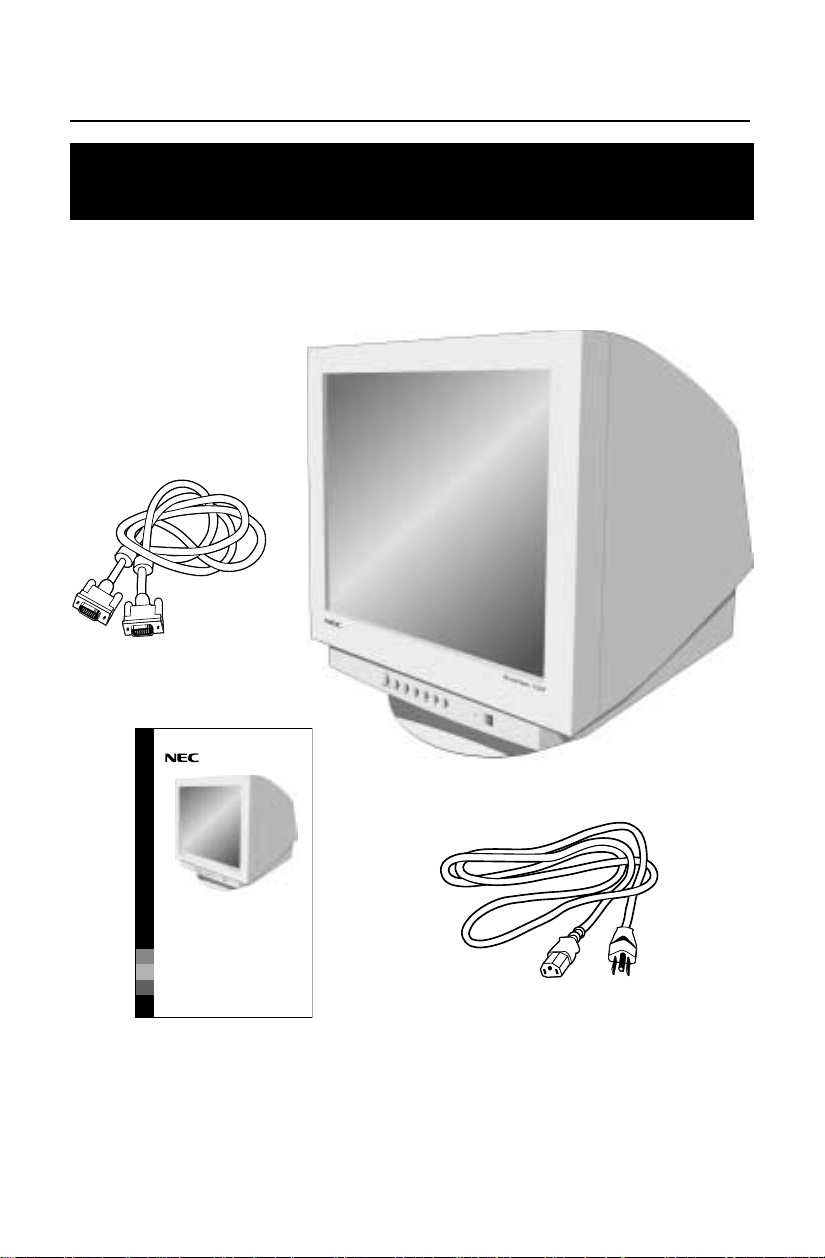
Contenu
* Ne pas oublier de conserver la boîte et le matériel d’emballage d’origine pour trans-
porter ou expédier le moniteur.
Cordon d’alimentation
Câble d’interface
Manuel de l’utilisateur
La boîte* de votre nouveau moniteur NEC AccuSync
MC
125F
contient :
• Moniteur AccuSync125F avec socle inclinable/rotatif
• Cordon d’alimentation
• Câble de signal captif
• Manuel de l’utilisateur
Votre produit peut être enregistré sur Internet à l’adresse
http://www.necmitsubishi.com/productregistration
AccuSync125F 01.12.12, 8:4318
19
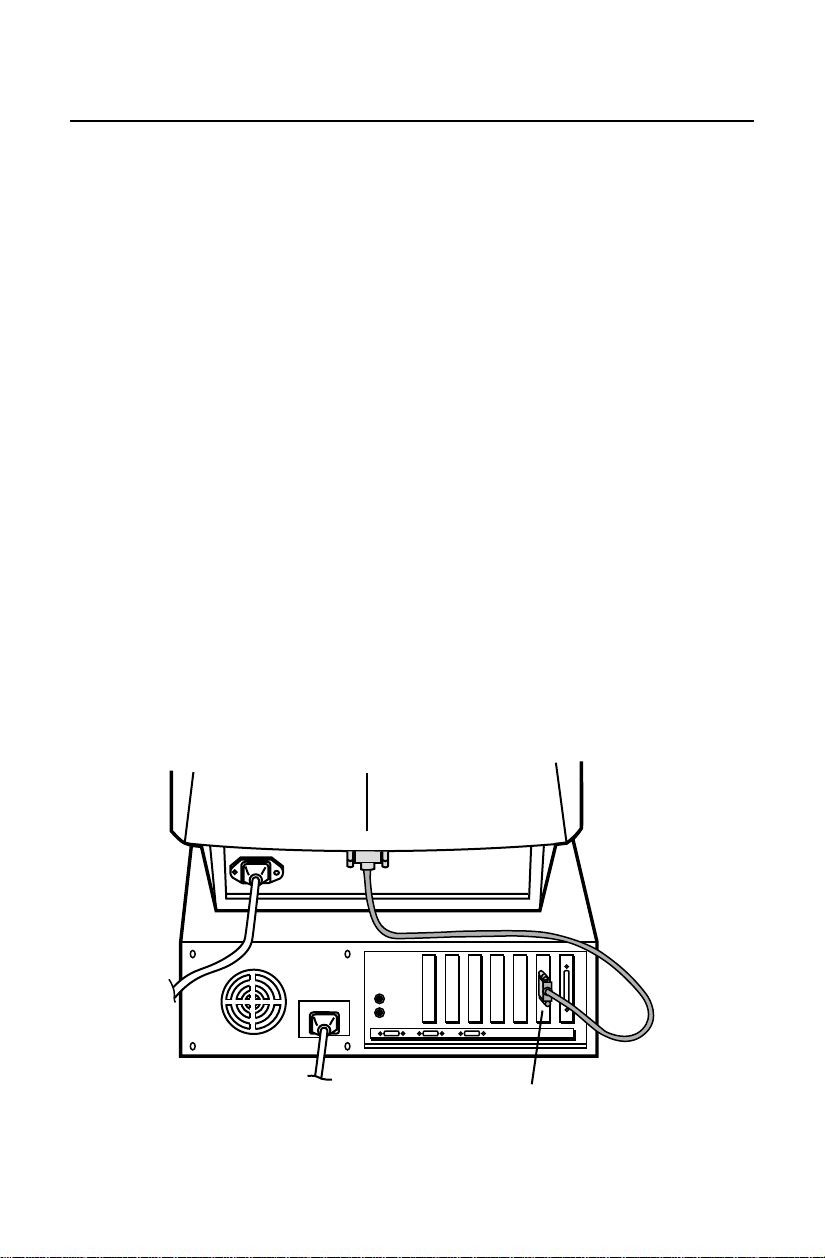
Mini-connecteur D-SUB à 15 broches
Câble de signal captif
Mise en marche rapide
Pour raccorder le moniteur AccuSync
MC
125F au système, suivre les
directives ci-après :
1. Mettre l'ordinateur hors tension.
2. Si nécessaire, installer la carte vidéo dans le système. Pour plus d'informations, se
reporter au manuel de l’utilisateur de la carte vidéo.
3. Pour le PC : Connecter la mini-fiche D-SUB à 15 broches du câble de signal au
connecteur de la carte vidéo du système (Figure A.1). Serrer toutes les vis.
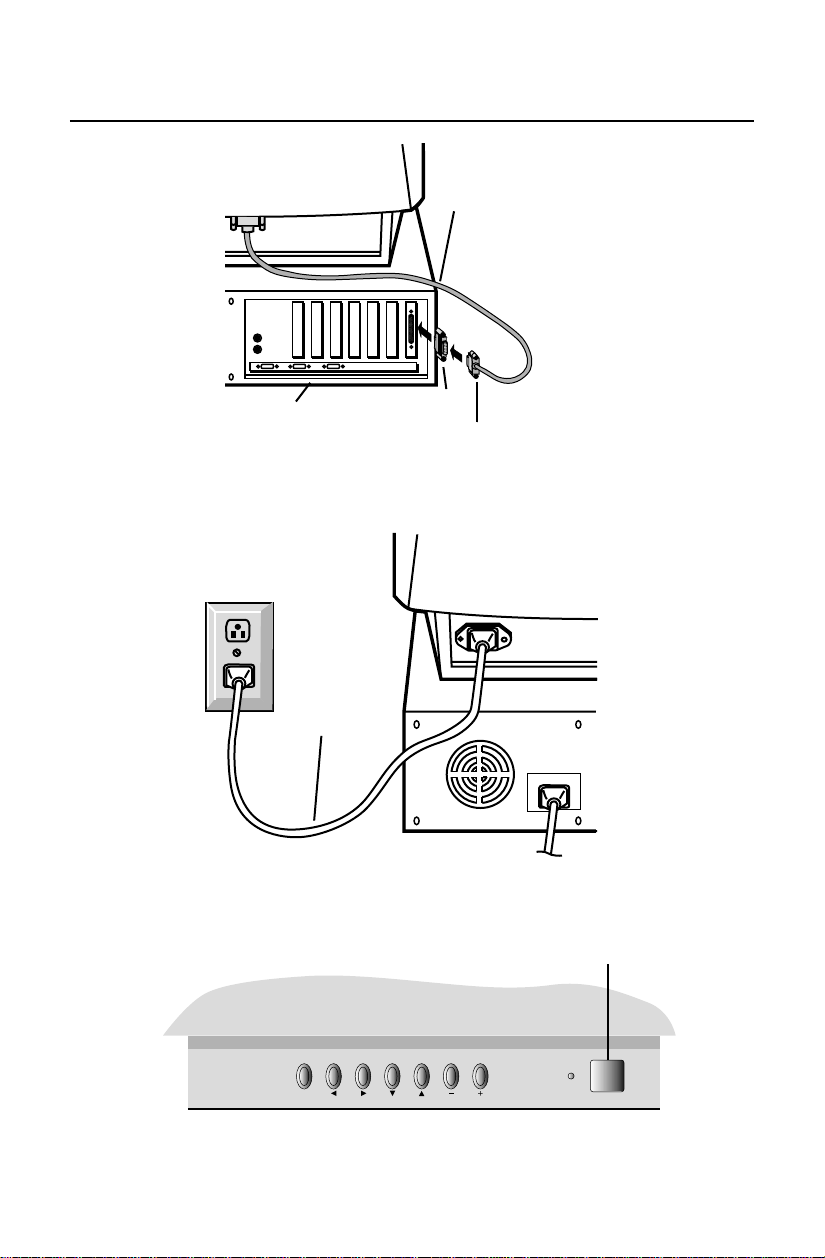
Pour le Mac : Connecter l’adaptateur de câble Macintosh au connecteur sur le
Macintosh (Figure B.1). Connecter la mini-fiche D-SUB à 15 broches du câble
d’interface sur l’adaptateur de câble Macintosh (Figure B.1) et l’autre extrémité du
câble d’interface sur le connecteur à l’arrière du moniteur (Figure B.2). Serrer toutes
les vis.
REMARQUE : Pour obtenir un adaptateur de câble AccuSync Macintosh, appeler
NEC-Mitsubishi Electronics Display au (800) 632-4662.
4. Pour les informations de téléchargement sur le fichier INF Windows
®
98/Me/2000/XP
pour le moniteur AccuSync, se reporter à la section Références de ce manuel.
5. Connecter une extrémité du cordon d'alimentation au moniteur AccuSync et l'autre
extrémité à la prise de courant (Figure C.1).
6. Allumer le moniteur (Figure D.1) et l'ordinateur.
REMARQUE : En cas de problème, prière de se reporter à la section Dépannage de
ce manuel.
Figure A.1
AccuSync125F 01.12.12, 8:4319
20
Bouton d'alimentation
FPM
OSD OFF
Cordon
d'alimentation
Ordinateur
Câble de signal captif
Adaptateur Mac
(en option)
Mini-connecteur D-SUB à 15 broches
Mise en march rapide (suite)
Figure B.1
Figure C.1
Figure D.1
AccuSync125F 01.12.12, 8:4320
21
Commandes
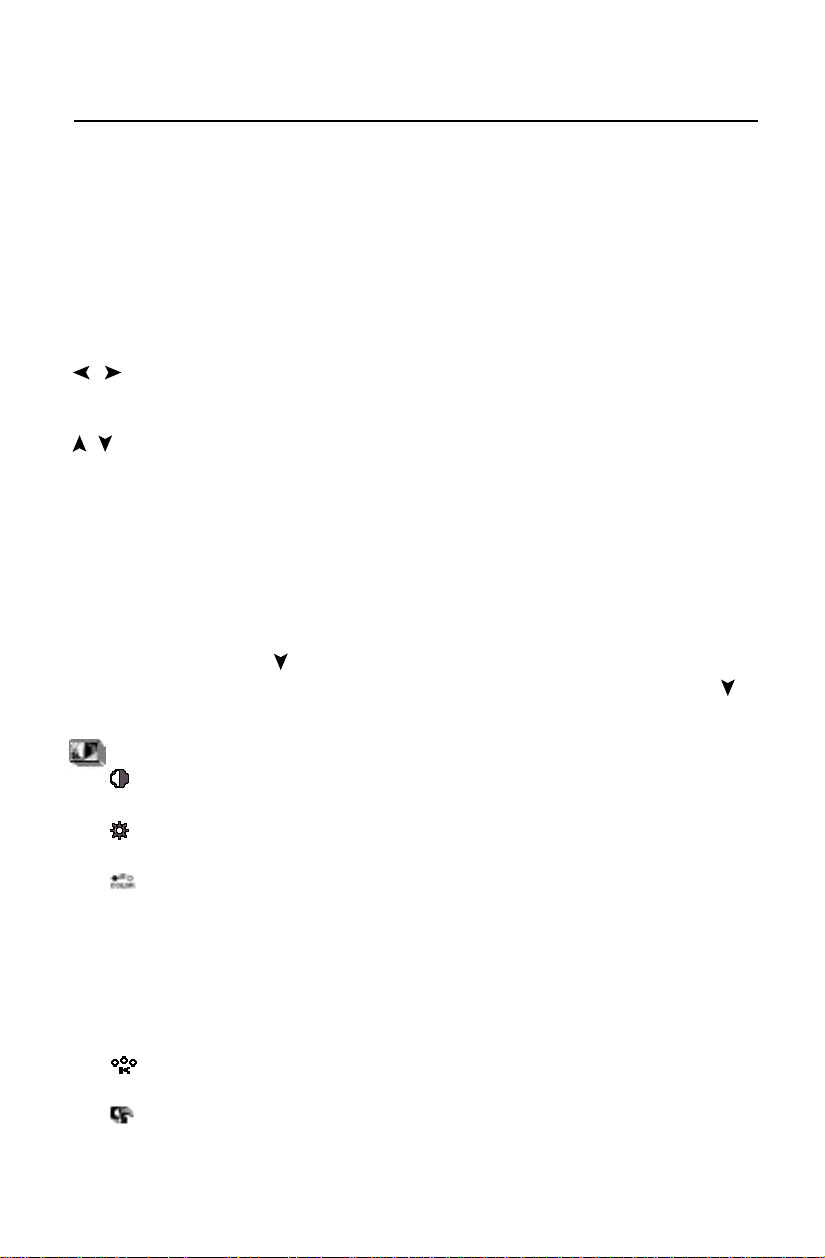
Les touches de commandes OSM
MC
(Gestionnaire à l’écran) à l’avant du moniteur
fonctionnent comme suit :
FPM Activates at no OSM menu and to select one of display modes, NORMAL
MODE, TEXT MODE and GRAPHIC MODE.
Lorsque les commandes OSM sont activées, des icônes sont affichées au sommet
du menu. Si une flèche ( ) est affichée dans un sous-menu, elle indique que
d’autres choix sont disponibles. Pour entrer dans un sous-menu, appuyez sur .
Brightness/Contrast/Color/AccuColor Controls
CONTRASTE: Règle la luminosité de l’image par rapport à l’arrière-
plan.
LUMINOSITE: Règle la luminosité de l’image générale et de l’écran
d’arrière-plan.
COULEUR: Selects from desired color setting from Color preset modes
1, 2, 3 and sRGB.
NEC’s AccuColor Control System allows to decrease or increase the
monitor’s red, green or blue color guns depending upon which is
selected, at Color preset modes 1, 2 and 3. At Color preset mode sRGB
selected, AccuColor Control System is unavailable and CONTRAST,
BRIGHT and COLOR TEMPERATURE are no adjustable.
TEMPÉRATURE COULEURE: Decreases or increases Color temperature
of the Color preset mode selected by COLOR.
PRÉRÉGLAGE USINE: Restores the items in Brightness/Contrast/Color/
AccuColor controls to the factory preset condition.
OSD OFF
CONTROL
/
CONTROL
/
CONTROL
-/+
Menu principal
Quitte le menu OSM.
Moves the highlighted
area left/right to select
one of the controls.
Déplace la zone en
surbrillance vers le
haut/le bas pour
sélectionner une des
commandes.
Déplace le curseur vers
le + ou - pour augmenter
ou diminuer la valeur du
réglage.
Sous-menu
Quitte le menu OSM.
Moves the highlighted
area left/right to select
one of the controls.
Déplace la zone en
surbrillance vers le
haut/le bas pour
sélectionner une des
commandes.
Déplace le curseur vers
le + ou - pour augmenter
ou diminuer la valeur du
réglage.
AccuSync125F 01.12.12, 8:4321
22
Commandes (suite)
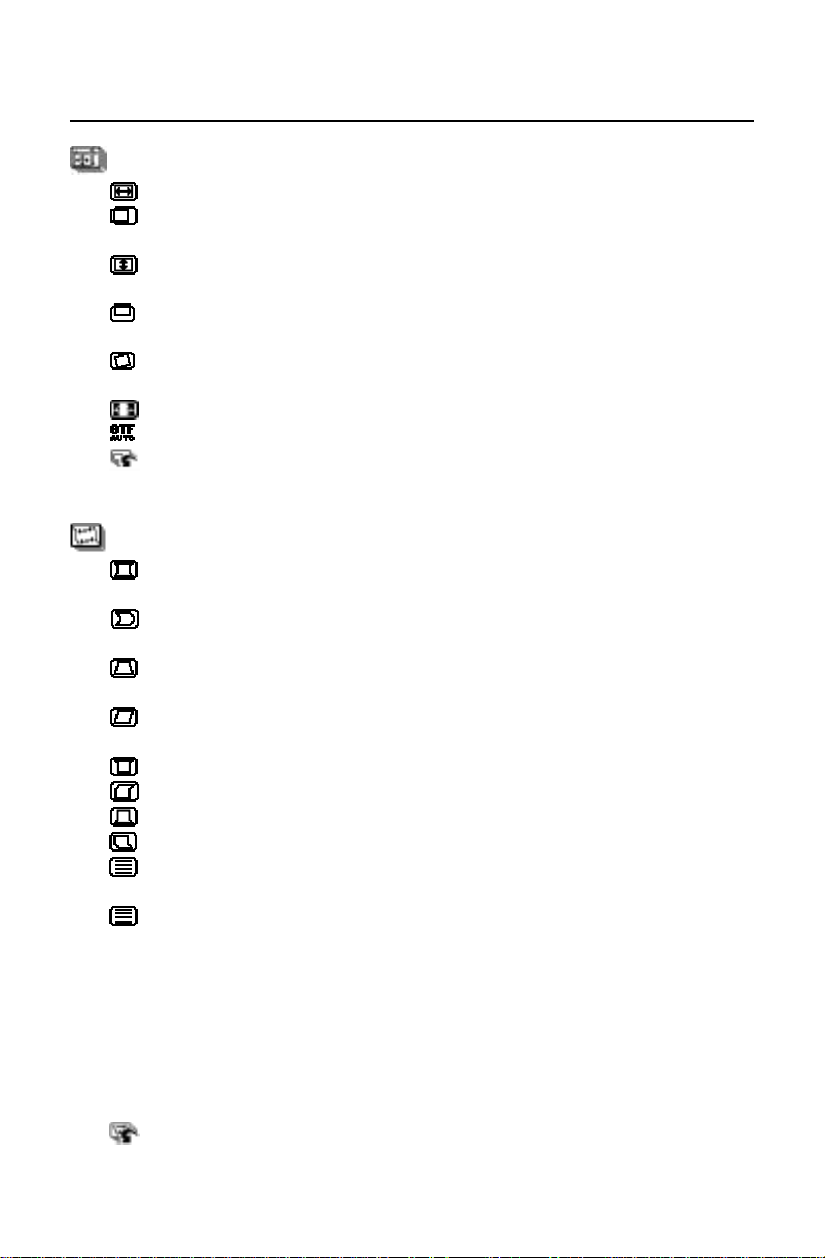
Commandes de format et de position
LARGEUR: Augmente ou diminue le format horizontal de l’image.
CENTRAGE HORIZONTAL: Déplace l’image horizontalement (vers la
gauche ou vers la droite).
HAUTEUR D’IMAGE: Augmente ou diminue le format vertical de
l’image.
CENTRAGE VERTICAL: Déplace l’image verticalement (vers le haut ou
vers le bas).
ROTATION: Fait pivoter tout l’affichage dans le sens horaire ou dans le
sens antihoraire.
ZOOM: Decreases or increases the size of image.
REGALGE GTF: Adjusts the size and position of image automatically.
PPRÉRÉGLAGE USINE: Restores the items in Size and Position Controls
to the factory preset condition.
Commandes du menu Géométrie
CORRECTION AMPHORE: Augmente ou diminue la courbure des côtés
vers l’intérieur ou vers l’extérieur.
COURBURE: Augmente ou diminue la courbure des côtés vers la
gauche ou vers la droite.
CORRECTION TRAPEZE: Augmente ou diminue le dessous de l’écran
pour qu’il soit le même que le dessus.
INCLINAISON: Augmente ou diminue l’inclinaison des côtés vers la
gauche ou vers la droite.
COUSSIN SUP.: Decreases or increases the top of corners.
BALANCE SUP.: Moves the slant of top to the left or right.
COUSSIN INF.: Decreases or increases the bottom of corners.
BALANCE INF.: Moves the slant of bottom to the left or right.
LINEARITE V.: Decreases or increases the spacing on the center of
screen vertically.
LINEARITE V.EQUIL: Decreases or increases the spacing on the bottom
or top of the screen vertically.
NOTE: VERT-LIN and VERT-LIN-BALANCE allow you to adjust the
spacing of the area on the screen. The purpose of these controls
is to ensure that a one-inch circles is a true circle wherever it is
on the screen. The best way to determine the vertical linearity is
as follow:
• Dessinez à l’écran des lignes horizontales équidistantes à
l’aide d’un logiciel de dessin possédant une règle.
PRÉRÉGLAGE USINE: Restores the items in Geometry Controls to the
factory preset condition.
AccuSync125F 01.12.12, 8:4322
23
Commandes (suite)
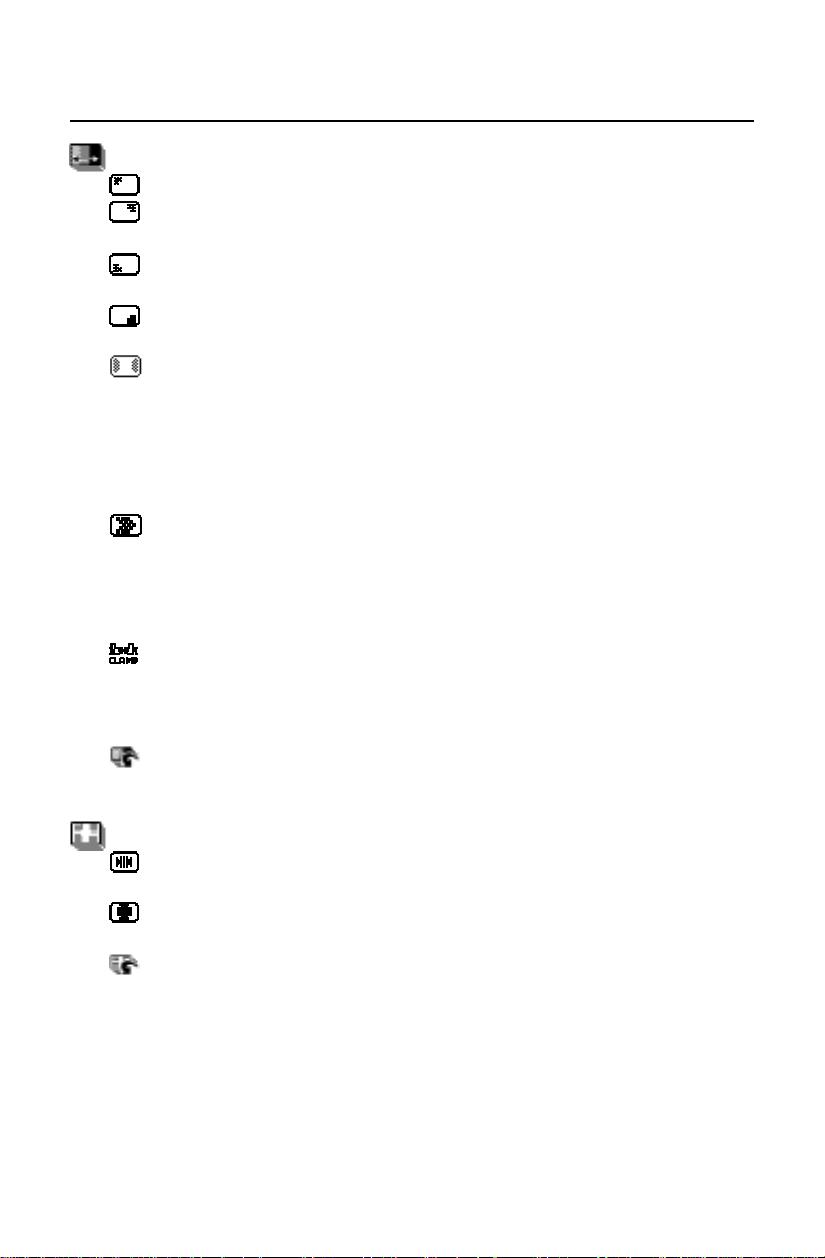
Purity(GlobalSync Control)/Moire Control
PURETE COINS SUPG: Adjust the purity condition on the top-left corner.
PURETE COINS SUPD: Adjust the purity condition on the top-right
corner.
PURETE COINS INFG: Adjust the purity condition on the bottom-left
corner.
PURETE COINS INFD: Adjust the purity condition on the bottom-right
corner.
PURETE GAU./DRO.: Adjust the purity condition on the left and right
corners.
NOTE: PURITY controls eliminate picture impurities that may result from
the earth’s magnetic field. NEC recommends that you perform
GlobalSync corrections while running a typical application such
as a spreadsheet or text document.
NIVEAU DE MOIRAGE: Moiré est un motif ondulé qui peut s’afficher à
l’écran de temps à autre. Ce motif est répétitif et se superpose sous
forme d’images ondulées. Ce phénomène peut être plus prononcé avec
certaines applications. Pour réduire le motif Moiré, réglez les valeurs ou
Vertical à l’aide des boutons CONTROL –/+.
FRONT DE SYNCHRO: L’utilisation du moniteur à des résolutions non
standard peut provoquer une distorsion de la couleur ou une mauvaise
luminosité des images. Utiliser la FRONT DE SYNCHRO pour régler
l’affichage des images.
PRÉRÉGLAGE USINE: Restores the items in Purity/Moire Controls to the
factory preset condition.
Convergence Controls
CONVERGENCE STAT.H: Adjusts the alignment of the white lines in the
up/down direction.
CONVERGENCE STAT.V: Adjusts the alignment of the white lines in the
left/right direction.
PRÉRÉGLAGE USINE: Restores the items in Convergence Controls to the
factory preset condition.
AccuSync125F 01.12.12, 8:4323
24
Commandes (suite)
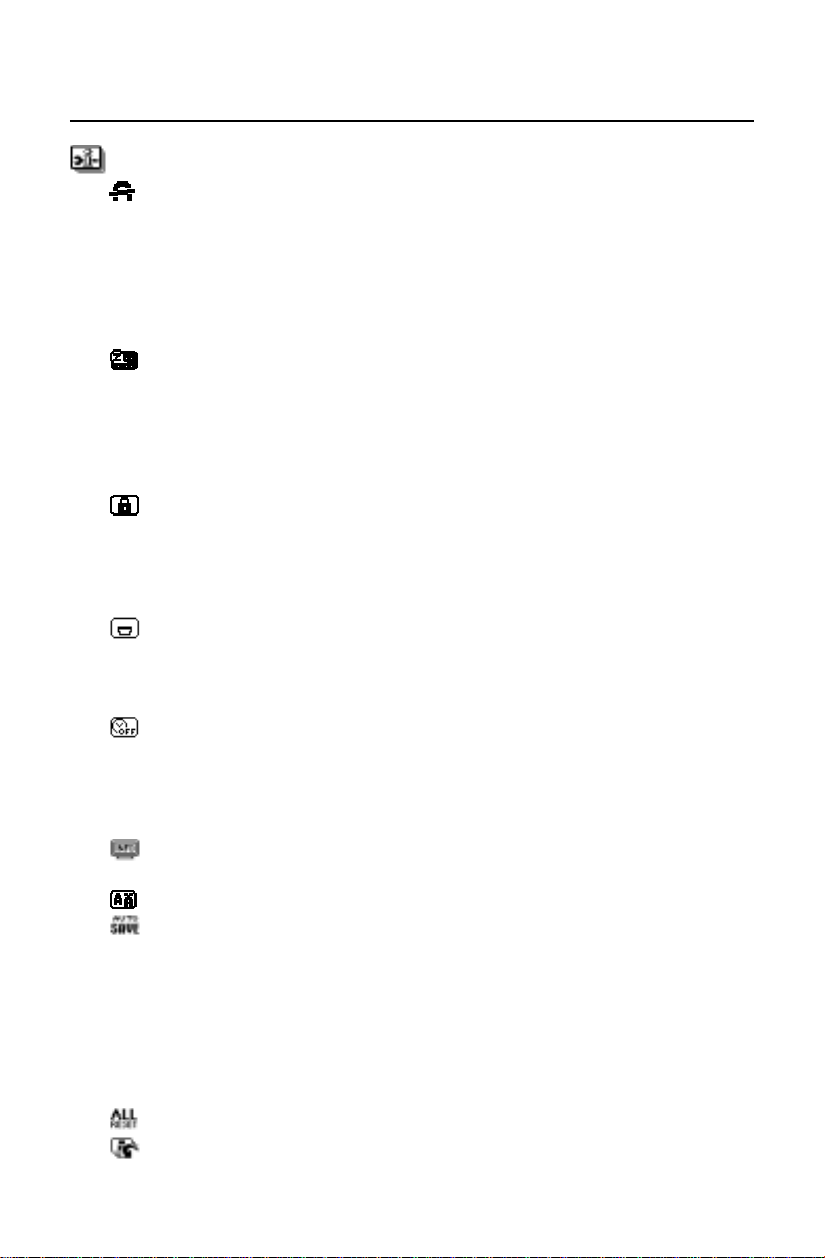
Outils
DÉMAGNÉTISATION: Élimine l’accumulation de champs magnétiques
parasites qui modifieraient le balayage correct du faisceau d’électrons
et affecteraient la pureté des couleurs de l’écran, la netteté et la
convergence. Lorsque cette commande est activée, l’image saute et
tremble quelque peu pendant la démagnétisation de l’écran.
ATTENTION: Prière de laisser s’écouler un minimum de 20 minutes
entre chaque utilisation de la commande Degauss.
ECONOMISEUR:
ON: Le système IPM fonctionne normalement et toutes les étapes de
sauvegarde d’énergie sont utilisées.
OFF: Le système IPM n’est pas utilisé.
NOTA:Pour les systèmes standard et les cartes graphiques, laisser les
réglages d’usine sur ON.
VERROUILLAGE OSD: Cette fonction vous permet de verrouiller l’accès
aux fonctions de l’OSM sauf les commandes de contraste et de
luminosité. En essayant d’accéder au menu lorsqu’il est verrouillé, une
fenêtre s’ouvrira à l’écran et vous indiquera que les réglages ne sont
pas accessibles.
POSITION DU MENU: Vous pouvez choisir l’emplacement où vous
souhaitez que la fenêtre des commandes OSM apparaisse sur l’écran.
En choisissant Position OSM, vous pouvez régler manuellement la
position du menu de commande OSM : gauche, droite, haut ou bas.
EXTINCTION DE L’OSD: Le menu de l’OSM restera actif aussi longtemps
que vous l’utiliserez. Dans le menu d’extinction de l’OSM, vous pouvez
choisir le temps que mettra l’affichage pour s’effacer après la dernière
pression sur une touche. Les temps préréglés sont de 10, 20, 30, 45, 60
et de 120 secondes.
DIAGNOSTIC: Ce menu vous renseigne sur le mode et la fréquence
courante du moniteur.
LANGUAGE: Les menus de l’OSM sont disponibles en six langues.
MÉMORISATION AUTOM.: que l’écran économise automatiquement les
réglages derniers de l’utilisateur des réglages. Vous pouvez vous
tourner cette Auto Économise by à de sélectionner ce menu et à de
transformer la position off caractéristique off. Quand la mode off est
sélectionnée-vous, incité pour économiser ou retourner au réglage
précédent une fois que vous sélectionnez un réglage différent sur
l’option. Si le save ne sera pas confirme, irons à réglage précédent
quand de OSM retardant.
RESET GENERAL: Restores all items to the factory preset condition.
PRÉRÉGLAGE USINE: Restores the items in Tools to the factory preset
condition.
AccuSync125F 01.12.12, 8:4324
25
Usage recommandé
Consignes de sécurité et d’entretien
POUR UN FONCTIONNEMENT OPTIMAL, PRIÈRE DE NOTER
CE QUI SUIT POUR LE RÉGLAGE ET L'UTILISATION DU
MONITEUR COULEUR AccuSync
MC
125F:
• NE PAS OUVRIR LE MONITEUR. Aucune pièce intérieure ne nécessite l'intervention de
l'utilisateur, et l'ouverture ou la dépose des couvercles peut entraîner des risques de
décharges électriques dangereuses ou d'autres risques. Confier tous travaux à du personnel
technique qualifié.
• Ne pas renverser de liquides dans le boîtier, ni utiliser le moniteur près de l'eau.
• Ne pas introduire d'objets de quelque nature que ce soit dans les fentes du boîtier car ceux-
ci pourraient toucher des endroits sous tension dangereuse, ce qui peut provoquer des
blessures, voire être fatal, ou peut occasionner une décharge électrique, un incendie ou une
panne de l'appareil.
• Ne pas placer d'objets lourds sur le cordon d'alimentation. Un cordon endommagé peut
occasionner une décharge électrique ou un incendie.
• Ne pas placer cet appareil sur un chariot, un support ou une table inclinée ou instable, afin
d'éviter que le moniteur ne tombe, occasionnant de sérieux dommages au moniteur.
• Maintenir le moniteur éloigné des transformateurs à haute capacité, des moteurs électriques
et de tous autres dispositifs tels que des haut-parleurs ou ventilateurs externes, lesquels
peuvent créer des champs magnétiques puissants.
• Si possible, positionner le moniteur de sorte qu'il soit orienté vers l'est, afin de minimiser les
effets du champs magnétique terrestre.
• Changer l'orientation du moniteur alors que celui-ci est sous tension peut occasionner une
décoloration de l'image. Pour éviter cela, mettre le moniteur hors tension pendant
20 minutes avant de le remettre sous tension.
Débrancher immédiatement le moniteur de la prise murale et confier la réparation à du personnel
technique qualifié dans les cas suivants :
• Lorsque le cordon d'alimentation ou la fiche est endommagé(e).
• Si du liquide a été renversé ou des objets sont tombés à l'intérieur du moniteur.
• Si le moniteur a été exposé à la pluie ou à de l'eau.
• Si le moniteur est tombé ou le boîtier est endommagé.
• Si le moniteur ne fonctionne pas normalement en suivant les directives d'utilisation.
•
Prévoir une aération suffisante autour du moniteur pour que la chaleur puisse se
dissiper correctement. Ne pas obstruer les ouvertures de ventilation ni placer le
moniteur près d'un radiateur ou autre source de chaleur. Ne rien poser sur le
moniteur.
• La fiche du cordon d'alimentation est le moyen principal de débrancher le
système de l'alimentation. Le moniteur doit être installé à proximité d'une prise
de courant facilement accessible.
•
Manipuler avec soin lors du transport. Conserver l'emballage pour le transport.
AVERTISSEMENT
AccuSync125F 01.12.12, 8:4325
26
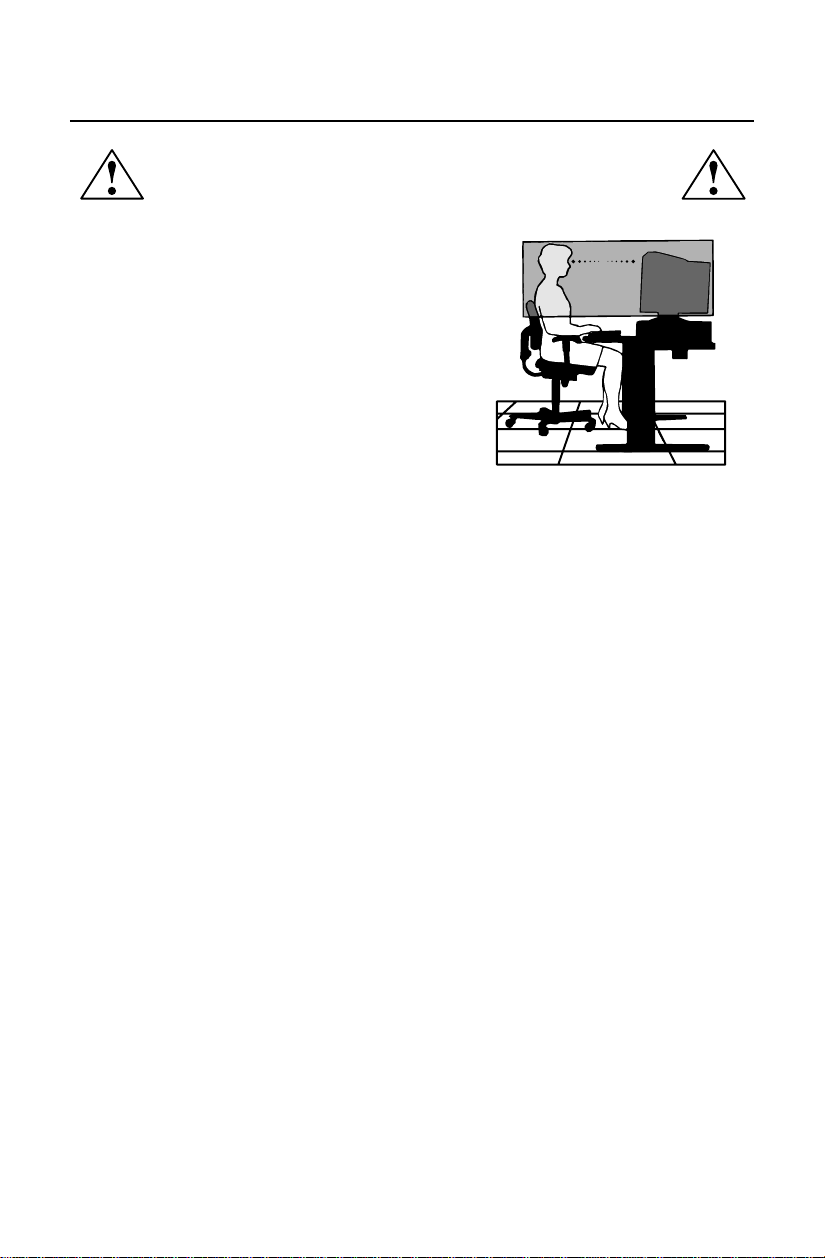
LA MODIFICATION DE LA POSITION ET DU RÉGLAGE DU MONITEUR
PEUT RÉDUIRE LA FATIGUE DES YEUX, DES ÉPAULES ET DE LA NUQUE.
OBSERVER LES DIRECTIVES CI-APRÈS LORS DU POSITIONNEMENT
DU MONITEUR :
Usage recommandé (suite)
• Régler la hauteur du moniteur de sorte que le
dessus de l'écran soit au niveau ou légèrement en-
dessous du niveau des yeux. Les yeux doivent
regarder légèrement vers le bas lorsque l'on
regarde le milieu de l'écran.
• Positionner le moniteur à une distance minimale de
30 cm (12 po) et maximale de 70 cm (28 po) des
yeux. La distance optimale est de 60 cm (24 po).
• Reposer ses yeux régulièrement en regardant vers
un objet situé à au moins 6 m (20 pieds). Cligner
régulièrement.
• Positionner le moniteur à un angle de 90° par rapport aux fenêtres et autres sources de
lumière, afin de réduire au maximum les reflets et l'éblouissement. Régler l'inclinaison
du moniteur de sorte que l'éclairage du plafond ne soit pas reflété sur l'écran.
• Si une lumière réfléchie rend la vision de l'écran difficile, utiliser un filtre anti-reflet.
• Nettoyant Votre Écran
Un revêtement spécial est fourni que verre (CRT) dégauchit pour réduire un reflet et
électricité statique sur la verre dégauchit de cet écran.
Au compte du revêtement délicat sur la surface glass, un tint de d'usage libére, non
abrasif du tissu (cotonnier ou équivalent) et un non de l'alcool, neutre, non abrasif
nettoyant de la solution à minimise de la poussière. Si l'écran requires autrement
qu'une lampe nettoyant, applique moire directement ou radoucit détergent neutre sur
eau much à un tissu mou et usage sur c'essorant de l'eau, à nettoie glass surface.
•
Votre écran propre régulièrement.
MÉNAGEMENT
Ce qui suivi des représentants endommageront au CRT quand nettoyants le verre
surface:
De le benzène, de l'alcool plus fin acid/alkaline ou détergent, détergent sur abrasif de
la poudre, détergent sur anti statique le représentant, détergent pour le nettoyage.
• Régler les commandes de luminosité et de contraste du moniteur pour améliorer la
lisibilité.
• Utiliser un support de document placé près de l'écran.
• Positionner ce que l'on regarde le plus souvent (l'écran ou les documents de référence)
directement devant soi pour réduire au maximum les mouvements de la tête lorsque
l'on dactylographie.
• Consulter régulièrement un ophtalmologiste.
AccuSync125F 01.12.12, 8:4326

27
Ergonomie
Pour optimiser les avantages ergonomiques, observez les directives suivantes :
• Régler la luminosité jusqu’à ce que la trame de fond disparaisse.
• Ne pas placer la commande de contrate à son réglage maximum.
• Utiliser les commandes de format et position préprogrammées avec signaux standard .
• Utiliser le réglage couleur et les commandes gauche/droite préprogrammés.
• Utiliser des signaux non entrelacés avec fréquence de rafraîchissement vertical de 75 à
160 Hz.
• Ne pas utiliser la couleur bleu primaire sur fond foncé car cela rend la lecture difficile
et peut occasionner de la fatigue oculaire en raison de contraste insuffisant.
Pour des informations plus détaillées sur l'établissement d'un environnement de travail sain, appeler NEC-
Mitsubishi Electronics Display au (888) NEC-MITS, demander le service d’information par télécopieur NEC
FastFacts au (800) 366-0476 et demander le document n
o
900108 ou écrire à American National Standard
for Human Factors Engineering of Visual Display Terminal Workstations - ANSI-HFS Standard No. 100-
1988 - The Human Factors Society, Inc. P.O. Box 1369, Santa Monica, California 90406.
Usage recommandé (suite)
AccuSync125F 01.12.12, 8:4327
28
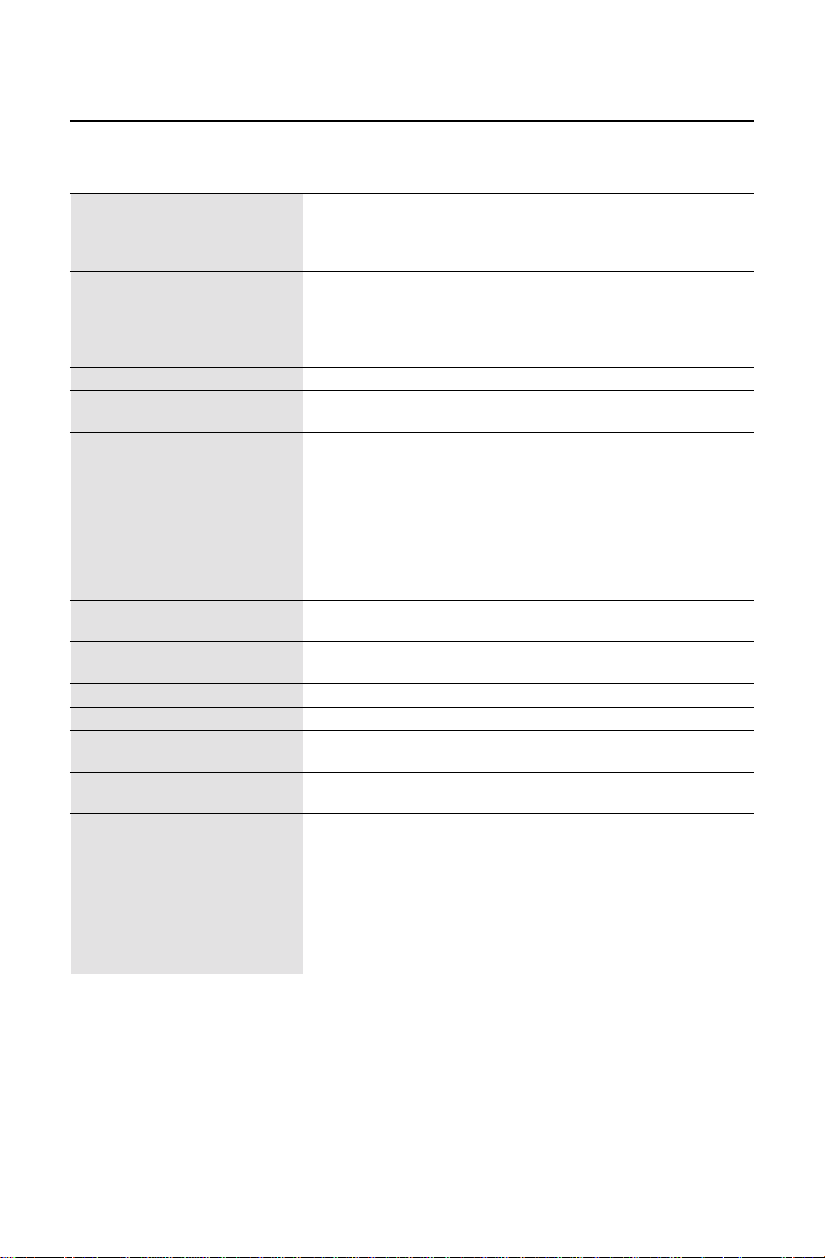
Fiche technique
Caractér. techniques Moniteur Remarques
du moniteur AccuSync
MC
125F
Tube cathodique Diagonale : 22 po/55 cm Déflexion de 90°, pas de grille 0,24,
Surface utile : 20 po/51 cm le TRC à grille d’ouverture, luminophore
Rayon : 50000 mm à persistance moyenne-courte, G-WARAS
coating
.
Signal d’entrée Vidéo : ANALOGIQUE 0,7 Vp-p/75 ohms
Sync : Sync. séparée - niveau TTL
Sync. horizontale positif/négatif
Sync. verticale positif/négatif
Sync. composite (positif/négatif) (niveau TTL)
Couleurs d’affichage Entrée analogique : Nombre illimité de couleurs Dépend de la carte vidéo utilisée.
Gamme de Horizontale : 30 kHz à 96 kHz Automatique
Synchronisation Verticale : 50 Hz à 160 Hz Automatique
Résolutions autorisées 640 x 480 @ 50 à 160 Hz
Certains systèmes peuvent ne pas accepter
Résolutions basées sur les fréquences
720 x 400 @ 50 à 160 Hz
tous les modes listés.
horizontales et verticales uniquement
800 x 600 @ 50 à 152 Hz
1024 x 768 @ 50 à 120 Hz
1152 x 870 @ 50 à 105 Hz
1280 x 1024 @ 50 à 89 Hz .......................
NEC-Mitsubishi Electronics Displa
recommande une résolution à
85 Hz pour des performances d’affichage
1600 x 1200 @ 50 à 76 Hz optimales.
Zone d’affichage active Horizontale :
396 mm/15,6 po Dépend de la synchronisation du signal
(réglages d’usine) Verticale :
297 mm/11,7 po utilisée et ne comprend pas la zone de bord.
Zone d’affichage active
406mm/16,0 po Dépend de la synchronisation du signal
(balayage complet)
305 mm/12,0 po utilisée et ne comprend pas la zone de bord.
Alimentation
CA 100-120 V / 220-240 V, 50/60 Hz
Tension d’alimentation 1,3 A @ 100-120 V / 0,6 A @ 220-240 V
Dimensions
495 mm (L) x 493.5 mm (H) x 473 mm (P)
19,5 po (L) x 19,4 po (H) x 18,6 po (P)
Poids 29,7 kg
65,5 lbs
Considérations environnementales
Température de fonctionnement : +10 ° C à +35 °C/+50 ° à 90 °F
Humidité : 30 % à 80 %
Altitude : 3 000m/10 000 pieds
Température de stockage : -20 °C à +60 °C/–4 ° à +140 °F
Humitié : 10 % à 90 %
Altitude : 15 000m/50 000 pieds
REMARQUE : Les caractéristiques techniques sont sujettes à changement sans préavis
AccuSync125F 01.12.12, 8:4328

29
FonctionsFonctions
TRC à grille d’ouverture plate : Assure une qualité de visualisation inégalée avec une image
quasi-plate, éliminant la distorsion et réduisant les reflets de sorte que ce que vous voyez à
l’ecran est identique à ce qui est imprimé sur paper. L’alignement luminophore strié su TRC
fournit une résolution verticale supérieure et une luminosité améliorée pour un contraste
d’image plus uniforme.
Surface d’écran OptiClear
®
: Réduit la réflexion et l’éblouissement et augmente le contraste
sans sacrifier le niveau de netteté, la clarté ni la luminosité.
Mise au point à double faisceau dynamique : Permet des réglages précis et continus des
faisceaux électroniques et une qualité d’image optimale, jusqu’à l’extrémité des bords de l’écran.
Système de commande AccuColor
®
: Allows you to change between three color settings on
your display to match your personal preference.
Commandes OSM
MC
(Gestionaire à l’écran) : Permet de régler facilement et rapidement tous les
éléments de l’image de l’écran via les menus à l’écran simples à utiliser.
Fonctions ErgoDesign
®
: Améliore l’ergonomie humaine pour améliorer l’environnement de
travail, protéger la santé de l’utilisateur et épargner de l’argent. On peut citer comme exemple
les commandes OSM pour un réglage rapide et facile de l’image, un socle inclinable et rotatif
pour un meilleur confort de visualisation et la conformité aux directives MPRII concernant les
réductions d’émissions.
Plug and Play: La solution Microsoft
®
avec le système d’exploitation Windows
®
98/Me/2000/
XP facilite la configuration et l’installation en permettant au moniteur d’envoyer ses capacités
(telles que le format et les résolutions d’écran acceptés) directement à l’ordinateur, optimisant
ainsi automatiquement les performances d’affichage.
Système IPM
MC
(Intelligent Power Manager/Gestionnaire d’énergie intelligent) : Procure des
méthodes d’économie d’énergie novatrices qui permettent au moniteur de passer à un niveau
de consommation d’énergie plus faible lorsqu’il est allumé mais non utilisé, épargnant deux
tiers des coûts énergétiques, réduisant les émissions et diminuant les coûts de conditionnement
d’air du lieu de travail.
Technologie Reduced Magnetic Field
MC
(Champs magnétiques réduits) : Réduit les émissions de
champs magnétiques et électriques alternatifs et l’électricité statique, dans un but de réduire les
risques potentiels découlant d’une utilisation prolongée d’un moniteur d’ordinateur.
Technologie à fréquence multiple : Règle automatiquement le moniteur à la fréquence de la
carte vidéo, affichant ainsi la résolution requise.
Capacité FullScan
MC
(Balayage complet) : Permet d’utiliser la totalité de la surface d’écran dans
la plupart des résolutions, augmentant ainsi de façon significative la taille de l’image.
GlobalSync
®
/commande de pureté des coins : Permet de régler du niveau d’impuretés à
chaque coin de l’écran.
GTF Réglage automatique : Permet de regler avec facilité et rapidité la position et les formats
horizintal et vertical de l’image.
Commande de convergence : Permet de régler la convergence horizontale et verticale au haut
et au bas de l’écran pour assurer qu’une ligne blanche dessinée à l’écran est aussi précise et
nette que possible.
OSM Display Screen Copyright 2001 par
NEC-Mitsubishi Electronics Display
AccuSync125F 01.12.12, 8:4329

30
Dépannage
Pas d'image
• La carte vidéo doit être complètement introduite dans son logement.
• La touche d'alimentation et le commutateur d'alimentation de l'ordinateu doivent
être en position ON (Marche).
• Le câble d’interface doit être bien connecté à la carte vidéo/l'ordinateur.
• Vérifier si les broches du connecteur ne sont pas pliées ou renfoncées.
L'image défile ou est instable
• Le câble d’interface doit être bien fixé à l'ordinateur.
• Contrôler la répartition des broches et la synchronisation de signal du moniteur
et la carte vidéo en respectant les synchronisations et la répartition des broches
recommandées.
• Si l'adaptateur de câble Macintosh est utilisé, vérifier la connexion au préalable
ou s'assurer si la carte vidéo est compatible Macintosh et si la carte est bien mise
en place dans l'ordinateur.
La DEL sur le moniteur n'est pas allumée
(aucune couleur, verte,
orange ou jaune, n'est visible)
• Le commutateur d'alimentation doit être en position ON et le cordo
d'alimentation doit être connecté.
L'image est floue ou les couleurs semblent brouillées
• Si l’image est brouillée, régler la commande de Élinimateur de Moiré. Se la
coleur semble brouillée, régler les commandes de Luminosite, de Contrast et
GlabalSync
®
ou employez la commande d’EdgeLock
MC
pour changes des
modes.
• Accéder à la commande Degauss via les commandes OSM
MC
. Activer la
commande Degauss.
ATTENTION : Un intervalle d’au moins 20 minutes doit s'écouler avant que la
commande Degauss ne soit utilisée une seconde fois lorsqu'il n'y
a pas de commutation entre les modes.
L'image danse ou une trame onduleuse est présente sur l'image
•Éloigner du moniteur les appareils électriques qui peuvent occasionner des
interférences électriques.
• Voir à l'intérieur de la couverture du guide pour les informations FCC.
Les bords de l'image affichée ne sont pas carrés
• Utiliser les commandes des géométrie et Correction des coins OSM pour
redresser les bords.
• Si possible, orienter l'avant du moniteur vers l'est.
L'image affichée n'est pas centrée, est trop petite ou trop large
• Utiliser les commandes de format et de positionnement OSM pour ajuster
l'image.
Fines lignes apparaissent à l’écran
• Les lignes que vous apercevez sur votre écran sont une caractéristique normale
de aperture grille CRT et ne constituet donc pas un dysfonctionnement. Il s’agit
de l’ombre des fils d’amortissement employés pour stabiliser la grille d’ouverture
qui sont le plus facilement visibles lorsque l’arrière-plan de l’écran est clair
(géneralement blanc).
AccuSync125F 01.12.12, 8:4330

31
Références
• BBS (978) 742-8706
Le système de babillard électronique NEC-Mitsubishi Electronics Display of
America, Inc. est un service électronique accessible avec votre système et un
modem. Les paramètres de communication sont : 300/1200/2400/9600/
1,4 k/28,8 k/33,6 k bps, pas de parité, 8 bits de données, 1 bit d'arrêt
• Service à la clientèle/
Assistance technique (800) 632-4662
Télécopieur (978) 742-7049
• Canaux électroniques :
Courrier électronique
Internet (e-mail) : [email protected]
Site internet ftp : ftp.necmitsubishi.com
World Wide Web : http://www.necmitsubishi.com
Produit enregistré:
http://www.necmitsubishi.com/productregistration
Opérations Européennes: www.nec-monitors.com
Fichier INF Windows
®
98/Me/2000/XP
:
http://support.necmitsubishi.com/software.htm
Ensuite, télécharger le fichier NECMSINF.ZIP
• Informations FastFacts
MC
(800) 366-0476
INFORMATION DESCRIPTION N° DOCUMENT
Glossaire Définition des termes en relation 900203
avec les fonctions, les caractéristiques
et l'installation du moniteur
AccuSync
®
Informations complémentaires Noms et adresses d'autres 900204
groupes impliqués dans les
normes et les fonctions
du moniteur AccuSync
Connexion Macintosh Informations détaillées sur le 153006
raccordement du moniteur AccuSync
à un Macintosh
Environnement de travail sain Informations détaillées sur 900108
l'établissement d'un environnement
de travail sain
• Info docum. & vente (800) NEC-INFO [(800) 632-4636]
• Commande de produits AccuSync (800) 632-4662
[Pour logiciels et accessoires]
• Téléventes (800) 284-4484
AccuSync125F 01.12.12, 8:4331

32
Garantie limitée
NEC-Mitsubishi Electronics Display of America, Inc. (ci-après «NMD-A») garantit que ce
produit est exempt de vice de fabrication et de main-d’oeuvre et, selon les conditions énoncées
ci-dessous, accepte de réparer ou remplacer, à sa discrétion, toute pièce de l’appareil concerné
qui s’avérerait défectueuse et ce, pendant une période de trois (3) ans à partir de la date d’achat
initial. Les pièces de rechange sont garanties pendant quatre-vingt dix (90) jours. Les pièces
de rechange ou unités peuvent être neuves ou reconditionnées et seront conformes aux
spécifications des pièces et des unités d’origine. Cette garantie vous accorde des droits légaux
spécifiques auxquels peuvent s’ajouter d’autres droits pouvant varier d’une juridiction à l’autre.
Cette garantie est limitée à l’acheteur d’origine du produit et n’est pas transférable. Cette
garantie couvre uniquement les composants fournis par NMD-A. Une réparation requise à la
suite de l’utilisation des pièces provenant d’un tiers n’est pas couverte par cette garantie. Pour
être couvert par cette garantie, le produit doit avoir été acheté aux États-Unis ou au Canada
par l’acheteur d’origine. Cette garantie couvre uniquement la distribution du produit aux États-
Unis ou au Canada par NMD-A. Aucune garantie n’est offerte à l’extérieur des États-Unis et
du Canada. La preuve d’achat sera exigée par NMD-A pour prouver la date d’achat. Une telle
preuve d’achat doit être une facture de vente d’origine ou un reçu reprenant le nom et l’adresse
du vendeur, de l’acheteur et le numéro de série du produit.
Pour obtenir un service au titre de la garantie, vous devez expédier le produit en port prépayé
ou le déposer chez le revendeur agréé qui vous l’a vendu ou dans un autre centre autorisé par
NMD-A, soit dans l’emballage d’origine, soit dans un emballage similaire procurant un
niveau équivalent de protection. Avant de retourner tout produit à NMD-A, vous devez
d’abord obtenir une autorisation de retour de marchandise en composant le 1-800-632-
4662. Le produit ne pourra avoir été enlevé ou modifié, réparé ou entretenu au préalable par
personne d’autre que du personnel technique autorisé par NMD-A, et le numéro de série du
produit ne pourra pas avoir été enlevé. Pour être couvert par cette garantie, le produit ne
pourra pas avoir été soumis à l’affichage d’une image fixe pendant de longues périodes de
temps résultant en une persistance de l’image, un accident, une utilisation incorrecte ou
abusive ou une utilisation contraire aux directives contenues dans le guide de l’utilisateur. Une
seule de ces conditions annulera la garantie.
NMD-A NE POURRA ÊTRE TENUE RESPONSABLE DE DOMMAGES DIRECTS, INDIRECTS,
ACCIDENTELS, SECONDAIRES OU D’AUTRES TYPES DE DOMMAGES RÉSULTANT DE
L’UTILISATION D’UN PRODUIT QUI N’ENTRENT PAS SOUS LA RESPONSABILITÉ DÉCRITE
CI-DESSUS. CES GARANTIES REMPLACENT TOUTE AUTRE GARANTIE EXPLICITE OU
IMPLICITE, Y COMPRIS, MAIS SANS S’Y LIMITER, TOUTE GARANTIE DE QUALITÉ
MARCHANDE OU D’APTITUDE À UNE FIN PARTICULIÈRE. CERTAINES JURIDICTIONS NE
PERMETTANT PAS L’EXCLUSION DE GARANTIES IMPLICITES OU LA LIMITATION OU
L’EXCLUSION DE RESPONSABILITÉ POUR DOMMAGES ACCIDENTELS OU SECONDAIRES,
LES EXCLUSIONS OU LIMITATIONS CI-DESSUS POURRAIENT NE PAS S’APPLIQUER DANS
VOTRE CAS.
Ce produit est garanti selon les termes de cette garantie limitée. Les consommateurs doivent
savoir que les performances du produit peuvent varier selon la configuration du système, le
logiciel, l’application, les données du client et la manière dont le produit est utilisé par
l’opérateur, ainsi que d’autres facteurs. Bien que les produits NMD-A soient considérés
compatibles avec de nombreux systèmes, la mise en oeuvre fonctionnelle du produit peut
varier d’un client à l ’autre. Par conséquent, l’adéquation d’un produit à un besoin ou une
application spécifique doit être déterminée par le consommateur et n’est pas garantie par
NMD-A.
Pour connaître le nom du centre de service technique agréé NEC-Mitsubishi Electronics
Display le plus proche, appeler NEC-Mitsubishi Electronics Display au 1-800-632-4662.
AccuSync125F 01.12.12, 8:4332
33
AVIS DE PROPRIété EXCLUSIVE ET DE DégAGEMENT DE
responsabilité
Les informations contenues dans ce document, y compris tous les designs et matériel s'y rapportant, sont la propriété de
NEC-Mitsubishi Electronics Display of America et/ou ses concédants. NEC-Mitsubishi Electronics Display of America se
réserve les droits de fabrication brevetée, les droits d’auteurs et autres propriétés exclusives à ce document, y compris
tous les droits de design, de fabrication, de reproduction, d'utilisation et de vente y afférent, à condition que ces droits
n'ont pas été directement délivrés à d'autres.
Les produits de NEC-Mitsubishi Electronics Display of America dont il est question dans ce document sont garantis
conformément aux termes de la déclaration de garantie limitée accompagnant chaque produit. Cependant, les
performances réelles de chaque produit dépendent de facteurs tels que la configuration du système, les données du client
et la manière dont le produit est utilisé. Étant donné que la mise en oeuvre fonctionnelle du produit peut varier d’un client
à l’autre, l'adéquation et l'application de configurations spécifiques du produit peuvent être déterminées par le client
et ne sont pas garanties par NEC-Mitsubishi Electronics Display of America.
Afin de permettre l'amélioration du design et des caractéristiques techniques, les informations contenues dans ce
document sont sujettes à modifications sans préavis. La reproduction totale ou partielle de ce document sans l'accord
préalable de NEC-Mitsubishi Electronics Display of America est interdite.
DÉCLARATION DE CONFORMITÉ
Cet appareil est conforme à l'article 15 du règlement de la FCC. L'utilisation est soumise à deux conditions. 1) Cet appareil
ne peut pas occasionner d'interférences nuisibles, et 2) cet appareil doit accepter toutes interférences reçues, y compris
les interférences qui peuvent occasionner un mauvais fonctionnement.
Partie responsable américaine : NEC-Mitsubishi Electronics Display
Adresse : 1250 N. Arlington Heights Road
Itasca, Illinois 60143
N
o
tél. : (630) 467-3000
Type de produit : Moniteur d'ordinateur
Classification de l'appareil : Périphérique classe B
Modèles : AccuSync 125F
Nous déclarons par la présente que les appareils mentionnés ci-dessus sont
conformes aux normes techniques spécifiées dans le règlement de la FCC.
Windows est une marque déposée de Microsoft Corporation. NEC est une marque déposée de NEC Corporation.ENERGY STAR est une
marque déposée aux États-Unis. Tous les autres noms de marques et de produits sont des marques de commerce ou des marques déposées
de leurs propriétaires respectifs.
En tant que partenaire ENERGY STAR
®
, NEC-Mitsubishi Electronics Display of America, Inc. a veillé à ce que ce produit respecte les normes
ENERGY STAR en matière de rendement énergétique. Le logo ENERGY STAR ne représente aucun aval par l’EPA de quelque produit ou
service que ce soit.
N
o
de pièce CP871C202A40
Imprimé aux Japon
Série Flat Enterprise NEC
AccuSync125F 01.12.12, 8:4333
34
PROPRIETARY NOTICE AND LIABILITY DISCLAIMER
The information disclosed in this document, including all designs and related materials, is the valuable property of
NEC-Mitsubishi Electronics Display of America and/or its licensors, as appropriate, reserve all patent, copyright and
other proprietary rights to this document, including all design, manufacturing, reproduction, use and sales rights thereto,
except to the extent said rights are expressly granted to others.
The NEC-Mitsubishi Electronics Display of America product(s) discussed in this document are warranted in accordance
with the terms of the Limited Warranty Statement accompanying each product. However, actual performance of each
such product is dependent upon factors such as system configuration, customer data and operator control. Since
implementation by customers of each product may vary, the suitability of specific product configurations and applications
must be determined by the customer and is not warranted by NEC-Mitsubishi Electronics Display of America.
To allow for design and specification improvements, the information in this document is subject to change at any time
without notice. Reproduction of this document or portions thereof without prior approval of NEC-Mitsubishi Electronics
Display of America is prohibited.
DECLARATION OF CONFORMITY
This device complies with Part 15 of FCC Rules. Operation is subject to the following two conditions. (1) This device may
not cause harmful interference, and (2) this device must accept any interference received, including interference that may
cause undesired operation.
U.S. Responsible Party:
NEC-Mitsubishi Electronics Display of America, Inc.
Address: 1250 N. Arlington Heights Road
Itasca, Illinois 60143
Tel. No.: (630) 467-3000
Type of Product: Computer Monitor
Equipment Classification: Class B Peripheral
Models: AccuSync125F
We hereby declare that the equipment specified above
conforms to the technical standards as specified in the FCC Rules.
Windows is a registered trademark of Microsoft Corporation. NEC is a registered trademark of NEC Corporation. ENERGY STAR is a U.S.
registered trademark. All other brands and product names are trademarks or registered trademarks of their respective owners.
As an ENERGY STAR
®
Partner, NEC-Mitsubishi Electronics Display of America, Inc. has determined that this product meets the ENERGY
STAR guidelines for energy efficiency. The ENERGY STAR emblem does not represent EPA endorsement of any product or service.
NEC Flat Enterprises Series
Part No. CP871C202A40
Printed in Japan
AccuSync125F 01.12.12, 8:4334